
User Guide
• Someofthecontentsinthismanualmaydifferfromyourdevicedependingonthe
softwareversionofthedevice,OSversionoryourserviceprovider,andaresubject
tochangewithoutpriornotice.
• AlwaysusegenuineLGaccessories.Thesupplieditemsaredesignedonlyforthis
deviceandmaynotbecompatiblewithotherdevices.
• Thisdeviceisnotsuitableforpeoplewhohaveavisualimpairmentduetothe
touchscreenkeyboard.
• Allscreenshotsinthisguidearesimulated.
• Actualdisplaysandthecolorofthedevicemayvary.
ENGLISH

2
Table of contents
Table of contents
Important Notice .......................................4
Getting to know your device ....................7
Phone layout ..............................................7
Connecting cables to the ports .................10
Installing the microSD card ......................13
Removing the memory card .....................14
Locking and unlocking the device ............14
Your Home screen ...................................16
Touch screen tips .....................................16
Home screen ............................................17
Customizing the Home screen .................18
Returning to recently-used applications ...20
Notifications panel ...................................20
On-screen keyboard.................................23
Special Features .....................................24
Gesture shot .............................................24
Gesture View ............................................25
KnockON ..................................................26
Knock Code ..............................................26
Dual window ............................................27
QuickMemo+ ...........................................28
QSlide ......................................................29
QuickRemote ...........................................30
Google Account Setup ............................31
Connecting to Networks and Devices ....33
Wi-Fi ........................................................33
Bluetooth .................................................34
Wi-Fi Direct ..............................................35
SmartShare ..............................................36
QPair ........................................................37
Transferring data between a PC and your
device ......................................................39
Contacts ..................................................40
Searching for a contact ............................40
Adding a new contact ..............................40
Favorite contacts ......................................40
Creating a group ......................................41
Email .......................................................42
Managing email accounts ........................42
Working with account folders ...................42
Composing and sending email .................43
Camera and Video ...................................44
Using the advanced settings ....................45
Taking a photo .........................................46
Once you have taken a photo ...................46
Recording a video ....................................47
After recording a video .............................47
Gallery......................................................48

3
Table of contents
Multimedia ..............................................51
Music .......................................................51
Utilities ....................................................53
Clock ........................................................53
Calculator .................................................54
Calendar ..................................................55
Voice Recorder .........................................55
Voice Search ............................................55
Downloads ...............................................56
Browsing the Web...................................57
Chrome ....................................................57
Settings ...................................................58
WIRELESS NETWORKS .............................58
DEVICE .....................................................59
PERSONAL ...............................................63
SYSTEM ...................................................66
Software Update .....................................70
Device Software Update ...........................70
LG Device Software Update via Over-the-Air
(OTA) ........................................................70
About this user guide .............................71
About this user guide ...............................71
Trademarks .............................................72
Trademarks ..............................................72
DivX HD ....................................................72
Accessories .............................................73
Troubleshooting ......................................74
For Your Safety........................................76
4
Important Notice
Please read this before you start using your device!
Pleasechecktoseewhetheranyproblemsyouencounteredwithyourdeviceare
describedinthissectionbeforetakingthedeviceinforserviceorcallingaservice
representative.
1. Device memory
Youmayneedtocheckyourdevicememoryanddeletesomedata,suchas
applicationstomakemorememoryavailable.
To uninstall applications:
1 Tap > > >Apps.
2 Onceallapplicationsappear,scrolltoandselecttheapplicationyouwanttouninstall.
3 TapUninstall.
2. Optimizing battery life
Extendyourbattery'spowerbyturningofffeaturesthatyoudonotneedtorun
constantlyinthebackground.Youcanmonitorhowapplicationsandsystemresources
consumebatterypower.
Extending your device's battery life:
• Turnoffradiocommunicationswhenyouarenotusing.IfyouarenotusingWi-Fi,
BluetoothorGPS,turnthemoff.
• Reducescreenbrightnessandsetashorterscreentimeout.
• TurnoffautomaticsyncingforGmail,Calendar,Contactsandotherapplications.
• Someapplicationsyoudownloadmayconsumebatterypower.
Important Notice
5
Important Notice
• Whileusingdownloadedapplications,checkthebatterychargelevel.
3. Before installing an open source application and OS
WARNING
• If you install and use an OS other than the one provided by the manufacturer it
may cause your device to malfunction. In addition, your device will no longer be
covered by the warranty.
• To protect your device and personal data, only download applications from
trusted sources, such as Play Store™. If there are improperly installed
applications on your device, the device may not work normally or a serious error
may occur. You must uninstall those applications and all associated data and
settings from the device.
4. Using the Hard Reset (Factory Reset)
Ifyourdevicedoesnotrestoretoitsoriginalcondition,useaHardReset(FactoryReset)
toinitialiseit.
1 Turnthepoweroff.
2 PressandholdthePower/Lock Key + Volume Down Keyontherightsideofthe
deviceuntiltheLGlogoisdisplayed.
3 BrieyreleaseonlythePower/Lock KeywhentheLGlogoisdisplayed.
4 ImmediatelypressandholdthePower/Lock Keyagain.
5 ReleaseallkeyswhentheFactoryresetscreenisdisplayed.
6 PresstheVolume KeystoselectYes,andthenpressthePower/Lock Keyto
performaHardReset.Performthissteptwice.
6
Important Notice
WARNING
If you perform a Hard Reset, all user applications, user data and DRM
licenses will be deleted. Please remember to backup any important data
before performing a Hard Reset.
5. Opening and switching applications
MultitaskingiseasywithAndroid;youcankeepmorethanoneapplicationrunningat
thesametime.Thereisnoneedtoquitanapplicationbeforeopeninganother.Useand
switchbetweenseveralopenapplications.Androidmanageseachapplication,stopping
andstartingthemasneededtomakesurethatidleapplicationsdon'tconsume
resourcesunnecessarily.
1 Tap
.Apppreviewsofrecentlyusedapplicationswillbedisplayed.
2 Taptheapplicationyouwanttoaccess.Thisdoesnotstopthepreviousappfrom
runninginthebackground.Makesuretotap
tobackoutofanappafterusingit.
• Tocloseanappfromtherecentappslist,swipetheapppreviewtotheleftorright.
Toclearallapps,tapClear all.
6. If the screen freezes
Ifthescreenfreezesorthedevicedoesnotrespondwhenyoutrytooperateit:
PressandholdthePower/Lock Keyforabout10secondstoresetyourdevice.Toturn
yourdeviceoff,pressandholdthePower/Lock Keyforabout20seconds.Ifitstill
doesnotwork,pleasecontacttheservicecenter.
7
Getting to know your device
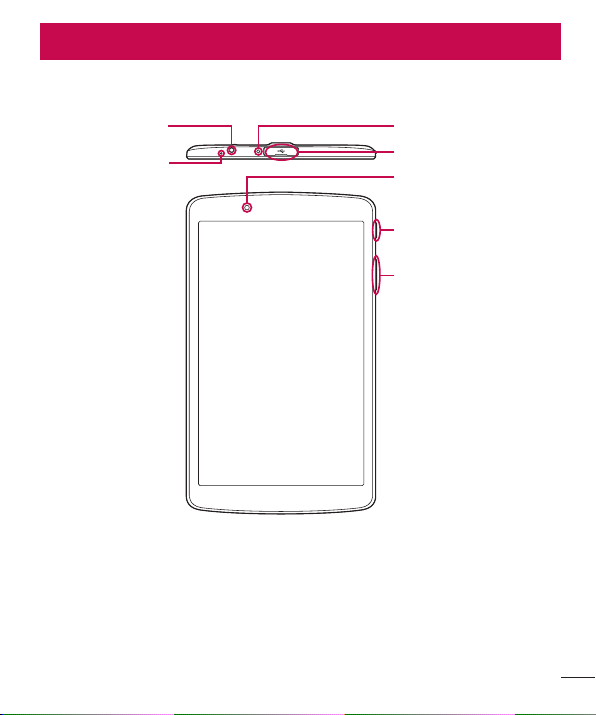
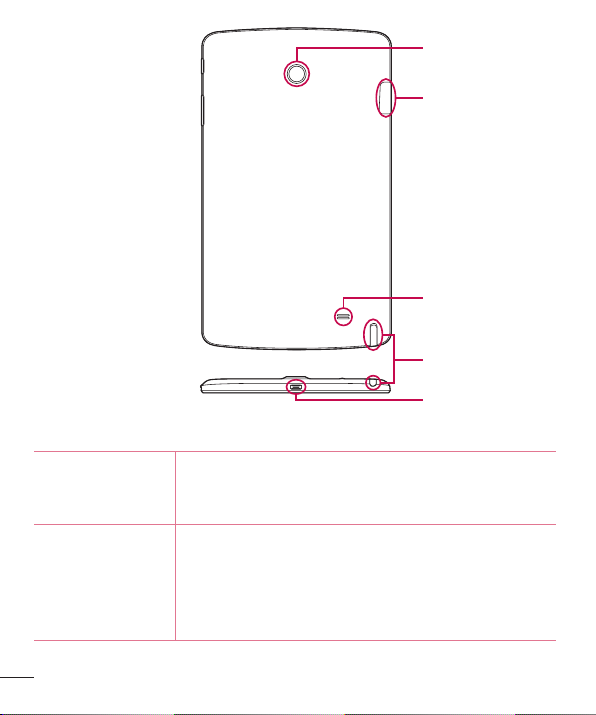
Phone layout
Volume keys
Front-facing camera
USB peripheral port
Infrared (IR) LED
Power/Lock key
Earphone jack
Microphone
Getting to know your device
8
Getting to know your device
microSD card slot
Rear-facing camera
Speaker
Stylus Pen
Charger / USB port
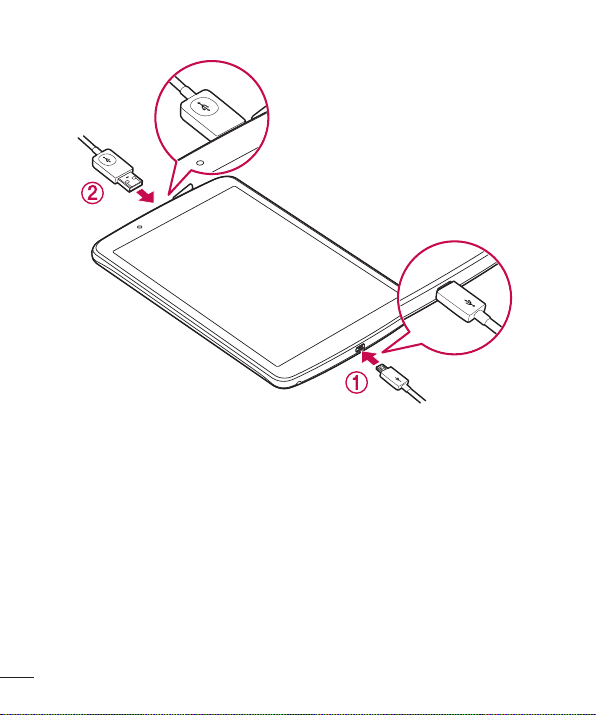
Front-facing
camera
Usetotakepicturesandrecordvideosofyourself.Youcan
alsousethisforvideochatting.Keepitcleanforoptimal
performance.
Power/Lock key
Presstolock/unlockthescreen.Pressandholdtoturn
thetableton/off,restartit,andactivate/deactivateairplane
mode.PressandholdPower/LockkeyandVolumeDown
keytothesametimetocaptureascreenshotofthecurrent
screen.

9
Getting to know your device
Volume keys
Allowyoutoadjustthemediavolumes.Pressandholdboth
keysatthesametimetoaccesstheQuickMemo+while
screenisunlocked.PressandholdDownorUptoaccess
theCamerawhilescreenisofforlocked.
Earphone jack
Allowsyoutopluginanoptionalheadsetforconvenient,
hands-freeconversations.Youcanalsopluginheadphones
tolistentomusic.
Infrared (IR) LED UsedasasensorfortheQuickRemoteapp.
MicroSD card slot AllowsyoutoinsertyourmicroSDcard.
Microphone
Recordsyourvoiceandallowsuseforvoice-activatedfunctions.
USB peripheral
port
AllowyoutoconnectaUSBperipheral,suchasakeyboard,
mouse,andexternalstoragetoyourtablet.Alsoallowsyou
tochargeanotherdevice.
Charger / USB port
AllowsyoutoconnectthetabletandtheUSBcablefor
usewiththechargeradapter,yourPC,orothercompatible
accessories.
Rear-facing
camera
Usetotakephotosandrecordvideos.Keepitcleanfor
optimalperformance.
Speaker
Usetolistentotheaudiofromtheselectedfunction(e.g.,
music,videos,soundclips,etc.).
Stylus Pen
Allowsyoutouseaconvenientstyluspenthatyoucanuse
toinputcommandsandnavigateyourdevice.Italsoworks
wellwithpopularwritinganddrawingapplications.Touse
thestylus,slideitoutfromthebottomofthedevice.
10
Getting to know your device
Connecting cables to the ports
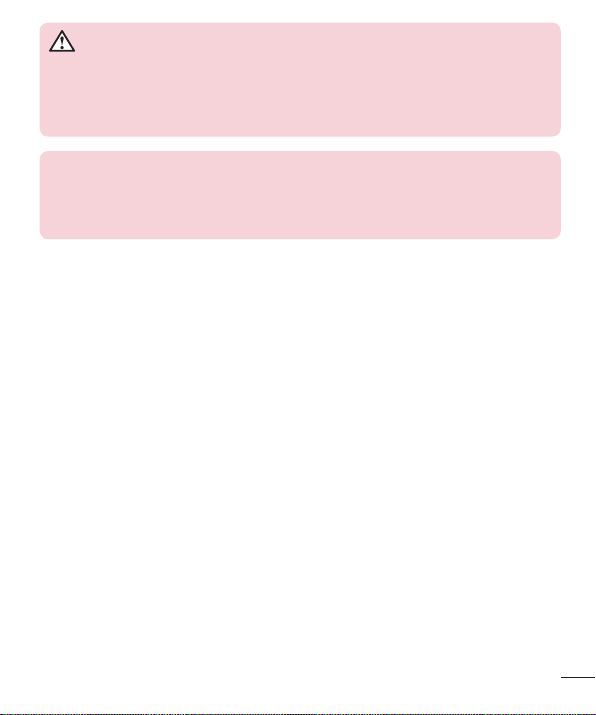
1. Charging the battery
TheCharger/USBPortislocatedatthebottomofthedevice.Insertthechargerand
plugitintoapoweroutlet.
Chargethebatterybeforeusingitforfirsttime.Usethechargerincludedwithyour
devicetochargethebattery.Acomputercanalsobeusedtochargethebatteryby
connectingthedevicetoitusingtheUSBcable.
11
Getting to know your device
WARNING
Use only LG-approved chargers, batteries and cables. If you use unapproved
chargers, batteries or cables, it may cause a battery charging delay or pop up
message regarding slow charging. This can also cause the battery to explode
or damage the device, which is not covered by the warranty.
NOTE:
• Your device has an internal rechargeable battery. For your safety, do not remove
the embedded battery.
• The battery must be fully charged initially to improve battery lifetime.
Yourdevicesupportsuptoa128GBmicroSDcard.Dependingonthememorycard
manufacturerandtype,somememorycardsmaynotbecompatiblewithyourdevice.
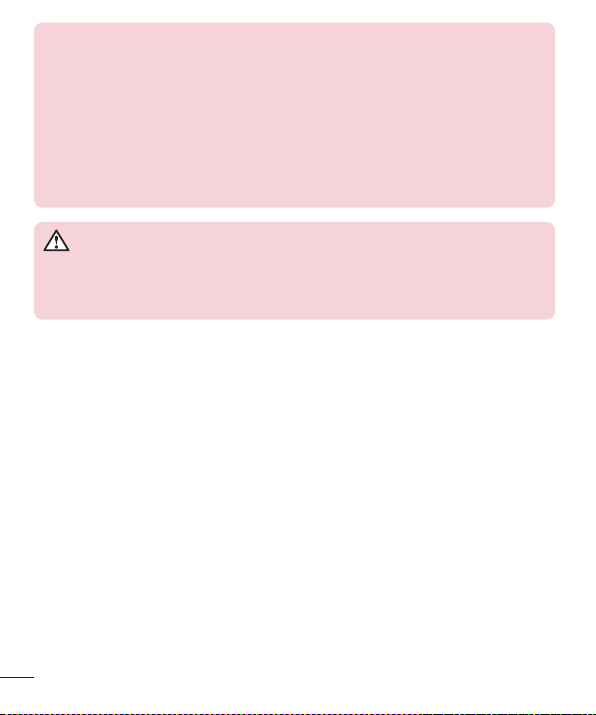
2. Connecting a USB device to your tablet
TheUSBperipheralportislocatedatthetopofthedevice.InserttheUSBportandplug
itintothedesireddevice.
SomeoftheUSBdevicessupportedthroughtheUSBportincludeakeyboard,mouse,
gamecontroller,digitalcamera,andstoragedevice(includinganAndroidsmartphone
actingasexternalstoragedevice).AsmostUSBkeyboards,mouseandgame
controllersaredesignedfordesktopcomputersandoperationsystems,somedevices
maynotfunction.
12
Getting to know your device
NOTE:
• Only devices that meet the USB specs may connect to the USB peripheral port.
• If you are experiencing errors with device recognition, please use a shorter USB
cable or check the USB Hub with external power supply (Self-Powered Hub).
• Only file systems such as FAT32, exFAT, and NTFS are supported for the
external USB storage device.
• Transferring data through both USB devices at the same time is not supported.
The first device that is connected has priority. The USB device connected
second can only be charged.
WARNING
You cannot store data in the USB storage when the battery level is below
15%. Please charge the battery above 15% in order to use the USB storage
function.
13
Getting to know your device
Installing the microSD card
Beforeyoucanstartexploringyournewdevice,youneedtosetitup.
YourdevicesupportstheuseofmicroSDmemorycardsofupto128GBcapacity.
MultimediacontentscanbesavedinthemicroSDcard.
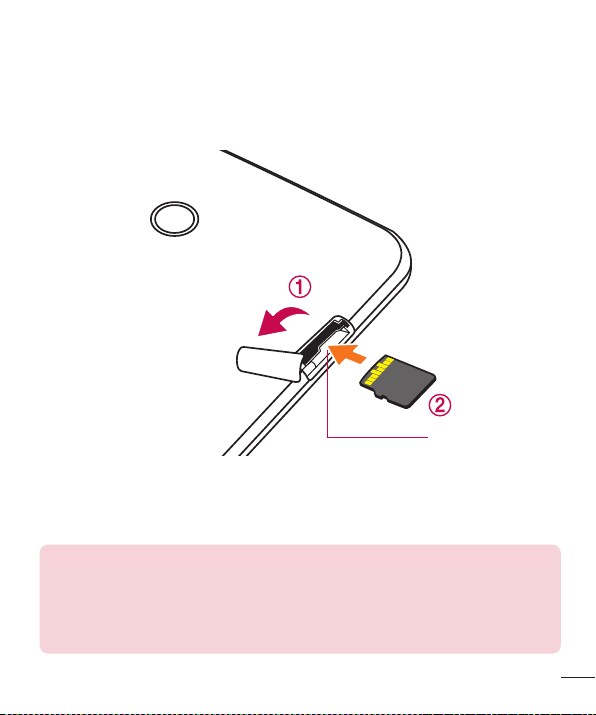
1 OpenthemicroSDslotcover.
microSD card slot
2 Ifyouwanttouseamemorycard,insertthememorycardintothelowerslot.Make
surethegoldcontactareaisfacingupwards.SlidethemicroSDcardintotheslotuntil
it“clicks”intoplaceandthenclosetheslotcover.
NOTE:
• Cards must be positioned as shown.
• MicroSD card is not included.
• Depending on the memory card manufacturer and type, some memory cards
may not be compatible with your device.
14
Getting to know your device
Removing the memory card
Beforeremovingthememorycard,firstunmountitforsaferemoval.
1 Tap
> > >Storage>Unmount SD card.
2 Openthecardslotcoverandpressthememorycardintounlockit.Thenpullitout
oftheslot.
WARNING
Do not remove the memory card while the device is transferring or accessing
information. Doing so can cause data to be lost or corrupted or damage to
the memory card or device. LG is not responsible for losses that result from
the misuse of damaged memory cards, including the loss of data.
Locking and unlocking the device
PressingthePower/Lock Keyturnsoffthescreenandputsthedeviceintolockmode.
Thedeviceautomaticallygetslockedifitisnotusedforaspecifiedperiod.Thishelpsto
preventaccidentaltapsandsavesbatterypower.
Tounlockthedevice,pressthePower/Lock Keyandswipethescreeninanydirection.
NOTE: Double-tapping on the screen also can wake up the screen instead of
the Power/Lock Key.
Changing the screen lock method
Youcanchangethewaythatyoulockthescreentopreventothersaccessingyour
personalinformation.
1 Tap
> > >Display>Lock screen>Select screen lock.
2 SelectadesiredscreenlockfromNone,Swipe,KnockCode,Pattern,PINand
Password.
15
Getting to know your device
NOTE: Create a Google account before setting an unlock pattern and
remember the Backup PIN you created when creating your pattern lock.
Caution! If you haven't created a Google account on the device and you
forgot your PIN, Password, and the backup PIN, you need to perform a hard
reset. If you perform a hard reset, all user applications and user data will be
deleted. Please remember to back up any important data before performing
a hard reset.
TIP! Smart Lock
• You can use Smart Lock to make unlocking your device easier. You can set
it to keep your device unlocked when you have a trusted Bluetooth device
connected to it, when it's in a familiar location like your home or work, or when
it recognizes your face.
• Setting up Smart Lock
1 Tap > > > Display > Lock screen > Smart Lock.
2 Before you add any trusted devices, trusted places, or trusted face, you
need to set up a screen lock (pattern, PIN, or password).

16
Your Home screen
Your Home screen
Touch screen tips
Herearesometipsonhowtonavigateonyourdevice.
• Tap or touch–Asinglefingertapselectsitems,links,shortcutsandlettersonthe
on-screenkeyboard.
• Touch and hold–Touchandholdanitemonthescreenbytappingitandnot
liftingyourfingeruntilanactionoccurs.
• Drag–Touchandholdanitemforamomentandthen,withoutliftingyourfinger,
moveyourfingeronthescreenuntilyoureachthetargetposition.Youcandrag
itemsontheHomescreentorepositionthem.
• Swipe or slide–Toswipeorslide,quicklymoveyourfingeracrossthesurface
ofthescreen,withoutpausingwhenyoufirsttapit(soyoudon'tdraganitem
instead).
• Double-tap–Double-taptozoomonawebpageoramap.
• Pinch-to-Zoom–Useyourindexfingerandthumbinapinchingorspreading
motiontozoominoroutwhenusingthebrowser,Maps,orwhenviewingpictures.
• Rotate the screen–Frommanyapplicationsandmenus,thescreenorientation
adjuststothedevice'sphysicalorientation.
NOTE:
• Do not press too hard; the tap screen is sensitive enough to pick up a light, yet
firm tap.
• Use the tip of your finger to tap the option you want. Be careful not to tap any
other buttons.
17
Your Home screen
Home screen
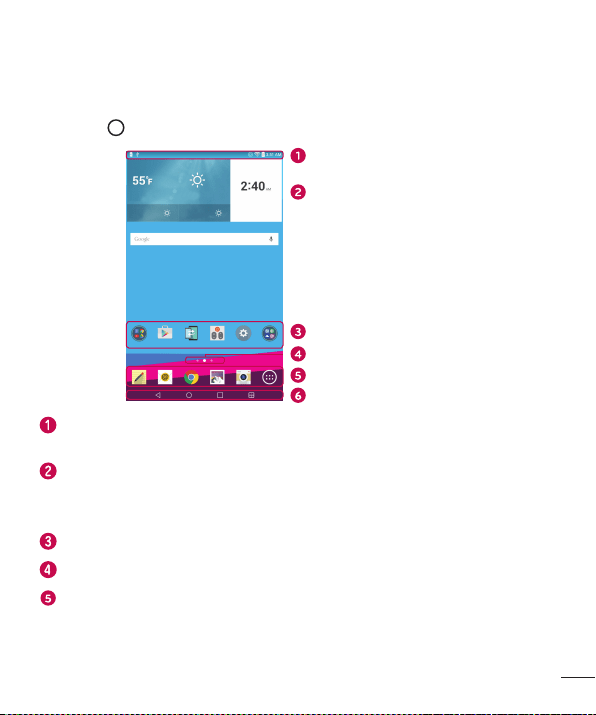
TheHomescreenisthestartingpointformanyapplicationsandfunctions.Itallows
youtoadditemslikeappshortcutsandGooglewidgetstogiveyouinstantaccessto
informationandapplications.Thisisthedefaultcanvasandaccessiblefromanymenu
bytapping
.
Status Bar
Widget
Application Icons
Location Indicator
Quick Button Area
Home Touch Buttons
Showsthedevice'sstatusinformation,includingthetime,signalstrength,battery
statusandnotificationicons.
Widgetsareself-containedapplicationsthatcanbeaccessedthroughtheApps
drawerorontheHomescreen.Unlikeashortcut,aWidgetcanfunctionasan
on-screenapplication.
Tapanicon(application,folder,etc.)toopenanduseit.
IndicateswhichHomescreencanvasyouarecurrentlyviewing.
Providesone-touchaccesstothefunctionfromanyHomescreencanvas.

18
Your Home screen
Back Button
Returnstothepreviousscreen.Alsoclosespop-upitems,
suchasmenus,dialogboxesandtheon-screenkeyboard.
Home Button
ReturntotheHomescreenfromanyscreen.Touchandhold
toaccesstheGoogleNowshortcut.
Recent Apps
Button
Displaysrecentlyusedapplications.Ifyoutouchandhold
thisbutton,itopensamenuofavailableoptions.
Dual window
button
Taptochangetodualwindowmode.Itallowsyouto
managetwodifferentappsatthesametimebysplittingthe
screenintwo.
Extended Home screen
TheoperatingsystemprovidesmultipleHomescreencanvasestoprovidemorespace
foraddingicons,widgetsandmore.
• SlideyourfingerleftorrightacrosstheHomescreentoaccessadditional
canvases.
Customizing the Home screen
YoucancustomiseyourHomescreenbyaddingappsandwidgetsandchanging
wallpapers.
Adding items on your Home screen
1 TouchandholdtheemptypartoftheHomescreen.
2 TaptheWidgetstabandselecttheitemyouwanttoadd.Youthenseethisadded
itemontheHomescreen.
3 Dragittothedesiredlocationandliftyournger.
19
Your Home screen
TIP! To add an application icon to the Home screen from the Apps screen,
touch and hold the application you want to add.
Removing an item from the Home screen
• WhileontheHomescreen,touchandholdtheiconyouwanttoremovethendrag
itto andreleaseit.
Adding an app to the Quick Button area
• FromtheAppsscreenorontheHomescreen,touchandholdanapplicationicon
anddragittotheQuickButtonarea.Thenreleaseitinthedesiredlocation.
Removing an app from the Quick Button area
• TouchandholdthedesiredQuickButton,dragitto ,andreleaseit.
NOTE: The Apps Button cannot be removed.
Customizing app icons on the Home screen
1 Touchandholdanapplicationiconuntilitunlocksfromitscurrentposition,then
releaseit.Theeditingicon appearsintheupper-rightcorneroftheapplication.
2 Taptheapplicationiconagainandselectthedesiredicondesignandsize.
3 TapOKtosavethechange.
NOTE: You can also tap Add new to personalize icons with your pictures.
20
Your Home screen
Returning to recently-used applications
1 Tap .Apppreviewsofrecentlyusedapplicationswillbedisplayed.
2 Tapanapppreviewtoopentheapplication.Ortap
toreturntoyourprevious
screen.
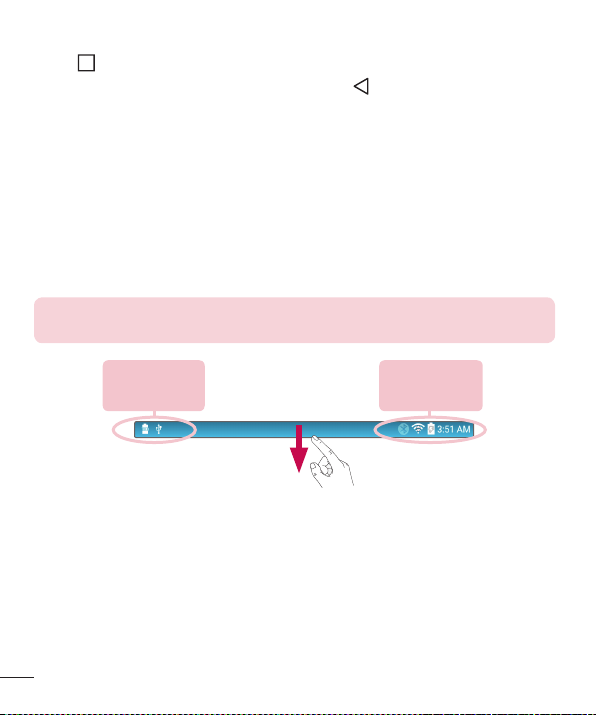
Notifications panel
Notificationsalertyoutothearrivalofnewmessages,calendareventsandalarms,as
wellasongoingevents,suchasdownloads.
Whenanotificationarrives,itsiconappearsatthetopofthescreen.Iconsforpending
notificationsappearontheleft,andsystemicons,suchasWi-Fiandbatterystrength
areshownontheright.
NOTE: The available options may vary depending on the region or service
provider.
Pending
notifications
System
notifications
21
Your Home screen
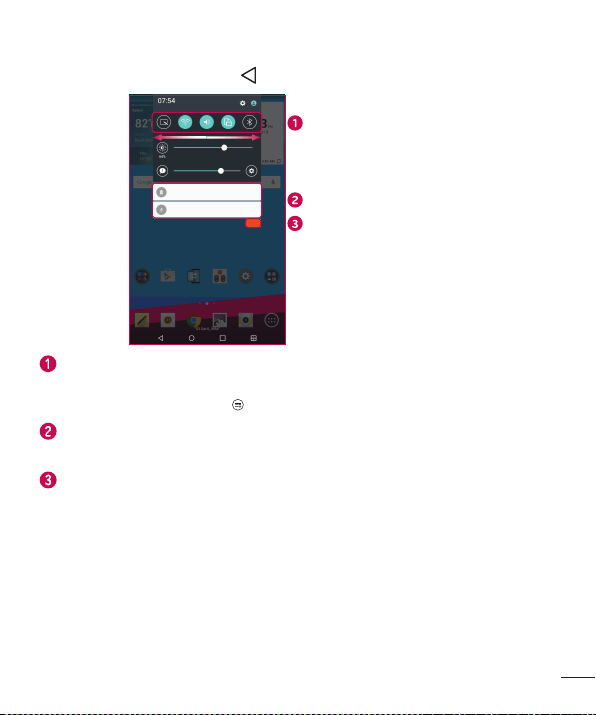
Opening the Notifications panel
SwipetheStatusbartoopentheNotificationspanel.ToclosetheNotificationspanel,
swipethescreenupwardsortap .
Quick Settings Area
Notifications
Clear
Tapeachquicksettingbuttontotoggleiton/off.Touchandholdthedesiredbutton
todirectlyaccessthesettingsmenuforthefunction.Toseemoretogglebuttons,
swipeleftorright.TapEdit
toremove,addorrearrangequicksettingbuttons.
Currentnotificationsarelisted,eachwithabriefdescription.Tapanotificationto
viewit.
Taptoclearallofthenotifications.
22
Your Home screen
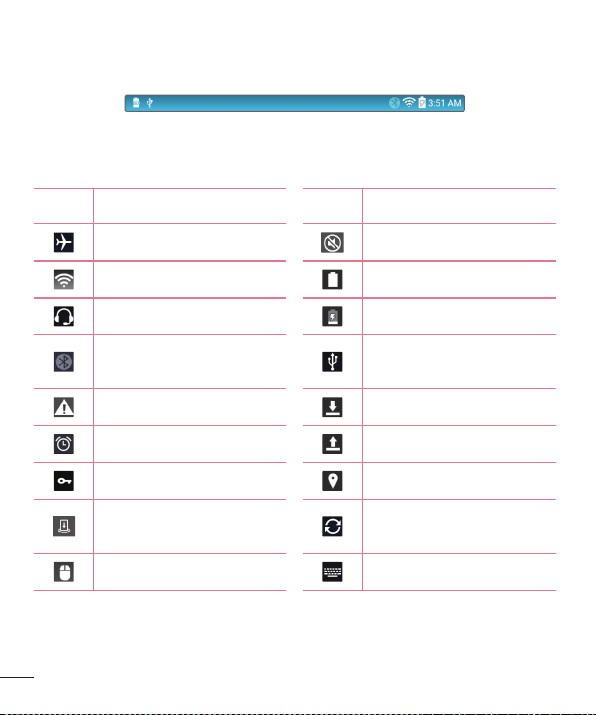
Indicator icons on the Status Bar
IndicatoriconsappearontheStatusbaratthetopofthescreentocalendarevents,
devicestatusandmore.
Theiconsdisplayedatthetopofthescreenprovideinformationaboutthestatusofthe
device.Theiconslistedinthetablebelowaresomeofthemostcommonones.
Icon Description Icon Description
Airplanemodeison Silentmodeisenabled
ConnectedtoaWi-Finetwork Batteryfullycharged
Wiredheadsetconnected Batteryischarging
Bluetoothison
The device is connected to a
PCviaaUSBcable
Systemwarning Downloadingdata
Analarmisset Uploadingdata
VPNisactive GPSison
Media server content sharing
ison
Dataissynchronizing
Themouseisconnected Chooseinputmethod
23
Your Home screen
Asongiscurrentlyplaying Thekeyboardisconnected
Vibratemodeison
NOTE: The icon's location in the Status bar may differ according to the
function or service.
On-screen keyboard
Youcanentertextusingtheon-screenkeyboard.Theon-screenkeyboardappearson
thescreenwhenyoutapanavailabletextentryfield.
Using the keypad and entering text
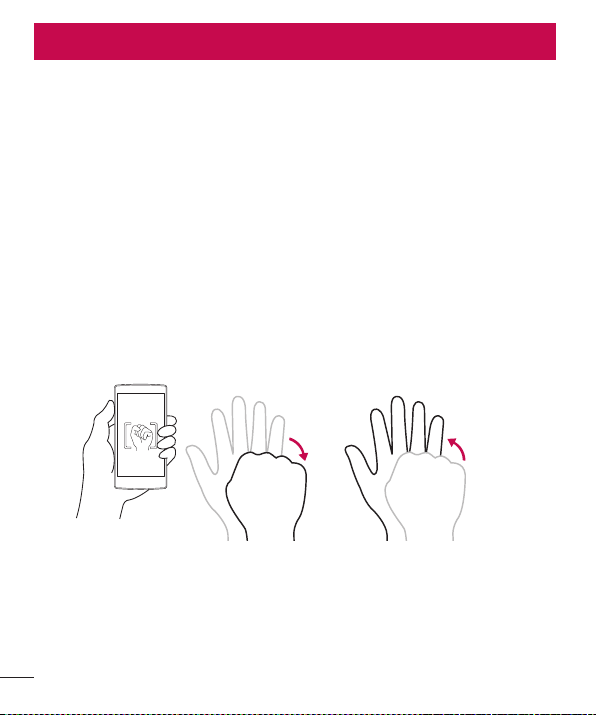
Taponcetocapitalisethenextletteryoutype.Double-tapforallcaps.
Taptogotothekeyboardsettings.Touchandholdtoentertextbyvoice,
handwriting,oraccessthecliptray.
Taptoenteraspace.
Taptocreateanewline.
Taptodeletethepreviouscharacter.
Entering special characters
Theon-screenkeyboardallowsyoutoenterspecialcharacters.
Forexample,toinput"á",touchandholdthe"a"buttonuntilthepop-upappearsand
displaysrelatedspecialcharacters.Withoutliftingthefinger,dragyourfingertothe
desiredspecialcharacter.Onceit'shighlighted,liftyourfinger.
NOTE: A symbol at the top right corner of a key indicates that additional
characters are available for that key.
24
Special Features
Gesture shot
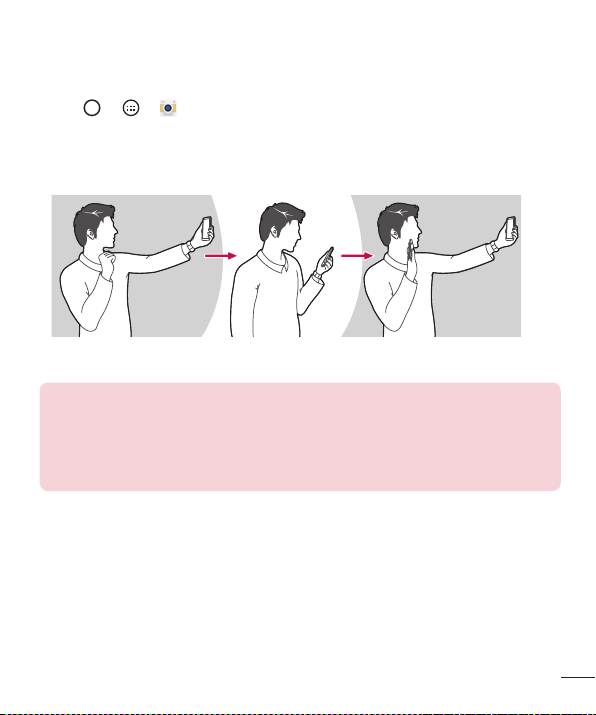
TheGestureshotfeatureallowsyoutotakeapicturewithahandgestureusingthe
frontcamera.
To take photo
TherearetwomethodsforusingtheGestureshotfeature.
• Raiseyourhand,withanopenpalm,untilthefrontcameradetectsitandabox
appearsonthescreen.Thencloseyourhandintoafisttostartthetimer,allowing
youtimetogetready.
OR
• Raiseyourhand,inaclenchedfist,untilthefrontcameradetectsitandabox
appearsonthescreen.Thenunclenchyourfisttostartthetimer,allowingyoutime
togetready.
or
Special Features
25
Special Features
Gesture View
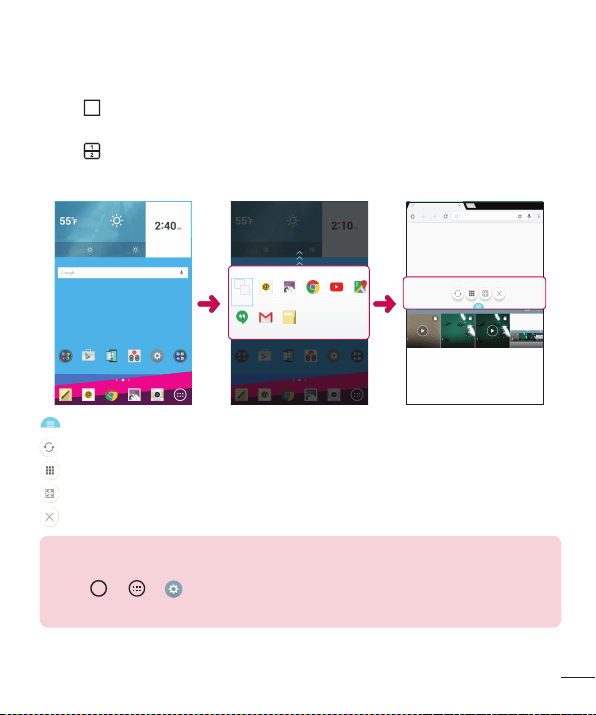
Aftertakingaphotowiththefrontcameralens,youcanautomaticallycheckthe
capturedphotowiththisgesture.
1 Tap
> > .
2 Takeapicturewiththefrontcamera.
3 Aftertakingthepicture,bringthedeviceclosetoyourface.Thecapturedphotowill
bedisplayed.
Take a picture Quick preview Return to front camera mode
NOTE:
• Depending on the speed and angle of the gesture, this feature may not work
properly.
• When the angle is changed after the quick preview, the device returns to camera
mode. You must access the Gallery to view the picture again.

26
Special Features
KnockON
TheKnockONfeatureallowsyoutodouble-tapthescreentoeasilyturnitonoroff.
To turn the screen on
1 Double-tapthecenterofthescreentoturnthescreenon.
2 Unlockthescreenoraccessanyoftheavailableshortcutsorwidgets.
To turn the screen off
1 Double-tapanemptyareaoftheHomescreenortheStatusBar.
2 Thescreenwillturnoff.
NOTE: Tap on the center area of the screen. If you tap on the bottom or the
top area, the recognition rate may decrease.
Knock Code
TheKnockCodefeatureallowsyoutocreateyourownunlockcodeusinga
combinationofknocksonthescreen.YoucanaccesstheHomescreendirectlywhen
thescreenisoffbytappingthesamesequenceonthescreen.
NOTE:
• If you enter the wrong Knock Code 6 times, it will compulsorily take you to your
google account log in/backup PIN.
• Use the fingertip instead of finger nail to tap the screen for turning it on or off.
1 Tap > > >Display>Lock screen>Select screen lock>Knock Code.
2 TapthesquaresinapatterntosetyourKnockCode.YourKnockCodepatterncanbe
3to8taps.
Unlocking the screen using the Knock Code
YoucanunlockthescreenbytappingtheKnockCodepatternyoualreadyset,when
thescreenturnsoff.
27
Special Features
Dual window
Thisfeatureallowsyoutomulti-taskbysplittingupthescreenintotwo,allowingyouto
usetwocompatibleapplicationsatthesametime.
1 Tap
>Dual window
OR
Tap
.
2 Tapordragtheappiconforthecorrespondingapplicationyouwishtouse.
:TaptoviewtheDualwindowmenuoptions,ordragtoresizethesplitscreens.
:Switchthetwoscreens.
:Viewtheapplist.
:Changetheselectedwindowtofullscreen.
:Closethecurrentlyselectedappwindow.
NOTE: Dual window is enabled by default. You can enable or disable Dual
window through the Settings menu.
1 Tap
> > > Dual window.
2 Slide the toggle button to On or Off.
28
Special Features
QuickMemo+
TheQuickMemo+featureallowsyoutocreatememosandcapturescreenshots.
YoucanuseQuickMemo+toeasilyandefficientlywhenyoucreatememos,capture
screens,andsharethemwithfamilyandfriends.
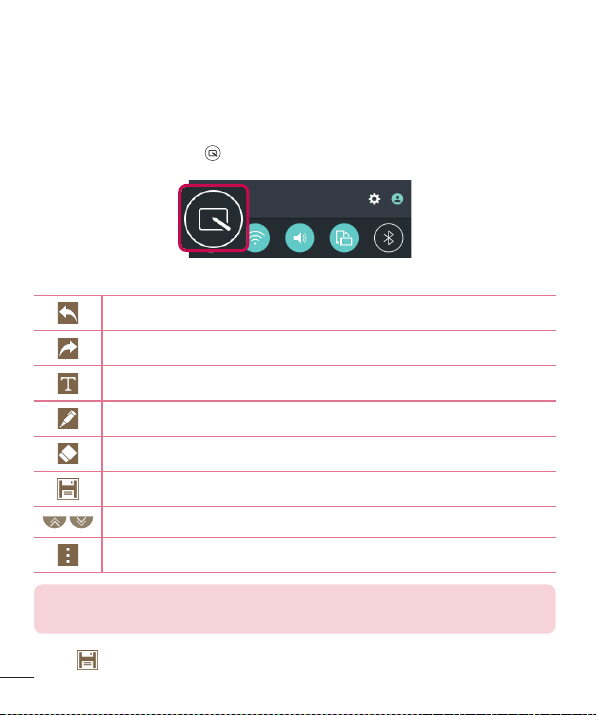
1 Whileviewingthescreenyouwanttocaptureanduseinyourmemo,dragthe
Statusbardownandtap
.
2 Createamemousingthefollowingoptions:
Taptoundothemostrecentaction.
Taptoredothemostrecentlydeletedaction.
Taptoinserttextintoyourmemo.
Taptoselectthepentypeandcolor.
Taptousetheerasertoerasethepenmarksonthememo.
Taptosavethememoyou'vecreated.
Taptohideordisplaythetoolbar.
Taptodisplayadditionaloptions.
NOTE: Please use a fingertip or Stylus Pen while using the QuickMemo+
feature. Do not use your fingernail.
3 Tap tosavethecurrentmemototheQuickMemo+orGallery.
29
Special Features
Discard Memos
• Tap .
View the Saved Memo
• Tap > > andselecttheQuickMemo+album.
OR
• Tap fromtheHomescreenandselectthedesiredmemo.
QSlide
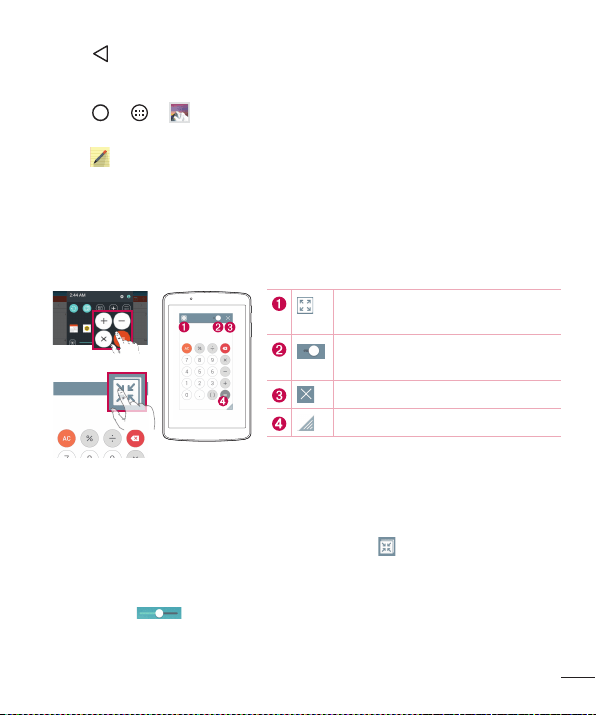
Fromanyscreen,usetheNotificationpaneltoeasilyaccessandusetheCalendar,
Calculator,andmorewithQSlide.
OR
Taptoexpandthewindowtofull
windowsize.
Taptoadjustthewindow's
transparency.
TaptoclosetheQSlidewindow.
Dragtoadjustthesize.
1 SlidetheStatusbardownward,thentapQSlidetoviewtheavailableQSlideapps.
ThentapthedesiredappfromtheQSlideAppssection.
OR
Also,whileusingapplicationsthatsupportQSlide,tap
.Thefunctionisdisplayed
asasmallwindowonyourscreen.
2 YoucanuseandtapthescreenundertheQSlidewindowswhenthetransparency
barisnotfull
.
30
Special Features
NOTE: QSlide can support up to two window at the same time.
QuickRemote
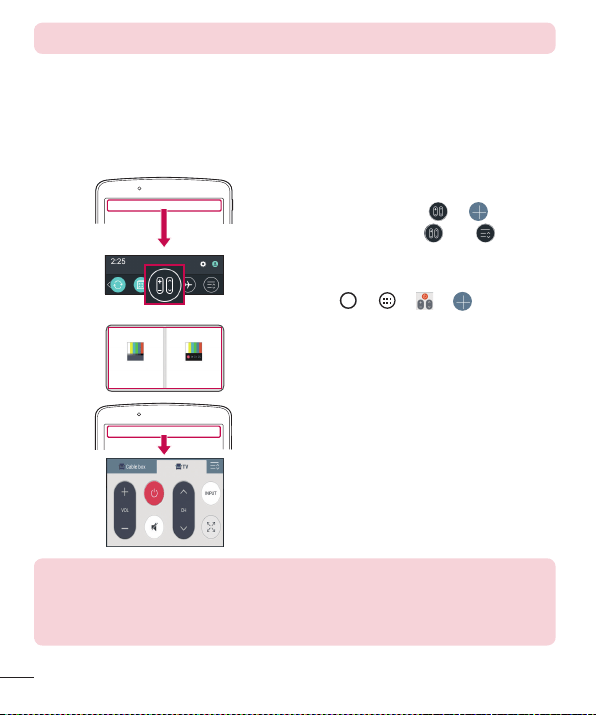
QuickRemoteturnsyourdeviceintoaUniversalRemoteforyourhomeTV,andCable
box.
1 TouchandslidetheStatusbar
downwardandtap
> .
Ifyoucannotsee ,tap >
checkmarkQuickRemotetoenable.
OR
Tap
> > > .
2 Selectthetypeandbrandofthe
device,thenfollowtheon-screen
instructionstocongurethedevice.
3 Onceyouhavecompletedtheinitial
setup,youcaneasilyaccessthe
QuickRemotefromtheNotication
panel.OpentheNoticationpaneland
usetheQuickRemotefunctions.
NOTE: QuickRemote operates the same way as an ordinary remote control
infrared (IR) signals. Be careful not to cover the infrared sensor at the top of
the device when you use the QuickRemote function. This function may not be
supported depending on the model, the manufacturer or service company.
31
Google Account Setup
Google Account Setup
ThefirsttimeyouopenaGoogleapplicationonyourdevice,youwillberequiredtosign
inwithyourexistingGoogleaccount.IfyoudonothaveaGoogleaccount,youwillbe
promptedtocreateone.
Creating your Google account
1 Tap > .
2 Tap
>Accounts & sync>Add account>Google>Or create a new
account.
3 Enteryourrstandlastname,thentapNEXT.
4 EnterausernameandtapNEXT.YourdevicewillcommunicatewithGoogleservers
andcheckforusernameavailability.
5 EnteryourpasswordandtapNEXT.
6 Followtheinstructionsandentertherequiredandoptionalinformationaboutthe
account.Waitwhiletheservercreatesyouraccount.
Signing into your Google account
1 Tap > .
2 Tap
>Accounts & sync>Add account>Google.
3 EnteryouremailaddressandtapNEXT.
4 OnceyouhavesetupyourGoogleaccount,yourdevicewillautomaticallysynchronise
withyourGoogleaccountontheweb(ifadataconnectionisavailable).

32
Google Account Setup
Aftersigningin,yourdevicewillsyncwithyourGoogleservices,suchasGmail,
Contacts,andGoogleCalendar.YoucanalsouseMaps,downloadapplicationsfrom
PlayStore,backupyoursettingstoGoogleservers,andtakeadvantageofotherGoogle
servicesonyourdevice.
IMPORTANT
• Some applications, such as Calendar, work only with the first Google
Account you add. If you plan to use more than one Google Account
with your device, be sure to sign into the one you want to use with such
applications first. When you sign in, your contacts, Gmail messages,
Calendar events, and other information from these applications and services
on the web are synchronised with your device. If you don't sign into a
Google Account during setup, you will be prompted to sign in or to create
a Google Account the first time you start an application that requires one,
such as Gmail or Play Store.
• If you have an enterprise account through your company or other
organization, your IT department may have special instructions on how to
sign into that account.
33
Connecting to Networks and Devices
Connecting to Networks and Devices
Wi-Fi
Youcanusehigh-speedInternetaccesswhilewithinthecoverageofthewireless
accesspoint(AP).
Connecting to Wi-Fi networks
1 Tap > > >Wi-Fi.
2 Tap
OFF ON
toturnWi-FionandstartscanningforavailableWi-Finetworks.
3 Tapanetworktoconnecttoit.
• Ifthenetworkissecuredwithalockicon,youwillneedtoenterasecuritykeyor
password.
4 TheStatusbardisplaysiconsthatindicateWi-Fistatus.
TIP! How to obtain the MAC address
Tap
> > > Wi-Fi > > Advanced Wi-Fi > MAC address.
34
Connecting to Networks and Devices
Bluetooth
Bluetoothisashort-rangecommunicationstechnologythatallowsyoutoconnect
wirelesslytoanumberofBluetoothdevices,suchasheadsetsandhands-freecarkits,
andBluetooth-enabledhandhelds,computers,printers,andwirelessdevices.
NOTE:
• LG is not responsible for the loss, interception or misuse of data sent or
received via the Bluetooth feature.
• Always make sure that you share and receive data with devices that are trusted
and properly secured.
• If there are obstacles between the devices, the operating distance may be
reduced.
• Some devices, especially those that are not tested or approved by Bluetooth
SIG, may be incompatible with your device.
Pairing your device with another Bluetooth device
1 Tap > > >Bluetooth.
2 Tap
OFF ON
toturnBluetoothon.
3 TapSearchtoviewthevisibledevicesinrange.
4 Choosethedeviceyouwanttopairwithfromthelist.Oncetheparingissuccessful,
yourdeviceconnectstotheotherdevice.
NOTE: Pairing between two Bluetooth devices is a one-time process. Once
a pairing has been created, the devices will continue to recognize their
partnership and exchange information.
TIP! Please consult documentation included with Bluetooth device for
information on pairing mode and passcode (typically 0 0 0 0 – four zeroes).
35
Connecting to Networks and Devices
Sending data via Bluetooth
1 Selectafileoritemsuchasacontactormediafile.
2 SelecttheoptionforsendingdataviaBluetooth.
3 SearchforandpairwithaBluetooth-enableddevice.
• DuetodifferentspecificationsandfeaturesofotherBluetooth-compatibledevices,
displayandoperationsmaybedifferent,andfunctionssuchastransferor
exchangemaynotbepossiblewithallBluetoothcompatibledevices.
Receiving data via Bluetooth
1 Tap > > >Bluetooth.
2 Tap
OFF ON
toturnBluetoothon.
3 Youwillreceivearequesttoacceptdatafromthesendingdevice.Besuretoselect
Accept.
Wi-Fi Direct
Wi-FiDirectprovidesadirectconnectionbetweenWi-Fienableddeviceswithout
requiringanaccesspoint.
Turning on Wi-Fi Direct
1 Tap > > > Wi-Fi.
2 Tap
> Advanced Wi-Fi > Wi-Fi Direct.
NOTE: When in this menu, your device is visible to other visible Wi-Fi Direct
devices nearby.

36
Connecting to Networks and Devices
SmartShare
SmartShareallowsyoutoreceivemultimediacontentviaLGdeviceandtablets.
1 Whileviewingthecontentyouwanttoshare,tap
or >SmartShare.
2 TapPlayorBeaminthepop-upthatisdisplayed.
• Play: YoucanstreamyourcontentviaaTV,Bluetoothspeaker,etc.
• Beam: YoucansendyourcontenttoBluetoothdevicesorviaSmartShareBeam*to
supportedLGdevicesortablets.
*SmartShareBeamquicklytransfersmultimediacontentsthroughWi-FiDirect.
3 Tapthedeviceyouwanttosharefromthelist.
• Ifthedeviceisnotdisplayedonthelist,makesurethatWi-Fi,Wi-FiDirect,or
Bluetoothisturnedon.ThentapRescan.
Enjoying content from nearby devices
1 Toconnectnearbydevicestoyourdevice,tap >Nearby devicesonthe
GalleryandMusicapps.
• MakesurethatyourdeviceandnearbydevicesareconnectedtothesameWi-Fi
networkandthattheDLNAserviceonthenearbydeviceisturnedon.
2 Tapthedeviceyouwishtoconnectto.
Ifthedeviceisnotlisted,tapSearch nearby devices.
3 Afteraconnectionisestablished,youcanenjoythecontentonyourdevice.
37
Connecting to Networks and Devices
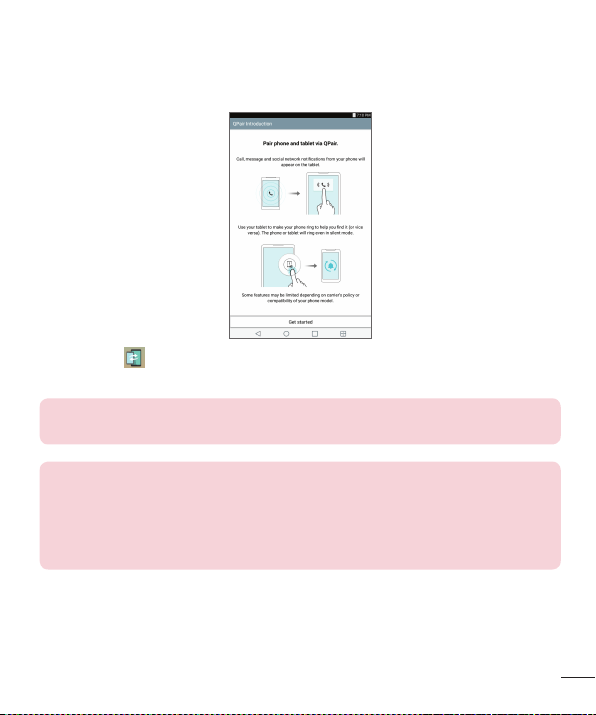
QPair
ByconnectingyourtabletandmobiledeviceviaQPair,youcansyncincomingcalls,
messages,andsocialnetworkingnotificationsbetweenyourtabletandmobiledevice.
1 RunQPair andtapGet started>Startonyourtabletfirstandthenrunthe
samestepsonyourdevice.
TIP! QPair may not be pre-installed on the device. Go to the Google Play
Store and search for QPair and install it.
NOTE:
• QPair works with devices running Android 4.1 or later. Some features may be
limited depending on your device model.
• Since QPair uses the Bluetooth function, it may not work normally if you change
the Bluetooth settings while QPair is in use.
2 Bluetoothconnectionwillbeturnedonandyouwillbeabletopairthedevices.

38
Connecting to Networks and Devices
QPair features
Call notifications–Sendsthetabletanotificationwhenthedevicereceivesacall.The
notificationdisplaysthecaller'snumberandallowsyoutoansweranddeclinethecall.
Youcanalsochangecallsettings,suchasaringtone,ringtonevolume,ringtonewith
vibration,orsendadeclinemessagewhenyougetacall.
NOTE: You can only receive a call supported by Bluetooth technology. Dialing
a call from the tablet using the QPair feature is not possible.
Message notifications–Sendsthetabletanotificationwhenthedevicereceivesa
message.Youcanalsochangemessagesettings,suchasmessagepop-up,message
preview,notificationsound,andnotificationvibration.
Social network notifications–Displaysasocialnetworkingnotificationonyour
tablet'sStatusBarwhenitarrivesonyourdevice.
NOTE: To enable this feature, turn the QPair social network notifications
option on your device (Settings > Accessibility > QPair social network
notifications). This option allows you to be notified of social networking
notifications on your tablet.
QuickMemo+ transfer–SavesyourcurrentQuickMemo+inthetablet'sGallery,and
thensyncsthetablet'sGallerywiththeGalleryonyourdevice.
Internet via phone–ConnectionwillbeestablishedthroughInternetviaphone(Wi-Fi
hotspot).Phonedatachargesmayapply.

39
Connecting to Networks and Devices
Transferring data between a PC and your device
YoucancopyormovedatabetweenaPCandthedevice.
Transferring data
1 ConnectyourdevicetoaPCusingtheUSBcablethatcamewithyourdevice.
2 OpentheNoticationspanel,tapthecurrentUSBconnection,andselectMedia
device (MTP).
3 Awindowwillpop-uponyourPC,allowingyoutotransferthedesireddata.
NOTE:
• The LG United Mobile Driver is required to be installed on your PC to be able to
detect the device.
• Check the requirements for using Media device (MTP).
Items Requirement
OS Microsoft Windows XP SP3, Vista or higher
Window Media Player version Windows Media Player 10 or higher
• Please refer to www.android.com/filetransfer/#tips in order to use MTP on the
MAC OS.
40
Contacts
Contacts
Youcanaddcontactsonyourdeviceandsynchronisethemwiththecontactsinyour
GoogleAccountorotheraccountsthatsupportsyncingcontacts.
Searching for a contact
1 Tap > > toopenyourcontacts.
2 TapSearch contactsandenterthecontactnameusingthekeyboard.
Adding a new contact
1 Tap > > > .
2 Selectthedesiredaccount(ifapplicable).
3 Ifyouwanttoaddapicturetothenewcontact,taptheimagearea.
ChooseTake photoorSelect from Gallery.
4 Enterthedesiredinformationforthecontact.
5 TapSave.
Favorite contacts
Youcanclassifyfrequentlycalledcontactsasfavorites.
Adding a contact to your favorites
1 Tap > > toopenyourcontacts.
2 Tapacontacttoviewitsdetails.
3 Tapthestaratthetoprightofthecontactdetailsscreen.Thestarturnsgold.
41
Contacts
Removing a contact from your favorites list
1 Tap > > toopenyourcontacts.
2 TaptheFavoritestabandchooseacontacttoviewitsdetails.
3 Tapthegoldstaratthetoprightofthecontactdetailsscreentoremovethecontact
fromyourfavorites.
Creating a group
1 Tap toopenyourcontacts.
2 TapGroups>
.
3 Enteranameforthenewgroup.
4 TapAdd memberstoaddcontactstothegroup.
5 SelectthedesiredcontactsandtapAdd.
6 TapSavetosavethegroup.
NOTE: If you delete a group, the contacts assigned to that group will not be
lost. They will remain in your contact list.
42
Email
Email
YoucanusetheEmailapplicationtoreademailfromprovidersotherthanGmail.
TheEmailapplicationsupportsthefollowingaccounttypes:POP3,IMAPandMicrosoft
Exchange(forEnterpriseusers).
Managing email accounts
To open the Email application
ThefirsttimeyouopentheEmailapplication,asetupwizardopenstohelpyouaddan
emailaccount.Aftertheinitialsetup,thecontentsofyourinboxaredisplayed.Ifyou
haveaddedmorethanoneaccount,youcanswitchamongaccounts.
• Tap > > .
Adding another email account:
• Tap > > > >Settings > .
Changing the email general settings:
• Tap > > > >Settings>General settings.
Deleting an email account:
• Tap > > > >Settings> >Remove account>Selectthe
accounttodelete>Remove>Yes.
Working with account folders
EachaccounthasInbox,Outbox,SentandDraftsfolders.Dependingonthefeatures
supportedbyyouraccount'sserviceprovider,youmayhaveadditionalfolders.
• Tap > > > >Folders.

43
Email
Composing and sending email
1 Inthe application,tap tocreateanewemail.
2 Enteranaddressforthemessage'sintendedrecipient.Asyouentertext,matching
addresseswillbeofferedfromyourcontacts.Separatemultipleaddresseswith
semicolons.
3 TaptheCc/Bcceldtocopyorblindcopytoothercontacts/emailaddresses.
4 Tapthetexteldandenteryourmessage.
5 Tap
toattachtheleyouwanttosendwithyourmessage.
6 Tap
tosendthemessage.
44
Camera and Video
Camera options on the viewfinder
Youcanusethecameraorcamcordertotakeandsharepicturesandvideos.
• Tap > > .
NOTE: Be sure to clean the protective lens cover with a microfiber cloth
before taking pictures. A lens cover with smudges from fingers can cause
blurry pictures with a "halo" effect.
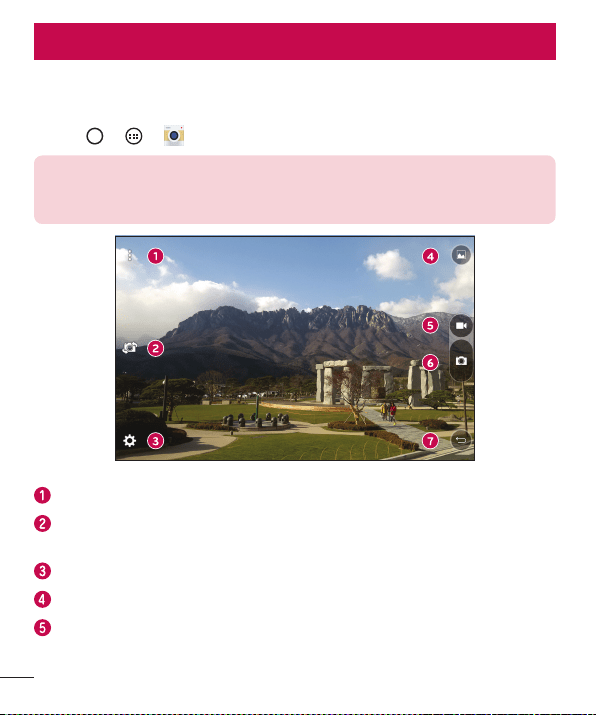
Hide/Display Options–Taptohide/displaythecameraoptionsontheviewfinder.
Swap camera–Taptoswapbetweentherearcameralensandthefrontcamera
lens.
Settings–Tapthisicontoopenthecamerasettingsmenu.
Gallery–Taptoviewthelastphotoorvideoyoucaptured.
Record–Taptostartrecording.
Camera and Video
45
Camera and Video
Capture –Taptotakeaphoto.
Exit –Taptoexitthecamera.
Using the advanced settings
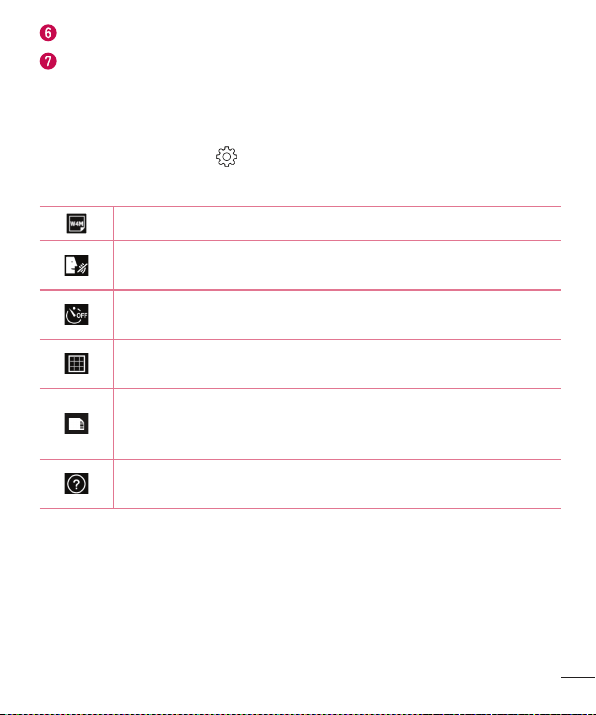
Inthecameraviewfinder,tap toshowtheadvancedoptions.Tapeachiconto
adjustthefollowingcamerasettings.
Setthesizeofyourpictureandvideo.
Allowsyoutosayavoicecommandtotakepictures.YoucansayLG,
Cheese,Smile,oranyothersupportedcommand.
Setyourcamera'stimer.Thisisidealifyouwanttobeapartofthe
pictureorvideo.
Allowsyoutotakebetterpicturesandrecordbettervideosbydisplaying
agridlineforhelpwithalignment.
Setthestoragelocationforyourpicturesandvideos.ChoosefromIN
(internalmemory)andSD(memorycard).Thismenuappearsonlywhen
theSDcardisinserted.
Allowsyoutolearnhowafunctionworks.Thisiconwillprovideyouwith
ahelpguide.
46
Camera and Video
Taking a photo
1 Openthe applicationandpointthelenstowardthesubjectyouwantto
photograph.
2 Focusindicatorswillappearinthecenteroftheviewnderscreen.Youcanalsotap
anywhereonthescreentofocusonthatspot.
3 Whenthefocusindicatorsturnblue,thecamerahasfocusedonyoursubject.
4 Tap
tocapturethephoto.
Once you have taken a photo
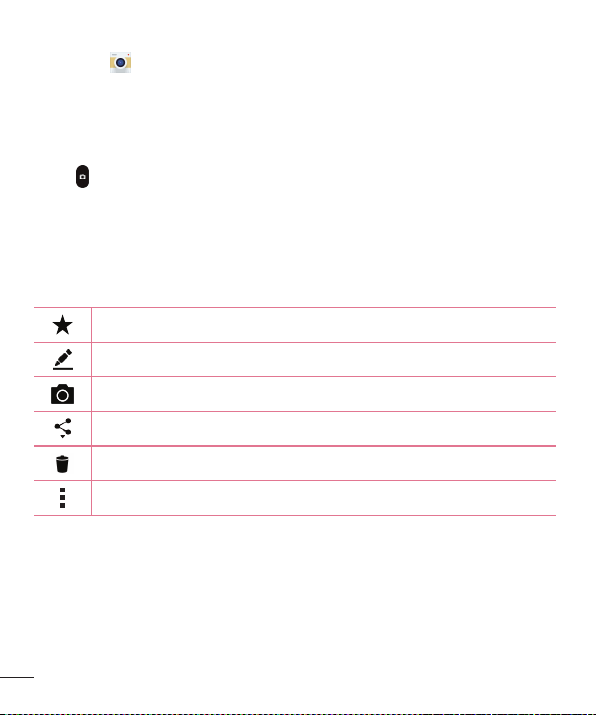
Taptheimagethumbnailonthescreentoviewthelastphotoyoutook.Thefollowing
optionsareavailable.
Taptoaddthephototoyourfavorites.
Taptoeditthephoto.
Taptotakeanotherphotoimmediately.
Taptoopentheavailablesharingoptions.
Taptodeletethephoto.
Taptoaccessadditionaloptions.
47
Camera and Video
Recording a video
1 Openthe applicationandpointthelenstowardthesubjectyouwanttocapture
inyourvideo.
2 Tap
oncetostartrecording.
NOTE: The timer will be displayed on the screen.
3 Tap tostoprecording.
TIP!
– Tap to capture a screen shot while recording a video.
– Tap to pause the recording.
After recording a video
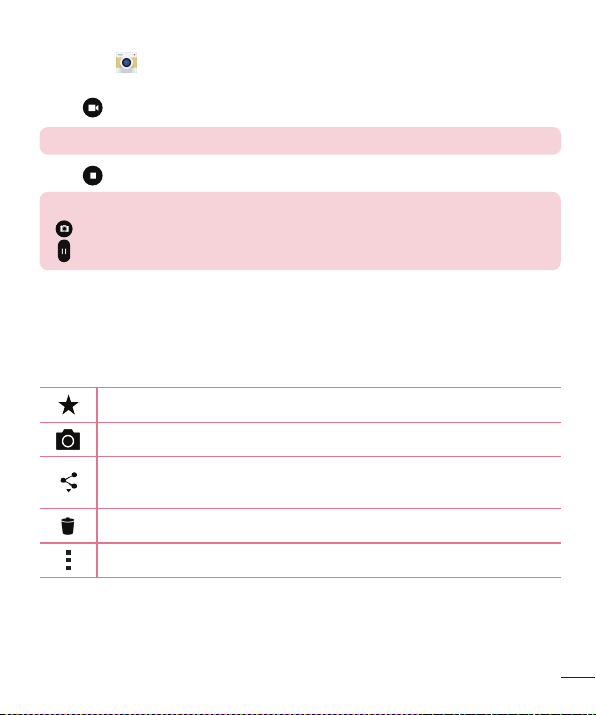
Tapthevideothumbnailonthescreentoviewthelastvideoyourecorded.The
followingoptionsareavailable.
Taptoaddthevideotofavorites.
Taptorecordanothervideoimmediately.
Taptosendyourvideotoothersorshareitviaanyavailablesocialnetwork
services.
Taptodeletethevideo.
Taptoaccessadditionaloptions.
Multi-point Auto Focus
Whenyoutakeapicture,theMulti-pointAutoFocus(AF)functionoperates
automaticallyandallowsyoutoseeaclearimage.
48
Camera and Video
Burst shot
Allowsyoutotakemultipleshotsquickly.Touchandhold .
Gallery
TheGalleryapplicationpresentsthepicturesandvideosinyourstorage,includingthose
you'vetakenwiththeCameraapplicationandthoseyoudownloadedfromthewebor
otherlocations.
1 Tap
> > toviewtheimagesstoredinthestorage.
2 Tapanalbumtoopenitandviewitscontents.(Thepicturesandvideosinthealbum
aredisplayedinchronologicalorder.)
3 Tapapictureinanalbumtoviewit.
NOTE:
• Depending on the software installed, some file formats may not be supported.
• Some files may not play properly due to their encoding.
Viewing pictures
TheGallerydisplaysyourpicturesinfolders.Whensomeappssaveapicture,afolderis
automaticallycreatedtocontainthepicture.
Picturesaredisplayedbythedatetheywerecreated.Selectapicturetoviewitfull
screen.Scrollleftorrighttoviewthenextorpreviousimage.
Zooming in and out
Useoneofthefollowingmethodstozoominandoutonanimage:
• Double-tapanywheretozoominandout.
• Spreadtwofingersapartonanyplaceinthepicturezoomin.Pinchintozoomout.
49
Camera and Video
Video options
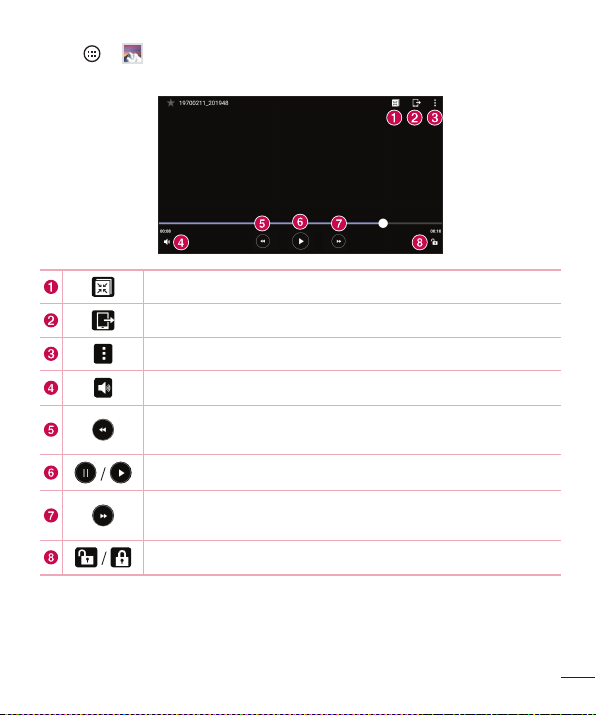
1 Tap > .
2 Selectthevideoyouwanttowatch.
TouchtouseQSlidefortheVideoapp.
TaptoshareyourvideousingtheSmartSharefunction.
Taptoaccessadditionaloptions.
Touchtoadjustvideovolume.
Touchandholdtorewindin3secondincrements.Taptorewind10
seconds.
Touchtopause/resumevideoplayback.
Touchandholdtofast-forwardin3secondincrements.Taptofast-
forward10seconds.
Touchtolock/unlockthescreen.
50
Camera and Video
NOTE:
• While playing a video, the following options are available:
• Slide the right side of the screen up or down to adjust the sound.
• Slide the left side of the screen up or down to adjust the brightness.
• Slide your finger from left to right (or vice versa) to fast-forward and rewind.
Editing photos
Whileviewingaphoto,tap .
Deleting photos/videos
Useoneofthefollowingmethods:
• Whileinafolder,tap ,selectthephotos/videosyouwanttodelete.Thentap
Delete.
• Whileviewingaphoto,tap .
Setting wallpaper
Whileviewingaphoto,tap >Set image astosettheimageaswallpaperorassign
ittoacontact.
NOTE:
• Depending on the software installed, some file formats may not be supported.
• If the file size exceeds the available memory, an error can occur when you open
files.
51
Multimedia
Music
Yourdevicehasamusicplayerthatletsyouplayallyourfavoritetracks.
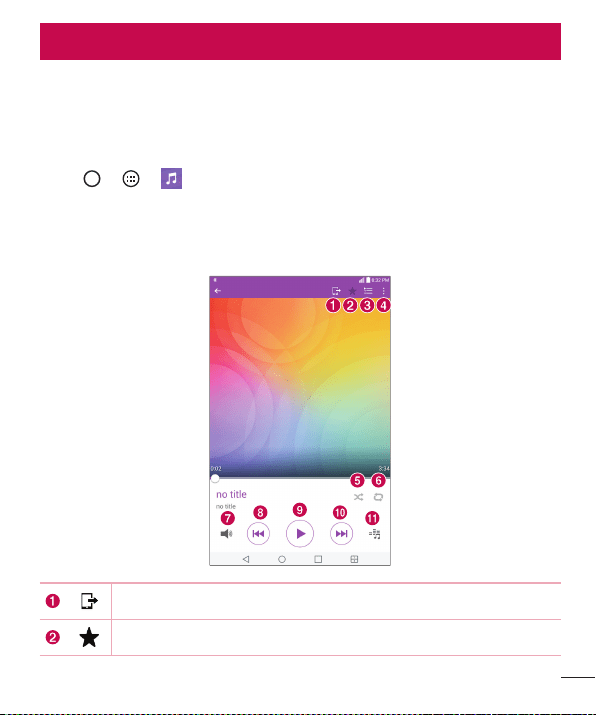
Playing a song
1 Tap > > .
2 TaptheSongstab.
3 Selectthesongyouwanttoplay.
4 Thefollowingoptionsareavailable.
TaptoshareyourmusicviatheSmartSharefunction.
Taptoaddthesongtoyourfavorites.
Multimedia
52
Multimedia
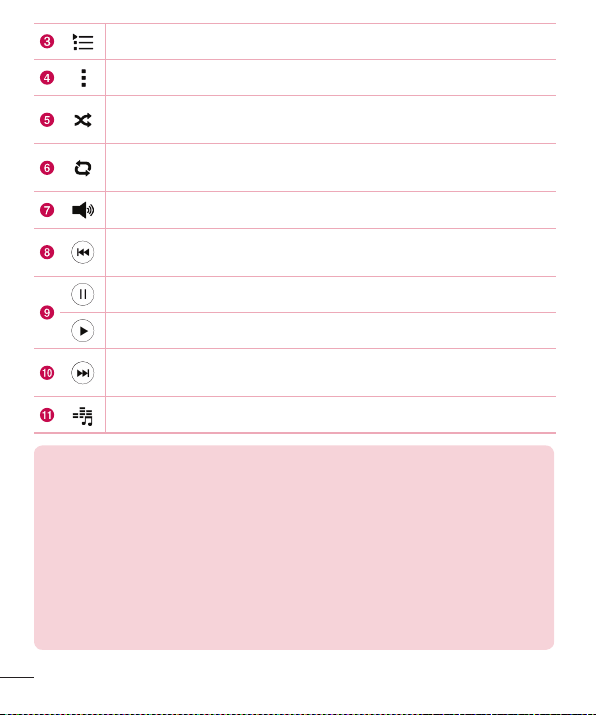
Taptoopenthecurrentplaylist.
Taptoaccessadditionaloptions.
Taptoplaythecurrentplaylistinshufflemode(tracksareplayedin
randomorder).
Taptotogglethroughrepeatallsongs,repeatcurrentsongandrepeat
off.
Taptoadjustthevolume.
Taptorestartthecurrenttrackorskiptotheprevioustrackinthealbum,
playlistorshufflelist.Touchandholdtorewind.
Taptopauseplayback.
Taptoresumeplayback.
Taptoskiptothenexttrackinthealbum,playlistorshufflelist.Touch
andholdtofast-forward.
Taptosetaudioeffects.
NOTE:
• Depending on the software installed, some file formats may not be supported.
• If the file size exceeds the available memory, an error can occur when you open
files.
• Music file copyrights may be protected by international treaties and national
copyright laws. Therefore, it may be necessary to obtain permission or a license
to reproduce or copy music. In some countries, national laws prohibit private
copying of copyrighted material. Before downloading or copying the file, please
check the national laws of the relevant country concerning the use of such
material.
53
Utilities
Clock
TheClockappgivesyouaccesstotheAlarms,Timer,WorldclockandStopwatch
functions.Accessthesefunctionsbytappingthetabsacrossthetopofthescreenor
swipinghorizontallyacrossthescreen.
Tap
> > .
Alarms
TheAlarmstaballowsyoutosetalarms.
1 Openthe
app,thenselecttheAlarmstab.
2 Tap
toaddanewalarm,tapanalarm.
3 AdjustthesettingsasnecessaryandtapSave.
NOTE: You can also tap an existing alarm to edit it.
Timer
TheTimertabcanalertyouwithanaudiblesignalwhenasetamountoftimehas
passed.
1 Openthe
app,thenselecttheTimertab.
2 Setthedesiredtimeonthetimer.
3 TapStarttostartthetimer.
4 TapStoptostopthetimer.
Utilities
54
Utilities
World clock
TheWorldclocktaballowsyoutoeasilycheckthecurrenttimeinothercitiesaround
theworld.
1 Openthe
app,thenselecttheWorld clocktab.
2 Tap
andselectthedesiredcity.
Stopwatch
TheStopwatchtaballowsyoutouseyourdeviceasastopwatch.
1 Openthe
app,thenselecttheStopwatchtab.
2 TaptheStartbuttontoinitiatethestopwatch.
• TaptheLapbuttontorecordlaptimes.
3 TaptheStopbuttontostopstopwatch.
Calculator
TheCalculatorappallowsyoutoperformmathematicalcalculationsusingastandardor
scientificcalculator.
1 Tap
> > .
2 Tapthenumberkeystoenternumbers.
3 Tapthenumberkeystoenternumbers.
4 Forsimplecalculations,tapthefunctionyouwanttoperform(+,–,xor÷)followed
by=.
NOTE: For more complex calculations, tap > Scientific calculator.
55
Utilities
Calendar
TheCalendarappallowsyoutotrackyourscheduleofevents.
1 Tap
> > .
2 Tapthedateyouwanttoaddaneventto.Thentap
.
Voice Recorder
TheVoiceRecorderapprecordsaudiblefilesforyoutouseinavarietyofways.
Recording a sound or voice
1 Tap > > .
2 Tap
tobeginrecording.
3 Tap
toendtherecording.
4 Tap
tolistentotherecording.
NOTE: Tap to access your recordings. You can listen to your saved
recordings.
Voice Search
Usethisapplicationtosearchwebpagesusingvoice.
1 Tap
> > .
2 SayakeywordorphrasewhenListening...appearsonthescreen.Selectoneofthe
suggestedkeywordsthatappear.
NOTE: This application may not be available depending on the region or
service provider.
56
Utilities
Downloads
Usethisapplicationtoseewhatfileshavebeendownloadedthroughtheapplications.
• Tap > > .
NOTE: This application may not be available depending on the region or
service provider.
57
Browsing the Web
Browsing the Web
Chrome
UseChrometosearchforinformationandbrowsewebpages.
1 Tap
> > .
NOTE: This application may not be available depending on your region and
service provider.
Viewing webpages
Taptheaddressfield,andthenenterawebaddressorsearchcriteria.
Opening a page
• Togotoanewpage,tap atthetopofthebrowser.
• Togotoanotherwebpage,tapatabatthetopofthescreentoselectthepage.
58
Settings
Settings
TheSettingsapplicationcontainsmostofthetoolsforcustomizingandconfiguringyour
device.AllofthesettingsintheSettingsapplicationaredescribedinthissection.
To open the Settings application
• Tap >touchandhold >System settings.
-or-
• Tap > > .
WIRELESS NETWORKS
< Airplane mode >
AirplaneMode(flightmode)allowsyoutousemanyofyourdevice'sfeatures,suchas
games,andmusic,whenyouareinanareawheredatauseisprohibited.Whenyouset
yourdevicetoAirplaneMode,itcannotaccessonlinedata.
< Wi-Fi >
TurnsonWi-FitoconnecttoavailableWi-Finetworks.
< Bluetooth >
TurnstheBluetoothwirelessfeatureonorofftouseBluetooth.
< Data usage >
Displaysthedatausageandallowsyoutosetapersonalizedmobiledatausagelimit.
< More... >
• Miracast–YoucanmirroryourtabletscreenandsoundontoLGMiracastdongle
orTVwirelessly.
• SmartShare Beam–AllowsyoutoreceivemultimediacontentfromLGdevices
ortablets.

59
Settings
• LG PC Suite–ConnectLGPCSuitewithyourdevicetoeasilymanagemultimedia
contentandapps.
• Media Server–SharemediacontentwithnearbyDLNA-compatibledevices.
• VPN–Fromyourdevice,youcanadd,setup,andmanagevirtualprivatenetworks
(VPNs)thatallowyoutoconnectandaccessresourcesinsideasecuredlocal
network,suchasyourcorporatenetwork.
DEVICE
< Sound >
Sound profile
AllowsyoutosetthesoundprofiletoSound,Vibrate onlyandDo not disturb.
Volume
Adjustthedevice'svolumesettingstosuityourneedsandenvironment.
Notification sound
Selecttheringtonefornotificationssuchasnewmessagesreceiptorcalendarevents.
Do not disturb
Allowsyoutosetaschedulewhentopreventinterruptionsfromnotifications.Youcan
settoallowcertainfeaturestointerruptwhenPriorityonlyisset.
Lock screen
Allowsyoutochooseifyouwanttoshoworhidenotificationsonthelockscreen.
Apps
Allowsyoutopreventappsfromdisplayingnotificationsorsetappstoshow
notificationswithprioritywhenDonotdisturbissettoPriorityonly.
Touch sound–Allowsyoutosetyourtablettoplayasoundwhenyoutouchbuttons,
iconsandotheronscreenitemsthatreacttoyourtouch.
Screen lock sound–Allowsyoutosetyourtablettoplayasoundwhenlockingand
unlockingthescreen.

60
Settings
Vibrate on tap
CheckmarktovibratewhentappingtheHometouchbuttonsandduringotherUI
interactions.
< Display >
Home screen
• Theme –Setsthescreenthemeforyourdevice.Youcandownloadnewthemes
fromLGSmartWorld.
• Wallpaper –AllowsyoutosetthedesiredwallpaperforyourHomescreen.
• Screen swipe effect–Choosethedesiredtypeofeffecttodisplaywhenyou
swipefromoneHomescreencanvastothenext.
• Allow Home screen looping–Choosethedesiredtypeofeffecttodisplaywhen
youswipefromoneHomescreencanvastothenext.
• Home backup & restore–AllowsyoutobackupandrestoretheHomescreen
applayoutandwallpaper.
• Help–DisplayshelpinformationfortheHomescreen.
Lock screen
• Select screen lock–Allowsyoutosetascreenlocktosecureyourdevice.
• Smart Lock–Setstokeepyourdeviceunlockedwhenyouhaveatrusted
Bluetoothdeviceconnectedtoit,whenit'sinafamiliarlocationlikeyourhomeor
work,orwhenitrecognizesyourface.
• Screen swipe effect–Setstheeffectusedwhenswipingthelockscreen.
• Wallpaper–Selectthewallpapertodisplayforyourlockscreen.
• Shortcuts–Customiseshortcutsonthelockscreen.
• Contact info for lost tablet–Allowsyoutodisplaytheownerinformationonthe
lockscreenincasethedeviceislost.
• Lock timer–Allowsyoutosettheamountoftimebeforethescreenautomatically
locksafterthescreenhastimed-out.

61
Settings
• Power button instantly locks–Checkmarktoinstantlylockthescreenwhenthe
Power/LockKeyispressed.ThissettingoverridestheSecuritylocktimersetting.
Brightness
Allowsyoutoadjustthescreenbrightness.CheckmarkNight brightnesstoset
brightnessat0%automaticallybetween12:00AM~06:00AM.
Screen timeout
Allowsyoutosettheamountoftimebeforethescreentimesout.
Screen-off effect
Allowsyoutosetthescreenoffeffectusedwhenthescreenturnsoff.
Auto-rotate screen
Allowsyoutosettoswitchthescreenorientationautomaticallywhenyouphysically
rotatethedevice.
Daydream
Selectthescreensavertodisplaywhenthedeviceissleepingwhiledockedand/or
charging.
Font type
Selectthedesiredfonttype.
Font size
Selectthedesiredfontsize.
Smart screen
Keepsthescreenonwhenthedevicedetectsyoureyeslookingatthescreen.
Home touch buttons
AllowsyoutosetwhichHometouchbuttonsaredisplayedandtheirpositiononthebar.
Youcanalsoselectthecolorandthebackground.
Motion sensor calibration
Allowsyoutoimprovetheaccuracyofthetiltandspeedofthesensor.

62
Settings
< Storage >
Internal Storage
Allowsyoutoviewinformationabouttheinternalstorageusage.
SD Card
AllowsyoutoviewinformationaboutstorageuseontheSDcard.TapUnmount SD
cardtoallowsaferemovalofthecard.IfnoSDcardismounted,tapMount SD card.
TapErase SD cardifyouwanttodeleteallofthedatafromtheSDcard.
< Battery >
TheBatterychargeinformationisdisplayedonabatterygraphicalongwiththe
percentageoftheremainingchargeanditsstatus.
Battery information
TheBatterychargeinformationisdisplayedonabatterygraphicalongwiththe
percentageoftheremainingchargeanditsstatus.
Battery usage
Displaysthebatteryusagelevelandbatteryusedetails.Taponeoftheitemstosee
moredetailedinformation.
Battery percentage on status bar
CheckmarktodisplaythebatterylevelpercentageontheStatusbarnexttothebattery
icon.
Battery saver
TaptheBatterySaverswitch
OFF ON
totoggleitOnorOff.Youcanalsosetwhentoturn
batterysaveron.
Help
DisplayshelpinformationfortheBatterysaverfeature.
< Apps >
Displaythelistofapplicationssuchascurrentlyrunningordownloaded.Swipeleft
andrighttoviewoneofthethreetabsacrossthetopofthescreentoviewdetailed

63
Settings
informationforDOWNLOADED,ON SD CARD,RUNNING,andALLapplications.Tap
anentrytoviewmoreinformation,tapForce stop(orStop),thenYestostopitfrom
running.
< Dual window >
Auto-open
AllowsthedevicetoautomaticallyopenDualwindowwhenyoutapalinkonthefull
screenortapane-mailattachment(imagesonly).
Help
DisplayshelpinformationaboutusingtheDualwindowfeature.
PERSONAL
< Users >
Adduserstosharethephonewithotherpeople.Eachusercanhavetheirownapps
andcontentintheirownspace.AnyoneusingthephonecanchangesettingslikeWi-Fi
andacceptappupdatesthatwillaffecteveryone.Initialsetupisrequiredfornewusers
tousephone.
< Location >
Turnonlocationservice,yourdevicedeterminesyourapproximatelocationusingWi-Fi
andmobilenetworks.Whenyouselectthisoption,you'reaskedwhetheryouconsentto
allowingGoogletouseyourlocationwhenprovidingtheseservices.
• Mode –Setsthehowyourcurrentlocationinformationisdetermined.
• RECENT LOCATION REQUEST–Displaysapplicationsandservicesthathave
recentlyrequestedyourlocation.
• Camera –Checkmarktotagphotosorvideoswiththeirlocations.
• Anti-flicker–Allowyoutoadjustfrequencytopreventcamerapreviewscreen
fromflickering.

64
Settings
• Google Location History –AllowsyoutoviewandmanageyourGooglelocation
history.
< Security >
UsetheSecuritymenutoconfigurehowtohelpsecureyourdeviceanditsdata.
Encrypt tablet
Allowsyoutoencryptdataonthedeviceforsecurity.YouwillberequiredtoenteraPIN
orpasswordtodecryptyourdeviceeachtimeyoupoweriton.
Encrypt SD card storage
EncryptSDcardstorageandkeepdataunavailableforotherdevices.
Password typing visible
Checkmarktobrieflyshoweachcharacterofpasswordsasyouenterthemsothatyou
canseewhatyouenter.
Tablet administrators
Viewordeactivatedeviceadministrators.
Unknown sources
Allowinstallationofnon-PlayStoreapplications.
Verify apps
Disalloworwarnbeforeinstallationofappsthatmaycauseharm.
Storage type
Displaysthestoragetypeforcredentials.
Trusted credentials
AllowsyoutochecktrustedCAcertificateslist.
Install from storage
Touchtoinstallasecurecertificate.
Clear credentials
Deletesallsecurecertificatesandrelatedcredentialsanderasesthesecurestorage's
ownpassword.

65
Settings
Trust agents
Selectappstousewithoutunlockingscreen.
Screen pin
Thisfeatureallowsyoutolockyourdevicesothatthecurrentusercanonlyaccessthe
pinnedapp.Thisisusefulforuserswithchildren.
App usage access
Allowthisapptoviewusageinfoofappsonyourdevice.
< Accounts & sync >
UsetheAccounts&syncsettingsmenutoadd,remove,andmanageyourGoogleand
othersupportedaccounts.Youcanalsousethesesettingstocontrolhowandwhether
allapplicationssend,receive,andsyncdataontheirownschedulesandwhetherall
applicationscansynchroniseuserdataautomatically.
Gmail™,Calendar,andotherapplicationsmayalsohavetheirownsettingstocontrol
howtheysynchronisedata;seethesectionsonthoseapplicationsfordetails.Touch
Add accounttoaddnewaccount.
< Language & input >
UsetheLanguage&inputsettingstoselectthelanguageforthetextonyourdevice
andtoconfiguretheon-screenkeyboard,includingwordsyou'veaddedtoitsdictionary.
< Backup & reset >
Changethesettingsformanagingyoursettingsanddata.
Back up my data
Backupappdata,Wi-Fipasswords,andothersettingstoGoogleservers.
Backup account
Displaystheaccountthatiscurrentlybeingusedtobackupinformation.
Automatic restore
Whenreinstallinganapp,restorebackedupsettingsanddata.

66
Settings
LG Backup service
Backsupallinformationonthedeviceandrestoresitintheeventofdatalossor
replacement.
Factory data reset
Resetyoursettingstothefactorydefaultvaluesanddeleteallyourdata.Ifyouresetthe
devicethisway,youarepromptedtore-enterthesameinformationaswhenyoufirst
startedAndroid.
SYSTEM
< Shortcut Key >
AllowsyoutoturntheShortcutkeysonandoff.PressandholdtheVolumeUpand
DownkeystogetherwhenthescreenisunlockedtoaccessQuickMemo+.Press
andholdtheVolumeUporDownkeywhenthescreenisofforlockedtoaccessthe
camera.
< Date & time >
UseDate×ettingstosethowdateswillbedisplayed.Youcanalsousethese
settingstosetyourowntimeandtimezoneratherthanobtainingthecurrenttimefrom
themobilenetwork.
< Accessibility >
UsetheAccessibilitysettingstoconfigureaccessibilityplug-insyouhaveinstalledon
yourdevice.
TalkBack
AllowsyoutosetuptheTalkBackfunctionwhichassistspeoplewithimpairedvisionby
providingverbalfeedback.TaptheTalkBackswitch
OFF ON
atthetoprightcornerofthe
screentoturniton.TapSettingsatthebottomofthescreentoadjusttheTalkBack
settings.

67
Settings
Font size
Allowsyoutochangethesizeofthetext.
Invert colors
Checkmarktoinvertthecolorsofthescreenandcontent.
Color adjustment
Setstoviewthescreenwithgreatercolorcontrast.Taptheswitch
OFF ON
toturniton.
Thentapthescreenanddragacrossthescreeninanydirectionuntilyouseethecolor
contrastyouwanttouse.
Touch zoom
Allowsyoutozoominandoutbytriple-tappingthescreen.
Screen shade
Dimsthescreen'sbacklight.
Accessibility shortcut
Activatethisfeaturetoallowyoutoquicklyenableaccessibilityfeaturesintwosteps.
Text-to-speech output
Setsthetext-to-speechpreferredengineandspeechratesetting.Alsoplaysashort
demonstrationofspeechsynthesis.Thedefaultlanguagestatusisalsodisplayed.
Audio type
Setstheaudiotype.ChooseMonoorStereo.
Sound balance
Setstheaudioroute.Movethesliderontheslidebartosetit.
Turn off all sounds
Turnsoffallsounds.
Captions
Allowstocustomisecaptionsettingsforthosewithhearingimpairments.Taptheswitch
OFF ON
toturnthisfeatureon.Setthelanguage,textsize,andcaptionstyleoptionsas
desired.

68
Settings
Touch feedback time
Setsthetouchandfeedbacktime.ChoosefromShort,Medium,andLong.
Touch assistant
Touchtheswitch
OFF ON
totogglebetweenonandoff.Onallowsyoutoreplacethe
hardwarekeyswithaUniversaltouchboard .
TaptheUniversaltouchicon
toaccessthePower,Home,Volume down,Volume
up,Screen capture,Accessibility,andPinchbuttons.Drawa"W"ontheboard
toautomaticallylaunchthebrowserapp.Drawan"S"ontheboardtoautomatically
displaythesettingsapp.Drawan"L"ontheboardtolockthescreen.Drawa"e"on
theboardtoaccesstheEmailapp.
Screen timeout
Setstheamountoftimebeforethescreenturnsoff.
Touch control areas
Taptheswitch
OFF ON
toturnthisfeatureon.Allowsyoutolimitthetouchcontrolto
selectedareasofthescreen.PresstheVolume Down KeyandHome Buttonatthe
sametimetoactivateanddeactivatethefeature.
Auto-rotate screen
Checkmarktoallowthedevicetorotatethescreendependingonthedeviceorientation
(portraitorlandscape).
Password voice confirmation
Checkmarktohaveverbalconfirmationwheninputtingpasswords.
Accessibility settings shortcut
Setsquickandeasyaccesstoselectedfeatureswhenyoutriple-taptheHomeKey.
One-touch input
Eachfingertouchentersaletter/characterontheLGkeyboard.
Switch Access
Allowsyoutointeractwithyourdeviceusingoneormoreswitchesthatworklike
keyboardkeys.Thismenucanbehelpfulforuserswithmobilitylimitationsthatprevent

69
Settings
themfrominteractingdirectlywiththeyourdevice.TapSettingsatthebottomofthe
screentoadjusttheSwitchaccesssettings.
< Printing >
Allowsyoutoprintthecontentofcertainscreens(suchaswebpagesdisplayedin
Chrome)toaprinterconnectedtothesameWi-FinetworkasyourAndroiddevice.
< About tablet >
Thismenuallowsyoutomanageyoursoftwareupdatesandviewvariousinformation
relatingtoyourdevice.
70
Software Update
Device Software Update
This feature allows you to update the firmware of your device to the latest version
conveniently from the internet without the need to visit a service center.
For more information on how to use this function, please visit:
http://www.lg.com/common/index.jsp.
As the device firmware update requires the user’s full attention for the duration of the
update process, please make sure to check all instructions and notes that appear at
each step before proceeding. Please note that removing the USB cable or battery during
the upgrade may seriously damage your device.
LG Device Software Update via Over-the-Air (OTA)
This feature allows you to update the firmware of your device to the newer version
conveniently via OTA without connecting the USB cable. This feature is only available if
and when LG makes the newer version of the firmware available for your device.
First, you can check the software version on your device:
Tap
> > > About tablet > Software info.
To perform the device software update, tap
> > > About tablet > Update
Center > Software Update > Check now for update.
NOTE: Your personal data—including information about your Google
account and any other accounts, your system/application data and settings,
any downloaded applications and your DRM license —might be lost in the
process of updating your device's software. Therefore, LG recommends that
you back up your personal data before updating your device's software. LG
does not take responsibility for any loss of personal data.
Software Update

71
About this user guide
About this user guide
About this user guide
• Beforeusingyourdevice,pleasecarefullyreadthismanual.Thiswillensurethat
youuseyourdevicesafelyandcorrectly.
• Someoftheimagesandscreenshotsprovidedinthisguidemayappeardifferently
onyourdevice.
• Yourcontentmaydifferfromthefinalproduct,orfromsoftwaresuppliedbyservice
providersorcarriers,Thiscontentmaybesubjecttochangewithoutpriornotice.
Forthelatestversionofthismanual,pleasevisittheLGwebsiteatwww.lg.com.
• Yourdevice'sapplicationsandtheirfunctionsmayvarybycountry,region,or
hardwarespecifications.LGcannotbeheldliableforanyperformanceissues
resultingfromtheuseofapplicationsdevelopedbyprovidersotherthanLG.
• LGcannotbeheldliableforperformanceorincompatibilityissuesresultingfrom
editedregistrysettingsbeingeditedoroperatingsystemsoftwarebeingmodified.
Anyattempttocustomiseyouroperatingsystemmaycausethedeviceorits
applicationstonotworkastheyshould.
• Software,audio,wallpaper,images,andothermediasuppliedwithyourdeviceare
licensedforlimiteduse.Ifyouextractandusethesematerialsforcommercialor
otherpurposesis,youmaybeinfringingcopyrightlaws.Asauser,youarefullyare
entirelyresponsiblefortheillegaluseofmedia.
• Additionalchargesmaybeappliedfordataservices,suchasmessaging,uploading
anddownloading,auto-syncing,orusinglocationservices.Toavoidadditional
charges,selectadataplantoissuitableforyourneeds.Contactyourservice
providertoobtainadditionaldetails.
72
Trademarks
Trademarks
• Copyright2015LGElectronics,Inc.Allrightsreserved.LGandtheLGlogoare
registeredtrademarksofLGGroupanditsrelatedentities.
• Bluetooth
®
isaregisteredtrademarkoftheBluetoothSIG,Inc.worldwide.
• Wi-Fi
®
,theWi-FiCERTIFIEDlogo,andtheWi-Filogoareregisteredtrademarksof
theWi-FiAlliance.
• Allothertrademarksandcopyrightsarethepropertyoftheirrespectiveowners.
DivX HD
ThisDivXCertified
®
devicehaspassedrigoroustestingtoensureitplaysDivX
®
video.
ToplaypurchasedDivXmovies,firstregisteryourdeviceatvod.divx.com.Findyour
registrationcodeintheDivXVODsectionofyourdevicesetupmenu.
DivX Certified
®
to play DivX
®
video up to HD 720p, including premium content.
DivX
®
, DivX Certified
®
and associated logos are trademarks of DivX, LLC and are
used under license.
NOTE: Wi-Fi
®
and Wi-Fi Protected Access
®
are registered trademarks of the
Wi-Fi Alliance.
Trademarks

73
Accessories
Accessories
Theseaccessoriesareavailableforusewiththeyourphone.(Items described below
may be optional.)
• Traveladaptor
• QuickStartGuide
• USBcable
NOTE
• Always use genuine LG accessories. The supplied items are designed only for
this device and may not be compatible with other devices.
• The items supplied with the device and any available accessories may vary
depending on the region or service provider.
74
Troubleshooting
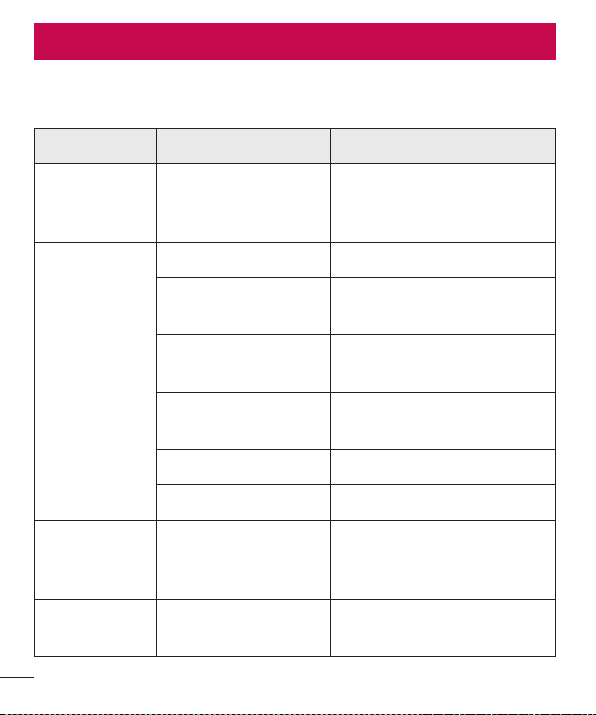
Troubleshooting
Thischapterlistssomeproblemsyoumightencounterwhenusingyourdevice.Some
problemsrequireyoutocallyourserviceprovider,butmostareeasytofixyourself.
Message Possible causes Possible corrective measures
Noapplications
canbeset
Notsupportedbyservice
providerorregistration
required.
Contactyourserviceprovider.
Chargingerror
Batteryisnotcharged. Chargebattery.
Outsidetemperatureis
toohotorcold.
Makesuredeviceischargingata
normaltemperature.
Contactproblem
Checkthechargerandits
connectiontothedevice.
Novoltage
Plugthechargerintoadifferent
socket.
Chargerdefective Replacethecharger.
Wrongcharger UseonlyoriginalLGaccessories.
Impossibleto
receive/send
photos
Memoryfull
Deletesomeimagesfromyour
device.
Filesdonot
open
Unsupportedfileformat Checkthesupportedfileformats.
75
Troubleshooting
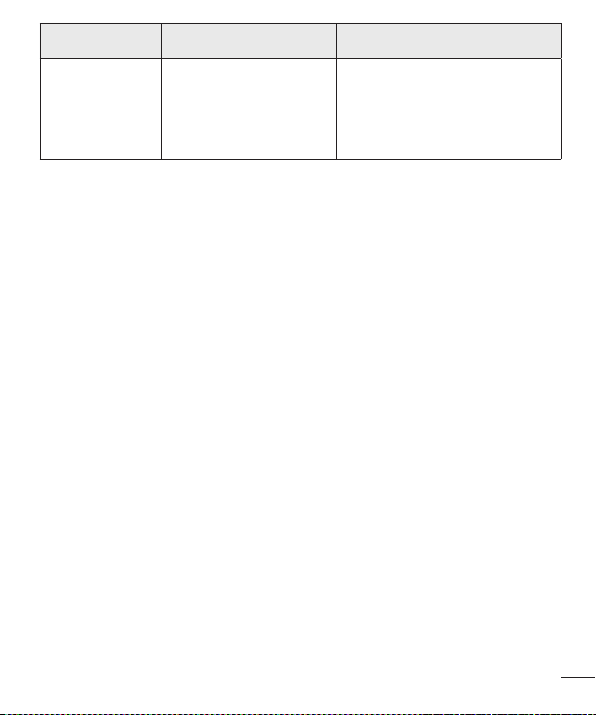
Message Possible causes Possible corrective measures
Nosound Vibrationmode
Checkthesettingsstatusin
thesoundmenutomakesure
youarenotinvibrationorsilent
mode.
76
For Your Safety
Safety Information
Pleasereadandobservethefollowinginformationforsafeandproperuseofyourtablet
andtopreventdamage.
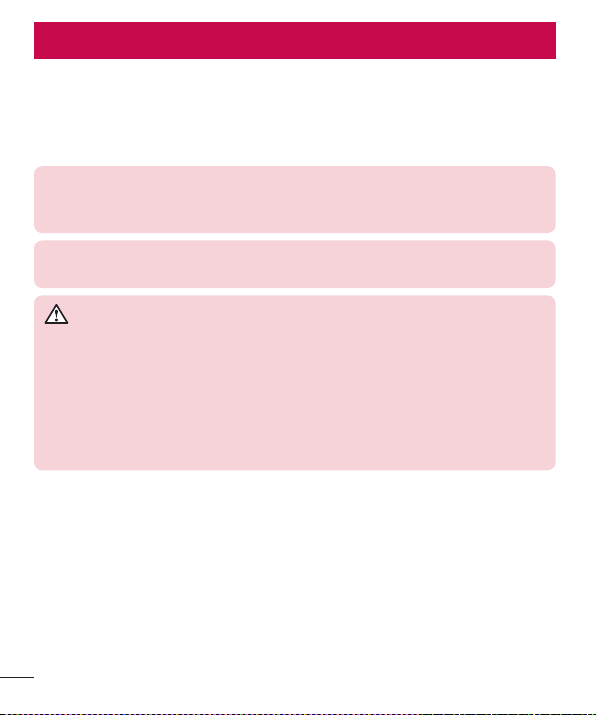
WARNING! This product contains chemicals known to the State of California
to cause cancer and birth defects or reproductive harm.
Wash hands after handling.
Caution: Violation of the instructions may cause minor or serious damage to
the product.
WARNING
Notice for Battery replacement
• For your safety, do not remove the battery incorporated in the product. If you
need to replace the battery, take it to the nearest authorized LGElectronics
service point or dealer for assistance.
• Li-Ion Battery is a hazardous component which can cause injury.
• Battery replacement by non-qualified professional can cause damage to your
device.
• Donotdisassembleoropencrush,bendordeform,punctureorshred.
• Repairsunderwarranty,atLG’soption,mayincludereplacementpartsorboards
thatareeitherneworreconditioned,providedthattheyhavefunctionalityequalto
thatofthepartsbeingreplaced.
• Donotmodifyorremanufacture,attempttoinsertforeignobjectsintothebattery,
immerseorexposetowaterorotherliquids,exposetofire,explosionorother
hazard.
• Onlyusethebatteryforthesystemforwhichitisspecified.
For Your Safety

77
For Your Safety
• Onlyusethebatterywithachargingsystemthathasbeenqualifiedwiththe
systemperthisstandard.Useofanunqualifiedbatteryorchargermaypresenta
riskoffire,explosion,leakage,orotherhazard.
• Donotshortcircuitabatteryorallowmetallicconductiveobjectstocontactbattery
terminals.
• Replacethebatteryonlywithanotherbatterythathasbeenqualifiedwiththe
systemperthisstandard,IEEE-Std-1725-200x.Useofanunqualifiedbatterymay
presentariskoffire,explosion,leakageorotherhazard.
• Avoiddroppingthetablet.Ifthetabletisdropped,especiallyonahardsurface,and
theusersuspectsdamage,takeittoaservicecenterforinspection.
• Improperbatteryusemayresultinafire,explosionorotherhazard.
• ForthosehostdevicesthatutilizeaUSBportasachargingsource,thehost
device’susermanualshallincludeastatementthatthedeviceshallonlybe
connectedtoproductsthatbeartheUSB-IFlogoorhavecompletedtheUSB-IF
complianceprogram.
Charger and Adapter Safety
• Thechargerandadapterareintendedforindooruseonly.
• Insertthebatterypackchargerverticallyintothewallpowersocket.
• Unplugthepowercordandchargerduringlightningstormstoavoidelectricshock
orfire.
• Usethecorrectadapterforyourtabletwhenusingthebatterypackchargerabroad.
Battery Information and Care
• Pleasereadthemanualofproperinstallationandremovalofthebattery.
• Pleasereadthemanualofspecifiedchargeraboutchargingmethod.

78
For Your Safety
• Donotdamagethepowercordbybending,twisting,orheating.Donotusethe
plugifitislooseasitmaycauseelectricshockorfire.
Donotplaceanyheavyitemsonthepowercord.Donotallowthepowercordtobe
crimpedasitmaycauseelectricshockorfire.
• Unplugthepowercordpriortocleaningyourtablet,andcleanthepowerplugpin
whenit’sdirty.Whenusingthepowerplug,ensurethatit’sfirmlyconnected.Ifnot,
itmaycauseexcessiveheatorfire.Ifyouputyourtabletinapocketorbagwithout
coveringthereceptacleofthetablet(powerplugpin),metallicarticles(suchasa
coin,papercliporpen)mayshort-circuitthetablet.Short-circuitoftheterminalmay
damagethebatteryandcauseanexplosion.Alwayscoverthereceptaclewhennot
inuse.
• Rechargethebatteryafterlongperiodsofnon-usetomaximizebatterylife.Battery
lifewillvaryduetousagepatternandenvironmentalconditions.
• Neverstoreyourtabletintemperaturelessthan-4°Forgreaterthan122°F.
• Chargingtemperaturerangeisbetween32°Fand113°F.Donotchargethe
batteryoutofrecommendedtemperaturerange.Chargingoutofrecommended
rangemightcausethegeneratingheatorseriousdamageofbattery.Andalso,it
mightcausethedeteriorationofbattery’scharacteristicsandcyclelife.
• Donotuseorleavethedeviceundertheblazingsunorinheatedcarbysunshine.
Thedevicemaygenerateheat,smokeorflame.Andalso,itmightcausethe
deteriorationofbattery’scharacteristicsorcyclelife.
• Thebatterybackinthedevicehasprotectioncircuittoavoidthedanger.Donot
usenearplacesthatcangeneratestaticelectricitymorethan100Vwhichcould
damagetheprotectioncircuit.Damagedprotectioncircuitsmaygeneratesmoke,
ruptureorignite.
• Whenusingthedeviceforthefirsttime,ifitemitsabadsmell,youseerustonit,
oranythingelseabnormal,donotusetheequipmentandbringthebatterytothe
shopwhichitwasbought.

79
For Your Safety
• Keepdeviceawayfrombabiesandsmallchildren.Ifchildrenusethebattery,their
parentsorlegalguardiansareresponsibleforsupervisingandteachingthemabout
thesafehandlingofdeviceandhowtousebatteriesaccordingtothemanualwith
care.
• Ifliquidfromthebatteryinthedevicerubsagainstskinorclothing,washwithfresh
water.Itmaycausetheskininflammation.Donotuserthebatteryandtakeittothe
nearestauthorizedLGElectronicsservicepointordealerforassistance.Becareful
thatchildrendonotswallowanyparts(suchasearphone,connectionpartsofthe
device,etc.).Thiscouldcauseasphyxiationorsuffocationresultinginseriousinjury
ordeath.
• Donothandlethetabletwithwethandswhileitisbeingcharged.Itmaycausean
electricshockorseriouslydamageyourtablet.
• Donotuseharshchemicals(suchasalcohol,benzene,thinners,etc.)ordetergents
tocleanyourtablet.Thiscouldcauseafire.
• Alwaysunplugthechargerfromthewallsocketafterthetabletisfullychargedto
saveunnecessarypowerconsumptionofthecharger.
Care and Maintenance
Yourmobiledeviceisaproductofsuperiordesignandcraftsmanshipandshouldbe
treatedwithcare.Thesuggestionsbelowwillhelpyoufulfillanywarrantyobligations
andallowyoutoenjoythisproductformanyyears:
Keep your Mobile Device away from:
Liquids of any kind
Keepthemobiledevicedry.Precipitation,humidity,andliquidscontainmineralsthatwill
corrodeelectroniccircuits.Ifthemobiledevicedoesgetwet,donotacceleratedrying

80
For Your Safety
withtheuseofanoven,microwave,ordryer,becausethismaydamagethemobile
deviceandcouldcauseafireorexplosion.
Donotusethemobiledevicewithawethand.
Doingsomaycauseanelectricshocktoyouordamagetothemobiledevice.
Extreme heat or cold
• Avoidtemperaturesbelow0°C/32°Forabove45°C/113°F.
• Useyourtabletintemperaturesbetween0ºC/32°Fand40ºC/104°F,ifpossible.
Exposingyourtablettoextremelyloworhightemperaturesmayresultindamage,
malfunction,orevenexplosion.
Microwaves
Donottrytodryyourmobiledeviceinamicrowaveoven.Doingsomaycauseafireor
explosion.
Dust and dirt
Donotexposeyourmobiledevicetodust,dirt,orsand.
Sunscreen lotion
Donotexposeorwearyourdevicetoanyliquidlikesunscreenlotion.
Doingsomaycauseyourdevicetoordamagetothemobiledevice.
Cleaning solutions
Donotuseharshchemicals,cleaningsolvents,orstrongdetergentstocleanthemobile
device.

81
For Your Safety
Wipeitwithasoftclothslightlydampenedinamildsoap-and-watersolution.
Shock or vibration
Donotdrop,knock,orshakethemobiledevice.
Roughhandlingcanbreakinternalcircuitboards.
Paint
Donotpaintthemobiledevice.Paintcanclogthedevice’smovingpartsorventilation
openingsandpreventproperoperation.
General Notice
• Donotplaceitemscontainingmagneticcomponentssuchasacreditcard,phone
card,bankbook,orsubwayticketnearyourdevice.Themagnetismofthedevice
maydamagethedatastoredinthemagneticstrip.
• Whenthetabletisnotusedforalongperiodtime,storeitinasafeplacewiththe
powercordunplugged.
• Donotusethedeviceiftheantennaisdamaged.Ifadamagedantennacontacts
skin,itmaycauseaslightburn.PleasecontactanLGAuthorizedServiceCenterto
replacethedamagedantenna.
• Thedatasavedinyourtabletmightbedeletedduetocarelessuse,repairof
thetablet,orupgradeofthesoftware.Pleasebackupyourimportantcontacts.
(pictures,andvideoscouldalsobedeleted.)Themanufacturerisnotliablefor
damageduetothelossofdata.
• Whenyouusethetabletinpublicplaces,setthevolumetovibrationsoyoudon’t
disturbothers.
• Donotturnyourtabletonoroffwhenputtingittoyourear.

82
For Your Safety
• Yourdeviceisanelectronicdevicethatgeneratesheatduringnormaloperation.
Extremelyprolonged,directskincontactintheabsenceofadequateventilationmay
resultindiscomfortorminorburns.Therefore,usecarewhenhandlingyourdevice
duringorimmediatelyafteroperation.
• Useaccessories,suchasearphonesandheadsets,withcaution.Ensurethatcables
aretuckedawaysafelyanddonottouchtheantennaunnecessarily.
Part 15.19 statement
Thisdevicecomplieswithpart15ofFCCrules.
Operationissubjecttothefollowingtwoconditions:
(1)Thisdevicemaynotcauseharmfulinterference.
(2)Thisdevicemustacceptanyinterferencereceived,includinginterferencethatmay
causeundesiredoperation.
Part 15.21 statement
Changesormodificationsthatarenotexpresslyapprovedbythemanufacturercould
voidtheuser’sauthoritytooperatetheequipment.
Part 15.105 statement
ThisequipmenthasbeentestedandfoundtocomplywiththelimitsforaclassBdigital
device,pursuanttoPart15oftheFCCRules.Theselimitsaredesignedtoprovide
reasonableprotectionagainstharmfulinterferenceinaresidentialinstallation.This
equipmentgeneratesusesandcanradiateradiofrequencyenergyand,ifnotinstalled
andusedinaccordancewiththeinstructions,maycauseharmfulinterferencetoradio
communications.However,thereisnoguaranteethatinterferencewillnotoccurina
particularinstallation.Ifthisequipmentdoescauseharmfulinterferenceortelevision

83
For Your Safety
reception,whichcanbedeterminedbyturningtheequipmentoffandon,theuseris
encouragedtotrytocorrecttheinterferencebyoneormoreofthefollowingmeasures:
• Reorientorrelocatethereceivingantenna.
• Increasetheseparationbetweentheequipmentandreceiver.
• Connecttheequipmentintoanoutletonacircuitdifferentfromthattowhichthe
receiverisconnected.
• Consultthedealeroranexperiencedradio/TVtechnicianforhelp.
FCC RF Exposure Information
WARNING! Read this information before operating the device.
InAugust1996,theFederalCommunicationsCommission(FCC)oftheUnitedStates,
withitsactioninReportandOrderFCC96-326,adoptedanupdatedsafetystandard
forhumanexposuretoRadioFrequency(RF)electromagneticenergyemittedby
FCCregulatedtransmitters.Thoseguidelinesareconsistentwiththesafetystandard
previouslysetbybothU.S.andinternationalstandardsbodies.Thedesignofthisdevice
complieswiththeFCCguidelinesandtheseinternationalstandards.
Bodily Contact During Operation
Thisdevicewastestedfortypicalusewiththebackofthedevicekept0inch(0cm)
fromthebody.
Caution
Useonlythesuppliedantenna.Useofunauthorizedantennas(ormodificationstothe
antenna)couldimpaircallquality,damagethedevice,voidyourwarrantyand/orviolate
FCCregulations.
Don’tusethedevicewithadamagedantenna.Adamagedantennacouldcausea
minorskinburn.Contactyourlocaldealerforareplacementantenna.

84
For Your Safety
Consumer Information About Radio Frequency
Emissions
Yourwirelessdevice,whichcontainsaradiotransmitterandreceiver,emitsradio
frequencyenergyduringuse.Thefollowingconsumerinformationaddressescommonly
askedquestionsaboutthehealtheffectsofwirelessdevices.
Are wireless devices safe?
Scientificresearchonthesubjectofwirelessdevicesandradiofrequency(“RF”)energy
hasbeenconductedworldwideformanyyears,andcontinues.IntheUnitedStates,the
FoodandDrugAdministration(“FDA”)andtheFederalCommunicationsCommission
(“FCC”)setpoliciesandproceduresforwirelessdevices.TheFDAissuedawebsite
publicationonhealthissuesrelatedtodeviceusagewhereitstates,Thescientific
communityatlarge…believesthattheweightofscientificevidencedoesnotshow
anassociationbetweenexposuretoradiofrequency(RF)fromthedevicesandadverse
healthoutcomes.Stillthescientificcommunitydoesrecommendconductingadditional
researchtoaddressgapsinknowledge.Thatresearchisbeingconductedaroundthe
worldandFDAcontinuestomonitordevelopmentsinthisfield.Youcanaccessthe
jointFDA/FCCwebsiteathttp://www.fda.gov(under“C”inthesubjectindex,selectCell
Phones>Research).YoucanalsocontacttheFDAtoll-freeat(888)463-6332or(888)
INFO-FDA.InJune2000,theFDAenteredintoacooperativeresearchanddevelopment
agreementthroughwhichadditionalscientificresearchisbeingconducted.TheFCC
issueditsownwebsitepublicationstatingthat“thereisnoscientificevidencethat
provesthatwirelessdeviceusagecanleadtocanceroravarietyofotherproblems,
includingheadaches,dizzinessormemoryloss”.
Thispublicationisavailableathttp://www.fcc.gov/oet/rfsafetyorthroughtheFCCat
(888)225-5322or(888)CALL-FCC.

85
For Your Safety
What does “SAR” mean?
In1996,theFCC,workingwiththeFDA,theU.S.EnvironmentalProtectionAgency,and
otheragencies,establishedRFexposuresafetyguidelinesforwirelessdevicesinthe
UnitedStates.Beforeawirelessdevicemodelisavailableforsaletothepublic,itmust
betestedbythemanufacturerandcertifiedtotheFCCthatitdoesnotexceedlimits
establishedbytheFCC.OneoftheselimitsisexpressedasaSpecificAbsorptionRate,
or“SAR”.SARisameasureoftherateofabsorptionofRFenergyinthebody.Testsfor
SARareconductedwiththedevicetransmittingatitshighestpowerlevelinalltested
frequencybands.Since1996,theFCChasrequiredthattheSARofhandheldwireless
devicenotexceed1.6wattsperkilogram,averagedoveronegramoftissue.
AlthoughtheSARisdeterminedatthehighestpowerlevel,theactualSARvalue
ofawirelessdevicewhileoperatingcanbelessthanthereportedSARvalue.This
isbecausetheSARvaluemayvaryfromcalltocall,dependingonfactorssuchas
proximitytoacellsite,theproximityofthedevicetothebodywhileinuse,andthe
useofhands-freedevices.Beforeadevicemodelisavailableforsaletothepublic,it
mustbetestedandcertifiedtotheFCCthatitdoesnotexceedthelimitestablished
bythegovernment-adoptedrequirementforsafeexposure.Thetestsareperformedin
positionsandlocationsasrequiredbytheFCCforeachmodel.
TheFCChasgrantedanEquipmentAuthorizationforthismodeldevicewithallreported
SARlevelsevaluatedasincompliancewiththeFCCRFemissionguidelines.SAR
informationonthismodeldeviceisonfilewiththeFCCandcanbefoundunderthe
DisplayGrantsectionofhttp://www.fcc.gov/oet/ea/fccid/aftersearchingonFCCID
ZNFV498.
FormoreinformationaboutSARs,seetheFCC’sOETBulletins56and65athttp://
www.fcc.gov/Bureaus/Engineering_Technology/Documents/bulletinsorvisittheCellular
TelecommunicationsIndustryAssociationwebsiteathttp://www.ctia.org/consumer_info/
index.cfm/AID/10371.Youmayalsowishtocontactthemanufacturerofyourdevice.

86
For Your Safety
Can I minimize my RF exposure?
IfyouareconcernedaboutRF,thereareseveralsimplestepsyoucantaketominimize
yourRFexposure.Youcan,ofcourse,reduceyourtalktime.Youcanplacemore
distancebetweenyourbodyandthesourceoftheRF,astheexposureleveldropsoff
dramaticallywithdistance.TheFDA/FCCwebsitestatesthat“hands-freekitscanbe
usedwithwirelessdevicesforconvenienceandcomfort.Thesesystemsreducethe
absorptionofRFenergyintheheadbecausethedevice,whichisthesourceofthe
RFemissions,willnotbeplacedagainstthehead.Ontheotherhand,ifthedeviceis
mountedagainstthewaistorotherpartofthebodyduringuse,thenthatpartofthe
bodywillabsorbmoreRFenergy.WirelessdevicesmarketedintheU.S.arerequired
tomeetsafetyrequirementsregardlessofwhethertheyareusedagainstthehead
oragainstthebody.Eitherconfigurationshouldresultincompliancewiththesafety
limit”.Also,ifyouuseyourwirelessdevicewhileinacar,youcanuseadevicewithan
antennaontheoutsideofthevehicle.Youshouldalsoreadandfollowyourwireless
devicemanufacturer’sinstructionsforthesafeoperationofyourdevice.
Do wireless devices pose any special risks to children?
TheFDA/FCCwebsitestatesthat“thescientificevidencedoesnotshowadangerto
usersofwirelesscommunicationdevices,includingchildren”.TheFDA/FCCwebsite
furtherstatesthat“somegroupssponsoredbyothernationalgovernmentshave
advisedthatchildrenbediscouragedfromusingwirelessdeviceatall”.Forexample,
theStewartReportfromtheUnitedKingdom[“UK”]madesucharecommendation
inDecember2000.Inthisreportagroupofindependentexpertsnotedthatno
evidenceexiststhatusingadevicecausesbraintumorsorotherilleffects.[TheUK’s]
recommendationtolimitdeviceusebychildrenwasstrictlyprecautionary;itwasnot
basedonscientificevidencethatanyhealthhazardexists.AcopyoftheUK’sleafletis
availableathttp://www.dh.gov.uk(search“mobile”),oryoucanwriteto:NRPB,Chilton,
Didcot,OxonOX11ORQ,UnitedKingdom.CopiesoftheUK’sannualreportsonmobile

87
For Your Safety
deviceandRFareavailableonlineatwww.iegmp.org.ukandhttp://www.hpa.org.uk/
radiation/(search“mobile”).Parentswhowishtoreducetheirchildren’sRFexposure
maychoosetorestricttheirchildren’swirelessdeviceuse.
Where can I get further information about RF
emissions?
Forfurtherinformation,seethefollowingadditionalresources(websitescurrentasof
April2005):
U.S. Food and Drug Administration
FDAConsumermagazine
November-December2000
Telephone:(888)INFO-FDA
http://www.fda.gov
(Under“C”inthesubjectindex,selectCellPhones>Research.)
U.S. Federal Communications Commission
44512thStreet,S.W.
Washington,D.C.20554
Telephone:(888)225-5322
http://www.fcc.gov/oet/rfsafety
Independent Expert Group on Mobile Devices
http://www.iegmp.org.uk

88
For Your Safety
Royal Society of Canada Expert Panels on Potential
Health Risks of Radio Frequency Fields from Wireless
Telecommunication Devices
283SparksStreet
Ottawa,OntarioK1R7X9
Canada
Telephone:(613)991-6990
World Health Organization
AvenueAppia20
1211Geneva27
Switzerland
Telephone:01141227912111
http://www.who.int/mediacentre/factsheets/fs193/en/
International Commission on Non-Ionizing Radiation
Protection
c/oBundesamtfurStrahlenschutz
IngolstaedterLandstr.1
85764Oberschleissheim
Germany
Telephone:0114918883332156
http://www.icnirp.de

89
For Your Safety
Engineering in Medicine and Biology Society,
Committee on Man and Radiation (COMAR) of the
Institute of Electrical and Electronics Engineers
http://ewh.ieee.org/soc/embs/comar/
Consumer Information on SAR
(Specific Absorption Rate)
Thismodeldevicemeetsthegovernment'srequirementsforexposuretoradiowaves.
Yourwirelessdeviceisaradiotransmitterandreceiver.Itisdesignedandmanufactured
nottoexceedtheemissionlimitsforexposuretoRadioFrequency(RF)energysetby
theFederalCommunicationsCommissionoftheU.S.Government.Theselimitsarepart
ofcomprehensiveguidelinesandestablishpermittedlevelsofRFenergyforthegeneral
population.Theguidelinesarebasedonstandardsthatweredevelopedbyindependent
scientificorganizationsthroughperiodicandthoroughevaluationofscientificstudies.
Thestandardsincludeasubstantialsafetymargindesignedtoassurethesafetyofall
persons,regardlessofageandhealth.
Theexposurestandardforwirelessmobiledevicesemploysaunitofmeasurement
knownastheSpecificAbsorptionRate,orSAR.TheSARlimitsetbytheFCCis1.6W/
kg.
TestsforSARareconductedusingstandardoperatingpositionsspecifiedbytheFCC
withthedevicetransmittingatitshighestcertifiedpowerlevelinalltestedfrequency
bands.AlthoughSARisdeterminedatthehighestcertifiedpowerlevel,theactualSAR
levelofthedevicewhileoperatingcanbewellbelowthemaximumvalue.Becausethe
deviceisdesignedtooperateatmultiplepowerlevelstouseonlythepowerrequiredto
reachthenetwork,ingeneral,thecloseryouaretoawirelessbasestationantenna,the
lowerthepoweroutput.

90
For Your Safety
Beforeadevicemodelisavailableforsaletothepublic,itmustbetestedandcertified
totheFCCthatitdoesnotexceedthelimitestablishedbythegovernment-adopted
requirementforsafeexposure.Thetestsareperformedinpositionsandlocationsas
requiredbytheFCCforeachmodel.
ThehighestSARvalueforthisdeviceonthebody,asdescribedinthisuserguide,is
0.80W/kg.WhiletheremaybedifferencesbetweenSARlevelsofvariousdevicesand
atvariouspositions,theyallmeetthegovernmentrequirementforsafeexposure.
TheFCChasgrantedanEquipmentAuthorizationforthismodeldevicewithall
reportedSARlevelsevaluatedasincompliancewiththeFCCRFemissionguidelines.
SARinformationonthismodeldeviceisonfilewiththeFCCandcanbefoundunder
theDisplayGrantsectionofhttp://www.fcc.gov/oet/fccidaftersearchingonFCCID
ZNFV498.AdditionalinformationonSpecificAbsorptionRates(SAR)canbefoundon
theCellularTelecommunicationsIndustryAssociation(CTIA)websiteathttp://www.ctia.
org/.
*IntheUnitedStatesandCanada,theSARlimitformobiledeviceusedbythepublic
is1.6watts/kg(W/kg)averagedoveronegramoftissue.Thestandardincorporatesa
substantialmarginofsafetytogiveadditionalprotectionforthepublicandtoaccount
foranyvariationsinmeasurements.
Caution:
Avoid potential hearing loss.
Prolongedexposuretoloudsounds(includingmusic)isthemostcommoncauseof
preventablehearingloss.Somescientificresearchsuggeststhatusingportableaudio
devices,suchasportablemusicplayersandcellulartelephones,athighvolumesettings
forlongdurationsmayleadtopermanentnoise-inducedhearingloss.Thisincludes
theuseofheadphones(includingheadsets,earbudsandBluetooth®orotherwireless
devices).Exposuretoveryloudsoundhasalsobeenassociatedinsomestudieswith
tinnitus(aringingintheear),hypersensitivitytosoundanddistortedhearing.Individual

91
For Your Safety
susceptibilitytonoise-inducedhearinglossandotherpotentialhearingproblemsvaries.
Theamountofsoundproducedbyaportableaudiodevicevariesdependingonthe
natureofthesound,thedevice,thedevicesettingsandtheheadphones.Youshould
followsomecommonsenserecommendationswhenusinganyportableaudiodevice:
• Setthevolumeinaquietenvironmentandselectthelowestvolumeatwhichyou
canhearadequately.
• Whenusingheadphones,turnthevolumedownifyoucannothearthepeople
speakingnearyouorifthepersonsittingnexttoyoucanhearwhatyouare
listeningto.
• Donotturnthevolumeuptoblockoutnoisysurroundings.Ifyouchoosetolisten
toyourportabledeviceinanoisyenvironment,usenoise-cancellingheadphonesto
blockoutbackgroundenvironmentalnoise.
• Limittheamountoftimeyoulisten.Asthevolumeincreases,lesstimeisrequired
beforeyourhearingcouldbeaffected.
• Avoidusingheadphonesafterexposuretoextremelyloudnoises,suchasrock
concerts,thatmightcausetemporaryhearingloss.Temporaryhearinglossmight
causeunsafevolumestosoundnormal.
• Donotlistenatanyvolumethatcausesyoudiscomfort.Ifyouexperienceringingin
yourears,hearmuffledspeechorexperienceanytemporaryhearingdifficultyafter
listeningtoyourportableaudiodevice,discontinueuseandconsultyourdoctor.
Youcanobtainadditionalinformationonthissubjectfromthefollowingsources:
Safety 205
AmericanAcademyofAudiology11730
PlazaAmericanDrive,Suite300
Reston,VA20190
Voice:(800)222-2336
Email:info@audiology.org
Internet:www.audiology.org

92
For Your Safety
NationalInstituteonDeafnessandOtherCommunication
Disorders
NationalInstitutesofHealth
31CenterDrive,MSC2320
Bethesda,MDUSA20892-2320
Voice:(301)496-7243
Email:nidcdinfo@nih.gov
Internet:http://www.nidcd.nih.gov/health/hearing
NationalInstituteforOccupationalSafetyandHealthHubertH.HumphreyBldg.
200IndependenceAve.,SWWashington,DC20201Voice:
1-800-35-NIOSH(1-800-356-4674)
Internet:http://www.cdc.gov/niosh/topics/noise/default.html
TIA Safety Information
ThefollowingisthecompleteTIASafetyInformationforwirelesshandhelddevices.
Exposure to Radio Frequency Signal
Yourwirelesshandheldportabledeviceisalowpowerradiotransmitterandreceiver.
WhenON,itreceivesandsendsoutRadioFrequency(RF)signals.
InAugust,1996,theFederalCommunicationsCommissions(FCC)adoptedRF
exposureguidelineswithsafetylevelsforhandheldwirelessdevices.Thoseguidelines
areconsistentwiththesafetystandardspreviouslysetbybothU.S.andinternational
standardsbodies:
ANSIC95.1(1992)*
NCRPReport86(1986)
ICNIRP(1996)

93
For Your Safety
*AmericanNationalStandardsInstitute;NationalCouncilonRadiationProtectionand
Measurements;InternationalCommissiononNon-IonizingRadiationProtection
Thosestandardswerebasedoncomprehensiveandperiodicevaluationsoftherelevant
scientificliterature.Forexample,over120scientists,engineers,andphysiciansfrom
universities,governmenthealthagencies,andindustryreviewedtheavailablebodyof
researchtodeveloptheANSIStandard(C95.1).
ThedesignofyourdevicecomplieswiththeFCCguidelines(andthosestandards).
Antenna Care
Useonlythesuppliedoranapprovedreplacementantenna.Unauthorizedantennas,
modifications,orattachmentscoulddamagethedeviceandmayviolateFCC
regulations.
Tips on Efficient Operation
Foryourdevicetooperatemostefficiently:
Don’ttouchtheantennaunnecessarilywhenthetabletisinuse.Contactwiththe
antennaaffectscallqualityandmaycausethetablettooperateatahigherpowerlevel
thanotherwiseneeded.
Electronic Devices
MostmodernelectronicequipmentisshieldedfromRFsignals.However,certain
electronicequipmentmaynotbeshieldedagainsttheRFsignalsfromyourwireless
device.

94
For Your Safety
Pacemakers
TheHealthIndustryManufacturersAssociationrecommendsthataminimumseparation
ofsix(6)inchesbemaintainedbetweenahandheldwirelessdeviceandapacemaker
toavoidpotentialinterferencewiththepacemaker.Theserecommendationsare
consistentwiththeindependentresearchbyandrecommendationsofWireless
TechnologyResearch.
Personswithpacemakers:
• ShouldALWAYSkeepthedevicemorethansix(6)inchesfromtheirpacemaker
whenthedeviceisturnedON;
• Shouldnotcarrythedeviceinabreastpocket;
• Shouldusetheearoppositethepacemakertominimizethepotentialfor
interference;
• ShouldturnthetabletOFFimmediatelyifthereisanyreasontosuspectthat
interferenceistakingplace.
Hearing Aids
Somedigitalwirelessdevicemayinterferewithsomehearingaids.Intheeventofsuch
interference,youmaywanttoconsultyourserviceprovider(orcallthecustomerservice
linetodiscussalternatives).
Other Medical Devices
Ifyouuseanyotherpersonalmedicaldevice,consultthemanufacturerofyourdevice
todetermineifitisadequatelyshieldedfromexternalRFenergy.Yourphysicianmaybe
abletoassistyouinobtainingthisinformation.

95
For Your Safety
Health Care Facilities
TurnyourdeviceOFFinhealthcarefacilitieswhenanyregulationspostedinthese
areasinstructyoutodoso.Hospitalsorhealthcarefacilitiesmayuseequipmentthat
couldbesensitivetoexternalRFenergy.
Vehicles
RFsignalsmayaffectimproperlyinstalledorinadequatelyshieldedelectronicsystems
inmotorvehicles.Checkwiththemanufactureroritsrepresentativeregardingyour
vehicle.Youshouldalsoconsultthemanufacturerofanyequipmentthathasbeen
addedtoyourvehicle.
Posted Facilities
TurnyourdeviceOFFinanyfacilitywherepostednoticessorequire.
Aircraft
FCCregulationsprohibitusingyourdevicewhileintheair.SwitchOFFyourtablet
beforeboardinganaircraft.
Blasting Areas
Toavoidinterferingwithblastingoperations,turnyourdeviceOFFwhenina“blasting
area”orinareasposted:“Turnofftwo-wayradio”.Obeyallsignsandinstructions.

96
For Your Safety
Potentially Explosive Atmosphere
TurnyourdeviceOFFwheninanyareawithapotentiallyexplosiveatmosphereand
obeyallsignsandinstructions.Sparksinsuchareascouldcauseanexplosionorfire
resultinginbodilyinjuryorevendeath.
Areaswithapotentiallyexplosiveatmosphereareoften,butnotalwaysmarkedclearly.
Potentialareasmayinclude:fuelingareas(suchasgasolinestations);belowdeckon
boats;fuelorchemicaltransferorstoragefacilities;vehiclesusingliquefiedpetroleum
gas(suchaspropaneorbutane);areaswheretheaircontainschemicalsorparticles
(suchasgrain,dust,ormetalpowders);andanyotherareawhereyouwouldnormally
beadvisedtoturnoffyourvehicleengine.
For Vehicles Equipped with an Air Bag
Anairbaginflateswithgreatforce.DONOTplaceobjects,includingeitherinstalledor
portablewirelessequipment,intheareaovertheairbagorintheairbagdeployment
area.Ifin-vehiclewirelessequipmentisimproperlyinstalledandtheairbaginflates,
seriousinjurycouldresult.
FDA Consumer Update
TheU.S.FoodandDrugAdministration’sCenterforDevicesand
RadiologicalHealthConsumerUpdateonMobileTablets:
1. Do tablets pose a health hazard?
Theavailablescientificevidencedoesnotshowthatanyhealthproblemsareassociated
withusingtablets.
Thereisnoproof,however,thattabletsareabsolutelysafe.Tabletsemitlowlevels
ofRadioFrequency(RF)energyinthemicrowaverangewhilebeingused.Theyalso

97
For Your Safety
emitverylowlevelsofRFwheninidlemode.WhereashighlevelsofRFcanproduce
healtheffects(byheatingtissue),exposuretolowlevelRFthatdoesnotproduce
heatingeffectscausesnoknownadversehealtheffects.Manystudiesoflowlevel
RFexposureshavenotfoundanybiologicaleffects.Somestudieshavesuggested
thatsomebiologicaleffectsmayoccur,butsuchfindingshavenotbeenconfirmedby
additionalresearch.Insomecases,otherresearchershavehaddifficultyinreproducing
thosestudies,orindeterminingthereasonsforinconsistentresults.
2. What is the FDA’s role concerning the safety of
tablets?
Underthelaw,theFDAdoesnotreviewthesafetyofradiation-emittingconsumer
productssuchastabletsbeforetheycanbesold,asitdoeswithnewdrugsormedical
devices.However,theagencyhasauthoritytotakeactioniftabletsareshowntoemit
RadioFrequency(RF)energyatalevelthatishazardoustotheuser.Insuchacase,the
FDAcouldrequirethemanufacturersoftabletstonotifyusersofthehealthhazardand
torepair,replace,orrecallthetabletssothatthehazardnolongerexists.
AlthoughtheexistingscientificdatadoesnotjustifyFDAregulatoryactions,theFDAhas
urgedthetabletindustrytotakeanumberofsteps,includingthefollowing:
• SupportneededresearchintopossiblebiologicaleffectsofRFofthetypeemitted
bytablets;
• DesigntabletsinawaythatminimizesanyRFexposuretotheuserthatisnot
necessaryfordevicefunction;and
• Cooperateinprovidingusersoftabletswiththebestpossibleinformationon
possibleeffectsoftabletuseonhumanhealth.
TheFDAbelongstoaninteragencyworkinggroupofthefederalagenciesthathave
responsibilityfordifferentaspectsofRFsafetytoensurecoordinatedeffortsatthe
federallevel.Thefollowingagenciesbelongtothisworkinggroup:
• NationalInstituteforOccupationalSafetyandHealth

98
For Your Safety
• EnvironmentalProtectionAgency
• OccupationalSafetyandHealthAdministration
• NationalTelecommunicationsandInformationAdministration
TheNationalInstitutesofHealthparticipatesinsomeinteragencyworkinggroup
activities,aswell.
TheFDAsharesregulatoryresponsibilitiesfortabletswiththeFederalCommunications
Commission(FCC).AlltabletsthataresoldintheUnitedStatesmustcomplywithFCC
safetyguidelinesthatlimitRFexposure.TheFCCreliesontheFDAandotherhealth
agenciesforsafetyquestionsabouttablets.
TheFCCalsoregulatesthebasestationsthatthetabletnetworksrelyupon.While
thesebasestationsoperateathigherpowerthandothetabletsthemselves,theRF
exposuresthatpeoplegetfromthesebasestationsaretypicallythousandsoftimes
lowerthanthosetheycangetfromtablets.Basestationsarethusnotthesubjectofthe
safetyquestionsdiscussedinthisdocument.
3. What kinds of devices are the subject of this
update?
Theterm“wirelessdevice”refersheretohandheldwirelessdeviceswithbuilt-in
antennas,oftencalled“cell”,“mobile”,or“PCS”devices.Thesetypesofwireless
devicescanexposetheusertomeasurableRadioFrequency(RF)energybecauseof
theshortdistancebetweenthedeviceandtheuser’shead.
TheseRFexposuresarelimitedbyFCCsafetyguidelinesthatweredevelopedwith
theadviceoftheFDAandotherfederalhealthandsafetyagencies.Whenthedevice
islocatedatgreaterdistancesfromtheuser,theexposuretoRFisdrasticallylower
becauseaperson’sRFexposuredecreasesrapidlywithincreasingdistancefromthe
source.

99
For Your Safety
4. What are the results of the research done already?
Theresearchdonethusfarhasproducedconflictingresults,andmanystudieshave
sufferedfromflawsintheirresearchmethods.Animalexperimentsinvestigatingthe
effectsofRadioFrequency(RF)energyexposurescharacteristicofwirelessdevices
haveyieldedconflictingresultsthatoftencannotberepeatedinotherlaboratories.A
fewanimalstudies,however,havesuggestedthatlowlevelsofRFcouldacceleratethe
developmentofcancerinlaboratoryanimals.However,manyofthestudiesthatshowed
increasedtumordevelopmentusedanimalsthathadbeengeneticallyengineeredor
treatedwithcancer-causingchemicalssoastobepre-disposedtodevelopcancer
intheabsenceofRFexposure.OtherstudiesexposedtheanimalstoRFforupto22
hoursperday.Theseconditionsarenotsimilartotheconditionsunderwhichpeople
usewirelessdevices,sowedonotknowwithcertaintywhattheresultsofsuchstudies
meanforhumanhealth.Threelargeepidemiologystudieshavebeenpublishedsince
December2000.Betweenthem,thestudiesinvestigatedanypossibleassociation
betweentheuseofwirelessdevicesandprimarybraincancer,glioma,meningioma,
oracousticneuroma,tumorsofthebrainorsalivarygland,leukemia,orothercancers.
Noneofthestudiesdemonstratedtheexistenceofanyharmfulhealtheffectsfrom
wirelessdeviceRFexposures.However,noneofthestudiescananswerquestions
aboutlong-termexposures,sincetheaverageperiodofdeviceuseinthesestudieswas
aroundthreeyears.
5. What research is needed to decide whether RF
exposure from tablets poses a health risk?
Acombinationoflaboratorystudiesandepidemiologicalstudiesofpeopleactually
usingtabletswouldprovidesomeofthedatathatareneeded.Lifetimeanimal
exposurestudiescouldbecompletedinafewyears.However,verylargenumbersof

100
For Your Safety
animalswouldbeneededtoprovidereliableproofofacancerpromotingeffectifone
exists.Epidemiologicalstudiescanprovidedatathatisdirectlyapplicabletohuman
populations,buttenormoreyearsfollow-upmaybeneededtoprovideanswersabout
somehealtheffects,suchascancer.Thisisbecausetheintervalbetweenthetimeof
exposuretoacancer-causingagentandthetimetumorsdevelop—iftheydo—may
bemany,manyyears.Theinterpretationofepidemiologicalstudiesishamperedby
difficultiesinmeasuringactualRFexposureduringday-to-dayuseoftablets.Many
factorsaffectthismeasurement,suchastheangleatwhichthetabletisheld,orwhich
modeloftabletisused.
6. What is the FDA doing to find out more about the
possible health effects of tablet RF?
TheFDAisworkingwiththeU.S.NationalToxicologyProgramandwithgroupsof
investigatorsaroundtheworldtoensurethathighpriorityanimalstudiesareconducted
toaddressimportantquestionsabouttheeffectsofexposuretoRadioFrequency(RF)
energy.
TheFDAhasbeenaleadingparticipantintheWorldHealthOrganizationInternational
ElectroMagneticFields(EMF)Projectsinceitsinceptionin1996.Aninfluentialresultof
thisworkhasbeenthedevelopmentofadetailedagendaofresearchneedsthathas
driventheestablishmentofnewresearchprogramsaroundtheworld.Theprojecthas
alsohelpeddevelopaseriesofpublicinformationdocumentsonEMFissues.
TheFDAandtheCellularTelecommunications&InternetAssociation(CTIA)havea
formalCooperativeResearchAndDevelopmentAgreement(CRADA)todoresearchon
wirelessdevicesafety.TheFDAprovidesthescientificoversight,obtaininginputfrom
expertsingovernment,industry,andacademicorganizations.CTIA-fundedresearchis
conductedthroughcontractswithindependentinvestigators.Theinitialresearchwill
includebothlaboratorystudiesandstudiesofwirelessdeviceusers.TheCRADAwill

101
For Your Safety
alsoincludeabroadassessmentofadditionalresearchneedsinthecontextofthe
latestresearchdevelopmentsaroundtheworld.
7. How can I find out how much Radio Frequency
energy exposure I can get by using my tablet?
AlltabletssoldintheUnitedStatesmustcomplywithFederalCommunications
Commission(FCC)guidelinesthatlimitRadioFrequency(RF)energyexposures.The
FCCestablishedtheseguidelinesinconsultationwiththeFDAandtheotherfederal
healthandsafetyagencies.TheFCClimitforRFexposurefromwirelessdevicesis
setataSpecificAbsorptionRate(SAR)of1.6wattsperkilogram(1.6W/kg).TheFCC
limitisconsistentwiththesafetystandardsdevelopedbytheInstituteofElectricaland
ElectronicEngineering(IEEE)andtheNationalCouncilonRadiationProtectionand
Measurement.Theexposurelimittakesintoconsiderationthebody’sabilitytoremove
heatfromthetissuesthatabsorbenergyfromthetabletandissetwellbelowlevels
knowntohaveeffects.ManufacturersoftabletsmustreporttheRFexposurelevelfor
eachmodeloftablettotheFCC.TheFCCwebsite(http://www.fcc.gov/oet/rfsafety)
givesdirectionsforlocatingtheFCCidentificationnumberonyourtabletsoyoucan
findyourtablet’sRFexposurelevelintheonlinelisting.

102
For Your Safety
8. What has the FDA done to measure the Radio
Frequency energy coming from tablets?
TheInstituteofElectricalandElectronicEngineers(IEEE)isdevelopingatechnical
standardformeasuringtheRadioFrequency(RF)energyexposurefromtabletsand
otherwirelesshandsetswiththeparticipationandleadershipofFDAscientistsand
engineers.Thestandard,“RecommendedPracticeforDeterminingtheSpatial-Peak
SpecificAbsorptionRate(SAR)intheHumanBodyDuetoWirelessCommunications
Devices:ExperimentalTechniques”,setsforththefirstconsistenttestmethodology
formeasuringtherateatwhichRFisdepositedintheheadsandbodiesoftablet
users.Thetestmethodusesatissue-simulatingmodelofthehumanheadandbody.
StandardizedSARtestmethodologyisexpectedtogreatlyimprovetheconsistency
ofmeasurementsmadeatdifferentlaboratoriesonthesametablet.SARisthe
measurementoftheamountofenergyabsorbedintissue,eitherbythewholebody
orasmallpartofthebody.Itismeasuredinwatts/kg(ormilliwatts/g)ofmatter.This
measurementisusedtodeterminewhetheratabletcomplieswithsafetyguidelines.
9. What steps can I take to reduce my exposure to
Radio Frequency energy from my tablet?
Ifthereisariskfromtheseproducts—andatthispointwedonotknowthatthere
is—itisprobablyverysmall.Butifyouareconcernedaboutavoidingevenpotential
risks,youcantakeafewsimplestepstominimizeyourexposuretoRadioFrequency
(RF)energy.Sincetimeisakeyfactorinhowmuchexposureapersonreceives,
reducingtheamountoftimespentusingatabletwillreduceRFexposure.Ifyou
mustconductextendedconversationsusingawirelessdeviceeveryday,youcould
placemoredistancebetweenyourbodyandthesourceoftheRF,sincetheexposure
leveldropsoffdramaticallywithdistance.Forexample,youcoulduseaheadsetand
carrythetabletawayfromyourbodyoruseawirelessdeviceconnectedtoaremote

103
For Your Safety
antenna.Again,thescientificdatadoesnotdemonstratethattabletsareharmful.Butif
youareconcernedabouttheRFexposurefromtheseproducts,youcanusemeasures
likethosedescribedabovetoreduceyourRFexposurefromtabletuse.
10. What about children using tablets?
Thescientificevidencedoesnotshowadangertousersoftablets,includingchildren
andteenagers.IfyouwanttotakestepstolowerexposuretoRadioFrequency(RF)
energy,themeasuresdescribedabovewouldapplytochildrenandteenagersusing
tablets.Reducingthetimeoftabletuseandincreasingthedistancebetweentheuser
andtheRFsourcewillreduceRFexposure.
Somegroupssponsoredbyothernationalgovernmentshaveadvisedthatchildrenbe
discouragedfromusingwirelessdevicesatall.Forexample,thegovernmentinthe
UnitedKingdomdistributedleafletscontainingsucharecommendationinDecember
2000.Theynotedthatnoevidenceexiststhatusingawirelessdevicecausesbrain
tumorsorotherilleffects.Theirrecommendationtolimitwirelessdeviceusebychildren
wasstrictlyprecautionary;itwasnotbasedonscientificevidencethatanyhealth
hazardexists.
11. What about wireless communications device
interference with medical equipment?
RadioFrequency(RF)energyfromwirelesscommunicationsdevicescaninteract
withsomeelectronicdevices.Forthisreason,theFDAhelpeddevelopadetailed
testmethodtomeasureElectroMagneticInterference(EMI)ofimplantedcardiac
pacemakersanddefibrillatorsfromwirelessdevices.Thistestmethodisnowpartofa
standardsponsoredbytheAssociationfortheAdvancementofMedicalInstrumentation
(AAMI).Thefinaldraft,ajointeffortbytheFDA,medicaldevicemanufacturers,and
manyothergroups,wascompletedinlate2000.Thisstandardwillallowmanufacturers

104
For Your Safety
toensurethatcardiacpacemakersanddefibrillatorsaresafefromwireless
communicationsdeviceEMI.
TheFDAhastestedhearingaidsforinterferencefromhandheldwirelessdevices
andhelpeddevelopavoluntarystandardsponsoredbytheInstituteofElectricaland
ElectronicEngineers(IEEE).Thisstandardspecifiestestmethodsandperformance
requirementsforhearingaidsandwirelesscommunicationsdevicessothatno
interferenceoccurswhenapersonusesa“compatible”deviceanda“compatible”
hearingaidatthesametime.ThisstandardwasapprovedbytheIEEEin2000.
TheFDAcontinuestomonitortheuseofwirelesscommunicationsdevicesforpossible
interactionswithothermedicaldevices.Shouldharmfulinterferencebefoundtooccur,
theFDAwillconducttestingtoassesstheinterferenceandworktoresolvetheproblem.
TheFDAcontinuestomonitortheuseofwirelessdevicesforpossibleinteractionswith
othermedicaldevices.Shouldharmfulinterferencebefoundtooccur,theFDAwill
conducttestingtoassesstheinterferenceandworktoresolvetheproblem.
12. Where can I find additional information?
Foradditionalinformation,pleaserefertothefollowingresources:
FederalCommunicationsCommission(FCC)RFSafetyProgram
(http://www.fcc.gov/oet/rfsafety)
InternationalCommissiononNon-lonizingRadiationProtection
(http://www.icnirp.de)
WorldHealthOrganization(WHO)InternationalEMFProject
(http://www.who.int/emf)
NationalRadiologicalProtectionBoard(UK)
(http://www.hpa.org.uk/radiation/)

105
For Your Safety
Driving
Checkthelawsandregulationsontheuseofwirelessdevicesintheareaswhereyou
driveandalwaysobeythem.Also,ifusingyourdevicewhiledriving,pleaseobservethe
following:
• Givefullattentiontodriving--drivingsafelyisyourfirstresponsibility;
• Usehands-freeoperation,ifavailable;
• Pullofftheroadandparkbeforeusingit.
Open Source Software Notice Information
To obtain the source code under GPL, LGPL, MPL, and other open source
licenses, that is contained in this product, please visit http://opensource.lge.
com.
In addition to the source code, all referred license terms, warranty disclaimers
and copyright notices are available for download.
LG Electronics will also provide open source code to you on CD-ROM for a
charge covering the cost of performing such distribution (such as the cost of
media, shipping, and handling) upon email request to opensource@lge.com.
This offer is valid for three (3) years from the date on which you purchased
the product.
How to update your tablet
Access to latest firmware releases, new software functions and
improvements.
• Select the software update in settings menu on your device.
• Update your tablet by connecting it to your PC.
For more information
about using this function, please visit http://www.lg.com/common/index.
jsp and select the country and language.

Limited Warranty Statement
1. WHAT THIS WARRANTY COVERS:
LG offers you a limited warranty that the enclosed subscriber unit and its enclosed accesso-
ries will be free from defects in material and workmanship, according to the following terms
and conditions:
(1) The limited warranty for the product extends for TWELVE (12) MONTHS beginning on
the date of purchase of the product with valid proof of purchase, or absent valid proof of
purchase, FIFTEEN (15) MONTHS from date of manufacture as determined by the unit’s
manufacture date code.
(2) The limited warranty extends only to the original purchaser of the product and is not
assignable or transferable to any subsequent purchaser/end user.
(3) This warranty is good only to the original purchaser of the product during the warranty
period as long as it is in the U.S., including Alaska, Hawaii, U.S. Territories and Canada.
(4) The external housing and cosmetic parts shall be free of defects at the time of shipment
and, therefore, shall not be covered under these limited warranty terms.
(5) Upon request from LG, the consumer must provide information to reasonably prove the
date of purchase.
(6) The customer shall bear the cost of shipping the product to the Customer Service
Department of LG. LG shall bear the cost of shipping the product back to the consumer
after the completion of service under this limited warranty.
2. WHAT THIS WARRANTY DOES NOT COVER:
(1) Defects or damages resulting from use of the product in other than its normal and
customary manner.
(2) Defects or damages from abnormal use, abnormal conditions, improper storage, expo-
sure to moisture or dampness, unauthorized modifications, unauthorized connections,
unauthorized repair, misuse, neglect, abuse, accident, alteration, improper installation, or
other acts which are not the fault of LG, including damage caused by shipping, blown
fuses, spills of food or liquid.
(3) Breakage or damage to antennas unless caused directly by defects in material or
workmanship.
(4) That the Customer Service Department at LG was not notified by consumer of the al-
leged defect or malfunction of the product during the applicable limited warranty period.
(5) Products which have had the serial number removed or made illegible.
(6) This limited warranty is in lieu of all other warranties, express or implied either in fact or
by operations of law, statutory or otherwise, including, but not limited to any implied war-
ranty of marketability or fitness for a particular use.
(7) Damage resulting from use of non LG approved accessories.

(8) All plastic surfaces and all other externally exposed parts that are scratched or damaged
due to normal customer use.
(9) Products operated outside published maximum ratings.
(10) Products used or obtained in a rental program.
(11) Consumables (such as fuses).
3. WHAT LG WILL DO:
LG will, at its sole option, either repair, replace or refund the purchase price of any unit
that is covered under this limited warranty. LG may choose at its option to use functionally
equivalent re-conditioned, refurbished or new units or parts or any units. In addition, LG
will not re-install or back-up any data, applications or software that you have added to your
phone. It is therefore recommended that you back-up any such data or information prior to
sending the unit to LG to avoid the permanent loss of such information.
4. STATE LAW RIGHTS:
No other express warranty is applicable to this product. THE DURATION OF ANY IM-
PLIED WARRANTIES, INCLUDING THE IMPLIED WARRANTY OF MARKETABILITY OR
MERCHANTABILITY OR FITNESS FOR A PARTICULAR PURPOSE, IS LIMITED TO THE
DURATION OF THE EXPRESS WARRANTY HEREIN. LG SHALL NOT BE LIABLE FOR THE
LOSS OF THE USE OF THE PRODUCT, INCONVENIENCE, LOSS OR ANY OTHER DAM-
AGES, DIRECT OR CONSEQUENTIAL, ARISING OUT OF THE USE OF, OR INABILITY TO
USE, THIS PRODUCT OR FOR ANY BREACH OF ANY EXPRESS OR IMPLIED WARRANTY,
INCLUDING THE IMPLIED WARRANTY OF MARKETABILITY OR MERCHANTABILITY OR
FITNESS FOR A PARTICULAR PURPOSE APPLICABLE TO THIS PRODUCT.
Some states do not allow the exclusive limitation of incidental or consequential damages or
limitations on how long an implied warranty lasts; so these limitations or exclusions may not
apply to you. This warranty gives you specific legal rights and you may also have other rights
which vary from state to state.
5. HOW TO GET WARRANTY SERVICE:
To obtain warranty service, please call or fax to the following telephone numbers from any-
where in the continental United States:
Tel. 1-800-793-8896
Or visit http://us.lgservice.com. Correspondence may also be mailed to:
LG Electronics Service- Mobile Handsets, P.O. Box 240007, Huntsville, AL 35824
DO NOT RETURN YOUR PRODUCT TO THE ABOVE ADDRESS. Please call or write for the
location of the LG authorized service center nearest you and for the procedures for obtain-
ing warranty claims.

Printed in China