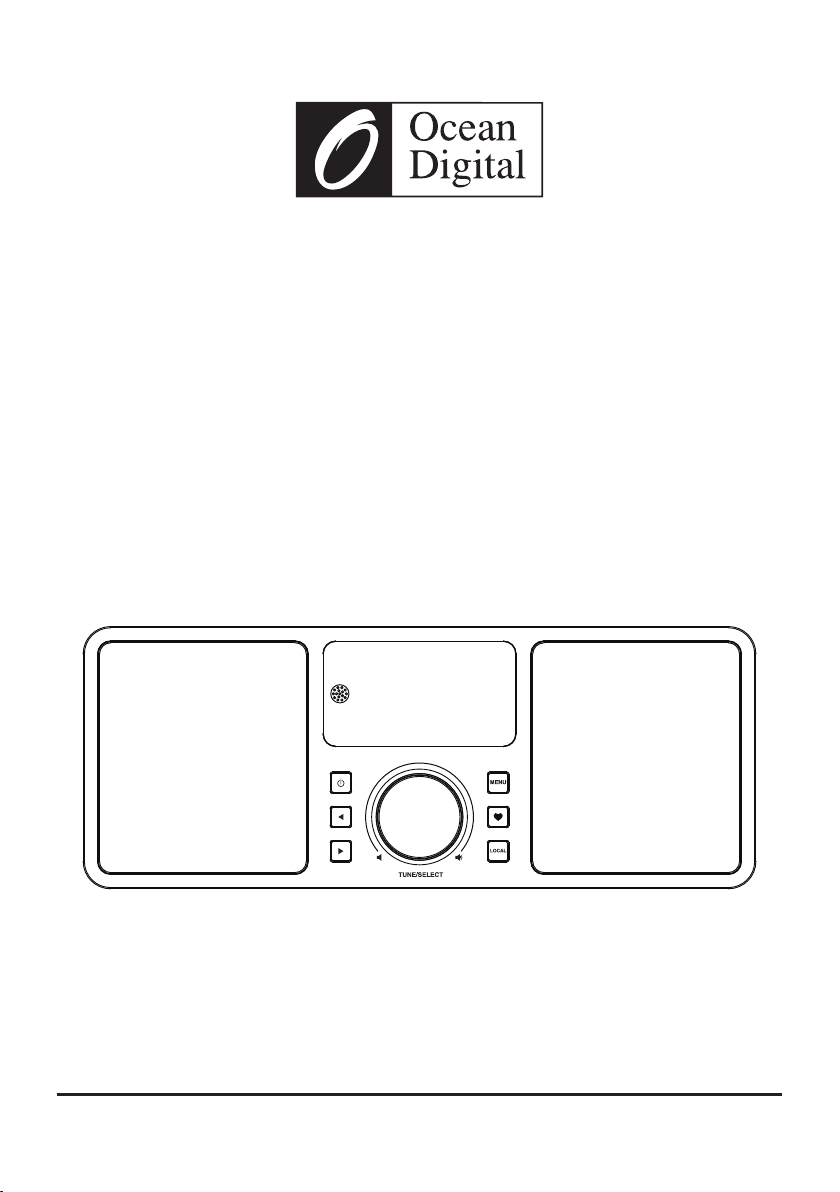
WR-230S
Please read this user manual carefully before using the receiver.
User Manual
Internet Radio

Contents
Location of Controls ...........................................................1
Remote control .................................................................2
How to input security code for your wireless network .............3
1. To start up .....................................................................5
2. Network Setup ...............................................................5
3. Overview of features and functions ..................................6
4. Internet Radio ...............................................................7
5. Media Centre ................................................................9
6. DAB+/DAB Radio ..........................................................9
7. FM Radio ....................................................................10
8. Bluetooth playback ......................................................11
9. Aux-In .........................................................................11
10. Alarm Setting .............................................................12
11. Sleep Timer Setting ....................................................13
12. Configuration .............................................................13
13. Add your favourite URL/ Manage favourite by PC ..........17
14. Trouble Shooting ........................................................18
Helpful Tips .....................................................................19
Technical Specification ....................................................20
- 01 -
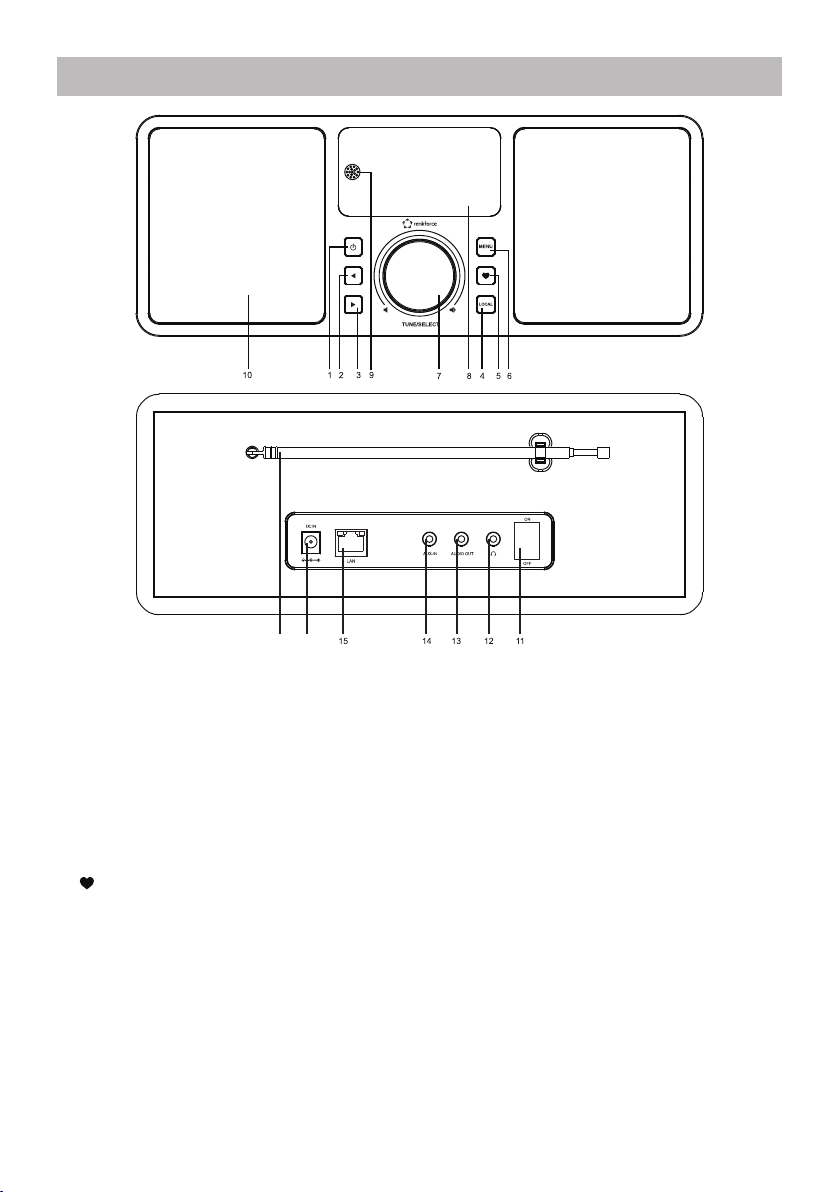
Location of Controls
1. Power
Standby on/off
2. Left
Back to previous menu/left cursor
3. Right
Right cursor/Enter edit menu under Favourite list
4. Local
Access the internet station locally
Press to change the radio mode
5. Favourite
Press and hold to enter favourite list
Press briefly to recall the favourite list
6. Menu
Access main menu/press this button to return to the playing screen
7. Tune/Select/ Volume
Dial / Select: Rotate to scroll up / down on the main menu / Push to confirm / select menu
options / Push to stop / resume playback of radio channel
Volume control: Rotate the knob to adjust volume level in playing screen
8. TFT 2.4” color screen
9. Infrared sensor for remote
16
17
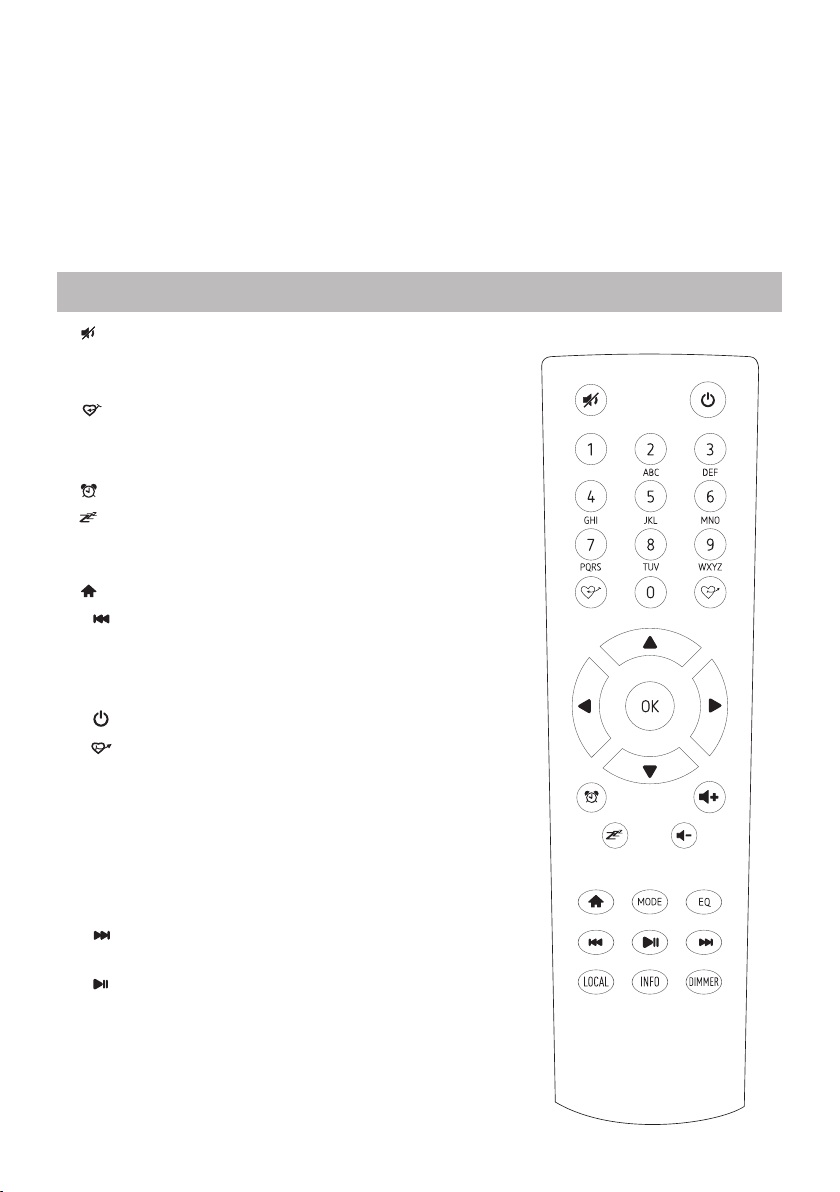
1. : Mute
2. 0-9: Input index number on the list / input characters
for WiFi security code
3. : Preset the current playing station to Favorite
4. ▲ : Cursor up
5. ◄ : Cursor left / back to previous menu
6. : Alarm button
7. : Sleep Timer
8. Mode: Switch between Internet
radio/DAB/FM/Bluetooth/Media Centre
9. : Main Menu
10. : Previous station on the list/previous track on
bluetooth/Media Centre
11. Local: Access the local station list
(Local area set up in Configuration)
12. : Press to toggle between Standby and Operation
13. : Recall the favorite list
14. OK: confirm button
15. ► : Cursor right
16. ▼: Cursor down
17. Vol+: Volume up
18. Vol-: Volume down
19. EQ: Equalizer (for Headphone out and Line out only)
20. : Next station on the list/next track on
bluetooth/Media Centre
21. : Play/pause for Bluetooth/Media Centre
Play/stop for Internet radio
22. Dimmer: Access the Dimmer menu to adjust the
brightness of the display
23. Info: Quick access to Network and System
information
- 02 -
Remote Control
10. Speaker
11. Power on/off switch
12. Earphone jack 3.5 mm
13. Audio out jack 3.5 mm
14. Aux in jack 3.5 mm
15. Ethernet (LAN) connector
16. DC IN Jack
17. Telescopic antenna

How to input security code for your wireless network
Using remote control
On the alpha-numerical keypad, press each button repeatedly to cycle through the letters,
numbers and symbols as listed below.
To input a character, scroll to the correct one and when it is highlighted, press the ►button to
input the next character. When it comes to the last character of the password and it is
highlighted, press [OK] to confirm.
Button 1: 1 and different kind of symbols !@#$%^&*()_+[]{};:'”\|,./<>?
Button 2: 2ABCabc
Button 3: 3DEFdef
Button 4: 4GHIghi
Button 5: 5JKLjkl
Button 6: 6MNOmno
Button 7: 7PQRSpqrs
Button 8: 8TUVtuv
Button 9: 9WXYZwxyz
Button 0: 0
Using control button on the radio unit
Use the [Tune/Select] knob to scroll through the characters, when the correct one is
highlighted, press [ ► ]button to input the next character. When it comes to the last character
of the password and it ishighlighted, press [Tune/Select]to confirm.
Note: The security code is case sensitive.
- 03 -
Before you start
Please ensure the following is ready:
You have a broadband internet connection.
A wireless broadband router is connected to the internet successfully. The radio supports
Wireless B, G and N connection (Wireless N router can also be used with the setting on B or G).
You know the Wired Equivalent Privacy (WEP) or Wi-Fi Protected Access (WPA) data
encryption code/password. You need to key in the correct code when the radio is connected to
the wireless router for network connection. If you do not know the code/password, please
contact the person /technician w
ho set up the router/network for you.
The radio can work via Wireless network connection (Wi-Fi connection) and Wired connection
(Ethernet Rj45).
Precautions
The radio should not be used in a high temperature or high humidity environment over
prolonged periods of time as this may damage the unit.
Keep the radio away from liquids as it may get damaged. Please switch off the radio
immediately if water or liquids is spilled into the radio. Consult with the shop you bought this
radio for any question.
Avoid using or storing the unit in dusty or sandy environment.
Do not open and repair the r
adio by yourself.
Use only the AC adaptor supplied with the radio. Connecting a power supply with a different
rating will cause permanent damage to the radio and may be hazardous.
Clean only with dry cloth.
- 04 -
1. To start up
• Remove internet radio from the package box.
•Plug in the poweradapter and switch the Power on/off switch (on the rear cabinet) to ON.
Press [ ] button on the front .
◦Caution: Use only the adaptor supplied with the radio. Connecting a power supply with a
different rating will cause permanent damage to the radio and may be hazardous.
2. Network Setup
Internet connection can be setup via Wired LAN or Wireless LAN (WiFi).
Your Tuner requires a broadband Internet connection through wired Ethernet or WiFi. The
easiest way is use a CAT 5 or CAT 6 cable to connect through wired Ethernet to a Wifi router,
which connects to an Adsl modem or a cable modem provided by your ISP.
Wired LAN (Ethernet)
For Wired Ethernet connection to a router with DHCP enabled, the network configuration for
Internet connection is automatically done and the Tuner can be used for Internet radio and
UPnP sharing without user interaction. When the network is connected, the Ethernet icon
will appear on the top left corner.
Wireless LAN (Wi-Fi)
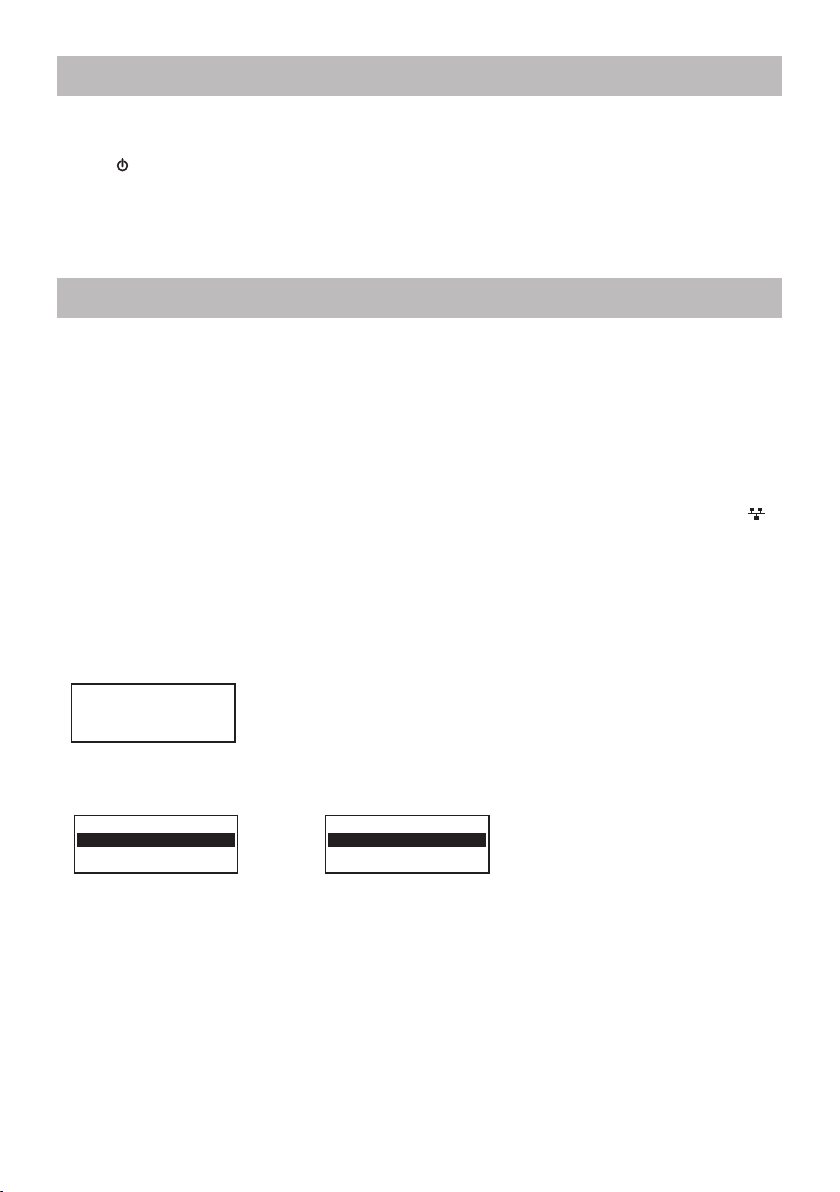
•If this is first time use, the Configure Network wizard will be displayed. Choose Yes to start
configuring network. Press the [ ◄ ] button to highlight Yes and press [Tune/Select] to
confirm.
•Select Add/Remove AP from the list, use the [Tune/Select] knob to scroll and press it to
confirm, then choose Add AP (Scan):
•It will start scanning the available Wi-Fi routers around. Scroll to your network and press [OK]
to confirm. If your wifi network has a security code protected, it will ask you to enter the
passphrase/password. Please refer to the above section 'How to input security code for
your wireless network' on P.3.
Note: The password is case sensitive. Please consult with the one who setup your network if
you don't know the password.
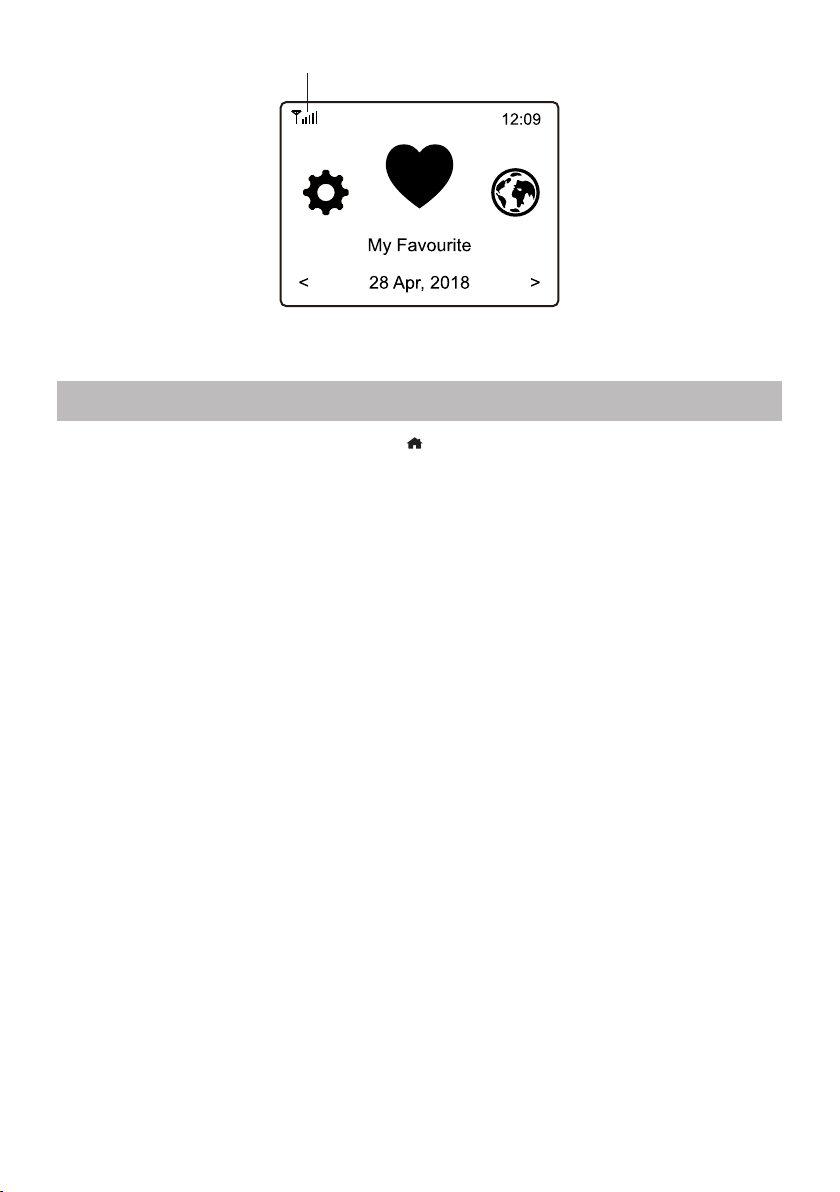
• When the Wi-Fi connection is successful, the Association Complete will be shown briefly. The
wifi signal bar will appear on the top left corner of the display:
Configure Network?
<Yes> No
Add AP
Remove AP
Add/Remove AP
AP:[ ]
- 05 -
Wi-Fi signal bar
3. Overview of features and functions
- 06 -
Press [ Menu ] to enter the main menu or the on the remote control. Scroll by rotating
the [Tune/Select] knob or the [ ◄ / ► ] button on remote:
My Favorite - To show the list of favorite stations which have been assigned to the presets.
There are up to 99 presets available.
Internet Radio - Start exploring the worldwide radio stations and music here.
Media Centre - You can browse and stream music from your network via UPnP or DLNA
Compatible devices.
DAB+/DAB Radio - Pick up DAB+ and DAB radio signal if available in your local area (no
internet connection required).
FM Radio - Receive ordinary FM radio stations in your local area (no internet connection
required).
Bluetooth - Bluetooth playback, to play audio stream (receive) from another Bluetooth
enabled device after pairing/connected each other.
Alarm - Alarm clock. Two alarm settings available.
Sleep Timer - Enable the timer to turn the radio in standby after the selected time elapsed.
Configuration - More options/settings available to personalize as you desire.
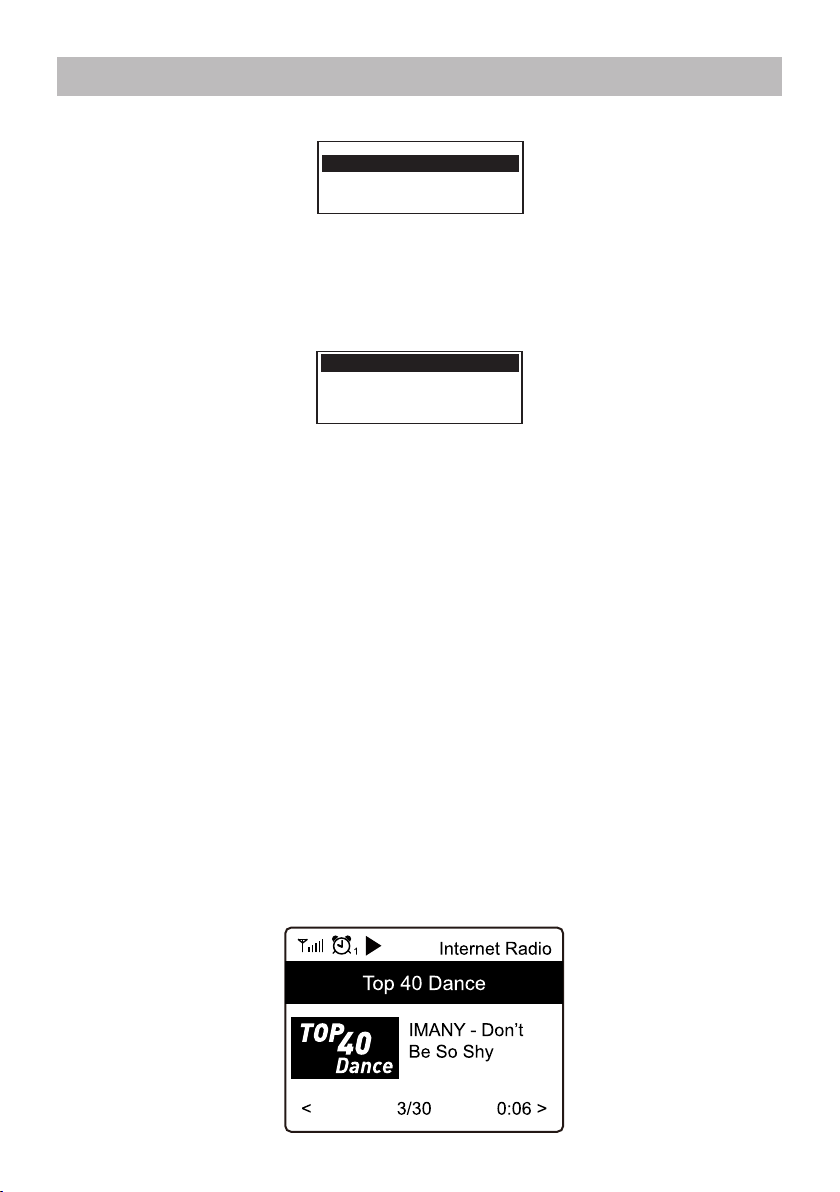
4. Internet Radio
On the main menu, choose Internet Radio and you will find the options below:
Skytune
Select Skytune to start enjoying thousands of radio stations over the world. You can filter your
search by Region, Music genre and talks.
The Local Radio let you access quickly the stations available in your local area through
internet connection.
Note - You can change the Local Radio area under Configuration> Local radio setup. Please
refer to section 11 for the details.
Note - When you scroll along the list of Globe All and want to quickly reach to a certain point of
the long list, input the index number on the remote control to quickly jump to that point. For
example, on the remote control, input 2 8 and press OK, it will highlight the station no. 28.
Search
Instead of browsing the radio station list, you can input a few characters of the desired station
to filter out / short list the stations.
History
The radio memorizes the stations you have listened up to 99 stations.
If you have listened more than 99 stations, it will supersede the first station that you have
listened.
Start playing internet radio
When a radio station starts playing, more radio information can be displayed.
Press the ► button in the state of the playing screen below:
Skytune
Search
History
Local Radio
Globe All
Globe By Genre
Globe By Region
- 07 -
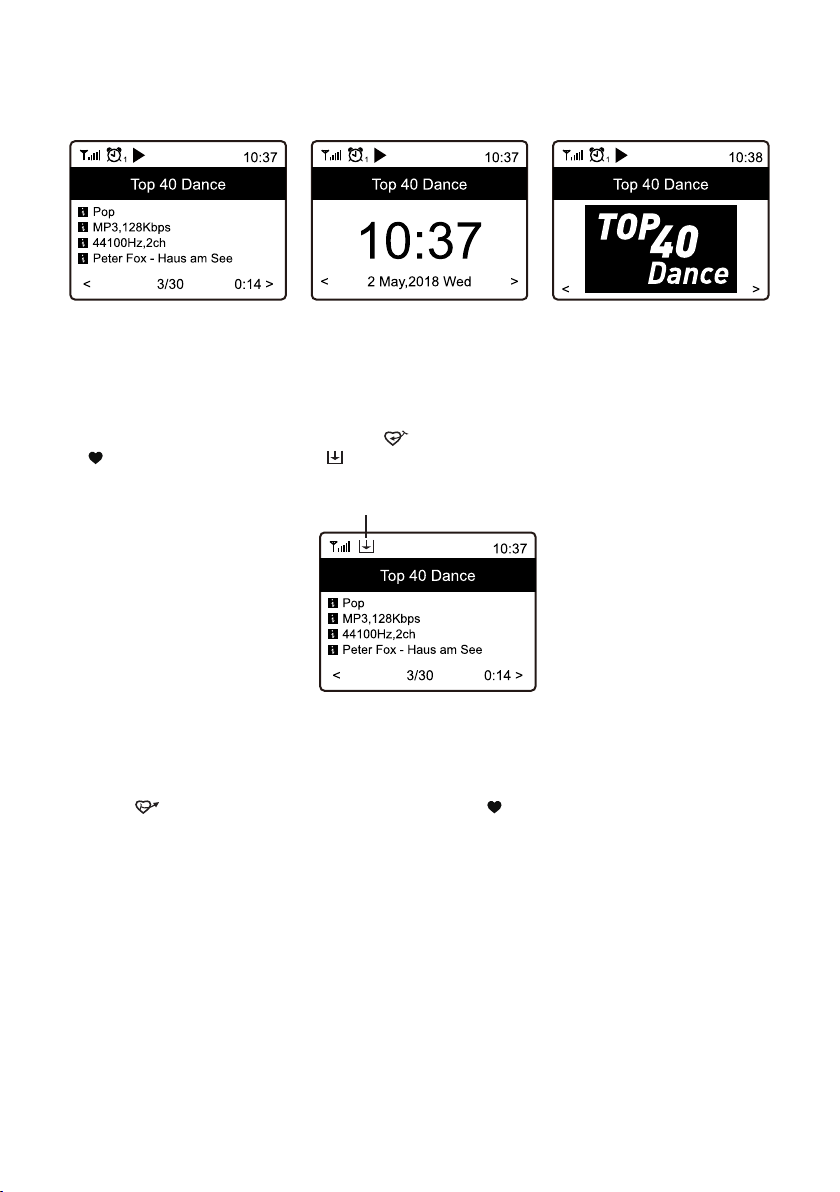
Every time you press the ► button, it will show various information at a time such as the
streaming bit rate, name of the song, artist name (if available), the big time clock and the
radio's station logo (if available):
My Favorite
This is to show the list of your Favorite stations which have been assigned to the presets.
Preset a station
When a radio station is playing, press the button on the remote control or press and hold
the on the unit, you will see the icon appears as below. It means the station is added to
the Favorite list.
The new added station will always show in the last item on the Favorite list.
You can store up to 99 presets
Recall a station
Press the button on the remote control or press the briefly on the radio unit to recall the
list of presets, or navigate to My Favourite on the main menu and select it to confirm.
Edit your favorite list
On the Favorite list, choose the radio station you want to edit then press the [ ► ] button on
the remote control (or press [ ► ] on the unit). It will enter the Edit menu with the following
options:
Move down - To move down the ranking of a station
Move up - To move up the ranking of a station
Delete - To delete a particular station
Preset icon
- 08 -

5. Media Centre
The device supports UPnP and is DLNA-compatible.
This provides the opportunity to stream music from your network. However, this requires you
to have a compatible device in your network that can function as a server. This can be e.g., a
network hard drive or a conventional PC with e.g., Windows 8 via which access to the shared
folder or media sharing is permitted. The folders can then be browsed and played on the Tuner.
Note - Please make sure your computer laptop is on the same Wi-Fi network as the Radio
before you start using this function.
Music streaming
• Once the UPnP/DLNA compatible server is configure to share media files with your radio, you
can start music streaming.
• On the main menu, select Media Centre and choose UPnP.
• It may take a few seconds for the radio to complete the scan for available UPnP servers. If no
UPnP servers are found, it will show Empty List.
• After a successful scan is done, select your UPnP server.
• The radio will show the media categories available from the UPnP server, e.g. 'Music',
'Playlists' etc.
• Choose the media files that you wish to play.
You can set the mode of playback under Configuration > Playback setup.
My Playlist
You can make your own playlist for the UPnP music files. Choose and highlight the song you
want to add to playlist, press and hold the[Tune/Select] knob or press and hold the [OK]
button on remote, until the sign appears. The song will be added to My playlist.
Clear My Playlist
Remove all songs in “My Playlist” to allow a new playlist to be prepared.
Note - If you have DLNA compatible servers available, follow the steps described above to
browse the audio files from DLNA compatible device on the Tuner to play.
6. DAB+/DAB Radio (Digital Audio Broadcasting)
If there is Digital Audio Broadcasting (DAB) in your area, the Tuner can pick up the DAB
stations as well (no internet connection is required). The Tuner supports both DAB and DAB+.
Connect the wire antenna (supplied in the box) to the antenna jack on the rear cabinet. Place
the Tuner close to the window and extend the antenna as far as it can go to get the best
reception.
On the main menu, scroll to DAB Radio or use the [Mode] button on remote to switch to DAB
Radio. Press[OK] to start.
It will ask whether you want to Scan DAB Station. Press OKto start scanning and it will show
the progress on the number of channels received. When it is done, a preset page will be
displayed for your action.
- 09 -
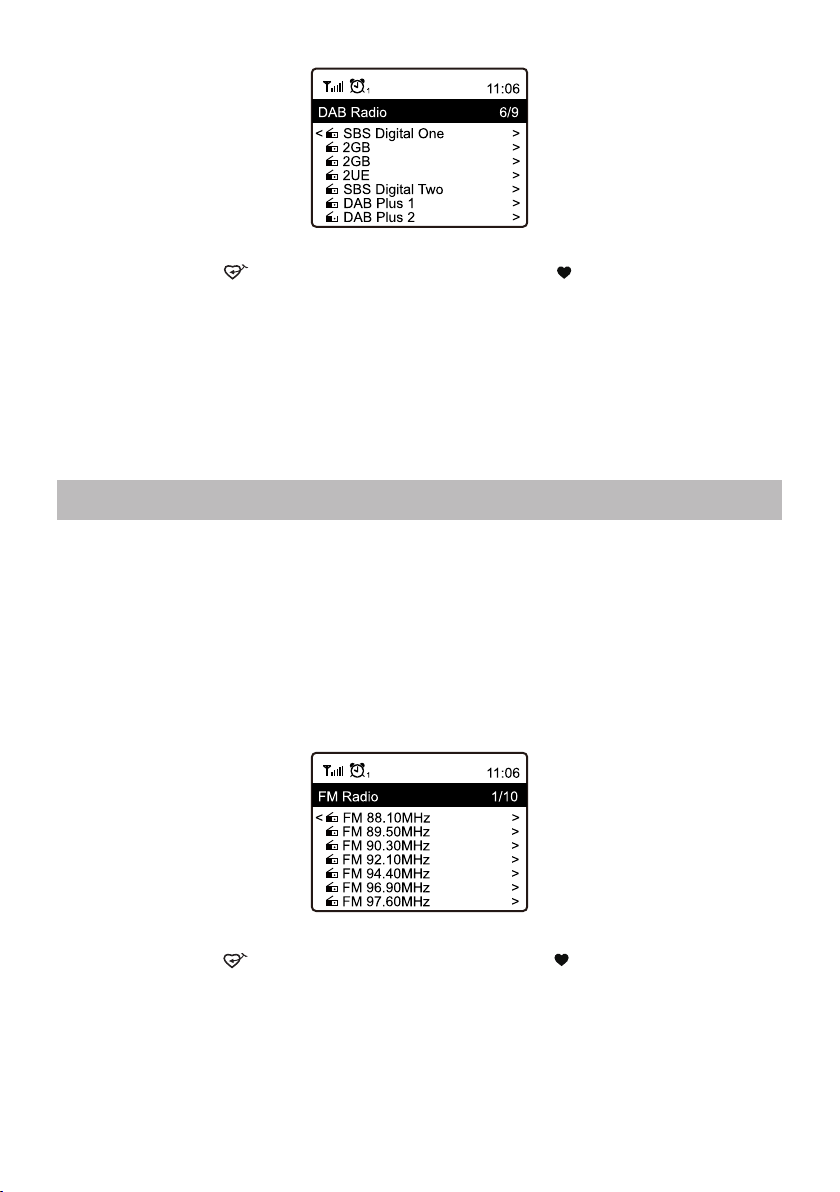
You can select the channel and start listening to it. Whenever you want to add to My
Favourite, press the button on remote or press and hold the button on the unit, and it
will add to the favourite list.
Always press the [ ◄ ] button to return to the Preset list.
Note - When a DAB radio is playing,press the [ ► ] button to view more radio information,
each time you press the [ ► ] button, it will display various information at a time such as radio
frequency, rolling texts (if available) and big time clock.
New digital radio stations should be picked up automatically by the Tunerif they are part of a
multiplex you already received. Otherwise you need to do the PresetScan again.
7. FM Radio
To receive the ordinary FM stations (no internet connection is required), connect the wire
antenna (supplied in the box) to the antenna jack on the rear cabinet first. Place the Tuner
close to the window and extend the antenna as far as it can go to get the best reception.
On the main menu, scroll to FM Radio or use the [Mode] button on remote to switch to FM
Radio. Press [OK] to start.
It will ask whether you want to Scan FM Station. Press OKto start scanning and it will show the
progress on the number of channels are found. When it is done, it will automatically save the
found channels on presets and display the list for your action.
You can select the channel and start listening to it. Whenever you want to add to My
Favourite, press the button on remote or press and hold the button on the unit, and it
will add to the favourite list.
Always press the [◄]buttonto return to the Preset list.
Note - When it is playing FM radio, press the [►] button to view more radio information, each
time you press the [►]button, it will display various information at a time such as radio
frequency and big clock display.
- 10 -
8. Bluetooth playback
Before transmission between your Bluetooth device and the radio is possible, both devices
must be coupled. This process is called "pairing". The Tuner is served as a receiver, to receive
music stream to play on the Tuner.
If you have already coupled to a Bluetooth device before, this connection will be restored
automatically when both devices are in range and Bluetooth operation has been selected on
the radio. "Pairing" does not have to be repeated. This function may need to be activated in
your Bluetooth device, however.
•Push the Menu button to display the selection menu for the different operating modes.
• Use the up / down button to select the operating mode Bluetooth and push the dial switch.
• Switch your Bluetooth device to which you want to connect the radio on and activate the
pairing mode here. The device scans for Bluetooth devices in the reception range.
• When the radio is found, your bluetooth device shows its name WR-230S-XXXX (the XXXX is
an identification code for your radio unit).
• Select the radio at your bluetooth device.
• Start playback on your bluetooth device.
• Playback now takes place using the radio.
- 11 -
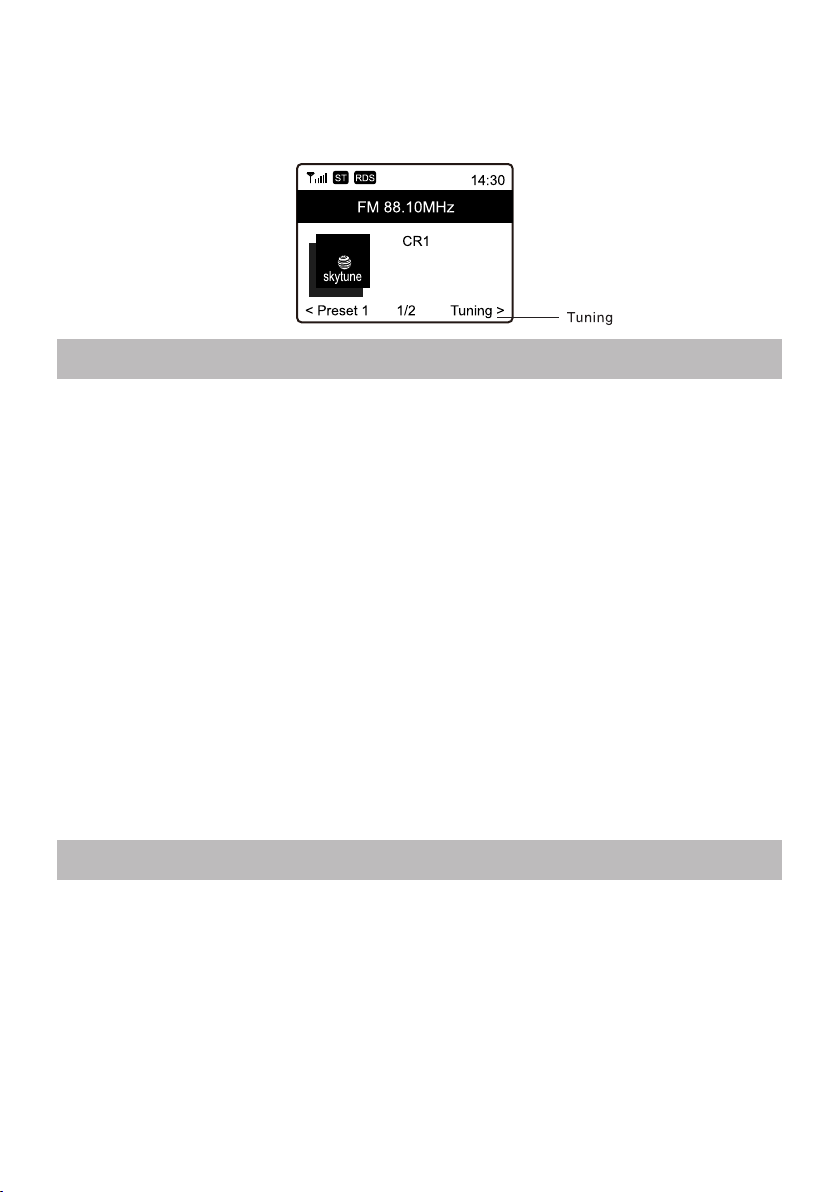
Manual Tune
To manual tune to the frequency, long press the [OK]on remote or long press [Tune/Select]
on the unit, until you see the "Tuning"appeared on the display, at the bottom right corner.
Use the <◄ / ►> button on remote to tune the frequency. When done, long press the [OK]
button to exit manual tune.
9. Aux-In
You can listen to the music stored in other audio device or smart phone on the radio, through
the connection to the 3.5 mm aux-in jack on the rear side. Use the cable with both ends in 3.5
mm pin, one end to the aux-in jack on the radio, the other end to the earphone jack on the
audio device or if it has line out socket.

10. Alarm Setting
• Choose Alarm from the main menu or press the [Alarm] button on the remote control.
• Select either Alarm 1 or Alarm 2, choose Turn on to activate the Alarm.
• Follow the alarm wizard instructions to set the alarm.
• The wizard will guide you through the settings below:
Time - Set the time for the alarm
Sound- You can choose Wake to Tone, My Favourite, Wake to FM Radio or Wake to
DAB Radio as the alarm source.
Note - Wake to FM or Wake to DAB Radio - only the preset stations can be used
for the radio alarm (if the preset scan has been completed).
Wake to My Favourite - Please preset your favorite station before setting this as
the alarm source.
Repeat -You can schedule the alarm as you desire -Everyday, Once or multiple days.
Alarm Volume - Adjust the volume of the alarm as you like by rotating the [Tune/Select]
knob or [▲/▼] button on remote.
• After the above settings are completed, press the [◄] button to exit and make sure the Alarm
is turned on. You will see the Alarm icon appeared on the display if it is activated.
- 12 -
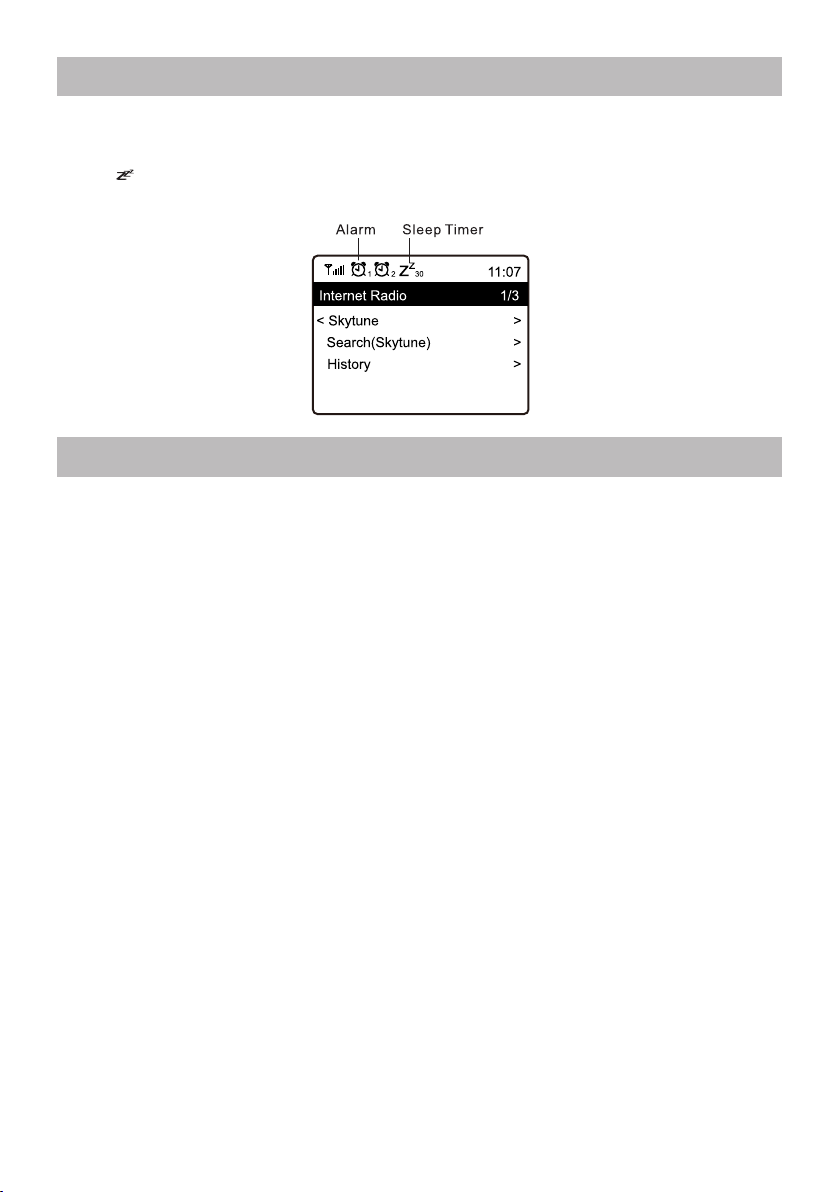
11. Sleep Timer Setting
You can set the timer to let the radio goes standby after the selected time elapsed in the range
of 15 minutes to 180 minutes.
Press [ ] button on the remote control to set the timer.
You will see the icon appeared on the display if the timer is set.
12. Configuration
Here you will find the complete settings / options available to configure your own tuner. On the
main menu, navigate to Configuration setting. Press OK and you will see a list of options
available.
Wi-Fi Network
• Add / Remove AP
Add AP - It will scan out a list of routers around.
Remove AP - If you have already added a router and want to remove it, choose this option.
Note - Always bring the Tuner within 2 meters of the Wi-Fi router for setup.
• AP: [ ]
If you have added more than one routers on the radio and want to switch to another one,
select this option to change.
• Signal
This is to show the strength of the Wi-Fi Signal of the Wi-Fi router as received by the
radio. Usually signal levels lower than -70dBm is at weaker level and if it affects the
reception of your radio, you may need to optimize the router location or check any
problem of the router itself.
• IP
The IP is set Dynamicby default. Select to change FixedIP according to your network
condition.
• DNS
The DNS is set Dynamicby default. Select to change <Fixed> DNS according to your
network condition.
Wi-Fi Channels
Not all of the Wi-Fi channels are available in every country. There may be variation between
different countries. Therefore it is necessary to choose the Wi-Fi channels to ensure the Wi-Fi
performs satisfactory.
We have already set the channels according to the requirement in different countries. Choose
- 13 -

the country you are staying from the list to get the correct channel.
The Europe/United Kingdomis set by default, press [OK] on the Remote control or push the
[Tune/Select] knob to edit the country selection.
LAN Network
Connect the Tuner's Ethernet port to one of the LAN ports in a router or Wi-Fi router using CAT
5 or CAT 6 cable. If your Router or Wi-Fi router is DHCP-enabled (recommended), you don't
have anything to setup and the Tuner will connect to Internet with the parameters
automatically assigned by the Router/Wi-Fi router.
Use the remote control for configuration if you want to use a fixed IP, scroll to IP:[Dynamic] and
press OK. Choose Fixed. Press the ▲ button, you can then enter the IP, press ▲, ▼ to tune
to the required numbers: xxx.xxx.xxx.xxx. Switch among the 4 groups by pressing ◄►. When
done, press OK. Scroll to GW and NM to do the same.
You can also choose to use a DNS server other than the one from the DHCP server. Scroll to
DNS and do the same.
Note - Use DHCP to get the network parameters unless you are familiar with network setup.
Date and Time
The radio will set your local time automatically after the internet connection is completed. If
you want to do manual setting, change it by the following options:
• Time zone
Auto-set Time Zone: This option is set by default.
Manual-set Time Zone: Choose this option if you want to set the time in another region.
Choose and highlight the region/city you prefer and press OK to
confirm.
Coupled with NTP (use network time) and DST (Daylight time saving)
will be adjusted automatically if you choose to use network time
(NTP).
• Set Time Format
Choose either 12-hour or 24-hour notation you prefer.
• Set Date Format
• DST (Day Light Saving)
Enable on/off
• NTP (Use network time)
NTP is designed to synchronize a device's clock with a time server. Your Tuner will
synchronize the time server by default every time it powers up and connects to Internet. This
ensures a very high degree of accuracy in the Tuner's clock. You can change to use other
time server by inputting the URL address (see below NTP server). You can choose “Do not
- 14 -

use network time” if you don't want it to.
If you choose not to use NTP for clock synchronization, highlight the NTP (Network time
protocal) and press OK to make the change. You will see the Set Date & Time appeared on
the menu. Select it and adjust the date and time as you desire.
•
NTP Server
NTP is designed to synchronize a device's clock with a time server. Here it shows the server
being used for the tuner.
Language
The default language is English, you can choose other languages as preferred. Scroll with the
▲▼ buttons on remote or [Tune/Select] knob to the item with and press OK. Scroll to
highlight and press
OK to select your language of choice. English, French, Spanish, Italian,
German, Dutch, Polish, Russian and Simplified Chinese are available.
Local Radio
The radio is set by default to detect the radio stations in your local area automatically through
internet connection and these stations can be accessed by a press of [Local] button on
remote. You can also set Local in another region if you want. Highlight the Local Radio and
press OK. Choose Manual-set Local radio to change the region setting.
DAB set up
•
DAB Preset Scan
You can always carry out a new scanning of DAB channels by selecting this option. All
current presets and channels will be erased.
•
DAB Radio Preset
The scanned DAB stations will be listed here for management. You can move the position or
even delete any station. Scroll to the station and press [ ► ] button. A pop up window will be
presented: Move up, Move down and Delete.
FM Setup
•
FM Area
Choose the Region according to your physical location to define the search range for the
Tuner.
•
FM Preset Scan
You can always carry out a new scanning of FM channels by selecting this option. All current
presets and channels will be erased.
The radio at the lowest frequency of the scanned values will be highlighted. The preset list
will be saved unless a new preset scan is carried out.
•
FM Radio Presets
You can adjust the preset ranking by Move down, Move up or Delete it. Highlight one of the
preset, then press the [ ►] button, it will enter into the Edit menu.
Always press the [◄] button to return to the Preset list.
h a
- 15 -

Playback Setup
This is to set the mode of playback under UPnP/DLNA compatible streaming: Repeat All,
Repeat Once or Shuffle.
Resume when Power on
This function is ON by default. The radio will resume to the last state of mode when the radio is
power on next time, e.g. if it was playing radio station before power off, it will resume playing
the last listened station when it is power on the next time.
Dimmer
You can set the backlight level for the display as you prefer.
There are two settings: Mode and Level
• Mode - Normal or Power Saving
Normal - the display will stay with the same level of brightness all the time without dim down.
Dim - the display will dim down after 20 seconds if no operation is made on the radio.
• Level - Bright and Dim
Bright - This is to adjust the level of brightness in Normal mode.
Dim - This is to adjust the level of brightness in Dim mode.
• Dimmer in Standby
When the radio is in Standby, rotate the [Tune/Select] knob to adjust the backlight level at
your preference which you feel comfortable especially during night time.
EQ(Equaliser)
Various music genres can be set.
Buffer Time
Sometimes you may experience uneven playback of the internet radio. This can happen if the
internet connection is slow or network congestion occurs. To help improving the situation, you
can choose longer buffer time to get a few seconds of radio stream before beginning to play.
The default value is 2 seconds. You can choose 5 seconds if you prefer to have a longer
buffering time.
Information
View the Network and System Information of your radio.
To access quickly to this information, press the [Info] button on the remote control.
When you use your PC to manage the My favorite stations, you have to use the IP address
and you can view this info from here. Then type in the IP address ( Configuration > Info >
Network > IP ) to your PC's browser input window
Software Update
There may be software release to upgrade features of the radio from time to time. Check the
update regularly to keep your radio up to date with the latest software.
- 16 -
Reset to Default
You can do the reset to clear all the settings and return to default settings.
** Please note all the Station presets, Settings and configuration will be erased after you have
performed the Reset.
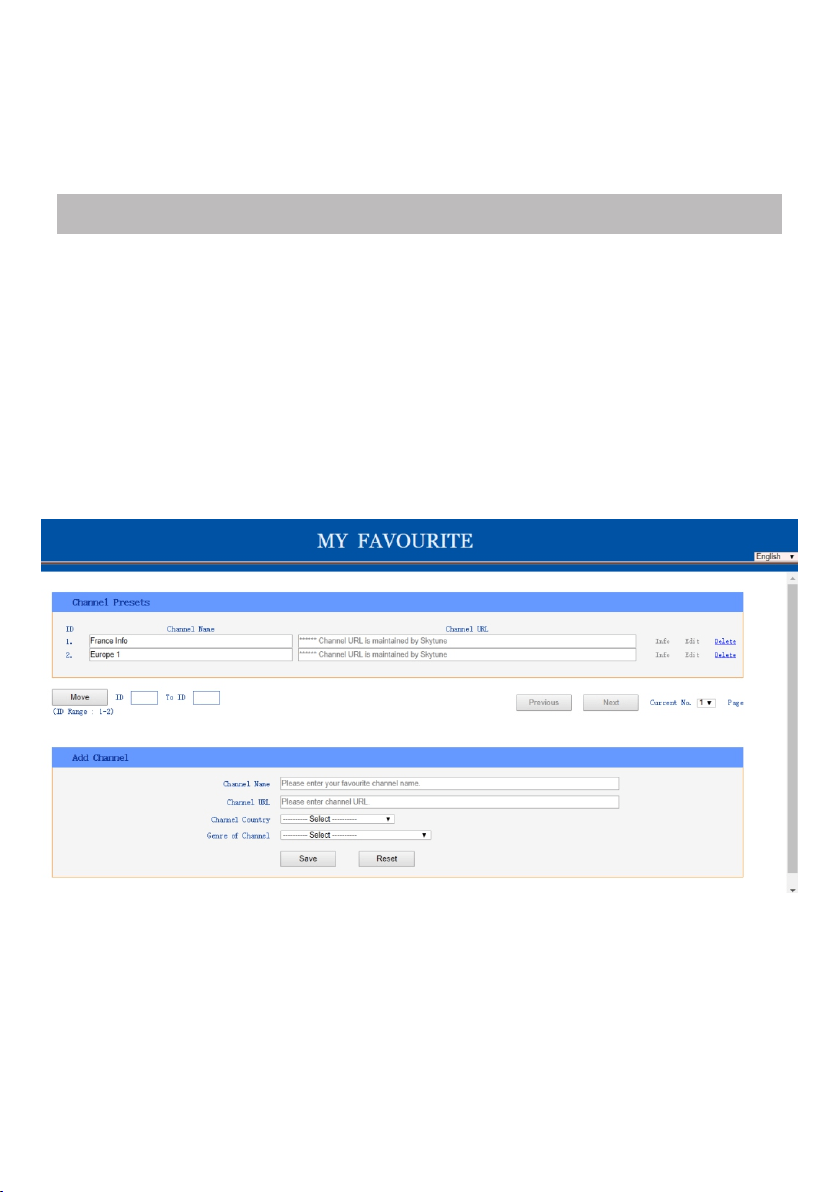
13. Add your favourite URL/ Manage favourite by PC
You can add your favorite radio station if you know the published audio stream URL of the
radio.
We provide an embedded server for your radio and you can manage your favorite stations
anytime to add or edit the list. Follow the steps below to access the embedded server:
•Connect your PC to the same Wi-Fi network as your radio.
• Locate the IP address in either way as follow:
• Press the [Info]button on the remote control, choose Networkand scroll to IP to view the IP
address
• On the main menu, go to Configuration > Information > Network > IP
• Open the web browser (we support Internet Explorer and Chrome) in your PC and type the IP
address of the radio (e.g. 192.168.1.11). The screen will pop up as below:
- 17 -
• You can input the name and URL of a new radio station under the Add channel section, then
click Submit. The new station will sync to the Favorite list of your radio immediately. You can
add up to 99 radio stations.
- 18 -
14. Trouble Shooting
Problem
Cause Solutions
• Confirm that a Wi-Fi or Ethernet
Wired connected PC can access the
internet (i.e. can browse the web) using
the same network.
• Check that a DHCP server is available,
or that you have configured a static IP
address on the radio.
• Check that you firewall is not blocking
any outgoing ports. As a minimum the
radio needs access to UDP and TCP
ports 80,443 and 8008, DNS port 53.
Network down
Cannot connect to
Wi-Fi network
Router restricts
access to listed MAC
addresses
Obtain the MAC address from
Configuration > Information > Network
> Wi-FiMAC and add to the allowed
equipment list on your access point.
Note:TheradiohasseparateMAC
addressesforwiredandwireless
networks;
Insufficient Wi-Fi
signal strength
• Check distance to router; see if a
computer can connect to the network in
this location
• Optimize the distance of the router’s
location
Unknown encryption
method
Change encryption method on router.
The radio supports WEP, WPA, WPA2
Firewall preventing
access
Windows Media Player: varies —non-
Microsoft firewalls may require
configuration for UPnP.
If your radio can
connect to the
network
successfully, but
is unable to play
particular stations
• The station is not broadcasting at this
time of the day (remember it may be
located in a different time zone).
• The station has too many people trying
to attach to the radio station server and
the server capacity is not large enough.
• The station has reached the maximum
allowed number of simultaneous
listeners.
• The link on the radio is out of date. This
is updated automatically every day, so
the next time you turn on the link will be
recognised.
No DAB/FM reception
DAB/FM Radio
reception is poor
No sound
• Please carry out “Factory Reset” on the
radio and extend the antenna.
• Move the radio close to the window.
• Please check that the aerial is extended for
the maximum signal strength and
improved reception.
• Check that you do not have other electrical
equipment too close to your radio, causing
interference.
• Adjust the volume level of the external
powered speaker.
• Please check if the power of the external
powered speaker is switched on.

- 19 -
1. If the Internet Radio keeps re-buffering radio station:
The Internet Radio is streaming the data from the radio station via your broadband
connection, if there is a high error rate on your broadband connection, or the connection is
intermittent, then it will cause the Internet Radio to pause until the connection is
re-established and it has received enough data to start playing again.
If your Internet Radio keeps stopping, please check the DSL modem to ensure that the
Broadband line is not suffering a high error rate or disconnections. If you are experiencing
these problems, you will need to contact your broadband supplier.
2. What is Buffering?
When playing a stream, the Internet Radio/Media player, downloads a small amount of the
stream before it starts playing. This is used to fill in any gaps in the stream that may occur if the
internet or the wireless network is busy.
The Internet Radio streams music data from the PC while you are listening. If a stream gets
blocked or experiences Internet congestion while transferring it may stop/interfere with the
quality of play. If this happens, check your internet connection speed- it must be faster than
the speed of the streams.
3. My Tuner is working but some stations cannot be played.
The problem may be due to one or more of the followings:
a. The radio station is no longer broadcasting.
b. The radio station has reached the maximum allowed number of simultaneous listeners.
c. The radio station has changed the stream arrangement and the link is no longer valid.
d. The radio station is not broadcasting at the time of the day (not all stations are
broadcasting 24 hours throughout the day).
e. The Internet connection between your Tuner and the radio station server is too slow or
unstable to support the data rate of the broadcast.
- 20 -
What's included in the box
* Internet Radio
* Power adaptor
* Remote control (without batteries)
* User manual
WEEE and Recycling
The European laws do not allow any more the disposal of old or defective
electric or electronic devices with the household waste. Return your product
to a municipal collection point for recycling to dispose of it. This system is
financed by the industry and ensures environmentally responsible disposal
and the recycling of valuable raw materials.
Model: WR-230S
Power input: 9V 2A
Power voltage: 100-240V~50/60Hz
Wireless Network: IEEE802.11b/g/n
Wireless network frequency: 2.4 Ghz
Wireless transmission power: Typical transmission power 14 dBm (72.2 Mbps);
20 dBm (11b mode)
Security Protocol: WEP/WPA/WPA2
Ethernet connection (LAN): 10/100 Mbps RJ45
Bluetooth version: V4.2 BR/EDR compliant
Bluetooth frequency: 2.4 GHz
Bluetooth range: 10 meters (line of sight)
Bluetooth transmission power: 0 dBm
DAB frequency range: 174.928MHz (5A) - 239.200MHz (13F)
Support DAB and DAB+
FM frequency range: 87.5-108MHz
Audio output: Stereo earphone jack 3.5 mm
Stereo audio out
Audio input: Aux in jack 3.5mm
Telescopic antenna
Unit Dimension: 295 x 143 x 115 mm (L x H x D)
Remark: Specification may vary without notice
Technical Specification
Ocean Digital Technology Ltd.
Flat B, 12/F., Yeung Yiu Chung (No.8) Ind. Bldg.,
20 Wang Hoi Road, Kowloon Bay,
Hong Kong
Email: support@oceandigital.com.hk