50" Plasma TV-720P
NS-PDP50
User Guide
07-287_NS-PDP50_English Only.fm Page 1 Wednesday, July 11, 2007 12:05 PM

07-287_NS-PDP50_English Only.fm Page 2 Wednesday, July 11, 2007 12:05 PM
3
www.insignia-products.com
Insignia NS-PDP50
50" Plasma TV-720P
Contents
Introduction . . . . . . . . . . . . . . . . . . . . . . . . . . . . . .3
Safety information . . . . . . . . . . . . . . . . . . . . . . . . .3
Features. . . . . . . . . . . . . . . . . . . . . . . . . . . . . . . . .4
Front. . . . . . . . . . . . . . . . . . . . . . . . . . . . . . . . . . . . . 5
Back . . . . . . . . . . . . . . . . . . . . . . . . . . . . . . . . . . . . . 5
Remote control . . . . . . . . . . . . . . . . . . . . . . . . . . . . . 6
Setting up your plasma TV. . . . . . . . . . . . . . . . . . .7
Installing batteries . . . . . . . . . . . . . . . . . . . . . . . . . . 7
Bundling cables . . . . . . . . . . . . . . . . . . . . . . . . . . . . 8
Grounding. . . . . . . . . . . . . . . . . . . . . . . . . . . . . . . . . 8
Connecting an antenna or cable TV. . . . . . . . . . . . . 9
Connecting a standard A/V device . . . . . . . . . . . . . . 9
Connecting an S-Video device . . . . . . . . . . . . . . . . . 9
Connecting a component device . . . . . . . . . . . . . . 10
Connecting an HDMI device. . . . . . . . . . . . . . . . . . 10
Connecting a DVI device . . . . . . . . . . . . . . . . . . . . 11
Connecting a digital audio device. . . . . . . . . . . . . . 11
Connecting a PC . . . . . . . . . . . . . . . . . . . . . . . . . . 12
Using your plasma TV . . . . . . . . . . . . . . . . . . . . .12
Turning your plasma TV on or off. . . . . . . . . . . . . . 12
Selecting the video input source . . . . . . . . . . . . . . 13
Labeling a video input source. . . . . . . . . . . . . . . . . 13
Changing channels. . . . . . . . . . . . . . . . . . . . . . . . . 13
Adjusting the volume . . . . . . . . . . . . . . . . . . . . . . . 13
Creating the channel list. . . . . . . . . . . . . . . . . . . . . 13
Adding or deleting a channel . . . . . . . . . . . . . . . . . 14
Creating a favorite channel list . . . . . . . . . . . . . . . . 14
Selecting the picture mode. . . . . . . . . . . . . . . . . . . 15
Adjusting the color temperature . . . . . . . . . . . . . . . 15
Adjusting the HD picture quality . . . . . . . . . . . . . . . 16
Adjusting the movie picture quality. . . . . . . . . . . . . 16
Adjusting the black level. . . . . . . . . . . . . . . . . . . . . 17
Restoring video settings . . . . . . . . . . . . . . . . . . . . . 17
Selecting a sound mode. . . . . . . . . . . . . . . . . . . . . 17
Adjusting the balance . . . . . . . . . . . . . . . . . . . . . . . 18
Selecting the audio language . . . . . . . . . . . . . . . . . 18
Turning the speakers on or off . . . . . . . . . . . . . . . . 19
Setting the clock . . . . . . . . . . . . . . . . . . . . . . . . . . . 19
Setting the on and off timers . . . . . . . . . . . . . . . . . 20
Setting the sleep timer . . . . . . . . . . . . . . . . . . . . . . 20
Turning Auto Off on and off . . . . . . . . . . . . . . . . . . 20
Selecting the aspect ratio . . . . . . . . . . . . . . . . . . . . 21
Selecting the on-screen display (OSD) language . 21
Checking the DTV signal strength . . . . . . . . . . . . . 21
Selecting closed captions. . . . . . . . . . . . . . . . . . . . 22
Changing closed caption styles . . . . . . . . . . . . . . . 22
Using low power . . . . . . . . . . . . . . . . . . . . . . . . . . . 23
Avoiding image burn-in. . . . . . . . . . . . . . . . . . . . . . 23
Setting parental controls. . . . . . . . . . . . . . . . . . . . . 23
Maintaining. . . . . . . . . . . . . . . . . . . . . . . . . . . . . .24
Cleaning the screen. . . . . . . . . . . . . . . . . . . . . . . . 24
Cleaning the cabinet. . . . . . . . . . . . . . . . . . . . . . . . 24
Troubleshooting . . . . . . . . . . . . . . . . . . . . . . . . . .25
Specifications. . . . . . . . . . . . . . . . . . . . . . . . . . . .26
Programming the remote control. . . . . . . . . . . . .26
Remote control codes . . . . . . . . . . . . . . . . . . . . . . 26
One-Year Limited Warranty . . . . . . . . . . . . . . . . .31
Introduction
Congratulations on your purchase of a
high-quality Insignia product. Your NS-PDP42
represents the state of the art in plasma TV
design and is designed for reliable and
trouble-free performance.
Safety information
Important safety
instructions
1 Read these instructions.
2 Keep these instructions.
3 Heed all warnings.
4 Follow all instructions.
5 Do not use your plasma TV near water.
6 Clean the cabinet with a dry cloth only.
7 Do not block any ventilation openings. Install
in accordance with the manufacturer’s
instructions.
Note
A few small colored dots may be present on your
plasma TV screen. This is normal in plasma TVs
and does not mean that your plasma TV is
defective.
Note
Your plasma TV has cooling fans that insure
reliable operation. When the fans are running
there is a small amount of noise. This is normal
and does not mean that your plasma TV is
defective.
CAUTION
RISK OF ELECTRIC SHOCK
DO NOT OPEN
Warning
To reduce the risk of electric shock, do not remove
the cover or back. No user serviceable parts
inside. Refer servicing to qualified service
personnel.
To reduce the risk of fire or electric shock, do not
expose your plasma TV to rain or moisture.
Warning
To prevent electric shock, match the wide blade
on the power cord plug to the wide slot on an
electric outlet. If the plug does not fit, consult a
licensed electrician to replace the obsolete outlet.
Do not modify the power cord plug, or you will
defeat this safety feature.
This symbol indicates that dangerous voltage
constituting a risk of electric shock is present
within your plasma TV. This label is located on
the back of your plasma TV.
This symbol indicates that there are important
operating and maintenance instructions in the
literature accompanying your plasma TV.
07-287_NS-PDP50_English Only.fm Page 3 Wednesday, July 11, 2007 12:05 PM
4
Insignia NS-PDP50 50" Plasma TV-720P
www.insignia-products.com
8 Do not install near any heat sources such as
radiators, heat registers, stoves, or other
apparatus (including amplifiers) that produce
heat.
9 Do not defeat the safety purpose of the
polarized or grounding-type plug. A polarized
plug has two blades with one wider than the
other. A grounding type plug has two blades
and a third grounding prong. The wide blade
or the third prong is provided for your safety.
If the provided plug does not fit into your
outlet, consult an electrician for replacement
of the obsolete outlet.
10 Protect the power cord from being walked on
or pinched particularly at plugs, convenience
receptacles, and the point where they exit
from your plasma TV.
11 Only use attachments or accessories
specified by the manufacturer.
12 Use only with a cart, stand,
tripod, bracket, or table
specified by the manufacturer.
13 Unplug your plasma TV during
lightning storms or when
unused for long periods of time.
14 Refer all servicing to qualified service
personnel.
Servicing is required when your plasma TV
has been damaged in any way, such as the
power-supply cord or plug is damaged, liquid
has been spilled or objects have fallen into
your plasma TV, your plasma TV has been
exposed to rain or moisture, does not operate
normally, or has been dropped.
15 Do not overload wall outlets. Overloaded wall
outlets, loose or damaged wall outlets,
extension cords, frayed power cords, or
damaged or cracked wire insulation are
dangerous. Any of these conditions could
result in electric shock or fire. Periodically
examine the cord of your plasma TV, and if
its appearance indicates damage or
deterioration, unplug it, discontinue use of
your plasma TV, and have the cord replaced
with an exact replacement part by an
authorized service person. Protect the power
cord from physical or mechanical abuse,
such as being twisted, kinked, pinched,
closed in a door, or walked upon. Pay
particular attention to plugs, wall outlets, and
the point where the cord exits your plasma
TV.
16 Ensure that you connect the earth ground
wire to prevent possible electric shock. If
grounding methods are not possible, have a
qualified electrician install a separate circuit
breaker. Do not try to ground the unit by
connecting it to telephone wires, lightening
rods, or gas pipes.
17 Mains plug is the disconnecting device. The
plug must remain readily operable.
18 If an outside antenna or cable system is
connected to your plasma TV, make sure that
the antenna or cable system is grounded to
provide some protection against voltage
surges and built-up static charges. Article
820-40 of the National Electrical Code (USA)
provides guidelines for correct grounding
and, in particular, specifies that the cable
ground shall be connected to the grounding
system of the building, as close to the point of
the cable entry as practical.
Features
Your plasma TV features:
• Wide viewing angle (over 160°) so the screen
is clearly visible anywhere in the room.
• Widescreen display for viewing movies in a
theater-like experience.
• Light-weight and thin design that makes it
easy to install your plasma TV in locations
where conventional TVs do not fit.
Your package should contain:
• Your plasma TV
• Remote control and batteries
•Power cord
• Round 75 ohm cable
• Eye-bolts (2)
• Bolts (2)
• Wall brackets (2)
• This user guide
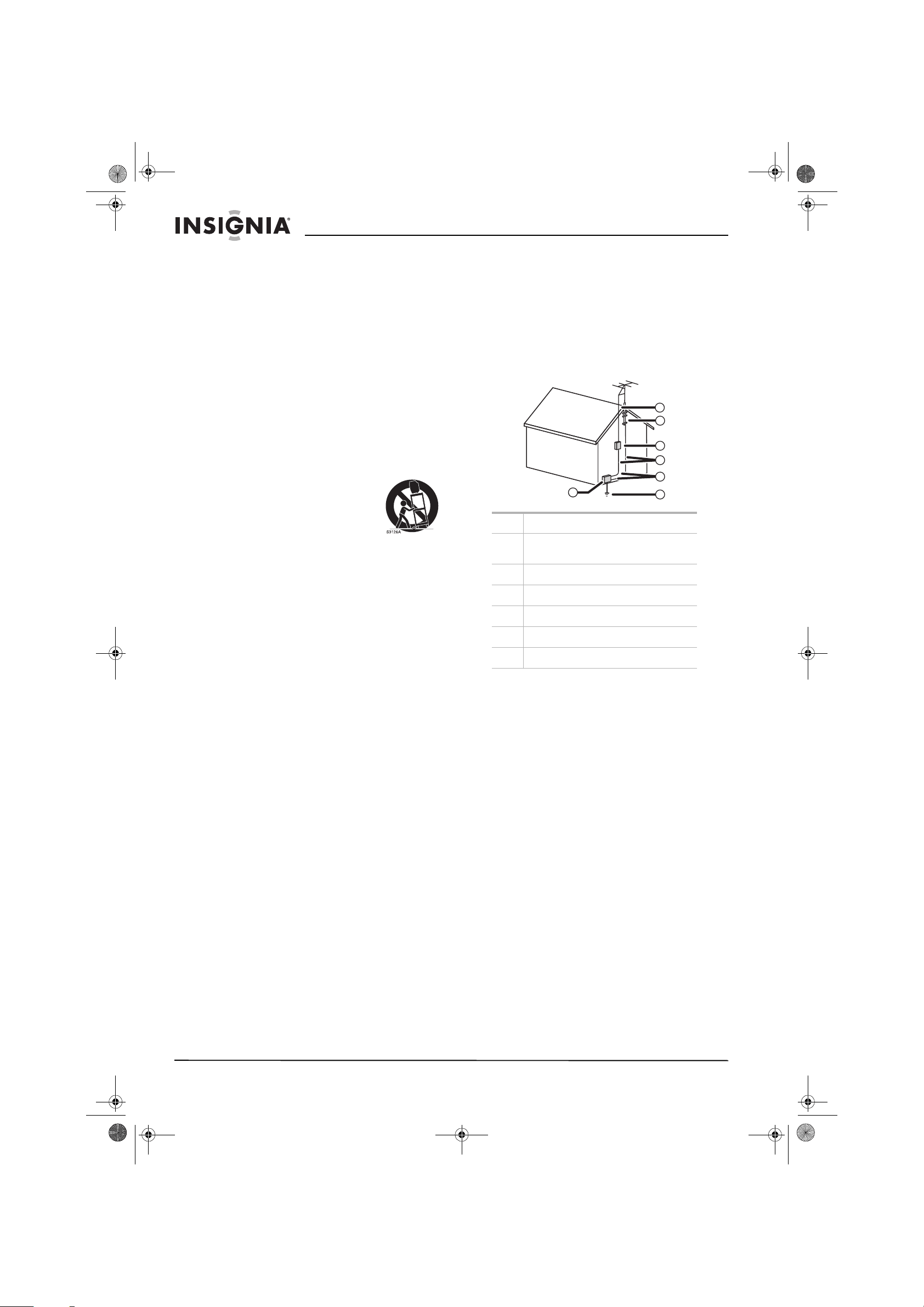
1 Electric service equipment
2 Power service grounding electrode
system
3 Ground clamps
4 Grounding conductors
5 Antenna discharge unit
6 Grounding clamp
7 Antenna lead-in wire
6
7
5
2
1
3
4
07-287_NS-PDP50_English Only.fm Page 4 Wednesday, July 11, 2007 12:05 PM
5
Insignia NS-PDP50 50" Plasma TV-720P
www.insignia-products.com
Front Back
Side jacks
Note
If your plasma TV stand has a protective film
covering, remove it, then wipe the stand with the
polishing cloth.
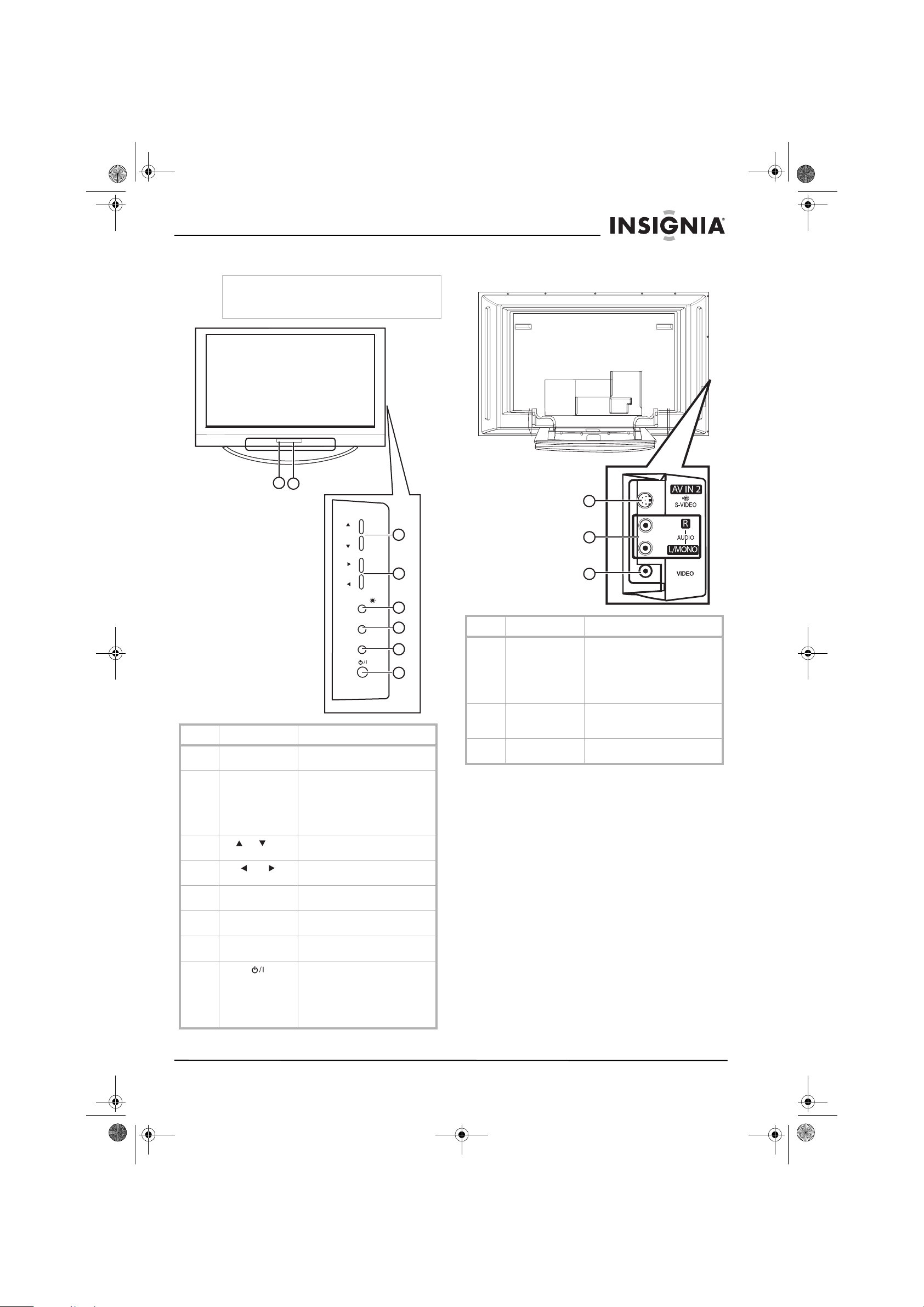
# Component Description
1 Remote control
sensor
Receives signals from the remote
control. Do not block.
2 Power LED When your plasma TV is off, this
LED is red. When you turn on
your plasma TV, this LED blinks
green, then turns solid green just
before the image appears on the
screen.
3
CH /CH
Press to go to the previous or
next channel.
4
VOL /VOL
Press to decrease or increase the
volume.
5 ENTER Press to confirm selections in the
on-screen display (OSD).
6 MENU Press to open the on-screen
display (OSD).
7 INPUT Press to select the video input
source.
8
Power
Press to turn your plasma TV on
or off.
Note: When your plasma TV is
off, power is still present. To
disconnect power, unplug the
power cord.
CH
CH
V
OL
OL
ENTER
ENTER
MENU
MENU
INPUT
INPUT
1
2
3
4
5
6
7
8
# Jack Description
1 S-VIDEO Connect an S-Video device to this
jack.
Note: An S-Video cable does not
carry sound. You must connect
an audio cable to the audio jacks
for sound.
2 AUDIO-R and
AUDIO L MONO
Connect the right and left audio
for a standard AV or S-Video
device to these jacks.
3 VIDEO Connect the video for a standard
A/V device to this jack.
1
2
3
07-287_NS-PDP50_English Only.fm Page 5 Wednesday, July 11, 2007 12:05 PM
6
Insignia NS-PDP50 50" Plasma TV-720P
www.insignia-products.com
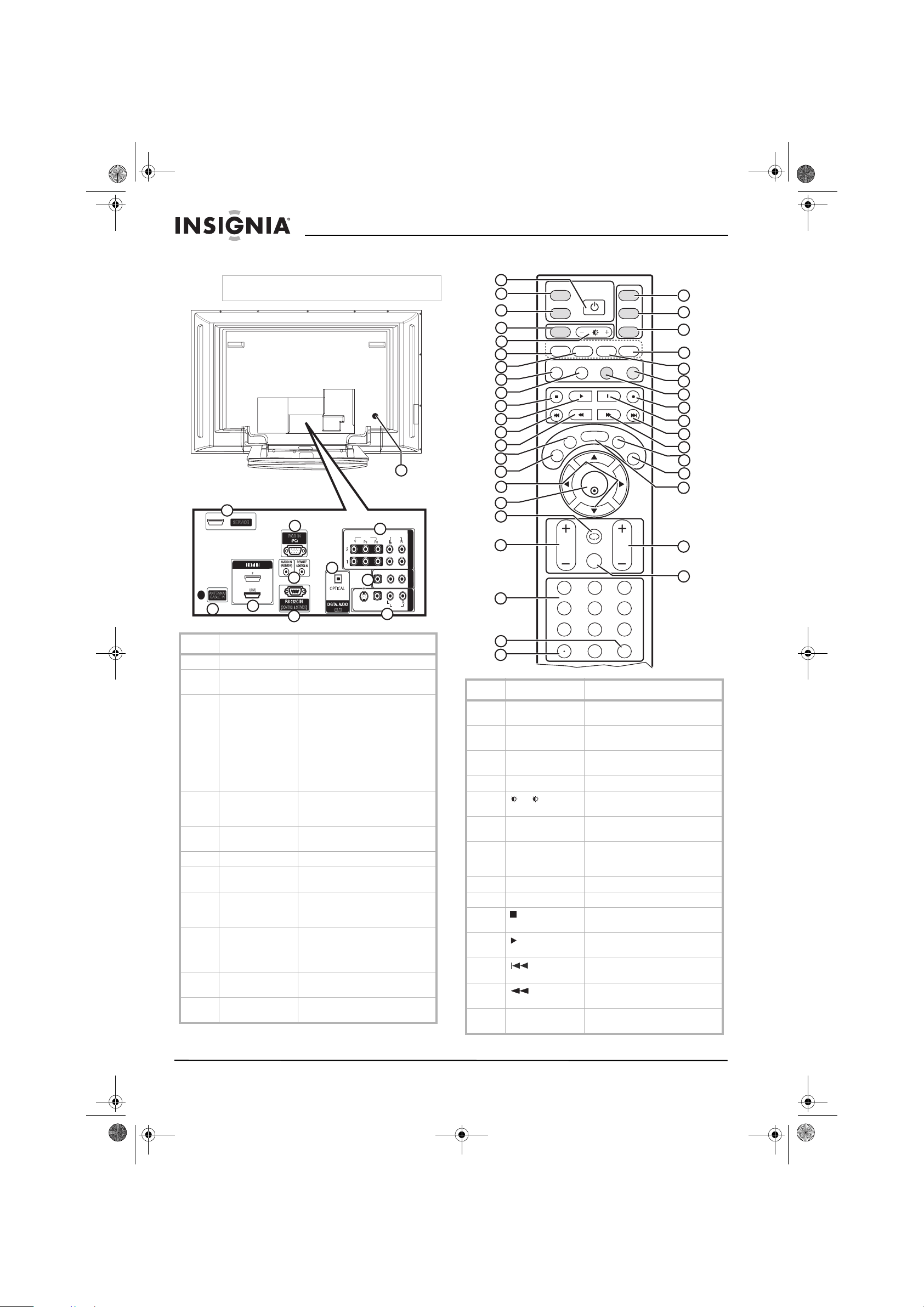
Back jacks
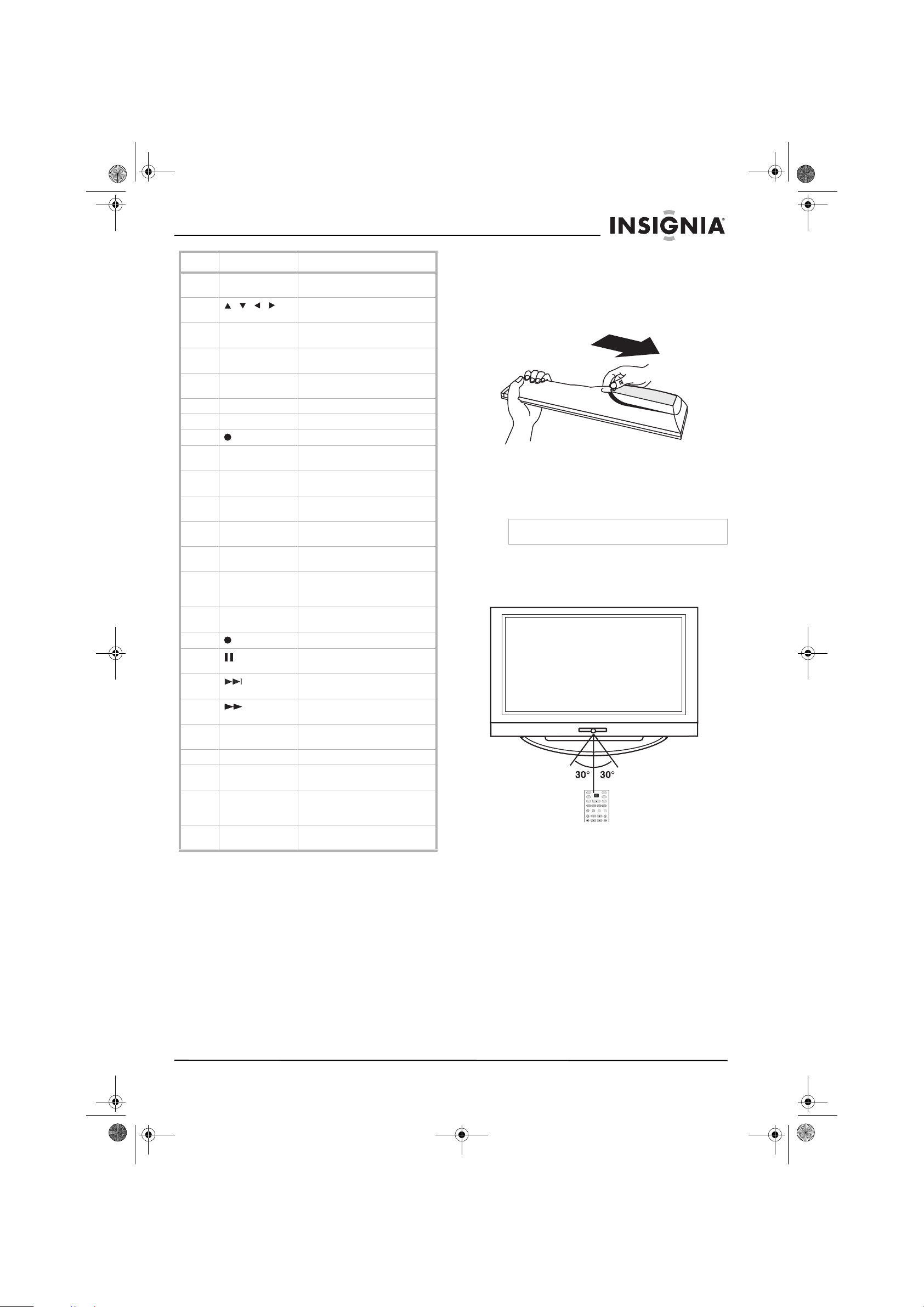
Remote control
Note
To access the back jacks, remove the jack cover.
# Jack Description
1 SERVICE Reserved. Do not use.
2ANTENNA
/CABLE IN
Connect an antenna, cable TV, or
satellite receiver to this jack.
3 HDMI1/DVI IN 1
/HDMI IN 2
Connect HDMI (DVI) devices to
these jacks. There are two jacks.
Note: An HDMI cable carries
sound, so you do not need to
make any additional audio
connections. A DVI cable does
not carry sound. If you connect a
DVI device, you need to connect
an audio cable.
4RGB IN
(PC)/AUDIO IN
(RGB/DVI)
Connect a PC to these jacks to
use your plasma TV as a PC
monitor.
5 REMOTE
CONTROL IN
Connect a wired remote control to
this jack.
6 RS-232C IN Service port. Do not use.
7 DIGITAL AUDIO
OUT
Connect a digital sound system to
this jack.
8 COMPONENT IN Connect component video
devices to these jacks. There are
two sets on jacks.
9 AV OUT Connect an external TV or
monitor to these jacks to send the
signal from your plasma TV to the
external device.
10 AV IN 1 Connect a standard AV or S-Video
device to these jacks.
11 Power cord
connector
Plug the power cord into this
connector.
HDMIIN
VIDEO
VIDEO
AUDIO
AUDIO
VIDEO
VIDEO
AUDIO
AUDIO
MONO
( )
S-VIDEO
S-VIDEO
AV IN 1
A
V
I
N1
AV OUT
A
V
O
UT
ANTENNA/
CABLE IN
(CONTROL & SERVICE)
RGB IN
COMPONENT IN
COMPON
E
N
T
IN
OUT
1(DVI)
2
SERVICE
4
5
6
7
8
9
10
11
3
2
1
# Button Description
1 POWER Press to turn your plasma TV on
or off.
2 TUNER Press to select analog or digital
TV.
3 INPUT Press to select the video input
source.
4 ZOOM Press to select the aspect ratio.
5
+/ –
Press to increase or decrease the
brightness.
6 VIDEO Press to select the video input
source.
7 COMP Press to select a connected
component device as the video
input source.
8 PICTURE Press to select the picture mode.
9 AUDIO Press to select the sound mode.
10 Press to pause videotape or DVD
playback.
11 Press to start videotape or DVD
playback.
12 Press to go the previous chapter
or track on a disc.
13 Press to fast-reverse on a
videotape or DVD.
14 CCD In analog TV mode, press to
select a closed caption mode.
ENTER
TV
TUNER
INPUT
DVD
ZOOM
EXIT
VOL
AUDIO
DISPLAY
PC ADJ
PICTURE
MUTE
RECALL
CH
SLEEP
CCD
MTS/SAP
MENU
VCR
POWER
123
456
7 8 9
0
FAV
MODE
VIDEO
COMP
HDMI
PC
1
2
3
4
5
6
7
8
9
10
11
12
13
14
15
16
17
18
19
20
21
23
24
25
26
27
28
29
30
31
32
33
34
37
35
22
36
38
07-287_NS-PDP50_English Only.fm Page 6 Wednesday, July 11, 2007 12:05 PM
7
Insignia NS-PDP50 50" Plasma TV-720P
www.insignia-products.com
Setting up your plasma TV
Installing batteries
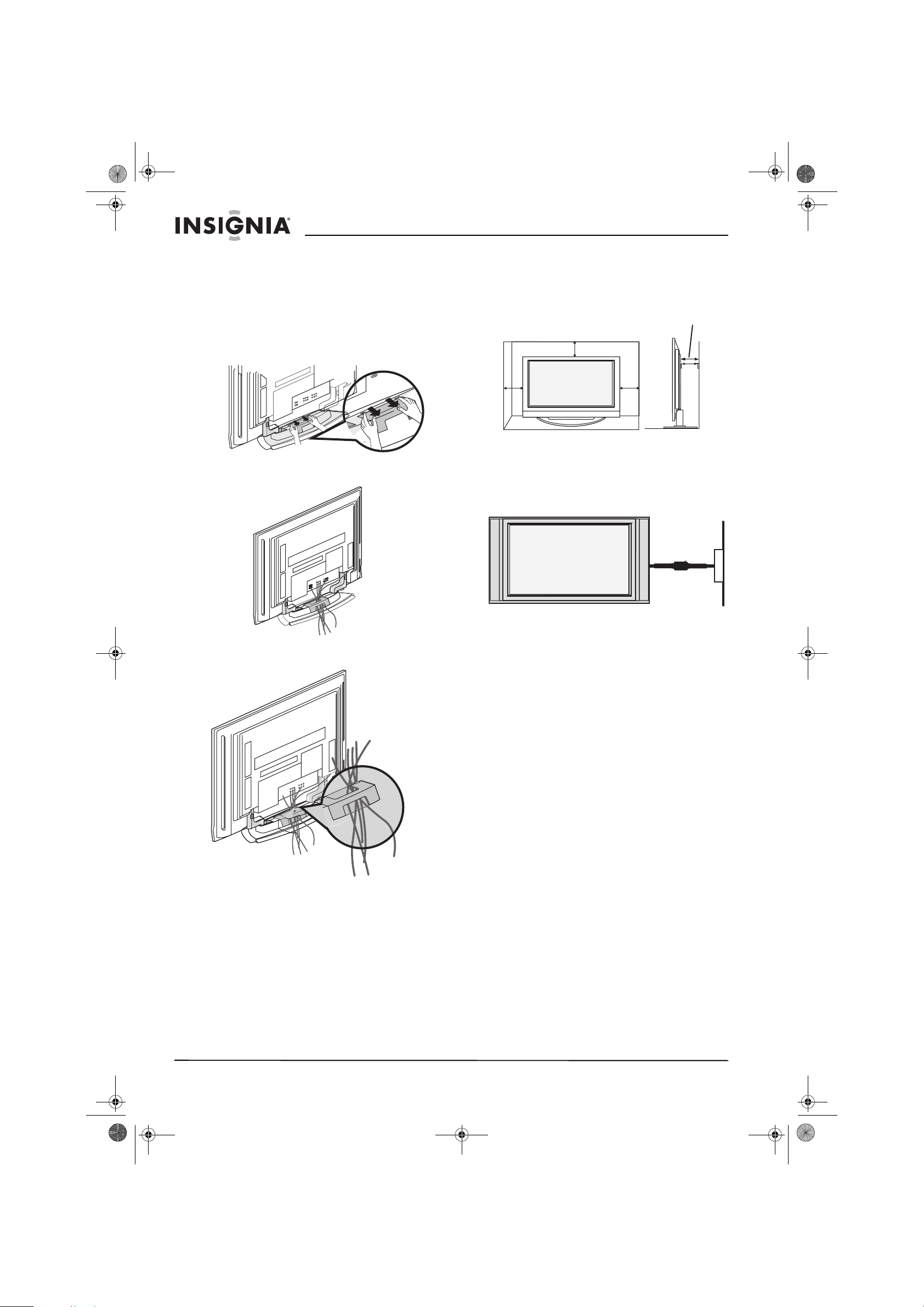
To install remote control batteries:
1 Open the battery compartment cover.
2 Insert two AA batteries into the battery
compartment. Make sure that the + and –
symbols on the batteries align with the + and
– symbols in the battery compartment.
3 Close the battery compartment cover.
Remote control range
Use the remote control within 23 feet (7 meters)
and 30° to the left or right of the remote control
sensor on the front of you plasma TV.
15 EXIT Press to close the on-screen
display (OSD).
16
, , ,
Press to make selections in the
on-screen display (OSD).
17 ENTER Press to confirm selections in the
on-screen display (OSD).
18 RECALL Press to go to the previously
selected channel.
19 VOL+/VOL– Press to increase or decrease the
volume.
20 Number buttons Press to select a TV channel.
21 FAV Press to select a favorite channel.
22 Press to select a sub-channel.
23 TV Press to select TV as the video
input source.
24 DVD Press to select a connected DVD
player as the video input source.
25 VCR Press to select a connected VCR
as the video input source.
26 PC Press to select the RGB
(computer) video mode.
27 HDMI Press to select a connected HDMI
device as the video input source.
28 DISPLAY Press to display information
about the channel you are
watching.
29 PC ADJ Press to adjust the video settings
for a connected computer.
30 Press to start recording.
31 Press to pause videotape or disc
playback.
32 Press to go to the next chapter or
track on a disc.
33 Press to fast-forward on a
videotape or disc.
34 MTS/SAP Press to select the audio format
for the TV speakers.
35 SLEEP Press to set the sleep timer.
36 MENU Press to open the on-screen
display (OSD).
37 CH+/CH– Press to go to the next or
previous channel in the channel
list.
38 MUTE Press to mute the sound. Press
again to restore the sound.
# Button Description
Warning
Dispose of used batteries as hazardous waste.
TV
TUNER
INPUT
DVD
ZOOM
AUDIO
DISPLAY
ADJUST
PICTURE
VCR
POWER
VIDEO
MODE
COMP
HDMI
RGB-PC
07-287_NS-PDP50_English Only.fm Page 7 Wednesday, July 11, 2007 12:05 PM
8
Insignia NS-PDP50 50" Plasma TV-720P
www.insignia-products.com
Bundling cables
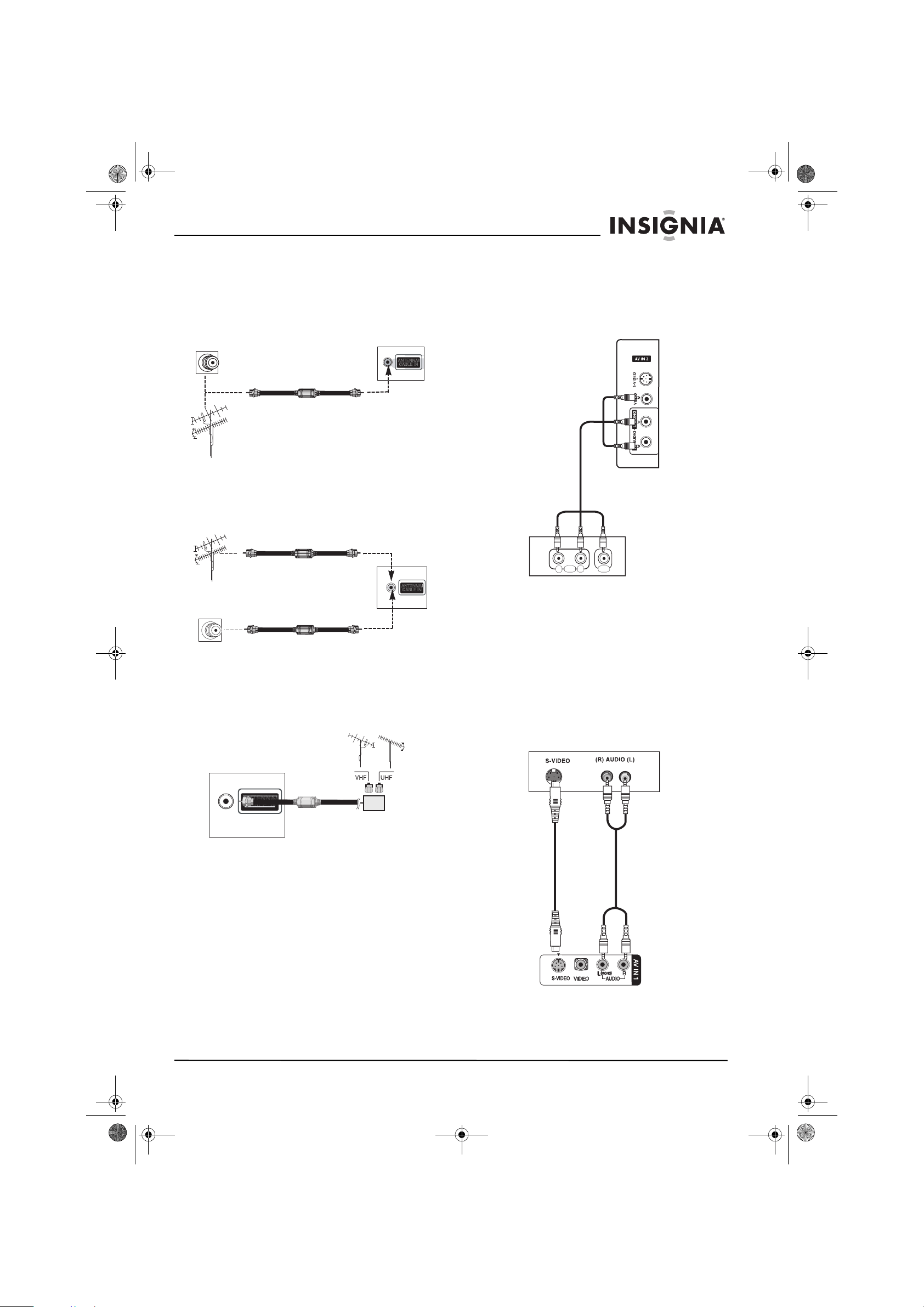
You plasma TV has a cable management
bracket that lets you bundle the cables for all the
device you install.
To bundle the cables:
1 Hold the cable management bracket with
both hands, then pull it in the direction shown
to remove it.
2 Connect all external devices and the power
cord.
3 Pull the cables through the opening on the
cable management bracket.
4 Reinstall the cable management bracket.
Positioning your plasma TV for ventilation
When you position your plasma TV, make sure
that you leave 4 inches (10.16 cm) of space on
all sides.
Grounding
Make sure that you connect the earth ground
wire to prevent possible electric shock. If
grounding methods are not possible, have a
qualified electrician install a separate circuit
breaker.
Do not try to ground the unit by connecting it to
telephone wires, lightening rods, or gas pipes.
4" (10.16 cm)
4" (10.16 cm)
4" (10.16 cm)
4" (10.16 cm)
Power outlet
Short-circuit
breaker
07-287_NS-PDP50_English Only.fm Page 8 Wednesday, July 11, 2007 12:05 PM
9
Insignia NS-PDP50 50" Plasma TV-720P
www.insignia-products.com
Connecting an antenna or cable TV
Analog and digital TV signals on a single cable
To connect an antenna or cable TV:
1 Connect one end of a 75 ohm cable to the
ANTENNA/CABLE IN jack on the back of
your TV.
2 Connect the other end of the cable to the
antenna or cable TV jack.
Analog and digital TV signals on separate cables
To connect an antenna or cable TV:
Using a signal amplifier or two-way splitter
You may need to install a signal amplifier or a
two-way splitter if:
• Reception is poor (use a signal amplifier).
• Signal from the antenna needs to be split
between two TVs (use a two-way splitter).
Connecting a standard A/V device
To connect a standard A/V device:
1 Connect the video (yellow), right audio (red),
and left audio (white) plugs on a standard
A/V cable to the AV1 (back) or AV2 (side)
jacks on your plasma TV.
2 Connect the plugs on the other end of the
cable to the corresponding jacks on the
external device.
3 Turn on your plasma TV and the device.
4 Press INPUT one or more times to select
AV1 or AV2.
Connecting an S-Video device
To connect an S-Video device:
1 Connect an S-Video cable to the S-VIDEO
jack on the back or side of your plasma TV,
then connect the other end of the cable to the
S-Video out jack on the external device.
ANTENNA/
CABLE IN
Cable TV
Antenna
OR
ANTENNA/
CABLE IN
OR
ANTENNA/
CABLE IN
Signal amplifier or
two-way splitter
R
L
AUDIO VIDEO
Side jacks shown
07-287_NS-PDP50_English Only.fm Page 9 Wednesday, July 11, 2007 12:05 PM
10
Insignia NS-PDP50 50" Plasma TV-720P
www.insignia-products.com
2 Connect the right audio (red) and left audio
(white) plugs on a standard audio cable to
the AV IN1 (back) or AV2 (side) jacks on
your plasma TV, then connect the plugs on
the other end of the cable to the right audio
out and left audio out jacks on the external
device.
3 Turn on your plasma TV and the device.
4 Press INPUT one or more times to select
AV1 or AV2.
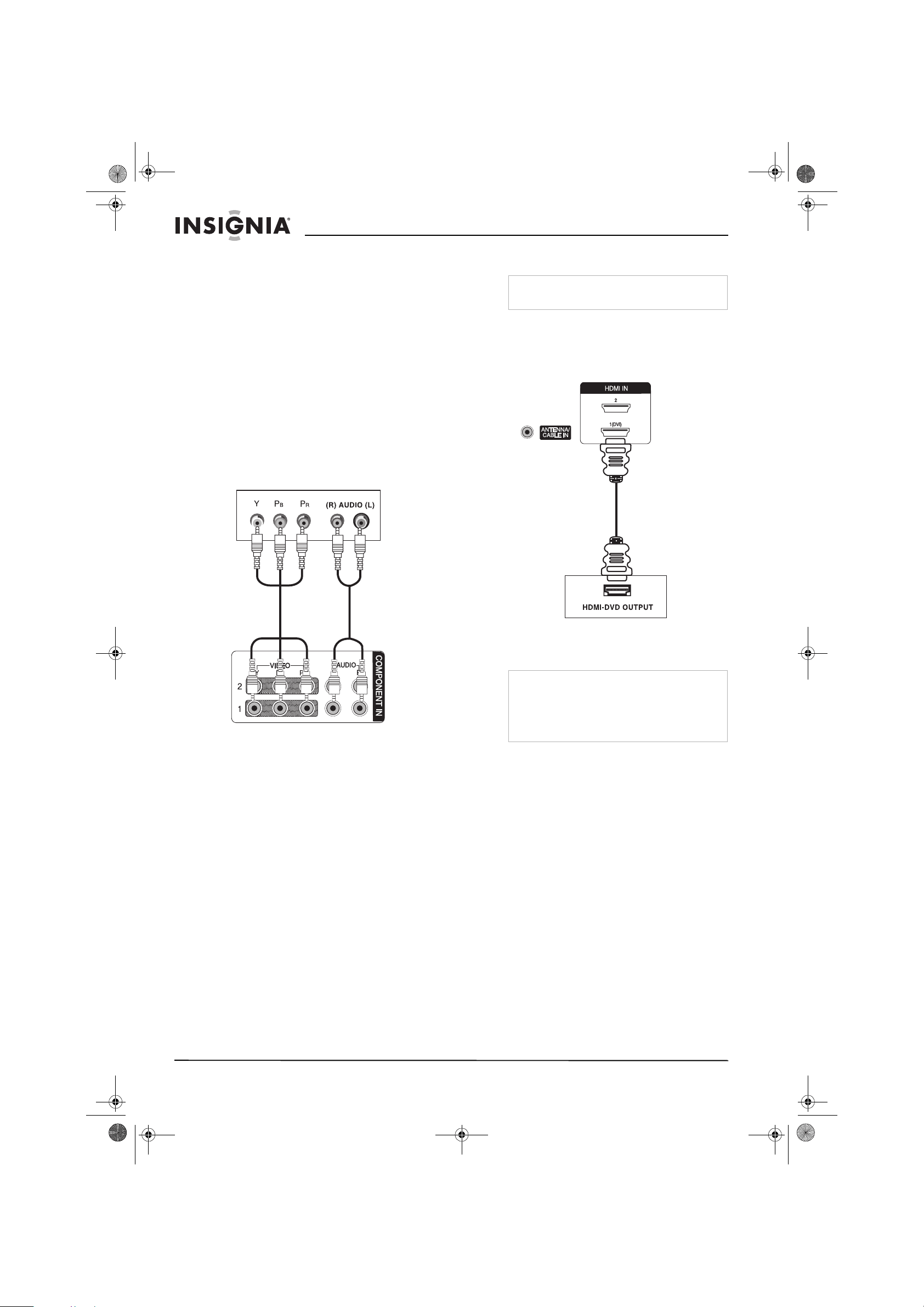
Connecting a component device
To connect a component device:
1 Connect the plugs on a component cable to
the COMPONENT IN 1 or COMPONENT
IN2 (Y, Pb, and Pr) jacks on the back of your
TV, then connect the plugs on the other end
of the cable to the component out jacks on
the back of the external device.
2 Connect the right audio (red) and left audio
(white) plugs on a standard audio cable to
the COMPONENT 1 or COMPONENT 2
(AUDIO L and AUDIO R) jacks on the back
of your plasma TV, then connect the plugs on
the other end of the cable to the right audio
out and left audio out jacks on the external
device.
3 Turn on your plasma TV and the device.
4 Press INPUT one or more times to select
COMPONENT 1 or COMPONENT 2.
Connecting an HDMI device
To connect an HDMI device:
1 Connect an HDMI cable to the HDMI1/DVI or
HDMI2 jack on the back of your plasma TV,
then connect the other end of the cable to the
HDMI out jack on the external device.
2 Turn on your plasma TV and the device.
3 Press INPUT one or more times to select
HDMI1/DVI or HDMI2.
Note
An HDMI cable carries both video and audio. You
do not need to make additional audio connections.
Note
If the external device supports the Auto HDMI
function, the screen resolution is automatically set
to 1280×720p.
If the external device does not support the Auto
HDMI function, you need to set the screen
resolution to 1280×720p.
07-287_NS-PDP50_English Only.fm Page 10 Wednesday, July 11, 2007 12:05 PM

11
Insignia NS-PDP50 50" Plasma TV-720P
www.insignia-products.com
Connecting a DVI device
To connect a DVI device:
1 Connect an HDMI-to-DVI cable to the
HDMIIN 1/DVI jack on the back of your TV,
then connect the other end of the cable to the
DVI out jack on the external device.
2 Connect the single-plug end of a two-to-one
audio cable to the AUDIO IN (RGB/DVI) jack
on the back of your plasma TV, then connect
the double-plug end of the cable to the right
audio (red) and left audio (white) jacks on the
external device.
3 Turn on your plasma TV and the device.
4 Press INPUT one or more times to select
HDMI1/DVI.
Connecting a digital audio device
To connect a digital audio device:
1 Connect a digital optical cable to the
DIGITAL AUDIO OUT jack on the back of
your TV, then connect the other end of the
cable to the digital audio in jack on the
device.
2 Turn off your plasma TV’s speakers. For
more information, see “Turning the speakers
on or off” on page 19.
Note
If the external device supports the Auto HDMI
function, the screen resolution is automatically set
to 1280×720p.
If the external device does not support the Auto
HDMI function, you need to set the screen
resolution to 1280× 720p.
Warning
Do not look into the DIGITAL AUDIO OUT jack.
The jack uses a laser that could damage your
eyes.
07-287_NS-PDP50_English Only.fm Page 11 Wednesday, July 11, 2007 12:05 PM
12
Insignia NS-PDP50 50" Plasma TV-720P
www.insignia-products.com
Connecting a PC
You can connect a PC using the computer’s
VGA jack or DVI jack.
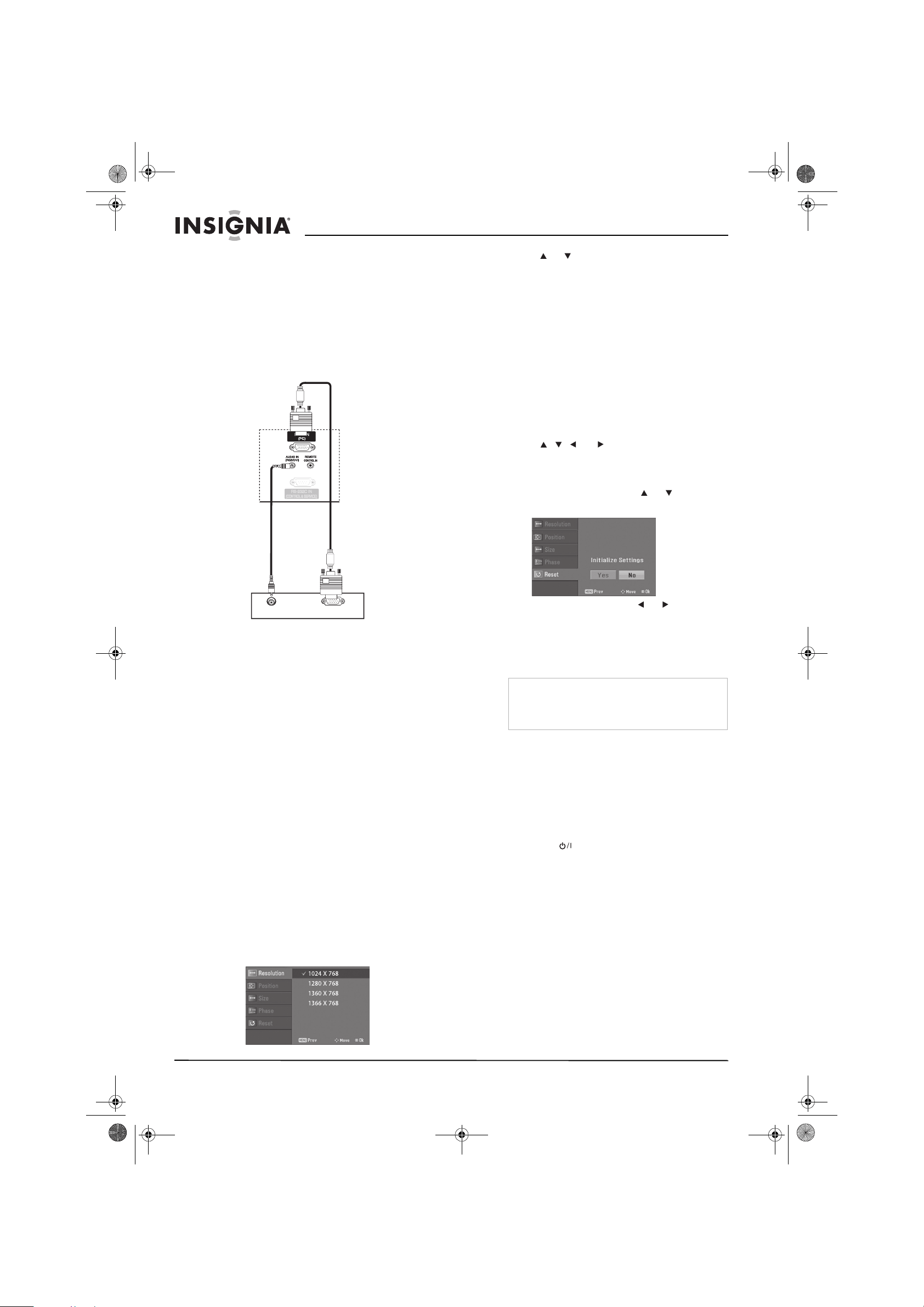
Connecting to the VGA port
To connect a PC:
1 Connect a VGA cable to the RGB IN (PC)
jack on the back of your plasma TV, then
connect the other end to the VGA (also called
RGB) out jack on the computer.
2 Connect an audio cable to the AUDIO IN
(RGB/DVI) jack on the back of your TV, then
connect the other end to the audio out jack
on the computer.
3 Turn on your plasma TV and the computer.
4 Press INPUT one or more times to select
RGB-PC.
Connecting to the DVI port
To connect a PC:
1 Connect an HDMI-to-DVI cable to the HDMI
IN 1 (DVI) jack on the back of your plasma
TV, then connect the other end of the cable
to the DVI out jack on the computer.
2 Connect an audio cable to the AUDIO IN
(RGB/DVI) jack on the back of your plasma
TV to the audio out jack on the computer.
3 Turn on your plasma TV and the computer.
4 Press INPUT one or more times to select
HDMI1/DVI.
Adjusting the PC display image
After you connect the PC to your plasma TV, you
may need to adjust the PC display image’s
resolution, position, size, or phase.
To adjust the PC display image:
1 Press PC ADJ.
2 Press or to select the option you want to
adjust, then press ENTER. You can select:
• Resolution–Adjusts the size of the items
(such as icons and dialog boxes) that are
displayed.
• Position–Moves the display image up,
down, right, or left.
• Size–(RGB only) Minimizes vertical bars
or stripes on the display image’s
background. The range is -30 to +30.
When you change this option, the
horizontal screen size also changes.
• Phase–(RGB only) Removes any
horizontal noise and clears or sharpens
the display image. The range is -16 to
+16.
3 Press , , , or to adjust the option.
4 Press ENTER.
To reset PC display image settings:
1 Press PC ADJ, then press or to select
Reset.
2 Press ENTER, then press or to select
Yes.
3 Press ENTER.
Using your plasma TV
Turning your plasma TV on or off
To turn your plasma TV on or off:
1 Make sure that the power cord is connected
and plugged into a power outlet. Your plasma
TV enters standby mode.
2 Press one of the following buttons:
On the front of your plasma TV:
•Power
• INPUT
• CH+
• CH–
On the remote control:
•POWER
• TUNER
• INPUT
• TV INPUT
• CH+
• CH–
3 To turn off your plasma TV, press POWER
on the remote control. Your plasma TV
enters standby mode.
Caution
If you do not intend to use your plasma TV for an
extended time, unplug the power cord from the
power outlet. This will protect your plasma TV
from power surges or lightning.
07-287_NS-PDP50_English Only.fm Page 12 Wednesday, July 11, 2007 12:05 PM
13
Insignia NS-PDP50 50" Plasma TV-720P
www.insignia-products.com
Selecting the video input source
To select the video input source:
• Press TUNER or INPUT to select the video
source.
If you press TUNER, you can select digital or
analog TV.
If you press INPUT, you can select TV, AV1,
AV2, Component 1, Component 2,
RGB-PC, HDMI1/DVI, or HDMI2.
Labeling a video input source
You can label a video input source to make it
easier to recognize.
To label a video input source:
1 Press MENU, then press or to select
SETUP. The
SETUP
menu opens.
2 Press , then press or to select Input
Label.
3 Press , then press or to select the
input source you want to label. You can
select AV1, AV2, Component 1,
Component2, RGB-PC, HDMI1/DVI, or
HDMI2.
4 Press or to select the label.
5 Press EXIT to return to TV viewing or press
MENU to return to the previous menu.
Changing channels
To change channels:
• Press CH+ or CH– to go to the next higher or
lower channel.
• Or, press the number buttons for the channel
you want.
• Or, to select a digital sub-channel, select the
main channel, press –, then press the
number button for the sub-channel.
Adjusting the volume
To adjust the volume:
• Press VOL+ or VOL– to increase or
decrease the volume.
• To mute the sound, press MUTE. To restore
the sound, press MUTE, VOL+, or VOL–.
Creating the channel list
When you press CH+ or CH–, your plasma TV
goes to the next or previous channel in the
channel list.
You should set up the channel list when you first
set up your plasma TV. You should update the
channel list when your antenna or cable
connection changes.
You can create the channel list automatically
from the
EZ Scan
menu, or you can create the
channel list manually.
You can still select a channel that is not in the
channel list by pressing the number buttons for a
channel.
Creating the channel list from the EZ Scan menu
When you scan from the
EZ Scan
menu, your
plasma TV scans for available channels in your
area and stores them in the channel list. Your
plasma TV skips any channels that have a weak
signal or no signal.
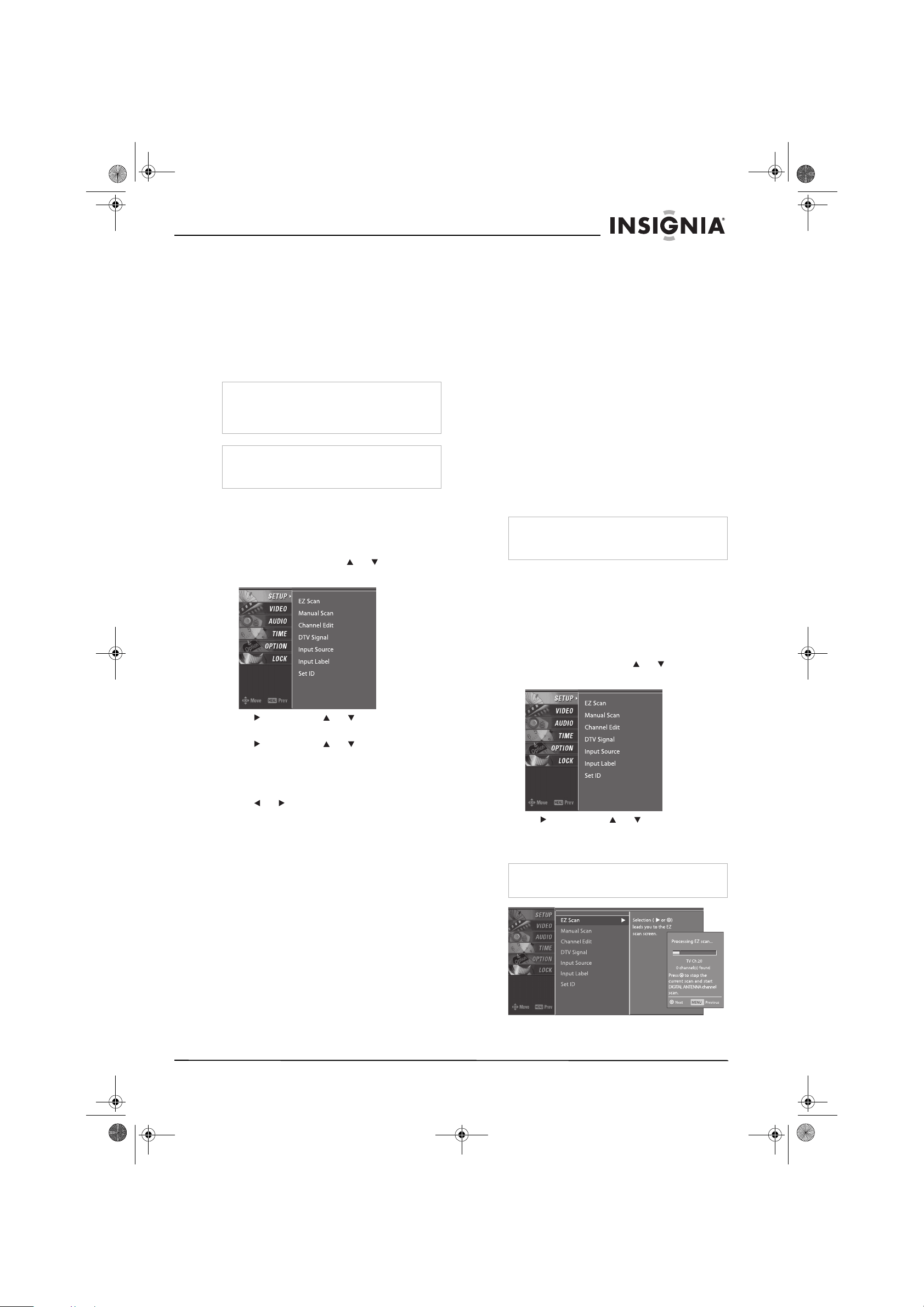
To create the channel list with EZ Scan:
1 Press MENU, then press or to select
SETUP. The
SETUP
menu opens.
2 Press , then press or to select
EZScan. The
EZScan
menu opens.
3 Press ENTER to start scanning for channels.
Note
Your plasma TV automatically detects connected
devices. When you press INPUT, only the video
sources that have devices connected to them
appear.
Note
Your plasma TV remembers the last selected
video input source even if the power cord is
unplugged.
Note
If you have turned on the Lock System, you need
to enter the password before you can create the
channel list.
Note
Make sure that you let your plasma TV scan for
both ANTENNA and CABLE channels.
07-287_NS-PDP50_English Only.fm Page 13 Wednesday, July 11, 2007 12:05 PM
14
Insignia NS-PDP50 50" Plasma TV-720P
www.insignia-products.com
Creating the channel list manually
When you manually create the channel list, you
add or delete the channels you want in the
channel list.
To manually create the channel list:
1 Press MENU, then press or to select
SETUP. The
SETUP
menu opens.
2 Press , then press or to select Manual
Scan.
3 Press , then press or to select TV,
DTV, CATV, or CADTV.
4 Press , then press or to select the
channel you want to add or delete.
5 Press ENTER to add or delete the channel.
6 Press EXIT to return to TV viewing or press
MENU to return to the previous menu.
Adding or deleting a channel
After you create the channel list from the
EZ
Scan
menu, you can add a channel to or delete
a channel from the channel list.
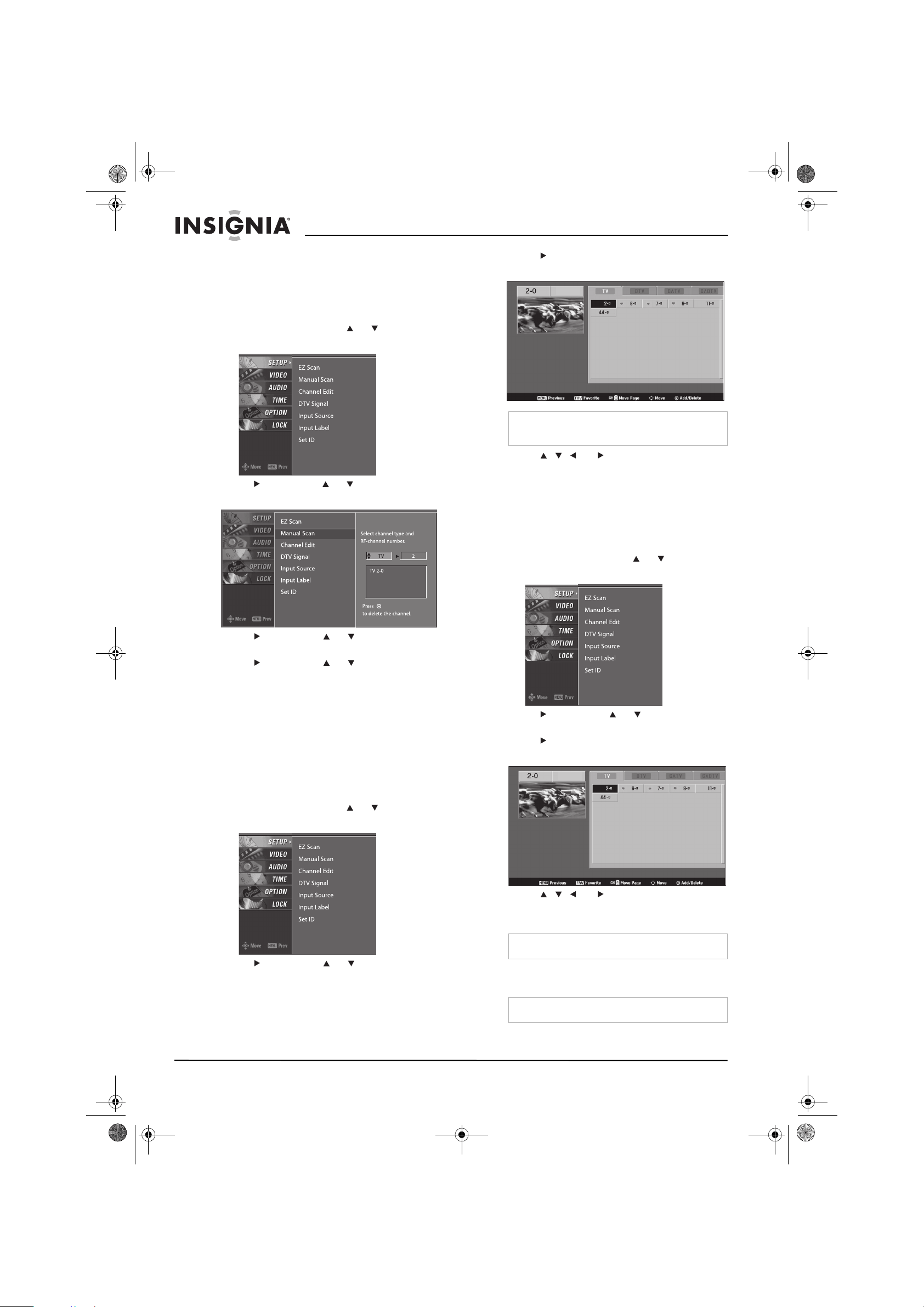
To add or delete a channel:
1 Press MENU, then press or to select
SETUP. The
SETUP
menu opens.
2 Press , then press or to select
Channel Edit.
3 Press . The channel list appears with a
preview window.
4 Press , , , or to select the channel,
then press ENTER to add or delete the
channel.
5 Press EXIT to return to TV viewing, or press
MENU to return to the previous menu.
Creating a favorite channel list
To create a favorite channel list:
1 Press MENU, then press or to select
SETUP. The
SETUP
menu opens.
2 Press , then press or to select
Channel Edit.
3 Press . The channel list appears with a
preview window.
4 Press , , , or to select the channel,
then press FAV to add the channel to the
favorite channel list.
5 Press EXIT to return to TV viewing, or press
MENU to return to the previous menu.
Note
Active channels in the channel list are in black.
Channels that have been deleted are in grey.
Note
A favorite channel has a heart icon next to it.
Note
To go to a favorite channel, press FAV.
07-287_NS-PDP50_English Only.fm Page 14 Wednesday, July 11, 2007 12:05 PM
15
Insignia NS-PDP50 50" Plasma TV-720P
www.insignia-products.com
Selecting the picture mode
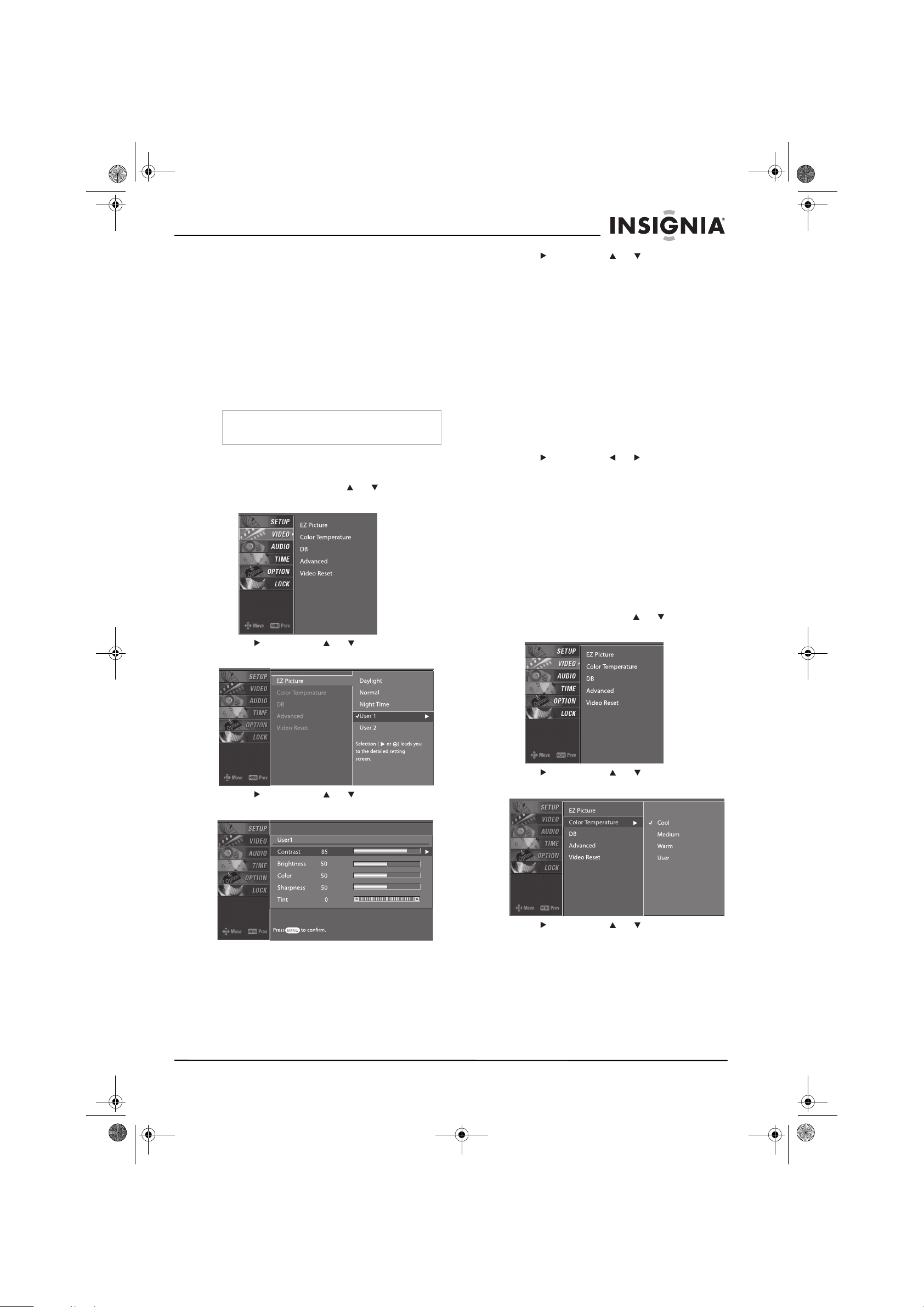
You can select a preset picture mode or create a
custom picture mode.
Selecting a preset picture mode
To select a preset picture mode:
1 Press PICTURE one or more times to select
the picture mode you want. You can select
Daylight, Normal, Night Time, User 1
(custom) or User 2 (custom).
2 Press EXIT to save your selection and return
to TV viewing.
Creating a custom picture mode
To create a custom picture mode:
1 Press MENU, then press or to select
VIDEO. The
VIDEO
menu opens.
2 Press , then press or to select
EZPicture.
3 Press , then press or to select User 1
or User 2.
4 Press , then press or to select the
option you want to adjust. You can select:
• Contrast–Increases the picture level to
adjust the white areas of the picture.
Decreases the picture level to adjust the
black areas of the picture.
• Brightness–Increases the brightness to
add more light to dark areas of the
picture. Decreases the brightness to add
more dark to light areas of the picture.
• Color–Adjusts the picture color.
• Sharpness–Increases the sharpness
level to show cleaner and clearer images.
Decreases the level to show a smoother
picture.
• Tint–Adjusts the overall picture color
(from red to green).
5 Press , then press or to adjust the
option.
6 Press EXIT to return to TV viewing, or press
MENU to return to the previous menu.
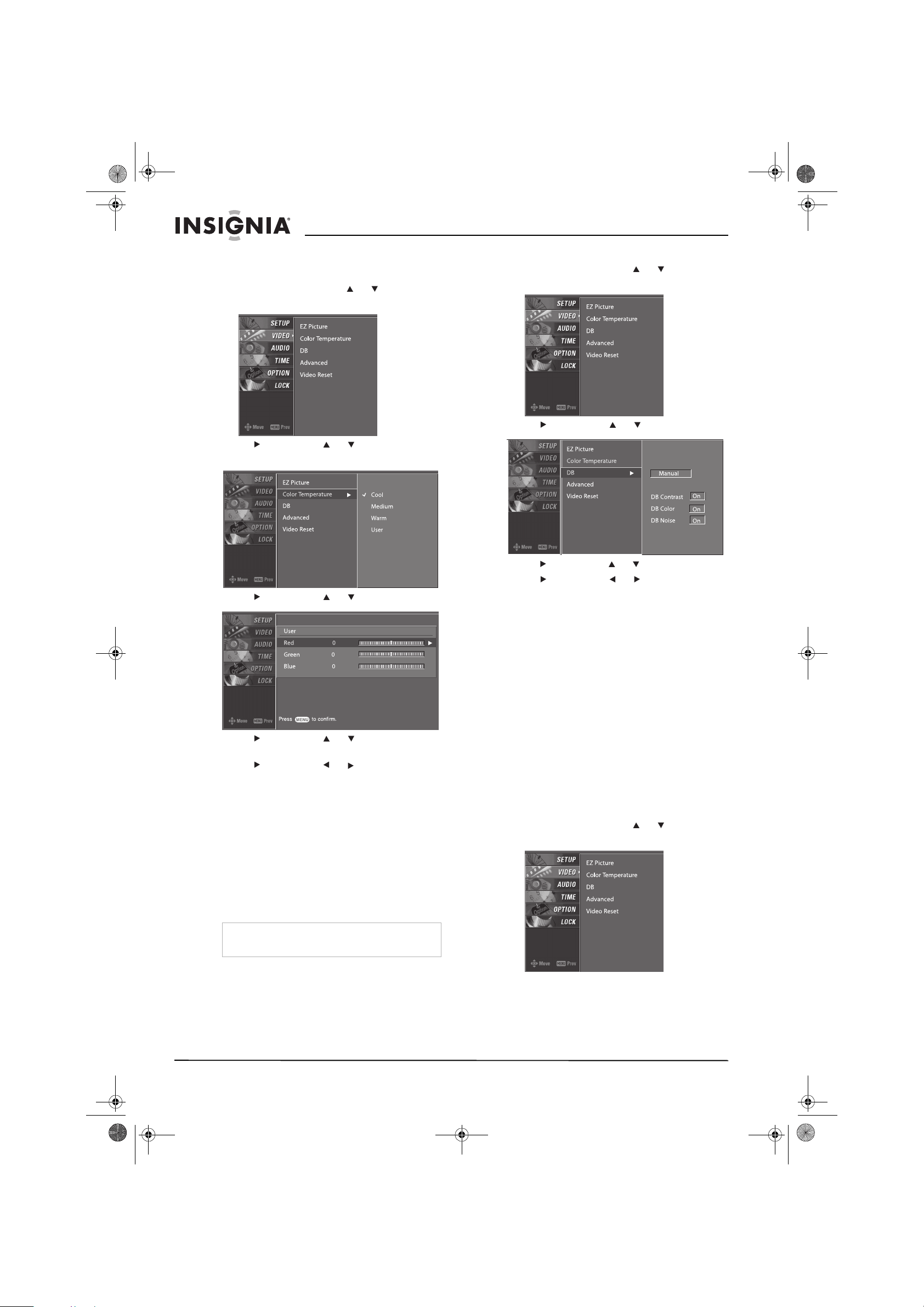
Adjusting the color temperature
The Color Temperature option adjusts the
amount of red, blue, and green in the picture.
You can select a preset color temperature mode
or create a custom color temperature mode.
Selecting a preset color temperature mode
To select a preset color temperature mode:
1 Press MENU, then press or to select
VIDEO. The
VIDEO
menu opens.
2 Press , then press or to select Color
Temperature.
3 Press , then press or to select Cool,
Medium, Warm, or User (custom).
4 Press EXIT to return to TV viewing, or press
MENU to return to the previous menu.
Note
You can also select a preset picture mode from
the
Video
menu.
07-287_NS-PDP50_English Only.fm Page 15 Wednesday, July 11, 2007 12:05 PM
16
Insignia NS-PDP50 50" Plasma TV-720P
www.insignia-products.com
Creating a custom color temperature mode
To create a custom color temperature mode:
1 Press MENU, then press or to select
VIDEO. The
VIDEO
menu opens.
2 Press , then press or to select Color
Temperature.
3 Press , then press or to select User.
4 Press , then press or to select Red,
Green, or Blue.
5 Press , then press or to adjust the
color.
6 Press EXIT to return to TV viewing, or press
MENU to return to the previous menu.
Adjusting the HD picture quality
You can use the
EZ Picture
menu to adjust the
picture quality for high definition (HD)
broadcasts. This option is called DB (digital
booster).
When you select a preset Picture mode
(Daylight, Normal, or Night time), your plasma
TV sets the DB option to Auto.
You can also manually adjust the DB settings to
create a custom DB mode.
To create a custom DB mode:
1 Press MENU, then press or to select
VIDEO. The
VIDEO
menu opens.
2 Press , then press or to select DB.
3 Press , then press or to select Manual.
4 Press , then press or to select the
option you want to adjust. You can select:
• DB Contrast–Adjusts the contrast
automatically based on the brightness of
the picture.
• DB Color–Adjusts the picture colors
automatically to match the original colors
as closely as possible.
• DB Noise–Reduces the video “noise.”
5 Press EXIT to return to TV viewing, or press
MENU to return to the previous menu.
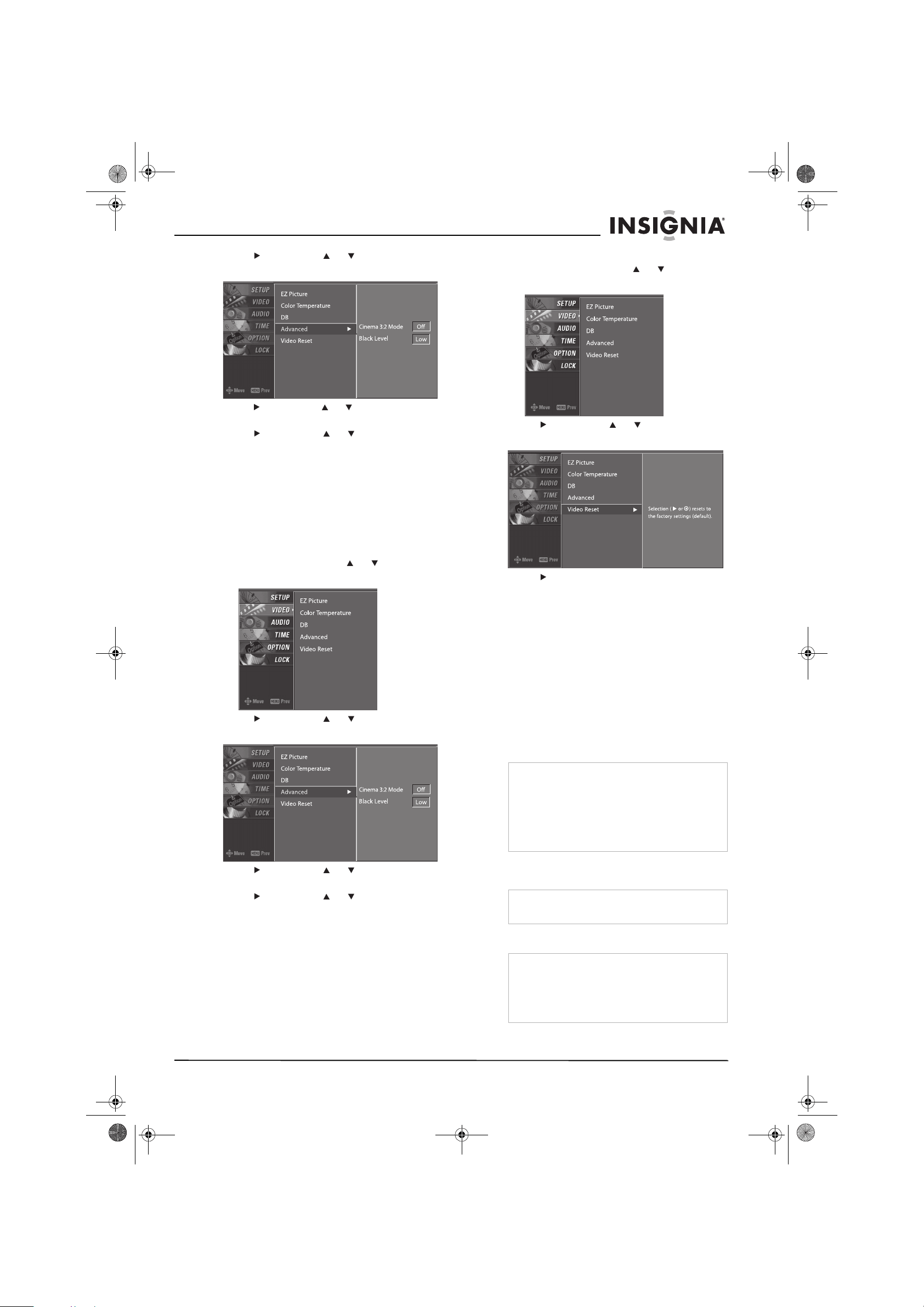
Adjusting the movie picture quality
Your plasma TV can improve the movie picture
quality by converting movies recorded at 24 fps
(frames per second) to 30 fps for optimum
viewing. This option is called Cinema 3:2 Mode
and is only available in Analog, AV1, AV2, and
Component 480i modes.
To turn the Cinema 3:2 Mode on or off:
1 Press MENU, then press or to select
VIDEO. The
VIDEO
menu opens.
Note
You can also turn the DB option on or off from the
Video
menu.
07-287_NS-PDP50_English Only.fm Page 16 Wednesday, July 11, 2007 12:05 PM
17
Insignia NS-PDP50 50" Plasma TV-720P
www.insignia-products.com
2 Press , then press or to select
Advanced.
3 Press , then press or to select Cinema
3:2 Mode.
4 Press , then press or to select On or
Off.
5 Press EXIT to return to TV viewing, or press
MENU to return to the previous menu.
Adjusting the black level
The Black Level option adjusts the amount of
black in the picture. This option is only available
in HDMI1/DVI, HDMI2, AV1, and AV2 modes.
To adjust the black level:
1 Press MENU, then press or to select
VIDEO. The
VIDEO
menu opens.
2 Press , then press or to select
Advanced.
3 Press , then press or to select Black
Level.
4 Press , then press or to select Low or
High. Selecting Low makes the picture
darker. Selecting High makes the picture
brighter.
5 Press EXIT to return to TV viewing, or press
MENU to return to the previous menu.
Restoring video settings
You can restore all video settings to the factory
defaults.
To restore video settings:
1 Press MENU, then press or to select
VIDEO. The
VIDEO
menu opens.
2 Press , then press or to select Video
Reset.
3 Press to reset the video options to the
factory defaults.
4 Press EXIT to return to TV viewing, or press
MENU to return to the previous menu.
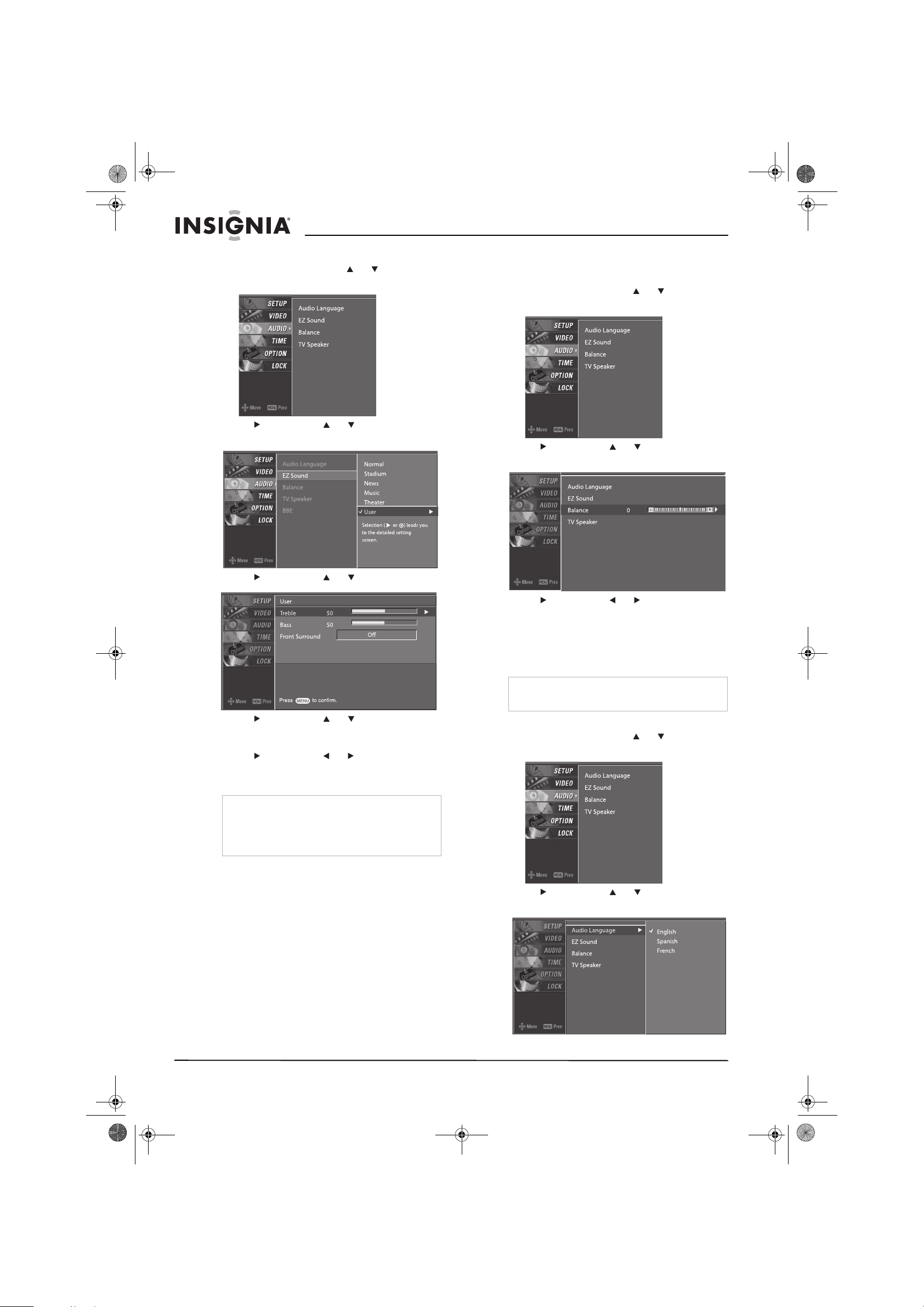
Selecting a sound mode
You can select a preset sound mode or create a
custom sound mode.
Selecting a preset sound mode
To select a preset sound mode:
1 Press AUDIO one or more times to select the
sound mode you want. You can select
Normal, Stadium, News, Music, Theater, or
User.
2 Press EXIT to save your selection and return
to TV viewing.
Creating a custom sound mode
Note
When you select Stadium or Theater, the
Balance option on the
VIDEO
menu is
automatically set to 0.
When you set Front Surround to SRS
TruSurround XT, the Balance option is
automatically set to 0. When you switch to another
mode, the balance is restored to the previous
value.
Note
You can also select a preset picture mode from
the
AUDIO
menu.
Note
SRS TruSurround XT takes advantage of any
multi-channel format without needing to add extra
speakers or equipment. Dialog clarity, bass
enrichment, and the addition of stereo audio
enhancement produces an impressive sound
experience from standard stereo equipment.
07-287_NS-PDP50_English Only.fm Page 17 Wednesday, July 11, 2007 12:05 PM
18
Insignia NS-PDP50 50" Plasma TV-720P
www.insignia-products.com
To create a custom sound mode:
1 Press MENU, then press or to select
AUDIO. The
AUDIO
menu opens
2 Press , then press or to select EZ
Sound.
3 Press , then press or to select User.
4 Press , then press or to select the
sound option you want to adjust. You can
select Treble, Bass, or Front Surround.
5 Press , then press or to adjust the
option. The options for Front Surround are
Off or SRS TruSurround XT.
6 Press EXIT to return to TV viewing, or press
MENU to return to the previous menu.
Adjusting the balance
To adjust the balance:
1 Press MENU, then press or to select
AUDIO. The
AUDIO
menu opens
2 Press , then press or to select
Balance.
3 Press , then press or to adjust the
balance.
4 Press EXIT to return to TV viewing, or press
MENU to return to the previous menu.
Selecting the audio language
To select the audio language:
1 Press MENU, then press or to select
AUDIO. The
AUDIO
menu opens
2 Press , then press or to select Audio
Language.
Note
When you set Front Surround to SRS
TruSurround XT, the Balance option is
automatically set to 0. When you switch to another
mode, the balance is restored to the previous
value.
Note
The available languages depend on what
languages the broadcaster provides.
07-287_NS-PDP50_English Only.fm Page 18 Wednesday, July 11, 2007 12:05 PM
19
Insignia NS-PDP50 50" Plasma TV-720P
www.insignia-products.com
3 Press , then press or to select the
language.
4 Press EXIT to return to TV viewing, or press
MENU to return to the previous menu.
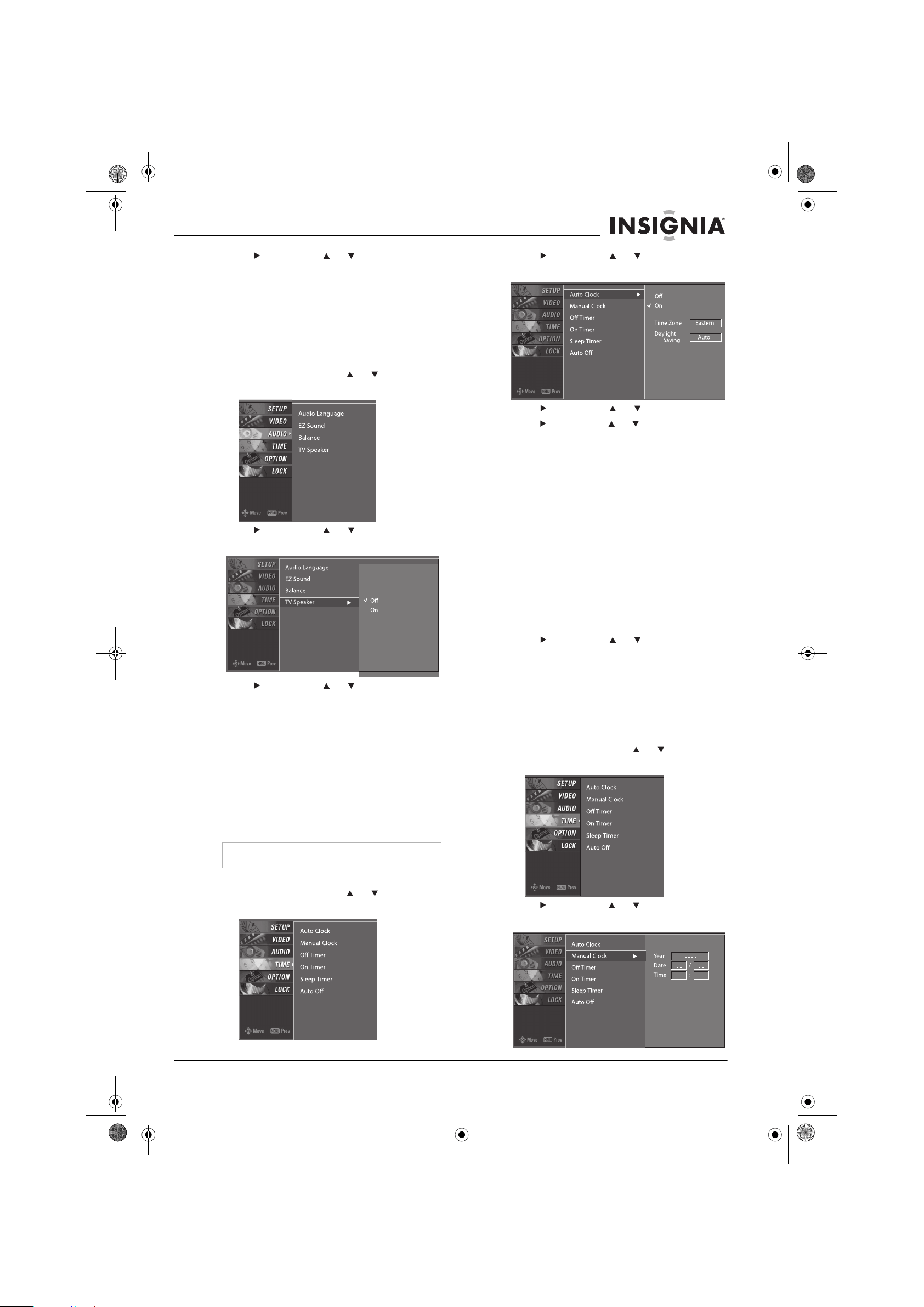
Turning the speakers on or off
If you are using an external sound system, you
need to turn off your plasma TV’s speakers.
To turn the TV speakers on or off:
1 Press MENU, then press or to select
AUDIO. The
AUDIO
menu opens
2 Press , then press or to select TV
Speaker.
3 Press , then press or to select On or
Off.
4 Press EXIT to return to TV viewing, or press
MENU to return to the previous menu.
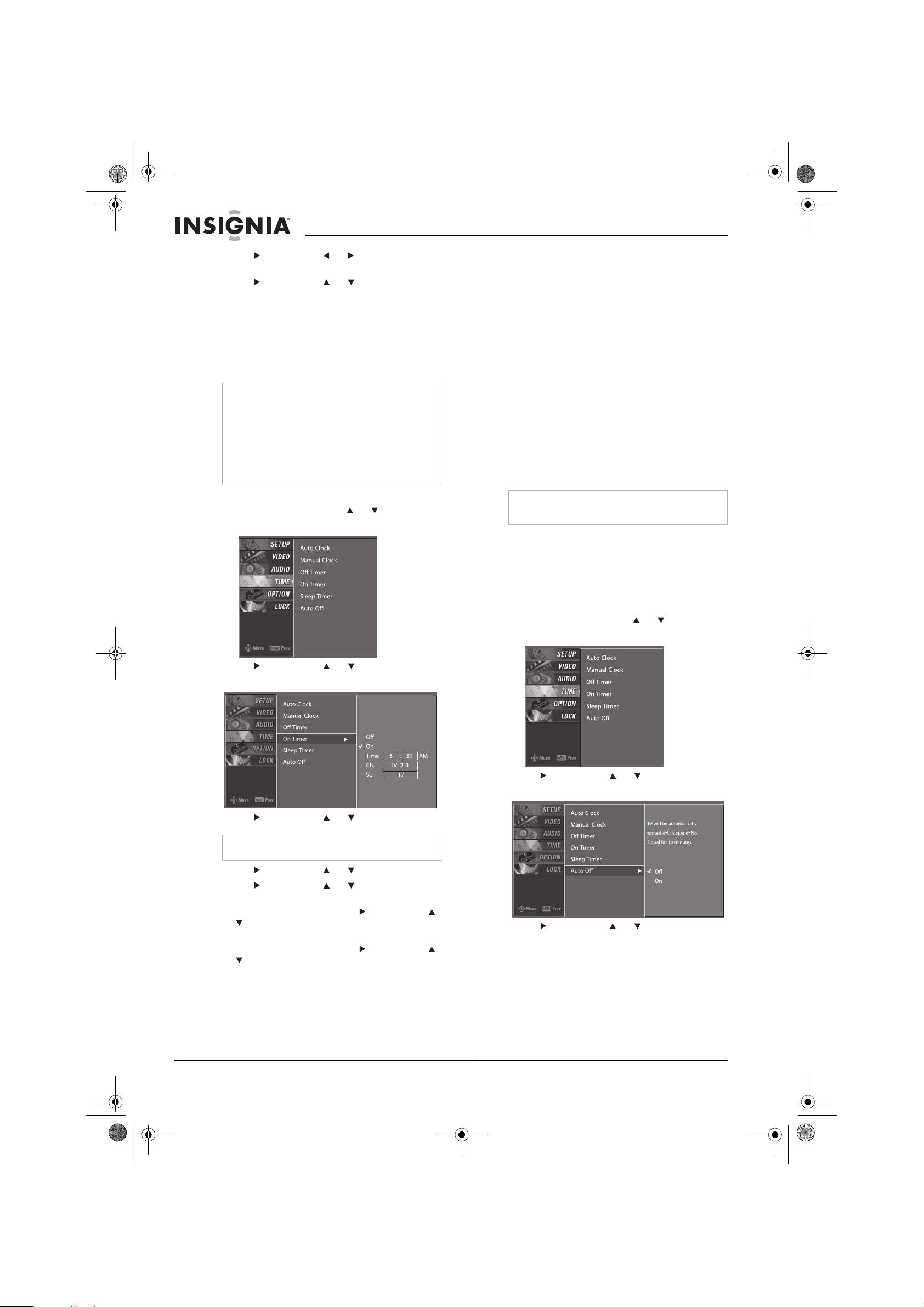
Setting the clock
You can set the clock automatically from a digital
channel signal provided by a broadcaster. You
can also set the clock manually.
If you set the clock automatically and the time is
wrong, set the clock manually.
Setting the clock automatically
To set the clock automatically:
1 Press MENU, then press or to select
TIME. The
TIME
menu opens.
2 Press , then press or to select Auto
Clock.
3 Press , then press or to select On.
4 Press , then press or to select the time
zones. You can select:
In the United States:
•Eastern
•Central
• Mountain
• Pacific
•Alaska
• Hawaii
In Canada:
•Eastern
•Central
• Mountain
• Pacific
• New F.land
•Atlantic
5 Press , then press or to select the
daylight savings option. You can select:
•Auto
•Off
•On
6 Press EXIT to return to TV viewing, or press
MENU to return to the previous menu.
To set the clock manually:
1 Press MENU, then press or to select
TIME. The
TIME
menu opens.
2 Press , then press or to select Manual
Clock.
Note
The default Auto Clock setting is Off.
07-287_NS-PDP50_English Only.fm Page 19 Wednesday, July 11, 2007 12:05 PM
20
Insignia NS-PDP50 50" Plasma TV-720P
www.insignia-products.com
3 Press , then press or to select Year,
Date, or Time.
4 Press , then press or to set the year,
date, or time.
5 Press EXIT to return to TV viewing, or press
MENU to return to the previous menu.
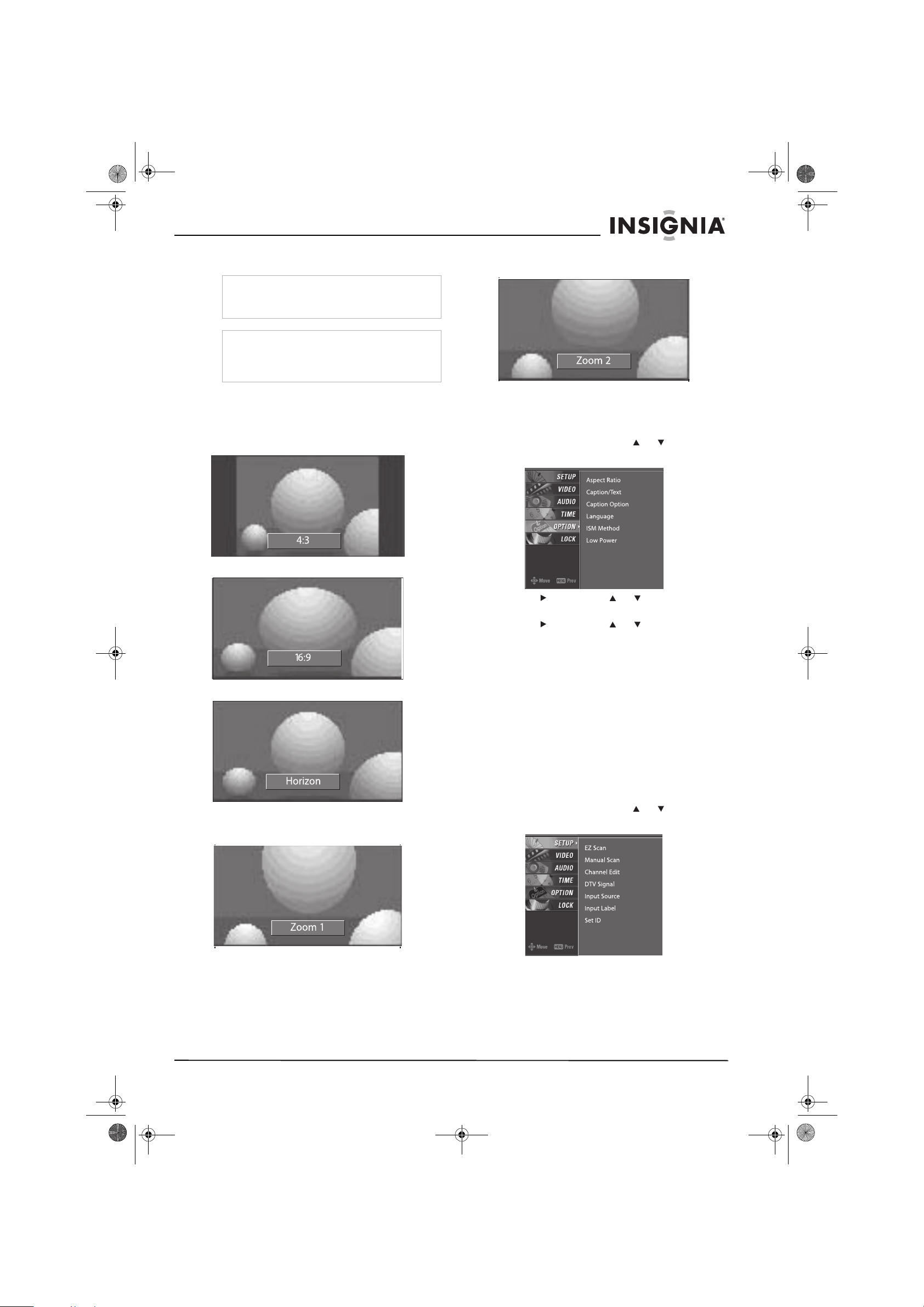
Setting the on and off timers
You can set the on and off timers to turn your
plasma TV on and off at set times.
To set the on and off timers:
1 Press MENU, then press or to select
TIME. The
TIME
menu opens.
2 Press , then press or to select Off
Timer or On timer.
3 Press , then press or to select On.
4 Press , then press or to set the hour.
5 Press , then press or to set the
minutes.
6 For the on timer only, press , then press
or to select the channel you want your
plasma TV to tune to when it turns on.
7 For the on timer only, press , then press
or to set the volume you want when your
plasma TV turns on.
8 Press EXIT to return to TV viewing, or press
MENU to return to the previous menu.
Setting the sleep timer
You can specific the amount of time you want
your plasma TV to stay on before it automatically
turns off. If you turn off your plasma TV before
the time has expired, the sleep timer is
automatically turned off.
To set the sleep timer:
1 Press SLEEP one or more times to select the
number of minutes you want your plasma TV
to stay on before it turns off. You can select
10, 20, 30, 60, 90, 120, 180, or 240 minutes.
2 Press SLEEP again to save your selection.
Your plasma TV starts counting down the
minutes.
3 To check the remaining minutes, press
SLEEP once.
4 To cancel the sleep timer, press SLEEP one
or more times until Off appears.
Turning Auto Off on and off
If your plasma TV is turned on and is not
receiving an input signal, it turns off
automatically after 10 minutes. You can turn this
option off or on.
To turn the Auto Off feature on and off:
1 Press MENU, then press or to select
TIME. The
TIME
menu opens.
2 Press , then press or to select Auto
Off.
3 Press , then press or to select Off or
On.
4 Press EXIT to return to TV viewing, or press
MENU to return to the previous menu.
Notes
You must set the clock for the on and off timers to
work.
If you set the on and off times to the same time,
your plasma TV turns off.
Your plasma TV must be in standby mode for the
on timer to work.
If you do not press any button within two hours
after your plasma TV turns on, your plasma TV
turns off automatically.
Note
To turn off the timer, select Off.
Note
You can also set the sleep timer from the
TIME
menu.
07-287_NS-PDP50_English Only.fm Page 20 Wednesday, July 11, 2007 12:05 PM
21
Insignia NS-PDP50 50" Plasma TV-720P
www.insignia-products.com
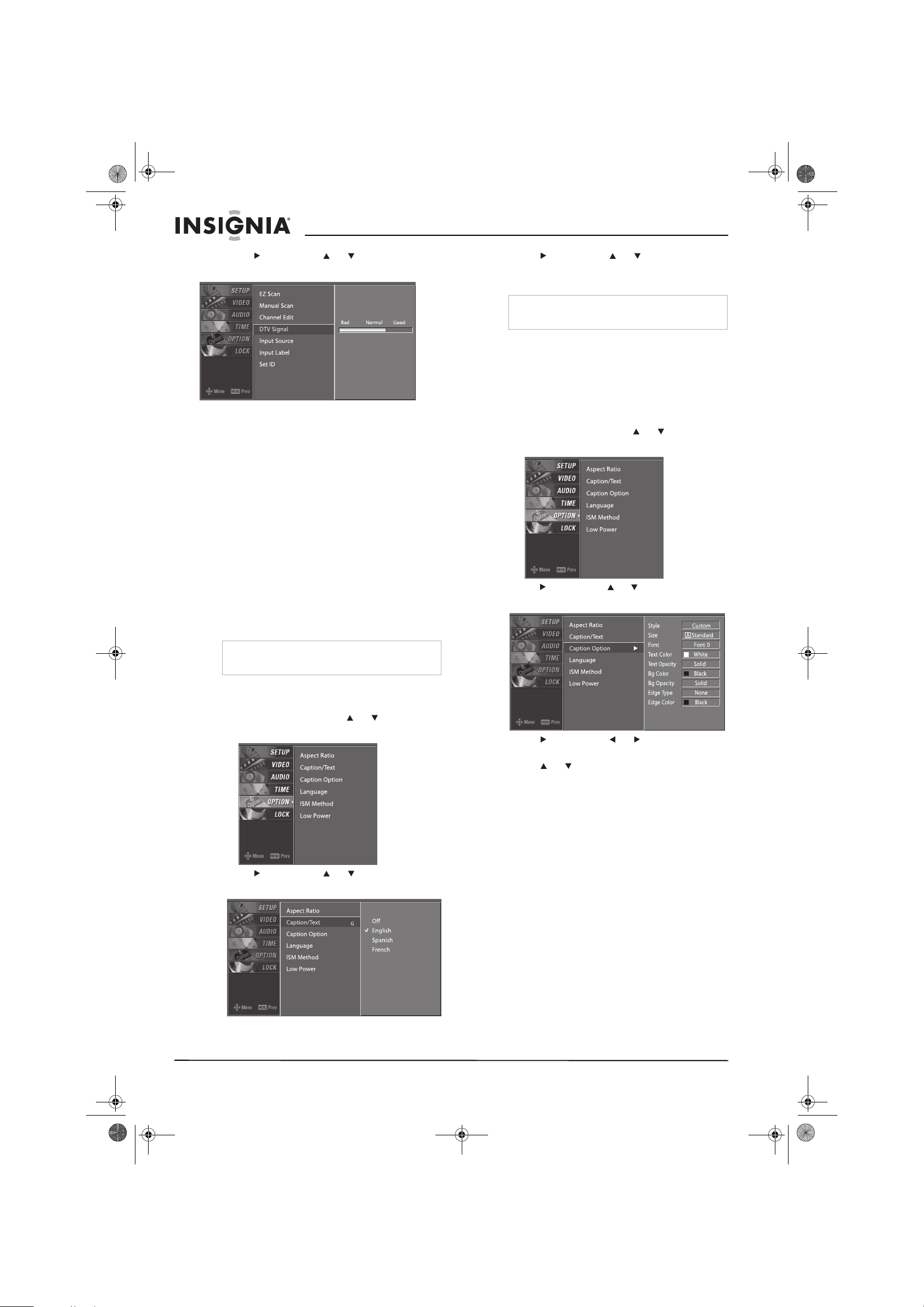
Selecting the aspect ratio
To select the aspect ratio:
• Press ZOOM one or more times to select the
aspect ratio you want. You can select:
4:3–Displays the program at the original 4:3
ratio.
16:9–Stretches the image to fill the screen.
Horizon–Enlarges the sides of the image.
Zoom 1–Displays the image with the original
ratio. The top and bottom of the image are
cropped.
Zoom 2–Extends the image vertically, and crops
the top and bottom of the image.
Selecting the on-screen display (OSD)
language
To select the OSD language:
1 Press MENU, then press or to select
OPTION. The
OPTION
menu opens.
2 Press , then press or to select
Language.
3 Press , then press or to select the
language you want. Your plasma TV
remembers the language you selected and
will always use that language when
displaying the OSD menus.
4 Press EXIT to return to TV viewing, or press
MENU to return to the previous menu.
Checking the DTV signal strength
If you are in DTV or CADTV mode and the
reception is poor, you can check the DTV signal
strength. If the signal strength is poor, you many
need to adjust your antenna or digital cable
input.
To check the DTV signal strength:
1 Press MENU, then press or to select
SETUP. The
SETUP
menu opens.
Note
When you connect a PC to the RGB-PC or
HDMI1/DVI jack, you can only select 4:3 or 16:9
for the aspect ratio.
Note
Your plasma TV automatically selects the aspect
ratio based on the video input source. You can
also select the aspect ratio from the
OPTION
menu.
07-287_NS-PDP50_English Only.fm Page 21 Wednesday, July 11, 2007 12:05 PM
22
Insignia NS-PDP50 50" Plasma TV-720P
www.insignia-products.com
2 Press , then press or to select DTV
Signal.
3 Press EXIT to return to TV viewing, or press
MENU to return to the previous menu.
Selecting closed captions
Closed captioning information is provided by the
broadcaster. Not all programs have closed
captions.
Your plasma TV remembers which closed
caption mode you selected even if you turn off
your plasma TV.
Analog TV
To select an analog TV closed caption mode:
1 Press CCD one or more times to select the
closed caption mode you want. You can
select Off, CC1, CC2, CC3, CC4, Text1,
Text2, Text3, or Text4.
2 Press EXIT to save you selection and return
to TV viewing.
Digital TV
To select a digital TV closed caption mode:
1 Press MENU, then press or to select
OPTION. The
OPTION
menu opens.
2 Press , then press or to select
Caption/Text.
3 Press , then press or to select the
closed caption language you want. You can
select the language.
4 Press EXIT to return to TV viewing, or press
MENU to return to the previous menu.
Changing closed caption styles
In digital TV mode (DTV), you can change
closed caption styles.
To change closed caption styles:
1 Press MENU, then press or to select
OPTION. The
OPTION
menu opens.
2 Press , then press or to select Caption
Option.
3 Press , then press or to select
Custom.
4 Press or to select the style you want to
change. You can select:
• Size–Selects the font size (the size of the
words on the screen).
• Font–Selects the font (typeface).
• Text Color–Selects the text color.
• Text Opacity–Selects opacity for the text
color.
• Bg Color–Selects the background color.
• Bg Opacity–Selects the background
opacity.
• Edge Type–Selects the edge type.
• Edge Color–Select the edge color.
5 Press EXIT to return to TV viewing, or press
MENU to return to the previous menu.
Note
You can also select a closed caption mode from
the
OPTION
menu.
Note
Other languages may be available if provided by
the broadcaster.
07-287_NS-PDP50_English Only.fm Page 22 Wednesday, July 11, 2007 12:05 PM
23
Insignia NS-PDP50 50" Plasma TV-720P
www.insignia-products.com
Using low power
You can reduce the amount of power your
plasma TV uses by turning the Low Power
option on.
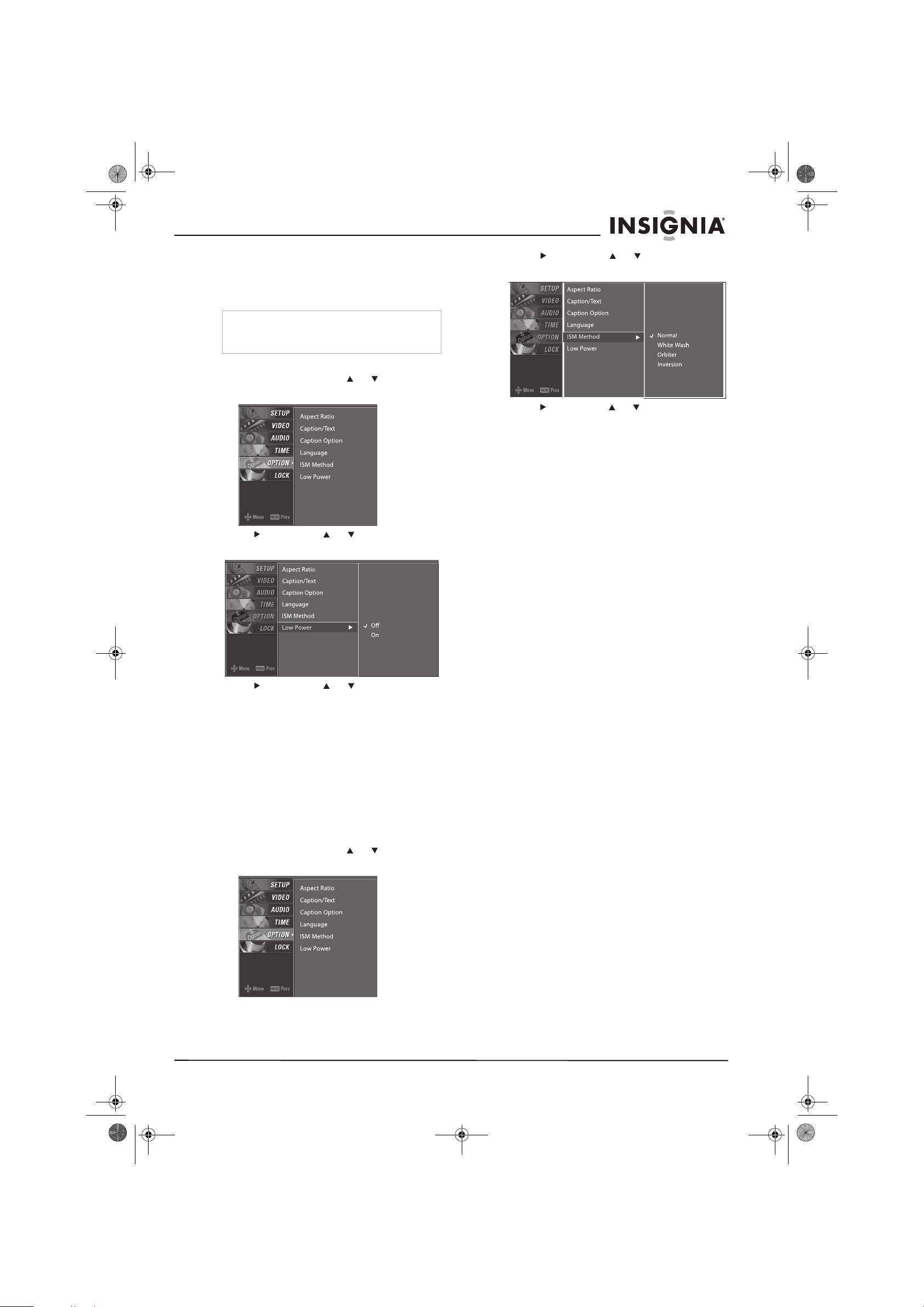
To use low power:
1 Press MENU, then press or to select
OPTION. The
OPTION
menu opens.
2 Press , then press or to select Low
Power.
3 Press , then press or to select On or
Off.
4 Press EXIT to return to TV viewing, or press
MENU to return to the previous menu.
Avoiding image burn-in
If you leave an image on the screen (such as a
game or PC image) for an extended time, a
ghost of the image may be burned into the
screen.
Your plasma TV uses ISM (image sticking
minimization) to help eliminate image burn-in.
To avoid image burn-in:
1 Press MENU, then press or to select
OPTION. The
OPTION
menu opens.
2 Press , then press or to select ISM
Method.
3 Press , then press or to select the ISM
option you want to use. You can select:
• Normal–Select this option if image
burn-in is never a problem.
• White Wash–Removes burn-in images. If
the image is severely burned-in, this
option may not completely clear the
burned-in image.
• Orbiter–Moves a fixed image around on
the screen every two minutes.
• Inversion–Reverses the image color
every 30 minutes.
4 Press EXIT to return to TV viewing, or press
MENU to return to the previous menu.
Setting parental controls
You can block specific channels, movies, or
external viewing sources, set a password, and
turn the lock system on or off.
US movie ratings
• Blocking Off (Permits all programs)
• G (General audience)
• PG (Parental guidance suggested)
• PG-13 (Parents strongly cautioned)
• R (Restricted)
• NC-17 (No one 17 and under admitted)
• X (Adult only)
If you set PG-13, G and PG movies will be
available, PG-13, R, NC-17, and X will be
blocked.
US TV ratings
• TV-G (General audience)
• TV-PG (Parental guidance suggested)
• TV-14 (Parents strongly cautioned)
• TV-MA (Mature audience only)
• TV-Y (All children)
• TV-Y7 (Children 7 years and older)
US TV Rating-Children
• Age (applies to TV-Y, TV-Y7)
• Fantasy Violence (applies to TV-Y7)
Note
When your plasma TV is running in low power
mode, the brightness is reduced by approximately
30%.
07-287_NS-PDP50_English Only.fm Page 23 Wednesday, July 11, 2007 12:05 PM
24
Insignia NS-PDP50 50" Plasma TV-720P
www.insignia-products.com
US TV Rating-General
• Age (applies to TV-G, TV-PG, TV-14,
TV-MA)
• Dialogue- sexual dialogue (applies to TV-PG,
TV-14)
• Language- adult language (applies to TV-PG,
TV-14, TV-MA)
• Sex- sexual situations (applies to TV-PG,
TV-14, TV-MA)
• Violence (applies to TV-PG, TV-14, TV-MA)
Canadian TV Rating-English
•E (Exempt)
• C (Children)
• C8+ (8 years and up)
• G (General programming. Suitable for all
audiences)
• PG (Parental guidance suggested)
• 14+ (Viewers 14 years and up)
• 18+ (Adult programming)
• Blocking off (Permits all programming)
Canadian TV Rating-French
• E (Exempt)
• G (General)
• 8 ans+ (8 years and up)
• 13 ans+ (13 years and up)
• 16 ans+ (16 years and up)
• 18 ans+ (Adults only)
• Blocking off (Permits all programming)
Input Block
You can block the input from:
•AV1
•AV2
• Component 1
• Component 2
•RGB-PC
• HDMI1/DVI
• HDMI2
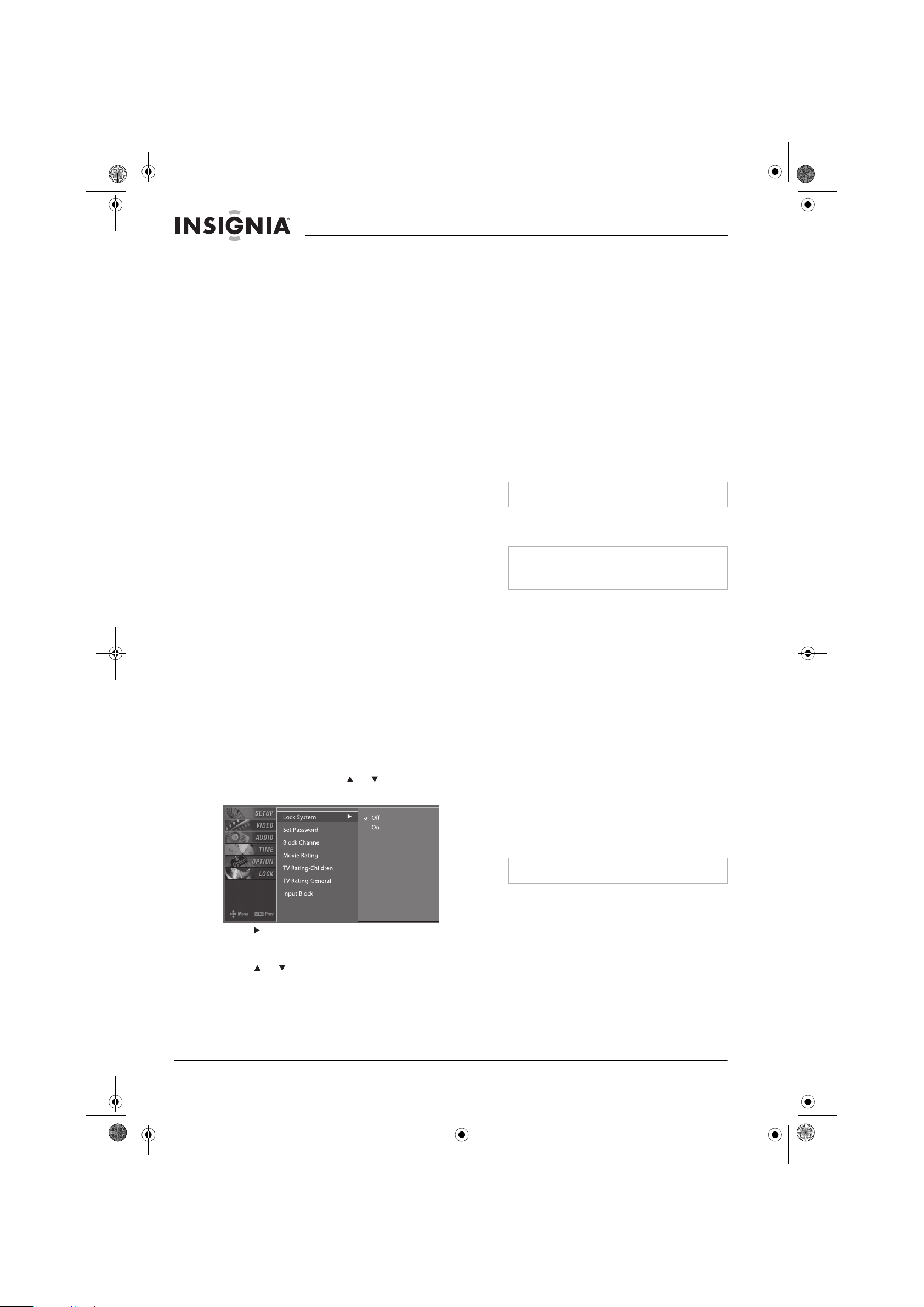
To set up parental controls:
1 Press MENU, then press or to select
LOCK. The
LOCK
menu opens.
2 Press . If the lock has already been set,
press the number buttons to enter the
password. The default password is 0000.
3 Press or to select the lock option you
want. You can select:
• Lock System–Turns the parental lock on
or off.
• Set Password–Changes the password.
• Block Channel–Blocks a TV channel.
• Movie Rating (MPPA)–(For US only)
Blocks movies based on their ratings.
When you block a rating, that rating and
all other higher ratings are blocked.
• TV Rating-Children–(For US only)
Blocks certain children’s TV programs.
This option does not block other ratings
such as TV-MA.
• TV Rating-General–(For US only) Blocks
certain TV programs you do not want to
watch.
• TV Rating-English–(For Canada only)
Blocks Canadian English TV programs
based on their ratings.
• TV Rating-French–(For Canada only)
Blocks Canadian French TV programs
based on their ratings.
4 Press EXIT to return to TV viewing, or press
MENU to return to the previous menu.
Maintaining
Cleaning the screen
To clean the screen:
1 Turn off your plasma TV, and unplug the
power cord.
2 Moisten a soft cloth with a mixture of
lukewarm water and a little fabric softener or
dish washing detergent, then wring the cloth
until it is almost dry.
3 Wipe the screen with the cloth. Make sure
that you wipe off excess water.
4 Let the screen air-dry before you turn on your
plasma TV.
Cleaning the cabinet
To clean the cabinet:
1 Turn off your plasma TV, and unplug the
power cord.
2 Wipe the cabinet with a soft, dry, lint-free
cloth.
Note
If you forget your password, enter 7777.
Caution
If you do not intend to use your plasma TV for an
extended time, unplug the power cord to protect
against damage from lightning or power surges.
Caution
Do not use a wet cloth.
07-287_NS-PDP50_English Only.fm Page 24 Wednesday, July 11, 2007 12:05 PM
25
Insignia NS-PDP50 50" Plasma TV-720P
www.insignia-products.com
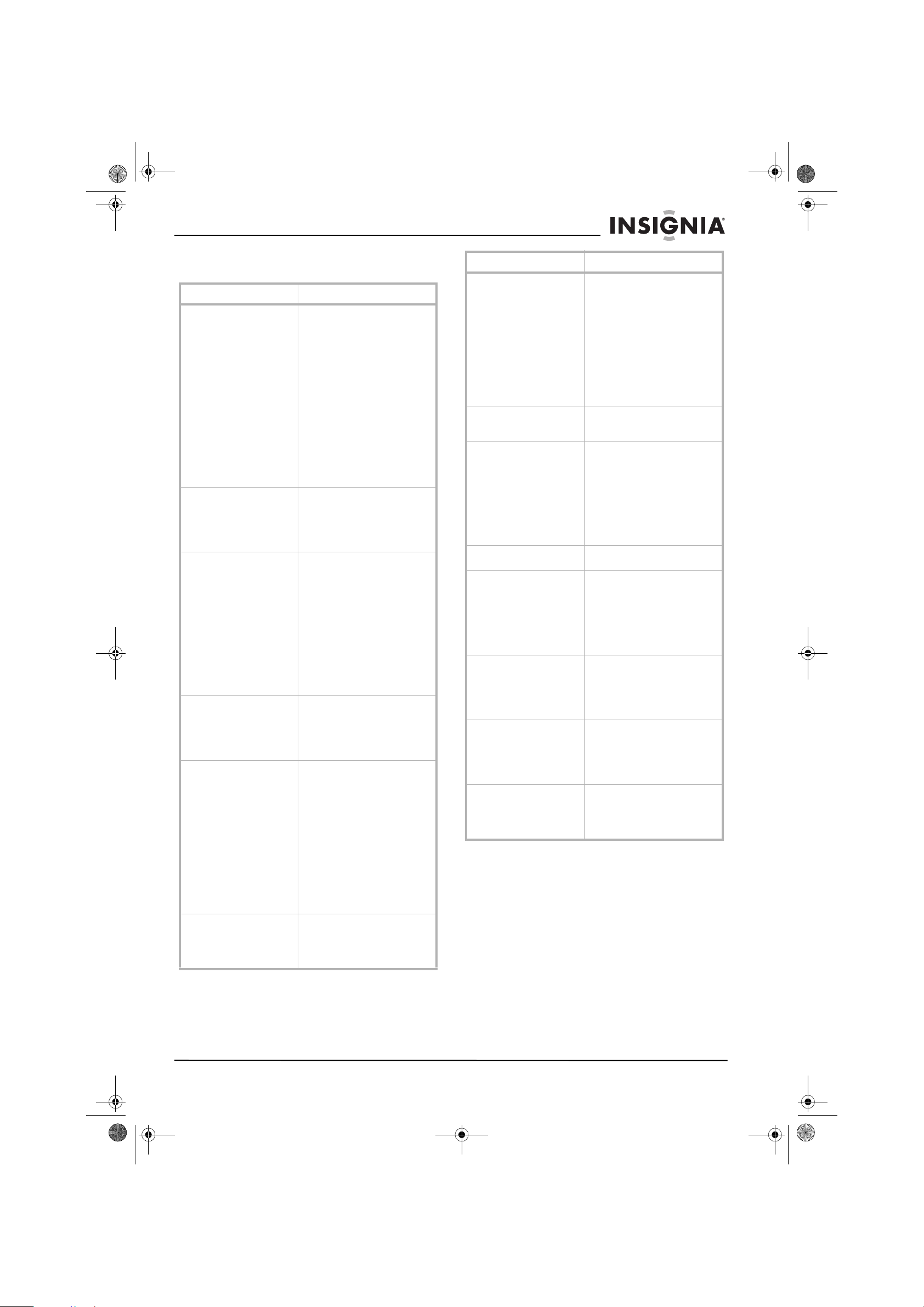
Troubleshooting
Problem Solution
Remote control does not
work.
• Make sure that there is not
an object between the
remote control and the
remote control sensor on
the front of your plasma
TV.
• Make sure that the
batteries are installed
correctly. The + and –
symbols on the batteries
must align with the + and
– symbols in the battery
compartment.
• Make sure that you have
selected the correct mode,
for example, TV, VCR, and
so forth.
• Replace the batteries.
Power suddenly turns off. • Make sure that the sleep
timer has not been set.
• Make sure that the channel
has not be set to Auto off.
• Make sure that the power
outlet is receiving power.
There is no picture or sound. • Make sure that your
plasma TV is turned on.
• Make sure that your
plasma TV is plugged into
a power outlet.
• Make sure that the power
outlet is receiving power.
• Try another channel. The
current channel may be
experiencing difficulties.
• If you are using an
antenna, adjust the
orientation of the antenna
or move it.
The picture appears slowly
after turning on your plasma
TV.
• This is normal. During the
startup process, the image
is muted. If the picture
does not appear after five
minutes, contact qualified
repair personnel.
There is no color or poor
color.
• Adjust the color in the
OSD.
• Make sure that your
plasma TV and a VCR are
not too close to each
other.
• Try another channel. The
current channel may be
experiencing difficulties.
• Make sure that all video
cables are connected
correctly and securely.
• Press any button to
restore the brightness
level.
The picture has horizontal or
vertical bars, or the picture
“shakes.”
• Make sure that an
electrical appliance or
power tool is not
interfering with your
plasma TV.
There is poor reception on
some channels.
• Try another channel. The
current channel may be
experiencing difficulties.
• If you are using an
antenna, adjust the
orientation.
• Make sure that an
electrical appliance or
power tool is not
interfering with your
plasma TV.
• The signal from some
channels may be too weak.
The picture has lines or
streaks.
• If you are using an
antenna, adjust the
orientation.
The picture is good, but
there is no sound.
• Increase the volume.
• Press MUTE to make sure
that the sound is not
muted.
• Try another channel. The
current channel may be
experiencing difficulties.
• Make sure that the audio
cables are connected
correctly and securely.
One of the speakers does not
produce sound.
• Adjust the audio balance.
Unusual sounds are coming
from inside your plasma TV.
• A change in humidity or
temperature may result in
unusual sounds when you
turn your plasma TV on or
off. This is normal and
does not indicate that your
plasma TV is not working
correctly.
In PC mode, the signal is out
of range.
• Adjust the resolution or
the horizontal or vertical
frequency.
• Make sure that the PC is
connected correctly and
securely.
In PC mode, the picture has
vertical bars or stripes, there
is horizontal noise, or the
image position is incorrect.
• Use the auto adjust feature
to automatically adjust the
image, or adjust the clock,
phase, or vertical or
horizontal position options
in the OSD.
In PC mode, the color is
unstable or there is only one
color.
• Make sure that the cables
are connected correctly
and securely.
• Reinstall the PC video card
or driver.
Problem Solution
07-287_NS-PDP50_English Only.fm Page 25 Wednesday, July 11, 2007 12:05 PM
26
Insignia NS-PDP50 50" Plasma TV-720P
www.insignia-products.com
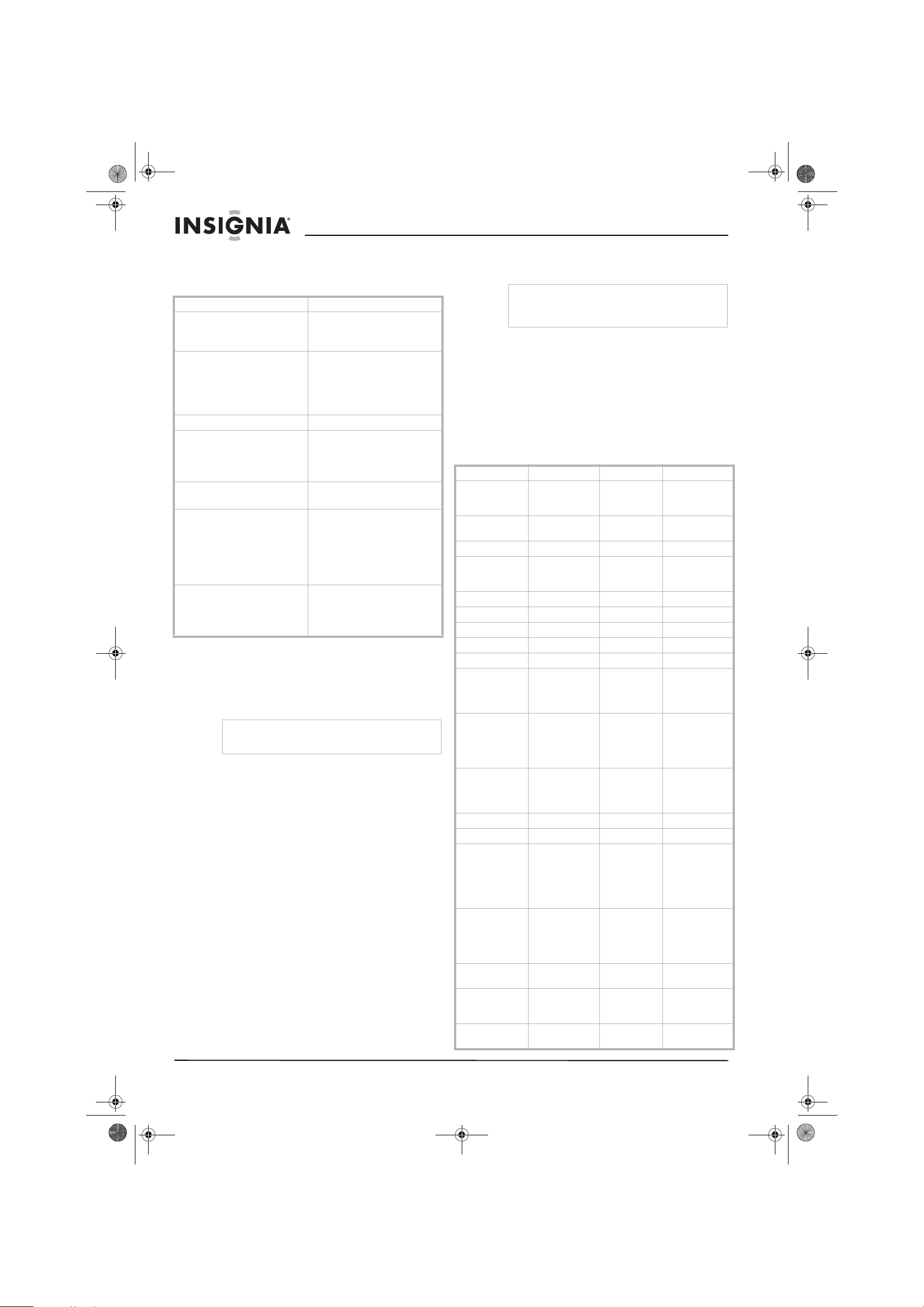
Specifications
Specifications subject to change without notice.
Programming the remote
control
You can program the provided remote control to
operate most remote controllable devices.
To find out if the remote control can operate
a device without programming:
1 Turn on the device (such as a VCR), then
press the corresponding mode button on the
remote control for the device.
2 Press POWER. If the device turns off, you do
not need to program the remote control. If the
device does not turn off, you need to program
the remote control
To program the remote control:
1 Turn on the device (such as a VCR), then
press the corresponding mode button on the
remote control for the device.
2 Press and hold MENU and MUTE at the
same time for two seconds. The button for
the currently selected device lights.
3 Press the number buttons for the appropriate
code for the device. For a list of codes, see
“Programming the remote control” on
page26.
4 Press the mode button for the device. If the
device turns off, you have programmed the
remote control correctly.
If the device turns off, you have programmed
the remote control correctly.
5 Press MENU to store the code. The remote
control LED blinks twice, and the code is
stored.
6 Test various remote control buttons with the
device. If some of the buttons do not work
correctly, repeat this task and enter a
different code.
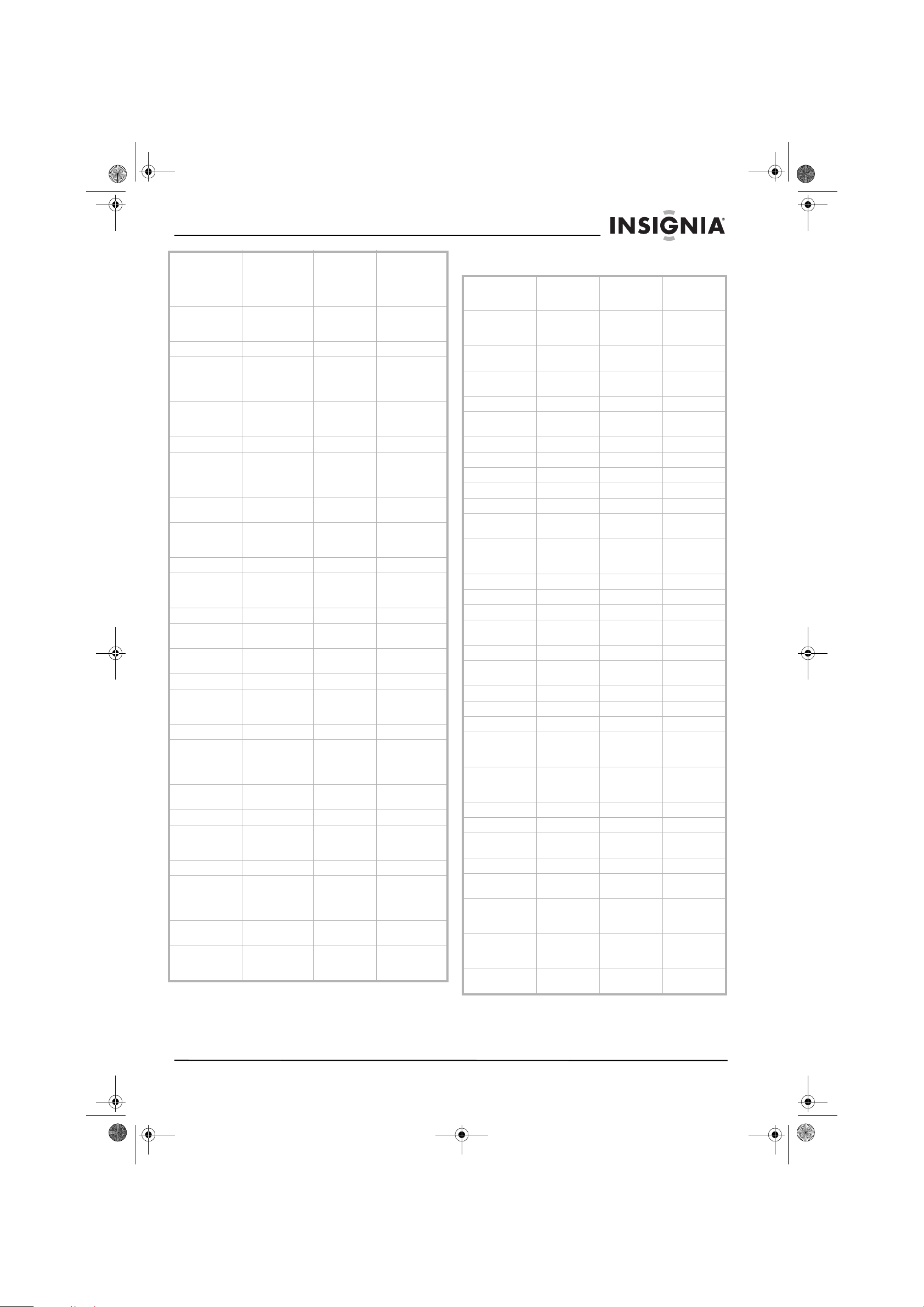
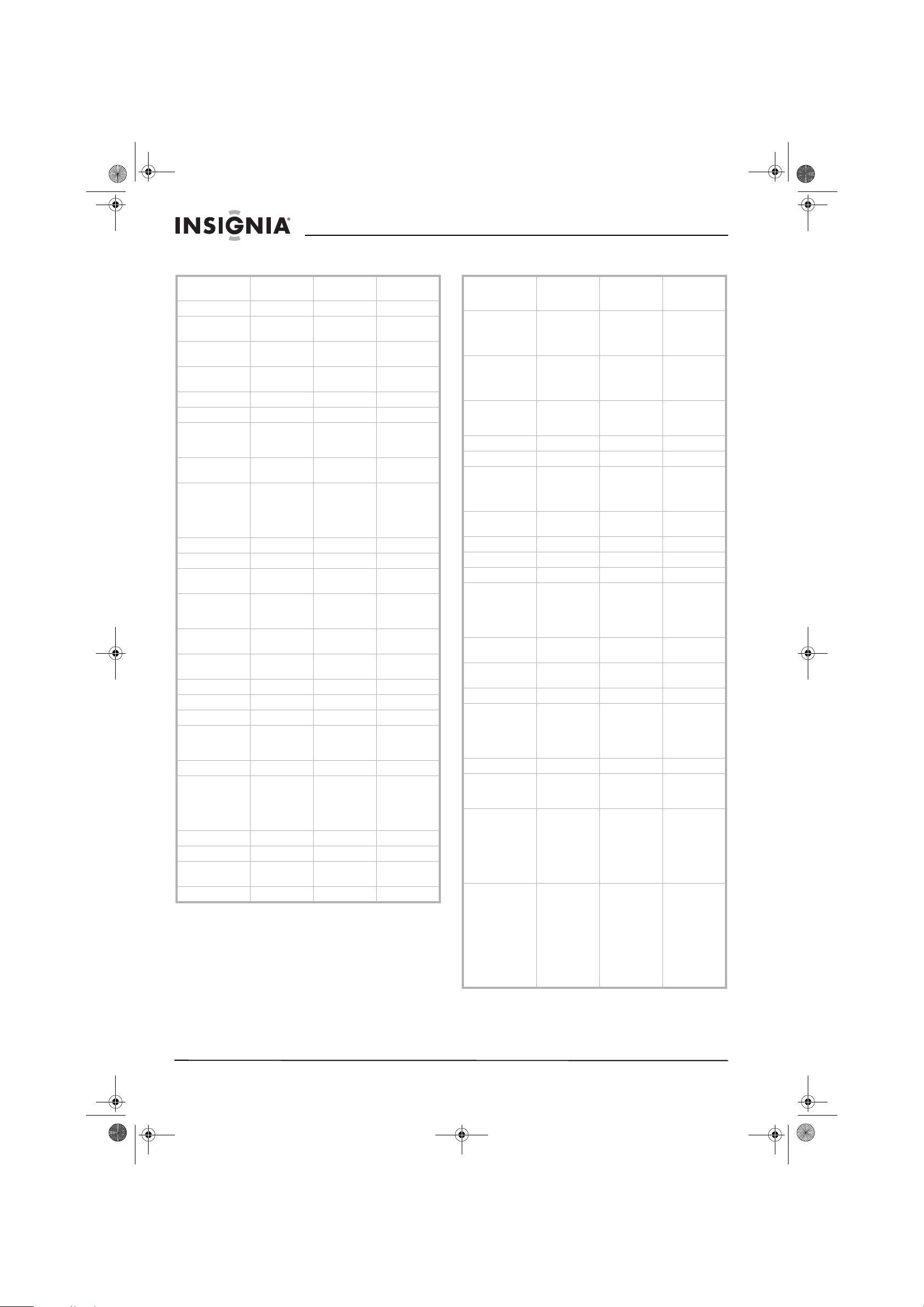
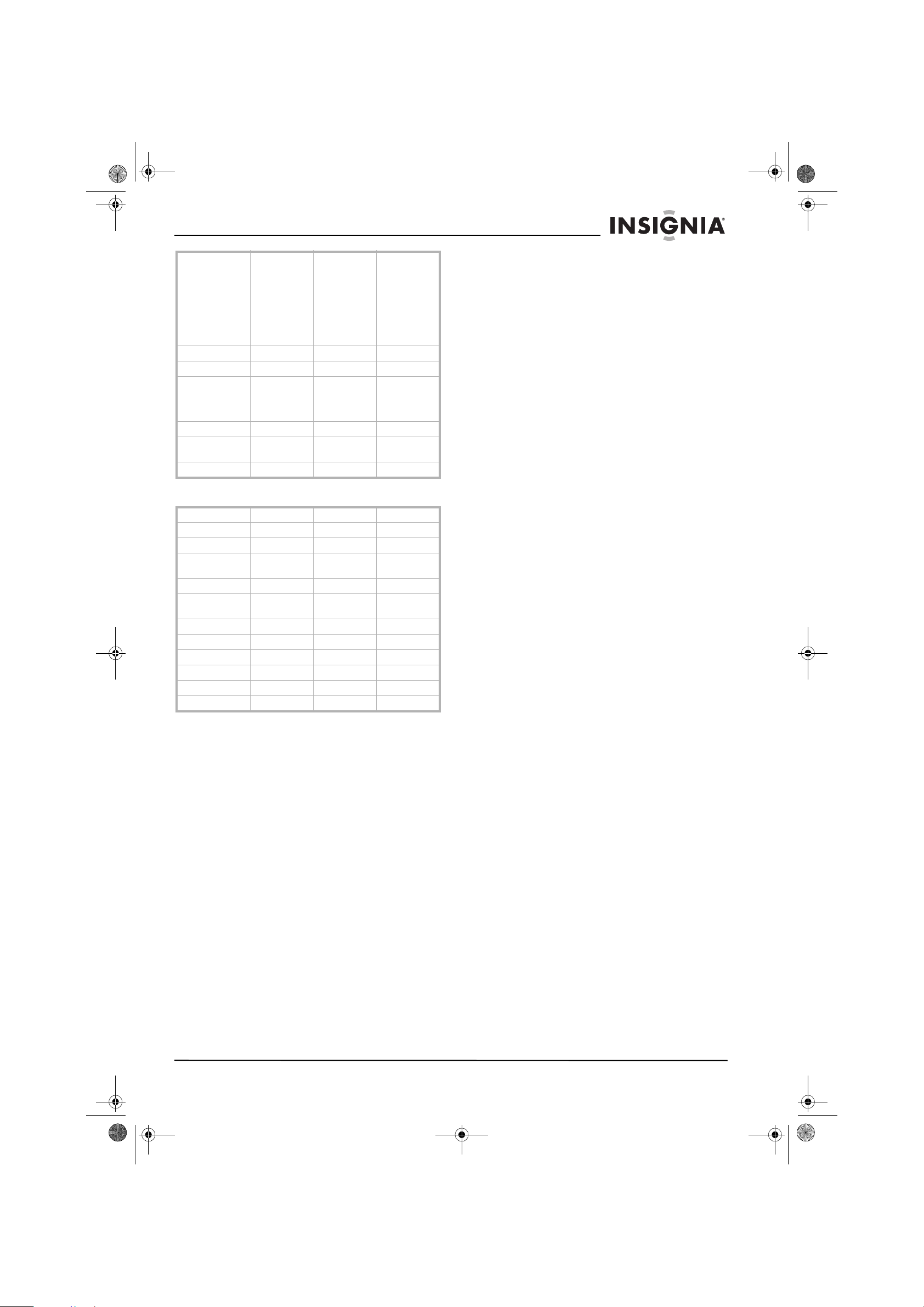
Remote control codes
VCRs
Power requirement AC100-240V @ 50/60Hz
Television system NTSC-M
ATSC
64 and 256 QAM
Channel coverage VHF 2-13
UHF 14-69
CATV 1-135
DTV 2-69
CADTV 1-135
External antenna impedance 75 ohm
Temperature Operating:
32° to 104°F (0° to 40°C)
Storage:
-4° to 104°F (-20° to 60°C)
Humidity Operating: < 80%
Storage: < 85%
Dimensions (W×H ×D) Including stand:
51.3× 34.3× 14.0 inches
(130.26×87.2×35.58 cm)
Excluding stand:
51.3×31.9×4.2 inches
(130.26×81.0×10.77 cm)
Weight Including stand:
114.4 lbs. (51.9 kg)
Excluding stand:
95.0 lbs. (43.1 kg)
Note
The provided remote control may not work with all
models or brands.
Note
If you do not enter a code within 20 seconds of
pressing MENU and MUTE, programming is
cancelled.
AIWA 034 OPTONICA 053 054
AKAI 016 043 046
124 125 146
PANASONIC 066 070 074
083 133 140
145
AMPRO 072 PENTAX 013 020 031
033 063
ANAM 031 033 103 PHILCO 031 034 067
AUDIO
DYNAMICS
012 023 039
043
PHILIPS 031 033 034
054 067 071
101
BROKSONIC 035 037 129 PILOT 101
CANON 028 031 033 PIONEER 013 021 048
CAPEHART 108 PORTLAND 108
CRAIG 003 040 135 PULSAR 072
CURTIS MATHES 031 033 041 QUARTZ 011 014
DAEWOO 005 007 010
064 065 108
110 111 112
116 117 119
QUASAR 033 066 075
145
DAYTRON 108 RCA 013 020 033
034 040 041
062 063 107
109 140 144
145 147
DBX 012 023 039
043
REALISTIC 003 008 010
014 031 033
034 040 053
054 101
DYNATECH 034 053 RICO 058
ELECTROHOME 059 RUNCO 148
EMERSON 006 017 025
027 029 031
034 035 036
037 046 101
129 131 138
153
SALORA 014
FISHER 003 008 009
010
SAMSUNG 032 040 102
104 105 107
109 112 113
115 120 122
125
FUNAI 034 SANSUI 022 043 048
135
GE 031 033 063
072 107 109
144 147
SANYO 003 007 010
014 102 134
GO VIDEO 132 136 SCOTT 017 037 112
129 131
07-287_NS-PDP50_English Only.fm Page 26 Wednesday, July 11, 2007 12:05 PM
27
Insignia NS-PDP50 50" Plasma TV-720P
www.insignia-products.com
Cable boxes
HARMAN
KARDON
012 045 SEARS 003 008 009
010 013 014
017 020 031
042 073 081
101
HITACHI 004 018 026
034 043 063
137 150
SHARP 031 054 149
INSTANTREPLAY 031 033 SHINTOM 024
JCL 031 033 SONY 003 009 031
052 056 057
058 076 077
078 149
JCPENNY 012 013 015
033 040 066
101
SOUNDESIGN 034
JENSEN 043 STS 013
JVC 012 031 033
043 048 050
055 060 130
150 152
SYLVANIA 031 033 034
059 067
KENWOOD 014 034 039
043 047 048
SYMPHONIC 034
LG (GOLDSTAR) 001 012 013
020 101 106
114 123
TANDY 010 034
LLOYD 034 TATUNG 039 043
LXI 003 009 013
014 017 034
101 106
TEAC 034 039 043
MAGIN 040 TECHNICS 031 033 070
MAGNAVOX 031 033 034
041 067 068
TEKNIKA 019 031 033
034 101
MARANTZ 012 031 033
067 069
THOMAS 034
MARTA 101 TMK 006
MATSUI 027 030 TOSHIBA 008 013 042
047 059 082
112 131
MEI 031 033 TOTEVISION 040 101
MEMOREX 003 010 014
031 033 034
053 072 101
102 134 139
UNITECH 040
MGA 045 046 059 VECTOR
RESEARCH
012
MINOLTA 013 020 VICTOR 048
MITSUBISHI 013 020 045
046 049 051
059 061 151
VIDEO
CONCEPTS
012 034 046
MTC 034 040 VIDEOSONIC 040
MULTITECH 024 034 WARDS 003 013 017
024 031 033
034 040 053
054 131
NEC 012 023 039
043 048
YAMAHA 012 034 039
043
NORDMENDE 043 ZENITH 034 048 056
058 072 080
101
ABC 003 004 039
042 046 052
053
PARAGON 100
AJIN 112 PHILIPS 006 012 013
020 065 085
090
ANTRONIK 014 PIONEER 034 051 052
063 076
ARCHER 005 007 014
024
POST NEWS
WEEK
016
CABLE STAR 026 PRUCER 059
CENTURION 092 PTS 011 048 071
072 073 074
CENTURY 007 PULSAR 100
CITIZEN 007 RCA 047
COLOUR VOICE 065 090 REGAL 049 050
COMBANO 080 081 REGENCY 057
COMTRONICS 019 030 REMBRANT 025
DIAMOND 023 SAMSUNG 102 107 030
068
EAGLE 020 030 040 SCIENTIFIC
ATLANTA
003 011 041
042 043 045
046
EASTERN 057 062 066 SHERITECH 022
ELECTRICORD 032 SIGNAL 030
GE 072 SIGNATURE 052
GEMINI 008 022 025
054
SL MARX 030
GI 052 074 SPRUCER 047 078
GOLDEN
CHANNEL
030 STARCOM 002 004 008
009
HAMLIN 049 050 055 STARGATE 008 030
HITACHI 052 055 TADIRAN 030
HOSPITALITY 070 077 TAEKWANG 110
JERROLD 002 003 004
008 009 010
052 069 074
TAIHAN 105
LG (GOLDSTAR)
001 106 101
005
TANDY 017
M-NET 037 TEXSCAN 029
MACOM 033 TOCOM 039 040 056
MAGNAVOX 010 012 064
079
TOSHIBA 100
MEMOREX 100 UNIKA 007 014 024
MOVIE TIME 028 032 UNITED
CABLE
004 053
NSC 015 028 038
071 073
UNIVERSAL 005 007 014
024 026 027
032 035
OAK 016 031 037
053
VIEWSTAR 012 015 018
086 087 088
089
PANASONIC 044 047 ZENITH 100 114 060
093
07-287_NS-PDP50_English Only.fm Page 27 Wednesday, July 11, 2007 12:05 PM
28
Insignia NS-PDP50 50" Plasma TV-720P
www.insignia-products.com
HD set-top boxes Audio systems
ALPHASTAR
DSR
123 NEXTWAVE 028 124 125
AMPLICA 050 NORSAT 069 070
BIRDVIEW 051 126 129 PACE SKY
SATELLITE
143
CHANNEL
MASTER
013 014 015
018 036 055
PANASONIC 060 142
CHAPARRAL 008 009 012
077
PANSAT 121
CITOH 054 PERSONAL CABLE 117
CURTIS MATHES 050 145 PHILIPS 071
DRAKE 005 006 007
010 011 052
112 116 141
PICO 105
DX ANTENNA 024 046 056
076
PRESIDENT 019 102
ECHOSTAR 038 040 057
058 093 094
095 096 097
098 099 100
122
PRIMESTAR 030 110 111
ELECTRO HOME 089 PROSAT 072
EUROPLUS 114 RCA 066 106
FUJITSU 017 021 022
027 133 134
REALISTIC 043 074
GENERAL
INSTRUMENT
003 004 016
029 031 059
101
SAMSUNG 123
HITACHI 139 140 SATELLITE
SERVICE CO
028 035 047
057 085
HOUSTON
TRACKER
033 037 039
051 057 104
SCIENTIFIC
ATLANTA
032 138
HUGHES 068 SONY 103
JANIEL 060 147 STARCAST 041
JERROLD 061 SUPER GUIDE 020 124 125
KATHREIN 108 TEECOM 023 026 075
087 088 090
107 130 137
LEGEND 057 TOSHIBA 002 127
LG 001 UNIDEN 016 025 042
043 044 045
048 049 078
079 080 086
101 135 136
LUTRON 132 VIEWSTAR 115
LUXOR 062 144 WINEGARD 128 146
MACOM 010 059 063
064 065
ZENITH 081 082 083
084 091 120
MEMOREX 057
AIWA 014 028 070
096 125 129
139 229 230
NAD 046
AKAI 163 ONKYO 013 040 041
047 048 056
057 132 133
140
ANAM 003 014 017
023 059 106
189 216 217
235 236
OPTIMUS 158
BURMECTER 252 PANASONIC 007 033 064
113 142 220
241 251
CARVER 086 PENNEY 104
CLARION 199 PHILIPS 026 112 143
DAEWOO 027 053 060
084 102 148
198 221
PIONEER 039 042 043
063 065 091
093 094 115
123 127 250
DENON 015 075 130
143
QUASAR 113
FANTASIA 071 RCA 080
FINEARTS 022 RCX 092
FISHER 089 099 REALISTIC 103 106
LG (GOLDSTAR) 001 021 024
029 087 107
108 110 190
191 192 210
211 212 239
SAMSUNG 124 145 146
182 193 194
195 203 204
244 245 246
HAITAI 034 035 188
222
SANSUI 011 135 138
144
HARMAN/
KARDON
068 SANYO 019 083 234
JVC 004 013 141 SCOTT 106 186
KEC 185 186 187 SHARP 031 032 051
052 072 082
117 119 156
184 199 200
206 209
KOHEL 030 SHERWOOD 005 006 158
NAD 045 046 SONY 044 045 109
114 118 126
248 249
KENWOOD 038 050 067
089 170 171
197 206 215
222
TAEKWANG 012 020 073
074 076 077
105 161 162
163 164 165
166 167 168
169 205 231
233 242
INKEL 037 058 062
069 078 079
095 121 122
149 150 151
152 153 154
155 157 158
159 160 189
207 222 224
225 226 227
243 247
TEAC 010 085 106
136 185 187
237
07-287_NS-PDP50_English Only.fm Page 28 Wednesday, July 11, 2007 12:05 PM
29
Insignia NS-PDP50 50" Plasma TV-720P
www.insignia-products.com
DVD players
Legal notices
Class B digital device
This equipment has been tested and found to comply with
the limits for a Class B digital device, pursuant to Part 15 of
the FCC Rules. These limits are designed to provide
reasonable protection against harmful interference in a
residential installation. This equipment generates, uses and
can radiate radio frequency energy and, if not installed and
used in accordance with the instructions, may cause harmful
interference to radio communications. However, there is no
guarantee that interference will not occur in a particular
installation. If this equipment does cause harmful
interference to radio or television reception, which can be
determined by turning the equipment off and on, the user is
encouraged to try to correct the interference by one or more
of the following measures:
• Reorient or relocate the receiving antenna.
• Increase the separation between the equipment and
receiver.
• Connect the equipment to an outlet on a circuit different
from that to which the receiver is connected.
• Consult the dealer or an experienced radio/TV
technician for help.
Any changes or modifications not expressly approved
by the party responsible for compliance could void
the user’s authority to operate the equipment.
FCC warning
Changes or modifications not expressly approved by the
party responsible for compliance with the FCC Rules could
void the user’s authority to operate this equipment.
Canada ICES-003 statement
This Class B digital apparatus complies with Canadian
ICES-003.
RSS 310 statement
To reduce potential radio interference to other users, the
antenna type and its gain should be so chosen that the
equivalent isotropically radiated power (e.i.r.p.) is not more
than that permitted for successful communication.
Copyright
© 2007 Insignia. Insignia and the Insignia logo are
trademarks of Best Buy Enterprise Services, Inc. Other
brands and product names are trademarks or registered
trademarks of their respective holders. Specifications and
features are subject to change without notice or obligation.
For service and support call (877) 467-4289.
LOTTE 014 016 036
098 100 172
173 174 175
176 177 178
179 180 181
183 201 202
208 213 214
219 223 232
238 240
TECHNICS 101 113 128
134 147 218
LXI 103 TOSHIBA 137
MAGNAVOX 111 THE 061
MARANTZ 002 018 020
025 034 041
081 090 097
112
VICTOR 088 131
MCINTOSH 049 WARDS 089
MCS 104 YAMAHA 054 055 066
092 199
MEMOREX 107
APEX DIGITAL 022 PHILIPS 013
DENON 020 014 PIONEER 004 026
GE 005 006 PROCEED 021
HARMAN
KARDON
027 PROSCAN 005 006
JVC 012 RCA 005 006
LG 001 010 016
025
SAMSUNG 011 015
MAGNAVOX 013 SONY 007
MARANTZ 024 THOMPSON 005 006
MITSUBISHI 002 TOSHIBA 019 008
NAD 023 YAMAHA 009 018
ONKYO 008 017 ZENITH 010 016 025
PANASONIC 003 009
07-287_NS-PDP50_English Only.fm Page 29 Wednesday, July 11, 2007 12:05 PM

30
Insignia NS-PDP50 50" Plasma TV-720P
www.insignia-products.com
07-287_NS-PDP50_English Only.fm Page 30 Wednesday, July 11, 2007 12:05 PM

31
Insignia NS-PDP50 50" Plasma TV-720P
www.insignia-products.com
One-Year Limited Warranty
Insignia Products (“Insignia”) warrants to you, the original
purchaser of this new NS-PDP50 (“Product”), that the
Product shall be free of defects in the original manufacture of
the material or workmanship for a period of one (1) year from
the date of your purchase of the Product (“Warranty Period”).
This Product must be purchased from an authorized dealer
of Insignia brand products and packaged with this warranty
statement. This warranty does not cover refurbished
Product. If you notify Insignia during the Warranty Period of a
defect covered by this warranty that requires service, terms
of this warranty apply.
How long does the coverage last?
The Warranty Period lasts for 1 year (365 days) from the
date you purchased the Product. The purchase date is
printed on the receipt you received with the Product.
What does this warranty cover?
During the Warranty Period, if the original manufacture of the
material or workmanship of the Product is determined to be
defective by an authorized Insignia repair center or store
personnel, Insignia will (at its sole option): (1) repair the
Product with new or rebuilt parts; or (2) replace the Product
at no charge with new or rebuilt comparable products or
parts. Products and parts replaced under this warranty
become the property of Insignia and are not returned to you.
If service of Products or parts are required after the Warranty
Period expires, you must pay all labor and parts charges.
This warranty lasts as long as you own your Insignia Product
during the Warranty Period. Warranty coverage terminates if
you sell or otherwise transfer the Product.
How to obtain warranty service?
If you purchased the Product at a retail store location, take
your original receipt and the Product to the store you
purchased it from. Make sure that you place the Product in
its original packaging or packaging that provides the same
amount of protection as the original packaging. If you
purchased the Product from an online web site, mail your
original receipt and the Product to the address listed on the
web site. Make sure that you put the Product in its original
packaging or packaging that provides the same amount of
protection as the original packaging.
To obtain in-home warranty service for a television with a
screen 25 inches or larger, call 1-888-BESTBUY. Call agents
will diagnose and correct the issue over the phone or will
have an Insignia-approved repair person dispatched to your
home.
Where is the warranty valid?
This warranty is valid only to the original purchaser of the
product in the United States and Canada.
What does the warranty not cover?
This warranty does not cover:
• Customer instruction
• Installation
• Set up adjustments
• Cosmetic damage
• Damage due to acts of God, such as lightning strikes
• Accident
•Misuse
• Abuse
• Negligence
• Commercial use
• Modification of any part of the Product, including the
antenna
• Plasma display panel damaged by static (non-moving)
images applied for lengthy periods (burn-in).
This warranty also does not cover:
• Damage due to incorrect operation or maintenance
• Connection to an incorrect voltage supply
• Attempted repair by anyone other than a facility
authorized by Insignia to service the Product
• Products sold as is or with all faults
• Consumables, such as fuses or batteries
• Products where the factory applied serial number has
been altered or removed
REPAIR REPLACEMENT AS PROVIDED UNDER THIS
WARRANTY IS YOUR EXCLUSIVE REMEDY. INSIGNIA
SHALL NOT BE LIABLE FOR ANY INCIDENTAL OR
CONSEQUENTIAL DAMAGES FOR THE BREACH OF ANY
EXPRESS OR IMPLIED WARRANTY ON THIS PRODUCT,
INCLUDING, BUT NOT LIMITED TO, LOST DATA, LOSS
OF USE OF YOUR PRODUCT, LOST BUSINESS OR LOST
PROFITS. INSIGNIA PRODUCTS MAKES NO OTHER
EXPRESS WARRANTIES WITH RESPECT TO THE
PRODUCT, ALL EXPRESS AND IMPLIED WARRANTIES
FOR THE PRODUCT, INCLUDING, BUT NOT LIMITED TO,
ANY IMPLIED WARRANTIES OF AND CONDITIONS OF
MERCHANTABILITY AND FITNESS FOR A PARTICULAR
PURPOSE, ARE LIMITED IN DURATION TO THE
WARRANTY PERIOD SET FORTH ABOVE AND NO
WARRANTIES, WHETHER EXPRESS OR IMPLIED, WILL
APPLY AFTER THE WARRANTY PERIOD. SOME
STATES, PROVINCES AND JURISDICTIONS DO NOT
ALLOW LIMITATIONS ON HOW LONG AN IMPLIED
WARRANTY LASTS, SO THE ABOVE LIMITATION MAY
NOT APPLY TO YOU. THIS WARRANTY GIVES YOU
SPECIFIC LEGAL RIGHTS, AND YOU MAY ALSO HAVE
OTHER RIGHTS, WHICH VARY FROM STATE TO STATE
OR PROVINCE TO PROVINCE.
Contact Insignia:
For customer service please call 1-877-467-4289
www.insignia-products.com
INSIGNIA™ is a trademark of Best Buy Enterprise Services,
Inc.
Distributed by Best Buy Purchasing, LLC.
Insignia, 7601 Penn Avenue South, Richfield, Minnesota,
U.S.A.
07-287_NS-PDP50_English Only.fm Page 31 Wednesday, July 11, 2007 12:05 PM

32
Insignia NS-PDP50 50" Plasma TV-720P
www.insignia-products.com
07-287_NS-PDP50_English Only.fm Page 32 Wednesday, July 11, 2007 12:05 PM

07-287_NS-PDP50_English Only.fm Page 33 Wednesday, July 11, 2007 12:05 PM

07-287
www.insignia-products.com (877) 467-4289
Distributed by Best Buy Purchasing, LLC
7601 Penn Avenue South, Richfield, MN USA 55423-3645
© 2007 Best Buy Enterprise Services, Inc.
All rights reserved. INSIGNIA is a registered trademark of Best Buy Enterprise Services, Inc.
All other products and brand names are trademarks of their respective owners.
Distribué par Best Buy Purchasing, LLC
7601 Penn Avenue South, Richfield, MN USA 55423-3645
© 2007 Best Buy Enterprise Services, Inc.
Tous droits réservés. INSIGNIA est une marque déposée de Best Buy Enterprise Services, Inc.
Tous les autres produits ou noms de marques sont des marques de commerce qui appartiennent à leurs propriétaires respectifs.
Distribuido por Best Buy Purchasing, LLC
7601 Penn Avenue South, Richfield, MN USA 55423-3645
© 2007 Best Buy Enterprise Services, Inc.
Todos los derechos reservados. INSIGNIA es una marca registrada de Best Buy Enterprise Services, Inc.
Todos los demás productos y marcas son marcas comerciales de sus respectivos dueños.
07-287_NS-PDP50_English Only.fm Page 34 Wednesday, July 11, 2007 12:05 PM



