OWNER’S MANUAL Sound Bar
Getting Started
Main Features
LG Sound Sync
Controls volume level of this unit by the remote control of your LG TV that is compatible with LG Sound Sync
“LG Wi-Fi Speaker” application
Listens to music stored on your smart device. You can control this speaker with your iPod touch/ iPhone or Android device via “LG Wi-Fi Speaker” app. This speaker and your smart device must be connected to the same network. Visit Apple “App Store” or Google “Play Store” to search for “LG Wi-Fi Speaker” app. For detailed information, refer to page 29.
- Depending on the application’s version and the software of smart device, “LG Wi-Fi Speaker” app may not be operated normally.
- Some smart devices may not be compatible with this speaker.
Bluetooth®
Listens to music stored on your Bluetooth device.
Surround sound
You can enjoy surround sound by using Wireless Rear Speaker kit (SPK8-S)
Introduction
Symbol used in this manual
Note Indicates special notes and operating features.
Caution Indicates cautions for preventing possible damages from abuse.
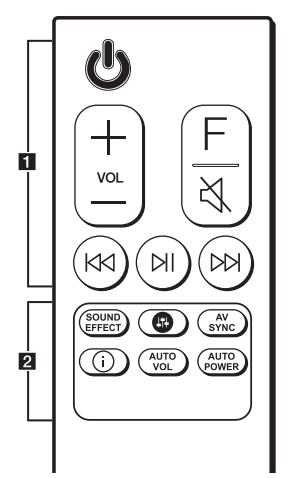
Remote control
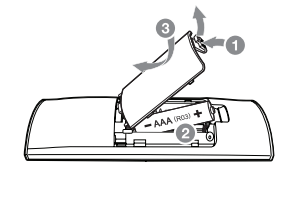
Replacement of Battery
Remove the battery cover on the rear of the remote control, and insert the battery with  and
and  matched correctly
1
 (Standby) : Switches the unit ON or OFF
VOL (Volume)  : Adjusts speaker volume.
F (Function) : Selects the function and the input source.
 (Mute) : Mutes the sound
 (Skip) : Skips Fast backward or Forward.
 (Play/Pause) : Starts playback. / Pauses playback.
2
SOUND EFFECT: Selects a sound effect mode.
 : Adjusts sound level of each speaker. (Page 36)
AV SYNC:
- Synchronizes the audio and video.
- Controls TV remote. (Page 32)

- Displays the input source information.
- Displays the connected Bluetooth device name on Bluetooth function.
AUTO VOL:
- Turns on or off the AUTO VOLUME mode.
- Turns on or off the surround sound. (Page 17)
AUTO POWER:
- Turns on or off AUTO POWER function. (Page 34)
- Turns on or off the Bluetooth connection lock. (Page 32)
Front panel
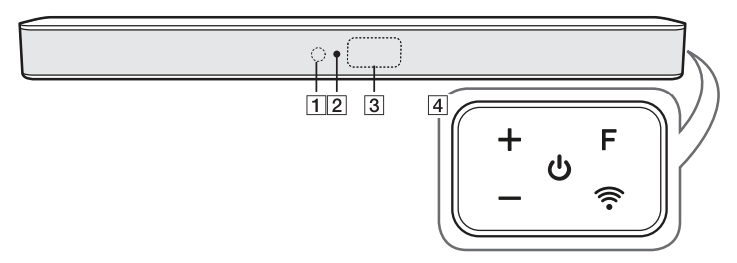
1 Remote sensor
2 LED indicator
Shows connection status.
- White (Blinking): Waiting for network connection on Wi-Fi function.
- White (Staying on): Network connection is completed on Wi-Fi function or the other functions are selected.
- White (Dimmed): Standby mode with network connection.
- Red (Staying on): Standby mode without network connection.
3 Display window
4 (Standby)
Switches the unit ON or OFF
F (Function)
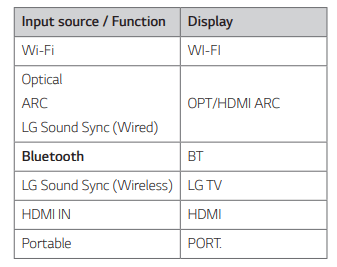
Selects the function and input source. (WI-FI, OPT/HDMI ARC, BT, LG TV, HDMI, PORT.)
(Volume)
 (Wi-Fi)
Selects Wi-Fi function.
Rear panel
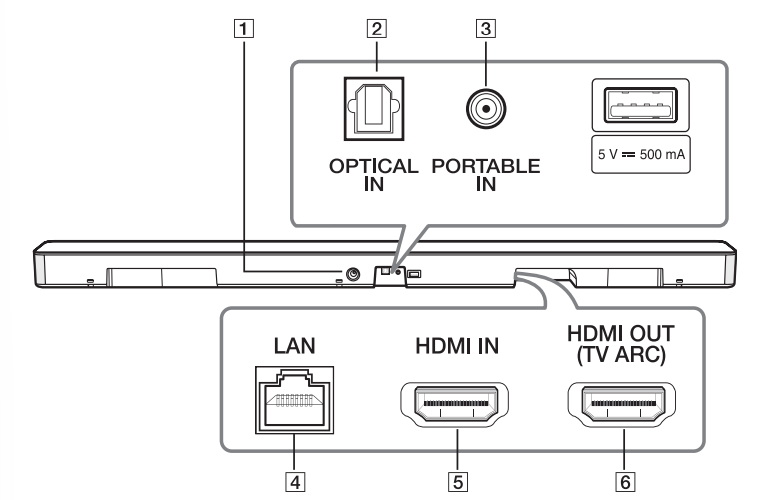
1 DC IN (AC adapter input)
2 OPTICAL IN connector
Connect to an optical device.
3 PORTABLE IN connector
Connect portable device.
4 LAN port
Connect to a router.
5 HDMI IN
Connect to device with HDMI OUT.
6 HDMI OUT (TV ARC)
Connect to HDMI IN (ARC) on TV.
Useful functions for using the unit
TV Remote On/ Off
- It allows you to control the volume of this unit by your TV remote control even by other company’s product. Initial setting of this function was set to on.
- ON
- Press and hold AV SYNC on the remote control for about 3 seconds and then press the button again.
- OFF
- Press and hold AV SYNC on the remote control for about 3 seconds and then press the button again.
BT Lock On/Off
- It allows you to connect a Bluetooth deivce only on Bluetooth and LG TV functions. Initial setting of this function was set to off.
- ON
- Press and hold AUTO POWER on the remote control for about 2 seconds in Bluetooth function and then press the button again.
- OFF
- Press and hold AUTO POWER on the remote control for about 2 seconds in Bluetooth function and then press the button again.
Auto Power On/Off
- It allows the unit to turn on and off automatically by input signals :
Optical, LG TV or Bluetooth
Initial setting of this function was set to on.
- ON
- Press AUTO POWER on the remote control and then press the button again.
- OFF
- Press AUTO POWER on the remote control and then press the button again.
BT Standby On/Off
- It allows the unit to switch to standby mode while maintaining Bluetooth connection.
- ON
- Set the volume to a minimum in advance. Press and hold — on the unit and on the remote control for about 3 seconds and then press the button again.
- OFF
- Set the volume to a minimum in advance. Press and hold — on the unit and on the remote control for about 3 seconds and then press the button again.
Network Standby On/ Off
- It allows the unit to switch to standby mode while maintaining a network connection.
- ON
- Press on the unit or on the remote control.
- OFF
- Press on the unit or on the remote control for about 3 seconds.
Surround On/ Off
- It allows you to enjoy surround sound with rear speakers. Initial setting of this function was set to off
- ON
- Press and hold AUTO VOL on the remote control for about 2 seconds and then press the button again.
- OFF
- Press and hold AUTO VOL on the remote control for about 2 seconds and then press the button again.
Installing the sound bar
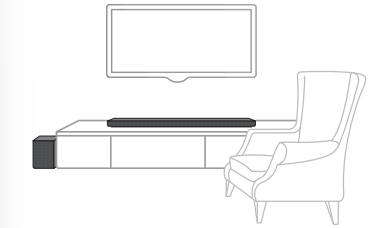
You can hear the sound by connecting the unit to the other device: TV, Blu-ray disc player, DVD player, etc.
Place the unit in front of the TV and connect it to the device you want. (Pages 21 - 27)
You can place the wireless subwoofer anywhere in your room. But it is better to place the subwoofer near the main unit. Turn it slightly toward the center of the room to reduce the wall reflections.
Caution
- For best performance of wireless connection such as Bluetooth or wireless subwoofer, do not install the unit on Metallic furniture because wireless connection communicates through a module positioned on the bottom of the unit.
- Be careful not to make scratches on the surface of the Unit /Subwoofer when installing or moving them.
Note
For the convenient button usage, it is recommended to take some distance between the soundbar and your TV when you install the sound bar
Mounting the main unit on a wall
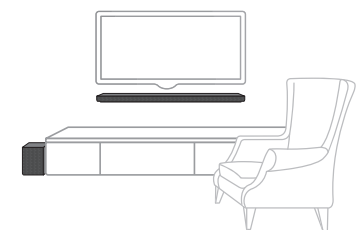
You can mount the main unit on a wall.
Caution
Because it is difficult to make a connection after installing this unit, you should connect the cables before installation.
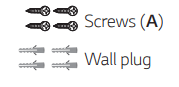
Preparation materials
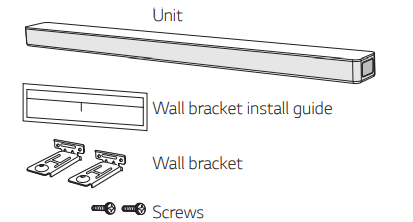
(Not supplied)
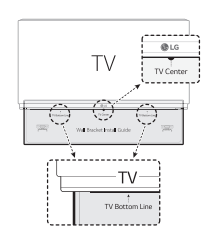
1. Match the TV’s BOTTOM EDGE of Wall bracket install guide with the bottom of TV and attach to the position.
2. When you mount it on a wall (concrete), use the wall plugs. You should drill some holes. A guide sheet (Wall bracket install guide) is supplied to drill. Use the sheet to check the point to drill.
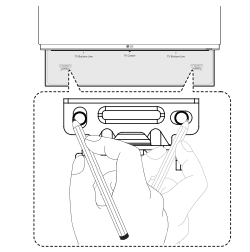
3. Remove the Wall bracket install guide.
4. Fix the brackets with screws (A) as shown in the illustration below.
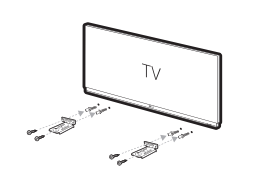
Note Screws (A) and Wall Plugs are not supplied for mounting the unit. We recommend the Hilti (HUD-1 6 x 30) for the mounting.
5. Put the unit on the brackets to match screw holes on the bottom of the unit.
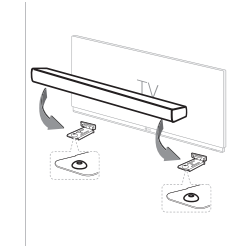
6. Fix the unit with the screws firmly.
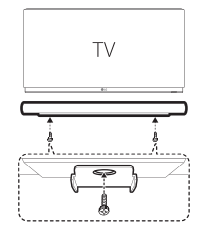
Note To detach the unit, perform it in reverse order.
Caution
- Do not install this unit upside down. It can damage the parts of this unit or be the cause of personal injury.
- Do not hang onto the installed unit and avoid any impact to the unit.
- Secure the unit firmly to the wall so that it does not fall off. If the unit falls off, it may result in an injury or damage to the product.
- When the unit is installed on a wall, please make sure that a child does not pull any of connecting cables, as it may cause it to fal
Positioning the speakers (Optional)
For the best surround sound, place the speakers as shown below
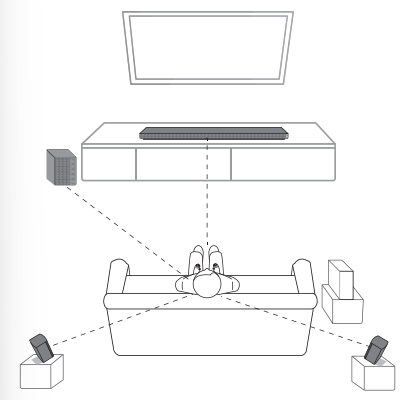
Note The illustration above may differ from actual units.
Connecting
Organizing cables
You can organize the cable with cable ties.
1. Hold the cables together with cable ties as shown below.
2. Tighten cable ties.
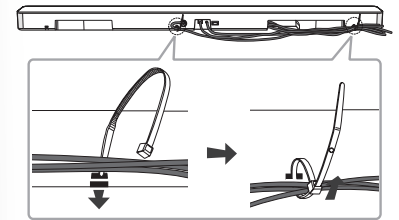
Note After all connections are completed, you can arrange cables as needed.
Connecting the AC Adapter
Connect the sound bar to the power supply with the supplied AC adapter.
1. Connect the supplied AC power cord to the AC adapter.
2. Connect the AC adapter cable to DC IN adapter input.
3. Plug the AC power cord into an AC outlet
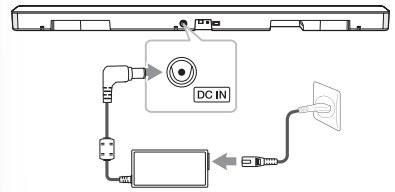
Caution Only use the AC adapter supplied with this device. Do not use a power supply from another device or manufacturer. Using any other power cable or power supply may cause damage to the device and void your warranty
Wireless subwoofer and rear speaker (Sold Separately) connection
Wireless subwoofer connection
LED indicator of wireless subwoofer
Green (Blink)
- The connection is trying.
Green
- The connection is completed.
Red
- The wireless subwoofer is in standby mode or the connection is failed.
Off (No display)
- The power cord of wireless subwoofer is disconnected
Setting up the wireless subwoofer for the first time
- Connect the power cord to the subwoofer and plug the power cord into a power outlet.
- Turn on the main unit : The sound bar and wireless subwoofer will be automatically connected.
Manually pairing wireless subwoofer
When your connection is not completed, you can check red LED on the wireless subwoofer and the wireless subwoofer does not make sound. To solve the problem, follow the steps below
1. Press Pairing button on the rear of the wireless subwoofer
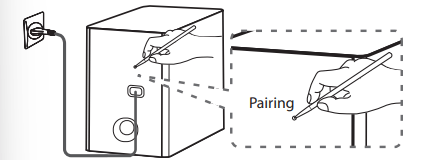
- The green LED on the rear of the wireless subwoofer blinks quickly. (If the green LED does not blink, press and hold the Pairing button.)
2. Turn on the sound bar.
3. Pairing is completed.
- The green LED on the rear of the wireless subwoofer turns on
Note
- It takes a few seconds (and may take longer) for the main unit and the subwoofer to communicate with each other and make sounds.
- The closer the main unit and the subwoofer, the better sound quality. It is recommended to install the main unit and the subwoofer as close as possible and avoid the cases below
- There is an obstacle between the main unit and the subwoofer
- There is a device using same frequency with this wireless connection such as a medical equipment, a microwave or a wireless LAN device.
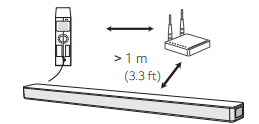
- Keep the sound bar and the subwoofer away from the device (ex. wireless router, microwave oven, etc.) over 1m (3.3 ft) to prevent wireless interference.
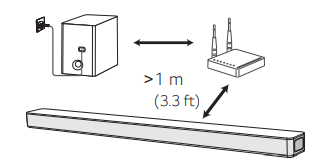
Rear speakers connection (Sold Separately)
Connecting the rear speakers
1. Connect the black stripe wire to the terminal marked - (minus) and the other end to the terminal marked + (plus).
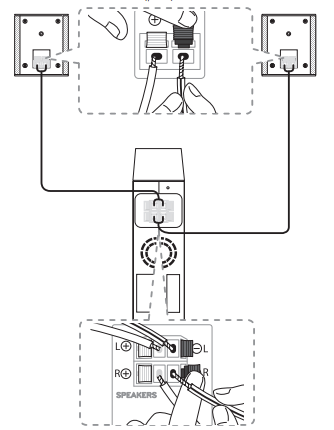
2. Connect the wireless receiver and the rear speakers (right, left) with the speaker cables.
Grey
Blue
Note
You need to purchase the wireless rear speakers kit (SPK8-S) to enjoy surround sound.
Caution
- Use the speaker supplied with this unit only. Using any other speaker may cause malfunction.
- Be sure to match the speaker cable to the appropriate terminal on the components: + to + and – to –. If the cables are reversed, the sound will be distorted and will lack bass.
LED indicator of wireless receiver
Yellow - green (Blink)
- The connection is trying.
Yellow - green
- The wireless receiver is receiving the signal from the sound bar.
Red
- The wireless receiver is in standby mode.
Off (No display)
- The power cord of wireless receiver is disconnected.
Setting up the wireless receiver for the first time
- Connect the power cord to the wireless receiver to the outlet
- Turn on the main unit : The sound bar and wireless receiver will be automatically connected
- Yellow - green LED on the wireless receiver turns on.
Manually pairing wireless receiver
When your connection is not completed, you can see the red LED on the wireless receiver and rear speakers are not made sound. To solve the problem, follow the below steps.
1. Press PAIRING button on the rear of the wireless receiver.
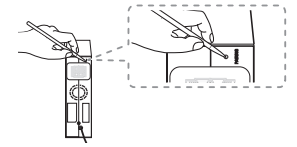
- The yellow - green LED on the wireless receiver blinks quickly
2. Turn on the main unit
3. Paring is completed
- The yellow - green LED on the wireless receiver turns on
Surround sound
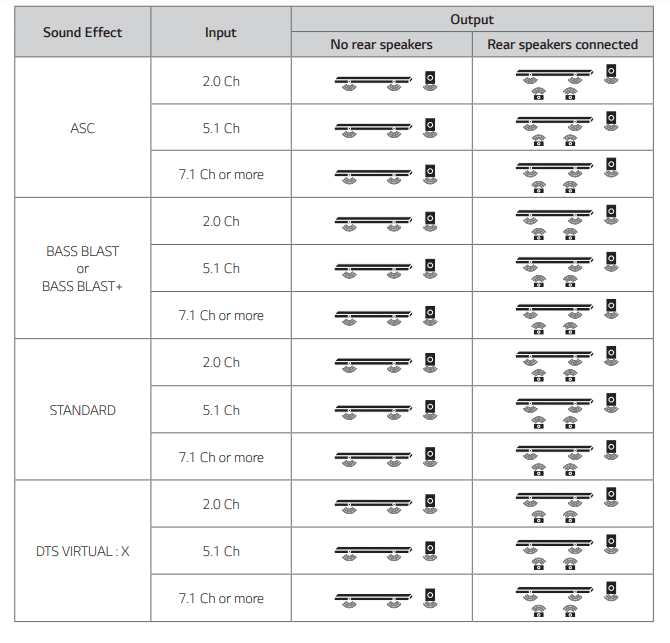
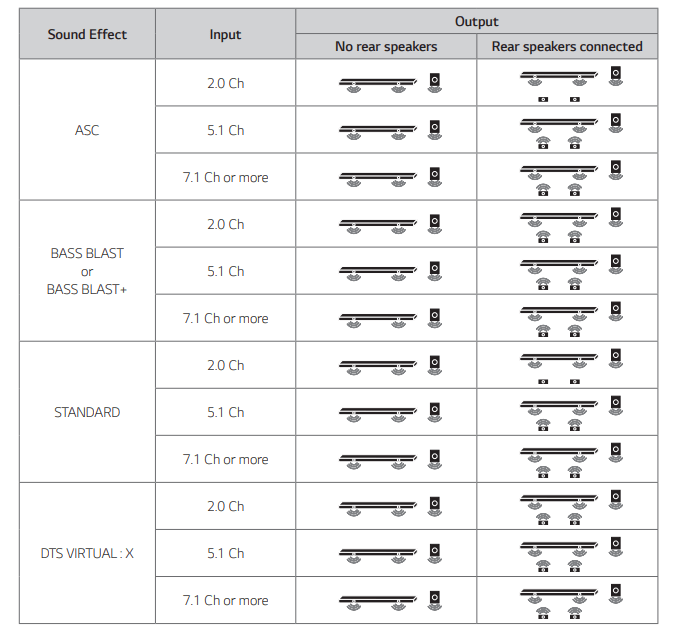
You can enjoy magnificent surround sound for all the input sound source with rear speakers
If you turn on the surround function, the whole speaker outputs sound.
When you turn off the surround function, the speakers output sound as an original input sound channel.
To turn on surround function, press and hold AUTO VOL on the remote control for about 2 seconds and press it once again while “OFF - SURROUND” is scrolled.
To turn off surround function, press and hold AUTO VOL on the remote control for about 2 seconds and press it once again while “ON - SURROUND” is scrolled.
Surround function ON
Surround function OFF
How to Affix the Ferrite Core
Ferrite core may not be provided depending on each nation’s regulations.
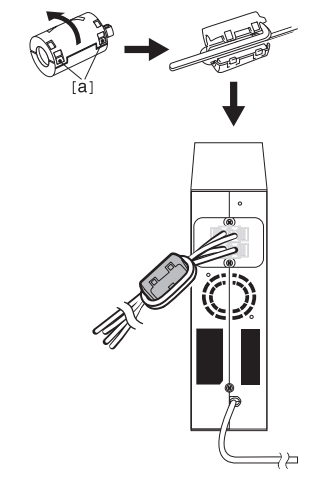
Affix the Ferrite Core for speaker cables
You must affix a ferrite core in order to reduce or eliminate electrical interference
- Pull the stopper [a] of the ferrite core to open.
- Wind the speaker cables around the ferrite core twice.
- Close the ferrite core until it clicks.
Note
- If there is a strong electromagnetic wave product nearby, interference may occur. Put the main unit and wireless receiver away from there
- The wireless receiver will automatically switch to standby mode in a few minutes after the sound bar is turned off. When the wireless reciever is in standby mode, the LED will turn on in red.
- When you turn on the sound bar, the wireless receiver will turn on and the LED will change to yellow - green and then the rear speakers makes sound within a few seconds
- It takes a few seconds (and may take longer) for the main unit and Wireless Receiver to communicate with each other.
- Use the rear speaker at least 30 cm (11.8 inch) away from either TV screen or PC monitor
- When the wireless receiver is being connected or disconneced with the main unit, output sound is maybe interrupted.
- Set the distance between the sound bar and the wireless receiver as close as possible and keep them away from the device (ex. wireless router, microwave oven, etc.) over 1 m (3.3 ft) to prevent wireless interference.
Connecting to your TV
Please connect this unit and the TV using the optical digital cable or HDMI cable considering the capability of the TV
Using an OPTICAL cable
1. Connect the OPTICAL IN jack on the back of the unit to OPTICAL OUT jack on the TV using an OPTICAL cable.
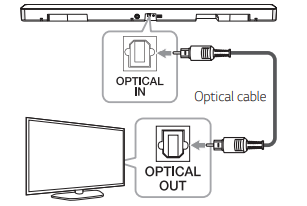
2. Select the input source to OPTICAL by pressing F button on the remote control or unit repeatedly.
Note
- Before connecting the optical cable, be sure to remove the protection plug cover if your cable has the cover
- You can enjoy the TV audio through the speakers of this unit. In the case of some TV models, you must select the external speaker option from the TV menu. (For details, reference your TV user manual.)
- Set up the sound output of TV to listen to the sound through this unit : TV setting menu → [Sound] → [TV Sound output] → [External speaker (Optical)]
- Details of TV setting menu vary depending on the manufacturers or models of your TV
- If this unit is connected by OPTICAL and ARC at the same time, the ARC signal is a high priority
LG Sound Sync

You can control some functions of this unit by your TV's remote control with LG Sound Sync. It is compatible with the LG TV that is supported LG Sound Sync. Make sure of the LG Sound Sync logo on your TV
Controllable function by LG TV's remote control : Volume up/down, mute
Refer to the TV's instruction manual for the details of LG Sound Sync.
Make one of the following connections, depending on the capabilities of your equipment.
Note
- You can also use the remote control of this unit while using LG Sound Sync. If you use TV's remote control again, the unit synchronizes with the TV. According to TV Specifications, the volume and mute of this unit synchronize with TV
- When the connection fails, make sure of the condition of the TV and power
- Make sure of the condition of this unit and the connection in the cases below when using LG Sound Sync
- The unit is turned off
- Changing the function to the others.
- Disconnecting the optical cable.
- The amount of time to turn off this unit is different depending on your TV when you set AUTO POWER function to ON.
- Details of TV setting menu vary depending on the models of your TV.
LG Sound Sync with wired connection
1. Connect your LG TV to the unit by using an optical cable.
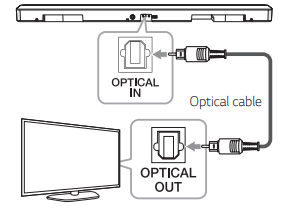
2. Set up the sound output of TV to listen to the sound through this unit :
TV setting menu → [Sound] → [TV Sound output] → [LG Sound Sync (Optical)]
3. Turn on the unit by pressing  on the remote control or on unit.
4. Select OPT/HDMI ARC function by using F on the remote control or F on the unit until the function is selected.
You can see “LGOPT” on the display window if connecting normally between this unit and your TV.
Note
Details of TV setting menu vary depending on the models of your TV
LG Sound Sync with wireless connection
1. Turn on the unit by pressing on the remote control or on the unit.
2. Select LG TV function by using F on the remote control or F on the unit until the function is selected.
3. Set up LG Sound Sync (Wireless) on the TV. Refer to the TV’s instruction manual.
“PAIRED” appears on the display window for about 3 seconds and then you can see “LG TV” on the display window if connecting normally between this unit and your TV.
Note
- If you turned off the unit directly by pressing (Power), LG Sound Sync (Wireless) will be disconnected.
- If your TV and this unit are connected through LG Sound Sync (Wireless), this unit will be Network standby mode regardless of the status of network connection when this unit is turned off. Check dimmed white LED on the unit.
Using an HDMI cable
If you connect this unit to a TV that supports HDMI CEC and ARC (Audio Return Channel), you can enjoy the TV audio through the speakers of this unit without connecting the optical cable.
1. Connect the HDMI OUT (TV ARC) jack on the back of the unit to ARC jack on the TV using an HDMI cable
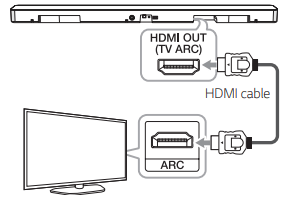
2. Select the input source to OPT/HDMI ARC by pressing F button on the remote or unit repeatedly.
You can see “ARC” on the display window if connecting normally between this unit and your TV.
Note
- You can enjoy the TV audio through the speakers of this unit. In the case of some TV models, you must select the external speaker option from the TV menu. (For details, reference your TV user manual.)
- Set up the sound output of TV to listen to the sound through this unit: TV setting menu →[Sound] → [TV Sound output] → [External speaker (HDMI ARC)]
- Details of TV setting menu vary depending on the manufacturers or models of your TV.
- Depending on your LG TV model, you may need to turn on the SIMPLINK function on your LG TV.
- When you return to ARC function from another function, you need to select the input source to OPT/HDMI ARC. Then this unit changes to ARC function automatically
ARC (Audio Return Channel) function
The ARC function enables an HDMI capable TV to send the audio stream to HDMI OUT of the unit.
To use this function:
- Your TV must support the HDMI-CEC and ARC function and the HDMI-CEC and ARC must be set to On.
- The setting method of HDMI-CEC and ARC may differ depending on the TV. For details about ARC function, refer to your TV manual.
- You must use the HDMI cable (Type A, High Speed HDMI™ cable with Ethernet).
- You must connect the HDMI OUT on the unit with HDMI IN of the TV that supports ARC function using an HDMI cable.
- You can connect only one Sound bar to TV compatible with ARC.
What is SIMPLINK?

Some functions of this unit are controlled by the TV’s remote control when this unit and LG TV’s with SIMPLINK are connected through HDMI connection.
Controllable functions by LG TV’s remote control: Power on/off, volume up/down, etc.
Refer to the TV owner’s manual for the details of SIMPLINK function.
LG TV’s with SIMPLINK function has the logo as shown above.
Note
- Depending on the state of the unit, some SIMPLINK operation may differ from your purpose or not work.
- Depending on a TV or a player which is connected with this unit, SIMPLINK operation may differ from your purpose.
Additional information for HDMI
- When you connect an HDMI or DVI compatible device make sure of the following:
- Try switching off the HDMI/DVI device and this player. Next, switch on the HDMI/DVI device and leave it for around 30 seconds, then switch on this player.
- The connected device’s video input is set correctly for this unit.
- The connected device is compatible with 720 x 576p (or 480p), 1280 x 720p, 1920 x 1080i, 1920 x 1080p video input.
- Not all HDCP-compatible HDMI or DVI devices will work with this player.
- The picture will not be displayed properly with non-HDCP device.
Note
- If a connected HDMI device does not accept the audio output of the player, the HDMI device’s audio sound may be distorted or may not output.
- Changing the resolution when the connection has already been established may result in malfunctions. To solve the problem, turn off the player and then turn it on again.
- When the HDMI connection with HDCP is not verified, TV screen is changed to black screen. In this case, check the HDMI connection, or disconnect the HDMI cable.
- If there are noises or lines on the screen, please check the HDMI cable (length is generally limited to 4.5 m (15 ft)).
- You cannot change the video resolution in the HDMI IN mode. Change the video resolution of the connected component.
- If the video output signal is abnormal when your personal computer is connected to HDMI IN jack, change the resolution of your personal computer to 576p (or 480p), 720p, 1080i or 1080p
HDMI cable Checklist
Some HDMI cables have poor signal transmission, which can cause problems with sound and video transmission.
Even after HDMI cable connections, if no sound, sound interrupted, noise occurring from the sound bar and/or no video, no smooth video on your TV, the HDMI cable may be the problem.
Use the cable marked with the premium HDMI certification logo. Also make sure that the your using cable is a certified Type A, Ethernet high-speed HDMI™ cable.
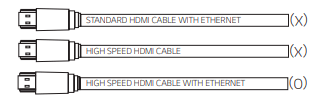
Connection through HDMI Cable*
Your television must support the newest HDMI features (HDMI CEC1) / ARC (Audio Return Channel)) to fully enjoy the Live broadcasting channel with audio system through an HDMI cable. Unless your TV supports these HDMI features, the audio system should be connected through an OPTICAL cable.
1) HDMI CEC (High-Definition Multimedia Interface Consumer Electronics Control)
Consumer Electronics Control (CEC) is an HDMI feature designed to allow the user to command and control the CEC-enabled devices, that are connected through HDMI by using only one of their remote controls.
* Trade names for CEC are SimpLink (LG) , Anynet+ (Samsung), BRAVIA Sync (Sony), EasyLink (Philips), etc.
Optional equipment connection
HDMI connection
You can enjoy the sound from the external device which is connected to HDMI IN jack on this unit.
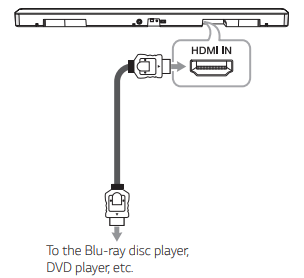
1. Connect HDMI IN jack on the back of the unit to HDMI OUT jack on the audio device such as Bluray disc player, DVD player, etc.
2. Set the input source to HDMI. Press repeatedly F on the remote control or F on the unit until the function is selected.
OPTICAL IN connection
Connect an optical output jack of external devices to the OPTICAL IN jack.
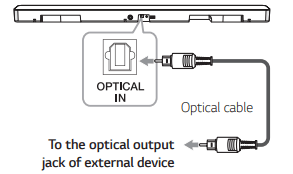
1. Connect the OPTICAL IN jack on the back of the unit to optical out jack of your external device.
2. Select the input source to OPT/HDMI ARC by pressing F button on the remote or unit repeatedly. You can see “OPT” on the display window if connecting normally between this unit and your device.
Note
Before connecting the optical cable, be sure to remove the protection plug cover if your cable has the cover
PORTABLE IN connection
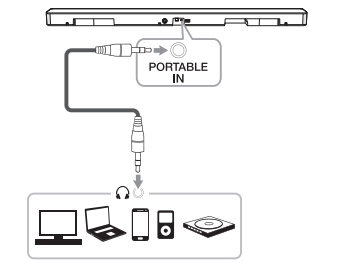
Listening to music from your portable player
The unit can be used to play the music from many types of portable players or external devices.
1. Connect the portable player to the PORTABLE IN connector of the unit.
2. Turn the power on by pressing 1 (Power).
3. Select the PORT. function by pressing F on the remote control or F on the unit until the function is selected.
4. Turn on the portable player or external device and start playing it.
Optional equipment connection
You can enjoy both sound and picture from the external device you connect.
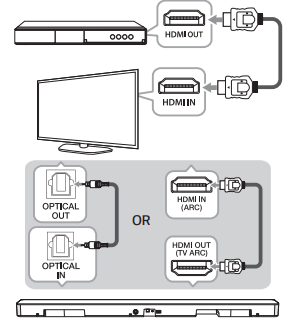
1. Connect HDMI IN jack of your TV to HDMI OUT jack on the external device such as Blu-ray disc player, DVD player, etc.
2. Connect the OPTICAL IN jack on the back of the unit to OPTICAL OUT jack on the TV using an OPTICAL cable. Or connect the HDMI OUT (TV ARC) jack on the back of the unit to HDMI IN (ARC) jack on the TV using an HDMI cable.
3. Set the input source to OPT/HDMI ARC. Press repeatedly F on the remote control or F on the unit until the function is selected.
Note
If the sound bar does not have sound or the video on TV is not smooth, the HDMI cable may be the problem. Refer to the HDMI cable checklist. (Page 24)
Network connection
You can enjoy various functions of this sound bar by connecting to network and your smart device with “LG Wi-Fi Speaker” app.
Choose the connection method considering your network environment
Note
In a network environment (Router, Internet and Internet Service Provider) that supports both IPv4 and IPv6, the network automatically connects to IPv4 or IPv6 when connecting to the network.
You can check the each network status by selecting the settings of My Speakers ([Settings]>[IP Info.]) on the “LG Wi-Fi Speaker” app.
Wired connection
Using a wired connection provides the best performance, because the attached devices connect directly to the network without radio frequency interference.
Connect your sound bar to the home router using LAN cable.
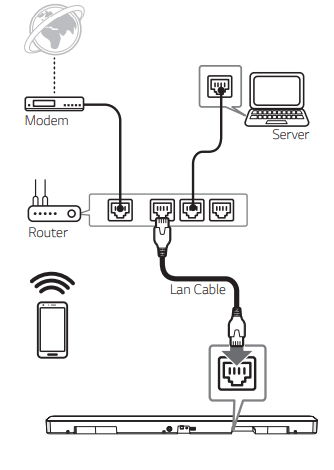
Wireless connection
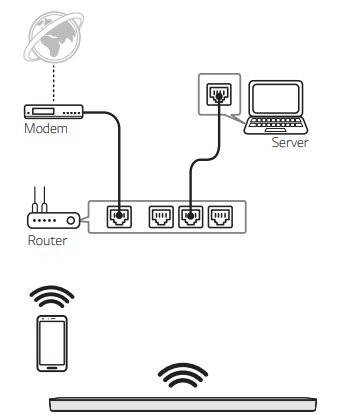
When the wired connection is unavailable between your sound bar and home router, you can connect it wirelessly.
The “LG Wi-Fi Speaker” app is required to connect the sound bar wirelessly to the network.
Download and install the “LG Wi-Fi Speaker” app on your smart device. Launch the application and follow the instructions on the screen of your smart device, so that you can connect the sound bar wirelessly
“LG Wi-Fi Speaker”
The “LG Wi-Fi Speaker” app allows you to use various functions of this sound bar through your smart device:
Enjoying music on your device and home network server
You can listen to the music on your smart device and home network server.
Using Chromecast built-in
You can enjoy music contents through this sound bar with Chromecast enabled apps.
Setting and controlling the sound bar
You can manage the sound bar settings and control the sound bar even without remote control.
Updating the sound bar
You can update the sound bar to the latest version.
Requirements
- A wireless router must be connected to the internet.
- A smart device such as a smartphone or tablet must be connected to the wireless router via WiFi connection
Note For more informations of “LG Wi-Fi Speaker”, follow the instructions of the application or see the owner’s manual of “LG Wi-Fi Speaker”.
Installing “LG Wi-Fi Speaker” App
Through Apple “App Store” or Google “Play Store”
1. Tap the Apple “App Store” icon or Google “Play Store” icon.
2. Type in “LG Wi-Fi Speaker” in the search bar and tap “Search”.
3. Select “LG Wi-Fi Speaker” in the search result list to download.
Note
- “LG Wi-Fi Speaker” app will be available in version of the software as follow; Android OS: Ver 5.0 (or later) iOS: Ver 10 (or later)
- Depending on the device, “LG Wi-Fi Speaker” app may not work.
Works with the Google Assistant
This unit works with the Google Assistant. You can control some functions of this unit: Play and stop music and volume control.
Requirements
- Google Assistant built-in device (Sold Separately)
- This unit must be connected to Internet.
- This unit must be registered in [Google Home] app.
Operating
Using a Bluetooth Wireless Technology
About Bluetooth
Bluetooth is wireless communication technology for short range connection.
The sound may be interrupted when the connection interfered by the other electronic wave or you connect the Bluetooth in the other rooms.
Connecting individual devices under Bluetooth wireless technology does not incur any charges. A mobile phone with Bluetooth wireless technology can be operated via the Cascade if the connection was made via Bluetooth wireless technology
- Available Devices: Smart phone, MP3, Notebook, etc.
- Version: 4.0
- Codec: SBC, AAC
Bluetooth profiles
In order to use Bluetooth wireless technology, devices must be able to interpret certain profiles. This speaker is compatible with following profile. A2DP (Advanced Audio Distribution Profile)
Listening to Music of a Bluetooth Device
Before you start the pairing procedure, make sure that the Bluetooth feature on your smart device is turned on. Refer to your Bluetooth device’s user guide. Once a pairing operation is performed, it does not need to be performed again.
1. Select the Bluetooth function by using F on the remote control or F on the unit until the function is selected. Appears “BT” and then “READY” in display window.
2. Operate the Bluetooth device and perform the pairing operation. When searching for this speaker on your Bluetooth device, a list of the devices found may appear in the Bluetooth device display depending on the type of Bluetooth device. Your speaker appears as “LG SKM6Y (XX:XX)”.
3. Select the “LG SKM6Y (XX:XX)”
4. When this unit is successfully connected with your Bluetooth device, “PAIRED”→ your device’s name → “BT” appears on the display window.
5. Listen to music. To play music in your Bluetooth device, refer to your Bluetooth device’s user guide.
According to your Bluetooth device’s volume level, the volume level of Bluetooth will be adjusted.
Bluetooth connection lock (BT LOCK)
You can limit Bluetooth connection to only BT (Bluetooth) and LG TV function to prevent unintended Bluetooth connection.
To turn on this function, press and hold AUTO POWER on the remote control for about 2 seconds in BT (Bluetooth) function and press it once again while “OFF - BT LOCK” is scrolled. Then you can limit Bluetooth connection.
To turn off this function, press and hold AUTO POWER on the remote control for about 2 seconds in BT (Bluetooth) function and press it once again while “ON - BT LOCK” is scrolled.
Note Even if you set up BT LOCK function to On, this sound bar turns on by Auto Power function. Turn off Auto Power function to prevent it. (Page 34)
Other operations
Using your TV remote control
You can control some functions of this unit by your TV remote control even by other company’s product. Controllable functions are volume up/down and mute.
Press and hold AV SYNC on the remote control for about 3 seconds. “ON - TV REMOTE” appears and you can control this unit by your TV remote control. To check the status of this function, press and hold AV SYNC.
To turn off this function, press and hold AV SYNC and press it once again while “ON - TV REMOTE” is scrolled.
Note
LG, Panasonic, Philips, Samsung, Sharp, Sony, Toshiba, Vizio
- Make sure that the sound output of your TV is set to [External speaker].
- Depending on the remote control, this function may not work well.
- This function does not operate on LG TV’s magic remote control.
- This function may not work well when some TV control functions such as HDMI CEC, SIMPLINK and LG Sound Sync set to ON.
- Some remote control may not be supported.
- Some remote control may not operate if you press repeatedly the volume button.
AV Sync
Mismatches may occur between the sound of the sound bar and the images of your TV. In the case, this function can adjust the delay time.
1. Press AV SYNC.
2. Useto control the time which you can set at between 0 and 300 ms.
Turn off the sound temporarily Press (Mute) to mute your unit.
You can mute your unit, for example, to answer the telephone, “MUTE” is displayed in the display window. To cancel it, press(Mute) again on the remote control or change the volume level.
Auto display Dimmer
Display window will be darkened automatically if there is no key input for 15 seconds.
When you press any button, the display window will be brighten.
Displaying input source information
You can display various information of the input source by pressing.
OPT/ARC/HDMI/PORT. : Audio format BT (Bluetooth): Connected Bluetooth device name
Auto power down
This unit will turn itself off to save electric consumption when the main unit is not connected to an external device and is not used for 15 minutes.
It will also turn off after six hours if the Main unit is connected to a device using portable input.
When network is connected, the speaker switches to the network standby mode. Then the LED indicator on the unit becomes dimmed in white.
If network is disconnected, the speaker switches to the standby mode. Then the LED indicator on the unit turns red.
AUTO POWER
On/Off This sound bar automatically turns on and off by an input source: Optical, LG TV, Bluetooth or “LG Wi-Fi Speaker” app.
This function turns on or off each time you press AUTO POWER.
Turning on
Turning on automatically by this function is supported only on network standby mode except an optical signal. Check dimmed white LED on the unit.
When you turn on your TV or an external device connected to this unit, this unit recognizes the input signal and selects the suitable function. You can hear the sound from your device.
If you try to connect your Bluetooth device, this unit turns on and the unit will be connected to your Bluetooth device.
When you run the “LG Wi-Fi Speaker” app and play music on your smart device that has already been paired, the sound bar is turned on to Wi-Fi function and you can listen to the music through the sound bar.
Turning off
When the TV is off, this sound bar switches to the standby mode.
Note
- After the unit is turned on by AUTO POWER function, it will be automatically turned off if there is no signal for a certain period of time from the TV connected by LG Sound Sync (Optical/Wireless).
- After the unit is turned on by AUTO POWER function, it will be automatically turned off if there is no signal for a certain period of time from the external device.
- If you turned off the unit directly, it cannot be turned on automatically by AUTO POWER function. However the unit can be turned on by AUTO POWER function when optical signal comes in after 5 seconds of no signal.
- Depending on the connected device, this function may not operate.
- If you disconnect Bluetooth connection by this unit, some Bluetooth devices try to connect to the unit continually. Therefore it is recommended to disconnect the connection before turning off the unit.
- When you turn on this unit for the first time, status of Auto Power function is turned on.
- To use this function, the main unit must be registered in paired devices list of Bluetooth device.
- You can set the Auto Power function only when this unit is turned on.
Auto function change
This sound bar recognizes input signals such as Optical, Bluetooth, LG TV, Portable and “LG Wi-Fi Speaker” app and then changes suitable function automatically.
When you turn on your TV or an external device
When you turn on your TV or an external device connected by the one among Optical or LG Sound Sync (Optical or Wireless), this sound bar changes suitable function and you can listen to the sound through it.
When you try to connect a Bluetooth device
When you try to connect your Bluetooth device to this unit, Bluetooth function is selected. Play your music on the Bluetooth device.
When connect a Portable device
When you connect your portable device using a 3.5 mm stereo cable, this unit changes the function to Portable. You can hear the music from your device.
When you play music by “LG Wi-Fi Speaker” app
When you play music by “LG Wi-Fi Speaker” app on your smart device, this sound bar changes the function to WI-FI and you can listen to the music through it.
Note
- To change to optical function, it needs 5 seconds of no signal.
- This unit does not change the function to optical if SIMPLINK of the connected TV, Bluray disc player, set-top box or etc. device set to on or connected CEC supported device is turned on. If you want to use the auto function change, turn off SIMPLINK function on your LG TV. It takes for about 30 seconds to turn off SIMPLINK.
- If the Bluetooth connection lock function is set, Bluetooth connection will be only available on Bluetooth and LG TV function. (Page 32)
- In WI-FI function without network connection, you cannot connect Bluetooth device and LG TV through LG Sound Sync (Wireless). To make these connections, change to the appropriate function.
Sound adjustment
Setting sound effect
This system has a number of pre-set surround sound fields. You can select a desired sound mode by using SOUND EFFECT.
The displayed items for the equalizer may be different depending on sound sources and effects.
ASC (Adaptive Sound Control)
- Analyzes the property of the input sound and provides the sound optimized for the content in real time.
BASS BLAST or BASS BLAST+
- Reinforces the bass and powerful sound.
STANDARD
- You can enjoy optimized sound.
DTS VIRTUAL : X
- You can enjoy more immersive and cinematic surround sound.
Note
- Sound effect order may be different depending on the regional option.
- In some of the sound effect modes, there will be no sound or low sound from some of the speakers. It depends on the mode of sound and the source of audio, it is not a defect.
- You may need to reset the sound effect mode, after switching the input, sometimes even after the sound file changed.
Adjust volume level automatically
This unit supports Auto volume function that automatically adjusts the volume level.
When the output sound is too loud or too low, press AUTO VOL on the remote control. So you can enjoy the sound with appropriate levels.
To cancel this function, press the button again while “ON-AUTO VOLUME” is displayed.
Adjust Sound level
You can adjust the sound level of each speaker : Sub Woofer, Treble, Bass, Rear
1. Press  button repeatedly to select the speaker you want to adjust.
2. Press VOL to adjust the sound level.
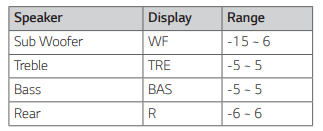
Note Adjusting rear speakers level is applied only when the rear speakers are connected.
Standby mode
The speaker switches to the standby mode if there is no music playback or no button operation. Standby mode
Option 1.
If network is disconnected and there is no music playback and no button operation for 15 minutes, the speaker switches to the standby mode. Then “GOOD-BYE” appears on the display window and the LED indicator on the unit turns red.
Option 2.
If you press and hold 1 on the unit or 1 on the remote control for about 3 seconds, the speaker switches to the standby mode. Then “GOOD-BYE” appears on the display window and the LED indicator on the unit turns red.
Network standby mode
Option 1.
When network is connected but music is not played and buttons are not pressed for 15 minutes, the speaker switches to the network standby mode. Then the LED indicator on the unit becomes dimmed in white.
Option 2.
If you press on the unit or on the remote control, the speaker switches to the network standby mode. Then the LED indicator on the unit becomes dimmed in white.
Bluetooth standby mode
If the Bluetooth standby mode is set to ON, the speaker switches Bluetooth standby mode when is turned off.
When you turn on the main unit in the Bluetooth standby mode, Bluetooth and LG TV are able to connect even if network is not connected.
Adjust volume level of the unit to minimum. And then, press and hold — on the unit and on the remote control for about 3 seconds. You can see “ON-BT STANDBY” and the unit switches Bluetooth standby mode.
To cancel this function, press while “ON-BT STANDBY” is scrolled.
Note To use this function, you should turn on the AUTO POWER function.
Reset the Speaker
If the speaker doesn’t respond, reset the speaker. Press and hold the button until you hear the beep sound once. You can see “RESET” on the display window. Then all wireless network ports are deactivated and the stored wireless network information is deleted.
Troubleshooting
General
The unit does not work properly
- Turn off the power of this unit and the connected external device (TV, Woofer, DVD-player, Amplifier, etc.) and turn them on again
- Disconnect the power cord of this unit and the connected external device (TV, Woofer, DVD-player, Amplifier, etc.) and then try connecting again.
- Previous setting may not be saved when device power is shut off
The power does not turn on.
- Is the power cord plugged into the outlet?
- Connect the power plug to the outlet.
Sound is not produced.
- Is the volume set to minimum?
- Adjust the volume.
- When you are using connection with a external device (set top box, Bluetooth device etc.), adjust volume level of the device.
- Is the mute function activated?
- Press or adjust the volume level to cancel the mute function.
- Is the function selected properly?
- Check the input source and select the correct input source.
No woofer sound
- Is the subwoofer plugged in?
- Plug the power cord of subwoofer into the wall outlet securely.
- Is pairing between the unit and the subwoofer disconnected?
- Connect the unit and the subwoofer. (Page 14.)
The remote control does not work properly.
- Is the remote control too far from the unit?
- Operate the remote control within about 7 m (23 ft).
- Is there an obstacle in the path of the remote control and the unit?
- Are the batteries in the remote control exhausted?
- Replace the batteries with new one.
The AUTO POWER function does not work.
- Check connection of the external device such as TV, DVD/Blu-Ray player or Bluetooth device.
- Check the state of SIMPLINK on your LG TV and turn off SIMPLINK.
- Depending on the connected device, this function may not operate.
LG Sound Sync does not work.
- Check whether your LG TV supports LG Sound Sync.
- Check connection of LG Sound Sync.
- Check sound setting of your TV and this unit.
When you feel the output sound of the unit is low.
- Check the details below and adjust the unit according to them.
- Switch the state of DRC function to [OFF] by using “LG Wi-Fi Speaker”.
- With the sound bar connected with TV, change the AUDIO DIGITAL OUT setting on TV Setup Menu from [PCM] to [AUTO] or [BITSTREAM]. y With the sound bar connected with Player, change the AUDIO DIGITAL OUT setting on Player Setup Menu from [PCM] to [PRIMARY PASS-THROUGH] or [BITSTREAM].
- Change Audio DRC setting on connected device setup menu to [OFF] state.
- Make sure Night Mode is not On. Turn [OFF] Night Mode.
The unit does not connect with Bluetooth device.
- Turn off the Bluetooth connection lock function. (Page 32.)
Network
Cannot connect the speaker to your home network.
- The wireless communication may be interrupted from household devices that are using radio frequencies. Move the speaker away from them.
Media servers are not displayed on the device list.
- The firewall or anti-virus software on your media server is running. Turn off the firewall or anti-virus software running on your media server.
- Make sure that the speaker is connected to the same network that your media server is connected.
“LG Wi-Fi Speaker” doesn’t work properly.
- Is the “LG Wi-Fi Speaker” plugged in?
- Plug in the “LG Wi-Fi Speaker”.
- Is the LAN cable connected to the wireless router and the “LG Wi-Fi Speaker” properly?
- Connect the LAN cable to the LAN port on the back of the “LG Wi-Fi Speaker” and to your wireless router.
- If you restart the router?
- You need to turn the speaker’s power off and on again.
- If you install new router.
- You need to perform a factory set and setup the network connection for speaker
Application
“LG Wi-Fi Speaker” app doesn’t work properly.
- Does an error occur when accessing the app?
- Make sure that your smart device is compatible with the app.
- Make sure that the “LG Wi-Fi Speaker” app is the latest version. y Make sure that the speaker’s front LED turns from red to white
NOTES to use wireless
This device may have wireless interference.
- Wireless may not operate normally in weak signal area.
- Please install the device close enough to wireless subwoofer.
- Do not install the device on metal furniture for optimum performance.
Bluetooth device may malfunction or make noise in the following cases.
- When any part of your body contact the transceiver of the Bluetooth device or sound bar.
- When there is an obstacle or wall or the device is installed in a secluded spot.
- When there is a device (a wireless LAN, a medical equipment or a microwave) using same frequency, make the distance between the products as far away as possible each other.
- When connecting the device to the Bluetooth device, make the distance between the products as close as possible each other.
- When the device gets too far from the Bluetooth device, the connection is disconnected and also malfunction may occur.
NOTES to release Demo mode
- Can not change input source with F button such as BT (Bluetooth), HDMI etc. and only [DEMO] indication is showing in the front display.
- Remote Control does not work. (No response)
- Unplug the power cord and plug it in again. If that doesn’t work, press and hold / button on the sound bar until you hear the beep sound once. You can see “RESET” on the display window. Remote Control does not work. (No response)
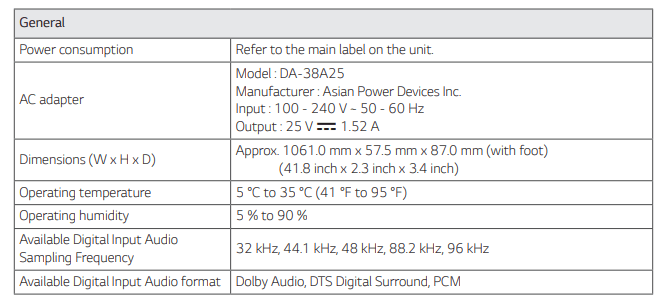
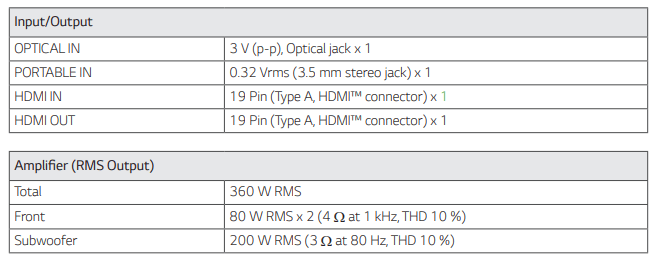
Specifications
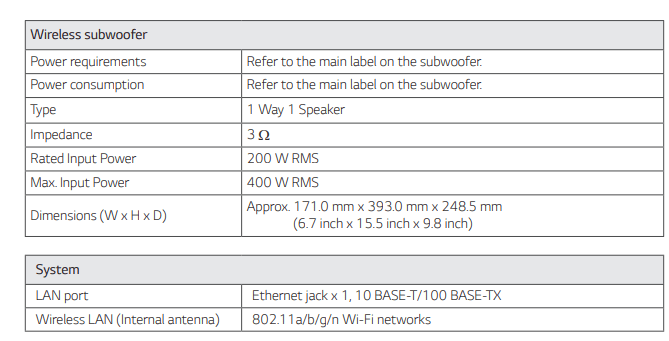
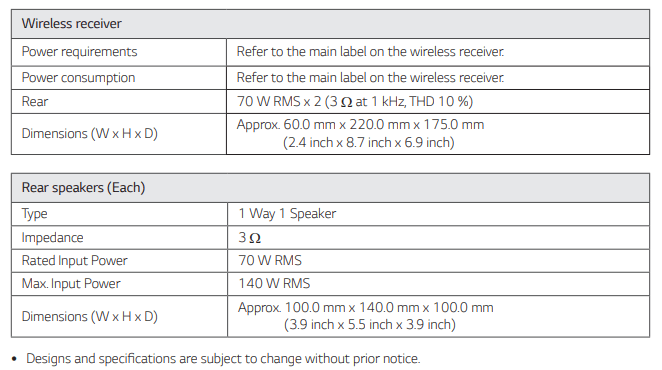
SPK8-S (SPK8-S, S78S1-S), Sold Separately