
Need assistance?
visit our website at www.tclusa.com
or call 1-877-300-8837 (for mainland 48 States),
or 1-877-800-1269 (for AK, HI, and Puerto Rico).
For use with models: LE50FHDE5510C
LE55FHDE5510C / LE50FHDE5510CTA / LE55FHDE5510CTA
Figures and illustrations in this User’s Guide are
actual product appearance. Product design and
1
Refer to the identication/rating label located on the back panel of your product for its proper operating voltage.
FCC regulations state that unauthorized changes or modications to this equipment may void the user’s authority to
operate it.
Cable TV Installer:
This reminder is provided to call your attention to Article 820-40 of the National Electrical Code
(Section 54 of the Canadian Electrical Code, Part 1) which provides guidelines for proper grounding and, in particular,
species that the cable ground should be connected to the grounding system of the building as close to the point of
cable entry as practical.
Important:
This television is a table model and is designed to sit on a rm, at surface. Don’t place the TV on soft
carpeting or similar surface because the ventilation slots on the bottom of the unit will be blocked, resulting in reduced
lifetime from overheating. To assure adequate ventilation for this product, maintain a spacing of 4 inches from the top
and side of the TV receiver and 2 inches from the rear of the TV receiver and other surfaces.
Also, make sure the stand or base you use is of adequate size and strength to prevent the TV from being accidentally
tipped over, pushed off, or pulled off. This could cause personal injury and/or damage to the TV. Refer to the
Important Safety Instructions on the next page.
The Power button (followed by the power symbol) on this TV and your remote control puts the TV into a very low-
power standby mode but will not completely turn the power off. In order to completely shut the power off, you will
need to disconnect the power cord from the outlet. The mains plug/appliance coupler is used as disconnect device,
the disconnect device shall remain readily operable. Therefore, you should ensure that the TV is installed in a manner
that allows you to disconnect the power cord when desired.
Product Registration
Please register your TCL purchase on-line at www.tclusa.com. It will make it easier to contact you should it ever be
necessary. Registration is not required for warranty coverage.
Product Information
Keep your sales receipt to obtain warranty parts and service and for proof of purchase. Attach it here and record the
serial and model numbers in case you need them. These numbers are located on the product.
Model No. ______________________ Serial No._____________________________________
Purchase Date __________________ Dealer/Address/Phone__________________________
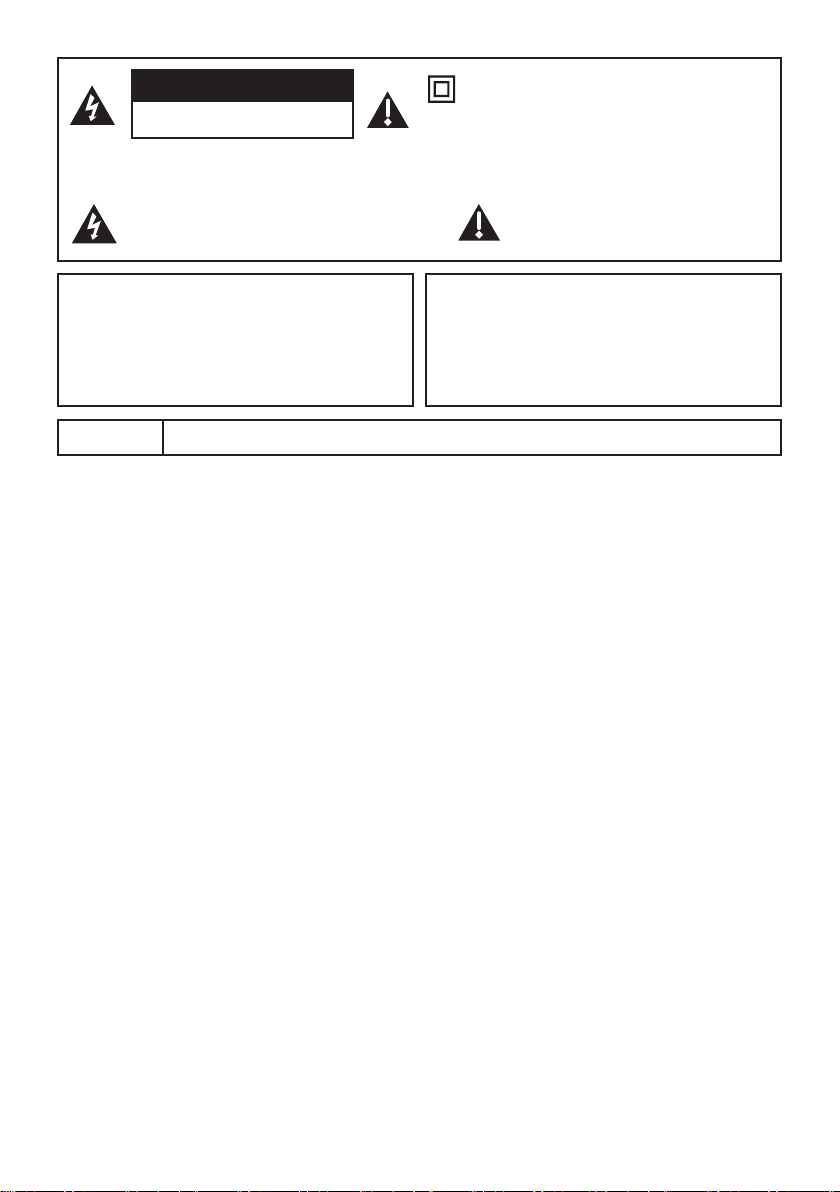
Caution: To reduce the risk of electric shock, do not remove cover (or back). No user serviceable parts inside.
Refer servicing to qualied service personnel.
This symbol indicates “dangerous voltage”
inside the product that presents a risk of
electric shock or personal injury.
This symbol indicates important
instructions accompanying the product.
This symbol indicates that this product
incorporates double insulation between hazardous
main voltage and user accessible parts. When
servicing, use only identical replacement parts.
CAUTION
RISK OF ELECTRIC SHOCK.
DO NOT OPEN.
Important Information
WARNING
The batteries shall not be exposed to excessive heat such as sunshine, re or the like.
WARNING
To reduce the risk of re or electric shock, do not
expose this product to rain or moisture. This product
should not be exposed to dripping or splashing. No
objects lled with liquids, such as vases, should be
placed on the component.
WARNING
The TV is unstable if it is not properly attached to the
base or mounted to the wall. Please follow the base
or wall mounting instructions provided in the User’s
Guide to ensure your safety.
2
Important Safety Instructions
1. Read and follow all instructions.
2. Keep these instructions.
3. Heed all warnings.
4. Do not block any ventilation openings. Install in accordance with the manufacturer’s instructions.
5. Do not install near any heat sources such as radiators, heat registers, stoves, or other apparatus (including
ampliers) that produce heat.
6. Protect the power cord from being walked on or pinched particularly at plugs, receptacles, and the point
where it exits from the component.
7. Do not use this component near water.
8. Only use the attachments/accessories specied by the manufacturer.
9. Clean only with dry cloth.
10. Use only with the cart, stand, tripod, bracket, or table specied by the manufacturer, or sold with the
component. When the TV is placed on a cart, use caution when moving the cart to avoid injury from tip-
over.
11. Warning: To avoid any injury caused by lean of the product, please always ensure the whole product was
place within the table surface in horizontal.
12. Unplug this component during lightning storms or when unused for long periods of time.
13. Refer all servicing to qualied service personnel. Service is required when the component is damaged
in any way, such as power supply cord or plug damage, liquid spilled on or objects falling onto the
component, rain or moisture exposure, abnormal operation, or if the component has been dropped.
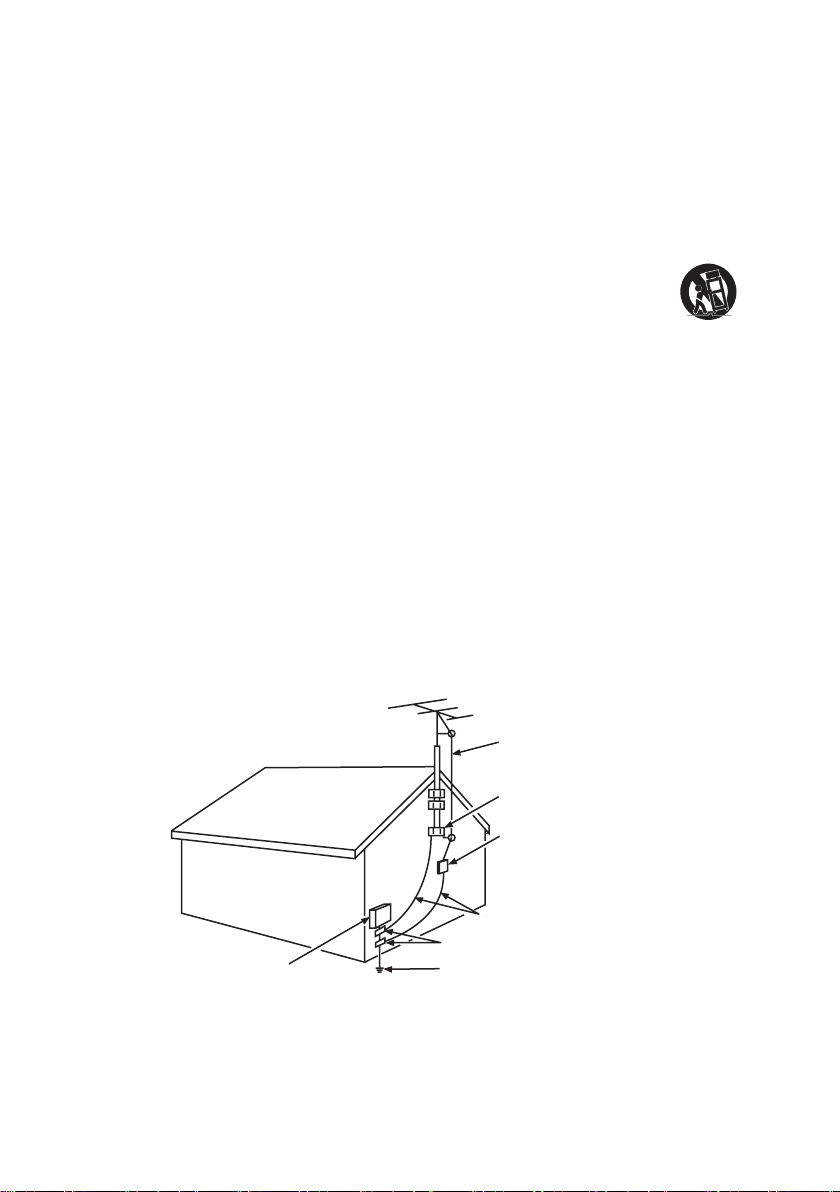
14. If an outside antenna or cable system is connected to the product, be sure the antenna or cable system is
grounded so as to provide some protection against voltage surges and built-up static charges. Section 810
of the National Electrical Code, ANSI/NFPA No. 70-1984 (Section 54 of Canadian Electrical Code, Part 1)
provides information with respect to proper grounding of the mast and supporting structure, grounding of
the lead-in wire to an antenna-discharge unit, size of grounding conductors, location of antenna-discharge
unit, connection to grounding electrodes, and requirements for the grounding electrode. See following
example:
ANTENNA LEAD IN WIRE
GROUND CLAMP
GROUNDING CONDUCTORS
(NEC SECTION 810-21)
GROUND CLAMPS
POWER SERVICE GROUNDING
ELECTRODE SYSTEM
(NEC ART 250, PAR TH)
ELECTRIC SERVICE
EQUIPMENT
ANTENNA DISCHARGE
UNIT(NEC SECTION 810-20)
ANTENNA LEAD IN WIRE
GROUND CLAMP
ANTENNA DISCHARGE UNIT
(NEC SECTION 810-20)
GROUND CLAMPS
GROUNDING CONDUCTORS
(NEC SECTION 810-21)
ELECTRIC SERVICE
EQUIPMENT
POWER SERVICE GROUNDING
ELECTRODE SYSTEM (NEC ART
250, PARTH)

3
Table of Contents
Important Information ..............................1
Important Safety Instructions ...................2
Chapter 1 - Connections and Setup
Before Initial Setup .................................4
Check Supplied Parts .............................4
Attaching Your TV to the Table Stand ......... 5
Mounting Your TV to the Wall ..................5
Buttons on TV
...........................................6
Explanation of Jacks on TV
.......................6
Choose Your Connections .......................7
Nework Connection .................................9
Connecting to a wired network .............9
Network Setup .........................................9
Internet Connections ............................9
Wired Network Setup ...........................9
Wireless Network Setup .......................10
Information ..........................................10
IP setting .............................................10
Connection Test ....................................10
Remote Control Functions .......................11
Obtain the Signal .....................................12
Switching On ...........................................12
Switching Off ...........................................12
Initial Set-up.............................................13
Chapter 2 - Menu Operation
Menu Display ...........................................14
Using Menu System ................................15
Picture Menu ...........................................15
Picture Mode ........................................15
Dynamic Backlight ................................15
Brightness ............................................15
Contrast ................................................15
Tint........................................................15
Color .....................................................15
Sharpness ............................................15
Color Temperature ................................15
Advanced Settings ...............................15
Sound Menu ............................................15
Sound Mode .........................................15
Balance ................................................15
Sound Surround ...................................15
Speaker ................................................15
SPDIF Type ..........................................15
Auto volume control..............................15
MTS ......................................................15
Default Audio Language .......................15
Current Audio Language ......................16
TV Menu ..................................................16
Signal Type ...........................................16
Channel Scan .......................................16
Channel Skip ........................................16
Time Menu ...............................................17
Time Zone ............................................17
Daylight Saving Time............................17
Time .....................................................17
Sleep timer ...........................................17
Connection Menu ....................................17
Netix ...................................................17
Yahoo! Connected TV...........................17
YouTube ...............................................17
Share & See .........................................17
Settings ................................................17
Media Menu .............................................18
Photo ....................................................18
Music ...................................................18
Video ...................................................18
Parental Menu .........................................19
Change V-Chip Password ....................19
Channel Block .....................................19
Program Block ......................................19
Input Block............................................20
Button Block ........................................20
Clean all ...............................................20
Setup Menu .............................................20
OSD Language.....................................20
Screen Mode........................................20
Closed Caption ....................................20
System Information .............................21
Software Upgrade ...............................21
Esticker .................................................21
Reset Default .......................................21
Chapter 3 - Other Information
Frequently Asked Questions (FAQs) .......22
Troubleshooting .......................................23
Care and Cleaning...................................25
Television Specications..........................26
Limited Warranty .....................................27

4
Before Initial Setup
Protect Against Power Surges
• Connect all components before you plug any power cords into the wall outlet or power strip.
• NEVER plug your TV into an outlet that is controlled by a wall switch.
• Turn off the TV before you connect or disconnect any cables.
• Make sure all antennas and cables are properly grounded. Refer to the Important Safety
Instructions.
Safety Information
• Protect components from overheating.
• Don’t block ventilation holes on any of the components. Arrange the components so that air can
circulate freely.
• Don’t stack components.
• If you place the component in a stand, make sure you allow adequate ventilation.
• If you connect an audio receiver or amplier, place it on the top shelf so the heated air from it won’t
harm other components.
Avoid Audio Interference
• Position cables properly; insert each cable rmly into the designated jack.
• If you place components above the TV, route all cables down one side of the back of the TV instead
of straight down the middle.
• If your antenna uses 300-ohm twin lead cables, do not coil the cables.
• Keep twin lead cables away from audio/video cables.
Avoid Direct Light
Don’t place the TV where sunlight or room lighting is directed toward the screen. Use soft or indirect
lighting.
Check Supplied Parts
Check that the following parts were packed with your product.
• 1 Remote Control and 2 AAA Batteries;
• Audio/Video adapter cable;
• Audio adapter cable;
• Component Video (YPbPr) adapter cable;
• User’s Guide;
• Quick Start Guide;
• Parts List for Table Stand (see page 5)
Chapter 1 Connections and Setup
5
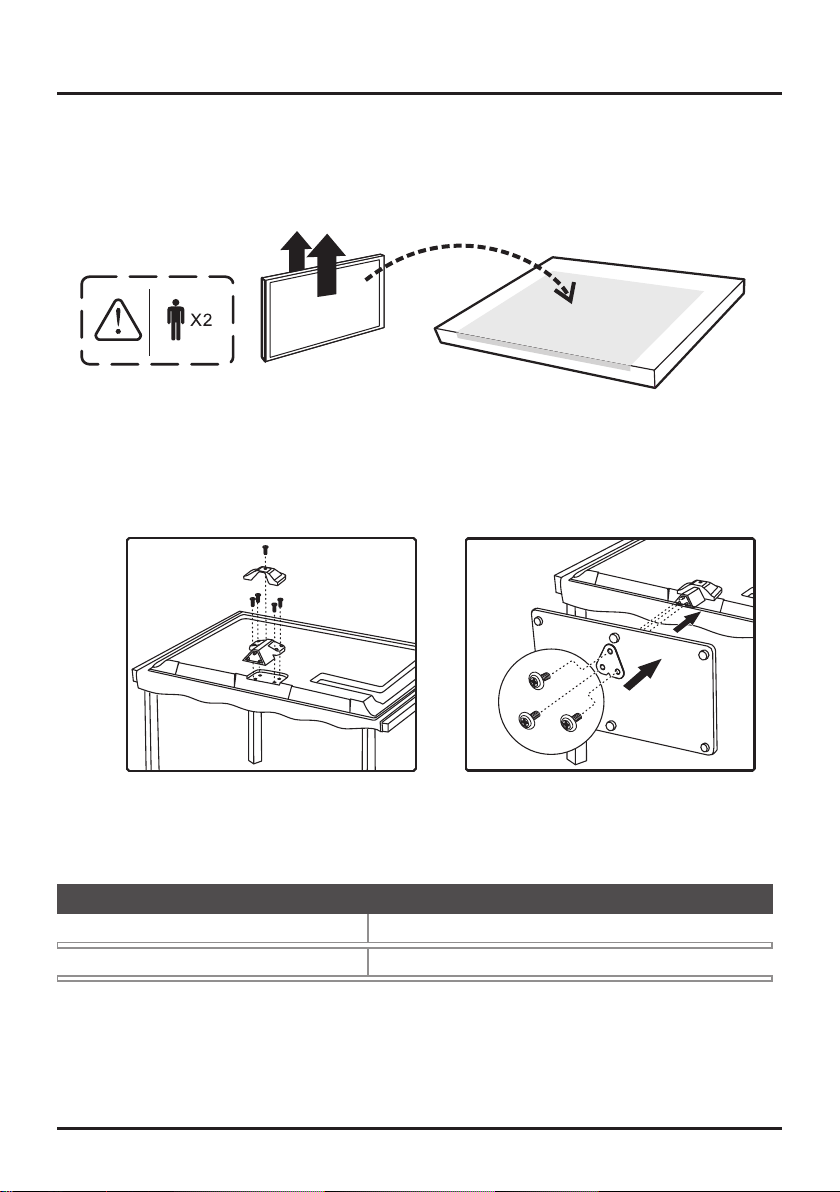
Attaching Your TV to the Table Stand
Your TV comes without the table stand attached so that you can choose to mount your TV either to
its table stand or to a wall (wall mount sold separately). If you want to mount your TV to the wall, don’t
attach the table stand. Follow the Mounting Your TV to the Wall instructions.
First, remove the TV bag and place it on a large, at surface such as a table or countertop.
Remove the TV from the carton and place it face down on the TV bag. Be sure that the TV is
face down to avoid scratching the screen.
Then follow the steps below:
Connections and Setup
Mounting Your TV to the Wall
The VESA number is the horizontal and vertical measurement of the mounting holes. For example,
200x100 refers to the fact that the mounting measurements are 200mm horizontally and 100mm vertically.
Notes:
Follow the directions included with the wall mount to mount the TV to the wall.
Caution:
Your wall mount must be able to bear a minimum of ve times the TV’s net weight to avoid causing damage.
To mount your TV to the wall, purchase a VESA wall mount.
Model 50”
Model 55”
Purchase a VESA 400 x 200, M6 screw
Purchase a VESA 400 x 400 , M6 screw
1
2
one M3 screw
four M4 screws
TV
three M5 screws
Table Stand
6
Connections and Setup
Buttons on TV
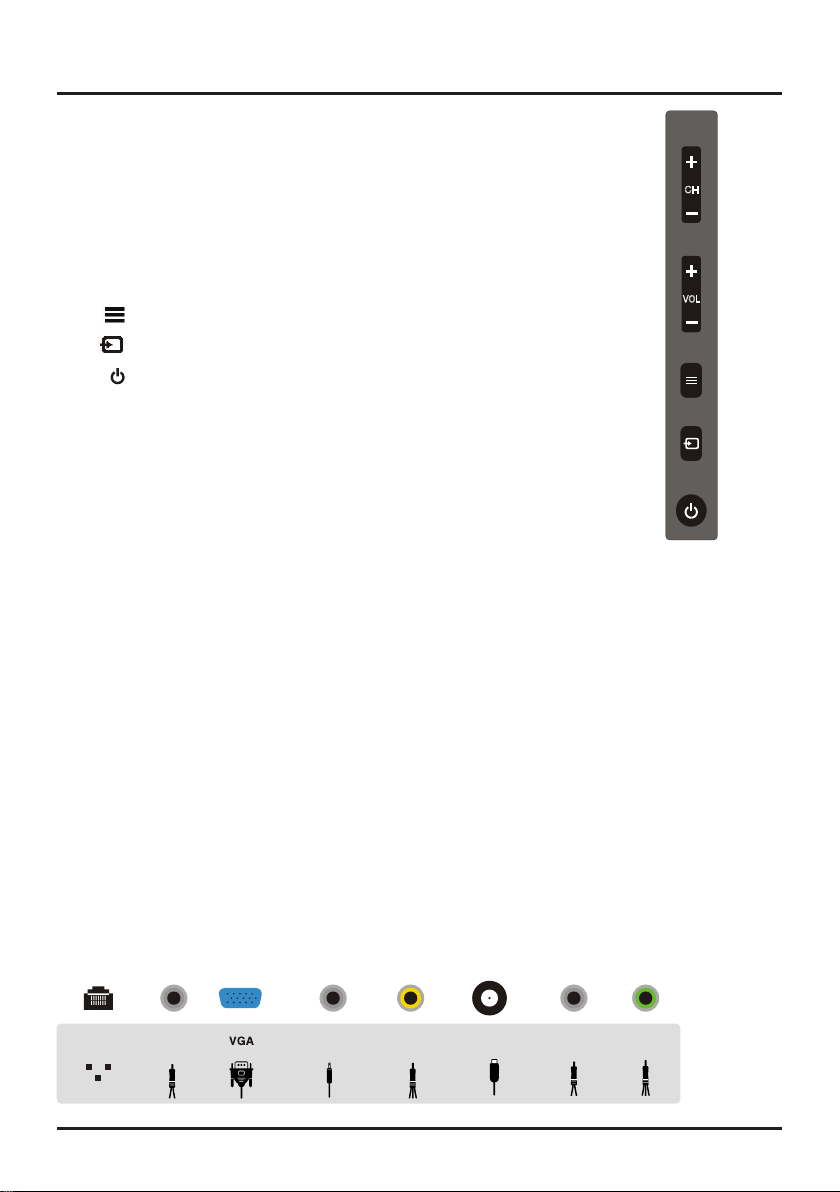
If you cannot locate your remote, you can use the TV panel buttons on
your TV to operate many TV features.
CH+/-
Selects channels stored in the channel list or acts as the
up/down arrow (▲/▼) through the menu items.
VOL+/-
Increases/decreases the volume or acts as the right/left
arrow(◄/►) through the menu items
.
(MENU
button) Brings up the TV’s main menu.
(INPUT
button) Selects the signal source.
(POWER
button) Turns the TV on or to standby mode.
CH
VOL
Explanation of Jacks on TV
This section describes the jacks on the side/back panel of your TV. There are
several ways to connect components.
Ethernet
Lets you connect an Ethernet cable to access the Internet.
AUDIO OUT Adapter
(you must connect an audio adpter cable with two color jacks to this adpater jack rst, red and
white jacks for R AUDIO and L AUDIO connection)
Use an RCA audio cable to connect your TV to a compatible audio
receiver.
VGA (PC IN)
Connect your computer or other component with a VGA output to this jack using a 15-pin,D-sub cable.
DVI/PC AUDIO IN
(used for DVI/PC only)
Provides audio connection when using HDMI/DVI INPUT 1 jack for DVI
or when using VGA (PC IN).
AV 2 IN adapter
Lets you connect a component that has composite video jacks, such as a VCR or DVD player.
(Note
that you must connect an Audio/Video adpter cable with three color jacks to this adapter jack rst, Yellow jack for VIDEO
connection, red and white jacks for R AUDIO and L AUDIO connection.
For mono audio sources, be sure to use the L
AUDIO INPUT.
)
ANTENNA/CABLE/SAT IN
Lets you connect a coaxial cable to receive the signal from your antenna, cable, or
cable box, satellite receiver.
CMPT AUDIO IN adapter
Provides left and right audio connection when using the CMPT VIDEO input.
(Note that
you must connect an Audio adpter cable with two color jacks to this adapter jack rst, red and white jacks for R AUDIO
and L AUDIO connection.
For mono audio sources, be sure to use the L AUDIO INPUT.
)
CMPT IN (Y Pb Pr) adapter
Lets you connect a component that has component video jacks, such as a DVD
player.
(Note that you must connect a Component Video adpter cable with three color jacks to this adapter jack rst:
Green jack for Y, Blue jack for Pb and Red jack for Pr )
• YPbPr(ComponentVideo)
Provides good picture quality because the video is separated into three signals. Use
three video-grade or component video cables for the connection.
Ethernet
AUDIO OUT
adapter
DVI/PC
AUDIO IN
AV 2 IN
adapter
ANTENNA
/CABLE/SAT IN
CMPT IN
adapter
CMPT AUDIO
IN adapter
PC IN
7
Connections and Setup
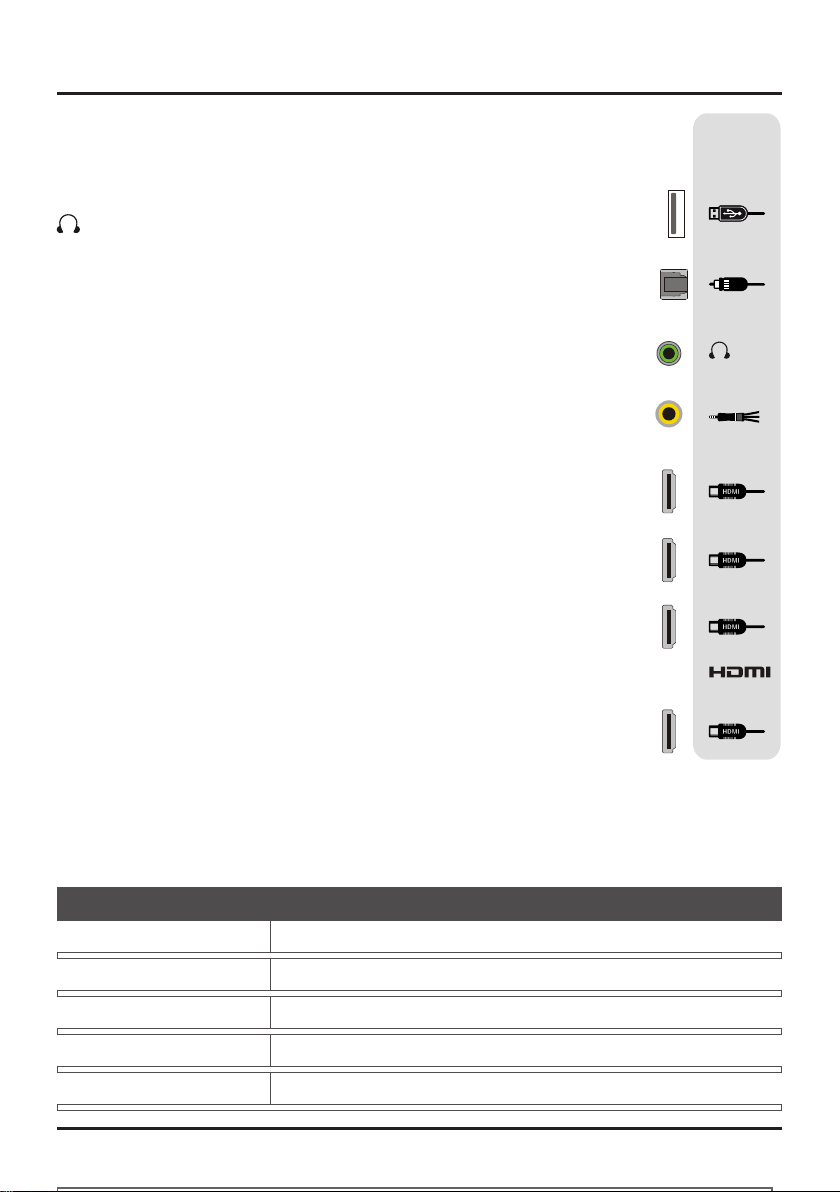
USB
Allows you to connect a compatible mass storage device.
SPDIF(optical) - DIGITAL AUDIO OUT
Use a digital optical cable to connect your TV to a compatible audio receiver.
(HEADPHONE)
Allow you to connect headphones to listen to the sound coming from the TV.
AV 1 IN adapter
Lets you connect a component that has composite video jacks, such as a VCR or
DVD player.
(Note that you must connect an Audio/Video adpter cable with three color
jacks to this adapter jack rst, Yellow jack for VIDEO connection, red and white jacks
for R AUDIO and L AUDIO connection.
For mono audio sources, be sure to use the
L AUDIO INPUT.
)
HDMI 2 IN / HDMI 3 IN / HDMI 4 IN
Lets you connect a component, such as a digital cable box, with an HDMI output
for the best picture quality.
HDMI 1/DVI IN
(High-Denition Multimedia Interface/Digital Visual Interface) Provides an
uncompressed digital connection that carries both video and audio data by way
of an integrated mini-plug cable. Since HDMI technology is based on Digital
Visual Interface (DVI), the jack on the back of your TV is also compatible with DVI
components.
Note: If using a DVI component, remember to connect the audio cable because the
DVI cable carries only the picture signal, not the sound.
USB
SPDIF
(optical)
HDMI 1
/DVI IN
HDMI 2 IN
HDMI 3 IN
HDMI 4 IN
AV 1 IN
adapter
Choose Your Connections
There are several ways to connect components, such as BD player, DVD players and set-top boxes, to your
TV.
Note:
No cables are supplied with this unit. Please purchase the necessary cables. A high-speed HDMI cable
is recommended for better compatibility.
Input Signal Compatability
Antenna/Cable
480i, 480p, 720p, 1080i (NTSC, ATSC, and QAM formats)
Composite Video
480i
Component Video
480i, 480p, 720p/60Hz, 1080i/60Hz, 1080p/60Hz
HDMI
480i, 480p, 720p/60Hz, 1080i/60Hz, 1080p/60Hz
PC
VGA SVGA XGA
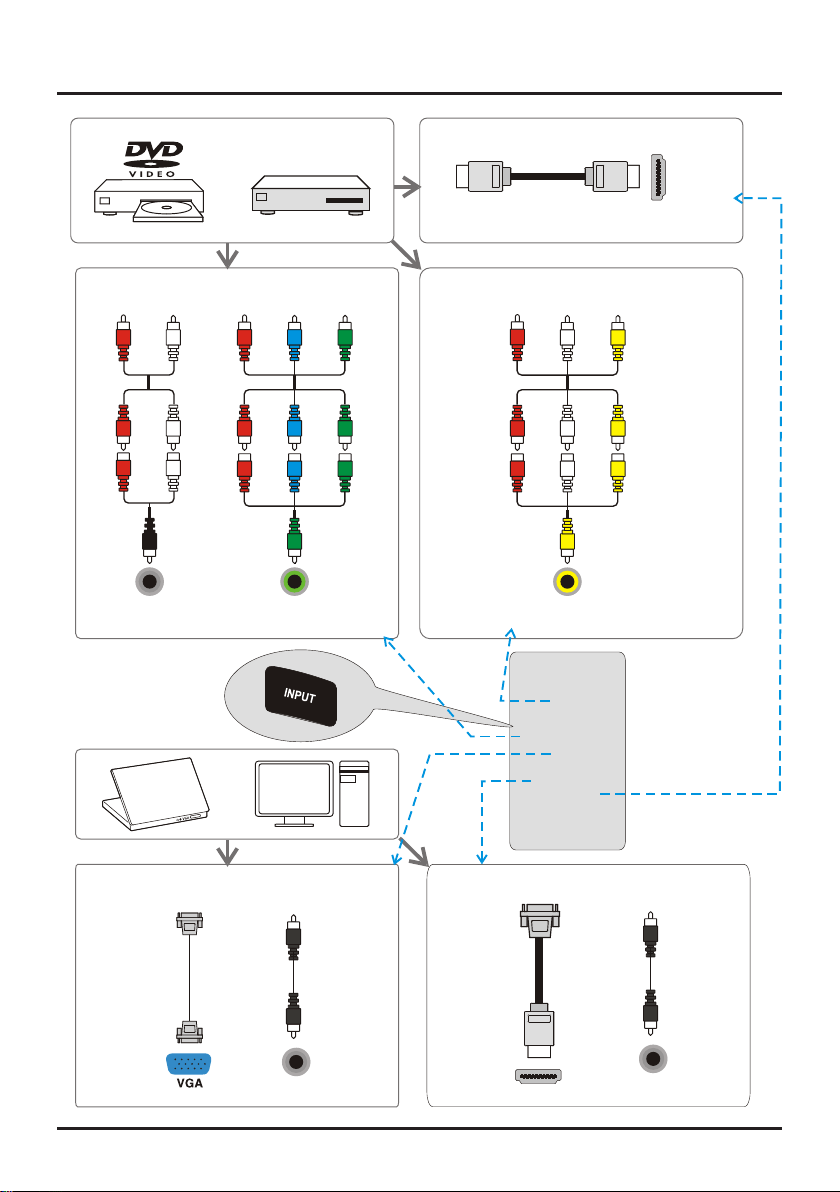
8
Connections and Setup
or
Set-top box
HDMI Connection (Best)
HDMI 2 IN
CMPT AUDIO
IN adapter
CMPT IN
adapter
AV 1 IN
adapter
Component Video Connection (Better) Composite Video Connection (Good)
or
DVI/PC
AUDIO IN
DVI/PC
AUDIO IN
HDMI 1/DVI IN
PC Connection
HDMI/DVI Connection
HDMI-DVI
conversion
cable
HDMI cable
(Same connnection to HDMI 1 IN, HDMI 3 IN and HDMI 4 IN)
Audio/video
adapter cable
VGA
cable
Audio
cable
Audio
cable
Y
Pb
Pr
R
L
Y
Pb
Pr
R
L
Y
Pb
Pr
R
L
R
L
VIDEO
VIDEO
R
L
AUDIO
AUDIO
AUDIO
AUDIO
R
L
AV 2 IN
adapter
or
CMPT Video
adapter cable
CMPT Audio
adapter cable
Main
TV
AV 1
AV 2
Component
PC
HDMI 1
HDMI 2
HDMI 3
HDMI 4
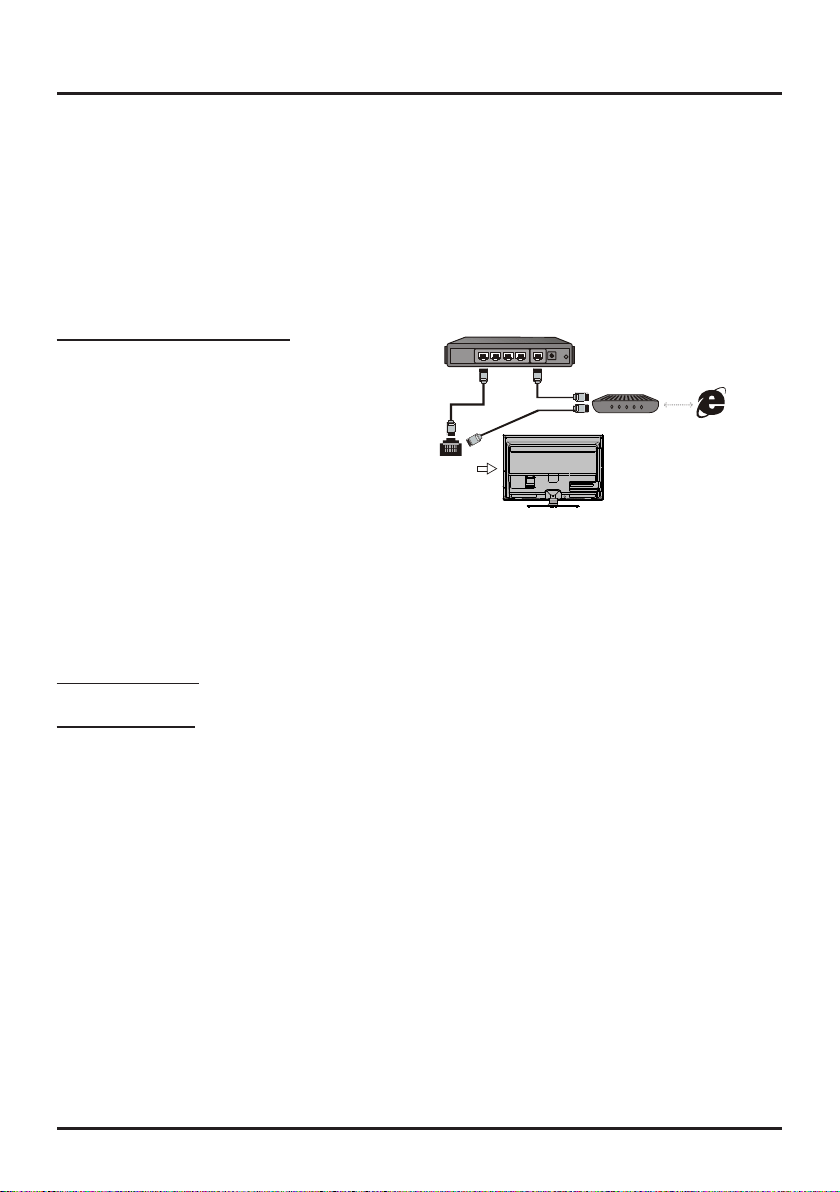
9
Connections and Setup
Network Connection
To access the Internet from this TV, you must separately subscribe to high speed broadband Internet service with
your Internet Service Provider.
Your TV is internet-ready, and can be connected to your home network in two ways:
• Wired, using the RJ45 (Ethernet) connector on the back panel.
• Wirelessly, built-in a wireless setting and your home wireless network.
Note: following are just the usual ways to connect your TV to the wired or wireless network. The connection method
may be different and you can make the connection depending on your actual network conguration. Please refer to
your Internet Service Provider.
Network Setup
After you connect your home network to the TV, follow the steps below to conguire your TV to be connected to the
network.
Press
MENU
to display the main menu, select
Connection > Settings > Conguration
, press
OK/
► to display its
options:
Internet Connections
This option allows you to turn Internet connection on or off. You must set in On mode to
congure the following network settings.
Wired Network Setup
Select
Connection > Settings > Conguration > Interface
, press ◄/►
to select
Ethernet
to connect to a wired
network.
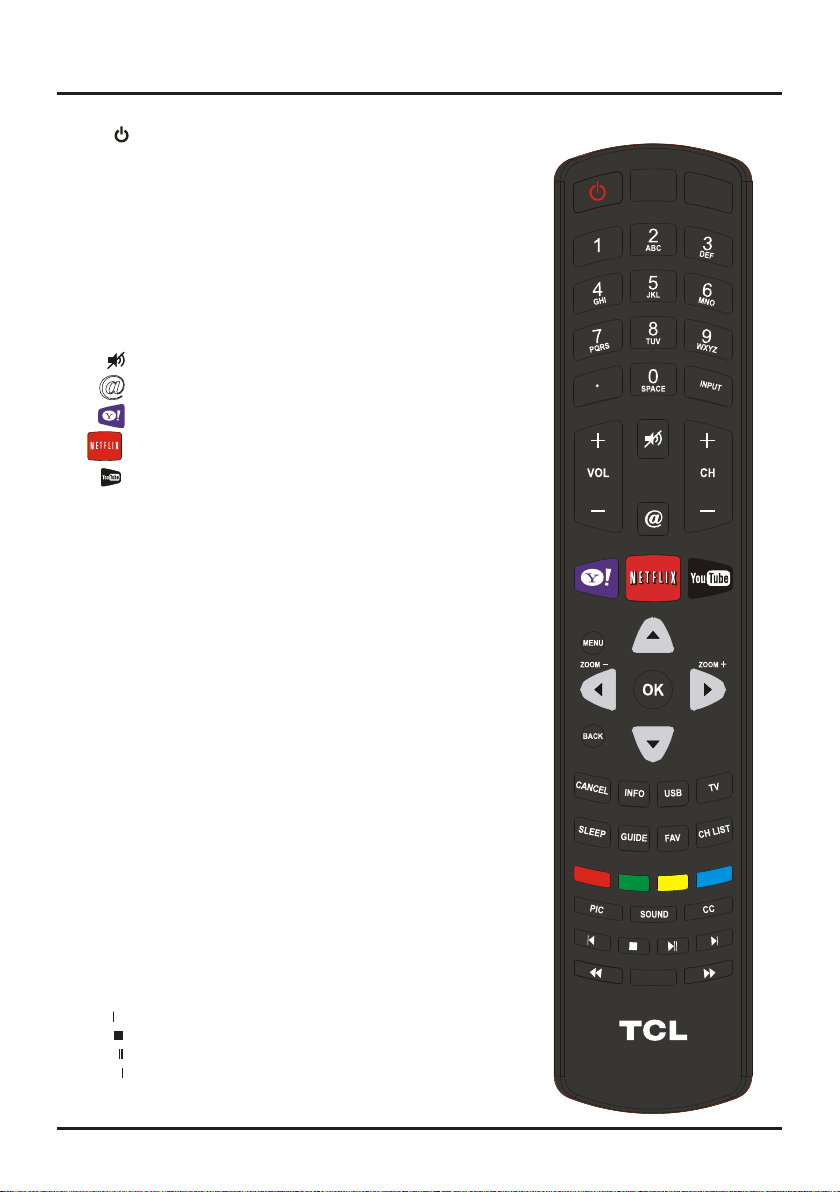
Connecting to a wired network
To connect to a wired network:
1. Ensure you have:
• An ethernet cable long enough to reach your TV
• A router or modem with an available Ethernet port
• A high-speed internet connection
• An
Ethernet port
on the back of the TV
2. Connect your ethernet cable to the router and to the
Ethernet port
on the back of the TV.
3. Use the
Network Setup
to congure the TV.
Modem
Router
Ethernet
Port on the
back panel
or

10
Connections and Setup
Wireless Network Setup
1. Select
Connection > Settings > Conguration > Interface
, press ◄/►
to select
Wierless
to connect to a WiFi
wireless network.
2. Select
Connection > Settings > Conguration > Wireless Setting,
press
OK/
► to enter.
3.
Connection Methods:
you can setup the wireless network connection three ways.
-
Scan
• Select
Wireless setting > Scan
, then press
OK/
►, the TV will scan all available wireless networks within
range. The networks found by the TV will be displayed.
• Select an available access point, then press
OK/
► to connect the TV to it.
Notes:
-
If you select a secure
wireless network
, you will have
to enter the corresponding password to access it.
- This TV will remember the password even if you switch on TV after power off.
-
Manual
Select
Wireless setting > Manual
, then press
OK/
►, you will be prompted to enter the correct SSID of an
available wireless router to setup the
connection.
- Auto
If your wireless networks supports
WPS
(Wi-Fi Protected Setup), you can connect to the network via
PIN
(Personal Identication Number) or
PBC
(Push Button Conguration). WPS will automatically congure
the SSID and WPA key in either mode.
Select
Wireless setting > Auto
, then press
OK
/►to enter.
•
PIN:
select
PIN
, then press
OK
/► to enter. Generate a random PIN code and make sure
this code is installed
to the AP (for the procedures,
refer to your router manual), then press
OK/
► again to setup the connection.
•
PBC:
If your router has a PBC push button, select
PBC
, then press
OK
/► to enter. Press PBC push button on
your router within 2 minutes after you
press
OK
/► again. Your TV will automatically acquire all the network
setting values it needs and connect to your network.
Information
Select
Connection > Settings > Conguration > Information
, press
OK
/► to display the information on current
connection, such as Interface, Address type, IP address, etc..
IP setting
Select
Connection > Settings > Conguration > IP Setting
, then press
OK
/► to enter the
IP setting
menu.
- Set
Address type
to
Auto
, it will acquire and enter the needed IP address automatically.
- You can follow below steps to enter your IP address manually if needed.
• Set
Address type
to
Manual
, then press ▼ to go to the rst entry eld.
• Enter the
IP address, Subnet mask, Default
gateway, Primary DNS
and
Secondary DNS
values. Use the
digit buttons on your remote control to enter numbers and the arrow buttons to move from one entry eld to
another.
- After setting, select
Connection > Conguration > Connection Test
to check the Internet connectivity again.
Connection Test
Select
Connection > Settings > Configuration > Connection Test
, then press
OK
/► to check the Internet
connectivity. If it doesn't work, follow above steps to ensure the connectivity or refer to your Internet Service Provider.
11
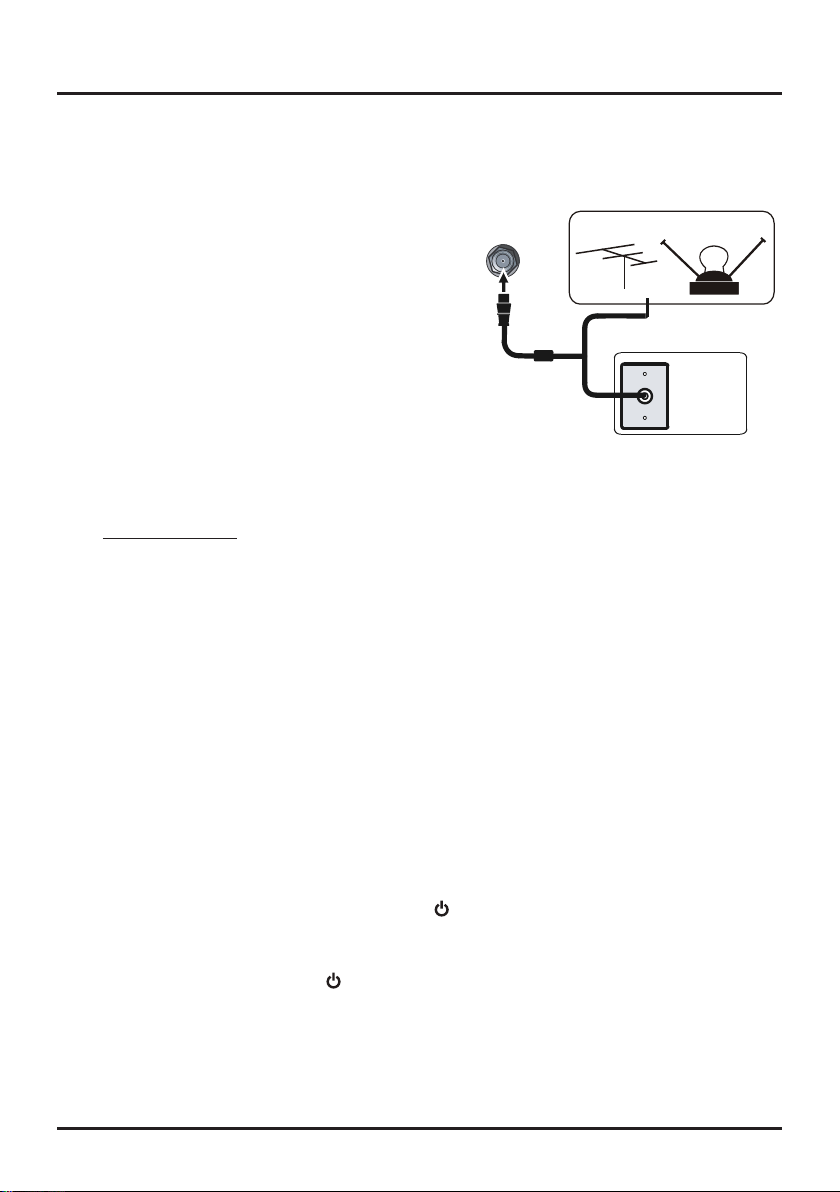
Remote Control Functions
(
On/Off button) Turns the TV on or standby.
0-9
(Alphanumeric buttons) Enters a channel number, then
press
OK
(or let the entry timeout). Enters a letter, a digit
or a symbol in some functions.
•
(dot) To enter a digital channel with a sub-channel, enter
the main channel; then, press the dot (•), the sub-channel,
and then the
OK
button.
INPUT
Opens the
Input
list; then press
INPUT
repeatedly to select .......
the video input, or press (
▲/▼
)
to highlight options, and
press
OK
to select the desired option.
VOL+/-
Increases or decreases the TV volume.
CH+/-
Selects channels.
(
Mute
) Turns the volume on and off.
@
(
Connection
) Enters the Connection menu.
(Yahoo)
Yahoo connected TV.
Goes to NETFLIX main page.
MENU
Brings up the main menu or press to return to the previous ......
menu; to access or exit virtual keyboard.
▲/▼◄/►
(
arrows
)
Highlights different items in the TV menu and
adjusts the menu controls.
ZOOM+/-
Selects the desired screen format.
OK
Displays Channel List menu. When the TV is in the menu .........
system, press to conrm your selection.
BACK
Returns you to the previously viewed channel.
CANCEL
Exits the menu.
INFO
If no menus are currently active, press the INFO button to ........
display the Channel Banner.
USB
Goes to the Media menu.
TV
Goes to the TV mode.
SLEEP
set the TV to turn off after a given amount of time.
GUIDE
Toggles the Electronic Programme Guide between on and .......
off. Only available for digital channels.
FAV
Sets the favorite channel: select a channel rst, then press ......
FAV to open the menu, press
OK
to set this channle as
your favourite. Set another favourite channel, press ▼ to
move to the next line, and repeat the above step. Next
time press FAV to display the favourite channel list, press .........
▲/▼ to select a favourite channel, and p
ress
OK
to watch. ......
Note:
press OK once again will delete this channel from the .......
favourite channel list,
CH LIST
Displays the channel list menu.
PIC
Selects picture mode.
SOUND
Selects sound mode.
CC
Enters the CC menu.
Red/Green/Yellow/Blue Buttons
Reserved for future application.
◄ (Previous) Goes to the previous chapter.
(Stop) Stops viewing.
► (Play/Pause) Starts, pauses or resumes viewing
► (Next) Goes to the next chapter.
◄◄ Searches backword.
►► Searches forward.
Connections and Setup
RC3100N08
Goes to You Tube main page.
RC3100N08
12
Obtain the Signal
The rst step in connecting your TV is obtaining the signal. The back panel of your TV allows you to receive
analog and/or digital channels by using the
HDMI
or
ANT/CABLE/SAT
connections. To obtain the best
quality, use the
HDMI
connection.
Connect the outside ariel to the
ANT/CABLE/SAT IN
connection on the back of the TV to receive off-air channels.
Use an
HDMI
connection to display the best picture and
sound quality for satellite and cable
• If you have a set-top box, you may need to call your cable
company or satellite service provider. They may commend
special cables to allow you to view digital channels.
• The aerial socket (75 OHM - VHF / UHF / cable) can be used
for connecting an external aerial or other equipment tted
with a modulator (video recorder, satellite receiver, etc.). We
recommend that you do not connect other equipment (video
recorder, satellite receiver, etc.) to your TV set to begin with,
so as not to complicate the set-up procedure with the
additional steps involved. Connect them when you have
nished setting up the channels.
• Visit www.antennaweb.org for help in deciding what type of antenna to use in order to receive the local digital
channels available to you. Enter your location, and the program will list local analog and digital stations available
using your antenna.
Switching On
Follow the instructions on this page on how to switch on your TV set and use the remote control before going on to
following pages describing how to use the channel scan procedure.
1. Insert two AAA batteries in the remote control.
Precautions on using batteries:
- Only use the battery types specied.
- Make sure you use the correct polarity.
- Do not mix new and used batteries.
- Do not use rechargeable batteries.
- Do not expose batteries to excessive heat such as sunshine, re or the like, throw them in a re, recharge them
or try to open them, as this could cause them to leak or explode.
- Remove the batteries from the remote control if you are not using it for a long period of time.
2. Connect the power cable to a mains socket. (If the power cable is not connected to the television, please rst
connect the power cable to the television.) Your TV set should only be connected to an AC supply. It must not be
connected to a DC supply. If the plug is detached from the cable, do not, under any circumstances, connect it to a
mains socket, as there is a risk of electric shock.
3. When powered on, if the TV set is in standby mode, press on the remote control or on the TV set to turn on the
TV.
Switching Off
To put the TV set into standby mode, press on the remote control or on the TV, the TV set remains powered up,
but with low energy consumption.
To switch off the TV set, unplug the mains socket from the mains outlet.
Connections and Setup
ANTENNA
/CABLE/SAT IN
Outdoor or indoor Antenna
Cable Box,
( Wall Outlet)
RF Coaxial
Wire
(75 ohm)
Or
Or
13
Connections and Setup
Initial Setup
Initial setup involves selecting all the settings required to
be able to search for and store all the channels you can
receive. Make sure that the television is switched on and
follow all the steps in turn specied hereafter.
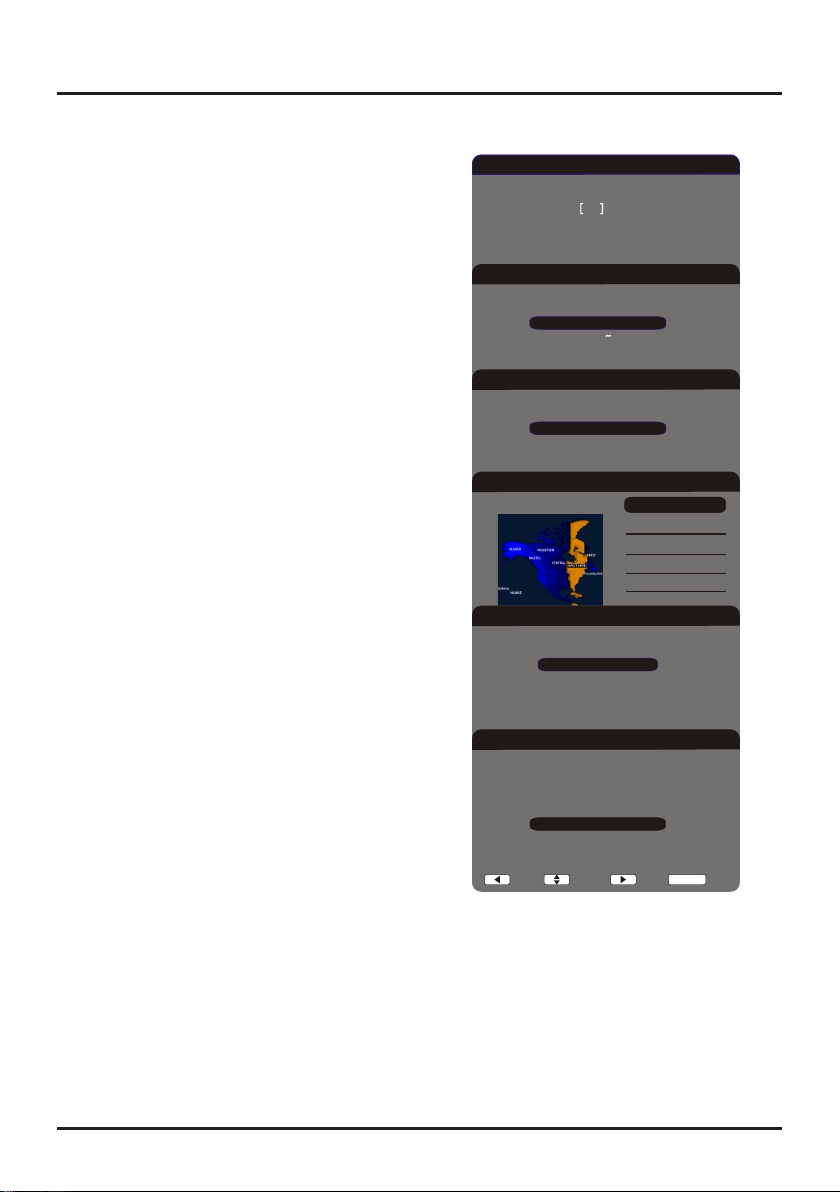
The rst time you switch the set on, the Initial setup
wizard opens, which guides you through the initial setup
process. Press
OK
to start your initial setup.
1. Press ▲/▼ to select your language, then press
OK
/► to enter the next screen.
2 A menu screen asks you to set the TV Location.
• Choosing “
Home
” for the TV Location assigns
the optimal picture settings for most home
environments.
• Choosing “
Retail
,” which is not Energy Star
compliant, sets the unit up with predened
settings for retail displays. In this setting, the
power consumption may exceed the requirements
of the Energy Star® qualication.
Use ▲/▼to select the desired location setting (
Home/
Retail
); then press
OK
/► to continue to the next screen.
3. Use ▲/▼ to select the current local time zone. Press
OK
/► to continue to the next screen.
4. On the
Tuner
screen, select either
Antenna
or
Cable.
Press
OK
/► to continue to the next screen.
Note:
If you are using a satellite or cable set-top box,
you do not have to complete the Channel Scan
.
5. The
Channel Scan
screen is now displayed. The
default choice is to scan. Press
OK
/► to begin the
channel scan for available channels to be stored in
the TV’s memory.
Note:
If you do not want to scan for channels at this
time, press the
CANCEL
button to stop the scanning
process.
6. The screen will change to show the progress of the
scanning process.
7. When the scanning is nished, the unit has ompleted
the Initial Setup.
8. Press
CANCLE
to exit the Wizard and begin watching
TV.
Welcome to use the Wizard for Initial Setup!!
Initial Setup Welcome
Please press OK to start the wizard.
Please select your language:
English
Espanol
Initial Setup Language
Back Select Next Exit
CANCEL
Please select your TV Location:
Home
Retail
Initial Setup TV Location
Back Select Next Exit
CANCEL
Initial Setup Time Zone
Please select your time zone:
Eastern
Central
Mountain
Pacific
Alaska
Hawaii
Back Select Next Exit
CANCEL
Please select your tuner mode:
Antenna
Cable/Sat
Initial Setup Tuner
Back Select Next Exit
CANCEL
Initial Setup Channel Scan
First, please connect Cable/Sat or Antenna. Scan now? If you skip this step,
Scan
Skip Scan
the Channel Scan could be performed in Setup menu later.
Back Select Next Exit
CANCEL
This mode is Energy Star compliant.
14
Menu Display
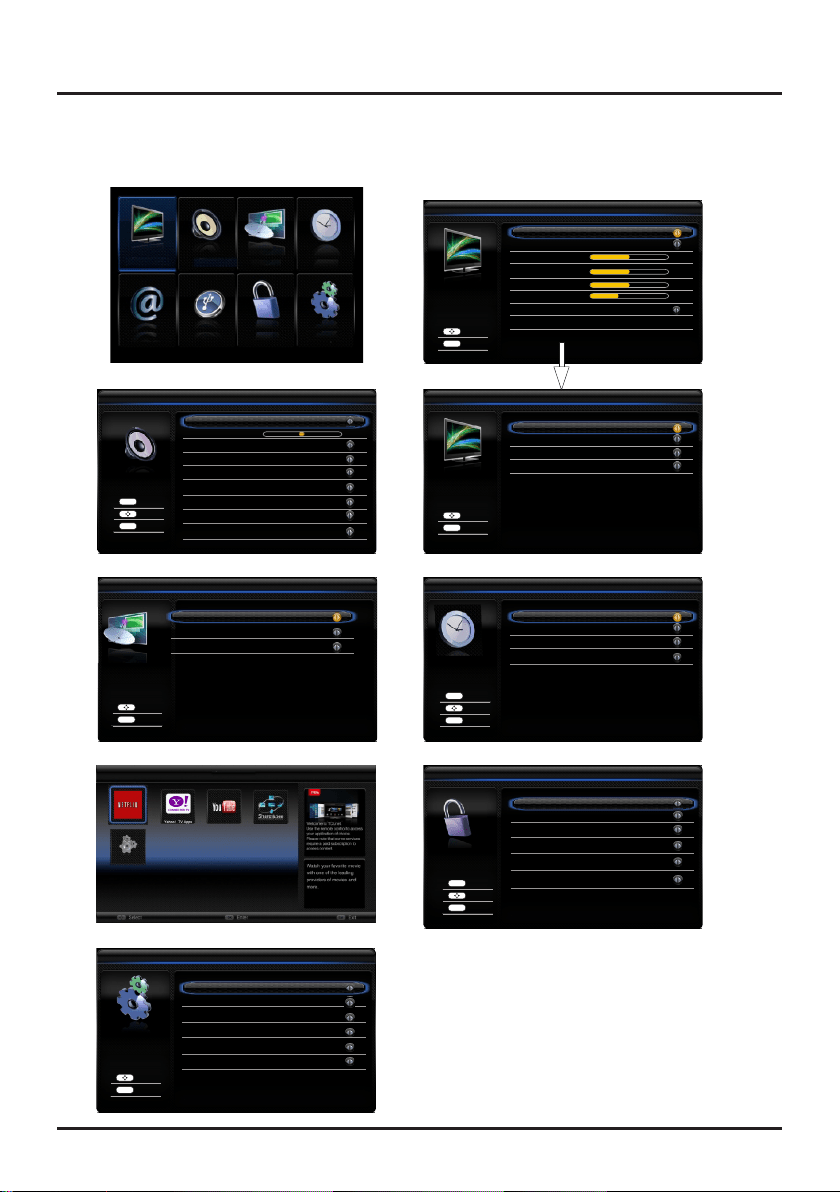
Following are just the illustration of the menu display. For some opions such as
Advanced Settings
in the
Picture
menu,
Audio Language
in the
Sound
menu may be displayed in the next screen.
Chapter 2 Menu Operation
Picture
Picture Mode
ECO
Contrast
Color
50
50
Back
Select
Dynamic Backlight
Off
Brightness
50
Sharpness
8
Color Temperature
Advanced Settings
Advanced Settings
DNR
Medium
MEPG NR
DI Film Mode
Blue Stretch
Low
Auto
Off
Picture
Sound TV Time
Connection
Med Setup
Normal
Cancel
Back
Select
Cancel
TV
Signal Type Antenna
Channel Scan
Channel Skip
Back
Select
Cancel
Time Setup
Time Zone
Time
Daylight Saving
Auto
Back
Select
Cancel
Enter
OK
Parental Control
Channel Block
Program Block
Input Block
Change Password
Clean All
Back
Select
Cancel
Enter
OK
Button BLock Off
Settings
Sleep Timer
Off
Setup
OSD Language
System Information
Reset Default
Engli
Shop
sh
are Upgrade
Back
Select
Cancel
Closed Caption
CEC
Version Info
Sound
Speaker
SPDIF Type
Off
PCM
Balance
0
Sound Surround
On
Auto Volume Control
Off
MTS
Stereo
Default Audio Language
English
Back
Select
Cancel
Enter
OK
Sound Mode
Current Audio Language
Not Available
Netflix YouTube Settings
Share & See
Settings
Parental Control
ia
Esticker
Softw
Connection

15
Menu Operation
DNR
(
Dyanmic
Noise reduction)
–
diminishes picture
artifacts caused by the digitizing of image motion
content that may be present in the picture. Press ◄/►
to choose between these options:
Off/Low/Medium/
High/Auto.
MPEG NR (Noise Reduction)
: this feature allows
you to reduce visible interference caused by MPEG
compression.
DI Film Mode:
Optimizes the picture for watching lm.
Select
Auto
or
Off
.
Blue Stretch:
selects
On
or
Off
.
Note:
some options may appear in the next screen of
Picture
menu, you can press ▲/▼ to switch.
Sound Menu
The
Sound
Menu lets you adjust audio output. Display
the main menu by pressing
MENU
and select
Sound
,
then press
OK
to confirm. The
Sound
menu appears
with the following options:
Sound Mode
:
selects a sound mode
from the list
depending on the programme you
are watching.
Balance
:
adjusts the amount of audio sent to the left
and right speakers.
Sound Surround
:
selects for the simulated surround
sound feature to be
On
or
Off
.
Speaker
:
selects to turn the internal speakers
On
or
Off
.
SPDIF Type
:
this option controls the type of audio
stream sent to the Digital Audio Output (
SPDIF
) jack.
Available options are
Dolby Digital, PCM
, or
Off.
Auto volume control
:
select
On
mode to reduce the
annoying blasts in volume during commercial breaks
and also amplifies softer sounds in program material.
Eliminates the need to constantly adjust the volume.
MTS
:
this option controls the manner in which the sound
comes through your speakers. Options available vary ac-
cording to the input selected.
Mono
(available for regular TV viewing only)
:
this
option plays the sound in mono only. Use this setting
when receiving broadcasts with weak stereo signals.
Stereo:
this option splits the incoming stereo audio
signal into left and right channels. Most TV programs
and recorded materials have stereo audio.
Second Audio Program (SAP):
this option plays the
program’s audio in a second language, if available.
SAP audio is broadcast in mono only. SAP is also
used to broadcast a program’s audio with descriptions
of the video for the visually impaired.
Default Audio Language
:
choose the language
you prefer for dialog on digital channels. If the preferred
language is not broadcasted with the program, then the
Using Menu System
This section explores the menus of your TV. Each menu
is outlined and detailed to help you get the most from
your TV. To access the menu system:
1. Press
MENU
to display the main menu.
2. Press ▲/▼/◄/► to select the desired item, then
press
OK
to open the corresponding submenu.
3. In submenus, use ▲/▼ to select menu options,
use ◄/►to set functions or change values. Press
OK
to activate a setting. Use
OK
/► to open the
corresponding submenu.
4. Press
MENU
to return to the previous menu or press
Cancel
repeatedly to close the menu.
Picture Menu
The menus for adjusting the picture are used to obtain
the best picture settings according to your preference,
the type of program you are watching and the ambient
lighting.
Display the main menu by pressing
MENU
and select
Picture
, then press
OK
to conrm. The
Picture
options
are as below:
Note:
some options may be not available for certain
signal sources.
Picture Mode
:
displays a list that lets you select one
of the preset picture settings:
Natural, Sports, Personal
or
ECO, Vibrant, Cinematic
. Choose the setting that is
best for your viewing environment.
Note: ECO
is the default setting, if you select some
other options, the power consumption may change.
Dynamic Backlight
:
this option automatically adjusts
the brightness of the backlight according to the content
of the incoming signal.
Dynamic Backlight
optimizes
the picture quality and decreases power consumption.
Note:
When
LightSensor
or
DynamicBacklight
is
set to Off,
the power consumption may exceed the
requirements of the Energy Star® qualication.
Brightness
:
adjusts the brightness of the picture.
Contrast
:
adjusts the difference between light and dark
areas of the picture.
Tint:
this option adjusts the balance between the red
and green levels.
Color
:
adjusts the richness of colour.
Sharpness
:
adjusts the crispness of the edges in the
picture.
Color Temperature:
Adjusts the color temperature of
the picture. Use◄/►to scroll through the color settings:
Cool
for a more blue palette of picture colors;
Standard
;
and
Warm
for a more red paletteof picture colors.
Advanced Settings
:
press
OK
/► to display its
submenu.

16
Menu Operation
TV plays the default audio for the program (usually
Eng-
lish
in the US). There are 2 available default languages
(
English, Spanish
).
Note:
The
DefaultAudioLanguage
option is only avail-
able for digital channels.
Current Audio Language
:
press ◄/► to choose
from the list of languages available for the program
you’re watching. The language chosen becomes your
preferred language for all digital channels until you
turn the TV off. If the language chosen is not being
broadcasted with a program, the TV plays the default
language for the program (usually
English
in the US).
Note:
The
CurrentAudioLanguage
option is only
available for digital channels.
TV Menu
When you rst used your TV you will have setup your TV
for DTV / TV channels using the Initial Setup screens. If
you did not do this or if your setup has changed, you can
do this from the TV menu.
Signal Type
:
chooses the type of signal (
Cable/Sat or
Antenna
) depending upon which equipment you have
connected to the
ANT/CABLE/SAT IN
.
Channel Scan
:
selects this item and press
OK
/► to
start channel scan automatically.
(
Note:
If you wish to
stop the search, press the
Cancel
button.)
When you perform a Channel Scan, your TV searches
for channels with signals and stores the channel infor-
mation in the Channel List. Then, as you watch TV and
press
CH+
or
CH-
, your TV goes to the next or previous
channel in the Channel List and skips the channels that
do not have signals.
If the TV signal source changes – for example, if you
change from an outdoor antenna to cable TV – you will
need to rescan for channels.
Channel Skip
:
After the TV has stored all of the avail-
able channels in memory you will nd that some chan-
nels will be too weak to watch comfortably or they may
be channels you do not want to see, you can hide these
channels in the channel list.

17
Menu Operation
Connection Menu
Access to the Internet is required to use the features in
this section. Please refer to the “
Network Connectio
n”
part of the “
Connections and Setup
” section of this
manual.
Note:
More Internet applications will be upgraded later.
Kindly check with sales representative for more details
and upgrading schedule.
Netix
Netix is available in certain countries. Unlimited mem-
bership required. More information at www.netix.com.
With a Netix unlimited membership, instantly watch TV
episodes & movies streamed over the Internet from Net-
ix right to your TV.
Select
Connections > Netix
, and press
OK
to enter,
then follow the options and hints appear on the screen
to operate.
Yahoo! Connected TV
Yahoo! Connected TV provides an integrated Internet
and TV experience. then follow the options and hints ap-
pear on the screen to operate.
YouTube
YouTube is a place to discover and watch videos.
Select
Connections > YouTube
, and press
OK
to
enter and follow the menu guide to operate.
Share & See
With
Share & See
, you can enjoy recorded video,
picture, music and/or text les saved on your PC.
Adding media from your PC for sharing
Install a DLNA media server in your PC. One example
is Microsoft Windows Media Player 11. Allow your TV to
share the designated les on your PC.
1. Open Microsoft Windows Media Player 11.
- Select
Library > Media sharing
.
- Check the checkbox
Share my media t
o.
- Select the icon of the TV set connected to your PC.
- Select
Allow
to allow the TV set to access your PC,
and select
OK
to enable your allowing.
Note:
you can push
Settings
button to customize
your desired settings.
2. - Select
Library > Add to Libray
.
- Select your personal folders or folders of other
users that you can access for sharing.
- Select
Add
and press
OK
to enable your adding.
Share & See application
1. Select
Conenctions > Share & See
, then press
OK
to
display its options
.
2. Select
Photo
or
Music
. The same operation as
Photo, Music
or
Video
in
Media
Menu.
Settings
Conguration:
this option helps to connect your TV to
internet. For details please see "
Network Connection
"
& "
Network Setup
".
Time Menu
Time Zone
You can set the correct Time Zone for your area.
To choose a time zone:
1. Select
Time > Time Zone
, then press
OK
/► to open
Time Zone
screen
2. Press ◄/► to select the time zone for your area.
3. Press
MENU
to go back to the previous screen, or
press
CANCEL
repeatedly to close the menu.
Daylight Saving
selects
Auto
to set the daylight sav-
ing time for your area automatically.
Time
:
press
OK
/► to open
Time
submenu
Auto synchronization:
use ◄/► to select
On
or
Off
.
If
On
selected, the TV will get the time automatically
from DTV signals, and the Time item cannot be
adjusted. If you select
Off
, you should set date and
time at
Date
and
Time
item. Highlight
Date
or
Time
,
use ◄/► to select input space, enter the current date
or time by using the number buttons
.
Note: if
Off
selected, the time set in
Time
option will
not be memorized when turning on the TV next time,
and the TV 's time will start from the default.
Power on timer:
use ◄/► to select
Once, On
or
Off.
If you select
Once
or
On
, you should set a time
period after which the TV automatically switches to on
at
Timer
below this item. Highlight
Timer
, use ◄/► to
select input space, enter the on time using the
number
buttons
.
Power on channel:
press
OK
/► to display its
submenu. Highlight
Select mode
, use ◄/► to select
Last status
, the power on channel will be the last
channel you watched before powered off. Or you
can select
User select
, then press ▲/▼ to select the
channel you want to watch when the TV is turned on
automatically next time, and press
OK
to conrm.
Power off timer:
use ◄/► to select
Once, On
or
Off
. If you select
Once
or
On
, you should set a time
period after which the TV automatically switches to off
at
Timer
below this item. Highlight
Timer
, use ◄/►
to select input space, enter the off time using the digit
keys.
Sleep timer
:
sets a period of time after which the TV
set goes into standby mode. Use ◄/► to set the period
(240 minutes maximum). To disable this function, select
Off.

18
Menu Operation
Application:
Netix
: allows you logout the old user and log in new
user of
Netix.
ESN:
allows you get the local user ID automatically.
Media Menu
This connection allows you to insert a USB ash drive
directly or connect a compatible mass storage device
with USB, such as a digital camera, a multi-format card
reader, or an MP3 player. If you have a USB drive, plug
it into the drive directly. If you have a device with a USB
port, connect one end of the USB cable to the USB port
and the other end to the USB jack on the side of the TV.
The USB feature on your TV allows you to play audio
files (format supported: MP3) and video files(format
supported: AVI, MPG, MPEG2) or display pictures (format
supported: JPEG).
To access and adjust the options of the USB device,
press
MENU
to display the main menu, then select
Media
, and press
OK
to enter the
Media
screen. Or you
can press the
Media
button on the remote control to
enter the
Media
screen directly.
Photo
To browse photos if available.
1. Select
Media > Photo (icon)
, then press
OK
to enter
the main le content browser.
2. In the main le content browser, use ▲/▼/◄/► to
select a photo or subfolder.
3. If there are photos in a certain subfolder, select the
subfolder and press
OK
to enter.
4. Use ▲/▼/◄/► to select a photo or subfolder in
either main or sub le content browser. Press
MENU
to display the menu. With the menu, you can do the
operations like
Sort, Media Type, Thumbnail Size,
or
Recursive
.
5.
Select a photo, press
OK
to watch, and a slide show
begins from the selected photo.Press
MENU
to display
the control menu. The menu options include
Pause/
Play, Repeat, shufe, Rotate,
Zoom
and
Show
Info.
6. Press the related buttons on the remote control to
perform the available functions shown on the function
bar at the bottom of the TV screen.
7. Press Cancel to exit and go back to the previous
menu.
Music
To playback music if available.
1. Select
Media > Music (icon)
, then press
OK
to enter
the main le content browser.
2. In the main le content browser, use ▲/▼/◄/► to
select a song or subfolder.
3. If there are songs in a certain subfolder, select the
subfolder and press
OK
to enter.
4. Use ▲/▼/◄/► to select a song or subfolder in
either main or sub le content browser. Press
MENU
to display the menu. With the menu, you can do the
operations like
Sort, Media Type, Thumbnail Size,
or
Recursive
.
5.
Select a song, press
OK
to play, and an automatic
playback begins from the selected song. Press
MENU
to display the control menu. The menu options
include
Pause/Play, Repeat, Show Info, Hide
Spectrum, Lyric Options
and
Audio only.
6. Press the related buttons on the remote control to
perform the available functions shown on the function
bar at the bottom of the TV screen.
7. Press Cancel to exit and go back to the previous
menu.
Video
To watch video if available.
1. Select
Media > Video (icon)
, then press
OK
to enter
the main le content browser.
2. In the main le content browser, use ▲/▼/◄/► to
select a video or subfolder.
3. If there are videos in a certain subfolder, select the
subfolder and press
OK
to enter.
4. Use ▲/▼/◄/► to select a video or subfolder in
either main or sub le content browser. Press
MENU
to display the menu. With the menu, you can do the
operations like
Sort, Media Type, Thumbnail Size,
or
Recursive
.
5.
Select a video, press
OK
to play, and an automatic
playback begins from the selected video. Press
MENU
to display the control menu. The menu options
include
Pause/Play, Repeat, Show Info, Picture
Mode, Screen Mode.
6. Press the related buttons on the remote control to
perform the available functions shown on the function
bar at the bottom of the TV screen.
7. Press Cancel to exit and go back to the previous
menu.

19
Menu Operation
Parental Menu
The choices in the US V-Chip and Canada V-Chip
menus involve software inside your TV, referred to as
V-Chip, which allows you to block TV programs and
movies. TV programs can be blocked by age-based
ratings, such as TV-MA . If available, TV programs can
also be blocked by content, such as adult language (L) .
Movies can only be blocked by age-based ratings . Once
you block programs, you can unblock them by entering
a password. By default, the software inside your TV is
turned off or unlocked.
V-Chip reads the program’s age-based rating (TV-MA,
TV-14, etc.) and content themes (Violence (V), Adult
Language (L), etc.). If you have blocked the rating and/or
content themes that the program contains, you receive a
message that the channel is currently blocked. Change
the channel or to enter your password and temporarily
deactivate the parental controls.
Broadcasters are not required to provide content
themes, so programs received with no content themes
are blocked only if you block their age-based rating.
You can also block programs that have been given
an Exempt rating, and programs that are considered
unrated.
Change V-Chip Password
The rst time you enter the
Parental
Control
menu, you
must enter the default code (1234) in order to adjust other
parental control settings. You can set a personal V-Chip
Password rst, follow these steps:
1. Selelct
Parental Control>
Change
Password
, press
OK
/► to enter the
Change
Password
screen.
2. Use the number buttons to enter the four-digit number
for your password.
3. Re-enter the same code to conrm the password.
Note:
the password must be entered before the TV will
continue with Parental settings next time. The super
password is 5351, If you forget your password, enter it
to override any existing password.
Channel Block
To block a specic channel, follow these steps:
1. Select
Parental Control > Channel Block,
press
OK
/► to enter the next screen with channnel list on.
2. Press ▲/▼ to select the channel you wish to block.
3. Press
OK
to place a checkmark in the box to block
that channel. When you tune to that channel, you will
need to enter a password to view the channel
programming.
Program Block
Press
OK
/► to display its submenus:
Rating Enable
Select
Parental Control > Program Block > Rating
Enable
, then press ◄/► to turn this option on or off.
You must remember to set
Rating Enable
to
On
mode to have the following V-Chip rating limits to take
effect.
U.S. TV Ratings
You can automatically block all program ratings above
a specied age-based rating level.
1. Select
Parental
Control > Program Block > U.S.
TV Ratings
, press
OK
/► to enter the
U.S. TV
Ratings
screen.
In the Block TV Rating panel you can customize
the program blocking of the following TV ratings:
TV–Y
All children
TV–Y7
Children 7 years and older
TV–G
General audience
TV–PG
Parental guidance suggested
TV–14
Parents strongly cautioned
TV–MA
Mature audience only
You can also customize the TV ratings for the
following content:
A
Sexual dialog
D
Sexual explicit dialog
L
Adult language
S
Sexual situations
V
Violence
FV
Fantasy violence
2. Press ▲/▼/◄/► to navigate through the TV rating
options. Press
OK
to block (locked) or allow
(unlocked).
U.S. Movie Ratings
You can automatically block all program ratings above
a specied age-based rating level.
1. Select
Parental Control
> Program Block > U.S.
Movie Ratings
, press
OK
/► to enter the
U.S.
Movie Ratings
screen.
In the Block Movie Rating panel you can customize
the program blocking of the following Movie ratings:
G
General audience
PG
Parental guidance suggested
PG-13
Unsuitable for children under 13
R
Restricted, under 17 requires companying
parent or adult guardian
NC-17
No one under 17 admitted
X
Mature audience only

20
Menu Operation
2. Press ▲/▼ to navigate through the Movie rating
options. Press the OK button to block (locked) or
allow (unlocked).
Canadian English/French Ratings
If you receive Canadian programs, you can block
Canadian English and French V-Chip by ratings only.
When you block a particular rating, you automatically
block the higher-rated programs as well. To block
Canadian English and French program ratings, follow
these steps:
1. Select
Parental
Control > Program Block >
Canadian English Ratings
or
Canandian
French Ratings
, press
OK
/► to enter the next
screen.
Canandian Enlish Ratings:
C
Children
C8+
Children 8 and older
G
General audience
PG
Parental guidance
14+
Viewer 14 and over
18+
Adult
Canadian French Ratings:
G
General audience
8 ans+
Viewer 8 and older
13 ans+
Viewer 13 and older
16 ans+
Viewer 16 and older
18 ans+
Adult
2. Press ▲/▼ to navigate through the rating options.
Press
OK
to block (locked) or allow (unlocked)
Open V-Chip
allows you to select the downloadable rating level.
In the event that a new rating system is provided by
the broadcaster, the new rating options would appear
within this menu.
Blocking Unrated/Exempt Programs
The
Unrated/Exempt Ratings
option lets you decide
if programs that the V-Chip recognizes as unrated can
be viewed. Unrated TV programs may include news,
sports, political, religious, local and weather programs,
emergency bulletins, public announcements, and
programs without ratings.
Select this option, then press ◄/► to toggle between
On(View)
and
Off (Block)
.
Reset Downloadable Data
Select this option,a conrmation box opens, then
press ◄/► to select, then press
OK
to reset the
downloadable rating data, if present.
Input Block
1 Select
Parental Control >Input Block
, press
OK
/►
to display the Input source list screen.
2. Press ▲/▼ select the video input you want to lock.
then press
OK
to to conrm your selection. A locked
/ unlocked icon appears next to the selected input.
When you tune to that input, you will need to enter a
password to view the channel.
Button Block
This option allows you to block (disable) or unblock
(enable) the TV panel buttons. The remote control
still tunes to any channel. If you are using this to keep
children from changing channels, be sure to remove
access to any remote that is capable of operating the
TV while you have the TV panel button blocked.To block
the TV panel buttons, select
Parental Control > Button
Block,
and press ◄/► to choose the On option.
Clean All
This option allows you to unlock all locked channels.
Press
OK
to enter, use ◄/► to select
OK
, press
OK
to
conrm.
Setup Menu
The
Setup
menu allows you to configure the TV with
your preferences.
Display the main menu by pressing
MENU
and select
Setup
, then press
OK
to display its options:
OSD Language
Press ◄/► to select the preferred language (English or
Espanol) for all menus.
Screen Mode
This option allows you to cycles through the available
screen formats.
Closed Caption
Many programs are encoded with closed captioning
information, which allows you to display the audio
portion of a program as text on the TV screen
Note:
Closed caption settings are not available for
HDMI, CMPT or PC INPUTS. These settings must
be set in the connected component’s menu. Closed
captioning is not available on all channels at all times.
Only specic programs are encoded with closed
captioning information.

21
Menu Operation
The Closed Caption options are:
CC Setting:
this option allows you to choose the way
closed captioning information appears on the screen.
Off -
No captioning information displayed.
On –
Chooses this option if you want captioning
information to be shown whenever available.
On When Muted –
This option allows the closed
captioning to display (when available) whenever the
TV’s sound is muted. The captioning information is
not displayed when the sound is not muted.
Analog Closed Caption:
this option lets you select
the captioning mode used for displaying caption
information, when available. If you are unsure of the
differences among the modes, you may prefer to leave
the closed captioned mode set to CC1, which displays
complete text of the program in the primary language
in your area.
Digital CC Type:
if available, this allows you to
select a closed caption service mode (1-6) for digital
channels.
Digital CC Style:
press
OK
/►to display its options:
Caption Style –
Selects either
As Broadcaster
or
Custom
options. If you choose
Custom
options, the
setting changes according to the following options
you choose.
Digital CC Size –
Sets the size of the digital closed
caption text.
Digital CCFont -
Selects a character design for
the digital closed caption text. A font is a complete
assortment of letters, numbers, punctuation marks,
etc. in a given design. You can choose from a variety
of fonts.
Digital CC Color –
Sets the color of the digital
closed caption text.
Digital CC Opacity –
Sets the appearance of the
digital closed caption text.
Digital CC Background Color –
lets you set the
color of the area behind the digital closed caption
text.
Digital CC Background Opacity –
lets you set the
appearance of the area behind the digital closed
caption text.
Window Color –
lets you set the edge color.
Window Opacity –
lets you set the edge type.
System Information
This option allows you to see the system information
including Panel ID, SW Version, Service Model No..
Software Upgrade
This option allows you to upgrade software through web-
site or USB if available.
Esticker
This option allows you to see the estickers, you should
choose
Home
or
Shop,
and press
Menu
on the remote
control two times, then the estickers will be viewable
after two seconds.
Reset Default
This option resets all settings (except parental control
settings) to the factory defaults. When you select
this option, a confirmation box opens (
Note:
If some
channels are blocked, you must enter the V-chip
password, then you can follow the operation below
).
1. Press ◄/► to select
OK
or
Cancel
.
2. Press
OK
to conrm your selection.

22
Frequently Asked Questions (FAQs)
What’s the quickest way to view High Denition (HD) video?
Connect an off-air antenna to the ANT/CABLE/SAT IN to view free local digital channels. You may need to purchase
an antenna.
Visit www.antennaweb.org for assistance in deciding what type of antenna to use to receive the local digital channels
available to you. By entering your location, this mapping program tells you which local analog and digital stations are
available using a certain antenna.
Are there other ways to view High Denition (HD) video?
Besides using an off-air antenna as mentioned above, you can also use a set-top box to receive
digital video. Contact your cable company or satellite provider to purchase digital programming
and have them connect the box to ensure you are viewing channels the best way.
How do I tell an analog channel from a digital channel?
Press the INFO button to display the Channel Banner. Look at the bottom right corner of the screen. The dot (•) is
displayed for a digital channel. If there is no dot, it is an analog channel.
Why are there bars on my screen and can I get rid of them?
Most digital video is sent in a 16/9 format which lls your screen, but is sometimes sent in 4/3 which does not ll your
screen. It depends on how the station or device connected to your TV is formatting the video. If there are bars on the
screen, press the ZOOM -/+ button to try a different format that may eliminate the bars. Some bars can’t be removed
because of the way the format is sent by the broadcaster. The format changes as you press the ZOOM -/+ button and
the format type is displayed at the bottom of the screen.
Why does channel search nd a lot of channels, but when I try to tune to them, there’s nothing
there?
Some channels enabled by the cable company don’t carry programming, such as video ondemand. When channels
are unavailable, your TV screen is blank or appears like snow. You probably want to remove these channels from
your Channel List. Remove these in the Channel Skip Menu.
Why does the rst channel search take a long time?
If you have both analog and digital channels, the TV is looking for all available channels in the Channel List. If you
do have digital channels, the TV is also searching for scrambled channels, non-scrambled channels, and each sub-
channel of that digital channel.
Is Netix free?
No, you must create a Netix user account and subscribe to Netix service.
I am having difculty accessing Netix or other subscription based services.
Please contact the service provider directly to resolve content related issues.
I forget my secure access code.
Please refter to the user manual for your router.
Chapter 3 Other Information

23
Troubleshooting
Most problems you encounter with your TV can be corrected by consulting the following
troubleshooting list.
TV Problems
The TV won’t turn on.
• Make sure the TV is plugged in.
• Check the wall receptacle (or extension cord) to make sure it is “live” by plugging in another device.
• The TV panel controls may be locked (disabled). Use the remote control to unlock the TV panel controls.
• Select the Button Block feature on the Parental Control menu and press
OK
to uncheck the box.
There is no picture and no sound but the TV is on.
• You may be tuned to an input with no component connected to it. If you’re trying to view a connected component,
press
INPUT
until the picture from that component appears.
• The Signal Type option may be set incorrectly.
• The channel may be blank. Try changing channels.
• If you’re watching your VCR and it’s connected with coaxial cable to the
ANT/CABLE/SAT IN
jack, tune the TV to
channel 3 or 4 (whichever channel is selected on the 3/4 switch on the back of your VCR). Also make sure the
TV/VCR button on the VCR is in the correct mode (press the TV/VCR button on your VCR).
The sound is ne, but the picture is poor quality.
• If you’re getting a black and white picture from a component you’ve connected to your TV, you might have your
video cables connected to the wrong jacks. A yellow video cable connects to the yellow VIDEO INPUT jack on the
side or back of your TV; three video cables or bundled component video cables (red, blue, and green) connect to
the corresponding COMPONENT INPUT jacks on the back of your TV.
• Check the antenna connections. Make sure all of the cables are rmly connected to the jacks.
There is no sound, but the picture is ne
.
• The sound might be muted. Try pressing the volume up button to restore sound.
• If using DVI or Y, PB, PR, remember to also connect the device’s left and right audio output jacks to the TV’s L
and R AUDIO INPUT jacks.
• The sound settings may not be set correctly.
• If your audio source has only one jack or is a (mono) audio source, make sure you have plugged the connection
into the L AUDIO INPUT jack on the TV.
The screen is blank.
• Check your connections. If you used yellow, red, and white cables to connect, make sure they’re connected to the
red, white, and yellow AUDIO/VIDEO INPUT jacks on the side or back of the TV.
• If you’re trying to watch something that’s playing on a component connected to the TV (like a DVD), press INPUT
until you get to the correct video input channel.
• Make sure the component connected to the TV is turned on.
• Try another channel.
Other Information

24
The buttons on the TV panel don’t work.
• The TV panel controls may be locked (disabled). Use the remote control to unlock the TV panel controls by
selecting the Button Block feature in the Parental Control Menu and press ◄/► to uncheck the box.
• Unplug the TV for 10 minutes and then plug it back in. Turn the TV on and try again.
The TV turns off unexpectedly.
• The electronic protection circuit may have been activated because of a power surge. Wait 30 seconds, and then
turn the TV on again. If this happens frequently, the voltage in your house may be abnormally high or low.
• Unplug. Wait 10 minutes. Plug in again.
You can’t select a certain channel.
• The channel may be blocked or not approved in the
Parental Control
Menu.
• If using a VCR, check to make sure the
TV/VCR
button on the VCR is in the correct mode (press the
TV/VCR
button on your VCR).
• Press the
TV
button and then try to change channels.
The stereo reception is noisy.
•
It may be a weak station. Use the Sound Menu and Analog TV Sound to choose mono.
A black box appears on the screen.
• Closed captioning might be on. Check Closed Caption in the Setup menu.
You are having problems with the HDMI Connection.
• Make sure the HDMI or DVI component is turned on and the cables are rmly connected. If problems still occur,
turn off your component and reconnect it. Reset the power by unplugging the power cord and plugging it back in.
• If you are tuned to the
HDMI 1,
or
other
HDMI
INPUT and you’re receiving Unusable Signal message screen,
press the
INFO
button on the remote. If Acquiring Channel appears in the
Channel Banner
, the HDMI or DVI
device isn’t responding. Contact the manufacturer of the HDMI or DVI device for further assistance.
• If you tune to the
HDMI 1,
or
other
HDMI
INPUT and you see snow, the video goes in and out, or the video
takes a long time to appear, your HDMI or DVI component is having trouble sending video information to the TV.
Reconnect your device. Reset the power by unplugging the power cord and plugging it back in. If problems
persist, try connecting the Y Pb Pr jacks if they are available or contact the manufacturer of the HDMI or
DVI component for further assistance.
• If you have black bars on each side of your picture, the component you connected might have a switch or a menu
option allowing you to change the picture quality output that will x this. Choose either 720p or 1080i.
My Internet connection is fast, but my access to the Internet is slow.
•
Your real access speed is determined by many factors. Activity such as le sharing, multiple users, gaming and
other video streaming all use bandwidth.
•
Your ISP could be delivering speeds slower than usual or speeds insucient to properly operate the online service
you are trying to access. Please contact your ISP.
Other Information

25
The remote control doesn’t work.
• Something might be between the remote and the remote light sensor on the front of the TV. Make sure there is a
clear path.
• The remote may not be aimed directly at the TV.
• The batteries in the remote may be weak, dead, or installed incorrectly. Put new batteries in the remote.
The Universal Remote control doesn’t work.
This TV utilizes new remote control signals and may not be compatible with your existing universal remote (e.g.
satellite box remotes, cable box remotes, and generic universal remotes, etc.). Over time, newer universal remotes
will become available that should pick up the new TV codes.
You are experiencing problems with V-Chip/Parental Controls.
If the rating limits don’t work, you must lock the settings. Go to the Main Menu (press MENU on your remote), select
Parental > Program Block > Rating Enable
, Rating Enable is highlighted. Press ◄/► to select On to have the
rating limits take effect.
What else can I do?
If you’ve been through the Troubleshooting section and nothing has xed your problem, try rebooting your TV. Note
that after a reboot, you may need to run your TV through the setup process again. To do a reboot, unplug the power
cord from the wall outlet or power strip. Keep your TV unplugged for about 5 minutes. Then plug in the TV and turn it
on. See if the problem is xed. If the problem remains, then please visit www.tclusa.com for updated FAQs or contact
TCL Customer Support at the support number provided in your Warranty under “How To Get Service.”
Care and Cleaning
Caution: Turn OFF your TV before cleaning.
You can clean the TV as required, using a soft lint-free cloth. Be sure to occasionally dust the ventilation slots in the
cabinet to help assure adequate ventilation.
IMPORTANT:
Never use strong cleaning agents, such as ammonia-based cleaners, or abrasive powder. These types
of cleaners will damage the TV. The TV’s screen may be cleaned with a soft, lint-free cloth as well. Take care not
to scratch or mar the screen. If necessary, you may use a cloth dampened with warm water. While cleaning, do not
spray liquid directly on the screen, or allow liquid to run down the screen and inside the TV. Also, never place drinks
or vases with water on top of the TV. This could increase the risk of re, shock hazard or damage to the TV.
Other Information

26
Other Information
Television Specications
Broadcasting system US System NTSC-M
ATSC standard (8VSB), QAM
Receiving Channels VHF2-13
UHF14-69
CATV 14-36 (A)-(W)
37-59 (AA)-(WW)
60-85 (AAA)-(ZZZ)
86-94 (86)-(94)95-99 (A-5)-(A-1)
100-135 (100)-(135)
01 (4A)
Tuner type Frequency synthesized
Operating Temperature 5°C to 35°C (41°F to 95°F)
Operating Humidity 20% to 80%,non-condensing
Storage Temperature -15°C to 45°C (5°F to 113°F)
Storage Humidity 10% to 90%,non-condensing

27
TTE Technology, Inc. (“TTE”) Limited Warranty
All LCD/LED Models.
What your warranty covers:
Defects in materials or workmanship to the original owner of this TCL product
when purchased as new from an Authorized Dealer of TCL brand products in the United States and packaged
with this warranty statement.
New LCD/LED Televisions (Non-Commercial Use)
For how long after your purchase:
• Two (2) years from date of purchase for parts and labor for non-commercial use.
New LCD/LED Televisions (Commercial Use)
For how long after your purchase:
• Six (6) months from date of purchase for parts and labor for commercial use.
• Commercial use includes, but is not limited to, the use of this product in a commercial or business
environment, the use of this product in an institution or for institutional purposes, or other commercial
purposes including rental purposes.
What we will do:
• At TTE’s discretion, (1) pay an Authorized TCL Service Center for both labor charges and parts to repair
your television, or (2) replace your television with a new or refurbished/remanufactured equivalent value
product. The decision to repair or replace will be made solely by TTE. See “How to get service”.
How to get service:
• Call 1-877-300-8837 (for mainland 48 States), or 1-877-800-1269 (for AK, HI, and Puerto Rico).
• Please have your original purchase receipt or proof of purchase (bill of sale or receipted invoice), the
unit’s date of purchase, place of purchase and model/serial number ready. The model/serial number
information can be found on the back of your unit.
• A representative will troubleshoot your problem over the telephone. If it is determined that your unit
requires service, the service location will be at the sole discretion of TTE based upon the TTE Limited
Warranty Statement.
• At the sole discretion of TTE, television screen sizes 32” and smaller will either be repaired at an
Authorized TCL Service Center or directly exchanged for a new or refurbished/remanufactured unit. At
the sole discretion of TTE, television screen sizes 33” through 55” or larger will either be repaired at an
Authorized TCL Service Center or repaired in-home.
• If repaired at an Authorized TCL Service Center, TTE is not responsible for transportation costs to the
Authorized TCL Service Center. However, TTE will pay for return shipping. TTE will provide instructions
for packaging and shipping the unit.
• Proof of purchase in the form of a bill of sale or receipted invoice from an Authorized Dealer which is
evidence that the product is within the warranty period must be presented to obtain warranty service.
• PRE-AUTHORIZATION MUST BE OBTAINED BEFORE (1) SENDING ANY PRODUCT TO AN
AUTHORIZED TCL SERVICE CENTER, OR (2) OBTAINING ANY IN-HOME REPAIR/REPLACEMENT/
RENTAL SERVICES.
What your warranty does not cover:
• Customer instruction. (Your Owner’s Manual describes how to install, adjust, and operate your unit. Any
additional information should be obtained from your Authorized Dealer).
• Installation and related adjustments, or damage resulting from installation.
• Damage resulting from non-approved installation methods.
• Signal reception problems not caused by your unit.
• Damage from misuse, abuse, neglect, normal wear and tear, cosmetic damage, mishandling, faulty
installation, or power line surges.
• Markings or images on the television’s panel resulting from viewing xed images (including but not
limited to certain 4:3 images on wide screen televisions, or data or images in xed screen locations from
banners, video games, or certain broadcast networks).
• Batteries.

28
• A television that has been modied or incorporated into other products.
• A unit purchased or serviced outside the USA.
• A unit sold in “As-Is”, “Factory Reconditioned”, “Factory Re-Certied”, or “Refurbished” condition or with
faults.
• Acts of nature or God, such as but not limited to earthquake or lightning damage.
• Special, incidental or consequential damages.
Product Registration:
Please register your TCL purchase on-line at www.tclusa.com. It will make it easier to contact you should it
ever be necessary. Registration is not required for warranty coverage.
LIMITATION OF WARRANTY
•
THE WARRANTY STATED ABOVE IS THE ONLY WARRANTY APPLICABLE TO THIS PRODUCT.
NO VERBAL OR WRITTEN INFORMATION GIVEN BY TTE TECHNOLOGY, INC., ITS AGENTS OR
EMPLOYEES SHALL CREATE A GUARANTY OR IN ANY WAY INCREASE OR MODIFY THE SCOPE
OF THIS WARRANTY.
•
REPAIR OR REPLACEMENT AS PROVIDED UNDER THIS WARRANTY IS THE EXCLUSIVE
REMEDY OF THE CONSUMER. TTE TECHNOLOGY, INC. SHALL NOT BE LIABLE FOR SPECIAL,
INCIDENTAL, OR CONSEQUENTIAL DAMAGES RESULTING FROM THE USE OF THIS PRODUCT
OR ARISING OUT OF ANY BREACH OF ANY EXPRESS OR IMPLIED WARRANTY ON THIS
PRODUCT. THIS DISCLAIMER OF WARRANTIES AND LIMITED WARRANTY ARE GOVERNED
BY THE LAWS OF THE STATE OF CALIFORNIA. EXCEPT TO THE EXTENT PROHIBITED BY
APPLICABLE LAW, ANY IMPLIED WARRANTY OF MERCHANTABILITY OR FITNESS FOR A
PARTICULAR PURPOSE ON THIS PRODUCT IS LIMITED TO THE APPLICABLE WARRANTY AND
WARRANTY PERIOD SET FORTH ABOVE. THIS WARRANTY IS SUBJECT TO CHANGE WITHOUT
NOTICE. PLEASE VISIT WWW.TCLUSA.COM TO VIEW THE MOST CURRENT VERSION.
How State Law relates to this warranty:
• Some states do not allow the exclusion or limitation of incidental or consequential damages, or limitations
on how long an implied warranty lasts, so the above limitations or exclusions may not apply to you.
• This warranty gives you specic legal rights, and you also may have other rights that vary from state to
state.
If you purchased your unit outside the United States or seek warranty coverage outside the United
States:
This warranty does not apply. Contact your dealer for warranty information.
Service calls which do not involve defective materials or workmanship are not covered by this
warranty. Costs of such service calls are the sole responsibility of the purchaser.
ENERGY STAR is a set of power-saving guidelines issued by the U.S. Environmental Protection
Agency (EPA).
ENERGY STAR is a joint program of the U.S. Environmental Protection Agency and the U.S.
Department of Energy helping us all save money and protect the environment through energy efcient
products and practices.
Manufactured under license from Dolby Laboratories.
“Dolby” and the double-D symbol are registered trademarks of Dolby Laboratories.
This product contains technology subject to certain intellectual property rights of Microsof technology
outside of this product is prohibited without the appropriate license(s) from Microsoft.
Content owners use Microsoft PlayReady
TM
content acess technology to protect their intellectual property,
including copyrighted content. This device uses PlayReady technology to acess PlayReady protected
content and/or WMDRM-protected content. If the device fails to properly enforce restrictions on content
usage, content owners may require Microsoft to revoke the device’s ability to consume PlayReady-
protedcted content. Revocation should not affect unprotected content or content protected by other content
access technologies. Content owners may require you to upgrade PlayReady to acess their content. If you
decline an upgrade, you will not be able to access that require the upgrade.
FCC Information
This equipment has been tested and found to comply with the limits for a Class B digital device, pursuant to Part
15 of the FCC Rules. These limits are designed to provide reasonable protection against harmful interference in a
residential installation. This equipment generates, uses, and can radiate radio frequency energy and, if not installed
and used in accordance with the instructions, may cause harmful interference to radio communications. However,
there is no guarantee that interference will not occur in a particular installation. If this equipment does cause harmful
interference to radio or television reception, which can be determined by turning the equipment off and on, the user is
encouraged to try to correct the interference by one or more of the following measures:
• Reorient or relocate the receiving antenna.
• Increase the separation between the equipment and receiver.
• Connect the equipment into an outlet on a circuit different from that to which the receiver is
connected.
• Consult the dealer or an experienced radio/TV technician for help.
This Class B digital apparatus complies with Canadian ICES-003.
Please do not send any products to the California address listed in this manual or on the carton. This will only add
delays in service for your product.
This product incorporates HDMI technology.
HDMI, the HDMI logo, and High-Denition Multimedia Interface are trademarks or
registered trademarks of HDMI Licensing LLC.
TTE Technology, Inc.
555 S. Promenade Ave., Suite 103, Corona, CA 92879
TCL and associated marks are trademarks of TCL S.A.used under license to TTE Corporation.
Part No.: 72-MT25NA-X001B