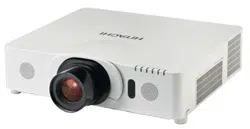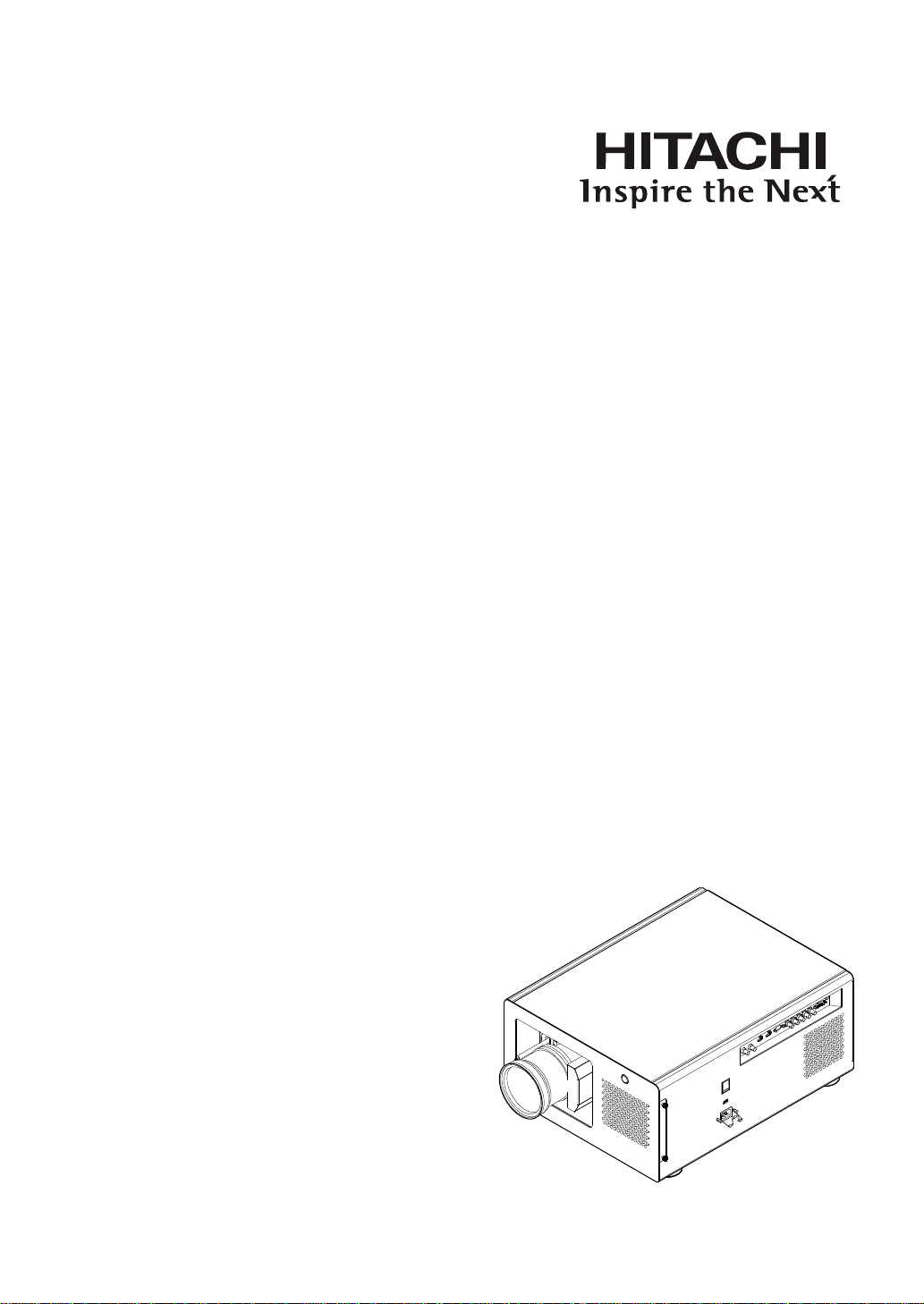
Projector
CP-WU13K
User Manual
Thank you for purchasing this product. Please
read this manual before you operate your
projector. Save it for future reference.

2
Warning, Notices and Safety Instructions 4
Notice 4
Description pertaining to FCC Rules Part 15 4
About Waste Electrical and Electronic Equipment 5
Special Care for Laser Beams! 5
Sun light Warning 5
Never look into the projector light source directly 5
Do not turn off the projector by unplugging the power cord. 6
Electric shock 6
Do not overload wall outlets/extension cords 6
Cleaning 6
Dampness, smoke, steam, dust, high temperature and direct
exposure to sunlight 6
Ventilation 7
Filter 7
Intrusion of foreign objects 7
Carrying the projector 7
Please install the projector on an even and stable surface 7
Servicing 7
Changing parts 8
Power cord 8
Notices you should read prior to the installation of the
projector 8
Safety issues related to the lamp 8
Take frequent breaks to let your eyes rest 8
Installation environment for the projector 8
Do not tilt the projector more than 10 degrees. 9
Congurations for projector operation at high altitudes 9
Keep the projector's ventilation inlets and outlets free from
obstructions 9
Protect the projector with care 9
Name and quantity of toxic/hazardous substances/elements
contained in the product 10
Projector parts and functions 11
Front view 11
Bottom view 13
Range of effective remote control signal reception 14
Installing batteries in the remote control 14
Installation the projector. 15
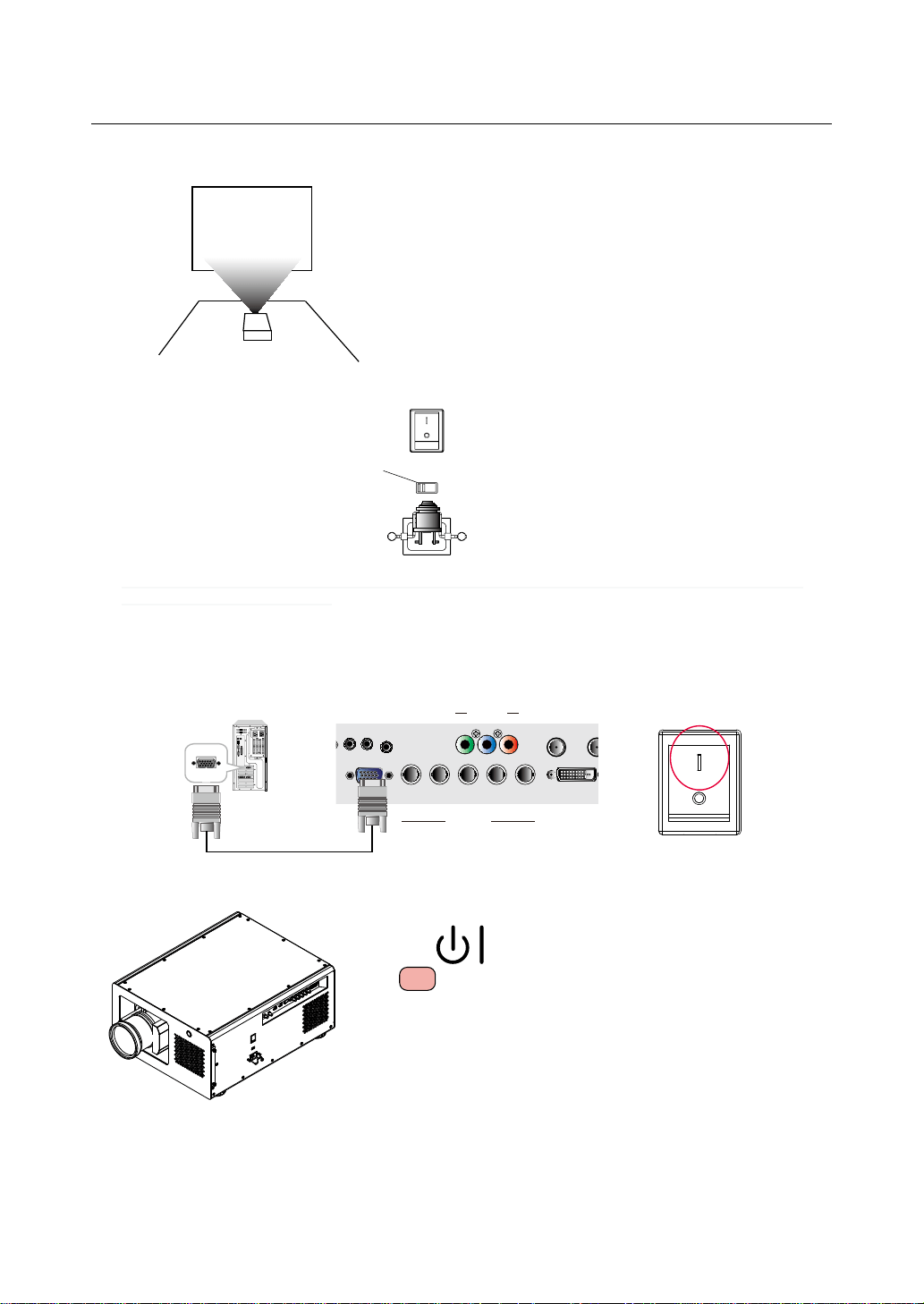
1. Orient the projector towards the screen 15
2. Connect the power cord to the projector 15
3. Connect the projector to your PC and ip the switch
to “I” to turn on the power. 15
4. Remove the lens PU foam on the projector before
starting it up. 15
5. Adjusting the projector's angle 16
6. Adjusting focus and zoom. 16
7. Correcting keystoning caused by projection angle 17
8. Turning off the projector 17
Throw distance 18
Modes of installation 18
Frontal projection - desktop installation 18
Frontal projection - ceiling mode 19
Rear projection - desktop
installation 19
Rear projection - ceiling installation 19
Rear projection - submersive installation 19
Horizontal and vertical lens shift 20
Moving the lens vertically 20
Moving the lens horizontally 20
Connecting the projector to other devices 21
HDMI / DVI connection 21
12V Trigger connection 21
RGB connection 22
COMPONENT connection 23
STEREO DVI Connection 23
Turning on the projector 24
Changing OSD language 24
Adjusting screen orientation 25
Front projection - ceiling mode 25
Rear projection - desktop installation 26
Rear projection - ceiling mode 26
Adjusting the projector lens 26
Remote control 27
OSD Menu Tree 29
INDEX

3
OSD Description 31
INPUT 31
Input Selection 31
Input Conguration 31
Input Locking 32
Auto Power Off 32
Auto Power ON 32
No Signal 32
Auto Image Adjust 32
IMAGE 33
Contrast 33
Brightness 34
Sharpness 35
Noise Reduction 35
Color Temperature 36
Input Balance 36
Aspect Ratio 37
Timings 38
Auto Image 39
LAYOUT 40
Zoom 40
Main Select 41
PIP Select 41
PIP Position 41
PIP 41
LAMP 42
Mode 42
LAMPS 42
High Altitude Mode 43
Power 43
Lamp1 Status 43
Lamp2 Status 43
Lamp1 Run Time 43
Lamp2 Run Time 43
ALIGNMENT 44
Rear Projection 44
Ceiling Mode 44
Lens Control 44
Dynamic Contrast 44
Gamma 45
Internal Patterns 45
Color Space 45
Lens To Midposition 45
Warp 46
Blanking 47
Edge blend 48
CONTROL 50
IR Address 50
Eco Network Power 50
Network 51
Menu Position 51
Start Up Logo 51
Start Up Chime 51
Button 1~5 51
Trigger1 ~2 52
Auto Source 52
Language 52
SERVICE 53
Service 53
Lamp Hour Reset 53
Blue Only 53
Factory Reset 53
Lamp and Filter Maintenance 54
Lamp replacement 54
Replace the lter 55
Simple troubleshooting and denition of the
LED indicators 57
LED STATUS 58
STAND BY 58
ON 58
ERROR 58
Warning 59
Specications 60
Supported Signal Input Modes 61
SDI formats 62
DVI dual-link for 3D 62
Dimensions 63
Communication settings 64
RS-232 Communication 64
Connection 64
1. Protocol 65
2. Command format 65
3. Response code / Error code 66
RS-232 Communication command table 67
Copyright information 73
Copyright 73
Disclaimer 73
Warranty and after-service 73

4
Warning, Notices and Safety Instructions
Warning, Notices and Safety Instructions
Notice
Please write down your projector model number and serial number and keep the information for
maintenance purposes in the future. Should the equipment be lost or stolen, the information could also
be used for the police report.
Model number:
Serial number:
Please check the accessories that come with the projector with the following list. Should you nd any
missing accessory, contact your dealer immediately.
1. AC Power Cord US 110V*1
2. AC Power Cord US 200V*1
3. AC Power Cord EU*1
4. Remote control *1
5. AA battery *2
6. CD-ROM *1
7. Printed Manual *1
8. EAC Document *1
9. EU Recycle Sheet *1
10. WEEE Manual *1
11. RS232 cable(cross) *1
Description pertaining to FCC Rules Part 15
This device complies with Part 15 of the FCC Rules. Operation is subject to the following two
conditions: (1) this device may not cause harmful interference, and (2) this device must accept any
interference received, including interference that may cause undesired operation.
This device has been tested and found to comply with the limits for a Class A digital device, pursuant
to Part 15 of the FCC Rules. These limits are designed to provide reasonable protection against
harmful interference in a residential installation.
This equipment generates, uses and can radiate radio frequency energy. If not installed and used in
accordance with the instructions, may cause harmful interference to radio or television reception.
However, there is no guarantee that interference will not occur in a particular installation. If this
equipment does cause interference to radio or television reception, which can be determined by
turning the equipment off and on, the user is encouraged to try to correct the interference by one or
the following measures:
•
Reorient or relocate the receiving antenna.
•
Increase the separation between the equipment and receiver.
•
Connect the equipment in to an outlet on a circuit different from that to which the receiver is
connected.
•
Consult the dealer or an experienced radio/TV technician for help.
5
Warning, Notices and Safety Instructions
CAUTION:
Changes or modications not expressly approved by the manufacturer void the user’s authority to
operate the equipment.
This Class A digital apparatus meets all requirements of the Canadian ICES-003 Standards.
Cet appareil numérique de la classe A est conforme à la norme NMB-003 du Canada.
About Waste Electrical and Electronic Equipment
The mark is in compliance with the Waste Electrical and Electronic Equipment Directive
2002/96/EC (WEEE).The mark indicates the requirement NOT to dispose the equipment including
any spent or discarded batteries or accumulators as unsorted municipal waste, but use the return and
collection systems available. If the batteries or accumulators included with this equipment, display the
chemical symbol Hg, Cd, or Pb, then it means that the battery has a heavy metal content of more than
0.0005% Mercury or more than, 0.002% Cadmium, or more than 0.004% Lead.
This is a Class A product. In a domestic environment this product may cause radio interference in which case the user
may be required to take adequate measures
The lamp(s) in this product contain mercury. This product could contain other electronic wastes
that might be hazardous if not handled properly. Please consult your local/state/federal regulations
regarding disposal or recycling.
Hg
For more information, please contact Electronic Industries Alliance (WWW.EIAE.ORG).
For information on proper lamp handling, visit WWW.LAMPRECYCLE.ORG.
Special Care for Laser Beams!
Special care should be considered when DLP projectors and high power laser equipment are used in
the same room as.
Direct or indirect hit of a laser beam on to the projector lens can severely damage the Digital Mirror
Devices (DMD™).
Sun light Warning
Avoid using the CP-WU13K in direct sun light.
Sun light on the projector lens can severely damage the Digital Mirror Devices (DMD™).
Never look into the projector light source directly
This equipment contains a high brightness light source and a portion of the
light emitted by the projector is ultraviolet light. Never look into the projector
light source directly and pay special attention to prevent children from
looking into the projector light source as it can damage their eyes.
AVOID EYE CONTACT TO THE LIGHT

6
Warning, Notices and Safety Instructions
CAUTION
RISK OF ELECTRIC SHOCK
DO NOT OPEN
The lightning flash with an arrowhead within a triangle
is intended to tell the user that inside this product
may cause risk of electrical shock to persons.
The exclamation point within a triangle is intended to tell
the user that important operating and/or servicing instructions
are included in the technical documentation for this equipment.
CAUTION / TO REDUCE THE RISK OF ELECTRIC SHOCK
DO NOT REMOVE COVER(OR BACK)
NO USER-SERVICEABLE PARTS INSIDE
REFER SERVICING TO QUALIFIED SERVICE PERSONNEL
Do not turn off the projector by unplugging the power cord.
Under normal operations, be sure to use the SOFT POWER button to turn off the projector. And as
such, avoid shutting off AC power to turn off the projector since it could lead to lamp malfunctioning
or damage.
Electric shock
To protect your projector, avoid turning on the projector during lightning storms and unplug it from
the wall outlet. This will prevent sudden electrical surges caused by the lightning from damaging the
projector.
Do not overload wall outlets/extension cords
Pay attention to the current load of the outlet you are using, be it wall outlet or extension cord outlet to
prevent re or electric shock.
Cleaning
When cleaning the projector, be sure to unplug it from the wall outlet to prevent electric shock.
Do not use liquid or aerosol cleaners. Use a dry/damp cloth with excessive moisture removed for
cleaning. Be sure to use cleaning cloth designed to clean monitors for the projector to prevent damages
to the projector casing due to abrasion.
Dampness, smoke, steam, dust, high temperature and direct exposure
to sunlight
Do not operate the projector in environments where it could be expose to dampness, smoke, steam,
dust, high temperature or direct sunlight. For example: bathroom, kitchen, adjacent to washing
machine, damp basement rooms, electric heaters or similar environments. Keeping or operating the
projector in the above-mentioned environment could lead to discoloration, mold formation, grease or
damages to the projector.

7
Warning, Notices and Safety Instructions
Ventilation
The projector case is designed with slots and openings to remove the heat inside the projector so that it
will not overheat and damage the components. Be sure to operate the projector in an environment with
ideal ventilation and don't operate it on a sofa, rug or other closed-in environments that could obstruct
ventilation.
Filter
Make sure to clean or replace the lter when it is required to keep the air intake clear of dust, and
prevent possible over temperature issue of the projector due to the clog of lter. Please refer to Page 55
for details of lter replacement procedure.
Intrusion of foreign objects
Be sure to keep all foreign objects away from entering the projector because it could be exposed to
hazardous voltages and cause parts to short circuit. This could in turn lead to re hazard or electric
shock. Examples of foreign objects include: cockroach, screws, liquid and so forth.
In addition, never spill liquid into the projector.
Carrying the projector
When moving the projector on a cart, be sure to handle the cart with care
as abrupt stops, jolts of excessive force or uneven ground could lead the projector to topple.
Please install the projector on an even and stable surface
Avoid placing the projector on unstable cart, tripod, table and so forth to prevent the projector from
falling, becoming damaged or causing injuries.
Servicing
Should you encounter problem with the projector, please seek assistance from your local dealer or
qualied service personnel. Do not attempt to service the projector yourself so that you would not be
exposed to high voltage or other potential hazards.
Should you encounter any of the following situation, please unplug your projector from the wall outlet
and contact a qualied service personnel for assistance:
•
Damaged power cord or power plug.
•
If a foreign object has fallen into the projector or if you have spilled water or other liquid into the
projector.
•
If the projector has been dropped accidentally or damaged.
•
If you experience noticeably poor performance or malfunctioning with the projector despite having
followed instructions for normal operation.

8
Warning, Notices and Safety Instructions
Changing parts
Should any part of the projector be damaged, check with your servicing personnel that only
manufacturer certied parts were used for replacement. Used of non-certied parts may result in
damages to the projector or hazards such as re or electric shock. After changing parts, be sure to
remind the servicing personnel to perform safety inspections to ensure that the projector operates
normally.
Power cord
Don't place the projector where the cord can be walked on. This may result in fraying or damage to
the power cord, especially at the plug and the point of connection between the power cord and the
projector.
Please use the power cord that comes with the projector or the type of power cord specied for
the projector (refer to the descriptions printed on the power cord). If you are not sure of the power
available at the region you are in, consult your local power company to prevent damages to the
projector due to the use of wrong power cord or potential re hazards due to current overload.
Depending on the country and region you are in, the voltage and type of socket of the wall outlet may
be different from the projector. If you are unable to t the power plug into the wall outlet, contact your
local dealer and do not remove the extra pin on the power plug to forcibly t it to the socket at the risk
of your own safety.
Notices you should read prior to the installation of the projector
Safety issues related to the lamp
The lamp used in this projector contains mercury. Should the lamp be broken, please be careful when
handling the glass shards and keep the surrounding environment well ventilated. Be sure to wear a
mask that offers adequate protection before cleaning up to prevent inhaling mercury vapor that could
cause bodily harm. For instructions on lamp replacement, refer to " Page 7 : Lamp replacement ".
Take frequent breaks to let your eyes rest
Prolonged viewing of the projector screen could strain your eyes. Please be sure to rest your eyes
adequately.
Installation environment for the projector
You should avoid installing the projector at place of excessive dampness, dust or smoke. If installation
in such environment is unavoidable, be sure to have the interior of the projector
cleaned routinely to prolong the projector's lifecycle. Cleaning of the projector's interior should only be
performed by qualied service personnel dispatched by your local dealer and you should not attempt
to clean the inside of the projector by yourself.
If other light source is directly projected onto the projector screen, the color of the image from the
projector will appear to be pale and the image quality will be lower. In addition, your eyes would be
more prone to fatigue. Therefore, it is recommended that the projector be installed in places without
direct exposure to sunlight or other sources of intense light.
The ideal operating temperature range for the projector is between 0°C ~ 40°C (32°F ~ 104°F)
The ideal storage temperature range for the projector is between -20ºC ~ 60°C (-4°F ~ 140°F)
9
Warning, Notices and Safety Instructions
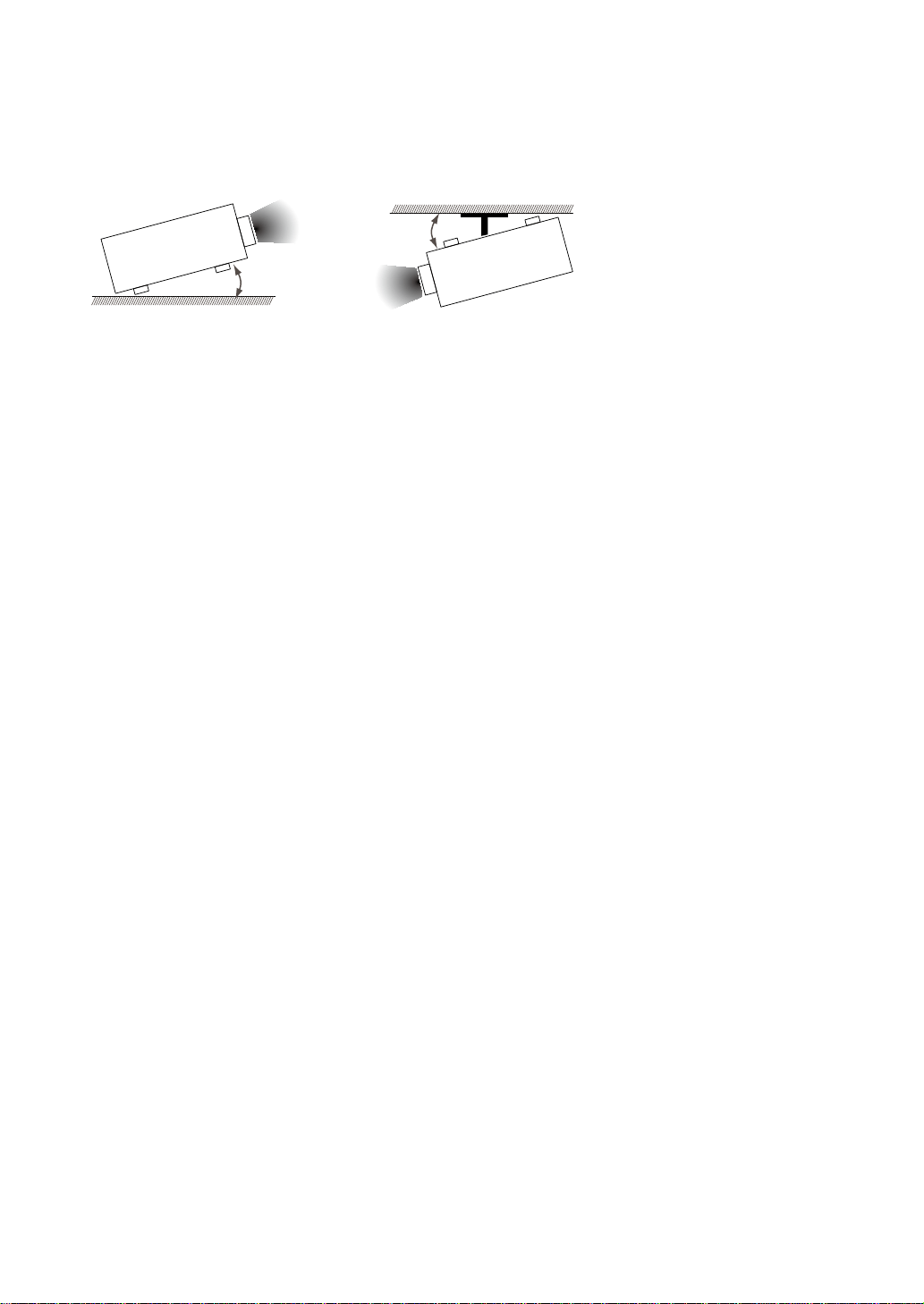
Do not tilt the projector more than 10 degrees.
The maximum tilt angle for the projector is 10 degrees.
When the projector is tilted more than 10 degrees, it will shorten the life of the projector lamp and
may lead to other unpredictable damages.
Can’t >10°
Can’t >10°
Congurations for projector operation at high altitudes
When operating the projector at higher altitudes, be sure to manually set the fan mode to "High" or
it could shorten the life of the optical system in the projector. High altitude is dened as places being
1500 meters (4900 feet) or higher.
Please refer to " Page 43 : High Altitude Mode ".
Keep the projector's ventilation inlets and outlets free from obstructions
Be sure to keep objects for no less than 30cm away from the ventilation inlets and outlets of the
projector and note the direction of air ow at the designated spot of installation. Do not let the hot air
released from the outlet ow back to the inlet as it will prevent proper cooling and lead to damage of
the projector's internal structure.
In the event of high temperature due to malfunctioning of the internal cooling fan caused by clogging at the
ventilation inlets and outlets, the projector will activate its automatic protection mode and shutdown. When
this happens, it does not necessary mean that the equipment is malfunctioning. Try to unplug the power cord
from the wall outlet and wait for approximately 15 minutes before operating the projector again (remember
to remove the objects that have caused poor ventilation so that the projector will not go into the protection
mode again). Please refer to " Page 58 : LED STATUS ".
Description: The regulation of temperature inside the projector by the cooling fan is automatic. And as such,
the sound of cooling fan changing its operating speed does not imply that a problem has occurred with the
projector.
Protect the projector with care
When placing the projector at a high position, be sure to secure the projector rmly so that it would
not fall and cause injuries. Take care to protect the projector's lens from collision, abrasion or other
damages. Be sure to close the lens cover or cover the projector with a dust cover if you need to store
the projector or if it will not be used for an extended time.
10
Warning, Notices and Safety Instructions
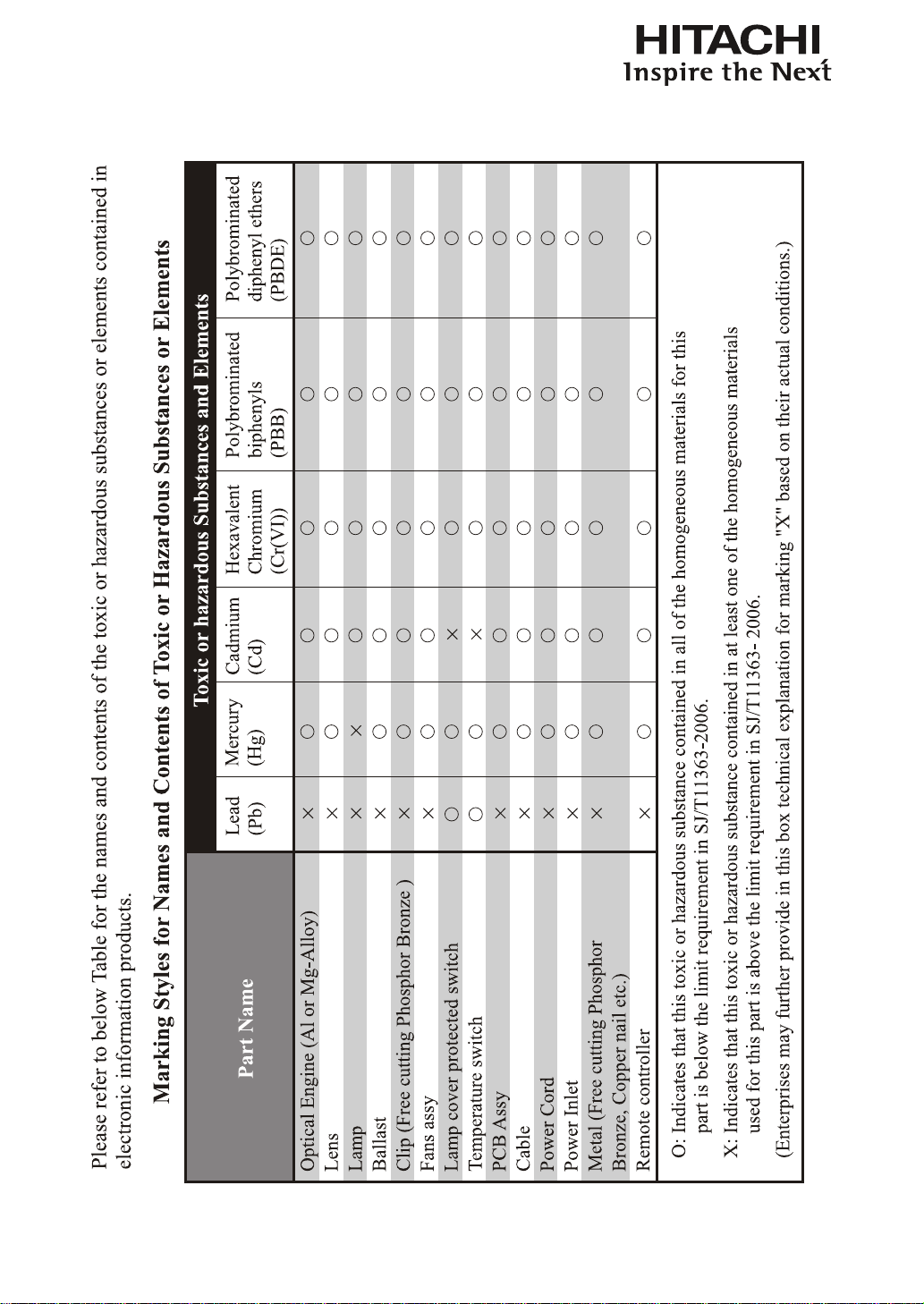
Name and quantity of toxic/hazardous substances/elements contained
in the product
11
Projector parts and functions
Projector parts and functions
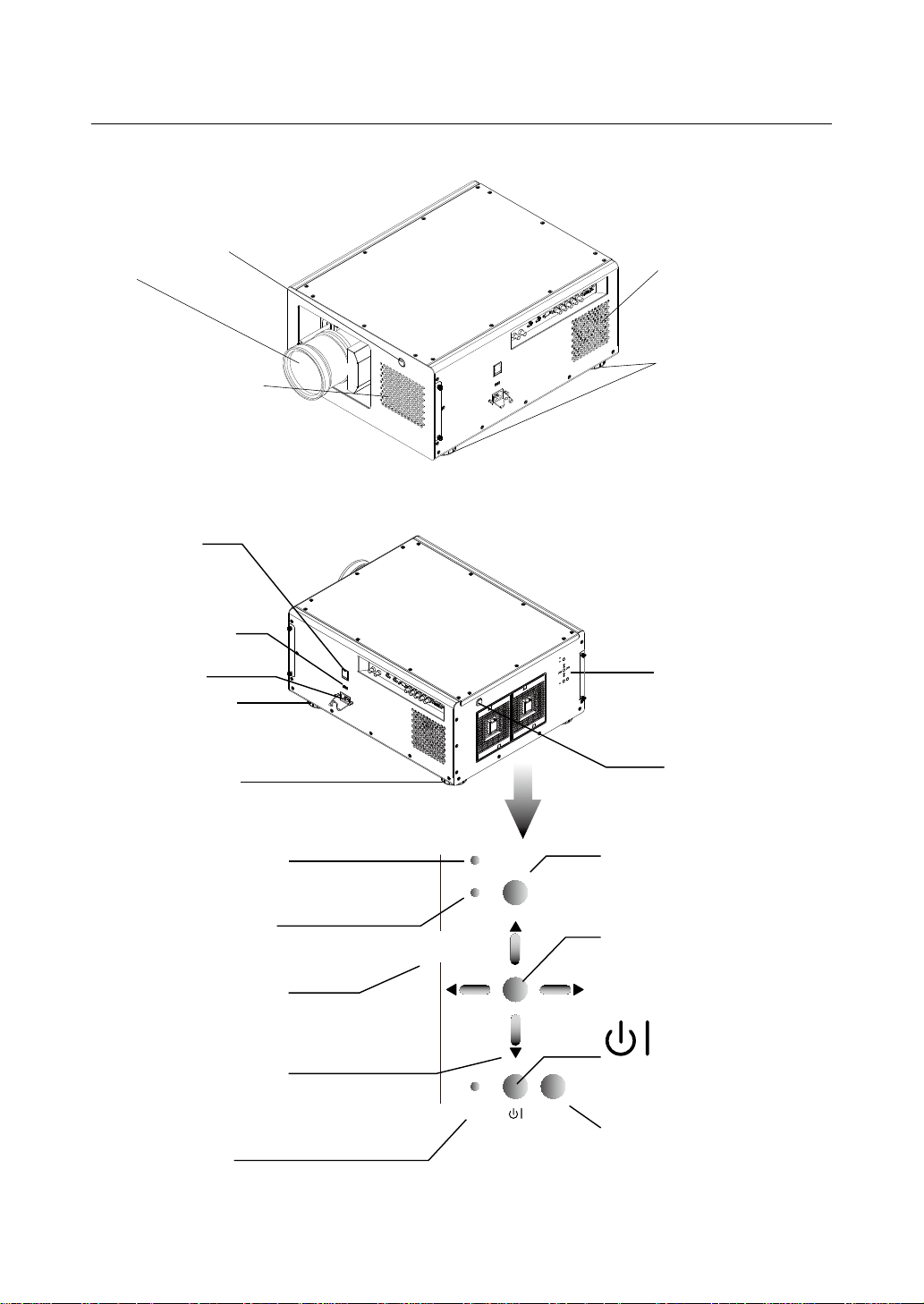
Front view
Lens
Infrared receiver
Adjustable foot
Adjust the height and angle of the
projector with the adjustable foot
Ventilation inlet
The internal cooling fan draws cool
air from the ventilation inlet into the
projector.
Ventilation slot
The hot air generated
inside the projector is
dispersed through the
ventilation slot. Make
sure the ventilation slot is
free from obstruction.
Rear view
LED
STATUS
ENTER
INPUT
ERROR
MENU
ON
STANDBY
INPUT
Used to toggle between different input
signal source
Refer to “ Page 10 : Input Selection “. for
more details
MENU
Displays or hides the OSD adjustment
screen
(Standby)
Use this button to start up or shut down the
projector
.
STANDBY (LED)
The indicator that shows the projector's
standby status
.
Voltage Selector
(Default at 110V)
Refer to " Page 58 : LED STATUS ".
for the detail display information.
ERROR (LED)
Displays the cause of problem (i.e.
temperature, fan, lamp or system) that
ha s led to proje cto r mal fu nc tion .
▲▼
▼
▲
buttons
Use these buttons to scroll, congure
or adjust items on the OSD or toggle
between different images.
POWER ON LED
Displays the projector's power status
ENTER
Press this button to conrm selection of
OSD item; you can choose from "Select
Item" or access "Sub Menu" congurations.
Adjustable foot
Adjustable foot
Infrared sensor
Power inlet
Projector Keypad
Power switch
I → ON
O → OFF
12
Projector parts and functions
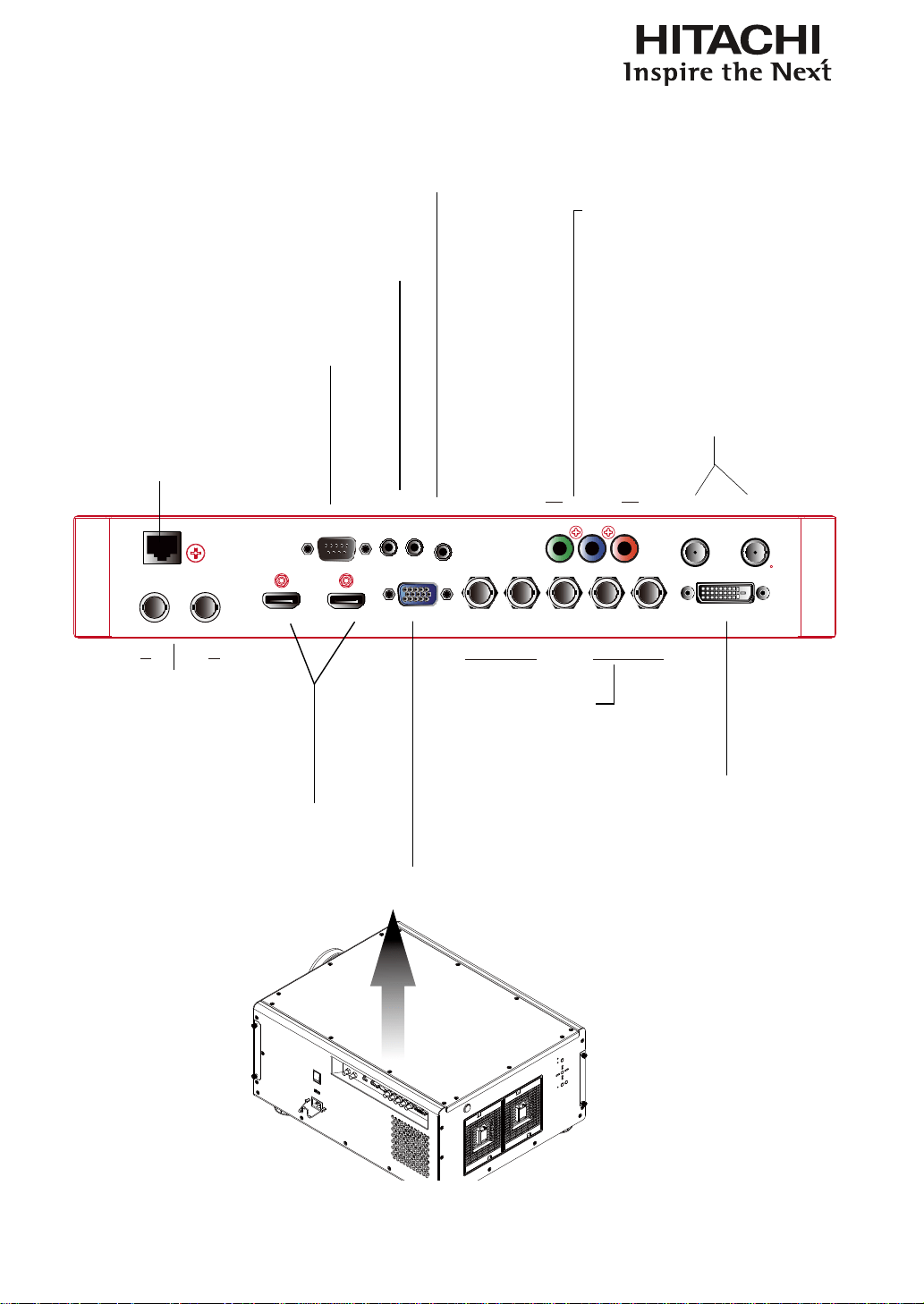
10/100 BASE-T
Connects the projector to
your PC via network to enable
direct control of the projector
on your PC.
COMPONENT 1
Y Pb Pr
10/100 BASE-T RS-232 wired remote
12V TRIGGER
I II
350mA
SYNC IN SYNC OUT
IN OUT
SDI / HDSDI / 3G
COMPONENT 2
G/Y B/Pb R/Pr H VVGA
HDMI
HDMI
STEREO DVI
RS-232
9-pin D-sub socket. Connects your PC or
automatic home theater /control system.
HDMI 1 & 2
HDCP compatible digital image input; connects
to sources using HDMI or DVI.
SDI/HDSDI/3G
IN/OUT
Serial digital interface, use
BNC connects input or output
the image.
SYNC IN
From source equipment for informing which
eld of signal is the Left-eye or Right-eye signal.
SYNC OUT
From projector and be connected to the 3D
SYNC wireless transmitter for synchronizing
the projected image with the 3D glasses.
12V TRIGGER
(3.5-mm, mini phone jack)
Offers 12 (+/- 1.5) V of output for 350mA monitor relay
with short circuit protection.
VGA
Standard 15-pin VGA connection socket to connect to RGB, high-
denition component input or PC. The projector will automatically
detect the resolution of the input signal.
WIRED REMOTE
Receives input signal from compatible Niles or Xantech IR
repeater systems.
COMPONENT 1
Standard and high denition (480i/480p/
576i/576p/720p/1080i/1080p) component input,
connects to DVD/HD-DVD/BD player, HD set-
top-box or other SD/HD input source.
COMPONENT2
Connects to the ve BNC inputs for
component (YPbPr) image source and
channel (Hs, Vs) source.
IO Control
(Input / Input control panel)
STEREO DVI
Use this DVI dual link to connect to a stereo 3D
source – it is usually a computer with 3D Graphics
card, and 3D applications.
13
Projector parts and functions
Bottom view
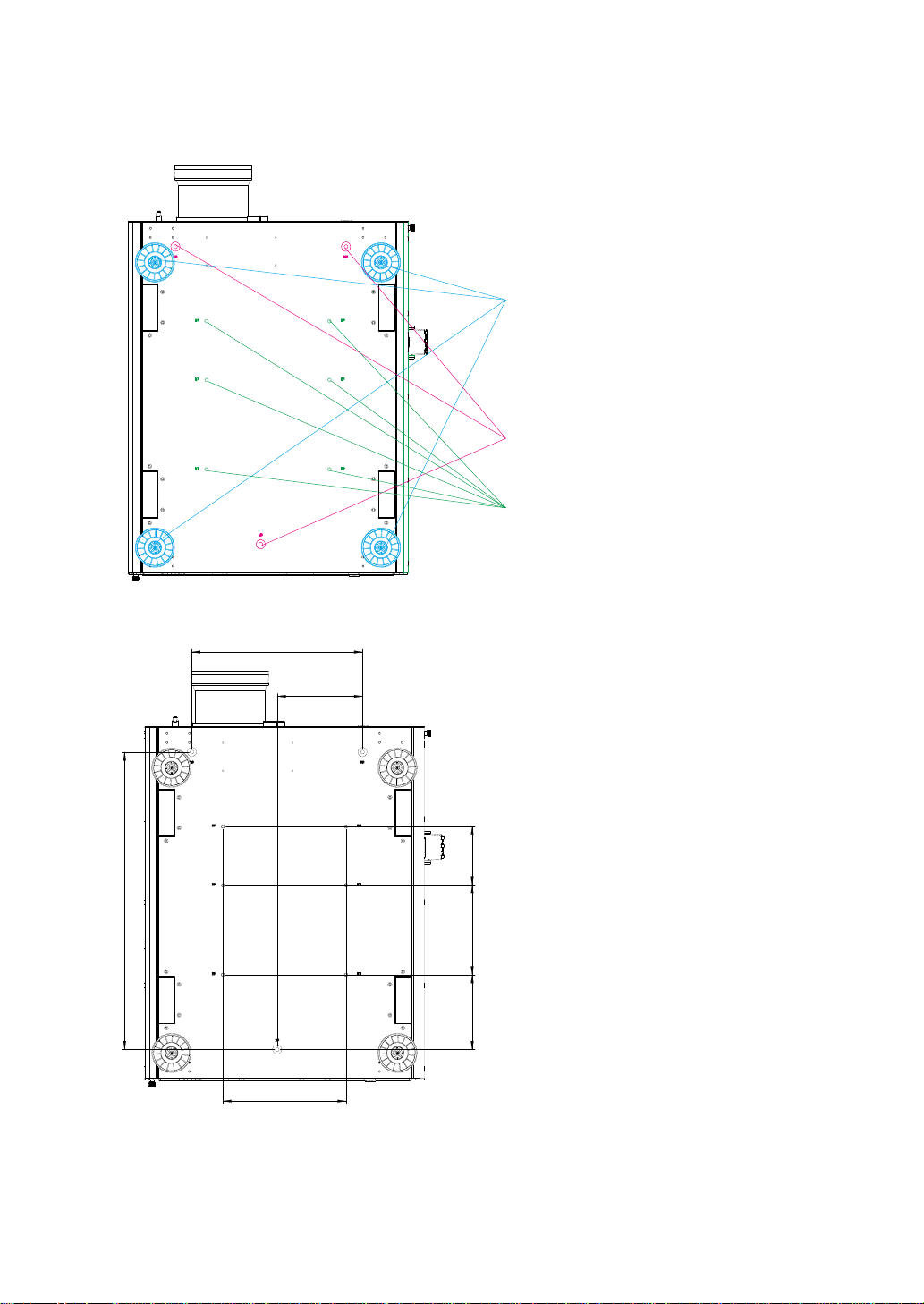
160 105
152.50
305
532
220
133.80
Adjustable foot
Adjust the height and angle of the projector with
the adjustable foot
Mounting bracket screw hole
These screw holes are used to mount the projector to its
designated mounting bracket using 3 M8x15 screws and
3 M8x40 bolts. The dimensions of the screw holes are
shown in the image below.
Mounting bracket screw hole
These screw holes are used to mount the projector to its
designated mounting bracket using 6 M6x15 screws. The
dimensions of the screw holes are shown in the image
below.
14
Projector parts and functions
Range of effective remote control signal reception
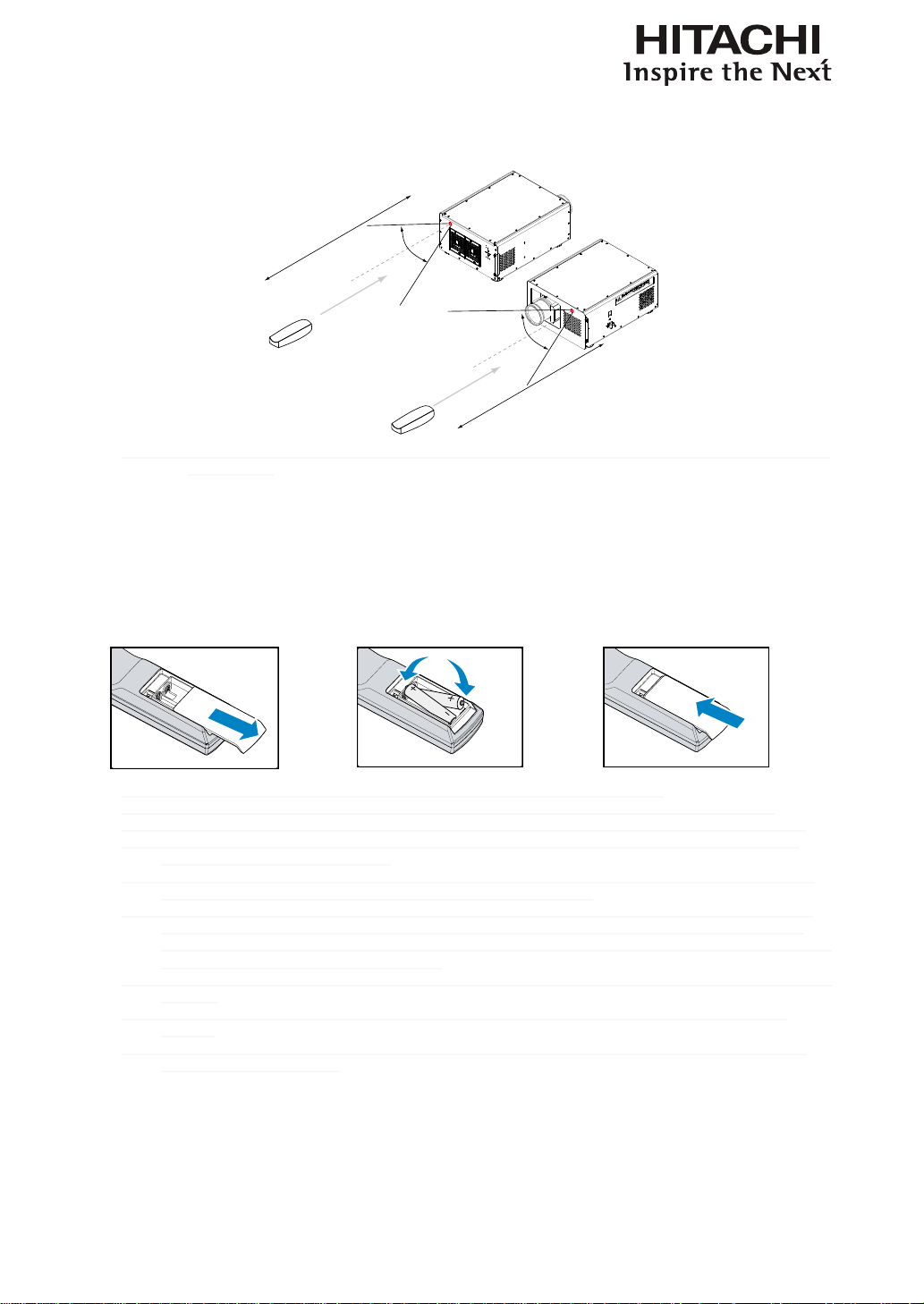
The diagram below illustrates the range of effective remote control signal reception (Unused new
battery).
40°
12m
12m
40°
Note: Avoid placing the remote control at places of high temperature or humidity as it could cause the remote control
to malfunction.
Installing batteries in the remote control
Remove the cover by sliding
it in the direction indicated
by the arrow.
Insert two new AA
batteries
(observe the polarity).
Replace the cover.
Note1: Be sure to insert the batteries in the corresponding orientations to match the polarities.
Note2: Do not mix new batteries with used batteries as it would shorten the life of new batteries or cause leakage.
Note3: Only used AA batteries as instructed; do not attempt to insert different types of batteries into the remote control.
Note4: If the remote is going to be unused for long periods of time, be sure to remove the batteries to prevent leakage,
which could damage the remote control.
Note5: The liquid contents in the batteries is harmful to the skin; do not touch the leakage with your bare hands directly.
When installing fresh batteries, be sure to clean up the leakage thoroughly.
Note6: Under most circumstances, you only need to point the remote control towards the screen and the IR signal would
be reected off the screen and picked up by the IR sensor on the projector. But under specic circumstances, the
projector may fail to receive signals from the remote control due to environmental factors. When this happens, orient
the remote control at the projector and try again.
Note7: If the range of effective remote control signal reception decreases or if the remote control stops working, replace the
batteries.
Note8: If the infrared receiver is exposed to uorescent lamp or strong sunlight, the remote control may not operate
normally.
Note9: Refer to the regulations enforced by your local government on the disposal of used batteries; improper disposal
could damage the environment.
15
Installation of the Projector
Installation the projector.
1. Orient the projector towards the screen
Screen
2. Connect the power cord to the projector
AC SWITCH
VOLTAGE SELECT
Please select the
correct input voltage
before removing the
warning label.
Please note that select the correct input (115V or 230V) voltage according to the area where you operate the projector
before you turn on the power switch.
3. Connect the projector to your PC and ip the switch to “I” to turn on the
power.
COMPONENT 2SDI / HDSDI / 3G
COMPONENT 1
Y Pb Pr
10/100 BASE-T RS-232 WIRED REMOTE
12V TRIGGER
I II
350mA
SYNC IN
SYNC OUT
IN OUT G/Y B/Pb R/Pr H VVGA
HDMI HDMI
STEREO DVI
AC MAINS
100-240 Volts
50/60Hz
AC SWITCH
Desk Top or Notebook
連接至牆壁插座
COMPONENT 2SDI / HDSDI / 3G
COMPONENT 1
Y Pb Pr
10/100 BASE-T RS-232 WIRED REMOTE
12V TRIGGER
I II
350mA
SYNC IN SYNC OUT
IN OUT G/Y B/Pb R/Pr H VVGA
HDMI HDMI
STEREO DVI
AC MAINS
100-240 Volts
50/60Hz
AC SWITCH
Desk Top or Notebook
連接至牆壁插座
4. Remove the lens PU foam on the projector before starting it up.
Press the button on the projector or
the
l
button on the remote control to
start up the projector.
16
Installation of the Projector
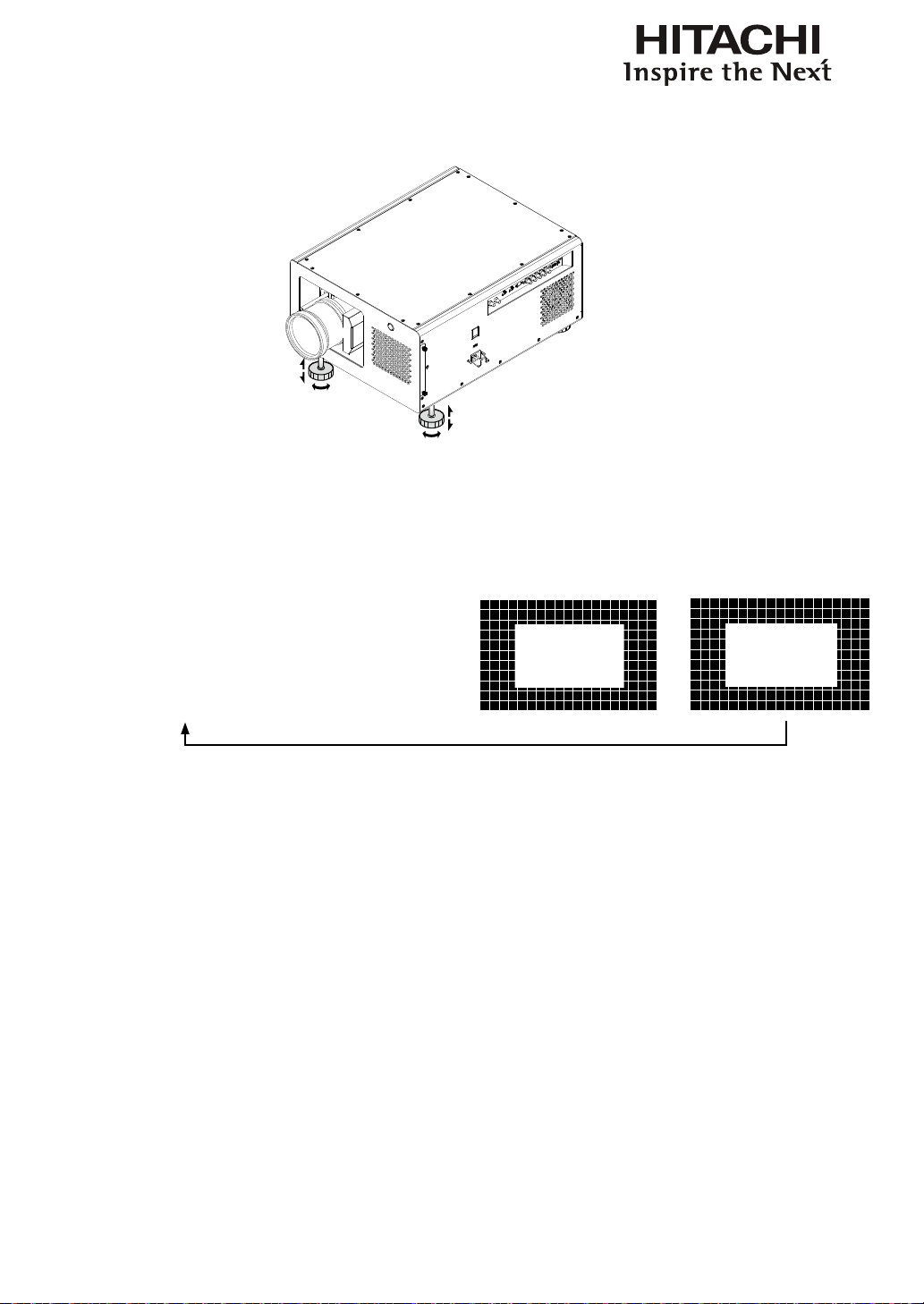
5. Adjusting the projector's angle
a. Please use the adjustable feet to change the angle of the projector in order to achieve the most
suitable angle for projection on the screen.
b. Adjusting the lens by horizontal and vertical lens shift
Method 1: Press the ENTER button on the remote control to access Lens Control adjustment
screen before pressing ENTER once again to access the menu and use the ▼▲▼▲
buttons to adjust the horizontal or vertical position of the lens.
Press ENTER once to adjust
zoom and focus
Press ENTER once to adjust
zoom and focus with cross
line
Press ENTER once to Adjust
Lines shift with cross line
Enter
Enter
Enter
Enter
Press ENTER again
to adjust vertical and
horizontal lens
shift
Method 2: Press the MENU button on the remote control and choose Alignment
Lens Control; then use the ▼▲
▲
▼
buttons to adjust the horizontal or
vertical position of the lens.
6. Adjusting focus and zoom.
a. Press the MENU button on the remote control and choose Alignment Lens Control
to activate the Lens Control OSD, press enter to go through “Zoom/Focus”, “Lens
Shift”, “Zoom/Focus with Grid test pattern”, “Lens Shift with Grid test pattern” OSD
Cyclically. Stop at either “Zoom/Focus” or “Zoom/Focus” with Grid test pattern” OSD
; then use the ◄► buttons to adjust the lens' focus (clarity).

17
Installation of the Projector
b. Press the MENU button on the remote control and choose Alignment Lens Control
to activate the Lens Control OSD, press enter to go through "Zoom/Focus", "Lens Shift",
"Zoom/Focus with Grid test pattern", "Lens Shift with Grid test pattern" OSD Cyclically.
Stop at either "Zoom/Focus" or "Zoom/Focus" with Grid test pattern" OSD; then use the ▼▲
buttons to adjust the size of the image that is projected onto the screen.
Original image size
Zoom out Zoom in
7. Correcting keystoning caused by projection angle
a. To adjust keystoning, press the MENU button on the remote control and choose
ALIGNMENT Warp Keystone adjust and use ▼▲ buttons to adjust Vertical Keystone.
b. To adjust keystoning, press the MENU button on the remote control and choose
ALIGNMENT Warp Keystone adjust and use
▲
▼
buttons to adjust Horizontal
Keystone.
8. Turning off the projector
Press the button on the projector or the button on the remote control at least 3 seconds to
turn off the projector. When the projector has been turned off, the cooling fan will remain in operation
for approximately 170 seconds.
18
Installation of the Projector
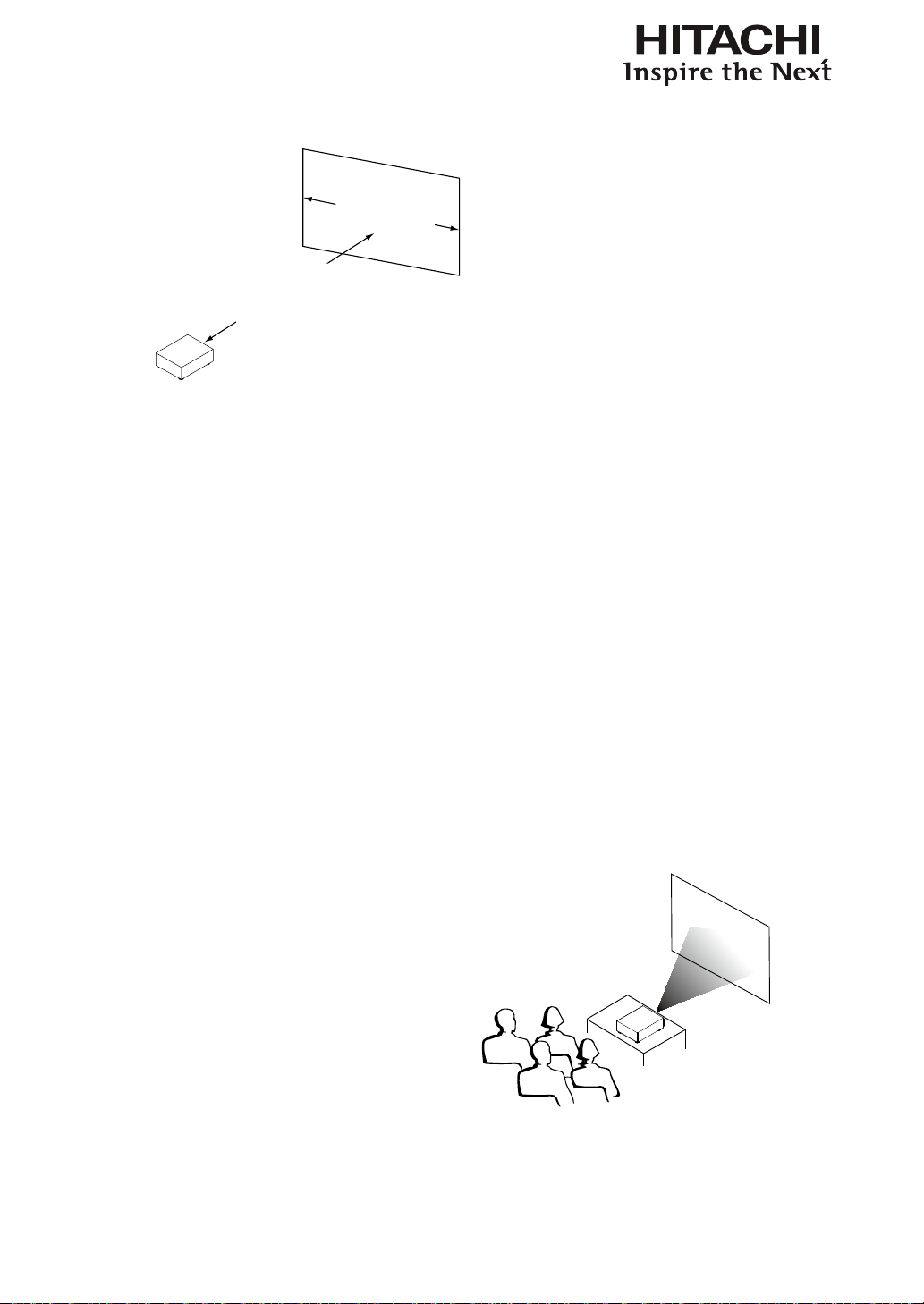
Throw distance
Throw Distance (TD) = Screen Width (W) x Throw Ratio (TR)
Screen Width (W)
Throw Distance (TD)
Coupled with the available projection lenses, the projector offers the following throw ratios:
•
FL-K01(0.67:1)
•
FL-K02(1.1:1)
•
SL-K03(1.4 - 1.9:1)
•
ML-K04(1.9 - 2.6:1)
•
LL-K05(2.6 - 4.2:1)
•
UL-K06(4.2 - 7.0:1)
Note:
Projection lenses are optional
accessories. Please contact your local
dealer to acquire the projection lens that
suits your need most.
Modes of installation
•
Install the projector in an environment below 40°C (104°F). The projector should be kept clear from
sources of heat and / or ventilation openings of air conditioner.
•
The projector should be kept away from devices that emit electromagnetic energy, such as motor
and transformer. Common devices that emit electromagnetic energy include slideshow system,
speakers, power ampliers and elevators.
•
If you choose to install the projector on the ceiling, be sure to use the ceiling installation
components manufactured by manufacturer-certied vendors. For details, please contact your local
dealer.
Frontal projection - desktop installation
Advantages: easy to install can be easily moved
or adjusted easy to operate.
Disadvantage: occupies oor space and limits
seating capacity.
19
Installation of the Projector
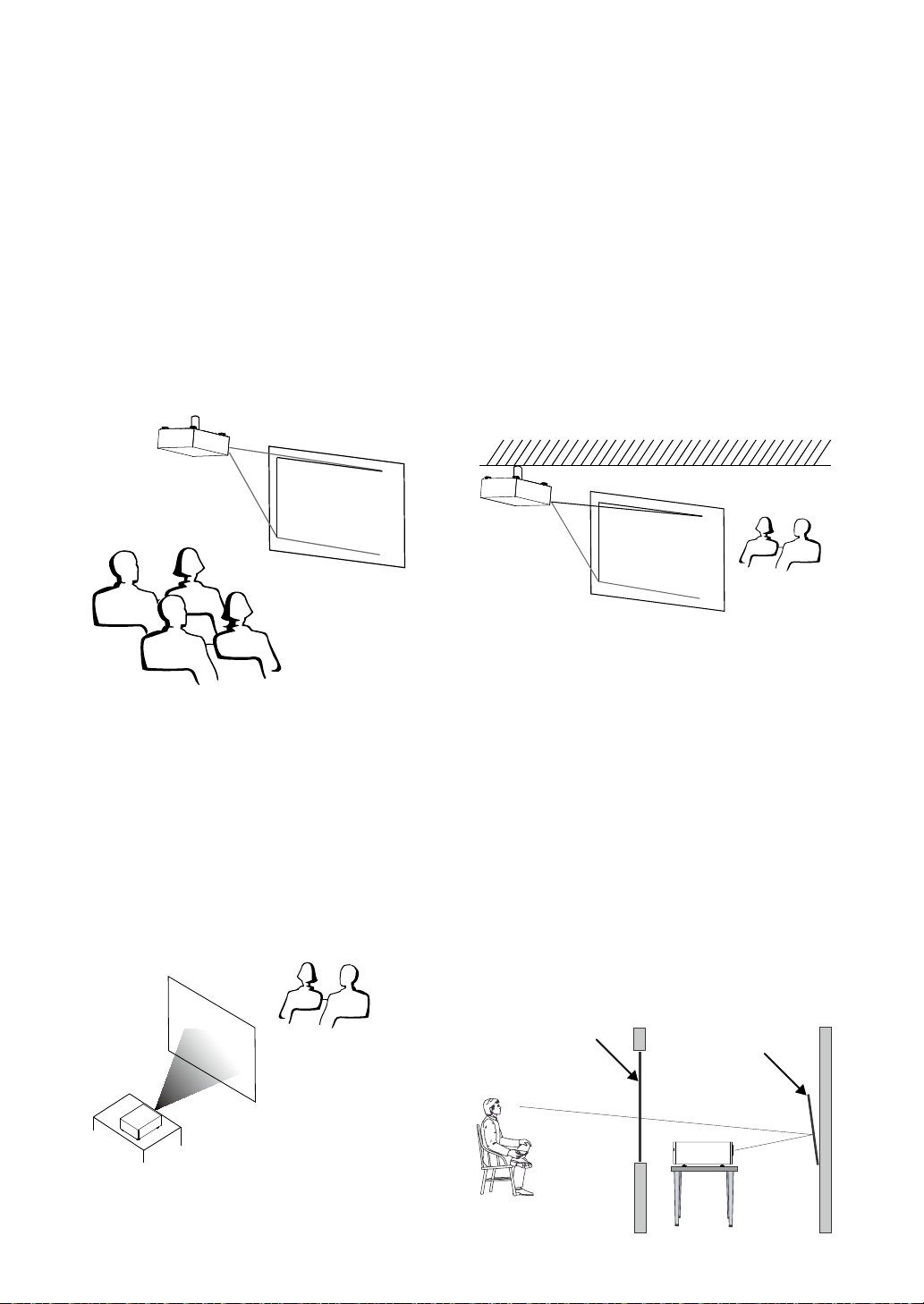
Frontal projection - ceiling mode
Advantage: does not occupy oor space does not
draw attention to it.
Eliminates the possibility that
someone would accidentally move
the projector.
Disadvantage: stricter installation requirements
and conditions; care should be
taken during the installation
to ensure the projector has
been securely mounted.
operation of the projector becomes
inconvenient without the remote
control.
Rear projection - desktop
installation
Advantage: the projector is completely hidden
from plain view
the projector can be easily operated
this setup usually offers better
reduction of ambient noise.
Disadvantage: requires an additional room for
installation relatively higher costs
for installation.
Rear projection - ceiling
installation
Advantage: the projector is completely hidden
from plain view this setup usually
offers better reduction of ambient
noise.
Disadvantage: requires an additional room for
installation. Stricter installation
requirements and conditions;
care should be taken during the
installation to ensure the projector
has been securely mounted.
operation of the projector becomes
inconvenient without the remote
control.
Rear projection - submersive
installation
If you wish to have a rear projection setup
with limited space to the rear of the projector,
you can use a mirror to reect the light path.
However, both the projector and the mirror have
to be precisely located. If you are considering
such installation, please contact your dealer for
assistance.
Advantage: the projector is completely hidden
from plain view this setup usually
offers better reduction of ambient
noise.
Disadvantage: requires an additional room for
installation relatively higher costs
for installation.
Screen
Mirror
20
Installation of the Projector
Horizontal and vertical lens shift
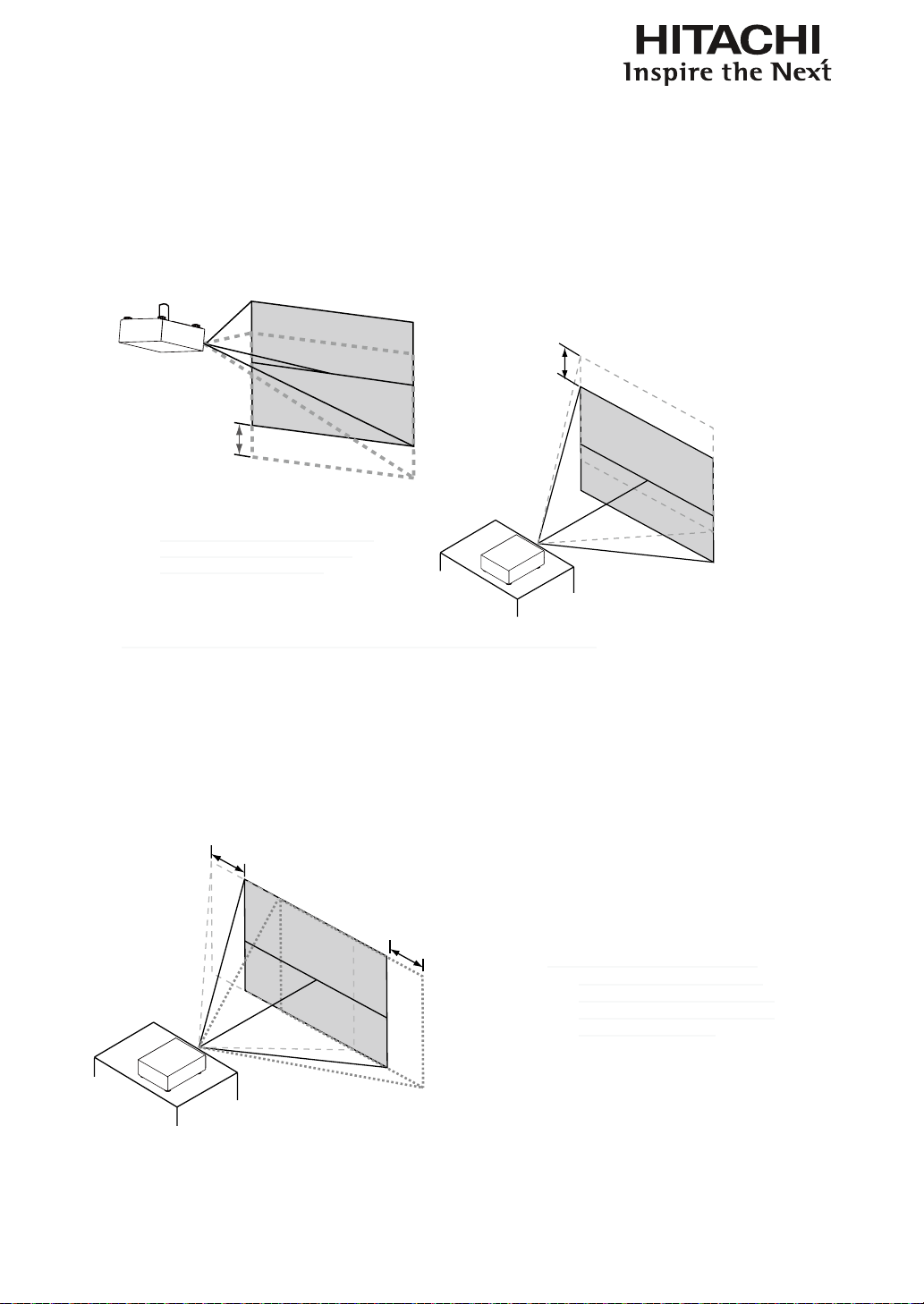
In addition to using the adjustable feet to adjust projection angle, you can also use the Lens Shift
function to adjust the projected image.
Moving the lens vertically
The distance of vertical lens movement is +100% , -50% of half the screen height in both directions.
For instance, if you are using a 80" × 50" screen, you will be able to move the image upwards no more
than 25'' or downwards no more than 12.5''.
Range of vertical
lens shift adjustment
Range of vertical
lens shift
adjustment
This illustration shows normal vertical
lens shift without the use of special
specication lens or projector.
Note: Please make sure the center of lens is rectangular to the center of the screen.
Moving the lens horizontally
The distance of horizontal lens movement is 20% of half the screen width in both directions. For
instance, if you are using a 80" × 50" screen, you will be able to move the image left or right by no
more than 8".
Range of
horizontal
lens shift
adjustment
Range of
horizontal
lens shift
adjustment
This illustration shows normal
horizontal lens shift without the
use of special specication lens or
projector.
Note: when the lens is in the neutral
position (i.e. without horizontal
or vertical shift), the center of the
projection should be aligned with
the center of the screen.
21
Installation of the Projector
Connecting the projector to other devices
HDMI / DVI connection
Signals from image source offer the best projection image quality when sent through HDMI.
Therefore, try to use input devices with HDMI output as the source of image.
COMPONENT 2SDI / HDSDI / 3G
COMPONENT 1
YPbPr
10/100 BASE-T RS-232WIRED REMOTE
12V TRIGGER
III
350mA
SYNC IN SYNC OUT
IN OUTG/Y B/Pb R/Pr HVVGA
HDMI HDMI
STEREO DVI
HDMI/DVI input source
(BD/HD-DVD/DVD player, HD set-top-box,
gaming consoles and so forth)
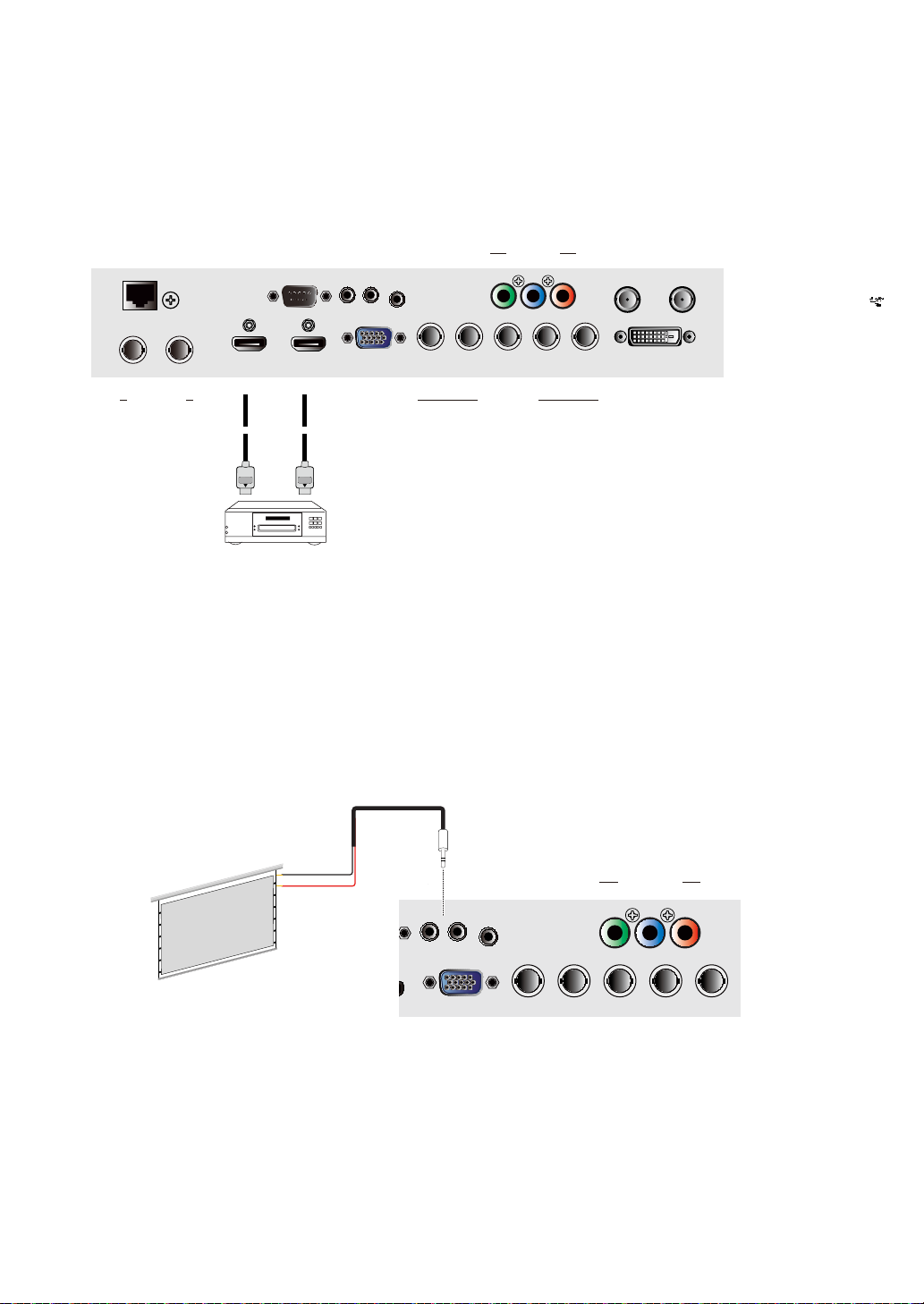
12V Trigger connection
If your home theatre system includes a projector screen, screen cover or other 12V Trigger equipment,
please connect such device/equipment to the projector’s 12V Trigger output as illustrated. After you
have done so,
Your screen will lower automatically whenever you turn on your projector for your convenience.
COMPONENT 2SDI / HDSDI / 3G
COMPONENT 1
Y Pb Pr
10/100 BASE-T RS-232 WIRED REMOTE
12V TRIGGER
I II
350mA
SYNC IN SYNC OUT
IN OUT G/Y B/Pb R/Pr H VVGA
HDMI HDMI
STEREO DVI
Tip = +12V
Sleeve = Ground
Retractable screen or other
12V device
COMPONENT 2SDI / HDSDI / 3G
COMPONENT 1
Y Pb Pr
10/100 BASE-T RS-232 WIRED REMOTE
12V TRIGGER
I II
350mA
SYNC IN SYNC OUT
IN OUT G/Y B/Pb R/Pr H VVGA
HDMI HDMI
STEREO DVI
AC MAINS
100-240 Volts
50/60Hz
AC SWITCH
Desk Top or Notebook
連接至牆壁插座
22
Installation of the Projector
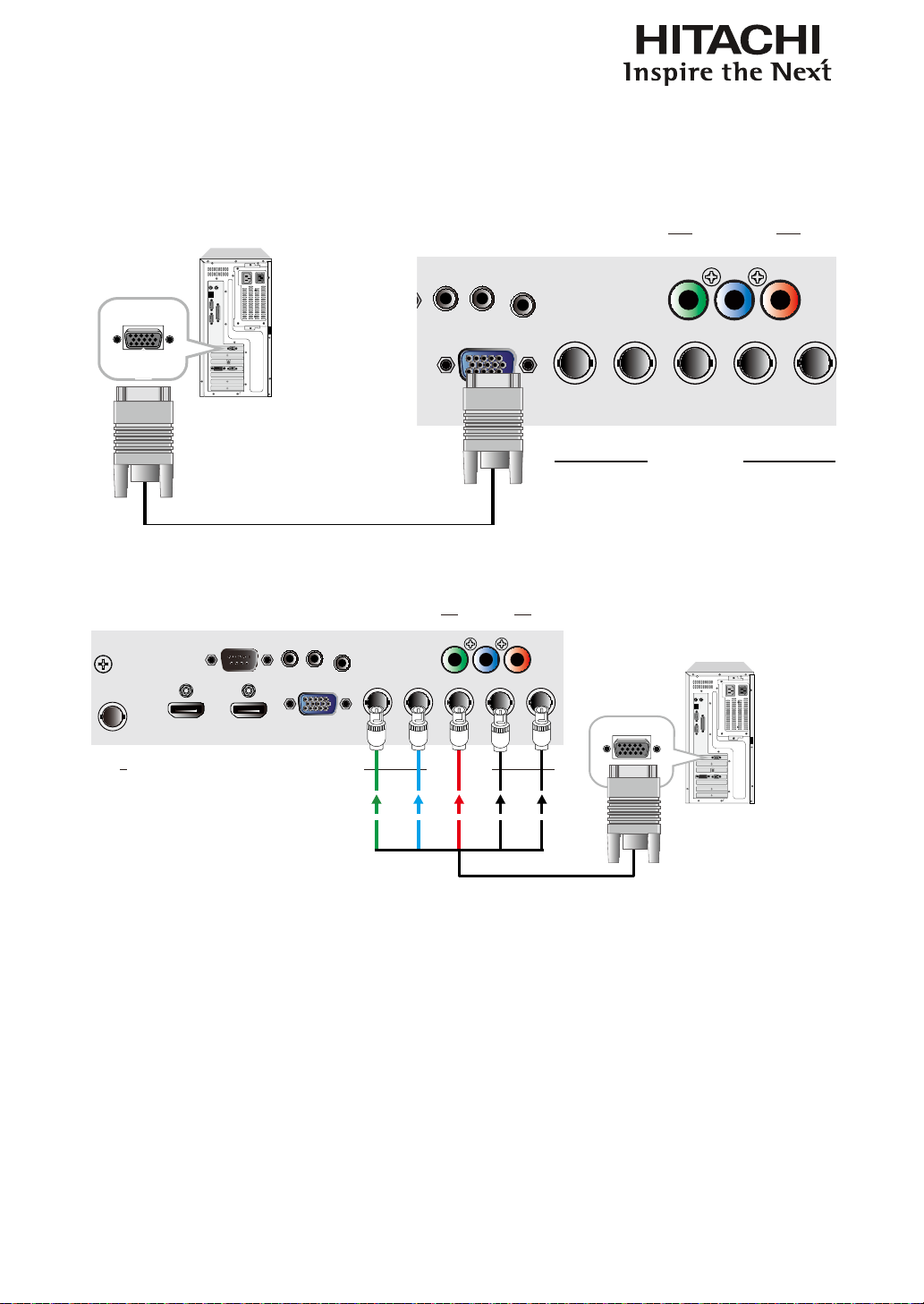
RGB connection
Connect your PC or other devices with RGB output to the RGB input connectors on the projector to be
used as the source of image input.
COMPONENT 2SDI / HDSDI / 3G
COMPONENT 1
Y Pb Pr
10/100 BASE-T
RS-232 WIRED REMOTE
12V TRIGGER
I II
350mA
SYNC IN SYNC OUT
IN OUT G/Y B/Pb R/Pr H VVGA
HDMI HDMI
STEREO DVI
AC MAINS
100-240 Volts
50/60Hz
AC SWITCH
Desk Top or Notebook
連接至牆壁插座
COMPONENT 2
SDI / HDSDI / 3G
COMPONENT 1
Y Pb Pr
10/100 BASE-T
RS-232 WIRED REMOTE
12V TRIGGER
I II
350mA
SYNC IN SYNC OUT
OUT G/Y B/Pb R/Pr H VVGA
HDMI HDMI
STEREO DVI
G/Y B/Pb R/Pr H V
Desk Top or Notebook
23
Installation of the Projector
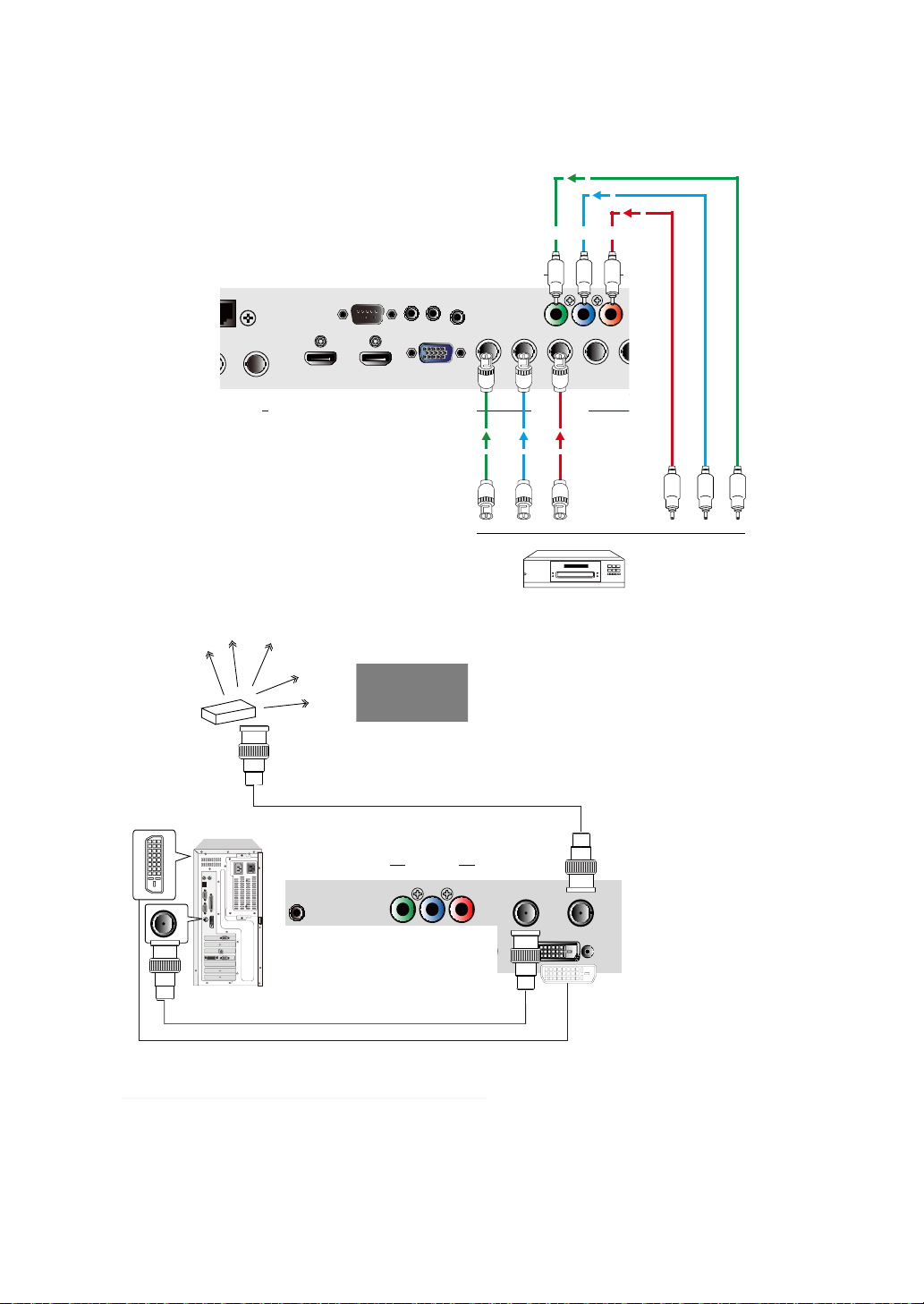
COMPONENT connection
Take the 3/5 cabled RGB component video connectors from the source equipment to the projector’s
COMPONENT1 or COMPONENT2 jacks.
COMPONENT 2
SDI / HDSDI / 3G
COMPONENT 1
Y Pb Pr
10/100 BASE-T
RS-232 WIRED REMOTE
12V TRIGGER
I II
350mA
SYNC IN SYNC OUT
IN
OUT G/Y B/Pb R/Pr H VVGA
HDMI HDMI
STEREO DVI
DTV
(YPbPr)
Y Pb Pr
DTV set-top-box or other compo-
nent (YPbPr) input source
STEREO DVI Connection
COMPONENT 2
COMPONENT 1
Y Pb Pr
RS-232 WIRED REMOTE
12V TRIGGER
I II
350mA
SYNC IN SYNC OUT
G/Y B/Pb R/Pr H VVGA
HDMI HDMI
STEREO DVI
IR EMITTER
3D Glasses
L / R Sync signal
EMITTER L/R Signals
Note: Consult with dealer about IR EMITTER and 3D Glasses.
Connect the STEREO DVI to a stereo 3D source – it is usually a computer with 3D Graphics card,
and 3D applications.
24
Installation of the Projector
3D mode
There are few ways to go to the 3D mode
•
OSD menu: Go to Main Menu “Input > Input Selection”, and select STEREO DVI
•
Remote control: Press hot key “5” to go to STEREO DVI directly
•
Network Webpage: Go to “Source/general” > “Source” and select STEREO DVI
•
RS232 Commands : Use “ Input Selection” to select STEREO DVI
When this function is blanking. The 3D Mode is not available
2D mode
Please note that OSD menu is not available in 3D mode. The ways to switch back to 2D mode are:
•
Remote control: Press any of the input key 1-4 will switch back to 2D mode.
•
Network Webpage: Go to “Source/general” > “Source” and select any other source that are
available.
•
RS232 Commands: Use “ Input Selection” to select any other source that are available.
Turning on the projector
Refer to the instructions covered in “ Page 15 : Installation the projector. “.
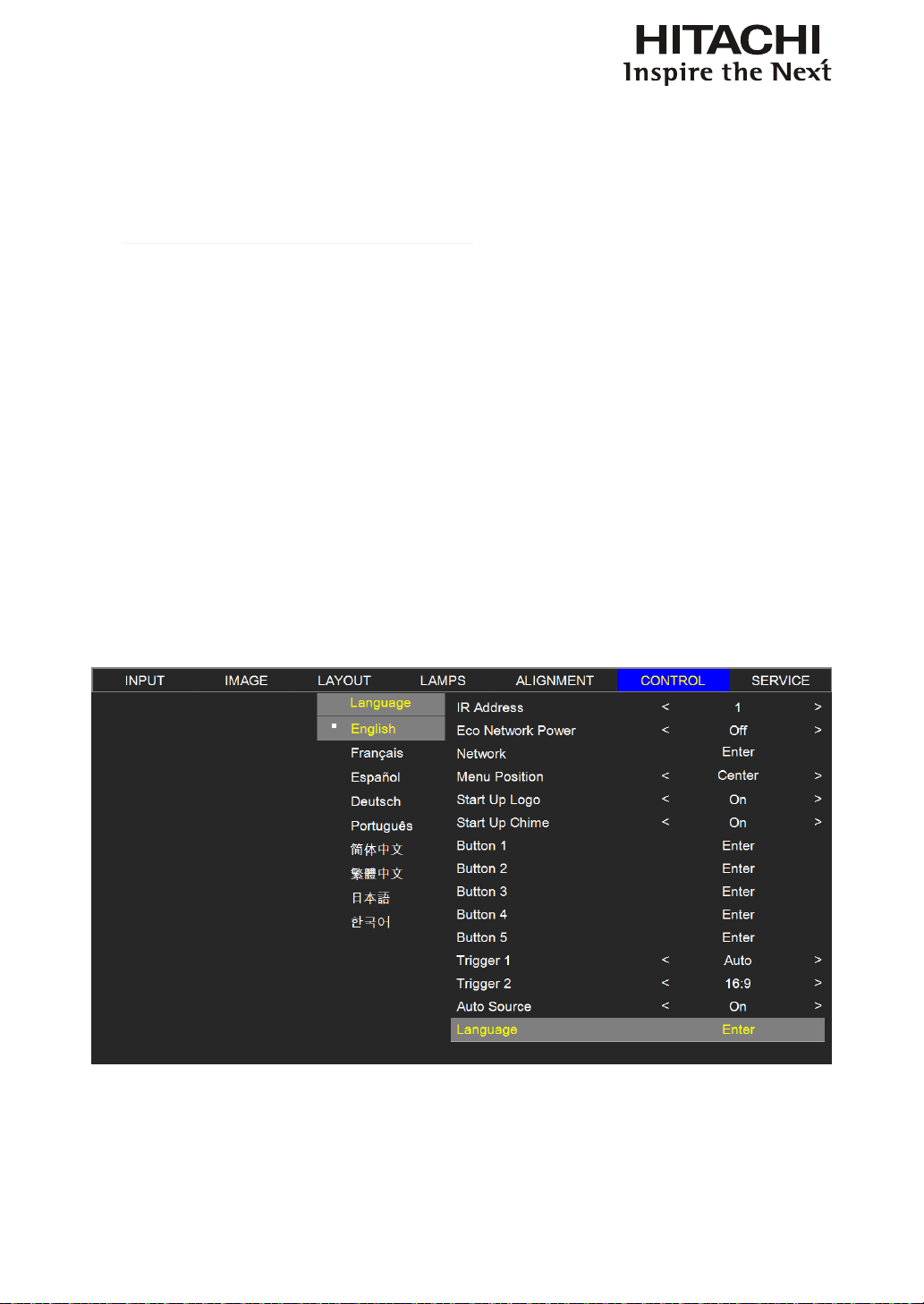
Changing OSD language
By factory default, the OSD menu of the projector is displayed in English. If you wish to
switch to a different language, you can go to MENU CONTROL Language and
choose the language you prefer for the OSD.
25
Installation of the Projector
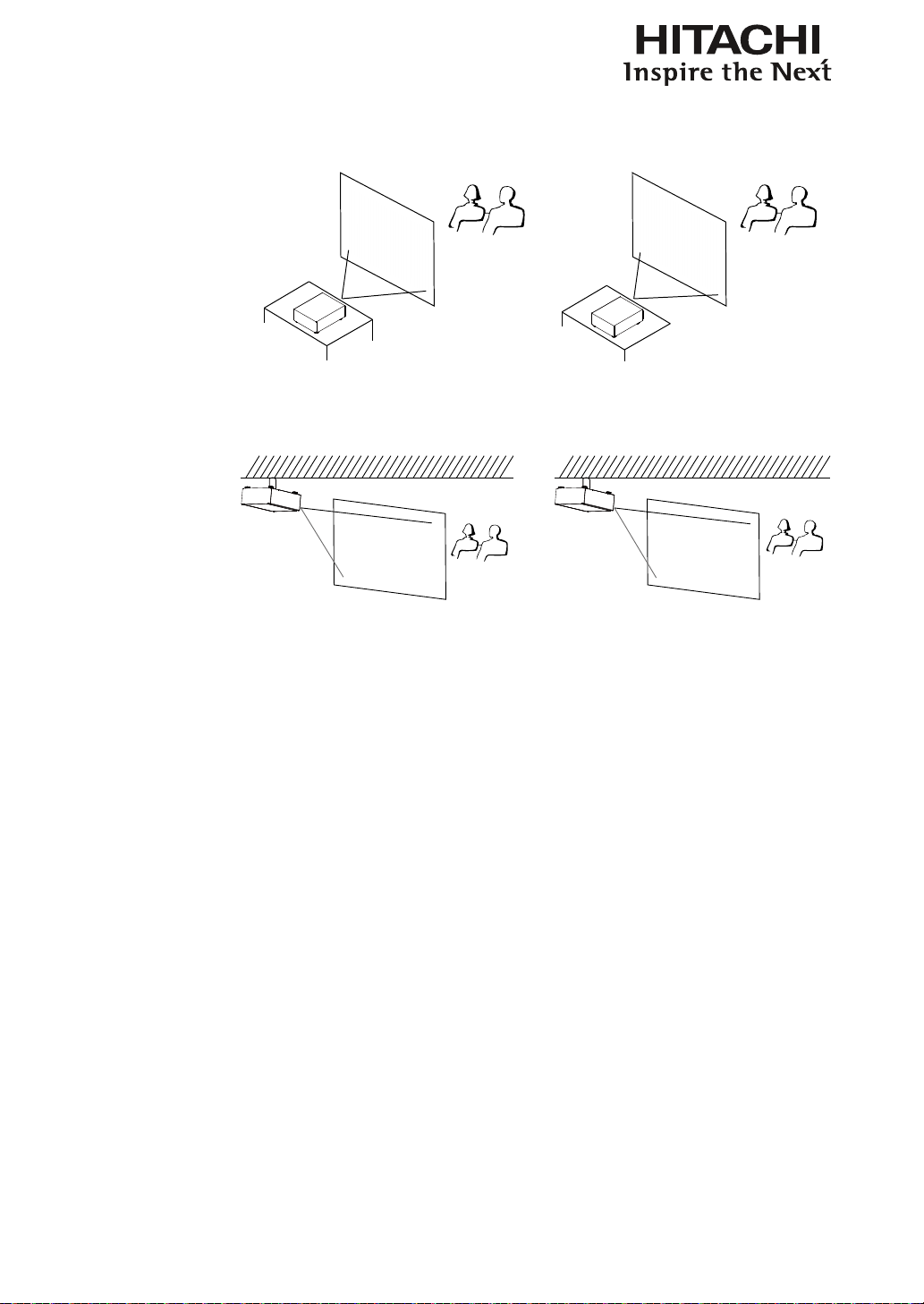
Adjusting screen orientation
By default, the projector is congured for “frontal projection - desktop installation”. If you choose to
install your projector in other setups, be sure to adjust the screen orientation to achieve the correct
projection mode.
Front projection - ceiling mode
Press MENU ALIGNMENT Ceiling Mode and choose ON; the projector is now congured for
“frontal projection - ceiling mode”.
Correct Picture
Lotus
Lotus
Lotus
26
Installation of the Projector
Rear projection - desktop installation
Press MENU ALIGNMENT Rear Projection and choose ON; the projector is now congured
for “rear projection - desktop installation”.
Lotus
Correct Picture
Lotus
Lotus
Rear projection - ceiling mode
Press MENU ALIGNMENT Rear Projection and choose ON;
press MENU once more ALIGNMENT Ceiling Mode and choose ON
Lotus
Correct Picture
Lotus
Lotus
Adjusting the projector lens
Projector lens adjustment includes focus, zoom, horizontal/vertical image shift. Please refer to Page
16 : “5. Adjusting the projector’s angle”., “6. Adjusting focus and zoom.”. and “7. Correcting
keystoning caused by projection angle”. for detailed instructions.
28
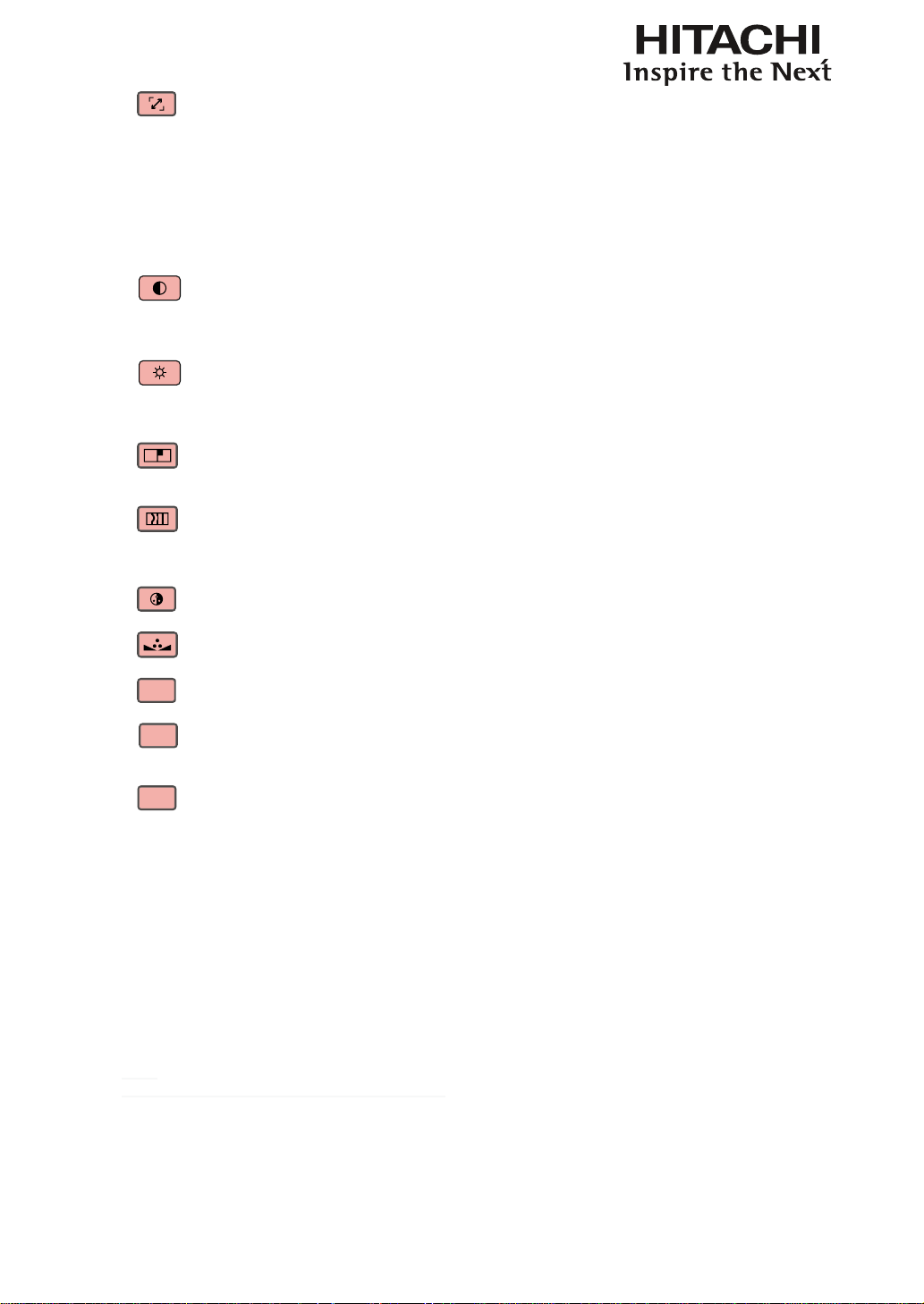
REMOTE CONTROL
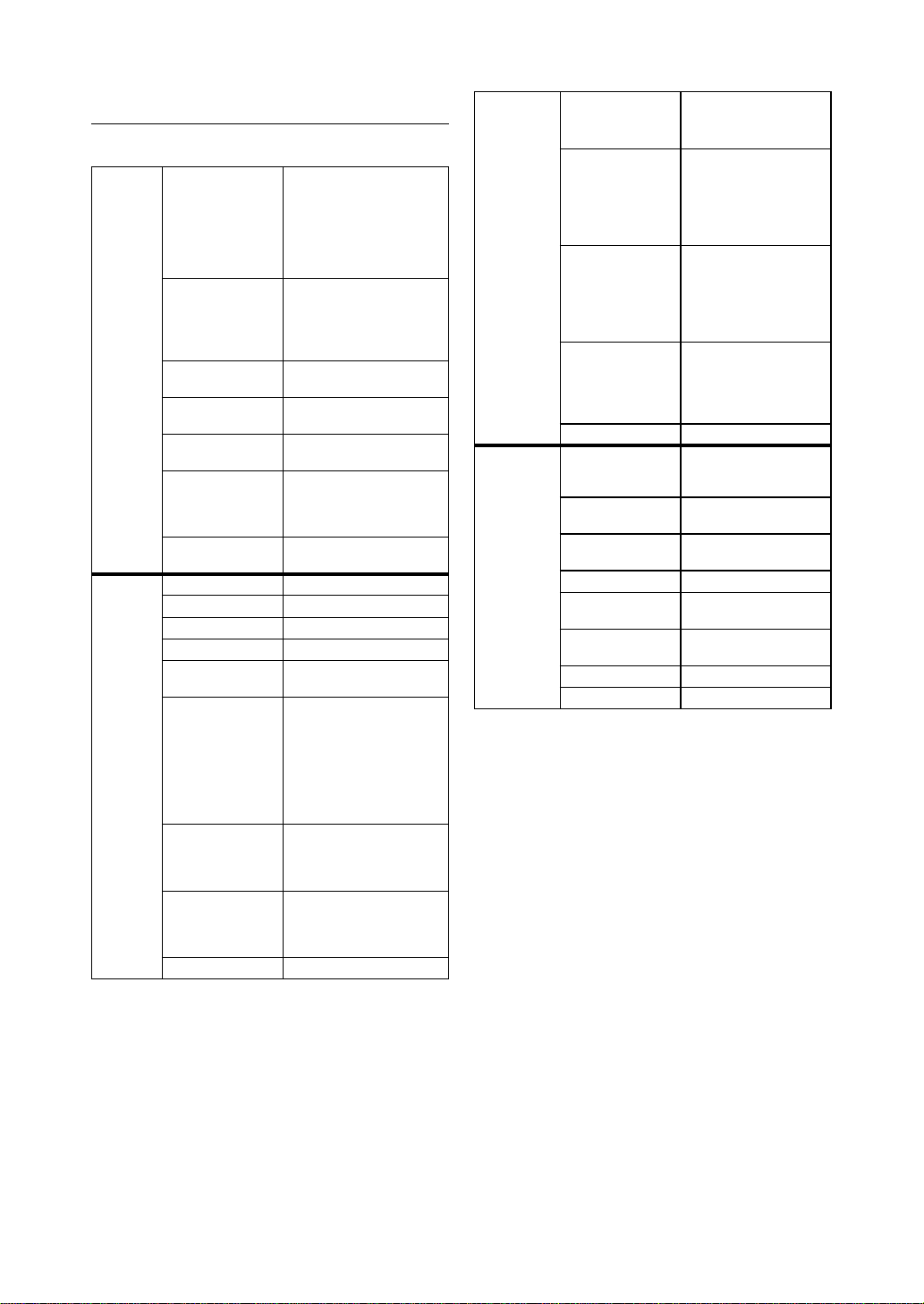
AUTO IMAGE
This button is used to Resync the
image; when the image signal
becomes unstable or image
quality deteriorates simply press
this button and the projector will
automatically adjust the screen
dimension, phase, timing and so
forth.(The adjustments also apply
to PIP input).
CONTRAST
Adjust the level of white in the
image to increase or decrease
image contrast.
BRIGHTNESS
Adjust the level of black in the
image to increase or decrease
image brightness.
SHARPNESS
Adjust image sharpness and
clarity.
PHASE
When the image ickers, doubles,
distorts or appears to be wavy,
press this button to adjust.
COLOR
This function not available for this model.
TINT
This function not available for this model.
PIP
PIP
Use this button to display or disable PIP.
SWAP
SWAP
Use this button to switch the sources of image PIP
display.
ADDRESS
ADDRESS
*Only 2 addresses are possible*
Press and hold the ENTER button
and press Address button until the
remote control panel ashes once
(approximately 5 seconds) to
change the receiving address of
the remote control. If you use one
remote control to operate two
different projectors, you can
assign different address for the
two projectors so that when you
operate projector A, projector B
will not be affected.
Note:
Some keys may not work when STEREO DVI is selected.
29
OSD Menu description
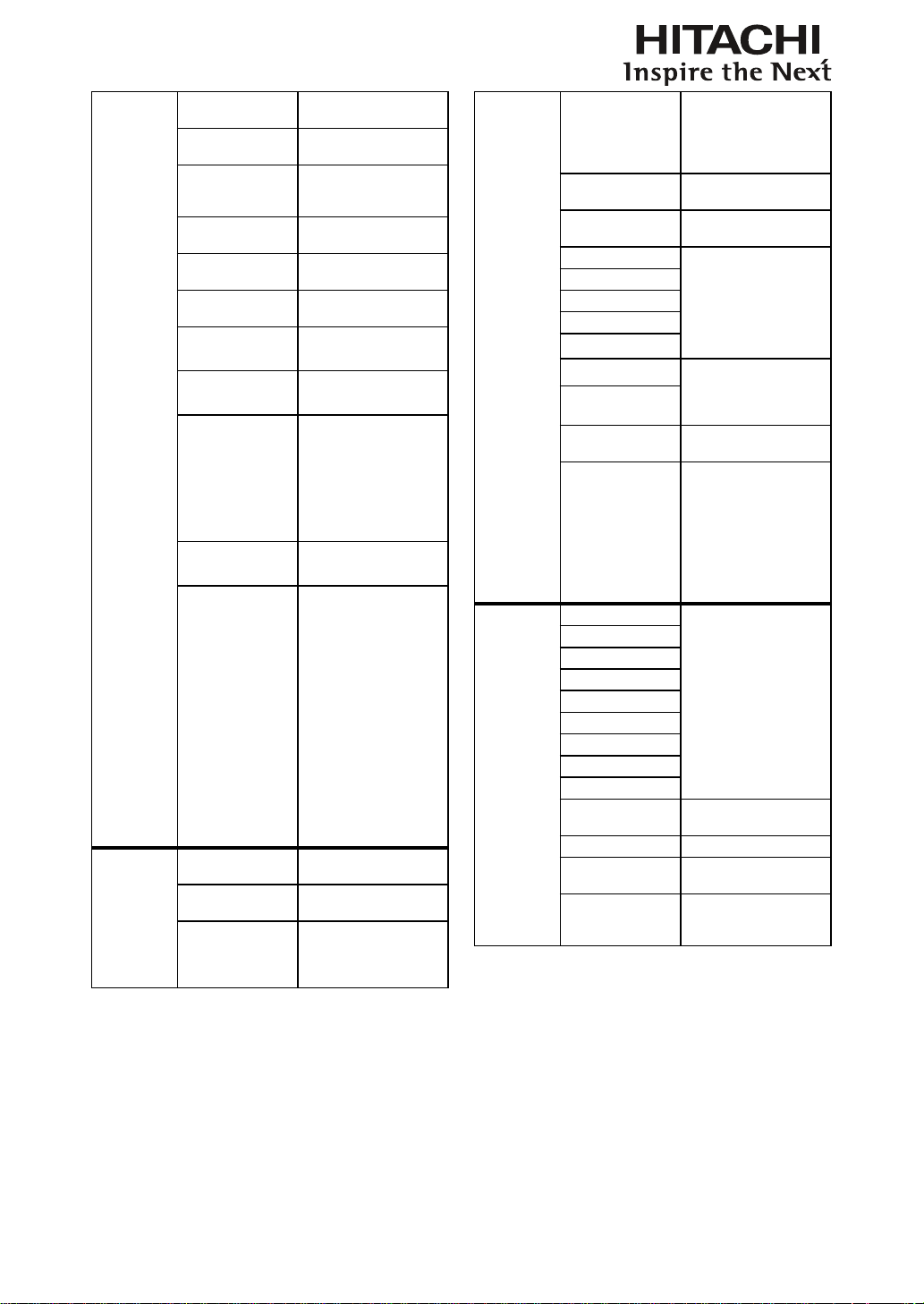
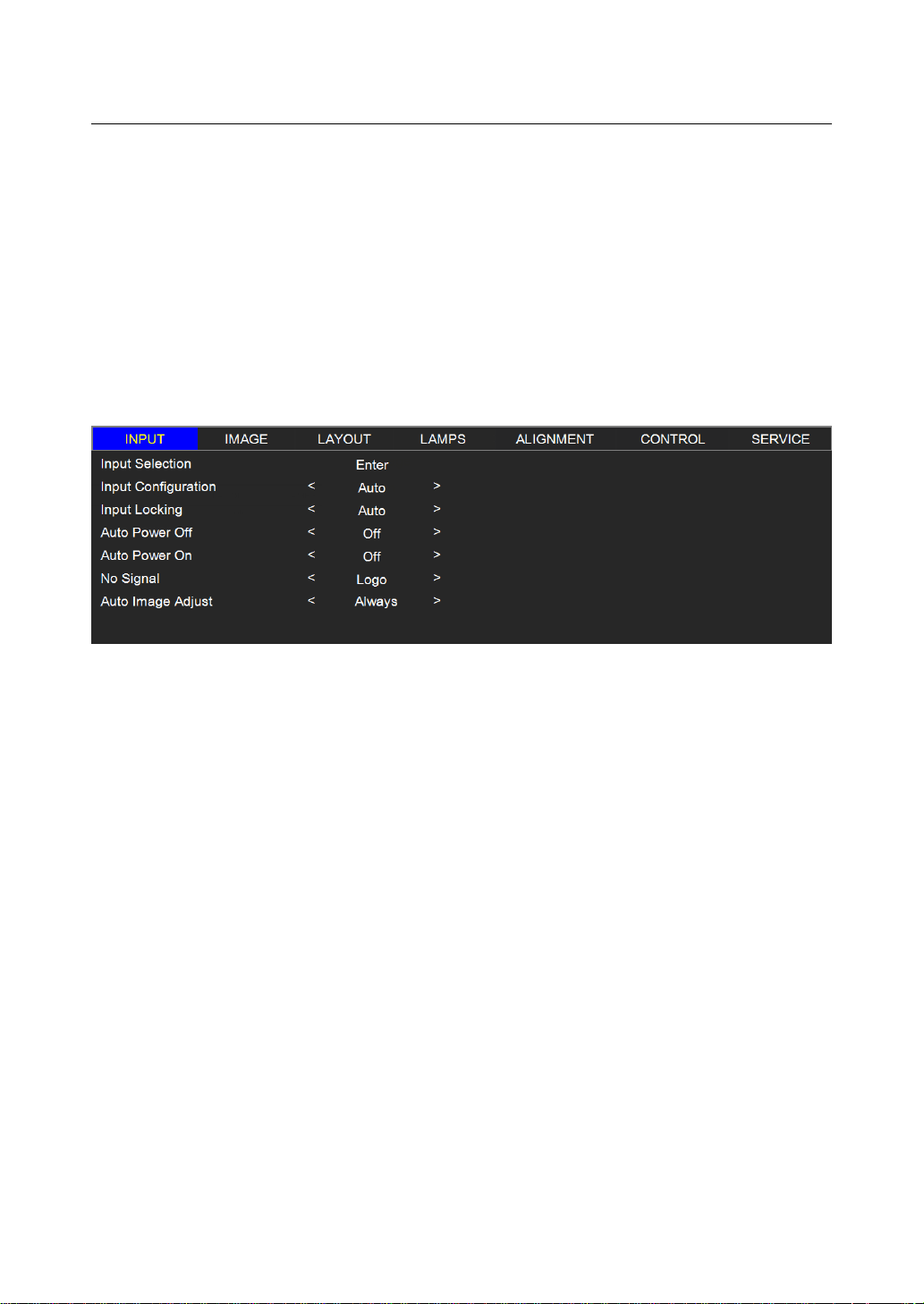
OSD Menu Tree
INPUT
Input Selection
HDMI1
HDMI2
RGB D-15
YUV1
RGBHV/YUV2
SDI/HDSDI/3G
STEREO DVI
Input Conguration
Auto
YUV HD
YUV STD
RGB-PC
RGB-Video
Input Locking
Auto
48Hz, 50Hz, 60Hz
Auto Power Off
On
Off
Auto Power ON
On
Off
No Signal
Logo
Blue
Black
White
Auto Image Adjust
Off, Auto
Always
IMAGE
Contrast 0~200
Brightness 0~200
Sharpness 0~200
Noise Reduction 0~200
Color Temperature
3200K, 5400K, 6500K,
9300K, Native
Input Balance
Black Balance Offset
Red Offset
Green Offset
Blue Offset
White Balance
Red Gain
Green Gain
Blue Gain
Aspect Ratio
5:4 , 4:3, 16:10
16:9, 1.88, 2.35
Letterbox, Native,
unscaled
Timings
H Total
H Start
H Phase
V Start
Auto Image Execute
LAYOUT
Zoom
Off
CROP
ZOOM
Main Select
HDMI1
HDMI2
RGB D-15
YUV1
RGBHV/YUV2
SDI/HDSDI/3G
PIP Select
HDMI1
HDMI2
RGB D-15
YUV1
RGBHV/YUV2
SDI/HDSDI/3G
PIP Position
Top Left
Top Right
Bottom Left
Bottom Right
Split L-R
PIP On, Off
LAMPS
Mode
Eco
Normal
Power
LAMPS
Single
Dual
High Altitude Mode
On
Off
Power 0~35 (78.3% - 100%)
Lamp1 Status
On
Off
Lamp2 Status
On
Off
Lamp1 Run Time XX HRS
Lamp2 Run Time XX HRS
30
OSD Menu description
ALIGNMENT
Rear Projection
On
Off
Ceiling Mode
On
Off
Lens Control
Zoom/Focus
Shift V
Shift H
Dynamic Contrast
On
Off
Gamma
1.8 2.0 2.2
2.35 2.5 Dicom sim
Internal Patterns
On (1~12 Pattern)
Off (0 off)
Color Space
Native, EBU, SMPTE
Custom
Lens To
Midposition
Execute
Warp
Horizontal Keystone
Vertical Keystone
Rotation
Pincushion / Barrel
Top Left Corner
Top Right Corner
Bottom Left Corner
Bottom Right Corner
Blanking
Top, Bottom
Left, Right, Reset
Edge blend
Status
White Level
Top
Bottom
Left
Right
Black Level
Top
Bottom
Left
Right
All
Red
Green
Blue
Reset
Adjust Lines
Control
IR Address
1
2
Eco Network Power
On
Off
Network
IP Address
Subnet mask
Gateway
DHCP
Control
Menu Position
Top Left
Top Right
Bottom Left
Bottom Right
Center
Start Up Logo
On
Off
Start Up Chime
On
Off
Button 1 HDMI1
HDMI2
RGB D-15
YUV1
RGBHV/YUV2
SDI/HDSDI/3G
STEREO DVI
Button 2
Button 3
Button 4
Button 5
Trigger 1
5:4 , 4:3, 16:10
16:9, 1.88, 2.35
Letterbox, Native, Auto
unscaled
Trigger 2
Auto Source
On
Off
Language
English
French
Spanish
German
Portuguese
Chinese Simplied
Chinese Traditional
Japanese
Korean
Service
Model
Read-only information
Serial Number
Software Version
Active/PIP source
Pixel Clock
Signal Format
H/V Refresh Rate
Lamp1 Run Time
Lamp2 Run Time
Lamp Hour Reset
Lamp1 Hour Reset
Lamp2 Hour Reset
Projector Run Time Read-only information
Blue Only
On
Off
Factory Reset
The command will be
executed after conrmation
in the prompt dialog box
31
OSD Menu description
OSD Description
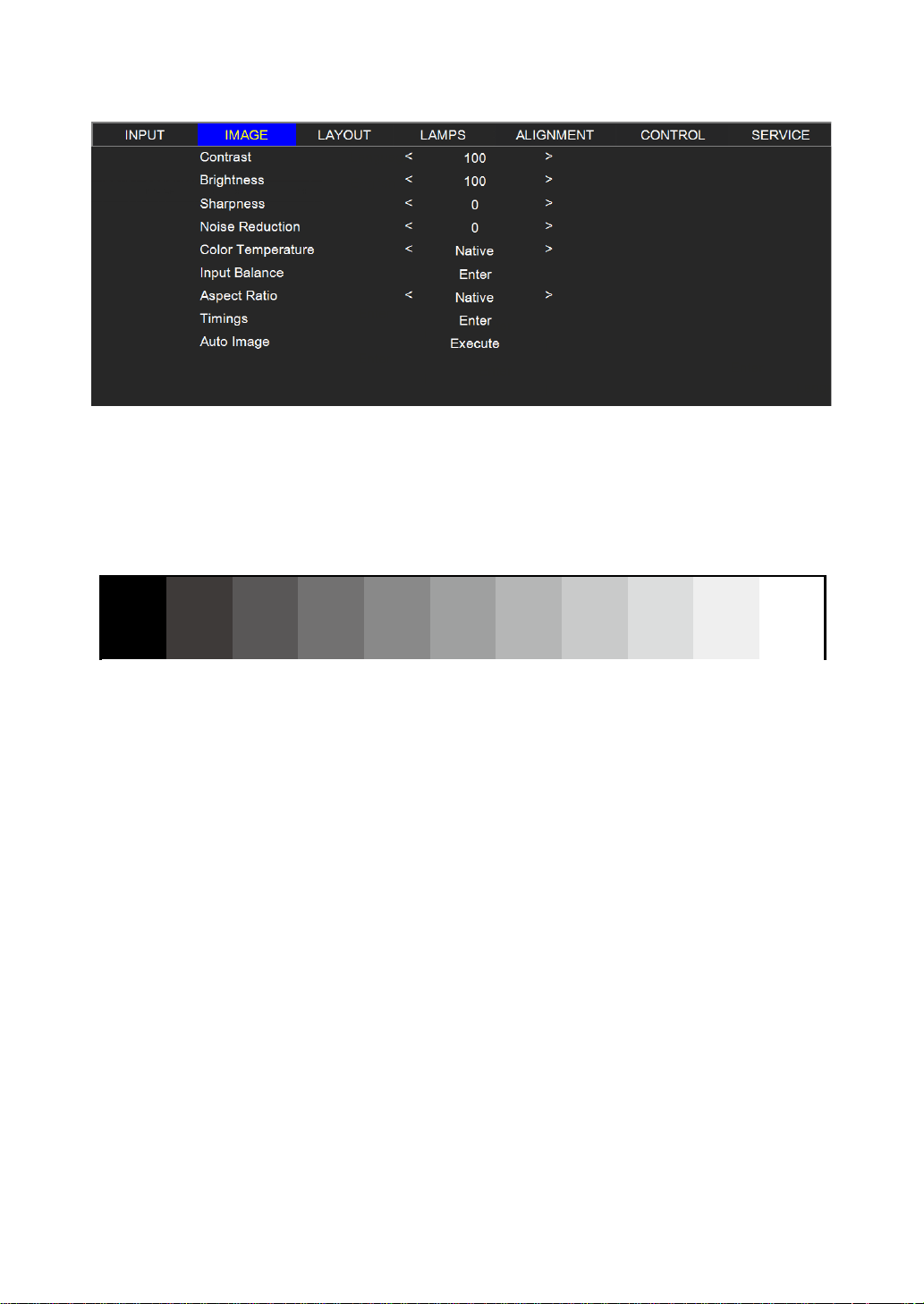
1. Press the MENU button on the remote control or on the back of the projector to bring up the OSD Menu.
2. You will see seven functional menus (Input, Image, Layout, Lamp, Alignment, Control and Service). Press ◄ or ► to
select the desired sub menu.
3. Press ▲ or ▼ to select the desired sub menu.
4. Your current selection in each of the sub menu will be displayed in yellow text and highlighted in blue. Press ◄ or ► to
access the conguration for the selected item or press ENTER to go to another sub menu.
5. Press MENU to return to the previous menu.
6. From the main menu, press MENU to close the OSD Menu.
7. Some items do not work at the condition of Source, Input signal and Menu setting.
8. Image may be incorrect when the parameter value is exceeded.
INPUT
Input Selection
Use this function to specify the source of image connected to the rear of the projector. For instance,
if you have connected your PC as the video input source, you can choose RGB D-15(RGB-HV/SOG)
to be the input for image projection. Options of input available on the projector include: HDMI1,
HDMI2, RGB D-15, YUV1, RGBHV/YUV2,SDI/HDSDI/3G and STEREO DVI
Input Conguration
Select Input Conguration from the Advanced menu to choose the color space of the source signal for
HDMI, VGA, and component connections.
The default setting, Auto, functions as follows:
•
Auto
The Auto setting determines the correct color space to use. If it does not, you can force the MSWU-
81E to use a specic color space. Choose one of the following:
REC709 sets the color space matrix to that dened in ITU-R BT.709.
REC601 sets the color space matrix to that dened in ITU-R BT.601.
RGB-PC uses RGB color space and sets black at 0,0,0 RGB and white at 255,255,255 RGB.
RGB-Video uses RGB color space and sets black at 16,16,16 RGB and white at 235,235,235.
•
HDMI
For component SDTV and EDTV resolutions, YUV STD is used. For other component
video resolutions, YUV HD is used.
•
VGA
YUV STD is used for SDTV and EDTV sources, and YUV HD for all other sources.

32
OSD Menu description
•
Component
For SDTV and EDTV resolutions, uses the YUV STD. For all other resolutions YUV HD is used.
Input Locking
Use this function to specify the frequency of the image input signal. You can let the projector
determine the optimal projection frequency or force the projector to project image at the frequency
you specify.
•
Auto
The present value for this function is Auto. If you specify vertical refresh frequency from the
input device to be between 48~62Hz, the projector will automatically lock the frequency of the
input signal so that both signal input and output will be refreshed at the same frequency in order
to achieve optimal image output. If the frequency of the input signal falls between 24~31Hz, the
projector will automatically double the vertical refresh frequency. If the frequency of the input
signal falls between 31~48Hz or exceeds 62Hz, the projector will automatically set the frequency
to 60Hz.
•
50Hz
Choose this option to set image output frequency at 50Hz.
•
60Hz
Choose this option to set image output frequency at 60Hz.
Note: If you enable PIP, the projector will automatically synchronize the frequency of the PIP input signal with the
main input signal.
Auto Power Off
The default value is OFF. If you set it to ON, the projector will automatically shut down after 20
minutes without input signal.
Auto Power ON
The default value is Off. If you set it to ON, the projector will automatically start up when it is connected
to AC power. If you plug the projector’s power cord into an AC socket with a switch, you can use this
function to start up the projector using the socket’s switch instead of the remote. If you do not need this
function, please set it to Off.
No Signal
Use this function to specify the content or color to be displayed on the blank screen when no input
signal is available. You can choose from Logo, Blue, Black, White. The default value is Logo.
Auto Image Adjust
You can congure the Auto Image Adjust function to one of the following three modes:
•
Off =NEVER
•
Auto =When not done before(or when done rst time)
•
Always =When new source selected or new source connected.
33
OSD Menu description
IMAGE
Contrast
Use to adjust the contrast of the projected image. You can connect the projector to an external
image source to display an image resembling the one shown below for adjustment. It is recommended
that you adjust the projected image according to the results shown below so that the brightness of the
spectrum remains constant throughout and achieve maximum contrast between black and white.
The following image illustrates the results of direct contrast adjustment using a random image:
Lowered contrast
Enhanced contrast Original image

34
OSD Menu description
Brightness
Use to adjust the brightness of the projected image. You can connect the projector to an external
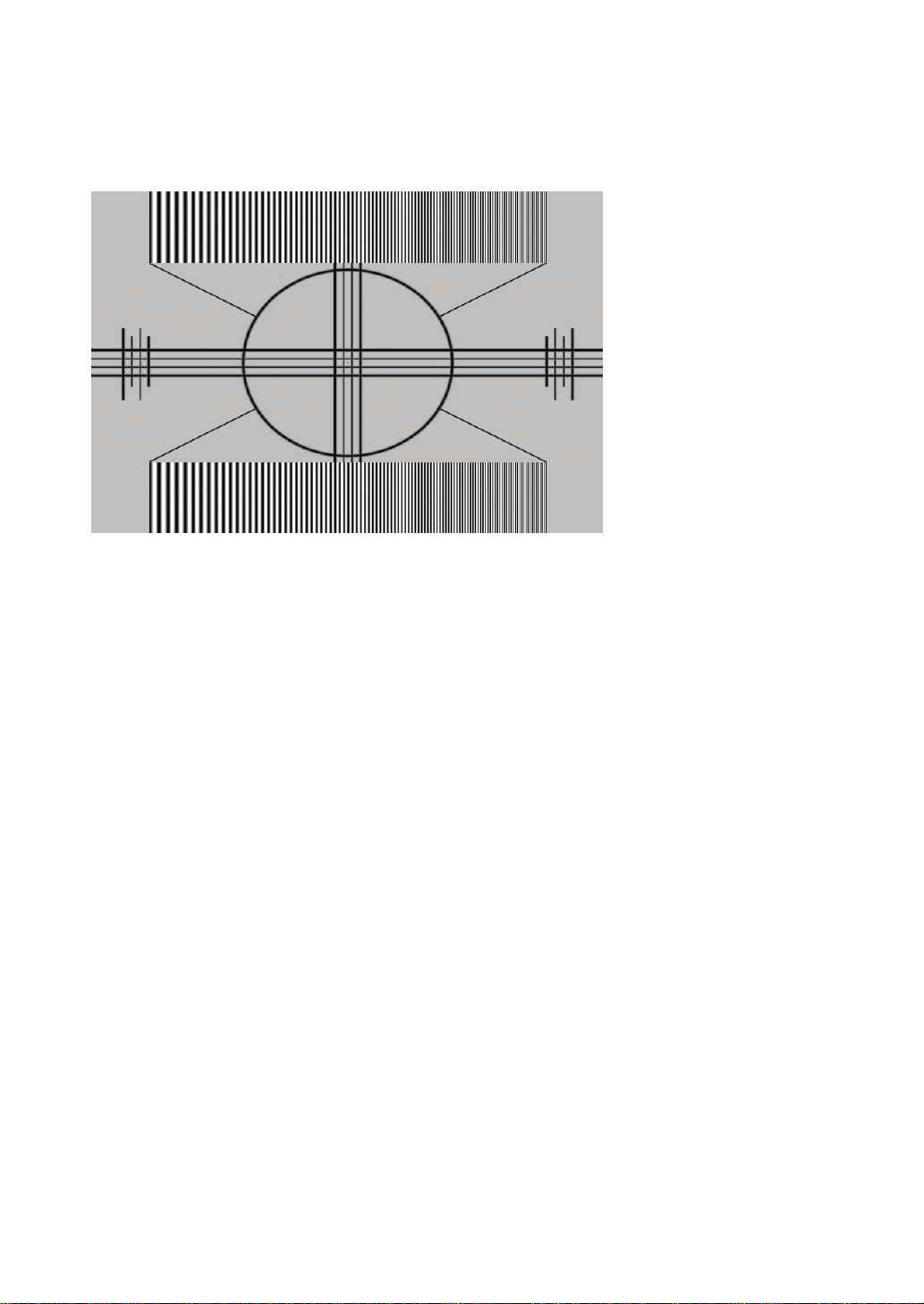
image source to display an image resembling the one shown (PLUGE, Picture Line-Up Generation
Equipment) for adjustment. Although there are numerous versions of PLUGE image, they are typically
comprised of blocks of black, white and gray on top of a black background.
Contrast, Brightness, Saturation and Tint are interrelated options that affect
one another; when you adjust one of them, you might have to ne tune other
settings to get the best projection results.
Above Black
Below Black
It is recommended that you adjust the image to the
following status:
•
The darkest black bar of the image should disappear
into the background.
•
The dark gray area should be barely visible.
•
The light gray area should be clearly visible.
•
The white area should appear real and mellow.
•
The image should only display black, gray and white
(with no other colors).
The following image illustrates the results of direct brightness adjustment using a random image:
Reduced brightness
Enhanced brightness Original image
35
OSD Menu description
Sharpness
The adjustment of sharpness primarily changes the value of high frequency detail. You can connect
the projector to an external image source to display an image resembling the one shown below to
adjust the image sharpness.
The following image illustrates the results of direct sharpness adjustment using a random image:
Reduced sharpness
Enhanced sharpness Original image (Value = 100)
Noise Reduction
Use to adjust the noise of the projected image. This function is suitable for the elimination of
image noise from interleaving SD input. Generally speaking, reducing image noise will lower the
value of high frequency detail and make the image appear more mellow.
→
noise reduction
36
OSD Menu description
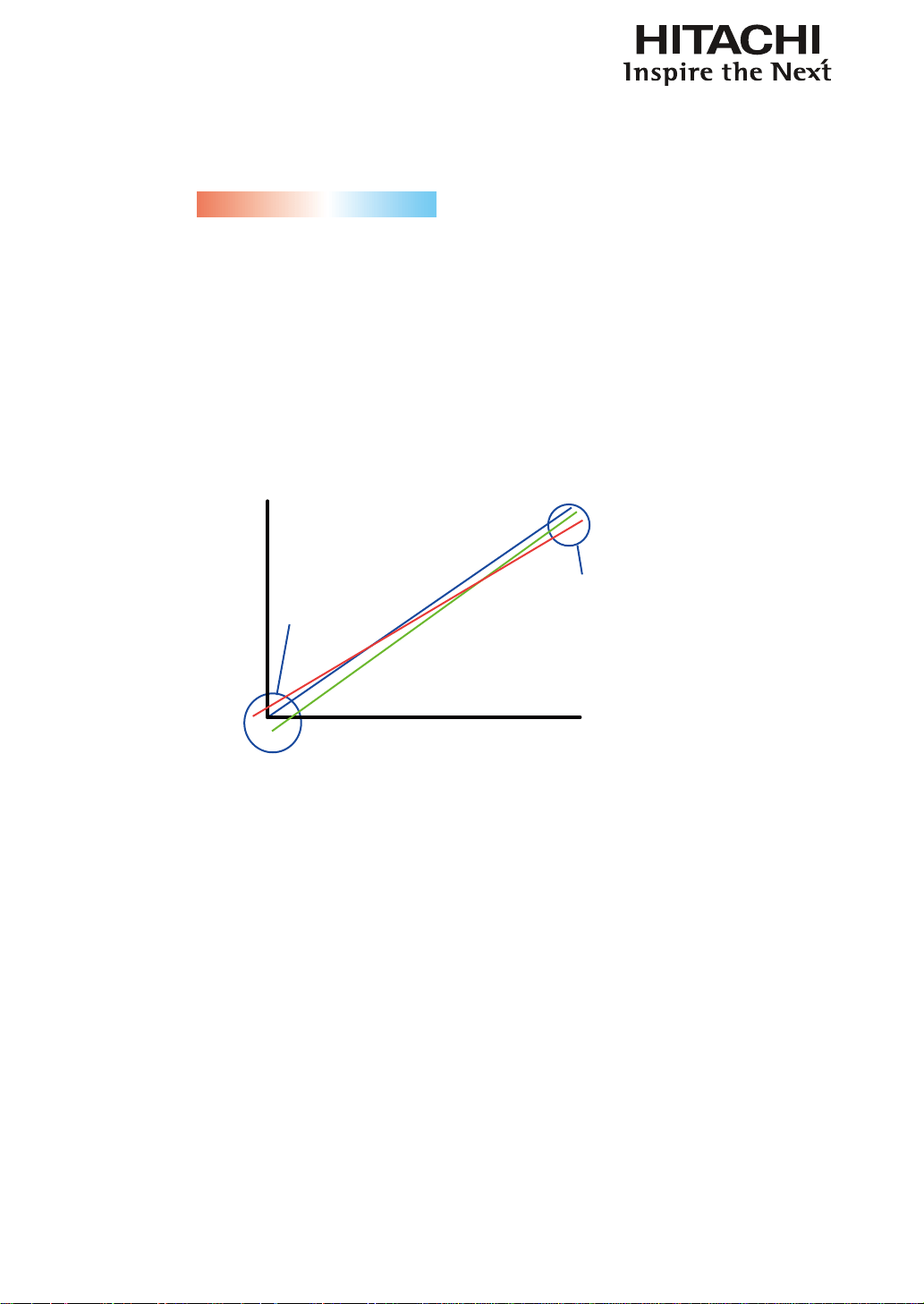
Color Temperature
You can choose from 3200K, 5400K, 6500K, 9300K and Native.
Color temperature refers to the change in light color under different energies that is perceived by the
naked eye. The change of color temperature from low to high for visible light goes from orange red
white blue .
The projector’s default color temperature is set at NATIVE and it is suitable for most situations. As
color temperature rises, the image will appear to be more blue; as it decreases, the image will appear
redder. When you choose “Native”, the projector will disable the white adjustment function of the
input device.
Input Balance
Regardless of the change in ambient light, the human eye is equipped with an automatic adjustment
mechanism that makes a white object appears white and black object black. However, since no
machine has such an incredible innate feature, you may need to make certain adjustments to the
projector’s settings when the ambient light changes so that the image will appear closer to the actual
colors.
the point where saturation
is reached needs to be same
for RGB
the point where CUT off
for RGB is reached
needs to be the same
White balance
adjust
black balance adjust
input
signal
0
255
Offset
This refers to the control of color imbalance in the darker areas of the projected image. It is
recommended that you use an external test image with many areas of dark and gray colors (i.e. an
image of 30IRE-window). If you notice minimal amount of red, green or blue in the gray areas, adjust
the offset of the corresponding color accordingly. This function will shift the entire color spectrum for
the whole image and change its brightness.
Gain
This refers to the control of color imbalance in the brighter areas of the projected image. It is
recommended that you use an external test image with many areas of white (i.e. an image of 80IRE-
window). If you notice minimal amount of red, green or blue in the gray areas, lower the gain of the
corresponding color accordingly. This function is used to increase or decrease the range of color input
for the entire image.
Generally speaking, as gain increases, the contrast of the image will become lower. By increasing the
offset, the image brightness will become lower.
•
Black Balance Offset
This function involves the adjustment of the following red, green and blue offsets. The text
itself is decorative.
•
Red Offset
37
OSD Menu description
Press to adjust the offset of red in dark scales.
•
Green Offset
Press to adjust the offset of green in dark scales.
•
Blue Offset
Press to adjust the offset of blue in dark scales.
•
White Balance
This function involves the adjustment of the following red, green and blue gains. The text
itself is decorative.
•
Red Gain
Press to adjust the gain of red in bright scales.
•
Green Gain
Press to adjust the gain of green in bright scales.
•
Blue Gain
Press to adjust the gain of blue in bright scales.
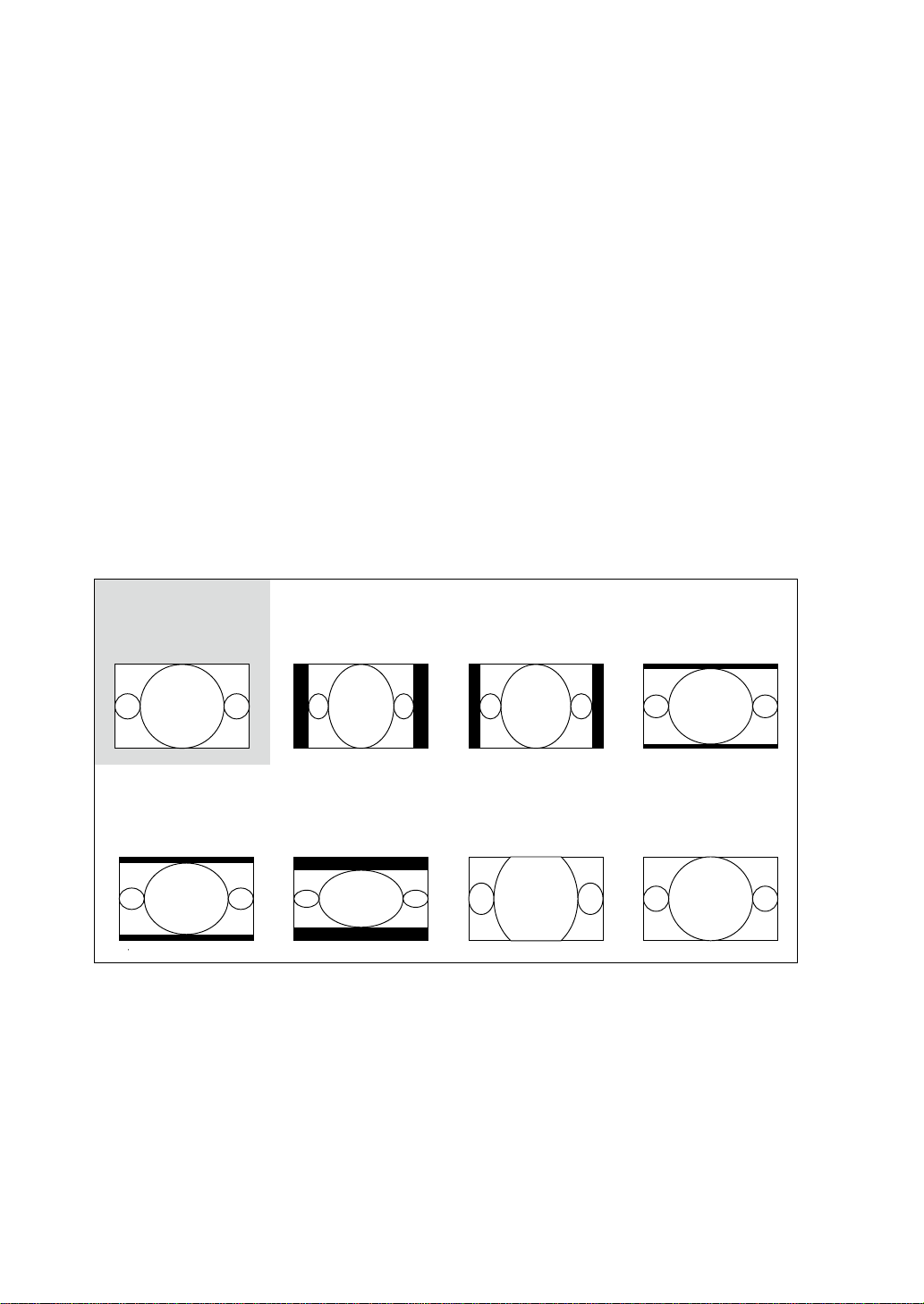
Aspect Ratio
Use this function to adjust the aspect ratio of the projected image. Use to adjust the ratio of
image length and width.
The projector’s full image size is 16:10 (1920×1200 dots).The following diagram illustrates the
difference in various aspect ratio settings:
Native input
16:10
Output aspect ratio
16:9
Output aspect ratio
1.88
Output aspect ratio
2.35
Output aspect ratio
5:4
Output aspect ratio
4:3
Output aspect ratio
Native
Output aspect ratio
Letterbox
38
OSD Menu description
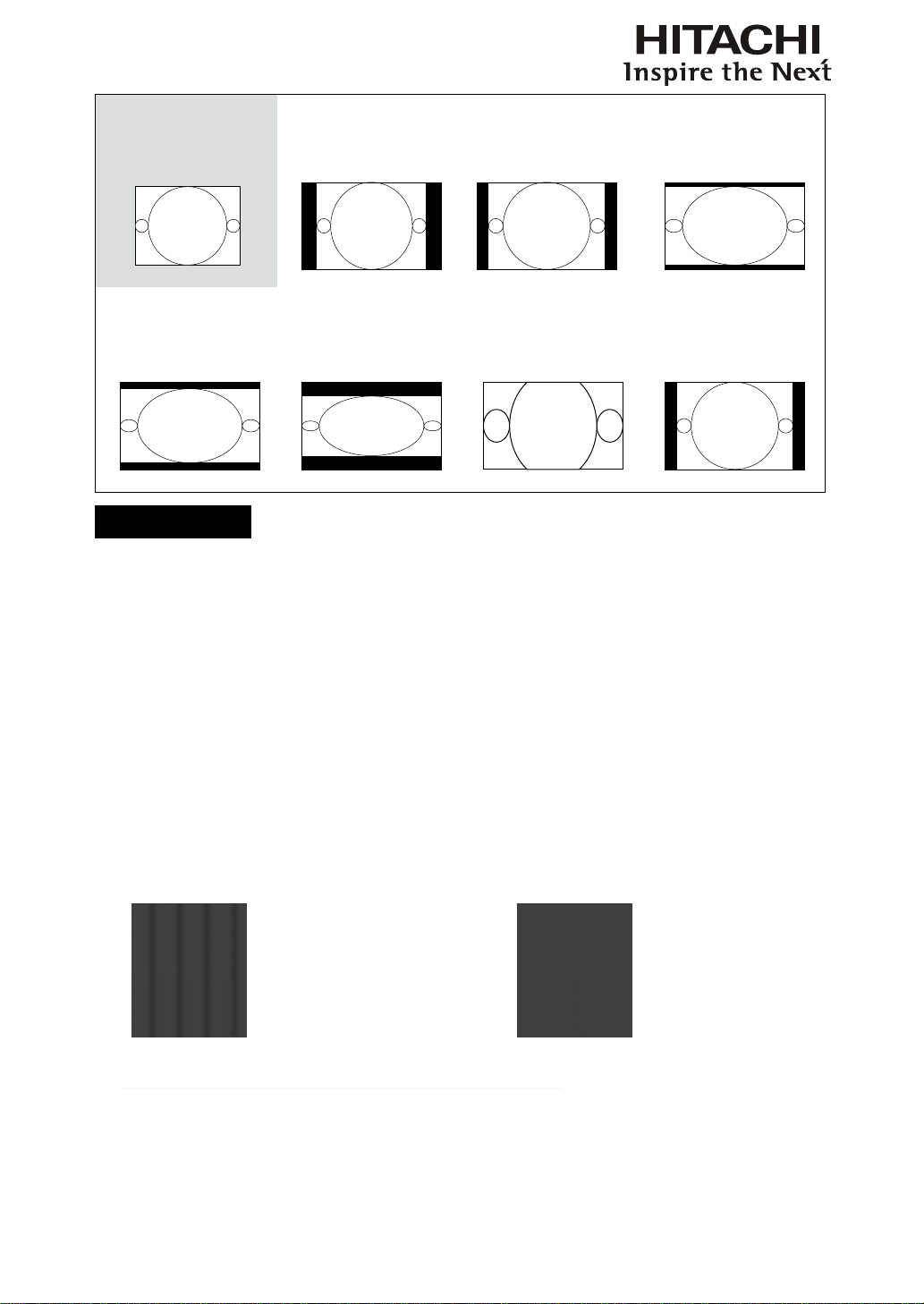
Native input
4:3
Output aspect ratio
16:9
Output aspect ratio
1.88
Output aspect ratio
2.35
Output aspect ratio
5:4
Output aspect ratio
4:3
Output aspect ratio
Native
Output aspect ratio
Letterbox
Cropped portion of the image
Note : that when used for commercial purposes, including: projection of image in movie theatres,
hotels, cafeteria and other public venues, compression or extension of image achieved through the
change of aspect ratio may constitute copyright infringement to the rightful owner of the image.
Please do so at your own discretion.
Timings
•
H Total
Press to adjust the horizontal total.
Use this function to adjust the clock frequency of pixel sampling (horizontal pixel frequency
of the analog input source generated by the ADC). If you notice ickering or vertical lines
in the image, it means that the pixel sampling frequency is insufcient. You can use this
function to adjust the frequency to achieve consistent image quality.
The following image is an example of test image from an external signal source:
Adjust image quality by changing
the value of horizontal total to
smoothen the image.
*In order to adjust timings the pattern should be used is pixel (on/off)*

39
OSD Menu description
•
H Start
Use to adjust the projected image’s horizontal position.
If the projected image is not at the center of the screen (i.e. shifted to right or left) and
ends up being cropped, use this function to adjust the image’s horizontal position. The
following image is an example of test image from an external signal source:
Native picture Skewed left
Skewed right
•
H Phase
Use to adjust the projected image’s phase.
Use this function to adjust the phase of pixel sampling clock (relative to input signal).
Should the image still icker or show noise (i.e. edges on texts) after optimization, adjust
phase accordingly.
•
V Start
Use to adjust the projected image’s vertical position.
If the projected image is not at the center of the screen (i.e. shifted up or down) and ends
up being cropped, use this function to adjust the image’s vertical position. The following
image is an example of test image from an external signal source:
原始圖面 圖面下偏
圖面上偏
Native picture
Skewed down
Skewed Up
It is recommended that when adjusting the image, the horizontal total should be adjusted before the horizontal phase. However, if
the image still ickers even after you have adjusted both, try lowering the image noise.
Auto Image
When Auto Image was selected in the OSD menu, press ENTER to execute the automatic image
adjustment function.
By executing this function, the projector will resync the image. Use this function when the
image source is unstable or when you notice deterioration in image quality and the projector will
automatically adjust the image size, phase and timing. (The adjustment also applies to PIP input
source).
This function is identical to the
button on the remote control. You can simply use the hot key on
the remote control to execute this function.
40
OSD Menu description
LAYOUT
Zoom
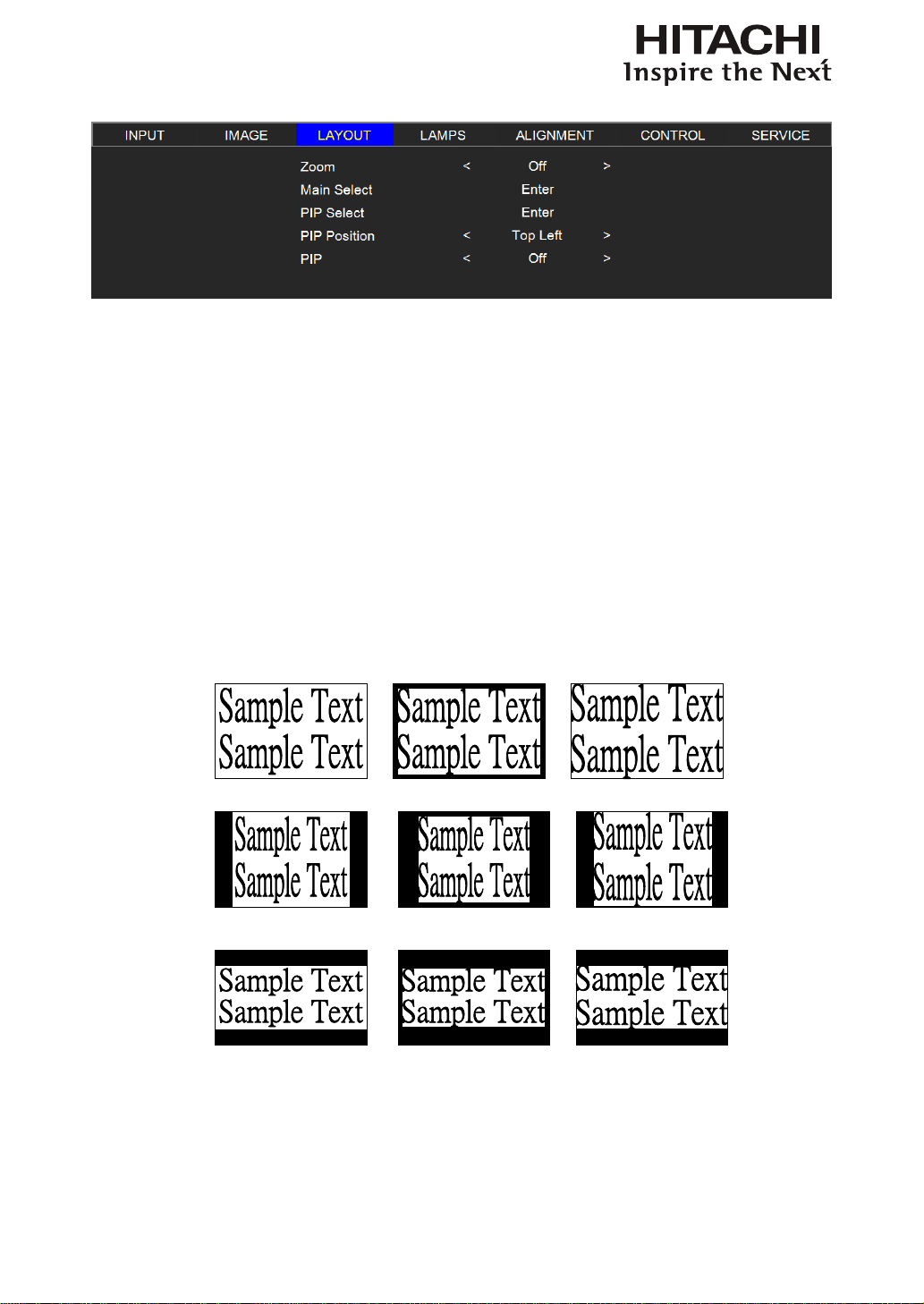
Due to the fact that some consumers may still be using older television systems, some TV programs
may not display the edges of the image. Use this function to hide the image edge by choosing one of
the following three options:
•
Off
Setting it to off makes no change to the projected image.
•
Crop
Setting it to "Crop" will add two "masks" equivalent to 3% of horizontal resolution on either side of
the image and two similar masks above and below the projected image.
•
Zoom
You can use this function to enlarge the image's horizontal resolution over the 106% of the default
aspect ratio. Any portion that exceeds the original image will be cropped.
When you set aspect ratio to " Native" or "Unscaled" , be sure to set Zoom to "Off" or "Crop".
16:10
Off Crop Zoom
5:4
2.35
41
OSD Menu description
Main Select
When you want to project PIP image, use this function to
specify the image source for the PIP image. This function is
identical to Input Selection; for more information.
PIP Select
Use this function to select the source for the sub window.
You can choose from HDMI1, HDMI2, RGB D-15, YUV1
RGBHV/YUV2 and SDI/HDSDI/3G.
PIP Position
You can choose to display
the sub window in
ve different location over the main
picture according to your preference.
PIP
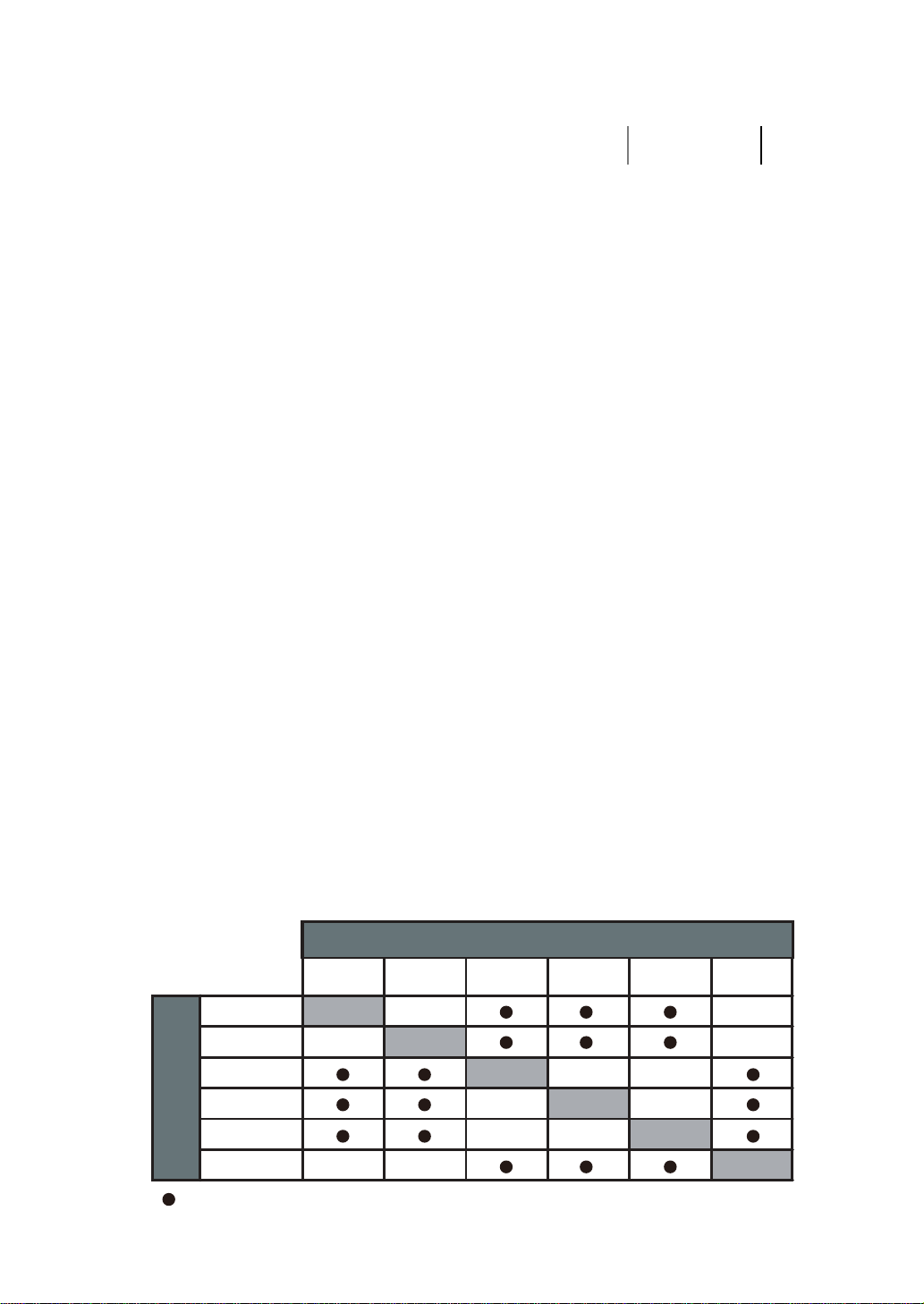
If you wish to display PIP image, you can make the conguration here. By choosing "ON", you will
see two windows on the projected image; the larger one is the primary image and the smaller one is
the sub image. By choosing "OFF", the PIP function will be disabled and you will only see a single
image window.
*please refer to the following main and PIP source matrix for a valid main and PIP source selection
when PIP is ON.*
Main select
Source availabe
-
source not availabe
PiP select
HDMI1
HDMI2
RGB(D15)
YUV1
RGBHV/YUV2
SDI/HDSDI/3G
HDMI1
-
-
HDMI2
-
-
RGBHV/
YUV2
-
-
SDI/
HDSDI/3G
-
-
RGB
(D15)
-
- -
YUV1
-
Pip/main source
availability
Sub picture
Main picture
Split L-R
Bottom RightBottom Left
Top RightTop Left
42
OSD Menu description
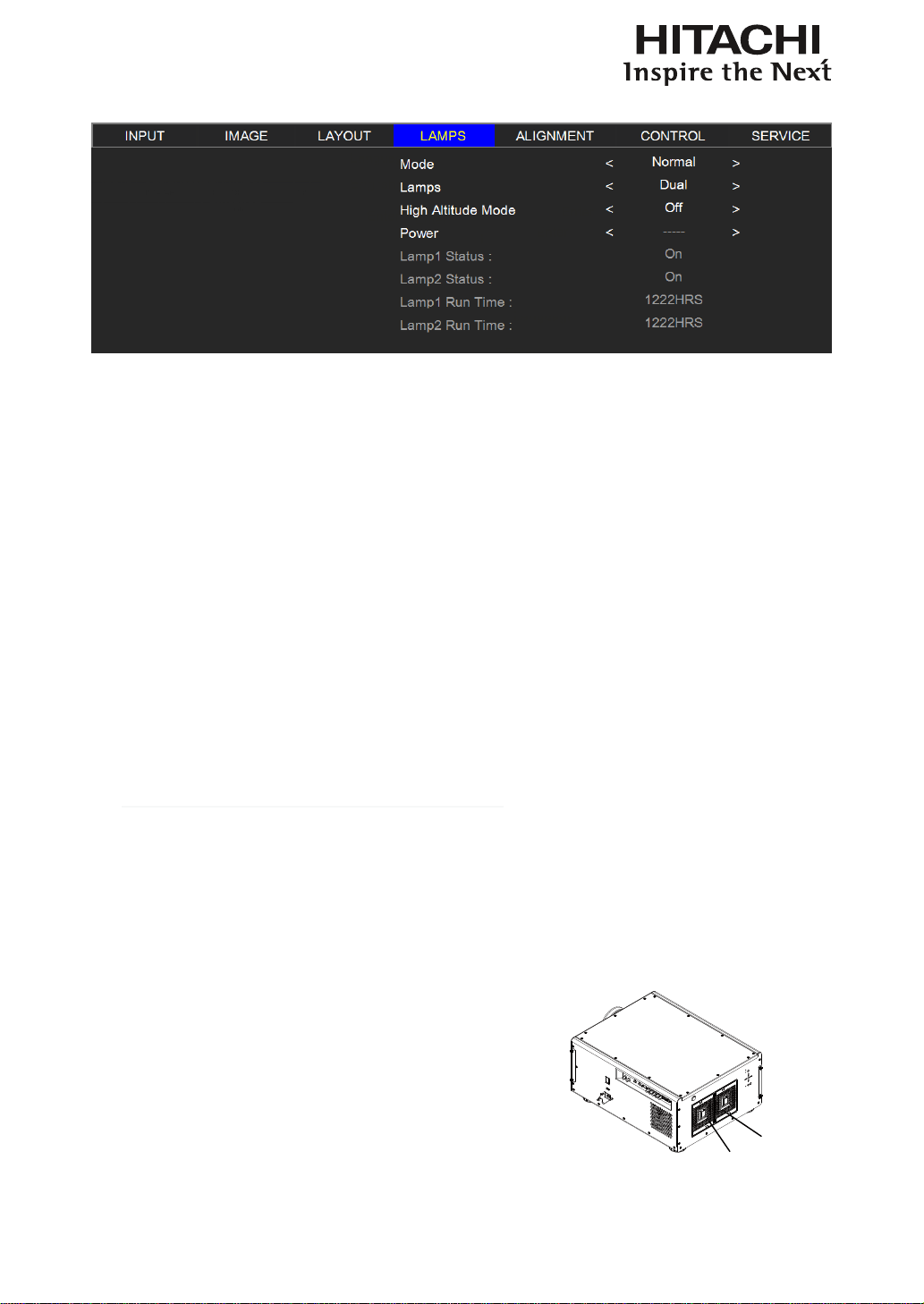
LAMP
This chapter covers information on the projector lamp.
Mode
•
ECO
When set to Eco mode, the wattage of the lamp will be at 360W. If the surrounding environment
is sufciently dark or if you do not require intense brightness, you can set the lamp to Eco mode to
prolong its usage life.
•
Normal
When set to Normal mode, the wattage of the lamp will be at 465W. If the projection environment
requires brighter image, you can set the lamp to Normal for the highest projection brightness.
•
Power
If the image brightness at Eco mode is too dark for you and the Normal mode gets too bright,
you can set it to Power to specify the power of the lamp yourself to make ne adjustments to the
brightness of the projected image. you could encounter situations where the image from projector
A being brighter than projector B. When this occurs, you can use this function you could encounter
situations where the image from projector A being brighter than projector B. When this occurs,
you can use this function to ne tune the brightness of the two projectors to achieve consistent
image brightness. To access this function, go to the OSD Menu → LAMPS → Power and adjust
accordingly.
Note: ECO is automatically selected between 35~40°C(95~104°F)
LAMPS
Depending on the application condition, either single lamp or dual lamps can be selected via OSD
menu. When the projector was switched from single lamp to dual lamps, an hourglass OSD will block
the user from the further OSD operation for 60 seconds. When the projector was switched from dual
lamp mode to single lamp, the lamps selection OSD will be blocked for 170 seconds for lamp cooling.
The lamp power can be adjusted from 78% ~ 100%.
•
Single
When the projection environment is sufciently dark that a
single lamp could achieve the desired projection brightness,
you can choose to use one single lamp. The projector will
automatically determine the usage hours for lamp1 and lamp2
and choose the lamp with lower hours for the operation.
•
Dual
When you require brighter image from the projector, please
operate the projector with Dual lamps.
Lamp1
Lamp2

43
OSD Menu description
High Altitude Mode
Use this function to control the projector's cooling fan. You can set it to Off or On. The default setting
is Off.
Under normal circumstances, the projector will operate normally with this function set to Off. By
default, the projector will detect the temperature of the surrounding environment to regulate the speed
of the cooling fan. When the ambient temperature rises, fan speed will increase (generates louder
noise) to make sure the heat inside the projector gets discharged and keep the projector working
normally.
However, if you were to operate the projector in environment of excessive heat or in areas of high
altitude, the projector may automatically shut down. When this happens, you can enable this function
by setting it to On to force the cooling fan to work at a higher speed to regulate the temperature inside
the projector.
•
High altitude region refers to area with elevation over 1500 meters (4900 feet).
•
When operating in normal altitude environments, the projector will adjust the cooling fan
according to the temperature of the working environment. When the temperature rises
above 30C, the projector will automatically increase fan speed.
•
According to the product specication, the maximum operating altitude for the projector is at
3000m@25C.This means that you should not be operating the projector in high altitudes when the
working environment is over 25C.
(Due to the air thinning substantially at high altitudes, the result of cooling achieved by the cooling
fan is signicantly reduced compared to operation on level ground. With low atmospheric pressure
and high operating temperature, the cooling fan will not be able to disperse the heat adequately)
Power
This function will not be available if you have set the lamp to Eco or Normal modes, you can only
adjust this setting when the lamp has been set to ”Power”. You can specify the lamp power in the
range of 78% ~ 100%. Generally speaking, the lower the power, the dimmer the image will be but the
lamp will have longer lifecycle. In contrast, the higher the power, the brighter the image will be at the
cost of shorter lamp lifecycle.
Lamp1 Status
This function is limited to display purposes to inform the user of Lamp1 status (On or Off).
Lamp2 Status
This function is limited to display purposes to inform the user of Lamp2 status (On or Off).
Lamp1 Run Time
This function is limited to display purposes to inform the user of Lamp1's total run time.
Lamp2 Run Time
This function is limited to display purposes to inform the user of Lamp2's total run time.
44
OSD Menu description
ALIGNMENT
Rear Projection
The default setting is Off.
When you have set up the projector for rear projection, please set it to ON. For more information on
different modes of projection, refer to " Page 18 : Modes of installation ".
Ceiling Mode
The default setting is Off.
When you have set up the projector for ceiling mode (hung from the ceiling in reverse), please set
it to ON. For more information on different modes of projection, refer to " Page 18 : Modes of
installation ".
Lens Control
•
Zoom
This function is identical to the one covered in previous sections. Refer to " Page 16 : 6.
Adjusting focus and zoom. ".
•
Focus
This function is identical to the one covered in previous sections. Refer to " Page 16 : 6.
Adjusting focus and zoom. ".
•
Shift
This function is identical to the one covered in previous sections. Refer to " Page 16 : 5.
Adjusting the projector's angle ".
Dynamic Contrast
Use this function to congure the projector to automatically adjust image contrast from the source
upon start up or shut down. When activated, the projector will dynamically adjust the image contrast
from the beginning of the projection until the content has ended.

45
OSD Menu description
Gamma
Different Gamma settings will affect viewers' perception of the image. Generally speaking, for images
that are darker, it is recommended that Gamma be set higher to yield better image quality in darker
regions by sacricing details in brighter areas. In contrast, when projecting brighter images, you can
set the Gamma lower to give up details in the darker areas to make the brighter areas (i.e. clouds)
more visible.
You can choose from ve different gamma settings (1.8, 2.0, 2.2, 2.35, 2.5 and Dicom sim) on the
projector. The projector's default gamma value is at 2.2.
Every setting has precisely dened phases to display all primary colors (red, green, blue) and
secondary colors (yellow, cyan, magenta) in millions of pixels. Changing any number in the setting
will change the resulting color and rearrange the color "triangle".
Internal Patterns
The projector comes with some standard built-in patterns for testers to calibrate the equipment. These
include:
0 = Off 1 = Color Bars 2 = Hatch 3 = Burst 4 = Red
5 = Green 6 = Blue 7 = White 8 = Black 9 = TI-Red
10 = TI-Green 11 = TI-Blue 12 = TI-Ramp
Color Space
Using different color space will create different color presentation in the projected image. You can
choose from the following color gamma:
Native
Choose this to apply the projector's native color gamut
EBU
Choose this to apply the EBU color gamut; it is primarily suited for input devices using PAL,
576i, 576p and so forth.
SMPTE
Choose this to apply the SMPTE color gamut; it is primarily suited for input devices using
NTSC, 480i, 480p and so forth.
Custom
Choose this to customize the color gamut according to your preference through projector
Toolset application.
Lens To Midposition
After series of lens shift operations, this function can be used to return the lens to the center
position.

46
OSD Menu description
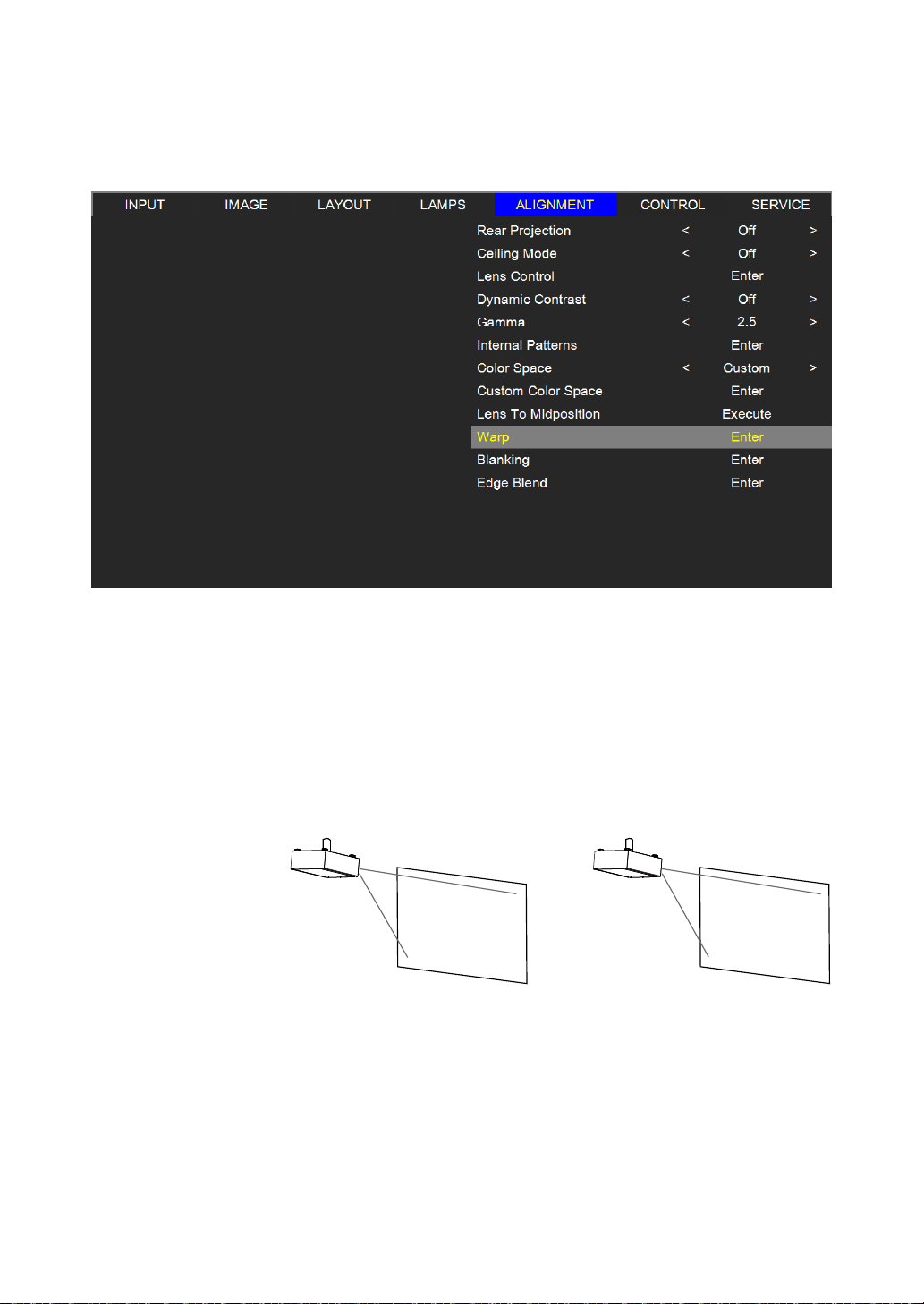
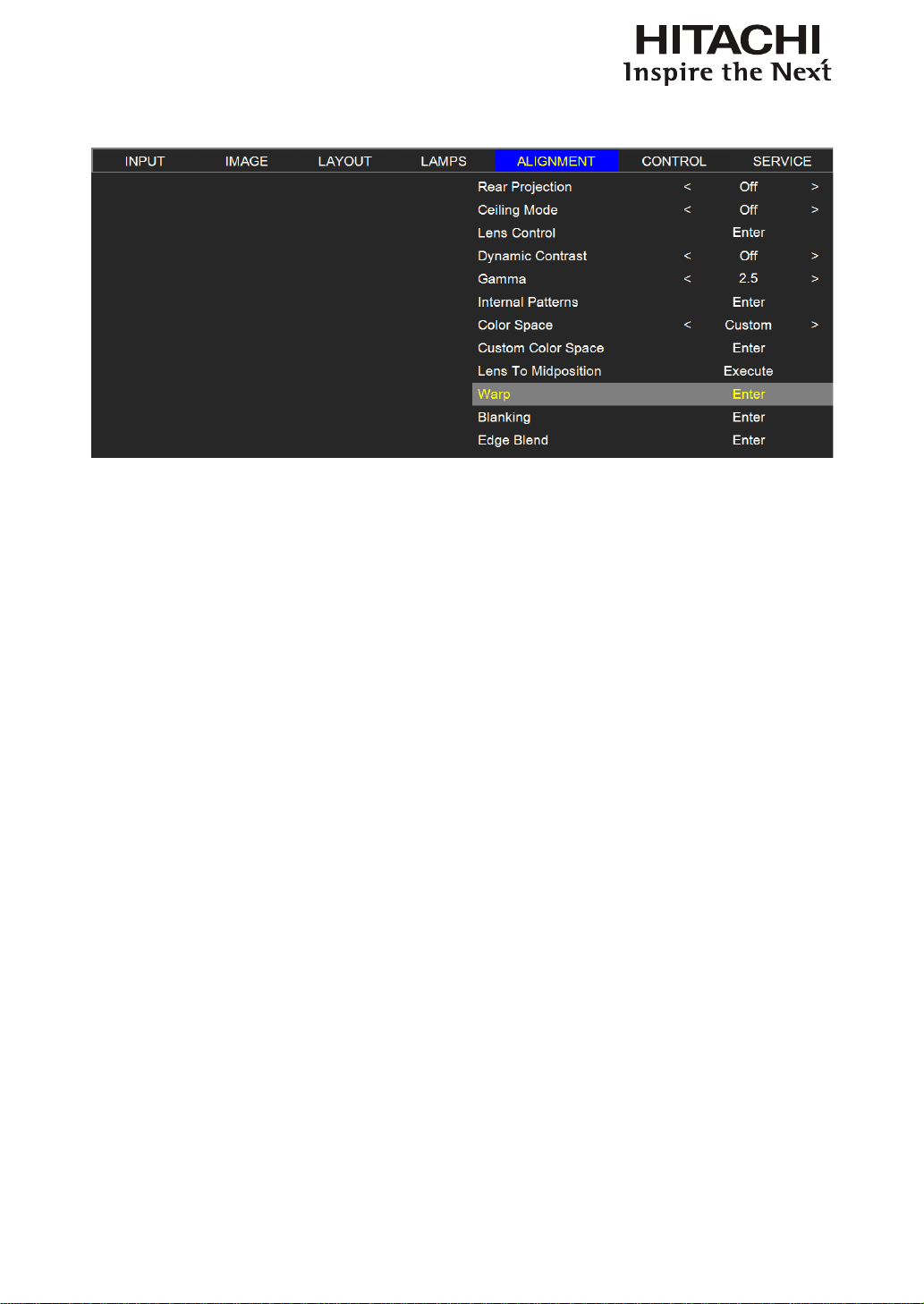
Warp
The function provides distortion correction on projected images.
Horizontal Keystone
Press ▲▼ to correct horizontal keystone due to projection angle.
Please refer to " Page 16 : 7.Correcting keystoning caused by projection angle ".
Verticall Keystone
Press ▲▼ to correct Vertical keystone due to projection angle. Please refer to
" Page 16 : 7. Correcting keystoning caused by projection angle".
Rotation
Press ◄ ► to correct incorrect image angle.
Correct angle
Press ► to adjust angle to
correct.
Press ◄ to adjust angle to
correct.
Pincushion / Barrel
Press ◄► to correct pincushion/barrel distortion.
→
Press ◄► to
correct pincushion
distortion to correct
image.
→
Press ◄► to
correct barrel distortion to
correct image.
Top Left Corner
Press ◄► to correct top left corner image bias.
→
Press ◄► to correct top
left corner image bias to
correct image.

47
OSD Menu description
Top Right Corner
Press ◄►to correct the right corner image bias.
→
Press ◄► to correct top
right corner image
bias to correct image.
Bottom Left Corner
Press ◄►to correct the bottom left image bias.
→
Press ◄► to correct
bottom left corner image
bias to correct image.
Bottom Right Corner
Press ◄►to correct the bottom left image bias.
→
Press ◄► to correct
bottom right corner image
bias to correct image.
Blanking
Use left blanking
function to block
the additional
image on the
screen.
TOP
Press ▼▲ on the remote control to adjust the top
blanking area on the projected image
Bottom
Press ▼▲ on the remote control to adjust the
bottom blanking area on the projected image
Right
Press ◄► on the remote control to adjust the
right blanking area on the projected image
Reset
It will reset all the blanking functions to the
default settings that is without any blanking
functions enabled.
48
OSD Menu description
Edge blend
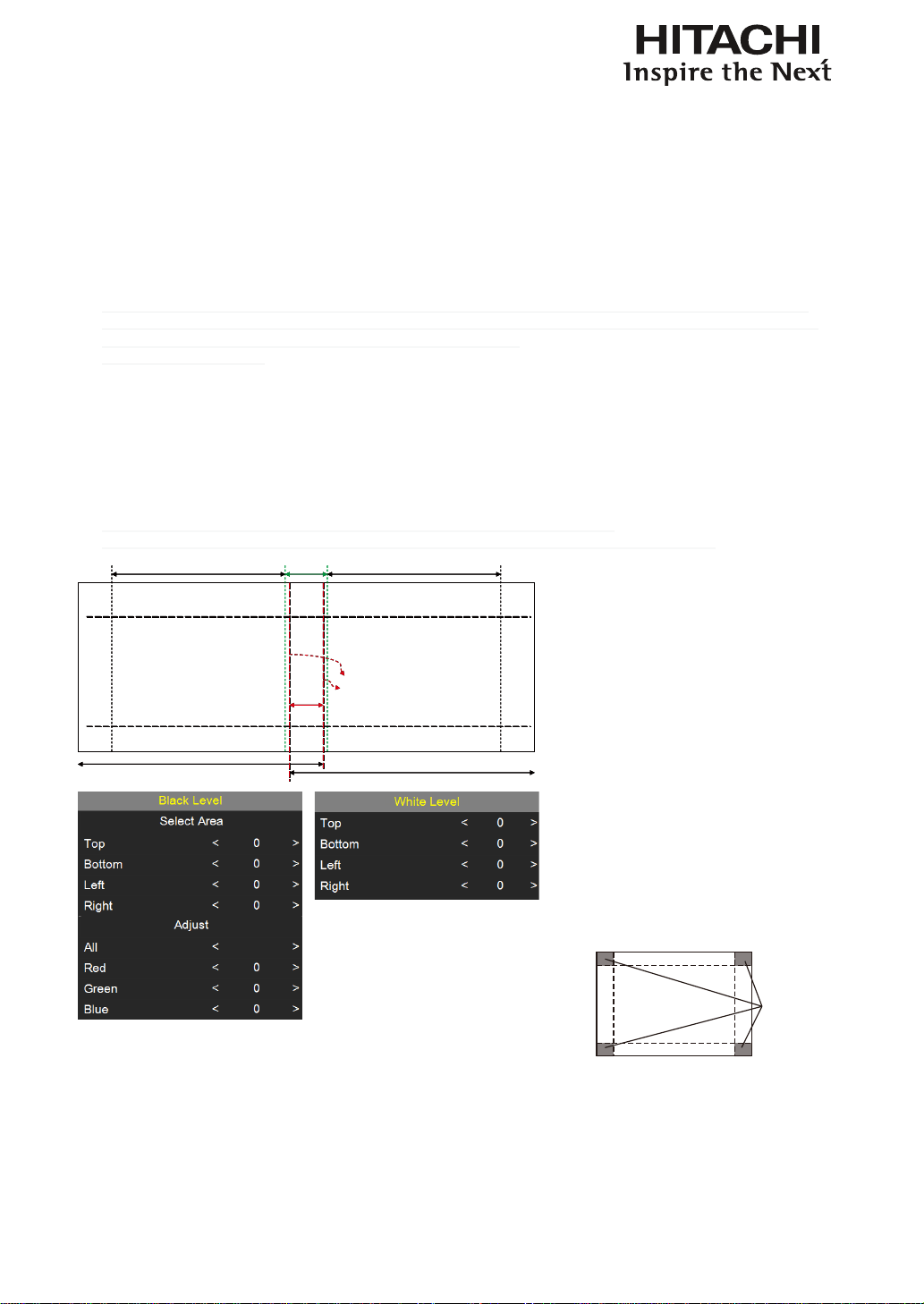
The function of Edge blend is applied in multiple projectors that are projecting at the same screen
simultaneously to adjust the uniformity of the images on the screen.
•
Status
Press ENTER to select ON or OFF. The function must be set to ON in order to enable the
function of Edge blend. If the function is set to OFF, the function of Edge blend is disabled.
•
White Level→ white level is to set the line from one projector where the other projector last
pixel ends. Press▲▼◄► to adjust the white level of the Top. Bottom, Left, Right direction on
the projected image.
As shown in the below drawing, the area D is the overlap area of the projected image 1 and the projected image 2. The
white level lines that is set where the other projector last pixels ends. Color adjustment for matching the images is done with
projector toolset with customs color space x and y or with input balance
on the OSD.
•
Black Level→ the purpose of black level is in order to compensate the non overlap zones
vs the overlap zone. It increase the black level to the brightness level of the overlap black.
It is to adjust the black level of the Top, Bottom, Left, Right direction on the projected
images.
It can be set to adjust the primary color of the projector. For instance, select ALL is to
adjust the primary color of Red, Greed, and Blue. Or it can be set to adjust the Red, Green
and Blue independently.
Note: The function combination of Black Level adjustment and 4 Corners is not available
Note: The function combination of Black Level adjustment and blend along corners is not available.
Image 1
Image 2
A B C
D
White Level Lines
Image 1
Image 2
A B C
D
White Level Lines
for black level adjustment a black
image needs to be connected
on the 2 projectors. Zone B will
have the sum of the blacks of the
2 projectors. Set the adjustment
line of the black level to the
position where the non active
DMD's of the right projector
ends. Set the adjustment line of
the black level to the position
where the non active DMD's of
the left projector ends. Adjust
black level of projector A to
match the black level with zone
B. Adjust the projector C to
match the black level with zone
B.
Blend along
corners
•
Reset
The function can reset the Edge blend settings on the projector. It will restore to the
images to the default that is without any Edge blend functions enabled.
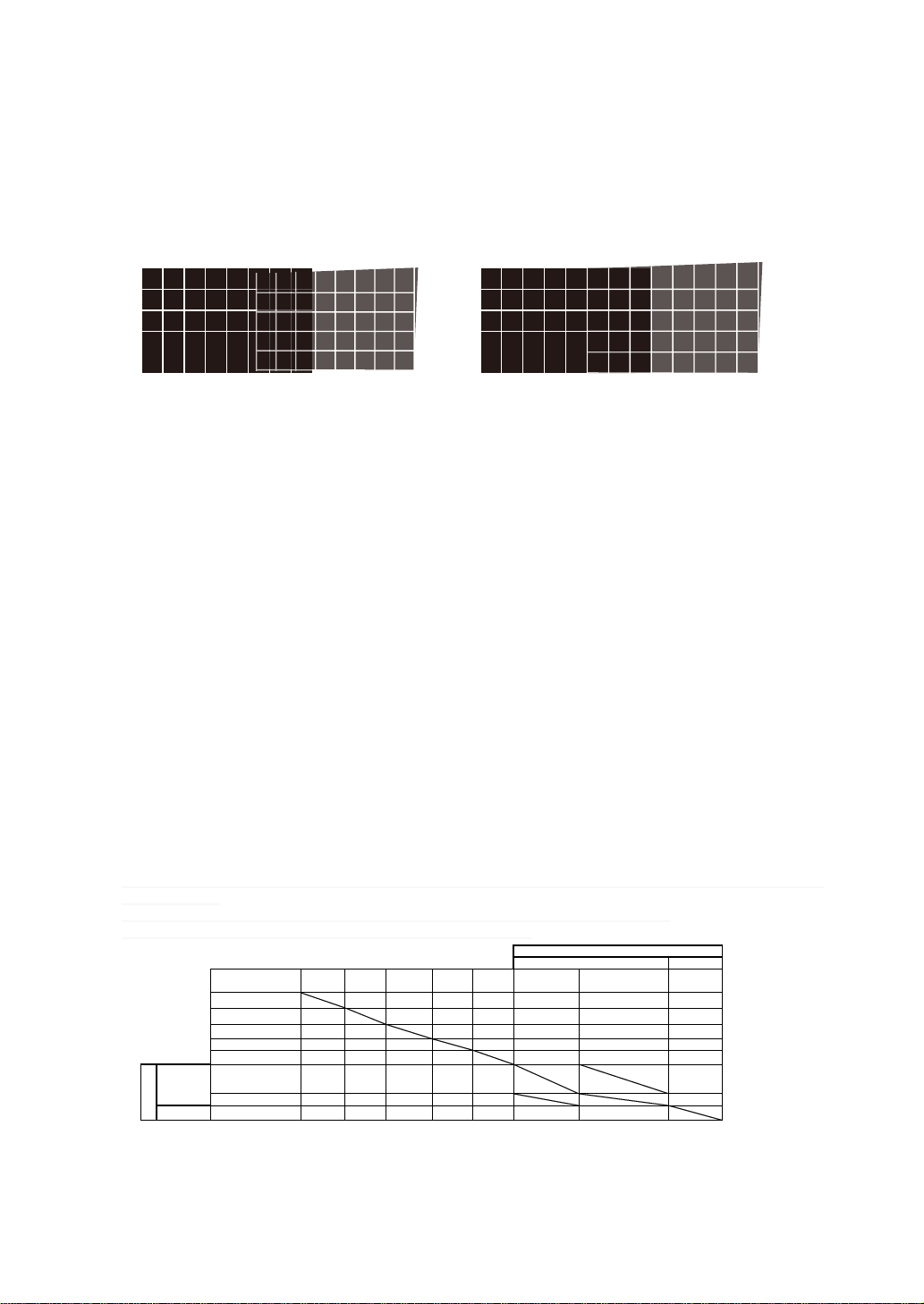
49
OSD Menu description
•
Adjust Lines
When the function is ON, there will be adjust lines on the image in order to easily adjust
multiple images. Press ▼▲◄► on the remote control to adjust the position of the lines on
the image.
The image below is an example if 2 projectors are projecting at the same image.
1. Horizontally place two projectors and have the two projected images with an overlap area and use the focus/zoom and
lens shift functions with test grid pattern to set a proper overlap area for blending with a matched grid size.
2. Color matching 2 projectors on white is done with P7 (R.G.B.C.M.Y.W) adjust in projector toolset.
3. Brightness matching 2 projectors can be done with the lamp power(Refer to adjustment by dimming the projector with
higher lumens.
4. Use Edge blend-> White level to set the blending size based on the overlap region size.
Use Edge blend-> Black level position to adjust the start position of black level compensation.
Use Edge blend-> Black level to raise the brightness of non-overlap zone such that the brightness of the overlap zone and
non-overlap zone are matched for black level.
Note1:Please note that the following allowable warp, blanking and Edge blend combination based on the underlying chip
specication
Note2:Edge blend / 4 corner combination is available when black level is not adjusted.
Note3Blend along corners is available when black level is not adjusted.
Black Level Black Level
Black Level
Keystone Rotation Pin/Barrel 4-corner blanking
Top/Bottom or
Left/Right only
Blend along corners Black Level
Keystone X X X X X X X
Rotation X X X X X X X
Pin/Barrel X X X X X X X
4-corner
X
X
X
OK OK OK
X
blanking X X X OK OK OK OK
Top/Bottom or
Left/Right only
X X X OK OK OK
Blend along corners X X X OK OK X
X X X X OK OK X
ScenergiX
ScenergiX
White Level
White Level
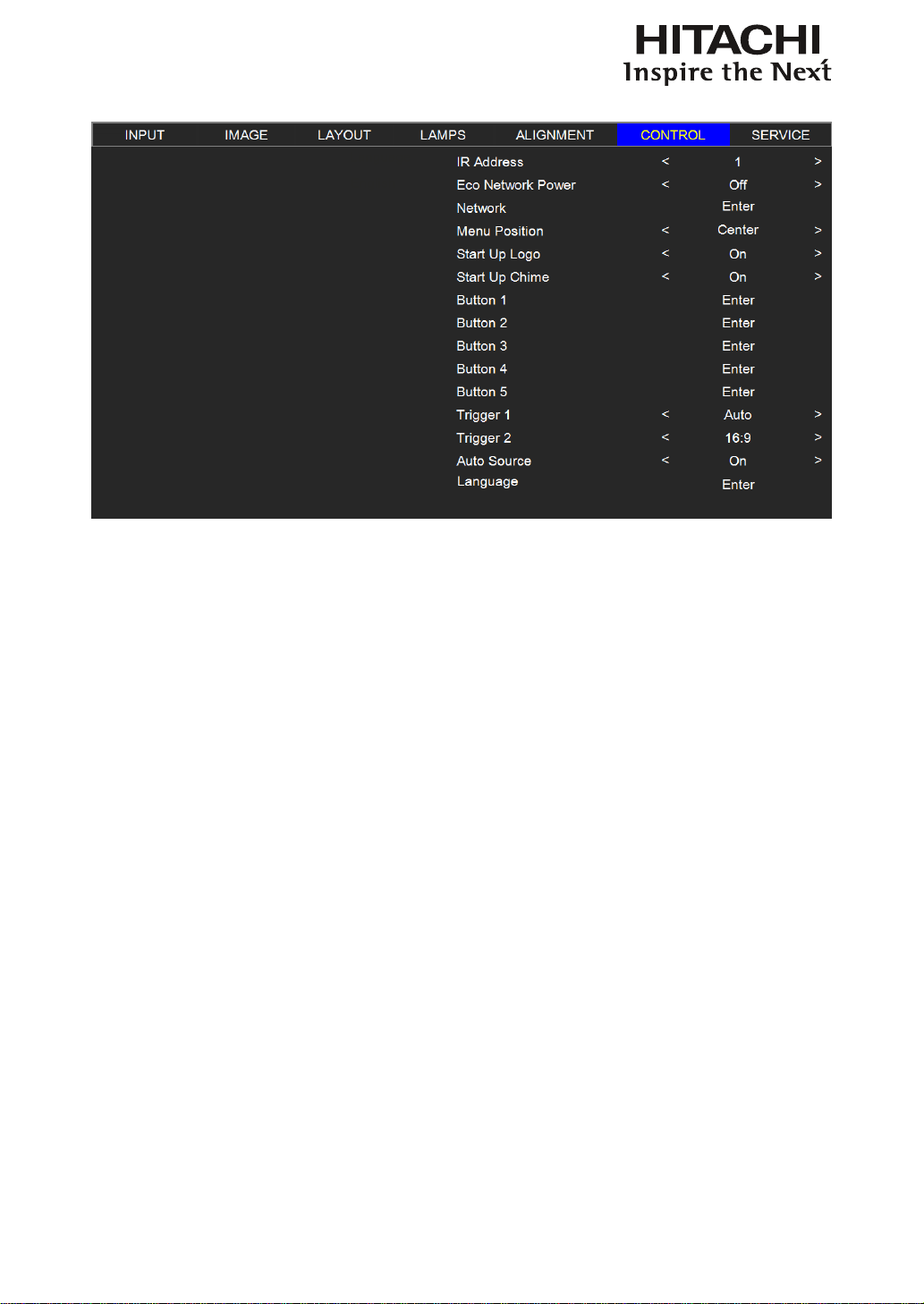
50
OSD Menu description
CONTROL
IR Address
Use this function to congure the projector’s IR code receive commands from the remote control.
The default value is 1.If you have other equipment in your home that could pick up the command from
the projector’s remote control, it is recommended that you set the remote control code to 2.
When you are running two projectors via serial connection, you can set the code on one projector as “1”
and “2” for the other projector. By doing so, you will be able to control two projectors with the same
remote control.
When you want to switch your remote control from code 1 projector to code 2 projector, press and
hold the ENTER and ADDRESS buttons on the remote control simultaneously (for approximately 5
seconds); the backlight module on the remote control will blink to conrm the switch.
Eco Network Power
The projector can be connected to a network via its RS-232 port and 10/100 BASE-T port for remote
operation with two separate boards to control the signal sources from RS-232 and 10/100BASE-T
ports. But this function "Eco Network Power" is only available for 10/100BASE-T, will not active
when the input source is RS-232.
If you do not require remote operation of the projector over a network, it is recommended that you
set this function to On to activate the ECO Network Power. This will turn off the power that is used
to control the 10/100 BASE-T board. However, you will not be able to operate the projector remotely
over a network as long as the function remains activated.
By setting it to Off, the function will be disabled. You won’t be able to conserve power but you can
control the projector remotely over a network.

51
OSD Menu description
Network
To control the projector via network, after connecting the network cables for a PC and the projector,
you can use this OSD function to view the relevant network information (such as IP Address, Subnet
Mask, Gateway and DHCP) of the projector. Please congure the PC to be connected to the projector
with a proper IP address with the same subnet mask, gateway as the projector. The default IP address
of the projector is 192.168.0.100. The network settings of the projector can only be changed through
the web-page control or projector Toolset application.
To control the projector via network, please connect to the projector via a web browser with the IP
address shown on the OSD menu CONTROL -> Network.
Menu Position
You can use this function to designate which area on the image the OSD Menu will appear.
As you can see from the diagram below, there are ve positions where you can choose to have the
OSD Menu displayed. The default setting is “Center”.
Top Left
Center
Bottom Left
Top Right
Bottom Right
Start Up Logo
You can use this function to have the projector display the HITACHI logo in the start up screen. Set
On to display the HITACHI logo during start up and Off to display a blank image.
Start Up Chime
Set it to On to have the projector play a sound effect during start up; when it is set to off, the projector
will not play any sound effect to indicate start up.
Button 1~5
Use this function to designate the image source for each corresponding button.
For example, if you have assigned Button 1 as HDMI1 and Button 2 as YUV1,
when you press
1
on the remote control, the projector will show the image from HDMI1.
when you press
1
on the remote control, the projector will switch to the image from YUV1.
You can choose from eight different input sources on the projector, namely: HDMI1, HDMI2
RGB D-15, YUV1, RGBHV/YUV2, SDI/HDSDI/3G and STEREO DVI

52
OSD Menu description
Trigger1 ~2
The projector comes with two sets of Trigger output. You can congure two different devices
connected to the projector via the trigger ports to be automatically turned on when the projector is on.
There will be a 2-3 second delay prior to activation to prevent operation of this function when the user
is choosing the desired aspect ratio.
5:4 Outputs 12V of power on Trigger1 or 2 when the user chooses the 5:4 aspect ratio.
4:3 Outputs 12V of power on Trigger1 or 2 when the user chooses the 4:3 aspect ratio.
16:10 Outputs 12V of power on Trigger1 or 2 when the user chooses the 16:10 aspect ratio.
16:9 Outputs 12V of power on Trigger1 or 2 when the user chooses the 16:9 aspect ratio.
1.88 Outputs 12V of power on Trigger1 or 2 when the user chooses the 1.88 aspect ratio.
2.35 Outputs 12V of power on Trigger1 or 2 when the user chooses the 2.35 aspect ratio.
Letterbox Outputs 12V of power on Trigger1 or 2 when the user chooses the Letterbox aspect
ratio.
Native Outputs 12V of power on Trigger1 or 2 when the user chooses the native aspect ratio.
Auto Outputs 12V of power on Trigger 1 or 2 when the projector is turned on.
Auto Source
Select this function to active the projector automatically search input Imaging.
ON: default setting. By enabling this function, the projector will automatically determine the source
of input every time it is turned on so that the user will not have to make the selection on the OSD
Menu.
Setting the function off will require the user to specify source of image input on the OSD Menu in
order for the projector to display the intended image.
This function is not available when the input source is Stereo-DVI.
Language
You can use this function to select the language you wish for the OSD Menu to be displayed in. You
can choose from the following nine languages:
English, French, Spanish, German, Portuguese, Simplied Chinese, Traditional Chinese, Japanese
and Korean.
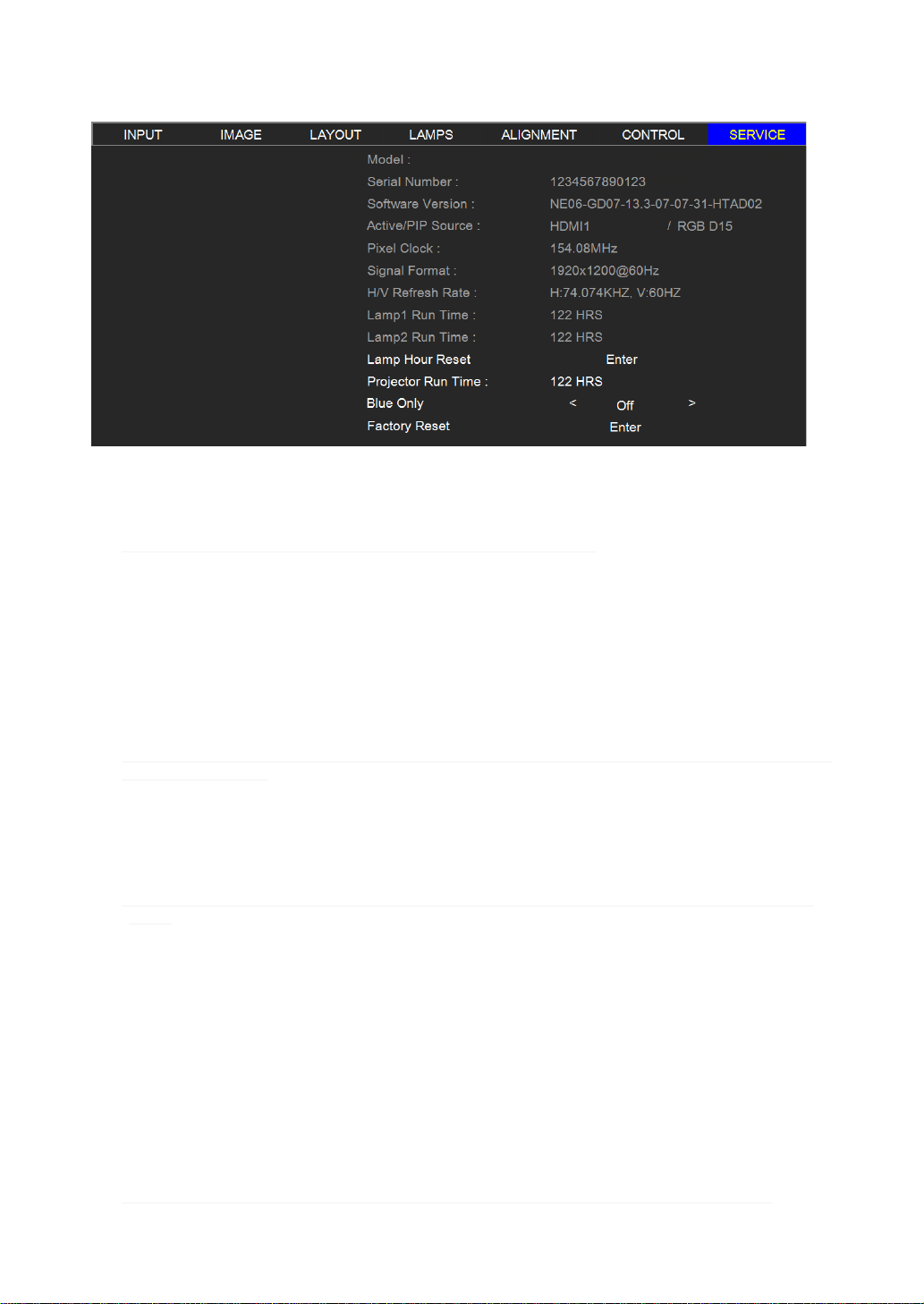
53
OSD Menu description
SERVICE
XXXXXXX
Service
The functions covered in this unit relate to the display of some basic information about the projector.
*Memory of the custom timing les will be erased in the Factory Reset operation.*
•
Model: the designated model number of the projector.
•
Serial Number: the designated serial number of the projector.
•
Software Version: the version of software installed on the projector.
•
Active/PIP Source: displays the current PIP sources.
•
Pixel Clock: displays the pixel clock of the current input signal.
•
Signal Format: displays the format of the current input signal.
•
H/V Refresh Rate: displays the horizontal and vertical refresh rates for the current image.
•
Lamp1 Run Time: displays Lamp1's current run time.
•
Lamp2 Run Time: displays Lamp2's current run time.
*Notice! When a lamp's run time has reached 1200 hours or when you notice the projected image to be noticeably dimmer,
please replace the lamp.*
•
Projector Run Time: displays the projector's total operating hours.
Lamp Hour Reset
Use this function to reset the hours for lamp1 and lamp2 to zero.
* After replacing the lamp, remember to reset the lamp hours to ensure the accuracy of lamp hours displayed in the OSD
Menu.*
Blue Only
Enabling this option will make the projector display only blue color to facilitate the process of image
inspection for the service personnel. For detailed instructions on how to use this function, consult a
qualied service personnel.
Factory Reset
Use this function to restore the congurations in the OSD Menu back to factory default. Note that
this function will not apply to items including no signal, network, Projector control, startup Logo,
language, High Altitude mode and lamp hours.
*When Factory Reset is executed, all source memories created by the projector (i.e. timings les) will be erased.*
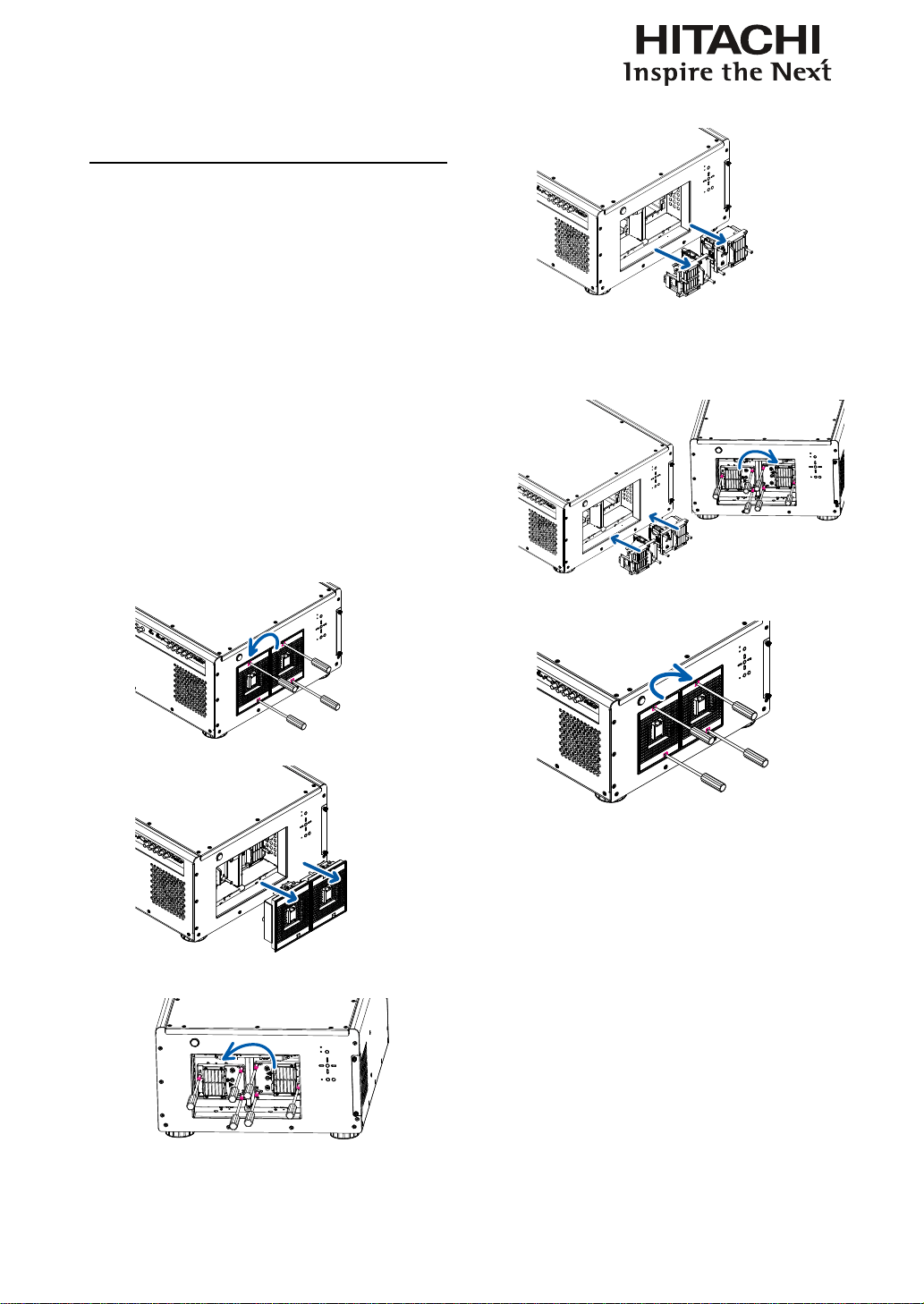
54
Lamp and lter maintenance
Lamp and Filter
Maintenance
Lamp replacement
From the OSD Menu, you can go to " Page 43
: Lamp1 Run Time ". to check how long a lamp
has been used. You should also replace the lamp
when the projected image gets noticeably darker.
Contact your local dealer to purchase new
certied lamps for your projector.
To replace the projector lamp
1. Turn off the projector and unplug the power cord.
Let the projector cool for approximately 45 minutes
before removing the lamp module for replacement.
When you turn off the projector, the lamp inside the
projector will still be very hot (approximately 200 ~
300°C). If you attempt to replace the lamp without
allowing the projector to cool, you could risk scalding
yourself. This is why you should wait for no less than
45minutes for the lamp to cool down in order to perform
the replacement safely.
2. Loosen the Projector lamp cover.
3. Remove the lamp cover.
4. Use a screw driver to loosen the screws as shown in
the illustration.
5. Grasp the metal rod on the lamp cover and pull the
lamp out.
6. Insert the new lamp in the direction shown in
the illustration into the lamp assembly; tighten
the two screws using a screw driver and make
sure the lamp is rmly secured to prevent
the lamp from shaking or poor contact.
7. Replace the lamp cover and rmly secure the two
screws on the lamp cover.
8. Reconnect power to the projector and reset the lamp
usage timer. Refer to " Page 43 : Lamp2 Run Time
"."Lamp2 Run Time".
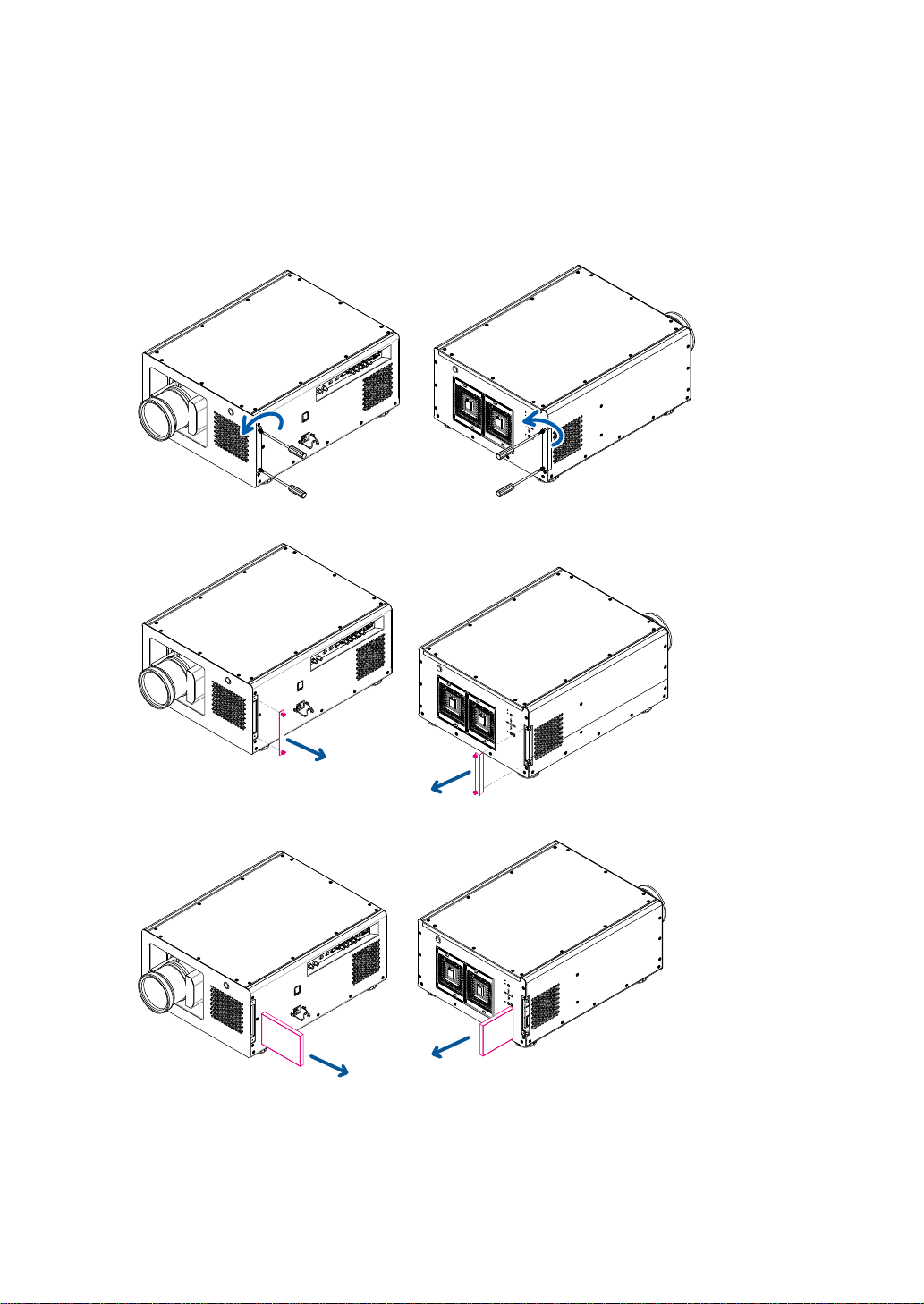
55
Lamp and lter maintenance
Replace the lter
Make sure to replace the lter when it is required to keep the air intake clear of dust, and prevent
possible over temperature issue of the projector due to the clog of lter.
To clean the lter at the ventilation slots, refer to the following illustration:
1. Loosen the screws on the projector.
2. Move out the lter's cover.
3. Take out the old lter.
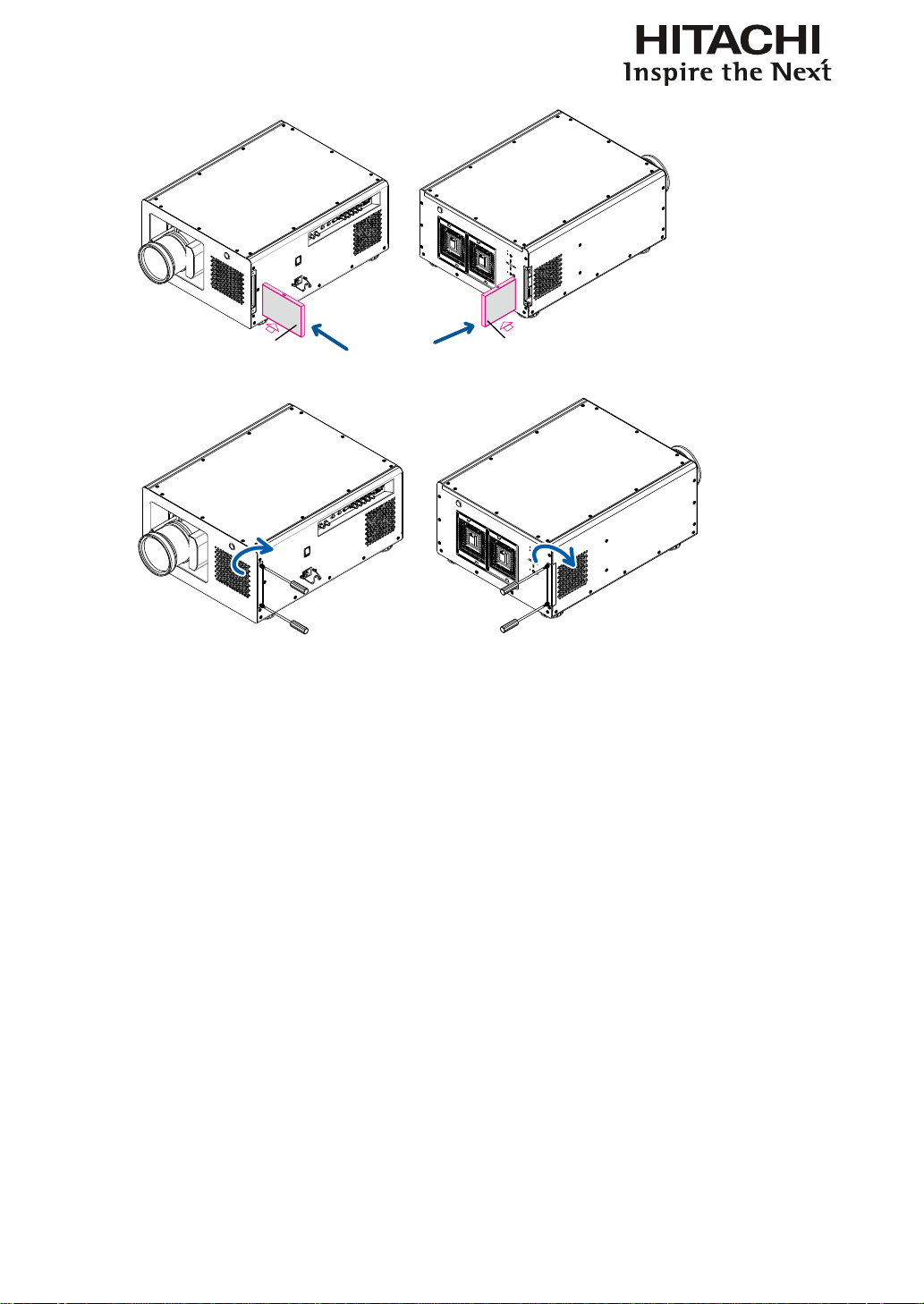
56
Lamp and lter maintenance
4. Insert new lter.
Black side
Black side
5. Tighten the screws on the lter cover.
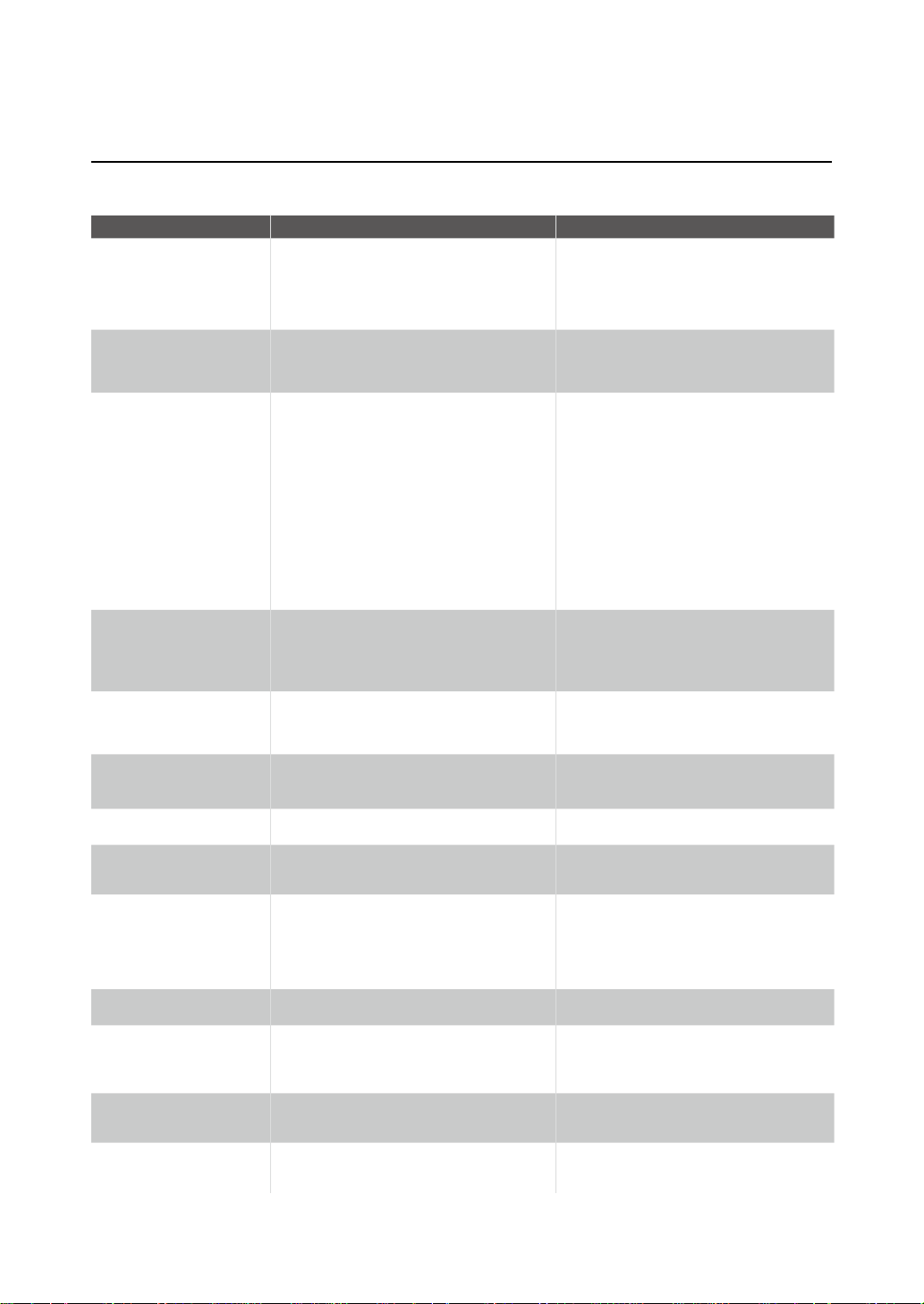
57
Simple troubleshooting and denition of
the LED indicators
Simple troubleshooting and denition of the LED
indicators
The following table offers a list of common problems with projectors and how to troubleshoot. If the recommended solutions fail to resolve
your problem, contact your local dealer to arrange for servicing; do not attempt to service the projector by yourself.
Problem Possible cause Solution
You cannot turn on the projector
1. The projector may be unplugged
2. Check the AC POWER SWITCH on the back of
the projector and see if it is ipped to ON.
3. The AC socket may be faulty
4. The lens cover is not replaced properly
1. Plug the projector's power cord into a wall outlet
2. Flip the power switch to "I".
3. Make sure the AC socket is working properly.
4. Make sure the lens cover has been properly
replaced.
You cannot turn on the projector
after turning it off
1. You will not be able to turn on the projector within
two minutes after you have just turned it off.
This feature is designed to protect the lamp.
1. Wait for the projector to cool down completely
before starting it up again
(the projector's STAND BY indicator will turn
blue)
The remote control does not
operate normally
1. The battery might have run out
2. You might have inserted the batteries in the wrong
orientations
3. You may be operating the remote control too far
away from the projector's IR sensor or exceeded
the maximum angle of signal reception ; there
might be an obstacle between the projector and the
remote control or there might be a source of intense
light
near the IR receiver.
4. Ø 3.5mm A wired remote connector might be
connected to the projector's 3.5mm port.
5. The remote control's address is not consistent with
the projector's address.
1. Replace new batteries
2. Make sure the batteries are inserted in the right
orientation.
3. Adjust the distance/angle between the projector
and the remote control and try again; if there are
obstacles between the projector and the remote or
source of intense light near the IR sensor resolve
these situations and try again.
4. Remove the wired remote cable or
operate the projector using wired remote.
5. Press the ENTER button on the remote control
followed by the Address button until the panel of
the remote control ashes once
(approximately 5 seconds) and try again.
You are able to turn on the
projector and access the OSD
Menu but no picture appears.
1. The projector may not be turned on properly or
you have not selected the correct input source.
2. You might not have connected the source device
correctly or the source might not be connected to
the projector at all.
1. Make sure the projector is turned on properly and
select the correct input source.
2. Check the connection between the projector and
the input device.
You have connected the
projector to a DVD player as
the input source but the image
appears broken or split in halves.
The DVD player is connected to the projector through
component cables (RGB-S or COMPONENT2) and
you have set it to progressive scan.
Disable the progress scanning function on the DVD
player.
The picture looks dim
1. The image brightness, contrast, color and tint
might need proper adjustment.
2. The lamp is due for replacement.
1. Adjust the image brightness, contrast, color and
tint.
2. Replace the projector lamp.
The image is too bright or the
bright areas are blurry
The contrast might have been set too high. Lower contrast settings.
The image appears washed out
or the dark areas appear too
bright
The image brightness might have been set too high. Lower brightness settings.
The image is blurry
1. The lens may not be in focus.
2. The temperature or humidity of the projector's
working environment may have changed in mid
operation (i.e. going from cold to warm or dry to
humid), leading to condensation of moisture inside
the projector.
1. Adjust Lines focus.
2. Turn of the projector rst and wait for the
moisture in the projector to evaporate.
The color of the image looks
pale
The input signal type (RGB-S/COMPONENT2)
might not have been connected properly
Check to make sure that the connections between
the projector and the input device are correct.
The image ashes occasionally
1. The cables might not have been properly connected
or the input device itself may be faulty.
2. If the problem persists, it may also mean the lamp
might be faulty.
1. Make sure the connector and the input device
have been properly connected; check to see if the
input device is in normal working order.
2. Replace the projector lamp.
The colors of the projected
image are out of place (i.e.
displaying red as blue)
The G/Y, R/Pr, B/Pb cables from the input might
have been incorrectly connected to the input.
Please make sure the input source has been
correctly connected to the projector.
The noise from the cooling fan
suddenly grew louder
The temperature inside the projector might have
risen.
When the temperature inside the projector rises,
the cooling fan will operate at a higher speed to
discharge the internal heat more rapidly.
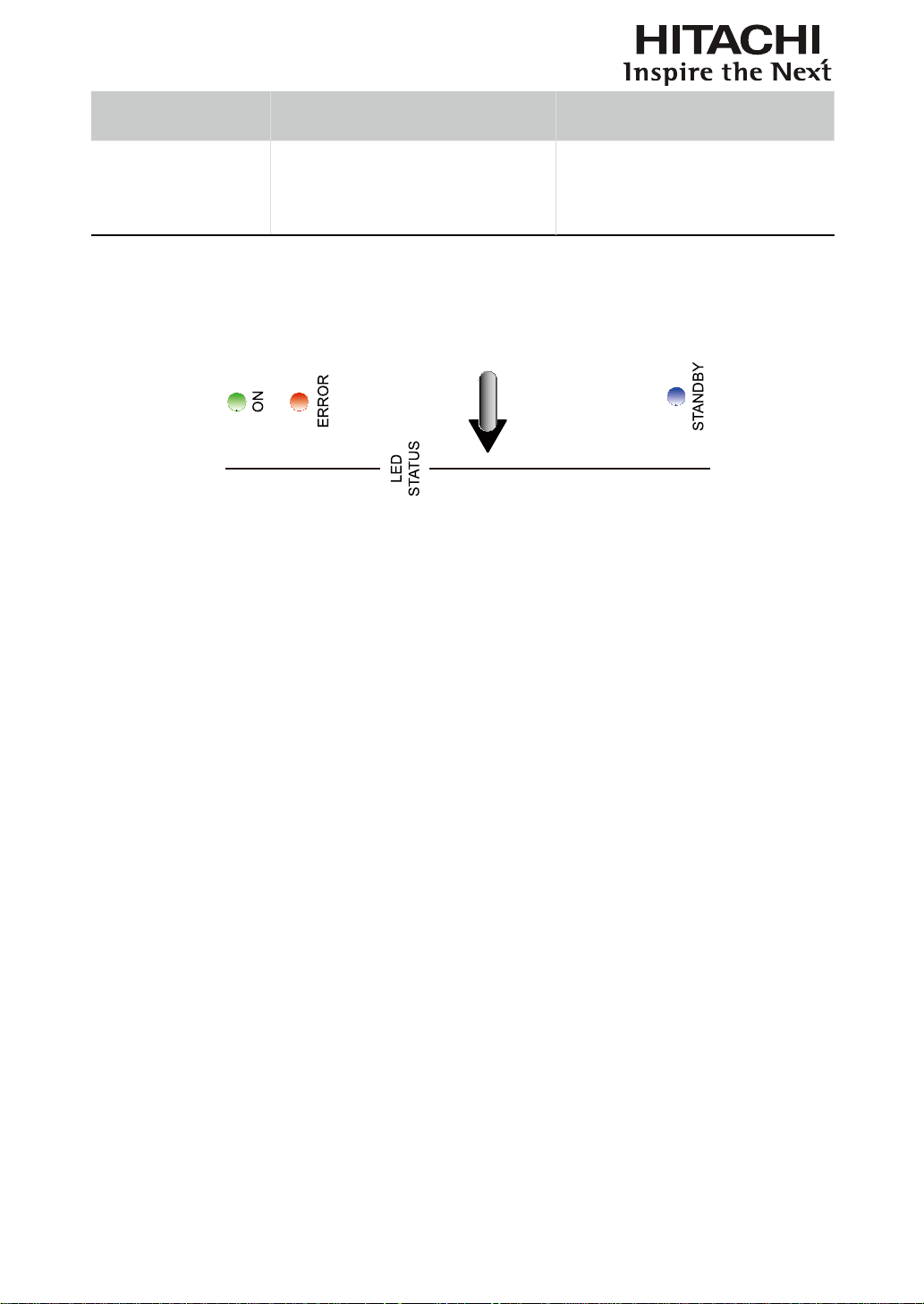
58
Simple troubleshooting and denition of
the LED indicators
The LED indicator on the
projector’s rear panel is blinking
in red
The lamp or the cooling fan could be faulty. Refer to the denition of " Page 58 : LED
STATUS ".
1. During projection, the lamp
suddenly goes off and the
picture disappears.
2. The lamp does not turn on
even when the projector has
been turned on.
The lamp might have been damaged; check the LED
indicator on the rear panel of the projector and see if
it is blinking in red.
The lamp has reached the end of its service life;
please replace it.
LED STATUS
STAND BY
Turns blue Indicates that the projector is in standby mode; this also means the
projector has not been turned on by pressing the SOFT POWER
button but has been connected to power.
The indicator is off This indicates that the projector has either been turned on and is
working normally or the projector is not connected to power.
ON
Turns green This indicates that the projector has been turned on and is working
normally.
Flashes in green This indicates that the projector is currently warming up or
cooling down and will not respond to button operations.
The indicator is off This indicates that the projector is currently in standby mode.
ERROR
Flashes once in red The projector lamp is faulty; check to see if the lamp is damaged
or if it hasn't been properly installed.
Flashes twice in red The lamp cover is not properly replaced.
Flashes three times in red The cooling fan inside the projector is not working; seek assistance
from a qualied service personnel.
Flashes four times in red The projector temperature is too high; try cleaning the ventilator
slots or unplugging the power cord to resolve the issue.
Turns Red Please contact your dealer or service company.
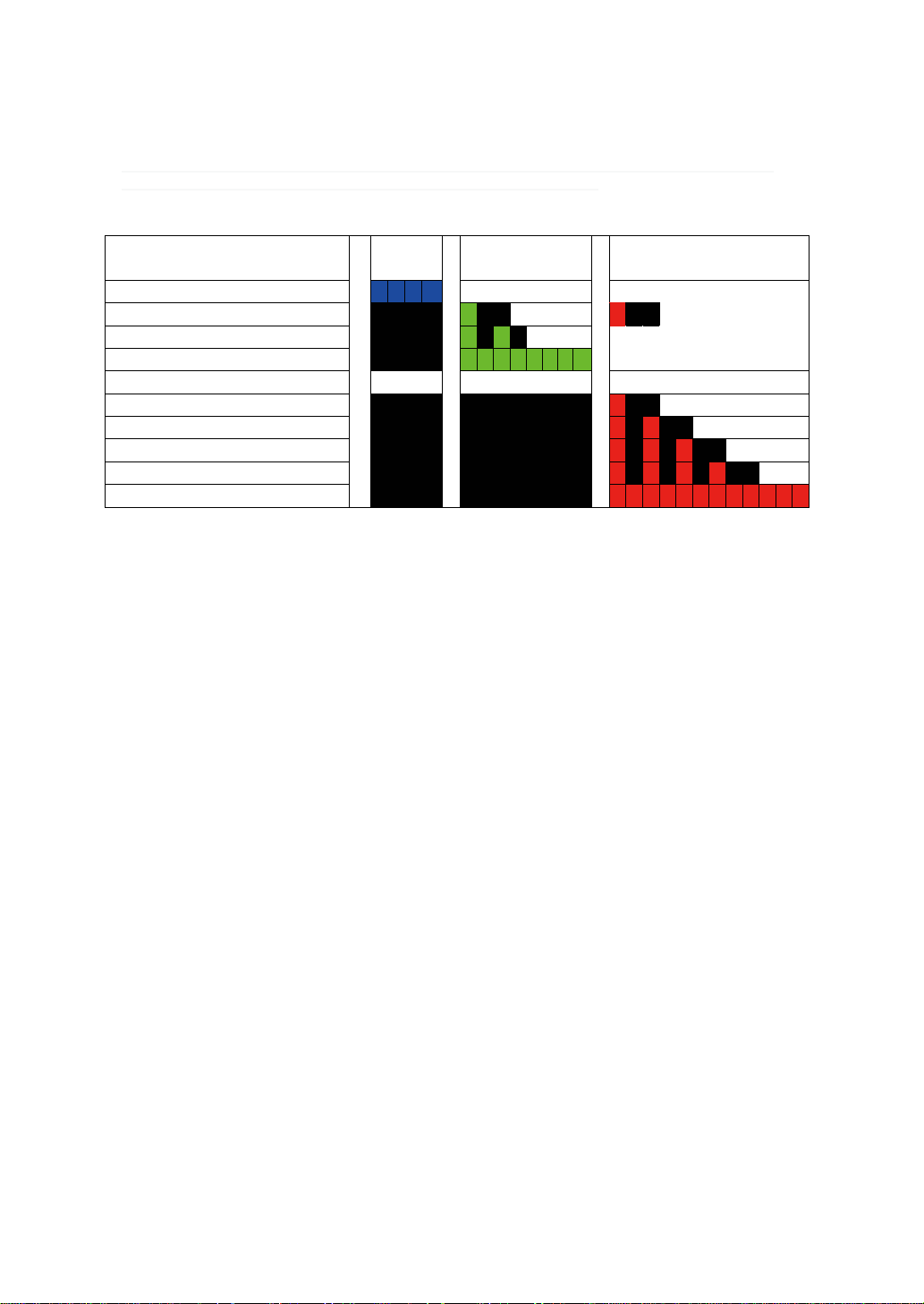
59
Simple troubleshooting and denition of
the LED indicators
Warning
Flashes once in green and red: The lamp is approaching the Replacement Life Cycle. It should
be replaced with a new lamp.
Note; Replacement Life Cycle varies depending upon selected operation
mode, environmental conditions and usage.
Status Blue
(Standby)
Green
(Power)
Red
( Issue )
1. Standby
2. Lamp is approaching the Replacment Life Cycle
repeat repeat
3. Cooling / Warm up repeat
4. Power on / Normal
5. Lamp fail repeat
6. Lamp door open repeat
7. Fan fail repeat
8. Over Temperature repeat
9. System Error
Remark:
The time period of each step in the above LED blinking pattern is 500 milliseconds, e.g., for “Cooling / Warm up” state, the
green LED will ON for 500 milliseconds, and then OFF 500 milliseconds, and then repeat the above LED pattern.

60
Projector specications
Specications
D e s criptio n Specific atio ns
Resolution 1920 × 1200 (Native)
Micro display 3 × DLP 0.96" DMD
Contrast 2000:1 (Typical)
Luminance uniformity ≥ 85%
Lamp 2 × 465W UHB
Projection lens - projection ratio
FL-K01(0.67:1)
FL-K02(1.1:1)
SL-K03(1.4 - 1.9:1)
ML-K04(1.9 - 2.6:1)
LL-K05(2.6 - 4.2:1)
UL-K06(4.2 - 7.0:1)
Input/Output ports
1 × COMPONENT1
1 x Sync In
1 x Sync Out
2 × HDMI
1 x DVI (dual link)
1 × COMPONENT2
1 × 10/100 BASE-T
1 × RS-232
2 × 12V Trigger
1 × IR ext.
2 x SDI/HDSDI/3G(IN/OUT)
1 x VGA (D-SUB)
Primary voltage range
100V - 130V (±10%)
200V - 240V (±10%)
Standby power consumption
2W max power when RJ45 is disable ;
3W when RJ45 is enable
Maximum input resolution 1920 × 1200
Operating temperature
0~40°C
Note 1: The normal operating temperature of the DMD is
between 10~65°C
Note 2: The DMD may operate normally for approximately
10 minutes under 0~10°C short operation under such
temperature will not result in DMD damage.
Noise level under normal operation < 48 dBA
Noise level under Eco mode < 44 dBA
Weight 34 kg (Without PJ Lens, PD units)
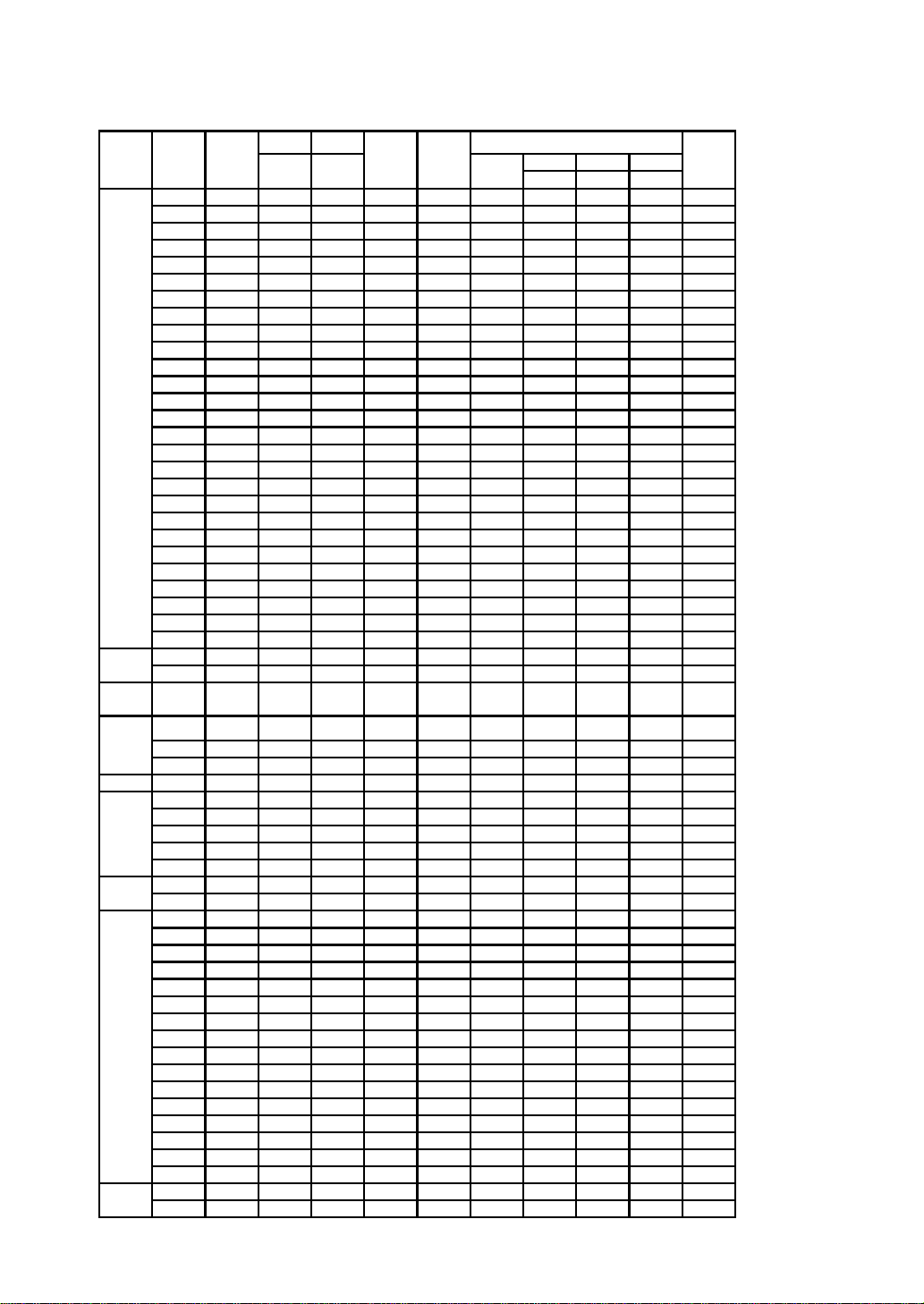
61
Projector specications
Supported Signal Input Modes
Frame
3RC
A
5BN
C
Rate
YU
V
YU
V
YU
V
8-
bit
10-
bit
12-
bit
640x480 59.94 X X X
640x480 74.99 X X X
640x480 85 X X X
800x600 60.32 X X X
800x600 75 X X X
800x600 85.06 X X X
848x480 47.95 X X X
848x480 59.94 X X X
1024*768 60 X X X
1024*768 75 X X X
1024*768 85 X X X
1280x720 47.95 X X X
1280x1024 60.02 X X X
1280x1024 75.02 X X X
1280x1024 85.02 X X X
1600x1200 60 X X X
1920x1080 47.95 X X X
1680x1050 59.94 X X X
1920x1200 50 X X X
1920x1200 59.94 X X X
1920x1200 60 X X X
1400X1050 60 X X X
1366x768 60 X X
1440x900 60 X X
1280x768 60 X X
1280x800 60 X X
1280x960 60 X X
640x480 66.59 X X
832x624 74.54 X X
NTSC
(M, 4.43)
PAL
(B,G,H,I)
50
PAL (N) 50
PAL (M) 59.94
SECAM
SECAM
50
RGBS 50
480i 59.94 X X
1440x480i 60 XXXX
1440x576i 50 XXXX
576i 50 X X
480p 59.94 XXXXXXXX
576p 50 XXXXXXXX
1035i 60 XXXXXXXXX
1080i 50 XXXXXXXXX
1080i (Aus) 50 XXXXXXXX
1080i 59.94 XXXXXXXXX
1080i 60 XXXXXXXXX
720p 50 XXXXXXXXX
720p 59.94 XXXXXXXXX
720p 60 XXXXXXXXX
1080p 23.98 XXXXXXXXX
1080p 24 XXXXXXXXX
1080p 25 XXXXXXXXX
1080p 29.97 XXXXXXXX x
1080p 30 XXXXXXXXX
1080p 50 XXXXXXXXX
1080p 59.94 XXXXXXXXX
1080p 60 XXXXXXXXX
1080sf 30 X
1080sf 25 X
HDMI
HD/SDI/3G
Y-Pr-
Pb
Y-Pr-
Pb
RGB
Signal
Format
Resolution
HD15 -
RGBHV
HD15 - YUV
PC
Apple Mac
NTSC 59.94
HDTV
new for SDI
PAL
SDTV
EDTV
(M)
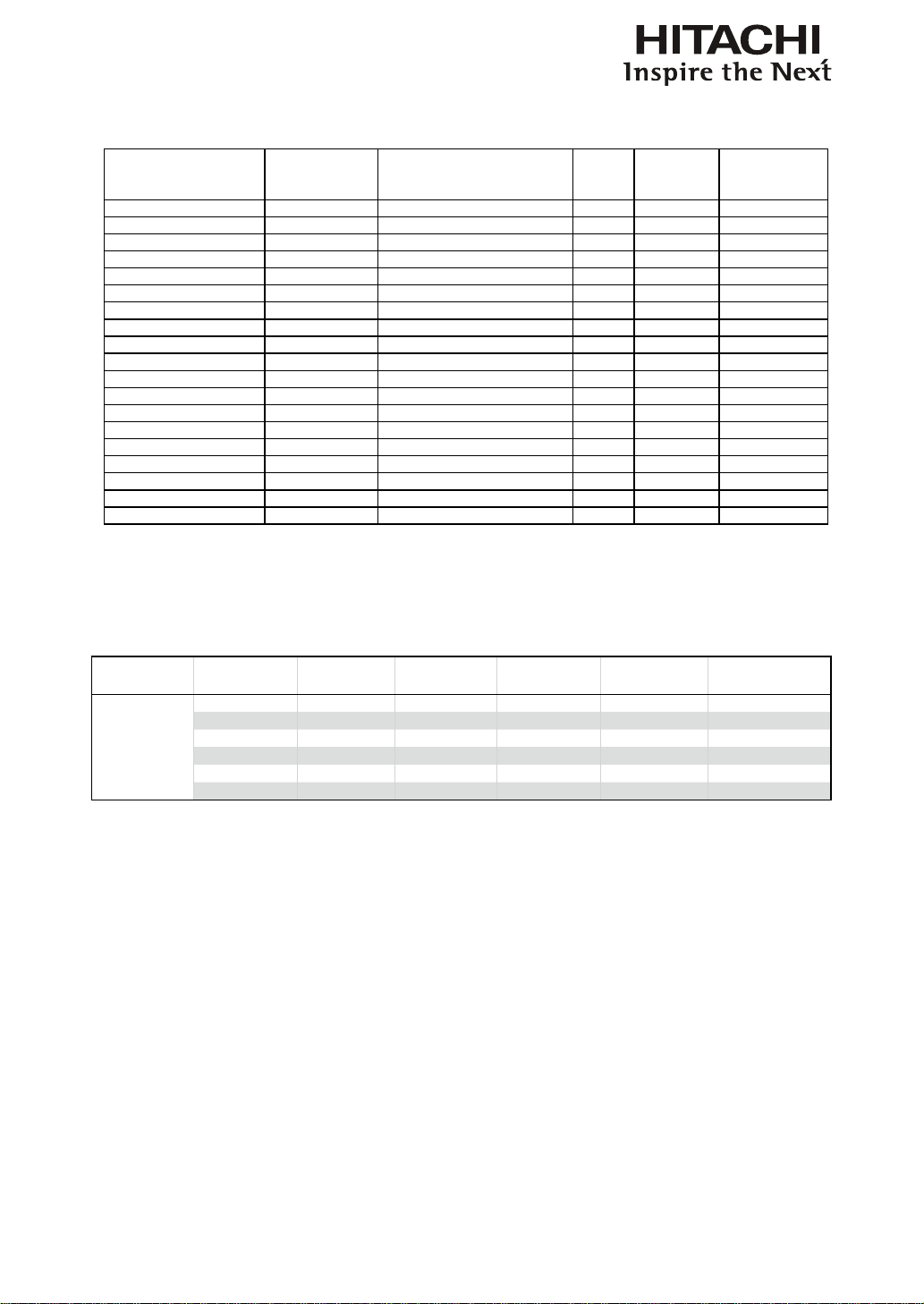
62
Projector specications
SDI formats
Timing SDI Link mode Signal Standards
Color
Encode
Sampling
Structure
Bit Depth
NTSC SD SMPTE 259M-C 270Mb
p
s S
D
YCbC
r
4:2:2 10
PAL SD SMPTE 259M-C 270Mb
p
s S
D
YCbC
r
4:2:2 10
1035i60 HD SMPTE 292M 1.5Gb
p
s HD YCbC
r
4:2:2 10
1080i59 HD SMPTE 292M 1.5Gb
p
s HD YCbC
r
4:2:2 10
1080i60 HD SMPTE 292M 1.5Gb
p
s HD YCbC
r
4:2:2 10
1080P30 HD SMPTE 292M 1.5Gb
p
s HD YCbC
r
4:2:2 10
1080P25 HD SMPTE 292M 1.5Gb
p
s HD YCbC
r
4:2:2 10
1080i50 HD SMPTE 292M 1.5Gb
p
s HD YCbC
r
4:2:2 10
1080P24 HD SMPTE 292M 1.5Gb
p
s HD YCbC
r
4:2:2 10
720P60 HD SMPTE 292M 1.5Gb
p
s HD YCbC
r
4:2:2 10
720P50 HD SMPTE 292M 1.5Gb
p
s HD YCbC
r
4:2:2 10
1080Sf25 HD SMPTE 292M 1.5Gb
p
s HD YCbC
r
4:2:2 10
1080Sf30 HD SMPTE 292M 1.5Gb
p
s HD YCbC
r
4:2:2 10
1080P50 3G Level
A
SMPTE 424M 3Gb
p
s YCbC
r
4:2:2 10
1080P59 3G Level
A
SMPTE 424M 3Gb
p
s YCbC
r
4:2:2 10
1080P60 3G Level
A
SMPTE 424M 3Gb
p
s YCbC
r
4:2:2 10
1080P50 3G Level B SMPTE 424M 3Gb
p
s YCbC
r
4:2:2 10
1080P59 3G Level B SMPTE 424M 3Gb
p
s YCbC
r
4:2:2 10
1080P60 3G Level B SMPTE 424M 3Gb
p
s YCbC
r
4:2:2 10
Test Cable: Belden 1694
A
DVI dual-link for 3D
Signal Type Resolution Frame rate
DVI
single-link
DVI
dual-link
3D Reference
PC
1920x 1080 120Hz V V
1920x 1080 100Hz V V
1920x1200 120Hz V V Reduced Blanking
1920x1200 100Hz V V Reduced Blanking
1920x 1080 60Hz V
1920x1200 60Hz V Reduced Blanking
Remark: DVI signal input not support below function:
•
Blanking Function
•
Warp Function
•
Keystone
•
Image Adjustment
•
Aspect Ratio Adjustment
•
PIP Function
•
Edge Blending Function
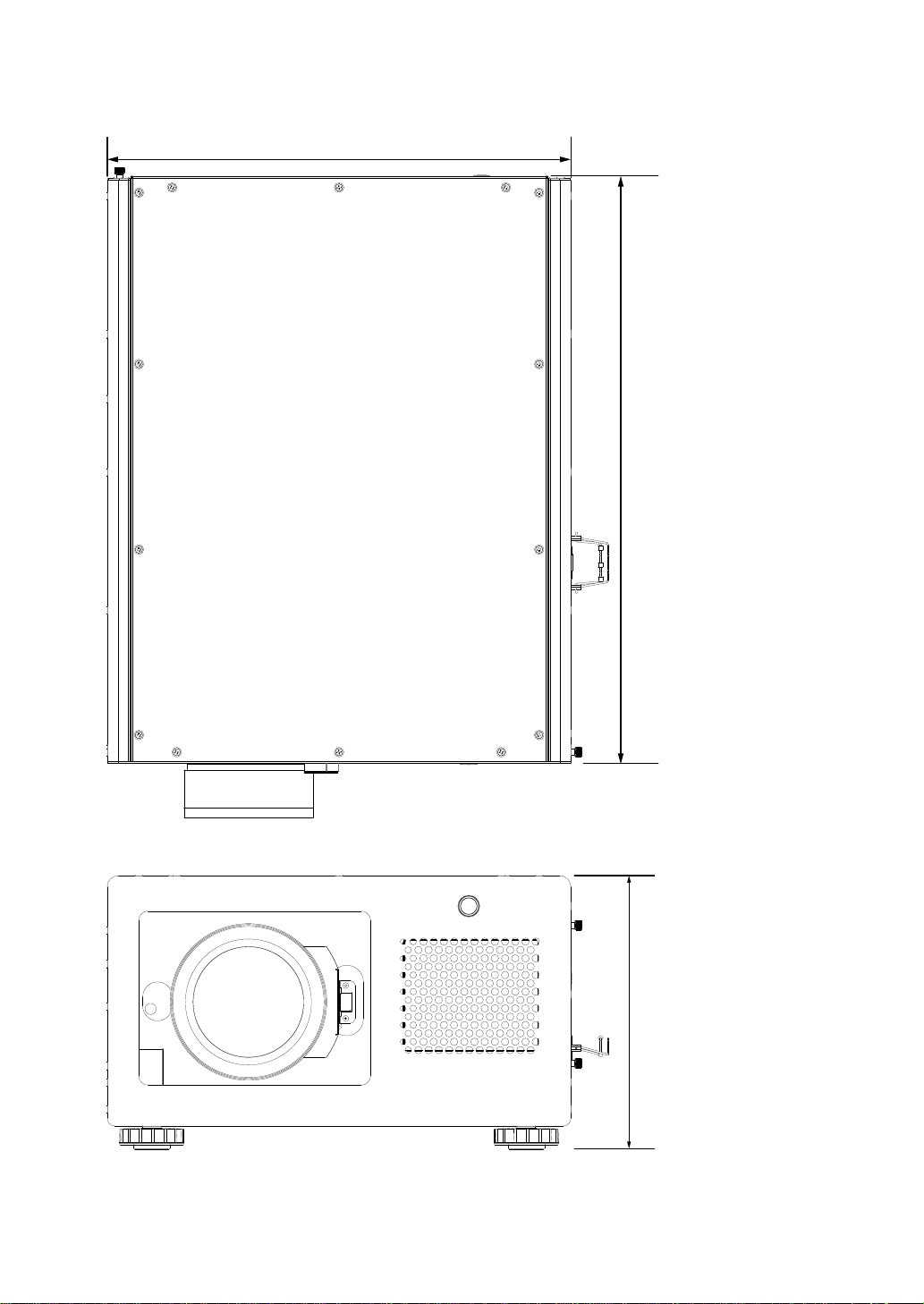
63
Projector specications
Dimensions
295mm
629mm
500mm
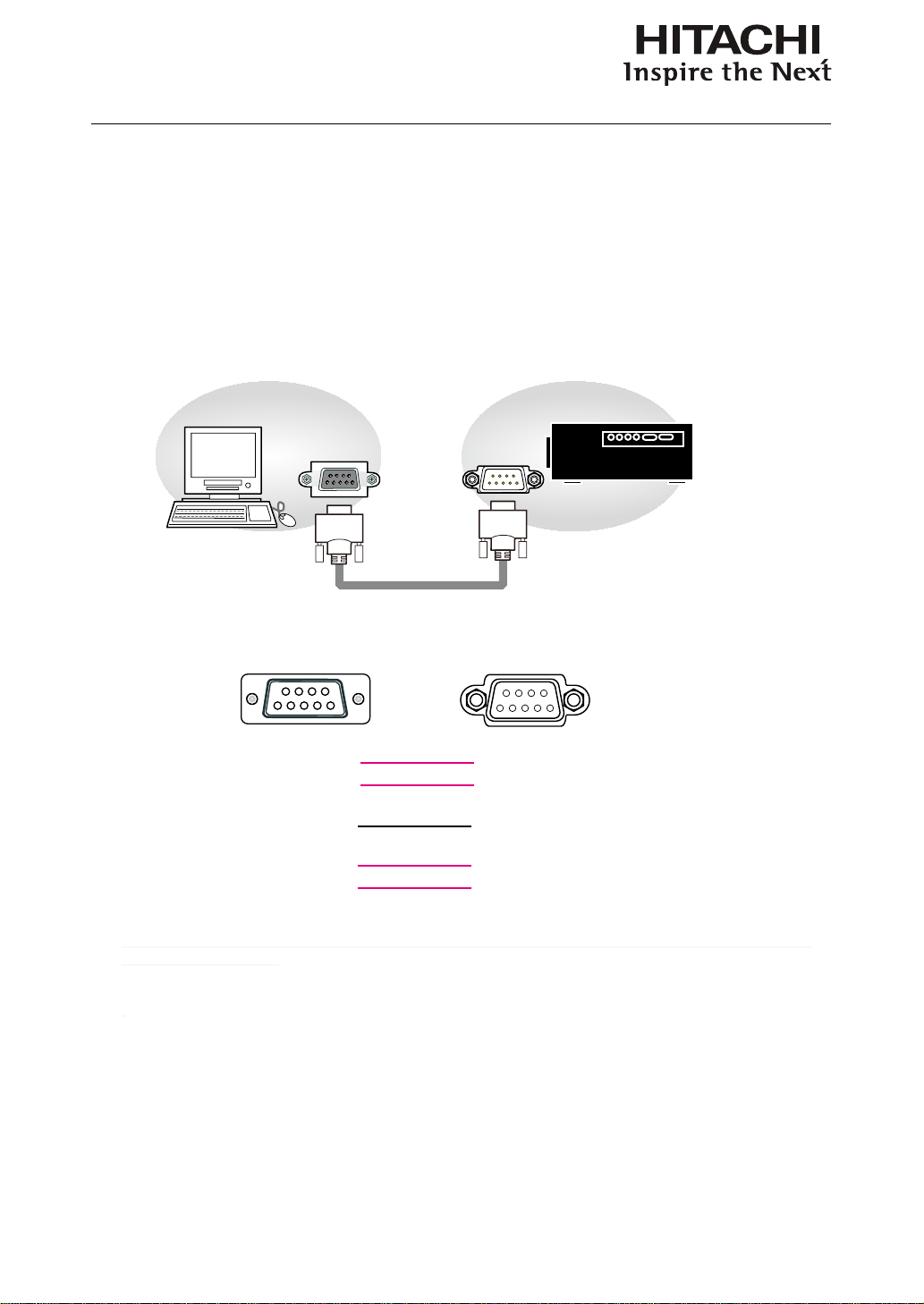
64
Communication settings
Communication settings
RS-232 Communication
When the projector connects to the computer by RS-232 communication, the projector can be
controlled with RS-232 commands from the computer. For details of RS-232 commands, refer to RS-
232 Communication command table.
Connection
1. Turn off the projector and the computer.
2. Connect the projector's RS232 port and the computer's RS-232 port with a RS-232 cable (straight) . Use the cable that
fullls the specication shown in the gure
3. Turn the computer on, and after the computer has started up turn the projector on.
CD (1) (1)
-
RD(2) (2) TD
TD (3) (3) RD
DTR (4) (4)
-
GND (5) (5) GND
DSR (6) (6)
-
RTS (7) (7) CTS
CTS (8) (8) RTS
RI (9) (9)
-
1
2
3
4
5
1
23
4
5
78
9
6
9
8
7
6
RS-232 port of
the projector
RS-232 port of
the computer
RS-232 cable
(
straight
)
RS-232
RS-232
Note: In case of replacement and RS-232 cable (cross) has been installed, please add a packed RS-232 cable (cross) to
make connection correctly.
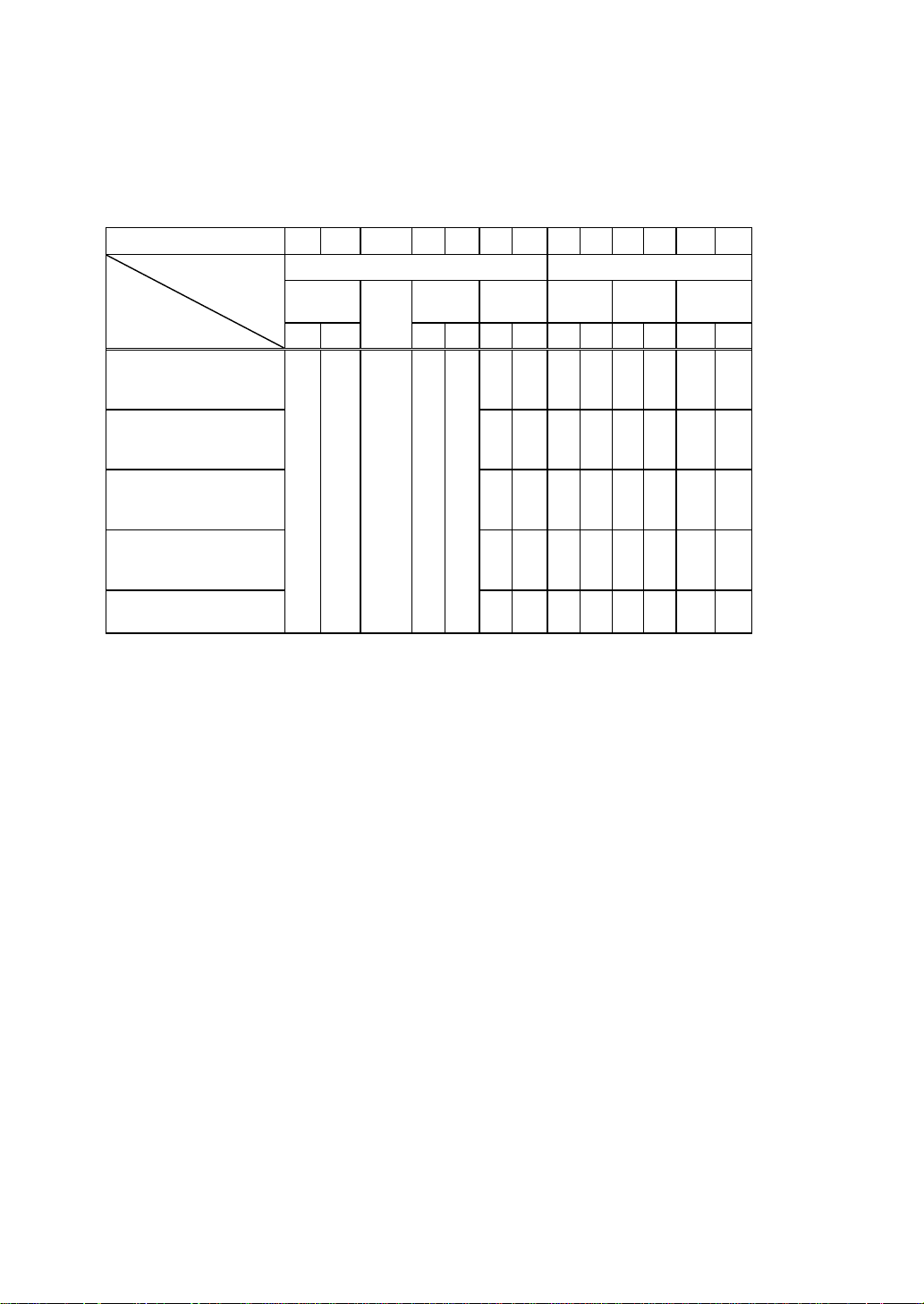
65
Communication settings
1. Protocol
19200bps,8N1
2. Command format
("h" shows hexadecimal)
Byte Number
0 1 2 3 4 5 6
7 8 9 10 11 12
Command
Action
Header Data
Header
code
Packet
Data
size
CRC
flag
Action Type
Setting
code
L H L H L H L H L H L H
<SET>
Change setting to
desired value [(cL)(cH)]
by [(bL)(bH)].
BEh EFh 03h 06h 00h
(aL) (aH) 01h 00h (bL) (bH) (cL) (cH)
<GET>
Read projector
internal setup value [(bL)
(bH)] .
(aL) (aH) 02h 00h (bL) (bH) 00h 00h
<INCREMENT>
Increment setup value
[(bL)(bH)] by 1.
(aL) (aH) 04h 00h (bL) (bH) 00h 00h
<DECREMENT>
Decrement setup value
[(bL)(bH)] by 1.
(aL) (aH) 05h 00h (bL) (bH) 00h 00h
<EXECUTE> Run a
command [(bL)(bH)].
(aL) (aH) 06h 00h (bL) (bH) 00h 00h
[Header code] [Packet] [Data size]
Set [BEh, EFh, 03h, 06h, 00h] to byte number 0~4.
[CRC ag]
For byte number 5, 6, refer to RS-232 Communication command table.
[Action]
Set functional code to byte number 7, 8.
<SET> = [01h, 00h], <GET> = [02h, 00h], <INCREMENT> =[04h, 00h]
<DECREMENT> = [05h, 00h], <EXECUTE> = [06h, 00h]
Refer to RS232 Communication command table
[Type] [Setting code]
For byte number 9~12 , , refer to RS-232 Communication command table.

66
Communication settings
3. Response code / Error code
("h" shows hexadecimal)
4. ACK reply : 06h
When the projector receives the Set, Increment, Decrement or Execute , command correctly, the projector changes the
setting data for the specied , item by [Type], and it returns the code.
5. NAK reply : 15h
When the projector cannot understand the received command, the projector , returns the error code. In such a case, check
the sending code and send the same command again.
6. Error reply : 1Ch + 0000h
When the projector cannot execute the received command for any reasons, the projector returns the error code. In such a
case, check the sending code and the setting status of the projector
7. Data reply : 1Dh + xxxxh
When the projector receives the GET command correctly, the projector returns the response code and 2 bytes of data.
Note
-For connecting the projector to your devices, please read the manual for each devices, and connect them correctly with
suitable cables.
-Operation cannot be guaranteed when the projector receives an undened command or data.
-Provide an interval of at least 40ms between the response code and any other code.
-The projector outputs test data when the power supply is switched ON, and when the lamp is lit. Ignore this data.
-Commands are not accepted during warm-up.
-When the data length is greater than indicated by the data length code, the projector ignore the excess data code.
Conversely when the data length is shorter than indicated by the data length code, the projector returns the error code to
the computer.
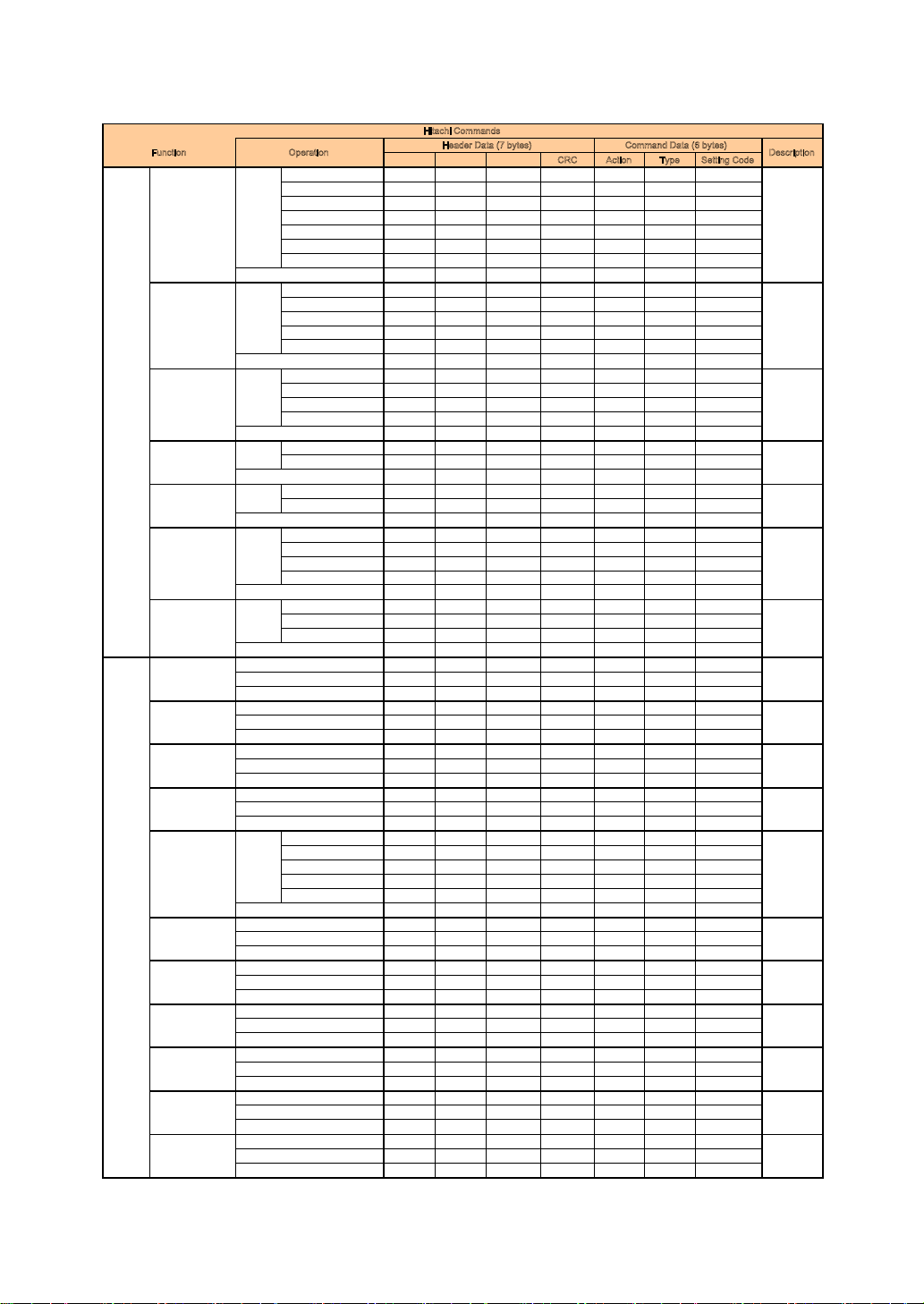
67
Communication settings
RS-232 Communication command table
CRC Action Type Setting Code
HDMI 1 BE EF 03 06 00 0E D2 01 00 00 20 03 00
HDMI 2 BE EF 03 06 00 6E D6 01 00 00 20 0D 00
RGB D-15 BE EF 03 06 00 FE D2 01 00 00 20 00 00
YUV 1 BE EF 03 06 00 AE D1 01 00 00 20 05 00
RGBHV/YUV2 BE EF 03 06 00 3E D0 01 00 00 20 04 00
SDI/HDSDI/3G BE EF 03 06 00 5E DE 01 00 00 20 12 00
STEREO DVI BE EF 03 06 00 AE D4 01 00 00 20 09 00
BE EF 03 06 00 CD D2 02 00 00 20 00 00
Auto BE EF 03 06 00 02 68 01 00 71 22 00 00
YUV HD BE EF 03 06 00 92 69 01 00 71 22 01 00
YUV STD BE EF 03 06 00 62 69 01 00 71 22 02 00
RGB-PC (0 - 255) BE EF 03 06 00 F2 68 01 00 71 22 03 00
RGB-Video (16 - 235) BE EF 03 06 00 C2 6A 01 00 71 22 04 00
BE EF 03 06 00 31 68 02 00 71 22 00 00
Auto BE EF 03 06 00 5B D7 01 00 14 30 01 00
48 Hz BE EF 03 06 00 CB C2 01 00 14 30 30 00
50 Hz BE EF 03 06 00 AB C3 01 00 14 30 32 00
60 Hz BE EF 03 06 00 CB C7 01 00 14 30 3C 00
BE EF 03 06 00 F8 D6 02 00 14 30 00 00
Off BE EF 03 06 00 3B 86 01 00 10 31 00 00
On BE EF 03 06 00 3B 89 01 00 10 31 14 00
BE EF 03 06 00 08 86 02 00 10 31 00 00
Off BE EF 03 06 00 3B 89 01 00 20 31 00 00
On BE EF 03 06 00 AB 88 01 00 20 31 01 00
BE EF 03 06 00 08 89 02 00 20 31 00 00
Logo BE EF 03 06 00 CB E3 01 00 04 30 40 00
Blue BE EF 03 06 00 FB D2 01 00 04 30 03 00
Black BE EF 03 06 00 AB D1 01 00 04 30 06 00
White BE EF 03 06 00 5B D1 01 00 04 30 05 00
BE EF 03 06 00 38 D2 02 00 04 30 00 00
Off BE EF 03 06 00 A2 D5 01 00 19 20 00 00
Auto BE EF 03 06 00 32 D4 01 00 19 20 01 00
Always BE EF 03 06 00 62 D8 01 00 19 20 10 00
BE EF 03 06 00 91 D5 02 00 19 20 00 00
BE EF 03 06 00 9B D3 04 00 04 20 00 00
BE EF 03 06 00 4A D2 05 00 04 20 00 00
BE EF 03 06 00 FD D3 02 00 04 20 00 00
BE EF 03 06 00 EF D2 04 00 03 20 00 00
BE EF 03 06 00 3E D3 05 00 03 20 00 00
BE EF 03 06 00 89 D2 02 00 03 20 00 00
BE EF 03 06 00 97 72 04 00 01 22 00 00
BE EF 03 06 00 46 73 05 00 01 22 00 00
BE EF 03 06 00 F1 72 02 00 01 22 00 00
BE EF 03 06 00 7F 70 04 00 0F 22 00 00
BE EF 03 06 00 AE 71 05 00 0F 22 00 00
BE EF 03 06 00 19 70 02 00 0F 22 00 00
3200K BE EF 03 06 00 3B EC 01 00 B0 30 20 00
5400K BE EF 03 06 00 5B E2 01 00 B0 30 36 00
6500K BE EF 03 06 00 AB C5 01 00 B0 30 41 00
9300K BE EF 03 06 00 6B CD 01 00 B0 30 5D 00
Native BE EF 03 06 00 0B B4 01 00 B0 30 FF 00
BE EF 03 06 00 C8 F5 02 00 B0 30 00 00
BE EF 03 06 00 62 F5 04 00 B5 30 00 00
BE EF 03 06 00 B3 F4 05 00 B5 30 00 00
BE EF 03 06 00 04 F5 02 00 B5 30 00 00
BE EF 03 06 00 26 F5 04 00 B6 30 00 00
BE EF 03 06 00 F7 F4 05 00 B6 30 00 00
BE EF 03 06 00 40 F5 02 00 B6 30 00 00
BE EF 03 06 00 DA F4 04 00 B7 30 00 00
BE EF 03 06 00 0B F5 05 00 B7 30 00 00
BE EF 03 06 00 BC F4 02 00 B7 30 00 00
BE EF 03 06 00 52 F4 04 00 B1 30 00 00
BE EF 03 06 00 83 F5 05 00 B1 30 00 00
BE EF 03 06 00 34 F4 02 00 B1 30 00 00
BE EF 03 06 00 16 F4 04 00 B2 30 00 00
BE EF 03 06 00 C7 F5 05 00 B2 30 00 00
BE EF 03 06 00 70 F4 02 00 B2 30 00 00
BE EF 03 06 00 EA F5 04 00 B3 30 00 00
BE EF 03 06 00 3B F4 05 00 B3 30 00 00
BE EF 03 06 00 8C F5 02 00 B3 30 00 00
H
itachi Commands
Function Operation
Header Data (7 bytes) Command Data (6 bytes)
Description
Get
Contrast Increment
Get
No Signal Set
Get
Get
Auto Power Off Set
Get
Input Locking
Decrement
Get
INPUT Input Selection Set
Set
IMAGE
Auto Power On Set
Auto Image Adjust Set
Get
Input Configuration Set
Get
Brightness Increment
Decrement
Get
Sharpness Increment
Decrement
Get
Noise Reduction Increment
Decrement
Get
Color Temperature Set
Get
Input Balance
- Red Offset
Increment
Decrement
Get
Input Balance
- Green Offset
Increment
Decrement
Get
Input Balance
- Blue Offset
Increment
Decrement
Get
Input Balance
- Red Gain
Increment
Decrement
Get
Input Balance
- Green Gain
Increment
Decrement
Get
Input Balance
- Bluie Gain
Increment
Decrement
Get
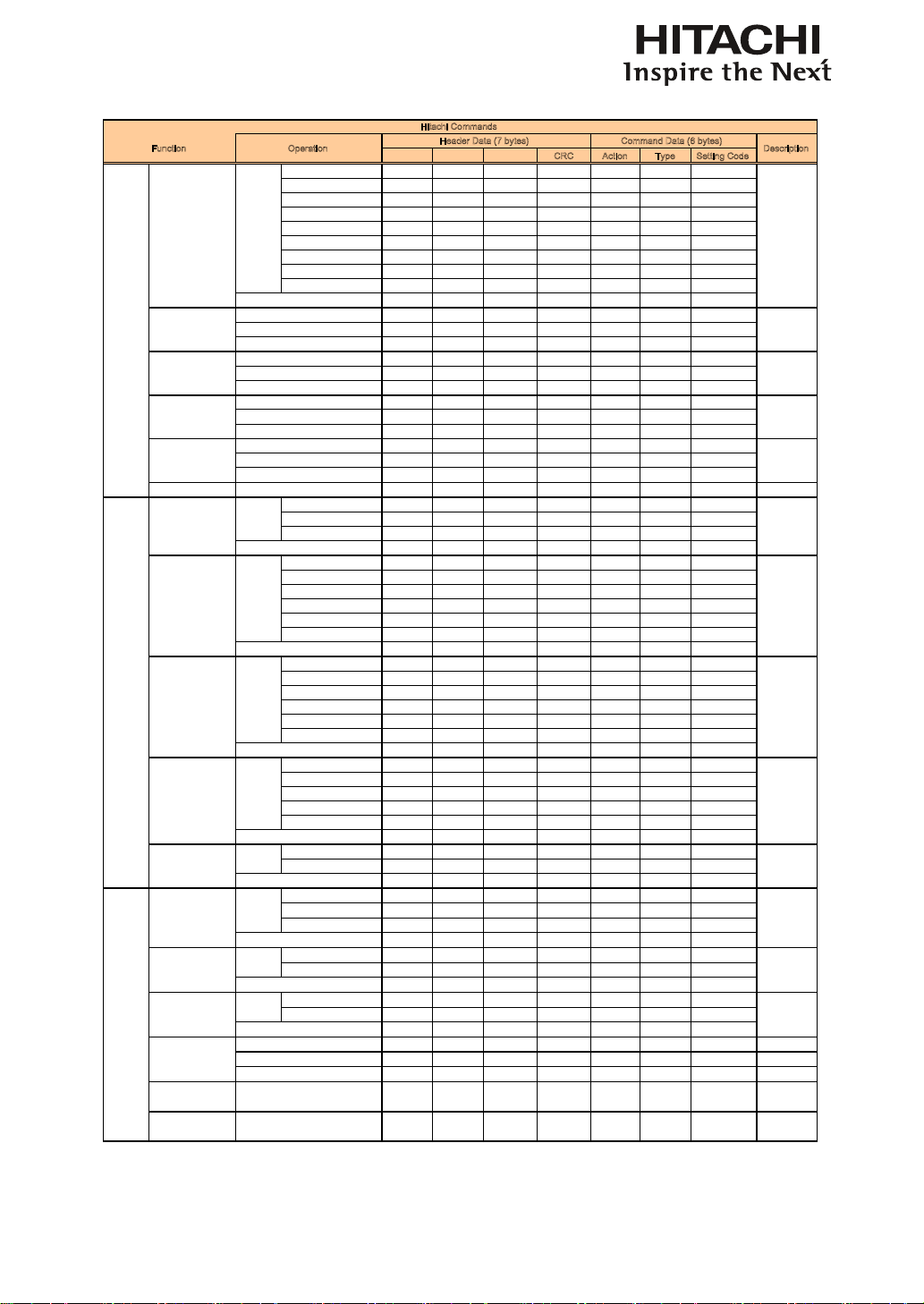
68
Communication settings
RS-232 Communication command table (continue)
CRC Action Type Setting Code
5:4 BE EF 03 06 00 AE D7 01 00 08 20 0B 00
4:3 BE EF 03 06 00 9E D0 01 00 08 20 00 00
16:10 BE EF 03 06 00 3E D6 01 00 08 20 0A 00
16:9 BE EF 03 06 00 0E D1 01 00 08 20 01 00
1.88 BE EF 03 06 00 9E D5 01 00 08 20 0C 00
2.35 BE EF 03 06 00 0E D4 01 00 08 20 0D 00
Letterbox BE EF 03 06 00 AE D2 01 00 08 20 07 00
Native BE EF 03 06 00 5E DD 01 00 08 20 10 00
Unscaled BE EF 03 06 00 5E D7 01 00 08 20 08 00
BE EF 03 06 00 AD D0 02 00 08 20 00 00
BE EF 03 06 00 D3 82 04 00 02 21 00 00
BE EF 03 06 00 02 83 05 00 02 21 00 00
BE EF 03 06 00 B5 82 02 00 02 21 00 00
BE EF 03 06 00 97 82 04 00 01 21 00 00
BE EF 03 06 00 46 83 05 00 01 21 00 00
BE EF 03 06 00 F1 82 02 00 01 21 00 00
BE EF 03 06 00 2F 83 04 00 03 21 00 00
BE EF 03 06 00 FE 82 05 00 03 21 00 00
BE EF 03 06 00 49 83 02 00 03 21 00 00
BE EF 03 06 00 6B 83 04 00 00 21 00 00
BE EF 03 06 00 BA 82 05 00 00 21 00 00
BE EF 03 06 00 0D 83 02 00 00 21 00 00
Auto Image Execute BE EF 03 06 00 91 D0 06 00 0A 20 00 00
Off BE EF 03 06 00 AB D4 01 00 1C 30 00 00
Crop BE EF 03 06 00 3B D5 01 00 1C 30 01 00
Zoom BE EF 03 06 00 CB D5 01 00 1C 30 02 00
BE EF 03 06 00 98 D4 02 00 1C 30 00 00
HDMI 1 BE EF 03 06 00 3E 23 01 00 04 23 03 00
HDMI 2 BE EF 03 06 00 5E 27 01 00 04 23 0D 00
RGB D-15 BE EF 03 06 00 CE 23 01 00 04 23 00 00
YUV 1 BE EF 03 06 00 9E 20 01 00 04 23 05 00
RGBHV/YUV2 BE EF 03 06 00 0E 21 01 00 04 23 04 00
SDI/HDSDI/3G BE EF 03 06 00 6E 2F 01 00 04 23 12 00
BE EF 03 06 00 FD 23 02 00 04 23 00 00
HDMI 1 BE EF 03 06 00 B6 23 01 00 02 23 03 00
HDMI 2 BE EF 03 06 00 D6 27 01 00 02 23 0D 00
RGB D-15 BE EF 03 06 00 46 23 01 00 02 23 00 00
YUV 1 BE EF 03 06 00 16 20 01 00 02 23 05 00
RGBHV/YUV2 BE EF 03 06 00 86 21 01 00 02 23 04 00
SDI/HDSDI/3G BE EF 03 06 00 E6 2F 01 00 02 23 12 00
BE EF 03 06 00 75 23 02 00 02 23 00 00
Top left BE EF 03 06 00 02 23 01 00 01 23 00 00
Top right BE EF 03 06 00 92 22 01 00 01 23 01 00
Bottom left BE EF 03 06 00 62 22 01 00 01 23 02 00
Bottom right BE EF 03 06 00 F2 23 01 00 01 23 03 00
Split L-R BE EF 03 06 00 C2 2E 01 00 01 23 10 00
BE EF 03 06 00 31 23 02 00 01 23 00 00
Off BE EF 03 06 00 3E 26 01 00 10 23 00 00
On BE EF 03 06 00 5E 27 01 00 10 23 02 00
BE EF 03 06 00 0D 26 02 00 10 23 00 00
ECO BE EF 03 06 00 AB 22 01 00 00 33 01 00
Normal BE EF 03 06 00 3B 23 01 00 00 33 00 00
Power BE EF 03 06 00 FB 2E 01 00 00 33 10 00
BE EF 03 06 00 08 23 02 00 00 33 00 00
Single BE EF 03 06 00 DF 2C 01 00 0B 33 10 00
Dual BE EF 03 06 00 1F 21 01 00 0B 33 00 00
BE EF 03 06 00 2C 21 02 00 0B 33 00 00
Off BE EF 03 06 00 E3 12 01 00 00 4C 00 00
On BE EF 03 06 00 73 13 01 00 00 4C 01 00
BE EF 03 06 00 D0 12 02 00 00 4C 00 00
BE EF 03 06 00 7C 22 02 00 07 33 00 00
BE EF 03 06 00 1A 22 04 00 07 33 00 00
BE EF 03 06 00 CB 23 05 00 07 33 00 00
Lamp2 Status Get BE EF 03
Decrement
Get
Timings
- H Phase
Increment
Decrement
Get
Get
Execute
Timings
- H Start
Increment
06 00 1C 20 02 00 0F 33
06 00 E0 21 02 00 0E 33 00 00
Get
Lamp1 Status Get BE EF 03
LAMPS Mode Set
Get
Lamps Set
High Altitude Mode Set
00 00
Lamp Power Get
Increment
Decrement
Get
Get
PIP Set
Get
LAYOUT Zoom Set
Get
Main Select Set
Get
PIP Select
PIP Position Set
Set
Get
H
itachi Commands
Function Operation
Header Data (7 bytes) Command Data (6 bytes)
Description
Aspect Ratio Set
Get
IMAGE
Timings
- H Total
Increment
Decrement
Get
Timings
- V Start
Increment
Decrement
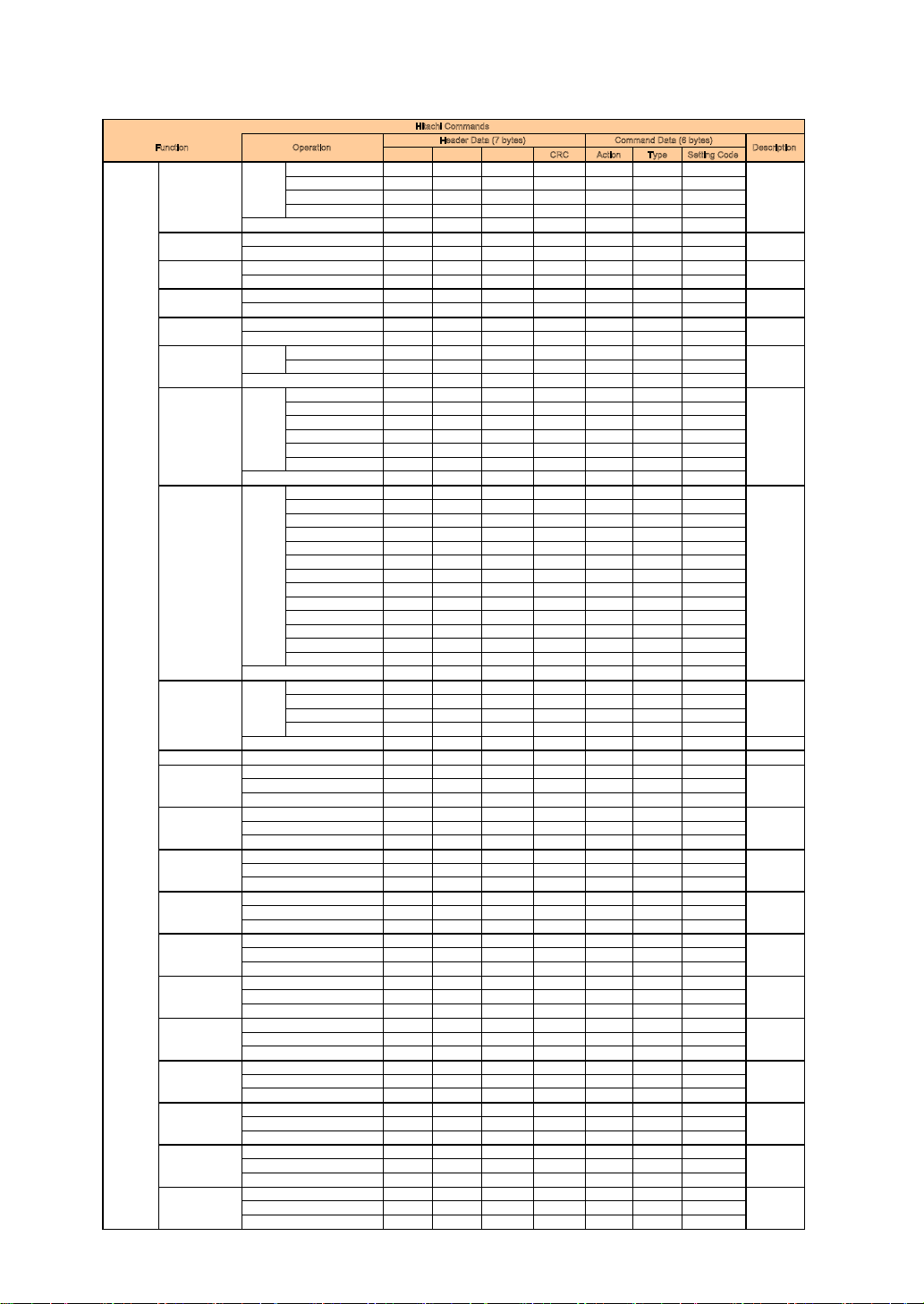
69
Communication settings
RS-232 Communication command table (continue)
CRC Action Type Setting Code
Front / Desktop BE EF 03 06 00 C7 D2 01 00 01 30 00 00
Rear / Desktop BE EF 03 06 00 57 D3 01 00 01 30 01 00
Rear / Ceiling BE EF 03 06 00 A7 D3 01 00 01 30 02 00
Front / Ceiling BE EF 03 06 00 37 D2 01 00 01 30 03 00
BE EF 03 06 00 F4 D2 02 00 01 30 00 00
BE EF 03 06 00 96 92 04 00 01 24 00 00
BE EF 03 06 00 47 93 05 00 01 24 00 00
BE EF 03 06 00 BB 92 05 00 00 24 00 00
BE EF 03 06 00 6A 93 04 00 00 24 00 00
BE EF 03 06 00 D2 92 04 00 02 24 00 00
BE EF 03 06 00 03 93 05 00 02 24 00 00
BE EF 03 06 00 2E 93 04 00 03 24 00 00
BE EF 03 06 00 FF 92 05 00 03 24 00 00
Off BE EF 03 06 00 FE 5A 01 00 80 22 00 00
On BE EF 03 06 00 6E 5B 01 00 80 22 01 00
BE EF 03 06 00 CD 5A 02 00 80 22 00 00
1.8 BE EF 03 06 00 3B 86 01 00 A0 30 B4 00
2.0 BE EF 03 06 00 FB A6 01 00 A0 30 C8 00
2.2 BE EF 03 06 00 FB A9 01 00 A0 30 DC 00
2.35 BE EF 03 06 00 CB BF 01 00 A0 30 EB 00
2.5 BE EF 03 06 00 9B B3 01 00 A0 30 FA 00
DICOM SIM. BE EF 03 06 00 8B F0 01 00 A0 30 FF FF
BE EF 03 06 00 08 F1 02 00 A0 30 00 00
Off BE EF 03 06 00 FB FA 01 00 80 30 00 00
Color Bars BE EF 03 06 00 AB F6 01 00 80 30 11 00
Hatch BE EF 03 06 00 5B F6 01 00 80 30 12 00
Burst BE EF 03 06 00 CB F7 01 00 80 30 13 00
Red BE EF 03 06 00 FB F5 01 00 80 30 14 00
Green BE EF 03 06 00 6B F4 01 00 80 30 15 00
Blue BE EF 03 06 00 9B F4 01 00 80 30 16 00
White BE EF 03 06 00 0B F5 01 00 80 30 17 00
Black BE EF 03 06 00 FB F0 01 00 80 30 18 00
TI-Red BE EF 03 06 00 6B F1 01 00 80 30 19 00
TI-Green BE EF 03 06 00 9B F1 01 00 80 30 1A 00
TI-Blue BE EF 03 06 00 0B F0 01 00 80 30 1B 00
TI-Ramp BE EF 03 06 00 3B F2 01 00 80 30 1C 00
BE EF 03 06 00 C8 FA 02 00 80 30 00 00
Native BE EF 03 06 00 FE 69 01 00 70 22 00 00
EBU BE EF 03 06 00 6E 68 01 00 70 22 01 00
SMPTE BE EF 03 06 00 9E 68 01 00 70 22 02 00
Custom BE EF 03 06 00 0E 69 01 00 70 22 03 00
BE EF 03 06 00 CD 69 02 00 70 22 00 00
Lens To Midposition BE EF 03 06 00 B8 93 06 00 04 24 00 00
BE EF 03 06 00 8F D0 04 00 0B 20 00 00
BE EF 03 06 00 5E D1 05 00 0B 20 00 00
BE EF 03 06 00 E9 D0 02 00 0B 20 00 00
BE EF 03 06 00 DF D3 04 00 07 20 00 00
BE EF 03 06 00 0E D2 05 00 07 20 00 00
BE EF 03 06 00 B9 D3 02 00 07 20 00 00
BE EF 03 06 00 AB 99 04 00 70 21 00 00
BE EF 03 06 00 7A 98 05 00 70 21 00 00
BE EF 03 06 00 CD 99 02 00 70 21 00 00
BE EF 03 06 00 57 98 04 00 71 21 00 00
BE EF 03 06 00 86 99 05 00 71 21 00 00
BE EF 03 06 00 31 98 02 00 71 21 00 00
BE EF 03 06 00 57 89 04 00 21 21 00 00
BE EF 03 06 00 86 88 05 00 21 21 00 00
BE EF 03 06 00 31 89 02 00 21 21 00 00
BE EF 03 06 00 13 89 04 00 22 21 00 00
BE EF 03 06 00 C2 88 05 00 22 21 00 00
BE EF 03 06 00 75 89 02 00 22 21 00 00
BE EF 03 06 00 EF 88 04 00 23 21 00 00
BE EF 03 06 00 3E 89 05 00 23 21 00 00
BE EF 03 06 00 89 88 02 00 23 21 00 00
BE EF 03 06 00 9B 89 04 00 24 21 00 00
BE EF 03 06 00 4A 88 05 00 24 21 00 00
BE EF 03 06 00 FD 89 02 00 24 21 00 00
BE EF 03 06 00 67 88 04 00 25 21 00 00
BE EF 03 06 00 B6 89 05 00 25 21 00 00
BE EF 03 06 00 01 88 02 00 25 21 00 00
BE EF 03 06 00 23 88 04 00 26 21 00 00
BE EF 03 06 00 F2 89 05 00 26 21 00 00
BE EF 03 06 00 45 88 02 00 26 21 00 00
BE EF 03 06 00 DF 89 04 00 27 21 00 00
BE EF 03 06 00 0E 88 05 00 27 21 00 00
BE EF 03 06 00 B9 89 02 00 27 21 00 00
ALIGNMENT
Warp
- Top right corner
- y
Increment
Decrement
Get
Warp
- Bottom left corner
- x
Increment
Decrement
Get
Rear Projection /
Ceiling Mode
Set
Lens Control
- Zoom
H
itachi Commands
Function Operation
Header Data (7 bytes) Command Data (6 bytes)
Description
Decrement
Lens Control
- Focus
Increment
Lens Control
- Shift V
Increment
Decrement
Decrement
Lens Control
- Shift H
Increment
Dynamic Contrast Set
Get
Decrement
Gamma Set
Get
Get
Internal Patterns Set
Get
Execute
Color Space Set
Warp
- H Keystone
Increment
Decrement
Get
Get
Warp
- V Keystone
Increment
Decrement
Get
Warp
- Rotation
Increment
Decrement
Warp
- Pincushion /
Barrel
Increment
Decrement
Get
Get
Warp
- Top left corner
- x
Increment
Decrement
Get
Get
Increment
Warp
- Bottom left corner
- y
Increment
Decrement
Get
Warp
- Top right corner
- x
Increment
Decrement
Get
Warp
- Top left corner
- y
Increment
Decrement
Warp
- Bottom right
corner
Increment
Decrement
Get
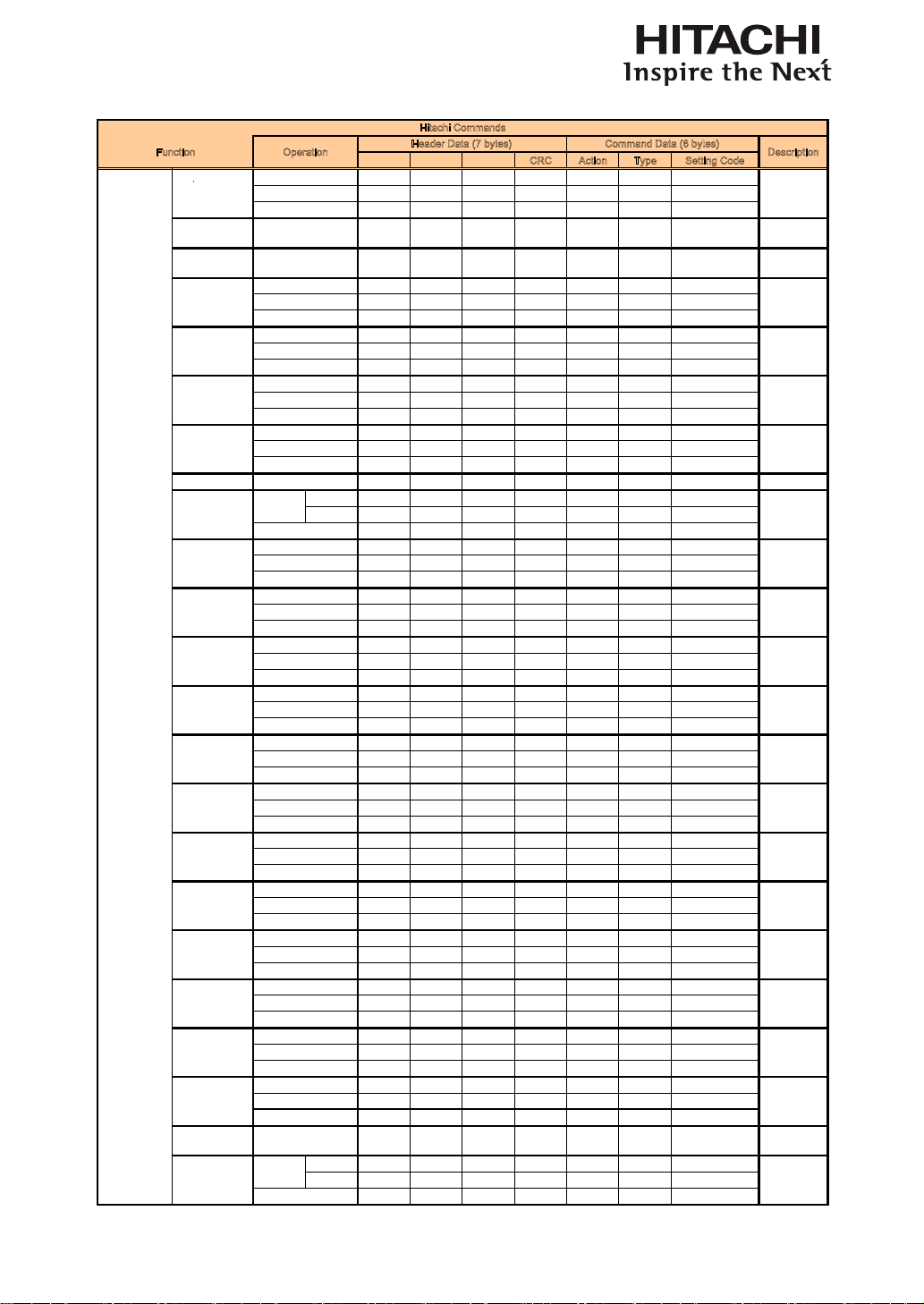
70
Communication settings
RS-232 Communication command table (continue)
CRC Action Type Setting Code
BE EF 03 06 00 CB 8
A
04 00 28 21 00 00
A
LIGNMENT
H
itachi Commands
Function Operation
Header Data (7 bytes) Command Data (6 bytes)
Description
Warp Increment
BE EF 03 06 00 1A 8B 05 00 28 21 00 00
BE EF 03 06 00 AD 8A 02 00 28 21 00 00
Warp
- Reset
BE EF 03 06 00 F1 99 06 00 72 21 00 00
Warp
- Recover
BE EF 03 06 00 0D 98 06 00 73 21 00 00
BE EF 03 06 00 8A DA 04 00 2B 30 00 00
BE EF 03 06 00 5B DB 05 00 2B 30 00 00
BE EF 03 06 00 EC DA 02 00 2B 30 00 00
Execute
p
- Bottom right
corner
Decrement
Get
Blanking - Top
Get
Execute
Increment
Decrement
BE EF 03 06 00 FE DB 04 00 2C 30 00 00
BE EF 03 06 00 2F DA 05 00 2C 30 00 00
BE EF 03 06 00 98 DB 02 00 2C 30 00 00
BE EF 03 06 00 02 DA 04 00 2D 30 00 00
BE EF 03 06 00 D3 DB 05 00 2D 30 00 00
BE EF 03 06 00 64 DA 02 00 2D 30 00 00
BE EF 03 06 00 46 DA 04 00 2E 30 00 00
BE EF 03 06 00 97 DB 05 00 2E 30 00 00
BE EF 03 06 00 20 D
A
02 00 2E 30 00 00
Blanking - Right
Blanking -
Bottom
Blanking - Left
Get
Increment
Decrement
Get
Increment
Decrement
Get
Increment
Decrement
Blanking - Reset BE EF 03 06 00 58 DA 06 00 2F 30 00 00
Off BE EF 03 06 00 FB A0 01 00 A0 31 00 00
On BE EF 03 06 00 6B A1 01 00 A0 31 01 00
BE EF 03 06 00 C8 A0 02 00 A0 31 00 00
BE EF 03 06 00 52 A1 04 00 A1 31 00 00
BE EF 03 06 00 83 A0 05 00 A1 31 00 00
BE EF 03 06 00 34 A1 02 00 A1 31 00 00
BE EF 03 06 00 16 A1 04 00 A2 31 00 00
BE EF
03
06 00
C7 A0
05 00
A2 31
00 00
Increment
Decrement
Get
Execute
Edge Blend
- Status
Set
Get
Edge Blend
- White Level -
Top
Edge Blend
-
White Level
-
Increment
Decrement
BE
EF
03
06
00
C7
A0
05
00
A2
31
00
00
BE EF 03 06 00 70 A1 02 00 A2 31 00 00
BE EF 03 06 00 EA A0 04 00 A3 31 00 00
BE EF 03 06 00 3B A1 05 00 A3 31 00 00
BE EF 03 06 00 8C A0 02 00 A3 31 00 00
BE EF 03 06 00 9E A1 04 00 A4 31 00 00
BE EF 03 06 00 4F A0 05 00 A4 31 00 00
BE EF 03 06 00 F8 A1 02 00 A4 31 00 00
BE EF 03 06 00 62 A0 04 00 A5 31 00 00
BE EF
03
06 00
B3 A1
05 00
A5 31
00 00
Increment
Decrement
Get
Increment
Decrement
-
White
Level
-
Bottom
Decrement
Get
Edge Blend
- White Level -
Left
Edge Blend
- White Level -
Right
Increment
Decrement
Get
Edge Blend
Black Level
BE
EF
03
06
00
B3
A1
05
00
A5
31
00
00
BE EF 03 06 00 04 A0 02 00 A5 31 00 00
BE EF 03 06 00 26 A0 04 00 A6 31 00 00
BE EF 03 06 00 F7 A1 05 00 A6 31 00 00
BE EF 03 06 00 40 A0 02 00 A6 31 00 00
BE EF 03 06 00 DA A1 04 00 A7 31 00 00
BE EF 03 06 00 0B A0 05 00 A7 31 00 00
BE EF 03 06 00 BC A1 02 00 A7 31 00 00
BE EF 03 06 00 CE A2 04 00 A8 31 00 00
BE EF
03
06 00
1F A3
05 00
A8 31
00 00
D
ecremen
t
Get
Increment
Decrement
Get
-
Bl
ac
k
L
eve
l
-
Top
Edge Blend
- Black Level -
Bottom
Increment
Decrement
Get
Edge Blend
- Black Level -
Left
Edge Blend
Bl k L l
Increment
Dt
BE EF 03 06 00 1F A3 05 00
A
8 31 00 00
BE EF 03 06 00 A8 A2 02 00 A8 31 00 00
BE EF 03 06 00 32 A3 04 00 A9 31 00 00
BE EF 03 06 00 E3 A2 05 00 A9 31 00 00
BE EF 03 06 00 54 A3 02 00 A9 31 00 00
BE EF 03 06 00 76 A3 04 00 AA 31 00 00
BE EF 03 06 00 A7 A2 05 00 AA 31 00 00
BE EF 03 06 00 10 A3 02 00 AA 31 00 00
BE EF 03 06 00 8A A2 04 00 AB 31 00 00
Increment
Decrement
Get
Increment
- Black Level -
Right
Decrement
Get
Edge Blend
- Black Level -
Red
Edge Blend
- Black Level -
Green
Increment
Decrement
Get
Edge Blend
BE EF 03 06 00 5B A3 05 00 AB 31 00 00
BE EF 03 06 00 EC A2 02 00 AB 31 00 00
BE EF 03 06 00 FE A3 04 00 AC 31 00 00
BE EF 03 06 00 2F A2 05 00 AC 31 00 00
BE EF 03 06 00 98 A3 02 00 AC 31 00 00
Edge Blend
- Reset
BE EF 03 06 00 E0 A3 06 00 AD 31 00 00
Off BE EF 03 06 00 13 A2 01 00 AE 31 00 00
On BE EF 03 06 00 83 A3 01 00 AE 31 01 00
Decrement
Get
Edge Blend
- Adjust Lines
Set
- Black Level -
Blue
Edge Blend
- Black Level -
All
Increment
Decrement
Get
Execute
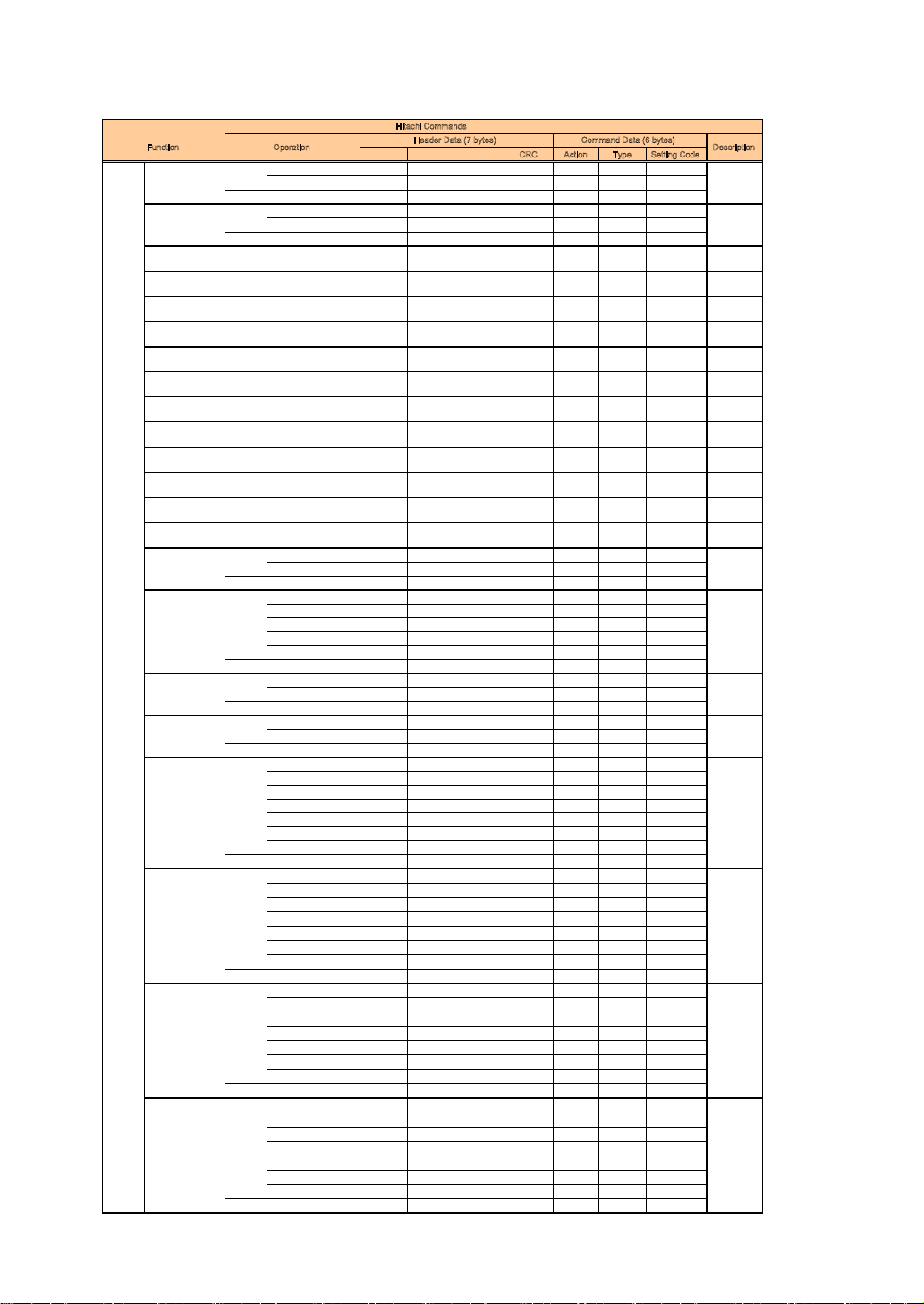
71
Communication settings
RS-232 Communication command table (continue)
CRC Action Type Setting Code
remote code 1 BE EF 03 06 00 0F 31 01 00 08 26 01 00
remote code 2 BE EF 03 06 00 FF 31 01 00 08 26 02 00
BE EF 03 06 00 AC 30 02 00 08 26 00 00
Off (RJ45 Power On) BE EF 03 06 00 D6 D2 01 00 01 60 00 00
On (RJ45 Power Off) BE EF 03 06 00 46 D3 01 00 01 60 01 00
BE EF 03 06 00 E5 D2 02 00 01 60 00 00
IP Address
- 1st Octe
t
BE EF 03 06 00 F3 07 02 00 11 29 00 00
IP Address
- 2nd Octe
t
BE EF 03 06 00 B7 07 02 00 12 29 00 00
IP Address
- 3rd Octe
t
BE EF 03 06 00 4B 06 02 00 13 29 00 00
IP Address
- 4th Octet
BE EF 03 06 00 3F 07 02 00 14 29 00 00
Subnet Mask
- 1st Octe
t
BE EF 03 06 00 C3 06 02 00 15 29 00 00
Subnet Mask
- 2nd Octe
t
BE EF 03 06 00 87 06 02 00 16 29 00 00
Subnet Mask
- 3rd Octe
t
BE EF 03 06 00 7B 07 02 00 17 29 00 00
Subnet Mask
- 4th Octet
BE EF 03 06 00 6F 04 02 00 18 29 00 00
Default Gateway
- 1st Octe
t
BE EF 03 06 00 93 05 02 00 19 29 00 00
Default Gateway
- 2nd Octe
t
BE EF 03 06 00 D7 05 02 00 1A 29 00 00
Default Gateway
- 3rd Octe
t
BE EF 03 06 00 2B 04 02 00 1B 29 00 00
Default Gateway
- 4th Octet
BE EF 03 06 00 5F 05 02 00 1C 29 00 00
Off BE EF 03 06 00 3C 06 01 00 10 29 00 00
On BE EF 03 06 00 AC 07 01 00 10 29 01 00
BE EF 03 06 00 0F 06 02 00 10 29 00 00
Top left BE EF 03 06 00 57 D5 01 00 1D 30 00 00
Top right BE EF 03 06 00 C7 D4 01 00 1D 30 01 00
Bottom left BE EF 03 06 00 37 D4 01 00 1D 30 02 00
Bottom right BE EF 03 06 00 A7 D5 01 00 1D 30 03 00
center BE EF 03 06 00 97 D7 01 00 1D 30 04 00
BE EF 03 06 00 64 D5 02 00 1D 30 00 00
Off BE EF 03 06 00 13 D5 01 00 1E 30 00 00
On BE EF 03 06 00 83 D4 01 00 1E 30 01 00
BE EF 03 06 00 20 D5 02 00 1E 30 00 00
Off BE EF 03 06 00 EF D4 01 00 1F 30 00 00
On BE EF 03 06 00 7F D5 01 00 1F 30 01 00
BE EF 03 06 00 DC D4 02 00 1F 30 00 00
HDMI 1 BE EF 03 06 00 CA 33 01 00 00 36 03 00
HDMI 2 BE EF 03 06 00 AA 37 01 00 00 36 0D 00
RGB D-15 BE EF 03 06 00 3A 33 01 00 00 36 00 00
YUV 1 BE EF 03 06 00 6A 30 01 00 00 36 05 00
RGBHV/YUV2 BE EF 03 06 00 FA 31 01 00 00 36 04 00
SDI/HDSDI/3G BE EF 03 06 00 FA 57 01 00 00 36 8C 00
STEREO DVI BE EF 03 06 00 6A 35 01 00 00 36 09 00
BE EF 03 06 00 09 33 02 00 00 36 00 00
HDMI 1 BE EF 03 06 00 36 32 01 00 01 36 03 00
HDMI 2 BE EF 03 06 00 56 36 01 00 01 36 0D 00
RGB D-15 BE EF 03 06 00 C6 32 01 00 01 36 00 00
YUV 1 BE EF 03 06 00 96 31 01 00 01 36 05 00
RGBHV/YUV2 BE EF 03 06 00 06 30 01 00 01 36 04 00
SDI/HDSDI/3G BE EF 03 06 00 06 56 01 00 01 36 8C 00
STEREO DVI BE EF 03 06 00 96 34 01 00 01 36 09 00
BE EF 03 06 00 F5 32 02 00 01 36 00 00
HDMI 1 BE EF 03 06 00 72 32 01 00 02 36 03 00
HDMI 2 BE EF 03 06 00 12 36 01 00 02 36 0D 00
RGB D-15 BE EF 03 06 00 82 32 01 00 02 36 00 00
YUV 1 BE EF 03 06 00 D2 31 01 00 02 36 05 00
RGBHV/YUV2 BE EF 03 06 00 42 30 01 00 02 36 04 00
SDI/HDSDI/3G BE EF 03 06 00 42 56 01 00 02 36 8C 00
STEREO DVI BE EF 03 06 00 D2 34 01 00 02 36 09 00
BE EF 03 06 00 B1 32 02 00 02 36 00 00
HDMI 1 BE EF 03 06 00 8E 33 01 00 03 36 03 00
HDMI 2 BE EF 03 06 00 EE 37 01 00 03 36 0D 00
RGB D-15 BE EF 03 06 00 7E 33 01 00 03 36 00 00
YUV 1 BE EF 03 06 00 2E 30 01 00 03 36 05 00
RGBHV/YUV2 BE EF 03 06 00 BE 31 01 00 03 36 04 00
SDI/HDSDI/3G BE EF 03 06 00 BE 57 01 00 03 36 8C 00
STEREO DVI BE EF 03 06 00 2E 35 01 00 03 36 09 00
BE EF 03 06 00 4D 33 02 00 03 36 00 00
CONTROL
H
itachi Commands
Function Operation
Header Data (7 bytes) Command Data (6 bytes)
Description
Button 2 Set
Get
Button 3 Set
Button 4 Set
Get
Get
Set
Get
Eco Network Power Set
Get
IR Address
Get
Get
Get
DHCP Set
Get
Get
Get
Get
Get
Get
Get
Get
Get
Get
Menu Position Set
Start Up Logo Set
Get
Get
Start Up Chime Set
Get
Button 1 Set
Get
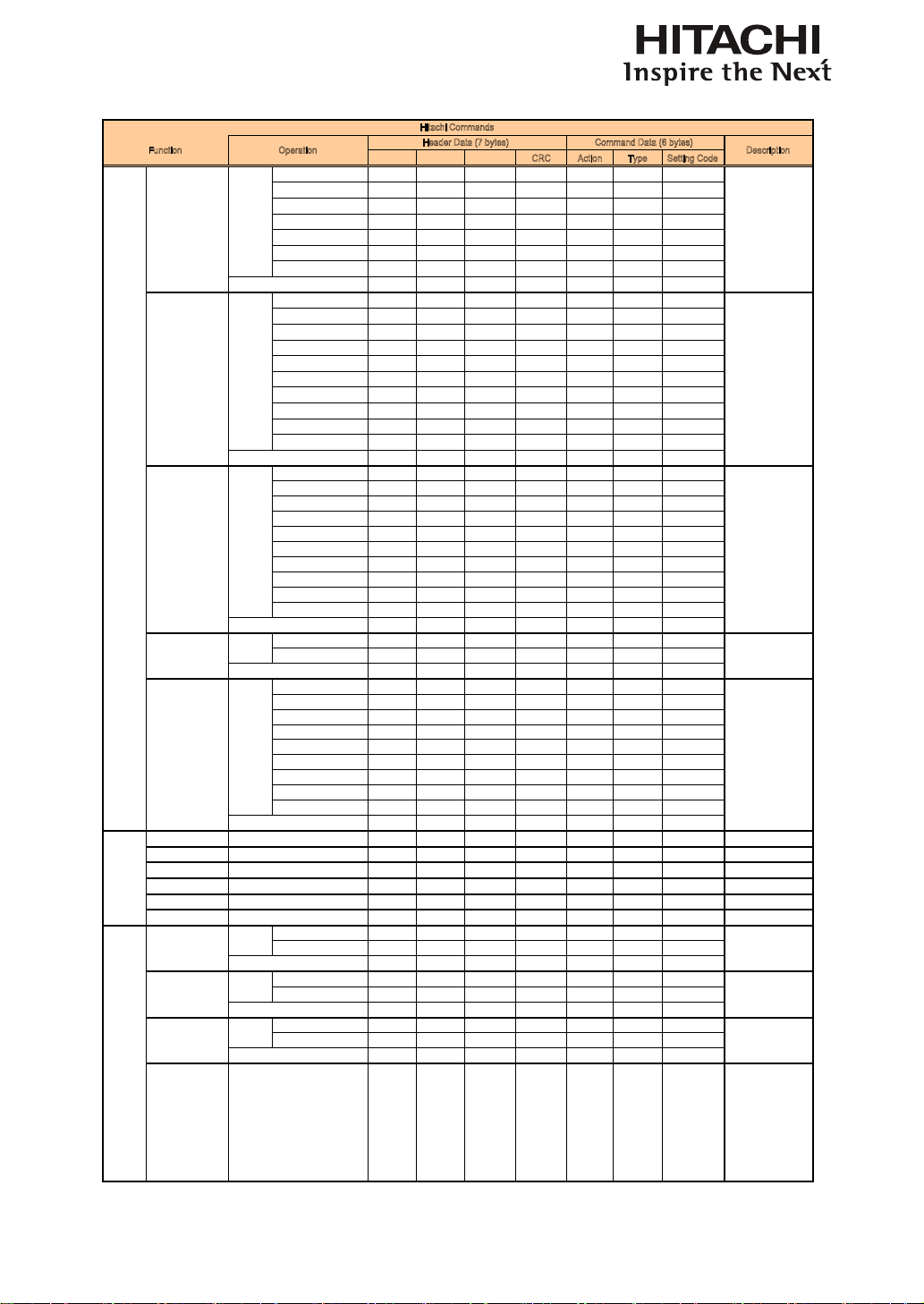
72
Communication settings
RS-232 Communication command table (continue)
CRC Action Type Setting Code
HDMI 1 BE EF 03 06 00 FA 32 01 00 04 36 03 00
HDMI 2 BE EF 03 06 00 9A 36 01 00 04 36 0D 00
RGB D-15 BE EF 03 06 00 0A 32 01 00 04 36 00 00
YUV 1 BE EF 03 06 00 5A 31 01 00 04 36 05 00
RGBHV/YUV2 BE EF 03 06 00 CA 30 01 00 04 36 04 00
SDI/HDSDI/3G BE EF 03 06 00 CA 56 01 00 04 36 8C 00
STEREO DVI BE EF 03 06 00 5A 34 01 00 04 36 09 00
BE EF 03 06 00 39 32 02 00 04 36 00 00
5:4 BE EF 03 06 00 CF 8E 01 00 70 24 0B 00
4:3 BE EF 03 06 00 FF 89 01 00 70 24 00 00
16:10 BE EF 03 06 00 5F 8F 01 00 70 24 0A 00
16:9 BE EF 03 06 00 6F 88 01 00 70 24 01 00
1.88 BE EF 03 06 00 FF 8C 01 00 70 24 0C 00
2.35 BE EF 03 06 00 6F 8D 01 00 70 24 0D 00
Letterbox BE EF 03 06 00 CF 8B 01 00 70 24 07 00
Native BE EF 03 06 00 3F 84 01 00 70 24 10 00
Unscaled BE EF 03 06 00 3F 8E 01 00 70 24 08 00
Auto BE EF 03 06 00 3F B8 01 00 70 24 40 00
BE EF 03 06 00 CC 89 02 00 70 24 00 00
5:4 BE EF 03 06 00 33 8F 01 00 71 24 0B 00
4:3 BE EF 03 06 00 03 88 01 00 71 24 00 00
16:10 BE EF 03 06 00 A3 8E 01 00 71 24 0A 00
16:9 BE EF 03 06 00 93 89 01 00 71 24 01 00
1.88 BE EF 03 06 00 03 8D 01 00 71 24 0C 00
2.35 BE EF 03 06 00 93 8C 01 00 71 24 0D 00
Letterbox BE EF 03 06 00 33 8A 01 00 71 24 07 00
Native BE EF 03 06 00 C3 85 01 00 71 24 10 00
Unscaled BE EF 03 06 00 C3 8F 01 00 71 24 08 00
Auto BE EF 03 06 00 C3 B9 01 00 71 24 40 00
BE EF 03 06 00 30 88 02 00 71 24 00 00
Off BE EF 03 06 00 B6 D6 01 00 16 20 00 00
On BE EF 03 06 00 26 D7 01 00 16 20 01 00
BE EF 03 06 00 85 D6 02 00 16 20 00 00
English
BE EF
03
06 00
F7 D3
01 00
05 30
00 00
Language
Set
CONTRO
L
Trigger 2 Set
Get
Auto Source Set
Get
Button 5 Set
Get
Trigger 1 Set
Get
H
itachi Commands
Function Operation
Header Data (7 bytes) Command Data (6 bytes)
Description
E
ng
li
s
h
BE
EF
03
06
00
F7
D3
01
00
05
30
00
00
French BE EF 03 06 00 67 D2 01 00 05 30 01 00
Spanish BE EF 03 06 00 07 D3 01 00 05 30 03 00
German BE EF 03 06 00 97 D2 01 00 05 30 02 00
Portuese BE EF 03 06 00 C7 D1 01 00 05 30 07 00
Chinese Simplified BE EF 03 06 00 A7 D5 01 00 05 30 09 00
Chinese Traditional BE EF 03 06 00 37 DE 01 00 05 30 10 00
Japanese BE EF 03 06 00 37 D4 01 00 05 30 08 00
Korean BE EF 03 06 00 57 D5 01 00 05 30 0A 00
BE EF 03 06 00 C4 D3 02 00 05 30 00 00
Lamp 1 Time BE EF 03 06 00 C2 FF 02 00 90 10 00 00
Lamp 2 Time BE EF 03 06 00 02 AE 02 00 90 11 00 00
Lamp 1 Time Reset BE EF 03 06 00 58 DC 06 00 30 70 00 00
Lamp 2 Time Reset BE EF 03 06 00 68 DD 06 00 34 70 00 00
Projector Run Time BE EF 03 06 00 A2 CE 02 00 68 10 00 00
Factory Reset BE EF 03 06 00 98 8D 06 00 30 71 00 00
Off BE EF 03 06 00 F3 93 01 00 05 24 00 00
On BE EF 03 06 00 63 92 01 00 05 24 01 00
BE EF 03 06 00 C0 93 02 00 05 24 00 00
On BE EF 03 06 00 BA D2 01 00 00 60 01 00
Off BE EF 03 06 00 2A D3 01 00 00 60 00 00
BE EF 03 06 00 19 D3 02 00 00 60 00 00
Off BE EF 03 06 00 4F DB 01 00 17 30 10 00
On BE EF 03 06 00 1F D7 01 00 17 30 01 00
BE EF 03 06 00 BC D6 02 00 17 30 00 00
Error Status BE EF 03 06 00 D9 D8 02 00 20 60 00 00 Get Status
0: Normal
1: Lamp Door Open
2: Fan Fail
4: Over Temperature
19: Lamp 1 Fail
35: Lamp 2 Fail
128: SystemError
Other Pause Set
Get
Power Set Get Status
0: Off (Standby)
1: On (Imaging)
Get
Text.mode Set
Get
Get
SERVICE Get (Low)
Get (Low)
Execute
Get (Low)
L
anguage
S
e
t
Get
Execute
Execute

73
Copyright information
Copyright
Copyright 2013. All rights reserved. No part of this publication may be reproduced, transmitted,
transcribed, stored in a retrieva l system or translated into any language or computer language, in
any form or by any means, electronic, mechanical, magnetic, optical, chemical, manual or otherwise,
without the prior written permission of this company.
Disclaimer
This company makes no representations or warranties, either expressed or implied, with respect to the
contents hereof and specically disclaims any warranties, merchantability or tness for any particular
purpose. Further, this company reserves the right to revise this publication and to make changes from
time to time in the contents hereof without obligation to notify any person of such revision or changes.
The illustrations in this manual are for illustrative purposes. They may differ slightly from your
projector.
The reproduction, transfer or copy of all or any part of this document is not permitted without express
written consent.
*DLP and Digital Micromirror Device (DMD) are trademarks of Texas Instruments. Others are
copyrights of their respective companies or organizations.
*Registered trademarks of HDMI Licensing LLC in the United States and other countries.
All other trademarks are the properties of their respective owners.
Warranty and after-service
If an abnormal operation (such as smoke, strange odor or excessive sound) should occur, stop using
the projector immediately.
Otherwise if a problem occurs with the projector, rst refer to “Troubleshooting”, and run
through the suggested checks.
If this does not resolve the problem, please consult your dealer or service company. They
will tell you what warranty condition is applied.

74
http://www.hitachi.co.jp/proj/
Yokohama 244-0817 JAPAN
http://www.hitachi-th.com
THAILAND
http://www.hsct.com.tw
Taipei 104 TAIWAN
http://www.hitachiconsumer.com.sg
Alexandra Technopark, 119967 SINGAPORE
http://www.hitachiconsumer.com.my
MALAYSIA
http://www.hitachi-hk.com.hk
Shatin, N.T. HONG KONG
http://www.hitachi.com.au
North Ryde N.S.W 2113 AUSTRALIA
http://www.hitachidigitalmedia.com
169 29 Solna SWEDEN
08028 Barcelona SPAIN
20147 MILANO ITALY
Email: [email protected]
Athens GREECE
Email: [email protected]
40547 Düsseldorf GERMANY
Email: [email protected]
ZAC DU CHENE, 69500 BRON FRANCE
http://www.equinox.co.uk/hitachi/
Email: [email protected]
Berkshire SL6 8YA UNITED KINGDOM
Email: [email protected]
Email: [email protected]
Chula Vista, CA 91914 USA CANADA
http://www.hitachi-america.us/projectors
Hitachi America, Ltd.
Business Solutions Group
2420 Fenton Street, Suite 200
Tel: +1 -800-448-2244
Hitachi Europe Ltd., Digital Media Group
Consumer Affairs Department
Whitebrook Park, Lower Cookham Road,
Maidenhead
Tel: 0844 481 0297
(international call is NOT available for this number)
Hitachi Europe S.A.S.,
Digital Media Group
31 bis rue du 35ème Régiment de l’aviation
Tel: 0 478 262135 +33 478 262135
Hitachi Europe GmbH
Am Seestern 18
Tel: 0 40 73353 468 +49 (0) 40 73353 468
Hitachi Europe S.A.
364, Kifissias Ave. & 1, Delfon Str.
152 33 Chalandri
Tel: +30 210 921 0800
Hitachi Europe S.r.l.
Via T. Gulli, 39
Tel: +39 2 257 12355
Hitachi Europe S.A.
Gran Via Carles III, 86 Planta 5ª
Edificios Trade - Torre Este
Tel: 0 93 266 4747 +34 93 266 4747
Hitachi Europe AB
Frösundaviks Alle 15
Sweden Tel: +46 36 16 16 90
Finland Tel: +358 9 8494 133
Norway Tel: +47 2290 1930
Denmark Tel: +45 7562 4577
Hitachi Australia Pty Ltd.
Suite 801, Level 8, 123 Epping Road
Tel: +61 -2-9888-4100
Hitachi (Hong Kong), Ltd.
18/F., Ever Gain Centre, 28 On Muk Street.,
Tel: +852 -2113-8883
Hitachi Sales (Malaysia) Sdn. Bhd.
Lot 12, Jalan Kamajuan, Bangi Industrial Estate,
43650 Bandar Baru Bangi, Selangor Darul Ehsan
Tel: +60 -3-8911-2670
Hitachi Home Electronics Asia (S) Pte. Ltd.
438A Alexandra Road #01-01/02/03
Tel: +65 -6536-2520
Hitachi Sales Corp. of Taiwan
2
nd
Floor, No.65, Nanking East Road, Section 3,
Tel: +886-2-2516-0500
Hitachi Sales (Thailand), Ltd.
994, 996 Soi Thonglor, Sukhumvit 55 Rd.,
Klongtonnua, Vadhana, Bangkok 10110
Tel: +66 -2381-8381-98
Hitachi Maxell, Ltd.
292 Yoshida-cho, Totsuka-ku
( :Country/Region)