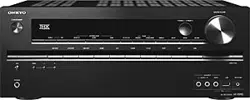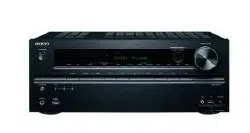

AV RECEIVER
Operating Instructions
TX-SR373
2
Thank you for buying this Onkyo product. Please read
through these operating instructions so you will know how to
operate your model properly.
Before you start
. . . . . . . . . . . . . . . . . . . . . . . . . . . . 3
Checking what’s in the box
. . . . . . . . . . . . . . . . . . . . . 3
Installing the receiver
. . . . . . . . . . . . . . . . . . . . . . . . . . 3
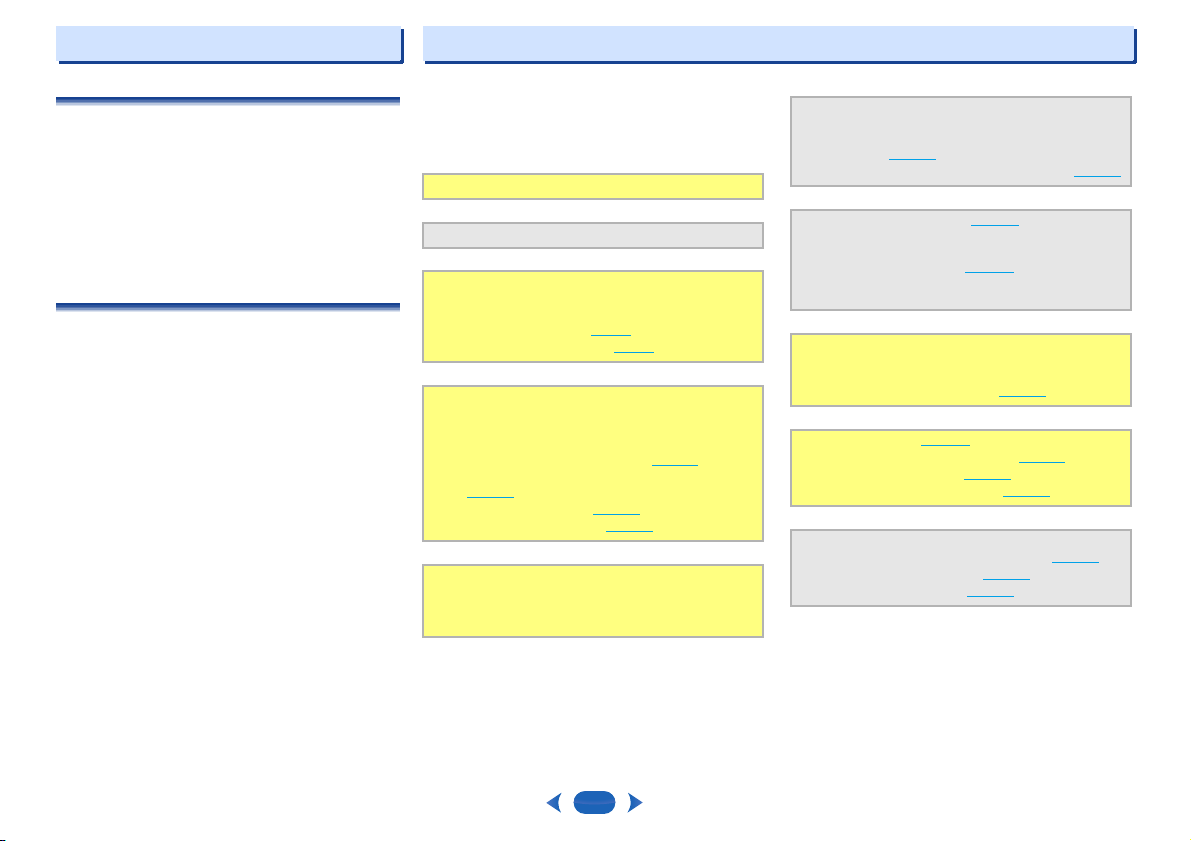
Flow of settings on the receiver
. . . . . . . . . . . . . 3
1 Controls and displays
Front panel
. . . . . . . . . . . . . . . . . . . . . . . . . . . . . . . . . 4
Display
. . . . . . . . . . . . . . . . . . . . . . . . . . . . . . . . . . . 5
Remote control
. . . . . . . . . . . . . . . . . . . . . . . . . . . . . . 6
Loading the batteries
. . . . . . . . . . . . . . . . . . . . . . . . . 7
Operating range of remote control
. . . . . . . . . . . . . . . 7
2 Connecting your equipment
Placing the speakers
. . . . . . . . . . . . . . . . . . . . . . . . . . 8
Hints on the speaker placement
. . . . . . . . . . . . . . . . . 8
Connecting the speakers
. . . . . . . . . . . . . . . . . . . . . . . 9
Making cable connections
. . . . . . . . . . . . . . . . . . . . . 10
HDMI cables
. . . . . . . . . . . . . . . . . . . . . . . . . . . . . . 10
About HDMI
. . . . . . . . . . . . . . . . . . . . . . . . . . . . . . 10
Analog audio cables
. . . . . . . . . . . . . . . . . . . . . . . . 11
Digital audio cables
. . . . . . . . . . . . . . . . . . . . . . . . . 11
Standard RCA video cables
. . . . . . . . . . . . . . . . . . . 11
About video outputs connection
. . . . . . . . . . . . . . . . . 11
Connecting a TV and playback components
. . . . . . . . 12
Connecting using HDMI
. . . . . . . . . . . . . . . . . . . . . . 12
Connecting your component with no HDMI
terminal
. . . . . . . . . . . . . . . . . . . . . . . . . . . . . . . . . . 13
Connecting antennas
. . . . . . . . . . . . . . . . . . . . . . . . . 14
Using external antennas
. . . . . . . . . . . . . . . . . . . . . 14
Connecting a USB device
. . . . . . . . . . . . . . . . . . . . . 15
Plugging in the receiver
. . . . . . . . . . . . . . . . . . . . . . . 15
3 Basic Setup
Automatically setting up for surround sound
(AccuEQ Room Calibration)
. . . . . . . . . . . . . . . . . . . . 16
Other problems when using the AccuEQ
Room Cal. setup
. . . . . . . . . . . . . . . . . . . . . . . . . . . 17
4 Basic playback
Playing a source
. . . . . . . . . . . . . . . . . . . . . . . . . . . . 18
Selecting the audio input signal
. . . . . . . . . . . . . . . . 18
Playing a USB device
. . . . . . . . . . . . . . . . . . . . . . . . 20
Basic playback controls
. . . . . . . . . . . . . . . . . . . . . . 20
Compressed audio compatibility
. . . . . . . . . . . . . . . 20
Music playback using BLUETOOTH
®
wireless
technology
. . . . . . . . . . . . . . . . . . . . . . . . . . . . . . . . . 21
Pairing with the unit (Initial registration)
. . . . . . . . . . 21
Listen to music on the unit from a BLUETOOTH
capable device
. . . . . . . . . . . . . . . . . . . . . . . . . . . . 21
Radio wave caution
. . . . . . . . . . . . . . . . . . . . . . . . . 21
Listening to the radio
. . . . . . . . . . . . . . . . . . . . . . . . . 22
Improving FM sound
. . . . . . . . . . . . . . . . . . . . . . . . 22
Saving station presets
. . . . . . . . . . . . . . . . . . . . . . . 22
Listening to station presets
. . . . . . . . . . . . . . . . . . . 23
Naming preset stations
. . . . . . . . . . . . . . . . . . . . . . 23
An introduction to RDS (For Europe)
. . . . . . . . . . . . . 23
Searching for RDS programs
. . . . . . . . . . . . . . . . . . 23
Displaying RDS information
. . . . . . . . . . . . . . . . . . . 24
5 Listening to your system
Choosing the listening mode
. . . . . . . . . . . . . . . . . . . 25
Listening in surround sound
. . . . . . . . . . . . . . . . . . 25
Playing back in the STEREO mode
. . . . . . . . . . . . 25
Using the DSP
. . . . . . . . . . . . . . . . . . . . . . . . . . . . 25
Using Direct
. . . . . . . . . . . . . . . . . . . . . . . . . . . . . . 25
Using the Advanced Music Optimizer
. . . . . . . . . . . . 25
Setting the Audio options
. . . . . . . . . . . . . . . . . . . . . . 26
Displaying the Fixed PCM Setting menu
. . . . . . . . . . 27
Changing the TV format setting of Graphical User
Interface
. . . . . . . . . . . . . . . . . . . . . . . . . . . . . . . . . . 27
Changing the frequency step of AM Radio
. . . . . . . . . 28
6 Setup
Using the Setup
. . . . . . . . . . . . . . . . . . . . . . . . . . . . . 29
Manual speaker setup
. . . . . . . . . . . . . . . . . . . . . . . . 29
Speaker Setting
. . . . . . . . . . . . . . . . . . . . . . . . . . . . 29
X.Over
. . . . . . . . . . . . . . . . . . . . . . . . . . . . . . . . . . . 30
Channel Level
. . . . . . . . . . . . . . . . . . . . . . . . . . . . . 30
Speaker Distance
. . . . . . . . . . . . . . . . . . . . . . . . . . 31
The Input Assign menu
. . . . . . . . . . . . . . . . . . . . . . . 31
The Auto Power Down menu
. . . . . . . . . . . . . . . . . . . 31
The HDMI Setup menu
. . . . . . . . . . . . . . . . . . . . . . . 32
7 Additional information
Troubleshooting
. . . . . . . . . . . . . . . . . . . . . . . . . . . . . 33
General
. . . . . . . . . . . . . . . . . . . . . . . . . . . . . . . . . . 33
HDMI
. . . . . . . . . . . . . . . . . . . . . . . . . . . . . . . . . . . 34
Important information regarding the HDMI
connection
. . . . . . . . . . . . . . . . . . . . . . . . . . . . . . . . 34
USB messages
. . . . . . . . . . . . . . . . . . . . . . . . . . . . 34
Resetting the main unit
. . . . . . . . . . . . . . . . . . . . . . . 35
Cleaning the unit
. . . . . . . . . . . . . . . . . . . . . . . . . . . . 35
Specifications
. . . . . . . . . . . . . . . . . . . . . . . . . . . . . . 35
Software license notice
. . . . . . . . . . . . . . . . . . . . . . . 37
Contents
3
Before you start
Checking what’s in the box
Please check that you’ve received the following supplied
accessories:
•
Setup microphone
•
Remote control
•
AAA size IEC R03 dry cell batteries (to confirm system
operation) x2
•
AM loop antenna
•
FM wire antenna
•
Quick start guide
•
Safety Brochure
Installing the receiver
•
When installing this unit, make sure to put it on a level and
stable surface.
Don’t install it on the following places:
– on a color TV (the screen may distort)
– near a cassette deck (or close to a device that gives off a
magnetic field). This may interfere with the sound.
– in direct sunlight
– in damp or wet areas
– in extremely hot or cold areas
– in places where there is vibration or other movement
– in places that are very dusty
– in places that have hot fumes or oils (such as a kitchen)
Flow of settings on the receiver
The unit is a full-fledged AV receiver equipped with an
abundance of functions and terminals. It can be used easily
after following the procedure below to make the connections
and settings.
The colors of the steps indicate the following:
- - - - - - - - - - - - - - - - - - - - - - - - - - - - - - - - - - - - - - - - - -
Required setting item
Setting to be made as necessary
1
Connecting the speakers
Where you place the speakers will have a big effect on
the sound.
•
Placing the speakers (page 8)
•
Connecting the speakers (page 9)
2
Connecting the components
For surround sound, you’ll want to hook up using a
digital connection from the Blu-ray Disc/DVD player to
the receiver.
•
About video outputs connection (page 11)
•
Connecting a TV and playback components
(page 12
)
•
Connecting antennas (page 14)
•
Plugging in the receiver (page 15)
3
Power On
Make sure you’ve set the video input on your TV to
this receiver. Check the manual that came with the TV
if you don’t know how to do this.
4
Making the initial settings according to the region
and environment in which you live
•
Changing the TV format setting of Graphical User
Interface (page 27
)
•
Changing the frequency step of AM Radio (page 28)
5
The Input Assign menu (page 31)
(When using connections other than the
recommended connections.)
The HDMI Setup menu (page 32
)
(When the connected TV supports the HDMI Audio
Return Channel function.)
6
Use the on-screen AccuEQ Room Cal. setup to set up
your system
•
Automatically setting up for surround sound
(AccuEQ Room Calibration) (page 16
)
7
Basic playback (page 18)
•
Selecting the audio input signal (page 18)
•
Playing a USB device (page 20)
•
Choosing the listening mode (page 25)
8
Adjusting the sound as desired
•
Using the Advanced Music Optimizer (page 25)
•
Setting the Audio options (page 26)
•
Manual speaker setup (page 29)
1:
4
2
33
4
Controls and displays
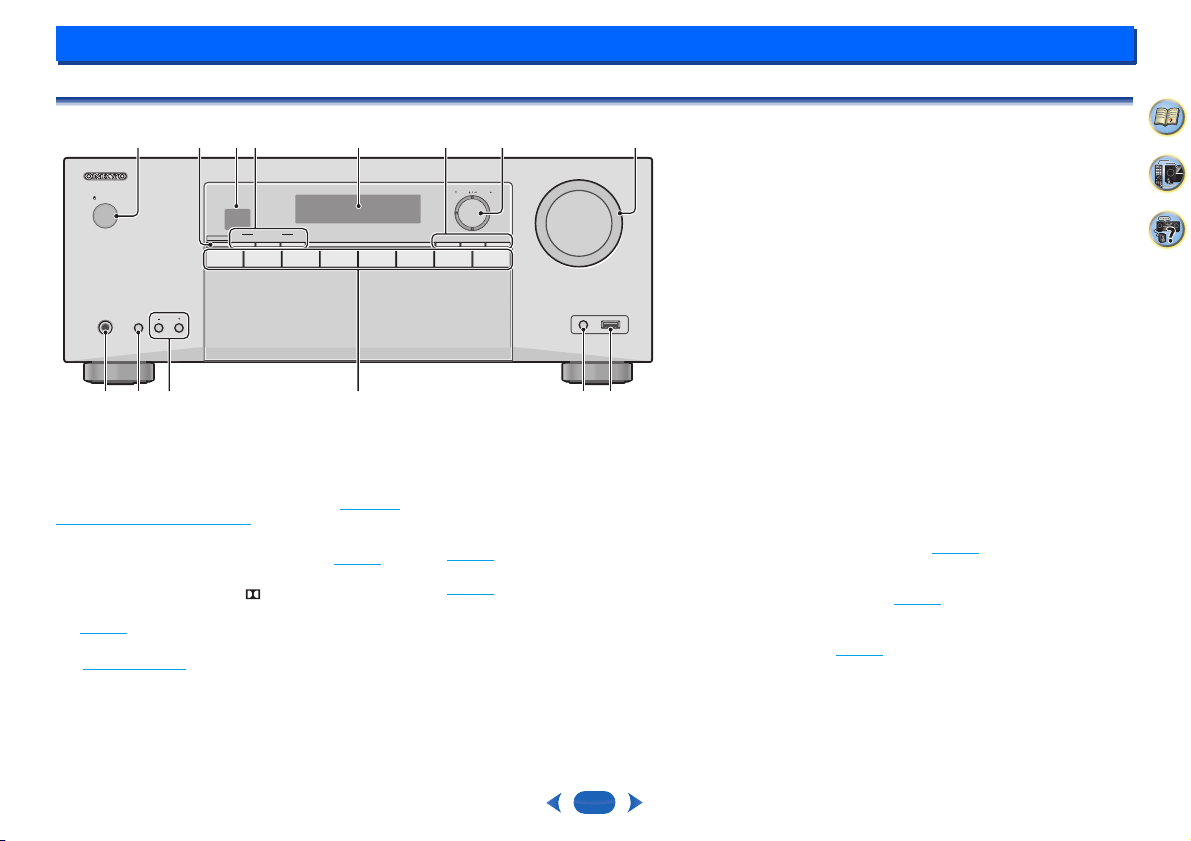
Front panel
1
Í
ON/STANDBY
2
BLUETOOTH
Switches to the BT Audio input
3
Remote sensor
Receives the signals from the remote control (see Operating
range of remote control on page 7).
4
Listening mode buttons
STEREO
– Switches to the STEREO mode (page 25).
SURROUND
– Press for standard decoding and to
switch between the modes of Pro Logic II and NEO:6.
DSP
– Switches between the various surround modes
(page 25
).
5
Character display
See Display on page 5.
6
HOME
/
ENTER
/
RETURN
buttons
HOME
– Use to access the Setup.
ENTER
– Press to confirm the specified settings.
RETURN
– Use to return to the display immediately
previous when making settings
7
Tuner control/Cursor buttons
TUNING
– Used to find radio frequencies
(page 22
).
PRESET
– Use to select preset radio stations
(page 23
).
These are also used to move the cursors when displaying the
Setup, for example.
8
MASTER VOLUME
dial
9
PHONES jack
Use to connect headphones. When the headphones are
connected, there is no sound output from the speakers.
10
TONE
Switches the display between Bass settings and Treble
settings.
11
TONE -/+
Press to change the settings while the Bass or Treble
settings are displayed.
12
INPUT SELECTOR
buttons
Selects an input source (page 18).
13
SETUP MIC jack
Use to connect a microphone when performing AccuEQ
Room Cal. setup (page 16
).
14
USB terminal
Use to connect your USB mass storage device as an audio
source (page 15
).
C
D
TUNER
T
V
B
D/DVD
STRM BOXCBL
/SAT GAME USB
SURROUNDSTEREOBLUETOOTH
LISTENING MODE
HOME ENTER RETURN
TUNING PRESET
DSP
TONE
AV RECEIVER
TX
-
SR373
PHONES
ON / STANDBY
MASTER VOLUME
USBSETUP MIC
5V
/
0.5A
45
1
68327
9 10 1211 1413
Controls and displays
1
1
5
2
33
4
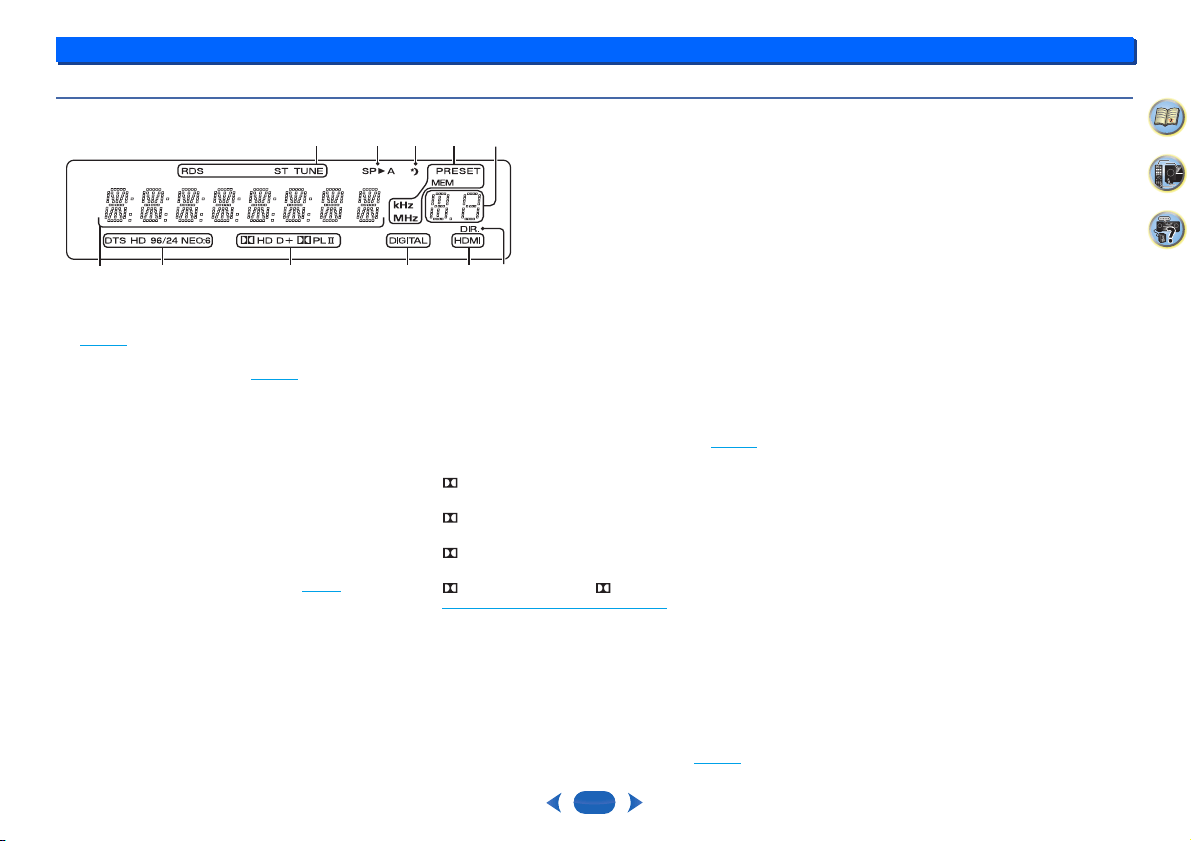
Display
15
Tuner indicators
RDS – Lights when an RDS broadcast is received
(page 24
). (For Europe)
ST – Lights when a stereo FM broadcast is being
received in auto stereo mode (page 22
).
TUNE – Lights when a normal broadcast channel.
PRESET – Shows when a preset radio station is
registered or called.
MEM – Blinks when a radio station is registered.
kHz/MHz – Lights when the character display is showing
the currently received AM/FM broadcast frequency.
16
Speaker indicators
Shows if the speaker system is on or not.
SPA means the speaker system is on.
SP means the speaker system is off.
17
Sleep timer indicator
Lights when the receiver is in sleep mode (page 6).
18
PRESET information or input signal indicator
Shows the preset number of the tuner or the input signal
type, etc.
19
Character display
Displays various system information.
20
DTS indicators
DTS – Lights when a source with DTS encoded audio
signals is detected.
HD – Lights when a source with DTS-EXPRESS or DTS-
HD encoded audio signals is detected.
96/24 – Lights when a source with DTS 96/24 encoded
audio signals is detected.
NEO:6 – When one of the NEO:6 modes of the receiver
is on, this lights to indicate NEO:6 processing (page 25
).
21
Dolby Digital indicators
D – Lights when a Dolby Digital encoded signal is
detected.
D+ – Lights when a source with Dolby Digital Plus
encoded audio signals is detected.
HD – Lights when a source with Dolby TrueHD
encoded audio signals is detected.
PLII – Lights to indicate Pro Logic II decoding (see
Listening in surround sound
on page 25 for more on this).
22
SIGNAL SELECT indicators
DIGITAL – Lights when a digital audio signal is selected.
Blinks when a digital audio signal is selected and
selected audio input is not provided.
HDMI – Lights when an HDMI signal is selected. Blinks
when an HDMI signal is selected and selected HDMI
input is not provided.
23
DIR.
Lights when the DIRECT mode is switched on (page 25).
17 18
20 21
19
15 15
2222 23
16
Controls and displays
1
1
6
2
33
4
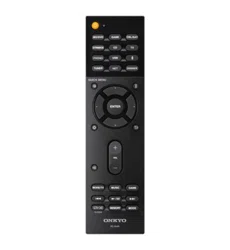
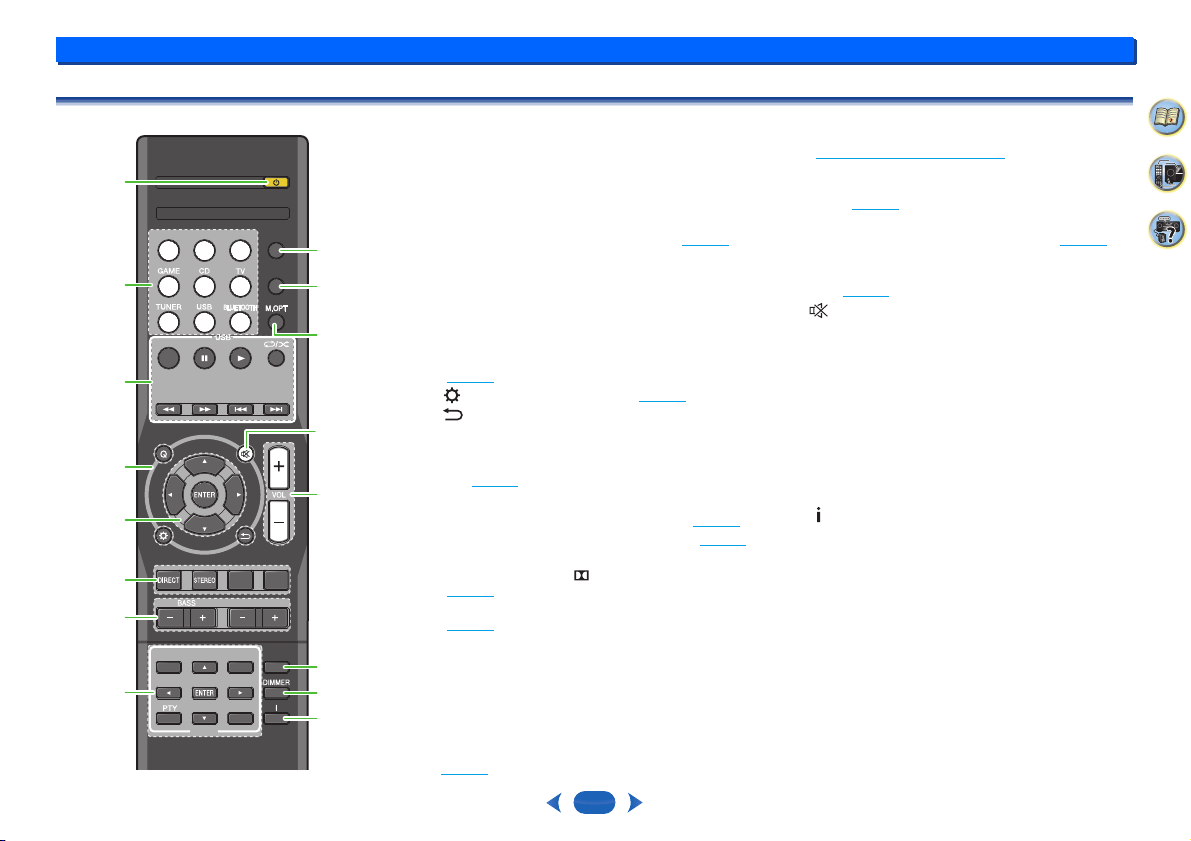
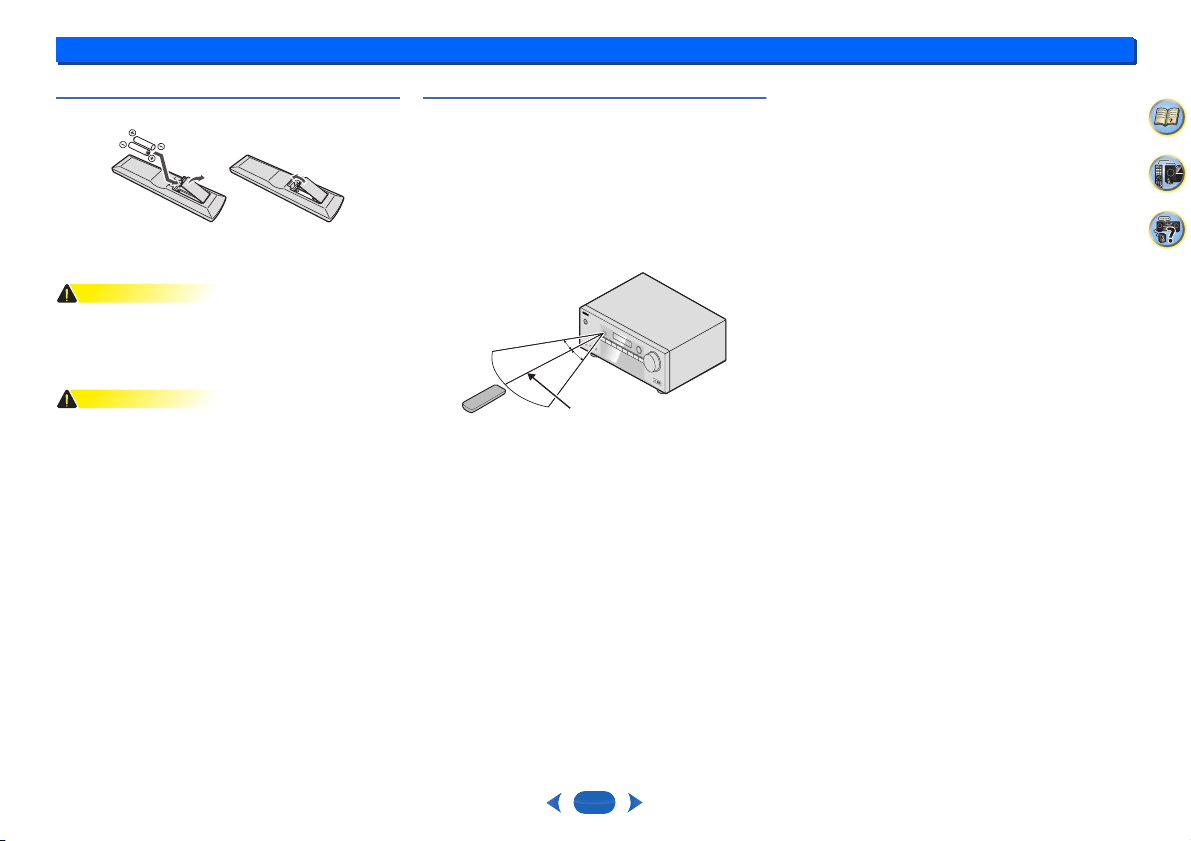
Remote control
As for operating other devices, the remote control codes for
the Onkyo products are preset. The settings cannot be
changed.
1
Í
RECEIVER
Switches the receiver between standby and on.
2
Input function buttons
Use to select the input source to this receiver (page 18). This
will enable you to control other Onkyo components with the
remote control.
3
USB
control buttons
Use to control the
USB
source. Operations other than USB
are not possible.
4
Receiver control buttons
Q
(
QUICK MENU
) – Use to access the Audio options
(page 26
).
– Press to access the Setup (page 29).
– Use to return to the display immediately previous
when making settings
5
/
/
/
,
ENTER
Use the arrow buttons when setting up your surround sound
system (page 29
).
6
Listening mode and component control buttons
DIRECT
– Press to select Direct playback (page 25).
STEREO
– Press to select stereo playback (page 25).
SURR
– Press for standard decoding and to switch
between the modes of Pro Logic II and NEO:6
(page 25
).
DSP
– Switches between the various surround modes
(page 25
).
7
BASS +/–
,
TREBLE +/–
Use to adjust Bass or Treble.
•
These controls are disabled when the listening mode is set
to DIRECT.
•
When the front speaker is set at SMALL in the Speaker
Setting (or automatically via the AccuEQ Room Cal. setup)
and the X.Over is set above 150 Hz, the subwoofer
channel level will be adjusted by pressing
BASS +/–
(page 30
).
8
TUNER
control buttons
See Listening to the radio on page 22.
9
AUDIO SEL
Press to select the audio input signal of the component to
play back (page 18
).
10
LATE NIGHT
Turns ON and OFF the LATE NIGHT function (page 26).
11
M.OPT
Press to restore CD quality sound to compressed audio
sources (page 25
).
12
Mutes/unmutes the sound.
13
VOL +/–
Use to set the listening volume.
14
SLEEP
Press to change the amount of time before the receiver
switches into standby (30 min – 60 min – 90 min – Off). You
can check the remaining sleep time at any time by pressing
SLEEP
once.
15
DIMMER
Dims or brightens the display. The brightness can be
controlled in four steps.
16
Switches the display of this unit. The listening mode, sound
volume or input name can be checked by selecting an input
source.
RECEIVERRECEIVER
SURRSURR
TREBLETREBLE
DSPDSP
AUDIO SELAUDIO SEL
DISPLAYDISPLAY
TUNERTUNER
RC-928R
EDITEDIT SLEEPSLEEPTUNING TUNING
+
TUNING TUNING
-
PRESET
PRESET
-
PRESET
PRESET
+
LATE NIGHTLATE NIGHT
TOP MENUTOP MENU
BANDBAND
QUICK MENUQUICK MENU
CBL/SATCBL/SAT
STRM BOXSTRM BOX
BD/DVDBD/DVD
1
2
12
13
14
15
16
3
4
7
6
5
8
9
10
11
Controls and displays
1
1
7
2
33
4
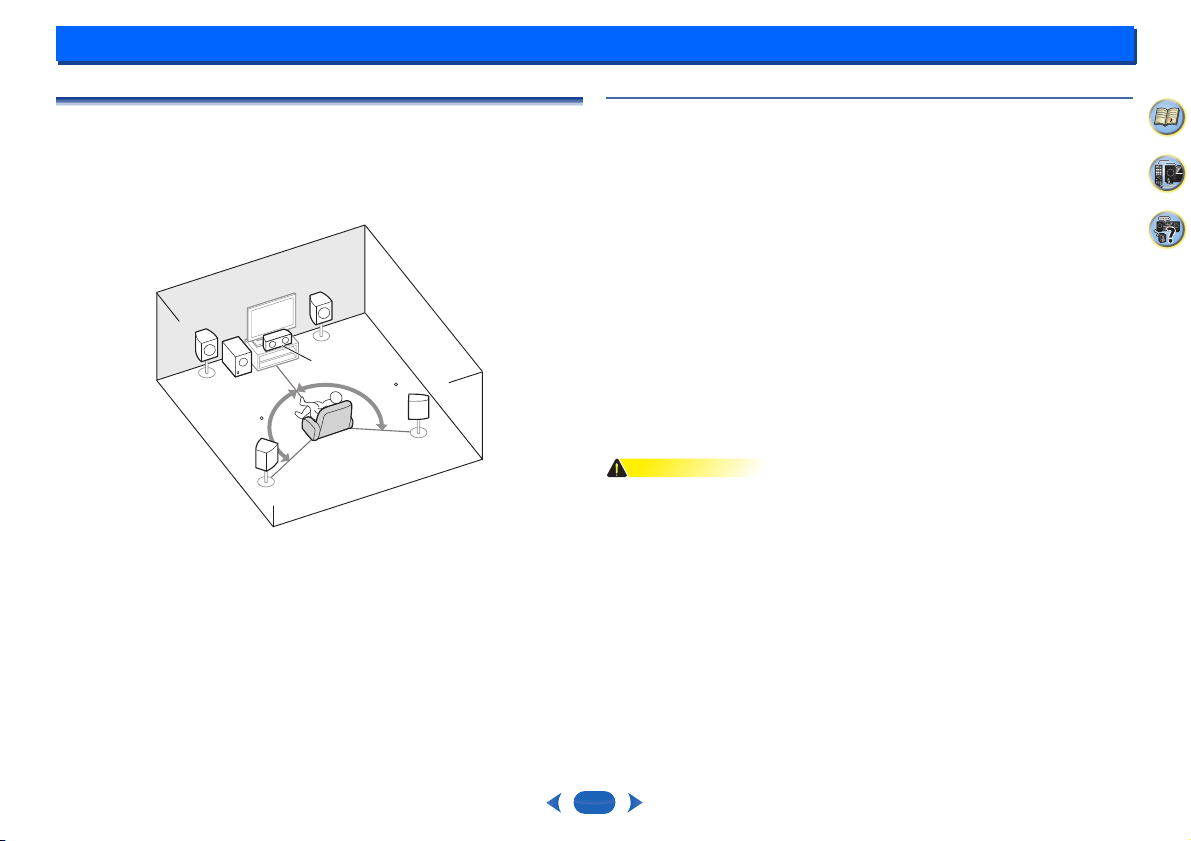
Loading the batteries
The batteries included with the unit are to check initial
operations; they may not last over a long period. We
recommend using alkaline batteries that have a longer life.
WARNING
•
Do not use or store batteries in direct sunlight or other
excessively hot place, such as inside a car or near a
heater. This can cause batteries to leak, overheat, explode
or catch fire. It can also reduce the life or performance of
batteries.
CAUTION
•
Incorrect use of batteries may result in such hazards as
leakage and bursting. Observe the following precautions:
-
Never use new and old batteries together.
-
Insert the plus and minus sides of the batteries properly
according to the marks in the battery case.
-
Batteries with the same shape may have different
voltages. Do not use different batteries together.
-
When disposing of used batteries, please comply with
governmental regulations or environmental public
institution’s rules that apply in your country/area.
-
When inserting the batteries, make sure not to damage
the springs on the battery’s (–) terminals. This can cause
batteries to leak or overheat.
Operating range of remote control
The remote control may not work properly if:
•
There are obstacles between the remote control and the
receiver’s remote sensor.
•
Direct sunlight or fluorescent light is shining onto the
remote sensor.
•
The receiver is located near a device that is emitting
infrared rays.
•
The receiver is operated simultaneously with another
infrared remote control unit.
30°
7 m
30°
2:
8
2
33
4
Connecting your equipment
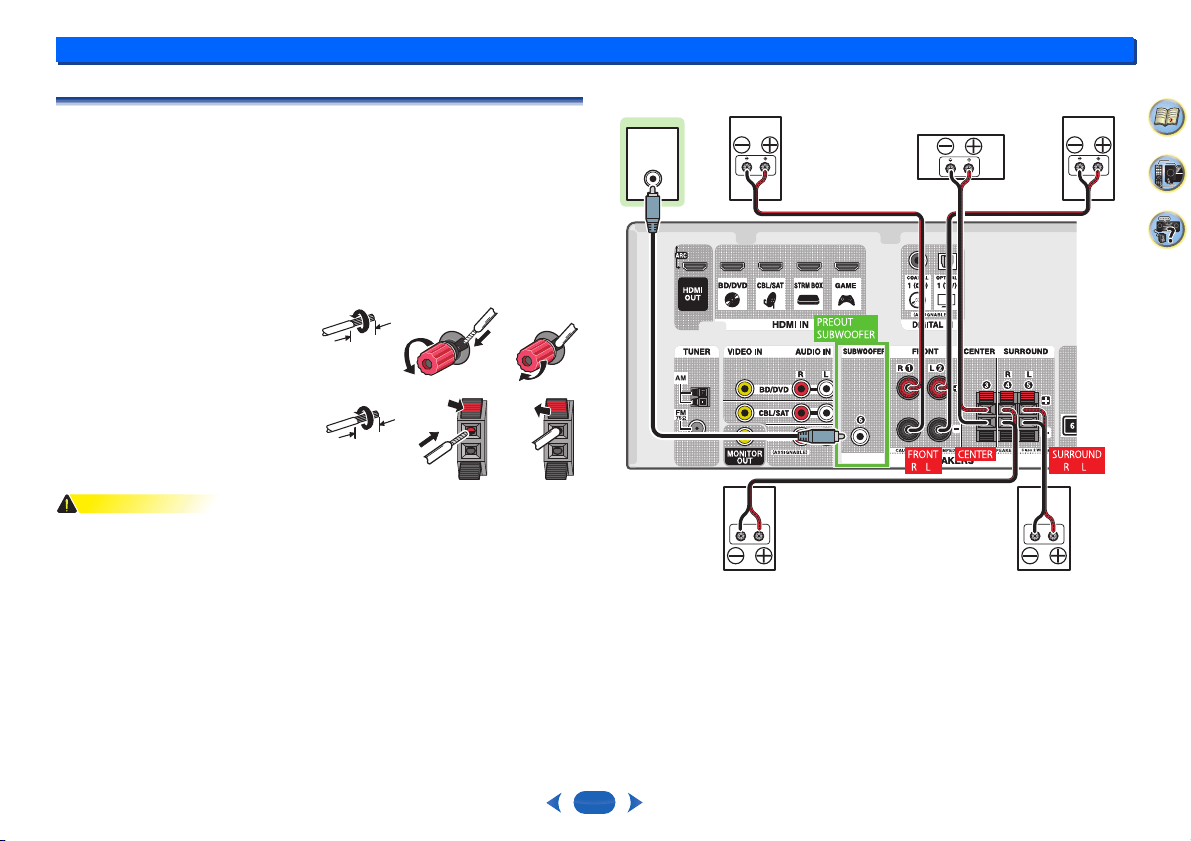
Placing the speakers
By connecting the left and right front speakers (L/R), the center speaker (C), the left and right
surround speakers (SL/SR), and the subwoofer (SW), a 5.1 ch surround system can be
enjoyed.
To achieve the best possible surround sound, install your speakers as shown below.
Hints on the speaker placement
Where you put your speakers in the room has a big effect on the quality of the sound. The
following guidelines should help you to get the best sound from your system.
•
The subwoofer can be placed on the floor. Ideally, the other speakers should be at about
ear-level when you’re listening to them. Putting the speakers on the floor (except the
subwoofer), or mounting them very high on a wall is not recommended.
•
For the best stereo effect, place the front speakers 2 m to 3 m apart, at equal distance from
the TV.
•
If you’re going to place speakers around your CRT TV, use shielded speakers or place the
speakers at a sufficient distance from your CRT TV.
•
If you’re using a center speaker, place the front speakers at a wider angle. If not, place
them at a narrower angle.
•
Place the center speaker above or below the TV so that the sound of the center channel is
localized at the TV screen. Also, make sure the center speaker does not cross the line
formed by the leading edge of the front left and right speakers.
•
It is best to angle the speakers towards the listening position. The angle depends on the
size of the room. Use less of an angle for bigger rooms.
•
The optimal positioning for surround speakers is just above ear height. Make sure the
speakers don’t face each other. For DVD-Audio, the speakers should be more directly
behind the listener than for home theater playback.
•
Try not to place the surround speakers farther away from the listening position than the
front and center speakers. Doing so can weaken the surround sound effect.
CAUTION
•
Make sure that all speakers are securely installed. This not only improves sound quality,
but also reduces the risk of damage or injury resulting from speakers being knocked over
or falling in the event of external shocks such as earthquakes.
120
120
SL
L
SW
C
R
SR
5.1 channel surround system:
Connecting your equipment
2
2
9
2
33
4
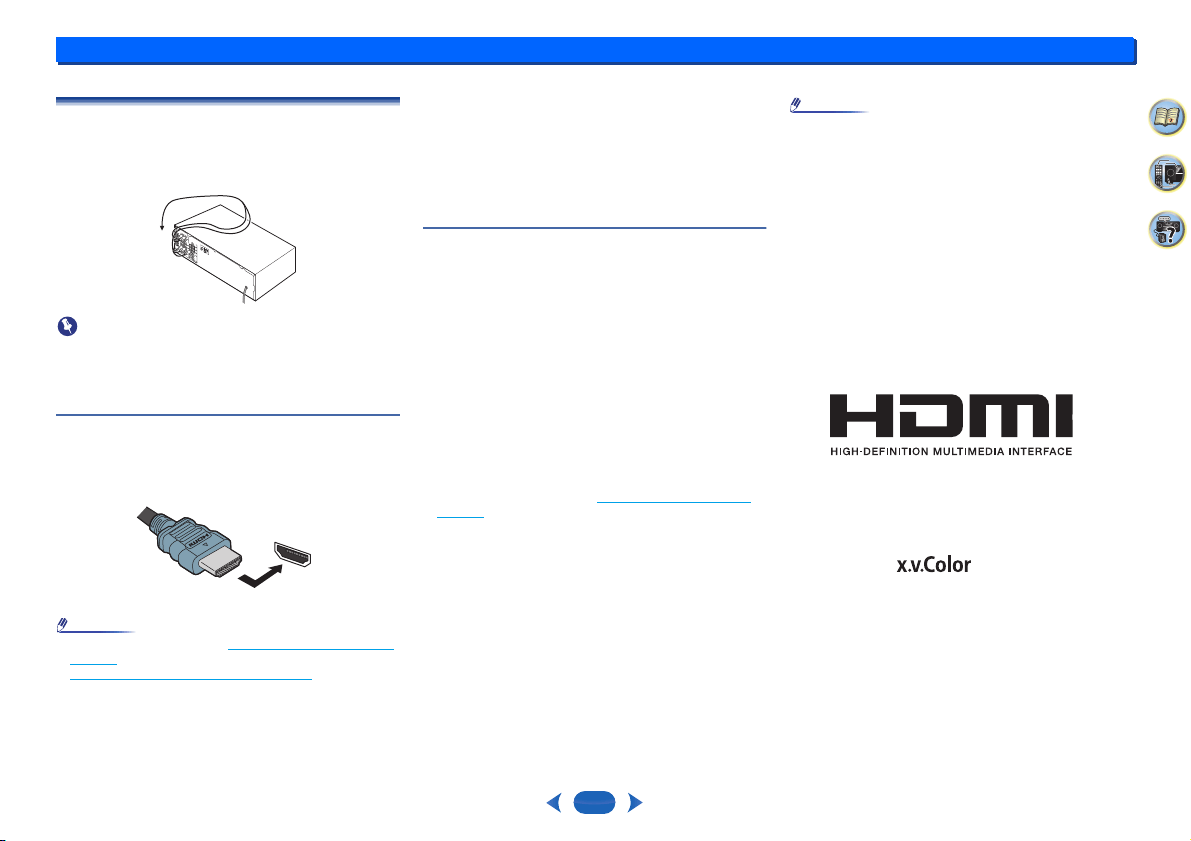
Connecting the speakers
The receiver will work with just two stereo speakers (the front speakers in the diagram) but
using at least three speakers is recommended, and a complete setup is best for surround
sound.
Make sure you connect the speaker on the right to the right (R) terminal and the speaker on
the left to the left (L) terminal. Also make sure the positive and negative (+/–) terminals on the
receiver match those on the speakers.
You can use speakers with a nominal impedance between 6 Ω and 16 Ω.
Be sure to complete all connections before connecting this unit to the AC power source.
Bare wire connections
CAUTION
•
These speaker terminals carry HAZARDOUS LIVE voltage. To prevent the risk of electric
shock when connecting or disconnecting the speaker cables, disconnect the power cord
before touching any uninsulated parts.
•
Make sure that all the bare speaker wire is twisted together and inserted fully into the
speaker terminal. If any of the bare speaker wire touches the back panel it may cause the
power to cut off as a safety measure.
Front speaker terminals:
1
Twist exposed wire strands together.
2
Loosen terminal and insert exposed wire.
3
Tighten terminal.
Center and surround speaker terminals:
1
Twist exposed wire strands together.
2
Push open the tabs and insert exposed wire.
3
Release the tabs.
12 3
12 mm
12 3
12 mm
LINE LEVEL
INPUT
Center
Surround right
Front right
Front leftSubwoofer
Surround left
Connecting your equipment
2
2
10
2
33
4
Making cable connections
Make sure not to bend the cables over the top of this unit (as
shown in the illustration). If this happens, the magnetic field
produced by the transformers in this unit may cause a
humming noise from the speakers.
Important
•
Before making or changing connections, switch off the
power and disconnect the power cord from the AC outlet.
•
Before unplugging the power cord, switch the power into
standby.
HDMI cables
Both video and sound signals can be transmitted
simultaneously with one cable. If connecting the player and
the TV via this receiver, for both connections, use HDMI
cables.
Be careful to connect the terminal in the proper direction.
Note
•
Set the HDMI parameter in Setting the Audio options on
page 26 to THRU (THROUGH) and set the input signal in
Selecting the audio input signal
on page 18 to HDMI, if you
want to hear HDMI audio output from your TV (no sound
will be heard from this receiver).
•
If the video signal does not appear on your TV, try
adjusting the resolution settings on your component or
display. Note that some components (such as video game
units) have resolutions that may not be displayed. In this
case, use a (analog) composite connection.
•
When the video signal from the HDMI is 480i, 480p, 576i
or 576p, Multi Ch PCM sound and HD sound cannot be
received.
About HDMI
The HDMI connection transfers uncompressed digital video,
as well as almost every kind of digital audio that the
connected component is compatible with, including DVD-
Video, DVD-Audio, SACD, Dolby Digital Plus, Dolby
TrueHD, DTS-HD Master Audio (see below for limitations),
Video CD/Super VCD and CD.
This receiver incorporates High-Definition Multimedia
Interface (HDMI
®
) technology.
This receiver supports the functions described below through
HDMI connections.
•
Digital transfer of uncompressed video (contents
protected by HDCP (1080p/24, 1080p/60, etc.))
•
3D signal transfer
•
Deep Color signal transfer
•
x.v.Color signal transfer
•
Audio Return Channel (see The HDMI Setup menu on
page 32)
•
Input of multi-channel linear PCM digital audio signals
(192 kHz or less) for up to 8 channels
•
Input of the following digital audio formats:
– Dolby Digital, Dolby Digital Plus, DTS, High bitrate audio
(Dolby TrueHD, DTS-HD Master Audio), DVD-Audio, CD,
SACD (DSD 2 ch only), Video CD, Super VCD
•
4K signal transfer
– This may not operate properly, depending on the
connected equipment.
– 4K 24p, 4K 25p, 4K 30p, 4K 50p and 4K 60p signals are
supported.
•
HDCP 2.2 compatible terminal
Note
•
Use a High Speed HDMI
®/
™ Cable. If HDMI cable other
than a High Speed HDMI
®/
™ Cable is used, it may not
work properly.
•
When an HDMI cable with a built-in equalizer is
connected, it may not operate properly.
•
3D, Deep Color, x.v.Color, 4K signal transfer and Audio
Return Channel are only possible when connected to a
compatible component.
•
HDMI format digital audio transmissions require a longer
time to be recognized. Due to this, interruption in the audio
may occur when switching between audio formats or
beginning playback.
•
Turning on/off the device connected to this unit’s HDMI
OUT terminal during playback, or disconnecting/
connecting the HDMI cable during playback, may cause
noise or interrupted audio.
The terms HDMI and HDMI High-Definition Multimedia
Interface, and the HDMI Logo are trademarks or registered
trademarks of HDMI Licensing, LLC in the United States and
other countries.
“x.v.Color” and are trademarks of Sony
Corporation.
HDMI
®
Connecting your equipment
2
2
11
2
33
4
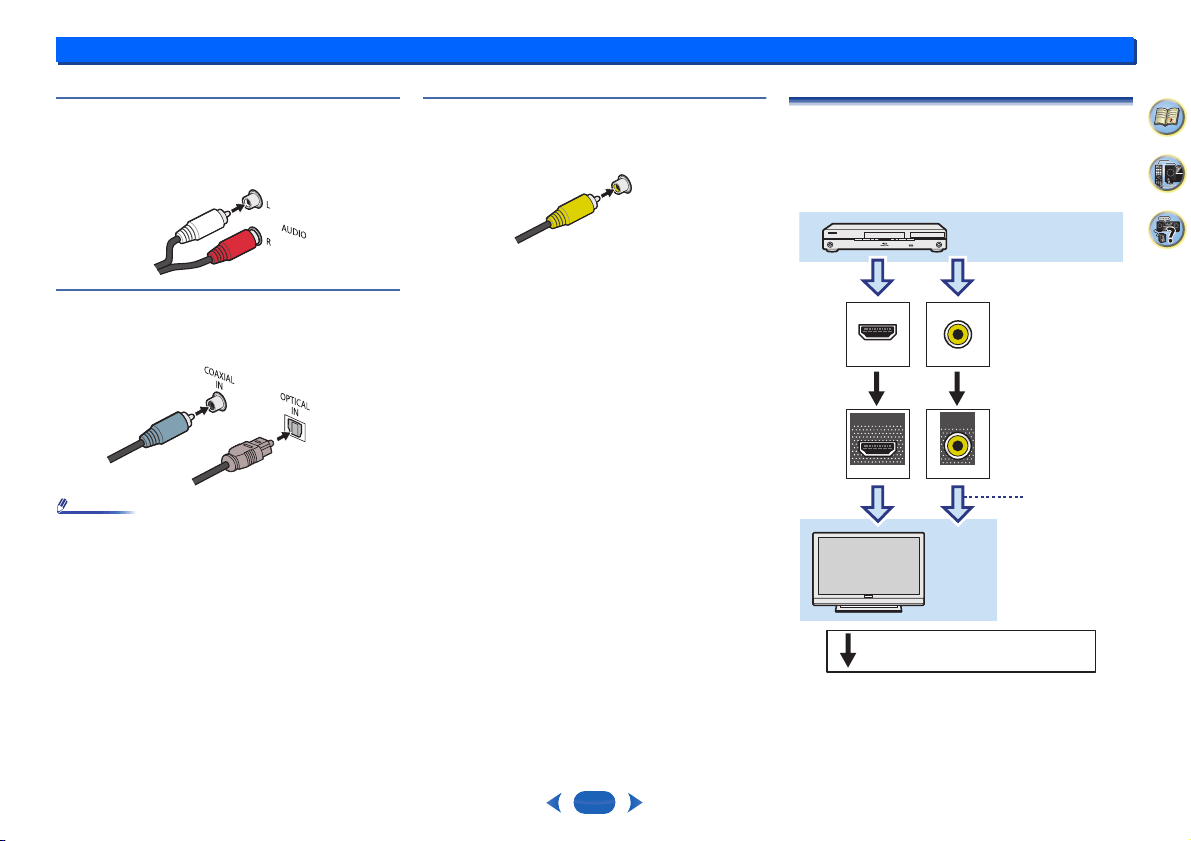
Analog audio cables
Use stereo RCA phono cables to connect analog audio
components. These cables are typically red and white, and
you should connect the red plugs to R (right) terminals and
white plugs to L (left) terminals.
Digital audio cables
Commercially available coaxial digital audio cables or optical
cables should be used to connect digital components to this
receiver.
Note
•
When connecting optical cables, be careful when inserting
the plug not to damage the shutter protecting the optical
socket.
•
When storing optical cable, coil loosely. The cable may be
damaged if bent around sharp corners.
•
You can also use a standard RCA video cable for coaxial
digital connections.
Standard RCA video cables
These cables are the most common type of video connection
and are used to connect to the composite video terminals.
The yellow plugs distinguish them from cables for audio.
About video outputs connection
This receiver is not loaded with a video converter. When you
use HDMI cables for connecting to the input device, the
same cables should be used for connecting to the TV.
The signals input from the analog (composite) video inputs of
this unit will not be output from the HDMI OUT.
White (Left)
Red (Right)
Coaxial digital
audio cable
Optical cable
VIDEO
Yellow
VIDEO
VIDEO
IN
IN
HDMI
MONITOR
OUT
HDMI
OUT
Terminal for connection
with source device
T e r m i n a l f o r c o n ne c t i o n
with TV monitor
Playback component
TV
The OSD will
not appear.
Video signals can be output.
Connecting your equipment
2
2
12
2
33
4
Connecting a TV and playback components
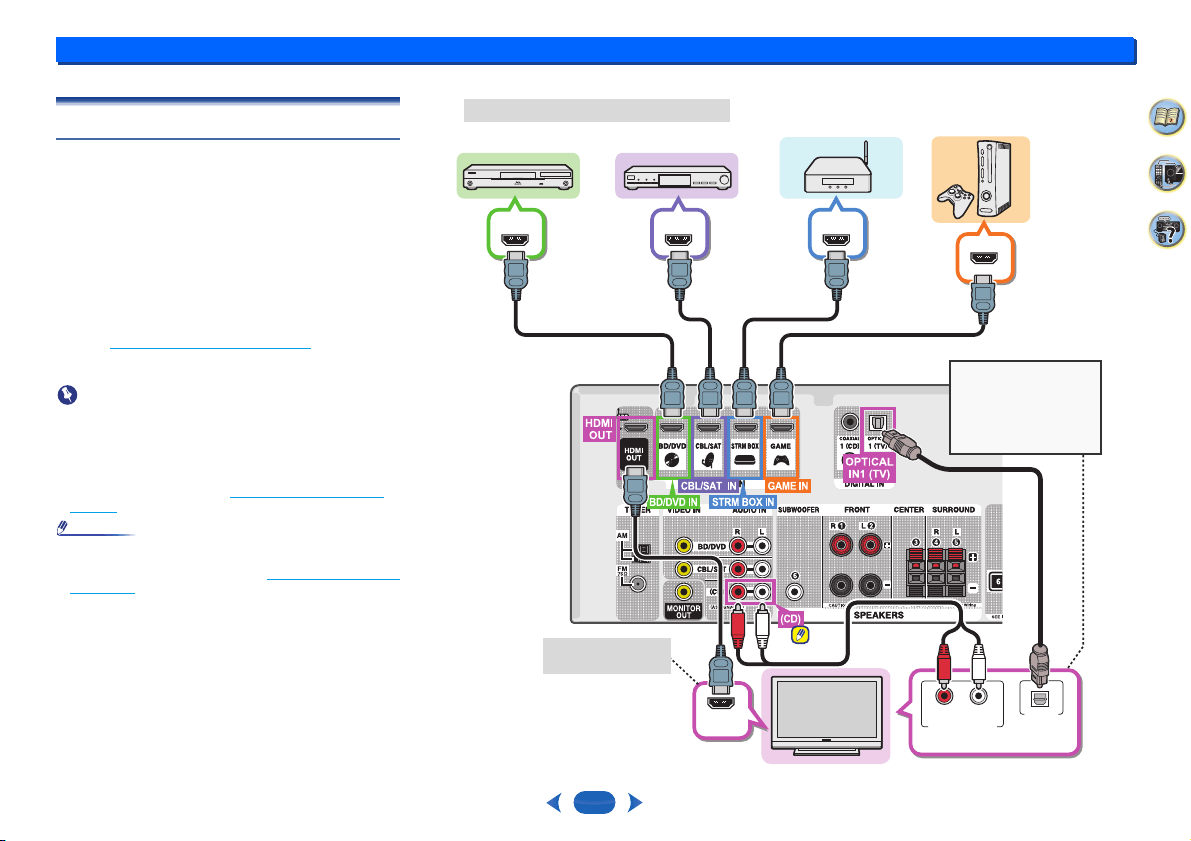
Connecting using HDMI
If you have an HDMI or DVI (with HDCP) equipped
component (Blu-ray Disc player, etc.), you can connect it to
this receiver using a commercially available HDMI cable.
•
The following connection/setting is required to listen to the
sound of the TV over this receiver.
-
If the TV does not support the HDMI Audio Return
Channel function, connect the receiver and TV with
audio cables (as shown).
-
If the TV supports the HDMI Audio Return Channel
function, the sound of the TV is input to the receiver via
the HDMI terminal, so there is no need to connect an
audio cable. In this case, set ARC at HDMI Setup to ON
(see The HDMI Setup menu
on page 32).
-
Please refer to the TV’s operation manual for directions
on connections and setup for the TV.
Important
•
When the ARC function is ON and the receiver is
connected to a compatible TV with an HDMI cable, and
you switch the input of the TV to composite, the input of the
receiver may automatically switch to TV. If this happens,
switch the receiver’s input back to the original input, or turn
OFF the ARC function (see The HDMI Setup menu
on
page 32).
Note
•
In order to listen to the audio from the TV that is connected
to this receiver using an analog audio cables, set-up for
analog audio input is required (see The Input Assign menu
on page 31).
HDMI IN
DIGITAL AUDIO OUT
OPTICAL
RL
ANALOG AUDIO OUT
HDMI OUTHDMI OUT HDMI OUT
HDMI OUT
Select one
HDMI/DVI-compatible TV
Streaming media playerBlu-ray Disc/DVD
player Set-top box
Game console
HDMI/DVI-compatible components
If the TV does not support
the HDMI Audio Return
Channel function, this
connection is required to
listen to the TV sound over
the receiver.
OSD can only be
output from HDMI.
Connecting your equipment
2
2
13
2
33
4
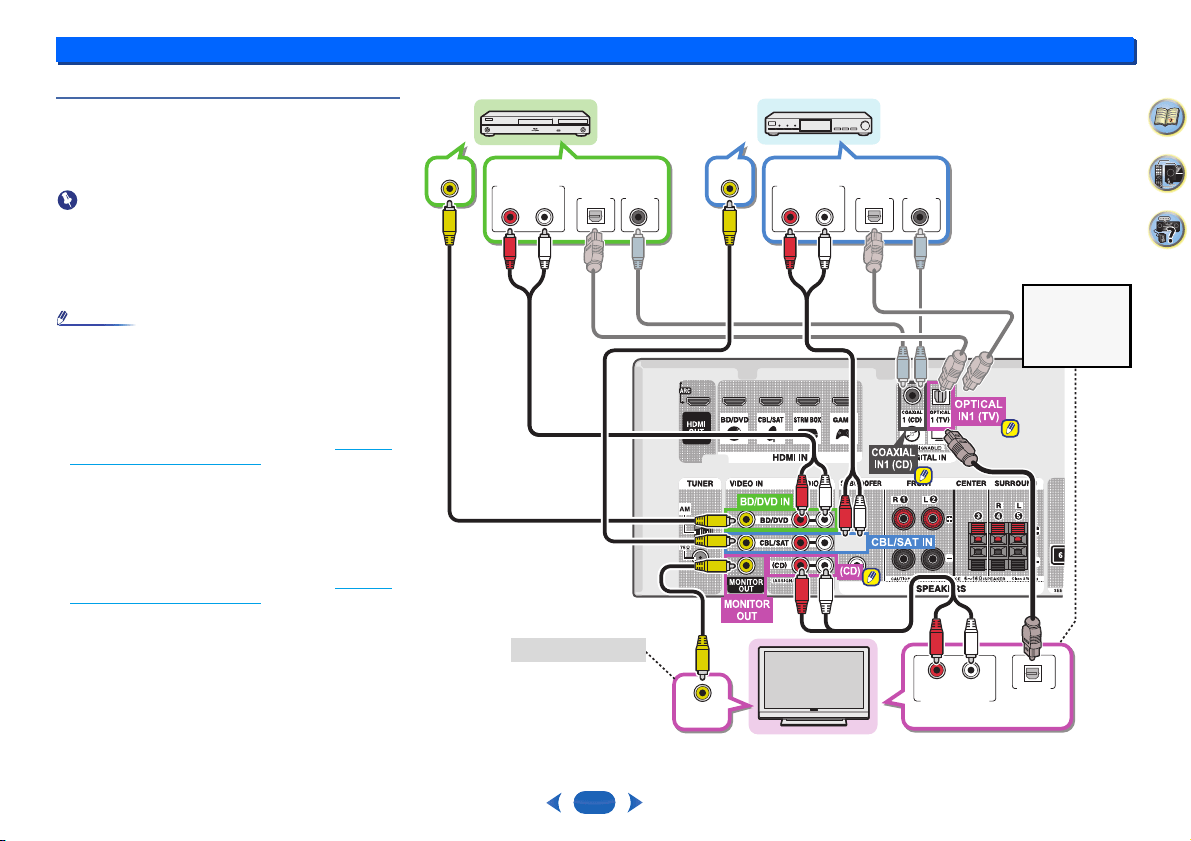
Connecting your component with no HDMI
terminal
This diagram shows connections of a TV and Blu-ray Disc/
DVD player (or other playback component) with no HDMI
terminal to the receiver.
Important
•
When the receiver and TV are connected by composite
cable, the OSD function allowing display of the receiver’s
settings, operations, etc., on the TV’s screen cannot be
used. In this case, watch the receiver’s front panel display
while performing the various operations and making
settings.
Note
•
You can only connect one component to the optical input
terminal. If connecting other devices, please use a
different method to connect the audio.
In order to listen to the audio from the source component
that is connected to this receiver using an optical cable,
first, switch to the BD/DVD (Blu-ray Disc/DVD player) or
CBL/SAT (set-top box), then press
AUDIO SEL
to
choose the audio signal O1 (OPTICAL1) (see Selecting
the audio input signal on page 18.
•
You can only connect one component to the coaxial input
terminal. If connecting other devices, please use a
different method to connect the audio.
In order to listen to the audio from the source component
that is connected to this receiver using a coaxial cable,
first, switch to the BD/DVD (Blu-ray Disc/DVD player) or
CBL/SAT (set-top box), then press
AUDIO SEL
to
choose the audio signal C1 (COAXIAL1) (see Selecting
the audio input signal on page 18.
VIDEO OUT
DIGITAL AUDIO OUT
OPTICAL
COAXIAL
RL
ANALOG AUDIO OUT
DIGITAL AUDIO OUT
OPTICAL
COAXIAL
RL
ANALOG AUDIO OUT
VIDEO OUT
VIDEO IN
DIGITAL AUDIO OUT
OPTICAL
RL
ANALOG AUDIO OUT
Select one
TV
Blu-ray Disc/DVD
player
Select one
This connection is
required in order
to listen to the
sound of the TV
over the receiver.
Select one
Set-top box
OSD cannot be output.
Connecting your equipment
2
2
14
2
33
4
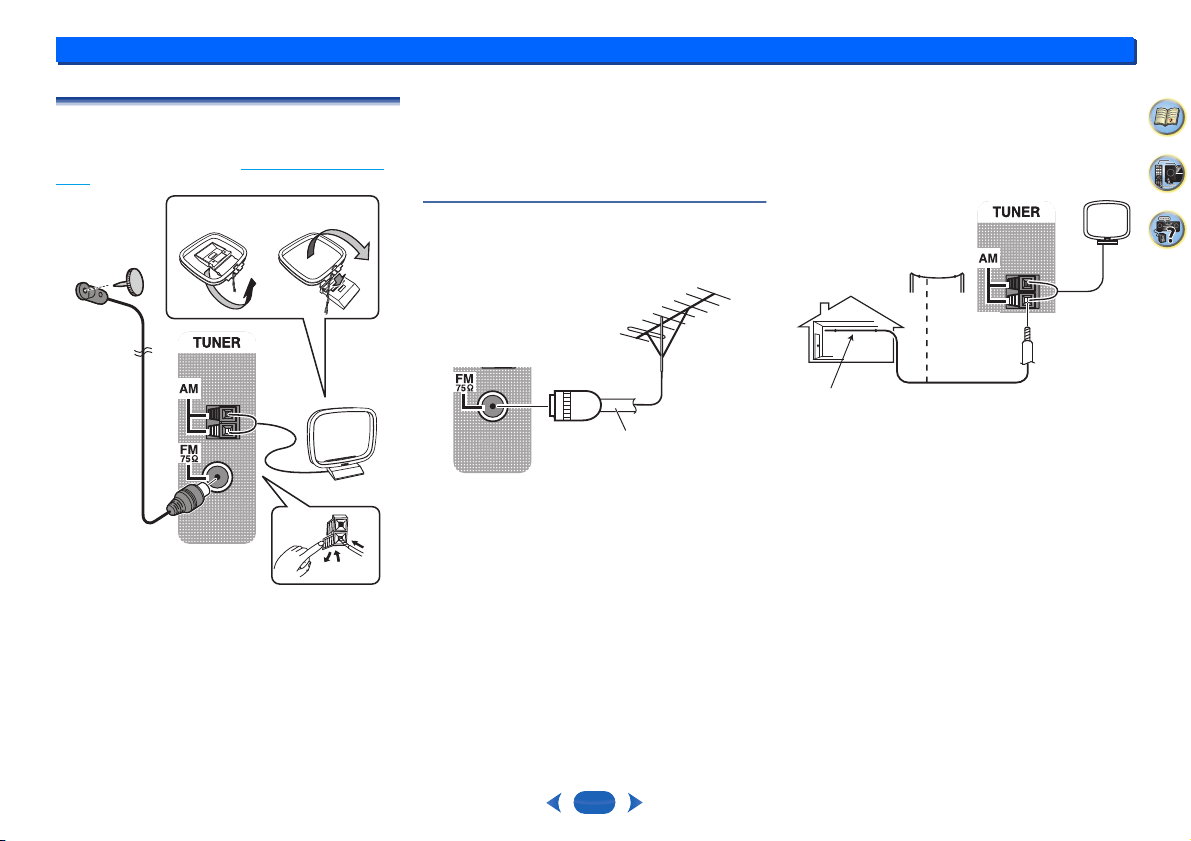
Connecting antennas
Connect the AM loop antenna and the FM wire antenna as
shown below. To improve reception and sound quality,
connect external antennas (see Using external antennas
below).
1
Push open the tabs, then insert one wire fully into each
terminal, then release the tabs to secure the AM antenna
wires.
2
Fix the AM loop antenna to the attached stand.
To fix the stand to the antenna, bend in the direction
indicated by the arrow (fig. a) then clip the loop onto the stand
(fig. b).
3
Place the AM antenna on a flat surface and in a direction
giving the best reception.
4
Connect the FM wire antenna into the FM antenna
socket.
For best results, extend the FM antenna fully and fix to a wall
or door frame. Don’t drape loosely or leave coiled up.
Using external antennas
To improve FM reception
Use a PAL connector (not supplied) to connect an external
FM antenna.
To improve AM reception
Connect a 5 m to 6 m length of vinyl-coated wire to the AM
antenna terminal without disconnecting the supplied AM loop
antenna.
For the best possible reception, suspend horizontally
outdoors.
2
1
3
4
fig. a
fig. b
75 Ω coaxial
cable
Outdoor
antenna
5 m to 6 m
Indoor antenna
(vinyl-coated wire)
Connecting your equipment
2
2
15
2
33
4
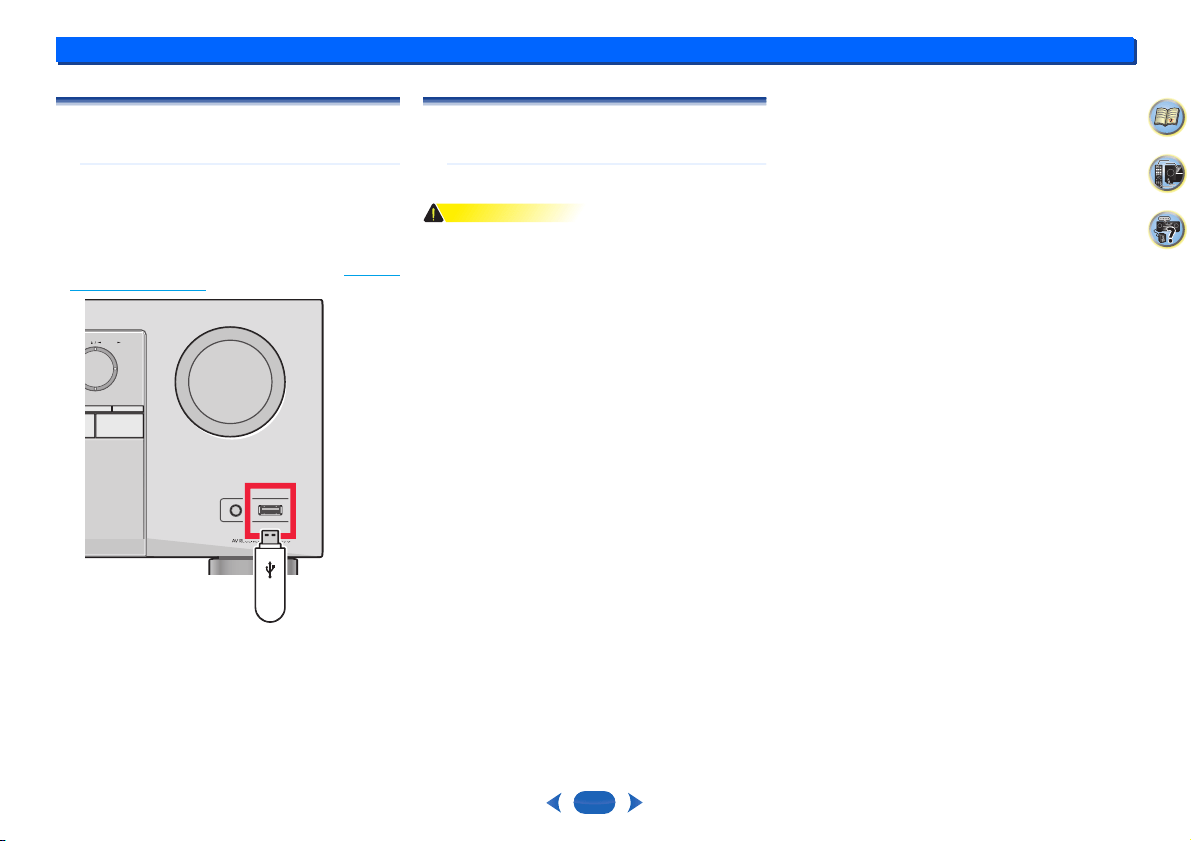
Connecting a USB device
It is possible to listen to two-channel audio using the USB
interface on the front of this receiver.
…
Switch the receiver into standby then connect your
USB device to the USB terminal on the front panel of
this receiver.
•
It is not possible to connect an iPod/iPhone or a similar
device to this receiver and play back music files.
•
This receiver does not support a USB hub.
•
For instructions on playing the USB device, see Playing a
USB device on page 20.
Plugging in the receiver
Only plug in after you have connected all your components
to this receiver, including the speakers.
…
Plug the AC power cord into a convenient AC power
outlet.
CAUTION
•
Handle the power cord by the plug. Do not pull out the plug
by tugging the cord and never touch the power cord when
your hands are wet as this could cause a short circuit or
electric shock. Do not place the unit, a piece of furniture,
etc., on the power cord, or pinch the cord. Never make a
knot in the cord or tie it with other cords. The power cords
should be routed such that they are not likely to be stepped
on. A damaged power cord can cause a fire or give you an
electrical shock. Check the power cord once in a while.
When you find it damaged, ask your nearest Onkyo
authorized service center or your dealer for a replacement.
•
The receiver should be disconnected by removing the
mains plug from the wall socket when not in regular use,
e.g., when on vacation.
USB
ENTER RETURN
NG PRESET
MASTER VOLUME
USBSETUP MIC
5V
/
0.5A
USB mass
storage device
This receiver
3:
16
33
4
2
Basic Setup
Automatically setting up for surround sound
(AccuEQ Room Calibration)
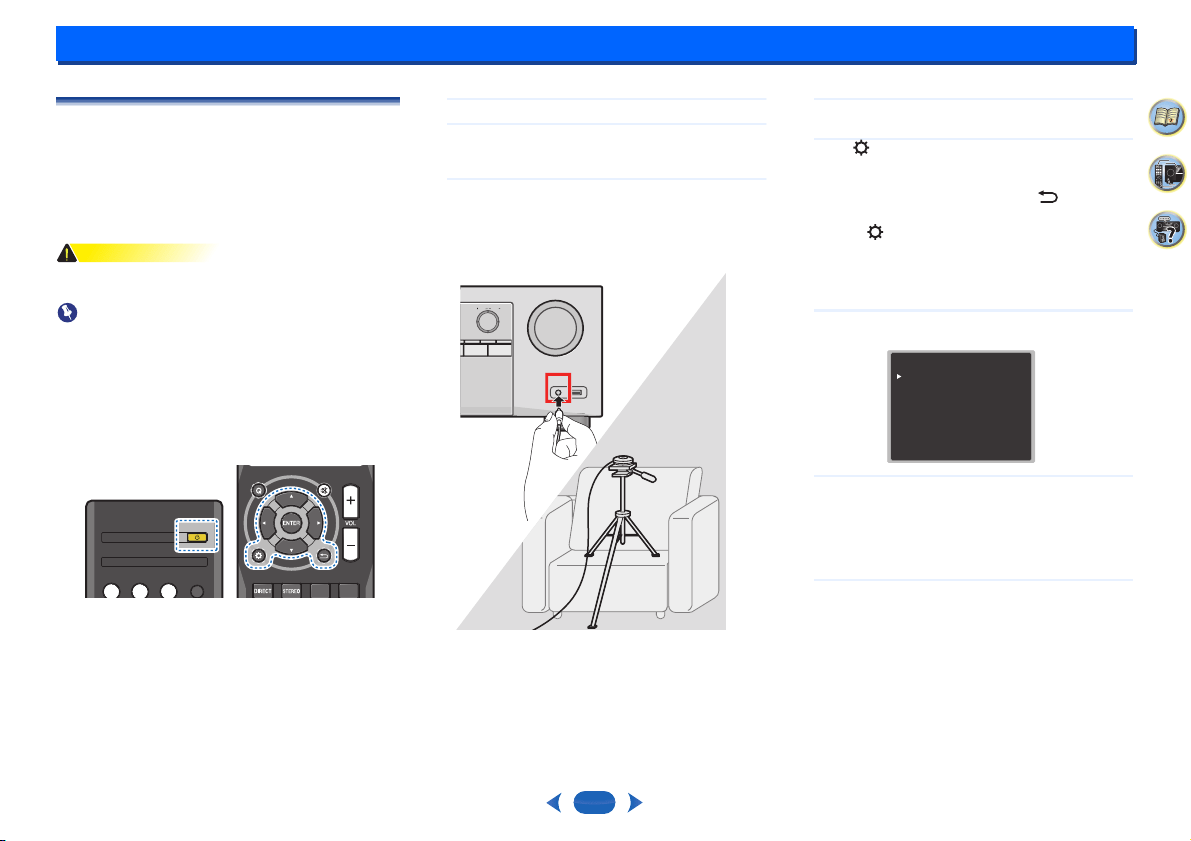
Place the supplied setup microphone in the listening position,
measure the test tones emitted by the speakers, then the unit
automatically sets the optimum volume level for each
speaker, the crossover frequencies, and the distance from
the listening position. This also enables correction of
distortion caused by the acoustic environment of the room.
CAUTION
•
The test tones used in the AccuEQ Room Cal. setup are
output at high volume.
Important
•
The OSD will not appear if you have connected using the
composite output to your TV. Use HDMI connections for
AccuEQ Room Cal. setup.
•
The AccuEQ Room Cal. setup will overwrite any existing
speaker settings you’ve made.
•
Before using the AccuEQ Room Cal. setup, the USB input
should not be selected as an input source.
1
Switch on the receiver and your TV.
2
Switch the TV input to the input that connects this
receiver to the TV through the corresponding HDMI
cable.
3
Connect the microphone to the SETUP MIC jack on the
front panel.
Make sure there are no obstacles between the speakers
and the microphone.
If you have a tripod, use it to place the microphone so
that it’s about ear level at your normal listening position.
Otherwise, place the microphone at ear level using a
table or a chair.
4
Press
BD/DVD
button on the remote control to switch
to BD/DVD entry.
5
Press button.
The Setup appears on your TV. Use
/
/
/
and
ENTER
on the remote control to navigate through the
screens and select menu items. Press to exit the
current menu.
•
Press at any time to exit the Setup. If you cancel
the AccuEQ Room Cal. setup at any time, the receiver
automatically exits and no settings will be made.
•
The screensaver automatically starts after three
minutes of inactivity.
6
Select “AccuEQ Room Cal.” from the Setup, then press
ENTER
.
7
Press
ENTER
again.
•
MIC IN blinks when the microphone is not connected
to
SETUP MIC
jack.
Try to be as quiet as possible after pressing
ENTER
.
The system outputs a series of test tones to establish the
ambient noise level.
8
Follow the instructions on-screen.
•
Make sure the microphone is connected.
•
Make sure the subwoofer is on and the volume is
turned up.
•
See below for notes regarding background noise and
other possible interference.
RECEIVER
RECEIVER
AUDIO SEL
AUDIO SEL
LATE NIGHT
CBL/SAT
CBL/SAT
STRM BOX
STRM BOX
BD/DVD
BD/DVD
SURR
SURR
TREBLE
DSP
DSP
QUICK MENU
QUICK MENU
TUNER
USB
HOME ENTER RETURN
TUNING PRESET
AV RECEIVER
TX
-
SR373
MASTER VOLUME
USBSETUP MIC
5V
/
0.5A
Setup
1.AccuEQ Room Cal.
2.Manual SP Setup
3.Input Assign
4.Auto Power Down
5.HDMI Setup
Return
Basic Setup
3
3
17
33
4
2
9
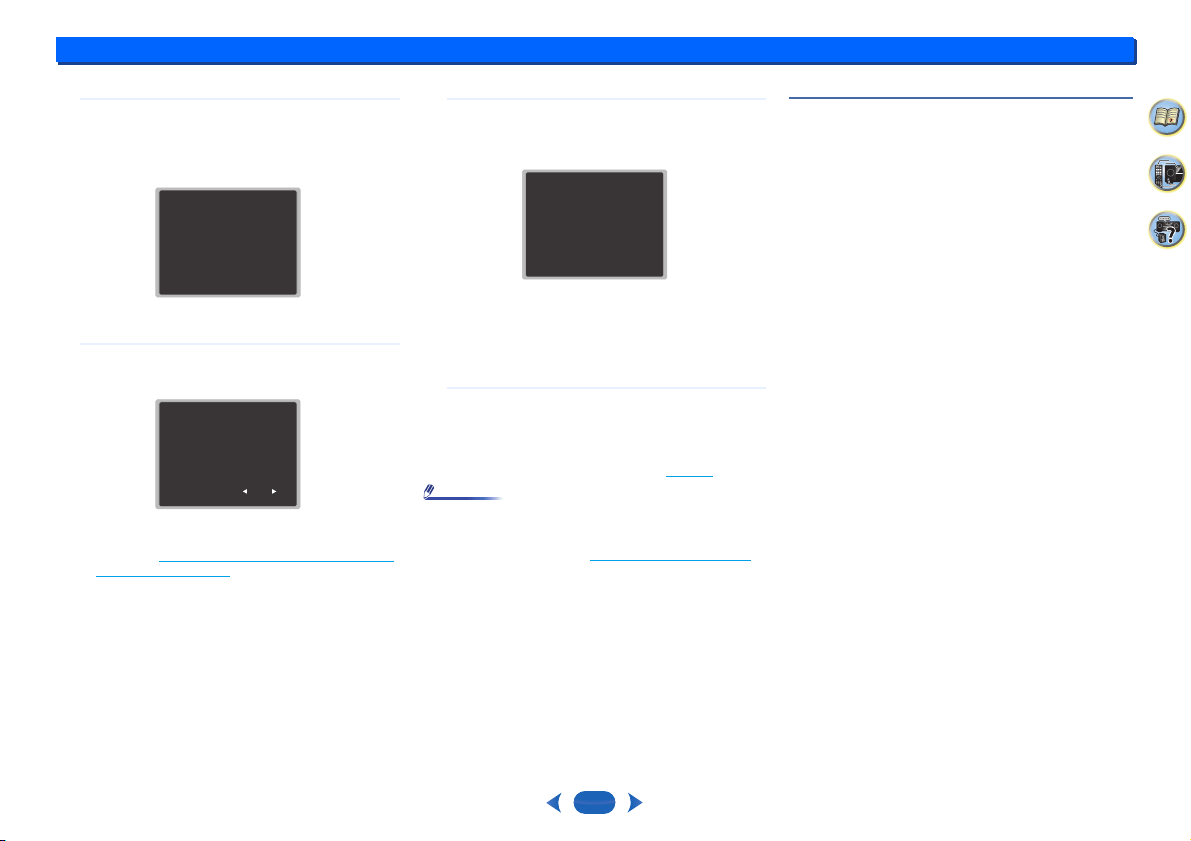
Wait for the test tones to finish.
A progress report is displayed on-screen while the
receiver outputs test tones to determine the speakers
present in your setup. Try to be as quiet as possible
while it’s doing this.
•
For correct speaker settings, do not adjust the volume
during the test tones.
10
Confirm the speaker configuration.
The configuration shown on-screen should reflect the
actual speakers you have.
•
With error messages (such as Too much ambient
noise) select RETRY after checking for ambient
noise (see Other problems when using the AccuEQ
Room Cal. setup below).
If the speaker configuration displayed isn’t correct, use
/
to select the speaker and
/
to change the setting. When
you’re finished, go to the next step.
If you see an error message (ERR) in the right side column,
there may be a problem with the speaker connection. If
selecting RETRY doesn’t fix the problem, turn off the power
and check the speaker connections.
11
Make sure “OK” is selected, then press
ENTER
.
If the screen in step 10 is left untouched for 10 seconds
and
ENTER
is not pressed in step 11, the AccuEQ
Room Cal. setup will start automatically as shown.
A progress report is displayed on-screen while the
receiver outputs more test tones to determine the
optimum receiver settings for channel level and speaker
distance, and Acoustic Calibration EQ.
Again, try to be as quiet as possible while this is
happening. It may take 1 to 3 minutes.
12
The AccuEQ Room Cal. setup has finished, then the
Setup screen is automatically displayed.
The settings made in the AccuEQ Room Cal. setup
should give you excellent surround sound from your
system, but it is also possible to adjust these settings
manually using the Setup (starting on page 29
).
Note
•
Depending on the characteristics of your room, sometimes
identical speakers with cone sizes of around 12 cm will
end up with different size settings. You can correct the
setting manually using the Speaker Setting
on page 29.
•
The subwoofer distance setting may be farther than the
actual distance from the listening position. This setting
should be accurate (taking delay and room characteristics
into account) and generally does not need to be changed.
Other problems when using the AccuEQ Room
Cal. setup
If the room environment is not optimal for the AccuEQ Room
Cal. setup (too much background noise, echo off the walls,
obstacles blocking the speakers from the microphone) the
final settings may be incorrect. Check for household
appliances (air conditioner, fridge, fan, etc.), that may be
affecting the environment and switch them off if necessary. If
there are any instructions showing in the front panel display,
please follow them.
•
Some older TVs may interfere with the operation of the
microphone. If this seems to be happening, switch off the
TV when doing the AccuEQ Room Cal. setup.
1.AccuEQ Room Cal.
Now Analyzing
Environment Check
Ambient Noise
Speaker YES/NO
Return
1.AccuEQ Room Cal.
Check!
Return
9:NEXT
Front
Center
Surround
Subwoofer
[ YES ]
[ YES ]
[ YES ]
[ YES ]
OK
1.AccuEQ Room Cal.
Now Analyzing
Surround Analyzing
Speaker System
X.Over
Speaker Distance
Channel Level
Acoustic Cal EQ
Return
4:
18
33
4
2
Basic playback
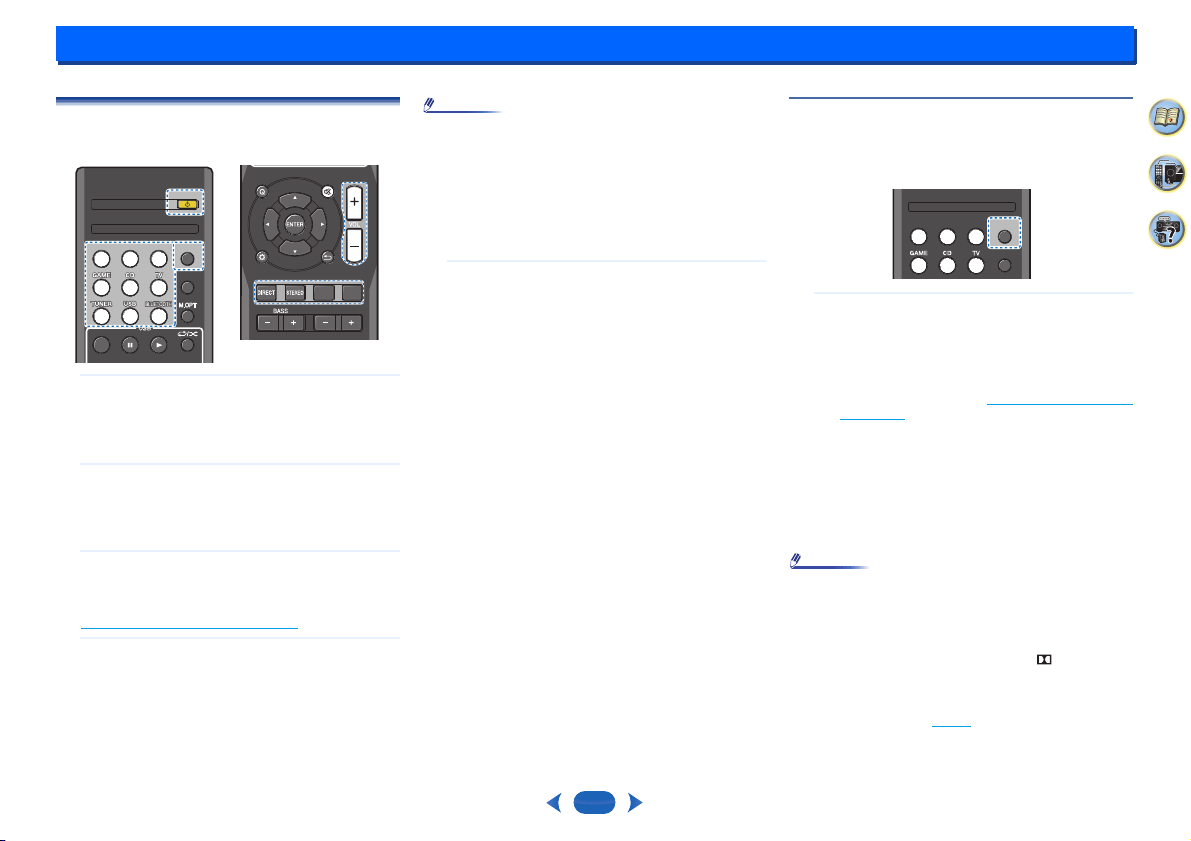
Playing a source
Here are the basic instructions for playing a source (such as
a DVD disc) with your home theater system.
1
Switch on your system components and receiver.
Start by switching on the playback component (for
example a DVD player), your TV and subwoofer (if you
have one), then the receiver (press
Í
RECEIVER
).
•
Make sure the setup microphone is disconnected.
2
Switch the TV input to the input that connects this
receiver.
For example, if you connected this receiver to the
VIDEO jacks on your TV, make sure that the VIDEO
input is now selected.
3
Press input function buttons to select the input
function you want to play.
If you selected the proper input source and there is still
no sound, select the audio input signal for playback (see
Selecting the audio input signal
below).
4
Press the
DIRECT
button.
Change the listening mode as necessary.
It is possible to check on the front panel display whether
or not surround sound playback is being performed
properly.
If the display does not correspond to the input signal and
listening mode, check the connections and settings.
Note
•
You may need to check the digital audio output settings on
your DVD player or digital satellite receiver. It should be
set to output Dolby Digital, DTS and 88.2 kHz/96 kHz
PCM (2 channel) audio, and if there is an MPEG audio
option, set this to convert the MPEG audio to PCM.
•
Depending on your DVD player or source discs, you may
only get digital 2 channel stereo and analog sound. In this
case, the receiver must be set to a multichannel listening
mode if you want multichannel surround sound.
5
Use
VOL +/–
to adjust the volume level.
Turn down the volume of your TV so that all sound is
coming from the speakers connected to this receiver.
Selecting the audio input signal
The audio input signal can be selected for each input source.
Once it is set, the audio input that was selected will be
applied whenever you select the input source using the input
function buttons.
…
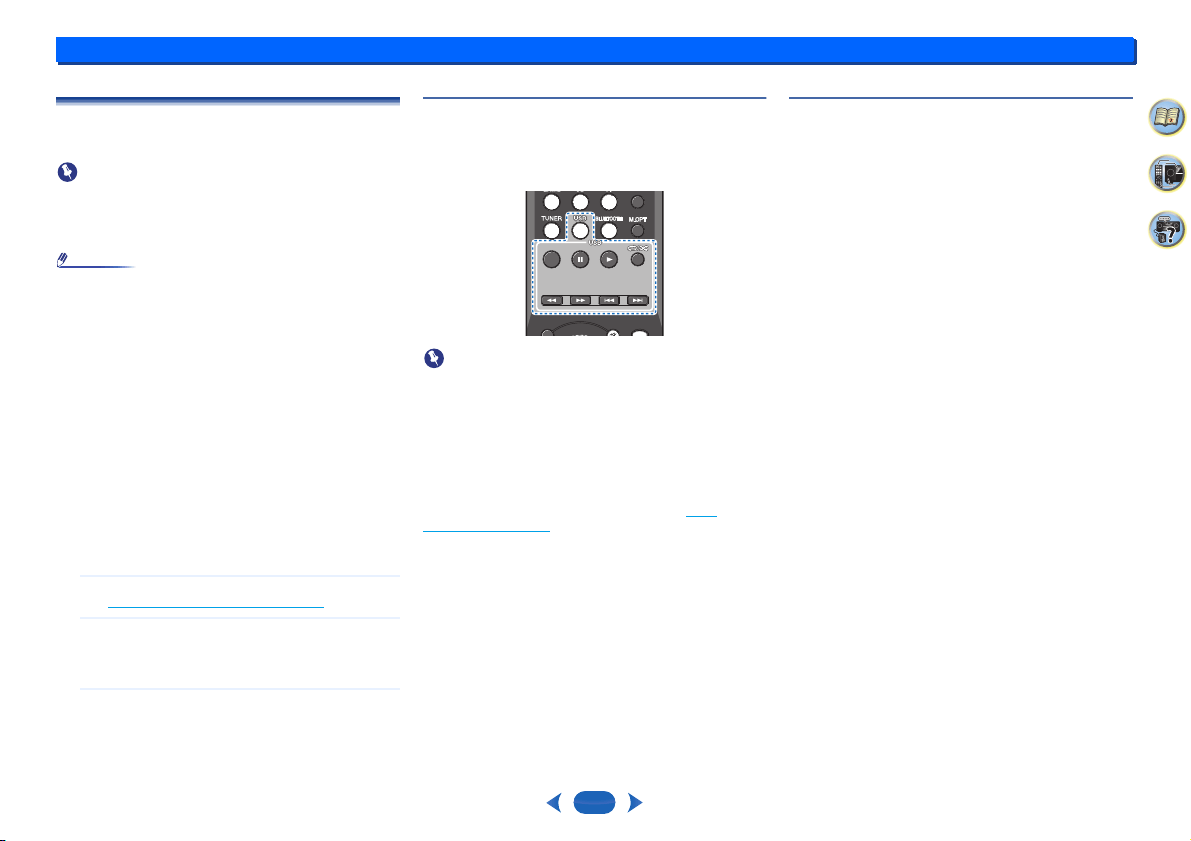
Press
AUDIO SEL
to select the audio input signal
corresponding to the source component.
Each press cycles through the following:
•
H – Selects an HDMI signal. H can be selected for
BD/DVD, CBL/SAT, STRM BOX or GAME input. For
other inputs, H cannot be selected.
-
When the HDMI option in Setting the Audio options
on page 26 is set to THRU, the sound will be heard
through your TV, not from this receiver.
•
A – Selects the analog inputs.
•
C1/O1 – Selects the digital input. The coaxial 1 input
is selected for C1, and the optical 1 audio input is
selected for O1.
When H (HDMI) or C1/O1 (digital) is selected and the
selected audio input is not provided, A (analog) is
automatically selected.
Note
•
STRM BOX and GAME inputs are fixed to H (HDMI). It
cannot be changed.
•
For the TV input, only A (analog) or C1/O1 (digital) can be
selected. However, if the ARC at HDMI Setup is set to ON,
the input is fixed to H (HDMI) and cannot be changed.
•
When set to H (HDMI) or C1/O1 (digital), lights when a
Dolby Digital signal is input, and DTS lights when a DTS
signal is input.
•
When the H (HDMI) is selected, the A and DIGITAL
indicators are off (see page 5
).
RECEIVERRECEIVER
AUDIO SELAUDIO SELAUDIO SELAUDIO SEL
LATE NIGHTLATE NIGHT
TOP MENUTOP MENU
CBL/SATCBL/SATCBL/SATCBL/SAT
STRM BOXSTRM BOXSTRM BOXSTRM BOX
BD/DVDBD/DVDBD/DVDBD/DVD
AUDIO
AUDIO
SURR
SURR
TREBLE
TREBLE
DSP
DSP
DISPLAY EDIT SLEEPTUNING
+
PRESET
-
PRESET
+
SURR
SURR
TREBLE
TREBLE
DSP
DSP
DISPLAY EDIT SLEEPTUNING
+
PRESET
-
PRESET
+
QUICK MENU
QUICK MENU
AUDIO SEL
AUDIO SELAUDIO SEL
AUDIO SEL
LATE NIGHT
LATE NIGHT
CBL/SAT
CBL/SAT
STRM BOX
STRM BOX
BD/DVD
BD/DVD
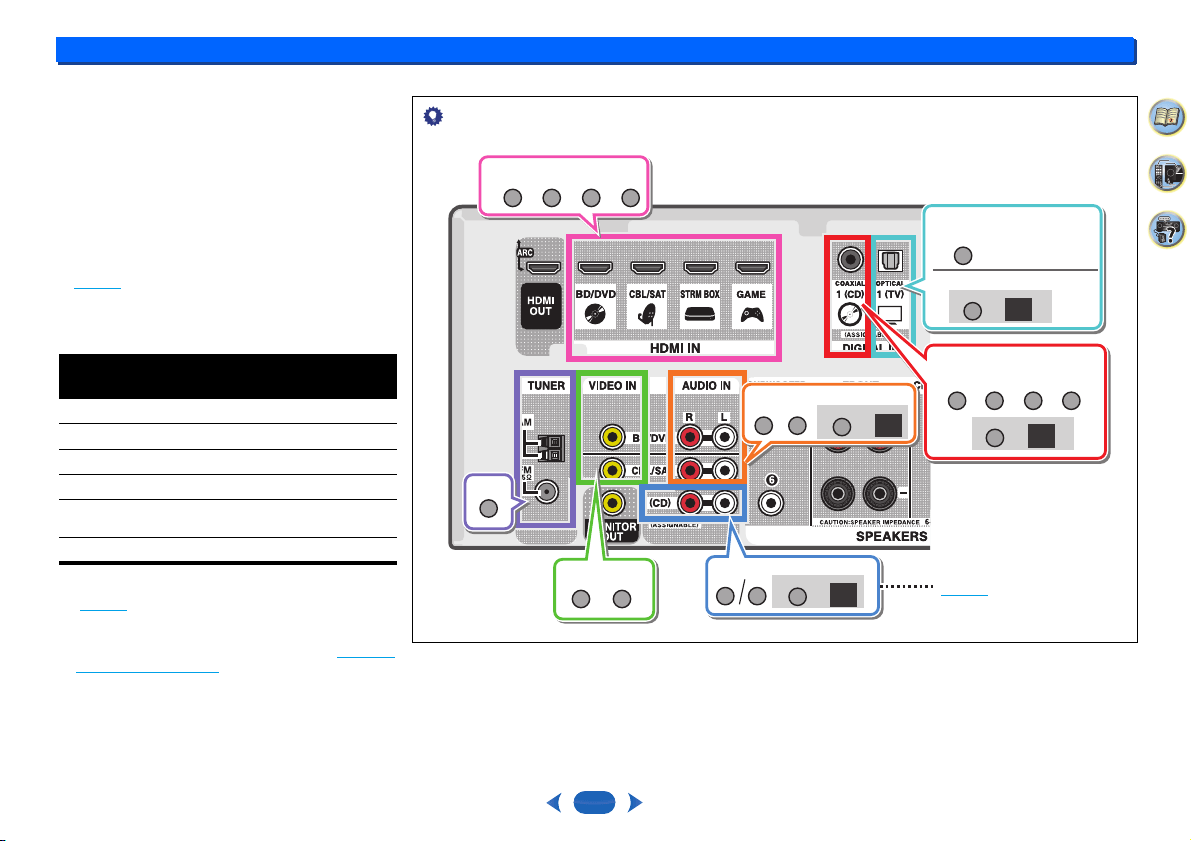
Basic playback
4
4
19
33
4
2
•
When digital input (optical or coaxial) is selected, this
receiver can only play back Dolby Digital, PCM (32 kHz to
96 kHz) and DTS (including DTS 96 kHz/24 bit) digital
signal formats. The compatible signals via the HDMI
terminals are: Dolby Digital, DTS, SACD (DSD 2 ch only),
PCM (32 kHz to 192 kHz sampling frequencies), Dolby
TrueHD, Dolby Digital Plus, DTS-EXPRESS, DTS-HD
Master Audio and DVD Audio (including 192 kHz). With
other digital signal formats, set to A (analog).
•
You may get digital noise when a LD or CD player
compatible with DTS is playing an analog signal. To
prevent noise, make the proper digital connections
(page 11
) and set the signal input to C1/O1 (digital).
•
Some DVD players don’t output DTS signals. For more
details, refer to the instruction manual supplied with your
DVD player.
a. The HDMI terminals can be used for the TV input by
turning ON the ARC function in the HDMI setting
(page 32
).
b. In order to listen to the audio from the TV that is
connected to this receiver using a analog audio cables,
set-up for analog audio input is required (see The Input
Assign menu on page 31).
Input
function
Input Terminals
HDMI COAXIAL OPTICAL ANALOG
BD/DVD
TV
a
b
CBL/SAT
CD
STRM
BOX
GAME
Tip
•
In order to enjoy the picture and/or sound from devices connected to each terminal, select the input by doing the following.
CD
TUNER
GAME
C1
AUDIO SEL
TV
TV
1.
O1
2.
AUDIO SEL
A
AUDIO SEL
A
AUDIO SEL
CD TV
CBL/SAT
STRM BOX
BD/DVD
CBL/SATBD/DVD
CBL/SATBD/DVD
CBL/SATBD/DVD
Audio
Audio
Audio
Audio
Video/Audio (HDMI)
Video
Other than TV input
(TV input)
(CD) audio input terminal is
assigned to CD under factory
settings. If you want to
change this to TV input,
please change the settings in
the Input Assign menu
(page 31
).
Basic playback
4
4
20
33
4
2
Playing a USB device
It is possible to listen to two-channel audio using the USB
interface on the front of this receiver.
Important
•
Onkyo cannot guarantee compatibility (operation and/or
bus power) with all USB mass storage devices and
assumes no responsibility for any loss of data that may
occur when connected to this receiver.
Note
•
This includes playback of WMA/MP3/MPEG-4 AAC files
(except files with copy-protection or restricted playback).
•
Compatible USB devices include external magnetic hard
drives, portable flash memory (particularly keydrives) and
digital audio players (MP3 players) of format FAT16/32. It
is not possible to connect this receiver to a computer for
USB playback.
•
With large amounts of data, it may take longer for the
receiver to read the contents of a USB device.
•
If the file selected cannot be played back, this receiver
automatically skips to the next file playable.
•
When the file currently being played back has no title
assigned to it, the file name is displayed in the OSD
instead; when neither the album name nor the artist name
is present, the row is displayed as a blank space.
•
Note that non-roman characters in the playlist are
displayed as ‘*’.
•
Make sure the receiver is in standby when disconnecting
the USB device.
1
Switch on the receiver and your TV.
See Connecting a USB device on page 15.
2
Switch the TV input so that it connects to the receiver.
•
Switch the TV input to the input that connects this
receiver to the TV through the corresponding HDMI
cable.
3
Press
USB
on the remote control to switch the receiver
to the USB input.
Loading appears in the OSD as this receiver starts
recognizing the USB device connected. After the
recognition, a playback screen appears in the OSD and
playback starts automatically.
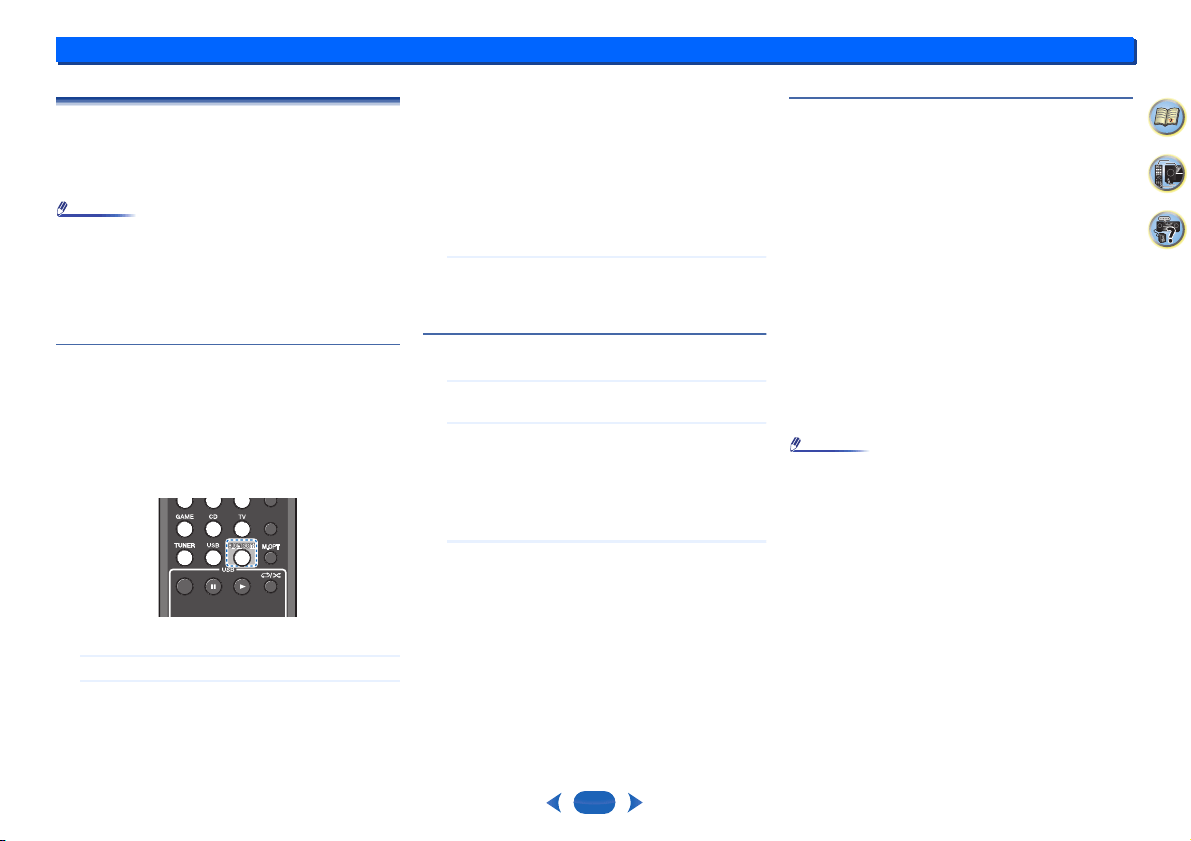
Basic playback controls
This receiver’s remote control buttons can be used for basic
playback of files stored on USB devices.
•
Press
USB
to switch the remote control to the USB
operation mode.
Important
If a USB Error message lights in the display, try following the
points below:
•
Switch the receiver off, then on again.
•
Reconnect the USB device with the receiver switched off.
•
Select another input source (like BD/DVD), then switch
back to USB.
•
Use a dedicated AC adapter (supplied with the device) for
USB power.
For more information on error messages, see USB
messages on page 34.
If this doesn’t remedy the problem, it is likely your USB
device is incompatible.
Compressed audio compatibility
Note that although most standard bit/sampling rate
combinations for compressed audio are compatible, some
irregularly encoded files may not play back. The list below
shows compatible formats for compressed audio files:
•
MP3 (MPEG-1/2/2.5 Audio Layer 3) – Sampling rates:
32 kHz/44.1 kHz/48 kHz; Bit rates: 32 kbps to 320 kbps
(128 kbps or higher recommended); File extension: .mp3
•
WMA (Windows Media Audio) – Sampling rates: 32 kHz/
44.1 kHz/48 kHz; Bit rates: 48 kbps to 192 kbps (128 kbps
or higher recommended); File extension: .wma; WMA9
Pro and WMA lossless encoding: No
•
AAC (MPEG-4 Advanced Audio Coding) – Sampling
rates: 32 kHz/44.1 kHz/48 kHz; Bit rates: 16 kbps to
320 kbps (128 kbps or higher recommended); File
extension: .m4a; Apple lossless encoding: No
Other compatibility information
•
VBR (variable bit rate) MP3/WMA/MPEG-4 AAC playback:
Yes (Note that in some cases playback time will not be
displayed correctly.)
•
Copyrighted audio files cannot be played back on this
receiver.
•
DRM-protected audio files cannot be played back on this
receiver.
About MPEG-4 AAC
Advanced Audio Coding (AAC) is at the core of the MPEG-4
AAC standard, which incorporates MPEG-2 AAC, forming
the basis of the MPEG-4 audio compression technology. The
file format and extension used depend on the application
used to encode the AAC file. This receiver plays back AAC
files encoded by iTunes
®
bearing the extension ‘.m4a’.
DRM-protected files will not play, and files encoded with
some versions of iTunes
®
may not play.
Apple and iTunes are trademarks of Apple Inc., registered in
the U.S. and other countries.
About WMA
WMA is an acronym for Windows Media Audio and refers to
an audio compression technology developed by Microsoft
Corporation. This receiver plays back WMA files encoded
using Windows Media
®
Player bearing the extension ‘.wma’.
Note that DRM-protected files will not play, and files encoded
with some versions of Windows Media
®
Player may not play.
LATE NIGHTLATE NIGHT
TOP MENUTOP MENUTOP MENUTOP MENU
QUICK MENUQUICK MENU
Basic playback
4
4
21
33
4
2
Music playback using BLUETOOTH
®
wireless technology
You can wirelessly enjoy music files stored in a smartphone
or other BLUETOOTH capable device. The coverage area is
about 10 meters.
Note
•
The BLUETOOTH
®
word mark and logos are registered
trademarks owned by Bluetooth SIG, Inc.
•
The BLUETOOTH wireless technology enabled device
must support A2DP profiles.
•
We does not guarantee proper connection and operation
of this unit with all BLUETOOTH wireless technology
enabled devices.
Pairing with the unit (Initial registration)
Pairing should be performed when first using the unit with the
BLUETOOTH capable device, or when the pairing data on
the device has been erased for any reason.
•
After pressing the
BLUETOOTH
and switching to BT
Audio function, perform the pairing procedure on the
BLUETOOTH capable device. If pairing has been
performed correctly, you will not need to perform the
pairing procedures for the unit as shown below.
1
Press the
BLUETOOTH
.
2
Turn on the power to the BLUETOOTH capable device
that you wish to pair with, and perform pairing
procedure on it.
•
This unit will be displayed as “Onkyo TX-SR373” on
all BLUETOOTH capable devices that you have.
Pairing will start.
•
Place the BLUETOOTH capable device close to the
unit.
•
Please refer to the user’s manual for your
BLUETOOTH capable device for details on when
pairing can be performed and the procedures
required for pairing.
•
When PIN code entry is requested, enter “0000”. (This
unit does not accept any PIN code setting other than
“0000”.)
3
Confirm on the BLUETOOTH capable device that
pairing has been completed.
If pairing with the BLUETOOTH capable device has
been completed correctly “CONNECT“ will be displayed.
Listen to music on the unit from a BLUETOOTH
capable device
1
Press the
BLUETOOTH
.
The unit will switch to BT Audio input.
2
A BLUETOOTH connection will be created between the
BLUETOOTH capable device and the unit.
Procedures for connecting to the unit should be
performed from the BLUETOOTH capable device.
•
Please refer to the user’s manual for your
BLUETOOTH capable device for details of the
connection procedures.
3
Playback music from the BLUETOOTH capable device.
Radio wave caution
This unit uses a 2.4 GHz radio wave frequency, which is a
band used by other wireless systems (see list below). To
prevent noise or interrupted communication, do not use this
unit nearby such devices, or make sure these devices are
switched off during use.
•
Cordless phones
•
Cordless facsimiles
•
Microwave ovens
•
Wireless LAN devices (IEEE802.11b/g)
•
Wireless AV equipment
•
Wireless controllers for game systems
•
Microwave-based health aids
•
Some baby monitors
Other, less common, equipment that may operate on the
same frequency:
•
Anti-theft systems
•
Amateur radio stations (HAM)
•
Warehouse logistic management systems
•
Discrimination systems for train or emergency vehicles
Note
•
In the event noise appears in your television image, there
is the possibility that a BLUETOOTH wireless technology
enabled device or this unit (including products supported
by this unit) are causing signal interference with the
antenna input connector of your television, video, satellite
tuner, etc. In this event, increase the distance between the
antenna input connector and the BLUETOOTH wireless
technology enabled device or this unit (including products
supported by this unit).
•
If there is something obstructing the path between this unit
(including devices supported by this unit) and the device
equipped with BLUETOOTH wireless technology (such as
a metal door, concrete wall, or insulation containing tinfoil),
you may need to change the location of your system to
prevent signal noise and interruptions.
Scope of operation
Use of this unit is limited to home use. (Transmission
distances may be reduced depending on communication
environment).
AUDIO SEL
LATE NIGHTLATE NIGHT
TOP MENUTOP MENU
Basic playback
4
4
22
33
4
2
In the following locations, poor condition or inability to receive
radio waves may cause the audio to be interrupted or
stopped:
•
In reinforced concrete buildings or steel framed or iron-
framed buildings.
•
Near large metallic furniture.
•
In a crowd of people or near a building or obstacle.
•
In a location exposed to the magnetic field, static electricity
or radio wave interference from radio communication
equipment using the same frequency band (2.4 GHz) as
this unit, such as a 2.4 GHz wireless LAN device
(IEEE802.11b/g) or microwave oven.
•
If you live in a heavily populated residential area
(apartment, townhouse, etc.) and if your neighbor’s
microwave is placed near your system, you may
experience radio wave interference. If this occurs, move
your unit to a different place. When the microwave is not
in use, there will be no radio wave interference.
Radio wave reflections
The radio waves received by this unit include the radio wave
coming directly from the device equipped with BLUETOOTH
wireless technology (direct wave) and waves coming from
various directions due to reflections by walls, furniture and
building (reflected waves). The reflected waves (due to
obstacles and reflecting objects) further produce a variety of
reflected waves as well as variation in reception condition
depending on locations. If the audio cannot be received
properly due to this phenomenon, try moving the location of
the device equipped with BLUETOOTH wireless technology
a little. Also note that audio may be interrupted due to the
reflected waves when a person crosses or approaches the
space between this unit and the device equipped with
BLUETOOTH wireless technology.
Precautions regarding connections to products
supported by this unit
•
Complete connections for all devices supported by this
unit, including all audio cords and power cables before
connecting them to this unit.
•
After completing connections to this unit, check the audio
and power cables to confirm that they not twisted together.
•
When disconnecting this unit, confirm that you have
sufficient working space in the surrounding area.
When changing connections of audio or other cables for
products supported by this unit, confirm that you have
sufficient working space in the surrounding area.
Listening to the radio
The following steps show you how to tune in to FM and AM
radio broadcasts using the automatic (search) and manual
(step) tuning functions. Once you are tuned to a station you
can memorize the frequency for recall later—see Saving
station presets below for more on how to do this.
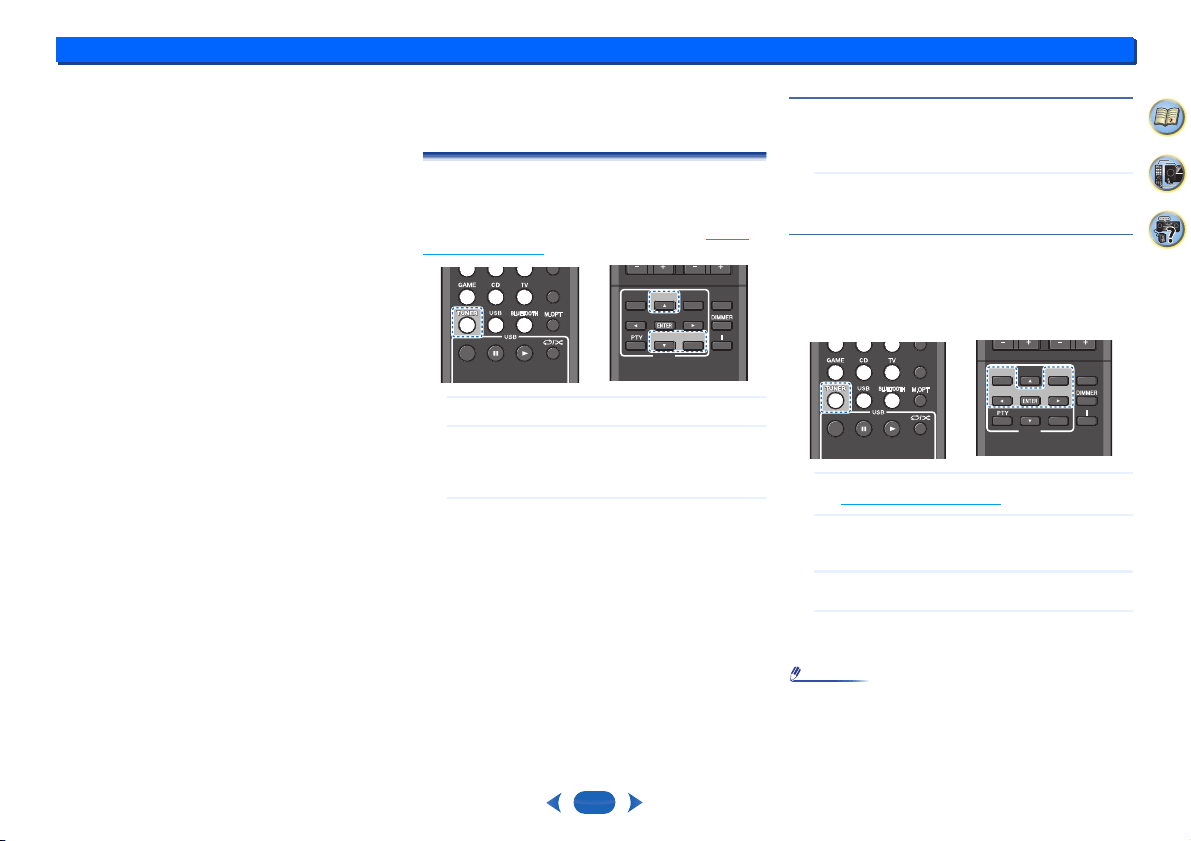
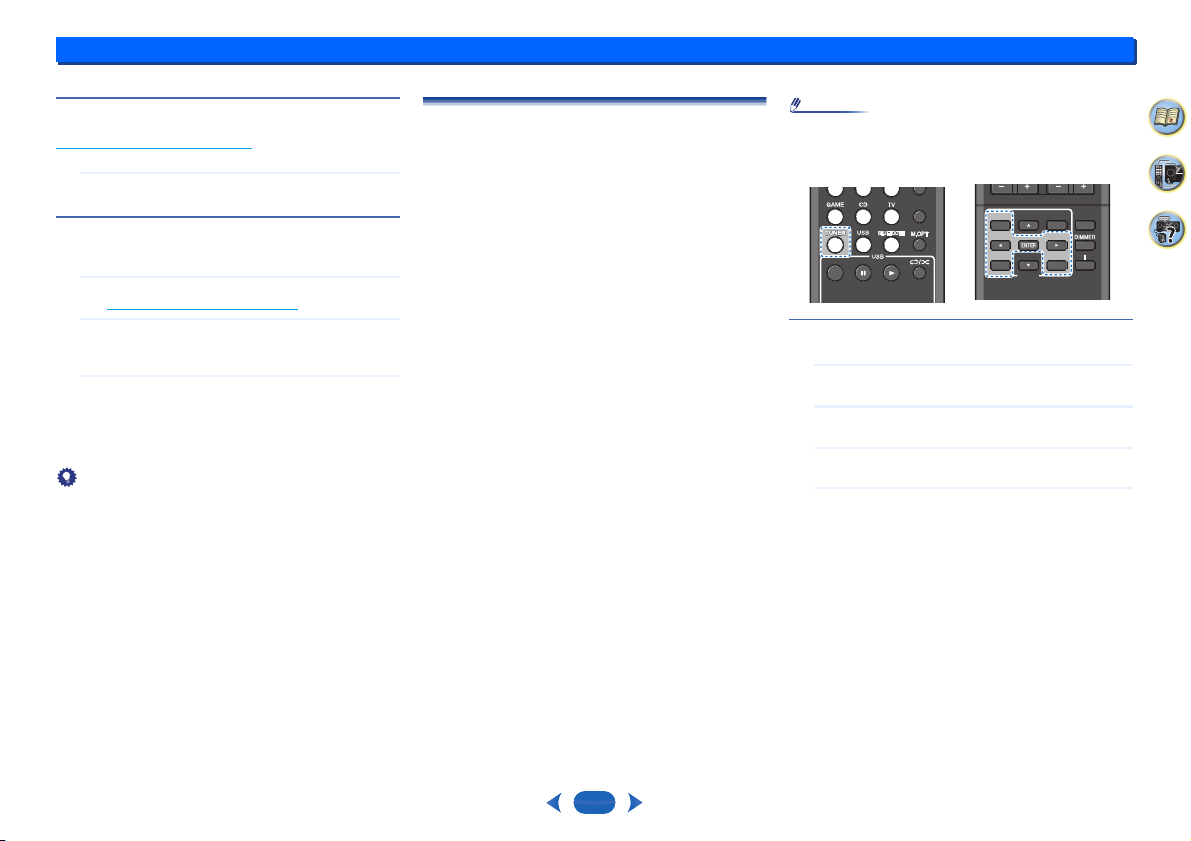
1
Press
TUNER
to select the tuner.
2
Use
BAND
to change the band (FM or AM), if
necessary.
Each press switches the band between FM (stereo or
mono) and AM.
3
Tune to a station.
There are three ways to do this:
Automatic tuning
To search for stations in the currently selected band,
press and hold
TUNING +/–
for about a second. The
receiver will start searching for the next station, stopping
when it has found one. Repeat to search for other
stations.
Manual tuning
To change the frequency one step at a time, press
TUNING +/–
.
High speed tuning
Press and hold
TUNING +/–
for high speed tuning.
Improving FM sound
If the TUNE or ST indicators don’t light when tuning to an FM
station because the signal is weak, set the receiver to the
mono reception mode.
…
Press
BAND
to select FM MONO.
This should improve the sound quality and allow you to
enjoy the broadcast.
Saving station presets
If you often listen to a particular radio station, it’s convenient
to have the receiver store the frequency for easy recall
whenever you want to listen to that station. This saves the
effort of manually tuning in each time. This unit can
memorize up to 30 stations.
1
Tune to a station you want to memorize.
See Listening to the radio above for more on this.
2
Press
EDIT
.
The display shows PRESET, then a blinking MEM and
station preset.
3
Press
PRESET +/–
to select the station preset you
want.
4
Press
ENTER
.
The preset number stop blinking and the receiver stores
the station.
Note
•
If the receiver is left disconnected from the AC power
outlet for over a month, the station memories will be lost
and will have to be reprogrammed.
•
Stations are stored in stereo. When the station is stored in
the FM MONO mode, it shows as ST when recalled.
AUDIO SEL
LATE NIGHT
LATE NIGHT
TOP MENU
TOP MENU
TREBLE
DISPLAY
DISPLAY
TUNER
TUNER
EDIT
EDIT
SLEEP
SLEEP
TUNING
TUNING
+
TUNING
+
TUNING
+
TUNING -
TUNING -TUNING -
TUNING -
PRESET
PRESET
-
PRESET
PRESET
+
BAND
BANDBAND
BAND
AUDIO SEL
LATE NIGHTLATE NIGHT
TOP MENUTOP MENU
TREBLE
DISPLAY
DISPLAYDISPLAY
DISPLAY
TUNER
TUNER
EDIT
EDITEDIT
EDIT SLEEP
SLEEP
TUNING
TUNING
+
TUNING
+
TUNING
+
TUNING -
TUNING -TUNING -
TUNING -
PRESET
PRESET
-
PRESET
-
PRESET
-
PRESET
PRESET
+
PRESET
+
PRESET
+
BAND
BANDBAND
BAND
Basic playback
4
4
23
33
4
2
Listening to station presets
You will need to have some presets stored to do this. See
Saving station presets
on page 22 if you haven’t done this
already.
…
Press
PRESET +/–
to select the station preset you
want.
Naming preset stations
For easier identification, you can name all of your preset
stations.
1
Choose the station preset you want to name.
See Listening to station presets above for how to do this.
2
Press
EDIT
twice.
The cursor at the first character position is blinking on
the display.
3
Input the name you want.
Choose a name up to eight characters long.
•
Use
PRESET +/–
to select character position.
•
Use
TUNING +/–
to select characters.
•
The name is stored when
ENTER
is pressed.
Tip
•
To erase a station name, follow steps 1 and 2, and press
ENTER
while the display is blank. Press
EDIT
while the
display is blank, to keep the previous name.
•
Once you have named a station preset, press
DISPLAY
to show the name. When you want to return to the
frequency display, press
DISPLAY
several times to show
the frequency.
An introduction to RDS (For Europe)
Radio Data System (RDS) is a system used by most FM
radio stations to provide listeners with various kinds of
information—the name of the station and the kind of show
they’re broadcasting, for example.
One feature of RDS is that you can search by type of
program. For example, you can search for a station that’s
broadcasting a show with the program type, JAZZ.
You can search the following program types:
Note
•
In addition, there are three other program types, ALARM,
ALARMTST, and NO TYPE. ALARM and ALARMTST
are used for emergency announcements. NO TYPE
appears when a program type cannot be found.
Searching for RDS programs
You can search for a program type listed above.
1
Press
TUNER
then press
BAND
to select the FM band.
•
RDS is only possible in the FM band.
2
Press
PTY
.
SEARCH shows in the display.
3
Press
PRESET +/–
to select the program type you
want to hear.
4
Press
ENTER
to search for the program type.
The system starts searching through the station presets
for a match, stopping when it was found one. Repeat to
search for other stations.
If NO PTY is displayed it means the tuner couldn’t find
that program type at the time of the search.
RDS searches station presets only. If no stations have
been preset, or if the program type could not be found
among the station presets NO PTY is displayed.
FINISH means the search is complete.
NEWS – News
AFFAIRS – Current Affairs
INFO – General Information
SPORT – Sport
EDUCATE – Educational
DRAMA – Radio plays, etc.
CULTURE – National or
regional culture, theater, etc.
SCIENCE – Science and
technology
VARIED – Usually talk-based
material, such as quiz shows
or interviews.
POP M – Pop music
ROCK M – Rock music
EASY M – Easy listening
LIGHT M – ‘Light’ classical
music
CLASSICS – ‘Serious’
classical music
OTHER M – Music not fitting
above categories
WEATHER – Weather reports
FINANCE – Stock market
reports, commerce, trading,
etc.
CHILDREN – Programs for
children
SOCIAL – Social affairs
RELIGION – Programs
concerning religion
PHONE IN – Public
expressing their views by
phone
TRAVEL – Holiday-type travel
rather than traffic
announcements
LEISURE – Leisure interests
and hobbies
JAZZ – Jazz
COUNTRY – Country music
NATION M – Popular music in
a language other than English
OLDIES – Popular music from
the ’50s and ’60s
FOLK M – Folk music
DOCUMENT – Documentary
AUDIO SEL
LATE NIGHT
LATE NIGHT
TOP MENU
TOP MENU
TREBLE
DISPLAY
DISPLAYDISPLAY
DISPLAY
TUNER
TUNER
EDIT
EDITEDIT
EDIT SLEEP
SLEEP
TUNING
TUNING
+
TUNING
+
TUNING
+
TUNING -
TUNING -TUNING -
TUNING -
PRESET
PRESET
-
PRESET
-
PRESET
-
PRESET
PRESET
+
PRESET
+
PRESET
+
BAND
BANDBAND
BAND
PTY
PTYPTY
PTY

Basic playback
4
4
24
33
4
2
Displaying RDS information
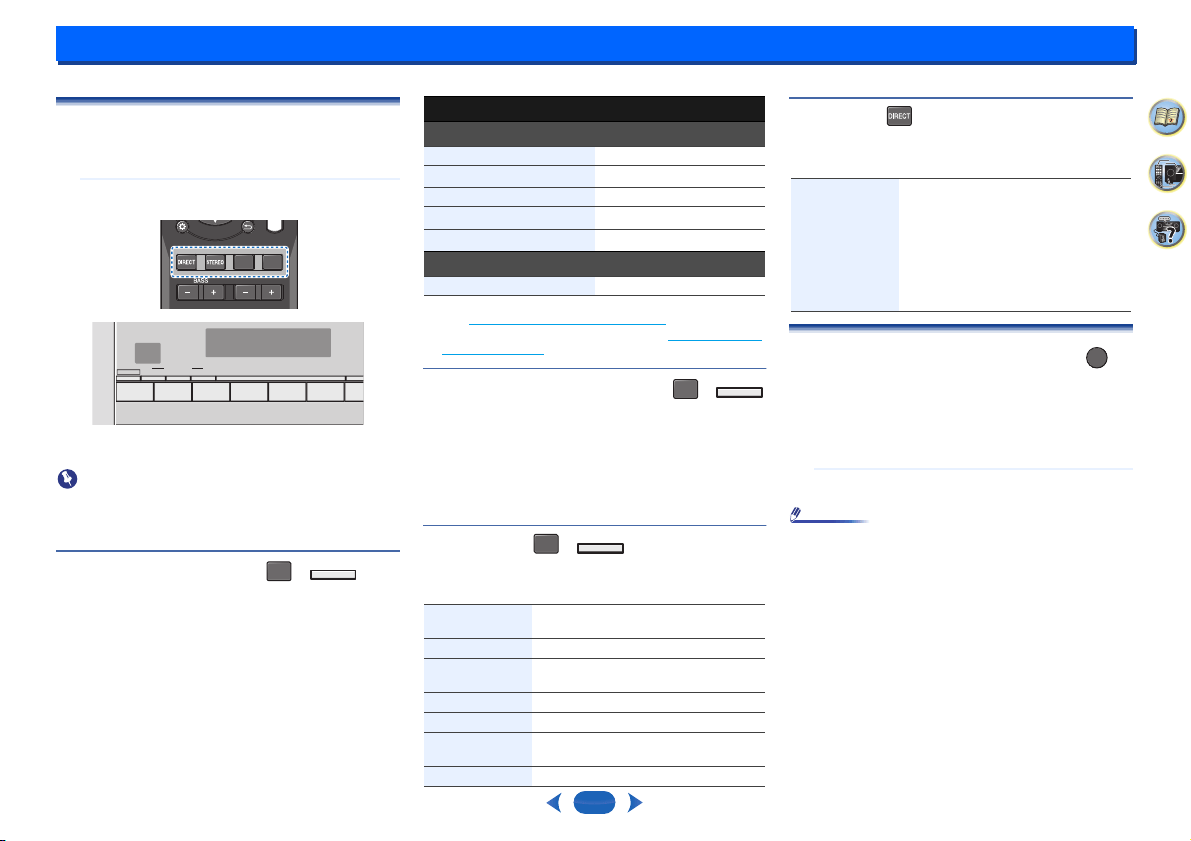
Use the
DISPLAY
button to display the different types of
RDS information available.
…
Press
DISPLAY
for RDS information.
Each press changes the display as follows:
•
Listening mode
•
Master volume
•
Radio Text (RT) – Messages sent by the radio station.
For example, a talk radio station may provide a phone
number as RT.
•
Program Service Name (PS) – The name of the radio
station.
•
Program Type (PTY) – This indicates the kind of
program currently being broadcast.
•
Current tuner frequency (FREQ)
Note
•
If any noise is picked up while displaying the RT scroll,
some characters may be displayed incorrectly.
•
If you see NO TEXT in the RT display, it means no RT data
is sent from the broadcast station. The display will
automatically switch to the PS data display (if no PS data,
NO NAME is displayed).
•
In the PTY display, NO PTY may be shown.
•
Special characters not supported by the unit may appear
as spaces.
5:
25
33
4
2
Listening to your system
Choosing the listening mode
This receiver offers a variety of listening modes to
accommodate playback of various audio formats. Choose
one according to your speaker environment or the source.
…
While listening to a source, press the listening mode
button repeatedly to select a listening mode you want.
•
The listening mode is shown on the display on the front
panel.
Important
•
The listening modes and many features described in this
section may not be available depending on the current
source, settings and status of the receiver.
Listening in surround sound
Using this receiver, you can listen to any source in surround
sound. However, the options available will depend on your
speaker setup and the type of source you’re listening to.
•
If the source is Dolby Digital, DTS, or Dolby Surround
encoded, the proper decoding format will automatically be
selected and shows in the display.
The following modes provide basic surround sound for stereo
and multichannel sources.
a. You can also adjust the C.WIDTH, DIMEN., and PNRM. effect
(see Setting the Audio options on page 26).
b. You can also adjust the C.IMG effect (see Setting the Audio
options on page 26).
Playing back in the STEREO mode
When you select STEREO, you will hear the source through
just the front left and right speakers (and possibly your
subwoofer depending on your speaker settings). Dolby
Digital and DTS multichannel sources are downmixed to
stereo.
When the headphones are connected, STEREO can only be
selected.
Using the DSP
The DSP feature creates a variety of surround effects. Try
different modes with various soundtracks to see which you
like.
Using Direct
Use the Direct modes when you want to hear the truest
possible reproduction of a source. All unnecessary signal
processing is bypassed.
Using the Advanced Music Optimizer
When audio data is removed during the compression
process, sound quality often suffers from an uneven sound
image. The Advanced Music Optimizer feature employs new
DSP technology that helps bring CD quality sound back to
compressed 2-channel audio by restoring sound pressure
and smoothing jagged artifacts left over after compression.
…
Press
M.OPT
to switch the M.OPT (Advanced Music
Optimizer) ON or OFF.
Note
•
The Advanced Music Optimizer mode cannot be set to ON,
when the DIRECT mode is switched on.
SURRSURR
TREBLETREBLE
DSPDSP
C
D
TU
N
T
V
B
D/DVD
STRM BOXCBL
/SAT GAME
SURROUNDSTEREOBLUETOOTH
LISTENING MODE
HOMEDSP
SURROUND
SURR
Type of surround modes Suitable sources
Two channel sources
DOLBY PLII MOVIE Movie
DOLBY PLII MUSIC
a
Music
DOLBY PLII GAME Video games
NEO:6 CINEMA
b
Movie
NEO:6 MUSIC
b
Music
Multichannel sources
Straight Decode No additional effects
All Ch Stereo Gives multichannel sound to a stereo
source, using all of your speakers.
TV Logic Designed for movies with lots of dialog.
Game-Action Designed for action movies with dynamic
soundtracks.
Game-RPG Suitable for video games.
Game-Sports Suitable for sports programs.
Game-Rock Creates a live concert sound for rock and/
or pop music.
Orchestra Gives a large concert hall-type sound.
STEREO
STEREO
DSP
DSP
DSP
DIRECT Sources are heard according to the
settings made in the Manual SP Setup
(speaker setting, X.Over, channel level,
speaker distance), as well as with dual
mono settings. You will hear sources
according to the number of channels in the
signal.
A/V SYNC, Fixed PCM, HDMI Audio and
Auto Delay functions are available.
M.OPT
M.OPT
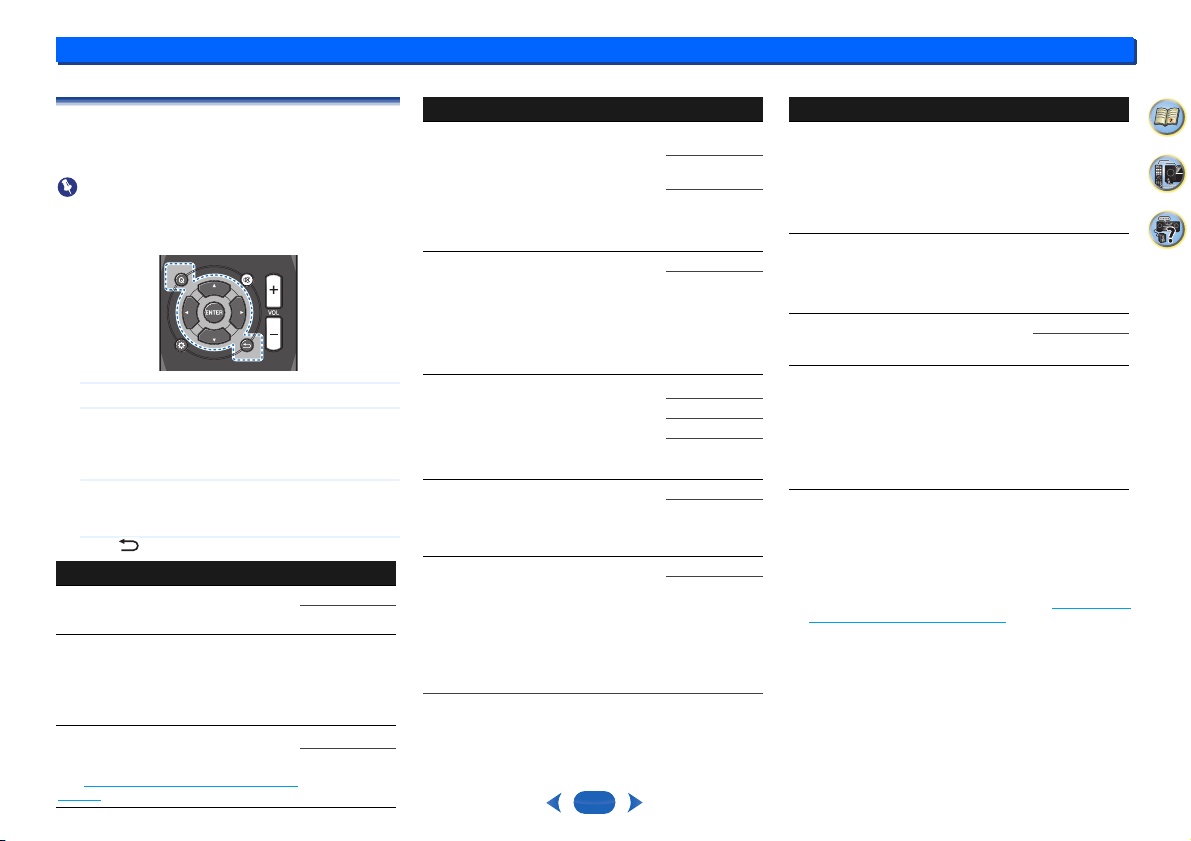
Listening to your system
5
5
26
33
4
2
Setting the Audio options
There are a number of additional sound settings you can
make using the QUICK MENU menu. The defaults, if not
stated, are listed in bold.
Important
•
Note that if a setting doesn’t appear in the QUICK MENU
menu, it is unavailable due to the current source, settings
and status of the receiver.
1
Press
QUICK MENU
button.
2
Use
/
to select the setting you want to adjust.
Depending on the current status/mode of the receiver,
certain options may not be able to be selected. Check
the table below for notes on this.
3
Use
/
to set it as necessary.
See the table below for the options available for each
setting.
4
Press to confirm and exit the menu.
a. You can change the Advanced Music Optimizer feature at any
time by using
M.OPT
button.
b. The default setting when the USB and BT Audio inputs are
selected is ON.
c. This setting works only with dual mono encoded Dolby Digital
and DTS soundtracks.
d. This is not displayed by default. You need to change some
settings on this unit to display the menu. (see Displaying the
Fixed PCM Setting menu on page 27).
e. The initial set AUTO is only available for Dolby TrueHD
signals. Select MAX or MID for signals other than Dolby
TrueHD.
f. This feature is only available when the connected display
supports the automatic audio/video synchronizing capability
(‘lip-sync’) for HDMI. If you find the automatically set delay
time unsuitable, set A.DLY to OFF and adjust the delay time
manually. For more details about the lip-sync feature of your
display, contact the manufacturer directly.
g. Only available with 2-channel sources in DOLBY PLII MUSIC
mode.
h. Only when listening to 2-channel sources in NEO:6 CINEMA
and NEO:6 MUSIC mode.
Setting/What it does Option(s)
EQ (Acoustic Calibration EQ)
Switches on/off the effect of Acoustic
Calibration EQ.
ON
OFF
AV. SYN (A/V SYNC)
Some monitors have a slight delay when
showing video, so the soundtrack will be
slightly out of sync with the picture. By adding
a bit of delay, you can adjust the sound to
match the presentation of the video.
0 ms to 500 ms
(1 step : 5 ms)
Default: 0
M.OPT (Advanced Music Optimizer)
a
Switches on/off the effect of Advanced Music
Optimizer.
(see Using the Advanced Music Optimizer on
page 25)
OFF
b
ON
SURR DSP
QUICK MENUQUICK MENUQUICK MENUQUICK MENU
DUAL MONO
c
Specifies how dual mono encoded Dolby
Digital soundtracks should be played.
CH1 – Channel 1
is heard only
CH2 – Channel 2
is heard only
CH1 CH2 – Both
channels heard
from front
speakers
F.PCM (Fixed PCM)
d
This is useful if you find there is a slight delay
before OFF recognizes the PCM signal on a
CD, for instance.
When ON is selected, noise may be output
during playback of non-PCM sources. Please
select another input signal if this is a
problem.
OFF
ON
LATE NIGHT
Adjusts the level of dynamic range for movie
soundtracks optimized for Dolby Digital, DTS,
Dolby Digital Plus, Dolby TrueHD, DTS-HD
and DTS-HD Master Audio (you may need to
use this feature when listening to surround
sound at low volumes).
AUTO
e
OFF
MID
MAX
HDMI (HDMI Audio)
Specifies the routing of the HDMI audio
signal out of this receiver (AMP) or through to
a TV (THRU). When THRU is selected, no
sound is output from this receiver.
AMP
THRU
A.DLY (Auto Delay)
f
This feature automatically corrects the audio-
to-video delay between components
connected with an HDMI cable. The audio
delay time is set depending on the
operational status of the display connected
with an HDMI cable. The video delay time is
automatically adjusted according to the audio
delay time.
OFF
ON
Setting/What it does Option(s)
C.WIDTH (Center Width)
g
(Applicable only when using a center speaker)
Spreads the center channel between the front
right and left speakers, making it sound wider
(higher settings) or narrower (lower settings).
Making the
C.WIDTH
setting “7” may cause no
sound to be output from the center channel.
0 to 7
Default: 3
DIMEN. (Dimension)
g
Adjusts the surround sound balance from
front to back, making the sound more distant
(minus settings), or more forward (positive
settings).
–3 to +3
Default: 0
PNRM. (Panorama)
g
Extends the front stereo image to include
surround speakers for a ‘wraparound’ effect.
OFF
ON
C.IMG (Center Image)
h
(Applicable only when using a center
speaker)
Adjust the center image to create a wider
stereo effect with vocals. Adjust the effect
from 0 (all center channel sent to front right
and left speakers) to 10 (center channel sent
to the center speaker only).
0 to 10
Default: 3
(NEO:6 MUSIC),
10 (NEO:6
CINEMA)
Setting/What it does Option(s)
Listening to your system
5
5
27
33
4
2
Displaying the Fixed PCM Setting menu
The Fixed PCM Audio options are not displayed by default.
Perform the following operations to display them.
1
Switch the receiver into standby.
2
While holding down
RETURN
on the front panel, hold
Í
ON/STANDBY
.
The setting switches between display and hide each
time you operate these steps.
Note
• If the
Standby Through
is not set to
OFF
, you may not be
able to set the switching of the
Fixed PCM
.
Changing the TV format setting of
Graphical User Interface
If the Graphical User Interface screen is not displayed
correctly, it may be that the TV system is set incorrectly for
your country or region.
1
Switch the receiver into standby.
2
While holding down
TUNING
on the front panel,
hold Í
ON/STANDBY
.
Each press switches between PAL and NTSC.
•
Default: PAL
•
The functions that can be set differ depending on the input signal or speaker settings.
DIRECT STEREO SURR DSP Using the headphones
Analog signal Other signals
Speaker Setting
Channel Level
Speaker Distance
Bass/Treble
Acoustic Calibration EQ
A/V SYNC
Advanced Music
Optimizer
DUAL MONO
Fixed PCM
LATE NIGHT
HDMI Audio
Auto Delay
Center Image
(
NEO:6 only)

Listening to your system
5
5
28
33
4
2
Changing the frequency step of AM
Radio
If you find that you can’t tune into stations successfully, the
frequency step may not be suitable for your country/region.
Here’s how to switch the setting:
1
Switch the receiver into standby.
2
While holding down
TUNING
on the front panel,
hold Í
ON/STANDBY
.
Each press switches between 9K STEP and 10K STEP.
•
Default: 9K STEP
Note
•
If the Standby Through is not set to OFF, you may not be
able to set the switching of the Fixed PCM, NTSC/PAL or
9K STEP/10K STEP

6:
29
33
4
2
Setup
Using the Setup
The following section shows you how to make detailed
settings to specify how you’re using the receiver, and also
explains how to fine-tune individual speaker system settings
to your liking.
Important
•
The OSD will not appear if you have connected using the
composite output to your TV. Use HDMI connections for
Setup.
•
If headphones are connected to the receiver, disconnect
them.
•
You can’t use the Setup when the USB input is selected.
1
Switch on the receiver and your TV.
Press
Í
RECEIVER
to switch on.
2
Switch the TV input to the input that connects this
receiver to the TV through the corresponding HDMI
cable.
3
Press .
The Setup appears on your TV. Use
/
/
/
and
ENTER
on the remote control to navigate through the
screens and select menu items. Press to exit the
current menu.
•
Press at any time to exit the Setup.
4
Select the setting you want to adjust.
•
AccuEQ Room Cal. – This is a quick and effective
automatic surround setup (see Automatically setting up for
surround sound (AccuEQ Room Calibration) on page 16).
•
Manual SP Setup
-
Speaker Setting – Specify the size and number of
speakers you’ve connected (see below).
-
X.Over – Specify which frequencies will be sent to the
subwoofer (page 30
).
-
Channel Level – Adjust the overall balance of your
speaker system (page 30
).
-
Speaker Distance – Specify the distance of your
speakers from the listening position (page 31
).
•
Input Assign – Specify what you’ve connected to the
(CD) audio input (see The Input Assign menu
on page 31).
•
Auto Power Down – Sets to automatically turn off the
power when the receiver has not operated for several
hours (see The Auto Power Down menu
on page 31).
•
HDMI Setup – Set the audio return channel function and
set the HDMI input signal to Standby Through output or
not during standby (see The HDMI Setup menu
on
page 32).
Manual speaker setup
This receiver allows you to make detailed settings to optimize
the surround sound performance. You only need to make
these settings once (unless you change the placement of
your current speaker system or add new speakers).
These settings are designed to fine-tune your system, but if
you’re satisfied with the settings made in Automatically
setting up for surround sound (AccuEQ Room Calibration) on
page 16, it isn’t necessary to make all of these settings.
Speaker Setting
Use this setting to specify your speaker configuration (size,
number of speakers).
It is a good idea to make sure that the settings made in
Automatically setting up for surround sound (AccuEQ Room
Calibration) on page 16 are correct.
1
Select ‘Manual SP Setup’ from the Setup.
2
Select ‘Speaker Setting’ from the Manual SP Setup
menu.
3
Choose the set of speakers that you want to set then
select a speaker size.
Use
/
to select the size (and number) of each of the
following speakers:
•
Front – Select LARGE if your front speakers reproduce
bass frequencies effectively, or if you didn’t connect a
subwoofer. Select SMALL to send the bass frequencies to
the subwoofer.
•
Center – Select LARGE if your center speaker
reproduces bass frequencies effectively, or select SMALL
to send bass frequencies to the other speakers or
subwoofer. If you didn’t connect a center speaker, choose
NO (the center channel is sent to the other speakers).
RECEIVERRECEIVER
AUDIO SELAUDIO SEL
LATE NIGHT
CBL/SATCBL/SAT
STRM BOXSTRM BOX
BD/DVDBD/DVD
SURRSURR
TREBLE
DSPDSP
QUICK MENUQUICK MENU
Setup
1.AccuEQ Room Cal.
2.Manual SP Setup
3.Input Assign
4.Auto Power Down
5.HDMI Setup
Return
2.Manual SP Setup
Return
a.Speaker Setting
b.X.Over
c.Channel Level
d.Speaker Distance
2a.Speaker Setting
Front
Center
Surr
Subwoofer:
Return
[ NO ]
[ NO ]
YES
SMALL
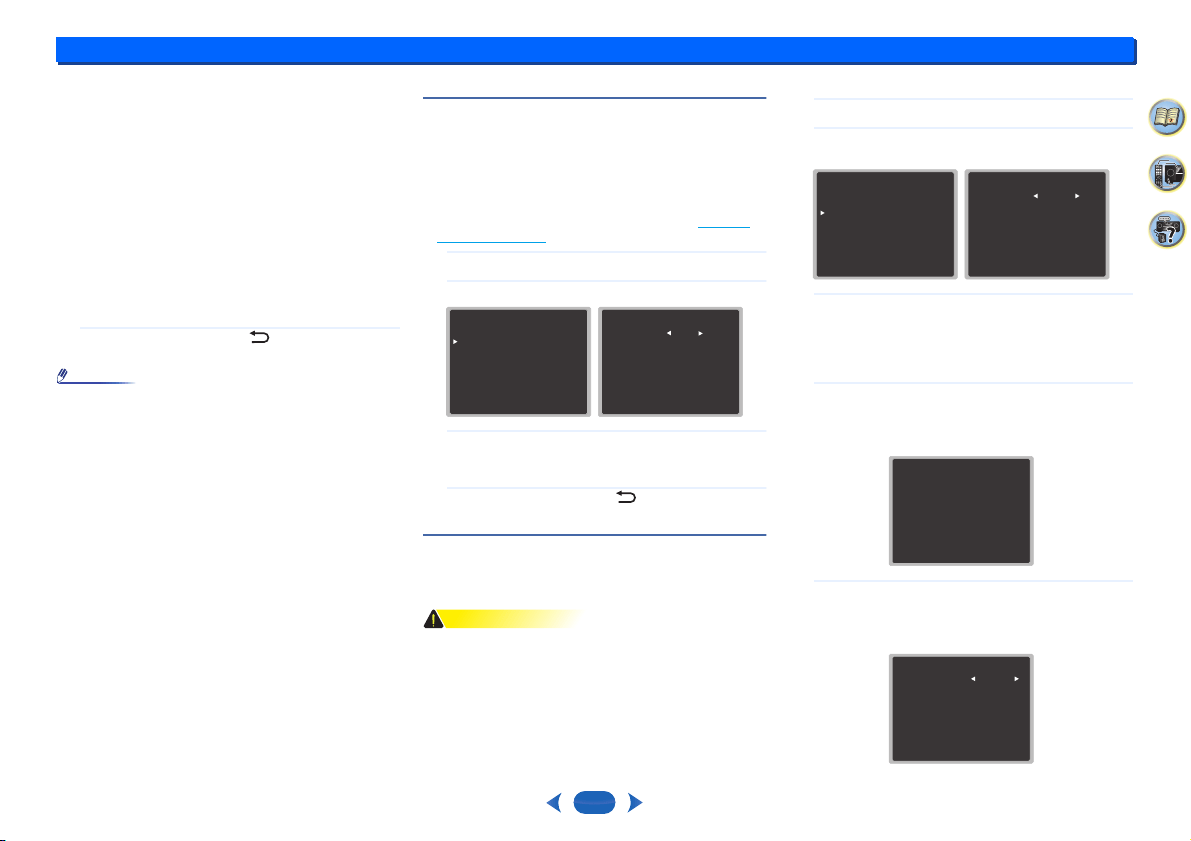
Setup
6
6
30
33
4
2
•
Surr – Select LARGE if your surround speakers
reproduce bass frequencies effectively. Select SMALL to
send bass frequencies to the other speakers or
subwoofer. If you didn’t connect surround speakers
choose NO (the sound of the surround channels is sent to
the other speakers).
•
Subwoofer – LFE signals and bass frequencies of
channels set to SMALL are output from the subwoofer
when YES is selected (see notes below). Choose the
PLUS setting if you want the subwoofer to output bass
sound continuously or you want deeper bass (the bass
frequencies that would normally come out the front and
center speakers are also routed to the subwoofer). If you
did not connect a subwoofer choose NO (the bass
frequencies are output from other speakers).
4
When you’re finished, press .
You return to the Manual SP Setup menu.
Note
•
If you select SMALL for the front speakers, the subwoofer
will automatically be fixed to YES. Also, the center,
surround can’t be set to LARGE if the front speakers are
set to SMALL. In this case, all bass frequencies are sent
to the subwoofer.
•
If you have a subwoofer and like lots of bass, it may seem
logical to select LARGE for your front speakers and PLUS
for the subwoofer. This may not, however, yield the best
bass results. Depending on the speaker placement of your
room you may actually experience a decrease in the
amount of bass due to low frequency cancellations. In this
case, try changing the position or direction of speakers. If
you can’t get good results, listen to the bass response with
it set to PLUS and YES or the front speakers set to
LARGE and SMALL alternatively and let your ears judge
which sounds best. If you’re having problems, the easiest
option is to route all the bass sounds to the subwoofer by
selecting SMALL for the front speakers.
X.Over
•
Default setting: 100Hz
This setting decides the cutoff between bass sounds playing
back from the speakers selected as LARGE, or the
subwoofer, and bass sounds playing back from those
selected as SMALL. It also decides where the cutoff will be
for bass sounds in the LFE channel.
•
For more on selecting the speaker sizes, see Speaker
Setting on page 29.
1
Select ‘Manual SP Setup’ from the Setup.
2
Select ‘X.Over’ from the Manual SP Setup menu.
3
Choose the frequency cutoff point.
Frequencies below the cutoff point will be sent to the
subwoofer (or LARGE speakers).
4
When you’re finished, press .
You return to the Manual SP Setup menu.
Channel Level
Using the channel level settings, you can adjust the overall
balance of your speaker system, an important factor when
setting up a home theater system.
CAUTION
•
The test tones used in the Channel Level settings are
output at high volume.
1
Select ‘Manual SP Setup’ from the Setup.
2
Select ‘Channel Level’ from the Manual SP Setup
menu.
3
Select a setup option.
•
Manual – Move the test tone manually from speaker
to speaker and adjust individual channel levels.
•
Auto – Adjust channel levels as the test tone moves
from speaker to speaker automatically.
4
Confirm your selected setup option.
The test tones will start after you press
ENTER
. After
the volume increases to the reference level, test tones
will be output.
5
Adjust the level of each channel using
/
.
If you selected Manual, use
/
to switch speakers.
The Auto setup will output test tones in the order shown
on-screen:
2.Manual SP Setup
Return
a.Speaker Setting
b.X.Over
c.Channel Level
d.Speaker Distance
2b.X.Over
Return
Frequency 100Hz
2.Manual SP Setup
Return
a.Speaker Setting
b.X.Over
c.Channel Level
d.Speaker Distance
2c.Channel Level
Test Tone Manual
Enter:Next
Return
2c.Channel Level
Test Tone [ Manual ]
Please Wait . . .20
Caution
Loud test tones
will be output.
Return
2c.Channel Level
Front L
Center
Front R
Surround R
Surround L
Subwoofer
Return
[ 0dB]
[ 0dB]
[ 0dB]
[ 0dB]
[ 0dB]
0dB
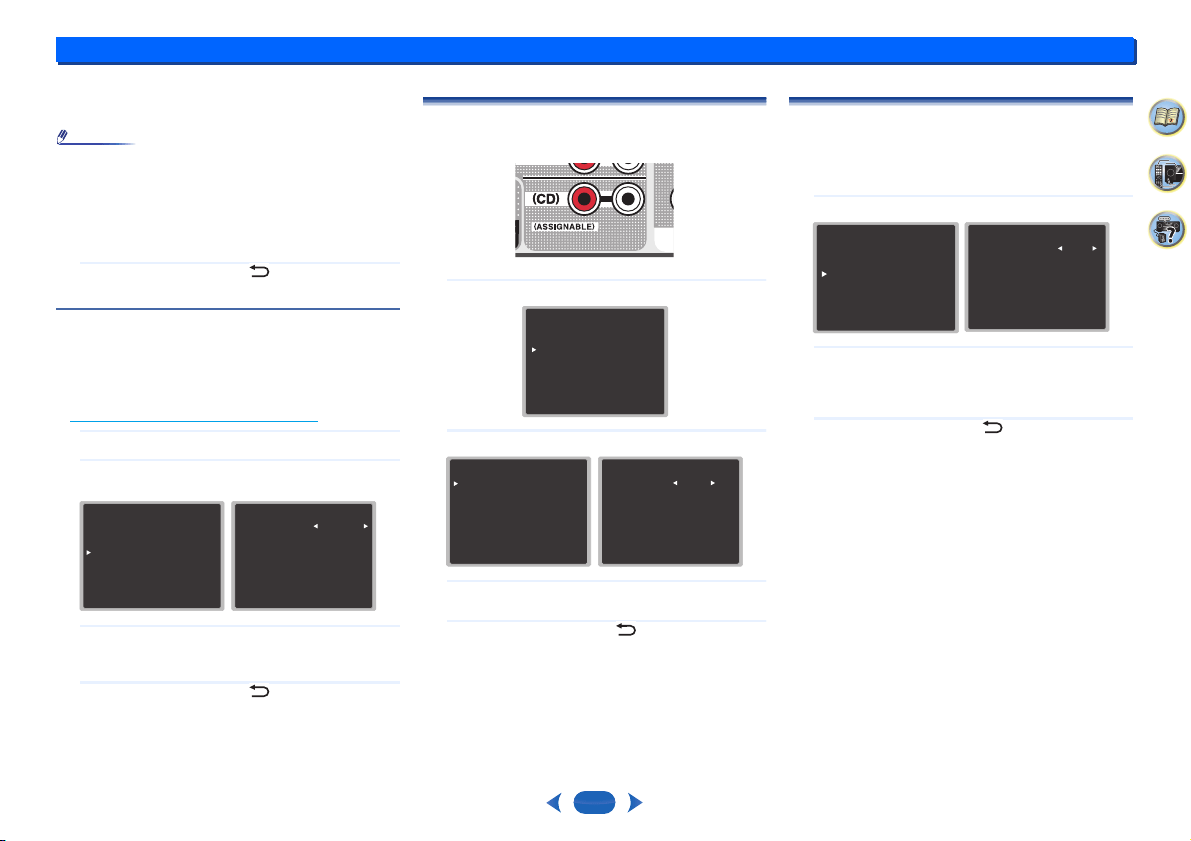
Setup
6
6
31
33
4
2
Adjust the level of each speaker as the test tone is
emitted.
Note
•
If you are using a Sound Pressure Level (SPL) meter, take
the readings from your main listening position and adjust
the level of each speaker to 75 dB SPL (C-weighting/slow
reading).
•
The subwoofer test tone is output at low volumes. You
may need to adjust the level after testing with an actual
soundtrack.
6
When you’re finished, press .
You return to the Channel Level menu.
Speaker Distance
For good sound depth from your system, you need to specify
the distance of your speakers from the listening position. The
receiver can then add the proper delay needed for effective
surround sound.
•
For the assignment of the digital signal inputs, see
Selecting the audio input signal
on page 18.
1
Select ‘Manual SP Setup’ from the Setup.
2
Select ‘Speaker Distance’ from the Manual SP Setup
menu.
3
Adjust the distance of each speaker using
/
.
You can adjust the distance of each speaker in 0.1 m
increments.
4
When you’re finished, press .
You return to the Manual SP Setup menu.
The Input Assign menu
(CD) audio input terminal is assigned to CD under factory
settings, but this can be changed to TV input.
1
Select ‘Input Assign’ from the Setup.
2
Select ‘Analog Input’ from the Input Assign menu.
3
Select the desired input option for the (CD) audio input
terminal.
4
When you’re finished, press .
You return to the Input Assign menu.
The Auto Power Down menu
Set to automatically turn off the receiver after a specified time
has passed (when the power has been on with no operation
for several hours).
•
Default setting: 6H
1
Select ‘Auto Power Down’ from the Setup.
2
Specify the amount of time to allow before the power is
turned off (when there has been no operation).
•
You can select 2, 4 or 6 hours, or OFF (if no automatic
shutoff is desired).
3
When you’re finished, press .
You return to the Setup.
2.Manual SP Setup
Return
a.Speaker Setting
b.X.Over
c.Channel Level
d.Speaker Distance
2d.Speaker Distance
Front L
Center
Front R
Surround R
Surround L
Subwoofer
Return
[ 3.0 m ]
[ 3.0 m ]
[ 3.0 m ]
[ 3.0 m ]
[ 3.0 m ]
3.0 m
Setup
1.AccuEQ Room Cal.
2.Manual SP Setup
3.Input Assign
4.Auto Power Down
5.HDMI Setup
Return
3.Input Assign
Return
a.Analog Input
3a.Analog Input
Return
Analog
CD
Setup
1.AccuEQ Room Cal.
2.Manual SP Setup
3.Input Assign
4.Auto Power Down
5.HDMI Setup
Return
4.Auto Power Down
Return
Auto Power Down 6H
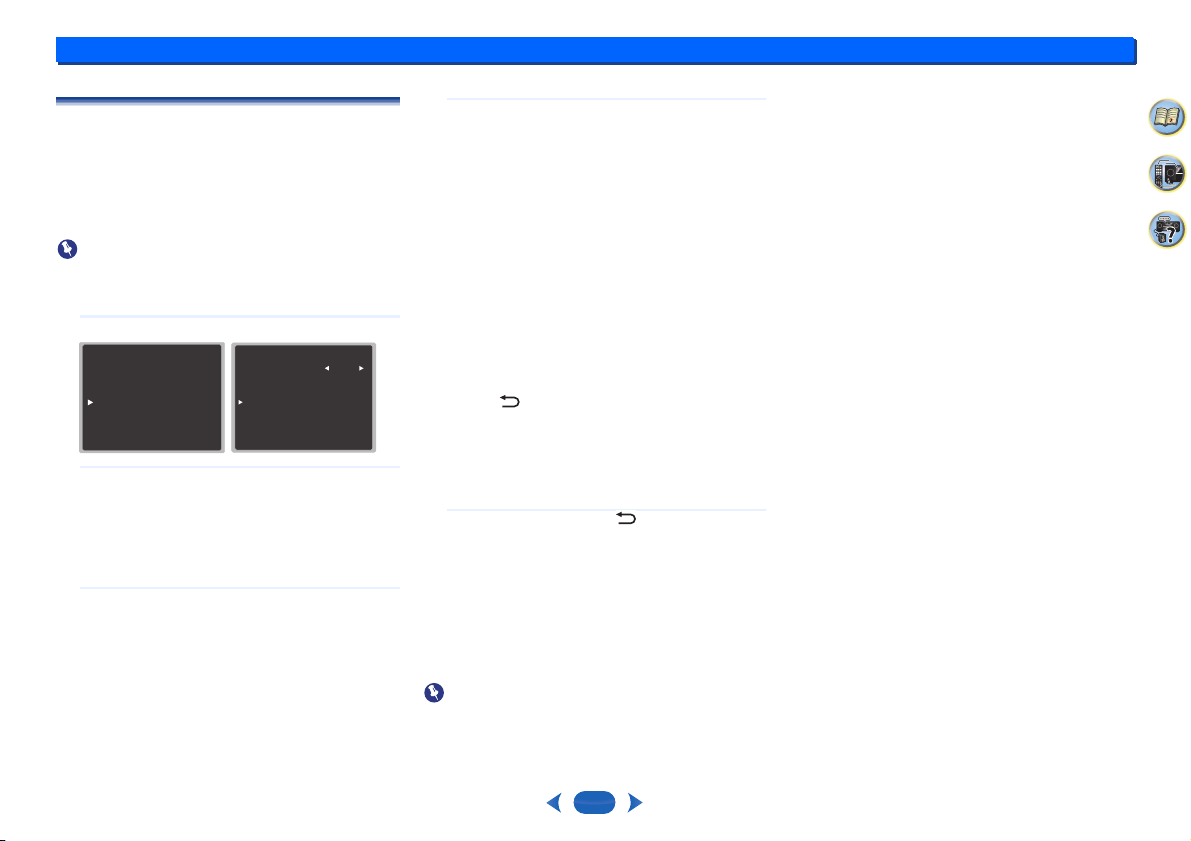
Setup
6
6
32
33
4
2
The HDMI Setup menu
If your TV supports an audio return channel (ARC) function,
connect your TV and this unit with an HDMI cable and the TV
audio will be inputted into this unit via the HDMI terminal
without the need for an audio cable to be connected.
It is possible to transfer signals from an HDMI connected
player to the TV even when this receiver’s power is on
standby.
Important
•
Use a High Speed HDMI
®/
™ Cable when using the ARC
function. The ARC function may not operate properly with
other HDMI cables.
1
Select ‘HDMI Setup’ from the Setup.
2
Choose the ‘ARC’ setting you want.
When a TV supporting the HDMI Audio Return Channel
function is connected to the receiver, the sound of the
TV can be input via the HDMI terminal.
•
ON – The TV’s sound is input via the HDMI terminal.
•
OFF – The TV’s sound is input from the audio input
terminals other than HDMI inputs.
3
Choose the ‘Standby Through’ setting you want.
When the receiver is in standby, the HDMI input signal
selected here will be output to the TV by HDMI.
•
LAST – The HDMI input signal selected previously
will be output.
•
BD/DVD, CBL/SAT, STRM BOX, GAME – The HDMI
input signal selected here will be output.
•
OFF – Signal will not be output during standby.
-
If the Standby Through setting is not set to OFF,
the power consumption during standby will
increase.
4
Choose the ‘4k60p Setting’ setting you want.
If the TV to be connected using HDMI supports 4K/60p,
you can switch the 4k60p setting in accordance with TV
performance.
1. Select an input terminal that you wish to change
settings using
/
.
2. Use
/
to select ‘4k60p’.
3. Use
/
to select the signal to set.
•
4:4:4 – Select this setting when connecting to a 4K/
60p 4:4:4 24 bit compatible TV using HDMI. More high
quality video images can be enjoyed.
-
When the HDMI cable does not support 4K/60p
4:4:4 24 bit (18 Gbps transmission), video image
may not be output properly.
In that case, select 4:2:0 to watch a 4K/60p 4:2:0 24
bit video image.
•
4:2:0 – Select this setting when connecting to a 4K/
60p 4:2:0 24 bit compatible TV using HDMI.
4. Press .
If certain source devices that do not support 4K/60p
4:4:4 24 bit are used and the HDMI terminal is set to
4:4:4, video output from the source device may turn red,
no audio may be output by the source device, or a 3D
signal may not be output by some of the devices. In
these cases, set the HDMI terminal to 4:2:0.
5
When you’re finished, press .
You return to the Setup.
Before starting ARC operation
When starting ARC operation, put the TV and this unit in
STANDBY mode after connecting this unit with the TV. Next,
turn ON the power of this unit and then the TV, in this order.
In order to start ARC operation, after connecting this unit to
a TV with an HDMI cable, you will need to switch the input on
the TV to the input mode required to connect to this unit.
Then, you can select a TV program.
Important
•
The ARC function may not operate even if the above
conditions are met. If this is the case, listen to the TV audio
after connecting this unit and the TV with an audio cable.
•
The CEC (Consumer Electronic Control) function may
activate when the ARC function is turned ON, causing
power to turn ON and OFF and the input to switch from
one to another. Since this unit does not guarantee
synchronized operation based on the CEC function, we
recommend that you turn OFF the HDMI CONTROL
setting on the connected player. This unit may not operate
properly if the HDMI CONTROL on the player is ON. Refer
to the relevant device’s instruction manual for details. If
this does not work, turn OFF the ARC function.
If this is the case, listen to the TV audio after connecting
this unit and the TV with an audio cable.
In addition, this unit does not guarantee synchronized
operation that allows the TV remote control to operate the
volume (including mute). Use this unit to operate the
volume (including mute).
•
Turn OFF the power and remove the power cord from the
wall socket when connecting other devices or making
connection changes to this unit. After all connections are
completed, insert the power cord into the wall socket.
Setup
1.AccuEQ Room Cal.
2.Manual SP Setup
3.Input Assign
4.Auto Power Down
5.HDMI Setup
Return
5.HDMI Setup
Return
a.ARC
b.Standby Through
c.4k60p Setting
OFF
[
OFF
]
7:
33
33
4
2
Additional information
Troubleshooting
Incorrect operations are often mistaken for trouble and
malfunctions. If you think that there is something wrong with
this component, check the points below. Take a look at the
other components and electrical appliances being used,
because sometimes the problem may lie there. If the trouble
isn’t sorted out even after going through the checks below,
ask your nearest Onkyo authorized independent service
company to carry out repair work.
•
If the unit does not operate normally due to external effects
such as static electricity disconnect the power plug from
the outlet and insert again to return to normal operating
conditions.
General
The power does not turn on.
# Disconnect the power plug from the outlet, and insert again.
The receiver suddenly switches off.
# When the Auto Power Down function is working, the power
will automatically turn off if the receiver has not operated for
several hours. Check the setting for the Auto Power Down
function (see The Auto Power Down menu on page 31).
# Make sure there are no loose strands of speaker wire
touching the rear panel. This could cause the receiver to shut
off automatically.
# After about a minute (you won’t be able to switch the unit on
during this time), switch the receiver back on. If the message
persists, call a Onkyo authorized independent service
company.
# If there is very little low frequency information in the source
material, change your speaker settings to Front: SMALL /
Subwoofer: YES, or Front: LARGE / Subwoofer: PLUS
(page 29).
The input of this unit switches from one to another.
(When the ARC function is ON)
# The CEC (Consumer Electronic Control) function may
activate when the ARC function is turned ON, causing the
input to switch from one to another. Since this unit does not
guarantee synchronized operation based on the CEC
function, turn OFF the HDMI CONTROL setting on the
connected player. Refer to the relevant device’s instruction
manual for details.
If this does not work, turn OFF the ARC function. If this is the
case, listen to the TV audio after connecting this unit and the
TV with an audio cable.
OVERHEAT shows in the display and the power turns off.
# The temperature within the unit has exceeded the allowable
value. Try moving the unit for better ventilation.
# Lower the volume level.
TEMP shows in the display and the volume level drops.
# The temperature within the unit has exceeded the allowable
value. Try moving the unit for better ventilation.
# Lower the volume level.
No sound is output when an input function is selected.
# Use
VOL +/–
to turn up the volume.
# Press on the remote control to turn muting off.
# Set the
AUDIO SEL
to H (HDMI), C1/O1 (digital) or A
(analog) according to the type of connections made
(page 18).
# Make sure the component is connected correctly (see
Connecting your equipment on page 8).
# Check the audio output settings of the source component.
# Refer to the instruction manual supplied with the source
component.
No image is output when an input function is selected.
# Make sure the component is connected correctly (see
Connecting your equipment on page 8).
# Use the same type of video cables for the source component
and TV to connect to this receiver (see About video outputs
connection on page 11).
# The video input selected on the TV monitor is incorrect. Refer
to the instruction manual supplied with the TV.
No sound from subwoofer.
# Make sure the subwoofer is switched on.
# If the subwoofer has a volume knob, make sure it’s turned up.
# The Dolby Digital or DTS source you are listening to may not
have an LFE channel.
# Switch the subwoofer setting in Speaker Setting on page 29
to YES or PLUS.
No sound from surround or center speakers.
# Connect the speakers properly (page 9).
# Refer to Speaker Setting on page 29 to check the speaker
settings.
# Refer to Channel Level on page 30 to check the speaker
levels.
No sound from a specific speaker.
# Make sure the speaker cable is connected correctly. (Ensure
that the connection terminal is correct, that the speaker wire is
firmly inserted, and that no speaker wire is touching the rear
panel.)
Considerable noise in radio broadcasts.
# Connect the antenna (page 14) and adjust the position for
best reception.
# Route any loose cables away from the antenna terminals and
wires.
# Fully extend the FM wire antenna, position for best reception,
and secure to a wall (or connect an outdoor FM antenna).
# Connect an additional internal or external AM antenna
(page 14).
# Turn off equipment causing interference or move it away from
the receiver (or move antennas farther away from equipment
causing noise).
Broadcast stations cannot be selected automatically.
# Connect an outdoor antenna (page 14).
Noise during playback of a cassette deck.
# Move the cassette deck away from your receiver, until the
noise disappears.
No sound is output or a noise is output when software
with DTS is played back.
# Make sure the player’s settings are correct and/or the DTS
signal out is on. Refer to the instruction manual supplied with
the DVD player.
There seems to be a time lag between the speakers and
the output of the subwoofer.
# See Automatically setting up for surround sound (AccuEQ
Room Calibration) on page 16 to set up your system again
using AccuEQ Room Cal. (this will automatically compensate
for a delay in the subwoofer output).
After using the AccuEQ Room Cal. setup, the speaker
size setting (LARGE or SMALL) is incorrect.
# Low-frequency noise could have been caused by an air
conditioner or motor. Switch off all appliances in the room and
rerun the AccuEQ Room Cal. setup.
Can’t operate the remote control.
# Replace the batteries (page 7).
# Operate within 7 m, 30º of the remote sensor (page 7).
# Remove the obstacle or operate from another position.
# Avoid exposing the remote sensor on the front panel to direct
light.
Additional information
7
7
34
33
4
2
The display is dark.
# Press
DIMMER
on the remote control repeatedly to return to
the default.
Display flashes and cannot be operated.
# Depending on the input signal or listening mode, there may be
functions that cannot be selected.
The BLUETOOTH wireless technology device cannot be
connected or operated. Sound from the BLUETOOTH
wireless technology device is not emitted or the sound is
interrupted.
# Check that no object that emits electromagnetic waves in the
2.4 GHz band (microwave oven, wireless LAN device or
BLUETOOTH wireless technology apparatus) is near the
receiver. If such an object is near the receiver, set the receiver
far from it. Or, stop using the object emitting the
electromagnetic waves.
# Check that the BLUETOOTH wireless technology device is
not too far from the receiver and that obstructions are not set
between the BLUETOOTH wireless technology device and
the receiver. Set the BLUETOOTH wireless technology device
and the receiver so that the distance between them is less
than about 10 m * and no obstructions exist between them.
* The line-of-sight transmission distance is an estimate.
Actual transmission distances supported may differ
depending on surrounding conditions.
# The BLUETOOTH wireless technology device may not be set
to the communication mode supporting the BLUETOOTH
wireless technology. Check the setting of the BLUETOOTH
wireless technology device.
# Check that pairing is correct. The pairing setting was deleted
from this receiver or the BLUETOOTH wireless technology
device. Reset the pairing.
# Check that the profile is correct. Use a BLUETOOTH wireless
technology device that supports A2DP profile.
HDMI
No picture or sound.
# If the problem still persists when connecting your HDMI
component directly to your monitor, please consult the
component or monitor manual or contact the manufacturer for
support.
No picture.
# Video signals that are input from the analog video terminal will
not output from the HDMI terminal. Signals that are input from
the HDMI terminal will not output from the analog video
terminal. Be consistent with the type of cable between input
and output.
# Depending in the output settings of the source component, it
may be outputting a video format that can’t be displayed.
Change the output settings of the source, or connect using
the composite video jacks.
# This receiver is HDCP-compatible. Check that the
components you are connecting are also HDCP-compatible. If
they are not, please connect them using the composite video
jacks.
# Depending on the connected source component, it’s possible
that it will not work with this receiver (even if it is HDCP-
compatible). In this case, connect using the composite video
jacks between source and receiver.
# If video images do not appear on your TV, try adjusting the
resolution, Deep Color or other setting for your component.
# To output signals in Deep Color, use an HDMI cable (High
Speed HDMI
®/
™ Cable) to connect this receiver to a
component or TV with the Deep Color feature.
The OSD screen (Setup, etc.) isn’t displayed.
# The OSD will not appear if you have connected using the
composite output to your TV. Use HDMI connections when
setting up the system.
No sound, or sound suddenly ceases.
# Check that the HDMI setting is set to AMP (page 26).
# If the component is a DVI device, use a separate connection
for the audio.
# HDMI format digital audio transmissions require a longer time
to be recognized. Due to this, interruption in the audio may
occur when switching between audio formats or beginning
playback.
# Turning on/off the device connected to this unit’s HDMI OUT
terminal during playback, or disconnecting/connecting the
HDMI cable during playback, may cause noise or interrupted
audio.
Important information regarding the HDMI
connection
There are cases where you may not be able to route HDMI
signals through this receiver (this depends on the HDMI
equipped component you are connecting-check with the
manufacturer for HDMI compatibility information).
If you aren’t receiving HDMI signals properly through this
receiver (from your component), please try the following
configuration when connecting up.
Configuration
Connect your HDMI-equipped component directly to the
display using an HDMI cable. Then use the most convenient
connection (digital is recommended) for sending audio to the
receiver. See the operating instructions for more on audio
connections. Set the display volume to minimum when using
this configuration.
Note
•
Depending on the component, audio output may be limited
to the number of channels available from the connected
display unit (for example audio output is reduced to 2
channels for a monitor with stereo audio limitations).
•
If you want to switch the input source, you’ll have to switch
functions on both the receiver and your display unit.
•
Since the sound is muted on the display when using the
HDMI connection, you must adjust the volume on the
display every time you switch input sources.
USB messages
‘USB Error 4 (I/U ERR4)’
# The power requirements of the USB device are too high for
this receiver. Switch off the receiver and reconnect the USB to
the receiver.
Additional information
7
7
35
33
4
2
Resetting the main unit
Use this procedure to reset all the receiver’s settings to the
factory default. Use the front panel controls to do this.
1
Switch the receiver into standby.
2
While holding down
STEREO
, press and hold
Í
ON/STANDBY
for about two seconds.
3
When you see RESET? appear in the display, press
SURROUND
.
OK? shows in the display.
4
Press
DSP
to confirm.
OK appears in the display to indicate that the receiver
has been reset to the factory default settings.
Cleaning the unit
•
Use a polishing cloth or dry cloth to wipe off dust and dirt.
•
When the surface is dirty, wipe with a soft cloth dipped in
some neutral cleanser diluted five or six times with water,
and wrung out well, and then wipe again with a dry cloth.
Do not use furniture wax or cleansers.
•
Never use thinners, benzine, insecticide sprays or other
chemicals on or near this unit, since these will corrode the
surface.
Specifications
Audio section
Rated power output
Front, Center, Surround
. . . . . . . . . . . . . . . . 135 W per channel (1 kHz, 6 Ω, 1 %)
. . . . . 100 W per channel (20 Hz to 20 kHz, 8 Ω, 0.09 %)
Total Harmonic Distortion
. . . . . . . . . . . . . . . . 0.06 % (20 Hz to 20 kHz, 8 Ω, 50 W/ch)
Frequency response (LINE Direct mode)
. . . . . . . . . . . . . . . . . . . . . . . . . . . . . . 5 Hz to 100 kHz dB
Guaranteed speaker impedance . . . . . . . . . . . . 6 Ω to 16 Ω
Input (Sensitivity/Impedance)
LINE . . . . . . . . . . . . . . . . . . . . . . . . . . . . . . 200 mV/47 kΩ
Signal-to-Noise Ratio (IHF-A network, 1 kΩ shorted)
LINE . . . . . . . . . . . . . . . . . . . . . . . . . . . . . . . . . . . .106 dB
Video Section
Signal level
Composite . . . . . . . . . . . . . . . . . . . . . . . . . 1 Vp-p (75 Ω)
Tuner Section
Frequency Range (FM) . . . . . . . . . . . 87.5 MHz to 108 MHz
Antenna Input (FM) . . . . . . . . . . . . . . . . . .75 Ω unbalanced
Frequency Range (AM)
9 kHz Step . . . . . . . . . . . . . . . . . . . .531 kHz to 1602 kHz
10 kHz Step . . . . . . . . . . . . . . . . . . .530 kHz to 1700 kHz
Antenna (AM) . . . . . . . . . . . . . . . . . . . . . . . . . Loop antenna
BLUETOOTH section
Version. . . . . . . . . . . . . BLUETOOTH Specification Ver. 3.0
Output . . . . . . . . . . . . . BLUETOOTH Specification Class 2
Estimated line-of-sight transmission distance*
. . . . . . . . . . . . . . . . . . . . . . . . . . . . . . . . . . . . . . About 10 m
Frequency range . . . . . . . . . . . . . . . . . . . . . . . . . . . 2.4 GHz
Supported BLUETOOTH profiles . . . . . . . . . . . . . . . . .A2DP
Supported Codec . . . . . . . . . . .SBC (Subband Codec), AAC
* The line-of-sight transmission distance is an estimate.
Actual transmission distances supported may differ
depending on surrounding conditions.
Digital In/Out Section
HDMI terminal . . . . . . . . . . . . . . . . . . . . . . . Type A (19-pin)
HDMI output type . . . . . . . . . . . . . . . . . . . . . . . . 5 V, 55 mA
USB terminal . . . . . USB2.0 Full Speed (Type A) 5 V, 0.5 A
Miscellaneous
Power Requirements . . . . AC 220 V to 240 V, 50 Hz/60 Hz
Power Consumption . . . . . . . . . . . . . . . . . . . . . . . . . . 220 W
In standby . . . . . . . . . . . . . . . . . . . . . . . . . . . . . . . 0.3 W
Dimensions. . . . 435 mm (W) x 168 mm (H) x 326.5 mm (D)
Weight (without package). . . . . . . . . . . . . . . . . . . . . . 8.0 kg
Additional information
7
7
36
33
4
2
Furnished Parts
Setup microphone . . . . . . . . . . . . . . . . . . . . . . . . . . . . . . . 1
Remote control . . . . . . . . . . . . . . . . . . . . . . . . . . . . . . . . . 1
Dry cell batteries (AAA size IEC R03) . . . . . . . . . . . . . . . . 2
AM loop antenna . . . . . . . . . . . . . . . . . . . . . . . . . . . . . . . . 1
FM wire antenna . . . . . . . . . . . . . . . . . . . . . . . . . . . . . . . . 1
Quick start guide
Safety Brochure
Note
•
Specifications and the design are subject to possible
modifications without notice, due to improvements.
The BLUETOOTH
®
word mark and logos are registered
trademarks owned by Bluetooth SIG, Inc.
Other trademarks and trade names are those of their
respective owners.
Manufactured under license from Dolby Laboratories. Dolby,
Pro Logic, and the double-D symbol are trademarks of Dolby
Laboratories.
For DTS patents, see http://patents.dts.com. Manufactured
under license from DTS Licensing Limited. DTS, DTS-HD, the
Symbol, & DTS and the Symbol together are registered
trademarks of DTS, Inc. © DTS, Inc. All Rights Reserved.

Additional information
7
7
37
33
4
2
Software license notice
The licenses for the open source software used on this
product are shown below. For accuracy purposes, here we
have included the original texts (in English).
FreeRTOS V6.0.5
Copyright (C) 2009 Real Time Engineers Ltd.
The FreeRTOS.org source code is licensed by the modified GNU
General Public License (GPL) text provided below.
An exception to this license exists that can be applied should you wish
to use FreeRTOS in a work that includes commercial or proprietary code
without being obliged to provide source code for the proprietary
components. See the licensing section of
http://www.FreeRTOS.org for full details.
GNU GENERAL PUBLIC LICENSE
Version 2, June 1991
Copyright (C) 1989, 1991 Free Software Foundation, Inc., 51 Franklin
Street, Fifth Floor, Boston, MA 02110-1301 USA Everyone is permitted
to copy and distribute verbatim copies of this license document, but
changing it is not allowed.
Preamble
The licenses for most software are designed to take away your freedom
to share and change it. By contrast, the GNU General Public License is
intended to guarantee your freedom to share and change free software-
-to make sure the software is free for all its users. This General Public
License applies to most of the Free Software Foundation's software and
to any other program whose authors commit to using it. (Some other
Free Software Foundation software is covered by the GNU Lesser
General Public License instead.) You can apply it to your programs, too.
When we speak of free software, we are referring to freedom, not price.
Our General Public Licenses are designed to make sure that you have
the freedom to distribute copies of free software (and charge for this
service if you wish), that you receive source code or can get it if you want
it, that you can change the software or use pieces of it in new free
programs; and that you know you can do these things.
To protect your rights, we need to make restrictions that forbid anyone
to deny you these rights or to ask you to surrender the rights. These
restrictions translate to certain responsibilities for you if you distribute
copies of the software, or if you modify it.
For example, if you distribute copies of such a program, whether gratis
or for a fee, you must give the recipients all the rights that you have. You
must make sure that they, too, receive or can get the source code. And
you must show them these terms so they know their rights.
We protect your rights with two steps: (1) copyright the software, and (2)
offer you this license which gives you legal permission to copy, distribute
and/or modify the software.
Also, for each author's protection and ours, we want to make certain that
everyone understands that there is no warranty for this free software. If
the software is modified by someone else and passed on, we want its
recipients to know that what they have is not the original, so that any
problems introduced by others will not reflect on the original authors'
reputations.
Finally, any free program is threatened constantly by software patents.
We wish to avoid the danger that redistributors of a free program will
individually obtain patent licenses, in effect making the program
proprietary. To prevent this, we have made it clear that any patent must
be licensed for everyone's free use or not licensed at all.
The precise terms and conditions for copying, distribution and
modification follow.
GNU GENERAL PUBLIC LICENSE
TERMS AND CONDITIONS FOR COPYING, DISTRIBUTION AND
MODIFICATION
0. This License applies to any program or other work which contains a
notice placed by the copyright holder saying it may be distributed
under the terms of this General Public License. The "Program",
below, refers to any such program or work, and a "work based on the
Program" means either the Program or any derivative work under
copyright law: that is to say, a work containing the Program or a
portion of it, either verbatim or with modifications and/or translated
into another language. (Hereinafter, translation is included without
limitation in the term "modification".) Each licensee is addressed as
"you".
Activities other than copying, distribution and modification are not
covered by this License; they are outside its scope. The act of
running the Program is not restricted, and the output from the
Program is covered only if its contents constitute a work based on
the
Program (independent of having been made by running the
Program). Whether that is true depends on what the Program does.
1. You may copy and distribute verbatim copies of the Program's
source code as you receive it, in any medium, provided that you
conspicuously and appropriately publish on each copy an
appropriate copyright notice and disclaimer of warranty; keep intact
all the notices that refer to this License and to the absence of any
warranty; and give any other recipients of the Program a copy of this
License along with the Program.
You may charge a fee for the physical act of transferring a copy, and
you may at your option offer warranty protection in exchange for a fee.
2. You may modify your copy or copies of the Program or any portion
of it, thus forming a work based on the Program, and copy and
distribute such modifications or work under the terms of Section 1
above, provided that you also meet all of these conditions:
a) You must cause the modified files to carry prominent notices
stating that you changed the files and the date of any change.
b) You must cause any work that you distribute or publish, that in
whole or in part contains or is derived from the Program or any
part thereof, to be licensed as a whole at no charge to all third
parties under the terms of this License.
c) If the modified program normally reads commands interactively
when run, you must cause it, when started running for such
interactive use in the most ordinary way, to print or display an
announcement including an appropriate copyright notice and a
notice that there is no warranty (or else, saying that you provide
a warranty) and that users may redistribute the program under
these conditions, and telling the user how to view a copy of this
License. (Exception: if the Program itself is interactive but does
not normally print such an announcement, your work based on
the Program is not required to print an announcement.)
These requirements apply to the modified work as a whole. If identifiable
sections of that work are not derived from the Program, and can be
reasonably considered independent and separate works in themselves,
then this License, and its terms, do not apply to those sections when you
distribute them as separate works. But when you distribute the same
sections as part of a whole which is a work based on the Program, the
distribution of the whole must be on the terms of this License, whose
permissions for other licensees extend to the entire whole, and thus to
each and every part regardless of who wrote it.
Thus, it is not the intent of this section to claim rights or contest your
rights to work written entirely by you; rather, the intent is to exercise the
right to control the distribution of derivative or collective works based on
the Program.
In addition, mere aggregation of another work not based on the Program
with the Program (or with a work based on the Program) on a volume of
a storage or distribution medium does not bring the other work under the
scope of this License.
3. You may copy and distribute the Program (or a work based on it,
under Section 2) in object code or executable form under the terms
of Sections 1 and 2 above provided that you also do one of the
following:
a) Accompany it with the complete corresponding machine-
readable source code, which must be distributed under the terms
of Sections 1 and 2 above on a medium customarily used for
software interchange; or,
b) Accompany it with a written offer, valid for at least three years, to
give any third party, for a charge no more than your cost of
physically performing source distribution, a complete machine-
readable copy of the corresponding source code, to be
distributed under the terms of Sections 1 and 2 above on a
medium customarily used for software interchange; or,
c) Accompany it with the information you received as to the offer to
distribute corresponding source code. (This alternative is
allowed only for noncommercial distribution and only if you
received the program in object code or executable form with such
an offer, in accord with Subsection b above.)
The source code for a work means the preferred form of the work for
making modifications to it. For an executable work, complete source
code means all the source code for all modules it contains, plus any
associated interface definition files, plus the scripts used to control
compilation and installation of the executable. However, as a special
exception, the source code distributed need not include anything that is
normally distributed (in either source or binary form) with the major
components (compiler, kernel, and so on) of the operating system on
which the executable runs, unless that component itself accompanies
the executable.
If distribution of executable or object code is made by offering access to
copy from a designated place, then offering equivalent access to copy
the source code from the same place counts as distribution of the
source code, even though third parties are not compelled to copy the
source along with the object code.
4. You may not copy, modify, sublicense, or distribute the Program
except as expressly provided under this License. Any attempt
otherwise to copy, modify, sublicense or distribute the Program is
void, and will automatically terminate your rights under this License.

Additional information
7
7
38
33
4
2
However, parties who have received copies, or rights, from you
under this License will not have their licenses terminated so long as
such parties remain in full compliance.
5. You are not required to accept this License, since you have not
signed it. However, nothing else grants you permission to modify or
distribute the Program or its derivative works. These actions are
prohibited by law if you do not accept this License. Therefore, by
modifying or distributing the Program (or any work based on the
Program), you indicate your acceptance of this License to do so, and
all its terms and conditions for copying, distributing or modifying the
Program or works based on it.
6. Each time you redistribute the Program (or any work based on the
Program), the recipient automatically receives a license from the
original licensor to copy, distribute or modify the Program subject to
these terms and conditions. You may not impose any further
restrictions on the recipients' exercise of the rights granted
herein.You are not responsible for enforcing compliance by third
parties to this License.
7. If, as a consequence of a court judgment or allegation of patent
infringement or for any other reason (not limited to patent issues),
conditions are imposed on you (whether by court order, agreement
or otherwise) that contradict the conditions of this License, they do
not excuse you from the conditions of this License. If you cannot
distribute so as to satisfy simultaneously your obligations under this
License and any other pertinent obligations, then as a consequence
you may not distribute the Program at all. For example, if a patent
license would not permit royalty-free redistribution of the Program by
all those who receive copies directly or indirectly through you, then
the only way you could satisfy both it and this License would be to
refrain entirely from distribution of the Program.
If any portion of this section is held invalid or unenforceable under
any particular circumstance, the balance of the section is intended
to apply and the section as a whole is intended to apply in other
circumstances.
It is not the purpose of this section to induce you to infringe any
patents or other property right claims or to contest validity of any
such claims; this section has the sole purpose of protecting the
integrity of the free software distribution system, which is
implemented by public license practices. Many people have made
generous contributions to the wide range of software distributed
through that system in reliance on consistent application of that
system; it is up to the author/donor to decide if he or she is willing to
distribute software through any other system and a licensee cannot
impose that choice.
This section is intended to make thoroughly clear what is believed to
be a consequence of the rest of this License.
8. If the distribution and/or use of the Program is restricted in certain
countries either by patents or by copyrighted interfaces, the original
copyright holder who places the Program under this License may
add an explicit geographical distribution limitation excluding those
countries, so that distribution is permitted only in or among countries
not thus excluded. In such case, this License incorporates the
limitation as if written in the body of this License.
9. The Free Software Foundation may publish revised and/or new
versions of the General Public License from time to time. Such new
versions will be similar in spirit to the present version, but may differ
in detail to address new problems or concerns.
Each version is given a distinguishing version number. If the
Program specifies a version number of this License which applies to
it and "any later version", you have the option of following the terms
and conditions either of that version or of any later version published
by the Free Software Foundation. If the Program does not specify a
version number of this License, you may choose any version ever
published by the Free Software Foundation.
10. If you wish to incorporate parts of the Program into other free
programs whose distribution conditions are different, write to th
e
author to ask for permission. For software which is copyrighted by
the Free Software Foundation, write to the Free Software
Foundation; we sometimes make exceptions for this. Our decision
will be guided by the two goals of preserving the free status of all
derivatives of our free software and of promoting the sharing and
reuse of software generally.
NO WARRANTY
11. BECAUSE THE PROGRAM IS LICENSED FREE OF CHARGE,
THERE IS NO WARRANTY FOR THE PROGRAM, TO THE
EXTENT PERMITTED BY APPLICABLE LAW. EXCEPT WHEN
OTHERWISE STATED IN WRITING THE COPYRIGHT HOLDERS
AND/OR OTHER PARTIES PROVIDE THE PROGRAM "AS IS"
WITHOUT WARRANTY OF ANY KIND, EITHER EXPRESSED OR
IMPLIED, INCLUDING, BUT NOT LIMITED TO, THE IMPLIED
WARRANTIES OF MERCHANTABILITY AND FITNESS FOR A
PARTICULAR PURPOSE. THE ENTIRE RISK AS TO THE
QUALITY AND PERFORMANCE OF THE PROGRAM IS WITH
YOU. SHOULD THE PROGRAM PROVE DEFECTIVE, YOU
ASSUME THE COST OF ALL NECESSARY SERVICING, REPAIR
OR CORRECTION.
12. IN NO EVENT UNLESS REQUIRED BY APPLICABLE LAW OR
AGREED TO IN WRITING WILL ANY COPYRIGHT HOLDER, OR
ANY OTHER PARTY WHO MAY MODIFY AND/OR
REDISTRIBUTE THE PROGRAM AS PERMITTED ABOVE, BE
LIABLE TO YOU FOR DAMAGES, INCLUDING ANY GENERAL,
SPECIAL, INCIDENTAL OR CONSEQUENTIAL DAMAGES
ARISING OUT OF THE USE OR INABILITY TO USE THE
PROGRAM (INCLUDING BUT NOT LIMITED TO LOSS OF DATA
OR DATA BEING RENDERED INACCURATE OR LOSSES
SUSTAINED BY YOU OR THIRD PARTIES OR A FAILURE OF
THE PROGRAM TO OPERATE WITH ANY OTHER PROGRAMS),
EVEN IF SUCH HOLDER OR OTHER PARTY HAS BEEN
ADVISED OF THE POSSIBILITY OF SUCH DAMAGES.
END OF TERMS AND CONDITIONS
How to Apply These Terms to Your New Programs
If you develop a new program, and you want it to be of the greatest
possible use to the public, the best way to achieve this is to make it free
software which everyone can redistribute and change under these
terms
To do so, attach the following notices to the program. It is safest to
attach them to the start of each source file to most effectively convey the
exclusion of warranty; and each file should have at least the "copyright"
line and a pointer to where the full notice is found.
<one line to give the program's name and a brief idea of what it
does.>
Copyright (C) <year> <name of author>
This program is free software; you can redistribute it and/or modify it
under the terms of the GNU General Public License as published by
the Free Software Foundation; either version 2 of the License, or (at
your option) any later version.
This program is distributed in the hope that it will be useful, but
WITHOUT ANY WARRANTY; without even the implied warranty of
MERCHANTABILITY or FITNESS FOR A PARTICULAR
PURPOSE. See the GNU General Public License for more details.
You should have received a copy of the GNU General Public
License along with this program; if not, write to the Free Software
Foundation, Inc., 51 Franklin Street, Fifth Floor, Boston, MA 02110-
1301 USA.
Also add information on how to contact you by electronic and paper
mail.
If the program is interactive, make it output a short notice like this when
it starts in an interactive mode:
Gnomovision version 69, Copyright (C) year name of author
Gnomovision comes with ABSOLUTELY NO WARRANTY; for
details type `show w'.
This is free software, and you are welcome to redistribute it under
certain conditions; type `show c' for details.
The hypothetical commands `show w' and `show c' should show the
appropriate parts of the General Public License. Of course, the
commands you use may be called something other than `show w' and
`show c'; they could even be mouse-clicks or menu items--whatever
suits your program.
You should also get your employer (if you work as a programmer) or
your school, if any, to sign a "copyright disclaimer" for the program, if
necessary. Here is a sample; alter the names:
Yoyodyne, Inc., hereby disclaims all copyright interest in the
program `Gnomovision' (which makes passes at compilers) written
by James Hacker.
<signature of Ty Coon>, 1 April 1989
Ty Coon, President of Vice
This General Public License does not permit incorporating your program
into proprietary programs. If your program is a subroutine library, you
may consider it more useful to permit linking proprietary applications
with the library. If this is what you want to do, use the GNU Lesser
General Public License instead of this License.
EOF

F1610-0
<U.S.A.>
18 Park Way, Upper Saddle River, N.J. 07458, U.S.A.
For Dealer, Service, Order and all other Business Inquiries:
Tel: 201-785-2600 Fax: 201-785-2650
http://www.us.onkyo.com/
<Germany>
Gutenbergstrasse 3, 82178 Puchheim, Germany
Tel: +49-8142-4401-0 Fax: +49-8142-4208-213
http://www.eu.onkyo.com/
<UK>
Anteros Building, Odyssey Business Park, West End Road, South Ruislip, Middlesex, HA4 6QQ United Kingdom
Tel: +44 (0)871-200-1996 Fax: +44 (0)871-200-1995
<Hong Kong>
Unit 1033, 10/F, Star House, No 3, Salisbury Road, Tsim Sha Tsui Kowloon, Hong Kong.
Tel: +852-2429-3118 Fax: +852-2428-9039
http://www.hk.onkyo.com/
<PRC>
302, Building 1, 20 North Chaling Rd., Xuhui District, Shanghai, China 200032,
Tel: +86-21-52131366 Fax: +86-21-52130396
http://www.cn.onkyo.com/
<Asia, Oceania, Middle East, Africa>
Please contact an Onkyo distributor referring to Onkyo SUPPORT site.
http://www.intl.onkyo.com/support/
The above-mentioned information is subject to change without prior notice.
Visit the Onkyo web site for the latest update.
For Product Support Team Only:
1-800-229-1687
http://www.us.onkyo.com/
2-3-12 Yaesu, Chuo-ku, Tokyo 104-0028 JAPAN
http://ww
w.onkyo.com/
SN 29402897
(C) Copyright 2016 Onkyo & Pioneer Corporation Japan. All rights reserved.
Корпорация О энд Пи
2-3-12, Яэсу, Чуо-ку, г. Токио, 104-0028, ЯПОНИЯ