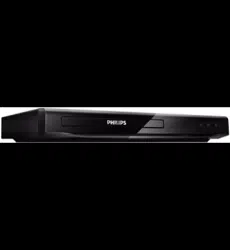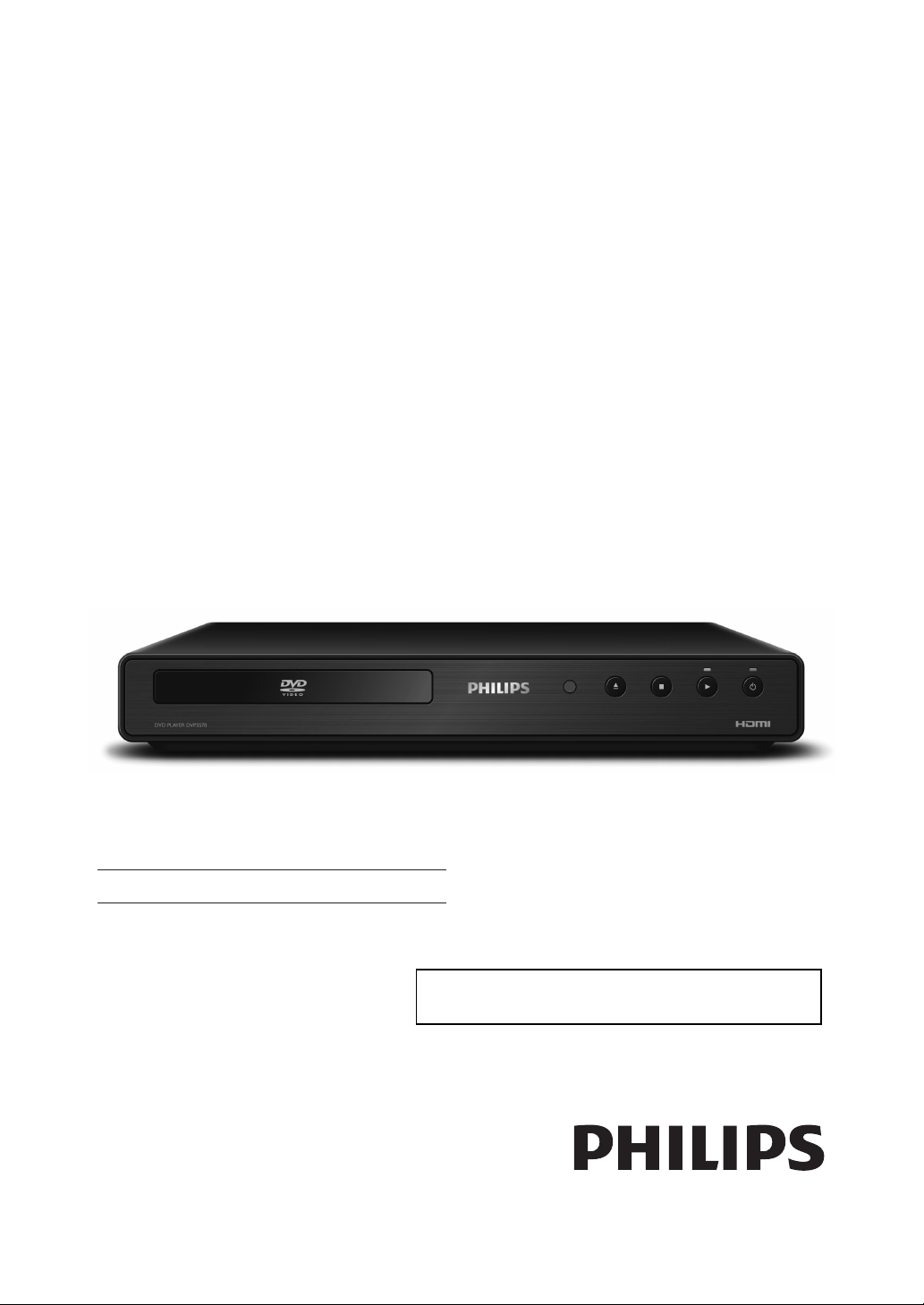
Register your product and get support at
www.philips.com/welcome
DVP3570/F7
DVD-CD PLAYEREN
For further assistance, call the customer support service in your country.
• To obtain assistance in the U.S.A., Canada, Puerto Rico, or the U.S. Virgin
Islands, contact Philips Customer Care Center at 1-866-309-0866
2EN
PRECAUTIONS
1. Read these instructions.
2. Keep these instructions.
3. Heed all warnings.
4. Follow all instructions.
5. Do not use this apparatus near water.
6. Clean only with dry cloth.
7. Do not block any ventilation openings. Install in
accordance with the manufacturer’s instructions.
8. Do not install near any heat sources such as radiators,
heat registers, stoves, or other apparatus (including
amplifiers) that produce heat.
9. Do not defeat the safety purpose of the polarized or
grounding-type plug. A polarized plug has two blades
with one wider than the other. A grounding type plug
has two blades and a third grounding prong. The wide
blade or the third prong are provided for your safety. If
the provided plug does not fit into your outlet, consult
an electrician for replacement of the obsolete outlet.
10. Protect the power cord from being walked on
or pinched particularly at plugs, convenience
receptacles, and the point where they exit from the
apparatus.
11. Only use attachments / accessories specified by the
manufacturer.
12. Use only with the cart, stand, tripod,
bracket, or table specified by the
manufacturer, or sold with the apparatus.
When a cart is used, use caution when
moving the cart / apparatus combination to
avoid injury from tip-over.
13. Unplug this apparatus during lightning storms or
when unused for long periods of time.
14. Refer all servicing to qualified service personnel.
Servicing is required when the apparatus has been
damaged in any way, such as power-supply cord or
plug is damaged, liquid has been spilled or objects
have fallen into the apparatus, the apparatus has
been exposed to rain or moisture, does not operate
normally, or has been dropped.
FCC WARNING
This equipment may generate or use radio frequency energy. Changes or modifications to this equipment may
cause harmful interference unless the modifications are expressly approved in the manual. The user could lose the
authority to operate this equipment if an unauthorized change or modification is made.
RADIO-TV INTERFERENCE
This equipment has been tested and found to comply with the limits for a Class B digital device, pursuant to Part
15 of the FCC Rules. These limits are designed to provide reasonable protection against harmful interference in a
residential installation. This equipment generates, uses, and can radiate radio frequency energy and, if not installed
and used in accordance with the instructions, may cause harmful interference to radio communications. However,
there is no guarantee that interference will not occur in a particular installation. If this equipment does cause harmful
interference to radio or television reception, which can be determined by turning the equipment off and on, the user
is encouraged to try to correct the interference by one or more of the following measures:
1) Reorient or relocate the receiving antenna.
2) Increase the separation between the equipment and receiver.
3) Connect the equipment into an outlet on a circuit different from that to which the receiver is connected.
4) Consult the dealer or an experienced radio / TV technician for help.
This Class B digital apparatus complies with Canadian ICES-003.
Cet appareil numérique de la classe B est conforme à la norme NMB-003 du Canada.
Disconnect the mains plug to shut off when find trouble or not in use. The mains plug shall remain readily operable.
CAUTION: Danger of explosion if battery is incorrectly replaced. Replace only with the same or equivalent type.
WARNING: Batteries (Battery pack or battery installed) shall not be exposed to excessive heat such as sunshine, fire, or the like.
The model and serial numbers of this unit may be found on the cabinet.
You should record and retain those numbers for future reference.
Serial No.:
Model No.:
WARNING: TO REDUCE THE RISK OF FIRE OR ELECTRIC SHOCK, DO NOT EXPOSE THIS
APPARATUS TO RAIN OR MOISTURE.
APPARATUS SHALL NOT BE EXPOSED TO DRIPPING OR SPLASHING AND NO OBJECTS
FILLED WITH LIQUIDS, SUCH AS VASES, SHALL BE PLACED ON THE APPARATUS.
CAUTION:
TO REDUCE THE RISK OF ELECTRIC SHOCK, DO NOT
REMOVE COVER (OR BACK). NO USER SERVICEABLE
PARTS INSIDE. REFER SERVICING TO QUALIFIED
SERVICE PERSONNEL.
CAUTION
RISK OF ELECTRIC SHOCK
DO NOT OPEN
The exclamation point within an equilateral triangle is
intended to alert the user to the presence of important
operating and maintenance (servicing) instructions in
the literature accompanying the appliance.
The lightning flash with arrowhead symbol, within an
equilateral triangle, is intended to alert the user to the
presence of uninsulated“dangerous voltage”within the
product’s enclosure that may be of sufficient magnitude
to constitute a risk of electric shock to persons.
The important note and rating are located on the rear
or bottom of the cabinet.
IMPORTANT SAFETY INSTRUCTIONS
The symbol for CLASS ll (Double Insulation)
3EN
Playback Function Setup Others
Introduction
Connections Basic Setup
Español
PRECAUTIONS
LASER SAFETY
This apparatus employs a laser. Only a qualified service person should remove the cover or attempt to service this
apparatus, due to possible eye injury.
CAUTION:
Use of controls or adjustments or performance of procedures other than those specified herein may
result in hazardous radiation exposure.
CAUTION: Visible and invisible laser radiation when open and interlocks defeated. Do not stare into beam.
LOCATION: Inside, near the deck mechanism.
IMPORTANT COPYRIGHT INFORMATION
Unauthorized copying, broadcasting, public performance and lending of discs are prohibited. This product incorporates
copyright protection technology that is protected by U.S. patents and other intellectual property rights. Use of this
copyright protection technology must be authorized by Macrovision, and is intended for home and other limited
viewing uses only unless otherwise authorized by Macrovision. Reverse engineering or disassembly is prohibited.
Do not place the unit on the furniture that is capable of being tilted by a child and an adult leaning, pulling, standing
or climbing on it. A falling unit can cause serious injury or even death.
To Avoid the Hazards of Electrical Shock and Fire
• Do not handle the AC power cord with wet hands.
• Do not pull on the AC power cord when disconnecting it from an AC outlet. Grasp it by the plug.
• Do not put your fingers or objects into the unit.
Location and Handling
• Do not install the unit in direct sunlight, near strong magnetic fields, or in a place subject to dust or strong vibration.
• Avoid a place with drastic temperature changes.
• Install the unit in a horizontal and stable position. Do not place anything directly on top or bottom of the unit.
Depending on your external devices, noise or disturbance of the picture and / or sound may be generated if the unit is
placed too close to them. In this case, please ensure enough space between the external devices and the unit.
• Depending on the environment, the temperature of this unit may increase slightly. This is not a malfunction.
• Be sure to remove the disc and unplug the AC power cord from the outlet before carrying the unit.
Dew Condensation Warning
• Dew condensation may form inside the unit in the following conditions. If so, do not use this unit at least for a few
hours until its inside gets dry.
- The unit is moved from a cold place to a warm place.
- Under conditions of high humidity.
- After heating a cold room.
Note about Recycling
• This unit’s packaging materials are recyclable and can be reused. Please dispose of any materials in
accordance with your local recycling regulations.
• Batteries should never be thrown away or incinerated but disposed of in accordance with your local
regulations concerning chemical wastes.
Notice for Progressive Scan Output
• Consumers should note that not all high definition television sets are fully compatible with this product and may
cause artifacts to be displayed in the picture. In case of picture problems with 525(480) progressive scan output,
it is recommended that the user switch the connection to the ‘standard definition’ output. If there are questions
regarding your TV set compatibility with this 525p (480p) DVD player, please contact our customer service center.
Supplied Accessories
remote control with AA
(1.5 V) battery x 2
audio/video
cables
User Manual Quick Start
Guide
registration card
User Manual
ENERGY STAR® is a joint program of the U.S. Environmental Protection Agency and
the U.S. Department of Energy helping us all save money and protect the environment
through energy efficient products and practices.
4EN
PRECAUTIONS
Trademark Information
Manufactured under license
from Dolby Laboratories. Dolby
and the double-D symbol are
trademarks of Dolby
Laboratories.
HDMI, the HDMI Logo, and High-
Definition Multimedia Interface are
trademarks or registered trademarks
of HDMI Licensing LLC in the United
States and other countries.
is a trademark of DVD Format/Logo Licensing
Corporation.
Symbols Used in this User Manual
To specify for which media type each function is, we put the
following symbols at the beginning of each item to operate.
* DVD-RW/-R recorded in VR mode or non compatible recording format
are not playable.
Symbol Description
Description refers to DVD-video
Description refers to audio CD
Description refers to DVD, CD-RW/-R with MP3
files
Description refers to DVD, CD-RW/-R with JPEG
files.
If you do not find any of the symbols listed above under the
function heading, the operation is applicable to all media.
Maintenance
Servicing
• Please refer to relevant topics on “TROUBLESHOOTING”
on page 25 before returning the product.
• If you need to call a customer service representative,
please know the model number and serial number
of your product before you call. This information is
displayed on the back of the product. Also, please take
a moment to identify the problem you are having, and
be prepared to explain this to the representative. If
you believe the representative will need to help you
with operations, please stay near the product. Our
representatives will be happy to assist you. For online
reference, please visit our web site at
http://www.philips.com/welcome
Cleaning the cabinet
• Wipe the front panel and other exterior surfaces of the
unit with a soft cloth.
• Never use a solvent, thinner, benzene or alcohol to
clean the unit. Do not spray insecticide liquid near
the unit. Such chemicals may discolor the surface or
damage the unit.
Cleaning discs
• When a disc becomes dirty, clean it with a cleaning
cloth. Wipe the disc from the center to out. Do not wipe
in a circular motion.
• Do not use solvents such as benzine, thinner,
commercially available cleaners, detergent, abrasive
cleaning agents or antistatic spray intended for analog
records.
Cleaning the disc lens
• If this unit still does not perform properly
although you refer to the relevant sections and to
“TROUBLESHOOTING” in this user manual, the laser
optical pickup unit may be dirty. Consult your dealer
or an Authorized Service Center for inspection and
cleaning of the laser optical pickup unit.
Disc handling
• Handle the discs so that fingerprints and dust do not
adhere to the surfaces of the discs.
• Always store the disc in its protective case when it is not
used.
• Note that discs with special shapes (heart-shaped discs,
octagonal discs, etc.) cannot be played back on this unit.
Do not attempt to play such discs, as they may damage
the unit.
Installation Location
For safety and optimum performance of this unit:
• Install the unit in a horizontal and stable position.
• Keep the unit away from electronic equipment such as
an amplifier, TV, etc. to prevent warping, damage, fire
and malfunction.
• Do not place anything directly on top of the unit.
• Shield it from direct sunlight and keep it away from
devices of intense heat. Avoid dusty or humid places.
Avoid places with insufficient ventilation for proper
heat dissipation. Do not block the ventilation holes on
the sides of the unit. Avoid locations subject to strong
vibration or strong magnetic fields.
• Be sure to remove the disc and unplug the AC power
cord from the outlet before carrying the unit.
5EN
Playback Function Setup Others
Introduction
Connections Basic Setup
Español
CONTENTS
Introduction
PRECAUTIONS . . . . . . . . . . . . . . . . . . . . . . . . . . . . . . . . . . . 2
Symbols Used in this User Manual . . . . . . . . . . . . . . . . . . .4
FUNCTIONAL OVERVIEW . . . . . . . . . . . . . . . . . . . . . . . . . 6
Front Panel . . . . . . . . . . . . . . . . . . . . . . . . . . . . . . . . . . . . . . . . .6
Rear Panel . . . . . . . . . . . . . . . . . . . . . . . . . . . . . . . . . . . . . . . . . .6
Remote Control . . . . . . . . . . . . . . . . . . . . . . . . . . . . . . . . . . . . .7
Connections
CONNECTIONS. . . . . . . . . . . . . . . . . . . . . . . . . . . . . . . . . . . 9
Connection to the TV. . . . . . . . . . . . . . . . . . . . . . . . . . . . . . . .9
Connecting to RF Modulator (Not Supplied) . . . . . . . 10
Connection to an Audio System . . . . . . . . . . . . . . . . . . . 10
Basic Setup
BEFORE YOU START . . . . . . . . . . . . . . . . . . . . . . . . . . . . . 12
Finding the Viewing Channel on Your TV . . . . . . . . . . 12
Playback
INFORMATION ON PLAYBACK . . . . . . . . . . . . . . . . . . . 13
On Screen Display. . . . . . . . . . . . . . . . . . . . . . . . . . . . . . . . . 14
How to Insert a Disc . . . . . . . . . . . . . . . . . . . . . . . . . . . . . . . 14
BASIC PLAYBACK . . . . . . . . . . . . . . . . . . . . . . . . . . . . . . . 15
Playing Back a DVD or an Audio CD. . . . . . . . . . . . . . . . 15
Playing Back a Disc with MP3 / JPEG Files. . . . . . . . . . . 16
SPECIAL PLAYBACK . . . . . . . . . . . . . . . . . . . . . . . . . . . . . 17
Fast Forward / Fast Reverse . . . . . . . . . . . . . . . . . . . . . . . . 17
Slow Forward / Slow Reverse . . . . . . . . . . . . . . . . . . . . . . 17
Step by Step Playback . . . . . . . . . . . . . . . . . . . . . . . . . . . . . 17
Zoom . . . . . . . . . . . . . . . . . . . . . . . . . . . . . . . . . . . . . . . . . . . . . 17
Repeat Playback . . . . . . . . . . . . . . . . . . . . . . . . . . . . . . . . . . 17
A-B Repeat . . . . . . . . . . . . . . . . . . . . . . . . . . . . . . . . . . . . . . . . 17
Random Playback . . . . . . . . . . . . . . . . . . . . . . . . . . . . . . . . . 18
Programmed Playback . . . . . . . . . . . . . . . . . . . . . . . . . . . . 18
Track / File / Folder Search. . . . . . . . . . . . . . . . . . . . . . . . . . 18
SEARCH . . . . . . . . . . . . . . . . . . . . . . . . . . . . . . . . . . . . . . . . 19
Title / Chapter Search . . . . . . . . . . . . . . . . . . . . . . . . . . . . . . 19
Time Search. . . . . . . . . . . . . . . . . . . . . . . . . . . . . . . . . . . . . . . 19
Marker Search. . . . . . . . . . . . . . . . . . . . . . . . . . . . . . . . . . . . . 19
SELECTING THE FORMAT OF AUDIO AND VIDEO . . 20
Switching Subtitles. . . . . . . . . . . . . . . . . . . . . . . . . . . . . . . . 20
Switching Audio Language . . . . . . . . . . . . . . . . . . . . . . . . 20
Switching Camera Angles . . . . . . . . . . . . . . . . . . . . . . . . . 20
Swiching Stereo Sound Mode . . . . . . . . . . . . . . . . . . . . . 20
Swiching Sound Menu . . . . . . . . . . . . . . . . . . . . . . . . . . . . 20
Function Setup
LIST OF SETTINGS . . . . . . . . . . . . . . . . . . . . . . . . . . . . . . 21
SETUPS. . . . . . . . . . . . . . . . . . . . . . . . . . . . . . . . . . . . . . . . . 23
TV Aspect . . . . . . . . . . . . . . . . . . . . . . . . . . . . . . . . . . . . . . . . . 23
Progressive Scan . . . . . . . . . . . . . . . . . . . . . . . . . . . . . . . . . . 23
EasyLink (HDMI CEC) . . . . . . . . . . . . . . . . . . . . . . . . . . . . . . 23
Ratings Lock . . . . . . . . . . . . . . . . . . . . . . . . . . . . . . . . . . . . . . 24
Reset to Factory Default . . . . . . . . . . . . . . . . . . . . . . . . . . . 24
Others
TROUBLESHOOTING . . . . . . . . . . . . . . . . . . . . . . . . . . . . 25
GLOSSARY . . . . . . . . . . . . . . . . . . . . . . . . . . . . . . . . . . . . . 26
SPECIFICATIONS . . . . . . . . . . . . . . . . . . . . . . . . . . . . . . . . 27
Español
ESPAÑOL. . . . . . . . . . . . . . . . . . . . . . . . . . . . . . . . . . . . . . . 28
NINETY (90) DAY LIMITED WARRANTY . . . . . . . . . . . 30
6EN
FUNCTIONAL OVERVIEW
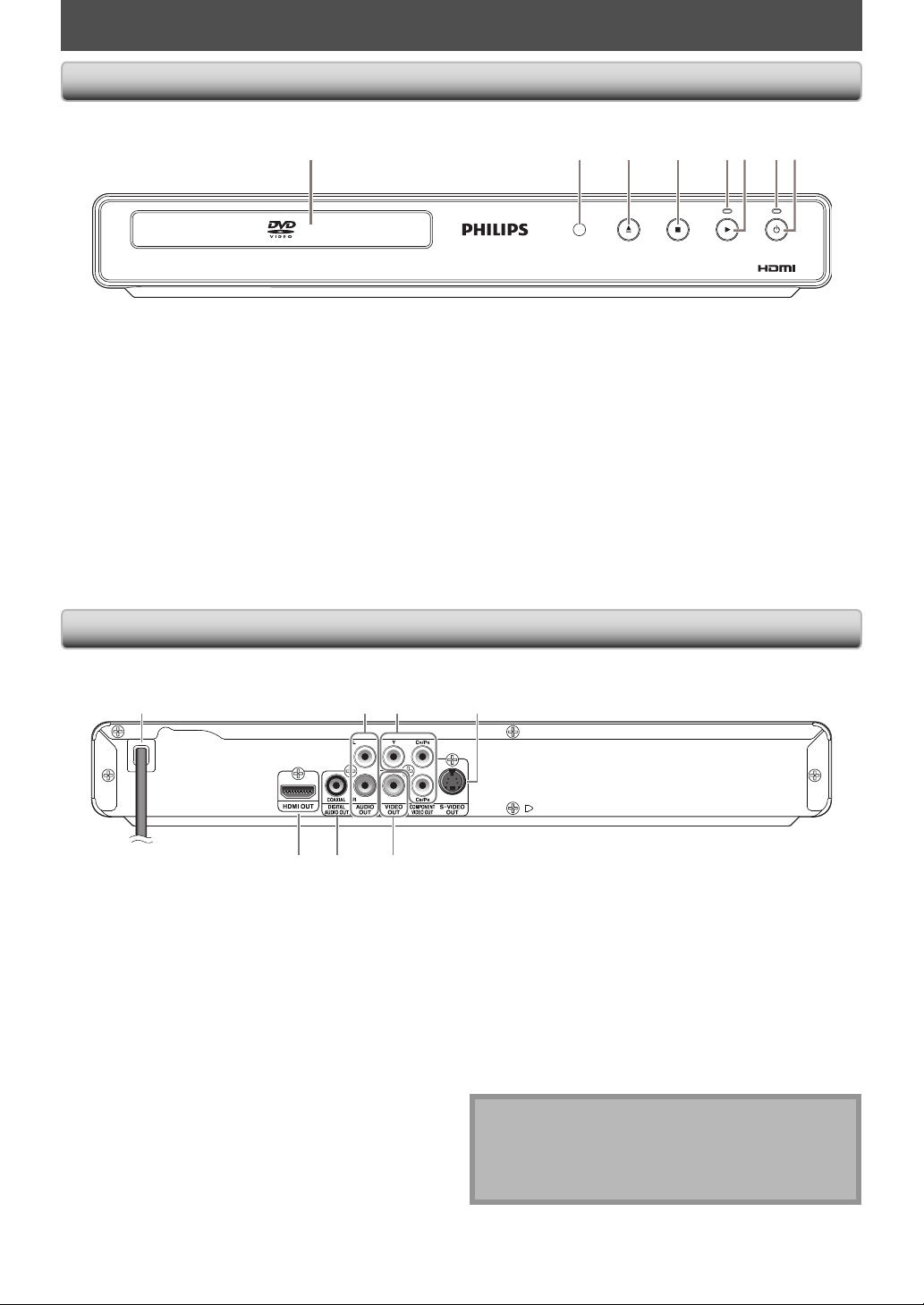
* The unit can also be turned on by pressing these buttons.
1. Disc tray
• Place a disc when opening the disc tray.
2. Infrared sensor window
• Receive signals from your remote control so that
you can control the unit from a distance.
3. A (open/close) button*
• Press to open or close the disc tray.
4. C (stop) button
• Press to stop playback.
5. Play indicator
• Lights up when the inserted disc is being played
back.
6. B (play) button
• Press to start or resume playback.
7. Standby-On indicator
• This indicator lights up in red when the unit is in
standby mode and turns off when the power is on.
8.
y
y(standby-on) button
• Press to turn on the unit, or to turn the unit to the
standby mode. (To completely shut down the unit,
you must unplug the AC power cord.)
• If timer programmings have been set, press to set
the unit in timer-standby mode.
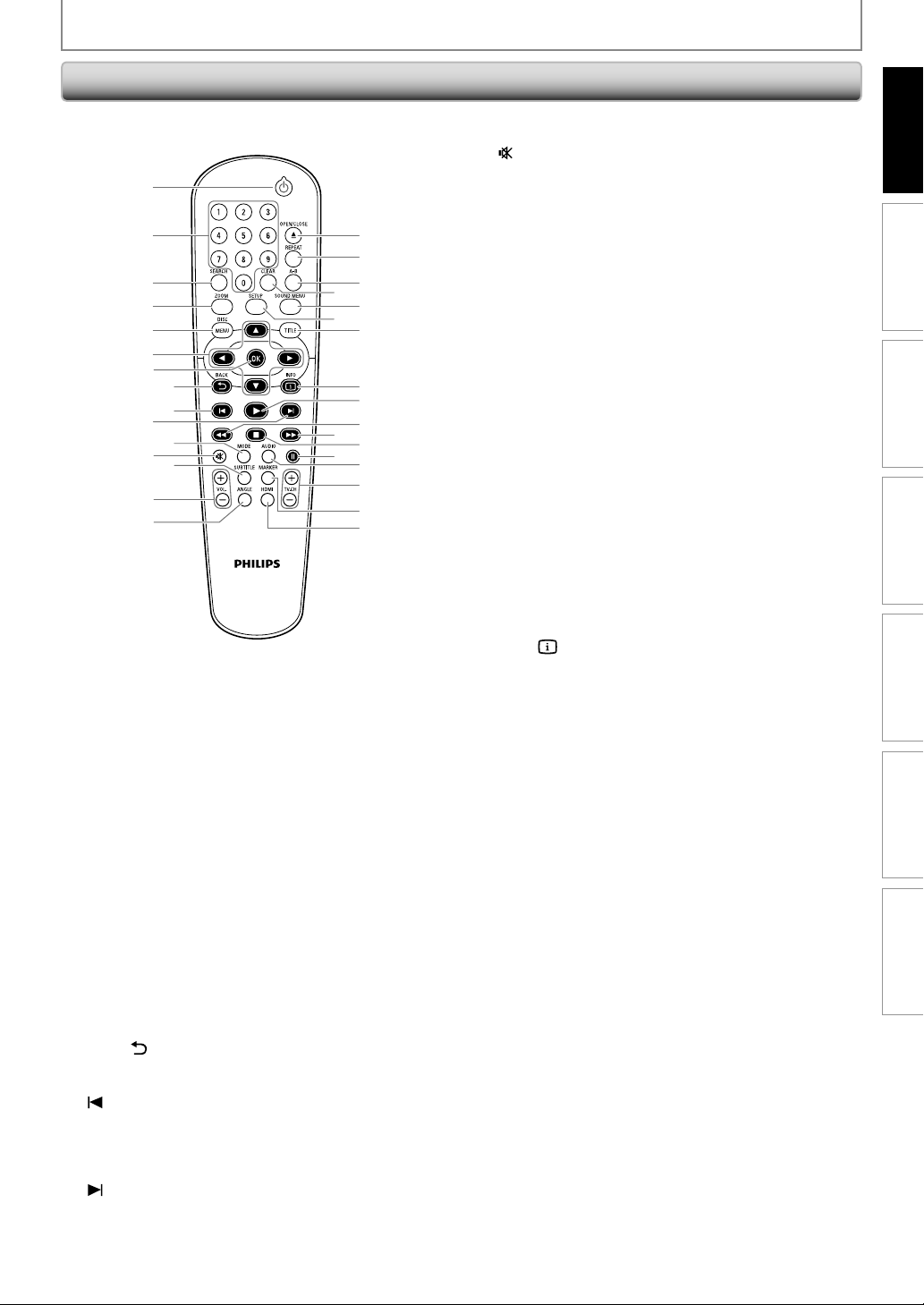
DVD PLAYER DVP3570
1 4 5 73*2 86
1. AC Power Cord
• Connect to a standard AC outlet to supply power to
this unit.
• Unplug this cord from the AC outlet to completely
shut down the unit.
2. AUDIO OUT jacks
• Use to connect a TV monitor, an AV receiver /
amplifier or other device with an audio cable.
3. COMPONENT VIDEO OUT jacks
• Use to connect a TV monitor with component video
inputs with a component video cable.
4. S-VIDEO OUT jack
• Use to connect the S-video input of a TV monitor,
AV receiver or other device with an S-video cable.
5. HDMI OUT jack
• Use to connect a TV with an HDMI compatible port
with an HDMI cable.
6. DIGITAL AUDIO OUT (COAXIAL) jack
• Use to connect an AV receiver / amplifier, Dolby
Digital decoder or other device with a digital audio
coaxial input jack with a digital audio coaxial cable.
7. VIDEO OUT jack
• Use to connect a TV monitor, an AV receiver /
amplifier or other device with a video cable.
Note
• Do not touch the inner pins of the jacks on the rear
panel. Electrostatic discharge may cause permanent
damage to the unit.
• This unit does not have the RF modulator.
321 4
5 6 7
Front Panel
Rear Panel
7EN
Playback Function Setup Others
Introduction
Connections Basic Setup
Español
FUNCTIONAL OVERVIEW
1
2
3
4
8
9
5
6
7
10
11
13
16
*
17
18
20
22
23
30
19
21
12
14
15
24
25
27
31
29
26
28
32
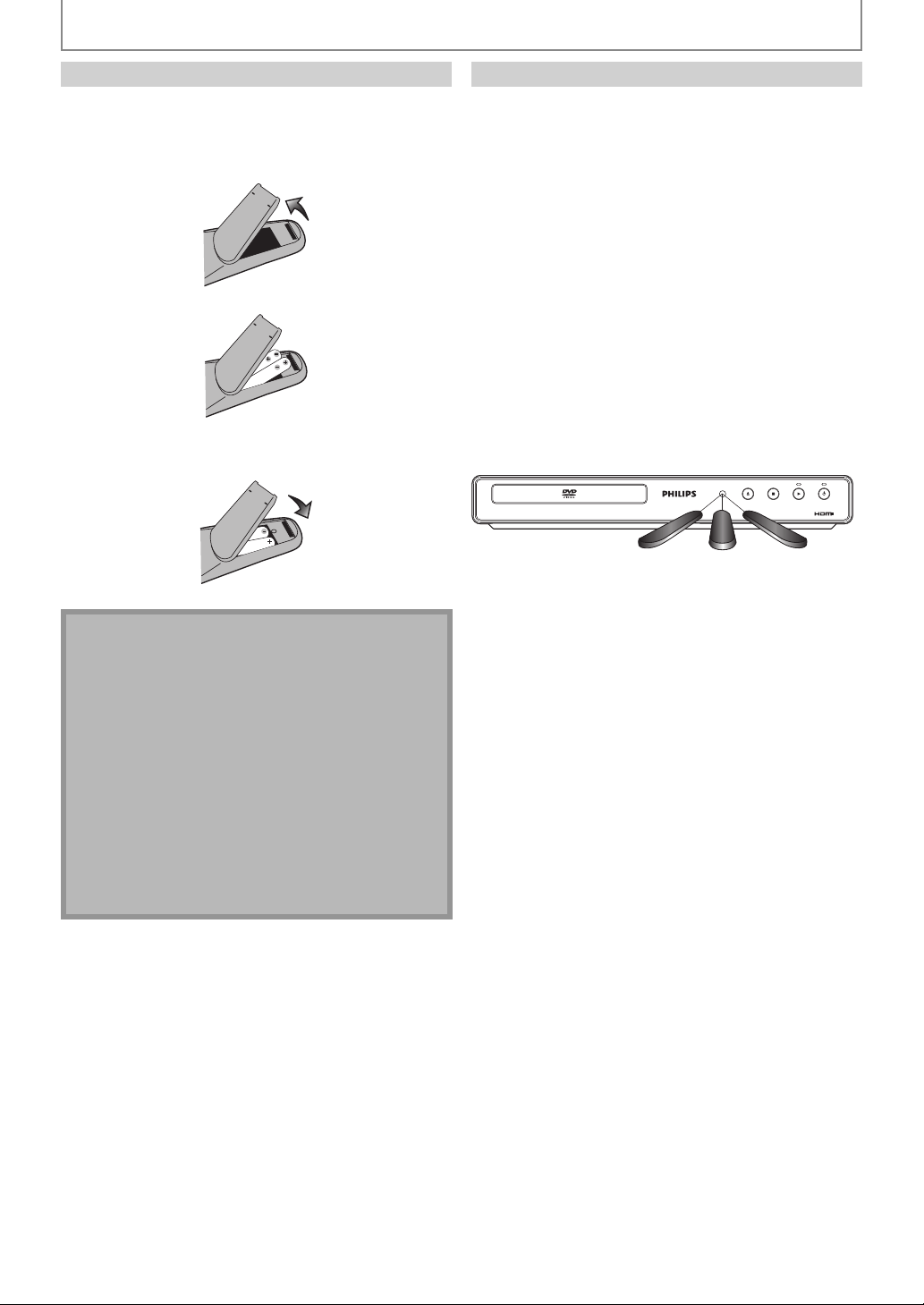
1.
y
y
(standby-on) button
• Press to turn on the unit, or to turn the unit to the
standby mode. (To completely shut down the unit,
you must unplug the AC power cord.)
• If timer programmings have been set, press to set
the unit in timer-standby mode.
2. Number buttons
• Press to select a chapter or title during playback.
• Press to enter values in the input field.
3. SEARCH button
• To search chapter, title or time.
• To search tracks, time or folders.
4. ZOOM button
• Press to enlarge the picture on the TV screen.
5. DISC MENU button
• Press to display the disc menu.
6. K / L / { / B buttons
• Press to select items or settings.
7. OK button
• Press to confirm or select menu items.
8. BACK
button
• Press to return to the previously displayed menu or
screen function.
9.
(previous) button
• During playback, press once to return to the
beginning of the current chapter, track or file.
• During playback, press twice to return to the
previous chapter, track or file.
10.
(next) button
• During playback, press to skip to the next chapter,
track or file.
11. MODE button
• To arrange the playing order or play randomly.
12.
(mute) button
• Press to mute the TV volume (only applicable to
the PHILIPS brand TV).
13. SUBTITLE button
• Press to select subtitles on a disc.
14. VOL. +/
-
button
• Press to adjust the TV volume (only applicable to
the PHILIPS brand TV).
15. ANGLE button
• Press to select camera angles on a disc.
16. OPEN/CLOSE A button*
• Press to open or close the disc tray.
17. REPEAT button
• Press to toggle between various repeat modes.
18. A-B button
• Press to play back a defined section between point
A and B repeatedly.
19. CLEAR button
• To remove status number in program input.
• To clear the numbers entered incorrectly.
• To clear the marker settings.
• To cancel the point for A-B repeat.
20. SOUND MENU button
• Press to select a sound mode.
21. SETUP button
• Press to display the setup menu.
22. TITLE button
• Press to display the title menu.
23. INFO
button
• Press to display the information display.
24. B (play) button
• Press to start playback or resume playback.
25. E (reverse) button
• During playback, press to fast reverse the playback.
• When playback is in pause mode, press to slow
reverse the playback.
26. D (forward) button
• During playback, press to fast forward the
playback.
• When playback is in pause mode, press to slow
forward the playback.
27. C (stop) button
• Press to stop playback.
28. F (pause) button
• Press to pause playback.
• When playback is in pause mode, press repeatedly
to forward the playback step by step.
29. AUDIO button
• Press to select the audio channel (such as audio
languages) on a disc.
• To select “STEREO”, “L-ch” or “R-ch”.
30. TV. CH +/
-
button
• Press to change the channel up and down (only
applicable to the PHILIPS brand TV).
31. MARKER button
• During playback, press to display the marker setting.
32. HDMI button
• Press to set the HDMI output mode.
* The unit can also be turned on by pressing these buttons.
Remote Control
8EN
FUNCTIONAL OVERVIEW
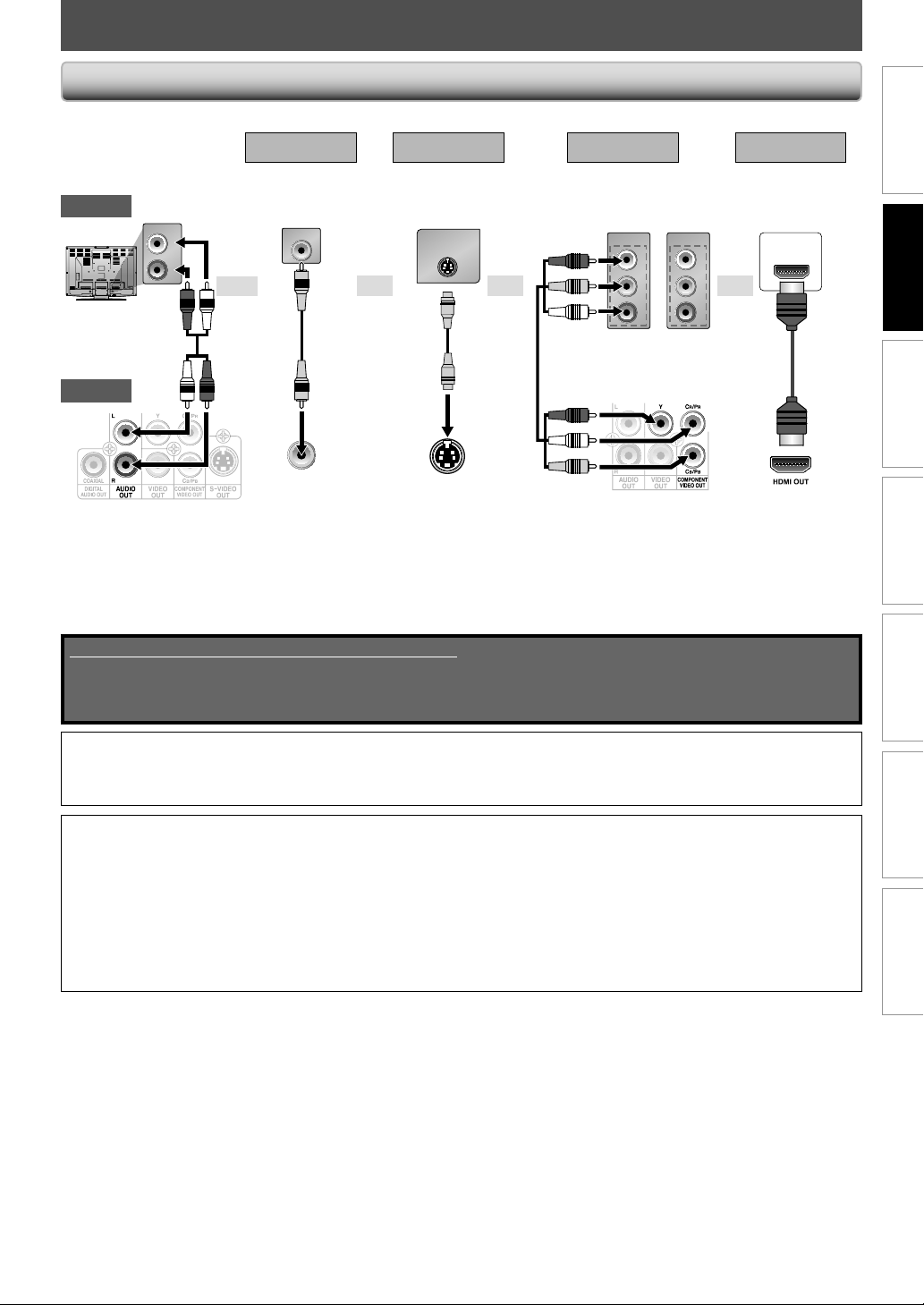
Install the 2 AA (1.5 V) batteries matching the polarity
indicated inside battery compartment of the remote
control.
1) Open the cover.
2) Insert batteries.
Make sure to match + and - on the batteries to the
marks indicated in the battery compartment.
3) Close the cover.
Note
Incorrect use of batteries can result in hazards such as
leakage and bursting. Please observe the following:
• Do not mix new and old batteries together.
• Do not use different kinds of batteries together.
Although they may look similar, different batteries
may have different voltages.
• Make sure that the + and - ends of each battery
match the indications in the battery compartment.
• Remove batteries from battery compartment that is
not going to be used for a month or more.
• When disposing of used batteries, please comply
with governmental regulations or environmental
public instruction’s rules that apply in your country
or area.
• Do not recharge, short-circuit, heat, burn or
disassemble batteries.
Installing the Batteries in the Remote Control Using a Remote Control
Keep in mind the following when using the remote
control:
• Make sure that there are no obstacles between the
remote control and the infrared sensor window on the
unit.
• Remote operation may become unreliable if strong
sunlight or fluorescent light is shining on the infrared
sensor window of the unit.
• Remote control for different devices can interfere with
each other. Avoid using remote control for other device
located close to the unit.
• Replace the batteries when you notice a fall off in the
operating range of the remote control.
• The maximum operable ranges from the unit are as
follows.
- Line of sight: approx. 23 feet (7m)
- Either side of the center:
- approx. 16 feet (5m) within 30°
- Above: approx. 16 feet (5m) within 15°
- Below: approx. 10 feet (3m) within 30°
DVD PLAYER DVP3570
30˚ 30˚
16 feet (5m)
23 feet (7m) 16 feet (5m)
9EN
Playback Function Setup OthersIntroduction
Connections
Basic Setup
Español
CONNECTIONS
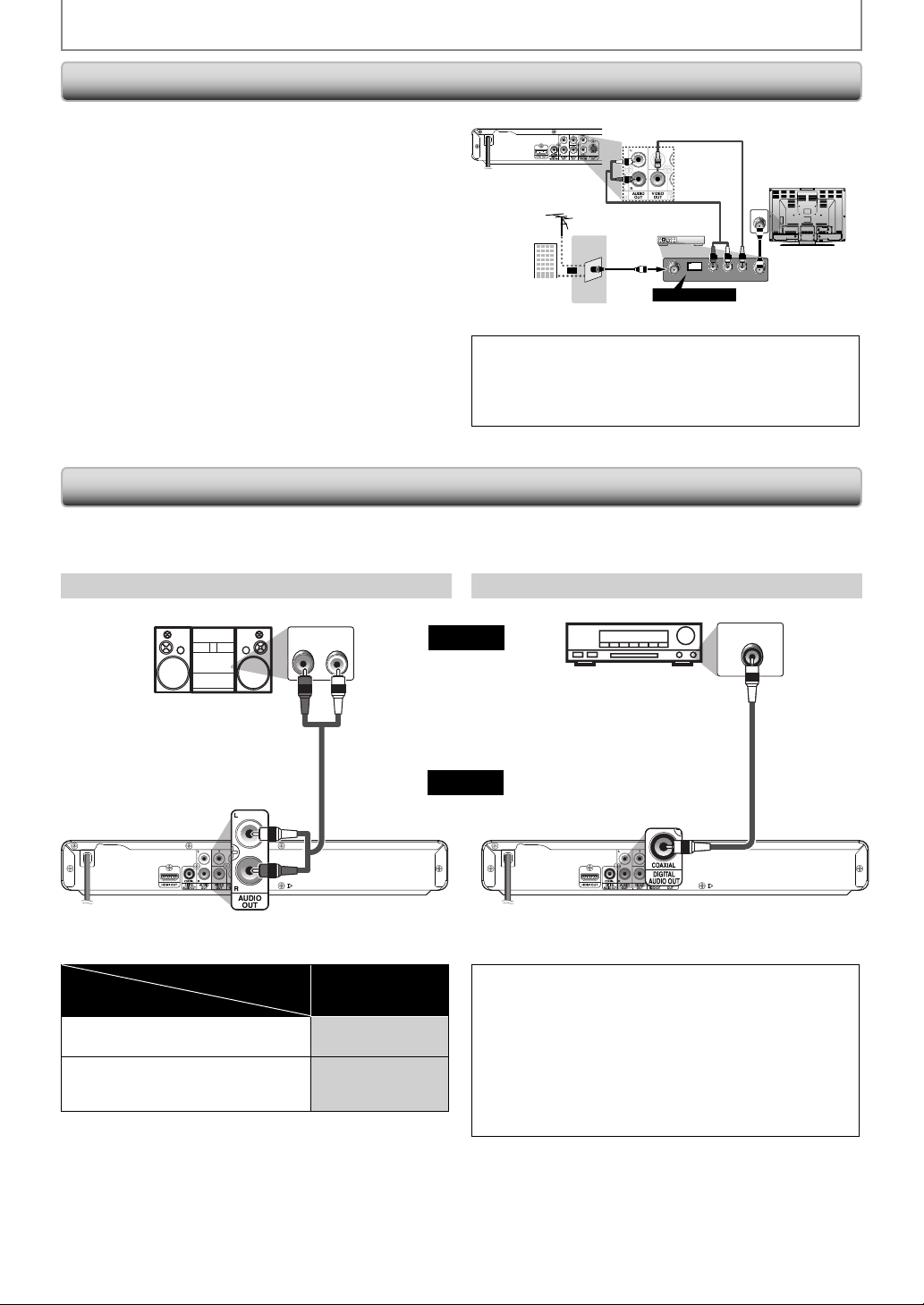
Supplied cables used in this connection are as follows:
• audio cable (L/R) x 1
• video cable x 1
Please purchase the rest of the necessary cables at your local store.
Note:
• Connect this unit directly to your TV. If audio / video cables are connected to a VCR, pictures may be distorted due to the copy protec-
tion system.
• Changing “ Progressive Scan ” setting is not available while HDMI cable is connected.
If your TV is compatible with 525 (480) progressive scanning and you want to enjoy that high quality
picture;
You must select the connection COMPONENT VIDEO OUT above and progressive scanning mode. To set the mode, set “Progressive
Scan” to “On” in “Video” menu. Refer to page 23 for more details.
• When “Progressive Scan” is “On”, video signals from the unit’s VIDEO OUT and S-VIDEO OUT jacks will be distorted or not be output
at all.
If your TV is not compatible with progressive scanning;
Use this unit in interlace mode and set “Progressive Scan” to “Off” in “Video” menu or by pressing and holding [B (play)] on the
front of the unit for more than 5 seconds.
• Make one of the following connections, depending on the capabilities of your existing device.
Method 1 Method 2 Method 3*
1
Method 4*
2
analog audio standard picture good picture better picture best audio /
picture
AUDIO IN
L
R
VIDEO IN
VIDEO
OUT
S-VIDEO IN
S-VIDEO
OUT
COMPONENT
VIDEO IN
COMPONENT
VIDEO IN
or
P
R
Y
P
B
C
R
Y
C
B
HDMI IN
AUDIO OUT VIDEO OUT S-VIDEO OUT
COMPONENT
VIDEO OUT
HDMI OUT
*
1
This unit is compatible with the progressive scan system. The feature provides you with the higher quality pictures than traditional
output system does. To utilize this feature, a component connection is required. Refer to “HDMI Video” or “ Progressive Scan ” setting
on pages 21-22 to set the video resolution.
*
2
Analog audio connection is not required for this connection.
oror
and
video
cable
audio
cable
S-video
cable
component
video cable
This unit
TV
or
HDMI
cable
Connection to the TV
10 EN
CONNECTIONS
• When you change the connections, all devices should be turned off.
• Refer to the manual accompanying external devices for more information.
AUDIO IN
LR
COAXIAL
DIGITAL AUDIO INPUT
stereo system
2 Channel Analog Audio Connection Digital Audio Connection
AV receiver/amplifier
analog audio
input jacks
audio cable
AUDIO OUT DIGITAL AUDIO OUT (COAXIAL)
digital audio coaxial input
jack
digital audio coaxial cable
audio
this unit
Connection to an Audio System
If your TV has antenna in jack only, it is still possible to
connect this unit to your TV by using an RF modulator. In
this case, follow the instructions below.
1) Disconnect the power cords of the devices from the
AC outlet.
2) Make the connection as illustrated below.
3) Set your RF modulator’s channel 3/4 switch to
either 3 or 4, whichever the TV channel is least used in
your area. If your RF modulator has a
modulator / antenna switch, set it according to the
manual supplied with the RF modulator.
4)
Plug in the power cords of the devices to the AC outlet.
5) Turn on your TV and choose the same channel as
you set the RF modulator’s channel 3/4 switch to.
For more details, follow the manual supplied with the
RF modulator.
rear of TV
rear of your RF
modulator
AUDIO IN TO TVANT. IN
LR
CHANNEL
43
VIDEO IN
ANT. IN
Set channel 3 or 4
rear of this unit
RF coaxial cable
RF coaxial
cable
VHF / UHF
antenna
cable TV
company
or
video cable
audio cable
Note:
• RF modulator is not supplied with this unit. You need to
purchase it at your local store.
• The quality of picture may become poor if this unit is
connected to an RF modulator.
Connecting to RF Modulator (Not Supplied)
Note:
• The audio source on a disc in a Dolby Digital multi-channel
surround format cannot be recorded as digital sound by an
MD or DAT deck.
• By hooking this unit up to a Dolby Digital decoder, you can
enjoy high-quality Dolby Digital multi-channel surround
sound as heard in the movie theaters.
• Playing back a DVD using incorrect settings may generate
noise distortion and may also damage the speakers.
• “Digital Out” setting is not available while HDMI audio is
output.
* To complete these settings, refer to pages 22.
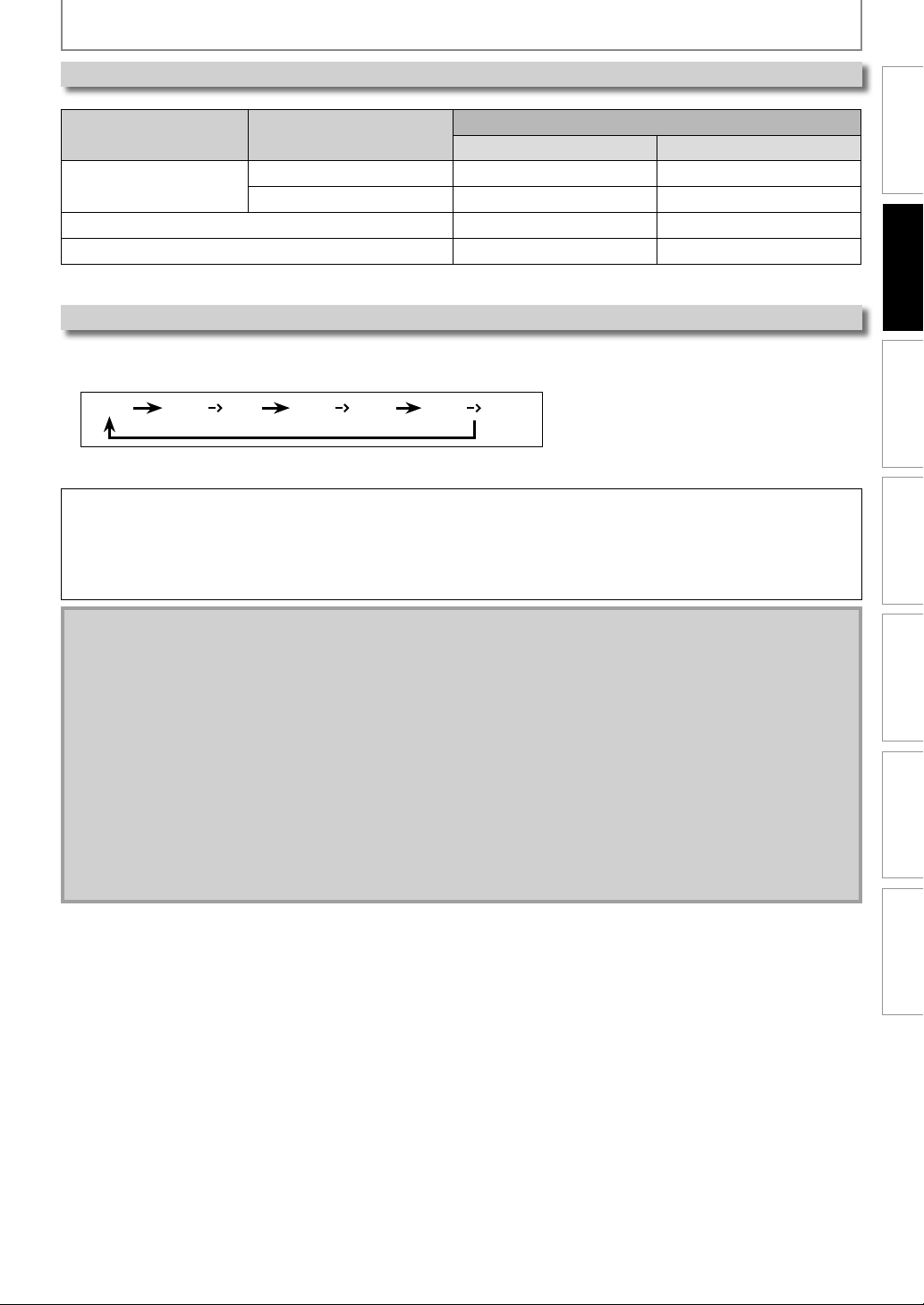
Setup > Audio>
Digital Out
Connecting to a Dolby Digital decoder
for Dolby Digital audio output.
Bitstream
Connecting to the other device
(an MD deck or DAT deck etc.)
without Dolby Digital decoder.
LPCM
Connection
Setting
11EN
Playback Function Setup OthersIntroduction
Connections
Basic Setup
Español
CONNECTIONS
HDMI Audio
HDMI Mode and Actual Output Signals
Media Audio Recording Format
HDMI Audio Setting
Bistream LPCM
DVD-Video
Dolby Digital Dolby Digital Multi PCM
LPCM Multi PCM Multi PCM
audio CD 2ch PCM 2ch PCM
MP3 2ch PCM 2ch PCM
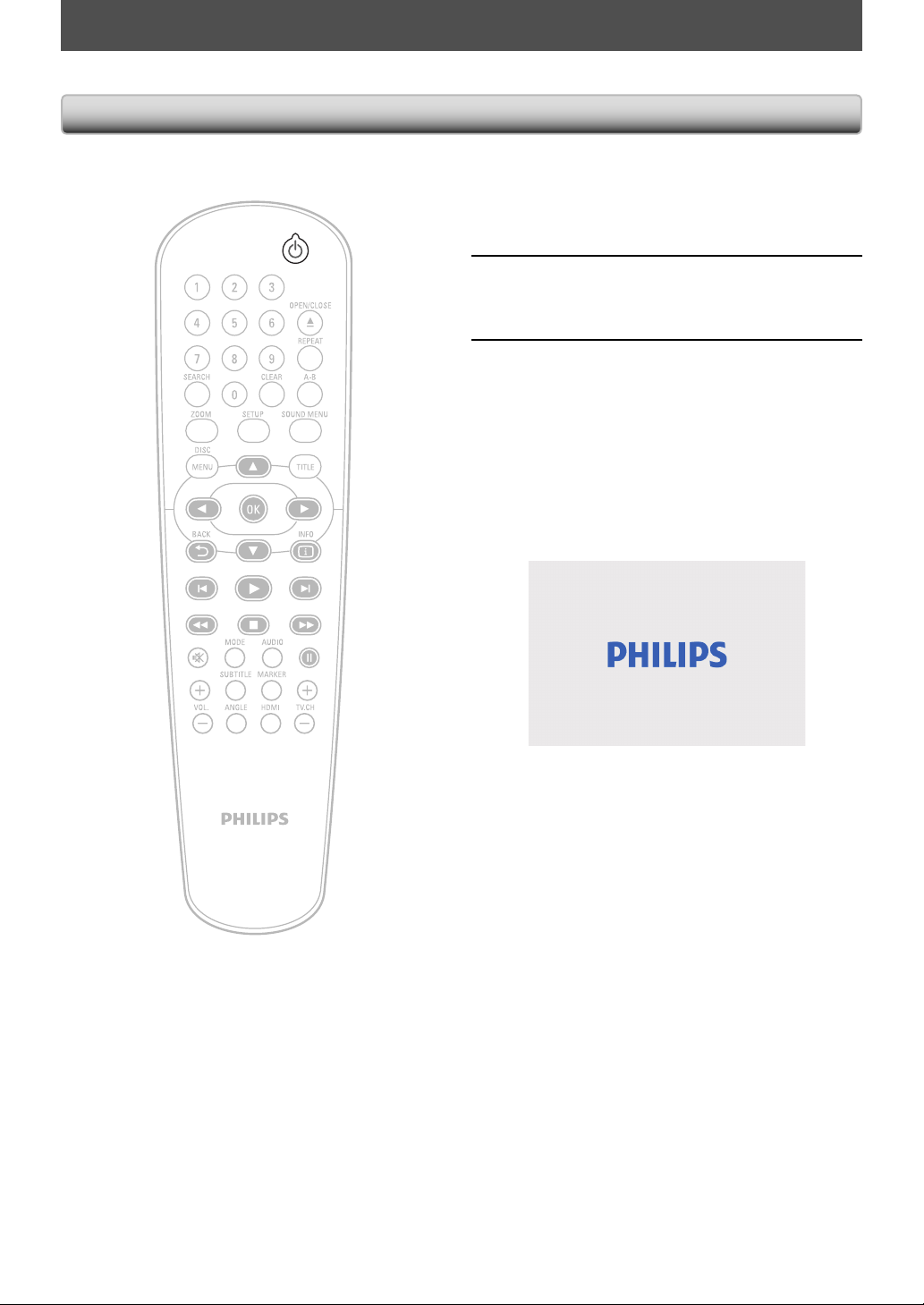
Press [HDMI] to change the resolution of the video signal being output from HDMI OUT jack. The video resolution
changes as follows every time [HDMI] is pressed. Or change the setting in the “HDMI Video” in the settings menu.
480p 480p
720p 480p
1080i 480p
1080p
e.g.) when 480p is selected as an default.
Copyright protection system
To play back the digital video images of DVD-video via an HDMI connection, it is necessary that both the
player and the display device (or an AV receiver / amplifier) support a copyright protection system called HDCP
(highbandwidth digital content protection system). HDCP is copy protection technology that comprises data encryption
and authentication of the connected AV device. This unit supports HDCP. Please read the operating instructions of your
display device (or AV receiver / amplifier) for more information.
Note:
• When using HDCP-incompatible display device, the picture will not be viewed properly.
• The audio signals from the HDMI jack (including the sampling frequency, the number of channels and bit length)
may be limited by the device that is connected.
• Among the display device(s) that support HDMI, some do not support audio output (for example, projectors). In
connections with device such as this unit, audio signals are not output from HDMI OUT jack.
• When this unit’s HDMI jack is connected to a DVI-D compatible display device(s) (HDCP compatible) with an HDMIDVI
converter cable, the signals are output in digital RGB.
• Pressing [HDMI] does not work when HDMI cable is not connected, or when no video signal is being output from
HDMI OUT jack.
• Pressing [HDMI] does not work when a DVI compatible display devices is connected. Change the video resolution in
the “HDMI Video” in the settings menu.
• When you make a selection, the TV monitor temporarily goes blank and then comes back again. If it does not, press
[HDMI] repeatedly to change the resolution or press and hold [B (play)] on the front panel for 5 seconds to
change the setting back to its default.
12 EN
BEFORE YOU START
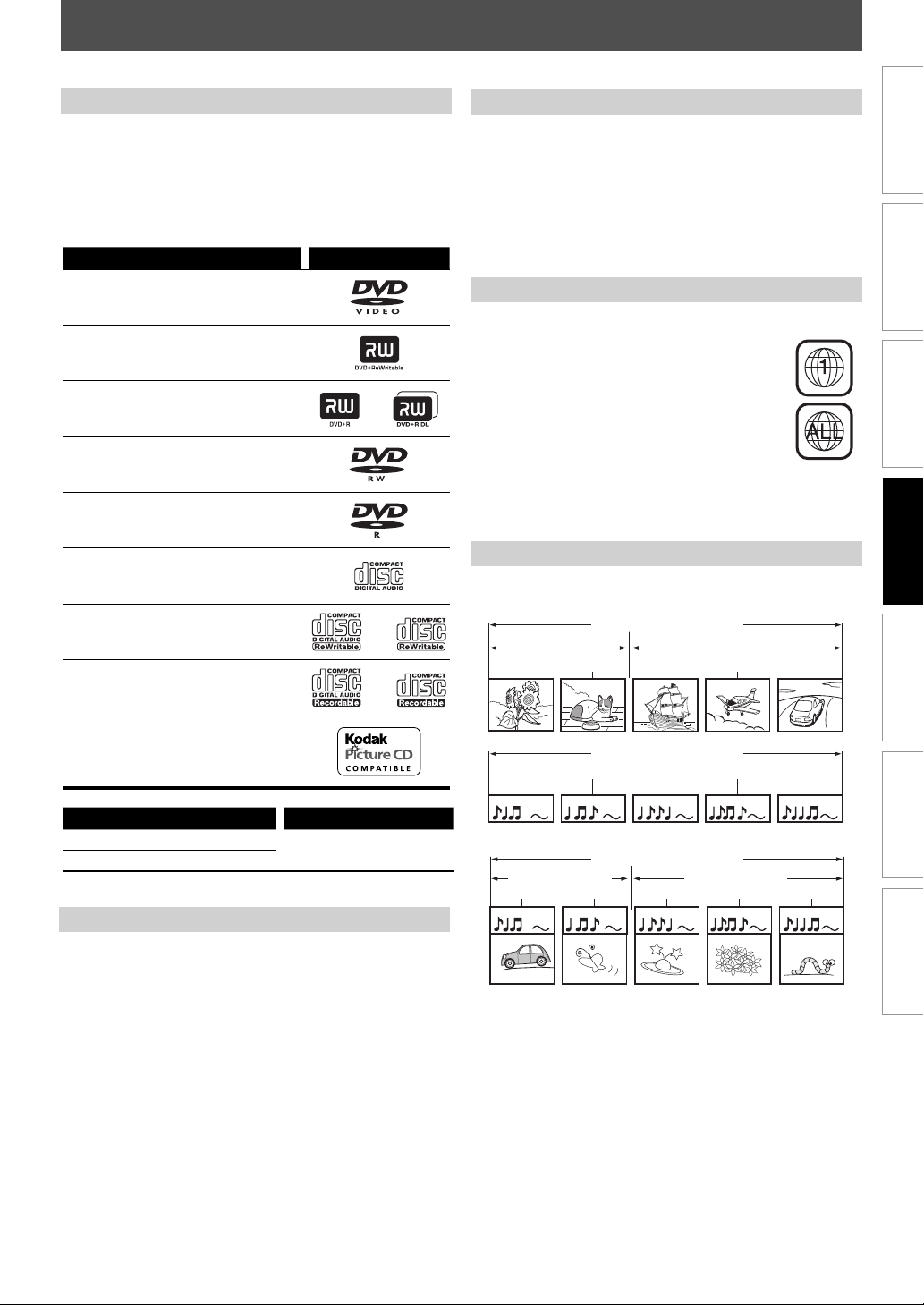
After you have completed all the connections, you must find the viewing channel (external input channel) on your TV.
1
After you have made all the
necessary connections, press
[
y
y
(standby-on)] to turn on the unit.
2
Turn on your TV.
3
Press the button on the TV’s remote
control that accesses the external
input channel. It may be labeled
“SOURCE”, “AV” or “SELECT” (refer to
your TV’s user manual). Or press “2”
on the TV’s remote control, then
press channel down button
repeatedly until you see the opening
screen.
This is the correct viewing channel (external
input channel).
Finding the Viewing Channel on Your TV
13EN
Connections
Playback
Function Setup OthersIntroduction Basic Setup
Español
INFORMATION ON PLAYBACK
Before you start playing back a disc, read the following information.
This unit is compatible to play back the following discs.
To play back a disc, make sure that it meets the
requirements for region codes and color systems as
described below. You can play back discs that have the
following logos. Other disc types are not guaranteed to
play back.
Playable discs Logos
DVD-video
DVD+RW(Single layer)
DVD+R(Single/Double layer)
DVD-RW(Single layer)
(Finalized video mode discs only)
DVD-R(Single/Double layer)
(Finalized video mode discs only)
CD-DA (audio CD)
CD-RW
CD-R
Kodak Picture CD
Playable files Media
MP3
DVD, CD-RW/-R
JPEG
Playable Discs and Files
This unit has been designed to play back
DVD-video with region “1” or “ALL“. You
cannot play back DVD-video that are labeled
for other regions. Look for the symbols on
the right on your DVD-video. If these region
symbols do not appear on your DVD-video,
you cannot play back the disc in this unit.
The number inside the globe refers to
region of the world. A DVD-video labeled for
a specific region can only play back on the
unit with the same region code.
Color Systems
DVD-video are recorded in different color systems
throughout the world. The most common color system
is NTSC (which is used primarily in the United States and
Canada).
This unit employs NTSC color system, so the disc you play
back must be recorded in the NTSC system. You cannot
play back the disc recorded in other color systems.
The following discs will not play back on this unit.
• CD-ROM • Compact Disc-Interactive (CD-I)
• DVD-RAM • Video Single Disc (VSD)
• DVD-ROM • DVD audio
• HD DVD • Unfinalized disc
• Blu-ray Disc • DTS-CD
• DVD-R or DVD-RW recorded in VR mode or non
compatible recording format.
• Super audio CD - Only the sound on the CD layer can
be heard. The sound on the high-density super audio
CD layer cannot be heard.
Unplayable Discs
Region Codes
DVD-video
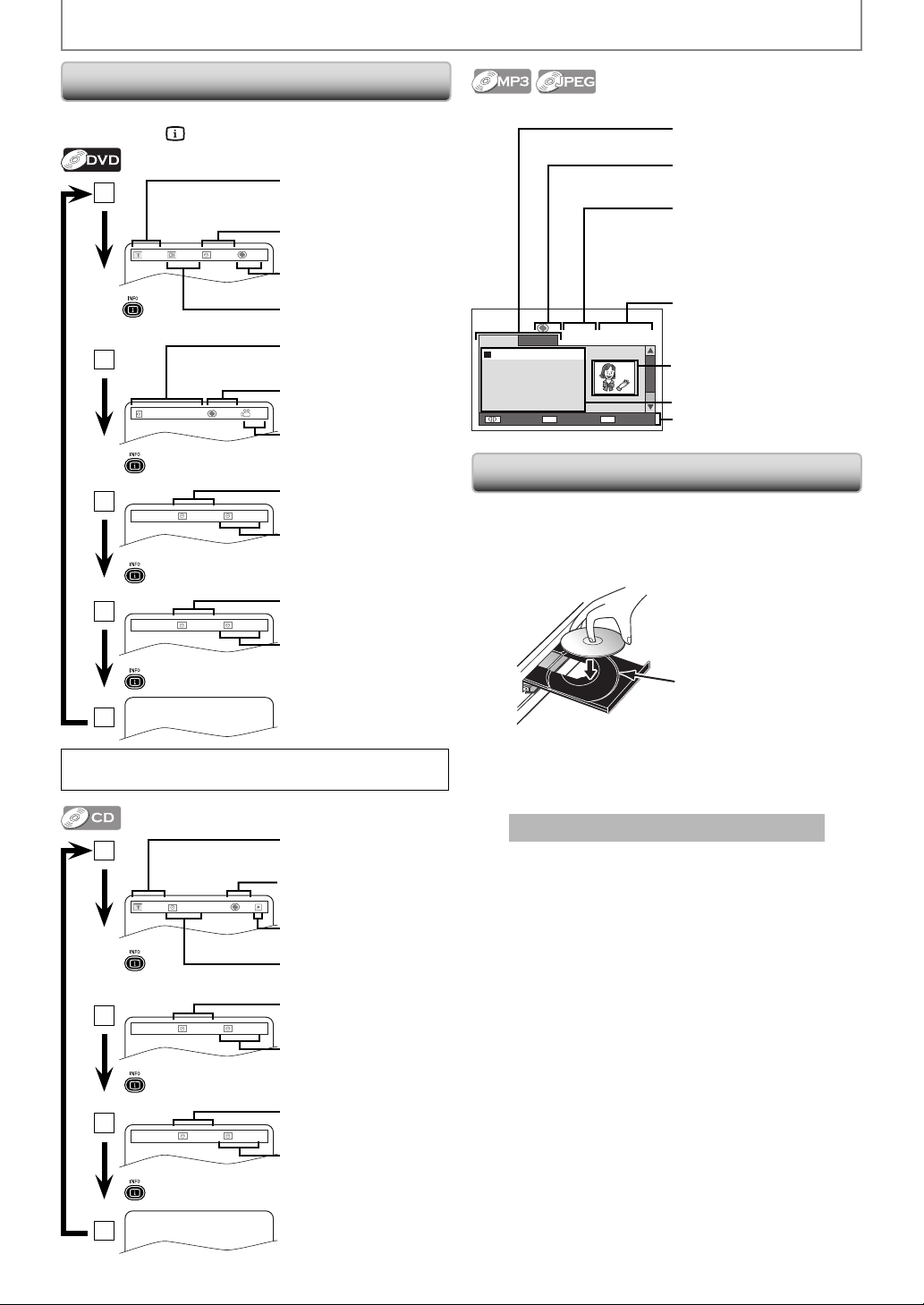
The contents of disc are generally divided into sections or
folders (groups of titles/files) as shown below.
Hint for Disc Playback
DVD-video
title 1 title 2
chapter 1 chapter 2 chapter 1 chapter 2 chapter 3
Audio CD
track 1 track 2 track 3 track 4 track 5
MP3 / JPEG
folder(group) 1 folder(group) 2
file 1 file 2 file 1 file 2 file 3
14 EN
INFORMATION ON PLAYBACK
1
current repeat mode
(Off / Title / Chapter / A-B)
T(Title):
current title number / total
titles
02 /10 001/033 00:05:51
Off
current chapter number /
total chapters
elapsed time of the current
time
2
1/3 Dolby D 3/2.1CH ENG
Of f 1/3
current subtitle
angle information
current audio
3
Chapter:
00:01:03 00:01:18
elapsed time of current
chapter
remaining time of current
chapter
4
Title:
00:01:11 02:09:06
elapsed time of current title
remaining time of current
title
5
Note:
•
Some DVD will not allow you to set chapter playback correctly.
1
T(Track):
current track number / total
track
02 /14 00:00:13
Off
elapsed time of the current
time
current repeat mode
(Off / All / Track / A-B)
current play mode
(Program / Random)
2
Tr ac k :
00:00:21 00:03:19
elapsed time of current
track
remaining time of current
track
3
All:
00:00:25 00:40:15
elapsed time of Disc
remaining time of Disc
4
• Only in stop mode for JPEG.
00:00:12/00:03:23
All
Audio
Audio
Audio Picture
1. folder1
2. folder2
3. folder3
4. folder4
5. folder5
6. folder6
Change Folder
BACK MODE
Program
0001/0008
playback media tab
Audio (MP3) / Picture (JPEG)
elapsed time of the
current file / total time of
current file (while MP3 file list
is displayed only)
thumbnail (while JPEG file
list is displayed only)
file list / folder list
operation guide
displaying folder list:
current folder number /
total folders
displaying file list:
current file number / total
files in the current folder
current repeat mode
(All / Folder / File / Off /
A-B (MP3))
You can check the information about the current disc by
pressing [INFO
].
1) Press [OPEN/CLOSE A] to open the disc tray.
2) Place the disc on the disc tray with its label side
facing up.
* Make sure the disc is compatible with this unit. (Refer to page 13 for the
list of compatible discs.)
3) Press [OPEN/CLOSE A] to close the disc tray.
It may take a while to load the disc.
To eject the disc:
Press [OPEN/CLOSE A] to open the disc tray.
Remove the disc.
Press [OPEN/CLOSE A] to close the disc tray.
Align the disc to the
disc tray guide.
On Screen Display
How to Insert a Disc
15EN
Connections
Playback
Function Setup OthersIntroduction Basic Setup
Español
BASIC PLAYBACK
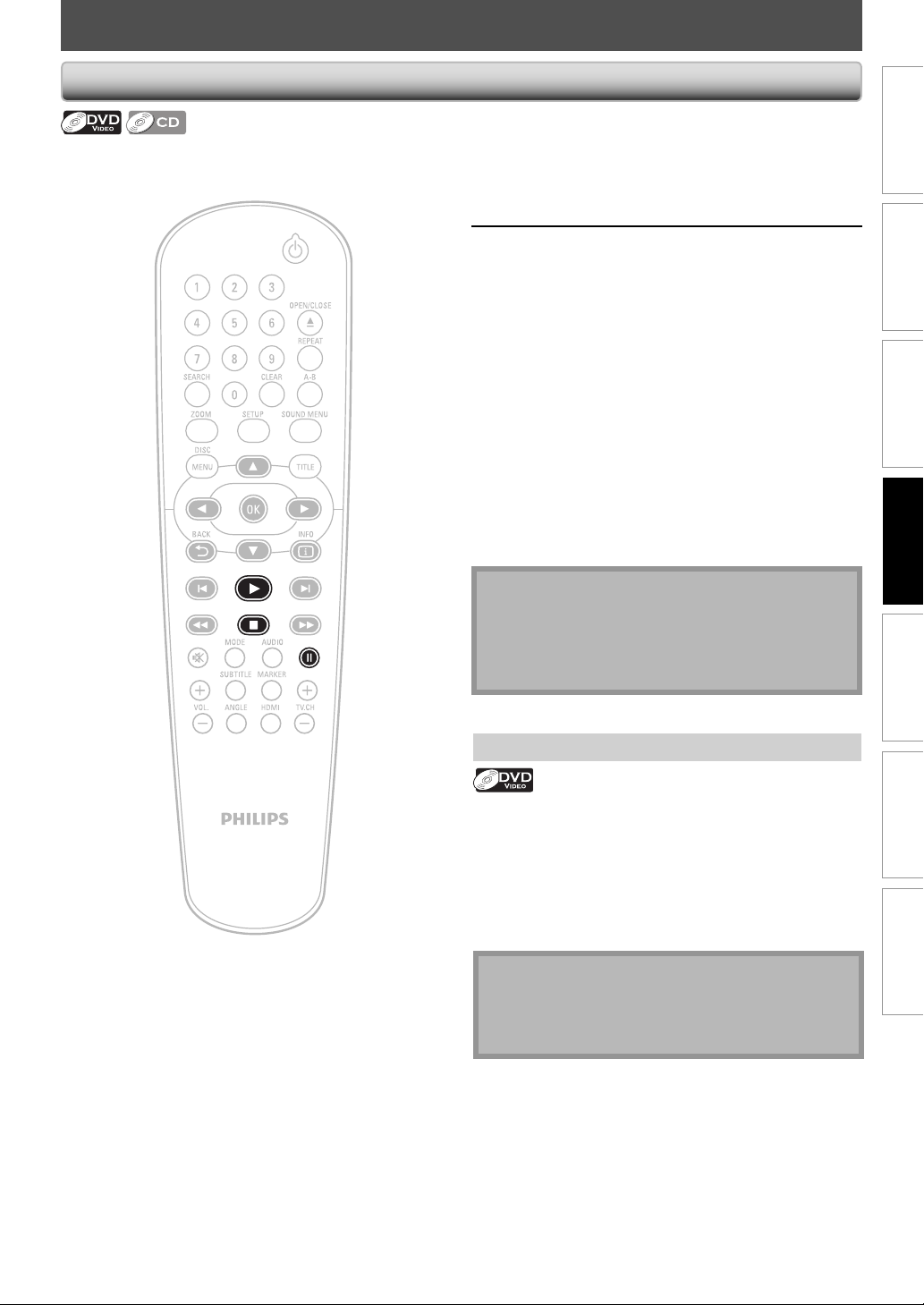
1
Insert a disc (refer to page 14 on how
to insert a disc).
2
Playback may start automatically.
If not, press [B (play)].
Some discs may show a title or a disc menu. In
such case, refer to “Using the Title / Disc Menu”
on page 15.
To pause playback:
Press [F (pause)].
To return to the normal playback:
Press [B (play)].
To stop playback:
Press [C (stop)].
Playback will be in Resume-On-Stop mode.
<Resume-On-Stop mode>
When you press [B (play)] next time, the
playback will start from the point where it has
been stopped.
Note
• Resume-On-Stop mode remains in effect even after
power is turned off, but will be canceled once the
disc is ejected.
• To cancel resume, press [C (stop)] one more time in
the resume-On-Stop mode.
Using the Title / Disc Menu
Some DVD-video may contain a title menu (DVD) which
describes the contents of the disc which guides you
through the available functions in the disc.
With such discs, a title menu or a disc menu may appear
automatically when you insert the disc. Otherwise, press
[TITLE] or [DISC MENU] to call up the menu. Refer to the
disc’s manual on how to navigate through the menu.
Note
• Menus vary among discs. Refer to the information
accompanying the disc for details.
• [TITLE] or [DISC MENU] may not work with some
discs.
Playing Back a DVD or an Audio CD
16 EN
BASIC PLAYBACK
MP3 / JPEG is a method of compressing files. You can copy
MP3 / JPEG files on DVD or CD-RW/-R from the computer and
play back the files on this unit.
1
Insert a disc (refer to page 14 on how
to insert a disc). Playback will
automatically start from the first file
of the folder or files.
• File list will automatically appear.
• For a disc with MP3 or JPEG files only, all repeat
playback will start automatically.
2
Select the desired folder or file.
e.g.) JPEG
Audio
1. photo
_
01.jpg
2. photo
_
02.jpg
3. photo
_
03.Sjpg
4. photo
_
04.jpg
5. photo
_
05.jpg
6. photo
_
06.jpg
All
Change Folder Program
0001/0068
Picture
BACK
MODE
3
Press [OK] or [B (play)]. Playback of
the selected file will be start.
Note
• Some selections may take a while to be recognized.
• Refer to “On Screen Display” on page 14 for more
details.
• If you record data over 20 times, it may not be played
back correctly.
• For a disc with JPEG files only, the file list will appear
while in stop mode.
• A maximum of 498 folders or 4000 files may be
recognized on one disc.
• Up to 8 hierarchies can be recognized in one folder.
File in the 9th or deeper hierarchies cannot be played
back.
• To rotate the picture, press cursors during playback
JPEG files.
How to Navigate through the Track/File List
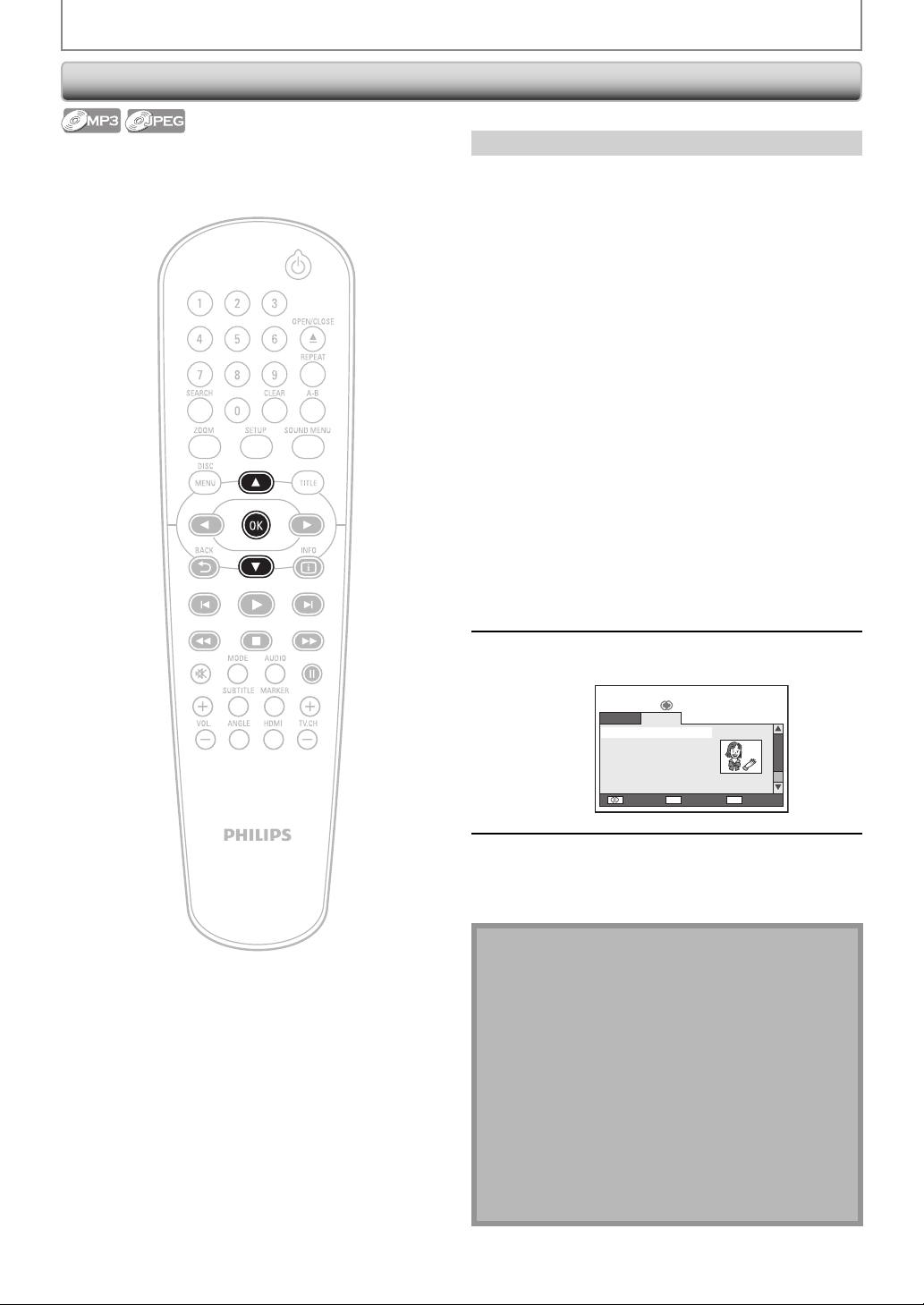
• Use [K / L] to move the highlight up and down in the list.
Recommended specifications:
<MP3>
• Sampling frequency : 44.1 kHz or 48 kHz.
• Constant bit rate : 32 kbps - 320 kbps.
For MP3 file recorded in VBR (variable bit rate), the unit
may not display the actual elapsed time.
<JPEG>
• Upper limit : 6,300 x 5,100
• Pixel lower limit : 32 x 32 pixel
• File size : Max. 7 MB
A JPEG image that extends beyond the TV screen is
reduced so that it will be displayed within the TV screen.
Playing Back a Disc with MP3 / JPEG Files
17EN
Connections
Playback
Function Setup OthersIntroduction Basic Setup
Español
SPECIAL PLAYBACK
1) During playback, press [D (forward)] repeatedly
for fast forward.
During playback, press [E (reverse)] repeatedly
for fast reverse.
Every time you press [D (forward)] or [E (reverse)],
the playback speed will change.
• For DVD, speed changes in 5 different levels.
2) Press [B (play)] to return to the normal playback.
1) During playback, press [F (pause)]. Then press
[D (forward)] or [E (reverse)].
Every time you press [D (forward)] or [E (reverse)],
playback speed changes in 5 different levels.
2) Press [B (play)] to return to the normal playback.
Step by Step Playback
1) In pause mode, press [F (pause)] repeatedly.
Every time you press [F (pause)], playback will
advance one step at a time.
2) Press [B (play)] to return to the normal playback.
Note
• Only step by step forward is available.
Zoom
During playback, you can zoom up the picture.
1) During playback, press [ZOOM] repeatedly.
Every time you press [ZOOM], Zoom factor will change.
x
2
2) You can move over the zoomed picture using
[K / L / { / B].
To exit zoom function, press [ZOOM] repeatedly to
select “off.”
Note
• For some DVD, 4x zoom is not available.
• [ZOOM] does not work while DVD menu is displayed.
• Some part of the picture may not be zoomed
depending on the disc or playback status.
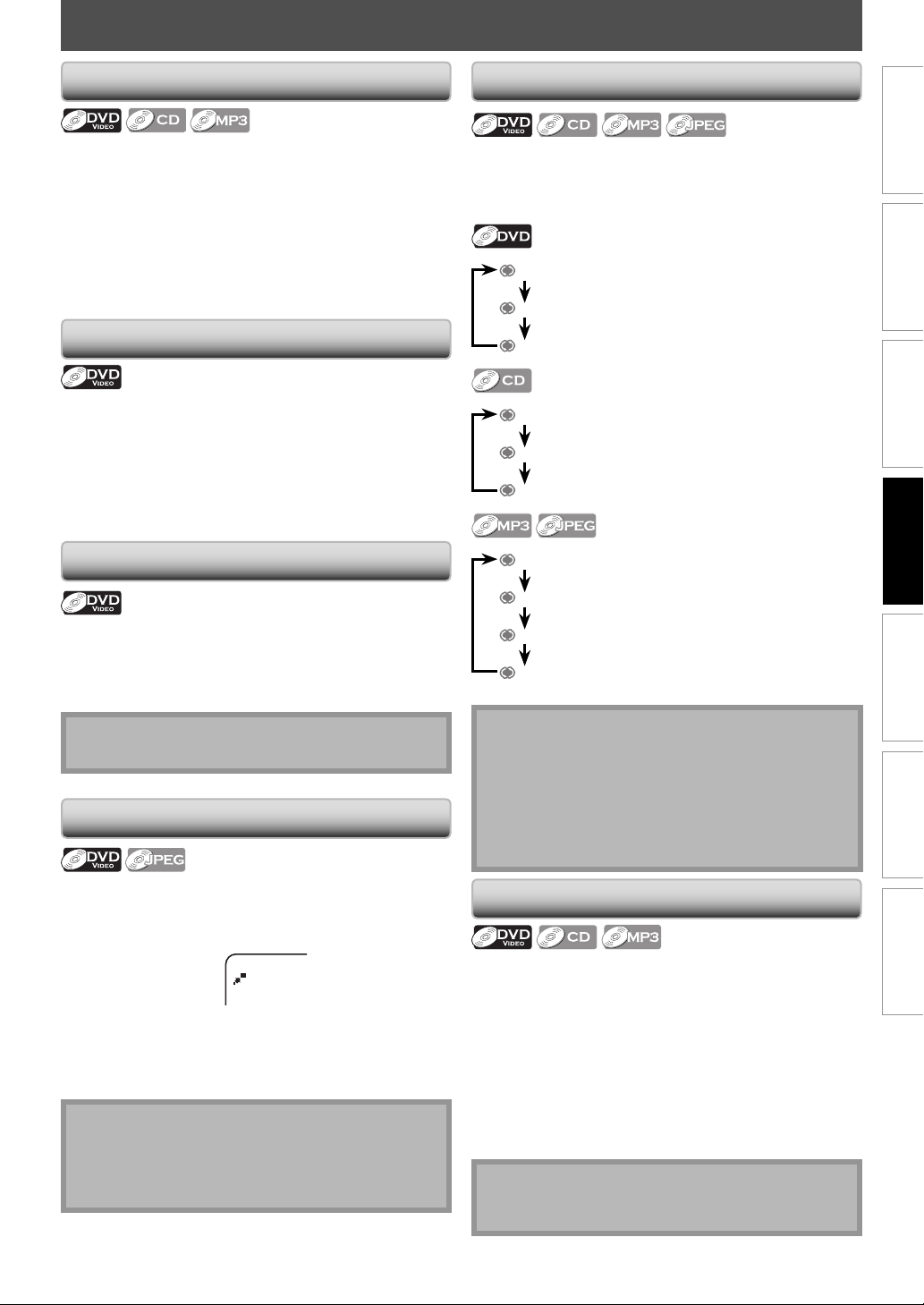
Available repeat function varies depending the discs.
1) During playback, press [REPEAT] repeatedly to
select the desired repeat function.
Off
Title
Chapter
(repeat off)
(current title repeat)
(current chapter repeat)
Off
All
Track
(repeat off)
(entire disc repeat)
(current track repeat)
All
Folder
File
Off
(entire disc repeat)
(current folder repeat)
(current file repeat)
(repeat off)
Note
• Repeat setting (except “All”) will be cleared when
moving to another title or chapter (only for DVD and
CD).
• To clear the repeat setting for MP3 and JPEG files, set
the repeat setting to “Off”.
• This function is not available with some discs or
during repeat A-B playback.
A-B Repeat
A-B repeat function is available only during playback and
set the repeat setting to “Off”.
1) During playback, press [A-B] once at the point
where you want to set point A.
2) During playback, press [A-B] again at the point
where you want to set point B.
As soon as you set the point B, the part between point
A and point B will start to play repeatedly.
To cancel A-B repeat:
Press [A-B] repeatedly until “Off” appears.
Note
• To cancel point A, press [CLEAR] at step 1.
• This function does not work in the other repeat modes.
Fast Forward / Fast Reverse
Slow Forward / Slow Reverse
Repeat Playback
18 EN
SPECIAL PLAYBACK
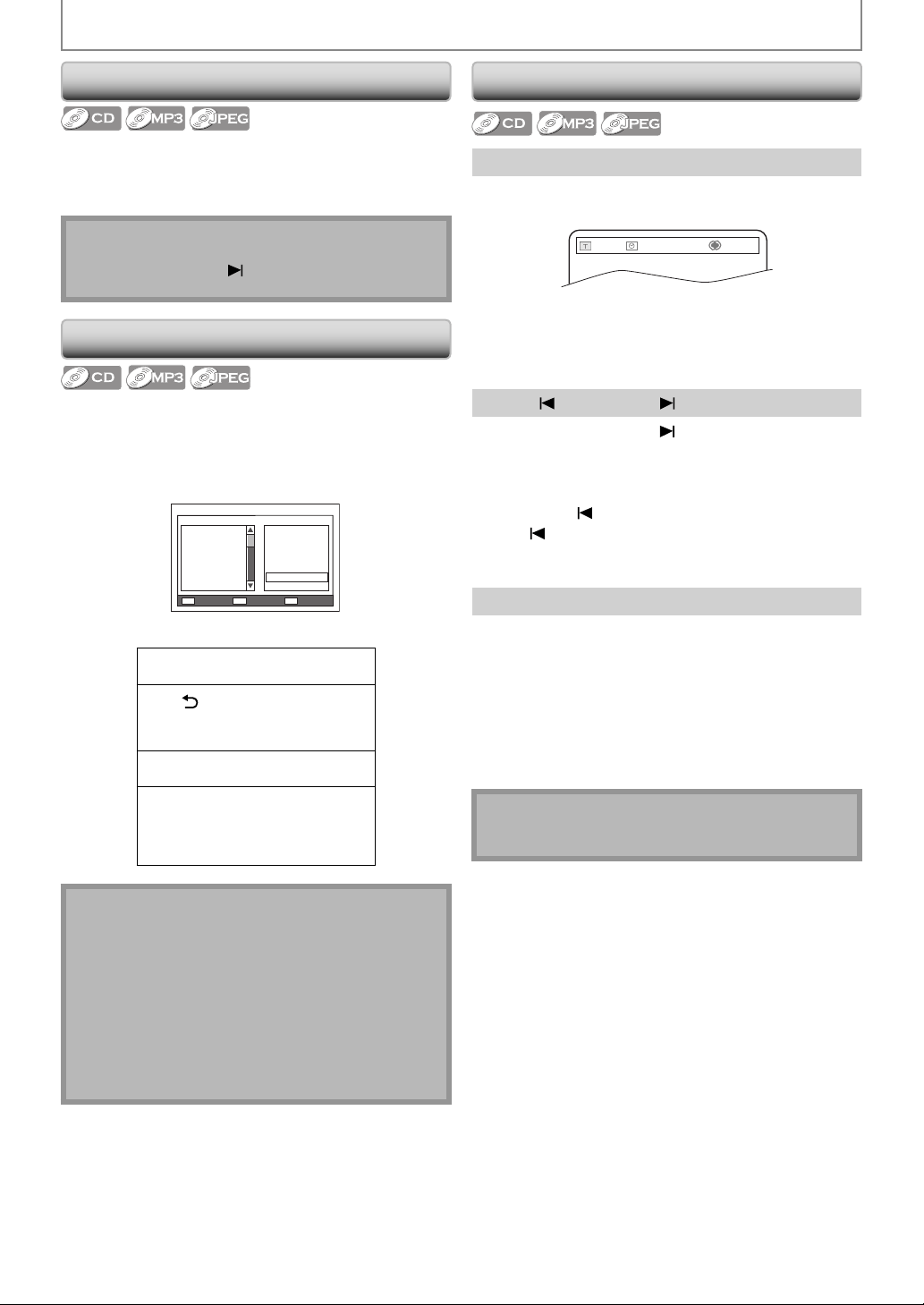
Track / File / Folder Search
Using [SEARCH]
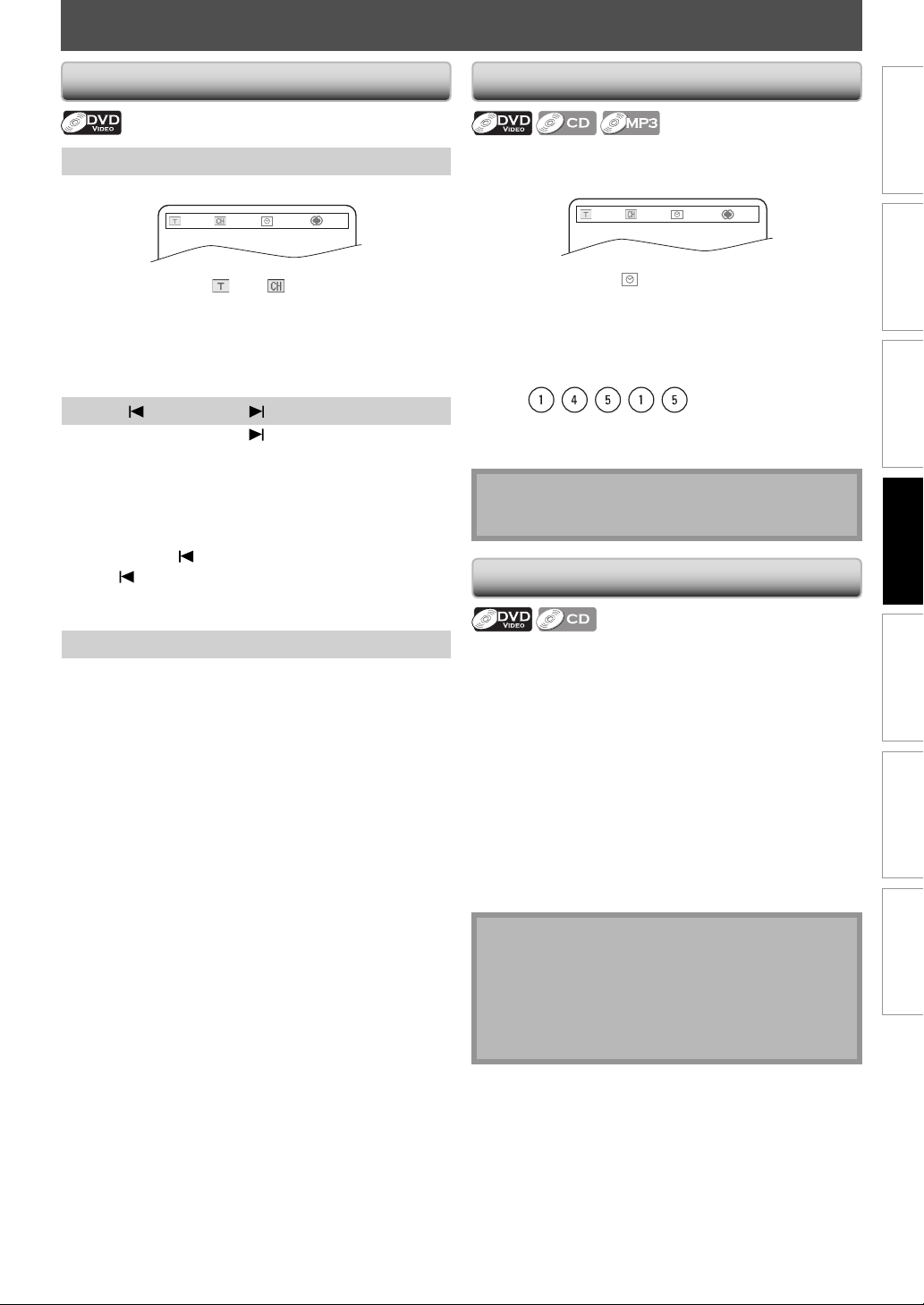
1) Press [SEARCH].
e.g.) CD
--
/
14 00:00:13
Off
2) Use [the Numbers buttons] to enter
track / file / folder number within 10 seconds.
3) Press [OK].
Playback will start from the desired track / file / folder.
Using [ (previous)] / [ (next)]
1) During playback, press [ (next)] to skip the current
track / file / folder and move to the next.
The track / file / folder will move forward by one at a time.
To go back to the beginning of the current track / file /
folder, press [
(previous)].
Press [
(previous)] repeatedly to go to the previous
track / file / folder. The track / file / folder may move
backward one at a time.
Using [the Number buttons] (Direct Search)
1) Enter the track / file / folder number you want to
search using [the Number buttons].
e.g.)
- for file 14, press [1], [4] and [OK].
- for file 114, press [1], [1], [4] and [OK].
- for file 1114, press [1], [1], [1] and
[4]
.
Playback will start from the desired track / file / folder.
Note
• Track / file / folder search is not available for
programmed or random playback.
Random Playback
This function shuffles the playing order of chapters or
tracks instead of playback in the sequence.
1) Press [MODE] repeatedly to select “Random”.
Random playback will start.
Note
• During random playback, you cannot go back to the
previous track, using [
(next)] allows you to search
chapters or tracks randomly.
Programmed Playback
You may determine the order in which chapters or tracks
will play back.
1) Press [MODE] repeatedly to select “Program”.
2) Select a track or a file.
e.g.) MP3
0005/0030
1. 01
_
**********.mp3
2. 02
_
**********.mp3
3. 03
_
**********.mp3
4. 04
_
**********.mp3
5. 05
_
**********.mp3
6. 06
_
**********.mp3
7. 07
_
**********.mp3
All Clear Clear
OK
CLEAR
PLAY
PLAY
1. 01
_
**********.mp3
2. 02
_
**********.mp3
3. 03
_
**********.mp3
4. 04
_
**********.mp3
5. 05
_
**********.mp3
6. 06
_
**********.mp3
• Up to 20 chapters or tracks can be ordered.
When the highlight is in the
track / file list
[BACK ]: exit from the program menu.
[OK]: select a track / file.
[B (play)]: start program playback.
When the highlight is in the
programmed list
[CLEAR]: erase all the track / file in the
program.
[OK]: erase the track / file you select.
[
B (play)]: start program playback.
Note
• While a program is being played back, [C (stop)]
works as follows;
- Press [C (stop)] and [B (play)] next, so that the
programmed playback restarts.
- Press [C (stop)] twice and [B (play)] next, so that
playback restarts from the first track in the original
order. However, your programmed playback can be
restarted when you follow the above steps. (Your
programs are still stored until either the disc is
removed or power is turned off.)
19EN
Connections
Playback
Function Setup OthersIntroduction Basic Setup
Español
SEARCH
Title / Chapter Search
Using [SEARCH]
1) Press [SEARCH].
- - /10 001/033 00:05:30
Off
2) Use [ B] to Select “
” or “
”.
3) Use [the Number buttons] to enter the title/chapter
number within 10 seconds.
4) Press [OK].
Playback will start from the beginning of the title / chapter.
Using [ (previous)] / [ (next)]
1) During playback, press [ (next)] to skip the current
title or chapter and move to the next.
The title or chapter will move forward by one at a time.
• If there is no chapter in one title, the current title may
be skipped.
To go back to the beginning of the current title or
chapter, press [
(previous)].
Press [
(previous)] repeatedly to go to the previous
title or chapter. The title or chapter may move
backward one at a time.
Using [the Number buttons] (Direct Search)
Title Search
1) In stop mode, enter the title number you want to
search using [the Number buttons].
Playback of the title will start in a few seconds.
Chapter Search
1) During playback of a title, enter the chapter number
you want to search using [the Number buttons].
Playback of the chapter will start in a few seconds.
Time Search
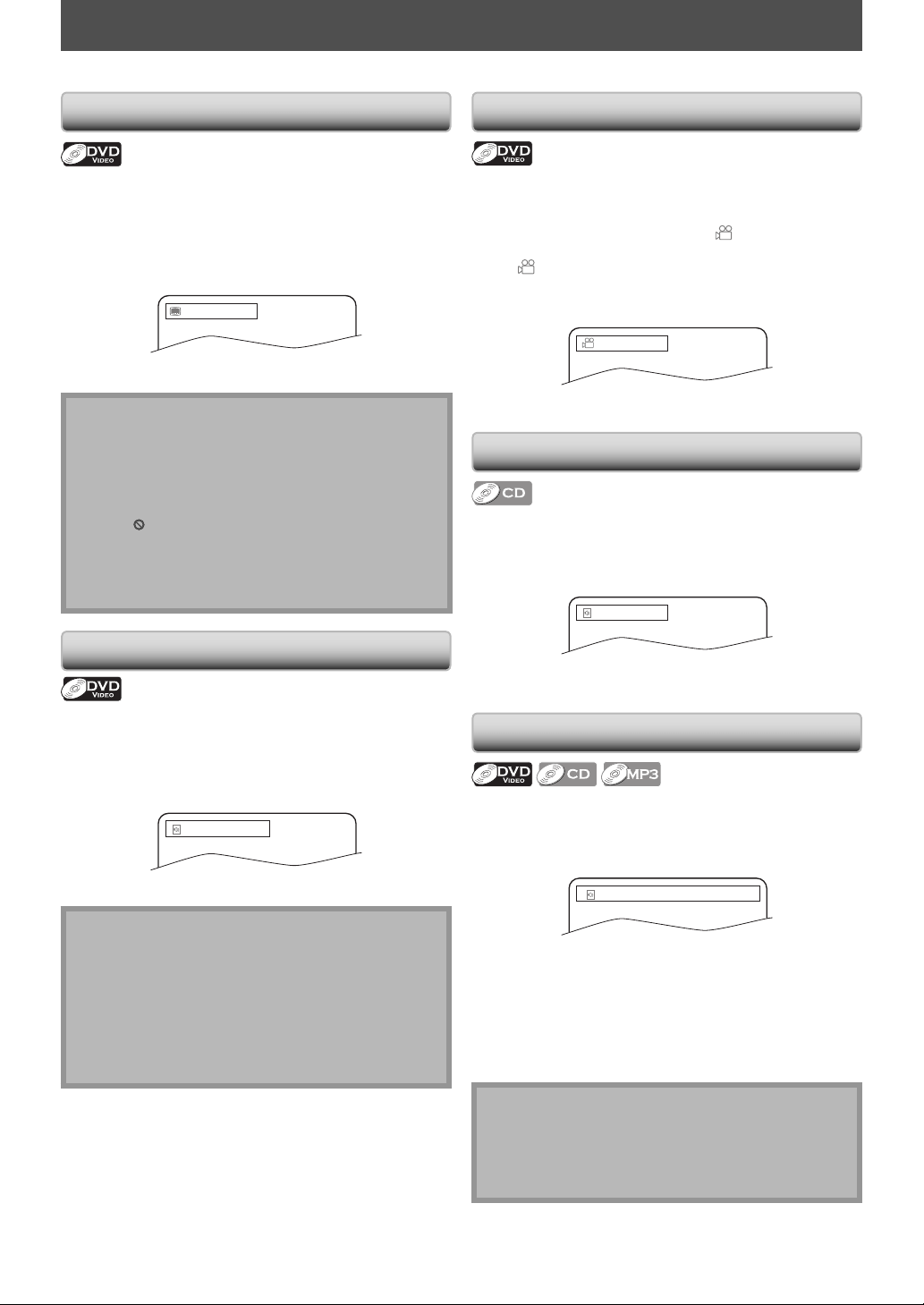
1) During playback, press [SEARCH].
e.g.) DVD
02/10 001/033 --:--:--
Off
2) Use [ B] to select “
”.
3) Use [the Number buttons] to enter the time count
you want to jump to with 10 seconds.
e.g.;
Entering 1 hour 45 minutes and 15 seconds.
Press
4) Press [OK].
Playback will start from the desired time count.
Note
• Time search is not available for programmed or
random playback.
Marker Search
This feature allows you to assign a specific point on a title
or track to be called back later.
1) During playback, press [MARKER].
2) Use [{ / B] to select a marker number (1-12).
3) When the disc reaches the point you want to set a
marker, press [OK].
• The title or track and elapsed playback time will
appear on the TV screen.
4) Press [MARKER] to exit.
5) To return to the marker later, call the marker setting
by pressing [MARKER] during playback or in stop
mode, and use [{ / B] to choose a desired marker,
then press [OK].
Note
• Opening the disc tray, turning the unit to the standby
mode will erase all markers.
• To clear a marker, use [{ / B] to select the marker
number to be cleared and press [CLEAR].
• You can mark up to 12 points.
• Marker search is not available in stop mode.
{ / B
20 EN
Switching Subtitles
Some video materials may have subtitles in one or more
languages. For commercially available discs, the supported
languages can be found on the disc case. Follow the steps
below to switch the subtitle language during playback.
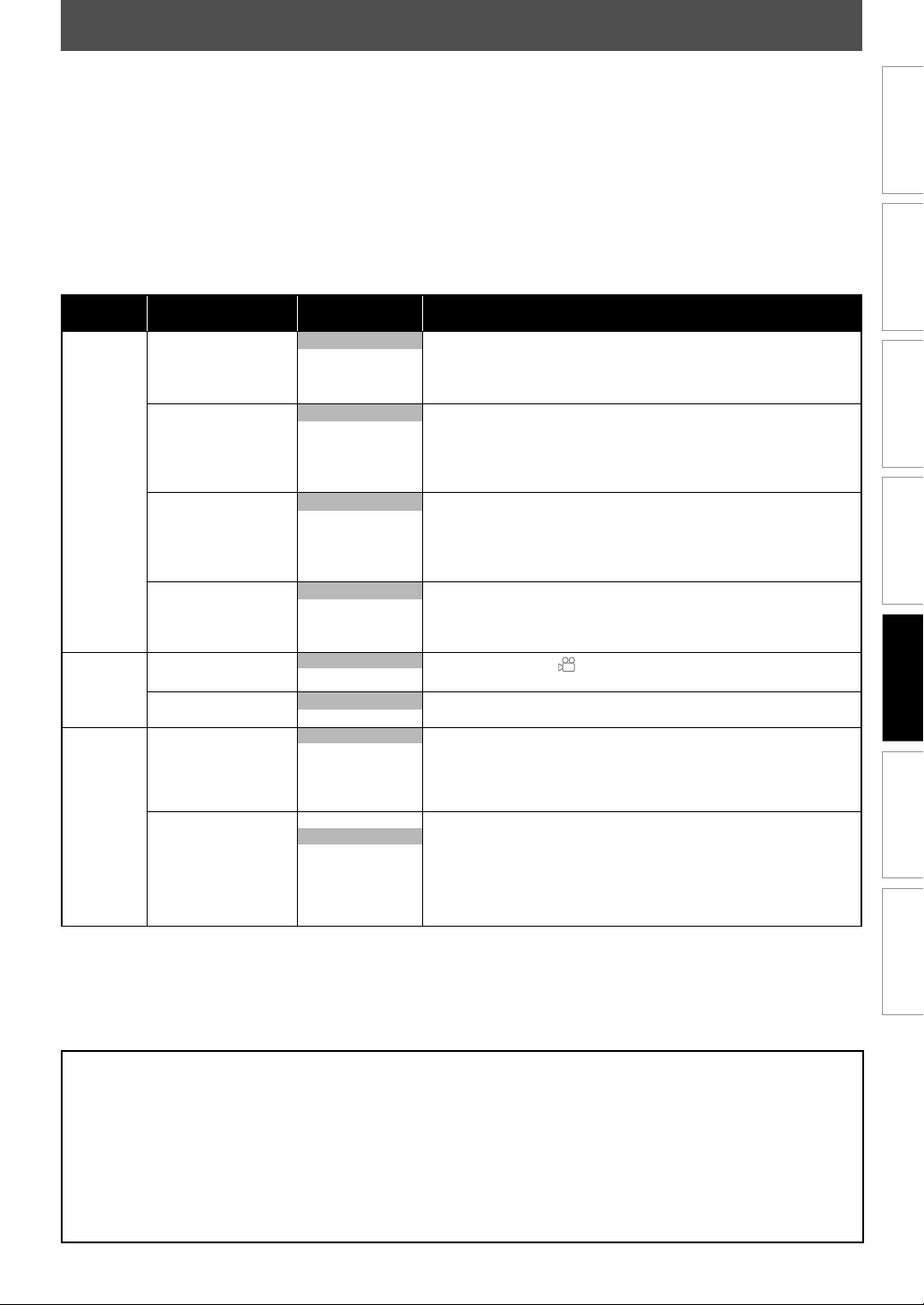
1) During playback, press [SUBTITLE] to bring up the
information bar.
Off
2) Use [SUBTITLE] repeatedly to switch the subtitle.
Note
• If your language is not shown after pressing [SUBTITLE]
several times, the disc may not have that language.
However, some discs allow subtitle language setting on
the disc menu. (Operation varies depending on the disc,
so refer to the manual along with the disc.)
• When “
” appears on the TV screen, it means no
subtitle is recorded on the scene.
• Some discs will only allow you to change the subtitle
from the disc menu. Refer to the manual
accompanying the discs for details.
Sw
itching Audio Language
When playing back a video material recorded with 2 or
more soundtracks (these are often in different languages),
you can switch them during playback.
1) During playback, press [AUDIO] to bring up the
information bar.
1/4 Dolby D 3/2. 1ch ENG
2) Use [AUDIO] repeatedly to switch the audio language.
Note
• Some discs will only allow you to change the audio
setting from the disc menu. Refer to the manual
accompanying the discs for details.
• If your language is not shown after pressing [AUDIO]
several times, the disc may not have that language.
However, some discs allow audio language setting on
the disc menu. (Operation varies depending on the
disc, so refer to the manual along with the disc.)
SELECTING THE FORMAT OF AUDIO AND VIDEO
You can select the format of audio and video as you prefer depending on the contents of the disc you are playing back.
Switching Camera Angles
Some DVD-video may have scenes shot from 2 or more
angles. Angle information should be on the disc case if
the disc contains multi-angle scenes.
You can change the camera angle if
appears on the TV
screen. If the “Angle Icon” setting is “Off” in “Display”
menu,
will not appear. (Refer to page 21.)
1) During playback, press [ANGLE] to bring up the
information bar.
1/3
2) Use [ANGLE] repeatedly to switch the angle.
Swiching Stereo Sound Mode
This unit allows you to select a sound mode during CD
playback.
1) During playback, press [AUDIO] to bring up the
information bar.
Stereo
2) Use [AUDIO] repeatedly to switch the stereo sound
mode.
Swiching Sound Menu
You can enjoy stereophonic virtual world on your existing
2 channel stereo system.
1) During playback, press [SOUND MENU] to bring up
the information bar.
OFF
2) Pressing [SOUND MENU] to switch the sound menu.
Off:
no effects (original sound)
3D: sound mode suitable for setting stereophonic audio.
Jazz:
sound mode suitable for jazz music
Rock:
sound mode suitable for rock music
Pop: sound mode suitable for pop music
Classic: sound mode suitable for classic music
Note
• Sound Menu is available under the following
condition:
- When the unit is connected to a TV using AUDIO OUT jacks.
- When “HDMI Audio” is set to “LPCM”.
- When “Digital Out” is set to “LPCM”.
21EN
Connections Playback
Function Setup
OthersIntroduction Basic Setup
Español
LIST OF SETTINGS
Category Menus
Options/Sub-
Menus
Description
Language
Player Menu English Sets the language for player menu (OSD menu).
Français
Español
Subtitle *1 *2 Off Sets the subtitle language for DVD-video playback.
English
Français
Español
Other
Audio *1 *2 Original • Sets the audio language for DVD-video playback.
• If you select “Original”, the disc’s original language will be in effect.
English
Français
Español
Other
Disc Menu *1 English Sets the language for disc menu.
Français
Español
Other
Display
Angle Icon On
Set to “On” to display
when multiple camera angles are available
during DVD playback.
Off
Screen Saver On Sets whether to activate the screen saver after 5 minutes of no action
on the unit.
Off
Video TV Aspect
• Refer to page 23 for
more information.
16:9 Wide Sets the aspect ratio of the playback image to fit your TV.
• Select “16:9 Wide” if a wide-screen TV is connected to this unit.
• Select “4:3 Normal”, so that black bars may appear on the top and
bottom of the TV screen.
• Select “4:3 Crop” for a full height picture with both sides adjusted.
4:3 Normal
4:3 Crop
Progressive Scan
On
• You can set “Progressive Scan” to “Off” in “Video” menu or press and
hold [B (play)] on the front of the unit for more than 5 seconds
during playback.
• Changing ”Progressive Scan” setting is not available while HDMI cable
is connected.
• When “Progressive Scan” is “On”, video signals from the unit’s VIDEO
OUT and S-VIDEO OUT jacks will be distorted or not be output at all.
Off
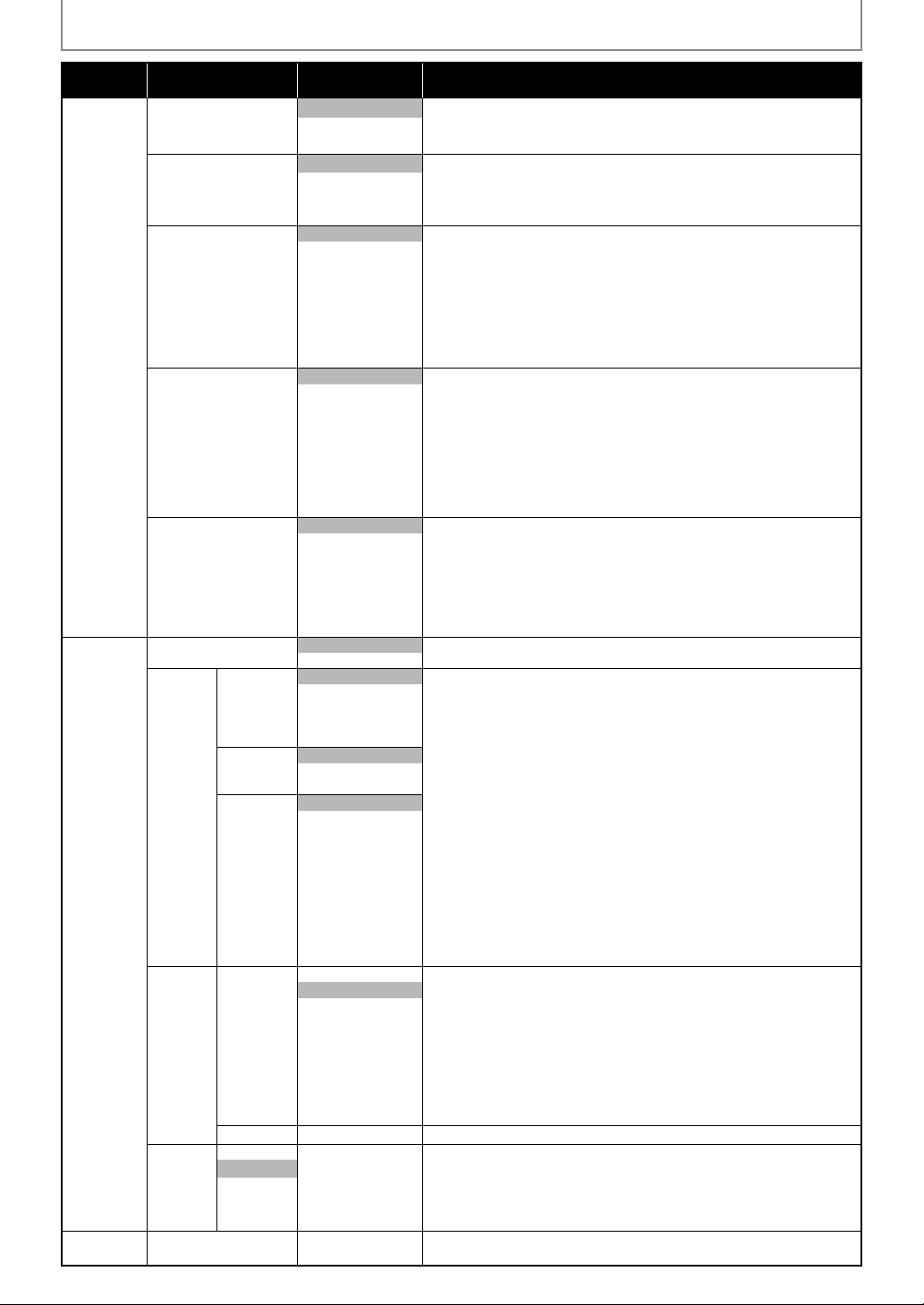
In the settings menu, you can customize the various kinds of settings as you prefer.
Refer to the following instruction to navigate through the settings menus.
1) Press [SETUP] to display the setup menu.
2) Use [{ / B] to select the category, then press [OK].
3) Use [K / L] to move the highlight up and down in the list.
Sub menus/options of the highlighted item will be displayed in the list on the right whenever available.
4)
To make a selection or to access the sub menus/option of an item, highlight the desired item, then press [OK].
5) Press [SETUP] to exit.
Refer to the following table for the types of settings you can customize.
The item highlighted in gray is the default setting.
Note
*1
• Language options are not available with some discs.
• If “Other” is selected in the “Audio”, “Subtitle” or “Disc Menu” screen, select the desired language using
[K / L]. Press [OK].
• Only the languages supported by the disc can be selected.
*2
• “Language” setting for “Audio” and “Subtitle” are not available with some discs. Then press [AUDIO] and
[SUBTITLE]. Details are on page 20.
22 EN
LIST OF SETTINGS
Category Menus
Options/Sub-
Menus
Description
Audio Dual mono Stereo This unit allows you to select a sound mode.
L-ch
R-ch
Down Sampling
On
• When playing back disc with copyright protection, the sound will be
down sampled at 48kHz, even if you set to “Off”.
Set to “On” when outputting in 48kHz.
Set to “Off” when outputting the original sound.
Off
DRC On This function is available only on the discs which are recorded in the
Dolby Digital format.
“On” “
7
/8
-
1
/8” “Off”:
Compress the range between soft and loud sounds.
7
/8
6
/8
5
/8
4
/8
3
/8
2
/8
1
/8
Off
Effect Normal You can set the reverberation effect.
Normal: no effects (original sound)
Living Room: sounds as if you are in a living room
Hall: sounds as if you are in a hall
Arena: sounds as if you are in an arena
Cave: sounds as if you are in a cave
Concert Hall: sounds as if you are in a concert hall
Bath Room: sounds as if you are in a bath room
Cathedral: sounds as if you are in a cathedral
Living Room
Hall
Arena
Cave
Concert Hall
Bath Room
Cathedral
Digital Out
• Refer to page 10 for
more information.
Bitstream • Set to “Bitstream” when the unit is connected to a Dolby Digital decoder.
• When HDMI cable is connected, make sure “HDMI Audio” setting is
set to “Off” to change the “Digital Out” setting.
“Bitstream”:
Outputs a Dolby Digital signals.
“LPCM”:
Convert the Dolby Digital into LPCM (2 channel).
LPCM
Other Auto Power Off On Set to “On” to turn this unit off automatically after 30 minutes of no use.
Off
HDMI HDMI
Video
Auto You cannot select the video resolutions which are not supported by the
connected TV, except when this unit’s HDMI OUT jack is connected to a
DVI compatible display devices with an HDMI-DVI cable (default is 480p
in such case).
• Video and audio signals may be distorted temporarily when switching
to / from the HDMI output mode.
HDMI Video:
• Auto: HDMI video resolution will be selected automatically depending
on the connected HDMI device. If you want to change the resolution
manually, press [HDMI] repeatedly.
• When you make a selection, the TV monitor temporarily goes blank
and then comes back again. If it does not, press [HDMI] to change the
resolution or press and hold [B (play)] on the front panel for 5 seconds
to change the setting back to its default.
EasyLink (HDMI CEC):
• This feature is available only when the display device is connected with
an HDMI cable, and when it supports EasyLink (HDMI CEC) feature.
• Refer to page 23 for more information.
480p
720p
1080i
1080p
HDMI
Audio
Bitstream
LPCM
Off
EasyLink
(HDMI CEC)
On
Off
Ratings
Lock
Rating
Level
Off Sets the rating level for the disc playback.
8 [Adult]
7 [NC-17]
6 [R]
5 [PGR]
4 [PG13]
3 [PG]
2 [G]
1 [Kid Safe]
New PIN Sets the new password for the “Ratings Lock” setting.
Factory
Default
Yes “Yes”:
Resets all the settings, except for “Ratings Lock”, in “Settings” to the
factory default.
”No”:
Does not perform the initialization.
No
Product Info “Product Info” screen provides you with the information on this unit’s
hardware and software version information.
23EN
Connections Playback
Function Setup
OthersIntroduction Basic Setup
Español
SETUPS
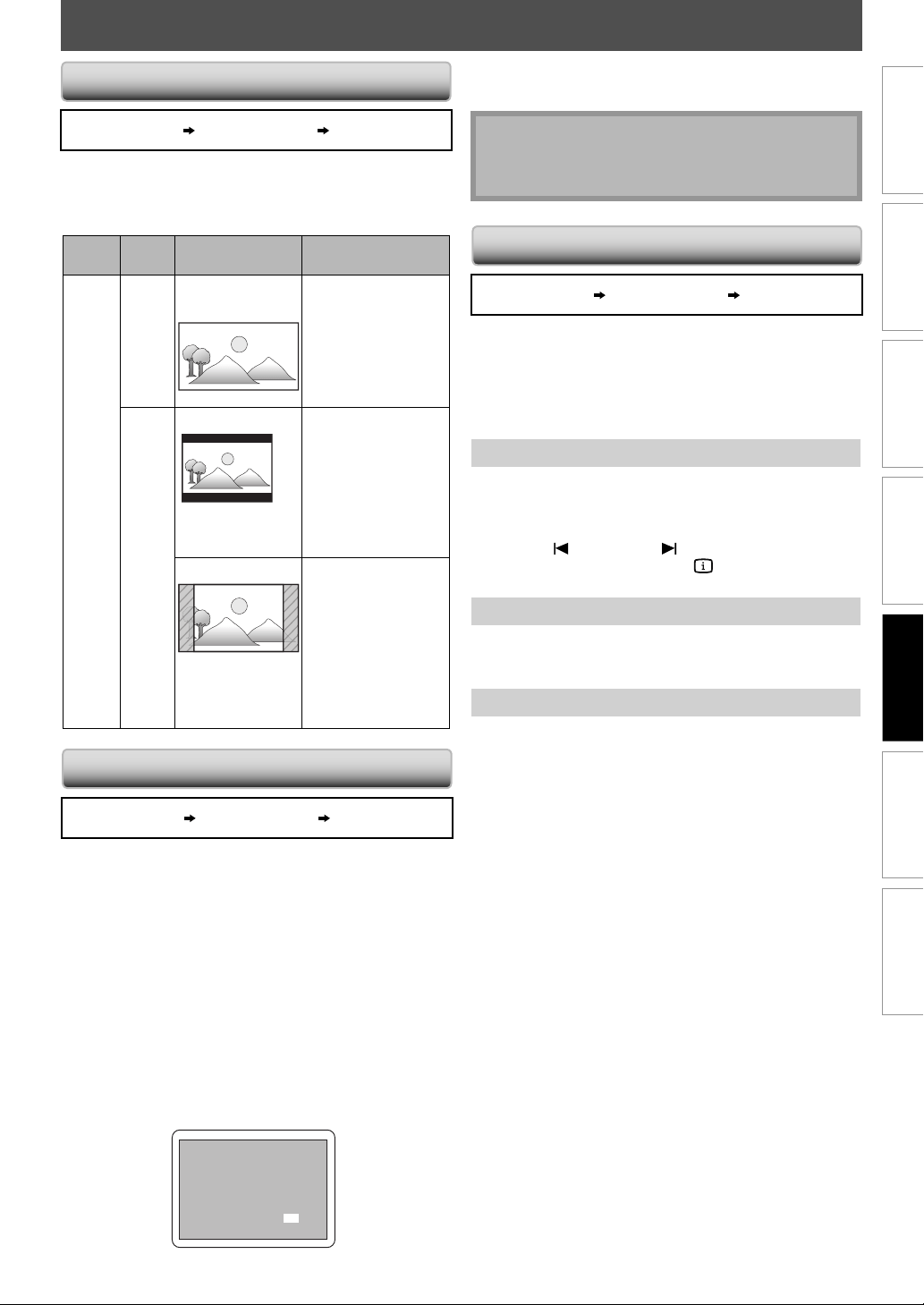
Use this feature to adjust the aspect ratio of the video
source which is different from your TV’s ratio to fit your
TV monitor without distorting the picture. Descriptions
of each setting are as follows:
Video
source
Your
TV
Option Description
16:9
16:9
16:9
Wide
To enjoy 16:9
picture on 16:9
monitor:
Select this setting
when you want to
enjoy 16:9 picture
on the 16:9 TV.
4:3
4:3 Normal
To enjoy 16:9
picture on 4:3
monitor:
16:9 picture is
scaled down until
the both sides of
the picture fits the
4:3 TV.
4:3 Crop
To enjoy 16:9
picture on 4:3
monitor:
Both sides of the
picture are trimmed
to fit the 4:3 TV
without distorting
the aspect ratio of
the picture.
SETUP “Video” “TV Aspect”
SETUP “Video” “Progressive Scan”
5) Select “Yes” using [
K / L
] then press [OK].
6) Press [OK] to complete “Progressive Scan” setting.
Note
• If there is no picture or you do not press any buttons
for 15 seconds, “Progressive Scan” will switch to “Off”
and it will exit the “Progressive Scan” setting.
SETUP “Other”
“EasyLink
(HDMI CEC)”
EasyLink (HDMI CEC)
EasyLink (HDMI CEC) function allows your TV (limited to
PHILIPS brand EasyLink TV) to act in conjunction with this
unit, or vice versa.
When “EasyLink (HDMI CEC)” setting is set to “On”,
functions listed below will be available.
One Touch Play
When this unit is turned on, the TV also is turned on and
the appropriate external input channel will be selected
automatically. The appropriate external input channel can
also be selected on your TV automatically when you press
[B (play)], [
(previous)], [ (next)], [SETUP],
[the Number buttons] or [INFO
] when the unit’s
power is on.
Standby
When you press and hold [
y
y
(standby-on)] for 2
seconds, it turns off the power of the TV first and then
turns off the power of this unit also.
System Information
Get & Set Menu Language
The unit recognizes the OSD language set for the TV and
automatically sets the same language as the player
menu language (OSD menu language) for this unit.
Refer to the “Player Menu” on page 21 for available
languages.
You can set “Progressive Scan” to “Off” in “Video” menu or
press and hold [B (play)] on the front of the unit for
more than 5 seconds during playback.
Changing ”Progressive Scan” setting is not available while
HDMI cable is connected.
When “Progressive Scan” is “On”, video signals from the
unit’s VIDEO OUT and S-VIDEO OUT jacks will be distorted
or not be output at all.
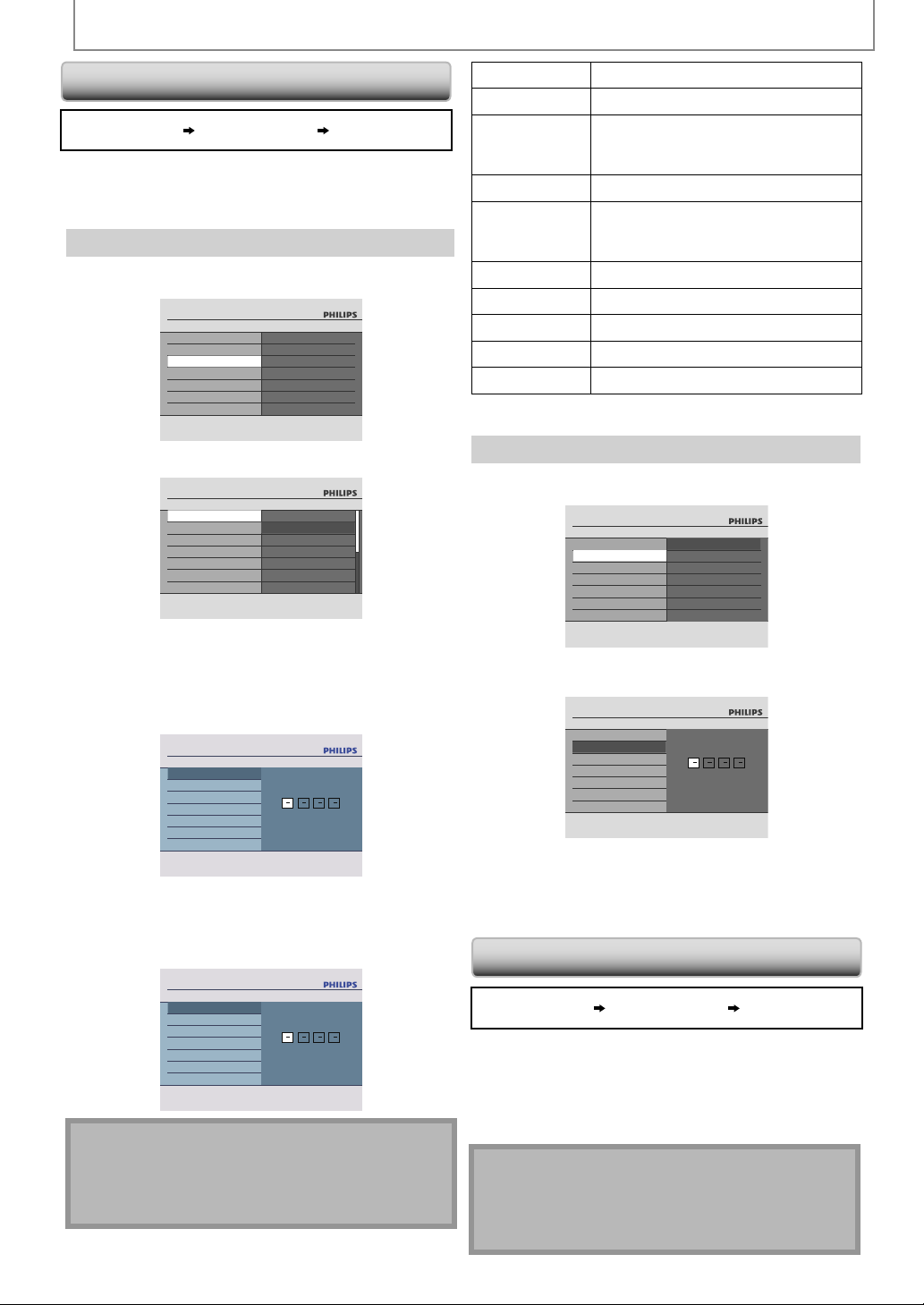
1) With “Video” selected in the “SETUP” menu, press
[OK].
2) Select “Progressive Scan” to “On”.
3) Press [OK].
4) Select “Yes” using [
K / L
] then press [OK].
Before proceeding…
Make sure your TV supports the selected item.
Connect with component video cable.
NOTE: If a blank screen appears, wait for 15 seconds
for auto-recovery.
Activate?
Progressive On
Select:
K / L
Set:OK
Ye s
No
TV Aspect
Progressive Scan
24 EN
SETUPS
You can reset the settings to default.
1)With “Factory Default” selected in the “Other”
menu, press [OK].
2) Select “Yes” then press [OK].
Note
• All the settings except for the “Ratings Lock” setting
will be reset to default.
• When you do not wish to initialize, press [SETUP] to
exit the menu at step 1 or select “No” at step 2.
RATING EXPLANATIONS
Off
8 [Adult] • DVD software of any grades (adult/
general/children) can be played
back.
7 [NC-17] • No one under 17 admitted.
6 [R] • Restricted; under 17 requires
accompanying parent or adult
guardian.
5 [PGR] • Parental Guidance Recommended.
4 [PG13] • Unsuitable for children under 13.
3 [PG] • Parental Guidance suggested.
2 [G] • General Audience.
1 [Kid Safe] • Suitable for children.
4) Press [SETUP] to exit.
New PIN
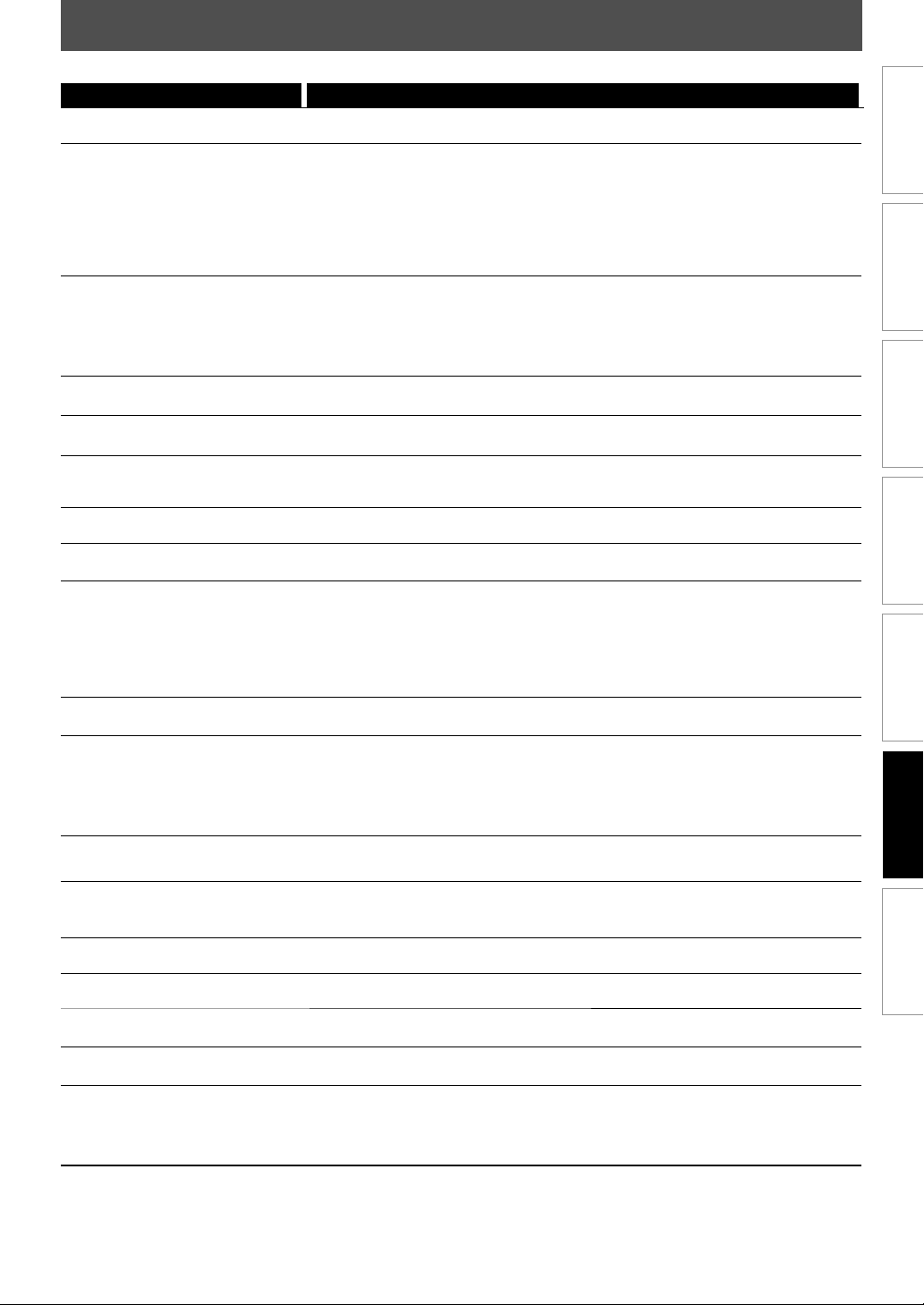
1) With “New PIN” selected in the “Ratings Lock” menu,
press [OK].
Enter New PIN
Setup
Ratings Lock
Rating Level
NewPIN
2) Enter 4 digit password using [the Number buttons].
Enter the password again then press [OK].
New PIN
New PIN
Enter new PIN
Setup
Ratings Lock
Rating Level
New PIN
3) Press [SETUP] to exit.
Ratings Lock allows you to set the rating levels of your
DVD. Playback will stop if the ratings exceed the levels
you set.
Rating Level
1) With “Rating Level” selected in the “Ratings Lock”
menu, press [OK].
Setup
Other
Auto Power Off
HDMI
Ratings Lock
Factory Default
Rating Level
New PIN
2)
Select desired rating level using [K / L] then press [OK].
Setup
Ratings Lock
Rating Level
NewPIN
Off
8 [Adult]
7 [NC-17]
6 [R]
5 [PGR]
4 [PG-13]
3 [PG]
3) If a password has not been set yet, proceed to step 3-a.
If a password has already been set, proceed to step 3-b.
3-a)Enter 4 digit password using [the Number buttons].
Enter the password again then press [OK].
Setup
Ratings Lock
Rating Level
NewPIN
Enter new PIN
• “4737” cannot be used.
3-b)Enter 4 digit password using [the Number buttons].
Enter the password again then press [OK].
Setup
Ratings Lock
Rating Level
NewPIN
Enter your PIN
Note
• Record the password in case you forget it.
• If you forget the password, press [4], [7], [3], [7] at
step 3 above, then enter your new password.
Password will be cleared.
SETUP “ Other ” “Ratings Lock”
SETUP “ Other ” “Factory Default”
Reset to Factory Default
Ratings Lock
25EN 25EN
Connections Playback Function Setup
Others
Introduction
Basic Setup
Español
TROUBLESHOOTING
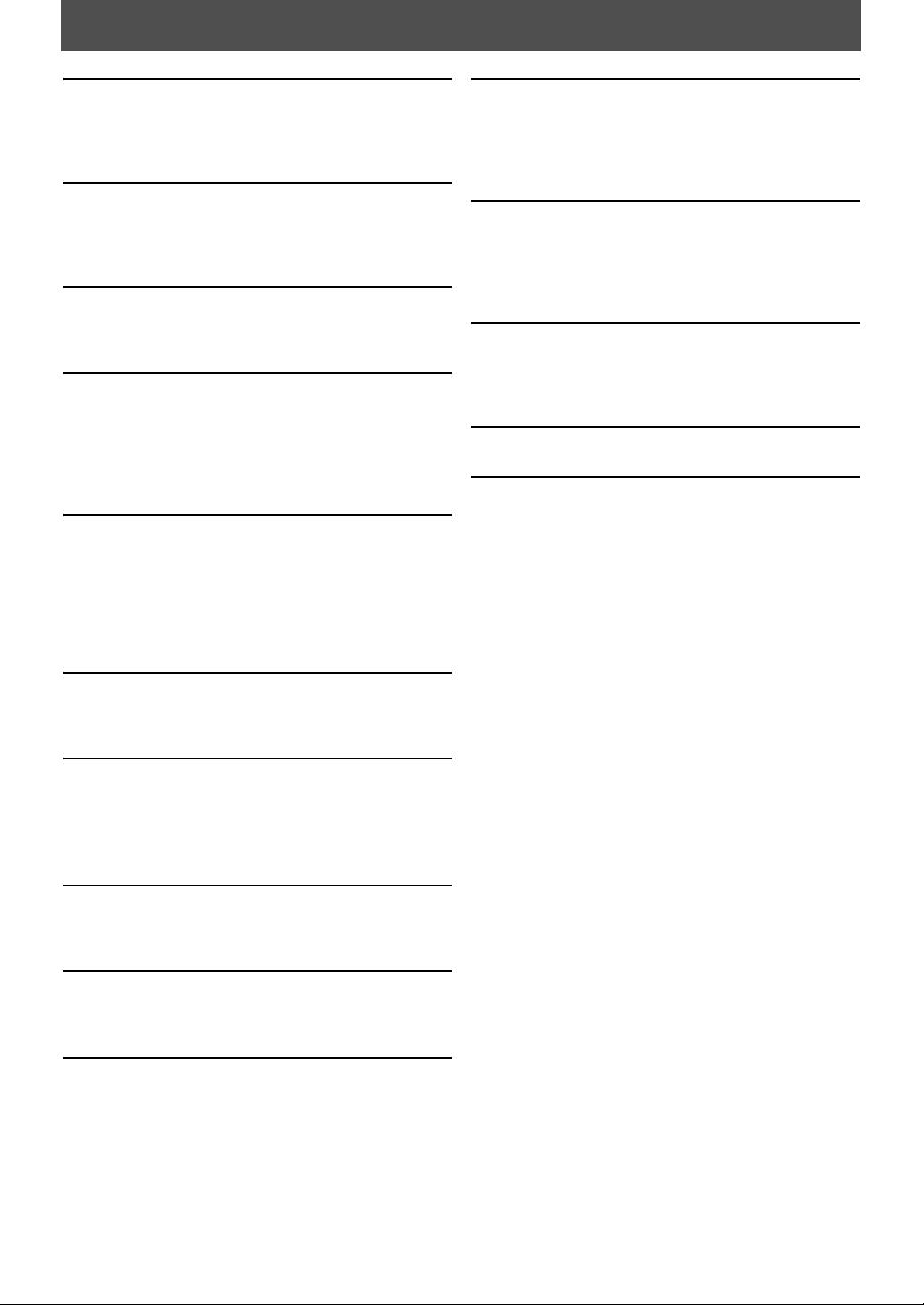
Problem Tip
No power
– Check if the AC power cord is properly connected.
– Unplug the outlet once, and wait for 5-10 seconds and then plug it in again.
No sound or picture
– Check if the TV is switched on.
– Check the video connection.
– Check the audio / video cable connections to the TV.
(Refer to pages 9-10.)
– When“Progressive Scan” is “On”, video signals from the unit’s VIDEO OUT and
S-VIDEO OUT jacks will be distorted or not be output at all.
– Check whether the connected TV or other device supports HDCP.
(This unit will not output a video signal unless the other device supports HDCP.)
Distorted picture
– Sometimes a small amount of picture distortion may appear.
This is not a malfunction.
– Connect the unit directly to the TV.
– Set “Progressive Scan” correctly in “Video” menu. Turn it on only if your TV has
progressive scan and you are using the component video connections between the
unit and the TV. Disable progressive scan for all other connections. (Refer to page 9.)
Completely distorted picture or
black / white picture with DVD
– Connect this unit directly to the TV.
– Make sure the disc is compatible with the unit.
No sound or distorted sound
– Adjust the volume.
– Check that the speakers are connected correctly.
No audio at digital output
– Check the digital connections.
– Check if the audio format of the selected audio language matches your receiver
capabilities.
No DTS audio is output.
– This unit does not support DTS audio.
This is not a malfunction.
Picture freezes momentarily
during playback.
– Check the disc for fingerprints / dirty and clean with a soft cloth wiping from center
to edge.
Disc cannot be played back.
– Clean the disc.
– Ensure the disc is inserted in correct direction.
– Check if the disc is defective by trying another disc.
– Check the “Ratings Lock” setting.
– Insert a correct disc that plays back on this unit.
– Handle a disc with special care so that it does not have fingerprints, scratches, or
dusts on its surface.
No return to start-up screen
when disc is removed.
– Reset the unit by switching off the unit, then on again.
The unit does not respond to
the remote control.
– Aim the remote control directly at the sensor on the front panel.
– Reduce the distance to the unit.
– Replace the batteries in the remote control.
– Re-insert the batteries with their polarities (+ / – signs) as indicated.
– Press and hold any button on remote control toward a digital camera. The remote
control is working if you confirm infrared light through the digital camera.
Buttons do not work or the unit
stops responding.
– To completely reset the unit, unplug the AC cord from the AC outlet for 5-10
seconds.
The unit does not respond to
some operating commands
during playback.
– Operations may not be permitted by the disc. Refer to the instructions of the disc.
The unit cannot read CD / DVD.
– Use a commonly available cleaning CD / DVD to clean the lens before sending the
unit for repair.
Angle does not switch.
– The angle cannot be switched for DVD which do not contain multiple angles. In
some cases multiple angles are only recorded for specific scenes.
Playback does not start
when the title is selected.
– Check the “Ratings Lock” setting.
The password for rating level
has been forgotten.
– Enter the default password “4737”, then your forgotten password will be cleared.
Error message appears when I
select “Auto” in the “Player Menu”.
– Make sure that the unit is connected to the PHILIPS brand EasyLink TV and the
“EasyLink (HDMI CEC)” is set to “On”.
– This error message may appear when your TV’s OSD language is not supported by
this unit.
If the unit does not perform properly when operated as instructed in this owner’s manual, refer to the following.
• Some functions are not available in specific modes, but this is not a malfunction. Read the description in this user manual for more
details on correct operations.
• Playback from a desired track and random playback are not available during programmed playback.
• Some functions are prohibited on some discs.
26 EN26 EN
Analog Audio
An electrical signal that directly represents sound.
Compare this to digital audio which can be an electrical
signal, but is an indirect representation of sound. See also
“Digital Audio”.
Aspect Ratio
The width of a TV screen relative to its height.
Conventional TVs are 4:3 (in other words, the TV screen is
almost square); widescreen models are 16:9 (the TV
screen is almost twice as wide as it is high).
Chapter
Just as a book is split up into several chapters, a title on a
DVD-video is usually divided into chapters. See also
“Title”.
Component Video Output
Each signal of luminance (Y) and component (PB/CB, PR/
C
R) is independent to output so that you can experience
picture color as it is.
Also, due to compatibility with progressive video
(525p/480p), you can experience higher-density picture
than that in interlace (525i/480i).
Digital Audio
An indirect representation of sound by numbers. During
recording, the sound is measured at discrete intervals
(44,100 times a second for CD audio) by an analog-to-
digital converter, generating a stream of numbers. On
playback, a digital-to-analog converter generates an
analog signal based on these numbers. See also
“Sampling Frequency” and “Analog Audio”.
Dolby Digital
The system to compress digital sound developed by
Dolby Laboratories. It offers you sound of stereo(2ch) or
multi-channel audio.
EasyLink (HDMI CEC) (Consumer Electronics Control)
EasyLink (HDMI CEC) allows you to operate the linked
functions of this player with Philips brand TV with
EasyLink feature.
Philips does not guarantee 100 % interoperability with
other brands of HDMI CEC compliant devices.
JPEG (Joint Photographic Experts Group)
JPEG is a method of compressing still picture files. You
can copy JPEG files on CD-RW/-R, DVD or SD Memory
Card from a computer and play back the files on this unit.
MP3 (MPEG audio layer 3)
MP3 is a method of compressing files. You can copy MP3
files on CD-RW/-R, DVD+RW/+R or DVD-RW/-R from the
computer and play back the files on this unit.
PCM (pulse code modulation)
The most common system of encoding digital audio,
found on CD and DAT. Excellent quality, but requires a lot
of data compared to formats such as Dolby Digital and
MPEG audio. For compatibility with digital audio
recorders (CD, MD and DAT) and AV amplifiers with digital
inputs, this unit can convert Dolby Digital and MPEG
audio to PCM. See also “Digital Audio”.
Progressive Scan (525p/480p)
A type of display that does not split each frame into
fields, and instead scans directly through all the scanlines
of each frame in order. Progressive scan provides less
flickering and higher image resolution than traditional
(525i/480i) TV signals.
Region Code
Regions associate discs and players with particular areas
of the world. This unit will only play back discs that have
compatible region codes. You can find the region code of
your unit by looking on the rear panel. Some discs are
compatible with more than one region (or all regions).
Sampling Frequency
The rate which sound is measured by a specified interval
to turn into digital audio data. The numbers of sampling
in one second defines as sampling frequency. The higher
the rate, the better the sound quality.
Title
A collection of chapters on DVD-video. See also “Chapter”.
Track
Audio CD use tracks to divide up the content of a disc.
The DVD-video equivalent is called a chapter. See also
“Chapter”.
GLOSSARY
27EN 27EN
Connections Playback Function Setup
Others
Introduction
Basic Setup
Español
SPECIFICATIONS
General
Signal system NTSC color
Power requirements 120V AC, 60Hz
Power consumption 8W (standby: 0.8W)
Dimensions (width x height x depth) 14.2 x 2.0 x 8.5 inches (360 x 50 x 215mm)
Weight 3.2 lbs. ( 1.45kg )
Operating temperature 41°F (5°C) to 104°F (40°C)
Operating humidity Less than 80% (no condensation)
Terminals
Rear
Audio output (Analog)
RCA jack x 2 L/R: 2Vrms (output impedance: more than 1kΩ)
Video output
RCA jack x 1 1Vp-p (75Ω)
Component video output
RCA jack x 3 Y: 1Vp-p (75Ω) P
B/CB: 700mVp-p (75Ω) PR/CR: 700mVp-p (75Ω)
Audio output (Digital)
RCA jack x 1 500mVp-p (75Ω)
S-video output
Y(luminance)-Output level
C(color)-Output level
jack x 1
Output 1(rear)
1Vp-p (75Ω)
286Vp-p (75Ω)
4 pin mini DIN
HDMI output
HDMI jack x 1 Video: 480p, 720p, 1080i, 1080p / Audio
Note
• The specifications and design of this product are subject to change without notice.
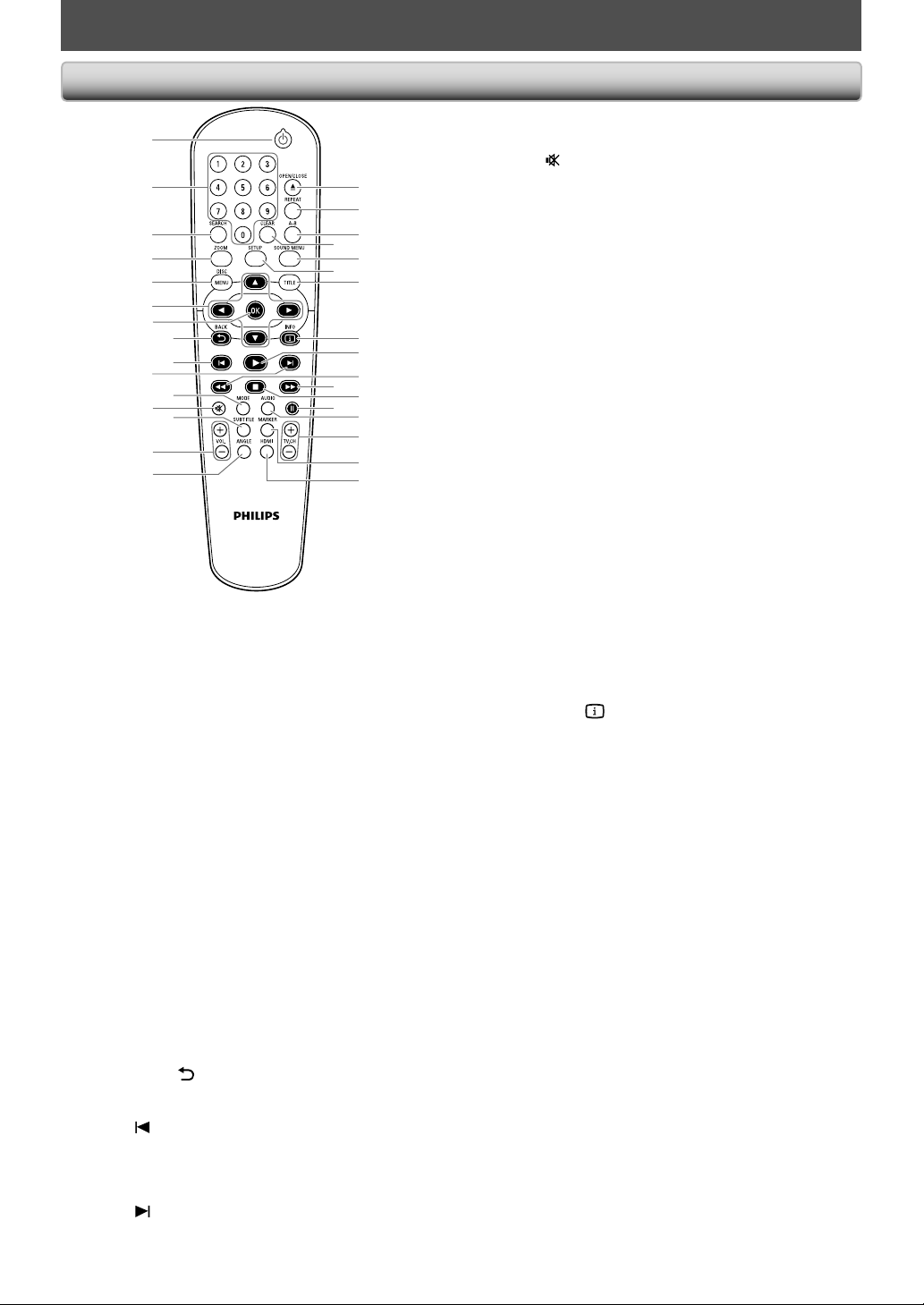
2828 ES
ESPAÑOL
1
2
3
4
8
9
5
6
7
10
11
13
16
*
17
18
20
22
23
30
19
21
12
14
15
24
25
27
31
29
26
28
32
1. Botón (espera-actividad)
y
y
• Presione para encender la unidad, o para poner
la unidad en modo de espera. (Para apagar
completamente la unidad, debe desenchufar el
cable de alimentación de CA.)
• Si se han ajustado programaciones del
temporizador, presione para poner la unidad en
modo de espera del temporizador.
2. Botones numéricos
• Presione para seleccionar un capítulo o un título
durante la reproducción.
• Presione para introducir valores en el campo de
entrada.
3. Botón SEARCH
• Para buscar un capítulo, título o tiempo.
• Para buscar pistas, tiempo o carpetas.
4. Botón ZOOM
• Presione para agrandar la imagen de la pantalla
del televisor.
5. Botón DISC MENU
• Presione para ver el menú de disco.
6. Botones K / L / { / B
• Presione para seleccionar opciones o valores de
configuración.
7. Botón OK
• Presione para confirmar o seleccionar opciones de
menú.
8. Botón BACK
• Presione para volver al menú o función de pantalla
anteriormente visualizado.
9. Botón
(anterior)
• Durante la reproducción, presione una vez para
volver al principio del capítulo, pista o archivo actual.
• Durante la reproducción, presione dos veces para
volver al capítulo, pista o archivo anterior.
10. Botón
(siguiente)
• Durante la reproducción, presione para saltar al
capítulo, pista o archivo siguiente.
11. Botón MODE
• Para organizar el orden de reproducción o
reproducir de forma aleatoria.
12. Botón
(
mudo)
• Presione para silenciar el volumen del TV (sólo en
TV de la marca PHILIPS).
13. Botón SUBTITLE
• Presione para seleccionar los subtítulos de un
disco.
14. Botón VOL. +/
-
• Presione para ajustar el volumen del TV (sólo en TV
de la marca PHILIPS).
15. Botón ANGLE
• Presione para seleccionar los ángulos de la cámara
de un disco.
16. Botón OPEN/CLOSE A*
• Presione para abrir o cerrar la bandeja de discos.
17. Botón REPEAT
• Presione para alternar entre diversos modos de
repetición.
18. Botón A-B
• Presione para reproducir repetidamente un
fragmento especificado entre el punto A y el punto B.
19. Botón CLEAR
• Para quitar el número de estado en la entrada de
programa.
• Para borrar los números introducidos incorrectamente.
• Para borrar los ajustes de marcador.
• Para cancelar el punto de repetición A-B.
20. Botón SOUND MENU
• Presione para seleccionar un modo de sonido.
21. Botón SETUP
• Presione para ver el menú de configuración.
22. Botón TITLE
• Presione para ver el menú de títulos.
23. Botón INFO
• Presione para ver la pantalla de información.
24. Botón B (reproducir)
• Presione para iniciar o reanudar la reproducción.
25. Botón E (reverso)
• Durante la reproducción, presione para invertir
rápidamente la reproducción.
• Cuando la reproducción está en modo de parada,
presione para invertir lentamente la reproducción.
26. Botón D (adelantar)
• Durante la reproducción, presione para avanzar
rápidamente la reproducción.
• Cuando la reproducción está en pausa, presione
para avanzar lentamente la reproducción.
27. Botón C (detener)
• Presione para detener la reproducción.
28. Botón F (pausar)
• Presione para pausar la reproducción.
• Cuando la reproducción está en modo de
pausa, presione repetidamente para avanzar la
reproducción paso a paso.
29. Botón AUDIO
• Presione para seleccionar el canal de audio (como
los idiomas de audio) de un disco.
• Para seleccionar “STEREO”, “L-ch” o “R-ch”.
30. Botón TV. CH +/
-
• Presione para cambiar de canal hacia arriba y abajo
(sólo en TV de la marca PHILIPS).
31. Botón MARKER
• Durante la reproducción, presione para ver la
configuración de marcador.
32. Botón HDMI
• Presione para ajustar el modo de salida HDMI.
* La unidad también se puede encender presionando estos botones.
Mando a Distancia
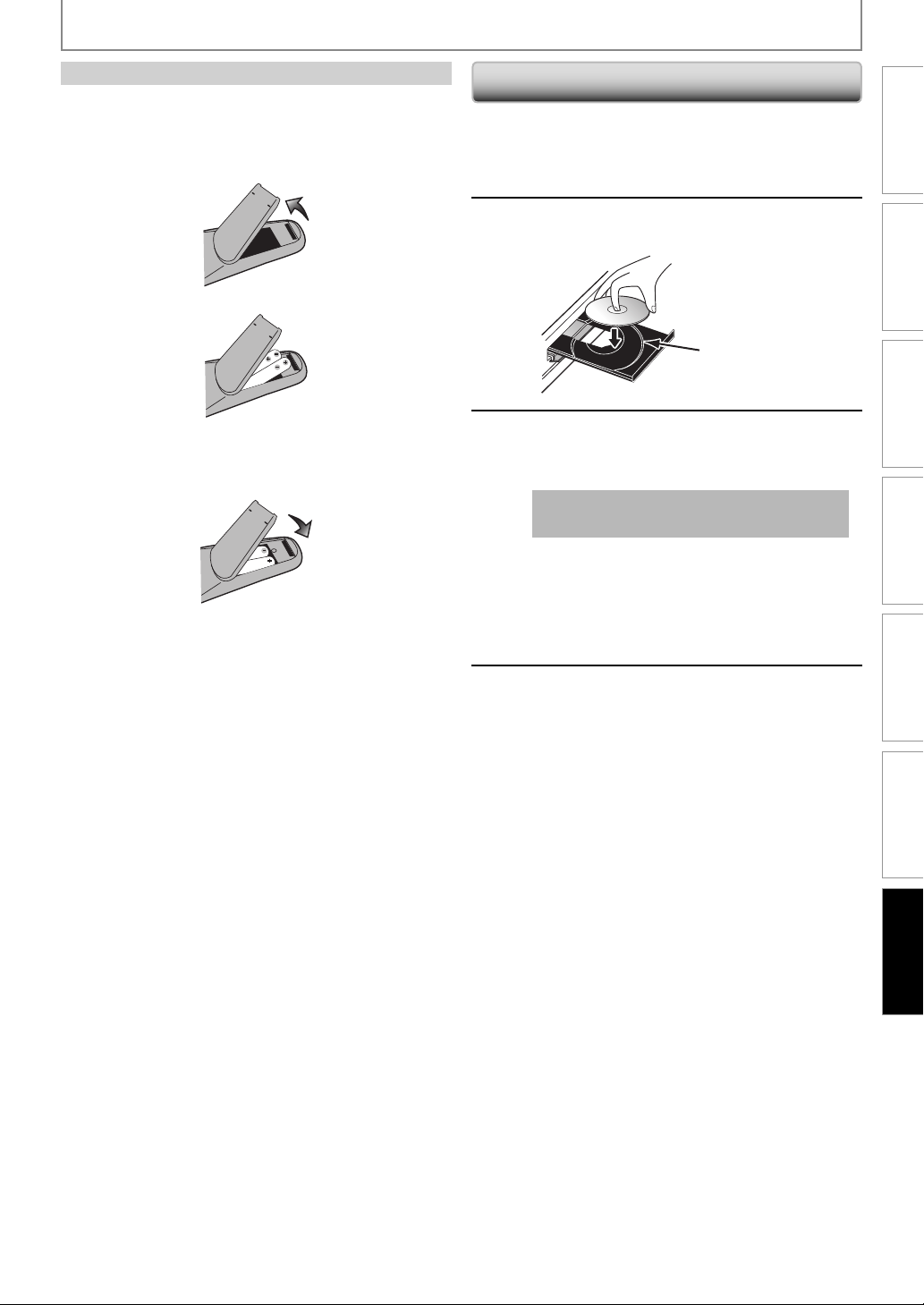
2929
Introduction Basic SetupConnections Others
Español
Function SetupPlayback
ES
ESPAÑOL
Instale las 2 baterías tipo AA (1,5 V) haciendo coincidir la
polaridad indicada en el interior del compartimento de
las baterías del mando a distancia.
1) Abra la tapa.
2) Inserte las baterías.
Asegúrese de que los signos + y – de las baterías
coinciden con las marcas indicadas en el
compartimento de las baterías.
3) Cierre la tapa.
Instalación de las Baterías en el Mando a Distancia
1
Presione [OPEN / CLOSE A ] para abrir
la bandeja de discos.
2
Coloque el disco en la bandeja de
discos con la etiqueta hacia arriba.
3
Presione [OPEN/CLOSE A] para cerrar
la bandeja de discos.
Puede que tarde un poco en cargarse
el disco.
Para expulsar el disco:
Presione [OPEN/CLOSE A] para abrir la bandeja
de discos.
Presione [OPEN/CLOSE A] para cerrar la
bandeja de discos.
4
La reproducción puede que comience
automáticamente.
Si no es así, presione [B (reproducir)].
Algunos discos pueden mostrar un menú de
disco o de títulos.
Para pausar la reproducción:
Presione [F (pausar)].
Para volver a la reproducción normal:
Presione [B (reproducir)].
Para detener la reproducción:
Presione [C (detener)].
La reproducción estará en modo Reanudar al
Parar.
<Modo Reanudar al Parar>
La próxima vez que presione [B (reproducir)],
la reproducción comenzará a partir del punto
donde se paró.
Reproduciendo
Ajuste el disco a la
guía de la bandeja
para discos.

30 EN30 EN
NINETY (90) DAY LIMITED WARRANTY
P&F USA, Inc.
PO Box 430 Daleville, IN 47334-0430
WARRANTY COVERAGE:
This warranty obligation is limited to the terms set forth
below.
WHO IS COVERED:
This product is warranted to the original purchaser or the per-
son receiving the product as a gift against defects in materials and
workmanship as based on the date of original purchase
(“Warranty Period”) from an Authorized Dealer. The original
sales receipt showing the product name and the purchase date
from an authorized retailer is considered such proof.
WHAT IS COVERED:
This warranty covers new products if a defect in material
or workmanship occurs and a valid claim is received within
the Warranty Period. At its option, the company will either (1)
repair the product at no charge, using new or refurbished
replacement parts, or (2) exchange the product with a product
that is new or which has been manufactured from new, or ser-
viceable used parts and is at least functionally equivalent or most
comparable to the original product in current inventory, or (3)
refund the original purchase price of the product.
The Company warrants replacement products or parts provided
under this warranty against defects in materials and workmanship
from the date of the replacement or repair for ninety (90) days
or for the remaining portion of the original product’s warranty,
whichever provides longer coverage for you. When a product or
part is exchanged, any replacement item becomes your property
and the replaced item becomes the company’s property. When a
refund is given, your product becomes the company’s property.
Note: Any product sold and identified as refurbished or
renewed carries a ninety (90) day limited warranty.
Replacement product can only be sent if all warranty
requirements are met. Failure to follow all requirements
can result in delay.
WHAT IS NOT COVERED - EXCLUSIONS AND LIMI-
TATIONS:
This Limited Warranty applies only to the new products that
can be identified by the trademark, trade name, or logo affixed
to it. This Limited Warranty does not apply to any non-Philips
hardware product or any software, even if packaged or sold
with the product. Non-Philips manufacturers, suppliers, or
publishers may provide a separate warranty for their own
products packaged with the bundled product.
The Company is not liable for any damage to or loss of any
programs, data, or other information stored on any media
contained within the product, or any non-Philips product or part
not covered by this warranty. Recovery or reinstallation of
programs, data or other information is not covered under this
Limited Warranty.
This warranty does not apply (a) to damage caused
by accident,
abuse, misuse, neglect, misapplication, or non-Philips product, (b)
to damage caused by service performed by anyone other than
an Authorized Service Location, (c) to a product or
a part that has been modified without written permission,
or (d) if any serial number has been removed or defaced,
or (e) product, accessories or consumables sold “AS IS”
without warranty of any kind by including refurbished Philips
product sold “AS IS” by some retailers.
This Limited Warranty does not cover:
Shipping charges to return defective product.
Labor charges for installation or setup of the product, adjust-
ment of customer controls on the product, and installation or
repair of antenna/signal source systems outside of the product.
Product repair and/or part replacement because of improper
installation or maintenance, connections to improper voltage
supply, power line surge, lightning damage, retained images or
screen markings resulting from viewing fixed stationary con-
tent for extended periods, product cosmetic appearance items
due to normal wear and tear, unauthorized repair or other
cause not within the control of the company.
Damage or claims for products not being available for use, or
for lost data or lost software.
Damage from mishandled shipments or transit accidents when
returning product.
A product that requires modification or adaptation to enable
it to operate in any country other than the country for which
it was designed, manufactured, approved and/or authorized, or
repair of products damaged by these modifications.
A product used for commercial or institutional purposes
(including but not limited to rental purposes).
Product lost in shipment and no signature verification receipt
can be provided.
Failure to operate per Owner’s Manual.
REPAIR OR REPLACEMENT AS PROVIDED UNDER THIS
WARRANTY IS THE EXCLUSIVE REMEDY FOR THE CON-
SUMER. PHILIPS SHALL NOT BE LIABLE FOR ANY INCIDEN-
TAL OR CONSEQUENTIAL DAMAGES FOR BREACH OF
ANY EXPRESS OR IMPLIED WARRANTY ON THIS PROD-
UCT. EXCEPT TO THE EXTENT PROHIBITED BY APPLICABLE
LAW, ANY IMPLIED WARRANTY OF MERCHANTABILITY OR
FITNESS FOR A PARTICULAR PURPOSE ON THIS PRODUCT
IS LIMITED IN DURATION TO THE DURATION OF THIS
WARRANTY.
Some states do not allow the exclusions or limitation of inciden-
tal or consequential damages, or allow limitations on how long an
implied warranty lasts, so the above limitations or exclusions may
not apply to you.
This warranty gives you specific legal rights. You may have other rights which vary from state/province to state/province.
TO OBTAIN ASSISTANCE IN THE U.S.A., CANADA,
PUERTO RICO, OR U.S. VIRGIN ISLANDS...
Contact Customer Care Center at:
1-866-309-0866

31EN
MEMO
Printed in China
JpnHF-1015/F7-1
1VMN29093A
★★★
E6MW0UD_E6MW1UD
Meet Philips at the Internet
http://www.philips.com/welcome
P&F USA, Inc.
PO Box 430 Daleville, IN 47334-0430
*1VMN29093A*
Philips and Philips Shield are used under license of
Koninklijke Philips Electronics NV.