Information and Troubleshooting Guide
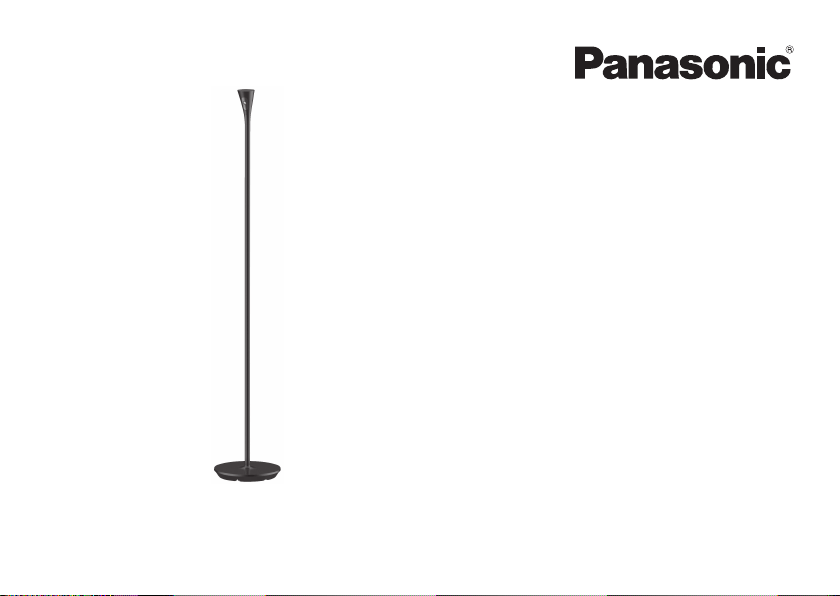
Home Monitoring Camera with Ambient Light
HomeHawk FLOOR
Model No�
KX-HNC850
Thank you for purchasing a Panasonic product�
Please read this document before using the unit and save it for future reference�
HNC850_ITG_(en-en)_0208_ver.070.pdf 1 2019/02/08 17:02:22

2
How do I access the User’s Guide? ������������������������������ 3
Part names and functions ����������������������������������������������� 4
Resetting the camera ������������������������������������������������������ 5
Battery installation (for power backup) ������������������������ 7
About this system �������������������������������������������������������������� 8
Privacy and rights of portrait ������������������������������������������ 8
Security cautions��������������������������������������������������������������� 8
For your safety ������������������������������������������������������������������� 9
For best performance ���������������������������������������������������� 11
FCC and other information ������������������������������������������� 12
Specications ������������������������������������������������������������������ 16
Troubleshooting (Initial setup by Easy Setup) ������������� 17
Troubleshooting (Initial setup by Manual Setup) �������� 19
Troubleshooting (Connection) ������������������������������������� 21
Troubleshooting (Sensors) ���������������������������������������������� 22
Warranty ��������������������������������������������������������������������������27
HNC850_ITG_(en-en)_0208_ver.070.pdf 2 2019/02/08 17:02:23
3
H
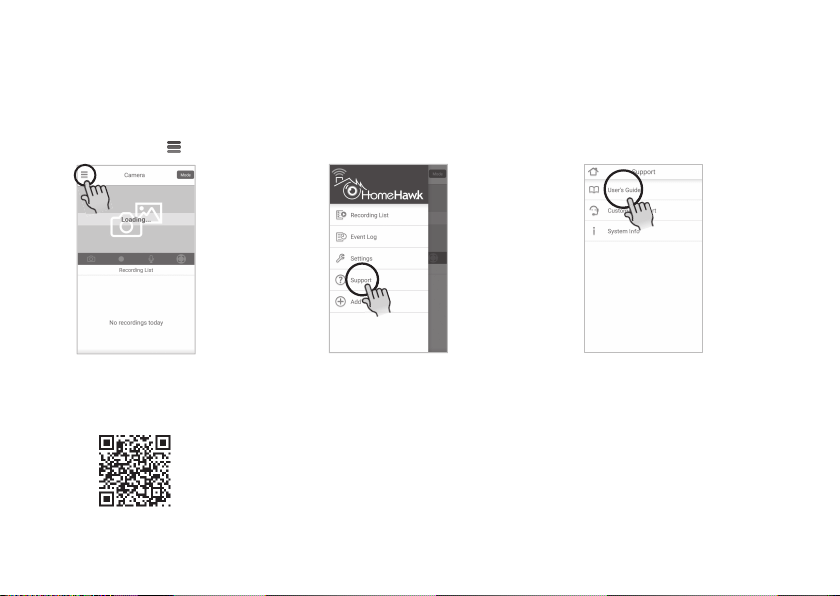
ow do I access the User’s Guide?
The User’s Guide is a collection of online documentation that helps you get the most out of the HomeHawk
app�
1
Start the [HomeHawk] app
and then tap �
2
Tap [Support]�
3
Tap [User’s Guide]�
Note:
• You can also access the User’s Guide at the web page listed below�
https://panasonic.net/cns/pcc/support/homehawk/manual/
• Microsoft
®
Windows
®
Internet Explorer
®
8 and earlier versions are not supported�
• Design and speci cations are subject to change without notice.
HNC850_ITG_(en-en)_0208_ver.070.pdf 3 2019/02/08 17:02:23
4
P
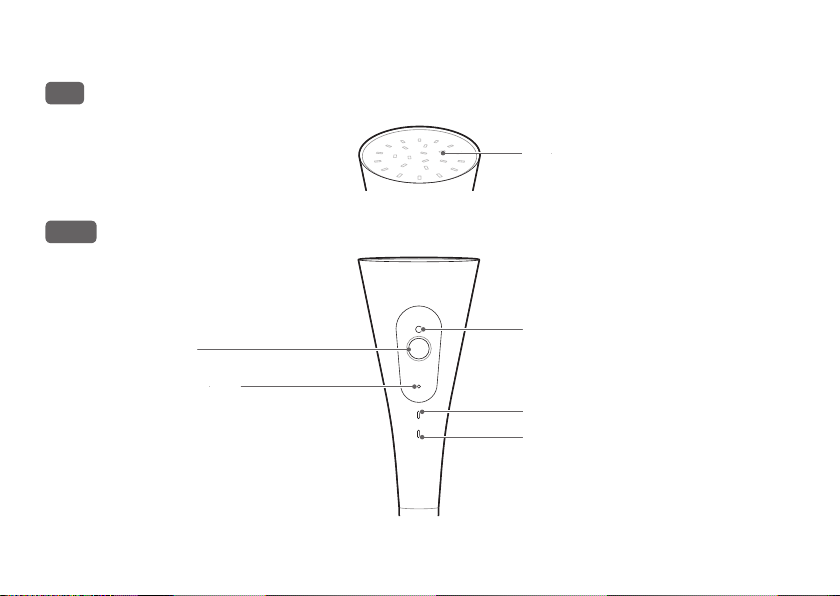
art names and functions
Top
LED lights
Front
Touch key
Touch to turn the light on/
off as well as adjust the
dimmer to 3 levels�
Microphone
LED indicator
Lens
Brightness sensor
HNC850_ITG_(en-en)_0208_ver.070.pdf 4 2019/02/08 17:02:23
5
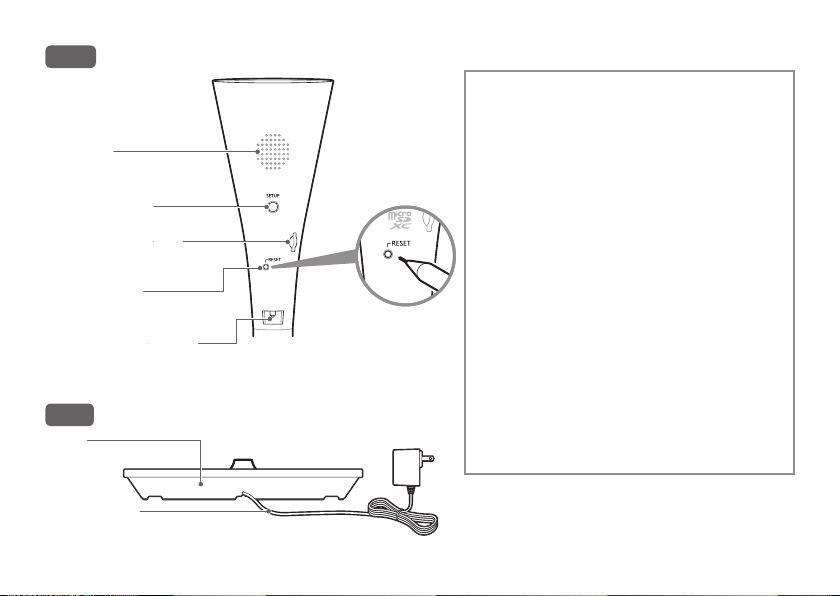
Back
Speaker
Temperature sensor
SETUP button
RESET button
microSD card slot
R
esetting the camera
Use this procedure if you have trouble
setting up the camera�
1
Plug in the camera�
• Wait for about 1 minute until the
camera beeps�
2
Using an object with a thin tip‚ press and
hold RESET button on the back of the
camera until the camera beeps (about
5 seconds)�
• The camera’s settings are reset�
3
Wait for the camera’s LED to light in
yellow�
Note:
• After resetting‚ perform the initial setup
to use the camera�
For more information‚ access the User’s
Guide (page 3)�
Base
Base
AC adaptor
HNC850_ITG_(en-en)_0208_ver.070.pdf 5 2019/02/08 17:02:23

6
LED indicator Status
Off • No power
• LED indicator is turned off
*1
Yellow‚ lit Not registered to your wireless router (usually for initial setup) or signal level
is good
*2
Green‚ blinking quickly Camera is searching for your wireless router
Green‚ lit Registration successfully completed
*3
or signal level is strong
*2
Red‚ lit Registration failed
*3
‚ signal level is weak
*2
Blue‚ lit Registration to your wireless router successfully completed or camera is on
*1
Yellow‚ blinking slowly Initial setup is being performed using WPS on your router
Green‚ blinking slowly Registration mode or updating
Red‚ blinking • Camera is out of range of your wireless router
*2
• LED lights are abnormally hot
• Wireless LAN connection failed
White‚ lit Privacy mode is on
*1
Red‚ blinking slowly • Streaming data
*1
or detecting motion
*1
• Accessing microSD card (when privacy mode is off)
White‚ blinking slowly Accessing microSD card (when privacy mode is on)
Green‚ blinking every 1.5 seconds Batteries for power backup are in use
*1 You can congure the camera so that its LED indicator does not light during normal operation. For more
information‚ access the User’s Guide (page 3)�
*2 The signal level (strong‚ good‚ weak‚ out of range) is shown for 3 seconds after pressing
SETUP
button�
*3 Lights for 3 seconds after registration is successfully completed or failed�
HNC850_ITG_(en-en)_0208_ver.070.pdf 6 2019/02/08 17:02:23

7
B
attery installation (for power backup)
You can insert 8 AA (LR6) batteries (not supplied) into the base to temporarily power the camera in the event of
a power failure�
Important:
• Use only alkaline batteries.
• Do NOT use manganese‚ Ni-Cd‚ Ni-MH‚ lithium‚ or lithium ion batteries.
• Conrm correct polarities (
‚ ).
• Disconnect the AC adaptor when inserting or replacing batteries.
• Batteries are only intended for short-term use.
1
Remove the base cover from
the base�
2
Install the batteries in the
battery holder�
3
Attach the base cover to the
base�
Note:
• The HomeHawk app noties you when the battery power is low. In this case‚ remove and replace all of the
batteries with new ones�
HNC850_ITG_(en-en)_0208_ver.070.pdf 7 2019/02/08 17:02:23

8
A
bout this system
• Panasonic will not be held responsible in the
event that property loss occurs while this system is
in operation�
• This product should not be used as substitute
for a medical or caregiver’s supervision� It is the
caregiver’s responsibility to stay close enough to
handle any eventuality�
• The system’s wireless features are subject to
interference‚ therefore functionality in all situations
cannot be guaranteed�
P
rivacy and rights of portrait
Please take into consideration the rights of others’
privacy. Generally said‚ “privacy” means the ability
of an individual or group to stop information about
themselves from becoming known to others. “Rights
of portrait” means the right to be safe from having
your own image taken and used indiscriminately
without consent�
S
ecurity cautions
• Take appropriate measures to avoid the following
security breaches when using this product�
– Leaks of private information
– Unauthorized use of this product
– Unauthorized interference or suspension of the
use of this product
• Congure the wireless router that connects your
mobile device to this product to use encryption
for all wireless communication�
• Do not use the default password continuously�
Change it to your own setting and set new one
periodically� Do not use passwords that could
be easily guessed by a third party� If you keep a
record of your passwords‚ protect that record.
• If you lose your mobile device‚ change the
password used to access this product�
• If you enable the product’s auto login feature‚
enable the screen lock or similar security feature
on your mobile device�
• Performing the reset will delete all information� To
avoid losing your previous setting‚ we recommend
to write down the information�
• To prevent disclosure of personal information‚
enable the screen lock or similar security feature
on your mobile device�
• When submitting the product for repair‚ make a
note of any important information stored in the
product‚ as this information may be erased or
changed as part of the repair process�
• Use only trusted repair services authorized by
Panasonic�
• Before disposing of the product‚ perform a
factory data reset to erase any data stored in the
product� Remove and erase the microSD card�
• If your mobile device will no longer be used
with the product‚ delete your mobile device’s
registration from the product and delete the
corresponding app from your mobile device�
HNC850_ITG_(en-en)_0208_ver.070.pdf 8 2019/02/08 17:02:23

9
• This product may be used in ways that violate
the privacy or publicity rights of others� You are
responsible for the ways in which this product is
used�
F
or your safety
To prevent severe injury and loss of life/property‚ read
this section carefully before using the product to ensure
proper and safe operation of your product�
WARNING
Power connection
• Use only the power source marked on the
product�
• Do not overload power outlets and extension
cords. This can result in the risk of re or electric
shock�
• Completely insert the AC adaptor/power plug
into the power outlet� Failure to do so may cause
electric shock and/or excessive heat resulting in
a re.
• Regularly remove any dust‚ etc. from the AC
adaptor/power plug by pulling it from the power
outlet‚ then wiping with a dry cloth. Accumulated
dust may cause an insulation defect from
moisture‚ etc. resulting in a re.
• Unplug the product from power outlets if it
emits smoke‚ an abnormal smell‚ or makes
an unusual noise� These conditions can cause
re or electric shock. Conrm that smoke
has stopped emitting and contact us at
http://shop.panasonic.com/support
• Unplug from power outlets and never touch the
inside of the product if its casing has been broken
open� Danger of electric shock exists�
• Never touch the plug with wet hands� Danger of
electric shock exists�
• Do not connect non-specied devices.
Installation
• Do not allow the power cord to be excessively
pulled‚ bent or placed under heavy objects.
• Do not place the product near wirelessly
controlled devices such as automatic doors�
Operating safeguards
• Do not look directly at the LED when it is lit� Doing
so may cause damage to eyes�
• Consider the installation environment carefully
when installing the product� Pay particular
attention to infants‚ children‚ and the elderly‚ as
they may be more sensitive to bright lights�
• When you move the product‚ lift the product
holding the poles or the bottom of the product
base. There may be a risk of injury or damage to
your property if the product is dropped�
• Do not put ammable objects such as cloth or
paper on the product�
• Take adequate care when using the product in
an area where there are small children or pets� If
the product is bumped into‚ it may fall over and
cause injury to small children or pets.
HNC850_ITG_(en-en)_0208_ver.070.pdf 9 2019/02/08 17:02:23

10
• Unplug the product from power outlets before
cleaning. Do not use liquid or aerosol cleaners.
• Do not disassemble the product�
• Never put metal objects inside the product. If
metal objects enter the product‚ turn off the
circuit breaker and contact an authorized service
center�
• Keep small parts‚ such as microSD cards‚ out of
the reach of children� There is a risk of swallowing�
Medical
• Consult the manufacturer of any personal
medical devices‚ such as pacemakers or hearing
aids‚ to determine if they are adequately shielded
from external RF (radio frequency) energy.
Wireless LAN features operate between the
frequencies listed below‚ with a peak transmission
power of 100mw:
2�412 GHz – 2�462 GHz
5�180 GHz – 5�320 GHz
5�500 GHz – 5�700 GHz
5�745 GHz – 5�825 GHz
• Do not use the product in Healthcare facilities if
any regulations posted in the area instruct you
not to do so� Hospitals or Healthcare facilities may
be using equipment that could be sensitive to
external RF energy�
CAUTION
Installation and location
• Never install wiring during a lightning storm�
• The AC adaptor is used as the main disconnect
device� Ensure that the AC outlet is installed near
the product and is easily accessible�
• Place the product on the stable location where
the base can be adequately supported when
installing�
• Do not place the product on soft or unstable
material. It may fall down‚ break or cause injury.
Note when using alkaline batteries (not supplied) for
power backup
• CAUTION: Risk of explosion if battery is replaced
by an incorrect type� Dispose of used batteries
according to the instructions�
• Do not open or mutilate the batteries� Released
electrolyte from batteries is corrosive and
may cause burns or injury to the eyes or skin.
The electrolyte is toxic and may be harmful if
swallowed�
• Exercise care when handling batteries� Do
not allow conductive materials such as rings‚
bracelets‚ or keys to touch batteries‚ otherwise
a short circuit may cause the batteries and/or
the conductive material to overheat and cause
burns�
• The batteries should be used correctly‚ otherwise
the unit may be damaged due to battery
leakage�
• Do not charge‚ short-circuit‚ disassemble‚ or heat
the batteries�
HNC850_ITG_(en-en)_0208_ver.070.pdf 10 2019/02/08 17:02:23

11
• Do not dispose of batteries in a re.
• Remove all the batteries when replacing�
• Do not mix old‚ new or different types of batteries.
• Remove the batteries if they become unusable�
There is a risk of leakage‚ overheating‚ and
rupture� Do not attempt to use a battery if it is
leaking�
• The unit and its batteries may become very hot�
Make sure the unit and batteries have cooled
before touching the unit‚ replacing the batteries‚
etc�
F
or best performance
Product location/avoiding noise
• This product uses radio waves to communicate
with a wireless router�
• For maximum coverage and noise-free
communications‚ place this product:
– at a convenient and central location with no
obstructions between this product and the
wireless router�
– away from electronic appliances such as TVs‚
radios‚ personal computers‚ wireless devices‚ or
other phones�
– facing away from radio frequency transmitters‚
such as external antennas of mobile phone
cell stations (Avoid putting this product near a
window�)
• Coverage and transmission quality depends on
the local environmental conditions�
• If the transmission quality is not satisfactory‚ move
this product to another location�
Environment
• Keep the product away from electrical noise
generating devices‚ such as uorescent lamps
and motors�
• The product should be kept free from excessive
smoke‚ dust‚ high temperature‚ and vibration.
• Do not expose this product to direct sunlight or
other forms of powerful light such as halogen lights
for long periods of time� (This may damage the
image sensor�)
• Do not place heavy objects on top of the
product�
• When you leave the product unused for a long
period of time‚ unplug the product from the
power outlet�
• The product should be kept away from heat
sources such as heaters‚ kitchen stoves‚ etc.
It should not be placed in rooms where the
temperature is less than 0 °C (32 °F) or greater
than 40 °C (104 °F)� Damp basements should also
be avoided�
• Operating the product near electrical appliances
may cause interference� Move away from the
electrical appliances�
Routine care
• Wipe the outer surface of the product with a soft
moist cloth�
HNC850_ITG_(en-en)_0208_ver.070.pdf 11 2019/02/08 17:02:23
12
• Do not use benzine‚ thinner‚ or any abrasive
powder�
Camera image quality
• Camera image and its quality may be affected
on the mobile device based on surroundings such
as lighting‚ brightness of the room.
Protecting your recordings
• Do not remove the microSD card or disconnect
the product’s AC adaptor while reading or writing
data to the microSD card� Data on the card
could become corrupted�
• If a microSD card malfunctions or is exposed to
electromagnetic waves or static electricity‚ data
on the card could become corrupted or erased�
Therefore we recommend backing up important
data to a computer or other device�
Notice for product disposal‚ transfer‚ or return
• This product can store your private/condential
information� To protect your privacy/
condentiality‚ we recommend that you erase
information from the memory before you dispose
of‚ transfer‚ or return the product.
Notice
•
•
•
•
•
F
CC and other information
FCC
This device complies with Part 15 of the FCC Rules�
Operation is subject to the following two conditions:
(1) This device may not cause harmful interference‚
and (2) this device must accept any interference
received‚ including interference that may cause
undesired operation� Privacy of communications may
not be ensured when using this device�
HNC850_ITG_(en-en)_0208_ver.070.pdf 12 2019/02/08 17:02:24

13
CAUTION:
Any changes or modications not expressly approved
by the party responsible for compliance could void
the user’s authority to operate this device�
NOTE:
This equipment has been tested and found to
comply with the limits for a Class B digital device‚
pursuant to Part 15 of the FCC Rules� These limits are
designed to provide reasonable protection against
harmful interference in a residential installation� This
equipment generates‚ uses‚ and can radiate radio
frequency energy and‚ if not installed and used in
accordance with the instructions‚ may cause harmful
interference to radio communications. However‚
there is no guarantee that interference will not occur
in a particular installation. If this equipment does
cause harmful interference to radio or television
reception‚ which can be determined by turning the
equipment off and on‚ the user is encouraged to
try to correct the interference by one or more of the
following measures:
– Reorient or relocate the receiving antenna�
– Increase the separation between the equipment
and receiver�
– Connect the equipment into an outlet on a
circuit different from that to which the receiver is
connected�
– Consult the dealer or an experienced radio/ TV
technician for help�
Some devices operate at frequencies that may
cause interference to nearby TVs and VCRs� To
minimize or prevent such interference‚ this device
should not be placed near or on top of a TV or VCR� If
interference is experienced‚ move this device further
away from the TV or VCR� This will often reduce or
eliminate interference�
FCC RF Exposure Warning:
• This product complies with FCC radiation exposure
limits set forth for an uncontrolled environment�
• To comply with FCC RF exposure requirements‚
the device must be installed and operated 20 cm
(8 inches) or more between the product and all
person’s body�
• This product may not be collocated or operated
in conjunction with any other antenna or
transmitter�
Notice:
• FCC ID can be found on the bottom of the unit�
Important safety instructions
When using your product‚ basic safety precautions
should always be followed to reduce the risk of re‚
electric shock‚ and injury to persons‚ including the
following:
1
Do not use this product near water for example‚
near a bathtub‚ washbowl‚ kitchen sink‚ or laundry
tub‚ in a wet basement or near a swimming pool.
HNC850_ITG_(en-en)_0208_ver.070.pdf 13 2019/02/08 17:02:24
14
2
Use only the power cord indicated in this
document�
SAVE THESE INSTRUCTIONS
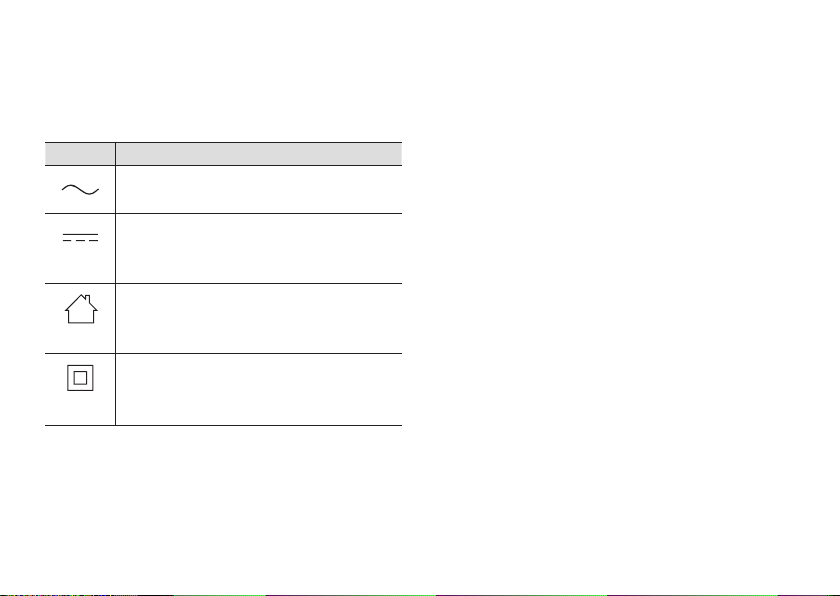
Graphical symbols for use on equipment and their
descriptions
Symbol Explanation
Alternating current (A�C�)
Direct current (D�C�)
For indoor use only
Class II equipment (equipment in which
protection against electric shock relies
on Double Insulation or Reinforced
Insulation)
Open source software notice
Parts of this product use open source software
supplied based on the relevant conditions of the
Free Software Foundation’s GPL and/or LGPL and
other conditions� Please read all licence information
and copyright notices related to the open source
software used by this product� This information is
available at the following web page:
https://panasonic.net/cns/pcc/support/homehawk
At least three (3) years from delivery of this product‚
Panasonic Corporation will give to any third party
who contacts us at the contact information provided
below‚ for a charge of no more than the cost of
physically distributing source code‚ a complete
machine-readable copy of the corresponding source
code and the copyright notices covered under the
GPL and the LGPL� Please note that software licensed
under the GPL and the LGPL is not under warranty�
https://panasonic.net/cns/pcc/support/homehawk
Software information
The End User License Agreement (EULA) for the
HomeHawk app is available at the following web
page:
https://panasonic.net/cns/pcc/support/homehawk
Notice for AVC patent portfolio license
THIS PRODUCT IS LICENSED UNDER THE AVC PATENT
PORTFOLIO LICENSE FOR THE PERSONAL AND NON-
COMMERCIAL USE OF A CONSUMER TO (i) ENCODE
VIDEO IN COMPLIANCE WITH THE AVC STANDARD
(“AVC VIDEO”) AND/OR (ii) DECODE AVC VIDEO
THAT WAS ENCODED BY A CONSUMER ENGAGED
IN A PERSONAL AND NON-COMMERCIAL ACTIVITY
AND/OR WAS OBTAINED FROM A VIDEO PROVIDER
LICENSED TO PROVIDE AVC VIDEO� NO LICENSE IS
GRANTED OR SHALL BE IMPLIED FOR ANY OTHER USE�
HNC850_ITG_(en-en)_0208_ver.070.pdf 14 2019/02/08 17:02:24

15
ADDITIONAL INFORMATION MAY BE OBTAINED FROM
MPEG LA‚ L.L.C. SEE HTTP://WWW.MPEGLA.COM
Trademarks
• microSDXC Logo is a trademark of SD-3C‚ LLC.
• Apple‚ the Apple logo‚ iPad Air‚ and iPhone are
registered trademarks of Apple Inc� App Store is a
service mark of Apple Inc�
• Android and Google Play are registered
trademarks or trademarks of Google LLC�
• Microsoft‚ Windows‚ and Internet Explorer are
either registered trademarks or trademarks of
Microsoft Corporation in the United States and/or
other countries�
• Wi-Fi
®
‚ WPA™‚ and WPA2™ are registered
trademarks or trademarks of Wi-Fi Alliance
®
�
• All other trademarks identied herein are the
property of their respective owners�
HNC850_ITG_(en-en)_0208_ver.070.pdf 15 2019/02/08 17:02:24

16
S
pecications
Standards: IEEE 802�11a/b/g/n
Frequency range: 2�412 GHz – 2�462 GHz (channels
1 – 11) / 5�180 GHz – 5�320 GHz (channels 36–64) /
5�500 GHz – 5�700 GHz (channels 100–140) / 5�745 GHz
– 5�825 GHz (channels 149–165)
RF transmission power: 100 mW (peak transmission
power)
Encryption: WPA2™-PSK (TKIP/AES)‚ WPA™-PSK (TKIP/
AES)‚ WEP (128/64 bit)
Power source: 120 V AC‚ 60 Hz
Power consumption: Standby: 4�2 W / Maximum:
12�5 W
Power back-up batteries (not supplied)
*1
: AA (LR6)
alkaline batteries x 8
Power back-up battery life
*2‚ *3
: Day time approx�
60 min�/night time approx� 30 min�
Operating conditions: 0 °C – 40 °C (32 °F – 104 °F) /
20 % – 80 % relative air humidity (dry)
Resolution: 1920 × 1080 pixel (Full HD)‚
1280 × 720 pixel (HD)‚ 640 × 480 pixel (VGA)
Image sensor: 2�0 megapixel CMOS
Maximum illumination
*4
: Approx� 600 lumens
Minimum illuminance required
*5
: 0 lx
Focal length: Fixed (0.2 m (8 inches) – innity)
Camera eld of view: Diagonal 140°
microSD card:
Type: microSDHC card (4 GB - 32 GB)‚
microSDXC card (64 GB - 256 GB)
Speed: Class10‚ or UHS Speed Class 1 or higher
Motion detection method: Visual sensor
Dimensions (height × width × depth):
3 poles: Approx. 1‚800 mm × 306 mm × 306 mm
(5 feet 10
7
/
8
inches × 12
1
/
32
inches × 12
1
/
32
inches)
2 poles: Approx. 1‚275 mm × 306 mm × 306 mm
(4 feet 2
3
/
16
inches × 12
1
/
32
inches × 12
1
/
32
inches)
1 pole: Approx� 750 mm × 306 mm × 306 mm
(2 feet 5
1
/
2
inches × 12
1
/
32
inches × 12
1
/
32
inches)
Mass (weight):
3 poles: Approx. 4‚100 g (9.04 lb)
2 poles: Approx. 3‚650 g (8.05 lb)
1 pole: Approx. 3‚200 g (7.05 lb)
*1 During battery operations‚ LED brightness can
only be set to the low setting�
*2 Note that battery life may be much shorter
depending on the brand of batteries being used�
*3 There will be a notication when batteries are
nearing the end of their life�
*4 The light dims according to your setting�
*5 The infrared LEDs that surround the camera lens
will illuminate in low-light conditions�
HNC850_ITG_(en-en)_0208_ver.070.pdf 16 2019/02/08 17:02:24
17
T
roubleshooting (Initial setup by Easy Setup)
What is WPS?
WPS is a function of wireless routers that is used to easily connect wireless devices to wireless routers�
A WPS button on a wireless router indicates that it has the WPS function� (Depending on the type of wireless
router‚ the WPS function may be disabled on the wireless router even if there is a WPS button.)
If you have trouble during the initial setup‚ check the following causes/solutions rst‚ and then turn off the
camera and restart it�
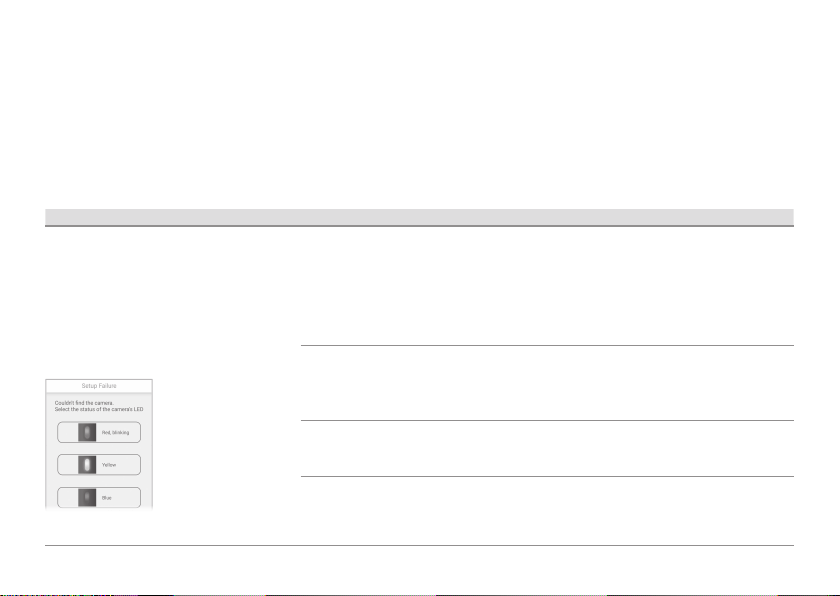
Problem Cause Solution
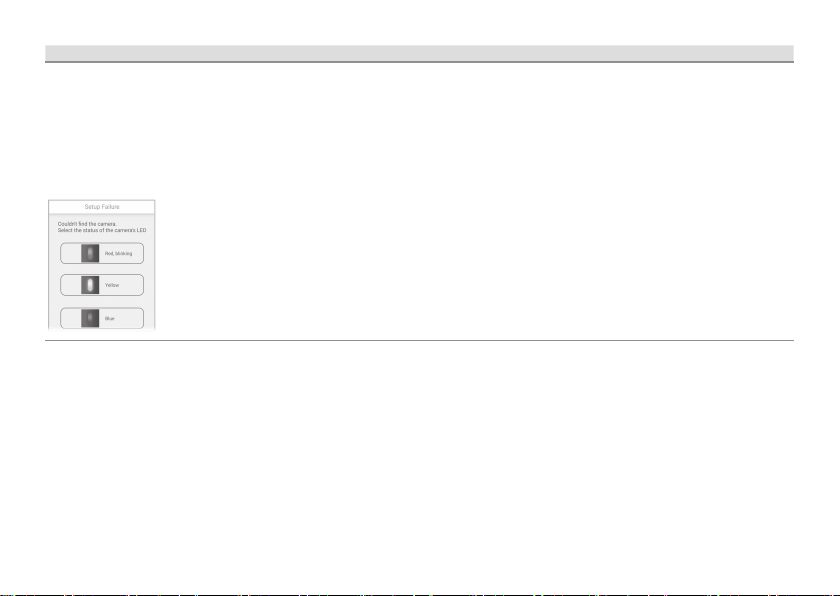
When initial setup
is performed
using a WPS
button (Easy
Setup)‚ the
following screen
is displayed and
the setup cannot
be completed�
The camera’s
LED indicator is
blinking in red�
The WPS function on
your wireless router
may be disabled�
Some Internet Service Provider wireless routers
may have WPS disabled�
Try “Manual Setup”.
• Unplug the camera and then plug it in again‚
and then try again from the beginning�
• Try initial setup without using a WPS button on
your wireless router (Manual Setup)�
The camera and
wireless router are
too far away�
• Move the camera and wireless router closer
together�
• Unplug the camera and then plug it in again‚
and then try again from the beginning�
The wireless router is
not in WPS mode�
• Press the WPS button on the wireless router
for long enough until the LED indicator on the
router starts blinking�
Several cameras
are in WPS mode�
• Only 1 camera can be operated in WPS mode
at a time�
• Unplug the camera and then plug it in again‚
and then try again from the beginning�
HNC850_ITG_(en-en)_0208_ver.070.pdf 17 2019/02/08 17:02:24
18
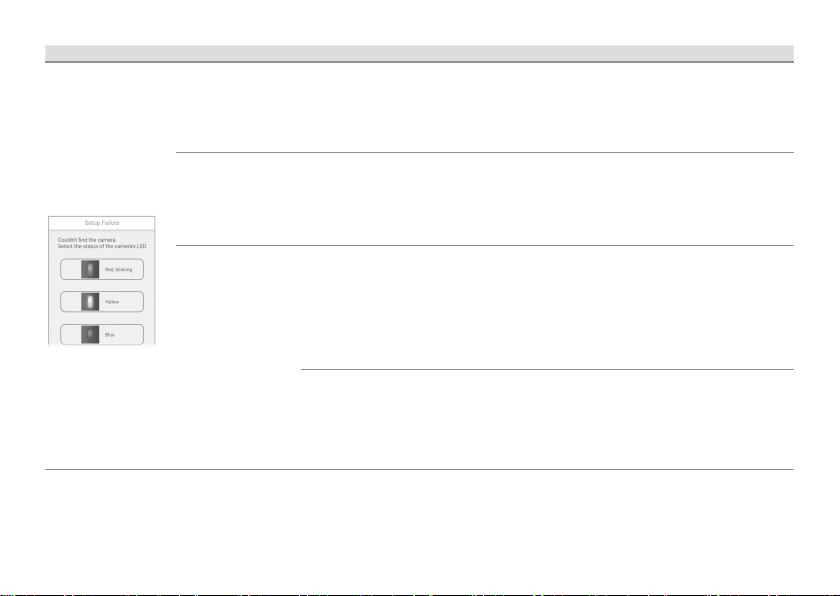
Problem Cause Solution
When initial setup
is performed
using a WPS
button (Easy
Setup)‚ the
following screen
is displayed and
the setup cannot
be completed�
The camera’s
LED indicator is
blinking in red�
The DHCP function
of your wireless
router may be
disabled�
Con rm that the wireless router’s DHCP settings
are enabled� Refer to your wireless router’s
manual�
• Unplug the camera and then plug it in again‚
and then try again from the beginning�
The camera’s
LED indicator is lit
in yellow�
The camera is not in
WPS mode�
The
SETUP button
was not pressed for
long enough�
Follow the on-screen instructions‚ and press and
hold the
SETUP button on the camera until it
beeps (about 5 seconds)�
The camera’s LED
indicator is lit in
blue�
The WPS button
was pressed on
another router
which is different
from the router your
mobile device is
connected with�
• Reconnect your mobile device to the router
whose WPS button was pressed‚ restart the
[
HomeHawk] app‚ and then follow the on-
screen instructions�
The “Isolation”
function on the
wireless router is
enabled�
Sometimes when the “Isolation” function
is enabled‚ the camera will not be able to
communicate with your mobile device via your
wireless router. Disable the “Isolation” function
on your wireless router. For details‚ refer to your
wireless router’s manual�
HNC850_ITG_(en-en)_0208_ver.070.pdf 18 2019/02/08 17:02:24
19
T
roubleshooting (Initial setup by Manual Setup)
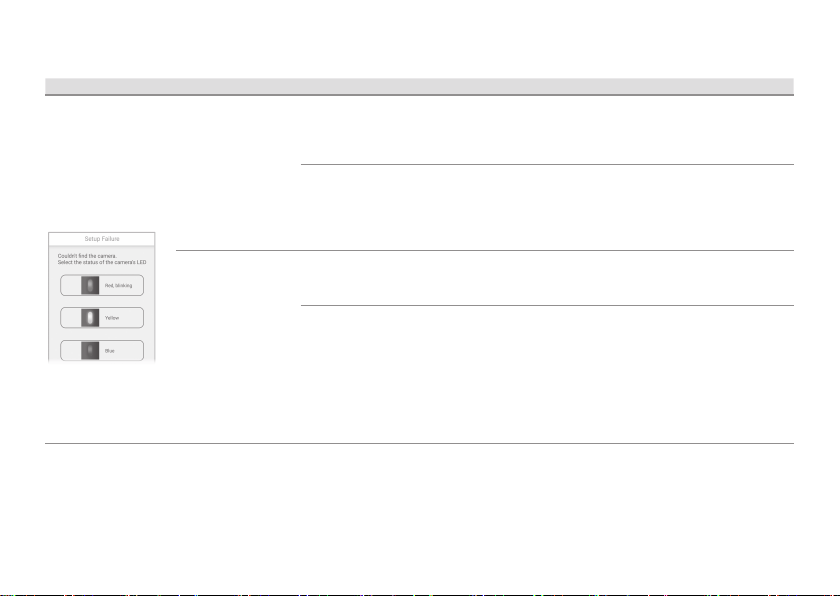
Problem Cause Solution
When initial setup
is performed
using Manual
Setup‚ the
following screen
is displayed and
the setup cannot
be completed�
The camera’s
LED indicator is
blinking in red�
The wireless network
password may be
incorrect�
Enter the correct password for the wireless
network�
• Unplug the camera and then plug it in again‚
and then try again from the beginning�
The DHCP function
of your wireless
router may be
disabled�
Con rm that the wireless router’s DHCP settings
are enabled� Refer to your wireless router’s
manual�
• Unplug the camera and then plug it in again‚
and then try again from the beginning�
The camera’s
LED indicator is lit
in blue�
Your mobile device
is connected to
another network�
Connect your mobile device to the same wireless
network that was used to set up the camera and
try to add the mobile device again�
A network clash has
occurred because
you have 2 wireless
routers at home
that are using the
same channel or
channels of a close
frequency.
Unplug all the wireless routers and plug them in
again�
If the situation still does not improve‚ refer to your
wireless router’s manual for information on how
to change the router channel of your wireless
network�
HNC850_ITG_(en-en)_0208_ver.070.pdf 19 2019/02/08 17:02:24
20
Problem Cause Solution
When initial setup
is performed
using Manual
Setup‚ the
following screen
is displayed and
the setup cannot
be completed�
The camera’s
LED indicator is
lit in blue�
The “Isolation”
function on the
wireless router is
enabled�
Sometimes when the “Isolation” function
is enabled‚ the camera will not be able to
communicate to your mobile device via the
wireless router. Disable the “Isolation” function
on your wireless router� For details refer to your
wireless router’s manual�
HNC850_ITG_(en-en)_0208_ver.070.pdf 20 2019/02/08 17:02:24

21
T
roubleshooting (Connection)
Problem Cause Solution
The LED indicator is
blinking in red�
The camera is out of range of your
wireless router�
Conrm that your wireless router is powered on
and wired correctly‚ and then move the camera
closer to your wireless router�
I cannot connect
while away from
home�
You are using a public wireless
network�
Network trafc‚ network conditions‚ and the
network provider’s settings or policies may
prevent the connection� Use your mobile network
service provider’s wireless network (3G‚ 4G‚ etc.).
The network condition of the
service area you are currently in
is bad and your mobile device is
having trouble communicating�
Conrm the wireless network connection status of
your mobile device�
Try moving to another location�
There is too much trafc in the
wireless network or the mobile
network that your camera is
connected to�
Wait for the network trafc to decrease‚ and
then try to connect again�
HNC850_ITG_(en-en)_0208_ver.070.pdf 21 2019/02/08 17:02:24
22
T
roubleshooting (Sensors)
How does the camera detect changes?
The camera has 3 sensor features: a visual sensor used for motion detection‚ a temperature sensor‚ and a sound
sensor�
Note:
• The camera’s sensor features are not designed to be used in situations that require high reliability. We do not
recommend use of the sensor features in these situations�
• Panasonic takes no responsibility for any injury or damage caused by the use of the camera’s sensor features.
Visual sensor to detect motion
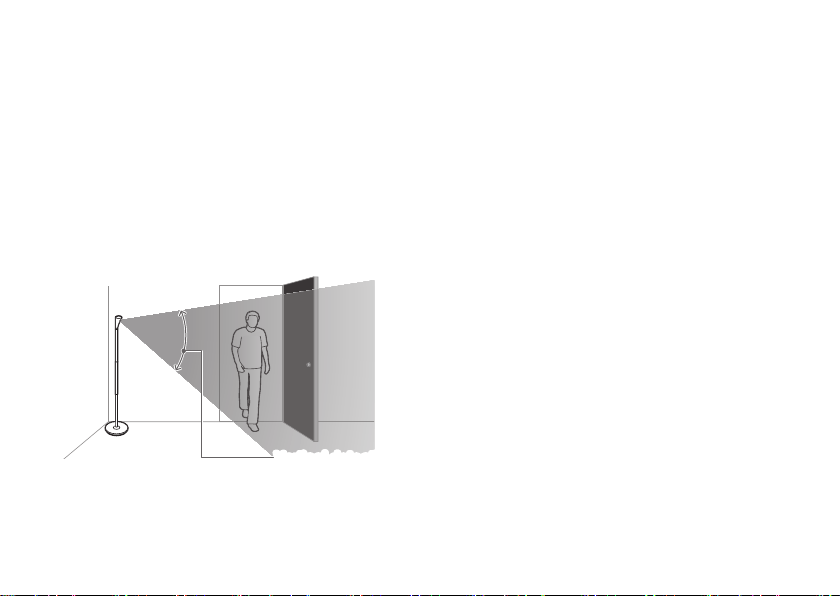
The camera can detect motion by recognizing changes in the areas that are visible to the camera�
Vertical detection range: approx. 63°
Note:
• Movement may be incorrectly detected when the moving object and the background have similar colors.
• Movement may be incorrectly detected when there are sudden changes to the overall brightness level‚
such as when lights are turned on�
HNC850_ITG_(en-en)_0208_ver.070.pdf 22 2019/02/08 17:02:24

23
• Detection becomes difcult when the image is dark.
• You can adjust the sensitivity of the camera’s motion detection feature‚ and select which areas of the
camera image are monitored for motion detection. For more information‚ access the User’s Guide (page 3)�
Temperature sensor
The sensor is triggered when the set temperature range is exceeded�
Note:
• The temperature sensor may not detect temperature accurately if the camera is exposed to warm or cool
breezes from heating/cooling systems�
• You can adjust the temperature setting of the temperature sensor. For more information‚ access the User’s
Guide (page 3)�
Sound sensor
The sensor is triggered when the set sound level is exceeded�
Note:
• The sound sensor may not function as desired when the camera is placed in noisy environments�
• You can adjust the sound level setting of the sound sensor. For more information‚ access the User’s Guide
(page 3)�
HNC850_ITG_(en-en)_0208_ver.070.pdf 23 2019/02/08 17:02:24
24
Can I check motion detection with the visual sensor?
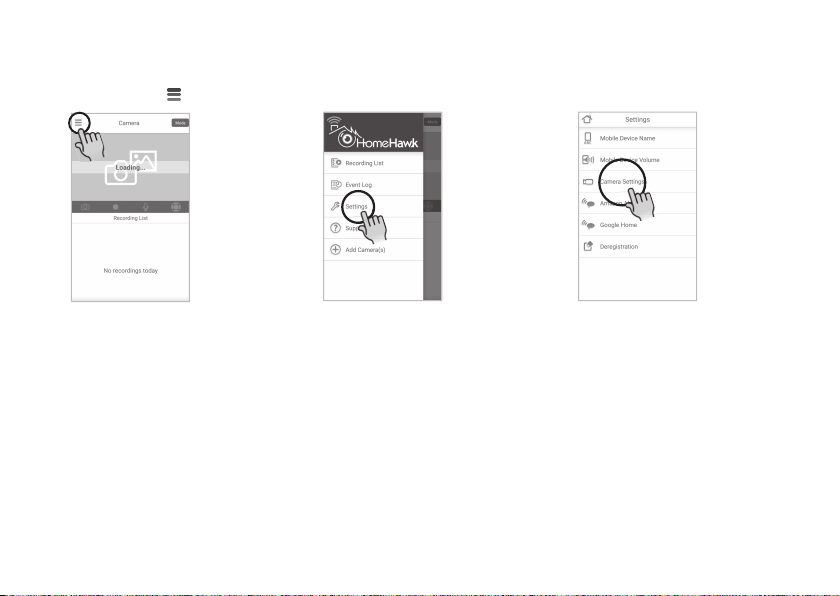
1
Start the [HomeHawk] app
and then tap �
2
Tap [Settings]�
3
Tap [Camera Settings] and
select the camera to be tested�
4
Tap [Detection] → [Detection Test]�
• [Mobile Device Volume]
is displayed only for Android
devices�
5
Move to an area within the camera’s viewable area�
6
While moving near the camera‚ use your mobile device to observe where you are in the viewable area
when the camera’s motion detection features are triggered�
7
Note the areas of the viewable area where movement is detected‚ and make adjustments as necessary.
HNC850_ITG_(en-en)_0208_ver.070.pdf 24 2019/02/08 17:02:24
25
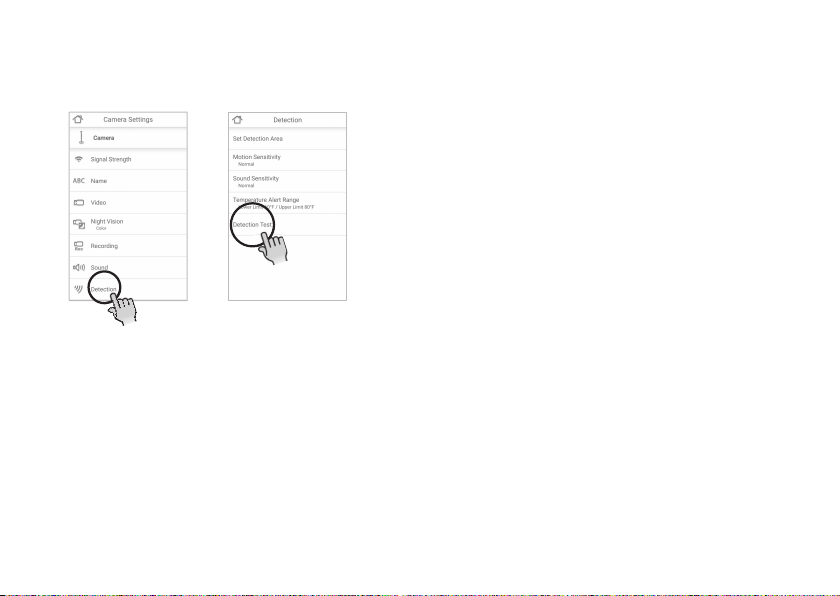
Can I check motion detection with the visual sensor?
1
Start the [HomeHawk] app
and then tap �
2
Tap [Settings]�
3
Tap [Camera Settings] and
select the camera to be tested�
4
Tap [Detection] → [Detection Test]�
• [Mobile Device Volume]
is displayed only for Android
devices�
5
Move to an area within the camera’s viewable area�
6
While moving near the camera‚ use your mobile device to observe where you are in the viewable area
when the camera’s motion detection features are triggered�
7
Note the areas of the viewable area where movement is detected‚ and make adjustments as necessary.
HNC850_ITG_(en-en)_0208_ver.070.pdf 25 2019/02/08 17:02:25

26
Problem Cause Solution
The visual sensor is
triggered too easily�
The camera’s motion detection
features are too sensitive�
Reduce the sensitivity of the visual sensor� For more
information‚ access the User’s Guide (page 3).
The camera’s detection area is
too large�
You can adjust the area detectable by the visual
sensor. For more information‚ access the User’s
Guide (page 3)�
HNC850_ITG_(en-en)_0208_ver.070.pdf 26 2019/02/08 17:02:25

27
W
arranty
Limited Warranty Coverage (For USA Only)
Labor
One (1) Year
Parts
One (1) Year
Home Network System Products
microSD card (Included model only) 90 days N/A
Product or Part Name
Panasonic Products Limited Warranty
Additional description of the Limited warranty includes Online Repair Request, limited warranty
limits and exclusions is available at following locations:
Customer Services Directly http://shop.panasonic.com/warrantyinformation or inside
HomeHawk User’s Guide.
If your product does not work properly because of a defect in materials or workmanship,
Panasonic Corporation of North America (referred to as “the warrantor”) will, for the length
of the period indicated on the chart below, which starts with the date of original purchase
(“warranty period”), at its option either (a) repair your product with new or refurbished parts,
(b) replace it with a new or a refurbished equivalent value product, or (c) refund your
purchase price. The decision to repair, replace or refund will be made by the warrantor.
HNC850_ITG_(en-en)_0208_ver.070.pdf 27 2019/02/08 17:02:25
A Reconnect the AC adaptor to the wall outlet.
If your product is not working
properly. . .
IMPORTANT!
Visit our Web site: http://shop.panasonic.com/support
• FAQ and troubleshooting hints are available.
B Use the HomeHawk app to access the User’s Guide and
refer to the Troubleshooting section.
For your future reference
We recommend keeping a record of the following information to assist with any repair under warranty�
Serial No� Date of purchase
(found on the bottom of the unit)
Name and address of dealer
Attach your purchase receipt here�
Two Riverfront Plaza, Newark, NJ 07102-5490
© Panasonic Corporation 2019
PNQX8882ZA CC0119YK0Printed in Malaysia
HNC850_ITG_(en-en)_0208_ver.070.pdf 28 2019/02/08 17:02:25