Battery Saver
Your universal remote control saves battery power by
automatically turning off if any key is pressed for more
than 60 seconds. This saves your battery life should
your remote get stuck in a place where the keys remain
depressed, such as between sofa cushions.
RCRTBL06BE
Universal Remote Control
Owner’s Manual
Manual del Propietario (parte posterior)
SAVE THIS MANUAL AND THE CODE LISTS!
Remote controls can sometimes lose their programming
when you change the batteries. Make sure you keep the
manual and code lists in a safe place so that you can
reprogram the remote if you need to.
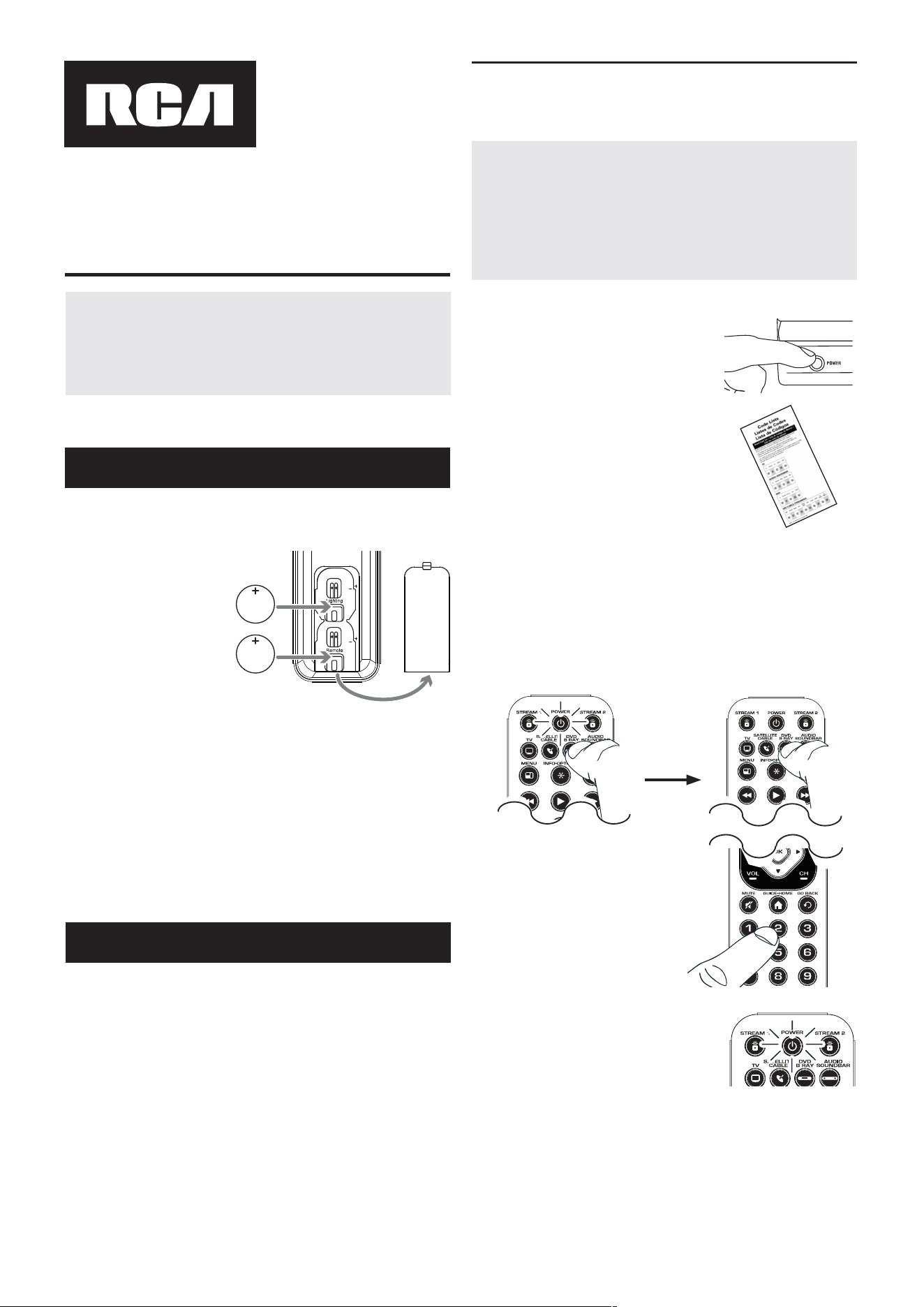
Your universal remote requires two CR2032 coin-cell
batteries (included).
To install the batteries:
1.
Remove the battery
compartment cover.
2.
Place the batteries
in the compartment
with their (+)
markings up. Push
each battery up
under the ridge in the compartment with the “+”
marking.
3.
Push the battery cover back into place.
To use this universal remote with your home entertainment
system,�rstyouneedtoprogramittocontrolyourdevices.
Therearefourwaysyoucanprogramtheuniversalremote
tooperateyourdevices.Trythemintheorderlisted.
• The Direct Code Entry lets you enter a code from the
accompanying code list for your brand of device.
• The Brand Code Search searches through the codes
for select brands of devices.
• The Auto Code Search goes automatically through all
the codes for the device you’re trying to control.
• The Manual Code Search lets you manually go
through all the codes for the device you’re trying to
control.
Direct Code Entry
DirectCodeEntryletsyouenteracodefromthe
accompanyingcodelistforyourbrandofdevice.
TIP:
Each device key is associated with a type of device—
the TV is preset to search for TVs, SATELLITE CABLE
for satellite receivers or cable boxes, STREAM 1 and 2
for streaming players, DVD B RAY for DVD and Blu Ray
players, and AUDIO SOUNDBAR for audio receivers and
sound bars. To program a device key for a different type of
device, see the Changing a Key’s Device Type section.
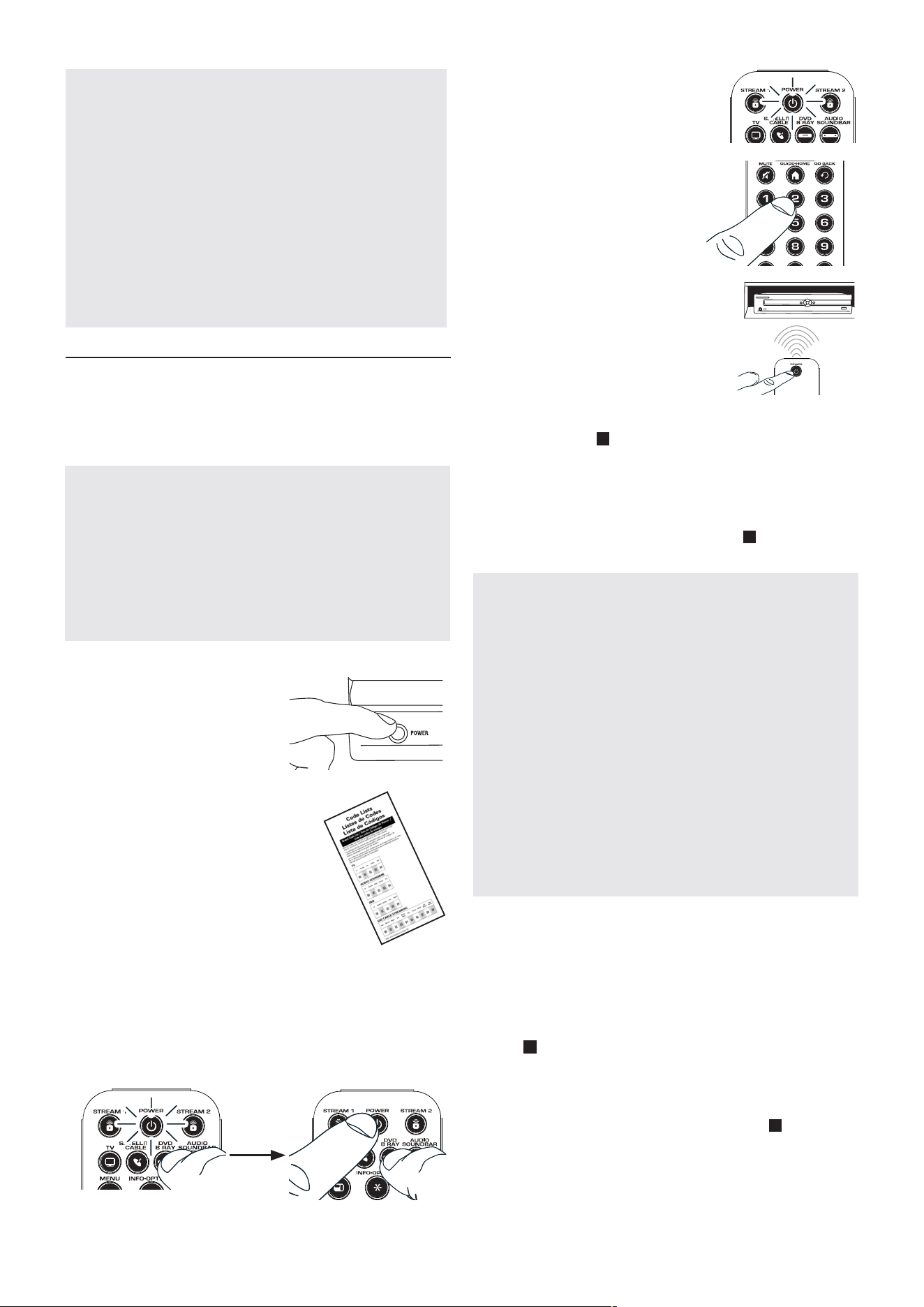
1.
Manually turn on the device you
want to control.
3.
Press and hold the device key you want to program
(the POWER key illuminates).
Whileyou’reholdingdownthedevicekey,useyour
otherhandenterthe�rst�ve-digitcodeforyour
brandinthecodelist(thePOWERkeyturnsoffafter
the�rstdigit).
2.
Find the Code List that came
with the remote. Locate the
section for the type of device
you’re trying to program, and
�ndyourbrandinthatsection.
Circle the codes for your brand
and keep them handy.
4.
Whenyou’ve�nished
enteringthe�ve-digitcode,
keep holding down the
device key and look at the
POWER key.
Is the POWER key illuminated?
YES: You’re done! You’ve programmed this device
key.
NO, it blinked four times and turned off: You have
either entered a code number that is not in the code
lists or missed a step in the code entry procedure. Try
step 3 again.
Step 1: Install the batteries
Step 2: Program your remote
POWER
RCRTBL06BEUS02 2621
POWER
Testing the Code for Maximum Functionality
1. Try a variety of the device’s functions with the
remote. If some device features don’t work, go to
the next step to try a different code.
2. Repeat the Brand Code Search from the beginning.
Whenthedeviceturnsoffforthe�rsttime,don’tpress
the
key, which would store the same code. Instead,
with the unit now off, continue to press the POWER key
repeatedly until the unit turns back on.
3. Once the unit turns back on, you have found another
code that operates the device. Press the key.
4. Test the key’s functionality again by attempting to
control a variety of the device’s functions. If the code
that has been stored controls the majority of the
device’s functions, programming is complete. If the
code stored does not give maximum functionality, try
another code.
Brand Code Search
TheBrandCodeSearchgoesthroughonlythecodesforone
oftheselectbrandslistedintheaccompanyingcodelist.If
yourbrandofdeviceislisted,thissearchcanbeveryquick
andeasy.
TIPS:
Each device key is associated with a type of device—
the TV is preset to search for TVs, SATELLITE CABLE
for satellite receivers or cable boxes, STREAM 1 and 2
for streaming players, DVD B RAY for DVD and Blu Ray
players, and AUDIO SOUNDBAR for audio receivers and
sound bars. To program a device key for a different type of
device, see the Changing a Key’s Device Type section.
To exit without saving a new code at any point in the Brand
Code Search, press the EXIT key.
1.
Manually turn on the device
you want to control.
3.
Press and hold the device key you want to program.
The POWER key illuminates.
While you’re holding down the device key, use your
other hand to press and hold the remote’s POWER
key at the same time. The POWER key turns off.
4.
Wait until the POWER key
comes on and stays on. Then
release both keys.
6.
Point the remote directly at the
front panel of the device you
want to control. Press POWER
on the remote and wait 2
seconds. The remote is testing
a single code for your device’s
brand.
Did your device turn off?
YES: Press the key to store the code. You’re done!
You’ve programmed this device key.
NO: Press POWER again. The remote tests the next
code for your brand.
KeeppressingPOWERevery2secondsuntilyour
deviceturnsoff.Whenitdoes,press .
2.
Find your device’s brand in
the Brand Code list section
of the accompanying code
list. Circle the number for
your brand and keep the list
handy.
5.
Look at the numbers you
circled for your device’s
brand code number. Press
those numbers on the remote
keypad.
NOTES
Throughout the programming of each key, be sure to keep
the remote pointed at the IR sensor of the device you are
currently programming the remote to control.
Test the remote with the device to make sure the device
key is programmed with the correct code for maximum
functionality. If some features don’t work, try a different
code. See the “Testing the Code for Maximum Functionality”
section below for more information.
During the Brand Code Search, the remote ignores
keypresses that aren’t part of the search.
The search times out after two minutes (the POWER key
blinks four times and turns off, and the last programmed
code under that device key is retained).
The POWER key blinks four times and turns off when the
remote has gone through all the codes. The remote exits the
Brand Code Search. If your device hasn’t turned off yet, try a
different search method.
NOTES
Test the remote with the device to make sure the device
key is programmed with the correct code for maximum
functionality. If some features don’t work, try a different
code in the list.
Remember to enter the code for future reference in the box
provided in the Code Retrieval section of this manual.
If your brand isn’t listed in the code list, use one of the
Code Search methods to program the remote control.
(Refer to the Auto and Manual Code Search methods.)
If you release the device key any time during the Direct
Code Entry procedure, the POWER key blinks four times,
and the process is exited. The last programmed code under
the device key is retained.
POWER
POWER
Testing the Code for Maximum Functionality
1. Try a variety of the device’s functions with the remote.
If some device features don’t work, go to the next
step to try a different code.
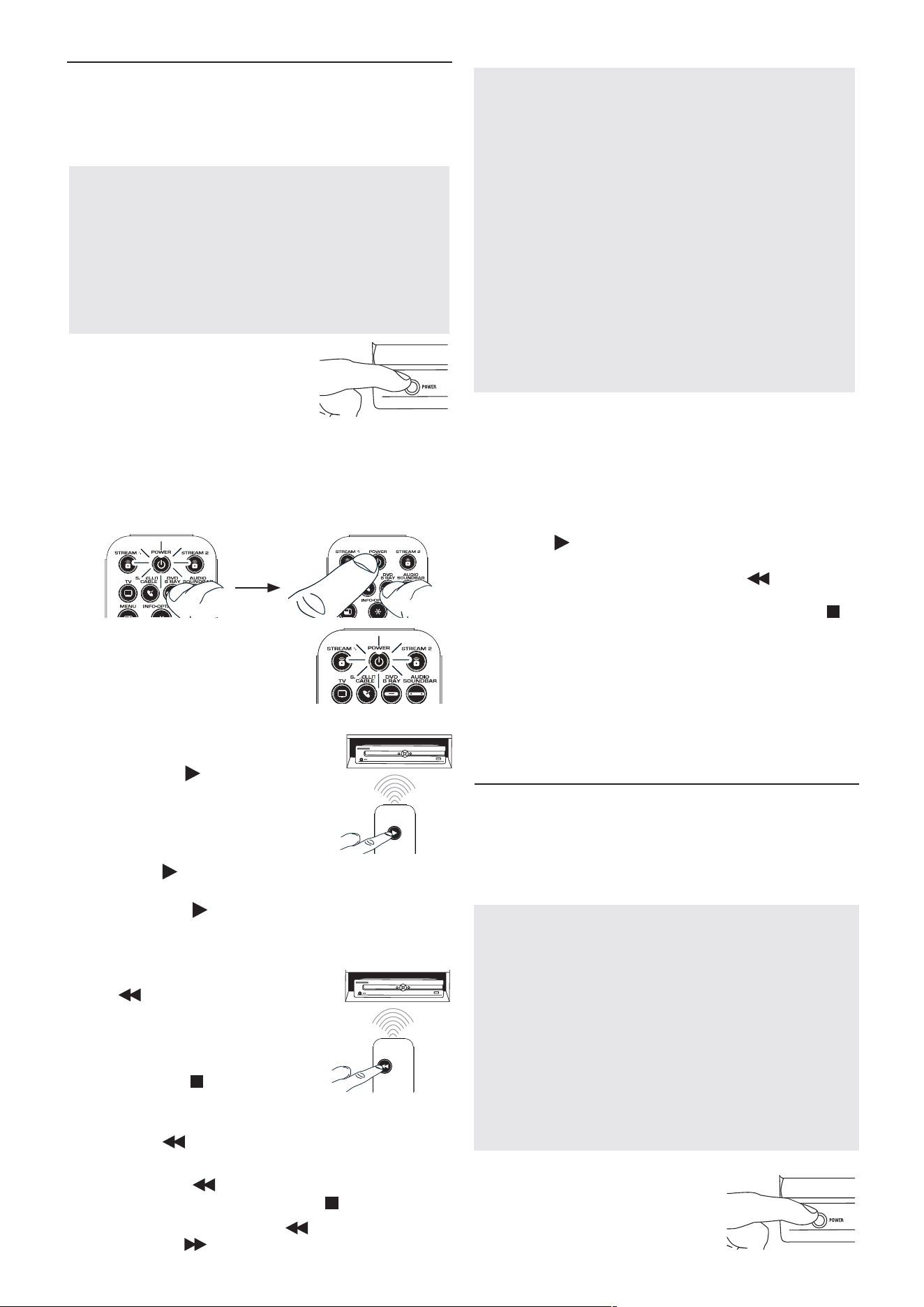
2. Repeat the Auto Code Search Method from the
beginning. When your device turns off, do not stop
searching. Instead, with the unit now off, continue to
press the key every 5 seconds until the unit turns
back on.
3. Once the unit turns back on, press the key on the
remote every 2 seconds until your device turns off
again. When your device turns off again, press the
key.
4. Test the key’s functionality again by attempting to
control a variety of the device’s functions. If the code
that has been stored controls the majority of the
device’s functions, programming is complete. If the
code stored does not give maximum functionality, try
another code.
Auto Code Search
The Auto Code Search goes automatically through all the
codes for the device you’re trying to control. When you
�ndtheonethatoperatesyourdevice,youcanstopthe
search and store that code.
TIPS:
Each device key is associated with a type of device—
the TV is preset to search for TVs, SATELLITE CABLE
for satellite receivers or cable boxes, STREAM 1 and 2
for streaming players, DVD B RAY for DVD and Blu Ray
players, and AUDIO SOUNDBAR for audio receivers and
sound bars. To program a device key for a different type
of device, see the Changing a Key’s Device Type section.
To exit without saving a new code at any point in the Auto
Code Search, press the EXIT key.
1.
Manually turn on the device
you want to control.
2.
Press and hold the device key you want to program.
The POWER key illuminates.
While you’re holding down the device key, use your
other hand to press and hold the remote’s POWER
key at the same time. The POWER key turns off.
3.
Wait until the POWER key
comes on and stays on. Then
release both keys.
4.
Point the remote directly at the front
panel of the device you want to
control. Press on the remote and
wait 5 seconds. The remote is testing
a batch of 10 codes on your device.
Did your device turn off?
YES: Go to step 5.
NO: Press again. The remote tests the next batch
of 10 codes.
Keep pressing every 5 seconds until your device
turns off.
5.
When your device turns off, press
the key on the remote and wait
at least 2 seconds. The remote tries
the last of the previous ten codes.
Did your device turn on?
YES: Press the key. You’re done!
You’ve programmed this device
key.
NO: Press again. The remote tests the next code
in the batch.
Keep pressing every 2 seconds until your device
turns back on. When it does, press .
Note:
If you accidentally press the key after your device
turns on, press the key. Then, wait two seconds to see if
your device turns off again.
NOTES
Throughout the programming of each key, be sure to keep
the remote pointed at the IR sensor of the device you are
currently programming the remote to control.
Test the remote with the device to make sure the
device key is programmed with the correct code for
maximum functionality. If some features don’t work, try a
different code. See the “Testing the Code for Maximum
Functionality” section below for more information.
During the Auto Code Search, the remote ignores
keypresses that aren’t part of the search.
The search times out after two minutes (the POWER key
blinks four times and turns off, and the last programmed
code under that device key is retained).
The POWER key blinks four times and turns off when the
remote has gone through all the codes. The remote exits
the Auto Code Search. If your device hasn’t turned off yet,
try a different search method.
Manual Code Search
TheManualCodeSearchletsyougoone-by-onethrough
allthecodesforthedeviceyou’retryingtocontrol.When
you�ndtheonethatoperatesyourdevice,youcanstopthe
searchandstorethatcode.
TIPS:
The Manual Code Search method may take a long
time because the remote searches through all of the codes
in its memory one-by-one. If your brand is listed in the Brand
CodesortheCodeLists,�rsttrytheBrandCodeSearchor
the Direct Code Entry method.
Each device key is associated with a type of device—the TV
is preset to search for TVs, SATELLITE CABLE for satellite
receivers or cable boxes, STREAM 1 and 2 for streaming
players, DVD B RAY for DVD and Blu Ray players, and
AUDIO SOUNDBAR for audio receivers and sound bars. To
program a device key for a different type of device, see the
Changing a Key’s Device Type section.
To exit without saving a new code at any point in the Manual
Code Search, press the EXIT key.
1.
Manually turn on the device you
want to control.
POWER
POWER
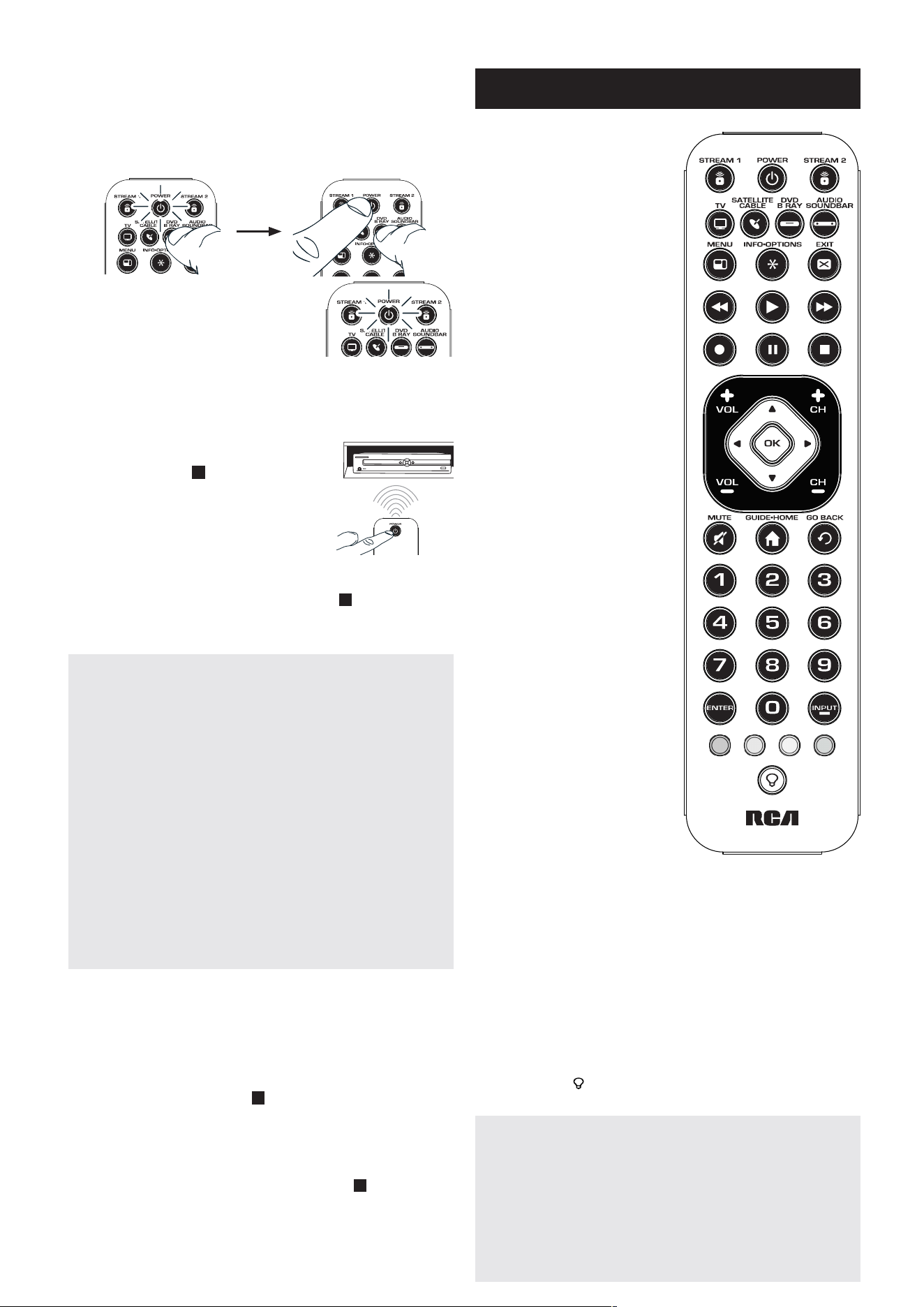
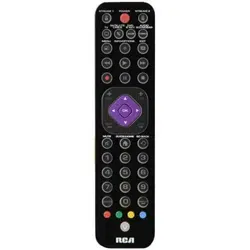
In most cases, the keys on
this remote perform the
same functions as the keys
on your original remotes
once you’ve programmed
this remote to operate your
components. Many keys
on this remote have other
functions as well.
Illuminated POWER key
serves as an indicator light
to provide feedback.
Device keys (TV, SATELLITE
CABLE, STREAM 1 and
2, DVD B RAY, AUDIO
SOUNDBAR) put the
remote in the right mode to
control your device.
MENU and
INFO•OPTIONS access
device menu and
information screens.
EXIT exits remote
programming; it also
performs the same
functions as on your
original remotes.
GUIDE•HOME puts the
remote in guide mode for
satellite receivers or cable
boxes, and accesses the
home screen for streaming
players.
Arrow keys and OK act as
navigation and selection
keys in device guides and
menu systems.
The INPUT — (dash) key
has three functions: (1) it
toggles through all the
video sources connected
to your TV; (2) when the
remote is in VCR mode, this
button toggles between
VCR and the TV input;
(3) when you’re entering
digital channel numbers
directly, this button lets
you separate the main
channel number from the
sub-channel number (such
as 59.1).
Backlight key ( ) turns
backlighting on/off.
Actual model may vary from
illustration
2.
Press and hold the device key you want to program.
The POWER key illuminates
While you’re holding down the device key, use your
other hand to press and hold the remote’s POWER
key at the same time. The POWER key turns off.
3.
Wait until the remote’s POWER
key comes on and stays on. Then
release both keys.
4.
Point the remote directly at the front panel of the
device you want to control. Press POWER on the
remote and wait 2 seconds. The remote is testing a
single code for your device.
Did your device turn off?
YES: Press the key to store
the code. You’re done! You’ve
programmed this device key.
NO: Press POWER again. The
remote tests the next code for your
device.
Keep pressing POWER every 2 seconds until your
device turns off. When it does, press .
TIP:
Because there are so many codes, you may have to press
the POWER key many times—possibly hundreds of times.
NOTES
Throughout the programming of each key, keep the remote
pointed at the IR sensor of the device you are programming
the remote to control.
Test the remote with the device to make sure the device
key is programmed with the correct code for maximum
functionality. If some features don’t work, try a different
code. See the “Testing the Code for Maximum Functionality”
section below for more information.
During the Manual Code Search, the remote ignores
keypresses that aren’t part of the search.
The search times out after two minutes (the POWER key
blinks four times and turns off, and the last programmed
code under that device key is retained).
The POWER key blinks four times and turns off when the
remote has gone through all the codes. The remote exits the
Brand Code Search. If your device hasn’t turned off yet, try a
different search method.
Testing the Code for Maximum Functionality
1. Try a variety of the device’s functions with the remote.
If some features of your devices don’t work, go to the
next step to try a different code.
2. Repeat the Manual Code Search and Entry Method
from the beginning. When the device turns off for the
�rsttime,don’tpressthe key, which would store the
same code. Instead, with the unit now off, continue to
press the POWER key repeatedly until the unit turns
back on.
3. Once the unit turns back on, you have found another
code that operates the device. Press the key.
4. Test the key’s functionality again by trying a variety
of functions. If the code controls the majority of the
device’s functions, programming is complete. If the
code stored does not give maximum functionality, try
another code.
IMPORTANT
Because this remote controls more than one device,
youmust�rst“tell”theremotewhichdeviceyouwishto
operate. That means, if you wish to operate your TV, you
must�rstpresstheTVkeytoputtheremoteintheTV
Mode. The remote stays in that device mode until you
press a different device key. For example, if your remote is
in TV Mode and you want to operate the DVD player, you
must press the DVD B RAY key to change device modes.
Tour of the Remote
POWER
POWER

Changing A Key’s Device Type
Each device key is associated with a type of device—
the TV is preset to search for TVs, STREAM 1 and 2
for streaming players, SATELLITE CABLE for satellite
receivers or cable boxes, DVD B RAY for DVD or Blu Ray
players, and AUDIO SOUNDBAR for audio receivers or
soundbars. To program these keys to control a different
kindofdevice,youhavetoreassignthem�rst.
Reassigning the DVD B RAY Key to Control a VCR
The DVD B RAY key defaults to control a DVD player. If
you want the DVD B RAY key to control a VCR, you must
reassign it.
1. Press and hold the DVD B RAY key. The POWER key
illuminates. Keep holding down the DVD B RAY key.
2. While holding down the DVD B RAY key, press and
release the number 2 key on the keypad. The POWER
key turns off.
3. Release the DVD B RAY key. The POWER key blinks
two times and then turns off. The DVD B RAY key is
now set to control a VCR.
4. Follow the directions in the auto, brand, direct entry,
or manual code search to program the DVD B RAY
key for your VCR.
Code Retrieval
Onceyou’veprogrammedtheremotetocontrolyour
devices,youmaywanttorecordthecodesforfuture
reference.IfyouusedtheDirectCodeEntrymethod,
thisiseasy.Just�ndthecodesyouenteredandmakea
noteofthemintheboxesbelow.Ifyouusedoneofthe
CodeSearchmethodstoprogramyourremoteorifyou
usedtheDirectEntrymethodbutdon’trememberthe
code,youwillneedtoretrieveeachdevice’s�ve-digit
code.Retrievingtheactualcodeandwritingitdownwill
saveyoutimeifyoueverneedtoprogramtheremote
again.Ifthecodesarerecorded,youcanusetheDirect
Entrymethodtoreprogramyourremotetocontrolyour
devices,whichisquickandeasy.
1. Pressandholdthedevicekey(TV,SATELLITECABLE,
STREAM1and2,DVDBRAY,AUDIOSOUNDBAR)
whosecodeyouwishtoretrieve.ThePOWERkey
illuminates.Keeppressingthedevicekey.
2. Whileholdingthedevicekeydown,pressandhold
theINFO•OPTIONSkey.ThePOWERkeyturnsoff.
Afterholdingdownbothkeysforthreeseconds,the
POWERkeyturnsbackon.
3. Releasebothkeys.ThePOWERkeyremainson.
4. Startingwiththenumber1key,pressandrelease
eachnumberkeyonthekeypadinthefollowing
order:1-9,then0.Thenumberthatcausesthe
POWERkeytoblinkisthe�rstnumberofthecode.
Asyou�ndeachnumberofthecode,writeitdown
forfuturereference.
Note:
All TV codes begin with the number 1; all VCR and DVR
codes begin with the number 2; all DVDs, the number 3; all
audio devices, the number 4; and all satellite receivers, cable
boxes, streaming players and DTV converters, the number 5.
5. Repeatstep4untilyouhaveretrievedall�venumbers
inthecode.Afterthe�fthnumberisretrieved,the
POWERkeyblinksbriey,thenturnsoff.
TIP:
To exit the Code Retrieval Mode at any time, press the
EXIT key.
Note:
If you press an invalid key during the Code Retrieval
process, the remote will not respond. If you do not press a
valid Code Retrieval key (TV, SATELLITE CABLE, STREAM 1
and 2, DVD B RAY, AUDIO SOUNDBAR, INFO•OPTIONS,
EXIT), Code Retrieval times out after 15 seconds. The POWER
key blinks four times, and then turns off.
Advanced Functions
SATELLITE CABLE CODE
5
TV CODE
1
Channel Lock
Channel lock automatically sends channel commands,
like the CH, GO BACK, and 0–9 number keys, to your
satellite receiver, cable box, or digital TV converter when
you’re in TV mode. This can save you keypresses if you
use a device other than your TV to change channels.
To turn channel lock on:
1. Press and hold the device key for the device you use
to change channels. While you’re holding down this
device key, use your other hand to press and hold the
remote’s CH up key at the same time.
2. Wait until the remote’s POWER key comes on and
stays on. Then release both keys.
3. Press ENTER to lock channel commands to this
device.
To turn channel lock off:
1. Press and hold the TV key. While you’re holding down
the TV key, use your other hand to press and hold the
remote’s CH down key at the same time.
2. Wait until the remote’s POWER key comes on and
stays on. Then release both keys.
3. Press ENTER to start changing channels with your TV.
STREAM 2 CODE
5
STREAM 1 CODE
5
AUDIO SOUNDBAR CODE
4
DVD B RAY CODE

Problem: The remote does not operate your
device.
•Makesuretheremoteisinthecorrectmodebypressing
thecorrespondingdevicekey(TV,SATELLITECABLE,
STREAM1and2,DVDBRAY,AUDIOSOUNDBAR).This
tellstheremotewhichdevicetooperate.
•Removeanyobstaclesbetweentheremoteandthe
device.Makesureyou’reaimingtheremoteatthe
device’sIRsensor.
•Makesurethebatteriesarefreshandareproperly
installed.ReplacethebatterieswithtwonewCR2032
batteries,ifnecessary(seetheBatteryInstallation
section).
Problem: The remote can’t be programmed to
operate your device.
•Ifyouaretestingtheremotewhileprogrammingit,you
maybetoofarawayfromthedeviceoratawrongangle.
Theremustbeanunobstructedpathbetweentheremote
andtheIRsensoronthedevice.Movecloserandmake
sureyoupointtheremoteatthedeviceyou’retryingto
control.
•Ifyou’reusingtheDirectEntryprogrammingmethod
toenterthecodesforyourbrandandtheunitisstill
notfunctioningproperly,trytheauto,brand,ormanual
searchmethod.
•Tocontrolcombounits,likeTV/VCRsorTV/DVDs,you
mustprogramtheindividualcorrespondingdevice
keystocontroleachpartofthecombounit.Once
programmedsuccessfully,theTVkeycontrolstheTV
functions,andtheDVDBRAYkeycontrolstheVCRor
DVDfunctions.
•Makesurethebatteriesarefreshandareproperly
installed.
Problem: The remote doesn’t perform
commands properly.
•Makesuretheremoteisinthecorrectmodebypressing
thecorrespondingdevicekey(TV,SATELLITECABLE,
STREAM1and2,DVDBRAY,AUDIOSOUNDBAR).This
tellstheremotewhichdevicetooperate.
•Makesuredeviceisready(forexample,theDVDplayer
hasadiscloaded).
•Youmayhavepressedaninvalidkeyforthemodethe
remoteisin.
•Ifyou’retryingtoenterachannelnumberdirectly,try
pressingtheENTERkeyafterenteringthechannel
numberasthisisarequirementofcertainmodelsand
brands.
•Thereisapossibilitythataprogrammedcodemayonly
beabletocontrolsomeofyourdevicefeatures(for
example,onlyturnsadeviceonandoff).Tocon�rmthat
thedevicekeyisprogrammedwiththecorrectcode
formaximumfunctionality,testthedevice.Attempt
tocontrolavarietyofthedevice’sfunctionswiththe
remote.Ifsomeofthefeaturesofyourdevicesdon’t
work,tryprogrammingtheremotewithadifferentcode
inthelistusingtheDirectCodeEntryMethod,until
you�ndthecodethatallowstheremotetocontrolthe
majorityofyourdevice’sfunctions.Differentcodescan
providedifferentlevelsoffunctionality.
©2019VoxxAccessoriesCorporation
Trademark(s)®Registered
Troubleshooting
Problem: The POWER key does not light when
you press a key.
• You may have pressed an invalid key for the mode the
remote is in.
• Make sure the remote is in the correct mode by
pressing the corresponding device key (TV, SATELLITE
CABLE, STREAM 1 and 2, DVD B RAY, AUDIO
SOUNDBAR). This tells the remote which device to
operate.
• Make sure the batteries are fresh and are properly
installed. Replace the batteries with two new CR2032
batteries, if necessary (see the Battery Installation
section).
Problem: Remote backlighting doesn’t work.
• Press the key to activate backlighting.
• If the POWER key still illuminates when you press a key
on the remote, but backlighting does not come on for
the other keys when you press the key, you need to
replace the battery responsible for backlighting (the
other battery runs all the other remote functions and is
still working). See the Battery Installation section and
replace the TOP battery only (leave the bottom battery
in).
• If the POWER key does not illuminate when you
press a remote key, replace both batteries. Follow the
directions in the battery replacement section.
Problem: The remote will not change channels
on device.
• Make sure the remote is in the correct mode by
pressing the corresponding device key (TV, SATELLITE
CABLE, STREAM 1 and 2, DVD B RAY, AUDIO
SOUNDBAR). This tells the remote which device to
operate.
• Press the ENTER key after you enter a channel number.
• Remove any obstacles between the remote and the
device. Make sure to aim the remote at the IR sensor
on the device.
Problem: The device’s menu does not appear on
the TV screen.
• Make sure you have connected the device to your
TV properly and selected the correct input. (See your
devices’ Owner’s Manuals for proper connection
procedures.)
• Make sure the remote is in the correct mode by
pressing the corresponding device key (TV, SATELLITE
CABLE, STREAM 1 and 2, DVD B RAY, AUDIO
SOUNDBAR). This tells the remote which device to
operate.
• Menu access isn’t supported for all brands. You may
need to use your original remote control to access
menu functions for some devices.
For more information, including instructional
videos, remote programming codes, and
customer support, visit
www.RCACodeSupport.com
Ahorro de Batería
Su control remoto universal ahorra la potencia de las
baterías al apagar automáticamente cualquier tecla que se
oprima por más de 60 segundos. Esta acción prolonga la
vida útil de las baterías en caso de que el control remoto
quede pillado en un lugar donde las teclas permanezcan
oprimidas, tal como entre los cojines de un sofá.
RCRTBL06BE
Manual del propietario
del control remoto universal
Owner’s Manual (English on back)
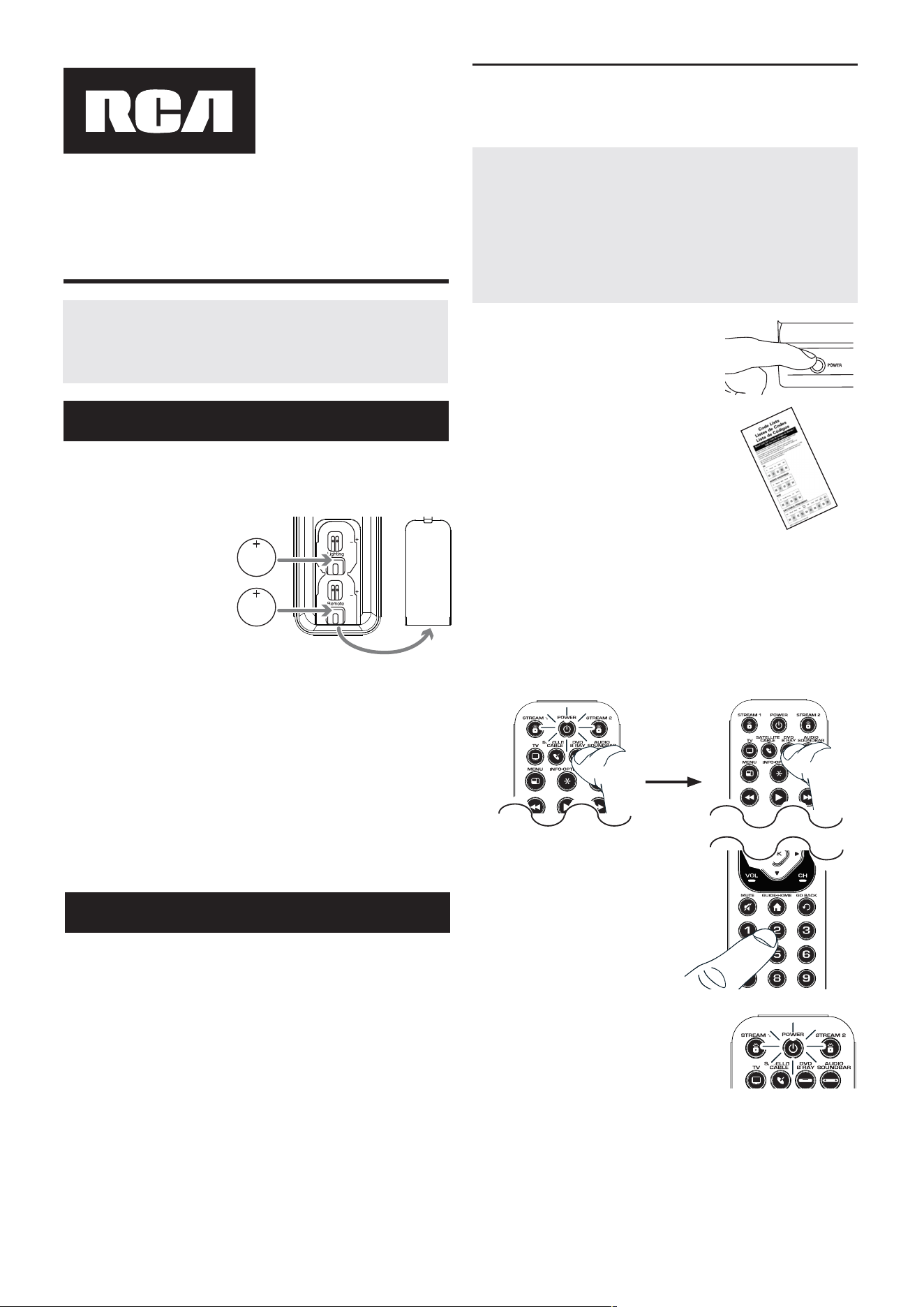
El control remoto universal necesita dos baterías tipo
botón CR2032 (incluidas).
Para instalar las baterías:
1.
Retire la tapa del
compartimiento de
las baterías.
2.
Coloque las baterías
en el compartimiento
con el lado marcado
con (+) hacia arriba.
Empuje cada
batería hacia arriba por debajo del resalte en el
compartimiento con el símbolo “+” marcado.
3.
Vuelva a colocar la tapa del compartimiento de las
baterías en su posición.
Parautilizarestecontrolremotouniversalconsusistema
deentretenimientoenelhogar,necesitaráprimero
programarloparamanejarsusdispositivos.Paraprogramar
elcontrolremotouniversalparamanejarsusdispositivos,
utiliceunodeloscuatrométodosacontinuación.Intente
cadaunodeellosenelordenindicado.
• LaEntrada Directa de Códigoslepermiteingresar
uncódigodelalistadecódigossuministradaparala
marcadesudispositivo.
• LaBúsqueda de Códigos por Marcabuscaa
travésdeloscódigossegúnlamarcadedispositivos
seleccionada.
• LaBúsqueda Automática de Códigosrecorre
automáticamentetodosloscódigosdeldispositivo
quedeseamanejar.
• LaBúsqueda Manual de Códigoslepermiterecorrer
manualmentetodosloscódigosdeldispositivoque
deseamanejar.
CONSEJO:
Cada tecla de dispositivo está asociada a un
tipodedispositivo—TVestácon�guradaparabuscarTV,
SATELLITE CABLE para receptores de satélite o aparatos de
cable, STREAM 1 y 2 para reproductores de streaming, DVD
B RAY para lectores de DVD o Blu Ray, y AUDIO SOUNDBAR
para barras de sonido y receptores de audio. Para programar
una tecla de dispositivo para un tipo de dispositivo diferente,
consulte la sección CómoCambiarelTipodeDispositivode
UnaTecla.
1.
Encienda manualmente el
dispositivo que desea manejar.
3.
Oprima y sostenga la tecla de dispositivo que desea
programar (la tecla POWER se ilumina).
Mientras oprime la tecla de dispositivo, ingrese con
la otra mano el primer código de cinco dígitos para
la marca de la lista de códigos (la tecla POWER se
apaga luego del primer dígito).
2.
Encuentre la Lista de Códigos
suministrada con el control
remoto. Encuentre la sección
para el tipo de dispositivo que
desea programar, y localice la
marca en esa sección. Marque
con un círculo los códigos para
la marca y manténgalos a mano.
4.
Cuandohayaingresadoel
códigodecincodígitos,
continúeoprimiendolatecla
dedispositivoyobservela
teclaPOWER.
¿Se iluminó la tecla POWER?
SÍ: ¡Listo!Latecladedispositivoestáprogramada.
No, parpadeó cuatro veces y se apagó: Ha
ingresadounnúmerodecódigoquenoseencuentra
enlaslistasdecódigosuomitióunpasoenel
procedimientodeentradadecódigos.Intenteelpaso3
nuevamente.
Paso 1: Instale las baterías
Paso 2: Programe el control remoto
POWER
RCRTBL06BEUS02 2621
POWER
¡GUARDE ESTE MANUAL Y LAS LISTAS DE CÓDIGOS!
En ocasiones los controles remotos pierden su programación
cuando se cambian las baterías. Asegúrese de mantener el
manual y las listas de códigos en un lugar seguro de manera que
pueda volver a programar el control remoto de ser necesario.
Entrada Directa de Códigos
LaEntradaDirectadeCódigoslepermiteingresarun
códigodelalistadecódigossuministradaparalamarca
desudispositivo.
Cómo Probar el Código para Obtener Máxima
Funcionalidad
1. Pruebe una variedad de funciones del dispositivo con
el control remoto. Si no puede utilizar alguna de las
funciones de sus dispositivos, vaya al próximo paso e
intente un código diferente.
2. RepitalaBúsquedadeCódigosporMarcadesdeel
comienzo.Cuandoeldispositivoseapagueporprimera
vez,nooprimalatecla ,conlacualquedaríaguardado
elmismocódigo.Envez,conlaunidadapagada,
continúeoprimiendolateclaPOWERrepetidamente
hastaquelaunidadsevuelvaaencender.
3. Sisevuelveaencenderlaunidad,habráencontradootro
códigoquepuedemanejaresedispositivo.Oprima .
4. Pruebelafuncionalidaddelateclanuevamente
intentandounavariedaddefunciones.Sielcódigo
controlalamayoríadelasfuncionesdeldispositivo,
entonceshabráconcluidolaprogramación.Sielcódigo
guardadonobrindaunamáximafuncionalidad,intente
otrocódigo.
Búsqueda de Códigos por Marca
LaBúsquedadeCódigosporMarcarecorresólolos
códigosdeunadelasmarcasseleccionadasqueaparecen
enlalistadecódigossuministrada.Silamarcadel
dispositivoapareceenlalista,posiblementelabúsqueda
sellevaráacabodemanerafácilyrápida.
CONSEJOS: Cada tecla de dispositivo está asociada a un
tipodedispositivo—TVestácon�guradaparabuscarTV,
SATELLITE CABLE para receptores de satélite o aparatos de
cable, STREAM 1 y 2 para reproductores de streaming, DVD
B RAY para lectores de DVD o Blu Ray, y AUDIO SOUNDBAR
para barras de sonido y receptores de audio. Para programar
una tecla de dispositivo para un tipo de dispositivo diferente,
consulte la sección CómoCambiarelTipodeDispositivode
UnaTecla.
Para salir en cualquier momento de la Búsqueda de Códigos
por Marca sin guardar un código nuevo, oprima la tecla EXIT.
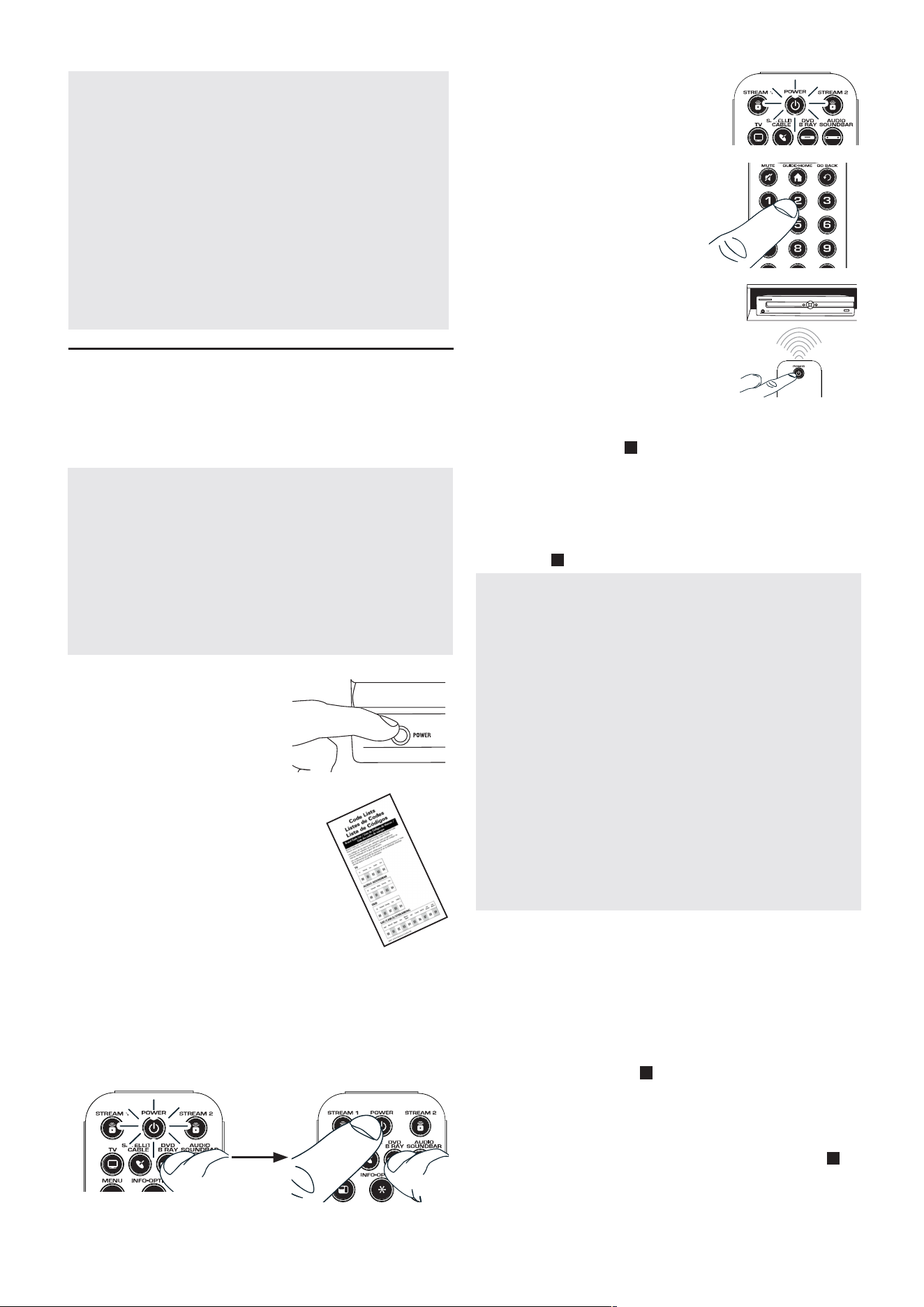
1.
Encienda manualmente
el dispositivo que desea
manejar.
3.
Oprima y sostenga la tecla de dispositivo que desea
programar. La tecla POWER se ilumina.
A la vez que sostiene la tecla de dispositivo, utilice la
otra mano para oprimir y sostener simultáneamente
la tecla POWER del control remoto. La tecla POWER
se apaga.
4.
Espere hasta que la tecla
POWER del control remoto
se ilumine y permanezca
iluminada. Luego, suelte ambas
teclas.
6.
Mantengaelcontrolremoto
apuntadodirectamentealpanel
frontaldeldispositivoquedesea
manejar.OprimalateclaPOWER
delcontrolremotoyespere2
segundos.Elcontrolremoto
estáprobandouncódigoparala
marcadeldispositivo.
¿Se apagó el dispositivo?
SÍ: Oprimalatecla paraguardarelcódigo.¡Listo!La
tecladedispositivoestáprogramada.
NO: OprimaPOWERnuevamente.Elcontrolremoto
pruebaelpróximocódigoparasumarca.
ContinúeoprimiendoPOWERcada2segundoshasta
queeldispositivoseapague.Cuandoseapague,
oprima .
2.
Encuentre la marca del
dispositivo en la sección de
Códigos por Marca de la lista
de códigos suministrada.
Marque con un círculo
el número de la marca y
mantenga la lista a mano.
5.
Fíjese en los números que
marcó para el número de
código de la marca del
dispositivo. Oprima dichos
números en el teclado del
control remoto.
NOTAS
A través de la programación de cada tecla, asegúrese de
mantener el control remoto apuntado directamente al sensor
infrarrojo del dispositivo que está actualmente programando
con el control remoto.
Pruebe el control remoto con el dispositivo para asegurarse
que la tecla de dispositivo esté programada con el código
correcto y garantizar así su máxima funcionalidad. Si no puede
utilizar alguna de las funciones, intente con otro código. Para
obtener mayor información, consulte la sección “Cómo Probar
el Código para Obtener Máxima Funcionalidad” a continuación.
Durante la Búsqueda de Códigos por Marca, el control remoto
ignora la opresión de teclas que no son parte de la búsqueda.
La búsqueda se detendrá luego de dos minutos (la tecla
POWER parpadea cuatro veces y se apaga, y se retiene el
último código programado bajo la tecla de dispositivo).
La tecla POWER parpadea cuatro veces y se apaga cuando
el control remoto ha recorrido todos los códigos. El control
remoto sale del método de Búsqueda de Códigos por Marca.
Si su dispositivo aún no se ha apagado, intente un método de
búsqueda diferente.
NOTAS
Pruebe el control remoto con el dispositivo para asegurarse que
la tecla de dispositivo esté programada con el código correcto
y garantizar así su máxima funcionalidad. Si no puede utilizar
alguna de las funciones, intente con otro código de la lista.
Recuerde ingresar el código para referencia futura en el recuadro
provisto en la sección Recuperación de Códigos de este manual.
Si la marca de su dispositivo no aparece en la lista de códigos,
utilice uno de los métodos de Búsqueda de Códigos para
programar el control remoto. (Consulte los métodos de
Búsqueda Automática y Manual de Códigos)
Si suelta la tecla de dispositivo en cualquier momento durante
el proceso de Entrada Directa de Códigos, la tecla POWER
parpadea cuatro veces, y se sale del proceso. Se retendrá el
último código programado bajo la tecla de dispositivo.
POWER
POWER
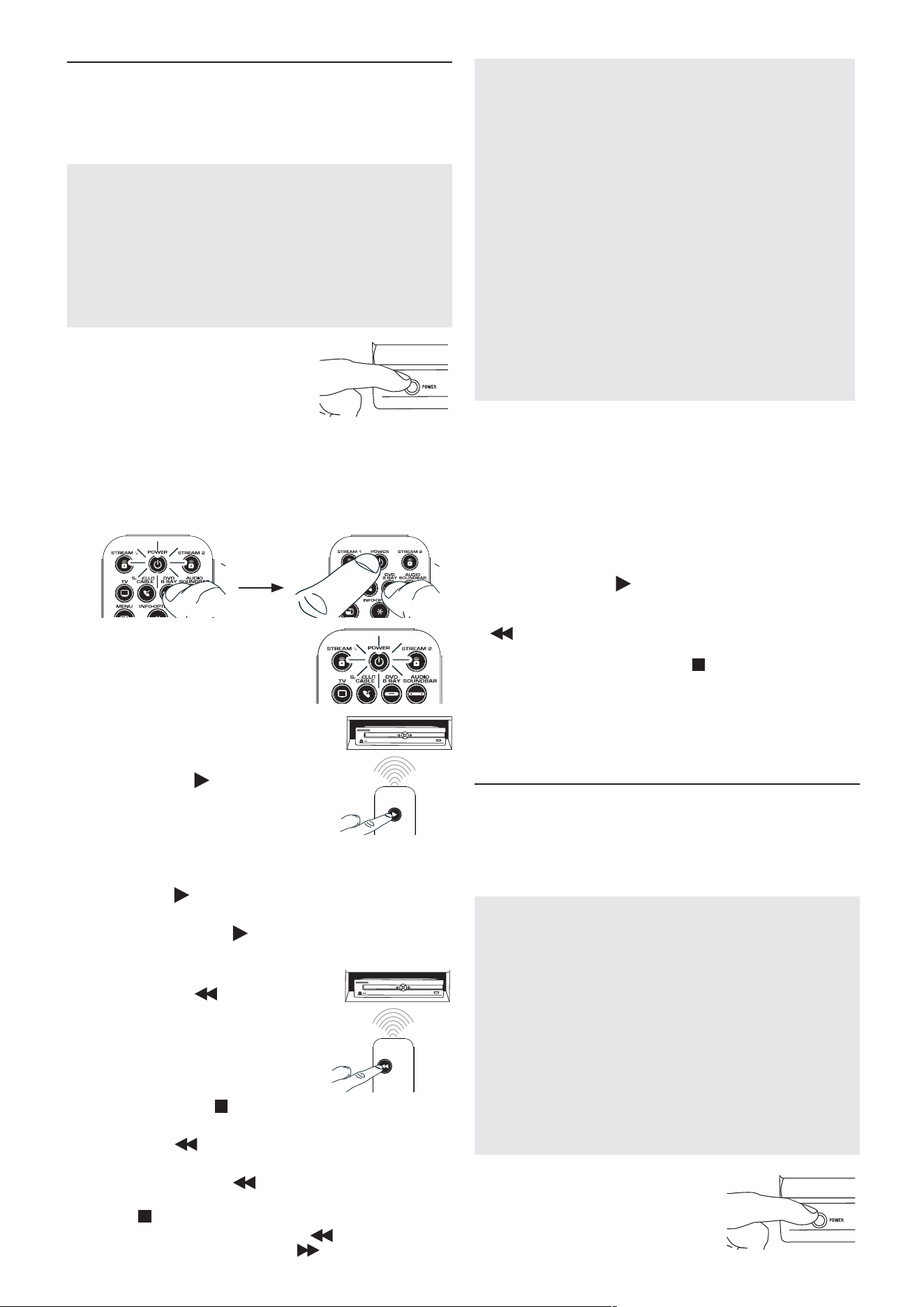
Búsqueda Automática de Códigos
La Búsqueda Automática de Códigos recorre
automáticamente todos los códigos del dispositivo que
desea manejar. Cuando encuentre el que maneja su
dispositivo, puede detener la búsqueda y guardar el código.
1.
Encienda manualmente
el dispositivo que desea
manejar.
2.
Oprima y sostenga la tecla de dispositivo que desea
programar. La tecla POWER se ilumina.
A la vez que sostiene la tecla de dispositivo, utilice la otra
mano para oprimir y sostener simultáneamente la tecla
POWER del control remoto. La tecla POWER se apaga.
3.
Espere hasta que la tecla
POWER se ilumine y
permanezca iluminada.
Luego, suelte ambas teclas.
4.
Mantenga el control remoto apuntado
directamente al panel frontal del
dispositivo que desea manejar.
Oprima la tecla del control remoto
y espere 5 segundos. El control
remoto está probando un grupo de
10 códigos para el dispositivo.
¿Se apagó el dispositivo?
SÍ: VayaalPaso5.
NO: Oprima nuevamente.Elcontrolremotoprueba
elpróximogrupode10códigos.
Continúeoprimiendo cada5segundoshastaqueel
dispositivoseapague.
5.
Cuandoeldispositivoseapague,
oprimalatecla delcontrol
remotoyespereporlomenos2
segundos.Elcontrolremotoprueba
elúltimocódigodelgrupoanterior
de10códigos.
¿Se encendió el dispositivo?
SÍ: Oprimalatecla
.¡Listo!Latecladedispositivo
estáprogramada.
NO: Oprima nuevamente.Elcontrolremoto
pruebaelpróximocódigoenelgrupodecódigos.
Continúeoprimiendo cada2segundoshasta
queeldispositivoseencienda.Cuandoseencienda,
oprima .
Aviso: Si oprime accidentalmente la tecla luego de que el
dispositivo se encienda, oprima la tecla . Luego, espere dos
segundos para ver si su dispositivo se vuelve a apagar.
NOTAS
A través de la programación de cada tecla, asegúrese de
mantener el control remoto apuntado directamente al sensor
infrarrojo del dispositivo que está actualmente programando
con el control remoto.
Pruebe el control remoto con el dispositivo para asegurarse que
la tecla de dispositivo esté programada con el código correcto
y garantizar así su máxima funcionalidad. Si no puede utilizar
alguna de las funciones, intente con otro código. Para obtener
mayor información, consulte la sección “Cómo Probar el Código
para Obtener Máxima Funcionalidad” a continuación.
Durante la Búsqueda Automática de Códigos, el control remoto
ignora la opresión de teclas que no son parte de la búsqueda.
La búsqueda se detendrá luego de dos minutos (la tecla
POWER parpadea cuatro veces y se apaga, y se retiene el
último código programado bajo la tecla de dispositivo).
La tecla POWER parpadea cuatro veces y se apaga cuando
el control remoto ha recorrido todos los códigos. El control
remoto sale del método de Búsqueda Automática de Códigos.
Si su dispositivo aún no se ha apagado, intente un método de
búsqueda diferente.
Búsqueda Manual de Códigos
LaBúsquedaManualdeCódigoslepermiterecorrerunopor
unotodosloscódigosdeldispositivoquedeseamanejar.
Cuandoencuentreelquemanejasudispositivo,puede
detenerlabúsquedayguardarelcódigo.
CONSEJOS: El método de Búsqueda Manual de Códigos podría
tomar más tiempo porque el control remoto busca a través
de todos los códigos en su memoria uno por uno. Si su marca
aparece en las Listas de Códigos por Marca o Listas de Códigos,
intente primero la Búsqueda de Códigos por Marca o el método
de Entrada Directa de Códigos.
Cada tecla de dispositivo está asociada a un tipo de
dispositivo—TVestácon�guradaparabuscarTV,SATELLITE
CABLE para receptores de satélite o aparatos de cable, STREAM
1 y 2 para reproductores de streaming, DVD B RAY para lectores
de DVD o Blu Ray, y AUDIO SOUNDBAR para barras de sonido
y receptores de audio. Para programar una tecla de dispositivo
para un tipo de dispositivo diferente, consulte la sección Cómo
CambiarelTipodeDispositivodeUnaTecla.
Para salir en cualquier momento de la Búsqueda Manual de
Códigos sin guardar un código nuevo, oprima la tecla EXIT.
1.
Encienda manualmente el
dispositivo que desea manejar.
POWER
POWER
CONSEJOS: Cada tecla de dispositivo está asociada a un tipo
dedispositivo—TVestácon�guradaparabuscarTV,SATELLITE
CABLE para receptores de satélite o aparatos de cable, STREAM
1 y 2 para reproductores de streaming, DVD B RAY para lectores
de DVD o Blu Ray, y AUDIO SOUNDBAR para barras de sonido
y receptores de audio. Para programar una tecla de dispositivo
para un tipo de dispositivo diferente, consulte la sección Cómo
CambiarelTipodeDispositivodeUnaTecla.
Para salir en cualquier momento de la Búsqueda Automática
de Códigos sin guardar un código nuevo, oprima la tecla EXIT.
Cómo Probar el Código para Obtener Máxima
Funcionalidad
1. Pruebe una variedad de funciones del dispositivo
con el control remoto. Si no puede utilizar alguna de
las funciones del dispositivo, vaya al próximo paso e
intente un código diferente.
2. RepitalaBúsquedaAutomáticadeCódigosdesdeel
comienzo.Cuandosudispositivoseapague,nodetenga
labúsqueda.Envez,conlaunidadapagada,continúe
oprimiendolatecla cada5segundoshastaquela
unidadsevuelvaaencender.
3. Cuandosevuelvaaencenderlaunidad,oprimalatecla
enelcontrolremotocada2segundoshastaqueel
dispositivosevuelvaaapagar.Cuandoeldispositivose
vuelvaaapagar,oprimalatecla .
4.Nuevamente,pruebelafuncionalidaddelatecla
intentandocontrolarunavariedaddefuncionesdel
dispositivo.Sielcódigoquesehaalmacenadocontrolala
mayoríadelasfuncionesdeldispositivo,entonceshabrá
concluidolaprogramación.Sielcódigoguardadono
brindaunamáximafuncionalidad,intenteotrocódigo.
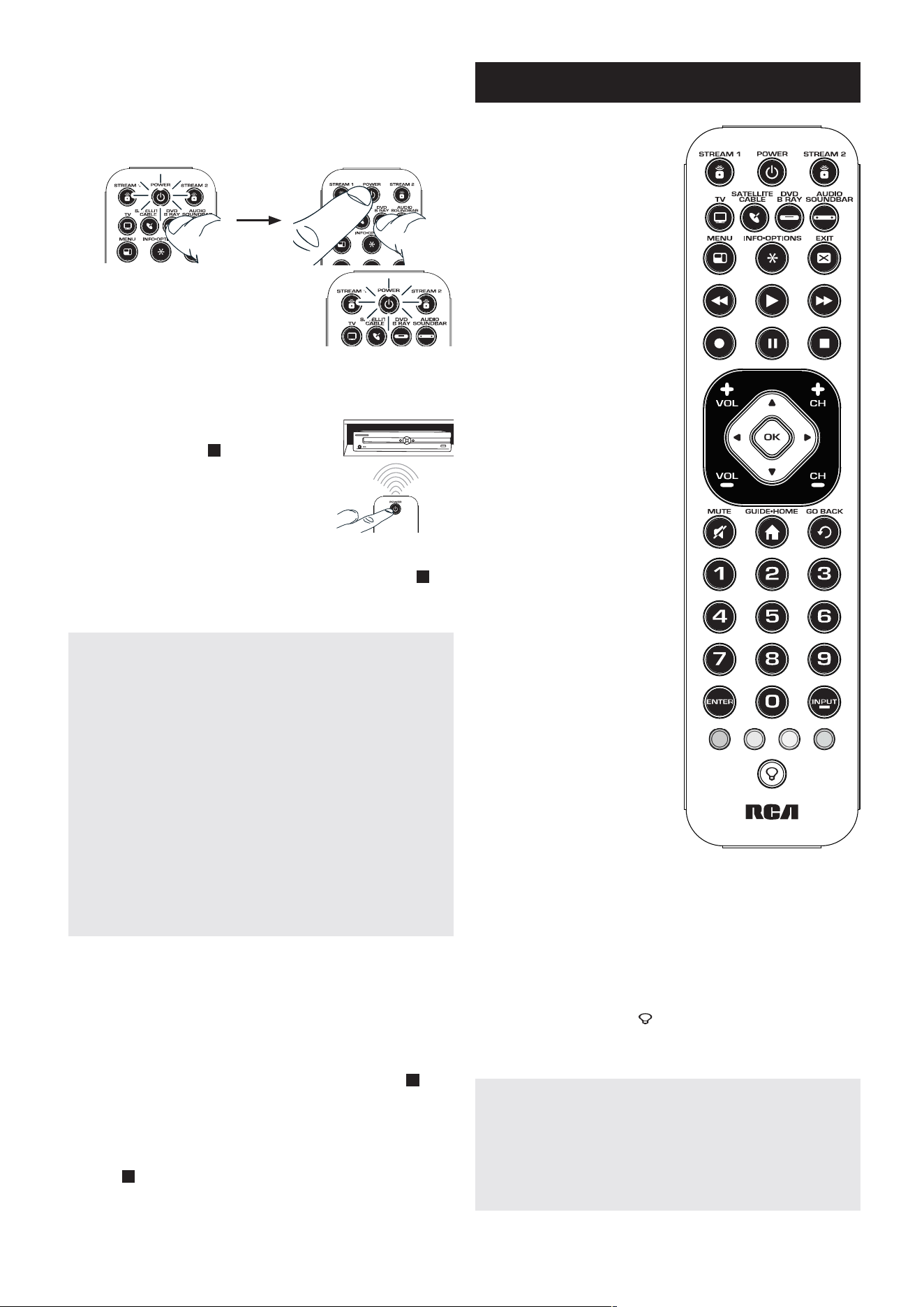
Enlamayoríadeloscasos,
lasteclasdelcontrolremoto
desempeñanlasmismas
funcionesquelasteclas
deloscontrolesremotos
originalesunavezprograma
estecontrolremotopara
manejarloscomponentes.La
mayoríadelasteclasdeeste
controlremototienenotras
funciones.
Latecla
POWER
iluminada
sirvedeluzindicadorapara
ofrecerretroalimentación.
Las teclas de dispositivo (TV,
SATELLITE CABLE, STREAM
1 y 2, DVD B RAY, AUDIO
SOUNDBAR) ponen el
control remoto en el modo
correcto para manejar el
dispositivo.
MENU e INFO•OPTIONS
acceden al menú y a las
pantallas de información del
dispositivo.
EXIT sale de la programación
del control remoto; además,
desempeña las mismas
funciones que en los
controles remotos originales.
GUIDE•HOME pone el
control remoto en modo
Guide (guía) para receptores
de satélite o aparatos de
cable, y accede a la pantalla
inicial para reproductores de
streaming.
Lasteclasde�echa y OK
actúan como teclas de
navegación y selección en
los sistemas de menú y guías
de dispositivo.
Latecla INPUT — (guión)
tienetresfunciones:(1)
alternaentretodaslas
fuentesdevideoconectadas
El modelo actual puede ser diferente
al ilustrado
2.
Oprimaysostengalatecladedispositivoquedesea
programar.LateclaPOWERseilumina.
Alavezquesostienelatecladedispositivo,utilicelaotra
manoparaoprimirysostenersimultáneamentelatecla
POWERdelcontrolremoto.LateclaPOWERseapaga.
3.
EsperehastaquelateclaPOWER
delcontrolremotoseiluminey
permanezcailuminada.Luego,
suelteambasteclas.
4.
Mantengaelcontrolremotoapuntadodirectamente
alpanelfrontaldeldispositivoquedeseamanejar.
OprimalateclaPOWERdelcontrolremotoyespere
2segundos.
¿Se apagó el dispositivo?
SÍ:Oprimalatecla paraguardarel
código.¡Listo!Latecladedispositivo
estáprogramada.
NO: OprimaPOWERnuevamente.
Elcontrolremotopruebaelpróximo
códigoparasudispositivo.
ContinúeoprimiendoPOWERcada2segundoshastaque
eldispositivoseapague.Cuandoseapague,oprima .
CONSEJO: Debido a la gran cantidad de códigos, quizás necesite
oprimir la tecla POWER varias veces-posiblemente cientos de veces.
NOTAS
A través de la programación de cada tecla, mantenga el control
remoto apuntado directamente al sensor infrarrojo del dispositivo
que está programando con el control remoto.
Pruebe el control remoto con el dispositivo para asegurarse que
la tecla de dispositivo esté programada con el código correcto y
garantizar así su máxima funcionalidad. Si no puede utilizar alguna
de las funciones, intente con otro código. Para obtener mayor
información, consulte la sección “Cómo Probar el Código para
Obtener Máxima Funcionalidad” a continuación.
Durante la Búsqueda Manual de Códigos, el control remoto ignora
la opresión de teclas que no son parte de la búsqueda.
La búsqueda se detendrá luego de dos minutos (la tecla POWER
parpadea cuatro veces y se apaga, y se retiene el último código
programado bajo la tecla de dispositivo).
La tecla POWER parpadea cuatro veces y se apaga cuando el
control remoto ha recorrido todos los códigos. El control remoto
sale del método de Búsqueda Manual de Códigos. Si su dispositivo
aún no se ha apagado, intente un método de búsqueda diferente.
Cómo Probar el Código para Obtener Máxima
Funcionalidad
1. Pruebe una variedad de funciones del dispositivo
con el control remoto. Si no puede utilizar alguna de
las funciones del dispositivo, vaya al próximo paso e
intente un código diferente.
2. RepitaelMétododeBúsquedaManualdeCódigosdesde
elcomienzo.Cuandohayaencontradoelcódigoque
vuelvaaencendereldispositivo,nooprimalatecla ,con
lacualquedaríaguardadoelmismocódigo.Envez,con
launidadapagada,continúeoprimiendolateclaPOWER
repetidamentehastaquelaunidadsevuelvaaencender.
3. Sisevuelveaencenderlaunidad,habráencontradootro
códigoquepuedemanejaresedispositivo.Oprimala
tecla .
4. Nuevamente,pruebelafuncionalidaddelatecla
intentandocontrolarunavariedaddefuncionesdel
dispositivo.Sielcódigoquesehaalmacenadocontrolala
mayoríadelasfuncionesdeldispositivo,entonceshabrá
concluidolaprogramación.Sielcódigoguardadono
brindaunamáximafuncionalidad,intenteotrocódigo.
IMPORTANTE
Dado que este control remoto maneja más de un dispositivo, deberá
primero “indicarle” al control remoto cuál dispositivo desea manejar.
En otras palabras, si desea manejar el televisor, deberá primero oprimir
la tecla TV para poner el control remoto en el Modo TV. El control
remoto permanece en ese modo de dispositivo hasta que oprima una
tecla de dispositivo diferente. Por ejemplo, si el control remoto se
encuentra en el Modo TV y desea manejar el Lector de DVD, deberá
oprimir la tecla DVD B RAY para cambiar los modos de dispositivo.
Recorrido del control remoto
POWER
POWER
altelevisor;(2)cuandoelcontrolremotoseencuentraen
elmodoVCR,estebotónalternaentrelaentradaVCRy
TV;(3)cuandoingresadirectamentenúmerosdecanales
digitales,estebotónlepermitesepararelnúmerodelcanal
principaldelnúmerodelcanalsecundario(talcomo59.1).
Latecladeluzdefondo( )enciendeyapagalaluzde
fondo.

El modelo actual puede ser diferente
Cómo Cambiar el Tipo de Dispositivo
de Una Tecla
Cadatecladedispositivoestáasociadaauntipode
dispositivo—TVestácon�guradaparabuscarTV,SATELLITE
CABLEparareceptoresdesatéliteoaparatosdecable,
STREAM1y2parareproductoresdestreaming,yDVDB
RAYparalectoresdeDVDoVCR,yAUDIOSOUNDBAR
parabarrasdesonidoyreceptoresdeaudio.A�nde
programarestasteclasparamanejaruntipodedispositivo
diferente,tendráquereasignarlasprimero
Cómo Reasignar la Tecla DVD B RAY
para Manejar una VCR
La tecla DVD B RAY viene preestablecida de fábrica para
manejar un Lector de DVD. Si desea que la tecla DVD B
RAY maneje una VCR, deberá reasignarla.
1. Oprima y sostenga la tecla DVD B RAY. La tecla
POWER se encenderá. Continúe sosteniendo la tecla
de DVD B RAY
2. Mientras sostiene la tecla DVD B RAY, oprima y suelte
la tecla numérica 2 en el teclado. La tecla POWER se
apagará.
3. Suelte la tecla DVD B RAY. La tecla POWER parpadea
dos veces y luego se apaga. La tecla DVD B RAY está
ahoracon�guradaparamanejarunaVCR.
4. Observe las instrucciones de la búsqueda de códigos
automática, por marca, manual o entrada directa para
programar la tecla DVD B RAY para su VCR.
Recuperación de Códigos
Unavezhayaprogramadoelcontrolremotoparamanejar
susdispositivos,serecomiendaanotarloscódigospara
futurareferencia.SiutilizóelmétododeEntradaDirecta
deCódigos,esmuysencillo.Simplementeencuentre
loscódigosqueingresóyanótelosenlosrecuadrosa
continuación.SiutilizóunodelosmétodosdeBúsqueda
deCódigosparaprogramarelcontrolremotoosiutilizó
elmétododeEntradaDirectaperonorecuerdaelcódigo,
necesitarárecuperarelcódigodecincodígitosdecada
unodelosdispositivos.Recuperaryanotarelcódigorealle
ahorrarátiemposialgunaveznecesitavolveraprogramar
elcontrolremoto.Sianotaloscódigos,puedeutilizar
elmétododeEntradaDirectaparavolveraprogramar
elcontrolremotoa�ndemanejarotrosdispositivos,un
procesorápidoysencillo.
1.Oprimaysostengalatecladedispositivo(TV,
SATELLITECABLE,STREAM1y2,DVDBRAY,AUDIO
SOUNDBAR)cuyocódigodesearecuperar.Latecla
POWERseencenderá.Continúeoprimiendolatecla
dedispositivo.
2.Mientrassostienelatecladedispositivo,oprimay
sostengalateclaINFO•OPTIONS.LateclaPOWERse
apagará.Luegodesostenerambasteclasdurantetres
segundos,lateclaPOWERseencenderánuevamente.
3.Suelteambasteclas.LateclaPOWERpermanece
encendida.
4.Comenzandoconlateclanumérica1,oprimaysuelte
cadateclanuméricaeneltecladoenelsiguienteorden
1-9,luego0.ElnúmeroquehacequelateclaPOWER
parpadeeeselprimernúmerodelcódigo.Mientras
encuentralosnúmerosdelcódigo,anótelospara
referenciafutura.
Aviso: Todos los códigos de TV comienzan con el número 1; todos
los códigos de VCR y DVR comienzan con el número 2; todos los
códigos de lectores de DVD, con el número 3; todos los códigos
de dispositivos de audio, con el número 4; y todos los códigos
de receptores de satélite, aparatos de cable, reproductores de
streaming y convertidores de TV digital, con el número 5.
5.Repitaelpaso4hastahaberrecuperadoloscinco
númerosdelcódigo.Luegoderecuperarelquinto
número,lateclaPOWERparpadeabrevemente,y
luegoseapaga.
CONSEJO: Para salir del Modo de Recuperación de Códigos en
cualquier momento, oprima la tecla EXIT.
Aviso: Si oprime una tecla inválida durante el proceso de
Recuperación de Códigos, el control remoto no responderá.
Si no oprime una tecla de Recuperación de Códigos válida,
(TV, SATELLITE CABLE, STREAM 1 y 2, DVD B RAY, AUDIO
SOUNDBAR, INFO•OPTIONS, EXIT), la Recuperación de Códigos
se detendrá al cabo de 15 segundos. La tecla POWER parpadea
cuatro veces y luego se apaga.
Funciones Avanzadas
CÓDIGO SATELLITE CABLE
5
CÓDIGO TV
1
Bloqueo de Canales
Bloqueo de Canales envía automáticamente comandos
de canal, tales como CH, GO BACK y las teclas numéricas
0-9, a su receptor de satélite, aparato de cable o
convertidor de TV digital cuando se encuentra en el
modo TV. Esto puede ahorrarle opresiones de teclas si
utiliza un dispositivo diferente a su televisor para cambiar
canales.
Para activar el bloqueo de canales:
1. Oprima y sostenga la tecla de dispositivo para el
dispositivo que utiliza para cambiar canales. A la vez
que sostiene esta tecla de dispositivo, utilice la otra
mano para oprimir y sostener simultáneamente la
tecla CH arriba del control remoto.
2. Espere hasta que la tecla POWER del control remoto
se ilumine y permanezca iluminada. Luego, suelte
ambas teclas.
3. Oprima ENTER para bloquear los comandos de canal
para este dispositivo.
Para desactivar el bloqueo de canales:
1. Oprima y sostenga la tecla TV. A la vez que sostiene la
tecla TV, utilice la otra mano para oprimir y sostener
simultáneamente la tecla CH abajo del control
remoto.
2. Espere hasta que la tecla POWER del control remoto
se ilumine y permanezca iluminada. Luego, suelte
ambas teclas.
3. Oprima ENTER para comenzar a cambiar canales con
su televisor.
CÓDIGO STREAM 2
5
CÓDIGO STREAM 1
5
CÓDIGO AUDIO SOUNDBAR
4
CÓDIGO DVD B RAY

Problema: El control remoto no maneja su
dispositivo.
•Asegúresequeelcontrolremotoseencuentreen
elmodocorrectooprimiendolatecladedispositivo
correspondiente(TV,SATELLITECABLE,STREAM1y
2,DVDBRAY,AUDIOSOUNDBAR).Estoleindicaal
controlremotoeldispositivoquedebemanejar.
•Retirelosobstáculosubicadosentreelcontrolremotoy
eldispositivo.Asegúresedeapuntarelcontrolremoto
directamentealsensorinfrarrojodeldispositivo.
•Asegúresequelasbateríasesténcargadasy
debidamenteinstaladas.Reemplacelasbateríascondos
bateríasCR2032nuevas,desernecesario(consultela
secciónInstalacióndelasbaterías).
Problema: El control remoto no puede
programarse para manejar su dispositivo.
•Siestáprobandoelcontrolremotomientrasloestá
programando,podríaestardemasiadoalejadodel
dispositivooenunánguloincorrecto.Deberáhaber
unatrayectoriasinobstáculosentreelcontrolremoto
yelsensorinfrarrojodeldispositivo.Acérquesemásy
asegúresedeapuntardirectamentealdispositivoque
estáintentandomanejar.
•SiestáutilizandoelmétododeprogramacióndeEntrada
Directaparaingresarloscódigosparasumarcayla
unidadaúnnofuncionadebidamente,intenteelmétodo
debúsquedaautomática,pormarcaomanual.
•Paramanejarunidadesdecombinacióntalescomo
TV/VCRoTV/DVD,deberáprogramarlasteclasde
dispositivocorrespondientesindividualesparamanejar
cadapartedelaunidaddecombinación.Unavez
programadasdemaneraexitosa,lateclaTVmanejalas
funcionesdeltelevisor,ylateclaDVDBRAYmanejalas
funcionesdelLectordeDVDyVCR.
•Asegúresequelasbateríasesténcargadasy
debidamenteinstaladas.
Problema: El control remoto no ejecuta los
comandos debidamente.
•Asegúresequeelcontrolremotoseencuentreen
elmodocorrectooprimiendolatecladedispositivo
correspondiente(TV,SATELLITECABLE,STREAM1y
2,DVDBRAY,AUDIOSOUNDBAR).Estoleindicaal
controlremotoeldispositivoquedebemanejar.
•Asegúresequeeldispositivoseencuentrelisto(por
ejemplo,elLectordeDVDtengaundiscocargado).
•Puedehaberoprimidounateclainválidaparaelmodo
enqueseencuentraelcontrolremoto.
•Siestátratandodeingresardirectamenteunnúmerode
canal,intenteoprimirlateclaENTERluegodeingresar
elnúmerodelcanalyaquealgunasmarcasymodelos
requierenestaacción.
•Existelaposibilidaddequeuncódigoprogramado
puedamanejarúnicamentealgunasdelasfunciones
deldispositivo(porejemplo,sóloenciendeyapagaun
dispositivo).Paracon�rmarquelatecladedispositivoha
sidoprogramadaconelcódigocorrectoparaobtener
máximafuncionalidad,pruebeeldispositivo.Intente
manejarunavariedaddefuncionesdeldispositivocon
elcontrolremoto.Sialgunasdelasfuncionesdesus
dispositivosnotrabajan,intenteprogramarelcontrol
remotoconuncódigodiferenteenlalistaatravés
delMétododeEntradaDirectadeCódigoshastaque
encuentreelcódigoquelepermitaalcontrolremoto
manejarlamayoríadelasfuncionesdeldispositivo.
Diferentescódigospuedenproporcionardiferentes
nivelesdefuncionalidad.
©2019VoxxAccessoriesCorporation
Trademark(s)®Registered
Resolución de Problemas
Problema: La tecla POWER no se ilumina cuando
oprime una tecla.
• Puede haber oprimido una tecla inválida para el modo
en que se encuentra el control remoto.
• Asegúrese que el control remoto se encuentre en
el modo correcto oprimiendo la tecla de dispositivo
correspondiente (TV, SATELLITE CABLE, STREAM 1 y
2, DVD B RAY, AUDIO SOUNDBAR). Esto le indica al
control remoto el dispositivo que debe manejar.
• Asegúrese que las baterías estén cargadas y
debidamente instaladas. Reemplacelasbateríascon
dosbateríasCR2032nuevas,desernecesario(consulte
lasecciónInstalacióndelasbaterías).
Problema: No funciona la luz de fondo del
control remoto
• Oprima la tecla para activar la luz de fondo.
• Si la tecla POWER se ilumina cuando oprime una
tecla en el control remoto, pero la luz de fondo no se
enciende para las otras teclas cuando oprime la tecla
, necesita reemplazar la batería responsable de
la luz de fondo (la otra batería activa todas las otras
funciones del control remoto y sigue funcionando).
Consulte las instrucciones de reemplazo de las
baterías y reemplace la batería SUPERIOR solamente
(deje la batería inferior colocada).
• Si la tecla POWER no se ilumina cuando oprime una
tecla del control remoto, reemplace las dos baterías.
Siga las indicaciones de la sección de reemplazo de
las baterías.
Problema: El control remoto no cambia canales
en el dispositivo.
• Asegúrese que el control remoto se encuentre en
el modo correcto oprimiendo la tecla de dispositivo
correspondiente (TV, SATELLITE CABLE, STREAM 1 y
2, DVD B RAY, AUDIO SOUNDBAR). Esto le indica al
control remoto el dispositivo que debe manejar.
• Oprima la tecla ENTER luego de haber ingresado un
número de canal.
• Retire los obstáculos ubicados entre el control remoto
y el dispositivo. Asegúrese de apuntar el control
remoto directamente al sensor IR del dispositivo.
Problema: El menú del dispositivo no aparece
en la pantalla del televisor.
• Asegúrese de haber conectado debidamente el
dispositivo al televisor y haber seleccionado la entrada
correcta. (Consulte el Manual del Propietario de los
dispositivos para informarse sobre los procedimientos
de conexión correctos.)
• Asegúrese que el control remoto se encuentre en
el modo correcto oprimiendo la tecla de dispositivo
correspondiente (TV, SATELLITE CABLE, STREAM 1 y
2, DVD B RAY, AUDIO SOUNDBAR). Esto le indica al
control remoto el dispositivo que debe manejar.
• El acceso a los menús no es respaldado por todas las
marcas. Posiblemente sea necesario utilizar el control
remoto original para lograr acceso a las funciones de
menú de algunos dispositivos.
Para obtener más información, incluido videos
instructivos, códigos de programación con
control remoto y asistencia al cliente, visite
www.RCACodeSupport.com