For Android
TM
mobile technology
platform 4.2

NEXUS 4 GUIDEBOOK ii
Copyright © 2012 Google Inc. All rights reserved.
Edition 1.2.
Google, Android, Gmail, Google Maps, Chrome,
Nexus 4, Google Play, YouTube, Google+, and other
trademarks are property of Google Inc. A list of
Google trademarks is available at http://www.
google.com/permissions/guidelines.html. LG and
the LG logo are trademarks of LG electronics Inc.
All other marks and trademarks are properties of
their respective owners.
The content of this guidebook may differ in some
details from the product or its software. For best
results, make sure you’re running the latest Android
system update. To check, go to Settings > System >
About phone > System updates.
All information in this guidebook is subject to
change without notice.
For online help and support, visit support.google.
com/nexus.


NEXUS 4 GUIDEBOOK iv
Table of contents
Part One: Using Nexus 4
1. Get started 2
Insert a SIM card 2
Charge the battery 4
Get around 7
Browse & organize your
Home screens 10
Touch & type 14
Type text by speaking 16
Why use a Google Account? 18
What’s New in Android 20
2. Explore your phone 24
Swipe up for Google Now 24
Swipe down for notications
& settings 27
Relax with Google Play 31

NEXUS 4 GUIDEBOOK v
Use & customize the lock screen 35
Try Face Unlock 38
Share content with Android Beam 39
Change the wallpaper 41
Take a screenshot 42
Connect to keyboards, mice,
& other devices 43
3. Use the Phone app 47
Make a phone call 47
Answer or divert calls 49
Work with the Call log 51
Place an Internet (SIP) call 52
Listen to your voicemail 54
4. Use the keyboard 59
Enter & edit text 59
Try Gesture Typing 63
Use keyboard dictionaries 65

NEXUS 4 GUIDEBOOK vi
5. Try some apps 66
Use All Apps 66
Start Gmail 68
Find People 69
Manage your Calendar 71
Open & use Clock 73
Manage downloads 75
6. Use Google Now & Search 77
About Google Now 77
Use Google Now 83
Turn off Google Now 86
Control location access,
reporting, & history 87
Search & Voice Actions basics 92
Search tips & tricks 95
Use Voice Actions 97
Voice Actions commands 99
Google Now Card list 102
About Gmail Cards 114

NEXUS 4 GUIDEBOOK vii
About the Location History card 115
About the Stocks card 116
Search settings 117
Privacy & accounts 120
7. Accessibility 122
Accessibility overview 122
Accessibility gestures for
Android 4.2 (Jelly Bean) 124
Set up your phone 127
Use magnication gestures 130
Use TalkBack 131
Change TalkBack settings 132
Use Explore by Touch with TalkBack 134
Navigate the Home screen 136
Try Google Play 140
Use Gmail 144
Browse Chrome 148
Use the lock screen 151
Accessibility settings 152

NEXUS 4 GUIDEBOOK viii
Part Two: Adjusting settings
8. Wireless & network settings 156
Connect to Wi-Fi networks 156
Connect to Bluetooth devices 163
Optimize data usage 168
Control airplane mode &
other network settings 174
Connect to virtual private networks 176
9. Device settings 179
Change sound settings 179
Set up Daydream 180
Use Wireless Display 182
Transfer les through USB 183
Extend battery life 185
Manage memory usage 187

NEXUS 4 GUIDEBOOK ix
10. Security settings 192
Security on Android 192
Manage security settings 193
Protect against harmful apps 195
Set screen lock 197
Encrypt your data 200
Work with certicates 203
11. Personal, account, &
system settings 208
Manage location access 208
Change backup & reset options 211
Add or remove accounts 214
Congure sync options 216
Appendix: Hardware reference 220
What’s in the box 220
Nexus 4 222
Specs 224

Part One
Using
Nexus 4
GET STARTED 2
1
Get started
Insert a SIM card
Before you start using your phone, you may
need to insert your Micro SIM card. If no card
is installed, the message “No SIM card” ap-
pears on the phone’s lock screen.

GET STARTED 3
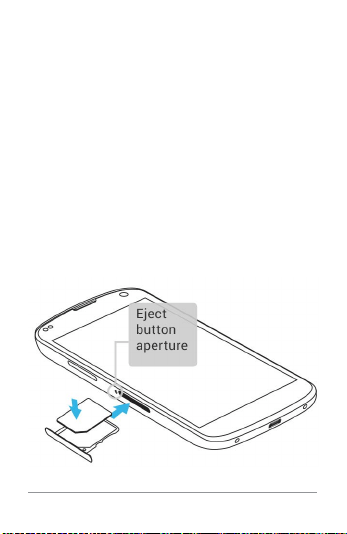
The SIM card tray is located on the left side
of the phone below the volume button. The
eject button is a small hole just above the
tray door. To install a new Micro SIM card:
1. Insert the SIM ejection tool that comes
with the phone (or a thin pin) into the eject
button hole, and push rmly but gently un-
til the tray pops out.
2. Remove the tray and place the micro SIM
card inside it, with the contacts out and
the angled corner to the right. There is
only one possible way to t the card snug-
ly into the tray.
3. Carefully reposition the tray in the slot
and push it gently back into the phone.
TIP: Your phone’s IMEI identication
number is on the SIM card tray. You
may need this number later to identify
your phone for service purposes. Write
down the IMEI number or take a photo
of the label on the product box.
GET STARTED 4
Charge the battery
Your battery will not be fully charged when
you rst unpack your Nexus 4. It’s a good
idea to fully charge the battery as soon as
you get a chance.
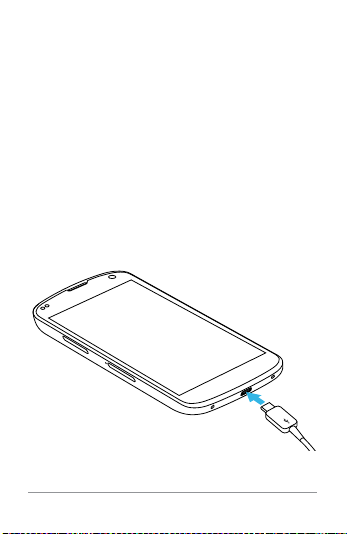
If you’re using the travel adapter that comes
with the phone, connect one end of the data
cable to the charger port at the bottom of
the phone, and the other end to the travel
adapter. Then connect the travel adapter to
a power outlet.

GET STARTED 5
• The travel adapter varies by country
or region.
• Use only the travel adapter and Mi-
cro USB cable that come with your
Nexus 4. Using a different travel
adapter or cable may damage your
phone.
• The input voltage range between
the wall outlet and this travel adapt-
er is AC 100V–240V, and the travel
adapter’s output voltage is DC 5V,
2A.
• Charging your phone through a USB
cable attached to another device,
such as a laptop computer, takes
longer than charging with a travel
adapter.
• Nexus 4’s battery can’t be removed.
Don’t attempt to open the phone.
GET STARTED 6
IMPORTANT: If you use a wireless char-
ger, you must use an approved model
and only as directed. The Nexus 4 trav-
el adapter may not generate enough
current to power a wireless charger.
DO NOT throw the battery in
municipal waste. The symbol
of the crossed out wheeled
bin indicates that the battery
should not be placed in mu-
nicipal waste.
Set up your phone
The rst time you turn on the phone, you’ll
see a Welcome screen.
• To choose a different language, touch the
menu.
• To continue, touch Start and follow the
instructions.
When prompted, sign in using the email ad-

GET STARTED 7
dress and password for your Google Ac-
count. If you don’t have one yet, create one.
An email address that you use for any of the
following counts as a Google Account:
• Gmail
• YouTube
• Google Apps
• AdWords
• Any other Google product
When you sign in with a Google Account, all
the email, contacts, Calendar events, and
other data associated with that account are
automatically synced with your phone.
If you have multiple Google Accounts, you
can add the others later.
Get around
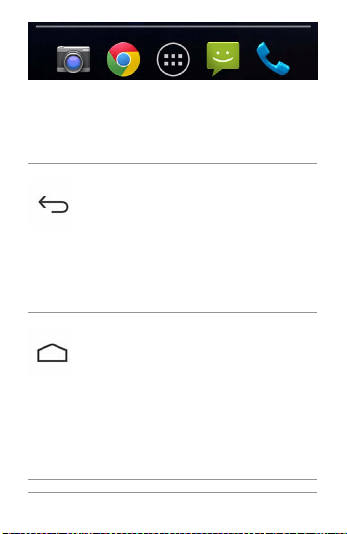
Every Home screen shows the Favorites tray:
another quick way to get to your apps:
GET STARTED 8
At the bottom of every Nexus 4 screen, no
matter what you’re doing, you’ll always nd
these three navigation buttons:
Back
Opens the previous screen you
were working in, even if it was in
a different app. Once you back
up to the Home screen, you
can’t go back any further in your
history.
Home
Opens Home. If you’re view-
ing a left or right Home screen,
opens the central Home screen.
To open Google Now, swipe up.
Google Now gives just what you
need to know, right when you
need it.
GET STARTED 9
Recent apps
Opens a list of thumbnail images
of apps you’ve worked with re-
cently. To open an app, touch it.
To remove a thumbnail from the
list, swipe it left or right.
If you don’t use these buttons often, they
may shrink to dots or fade away, depending
on the current app. To bring them back, touch
their location.
On the All Apps screen avail-
able from the Favorites tray,
notice the Settings icon. This
brings you to the Settings
screens for your phone, where
you can adjust things like net-
work, sound, and account set-
tings, among many others.
Settings

GET STARTED 10
TIP: You can use Quick Settings to tog-
gle Wi-Fi, change display brightness,
and more. To open Quick Settings,
swipe down with two ngers from the
top of any screen. Or, swipe down with
one nger to pull down the notication
shade, and touch the Quick Settings
icon at the top right.
At the top of the screen you’ll nd Google
Search, which lets you search your phone
or the Internet. Touch Google to type your
search terms, or the
Microphone icon to
speak them; you can also say “Google” and
your query to activate a voice search.
Browse & organize your Home
screens
Browse Home screens
To move between Home screens, swipe left
or right.
GET STARTED 11
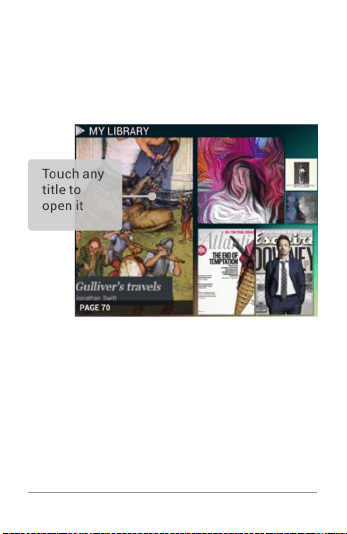
The My Library widget displays apps, music,
movies, magazines, books, and games you
already have – including free content that
comes with your Nexus 4:
GET STARTED 12
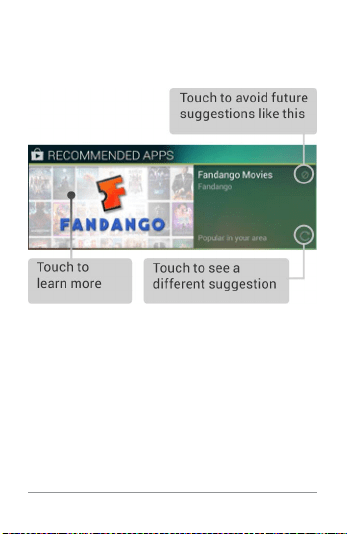
When you’re ready to shop for more, try the
suggestions in one of the Play Recommenda-
tions widgets:
To resize a widget, touch & hold, then let go
and drag the blue dots. To remove it, touch &
hold, then drag it to the Remove icon at the
top of the screen.

GET STARTED 13
Organize Home screens
To add an app or widget to a Home screen:
1. Go to the Home screen where you want to
place the app or widget.
2. Touch the All Apps icon.
3. Swipe right, if necessary, to nd the app
or widget you want.
4. Touch & hold the app or widget until the
Home screen appears, slide it into place,
and lift your nger.
To move an app or widget icon to a different
location on a Home screen:
1. Touch & hold the icon.
2. Slide your nger to the new position.
To move between Home screens, slide to-
ward the edge of the screen.
To bump another icon out of the way, slide
slowly into it.
3. Lift your nger.
The icon drops into its new position.
GET STARTED 14
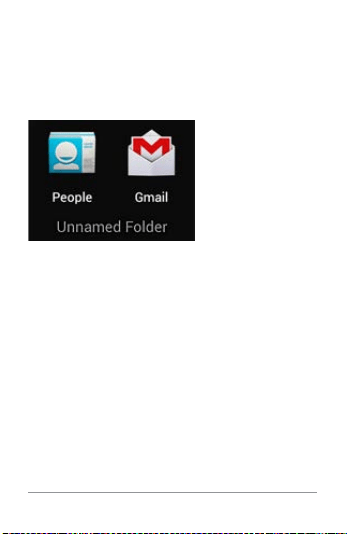
To combine two icons in a folder, slide one
quickly over the other.
To open a folder, touch it. To rename a folder,
touch its name.
Touch & type
To select or activate something, touch it.
To type something, such as a name, pass-
word, or search terms, just touch where you
want to type. A keyboard pops up that lets
you type into the eld.
Other common gestures include:
• Touch & hold. Touch & hold an item on the

GET STARTED 15
screen by touching it and not lifting your
nger until an action occurs.
• Drag. Touch & hold an item for a moment
and then, without lifting your nger, move
your nger on the screen until you reach
the target position. For example, you can
move apps around on the Home screen.
• Swipe or slide. Quickly move your nger
across the surface of the screen, with-
out pausing when you rst touch (so you
don’t drag something instead). For exam-
ple, you can slide a Home screen left or
right to view the other Home screens.
• Double-tap. Tap quickly twice on a web-
page, map, or other screen to zoom. For
example, double-tap a picture in Chrome
to zoom in, and double-tap again to zoom
out.
• Pinch. In some apps (such as Maps,
Chrome, and Gallery), you can zoom in
and out by placing two ngers on the
screen at once and pinching them togeth-
er (to zoom out) or spreading them apart
(to zoom in).
GET STARTED 16
• Rotate the screen. The orientation of
most screens rotates with your phone as
you turn it. To lock or unlock the screen’s
vertical orientation, swipe down with two
ngers from the top of any screen and
touch the Rotation icon in Quick Settings.
To change your phone’s noti-
cation sounds, volumes, and
more, go to
Settings > De-
vice > Sound.
To change your phone’s bright-
ness, font size, and more, go
to
Settings > Device >
Display.
Settings
Type text by speaking
You can speak to enter text in most places
that you can enter text with the onscreen
keyboard.
1. Touch a text eld, or a location in text
you’ve already entered in a text eld.

GET STARTED 17
2. Touch the Microphone key on the on-
screen keyboard.
3. When you see the microphone image,
speak what you want to type.
Say “comma,” “period,” “question mark,” “ex-
clamation mark,” or “exclamation point” to
enter punctuation.
When you pause, what you spoke is tran-
scribed by the speech-recognition service
and entered in the text eld, underlined. You
can touch the Delete key to erase the under-
lined text. If you start typing or entering more
text by speaking, the underline disappears.
To improve processing of your voice input,
Google may record a few seconds of ambient
background noise in temporary memory at
any time. This recording remains on the de-
vice only fleetingly and is not sent to Google.

GET STARTED 18
To change your phone’s speech
settings, go to Settings > Per-
sonal > Language & input.
Settings
Why use a Google Account?
A Google Account lets you organize and ac-
cess your personal information from any
computer or mobile device:
• Use Google Play. Google Play brings to-
gether all your favorite content in one
place: movies, TV shows, books, music,
magazines, apps, and more. When you
sign in with your Google Account, you can
reach any of this content from any of your
devices – as long as you have a network
connection. You can also shop for more in
the Google Play store.
• Synchronize and back up everything.
Whether you draft an email, add an event
to your calendar, or add a friend’s ad-
dress, your work gets backed up continu-

GET STARTED 19
ously by Google and synchronized with
any computer where you use the same
Google Account.
• Access from anywhere. Check your latest
calendar, email, text messages, or social
stream, no matter what computer or mo-
bile device you’re using.
• Keep your stuff secure and available.
Google works round the clock to protect
your personal data from unauthorized ac-
cess and to ensure that you get it when
you need it, wherever you need it.
• Simplify shopping. You can connect your
Google account with Google Wallet, which
makes it easy to purchase music, books,
apps, and more on Google Play and other
online stores.
• Use other Google services. Your Google
Account also lets you take full advan-
tage of other Google apps and services
that you may want to use, such as Gmail,
Google Maps, Navigation, Google Play,
YouTube, Google Talk, Messaging, and
more.

GET STARTED 20
What’s New in Android
Whether you’re new to Android or an avid
user, check out some of the new features in
Android 4.1 and 4.2 (Jelly Bean). For a com-
prehensive list of all changes since Android
4.0, see Android 4.1, Jelly Bean and Android
4.2: A new flavor of Jelly Bean.
• Gesture Typing (Android 4.2)
Instead of typing each letter, use Ges-
ture Typing to input a word without lifting
your nger. You don’t need to worry about
spaces because they’re added automati-
cally for you.
Glide your nger over the letters you want
to type, and lift it after each word.
• Google Play widgets
New widgets on your Home screens dis-
play recently used apps, music, movies,
books, or games you already have – in-
cluding preloaded content that comes
with your device. Other widgets offer sug-
gestions for browsing Google Play.

GET STARTED 21
Touch a widget to access its content on
Google Play. Touch & hold a widget to re-
size it or remove it.
• Quick Settings (Android 4.2)
Use Quick Settings to easily access Wi-
Fi settings, manage display brightness,
open the main Settings menu, and more.
Swipe down with two ngers from the top
right corner of any screen to open Quick
Settings, then touch one of the boxes to
open a specic setting.
• Expandable notications
Expandable notications were introduced
in Android 4.1, including the option to per-
form actions from the notication itself.
In Android 4.2, you can expand notica-
tions more easily with a swipe of your
nger.
Swipe down the notication shade from
the top of the screen, then glide your
nger down the notications to expand
them. Touch an icon inside a notication
to handle a task directly.

GET STARTED 22
• Rearrange Home screens
Slide an icon slowly to move other icons
or widgets gently aside.
Touch & hold an icon and slide slowly to
the location of your choice. Slide an icon
quickly over another to create a folder.
• Screen magnication (Android 4.2)
Users with visual impairments can enter
full-screen magnication by triple-tap-
ping the screen.
Go to Settings > System > Accessibility >
Magnication gestures to turn on screen
magnication.
• Google Now
Google Now shows you information at
just the right time, such as today’s weath-
er before you start your day, how much
trafc to expect before you leave for work,
and even your favorite team’s score while
they’re playing.
Swipe up from the bottom center of any

GET STARTED 23
screen, or touch the Google Search bar on
any Home screen.
• Say “Google” to search
When the Google Now screen is open,
you can say “Google” to activate a voice
search.
Open Google Now, then say “Google” and
your query to search.

EXPLORE YOUR PHONE 24
2
Explore your
phone
Swipe up for Google Now
Google Now is about getting you just the
right information, at just the right time.
It tells you today’s weather before you start
your day, how much trafc to expect before
you leave for work, and even your favorite
team’s score while they’re playing.
All of this happens automatically. Google
Now intelligently brings you the information
you want to see, when you want to see it. No
digging required.
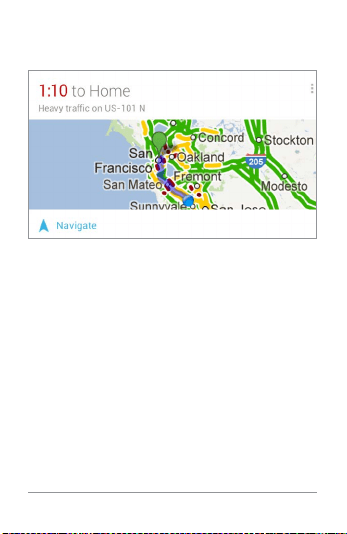
For example, here’s a Google Now card that
EXPLORE YOUR PHONE 25
appears when you’re about to start your
commute home:
Give it a try! Swipe your nger up from the
bottom of any screen, or touch the Google
Search bar at the top of the screen.
When you want to see more cards, touch
Show more cards at the bottom of the
screen. When you don’t need them any more,
swipe them out of the way.
You’re in control
When you decide to use Google Now, you’re
turning on location reporting and location

EXPLORE YOUR PHONE 26
history. Google Now also uses location
information provided by Google’s location
service and GPS, if those are currently turned
on.
Google Now also uses data that you may
have stored in other Google products. For
example, if you have searches stored in your
Web History, Google Now can show cards
based on sports scores, flight status, and
so on.
Similarly, Google Now can use data that you
may have stored in third-party products that
you allow Google to access. For example,
your phone’s synced calendar may include
entries from non-Google calendar products.
If you have such an entry for a dentist
appointment that includes the dentist’s
address, Google Now can check trafc and
suggest when to leave.
You’re in control. You can choose exactly
which cards you’d like to see, adjust the
details of what they display, and adjust your
privacy settings.
EXPLORE YOUR PHONE 27
For more information about Google Now and
your location information, see “Chapter 5,
Use Google Now & Search.”
Swipe down for notications &
settings
Notications alert you to the arrival of new
messages, calendar events, and alarms,
as well as ongoing events, such as video
downloads.
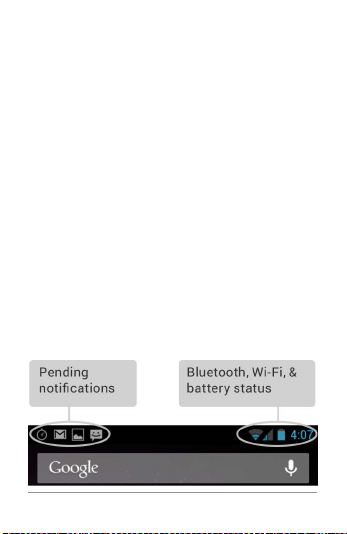
When a notication arrives, its icon appears
at the top of the screen. Icons for pending
notications appear on the left, and system
icons showing things like Wi-Fi signal or bat-
tery strength on the right:

EXPLORE YOUR PHONE 28
To open the notication shade, swipe down
from the top left corner of any screen.
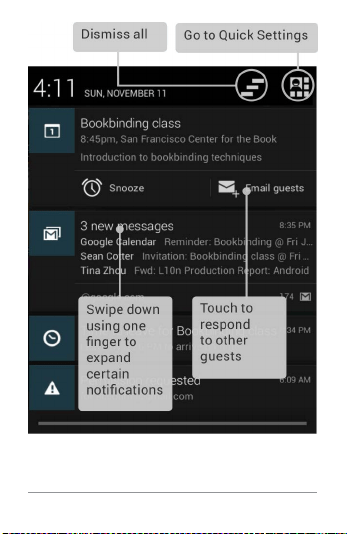
Certain notications can be expanded to
show more information, such as email pre-
views or calendar events. The one at the top
is always expanded when possible.
To open the related app, touch the notica-
tion icon on the left. Some notications also
allow you to take specic actions by touch-
ing icons within the notication. For ex-
ample, Calendar notications allow you to
Snooze (remind you later) or send email to
other guests.
When you’re nished with a notication, just
swipe it away. To dismiss all notications,
touch the Dismiss icon at the top right of the
notication shade.
You can perform these actions from the no-
tication shade:
EXPLORE YOUR PHONE 29
EXPLORE YOUR PHONE 30
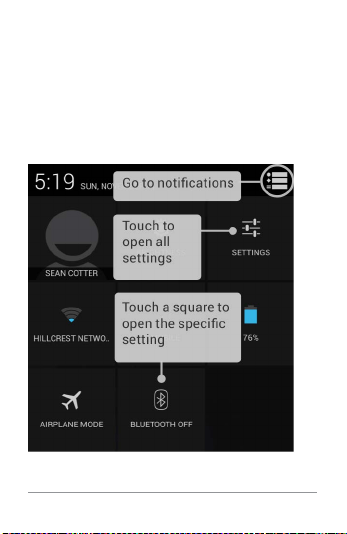
Quick Settings
Use Quick Settings to easily toggle Wi-Fi,
manage display brightness, open the main
Settings menu, and more. To open Quick Set-
tings, swipe down from the top right corner
of any screen:

EXPLORE YOUR PHONE 31
Relax with Google Play
Google Play brings together all your favorite
content in one place – movies, TV shows,
books, music, magazines, apps, and more –
so you can reach it from any of your devices.
Use Google Play widgets
These widgets are available on your Home
screens:
• My Library. Displays your most recently
used music, books, and so on. Touch any
of the images to see your content –plus
free gifts from Google.
• Recommended on Play. Suggests music,
movies, and other content that may inter-
est you. Touch the suggestion to learn
more about it.
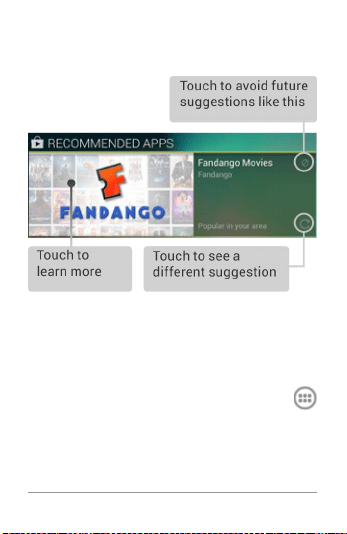
• Recommended apps. Recommends apps
that you can add to your Home screen.
Touch the recommendation to learn more
about it.
EXPLORE YOUR PHONE 32
All Google Play recommendation widgets
work the same way:
To resize a widget, touch & hold, then let go
and drag the blue dots. To remove it, touch &
hold, then drag it to the Remove icon at the
top of the screen.
To add another Play widget, touch the
All Apps icon, then Widgets, and swipe from
right to left until you see the one you want.
Then touch & hold, and let go in the Home
screen location you want.

EXPLORE YOUR PHONE 33
Shop on Google Play
To open the Google Play Store
app, touch the Play Store icon
in your Favorites tray on every
Home screen.
Most things you purchase on
Google Play are available from
your computer as well as from
any of your Android mobile de-
vices. (Android apps are one
exception – they run only on
Android devices.)
Play Store
Sign in to play.google.com to get your enter-
tainment from anywhere.
Find your content
If you purchased on Google Play in the past,
you’ll automatically have access to this con-
tent on your Nexus 4 — just make sure you’re
signed in using the same account that you
used to purchase it.

EXPLORE YOUR PHONE 34
You can get to your content using any of
the Google Play icons in your Favorites tray,
including Books, Magazines, Movies, and
Music.
Or, touch the
Play Store icon to open
Google Play, and then go to one of the main
sections, such as Apps, Music, and so on.
When you touch the
Menu icon in any
section, the rst item in the menu is always
something like My Apps or My Music, which
will bring you your content for that section of
Google Play.
You can quickly access your content this
way, from the Google Play Store app, even
if you originally purchased it on Google Play
using a different phone or phone. If you get a
new device, all your media will automatically
be waiting for you here when you turn on and
sign in.
Google Play settings
To adjust your Google Play settings, switch
accounts, or get help, choose the option

EXPLORE YOUR PHONE 35
you want from the Menu in the top right
corner.
The Google Play Settings screen lets you
control when you’re notied about updates
to apps and games, clear your search histo-
ry, and enable user controls. To lter Android
apps based on maturity level or require a PIN
before completing any purchase, touch Con-
tent ltering or Set or change PIN.
Google Play support
For more detailed information about Google
Play, including phone and email support op-
tions, visit support.google.com/googleplay.
Use & customize the lock
screen
You can add widgets to the top of the lock
screen and swipe between them. Lock
screen widgets let you scan recent Gmail

EXPLORE YOUR PHONE 36
messages, Calendar entries, and other app
content without unlocking your screen.
To set or change the type of lock, see Set
screen lock.
Navigate the lock screen
Clock is the default widget. To hide the PIN,
pattern, or password lock, swipe down from
the clock or other widget at the top of the
lock screen. Touch the lock icon at the bot-
tom of the screen to show the lock again.
To access the Camera app without unlocking
the screen:
1. Swipe left from the right edge of the
screen.
2. If necessary, switch to the mode you
want. The mode is indicated by the cam-
era or other icon at the lower left in por-
trait mode.
3. Start taking photos or videos.
To view what you captured, swipe left to open

EXPLORE YOUR PHONE 37
the Filmstrip view of your Gallery. The image
or video is automatically saved to your Gal-
lery, but you can’t view any of your other pho-
tos and videos until you unlock your screen.
To get back to the main Camera app, swipe
right.
To close the Camera app, touch the bottom
of your screen to bring up the navigation but-
tons, then touch one of the buttons.
Add a widget to the lock screen
1. Swipe left from the right edge of the
screen until you see the
Plus icon.
2. Touch the Plus icon. If prompted, en-
ter your PIN, pattern, or password.
A list of widgets appears. Apps that sup-
port lock screen widgets can add their
own widgets to this list.
3. Touch the widget you want to add.
You can add up to ve widgets to your lock
screen. To move between them, swipe be-
tween screens.

EXPLORE YOUR PHONE 38
Reorder lock screen widgets
1. Touch & hold a widget.
2. Drag the widget and release it in the loca-
tion of your choice.
Remove a lock screen widget
Touch & hold the widget, then drag it onto the
Remove icon.
Try Face Unlock
You can set an automatic screen lock for
your phone. After you set a lock, the screen
locks when the display goes to sleep or when
you press the Power button.
You can set locks of different strengths us-
ing lock settings:
1. Go to Settings > Personal > Security
> Screen lock.
2. Touch the type of lock you’d like to use.

EXPLORE YOUR PHONE 39
Face Unlock is one of the options available.
After you’ve set it up, you can unlock your
phone simply by looking at it. Although Face
Unlock is not very secure, it can be conve-
nient and fun to use.
TIP: After you set up Face Unlock, look
under Settings > Personal > Security
for two additional settings: Improve
face matching and Liveness check.
Use these to make Face Unlock more
reliable and secure.
Share content with Android
Beam
You can beam a web page, a video, or other
content from your screen to another device
by bringing the devices together (typically
back to back).

EXPLORE YOUR PHONE 40
Before you begin: Make sure both devices
are unlocked, support Near Field Communi-
cation (NFC), and have both NFC and Android
Beam turned on.
1. Open a screen that contains something
you’d like to share, such as a webpage,
YouTube video, or place page in Maps.
2. Move the back of your phone toward the
back of the other device.
When the devices connect, you hear a
sound, the image on your screen reduces
in size, and you see the message Touch
to beam.
3. Touch your screen anywhere.
Your friend’s device displays the trans-
ferred content. Or, if the necessary app
isn’t installed, Google Play opens to a
screen where your friend can download
the app.
EXPLORE YOUR PHONE 41
TIP: When you touch another device
to the back of your Nexus 4, make sure
it’s near the “u” in “nexus” to success-
fully beam content.
To turn on NFC, go to Settings
> Wireless & networks > More
> NFC.
To turn on Android Beam, go to
Settings > Wireless & networks
> More > Android Beam.
Settings
Change the wallpaper
To change the wallpaper that’s displayed on
your Home screens:
1. Touch & hold anywhere on a Home screen
that’s not occupied.
A list of options appears.
2. Touch a wallpaper source:
Gallery. Choose from pictures that you’ve
EXPLORE YOUR PHONE 42
synced with your phone.
Live Wallpapers. Choose from a scrolling
list of animated wallpapers.
Wallpapers. Choose from thumbnails of
default images, or touch a thumbnail for
a larger version.
You can download additional wallpapers
on Google Play.
3. To set a wallpaper, touch Set wallpaper
or, for Gallery images, determine the crop-
ping and touch Crop.
To change your phone’s wall-
paper, go to Settings > Device
> Display > Wallpaper.
Settings
Take a screenshot
You can easily take a screenshot on your
phone that you can save in your Gallery or
share with others:

EXPLORE YOUR PHONE 43
1. Make sure the image you want to capture
is displayed on the screen.
2. Press the Power and Volume down but-
tons simultaneously.
The screenshot is automatically saved in
your Gallery.
TIP: To easily share your screenshot
via Gmail, Google+, and more, swipe
down the notication shade and touch
the
Share icon next to the preview
of your screenshot.
Connect to keyboards, mice, &
other devices
You can connect a keyboard, mouse, or even
a joystick or other input device to your phone
via Bluetooth and use it just as you would
with a PC. USB is not supported for connect-
ing Nexus 4 to such devices.

EXPLORE YOUR PHONE 44
IMPORTANT: Continuous use of a
mouse via Bluetooth will cause a
signicant additional drain on your
battery.
You pair and connect Bluetooth input de-
vices to your phone in the same way as any
other Bluetooth device.
Keyboards
In addition to entering text, you can use your
keyboard to navigate your phone’s features:
• Use the arrow keys to select items on
screen.
• Pressing Return when an item is selected
is equivalent to touching that item.
• Pressing Escape is equivalent to touch-
ing Back.
• Press Tab or Shift-Tab to move from eld
to eld in a form or other screen with mul-
tiple text elds.

EXPLORE YOUR PHONE 45
Mice
When you connect a mouse to your phone
via Bluetooth and move the mouse, an ar-
row-shaped cursor appears, just as on a
computer:
• Use the mouse to move the cursor.
• Clicking, pressing, and dragging with the
mouse button is equivalent to touching,
touching & holding, and dragging with
your nger.
• Only one mouse button is supported.
• If your mouse has a trackball or scroll
wheel, you can use it to scroll both verti-
cally and horizontally.
Other input devices
You can connect joysticks, gamepads, and
other input devices to your phone via Blue-
tooth. If they work without special drivers or
adapters on your PC, they will likely work with
your phone. However, games and other apps
must be designed to support any special

EXPLORE YOUR PHONE 46
features of an input device, such as dedi-
cated buttons or other controls, to take full
advantage of them.
USE THE PHONE APP 47
3
Use the
Phone app
Make a phone call
You can place calls from the Phone app ,
the People app
, or other apps or widgets
that display contact information. Wherever
you see a phone number, you can usually
touch it to dial.
To dial using the Phone app:
1. Touch the Phone icon on a Home or
All Apps screen.
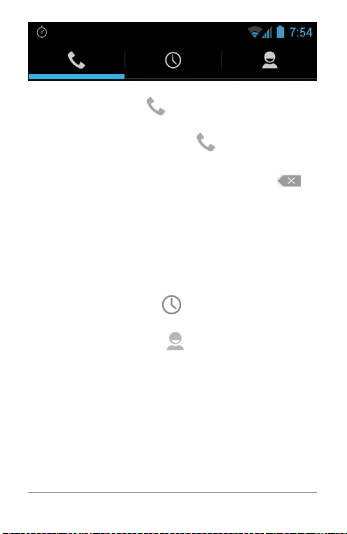
Notice the three tabs at the top of the phone.
You can make calls from any of them.
USE THE PHONE APP 48
• The Dialer tab lets you dial manually.
Touch the keys to enter the number, then
touch the Phone icon below the key-
pad to dial.
If you enter a wrong number, touch
to
erase digits one by one.
To dial an international number, touch &
hold the 0 key to enter the plus ( + ) sym-
bol. Then enter the international prex for
the country, followed by the full phone
number.
• The Call log tab shows recent calls.
Touch a call to return it.
• The Contacts tab shows the numbers
you frequently call at the top, and all your
contacts below. Touch to dial.
You can switch applications during a call –
for example, to look up information by using
Chrome.

USE THE PHONE APP 49
To return to the Phone app while a call is in
progress:
1. Swipe down from the top of the screen to
reveal your notications.
2. Touch the green phone icon.
To end a call in progress, touch the End Call
icon
at the bottom of the screen.
Answer or divert calls
When you receive a phone call, the Incom-
ing Call screen opens, displaying the caller
ID and any additional information about the
caller that you’ve entered in People.
All incoming calls are recorded in the Phone
app’s Call log tab. If you miss a call, you re-
ceive a notication.
To silence the ringer before answering the
call, press the Volume Down button on the
side of your phone.
USE THE PHONE APP 50
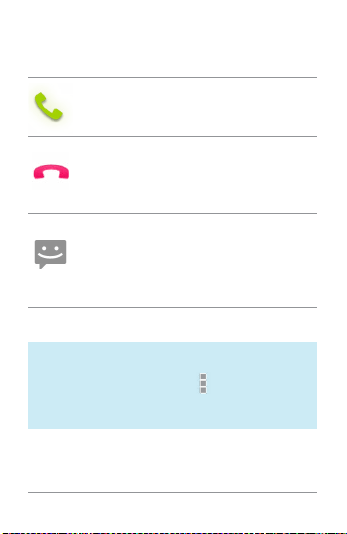
When a call arrives, touch the white phone
icon and slide over one of these icons:
Answer call
Start talking to the caller.
Send to voicemail
Direct the caller to leave a voice-
mail message.
Send a message
Opens a list of quick text re-
sponses. Touch one to send it to
the caller immediately.
TIP: To edit text responses from within
the Phone app, touch
Menu icon >
Settings > Quick responses.
USE THE PHONE APP 51
Work with the Call log
The Call log is a list of all the calls you’ve
placed, received, or missed. It provides a
convenient way to redial a number, return a
call, or add a number to your Contacts.
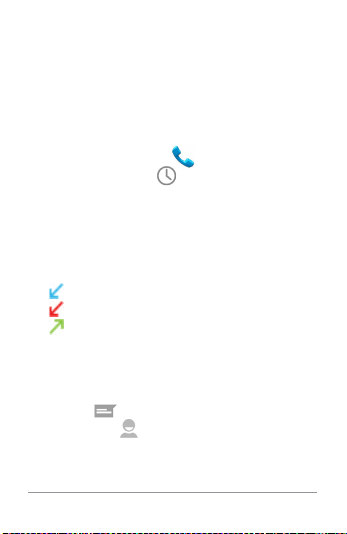
Within the Phone app
, the Call log is un-
der the middle tab
. Touch a number for
more information about the call, or touch the
phone icon beside it to call back.
Arrow icons beside a call indicate the type of
call. Multiple arrows indicate multiple calls:
• Missed incoming call
• Received incoming call
• Outgoing call
While viewing details for a call:
• Touch the number to call it.
• Touch to send a text message.
• Touch the Contacts icon to view con-
tact details.

USE THE PHONE APP 52
• Touch to add a new People card for
the caller.
To clear the Call log:
1. Touch the Menu icon.
2. Touch Clear Call Log.
Place an Internet (SIP) call
You can place calls over the Internet when
connected to a Wi-Fi network, rather than
over your mobile network. To do so, you must
rst congure your phone to use an Internet
calling account.
After you set up the account, placing an In-
ternet call is no different than placing any
other call. However, you must be connected
to a Wi-Fi network. When you’re making an
Internet call, the phone displays Internet Call
near the top of the screen.
Internet calling is based on the Session Ini-

USE THE PHONE APP 53
tiation Protocol (SIP) for voice calls on Inter-
net Protocol (IP) networks.
IMPORTANT: Calling a phone number
over the Internet requires that your
service provider supports it. You may
incur additional charges. Check with
your service provider for details.
To add an Internet calling account and cong-
ure your incoming and outgoing preferences:
1. Touch the Phone icon on a Home or
All Apps screen.
2. Touch the Menu icon.
3. Touch Settings.
4. At the bottom of the screen, under Inter-
net call settings:
To change your incoming call preference
or account settings, touch Accounts.
To change your outgoing call preferences,
touch Use Internet calling.

USE THE PHONE APP 54
You’ll also want to add SIP addresses for the
contacts you want to call this way. To do so:
1. Touch the contact’s info in the Call
log tab.
2. Touch to go to the contact’s card.
3. Touch the Menu icon, then Edit.
4. Scroll to the bottom of the screen, touch
Add another eld, and then Internet call.
5. Touch the Internet call eld and type the
number.
Listen to your voicemail
When you have a new voicemail message,
the voicemail icon appears in the Status
area at the top left of your screen.
To read your voicemail:
1. Swipe down from the top of the screen to
view your notications.
The voicemail notication displays the
number of unread messages and a num-
ber to dial.

USE THE PHONE APP 55
2. Touch New voicemail.
Your phone dials the voicemail message.
Follow the instructions to retrieve your
messages.
To change your voicemail service or other
settings:
1. Touch the Phone icon on a Home or
All Apps screen.
2. Touch Menu, then Settings.
3. Touch the voicemail setting you want to
change, or dial the number listed to ac-
cess other voicemail settings.
Options during a call
During a call, you can
• Answer another incoming call: You see
the Incoming Call screen, displaying the
caller ID and any additional information
about the caller that you’ve entered in
People. As with any incoming call, touch
the white phone icon and slide to answer,

USE THE PHONE APP 56
respond with a text message, or send the
call to voicemail.
If you answer, the rst call will be put on
hold. If you respond with a message or
send to voicemail, you return to the rst
call.
• Adjust the volume: Use the volume but-
tons on the side of the phone.
During a call, you can also use buttons near
the bottom of the screen to
Switch to the dialer, for example to
enter a code.

USE THE PHONE APP 57
Controls the audio output as
follows:
• If a Bluetooth headset is not
connected: Turns the speaker-
phone on or off.
• If a Bluetooth headset is con-
nected: Functions as a 3-way
switch between the built-in
earpiece, the speakerphone,
and the headset. The icon
changes to indicate the cur-
rent output. Touch & hold to
see a 3-way menu.
• If a wired headset is plugged
into the phone, it replaces the
phone’s built-in earpiece.
Mute your microphone.
Put the other party on hold.

USE THE PHONE APP 58
Switch to another call in progress.
Make another call separately from
the rst call, which is put on hold.
Merge separate calls as a single
conference call.

USE THE KEYBOARD 59
4
Use the
keyboard
Enter & edit text
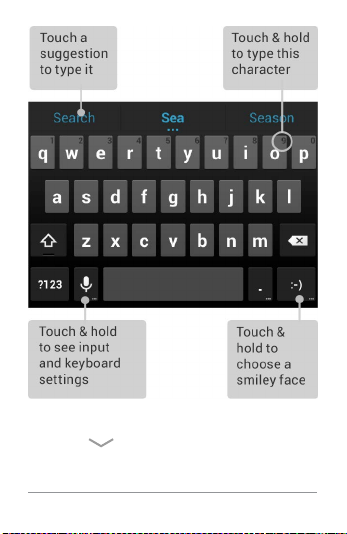
You can enter text using the onscreen key-
board. Some apps open it automatically. In
others, you open it by touching where you
want to type.
USE THE KEYBOARD 60
To make the keyboard go away, touch the
modied Back button below it.

USE THE KEYBOARD 61
Basic editing
• Move the insertion point. Touch where
you want to type.
The cursor blinks in the new position, and
a blue tab appears below it. Drag the tab
to move the cursor.
• Select text. Touch & hold or double-tap
within the text.
The nearest word highlights, with a tab at
each end of the selection. Drag the tabs to
change the selection.
The tab disappears after a few moments.
To make it reappear, touch the text again.
• Delete text. Touch to delete selected
text or the characters before the cursor.
• Type capital letters. Touch the Shift key
once to switch to capital letters for one
letter.
Or touch & hold
Shift key while you
type. When you release the key, the lower-
case letters reappear.
• Turn caps lock on. Double-tap or touch
& hold
Shift key, so it changes to
. Touch Shift key again to return to
lowercase.
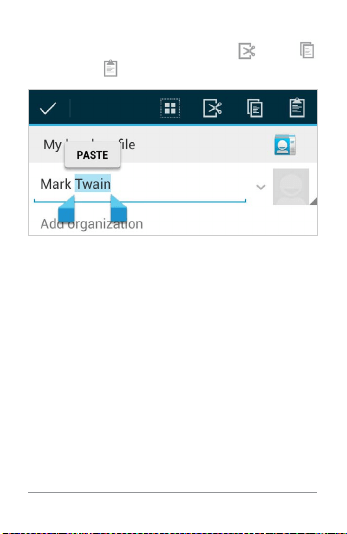
USE THE KEYBOARD 62
• Cut, copy, paste. Select the text you want
to manipulate. Then touch
Cut,
Copy or
Paste button:
Use next-word suggestions
1. Touch the location where you want to in-
put text.
2. Start typing out a word. When the word
you want is displayed in a list above the
keyboard, touch it.
3. Continue to touch one of the three op-
tions as your phone predicts words you
may want. If you don’t want any of the op-
tions, type the next word without using
the space bar.

USE THE KEYBOARD 63
Your phone will continue to suggest
words as you type.
To change your phone’s key-
board and input methods, go
to Settings > Personal > Lan-
guage & input.
To turn next-word sugges-
tions on or off, go to Settings
> Personal > Language & in-
put > Keyboard & input meth-
ods > Android keyboard. Touch
the Settings icon, then check
the box next to Next-word
suggestions.
Settings
Try Gesture Typing
To input a word using Gesture Typing:
1. Touch the location where you want to type
to open the keyboard.
2. Slide your nger slowly across the letters
of the word you want to input.
USE THE KEYBOARD 64
3. Release your nger when the word you
want is displayed in the floating preview
or in the middle of the suggestion strip. To
select one of the other words in the sug-
gestion strip, touch it.
If the word you want isn’t shown while using
Gesture Typing, you can type it out manually.
Use Gesture Typing without space bar
When you use Gesture Typing, there’s no
need to use the space bar — just continue to
slide over the words you want.
To change Gesture Typing set-
tings, go to Settings > Lan-
guage & input > Keyboard &
input methods > Android key-
board. Then touch Settings
and look under Gesture Typing.
Settings

USE THE KEYBOARD 65
Use keyboard dictionaries
To manage keyboard dictionaries, go to Set-
tings > Personal > Language & input.
Personal dictionary
You can add your own words to your person-
al dictionary so that your phone remembers
them. Touch the Add icon to add a word or
phrase, as well as a shortcut to easily use
that word or phrase.
Add-on dictionaries
1. Touch the Settings icon next to Android
keyboard.
2. Touch Add-on dictionaries.
You’ll see dictionaries for other languag-
es that you can download to your device.
3. Touch the dictionary you want, then touch
Install.

TRY SOME APPS 66
5
Try some apps
Use All Apps
To see all your apps, touch All Apps in the
Favorites tray on any Home screen.
This is where you can see all your apps, in-
cluding those downloaded on Google Play.
You can move app icons to any of your Home
screens.
From All Apps, you can:
• Move between screens. Swipe left or
right.
• Open an app. Touch its icon.
• Place an app icon on a Home screen.
Touch & hold the app icon, slide your n-
ger, and lift your nger to drop the icon in
place.
TRY SOME APPS 67
• Browse widgets. Touch the Widgets tab at
the top of any All Apps screen.
• Get more apps. Touch the Play Store icon
in the list of app icons, or the Shop icon at
the upper right.
To remove an app icon from the Home
screen, touch & hold it, slide your nger to-
ward the top of the screen, and drop the app
over the
Remove icon .
To view info about an app from an All App
screen, touch & hold it, slide your nger to-
ward the top of the screen, and drop the app
over the
App Info icon .
Most apps include a Menu icon near the
top or bottom of the screen that lets you con-
trol the app’s settings.

TRY SOME APPS 68
Start Gmail
Use the Gmail app to read and
write email from any mobile
device or browser. To open
it, touch the Gmail icon on a
Home or All Apps screen.
Gmail
But Gmail isn’t just about email. You can use
your Gmail account to sign in to all Google
apps and services, including these and many
more:
• Google Now, for getting just the right in-
formation at just the right time
• Calendar
• People, for keeping track of your contacts
• Google Drive, for working with docu-
ments, spreadsheets, or drawings
While you’re reading a message:
• Touch the icons and menu along the top of
the screen to archive, throw away, label, or
perform other actions on that message.
TRY SOME APPS 69
• Swipe left or right to read the previous or
next conversation.
To organize your email, check the box beside
a message to select it. Then use the icons
and menu along the top of the screen to man-
age the selected messages.
To change your settings, add an account, or
get help, touch the
Menu icon.
No matter where you are within Gmail, you
can always get back to the Inbox by touching
the
Gmail icon at the top of the screen.
Find People
The People app gives you quick
access to everyone you want
to reach. To open it, touch the
People icon on a Home or All
Apps screen.
People

TRY SOME APPS 70
When you rst turn on your phone and sign
into a Google Account, any existing contacts
from that account are synced with your Peo-
ple app. After that, all your contacts stay in
sync automatically on your phone, another
device, or a Web browser.
If you use Exchange, you can also sync that
contact information with People.
All your People information is available from
Gmail, Google Talk, and other apps. As you
add contacts from different sources, they’re
synced automatically across all the places
you need them.
When you open the People app, you can:
• View all contacts, favorites, or groups.
Choose from the top left of the screen.
• Read details. Touch a name to see details
for a contact or group.
• View recent activity. When viewing a
contact, swipe to the right to see recent
updates.
• Edit details. While viewing a contact,
TRY SOME APPS 71
touch icons at the top of the screen or
the
Menu icon to search contacts, add
a contact, edit or share contact details,
delete a contact, and so on. You can also
touch the star beside the contact’s name
to add that contact to your Favorites list.
• Change your settings. While viewing the
main list screen, touch the
Menu icon
to import or export contacts, choose dis-
play options for the Groups and All tabs,
and add or edit accounts.
Manage your Calendar
Use the Calendar app to view
and edit your schedule. To
open it, touch the Calendar
icon on a Home or All Apps
screen.
Calendar
When you rst set up your phone, you con-
gured it to use an existing Google Account
(such as Gmail), or you created a new one.
The rst time you open the Calendar app on

TRY SOME APPS 72
your phone, it displays any existing calendar
events from that Google Account on the web.
As you edit events from any mobile device or
web browser, they’re synced automatically
across all the places you need them.
To change the Calendar view, choose Day,
Week, Month, or Agenda from the top of the
screen.
From any of these views, you can:
• Read or edit event details. Touch an event
to view its details.
• Manage events and calendars. Touch
icons across the top of the screen or
Menu to search or create events, return to
today, or adjust settings.
To email everyone who’s invited to an event,
you have two options:
• Open the event from the Calendar app at
any time and touch Email guests.
• When a notication of the event arrives
just before the meeting starts, swipe

TRY SOME APPS 73
down the notication shade. Then swipe
using one nger to expand the notica-
tion if necessary, and touch Email guests.
Open & use Clock
To open the Clock, touch the Clock icon from
a Home or All Apps screen.
Set an alarm
1. Touch the Alarm Clock icon in the lower
left corner of the screen.
2. Touch the Add icon to add a new alarm.
3. Select the time you want, then touch OK.
Any existing alarms will show in the main
Clock screen. To turn one On or Off, slide the
switch.
You can also add a label to an alarm and
change the ringtone. To change these op-
tions for a single alarm, touch the arrow un-
derneath the On/Off switch.

TRY SOME APPS 74
Set a timer
1. Touch the Timer icon in the top left corner
of the screen.
2. Enter the time you want, then touch Start.
When the timer is going, you can add an ad-
ditional minute, pause the timer, or delete the
current timer.
The timer beeps when the time is up. It keeps
beeping until you touch Stop.
Use the stopwatch
1. Touch the Stopwatch icon in the top right
corner of the screen.
2. Touch Start to start the stopwatch.
If you want to pause the stopwatch, touch
Stop. You can also add laps while the stop-
watch is running by touching the icon to the
left of the stopwatch.
To share your results, touch the Share icon to
share via Google+, Gmail, and more.
TRY SOME APPS 75
View your Clock
To view the current date and time, touch the
Clock icon at the top center of the screen.
Manage downloads
To manage most downloads,
touch the Downloads icon on
the All Apps screen. Movies
and some other content that
you download don’t show up in
the Downloads app.
Downloads
Google Play streams your purchases and
rentals from Google servers while you’re
playing them. They don’t occupy permanent
storage space. However, you can pin (down-
load) books, movies, and other content in or-
der to access it offline.
In addition to downloading content from
Google Play, you can download les from
Gmail or other sources. Use the Downloads

TRY SOME APPS 76
app to view, reopen, or delete what you down-
load in this way.
From the Downloads app:
• Touch an item to open it.
• Touch headings for earlier downloads to
view them.
• Check items you want to share. Then
touch the
Share icon and choose a
sharing method from the list.
• Check items you want to delete. Then
touch the
Trash icon.
• At the bottom of the screen, touch Sort
by size or Sort by date to switch back and
forth.
When your phone is connected to a comput-
er, look in the Download directory to view
les available in the Downloads app. You can
view and copy les from this directory.

USE GOOGLE NOW & SEARCH 77
6
Use Google
Now & Search
About Google Now
Google Now gives you just the right informa-
tion at just the right time. Swipe up from the
bottom of your phone to get commute trafc
before work, popular nearby places, your fa-
vorite team’s current score, and more.
You can turn Google Now on or off at any
time. Swipe up the same way and touch
Menu > Settings > Google Now. If the key-
board’s covering the menu, touch the modi-
ed
Back button to lower it.
After you decide to start using Google Now,

USE GOOGLE NOW & SEARCH 78
you don’t need to do anything else. If you like,
you can ne-tune some settings, but Google
Now doesn’t need any elaborate setup.
The information you need is always at your
ngertips.
To know when to display what information,
Google Now uses contextual data from your
phone and from other Google products, plus
data from third-party products that you allow
Google Now to access.
For example, Google Now uses the time of
day, your current location, and your loca-
tion history to show you what the trafc on
your commute is like when you wake up in
the morning. It also uses information from
Google services such as your Web History for
sports or flight updates, or from your synced
calendar entries for appointment reminders.
About Google Now cards
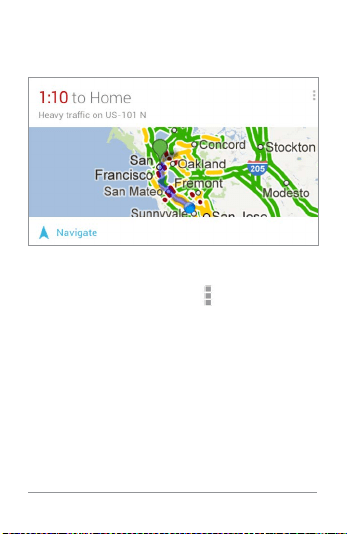
A Google Now card is a short snippet of use-
ful information that slides into view right
USE GOOGLE NOW & SEARCH 79
when you’re most likely to need it. For exam-
ple, here’s a trafc card:
To see some sample cards from the main
Google Now screen, touch
Menu > Sample
cards. When you’re nished and want to get
back to the main Google Now screen, touch
Hide sample cards.
In addition to the cards shown in the list of
samples, you may also see a Public Alerts
card.
Public Alerts provide emergency information
from sources such as the National Weath-

USE GOOGLE NOW & SEARCH 80
er Service and the U.S. Geological Survey.
Coverage is currently provided by a limited
number of key partners, only in the United
States (excepting U.S. Geological Survey
earthquake alerts). Google can’t guarantee
that you’ll see every relevant alert. However,
Google Now attempts to show you what’s
important when you need it, in the hope that
such alerts are a useful additional source
of information. To learn more, visit support.
google.com/publicalerts.
About location access, reporting, &
history
Location access settings determine whether
your phone can use your current location.
When location access is turned on, apps
can use it to give you more relevant informa-
tion, such as nearby restaurants or commute
trafc.
To turn off location access for all apps, go to
Settings > Personal > Location access. If you
prefer, you can turn off location access by

USE GOOGLE NOW & SEARCH 81
Google apps while still permitting its use by
non-Google apps – just go to Settings > Ac-
counts > Google > Location settings.
Location reporting refers your phone’s abil-
ity to report your current location for the pur-
pose of recording your location history.
Location history refers to your phone’s ability
to store your past locations, including home
and work.
When you decide to use Google Now, you’ll
start reporting your location and turn on your
location history. Google won’t share this
information with other users or marketers
without your permission.
If you opted in to location history in the past,
Google Now uses your previously recorded
locations as well as ongoing details when
making suggestions. Turning off location
history pauses the collection of location in-
formation, but doesn’t delete your history. To
manage or delete your location details, visit
http://google.com/locationhistory.

USE GOOGLE NOW & SEARCH 82
Along with location history, Google Now
uses Google’s location service and GPS. To
manage these settings from the Google Now
screen, touch
Menu > Settings > Privacy
and accounts > Location services.
For more details, see “Control location ac-
cess, reporting, & history.”
About Web History & other data
Google Now uses data from multiple sources
to help predict what you need. For example,
if you have a synced calendar entry for a
dentist appointment, Google Now can check
trafc and suggest when to leave. And if you
have relevant searches saved in your Web
History, such as for your favorite sports team
or for upcoming flights, Google Now can also
show cards for sports scores, flight status,
and more.
To manage your Web History, visit google.
com/history. You can delete or pause your
Web History and still use Google Now, but

USE GOOGLE NOW & SEARCH 83
certain kinds of information, such as flight
details, won’t show up.
Use Google Now
To view the Google Now cards that are wait-
ing for you at any particular time, swipe up
from the bottom of your phone, or touch
Google on any Home screen.
Google Now displays cards when they’re
most likely to be useful and relevant based
on the current time and your current loca-
tion. To expand that search and get addition-
al ones, touch Show more cards at the bot-
tom of the main Google Now screen.
When you’re nished with a card, just swipe
it away to dismiss it from the Google Now
screen. Don’t worry – it appears again when
a new update is available.

USE GOOGLE NOW & SEARCH 84
Edit card settings
To change the settings for an individual
Google Now card:
• Touch Menu > Settings on the card.
OR
• From the lower right corner of the Google
Now screen, touch
Menu > Settings >
Google Now.
The Google Now settings screen appears,
where you can turn a specic card On or Off
or adjust its settings. After you turn off a
card, it won’t appear when you open Google
Now.
Dismiss cards
To dismiss a card from the Google Now
screen, swipe it away. The card will return the
next time it’s relevant, which may be hours or
days from now.

USE GOOGLE NOW & SEARCH 85
Adjust notications
When a card has a new update, you’ll receive
a notication at the top of your screen. You
can pull down the notications shade to
open the card or dismiss the notication.
Most notications for Google Now cards can
be turned off or set to low or standard prior-
ity. Low priority notications appear at the
bottom of the notications shade without
any additional signal. Standard notications
appear like the others, in chronological order,
and you can set vibration and a ringtone to
accompany them.
To set notications to low or standard prior-
ity for an individual card that supports both
options:
• Touch Menu > Settings when the card
appears.
OR
• From the lower right corner of the Google
Now screen, touch
Menu > Settings >

USE GOOGLE NOW & SEARCH 86
Google Now, and adjust the settings un-
der Notications.
To change ringtone and vibrate options for all
standard notications, start from the Google
Now screen, touch
Menu > Settings >
Google Now, and adjust the settings under
Standard Notications.
Turn off Google Now
Turning off Google Now stops the display of
cards and returns Google Now settings to
their defaults.
1. Open the Google Now screen.
Touch Google on a Home screen, or swipe
up from the bottom of your phone while
viewing any screen.
2. Touch Menu > Settings > Google Now,
then slide the switch at the top right to
Off.
3. In the Turn off Now cards dialog, decide
whether you also want to turn off location

USE GOOGLE NOW & SEARCH 87
history. If you do, check Also turn off Lo-
cation history.
Turning off location history may affect
the way other Google products work.
4. Touch Turn off.
Turning off Google Now and location history
doesn’t delete existing history or turn off lo-
cation reporting. For more information, see
the next section, “Control location access,
reporting & history.”
Control location access,
reporting, & history
This section describes how to set your home
and work addresses and manage other loca-
tion-related features used by Google Now.
Dene home & work
As you use Google Now, you may be asked
to conrm your home or work address to get
commute trafc information, travel help, and

USE GOOGLE NOW & SEARCH 88
more. You can change these addresses in
several other ways:
• When a Trafc card appears for home or
work, touch
Menu > Edit.
• On the main Google Now screen, go to
Menu > Settings > Google Now > Trafc,
then edit Home or Work under Locations.
• On the main Google Now screen, go to
Menu > Settings > Google Now > Trafc,
then edit Home or Work under Locations.
• Open the Latitude app, nd your own lo-
cation, touch your name on the map, and
then Location history > Change home lo-
cation / Change work location.
• Visit maps.google.com from a browser
and open My Places.
• Visit https://www.google.com/latitude/b
/0/history/dashboard from a browser,
click Change next to Time at Work or Time
at Home, edit the address, and click Save.
You can turn off and delete your location his-
tory and still use Google Now, but certain
kinds of information, such as commute traf-
c, may be limited or won’t show up at all.

USE GOOGLE NOW & SEARCH 89
Turn off location reporting & history
To turn off both location reporting and loca-
tion history for your phone:
1. Go to Settings > Google > Maps &
Latitude.
This brings you to the Location settings
screen for Google Maps.
2. To turn off location reporting, touch Lo-
cation reporting > Do not update your
location.
3. To turn off location history, uncheck En-
able location history.
Delete location history details
Even if you turn off both location reporting
and location history, your previously record-
ed history is still available to Google services
such as Google Now.
To delete location history details, follow
these steps from a desktop computer:

USE GOOGLE NOW & SEARCH 90
1. Open a web browser and make sure you’re
signed in with the account whose loca-
tion history you want to manage.
2. Visit http://google.com/locationhistory.
A page appears that allows you to view
your location history for any date.
3. To delete all your recorded location his-
tory, click Delete all history.
Alternatively, from this screen you can
delete a portion of your location history
starting from a date you choose in the
calendar.
4. Click OK.
Turn off location access for your phone
Even when location reporting and location
history are turned off, Google can periodical-
ly report data for use by various apps from
sources such as Wi-Fi, mobile networks, and
GPS to determine your precise location at
any given time.
To turn off access to precise location infor-
mation for your phone, go to
Settings

USE GOOGLE NOW & SEARCH 91
> Personal > Location access and slide the
switch to Off.
IMPORTANT: Turning off location ac-
cess for your phone also turns it off for
Google Now, other Google apps, and
third-party apps. That means that no
apps can receive your precise location
information and many useful features
will be disabled.
To keep location access on, you must keep
GPS satellites, Wi-Fi & mobile network loca-
tion, or both settings checked.
If you prefer, you can turn off location access
by Google apps while still permitting its use
by non-Google apps – just go to Settings >
Accounts > Google > Location settings.
For more information about location access
settings, see “Control location access, re-
porting, & history.”

USE GOOGLE NOW & SEARCH 92
Search & Voice Actions basics
To use Google Search, touch Google on any
Home screen or swipe up from the bottom of
your phone.
You can use Voice Actions with Google
Search to get directions, send messages,
and perform a number of other common
tasks.
Voice Search & Voice Actions
You can initiate a Voice Search or Voice Ac-
tion in several ways:
• Touch the Microphone icon in the
Google Chrome omnibox.
• Touch the Microphone icon on the
Home screen or Google Now screen and
speak.
• Touch Google on the Home screen and
say “Google”.
• When you’re viewing the Google Now

USE GOOGLE NOW & SEARCH 93
screen, you don’t have to touch anything.
Just say “Google.”
Next, speak the terms to search for or the
Voice Action to perform. For more details on
Voice Actions, see “Use Voice Actions.”
The ability to trigger a search or action by
saying “Google” is called hotword detection.
To turn it off or on, start from the Google Now
screen and touch Menu > Settings > Voice >
Hotword detection.
IMPORTANT: To detect when you say
“Google” to launch Voice Search or
Voice Actions, Google analyzes sound
picked up by your phone’s microphone
in intervals of a few seconds or less.
The sound is immediately discarded
after analysis and is not stored on the
device or sent to Google.
For more information about Voice Actions,

USE GOOGLE NOW & SEARCH 94
see “Use Voice Actions” and ”Voice Actions
commands.”
Search by typing
Type your query in the search box on the
Home or Google Now screen, or in Google
Chrome’s omnibox.
As you type, suggestions appear below the
Search box.
The rst few suggestions attempt to com-
plete what you’re typing:
• To search for a suggestion immediately,
touch it.
• To search for the contents of the search
eld, touch the Search icon on the right
side of the keyboard.

USE GOOGLE NOW & SEARCH 95
Search tips & tricks
What you
want
What to type
or say
Examples
Sports
information
[team’s name] San Francisco
Giants
Pictures Pictures of
[topic]
images of
[topic]
Pictures of San
Francisco
Images of cats
Convert mea-
surements
[original mea-
surement]
in [new mea-
surement]
30 degrees
Celsius in Fahr-
enheit
Movie show-
times
Movie
Movie [loca-
tion]
[movie name]
Movie
Movie Chicago
The Horse’s
Mouth

USE GOOGLE NOW & SEARCH 96
Word deni-
tion
Dene [word] Dene cam-
panile
Weather fore-
cast
Weather
Weather [loca-
tion]
Weather
WeatherDetroit
Identify an
area code
Area code
[###]
Area code 215
Identify zip
code
Zip code
[#####]
Zip code 46202
Time Time
Time [loca-
tion]
Time
Time in London
Flight infor-
mation
[Airline] [flight
number]
American air-
lines flight 390
Translation Translate to
[language]
[phrase]
Translate to
Spanish, Where
is the Palace
Hotel?’
USE GOOGLE NOW & SEARCH 97
Calculator [A math
phrase]
75 divided by 6
Food [Type of food]
[Type of food]
in [location]
Mexican food
Mexican food in
Urbana, Illinois
Use Voice Actions
You can use Voice Actions with Google
Search to get directions, send messages,
and perform a number of other common
tasks.
You initiate a Voice Action the same way you
initiate a voice search, by touching a
Mi-
crophone icon in a search box or the Chrome
omnibox, or by saying “Google” when the
Google Now screen is open. For details, see
“Search & Voice Actions basics.”
Next, speak the Voice Action you want to use.
Here are some typical examples:

USE GOOGLE NOW & SEARCH 98
• “Set alarm for 8:30 a.m.”
• “Send email to Marcus Foster. Subject:
Coming tonight? Message: Hope to see
you later.”
• “Navigate to Mike’s Bikes in Palo Alto.”
As you speak, Voice Search analyzes your
speech and initiates the action.
If Voice Search doesn’t understand you, it
lists a set of possible meanings. Just touch
the one you want.
Some Voice Actions, such as “send email”
and “note to self,” open a panel that prompts
you to complete the action by speaking or
typing more information.
• Touch any text already entered in the pan-
el to add or edit the text by typing.
To speak text instead of typing, rst touch
the
Microphone key near the bottom
right of the onscreen keyboard.
• Touch underlined words or phrases or
drag across multiple words to view a list

USE GOOGLE NOW & SEARCH 99
of alternate transcriptions, or to edit by
speaking or typing.
When condent that the transcription
is accurate, Voice Search displays tran-
scribed words as regular text. Words or
phrases for which it has provided alter-
nate transcriptions are underlined.
• Touch a button at the bottom of the win-
dow to add any optional elds (you can
also speak the name and content of any of
these elds in your original voice action).
• When you’re done, touch the button ap-
propriate to complete the action, such as
Send.
Voice Actions commands
You can search and control your phone with
the following Voice Action commands. For de-
tails, see “Use Voice Actions.”

USE GOOGLE NOW & SEARCH 100
Say Followed by Examples
Words you
want to search
for
“bike shoes”
“Map of” Address,
name,
business
name, type of
business, or
other location
“Map of
Golden Gate
Park, San
Francisco.”
“Directions to”
or “Navigate
to”
Address,
name,
business
name, type
of business,
or other
destination
“Directions to
1299 Colusa
Avenue,
Berkeley,
California”
or
“Navigate
to Union
Square, San
Francisco.”

USE GOOGLE NOW & SEARCH 101
Contact name “Mike LeBeau”
(opens Mike’s
contact card)
“Go to” Search string
or URL
“Go to Google.
com”
“Send email”
One or more
of:
“To” & contact
names, “Cc”
& contact
names, “Bcc”
& contact
names, “Sub-
ject” & subject
text
“Message” &
message text
(speak punc-
tuation)
“Send email
to Hugh Briss,
subject, new
shoes, mes-
sage, I can’t
wait to show
you my new
shoes, period.”
“Note to self”
Message text “Note to self:
remember the
milk”

USE GOOGLE NOW & SEARCH 102
“Set alarm” “Time” or “for”
& time, such
as “10:45 a.m.”
or “20 minutes
from now,” “La-
bel” & name of
alarm
“Set alarm
for 7:45 p.m.,
label, switch
the laundry”
“Listen to” Words to
search You-
Tube for, such
as the name of
a song, artist,
or album.
“Listen to:
Smells Like
Teen Spirit”
Google Now Card list
Cards are displayed when you’re most likely
to need them. Most are based on informa-
tion available to your Google account, such
as your current location, recent searches, or
calendar entries.
Gmail cards display information based on
recent conrmation messages in the Gmail

USE GOOGLE NOW & SEARCH 104
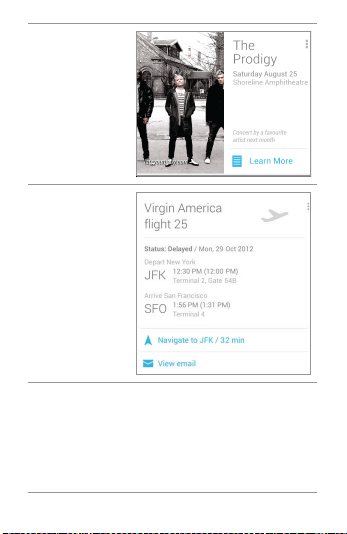
Concerts
Shown before
your favorite
artists give
concerts near
you.
Flights
Shown
before flights
that you’ve
searched for.
USE GOOGLE NOW & SEARCH 105
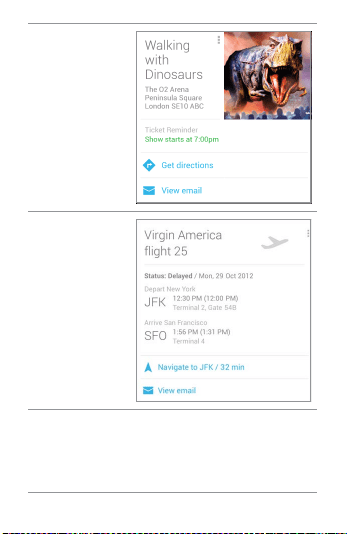
Gmail: Event
bookings
Shown before
an event
booking
conrmed by
Gmail.
Gmail: Flights
Shown
before flights
conrmed by
Gmail.
USE GOOGLE NOW & SEARCH 106
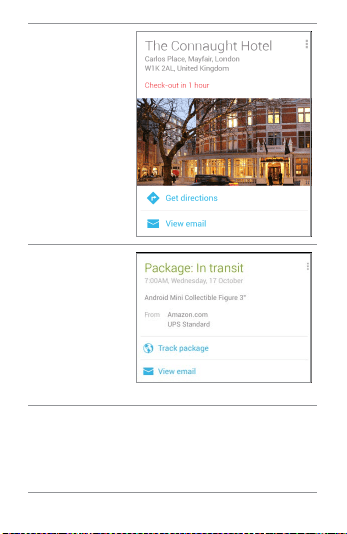
Gmail: Hotels
Shown when
you receive a
conrmation
email and
before your
scheduled
checkout.
Gmail:
Packages
Displayed
when you
receive a
shipping
notication
for an online
purchase.
USE GOOGLE NOW & SEARCH 107
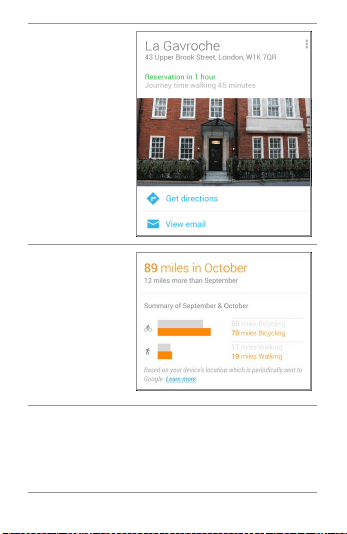
Gmail:
Restaurants
Shown before
a restaurant
reservation
conrmed by
Gmail.
Location
history
Shows a rough
approximation
of how far
you walked
or cycled
during the past
month.
USE GOOGLE NOW & SEARCH 108
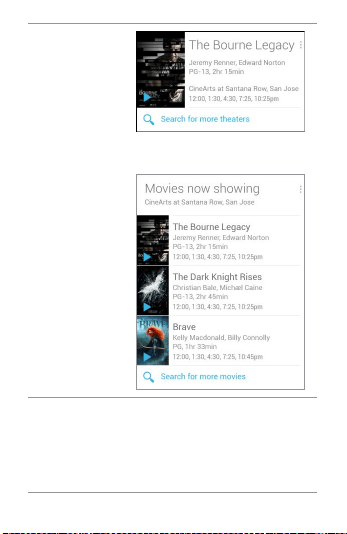
Movies
Shows movies
playing in your
vicinity, and
tells you when
a movie you’re
interested in is
playing nearby.
USE GOOGLE NOW & SEARCH 109
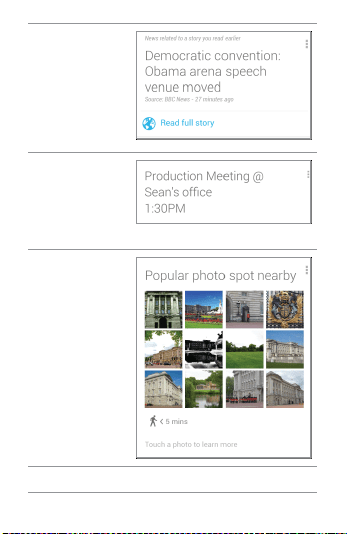
News update
Shows
updates
related to
news items
you’ve read
recently.
Next
appointment
Shown before
scheduled
meetings.
Photo spot
nearby
Shown when
you’re near a
popular spot
for taking
photos.
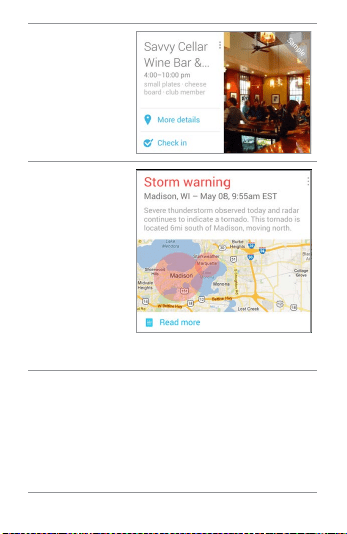
USE GOOGLE NOW & SEARCH 110
Places
Shows nearby
businesses
and other
places of
potential
interest.
Public alerts
Gives public
advisories
for your
location from
the National
Weather
Service, U.S.
Geological
Survey,
and similar
services.
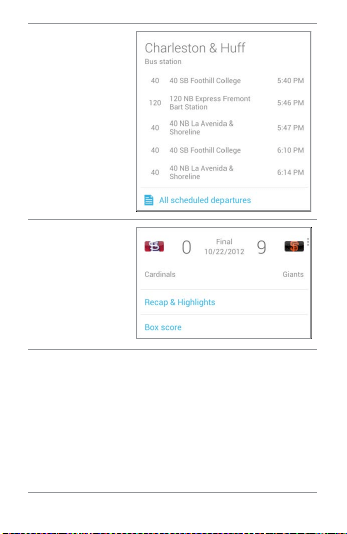
USE GOOGLE NOW & SEARCH 111
Public
transport
Shown with
relevant
schedules
when you’re
near a train
station, bus
stop, or other
public transit
stop.
Sports
Shown for
teams that
interest you
before, during,
or after a
game.
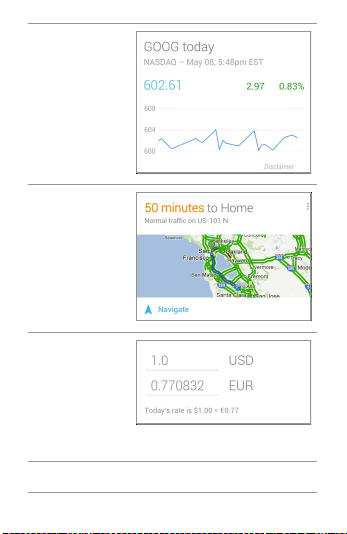
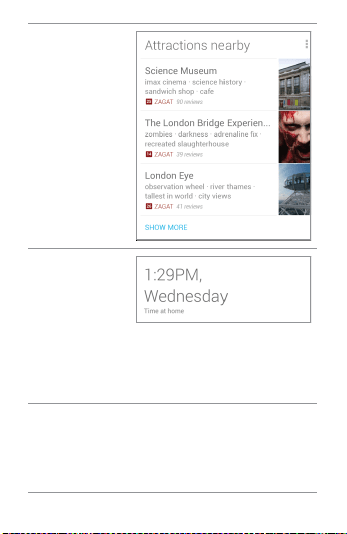
USE GOOGLE NOW & SEARCH 113
Travel: Nearby
attractions
Shown when
you’re near
well-known
attractions,
such as
restaurants,
museums,
cafes, and
so on.
Travel: Time
back home
Shown
periodically
when you’re
in a different
time zone than
usual.
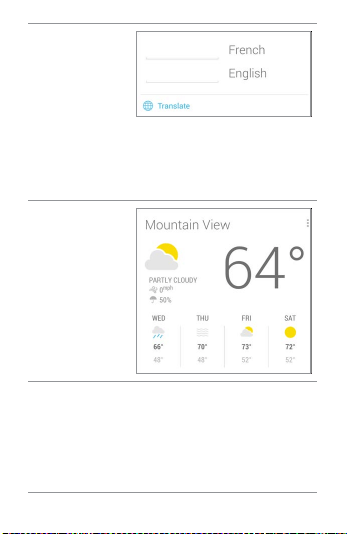
USE GOOGLE NOW & SEARCH 114
Travel:
Translate
Shown when
you’re visiting
a place with
a different
language, to
help translate
words and
phrases.
Weather
Periodically
displays
weather for
home, work, or
your current
location.
About Gmail Cards
Gmail cards are based on conrmation mes-
sages sent to the Gmail account you’ve se-

USE GOOGLE NOW & SEARCH 115
lected for use with Google Now. For example,
cards appear before restaurant reservations
you’ve made with OpenTable or when you re-
ceive email updates for packages in transit.
Gmail cards typically include links to oth-
er useful information, such as a link to the
email on which the card is based, or direc-
tions to a restaurant or hotel from your cur-
rent location.
You can turn Gmail cards off or on at any
time .To do so from the main Google Now
screen go to Menu < Settings < Google Now
and check or uncheck Show cards based on
Gmail.
About the Location History card
The Location History card appears once a
month. It provides a very rough approxima-
tion of how far you’ve walked or cycled dur-
ing that month compared to the previous
one. These estimates are based on occa-
sional samples of the accelerometer in your

USE GOOGLE NOW & SEARCH 116
phone, which are then compared to typical
movements involved in walking or cycling.
This information isn’t available unless you’ve
turned on location reporting and history for
at least one of your Android devices. If you’ve
turned these on for more than one device,
the location history card reflects the one you
used most often that month.
For more information, see “Control location
access, reporting, & history.”
About the Stocks card
The Stocks card displays stocks that:
• You’ve searched on recently.
• You’re tracking through Google Finance.
• You’ve explicitly listed in the Stocks card
settings.
• You can choose whether to display stocks
when their price changes by 1% or more,
or in the mornings or evenings.

USE GOOGLE NOW & SEARCH 117
To change Stock card settings from the main
Google Now screen ,go to Settings < Google
Now < Stocks.
Search settings
To view Google Search settings, including
those for Google Now, scroll to the bottom of
the Google Now screen and touch
Menu
> Settings.
The rst three types of settings are de-
scribed here. For Privacy and accounts, see
the next section.
Google Now
Google Now settings let you turn Google
Now on or off. If you turn it on, you’re taken
through a brief introduction and given the
chance to opt in.
While Google Now is on, you can also set
your preferences for individual Google Now

USE GOOGLE NOW & SEARCH 118
cards and related notications from the
Google Now settings screen.
Options for each card vary. Most include a
Notications section that lets you control
how you’re informed when a card changes.
Typically, you can choose between Off, Low
priority, or Standard notications.
Low priority notications appear at the bot-
tom of the notications shade without any
additional signal. Standard notications ap-
pear like the others, in chronological order,
and you can set vibration and a ringtone.
To set the ringtone and vibrate options for
standard notications, go to touch
Menu
> Settings > Google Now and look at the end
of the list.
Voice settings
Voice settings control different aspects of
speech input and output when you search by
voice or use voice actions:

USE GOOGLE NOW & SEARCH 119
• Language. The language you select here
for Voice Search input and output can be
different from the language displayed by
your phone.
• Speech output. To turn on speech output
only when you’ve got a headset attached
to your phone, select Hands-free only.
• Block offensive words. Check to ensure
that search results with offensive lan-
guage are blocked.
• Hotword detection. When this is checked,
you can say “Google” when viewing the
Google Now screen rather than touching
the Microphone icon to initiate a voice
search or action.
• Download offline speech recognition.
Check to select one or more additional
languages for speech recognition when
you don’t have a network connection.

USE GOOGLE NOW & SEARCH 120
IMPORTANT: To detect when you say
“Google” to launch Voice Search or
Voice Actions, Google analyzes sound
picked up by your phone’s microphone
in intervals of a few seconds or less.
The sound is immediately discarded
after analysis and is not stored on the
device or sent to Google.
Phone search
Phone search settings let you select which
apps on your phone are included in Google
searches.
Privacy & accounts
These settings control the account for use
with Google Search and search-related pri-
vacy options for that account. You can view
them in two ways:

USE GOOGLE NOW & SEARCH 121
• From the Google Now screen: Menu >
Settings > Privacy & accounts.
• From your phone’s main Settings app:
Settings > Accounts > Google > Search.
Touch each setting to learn more:
• Google Account. The account used with
Google Search and Google Now.
• Manage location history. Opens Google
Maps settings, where you turn location
settings and location reporting on or off.
• Google location settings. Lets you turn
location access by all Google apps on or
off. If location access is turned on for your
phone, you can turn Google apps access
off here without affecting access by non-
Google apps.
• Show recent searches. Check if you want
search suggestions based on your recent
searches.
• Manage Web History. Opens your Web
History settings in a browser. You may
have to sign in to reach them.

ACCESSIBILITY 122
7
Accessibility
Accessibility overview
Your phone’s accessibility features make it
easier to use if you have visual impairments:
TalkBack is a pre-installed screen reader
service provided by Google. It uses spoken
feedback to describe the results of actions,
such as opening an app, and events, such as
notications.
Explore by Touch is a system feature that
works with TalkBack, allowing you to touch
your phone’s screen and hear what’s under
your nger via spoken feedback. This feature
is helpful to users with no vision.
Accessibility settings let you modify your
phone’s display and sound options, such as

ACCESSIBILITY 123
increasing the text size, changing the speed
at which text is spoken, and more.
Users with low vision
If you have low vision and don’t plan to use
Explore by Touch, go to support.google.
com/nexus to see Help content formatted
for sighted users. You can make reading and
navigating this material easier by increasing
the text size – just go to Settings > Accessi-
bility, and check the Large text option.
Related Settings
• To view Accessibility settings, go to Set-
tings > Accessibility.
• To control sound feedback and other Talk-
Back behaviors, go to Settings > Accessi-
bility > TalkBack and touch Settings at the
top right corner of the screen.

ACCESSIBILITY 124
Accessibility gestures for
Android 4.2 (Jelly Bean)
When TalkBack and Explore by Touch are
turned on, you can use simple gestures to
navigate your Nexus 4:
• Drag one nger. Explore your screen and
hear audible feedback for what is being
touched.
• Double-tap anywhere on the screen.
Opens or activates the item that you last
touched.
• Swipe up or down using two ngers.
Scroll within lists.
• Swipe left or right using two ngers.
Change pages and screens.
• Swipe right (or down) using one nger.
Move to the next item.
• Swipe left (or up) using one nger. Move
to the previous item.
• Swipe down then up using a single mo-
tion. Transition to the next reading level
when reading blocks of text, then swipe
right to read forward or left to go back.

ACCESSIBILITY 125
• Swipe up then down using a single mo-
tion. Transition to the previous reading
level when reading blocks of text, then
swipe right to read forward or left to go
back.
• Swipe right then left using a single mo-
tion. Move to the next page.
• Swipe left then right using a single mo-
tion. Move to the previous page.
While you’re exploring with one nger, you
can use another nger to double-tap to open
an app, widget, and so on.
IMPORTANT: The way these gestures
are interpreted is specic to Talk-
Back. Other accessibility services may
use the same gestures for different
actions.

ACCESSIBILITY 126
Shortcut gestures in TalkBack
Note: These gestures work only when Ex-
plore by Touch is turned on.
TalkBack has shortcut gestures to help you
get to your Home screen, go back, and more.
To try these shortcuts, swipe using a single
motion:
• Up then right: Open continuous reading
menu
• Up then left: Home button
• Down then right: Open global context
menu
• Down then left: Back button
• Right then down: Open notications
• Left then up: Recent apps button
You can modify your shortcut gestures and
the corresponding actions in TalkBack by go-
ing to Settings > Accessibility > TalkBack >
Settings > Manage shortcut gestures.

ACCESSIBILITY 127
Set up your phone
Your Nexus 4 has the following hardware:
• Power button/lock key. The Power button
is located on the right side of your phone.
• Volume. The Volume key is directly under
the Power button.
• Front-facing camera. The camera is locat-
ed at the top center of your screen.
• Micro USB port. The USB is at the bottom
of your phone.
• Headset jack. The headset jack is in the
lower right side at the bottom of your
phone.
• SIM tray. The SIM tray is located on the
lower left side of your phone (available
only for Nexus 4 with mobile data).
When you turn on your phone for the rst
time, you’ll arrive at a Welcome screen.
• To turn on TalkBack and Explore by Touch,
place two ngers slightly apart on your
screen. You’ll hear spoken feedback when
your phone recognizes the gesture. Keep

ACCESSIBILITY 128
holding your ngers for two more sec-
onds to enable TalkBack and Explore by
Touch. After turning on these features,
the Explore by Touch tutorial starts, giv-
ing you a chance to experience navigating
on Android. When you’ve completed the
tutorial, the phone displays the Welcome
screen again.
• To choose a different language, swipe
right and double-tap the menu.
• To nish setting up your phone, swipe
right and double-tap Start towards the
center of the screen.
A series of screens takes you through the
setup process. When prompted, you can sign
in using the email address and password for
your Google Account. When you sign in with
a Google Account, all the email, contacts,
Calendar events, and other data associated
with that account are automatically synced
with your phone. If you have multiple Google
Accounts, you’ll be able to add the others
later.

ACCESSIBILITY 129
TIP: If you share your phone with other
users and need to turn accessibility
features off, you can use a shortcut to
turn them back on again.
To turn on this shortcut, go to Set-
tings > Accessibility > Accessibility
shortcut, then slide the switch to the
On position. To turn on accessibility
features using the shortcut, touch &
hold the Power button until you hear a
sound or feel a vibration. Then touch
& hold two ngers until you hear audio
conrmation.
Overlays
After completing the setup process, you’ll
encounter several overlays that explain how
to use various features on your phone. To
dismiss an overlay, swipe right and double-
tap OK.

ACCESSIBILITY 130
Use magnication gestures
When this feature is turned on, you can mag-
nify your screen by triple-tapping. (For users
with low vision)
Note: Triple-tap for magnication works ev-
erywhere except for the keyboard and navi-
gation buttons.
Magnify: Triple-tap & hold.
Magnify & pan: Triple-tap & hold, then drag
your nger.
Toggle magnication in or out: Triple tap &
release.
While you’re zoomed in, you can:
Pan: Drag two or more ngers across the
screen.
Adjust zoom level: Pinch or expand using
two or more ngers.

ACCESSIBILITY 131
Use TalkBack
TalkBack provides spoken feedback to help
you navigate your phone, describing what
you touch and activate.
Note: Sighted assistance is needed for users
with no vision to enable TalkBack if it wasn’t
turned on during the initial setup.
To turn TalkBack off or on:
1. Go to Settings > Accessibility > TalkBack.
2. Slide the TalkBack switch to the On or Off
position.
3. Touch OK to turn on TalkBack.
4. When asked if you want to enable Explore
by Touch, touch OK only if you want to
change the way your phone works and
have your phone describe each item that
your nger moves over on the screen.
When you turn on TalkBack, spoken feed-
back starts immediately. As you navigate
your phone, TalkBack describes your actions

ACCESSIBILITY 132
and alerts you of notications and other
occurrences.
If you also enabled Explore by Touch, moving
your nger around the screen triggers a de-
scription of each item it touches. Double-tap
to activate the last spoken item, and swipe
with two ngers to perform swiping actions
that normally require just one nger.
Change TalkBack settings
To modify TalkBack settings, go to Settings
> Accessibility > TalkBack, then double-tap
Settings in the top right corner.
When to speak
• Speech volume. You can set this as a per-
centage of media volume.
• Use pitch changes. Check to speak key-
board feedback at a lower pitch.
• Speak when screen is off. Check to turn
on spoken feedback when the screen is
off.

ACCESSIBILITY 133
Feedback settings
• Sound feedback. Check to control naviga-
tion sounds.
• Sound volume. Available when Sound
feedback is checked. You can set this as a
percentage of media volume.
Touch exploration
• Launch “Explore by touch” tutorial.
• Manage shortcut gestures. Allows you to
assign the operations that different ges-
tures trigger.
Control speed of Text-to-Speech
To control the speed of TalkBack’s speech,
go to Settings > Accessibility > Text-to-
speech output > Speech rate.
Manage TalkBack volume
To change the volume settings for TalkBack,
go to Settings > Sound > Volumes. Use the

ACCESSIBILITY 134
slider for Music, video, games, & other media
to change the volume level.
You can also use the volume control on the
right side of your phone when you hear spo-
ken feedback.
Enhance web accessibility
In order to have full accessibility support for
products such as Gmail and Chrome, you’ll
need to turn on the Enhance web accessibil-
ity option. Go to Settings > Accessibility >
Enhance web accessibility, and double-tap
Allow. This allows apps to install scripts that
make web content more accessible.
Use Explore by Touch with
TalkBack
When TalkBack is turned on, you have the op-
tion to use the Explore by Touch feature. Ex-
plore by Touch allows you to drag your nger

ACCESSIBILITY 135
slowly over your screen and describes each
item that your nger touches.
TalkBack must be turned on for Explore by
Touch to be available. When you turn on Talk-
Back for the rst time, you’ll receive a prompt
to turn on Explore by Touch.
IMPORTANT: If you chose not to turn
on Explore by Touch when you turned
on TalkBack, you can switch it on later.
Go to Settings > Accessibility > Talk-
Back > Settings, then check Explore by
touch. You can use the same checkbox
to turn it off at any time.
Each action you take with your nger alerts
you with spoken feedback, as well as sound
(if enabled).
To navigate your phone using Explore by
Touch, you can:

ACCESSIBILITY 136
• Explore your screen using one nger to
hear what icons and buttons are on the
screen and can be selected.
• After nding icons and buttons, double-
tap anywhere on the screen to open apps,
menus, and more.
To learn about the gestures you can use with
TalkBack and Explore by Touch, visit “Acces-
sibility gestures for Android 4.2 (Jelly Bean).”
Recommended tutorial: To learn more about
Explore by Touch, go to Settings > Acces-
sibility > TalkBack > Settings > Launch “Ex-
plore by touch” tutorial.
Navigate the Home screen
Note: These instructions assume that you
have turned on Explore by Touch.
At the bottom of the screen, you’ll nd three
Navigation buttons. They’re always avail-
able. No matter what you’re doing with your

ACCESSIBILITY 137
phone, you can always get back to the main
Home screen or return to previous screens:
• Back. Opens the previous screen you
were working in, even if it was in a differ-
ent app. Once you back up to the Home
screen, you can’t go back any further in
your history.
• Home. Opens Home. If you’re on a left or
right Home screen, this button opens the
central Home screen.
• Recent apps. Opens a list of thumbnail im-
ages of apps you’ve worked with recently.
To open an app, touch and double-tap. To
remove a thumbnail from the list, use two
ngers to swipe it left or right.
After a short time without getting used,
these buttons may shrink to dots or fade
away, depending on the current app. To bring
them back, double-tap in their approximate
location.
You can use easy gestures to activate the
Navigation buttons and access your notica-
tions. Swipe with a single motion:

ACCESSIBILITY 138
• Up then right: Open continuous reading
menu
• Up then left: Home button
• Down then right: Open global context
menu
• Down then left: Back button
• Right then down: Open notications
• Left then up: Recent apps button
Just above the Navigation buttons in por-
trait mode, or on the right side of the screen
in landscape mode, you’ll nd the Favorites
tray. The apps you keep in the tray are avail-
able on every Home screen.
The Apps icon in the center is permanent.
Find it and double-tap to reveal all your apps
and widgets.
Your Home screen can hold app and widget
icons, plus folders.
• To open an app, folder, or widget, nd its
icon and double-tap.
• To see additional Home screens, swipe

ACCESSIBILITY 139
left then right or right then left in a single
motion, or left or right using two ngers.
At the top of the screen, you’ll nd the sta-
tus bar:
• Status icons on the left tell you which
apps have sent you notications—for ex-
ample, that a message has arrived, or it’s
time for a meeting. If you have TalkBack
or another accessibility service running,
it will speak the notication when it rst
appears.
To nd your notications, use two ngers
to pull down the notication shade from
the top of the screen, or swipe up then
right using a single motion.
• System icons on the right display the cur-
rent wireless and network connection
strength, battery level, time, and more.
Google Search, just below the status and
system icons, lets you search your phone or
the Internet. Find Search and double-tap to
type your search terms, or Voice Search to
speak them.

ACCESSIBILITY 140
To nd your notications, use two ngers to
pull down the notication shade from the top
left side of the screen, or swipe up then right
using a single motion.
You can also use the Quick Settings menu to
easily open settings for Wi-Fi, Bluetooth, and
more. To open Quick Settings, use three n-
gers to pull down the menu from the top right
side of the screen.
Try Google Play
Note: These instructions assume that you
have turned on TalkBack and Explore by
Touch.
Google Play brings together all your favorite
content in one place – movies, books, mu-
sic, magazines, apps, and more – so you can
reach it from any of your devices.

ACCESSIBILITY 141
Use Google Play widgets
These widgets are available on your Home
screens:
• Recommended on Play: Suggests music,
movies, and other content that may inter-
est you. Find the suggestion and double-
tap to learn more about it.
• Recommended apps: Recommends apps
that you can add to your Home screen.
Find the recommendation and double-tap
to learn more about it.
To remove a widget, double-tap & hold on the
second tap, then drag it to the Remove icon
at the top of the screen.
To add another Google Play widget, nd the
Apps icon and double-tap, then Widgets, and
swipe left until you nd the one you want.
Then double-tap & hold on the second tap,
and let go in the Home screen location you
want.

ACCESSIBILITY 142
Shop on Google Play
To open the Google Play Store app, nd and
double-tap the Play Store icon in your Favor-
ites tray on every Home screen.
Most things you purchase on Google Play are
available from your computer as well as from
any of your Android mobile devices. (Android
apps are one exception – they run only on
Android devices.) Sign in to play.google.com
to get your entertainment from anywhere.
Find your content
If you purchased from Google Play in the
past, you’ll automatically have access to this
content on your Nexus 4 – just make sure
you’re signed in using the same account that
you used to purchase it.
You can get to your content using any of the
Google Play icons in your Favorites tray, in-
cluding Books, Magazines, Movies, and Mu-
sic. (Note: To read magazines in text mode,

ACCESSIBILITY 143
visit Reading in text mode at the end of this
article.)
Or, nd the Play Store icon and double-tap to
open Google Play. In the top right corner, to
the left of the Menu and Search icons, you’ll
nd a My Library icon corresponding to the
section of Google Play you’re currently view-
ing. For example, while browsing the Movies
& TV section, you’ll nd the Google Play Mov-
ies app icon, which will take you to My Mov-
ies & TV.
You can quickly access your content this
way, from the Google Play Store app, even
if you originally purchased it on Google Play
using a different phone or phone. If you get a
new device, all your media will automatically
be waiting for you here when you power on
and sign in.
Google Play Settings
To adjust your Google Play settings, switch

ACCESSIBILITY 144
accounts, or get help, choose the option you
want from the Menu at the top right.
The Google Play Settings screen lets you
control when you’re notied about updates
to apps and games, clear your search his-
tory, and enable user controls. To lter An-
droid apps based on maturity level or to re-
quire a PIN before completing any purchase,
nd and double-tap Content ltering or Set
or change PIN.
For more detailed information about Google
Play, visit support.google.com/googleplay.
Use Gmail
Note: These instructions assume that you
have turned on TalkBack, Explore by Touch,
and Enhanced Web Accessibility.
Read your messages
• From a Home or Apps screen, nd the

ACCESSIBILITY 145
Gmail app and double-tap to open it.
Gmail opens to your Inbox.
To hear the subject lines of your conversa-
tions, swipe right or down. When you nd a
conversation you want to hear:
• Double-tap to open it. If you have chosen
to allow enhanced web accessibility, you
can touch once to hear a conversation.
• To navigate back to your Inbox, nd the
Gmail icon at the top of the screen and
double-tap.
OR
Using the Navigation buttons at the bot-
tom of the screen, nd and double-tap the
Back button, or swipe down then left us-
ing a single motion.
Compose and send a message
1. From a conversation list, nd the Com-
pose icon at the top of the screen and
double-tap.
2. To use the keyboard to ll in the To, Sub-
ject, and Compose email elds, slide your

ACCESSIBILITY 146
nger across the keyboard and lift your
nger on the chosen key to input text.
3. Find and double-tap the Send icon in the
main action bar at the top of the screen to
send your message.
Search your Inbox
1. From a conversation list, nd the Search
icon in the action bar at the top of the
screen and double-tap.
2. To use the keyboard to edit the Search
mail eld, slide your nger across the key-
board and lift your nger on the chosen
key to input text.
3. As you type, suggestions appear below
the Search eld. Find a suggestion and
double-tap to search for it immediately.
4. To search, nd and double-tap the Search
key on the right side of the second row of
the keyboard.

ACCESSIBILITY 147
Gmail settings
You can change a number of settings for
Gmail from any Gmail screen.
• Find and double-tap More options at the
top right corner of the screen, then nd
and double-tap Settings.
General settings apply to all Gmail accounts.
Other settings apply only to a specic
account.
More Gmail help
To get more detailed Help while reading your
conversations, composing a message, and
so on, nd and double-tap More options in
the top right corner of the screen, then nd
and double-tap Help. Note that the content
you’ll nd covers general Gmail behavior, but
not accessibility features like TalkBack and
Explore by Touch.

ACCESSIBILITY 148
Browse Chrome
These instructions assume that you have
turned on TalkBack, Explore by Touch, and
Enhanced Web Accessibility.
• From a Home or Apps screen, nd the
Chrome icon and double-tap to open it.
Chrome opens to display your homepage or
the most recent page you were browsing.
The web address (URL) of the current page
is located at the top of the screen in the ad-
dress box (also called the omnibox).
To edit or input a web address, you can:
1. Swipe right to nd the omnibox at the top
of the screen, and double-tap to edit.
2. Slide your nger across the onscreen key-
board and release a key to input text.
3. As you type, a list of matching sugges-
tions appears. You can keep on typing or
nd a suggestion and double-tap to open
the page.

ACCESSIBILITY 149
4. To search for the contents of the omni-
box or open a specic web address it
contains, nd and double-tap the Go key
on the right side in the second row of the
keyboard.
To navigate within a webpage, you can:
• Navigate forward and backward. Swipe
left to right to move forward and right to
left to go backward.
• Scroll. Slide two ngers in any direction.
• Receive spoken feedback. Touch any-
where on the screen to hear the contents
of the webpage.
• Change the reading level. Swipe down
then up using a single motion to transi-
tion to the next reading level when read-
ing blocks of text, or swipe up then down
using a single motion to go back to the
previous reading level.
• Zoom. To zoom out, touch the screen with
two ngers and pinch them together. To
zoom in, spread them apart. Ascending
and descending tones alert you when
zooming in or out.

ACCESSIBILITY 150
To customize web page zooming, go to More
options > Settings > Accessibility.
You can also browse in Incognito mode. To
open an Incognito tab, nd and double-tap
More options > New Incognito tab. To toggle
between standard tabs and Incognito tabs,
nd and double-tap the Toggle tabs switcher,
or nd and double-tap the Incognito tabs (or
Non-Incognito tabs) button at the top right
corner.
Adjust text size on webpages (for low-
vision users)
1. Touch Menu > Settings > Accessibility.
2. Drag the slider under to adjust the text
size scaling. In the “Preview” box, you can
see how it will look on webpages.
Force enable zoom
On some sites designed for mobile devices,
you can’t to zoom in or out. Choosing “Force

ACCESSIBILITY 151
enable zoom” will allow you to zoom in or out
on those sites.
More Chrome Help
To get more detailed Help while navigating a
webpage, working with tabs, and so on, go to
the Chrome Help Center. Note that the con-
tent you’ll nd does not cover accessibility
features like TalkBack and Explore by Touch.
Use the lock screen
About the lock screen
Your phone’s lock screen is enabled if any of
the following occurs:
• The phone goes to sleep (and it locks
automatically).
• The screen turns off after a specied time-
out (depending on your display settings).

ACCESSIBILITY 152
• You force your screen to turn off and
the phone to lock by pressing the power
button.
Unlock your phone
1. Hold the screen in portrait mode and turn
it on by pressing the Power button on the
right side of your phone.
2. Touch the lower center of the screen.
3. Slide your nger all the way across the
screen to the right. You’ll receive spoken
feedback that the phone is unlocked if
you do this successfully.
Accessibility settings
To modify your phone’s Accessibility set-
tings, go to Settings > Accessibility.
A list of options appears:
• TalkBack. Controls spoken feedback for
visually impaired users.

ACCESSIBILITY 153
• Magnication gestures. Turn on to zoom
in and out as well as magnify what’s un-
der your nger. (For users with low vision)
• Large text. Check to increase the text size
on all your phone’s screens. (For users
with low vision)
This option changes the font size to the
largest available. For more ne-grained
control over font size, go to Settings >
Display > Font size. Note that this setting
does not apply to the Google Chrome app
– it has its own text scaling control.
• Auto-rotate screen. Check to have the
screen rotate automatically when you
change the phone’s orientation.
• Speak passwords. Check to get spoken
feedback while typing passwords.
If this option is not checked, you will need
a headset to hear the letters you type for
passwords.
• Text-to-Speech output. Lets you specify
text-to-speech engine details and speech
rate.
• Touch & hold delay. Lets you adjust the
delay required for the phone to notice

ACCESSIBILITY 154
that you’re touching and holding an item
(for example, to move an app to a Home
screen).
• Enhance web accessibility. Enable this
option to have Chrome Vox provide spoken
feedback as you browse and interact with
web sites and apps.
To make sure specialized accessibility
apps work correctly on your phone, be
sure to turn on this option.

Part Two
Adjusting
settings

WIRELESS & NETWORK SETTINGS 156
8
Wireless
& network
settings
Connect to Wi-Fi networks
Turn Wi-Fi on & connect to a Wi-Fi
network
If you’re adding a Wi-Fi network when rst
setting up your phone, Wi-Fi is turned on
automatically.
1. Touch Settings > Wireless & networks
> Wi-Fi.

WIRELESS & NETWORK SETTINGS 157
2. Slide the Wi-Fi switch to the On position.
The phone scans for available Wi-Fi net-
works and displays the names of those
it nds. Secured networks are indicated
with a Lock icon. If the phone nds a net-
work that you connected to previously, it
connects to it.
3. Touch a network name to see more de-
tails or connect to it, and type a password
if necessary.
Or, if your Wi-Fi router supports Wi-Fi Pro-
tected Setup, touch the
WPS icon on
your phone, and then touch the same but-
ton on your router.
To modify a network’s settings, touch & hold
the network name.

WIRELESS & NETWORK SETTINGS 158
TIP: To extend the life of your battery
between charges, turn off Wi-Fi when
you’re not using it. You can also set
your phone to disconnect automati-
cally from Wi-Fi networks when it’s
sleeping.
Add a Wi-Fi network
You can add a Wi-Fi network so that your
phone will remember it, along with any secu-
rity credentials, and connect to it automati-
cally when it’s in range. You must also add a
Wi-Fi network if the network does not broad-
cast its name (SSID), or to add a Wi-Fi net-
work when you are out of range.
To join a secured network, you rst need to
learn security details from the network’s
administrator.

WIRELESS & NETWORK SETTINGS 159
1. Turn on Wi-Fi, if it’s not already on.
2. Touch the Plus icon at the top of the
screen.
3. Enter the SSID (name) of the network. If
necessary, enter security or other net-
work conguration details.
4. Touch Save.
The information about the network is saved.
Your phone will connect to this network au-
tomatically the next time you come within
range.
Forget a Wi-Fi network
You can make the phone forget about the de-
tails of a Wi-Fi network that you added—for
example, if you don’t want the phone to con-
nect to it automatically or if it’s a network
that you no longer use.
1. Turn on Wi-Fi, if it’s not already on.
2. In the Wi-Fi settings screen, touch the
name of the network.
3. Touch Forget in the dialog that opens.

WIRELESS & NETWORK SETTINGS 160
Congure proxy settings for a Wi-Fi
network
Some network administrators require you
to connect to internal or external network
resources via a proxy server. By default, the
Wi-Fi networks you add are not congured to
connect via a proxy, but you can change that
for each Wi-Fi network you’ve added.
Proxy settings are used by Chrome but may
not be used by other apps.
1. Touch & hold a network in the list of Wi-Fi
networks you’ve added.
2. Touch Modify network in the dialog that
opens.
3. Select Show advanced options.
4. If the network has no proxy settings,
touch None under Proxy Settings, then
touch Manual in the menu that opens.
5. Enter the proxy settings supplied by your
network admini strator.
6. Touch Save.

WIRELESS & NETWORK SETTINGS 161
The proxy settings apply only to the Wi-Fi
network you modied. To change the proxy
settings for other Wi-Fi networks, modify
them individually.
Set Wi-Fi notications, disconnect
policy, & other advanced options
To work with advanced Wi-Fi settings:
1. Turn on Wi-Fi, if it’s not already on.
2. In the Wi-Fi settings screen, touch
Menu > Advanced.
These are the settings you can adjust:
• Network notication. By default, when
Wi-Fi is on, you receive notications in
the Status bar when your phone detects
an open Wi-Fi network. Uncheck this op-
tion to turn off notications.
• Keep Wi-Fi during sleep. To conserve mo-
bile data usage, your phone stays con-
nected to Wi-Fi when the screen goes to
sleep. Touch this option to change this

WIRELESS & NETWORK SETTINGS 162
default behavior: either to stay connected
to Wi-Fi only when the phone is connect-
ed to a charger (when battery life isn’t a
problem), or never to stay connected to
Wi-Fi during sleep.
• Avoid poor connections: Check to au-
tomatically avoid using networks with
a low-quality or intermittent Internet
connection.
• Wi-Fi optimization: Check to minimize
battery usage when Wi-Fi is on.
This screen also displays the following
information:
• MAC address. The Media Access Control
(MAC) address of your phone when con-
nected to a Wi-Fi network.
• IP address. The Internet Protocol (IP) ad-
dress assigned to the phone by the Wi-Fi
network you are connected to (unless you
used the IP settings to assign it a static
IP address).

WIRELESS & NETWORK SETTINGS 163
To turn Wi-Fi on or off, go to
Settings > Wireless & networks
> Wi-Fi.
To manage data usage and
mobile hotspots, go to
Set-
tings > Wireless & networks >
Data usage.
Settings
Connect to Bluetooth devices
To connect to a Bluetooth device, rst turn on
your phone’s Bluetooth. Then, the rst time
you use a new Bluetooth device, you need to
“pair” it with your phone so that both devices
know how to connect securely to each other.
After that, they connect automatically.

WIRELESS & NETWORK SETTINGS 164
TIP: To extend the life of your battery
between charges, turn off Bluetooth
when you’re not using it. You may also
be required to turn Bluetooth off in
some locations. Bluetooth is turned
off when you switch to Airplane mode.
System bar icons in the top right corner of
the screen indicate Bluetooth status.
Turn Bluetooth on or off
1. Touch Settings > Wireless & networks.
2. Slide the Bluetooth switch on or off.
Change your phone’s Bluetooth name
Your phone has a generic Bluetooth name
by default, which is visible to other Blue-
tooth devices when you connect them. You

WIRELESS & NETWORK SETTINGS 165
can change the name so that it is more
recognizable.
1. Under Settings > Wireless & networks,
make sure Bluetooth is turned on.
2. Touch Bluetooth.
3. In the Bluetooth screen, touch Menu >
Rename phone.
4. Type a new name and touch Rename.
Pair your phone with a Bluetooth
device
You must pair your phone with a device be-
fore you can connect to it. Once you pair your
phone with a device, they stay paired unless
you unpair them.
If the device you want to pair with isn’t in the
list, ensure that the it’s turned on and set to
be discoverable.
1. Under Settings > Wireless & networks,
make sure Bluetooth is turned on.
2. Touch Bluetooth. Your phone scans for

WIRELESS & NETWORK SETTINGS 166
and displays the IDs of all available Blue-
tooth devices in range.
3. If your phone stops scanning before your
Bluetooth device is ready, touch Search
for devices.
4. Touch the ID of the Bluetooth device in the
list to pair with it.
5. Follow the instructions to complete the
pairing. If you’re prompted to enter a pass-
code, try entering 0000 or 1234 (the most
common passcodes), or consult the docu-
mentation that came with the device.
If the pairing is successful, your phone con-
nects to the device.
Connect to a Bluetooth device
Once you’ve paired with a Bluetooth device,
you can connect to it manually—for example,
to switch devices or to reconnect after it is
back in range.
1. Under Settings > Wireless & networks >

WIRELESS & NETWORK SETTINGS 167
Bluetooth, make sure Bluetooth is turned
on.
2. In the list of devices, touch a paired but
unconnected device.
When the phone and the device are con-
nected, the device is displayed as con-
nected in the list.
Congure or unpair a Bluetooth device
Some Bluetooth devices have multiple pro-
les. Proles can includes the ability to
transmit your conversations, play music in
stereo, or transfer les or other data. You can
select which proles you want to use with
your phone. You can also change the name
of the Bluetooth device as it appears on your
phone.
1. Under Settings > Wireless & net-
works > Bluetooth, make sure Bluetooth
is turned on.
2. In the Bluetooth settings, touch the Set-
tings icon beside the connected Blue-

WIRELESS & NETWORK SETTINGS 168
tooth device you want to congure.
A screen opens that allows you to change
the device’s name, unpair it, or select pro-
les. Touch the Back button when you’re
nished.
Optimize data usage
Data usage refers to the amount of data up-
loaded or downloaded by your device during
a given period. Depending on the device and
your wireless plan, you may be charged ad-
ditional fees when your data usage exceeds
your plan’s limit.
To monitor your data usage, go to
Set-
tings > Wireless & networks > Data usage.

WIRELESS & NETWORK SETTINGS 169
Warning: The usage displayed on the
data usage settings screen is mea-
sured by your phone. Your carrier’s
data usage accounting may differ.
Usage in excess of your carrier plan’s
data limits can result in steep overage
charges. The settings described here
can help you track your usage, but are
not guaranteed to prevent additional
charges.
Data usage settings allow you to:
• Set the data usage level at which you’ll re-
ceive a warning.
• Set a data usage limit.
• View or restrict data usage by app.
• Identify mobile hotspots and restrict
background downloads that may result in
extra charges.
To view mobile hotspot settings, touch
Menu > Mobile hotspots.

WIRELESS & NETWORK SETTINGS 170
By default, when you open the data usage
settings screen you see the settings for mo-
bile data: that is, the data network or net-
works provided by your carrier.
It’s possible to show Wi-Fi data usage set-
tings in a separate tab. To do so, touch the
Menu icon
, then Show Wi-Fi usage.
Near the top of the screen, note the on-off
switch for mobile data. The instructions that
follow assume that this switch is turned on.
If it’s off, you won’t be able to use mobile data
at all and many features of your phone and
apps won’t work correctly.
Just below the on-off switch, note the data
usage cycle. Touch it to choose a different
cycle. This date range is the period of time
for which the graph displays data usage.
The vertical white lines on the graph show a
period of time within the data usage cycle.
This range determines the usage amount
displayed just below the graph. Drag lines to
change the period.

WIRELESS & NETWORK SETTINGS 171
Set auto-sync
You can also conserve data usage by sync-
ing your apps manually, only when you need
the data, rather than relying on auto-sync.
To turn auto-sync off or on, touch
Menu
> Auto-sync data.
Set data usage warning
Drag the orange line by its right side to the
level where you want to receive a warning.
When your data usage reaches this level,
you’ll receive a notication.
Set data usage limit
1. Check Set mobile data limit.
A dialog appears that describes the limit
you’re setting.
2. Read the message. If you’re willing to pro-
ceed, touch OK.
The red line at the top of the graph acti-
vates, so you can drag it up or down.

WIRELESS & NETWORK SETTINGS 172
3. Drag the red line by its right side to the
limit you want to set.
When your data usage reaches the limit,
mobile data will be turned off automati-
cally and many features of your phone
won’t work correctly. You’ll receive a no-
tication when this occurs.
View or restrict data usage by app
Some apps transfer data in the background—
that is, when you’re not actually using the
app, it may download data for future refer-
ence. Restricting background data usage for
individual apps can sometimes be a useful
way to reduce your overall data usage. How-
ever, this is a drastic measure that may also
affect the app’s performance or cause it to
malfunction. Check whether data usage can
be restricted from the app’s own settings
(available from within the app) before re-
stricting it here.
1. Make sure you’re viewing the network for
which you want to view or restrict app

WIRELESS & NETWORK SETTINGS 173
data usage. If more than one is displayed,
you can switch between them by touching
tabs at the top of the screen.
2. Scroll down to nd the app whose data us-
age you want to view.
The blue bar for each app indicates its
total data usage for the cycle displayed
above the main graph, near the top of the
screen.
3. To see more details for an app, touch its
name.
The main graph switches to show just this
app’s data usage for the specied cycle.
Below the main graph, a pie chart breaks
out foreground versus background data
usage for this app.
4. To stop background data usage for this
app, check Restrict background data.
5. Read the message that appears. If you’re
willing to proceed, touch OK.

WIRELESS & NETWORK SETTINGS 174
Advanced data usage settings
Two other settings available from the Menu
icon can have dramatic effects—but may
sometimes be useful:
• Data roaming can result in steep addition-
al charges. However, in some locations
this may be the only way to connect to the
Internet.
• Restrict background data affects all your
apps across all available networks, and
may cause some features to stop work-
ing. This is an extreme step that should
be used with caution.
Control airplane mode & other
network settings
These settings are available under Settings >
Wireless & networks > More.
• Airplane mode. Check to turn off all data
transmission from the phone.

WIRELESS & NETWORK SETTINGS 175
• VPN. Touch to adjust settings for access-
ing a secured local network from outside
that network. See “Connect to virtual pri-
vate networks”.
• NFC. Check to turn on Near Field Commu-
nication (NFC) feature (required for An-
droid Beam).
• Android Beam. Touch to turn Android
Beam off or on. When NFC is checked and
Android Beam is on, you can touch your
phone to other devices to exchange web
pages, contact info, and other data. See
“Share content with Android Beam.”
• Mobile networks. Touch to adjust set-
tings that control your phone’s connec-
tions with mobile data networks.
• Cell broadcasts. Touch to adjust settings
for emergency alerts. Note that these
alerts provided through your wireless car-
rier are independent of the public alerts
available through Google Now.

WIRELESS & NETWORK SETTINGS 176
Connect to virtual private
networks
Virtual private networks (VPNs) allow entry
into secured local networks from the out-
side. Corporations, schools, and other insti-
tutions use VPNs to grant access to local
network resources when people are not on
campus or connected to a wireless network.
To congure VPN access, you must rst ob-
tain the details from your network admin-
istrator. Depending on your organization’s
solution, you may need to obtain a VPN app,
either from your administrator or on Google
Play.
The VPN settings screen al-
lows you to add VPN networks
and adjust their settings. To
view this screen and perform
the tasks described here, go to
Settings > Wireless & networks
> More > VPN.
Settings

WIRELESS & NETWORK SETTINGS 177
Add a VPN
1. From the VPN screen, touch Add VPN
prole.
2. In the form that appears, ll in the in-
formation provided by your network
administrator
3. Touch Save.
The VPN is added to the list on the VPN
screen.
Connect to or disconnect from a VPN
1. From the VPN screen, touch the name of
the VPN.
2. In the dialog that opens, enter any re-
quested credentials.
3. Touch Connect.
When you’re connected to a VPN, a Status
icon and notication are displayed continu-
ously. To disconnect, touch the notication
for the VPN connection.

WIRELESS & NETWORK SETTINGS 178
Edit a VPN
1. From the VPN screen, touch & hold the
name of the VPN prole.
2. In the dialog that opens, touch Edit prole.
3. Edit the VPN settings you want.
4. Touch Save.
Delete a VPN
1. From the VPN screen, touch & hold the
name of the VPN prole.
2. Touch & hold the VPN.
3. In the dialog that opens, touch Delete
prole.

DEVICE SETTINGS 179
9
Device settings
Change sound settings
To customize the sounds your phone makes,
go to
Settings > Device > Sound:
• Volumes sets the master volume sepa-
rately for music, notications, and alarms.
You can still use the physical volume con-
trol on the phone to raise or lower volume
of whatever sound is currently playing.
• Default notication announces the arrival
of notications unless you specify a dif-
ferent sound in an individual app.
• Touch sounds give audible feedback
when you touch active icons or buttons
on the screen.
• Screen lock sound is triggered when you
unlock the screen.

DEVICE SETTINGS 180
Set up Daydream
When Daydream is on, your phone displays
photos, colors, and more while it is charging
or docked.
Turn on Daydream
1. Go to Settings > Device > Display.
2. Touch Daydream.
3. Slide the switch to On.
To decide if your phone sleeps while docked,
charging, or both, touch When to daydream.
You can choose what your phone displays
when Daydream is on:
• Clock displays the phone’s digital or ana-
log clock. You can change the clock style
or select the Night mode option by touch-
ing the Settings icon next to Clock.
• Colors shows changing colors on the
screen.

DEVICE SETTINGS 181
• Currents displays snippets from the Cur-
rents app. You can touch one to open it or
swipe it away to hide it.
• Photo Frame presents a slideshow of
photos on your phone or Google+ ac-
count. Touch the Settings icon next to
Photo Frame to control what photos are
displayed.
• Photo Table scatters photos on your
phone or Google+ account across your
screen. Touch & hold an image to move
it around the screen, or swipe it away to
hide it. Touch the Settings icon next to
Photo Table to control what photos are
displayed.
Time to sleep
You can choose the amount of time your
phone is inactive before Daydream starts.
1. Go to Settings > Device > Display.
2. Touch Sleep.
3. Touch one of the options.

DEVICE SETTINGS 182
Turn off Daydream
1. Go to Settings > Device > Display.
2. Touch Daydream.
3. Slide the switch to Off.
Use Wireless Display
Nexus 4 supports the Miracast protocol
for wireless display. You can connect your
phone via Wi-Fi to a variety of displays and
other devices that support Miracast, even
when a standard Wi-Fi network isn’t avail-
able. For example, you can use Wireless Dis-
play to show your phone’s screen on a TV
equipped with a certied Miracast adapter.
For more information, see the documenta-
tion that comes with the Miracast-certied
device you wish to connect to your phone.

DEVICE SETTINGS 183
Transfer les through USB
You can use a USB cable to transfer music,
pictures, and other les from your phone
to a computer and vice versa. This connec-
tion uses the MTP protocol, which is sup-
ported by most recent versions of Windows
but not by Mac OS X. For le transfer to Mac
OS X, you use the free Android File Transfer
application.
Windows transfer
1. Connect your phone to the USB port on
your computer. Its USB storage is mount-
ed as a drive and appears on your com-
puter screen.
2. Copy les back and forth as you would us-
ing any other external device.
3. When you nish, eject the phone from
within Windows before unplugging the
USB cable.

DEVICE SETTINGS 184
Mac OS transfer
1. Install Android File Transfer from www.
android.com/letransfer, and follow the
instructions there. (If you are using An-
droid File Transfer for the rst time, dou-
ble-click it to open it. After the rst con-
nection, it opens automatically whenever
you connect.)
2. Connect your phone to your computer with
a USB cable. Android File Transfer starts,
if it’s not already running, and opens a
window that displays the contents of your
phone, along with storage space details
at the bottom of the window.
3. Work with this window much as you do in
the Finder window: open and close fold-
ers, create new folders, and drag les to or
from it and other Finder windows.
4. Disconnect the USB cable when you
nish.
Related settings
To change your phone’s USB connection op-

DEVICE SETTINGS 185
tions, touch Settings > Device > Storage >
Menu > USB computer connection.
Extend battery life
To control Battery settings, go to Set-
tings > Device > Battery.
You can extend your battery’s life between
charges by turning off features that you don’t
need. You can also monitor how apps and
system resources consume battery power.
• If you aren’t using Wi-Fi, Bluetooth, or
GPS, use the Settings app to turn them
off. The GPS setting is located in Settings
> Personal > Location access.
• Don’t leave the Maps or Navigation apps
open on the screen when you’re not using
them. They use GPS (and thus more pow-
er) only when they’re running.
• Turn down screen brightness and set a
shorter Sleep timeout: Settings > Device
> Display.

DEVICE SETTINGS 186
• If you don’t need it, turn off automatic
syncing for all apps: Settings > Accounts
> Google account-name. This means you
need to sync manually to collect messag-
es, email, and other recent information,
and won’t receive notications when up-
dates occur.
• If you know you won’t be near a Wi-Fi net-
work for a while, switch to Airplane mode:
press and hold the Power button, or go to
Settings > Wireless & Networks > More >
Airplane mode.
Check battery level and usage details
Open Settings > Device > Battery.
The list at the bottom of the screen shows
the breakdown of battery usage for individu-
al apps and services. Touch a graph for more
details. The details screen for some apps in-
cludes buttons that allow you to adjust set-
tings affecting power usage, or stop the app
completely.

DEVICE SETTINGS 187
WARNING: If you stop some apps or
services, your device may not work
correctly.
Battery status (charging, discharging) and
level (as a percentage of fully charged) are
displayed at the top of the screen.
The discharge graph shows battery level
over time since you last charged the device,
and how long you’ve been running on battery
power.
Manage memory usage
You typically don’t need to worry about man-
aging apps beyond installing, opening, and
using them. But there may be times when
you want to know more about what’s hap-
pening behind the scenes in order to better
manage your storage.

DEVICE SETTINGS 188
IMPORTANT: Android manages and
carefully guards the portion of inter-
nal storage where the system, apps,
and most data for those apps are
stored, because this area may contain
your private information. It’s not pos-
sible to view this portion of internal
storage when you connect your de-
vice to a computer with a USB cable.
The other portion of internal storage,
where music, downloaded les, and so
on are stored, remains visible for your
convenience.
You’re able to optimize your memory usage
by:
• Uninstalling apps you don’t use.
• Deleting downloaded les or les you cre-
ated and copying them over to a computer
via USB.
• Removing content from Google Play

DEVICE SETTINGS 189
that’s saved for offline use and streaming
it via a Wi-Fi or mobile network.
Use the Apps screen
The Apps screen allows you to
adjust several aspects of the
way your device uses memory.
To view these settings, go to
Settings > Device > Apps.
Settings
You’ll see three tabs at the top of the screen,
each displaying a list of apps or their
components:
• Downloaded. Displays apps you’ve down-
loaded on Google Play or other sources.
• Running. Displays all apps, processes,
and services that are currently running
or that have cached processes, and how
much RAM they are using.
The graph at the bottom of the Running
tab shows the total RAM in use and the
amount free. At the top right of the screen,
touch Show cached processes or Show

DEVICE SETTINGS 190
running services to switch back and forth.
• All. Displays all apps that came with An-
droid and all apps you downloaded on
Google Play or other sources.
To switch the order of the lists displayed in
the Downloaded or All tabs, touch
Menu >
Sort by name or Sort by size.
To view details about an app or other item
listed under any tab, touch its name. The
information and controls available vary
among different types of apps, but common-
ly include:
• Force stop button. Stops an app that is
misbehaving. Stopping an app, process,
or service may cause your device to stop
working correctly. You may need to re-
start your device after doing this.
• Uninstall button. Deletes the app and all
of its data and settings.
• Disable button. Prevents the app from
running, but does not uninstall it. This op-
tion is available for some apps and servic-
es that can’t be uninstalled.

DEVICE SETTINGS 191
• Clear data button. Delete an app’s set-
tings and other data without removing the
app itself.
• Clear cache button. If the app stores data
in a temporary area of the phone’s mem-
ory, lists how much information is stored,
and includes a button for clearing it.
• Launch by default. If you have congured
an app to launch certain le types by de-
fault, you can clear that setting here.
• Permissions. Lists the kinds of informa-
tion about your phone and data the app
has access to.

SECURITY SETTINGS 192
10
Security
settings
Security on Android
Android takes a multi-layered approach to
security:
Prevent. Apps in Google Play are scanned
continuously to block harmful apps and pol-
icy violators. You can also choose to have
apps installed from other sources veried.
Control. App “sandboxes” keep apps from
accessing other parts of your phone’s oper-
ating system, or each other, unless you give
permission at installation. Screen lock and

SECURITY SETTINGS 193
encryption help prevent unauthorized ac-
cess to the entire phone.
Defend. Once identied, dangerous apps can
be removed remotely.
This chapter includes information about the
verify apps feature (used both for prevention
and defense), screen lock, encryption, and
other security features of your phone.
Manage security settings
You can manage the security settings for
your phone by going to Settings > Personal
> Security.
• Screen security. Manage screen lock op-
tions, such as using the Power button to
lock your screen.
• Encryption. Encrypt the data on your
phone.
• SIM card lock. Set up a PIN to lock your
phone’s SIM card.

SECURITY SETTINGS 194
• Passwords. Make passwords visible,
which helps you to enter a password that
is more complex and secure.
• Device administration. Manage device
administrators, allow apps to be in-
stalled from sources other than the Play
Store, and choose to verify apps from all
sources.
• Credential storage. Manage, install, or
clear certicates on your phone.
TIP: Touch Owner info under Screen
Security to enter information that’s
displayed on the lock screen. This is
useful in case you lose or misplace
your phone.

SECURITY SETTINGS 195
Protect against harmful apps
About verifying apps
Some apps can harm you or your phone. You
can choose to verify apps in order to help pre-
vent harmful software from being installed
on your phone.
If you attempt to install an app from any
source while app verication is turned on,
your phone may send information identifying
the app to Google.
If the app is harmful, Google may warn you
not to install it, or it may block the installa-
tion completely.

SECURITY SETTINGS 196
IMPORTANT: When you verify apps,
Google receives log information, URLs
related to the app, and general infor-
mation about the device, such as the
Device ID, version of the operating
system, IP address, and one or more
cookies.
Control app verication
App verication is turned on by default, but
no data is sent to Google unless you agree to
allow this when asked in the dialog that ap-
pears prior to installing the rst app from an
unknown source.
To control app verication, go to Settings >
Security > Verify apps.
If you attempt to install an app that may be
unsafe, you may see one of the following
dialogs:

SECURITY SETTINGS 197
• Installing this app may harm your phone.
The app may be harmful to your phone
and personal information.
• Installation has been blocked. The app is
harmful and can’t be installed.
Turn off app verication
To stop verifying apps at any time, go to Set-
tings > Security > Verify apps, then uncheck
the box.
Set screen lock
You can lock your screen for additional secu-
rity. After you set a lock, the screen is locked
after the display goes to sleep.
If your phone’s playing music when the
screen locks, you can continue listening or
pause the selection without unlocking.
To adjust your lock settings:

SECURITY SETTINGS 198
1. Go to Settings
> Personal > Security
> Screen lock.
2. Touch the type of lock you want and fol-
low the onscreen instructions.
To change the screen lock that’s currently
set, enter the pattern, PIN, or password to ac-
cess the lock options.
You can choose among these lock options,
listed in approximate order of strength:
• Slide provides no protection, but lets
you get to the Home screen quickly, or
open Camera and start taking pictures
immediately.
• Face Unlock lets you unlock your phone
by looking at it. This is the least secure
lock option.

SECURITY SETTINGS 199
TIP: Face Unlock lets you un-
lock your phone by looking at the
screen. After you set it up, look un-
der Settings > Personal > Security
for two additional settings: Improve
face matching and Liveness check.
Use these to make Face Unlock
more reliable and secure.
• Pattern lets you draw a simple pattern
with your nger to unlock the phone. This
is slightly more secure than Face Unlock.
• PIN requires four or more numbers. Lon-
ger PINs tend to be more secure.
• Password requires four or more letters or
numbers. This is the most secure option,
as long as you create a strong password.
Password tips: For best security, specify a
password that is
• A least 8 characters long.
• Contains a mixture of numbers, letters,
and special symbols.

SECURITY SETTINGS 200
• Doesn’t contain any recognizable words
or phrases.
To change when your phone
goes to sleep, go to Settings >
Device > Display > Sleep.
To see your passwords when
you input them, go to Settings
> Personal > Security > Make
passwords visible.
Settings
Encrypt your data
You can encrypt all your data: Google Ac-
counts, app data, music and other media,
downloaded information, and so on. If you
do, you must enter a numeric PIN or pass-
word each time you turn on your phone. Note
that this is the same PIN or password that
you use to unlock your phone without en-
cryption, and can’t be set independently.

SECURITY SETTINGS 201
Warning: Encryption is irreversible.
The only way to revert is to perform
a factory data reset, which erases all
your data.
Encryption provides additional protection
in case your phone is stolen, and may be
required or recommended in some organi-
zations. Consult your system administrator
before turning it on. In many cases the PIN or
password you set for encryption is controlled
by the system administrator.
Before turning on encryption, prepare as
follows:
1. Set a lock screen PIN or password.
2. Charge the battery.
3. Plug in your phone.
4. Schedule an hour or more for the encryp-
tion process: you must not interrupt it or
you will lose some or all of your data.

SECURITY SETTINGS 202
When you’re ready to turn on encryption:
1. Touch Settings > Personal > Security >
Encryption > Encrypt phone.
2. Read the information about encryption
carefully.
The Encrypt phone button is dimmed
if your battery’s not charged or your
phone’s not plugged in. If you change
your mind about encrypting your phone,
touch the Back button.
Warning: If you interrupt the en-
cryption process, you will lose data.
3. Touch Encrypt phone.
4. Enter your lock screen PIN or password
and touch Continue.
5. Touch Encrypt phone again.
The encryption process starts and displays
its progress. Encryption can take an hour or
more, during which time your phone may re-
start several times.

SECURITY SETTINGS 203
When encryption is complete, you’re prompt-
ed to enter your PIN or password.
Subsequently, you must enter your PIN or
password each time you power on your
phone, to decrypt it.
Work with certicates
You can use digital certicates to identify
your device for a variety of purposes, includ-
ing VPN or Wi-Fi network access as well as
authentication to servers by apps such as
Email or Chrome. To use a certicate to iden-
tify your device, you must obtain it with help
from your system administrator, and install it
in your device’s trusted credential storage .
Android supports DER-encoded X.509 cer-
ticates, saved in les with a .crt or .cer le
extension. If your certicate le has a .der or
other extension, you must change it to .crt or
.cer or you won’t be able to install it.
Android also supports X.509 certicates

SECURITY SETTINGS 204
saved in PKCS#12 key store les with a .p12
or .pfx extension. If your key store has some
other extension, you much change it to .p12
or .pfx or you won’t be able to install it. When
you install a certicate from a PKCS#12
key store, Android also installs any accom-
panying private key or certicate authority
certicates.
Install client & CA certicates
To install a certicate from your phone’s in-
ternal storage:
1. Copy the certicate or key store from your
computer to the root of your device’s in-
ternal storage (that is, not in a folder).
2. Touch Settings > Personal > Secu-
rity > Credential storage > Install from
storage.
3. Touch the lename of the certicate
or keystore to install. Only certicates
that you haven’t already installed are
displayed.

SECURITY SETTINGS 205
4. If prompted, enter the key store password
and touch OK.
5. Enter a name for the certicate and touch
OK.
Typically, a CA certicate included with a cli-
ent certicate is installed at the same time.
You can also install separate CA certicates
using the same steps.
If you have not already set a pattern, PIN, or
password for your device, you’re prompted
to set one up. The type of lock that’s accept-
able may be predetermined by your system
administrator.
You can now use the certicate that you in-
stalled when connecting to a secure net-
work or for client authentication with Email,
Chrome, and third-party apps. After a cer-
ticate is installed successfully, the copy in
storage is deleted.

SECURITY SETTINGS 206
IMPORTANT: Apps such as Email that
support certicates allow you to in-
stall certicates directly from within
the app. For details, see the Help or
other instructions that come with each
app.
Work with CA certicates
If a certicate authority (CA) certicate gets
compromised, or for some other reason your
organization doesn’t want to trust it, you can
disable or remove it. To do so, follow these
steps:
1. Touch Settings > Personal > Security
> Credential storage >Trusted credentials.
The trusted credentials screen has two
tabs:
System displays certicate authority
(CA) certicates that are permanently in-
stalled in the ROM of your phone.
User displays any CA certicates that you

SECURITY SETTINGS 207
have installed yourself, for example in the
process of installing a client certicate.
2. To examine the details of CA certicate,
touch its name.
A scrolling screen displays the details.
3. To remove or disable a CA certicate,
scroll down to the bottom of the de-
tails screen and touch either Disable for
system certicates or Remove for user
certicates.
When you disable a system CA certicate,
the button at the bottom of its details
screen changes to Enable, so you can
enable the certicate again if necessary.
When you remove a user-installed CA cer-
ticate, it is gone permanently and must
be re-installed if you want it back.
4. In the conrmation dialog that appears,
touch OK.

PERSONAL, SETTINGS 208
11
Personal,
account,
& system
settings
Manage location access
You can let your phone access GPS, Wi-Fi
networks, and mobile networks to estimate
your location. Apps that have your permis-
sion can use this information to deliver lo-
cation-based services, such as the ability to
check in, view commute trafc, or nd nearby
restaurants.

PERSONAL, SETTINGS 209
For your phone
To control what location information your
phone can use, go to Settings > Personal >
Location access.
When the Access to my location switch at the
top of the screen is On, you can select either
or both of these checkboxes:
• GPS satellites. Just like a GPS device in
your car, lets your phone calculate your
location based on satellite signals.
• Wi-Fi & mobile network location. Lets
your phone use Google’s location service
to help estimate your location faster, with
or without help from GPS.
When the switch is Off, your phone can’t nd
your precise location or share it with any
apps.

PERSONAL, SETTINGS 210
IMPORTANT: Turning off location ac-
cess for your phone also turns it off for
Google Now, other Google apps, and
non-Google apps. That means that no
apps can receive your precise location
information, and many useful features
will be disabled.
For Google apps
When location access for your phone is
turned on, you can prevent Google apps from
using this information with one easy setting
– without affecting access by non-Google
apps. To do so:
1. Go to Settings > Accounts > Google > Lo-
cation settings.
2. Slide the switch to the Off position.

PERSONAL, SETTINGS 211
IMPORTANT: When you turn Location
settings off, non-Google apps and
Google’s location service will continue
to receive your location. To change
these settings, go to Settings > Per-
sonal > Location access.
Change backup & reset options
To view the settings described here, go to
Settings > Backup & reset.
You can back up settings and other data as-
sociated with one or more of your Google Ac-
counts. If you need to replace or factory reset
your device, you can restore your data for any
accounts that were previously backed up.
These options are available:
• Back up my data. If you check this option,
a wide variety of your personal data is
backed up automatically, including your

PERSONAL, SETTINGS 212
Wi-Fi passwords, Chrome bookmarks, a
list of the apps you’ve installed on Google
Play, the words you’ve added to the dic-
tionary used by the onscreen keyboard,
and most of your customized settings.
Some third-party apps may also take ad-
vantage of this feature, so you can restore
your data if you reinstall an app.
If you uncheck this option, your data
stops getting backed up, and any existing
backups are deleted from Google servers.
• Backup account. Displays the Google Ac-
counts whose information gets backed
up. You must sign in with one or more of
these accounts on a new or reset device
to retrieve the associated information.
To add a new account, touch Backup ac-
count > Add account.
• Automatic restore. Check this option to
restore settings and other data when you
reinstall an app. This feature requires that
you are backing up your data with your
Google Account and that the app is using
the backup service.

PERSONAL, SETTINGS 213
• Factory data reset. Touch this option,
then Reset phone to erase all your person-
al data from internal storage, including
information about your Google Account,
any other accounts, your system and app
settings, any downloaded applications,
and your music, photos, videos, and other
les.
After resetting your phone, you’ll need to
re-enter the same information requested
when you rst set up your phone. If you’ve
been backing up your data to a Google ac-
count, an option during the setup process
allows you to restore it.
Some third-party apps also make use of the
backup service, so if you reinstall one, its set-
tings and data are restored.

PERSONAL, SETTINGS 214
Add or remove accounts
Add an account
To add some accounts, you may need to ob-
tain details from system administrator about
the service to which the account connects.
For example, you may need to know the ac-
count’s domain or server address.
1. Go to Settings > Accounts > Add account.
2. Touch the kind of account to add.
3. Follow the on-screen instructions.
Most accounts require a username and pass-
word, but the details depend on the kind of
account and the conguration of the service
you’re connecting to.
Depending on the kind of account, you may
be asked to congure what kinds of data you
want to sync, name the account, and other
details.

PERSONAL, SETTINGS 215
When you’re nished, the account is added in
one of two places:
• Google Accounts show up under Settings
> Accounts > Google.
• Other accounts show up under Settings >
Accounts.
Remove an account
You can remove any account and all informa-
tion associated with it from your device, in-
cluding email, contacts, settings, and so on.
To remove a Google account, touch its name
under Settings > Accounts or Settings > Ac-
counts >Google, then Menu > Remove
account.
For any other type of account go, to Settings
> Accounts > account-name and look for the
Remove option.

PERSONAL, SETTINGS 216
Congure sync options
To reach sync settings for Google accounts,
start from Settings > Accounts > Google.
You can congure synchronization options
for any of your apps. You can also decide
what kinds of data to synchronize for each
account.
For some accounts, syncing is two-direc-
tional; changes that you make to the infor-
mation on your device are made to the copy
of that information on the web. Your Google
Account works this way. Other accounts sup-
port only one-way sync: the information on
your mobile device is read-only.
Some apps, such as Gmail and Calendar,
have separate synchronization settings
that provide more ne-grained control. For
example, to control message syncing in the
Gmail app, ensure you’re viewing your Inbox,
then touch Menu > Label settings > Sync
messages.

PERSONAL, SETTINGS 217
Congure auto-sync for all apps
To control Anto-sync for all apps that use it,
open Settings > Data usage > Menu and
check or uncheck Auto-sync data.
If you turn off Auto-sync, you need to sync
manually to collect messages, email, and
other recent information, and won’t receive
notications when updates occur. For exam-
ple, changes that you make in your People
app are automatically made to your Google
contacts on the web.
If this option is not checked, you may be able
to use an app’s tools to sync data manually.
You can also sync manually to collect mes-
sages, email, and other recent information.
Leaving Auto-sync off can help extend your
battery life, but will prevent you from receiv-
ing notications when updates occur.
PERSONAL, SETTINGS 218
Congure Google Account sync
settings
To adjust a single Google Account’s sync
settings:
1. Go to Settings > Personal > Accounts >
Google.
indicates that some or all of an ac-
count’s information is congured
to sync automatically.
indicates that none of an account’s
information is congured to sync
automatically.
2. Touch the account whose sync settings
you want to change.
3. The Sync Settings screen opens, display-
ing a list of the kinds of information the
account can sync.
4. Check or uncheck items as needed.
Unchecking an option does not remove the
information from your device; it simply stops
it from being kept in sync with the version on
the web.

PERSONAL, SETTINGS 219
Sync a Google Account manually
1. Go to Settings > Accounts > Google.
2. Touch the account whose data you want
to sync.
3. Touch Menu > Sync now.
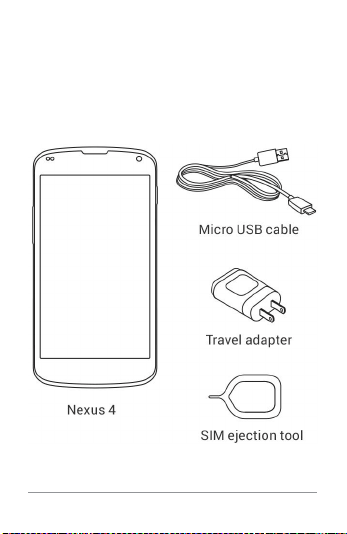
APPENDIX 220
Appendix:
Hardware reference
What’s in the box

APPENDIX 221
This Quick Start Guide and a Safety & War-
ranty booklet are also included.
• If any item is damaged or missing, contact
your point of purchase for assistance.
• Use only approved accessories.
• Accessories may vary by country or
region.
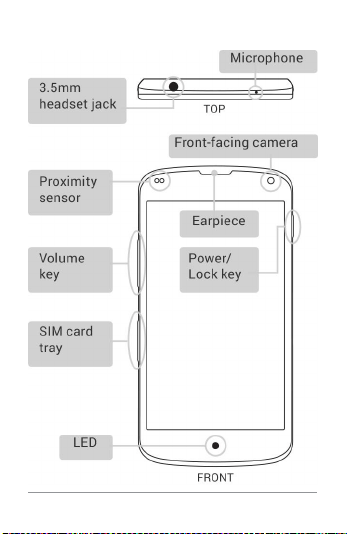
APPENDIX 222
Nexus 4
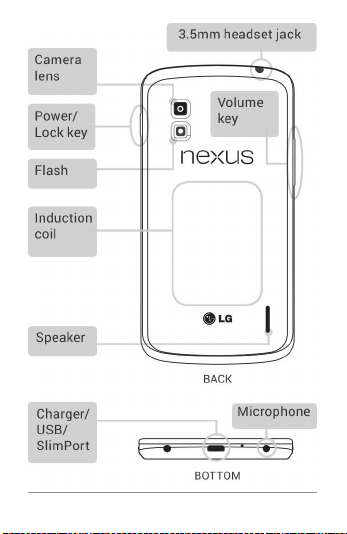
APPENDIX 223

APPENDIX 224
Specs
Screen 4.7” diagonal
1280x768 pixel resolution (320
ppi)
WXGA IPS
Corning® Gorilla® Glass 2
Size 133.9 x 68.7 x 9.1mm
Weight 139g
Cameras 8 MP (main)
1.3 MP (front)
Memory 8GB or 16GB (actual formatted
capacity will be less)
2GB RAM
CPU Qualcomm Snapdragon™ S4 Pro
1.5GHz

APPENDIX 225
Sensors Microphone
Accelerometer
Compass
Ambient light
Barometer
Gyroscope
GPS
Network Unlocked GSM/UMTS/HSPA+
GSM/EDGE/GPRS (850, 900,
1800, 1900 MHz)
3G (850, 900, 1700, 1900, 2100
MHz)
HSPA+ 42
Wireless Wireless charging compatible
Wi-Fi (802.11 a/b/g/n)
NFC (Android Beam)
Bluetooth

APPENDIX 226
Connectivity Micro USB
SlimPort HDMI
3.5mm headphone jack
Battery 2,100 mAh
Standby: up to 250 hours
Talk time: up to 10 hours
Music playback: up to 40 hours
Video playback: up to 8 hours
Web browsing: up to 7 hours
OS Android 4.2 (Jelly Bean)