
LLGG
®®
LLGG115500 PPhhoonnee GGuuiiddee
LX150_VNO Phone Guide_1.0.qxd 12/27/06 2:37 PM Page a

Table of Contents
Introduction . . . . . . . . . . . . . . . . . . . . . . . . . . . . . . . . . . . . . .i
Your Phone’s Menu . . . . . . . . . . . . . . . . . . . . . . . . . . . . . . . .ii
Section 1: Getting Started . . . . . . . . . . . . . . . . . . . . . . . . . .1
1A. Setting Up Service . . . . . . . . . . . . . . . . . . . . . . . . . . . . . . . . .2
Getting Started . . . . . . . . . . . . . . . . . . . . . . . . . . . . . . . . . . . . . . . . . . . . .3
Setting Up Your Voicemail . . . . . . . . . . . . . . . . . . . . . . . . . . . . . . . . . . . .4
Getting Help . . . . . . . . . . . . . . . . . . . . . . . . . . . . . . . . . . . . . . . . . . . . . . . .5
Section 2: Your Phone . . . . . . . . . . . . . . . . . . . . . . . . . . . . . .7
2A. Your Phone: The Basics . . . . . . . . . . . . . . . . . . . . . . . . . . . . .8
Front View of Your Phone . . . . . . . . . . . . . . . . . . . . . . . . . . . . . . . . . . . .9
Viewing the Display Screen . . . . . . . . . . . . . . . . . . . . . . . . . . . . . . . . .12
Features of Your Phone . . . . . . . . . . . . . . . . . . . . . . . . . . . . . . . . . . . . .14
Turning Your Phone On and Off . . . . . . . . . . . . . . . . . . . . . . . . . . . . . .16
Using Your Phone’s Battery and Charger . . . . . . . . . . . . . . . . . . . . .17
Navigating Through Phone Menus . . . . . . . . . . . . . . . . . . . . . . . . . .20
Displaying Your Phone Number . . . . . . . . . . . . . . . . . . . . . . . . . . . . .21
Making and Answering Calls . . . . . . . . . . . . . . . . . . . . . . . . . . . . . . . .22
Entering Text . . . . . . . . . . . . . . . . . . . . . . . . . . . . . . . . . . . . . . . . . . . . . .33
2B. Controlling Your Phone’s Settings . . . . . . . . . . . . . . . . . .38
Sound Settings . . . . . . . . . . . . . . . . . . . . . . . . . . . . . . . . . . . . . . . . . . . .39
Display Settings . . . . . . . . . . . . . . . . . . . . . . . . . . . . . . . . . . . . . . . . . . . .42
Location Settings . . . . . . . . . . . . . . . . . . . . . . . . . . . . . . . . . . . . . . . . . .47
Messaging Settings . . . . . . . . . . . . . . . . . . . . . . . . . . . . . . . . . . . . . . . .48
Airplane Mode . . . . . . . . . . . . . . . . . . . . . . . . . . . . . . . . . . . . . . . . . . . . .52
TTY Use . . . . . . . . . . . . . . . . . . . . . . . . . . . . . . . . . . . . . . . . . . . . . . . . . . .53
LX150_VNO Phone Guide_1.0.qxd 12/27/06 2:37 PM Page b

Phone Setup Options . . . . . . . . . . . . . . . . . . . . . . . . . . . . . . . . . . . . . . .55
2C. Setting Your Phone’s Security . . . . . . . . . . . . . . . . . . . . . .58
Accessing the Security Menu . . . . . . . . . . . . . . . . . . . . . . . . . . . . . . . .59
Using Your Phone’s Lock Feature . . . . . . . . . . . . . . . . . . . . . . . . . . . . .59
Using Special Numbers . . . . . . . . . . . . . . . . . . . . . . . . . . . . . . . . . . . . .61
Erasing the Contacts List . . . . . . . . . . . . . . . . . . . . . . . . . . . . . . . . . . . .61
Restricting Your Phone . . . . . . . . . . . . . . . . . . . . . . . . . . . . . . . . . . . . .62
Resetting Your Phone . . . . . . . . . . . . . . . . . . . . . . . . . . . . . . . . . . . . . . .63
Security Features for Data Services . . . . . . . . . . . . . . . . . . . . . . . . . .64
Selective Call Block . . . . . . . . . . . . . . . . . . . . . . . . . . . . . . . . . . . . . . . . .65
2D. Controlling Your Roaming Experience . . . . . . . . . . . . . . .66
Understanding Roaming . . . . . . . . . . . . . . . . . . . . . . . . . . . . . . . . . . .67
Setting Your Phone’s Roam Mode . . . . . . . . . . . . . . . . . . . . . . . . . . .69
Using Call Guard . . . . . . . . . . . . . . . . . . . . . . . . . . . . . . . . . . . . . . . . . . .70
Using Data Roam Guard . . . . . . . . . . . . . . . . . . . . . . . . . . . . . . . . . . . .71
2E. Managing Call History . . . . . . . . . . . . . . . . . . . . . . . . . . . .72
Viewing History . . . . . . . . . . . . . . . . . . . . . . . . . . . . . . . . . . . . . . . . . . .73
Call History Options . . . . . . . . . . . . . . . . . . . . . . . . . . . . . . . . . . . . . . . .74
Making a Call From Call History . . . . . . . . . . . . . . . . . . . . . . . . . . . . .75
Saving a Phone Number From Call History . . . . . . . . . . . . . . . . . . .75
Prepending a Phone Number From Call History . . . . . . . . . . . . . . .76
Erasing Call History . . . . . . . . . . . . . . . . . . . . . . . . . . . . . . . . . . . . . . . . .77
2F. Using Contacts . . . . . . . . . . . . . . . . . . . . . . . . . . . . . . . . . . .78
Adding a New Contacts Entry . . . . . . . . . . . . . . . . . . . . . . . . . . . . . . .79
Finding Contacts Entries . . . . . . . . . . . . . . . . . . . . . . . . . . . . . . . . . . . .80
Contacts Entry Options . . . . . . . . . . . . . . . . . . . . . . . . . . . . . . . . . . . . .82
Adding a Phone Number to a Contacts Entry . . . . . . . . . . . . . . . . .83
Editing a Contacts Entry’s Phone Number . . . . . . . . . . . . . . . . . . . .84
LX150_VNO Phone Guide_1.0.qxd 12/27/06 2:37 PM Page c

Assigning Speed Dial Numbers . . . . . . . . . . . . . . . . . . . . . . . . . . . . . .84
My Name Card . . . . . . . . . . . . . . . . . . . . . . . . . . . . . . . . . . . . . . . . . . . . .86
Editing a Contacts Entry . . . . . . . . . . . . . . . . . . . . . . . . . . . . . . . . . . . .87
Selecting a Ringer Type for an Entry . . . . . . . . . . . . . . . . . . . . . . . . . .88
Dialing Services . . . . . . . . . . . . . . . . . . . . . . . . . . . . . . . . . . . . . . . . . . . .89
2G. Using the Phone’s Calendar and Tools . . . . . . . . . . . . . . .90
Using Your Phone’s Calendar . . . . . . . . . . . . . . . . . . . . . . . . . . . . . . . .91
Using Your Phone’s Alarm Clock . . . . . . . . . . . . . . . . . . . . . . . . . . . . .95
Using Your Phone’s Notepad . . . . . . . . . . . . . . . . . . . . . . . . . . . . . . . .96
Using Your Phone’s Tools . . . . . . . . . . . . . . . . . . . . . . . . . . . . . . . . . . . .96
2H. Using Your Phone’s Voice Services . . . . . . . . . . . . . . . . . .98
Managing Voice Memos . . . . . . . . . . . . . . . . . . . . . . . . . . . . . . . . . . . .99
Using Voice-Activated Dialing . . . . . . . . . . . . . . . . . . . . . . . . . . . . .101
2I. Using Bluetooth . . . . . . . . . . . . . . . . . . . . . . . . . . . . . . . .103
Turning Bluetooth On and Off . . . . . . . . . . . . . . . . . . . . . . . . . . . . .104
Using the Bluetooth Settings Menu . . . . . . . . . . . . . . . . . . . . . . . .105
Bluetooth Profiles . . . . . . . . . . . . . . . . . . . . . . . . . . . . . . . . . . . . . . . .107
Pairing Bluetooth Devices . . . . . . . . . . . . . . . . . . . . . . . . . . . . . . . . .108
Section 3: Service Features . . . . . . . . . . . . . . . . . . . . . . .111
3A. Service Features: The Basics . . . . . . . . . . . . . . . . . . . . . .112
Using Voicemail . . . . . . . . . . . . . . . . . . . . . . . . . . . . . . . . . . . . . . . . . .113
Using SMS TextMessaging . . . . . . . . . . . . . . . . . . . . . . . . . . . . . . . .121
Using Caller ID . . . . . . . . . . . . . . . . . . . . . . . . . . . . . . . . . . . . . . . . . . . .124
Responding to Call Waiting . . . . . . . . . . . . . . . . . . . . . . . . . . . . . . . .125
Making a Three-Way Call . . . . . . . . . . . . . . . . . . . . . . . . . . . . . . . . . .126
Using Call Forwarding . . . . . . . . . . . . . . . . . . . . . . . . . . . . . . . . . . . . .127
LX150_VNO Phone Guide_1.0.qxd 12/27/06 2:37 PM Page d

3B. Data Service . . . . . . . . . . . . . . . . . . . . . . . . . . . . . . . . . . . .128
Data Service Applications . . . . . . . . . . . . . . . . . . . . . . . . . . . . . . . . .129
Getting Started With Data Service . . . . . . . . . . . . . . . . . . . . . . . . .130
Downloading Premium Content . . . . . . . . . . . . . . . . . . . . . . . . . . .136
Exploring the Web . . . . . . . . . . . . . . . . . . . . . . . . . . . . . . . . . . . . . . . .140
Data Service FAQs . . . . . . . . . . . . . . . . . . . . . . . . . . . . . . . . . . . . . . . . .145
Section 4: Safety and Warranty Information . . . . . . . .147
4A. Important Safety Information . . . . . . . . . . . . . . . . . . . .148
General Precautions . . . . . . . . . . . . . . . . . . . . . . . . . . . . . . . . . . . . . .149
Maintaining Safe Use of and Access to Your Phone . . . . . . . . . .149
Caring for the Battery . . . . . . . . . . . . . . . . . . . . . . . . . . . . . . . . . . . . .152
Radiofrequency (RF) Energy . . . . . . . . . . . . . . . . . . . . . . . . . . . . . . .153
Owner’s Record . . . . . . . . . . . . . . . . . . . . . . . . . . . . . . . . . . . . . . . . . . .155
Phone Guide Proprietary Notice . . . . . . . . . . . . . . . . . . . . . . . . . . .155
4B. Manufacturer’s Warranty . . . . . . . . . . . . . . . . . . . . . . . .156
Manufacturer’s Warranty . . . . . . . . . . . . . . . . . . . . . . . . . . . . . . . . .157
Index . . . . . . . . . . . . . . . . . . . . . . . . . . . . . . . . . . . . . . . . . .160
LX150_VNO Phone Guide_1.0.qxd 12/27/06 2:37 PM Page e

LX150_VNO Phone Guide_1.0.qxd 12/27/06 2:37 PM Page f

Introduction
This Phone Guideintroduces you to your wireless service
and all the features of your new phone. It’s divided into four
sections:
⽧ Section 1: Getting Started
⽧ Section 2: Your Phone
⽧ Section 3: Service Features
⽧ Section 4: Safety and Warranty Information
Throughoutthis guide, you’ll find tips thathighlightspecial
shortcuts and timely reminders to help you make the most
of your new phone and service. The Table of Contents and
Index will also help you quickly locate specific information.
You’ll getthe mostoutof your phone if you read each section.
However, if you’d like to getright to a specific feature, simply
locate thatsection in the Table of Contents and go directly to
thatpage. Follow the instructions in thatsection, and you’ll
be ready to use your phone in no time.
i
LX150_VNO Phone Guide_1.0.qxd 12/27/06 2:37 PM Page i

ii
Your Phone’s Menu
The following listoutlines your phone’s menu structure. For
more information about using your phone’s menus, see
“Navigating Through Phone Menus”on page 20.
1. Bluetooth
1. Add Device
2. Trusted Devices
3. Supported Services 1. Audio/2. Dial-up Networking/
3. Sending Contact/Calendar (OPP)
4. Settings 1. On/Off / 2. Visibility /
3. Bluetooth Info
2. Messaging
1. Send Message
2. TextMessages 1. Inbox / 2. Sent/ 3. Outbox / 4. Draft/
5. EditFolder / 6. Send Message
3. Picture Messaging
4. Voicemail 1. Call Voicemail / 2. Voicemail Details /
3. Clear Icon
5. Settings 1. Notification / 2. Message Reminder /
3. Auto-Delete / 4. Delivery Receipt /
5. Signature / 6. Callback Number /
7. PresetMessages
3. Web
1. Launch
4. Tools
1. Scheduler
2. Alarm Clock 1. Alarm 1 / 2. Alarm 2 / 3. Alarm 3 /
4. Quick Alarm
3. Activate/Self-Service
4. Voice Memo
5. Notepad
6. Bluetooth
7. Ez Tip Calculator
8. Calculator
9. World Clock
LX150_VNO Phone Guide_1.0.qxd 12/27/06 2:37 PM Page ii

iii
5. Call History
1. Missed Calls
2. Incoming Calls
3. Outgoing Calls
4. Recent Calls
5. Delete Calls 1. Missed Calls / 2. Incoming Calls /
3. Outgoing Calls / 4. Recent Calls /
5. All Calls
6. Contacts
1. Find/Add Entry
2. Groups
3. Speed Dials
4. My Name Card
5. Services 1. Customer Service / 2. Dir Assistance /
3. Operator
7. Voice Services
1. Voice Dial
2. Voice Memo
8. My Content
Games GetNew/My ContentManager
Ringers GetNew/My ContentManager
Screen Savers GetNew/My ContentManager
Applications GetNew/My ContentManager
<Options> Memory Status/Get New/
My ContentManager
9. Settings
1. Display
1. Screen Saver Preloaded/My Content
2. Clock& Calendar 1. Main LCD / 2. FrontLCD
3. Incoming Calls 1. Caller ID / 2. No Caller ID / 3. Roaming
4. Greeting Custom/Off
5. Menu Styles Grid/List
6. FontSize 1. Message / 2. Browser / 3. Notepad
7. Backlight 1. Display / 2. Keypad
8. Power Save Mode Off/30 seconds/60 seconds/
90 seconds
9. Status Light On/Off
2. Sounds
1. Ringers 1. Caller ID / 2. No Caller ID / 3. Roaming
2. Key Tones Short Tones/Long Tones
LX150_VNO Phone Guide_1.0.qxd 12/27/06 2:37 PM Page iii

iv
3. Volume
1. Ringer Silence All / Off / Vibrate All / Level 1/
Level 2/ Level 3/Level 4 / Level 5
2. Earpiece Level 1/Level 2/Level 3/Level 4/Level 5
3. Key Beep Off/Level 1/Level 2/Level 3/Level 4/Level 5
4. Application Off/Level 1/Level 2/Level 3/Level 4/Level 5
5. Power On/Off Off/Level 1/Level 2/Level 3/Level 4/Level 5
4. Alerts
1. Voicemail Alerts Silent/Custom/Vib & Sound/Vib once/
1 Low beep/Low beeps/1 Loud beep/
Loud beeps
2. Message Alerts Silent/Custom/Vib & Sound/Vib once/
1 Low beep/Low beeps/1 Loud beep/
Loud beeps
3. Service Change On/Off
4. Minute Beep On/Off
5. Call Connect On/Off
6. Signal Fade On/Off
3. Web
1. Disable Web (Enable Web)
2. NetGuard On/Off
3. Update Web Profile
4. Roaming
1. SetMode Automatic/Home Only/Roaming Only
2. Call Guard On/Off
3. Data Roam Guard Always Ask/Never Ask Again
5. Location On/Off
6. Messaging
1. Notification Msg & Icon/Icon Only
2. Message Reminder On/Off
3. Auto-Delete On/Off
4. Delivery Receipt On/Off
5. Signature None/Custom
6. Callback Number None/My Phone Number/Other
7. Preset Messages
7. TextEntry
1. Auto-Capital Enable/Disable
2. Auto-Space Enable/Disable
3. Word Choice List Enable/Disable
4. Word Prediction Enable/Disable
5. Word Completion Enable/Disable
6. Use My Words Enable/Disable
LX150_VNO Phone Guide_1.0.qxd 12/27/06 2:37 PM Page iv

v
7. My Words
8. Help
8. Bluetooth
1. On/Off On/Off
2. Visibility Hidden/Visible for 3 Min/
Always Visible
3. Bluetooth Info
9. Security [Enter Lock Code]
1. Lock Phone Unlock/Lock Now/On Power Up
2. Change Lock
3. Special #s 911/Empty
4. Delete Contacts 1. Yes / 2. No
5. LimitCalls Unlock/911 Emergency Services Only/
Special #’s Only/Contacts Only
6. Selective Call Block
7. ResetPhone 1. Yes / 2. No
0. Setup/Others
1. Shortcuts LeftNavigation/RightNavigation/
Up Navigation/Down Navigation
2. Answer Call Flip Open/Any Key / TALK Only
3. Auto-Answer Off / Headset
4. Dialing Match 1. Abbreviated Dialing / 2. Contacts
Match / 3. Speed Dial
5. Language English/Español
6. TTY Mode Enable/Disable
7. Airplane Mode On/Off
8. Update Phone SW
*
. Phone Info 1. My Phone Number / 2. Version /
3. Icon Glossary / 4. Advanced
LX150_VNO Phone Guide_1.0.qxd 12/27/06 2:37 PM Page v

vi
LX150_VNO Phone Guide_1.0.qxd 12/27/06 2:37 PM Page vi

Getting Started
Section 1
LX150_VNO Phone Guide_1.0.qxd 12/27/06 2:37 PM Page 1

2 Section 1A: Setting Up Service
Section 1A
Setting UpService
In This Section
⽧ Getting Started
⽧ Setting Up Your Voicemail
⽧ Getting Help
Setting up service on your new phone is quick and easy.
This section walks you through the necessary steps to
unlock your phone, setup your voicemail, establish
passwords, and contactyour service provider for assistance
with your wireless service.
LX150_VNO Phone Guide_1.0.qxd 12/27/06 2:37 PM Page 2

Section 1A: Setting Up Service 3
Getting Started
Unlocking Your Phone
To unlock your phone, follow these easy steps:
1. Press and hold to turn the phone on.
2. Press Unlock(right softkey).
Note: To select a softkey, press the softkey button directly below the softkey
textthatappears atthe bottom leftand bottom rightof your phone’s
display screen. Softkey actions change according to the screen you’re
viewing and will notappear if there is no corresponding action available.
3. Enter your four-digitlock code. (For security purposes,
the code is notvisible as you type.)
Tip: If you can’trecall your lock code, try using the lastfour digits
of your wireless phone number or try 0000. If neither of these works, call
your service provider.
Setting Up Service
LX150_VNO Phone Guide_1.0.qxd 12/27/06 2:37 PM Page 3

4 Section 1A: Setting Up Service
Setting UpYour Voicemail
All unanswered calls to your phone are automatically
transferred to your voicemail, even if your phone is in use or
turned off. Therefore, you will wantto setup your voicemail
and personal greeting as soon as your phone is activated.
To setup your voicemail:
1. From standby mode, press and hold .
2. Follow the system prompts to:
䡲
Create your passcode
䡲
Record your name announcement
䡲
Record your greeting
䡲
Choose whether or notto activate One-Touch
Message Access (a feature thatlets you access
messages simply by pressing and holding ,
bypassing the need for you to enter your passcode)
Voicemail Passcode
You'll create your voicemail password (or pass code) when you setup your
voicemail. For more information or to change your voicemail password,
please contactyour service provider.
For more information aboutusing your voicemail, see “Using
Voicemail”on page 113.
LX150_VNO Phone Guide_1.0.qxd 12/27/06 2:37 PM Page 4
Section 1A: Setting Up Service 5
Getting Help
Directory Assistance
You have access to a variety of services and information
through Directory Assistance, including residential, business,
and government listings; assistance with local or long-
distance calls; movie listings; and hotel, restaurant, shopping,
and major local event information. There is a per-call charge,
and you will be billed for airtime.
To call your wireless Directory Assistance:
䊳
Press .
Operator Services
Operator Services provides assistance when placing collect
calls or when placing calls billed to a local telephone calling
card or third party.
To access your wireless Operator Services:
䊳
Press .
For more information, call your service provider.
Setting Up Service
LX150_VNO Phone Guide_1.0.qxd 12/27/06 2:37 PM Page 5

6
LX150_VNO Phone Guide_1.0.qxd 12/27/06 2:37 PM Page 6

Section 2
Your Phone
LX150_VNO Phone Guide_1.0.qxd 12/27/06 2:37 PM Page 7

8 Section 2A: Your Phone – The Basics
Section 2A
Your Phone: The Basics
In This Section
⽧ FrontView of Your Phone
⽧ Viewing the Display Screen
⽧ Features of Your Phone
⽧ Turning Your Phone On and Off
⽧ Using Your Phone’s Battery and Charger
⽧ Navigating Through Phone Menus
⽧ Displaying Your Phone Number
⽧ Making and Answering Calls
⽧ Entering Text
Your phone is packed with features that simplify your life and
expand your ability to stay connected to the people and
information that are importantto you.This section will guide
you through the basic functions and calling features of your
phone.
LX150_VNO Phone Guide_1.0.qxd 12/27/06 2:37 PM Page 8
Section 2A: Your Phone – The Basics 9
FrontView of Your Phone
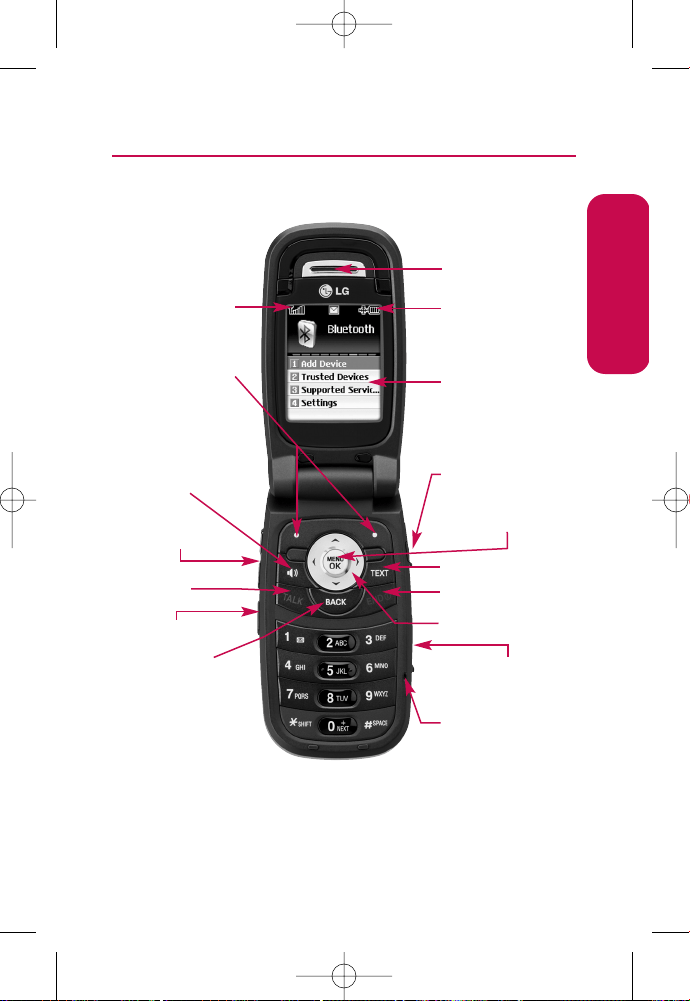
Phone Basics
2. Softkey Buttons
3. Speaker Key
11. END(Power)
10. Navigation Key
13. MENU/OK
6. Voice Services Key
8. Microphone
9. Charger Jack
14. HeadsetJack
7. BACK(Clear)
4. Volume Control
15. Display Screen
17. Earpiece
1. Signal Strength
Indicator
16. Battery
Strength
Indicator
5. TALK
12. TEXT
LX150_VNO Phone Guide_1.0.qxd 12/27/06 2:37 PM Page 9

10 Section 2A: Your Phone – The Basics
Key Functions
1. Signal Strength Indicator represents the signal strength by
displaying bars. The more bars displayed, the better the
signal strength.
2. Softkey Buttons letyou selectsoftkey actions or menu
items corresponding to the bottom leftand right lines on
the display screen.
3. Speaker Key enables your phone's built-in speaker,
allowing you to hear other callers.
4. Volume Control allows you to adjustthe ringer volume in
standby mode (with the flip open) or adjustthe voice
volume during a call. The volume key can also be used to
scroll up or down to navigate through the differentmenu
options. To mute the ringer during an incoming call, press
the volume key up or down.
5. TALK allows you to place or receive calls, answer Call
Waiting, use Three-Way Calling, or activate Voice Dial.
6. Voice Services Key lets you dial phone numbers by saying a
contact's name with the flip open in standby mode.
7. BACK (Clear) deletes characters from the display in text
entry mode. When in a menu, press the Back key to return
to the previous menu. This key also allows you to return to
the previous screen in a data session.
8. Microphone allows other callers to hear you clearly when
you are speaking to them.
9. Charger Jack connects the phone to the battery charger.
10. Navigation Key scrolls through the phone’s menu options
and acts as a shortcut key from standby mode. You may
also customize the navigation shortcuts in the Settings
menu (see “Shortcuts”on page 55).
LX150_VNO Phone Guide_1.0.qxd 12/27/06 2:37 PM Page 10

Section 2A: Your Phone – The Basics 11
䡲
Press Upto access Messaging.
䡲
Press Downto access My Content.
䡲
Press Rightto access Contacts.
䡲
Press Leftto view your Scheduler.
11. END (Power) ends a call. Press and hold this key for two
seconds to turn your phone on or off. While in the main
menu, itreturns the phone to standby mode and cancels
your input.
12. TEXT allows you to send quick textmessages.
13. MENU/OK displays the phone's main menu from standby
mode. Italso selects the highlighted choice when
navigating through a menu.
14. Headset Jack allows you to plug in an optional headsetfor
convenient, hands-free conversations.
CAUTION! Inserting an accessory into the incorrectjack
may damage the phone.
15. Display Screen displays all the information needed to
operate your phone, such as the call status, the Contacts list,
the date and time, and the signal and battery strength.
16. Battery Strength Indicator represents the amount of
remaining battery charge currently available in your phone.
When all bars are displayed in the battery icon, the phone’s
battery is fully charged. When no bars are displayed, the
phone’s battery is completely discharged or empty.
17. Earpiece lets you hear the caller and automated prompts.
Phone Basics
LX150_VNO Phone Guide_1.0.qxd 12/27/06 2:37 PM Page 11
12 Section 2A: Your Phone – The Basics
Viewing the Display Screen
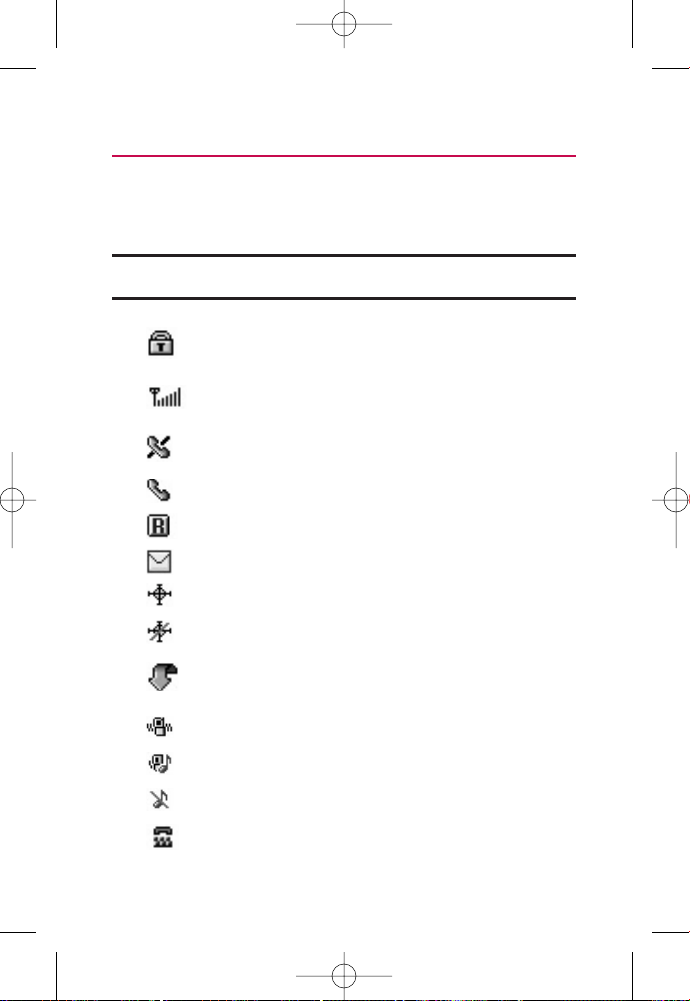
Your phone’s display screen provides a wealth of information
aboutyour phone’s status and options. This listidentifies the
symbols you’ll see on your phone’s display screen:
Note: To view a list of your phone’s icons and descriptions, from the main
menu selectSettings > Phone Info > Icon Glossary.
indicates your phone is using SSL (Secure Sockets
Layer) protocol for client/server communication.
shows your currentsignal strength. (The more lines
you have, the stronger your signal.)
means your phone cannotfind a signal.
tells you a call is in progress.
indicates you are “Roaming”off the home network.
indicates you have new messages.
indicates your phone’s location feature is on.
indicates your phone’s location feature is off.
indicates your data connection is active. (Data is
being transferred.)
indicates ringer volume is set to vibrate.
indicates Ringer & Vibrate mode is set.
indicates Ringer Off/Silence All mode is set.
indicates your phone is operating in TTY mode.
LX150_VNO Phone Guide_1.0.qxd 12/27/06 2:37 PM Page 12
Section 2A: Your Phone – The Basics 13
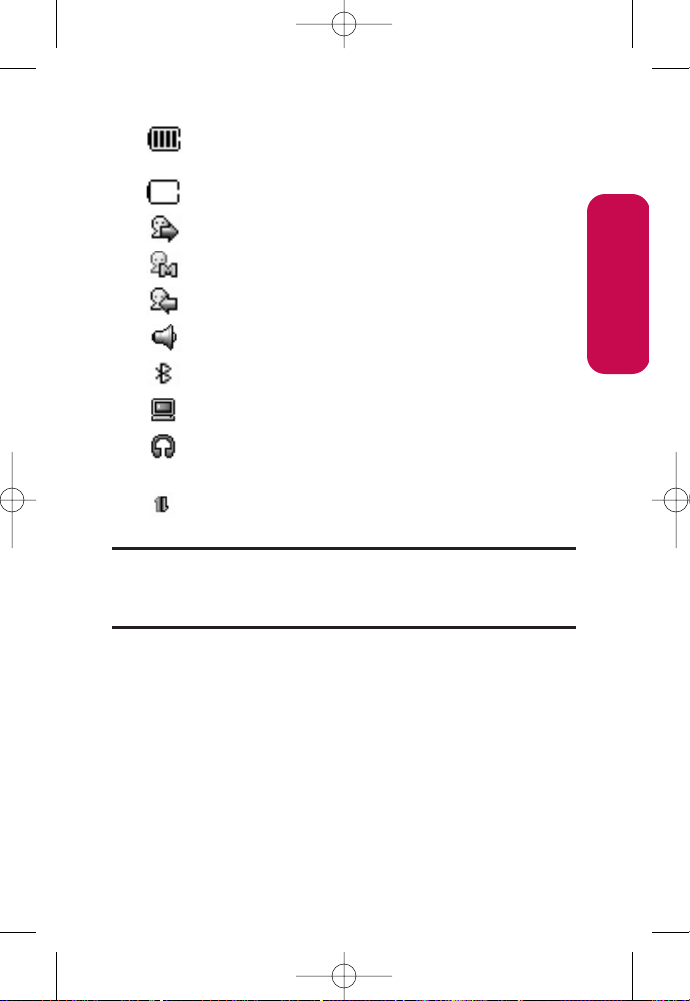
indicates battery charge level (icon shows full
charge).
indicates battery needs to be recharged.
indicates outgoing calls number.
indicates missed calls number.
indicates incoming calls number.
indicates speaker is activated.
indicates Bluetooth is enabled.
indicates PC or PDA is now under dial-up networking.
indicates a Bluetooth headsetor hands-free device
is connected.
indicates your data connection is active (data is
being transferred).
Note: Display indicators help you manage your roaming charges by
letting you know when you’re off the available network, and whether
you're operating in digital or analog mode. (For more information, see
Section 2D: Controlling Your Roaming Experience.)
Phone Basics
LX150_VNO Phone Guide_1.0.qxd 12/27/06 2:37 PM Page 13

14 Section 2A: Your Phone – The Basics
Features of Your Phone
Congratulations on the purchase of your phone. The LG150 by
LGis lightweight, easy-to-use, and reliable, and italso offers
many significantfeatures and service options. The following
listpreviews some of those features and provides page
numbers where you can find outmore:
䢇 Dual-band/tri-mode capability allows you to make and
receive calls while on the available network and to roam
on other analog and 1900 and 800 MHz digital networks
where roaming agreements (page 66).
䢇 Data service provides access to the wireless Internetin
digital mode (page 128).
䢇 SMS TextMessaging (page 121) provides quick and
convenientmessaging capabilities.
䢇 Games, ringers, screen savers, and other applications can
be downloaded to make your phone as unique as you are
(page 136). Additional charges may apply.
䢇 Your Contacts list allows you to store up to 500 entries,
with up to five phone numbers per entry (page 78).
䢇 The built-in Calendar offers several personal information
managementfeatures to help you manage your busy
lifestyle (page 90).
䢇 Your phone is equipped with a Location feature for use in
connection with location-based services thatmay be
available in the future (page 47).
䢇 Your phone’s external LCD display allows you to monitor
the phone’s status and to see who’s calling without
opening the phone.
䢇 T9 TextInputlets you quickly type messages with one
keypress per letter (page 33).
LX150_VNO Phone Guide_1.0.qxd 12/27/06 2:37 PM Page 14

Section 2A: Your Phone – The Basics 15
䢇 Speed dial lets you dial phone numbers with one or two
keypresses (page 32).
䢇 You can wirelessly pair your Bluetooth-enabled phone to
other Bluetooth devices, including headsets and hands-
free devices. You may also pair a personal computer or
hand-held device with your phone for dial-up networking,
using your phone as a wireless modem (page 103).
䢇 Data Roam Guard will alert you when you are roaming and
using your browser or other online applications, giving
you the option to continue using those applications while
in the roaming area (page 71).
Phone Basics
LX150_VNO Phone Guide_1.0.qxd 12/27/06 2:37 PM Page 15

16 Section 2A: Your Phone – The Basics
Turning Your Phone On and Off
Turning Your Phone On
To turn your phone on:
䊳
Press and hold for approximately two seconds.
Once your phone is on, itmay display “Searching for Service,”
which indicates thatyour phone is searching for a signal.
When your phone finds a signal, itautomatically enters
standby mode – the phone’s idle state. At this point, you are
ready to begin making and receiving calls.
If your phone is unable to find a signal after 15 minutes of
searching, a Power Save feature is automatically activated.
When a signal is found, your phone automatically returns to
standby mode.
In Power Save mode, your phone searches for a signal
periodically withoutyour intervention. You can also initiate a
search for service by pressing any key (when your phone is
turned on).
Tip: The Power Save feature helps to conserve your battery power when you
are in an area where there is no signal.
Turning Your Phone Off
To turn your phone off:
䊳
Press and hold for two seconds until you see the
powering-down animation on the display screen.
Your screen remains blank while your phone is off (unless the
battery is charging).
LX150_VNO Phone Guide_1.0.qxd 12/27/06 2:37 PM Page 16
Section 2A: Your Phone – The Basics 17
Using Your Phone’s Batteryand Charger
WARNING: Use only manufacturer-approved batteries and chargers
with your phone. The failure to use a manufacturer-approved battery
and charger may increase the risk thatyour phone will overheat, catch
fire, or explode, resulting in serious bodily injury, death, or property
damage.
Battery Capacity
Your phone is equipped with a Lithium-Ion (Li-Ion) battery. It
allows you to recharge your battery before itis fully drained.
The battery provides up to 4hours of continuous digital talk
time.
When the battery reaches 5% of its capacity, the battery icon
blinks. When there are approximately two minutes of talk
time left, the phone sounds an audible alertand then powers
down.
Note: Long backlight settings, searching for service, vibrate mode, and
browser use affectthe battery’s talk and standby times.
Tip: Be sure to watch your phone’s battery level indicator and charge the
battery before it runs outof power.
Phone Basics
LX150_VNO Phone Guide_1.0.qxd 12/27/06 2:37 PM Page 17
18 Section 2A: Your Phone – The Basics
Installingthe Battery
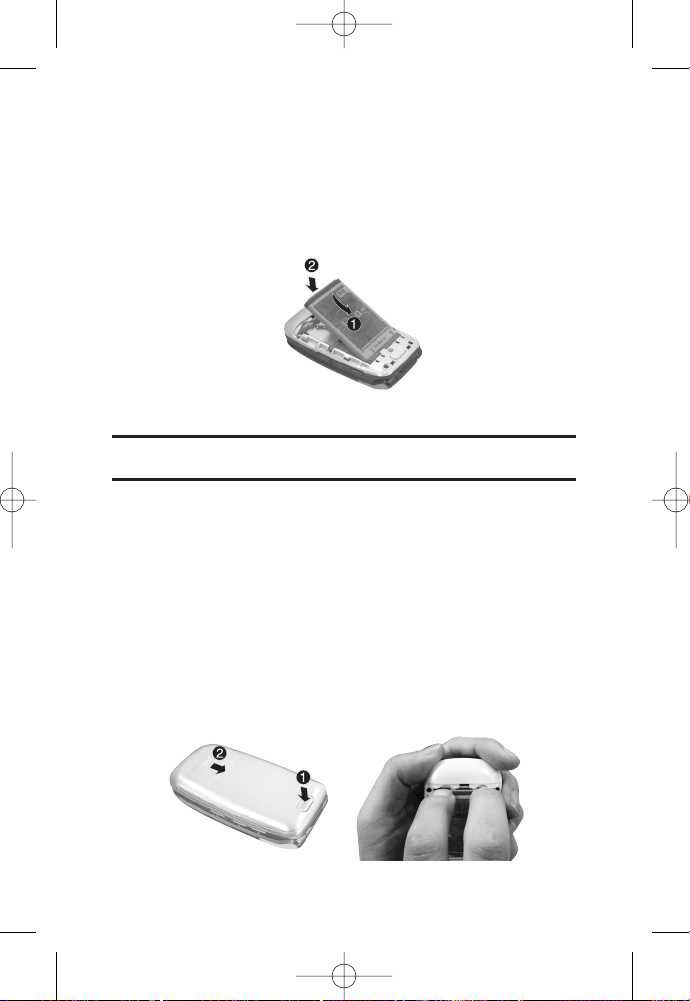
To install the Li-Ion battery:
䊳
To install, insertthe battery into the opening on the back
of the phone and gently press down until the latch snaps
into place.
Removing the Battery
WARNING: Do nothandle a damaged or leaking Li-Ion battery as you
can be burned.
To remove your battery:
1. Make sure the power is off so thatyou don’tlose any
stored numbers or messages.
2. Press the PUSHbutton and slide the cover upward until it
comes free from the phone.
3. Hold the phone in one hand so thatthe battery is facing
you and the PUSHbutton is atthe bottom.
4. Using two fingernails, hook the top edge of the battery
(as shown in the photograph), and push down while
pulling outon the battery to remove it from the phone.
LX150_VNO Phone Guide_1.0.qxd 12/27/06 2:37 PM Page 18

Section 2A: Your Phone – The Basics 19
Chargingthe Battery
Your phone’s Li-Ion battery is rechargeable and should be
charged as soon as possible so you can begin using your
phone.
Keeping track of your battery’s charge is important. If your
battery level becomes too low, your phone automatically turns
off and you will lose all the information you were just working
on. For a quick check of your phone’s battery level, glance at
the battery charge indicator located in the upper-rightcorner
of your phone’s display screen. If the battery charge is getting
too low, the battery icon ( ) blinks and the phone sounds a
warning tone.
Always use a manufacturer-approved desktop charger, travel
charger, or vehicle power adapter to charge your battery.
Using the Charger
To use the travel charger provided with your phone:
䊳
Plug the round end of the AC adapter into the phone’s
charger jack and the other end into an electrical outlet.
䡲
Ared indicator lighton the phone lets you know the
battery is charging.
䡲
A green indicator lightlets you know thatthe battery
is atleast90 percentcharged.
Ittakes approximately 3hours to fully recharge a completely
rundown battery. With the manufacturer-approvedLi-Ion
battery, you can recharge the battery before it becomes
completely run down.
Phone Basics
LX150_VNO Phone Guide_1.0.qxd 12/27/06 2:37 PM Page 19
20 Section 2A: Your Phone – The Basics
Navigating Through Phone Menus
The navigation key on your phone allows you to scroll through
menus quickly and easily. The scroll bar atthe rightof the
menu keeps track of your position in the menu atall times.
To navigate through a menu, simply press the navigation key
up or down. If you are in a first-level menu, such as Settings,
you may also navigate to the nextor previous first-level menu
by pressing the navigation key rightor left.
For a diagram of your phone’s menu, please see “Your Phone’s
Menu”on page ii.
Selecting Menu Items
As you navigate through the menu, menu options are
highlighted. Selectany numbered option by simply pressing
the corresponding number on the phone’s keypad. You may
also selectany item by highlighting itand pressing
.
For example, if you wantto view your lastincoming call (when
menu display is setto "grid" style):
1. Press to access the main menu.
2. Select Call Historyby pressing or by highlighting it
and pressing . (It may already be highlighted.)
3. Select Incoming Callsby pressing or by highlighting it
and pressing . (If you have received any calls, they are
displayed on the screen.)
Note: For the purposes of this guide, the above steps condense into
“SelectMenu > Call History > Incoming Calls.”
LX150_VNO Phone Guide_1.0.qxd 12/27/06 2:37 PM Page 20
Section 2A: Your Phone – The Basics 21
Backing Up Within a Menu
To go to the previous menu:
䊳
Press .
To return to standby mode:
䊳
Press .
DisplayingYour Phone Number
Justin case you forget your phone number, your phone can
remind you.
To display your phone number:
䊳
Select Menu > Settings > Phone Info > My Phone Number.
(Your phone number and other information aboutyour
phone and accountwill be displayed.)
Note: To select Menu, press . To selectmenu options (such as Settings,
above), highlight the option and press . (If the menu options are
numbered, you may also select an option simply by pressing the
corresponding number key.)
Phone Basics
LX150_VNO Phone Guide_1.0.qxd 12/27/06 2:37 PM Page 21

22 Section 2A: Your Phone – The Basics
Making and Answering Calls
Making Calls
Placing a call from your phone is as easy as making a call from
any landline phone. Justenter the number and press , and
you’re on your way to clear calls.
To make a call using your keypad:
1. Make sure your phone is on.
2. Enter a phone number from standby mode. (If you make
a mistake while dialing, press to erase one digitat
a time. Press and hold to erase the entire number.)
3. Press . (To make a call when you are roaming and
Call Guard is enabled, highlight Roam Calland press .
See “Using Call Guard”on page 70.)
4. Press or close the phone when you are finished.
Tip: To redial your lastoutgoing call, press TALKtwice.
Tip: When making calls off the available network, always dial using 11 digits
(1 + area code + phone number).
You can also place calls from your phone by Speed Dialing
numbers from your Contacts (page 84), and using your Call
History listings (page 74).
LX150_VNO Phone Guide_1.0.qxd 12/27/06 2:37 PM Page 22

Section 2A: Your Phone – The Basics 23
Dialing Options
When you enter numbers in standby mode, you will see a
variety of dialing options appear on the phone’s display
screen.
Tip: To speed dial a phone number from standby mode, press and hold the
speed dial number. If the speed dial number is two digits, enter the first
digit, and then press and hold the second digit. (For information on setting
up speed dial numbers, see “Assigning Speed Dial Numbers”on page 84.)
(This feature will not work when you are roaming off the available
network; when roaming you mustdial using eleven digits
[1 + the area code + the seven-digit phone number.])
䢇
Call dials the displayed phone number.
䢇
Contacts Match display Contacts entries matching the
entered digits (appears when 3-6 digits are entered).
䢇
Send Message allows you to send a textmessage to the
number being dialed.
䢇
Save allows you to enter a seven- or ten-digit number
(phone number and area code) and press Saveto save the
phone number in your Contacts. (See “Saving a Phone
Number”on page 28.)
䢇
Find allows you to enter a digitor string of digits. (See
“Finding a Phone Number”on page 29.)
䢇
Hard pause allows you to enter a hard pause. (See “Dialing
and Saving Phone Numbers With Pauses”on page 30.)
䢇
2-sec pause allows you to enter a two-second pause.
(See “Dialing and Saving Phone Numbers With Pauses”on
page 30.)
Phone Basics
LX150_VNO Phone Guide_1.0.qxd 12/27/06 2:37 PM Page 23

24 Section 2A: Your Phone – The Basics
Answering Calls
To answer an incoming call:
1. Make sure your phone is on. (If your phone is off,
incoming calls go to voicemail.)
2. Press to answer an incoming call.(Depending on
your phone’s settings, you may also answer incoming
calls by opening the phone or by pressing any number
key. See “Call Answer Mode”on page 55 for more
information.)
Your phone notifies you of incoming calls in the following
ways:
䢇 The phone rings or vibrates.
䢇 The indicator lightflashes.
䢇 The backlightilluminates.
䢇 The screen displays an incoming call message.
If the incoming call is from a number stored in your Contacts,
the entry’s name is displayed. The caller’s phone number may
also be displayed, if available.
If Call Answer is setto TALK only, the following options are also
displayed. To selectan option, press the corresponding softkey
button.
䢇 Quiet to mute the ringer.
䢇 Ignoreto send the call to your voicemail box.
Note: When your phone is off, incoming calls go directly to voicemail.
LX150_VNO Phone Guide_1.0.qxd 12/27/06 2:37 PM Page 24

Section 2A: Your Phone – The Basics 25
Answering a Roam Call With Call Guard Enabled
Call Guard is an option that helps you manage your roaming
charges when making or receiving calls while outside the
available network. Please see Section 2D: Controlling Your
Roaming Experience for more information aboutroaming.
To answer a call when you are roaming and Call Guard is enabled:
䊳
Select Answerto answer the call. (See “Call Guard”on
page 70 for additional information.)
Ending a Call
To disconnect a call when you are finished:
䊳
Close the phone or press .
Missed Call Notification
When an incoming call is notanswered, the Missed Call log is
displayed on your screen.
To display the Missed Call entry from the notification screen:
䊳
Highlightthe entry and press . (To dial the phone
number, press .)
To display a Missed Call entry from standby mode:
1. Select Menu > Call History > Missed Calls.
2. Highlightthe entry you wish to view and press .
Phone Basics
LX150_VNO Phone Guide_1.0.qxd 12/27/06 2:37 PM Page 25

26 Section 2A: Your Phone – The Basics
Calling Emergency Numbers
You can place calls to 911 (dial ), even if your
phone is locked or your accountis restricted.
Note: When you place an emergency call, your phone automatically enters
Emergency mode.
During an emergency call, a listof menu options is displayed
onscreen. To selectan option, highlightthe desired option and
press . The following options are available.
䢇
Speaker Onor Speaker Offto route the phone's audio
through the speaker or through the earpiece.
䡲
Select Speaker Onto route the phone’s audio
through the speaker. (You can adjustthe speaker
volume using the volume keys on the side of the
phone.)
䡲
Select Speaker Offto use the phone’s earpiece.
䢇
3-Way Callto set up a three-way conversation.
䢇
My Phone Numberto display the phone’s directory number,
MSID, and ESN.
To exit Emergency mode:
1. Press to end a 911 call.
2. Press Exit (right softkey).
Note: When you are in Emergency mode, you can exitonly from the
options menu.
Enhanced 911 (E911) Information
This phone features an embedded Global Positioning System
(GPS) chip necessary for utilizing E911 emergency location
services where available.
LX150_VNO Phone Guide_1.0.qxd 12/27/06 2:37 PM Page 26
Section 2A: Your Phone – The Basics 27
When you place an emergency 911 call, the GPS feature of
your phone begins to seek information to calculate your
approximate location. Depending on several variables,
including availability and access to satellite signals, itmay
take 30 seconds or more to determine and report your
approximate location.
IMPORTANT: Always reportyour location to the 911 operator when placing
an emergency call.
Some designated emergency call takers, known as Public
Safety Answering Points (PSAPs) may notbe equipped to receive GPS
location information from your phone.
In-Call Options
While a call is in progess, a list of options is displayed thatyou
may use during the call. To selectan option, highlightthe
option and press . The following options are available:
䢇
Mute orUnmute to mute your microphone, or to unmute
the microphone if itwas muted earlier.
䢇
Speaker On or Speaker Off routes the phone’s audio
through the speaker or through the earpiece.
䡲
Select Speaker Onto route the phone’s audio through
the speaker. (You can adjustthe speaker volume
using the volume keys on the side of the phone.)
䡲
Select Speaker Offto use the phone’s earpiece.
Warning!Due to higher volume levels, do notplace the phone near your ear
during speakerphone use.
䢇
3-Way Callto set up a three-way conversation.
䢇
Contactsto access the Contacts menu.
䢇
RecentCallsto access the RecentCalls list.
䢇
Send Messageto send a textmessage.
䢇
Record Voice Memo to record the currentconversation.
Phone Basics
LX150_VNO Phone Guide_1.0.qxd 12/27/06 2:37 PM Page 27

28 Section 2A: Your Phone – The Basics
䢇
Notepadto display the phone’s electronic notepad.
䢇
Menuto display the phone’s main menu.
End-of-Call Options
After receiving a call from or making a call to a phone number
thatis notin your Contacts, the phone number and the duration
of the call are displayed. Select this option if you wish to add the
new number to your Contacts. (See “Saving a Phone Number”
below.)
After receiving a call from or making a call to a phone number
thatis already in your Contacts, the Contacts entry name
and phone number and the duration of the call are displayed.
To selectone of the following options after a call has ended,
press :
䢇
Save to save the phone number in your Contacts list.
䢇
Viewto view the Contacts entry if the number is already in
your Contacts list.
Note: The End-of-Call options are notdisplayed for calls identified as No ID
or Restricted.
Savinga Phone Number
Your phone can store up to five phone numbers in each of 500
Contacts entries. Each entry’s name can contain up to 32
characters. Your phone automatically sorts the Contacts
entries alphabetically. (For more information, see Section 2F:
Using Contacts on page 78.)
To save a number from standby mode:
1. Enter a phone number.
2. Scroll to Save and press .
LX150_VNO Phone Guide_1.0.qxd 12/27/06 2:37 PM Page 28
Section 2A: Your Phone – The Basics 29
3. Select New Entry for a new contact or Existing Entryto
add a number to an existing contactand press .
Scroll to the desired phone label.
Mobile/Home/Office/Pager/Fax/None
4. Use the numeric keypad to enter the new contactname
and press to save the new entry.
– or –
Search for an existing contactname and press to
save the new number.
5. Press Done(leftsoftkey) to save the new entry.
Findinga Phone Number
You can search Contacts entries for phone numbers that
contain a specific string of numbers.
To find a phone number:
1. Enter one or more digits in standby mode. (The more
numbers you enter, the more specific the search
becomes.)
2. Scroll to Contacts Matchand press .
3. To display the Contacts entry that contains the phone
number, highlightthe entry and press .
4. To dial the number, scroll to Calland press .
Tip:You can also dial the number by highlighting itand pressing TALK
during step 3 above.
Phone Basics
LX150_VNO Phone Guide_1.0.qxd 12/27/06 2:37 PM Page 29

30 Section 2A: Your Phone – The Basics
Dialing and Saving Phone Numbers
With Pauses
You can dial or save phone numbers with pauses for use with
automated systems, such as voicemail or creditcard billing
numbers.
There are two types of pauses available on your phone:
䢇
Hard pause sends the nextsetof numbers when you press
.
䢇
2-sec pauseautomatically sends the nextsetof numbers
after two seconds.
Note:You can have multiple pauses in a phone number and combine
two-second and hard pauses.
To dial or save phone numbers with pauses:
1. Enter the phone number.
2. Scroll to either Hard pauseor 2-sec pauseand
press . (Hard pauses are displayed as a “P”and
two-second pauses as a “T.”)
3. Enter additional numbers.
4. Press to dial the number.
– or –
To save the number in your Contacts list, highlightSave
and press .
Note:When dialing a number with a hard pause, press OKto send the next
setof numbers.
LX150_VNO Phone Guide_1.0.qxd 12/27/06 2:37 PM Page 30
Section 2A: Your Phone – The Basics 31
Plus (+) Code Dialing
When placing international calls, you can use Plus Code
Dialing to automatically enter the international access code
for your location (for example, 011 for international calls
made from the United States).
To make a call using Plus Code Dialing:
1. Press and hold until a “+”appears on your phone
display.
2. Dial the country code and phone number you’re calling
and press . (The access code for international dialing
will automatically be dialed, followed by the country
code and phone number.)
Dialing Fromthe Contacts
To dial directly from a Contacts entry:
1. Press to access the main menu.
Contacts may also be accessed by pressing right on the
navigation key from the idle screen.
2. Select Contacts ().
3. Scroll to Find/Add Entryand press .
Shortcut:Press Righton the Navigation key to listentries.
4. Use your Navigation key to scroll through the Contacts
list, then highlightyour desired entry.
5. Press to dial the entry’s defaultphone number.
– or –
To dial another number from the entry, press ,
highlightthe desired number, and press .
Phone Basics
LX150_VNO Phone Guide_1.0.qxd 12/27/06 2:37 PM Page 31

32 Section 2A: Your Phone – The Basics
Using Speed Dialing
You can store up to 99 numbers in your phone’s speed dial
memory to make contacting friends and family as easy as
pressing a button or two. With this feature, you can dial speed
dial entries using one keypress for locations 1-9 or two
keypresses for locations 10-99.
To use One-Touch Dialing for speed dial locations 1-9:
䢇
Press and hold the appropriate key for approximately two
seconds. The display confirms thatthe number has been
dialed when itshows “Calling... .”
To use Two-Touch Dialing for speed dial locations 10-99:
1. Press the first digit.
2. Press and hold the second digitfor approximately two
seconds. The display confirms thatthe number has been
dialed when itshows “Calling... .”
Note : Speed dialing is notavailable when you are roaming; when you are
roaming off the available network, you mustalways dial using 11 digits (1 +
area code + number).
LX150_VNO Phone Guide_1.0.qxd 12/27/06 2:37 PM Page 32

Section 2A: Your Phone – The Basics 33
Entering Text
Selectinga Character InputMode
Your phone provides convenient ways to enter words, letters,
punctuation, and numbers whenever you are prompted to
enter text(for example, when adding a Contacts entry or
when using SMS TextMessaging).
To change the character input mode:
1. When you display a screen where you can enter text,
press Mode ( ) to change the character inputmode.
2. Selectone of the following options:
䡲
Abc to cycle through the alpha characters associated
with the letters on the keypad.
䡲
T9Word to enter textusing a predictive text entering
system thatreduces the amountof keys that need to
be pressed while entering a word.
䡲
123 to enter numbers by pressing the numbers on
the keypad.
䡲
Symbolsto enter symbols.
䡲
Smileysto enter “emoticons”.
䡲
Settings
䡲
PresetMessages to enter preprogrammed messages.
䡲
RecentMessages
䡲
PresetSuffix to enter preset suffix such as
http://www., https://www., www., .com, .net, .org,
.edu, .wap, //, ","", (), {}, [], <>, <<>>
Tip: When entering text, press the
*
(Shift) key to change letter
capitalization (Abc > ABC > abc).
Phone Basics
LX150_VNO Phone Guide_1.0.qxd 12/27/06 2:37 PM Page 33
34 Section 2A: Your Phone – The Basics
Entering Characters Using T9 TextInput
T9 TextInputlets you enter text in your phone by pressing
keys justonce per letter. (To select the T9 Wordmode when
entering text, see “Selecting a Character InputMode”on page
33.)
T9 TextInputanalyzes the letters you enter using an intuitive
word database and creates a suitable word. (The word may
change as you type.)
To enter a word using T9 TextInput:
1. Select the T9 Word character inputmode. (See “Selecting
a Character InputMode”on page 33.)
2. Press the corresponding keys once per letter to enter
a word. (For example, to enter the word “Bill,”press
.) (If you make a mistake, press to
erase a single character. Press and hold to delete an
entire entry.)
If the word you wantis not displayed after you have entered
all the letters, press to scroll through additional word
selections. To accepta word and insert a space, press .
LX150_VNO Phone Guide_1.0.qxd 12/27/06 2:37 PM Page 34
Section 2A: Your Phone – The Basics 35
Adding a Word to the T9 Database
If a word you wantto enter is notdisplayed as an option when
you are using T9 TextInput, you can add itto the database.
To add a word to the T9 TextInputdatabase:
1. Select the Abc character inputmode. (See “Selecting a
Character InputMode”on page 33.)
2. Enter the word using multi-tap text entry. (See “Entering
Characters by Tapping the Keypad”.) The word will
appear as an option the nexttime you scroll through
options during T9 TextInput.
For more information aboutT9 Text Input, visit the Tegic Web
site at
www.T9.com.
Entering Characters by Tapping the Keypad
To enter characters by tapping the keypad:
1. Select the AbcMode. (See “Selecting a Character Input
Mode”on page 33.)
2. Press the corresponding keys repeatedly until the desired
letter appears. (For example, to enter the word “Bill,”
press twice, three times, three times, and
three times again.) (If you make a mistake, press
to erase a single character. Press and hold to
delete an entire entry.)
By default, the firstletter of an entry is capitalized and the
following letters are lowercased. After a character is entered,
the cursor automatically advances to the nextspace after two
seconds or when you enter a character on a differentkey.
Phone Basics
LX150_VNO Phone Guide_1.0.qxd 12/27/06 2:37 PM Page 35

36 Section 2A: Your Phone – The Basics
Characters scroll in the following order:
. , @ 1' ? ! * # /
A B C 2
D E F 3
G H I 4
J K L 5
M N O 6
P Q R S 7
T U V 8
W X Y Z 9
0
SPACE
SHIFT
Entering Numbers, Symbols, Smileys, Preset
Messages and Recent Messages
To enter numbers:
䊳
Select the 123 mode and press the appropriate key.
(See “Selecting a Character InputMode”on page 33).
To enter symbols:
䊳
Select the Symbolsmode. (See “Selecting a Character
InputMode”on page 33.) To enter a symbol, press the
appropriate key indicated on the display.
To enter “emoticons”(smileys):
䊳
Select the Smileysmode and press the appropriate key.
(See “Selecting a Character InputMode” on page 33.)
LX150_VNO Phone Guide_1.0.qxd 12/27/06 2:37 PM Page 36
Section 2A: Your Phone – The Basics 37
To enter presetmessages:
1. Select the PresetMessages mode. (See “Selecting a
Character InputMode”.)
2. Scroll to the desired preprogrammed message and
press .
To enter recentmessages:
1. Select Send Message.
2. In message inputmode, select Mode(right softkey),
scroll to RecentMessages, and press .
Note: Presetmessages make composing textmessages even easier by
allowing you to enter preset messages, such as “Meetme at,”“Let's get
lunch,”or a customized message of your own. (For more information on
presetmessages, please see “Managing PresetMessages”on page 50.)
Phone Basics
LX150_VNO Phone Guide_1.0.qxd 12/27/06 2:37 PM Page 37

38 Section 2B: Controlling Your Phone’s Settings
Section 2B
Controlling Your Phone’s Settings
In This Section
⽧ Sound Settings
⽧ Display Settings
⽧ Location Settings
⽧ Messaging Settings
⽧ Airplane Mode
⽧ TTY Use
⽧ Phone Setup Options
Using the menu options available on your phone, you can
customize your phone to sound, look, and operate justthe
way you wantitto. This section describes how you can
change your phone’s settings to bestsuityour needs. Take a
few moments to review these options and to adjustor add
settings thatare rightfor you.
LX150_VNO Phone Guide_1.0.qxd 12/27/06 2:37 PM Page 38

Section 2B: Controlling Your Phone’s Settings 39
Sound Settings
Ringer Types
Ringer types help you identify incoming calls and messages.
You can assign ringer types to individual Contacts entries,
types of calls, and types of messages.
䢇
Preprogrammed Ringers include a variety of standard
ringer types and familiar music.
䢇
Vibrating Ringer alerts you to calls or messages without
disturbing others.
䢇
Downloaded Ringers can be downloaded rightto your
phone. (See “Downloading Premium Content”on page
136.)
Selecting Ringer Types for Voice Calls
Your phone provides a variety of ringer options thatallow you
to customize your ring and volume settings. These options
allow you to identify incoming calls by the ring.
To selecta ringer type for voice calls:
1. Select Menu > Settings > Sounds > Ringers.
2. Select Caller ID, No Caller ID, or Roaming.
3. Select Single Tones, Ring Tones, My Content, or Voice
Memo. If you selected Roaming, selectNormal, or
Distinctive.
4. Use your navigation key to scroll through the available
ringers. A sample ringer will sound as you highlighteach
option.
5. Press to assign the desired ringer.
Your Phone’s Settings
LX150_VNO Phone Guide_1.0.qxd 12/27/06 2:37 PM Page 39

40 Section 2B: Controlling Your Phone’s Settings
Selecting Ringer Types for Messages
To selecta ringer type for messages:
1. Select Menu > Settings > Sounds > Alerts.
2. Select Voicemail Alerts or Message Alerts. (The listof
preprogrammed ringers is displayed.)
3. Use your navigation key to scroll through the available
ringers. A sample ringer will sound as you highlighteach
option.
4. Press to assign the desired ringer.
Selecting a Key Tone
Your phone offers two options for selecting the audible tones
accompanying a keypress. (Longer tone lengths may be better
for tone recognition when dialing voicemail or other
automated systems.)
To selecta key tone:
1. Select Menu > Settings > Sounds > Key Tones.
2. Select ShortTones or Long Tones and press .
LX150_VNO Phone Guide_1.0.qxd 12/27/06 2:37 PM Page 40
Section 2B: Controlling Your Phone’s Settings 41
Adjusting the Phone’s Volume Settings
You can adjustyour phone’s volume settings to suityour
needs and your environment.
To adjustyour phone’s volume settings:
1. Select Menu > Settings > Sounds > Volume.
2. Select Ringer, Earpiece, Key Beep, Application, or Power
On/Off.
3. Using the navigation key, choose a volume level and
press .
Tip: You can adjust the ringer volume in standby mode (or the earpiece
volume during a call) by using the volume key on the leftside of your
phone.
Alert Notification
Your phone can alertyou with an audible tone when you
receive voicemail or other messages, change service areas,
once a minute during a voice call, or when a call has been
connected.
To enable or disable alertsounds:
1. Select Menu > Settings > Sounds > Alerts.
2. Select Service Change,Minute Beep, Call Connect,or
Signal Fade and press .
3. Select On or Off and press .
Your Phone’s Settings
LX150_VNO Phone Guide_1.0.qxd 12/27/06 2:37 PM Page 41

42 Section 2B: Controlling Your Phone’s Settings
Silence All
There may be times when you need to silence your phone
entirely. The phone’s Silence All option allows you to mute all
sounds withoutturning your phone off.
To activate Silence All:
䊳
With the phone open, press and hold the volume key down
in standby mode. (The screen will display “Silence All”)
To deactivate Silence All:
䊳
Press the volume key up repeatedly to selecta desired
volume level.
Display Settings
Changing the Text Greeting
The textgreeting can be up to 16 characters and is displayed
on your phone’s screen in standby mode. You may choose to
keep the phone’s default greeting, or you may enter your own
custom greeting.
To display or change your greeting:
1. Select Menu > Settings > Display > Greeting > Custom.
2. Use the numeric keypad to enter a new custom greeting.
(See “Entering Text”on page 33.) (To erase the existing
greeting one character ata time, press . To erase the
entire greeting, press and hold .)
3. Press to save your new greeting.
LX150_VNO Phone Guide_1.0.qxd 12/27/06 2:37 PM Page 42
Section 2B: Controlling Your Phone’s Settings 43
Changing the BacklightTime Length
The backlightsetting lets you selecthow long the display
screen and keypad are backlitafter any keypress is made.
To change the backlight setting:
1. Select Menu > Settings > Display > Backlight.
2. Select Display or Keypad.
3. Selecta time setting and press .
Note: Long backlight settings affect the battery’s talk and standby times.
Changing the Display Screen
Your new phone offers options for what you see on the display
screen while powering on or off and when in standby mode.
To change the display images:
1. Select Menu > Settings > Display > Screen Saver.
2. Selected Preloadedor My Content.
3. Use the navigation key to select an image and press
to view the image. (Once an image is displayed, you can
use your navigation key to scroll through and view the
other defaultimages.)
4. Press to assign the desired image.
Your Phone’s Settings
LX150_VNO Phone Guide_1.0.qxd 12/27/06 2:37 PM Page 43

44 Section 2B: Controlling Your Phone’s Settings
Changing the Display Screen for Incoming Calls
You can setthe color or downloaded image (screen saver) to be
shown on the Incoming Calls display.
To setthe incoming calls display:
1. Select Menu > Settings > Display > Incoming Calls.
2. Select Caller ID, No Caller ID, or Roaming.
3. Selected Preloadedor My Content.
4. Use the navigation key to highlightyour selection and
press to view the image. (Once an image is
displayed, you can use your navigation key to scroll
through and view the other default images.)
5. Press to assign the desired image.
Changing the Phone’s Menu Style
Your phone allows you to choose how the menu appears on
your display screen.
To selectthe display’s menu style:
1. Select Menu > Settings > Display > Menu Styles.
2. Select Grid to view each main menu item as an animated
single-screen icon or Listto view the main menu as a list,
and press .
LX150_VNO Phone Guide_1.0.qxd 12/27/06 2:37 PM Page 44
Section 2B: Controlling Your Phone’s Settings 45
Changing the Clock Display
Choose whether you want your phone’s clock to be displayed
in analog mode, digital mode, or with time and date.
To change the clock’s appearance on the standby screen:
1. Select Menu > Settings > Display > Clock & Calendar.
2. Select Main LCDor FrontLCD.
3. Select Normal Clock, Analog Clock, Digital Clock, Dual
Clock,or Calendar. If you selected FrontLCD, select Time &
Date, or Time Only.
4. Press to apply the clock display setting.
Changing the Text Input Font
This setting allows you to adjust the display appearance when
entering text(for example, when using the notepad or when
adding a Contacts entry).
To change the textinput font:
1. Select Menu > Settings > Display > FontSize.
2. Select Message, Browser, or Notepad.
3. Selecta desired size and press .
Your Phone’s Settings
LX150_VNO Phone Guide_1.0.qxd 12/27/06 2:37 PM Page 45

46 Section 2B: Controlling Your Phone’s Settings
Changing the Power Save Mode
This feature helps conserve your battery power by restricting
the display.
To change the power save mode:
1. Select Menu > Settings > Display > Power Save Mode.
2. Select Off, 30 seconds, 60 seconds, or 90 seconds and press
. (If you selectOff, a promptwill be displayed. Select
Yes and press to save your setting.)
Changing the Status LightMode
This feature shows the status of your phone by blinking
the light.
To change the status lightmode:
1. Select Menu > Settings > Display > Status Light.
2. Select On or Off and press .
LX150_VNO Phone Guide_1.0.qxd 12/27/06 2:37 PM Page 46
Section 2B: Controlling Your Phone’s Settings 47
Location Settings
Your phone is equipped with a Location feature for use in
connection with location-based services thatmay be available
in the future.
The Location feature allows the network to detectyour
position. Turning Location off will hide your location from
everyone except911.
Note: Turning Location on will allow the network to detect your position
using GPS technology, making some applications and services easier to use.
Turning Location off will disable the GPS location function for all purposes
except911, butwill nothide your general location based on the cell site
serving your call. No application or service may use your location without
your requestor permission. GPS-enhanced 911 is notavailable in all areas.
To enable your phone’s Location feature:
1. Select Menu > Settings > Location. (The Location
disclaimer is displayed.)
2. Read the disclaimer and press .
3. Select On or Off and press .
When the Location feature is on, your phone’s standby screen
will display the icon. When Location is turned off, the
icon will be displayed.
Your Phone’s Settings
LX150_VNO Phone Guide_1.0.qxd 12/27/06 2:37 PM Page 47

48 Section 2B: Controlling Your Phone’s Settings
Messaging Settings
Staying connected to your friends and family has never been
easier. With your phone’s advanced messaging capabilities,
you can send and receive many differentkinds of text
messages withoutplacing a voice call. (For more information,
see “Using SMS TextMessaging”on page 121.)
Your phone’s messaging settings make textmessaging even
faster and easier by letting you decide how you would like to
be notified of new messages, create a signature with each
sentmessage, and create your own presetmessages, to name
justa few.
Displaying Pop-up Messages
When you receive a textmessage, your phone notifies you by
displaying an icon on your display screen. You can also choose
to be notified with a larger pop-up message on your display
screen. (When Msg & Iconis enabled, a larger pop-up message
as well as an icon will be displayed.)
To display pop-up messages:
1. Select Menu > Settings > Messaging > Notification.
2. Select Msg & Icon or Icon Only and press .
Setting Message Reminders
To hear a recurring alertwhen you receive a new message:
1. Select Menu > Settings > Messaging > Message Reminder.
2. Select On or Off and press .
LX150_VNO Phone Guide_1.0.qxd 12/27/06 2:37 PM Page 48
Section 2B: Controlling Your Phone’s Settings 49
Deleting Old Messages
You can delete messages that you’ve already read whenever
you like, or you can have your phone delete them
automatically for you.
To automatically delete read messages:
1. Select Menu > Settings > Messaging > Auto-Delete.
2. Select On or Off and press .
Delivery Receipt
With this feature, you can be notified if a message you have
senthas been received.
To enable delivery receipts:
1. Select Menu > Settings > Messaging > Delivery Receipt.
2. Select On or Off and press .
Callback Number
With this feature, you can notify your recipients of your
callback number with a textmessage.
To setthe callback number:
1. Select Menu > Settings > Messaging > Callback Number.
2. Select None, My Phone Number, or Otherand press .
(If you selectOther, enter a number and press .)
Your Phone’s Settings
LX150_VNO Phone Guide_1.0.qxd 12/27/06 2:37 PM Page 49

50 Section 2B: Controlling Your Phone’s Settings
Adding a Customized Signature
Each message you send can have a customized signature to
reflectyour personality.
To add a customized signature to each sentmessage:
1. Select Menu > Settings > Messaging > Signature > Custom.
(If you do notwish to attach a signature to your outgoing
messages, selectNone.)
2. Enter your signature and press . (See “Entering Text”
on page 33.)
Managing PresetMessages
Your phone is loaded with 20 preset messages to help make
sending textmessages faster and easier. These messages, such
as “Where are you?,”“Let's getlunch,”and “Meetme at,”can be
customized or deleted to suityour needs. You can even add your
own presetmessages to the list.
To editor delete a presetmessage:
1. Select Menu > Settings > Messaging > PresetMessages.
(The listof presetmessages is displayed.)
2. To edit or delete a presetmessage, highlightit and
press .
3. Scroll to Editand press , edit the selected message
(see “Entering Text”on page 33), and press .
– or –
Scroll to Delete and press , and then selectYes to delete
the selected message. (Select Noto cancel the deletion.)
Note:Defaultpresetmessages cannotbe deleted.
LX150_VNO Phone Guide_1.0.qxd 12/27/06 2:37 PM Page 50

Section 2B: Controlling Your Phone’s Settings 51
To add a new preset message:
1. Select Menu > Settings > Messaging > PresetMessages.
(The listof presetmessages is displayed.)
2. To add a new presetmessage, select<Add New>.
3. Enter your message (see “Entering Text”on page 33),
and press .(Your new message will be added to the
beginning of the list.)
Your Phone’s Settings
LX150_VNO Phone Guide_1.0.qxd 12/27/06 2:37 PM Page 51

52 Section 2B: Controlling Your Phone’s Settings
Airplane Mode
Airplane Mode allows you to use many of your phone’s
features, such as Games, Notepad, Voice Memos, etc., when
you are in an airplane or in any other area where making calls
or receiving calls or data is prohibited. When your phone is in
Airplane Mode, itcannot send or receive any calls or access
online information.
To setyour phone to Airplane Mode:
1. Select Menu > Settings > Setup/Others > Airplane Mode.
(The Airplane Mode disclaimer is displayed.)
2. Read the disclaimer and press .
3. Select On or Off and press .
While in Airplane Mode, your phone’s standby screen will
display “Phone Off.”
Note:If Airplane Mode is setto On, this mode is automatically reactivated
when you power off or resetthe phone.
When entering Airplane Mode, Bluetooth power is
automatically turned Off. To reactivate Bluetooth after exiting
Airplane Mode, you mustenable Bluetooth power.
LX150_VNO Phone Guide_1.0.qxd 12/27/06 2:37 PM Page 52
Section 2B: Controlling Your Phone’s Settings 53
TTY Use
A TTY (also known as a TDD or TextTelephone) is a
telecommunications device thatallows people who are
deaf, hard-of-hearing, or who have speech or language
disabilities, to communicate by telephone.
Your phone is compatible with selectTTY devices. Please check
with the manufacturer of your TTY device to ensure thatit
supports digital wireless transmission. Your phone and TTY
device will connectvia a special cable thatplugs into your
phone’s headsetjack. If this cable was notprovided with your
TTY device, contactyour TTY device manufacturer to purchase
the connector cable.
When establishing your wireless service, please call your
service provider via the state Telecommunications Relay
Service (TRS) by firstdialing . Then provide the
state TRS with this number: 866-727-4889.
Your Phone’s Settings
LX150_VNO Phone Guide_1.0.qxd 12/27/06 2:37 PM Page 53

54 Section 2B: Controlling Your Phone’s Settings
To turn TTY Mode on or off:
1. Select Menu > Settings > Setup/Others > TTY Mode. (An
informational message is displayed)
2. Press .
3. Select Enable and press to turn TTY mode on.
– or –
Select Disable and press to turn TTY mode off.
Note:In TTY Mode, your phone will display the TTY access icon.
Note:If TTY Mode is enabled, the audio quality of non-TTY devices
connected to the headsetjack may be impaired.
WARNING: 911 Emergency Calling
Itis recommended thatTTY users make emergency calls by other means,
including Telecommunications Relay Services (TRS), analog cellular, and
landline communications. Wireless TTY calls to 911 may be corrupted when
received by public safety answering points (PSAPs) rendering some
communications unintelligible. The problem encountered appears related
to TTY equipment or software used by PSAPs. This matter has been brought
to the attention of the FCC, and the wireless industry and PSAP community
are currently working to resolve this.
LX150_VNO Phone Guide_1.0.qxd 12/27/06 2:37 PM Page 54

Section 2B: Controlling Your Phone’s Settings 55
Phone Setup Options
Shortcuts
Your phone offers you the option of assigning a shortcutkey
to a favorite or often-used function. Pressing the navigation
left, right, up, or down in standby mode will launch your
personally designated shortcut.
To assign your shortcutkey:
1. Select Menu > Settings > Setup/Others > Shortcuts. (An
information window is displayed.)
2. Read the information and press .
3. Select LeftNavigation, Right Navigation, Up Navigation, or
Down Navigationand press .
4. Using the navigation key or your keypad, selectthe
desired shortcutand press .
5. Press to return to standby mode.
Call Answer Mode
You can determine how to answer incoming calls on your
phone, whether only by pressing , by pressing any number
key, or simply by opening the phone.
To setcall answer mode:
1. Select Menu > Settings > Setup/Others > Answer Call.
2. To selectan option, highlightit and press .
䡲
Flip Open/Any Keyto allow an incoming call to be
answered by opening the phone or by pressing
any key.
䡲
TALK Onlyto require to be pressed to answer all
incoming calls.
Your Phone’s Settings
LX150_VNO Phone Guide_1.0.qxd 12/27/06 2:37 PM Page 55

56 Section 2B: Controlling Your Phone’s Settings
Auto Answer Mode
You may set your phone to automatically pick up incoming
calls when connected to an optional hands-free car kitor
headset.
To setAuto Answer mode:
1. Select Menu > Settings > Setup/Others > Auto-Answer.
2. To selectan option, highlightit and press .
䡲
Off to disable Auto Answer.
䡲
Headsetto answer calls automatically when the
phone is connected to a hands-free car kitor a
headset(sold separately). Remember, your phone
will answer calls in Auto Answer mode even if you
are notpresent.
Dialing Match
Your dialing match options allow you to enable or disable
Abbreviated Dialing and Speed Dialing.
To setyour dialing match options:
1. Select Menu > Settings > Setup/Others > Dialing Match.
2. Select Abbreviated Dialing, Contacts Match, or Speed Dial
and press .
3. Select Enable or Disableand press .
4. (Abbreviated Dialing only) If you enable Abbreviated
Dialing, enter a five- or six-digitnumber and press .
LX150_VNO Phone Guide_1.0.qxd 12/27/06 2:37 PM Page 56

Section 2B: Controlling Your Phone’s Settings 57
Display Language
You can choose to display your phone’s on screen menus in
English or in Spanish.
To assign a language for the phone’s display:
1. Select Menu > Settings > Setup/Others > Language.
2. Select English or Españoland press .
Text Entry
1. Select Menu > Settings > TextEntry.
2. Select Auto-Capital, Auto-Space, Word Choice List, Word
Prediction, Word Completion,Use My Words,My Words,or
Help and press .
Your Phone’s Settings
LX150_VNO Phone Guide_1.0.qxd 12/27/06 2:37 PM Page 57

58 Section 2C: Setting Your Phone’s Security
Section 2C
Setting Your Phone’s Security
In This Section
⽧ Accessing the Security Menu
⽧ Using Your Phone’s Lock Feature
⽧ Using Special Numbers
⽧ Erasing the Contacts List
⽧ Restricting Your Phone
⽧ Resetting Your Phone
⽧ Security Features for Data service
⽧ Selective Call Block
By using the security settings on your phone, you receive
peace of mind withoutsacrificing flexibility.This section will
familiarize you with your phone’s security settings. With
several options available, you can customize your phone to
meetyour personal needs.
LX150_VNO Phone Guide_1.0.qxd 12/27/06 2:37 PM Page 58
Section 2C: Setting Your Phone’s Security 59
Accessing the Security Menu
All of your phone’s security settings are available through the
Security menu. You mustenter your lock code to view the
Security menu.
To access the Security menu:
1. Select Menu > Settings > Security.
2. Enter your lock code to display the Security menu.
Tip: If you can’trecall your lock code, try using the lastfour digits of your
wireless phone number or try 0000. If neither of these works, call your
service provider.
Using Your Phone’s Lock Feature
Locking Your Phone
When your phone is locked, you can only receive incoming
calls or make calls to 911 or special numbers.
To lock your phone:
䊳
From the Security menu, selectLock Phone > Lock Now.
(To setyour phone to lock the next time it is turned on,
select On Power Up.)
Unlocking Your Phone
To unlock your phone:
1. From standby mode, press Unlock (right softkey).
2. Enter your lock code.
Your Phone’s Security
LX150_VNO Phone Guide_1.0.qxd 12/27/06 2:37 PM Page 59

60 Section 2C: Setting Your Phone’s Security
Changingthe Lock Code
To change your lock code:
1. Select Menu > Settings > Security, and then enter your
lock code. (The Security menu is displayed.)
2. Select Change Lock, and then enter and re-enter your
new lock code.
Calling in Lock Mode
You can place calls to 911 and to your special numbers when in
lock mode. (For information on special numbers, see “Using
Special Numbers”on page 61.)
To place an outgoing call in lock mode:
䊳
To call an emergency number, or special number,
enter the phone number and press .
LX150_VNO Phone Guide_1.0.qxd 12/27/06 2:37 PM Page 60
Section 2C: Setting Your Phone’s Security 61
Using Special Numbers
Special numbers are importantnumbers thatyou have
designated as being “always available.” You can call and
receive calls from special numbers even if your phone is
locked.
You can save up to 10 special numbers in addition to your
Contacts entries. (The same number may be in both
directories.)
To add or replace a special number:
1. Select Menu > Settings > Security, and then enter your
lock code. (The Security menu is displayed.)
2. Select Special #s.
3. Selecta location for your entry.
4. Enter the number and press .
Note: There are no speed dial options associated with special numbers.
Erasingthe Contacts List
You can quickly and easily erase all of the contents of your
Contacts.
To erase all the names and phone numbers in your Contacts:
1. Select Menu > Settings > Security, then enter your lock
code. (The Security menu is displayed.)
2. Select Delete Contacts.
3. If you are certain you would like to erase all of your
Contacts entries, selectYes.
Your Phone’s Security
LX150_VNO Phone Guide_1.0.qxd 12/27/06 2:37 PM Page 61

62 Section 2C: Setting Your Phone’s Security
Restricting Your Phone
There may be occasions when you wantto limitthe numbers
your phone can call. You can use the RestrictCalls setting to do
justthat. (The RestrictCalls setting does notapply to
incoming calls or calls made to 911.)
To restrictyour phone:
1. Select Menu > Settings > Security, and then enter your
lock code. (The Security menu is displayed.)
2. Select LimitCalls.
3. Select Unlock, 911 Emergency Services Only, Special #’s
Only, or Contacts Only and press .
䡲
Unlock allows all calls to be made withoutany
restrictions (default setting).
䡲
911 Emergency Services Onlyrestricts all outgoing
calls (except911).
䡲
Special #’s Onlyallows you to call only the 10
numbers stored in the Special Number section in the
Security menu.
䡲
Contacts Onlyallows you to call only the entries
saved in the Contacts.
Note:“Lock Code”is displayed when your restriction is setto Contacts Only
and you make a call to a saved number or try to editan existing entry.
LX150_VNO Phone Guide_1.0.qxd 12/27/06 2:37 PM Page 62
Section 2C: Setting Your Phone’s Security 63
Resetting Your Phone
Resetting the phone restores all the factory defaults,
including the ringer types and display settings. The Contacts,
Call History, Scheduler, and Messaging are not affected.
To reset your phone:
1. Select Menu > Settings > Security, and then enter your
lock code. (The Security menu is displayed.)
2. Select ResetPhone. (A disclaimer appears.)
3. Read the disclaimer and press .
4. If you are certain thatyou would like to restore all the
factory settings, selectYes.
Your Phone’s Security
LX150_VNO Phone Guide_1.0.qxd 12/27/06 2:37 PM Page 63

64 Section 2C: Setting Your Phone’s Security
Security Featuresfor Data Services
Enabling and Disabling Data Services
You can disable data services withoutturning
off your phone; however, you will nothave access to all
data services, including Web and messaging. Disabling data
services will avoid any charges associated with data services.
While signed out, you can still place or receive phone calls,
check voicemail, and use other voice services. You may enable
data services again atany time.
To disable data services:
1. Select Menu > Settings > Web > Disable Web.
(A message will appear.)
2. Select Yes (rightsoftkey) to confirm thatyou wantto
sign out.
To enable data services:
1. Select Menu > Settings > Web > Enable Web.
(A message will appear.)
2. Press to enable data service.
LX150_VNO Phone Guide_1.0.qxd 12/27/06 2:37 PM Page 64

Section 2C: Setting Your Phone’s Security 65
Selective Call Block
Enabling Selective Call Block
You can enable Call Block for selected calls thatyou do not
wish to answer.
1. Select Menu > Settings > Security, and then enter your
lock code. (The Security menu is displayed.)
2. Select Selective Call Block.
Your Phone’s Security
LX150_VNO Phone Guide_1.0.qxd 12/27/06 2:37 PM Page 65

66 Section 2D: Controlling Your Roaming Experience
Section 2D
Controlling Your RoamingExperience
In This Section
⽧ Understanding Roaming
⽧ Setting Your Phone’s Roam Mode
⽧ Using Call Guard
⽧ Using Data Roam Guard
Roaming is the ability to make or receive calls when you’re off
the available network.Your new dual-band/ tri-mode
LG150 by LG works anywhere on the available network and
allows you to roamon other analog and 1900 and 800 MHz
digital networks where roaming agreements have been
implemented with other carriers.
This section explains how roaming works as well as special
features thatlet you manage your roaming experience.
LX150_VNO Phone Guide_1.0.qxd 12/27/06 2:37 PM Page 66
Section 2D: Controlling Your Roaming Experience 67
Understanding Roaming
Recognizing the Roaming Icon on the Display Screen
Your phone’s display screen always lets you know when you’re
off the available network. Anytime you are roaming, the
phone displays the roaming icon ( ). If you are roaming on a
digital system, the roaming icon will be displayed along with
the text– Digital Roam –. If you are roaming on an analog
system, the roaming icon will be displayed along with the text
– Analog Roam –.
Tip: Remember, when you are using your phone off the available network,
always dial numbers using 11 digits (1 + area code + number).
Roaming on Other Digital Networks
When you’re roaming on other digital networks, your call
quality and security will be similar to the quality you receive
when making calls on the available network. However, you
may notbe able to access certain features,
such as data service.
Note:If you’re on a call when you leave the available network and enter an
area where roaming is available , your call is dropped. If your call is dropped in
an area where you think network service is available, turn your phone off
and on again to reconnectto the available network.
Roaming
LX150_VNO Phone Guide_1.0.qxd 12/27/06 2:37 PM Page 67

68 Section 2D: Controlling Your Roaming Experience
Roaming on Analog Networks
When you roam on analog networks, you will experience a
quality similar to thatprovided by other analog carriers today.
Although some features, such as data service, will be
unavailable, you can still make and receive calls and access
voicemail. If you are accustomed to data service, you may
notice some of the following differences when using analog
service:
䢇
You are more likely to experience static, crosstalk,
fade-out, and dropped calls.
䢇
Some features which are standard on the available
network, such as call waiting, data service, and direct
international dialing, may be unavailable.
䢇
Though callers can leave voicemail messages while you
are roaming, you will notreceive notification until you
return to the available network. (See “Checking for
Voicemail Messages While Roaming”on page 69.)
䢇
There are security and privacy risks (eavesdropping and
cloning) thatexistwith conventional analog services
today.
䢇
Your battery’s charge will deplete more quickly and you
will need to recharge itmore often when you use your
phone for analog roaming.
Note: When usingyour phone in analog mode, the phone may feel warm.
This is normal for analog operation.
LX150_VNO Phone Guide_1.0.qxd 12/27/06 2:37 PM Page 68
Section 2D: Controlling Your Roaming Experience 69
Checking for Voicemail Messages While Roaming
When you are roaming off the available network, you may not
receive on-phone notification of new voicemail messages.
Callers can still leave messages, butyou will need to
periodically check your Voicemail for new messages if you are
in a roaming service area for an extended period of time.
To check your voicemail while roaming:
1. Dial 1 + area code + your phone number.
2. When you hear your voicemail greeting, press .
3. Enter your passcode atthe promptand follow the voice
prompts.
When you return to the available network, voicemail
notification will resume as normal.
SettingYour Phone’s Roam Mode
Your phone allows you to control your roaming capabilities. By
using the Roamingmenu option, you can determine which
signals your phone accepts.
Set Mode
Choose from three different settings on your dual- band phone
to control your roaming experience.
To setyour phone’s roam mode:
1. Select Menu > Settings > Roaming > SetMode.
2. To selectan option, highlightit and press .
Roaming
LX150_VNO Phone Guide_1.0.qxd 12/27/06 2:37 PM Page 69

70 Section 2D: Controlling Your Roaming Experience
䡲
Automaticseeks network service. When network
service unavailable, the phone searches for an
alternate system.
䡲
Home Only
allows you to access the available
network only and prevents roaming on other
networks.
䡲
Roaming Onlyforces the phone to seek a roaming
system. The previous setting (Home Only or
Automatic) is restored the nexttime the phone is
turned on.
Using Call Guard
Your phone has two ways of alerting you when you are
roaming off the available network: the onscreen roaming icon
and Call Guard. Call Guard makes iteasy to manage your
roaming charges by requiring an extra step before you can
place or answer a roaming call. (This additional step is not
required when you make or receive calls while on the available
network.)
To turn Call Guard on or off:
1. Select Menu > Settings > Roaming > Call Guard.
2. Highlight Onor Offand press .
Note: Voice dialing and speed dialing are notavailable when you are
roaming with Call Guard enabled.
To place roaming calls with Call Guard on:
1. From standby mode, dial 1 + area code + the seven-digit
number and press . (You can also initiate a call from
the Contacts, Call History, or Messaging.)
2. Select Roam Call.
LX150_VNO Phone Guide_1.0.qxd 12/27/06 2:37 PM Page 70
Section 2D: Controlling Your Roaming Experience 71
To answer incoming roaming calls with Call Guard on:
1. Press . (A message will be displayed notifying you
thatroaming charges will apply.)
2. Select Answer.
Note: If the Call Guard feature is setto On, you need to take extra steps to
make and receive roaming calls.
Using Data Roam Guard
When Data Roam Guard is enabled, you will be asked if you
wantto continue using your browser or other online
applications when you are in a data roaming area. When Data
Roam Guard is turned off, your phone will establish or
maintain a data connection in a data roaming area without
asking you for permission.
To turn Data Roam Guard on or off:
1. Select Menu > Settings > Roaming > Data Roam Guard.
2. Highlight Always Ask or Never Ask Againand press .
Roaming
LX150_VNO Phone Guide_1.0.qxd 12/27/06 2:37 PM Page 71

72 Section 2E: Managing Call History
Section 2E
Managing Call History
In This Section
⽧ Viewing History
⽧ Call History Options
⽧ Making a Call From Call History
⽧ Saving a Phone Number From Call History
⽧ Prepending a Phone Number From Call History
⽧ Erasing Call History
The Call History keeps track of incoming calls, calls made
from your phone, and missed calls.This section guides you
through accessing and making the mostof your Call
History.
LX150_VNO Phone Guide_1.0.qxd 12/27/06 2:37 PM Page 72
Section 2E: Managing Call History 73
Viewing History
You’ll find the Call History feature very helpful. Itis a listof the
last50 phone numbers (or Contacts entries) for calls you
placed, accepted, or missed. Call History makes redialing a
number fastand easy. It is continually updated as new
numbers are added to the beginning of the listand the oldest
entries are removed from the bottom of the list.
Each entry contains the phone number (if it is available) and
Contacts entry name (if the phone number is in your
Contacts). All call logs (same number and type of call) may
appear on the list.
To view a Call History entry:
1. Press Menu>Call History, and then select Missed Calls,
Incoming Calls, Outgoing Calls, or RecentCalls.
2. Highlightthe entry you wish to view and press .
Note: Call History records only calls thatoccur while the phone is turned on.
If a call is received while your phone is turned off, itwill not appear in the
phones Incoming or Missed call logs.
Note:If you return a call from the voicemail menu, itwill not appear in your
phone’s Outgoing call log.
Call History
LX150_VNO Phone Guide_1.0.qxd 12/27/06 2:37 PM Page 73

74 Section 2E: Managing Call History
Call History Options
For additional information and options on a particular call,
highlighta Call History entry and press
.This feature
displays the date and time of the call, the phone number (if
available), and the caller’s name (if the number is already in
your Contacts). By pressing , you can select from the
following options:
䢇
Callto dial the number.
䢇
Save to save the number if itis notalready in your internal
Contacts. (See “Saving a Phone Number From Call History”
on page 75.)
䢇
Send Messageto send a message.
䢇
Prependto add numbers to the beginning of the selected
number. (See “Prepending a Phone Number From Call
History”on page 76.)
䢇
Delete to delete the entry.
䢇
Nextto view the nextentry.
䢇
Prevto view the previous entry.
Tip: You can also view the nextCall History entry by pressing the navigation
key right or view the previous entry by pressing the navigation key left.
LX150_VNO Phone Guide_1.0.qxd 12/27/06 2:37 PM Page 74
Section 2E: Managing Call History 75
Making a Call FromCall History
To place a call from Call History:
1. Select Menu >Call History, and then select Missed Calls,
Incoming Calls, Outgoing Calls, or RecentCalls.
2. Use your navigation key to selecta Call History entry and
press .
Note: You cannotmake calls from Call History to entries identified as No ID
or Restricted.
Saving a Phone Number FromCall History
Your phone can store up to 500Contacts entries. Contacts
entries can store up to a total of five phone numbers, and each
entry’s name can contain 32 characters.
To save a phone number from Call History:
1. Use your navigation key to selecta Call History entry and
press .
2. Scroll to Save and press .
3. Select New Entry to create a new internal Contacts entry
for the number or Existing Entry to save the number to an
existing entry.
4. Use your navigation key to highlightthe information
you want to edit, and then press .
Call History
LX150_VNO Phone Guide_1.0.qxd 12/27/06 2:37 PM Page 75

76 Section 2E: Managing Call History
5. Use the keypad to type in the new entry name and
press .
– or –
Use your navigation key to scroll through your existing
Contacts entries, highlight a name, and press .
6. Use your navigation key to selecta phone number type
(Mobile, Home, Office, etc.) and press .
7. Press Done(leftsoftkey) to save the entry.
After you have saved the number, the new Contacts entry is
displayed. (See “Contacts Entry Options”on page 82.)
Note: You cannotsave phone numbers already in your Contacts or from
calls identified as NoIDor Restricted.
Prepending a Phone NumberFrom
Call History
If you need to make a call from Call History and you happen to
be outside your local area code, you can add the appropriate
prefix by prepending the number.
To prepend a phone number from Call History:
1. Selecta Call History entry and press .
2. Scroll to Prepend and press .
3. Enter the prefix and press to call the number.
– or –
Scroll to Save and press to save the amended
number in your Contacts.
LX150_VNO Phone Guide_1.0.qxd 12/27/06 2:37 PM Page 76

Section 2E: Managing Call History 77
ErasingCall History
To erase individual Call History entries, see “Call History
Options”on page 74.
To erase Call History:
1. Select Menu > Call History > Delete Calls.
2. Select Missed Calls, Incoming Calls, Outgoing Calls, Recent
Calls, or All Calls. (A confirmation dialog will appear.)
3. If you are certain you wantto erase the call history,
select Yes.
– or –
Select No to return to the previous menu.
Call History
LX150_VNO Phone Guide_1.0.qxd 12/27/06 2:37 PM Page 77

78 Section 2F: Using Contacts
Section 2F
Using Contacts
In This Section
⽧ Adding a New Contacts Entry
⽧ Finding Contacts Entries
⽧ Contacts Entry Options
⽧ Adding a Phone Number to a Contacts Entry
⽧ Editing a Contacts Entry’s Phone Number
⽧ Assigning Speed Dial Numbers
⽧ My Name Card
⽧ Editing a Contacts Entry
⽧ Selecting a Ringer Type for an Entry
⽧ Dialing Services
Now thatyou know the basics thatmake iteasier to stay in
touch with people and information, you’re ready to explore
your phone’s more advanced features.This section explains
how to use your phone’s Contacts list and helps you make the
mostof your contacts and time when you are trying to
connectwith the important people in your life.
LX150_VNO Phone Guide_1.0.qxd 12/27/06 2:37 PM Page 78
Section 2F: Using Contacts 79
Addinga New Contacts Entry
Your phone can store up to 500Contacts entries. Contacts
entries can store up to a total of five phone numbers, and each
entry’s name can contain 32 characters.
To add a new entry:
1. Select Menu > Contacts > Find/Add Entry.
2. Scroll to <New Entry>and press .
3. Enter a name for the new entry and press . (See
“Entering Text”on page 33.)
4. Scroll to [Add Number], enter the phone number, and
then press .
5. Selecta label field (Mobile, Home, Office, Pager, Fax, or
None) and press .
6. Scroll down to additional fields and enter or edit
information as desired.
7. Press Done(left softkey).
Shortcut:You can also begin by entering the phone number in standby
mode and selecting Save. (See "Saving a Phone Number" on page 28.)
After you have saved the number, the new Contacts entry is
displayed. (See “Contacts Entry Options”on page 82.)
Contacts
LX150_VNO Phone Guide_1.0.qxd 12/27/06 2:37 PM Page 79

80 Section 2F: Using Contacts
FindingContacts Entries
There are several ways to display your Contacts entries: by
name, by speed dial number, and by group. Follow the steps
outlined in the sections below to display entries from the
Contacts menu.
Finding Names
To find Contacts entries by name:
1. Select Menu > Contacts > Find/Add Entry.
2. Scroll through all the entries using your navigation key.
– or –
Enter the full letter of a name or partof a name.
3. To display an entry, highlightitand press .
4. To dial the entry’s defaultphone number, press .
– or –
To display additional Contacts entries, press the
navigation key leftor right.
Shortcut: From standby mode, press Contacts(rightsoftkey) to display the
Contacts feature.
Finding Group Entries
To find entries designated as partof a group:
1. Select Menu > Contacts > Groups.
2. Scroll through the group titles using your navigation key.
To display entries belonging to a group, highlightthe
group and press .
LX150_VNO Phone Guide_1.0.qxd 12/27/06 2:37 PM Page 80
Section 2F: Using Contacts 81
3. To display an entry within the group, highlightit and
press .
4. To dial the entry’s defaultphone number, press .
– or –
To display additional Contacts entries, press the
navigation key leftor right.
Finding Speed Dial Numbers
To find phone numbers you have stored in speed dial locations:
1. Select Menu > Contacts > Speed Dials.
2. Scroll through speed dial entries using your navigation
key. Speed dial numbers are displayed in numeric order.
– or –
Enter the number of a speed dial location using your
keypad.
3. To display an entry, highlightitand press .
4. To dial the entry’s defaultphone number, press .
– or –
To display additional Contacts entries, press the
navigation key leftor right.
Contacts
LX150_VNO Phone Guide_1.0.qxd 12/27/06 2:37 PM Page 81
82 Section 2F: Using Contacts
Contacts Entry Options
To access a Contacts entry’s options, display the entry,
highlight <EditEntry>, and press . To selectan option,
highlightitand press .
䢇
[Add Number]to add a phone number to the entry.
(See “Adding a Phone Number to a Contacts Entry”on page
83.)
䢇
[Add Email]to add an email address to the entry.
䢇
[No Group]to assign the entry to a group.
䢇
[Default] to assign a preprogrammed or downloaded
ringer.
䢇
[Memo] to add a note, streetaddress, or other
information.
䢇
[URL] to add a Web site’s URL to the entry.
䢇
[Preloaded] to assign an image type to the entry.
Tip: You can view the nextentry by pressing the navigation key rightor view
the previous entry by pressing the navigation key left.
LX150_VNO Phone Guide_1.0.qxd 12/27/06 2:37 PM Page 82
Section 2F: Using Contacts 83
Adding a Phone Number to a Contacts Entry
To add a phone number to an entry:
1. Display a Contacts entry. (See “Finding Contacts Entries”
on page 80.)
2. Scroll to <EditEntry> and press .
3. Highlight [Add Number]and press .
4. Enter the new phone number and press .
5. Use the keypad to enter the new number and press .
6. Press Done (leftsoftkey) to save the new number.
– or –
Press Options(rightsoftkey), assign a speed dial number
for the number, and then press Done (leftsoftkey) to
save your new settings.
Contacts
LX150_VNO Phone Guide_1.0.qxd 12/27/06 2:37 PM Page 83

84 Section 2F: Using Contacts
Editing a Contacts Entry’s Phone Number
To editan entry’s phone number:
1. Display a Contacts entry.
2. Scroll to <EditEntry> and press .
3. Highlightthe number you wish to editand press .
4. Press to clear one digitata time, or press and hold
to erase the entire number.
5. Re-enter or editthe number and press .
6. Press Done (leftsoftkey) to save the number.
– or –
Press Options(rightsoftkey) for additional options.
When you’re finished, press Done(leftsoftkey) to save
your new settings.
Assigning Speed Dial Numbers
Your phone can store up to 99 phone numbers in speed dial
locations. For details on how to make calls using speed dial
numbers, see “Using Speed Dialing”on page 32.
Speed dial numbers can be assigned when you add a new
Contacts entry, when you add a new phone number to an
existing entry, or when you edit an existing number.
To assign a speed dial number to a new phone number:
1. Add a phone number to a new or to an existing Contacts
entry. (See “Adding a New Contacts Entry” on page 79 or
“Adding a Phone Number to a Contacts Entry” on page
83.)
2. Press Options(right softkey).
LX150_VNO Phone Guide_1.0.qxd 12/27/06 2:37 PM Page 84
Section 2F: Using Contacts 85
3. Highlight SetSpeed Dial and press .
4. Selectan available speed dial location and press .
(A confirmation will be displayed.)
5. Scroll to SetSpeed Dial and press .
(A confirmation will be displayed.)
6. Press Done(left softkey) to save the new speed dial number.
To assign a speed dial number to an existing phone number:
1. Display a Contacts entry. (See “Finding Contacts Entries”
on page 80.)
2. Scroll to <EditEntry> and press .
3. Highlightthe phone number for which you wish to assign
a speed dial number, and press Options(right softkey).
4. Highlight SetSpeed Dial and press .
5. Selectan available speed dial location and press .
6. Scroll to SetSpeed Dial and press . (A confirmation
will be displayed.)
7. Press Done(left softkey) to save the new speed dial number.
Note: If you attempt to assign an already in-use speed dial location to a new
phone number, a dialog will appear asking if you wish to replace the existing
speed dial assignment. Select Yes to assign the location to the new phone
number and delete the previous speed dial assignment.
Contacts
LX150_VNO Phone Guide_1.0.qxd 12/27/06 2:37 PM Page 85

86 Section 2F: Using Contacts
My Name Card
You can view your phone number, edityour personal data, and
send a vCard via Bluetooth using the My Name Card feature.
To access to My Name Card:
䊳
Select Menu > Contacts > My Name Card.
To editMy Name Card:
1. Select Menu > Contacts > My Name Card.
2. Scroll to <EditEntry> and press .
3. Enter a name for the new entry and press .
4. Scroll to [Add Number], enter the phone number, and
then press .
5. Selecta label field (Mobile, Home, Office, Pager, Fax, or
None) and press .
6. Scroll down to additional fields and enter or edit
information as desired.
7. Press Done(left softkey).
To send Contacts via Bluetooth:
䊳
Select Menu > Contacts > My Name Card.
䡲
Send Name Card via Bluetooth: After searching for
available Bluetooth devices, transmits My Name
Card to the selected device.
䡲
Pull Name Card via Bluetooth: After searching for
available Bluetooth devices, requests the name card
from the selected device.
LX150_VNO Phone Guide_1.0.qxd 12/27/06 2:37 PM Page 86
Section 2F: Using Contacts 87
䡲
Exchange Name Card via Bluetooth: After searching
for available Bluetooth devices, transmits My Name
Card to the selected devices and requests the
device's name card.
䡲
Send All Contacts via Bluetooth: After searching for
available Bluetooth devices, allows you to send all
entries saved in the Contacts listto the selected
device.
Editinga Contacts Entry
To make changes to an entry:
1. Display a Contacts entry.
2. Scroll to <EditEntry> and press .
3. Highlightthe part of the entry you wish to edit(Name,
Group, Ringer, etc.) and press .
4. Add or editthe desired information and press .
5. Press Done (leftsoftkey) to save your changes.
Contacts
LX150_VNO Phone Guide_1.0.qxd 12/27/06 2:37 PM Page 87

88 Section 2F: Using Contacts
Selecting a Ringer Type for an Entry
You can assign a ringer type to a Contacts entry so you can
identify the caller by the ringer type. (See “Ringer Types”on
page 39.)
To selecta ringer type for an entry:
1. Display a Contacts entry.
2. Scroll to <EditEntry> and press .
3. Highlightthe currentringer type ( ) and press to
display the Ringer Type menu.
4. Press the navigation key to the rightand highlightthe
desired Ringer Category.
5. Use your navigation key to scroll through available
ringers. (When you highlighta ringer type, a sample
ringer will sound.)
6. Highlighta ringer and press .
7. Press Done(leftsoftkey) to save the new ringer type.
– or –
1. Display a Contacts entry and press .
2. Scroll to <Edit>and press .
3. Highlightthe currentringer type ( ) and press the
navigation key rightor leftto display available ringer
types. As each ringer is displayed, you will hear a preview
of thatringer’s sound.
4. When you’ve selected a ringer, press Done(left softkey)
to save the new ringer type.
LX150_VNO Phone Guide_1.0.qxd 12/27/06 2:37 PM Page 88
Section 2F: Using Contacts 89
Dialing Services
Your Contacts list is preprogrammed with contact numbers
for various Services.
To dial a service from your Contacts:
1. Select Menu > Contacts > Services.
2. Select Customer Service, Dir Assistance, or Operator.
To dial a service from standby mode using your keypad:
1. Dial the appropriate service number:
䡲
Customer Service –
䡲
Dir Assistance–
䡲
Operator–
2. Press to place the call.
Contacts
LX150_VNO Phone Guide_1.0.qxd 12/27/06 2:37 PM Page 89

90 Section 2G: Using the Phone’s Calendar and Tools
Section 2G
Using the Phone’s Calendar
and Tools
In This Section
⽧ Using Your Phone’s Calendar
⽧ Using Your Phone’s Alarm Clock
⽧ Using Your Phone’s Notepad
⽧ Using Your Phone’s Tools
Your phone is equipped with several personal information
managementfeatures thathelp you manage your busy
lifestyle. This section shows you how to use these features to
turn your phone into a time management planner thathelps
you keep up with your contacts, schedules, and
commitments. Ittakes productivity to a whole new level.
LX150_VNO Phone Guide_1.0.qxd 12/27/06 2:37 PM Page 90
Section 2G: Using the Phone’s Calendar and Tools 91
Using Your Phone’s Calendar
Adding an Eventto the Calendar
Your Calendar helps organize your time and reminds you of
important events.
To add an event:
1. Select Menu > Tools > Scheduler.
2. Using your navigation key, highlight the day to which
you would like to add an eventand press Add (left
softkey).
Tip: Press the navigation key up or down to scroll by week through the
Calendar.
3. Selecta time for the eventby highlighting the time field
and pressing .
䡲
Using your keypad and/or navigation key, setthe
start and end time for the event and press .
4. Selecta title for the eventby highlighting [Content] and
pressing .
䡲
Enter the eventtitle and press . (See “Entering
Text” on page 33.)
5. Selecta repeating status for the eventby highlighting
the repeatfield and pressing .
䡲
Highlight None, Daily, Mon - Fri, Weekly, Monthly, or
Yearly and press .
6. Selectan alarm time for the eventby highlighting the
alarm field and pressing .
䡲
Highlight None, On time, 5 minutes, 10 minutes,
1 hour, 1 day, or2 days and press .
Calendar & Tools
LX150_VNO Phone Guide_1.0.qxd 12/27/06 2:37 PM Page 91

92 Section 2G: Using the Phone’s Calendar and Tools
7. Selecta ringer type for the alarm by highlighting the
ringer field and pressing .
䡲
To selecta ringer menu, select Options > Single
Tones/Ring Tones for preprogrammed ringers or
Options > My Content for downloaded ringers.
8. Press Save (left softkey) to save the event.
Event Alerts
There are several ways your phone alerts you to scheduled
events:
䢇
By playing the assigned ringer type.
䢇
By illuminating the backlight.
䢇
By flashing the LED.
Event Alert Menu
When your phone is turned on and you have an event alarm
scheduled, your phone alerts you and displays the event
summary. To silence the alarm and reset the schedule,
press .
To view additional options, press the appropriate softkey.
䢇
Details (rightsoftkey) displays the eventdetail screen.
䢇
Snooze(leftsoftkey) silences the alarm and schedules itto
replay again in 10 minutes.
LX150_VNO Phone Guide_1.0.qxd 12/27/06 2:37 PM Page 92

Section 2G: Using the Phone’s Calendar and Tools 93
Viewing Events
To view your scheduled events:
1. Select Menu > Tools > Scheduler.
2. Using your navigation key, highlight the day for which
you would like to view events and press . (If you have
events scheduled for the selected day, they will be listed
in chronological order.)
Tip:In the calendar view, days with events scheduled are underlined.
3. To display the details of an eventlisted in the schedule,
highlightitand press .
Going to Today’s Calendar Menu
To go to the Calendar menu for today’s date:
䊳
Select Menu >Tools > Scheduler > Options > Go to Today.
Erasing a Day’s Events
To erase a day’s scheduled events:
1. Select Menu > Tools > Scheduler.
2. Using your navigation key, highlight the day for which
you would like to erase events and press .
Tip:In the calendar view, days with events scheduled are underlined.
3. Select Options > Delete All. (An alert will appear notifying
you of the number of events to be erased.)
4. Select Yes or No.
Calendar & Tools
LX150_VNO Phone Guide_1.0.qxd 12/27/06 2:37 PM Page 93

94 Section 2G: Using the Phone’s Calendar and Tools
Note: If the day for which you are erasing events contains a repeating event,
you will receive the following prompt: “This is a recurring event. <event
name>.”SelectDelete this to erase a single occurrence, Delete allto erase all
occurrences of the event, or Cancelto cancel the deletion of the repeating
event.
Purging Events
To delete events scheduled before a specific time and date:
1. Select Menu > Tools > Scheduler > Options > Delete Old.
2. Selectthe option to erase events older than One week,
One month, One year, or One day. (A dialog will be
displayed to inform you how many old events have been
erased.)
Purging All Events
To delete all scheduled events:
1. Select Menu > Tools > Scheduler > Options > Delete All. (A
dialog will be displayed informing you how many events
will be erased.)
2. Select Yes to erase all events or Noto return to the
calendar view.
LX150_VNO Phone Guide_1.0.qxd 12/27/06 2:37 PM Page 94
Section 2G: Using the Phone’s Calendar and Tools 95
Using Your Phone’s Alarm Clock
Your phone comes with a built-in alarm clock with multiple
alarm capabilities.
To use the alarm clock:
1. Select Menu > Tools > Alarm Clock.
2. Select Alarm 1, Alarm 2, Alarm 3, or Quick Alarm.
3. Turn the alarm on or off by highlighting the activation
field and pressing .
䡲
Select On or Off and press .
4. Selecta time for the alarm by highlighting the time field
and pressing .
䡲
Using your keypad and/or navigation key, setthe
alarm time and press .
5. Selecta repeating status for the alarm by highlighting
the repeatfield and pressing .
䡲
Highlight Once, Daily, Mon - Fri, or Weekends and
press .
6. Selecta ringer type for the alarm by highlighting the
ringer field and pressing .
䡲
To selecta ringer menu, select Options > Single Tones
(or Options> Ring Tones) for preprogrammed ringers,
or Options > My Contentfor downloaded ringers, and
press .
7. Press Save (left softkey) to save your alarm settings.
Calendar & Tools
LX150_VNO Phone Guide_1.0.qxd 12/27/06 2:37 PM Page 95

96 Section 2G: Using the Phone’s Calendar and Tools
Using Your Phone’s Notepad
Your phone comes with a notepad you can use to compose
and store reminders and notes to help keep you organized.
To compose a note:
1. Select Menu > Tools > Notepad > Add New.
2. Type your note using the numeric keypad and press .
(See “Entering Text” on page 33.)
To read a saved note:
1. Select Menu > Tools > Notepad.
2. Highlighta note and press .
To delete saved notes:
1. Select Menu > Tools > Notepad.
2. Highlighta note and press .
3. Press Delete (right softkey).
4. Scroll to Yes and press .
Using Your Phone’s Tools
In addition to helping you be more efficientand organized,
your phone offers useful and entertaining tools.
Using Ez Tips
To quickly and easily calculate tip amounts:
1. Select Menu > Tools > Ez Tip Calculator.
LX150_VNO Phone Guide_1.0.qxd 12/27/06 2:37 PM Page 96
Section 2G: Using the Phone’s Calendar and Tools 97
2. Use your keypad and navigation key to enter the bill
amountand desired tip percentage. (The correct tip will
be calculated instantly.)
3. If you’re splitting the check, highlightSplitand enter the
number of people in your party. (An equal splitof the bill
will be calculated and displayed.)
Using the Calculator
Your phone comes with a built-in calculator.
To use the calculator:
1. Select Menu > Tools > Calculator.
2. Enter numbers using your keypad.
䡲
Press to enter decimal points.
䡲
Press to change the numeric value from positive
to negative.
䡲
Press Reset (leftsoftkey) to clear all numbers.
3. Press for the total.
World Clock
To view the time in over 50 differentlocations:
1. Select Menu > Tools > World Clock.
2. Press Cities (rightsoftkey) to selecta city.
– or –
Press the navigation key leftor rightto scroll through
differenttime zones.
Calendar & Tools
LX150_VNO Phone Guide_1.0.qxd 12/27/06 2:37 PM Page 97

98 Section 2H: Using Your Phone’s Voice Services
Section 2H
Using Your Phone’s Voice Services
In This Section
⽧ Managing Voice Memos
⽧ Using Voice-Activated Dialing
Your phone’s Voice Services letyou place calls using your voice,
store voice reminders, and record memos righton your phone.
This section includes easy-to-follow instructions on using
voice-activated dialing and managing voice memos.
LX150_VNO Phone Guide_1.0.qxd 12/27/06 2:37 PM Page 98

Section 2H: Using Your Phone’s Voice Services 99
Managing Voice Memos
You can use your phone’s Voice Services to record brief memos
to remind you of importantevents, phone numbers, or grocery
list items.
Recording Voice Memos
To record a voice memo:
1. Select Menu > Voice Services > Voice Memo.
2. Scroll to <Record New> and press . (The phone
prompts you to startrecording after the beep.)
3. Waitfor the beep and then startspeaking. (As itis
recording, the phone displays a countdown timer that
shows how many seconds are leftfor recording.)
To end the recording of your memo:
䊳
Press .
To record a conversation during a phone call:
䊳
During a call, scroll to Record Voice Memo and
press . (A one-minute counter is displayed on the
screen to indicate the amount of time a single voice
memo can be recorded.)
To end the recording of your conversation:
䊳
Scroll to Stop Voice Memo and press to end the
recording prior to the countdown completion.
Note: Your phone can store a total of threeminutes of memos.
Voice Services
LX150_VNO Phone Guide_1.0.qxd 12/27/06 2:37 PM Page 99

100 Section 2H: Using Your Phone’s Voice Services
Voice Memo Options
To play the voice memos you have recorded:
1. Press Menu > Voice Services > Voice Memo.
2. Scroll to the voice memo you wish to hear and
press .
䡲
Playto play the selected voice memo.
䡲
SetAs to assign the recording as a default ringer, a
voicemail alert, a message alert, or a Contacts ringer.
䡲
View Detailsto view the selected voice memo
information.
䡲
EditTitleto edit the selected voice memo title.
䡲
Delete to erase the selected voice memo.
3. Scroll to Playand press .
Erasing Voice Memos
To erase all voice memos:
1. Select Menu > Voice Services > Voice Memo.
2. Scroll to <Delete All>and press .
3. Scroll to Yes and press to confirm that you wantto
erase all voice memos.
LX150_VNO Phone Guide_1.0.qxd 12/27/06 2:37 PM Page 100
Section 2H: Using Your Phone’s Voice Services 101
Using Voice-Activated Dialing
You can use a voice dial tag to automatically dial a phone
number in your Contacts. (A voice dial tag is a command you
record and use to place calls without using the keypad.) Your
phone can store up to 30 voice dial tags.
Programming Voice Dial Tags
To program a voice dial tag:
1. Select Menu > Voice Services > Voice Dial.
2. Scroll to <Record New> and press .
3. Enter or highlightthe entry (name) in the Contacts and
press .
Tip:If an entry has more than one number, press the navigation key right
or leftto selectthe desired number, then press OK.
4. After you are prompted to say the name you wish to
program, waitfor the beep and then say the name into
your phone’s microphone.
5. Respond to the prompt by repeating the name after the
beep.
Voice Services
LX150_VNO Phone Guide_1.0.qxd 12/27/06 2:37 PM Page 101

102 Section 2H: Using Your Phone’s Voice Services
Accessing the Voice Dial Prompt
To access the Voice Dial prompt:
1. Press and hold the Talk key (or press the Voice Services
key on the leftside of your phone) until the Voice Dial
promptappears on the screen.
2. Say the desired contact name after the audible prompt.
To aid the recognition of the name, say the name in the
same intonation as itwas recorded during
programming.
Reviewing Voice Dial Tags
To review Voice Dial tags:
1. Select Menu > Voice Services > Voice Dial.
2. Highlightthe voice dial entry you wantto review and
press .
3. Highlightan option and press .
䡲
Playto play the selected voice dial tag.
䡲
Re-record to rerecord the voice dial tag.
䡲
Delete to erase the voice dial tag. SelectYes to erase;
select No to cancel.
Erasing All Voice Dial Tags
To erase all Voice Dial tags:
1. Select Menu > Voice Services > Voice Dial.
2. Scroll to <Delete All> and press .
3. Select Yes to erase all recorded voice dial tags; selectNo
to cancel.
LX150_VNO Phone Guide_1.0.qxd 12/27/06 2:37 PM Page 102
Section 2I: Using Bluetooth 103
Section 2I
Using Bluetooth
In This Section
⽧ Turning Bluetooth On and Off
⽧ Using the Bluetooth Settings Menu
⽧ Bluetooth Profiles
⽧ Pairing Bluetooth Devices
Your phone features built-in Bluetooth technology, allowing
you to share information more easily than ever before.
Bluetooth is a short-range communications technology
thatallows you to connect wirelessly to a number of
Bluetooth devices, such as headsets, hands-free car kits,
and Bluetooth-enabled handhelds, PCs and wireless
phones. The Bluetooth communication range is usually up
to approximately 10 meters (30 feet).
This section details how to setup and make the mostof
your phone’s Bluetooth capabilities.
Using Bluetooth
LX150_VNO Phone Guide_1.0.qxd 12/27/06 2:37 PM Page 103
104 Section 2I: Using Bluetooth
Turning Bluetooth On and Off
By default, your device’s Bluetooth functionality is
turned off. Turning Bluetooth on makes your phone
“available”by other in-range Bluetooth devices.
To turn Bluetooth on:
1. Select Menu > Settings > Bluetooth > On/Off.
2. Press the navigation key up or down to select
On and press to enable Bluetooth.
To turn Bluetooth off:
1. Select Menu > Settings > Bluetooth > On/Off.
2. Press the navigation key up or down to select
Off and press to disable Bluetooth.
Bluetooth Status Indicators
The following icons show your Bluetooth connection status at
a glance:
indicates Bluetooth is enabled.
indicates Bluetooth headsetor hands-free device is
connected.
indicates PC or PDA is now under Dial-up
Networking.
LX150_VNO Phone Guide_1.0.qxd 12/27/06 2:37 PM Page 104
Section 2I: Using Bluetooth 105
Using the Bluetooth Settings Menu
The Bluetooth Settingsmenu allows you to setup many of the
characteristics of your phone’s Bluetooth service, including:
䢇
Entering or changing the name your phone uses for
Bluetooth communication.
䢇
Setting your phone’s visibility (or “discoverability”) for
other Bluetooth devices.
䢇
Displaying your phone’s Bluetooth address.
To access the Bluetooth Settings menu:
1. Select Menu > Settings > Bluetooth.
2. Use the navigation key to select Visibility or Bluetooth
Info, and press .
Bluetooth Settings: My Bluetooth Name
The My Bluetooth Namesection of the Bluetooth Settings
menu allows you to selecta Bluetooth name for your phone.
Your phone’s Bluetooth name will appear to other in-range
Bluetooth devices, depending on your visibility settings.
To seta Bluetooth name for your phone:
1. Select Menu > Settings > Bluetooth > Bluetooth Info.
2. Select Rename(leftsoftkey).
3. Press to clear the current name.
4. Use your keypad to enter a new name and press to
save and exit.
Using Bluetooth
LX150_VNO Phone Guide_1.0.qxd 12/27/06 2:37 PM Page 105

106 Section 2I: Using Bluetooth
Bluetooth Settings: Visibility
The Visibilitysection of the Bluetooth Settings menu allows
you to manage your phone’s availability to other Bluetooth
devices.
To configure your phone’s visibility (discoverability) to other
Bluetooth devices:
1. Select Menu > Settings > Bluetooth > Visibility.
2. Selectyour desired visibility setting and press :
䡲
Hidden to preventother Bluetooth devices from
detecting and identifying your phone.
䡲
Visiblefor 3 Minto allow Bluetooth devices to detect
and identify your phone for three minutes.
䡲
Always Visibleto allow Bluetooth devices to detect
and identify your phone at any time itis within
range.
Note: Any changes you make to your Bluetooth settings will be saved to the
currentprofile when you exitthe Bluetooth Settings menu.
Bluetooth Settings: My Bluetooth Address
To display your phone’s Bluetooth address:
䊳
Select Menu > Settings > Bluetooth > Bluetooth Info.
LX150_VNO Phone Guide_1.0.qxd 12/27/06 2:37 PM Page 106

Section 2I: Using Bluetooth 107
Bluetooth Profiles
All the Bluetooth settings you configure are stored in your
phone’s Bluetooth user profile. Differentprofiles can be used
for specific Bluetooth functions.
䢇
HeadsetProfile (HSP) – This profile functions as a wireless
ear jack. When an incoming call is received, the ringer can
be heard through the headsetand a built-in alerttone can
be heard through the handset. The call can then be
received by pushing a button. While using the handset,
you can use the headsetinstead of the phone by pushing a
button on the headset, the same as inserting a jack into
the phone. Increase or decrease the volume by using the
volume key on the side of the handset.
䢇
Hands-Free Profile (HFP) – This profile functions as a
wireless car-kit. Incoming calls ring to the hands-free
headsetor device. Calls can be received by pressing a
button on the headsetor device. For dialing, four
functions are supported: recentcall dial, voice dial, speed
dial and number dial. Increase or decrease the volume by
using the volume key on the side of the handset.
䢇
DUN: Dial-Up Network Profile – This profile functions as a
wireless data cable, connecting a PC or PDA to a network
through your handset.
䢇
ObjectPush Profile (OPP) –You can send a vCard or a
vCalendar in your phone to other Bluetooth-enabled
devices.
Using Bluetooth
LX150_VNO Phone Guide_1.0.qxd 12/27/06 2:37 PM Page 107

108 Section 2I: Using Bluetooth
Pairing Bluetooth Devices
Add Device
The Bluetooth pairing process allows you to establish trusted
connections between your phone and another Bluetooth
device. When devices are paired, a passkey is shared between
devices, allowing for fast, secure connections while bypassing
the discovery and authentication process.
To pair your phone with another Bluetooth device:
1. Select Menu > Bluetooth > Add Device > Search. (Your
phone will display a listof discovered in-range Bluetooth
devices.)
2. Selectthe device you wish to pair with and press .
3. Enter the passkey and press .
Supported Services
䢇
Audioto use Bluetooth audio devices, such as headsets or
hands-free kits. The menu for “Connect/Disconnect”can
be found under “Bluetooth-Trusted Devices.”
䢇
Dial-up Networking to use your phone as a modem to
connectto the Internet. While your phone is connected to
a PC or PDA, you can dial through the phone to connect to
the Internet. The menu for “DUN Enable/Disable”can be
found under “Bluetooth Settings.”
䢇
Sending Contact/Calendar(OPP) to send a name card
(vCard) or a calendar (vCalendar) from your phone to other
Bluetooth-enabled devices. The menu for “Send Name
Card via Bluetooth”can be found under “Contacts/My
Name Card.”The menu for “Send Calendar via Bluetooth”
can be found under “Tools/Scheduler.”
LX150_VNO Phone Guide_1.0.qxd 12/27/06 2:37 PM Page 108

Section 2I: Using Bluetooth 109
Bluetooth Settings
1. Select Menu > Bluetooth > Settings > On/Off.
The On/Off setting in the Bluetooth Settings menu
enables or disables the Bluetooth function on the
handset.
2. Select Menu > Bluetooth > Settings > Visibility >Hidden,
Visible for 3 Min,orAlways Visible.
This Bluetooth Setting menu option allows other
Bluetooth devices to search for your phone.
3. Select Menu > Bluetooth > Settings > Bluetooth Info.
This Bluetooth Settings menu options displays
information about your phone's Bluetooth
configuration, and itallows you to change your phone's
Bluetooth device name thatis displayed on other
devices.
Using the Bluetooth Transfer Audio Function During a Call
1. Check thata Bluetooth headsetis connected to your
phone.
2. During the call, transfer the phone's sound output from
the phone to the headset(select Transfer to BT); or from
the headsetto the phone (select Transfer to Phone).
Using Bluetooth
LX150_VNO Phone Guide_1.0.qxd 12/27/06 2:37 PM Page 109

110
LX150_VNO Phone Guide_1.0.qxd 12/27/06 2:37 PM Page 110

Section 3
Service Features
LX150_VNO Phone Guide_1.0.qxd 12/27/06 2:37 PM Page 111

112 Section 3A: Service Features – The Basics
Section 3A
Service Features: The Basics
In This Section
⽧ Using Voicemail
⽧ Using SMS TextMessaging
⽧ Using Caller ID
⽧ Responding to Call Waiting
⽧ Making a Three-Way Call
⽧ Using Call Forwarding
Now thatyou’ve mastered your phone’s fundamentals,
it’s time to explore the calling features thatenhance your
wireless service.This section outlines your basic service
features.
LX150_VNO Phone Guide_1.0.qxd 12/27/06 2:37 PM Page 112

Section 3A: Service Features – The Basics 113
Using Voicemail
Setting UpYour Voicemail
All unanswered calls to your phone are automatically
transferred to your voicemail, even if your phone is in use or
turned off. Therefore, you will wantto setup your Voicemail
and personal greeting as soon as your phone is activated.
To setup your voicemail:
1. Press and hold .
2. Follow the system prompts to:
䡲
Create your passcode.
䡲
Record your name announcement.
䡲
Record your greeting.
䡲
Choose whether or notto activate One-Touch
Message Access (a feature thatlets you access
messages simply by pressing and holding ,
bypassing the need for you to enter your passcode).
Service Features
LX150_VNO Phone Guide_1.0.qxd 12/27/06 2:37 PM Page 113

114 Section 3A: Service Features – The Basics
Voicemail Notification
There are several ways your phone alerts you to a new
message:
䢇
By displaying a message on the screen.
䢇
By sounding the assigned ringer type.
䢇
By the LED blinking red.
䢇
By displaying atthe top of your screen.
New Voicemail Message Alerts
When you receive a new voice message, your phone alerts you
and prompts you to call your voicemail.
To call your voicemail:
䊳
Press and hold .
To display your Missed Log:
䊳
Press Detail (right softkey).
Note: When you are roaming off the available network, you may notreceive
notification of new voicemail messages. It is recommended thatyou
periodically check your voicemail by dialing 1 + area code + your wireless
phone number. When your voicemail answers, press (
*
) and enter your
passcode. You will be charged roaming rates when accessing voicemail
while roaming off the available network.
Note: Your phone accepts messages even when it is turned off. However,
you are only notified of new messages when your phone is turned on and
you are in a network service area.
LX150_VNO Phone Guide_1.0.qxd 12/27/06 2:37 PM Page 114
Section 3A: Service Features – The Basics 115
RetrievingYour Voicemail Messages
You can review your messages directly from your phone or
from any other touch-tone phone. To dial from your phone, you
can either speed dial your voicemail or use the menu keys.
Using One-Touch Message Access
䊳
Press and hold . (Your phone will dial your voicemail
box.)
Using the Menu Keys on Your Phone to Access Your
Messages
1. Select Menu > Messaging > Voicemail.
2. Press to listen to your messages.
Note: You are charged for airtime minutes when you are accessing your
voicemail from your phone.
Using Another Phone to Access Messages
1. Dial your wireless phone number.
2. When your voicemail answers, press .
3. Enter your passcode.
Tip: When you call into voicemail, you firsthear the header information
(date, time, and sender information) for the message. To skip directly to the
message, press 4during the header.
Service Features
LX150_VNO Phone Guide_1.0.qxd 12/27/06 2:37 PM Page 115

116 Section 3A: Service Features – The Basics
Voicemail Button Guide
Here’s a quick guide to your keypad functions while listening
to voicemail messages. For further details and menu options,
see “Voicemail Menu Key” on page 120.
Date/Time Send Reply Advance
Replay Rewind Forward
Erase Call Back Save
Cancel Help Skip
Voicemail Options
Your phone offers several options for organizing and
accessing your voicemail.
Using ExpertMode
Using the ExpertMode setting for your personal voicemail
box helps you navigate through the voicemail system more
quickly by shortening the voice prompts you hear ateach
level.
To turn ExpertMode on or off:
1. Press and hold to access your voicemail. (If your
voicemail box contains any new or saved messages,
press to access the main voicemail menu.)
2. Press to change your Personal Options, following
the system prompts.
LX150_VNO Phone Guide_1.0.qxd 12/27/06 2:37 PM Page 116
Section 3A: Service Features – The Basics 117
3. Press for Expert Mode.
4. Press to turn ExpertMode on or off.
Setting Up Group Distribution Lists
Create up to 20 separate group lists, each with up to 20
customers.
1. Press and hold to access your voicemail. (If your
voicemail box contains any new or saved messages,
press to access the main voicemail menu.)
2. Press to change your Personal Options, following
the system prompts.
3. Press for Administrative Options.
4. Press for Group Distribution Lists.
5. Follow the voice prompts to create, edit, rename, or
delete group lists.
Callback
Return a call after listening to a message without
disconnecting from voicemail.
䊳
Press after listening to a message. (Once the call is
completed, you’re returned to the voicemail main
menu.)
Voicemail-to-Voicemail Message
Record and send a voice message to other Voicemail users.
1. From the main voicemail menu, press to send a
message.
2. Follow the voice prompts to enter the phone number.
Service Features
LX150_VNO Phone Guide_1.0.qxd 12/27/06 2:37 PM Page 117

118 Section 3A: Service Features – The Basics
3. Follow the voice prompts to record and send your voice
message.
Voicemail-to-Voicemail Message Reply
Reply to a voice message received from any other Voicemail
user.
1. After listening to a voice message, press .
2. Follow the voice prompts to record and send your reply.
Voicemail-to-Voicemail Message Forwarding
Forward a voice message, except those marked “Private,”to
other Voicemail users.
1. After listening to a message, press .
2. Follow the voice prompts to enter the phone number.
3. Follow the voice prompts to record your introduction
and forward the voice message.
Voicemail-to-Voicemail ReceiptRequest
Receive confirmation thatyour voice message has been
listened to when you send, forward, or reply to other users.
1. After you have recorded a message, press to indicate
you are satisfied with the message you recorded.
2. Press to mark receiptrequested.
3. Press to send your voicemail message.
LX150_VNO Phone Guide_1.0.qxd 12/27/06 2:37 PM Page 118

Section 3A: Service Features – The Basics 119
Continue Recording
When leaving a voice message, you can choose to continue
recording even after you’ve stopped.
䊳
Before pressing to indicate thatyou are satisfied
with the message you recorded, press to continue
recording.
Extended Absence Greeting
When your phone is turned off or you are off the available
network for an extended period, this greeting can be played
instead of your normal personal greeting.
1. From the main voicemail menu, press for Personal
Options.
2. Press for Greetings.
3. Press to record an Extended Absence Greeting.
Clearing the Message Icon
Your phone may temporarily continue to display the message
icon after you have checked your voice and text messages.
To clear the icon from the display screen:
1. Select Menu > Messaging > Voicemail > Clear Icon.
2. Select Yes or No and press .
Service Features
LX150_VNO Phone Guide_1.0.qxd 12/27/06 2:37 PM Page 119

120 Section 3A: Service Features – The Basics
Voicemail Menu Key
Following the prompts on the voicemail system, you can use
your keypad to navigate through the voicemail menu. The
following listoutlines your phone’s voicemail menu structure.
Listen
Envelope Information
Reply
Advance 8 Seconds
Replay
Rewind
Forward Message
Erase
Callback
Save
Options
Send a Message
Personal Options
Notification Options
Phone Notification
Numeric Paging to a Phone
Return to Personal Options Menu
Administrative Options
Skip Passcode
Autoplay
Message Date & Time On/Off
Change Passcode
Group Distribution List
Return to Personal Options Menu
Greetings
LX150_VNO Phone Guide_1.0.qxd 12/27/06 2:37 PM Page 120
Section 3A: Service Features – The Basics 121
Personal Greetings
Name Announcement
Extended Absence Greeting
Return to Personal Options Menu
ExpertMode (On/Off)
Place a Call
Disconnect
Using SMS TextMessaging
With SMS Text Messaging, you can use other people's wireless
phone numbers to send instanttextmessages from your
phone to their messaging-ready phones – and they can send
messages to you. When you receive a new message, itwill
automatically be displayed on your phone’s screen.
In addition, SMS TextMessaging includes a variety of preset
messages, such as “I’m running late, I’m on my way,”thatmake
composing messages fast and easy. You can also customize
your own presetmessages (up to 160 characters) from your
phone.
Composing SMS TextMessages
To compose an SMS Text message using the TEXT key:
1. Press the key.
2. Contacts are displayed. (If there are no contacts, make a
new entry and save it.)
3. Highlightthe desired contactand press .
4. Press Next(leftsoftkey ).
5. Compose a text message.
Service Features
LX150_VNO Phone Guide_1.0.qxd 12/27/06 2:37 PM Page 121

122 Section 3A: Service Features – The Basics
To compose an SMS Text message:
1. Select Menu > Messaging > Send Messageor just press
the key in standby mode and selectthe entry
method you prefer:
䡲
From Contacts to select a recipientfrom your internal
Contacts. (Qualifying Contacts entries mustcontain a
wireless phone number or an email address.)
䡲
Mobile to use the keypad to enter the wireless phone
number of the person to whom you wish to send a
message.
䡲
Email to enter the recipient’s email address.
䡲
RecentList to selecta recipientfrom your recent
messages.
2. Press to save the recipient. (To include additional
recipients, input a new phone number or email address.
You may include up to 25 recipients per message.)
3. Press Next(leftsoftkey ) when you have finished
selecting/entering recipients, and compose a message
or use the presetmessages or smileys (emoticons) and
press .
䡲
To type a message, use your keypad to enter your
message. Use the rightsoftkey to select a character
inputmode. (See “Entering Text”on page 33.)
䡲
To use a preset message or a smiley, press the right
softkey, selectPreset Messages or Smileys, and then
highlightyour desired message or emoticon and
press .
Note: For more information aboutusing and managing preset messages,
see “Managing PresetMessages”on page 50.
4. Scroll to Priorityand press your navigation key rightor
leftto setthe message priority (Normal or Urgent).
LX150_VNO Phone Guide_1.0.qxd 12/27/06 2:37 PM Page 122
Section 3A: Service Features – The Basics 123
5. If you wish to change your callback number, scroll to it
and press , selectNone, My Phone Number, or Other,
and press . (If you selectOther, enter the desired
number and press .)
6. Press Send(leftsoftkey ) to send the message.
Accessing SMS Text Messages
To read an SMS Text message:
䊳
When you receive a textmessage, it will automatically
appear on your phone’s main display screen. Use your
navigation key to scroll down and view the entire
message.
To reply to an SMS Text message:
1. While the message is open, selectReply (leftsoftkey).
2. Compose your reply or use the presetmessages or icons.
䡲
To type a message, use your keypad to enter your
message. Use the rightsoftkey to select a character
inputmode. (See “Entering Text” on page 33.)
䡲
To use a presetmessage or a smiley, press the right
softkey, selectPreset Messages or Smileys, highlight
your desired message or emoticon, and press .
3. Scroll to Priorityand press your navigation key rightor
leftto setthe message priority (Normal or Urgent).
4. If you wish to change your callback number, scroll to it
and press , selectNone, My Phone Number, or Other,
and press . (If you selectOther, enter the desired
number and press .)
5. Press Send(leftsoftkey ) to send the message.
Service Features
LX150_VNO Phone Guide_1.0.qxd 12/27/06 2:37 PM Page 123
124 Section 3A: Service Features – The Basics
Using PresetMessages
Presetmessages make sending textmessages to your friends,
family, and coworkers easier than ever.
To add or editpresetmessages:
1. Select Menu > Settings > Messaging > PresetMessages >
Add New.
– or –
Highlighta message you wish to editand press ,
select Edit or SendMessage or Deleteor Delete all.
2. Enter your new message or changes and press .
(See “Entering Text” on page 33.)
Using Caller ID
Caller ID allows people to identify a caller before answering
the phone by displaying the number of the incoming call. If
you do notwantyour number displayed when you make a call,
justfollow these easy steps.
To block your phone number from being displayed for a specific
outgoing call:
1. Press
.
2. Enter the number you wantto call.
3. Press
.
To permanently block your number, call your service provider.
LX150_VNO Phone Guide_1.0.qxd 12/27/06 2:37 PM Page 124

Section 3A: Service Features – The Basics 125
Responding to Call Waiting
When you’re on a call, Call Waiting alerts you to incoming calls
by sounding two beeps. Your phone’s screen informs you that
another call is coming in and displays the caller’s phone
number (if itis available and you are in digital mode).
To respond to an incoming call while you’re on a call:
䊳
Press . (This puts the firstcaller on hold and answers
the second call.)
To switch back to the first caller:
䊳
Press again.
Tip: For those calls where you don’t want to be interrupted, you can
temporarily disable Call Waiting by pressing
*
7 0 before placing your call.
Call Waiting is automatically reactivated once you end the call.
Service Features
LX150_VNO Phone Guide_1.0.qxd 12/27/06 2:37 PM Page 125

126 Section 3A: Service Features – The Basics
Making a Three-Way Call
With Three-Way Calling, you can talk to two people atthe
same time. When using this feature, the normal airtime rates
will be charged for each of the two calls.
To make a Three-Way Call:
1. Enter a number you wish to call and press .
2. Once you have established the connection, enter the
second number you wish to call and press . (This puts
the firstcaller on hold and dials the second number.)
3. When you’re connected to the second party, press
again to begin your three-way call.
If one of the people you called hangs up during your call, you
and the remaining caller stay connected. If you initiated the
call and are the firstto hang up, all other callers are
disconnected.
Note: Call Waiting and Three-Way Calling are notavailable while roaming
off the available network.
LX150_VNO Phone Guide_1.0.qxd 12/27/06 2:37 PM Page 126
Section 3A: Service Features – The Basics 127
Using Call Forwarding
Call Forwarding lets you forward all your incoming calls to
another phone number – even when your phone is turned off.
You can continue to make calls from your phone when Call
Forwarding is activated.
To activate Call Forwarding:
1. Press
.
2. Enter the area code and phone number to which your
future calls should be forwarded.
3. Press . (You will see a message and hear a tone to
confirm the activation of Call Forwarding.)
To deactivate Call Forwarding:
1. Press
.
2. Press . (You will see a message and hear a tone to
confirm the deactivation.)
Note: You are charged a higher rate for calls you have forwarded.
Service Features
LX150_VNO Phone Guide_1.0.qxd 12/27/06 2:37 PM Page 127

128 Section 3B: Data Service
Section 3B
Data Service
In This Section
⽧ Data Service Applications
⽧ Getting Started With Data Service
⽧ Accessing Messaging
⽧ Downloading Premium Content
⽧ Exploring the Web
⽧ Data Service FAQs
⽧ Using Your Phone as a Modem
Data service offers easy and amazing features you will really
use.These services – including messaging, games,
downloadable ringers and screen savers, and portable Web
access – letyou have fun, stay in touch, and stay informed
no matter where you go on the available network.
This section introduces these advanced services and walks
you through the necessary steps to starttaking advantage of
data service.
LX150_VNO Phone Guide_1.0.qxd 12/27/06 2:37 PM Page 128

Section 3B: Data Service 129
Data Service Applications
Here is a brief listof the applications available through your
phone. For more information, please contactyour service
provider.
Picture Messaging – Receive pictures and shortvideo clips with
your phone.
Games – Play exciting games with full-color graphics, sound,
and vibration.
Ringers– Personalize your phone by downloading and
assigning differentringers to numbers in your Contacts.
Screen Savers –
Download unique images to use as screen
savers – or make iteasy to tell who’s calling by assigning specific
images to numbers in your Contacts.
Web – Experience full-color graphic versions of popular Web
sites from your phone.
Data service
LX150_VNO Phone Guide_1.0.qxd 12/27/06 2:37 PM Page 129

130 Section 3B: Data Service
Getting Started With Data Service
This section will help you learn the basics of using your
data service, including managing your user name, launching a
data connection, and navigating the Web with your phone.
Your User Name
When you buy a phone and sign up for service, you’re
automatically assigned a user name, which is typically based
on your wireless phone number.
When you use data services, your user name is submitted to
identify you to the available network. The user name is also
useful as a way to personalize Web services, and as an online
virtual identity.
Your user name will be automatically programmed into your
phone. You don’thave to enter it.
Finding Your User Name
If you aren’tsure whatyour data service user name is, you can
easily find itonline or on your phone.
To find your user name:
䢇
You can find your user name under the Phone Infooption
in your phone’s Settingsmenu (Menu > Settings>Phone
Info > My Phone Number).
LX150_VNO Phone Guide_1.0.qxd 12/27/06 2:37 PM Page 130
Section 3B: Data Service 131
Launchinga Data Service Connection
To launch a data connection:
䊳
Select Menu > Web. (Your data connection will open and
the home page will be displayed.)
Shortcut: You can also press the left softkey to access the Web.
Note: If NetGuard is enabled and displayed, press OK(rightsoftkey) to
continue and access the Web.
While connecting, the following will appear on the screen:
InternetConnecting...
If you had a previous data connection, the lastpage you
visited will be displayed when you launch your browser. When
this occurs, you may notsee the “Connecting...”message
when you launch the session. Though the browser is open, you
are notcurrently in an active data session– thatis, no data is
being sentor received. As soon as you navigate to another
page, the active session will open and you will see the
“Connecting...”message.
Data service
LX150_VNO Phone Guide_1.0.qxd 12/27/06 2:37 PM Page 131

132 Section 3B: Data Service
Net Guard
When you firstconnectto the Web, the NetGuardwill appear
to confirm thatyou wantto connect. This feature helps you
avoid accidental connections. You can disable the Net Guard
in the future by selecting Always Auto-Connectwhen the Net
Guard is displayed.
To change your NetGuard settings:
䊳
Select Menu > Settings > Web > NetGuard and choose an
option:
䡲
On to activate the Net Guard.
䡲
Off to deactivate the NetGuard.
Note: When enabled, the NetGuard appears only once per session. The Net
Guard does notappear if the phone is merely reconnecting due to a time-out.
LX150_VNO Phone Guide_1.0.qxd 12/27/06 2:37 PM Page 132
Section 3B: Data Service 133
Connection Status and Indicators
Your phone’s display lets you know the currentstatus of your
data connection through indicators which appear atthe top
of the screen. The following symbols are used:
Your data connection is active (data is being transferred);
the transmit/receive symbol will blink to indicate data
transmission. Incoming voice calls go directly to
voicemail; outgoing voice calls can be made, but the data
connection will terminate.
Your data connection is dormant. (No data is being sent
or received.) Though notcurrently active, when dormant
the phone can restartan active connection quickly; voice
calls can be made and received.
Your phone is notcurrently able to access data service
features.
If no indicator appears, your phone does nothave a current
data connection. To launch a connection, see “Launching a
Data Service Connection” on page 131.
Data service
LX150_VNO Phone Guide_1.0.qxd 12/27/06 2:37 PM Page 133

134 Section 3B: Data Service
Navigating the Web
Navigating through menus and Web sites during a data
session is easy once you’ve learned a few basics. Here are
some tips for getting around:
Softkeys
During a data session, the bottom line of your phone’s display
contains one or more softkeys. These keys are shortcut
controls for navigating around the Web, and they correspond
to the softkey buttons directly below the phone’s display
screen.
Tip: Depending on which Web sites you visit, the labels on the softkeys may
change to indicate their function.
To use softkeys:
䊳
Press the desired softkey button. (If an additional
pop-up menu appears when you press the softkey
button, selectthe menu items using your keypad [if
they’re numbered] or by highlighting the option and
pressing .)
Scrolling
As with other parts of your phone’s menu, you’ll have to scroll
up and down to see everything on some Web sites.
To scroll line by line through Web sites:
䊳
Press the navigation key up and down.
To scroll page by page through Web sites:
䊳
Press the volume buttons on the side of the phone.
LX150_VNO Phone Guide_1.0.qxd 12/27/06 2:37 PM Page 134
Section 3B: Data Service 135
Selecting
Once you’ve learned how to use softkeys and scroll, you can
start navigating the Web.
To selectonscreen items:
䊳
Use the
navigation
key to highlight the desired item, and
then press the desired softkey button (or press
)
.
Tip: You’ll find thatthe leftsoftkey is used primarily for selecting items. This
softkey is often labeled “OK.”
Tip: If the items on a page are numbered, you can use your keypad (number
keys) to select an item. (The tenth item in a numbered listmay be selected by
pressing the 0 key on your phone’s keypad, even though the number 0
doesn’tappear on the screen.)
Links, which appear as underlined text, allow you to jump to
differentWeb pages, selectspecial functions, or even place
phone calls.
To selectlinks:
䊳
Highlightthe link and press the appropriate softkey.
Going Back
To go back one page:
䊳
Press the key on your phone.
Note: The BACKkey is also used for deleting text(like a BACKSPACE key)
when you are entering text.
Data service
LX150_VNO Phone Guide_1.0.qxd 12/27/06 2:37 PM Page 135

136 Section 3B: Data Service
Going Home
To return to the home page from any other Web page:
䊳
Press and hold .
– or –
Press Menu(rightsoftkey) and selectHome ().
DownloadingPremium Content
With data service and your new phone, you have access to a
dynamic variety of Premium Service content, such as
downloadable Games, Ringers, Screen Savers, and other
applications. (Additional charges may apply.) The basic steps
required to access and download Premium Service content
are outlined below.
Accessing the Download Menus
To access the download menus:
1. Select Menu > My Content.
2. Selectthe type of file you wish to download (Games,
Ringers,Screen Savers, Applications, or <Options>), and
then selectGet New. (The browser will startand take you
to the corresponding download menu.)
To access the download menus from the Web browser:
1. From the home page, selectDownloads.
2. Select Games, Ringers,Screen Savers, Applications , or
Messaging to go to the corresponding download menu.
(For more information on navigating the Web, see
“Navigating the Web”on page 134.)
LX150_VNO Phone Guide_1.0.qxd 12/27/06 2:37 PM Page 136
Section 3B: Data Service 137
Selecting an Item to Download
You can search for available items to download in a number of
ways:
䢇
Featureddisplays a rotating selection of featured items.
䢇
Categoriesallows you to narrow your search to a general
category, such as Country or Pop/Rock for ringers or For
the Ladies for screen savers. (There may be several pages
of available contentin a list. SelectNext 9to view
additional items.)
䢇
Searchallows you to use your keypad to enter search
criteria to locate an item. You may enter an entire word or
title or perform a partial-word search.
Downloading an Item
Once you’ve selected an item you wish to download, highlight
itand press or press OK (leftsoftkey). You will see a
summary page for the item including its title, the vendor, the
download detail, the file size, and the cost. Links allow you to
view the License Detailspage, which outlines the price, license
type, and length of license for the download; and the Terms of
Use page, which details the Premium Services Terms of Use
and your responsibility for payment.
To download a selected item:
1. From the information page, selectBuy. (The item will
download automatically. When the New Download
screen appears, the item has been successfully
downloaded to your phone.)
Note: If you have notpreviously purchased an item, you will be prompted to
create your purchasing profile.
2. Selectan option to continue:
Data service
LX150_VNO Phone Guide_1.0.qxd 12/27/06 2:37 PM Page 137

138 Section 3B: Data Service
䡲
Select Use/Run/View to assign the downloaded
item (or to start it, in the case of a game or
application). Your data session will end and you will
be redirected to the appropriate phone menu
screen.
䡲
Select Set asto assign a ringer or screen saver to a
phone function.
䡲
Select Settings to configure downloaded games or
applications.
䡲
Select Shop to browse for other items to download.
䡲
Press to quit the browser and return to standby
mode.
Using My Content Manager
Whether you purchase your Premium Services contentfrom
your phone, all of your purchases are stored in My Content
Managerand may be downloaded to your phone from there.
My Content Manageris a storage area on the available network
thatis assigned specifically to your account. Itallows you to store
all of your Premium Service downloadable files. The files remain
in My ContentManager – even after you have downloaded the
content to your phone – until their license terms have expired.
This provides you with a convenient place to access information
aboutyour downloaded files withouthaving to store the
information in your phone’s memory.
To access My ContentManager:
䊳
From the home page, selectDownloads > My Content
Manager. (A listof your purchased items will be
displayed.)
LX150_VNO Phone Guide_1.0.qxd 12/27/06 2:37 PM Page 138
Section 3B: Data Service 139
To download purchased contentfrom My Content Manager:
1. From the My ContentManagerdisplay, highlightthe
category and item you wish to download and press .
(The information page for the selected item will be
displayed.)
2. Scroll to highlightDownloadand press . (The item
will download automatically. When the New Download
screen appears, the item has been successfully
downloaded to your phone.)
3. Selectan option to continue:
䡲
Select Use/Run/View to assign the downloaded
item (or to start it, in the case of a game or
application). Your data session will end and you will
be redirected to the appropriate phone menu
screen.
䡲
Select Set asto assign a ringer or screen saver to a
phone function.
䡲
Select Settings to configure downloaded games or
applications.
䡲
Select Shop to browse for other items to download.
䡲
Press to quitthe browser and return to standby
mode.
Tip: You can also access My ContentManager through the phone’s main
menu. SelectMenu > My Content> [Games, Ringers, Screen Savers,
Applications, Call Tones,
or<Options>] > My ContentManager. The browser
will startand take you to the corresponding content.
For complete information and instructions on downloading
Games, Ringers, Screen Savers, and Applications, contact your
service provider.
Data service
LX150_VNO Phone Guide_1.0.qxd 12/27/06 2:37 PM Page 139

140 Section 3B: Data Service
Exploring the Web
With Web access on your phone, you can browse full-color
graphic versions of your favorite Web sites, making iteasier
than ever to stay informed while on the go. Follow sports
scores and breaking news and weather and shop on your
phone anywhere on the available network.
In addition to the features already covered in this section, the
Data service home page offers access to these colorful,
graphically rich Web categories, which may include News,
Weather, Entertainment, Sports, Money, Travel, Shopping, and
Tools, as well as other useful options such as Search. Many
sites are available under more than one menu – choose the
one that’s mostconvenient for you.
Using the Browser Menu
Navigating the Web from your phone using the home page is
easy once you getthe hang of it. For details on how to
navigate the Web, selectmenu items, and more, see
“Navigating the Web”on page 134.
Although the home page offers a broad and convenientarray
of sites and services for you to browse, notall sites are
represented, and certain functions, such as going directly to
specific Web sites, are notavailable. For these and other
functions, you will need to use the browser menu. The
browser menu offers additional functionality to expand your
use of the Web on your phone.
LX150_VNO Phone Guide_1.0.qxd 12/27/06 2:37 PM Page 140

Section 3B: Data Service 141
Opening the Browser Menu
The browser menu may be opened anytime you have an active
data session, from any page you are viewing.
To open the browser menu:
䊳
Press the rightsoftkey. (The browser menu will be
displayed in a drop-down list.)
Options available under the browser menu include:
䢇
Home. Returns the browser to the home page.
䢇
Forward.Returns you to a previously viewed page (after
having used the
key).
䢇
Mark this Page.Allows you to bookmark the currentsite.
䢇
View Bookmarks.Allows you to access bookmarked sites
and manage your bookmarks.
䢇
Search.Launches a Web search.
䢇
Send page toAllows you to send the current page as a text
message.
䢇
Go to URL Allows you to navigate directly to a Web site by
entering its URL (Web site address).
䢇
History.Keeps a listof links to your most recently visited
sites. To navigate to a site, highlight it and press , and
then selectConnect.
䢇
Refresh this page.Reloads the currentWeb page.
䢇
More....Displays additional options:
䡲
Show URL. Displays the URL(Web site address) of the
site you're currently viewing.
䡲
Restart Browser. Restarts the current browser
session.
Data service
LX150_VNO Phone Guide_1.0.qxd 12/27/06 2:37 PM Page 141

142 Section 3B: Data Service
䡲
AboutBrowser. Displays technical information
aboutthe browser, its version, and the encryption
version, and provides links to Certificate Information
for the various components.
䡲
Preferences.Displays additional options:
䡲
Edithomepage URL. Lets you editthe home page
URL.
䡲
Revertto defaulthomepage URL. Lets you change
to defaulthome page.
䡲
FontSize. Lets you adjustthe fontsize.
䡲
Color.Lets you change browser color.
䡲
Show Images.Lets you view a page’s image(s).
䡲
Cookies.Lets you delete “cookies”stored in
browser memory.
䡲
Title Tag. Allows you to display a site’s title
information.
䡲
Send Referrer. Allows you to turn send referrer on
or off.
䡲
Launch Page.Lets you view a recently visited page.
LX150_VNO Phone Guide_1.0.qxd 12/27/06 2:37 PM Page 142
Section 3B: Data Service 143
Creatinga Bookmark
Bookmarksallow you to store the addresses of your favorite
Web sites for easy access ata later time.
To create a bookmark:
1. Go to the Web page you wantto mark.
2. Press the rightsoftkey to open the browser menu.
3. Select Mark this Pageand press Save(leftsoftkey) to save
the bookmark.
Note: Bookmarking a page does notstore the page’s contents, justits
address. Some pages cannotbe bookmarked. Whether a particular Web
page may be marked is controlled by its creator.
Accessinga Bookmark
To access a bookmark:
1. Press the rightsoftkey to open the browser menu.
2. Select View Bookmarks.
3. Scroll to highlightthe bookmark you’d like to access and
press (or press the number corresponding to the
bookmark you wish to access).
Data service
LX150_VNO Phone Guide_1.0.qxd 12/27/06 2:37 PM Page 143

144 Section 3B: Data Service
Deletinga Bookmark
To delete a bookmark:
1. Press the rightsoftkey to open the browser menu.
2. Select View Bookmarks.
3. Scroll to highlightthe bookmark you’d like to delete and
press Options(right softkey).
4. Select Delete from the menu. (A confirmation screen will
be displayed.)
5. Select Yes (rightsoftkey) to remove the bookmark.
Going to a Specific Web site
To go to a particular Web site by entering a URL (Web site
address):
1. Press the rightsoftkey to open the browser menu.
2. Select Go to URL.
3. Select the URLfield and press .
4. Use your keypad to enter the URL of the Web site you
wish to go to and press .
5. Press again to go to the Web site.
Note: Notall Web sites are viewable on your phone.
Reloading a Web Page
To reload (refresh) a Web page:
1. Press the rightsoftkey to open the browser menu.
2. Select Refresh. (The browser will reload the current
Web page.)
LX150_VNO Phone Guide_1.0.qxd 12/27/06 2:37 PM Page 144

Section 3B: Data Service 145
Restarting the Web Browser
If the Web browser appears to be malfunctioning or stops
responding, you can usually fix the problem by simply
restarting the browser.
To restartthe Web browser:
1. Press the rightsoftkey to open the browser menu.
2. Select More > RestartBrowser.
Data Service FAQs
How will I know when my phone is ready for data service?
Your user name will be displayed when you access Menu >
Settings > Phone Info > My Phone Number.
How do I sign in for the firsttime?
You are automatically signed in to access data services when
you turn on your phone.
How do I know when my phone is connected to data services?
Your phone automatically connects when data service is used
or an incoming message arrives. Your phone will also display
the icon. (Connecting takes about10-12 seconds.)
Can I make calls and use data services at the same time?
You cannotuse voice and data services simultaneously. If you
receive a call while data service is active, the call will be
forwarded to voicemail. You can place an outgoing call
anytime, butit will interrupt any in-progress data session.
Data service
LX150_VNO Phone Guide_1.0.qxd 12/27/06 2:37 PM Page 145

146 Section 3B: Data Service
When is my data connection active?
Your connection is active when data is being transferred.
Outgoing calls are allowed; incoming calls go directly to
voicemail. When active, the indicator flashes on your
phone’s display screen.
When is my data connection dormant?
If no data is received for 10 seconds, the connection goes
dormant. When the connection is dormant, voice calls are
allowed. (The connection may become active again quickly.)
If no data is received for an extended period, the connection
will terminate.
Can I sign outof data services?
You can sign outwithoutturning off your phone; however, you
will notbe able to browse the Web or use other data services.
While signed out, you can still place or receive phone calls,
check voicemail, and use other voice services. You may sign in
again atany time. To sign out, go to Settings > Web> Disable
Web in your phone’s menu.
LX150_VNO Phone Guide_1.0.qxd 12/27/06 2:37 PM Page 146

Safety and Warranty
Information
Section 4
LX150_VNO Phone Guide_1.0.qxd 12/27/06 2:37 PM Page 147

148 Section 4A: Important Safety Information
Section 4A
ImportantSafety Information
In This Section
⽧ General Precautions
⽧ Maintaining Safe Use of and Access to Your Phone
⽧ Caring for the Battery
⽧ Radiofrequency (RF) Energy
⽧ Owner’s Record
⽧ Phone Guide Proprietary Notice
This phone guide contains importantoperational and safety
information that will help you safely use your phone. Failure
to read and follow the information provided in this phone
guide may resultin serious bodily injury, death, or property
damage.
LX150_VNO Phone Guide_1.0.qxd 12/27/06 2:37 PM Page 148
Section 4A: Important Safety Information 149
General Precautions
There are several simple guidelines to operating your phone properly and
maintaining safe, satisfactory service.
䢇
Hold the phone with the antenna raised, fully extended, and over your
shoulder.
䢇
Try notto hold, bend, or twistthe phone’s antenna.
䢇
Don’tuse the phone if the antenna is damaged.
䢇
Speak directly into the mouthpiece.
䢇
Avoid exposing your phone and accessories to rain or liquid spills. If
your phone does getwet, immediately turn the power off and remove
the battery.
䢇
Although your phone is quite sturdy, itis a complex piece of equipment
and can be broken. Avoid dropping, hitting, bending, or sitting on it.
䢇
Any changes or modifications to your phone not expressly approved in
this documentcould void your warranty for this equipment and void
your authority to operate this equipment.
Note:For the bestcare of your phone, only authorized personnel should service your
phone and accessories. Failure to do so may be dangerous and void your warranty.
Maintaining Safe Use of and Access to
Your Phone
Do NotRely on Your Phone for Emergency Calls
Mobile phones operate using radio signals, which cannotguarantee
connection in all conditions. Therefore you should never rely solely upon
any mobile phone for essential communication (e.g., medical
emergencies). Emergency calls may notbe possible on all cellular networks
or when certain network services and/or mobile phone features are in use.
Check with your local service provider for details.
ImportantSafety Information
LX150_VNO Phone Guide_1.0.qxd 12/27/06 2:37 PM Page 149

150 Section 4A: Important Safety Information
Using Your Phone While Driving
Talking on your phone while driving (or operating the phone withouta
hands-free device) is prohibited in some jurisdictions. Laws vary as to
specific restrictions. Remember that safety always comes first.
Following Safety Guidelines
To operate your phone safely and efficiently, always follow any special
regulations in a given area. Turn your phone off in areas where use is
forbidden or when itmay cause interference or danger.
Using Your Phone Near Other Electronic Devices
Mostmodern electronic equipmentis shielded from radiofrequency (RF)
signals. However, RF signals from wireless phones may affectinadequately
shielded electronic equipment.
RF signals may affect improperly installed or inadequately shielded
electronic operating systems and/or entertainmentsystems in motor
vehicles. Check with the manufacturer or their representative to determine
if these systems are adequately shielded from external RF signals. Also
check with the manufacturer regarding any equipmentthathas been
added to your vehicle.
Consultthe manufacturer of any personal medical devices, such as
pacemakers and hearing aids, to determine if they are adequately shielded
from external RF signals.
Note:Always turn off the phone in health-care facilities and requestpermission before
using the phone near medical equipment.
Turning Off Your Phone Before Flying
Turn off your phone before boarding any aircraft. To preventpossible
interference with aircraftsystems, the U.S. Federal Aviation Administration
(FAA) regulations require you to have permission from a crew member to
use your phone while the plane is on the ground. To preventany risk of
interference, FCC regulations prohibitusing your phone while the plane is
in the air.
LX150_VNO Phone Guide_1.0.qxd 12/27/06 2:37 PM Page 150
Section 4A: Important Safety Information 151
Turning Off Your Phone in Dangerous Areas
To avoid interfering with blasting operations, turn your phone off when in a
blasting area or in other areas with signs indicating two-way radios should
be turned off. Construction crews often use remote-control RF devices to
setoff explosives.
Turn your phone off when you’re in any area thathas a potentially explosive
atmosphere. Although it’s rare, your phone and accessories could generate
sparks. Sparks can cause an explosion or fire, resulting in bodily injury or
even death. These areas are often, but notalways, clearly marked. They
include:
䢇
Fueling areas such as gas stations.
䢇
Below deck on boats.
䢇
Fuel or chemical transfer or storage facilities.
䢇
Areas where the air contains chemicals or particles such as grain, dust,
or metal powders.
䢇
Any other area where you would normally be advised to turn off your
vehicle’s engine.
Note:Never transportor store flammable gas, flammable liquid, or explosives in the
compartmentof your vehicle thatcontains your phone or accessories.
Restricting Children’s Access to Your Phone
Your phone is nota toy. Do notallow children to play with itas they could
hurtthemselves and others, damage the phone or make calls thatincrease
your invoice.
ImportantSafety Information
LX150_VNO Phone Guide_1.0.qxd 12/27/06 2:37 PM Page 151

152 Section 4A: Important Safety Information
Caring for the Battery
Protecting Your Battery
The guidelines listed below help you getthe mostoutof your battery’s
performance.
䢇
Recently there have been some public reports of wireless phone
batteries overheating, catching fire or exploding. Itappears thatmany,
if notall, of these reports involve counterfeitor inexpensive,
aftermarket-brand batteries with unknown or questionable
manufacturing standards. LG is not aware of similar problems with LG
phones resulting from the proper use of batteries and accessories
approved by LG. Use only approved batteries and accessories found
through LG. Buying the right batteries and accessories is the bestway to
ensure they’re genuine and safe.
䢇
In order to avoid damage, charge the battery only in temperatures that
range from 32° F to 113° F (0° C to 45° C).
䢇
Don’tuse the battery charger in directsunlightor in high humidity
areas, such as the bathroom.
䢇
Never dispose of the battery by incineration.
䢇
Keep the metal contacts on top of the battery clean.
䢇
Don’tattemptto disassemble or short-circuitthe battery.
䢇
The battery may need recharging if it has notbeen used for a long period
of time.
䢇
It’s best to replace the battery when itno longer provides acceptable
performance. Itcan be recharged hundreds of times before itneeds
replacing.
䢇
Don’tstore the battery in high temperature areas for long periods of
time. It’s best to follow these storage rules:
Less than one month:
-4° F to 140° F (-20° C to 60° C)
More than one month:
-4° F to 113° F (-20° C to 45° C)
LX150_VNO Phone Guide_1.0.qxd 12/27/06 2:37 PM Page 152

Section 4A: Important Safety Information 153
Disposal of Lithium Ion (Li-Ion) Batteries
Do nothandle a damaged or leaking Li-Ion battery as you can be burned.
For safe disposal options of your Li-Ion batteries, contactyour nearest
authorized service center.
Special Note: Be sure to dispose of your battery properly. In some areas,
the disposal of batteries in household or business trash may be prohibited.
Radiofrequency (RF) Energy
Understanding How Your Phone Operates
Your phone is basically a radio transmitter and receiver. When it’s turned
on, itreceives and transmits radiofrequency (RF) signals. When you use
your phone, the system handling your call controls the power level. This
power can range from 0.006 watts to 0.2 watts in digital mode.
Knowing Radiofrequency Safety
The design of your phone complies with updated NCRP standards described
below.
In 1991-92, the Institute of Electrical and Electronics Engineers (IEEE) and
the American National Standards Institute (ANSI) joined in updating ANSI’s
1982 standard for safety levels with respectto human exposure to RF
signals. More than 120 scientists, engineers and physicians from
universities, governmenthealth agencies and industries developed this
updated standard after reviewing the available body of research. In 1993,
the Federal Communications Commission (FCC) adopted this updated
standard in a regulation. In August 1996, the FCC adopted hybrid standard
consisting of the existing ANSI/IEEE standard and the guidelines published
by the National Council of Radiation Protection and Measurements (NCRP).
Body-Worn Operation
To maintain compliance with FCC RF exposure guidelines, if you wear a
handseton your body, use the supplied or approved carrying case, holster or
other body-worn accessory. If you do notuse a body-worn accessory, ensure
the antenna is atleast7/16 inch (1.5 centimeters) from your body when
transmitting. Use of non- approved accessories may violate FCC RF
exposure guidelines.
For more information aboutRF exposure, visitthe FCC Web site at
w
ww.fcc.gov.
ImportantSafety Information
LX150_VNO Phone Guide_1.0.qxd 12/27/06 2:37 PM Page 153

154 Section 4A: Important Safety Information
Specific Absorption Rate (SAR) for Wireless Phones
The SAR is a value that corresponds to the relative amountof RF energy
absorbed in the head of a user of a wireless handset.
The SAR value of a phone is the resultof an extensive testing, measuring
and calculation process. Itdoes notrepresenthow much RF the phone
emits. All phone models are tested attheir highestvalue in strictlaboratory
settings. Butwhen in operation, the SAR of a phone can be substantially
less than the level reported to the FCC. This is because of a variety of factors
including its proximity to a base station antenna, phone design and other
factors. What is importantto remember is thateach phone meets strict
federal guidelines. Variations in SARs do notrepresent a variation in safety.
All phones mustmeetthe federal standard, which incorporates a
substantial margin of safety. As stated above, variations in SAR values
between differentmodel phones do notmean variations in safety. SAR
values at or below the federal standard of 1.6 W/kg are considered safe for
use by the public.
The highestreported SAR values of the
LG150 are:
AMPS mode (Part22):
Head:
0.961
W/kg; Body-worn:
1.040
W/kg
PCS mode (Part24):
Head: 0.755W/kg; Body-worn: 0.215W/kg
FCC Radiofrequency Emission
This phone meets the FCC Radiofrequency Emission Guidelines.
FCC ID number:
BEJLX150.
More information on the phone’s SAR can be found from the following FCC
Web site:
h
ttp://www.fcc.gov/oet/fccid.
LX150_VNO Phone Guide_1.0.qxd 12/27/06 2:37 PM Page 154

Section 4A: Important Safety Information 155
Owner’s Record
The model number, regulatory number and serial number are located on a
nameplate inside the battery compartment. Record the serial number in
the space provided below. This will be helpful if you need to contactus
aboutyour phone in the future.
Model:
LG150 by LG®
Serial No.:
Phone Guide Proprietary Notice
CDMA Technology is licensed by QUALCOMM Incorporated under one or
more of the following patents:
4,901,307 5,109,390 5,267,262 5,416,797
5,506,865 5,544,196 5,657,420 5,101,501
5,267,261 5,414,796 5,504,773 5,535,239
5,600,754 5,778,338 5,228,054 5,337,338
5,710,784 5,056,109 5,568,483 5,659,569
5,490,165 5,511,073
T9 TextInput is licensed by Tegic Communications and is covered by U.S. Pat.
5,818,437, U.S. Pat. 5,953,541, U.S. Pat. 6,011,554 and other patents
pending.
ImportantSafety Information
LX150_VNO Phone Guide_1.0.qxd 12/27/06 2:37 PM Page 155

156 Section 4B: Warranty
Section 4B
Manufacturer’s Warranty
In This Section
⽧ Manufacturer’s Warranty
Your phone has been designed to provide you with reliable,
worry-free service.If for any reason you have a problem with
your equipment, please refer to the manufacturer’s
warranty in this section.
LX150_VNO Phone Guide_1.0.qxd 12/27/06 2:37 PM Page 156

Section 4B: Warranty 157
Manufacturer’s Warranty
1. WHAT THIS WARRANTY COVERS:
LG offers you a limited warranty thatthe enclosed subscriber unitand its
enclosed accessories will be free from defects in material and
workmanship, according to the following terms and conditions:
(1)The limited warranty for the productextends for TWELVE (12) MONTHS
beginning on the date of purchase of the productwith valid proof of
purchase, or absentvalid proof of purchase, FIFTEEN (15) MONTHS from
date of manufacture as determined by the unit's manufacture date
code.
(2)The limited warranty extends only to the original purchaser of the
productand is notassignable or transferable to any subsequent
purchaser / end user.
(3)The limited warranty is good only to the original purchaser of the
productduring the warranty period as long as itis in the U.S., including
Alaska, Hawaii, U.S. Territories, and all Canadian Provinces.
(4)The external housing and cosmetic parts shall be free of major defects at
the time of shipmentand, therefore, shall not be covered under these
limited warranty terms.
(5)Upon requestfrom LG, the consumer mustprovide information
satisfactory to LG to prove the date of purchase or exchange.
(6)The customer shall bear the costof shipping the productto the
Customer Service Departmentof LG. LG shall bear the costof shipping
the productback to the consumer after the completion of service under
this limited warranty.
2. WHAT THIS WARRANTY DOES NOT COVER:
(1)Defects or damage resulting from use of the productin other than its
normal and customary manner.
(2)Defector damage from abnormal use, abnormal conditions, improper
storage, exposure to moisture or dampness, unauthorized
modifications, unauthorized connections, unauthorized repair, misuse,
neglect, abuse, accident, alteration, improper installation, or other acts
which are notthe faultof LG, including damage caused by shipping,
blown fuses, or spills of food or liquid.
Warranty
LX150_VNO Phone Guide_1.0.qxd 12/27/06 2:37 PM Page 157

158 Section 4B: Warranty
(3)Breakage or damage to antennas unless caused directly by defects in
material or workmanship.
(4)Alleged defects or malfunctions of the productif the Customer Service
DepartmentatLG was notnotified by the consumer during the
applicable limited warranty period.
(5)Products which have had the serial number removed or made illegible.
(6)This limited warranty is in lieu of all other warranties, express or implied
either in factor by operations of law, statutory or otherwise, including
butnotlimited to any implied warranty of marketability
merchantability or fitness for a particular use.
(7)Damage resulting from use of non-LG approved accessories.
(8)All plastic surfaces and all other externally exposed parts thatare
scratched or damaged due to normal customer use.
(9)Products operated outside published maximum ratings.
(10) Products used or obtained in a rental program.
(11) Consumables (such as fuses).
3. STATE LAW RIGHTS:
No other express warranty is applicable to this product. THE DURATION OF
ANY IMPLIED WARRANTIES, INCLUDING THE IMPLIED WARRANTY OF
MARKETABILITY OR MERCHANTABILITY, IS LIMITED TO THE DURATION OF
THE EXPRESS WARRANTY HEREIN. LGE MobileComm USA Inc. SHALL NOT BE
LIABLE FOR THE LOSS OF THE USE OF THE PRODUCT, INCONVENIENCE, LOSS
OR ANY OTHER DAMAGES, DIRECT OR CONSEQUENTIAL, ARISING OUT OF
THE USE OF, OR INABILITY TO USE, THIS PRODUCT OR FOR ANY BREACH OF
ANY EXPRESS OR IMPLIED WARRANTY, INCLUDING THE IMPLIED
WARRANTY OF MARKETABILITY OR MERCHANTABILITY APPLICABLE TO THIS
PRODUCT.
Some states do notallow the exclusion of limitation of incidental or
consequential damages or limitations on how long an implied warranty
lasts; so these limitations or exclusions may notapply to you. This warranty
gives you specific legal rights and you may also have other rights, which
vary from state to state.
LX150_VNO Phone Guide_1.0.qxd 12/27/06 2:37 PM Page 158

Section 4B: Warranty 159
4. HOW TO GET WARRANTY SERVICE:
To obtain warranty service, please call or fax to the following telephone
numbers from anywhere in the continental United States:
Tel. 1-800-793-8896 or Fax. 1-800-448-4026
Or visith
ttp://us.lgservice.com. Correspondence may also be mailed to:
LG Electronics Service- Mobile Handsets, P.O. Box 240007, Huntsville,
AL 35824
DO NOT RETURN YOUR PRODUCT TO THE ABOVE ADDRESS. Please call or
write for the location of the LG authorized service center nearestyou and
for the procedures for obtaining warranty claims.
Warranty
LX150_VNO Phone Guide_1.0.qxd 12/27/06 2:37 PM Page 159

160 Index
Index
A
Alarm Clock 95
Answering Calls 24
B
Battery 17-19
Capacity 17
Charging 19
Installing 18
Bluetooth 103-109
Bookmarks
Accessing 143
Creating 143
Deleting 144
Browser Menu 140
C
Calculator 97
Calendar 91-94
Call Forwarding 127
Call Guard 70
Call History 72-77
Erasing 77
Making a Call From 75
Prepending a Phone
Number 76
Saving a Phone Number
From 75
Call Waiting 125
Caller ID 124
Contacts 78-89
Adding 79
Editing 87
Erasing 61
Finding 80
My Name Card 86
D
Data Service 128-146
Applications 129
Downloading
Content 136
FAQs 145
Launching 131
My ContentManager 138
Navigating the Web 134
NetGuard 132
Security Features 64
User Name 130
Dialing Options 23
Display Screen 12
E
Entering Text 33-37
Abc Mode 35
Numbers 36
PresetMessages 37
Selecting Mode 33
Smileys 36
Symbols 36
T9 Text Input 34
Ez Tips 96
K
Key Functions 10
LX150_VNO Phone Guide_1.0.qxd 12/27/06 2:37 PM Page 160

Index 161
L
Lock Code
Changing 60
Locking Your Phone 59
M
Making Calls 22
Menu ii
N
NetGuard 132
Notepad 96
P
Phone (Illus.) 9
Phone Number
Displaying 21
Finding 29
Saving 28
Plus (+) Code Dialing 31
R
Resetting Your Phone 63
Roaming 66-71
Setting Roam Mode 69
S
Saving a Phone Number 28
Security 58-64
Security Menu 59
Service
Operator Services 5
Setting Up 2-5
SMS Text Messaging
121-124
Special Numbers 61
T
T9 Text Input 34
Turning Your Phone On and
Off 16
U
Unlocking Your Phone 59
V
Voice Memos 99-102
Voice Services 98-102
Voicemail
Menu Key 120
Options 116
Retrieving 115
Setting Up 4, 113
While Roaming 69
W
Warranty 159
Web 140-146
World Clock 97
Index
LX150_VNO Phone Guide_1.0.qxd 12/27/06 2:37 PM Page 161

Notes
________________________________________________________
________________________________________________________
________________________________________________________
________________________________________________________
________________________________________________________
________________________________________________________
________________________________________________________
________________________________________________________
________________________________________________________
________________________________________________________
________________________________________________________
________________________________________________________
________________________________________________________
________________________________________________________
________________________________________________________
________________________________________________________
________________________________________________________
LX150_VNO Phone Guide_1.0.qxd 12/27/06 2:37 PM Page 162



