1 Make sure that your TV’s power cord is unplugged and all connected equipment is turned off.
2 Connect a coaxial cable (not provided) to the cable wall jack and to the cable-in jack on the cable or satellite box.
3 Connect an HDMI® cable (not provided) to one of the HDMI jacks on your TV and to the HDMI® out jack on the cable or satellite box.
4 Plug your TV’s power cord into a power outlet, turn on your TV, then turn on the cable or satellite box.
5 On the Home screen, press to highlight the HDMI 1, HDMI 2, or HDMI 3 tile, then press OK.
AV (good)
1 Make sure that your TV’s power cord is unplugged and all connected equipment is turned off. 2 Connect a coaxial cable (not provided) to the cable wall jack and to the cable-in jack on the cable or satellite box. 3 Connect an AV cable (not provided) to the AV jacks on your TV and to the AV out jacks on the cable or satellite box. 4 Plug your TV’s power cord into a power outlet, turn on your TV, then turn on the cable or satellite box. 5 On the Home screen, press to highlight the AV tile, then press OK.
Coaxial (good)
1 Make sure that your TV’s power cord is unplugged and all connected equipment is turned off. 2 Connect a coaxial cable (not provided) to the cable wall jack and to the cable-in jack on the cable or satellite box. 3 Connect another coaxial cable (not provided) to the antenna/cable jack on your TV and to the coaxial out jack on the cable or satellite box. 4 Plug your TV’s power cord into a power outlet, turn on your TV, then turn on the cable or satellite box. 5 On the Home screen, press to highlight the Antenna TV tile, then press OK. If you have not set up the TV tuner, follow the on-screen instructions.
Connecting an antenna or cable TV (no box)
1 Make sure that your TV’s power cord is unplugged and all connected equipment is turned off. 2 Connect a coaxial cable (not provided) to the antenna/cable jack on your TV and to the antenna or cable TV wall jack. 3 Plug your TV’s power cord into a power outlet, then turn on your TV. 4 On the Home screen, press to highlight the Antenna TV tile, then press OK. If you have not set up the TV tuner, follow the on-screen instructions.
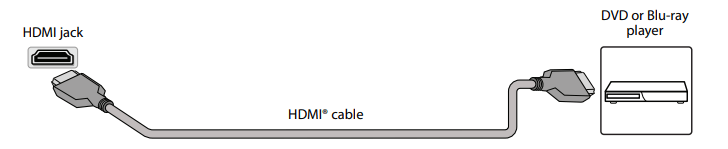
Connecting a DVD or Blu-ray player
HDMI (best)
1 Make sure that your TV’s power cord is unplugged and the DVD or Blu-ray player is turned off. 2 Connect an HDMI® cable (not provided) to one of the HDMI jacks on your TV and to the HDMI® out jack on the DVD or Blu-ray player. 3 Plug your TV’s power cord into a power outlet, then turn on your TV and DVD or Blu-ray player. 4 On the Home screen, press to highlight the HDMI 1, HDMI 2, or HDMI 3 tile, then press OK.
AV (good)
1 Make sure that your TV’s power cord is unplugged and the DVD or Blu-ray player is turned off. 2 Connect an AV cable (not provided) to the AV jacks on your TV and to the AV out jacks on the DVD or Blu-ray player. 3 Plug your TV’s power cord into a power outlet, then turn on your TV and DVD or Blu-ray player. 4 If needed, set the player to the correct output mode. See the documentation that came with the player. 5 On the Home screen, press to highlight the AV tile, then press OK.
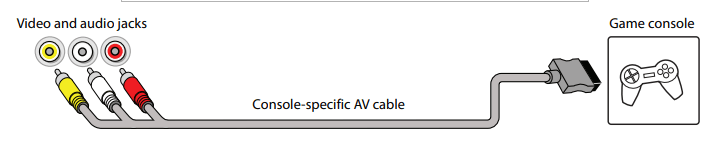
Connecting a game console
HDMI (best)
1 Make sure that your TV’s power cord is unplugged and the game console is turned off. 2 Connect an HDMI® cable (not provided) to one of the HDMI jacks on your TV and to the HDMI® out jack on the game console. 3 Plug your TV’s power cord into a power outlet, then turn on your TV. 4 Turn on the game console, then set it to the correct output mode. See the documentation that came with the console. 5 On the Home screen, press to highlight the HDMI 1, HDMI 2, or HDMI 3 tile, then press OK.
AV (good)
1 Make sure that your TV’s power cord is unplugged and the game console is turned off. 2 Connect the console-specific AV cable to the AV jacks on your TV and to the AV jack(s) on the game console. 3 Plug your TV’s power cord into a power outlet, then turn on your TV. 4 Turn on the game console, then set it to the correct output mode. See the documentation that came with the console. 5 On the Home screen, press to highlight the AV tile, then press OK.
Connecting external speakers or a sound bar
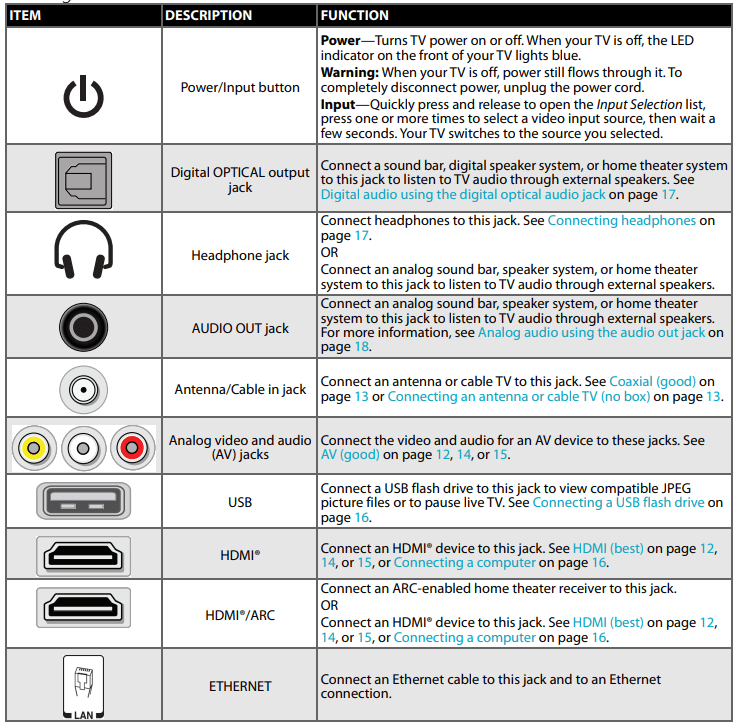
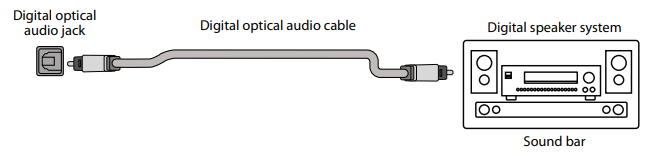
Digital audio using the digital optical audio jack
1 Make sure that your TV’s power cord is unplugged and the digital speaker system or sound bar is turned off. 2 Connect a digital optical audio cable (not provided) to the digital audio output jack on your TV and to the audio input jack on the digital speaker system or sound bar. 3 Plug your TV’s power cord into a power outlet, then turn on your TV. 4 Turn on the digital speaker system or sound bar, then set it to the correct source. See the documentation that came with the digital speaker system or sound bar. 5 To turn off your TV speakers, on the Home screen, press to highlight Settings, then press OK. Highlight Audio, then press OK. Highlight TV speakers, then press OK. Press OK to remove the check from the TV speakers enabledcheck box.
Digital audio using the HDMI/ARC jack
Your TV can send sound to an ARC device, like an AV receiver, to create a home theater that uses two or more speakers. When you connect external speakers or a sound bar, sound plays through your TV speakers and the external speakers or sound bar
1 Make sure that your TV’s power cord is unplugged and the digital speaker system or sound bar is turned off. 2 Connect an HDMI® cable (not provided) to the HDMI/ARC jack on your TV and to the audio in jack on the digital speaker system or sound bar. 3 Plug your TV’s power cord into a power outlet, then turn on your TV. 4 Turn on the digital speaker system or sound bar, then set it to the correct source. See the documentation that came with the digital speaker system or sound bar. 5 To configure the HDMI1(ARC) jack to output sound to an ARC device, on the Home menu, press to highlight Settings, then press OK. Highlight System, then press OK. Highlight Control other devices (CEC), then press OK. Highlight HDMI ARC, then press OK to check the box. 6 To turn off your TV speakers, on the Home screen, press to highlight Settings, then press OK. Highlight Audio, then press OK. Highlight TV speakers, then press OK. Press OK to remove the check from the TV speakers enabled check box.
Analog audio using the audio out jack
When you connect an analog speaker system or sound bar to the audio out jack, the TV speakers are muted.
1 Make sure that your TV’s power cord is unplugged and the analog speaker system or sound bar is turned off. 2 Connect an audio cable (not provided) to the audio out jack on your TV and to the audio in jacks on the analog speaker system or sound bar. 3 Plug your TV’s power cord into a power outlet, then turn on your TV. 4 Turn on the analog speaker system or sound bar, then set it to the correct source. See the documentation that came with the analog speaker system or sound bar. 5 To turn off your TV speakers, on the Home screen, press or to highlight Settings, then press OK. Highlight Audio, then press OK. Highlight TV speakers, then press OK. Press OK to remove the check from the TV speakers enabledcheck box.
Maintaining
Do not use your TV in areas that are too hot or too cold, because the cabinet may warp or the screen may malfunction. Your TV works best in temperatures that are comfortable to you.
Storage temperatures are 5° to 113°F (-15° to 45°C).
Working temperatures are 41° to 95°F (5° to 35°C).
Do not place your TV in direct sunlight or near a heat source.
Cleaning your TV cabinet
Clean the cabinet with a soft, lint-free cloth. If the cabinet is especially dirty, moisten a soft, lint-free cloth in a weak detergent solution, squeeze the excess moisture from the cloth, then wipe the cabinet with the cloth. Use a clean cloth to dry the cabinet.
Cleaning your TV screen
Clean the screen with a soft, lint-free cloth.
Troubleshooting
Video and audio
Picture does not fill the screen or there are black bars around the picture
The picture size may need to be adjusted
Adjust the picture size (aspect ratio). See the Picture Size option in Advanced picture settings menu options
I don’t see a picture when I select an input
TV is not on
Make sure that your TV is plugged into a working power outlet, and that your TV is turned on. (Your TV had a light on the front that indicates if your TV is turned off. See Status light .)
Cables are not connected correctly
Make sure that the video cables are connected correctly and securely to your TV.
Make sure that the antenna or cable TV is connected correctly and securely. See Connecting a cable or satellite box or Connecting an antenna or cable TV (no box)
Picture settings may be incorrect
Adjust the contrast and brightness. See the TV brightness option in Settings menu or Options menu.
Adjust the TV picture. See Advanced picture settings on page 54.
Incorrect input may be selected
Make sure that the correct input is selected for the device you want to view. See Switching TV inputs .
Input source not detected
Make sure that the device connected to the input is turned on.
Make sure that the cord to and from the device is connected firmly and correctly to the device and your TV.
TV input may be bad
Connect a different device to the same input and check to see if it works correctly.
TV channel does not appear
Broadcast TV may be experiencing problems or may not be set up
Try another channel. The station may be experiencing problems.
Make sure that the incoming signal is compatible.
If you are trying to watch broadcast TV, make sure that Antenna TV is set up. See Setting up Antenna TV
Dark, poor, or no picture screen is lit), but sound is good
Broadcast TV may be experiencing problems or may not be set up
Try another channel. The station may be experiencing problems.
If you are using an antenna and the signal strength is low, adjust the antenna or use a highly directional outdoor antenna or set-top antenna with a built-in amplifier.
Cables may not be connected correctly
Make sure that the antenna or cable TV is connected correctly and securely. See Connecting a cable or satellite box on page 17 or Connecting an antenna or cable TV (no box)
Make sure that the video cables are connected correctly and securely to your TV.
The video cable(s) you are using may be bad. Try a new set.
Picture settings may be incorrect
Adjust the brightness. See the TV brightness option in Settings menu 1 or Options menu
Change to a different picture mode. See the Picture mode option in Options menu settings or Advanced picture settings menu options
No color, dark picture, or color is not correct
Picture settings may be incorrect
Adjust the contrast, color, and brightness settings. See the TV brightness option in Settings menu or Options menu .
Broadcast TV may be experiencing problems
Try another channel. The station may be experiencing problems.
If you are using an antenna and the signal strength is low, adjust the antenna or use a highly directional outdoor antenna or set-top antenna with a built-in amplifier.
Cables are not be connected correctly
Make sure that the antenna or cable TV is connected correctly and securely. See Connecting a cable or satellite box on page 17 or Connecting an antenna or cable TV (no box) on page 20.
Make sure that the video cables are connected correctly and securely to your TV.
The video cable(s) you are using may be bad. Try a new set.
Only snow (noise) appears on the screen
Broadcast TV may be experiencing problems or may not be set up
Try another channel. The station may be experiencing problems.
If you are trying to watch broadcast TV, make sure that Antenna TV is set up. See Setting up Antenna TV .
If you are using an antenna and the signal strength is low, adjust the antenna or use a highly directional outdoor antenna or set-top antenna with a built-in amplifier.
Cables may not be connected correctly
Make sure that the antenna or cable TV is connected correctly and securely. See Connecting a cable or satellite box or Connecting an antenna or cable TV (no box) .
Picture quality is good on some channels and poor on others. Sound is good
Broadcast signal may be weak
If you connect to cable without a set-top box and experience poor picture quality, you may need to install a set-top box to improve signal reception and picture quality. Contact your cable TV provider about upgrading to a set-top box.
Dotted lines or stripes appear on the screen
Cables may not be connected correctly
Make sure that the antenna or cable TV is connected correctly and securely. See Connecting a cable or satellite box or Connecting an antenna or cable TV (no box) .
Make sure that the video cables are connected correctly and securely to your TV.
The video cable(s) you are using may be bad. Try a new set.
Broadcast signal may be weak
If you are using an antenna and the signal strength is low, adjust the antenna or use a highly directional outdoor antenna or set-top antenna with a built-in amplifier.
Other devices (for example, a surround sound receiver, external speakers, fans, or hair dryers) may be interfering with your TV. Try turning off one device at a time to determine which device is causing interference. After you have determined which device is causing interference, move it further from your TV to eliminate the interference.
Double images
Broadcast signal may be weak
If you are using an antenna and the signal strength is low, adjust the antenna or use a highly directional outdoor antenna or set-top antenna with a built-in amplifier.
If you are using an antenna and the signal strength is low, switch to a cable or satellite box.
The picture has a few bright or dark spots
This is normal in LED TVs
A few bright or dark spots on an TV screen is normal. It does not affect the operation of your TV.
Good picture, but no sound
Volume is down or muted
Increase the volume.
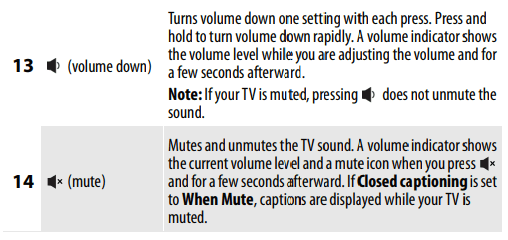
Make sure that the sound is not muted.
Headphones may be connected
Make sure that you do not have headphones connected. When headphones are connected, no sound comes from your TV speakers.
TV speakers may be turned off
If you want sound to play through your TV speakers, make sure that your TV speakers are turned on. See Turning off the speakers
You may need to change the audio mode
Change to a different audio mode. See Changing the audio mode
Home theater system, sound bar, or external speaker system may not be turned on or may not be set up correctly
If you are using a home theater system, sound bar, or external speaker system, make sure that it is turned on and is not muted and that it is set to the correct source.
If you connected an ARC audio device to the HDMI 1/ARC jack, make sure that you have turned on the ARC feature. See the HDMI ARC option in Setting up a digital audio connection
If you are using a home theater system, sound bar, or external speaker system and have connected it with a digital audio cable, see Setting up a digital audio connection
Make sure that the audio cables are connected correctly and securely to your TV.
Bad content, no audio
Make sure that the selected channel or content is intended to be broadcasting with sound.
Cables may not be connected correctly
Make sure that the antenna or cable TV is connected correctly and securely. See Connecting a cable or satellite box or Connecting an antenna or cable TV (no box)
The audio cables you are using may be bad. Try a new set.
Poor picture
Light in the viewing area may be interfering
Make sure that the room is not too bright. Light reflecting off the screen can make the picture difficult to see.
A connected camera or camcorder may be interfering
If an S-VHS camera or a camcorder is connected while another connected device is turned on, the picture may be poor. Turn off one or more devices.
Audio noise
Other devices may be interfering
Other devices (for example, a surround sound receiver, external speakers, fans, or hair dryers) may be interfering with your TV. Try turning off one device at a time to determine which device is causing interference. After you have determined which device is causing interference, move it further from your TV to eliminate the interference.
After images appear
Do not display a still image, such as a logo, game, or computer image, for an extended period of time. This can cause a permanent after-image to be burned into the screen. This type of damage is not covered by your warranty.
Remote contro
My TV doesn’t turn on using the remote control
No power to TV
Make sure that the power cord is correctly connected to both your TV power connector and power outlet. See Connecting power . You should see an LED in the front of the TV panel when a button on the remote is pressed. If you see no LED activity, try another outlet or check your fuse box.
Line-of-sight obstructed
Make sure that no objects (or pets) are obstructing the line-of-sight from the remote control to the remote sensor on the front of your TV. See Aiming the remote control.
Remote not responding
Open the battery compartment and make sure that the batteries are seated in the correct positions (+ and - in the correct positions). See Installing remote control batteries.
Make sure the batteries are fresh and working correctly. Replace the batteries, if necessary.
TV frozen
If the front LED is not responding, or abnormally bright, disconnect the power cord from the power outlet, wait a few seconds, then reconnect the power cord.
Trouble programming your existing universal remote control
Remote control may not be programmed correctly
See instructions in Using a universal remote.
Refer to the User Guide that accompanied your universal remote control and contact the manufacturer if problems persist.
Batteries may be dead
Replace dead batteries with new batteries. Refer to the User Guide that accompanied your universal remote control.
General
No power
Power cord may not be connected correctly
Make sure that the power cord is correctly connected to both your TV power connector and power outlet. See Connecting power. You should see an LED in the front of your TV panel when a button on the remote is pressed. If you see no LED activity, try in another outlet or check your fuse box.
Unplug the power cord, wait 60 seconds, then plug the cord back in and turn on your TV.
Other devices may be interfering
Other devices (for example, a surround sound receiver, external speakers, fans, or hair dryers) may be interfering with your TV. Try turning off one device at a time to determine which device is causing interference. After you have determined which device is causing interference, move it further from your TV to eliminate the interference.
My TV tuner does not pick up as many over-the-air channels as it should
Antenna may not be placed optimally
Adjust the antenna location and rescan. See Scanning for broadcast TV channels again. Go to Settings > Input.
Reception can vary by channel depending on the broadcast power level of a given station. Contact your cable or satellite TV provider.
Make sure that the antenna or cable/satellite TV is connected securely to your TV.
Try replacing the cable between the antenna/cable or cable/satellite box and your TV.
Broadcast TV may not be set up
Make sure that Antenna TV is set up. See Setting up Antenna TV.
One or more channels do not display
Channels may be blocked or hidden
Make sure that the channels are not blocked. See Blocking unrated programs
Make sure that the channels are not hidden. The channel may have been deleted from the channel list. You can add the channel back to the channel list. See Edit broadcast TV channel lineup
The wrong input may be selected
Make sure that you have selected the correct input tile for the device or service you are trying to use. See Switching TV inputs on page 48.
You may need to use the remote control that came with the cable or satellite box
If you are using a cable or satellite box, use the remote that came with that box to change channels.
I lost my parental control PIN
Need PIN recovery
You will need to factory reset your TV, as the PIN cannot be recovered or reset any other way. See Factory reset everything.
Go to Settings > System > Factory reset.
Some settings cannot be accessed
Not all settings are available for all devices or inputs
If the icon or a menu option is grayed, you cannot adjust settings for the current video input mode.
TV cabinet creaks
This is normal
When your TV is in use, the temperature rises naturally and may cause the cabinet to expand or contract which can cause a creaking noise. This is not a malfunction.
Control buttons do not work
TV may be frozen
Unplug the power cord, wait a few seconds, then plug the cord back in and turn on your TV.
TV keeps turning off
Sleep timer may be turned on
Make sure that the sleep timer is not turned on. See the Sleep Timer option in Options menu settings or Changing time settings.
Some features are not available
The wrong TV mode may be selected
You may have Set up for store mode when you set up your TV. Store use mode is for retail environments only. In Store use mode, some of your TV’s features are missing or limited. If you selected Set up for store use and you want to change to Set up for home use, you have to reset your TV to the factory defaults. See Factory reset everything.Go to Settings > System > Factory reset.
Roku
I can’t turn my TV on with the Roku mobile app
Your TV is “asleep”
You will need to use the physical remote button to “wake up” or turn on your TV.
I can’t find my TV with the Roku mobile app
TV and mobile app not on same wireless network
Make sure that your TV and the mobile app are on the same network.
TV not powered or working normally
Make sure that your TV is connected to a working power outlet and that your TV is turned on. See Connecting power.
I cannot screen mirror to my TV
TV on older software
Always keep your TV updated. See Getting system updates . Go to Settings > System > Software update.
Mobile device not supported
Screen mirroring is a beta feature currently, so a select set of devices will work.
Network
I cannot connect to the Internet
Network connection may not be set up
If you did not connect to the Internet when you first set up your TV, see But what if I didn’t connect my TV?
Network name or password may have changed
If your network name or password had changed, you need to update your network connection. See Changing network settings.
Streaming keeps pausing to load more data
Wireless LAN not optimized
Rotate wireless router slightly
Elevate the router
Turn off other wireless connections
Use 5.0Ghz, if possible. Roku TVs supports dual band.
Insufficient broadband speed
Turn off other wireless connections that may also be using bandwidth.
CEC-compatible devices
My TV is not displaying the video from the connected CEC device
Cables may not be connected correctly
Make sure that the HDMI cable is connected securely to your TV and the device.
Make sure that the device is connected to your TV with an HDMI cable.
Picture settings may be incorrect
Try adjusting your TV picture. See Advanced picture settings.
The selected input may be incorrect
Make sure that the correct input tile is selected. See Switching TV inputs.
Connected device may not be a CEC device
Make sure that the device is a CEC device. See the documentation that came with the device for more information.
CEC control may not be set up correctly
Make sure that your TV has searched for CEC devices. See Discovering connected CEC devices
My TV is not playing the audio from the connected CEC device.
Cables may not be connected correctly
Make sure that the HDMI cable is connected securely to your TV and the device.
Volume may be too low or muted
Make sure that the volume on your TV and the device is turned up and not muted.
TV speakers may be turned off
If you want sound to play through your TV speakers, make sure that your TV speakers are turned on. See Turning off the speakers
Connected device may not be a CEC device
Make sure that the device is a CEC device. See the documentation that came with the device.
CEC control may not be set up correctly
Make sure that your TV has searched for CEC devices. See Discovering connected CEC devices
Connected audio device may not be set up correctly
If you are using a home theater system, sound bar, or external speaker system, make sure that it is set to the correct source.
If you are using a home theater system, sound bar, or external speaker system and have connected it with a digital audio cable, make sure that you have set up digital audio. See Setting up a digital audio connection
If you connected an ARC audio device to the HDMI 1/ARC jack, make sure that you have turned on the ARC feature. See Enabling HDMI ARC .
My TV’s remote control does not control the device
Connected device may not be turned on
Make sure that the device is turned on.
Line-of-sight obstructed
Make sure that no objects (or pets) are obstructing the line-of-sight from the remote control to the remote sensor on the front of your TV and the device. See Aiming the remote control .
Connected device may not support some or all CEC features
Depending on the device, all the buttons may not work.
The device may not support this feature. See the documentation that came with the device for more information.
CEC control may not be set up correctly
Make sure that your TV has searched for CEC devices. See Discovering connected CEC devices
If you are trying to control the volume on an HDMI CEC audio receiver using your TV remote control, make sure that your TV speakers are turned on. See Turning off the speakers
If you are trying to control the volume on an HDMI CEC audio receiver using your TV remote control, make sure that the system audio control is turned on. See Enabling system audio control on page 69.
The device does not show up in the CEC device list
Connected device may not be a CEC device
Make sure that the device is a CEC device. See the documentation that came with the device.
Cables may not be connected correctly
Make sure that the HDMI cable is connected securely to your TV and the device.
Make sure that the device is connected to your TV with an HDMI cable.
CEC control may not be set up correctly
Make sure that your TV has searched for CEC devices. See Discovering connected CEC devices.
My device does not turn off when I turn off my TV
Connected device may not be a CEC device
Make sure that the device is a CEC device. See the documentation that came with the device.
Connected device may not support some or all CEC features
The device may not support this feature. See the documentation that came with the device for more information.
CEC control may not be set up correctly
Make sure that your TV has searched for CEC devices. See Discovering connected CEC devices.
Make sure that system standby is turned on. See Enabling system standby.
My TV does not turn on when I turn on my device
Connected device may not be a CEC device
Make sure that the device is a CEC device. See the documentation that came with the device.
Connected device may not support some or all CEC features
The device may not support this feature. See the documentation that came with the device for more information.
CEC control may not be set up correctly
Make sure that your TV has searched for CEC devices. See Discovering connected CEC devices
Make sure that 1-touch play is turned on. See Enabling 1-touch play.
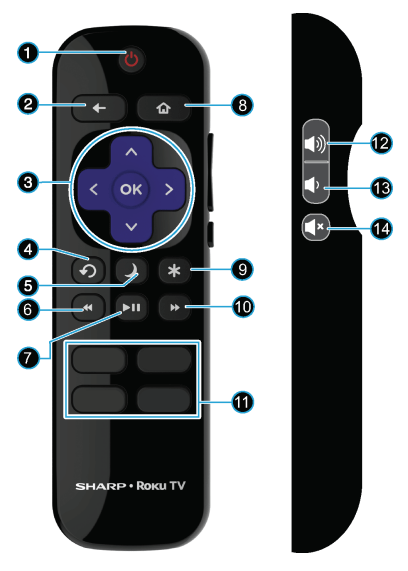
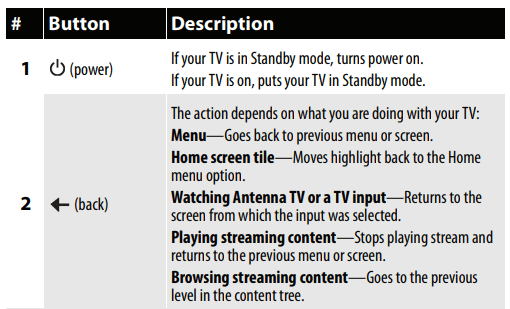
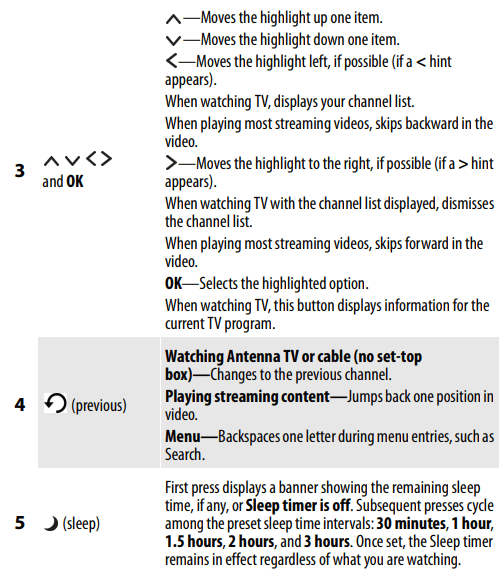
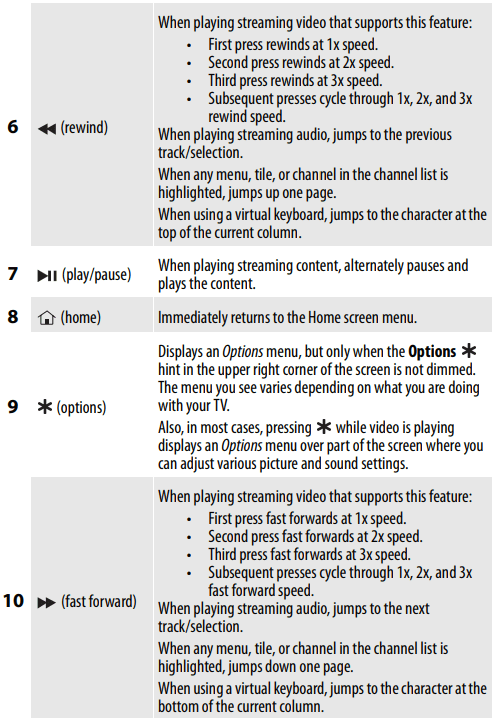
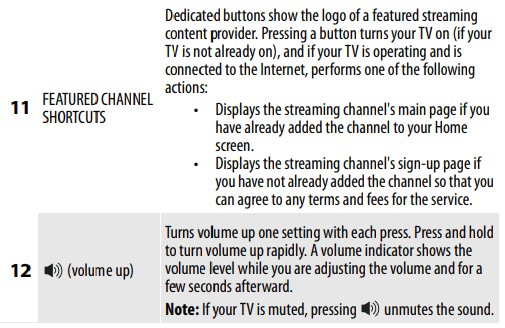

 to highlight the HDMI 1, HDMI 2, or HDMI 3 tile, then press OK.
 to highlight the AV tile, then press OK.
 to highlight the Antenna TV tile, then press OK. If you have not set up the TV tuner, follow the on-screen instructions.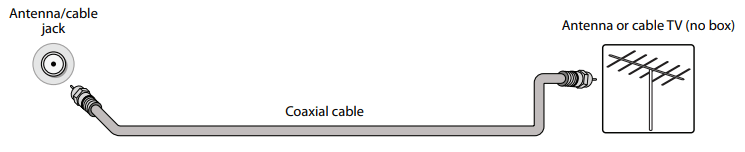


 to highlight Settings, then press OK. Highlight Audio, then press OK. Highlight TV speakers, then press OK. Press OK to remove the check from the TV speakers enabledcheck box.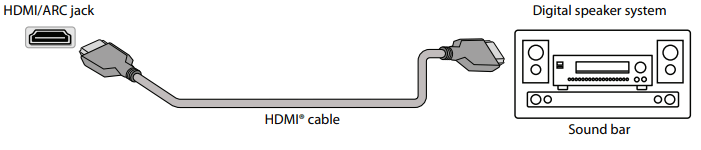

 icon or a menu option is grayed, you cannot adjust settings for the current video input mode.