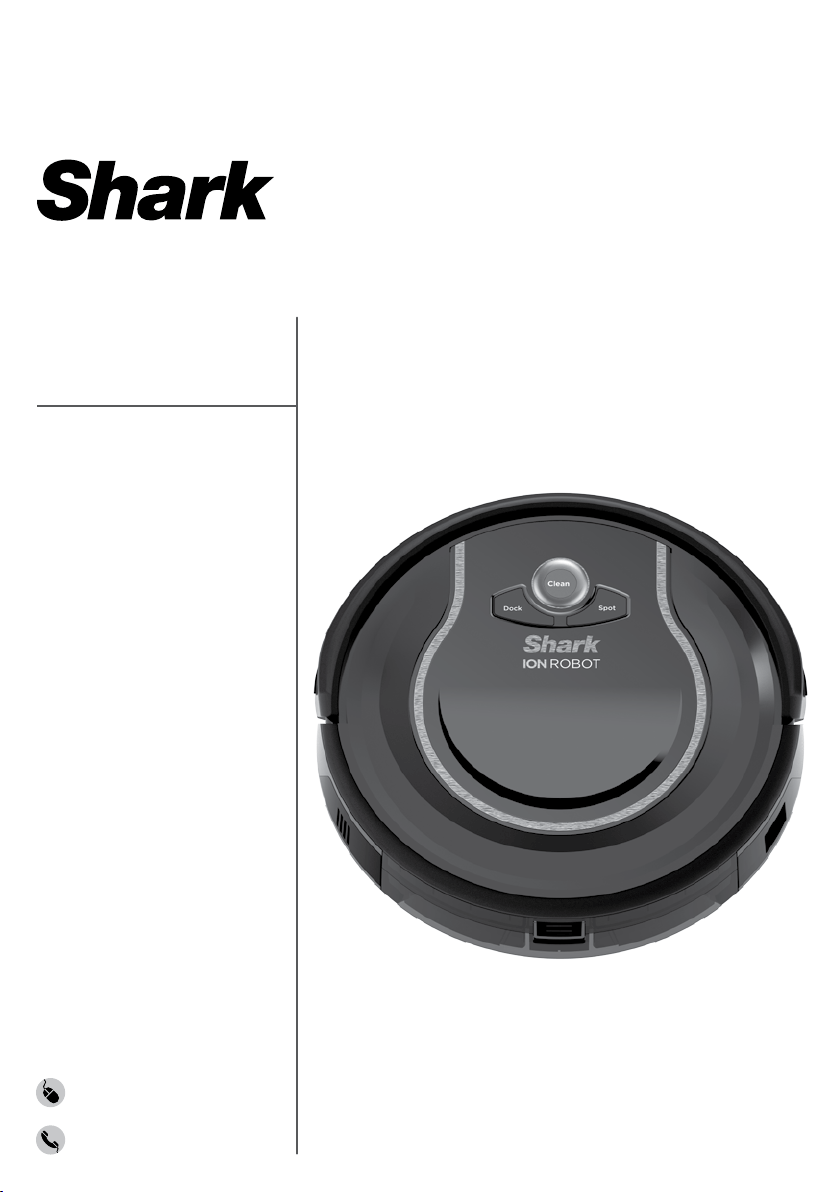
RV700
Series
INSTRUCTIONS
sharkclean.com
1-800-798-7398
ION ROBOT
™
1 21-800-798-7398 sharkclean.com
ENGLISH
CONTENTS
THANK YOU
for purchasing the Shark ION ROBOT
™
Important Safety Instructions �����������������������������������������������������3
Getting To Know Your Shark ION ROBOT
™
���������������������������������7
Charging Your Shark ION ROBOT ������������������������������������������������9
Installing the Charging Dock ���������������������������������������������������������������������� 9
Important Charging Information �������������������������������������������������������������� 9
Battery Charge Indicator Lights ��������������������������������������������������������������10
Installing the Side Brushes �������������������������������������������������������������������������� 11
Using Your Shark ION ROBOT ��������������������������������������������������� 12
Using the Remote Control (Select Models) ���������������������������������������12
Setting the Day of the Week and Time on the Remote Control �������12
Setting Your Cleaning Schedule on the Remote ����������������������������13
BotBoundary™ Strips ������������������������������������������������������������������������������������15
Cleaning Modes ����������������������������������������������������������������������������������������������16
Sending Shark ION ROBOT to Charging Dock �������������������������������16
Maintaining Your Shark ION ROBOT ����������������������������������������� 17
Emptying the Dust Bin ��������������������������������������������������������������������������������� 17
Cleaning the Filters ����������������������������������������������������������������������������������������18
Cleaning the Brushroll ����������������������������������������������������������������������������������19
Cleaning the Cli Sensors and Charging Pads ������������������������������� 20
Cleaning the Side Brushes ������������������������������������������������������������������������ 20
Replacing the Side Brushes ��������������������������������������������������������������������� 20
Cleaning the Removable Front Wheel �������������������������������������������������� 21
Replacing the Battery ���������������������������������������������������������������������������������� 22
Tips and Tricks ������������������������������������������������������������������������������������������������� 23
BotBoundary Strips ��������������������������������������������������������������������������������������24
Troubleshooting Guide ���������������������������������������������������������������25
Warranty ��������������������������������������������������������������������������������������� 26
PLEASE READ CAREFULLY AND KEEP
FOR FUTURE REFERENCE�
This instruction manual is designed to help
you get a complete understanding of your new
Shark ION ROBOT.
If you have any questions, please call the
Customer Service line at 1-800-798-7398.
TECHNICAL SPECIFICATIONS
Voltage: 14.8 V
Battery type: DC 14.8 V Li-ion 2600 mAh
Expected cleaning time: 60-minute
Expected charging time: 3 hours
TIP: You can find the
model and serial numbers
on the QR code label
located near the rating
label on the underside of
the unit.
RECORD THIS INFORMATION
Model Number: ��������������������������������������
Serial Number: ��������������������������������������
Date of Purchase (Keep receipt): �����������������������
Store of Purchase: �����������������������������������
REGISTER YOUR PURCHASE
registeryourshark.com
1-800-798-7398
Scan QR code using mobile device
3 41-800-798-7398 sharkclean.com
ENGLISH
When using an electrical appliance,
basic precautions should always be
followed, including the following:
1 Inspect battery, charging dock, and
charger before use. DO NOT use battery,
dock, or charger if damaged or modified.
Damaged or modified batteries may exhibit
unpredictable behavior, resulting in fire,
explosion, or risk of injury.
2 DO NOT use outdoors or on wet surfaces.
3 If vacuum cleaner is not working as it
should, or has been dropped, damaged,
left outdoors, or immersed in water,
return it to SharkNinja Operating LLC for
examination, repair, or adjustment.
4 DO NOT handle charger, charging dock,
or Shark ION ROBOT™ with wet hands.
5 Keep charging dock away from heated
surfaces. DO NOT expose unit or battery
to fire or excessive temperature. Exposure
to fire or temperature above 265°F (130°C)
may cause explosion.
6 Use only Shark
®
chargers and batteries for
your robot. Other types of batteries may
burst, causing injury and damage.
GENERAL USE
7 Use only as described in this manual.
8 Keep your work area well lit.
9 DO NOT place vacuum cleaner on
unstable surfaces such as chairs or tables.
10 DO NOT put any objects into openings.
DO NOT use with any opening blocked;
keep free of dust, lint, hair, and anything
that may reduce airflow.
11 DO NOT allow young children to operate
the appliance or use as a toy. DO NOT
operate the vacuum in a room where an
infant or child is sleeping. Close supervision
is necessary when using near children or pets.
12 DO NOT use without brushroll, dust bin,
and all filters in place.
13 DO NOT stand or sit on the Shark ION
ROBOT.
14 Store unit indoors. DO NOT use or store
unit below 37.4°F (3°C). Ensure unit is at
room temperature before operating.
15 Clean unit with a damp cloth, using
only water.
16 Keep hair, loose clothing, fingers, and all
parts of body away from all openings and
moving parts.
17 Before using vacuum cleaner, pick up
objects like clothes, paper, and cords for
blinds or curtains. Move power cords and
fragile objects out of the way. DO NOT
operate unit in areas where there are lit
candles or fragile objects on the floor or
on furniture that the unit may accidentally
bump into.
18 Unit should not be used near balconies
or stairs. Use a physical barrier or
BotBoundary™ strip to prevent unit from
accessing balconies and stairs.
19 DO NOT place anything on top of the unit.
20 Take care when walking in work areas to
avoid stepping on or tripping over the unit
as it moves on its own.
21 DO NOT operate unit on floors with
exposed electrical outlets.
22 There are no user-serviceable parts.
DO NOT attempt to service the electronics
of this unit, the battery, or the dock.
23 Use only on hard-floor surfaces or low-pile
carpet. DO NOT use on unsealed or
unfinished floors.
24 To prevent unintentional starting, ensure the
main power switch is in the OFF position
before connecting to charger or dock,
and before picking up or carrying the unit.
DO NOT carry unit with your finger on the
power switch.
FILTERS
25 Make sure that all filters are thoroughly dry
after routine cleaning.
26 Use only Shark
®
-brand filters and
accessories. Using other brands will void
warranty.
GENERAL CLEANING
27 DO NOT vacuum up hard or sharp objects
such as glass, nails, screws, or coins that
could damage the vacuum cleaner.
28 DO NOT vacuum up drywall dust, fireplace
ash, or embers.
29 DO NOT vacuum up smoking or burning
objects such as hot coals, cigarette butts,
or matches.
30 DO NOT vacuum up flammable or
combustible materials (e.g., lighter fluid,
gasoline, or kerosene) or use vacuum in
areas where they may be present.
31
DO NOT
vacuum
up toxic solutions (e.g.,
chlorine bleach, ammonia, or drain cleaner).
32 DO NOT use in an enclosed space
where vapors are present from paint,
paint thinner, moth-proofing substances,
flammable dust, or other explosive or toxic
materials.
33 DO NOT vacuum up any liquids.
34 DO NOT immerse vacuum cleaner in water
or other liquids.
SAVE THESE INSTRUCTIONSIMPORTANT SAFETY INSTRUCTIONS
PLEASE READ CAREFULLY BEFORE USE • FOR HOUSEHOLD USE ONLY
WARNING
To reduce the risk of injury, fire, electric shock, and property damage
resulting from improper use of the appliance, carefully observe the following
instructions� This unit contains electrical connections and moving parts that
potentially present risk to the user�
5 61-800-798-7398 sharkclean.com
ENGLISH
BATTERY AND CHARGING
35 Recharge only with the charging dock and
charger specified by the manufacturer.
A charger that is suitable for one type of
battery may create a risk of fire when used
with another battery.
36 DO NOT charge at temperatures below
50°F (10°C) or above 104°F (40°C).
Charging improperly or at temperatures
outside of the specified range may damage
the unit and increase the risk of fire.
37 Under abusive conditions, liquid may be
ejected from the battery; avoid contact.
If contact accidentally occurs, flush with
water. If liquid contacts eyes, seek medical
help. Liquid ejected from the battery may
cause irritation or burns.
SAVE THESE INSTRUCTIONSIMPORTANT SAFETY INSTRUCTIONS
PLEASE READ CAREFULLY BEFORE USE • FOR HOUSEHOLD USE ONLY
WARNING
To reduce the risk of injury, fire, electric shock, and property damage
resulting from improper use of the appliance, carefully observe the following
instructions� This unit contains electrical connections and moving parts that
potentially present risk to the user�
CONFORMITY INFORMATION
This equipment has been tested and found to comply with the limits for a Class B digital device,
pursuant to part 15 of the FCC Rules. These limits are designed to provide reasonable protection
against harmful interference in a residential installation. This equipment generates, uses, and can
radiate radio frequency energy, and if not installed and used in accordance with the instructions,
may cause harmful interference to radio communications. However, there is no guarantee
that interference will not occur in a particular installation. If this equipment does cause harmful
interference to radio or television reception (which can be determined by turning the equipment
off and on) the user is encouraged to try to correct the interference by one or more of the
following measures:
• Reorient or relocate the receiving antenna.
• Increase the distance between the equipment and receiver.
• Connect the equipment into an outlet on a circuit different from that to which the receiver is
connected.
• Consult the dealer or an experienced radio/TV technician for help.
Changes or modifications not expressly approved by the party responsible for compliance could
void the user’s authority to operate the equipment.
38 Appliance should be serviced only by a
qualified repair person using only identical
replacement parts. DO NOT modify or
attempt to repair Shark ION ROBOT™ or
charging dock yourself, except as indicated
in the instructions for use and care.
39 Before disposing of the Shark ION ROBOT,
the battery must be removed. To remove,
unscrew the battery cover with a
Phillips-head screwdriver, then detach the
battery from the connector.
40 Used batteries must be disposed of
or recycled in accordance with local
ordinances or regulations. Note that in
some areas, it is illegal to place spent
lithium-ion batteries in the trash or in a
municipal solid waste stream.
7 81-800-798-7398 sharkclean.com
ENGLISH
GETTING TO KNOW YOUR
SHARK ION ROBOT™
WELCOME!
Congratulations on
your purchase. Use this
instruction manual to
learn about your new
vacuum’s great features.
From assembly to use
to maintenance, you will
find it all in here.
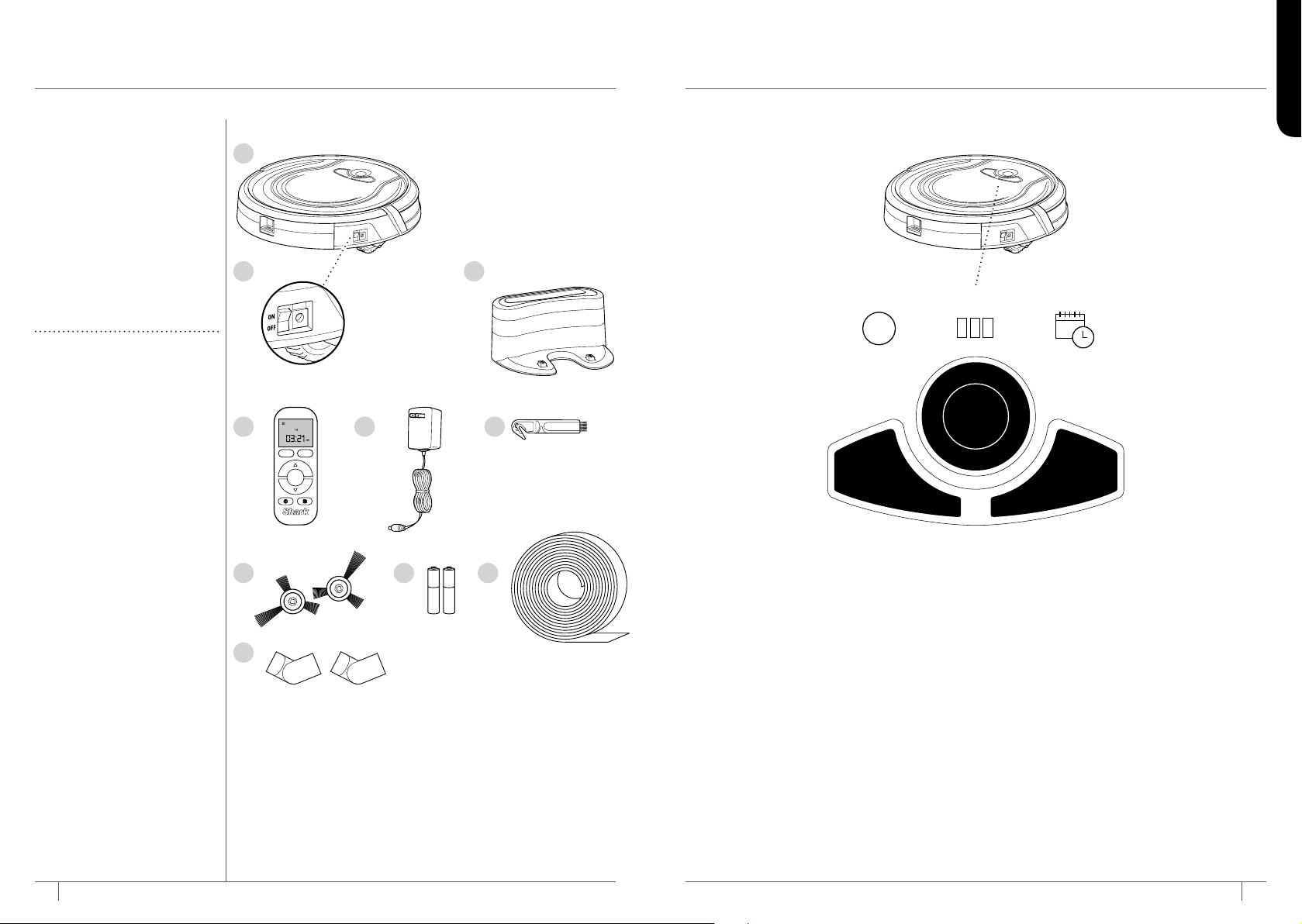
A Shark ION ROBOT
B Main Power Switch
C Charging Dock
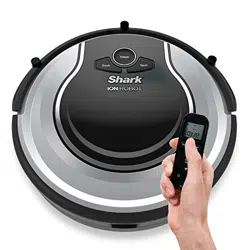
D Remote Control
(select models)
E Charger
F Hair Removal Tool
G Side Brush (x2)
H AAA Batteries (x2)
I BotBoundary™ Strip
J BotBoundary Connectors (x2)
NOTE: When using for the
first time, fully charge and
discharge your Shark ION
ROBOT to condition the
battery. Failure to do so
may cause LED indications
to work incorrectly.
CLEAN BUTTON
To begin cleaning with your Shark ION
ROBOT™, press the CLEAN button. Press
button again to stop.
DOCK BUTTON
Press DOCK button to stop cleaning and
send the unit back to the charging dock.
SPOT BUTTON
For thorough cleaning of an area of
concentrated dust or debris, press the
SPOT button.
“!” ERROR INDICATOR
When a blockage or a filter problem
occurs, the “!” error indicator light will
illuminate. Clear any blockages and clean
filters. Remove dust bin and make sure
nothing is blocking suction. See page 23
for a full list of error codes.
BATTERY CHARGE INDICATOR LIGHTS
The indicator lights display the amount of
charge remaining in the battery. See page
10 for more details.
SCHEDULE INDICATOR
Illuminates when a cleaning time is actively
scheduled.
A
CB
D FE
H IG
J
Dock Spot
Clean
Enter
Clean
!
Spot
Dock
Replace
!
Replace
Clean
Spot
Dock
9 101-800-798-7398 sharkclean.com
ENGLISH
IMPORTANT: Install
the charging dock in a
location that can be easily
accessed by your Shark
ION ROBOT.
Always keep the charging
dock plugged in, or the
Shark ION ROBOT will not
be able to automatically
return to the base.
The Shark ION ROBOT
will beep when it is first
connected to power or
when it starts charging on
the dock.
RECYCLING YOUR
BATTERY
When your robot’s battery
needs to be replaced, dispose
of it or recycle it in accordance
with local ordinances or
regulations. In some areas,
it is illegal to place spent
lithium-ion batteries in the
trash or in a municipal solid
waste stream. Return spent
batteries to an authorized
recycling center or to retailer
for recycling. Contact your
local recycling center for
information on where to drop
off the spentbattery.
CHARGING YOUR SHARK ION ROBOT™
INSTALLING THE CHARGING DOCK
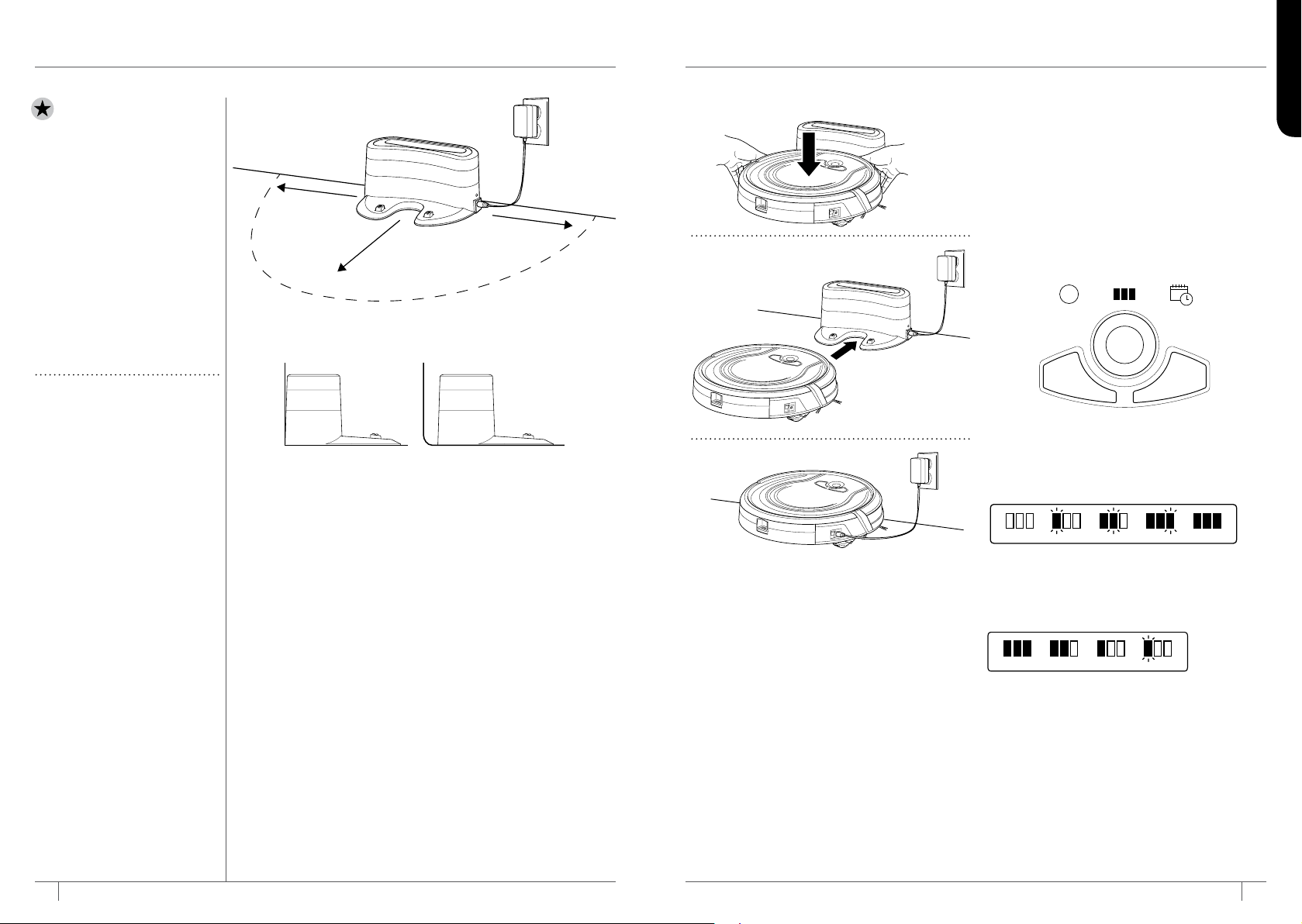
Set the charging dock on a hard, level surface, with its back
against the wall. Remove any objects that are closer than 3 feet
(1 meter) from either side of the base, or closer than 5 feet
(1.52 meters) from the front of the base. Plug the charging
cable into the port on the side of the dock, and connect the
charger plug to a wall outlet.
IMPORTANT CHARGING INFORMATION
The Shark ION ROBOT has a pre-installed rechargeable battery.
Battery must be fully charged before using. The Power switch
must be in the ON position in order to charge the battery.
When the cleaning cycle is complete or the battery is running
low, Shark ION ROBOT will automatically return to the charging
dock.
If your unit doesn’t return to the dock, the battery charge may
have run out. See charging instructions on page 10.
Shark ION ROBOT™ can be charged
three dierent ways:
1 Manually place Shark ION ROBOT on the
charging dock, aligning its charging pads
with the charging contacts on the base.
2 Press the DOCK button on the remote
or robot to automatically send Shark ION
ROBOT to the charging dock.
3 To charge unit directly, plug the charger
into a wall outlet, then connect the charger
cable to the jack on the side of the Shark
ION ROBOT.
BATTERY CHARGE INDICATOR LIGHTS
While the battery is charging, all three blue
LED lights will cycle until fully charged.
Cycles While Charging
Full Charge
Low Charge
Mid ChargeNearly Full
Full Charge
As the unit cleans, its battery discharges.
The blue lights indicate how much charge is
remaining.
Cycles While Charging
Full Charge
Low Charge
Mid ChargeNearly Full
Full Charge
If the red “Replace” light is on, then the battery
needs to be replaced. See page 22 for more
information. If all the battery indicator lights
are off, then either the power switch is turned
off or there is no charge remaining. Turn the
Power switch to the ON position. If all indicator
lights remain off, then charge the unit directly,
using the charger.
5 ft.
3 ft.
3 ft.
✕
Clean
!
Spot
Dock
Replace
!
Replace
Clean
Spot
Dock
11 121-800-798-7398 sharkclean.com
ENGLISH
USING YOUR SHARK ION ROBOT™
USING THE REMOTE CONTROL
(SELECT MODELS)
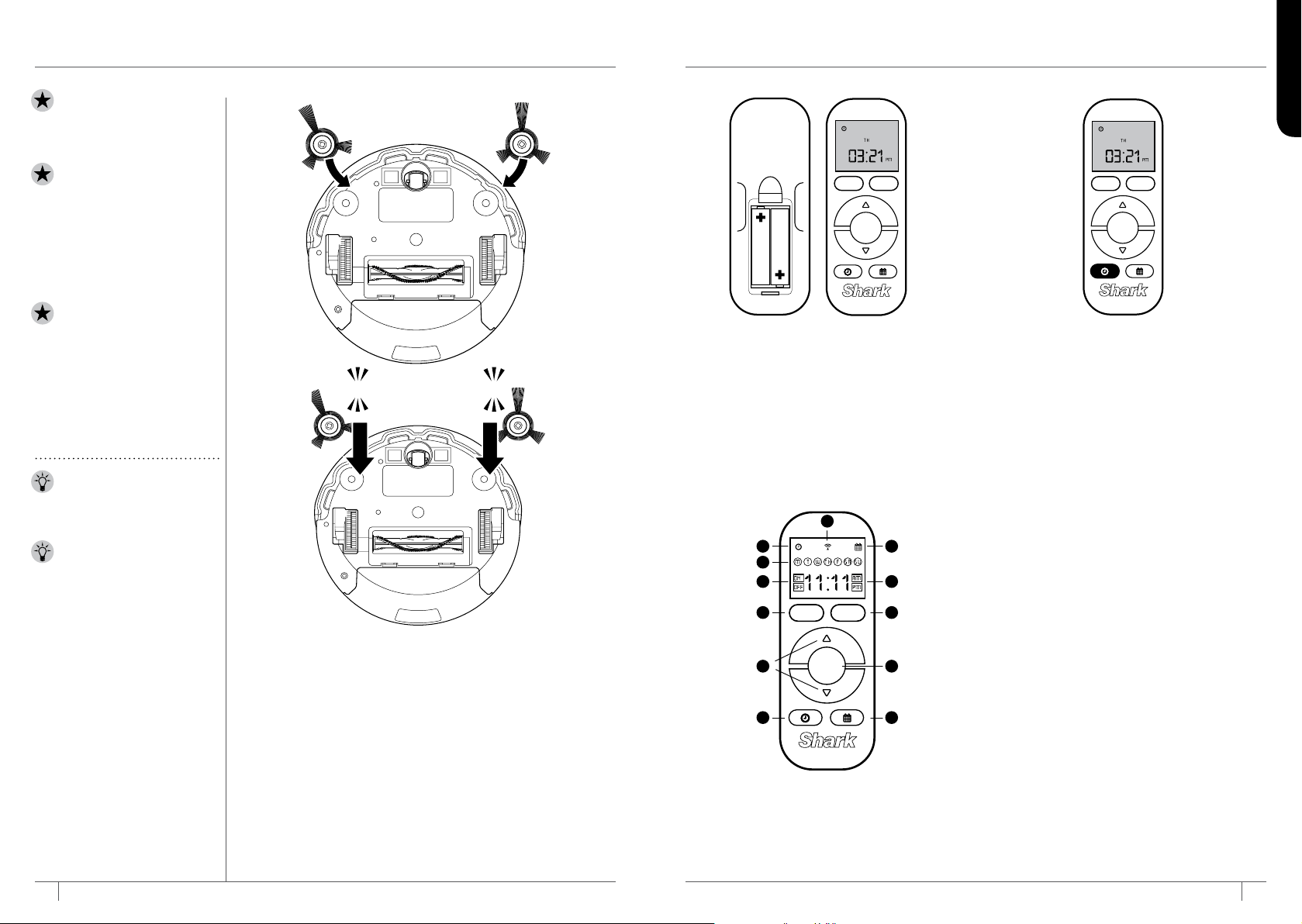
The remote control requires 2 AAA batteries.
Install batteries into remote before using.
With the remote control, you can start and
stop Shark ION ROBOT, select Spot Cleaning
mode, send the unit back to the charging
dock, and program a cleaning schedule for
your robot.
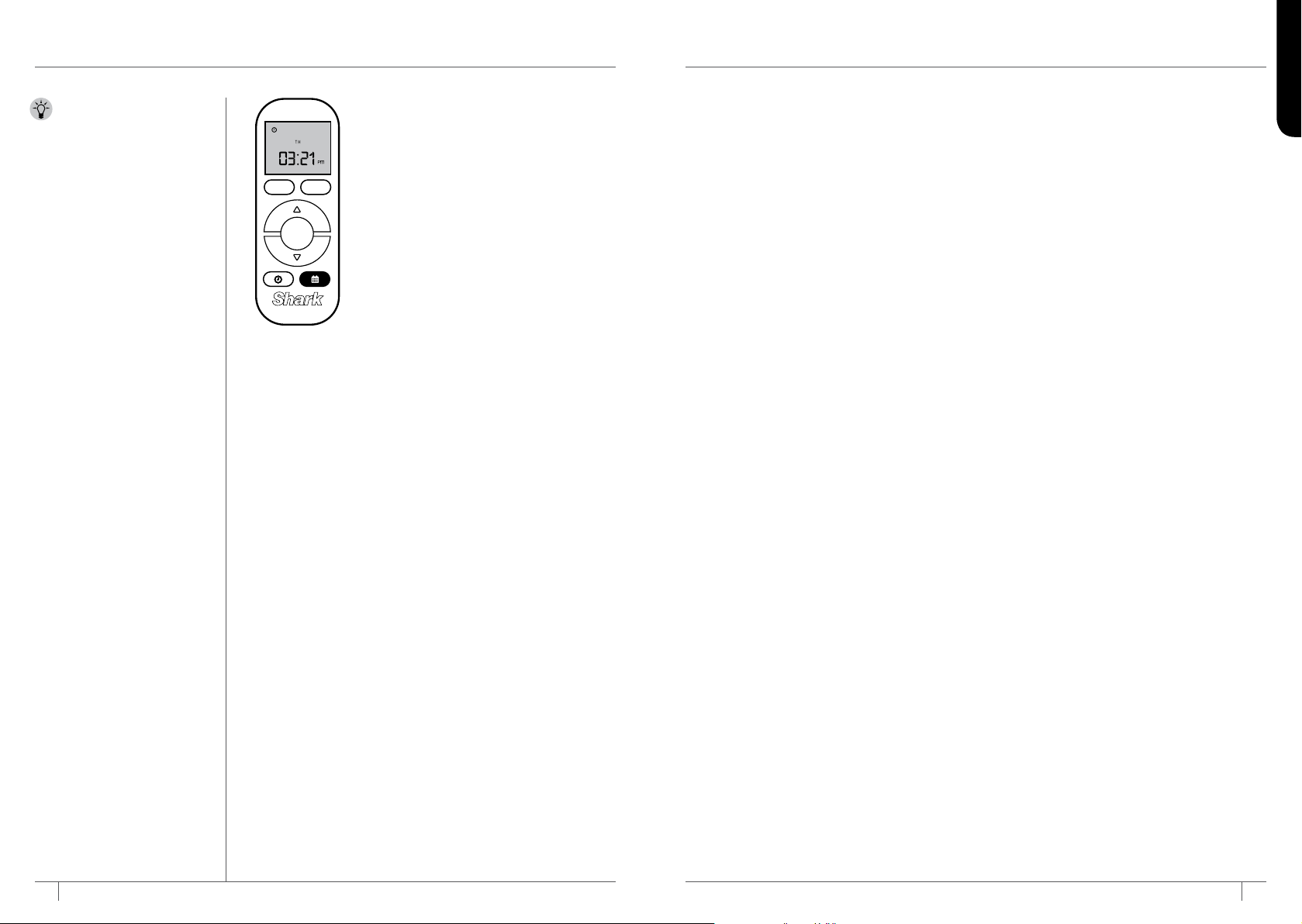
SETTING THE DAY OF THE WEEK AND
TIME ON THE REMOTE CONTROL
1 Press and hold the TIME button (with the
clock icon) on the remote for one second.
On the screen, the day of the week display
will begin flashing.
2 Press the UP/DOWN arrows on the
remote control to select the day of the
week, then press the CLEAN/ENTER
button (the center button with the arrow)
to set. On the screen, the hour field in the
time display will begin flashing.
3 Use the UP/DOWN arrows on the remote
control to select the hours, then press the
CLEAN/ENTER button to set. On the
screen, the minutes field in the time display
will begin flashing.
4 Use the UP/DOWN arrows to select the
minutes, then press the CLEAN/ENTER
button to set. On the screen, AM and PM
will begin to flash.
5 Use the UP/DOWN arrows to select
AM or PM, then press the CLEAN/ENTER
button to set.
6 Once you have finished setting the time,
you can proceed to setting a cleaning
schedule.
Dock Spot
Clean
Enter
Dock Spot
Clean
Enter
SETTING UP YOUR SHARK ION ROBOT™
INSTALLING THE SIDE BRUSHES
1 Turn the unit over.
2 Align hole in center of side brush over brush post on
bottom of unit.
3 Press side brush down over the post until it snaps
into place.
CLICK CLICK
NOTE: Some carpets
may cause the robot to
malfunction due to pile
height.
IMPORTANT: Before
cleaning an entire room
for the first time, we
recommend that you
first test your unit on a
small section of the floor
to ensure there is no
scratching.
IMPORTANT: Shark ION
ROBOT uses cliff sensors
to avoid stairs and other
steep drops. Sensors may
work less effectively when
they are dirty. For best
results, clean sensors as
needed.
TIP: Turn off the power
switch if Shark ION
ROBOT will not be used
for a long period of time.
TIP: To preserve battery
life, unit should be
recharged at least once
every three months.
1 Signaling Icon
2 Time Icon
3 Schedule Icon
4 Days Of The Week
(Mon–Sun)
5 Scheduling (On/Off)
6 Time
A Dock Button
B Spot Clean Button
C Up/Down Arrows
D Confirm/Clean Button
E Time Button
F Schedule Button
Dock Spot
Clean
Enter
A
5
4
2
1
E
C
B
6
3
F
D
13 141-800-798-7398 sharkclean.com
ENGLISH
USING YOUR SHARK ION ROBOT™ - continued
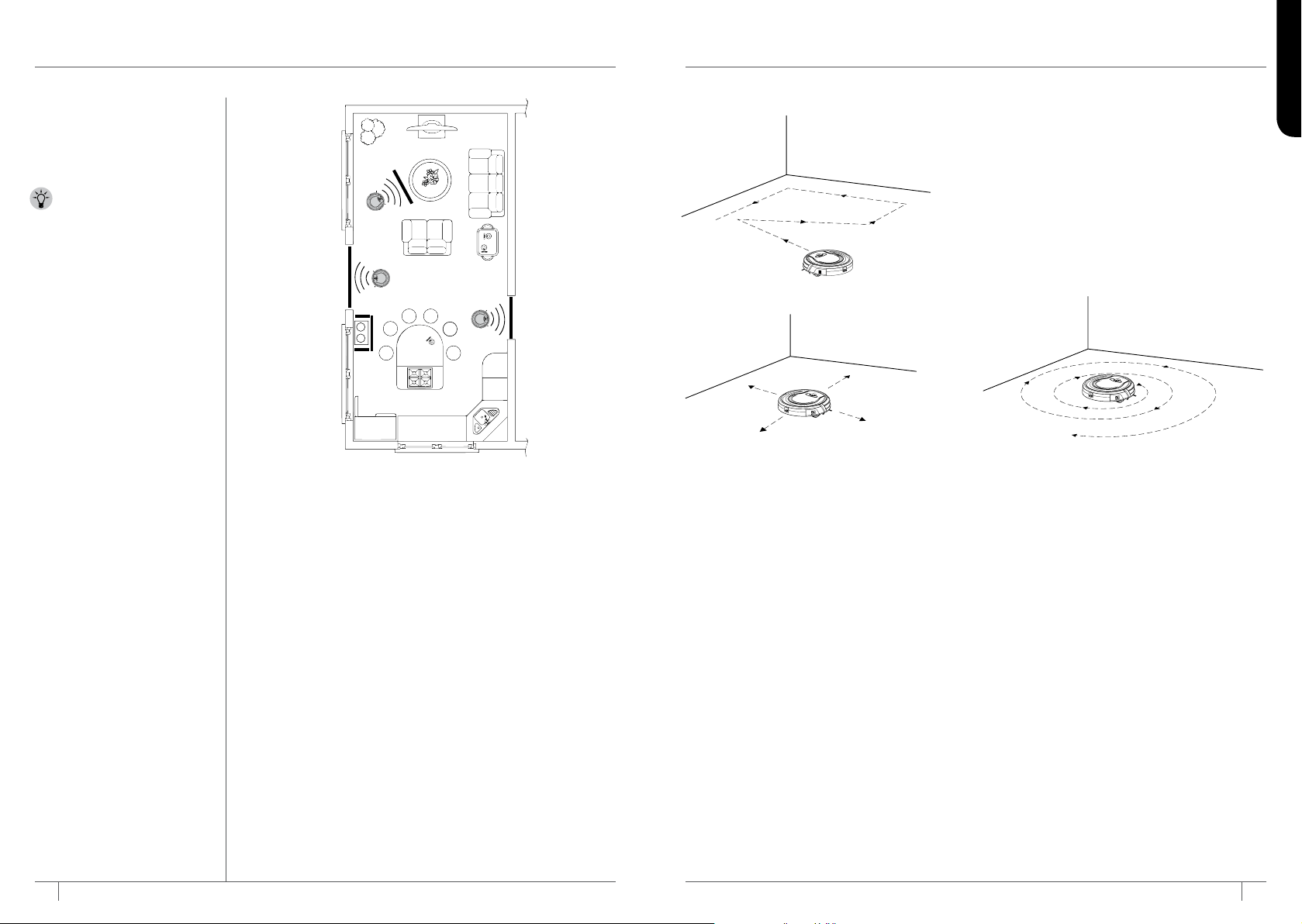
SETTING YOUR CLEANING SCHEDULE ON THE REMOTE
1 To schedule a cleaning, the day and time must be set.
If you haven’t yet set the date and time, follow the steps
on page 12.
2 To schedule or edit a cleaning, press and hold the
SCHEDULE button (with the calendar icon) on the remote
control for one second. On the screen, the day of the week
display will flash.
3 Use the UP/DOWN arrows on the remote to select the
day of the week for your scheduled cleaning. (Days with a
cleaning already scheduled will be circled. If a day is not
circled, there is no cleaning scheduled for that day yet.)
Press the CLEAN/ENTER button on the remote to set
the day. The day of the week will remain flashing until the
cleaning time is completely scheduled.
4 Use the UP/DOWN arrows on the remote to turn ON or
OFF the cleaning scheduled for the selected day. Press
CONFIRM/CLEAN to confirm selection.
5 If OFF is selected, the screen will display the days of the
week again, with no time or AM/PM options. If ON is
selected, a circle will appear around the selected day. To
change the time of the cleaning on the selected day, use
the UP/DOWN arrows on the remote to select the hour of
the cleaning, then press CLEAN/ENTER to set.
6 On the screen, the minutes field in the time display will
begin flashing. Use the UP/DOWN arrows to select the
minutes, then press the CLEAN/ENTER button to set. On
the screen, AM and PM will begin to flash.
TIP: Whenever you use
the remote control, make
sure you point it directly at
Shark ION ROBOT, and
ensure that Shark ION
ROBOT is powered on.
7 Use the UP/DOWN arrows to select
AM or PM, then press the CLEAN/ENTER
button to set. Use the UP/DOWN arrows
on the remote to select another day for a
scheduled cleaning.
8 When all days and times for scheduled
cleanings are set, press the SCHEDULE
button on the remote to exit. (After
30 seconds of inactivity, the system will
time out.)
9 Important: Once all scheduling is
complete, the data must be sent to
the Shark ION ROBOT™. To send the
scheduling data, press and hold the Up
arrow on the remote for two full seconds.
The Signal icon will appear onscreen.
VIEWING SCHEDULED CLEANINGS
1 To view previously scheduled cleanings,
press the SCHEDULE button on the
remote.
2 Once the SCHEDULE button has been
selected, the screen will display the days
of the week. Circles will appear around the
days with scheduled cleanings. (This action
will time out within 15 seconds of selecting
the SCHEDULE button on the remote.)
Dock Spot
Clean
Enter
15 161-800-798-7398 sharkclean.com
ENGLISH
USING YOUR SHARK ION ROBOT™ - continued
BOTBOUNDARY™ STRIPS
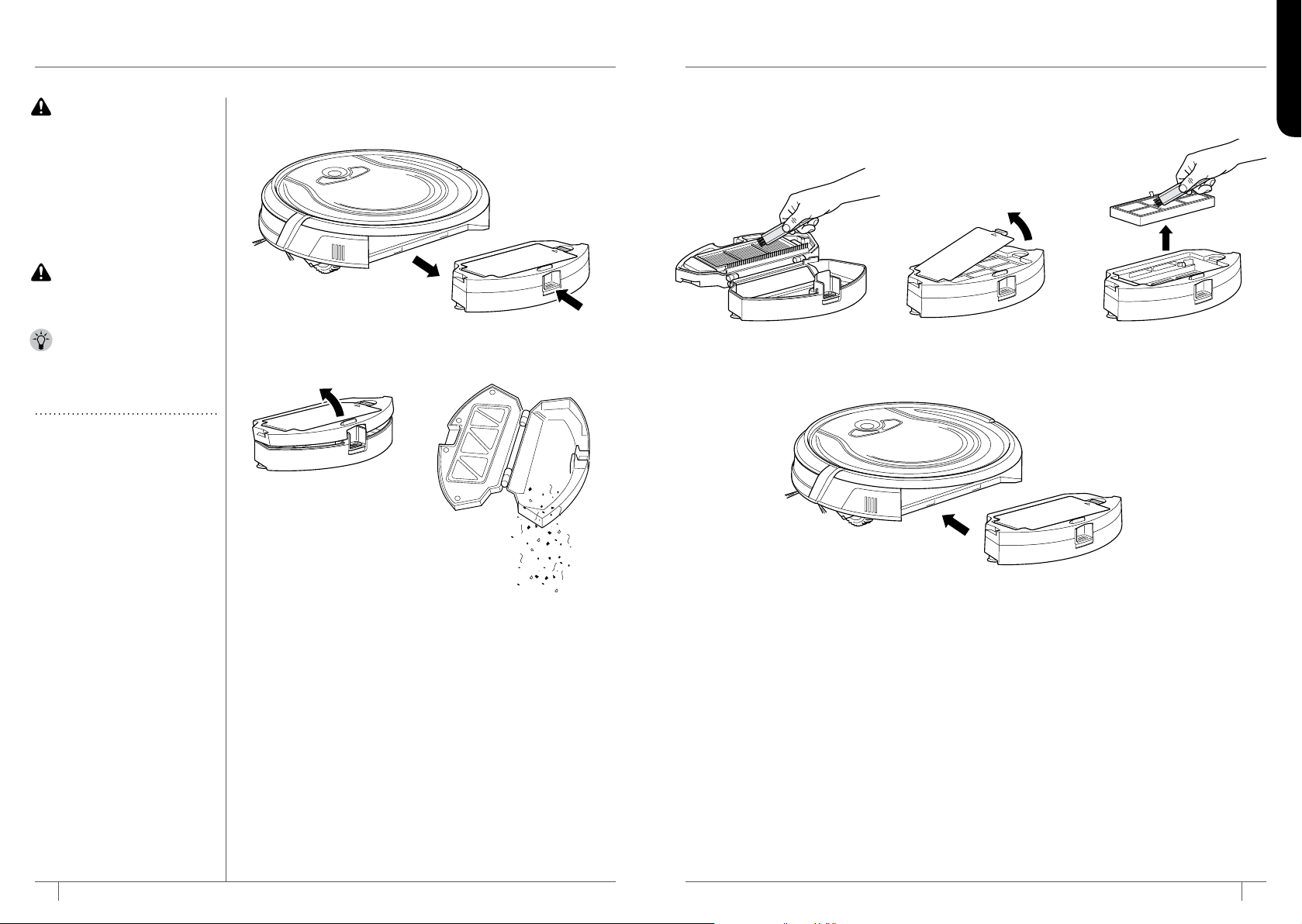
You may need to keep Shark ION ROBOT away from certain
areas, such as pet bowls, fragile objects, power strips, or
doorways. Use the BotBoundary strips to quickly and easily
create “no-go zones” to keep Shark ION ROBOT out of the
areas you would like it to avoid.
1 Identify areas or objects you want Shark ION ROBOT to
avoid. Cut the BotBoundary strip to the desired length so
that it covers the entire perimeter of an object or spans the
length of the doorway you want to block off.
With the provided connecting joints, you can shape the
strips to fit your needs. Insert the ends of the strips into
the connecting joints to form angles and create customized
boundaries. You can connect up to four BotBoundary strips
at a time.
2 Place the strips on the floor or under an area rug to create
perimeters around the objects and areas you’d like to block.
NOTE: If blocking an object, place the BotBoundary strip
two inches in front to ensure Shark ION ROBOT will not
bump into it.
CLEANING MODES
Manual Start/Stop
You can manually start and stop Shark ION
ROBOT™.
1 To start cleaning, press the CLEAN button
on Shark ION ROBOT or the CLEAN/ENTER
button on the remote control. Shark ION
ROBOT selects different cleaning modes
and automatically operates until cleaning
is complete.
2 To stop the unit before it automatically
finishes cleaning and returns to dock,
press the CLEAN button on Shark ION
ROBOT or the CLEAN/ENTER button on
the remote control.
Spot Cleaning
In Spot mode, Shark ION ROBOT will thoroughly
clean an area in a spiral pattern. Use Spot mode
to clean a concentrated area of dust or debris.
1 To start cleaning in Spot mode, press the
SPOT button on Shark ION ROBOT or on
the remote control.
SENDING SHARK ION ROBOT TO
CHARGING DOCK
To return the unit to the Charging Dock,
press the DOCK button on the unit or on the
remote control.
NOTE: Before cleaning, the
robot’s power must be turned
on. Press the top of the power
switch on the side of the unit
to turn on power.
TIP: Shark ION ROBOT
will automatically return to
the charging dock when
the battery level is low.
17 181-800-798-7398 sharkclean.com
ENGLISH
WARNING: Wash the
dust bin and filter cover
with water only. Be sure
to air-dry them completely
before reassembling. DO
NOT wash the HEPA
filter with water, as it may
damage the filter and
reduce suction power.
CAUTION: Turn off power
before performing any
maintenance.
TIP: For best results,
empty the dust bin after
every cleaning.
MAINTAINING YOUR SHARK ION ROBOT™
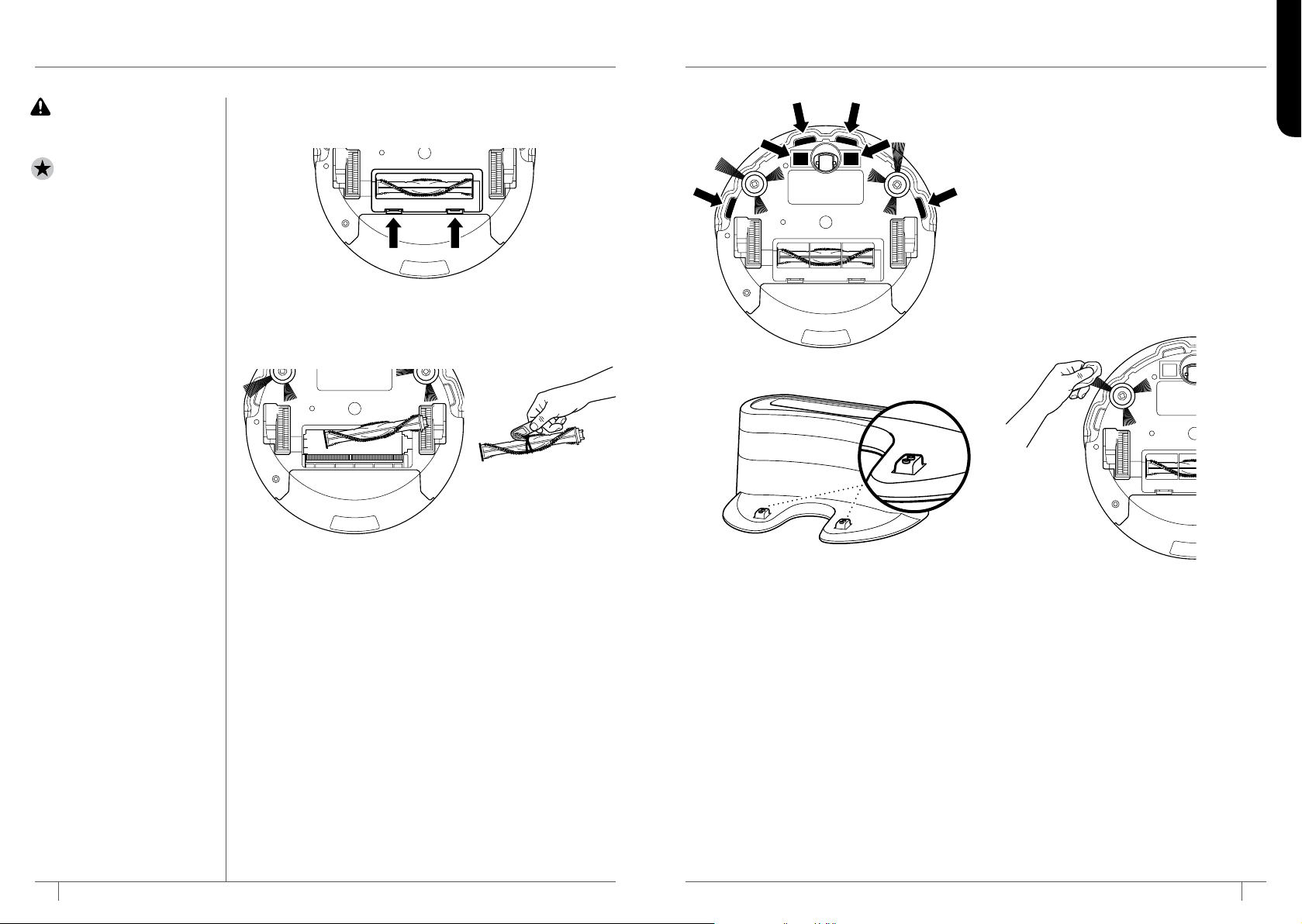
EMPTYING THE DUST BIN
1 Press the dust bin removal latch and slide out the dust bin.
2 Open the dust bin.
3 Empty debris and dust into trash.
RECOMMENDED
CLEANING SCHEDULE:
Dust Bin
Empty after each use
Main Brushroll
Check weekly
Side Brushes
Check weekly
Dust Bin Filter
Clean weekly
Front Caster Wheel
Remove and clean weekly
RECOMMENDED
REPLACEMENT
SCHEDULE:
Main Brushroll
Every 6–12 months
Side Brushes
When visibly worn
Dust Bin Filter
Every 2 months
Front Caster Wheel
Every 12 months
CLEANING THE FILTERS
1 With the dust bin out of the unit, clear hair from the Anti-Tangle Comb on the dust bin.
2 Press the filter door release button to open the door and remove the filters.
3 Clean the dust bin and filters with a cleaning brush.
4 Replace the filters and the filter cover. Close the dust bin and slide it back into the
Shark ION ROBOT™.
STEP 4
STEP 1
STEP 2 STEP 3
STEP 3STEP 1 STEP 2
19 201-800-798-7398 sharkclean.com
ENGLISH
MAINTAINING YOUR SHARK ION ROBOT™ - cont’d�
CLEANING THE BRUSHROLL
1 Push up on the tabs on the brushroll access door, then lift
off the door.
2 Remove the brushroll.
3 Clean the brushroll with the provided hair removal tool.
4 To reinstall the brushroll, insert the flat end first, then the
protruding end, then click brushroll securely into place.
5 Close the brushroll access door and press down until it
clicks into place.
CAUTION: Turn off power
before performing any
maintenance.
NOTE: When cleaning
brushroll, be sure to not
cut anything other than
hair, string, fibers,
or other debris.
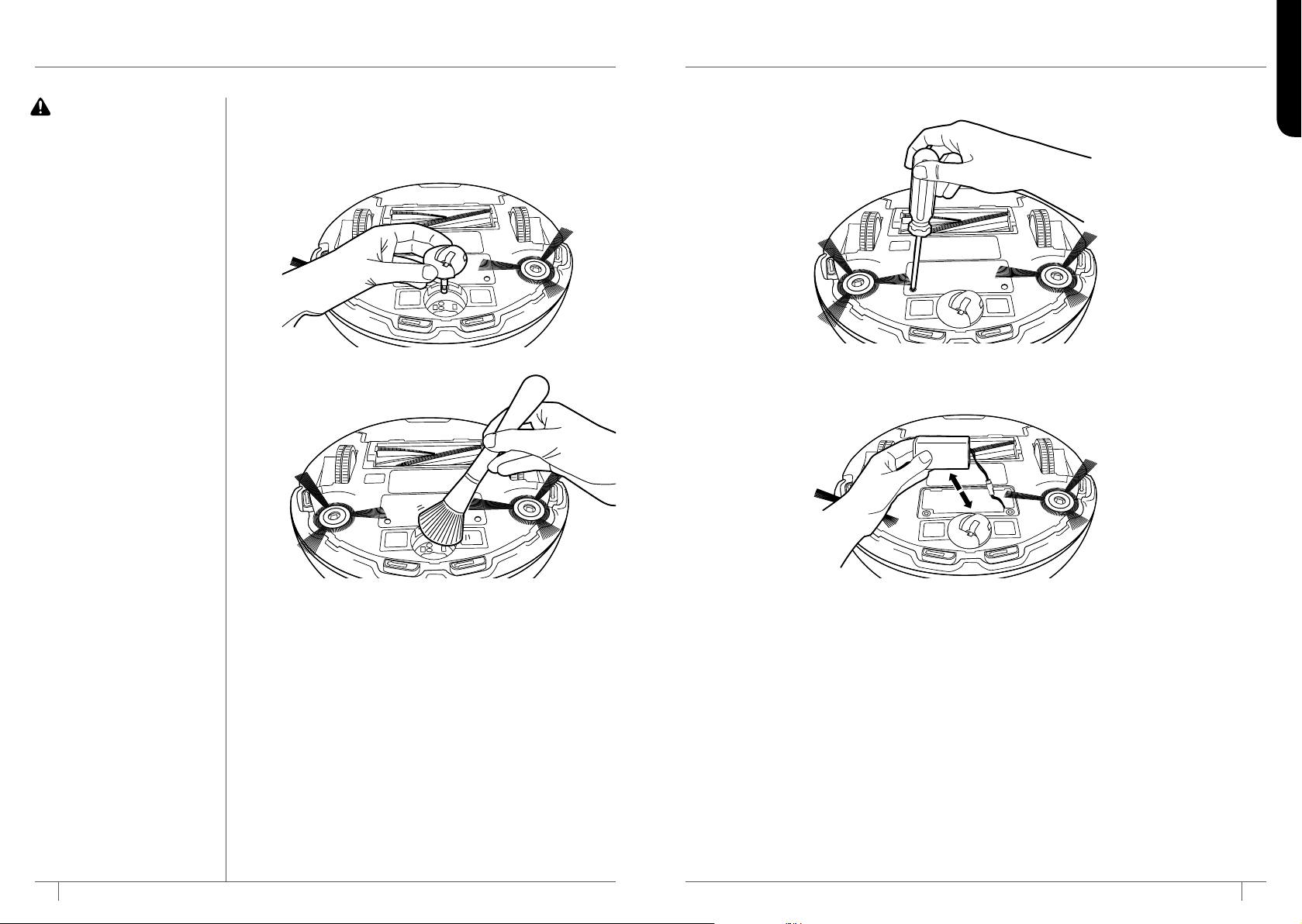
CLEANING THE CLIFF SENSORS AND
CHARGING PADS
For best results, clean cliff sensors and
charging pads periodically as needed. With a
cloth or a cleaning brush, gently dust off the
sensors and pads.
CLEANING THE SIDE BRUSHES
The side brushes need regular cleaning, as dirt
may adhere to them and hair and fibers can
easily get tangled in them.
1 Carefully unwind and remove string and
hair from side brushes.
2 Gently wipe side brushes with a damp
cloth. Be sure to let them air-dry completely
before replacing them.
REPLACING THE SIDE BRUSHES
To remove a bent or damaged side brush, pull
it off its post. To install new side brush, align
hole in center of brush over post on bottom of
unit. Press side brush down over the post until
it clicks into place.
STEP 1
STEP 2 STEP 3
21 221-800-798-7398 sharkclean.com
ENGLISH
MAINTAINING YOUR SHARK ION ROBOT™ - cont’d�
CLEANING THE REMOVABLE FRONT WHEEL
The sensor below the removable rotating front wheel on the
bottom of the unit should be cleaned once a week. Pull out the
wheel and carefully dust the sensor in the cavity below. Replace
the wheel and push it in until it clicks into place.
REPLACING THE BATTERY
When the battery needs replacement, the red
“Replace” light will illuminate.
To remove the battery, turn the unit over and
unscrew the battery cover with a Phillips-head
screwdriver. Unplug the old battery from its
connector, then plug in the new battery. Replace
battery cover and screw it back into place.
Replacement batteries can be purchased at
sharkaccessories.com
CAUTION: Turn off power
before performing any
maintenance.
23 241-800-798-7398 sharkclean.com
ENGLISH
Your Shark ION ROBOT™ is designed with Smart Sensor technology so it can
clean all areas of your floors and navigate its way out of tight spaces. During your
first few cleanings, you may need to make some small adjustments to optimize
your robot’s performance.
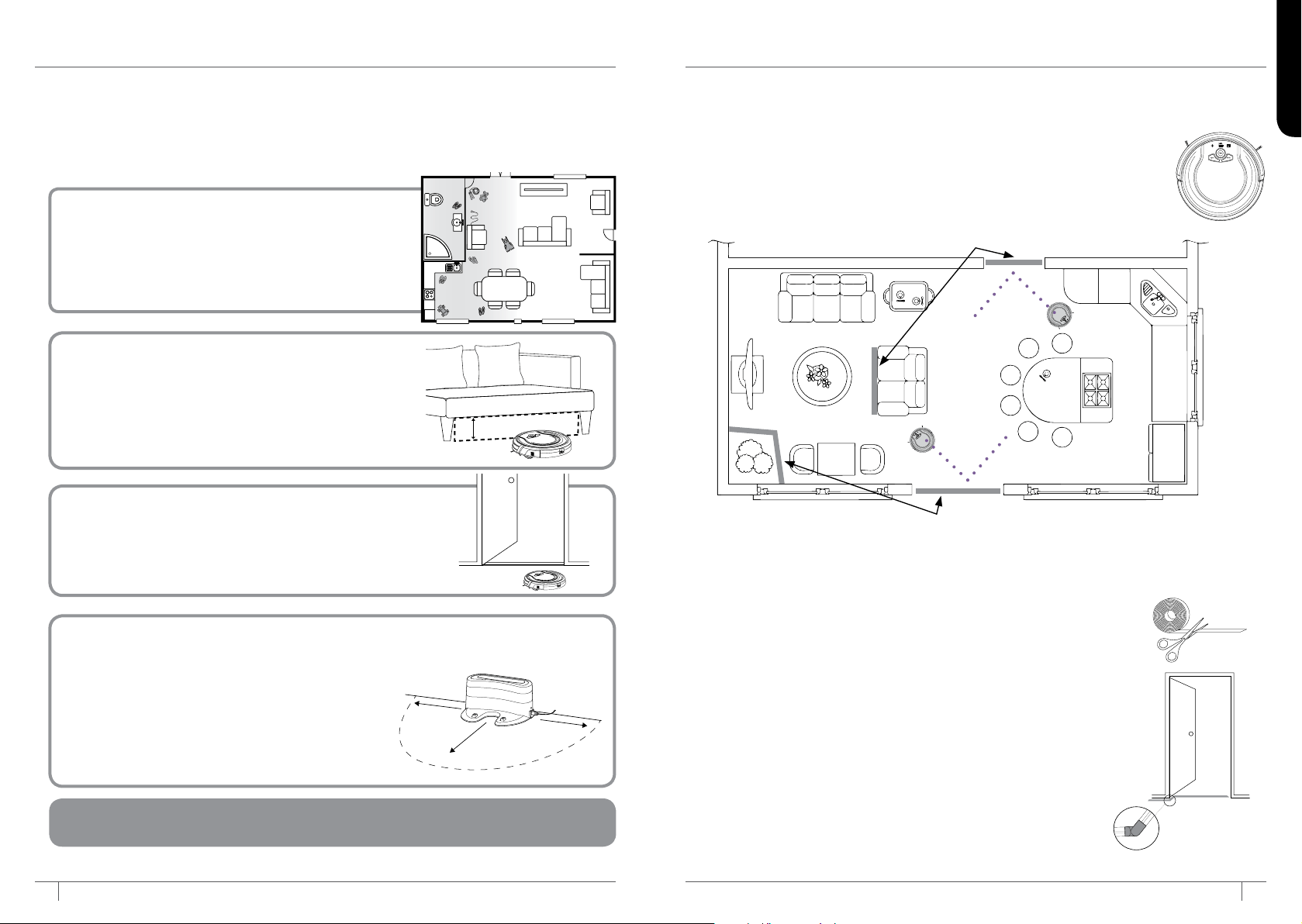
RETURNING TO DOCK
Make sure the dock is set up as shown.
If your robot roams too far, it could have
trouble finding the dock. It may be helpful to
block o part of your home with the included
BotBoundary strips, or to add a second dock
(available at sharkaccessories.com)
DOORWAY THRESHOLDS
Your robot can easily climb over most common
thresholds. However in some situations they
may present a challenge. Use the included
BotBoundary strips to block o these areas.
LOW-CLEARANCE FURNITURE
Your robot may find its way under furniture
with low clearance, but not be able to free itself.
Use furniture risers to increase clearance, or
create a no-go zone with the included
BotBoundary strips.
CORDS AND OBSTRUCTIONS
Always prep your home before cleaning.
Some furniture or loose cords may create
problems for your robot. Clear away cords
and obstructions or block o the area with
the included BotBoundary™ strips.
Tip: You can use the included connectors to create angles with your
included BotBoundary strips.
Before Prep Robot Friendly
5 ft.
3 ft.
3 ft.
Use the BotBoundary strips to quickly and easily create “no-go zones” to keep
your robot out of the areas you would like it to avoid. These may include:
• Near power cords that might cause tangles
• Hallways where you’d rather your robot not travel
• Around furniture with low clearance that may trap your robot
BotBoundary strips
BotBoundary strips
USAGE INSTRUCTIONS
1. Cut the BotBoundary strip to the desired length, 18” Minimum,
so it covers the entire perimeter of an object or spans the length
of the doorway you’d rather your robot not cross.
2. Simply lay the BotBoundary strip flat on the floor or under an
area rug. For best results, make sure your BotBoundary strip is
completely flat against the floor.
3. With the provided connectors, you can create angles to
customize the BotBoundary strips to fit your home.
When setting up your BotBoundary strips it is useful to either make a
closed loop around an object using the included connectors or to place
them between fixed objects, like door frames or legs of a couch.
(18” Minimum)
Boundary strip lays flat
PREPPING YOUR HOME USING BOTBOUNDARY
™
STRIPS
TIPS AND TRICKS FOR GREAT PERFORMANCE
26sharkclean.com
ENGLISH
25 1-800-798-7398
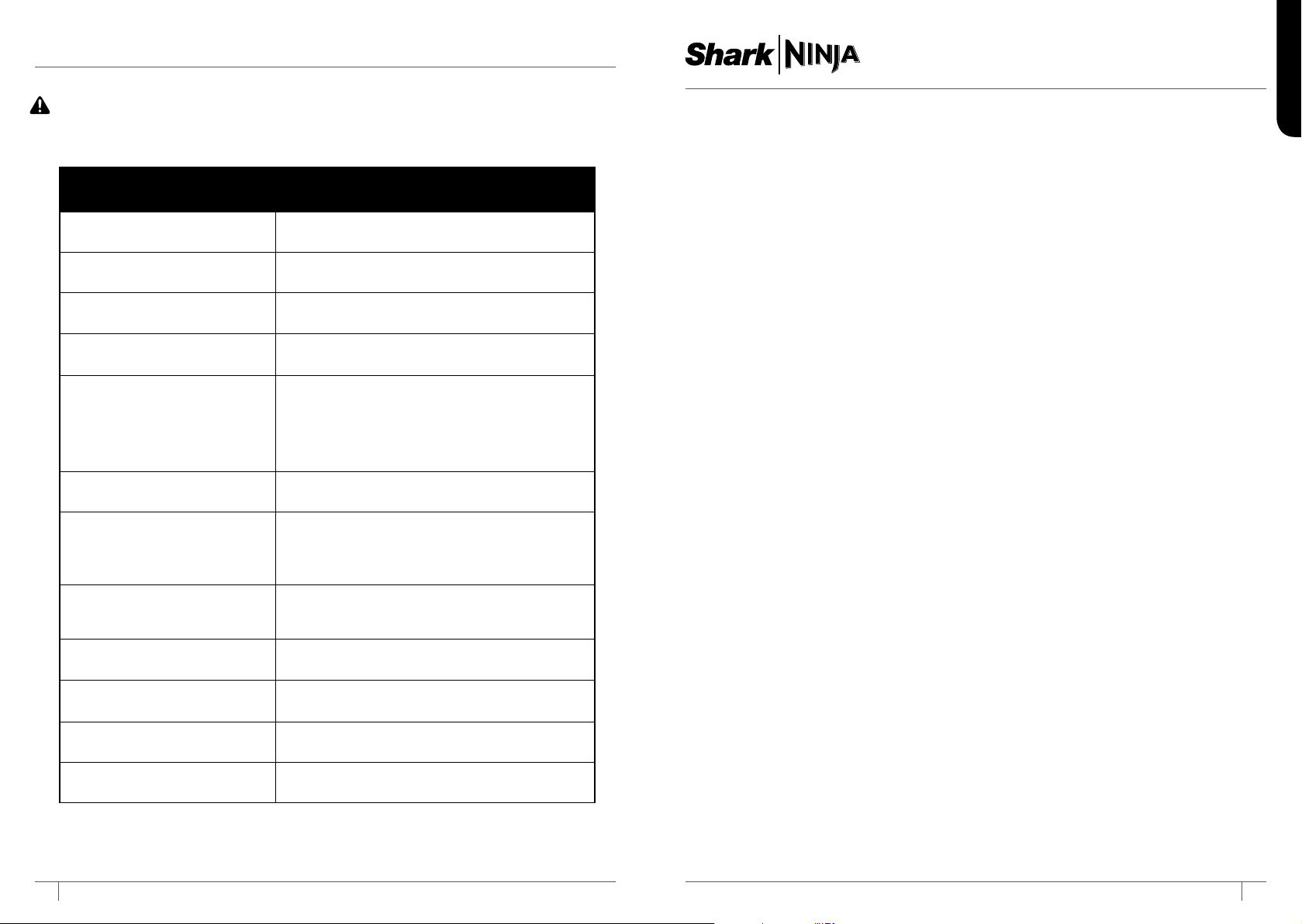
TROUBLESHOOTING GUIDE
WARNING: Always turn off Power switch before performing any maintenance.
If any error lights are illuminated or flashing on your Shark ION ROBOT
™
, see the error
code chart below:
ONE (1) YEAR
LIMITED WARRANTY
The 1-Year Limited Warranty applies to purchases made from authorized retailers of SharkNinja
Operating LLC. Warranty coverage applies to the original owner and to the original product only and is
not transferable. Power pack is not covered by 1-year warranty.
SharkNinja warrants that the unit shall be free from defects in material and workmanship for a period of 1 year
from the date of purchase when it is used under normal household conditions and maintained according to the
requirements outlined in this instruction manual, subject to the following conditions and exclusions.
What is covered in my warranty?
1. The original unit and/or non-wearable components deemed defective, in SharkNinja’s sole discretion,
will be repaired or replaced for up to 1 year from the original purchase date.
2. In the rare event that a replacement unit is issued, the warranty coverage ends six months following the
receipt date of the replacement unit or the remainder of the existing warranty, whichever is greater. If
the unit is replaced, SharkNinja reserves the right to replace the unit with one of equal or greater value.
What is not covered in my warranty?
Our Customer Service/Product Specialists are available to provide all the warranty service options
available to you, including the possibility of upgrading to our VIP Warranty Service Options for select
product categories.
1. Normal wear and tear of wearable parts such as foam filters, HEPA filters, pads etc., which require
regular maintenance and/or replacement to ensure the proper functioning of your unit are not covered
by this warranty.
2. Any unit that has been tampered with or used for commercial purposes.
3. SharkNinja will cover the cost for the customer to send in the unit to us for repair or replacement. A
fee of $24.95 for return shipping costs will be charged at the time of return shipment of the repaired or
replacement unit.
4. Damage caused by misuse, abuse, or negligent handling, or damage due to mishandling in transit.
5. Consequential and incidental damages.
6. Defects caused by or resulting from damages from shipping or from repairs, service or alteration to the
product or any of its parts which have been performed by a repair person not authorized by SharkNinja.
7. Products purchased, used or operated outside of North America.
Problems with your unit/How to get service
If your appliance fails to operate properly while in use under normal household conditions within the
warranty period, visit sharkclean.com for product care/maintenance self-help. Our Customer Service and
product specialists are also available at 1-800-798-7398 to assist with product support and warranty
service options.
How to initiate a warranty claim
You can call 1-800-798-7398 to have a Customer Service specialist assist you. Please note you must call
1-800-798-7398 to initiate a warranty claim. Return and Packing Instruction information will be provided at
that time.
For Customer Service hours, visit sharkclean.com
Replacement parts are available for purchase at sharkclean.com. For more information on which parts are
classified as wearable and non-wearable, please visit sharkclean.com/warranty
This warranty gives you specific legal rights, and you also may have other rights that vary from state to state.
Some states do not permit the exclusion or limitation of incidental or consequential damages, so the above
may not apply to you.
ERROR CODE SOLUTION
All LED lights are o
Unit is turned off. Cycle power switch. If no response,
plug in to charge unit.
Red “Replace” LED light is on
Your battery is ready to be replaced.
Visit sharkclean.com for replacement
DOCK and SPOT alternate
flashing
A side brush is stuck. Remove debris from side
brushes.
DOCK and SPOT flashing
together
Something is stuck in the main brushroll. Remove
obstruction.
CLEAN flashing blue
The front wheel sensor, drop sensor, or bumper is
reporting an error. Make sure your robot is able to
move freely by moving it to a new location on a level
surface. Make sure the front bumper is not stuck. If
Clean light continues to flash blue, remove the front
wheel and clean the wheel cavity.
SPOT flashing blue
The unit cannot move due to surface or obstruction.
Move robot to a new location.
CLEAN flashing red
Cliff sensors are reporting an error. Wipe cliff sensors
with a clean cloth.
Robot cannot start due to an error. Ensure your robot is
on a level surface with no obstructions.
“!” symbol flashing
Suction motor failure. Remove blockages and clean
filters. Remove dust bin and make sure nothing is
blocking suction.
CLEAN flashing red and “!”
stays solid red
Your charger is experiencing an issue. Please contact
Customer Service at 1-800-798-7398.
“!” and CLEAN symbols
flashing
Your robot’s BotBoundary™ sensors are reporting an error.
Please contact Customer Service at 1-800-798-7398.
CLEAN solid red
The dust bin has been removed and needs to be
reinserted.
CLEAN solid blue
Your robot is in sleep mode. Press any button on the
robot or remote to start it again.
27 281-800-798-7398 sharkclean.com
ENGLISH
NOTES NOTES

@sharkcleaning
SharkNinja Operating LLC
US: Needham, MA 02494
CAN: Ville St-Laurent, QC H4S 1A7
1-800-798-7398
sharkclean�com
Illustrations may differ from actual product. We are constantly striving to improve
our products; therefore the specifications contained herein are subject to change
withoutnotice.
SHARK is a registered trademark of SharkNinja Operating LLC.
BOTBOUNDARY and SHARK ION ROBOT are trademarks of SharkNinja Operating LLC.
For SharkNinja U.S. Patent information, visit sharkninja.com/USPatents
© 2017 SharkNinja Operating LLC
RV700Series�IB�MP�Mv5
PRINTED IN CHINA


