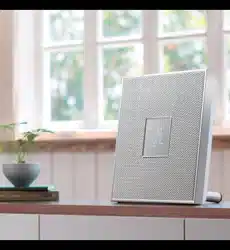
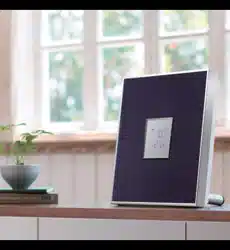
Integrated Audio System
OWNER’S MANUAL
AB
© 2015 Yamaha Corporation
Printed in Malaysia ZS22970
http://europe.yamaha.com/warranty/
AVEEA71102A
Important Notice: Guarantee Information for customers in EEA* and Switzerland
For detailed guarantee information about this Yamaha product, and Pan-EEA* and
Switzerland warranty service, please either visit the website address below (Printable file is available at our website) or contact the Yamaha representative office for your country.
* EEA: European Economic Area
English
i En
CAUTION: READ THIS BEFORE OPERATING YOUR UNIT.
1 To assure the finest performance, please read this manual carefully. Keep it in a safe place for
future reference.
2 Install this sound system in a well ventilated, cool, dry, clean place - away from direct sunlight,
heat sources, vibration, dust, moisture, and/or cold. For proper ventilation, allow the following
minimum clearances.
Top: 15 cm (6 in.), Sides: 10 cm (4 in.)
3 Locate this unit away from other electrical appliances, motors, or transformers to avoid humming sounds.
4 Do not expose this unit to sudden temperature changes from cold to hot, and do not locate this unit
in an environment with high humidity (i.e. a room with a humidifier) to prevent condensation inside
this unit, which may cause an electrical shock, fire, damage to this unit, and/or personal injury.
5 Avoid installing this unit where foreign object may fall onto this unit and/or this unit may be
exposed to liquid dripping or splashing. On the top of this unit, do not place:
– Other components, as they may cause damage and/or discoloration on the surface of this unit.
–
Burning objects (i.e. candles), as they may cause fire, damage to this unit, and/or personal injury.
– Containers with liquid in them, as they may fall and liquid may cause electrical shock to the
user and/or damage to this unit.
6 Do not cover this unit with a newspaper, tablecloth, curtain, etc. in order not to obstruct heat radiation.
If the temperature inside this unit rises, it may cause fire, damage to this unit, and/or personal injury.
7 Do not plug in this unit to a wall outlet until all connections are complete.
8 Do not operate this unit upside-down. It may overheat, possibly causing damage.
9 Do not use force on switches, knobs and/or cords.
10 When disconnecting the power cable from the wall outlet, grasp the plug; do not pull the cable.
11 Do not clean this unit with chemical solvents; this might damage the finish. Use a clean, dry cloth.
12 Only voltage specified on this unit must be used. Using this unit with a higher voltage than specified
is dangerous and may cause fire, damage to this unit, and/or personal injury. Yamaha will not be held
responsible for any damage resulting from use of this unit with a voltage other than specified.
13 To prevent damage by lightning, keep the power cable and outdoor antennas disconnected from a
wall outlet or this unit during a lightning storm.
14 Do not attempt to modify or fix this unit. Contact qualified Yamaha service personnel when any
service is needed. The cabinet should never be opened for any reasons.
15 When not planning to use this unit for long periods of time (i.e. vacation), disconnect the AC
power plug from the wall outlet.
16 Be sure to refer to the “Troubleshooting” section for common operating errors before concluding
that this unit is faulty.
17 Before moving this unit, press A to set it to standby mode and disconnect the AC power plug from
the wall outlet.
18 Condensation will form when the surrounding temperature changes suddenly. Disconnect the
power cable from the outlet, then leave this unit alone.
19 When using this unit for a long time, this unit may become warm. Turn the power off, then leave
this unit alone for cooling.
20 Install this unit near the AC outlet and where the AC power plug can be reached easily.
21 The batteries shall not be exposed to excessive heat such as sunshine, fire or the like. When you
dispose of batteries, follow your regional regulations.
22 Excessive sound pressure from earphones and headphones can cause hearing loss.
■ Notes on remote controls and batteries
• Do not spill water or other liquids on the remote control.
• Do not drop the remote control.
• Do not leave or store the remote control in the following conditions:
– places of high humidity, such as near a bath
– places of high temperatures, such as near a heater or stove
– places of extremely low temperatures
– dusty places
• Insert the battery according to the polarity markings (+ and -).
• Change all batteries if you notice the following conditions:
– the operation range of the remote control narrows
– the transmit indicator does not flash or is dim
• If the batteries run out, immediately remove them from the remote control to prevent an explosion or acid leak.
• If you find leaking batteries, discard the batteries immediately, taking care not to touch the leaked
material. If the leaked material comes into contact with your skin or gets into your eyes or mouth,
rinse it away immediately and consult a doctor. Clean the battery compartment thoroughly before
installing new batteries.
• Do not use old batteries together with new ones. This may shorten the life of the new batteries or
cause old batteries to leak.
• Do not use different types of batteries (such as alkaline and manganese batteries) together.
Specification of batteries may be different even though they look the same. Danger of explosion
may happen if batteries are incorrectly replaced.
• Before inserting new batteries, wipe the compartment clean.
• Dispose of batteries according to your regional regulations.
• Keep batteries away from children. If a battery is accidentally swallowed, contact your doctor immediately.
• When not planning to use the remote control for long periods of time, remove the batteries from the
remote control.
• Do not charge or disassemble the supplied batteries.
WARNING
TO REDUCE THE RISK OF FIRE OR ELECTRIC SHOCK, DO NOT EXPOSE THIS
UNIT TO RAIN OR MOISTURE.
This unit is not disconnected from the AC power source as long as it is connected to the wall
outlet, even if this unit itself is turned off by A. This state is called the standby mode. In this
state, this unit is designed to consume a very small quantity of power.
Radio waves may affect electro-medical devices. Do not use this unit near medical devices or
inside medical facilities.
Do not use this unit within 22 cm (9 inches) of persons with a heart pacemaker implant or
defibrillator implant.
En ii
■ For U.K. customers
If the socket outlets in the home are not suitable for the plug supplied with this appliance, it
should be cut off and an appropriate 3 pin plug fitted. For details, refer to the instructions
described below.
The plug severed from the mains lead must be destroyed, as a plug with bared flexible cord is
hazardous if engaged in a live socket outlet.
■ Special Instructions for U.K. Model
The user shall not reverse engineer, decompile, alter, translate or disassemble the software used
in this unit, whether in part or in whole. For corporate users, employees of the corporation
itself as well as its business partners shall observe the contractual bans stipulated within this
clause. If the stipulations of this clause and this contract cannot be observed, the user shall
immediately discontinue using the software.
Note
IMPORTANT
THE WIRES IN MAINS LEAD ARE COLOURED IN ACCORDANCE WITH THE
FOLLOWING CODE:
Blue: NEUTRAL
Brown: LIVE
As the colours of the wires in the mains lead of this apparatus may not correspond with the
coloured markings identifying the terminals in your plug, proceed as follows:
The wire which is coloured BLUE must be connected to the terminal which is marked with
the letter N or coloured BLACK. The wire which is coloured BROWN must be connected to
the terminal which is marked with the letter L or coloured RED.
Making sure that neither core is connected to the earth terminal of the three pin plug.
Information for Users on Collection and Disposal of Old
Equipment and Used Batteries
These symbols on the products, packaging, and/or accompanying documents
mean that used electrical and electronic products and batteries should not be
mixed with general household waste.
For proper treatment, recovery and recycling of old products and used batteries,
please take them to applicable collection points, in accordance with your
national legislation and the Directives 2002/96/EC and 2006/66/EC.
By disposing of these products and batteries correctly, you will help to save
valuable resources and prevent any potential negative effects on human health
and the environment which could otherwise arise from inappropriate waste
handling.
For more information about collection and recycling of old products and
batteries, please contact your local municipality, your waste disposal service or
the point of sale where you purchased the items.
[Information on Disposal in other Countries outside the European
Union]
These symbols are only valid in the European Union. If you wish to discard
these items, please contact your local authorities or dealer and ask for the
correct method of disposal.
Note for the battery symbol (bottom two symbol examples):
This symbol might be used in combination with a chemical symbol. In this case
it complies with the requirement set by the Directive for the chemical involved.
We, Yamaha Music Europe GmbH hereby declare that this unit is in compliance with the
essential requirements and other relevant provisions of Directive 1999/5/EC.
Yamaha Music Europe GmbH
Siemensstr. 22-34 25462 Rellingen, Germany
Tel: +49-4101-303-0
The name plate is located on the bottom of the unit.

2 En
CAUTION: READ THIS BEFORE
OPERATING YOUR UNIT.
......i
Introduction......4
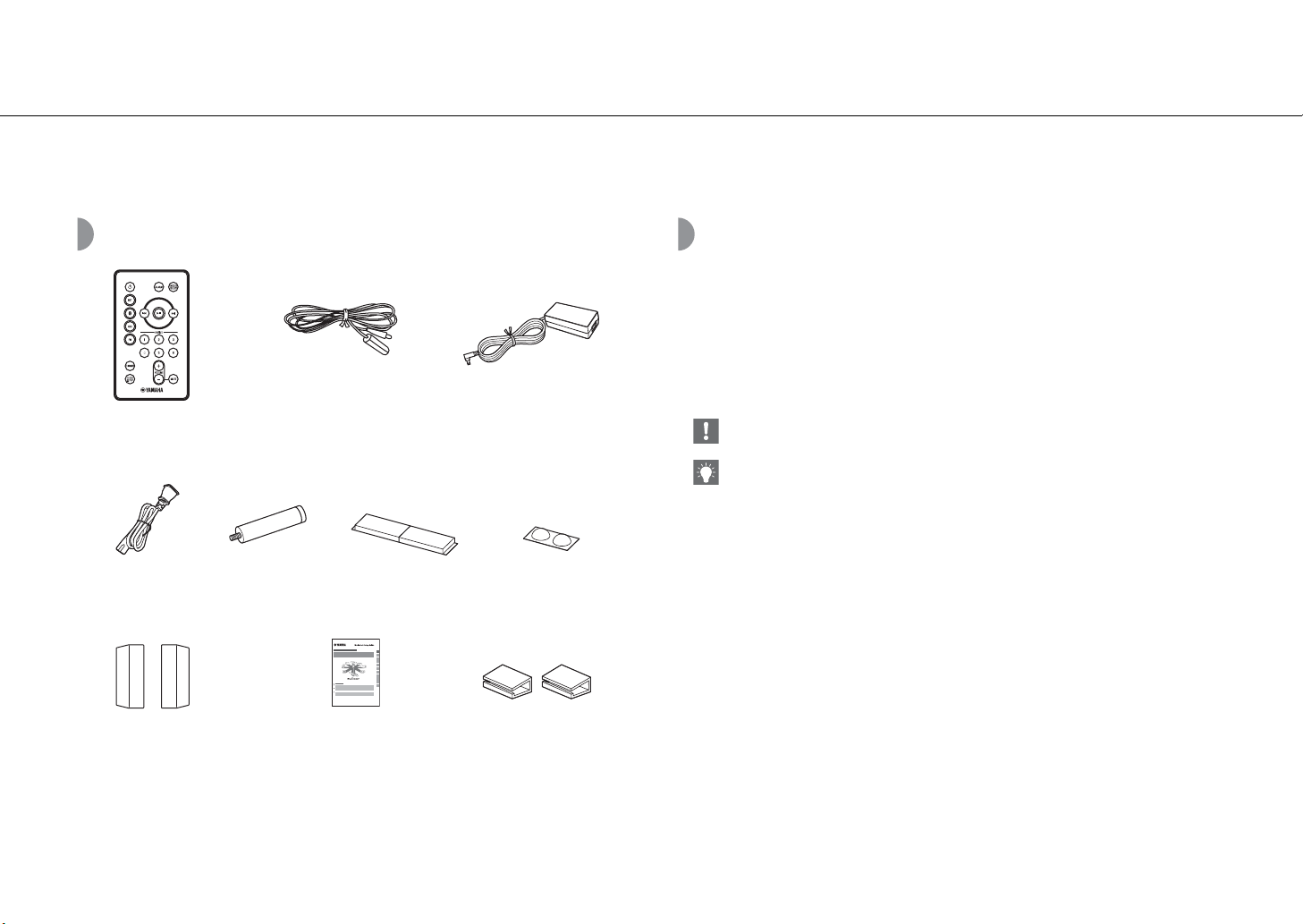
Supplied accessories......4
About this manual......4
Part name......5
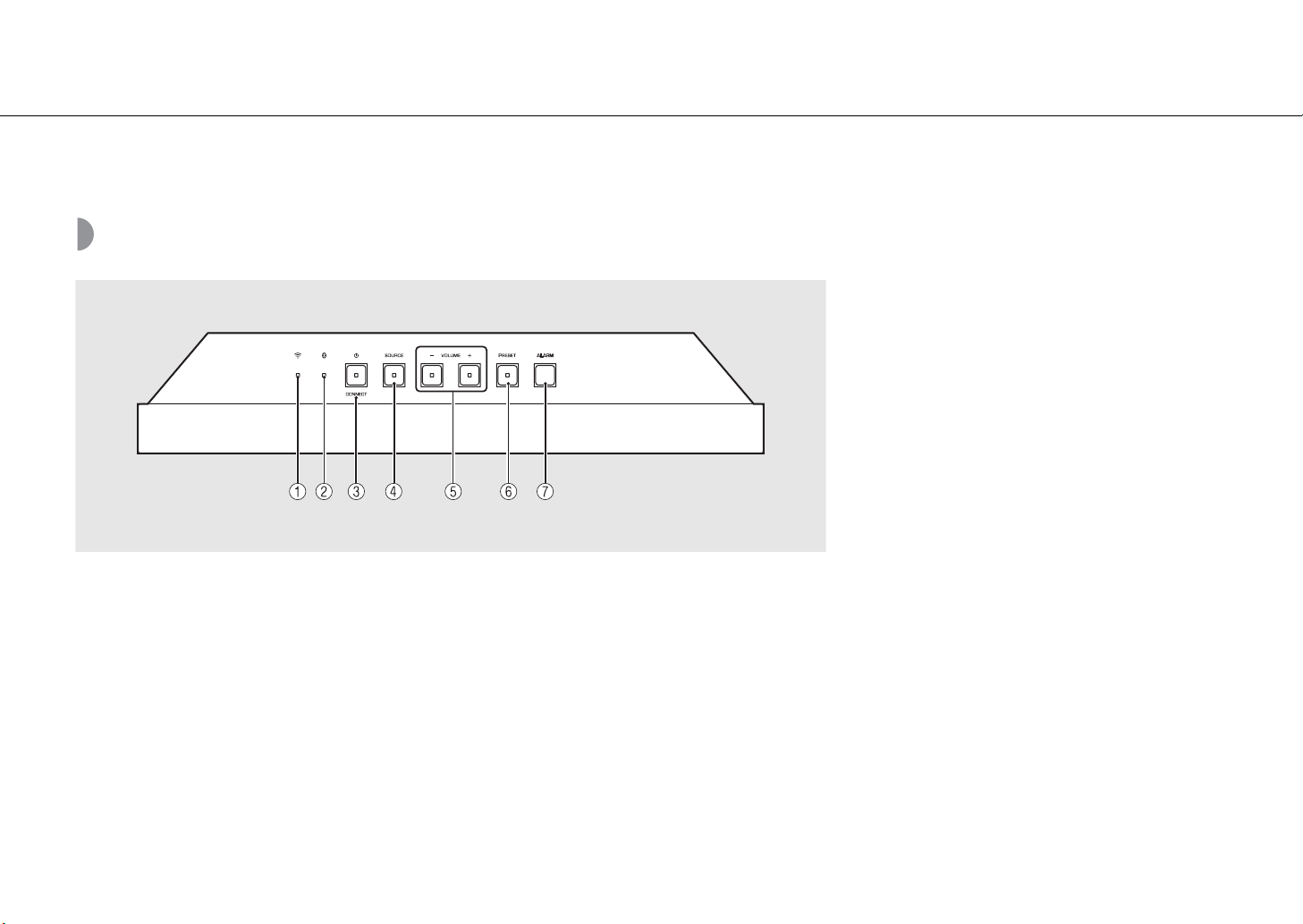
Top panel......5
Rear/side panel......6
Front panel display......7
Remote control......8
Preparations......9
Connecting FM antenna......9
Connecting AC adaptor......9
Installation......10
Turning on the power......13
Install the “MusicCast CONTROLLER” app......14
Connecting to the network......15
Connecting to the network by sharing the iOS device
setting......16
Setting the clock......17
Playing network contents......18
Listening to the songs in the
computer
......19
Setting the media sharing of music files......19
Playing back songs in the PC......20
Listening to Internet radio......21
Presetting network contents......22
Presetting contents......22
Selecting preset contents......22
Listening to the Music with
AirPlay
......23
Playing back songs with iPod......23
Playing back songs with iTunes......23
Listening to music via Bluetooth
connection
......24
Pairing a Bluetooth device with the unit......24
Performing pairing and playing back music......25
Connecting a paired Bluetooth device
and playing back music......26
Listening to external sources......27
Listening to FM radio stations......28
Tuning in FM stations......28
Presetting FM stations......29
Selecting preset FM stations......29
Using the alarm function......30
3 types of alarms......30
Source......30
Snooze......30
Setting the alarm time with the unit......31
Turning the alarm on/off......33
Stopping the alarm for a short time
(snooze)......33
Turning the alarm off......33
Using the sleep timer......34
Adjusting brightness of front
panel display
......35
Updating the firmware......36
Updating with a mobile device......36
Updating with the unit......36
Disabling the wireless
function
......37
Disabling the Wi-Fi function......37
Disabling the Bluetooth function......37
Troubleshooting......38
General......38
Network......39
Bluetooth......41
FM reception......42
Supported devices/media and
file formats
......43
Specifications......44
Trademarks......45
Table of Contents
4 En
Introduction
Confirm the package contents and useful points of this manual.
Supplied accessories About this manual
• How to operate this unit is described mainly using the remote control.
• iOS and Android mobile devices are collectively referred as “mobile devices.” The specific
type of mobile device is noted in explanations as needed.
• “iPod” described in this manual may also refer to “iPhone” or “iPad.”
• Illustrations may differ from actual item depicted.
• Symbols:
Remote control FM antenna AC adaptor
(Model No.: NU40-R150266-I3)
Power cable Stand Non-skid pad (for
hanging on the wall) x 2
Cover x 2
MusicCast Setup Guide
Cable clamp x 2
Non-skid pad (for
installing on a shelf) x 2
Indicates precautions for use of the unit and its feature limitations.
Indicates supplementary explanations for better use.
&
Indicates the corresponding reference page(s).
6 En
Part name
Rear/side panel
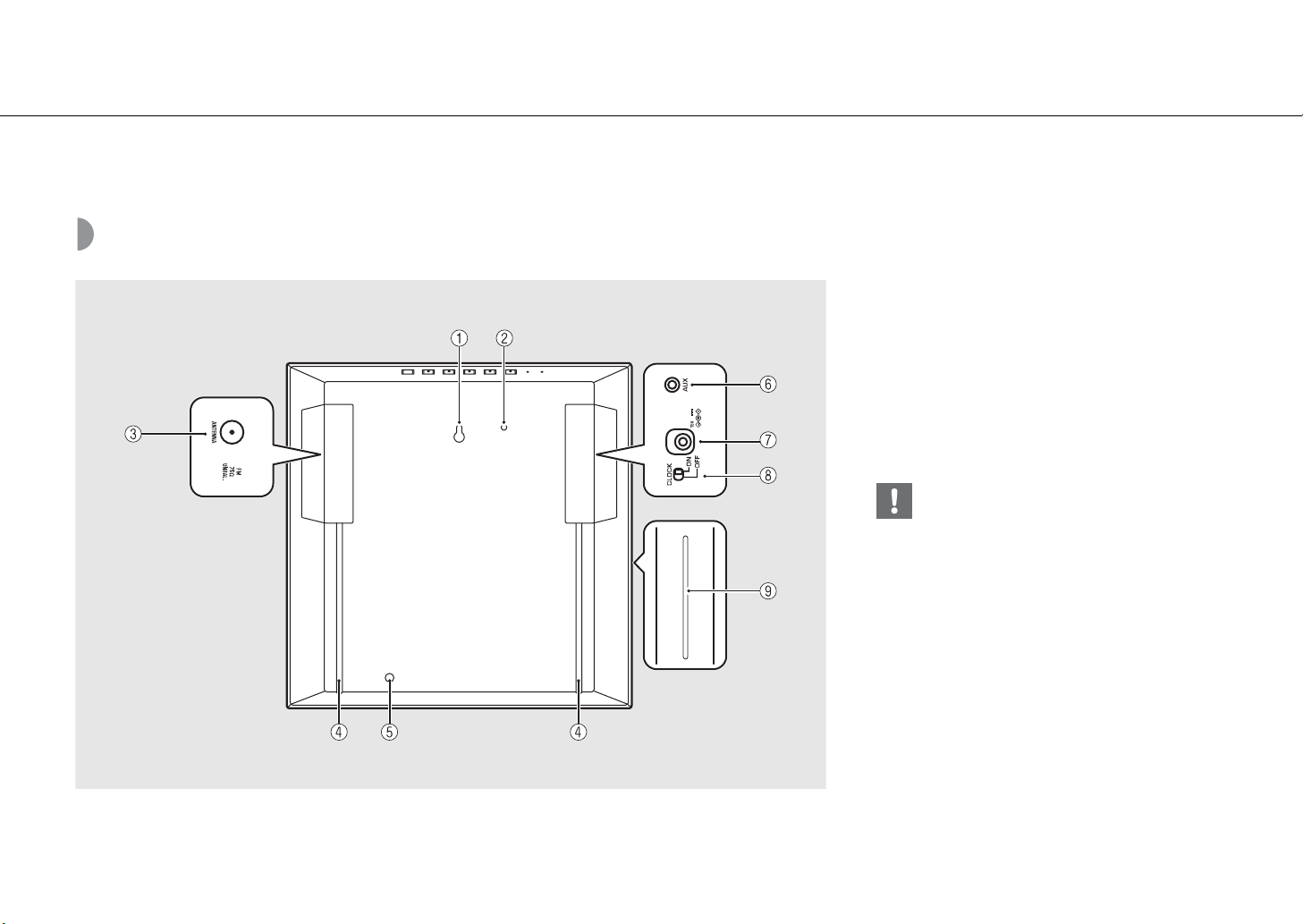
1 Hole for wall-hanging installation (& P.11)
2 Screw hole for attaching safety wire (M4)
3 ANTENNA jack (& P.9)
4 Cable-holding slit (& P.9)
5 Screw hole for installing the stand (& P.10)
6 AUX jack (& P.27)
7 DC input connector (& P.9)
8 CLOCK switch (& P.17)
9 Wireless antenna section
• Do not insert any foreign object such as a card or a
slip of paper in the opening. Doing so may cause a
fire or malfunction.
En 7
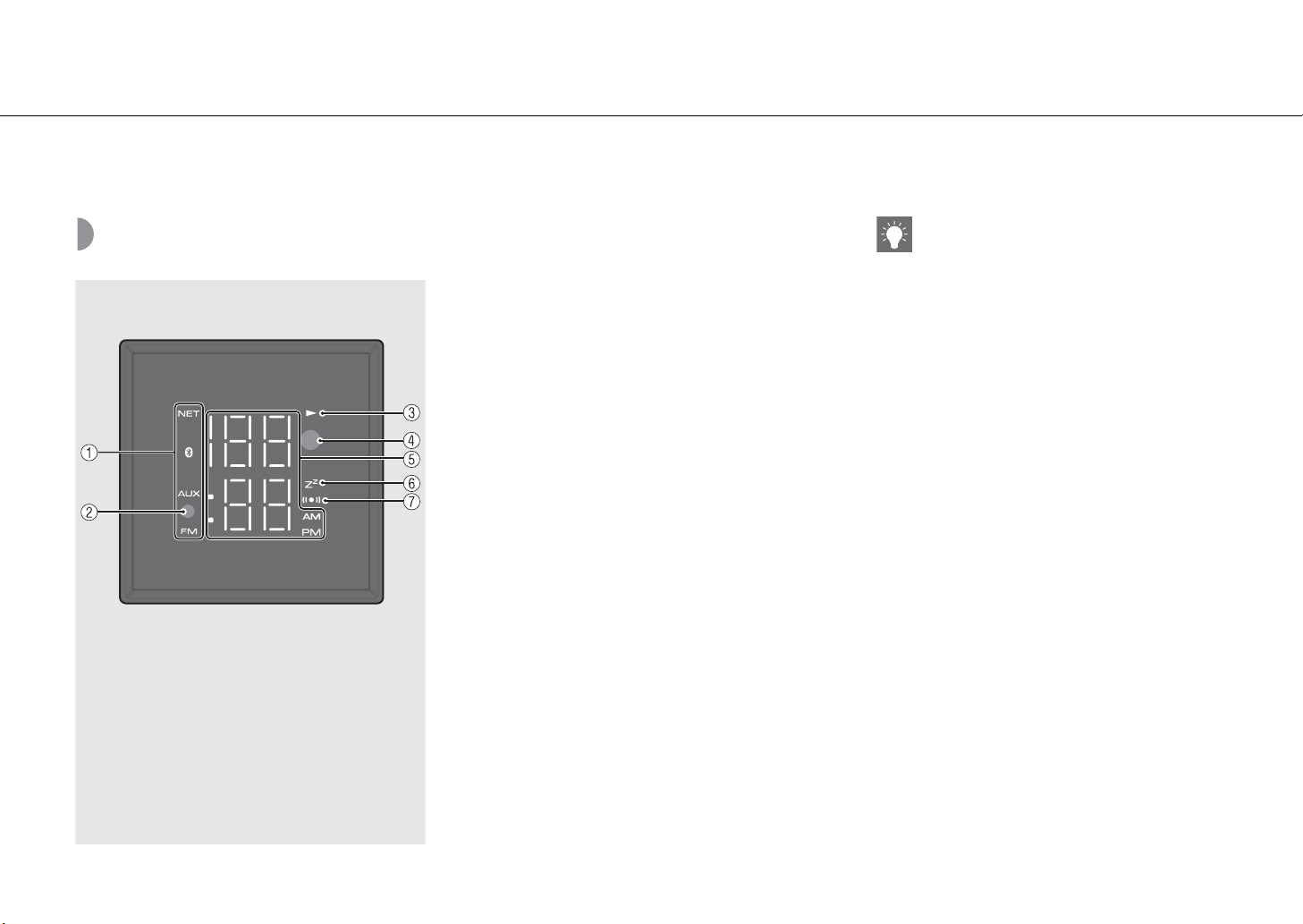
Part name
Front panel display
1 Source indicator
Shows selected source.
2 Illumination sensor
Detects ambient lighting. Do not cover this sensor.
3 Play indicator
Displays the playback mode.
4 Remote control sensor (& P.8)
5 Multi-function indicator
Displays various information, including the clock time or
FM station.
6 Sleep timer indicator
Lights up when the sleep timer is set
(& P.34).
7 Alarm indicator
Turns on if the alarm has been set (& P.31).
Adjusting display brightness
You can adjust the brightness of the front panel
display by pressing DIMMER on the remote control
(& P.35).
8 En
Part name
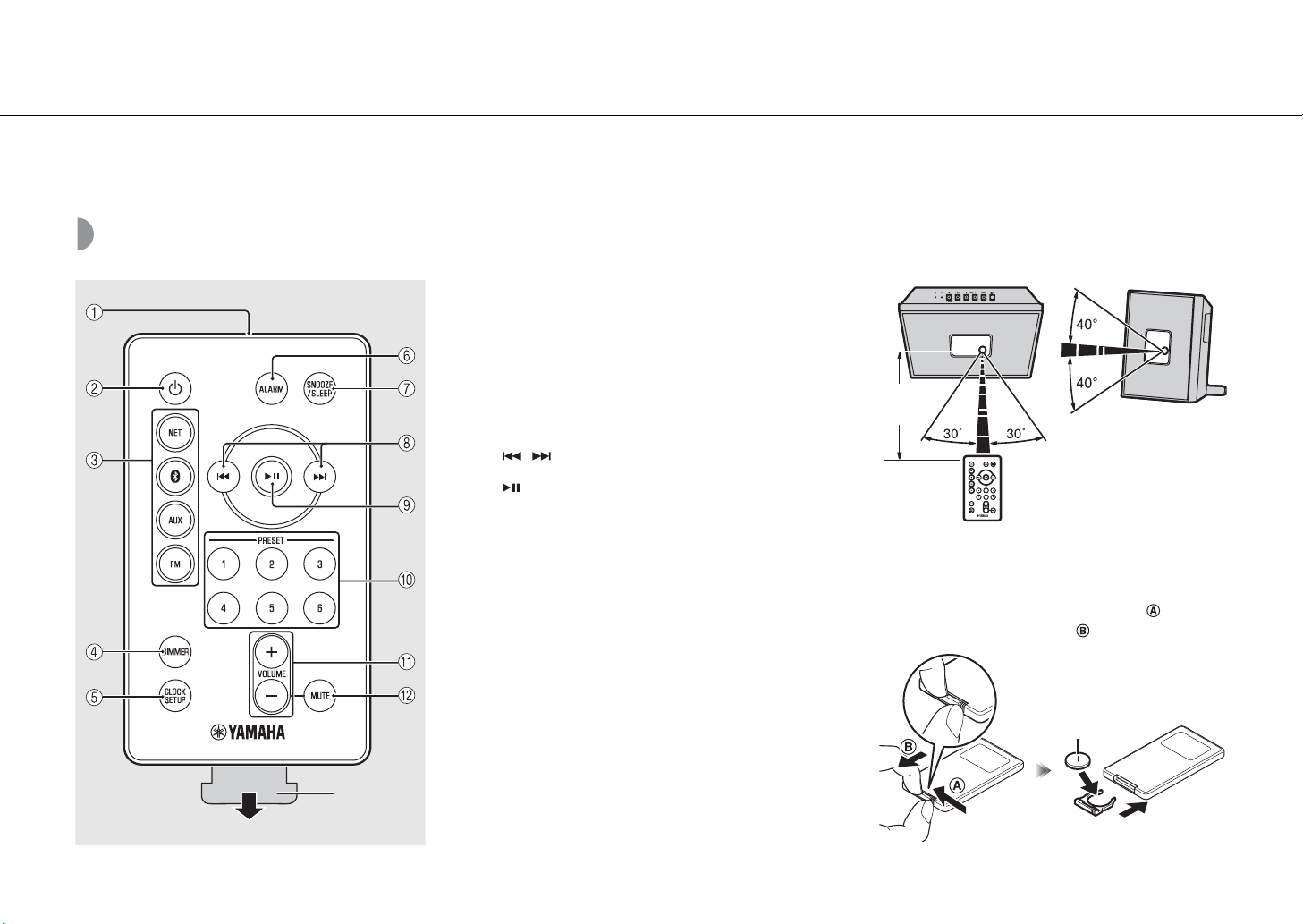
Remote control
1 Infrared signal transmitter
2 A (Power) (& P.13)
3 Source buttons
Switch the audio source to be played.
4 DIMMER (& P.35)
5 CLOCK SETUP (& P.17)
6 ALARM (& P.31, 33)
7 SNOOZE/SLEEP (& P.33, 34)
8 / (& P.17, 20)
9 (& P.20)
0 PRESET 1 - 6 (& P.22, 29)
A VOLUME +/–
Controls the volume.
B MUTE
Turns mute on or off.
During mute, VOLUME –/+ blinks on the unit.
* Remove the insulation sheet of the remote control before
using.
Controlling with the remote control
Point the remote control at the remote control sensor on
the unit.
Replacing the battery
• Check the “+” of the battery and insert it the correct way
around.
• While pushing the release tab in direction , slide out
the battery holder in direction .
Insulation
sheet
*
6 m
(20 ft)
CR2025 type
Lithium battery
En 9
Preparations
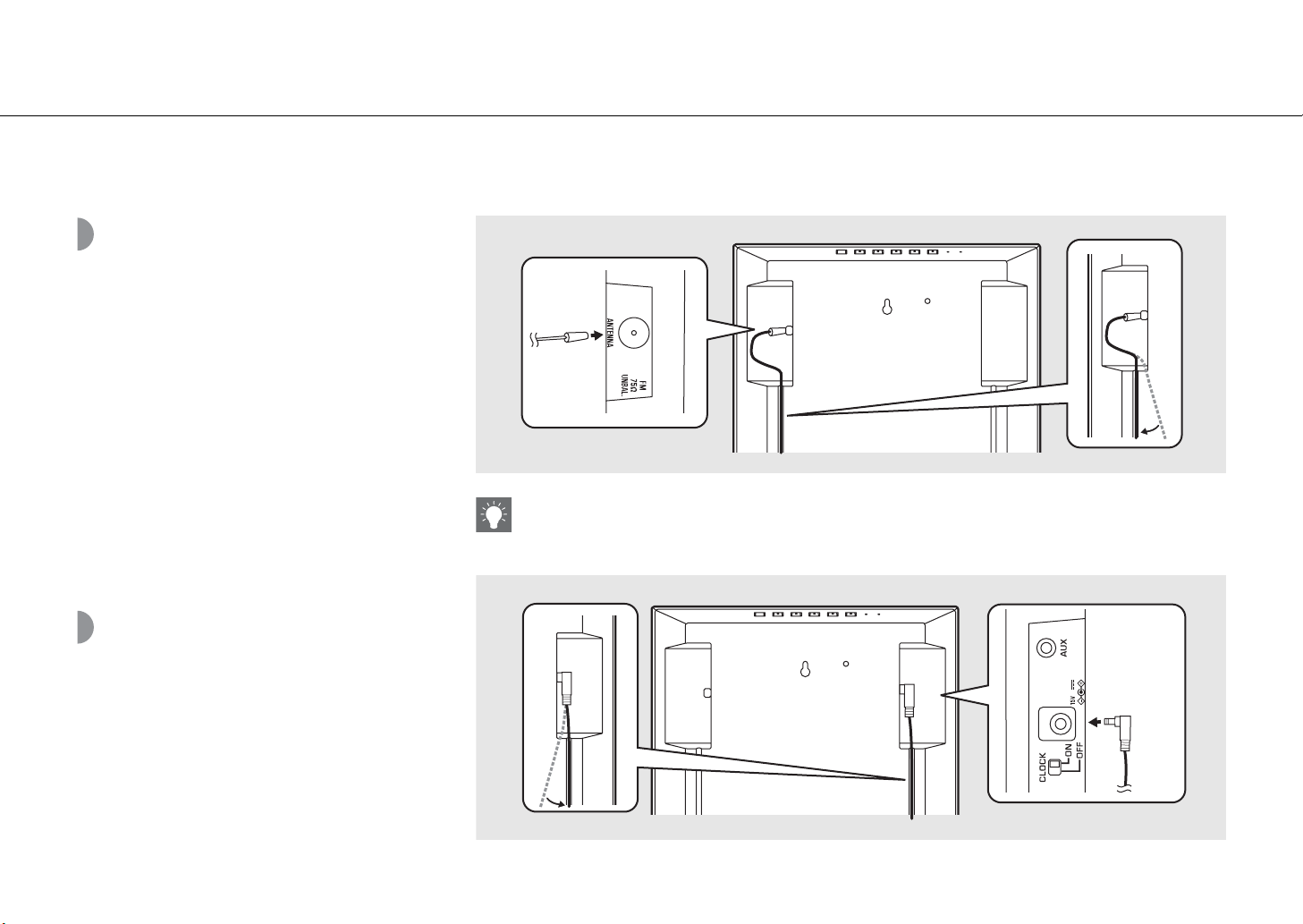
Connect FM antenna or AC adaptor and turn the unit on.
Do not connect the power cable of the unit until you have finished connecting all cables.
Connecting FM
antenna
1 Connect the supplied antenna to the
unit.
2 Pass the antenna cable through the
cable-holding slit on the back.
Connecting AC adaptor
1 Connect the AC adaptor.
2 Pass the cable through the cable-
holding slit on the back.
• If radio reception with the supplied antenna is not satisfactory, a commercially available outdoor antenna may improve
reception.
1
2
12
10 En
Preparations
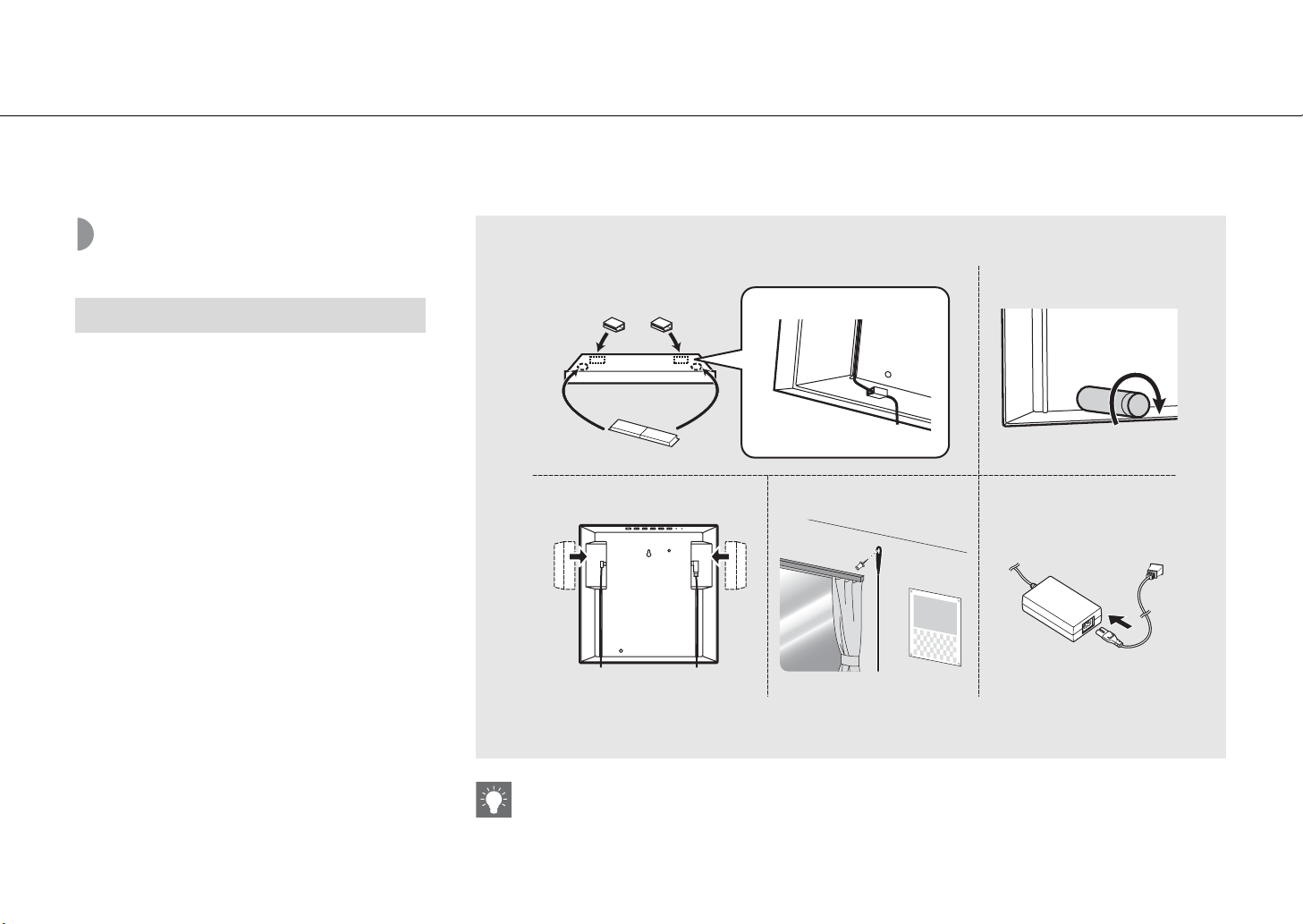
Installation
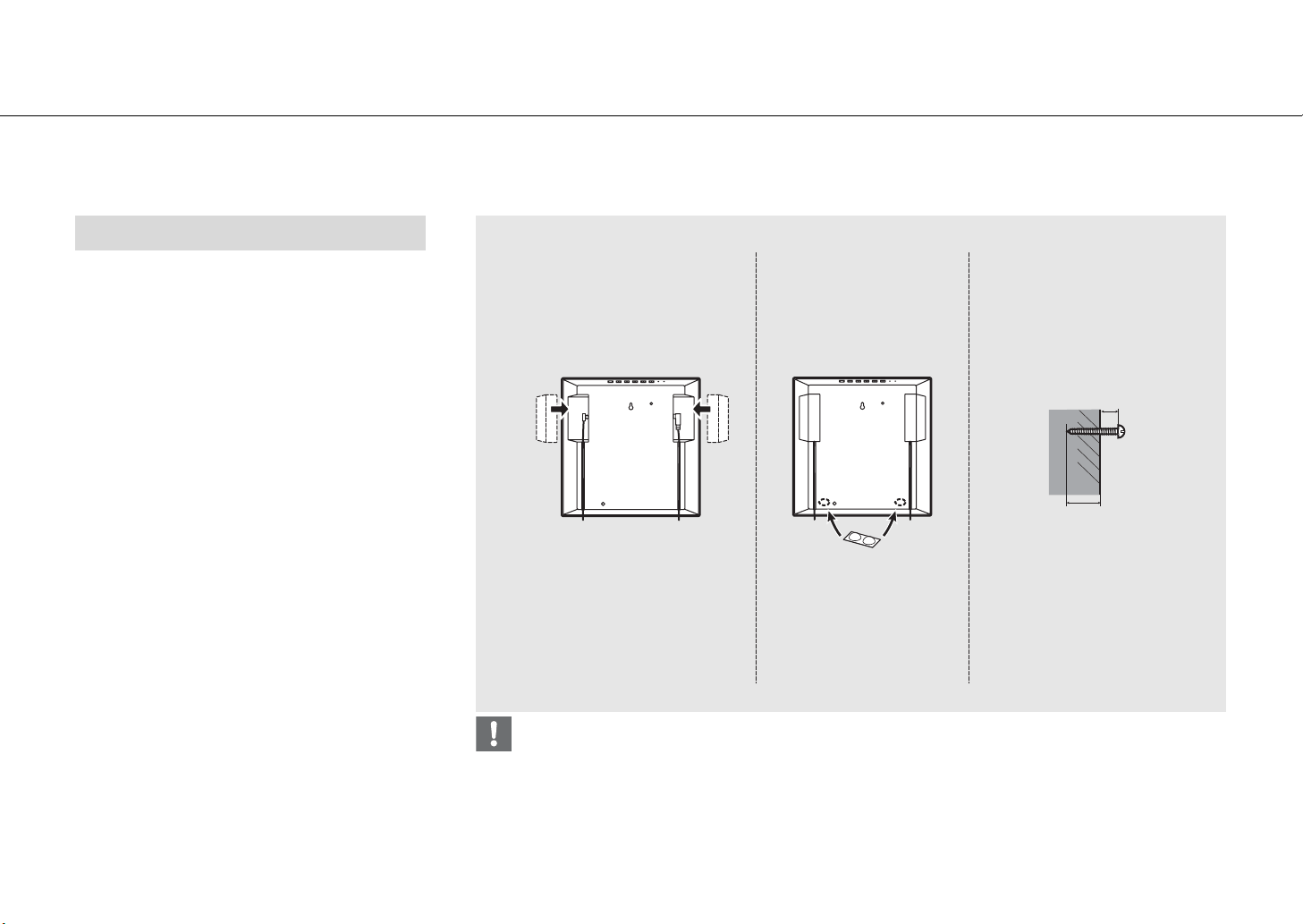
1 Attach the non-skid pad to the bottom
of the unit (2 places).
• Attach the provided cable clamp to the bottom,
you can also put together cables clean.
2 Attach the provided stand.
3 Attach the cover.
• When using an outdoor antenna or connecting to
the AUX jack, the cover may not be able to be
attached. In that case, you can use the unit
without the cover.
4 Install FM antenna with pins where the
unit can obtain good reception.
5 Connecting the power cable to the AC
adapter.
When installing on a shelf
• Spread a soft cloth or other protective mat over the table before installation.
3
12
45
En 11
Preparations
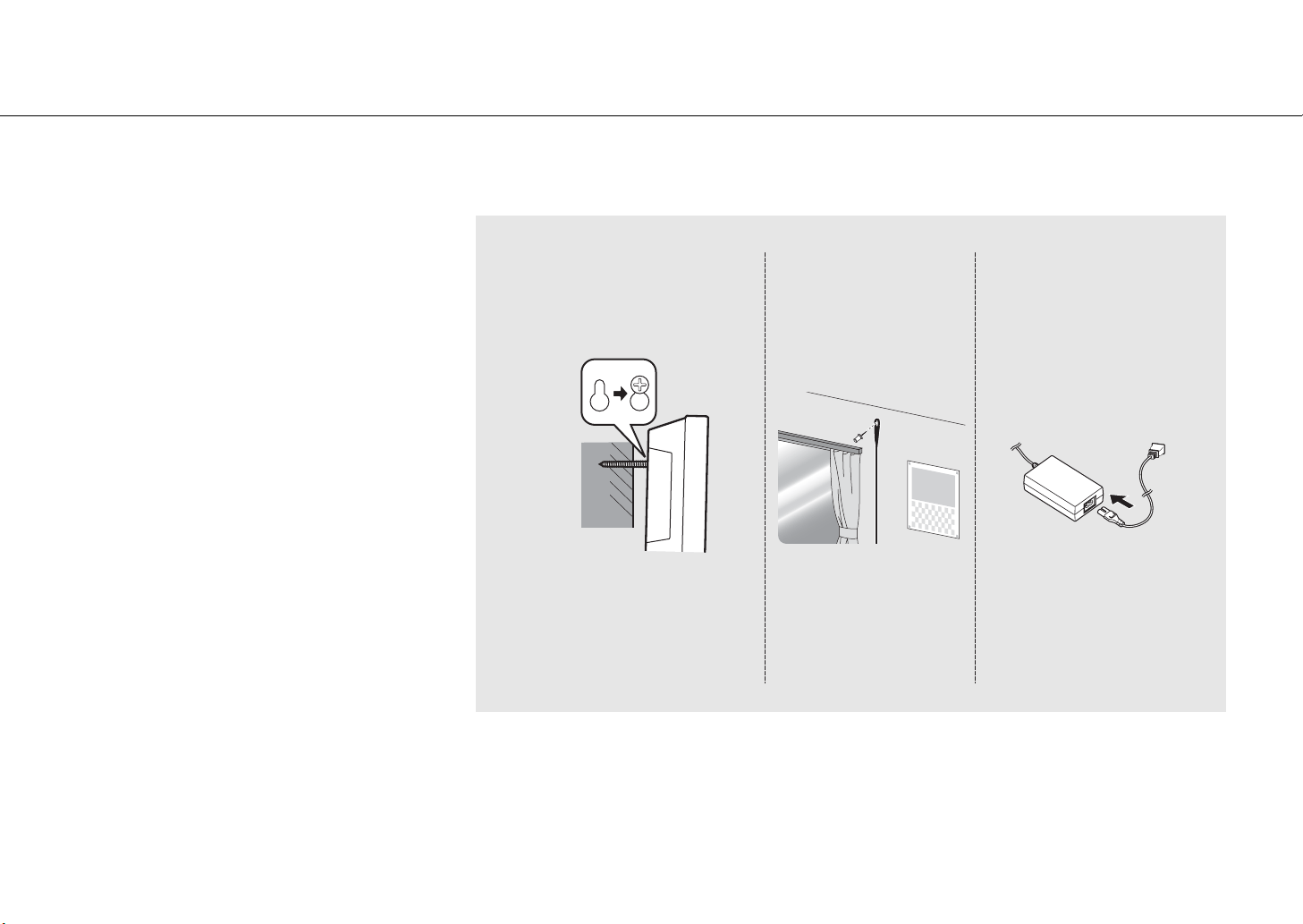
1 Attach the cover.
• When using an outdoor antenna or connecting to
the AUX jack, the cover may not be able to be
attached. In that case, you can use the unit
without the cover.
2 Attach the non-skid pad to the rear of
the unit (2 places).
3 Insert a screw into the wall.
•
Prepare a commercially available tapping screw (screw
diameter 3.5mm to 4mm (1/8in. to 3/16in.)).
•
Do not mount the unit on thin plywood or on a wall
made of soft material. Otherwise, the screw may pull
out of the surface and the unit may fall, possibly
damaging it or causing personal injury.
•
Do not mount the unit on a wall using nails,
adhesives, or unstable hardware. Long term use
and vibration may cause the unit to fall.
Continue to the next page \
When hanging the unit on the wall
• Secure installation is the owner's responsibility. Yamaha shall not be liable for any accident caused by improper
installation. If you are uncertain about the wall strength, please consult an installation specialist.
3
12
10 mm (13/32 in.)
Wall/
Reinforcing
material
20 mm (13/16 in.) or more
12 En
Preparations
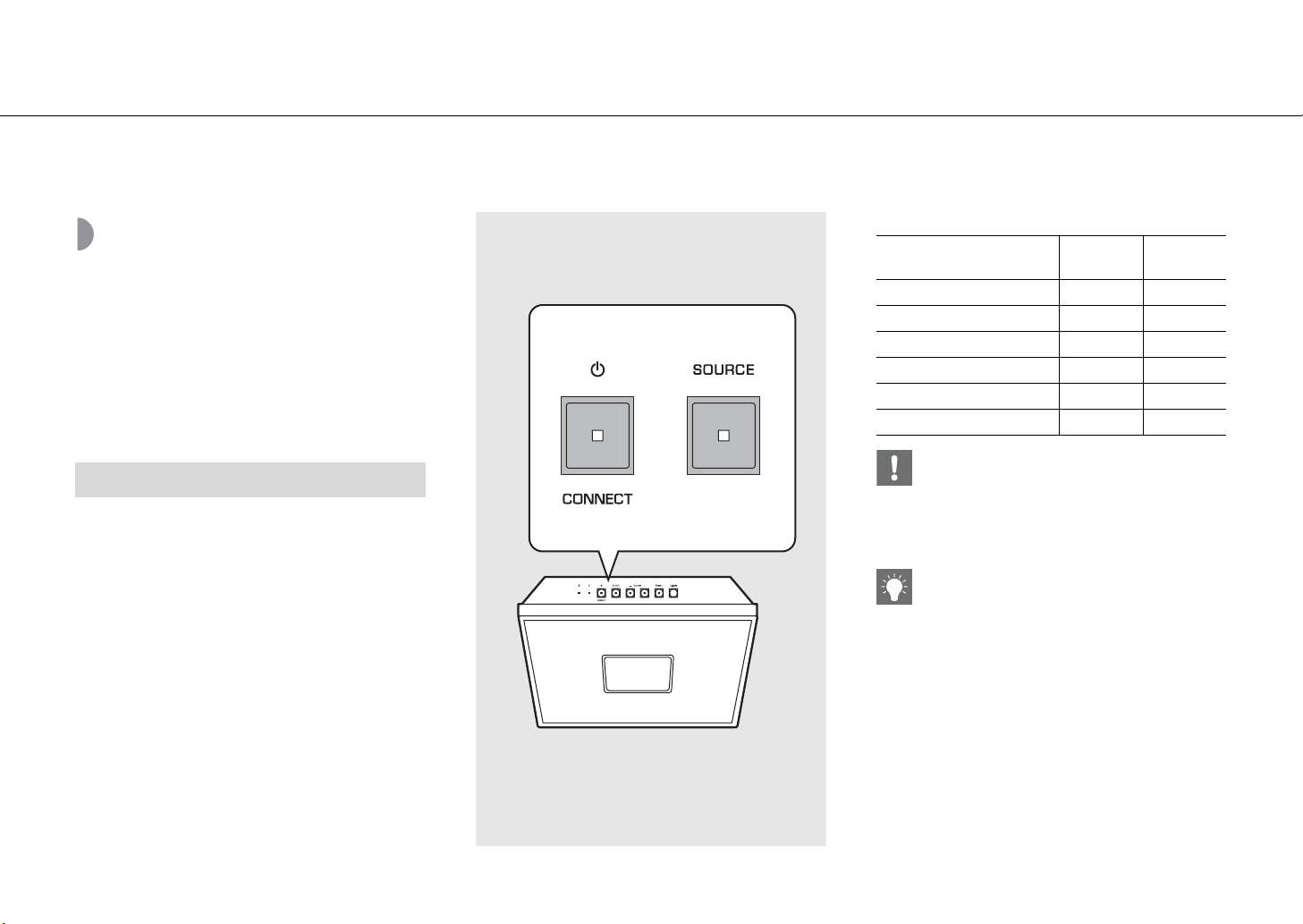
4 Hook the hole for wall-hanging
installation onto the screw head.
• Make sure that the screw is securely caught by
the narrow part of the hole.
• To prevent the unit from falling down, it is
recommended to attach a commercially available
safety wire. Use a commercially available screw
(M4 x 8 mm (5/16 in.)) to attach it.
5 Install FM antenna with pins where the
unit can obtain good reception.
6 Connect the power cable to the AC
adapter.
• Place the cable so that a hand or foot is not
caught by it.
4
56
En 13
Preparations
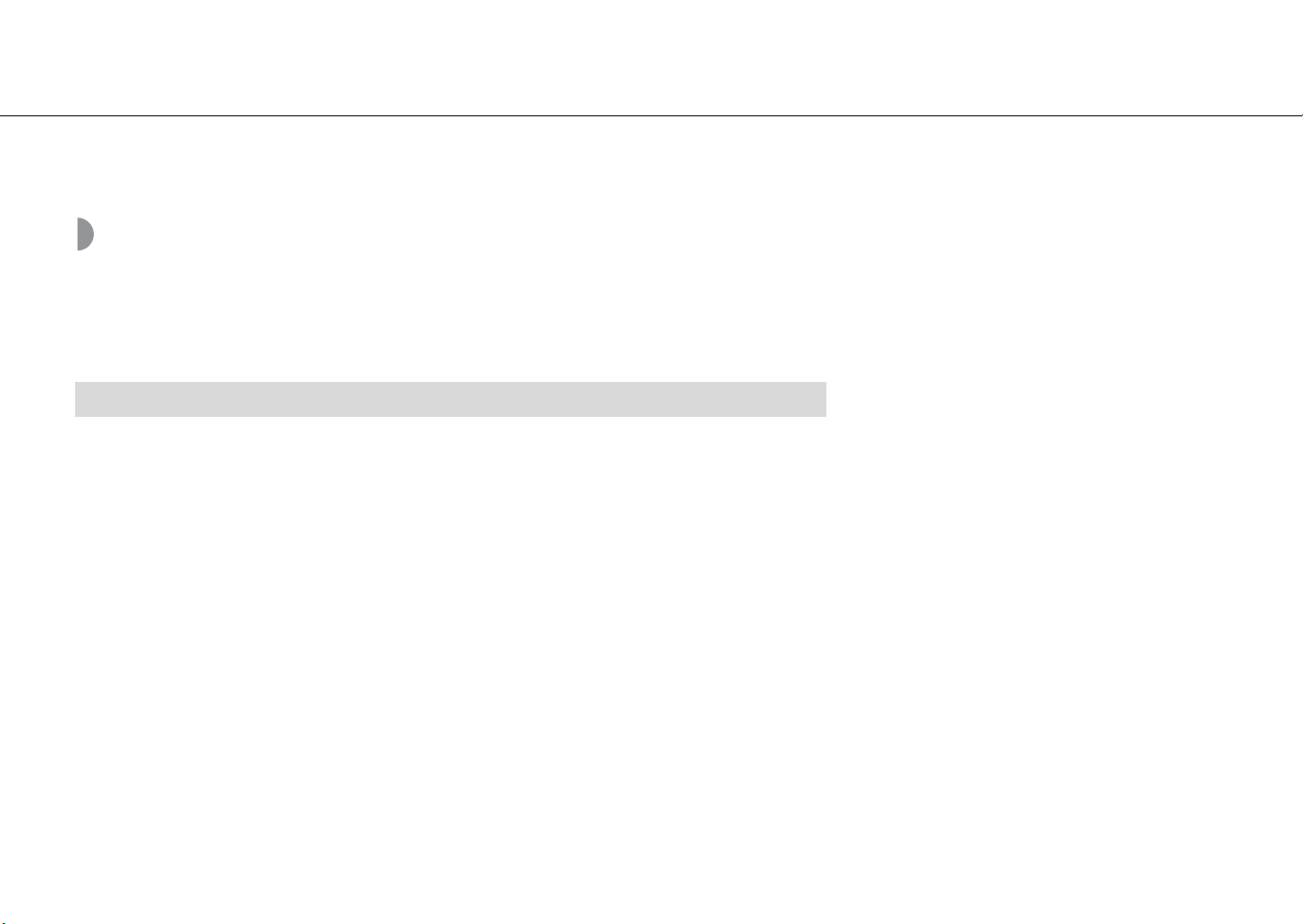
Turning on the power
Plug the power cable into the wall outlet
and press
A.
• The unit turns on.
• Press
A again to turn off (standby mode).
• By setting the CLOCK switch on the side (& P.6), when
the clock display is on or off, the status is “Standby” or
“Eco standby,” respectively (see the table on the right).
Auto standby can be turned on /off in the
following procedure.
1 While pressing SOURCE of the unit,
plug the power cable into an outlet.
2 Press and hold SOURCE.
• The front panel display shows “ON” or “OFF.”
Status in standby/eco standby
Auto standby
Standby
Eco
standby
Setting of the clock Yes No
Enable/disable the alarm Yes No
Control from the app Yes No
Clock display Yes No
Network connection Yes No
Bluetooth connection Yes No
• Set the CLOCK switch to “ON” when you use the
“MusicCast CONTROLLER” app.
• When you turn on the unit for the first time after
purchase, the Wi-Fi indicator blinks and the unit
automatically starts to search iOS device (& P.16).
• When the auto standby is on (default setting), the
unit will automatically go into the standby state
under the following conditions.
- When the unit produces no sound of audio
input and is not operated for about 20 minutes
at selecting Bluetooth or NET as the source.
- When the unit has passed for 8 hours in the
absence of operation regardless of the audio
input.
14 En
Preparations
Install the “MusicCast CONTROLLER” app
To connect the unit to a network and play the content of streaming services or the Internet radio, you must use the free
dedicated “MusicCast CONTROLLER” app for mobile device. For details, search App Store or Google Play
TM
for “MusicCast
CONTROLLER.”
• The application supports iPhone/iPad/iPod touch and Android mobile devices.
• Perform the network settings of this unit, and connect to the Wi-Fi network
• Play songs stored on computers (servers)
• Select an Internet radio station
• Distribute and receive audio between the unit and other Yamaha MusicCast devices
• Set the clock
• Set the alarm
• Adjust sound tone
See “MusicCast Setup Guide” for details.
”MusicCast CONTROLLER” capabilities
En 15
Preparations
Connecting to the
network
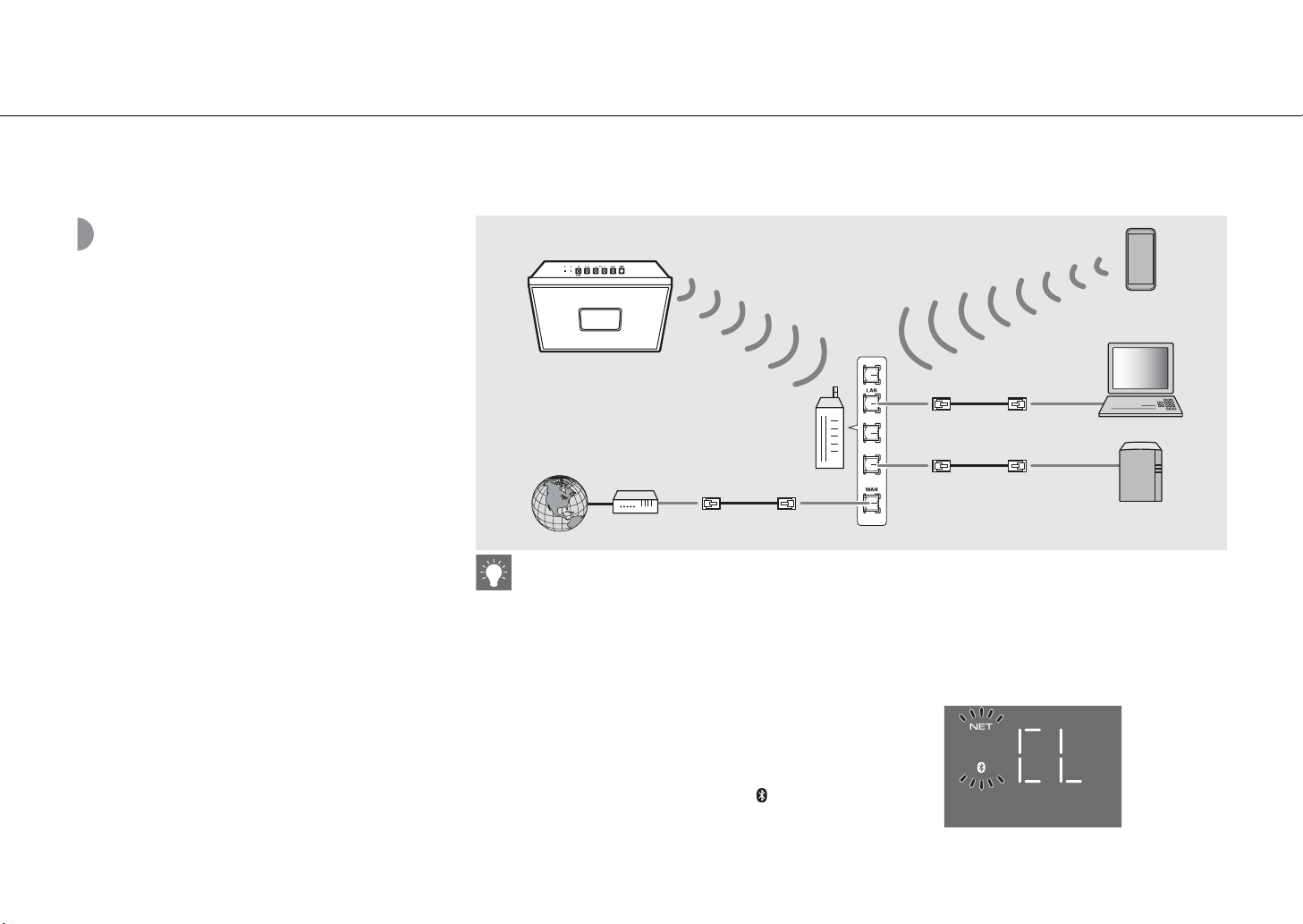
You can play back music files stored on your PC, mobile
devices, DLNA
*
-compatible NAS, or audio contents on the
Internet, by connecting this unit to the network. You can
also operate the unit with your mobile device.
* Digital Living Network Alliance
1 Start “MusicCast CONTROLLER.”
2 In “MusicCast CONTROLLER,” start
setting the network.
3 Follow the instruction of “MusicCast
CONTROLLER” to press and hold the
CONNECT of this unit.
• The unit will become ready to be connected to
the network and the Wi-Fi indicator (& P.5) blinks.
4 Set the network by following the
indication of “MusicCast
CONTROLLER.”
• When the unit is connected to the network, the
Wi-Fi indicator (& P.5) lights up.
• For network connection, “MusicCast CONTROLLER” is required. Before making connection, connect the mobile
device where “MusicCast CONTROLLER” has been installed to the wireless router (access point) you will use.
• For details on Internet connection, refer to the owner’s manuals of your network devices.
• Some security software installed on your PC or the firewall settings of network devices (such as a router) may block
the access of the unit to the network devices or the Internet. In this case, change the setting of the security software
or network devices.
Initializing network settings
1 Press A to turn the unit off.
2 Pull out the plug from the outlet.
3 While pressing A, plug the power cable into an outlet.
- After the source indicator (NET and ) flashes for
several seconds, the screen changes to the clock display.
This unit
Internet
Wireless router
(access point)
Mobile device
PC
NAS
16 En
Preparations
Connecting to the network by sharing the iOS
device setting
When you turn on the unit for the first time after purchase or initialization of network settings (& P.15), the Wi-Fi indicator
blinks and the unit automatically starts to search iOS device (such as iPhone). You can easily setup a wireless connection by
applying the network settings on iOS devices.
Before proceeding, confirm that your iOS device is connected to a wireless router (access point).
Display the Wi-Fi setup screen on the iOS device and select the unit from “SETUP A NEW
AIRPLAY SPEAKER...”.
• Follow the on-screen instructions displayed on the iOS device.
• You need iOS device with iOS 7.1 or later.
• The network settings on iOS devices cannot be
applied to the unit to establish a wireless
connection if your wireless router (access point)
uses WEP encryption.
En 17
Preparations
Setting the clock
Once the clock is set, the alarm function will be
available.
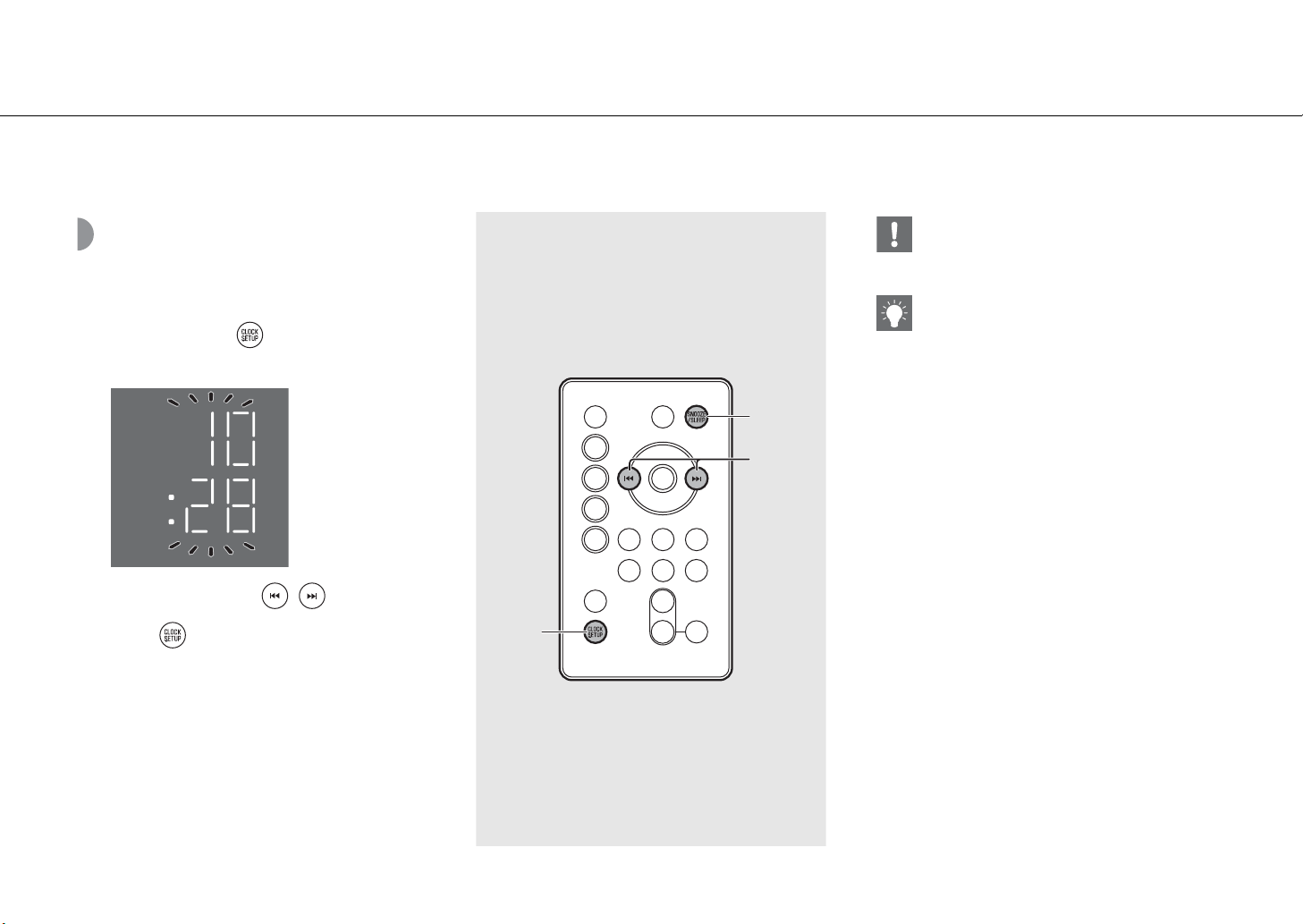
1 Press and hold .
• The clock display flashes.
2 Set the clock with / .
3 Press to finish the setting.
SNOOZE
/SLEEP
2
1
,3
• The clock setting will be lost if you disconnect the
power cable from the wall outlet for about a week.
Set the clock again.
• The clock format (12-hour/24-hour) can be
changed if you press the SNOOZE/SLEEP button
while setting the clock.
• The “AM” or “PM” is displayed only when 12-hour
format is selected.
• To cancel the setting, press
A.
• You can use the CLOCK switch to set whether or
not to display the clock during the standby status.
ON: clock display on (standby)
OFF: clock display off (eco standby)
18 En
Playing network contents
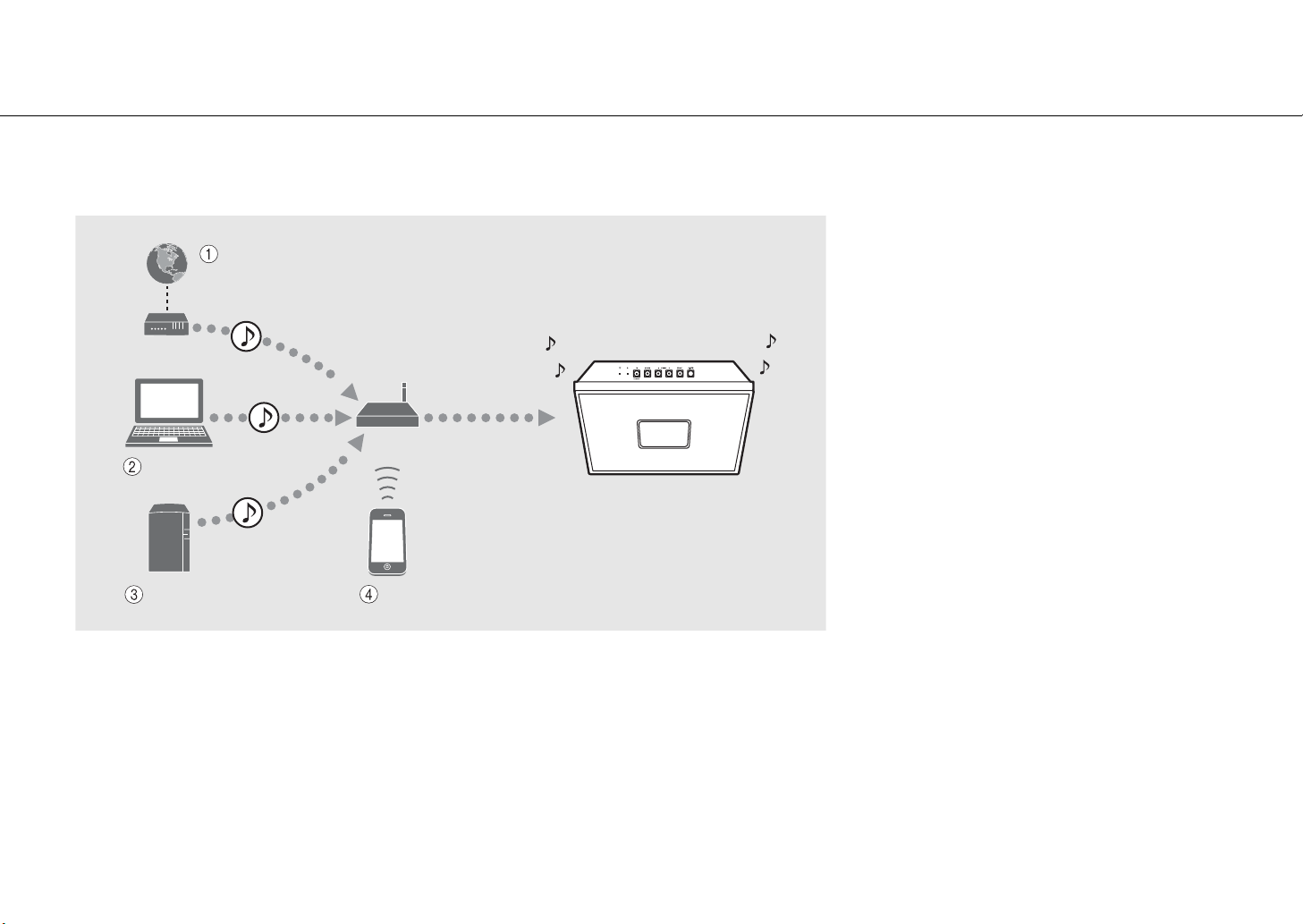
This unit allows you to play back music files such as MP3, WMA, or FLAC (lossless audio data compression format) files stored in the computer (server) connected to
the network or NAS. You can also listen to world-wide radio stations via the Internet.
NAS
Wireless router
(access point)
Modem
Internet
This unit
iPod (AirPlay)
PC
1 Play back the Internet radio (& P.21)
2 Play back music files stored on your PC (& P.19)
3 Play back music files stored on your NAS (& P.19)
4 Play back your iPod with AirPlay (& P.23)
En 19
Listening to the songs in the computer
This unit allows you to play back music files such as MP3, WMA, or FLAC (lossless audio data compression format) files stored in the computer (server) connected to
the network or NAS.
Setting the media
sharing of music files
To play back music files in your computer with this unit,
you need to make the media sharing setting between the
unit and computer (Windows Media Player 11 or later).
In here, setting with Windows Media Player 12 in
Windows 7 is taken as an example.
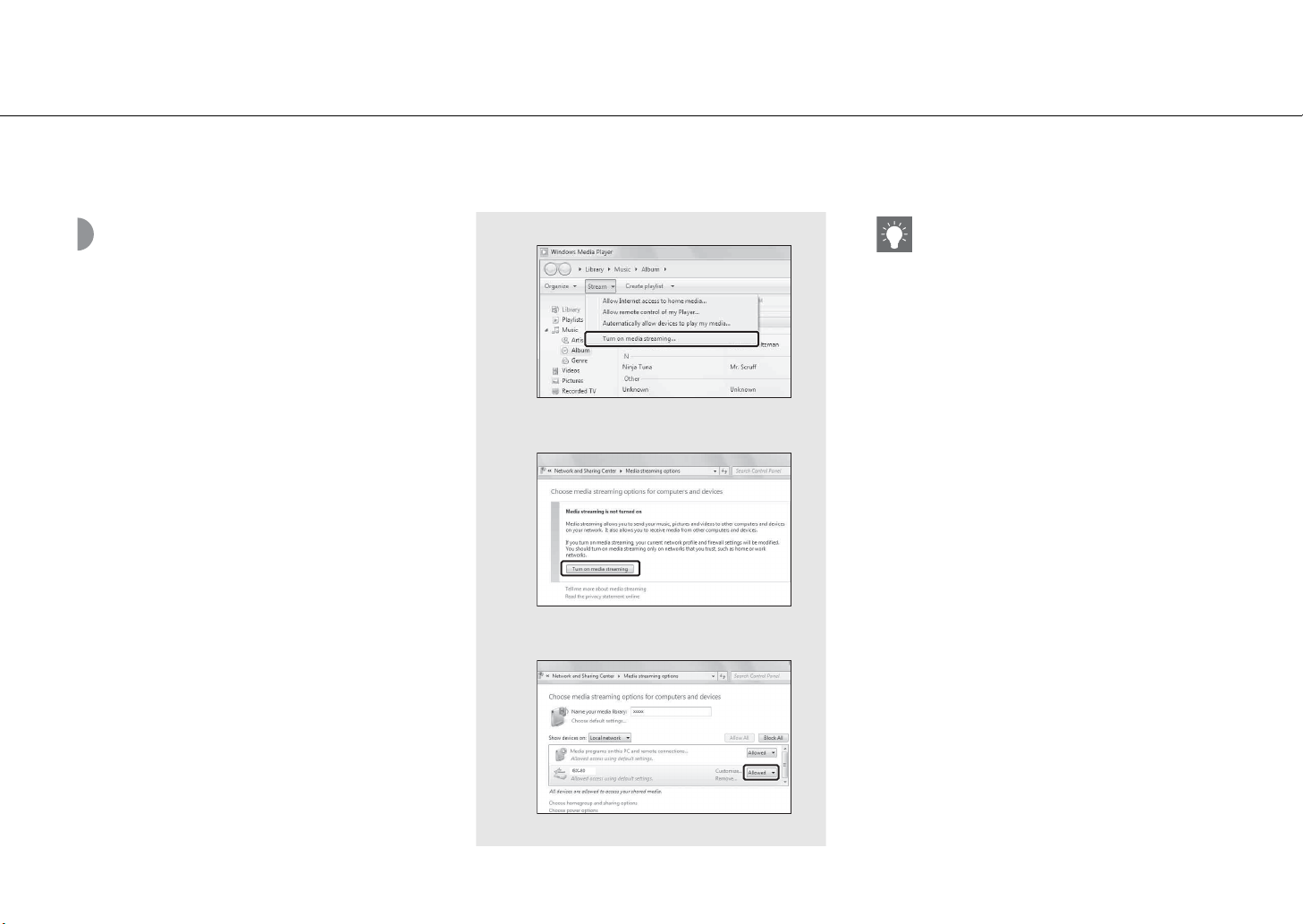
1 Start Windows Media Player 12 on
your PC.
2 Select “Stream,” then “Turn on media
streaming.“
• The control panel window of your PC is shown.
3 Click “Turn on media streaming.”
4 Select “Allowed” from the drop-down
list next to the unit's model name.
5 Click “OK” to exit.
2
3
4
• For details on media sharing settings, refer to
Windows Media Player help.
For a PC or a NAS with other DLNA server
software installed
Refer to the owner’s manual of your device or
software and configure the media sharing settings.
20 En
Listening to the songs in the computer
Playing back songs in
the PC
Use the “MusicCast CONTROLLER” installed in a mobile
device.
1 In the “MusicCast CONTROLLER,”
select “Server.”
2 Play back songs by following the
indication of “MusicCast
CONTROLLER.”
,
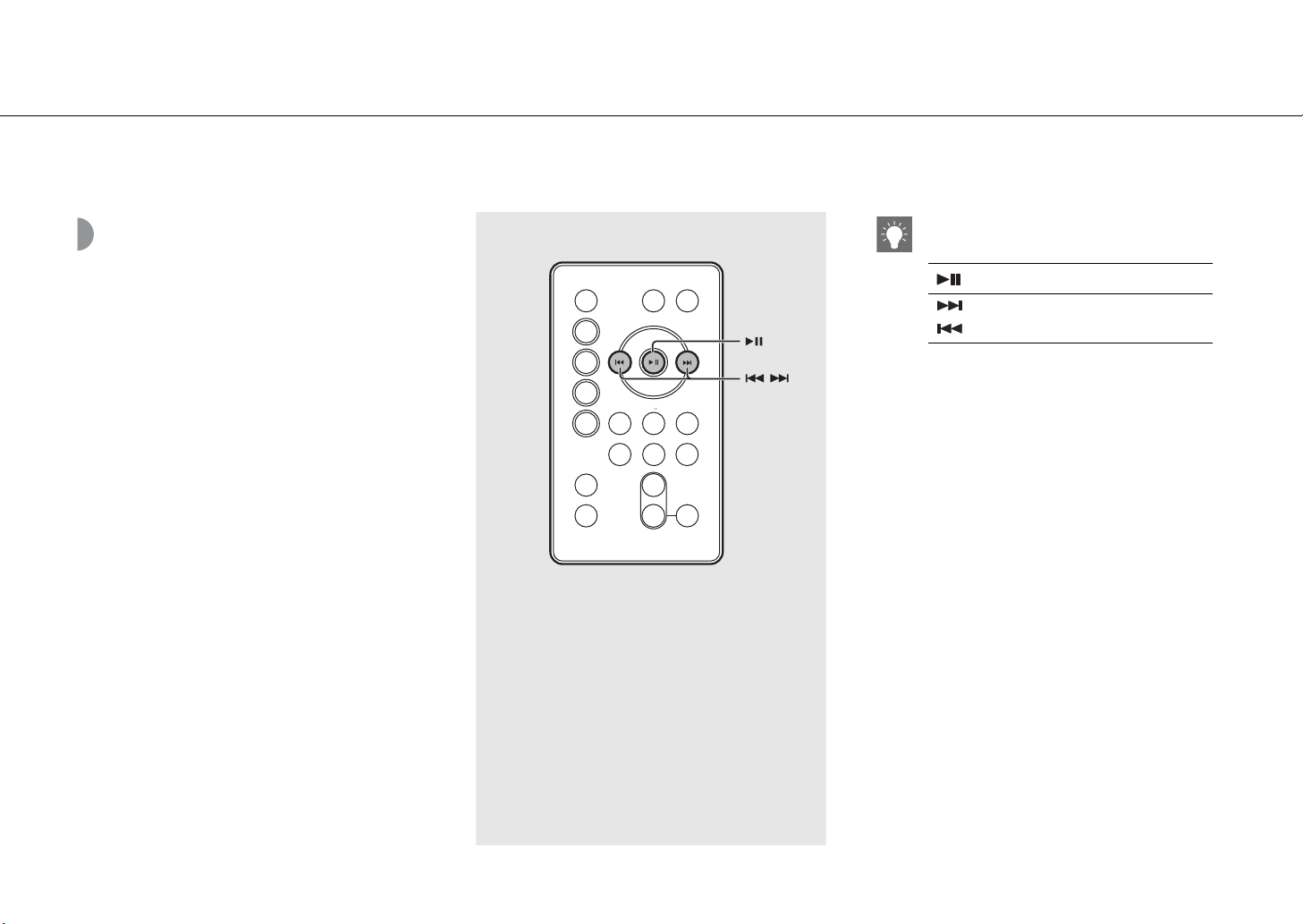
• You can use the remote controller for the
following operations:
• You can store your favorite songs beforehand
(& P.22).
Play/pause
/
Move to the next or previous song
in the folder.

En 21
Listening to Internet radio
You can listen to Internet radio stations from all over the world. Use the “MusicCast CONTROLLER” installed in a mobile device to listen to Internet radio.
Make sure that the unit is connected to the Internet properly (& P.15).
1 Use “MusicCast CONTROLLER” to select “Net Radio.”
2 Play the radio by following the indication of “MusicCast CONTROLLER.”
• You can store your favorite stations beforehand
(& P.22).
22 En
Presetting network contents
Up to 6 contents can be registered with the unit; and up to 40 contents with “MusicCast CONTROLLER.” You can easily play back contents after registered.
Presetting contents
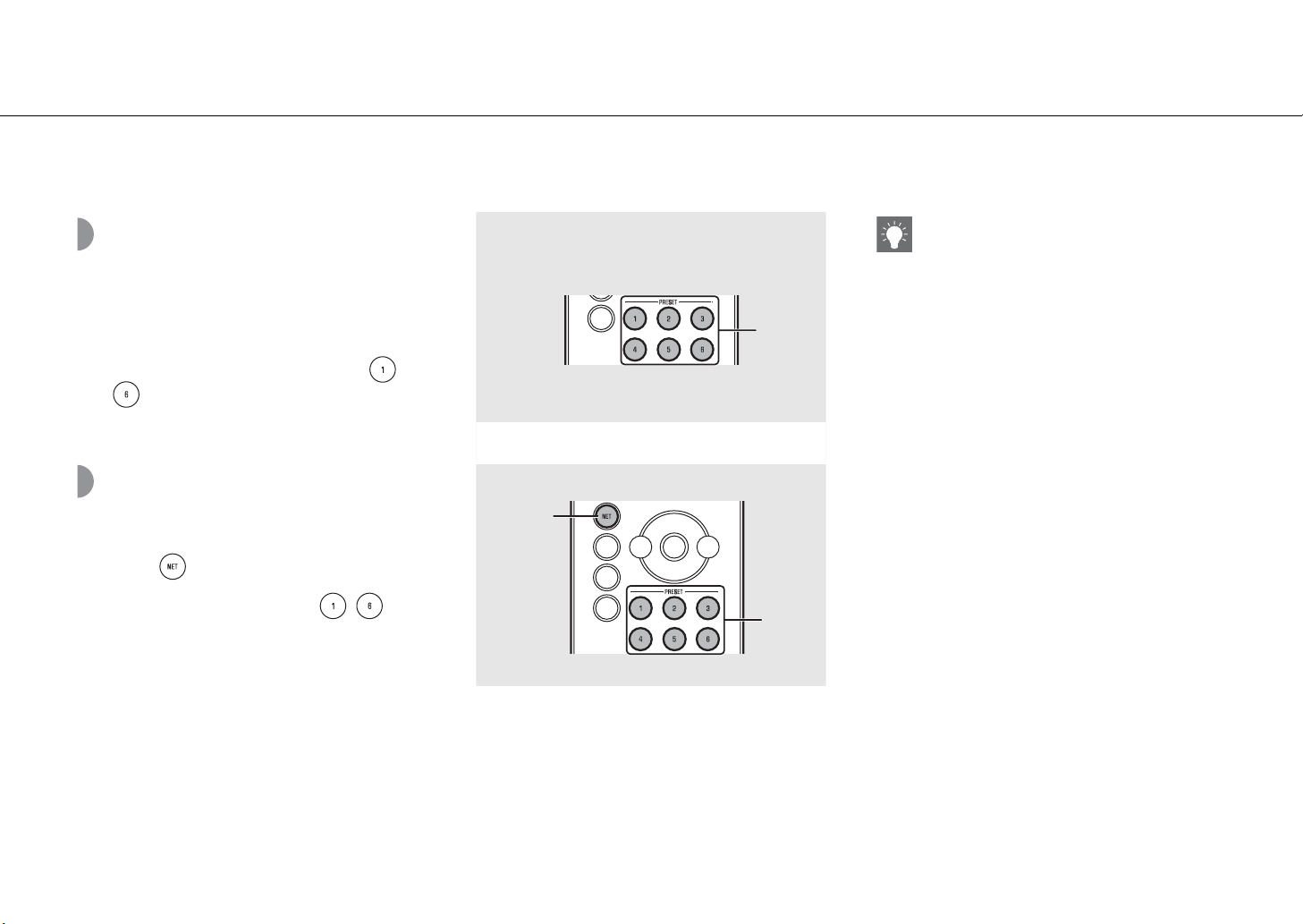
1 Use “MusicCast CONTROLLER” to play
back the content you want to register.
2 With the content selected, press and
hold any of the PRESET button, -
.
• Preset number blinks on the front panel display.
Selecting preset
contents
1 Press .
2 Press the PRESET button, - .
2
2
1
Operation with buttons on the unit
• Presetting contents
1 Use “MusicCast CONTROLLER” to play back the
content you want to register.
2 With the content selected, press and hold
PRESET.
3 Press PRESET to select the desired preset
number.
4 Press and hold PRESET.
• Selecting preset contents
1 Press SOURCE to select “NET.”
2 Press PRESET to select the content.
Using “MusicCast CONTROLLER” to register
content
1 Use “MusicCast CONTROLLER” to play back the
content you want to register.
2 Register the content by following the
indication of “MusicCast CONTROLLER.”
En 23
Listening to the Music with AirPlay
The AirPlay function allows you to play back iTunes/iPod music on the unit wirelessly via a network.
Make sure that the unit and your PC or iPod are connected to the same router (& P.15).
Playing back songs
with iPod
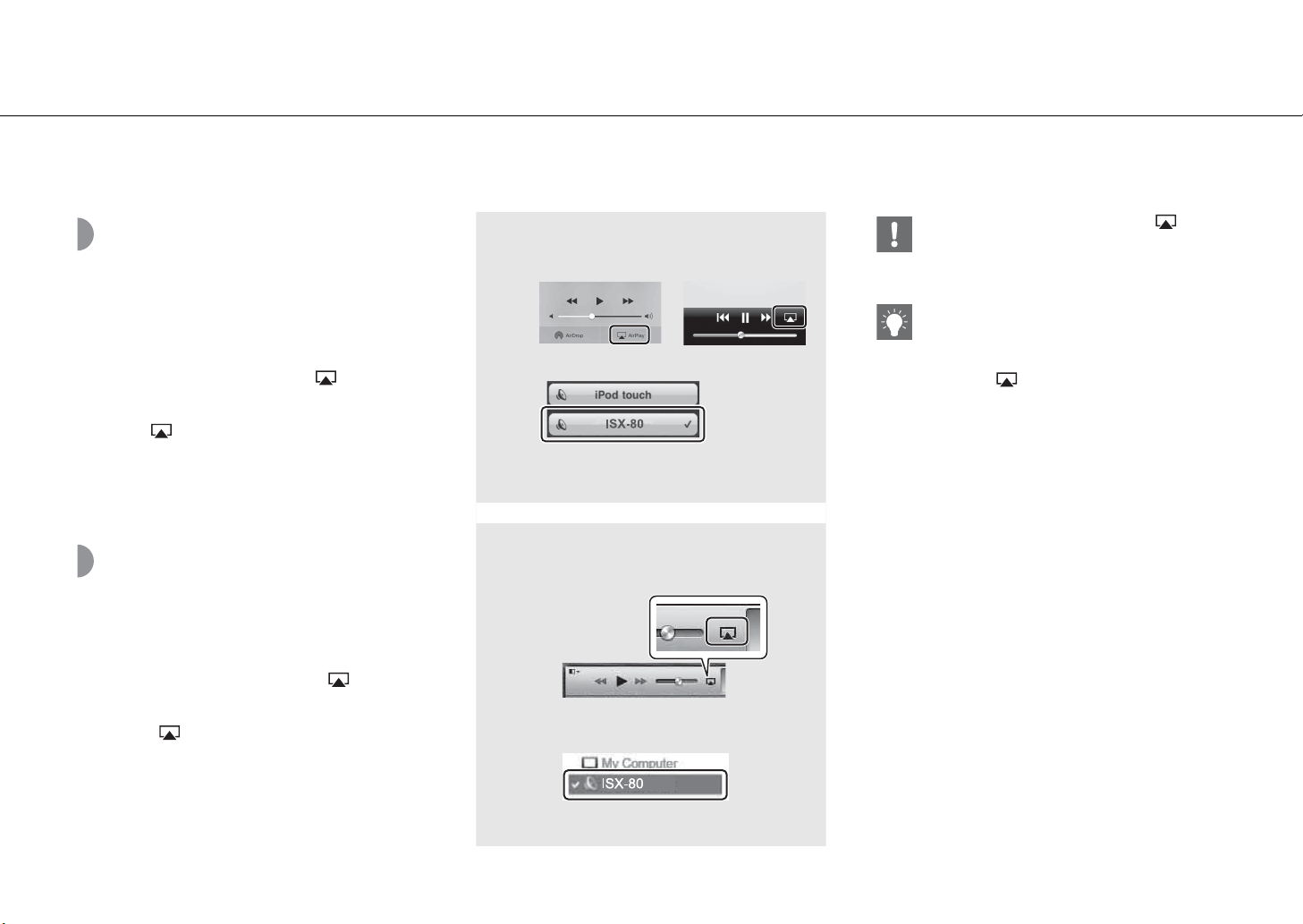
1 Turn on the unit and display the
playback screen on the iPod.
• If the iPod recognizes the unit, is shown on
the screen of the iPod.
2 Tap and select the unit’s name.
• The source automatically switches to [AirPlay] and
playback starts (except in the eco standby mode).
Playing back songs
with iTunes
1 Turn on the unit and start iTunes.
• If the iTunes recognizes the unit, is shown
on the screen of iTunes.
2 Click and select the unit’s name.
• The source automatically switches to [AirPlay]
(except in the eco standby mode).
3 Play back songs with iTunes.
1
2
Example
1
2
Example
iPod iOS6
iPod iOS7/iOS8
• For an iPod with iOS7/iOS8 installed, is
displayed within the control center. To display the
control center, swipe the iPod screen in an
upward direction.
• You can also use the unit and remote control to
play back, pause, stop, and skip songs.
Clearing AirPlay
•
Tap/click on the iPod/iTunes screen and select
a device other than the unit from the speaker list. Or,
change the source to other than AirPlay.
24 En
Listening to music via Bluetooth connection
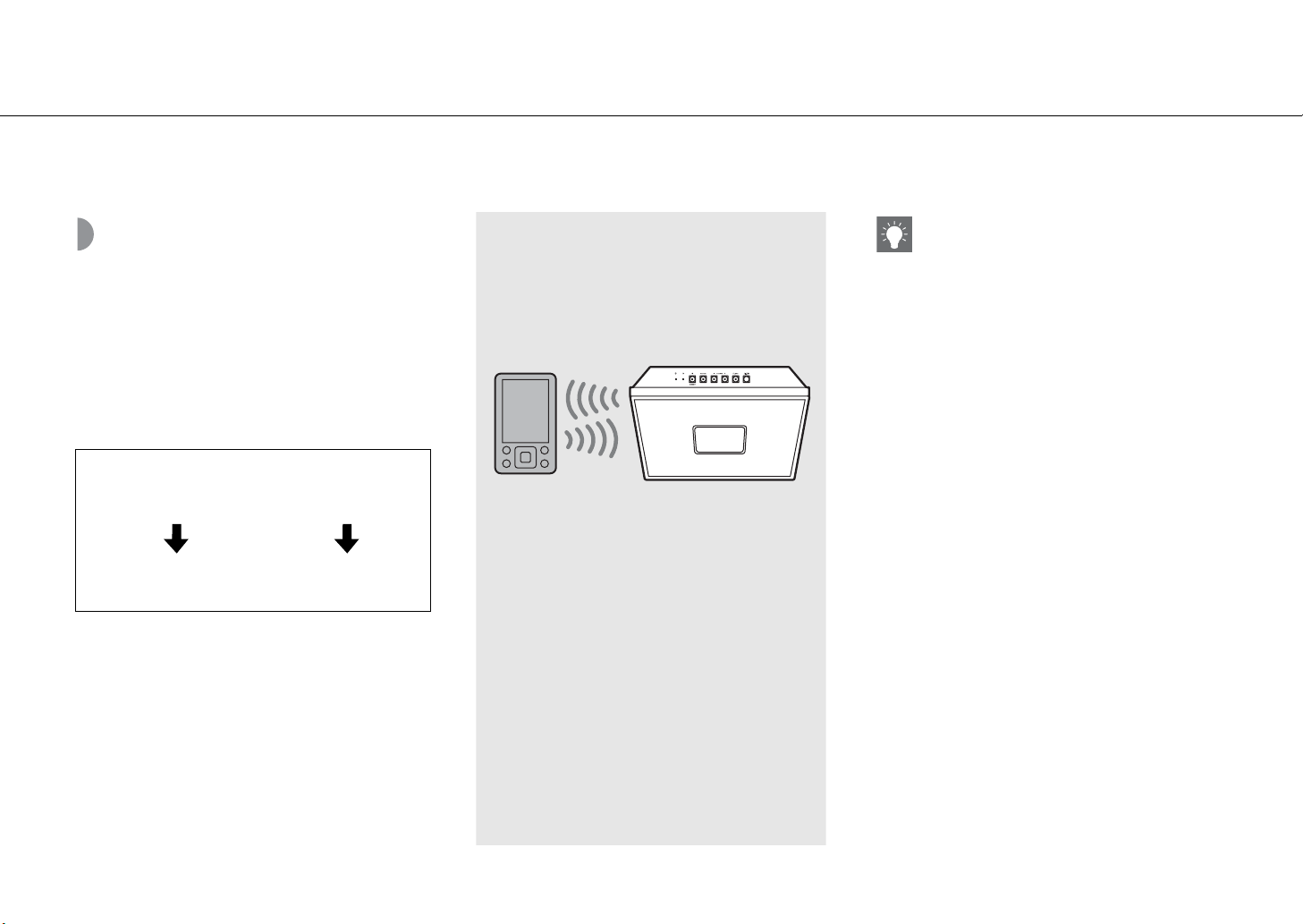
You can listen to sound wirelessly from a Bluetooth compatible device.
Pairing a Bluetooth
device with the unit
When connecting a Bluetooth device to the unit for the
first time, the device is required to be registered to the
unit. This process is called “pairing.”
Once pairing is completed, subsequent connection can
be made with a couple of easy steps.
A Bluetooth device
connecting for the
first time
Perform paring and
playing back music (& P.25)
A Bluetooth device
already having been
connected
Connecting via Bluetooth
playing back music
(& P.26)
Bluetooth device
• If pairing information for a device is deleted, you
will need to perform pairing of that device again in
order to connect it again.
En 25
Listening to music via Bluetooth connection
Performing pairing and
playing back music
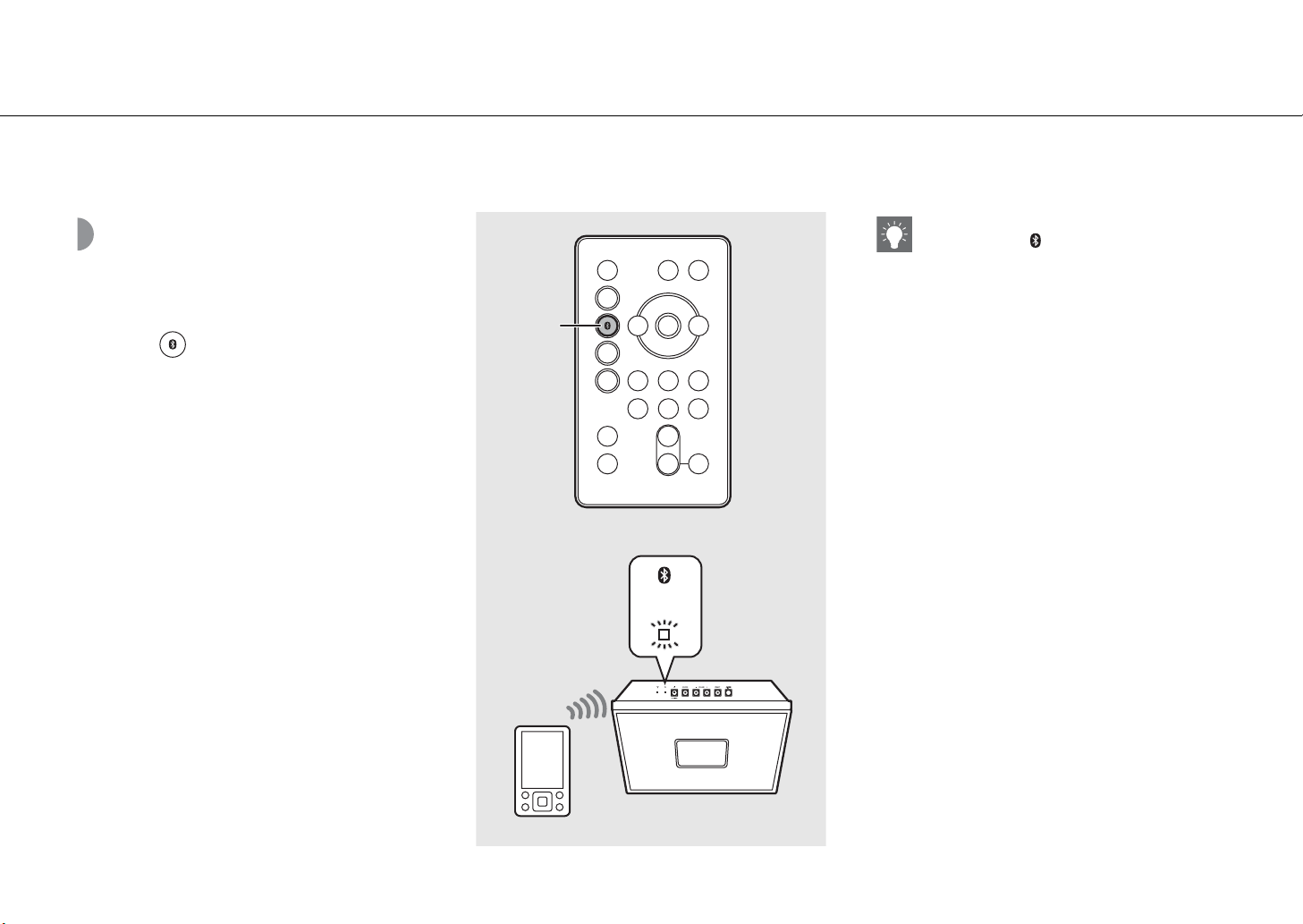
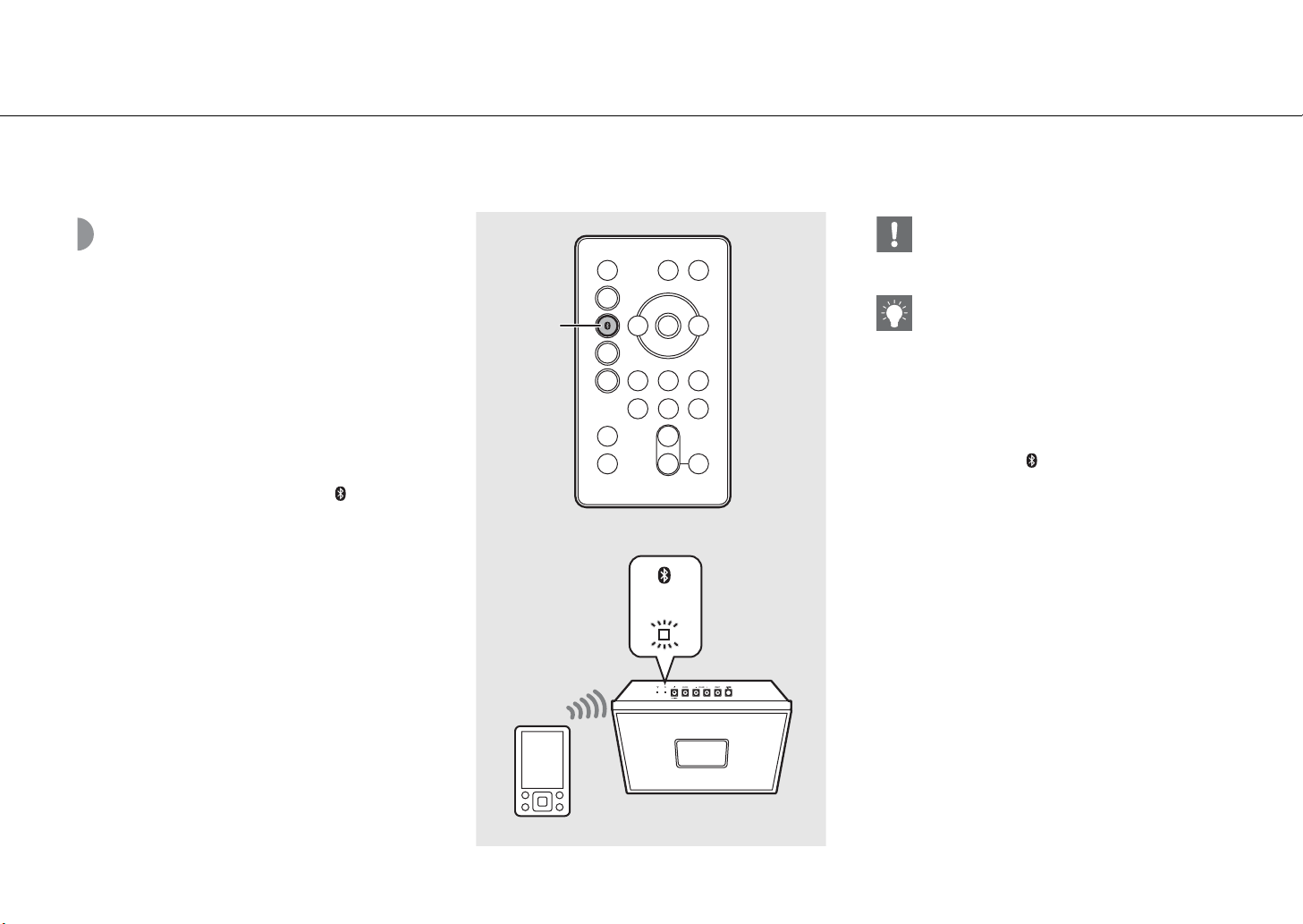
1 Press to set the source to
Bluetooth.
2 Turn on the Bluetooth function on
your device.
3 In the Bluetooth setting of the device,
select the unit (network name of the
unit).
• After pairing is complete, the Bluetooth indicator
(& P.5) lights up when a Bluetooth connection is
established.
• If the device does not connect to the unit
automatically after the pairing is completed,
select the unit (network name of the unit) again in
the Bluetooth setting on your device.
• For details, see the owner’s manual of your device.
4 Play back music on your device.
Indicator
1
2
, 3, 4
• If another device is already connected to the unit,
press and hold to terminate the Bluetooth
connection, then perform pairing with the new
device.
• You can check or change the network name of
this unit with “MusicCast CONTROLLER.”
• If a passkey is required during the pairing
operation, enter the number “0000.”
26 En
Listening to music via Bluetooth connection
Connecting a paired
Bluetooth device
and playing back music
If the unit is connected to another device via Bluetooth
connection, terminate that connection (see “Terminating
the Bluetooth connection” on the right) before
connecting to the target device.
1 Perform Bluetooth connection.
• Connecting from the unit: Press .
• Connecting from the Bluetooth device:
Turn on the Bluetooth function of the connected
device, and select the unit (network name of the
unit) from the available device list.
• The Bluetooth indicator (& P.5) lights up when a
connection is established.
2 Play back music on the connected
device.
Indicator
1
2
• Decrease the volume of the unit before
playback. Otherwise, playback volume may be
too loud.
• If connecting from the unit, the unit searches for
the Bluetooth device connected the last time. In
this case, make sure that device's Bluetooth
function is turned on.
Terminating the Bluetooth connection
Bluetooth connection can be terminated by either
one of the following.
• Press and hold .
• Set the unit to standby mode.
• Terminate the Bluetooth connection from the
connected device.
• Change to another input source.
En 27
Listening to external sources
This unit allows playback of external devices, such as a mobile music player. For the connection of each external device, refer to its supplied owner’s manual.
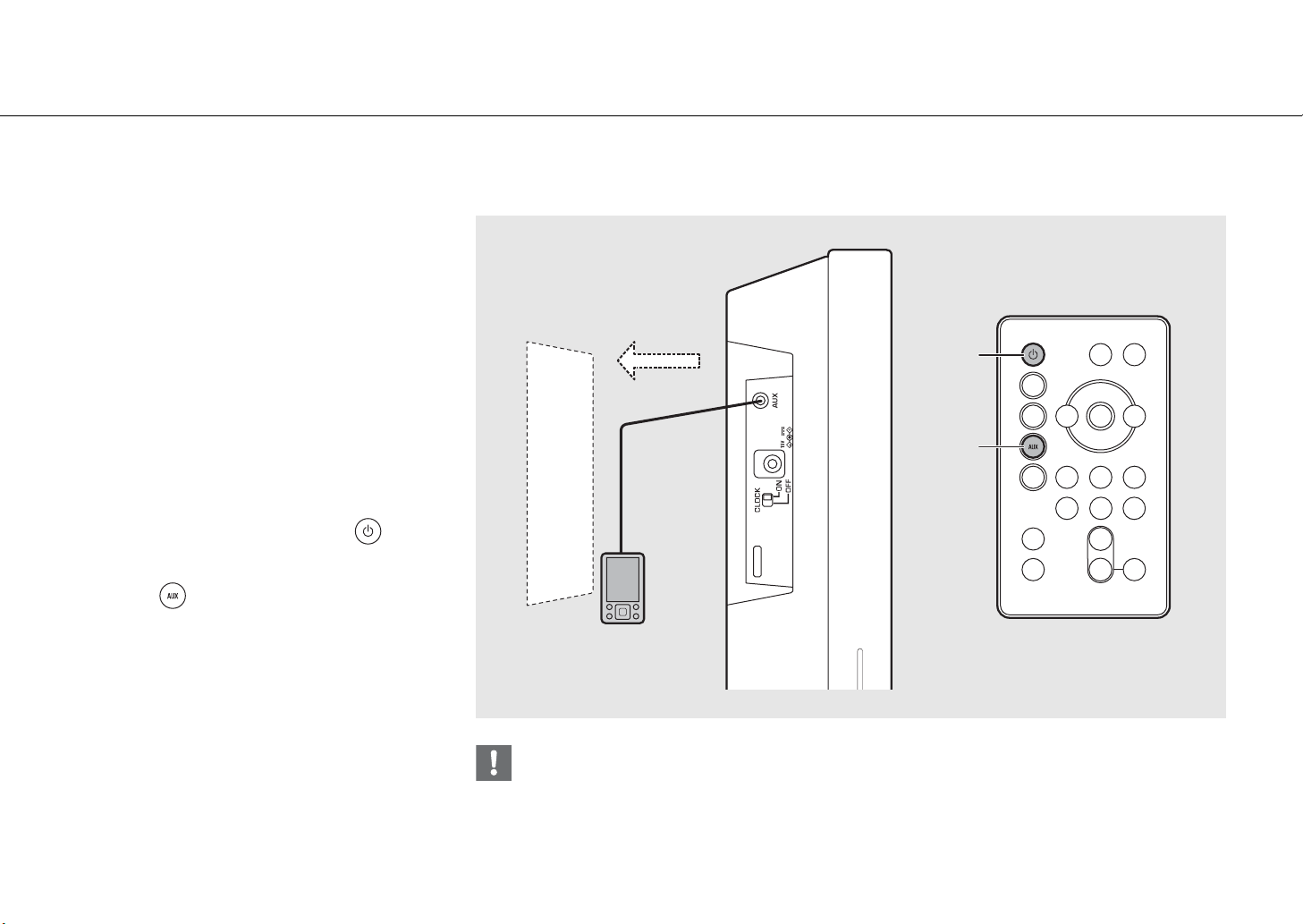
1 Unplug the power cable of the unit.
2 Remove the back cover of the unit and
connect the external device to the
unit.
• Prepare commercially available cables for
connection.
3 Pass the cable through the cable-
holding slit on the back.
4 Attach the cover.
5 Plug the power cable of the unit back
into the wall outlet and press to
turn the unit on.
6 Press .
7 Play back the connected external
device.
• For details on playback, refer to the owner’s
manual supplied with the external device.
• Decrease the volume of the unit and the external device before connection. Otherwise, playback volume may be
too loud.
6
5
3.5 mm stereo
mini-plug cable
Mobile music
player
2
28 En
Listening to FM radio stations
To listen to FM radio stations, connect the supplied FM antenna.
See “Connecting FM antenna” (P.9) for connecting the antenna to the unit.
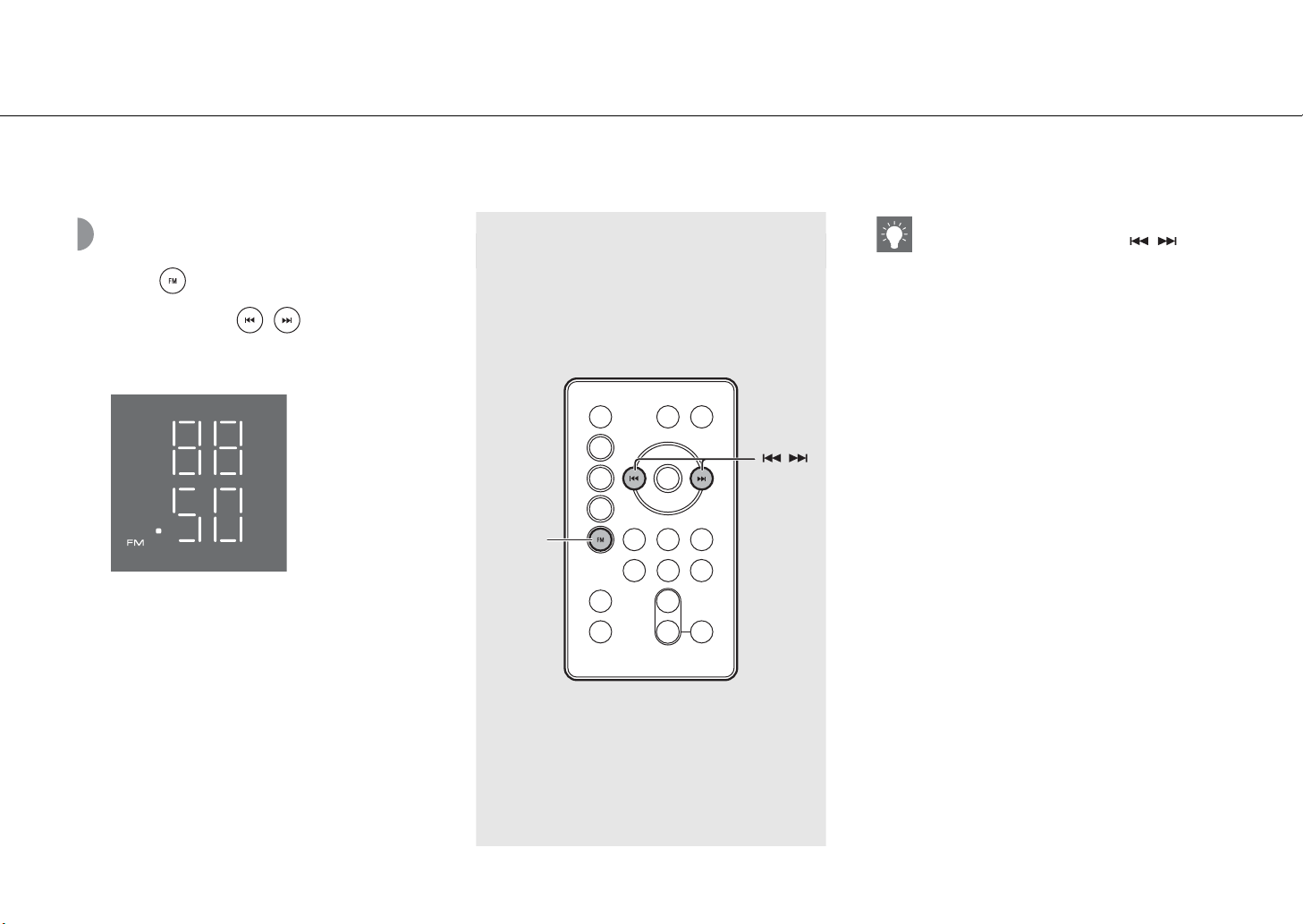
Tuning in FM stations
1 Press .
2 Press and hold / .
• Automatic tuning starts, then stops automatically
when a station is tuned in.
Auto preset
/
2
1
• If station reception is weak, you can tune into a
station manually by pressing the / button
repeatedly.
En 29
Listening to FM radio stations
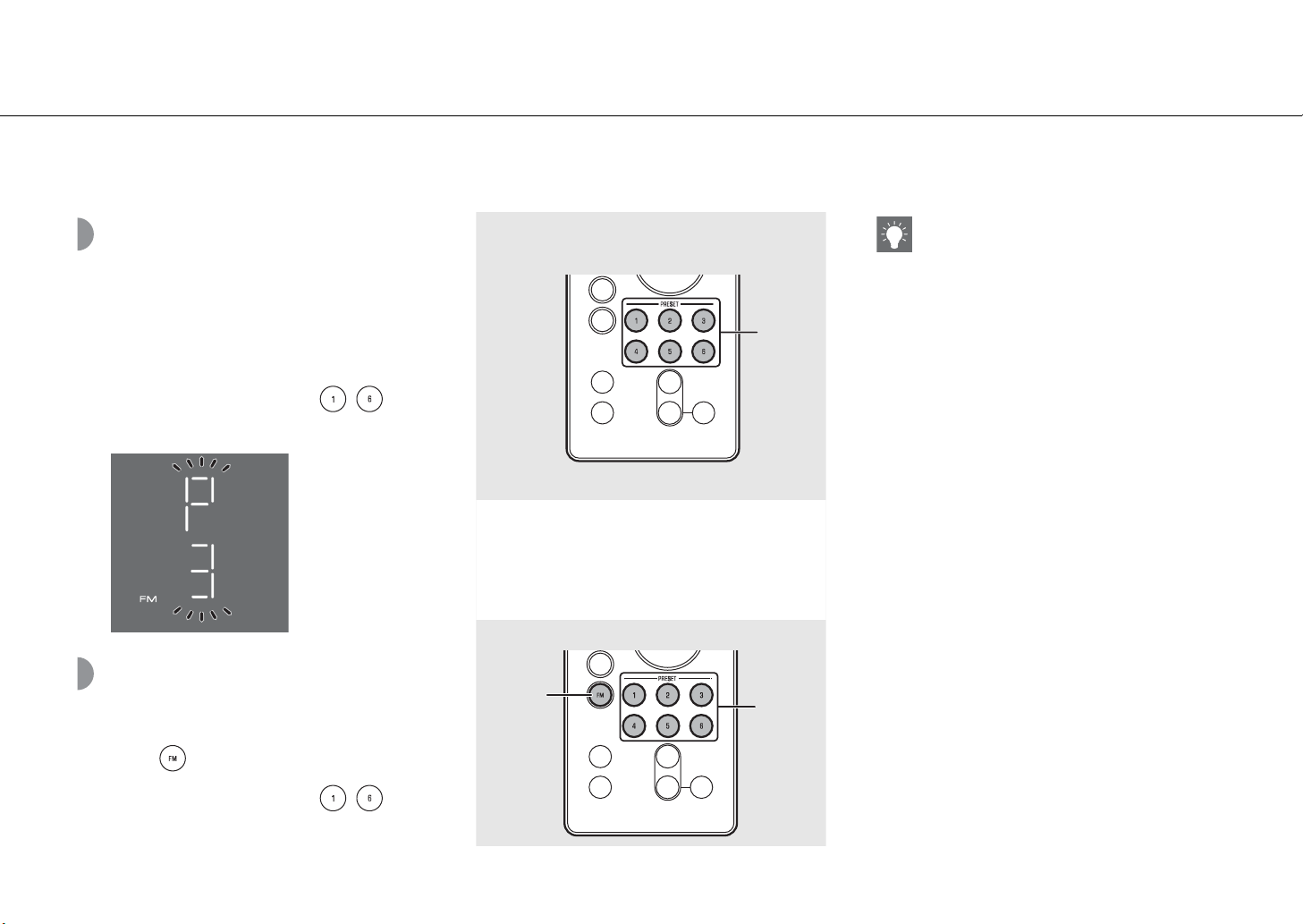
Presetting FM stations
Up to 6 contents can be registered with the unit; and up
to 30 contents with “MusicCast CONTROLLER.”
1 Tune into a station you want to store
(& P.28).
2 Press the PRESET button, - .
• Preset number blinks on the front panel display.
Selecting preset FM
stations
1 Press .
2 Press the PRESET button, - .
2
1
2
Operation with buttons on the unit
• Presetting FM stations
1 Tune into a station you want to store.
2 Press and hold PRESET.
3 Press PRESET to select the desired preset
number.
4 Press and hold PRESET.
• Selecting preset FM stations
1 Press SOURCE to select “FM.”
2 Press PRESET to select the station.
Using “MusicCast CONTROLLER” to register
content
1 Use “MusicCast CONTROLLER” to play back the
content you want to register.
2 Register the content by following the
indication of “MusicCast CONTROLLER.”
30 En
Using the alarm function
The unit includes an alarm function (IntelliAlarm) that plays back music sources or set of beeps (built-in alarm) at the set time in a variety of different methods. The
alarm function has following features.
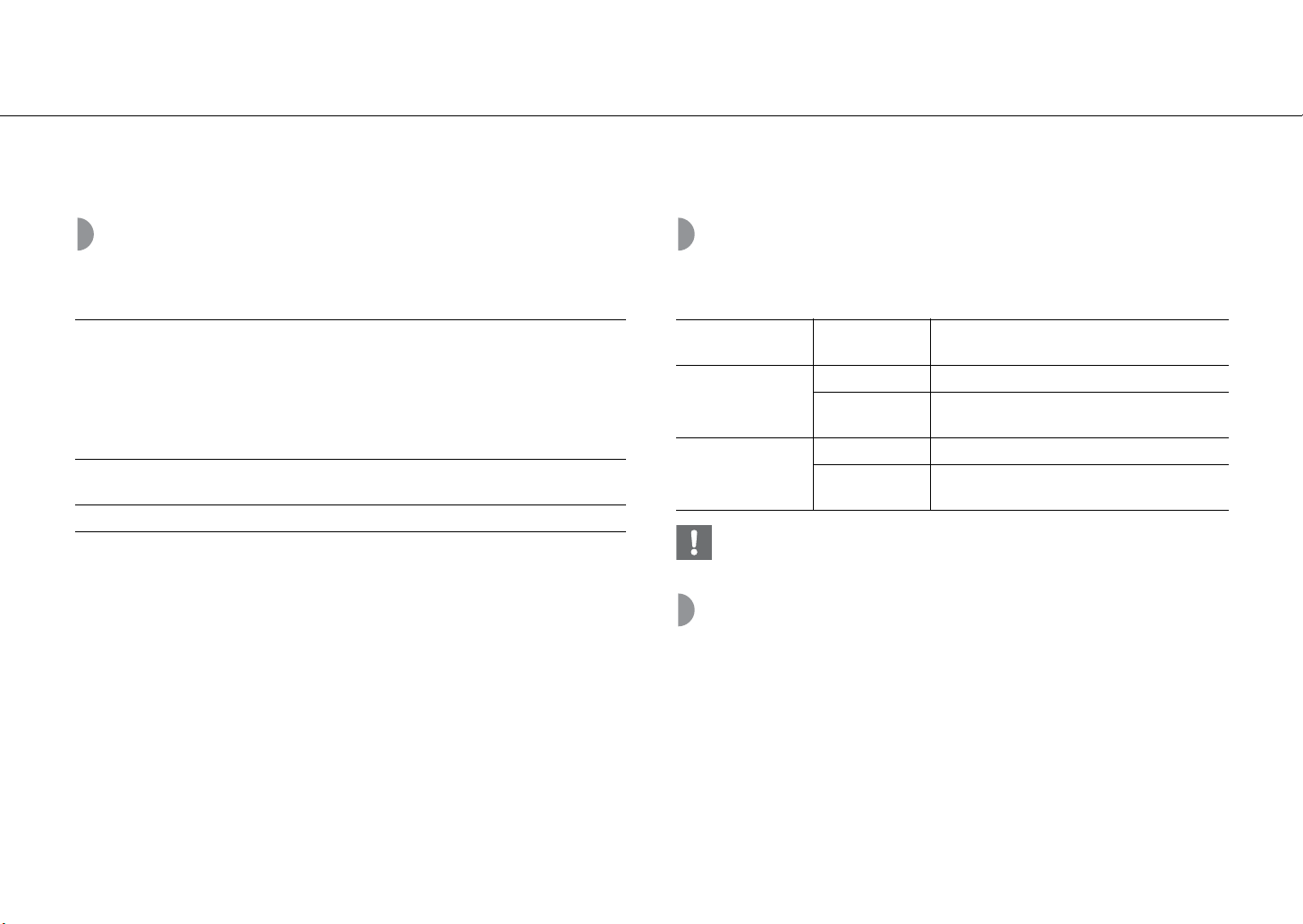
3 types of alarms
Use “MusicCast CONTROLLER” to make setting. Select from 3 alarm types, combining music
and beep sounds. Follow the indication of “MusicCast CONTROLLER” to make setting.
Source
Network contents and radio can be selected. The following can also be selected depending
on the audio source.
Snooze
The snooze function can be enabled to replay the alarm after 5 minutes.
SOURCE+BEEP
The selected audio source and beep sound are played at the set
time. This mode is recommended for the best possible start to
the day.
3 minutes before the set time: the source music begins to fade
in and the volume gradually increases as the alarm time
approaches.
Alarm time: a beeping sound also begins playing.
SOURCE
The selected audio source is played at the set time. The volume
fades in gradually and increases to the set volume.
BEEP Only beep sound is played back at the set time.
Source
Playback
method
Function
Network contents
Preset Plays back the specified network content.
Resume
Plays back the last network content played
back.
FM radio
Preset Plays the selected preset radio station.
Resume
The radio station you listened to last time is
played back.
• External devices connected to the AUX jack or devices connected via Bluetooth
cannot be used as music source.
En 31
Using the alarm function
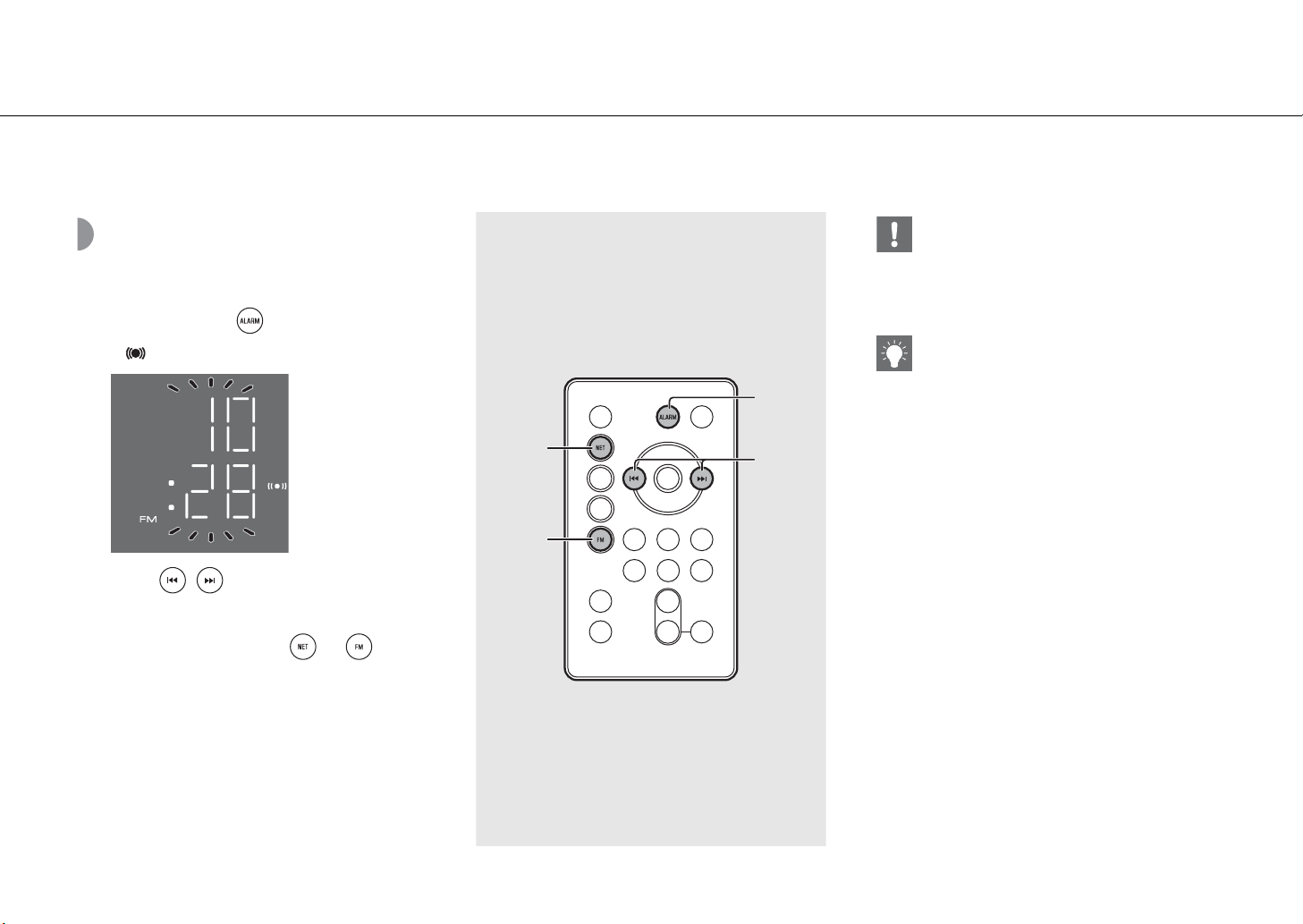
Setting the alarm time
with the unit
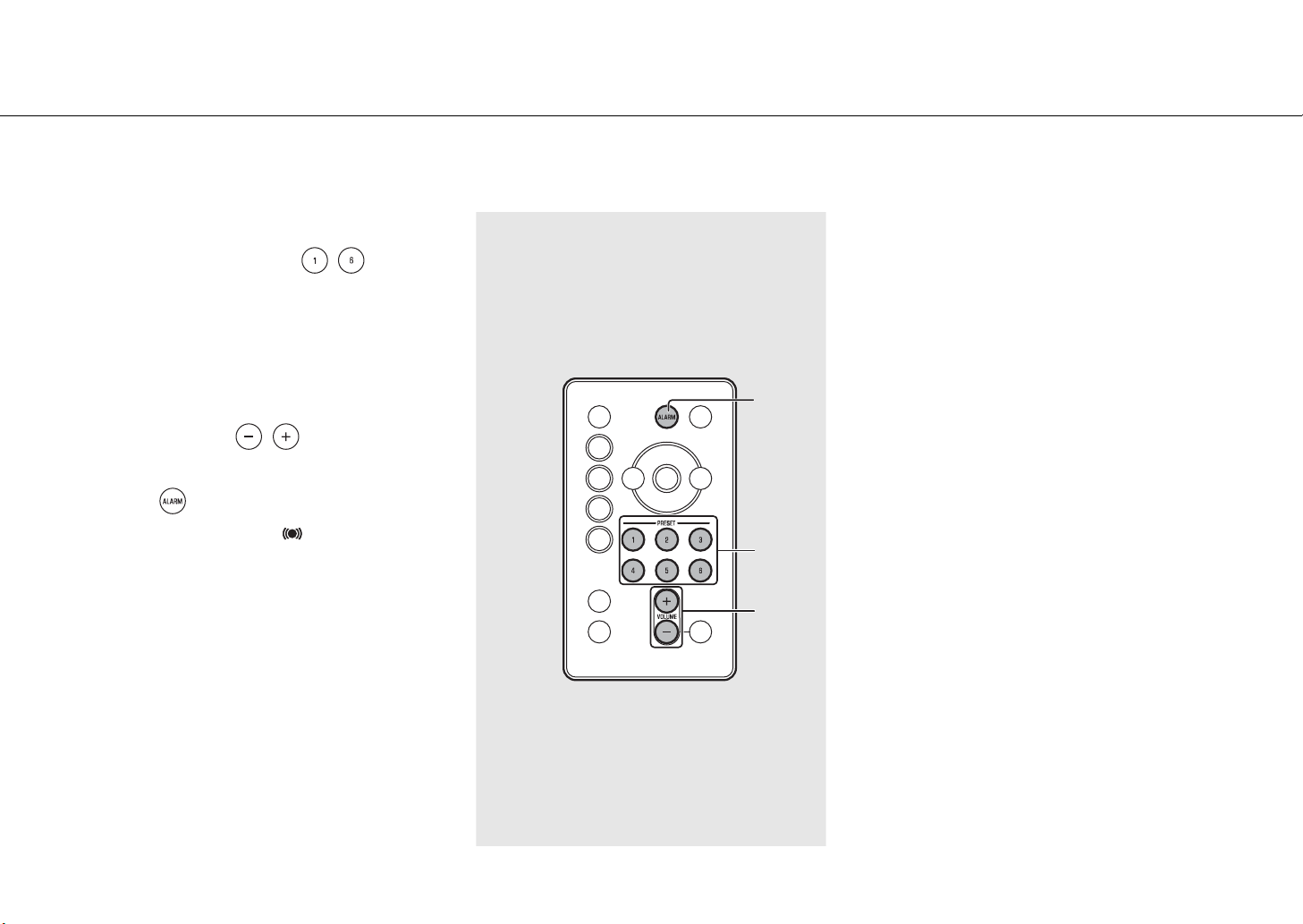
1 Press and hold .
• and set alarm time will flash.
2 Press / to set the alarm time.
3 (when alarm types other than BEEP are
selected) Press either or to
select music source.
• Depending on the circumstances of the source
selected at the alarm time, sound may not be
output.
Continue to the next page\
3
1
2
3
• The alarm setting will be erased if the system
enters standby mode without properly
completing it.
• Set the alarm type by using “MusicCast
CONTROLLER.”
• You can use buttons on the unit to set the alarm.
1 Press and hold ALARM.
2 Press VOLUME -/+ to set the alarm time.
3 (When selecting an alarm type other than BEEP)
Press either of the SOURCE buttons to select
the source to play back.
4 (When selecting an alarm type other than BEEP)
Use PRESET to specify the song/radio station
to play back.
- Pressing the button once will resume the
content.
- To specify the track or ratio station to play back,
press the button repeatedly until the specified
preset number is displayed.
5 Press ALARM to finish the alarm setting.
32 En
Using the alarm function
4 (when alarm types other than BEEP are
selected) Press PRESET - to
specify the content or radio station to
be played.
• Pressing again the same PRESET 1-6 button will
resume the content.
• Preset contents and radio stations you want to
play back (& P.22, 29).
5 Press VOLUME / to set the
alarm volume.
6 Press .
• The alarm will be set, and will light up.
6
4
5
En 33
Using the alarm function
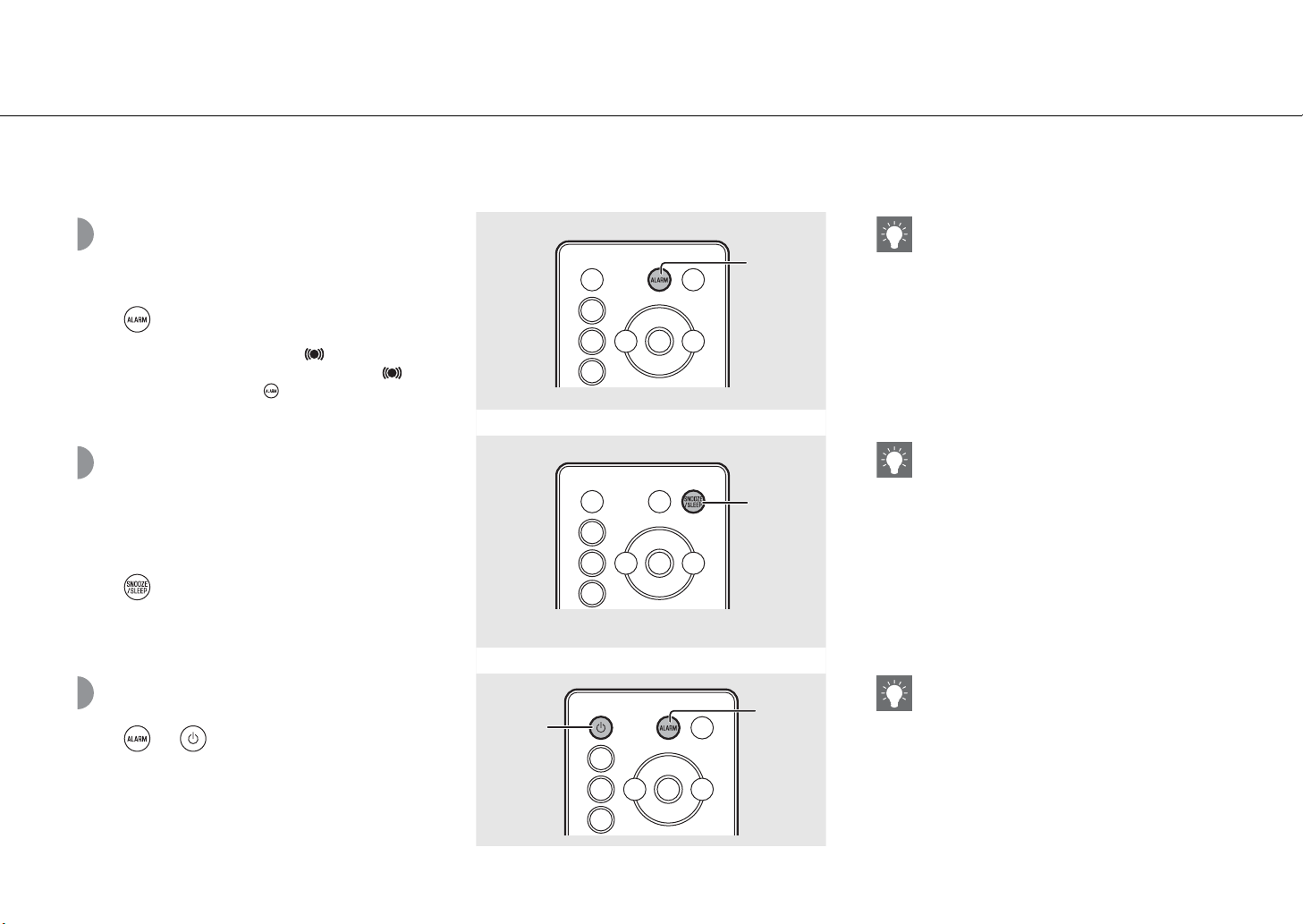
Turning the alarm on/
off
Press .
• When the alarm is turned on, lights up, and
the alarm time is shown for a while. When is
turned off by pressing again, the alarm is
turned off.
Stopping the alarm for
a short time
(snooze)
Press during the alarm playback.
• SNOOZE will stop the alarm and resume again in
5 minutes.
Turning the alarm off
Press or during the alarm
playback.
ALARM
SNOOZE
/SLEEP
ALARM
A
• The alarm setting will be saved even if the alarm is
turned off. If the alarm is turned on again by
pressing ALARM, the alarm will sound with the
previous alarm settings.
• When SOURCE + BEEP is set, press SNOOZE/
SLEEP once to stop the beep sound, and twice to
stop the audio source. 4 minutes after the audio
source is stopped, it will start fading in again and
after another minute the beep sound will resume.
• The alarm indicator will blink when the snooze
function is activated.
• The alarm stops automatically after 60 minutes
unless you stop the alarm.
• The alarm setting will be saved even if the alarm is
turned off. If the alarm is turned on again by
pressing ALARM, the alarm will sound with the
previous alarm settings.
34 En
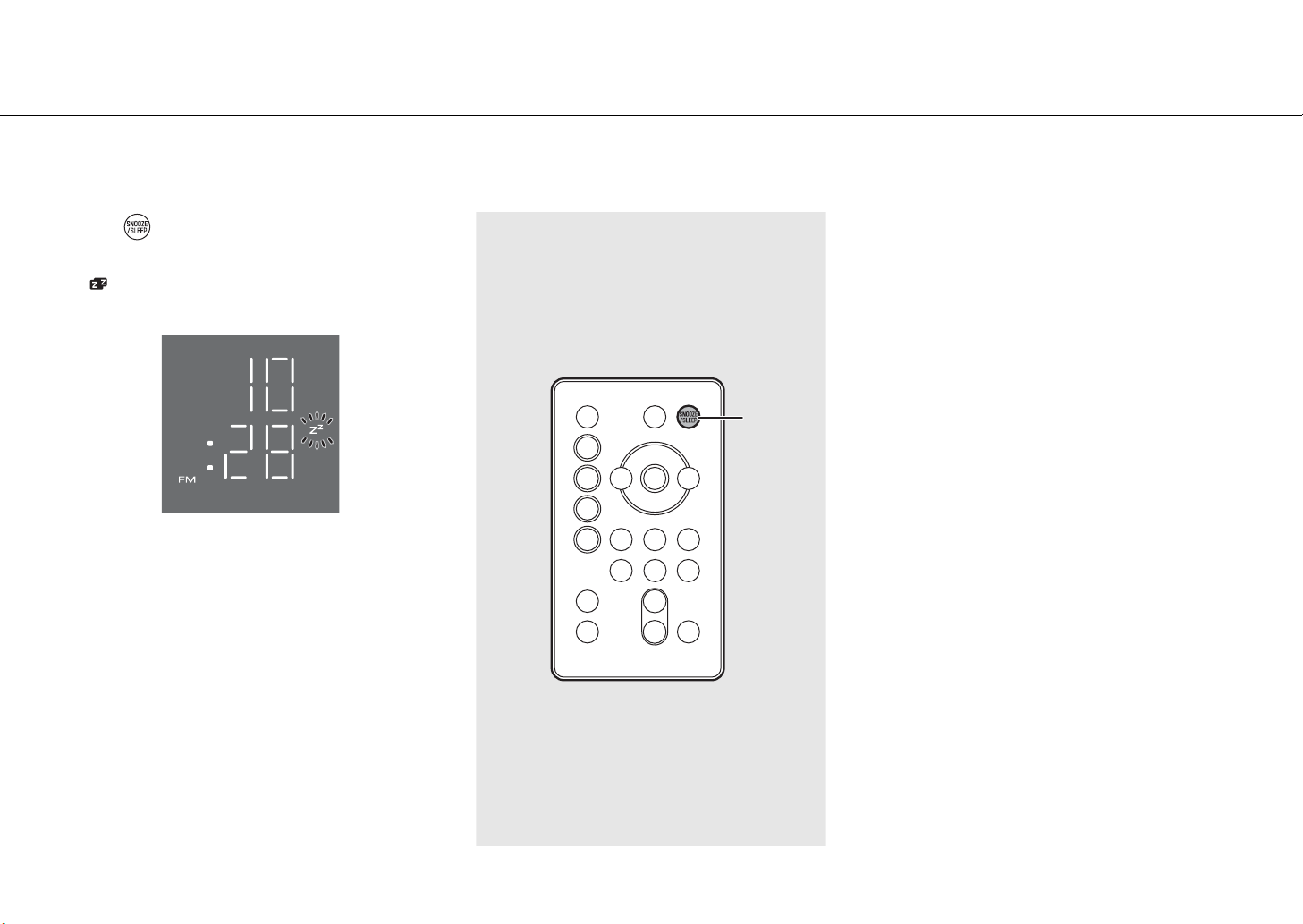
Using the sleep timer
You can set the time to elapse which the unit automatically enters to standby mode.
Press several times to select the time.
• Time can be selected from 30/60/90/120 min., or OFF.
• lights up shortly after the time is selected, and the
sleep timer is set.
• To cancel the sleep timer, press SNOOZE/SLEEP again.
SNOOZE
/SLEEP
En 35
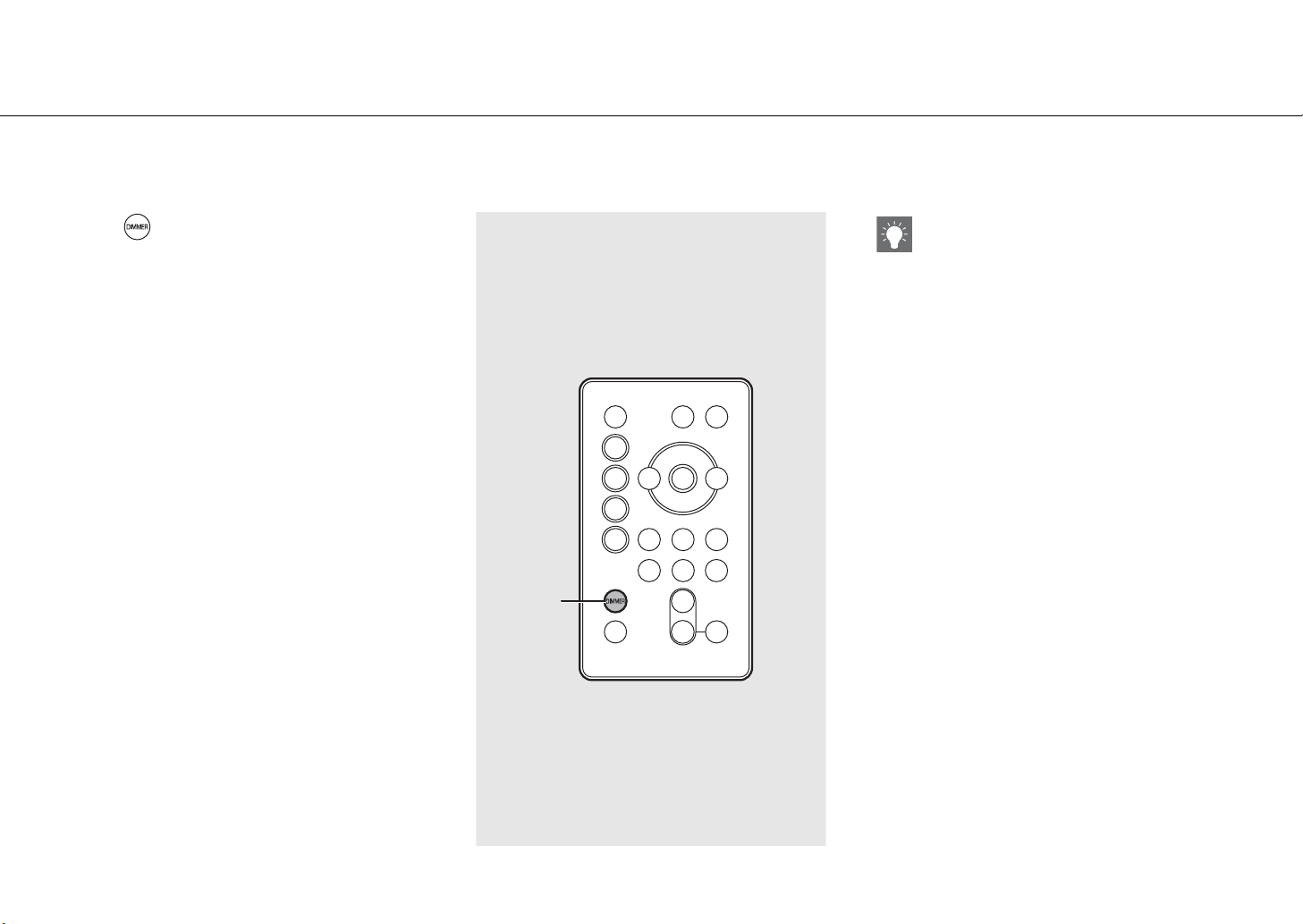
Adjusting brightness of front panel display
Press several times to select the
brightness.
• AUTO (A): adjusts the brightness automatically to match
the surroundings.
• 3: brighter.
• 2: between 1 and 3.
• 1: darker.
DIMMER
• When AUTO is set, the brightness of the front
panel display is adjusted automatically with the
illumination sensor (& P.7). Ensure that the sensor
is not covered.
36 En
Updating the firmware
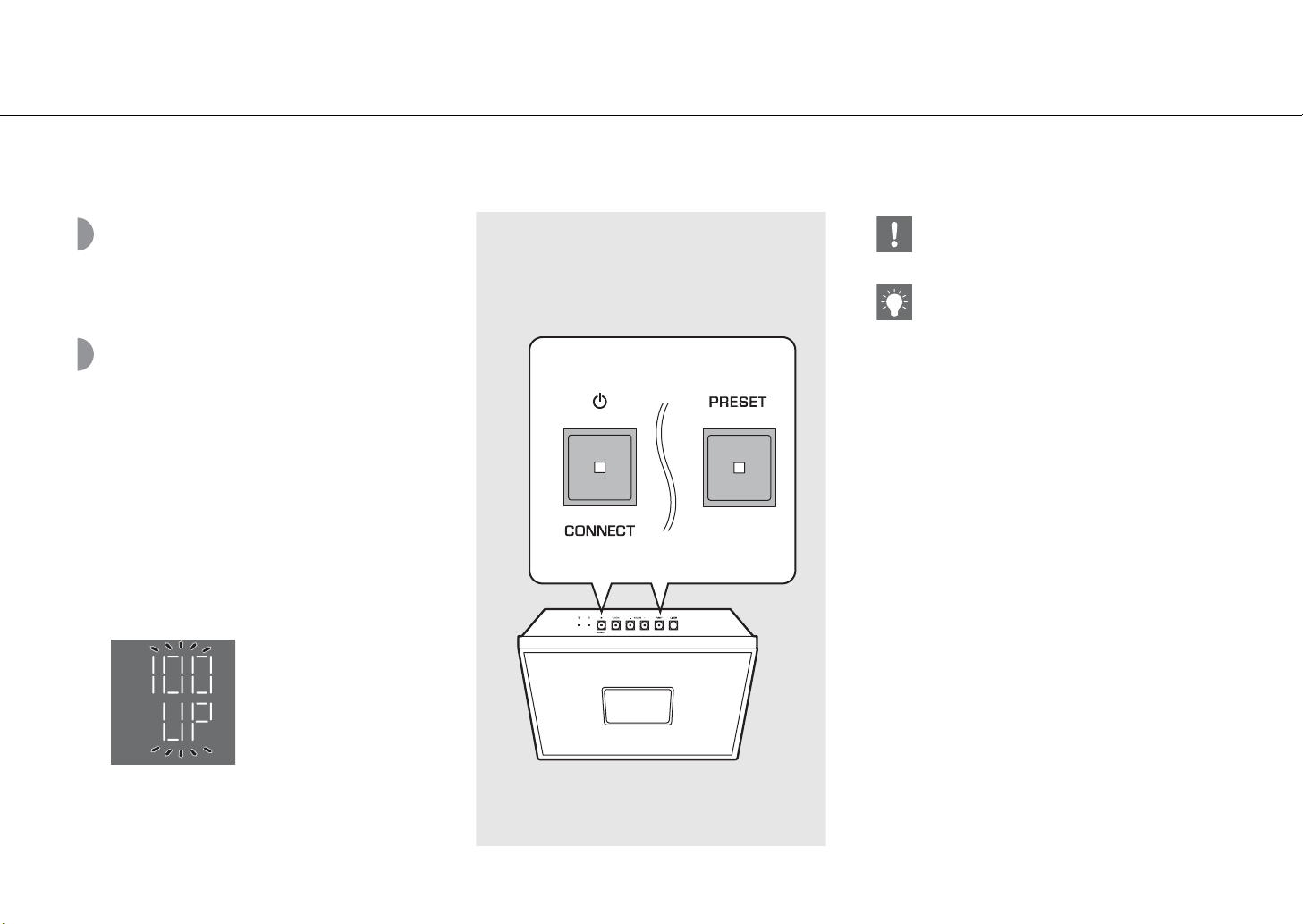
When new firmware is detected from the network, “UP” will be shown on the front panel display (press any button to turn off the “UP” indication on the front panel display).
There are two ways to updating the firmware.
Updating with a mobile device
You can use “MusicCast CONTROLLER” to update the
firmware. Follow the indication of “MusicCast
CONTROLLER” to update the firmware.
Updating with the unit
1 Press A to turn the unit off.
2 Pull out the plug from the wall outlet.
3 While pressing PRESET, plug the
power cable into the wall outlet.
• PRESET and the “UP” indications flash on the unit.
4 Press PRESET.
•
The firmware starts being updated, and when the
update is completed, the “100 UP” indication flashes.
5 Press A to check that the normal
display is returned.
• Do not operate the unit or disconnect the power
cable while updating.
• When Internet speed is not fast enough or the unit
is connected to the wireless network via a wireless
network adapter, network update may not be
possible depending on the condition of the
wireless connection. If the firmware update fails,
the “Er” indication flashes. In that case, try
updating again after a while.
En 37
Disabling the wireless function
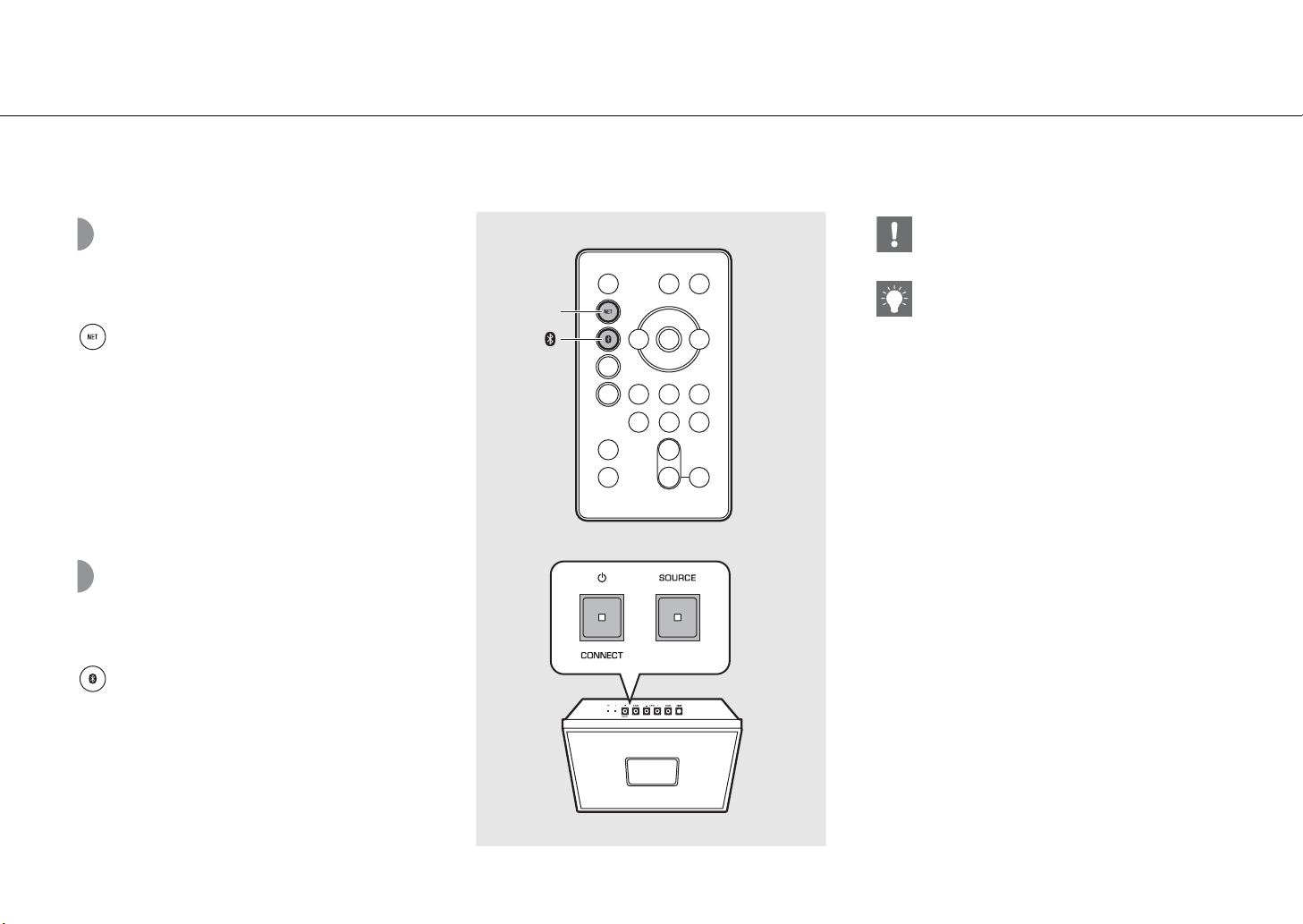
Wireless functions (Wi-Fi, Bluetooth) of the unit can be disabled.
Disabling the Wi-Fi
function
When the unit is in the standby state, press
of the remote control while holding
down SOURCE of the unit.
• “OFF” will be shown on the front panel display
when you disable the Wi-Fi function.
• To enable the Wi-Fi function, follow the
procedures in “Connecting to the network“
(& P.15) and reconnect the unit to the network.
• When the source is switched to the network
contents under the Wi-Fi function disabled, “OFF”
will be shown on the front panel display.
Disabling the Bluetooth
function
When the unit is in the standby state, press
of the remote control while holding
down SOURCE of the unit.
• Each time the operation is repeated, this function
switches to enable/disable, and “ON”/“OFF” will
be shown on the front panel display.
• When the source is switched to Bluetooth under
the Bluetooth function disabled, “OFF” will be
shown on the front panel display.
NET
• Set the side panel CLOCK switch to “ON.” It is not
possible to change the setting in “OFF.”
• The wireless function is enabled, when you
connect to the network or the network setting is
initialized.
38 En
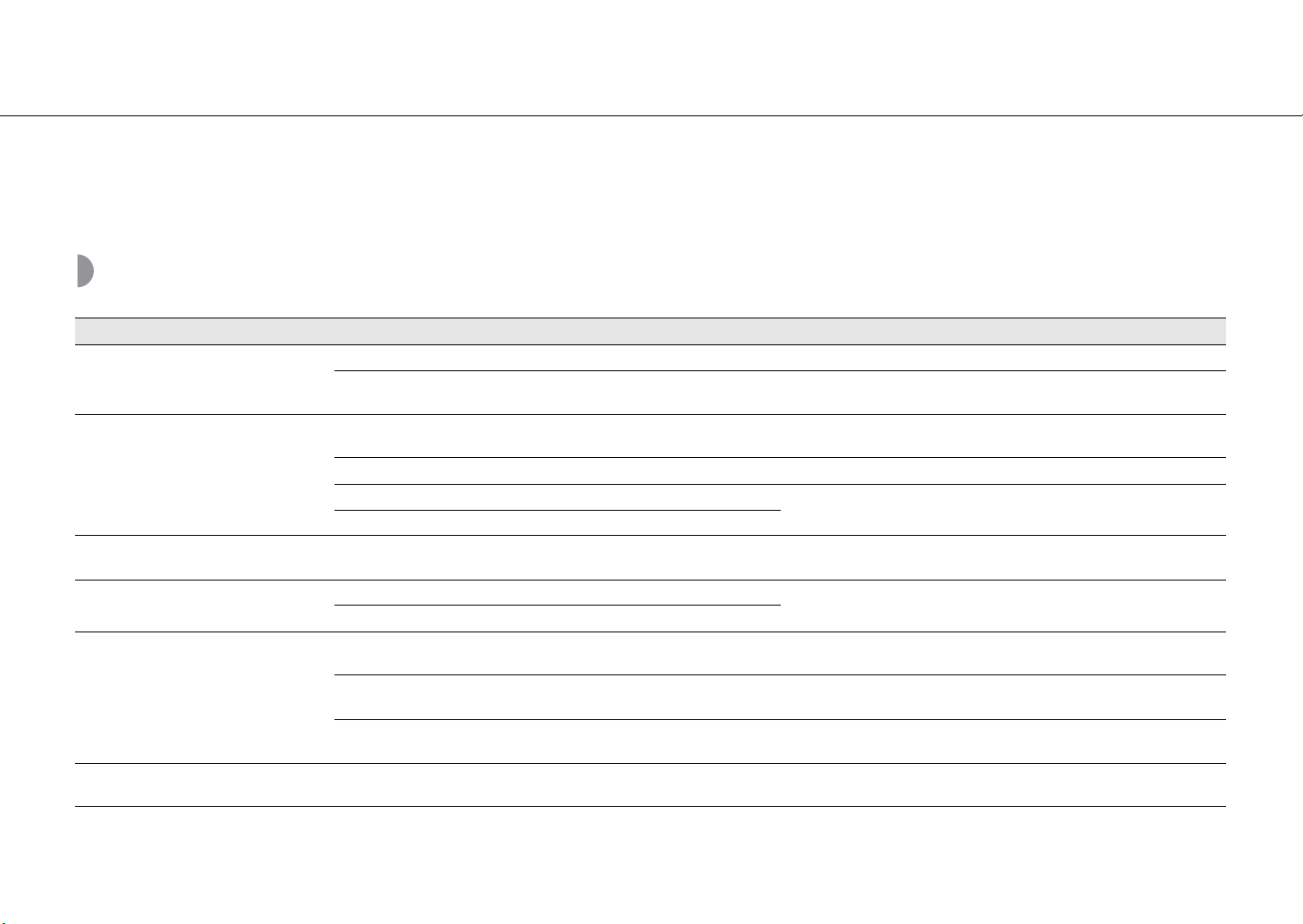
Troubleshooting
Refer to the table below when the unit does not function properly. If your problem is not listed below or if the instruction below does not help, turn off the unit,
disconnect the power cable, and contact the nearest authorized Yamaha dealer or service center.
First, check that the connectors of each cable are securely inserted in to jacks on each device.
General
Problem Cause Solution
The unit enters the standby mode soon
after the power is turned on.
The unit does not operate properly.
The power cable is not properly connected. Connect the power cable firmly.
The unit got a strong electric shock from an outside source, such as lighting
or excessive static electricity.
Unplug the power cable from the outlet, and plug it again after about 30
seconds.
No sound.
No appropriate source has been selected.
Select an appropriate source with SOURCE on the unit or the source buttons
on the remote control (& P.5, 8).
The volume is minimum or mute. Turn up the volume.
The power is off.
Turn on the unit and play the music again.
Auto Standby function is activated.
Sound is cracked/distorted or there is
abnormal noise.
The volume of the input music source is high. Or the volume of the unit is set
to a high level.
Adjust volume with VOLUME.
The power is suddenly turned off.
The sleep timer may be set (& P.34).
Turn on the unit and play the source again.
Auto Standby function is activated (& P.13).
The selected source does not play back at
the alarm time.
The alarm type is set to BEEP.
Follow the indication of “MusicCast CONTROLLER” to set the alarm type to
SOURCE + BEEP or SOURCE.
The selected content is not currently provided.
There may be a network problem, or the service may have been stopped.
Select another content.
The selected content is playing back silence.
Some content silence at certain of times of the day.In this case, no sound is
output even if the content is received. Select another content.
The clock display does not appear in the
standby state.
The CLOCK switch on the unit is set to “OFF.” Set the CLOCK switch on the unit to “ON.”
En 39
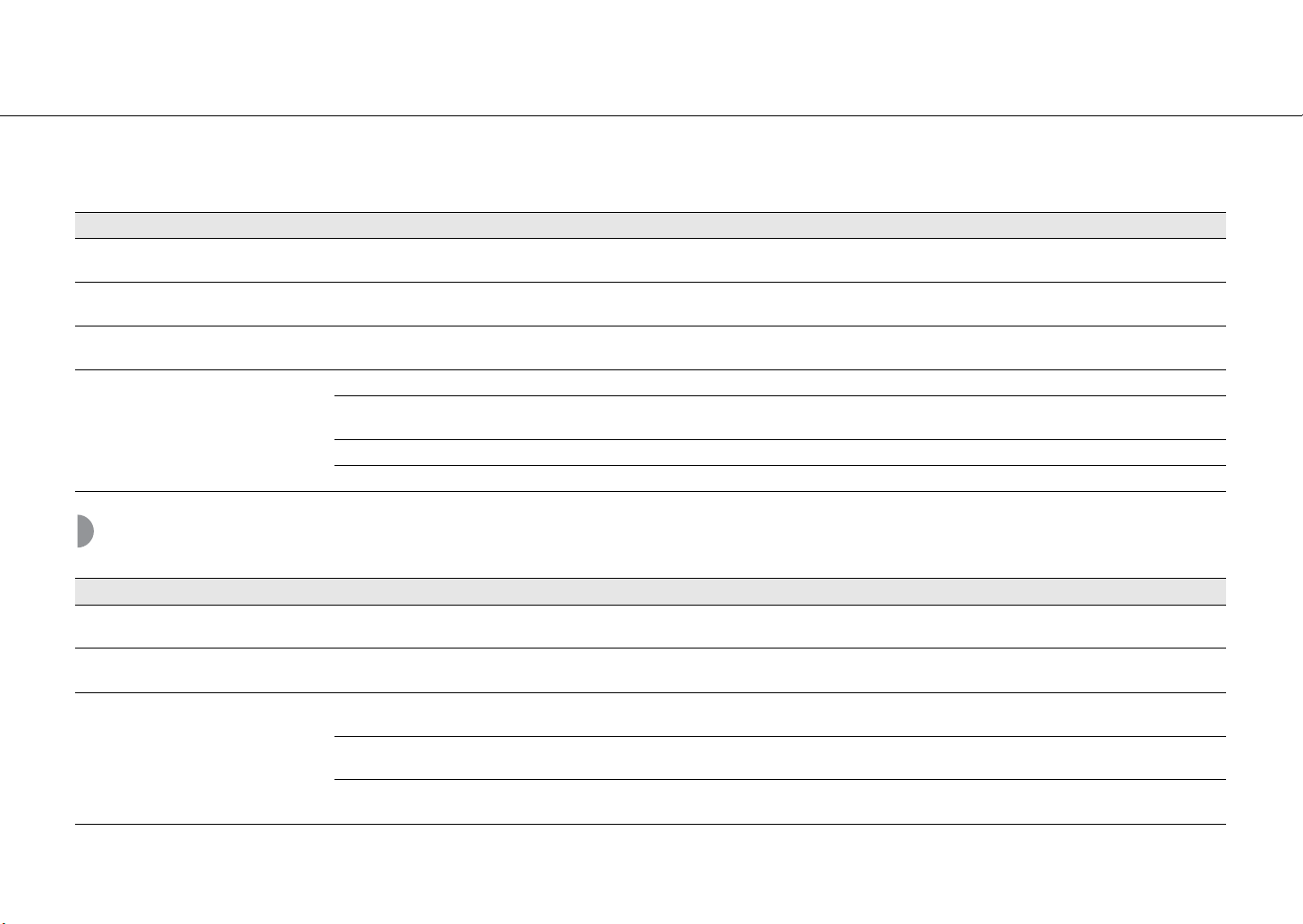
Troubleshooting
Network
The front display becomes dim. The front display setting is set to AUTO.
Set the brightness of the front panel display to a setting other than AUTO. Or,
do not cover the illumination sensor.
The clock setting has been cleared.
The power cable of the unit was unplugged from the outlet. Or an outage
occurred.
Connect the power cable, and set the clock again (& P.17).
There is noise interference from digital or
high-frequency equipment.
This unit is too close to the digital or high-frequency equipment. Place this unit farther away from such equipment.
The remote control does not work or does
not function properly.
The remote control may be operated outside its operation range. Operate the remote control within its operation range (& P.8).
The remote control sensor on this unit may be exposed to direct sunlight or
strong lighting such as an inverter type fluorescent lamp.
Change the orientation of lighting or the unit, or location of the unit.
The battery in the remote control may be worn out. Replace the batteries with new ones (& P.8).
There are obstacles between the sensor of this unit and the remote control. Remove the obstacles.
Problem Cause Solution
Problem Cause Solution
The network feature does not function. The network parameters (IP address) have not been obtained properly.
Enable the DHCP server function of the router. For details on how to set the
router, contact the manufacturer of the router.
Playback stops (songs cannot be played
back continuously).
There are unsupported files in the server.
Remove the files (including image files or hidden files) which the unit does
not support, from the folder being played back.
The unit does not detect the PC.
The media sharing setting of the PC is not correct.
Configure the sharing setting of the PC and select the unit as a device to
which music contents are shared (& P.19).
Some security software installed on your PC is blocking the access of the unit
to your PC.
Check the setting of the security software installed in your PC.
The unit and PC are not in the same network.
Check the network connections and your router settings, and then connect
the unit and the PC to the same network.
40 En
Troubleshooting
The files in the PC cannot be viewed or
played back.
The files are not supported by the unit or the media server.
Use the file format supported by both the unit and the media server
(& P.43).
The Internet radio cannot be played.
The selected Internet radio station is currently not available.
There may be a network problem at the radio station, or the service may
have been stopped. Try the station later or select another station.
The selected Internet radio station is currently broadcasting silence.
Some Internet radio stations broadcast silence at certain of times of the day.
In this case, no sound is output even if the radio waves are received. Try the
station later or select another station.
Access to the network is restricted by the firewall settings of your network
devices (such as the router).
Check the firewall settings of your network devices. The Internet radio can be
played only when it passes through the port designated by each radio
station. The port number varies depending on the radio station.
The “MusicCast CONTROLLER” app does
not detect the unit.
The unit and mobile devices are not in the same network.
Check the network connections and your router settings, and then connect
the unit and the PC to the same network.
Update of the firmware failed. The network connection is unstable. Try updating again after a while.
The unit cannot connect to the Internet via
a wireless router (access point).
The wireless router (access point) is turned off. Turn on the wireless router (access point).
The unit and the wireless router (access point) are too far apart. Place the unit and the wireless router (access point) closer to each other.
There is an obstacle between the unit and the wireless router (access point).
Place the unit and the wireless router (access point) without any obstacle
between them.
Wireless network is not found.
Wireless communication is interrupted by the electromagnetic waves
emitted from a microwave oven or other wireless devices.
When using the unit via wireless connection, place it away from devices
emitting electromagnetic waves.
Access to the network is restricted by the firewall settings of your wireless
router (access point).
Check the firewall setting of the wireless router (access point).
The iPod does not recognize the unit when
using AirPlay.
A multi-SSID supported router is used.
The network separation function of the router may prevent the iPod from
accessing the unit. When connecting an iPod, use SSID that can access the
unit.
Problem Cause Solution
En 41
Troubleshooting
Bluetooth
Problem Cause Solution
Cannot make the unit pair with a Bluetooth
device.
The unit is turned off. Turn the unit on and perform the paring (& P.25).
Another Bluetooth device is connected.
Terminate current Bluetooth connection, and perform pairing with the new
device.
This unit and the device are too far apart. Pair the unit and device within a distance of 10 m (33 ft).
There is a device (microwave oven, wireless LAN, etc.) that outputs signals in
the 2.4 GHz frequency band nearby.
Move this unit away from the device that is emitting radio-frequency signals.
A Bluetooth adapter, etc., that you want to pair with this unit has a passkey
other than “0000.”
Use a device whose passkey is “0000.”
The Bluetooth device does not support A2DP. Perform pairing with a device which supports A2DP.
Cannot make a Bluetooth connection.
The unit is turned off. Turn the unit on.
Another Bluetooth device is connected.
Terminate current connection, then establish a connection with that device
again.
The Bluetooth function of the device is turned off. Turn on the Bluetooth function of the device.
The pairing information has been deleted.
Perform pairing again (& P.26).
This unit can be paired with 20 devices. If pairing with a 21st device is
performed, the pairing information with the earliest connection date will be
deleted.
This unit is not registered on the device’s Bluetooth connection list. Perform pairing again (& P.26).
42 En
Troubleshooting
FM reception
No sound is produced, or the sound is
interrupted during playback.
The volume of the connecting device is set too low. Turn up the volume of the connecting device.
The connecting device is not set to send Bluetooth audio signals to the unit.
Switch the output of Bluetooth audio signals of the connecting device to the
unit.
The Bluetooth connection of the unit with the device has terminated. Perform Bluetooth connection operations again (& P.26).
There is a device (microwave oven, wireless LAN, etc.) that outputs signals in
the 2.4 GHz frequency band nearby.
Move this unit away from the device that is emitting radio-frequency signals.
This unit and the connecting device are too far apart. Move the connecting device to within 10 m (33 ft) of the unit.
The Bluetooth function of the device is turned off. Turn on the Bluetooth function of the device.
The connecting device is not set to send Bluetooth audio signals to this unit. Check that the Bluetooth function of the connecting device is set properly.
Problem Cause Solution
Problem Cause Solution
FM stereo reception is noisy.
The antenna is not connected properly.
Make sure the antenna is connected properly and change the position of the
antenna (& P.9).
The radio station you selected may be far from your area, or the antenna
input is poor.
Use a commercially available outdoor antenna. For details, consult a
specialist store.
Automatic tuning does not work.
The radio station you selected may be far from your area, or the antenna
input is poor.
Use a commercially available outdoor antenna. For details, consult a
specialist store.
Use the manual tuning method (& P.28).
Cannot select a preset radio station. The preset (memory) may have been erased. Preset radio stations again (& P.29).
There is distortion, and clear reception
cannot be obtained even with a good FM
antenna or an outdoor antenna.
Multipath reflection or other radio interference may have occurred. Change the height, direction, or placement of the antenna.
En 43
Supported devices/media and file formats
Supported devices/
medias
PC with Windows Media Player 11 or Windows Media
Player 12 installed.
NAS compatible with DLNA version 1.5.
File format
File format the unit supporting is as follows.
• The unit supports playback of WAV (PCM format only),
MP3, WMA, MPEG-4 AAC and FLAC files (1- or 2-channel
audio only).
• The unit is compatible with sampling rates of up to 192
kHz for WAV, FLAC, AIFF and ALAC files, and 48 kHz for
other files.
• To play back FLAC files, you need to install server
software that supports sharing of FLAC files via DLNA on
your PC or use a NAS that supports FLAC files.
• Digital Rights Management (DRM) contents cannot be
played back.
PCs
NAS
DLNA
44 En
Specifications
Specifications are subject to change without notice.
Bluetooth
• Bluetooth is a technology for wireless communication between devices within an area of about
10 meters (33 ft) employing the 2.4 GHz frequency band, a band which can be used without a
license.
Handling Bluetooth communications
• The 2.4 GHz band used by Bluetooth compatible devices is a radio band shared by many types
of equipment. While Bluetooth compatible devices use a technology minimizing the influence
of other components using the same radio band, such influence may reduce the speed or
distance of communications and in some cases interrupt communications.
• The speed of signal transfer and the distance at which communication is possible differs
according to the distance between the communicating devices, the presence of obstacles,
radio wave conditions and the type of equipment.
• Yamaha does not guarantee all wireless connections between this unit and devices
compatible with Bluetooth function.
Input connector
AUX IN 3.5 mm stereo mini jack
Tuner
FM tuning range 87.5 MHz to 108.0 MHz
Bluetooth
Bluetooth version Ver. 2.1+EDR
Supported profile A2DP, AVRCP
Compatible codecs SBC, AAC
Wireless output Bluetooth Class 2
Maximum communication range 10 m (33 ft) (without obstructions)
Network
Connection method Wi-Fi connection
Radio frequency band 2.4 GHz
Wireless network standards IEEE802.11 b/g/n
Available security method
WEP, WPA2-PSK (AES), WPA-PSK (TKIP),
Mixed Mode
PC client function DLNA ver.1.5 supported (DMP/DMR function)
Internet radio vTuner supported
AirPlay AirPlay supported
Amplifier
Maximum output power 15 W + 15 W (6 Ω, 1 kHz, 10% THD)
General
Power supply AC 100 to 240 V, 50/60 Hz
Power consumption 20 W
Power consumption in the standby mode
(clock display on)
3.0 W or less
Power consumption in the eco standby
mode (clock display off)
0.5 W or less
Dimensions (W × H × D)
302 × 302 × 65 mm
(11-7/8 × 11-7/8 × 2-1/2 in.)
Weight 3.3 kg (7.3 lbs.)
En 45
Trademarks
AirPlay, iPad, iPhone, iPod, iPod touch, and iTunes are
trademarks of Apple Inc., registered in the U.S. and other
countries.
AirPlay works with iPhone, iPad, and iPod touch with iOS 4.3.3
or later, Mac with OS X Mountain Lion or later, and Mac and
PC with iTunes 10.2.2 or later. (as of August, 2015)
DLNA™ and DLNA CERTIFIED™ are trademarks or registered
trademarks of Digital Living Network Alliance. All rights
reserved. Unauthorized use is strictly prohibited.
The Wi-Fi CERTIFIED logo is the certification mark of Wi-Fi
Alliance.
The Wi-Fi Protected Setup Identifier Mark is a mark of Wi-Fi
Alliance.
Wi-Fi, Wi-Fi Alliance, Wi-Fi CERTIFIED, Wi-Fi Protected Setup,
WPA and WPA2 are trademarks or registered trademarks of
Wi-Fi Alliance.
Bluetooth
®
word mark and logos are registered trademarks
owned by Bluetooth SIG, Inc. and any use of such marks by
Yamaha Corporation is under license.
Bluetooth protocol stack (Blue SDK)
Copyright 1999-2014 OpenSynergy GmbH
All rights reserved. All unpublished rights reserved.
Explanations regarding GPL
This product utilizes GPL/LGPL open-source software in some
sections. You have the right to obtain, duplicate, modify, and
redistribute this open-source code only. For information on
GPL/LGPL open source software, how to obtain it, and the
GPL/LGPL license, refer to the Yamaha Corporation website
(http://download.yamaha.com/sourcecodes/musiccast/).
Windows™
Windows is a registered trademark of Microsoft Corporation
in the United States and other countries
Internet Explorer, Windows Media Audio, and Windows
Media Player are either registered trademarks or trademarks
of Microsoft Corporation in the United States and/or other
countries
Android™
Android and Google Play are trademarks of Google, Inc.
MusicCast is a trademark or registered trademark of Yamaha
Corporation.
Integrated Audio System
OWNER’S MANUAL
AB
© 2015 Yamaha Corporation
Printed in Malaysia ZS22970
http://europe.yamaha.com/warranty/
AVEEA71102A
Important Notice: Guarantee Information for customers in EEA* and Switzerland
For detailed guarantee information about this Yamaha product, and Pan-EEA* and
Switzerland warranty service, please either visit the website address below (Printable file is available at our website) or contact the Yamaha representative office for your country.
* EEA: European Economic Area
English