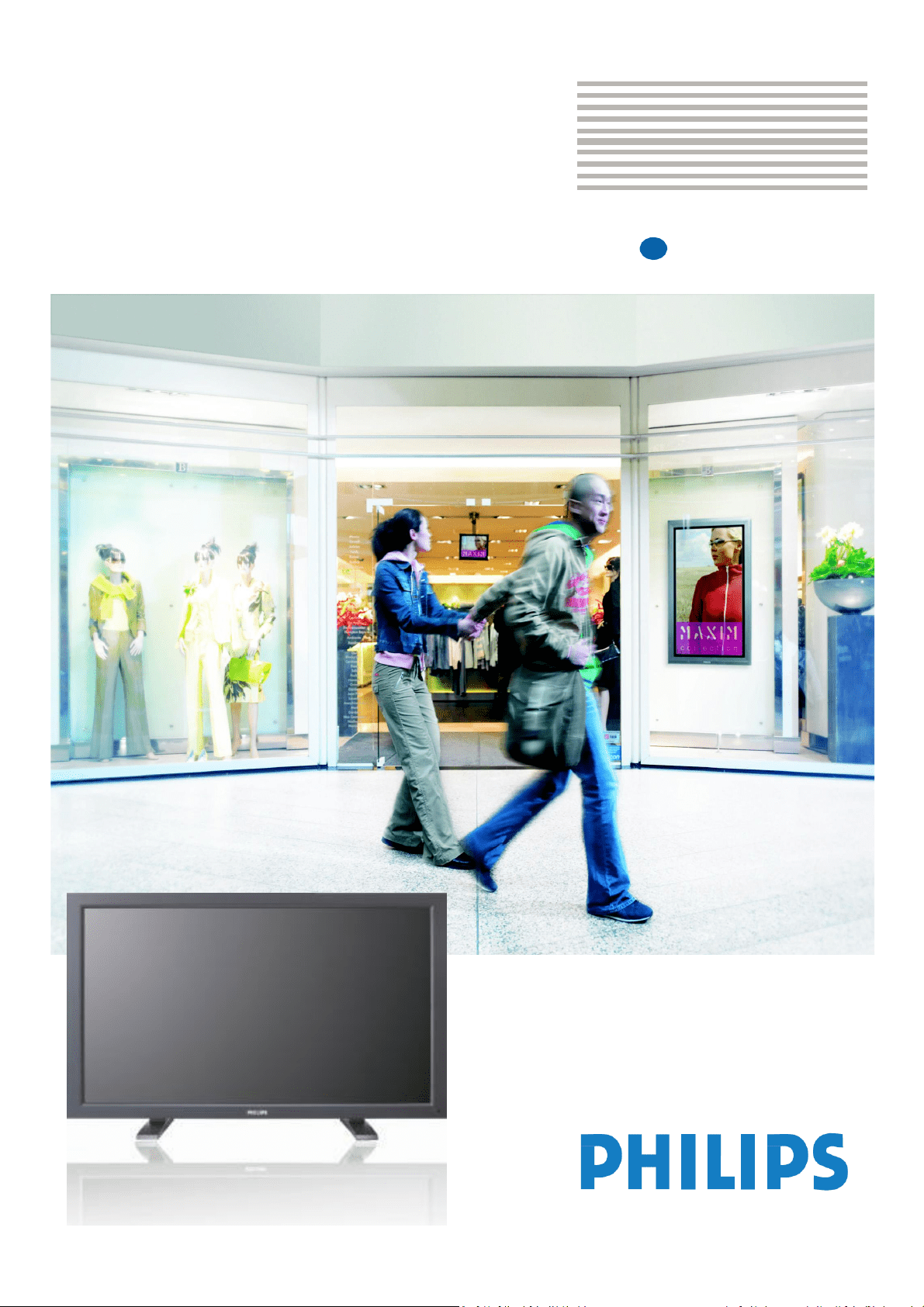
Philips
Professional
&
Business
Solutions
EN
User
Manual
TYPE
NR.
BDL4631V

TABLE OF CONTENTS
SAFETY INSTRUCTIONS ...................................................................................................................................................................... 1
Contents ..................................................................................................................................................................................................... 7
Elements Name and
Functions
.............................................................................................................................................................. 8
Terminal Panel ................................................................................................................................................................................... 9
Remote Control ............................................................................................................................................................................. 10
Operating Range for the Remote Control .............................................................................................................................. 11
Handling the remote control ...................................................................................................................................................... 11
How to Mount or Attach Feet to the LCD Monitor ..................................................................................................................... 12
Setup Procedure ...................................................................................................................................................................................... 15
Install the LCD Monitor in
Portrait M
ode
........................................................................................................................................ 17
Connectivity
............................................................................................................................................................................................. 18
Connectivity
Diagram.................................................................................................................................................................... 18
Connecting to a Personal Computer ........................................................................................................................................ 19
Connecting to a Digital Interface Equipment .......................................................................................................................... 20
Connecting to a DVD Player ....................................................................................................................................................... 21
Connecting to a Stereo Amplifier .............................................................................................................................................. 22
Basic Operation....................................................................................................................................................................................... 23
Power ON and
OFF
Modes ........................................................................................................................................................ 23
Power Indicator .............................................................................................................................................................................. 24
Using Power Management............................................................................................................................................................ 24
Display Signal of Video Source Setting to [VIDEO] ............................................................................................................... 24
Picture Size ...................................................................................................................................................................................... 24
Smart Picture Mode ...................................................................................................................................................................... 25
Audio Source Switching ................................................................................................................................................................ 25
Control Lock Mode ....................................................................................................................................................................... 25
OSD Information ........................................................................................................................................................................... 25
OSD (On-Scr
een-Display)
Contr
ols
................................................................................................................................................... 26
PICTURE .......................................................................................................................................................................................... 27
SCREEN
............................................................................................................................................................................................ 29
AUDIO ............................................................................................................................................................................................. 31
PIP (PICTURE IN PICTURE) ...................................................................................................................................................... 32
CONFIGUR
A
TION 1 ................................................................................................................................................................... 33
CONFIGUR
A
TION 2 ................................................................................................................................................................... 35
ADV
ANCED OPTION................................................................................................................................................................. 37
NOTE ............................................................................................................................................................................................... 40
Featur
es
..................................................................................................................................................................................................... 42
Tr
oubleshooting
...................................................................................................................................................................................... 43
Specifications ............................................................................................................................................................................................ 45
Pin
Assignment
......................................................................................................................................................................................... 46

User Manual BDL4631V/00
1
SAFETY INSTRUCTIONS
WARNINGS AND PRECAUTIONS
KNOW THESE SAFETY SYMBOLS
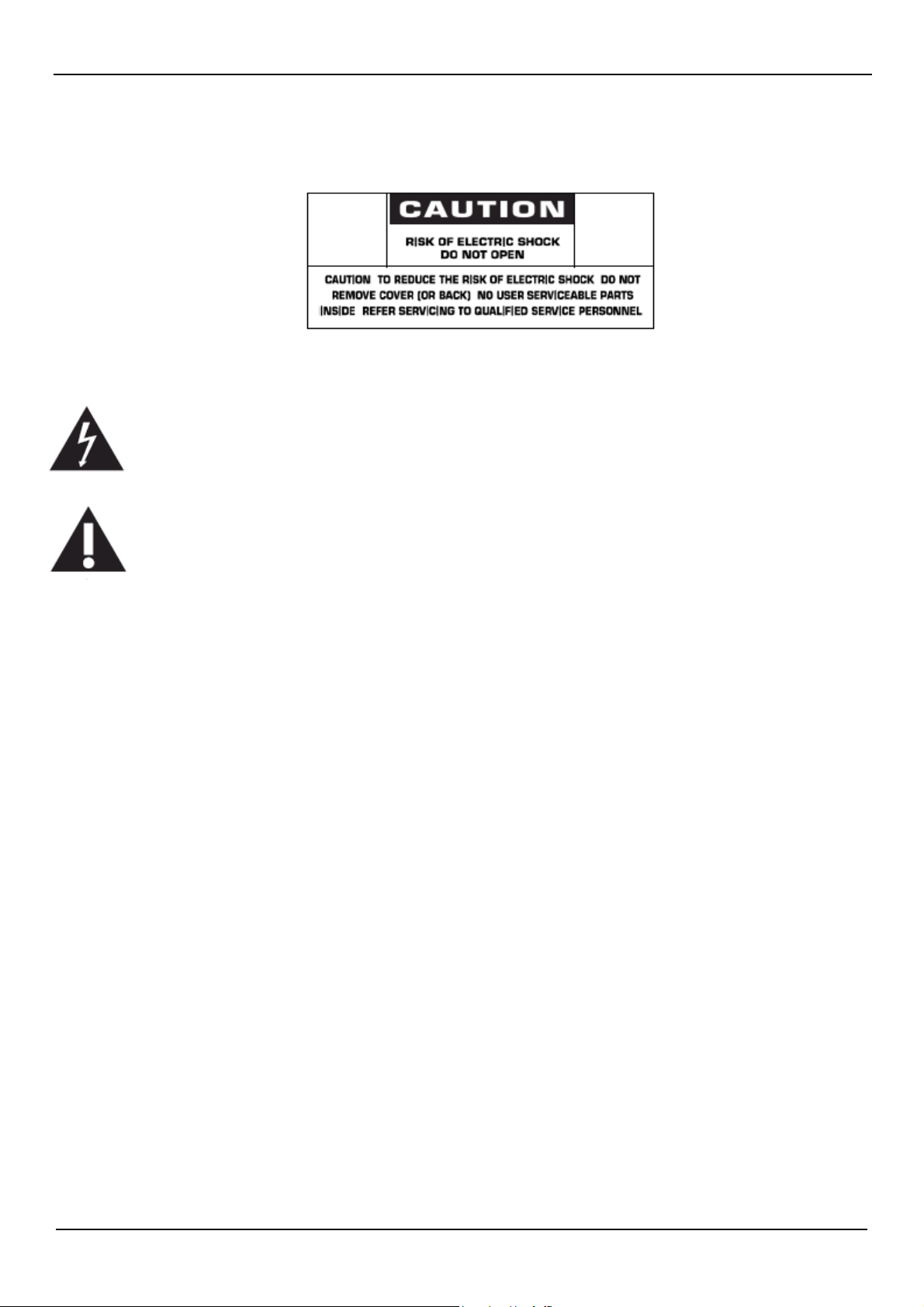
CAUTION: TO REDUCE THE RISK OF ELECTRIC SHOCK, DO NOT REMOVE COVER (OR BACK). NO USER
SERVICEABLE PARTS INSIDE. REFER SERVICING TO QUALIFIED SERVICE PERSONNEL.
This symbol indicates high voltage is present inside. It is dangerous to make any kind of contact with any
inside part of this product.
This symbol alerts you that important literature concerning operation and maintenance has been included
with this product.
Note to CATV system installer: This reminder is provided to call CATV system installer’s attention to Article
820-40 of the National Electrical Code (Section 54 of Canadian Electrical Code, Part I), that provides guidelines for proper grounding and, in
particular, specifies that the cable ground shall be connected to the grounding system of the building as close to the point of cable entry as
practical.
Caution: FCC/CSA regulations state that any unauthorized changes or modifications to this equipment may void the user’s authority to
operate it.
Caution: To prevent electric shock, match the wide blade of plug to the wide slot, and fully insert the plug.
Attention: Pour éviter les chocs électriques, introduire la lame la plus large de la fiche dans la bome correspondante
de la prise et pousser jusqu’au fond.
Important: One Federal Court has held that unauthorized recording of copyrighted TV programs is an infringement
of U.S. copyright laws. Certain Canadian programs may also be copyrighted and any unauthorized recording in whole
or in part may be in violation of these rights.
TO PREVENT DAMAGE WHICH MAY RESULT IN FIRE OR ELECTRIC SHOCK HAZARD, DO NOT EXPOSE THIS
APPLIANCE TO RAIN OR MOISTURE.
The Socket-outlet shall be installed near the apparatus and shall be easily accessible.
User Manual BDL4631V/00
2
REGULATORY INFORMATION
CE DECLARATION OF CONFORMITY
Philips Consumer Electronics declare under our responsibility that the product is in conformity with the following standards
• EN60950-1:2001 (Safety requirement of Information Technology Equipment)
• EN55022:2006 (Radio Disturbance requirement of Information Technology Equipment)
• EN55024:1998+A1:2001+A2:2003 (Immunity requirement of Information Technology Equipment)
• EN6100-3-2:2000+A2:2005 (Limits for Harmonic Current Emission)
• EN6100-3-3:1995+A1:2001+A2:2005 (Limitation of Voltage Fluctuation and Flicker)
following provisions of directives applicable
• 73/23/EEC (Low Voltage Directive)
• 2004/108/EC (EMC Directive)
• 93/68/EEC (Amendment of EMC and Low Voltage Directive) and is produced by a manufacturing organization on
ISO9000 level.
WARNING
This is a class A product In a domestic environment this product may cause radio interference in which case the user may be required
to take adequate measures.
FEDERAL COMMUNICATIONS COMMISSION (FCC) NOTICE (U.S. Only)
This equipment has been tested and found to comply with the limits for a Class A digital device, pursuant to Part 15 of the FCC
Rules. These limits are designed to provide reasonable protection against harmful interference when the equipment is operated
In a commercial environment. This equipment generates, uses and can radiate radio frequency energy and, if not installed and
used in accordance with the instructions manual, may cause harmful interference to radio communications.
Operation of this equipment in a residential area is likely to cause harmful interference in which case the user will be required to correct the
interference at his own expense.
Changes or modifications not expressly approved by the party responsible for compliance could void the user’s authority to
operate the equipment.
Use only RF shielded cable that was supplied with the monitor when connecting this monitor to a computer device.
To prevent damage which may result in fire or shock hazard, do not expose this appliance to rain or excessive moisture.
THIS CLASS A DIGITAL APPARATUS MEETS ALL REQUIREMENTS OF THE CANADIAN INTERFERENCE- CAUSING
EQUIPMENT REGULATIONS.
This device complies with Part 15 of the FCC Rules. Operation is subject to the following two conditions: (1) this device may not
cause harmful interference, and (2) this device must accept any interference received, including interference that may cause undesired
operation.
User Manual BDL4631V/00
3
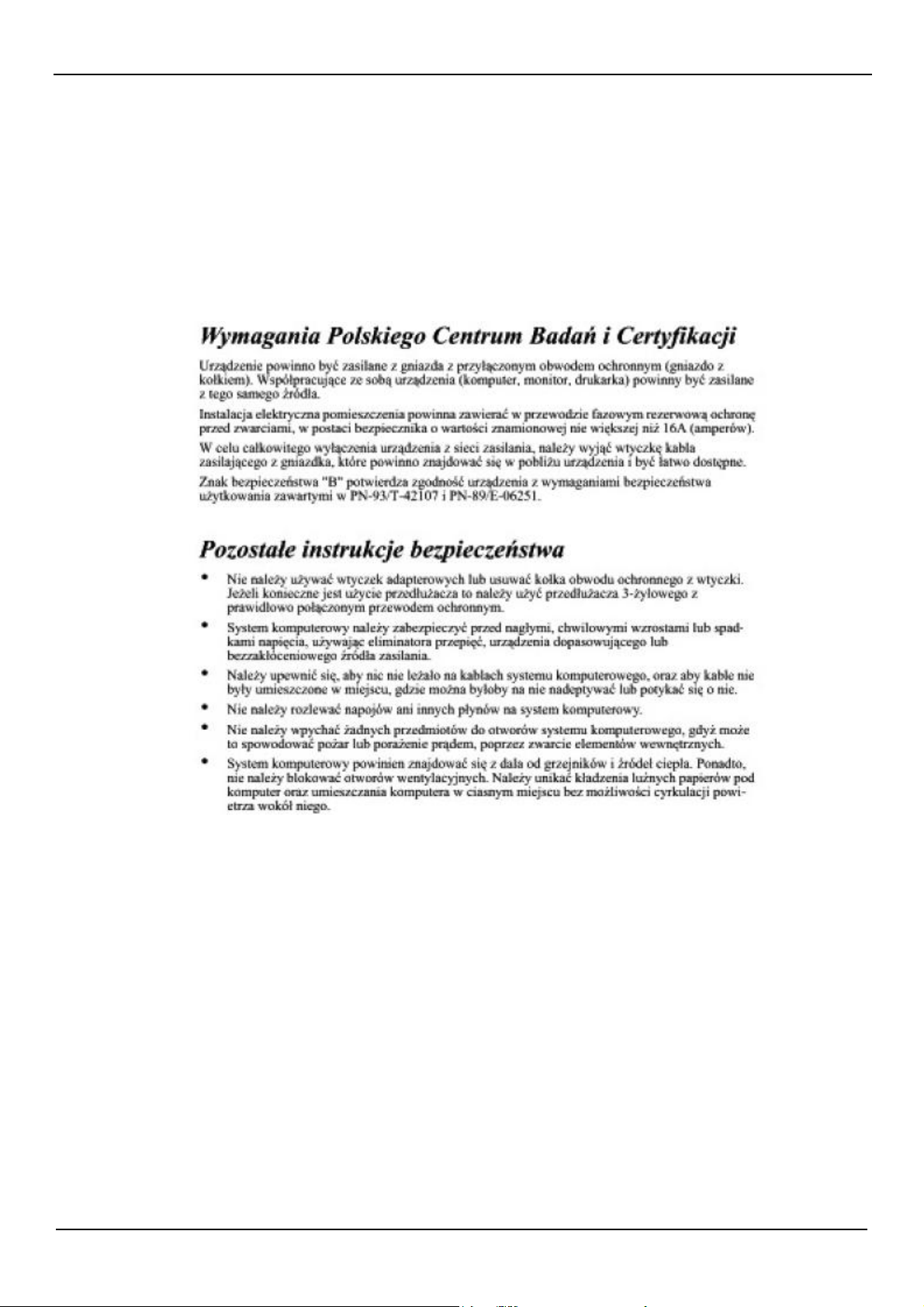
POLISH CENTER FOR TESTING AND CERTIFICATION NOTICE
The equipment should draw power from a socket with an attached protection circuit (a three-prong socket). All equipment that works
together (computer, monitor, printer, and so on) should have the same power supply source.
The phasing conductor of the room’s electrical installation should have a reserve short-circuit protection device in the form of a fuse with
a nominal value no larger than 16 amperes (A).
To completely switch off the equipment, the power supply cable must be removed from the power supply socket, which should be
located near the equipment and easily accessible.
A protection mark “B” confirms that the equipment is in compliance with the protection usage requirements of standards PN-93/T-
42107 and PN-89/E-06251.
ELECTRIC, MAGNETIC AND ELECTRONMAGNETIC FIELDS (“EMF”)
1. Philips Royal Electronics manufactures and sells many products targeted at consumers, which, like any electronic apparatus, in general
have the ability to emit and receive electromagnetic signals.
2. One of Philips’ leading Business Principles is to take all necessary health and safety measures for our products, to comply with all
applicable legal requirements and to stay well within the EMF standards applicable at the time of producing the products.
3. Philips is committed to develop, produce and market products that cause no adverse health effects.
4. Philips confirms that if its products are handled properly for their intended use, they are safe to use according to scientific evidence
available today.
5. Philips plays an active role in the development of international EMF and safety standards, enabling Philips to anticipate further developments
in standardization for early integration in its products.

User Manual BDL4631V/00
4
INFORMATION FOR UK ONLY
WARNING - THIS APPLIANCE MUST BE EARTHED.
Important:
This apparatus is supplied with an approved moulded 13A plug. To change a fuse in this
type of plug proceed as follows:
1. Remove fuse cover and fuse.
2. Fit new fuse which should be a BS 1362 5A,A.S.T.A. or BSI approved type.
3. Refit the fuse cover.
If the fitted plug is not suitable for your socket outlets, it should be cut off and an
appropriate 3-pin plug fitted in its place.
If the mains plug contains a fuse, this should have a value of 5A. If a plug
without a fuse is used, the fuse at the distribution board should not be greater
than 5A.
Note: The severed plug must be destroyed to avoid a possible shock hazard should it
be inserted into a 13A socket elsewhere.
How to connect a plug
The wires in the mains lead are coloured in accordance with the following code:
BLUE - “NEUTRAL” (“N”)
BROWN - “LIVE” (“L”)
GREEN & YELLOW - “EARTH” (“E”)
1. The GREEN AND YELLOW wire must be connected to the terminal in
the plug which is marked with the letter “E” or by the Earth symbol or
coloured GREEN or GREEN AND YELLOW.
2. The BLUE wire must be connected to the terminal which is marked with the letter
“N” or coloured BLACK.
3. The BROWN wire must be connected to the terminal which marked with the letter
“L” or coloured RED.
Before replacing the plug cover, make certain that the cord grip is clamped over the
sheath of the lead - not simply over the three wires.
User Manual BDL4631V/00
5
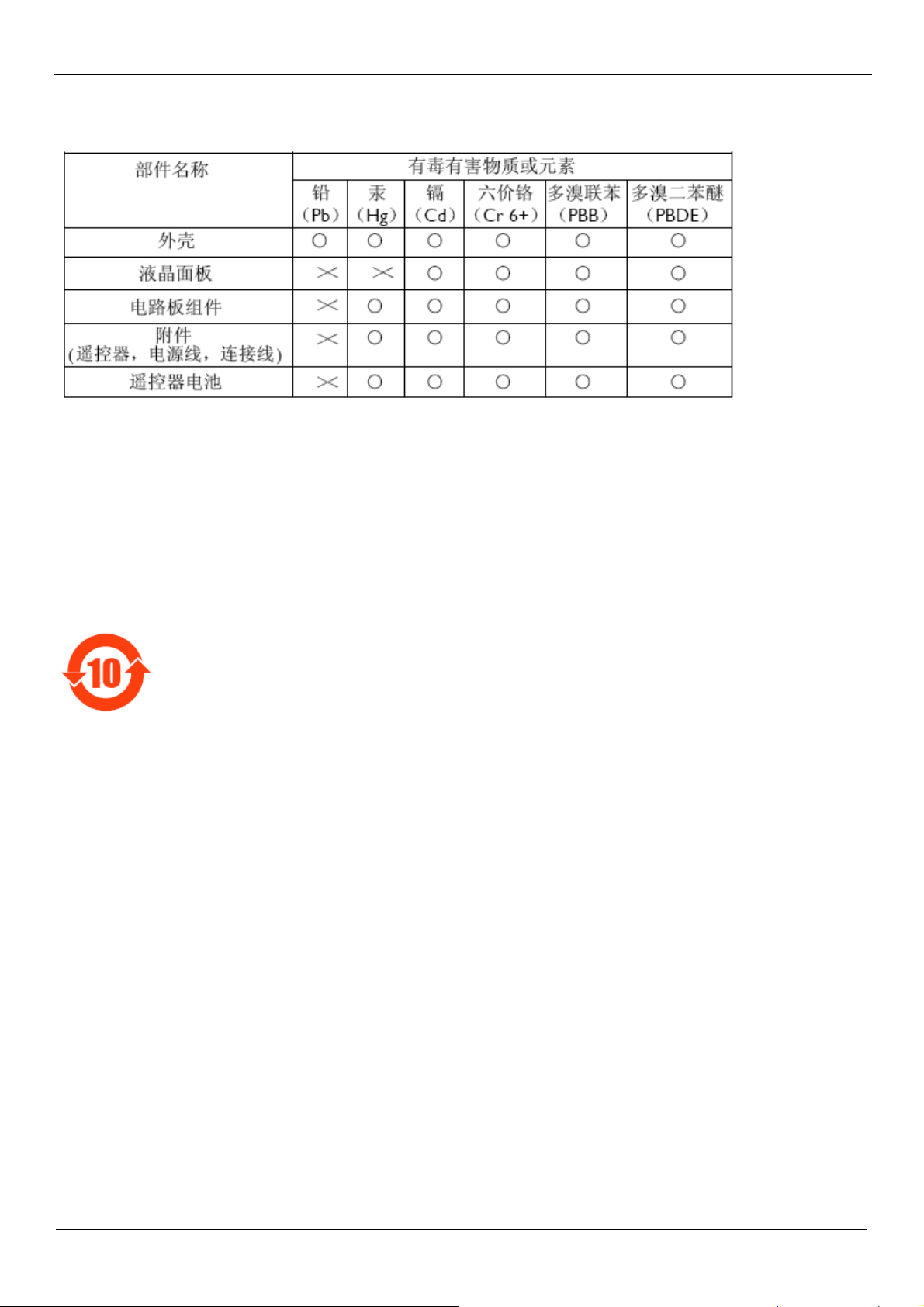
中国电子信息产品污染控制标识要求 (中国RoHS法规标示要求)
产品中有毒有害物质或元素的名称及含量
○:表示该有毒有害物质在该部件所有均质材料中的含量均在SJ/T11363-2006
标准规定的限量要求以下 ◦
×:表示该有毒有害物质至少在该部件的某一均质材料中的含量超出
SJ/T11363-2006 标准规定的限量要求 ◦
环保使用期限
此标识指期限(十年),电子信息产品中含有的有毒有害物质或元素在正常使用的条件下不会发生外
泄或突变,电子信息产品用户使用该电子信息产品不会对环境造成严重污染或对其人身、财产造
成严重损害 的期限。

User Manual BDL4631V/00
6
NORTH EUROPE (NORDIC COUNTRIES) INFORMATION
Placering/Ventilation
VARNING:
FÖRSÄKRA DIG OM ATT HUVUDBRYTARE OCH UTTAG ÄR LÄTÅTKOMLIGA, NÄR DU STÄLLER DIN UTRUSTNING PÅPLATS.
Placering/Ventilation
ADVARSEL:
SØRG VED PLACERINGEN FOR, AT NETLEDNINGENS STIK OG STIKKONTAKT ER NEMT TILGÆNGELIGE.
Paikka/Ilmankierto
VAROITUS:
SIJOITA LAITE SITEN, ETTÄ VERKKOJOHTO VOIDAAN TARVITTAESSA HELPOSTI IRROTTAA PISTORASIASTA.
Plassering/Ventilasjon
ADVARSEL:
NÅR DETTE UTSTYRET PLASSERES, MÅ DU PASSE PÅ AT KONTAKTENE FOR STØMTILFØRSEL ER LETTE Å NÅ.
END-OF-LIFE DISPOSAL
Your new TV/Monitor contains materials that can be recycled and reused. Specialized companies can recycle your product to increase the
amount of reusable materials and to minimize the amount to be disposed of.
Please find out about the local regulations on how to dispose of your old monitor from your local Philips dealer.
(For customers in Canada and U.S.A.)
This product may contain lead and/or mercury. Dispose of in accordance to local-state and federal regulations. For additional information on
recycling contact www.eia.org (Consumer Education Initiative)
WASTE ELECTRICAL AND ELECTRONIE EQUIPMENT-WEEE
Attention users in European Union private households
This marking on the product or on its packaging illustrates that, under European Directive 2002/96/EG
governing used electrical and electronic appliances, this product may not be disposed of with normal
household waste. You are responsible for disposal of this equipment through a designated waste electrical
and electronic equipment collection. To determine the locations for dropping off such waste electrical and electronic, contact your local
government office, the waste disposal organization that serves your household or the store at
which you purchased the product.
User Manual BDL4631V/00
7
V
ideo
Signal
Cable
(D-SUB
to D-SUB
Cable)
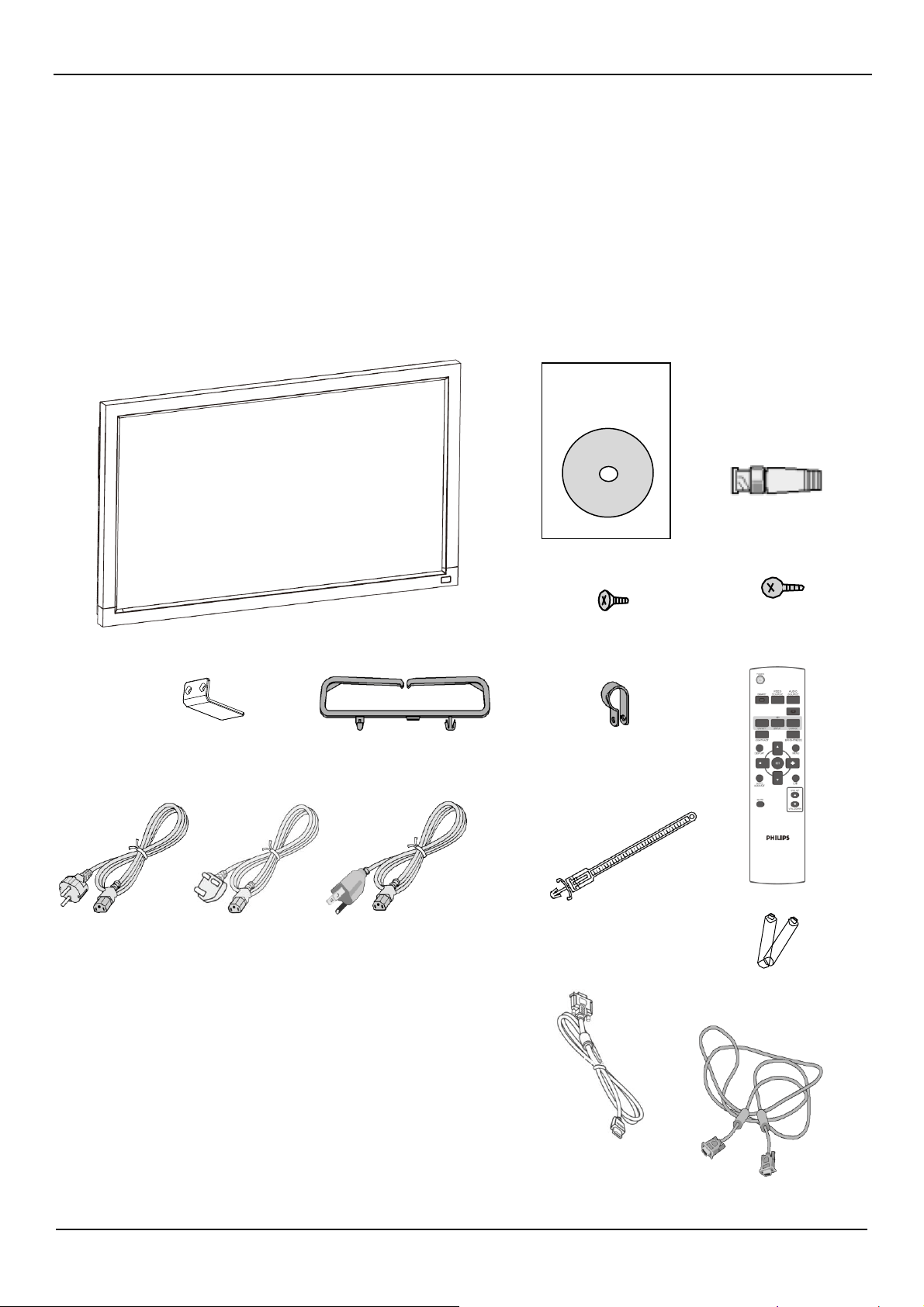
Contents
The
BDL4631V
monitor pack* should include:
•
LCD
monitor
•
Power cord
(1.8
m)
•
VGA
Signal
Cable
(1.8
m)
•
DVI-HDMI Cable
(1.8
m)
•
User
Manual
•
Remote Control and
AAA
Batteries
•
Clamper x 2
(T
o pr
event
from
falling)
•
Cable belt x 3
(For
tightening
cables)
•
Screw for Clamper
(T
o pr
event
from
falling)
x 2
•
Main switch cover
•
Screw for Main Switch cover x 2
•
Cable
Holder x 2
•
BNC TO RCA adapter x 5
User’s
Manual
Screw for Main switch cover
(3
x
6)
x 2
Main switch cover
Cable
Holder x 2
Clamper x 2
(T
o pr
event
from
falling)
BNC TO RCA adapter x 5
Screw for Clamper
(M4
x
12)
x 2
*
The
supplied power cord
varies
depending on destination.
For
EU For
UK
For
North
America
Power cord
*
Please make sure that for
all
other regions, apply a power cord that
conforms to the
AC
voltage of the power socket and
has
been
approved
by and complies with the safety regulations of the particular country.
Cable belt x 3
(For
tightening the power cord
and VGA / HDMI
cable)
Remote Control and
AAA
Batteries
Stand x 2
*
You might like to
save
the package box and packing material for shipping
the monitor.
*
The
following components
are
pr
epar
ed
as
options.
•
External
Speakers
•
Feet
Xxxxxxxxxxxxxx
xxxxxxxxxxxxxx
xxxxxxxxxxxxxx
xxxxx
DVI-HDMI Cable
User Manual BDL4631V/00
8
Elements Name and
Functions
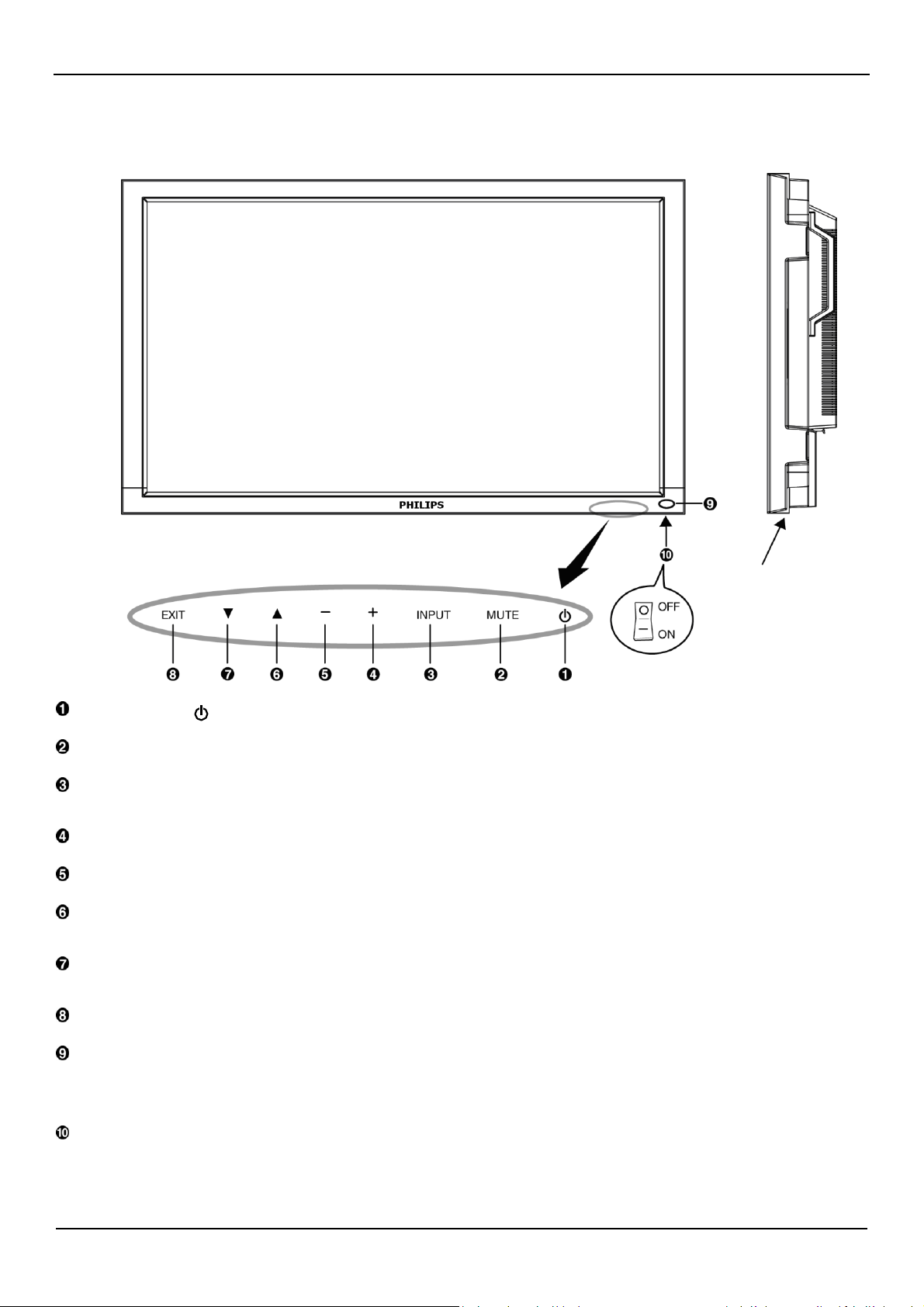
Control Panel
POWER button ( ) : To switch the power on/off.
MUTE button : To switch the audio mute ON/OFF.
INPUT button : To set the function while OSD menu is on or to toggle switch between
[HDMI1],
[HDMI2],
[PC-A],
[CVI],
[VIDEO<S>]
and
[VIDEO]
while OSD menu is off
.
PLUS (+) button : To increase the adjustment while OSD menu is on, or to increase the audio output level while the OSD menu is off.
MINUS (-) button : To decrease the adjustment while OSD menu is on, or to decrease the audio output level while the OSD menu is off.
UP () button : To move the highlight bar up to adjust the selected item while OSD menu is on, or to activate the OSD menu when the OSD
menu is off.
DOWN () button :To move the highlight bar down to adjust the selected item while OSD menu is on, or to activate the OSD menu when
the OSD menu is off.
EXIT button : To return to previous menu while OSD menu is on or to activate the OSD menu when the OSD menu is off.
Remote control sensor and Power indicator : To receive the IR signal from the remote control. The indicator would show green
when the LCD monitor is active and would turn red when the LCD is POWER OFF. While in the case of the system is in power save mode, it would
show both green and red. When SCHEDULE is enabled, it would blink green and glow red. If the indicator blinks red , it tells that a failure is
detected.
Main Power Switch : To turn the main power on/off.
NOTE: Keyboard Control Lock Mode This function completely disables the access to all Keyboard Control functions. To enable the
keyboard control lock, press both of “” and “” buttons and hold down continuously for more than 3 seconds. To recover back to the user mode,
press both of “” and “” and hold continuously for three 3 seconds.
Buttons
User Manual BDL4631V/00
9
Terminal Panel
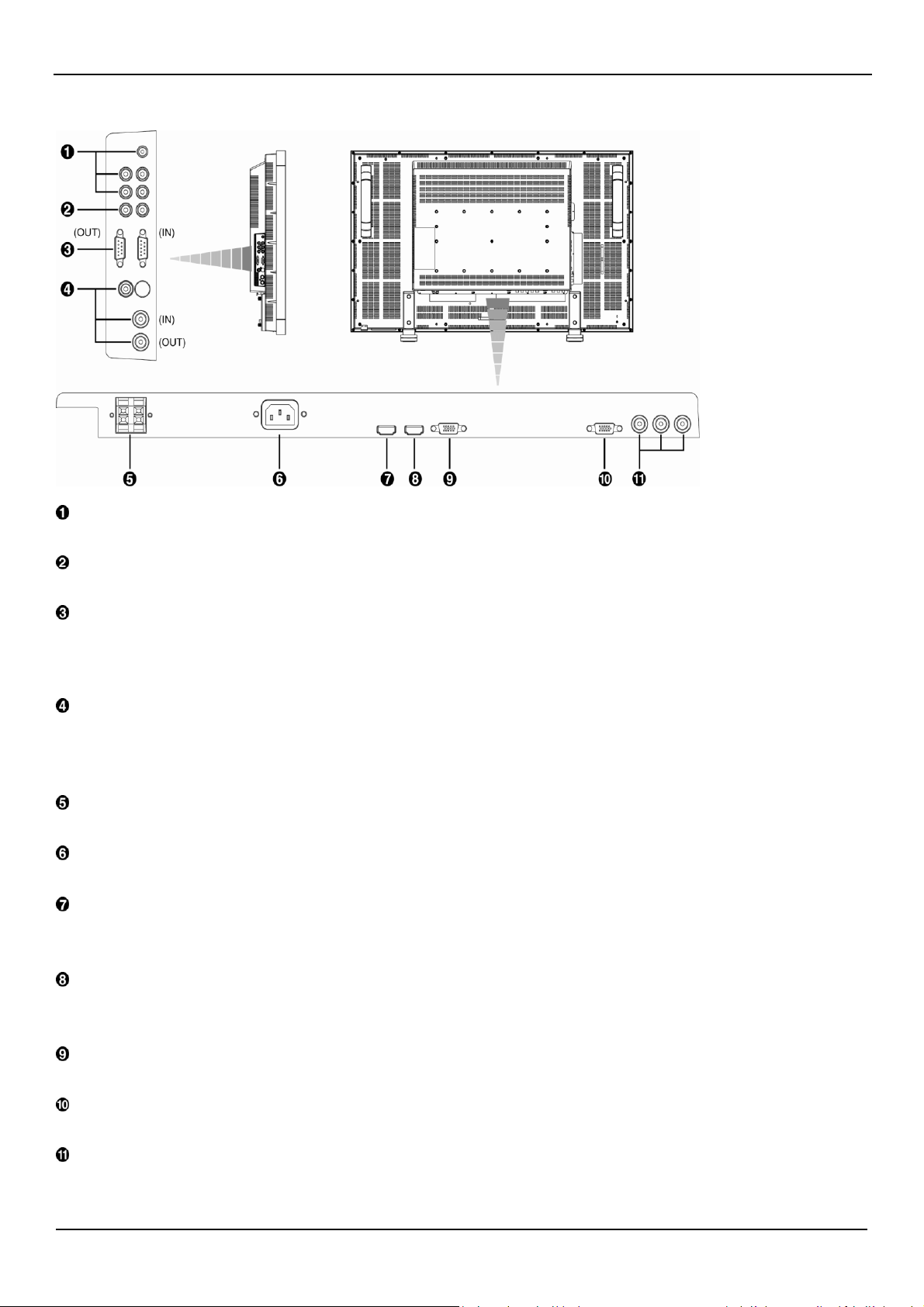
AUDIO IN 1, 2, 3
To input audio signal from external equipment such as a computer, VCR or DVD player.
AUDIO OUT
To output the audio signal from the AUDIO IN 1,2 and 3 jack.
EXTERNAL CONTROL (mini D-Sub 9 pin)
This is for serial connection when multiple BDL4631V monitors are connected. To achieve the remote control through RS232 command (refer to the
RS232 remote control user manual), connect the IN connector with the RS-232C OUT connector from the computer or a multi-connected BDL4631V
monitor and connect the OUT connector with the RS-232C IN connector of BDL4631V monitor.
VIDEO IN/OUT
VIDEO IN connector (BNC and RCA): To input a composite video signal. Note that BNC and RCA are not available at the same time.
VIDEO OUT connector (BNC): To output the composite video signal from VIDEO IN connector.
S-VIDEO IN connector (MINI DIN 4 pin): To input the S-video (Y/C separate signal).
EXTERNAL SPEAKER TERMINAL
To output the audio signal to external speakers from AUDIO IN 1, 2, 3 jack or HDMI.
AC IN connector
To connect with the supplied power cord.
HDMI 1 IN
To input digital RGB signals from a digital equipment or computer.
* This connector does not support analog input. AUDIO is supported via HDMI.
HDMI 2 IN
To input digital RGB signals from a digital equipment or computer.
* This connector does not support analog input. AUDIO is supported via HDMI.
PC-A IN (mini D-Sub 15 pin)
To input analog RGB signals from a computer or other RGB equipment.
RGB OUT (mini D-Sub 15 pin)
To output the signal from PC-A IN.
CVI IN [Y, Pb/Cb, Pr/Cr] (BNC)
To Connect an equipment such as a DVD player, HDTV device, or Laser disc player.
User Manual BDL4631V/00
10
Remote Control
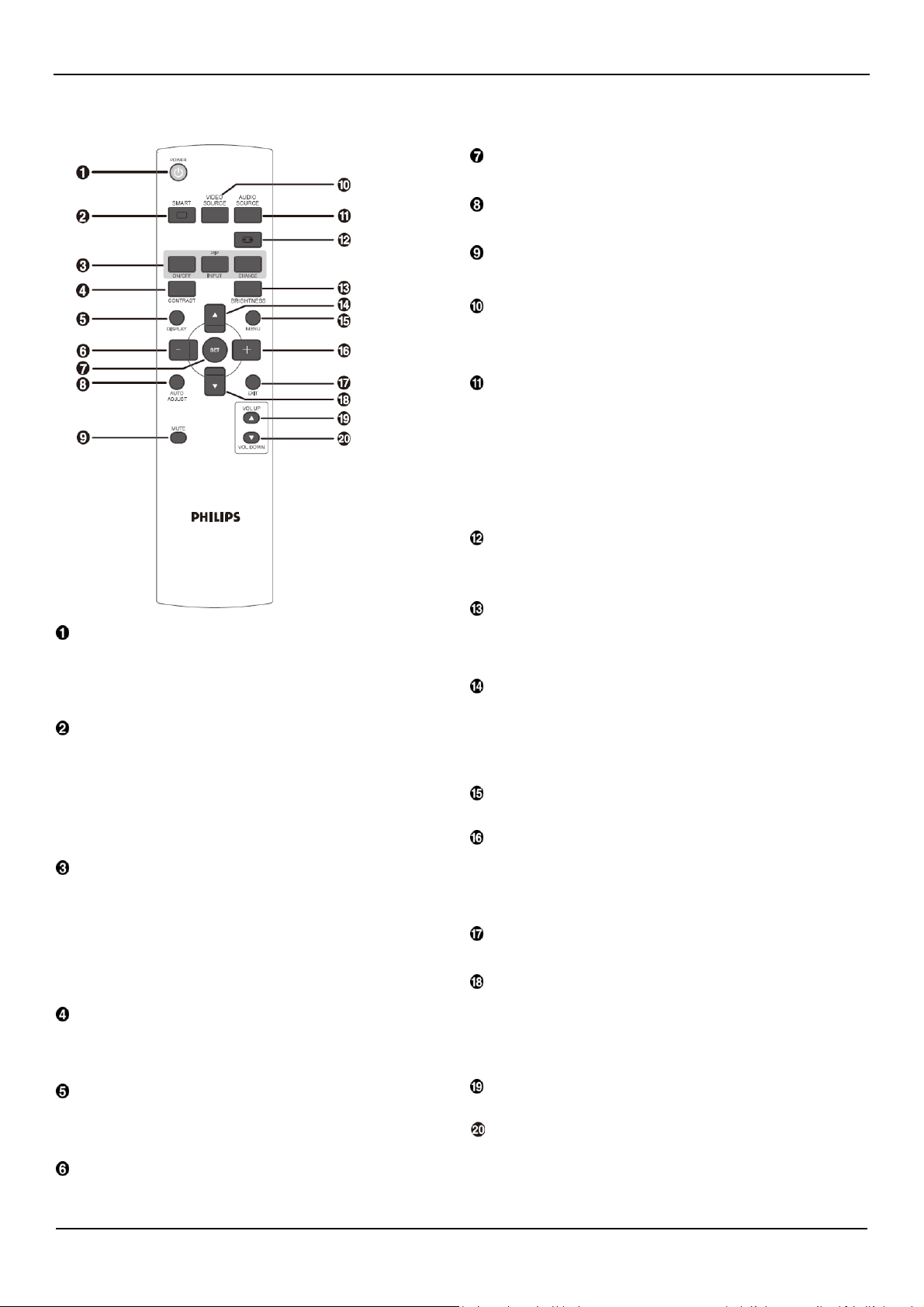
POWER button
To turn the power on/off.
If LED Power Indicator on the monitor is not lightening, then the
remote control will not work.
SMART PICTURE button
To select smart picture mode from [HIGHBRIGHT], [STANDARD],
[sRGB], [CINEMA]
.
HIGHBRIGHT
: for moving image such as Video
STANDARD:
for images
(Factory
setting)
sRGB:
for text based images
CINEMA: for movies.
PIP (Picture In Picture) button
ON/OFF button: To turn PIP mode ON/OFF.
INPUT button: To select the input signal for the sub-picture.
CHANGE button: To exchange between the main picture and sub-
picture.
Note:
The “PIP” and “POP” modes do not work if the screen size is
“CUSTOM” or “REAL”.
CONTRAST
button
To start CONTRACT OSD selection, and then push "+" or "-" button
to adjust the value.
DISPLAY button
To turn on/off the setting information displayed on the right-up corner
of the screen.
MINUS button
To decr
ease
the adjustment with
OSD
menu.
To move the sub-picture left when in “PIP” mode.
SET
button
To activate the setting with
OSD
menu.
AUTO
ADJUST
button
T
o
execute
the AUTO ADJUST function.
MUTE button
T
o turn the mute function on/off.
VIDEO SOURCE button
To set the video source by toggle selection from
[HDMI1],
[HDMI2],
[PC-A],
[CVI],
[VIDEO<S>]
and
[VIDEO].
AUDIO SOURCE button
To set the audio source by toggle selection from
[AUDIO1]
to
[AUDIO2],
[AUDIO3]
and
[HDMI]
.
Note 1: You cannot select the audio source for video source is set to
[VIDEO<S>]
or
[VIDEO].
Note 2:
[HDMI]
is selectable only when the video source is
[HDMI 1]
or
[HDMI 2].
SIZE button
To select the
pictur
e
size from
[FULL],
[NORMAL],
[CUSTOM]
,
[DYNAM
IC]
and
[REAL].
BRIGHTNESS button
To start the BRIGHTNESS OSD selection, and then push "+" or "-"
button to adjust the value.
UP button
To move the highlight bar up to adjust the selected item when OSD menu
is on.
To move the sub-picture up when in “PIP” mode.
MENU button
T
o turn the OSD menu on/off.
PLUS
button
To incr
ease
the adjustment with
OSD
menu.
To move the sub-picture right when in “PIP” mode.
EXIT button
To turn to the pr
evious
OSD menu.
DOWN button
To move the highlight bar down to adjust the selected item when OSD
menu is on.
To move the sub-picture down when in “PIP” mode.
VOLUME UP button
To incr
ease
the audio output
level.
VOLUME DOWN button
To decr
ease
the audio output
level.
User Manual BDL4631V/00
11
Operating Range for the Remote
Control
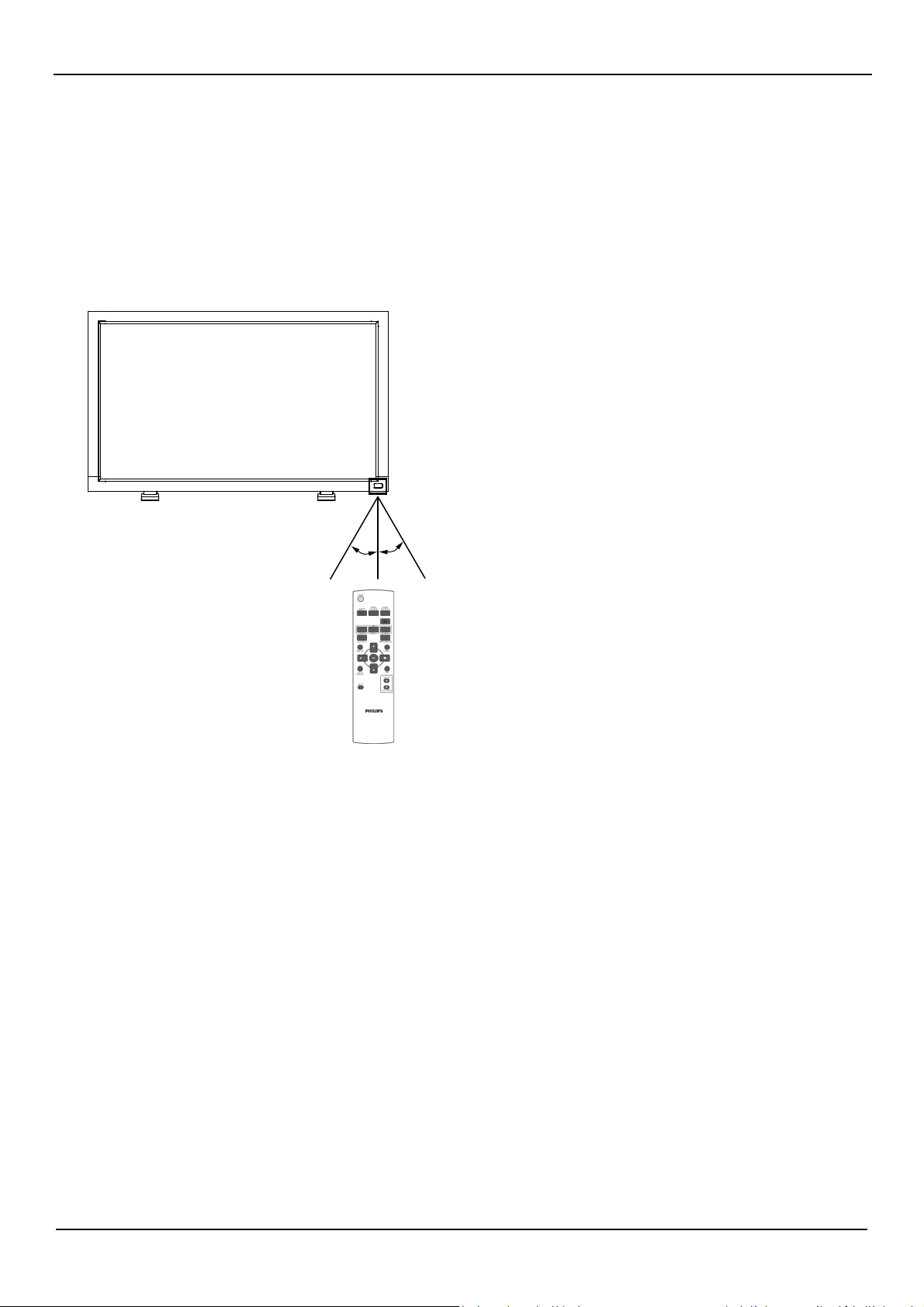
Point the top of the remote control toward the
LCD
monitor's remote
sensor
during button operation.
Use
the remote control within
a
distance of about 7 m/23 ft from the
front of the
LCD
monitor's remote control
sensor
and within
a
horizontal and vertical
angle
30° with
a
distance of about 3 m/10 ft.
Handling the remote control
*
Do not subject to strong shock.
*
Do not allow water or other liquid to splash the remote control.
If the remote control gets wet, wipe it dry immediately.
*
A
void exposur
e
to
heat
and steam.
*
Other than to install the batteries, do not open the remote
control.
30° 30°
NOTE:
The remote control system may not function when direct sunlight or
strong illumination strikes the remote control
sensor
of the
LCD
monitor,
or when ther
e
is
an
obstacle in the radiation path.
User Manual BDL4631V/00
12
How to Mount or Attach Feet to the LCD Monitor
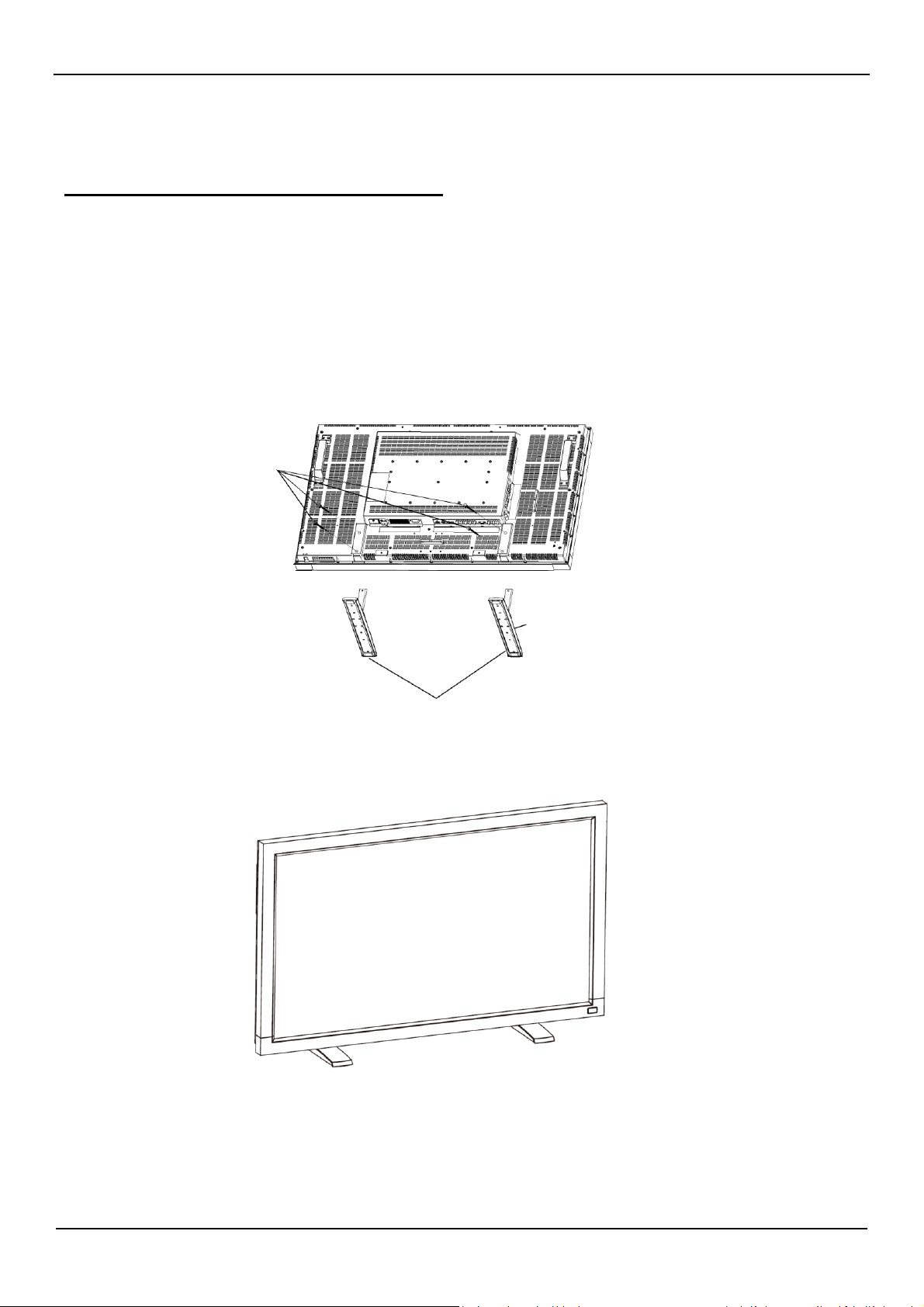
You can install the LCD monitor in one of the following two ways:
Way 1: Attach
and re
move the optional feet
How to
install
feet
1.
Please
turn the monitor off.
2. After inserting feet in guide block, fasten the thumbscrews on both sides of the monitor.
NOTE:
Install the feet with their longer portions directing to the front.
Screws
Optional Feet
In the upright position
How to remove the
feet
1. Spr
ead
the protective
sheet
on the flat surface.
2. Make the monitor lying on the protective sheet.
3.
Remove
screws using
a
screwdriver and place them in
a safe
place for r
euse.
Longer portions directs to the front
User Manual BDL4631V/00
13
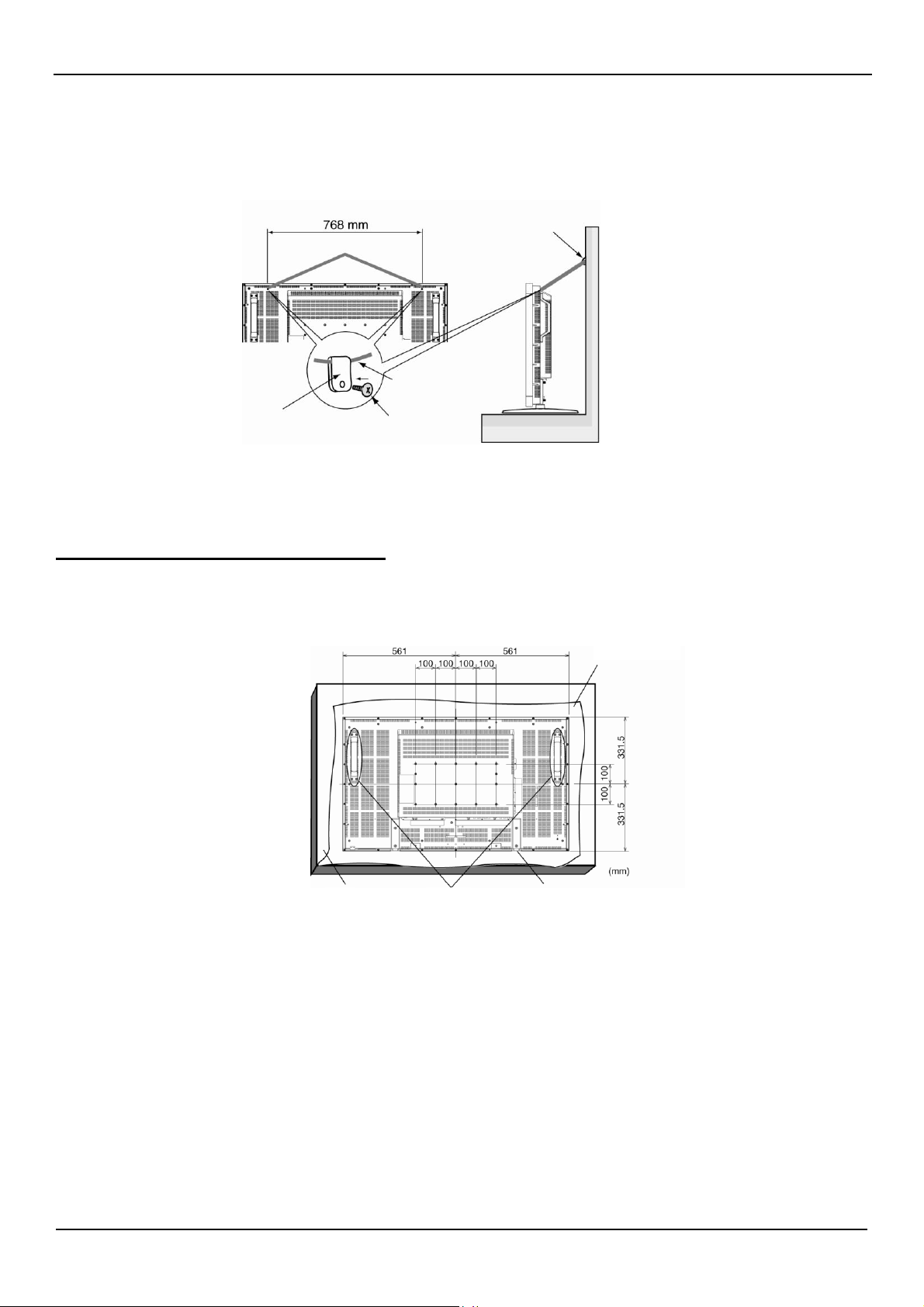
To avoid monitor from falling
Take measures to prevent the monitor from falling over in case of an earthquake or other disaster might occur to lessen the probability of injury and
damage.
As shown in the figure below, secure the monitor to a solid wall or pillar using rope (commercially available) strong enough to bear the weight of the
monitor(BDL4631V: approx. 34.6 kg). Screw hooks (commercially available), of ring type rather than C-shaped screw hooks (with opening), are
recommended.
Caution:
Though the recommended prevention from falling is intended to lessen the probability of injury and damage, it doesn’t assure its effectiveness
against any kind of earthquake or disaster.
Before moving the monitor, remove the rope that is securing the monitor.
Way II: Mount the monitor on the wall
Before mounting the monitor to the wall, make sure that the system has been power-off and you have obtain a standard wall-mounting kit
(commercially available). Using mounting interface that comply with TÜV-GS and/or UL1678 standard in North America is recommended.
Tabletop stand
1. Lay a protective sheet on a table, which was wrapped around the monitor when it was packaged, beneath the screen surface so as not to scratch
the screen face.
2. This device cannot be used or installed without the Tabletop Stand or other mounting accessory. Make sure all these stuffs are ready for wall-
mount installation.
3. Follow the instructions that come with the base mounting kit. Failure to follow correct mounting procedures could result in damage to the
equipment or injury to the user or installer. Product warranty does not cover damage caused by improper installation.
4. For the wall-mounting kit, use M6 mounting screws (having a length 10 mm longer than the thickness of the mounting bracket) and tighten them
securely. (Recommended torque: 470 - 635N•cm).
Caution:
For preventing the monitor from falling.
Install the monitor with metal brackets for wall or ceiling installation (commercially available) on your own responsibility. For detailed procedures of
installation, refer to the instructions of the metal brackets.
To lessen the probability of injury and damage resulting from fall of the monitor in case of earthquake or other disaster, be sure to consult the
bracket manufacturer for installation location.
To lessen the risk of falling of the monitor, thread commercially available rope (having a load capacity at least 1960N (200kgf)) through the handles
at the right and left of the monitor and secure the rope to the wall mount brackets or ceiling mount brackets.(Refer to the first paragraph of this
page.)
Protective Sheet
Table
Handles
Screw Holes
Screw hook
Clamper
Screw
Rope
* Clamper and Screw here is not supplied.
User Manual BDL4631V/00
14
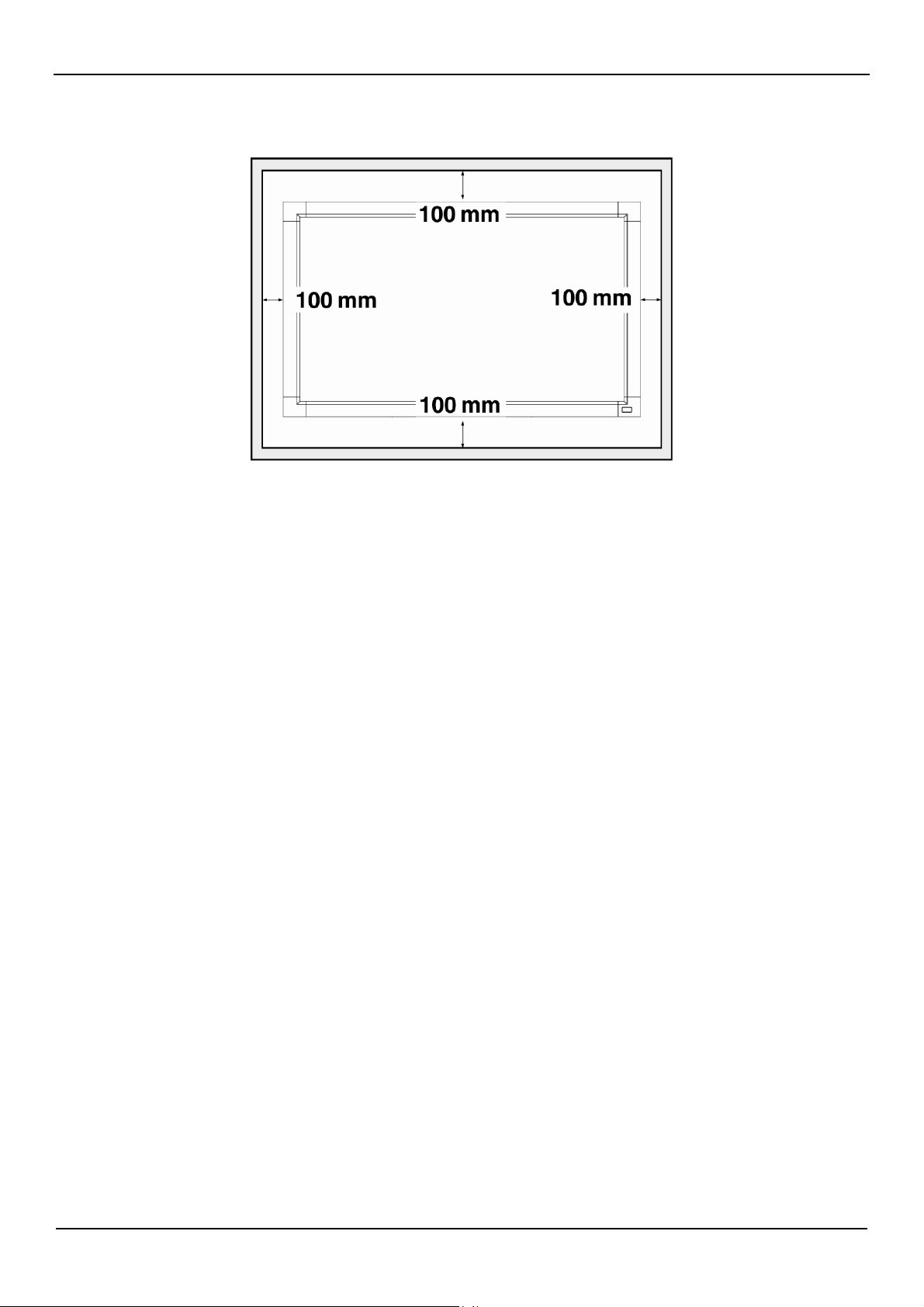
Ventilation Requirements for enclosure locating
To allow heat to disperse, leave space between surrounding objects as shown in the diagram below.
User Manual BDL4631V/00
15
Setup Procedur
e
1. Install the system on the right location
CAUTION:
THE
LCD
MONITOR
MUST
BE MOVED
OR
INSTALLED
BY
TWO
OR
MORE
PERSONS.
Failure
to follow this caution may result in injury if the
LCD
monitor falls.
CAUTION:
DO
NOT
ATTEMPT
TO
INSTALL
THE
LCD
MONITOR
BY
YOURSELF
.
The
LCD
display must be installed by
a
qualified technician.
Contact your
dealer
for mor
e
information.
CAUTION:
DO NOT MOUNT OR OPERATE THE DISPLAY UPSIDE DOWN,
FACE UP, OR FACE DOWN.
CAUTION:
DO NOT INSTALL THE LCD MONITOR WHERE IT WILL BE
EXPOSED TO DIRECT SUNLIGHT.
Failure
to follow this caution will result in display defects.
IMPORT
ANT
:
Lay
the protective sheet, which was wrapped
ar
ound the
LCD
monitor
when it was packaged, beneath the
LCD
monitor so
as
not to scratch
the
panel.
2.
Install
the remote contr
ol
batteries
The
remote control is powered by
1.5V
AAA
batteries.
T
o
install or replace batteries:
1.
Press
and slide to open the cover.
2. Align the batteries according to the
(+)
and
(–)
indications inside
the case.
3.
Replace
the cover.
CAUTION:
Incorrect
use
of batteries can result in
leaks
or bursting. Be
car
eful
especially about the following points.
•
Place
“AAA” batteries matching the + and
-
signs on
each
battery
to the + and
-
signs of the battery compartment.
•
Do not mix battery types.
•
Do not combine new batteries with used ones. It
causes
shorter
battery life or
leakage
of batteries.
•
Remove
dead batteries immediately to pr
event
battery
liquid from
leaking
into the battery compartment. Don't touch
exposed battery acid, it
cause
damage to your skin.
NOTE:
If you do not intend to
use
the Remote Control for
a
long period,
remove the batteries.
3. Connect to exter
nal
equipment
•
T
o protect the connected equipment, turn off the main power
befor
e
making connections.
•
Please refer to section “Connectivity” P.18~P.22 for operations.
.
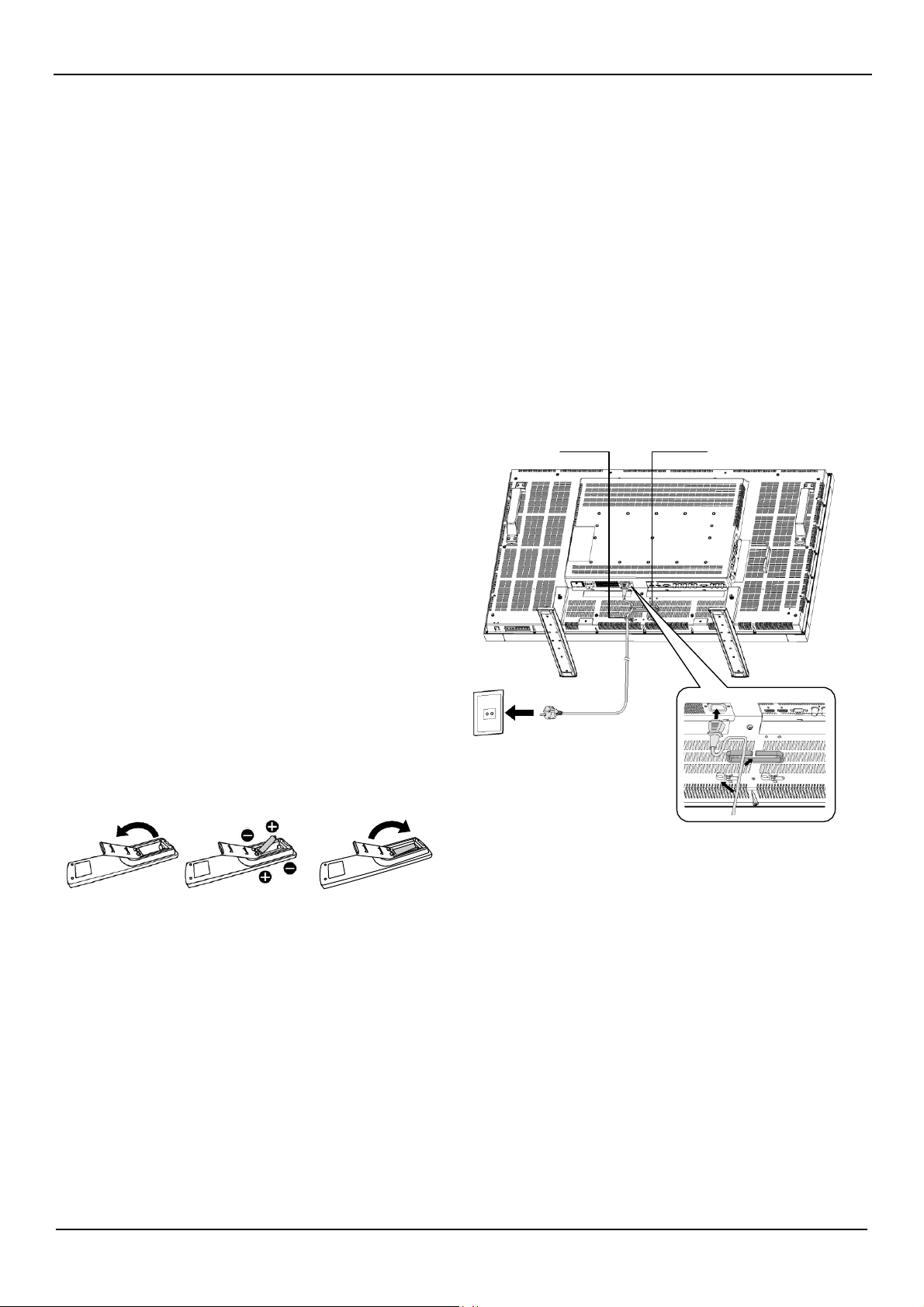
4. Connect power cord
•
The
power outlet socket should be installed
as
near
to the
equipment
as
possible, and should be
easily
accessible.
•
Fully
insert the prongs into the power outlet socket. Loose
connection may
cause
noise.
NOTE:
Please
r
efer
to “Safety Operation” section of this
manual
for
proper selection of
AC
power cord.
Cable belt
Cable Holder
5. Turn
on
the power of the
attached exter
nal
equipment
When
connected with
a
computer, turn on the power of the computer
first.
6.
Operate
the
attached
external
equipment
Display the
signal
from the exter
nal
equipment.
7.
Adjust
the
sound
Make adjustments to lower or to rise the volume
as
required.
8.
Adjust
the
scr
een
Make adjustments to the display position or settings if r
e
quired.
Use the Cable belt
to secure the
cables firmly.
User Manual BDL4631V/00
16
9.
Adjust
the image
Make adjustments to brightness or contrast if required.
10. Recommended
Adjustment
T
o reduce the risk of “image persistence”,
please
adjust the
following items based on the application being used.
“POWER
SAVE”,
“PANEL SAVING”,
“SIDE
BORDER
COLOR”,
“DA
TE
AND
TIME”
,
“SCHEDULE”.
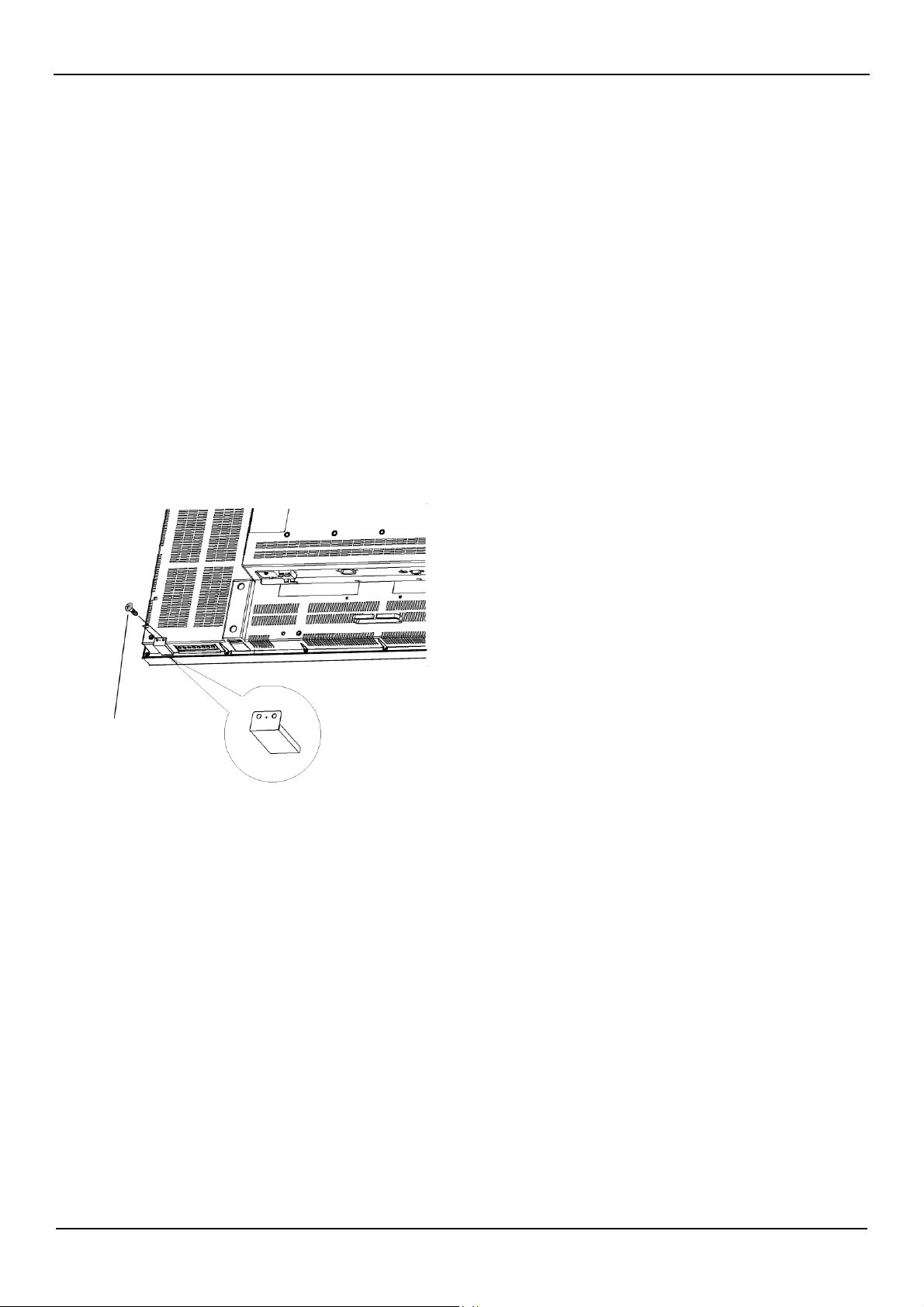
11. To prevent the
main
power switch
from
being
changed
T
o pr
event
the possibility of main power switch being carelessly
pushed,
please
attach the main switch cover (accessory) onto it.
NOTE:
With the main power switch cover in place, the main power switch
can not be turned off.
Remove
main power switch cover in order to
turn off the display.
Screw
Main switch cover
User Manual BDL4631V/00
17
Install the LCD Monitor
in
Portrait M
ode
BDL4631V
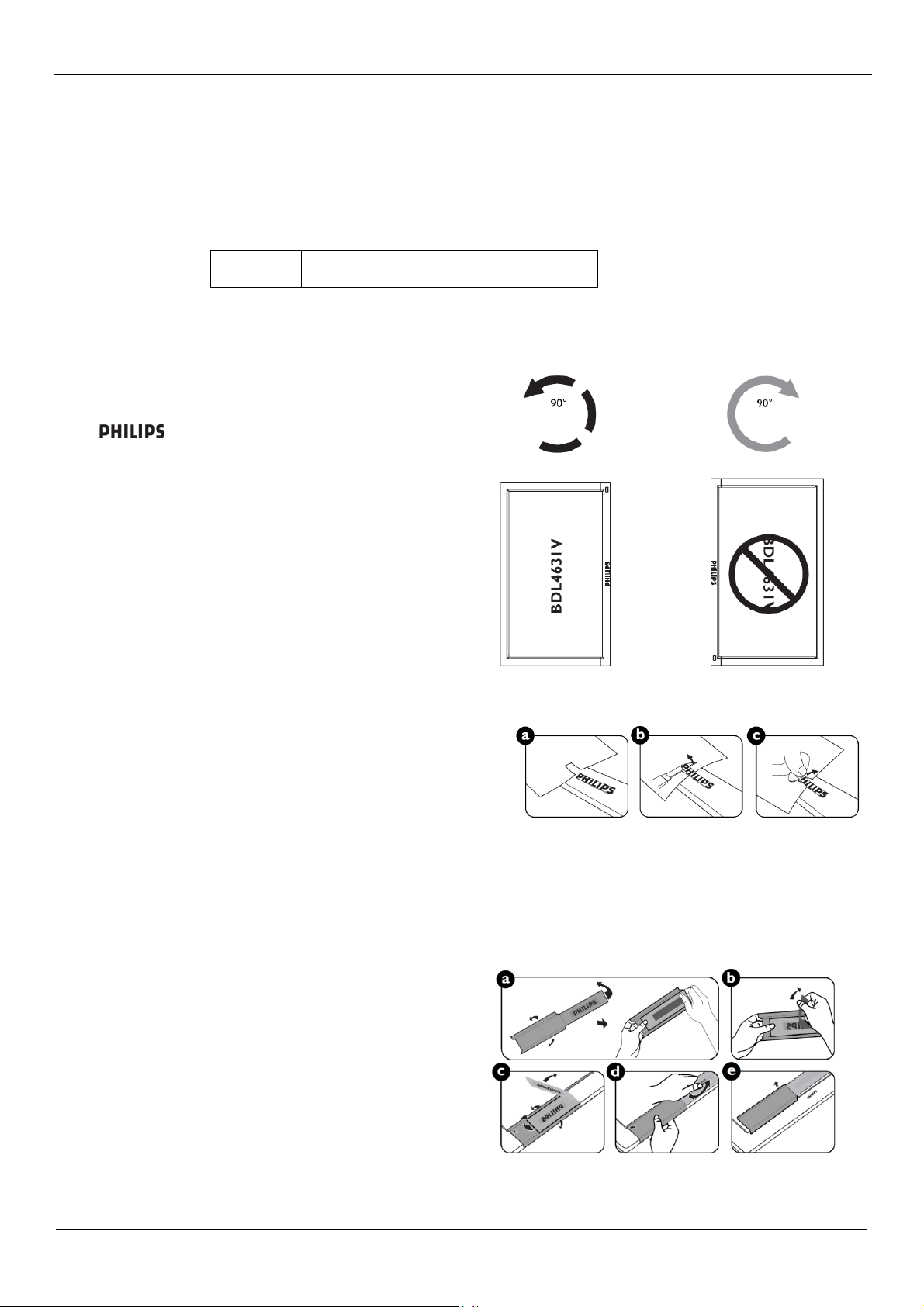
can be installed in portrait position, under the following conditions:
Caution:
Portrait mode is
ef
fective only when wall-mounted or ceiling-mounted.
The
feet
can not be used for the monitor in portrait position.
Placing the monitor in portrait position, will shorten the
average
life of the
LCD
backlight.
Operational
Envir
onment
(T
emperatur
e)
shall
be limited,
as
shown below:
Operational
Envir
onment
Te
mperatur
e
5
-
35 °C
/
41
-
95
°F
Humidity
20
-
80
%
(without condensation)
Please
orientate the monitor in the direction shown as the right figure:
Do not place monitor in landscape in
any
other
manner
.
How to set-up
1.
Remove
the
feet if they are attached.
2.
The
“ ”
logo should be on the
RIGHT
side when facing the monitor.
How to Remove the Logo for landscape mode?
1. Prepare a piece of paper with a cutting area of logo as a protector to
prevent the front bezel from scratching.
2. Using an knife, carefully remove the logo sticker with the paper placing
beneath.
3. Tear off the logo sticker.
How to Use the Logo Guider for Portrait Mode?
1. Before applying, make sure the guider is well shaped. The "PHILIPS"
sticker attached on the end of it could be folded back as figure a.
2. Turn back the logo end of the guider and remove the sticky tape of the
logo.
3. Slide the logo guider along the short side of the front bezel as figure c &
then re-turn the logo end of the guider back to the right side.
4. With your left hand fixing the guider, scrunch the logo by your right hand
to make it stuck firmly on the front bezel.
5. Remove the guider and leave the logo over the front bezel.
Counterclockwise Clockwise
User Manual BDL4631V/00
18
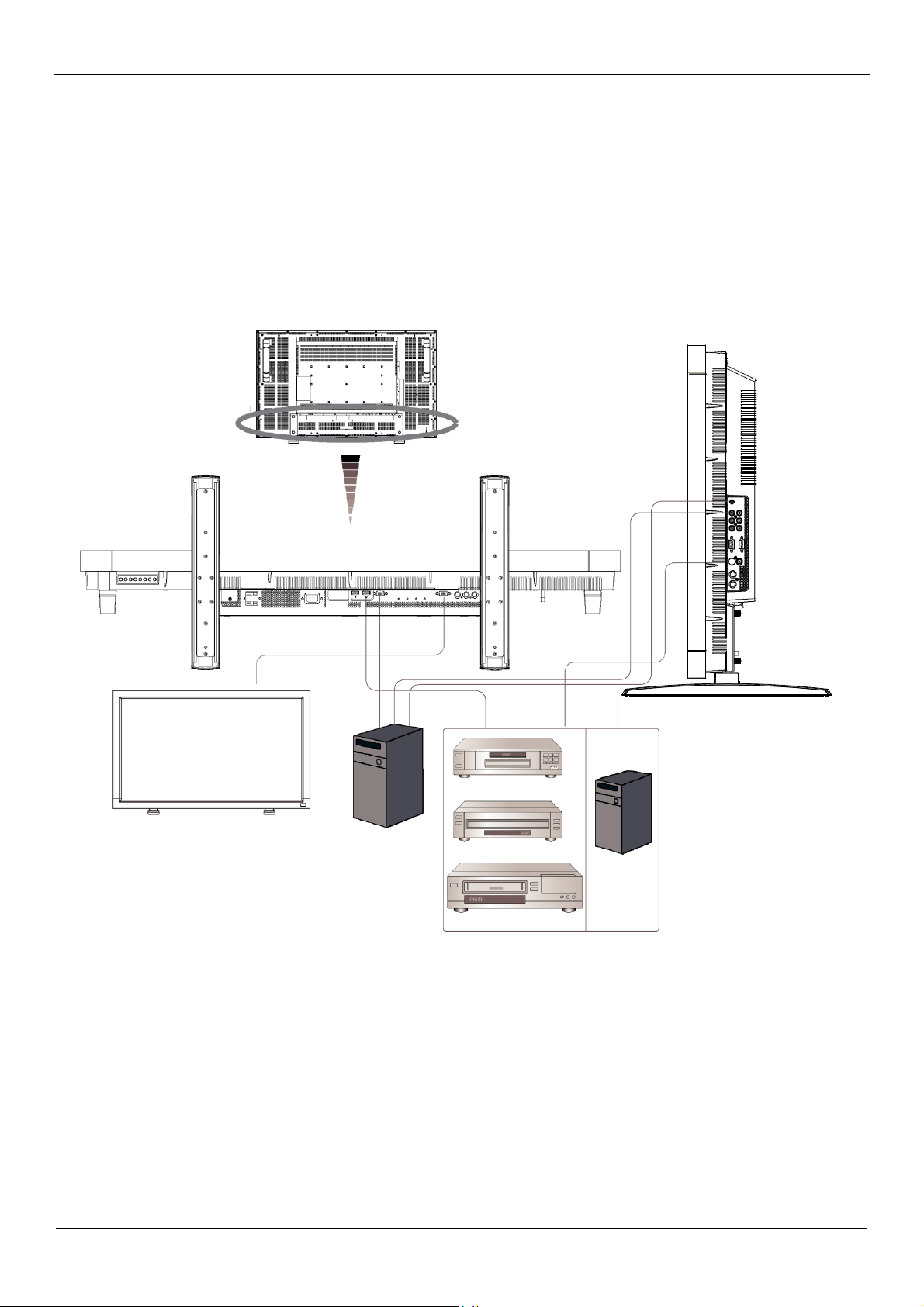
Connectivity
Before making
connections:
*
First turn off the power of
all
the attached equipments before make connections.
*
Refer
to the
user
manual
included in
each
separate
piece of equipment.
Connectivity
Diagram
BDL4631V
DVD
player
BDL4631V (second monitor)
Equipment
with
Digital interface
HD or laser
disk
player
Personal
Computer
VCR
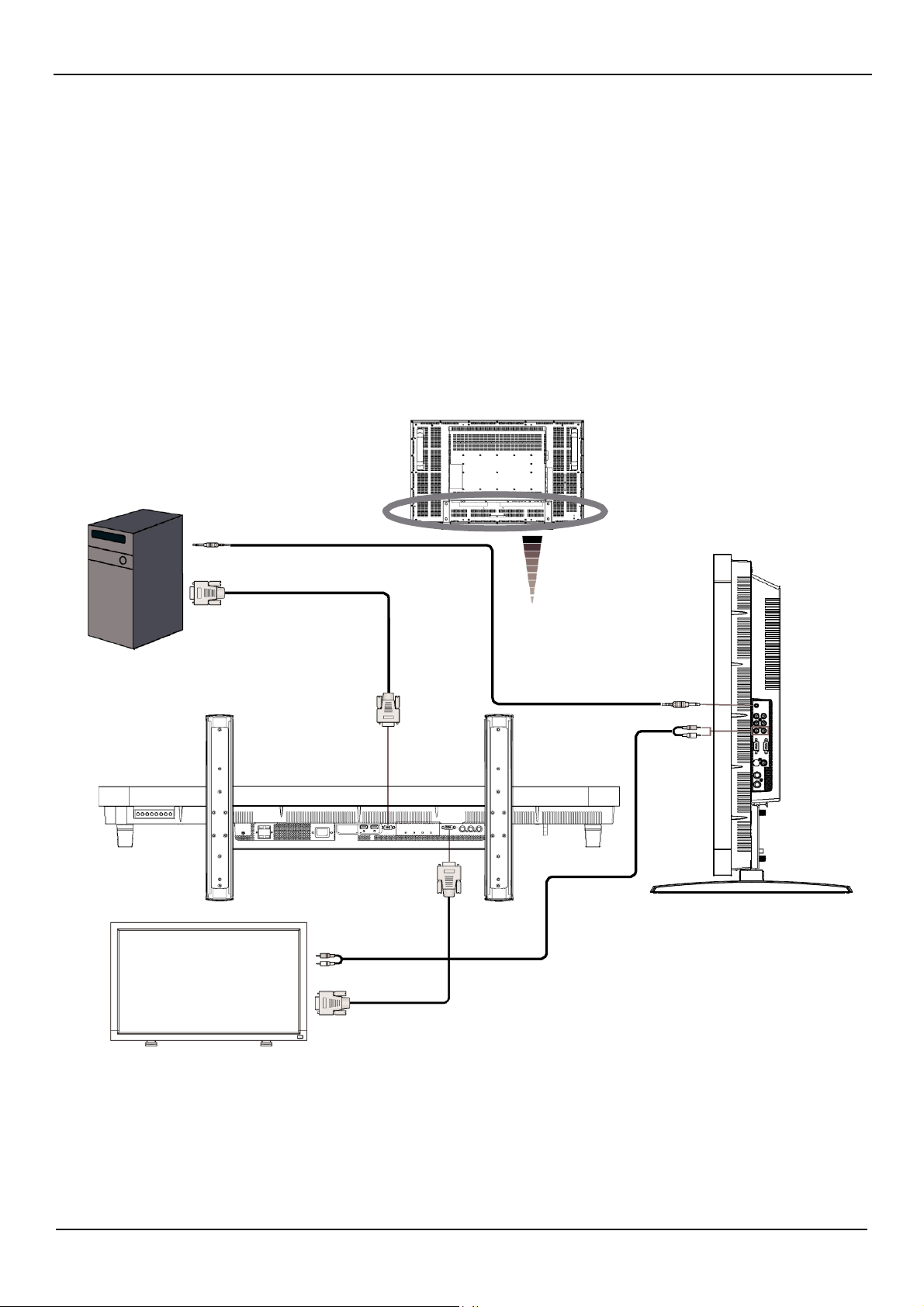
User Manual BDL4631V/00
19
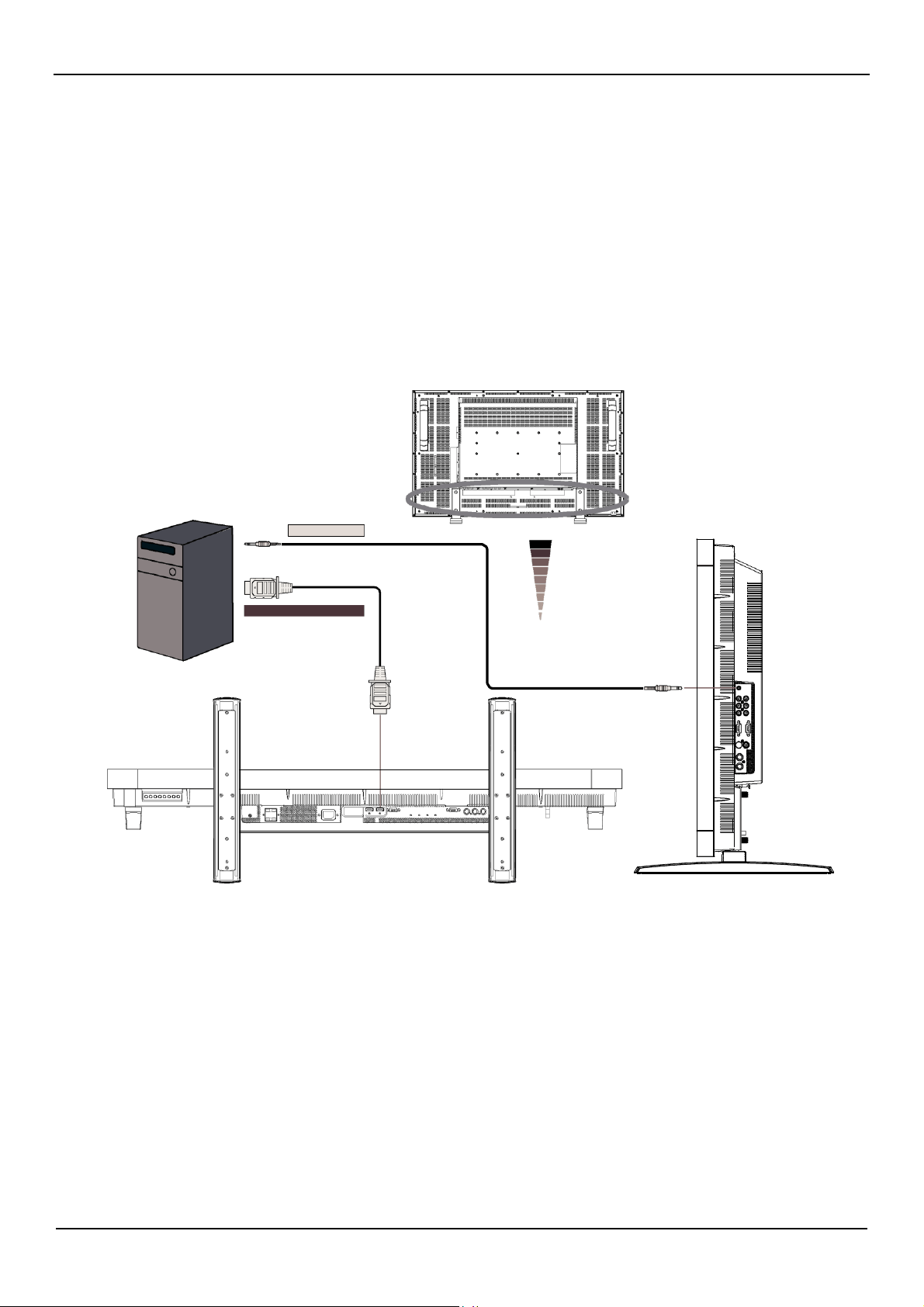
Connecting to a Personal Computer
As you finish the connection between the computer and the
LCD
monitor, you could play the contents in the computer
and display them on the LCD monitor.
Connecting the LCD Monitor to a Personal Computer
•
T
o achieve this,
apply
the supplied
VGA
signal
cable
(mini
D-sub 15 pin to mini D-sub 15
pin) to make connection between PC and LCD monitor
(PC-A
IN
connector)
.
•
When
connecting mor
e
than one
LCD
monitors to PC,
apply
another
VGA
signal
cable
(mini
D-sub 15 pin to mini D-sub 15
pin; it’s commercially
available) to make connection between LCD monitor(RGB
OUT
connector)
and the other (PC-A
IN
connector)
.
•
The
AUDIO
IN
1, 2, 3 or HDMI can be connected for audio input using RCA cable. After choosing one of the AUDIO IN connectors, you
might need to select
AUDIO
1, 2, 3 or HDMI using the
AUDIO SOURCE
button on the remote control. HDMI (for audio) is selectable only
when
HDMI 1
or 2(for video) is selected.
•
W
hen
connecting mor
e
than one
LCD
monitors to PC,
apply
RCA cable
to make connection between LCD monitor(AUDIO
OUT
connector)
and
the other (AUDIO
IN
1, 2, 3). HDMI source is not suitable for this case.
BDL4631V
PC or IBM compatible
T
o audio output
T
o analog RGB output
Mini D-sub 15 pin
RCA
Mini D-sub 15 pin
BDL4631V (second monitor)
User Manual BDL4631V/00
20
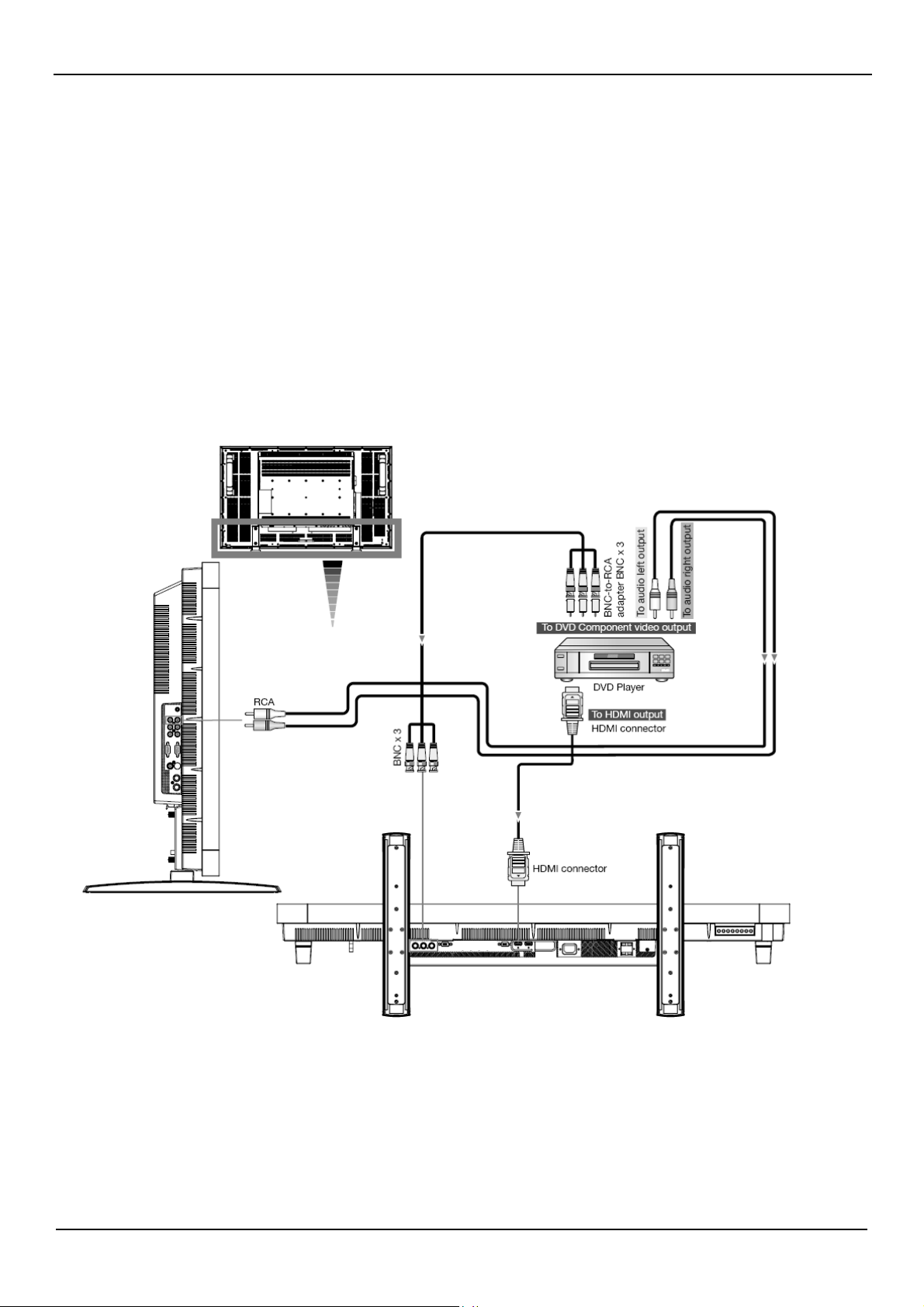
Connecting to a Digital Interface Equipment
Connections can be made between LCD monitor and other digital equipment that is equipped with
a
digital interface compliant with the
DVI
(Digital
V
isual Interface)
standard.
Connect the LCD Monitor to a Computer with a
Digital
Output
•
The
HDMI 1
,
HDMI 2 IN
connector accepts
a
HDMI cable.
•
The
HDMI 1
,
HDMI 2
IN
connector can be chose to receive the video signal from HDMI output(applying HDMI to HDMI cable) or
DVI-D
output (applying HDMI to DVI cable) of
PC.
•
T
o ensure the display quality,
use
a
cable with
a
quality prescribed by
DVI
standards.
•
The
AUDIO
IN
1, 2, 3 or HDMI connector can be chose to receive audio source. Select
AUDIO
1, 2, 3 or HDMI from the
AUDIO SOURCE
button on the remote control. HDMI(for audio) is only selectable only when
HDMI 1
or 2(for video) is selected.
•
Note that t
he
signal
input from HDMI connector cannot be output to the
RGB
OUT
connector.
BDL4631V
T
o audio output
T
o HDMI output or
DVI-D
r
Equipment with a digital interface
such as a personal computer with
RGB output
(TMDS)
HDMI connector
User Manual BDL4631V/00
21
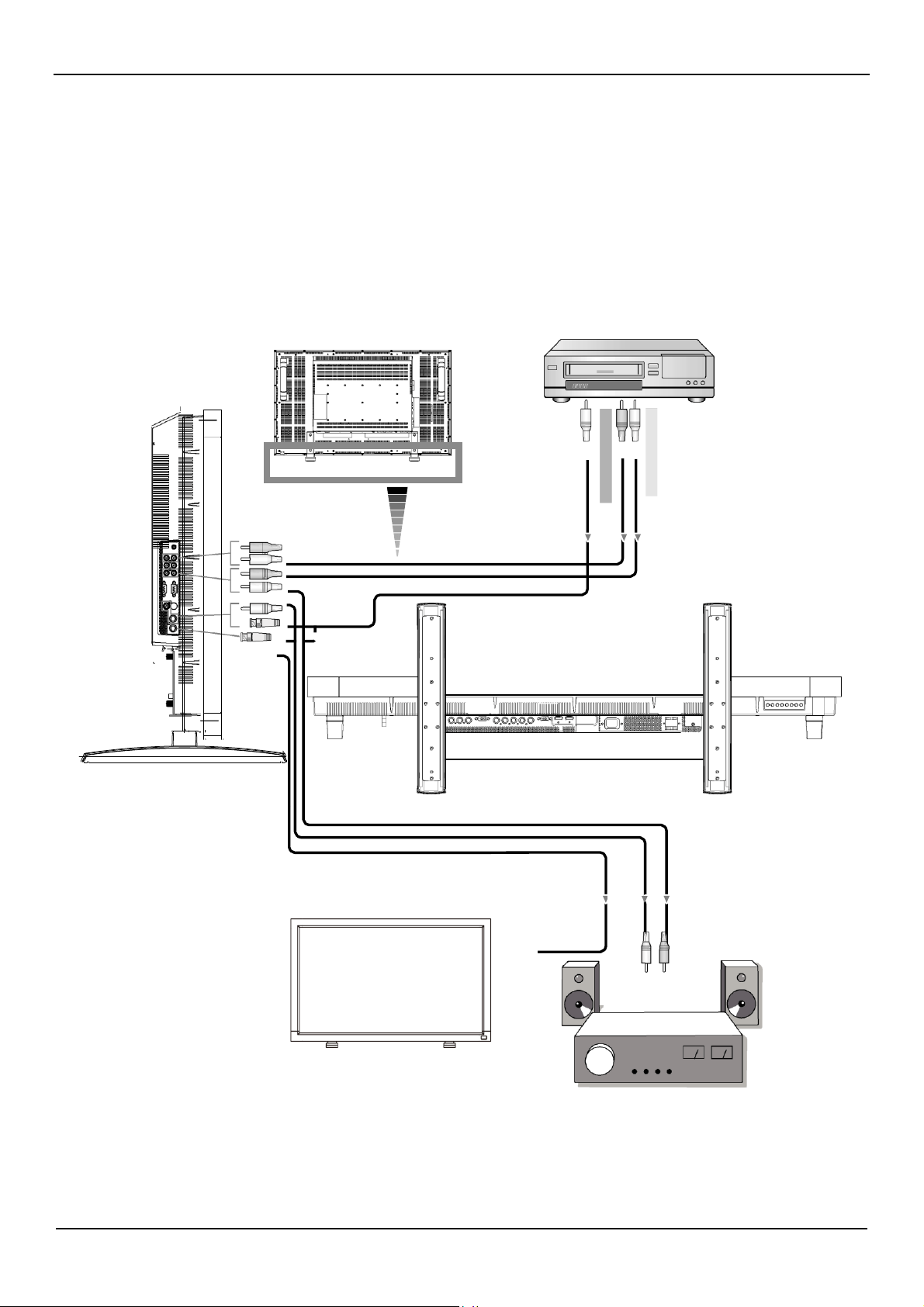
Connecting to a DVD Player
As you finish the connection between the DVD player and the
LCD
monitor, you could display the contents from the played DVD on the LCD
monitor. You might like to r
efer
to your
DVD
player
’s
manual
for further information.
Connect the LCD Monitor to a DVD
Player
•
T
o achieve this,
apply
a
separated signaling(Y, Cb/Pb, Cr/Pr)
BNC cable
(mini
D-sub 15 pin to mini D-sub 15
pin) to make connection between a
DVD player(Y, Cb/Pb, Cr/Pr Out) and LCD monitor (CVI In).
Y
ou might
need
BNC-to-RCA adapters(including in the accessories) to convert
the BNC connectors to RCA connectors if you are using the
separated signaling(Y, Cb/Pb, Cr/Pr)
RCA cable
.
•
If your DVD player supports HDMI signaling, apply HDMI to HDMI cable for the connection.
•
The
AUDIO
IN
2 , 3 (both of
RCA connector type)
can be used for audio input.
S
elect
[AUDIO
1] ( for
3.5φ phone jack)
,
[AUDIO
2],
[AUDIO
3]
Or
[HDMI]
from the
AUDIO SOURCE
button on the remote control. HDMI (for audio) is selectable only when
HDMI 1
or 2 (for video) is
selected.
BDL4653V
BDL4631V
User Manual BDL4631V/00
22
Connecting to a Stereo Amplifier
Y
ou can connect your ster
eo
amplifi
er
to your
LCD
monitor.
Refer
to your amplifi
er
's
manual
for further information.
Connect the LCD Monitor to a Stereo
Ampli
fier
•
T
urn on the
LCD
monitor and the amplifi
er
only after
all
connections
have
been
finished.
•
Apply
an
RCA
cable to make connection between the amplifier (audio in) and the
LCD
monitor (audio out).
•
Do not r
everse
the audio left and right jacks.
•
For the preferring audio signal, select
[AUIDO1],
[AUDIO2],
[AUDIO3]
or
[HDMI]
from the
AUDIO SOURCE
button on the remote control.
HDMI(for audio) is selectable only when
HDMI 1
or 2(for video) is selected.
•
The
AUDIO
OUT
RCA connectors output sound from the selected
AUDIO SOURCE
.
BDL4631V
RCA
RCA
BNC
RCA
BNC
To audio left input
External speaker
RCA
To audio right input
To composite Output
In case of VCR
To audio left input
BDL4631V (second monitor)
User Manual BDL4631V/00
23
Basic Operation
Power ON and
OFF
Modes
The
LCD
monitor power indicator will turn gr
een
while powered on and will turn red while powered off.
The
monitor can be powered on or
off using the following thr
ee
options:
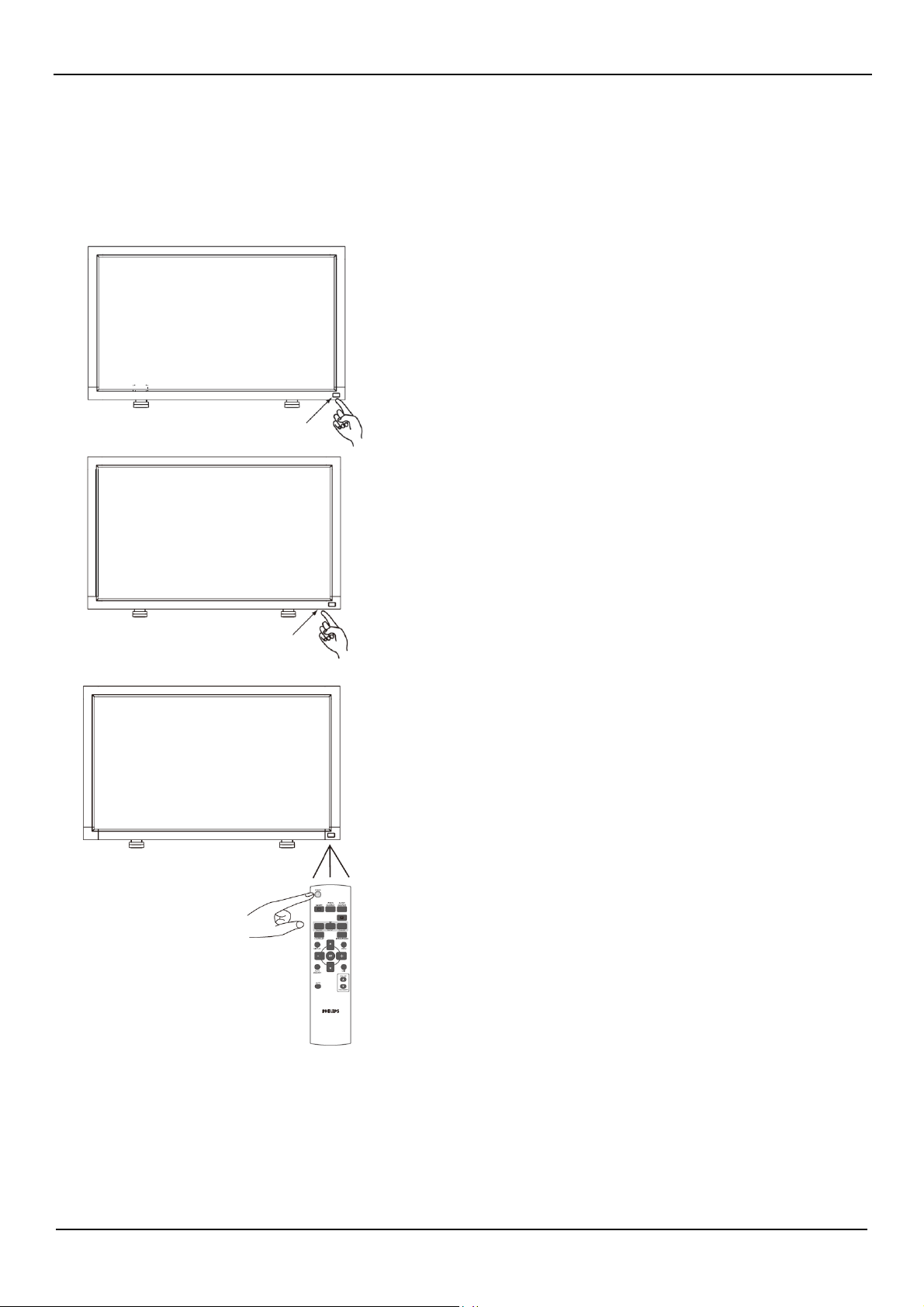
1. Pr
essing
the Main Power Switch.
NOTE:
When
the Main Power Switch is used to power off the
LCD
monitor, the remote control, the power button and the indicator
will not work. Make sur
e
to turn the Main Power Switch on befor
e
using
the other
two options.
Main Power Switch
2. Pr
essing
the power button.
NOTE:
Befor
e
pr
essing
the power button, be sur
e
to turn on the
Main Power button on the
LCD
monitor.
Power Button
3.
Using
the remote contr
ol.
NOTE:
Befor
e
operating the remote control, be sur
e
to turn on the Main
Power Switch on the
LCD
monitor.
User Manual BDL4631V/00
24
Power Indicator
Status
Power ON
Green
Power OFF
Red
Power Standby when
“SCHEDULE” is enable
Red On
Green Blinking
Power Standby
Red, Green
Diagnosis
(Detecting failure)
Red Blinking
* See troubleshooting
Using Power Management
The LCD monitor follows the VESA approved DPM Power Management function.
The power management function is an energy saving function that automatically reduces the power consumption of the display when the keyboard or
the mouse has not been used for a certain period.
The power management feature on the LCD monitor has been set to the “ON” mode. This allows the system to enter a Power Saving Mode when no
signal is applied. This could potentially increase the life and decrease the power consumption of the LCD monitor.
Display Signal of Video Source Setting to [VIDEO]
Use the input button on the front panel or the VIDEO SOURCE button on the remote control to set video source to [VIDEO].
Use the COLOR SYSTEM OSD menu to select [AUTO], [NTSC], [PAL], [SECAM], [PAL60], [4.43NTSC], according to your video format.
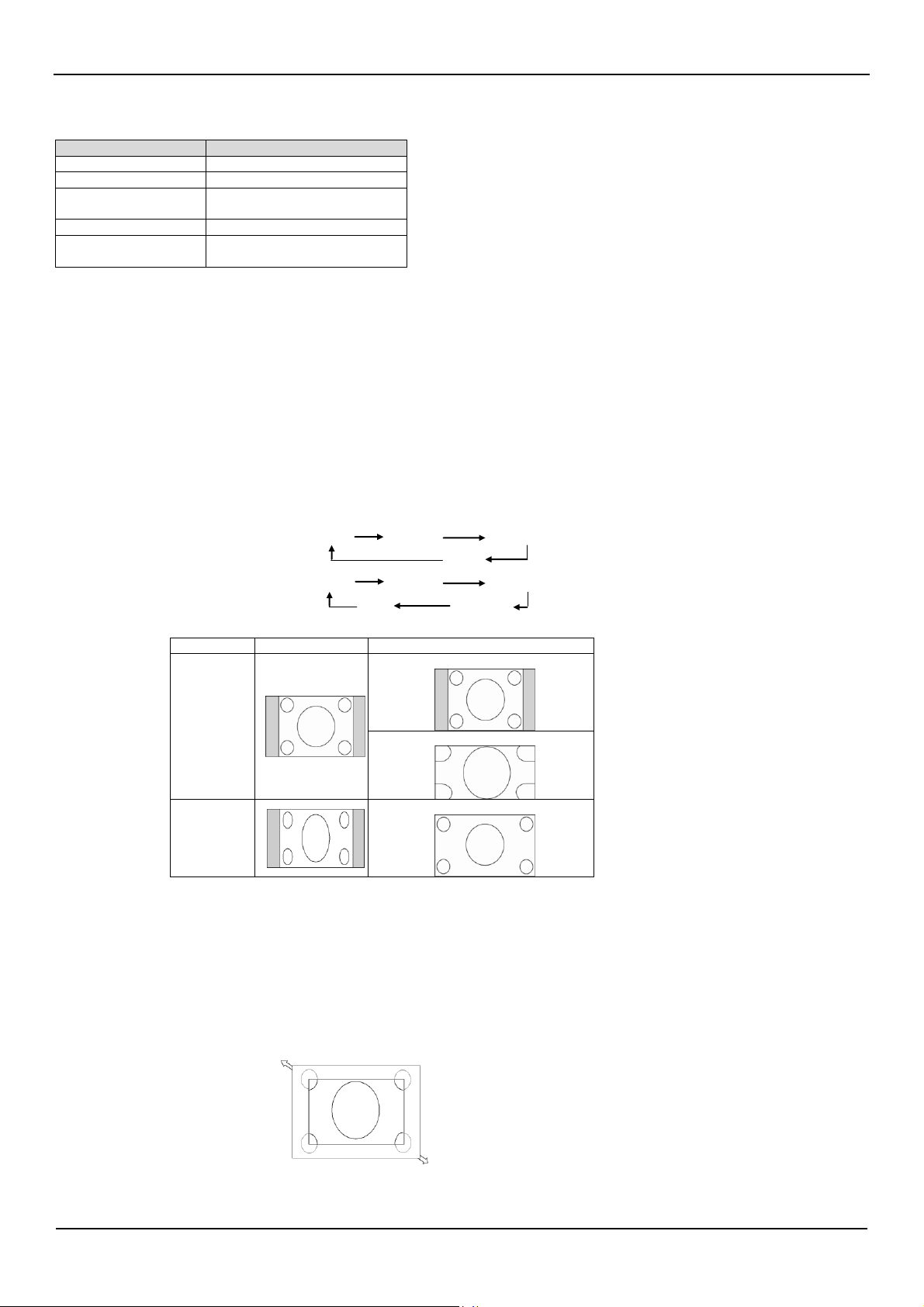
Picture Size
HDMI 1, 2, PC-A
FULL NORMAL CUSTOM
REAL
CVI , VIDEO
FULL NORMAL DYNAMIC
REAL CUSTOM
Signal Type
NORMAL SIZE
Recommended Size
4:3
NORMAL
DYNAMIC
Squeeze
FULL
NORMAL: Display with the input signal aspect ratio from PC signal, or display in 4:3 aspect ratio at CVI or VIDEO signal.
FULL: Display in the entire screen.
DYNAMIC: Expand 4:3 pictures to the entire screen with non-linearity. (Some round image might be cut by expansion.)
CUSTOM (ZOOM): Images can be expanded beyond the active display area. The image which is outside of the active display area would not be
shown.
REAL: Image will be displayed for one by one pixel.
ZOOM
ZOOM
User Manual BDL4631V/00
25
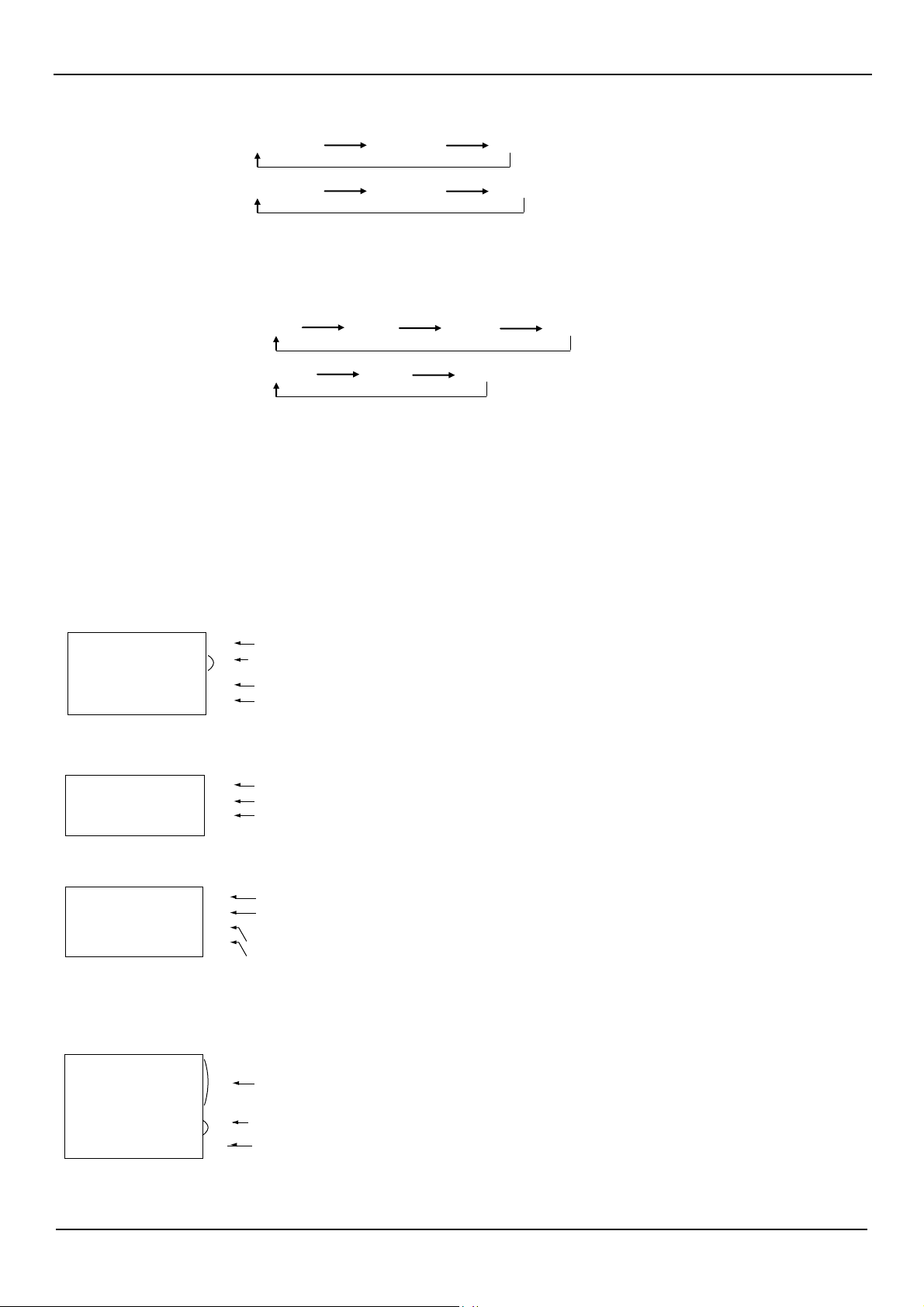
Smart Picture Mode
HDMI 1, 2, PC-A
HIGHBRIGTH STANDARD sRGB
CVI, VIDEO
HIGHBRIGTH STANDARD CINEMA
Audio Source Switching
You can select the audio source using the AUDIO SOURCE button on the remote control.
HDMI 1, 2
HDMI AUDIO1 AUDIO2 AUDIO3
Other than HDMI 1, 2
AUDIO1 AUDIO2 AUDIO3
Control Lock Mode
This function disables the operation o buttons so that the adjustments you make are not active when they are pressed.
To disable the buttons, press and hold down the and buttons together for at least 3 seconds.
To enable the buttons, press and hold down the and buttons together for at least 3 seconds again.
OSD Information
HDMI,
2, PC-A
PC-A
1024 x 768
48kHz
60Hz
AUDIO
: 1
SIZE
:
FULL
V
ideo Source
Input
signal
Information
Audio Source
Pictur
e
Size
CVI
CVI
AUDIO
: 3
SIZE
:
FULL
V
ideo Source
Audio Source
Pictur
e
Size
VIDEO<S>,
VIDEO
VIDEO<S>
NTSC
AUDIO
:3
SIZE
:
NORMAL
V
ideo Source
Color System of Input
Signal
Audio Source
Pictur
e
Size
PIP or POP
Main:PC-A
Sub:VIDEO<S>
PC-A
1024 x 768
48kHz
60Hz
AUDIO
: 1
VIDEO<S>
NTSC
SIZE
:
FULL
Main pictur
e
Information
Sub pictur
e
Information
Main pictur
e
Information
User Manual BDL4631V/00
26
OSD (On-Scr
een-Display)
Contr
ols
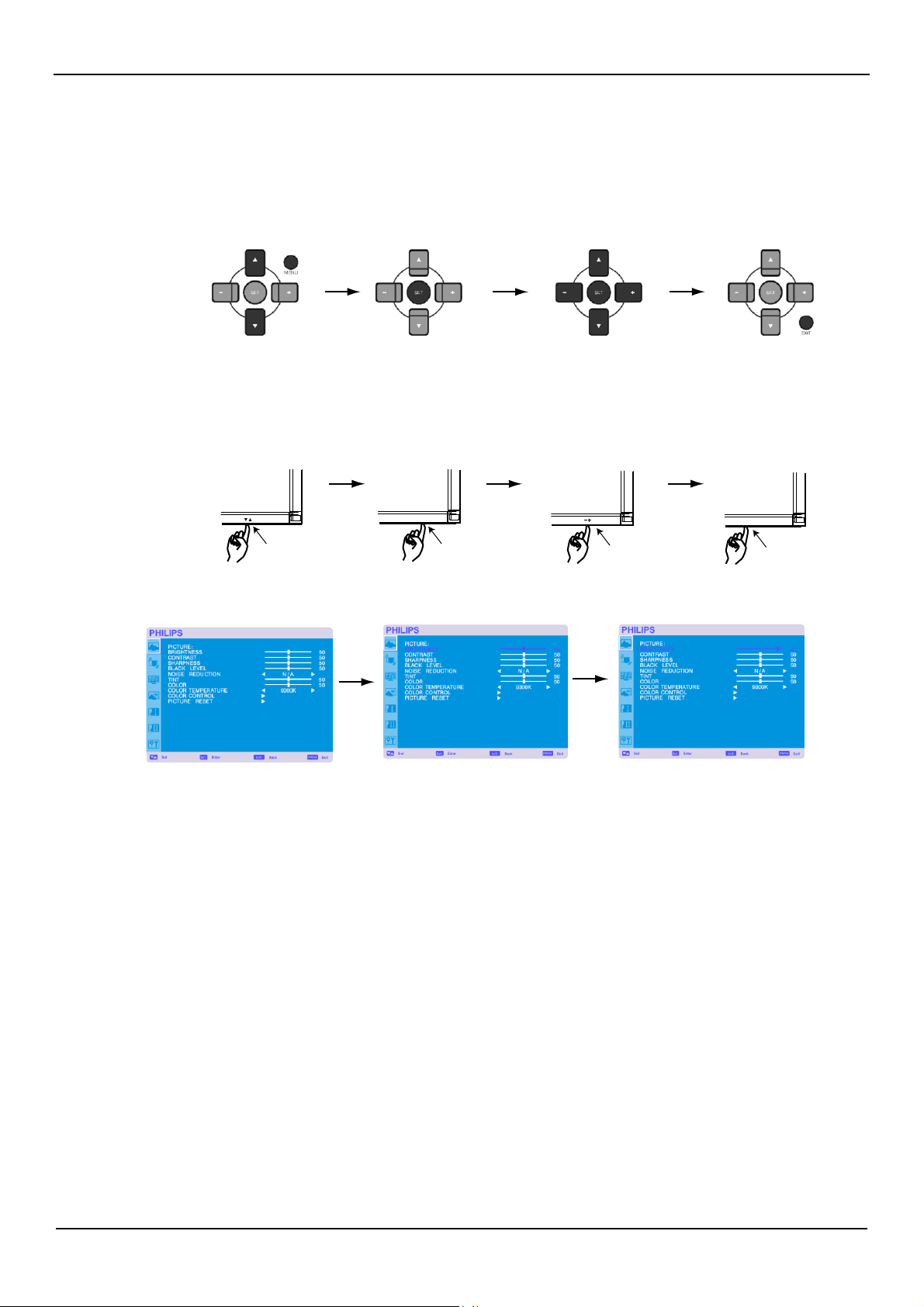
Remote Control
Control
Panel
Press
MENU
button to
open Main menu.
Press
UP
or
DOWN
button to
select sub-menu.
Press
EXIT
button to
open Main menu.
Press
UP
or
DOWN
button
to select.
Press
SET
button
to enable setting.
Press
INPUT
button to
enable the setting.
Press
UP
or
DOWN,
and
PLUS
or
MINUS
button
to
select
function, or
adjust the setting
. Press
SET
button
to
enable the setting.
Press
UP
or
DOWN,
and
PLUS
or MINUS button to select
function,
or
adjust the setting
.
Press
INPUT
button to
enable
the setting.
Press
MENU
or
EXIT
button to exit.
Press
EXIT
button to
exit.
UP
or
DOWN
button
INPUT
button
“-”
“+”
button
EXIT
button
OSD
scr
een
User Manual BDL4631V/00
27
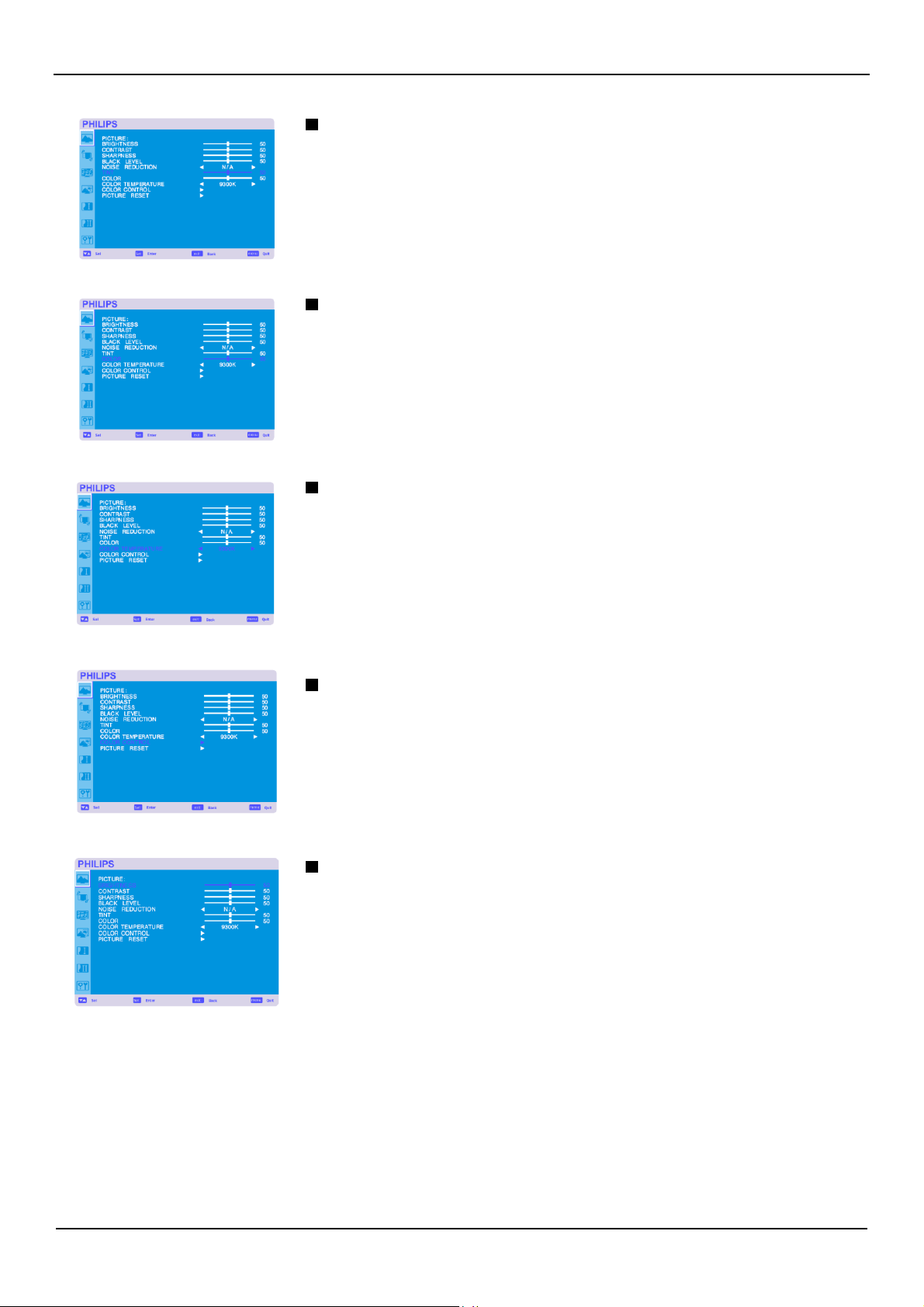
Main-Menu
PICTURE
BRIGHTNESS
Adjusts the
overall
image and background scr
een
brightness.
Press
+ button to incr
ease
brightness.
Press
-
button to decr
ease
brightness.
CONTRAST
Adjusts the image brightness for the input signal.
Press
+ button to incr
ease
contrast.
Press
-
button to decr
ease
contrast.
SHARPNESS
This
function is digitally capable to keep crisp image at
any
timings.
It is adjustable to get
a
distinct image or
a
soft
one
as
you pr
efer
and set independently for
each
pictur
e
mode.
Press
+ button to incr
ease
sharpness.
Press
-
button to decr
ease
sharpness.
BLACK
LEVEL
Adjusts the image brightness for the background.
Press
+ button to incr
ease
black
level.
Press
-
button to decr
ease
black
level.
NOTE:
sRGB
pictur
e
mode is standard and cannot be changed.
NOISE REDUCTION
*
:
INPUT
VIDEO<S>,
VIDEO
only
Adjusts the
noise
reduction
level.
Press
+ button to incr
ease
reduction
level.
Press
-
button to decr
ease
reduction
level.
User Manual BDL4631V/00
28
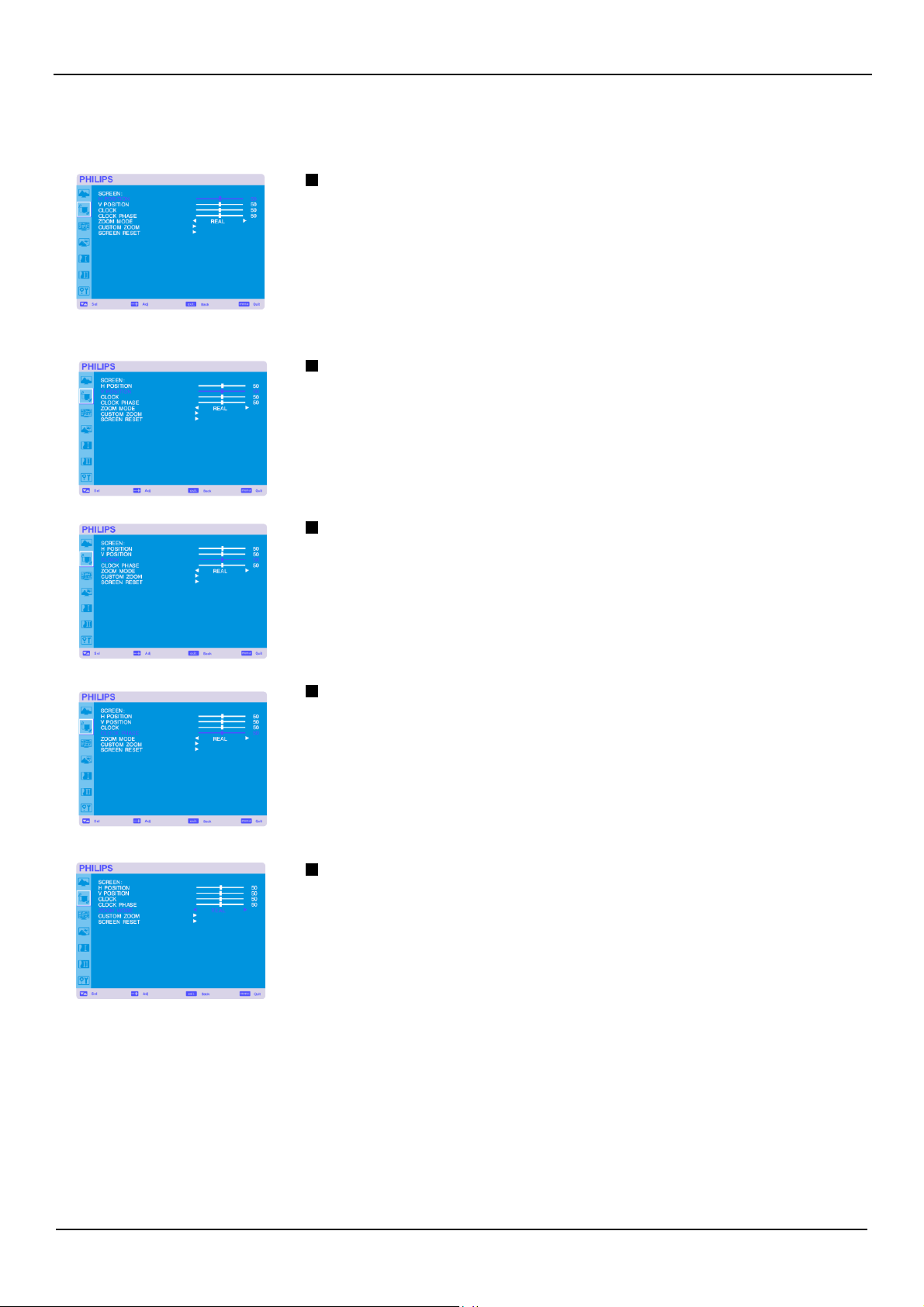
TINT
*
:
INPUT
HDMI1,
2(HDMI
INPUT
MODE-HD),
CVI,
VIDEO<S>,
VIDEO
only
Adjusts the tint of the scr
een.
Press
+ button the flesh tone color becomes gr
eenish.
Press
-
button the flesh tone color becomes purplish.
COLOR
*
:
INPUT
HDMI1,
2(HDMI
INPUT
MODE-HD),
CVI,
VIDEO<S>,
VIDEO
only
Adjusts the color of the scr
een.
Press
+ button to incr
ease
color depth.
Press
-
button to decr
ease
color depth.
COLOR TEMPERATURE
Is used
to adjust the color temperatur
e.
The
image becomes reddish
as
the color temperatur
e
decr
eases,
and becomes bluish
as
the color
temperatur
e
incr
eases.
COLOR CONTROL
The
color
levels
of red, gr
een,
and blue
are
adjusted by the color bars.
R:
Red,
G:
Green,
B: Blue
PICTURE
RESET
Selecting Pictur
e
r
e
set allows you to r
eset
all
OSD
settings about
PICTURE
setting.
Select “Yes” and pr
ess
“SET” button to restor
e
to factory pr
eset
data.
Press
“EXIT” button to cancel and then return to the pr
evious
menu.
User Manual BDL4631V/00
29
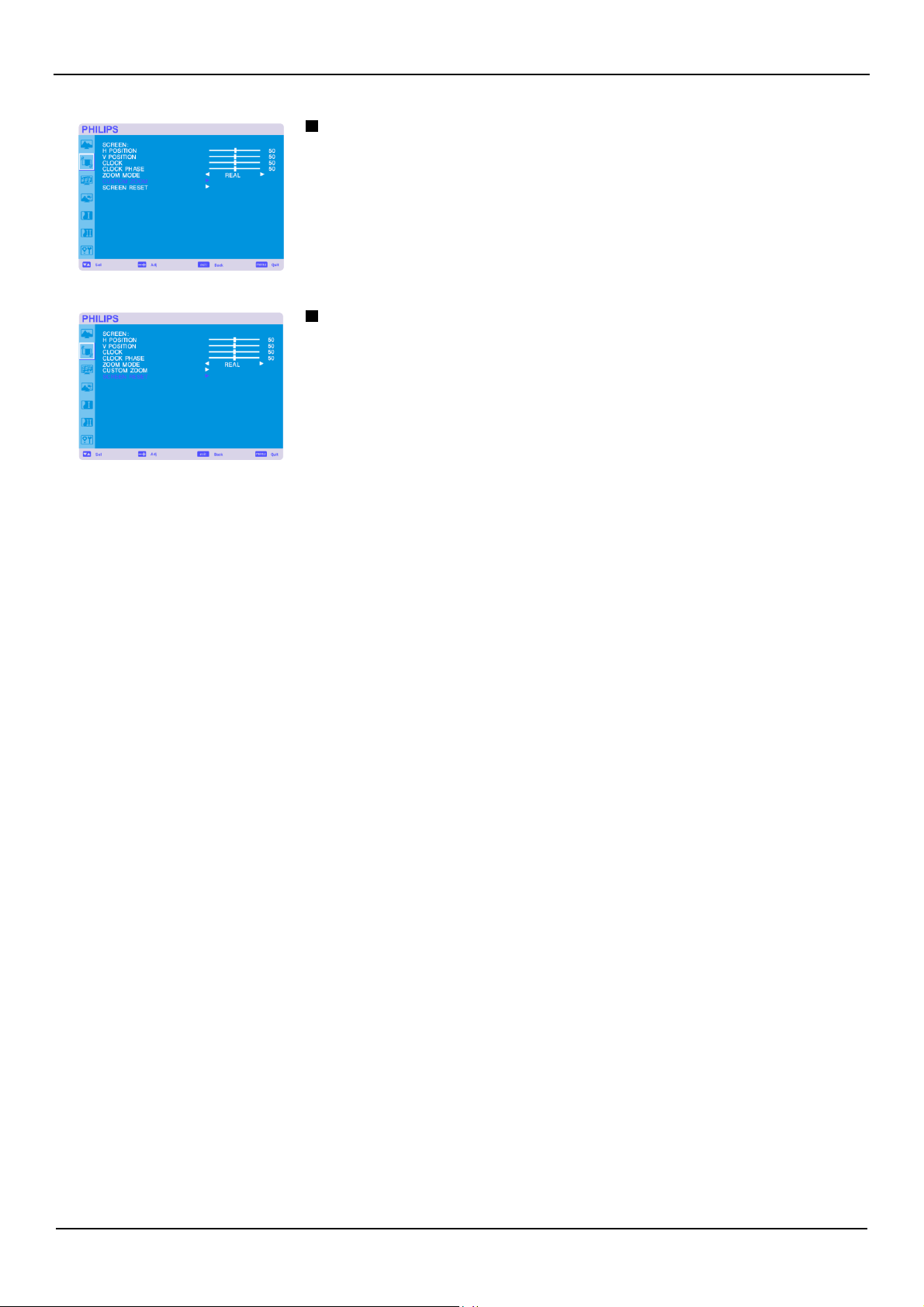
Main-Menu
SCREEN
H POSITION
Controls Horizontal
Image
position within the display
area
of the
LCD.
Press
+ button to move scr
een
to right.
Press
-
button to move scr
een
to left.
V
POSITION
Controls
Vertical
Image
position within the display
area
of the
LCD.
Press
+ button to move
screen
to
UP.
Press
-
button to move scr
een
to
DOWN.
CLOCK
*
:
INPUT
PC-A
only
Press
+ button to expand the width of the image on the scr
een
the right.
Press
-
button to
narr
ow the width of the image on the scr
een
the left.
CLOCK
PHASE
*
:
INPUT
PC-A
only
Impr
oves
focus, clarity and image stability by incr
easing
or decr
easing
this setting.
ZOOM MODE
Y
ou can select “FULL”, “NORMAL” and “CUSTOM” and “REAL”.
(INPUT
HDMI1,HDMI2,PC-A
only)
Y
ou can
also
select “FULL”,“NORMAL” “DYNAMIC” and “CUSTOM” and “REAL”.
(INPUT
CVI,
VIDEO<S>,
VIDEO
only)
Selecting “DYNAMIC” will make the scr
een
display panoramic with the expansion of the middle and
outside of the scr
een
changed.
(The
upper and the bottom of the image will be cut by
expansion.)
Dynamic image is the
same
as
FULL
size
image when
HDTV
signal
is input.
Selecting “REAL” image will be displayed 1 by 1 pixel.
User Manual BDL4631V/00
30
CUSTOM ZOOM
“CUSTOM ZOOM” will be selected when you select “CUSTOM” on the scr
een
“ZOOM” mode.
ZOOM: expands the horizontal and the vertical
size
simultaneously.
HZOOM: expands the horizontal
size
only.
VZOOM:
expands the vertical
size
only.
H
POSITION:
moves to the right with + button. moves to the left with
–
button.
V
POSITION:
moves up with + button. moves down with
–
button.
SCREEN
RESET
Selecting Scr
een
r
eset
allows you to r
eset
all
OSD
settings from
PICTURE
setting.
Select “Yes” and pr
ess
“SET” button to restor
e
the factory pr
eset
data.
Press
“EXIT” button to cancel and then return to the pr
evious
menu.
User Manual BDL4631V/00
31
Main-Menu
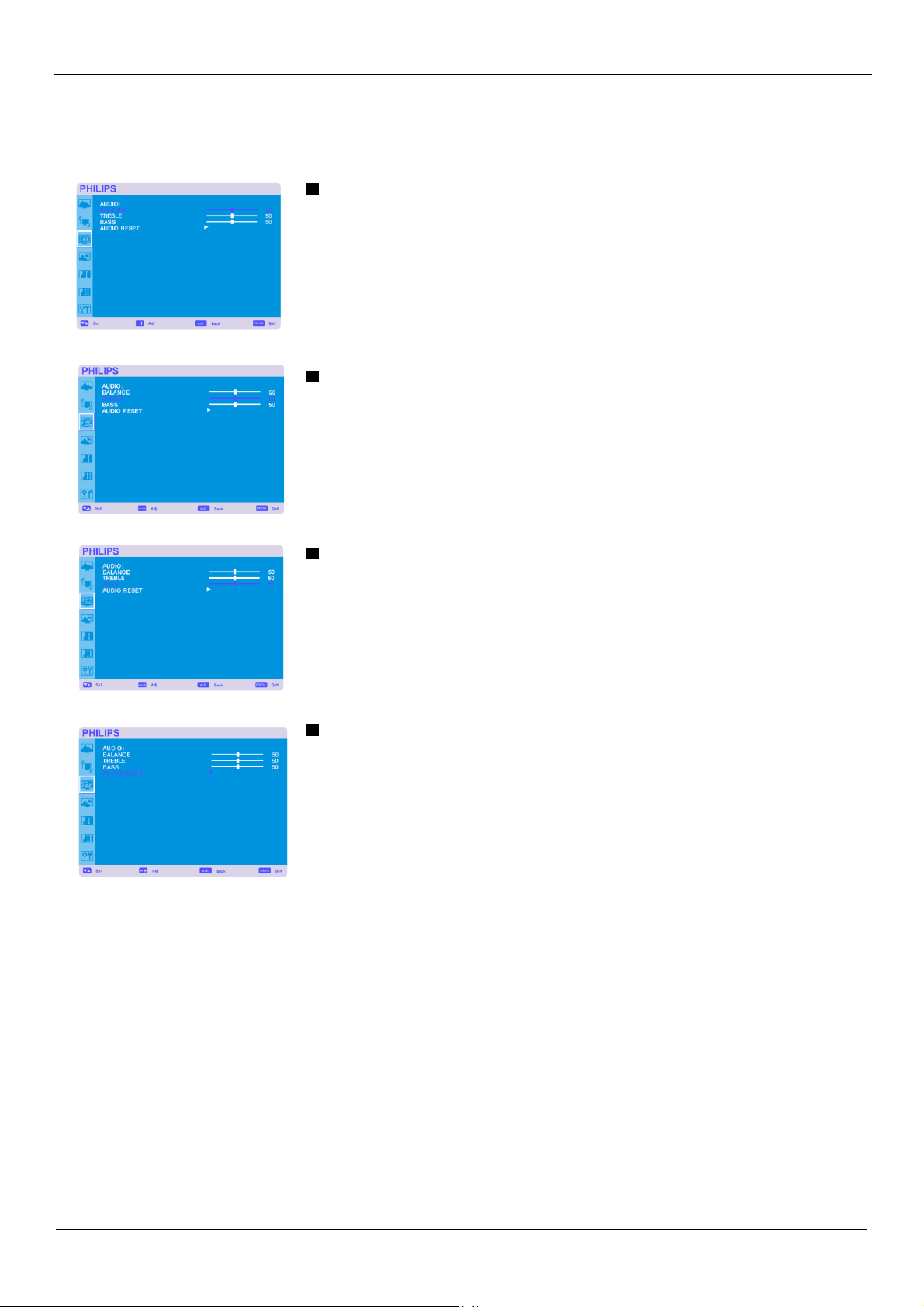
AUDIO
BALANCE
Adjusts the balance of L/R volume.
Press
+ button to move the ster
eo
sound image to right.
Sound of the left side will be small.
Press
-
button to move the ster
eo
sound image to left.
TREBLE
It is to accentuate or reduce the high frequency sound.
Press
+ button to incr
ease
TREBLE
sound.
Press
-
button to decr
ease
TREBLE
sound.
BASS
It is to accentuate or reduce the low frequency sound.
Press
+ button to incr
ease
BASS
sound.
Press
-
button to decr
ease
BASS
sound.
AUDIO
RESET
Selecting Audio r
eset
allows you to r
eset
all
OSD
settings from
AUDIO
setting.
Select “YES” and pr
ess
“SET” button to restor
e
the factory preset.
Press
“EXIT” button to cancel and then return to the pr
evious
menu.
User Manual BDL4631V/00
32
Main-Menu
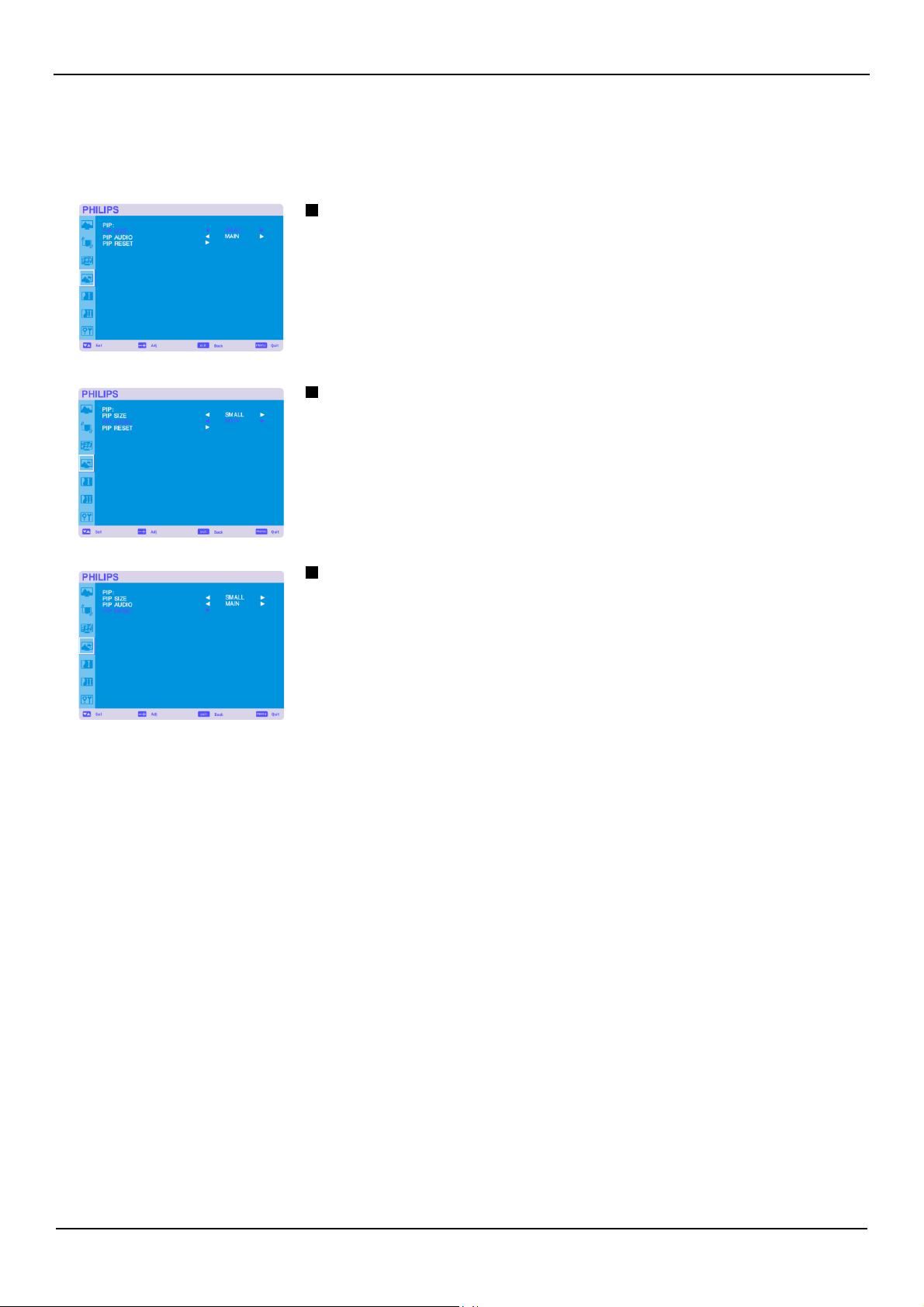
PIP (PICTURE IN PICTURE)
Note:
The
“PIP” and “POP” modes do not function when the scr
een
size
is “CUSTOM” or “REAL”.
PIP SIZE
Selecting the
size
of pictur
e
inserted at the “Picture-in-Pictur
e”
(PIP)
mode.
“Large”, “Middle” and “Small”
are
available.
PIP AUDIO
Selecting the sound source in
PIP
mode.
When
selecting “MAIN AUDIO”, you will get the sound for the main pictur
e
and when selecting
“PIP AUDIO”, you will get the sound for the pictur
e
instead.
PIP
RESET
Selecting
PIP
Reset
allows you to r
eset
all
OSD
settings from
PIP
setting.
Select “Yes” and pr
ess
“SET” button to restor
e
the factory pr
eset
data.
Press
“EXIT” button to cancel and then return to the pr
evious
menu.
User Manual BDL4631V/00
33
Main-Menu
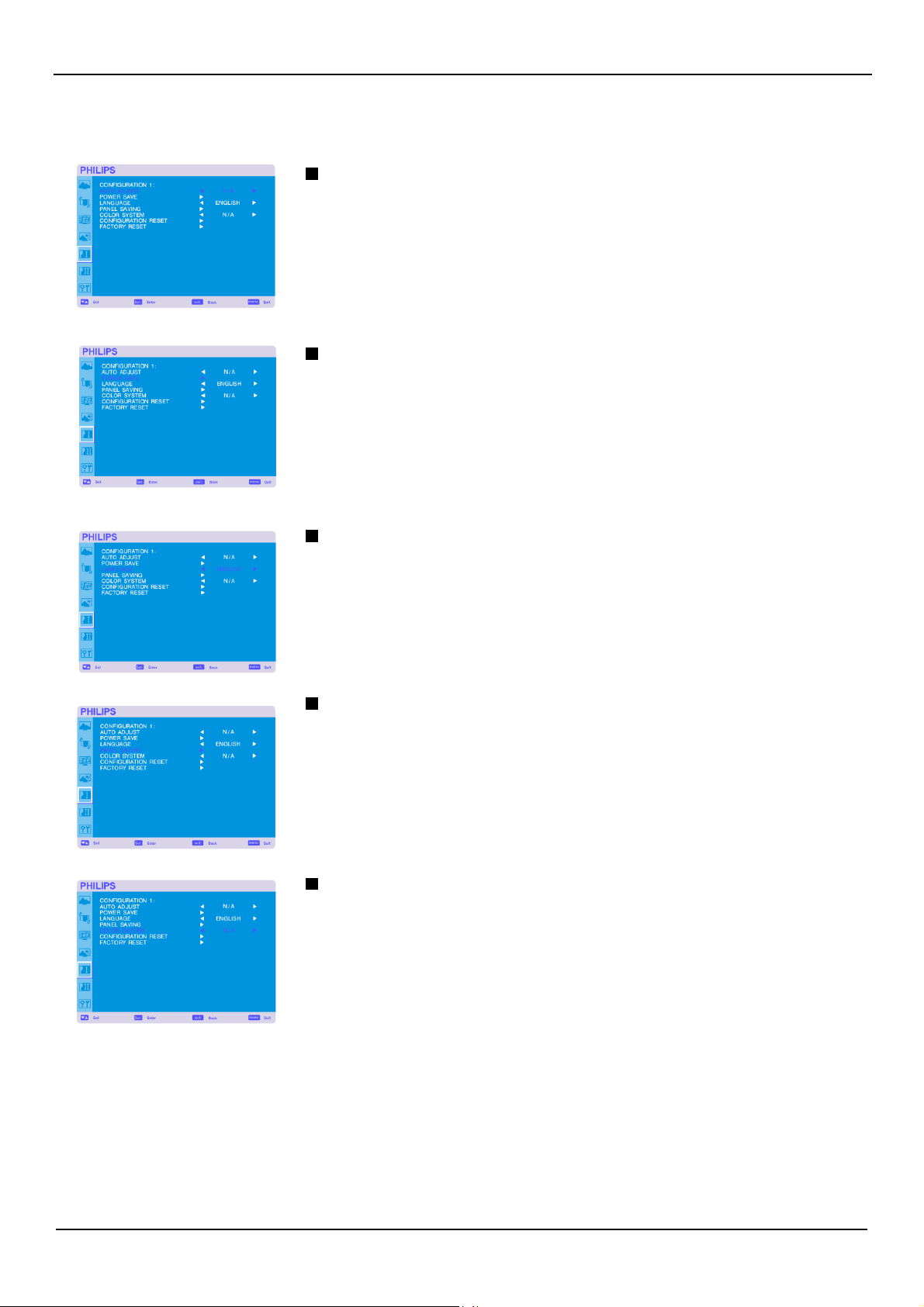
CONFIGUR
A
TION 1
AUTO
ADJUST
*
:
INPUT
PC-A
only
Press
"SET" button to automatically adjust scr
een
size,
horizontal position, vertical position, clock,
clock
phase,
white
level
and black
level.
Press
"EXIT"
button to cancel execution
AUTO ADJUST
and then will return to the pr
evious
menu.
POWER
SAVE
Selecting
RGB
"ON", the monitor will go to power management mode when
HDMI1,HDMI2,PC-A,
sync is
lost.
Selecting
VIDEO
"ON", the monitor will go to power management mode after about 10 minutes
delay
from when
CVI
and
VIDEO
input
signal
is lost.
LANGUAGE
OSD
control menus
are
available
in eight
languages.
(English,
German,
Fr
ench,
Italian,
Spanish, Polish, Turkish, Russian
)
PANEL
SAVING
Select
"PANGEL
SAVING"
functions to reduce the risk of the "image persistence".
BRIGHTNESS:
The
brightness is decr
eased
when selected "ON".
PIXEL SHIFT:
Image
is slightly expanded and moves 4 directions
(U
P
,
DOWN,
RIGHT
,
LEFT)
periodically
(Need
setting the time for
movement).
Movement
area
is approximately
+/-
10mm from original position;
Please
locate the important information such
as
text within 90%
area
of scr
een
image.
See
note
(1)
for this functions.
PIP
and
STILL
will be disabled when "MOTION" is active.
COLOR SYSTEM
*
:
INPUT
VIDEO<S>,
VIDEO
only
Selecting the Color System depends on your input video format.
AUTO:
NTSC,
PAL,
SECAM,
PAL60
or 4.43
NTSC
is automatically selected.
NTSC:
Specific selection of
NTSC.
PAL:
Specific selection of
PAL.
SECAM:
Specific selection of
SECAM.
P
AL-60: Specific selection of
PAL60.
4.43NTSC:
Specific selection of 4.43
NTSC.
User Manual BDL4631V/00
34
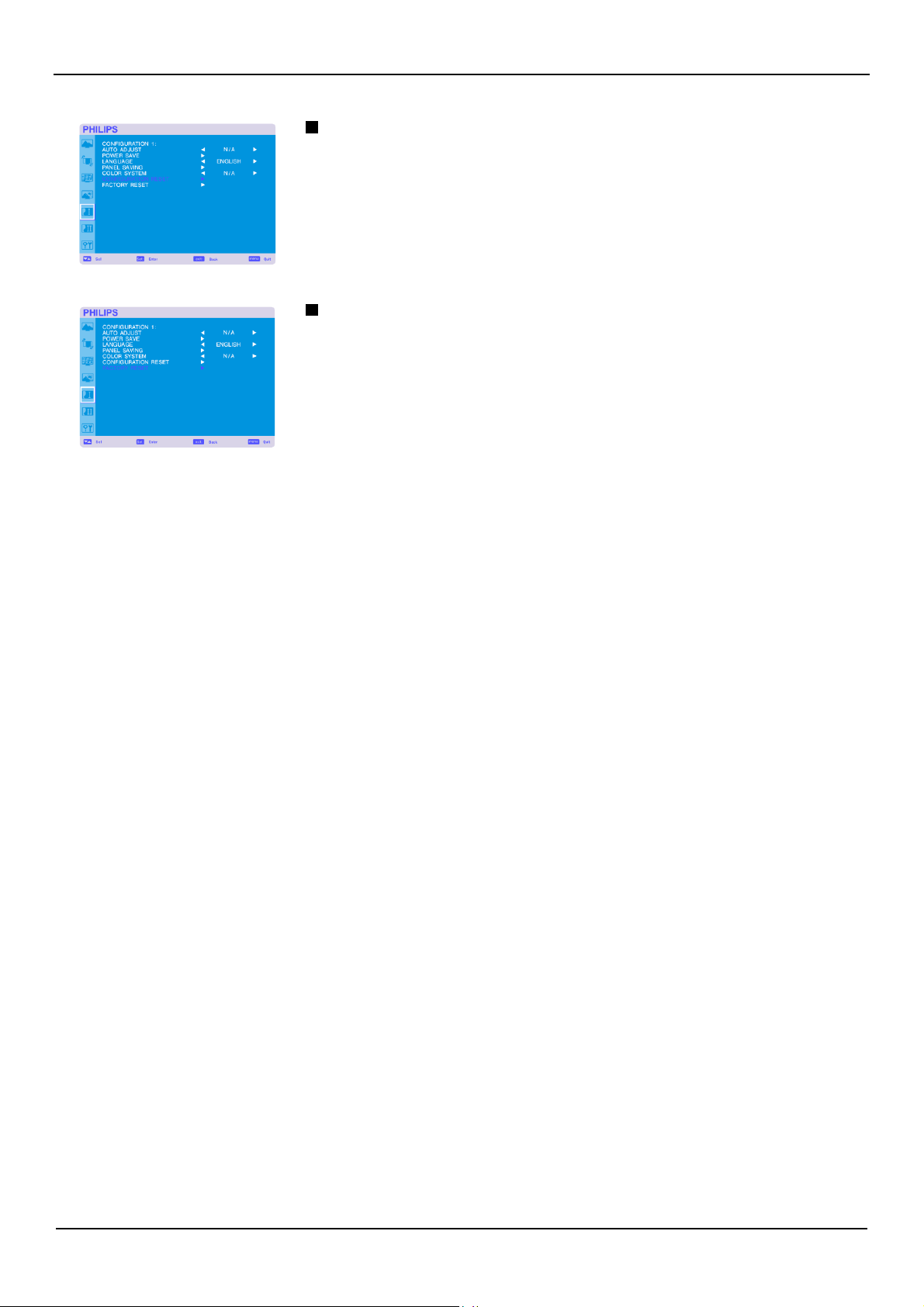
CONFIGURATION
RESET
Selecting the
CONFIGURATION
RESET
allows you to r
eset
all
configuration settings.
Select "Yes" and pr
ess
"SET" button to restor
e
the factory pr
eset
data.
Press
"EXIT"
button to cancel and return the pr
evious
menu.
FACTOR
Y
RESET
Selecting "YES" allows you to r
eset
PICTURE,
SCREEN,
AUDIO,
CONFIGURATION1,2
and
ADVANCED
OPTION
will be back to factory settings (except
LANGUAGE,
DA
TE
AND
TIME
and
SCHEDULE).
Select "YES" and pr
ess
"SET" button to restor
e
the factory pr
eset
data.
Press
"EXIT"
button to
cancel and return the pr
evious
menu.
User Manual BDL4631V/00
35
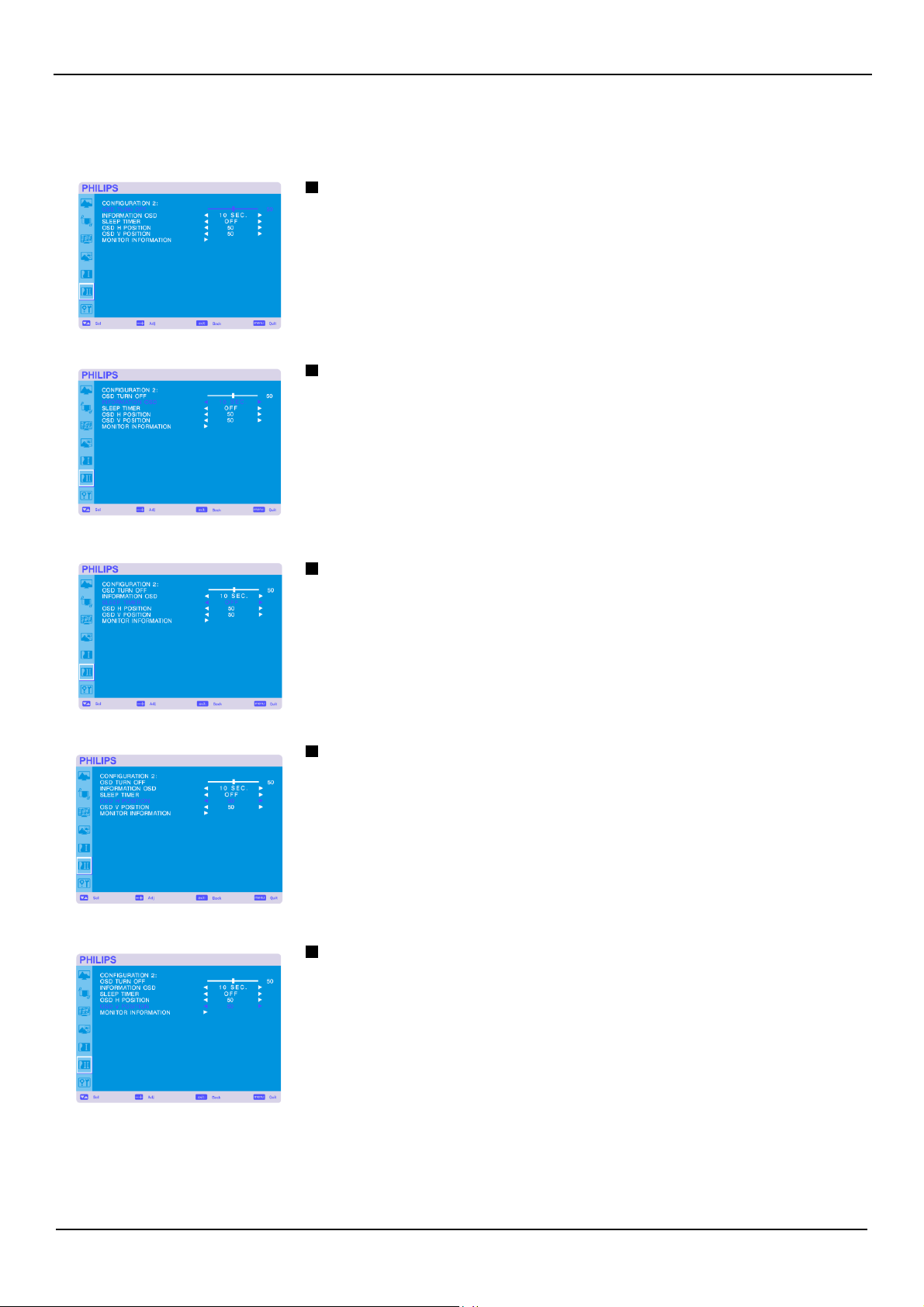
Main-Menu
CONFIGUR
A
TION 2
OSD TURN
OFF
The
OSD
control menu will stay on
as
long
as
it is
use.
In
the
OSD
T
urn Off submenu, you can select
how long the monitor waits after the last touch of
a
button to shut off the
OSD
control menu.
The
pr
eset
choices
are
5 -120 seconds.
INFORMATION OSD
Selects the information
OSD
display or not.
The
information
OSD
will display when input
signal
or source change or warning
message
like
as
no-signal or out-of
range.
A
time between 1 to 10 seconds is
available.
SLEEP TIMER
T
o select
SLEEP TIMER
mode
ON/OFF
.
In
the
SLEEP TIMER
menu, you can pr
eset
the monitor to automatically power down.
A
time between 1 to 24 hours is
available.
When
the
SLEEP TIMER
is set, the
SCHEDULE
settings will be disabled.
OSD H POSITION
Adjusts the horizontal position of the
OSD
menu.
OSD
V
POSITION
Adjusts the vertical position of the
OSD
menu.

User Manual BDL4631V/00
36
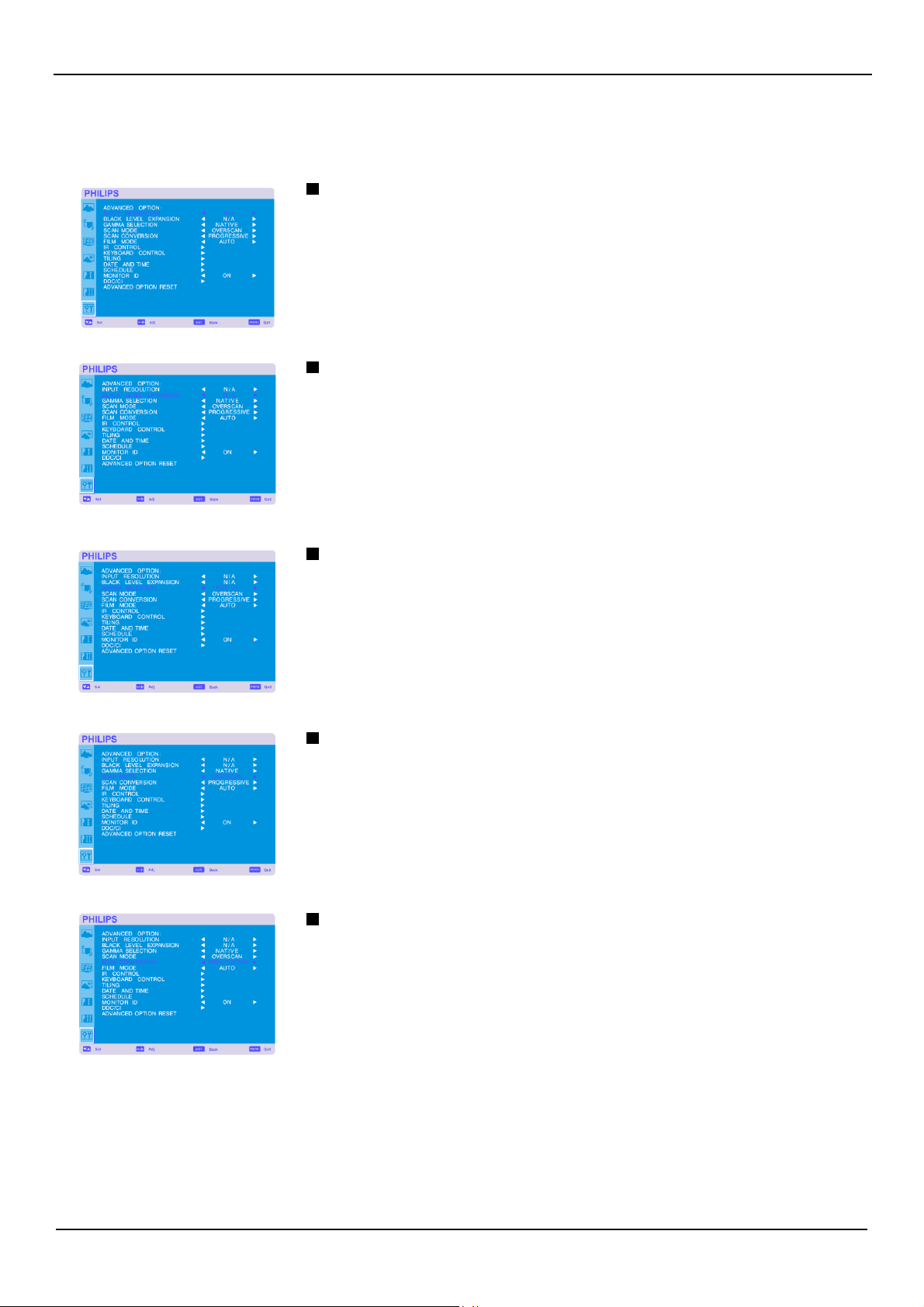
MONITOR INFORMATION
Indicates the model and
serial
number of your monitor.
User Manual BDL4631V/00
37
Main-Menu
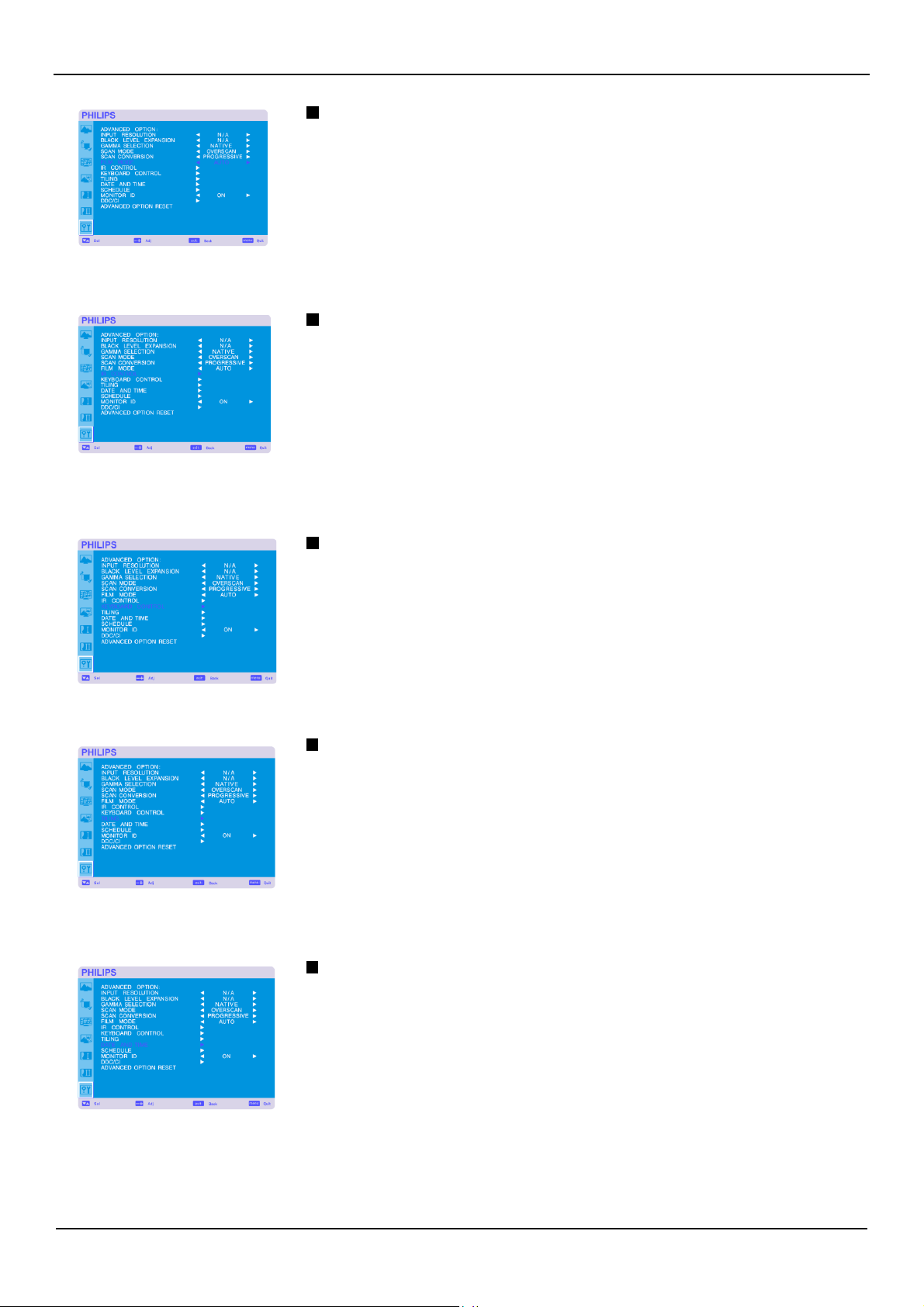
ADV
ANCED OPTION
INPUT
RESOLUTION
*
:
INPUT
PC-A
only
Selects to decision of input
signal
about below timings, 1024x768, 1280x768 and 1360x768.
AUTO:
Determines
the resolution automatically.
1024x768:
Determines
the resolution
as
1024x768
1280x768:
Determines
the resolution
as
1280x768
1360x768:
Determines
the resolution
as
1360x768
The
setting you select becomes
ef
fective when
POWER
is turned
OFF
and
ON
again.
BLACK
LEVEL
EXP
ANSION
*
:
INPUT
HDMI1,2(HDMI
INPUT
MODE-HD),
VIDEO<S>,
VIDEO
only
Selects
a
level
of black expansion from “OFF”, “MIDDLE” and “HIGH.”
In
case
of go under the black cut-off
level,
please
adjust the “Black level” in moderation on
OSD
menu.
GAMMA
SELECTION
Selects
a
display gamma, It’s refer to the brightness performance curve of signal input.
2.2
2.4
S
gamma
Native
NOTE:
sRGB
pictur
e
mode is standard and cannot be changed.
SCAN
MODE
*
:
INPUT
HDMI1,2(HDMI
INPUT
MODE-HD),
CVI,
VIDEO<S>,
VIDEO
only
Changes
the display
area
of the image.
OVERSCAN:
Set to display
area
about 95%
UNDERSCAN:
Set to display
area
about 100%
SCAN
CONVERSION
*
:
INPUT
HDMI1,2(HDMI
INPUT
MODE-HD),
CVI,
VIDEO<S>,
VIDEO
only
Selects
IP
(Interlace
to
Pr
ogr
essive)
converter function.
PROGRESSIVE:
Enable
the
IP
function, to convert interlace
signal
to progr
essive.
Normally
use
this setting.
INTERLACE*:
Disable
the
IP
function.
*NOTE:
This
mode is better suited for motion pictur
es,
but it incr
eases
chance of image retention.
User Manual BDL4631V/00
38
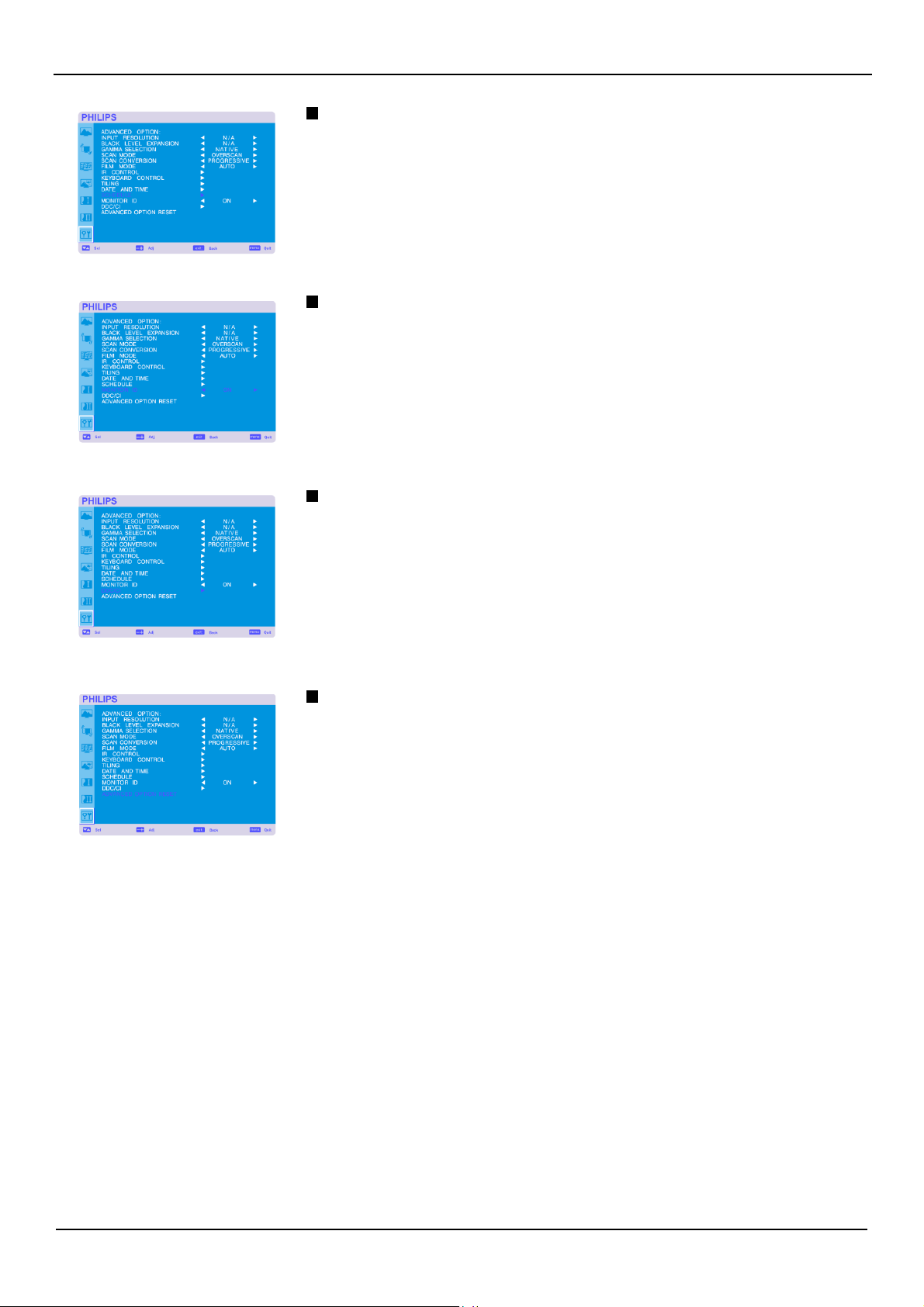
FILM MODE
*
:
INPUT
HDMI1,2(HDMI
INPUT
MODE-HD),
CVI,
VIDEO<S>,
VIDEO
only
Selects
Film
mode function.
AUTO:
Enable
the
Film
mode function.
This
mode is better suited for movies, which is converted 24
Frames/sec source to
DVD
V
ideo.
We
recommend to select
“PROGRESSIVE”
in “SCAN
CONVERSION”.
OFF:
Disable
the
Film
mode function.
This
mode is better suited for Broadcasting or
VCR
source.
IR CONTROL
Selects the operation mode of the remote contr
oller
when multiple
BDL4631V
monitors
are
connected
via
RS-232C.
The
item in this menu will become
ef
fective by pr
essing
“SET” button on the selected item.
NORMAL:
The
monitor will be controlled normally by remote contr
oller
.
PRIMARY
:
The
first
BDL4631V
monitor of those multi-connected
via
RS-232C is designated
as
PRIMARY
.
SECONDARY
:
BDL4631V
monitors other than the first
one
multi-connected
via
RS-232C
are
designated
as
SECONDARY
.
LOCK:
Disable
the monitor control by infrared remote contr
oller
.
Keep pr
essing
“DISPLAY” button during 5 sec or mor
e,
this setting will r
e
turn to “NORMAL”.
KEYBOARD CONTROL
Selects the operation mode of the keyboard control.
Select “YES” to disable the keyboard.
Select “NO” to enable the keyboard.
TILING
TILING
demonstrates multiple
screens.
This
feature
provides
a
single
large
screen
using up to 25 monitors.
It will be
able
to divide up to 5
each
H and
V.
This
requires
you to feed the
PC
output into
each
of the monitors through
a
distributor.
H
MONITORS:
Select number of horizontal divide.
V
MONITORS:
Select number of vertical divide.
POSITION:
Select
a
position to expand the
screen.
FRAME
COMP: Works in tandem with
TILING
to compensate for the width of the tile
bezels
in order
to accurately display the image.
ENABLE:
Select “YES”, the monitor will expand the selected position.
PIP
and
STILL
will be disabled when “TILING” is activated.
DATE
AND TIME
Adjusts the current date and time for internal clock.
You should set this function when you
use
“SCHEDULE”.
User Manual BDL4631V/00
39
SCHEDULE
Programs the monitor's working schedule.
Schedule the power on and power off with hour and
a
day of the week. Also sets the input port.
This
OSD
can't remove except
EXIT.
MONITOR ID
ID
numbers for remote control
are
assigned to
BDL4631V
monitors that
are
multi-connected
via
RS-232C.
ID
numbers 1 to 26
are
selectable.
DDC/CI
Use
to turn
ON
or
OFF
the DDC/CI communication function. Select
ON
for normal
use.
ADVANCED
OPTION
RESET
Selecting
ADVANCED
OPTION
RESET
allows you to reset
all
OSD
settings from
ADVANCED
OPTION
settings, except for GAMMA
SELECTION,
DATE
AND
TIME,
SCHEDULE,
HDMI 1
INPUT
MODE,
HDMI
2
INPUT
MODE,
MONITOR
ID,
and DDC/CI.
Select “YES” and press “SET” button to restore the factory preset data.
Press
“EXIT” button to cancel and then return the previous menu.
GAMMA
SELECTION
is reset when carrying out the
PICTURE
RESET
in the
PICTURE.

User Manual BDL4631V/00
40
NOTE
NOTE
1:
IMAGE
PERSISTENCE
Please
be
aware
that
LCD
T
echnology
may
experience
a
phenomena
known
as
Image
Persistence.
Image
Persistence
occurs when r
esidual
or
“ghost”
image of
a
pr
evious
image r
emains
visible on the scr
een.
Unlike
CRT
monitors,
LCD
monitors’
image persistence is not permanent, but constant images being displayed for
a
long period of time should be avoided.
T
o
alleviate
image persistence, turn off the monitor for
as
long
as
the pr
evious
image was displayed.
For
example, if
an
image was on the monitor for
one
hour and
a
r
esidual
image r
emains,
the monitor should be turned off for
one
hour to
erase
the image.
As
with
all
personal display devices,
PHILIPS
recommends displaying moving images and using
a
moving panel saving at r
egular
intervals
whenever
the scr
een
is idle or turning off the monitor when not in
use.
Please
set
“POWER
SAVE”,
“PANEL SAVING”,
“DA
TE
AND
TIME” and “SCHEDULE” functions to further reduce the risk of
Image
persistence.
For
long
life
use
of
Public
Display
< Image
Sticking
of LCD Panel >
When
LCD
panel
is operated continuously for long hours,
a
trace of electric char
ge
r
emains
near
the electrode inside
LCD,
and r
esidual
or
“ghost”
image of pr
evious
image may be observed.
(Image
Persistence)
Image
Persistence
is not permanent, but when fixed image is displayed for long period, ionic impurities inside
LCD
are
accumulated along
the displayed image, and it is observed permanently.
(Image
Sticking)
< Recommendations >
For
preventing the fast transition to
Image
Sticking, and for longer life
usage
of
LCD,
following
are
recommended.
1. Fixed image should not be displayed for long period, and changed to another images with short cycle.
2. In case a fixed image is display for a long time, it is advised to activate the pixel shift feature that will periodically move the image in four
directions
3.
When
no
use,
please
turn off the monitor by remote control, or
use
Power Management Function of monitor or
use
Schedule
Function of monitor.
4. Reducing the
envir
onmental temperatur
e
is
ef
fective for long life
use.
When
Pr
otection board
(glass,
acryl)
is installed
over
the
LCD
surface, enclosed into the box
/
wall, or stack the monitor,
please
utilize
the
temperatur
e
sensors
inside monitor.
T
o reduce the
envir
onmental temperatur
e,
the monitor should be set Low Brightness or Cooling
Fan
“ON” by using Scr
een sever
Function.
5.
Please
use
"Panel saving Mode" of monitor.
NOTE
2:
HOW TO
SETUP
SCHEDULE
Using the “SCHEDULE” function allows you to set up to
seven
dif
fer
ent scheduled time intervals when the
LCD
Monitor will be activated.
Y
ou can select the time the monitor turns on and turns off, the day of week the monitor is activated, and which input source the monitor will
use
for
each
scheduled activation period.
A
check mark in the box next to the number of the schedule indicates that the selected schedule is in
ef
fect.
T
o select which schedule to set,
use
the up/down
arr
ows to move the number
(1
to
7)
of the schedule.
Use
the
(+)
and
(-)
buttons to move the cursor horizontally within the particular schedule.
Use
the
(
)
and
(
)
buttons to incr
ease
time
and select input port.
The
“SET” button is used to make
a
selection.
If you cr
eate
a
schedule but do not want to
use
a
power on time, select
“--”
in the “ON” time slot.
If you do not want to
use
a
power off time select
“--”
in the
OFF
time slot.
If ther
e
is no input selected
(“--”
showing in the input spot) the input from the pr
evious
schedule will be used.
The
selection of
EVER
Y
DAY
within
a
schedule takes priority
over
other schedules that
are
set up to operate weekly.
When
schedules
are
overlapping, scheduled Power
ON
time
has
priority
over
scheduled Power
OFF
time.
If ther
e
are
two schedules programmed for the
same
time, then the highest numbered schedule
has
priority.
When
the “SLEEP
TIMER
”
is set, the “SCHEDULE” function is disabled.
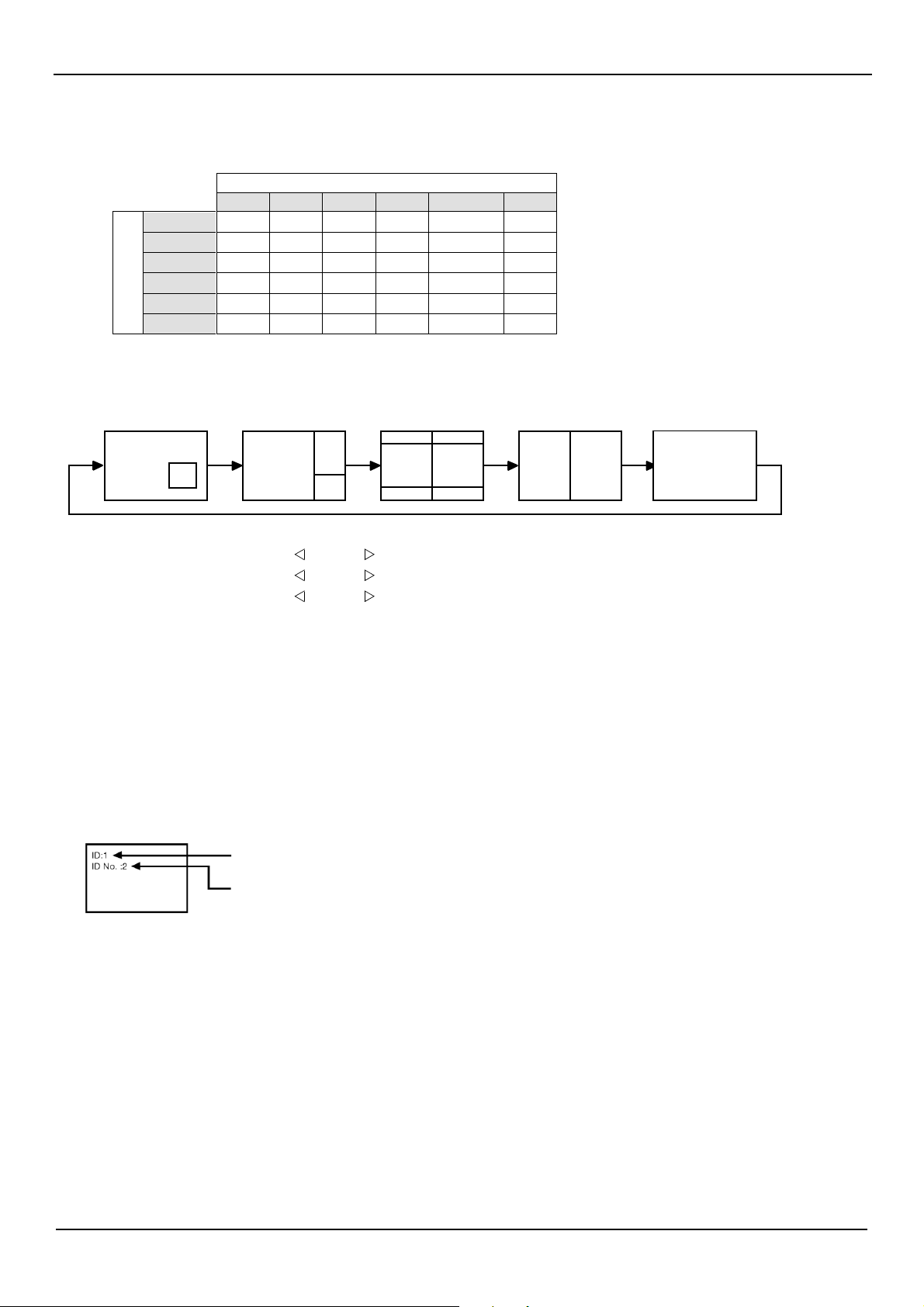
User Manual BDL4631V/00
41
B
NOTE
3:
“PIP”,
“POP”
and
“SIDE
BY
SIDE”
The
following table shows the combination of
signal
inputs under which the “PIP” and “POP” modes function.
These
modes do not function,
however, when the scr
een
size
is “CUSTOM” or “REAL”.
SUB
HDMI 1
HDMI 2
PC-A
CVI
VIDEO<S>
VIDEO
MAIN
HDMI 1
HDMI 2
: Supported
PC-A
: Not supported
CVI
VIDEO<S>
VIDEO
Press
the “PIP ON/OFF” buttons on the remote control to change between “PIP”, “POP” and
“SIDE
BY
SIDE”
mode
as
shown in the diagram below.
PIP
POP
SIDE
BY
SIDE
ASPECT
SIDE
BY
SIDE
FULL
OFF
A
B
A
A
B
A B
A
“PIP”, “POP” mode resolution
(Reference)
PIP
SIZE
SMALL
MIDDLE
LARGE
POP
SIZE
: 320 dots
X
240 dots
: 480 dots
X
320 dots
: 640 dots
X
480 dots
: 320 dots
X
240 dots
< Remote contr
ol
numbering
function
>
By connecting multiple
BDL4631V
monitors using RS-232C cables, you can control
any
one
monitor or
all
the monitors by
one
remote contr
oller
.
1. Assign arbitrary
ID
number to
each
of multi-connected
BDL4631V
monitors using
MONITOR
ID. ID
numbers 1
to 26
are
selectable.
It is recommended to
assign
sequential
ID
numbers from 1 and up.
2.
The
remote control mode of the first
BDL4631V
monitor is set to
PRIMARY
and those of the other monitors
are
set to
SECONDARY
.
3.
When
you direct the remote contr
oller
at the remote control
signal
sensor
of the
PRIMARY
monitor and pr
ess
the
DISPLAY
button on the remote contr
oller
, the
ID
selection
OSD
appears at the upper left of the scr
een.
ID
number of the currently viewed monitor
Select the
ID
number of the monitor you want to control using the
+/-
button
on the remote contr
oller
.
The
ID
of the monitor you want to control is displayed at the upper left of its scr
een.
By selecting
ALL,
you can control
all
the multi-connected monitors.
4.
Dir
ect the remote contr
oller
at the remote control
signal
sensor
of the
PRIMARY
monitor.
OSD
appears
on the monitor
having
the
ID
number you selected.
NOTE:
When
the
ID
selection
OSD
is being displayed on the
PRIMARY
monitor, pr
ess
the
DISPLAY
button on the remote contr
oller again
to cancel the
ID
selection
OSD
and then control the monitor you selected.
HINT
:
If you set the remote control mode wrongly and remote control operation becomes
unavailable,
pr
ess
any
button on the control
panel
of the
monitor to display the
OSD
scr
een
and change the remote control mode using
ADVANCED
OPTION.
By pr
essing
and holding down the
DISPLAY
button on the remote control for 5 seconds or longer, the remote control mode is initialized to
NORMAL.

User Manual BDL4631V/00
42
Featur
es
Reduced
Footprint:
Pr
ovides the
ideal
solution for
envir
onments requiring superior image quality but with
size
and weight limitations.
The
monitor’s small footprint and low weight allow
it
to be moved or transported
easily
from
one
location to another.
Color Contr
ol
Systems:
Allows you to adjust the colors on your scr
een
and customize the color accuracy of your monitor to
a
variety of standards.
sRGB Color Control:
A new optimized color management standard which allows for color matching on computer displays and other peripherals
The SRGB standard, which is based on a calibrated color space, allows for optimal color representation and backward
compatibility with other common color standards.
OSD (On-Scr
een-Display)
Contr
ols:
Allow you to quickly and
easily
adjust
all
elements of your scr
een
image
via
simple to
use
on-scr
een
menus.
Plug
and
Play:
The
Microsoft
®
solution with the Windows
®
95/98/Me/2000/XP operating system facilitates setup and installation by allowing the monitor
to send its capabilities
(such
as
scr
een
size
and resolutions supported) directly to your computer, automatically optimizing display
performance.
Intelligent Power Manager
System:
Pr
ovides innovative power-saving methods that allow the monitor to shift to
a
lower power consumption
level
when on
but not in
use,
saving
two-thirds of your monitor
ener
gy costs, reducing emissions and lowering the
air
conditioning costs
of the workplace.
Multiple
Frequency
T
echnology:
Automatically adjusts monitor to the display car
d’
s scanning frequency, thus displaying the resolution required.
Full Scan
Capability:
Allows you to
use
the entir
e
scr
een
area
in most resolutions, significantly expanding image
size.
W
all
Mounting Interface:
Allows for the monitor to be mounted on
a
wall or
an
arm using
any
third party compliant device.
PHILIPS
recommends using mounting interface that comply with
TÜV
-GS and/or UL1678 standard in North America.
TILING, Frame
compensation:
Demonstrates multiple scr
eens
with
an
accurate image and compensates for the
bezel
width.
ZOOM:
Expands the image individually for horizontal and vertical direction.
Automatic
Long
Cable
Compensation:
Automatic long cable compensation pr
events
image quality degradation
(color
shift and dull
signals)
caused by long cable lengths.

User Manual BDL4631V/00
43
Tr
oubleshooting
No picture
•
The
signal
cable should be completely connected to the display card/computer.
•
The
display card should be completely seated in its slot.
•
Fr
ont Power Switch and computer power switch should be in the
ON
position.
•
Check to make sur
e
that
a
supported mode
has
been
selected on the display card or system being used.
(Please
consult display card or system
manual
to change graphics
mode.)
•
Check the monitor and your display card with respect to compatibility and recommended settings.
•
Check the
signal
cable connector for bent or pushed-in pins.
•
If nothing is displayed on the scr
een
when
HDCP
device is connected, r
eset
the power of the device.
Power
Button
does not r
espond
•
Unplug the power cord of the monitor from the
AC
outlet to turn off and r
eset
the monitor.
Image persistence
•
Please
be
aware
that
LCD
T
echnology may experience
a
phenomenon known
as
Image
Persistence.
Image
Persistence
occurs when
a
r
esidual
or
“ghost”
image of
a
pr
evious
image r
emains
visible on the scr
een.
Unlike
CRT
monitors,
LCD
monitors’ image persistence is not permanent, but
constant images being displayed for
a
long period of time should be avoided.
T
o
alleviate
image persistence, turn off the monitor for
as
long
as
the pr
evious
image was displayed.
For
example,
if
an
image was on the monitor for
one
hour and
a
r
esidual
image r
emains,
the monitor should be turned off for
one
hour to
erase
the image.
NOTE:
As
with
all
personal display devices,
PHILIPS
recommends displaying moving images and using
a
moving panel saving at r
egular
intervals
whenever
the
scr
een
is idle or turning off the monitor when not in
use.
Image
is
unstable,
unfocused
or
swimming
is
apparent
•
Signal
cable should be completely attached to the computer.
•
Use
the
OSD
Image
Adjust controls to focus and adjust display by incr
easing
or decr
easing
the fi
ne
adjustment.
When
the display
mode is changed, the
OSD
Image
Adjust settings may
need
to be re-adjusted.
•
Check the monitor and your display card with respect to compatibility and recommended
signal
timings.
•
If your text is garbled, change the video mode to non-interlace and
use
60
Hz
r
efresh
rate.
Image of component
signal
is
gr
eenish
•
Check to
see
if the
CVI
input connector is selected.
LED
on
monitor
is
not
lit
(no
green or red color can be
seen)
•
Power Switch should be in the
ON
position and power cord should be connected.
•
Make certain the computer is not in
a
power-saving mode (touch the keyboard or
mouse).
RED
LED
on
monitor
is
blinking
•
A
certain
failure
might
have
occurred,
please
contact your
near
est authorized
PHILIPS
service
facility.
Display
image
is
not sized pr
operly
•
Use
the
OSD
Image
Adjust controls to incr
ease
or decr
ease
the coarse adjustment.
•
Check to make sur
e
that
a
supported mode
has
been
selected on the display card or system being used.
(Please
consult display card or system
manual
to change graphics
mode.)
Selected r
esolution
is
not
displayed
pr
operly
•
Use
OSD
Display Mode to
enter
Information menu and confirm that the appropriate resolution
has
been
selected.
If not, select corresponding option.

User Manual BDL4631V/00
44
No
Sound
•
Check to
see
if
speaker
cable is properly connected.
•
Check to
see
if mute is activated.
•
Check to
see
if volume is set at minimum.
Remote Contr
ol
is
not
available
•
Check the Remote Control’s batteries status.
•
Check if batteries
are
inserted correctly.
•
Check if the Remote Control is pointing at the monitor’s remote
sensor
.
“SCHEDULE”/“SLEEP TIMER
”
function
is
not working pr
operly
•
The
“SCHEDULE” function will be disabled when the “SLEEP TIMER
”
is set.
•
If the “SLEEP TIMER
”
function is
enable
and the power to the
LCD
monitor is turned off if the power supply is interrupted unexpectedly, then
the “SLEEP TIMER
”
will be reset.
Stripe Noise
Either
light vertical or horizontal stripes may appear, depending on the specific display pattern.
This
is no product fault or degradation.
“NO
SIGNAL”
is
displayed
on
the
scr
een
Image
may not be displayed right after
HDCP
device is connected.
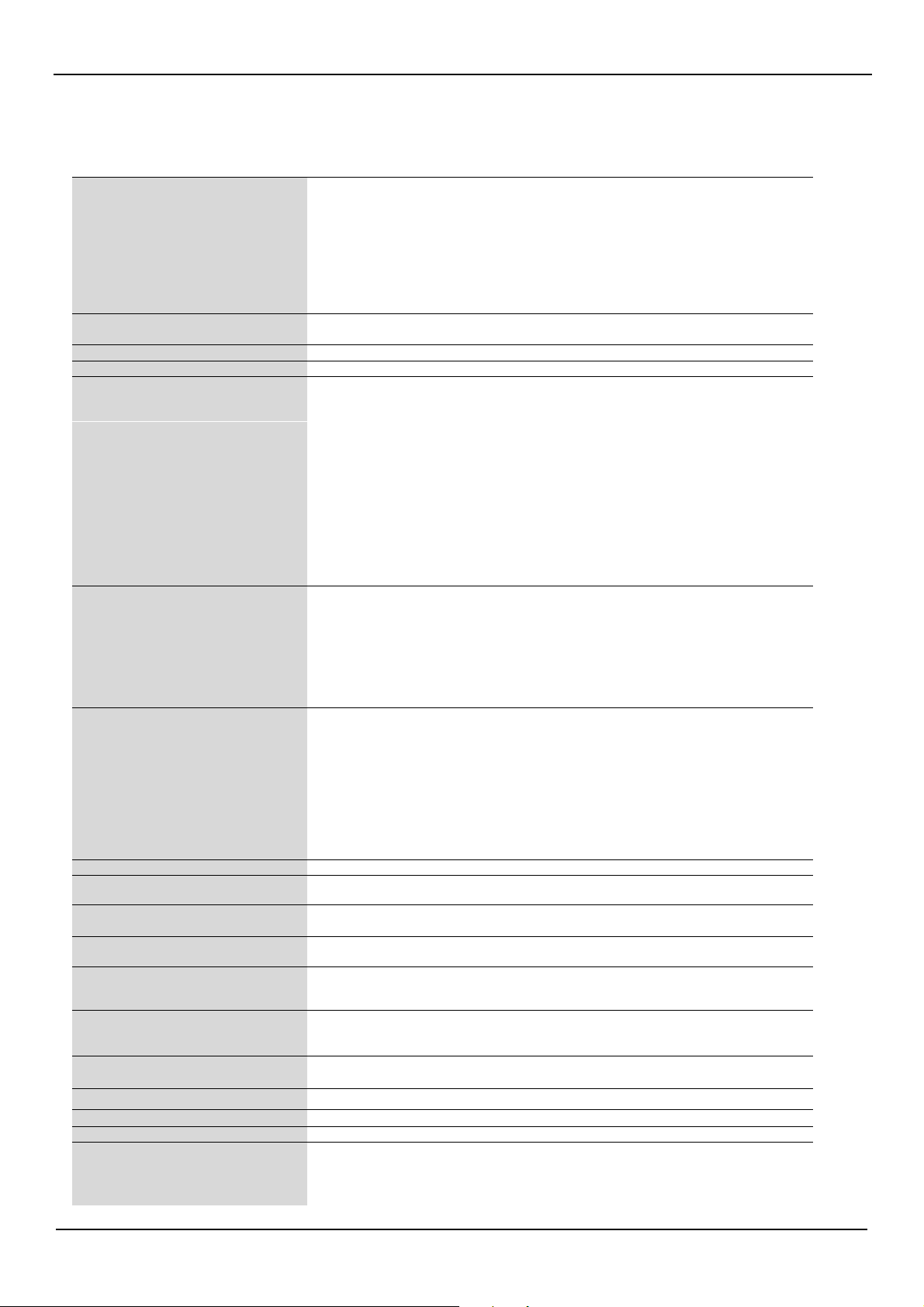
User Manual BDL4631V/00
45
LCD Module Diagonal:
Pixel Pitch:
Resolution:
Color:
Brightness:
Contrast Ratio:
Response time:
V
iew Angle:
Design
V
iew Distance:
46"
/
116.8
cm
0.53025 mm
1920 x 1080
dots
Over 16 million colors (depending on video car
d
used)
450
cd/m2
(typ.)
1500:1 (typ.)
6 ms (typ. G
to
G)
Up and Down 176°, Left and Right 176° (typ.)
@CR>10
1100 mm
/
43.34 inches
Frequency Horizontal:
V
ertical:
15.625
/
15.734, 31.5
-
91.1 kHz
50.0
/
58.0
-
85.0 Hz
Pixel Clock
13.5 -165.0 MHz
25.0 -165.0 MHz
V
iewable Size
1018.08 x 572.67 mm
/
40.1 x 22.5 inches
Input Signal
PC-Input:
V
ideo:
Sync:
Input-terminal:
VIDEO
Input:
AUDIO Input:
RS-232C: In:
Analog RGB
V
ideo: 0.7 Vp-p
TMDS
Input impedance 75 ohm
Separate
HV
sync:
TTL
level (Pos./Neg.), Sync-on-green, Composite Sync (0.3Vp-p)
Input Impedance 2.2K ohm
BNC
(R,G,B,H,V),
15 Pin Mini D-sub
HDMI
Composite: 1.0 Vp-p
Input impedance 75ohm BNC and RCA-PINJACK-INPUT Y/C
Y: 1 Vp-p C: 0.286 Vp-p Input
Impedance 75 ohm S-TERMINAL-INPUT
Component: 1.0
/
0.7 Vp-p
Input Impedance 75 ohm BNC-INPUT
RCA PIN-JACK L/R INPUT x 2,
STEREO
Mini Jack INPUT x 1
9 Pin Mini D-sub
Output Signal
PC-Output:
V
ideo:
Sync:
Output-terminal:
VIDEO
Output:
AUDIO Output:
Speaker Output:
RS-232C: Out:
Analog RGB
V
ideo: 0.7 Vp-p
with
75 ohm terminated
Separate
HV
sync:
TTL
level (Pos./Neg.)
15 Pin Mini D-sub
BNC-OUTPUT x 1, Composite 1.0 Vp-p
with
75 ohm terminated
RCA PIN-JACK L/R OUTPUT x 1, 0.15
V
rms
with
47k ohm terminated
External Speaker Jack 7 W + 7 W
(8
ohm)
9 Pin Mini D-sub
Resolutions Supported
640 x 480 at 60 Hz
to
85 Hz
800 x 600 at 50 Hz, 60Hz
to
85 Hz
1024 x 768 at 50 Hz, 60Hz
to
85 Hz
1280 x 768 at 50 Hz, 60Hz
to
85 Hz
1360 x 768 at 50 Hz, 60Hz
to
85 Hz
1280 x 1024 at 60Hz
to
85 Hz
1600 x 1200 at 60 Hz
1920 x 1080 at 60Hz*
*
Recommended Resolution
NTSC,PAL,SECAM,4.43NTSC,PAL60 Component:480i,480p,720p,1080i,1080p
Power Supply
3.0
-
1.3 A
@100
-
240
V
AC, 50
/
60 Hz
Power Consumption
Power Save:
Max 285 W
Less than 5 W (Power
button
OFF/Main power
switch
ON)
Operational
T
emperature:
Environment Humidity:
Landscape: 5
-
40 °C
/
41-104 °
F
, Portrait : 5
-
35 °C
/
41
-
95 °F
20
-
80
%
(Without condensation)
Storage
T
emperature:
Environment Humidity:
-20
-
60 °C
/
-4
-
140 °F
10
-
90%
(Without condensation)/90%-3.5%x(Temp-40°C) regarding over 40°C
Dimension Net
without
stand:
Net
with
stand:
Gross:
1122 mm
(W)
x 663 mm
(H)
x 136.3 mm
(D)
/
44.17"
(W)
x 26.1"
(H)
x 5.37"
(D)
1122 mm
(W)
x 703.1 mm
(H)
x 404.7 mm
(D)
/
44.17"
(W)
x 27.68"
(H)
x 15.93"
(D)
1285 mm
(W)
x 885 mm
(H)
x 275 mm
(D)
/
50.59"
(W)
x 37.84"
(H)
x 10.83"
(D)
Weight Net
without
stand:
Net
with
stand:
Gross:
72.6 lbs
/
32.6 kg
76.1 lbs
/
34.5 kg
94.6 lbs
/
40.2 kg
Wall mounting interface
12 Holes (100 mm pitches)
Optional Multi-purpose Fix Mount
Complied Regulatory and Guidelines
UL60950-1/C-UL/EN60950-1/FCC-A/EN55022-A/EN55024/EN61000-3-2/EN61000-3-3 /CE
Power Management
VESA
DPM
Plug
&
Play
VESA
DDC2B, DDC/CI
Accessories
User's Manual, Power Cor
d,
VGA
Cable, DVI-HDMI Cable, BNC TO RCA adapter x 5,
Remote Controller, AAA Battery x 2, Clamper x 2
(T
o
pr
event from falling), Cable belt x 3
(For
securing cables), Screw for Main
switch
cover x 2, Screw for CLAMPER x 2, Cable
Holder x 2, Main
switch
cover.
Note:
T
echnical specifications are subject
to
change
without
notice.
Specifications
Specifications
(BDL4631V)
Product Specifications Analog Input Digital Input
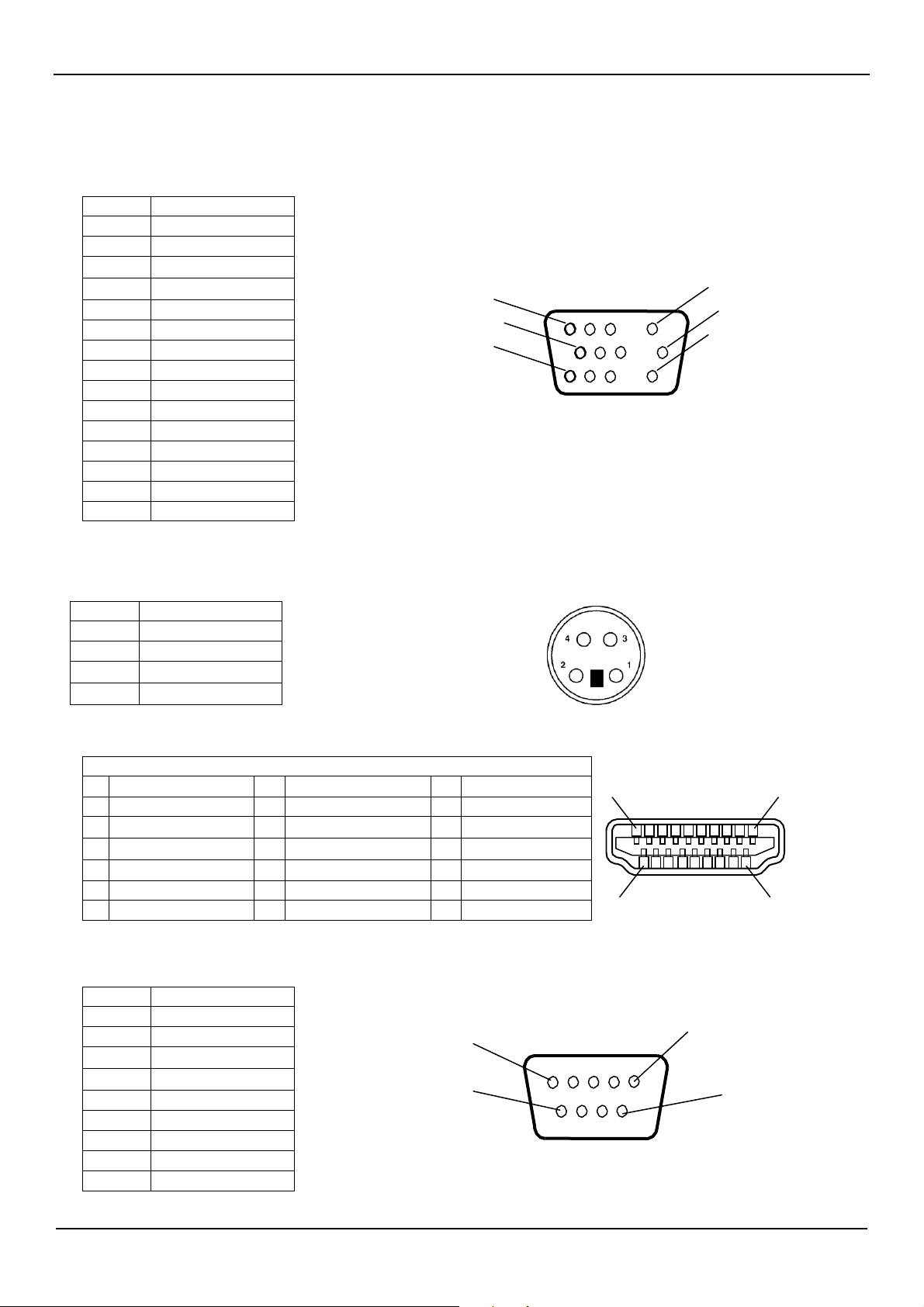
User Manual BDL4631V/00
46
Pin
No
Name
1
V
ideo
Signal
Red
2
V
ideo
Signal
Green
3
V
ideo
Signal
Blue
4
GND
5
DDC-GND
6
Red-GND
7
Green-GND
8
Blue-GND
9
+5V
(DDC)
10
SYNC-GND
11
GND
12
DDC-SDA
13
H-SYNC
14
V
-SYNC
15
DDC-SCL
Pin
-
Assignment of HDMI connector:
1
TMDS
Data2+
8
TMDS
Data0
Shield
15
SCL
2
TMDS
Data2
Shield
9
TMDS
Data0-
16
SDA
3
TMDS
Data2-
10
TMDS
Clock+
17
DDC/CEC
Gr
ound
4
TMDS
Data1+
11
TMDS
Clock Shield
18
+5V
Power
5
TMDS
Data1
Shield
12
TMDS
Clock-
19
Hot Plug Detect
6
TMDS
Data1-
13
CEC
7
TMDS
Data0+
14
Reserved
(N.C.
on
device)
Pin
No
Name
1
NC
2
RXD
3
TXD
4
NC
5
GND
6
NC
7
RTS
8
CTS
9
NC
Pin
Assignment
1)
Analog
Video Signal
Input
(Mini
D-SUB
15P):
PC-A
Mini D-SUB
15P
1
5
6
10
11
15
2)
S-VIDEO
input
(MINI
DIN
4P):
V
I
D
E
O
<S>
Pin
No
Name
1
GND
2
GND
3
Y
(Luminance)
4
C
(Chroma)
3)
HDMI
:
HDMI
1,
HDMI
2
MINI
DIN
4P
1
HDMI 19
2
18
4)
RS-232C input/output
Mini D-SUB
9P
5
1
6
9