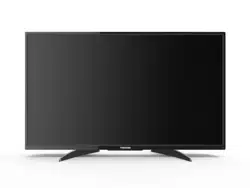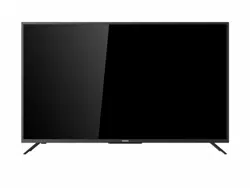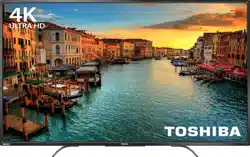

Before using your new product, please read these instructions to prevent any damage.
50"/55" 2160p (4K), 60Hz,
LED Chromecast™ built-in TV
50L711U18/55L711U18
50L711M18/55L711M18
2
www.tv.toshiba.com
Contents
CHILD SAFETY . . . . . . . . . . . . . . . . . . . . . . . . . . . . . . . . . . . . . . . . . . . . . . . . . . . . . . . . . . . . . . . 6
Important Safety Instructions . . . . . . . . . . . . . . . . . . . . . . . . . . . . . . . . . . . . . . . . . . . . . . . . 7
WARNING . . . . . . . . . . . . . . . . . . . . . . . . . . . . . . . . . . . . . . . . . . . . . . . . . . . . . . . . . . . . . . . . . . . . . . . . . . 7
CAUTION . . . . . . . . . . . . . . . . . . . . . . . . . . . . . . . . . . . . . . . . . . . . . . . . . . . . . . . . . . . . . . . . . . . . . . . . . . 8
Introduction . . . . . . . . . . . . . . . . . . . . . . . . . . . . . . . . . . . . . . . . . . . . . . . . . . . . . . . . . . . . . . . . 10
Google Chromecast™ built-in . . . . . . . . . . . . . . . . . . . . . . . . . . . . . . . . . . . . . . . . . . . . . . . . . . . . . . 10
HDMI®CEC Control . . . . . . . . . . . . . . . . . . . . . . . . . . . . . . . . . . . . . . . . . . . . . . . . . . . . . . . . . . . . . . . . 10
DTS Studio Sound® . . . . . . . . . . . . . . . . . . . . . . . . . . . . . . . . . . . . . . . . . . . . . . . . . . . . . . . . . . . . . . . . 10
GameTimer™ . . . . . . . . . . . . . . . . . . . . . . . . . . . . . . . . . . . . . . . . . . . . . . . . . . . . . . . . . . . . . . . . . . . . . . 10
Audio accessibility . . . . . . . . . . . . . . . . . . . . . . . . . . . . . . . . . . . . . . . . . . . . . . . . . . . . . . . . . . . . . . . . 10
Installing the stands or wall-mount bracket . . . . . . . . . . . . . . . . . . . . . . . . . . . . . . . . . . 11
Installing the stands (50" model) . . . . . . . . . . . . . . . . . . . . . . . . . . . . . . . . . . . . . . . . . . . . . . . . . . 11
Installing the stands (55" model) . . . . . . . . . . . . . . . . . . . . . . . . . . . . . . . . . . . . . . . . . . . . . . . . . . 12
Installing a wall-mount bracket . . . . . . . . . . . . . . . . . . . . . . . . . . . . . . . . . . . . . . . . . . . . . . . . . . . 14
TV components . . . . . . . . . . . . . . . . . . . . . . . . . . . . . . . . . . . . . . . . . . . . . . . . . . . . . . . . . . . . 17
Package contents . . . . . . . . . . . . . . . . . . . . . . . . . . . . . . . . . . . . . . . . . . . . . . . . . . . . . . . . . . . . . . . . . 17
Front . . . . . . . . . . . . . . . . . . . . . . . . . . . . . . . . . . . . . . . . . . . . . . . . . . . . . . . . . . . . . . . . . . . . . . . . . . . . . 17
Power/INPUT button . . . . . . . . . . . . . . . . . . . . . . . . . . . . . . . . . . . . . . . . . . . . . . . . . . . . . . . . . . . . . . 17
Side jacks . . . . . . . . . . . . . . . . . . . . . . . . . . . . . . . . . . . . . . . . . . . . . . . . . . . . . . . . . . . . . . . . . . . . . . . . . 18
Back jacks . . . . . . . . . . . . . . . . . . . . . . . . . . . . . . . . . . . . . . . . . . . . . . . . . . . . . . . . . . . . . . . . . . . . . . . . . 19
Remote control . . . . . . . . . . . . . . . . . . . . . . . . . . . . . . . . . . . . . . . . . . . . . . . . . . . . . . . . . . . . . . . . . . . 20
Virtual Remote control . . . . . . . . . . . . . . . . . . . . . . . . . . . . . . . . . . . . . . . . . . . . . . . . . . . . . . . . . . . . 21
What connection should I use? . . . . . . . . . . . . . . . . . . . . . . . . . . . . . . . . . . . . . . . . . . . . . . 23
Connecting a cable or satellite box . . . . . . . . . . . . . . . . . . . . . . . . . . . . . . . . . . . . . . . . . . 24
HDMI (best) . . . . . . . . . . . . . . . . . . . . . . . . . . . . . . . . . . . . . . . . . . . . . . . . . . . . . . . . . . . . . . . . . . . . . . 24
DVI (same as HDMI but requires an audio connection) . . . . . . . . . . . . . . . . . . . . . . . . . . . . . 25
AV (good) . . . . . . . . . . . . . . . . . . . . . . . . . . . . . . . . . . . . . . . . . . . . . . . . . . . . . . . . . . . . . . . . . . . . . . . . 26
Coaxial (good). . . . . . . . . . . . . . . . . . . . . . . . . . . . . . . . . . . . . . . . . . . . . . . . . . . . . . . . . . . . . . . . . . . . 27
Connecting an antenna or cable TV (no box) . . . . . . . . . . . . . . . . . . . . . . . . . . . . . . . . . 28
Connecting a DVD or Blu-ray player . . . . . . . . . . . . . . . . . . . . . . . . . . . . . . . . . . . . . . . . . 29
HDMI (best) . . . . . . . . . . . . . . . . . . . . . . . . . . . . . . . . . . . . . . . . . . . . . . . . . . . . . . . . . . . . . . . . . . . . . . 29
AV (good) . . . . . . . . . . . . . . . . . . . . . . . . . . . . . . . . . . . . . . . . . . . . . . . . . . . . . . . . . . . . . . . . . . . . . . . . 30
Connecting a game console . . . . . . . . . . . . . . . . . . . . . . . . . . . . . . . . . . . . . . . . . . . . . . . . 31
HDMI (best) . . . . . . . . . . . . . . . . . . . . . . . . . . . . . . . . . . . . . . . . . . . . . . . . . . . . . . . . . . . . . . . . . . . . . . 31
AV (good) . . . . . . . . . . . . . . . . . . . . . . . . . . . . . . . . . . . . . . . . . . . . . . . . . . . . . . . . . . . . . . . . . . . . . . . . 32
3
Contents
www.tv.toshiba.com
Connecting a network router . . . . . . . . . . . . . . . . . . . . . . . . . . . . . . . . . . . . . . . . . . . . . . . 33
Connecting a computer . . . . . . . . . . . . . . . . . . . . . . . . . . . . . . . . . . . . . . . . . . . . . . . . . . . . . 34
HDMI (best) . . . . . . . . . . . . . . . . . . . . . . . . . . . . . . . . . . . . . . . . . . . . . . . . . . . . . . . . . . . . . . . . . . . . . . 34
DVI (same as HDMI but requires an audio connection) . . . . . . . . . . . . . . . . . . . . . . . . . . . . . 35
Connecting a USB flash drive . . . . . . . . . . . . . . . . . . . . . . . . . . . . . . . . . . . . . . . . . . . . . . . . 36
Connecting headphones . . . . . . . . . . . . . . . . . . . . . . . . . . . . . . . . . . . . . . . . . . . . . . . . . . . . 37
Connecting external speakers or a soundbar . . . . . . . . . . . . . . . . . . . . . . . . . . . . . . . . 38
Digital audio . . . . . . . . . . . . . . . . . . . . . . . . . . . . . . . . . . . . . . . . . . . . . . . . . . . . . . . . . . . . . . . . . . . . . 38
Analog audio. . . . . . . . . . . . . . . . . . . . . . . . . . . . . . . . . . . . . . . . . . . . . . . . . . . . . . . . . . . . . . . . . . . . . 39
Connecting a home theater system with multiple devices . . . . . . . . . . . . . . . . . . . .40
Connecting power . . . . . . . . . . . . . . . . . . . . . . . . . . . . . . . . . . . . . . . . . . . . . . . . . . . . . . . . . .41
Using the remote control . . . . . . . . . . . . . . . . . . . . . . . . . . . . . . . . . . . . . . . . . . . . . . . . . . . 42
Installing remote control batteries . . . . . . . . . . . . . . . . . . . . . . . . . . . . . . . . . . . . . . . . . . . . . . . . . 42
Aiming the remote control . . . . . . . . . . . . . . . . . . . . . . . . . . . . . . . . . . . . . . . . . . . . . . . . . . . . . . . . 42
Programming universal remote controls . . . . . . . . . . . . . . . . . . . . . . . . . . . . . . . . . . . . . . . . . . . 43
Turning on your TV for the first time . . . . . . . . . . . . . . . . . . . . . . . . . . . . . . . . . . . . . . . . . 44
Using an Android mobile device . . . . . . . . . . . . . . . . . . . . . . . . . . . . . . . . . . . . . . . . . . . . . . . . . . 44
Using an iOS (Apple) mobile device . . . . . . . . . . . . . . . . . . . . . . . . . . . . . . . . . . . . . . . . . . . . . . . 49
Casting a video, movie, or TV show . . . . . . . . . . . . . . . . . . . . . . . . . . . . . . . . . . . . . . . . . . 53
Setting up the ANT / CABLE IN jack . . . . . . . . . . . . . . . . . . . . . . . . . . . . . . . . . . . . . . . . . . 54
Understanding the basics . . . . . . . . . . . . . . . . . . . . . . . . . . . . . . . . . . . . . . . . . . . . . . . . . . . 54
Turning your TV on or off . . . . . . . . . . . . . . . . . . . . . . . . . . . . . . . . . . . . . . . . . . . . . . . . . . . . . . . . . . 54
Selecting the video input source . . . . . . . . . . . . . . . . . . . . . . . . . . . . . . . . . . . . . . . . . . . . . . . . . . . 55
On-screen menu overview . . . . . . . . . . . . . . . . . . . . . . . . . . . . . . . . . . . . . . . . . . . . . . . . . . . . . . . . 56
Navigating the menus . . . . . . . . . . . . . . . . . . . . . . . . . . . . . . . . . . . . . . . . . . . . . . . . . . . . . . . . . . . . . 57
Adjusting the volume . . . . . . . . . . . . . . . . . . . . . . . . . . . . . . . . . . . . . . . . . . . . . . . . . . . . . . . . . . . . . 57
Selecting a channel . . . . . . . . . . . . . . . . . . . . . . . . . . . . . . . . . . . . . . . . . . . . . . . . . . . . . . . . . . . . . . . 57
Viewing channel information . . . . . . . . . . . . . . . . . . . . . . . . . . . . . . . . . . . . . . . . . . . . . . . . . . . . . . 58
Controlling CEC-compatible devices . . . . . . . . . . . . . . . . . . . . . . . . . . . . . . . . . . . . . . . . 58
Turning HDMI-CEC Control on or off . . . . . . . . . . . . . . . . . . . . . . . . . . . . . . . . . . . . . . . . . . . . . . .59
Turning TV Auto Power on or off . . . . . . . . . . . . . . . . . . . . . . . . . . . . . . . . . . . . . . . . . . . . . . . . . . . 59
Turning Auto Standby on or off . . . . . . . . . . . . . . . . . . . . . . . . . . . . . . . . . . . . . . . . . . . . . . . . . . . . 60
Turning Amplifier Control on or off . . . . . . . . . . . . . . . . . . . . . . . . . . . . . . . . . . . . . . . . . . . . . . . . 60
Using the TV remote to control CEC-compatible devices . . . . . . . . . . . . . . . . . . . . . . . . . . . . 61
Using the TV menu to control CEC-compatible devices . . . . . . . . . . . . . . . . . . . . . . . . . . . . . 61
Selecting the HDMI input mode . . . . . . . . . . . . . . . . . . . . . . . . . . . . . . . . . . . . . . . . . . . . . . . . . . . 62
Viewing photos on a USB flash drive . . . . . . . . . . . . . . . . . . . . . . . . . . . . . . . . . . . . . . . . 62
Supported photo file formats . . . . . . . . . . . . . . . . . . . . . . . . . . . . . . . . . . . . . . . . . . . . . . . . . . . . . . 62
Opening the Media Player . . . . . . . . . . . . . . . . . . . . . . . . . . . . . . . . . . . . . . . . . . . . . . . . . . . . . . . . . 63
Viewing photos . . . . . . . . . . . . . . . . . . . . . . . . . . . . . . . . . . . . . . . . . . . . . . . . . . . . . . . . . . . . . . . . . . . 63
Viewing photos in a slideshow . . . . . . . . . . . . . . . . . . . . . . . . . . . . . . . . . . . . . . . . . . . . . . . . . . . . 64
4
Contents
www.tv.toshiba.com
Adjusting accessibility settings . . . . . . . . . . . . . . . . . . . . . . . . . . . . . . . . . . . . . . . . . . . . . .64
Adjusting the picture . . . . . . . . . . . . . . . . . . . . . . . . . . . . . . . . . . . . . . . . . . . . . . . . . . . . . . .65
Adjusting the TV picture . . . . . . . . . . . . . . . . . . . . . . . . . . . . . . . . . . . . . . . . . . . . . . . . . . . . . . . . . . . 65
Adjusting the picture size . . . . . . . . . . . . . . . . . . . . . . . . . . . . . . . . . . . . . . . . . . . . . . . . . . . . . . . . . 67
Scrolling the TheaterWide™ picture . . . . . . . . . . . . . . . . . . . . . . . . . . . . . . . . . . . . . . . . . . . . . . . . 69
Automatically adjusting the aspect ratio . . . . . . . . . . . . . . . . . . . . . . . . . . . . . . . . . . . . . . . . . . . 69
Using the 4:3 Stretch . . . . . . . . . . . . . . . . . . . . . . . . . . . . . . . . . . . . . . . . . . . . . . . . . . . . . . . . . . . . . . 70
Adjusting the sound . . . . . . . . . . . . . . . . . . . . . . . . . . . . . . . . . . . . . . . . . . . . . . . . . . . . . . . . 70
Adjusting sound settings . . . . . . . . . . . . . . . . . . . . . . . . . . . . . . . . . . . . . . . . . . . . . . . . . . . . . . . . . . 70
Playing TV audio only . . . . . . . . . . . . . . . . . . . . . . . . . . . . . . . . . . . . . . . . . . . . . . . . . . . . . . . . . . . . . 71
Changing channel settings . . . . . . . . . . . . . . . . . . . . . . . . . . . . . . . . . . . . . . . . . . . . . . . . . . 72
Automatically scanning for channels . . . . . . . . . . . . . . . . . . . . . . . . . . . . . . . . . . . . . . . . . . . . . . .72
Manually adding channels to the channel list . . . . . . . . . . . . . . . . . . . . . . . . . . . . . . . . . . . . . . 72
Hiding channels . . . . . . . . . . . . . . . . . . . . . . . . . . . . . . . . . . . . . . . . . . . . . . . . . . . . . . . . . . . . . . . . . . 73
Setting parental controls . . . . . . . . . . . . . . . . . . . . . . . . . . . . . . . . . . . . . . . . . . . . . . . . . . . .74
Setting a new PIN . . . . . . . . . . . . . . . . . . . . . . . . . . . . . . . . . . . . . . . . . . . . . . . . . . . . . . . . . . . . . . . . . 74
Changing or deleting the PIN . . . . . . . . . . . . . . . . . . . . . . . . . . . . . . . . . . . . . . . . . . . . . . . . . . . . . . 75
Blocking TV programs and movies (for USA region) . . . . . . . . . . . . . . . . . . . . . . . . . . . . . . . . 75
Downloading rating information (for USA region) . . . . . . . . . . . . . . . . . . . . . . . . . . . . . . . . . . 76
Temporarily unlocking programs . . . . . . . . . . . . . . . . . . . . . . . . . . . . . . . . . . . . . . . . . . . . . . . . . . 77
Locking video inputs . . . . . . . . . . . . . . . . . . . . . . . . . . . . . . . . . . . . . . . . . . . . . . . . . . . . . . . . . . . . . . 78
Locking channels . . . . . . . . . . . . . . . . . . . . . . . . . . . . . . . . . . . . . . . . . . . . . . . . . . . . . . . . . . . . . . . . . 78
Setting the GameTimer™ . . . . . . . . . . . . . . . . . . . . . . . . . . . . . . . . . . . . . . . . . . . . . . . . . . . . . . . . . . 79
Using closed captioning . . . . . . . . . . . . . . . . . . . . . . . . . . . . . . . . . . . . . . . . . . . . . . . . . . . .79
Turning closed captioning on or off . . . . . . . . . . . . . . . . . . . . . . . . . . . . . . . . . . . . . . . . . . . . . . . . 79
Selecting the analog closed captioning mode . . . . . . . . . . . . . . . . . . . . . . . . . . . . . . . . . . . . . . 80
Selecting the closed captioning mode with the CCD button . . . . . . . . . . . . . . . . . . . . . . . . 80
Customizing digital closed captioning settings . . . . . . . . . . . . . . . . . . . . . . . . . . . . . . . . . . . . . 81
Adjusting time settings . . . . . . . . . . . . . . . . . . . . . . . . . . . . . . . . . . . . . . . . . . . . . . . . . . . . . 82
Setting the time zone and Daylight Saving Time status . . . . . . . . . . . . . . . . . . . . . . . . . . . . . 82
Setting the sleep timer . . . . . . . . . . . . . . . . . . . . . . . . . . . . . . . . . . . . . . . . . . . . . . . . . . . . . . . . . . . . 82
Adjusting menu settings . . . . . . . . . . . . . . . . . . . . . . . . . . . . . . . . . . . . . . . . . . . . . . . . . . . . 83
Selecting the menu language . . . . . . . . . . . . . . . . . . . . . . . . . . . . . . . . . . . . . . . . . . . . . . . . . . . . . 83
Labeling a video input source . . . . . . . . . . . . . . . . . . . . . . . . . . . . . . . . . . . . . . . . . . . . . . . . . . . . . 83
Turning the input sensor on or off . . . . . . . . . . . . . . . . . . . . . . . . . . . . . . . . . . . . . . . . . . . . . . . . . 84
Maintaining . . . . . . . . . . . . . . . . . . . . . . . . . . . . . . . . . . . . . . . . . . . . . . . . . . . . . . . . . . . . . . . .84
Cleaning the TV cabinet . . . . . . . . . . . . . . . . . . . . . . . . . . . . . . . . . . . . . . . . . . . . . . . . . . . . . . . . . . . 84
Cleaning the TV screen . . . . . . . . . . . . . . . . . . . . . . . . . . . . . . . . . . . . . . . . . . . . . . . . . . . . . . . . . . . . 84
Troubleshooting . . . . . . . . . . . . . . . . . . . . . . . . . . . . . . . . . . . . . . . . . . . . . . . . . . . . . . . . . . . . 84
Viewing support information . . . . . . . . . . . . . . . . . . . . . . . . . . . . . . . . . . . . . . . . . . . . . . . . . . . . . . 84
Testing the TV speakers . . . . . . . . . . . . . . . . . . . . . . . . . . . . . . . . . . . . . . . . . . . . . . . . . . . . . . . . . . . 85
Restoring settings to the defaults . . . . . . . . . . . . . . . . . . . . . . . . . . . . . . . . . . . . . . . . . . . . . . . . . . 85
5
Contents
www.tv.toshiba.com
Turning off the automatic power-off feature . . . . . . . . . . . . . . . . . . . . . . . . . . . . . . . . . . . . . . . 86
Making your TV turn on faster . . . . . . . . . . . . . . . . . . . . . . . . . . . . . . . . . . . . . . . . . . . . . . . . . . . . . 86
Chromecast built-in TV FAQ . . . . . . . . . . . . . . . . . . . . . . . . . . . . . . . . . . . . . . . . . . . . . . . . . . . . . . . 87
Video and audio . . . . . . . . . . . . . . . . . . . . . . . . . . . . . . . . . . . . . . . . . . . . . . . . . . . . . . . . . . . . . . . . . . 88
Remote control . . . . . . . . . . . . . . . . . . . . . . . . . . . . . . . . . . . . . . . . . . . . . . . . . . . . . . . . . . . . . . . . . . . 91
General . . . . . . . . . . . . . . . . . . . . . . . . . . . . . . . . . . . . . . . . . . . . . . . . . . . . . . . . . . . . . . . . . . . . . . . . . . . 91
CEC-compatible devices . . . . . . . . . . . . . . . . . . . . . . . . . . . . . . . . . . . . . . . . . . . . . . . . . . . . . . . . . . . 92
Specifications . . . . . . . . . . . . . . . . . . . . . . . . . . . . . . . . . . . . . . . . . . . . . . . . . . . . . . . . . . . . . . 94
50-inch (50L711U18/50L711M18) . . . . . . . . . . . . . . . . . . . . . . . . . . . . . . . . . . . . . . . . . . . . . . . . . .94
55-inch (55L711U18/55L711M18) . . . . . . . . . . . . . . . . . . . . . . . . . . . . . . . . . . . . . . . . . . . . . . . . . .95
Legal notices . . . . . . . . . . . . . . . . . . . . . . . . . . . . . . . . . . . . . . . . . . . . . . . . . . . . . . . . . . . . . . .96
One-year limited warranty - Toshiba Televisions . . . . . . . . . . . . . . . . . . . . . . . . . . . . . 97
One-year limited warranty - Toshiba Televisions—Mexico . . . . . . . . . . . . . . . . . . . .98
6
https://www.cta.tech/Consumer-Resources.aspx
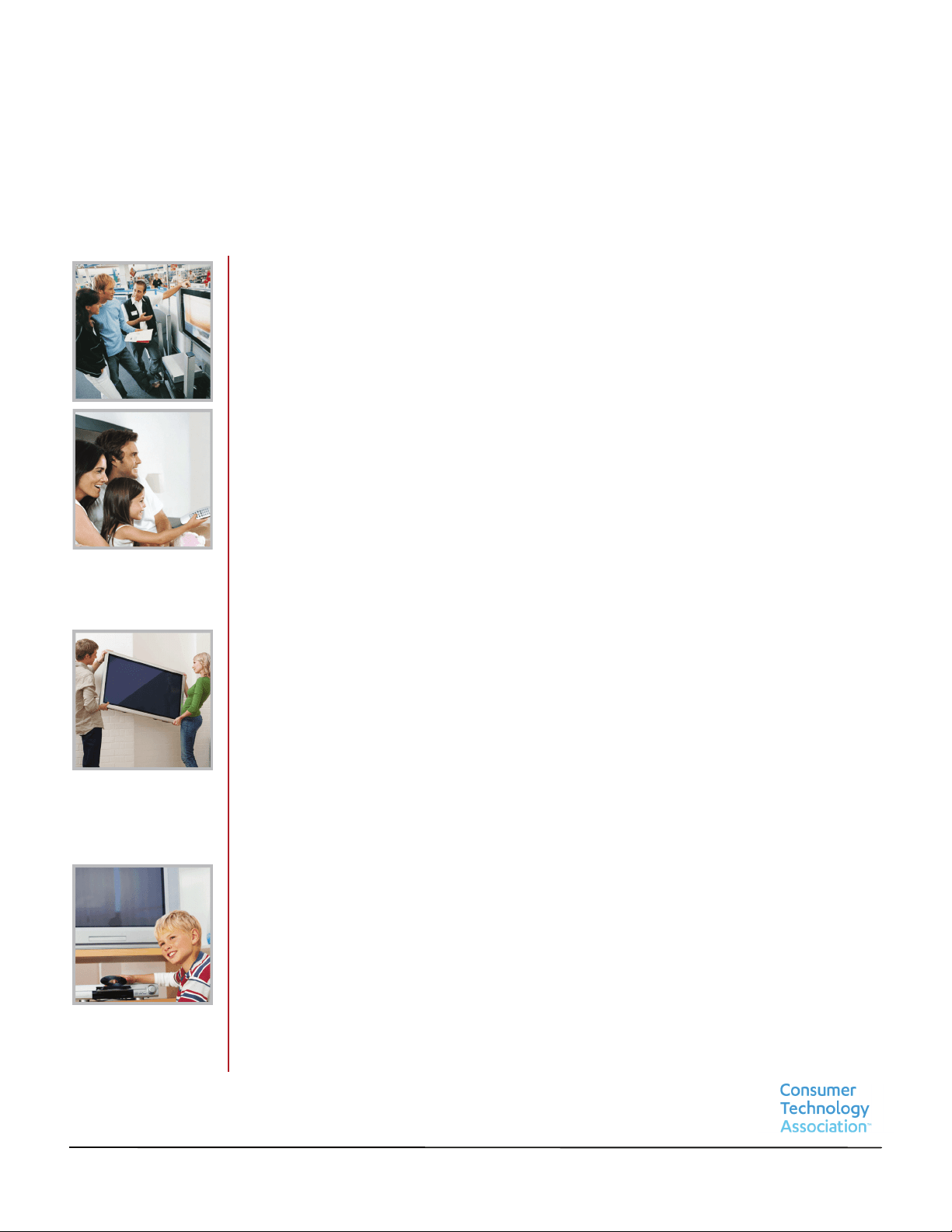
CHILD SAFETY
PROPER TELEVISION PLACEMENT MATTERS
THE CONSUMER ELECTRONICS INDUSTRY CARES
• Manufacturers, retailers and the rest of the consumer electronics industry are
committed to making home entertainment safe and enjoyable.
• As you enjoy your television, please note that all televisions - new and old - must be
supported on proper stands or installed according to the manufacturer's
recommendations. Televisions that are inappropriately situated on dressers, bookcases,
shelves, desks, speakers, chests, carts, etc., may fall over, resulting in injury.
TUNE IN TO SAFETY
• ALWAYS follow the manufacturer’s recommendations for the safe installation of your
television.
• ALWAYS read and follow all instructions for proper use of your television.
• NEVER allow children to climb on or play on the television or the furniture on which the
television is placed.
• NEVER place the television on furniture that can easily be used as steps, such as a chest
of drawers.
• ALWAYS install the television where it cannot be pushed, pulled over or knocked down.
• ALWAYS route cords and cables connected to the television so that they cannot be
tripped over, pulled or grabbed.
WALL OR CEILING MOUNT YOUR TELEVISION
• ALWAYS contact your retailer about professional installation if you have any doubts
about your ability to safely mount your television.
• ALWAYS use a mount that has been recommended by the television manufacturer and
has a safety certification by an independent laboratory (such as UL, CSA, ETL).
• ALWAYS follow all instructions supplied by the television and mount manufacturers.
• ALWAYS make sure that the wall or ceiling where you are mounting the television is
appropriate. Some mounts are not designed to be mounted to walls and ceilings with
steel studs or cinder block construction. If you are unsure, contact a professional
installer.
• Televisions can be heavy. A minimum of two people is required for a wall or ceiling
mount installation.
MOVING AN OLDER TELEVISION TO A NEW PLACE IN YOUR
HOME
• Many new television buyers move their older CRT televisions into a secondary room
after the purchase of a flat-panel television. Special care should be made in the
placement of older CRT televisions.
• ALWAYS place your older CRT television on furniture that is sturdy and appropriate for
its size and weight.
• NEVER place your older CRT television on a dresser where children may be tempted to
use the drawers to climb.
• ALWAYS make sure your older CRT television does not hang over the edge of your
furniture.
7
www.tv.toshiba.com
Important Safety Instructions
1 Read these instructions.
2 Keep these instructions.
3 Heed all warnings.
4 Follow all instructions.
5 Do not use this apparatus near water.
6 Clean only with dry cloth.
7 Do not block any ventilation openings. Install in
accordance with the manufacturer's instructions.
8 Do not install near any heat sources such as
radiators, heat registers, stoves, or other apparatus
(including amplifiers) that produce heat.
9 Do not defeat the safety purpose of the polarized
or grounding-type plug. A polarized plug has two
blades with one wider than the other. A grounding
type plug has two blades and a third grounding
prong. The wide blade or the third prong are
provided for your safety. If the provided plug does
not fit into your outlet, consult an electrician for
replacement of the obsolete outlet.
10 Protect the power cord from being walked on or
pinched particularly at plugs, convenience
receptacles, and the point where they exit from
the apparatus.
11 Only use attachments/accessories specified by the
manufacturer.
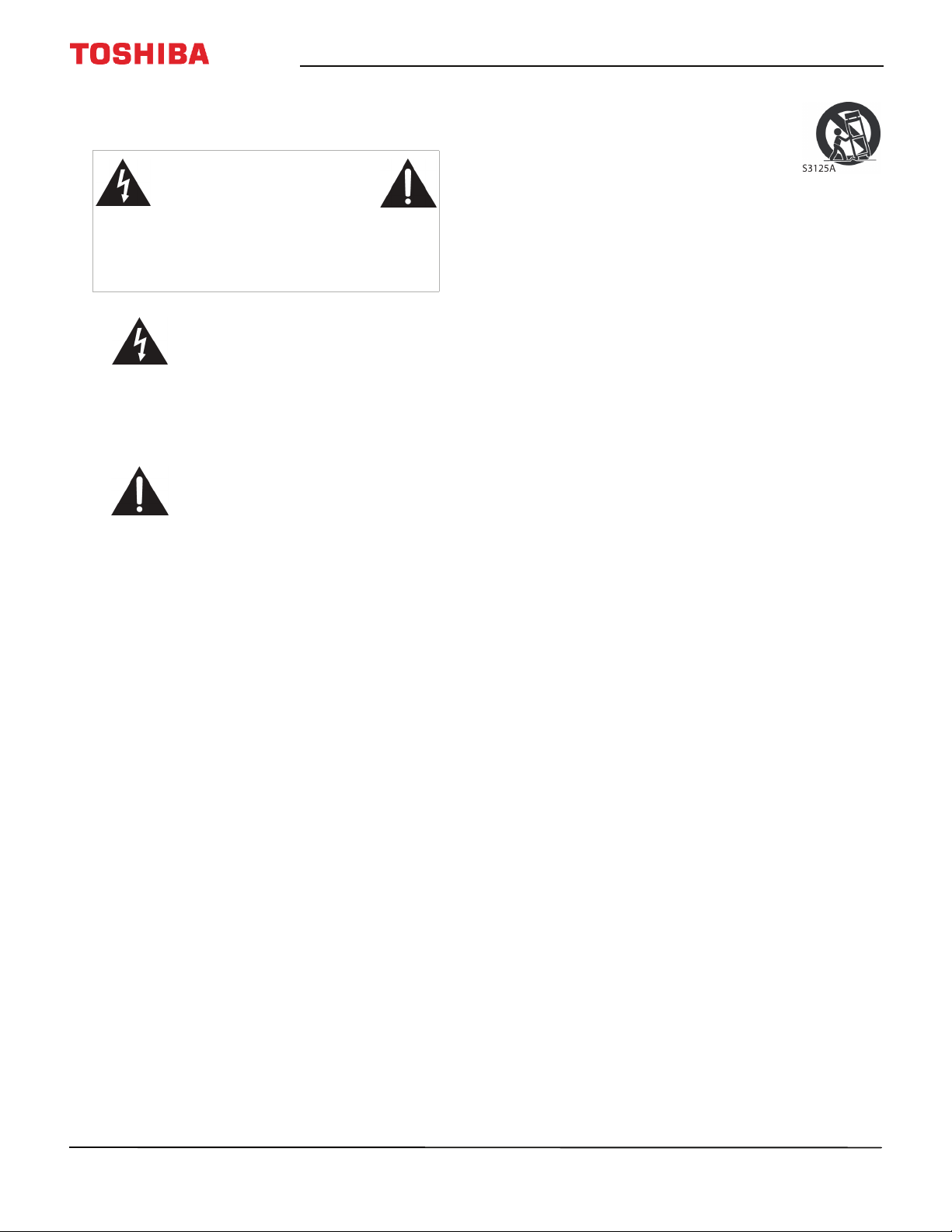
12 Use only with the cart, stand, tripod,
bracket, or table specified by the
manufacturer, or sold with the
apparatus. When a cart is used, use
caution when moving the
cart/apparatus combination to
avoid injury from tip-over.
13 Unplug this apparatus during lightning storms or
when unused for long periods of time.
14 Refer all servicing to qualified service personnel.
Servicing is required when the apparatus has been
damaged in any way, such as power-supply cord
or plug is damaged, liquid has been spilled or
objects have fallen into the apparatus, the
apparatus has been exposed to rain or moisture,
does not operate normally, or has been dropped.
15 The wall plug is the disconnecting device. The plug
must remain readily operable.
16 Remote control batteries should not be exposed
to excessive heat such as sunshine, fire, or the like.
17 The apparatus should not be exposed to dripping
or splashing, and no objects filled with liquids,
such as vases, should be placed on the apparatus.
18 Your TV has four VESA mounting holes on the
back. If you attach a wall-mount bracket or TV
stand to the back of your TV, the bracket or stand
must be securely attached using all four holes.
If you do not use all four mounting holes, your TV
may fall and cause property damage or personal
injury. See the documentation that came with
your wall mount or TV stand for complete
mounting instructions.
WARNING
Electric shock hazard
To reduce the risk of fire or electric shock, do not
remove any cover or expose the device to rain or
moisture. No user-serviceable parts are inside. Refer
servicing to qualified service technicians.
Lightning
For added protection for your device receiver during a
lightning storm, or when it is left unattended and
unused for long periods of time, unplug it from the
power outlet and disconnect any antenna or cable
system. This helps prevent property damage and
personal injury from lightning and power line surges.
Power lines
An outside antenna system should not be located in
the vicinity of overhead power lines or other electric
light or power circuits, or where it can fall into such
power lines or circuits. When installing an outside
antenna system, take extreme care to keep from
touching such power lines or circuits as contact with
them might be fatal.
CAUTION
RISK OF ELECTRIC SHOCK
DO NOT OPEN
CAUTION: TO REDUCE THE RISK OF ELECTRIC
SHOCK, DO NOT REMOVE COVER (OR BACK). NO
USER-SERVICEABLE PARTS INSIDE. REFER
SERVICING TO QUALIFIED SERVICE PERSONNEL.
The lightning flash with arrowhead
symbol within an equilateral triangle
is intended to alert the user to the
presence of uninsulated “hazardous
voltage” within the product's
enclosure, which may be of sufficient
magnitude to induce a risk of electric
shock to persons.
The exclamation point within an
equilateral triangle is intended to
alert the user to the presence of
important operating and
maintenance (servicing) instructions
in the literature accompanying the
appliance.
8
50
L
711
U
18
/
50
L
711
M
18
/
55
L
711
U
18
/
55
L
711
M
18
www.tv.toshiba.com
Handling the LCD panel
• Your TV’s screen is made of glass. Do not drop your
TV or hit, jolt, or press hard against the LCD panel. If
the screen breaks, be careful of broken glass.
• If the LCD panel is broken, make absolutely sure that
you do not touch the liquid in the panel. This may
cause skin inflammation.
• If the liquid gets in your mouth, immediately gargle,
rinse, and consult with your doctor. Also, if the liquid
gets in your eyes or touches your skin, consult with
your doctor after rinsing for at least 15 minutes or
longer in clean water.
Replacement parts
When replacement parts are required, make sure that
the service technician uses replacement parts
specified by the manufacturer that have the same
characteristics as the original part. Unauthorized
substitutions may result in fire, electric shock,
personal injury, or other hazards.
Safety check
After completing any service or repair to this device,
ask the service technician to perform routine safety
checks to determine that your TV is in correct
operating condition.
Power source
Operate your TV only from the type of power source
indicated on the marking label. If you are not sure of
the type of power supplied to your home, consult an
electrician or your local power company.
Servicing
These servicing instructions are for use by qualified
service personnel only. To reduce the risk of electric
shock, do not perform any servicing other than that
contained in the operating instructions unless you are
qualified to do so.
CAUTION
Damage requiring service
Unplug this TV from the power outlet and refer
servicing to qualified service personnel under the
following conditions:
• When the power supply cord or plug is damaged or
frayed.
• If liquid has been spilled or objects have fallen into
your TV.
• If your TV has been exposed to rain or water.
• If your TV does not operate normally by following
the operating instructions. Adjust only those
controls covered by the operating instructions
because incorrect adjustment of other controls may
result in damage and will often require extensive
work by a qualified technician to restore your TV to
its normal operation.
• If your TV has been dropped or damaged in any
way.
• When your TV exhibits a distinct change in
performance.
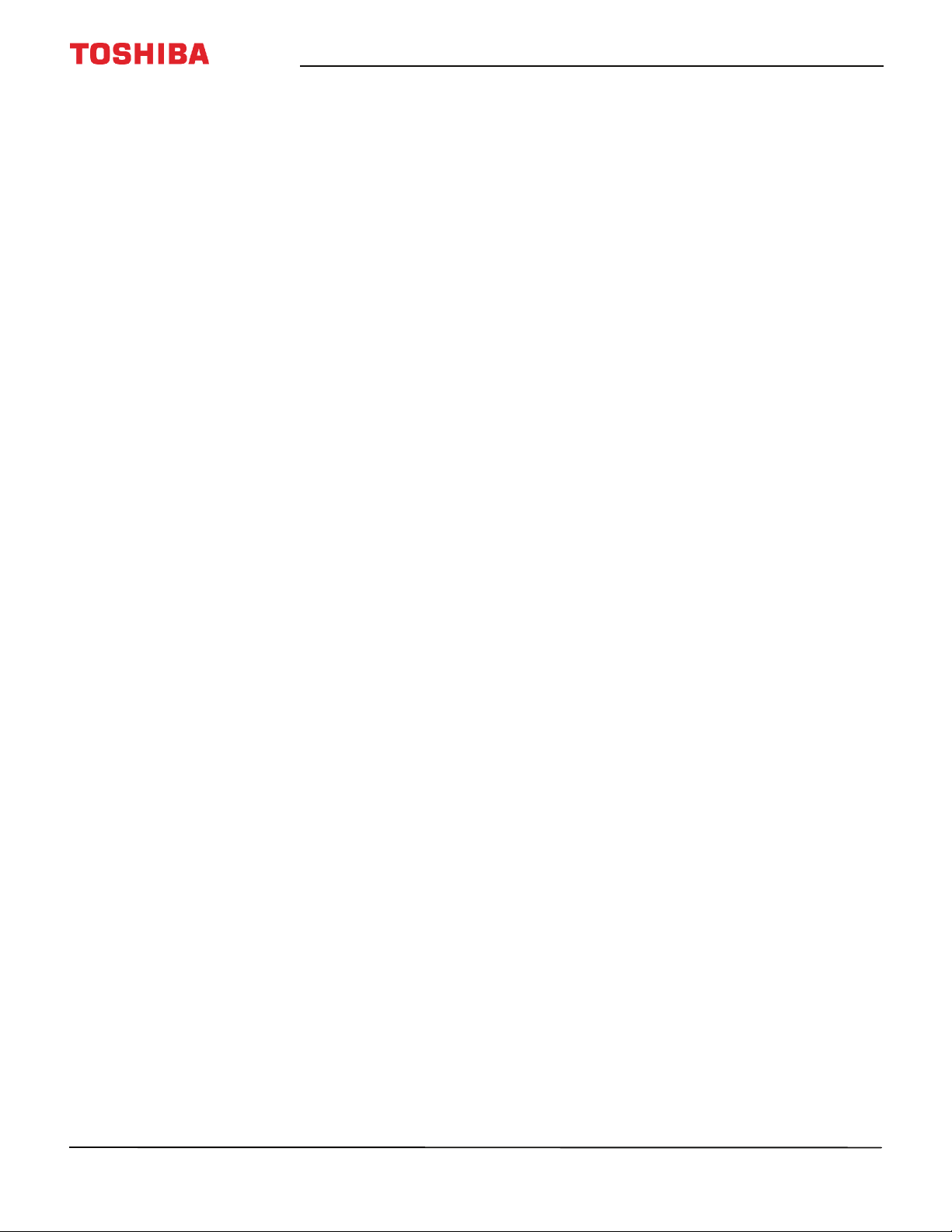
Outdoor antenna grounding
If an outside antenna or cable system is connected to
your TV, make sure that the antenna or cable system is
grounded to provide some protection against voltage
surges and built-up static charges. Article 810 of the
National Electrical Code, ANSI/NFPA No. 70, provides
information with respect to correct grounding of the
mast and supporting structure, grounding of the
lead-in wire to an antenna discharge unit, size of
grounding conductors, location of the
antenna-discharge unit, connection to grounding
electrodes, and requirements for the grounding
electrode.
Note to CATV system installer
Article 820 of the National Electrical Code, ANSI/NFPA
No. 40 provides guidance for correct grounding.
Specifically, it states that the cable ground must be
connected to the grounding system of the building as
close to the point of cable entry as practical.
Condensation
Moisture will form on the TV if the TV is brought from
cool surroundings into a warm room or if the
temperature of the room rises suddenly. When this
happens, the TV's performance may be impaired. To
prevent this, let the TV stand in its new surroundings
for about an hour before switching it on, or make sure
that the room temperature rises gradually.
Condensation may also form during the summer if
the TV is exposed to the breeze from an air
conditioner. In such cases, change the location of the
TV.
Mobile telephone warning
To avoid interference with your TV picture and sound,
operating problems, or even damage, keep your
cordless and cellular telephones away from the TV.
Antenna lead-in wire
Grounding clamp
Antenna discharge
unit
Grounding
conductors
Ground clamps
Power service
grounding electrode
system
Electric service
equipment
1
2
3
4
5
6
7
9
www.tv.toshiba.com
End of life directives
Your TV may contain materials that are regulated for
environmental reasons. Your TV also contains
materials that can be recycled and reused. To help
protect the environment, contact your local
authorities for information about disposal or recycling
and about finding a recycler in your area before you
dispose of your TV.
Non-active pixels
The LCD panel contains almost 3 million thin film
transistors, which provide exceptionally sharp video
quality. Occasionally, a few non-active pixels may
appear on the screen as a fixed blue, green, or red
point. These non-active pixels do not adversely affect
the performance of your TV, and are not considered
defects.
10
50
L
711
U
18
/
50
L
711
M
18
/
55
L
711
U
18
/
55
L
711
M
18
50" / 55" 2160p (4K), 60Hz, LED Chromecast built-in TV
www.tv.toshiba.com
50" / 55" 2160p (4K), 60Hz, LED
Chromecast built-in TV
Introduction
Congratulations on your purchase of a high-quality
Toshiba product. Your 50L711U18, 50L711M18,
55L711U18, or 55L711M18 represents the state of the
art in LED TV design and is designed for reliable and
trouble-free performance.
Google Chromecast™ built-in
UNLIMITED ENTERTAINMENT, ALL ON YOUR
SCHEDULE
• With Google Chromecast™ built-in, you are in
command. Access more than 200,000 TV shows
and movies, millions of songs and more through
apps like Netflix, YouTube, and Google Play.
Discover new content, with more apps being
added all the time at https://g.co/castapps.
USE YOUR PHONE AS A REMOTE
• By using your phone, there's nothing new to
learn—cast your apps, your playlists, your TV
shows—without new log-ins or downloads. It's
simple to search, browse, queue, and control
from anywhere in the home.
MULTI-TASK WITHOUT INTERRUPTING WHAT’S
PLAYING
• While you are casting, you can keep using your
phone for other things without disrupting what
is playing on the TV.
HDMI®CEC Control
Enjoy the benefit of having HDMI CEC-compatible
products plug and play! No setup is needed! CEC
technology lets different devices discover and
communicate with each other. (See page 58 for
instructions on how to use HDMI® CEC Control.)
DTS Studio Sound®
DTS Studio Sound is an advanced surround sound
solution suite that accurately extracts and places
audio cues for an immersive surround experience
over the TV’s built-in speakers. To complete the audio
experience, post processing and psychoacoustic
techniques are implemented to provide 3D audio
rendering to match 3D video content, for bass and
dialog enhancement and to deliver consistent and
level volume across content.
GameTimer™
Use the GameTimer™ to set a time limit for playing a
video game (from 30 to 120 minutes). When the
GameTimer expires, your TV locks out the input
source for the video game device.
Audio accessibility
Your TV provides audio descriptions of menus and
some remote control functions. Depending on the
broadcaster, audio narration of key elements in
programs may also be available. (See page 64 for
instructions on how to turn on audio narration.)
11
50" / 55" 2160p (4K), 60Hz, LED Chromecast built-in TV
www.tv.toshiba.com
Installing the stands or wall-mount bracket
• If you want to place your TV on a table or in an entertainment center, go to Installing the stands (50" model) or
Installing the stands (55" model).
• If you want to mount your TV on a wall, go to Installing a wall-mount bracket.
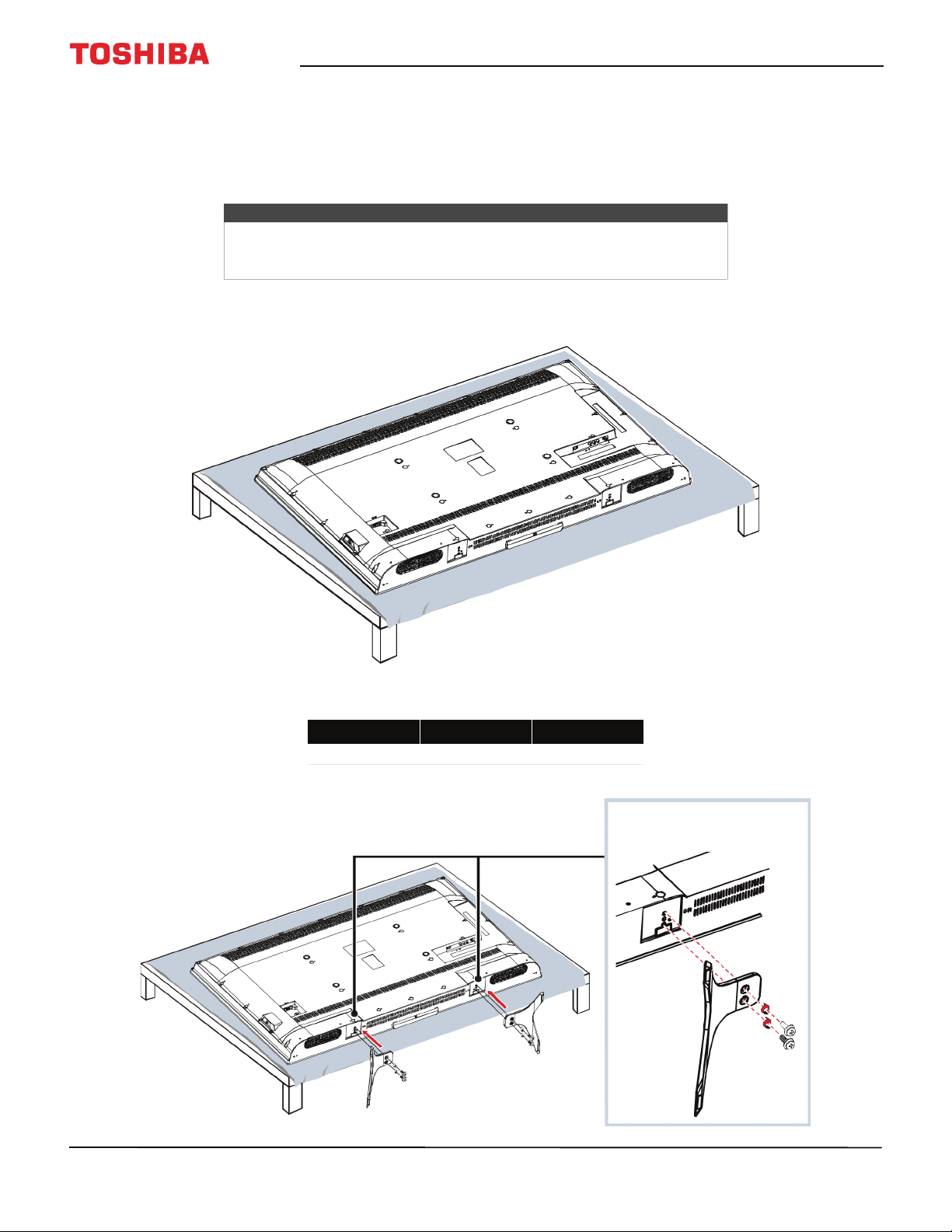
Installing the stands (50" model)
1 Carefully place your TV face-down on a cushioned, clean surface to protect the screen from damages and scratches.
2 Secure the TV stands to the back of your TV with the provided screws.
Notes
• If you plan to wall-mount your TV, do not install the stands.
• Store the stands and stand screws in case you decide to use the stands
in the future.
Screw type Screw length # of screws
M5 17 mm 4
12
50
L
711
U
18
/
50
L
711
M
18
/
55
L
711
U
18
/
55
L
711
M
18
50" / 55" 2160p (4K), 60Hz, LED Chromecast built-in TV
www.tv.toshiba.com
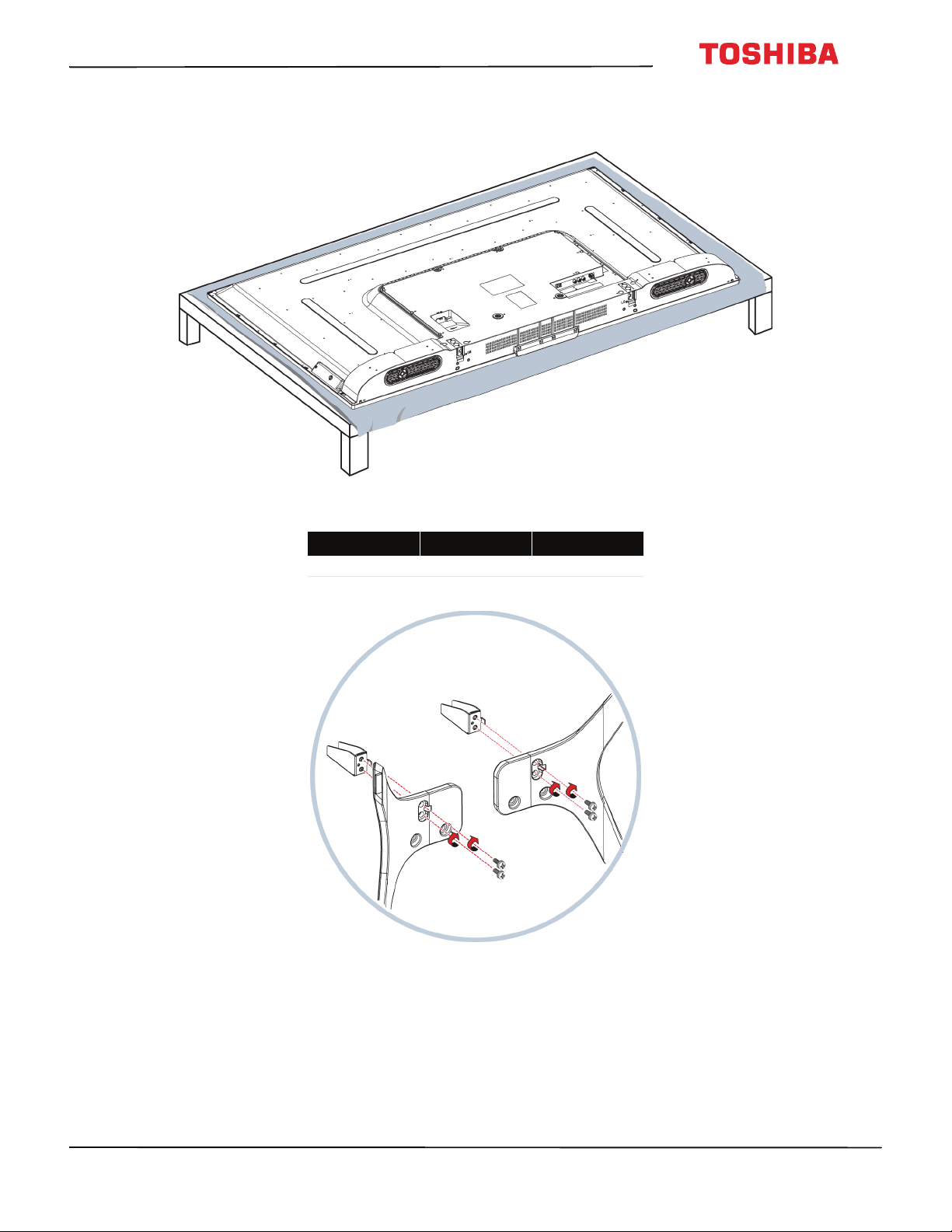
Installing the stands (55" model)
1 Carefully place your TV face-down on a cushioned, clean surface to protect the screen from damages and scratches.
2 Attach a stand neck to each of the stand legs with two of the provided 12 mm screws (the long screws).
Screw type Screw length # of screws
M4 12 mm 4
13
50" / 55" 2160p (4K), 60Hz, LED Chromecast built-in TV
www.tv.toshiba.com
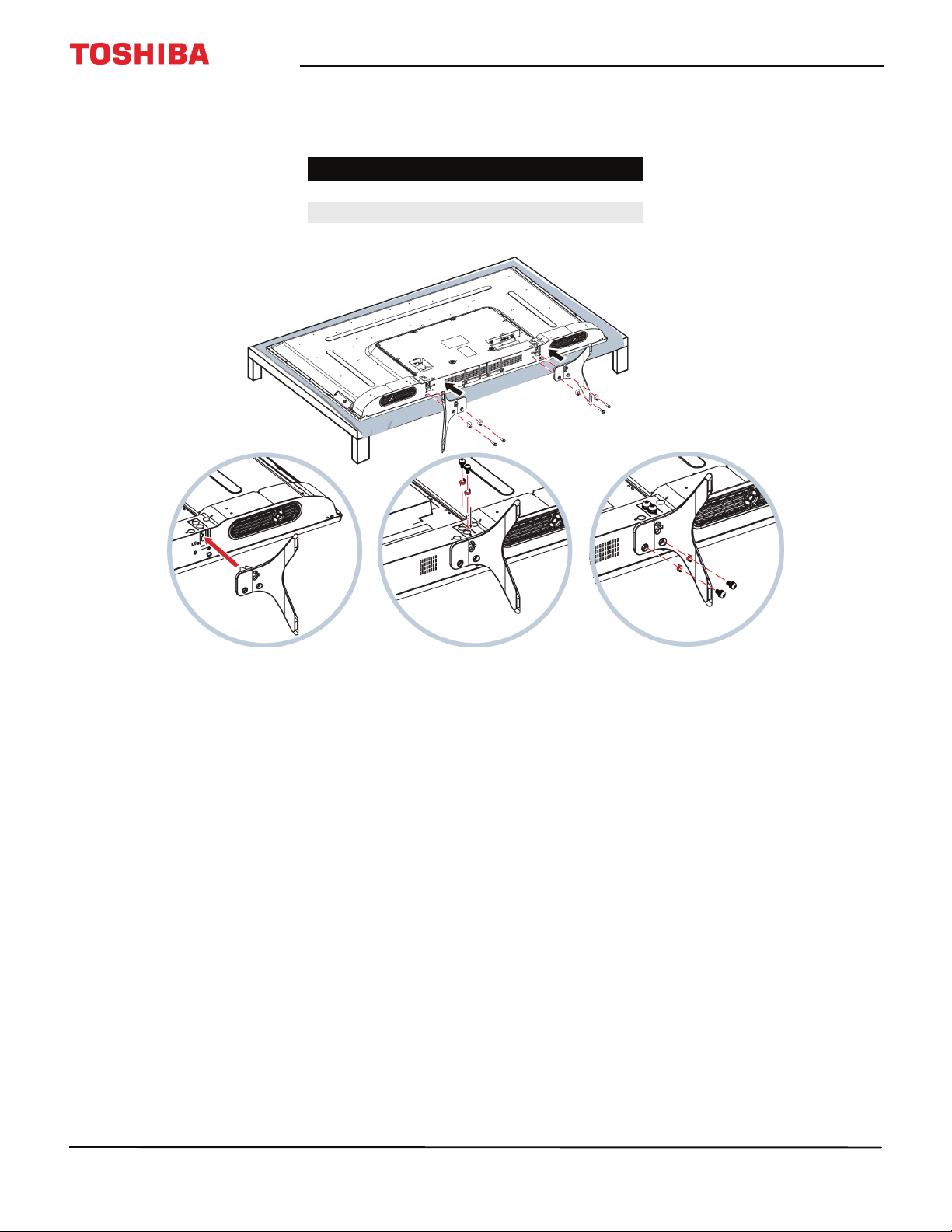
3 Slide the stand necks into the slots on the bottom of your TV. Secure each neck to the back of your TV using two of
the provided 10 mm screws (the short screws) and to the bottom of your TV using two of the 12 mm screws (the
long screws).
Screw type Screw length # of screws
M5 10 mm 4
M4 12 mm 4
M5 (10 mm) screws M4 (12 mm) screws
14
50
L
711
U
18
/
50
L
711
M
18
/
55
L
711
U
18
/
55
L
711
M
18
50" / 55" 2160p (4K), 60Hz, LED Chromecast built-in TV
www.tv.toshiba.com
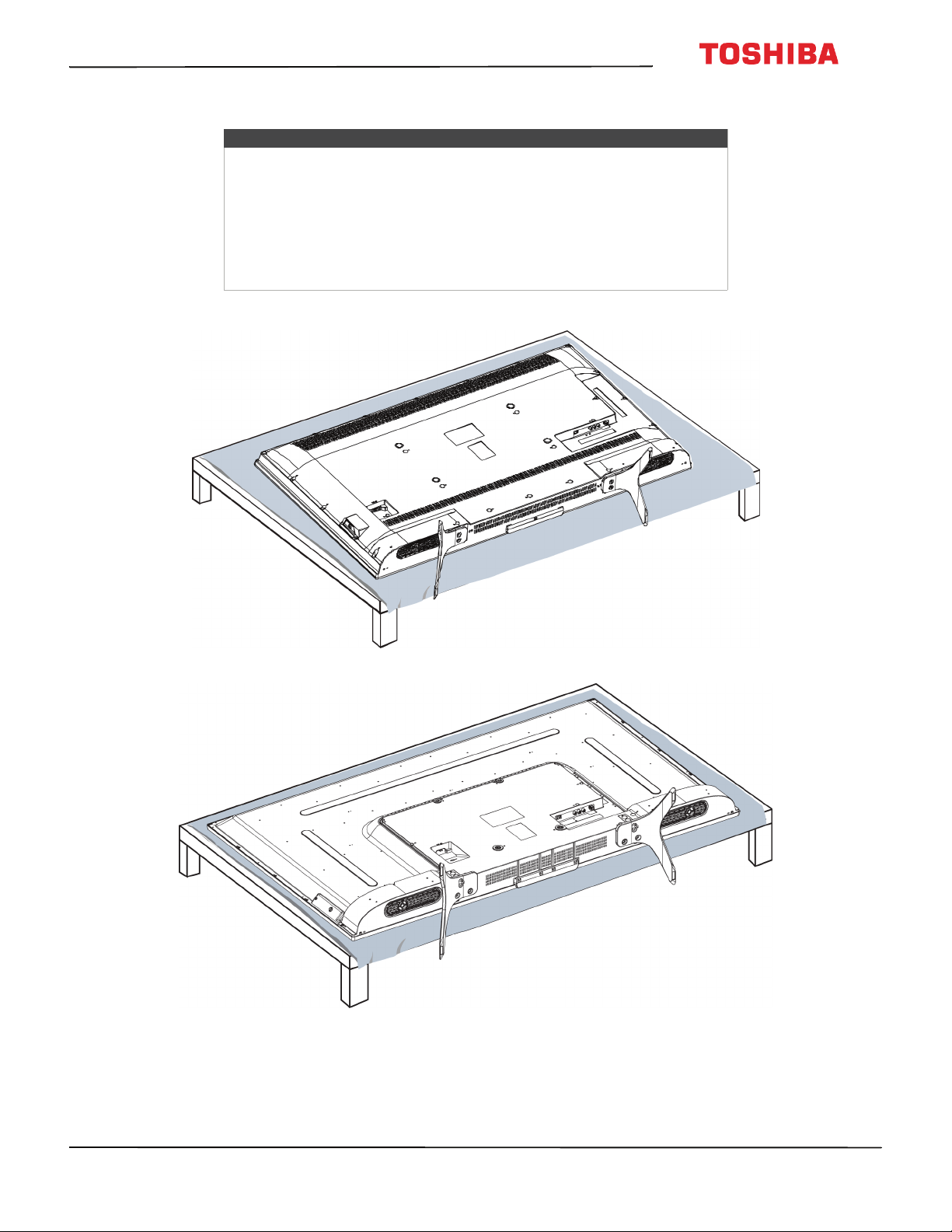
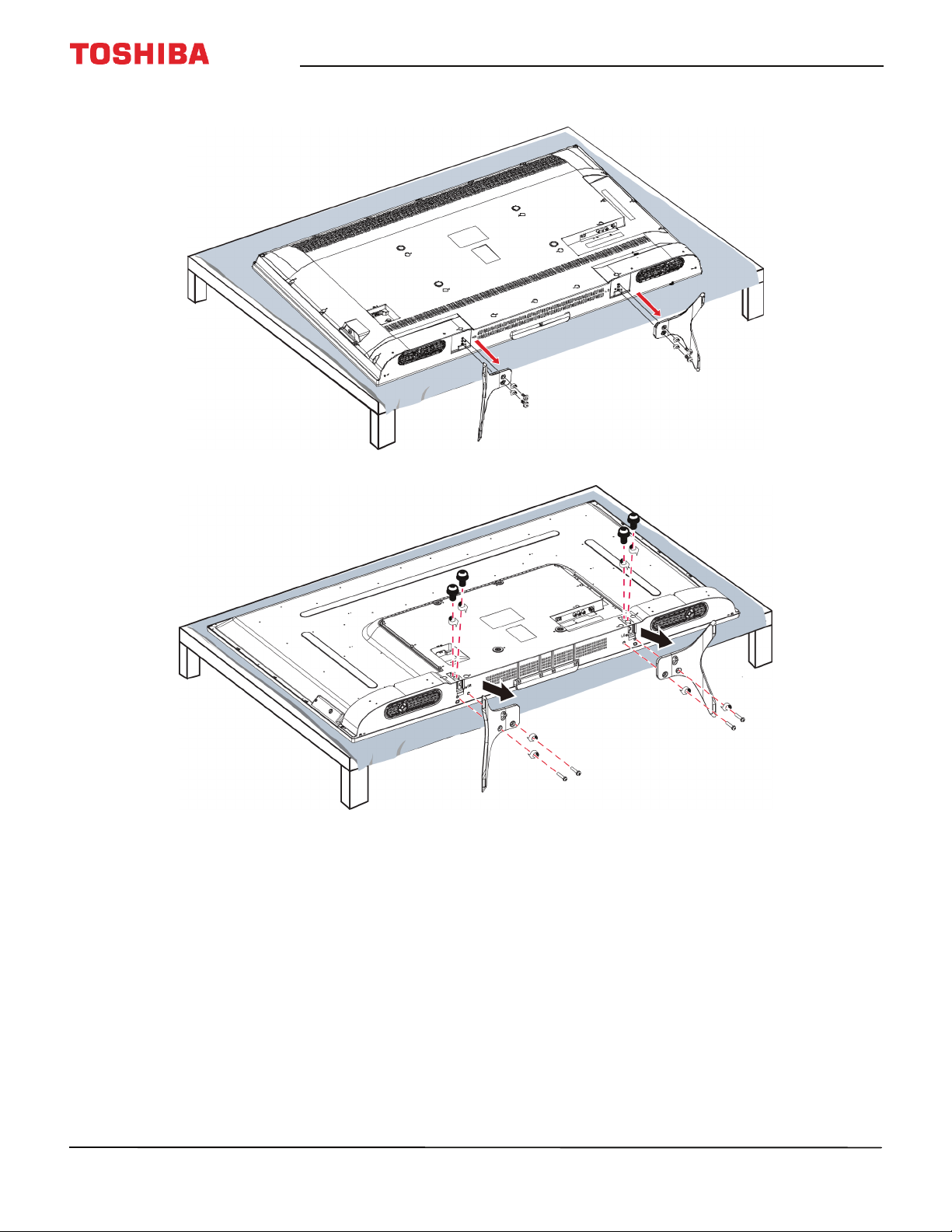
Installing a wall-mount bracket
1 Carefully place your TV face-down on a cushioned, clean surface to protect the screen from damages and scratches.
Warning
• Your TV has four VESA mounting holes on the back. If you attach a
wall-mount bracket to the back of your TV, the bracket must be
securely attached, using all four holes. If you do not use all four
mounting holes, your TV may fall and cause property damage or
personal injury. See the documentation that came with your wall mount
for complete mounting instructions.
• This TV is intended to be supported by a UL Listed wall mount bracket
with suitable weight/load. (See Miscellaneous on page 94 or page 95.)
50" model
55" model
15
50" / 55" 2160p (4K), 60Hz, LED Chromecast built-in TV
www.tv.toshiba.com
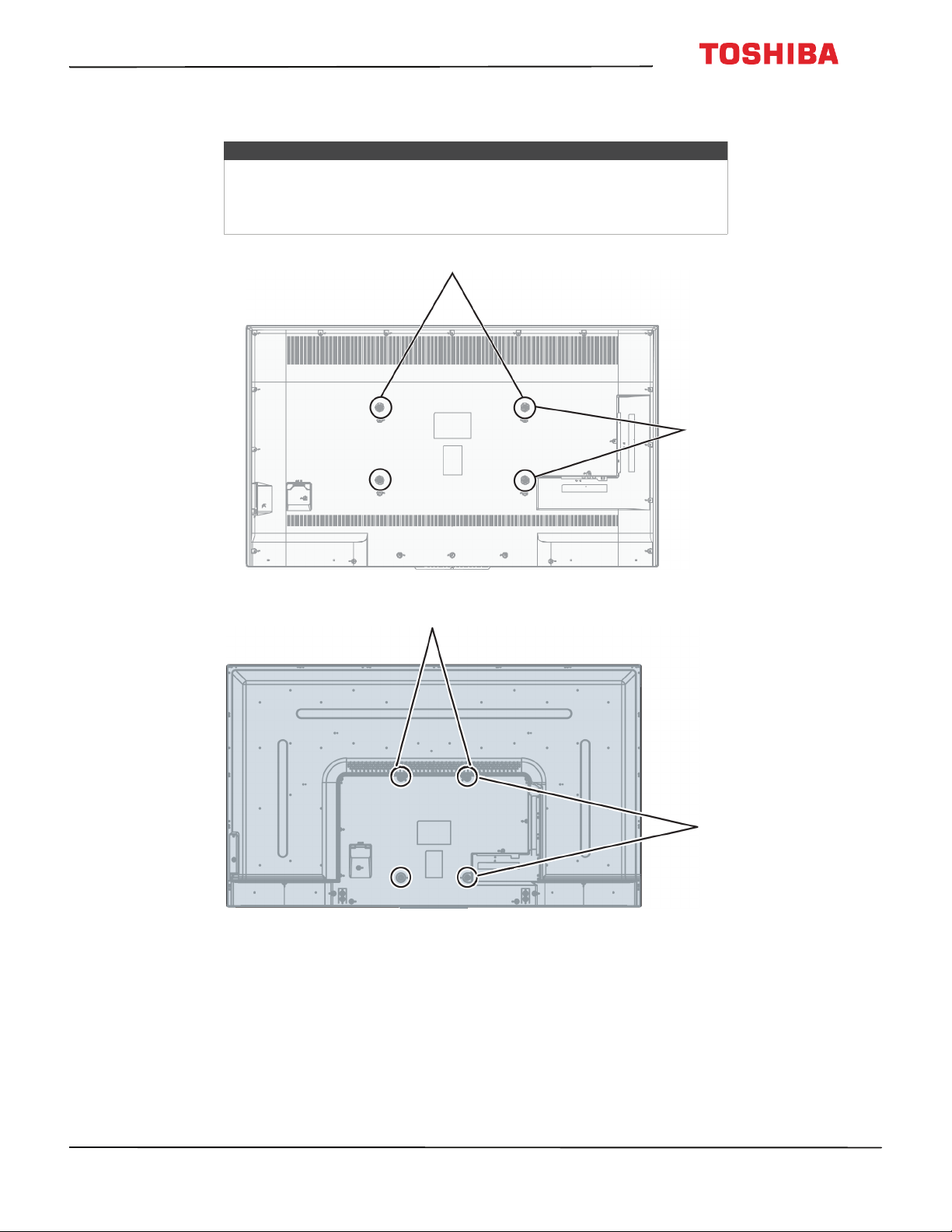
2 If the stands are installed, remove the screws that secure the stands to your TV, then remove the stands.
50" model
55" model
16
50
L
711
U
18
/
50
L
711
M
18
/
55
L
711
U
18
/
55
L
711
M
18
50" / 55" 2160p (4K), 60Hz, LED Chromecast built-in TV
www.tv.toshiba.com
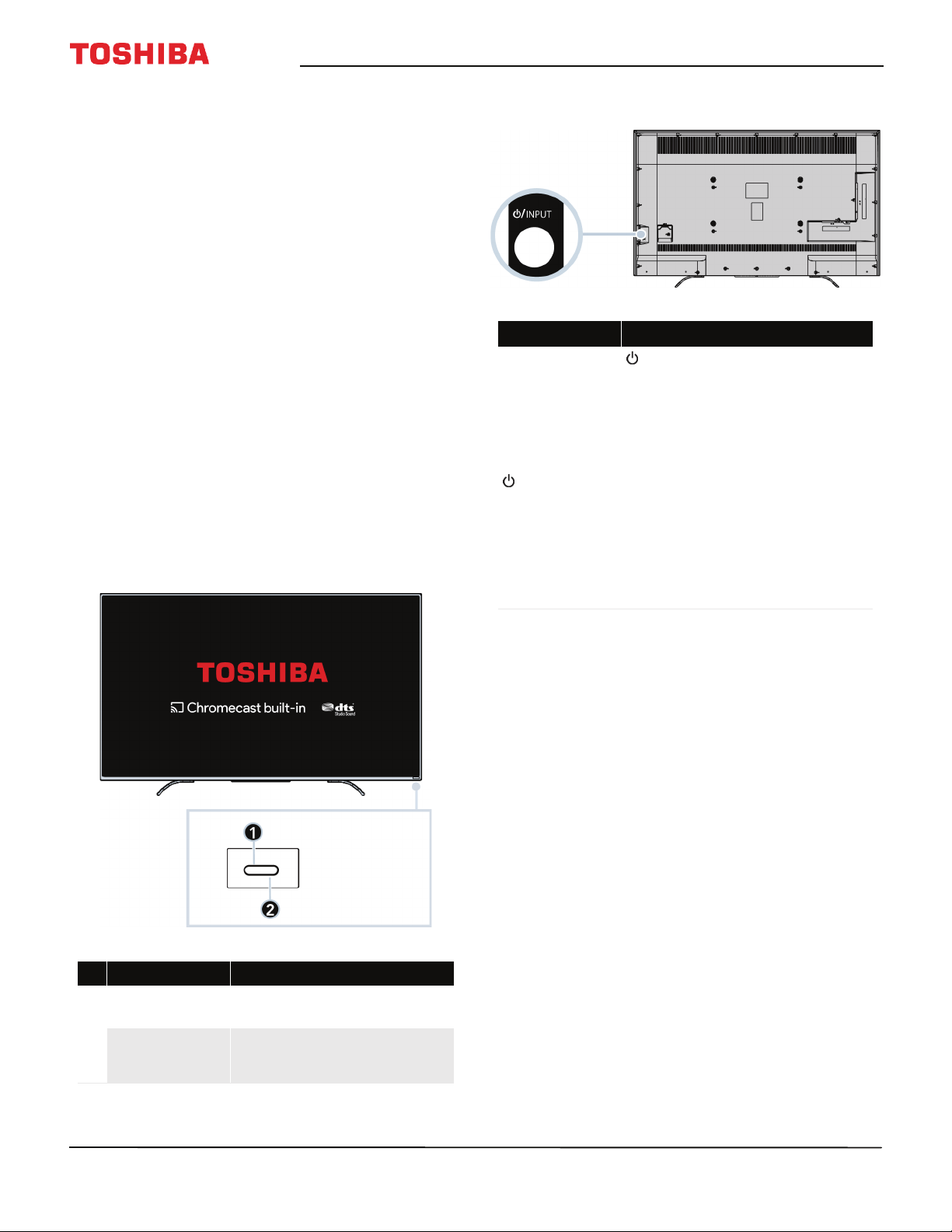
3 See the instructions that came with the wall-mount bracket for information about which screws to use and how to
correctly hang your TV.
Notes
• The length of the wall-mount screws vary depending on the wall-mount
bracket you purchased. See the instructions that came with the
wall-mount bracket for screw lengths.
• The mounting holes on the back of your TV take type M6 screws.
15.74 in. (400 mm)
7.87 in. (200 mm)
50" model
7.87 in. (200 mm)
11.81 in. (300 mm)
55" model
17
50" / 55" 2160p (4K), 60Hz, LED Chromecast built-in TV
www.tv.toshiba.com
TV components
This section contains information about:
•Package contents
•Front
• Power/INPUT button
•Side jacks
• Back jacks
• Remote control
• Virtual Remote control
Package contents
• 50"or 55" LED Chromecast™ built-in TV
• Remote control and batteries (2 AAA)
•TV stands (2)
• TV stand necks (55" model) (2)
•Stand screws
• 50" model—M5 (17 mm length) (4)
•55" model—
• M4 (12 mm length) (8)
• M5 (10 mm length) (4)
• Power cord
•Quick Setup Guide
• Important Information
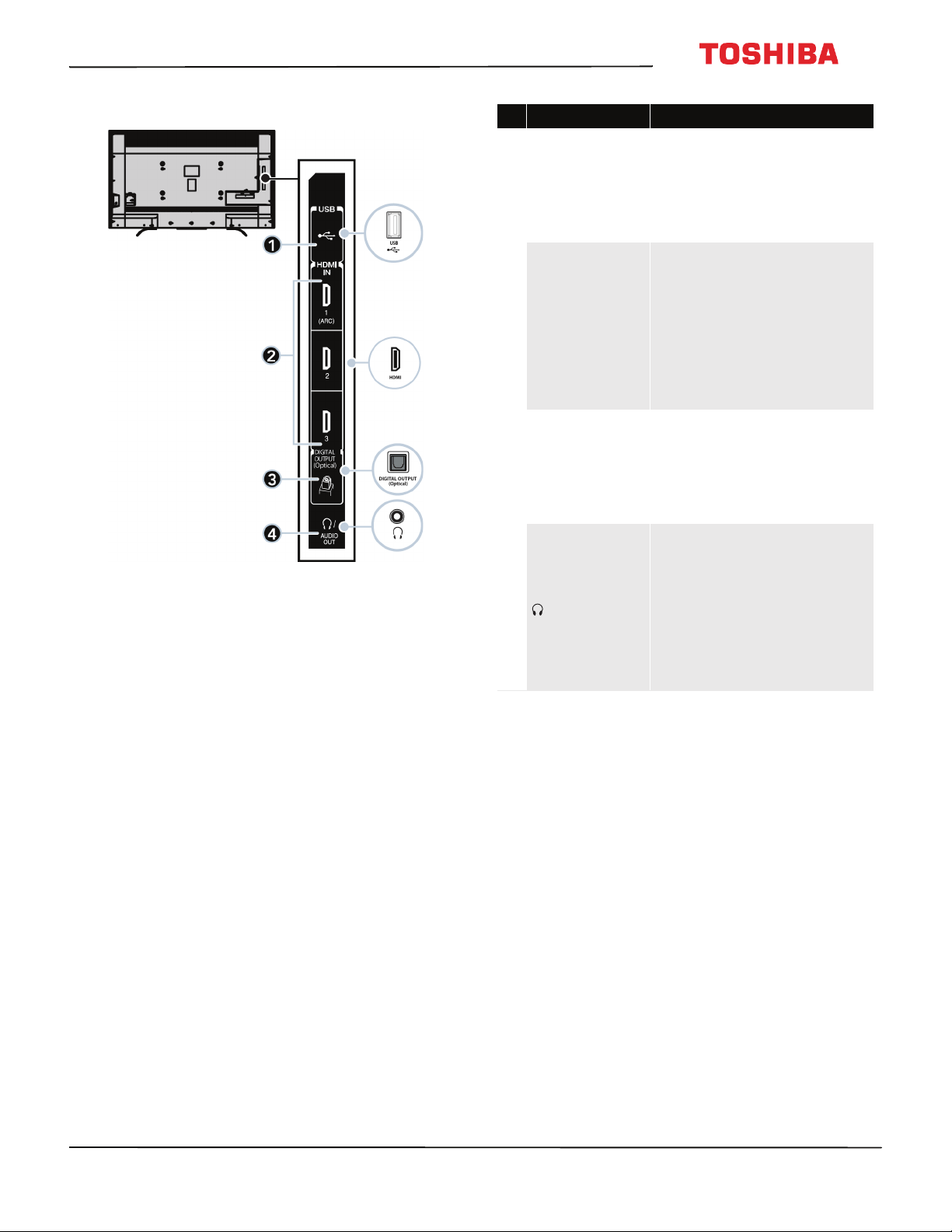
Front
Power/INPUT button
# Item Description
1
Remote control
sensor
Receives signals from the remote
control. Do not block.
2
Power indicator
Turns off when your TV is on.
Lights red when your TV is off
(standby mode).
Item Description
/INPUT
—Press to turn on your TV when
your TV is off (in standby mode). Press
and hold to turn off your TV when
your TV is on.
Warning: When your TV is off, power
still flows through it. To completely
disconnect power, unplug the power
cord.
INPUT—When your TV is on, quickly
press and release to open the Input
Selection list, press one or more times
to select a video input source, then
wait a few seconds. Your TV switches
to the source you selected. For more
information, see Selecting the video
input source on page 55.
18
50
L
711
U
18
/
50
L
711
M
18
/
55
L
711
U
18
/
55
L
711
M
18
50" / 55" 2160p (4K), 60Hz, LED Chromecast built-in TV
www.tv.toshiba.com
Side jacks
# Item Description
1 USB
Connect a USB flash drive to this
jack to view compatible JPEG
picture files. For more
information, see Connecting a
USB flash drive on page 36 and
Viewing photos on a USB flash
drive on page 62.
2
HDMI IN 1 (ARC)/
HDMI IN 2/
HDMI IN 3
Connect HDMI or DVI devices to
these jacks. For more information,
see HDMI (best) on page 24, 29,
31, or 34 or DVI (same as HDMI
but requires an audio connection)
on page 25 or 35.
OR
Connect an ARC-enabled home
theater receiver to the
HDMI IN 1 (ARC) jack.
3
DIGITAL OUTPUT
(Optical)
Connect a soundbar, digital
speaker system, or home theater
system to this jack to listen to TV
audio through external speakers.
For more information, see
Connecting external speakers or a
soundbar on page 38.
4
/ AUDIO OUT
Connect headphones to this jack.
See Connecting headphones on
page 37.
OR
Connect an analog soundbar,
speaker system, or home theater
system to this jack to listen to TV
audio through external speakers.
For more information, see Analog
audio on page 39.
19
50" / 55" 2160p (4K), 60Hz, LED Chromecast built-in TV
www.tv.toshiba.com
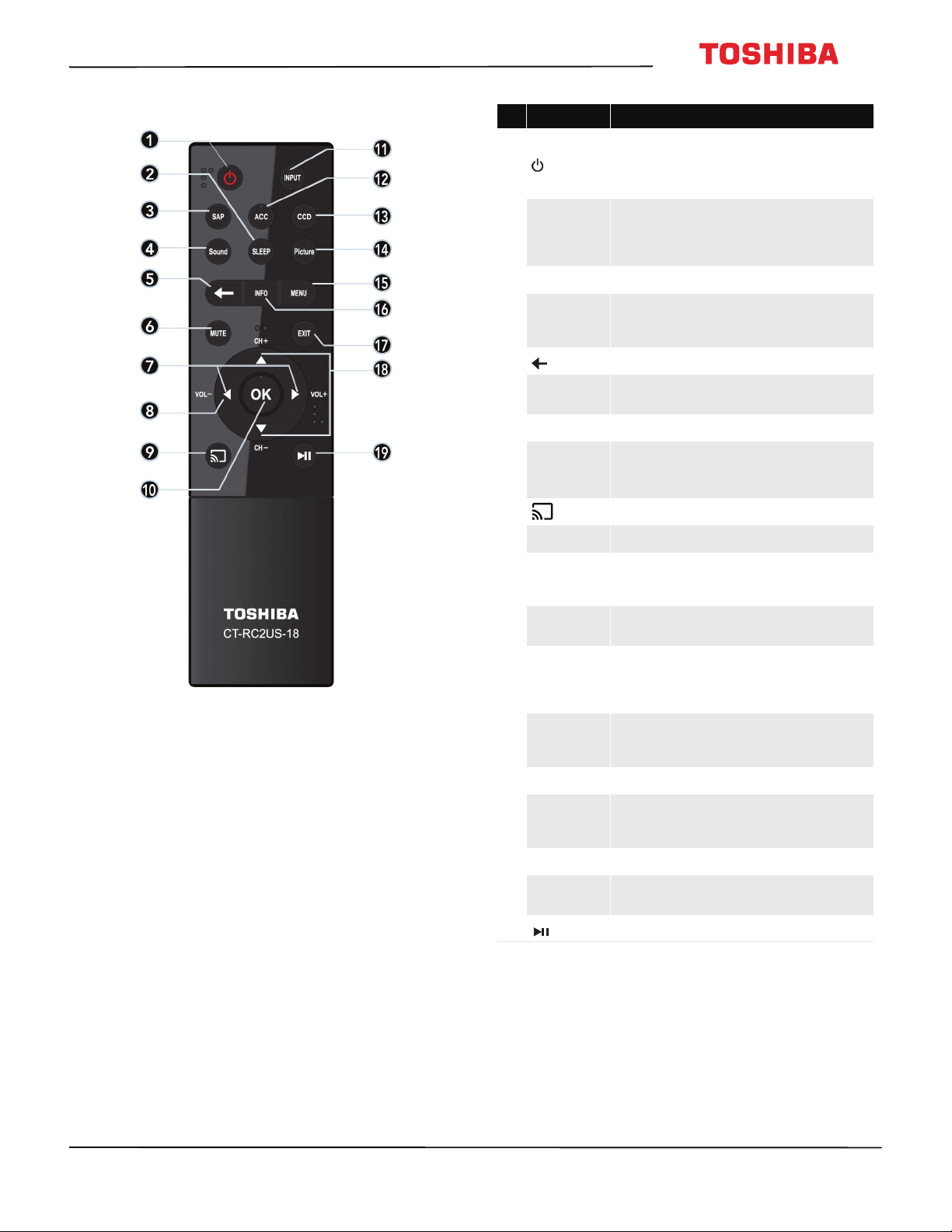
Back jacks
# Item Description
1 LAN
Connect a network router to
this jack to use a wired network
connection to access
Chromecast built-in. For more
information, see Connecting a
network router on page 33.
2
VIDEO and
AUDIO L and R
Connect the video and audio for
an AV device to these jacks. For
more information, see AV
(good) on page 26, 30, or 32.
3 ANT / CABLE IN
Connect an antenna or cable TV
to this jack. For more
information, see Coaxial (good)
on page 27 or Connecting an
antenna or cable TV (no box) on
page 28.
20
50
L
711
U
18
/
50
L
711
M
18
/
55
L
711
U
18
/
55
L
711
M
18
50" / 55" 2160p (4K), 60Hz, LED Chromecast built-in TV
www.tv.toshiba.com
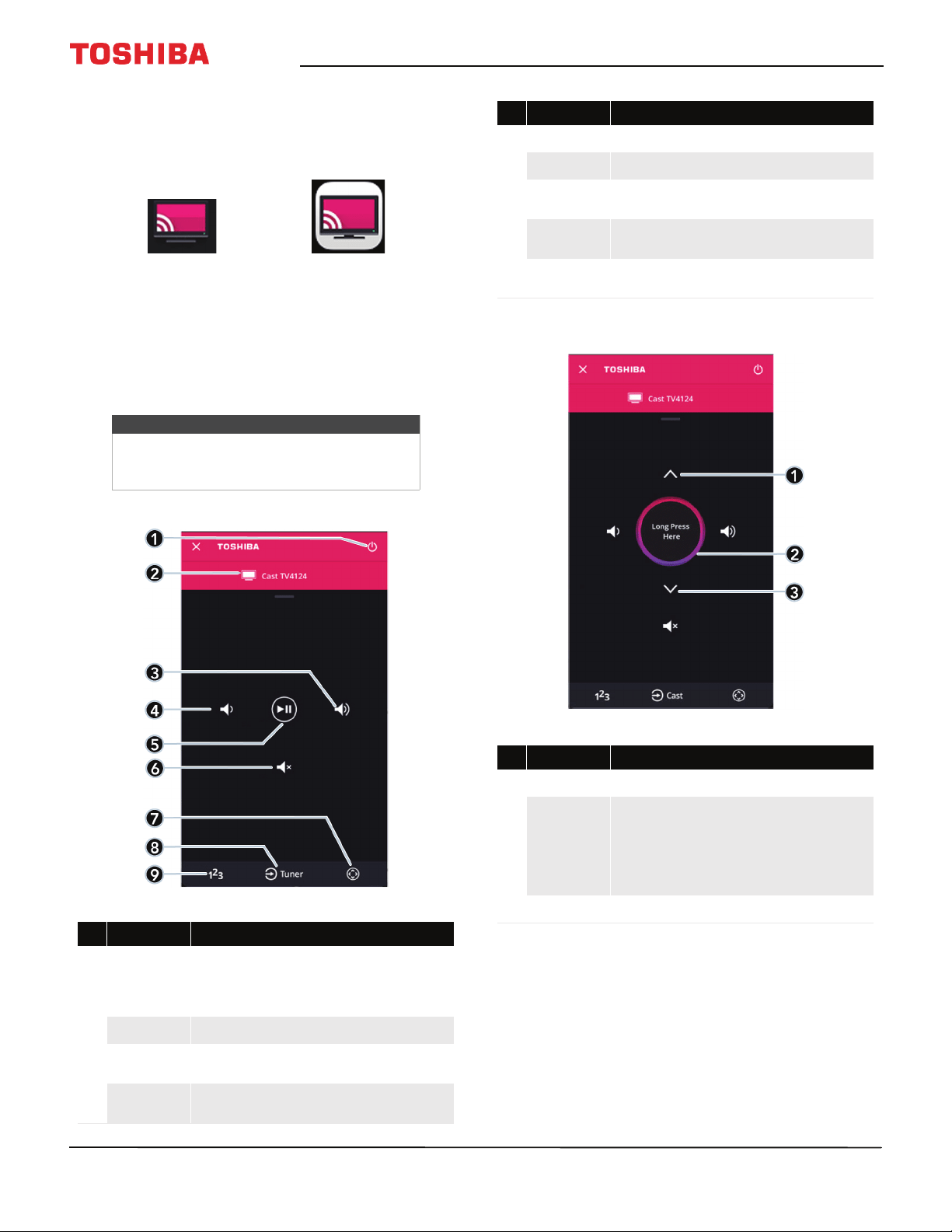
Remote control
# Button Press to...
1
(power)
Turn your TV on or off (standby mode). When your TV is off,
the power indicator lights red.
Warning: When your TV is off, power still flows through it.
To disconnect power, unplug the power cord.
2
SLEEP
Set the sleep timer. You can select Off, 5min, 10 min,
15 min, 30 min, 60 min, 90 min, 120 min, 150 min,
180 min, or 240 min. See Setting the sleep timer on
page 82.
3
SAP To listen to a secondary audio program, if available.
4
Sound
Select the sound mode. You can select Standard, Music,
Movie, Clear Voice, or Enhanced Bass. See the Sound
Mode option in Adjusting sound settings on page70.
5
(back) Return to the previous level or channel.
6
MUTE
Mute the sound or un-mute the sound. See Adjusting the
volume on page 57.
7
VOL+/VOL– Adjust the volume.
8
S
T
W
X
TV menu: Navigate in on-screen menus.
USB: Rotate a photo in a slideshow (
S
or
T
) or go to the
previous or next photo in a slideshow (
W
or
X
).
9
Switch to Chromecast built-in.
10
OK Confirm selections or changes in TV menus.
11
INPUT
Open the Input Selection list. Press INPUT one or more times
or press
S
or
T
to select the video input source, then press
OK. See Selecting the video input source on page 55.
12
ACC
Open the Accessibility menu. See Adjusting accessibility
settings on page 64.
13
CCD
Turn closed captioning on or off. Select the language (like
English) to turn on closed captioning or Off to turn off
closed captioning. See Turning closed captioning on or off on
page 79.
14
Picture
Select the picture mode. You can select Dynamic,
Standard, Natural, Movie, Game, or PC. See the Picture
Mode option in Adjusting the TV picture on page 65.
15
MENU Open the on-screen menu.
16
INFO
Display TV status information, such as the channel number,
channel name (if available), or signal source. See Viewing
channel information on page 58.
17
EXIT Close the on-screen TV menu.
18
CH+/CH–
Change to the next higher or lower channel in the channel
list.
19
(play/pause) Start or stop playback.
21
50" / 55" 2160p (4K), 60Hz, LED Chromecast built-in TV
www.tv.toshiba.com
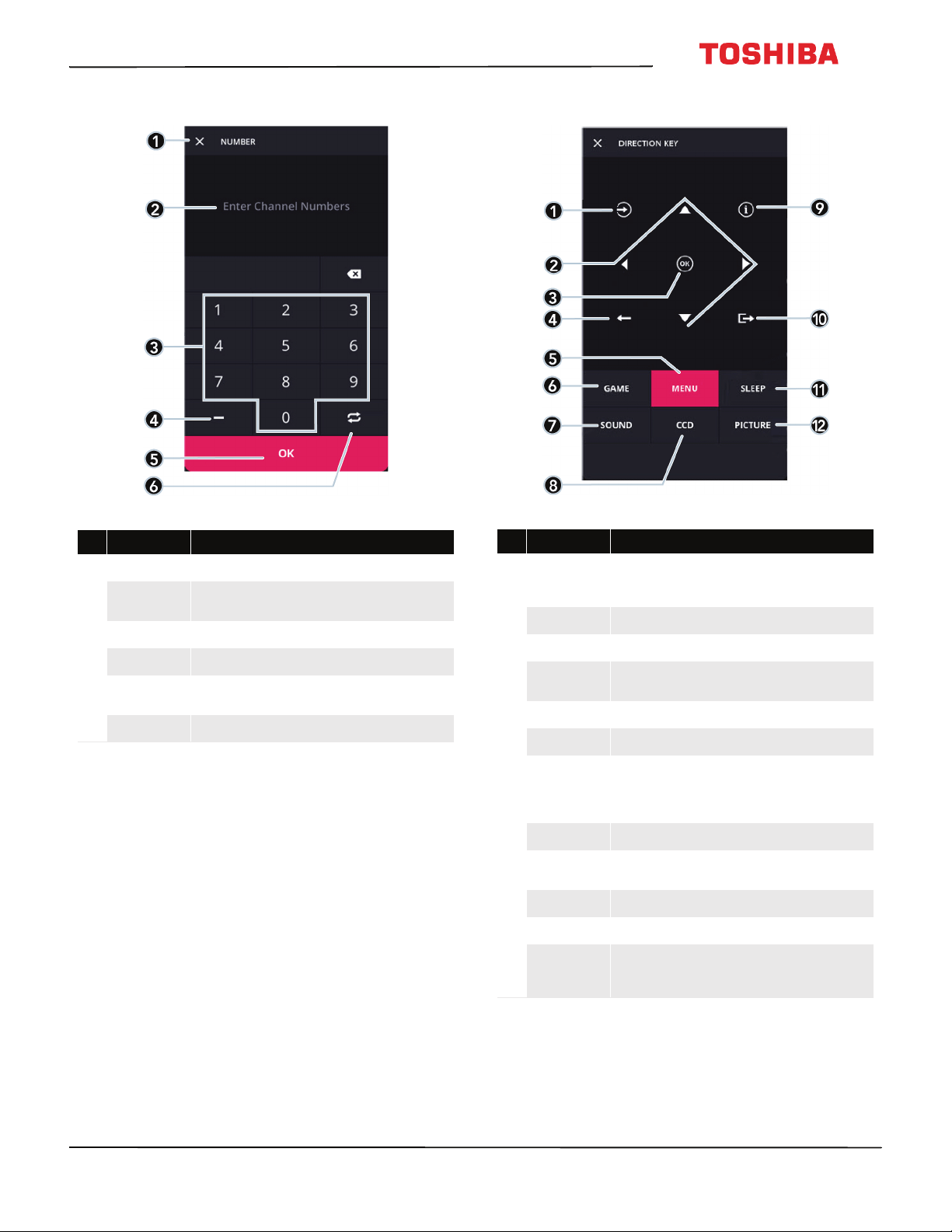
Virtual Remote control
To download the Toshiba Cast TV Remote app on your
mobile phone or tablet, search for the app in your
device's app store and install it.
The buttons on the Toshiba TV remote function the
same as the corresponding buttons on the remote
control that came with your TV. For more information,
see Remote control on page 20.
Main page
Channel and Long Press page
Note
When performing tasks, you can use either
your physical remote control or the virtual
remote control.
# Item Description
1
Power
Tap to turn your TV on or off (standby mode). When your TV
is off, the power indicator lights red.
Warning: When your TV is off, power still flows through it.
To disconnect power, unplug the power cord.
2
TV name Displays your TV’s name and icon.
3
Volume up
Tap to increase the volume one step. Touch and hold to
continuously increase the volume.
4
Volume down
Tap to decrease the volume one step. Touch and hold to
continuously decrease the volume.
Toshiba TV
Remote icon on
Android device.
Toshiba TV
Remote icon on
iOS device.
5
Play/Pause Tap to pause casting video. Tap again to resume playback.
6
Mute Tap to mute the sound or un-mute the sound.
7
Direction key
Tap to go to the Direction key page. See Direction key page on
page 22.
8
Input source
Tap to switch to the video input source to the TV tuner and
go to the Channel and Long Press page.
9
Number
Tap to go to the Number page and enter channel numbers.
See Number page on page 22.
# Item Description
1
Channel up Tap to go to the next channel in the channel list.
2
Long Press
Touch and hold this button, then tilt your mobile device to
change a value continuously.
For example, to decrease the volume, press and hold this
button then tilt your mobile device to the left (volume down
button). Or to change channels, press and hold this button,
then tilt your mobile device toward your TV.
3
Channel down Tap to go to the previous channel in the channel list.
# Item Description
22
50
L
711
U
18
/
50
L
711
M
18
/
55
L
711
U
18
/
55
L
711
M
18
50" / 55" 2160p (4K), 60Hz, LED Chromecast built-in TV
www.tv.toshiba.com
Number page Direction key page
# Item Description
1
Close Tap to close this page and return to the Main page.
2
Channel number
Displays the channel or sub-channel numbers (up to three
numbers) you enter with the number buttons.
3
Number pad Tap numbers to enter channel numbers.
4
Dash Tap to enter a sub-channel number.
5
OK
Tap to confirm the channel number you entered and go to
that channel.
6
Return Tap to return to the previous channel.
# Item Description
1
Input source
Tap to open the Input Selection list. Press this button one or
more times or press
S
or
T
to select the video input
source, then press OK.
2
Arrows Use these buttons to browse through on-screen menus.
3
OK Tap to confirm selections or changes in TV menus.
4
Back
Tap to go to the previous channel or go back to the previous
step.
5
Menu Tap to open on-screen menus.
6
Game Tap to turn Game mode on or off.
7
SOUND
Tap to select the sound mode. You can select Standard,
Music, Movie, Clear Voice, or Enhanced Bass. See the
Sound Mode option in Adjusting sound settings on
page 70.
8
CCD Tap to turn closed captioning on or off.
9
Info
Tap to display information on your TV about the currently
selected channel.
10
Exit Tap to exit the on-screen menus.
11
Sleep Tap to set the sleep timer.
12
Picture mode
Tap to select the picture mode. You can select Dynamic,
Standard, Natural, Movie, Game, or PC. See the Picture
Mode option in Adjusting the TV picture on page 65.
23
50" / 55" 2160p (4K), 60Hz, LED Chromecast built-in TV
www.tv.toshiba.com
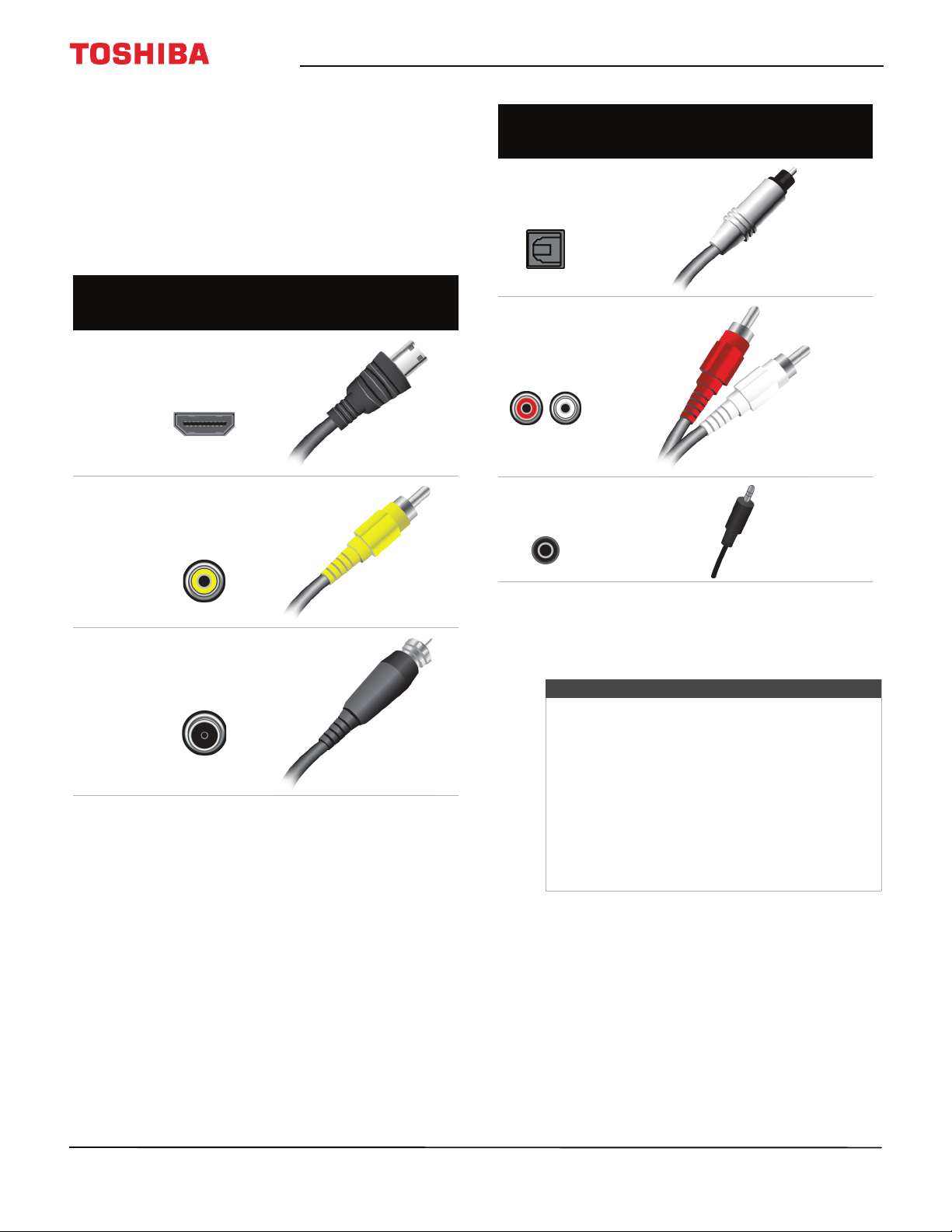
What connection should I
use?
Your TV has several connection types for connecting
devices to your TV.
For the best video quality, you should connect a
device to the best available connection.
Use the following tables to identify cables:
You can use an HDMI IN jack on your TV to connect a
DVI device to your TV. For more information, see DVI
(same as HDMI but requires an audio connection) on
page 25 or 35.
Video
quality
Connection
type and
jack
Cable connector
Best (use this
if your devices
have HDMI)
HDMI
video/audio
Good
AV (requires an
audio
connection)
Good
Coaxial
video/audio
Connection
type and
jack
Cable connectors
Optical digital
audio output
Analog audio
input
3.5mm analog
audio output
Cautions
• Check the jacks for position and type before
making any connections.
• Loose connections can cause poor audio or
video quality. Make sure that all connections
are tight and secure.
• The external audio/video equipment shown
may be different from your equipment. If you
have questions, refer to the documentation
that came with your equipment.
• Always unplug the power cord when
connecting external equipment.
24
50
L
711
U
18
/
50
L
711
M
18
/
55
L
711
U
18
/
55
L
711
M
18
50" / 55" 2160p (4K), 60Hz, LED Chromecast built-in TV
www.tv.toshiba.com
Connecting a cable or satellite box
Many cable or satellite TV boxes have more than one connection type. To get the best video, you should use the best
connection type available. For more information, see What connection should I use? on page 23.
You can connect a cable or satellite box using:
•HDMI (best)
• DVI (same as HDMI but requires an audio connection)
•AV (good)
•Coaxial (good)
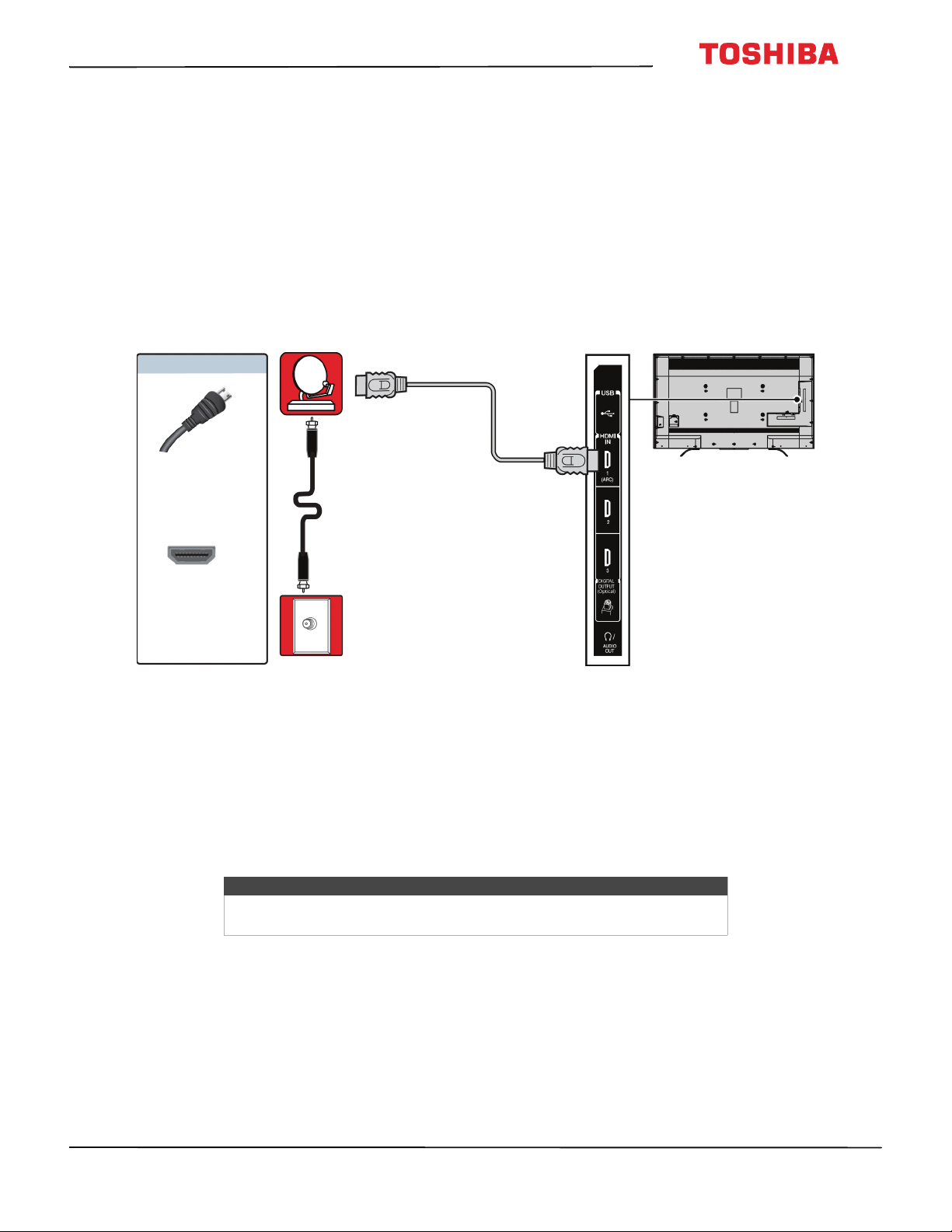
HDMI (best)
1 Make sure that your TV’s power cord is unplugged and all connected equipment is turned off.
2 Connect the incoming cable from the cable wall jack to the cable-in jack on the cable or satellite box.
3 Connect an HDMI cable (not provided) to one of the HDMI IN jacks on the side of your TV and to the HDMI OUT jack
on the cable or satellite box.
4 Plug your TV’s power cord into a power outlet, turn on your TV, then turn on the cable or satellite box.
5 Press INPUT to open the Input Selection list.
6 Press
S
or
T
to highlight HDMI1, HDMI2, or HDMI3, then press OK.
Note
An HDMI cable carries both audio and video. You do not need to use any
audio cables.
HDMI cable
Cable or
satellite box
Side of
TV
HDMI cable
connector
HDMI IN jack
On your TV
Cable wall
jack
25
50" / 55" 2160p (4K), 60Hz, LED Chromecast built-in TV
www.tv.toshiba.com
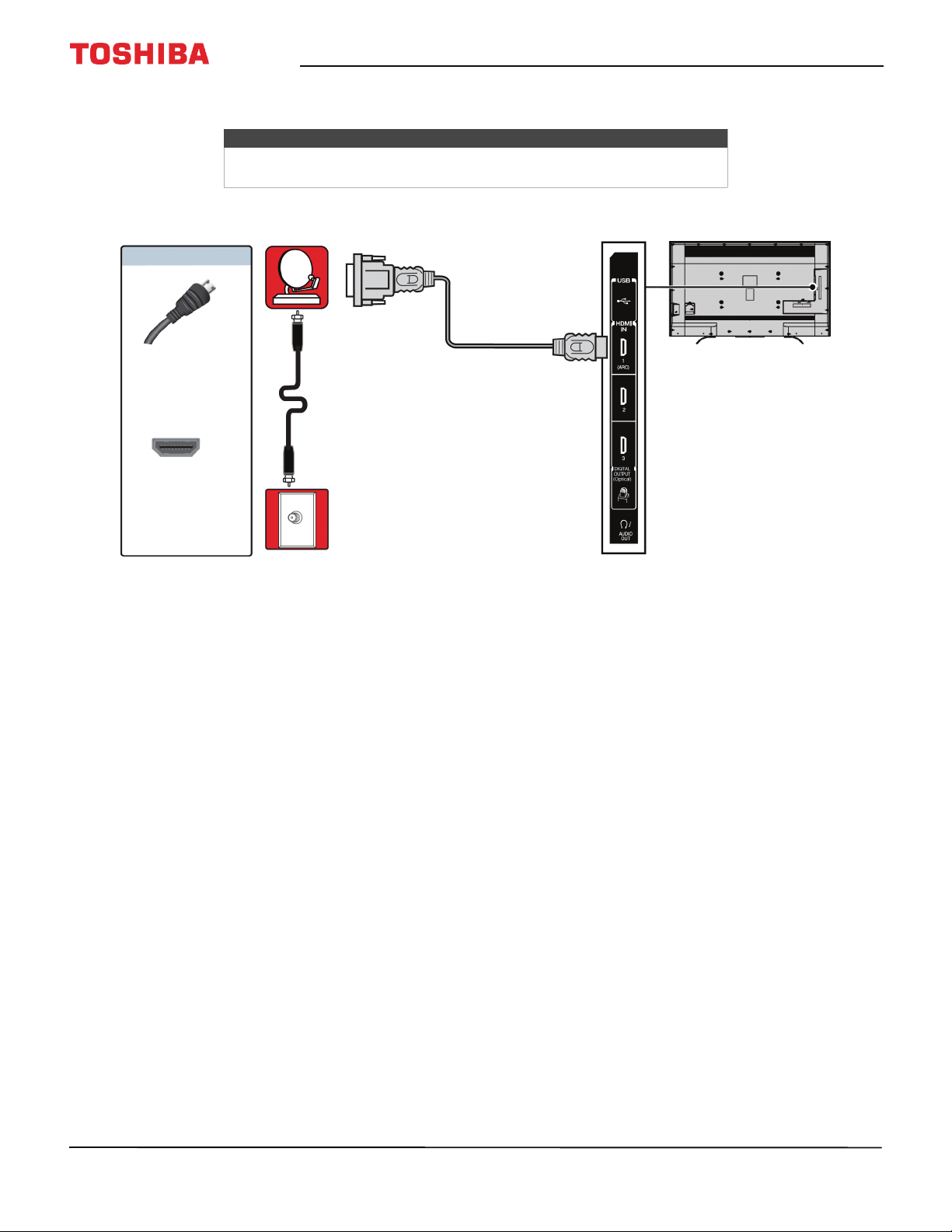
DVI (same as HDMI but requires an audio connection)
1 Make sure that your TV’s power cord is unplugged and all connected equipment is turned off.
2 Connect the incoming cable from the cable wall jack to the cable-in jack on the cable or satellite box.
3 Connect an HDMI-DVI adapter (not provided) to one end of an HDMI cable (not provided), then connect the adapter
to the DVI OUT jack on the cable or satellite box.
4 Connect the other end of the cable to one of the HDMI IN jacks on the side of your TV.
5 Plug your TV’s power cord into a power outlet, turn on your TV, then turn on the cable or satellite box.
6 Press INPUT to open the Input Selection list.
7 Press
S
or
T
to highlight HDMI1, HDMI2, or HDMI3, then press OK.
Note
Your TV supports DVI video only. To add sound for a DVI connection,
connect external speakers or a soundbar to the cable or satellite box.
Cable or
satellite box
HDMI cable with
HDMI-DVI adapter
Side of
TV
HDMI cable
connector
HDMI IN jack
On your TV
Cable
wall jack
26
50
L
711
U
18
/
50
L
711
M
18
/
55
L
711
U
18
/
55
L
711
M
18
50" / 55" 2160p (4K), 60Hz, LED Chromecast built-in TV
www.tv.toshiba.com
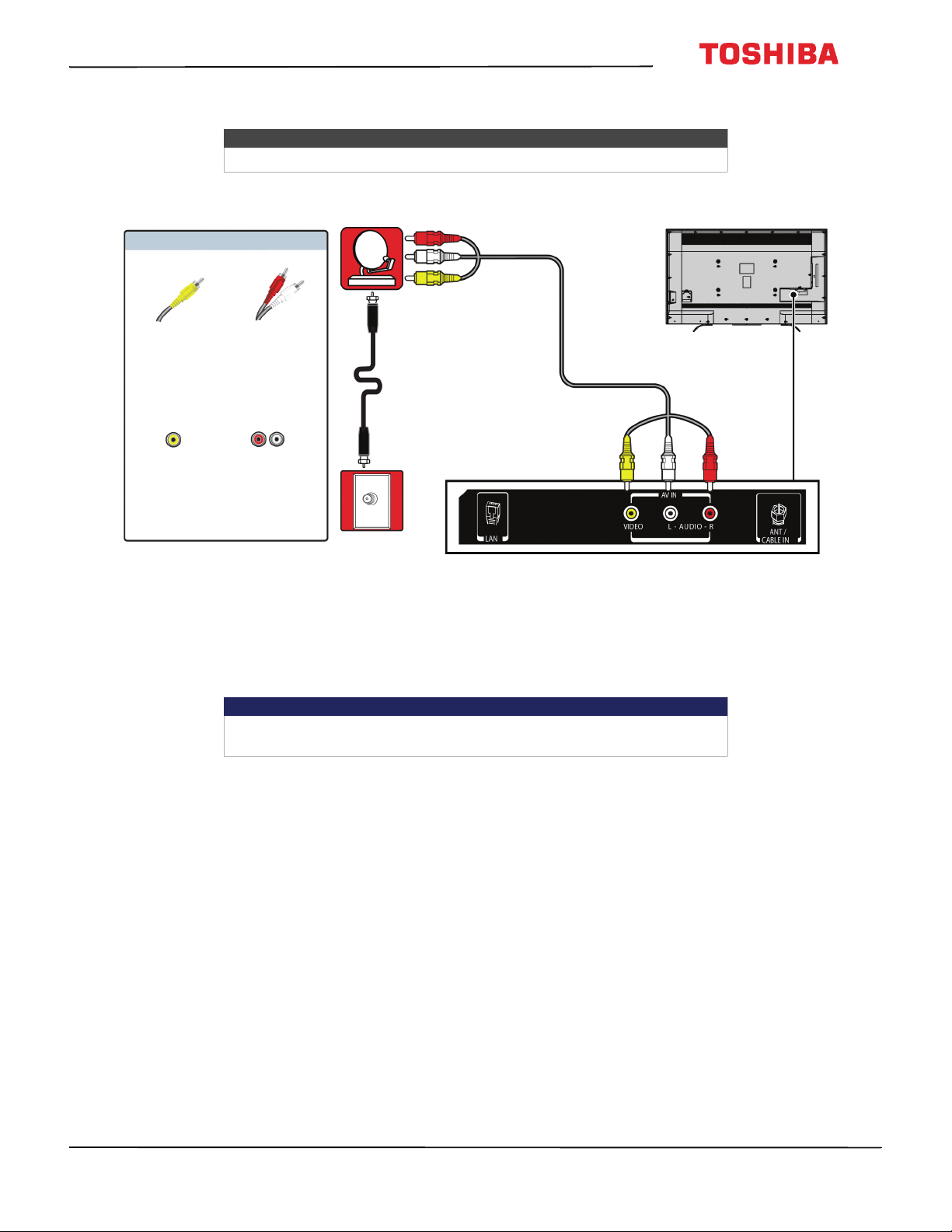
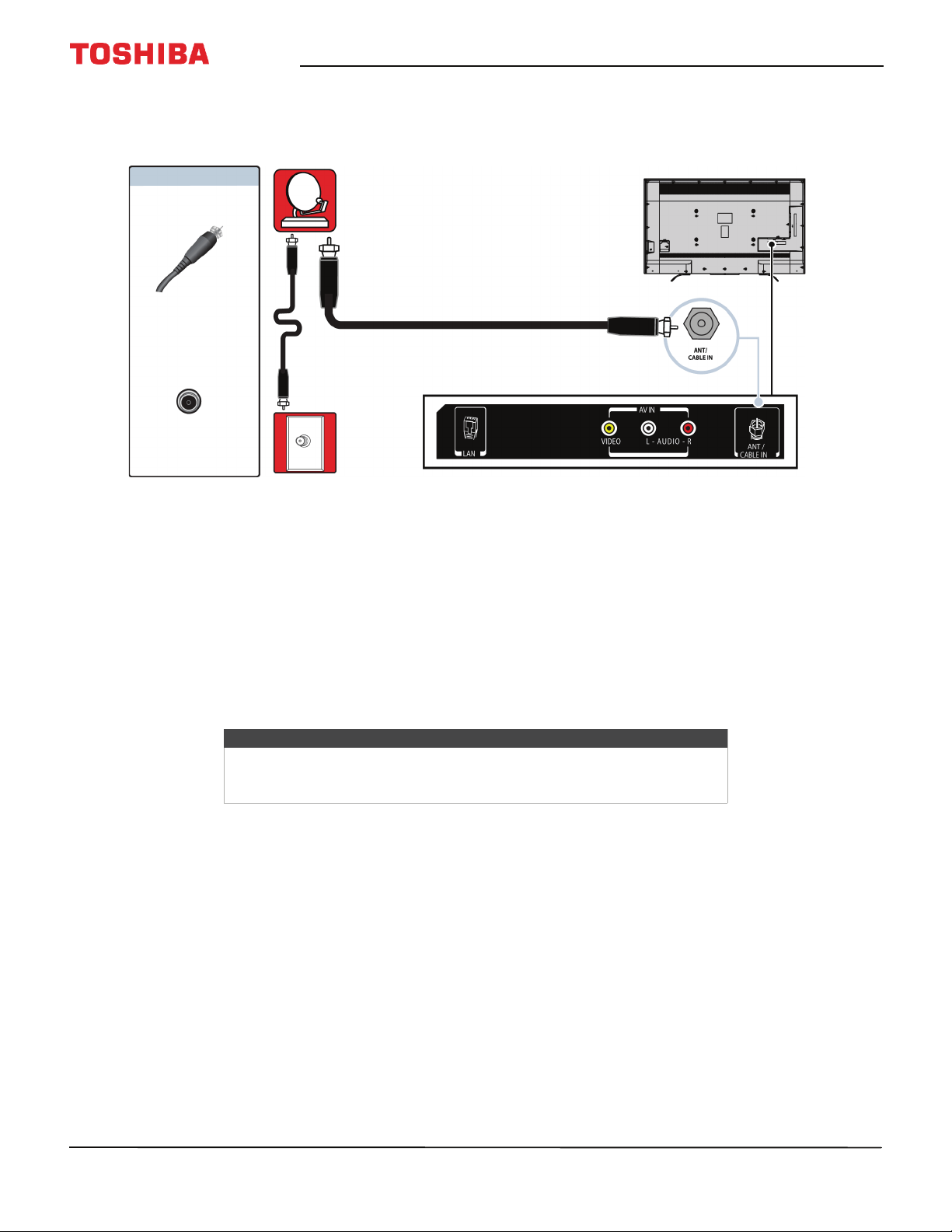
AV (good)
1 Make sure that your TV’s power cord is unplugged and all connected equipment is turned off.
2 Connect the incoming cable from the cable wall jack to the cable-in jack on the cable or satellite box.
3 Connect an AV cable (not provided) to the VIDEO jack and AUDIO L and R jacks on the back of your TV and to the AV
and audio out jacks on the cable or satellite box.
4 Plug your TV’s power cord into a power outlet, turn on your TV, then turn on the cable or satellite box.
5 Press INPUT to open the Input Selection list.
6 Press
S
or
T
to highlight AV, then press OK.
Notes
Cables are often color-coded to match color-coded jacks.
Important
When you connect the audio using the AUDIO L and R jacks, the audio
output is analog.
Cable or
satellite box
AV cable
Back of TV
AV cable
connector
AV jack
Audio cable
connectors
Analog
audio jacks
On your TV
Cable
wall jack
27
50" / 55" 2160p (4K), 60Hz, LED Chromecast built-in TV
www.tv.toshiba.com
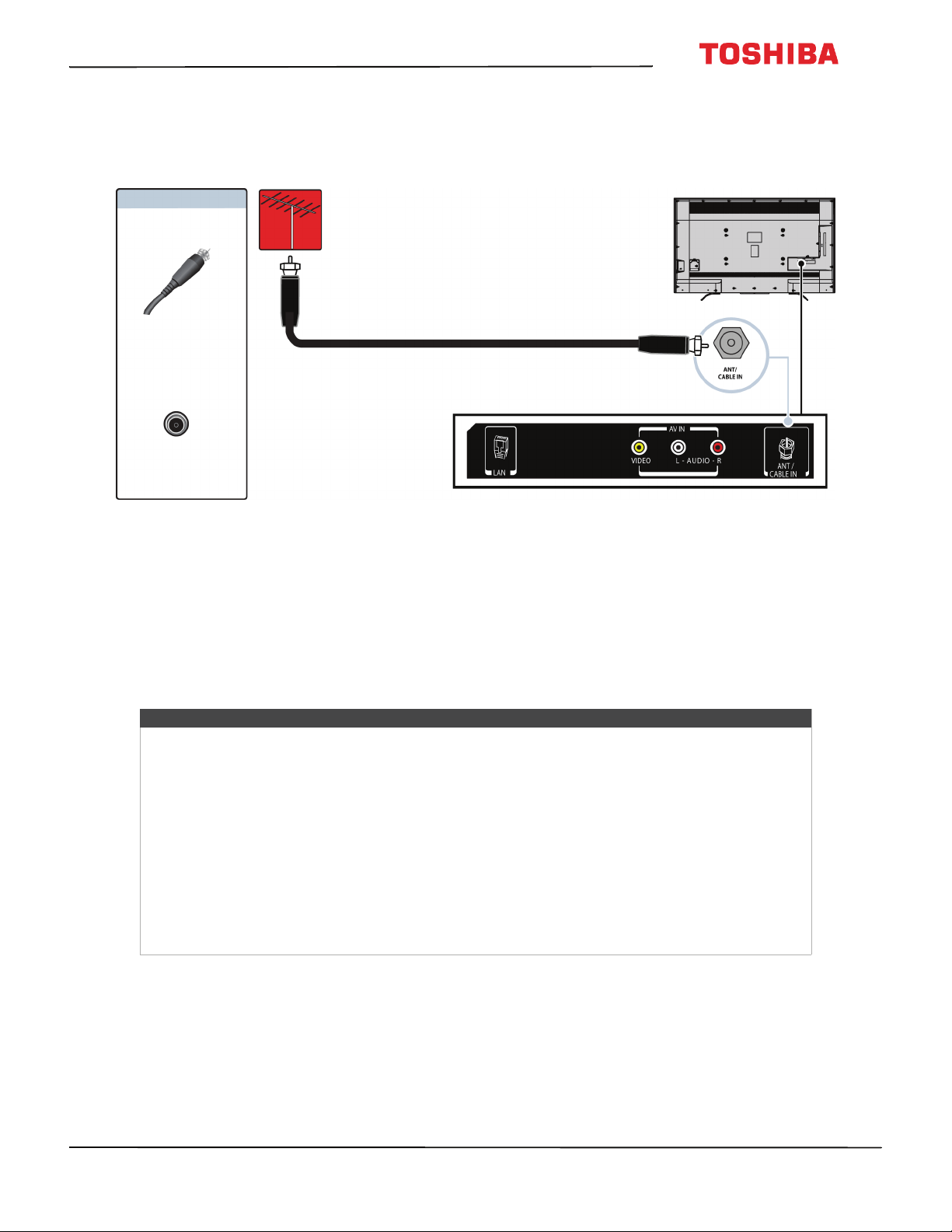
Coaxial (good)
1 Make sure that your TV’s power cord is unplugged and all connected equipment is turned off.
2 Connect the incoming cable from the cable wall jack to the cable-in jack on the cable or satellite box.
3 Connect a coaxial cable (not provided) to the ANT / CABLE IN jack on the back of your TV and to the coaxial out jack
on the cable or satellite box.
4 Plug your TV’s power cord into a power outlet, turn on your TV, then turn on the cable or satellite box.
5 Press INPUT to open the Input Selection list.
6 Press
S
or
T
to highlight ANT/CABLE, then press OK.
7 If you cannot tune to channels you know exist, scan for channels. See Automatically scanning for channels on
page 72.
Notes
• Use a coaxial cable to eliminate interference and noise from radio
waves.
• Do not bundle the coaxial cable with the power cord or other cables.
Cable or
satellite box
Coaxial cable
Back of TV
Coaxial cable
connector
ANT / CABLE IN
jack
On your TV
Cable
wall jack
28
50
L
711
U
18
/
50
L
711
M
18
/
55
L
711
U
18
/
55
L
711
M
18
50" / 55" 2160p (4K), 60Hz, LED Chromecast built-in TV
www.tv.toshiba.com
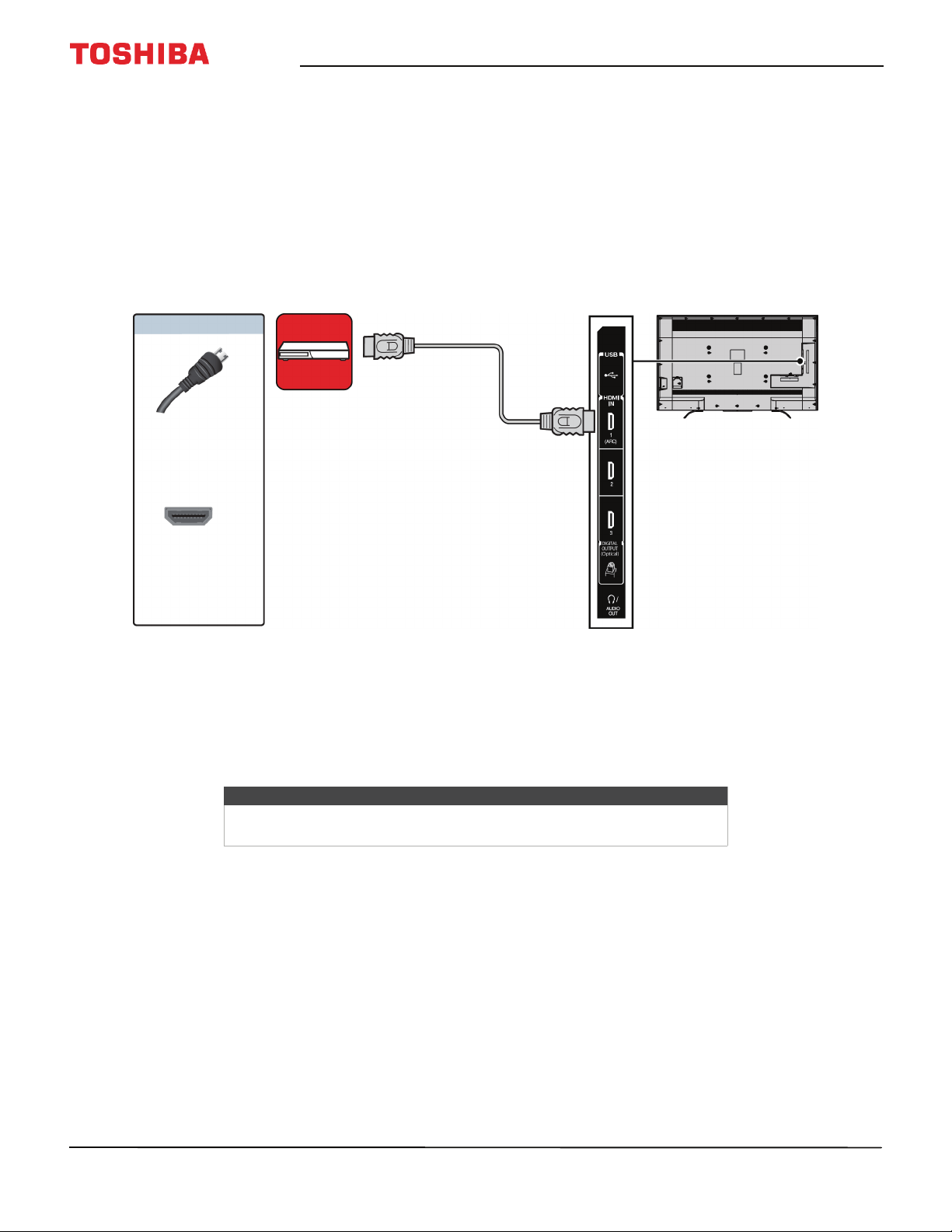
Connecting an antenna or cable TV (no box)
1 Make sure that your TV’s power cord is unplugged and all connected equipment is turned off.
2 Connect a coaxial cable (not provided) to the ANT / CABLE IN jack on the back of your TV and to the antenna or
cable TV wall jack.
3 Plug your TV’s power cord into a power outlet, then turn on your TV.
4 Press INPUT to open the Input Selection list.
5 Press
S
or
T
to highlight ANT/CABLE, then press OK.
6 If you cannot tune to channels you know exist, scan for channels. See Automatically scanning for channels on
page 72.
Coaxial cable
Antenna or cable
TV (no box)
Back of TV
Coaxial cable
connector
ANT / CABLE IN
jack
On your TV
Notes
• Use a coaxial cable to eliminate interference and noise from radio waves.
• Do not bundle the coaxial cable with the power cord or other cables.
• If the antenna is not installed correctly, contact qualified service personnel to correct the problem.
• If the signal level for a channel is weak, the picture may be distorted. Adjust the antenna or use a
highly directional outdoor or set-top antenna with a built-in amplifier.
• If the picture quality is good on some channels and poor on others, the problem may be caused by
a poor or weak signal from the broadcaster or cable TV provider.
• If you connect to cable TV without a set-top box and experience poor picture quality, you may
need to install a set-top box to improve signal reception and picture quality. Contact your cable TV
provider about upgrading to a set-top box.
• Many high-definition (HD) channels upscale standard-definition (SD) content. The picture
displayed on your TV is still displayed as SD, thus the picture quality will not be as clear or crisp as it
would be if the content was originally recorded in HD.
29
50" / 55" 2160p (4K), 60Hz, LED Chromecast built-in TV
www.tv.toshiba.com
Connecting a DVD or Blu-ray player
Many DVD or Blu-ray players have more than one connection type. To get the best video, you should use the best
connection type available. For more information, see What connection should I use? on page 23.
You can connect a DVD or Blu-ray player using:
•HDMI (best)
•AV (good)
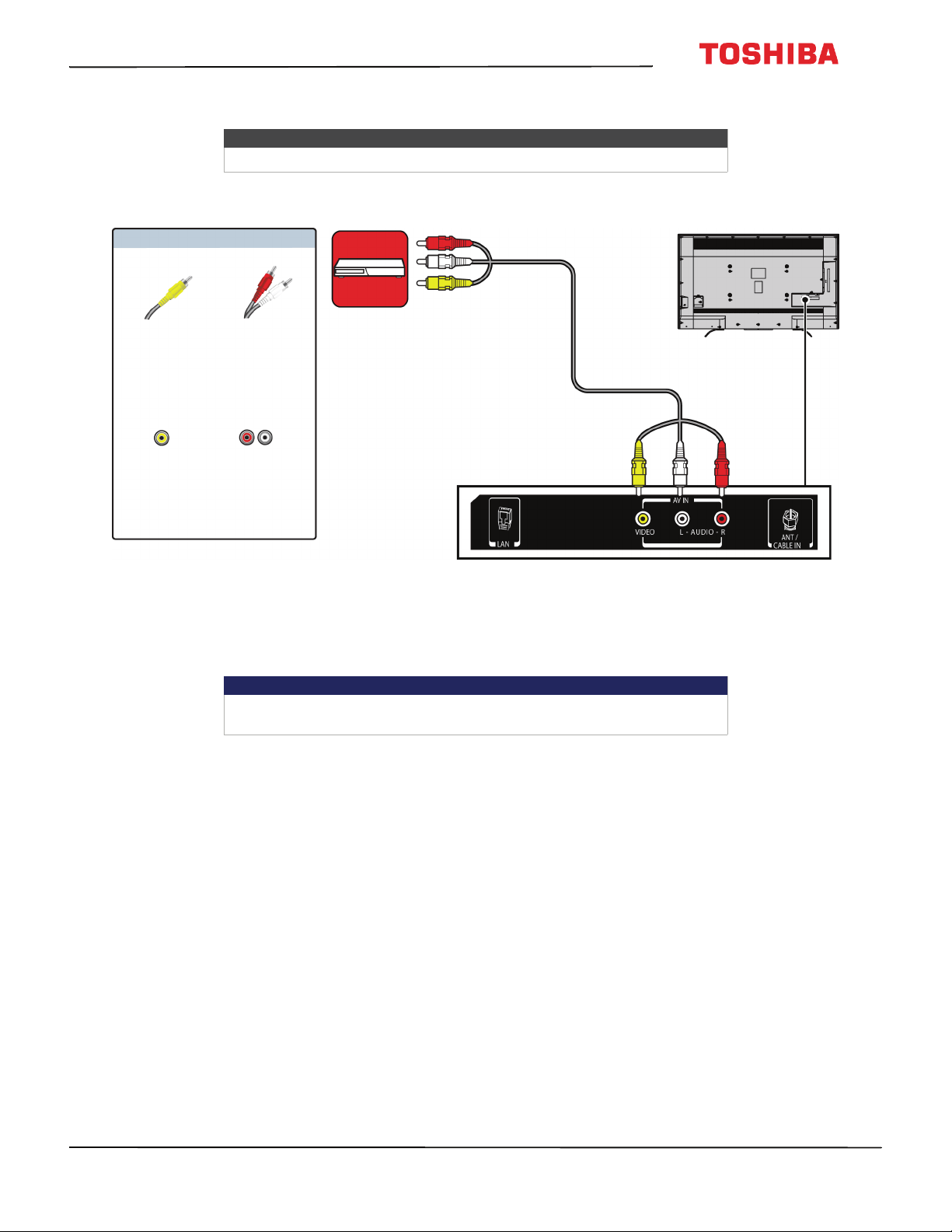
HDMI (best)
1 Make sure that your TV’s power cord is unplugged and the DVD or Blu-ray player is turned off.
2 Connect an HDMI cable (not provided) to one of the HDMI IN jacks on the side of your TV and to the HDMI OUT jack
on the DVD or Blu-ray player.
3 Plug your TV’s power cord into a power outlet, then turn on your TV and DVD or Blu-ray player.
4 Press INPUT to open the Input Selection list.
5 Press
S
or
T
to highlight HDMI1, HDMI2, or HDMI3, then press OK.
Note
An HDMI cable carries both audio and video. You do not need to use any
audio cables.
Side of
TV
HDMI cable
DVD or Blu-ray
player
HDMI cable
connector
HDMI IN
jack
On your TV
30
50
L
711
U
18
/
50
L
711
M
18
/
55
L
711
U
18
/
55
L
711
M
18
50" / 55" 2160p (4K), 60Hz, LED Chromecast built-in TV
www.tv.toshiba.com
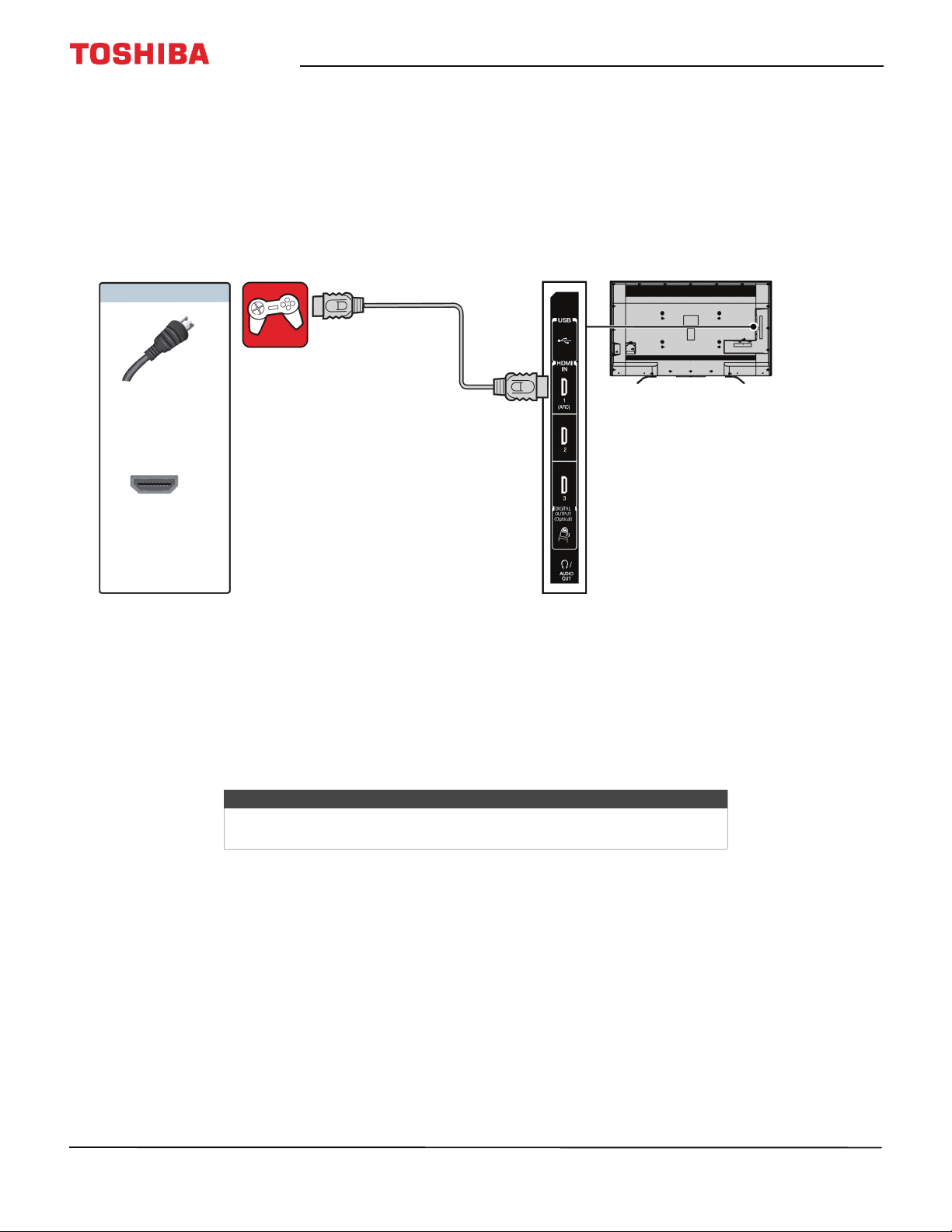
AV (good)
1 Make sure that your TV’s power cord is unplugged and the DVD or Blu-ray player is turned off.
2 Connect an AV cable (not provided) to the VIDEO jack and AUDIO L and R jacks on the back of your TV and to the
AV OUT jacks on the DVD or Blu-ray player.
3 Plug your TV’s power cord into a power outlet, then turn on your TV and DVD or Blu-ray player.
4 Press INPUT to open the Input Selection list.
5 Press
S
or
T
to highlight AV, then press OK.
Note
Cables are often color-coded to match color-coded jacks.
Important
When you connect the audio using the AUDIO L and R jacks, the audio
output is analog.
AV cable
Back of TV
AV cable
connector
AV jack
Audio cable
connectors
Analog
audio jacks
DVD or Blu-ray
player
On your TV
31
50" / 55" 2160p (4K), 60Hz, LED Chromecast built-in TV
www.tv.toshiba.com
Connecting a game console
You can connect a game console using:
•HDMI (best)
•AV (good)
HDMI (best)
1 Make sure that your TV’s power cord is unplugged and the game console is turned off.
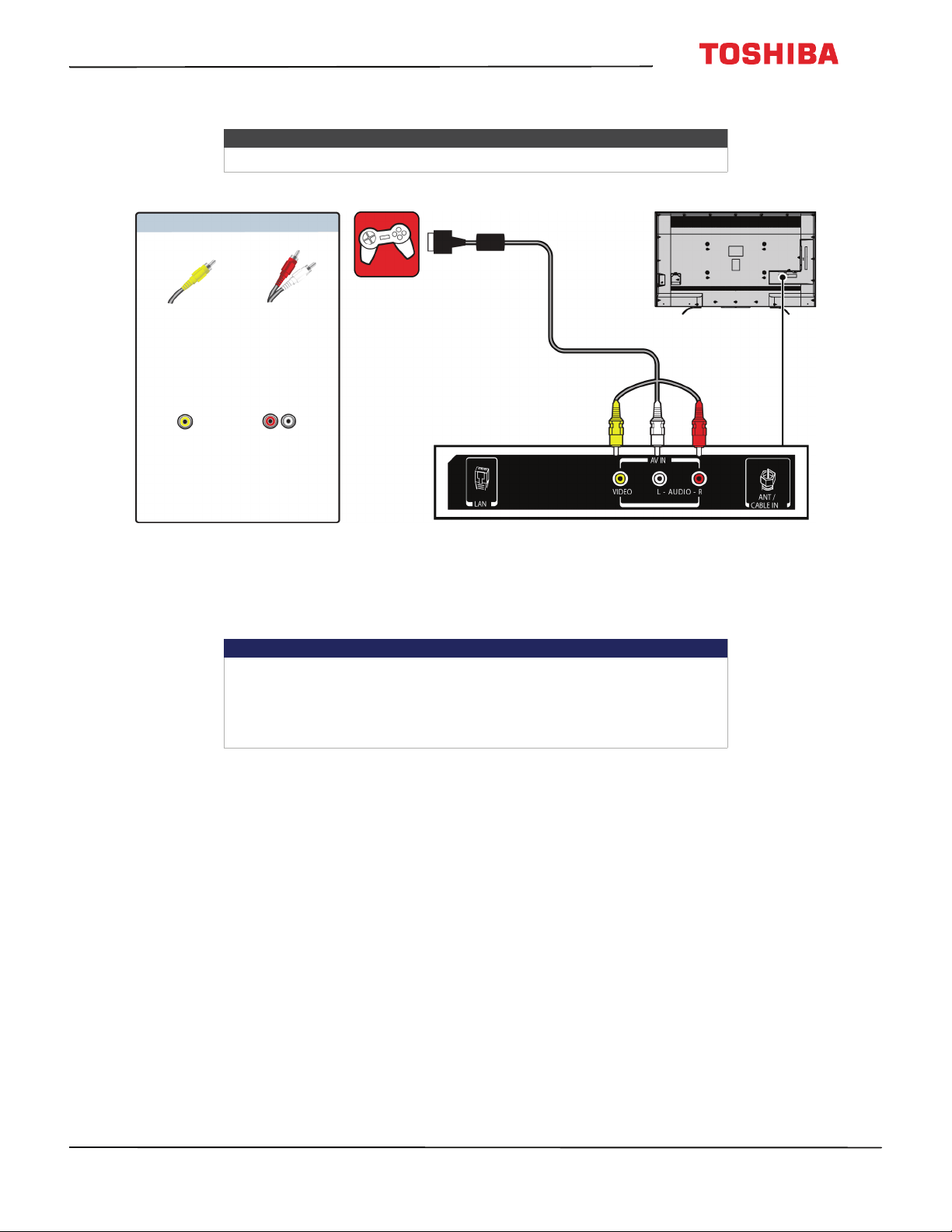
2 Connect an HDMI cable (not provided) to one of the HDMI IN jacks on the side of your TV and to the HDMI OUT jack
on the game console.
3 Plug your TV’s power cord into a power outlet, then turn on your TV.
4 Turn on the game console, then set it to the correct output mode. For more information, see the documentation that
came with the console.
5 Press INPUT to open the Input Selection list.
6 Press
S
or
T
to highlight HDMI1, HDMI2, or HDMI3, then press OK.
Note
An HDMI cable carries both audio and video. You do not need to use any
audio cables.
HDMI cable
connector
HDMI IN
jack
Side of
TV
HDMI cable
Game console
On your TV
32
50
L
711
U
18
/
50
L
711
M
18
/
55
L
711
U
18
/
55
L
711
M
18
50" / 55" 2160p (4K), 60Hz, LED Chromecast built-in TV
www.tv.toshiba.com
AV (good)
1 Make sure that your TV’s power cord is unplugged and the game console is turned off.
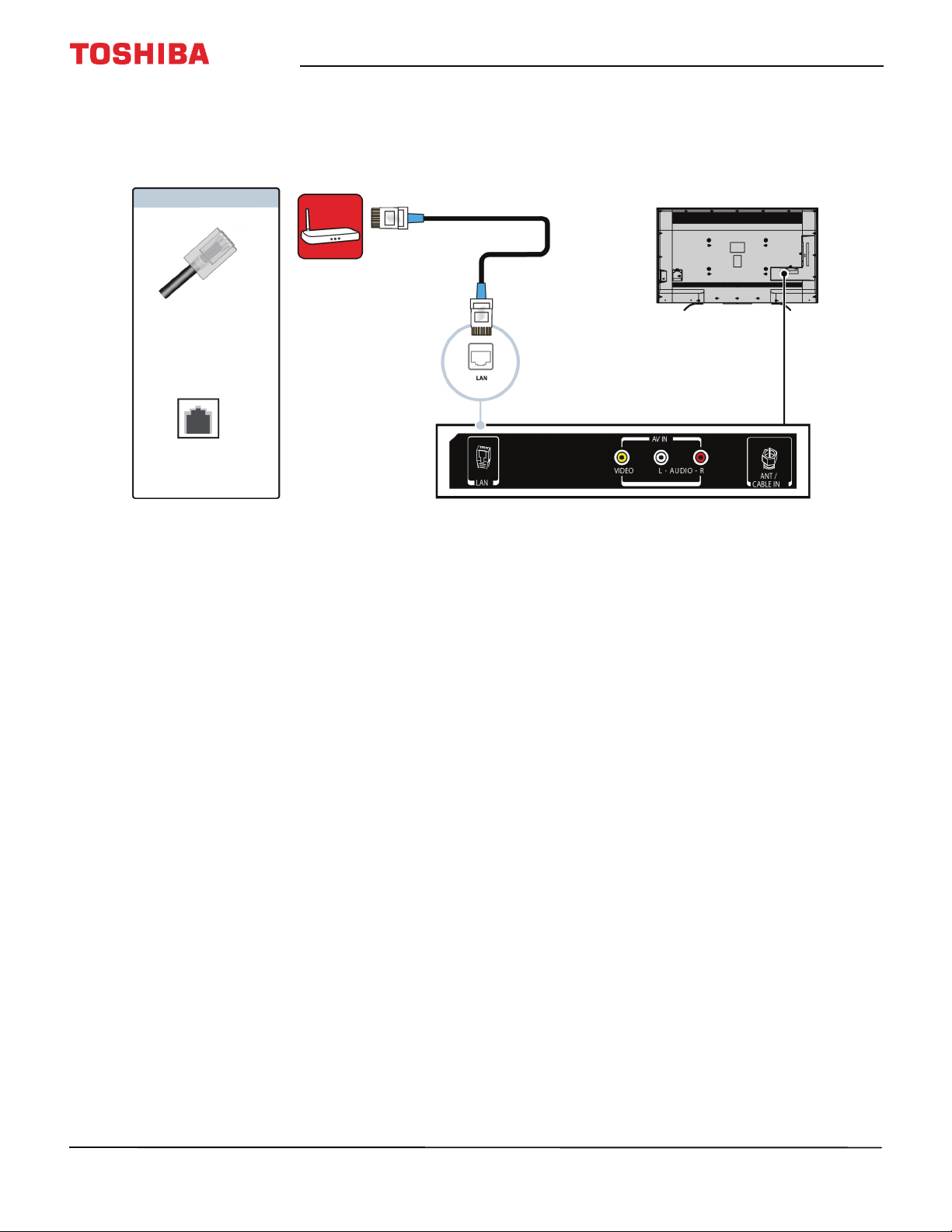
2 Connect the video and audio connectors on the game console’s AV cable (not provided) to the VIDEO jack and
AUDIO L and R jacks on the back of your TV and to the composite jack(s) on the game console.
3 Plug your TV’s power cord into a power outlet, then turn on your TV.
4 Turn on the game console, then set it to the correct output mode. For more information, see the documentation that
came with the console.
5 Press INPUT to open the Input Selection list.
6 Press
S
or
T
to highlight AV, then press OK.
Note
Cables are often color-coded to match color-coded jacks.
Important
• Some older game consoles come with a special AV cable. See the
documentation that came with your game console or check the
manufacturer’s website.
• When you connect the audio using the AUDIO L and R jacks, the audio
output is analog.
Game console
Console-specific
AV cable
Back of TV
AV cable
connector
Audio cable
connectors
AV jack Analog
audio jacks
On your TV
33
50" / 55" 2160p (4K), 60Hz, LED Chromecast built-in TV
www.tv.toshiba.com
Connecting a network router
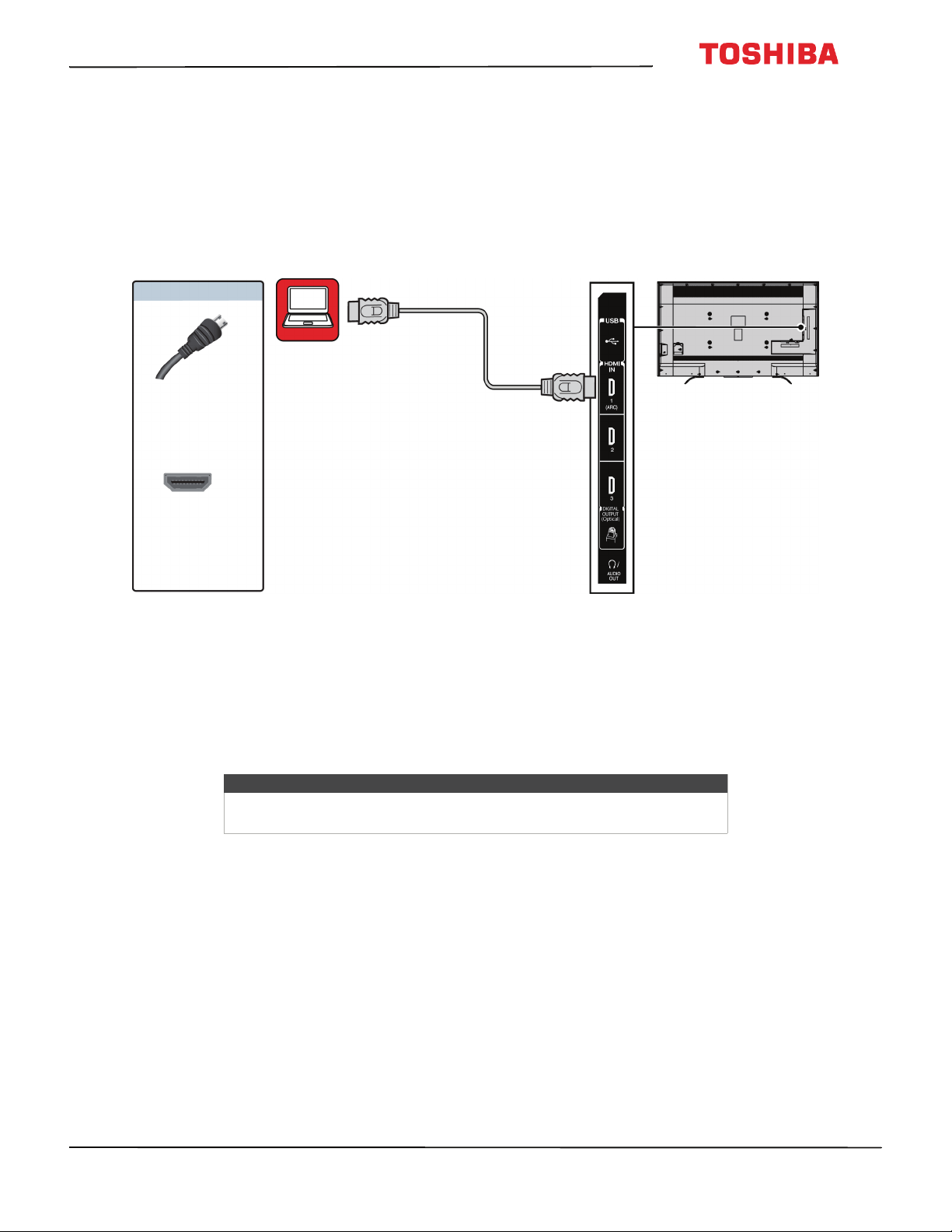
You can connect your TV to a network router using an Ethernet cable and the LAN jack on the back of your TV.
1 Make sure that your TV’s power cord is unplugged and the router is turned off.
2 Connect an Ethernet cable (not provided) to the LAN jack on the back of your TV and to an Ethernet jack on the
router.
3 Plug your TV’s power cord into a power outlet, then turn on your TV and the router.
Ethernet
cable
Network router
Back of TV
Ethernet
cable
connector
LAN jack
On your TV
34
50
L
711
U
18
/
50
L
711
M
18
/
55
L
711
U
18
/
55
L
711
M
18
50" / 55" 2160p (4K), 60Hz, LED Chromecast built-in TV
www.tv.toshiba.com
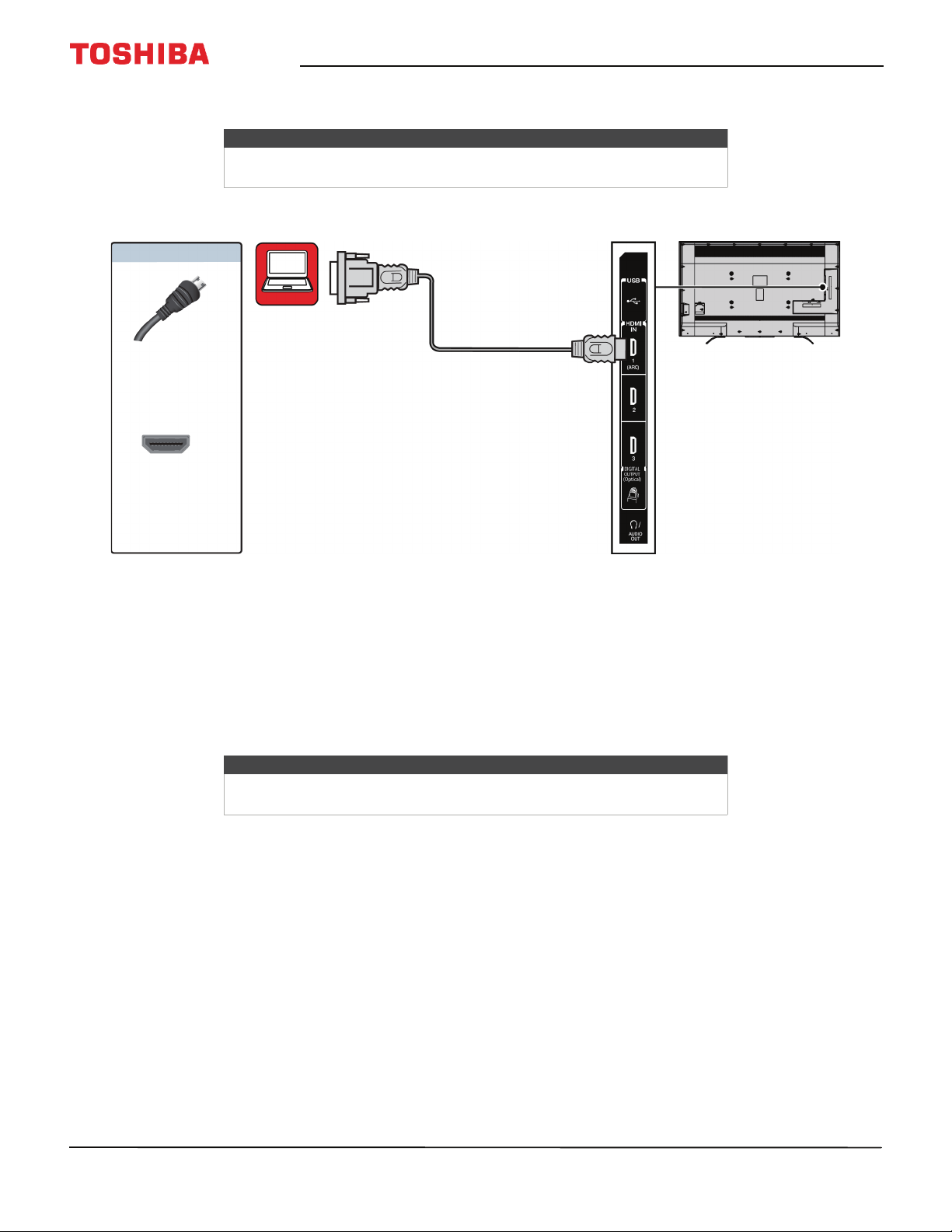
Connecting a computer
You can connect a computer using:
•HDMI (best)
• DVI (same as HDMI but requires an audio connection)
HDMI (best)
1 Make sure that your TV’s power cord is unplugged and the computer is turned off.
2 Connect an HDMI cable (not provided) to one of the HDMI IN jacks on the side of your TV and to the HDMI OUT jack
on the computer.
3 Plug your TV’s power cord into a power outlet, then turn on your TV and the computer.
4 Press INPUT to open the Input Selection list.
5 Press
S
or
T
to highlight HDMI1, HDMI2, or HDMI3, then press OK.
6 Adjust the display properties on the computer, if necessary.
HDMI cable
Side of
TV
HDMI cable
connector
HDMI IN
jack
On your TV
Computer
Note
Set the picture mode to PC to optimize the computer image. See the PC
picture mode option in Adjusting the TV picture on page 65.
35
50" / 55" 2160p (4K), 60Hz, LED Chromecast built-in TV
www.tv.toshiba.com
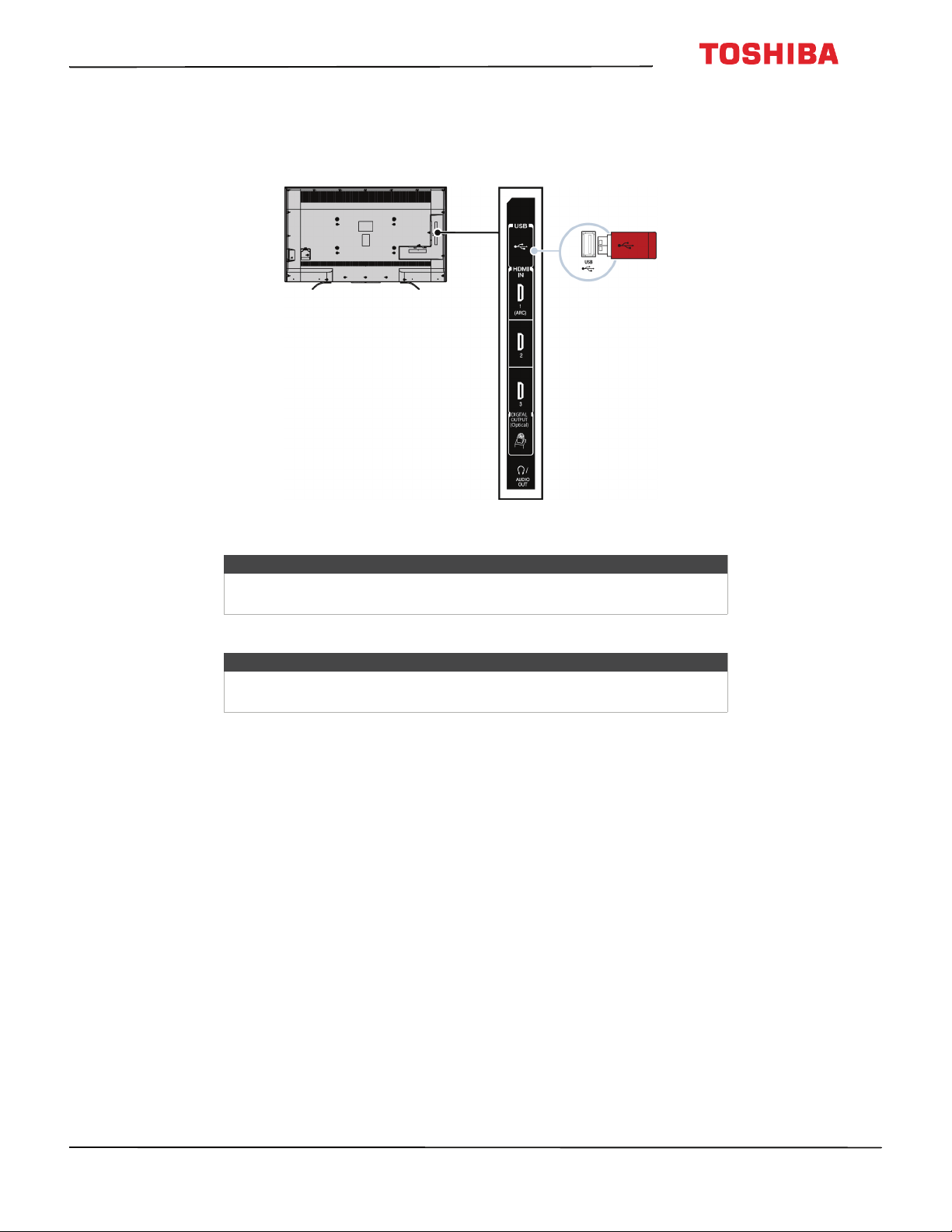
DVI (same as HDMI but requires an audio connection)
1 Make sure that your TV’s power cord is unplugged and the computer is turned off.
2 Connect an HDMI-DVI adapter (not provided) to one end of an HDMI cable (not provided), then connect the adapter
to the DVI OUT jack on the computer.
3 Connect the other end of the cable to one of the HDMI IN jacks on the side of your TV.
4 Plug your TV’s power cord into a power outlet, then turn on your TV and the computer.
5 Press INPUT to open the Input Selection list.
6 Press
S
or
T
to highlight HDMI1, HDMI2, or HDMI3, then press OK.
7 Adjust the display properties on the computer, if necessary.
Notes
Your TV supports DVI video only. To add sound for a DVI connection,
connect external speakers or a soundbar to the computer.
HDMI cable
connector
HDMI IN jack
On your TV
HDMI cable with
HDMI-DVI adapter
Side of
TV
Computer
Note
Set the picture mode to PC to optimize the computer image. See the PC
picture mode option in Adjusting the TV picture on page 65.
36
50
L
711
U
18
/
50
L
711
M
18
/
55
L
711
U
18
/
55
L
711
M
18
50" / 55" 2160p (4K), 60Hz, LED Chromecast built-in TV
www.tv.toshiba.com
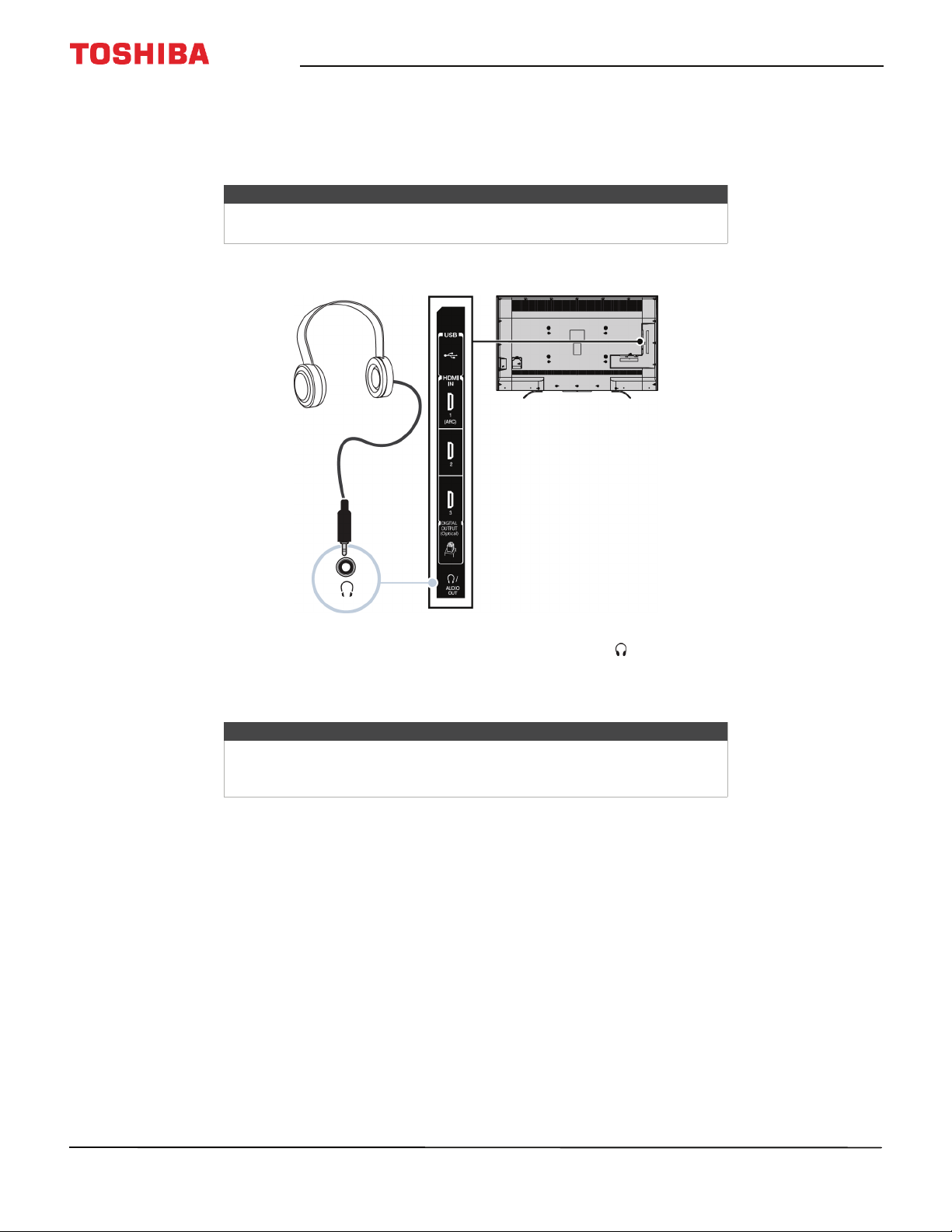
Connecting a USB flash drive
1 Plug a USB flash drive into the USB port on the side of your TV.
2 Press INPUT, press
S
or
T
to highlight USB, then press OK. The Media Player menu opens.
Caution
Do not remove the USB flash drive or turn off the TV while using the USB
flash drive. You may lose data or damage the USB flash drive.
Note
For information about supported file types, see Supported photo file
formats on page 62.
USB flash
drive
Side of
TV
37
50" / 55" 2160p (4K), 60Hz, LED Chromecast built-in TV
www.tv.toshiba.com
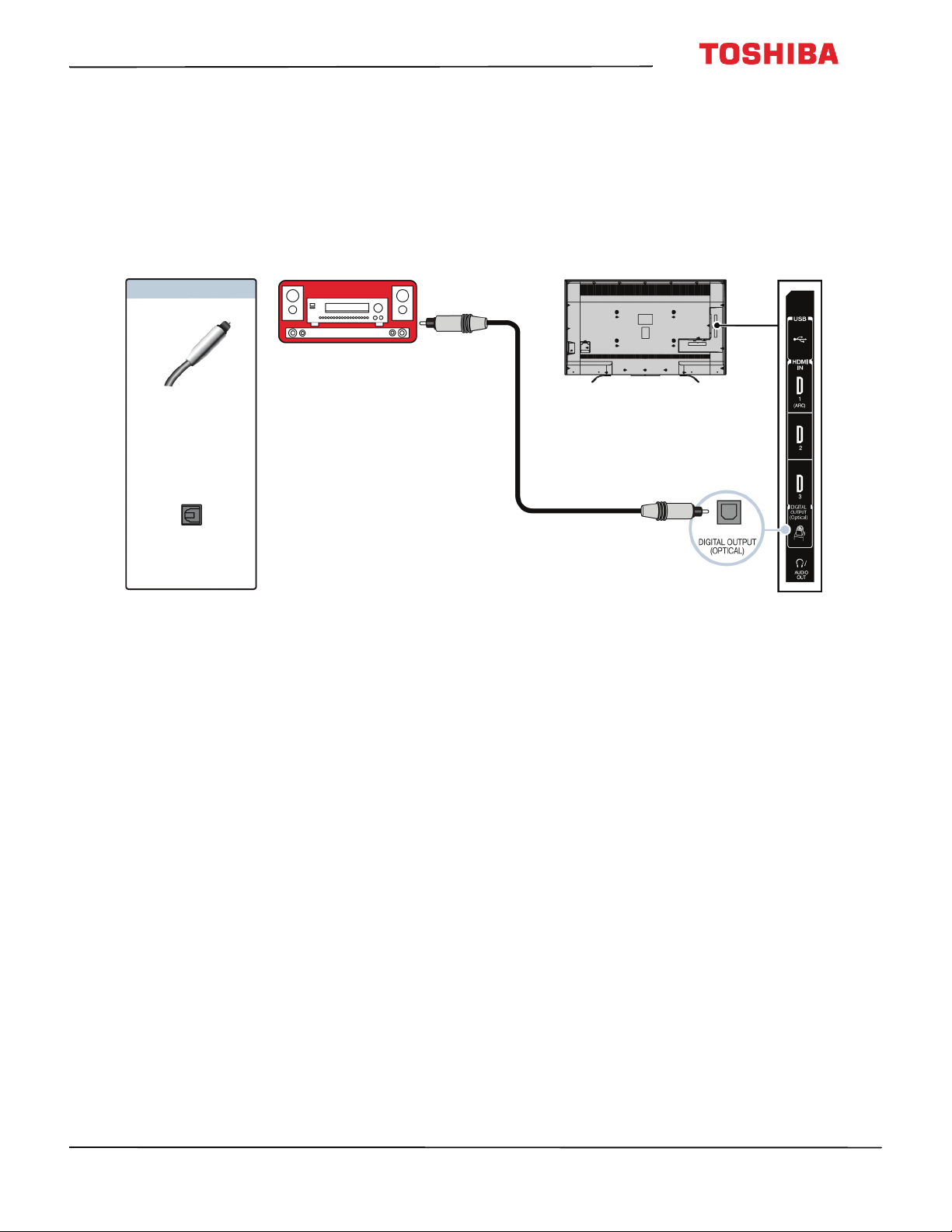
Connecting headphones
If the TV Speakers option on the Sound menu is set to Auto, the TV speakers are muted when you connect
headphones.
1 Make sure that your TV is turned on, then connect the headphones to the /AUDIO OUT jack on the side of your
TV.
2 In the Headphones/Audio Output screen that opens, press
W
or
X
to highlight Headphones/Audio Out Variable,
then press OK.
Warning
Loud noise can damage your hearing. When using headphones, use the
lowest volume setting on your headphones that still lets you hear the sound.
Note
The Headphones/Audio Output screen closes after 30 seconds without any
action. To open the screen again, unplug the headphones, then plug them
back in.
Side of
TV
38
50
L
711
U
18
/
50
L
711
M
18
/
55
L
711
U
18
/
55
L
711
M
18
50" / 55" 2160p (4K), 60Hz, LED Chromecast built-in TV
www.tv.toshiba.com
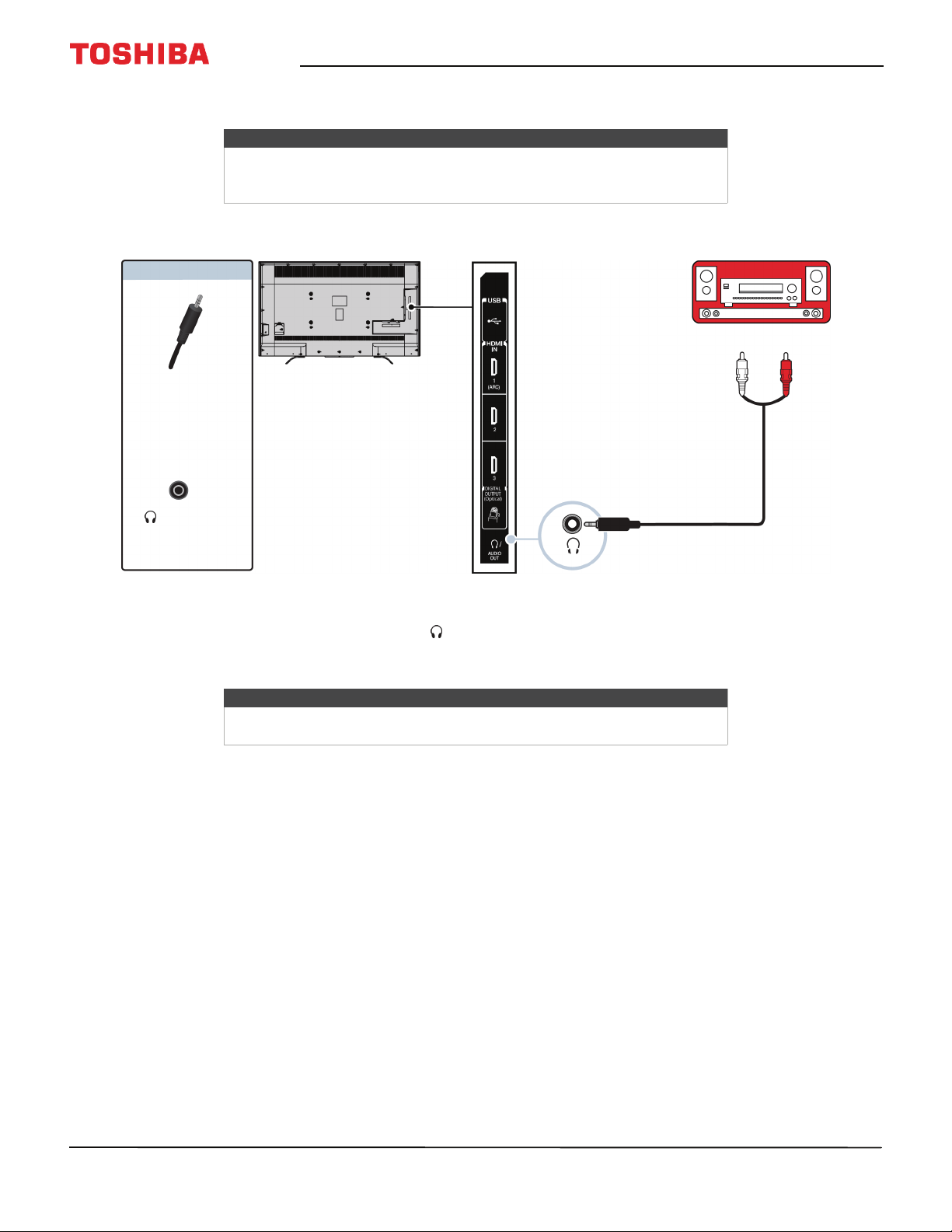
Connecting external speakers or a soundbar
You can connect external speakers using:
•Digital audio
•Analog audio
Digital audio
1 Make sure that your TV’s power cord is unplugged and the digital speaker system or soundbar is turned off.
2 Connect a digital optical audio cable (not provided) to the DIGITAL OUTPUT (Optical) jack on the side of your TV
and to the optical AUDIO IN jack on the digital speaker system or soundbar.
3 Plug your TV’s power cord into a power outlet, then turn on your TV.
4 Turn on the digital speaker system or soundbar, then set it to the correct source. For more information, see the
documentation that came with the digital speaker system or soundbar.
5 On your TV’s Sound menu, highlight Digital Audio Output, then press OK. Highlight Audio Format, then press OK.
Press
S
or
T
to select PCM, then press OK. See the Digital Audio Output option in Adjusting sound settings on
page 70.
Digital optical
audio cable
Digital speaker system
Side of
TV
Digital optical
audio cable
connector
Digital optical
audio jack
On your TV
Soundbar
39
50" / 55" 2160p (4K), 60Hz, LED Chromecast built-in TV
www.tv.toshiba.com
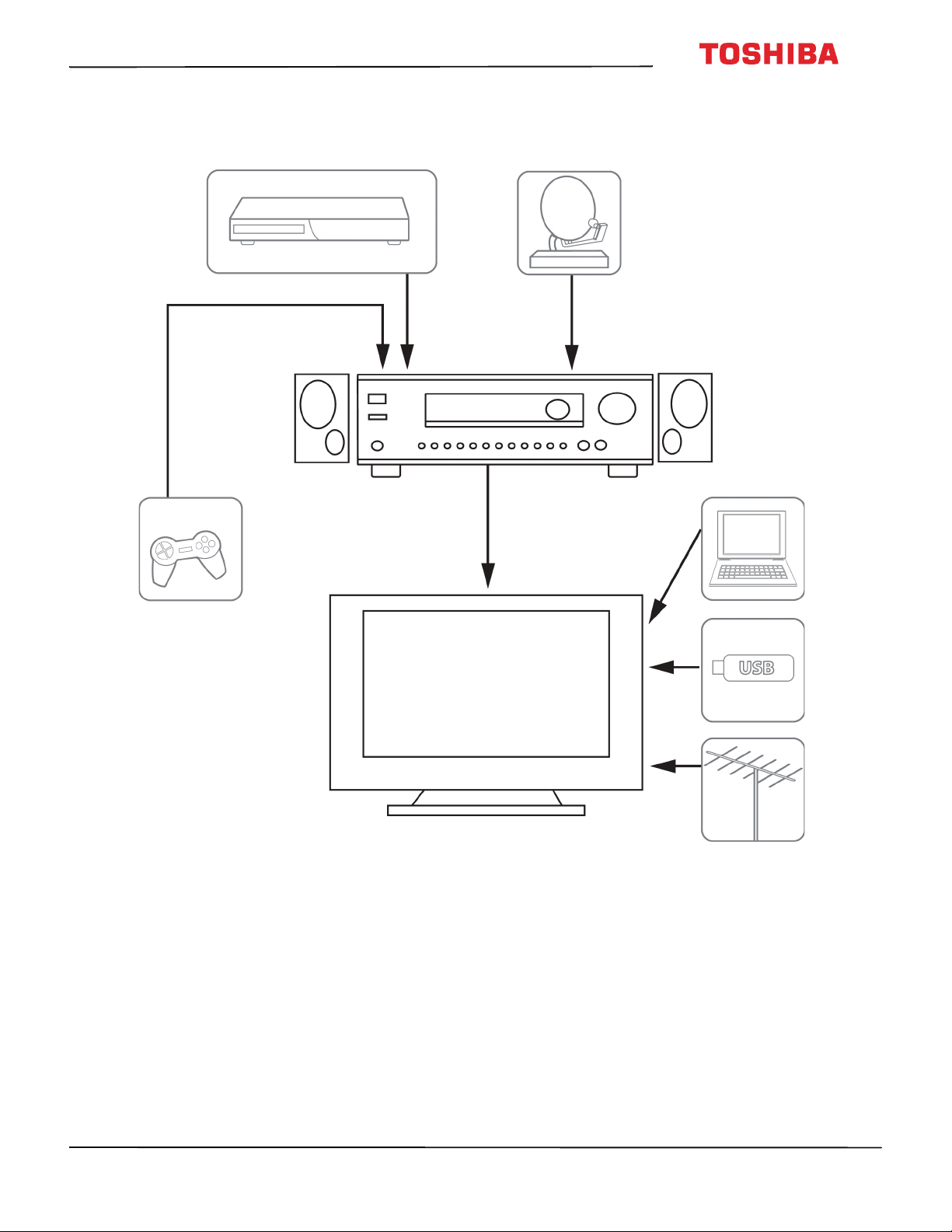
Analog audio
1 Make sure that your TV is turned on and the analog speaker system or soundbar is turned off.
2 Connect an audio cable (not provided) to the /AUDIO OUT jack on the side of your TV and to the AUDIO IN jacks
on the analog speaker system or soundbar.
3 In the screen that opens, press
W
or
X
to highlight Audio Output Fixed, then press OK.
4 Turn on the analog speaker system or soundbar, then set it to the correct source. For more information, see the
documentation that came with the analog speaker system or soundbar.
Note
If the TV Speakers option on the Sound menu is set to Auto or Off, the TV
speakers are muted when you connect an analog sound system or
soundbar.
Note
If you want to mute the TV speakers, set the TV Speakers option on the
Sound menu to Off or Auto.
Audio cable
Analog speaker
system
Side of
TV
Audio cable
connector
/AUDIO
OUT jack
On your TV
Soundbar
40
50
L
711
U
18
/
50
L
711
M
18
/
55
L
711
U
18
/
55
L
711
M
18
50" / 55" 2160p (4K), 60Hz, LED Chromecast built-in TV
www.tv.toshiba.com
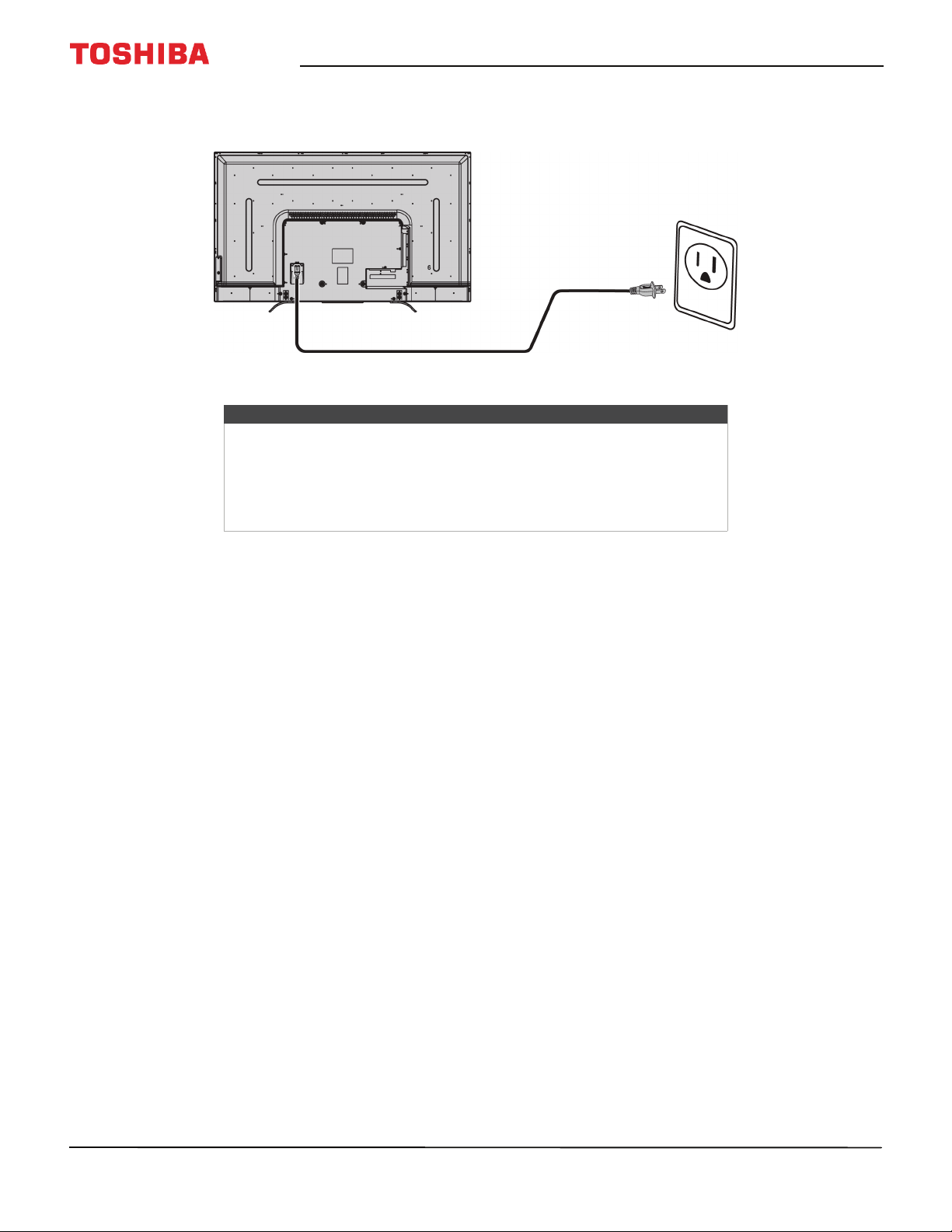
Connecting a home theater system with multiple devices
The connections you make depend on the video and audio jacks available on your devices. Refer to the documentation
that came with your devices for connection information.
Just remember to use the best connection types available for the best picture and sound. For information about
connection types, see What connection should I use? on page 23.
DVD or Blu-ray player
Cable or satellite box
Antenna or cable
TV connected
directly to the
wall jack
AV receiver
41
50" / 55" 2160p (4K), 60Hz, LED Chromecast built-in TV
www.tv.toshiba.com
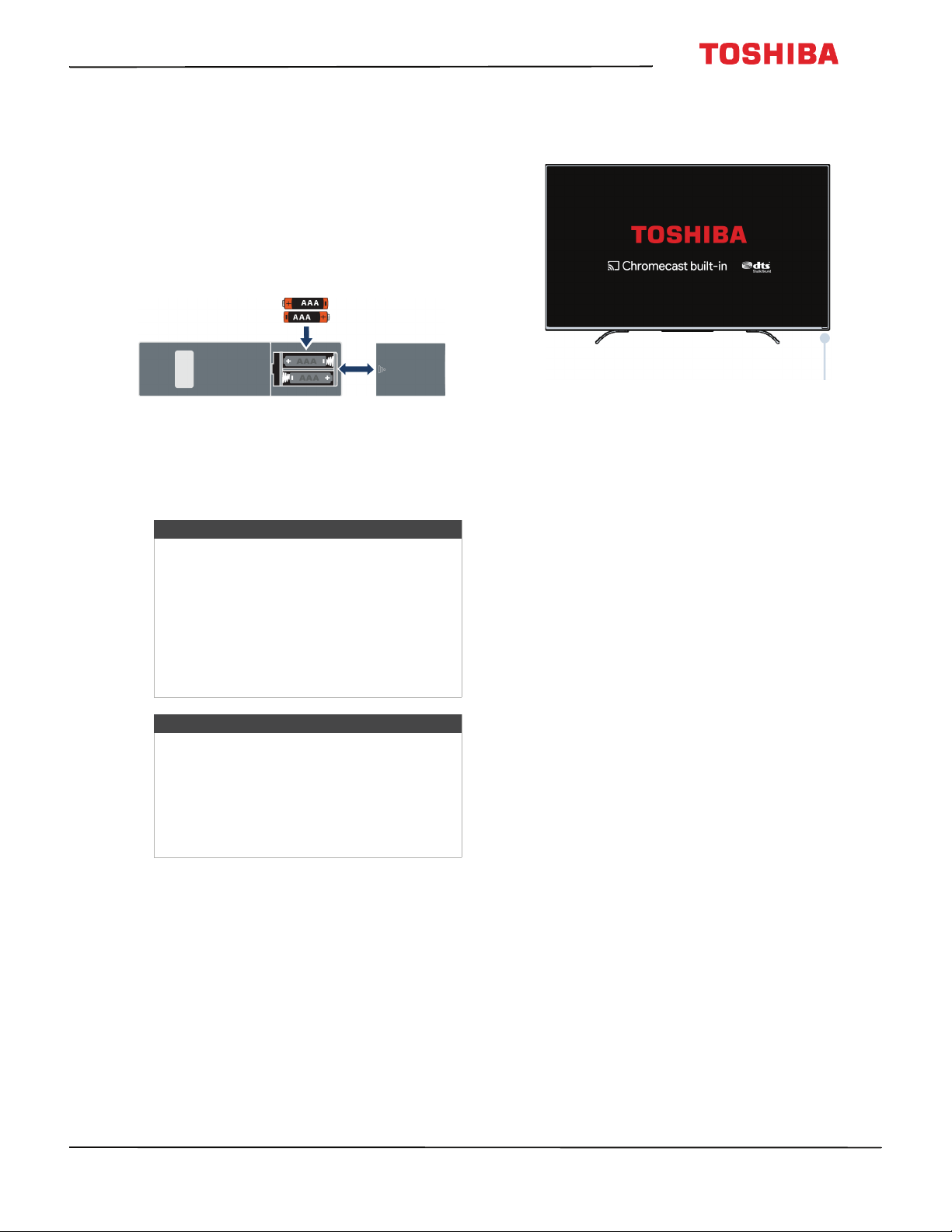
Connecting power
• Connect the power cord to a power outlet.
Cautions
• Your TV should only be operated from the power source indicated on
the label.
• Always unplug the power cord from the power outlet when you will not
be using your TV for an extended period of time.
• The power cord is permanently attached to your TV. Do not try to
unplug it from the back of your TV.
42
50
L
711
U
18
/
50
L
711
M
18
/
55
L
711
U
18
/
55
L
711
M
18
50" / 55" 2160p (4K), 60Hz, LED Chromecast built-in TV
www.tv.toshiba.com
Using the remote control
This section includes topics about:
• Installing remote control batteries
•Aiming the remote control
• Programming universal remote controls
Installing remote control batteries
1 Slide the battery compartment cover open, then
lift the cover off the remote control.
2 Insert two AAA batteries into the battery
compartment. Make sure that you match the +
and – symbols on the batteries with the + and –
symbols in the battery compartment.
3 Replace the battery compartment cover.
Aiming the remote control
• Point the remote control towards the remote
control sensor on the front of your TV.
Cautions
• Batteries should not be exposed to
excessive heat, such as sunshine, heat
registers, or fire.
• Battery chemicals can cause a rash. If the
batteries leak, clean the battery
compartment with a cloth. If chemicals
touch your skin, wash immediately.
• Make sure that batteries are disposed of
correctly. Do not burn or incinerate.
Notes
• Do not mix batteries of different types.
• Do not mix old and new batteries.
• Remove batteries when the charge is
depleted.
• If the remote control is not going to be
used for an extended period of time,
remove the batteries.
Remote control
sensor
43
50" / 55" 2160p (4K), 60Hz, LED Chromecast built-in TV
www.tv.toshiba.com
Programming universal remote controls
You can operate your Toshiba TV with a new or
existing universal remote control.
1 See the table in Common universal remote control
codes on page 43 for common codes.
If you have problems programming your remote
or need a different remote control code:
Contact the universal remote control maker.
OR
Contact the cable or satellite company that
provided the remote control you are trying to
program.
2 Follow your universal remote control’s instructions
to enter the TV code you found in Step 1.
Common universal remote control codes
The following is a list of the most common remote
control codes.
Tips
• If your universal remote control has a
code search feature, run a code search
to identify a code that matches your
TV. See your universal remote control’s
instructions for details.
• If your universal remote control has a
“Learn” feature, you can manually
program it using the Toshiba TV
remote to “teach” the commands one
at a time. See your universal remote
control’s instructions for details.
Brand Remote control codes
AT&T U-verse
1127, 1179, 1203, 1204, 1222, 1223, 1332, 1340, 1341,
1345, 1353, 1010, 1098, 1104, 1147, 1148, 1149, 1150,
1151, 1173, 1174, 1210, 1215, 1256, 1257, 1263, 1267,
1272, 1302, 1311, 1312, 1322, 1343, 1376, 1585, 1589,
1592, 11524, 12724, 10156, 11935, 11704, 11959,
10650, 11343, 11369, 10060
Cablevision 015, 101, 045, 030, 007, 040, 062, 142, 137, 382, 703
Charter
11524, 10822, 10845, 11656, 12006, 10154, 11256,
10156, 11265, 10060, 10650, 11156, 11356, 11704,
0154, 0156, 0060, 1256, 0832, 1704, 1936, 0650, 1156,
1656, 1935, 0845, 1356, 1918, 1945, 015, 030, 007, 040,
062, 101, 142, 045, 137, 138, 325, 258, 031, 038, 039,
423, 571
Comcast
11656, 11156, 11256, 11704, 10845, 11356, 10060,
10650, 11265, 10154, 10765, 10767, 10178, 11314,
10700, 10702, 11935, 10832, 11959, 10036, 10149,
11343, 11369, 10781, 10003, 10250, 10156, 0060, 003,
0154, 0156
Cox
074, 168, 170, 822, 093, 991, 156, 060, 154, 093, 030,
031, 038, 039, 0170, 0074, 0168, 1270, 0060, 0154, 0156,
1256, 1265, 1945, 1704, 1656, 1635, 1356, 1343, 1325,
1306, 1156, 0845, 0832, 0650, 0149, 0036, 1369, 1042,
1060, 1061, 1062, 1087, 1091, 1097, 1098, 1130, 1131,
1183, 1524, 1935, 2006, 1959, 1936, 1164, 2724
DirecTV
10156, 11656, 11256, 11704, 11356, 10060, 10650,
10154, 10765, 10178, 10700, 10702
Dish Network
617, 631, 590, 618, 635, 680, 688, 750, 847, 800, 526,
851, 852, 595, 908, 757, 850, 802, 785, 743, 849, 622,
789, 771, 744, 243, 117
RCA
11524, 11656, 10156, 11156, 11256, 12006, 11265,
11704, 11945, 10845, 1356, 12724
Rogers 1524
Time Warner
0156, 0060, 0154, 1042, 1060, 1061, 1062, 1087, 1091,
1097, 1098, 1130, 1131, 1172, 1173, 1183, 1286, 1317,
1325, 1327, 1334, 1345, 1346, 1355, 1364, 1365, 0016,
0017, 0090, 0096, 0117, 0118, 0129, 0131, 0180, 0206,
2001, 0011, 0021, 0041, 0051, 0061, 0081, 0101, 0111,
0171, 0191, 0211, 0471, 0701, 0411, 0501, 1301, 1351,
1441, 1781, 1951, 2021, 0341, 2341, 2481, 0861, 2351,
3671, 2801, 3821, 4151, 3921, 3931, 1256, 1265, 1945,
1935, 1704, 1656, 1635, 1356, 1343, 1306, 1156, 0845,
0832, 0650, 0149, 0036, 1190, 1014, 1015, 1127, 1007,
1252, 1246, 1219, 1212, 1168, 1163, 1018, 1114, 1028,
1071, 1300, 1338, 1353, 1369, 030, 007, 040, 062, 101,
045, 015, 062, 142, 137, 703, 138, 230, 258, 325
Verizon
0087, 0181, 0183, 0677, 0859, 0872, 1172, 1183, 1283,
1292, 1383, 1683, 1731, 3015, 3022, 3023, 3051, 3052,
3053, 3055, 3059, 3062, 3066, 3072, 3074, 3078, 3080,
3087, 3089, 3093, 3147, 3167, 3168, 3169, 3171, 3173,
3182, 3187, 3188, 3207, 3214, 3220, 397
Tips
• The brand name is often visible on the
front of the universal remote control,
and the model number is often visible
on the back.
• If your universal remote control isn’t
listed in the table, refer to your
universal remote control’s instructions
and try codes for the brands Orion,
Emerson, Memorex, Sansui, Sylvania,
or Zenith. You may need to try several
codes before finding a match.
Brand Remote control codes
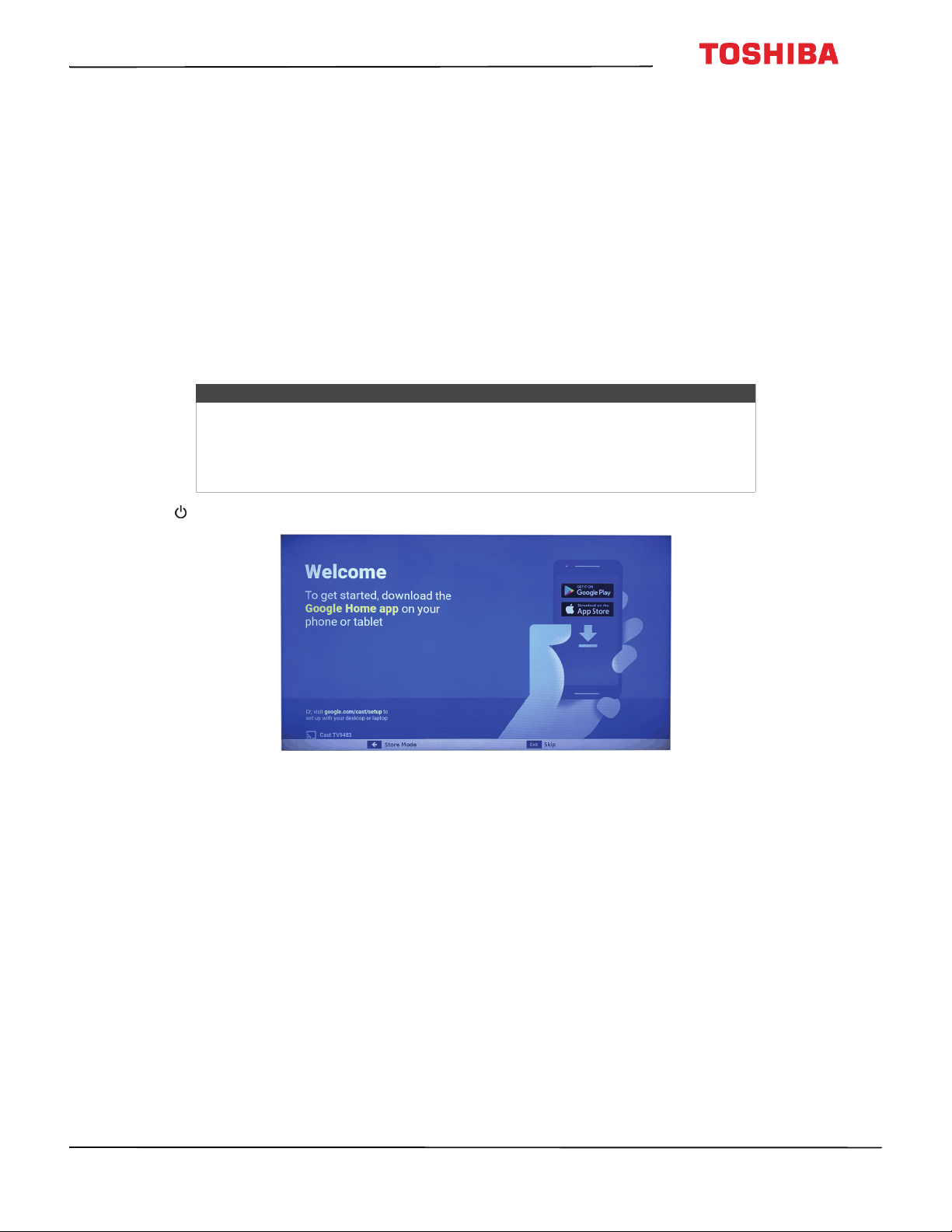
44
50
L
711
U
18
/
50
L
711
M
18
/
55
L
711
U
18
/
55
L
711
M
18
50" / 55" 2160p (4K), 60Hz, LED Chromecast built-in TV
www.tv.toshiba.com
Turning on your TV for the first time
The first time you turn on your TV, the initial setup wizard opens. The wizard guides you through setting up your TV
including the Chromecast built-in setup, menu language, time zone, TV signal source, and the channel list.
• If you are using an Android mobile device, go to Using an Android mobile device.
• If you are using an iOS (Apple) mobile device, go to Using an iOS (Apple) mobile device.
Using an Android mobile device
1 Make sure that you:
• Turn off the smart network switch option (if your device has this option). On your phone, go to the Wi-Fi menu in
the settings app.
• Install the remote control batteries (see page 42) and connect the power cord (see page 41).
• Connect the correct device to watch standard broadcast TV channels using a cable box, satellite box, or external
antenna. (See page 24 through 28.)
• Know the Wifi network name and password if you are using a wireless network to set up your TV.
2 Press (power) to turn on your TV. The Welcome screen opens.
3 Type google.com/cast/setup in the search bar of your device’s browser.
Note
If you want to use a wired connection instead of Wifi to set up your TV, connect your
TV to an Internet router using the LAN jack. For more information, see Connecting a
network router on page 33.
With a wired connection, you cannot connect to Chromecast built-in with an LTE or
3G network.
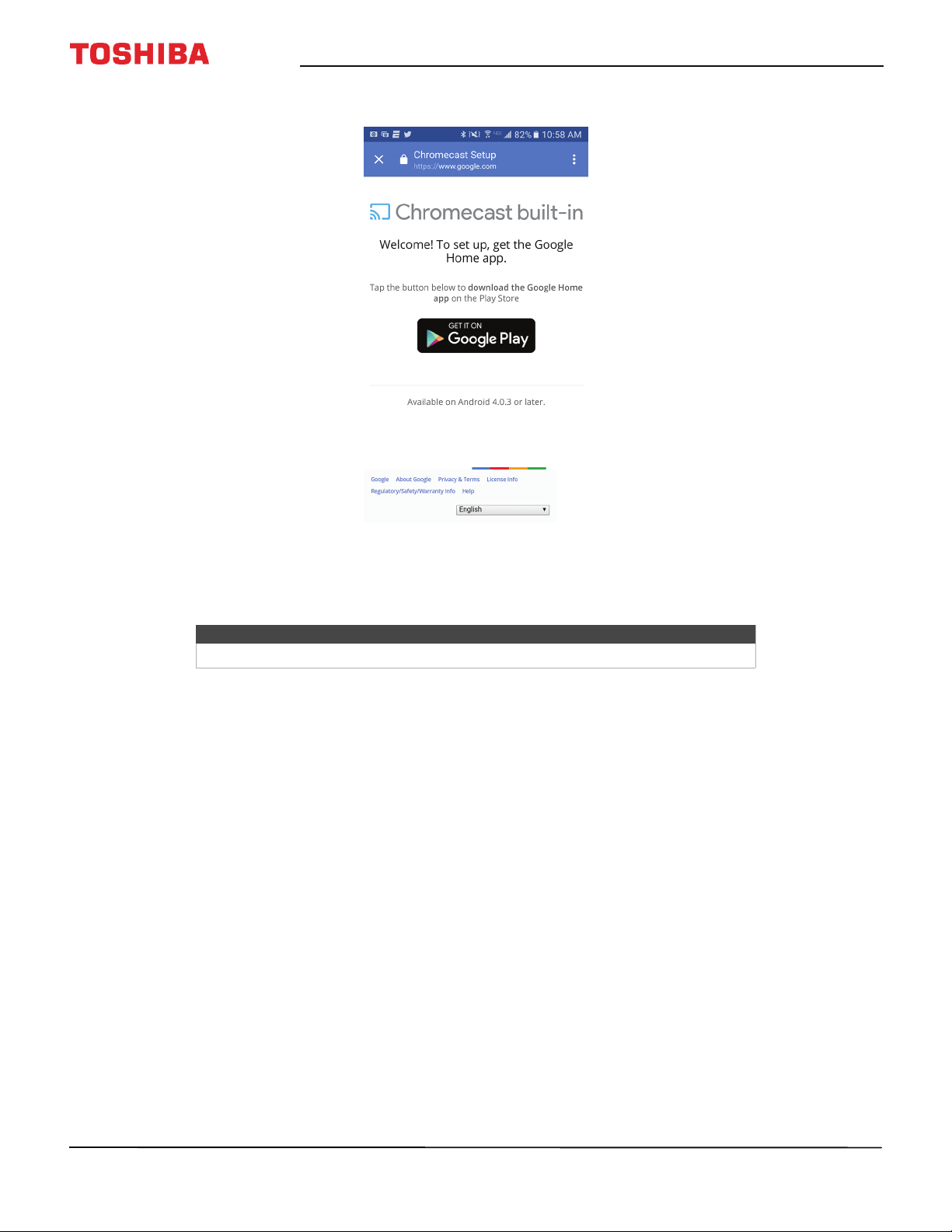
45
50" / 55" 2160p (4K), 60Hz, LED Chromecast built-in TV
www.tv.toshiba.com
4 Tap GET IT ON Google Play.
5 Tap INSTALL. The app installs.
6 Tap OPEN.
7 Tap ACCEPT to agree to the Terms of Service and Privacy Policy.
8 Tap TURN ON LOCATION.
9 Tap ALLOW. Your mobile device searches for Cast TVs in range.
Note
If you have not turned on Wi-Fi on your device, a message tells you to turn on Wi-Fi.
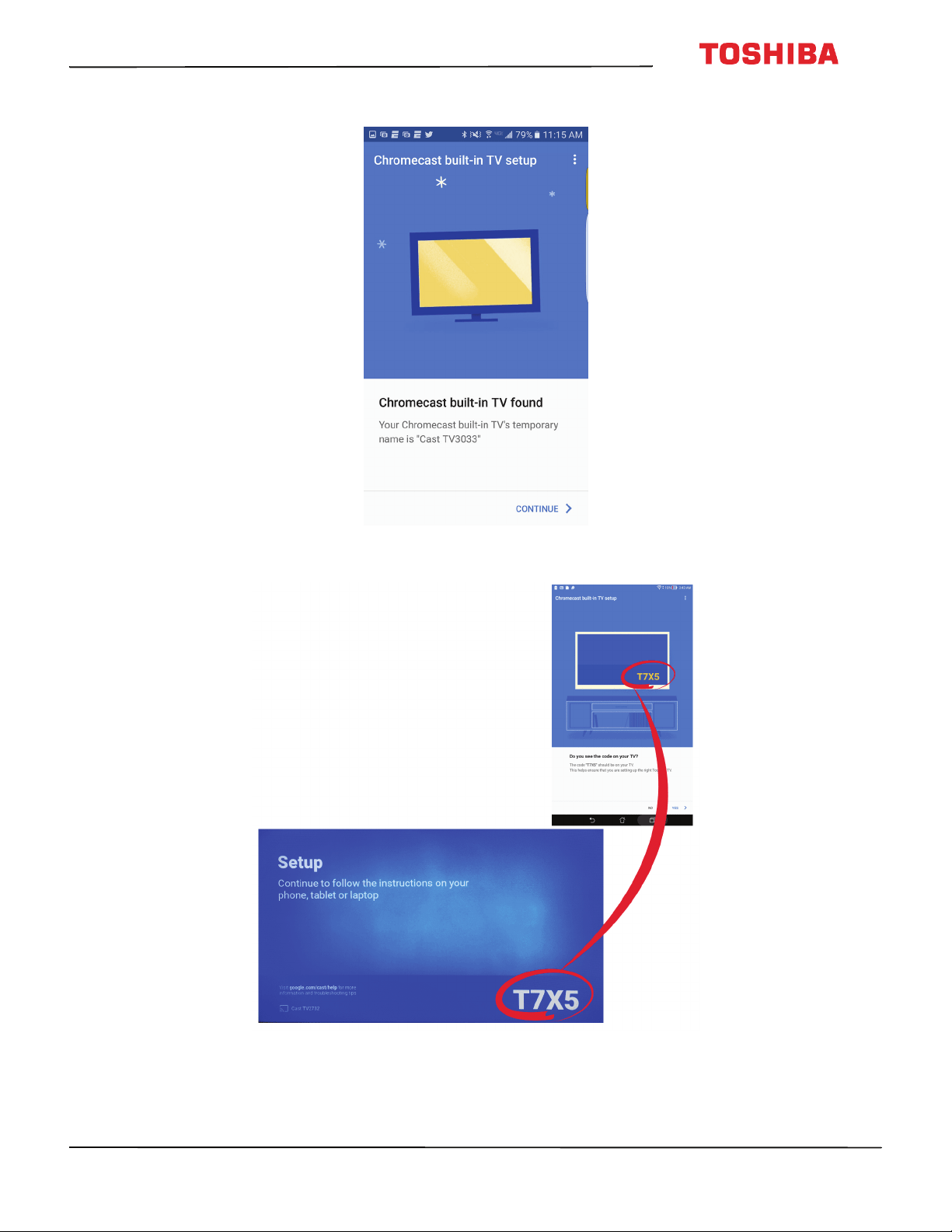
46
50
L
711
U
18
/
50
L
711
M
18
/
55
L
711
U
18
/
55
L
711
M
18
50" / 55" 2160p (4K), 60Hz, LED Chromecast built-in TV
www.tv.toshiba.com
10 Tap CONTINUE after your device finds your Cast TV.
11 Make sure that the codes on your device and TV match, then on your mobile device, tap YES.
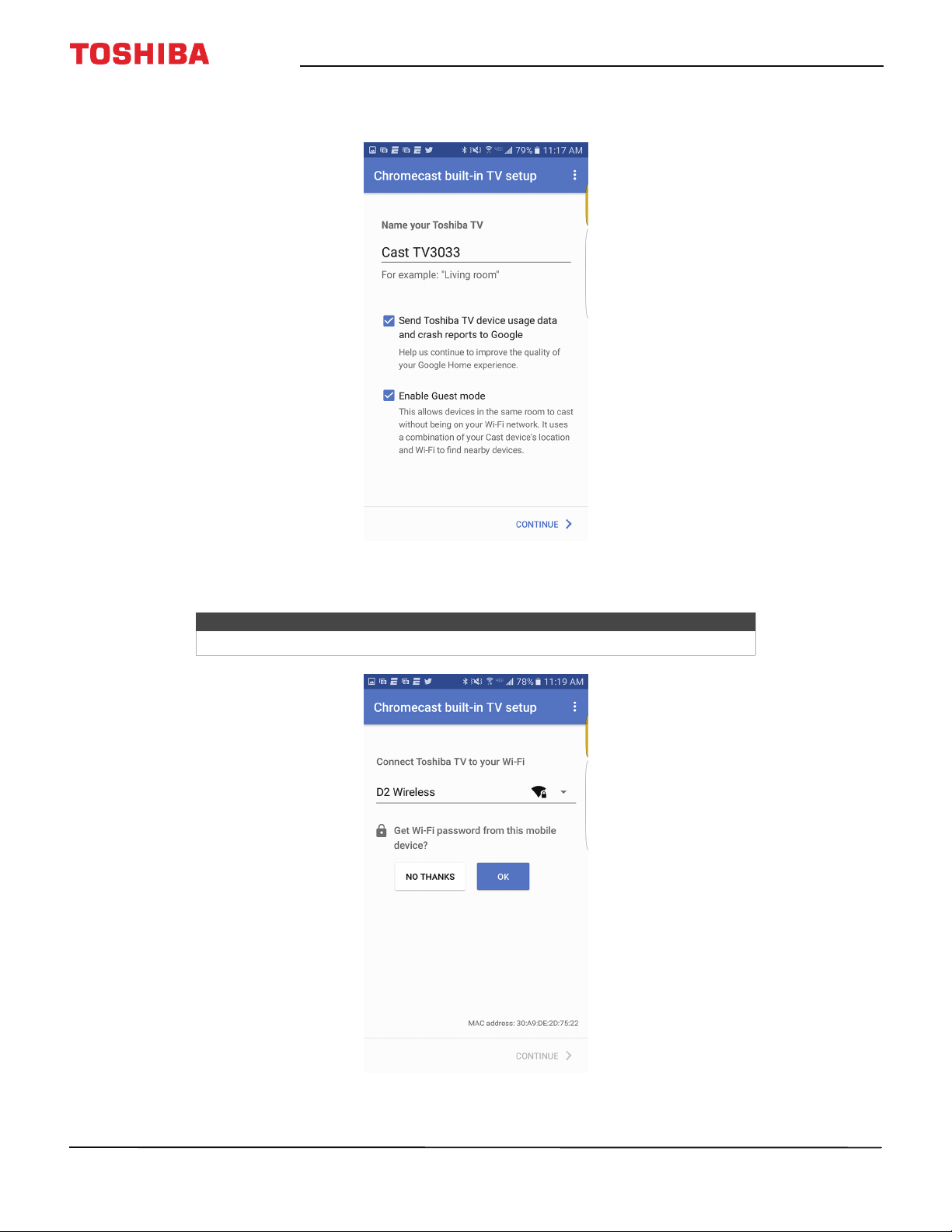
47
50" / 55" 2160p (4K), 60Hz, LED Chromecast built-in TV
www.tv.toshiba.com
12 Optional: To change the name of your TV to something distinct, delete the current name, type in a new one, then
tap CONTINUE.
13 Choose your Wifi network, enter the Wifi password (if necessary), then tap CONTINUE. Your TV connects to the
network and is ready to cast.
Note
If your TV receives an update, wait for the update to finish.
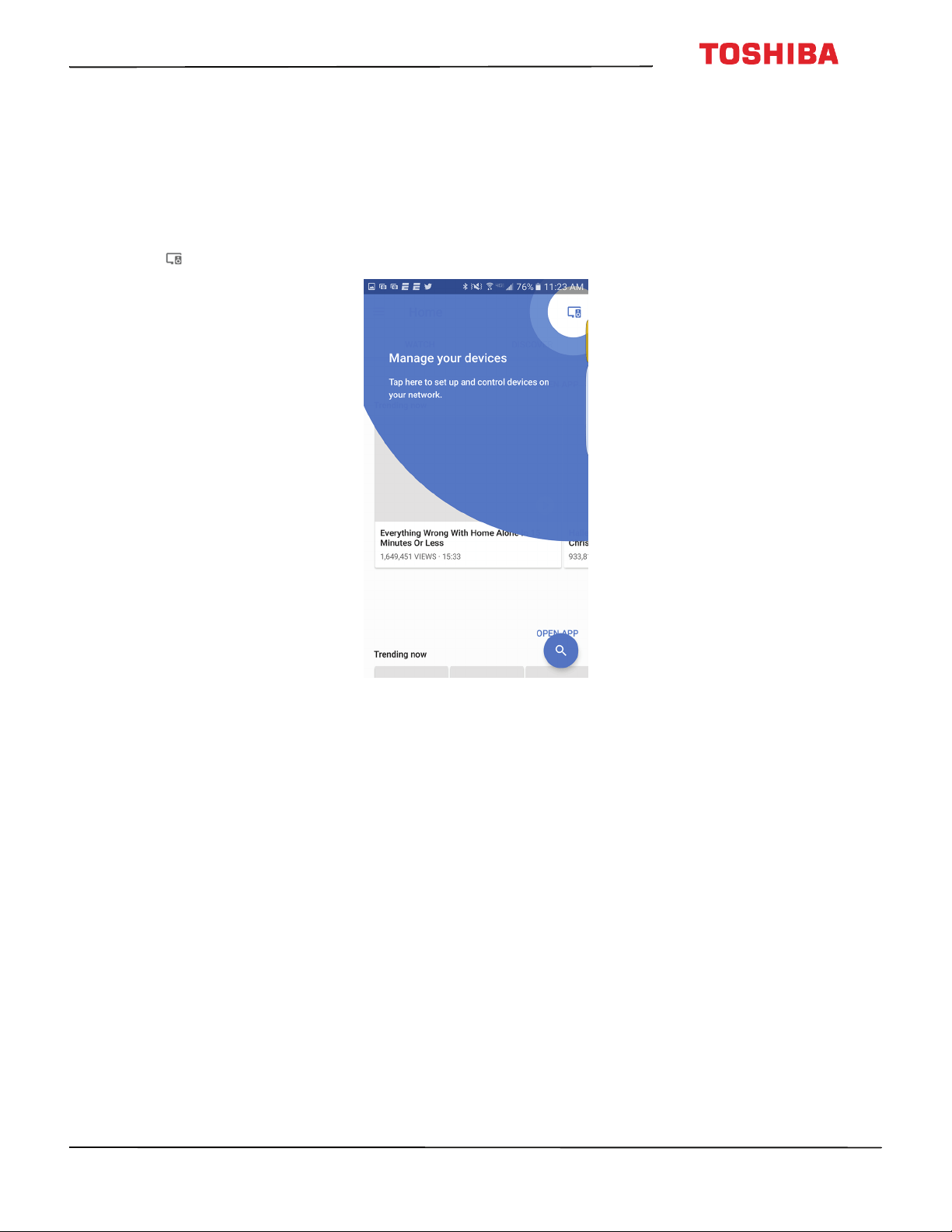
48
50
L
711
U
18
/
50
L
711
M
18
/
55
L
711
U
18
/
55
L
711
M
18
50" / 55" 2160p (4K), 60Hz, LED Chromecast built-in TV
www.tv.toshiba.com
14 Sign in to your Google account to personalize your casting experience.
OR
Tap LEAVE SETUP to start casting right away.
15 Tap the slider to turn email notifications on or off, then tap CONTINUE.
16 Tap LEARN HOW TO CAST to go through a tutorial.
OR
Tap SKIP to skip the tutorial.
17 Tap (Manage your devices) to set up, manage, and control the devices on your network.
After setting up Chromecast built-in, your TV's menu language, time zone, and daylight savings time settings should be
set automatically to match the settings on your mobile device.
If the settings are not correct or you want to change the settings, see:
• Setting the time zone and Daylight Saving Time status on page 82.
• Selecting the menu language on page 83.
If you connected cable TV without a box or an external antenna to the ANT / CABLE IN jack, set up the ANT / CABLE IN
jack and scan for channels. See:
• Setting up the ANT / CABLE IN jack on page 54
• Automatically scanning for channels on page 72.

49
50" / 55" 2160p (4K), 60Hz, LED Chromecast built-in TV
www.tv.toshiba.com
Using an iOS (Apple) mobile device
1 Make sure that you:
• Turn off the smart network switch option (called Wi-Fi Assist) under Settings > Cellular.
• Install the remote control batteries (see page 42) and connect the power cord (see page 41).
• Connect the correct device to watch standard broadcast TV channels using a cable box, satellite box, or external
antenna. (See page 24 through 28.)
• Know the Wifi network name and password if you are using a wireless network to set up your TV.
2 Turn on Wifi on your mobile device and connect it to your home Wifi network.
3 Turn on Bluetooth on your mobile device.
4 Press (power) to turn on your TV. The Welcome screen opens.
5 Type google.com/cast/setup in the search bar of your device’s browser.
6 Tap Download on the App Store.
Note
If you want to use a wired connection instead of Wifi to set up your TV, connect your
TV to an Internet router using the LAN jack. For more information, see Connecting a
network router on page 33.
With a wired connection, you cannot connect to Chromecast built-in with an LTE or
3G network.
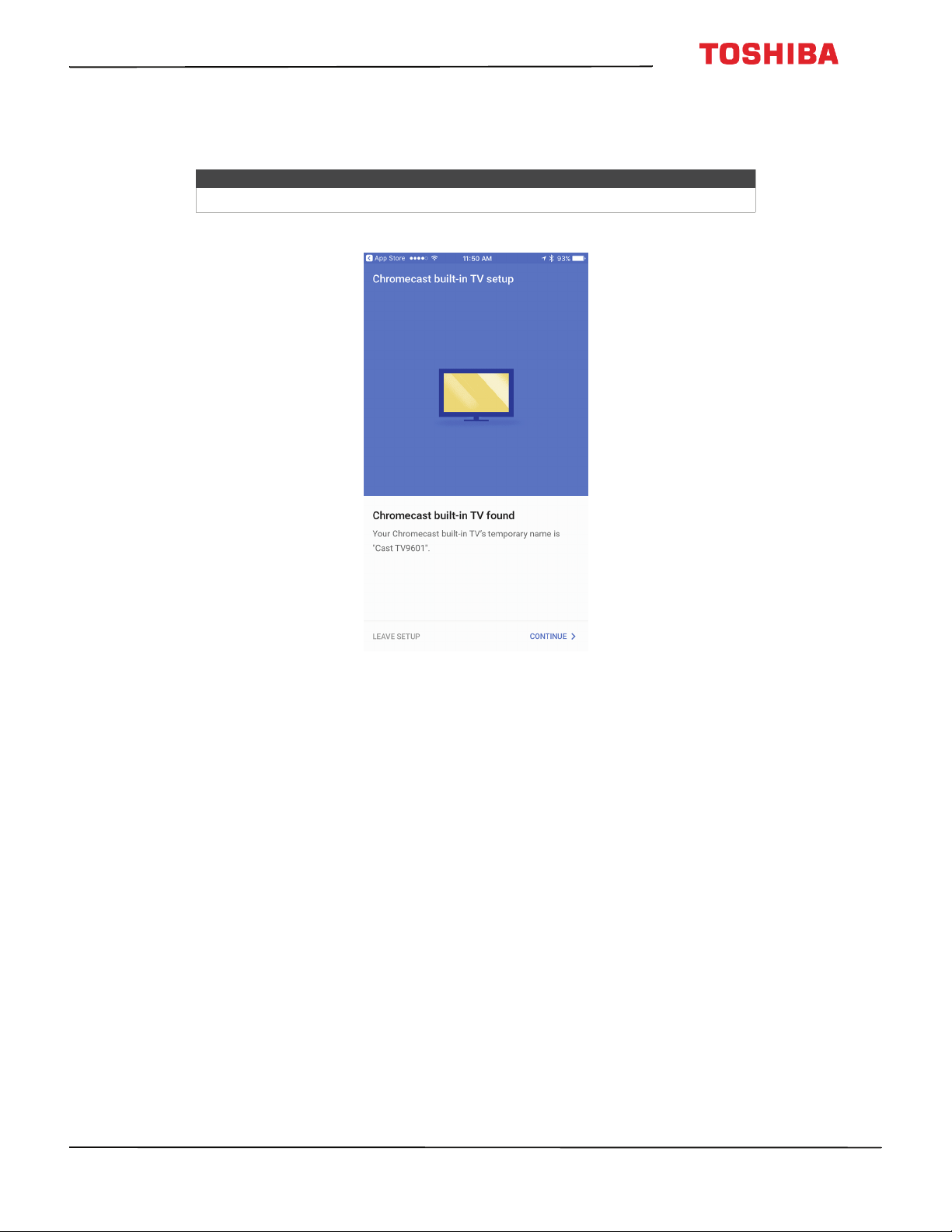
50
50
L
711
U
18
/
50
L
711
M
18
/
55
L
711
U
18
/
55
L
711
M
18
50" / 55" 2160p (4K), 60Hz, LED Chromecast built-in TV
www.tv.toshiba.com
7 Tap GET, then tap Install.
8 Tap OPEN.
9 Tap ACCEPT to agree to the Terms of Service and Privacy Policy. Your mobile device searches for Cast TVs in range.
10 Tap CONTINUE after your device finds your Cast TV.
Note
If you have not turned on Wi-Fi on your device, a message tells you to turn on Wi-Fi.
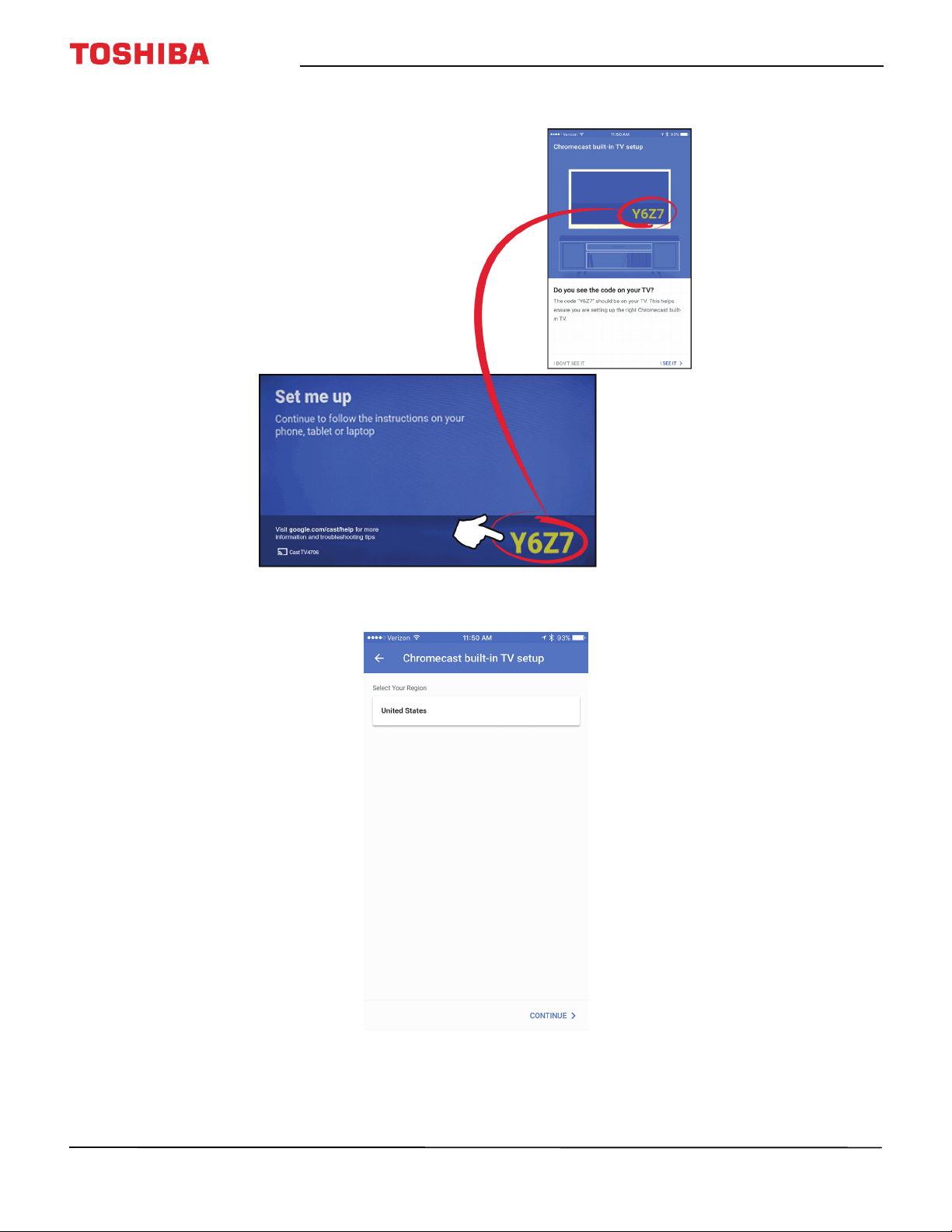
51
50" / 55" 2160p (4K), 60Hz, LED Chromecast built-in TV
www.tv.toshiba.com
11 Make sure that the codes on your device and TV match, then on your mobile device, tap I SEE IT.
12 Select your region, then tap CONTINUE.
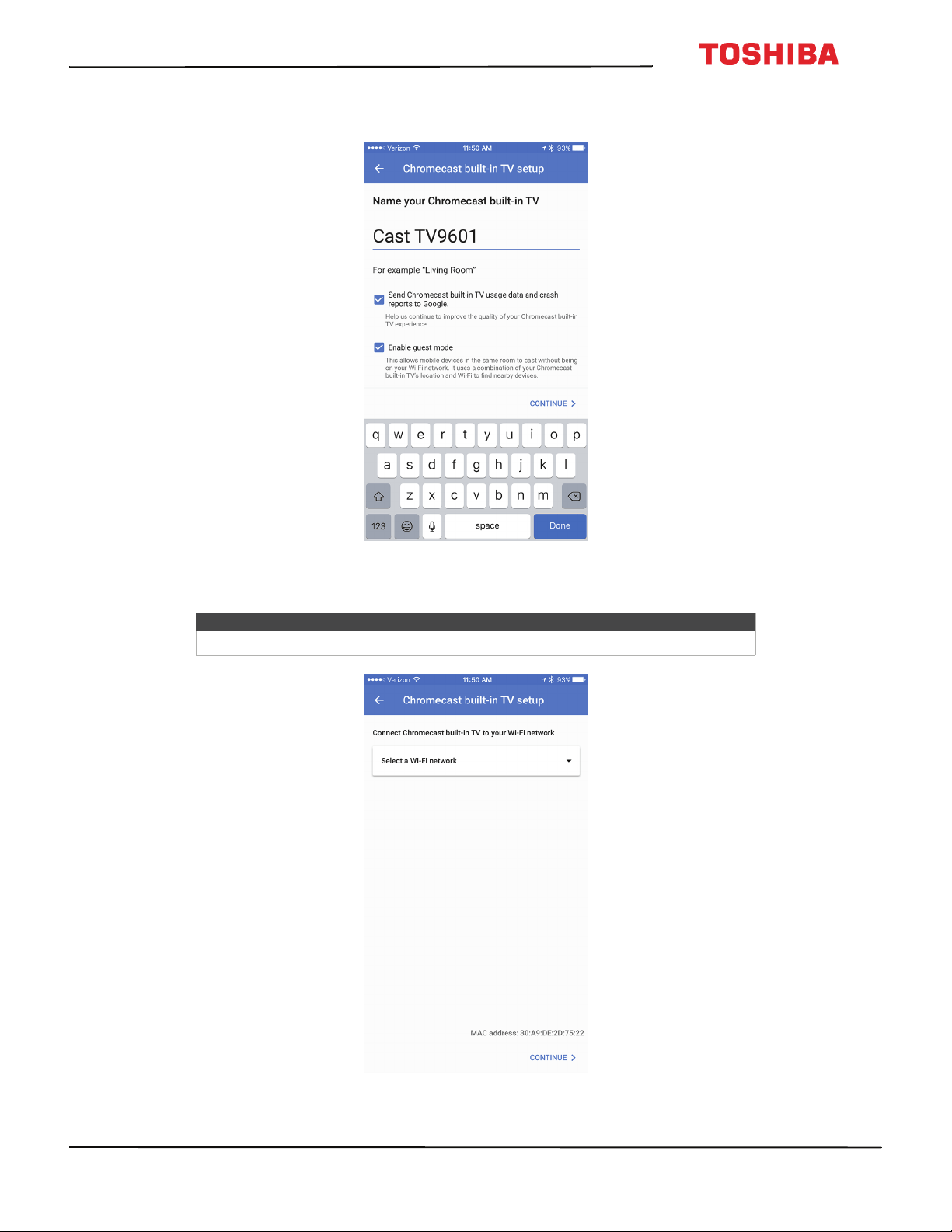
52
50
L
711
U
18
/
50
L
711
M
18
/
55
L
711
U
18
/
55
L
711
M
18
50" / 55" 2160p (4K), 60Hz, LED Chromecast built-in TV
www.tv.toshiba.com
13 Optional: To change the name of your TV to something distinct, delete the current name, type in a new one, then
tap CONTINUE.
14 Choose your Wifi network, enter the Wifi password (if necessary), then tap CONTINUE. Your TV connects to the
network and is ready to cast.
Note
If your TV receives an update, wait for the update to finish.
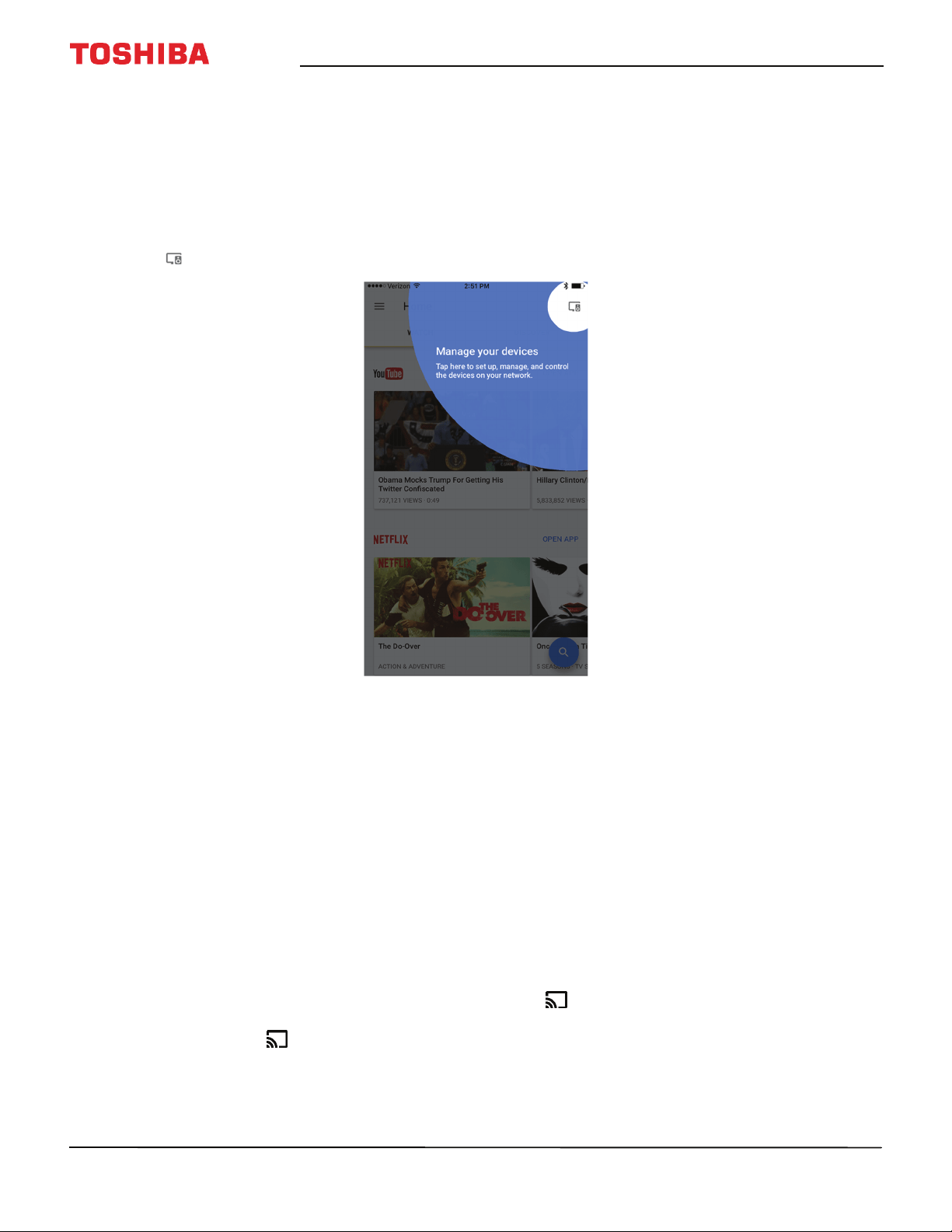
53
50" / 55" 2160p (4K), 60Hz, LED Chromecast built-in TV
www.tv.toshiba.com
15 Sign in to your Google account to personalize your casting experience.
OR
Tap LEAVE SETUP to start casting right away.
16 Tap the slider to turn email notifications on or off, then tap CONTINUE.
17 Tap LEARN HOW TO CAST to go through a tutorial.
OR
Tap SKIP to skip the tutorial.
18 Tap (Manage your devices) to set up, manage, and control the devices on your network.
After setting up Chromecast built-in, your TV's menu language, time zone, and daylight savings time settings should be
set automatically to match the settings on your mobile device.
If the settings are not correct or you want to change the settings, see:
• Setting the time zone and Daylight Saving Time status on page 82.
• Selecting the menu language on page 83.
If you connected cable TV without a box or an external antenna to the ANT / CABLE IN jack, set up the ANT / CABLE IN
jack and scan for channels. See:
• Setting up the ANT / CABLE IN jack on page 54
• Automatically scanning for channels on page 72.
Casting a video, movie, or TV show
After you set up Chromecast built-in on your TV and mobile device, you are ready to cast videos, movies, and TV shows.
1 On your mobile device, make sure that Wifi is turned on.
2 Open a Chromecast-enabled app.
3 Tap the video, movie, or TV program you want to cast, then tap (Chromecast button).
4 Tap the device you want to cast to.
5 To stop casting, tap , then tap Disconnect.
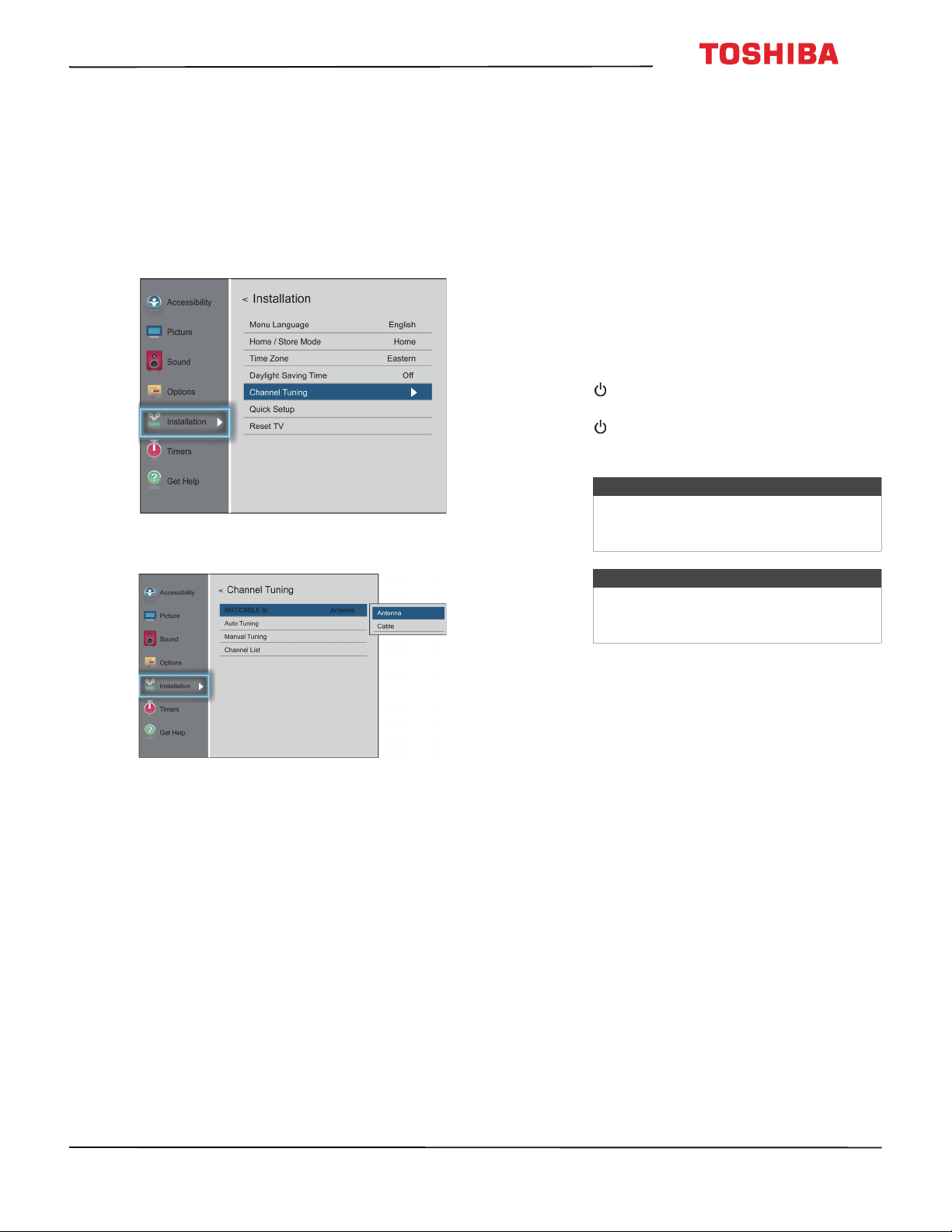
54
50
L
711
U
18
/
50
L
711
M
18
/
55
L
711
U
18
/
55
L
711
M
18
50" / 55" 2160p (4K), 60Hz, LED Chromecast built-in TV
www.tv.toshiba.com
Setting up the ANT / CABLE IN
jack
If you connect an antenna or cable TV without a box
to the ANT / CABLE IN jack, you need to set up the
jack so your TV correctly displays channels.
1 Press MENU, press
S
or
T
to highlight
Installation, then press OK.
2 Highlight Channel Tuning, then press OK.
3 Highlight ANT/CABLE In, then press OK.
4 Highlight your TV input source, then press OK.
Select:
• Antenna if you connected an antenna to the
ANT / CABLE IN jack
• Cable if you connected cable TV without a box
to the ANT / CABLE IN jack
5 Press EXIT to close the menu.
Understanding the basics
This section covers basic information for:
• Turning your TV on or off
• Selecting the video input source
• On-screen menu overview
•Navigating the menus
• Adjusting the volume
• Selecting a channel
• Viewing channel information
Turning your TV on or off
1 Make sure that the power cord is connected
securely and correctly. For more information, see
Connecting power on page 41.
2 Press (power) to turn on your TV. The power
indicator turns off.
3 Press (power) again to turn off your TV. Your TV
enters standby mode, and the power indicator
turns red.
Last Mode Memory
If power is interrupted while you are viewing TV, the
Last Mode Memory feature automatically turns on
your TV when the power is restored.
Warning
When your TV is in standby mode, it is still
receiving power. To completely disconnect
power, unplug the power cord.
Note
If your TV does not receive an input signal
for 15 minutes, it automatically goes into
standby mode.
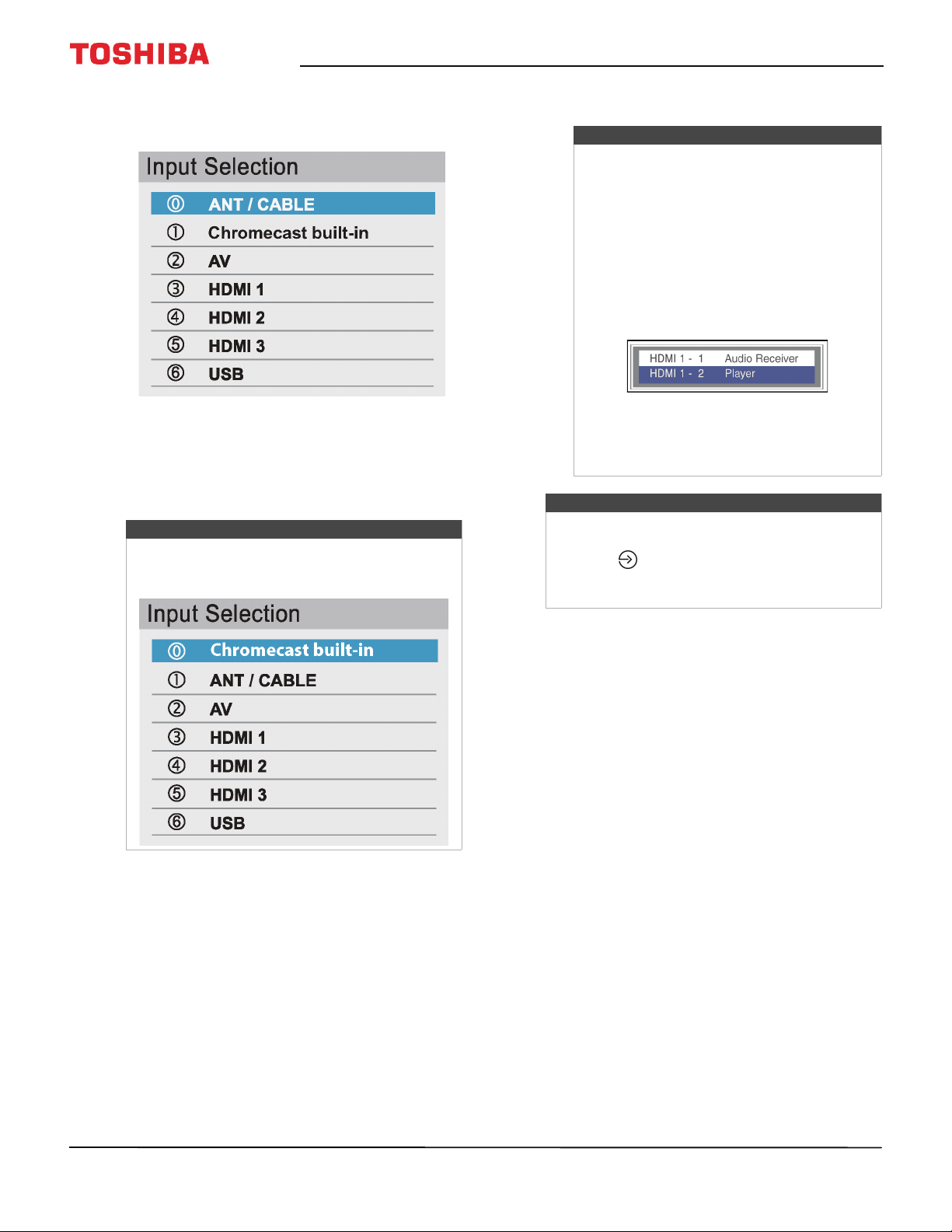
55
50" / 55" 2160p (4K), 60Hz, LED Chromecast built-in TV
www.tv.toshiba.com
Selecting the video input source
1 Press INPUT. The Input Selection list opens.
2 Do one of the following:
• Press INPUT one or more times until the video
input you want is selected.
• Press
S
or
T
to highlight the video input you
want, then press OK.
3 Press EXIT to close the menu.
Note
If you have not scanned for channels,
Chromecast built-in appears at the top of the
Input Selection list.
Notes
• If a CEC-compatible device is connected
to an HDMI jack, the HDMI® CEC icon
appears in the list.
• If a connected CEC-compatible device
has CEC-compatible devices connected
to it, a separate device selection pop-up
window appears. For example, the
pop-up window for a CEC-compatible
DVD player with a CEC-compatible audio
receiver connected might appear as
follows:
• If you press INPUT to select a
CEC-compatible device from the pop-up
window, the device may turn on.
Note
You can also change the video input source using
the virtual remote control. On the Direction key
page, tap (input source), then use the arrows
to select the video input source. See Direction key
page on page 22.
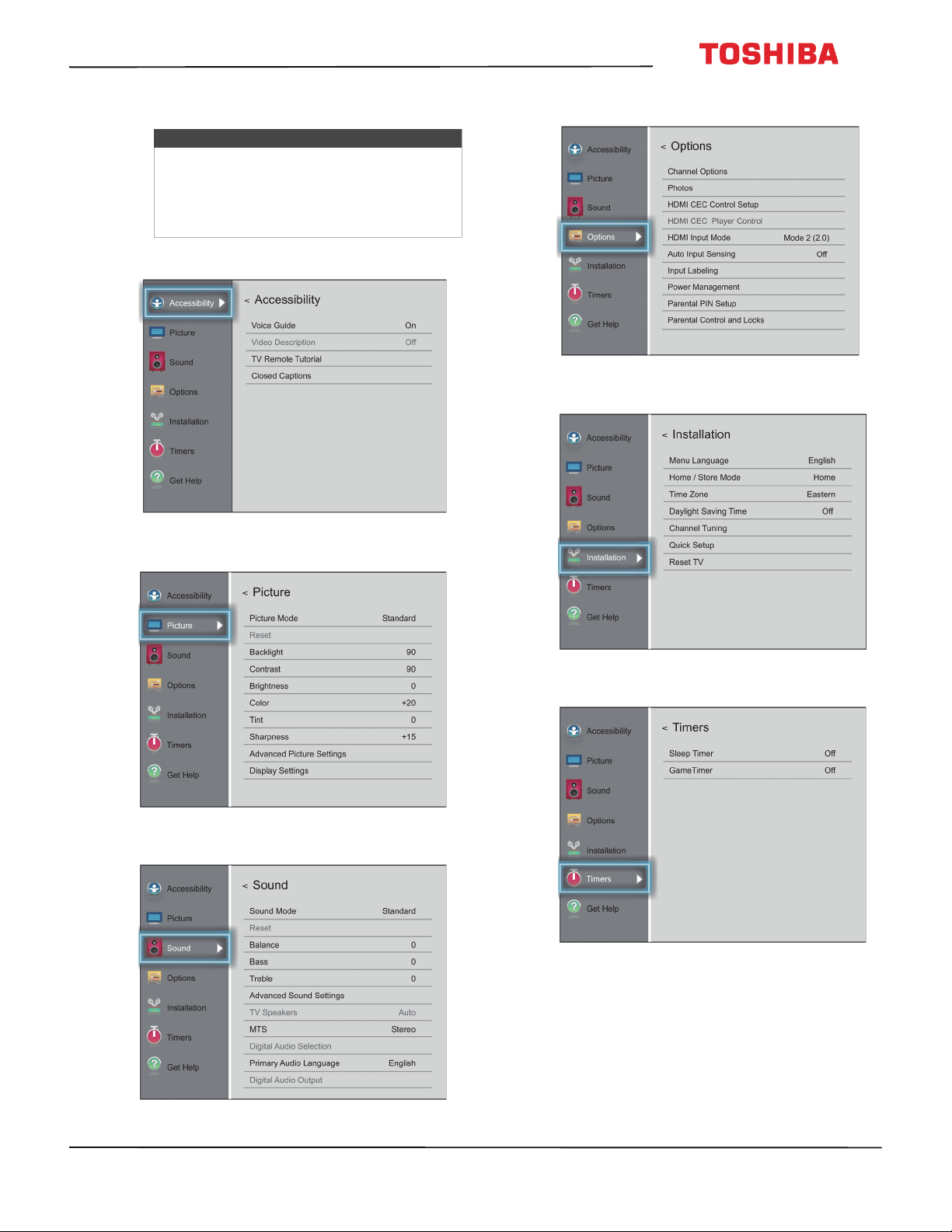
56
50
L
711
U
18
/
50
L
711
M
18
/
55
L
711
U
18
/
55
L
711
M
18
50" / 55" 2160p (4K), 60Hz, LED Chromecast built-in TV
www.tv.toshiba.com
On-screen menu overview
Accessibility menu
Picture menu
Sound menu
Options menu
Installation menu
Timers menu
Notes
• Depending on the signal source selected,
you may see different options on your
screen.
• Menu items that are not selectable are
grayed out.
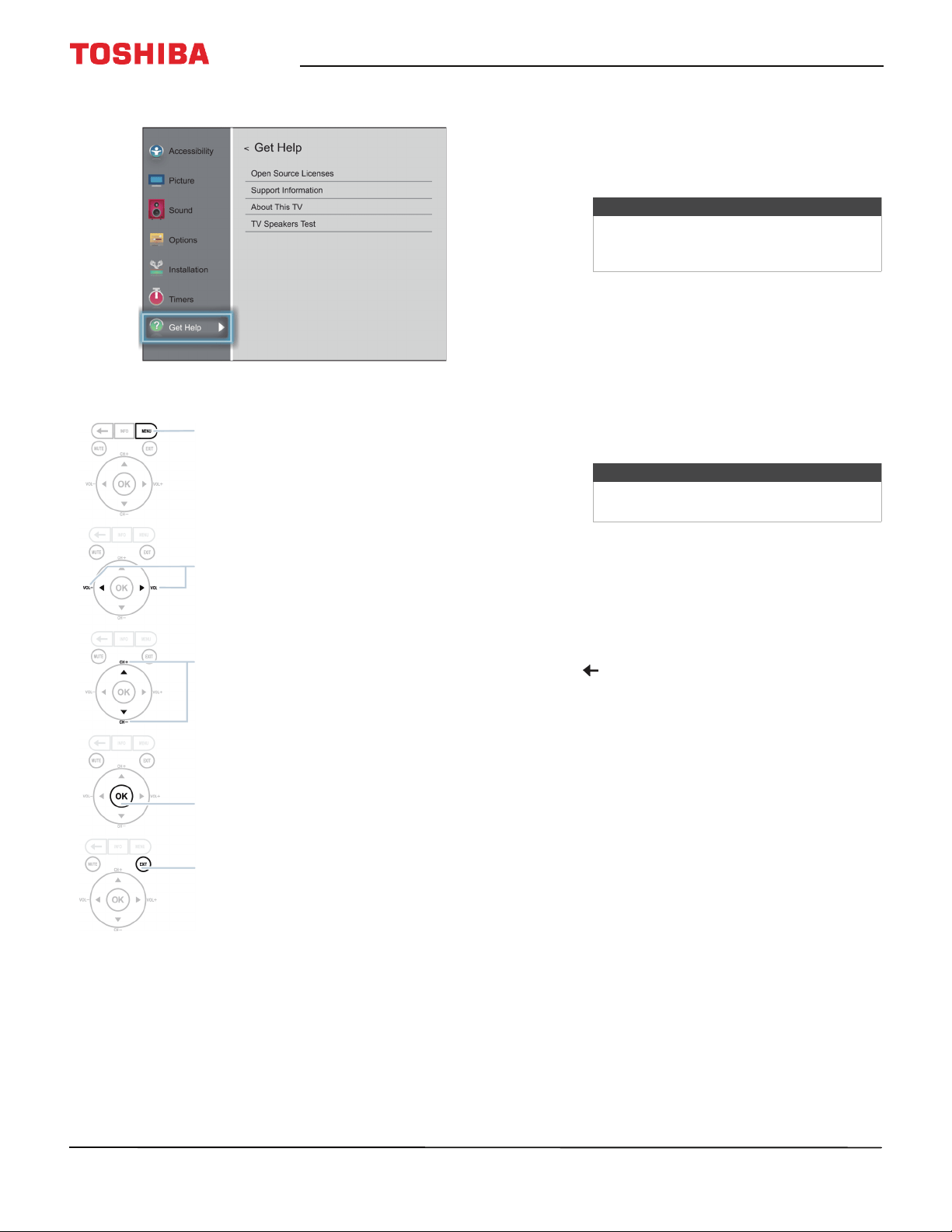
57
50" / 55" 2160p (4K), 60Hz, LED Chromecast built-in TV
www.tv.toshiba.com
Get Help menu
Navigating the menus
Adjusting the volume
• Press VOL+ or VOL– to increase or decrease the
volume.
• Press MUTE to mute the sound. Press MUTE again
to turn the sound back on.
Selecting a channel
• Press CH+ or CH– to go to the next or previous
channel on the memorized channel list.
• To select a channel from the Channel List, press
MENU, select Installation > Channel Tuning >
Channel List. Press CH+ or CH– to go to the next or
previous channel on the memorized channel list.
• To select a digital sub-channel, press the CH+ or
CH– button to select the sub-channel or select the
sub-channel from the channel list.
• On the virtual remote control on your mobile
device, press the number buttons to enter the
channel number you want, then press OK to
immediately change the channel. To change the
channel to a sub-channel, enter the main channel
number, press —, enter the sub-channel button,
then press OK. See Virtual Remote control on
page 21.
• Press (back) to go to the last viewed channel.
Press MENU to open the on-screen menu.
Press the right or left arrow to move the cursor on the
screen or to adjust a selected item.
Press the up or down arrow to select menu options.
Press OK to confirm a selection or enter a sub-menu.
Press EXIT to close the menu.
Note
If you adjust a setting on the Sound menu
while the mute is active, the mute feature
is cancelled.
Note
Button presses must be within two
seconds of each other.
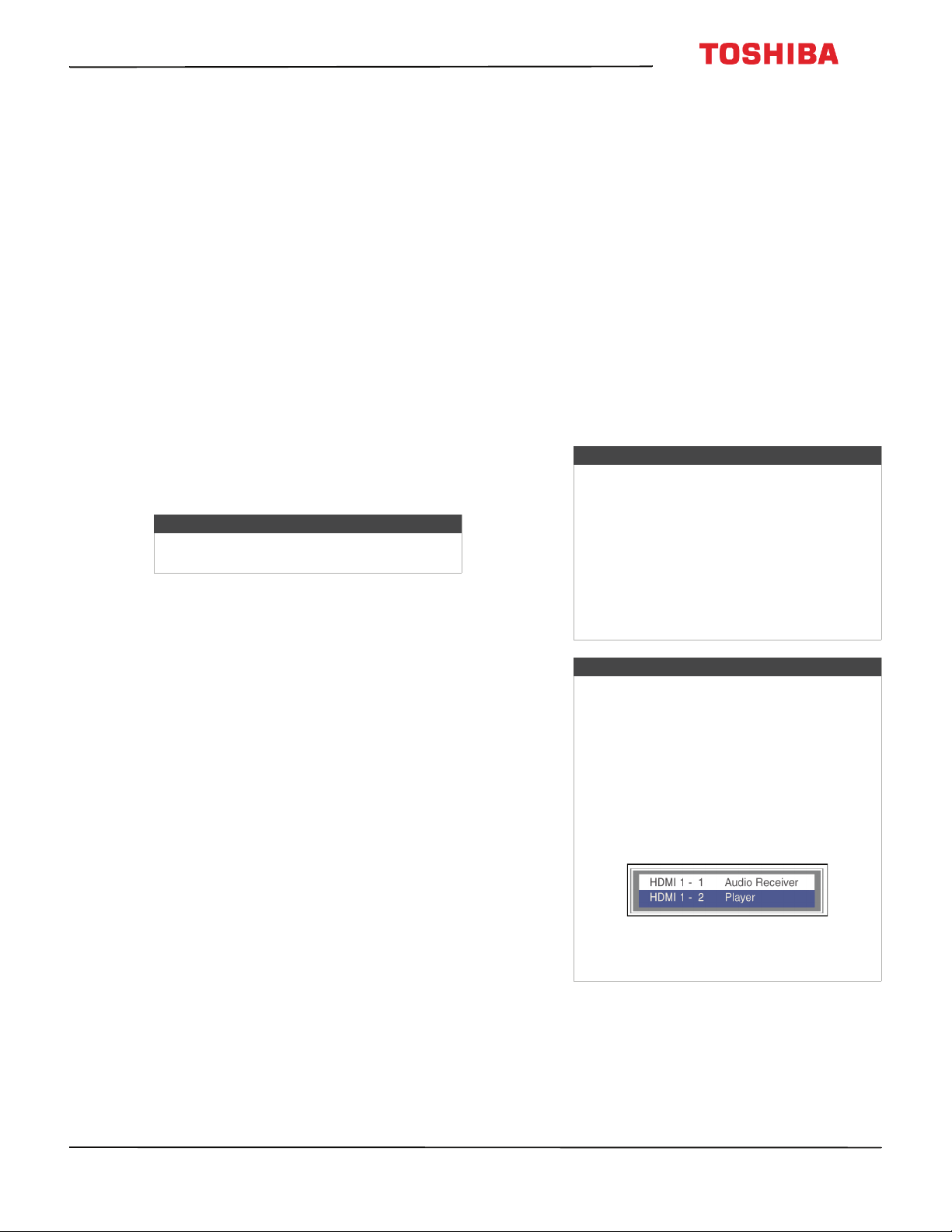
58
50
L
711
U
18
/
50
L
711
M
18
/
55
L
711
U
18
/
55
L
711
M
18
50" / 55" 2160p (4K), 60Hz, LED Chromecast built-in TV
www.tv.toshiba.com
Viewing channel information
Press INFO. The following status information is
displayed:
• Current video input (for example ANT/CABLE or
AV)
• If ANT/CABLE is the current video input, either
CABLE (for cable TV) or ANT (for over-the-air
broadcasts)
• If ANT/CABLE is the current video input, channel
number
• Digital signal strength indicator
• If the input mode is HDMI®, Dolby® Digital, or
PCM
•Video resolution
• Aspect ratio of incoming video signal (4:3 or
16:9)
• TV program or movie rating
•GameTimer (if set)
Pressing INFO also displays the following status
information for digital channels:
•Title
•Duration
• Detailed program description
Controlling CEC-compatible
devices
This section covers:
• Turning HDMI-CEC Control on or off
• Turning TV Auto Power on or off
• Turning Auto Standby on or off
• Turning Amplifier Control on or off
• Using the TV remote to control CEC-compatible
devices
• Using the TV menu to control CEC-compatible
devices
HDMI CEC Control lets you control HDMI
CEC-compatible devices connected to the HDMI jacks
on your TV using the remote control that came with
your TV. To use HDMI CEC Control, you must set the
Enable HDMI CEC Control setting on the HDMI CEC
Control Setup menu to On.
Note
If you pressed INFO, press INFO again to
close the banner.
Notes
• HDMI cables must be used to connect
HDMI CEC-compatible devices to your TV.
• The connected device’s HDMI CEC feature
must be turned on.
• If you connect an HDMI device that is not
HDMI CEC-compatible, none of the
HDMI CEC Control features work.
• Depending on the connected HDMI
device, some HDMI CEC Control features
may not work.
Note
When you press INPUT, the Input Selection list
opens. If you select a CEC-compatible video
device connected to an HDMI jack and that
device is connected to a CEC-compatible
audio device, a second selection list opens
that shows both devices.
For example, if you connect a
CEC-compatible Blu-ray player to an HDMI
jack and the Blu-ray player is connected to a
CEC-compatible soundbar, the second input
selection list might appear as follows:
See Selecting the video input source on
page 55.
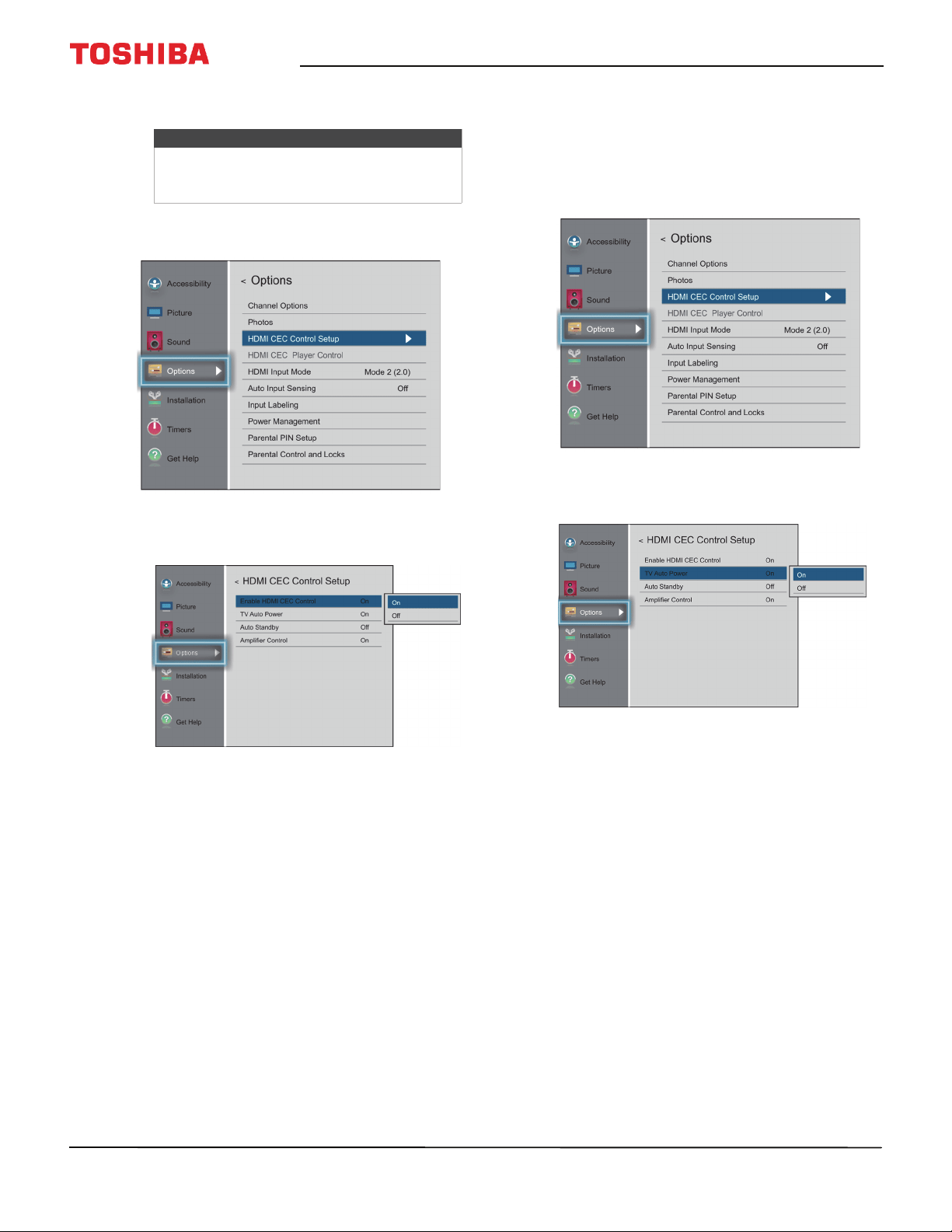
59
50" / 55" 2160p (4K), 60Hz, LED Chromecast built-in TV
www.tv.toshiba.com
Turning HDMI-CEC Control on or off
1 Press MENU, press
S
or
T
to highlight Options,
then press OK.
2 Highlight HDMI CEC Control Setup, then press
OK.
3 Highlight Enable HDMI CEC Control, then press
OK.
4 Highlight On or Off, then press OK.
5 Press EXIT to close the menu.
Turning TV Auto Power on or off
TV Auto Power automatically turns on your TV when
an HDMI CEC device is turned on, if the device has this
feature.
1 Press MENU, press
S
or
T
to highlight Options,
then press OK.
2 Highlight HDMI CEC Control Setup, then press
OK.
3 Make sure that Enable HDMI CEC Control is set to
On.
4 Highlight TV Auto Power, then press OK.
5 Highlight On or Off, then press OK.
6 Press EXIT to close the menu.
Note
If Enable HDMI CEC Control is set to Off, the
other options on the menu are grayed and
cannot be used.
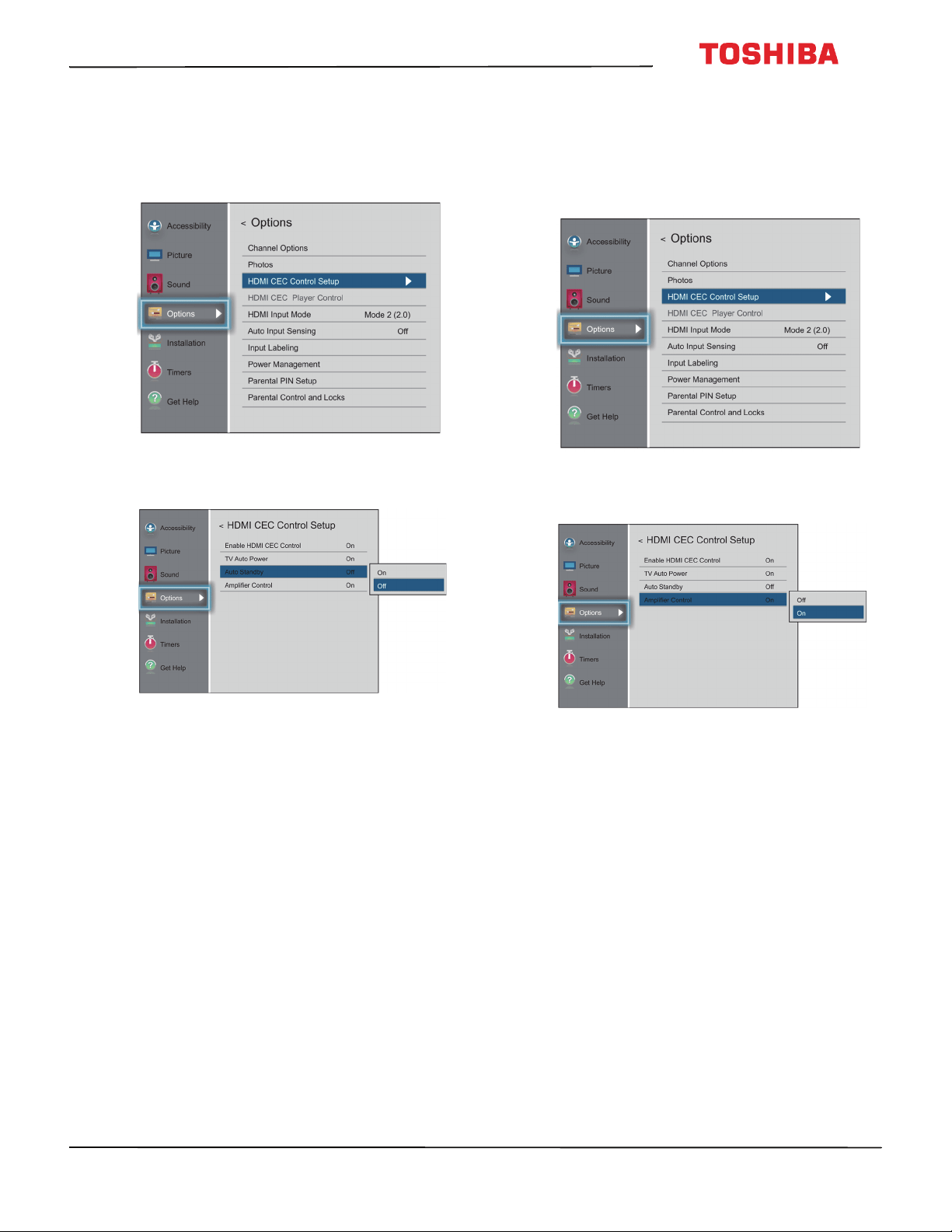
60
50
L
711
U
18
/
50
L
711
M
18
/
55
L
711
U
18
/
55
L
711
M
18
50" / 55" 2160p (4K), 60Hz, LED Chromecast built-in TV
www.tv.toshiba.com
Turning Auto Standby on or off
Auto Standby automatically turns off HDMI CEC
devices when you turn off your TV.
1 Press MENU, press
S
or
T
to highlight Options,
then press OK.
2 Highlight HDMI CEC Control Setup, then press
OK.
3 Make sure that Enable HDMI CEC Control is set to
On.
4 Highlight Auto Standby, then press OK.
5 Highlight On or Off, then press OK.
6 Press EXIT to close the menu.
Turning Amplifier Control on or off
Amplifier Control lets you use your TV’s remote
control to control the volume and mute the sound on
an audio receiver.
1 Press MENU, press
S
or
T
to highlight Options,
then press OK.
2 Highlight HDMI CEC Control Setup, then press
OK.
3 Make sure that Enable HDMI CEC Control is set to
On.
4 Highlight Amplifier Control, then press OK.
5 Highlight Off or On, then press OK.
6 Press EXIT to close the menu.

61
50" / 55" 2160p (4K), 60Hz, LED Chromecast built-in TV
www.tv.toshiba.com
Using the TV remote to control CEC-compatible
devices
When Enable HDMI CEC Control on the HDMI CEC
Control Setup menu is set to On, you can use the
remote control that came with your TV to control a
CEC-compatible device (such as a DVD or Blu-ray
player).
Using the TV menu to control CEC-compatible
devices
When Enable HDMI CEC Control on the HDMI CEC
Control Setup menu is set to On, you can use the TV
menu to turn on a CEC-compatible device (such as a
DVD or Blu-ray player) and access features on the
device.
1 Make sure that Enable HDMI CEC Control is set to
On. See Turning HDMI-CEC Control on or off on
page 59.
2 Press MENU, press
S
or
T
to highlight Options,
then press OK.
3 Highlight HDMI CEC Player Control, then press
OK.
4 Highlight an option, then press OK. You can select:
• Power—Turns the selected device on or off.
• Root Menu—Accesses the root menu of the
selected device.
• Contents Menu—Accesses the contents list of
the device.
• Setup Menu—Accesses the setup menu of a
selected device.
• Top Menu—Accesses the top menu of a
selected device.
• Menu—Accesses the menu of a selected device.
5 Press EXIT to close the menu.
Button Press to...
(play/pause) Start or pause playback.
OK Enter menu options.
EXIT Return to the previous menu.
Note
These functions depend on the devices
connected.
Note
These functions depend on the devices
connected.
The HDMI CEC Player Control option is grayed if:
• A non-HDMI input is currently selected.
•The Enable HDMI CEC Control option is set to
Off.
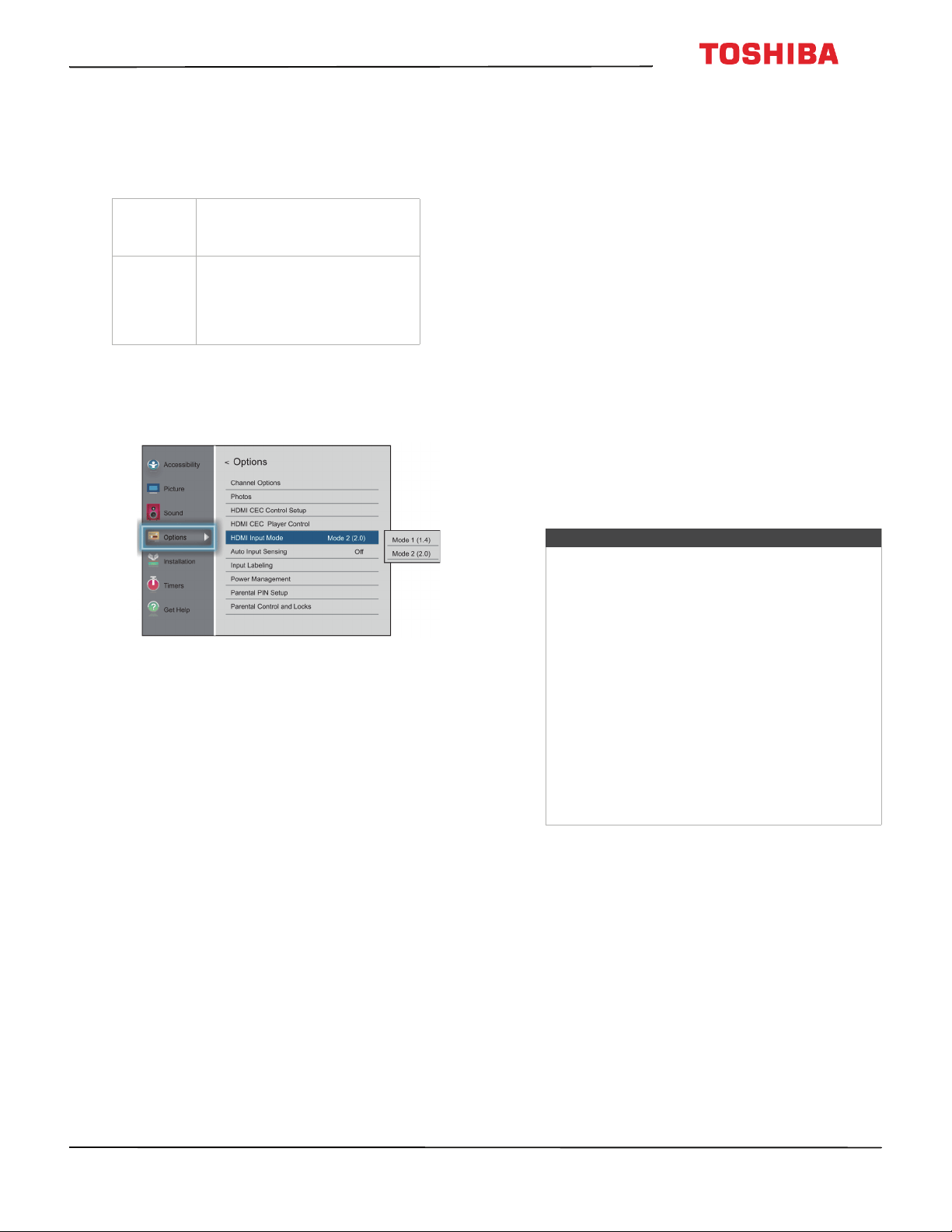
62
50
L
711
U
18
/
50
L
711
M
18
/
55
L
711
U
18
/
55
L
711
M
18
50" / 55" 2160p (4K), 60Hz, LED Chromecast built-in TV
www.tv.toshiba.com
Selecting the HDMI input mode
The HDMI jacks on your TV are Ultra HD (UHD) jacks.
Depending on the UHD device you connect to the
HDMI jack or the streaming content you watch, you
may need to adjust the timing.
1 Make sure that Enable HDMI CEC Control is set to
On. See Turning HDMI-CEC Control on or off on
page 59.
2 Press MENU, press
S
or
T
to highlight Options,
then press OK.
3 Highlight HDMI Input Mode, then press OK.
4 Highlight Mode 1 or Mode 2, then press OK.
Viewing photos on a USB
flash drive
You can connect a USB flash drive to your TV to view
photos stored on the flash drive.
This section includes topics about:
• Supported photo file formats
•Opening the Media Player
• Viewing photos
• Viewing photos in a slideshow
Supported photo file formats
Your TV supports the following photo file formats:
• Data type: JPEG EXIF ver 2.1
•File format: JPEG
•Maximum photo size: 6 MB
• Maximum number of files or folders: 500 files per
folder
• Base-line format, maximum photo resolution: 4096
x 4096 pixels
• Progressive format, maximum photo resolution:
1024 x 768 pixels
Mode 1(1.4)
YCbCr 422/444 (supports timing limit on
3840x2160@30Hz)
HDMI 1.4 mode for 4K / 30Hz or lower
Mode 2 (2.0)
YCbCr 420 (supports timing up to
3840x2160@60Hz)
HDMI 2.0 mode for 4K / 60Hz and HDR
(for older devices you may need to
switch to Mode 1)
Notes
• Connectivity is not guaranteed for all devices.
• Connect the USB flash drive to the TV directly.
Do not use a USB Hub.
• You must obtain any required permission
from copyright owners to use copyright
content.
• Depending on the file size and amount stored
on the USB flash drive, it may take some time
to load before content is viewable.
• A message appears on-screen when files are
loading from the USB flash drive.
• Only limited types of U3 USB devices are
supported. We recommend that you not use
U3 USB to view photos.
• Non-supported characters are replaced with
squares.
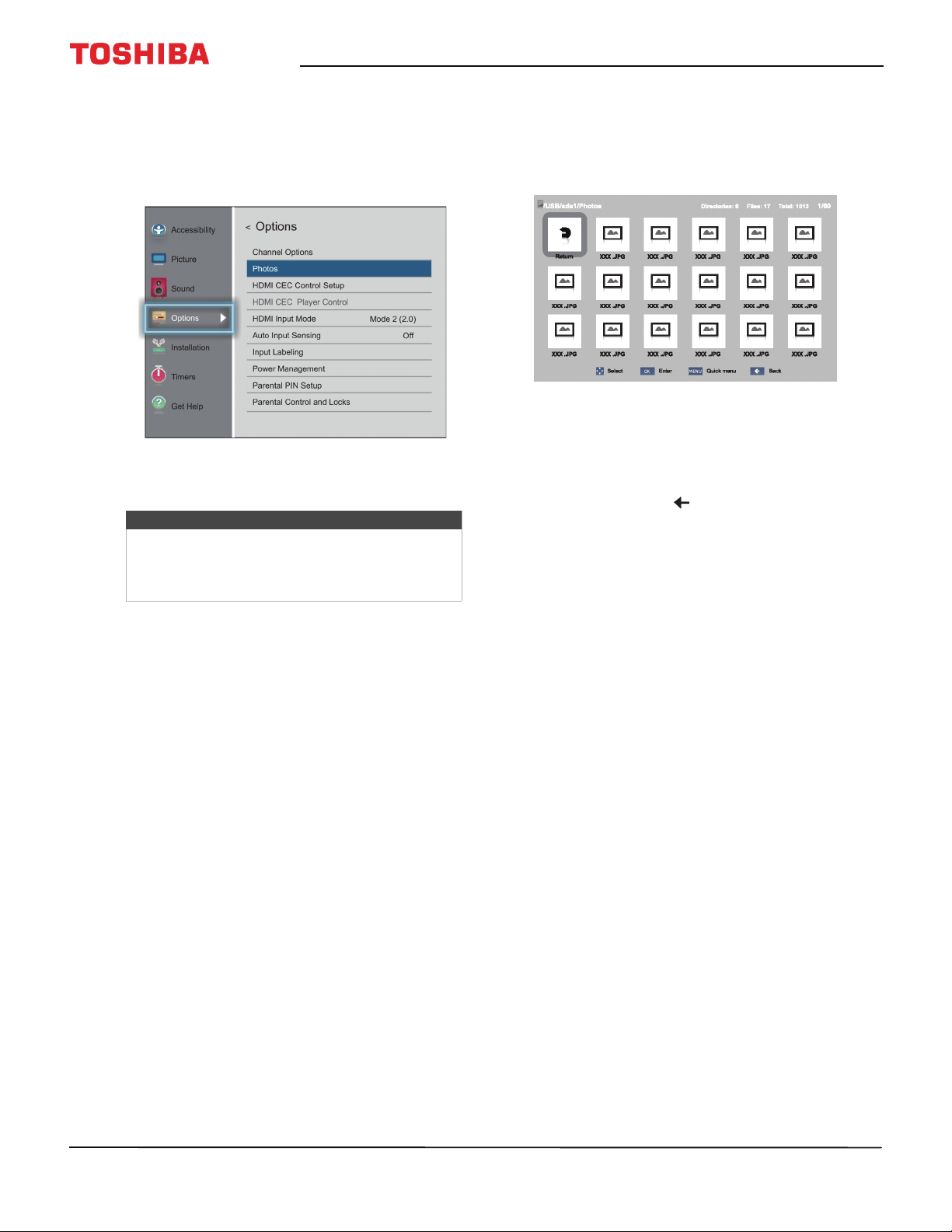
63
50" / 55" 2160p (4K), 60Hz, LED Chromecast built-in TV
www.tv.toshiba.com
Opening the Media Player
1 Gently insert a USB flash drive into the USB port on
your TV.
2 Press MENU, press
S
or
T
to highlight Options,
then press OK.
3 Highlight Photos, then press ENTER. The Media
player opens.
Viewing photos
When you connect a USB flash drive that has photos
on it and open the Photo viewer, a thumbnail index
screen opens that shows the files and folders on the
flash drive.
To navigate the thumbnail index screen:
• Press
S
T
W
or
X
to highlight a folder or photo, then
press OK.
• If you select a folder and press OK, the folder
opens and displays thumbnails of the photos in
the folder. Press to return to the previous
thumbnail screen or folder.
• If you select a photo and press OK, the photo is
displayed full-screen.
• If all the photos do not fit on one screen:
• Highlight the top left thumbnail, then press
W
to move to the previous screen.
• Highlight the bottom right thumbnail, then
press
X
to move to the next screen.
To navigate on a full-screen photo:
• Press
W
or
X
to view the previous or next photo.
• Press
S
to rotate the photo 90° counter-clockwise or
press
T
to rotate the photo 90° clockwise.
• Press EXIT to close the Photo viewer.
Note
You can also select USB from the Input Selection
list to open the Media Player. For more
information, see Selecting the video input source
on page 55.
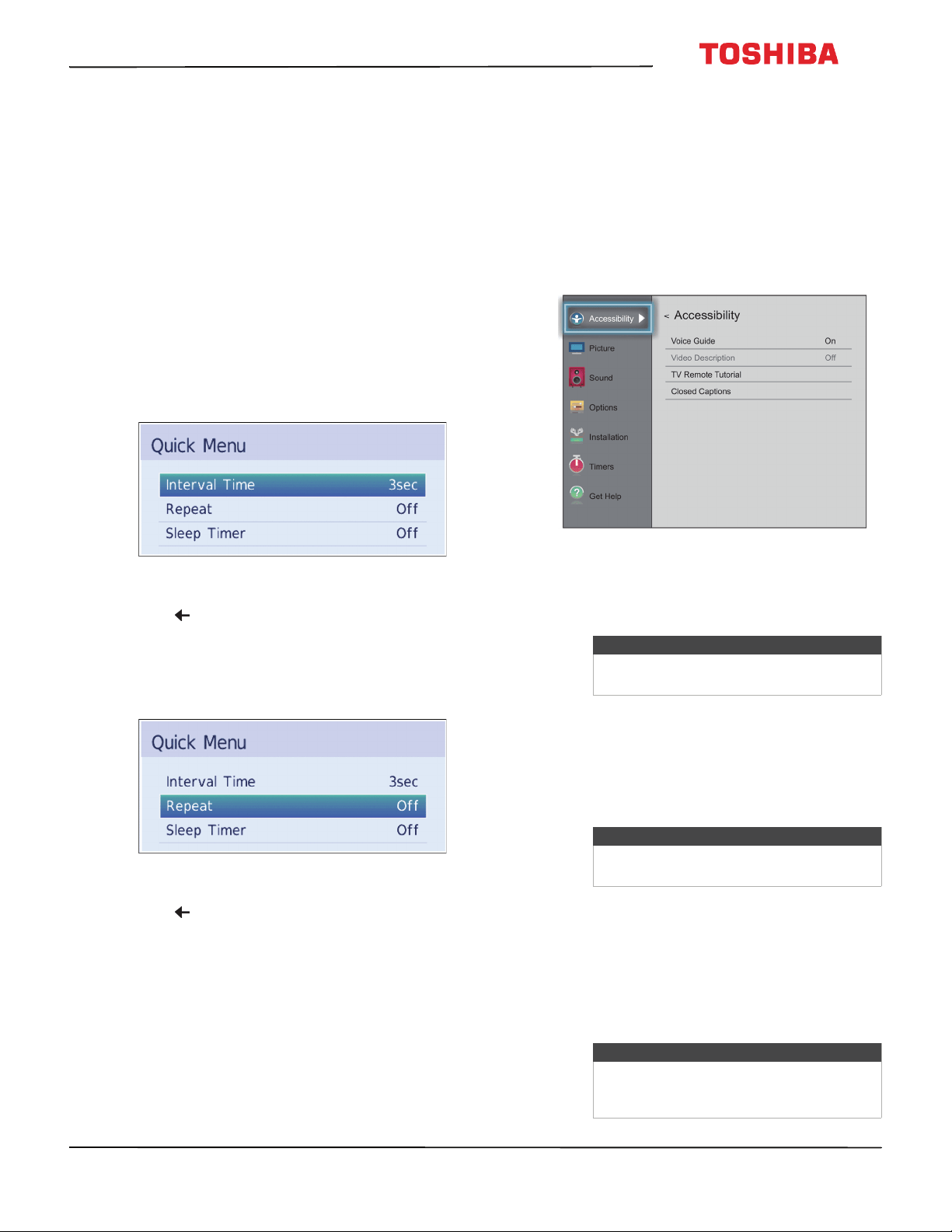
64
50
L
711
U
18
/
50
L
711
M
18
/
55
L
711
U
18
/
55
L
711
M
18
50" / 55" 2160p (4K), 60Hz, LED Chromecast built-in TV
www.tv.toshiba.com
Viewing photos in a slideshow
When viewing photos in a slideshow, you can:
• Skip backward or forward through the photos in the
current folder
• Set the time interval between photo displays
• Repeat the slideshow
To view photos in the slideshow:
1 Select a photo, then press OK to view it full-screen.
Press OK again to start a slideshow in the current
folder.
2 Press
W
or
X
to view the previous or next photo in
the slideshow.
To set the time interval:
1 With a photo displayed full-screen, press OK.
2 Press MENU, then press
S
or
T
to highlight
Interval Time.
3 Press
W
or
X
to select the time interval.
4 Press to continue the slideshow.
To set the repeat mode:
1 With a photo displayed full-screen, press OK.
2 Press MENU, then press
S
or
T
to highlight
Repeat.
3 Press
W
or
X
to select On.
4 Press to continue the slideshow.
Adjusting accessibility
settings
Your TV provides audio descriptions of menus and
some remote control functions. Depending on the
broadcaster, audio narration of key elements in
programs may also be available.
1 Press MENU, press
S
or
T
to highlight
Accessibility, then press OK.
2 Highlight an option, then press OK. You can select:
• Voice Guide—Audibly narrates menu selections
and some remote control functions. You can
select On or Off.
• Video Description—Audibly narrates key visual
elements in TV programs (not available on all
broadcasts). You can select On or Off. This
option is only available when the video input is
ANT/CABLE.
• TV Remote Tutorial—Provides information
about using the remote control.
• Closed Captions—Displays a text version of the
TV program audio or displays information
provided by the broadcaster. See Using closed
captioning on page 79 for instructions about
using closed captioning features.
3 Press
W
X
S
or
T
to adjust the option or select a
setting, then press OK.
4 Press EXIT to close the menu.
Note
The Voice Guide option is only available
in the English language.
Note
The Voice Guide option must be set to On
to access the TV Remote Tutorial.
Note
For more information about accessibility,
call Product Support (855) 527-2411 (U.S.)
or 01-800-926-3080 (Mexico).
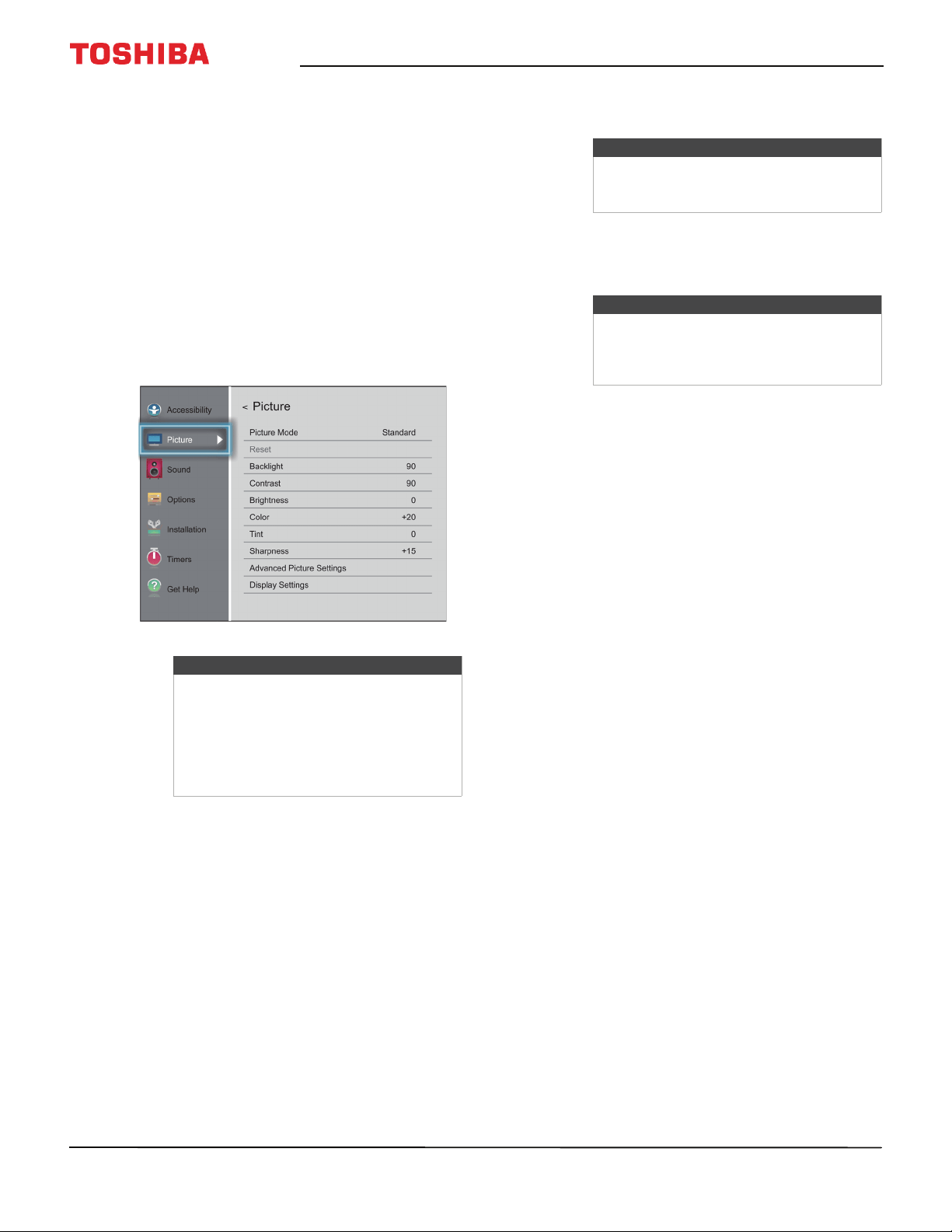
65
50" / 55" 2160p (4K), 60Hz, LED Chromecast built-in TV
www.tv.toshiba.com
Adjusting the picture
This section covers:
• Adjusting the TV picture
• Adjusting the picture size
• Scrolling the TheaterWide™ picture
• Automatically adjusting the aspect ratio
• Using the 4:3 Stretch
Adjusting the TV picture
You can adjust various settings to improve the quality
of the TV picture. Also, you can reset all picture
settings to the factory default.
1 Press MENU, press
S
or
T
to highlight Picture,
then press OK.
2 Highlight an option, then press OK. You can select:
• Picture Mode—(SDR) Selects the picture mode.
You can select:
• Dynamic—Significantly increases the
contrast, color saturation, sharpness, gray
scale, and brightness to create more vivid
and dynamic images.
• Standard—Uses the default settings.
• Natural—Preserves original video content.
• Movie—Lowers the contrast for a darkened
room.
• Game—Reduces controller delay for faster
video gaming action.
• PC—Optimizes the image of a connected
computer.
• Store—The Store picture mode is only
available if you selected Store Mode during
initial setup. This option is hidden in the
Home mode.
• HDR Picture Mode—(HDR) Selects the picture
mode. You can select:
• Vivid—Provides brighter HDR picture
viewing.
• Normal—Provides enhanced HDR picture
viewing.
• Movie— Provides a natural HDR picture.
• Game— Provides an optimized picture for
HDR gaming content.
• Store—The Store picture mode is only
available if you selected Store Mode during
initial setup. This option is hidden in the
Home mode.
• Reset—Resets all picture settings to the factory
default.
• Backlight—Sets the overall brilliance of the
screen.
• Contrast—Adjusts the brightness of the light
areas of the picture.
• Brightness—Adjusts the brightness of the dark
areas of the picture.
• Color—Adjusts the color intensity of the picture.
A low setting may make the color look faded. A
high setting may make the color look artificial.
• Tint—Adjusts the color balance of the picture.
Use this control to make skin tones look more
natural.
•
Sharpness—A
djust
s the color detail of images.
If you set this control too high, dark images may
appear with light or white edges.
Note
Your TV automatically determines the
dynamic range of UHD streaming video:
Standard Dynamic Range (SDR) or High
Dynamic Range (HDR).
If you are watching HDR streaming video,
the Picture menu displays HDR Picture
Mode instead of Picture Mode.
Note
The PC option is only available for HDMI.
The option is grayed for other input
sources.
Note
When your TV is set to Store Mode
(during the initial setup or from the
Installation menu), your TV will always
revert to Store Mode when you turn it on.
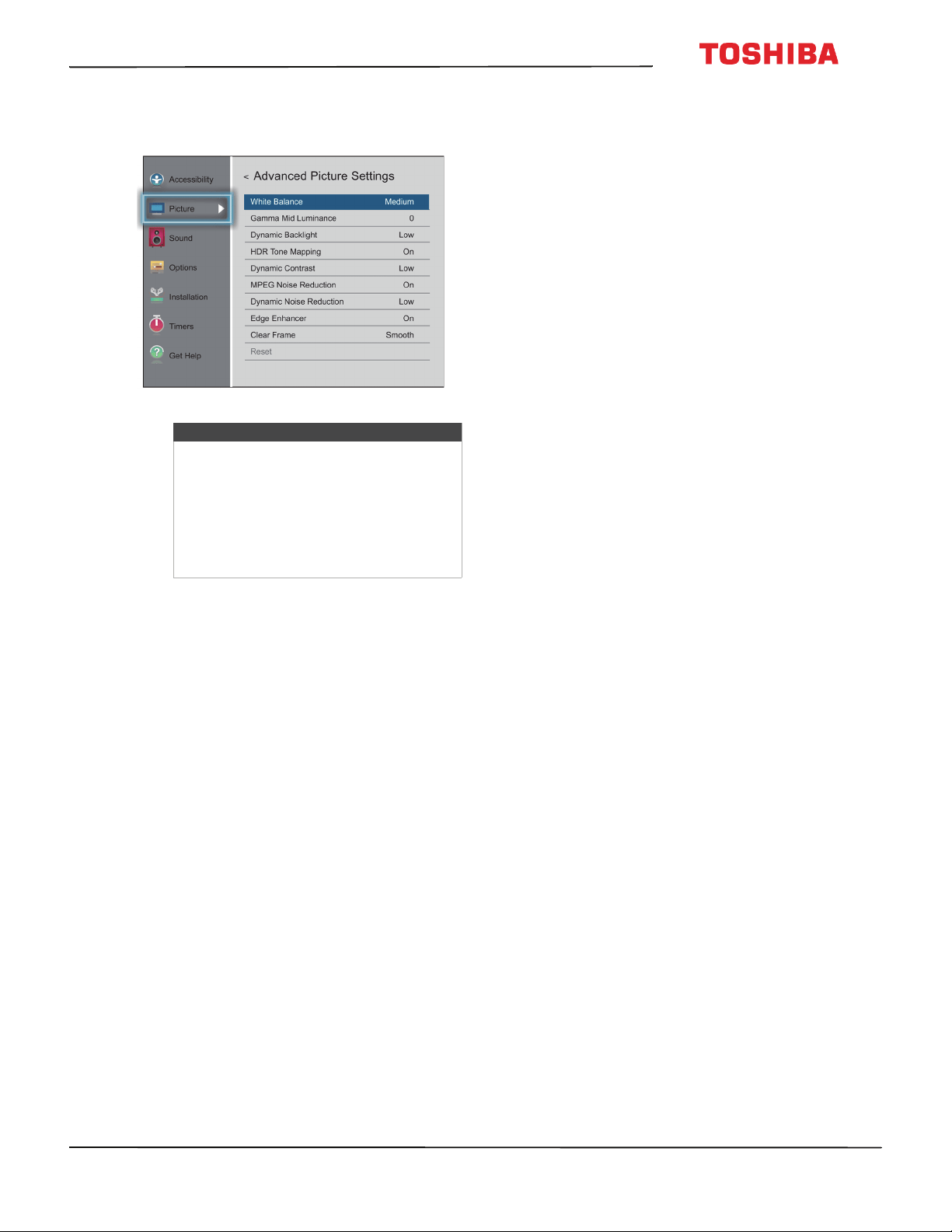
66
50
L
711
U
18
/
50
L
711
M
18
/
55
L
711
U
18
/
55
L
711
M
18
50" / 55" 2160p (4K), 60Hz, LED Chromecast built-in TV
www.tv.toshiba.com
• Advanced Picture Settings—Opens the
Advanced Picture Settings menu where you can
adjust additional video options.
• White Balance—Adjusts the color
temperature.
A Highlight Color Temperature.
B Press
W
or
X
to select a setting.
If you selected the Picture Mode option
on the Picture menu, you can select Cool,
Medium, or Warm.
If you selected the HDR Picture Mode
option on the Picture menu, you can
select Cool, Medium, Warm1, or Warm2.
C Highlight Red Intensity, Green
Intensity, or Blue Intensity, then press
OK. Press
W
or
X
to adjust the setting.
D Press
T
to highlight Done, then press OK.
• Gamma Mid Luminance—Lets you adjust
the levels of black in the picture.
A Highlight this option, then press OK.
B Press
W
or
X
to decrease or increase the
black level detail.
• Dynamic Backlight—Automatically
strengthens the black coloring of dark areas
in the video according to the level of
darkness. You can select High, Low, or Off.
• HDR Tone Mapping—(HDR) Optimizes the
luminance response. You can select On or
Off.
• Dynamic Contrast—(SDR) Automatically
detects changes in picture quality that affect
the appearance of your contrast settings and
automatically adjusts the video. You can
select High, Middle, Low, or Off.
• MPEG Noise Reduction—Reduces artifact
noise and mosquito noise by MPEG
encoding. You can select On or Off.
• Dynamic Noise Reduction—Reduces
picture noise (snow). You can select Off, Low,
or High.
• Edge Enhancer—Adjusts the picture to
achieve a sharper image. You can select On
or Off.
• Clear Frame—(Smooths the video motion
when watching a movie on DVD. You can
select Standard, Smooth, Cinema, or Off.
(This option is available for the 55" model.)
• Reset—Resets all advanced picture settings
to factory defaults.
Note
Your TV automatically determines the
dynamic range of UHD streaming video:
Standard Dynamic Range (SDR) or High
Dynamic Range (HDR).
If you are watching SDR video, the
Advanced Picture Settings menu displays
Dynamic Contrast instead of HDR Tone
Mapping.
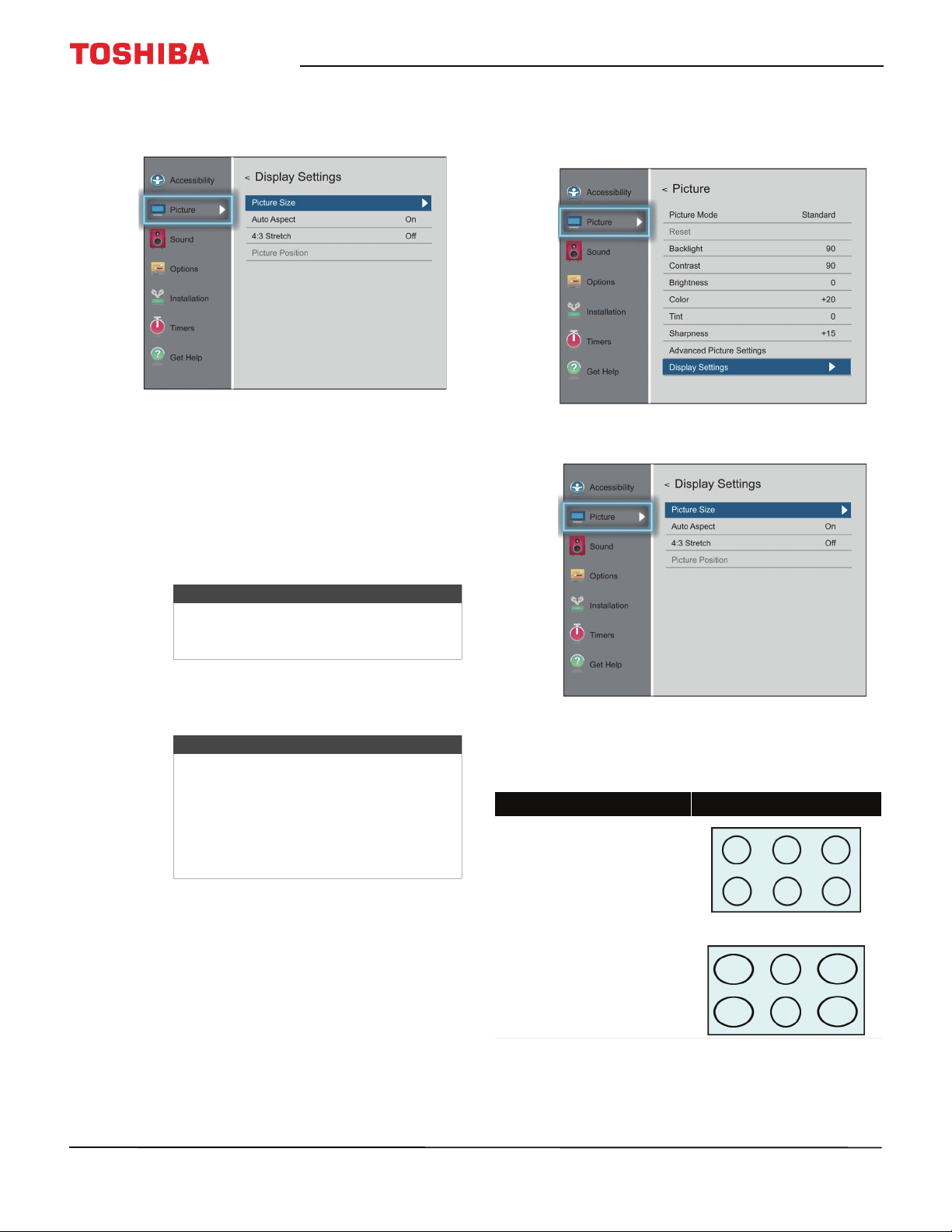
67
50" / 55" 2160p (4K), 60Hz, LED Chromecast built-in TV
www.tv.toshiba.com
• Display Settings—Opens the Display Settings
menu where you can adjust how the picture is
displayed on the screen.
You can adjust:
• Picture Size—See Adjusting the picture size
on page 67.
• Auto Aspect—See Automatically adjusting
the aspect ratio on page 69.
• 4:3 Stretch—See Using the 4:3 Stretch on
page 70.
• Picture Position—See Scrolling the
TheaterWide™ picture on page 69.
3 Press
W
X
S
or
T
to adjust the option or select a
setting, then press OK.
4 Press EXIT to close the menu.
Adjusting the picture size
1 Press MENU, press
S
or
T
to highlight Picture,
then press OK.
2 Highlight Display Settings, then press OK.
3 Highlight Picture Size, then press OK.
4 Press
S
or
T
to select a picture size, then press OK
or wait a few seconds. The menu closes.
Note
The Picture Position option may be
grayed and unavailable for some Picture
Size settings.
Notes
• Picture setting adjustments affects the
current video input only. You can
adjust the picture quality separately
for each input.
• Depending on the Sharpness setting,
the Edge Enhancer effect may be
reduced.
Picture size Example
Full
Displays the picture in a 16:9 format
(aspect ratio). If the picture is in a 4:3
format, the picture is stretched
horizontally to fill the width of the
screen but is not stretched vertically.
The edges of the picture may be hidden.
TheaterWide 1
The center of the picture remains close
to its original proportion, but the left
and right edges are stretched
horizontally to fill the screen.
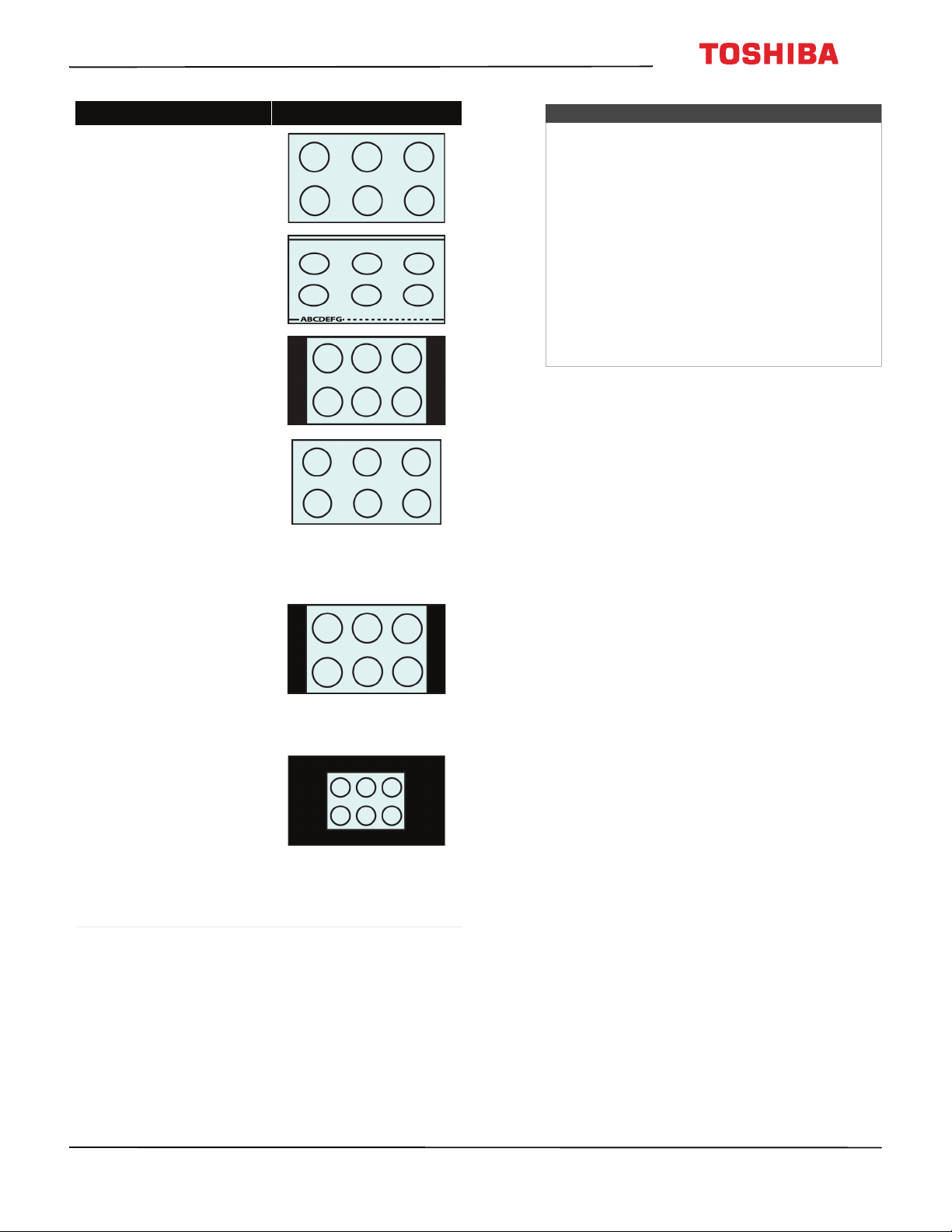
68
50
L
711
U
18
/
50
L
711
M
18
/
55
L
711
U
18
/
55
L
711
M
18
50" / 55" 2160p (4K), 60Hz, LED Chromecast built-in TV
www.tv.toshiba.com
TheaterWide 2
This setting is for viewing letter box
(4:3) programs.
TheaterWide 3
This setting is for viewing letter box
programs with subtitles.
The top and bottom edges of the picture
are hidden.
4:3
Displays the picture in letter box format.
Some program formats will display with
sidebars and/or bars at the top and
bottom.
Native:
If the program is a 2160p, 1080i, 1080p,
720p, 480i (HDMI®), or 480p (HDMI®)
program, the picture is scaled to display
the entire picture within the borders of
the screen (no overscanning).
This picture size is especially useful for
viewing external HD sources, such as
DVD movies, video games, or computer
graphics.
Normal
Displays the image in the original
aspect ratio. You may see black bars if
the original content is not widescreen.
This setting is for viewing VGA, SVGA,
XGA, WXGA, and SXGA sources.
Note: This option adjusts the timing
when a computer is connected to an
HDMI IN jack.
Dot by Dot
Dot by Dot is a non-scaling display.
Depending on the input signal format
(VGA, for example), the picture may
appear with sidebars and/or bars at the
top and bottom. This setting is for
viewing VGA, SVGA, XGA, WXGA, and
SXGA sources. This option is only
available when the video input source is
HDMI and the video signal is VGA, SVGA,
XGA, WXGA, or SXGA.
Picture size Example
Notes
• If you select a TheaterWide™ picture size, the
top and bottom edges of the picture
(including subtitles or captions) may be
hidden. To view these edges, try adjusting the
Picture Position, viewing the program in 4:3
or Full, or scroll the picture. See Scrolling the
TheaterWide™ picture on page 69.
•The Native mode is supported only for HDMI®
(2160p, 1080i, 1080p, 720p, 480i, and 480p),
and ANT/CABLE (digital) inputs (1080i, 1080p,
and 720p).
•In Native mode, the picture’s border may be
hidden, displayed in black, or noisy,
depending on the input signal.
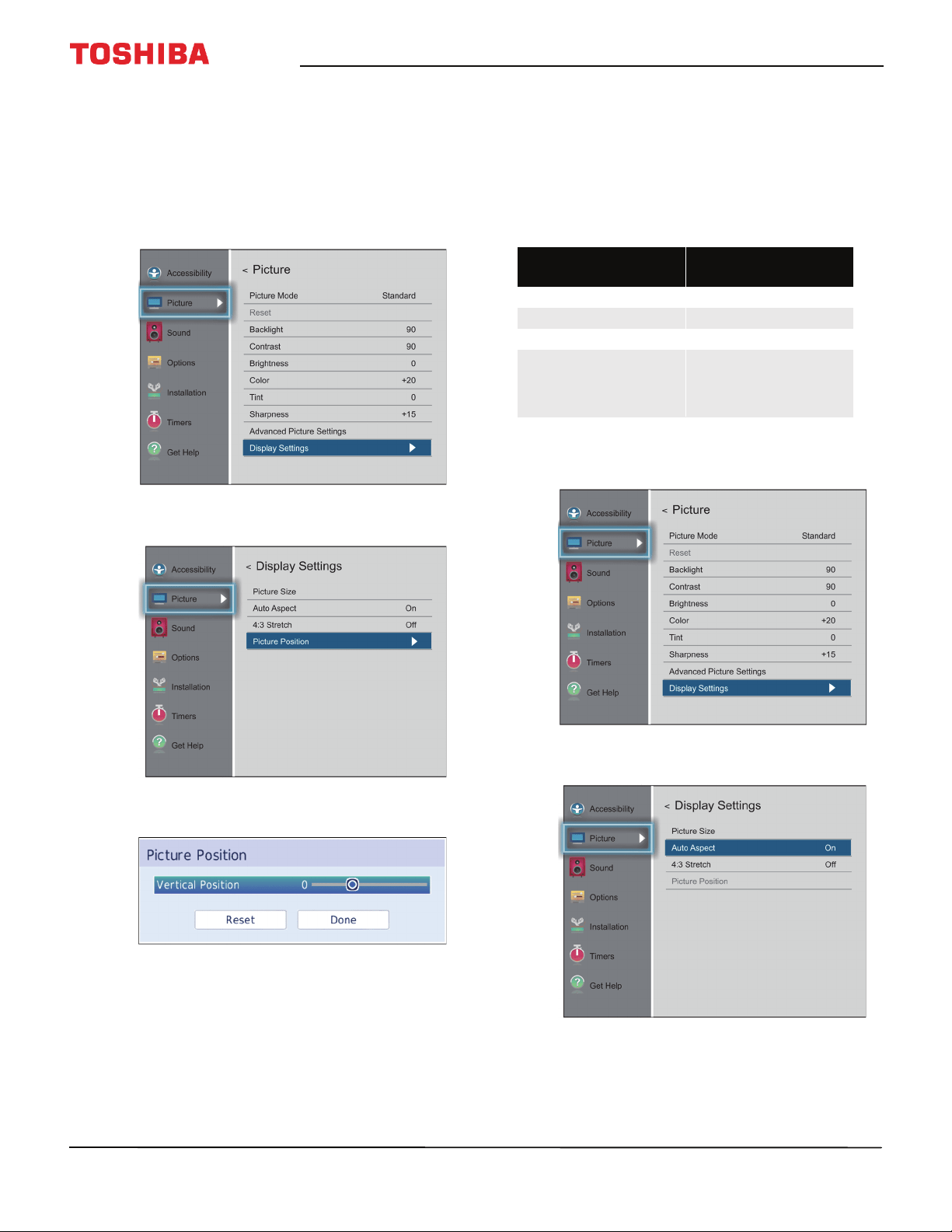
69
50" / 55" 2160p (4K), 60Hz, LED Chromecast built-in TV
www.tv.toshiba.com
Scrolling the TheaterWide™ picture
You can set separate scroll settings for the
TheaterWide 2 and TheaterWide 3 picture size
modes for each input. For more information about
pictures sizes, see Adjusting the picture size on
page 67.
1 Press MENU, press
S
or
T
to highlight Picture,
then press OK.
2 Highlight Display Settings, then press OK.
3 Highlight Picture Position, then press OK.
4 Press
W
or
X
to move the picture up and down as
needed, then press OK. To save the new settings,
press
S
or
T
to highlight Done, then press OK.
OR
To revert to the factory defaults, highlight Reset
then press OK.
5 Press EXIT to close the menu.
Automatically adjusting the aspect ratio
When the Auto Aspect option is set to On, your TV
automatically selects the picture size when one of the
following input sources is received:
• 480i, 480p, 720p, 1080i digital signal from the
ANT/CABLE IN jack
• 480i, 480p, 720p, 1080i, 1080p, 2160p, or VGA (60Hz)
signal from an HDMI jack
1 Press MENU, press
S
or
T
to highlight Picture,
then press OK.
2 Highlight Display Settings, then press OK.
3 Highlight Auto Aspect, then press OK.
4 Highlight On, then press OK. (To turn off Aspect
Ratio, select Off.)
5 Press EXIT to close the menu.
Aspect Ratio of Signal
Source
Auto Aspect is set to
On)
4:3 Normal 4:3
4:3 Letter Box TheaterWide 2
16:9 Full
Not defined (no ID-1
data or HDMI® aspect
data)
The current picture size
you selected, see
Adjusting the picture
size on page 67.
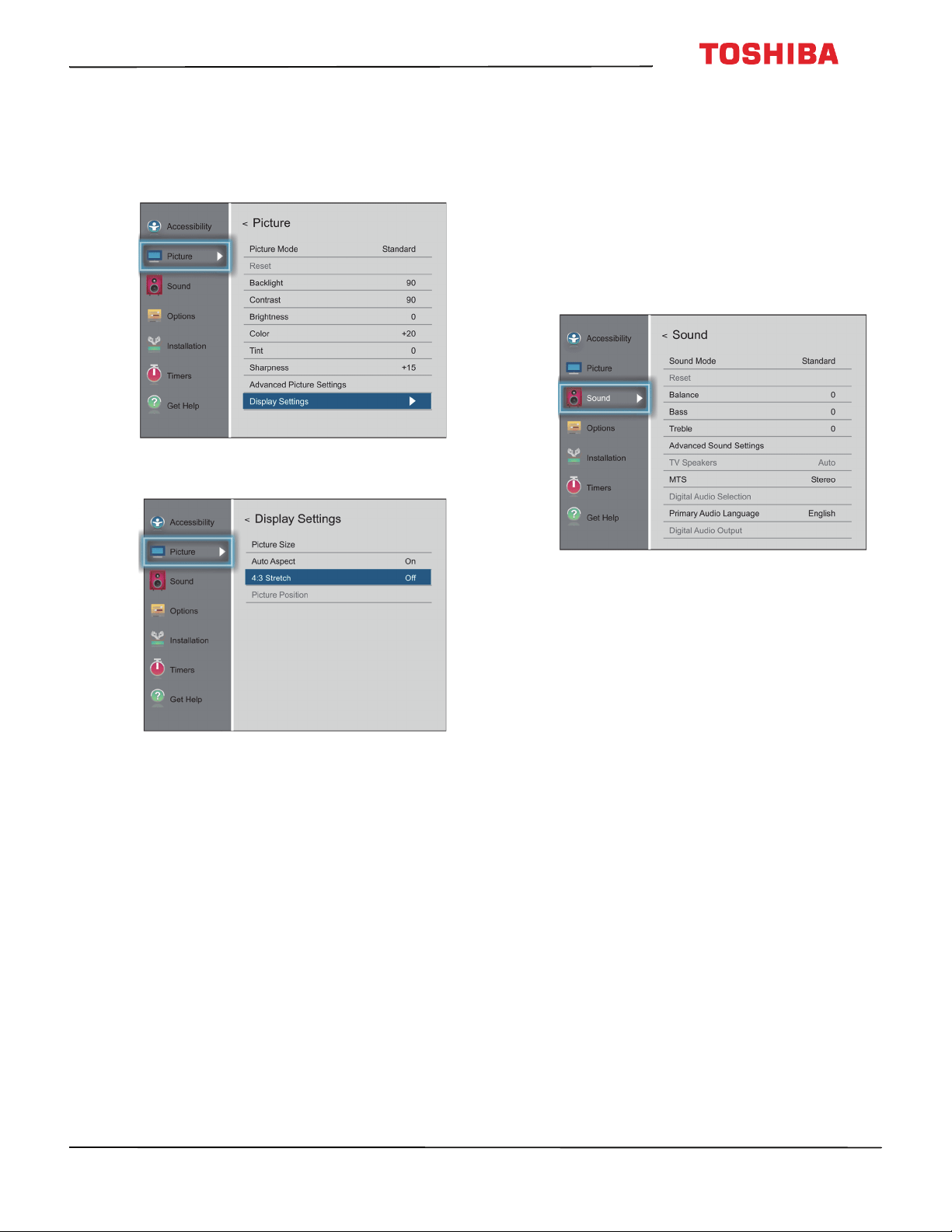
70
50
L
711
U
18
/
50
L
711
M
18
/
55
L
711
U
18
/
55
L
711
M
18
50" / 55" 2160p (4K), 60Hz, LED Chromecast built-in TV
www.tv.toshiba.com
Using the 4:3 Stretch
When 4:3 Stretch is turned on, your TV displays 4:3
programs as a full-screen picture.
1 Press MENU, press
S
or
T
to highlight Picture,
then press OK.
2 Highlight Display Settings, then press OK.
3 Highlight 4:3 Stretch, then press OK.
4 Highlight On, then press OK. (To turn off 4:3
Stretch, select Off.)
5 Press EXIT to close the menu.
Adjusting the sound
This section covers:
• Adjusting sound settings
• Playing TV audio only
Adjusting sound settings
You can adjust sound settings to improve the sound
quality.
1 Press MENU, press
S
or
T
to highlight Sound,
then press OK.
2 Highlight an option, then press OK. You can select:
• Sound Mode—Selects the sound mode. You
can select Standard, Music, Movie, Clear Voice,
or Enhanced Bass.
• Reset—Resets all sound settings to the factory
default.
• Balance—Adjusts the balance between the left
and right audio channels.
• Bass—Adjusts the low sounds.
• Treble—Adjusts the high sounds.
• Advanced Sound Settings—Adjusts advanced
sound settings. You can select:
• Dialog Clarity—Adjusts the volume of
dialog when watching movies or TV
programs. You can select Off, Low, or High.
• Surround—Delivers clear, crisp, and natural
sound over front facing speaker
configurations, complete with rich bass, high
frequency detail, and clear dialog. You can
select Off or TruSurround.
• TruVolume—Keeps the volume level
consistent when switching between content
types, for example when switching between
a program and a commercial. You can select
On or Off.
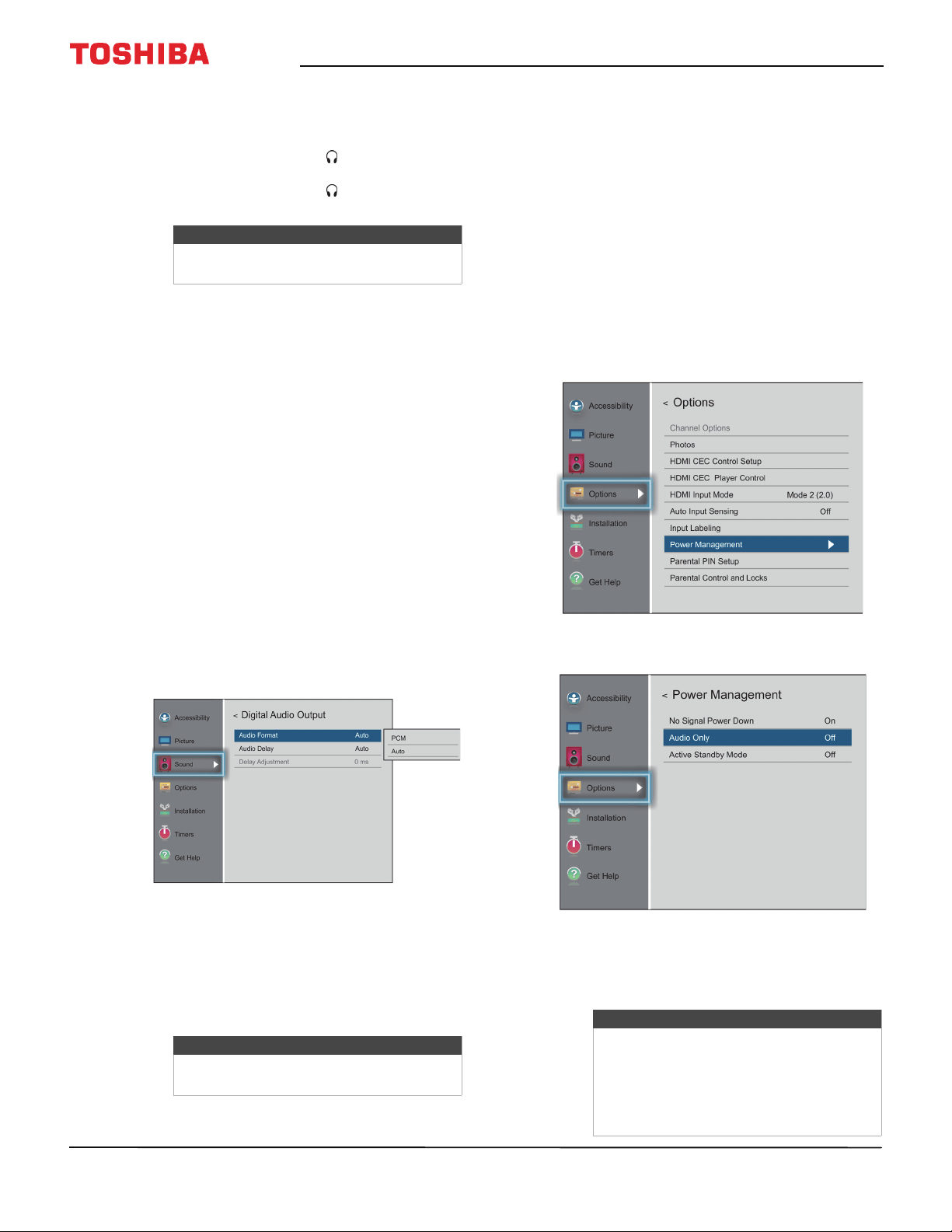
71
50" / 55" 2160p (4K), 60Hz, LED Chromecast built-in TV
www.tv.toshiba.com
• TV Speakers—Turns your TV’s speakers on or
off. You can select:
• Auto—Turns off the TV speakers when you
connect a device to the /AUDIO OUT jack.
• On—Keeps the TV speakers on when you
connect a device to the /AUDIO OUT jack.
• Off—Turns off the TV speakers.
• MTS—(Analog channels received through the
ANT / CABLE IN jack only) Selects the audio
mode. You can select:
• Stereo—Select this option for programs
broadcast in stereo. You can typically leave
your TV in Stereo mode because Stereo
outputs the type of sound being broadcast
(stereo or mono).
• Mono—Select this option if there is noise or
static on weak stereo broadcasts.
• SAP—Select this option to listen to a
secondary audio program, if available. If you
select this option and no secondary audio
program is available, you may not hear
sound. Change the MTS option to Stereo.
• Digital Audio Selection—Lets you
conveniently switch between audio tracks on a
digital channel (when available). This option
temporarily overrides the Primary Audio
Language option on the Sound menu.
• Primary Audio Language—Selects the
language for digital channels.
• Digital Audio Output—Opens the Digital Audio
Output menu where you can adjust digital audio.
• Audio Format—Selects the digital audio
format sent to an external audio system. You
can select:
• PCM (to convert and output sound as
PCM (pulse-code modulation) format).
• Auto (to pass through the original digital
sound).
• Audio Delay—Fine tunes the audio when it
is not in sync with the video. You can select
Auto or Manual.
• Delay adjustment—Lets you set the
amount of delay to manually sync the audio
with the video. To use this option, Audio
Delay must be set to Manual.
3 Press
W
X
S
or
T
to adjust the option or select a
setting, then press OK.
4 Press EXIT to close the menu.
Playing TV audio only
You can turn off the picture on your TV and listen to
the program audio only.
1 Press MENU, press
S
or
T
to highlight Options,
then press OK.
2 Highlight Power Management, then press OK.
3 Highlight Audio Only, then press OK.
4 Highlight On or Off, then press OK.
5 Press EXIT to close the menu.
Note
If the Voice Guide is turned on, the TV
Speakers option can only be set to Auto.
Note
If the Voice Guide is turned on, the Audio
Format option can only be set to PCM.
Notes
• The picture turns off in about five
seconds.
• Press any button to turn on the picture
for about five seconds.
• To exit audio only mode, repeat this
task and select Off.
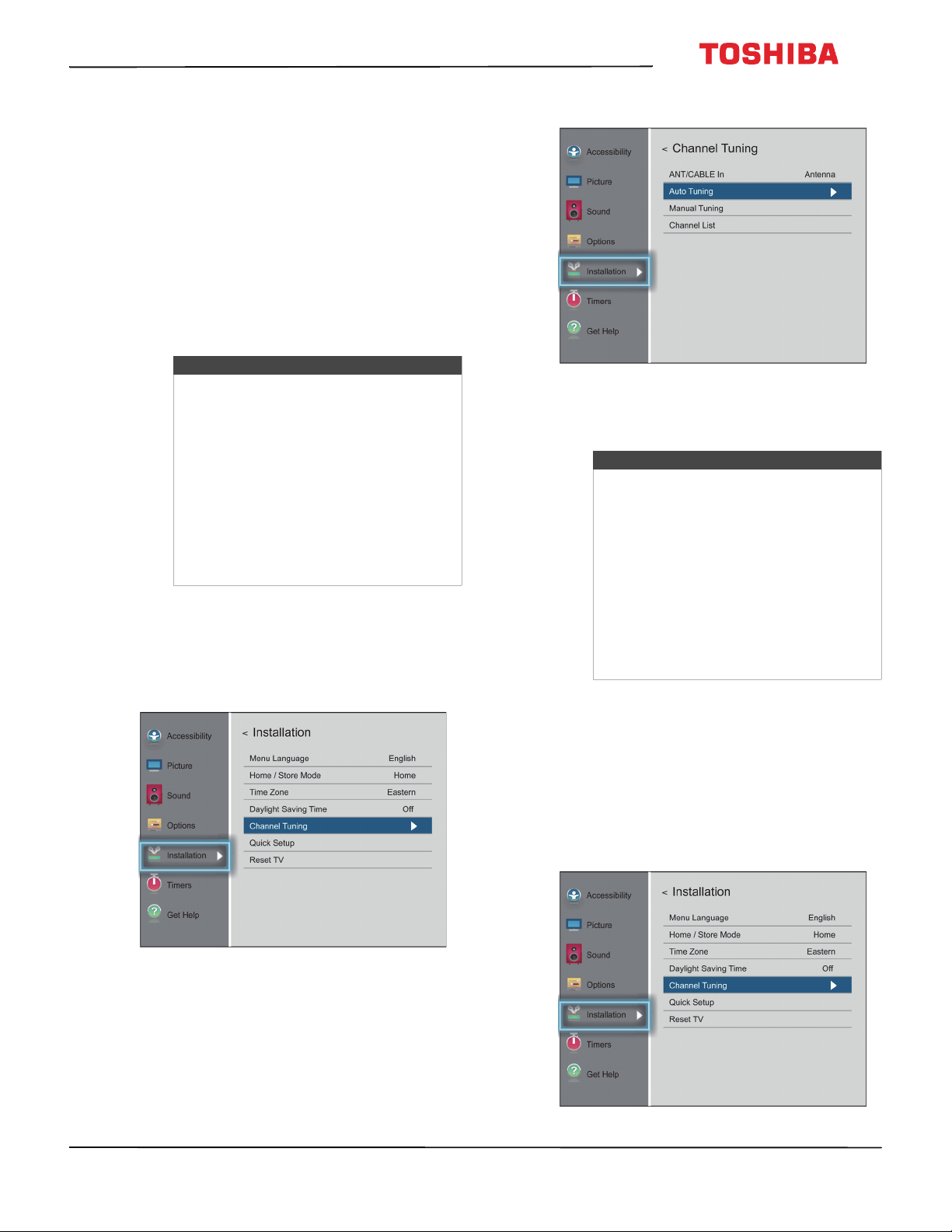
72
50
L
711
U
18
/
50
L
711
M
18
/
55
L
711
U
18
/
55
L
711
M
18
50" / 55" 2160p (4K), 60Hz, LED Chromecast built-in TV
www.tv.toshiba.com
Changing channel settings
This section covers:
• Automatically scanning for channels
• Manually adding channels to the channel list
• Hiding channels
Automatically scanning for channels
When you scan for channels, your TV searches for
channels with signals and stores the channel
information in the channel list. When you press CH+
or CH–, your TV goes to the next or previous channel
in the channel list. The channel scan may take several
minutes.
1 Make sure that you have set up the
ANT / CABLE IN jack before programming
channels. See Setting up the ANT / CABLE IN jack
on page 54.
2 Press MENU, press
S
or
T
to highlight
Installation, then press OK.
3 Highlight Channel Tuning, then press OK.
4 Highlight Auto Tuning, then press OK. Press OK
again to start the scan. Your TV scans for available
channels. The scan may take several minutes.
5 When the scan is complete, press EXIT to close the
menu. Your TV tunes to the first scanned channel.
Manually adding channels to the channel list
Channels with weak signals may not be added to the
channel list when you scan for channels. You can
manually add a channel to the channel list if you
know the channel number.
1 Press MENU, press
S
or
T
to highlight
Installation, then press OK.
Note
When you scan for channels, your TV
erases any channels already stored in the
channel list.
If a channel is not stored in the channel
list, you can:
• Use the number buttons on the virtual
remote control to enter the channel
number. See Virtual Remote control on
page 21.
• Manually add the channel to the
channel list. See Manually adding
channels to the channel list on page 72.
Notes
• If you have created a PIN, press
W
or
X
on the number bar at the bottom of
the screen to select a number, then
press OK. Repeat this step to enter the
other three numbers in your PIN. For
more information, see Setting a new
PIN on page 74. The channel scan
starts after you enter your PIN.
• You can press EXIT to stop the auto
channel search, but you will need to
run the auto channel search again to
create a channel list.
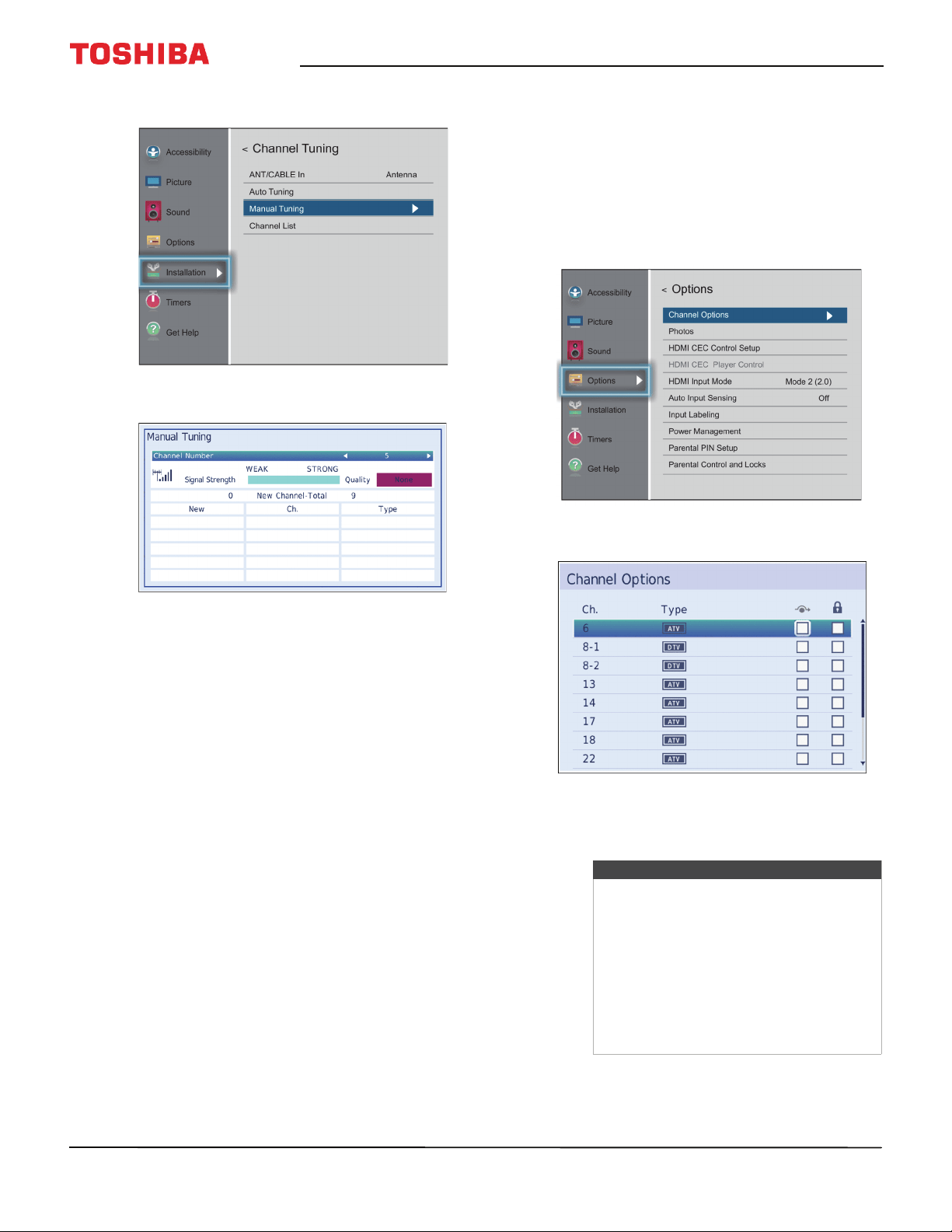
73
50" / 55" 2160p (4K), 60Hz, LED Chromecast built-in TV
www.tv.toshiba.com
2 Highlight Channel Tuning, then press OK.
3 Highlight Manual Tuning, then press OK.
4 Use the number buttons on the virtual remote
control to enter the channel number, then press
OK. See Virtual Remote control on page 21.
OR
Press
W
or
X
to select previous or next channel,
then press OK.
5 Press OK to start manual tuning.
6 Press EXIT to close the menu.
Hiding channels
You can hide channels in the channel list. When you
press CH+ or CH–, your TV skips the hidden channels.
You can still tune to a hidden channel by pressing the
number buttons on the virtual remote control for the
channel. If you tune to a hidden channel, the channel
appears in the History list.
1 Press MENU, press
S
or
T
to highlight Options,
then press OK.
2 Highlight Channel Options, then press OK.
3 Highlight a channel you want to hide, then press
OK. A check appears in the box next to the
channel.
4 Press EXIT to close the menu.
Notes
• Channels labeled ATV are analog
channels. Channels labeled DTV are
digital channels.
• To un-hide a channel, highlight the
channel, then press OK to remove the
check.
• You can also lock specific channels so
that they cannot be tuned until you
unlock them. See Locking channels on
page 78.
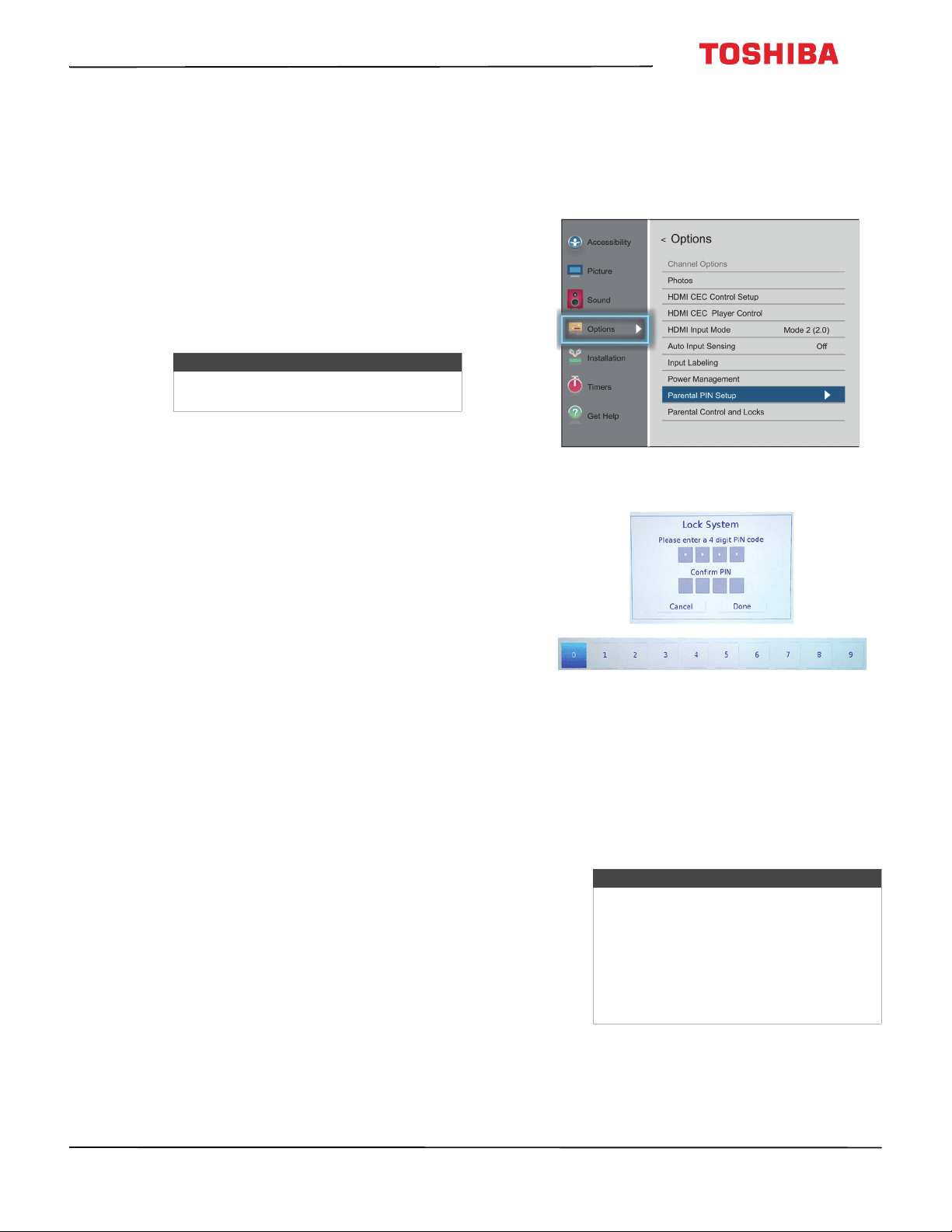
74
50
L
711
U
18
/
50
L
711
M
18
/
55
L
711
U
18
/
55
L
711
M
18
50" / 55" 2160p (4K), 60Hz, LED Chromecast built-in TV
www.tv.toshiba.com
Setting parental controls
Parental controls let you prevent your children from
watching inappropriate material on TV. When set,
parental controls read the rating of the program (with
some exceptions, such as news and sports) and deny
access to programs that exceed the ratings level you
select.
Parental controls let you:
• Set ratings for TV programs and movies so you can
prevent your children from watching inappropriate
material on TV
• Lock video input sources
• Set a timer to limit how long you can play a game
Parental control topics include:
• Setting a new PIN
• Changing or deleting the PIN
• Blocking TV programs and movies (for USA region)
• Downloading rating information (for USA region)
• Temporarily unlocking programs
•Locking video inputs
•Locking channels
• Setting the GameTimer™
Setting a new PIN
A PIN is necessary for some menus. The Parental
Control and Locks menu is grayed out if no PIN has
been set.
1 Press MENU, press
S
or
T
to highlight Options,
then press OK.
2 Highlight Parental PIN Setup, then press OK.
3 Press
W
or
X
on the number bar at the bottom of
the screen to select a number, then press OK.
Repeat this step to enter the other three numbers
in your PIN.
After you enter the fourth number, a confirmation
screen opens.
4 Enter your PIN again to confirm, then press OK.
The Parental PIN Setup menu opens.
5 Press EXIT to close the menu.
Note
To watch blocked programs, you must
enter a PIN.
Note
If you have set a PIN, the Locks Active
screen opens where you enter your PIN.
If you forget your PIN, highlight Cancel or
Done on the Locks Active screen, then
press INFO four times within five seconds.
Your PIN is cleared and the Lock System
screen opens where you can enter a new
PIN.
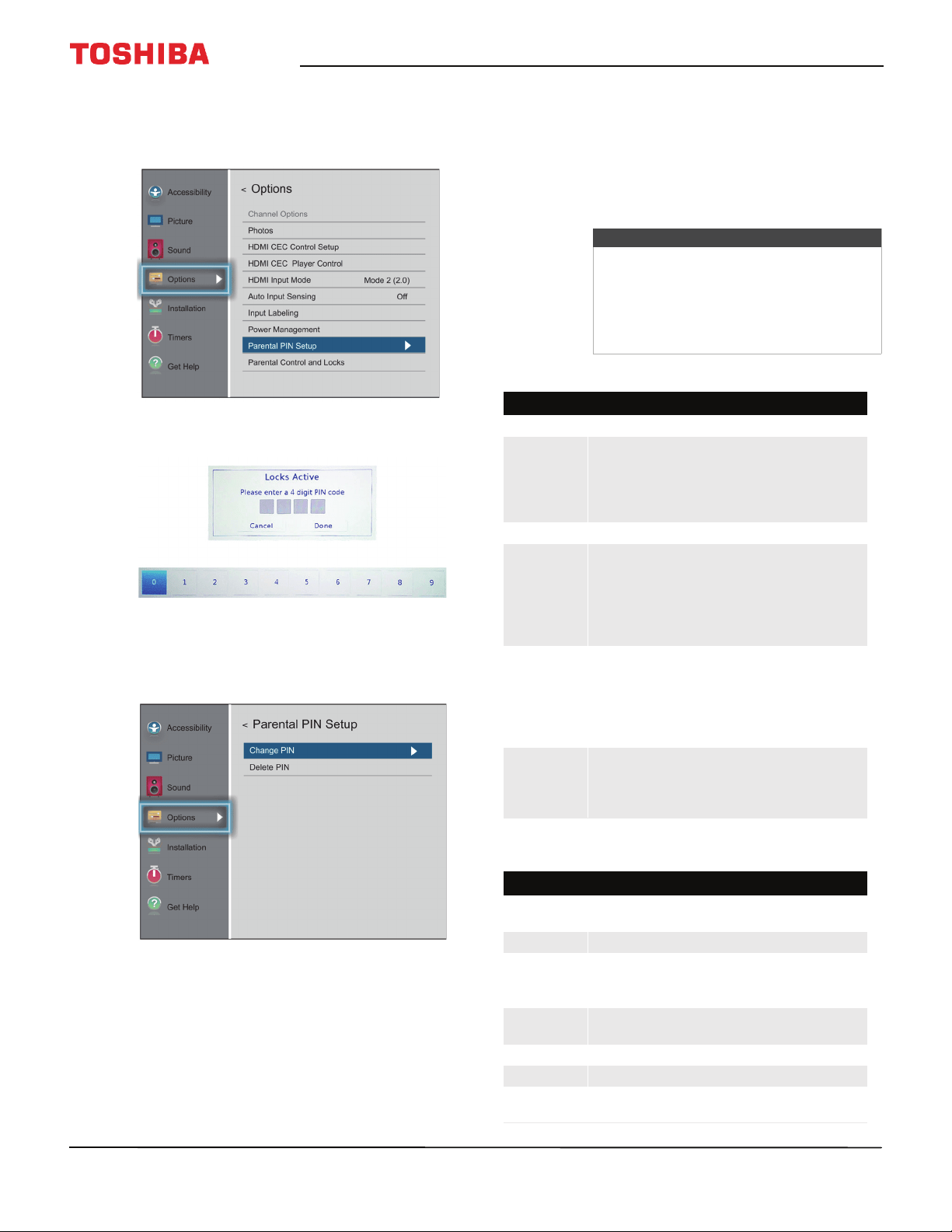
75
50" / 55" 2160p (4K), 60Hz, LED Chromecast built-in TV
www.tv.toshiba.com
Changing or deleting the PIN
1 Press MENU, press
S
or
T
to highlight Options,
then press OK.
2 Highlight Parental PIN Setup, then press OK.
3 Press
W
or
X
on the number bar at the bottom of
the screen to select a number, then press OK.
Repeat this step to enter the other three numbers
in your PIN.
4 Highlight Change PIN or Delete PIN, then press
OK.
5 If you select Change PIN, enter your new PIN, then
enter it again.
OR
If you select Delete PIN, press
W
or
X
to select Ye s ,
then press OK.
6 Press EXIT to close the menu.
Blocking TV programs and movies (for USA
region)
Some TV programs and movies include ratings that
classify the content of the program as unsuitable for
younger viewers. Your TV detects the ratings and
blocks the programs and movies according to the
ratings you select.
TV rating levels
Movie rating levels
Notes
• You must create a PIN before you can
block TV programs and movies. See
Setting a new PIN on page 74.
• To view a program or movie rating,
tune to the program or movie, then
press INFO.
U.S. TV ratings
TV-Y Suitable for all children.
TV-Y7
TV-Y7FV
Suitable for children 7 and older.
Note: Programs in which fantasy violence
may be more intense or more combative
than other programs in this category are
designated TV-Y7FV.
TV-G General audiences
TV-PG Parental guidance suggested. May
contain:
• D—Some suggestive dialog
• L—Infrequent coarse language
• S—Some sexual situations
• V—Moderate violence
TV-14 Parental guidance strongly suggested.
May contain:
• D—Intensely suggestive dialog
•L—Strong, coarse language
• S—Intense sexual situations
• V—Intense violence
TV-MA Mature audiences only. May contain:
• L—Crude or indecent language
• S—Explicit sexual activity
•V—Graphic violence
U.S. movie (MPAA) ratings
G General audiences (Appropriate for all
ages)
PG Parental guidance suggested
PG-13 Parents Strongly Cautioned (Some
material may be inappropriate for
children under 13)
R Restricted (Under 17 requires
accompanying parent or adult)
NC-17 Not suitable for children under 17
X Adults only
None Rated Content is not rated. Selecting this option
may block emergency messages.
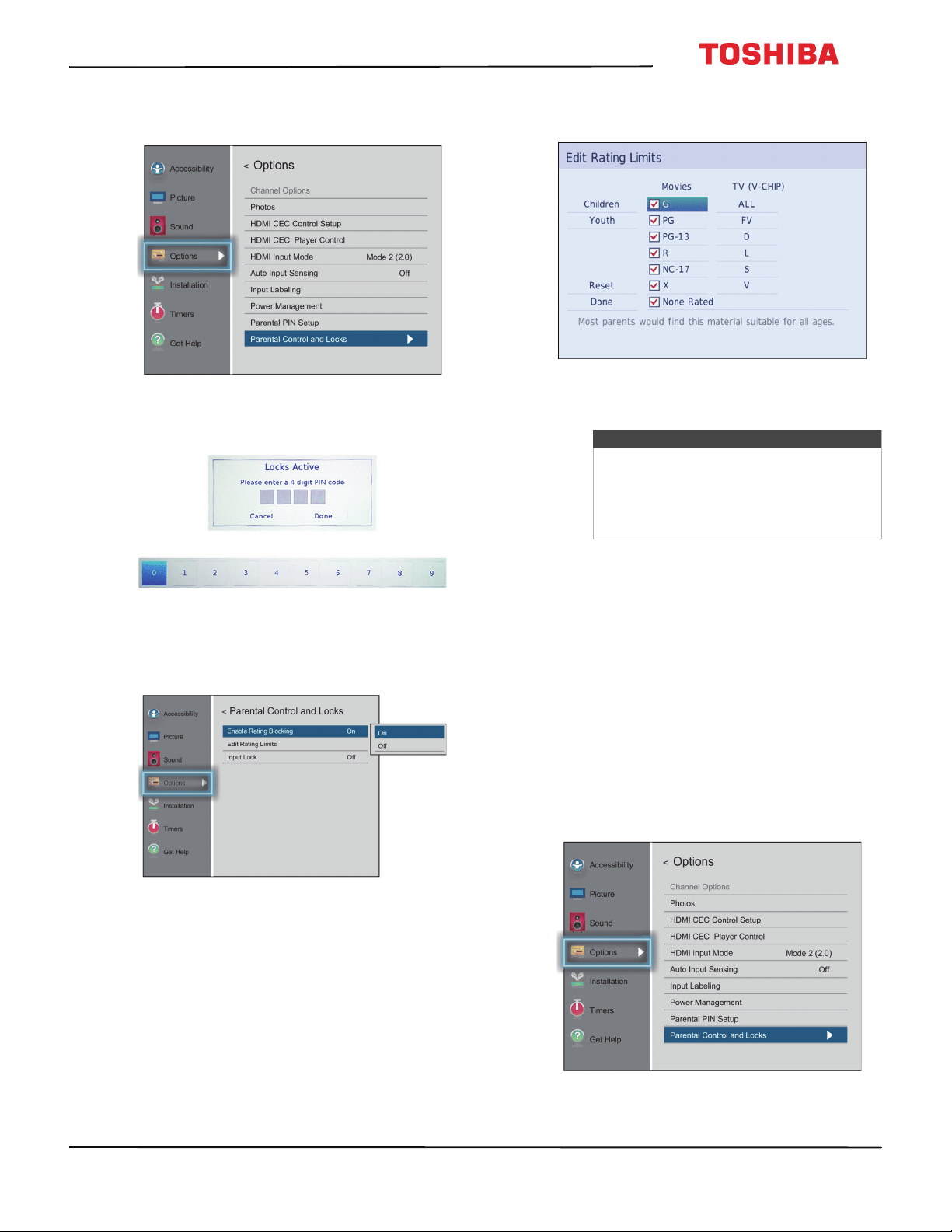
76
50
L
711
U
18
/
50
L
711
M
18
/
55
L
711
U
18
/
55
L
711
M
18
50" / 55" 2160p (4K), 60Hz, LED Chromecast built-in TV
www.tv.toshiba.com
1 Press MENU, press
S
or
T
to highlight Options,
then press OK.
2 Highlight Parental Control and Locks, then press
OK.
3 Press
W
or
X
on the number bar at the bottom of
the screen to select a number, then press OK.
Repeat this step to enter the other three numbers
in your PIN.
4 Highlight Enable Rating Blocking, then press OK.
5 Highlight On, then press OK.
6 Press
T
to highlight Edit Rating Limits, then press
OK.
7 Press
S
T
W
or
X
to highlight a rating then press
OK.
8 When you have finished, highlight Done, then
press OK to save your changes.
9 Press EXIT to close the menu.
Downloading rating information (for USA
region)
In the future, an additional rating system may become
available for use in selectively blocking TV programs
and movies.
The currently tuned station must be receiving a digital
signal before an additional rating system can be
downloaded.
1 Tune to the channel you want to download ratings
for.
2 Press MENU, press
S
or
T
to highlight Options,
then press OK.
Notes
• As you highlight a rating, a definition
for the rating appears at the bottom of
the screen.
• A blocked rating has a check mark
next to it.
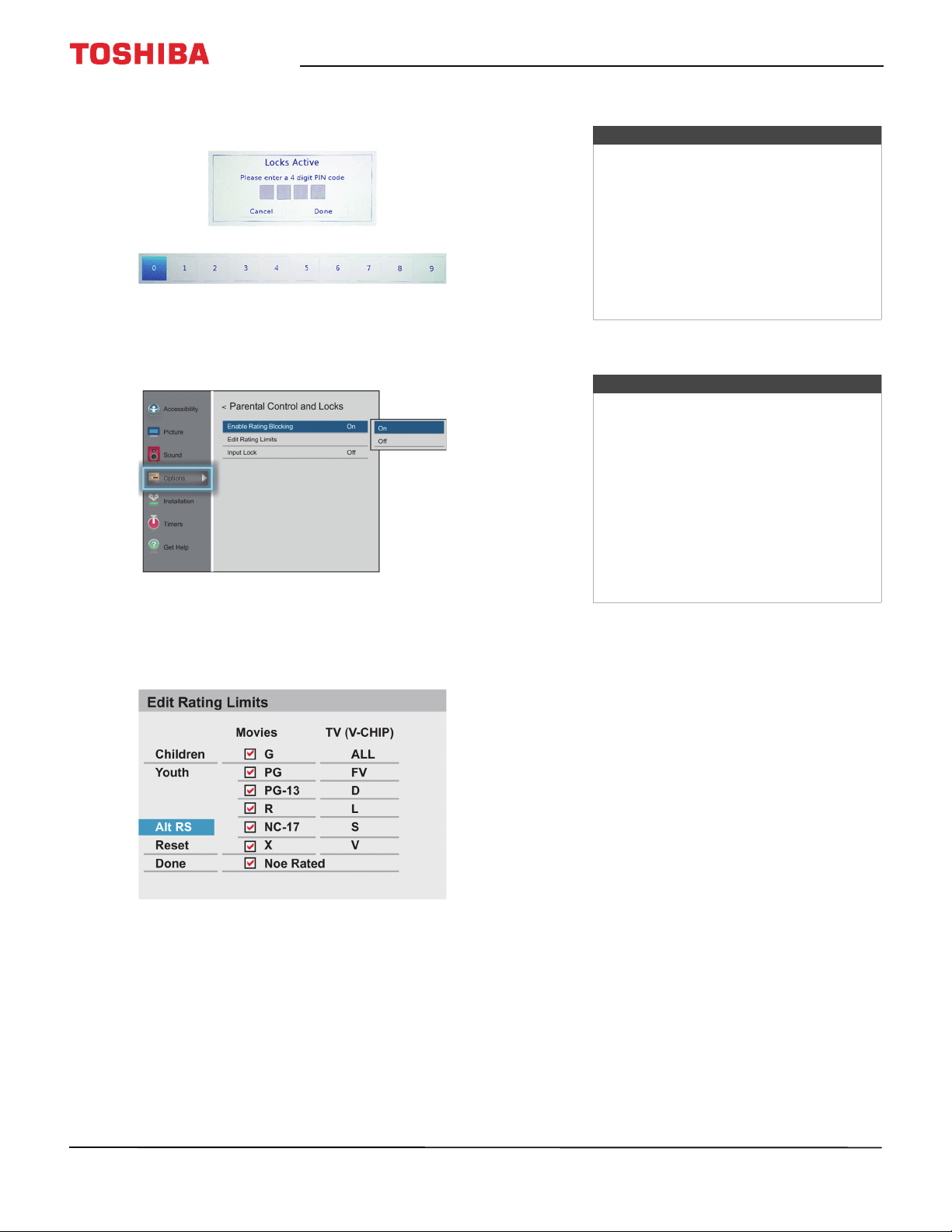
77
50" / 55" 2160p (4K), 60Hz, LED Chromecast built-in TV
www.tv.toshiba.com
3 Highlight Parental Control and Locks, then press
OK.
4 Press
W
or
X
on the number bar at the bottom of
the screen to select a number, then press OK.
Repeat this step to enter the other three numbers
in your PIN.
5 Highlight Enable Rating Blocking, then press OK.
6 Highlight On, then press OK.
7 Press
T
to highlight Edit Rating Limits, then press
OK.
8 Highlight Alt RS, then press OK.
9 Press
S
T
W
or
X
to highlight a rating then press
OK.
10 When you have finished, highlight Done, then
press OK.
11 Press EXIT to close the menu.
Temporarily unlocking programs
If you try to tune to a program that exceeds the rating
limits you have set, your TV enters program lock
mode and a warning message appears on the screen.
You can temporarily unlock the program.
1 Press MUTE.
2 Enter your four-digit PIN, then press OK.
The program is unlocked and the normal picture
appears. The program is locked again when you
change the channel.
Notes
•The ALT RS option is only available if
an additional rating system is
currently available.
• Your TV may take several minutes to
download the additional rating
system.
• The information displayed in the
Alternate Ratings screen depends on
the rating system available at the time
of download.
Notes
• A blocked rating has an X next to it.
• You can only download the additional
rating system one time.
• To view a program or movie rating,
tune to the program or movie, then
press INFO.
• You will not be able to download any
updates to the rating system should
such updates become available.
• The available rating information is
controlled by the broadcaster.
Content and format may vary.
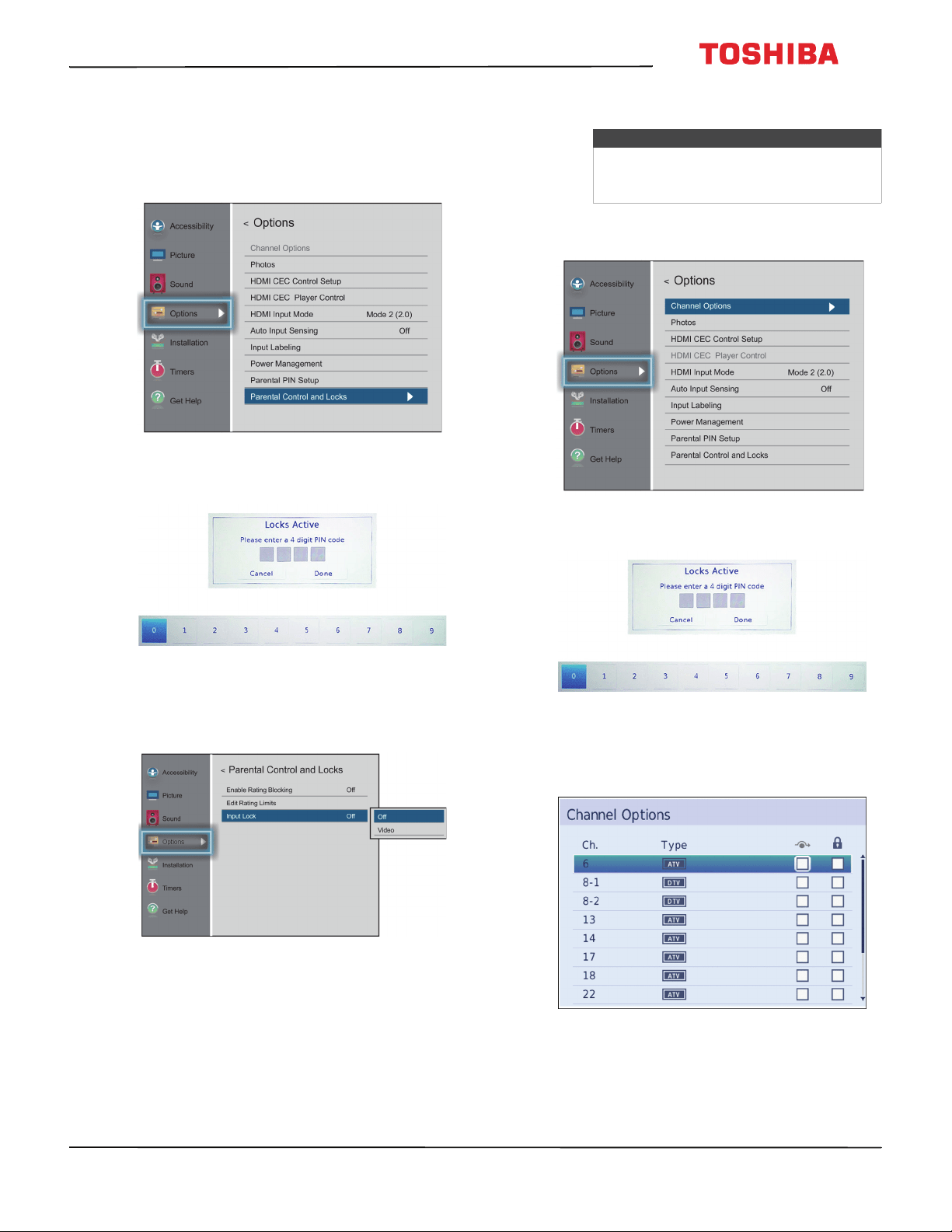
78
50
L
711
U
18
/
50
L
711
M
18
/
55
L
711
U
18
/
55
L
711
M
18
50" / 55" 2160p (4K), 60Hz, LED Chromecast built-in TV
www.tv.toshiba.com
Locking video inputs
You can use the Input Lock option to lock the video
inputs (AV, HDMI 1, HDMI 2, and HDMI 3).
1 Press MENU, press
S
or
T
to highlight Options,
then press OK.
2 Highlight Parental Control and Locks, then press
OK.
3 Press
W
or
X
on the number bar at the bottom of
the screen to select a number, then press OK.
Repeat this step to enter the other three numbers
in your PIN.
4 Press
T
to highlight Input Lock, then press OK.
5 Highlight a video input locking level, then press
OK. You can select:
• Video—Locks AV, HDMI 1, HDMI 2, and
HDMI 3.
• Off—Unlocks all video inputs.
6 Press EXIT to close the menu.
Locking channels
1 Press MENU, press
S
or
T
to highlight Options,
then press OK.
2 Highlight Channel Options, then press OK.
3 Press
W
or
X
on the number bar at the bottom of
the screen to select a number, then press OK.
Repeat this step to enter the other three numbers
in your PIN.
Note
You must create a PIN before you can
block channels. See Setting a new PIN on
page 74.
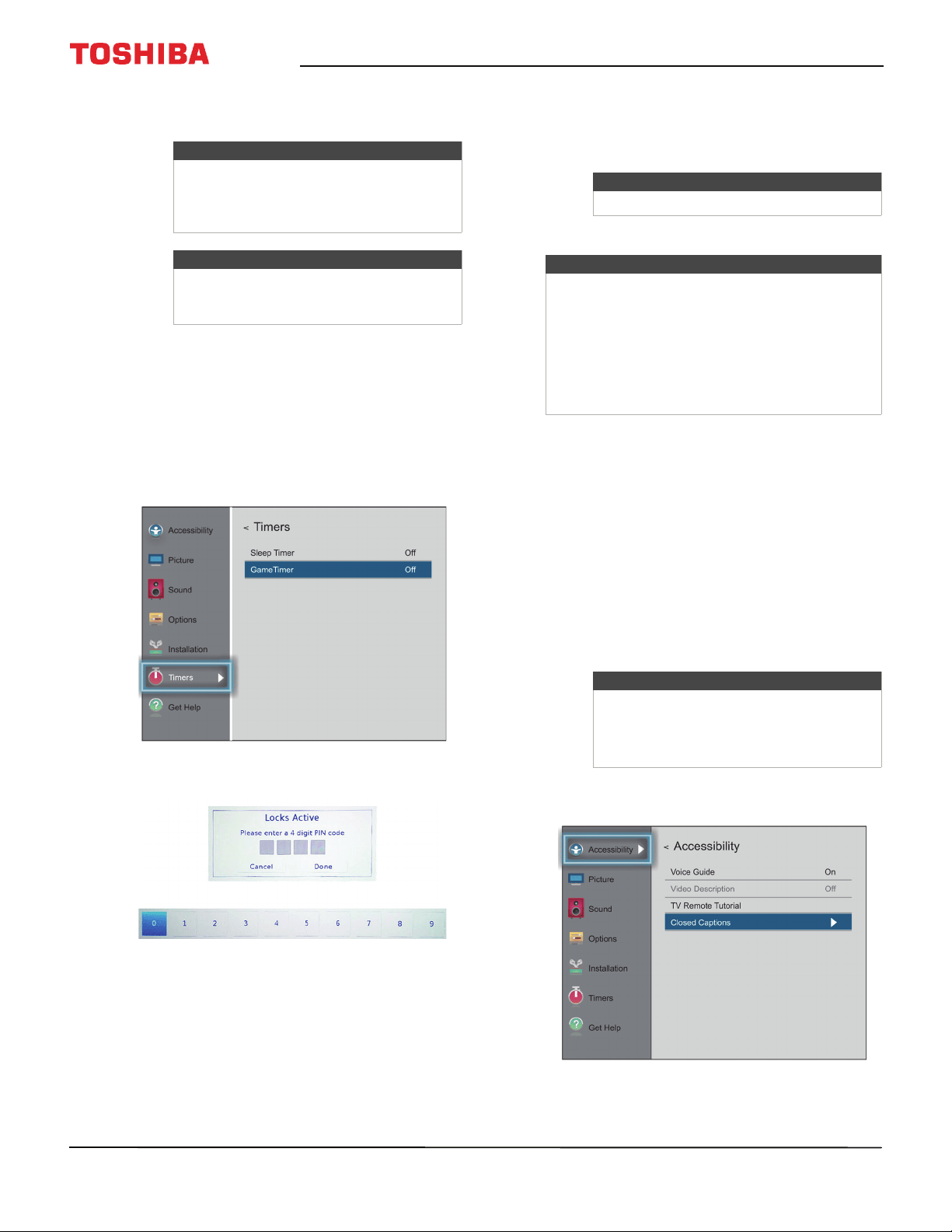
79
50" / 55" 2160p (4K), 60Hz, LED Chromecast built-in TV
www.tv.toshiba.com
4 Highlight a channel, press
W
or
X
to move to the
column with the padlock icon, then press OK.
5 Press EXIT to close the menu.
Setting the GameTimer™
You can use the GameTimer™ to set a time limit for
playing a video game (30–120 minutes). When the
GameTimer expires, your TV locks out the input
source for the video game device.
1 Press MENU, press
S
or
T
to highlight Timers,
then press OK.
2 Highlight Game Timer, then press OK.
3 Press
W
or
X
on the number bar at the bottom of
the screen to select a number, then press OK.
Repeat this step to enter the other three numbers
in your PIN.
4 Highlight the amount of time you want to let the
game run before it turns off, then press OK. You
can select Off, 30 min, 60 min, 90 min, or
120 min.
5 Press EXIT to close the menu.
Using closed captioning
Closed captioning displays a text version of the TV
program audio or displays information provided by
the broadcaster.
Closed caption controls include:
• Turning closed captioning on or off
• Selecting the analog closed captioning mode
• Selecting the closed captioning mode with the CCD
button
• Customizing digital closed captioning settings
Turning closed captioning on or off
1 Press MENU, press
S
or
T
to highlight
Accessibility, then press OK.
Notes
• Channels labeled ATV are analog
channels.
• Channels labeled DTV are digital
channels.
Note
To unlock a channel, highlight the
channel, then press OK to remove the
check.
Note
To turn off the game timer, select Off.
Notes
• A message appears when 10 minutes, 3
minutes, and 1 minute are remaining.
• If your TV loses power with time remaining,
your TV enters input lock mode when power
is restored (as if the GameTimer had been
activated). To resume use, you must
deactivate the input lock. See Locking video
inputs on page 78.
Note
You may not see closed captioning when:
• A program or video has been dubbed
• Signal reception is weak or
non-standard
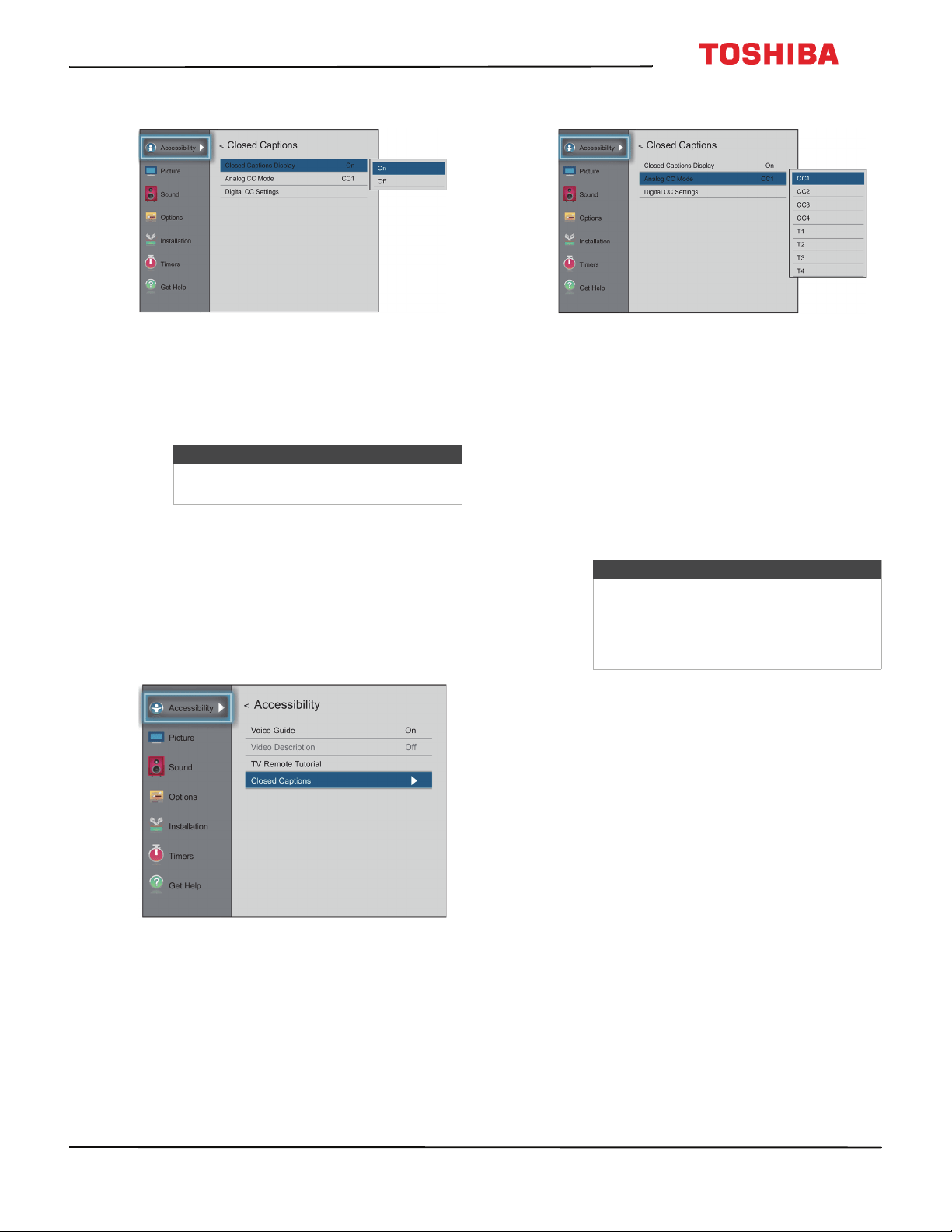
80
50
L
711
U
18
/
50
L
711
M
18
/
55
L
711
U
18
/
55
L
711
M
18
50" / 55" 2160p (4K), 60Hz, LED Chromecast built-in TV
www.tv.toshiba.com
2 Highlight Closed Captions, then press OK.
3 Highlight Closed Captions Display, then press
OK.
4 Highlight On (turns on closed captioning) or Off
(turns off closed captioning), then press OK.
5 Press EXIT to close the menu.
Selecting the analog closed captioning mode
Analog channels usually have one or more closed
captioning modes. The CC1 mode usually displays a
text version of the TV program audio in a small
banner. The other CC modes display information
provided by the broadcaster. The Text modes display
information in a box that covers half of the screen.
1 Press MENU, press
S
or
T
to highlight
Accessibility, then press OK.
2 Highlight Closed Captions, then press OK.
3 Highlight Analog CC Mode, then press OK.
4 Highlight an analog captioning mode, then press
OK. You can select:
• CC1 through CC4—Closed captioning appears
in a small banner across the bottom of the
screen. CC1 is usually the “printed” version of the
audio. CC2 through CC4 display content
provided by the broadcaster.
• T1 through T4—Closed captioning covers half
or all of the screen. T1 through T4 display
content provided by the broadcaster.
5 Press EXIT to close the menu.
Selecting the closed captioning mode with the
CCD button
Press CCD. The CC bar appears:
• If you are tuned to an analog channel (or a video
device with a 480i signal), you can select CC1
through CC4, T1 through T4 or Off.
• If you are tuned to a digital channel, the
available closed captioning modes vary for
digital channels.
Note
You can also press CCD to turn closed
captioning on or off.
Notes
If the program or video you are watching
does not have closed captioning, no
captions are displayed.
If T1 through T4 is not available in your
area, a black rectangle may appear.
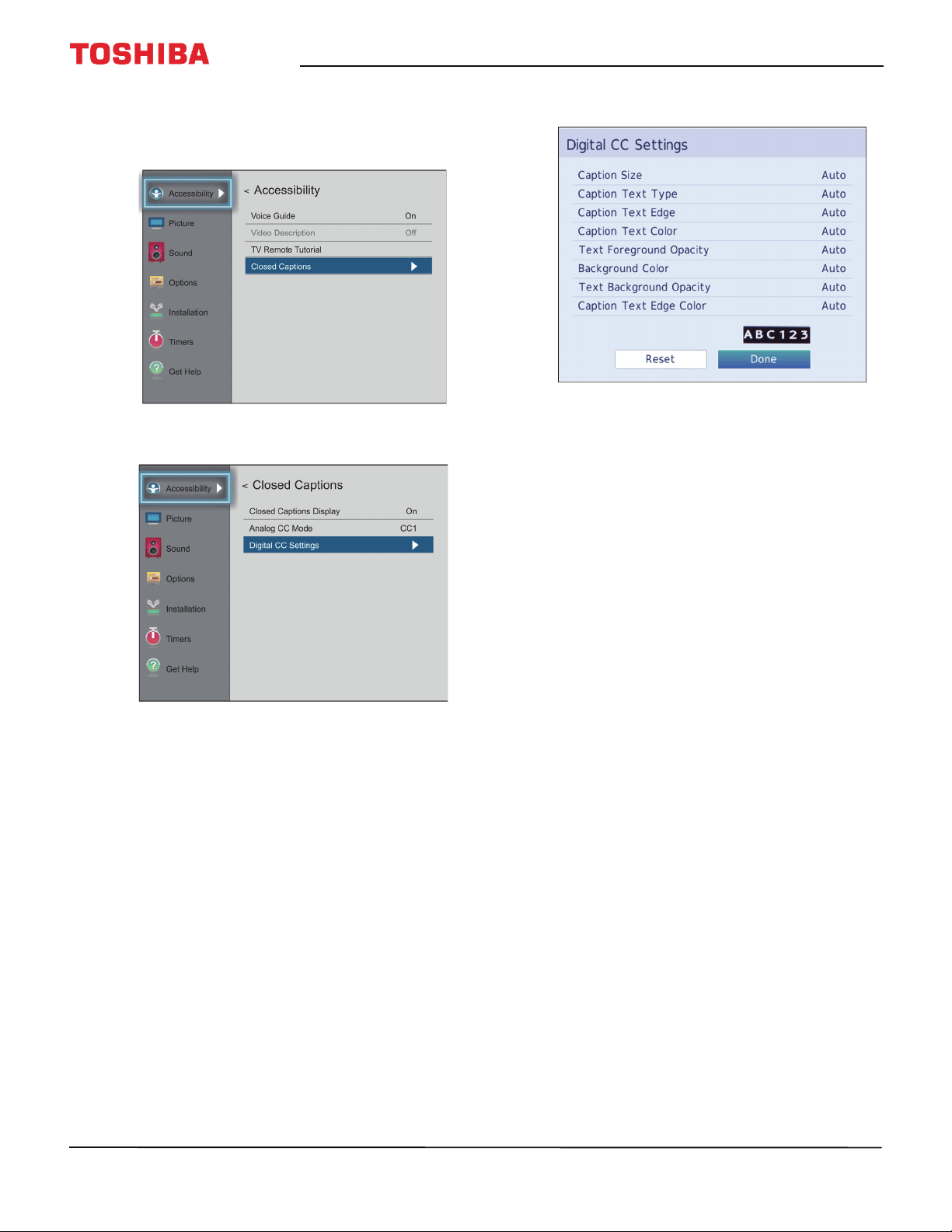
81
50" / 55" 2160p (4K), 60Hz, LED Chromecast built-in TV
www.tv.toshiba.com
Customizing digital closed captioning settings
1 Press MENU, press
S
or
T
to highlight
Accessibility, then press OK.
2 Highlight Closed Captions, then press OK.
3 Highlight Digital CC Settings, then press OK.
4 Highlight an option, then press
W
or
X
to adjust
the setting. You can select:
• Caption Size—Selects the font size.
• Caption Text Type—Selects the font type.
• Caption Text Edge—Selects the style of the
letter edge.
• Caption Text Color—Selects the color for the
words.
• Text Foreground Opacity—Selects the opacity
level for the words.
• Background Color— Selects the color for the
background.
• Text Background Opacity—Selects the opacity
level of the background.
• Caption Text Edge Color—Selects the color of
the letter edge.
5 To adjust another option, press
S
or
T
to highlight
the option, then press
W
or
X
to adjust the setting.
6 Press EXIT to close the menu.
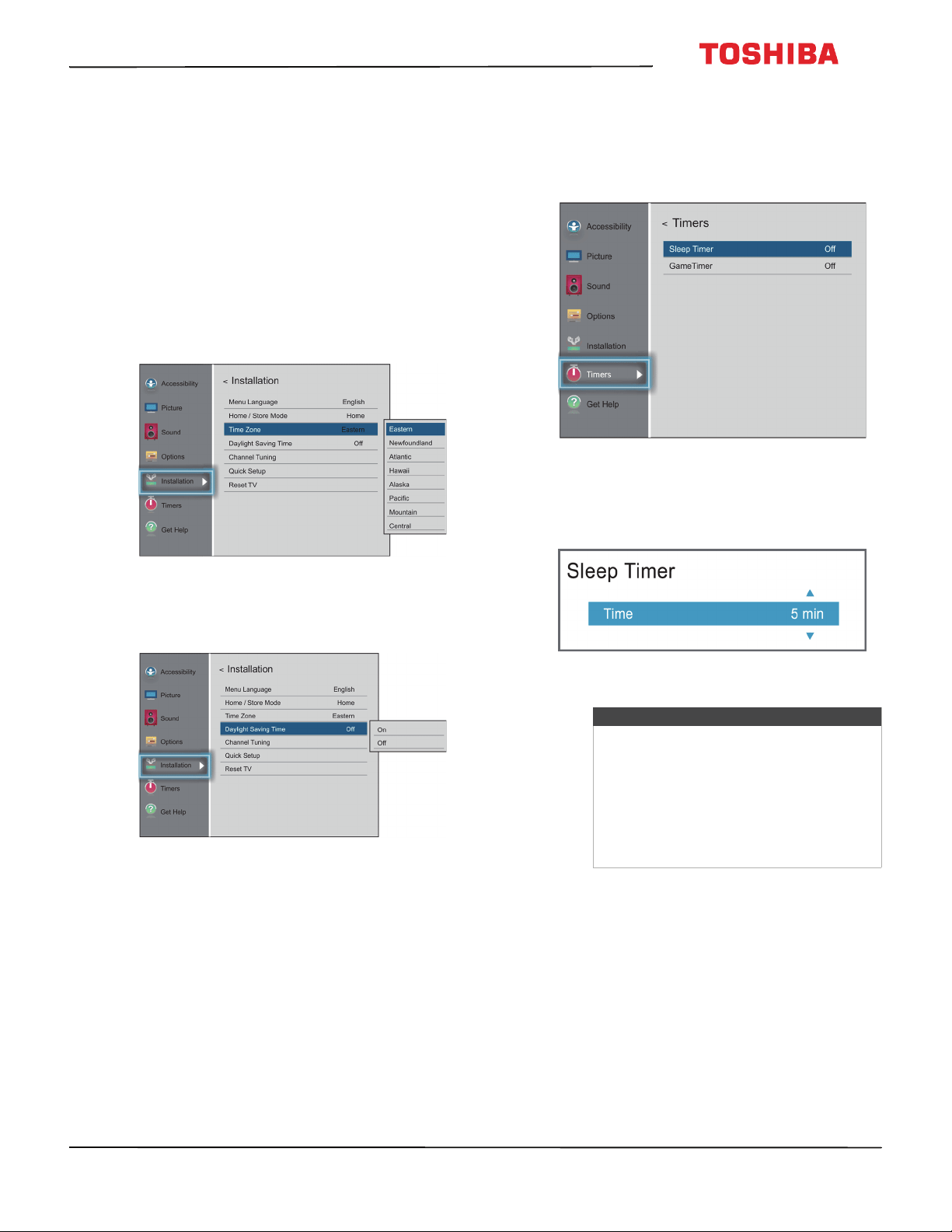
82
50
L
711
U
18
/
50
L
711
M
18
/
55
L
711
U
18
/
55
L
711
M
18
50" / 55" 2160p (4K), 60Hz, LED Chromecast built-in TV
www.tv.toshiba.com
Adjusting time settings
This section includes:
• Setting the time zone and Daylight Saving Time
status
• Setting the sleep timer
Setting the time zone and Daylight Saving Time
status
Your TV uses the time zone and Daylight Saving Time
settings to correctly display program and channel
status information.
1 Press MENU, press
S
or
T
to highlight
Installation, then press OK.
2 Highlight Time Zone, then press OK.
3 Highlight a time zone, then press OK. The
Installation menu opens.
4 Highlight Daylight Saving Time, then press OK.
5 Highlight On (if your viewing area observes
Daylight Saving Time) or Off (if your viewing area
does not observe Daylight Saving Time), then
press OK.
6 Press EXIT to close the menu.
Setting the sleep timer
You can specify the amount of time before your TV
automatically turns off.
1 Press MENU, press
S
or
T
to highlight Timers,
then press OK.
2 Highlight Sleep Timer, then press OK.
3 Press
S
or
T
to select the amount of time before
your TV turns off automatically. You can select Off,
5, 10, 15, 30, 60, 90, 120, 150, 180, and 240 min.
4 Press EXIT to close the menu.
Notes
• You can also press SLEEP to set the
sleep timer.
• To display the time remaining until the
TV turns off, press SLEEP.
• To cancel the sleep timer, press SLEEP,
then press
T
to select Off.
• If a power failure occurs, the sleep
timer setting may be cleared.
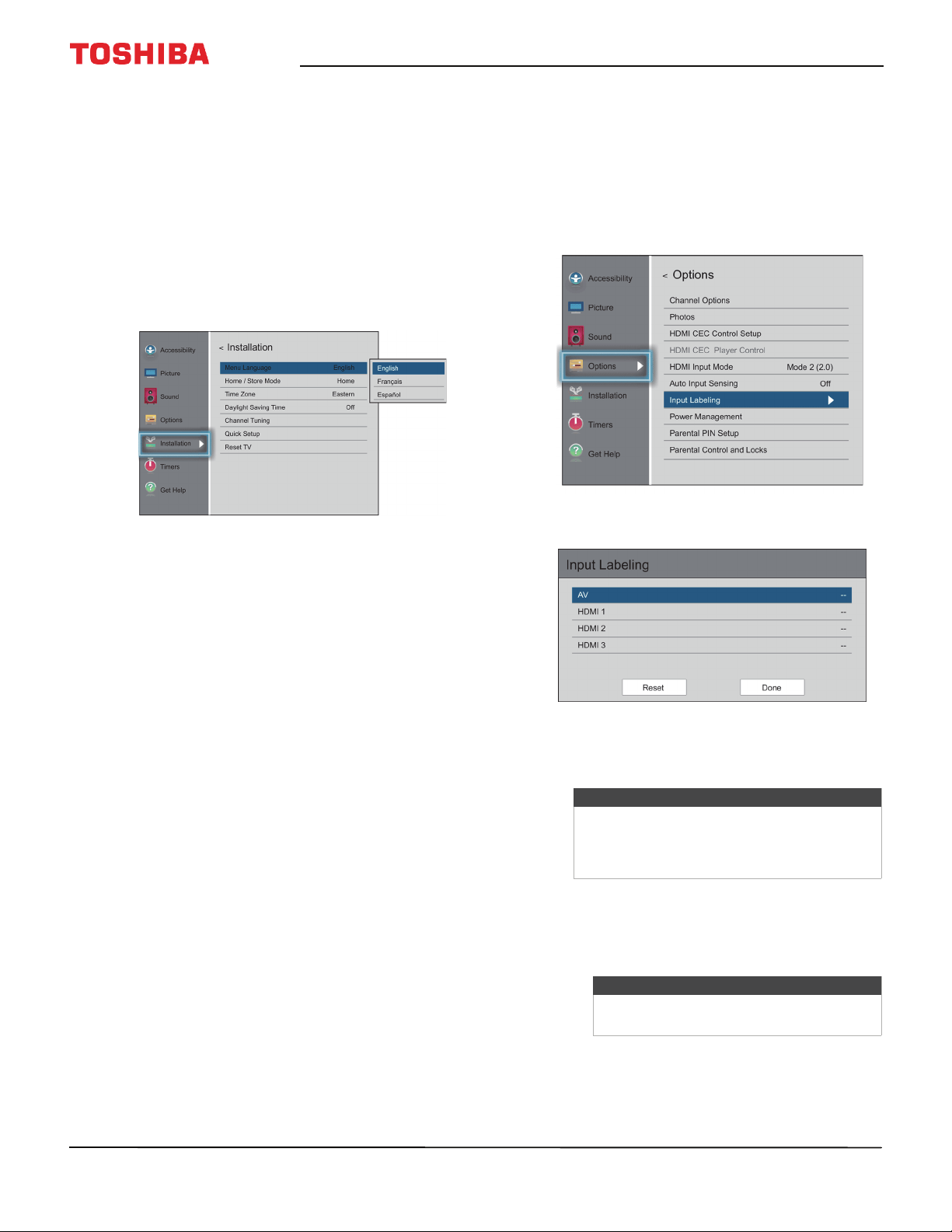
83
50" / 55" 2160p (4K), 60Hz, LED Chromecast built-in TV
www.tv.toshiba.com
Adjusting menu settings
You can adjust how the TV menus look by:
• Selecting the menu language
• Labeling a video input source
Selecting the menu language
You can choose from three different menu language
settings (English, Français, and Español) for the
on-screen display of menus and messages.
1 Press MENU, press
S
or
T
to highlight
Installation, then press OK.
2 Highlight Menu Language, then press OK.
3 Press
S
or
T
to select a language, then press OK.
4 Press EXIT to close the menu.
Labeling a video input source
You can add a label to a video input source to make it
easier to identify.
You can also hide a video input source so that it is
grayed on the Input Selection list and your TV skips the
video input source when you press INPUT.
1 Press MENU, press
S
or
T
to highlight Options,
then press OK.
2 Highlight Input Labeling, then press OK.
3 Highlight the video input source you want to
label, then press
W
or
X
to select a label from the
list.
4 Repeat steps 2 and 3 to label another input.
5 Press
S
or
T
to highlight Done, then press OK to
save the label.
6 Press EXIT to close the menu.
Note
If you are not using an input, you can select
Hide for the label. Hide grays the input in the
Input Selection list and skips the input when
you press INPUT on the remote control.
Notes
To reset the input labels to the default
labels, highlight Reset, then press OK.
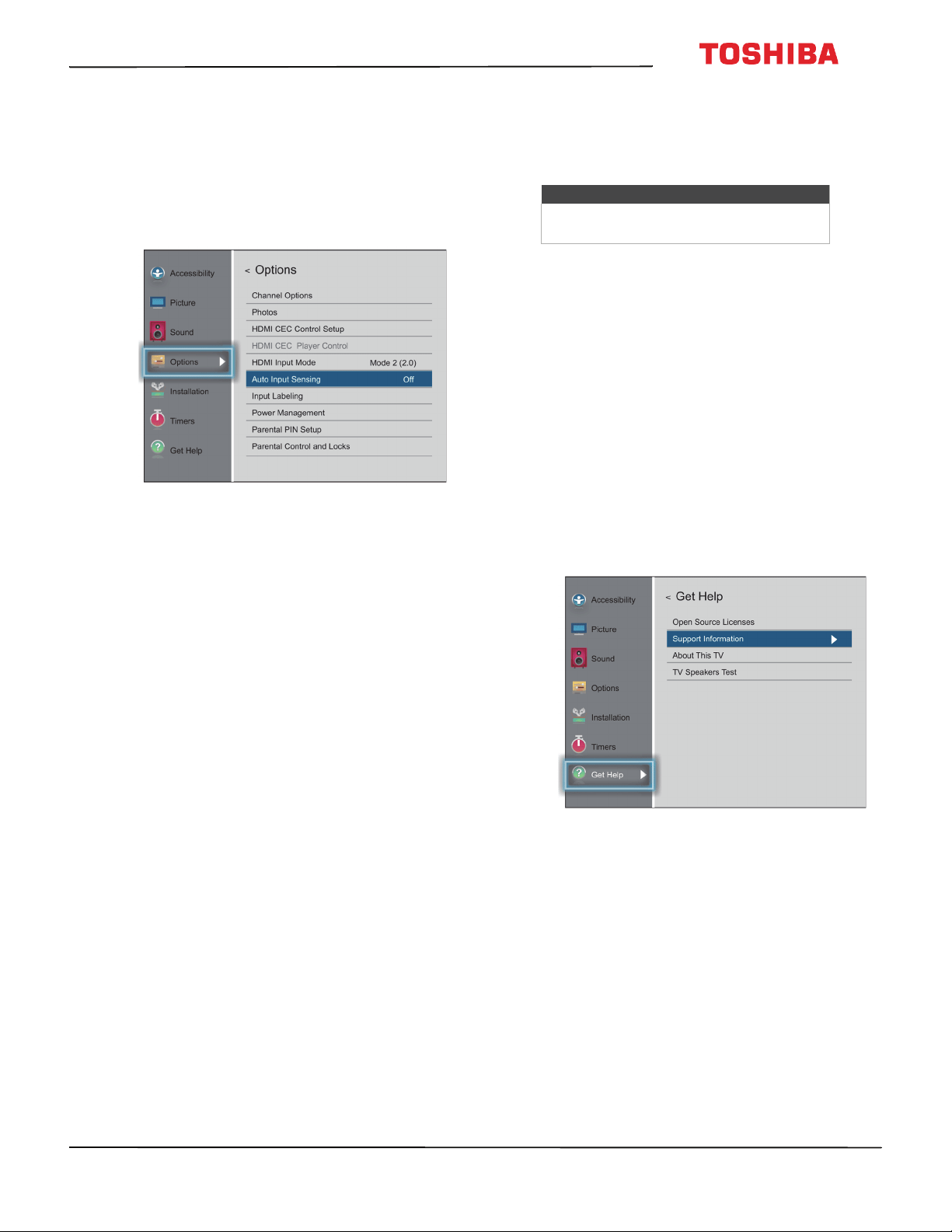
84
50
L
711
U
18
/
50
L
711
M
18
/
55
L
711
U
18
/
55
L
711
M
18
50" / 55" 2160p (4K), 60Hz, LED Chromecast built-in TV
www.tv.toshiba.com
Turning the input sensor on or off
When the Input Sensor feature is turned on, your TV
automatically detects which video jacks have devices
connected to them and turned on. Your TV uses this
information to determine what options you can select
on the Input Selection list when you press INPUT.
1 Press MENU, press
S
or
T
to highlight Options,
then press OK.
2 Highlight Auto Input Sensing, then press OK.
3 Highlight On or Off, then press OK.
Maintaining
• Do not use your TV in areas that are too hot or too
cold, because the cabinet may warp or the screen
may malfunction. Your TV works best in
temperatures that are comfortable to you.
• Storage temperatures are 32° to 122°F (0° to 50°C).
• Working temperatures are 41° to 104°F (5° to 40°C).
• Do not place your TV in direct sunlight or near a
heat source.
This section includes topics about:
•Cleaning the TV cabinet
•Cleaning the TV screen
Cleaning the TV cabinet
Clean the cabinet with a soft, lint-free cloth. If the
cabinet is especially dirty, moisten a soft, lint-free
cloth in a weak detergent solution, squeeze the
excess moisture from the cloth, then wipe the cabinet
with the cloth. Use a clean cloth to dry the cabinet.
Cleaning the TV screen
Clean the screen with a soft, lint-free cloth.
Troubleshooting
Use the following troubleshooting information to
solve common problems.
Troubleshooting topics include:
• Viewing support information
• Testing the TV speakers
• Restoring settings to the defaults
• Turning off the automatic power-off feature
• Making your TV turn on faster
• Chromecast built-in TV FAQ
• Video and audio problems
• Remote control problems
• General problems
• CEC-compatible devices problems
Viewing support information
You may need to view system information during
troubleshooting.
1 Press MENU, press
S
or
T
to highlight Get Help,
then press OK.
2 Highlight Support Information, then press OK.
Your TV displays information about your system.
3 To close the screen and return to the Get Help
menu, press OK.
OR
To close the menu, press EXIT.
Warning
Do not try to repair your TV yourself.
Contact authorized service personnel.
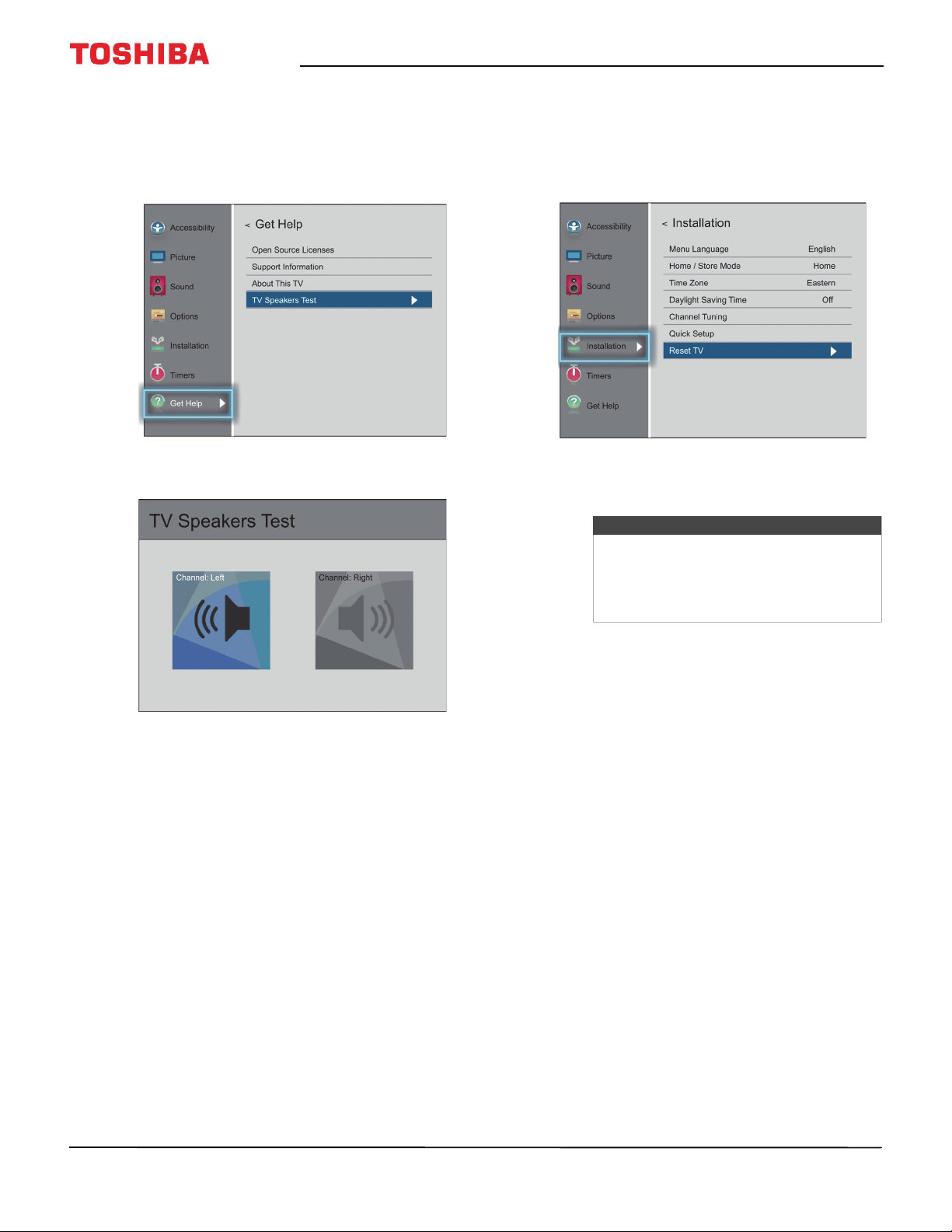
85
50" / 55" 2160p (4K), 60Hz, LED Chromecast built-in TV
www.tv.toshiba.com
Testing the TV speakers
You can test your TV’s speakers to make sure they are
working correctly.
1 Press MENU, press
S
or
T
to highlight Get Help,
then press OK.
2 Highlight TV Speakers Test, then press OK.
3 Your TV tests the left speaker, then the right
speaker. You hear a voice, and as each speaker is
tested, its icon is highlighted.
If one or both of the speakers fail the test, see
Video and audio on page 88.
Restoring settings to the defaults
When you restore default settings, all the settings you
have customized are reset.
1 Press MENU, press
S
or
T
to highlight
Installation, then press OK.
I
2 Press
S
or
T
to highlight Reset TV, then press OK.
A confirmation screen opens.
3 Highlight Ye s , (to reset) or No (to not reset), then
press OK.
If you select Ye s, your TV turns off, then turns on
again. Complete the Initial Setup wizard and set up
the ANT / CABLE IN jack. For more information,
see Turning on your TV for the first time on
page 44 and Setting up the ANT / CABLE IN jack on
page 54.
OR
If you do not want to reset your TV to the factory
defaults, highlight No, then press OK.
Note
If you have created a PIN, press
W
or
X
on
the number bar at the bottom of the
screen to select a number, then press OK.
Repeat this step to enter the other three
numbers in your PIN.
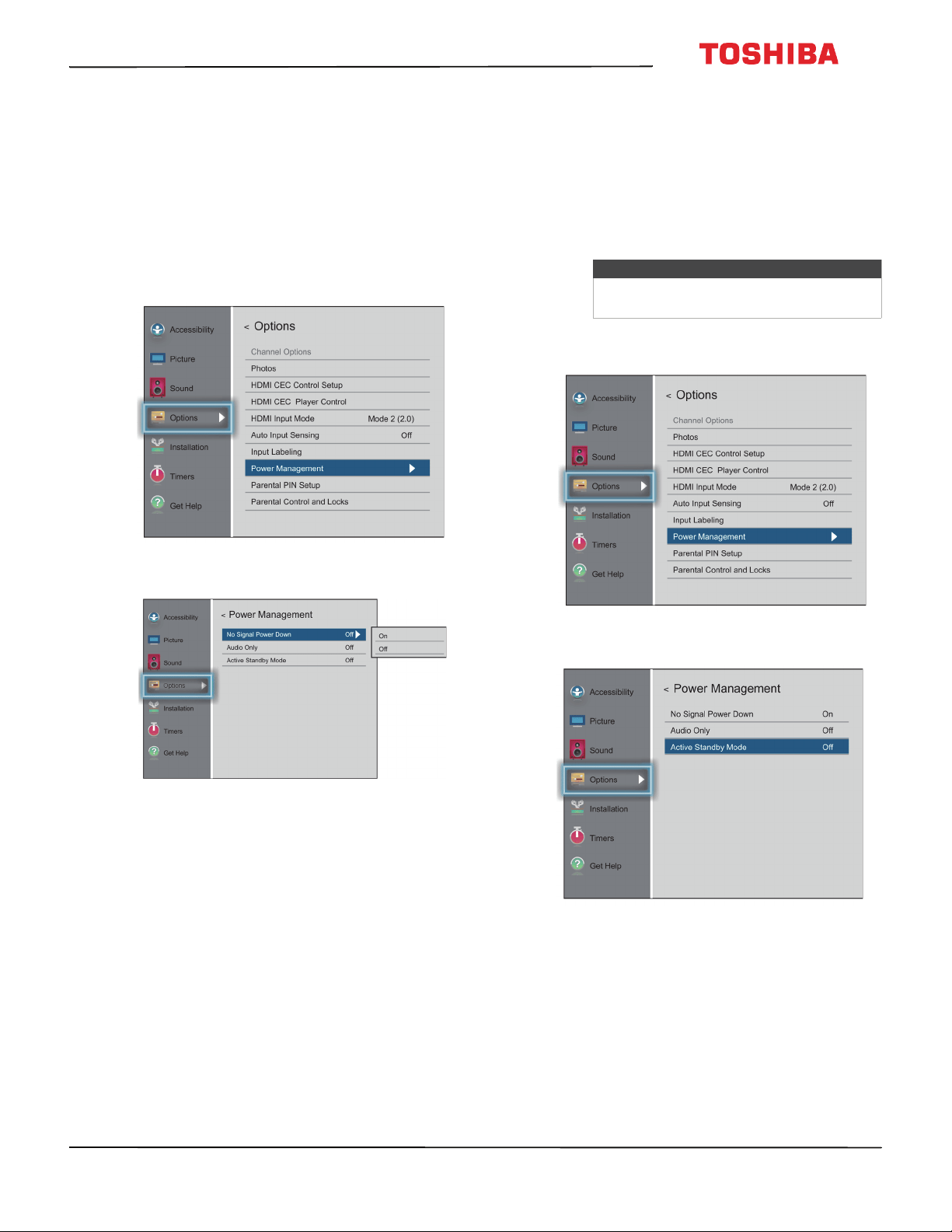
86
50
L
711
U
18
/
50
L
711
M
18
/
55
L
711
U
18
/
55
L
711
M
18
50" / 55" 2160p (4K), 60Hz, LED Chromecast built-in TV
www.tv.toshiba.com
Turning off the automatic power-off feature
Your TV automatically turns off after 15 minutes when
no video signal is detected.
You might want to change this setting to Off if:
• The incoming signal for an analog channel is too
weak for your TV to detect.
• You connected an audio-only device (such as a
CD player) to the AUDIO L and R jacks to listen to
music through the TV speakers.
1 Press MENU, press
S
or
T
to highlight Options,
then press OK.
2 Highlight Power Management, then press OK.
3 Highlight No Signal Power Down, then press OK.
4 Press
S
or
T
to select On or Off, then press OK.
5 Press EXIT to close the menu.
Making your TV turn on faster
When you turn off your TV, it normally goes into a
power savings mode to conserve energy. When you
turn your TV back on, it takes several seconds to exit
the power saving mode and display a picture.
You can turn on your TV faster by bypassing the
power savings mode. When the Active Standby
Mode option is set to On, your TV turns on faster and
links to Google Home faster.
1 Press MENU, press
S
or
T
to highlight Options,
then press OK.
2 Highlight Power Management, then press OK.
3 Highlight Active Standby Mode, then press OK.
4 Highlight On (to turn on the power savings mode
or Off (to turn off the power savings mode), then
press OK.
Note
When using Active Standby Mode, your TV
uses more power.
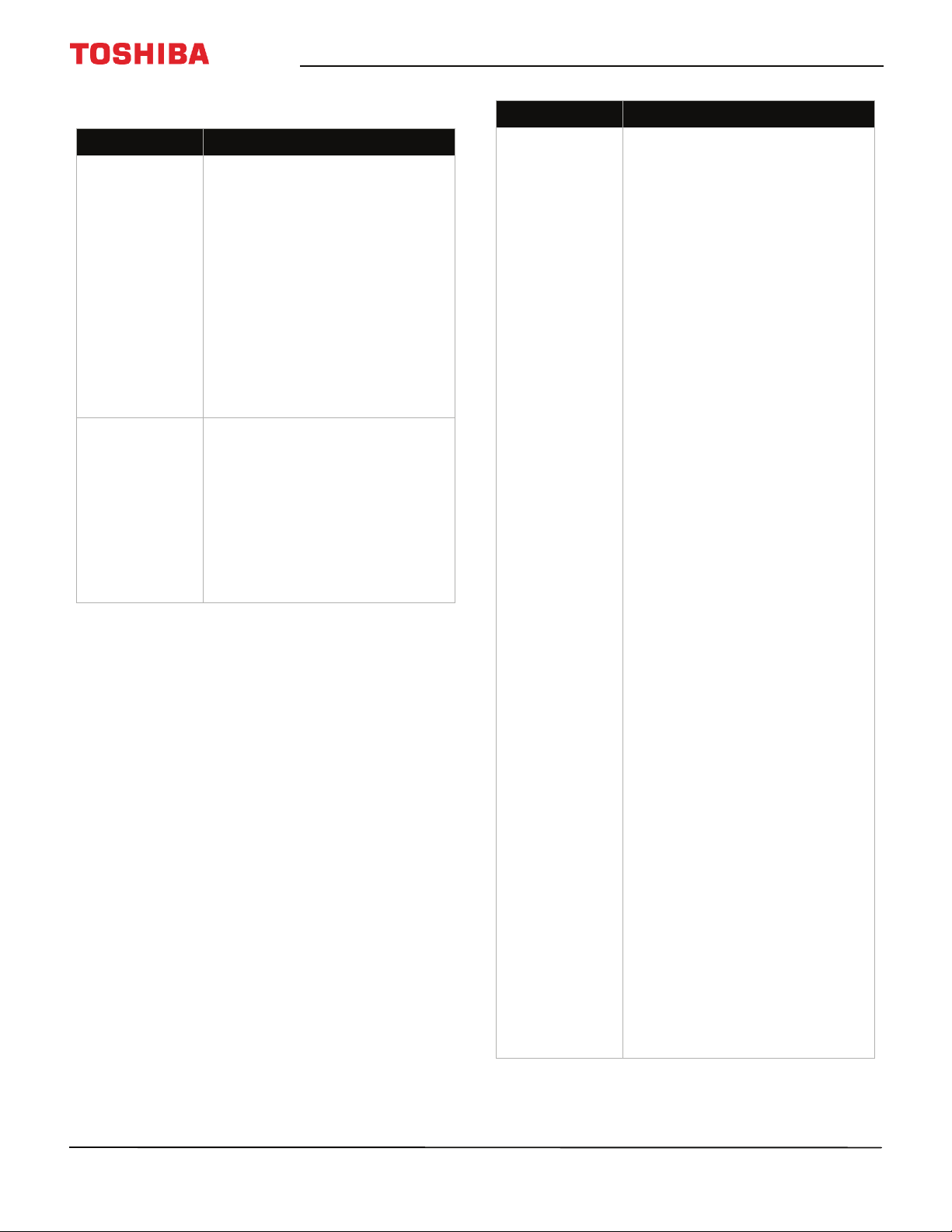
87
50" / 55" 2160p (4K), 60Hz, LED Chromecast built-in TV
www.tv.toshiba.com
Chromecast built-in TV FAQ
Problem Solution
My TV will not
connect to the
network.
• Make sure your router’s firewall
is configured to accept new
devices. See your router's
documentation for more
information. If you are renting a
router, you may need to contact
your ISP. If you are on a private
network, such as a university
network, you may need to
contact your network
administrator.
• You may have entered incorrect
information during setup. Reset
your TV, then set up your TV
again. See Restoring settings to
the defaults on page 85.
How do I prevent
others from
casting to my TV?
• By design, anyone who has
access to your Wifi network can
cast to your TV. This makes
devices with Chromecast
built-in great for sharing videos
between friends! If you want to
prevent people from casting to
your TV, make sure that your
Wifi network is password
protected and only give out the
password to people you trust.
I see the error “No
Cast Devices
Found.”
• Make sure that your TV and
mobile device are set up
correctly and connected to Wifi.
You should see Chromecast on
your TV, with its assigned name
and the current time, and a
photo slideshow playing.
•Try casting from the Google
Home app to see if the device is
correctly connected or requires
setup.
• If you're using an iOS device,
turn on Bluetooth when setting
up your TV.
• Try rebooting your Wifi router
by unplugging the power cord
and turning off your TV. Plug
your router back in and turn on
your TV.
• Try uninstalling and reinstalling
the Google Home app.
• Certain operating system
settings and installed
applications can conflict with
the use of Chromecast built-in.
If other devices (such as phones
or tablets) are also unable to
cast successfully, the problem is
likely an issue with your router
or network.
•Try rebooting your Wifi
router by unplugging the
power cord, then
plugging it back in.
• Make sure that
Chromecast built-in, your
TV, and your mobile
device are connected to
the same network. After
Chromecast built-in
starts, the network name
displayed on your TV
should be the same
network name selected in
your mobile device’s
available Wifi list.
• Make sure that firewall
and antivirus software on
your router are
up-to-date and are not
blocking connections to
Google Chromecast. If
you are renting a router,
contact your Internet
service provider about
firewall settings. If you
purchased the router,
check your network
firewall settings.
Problem Solution
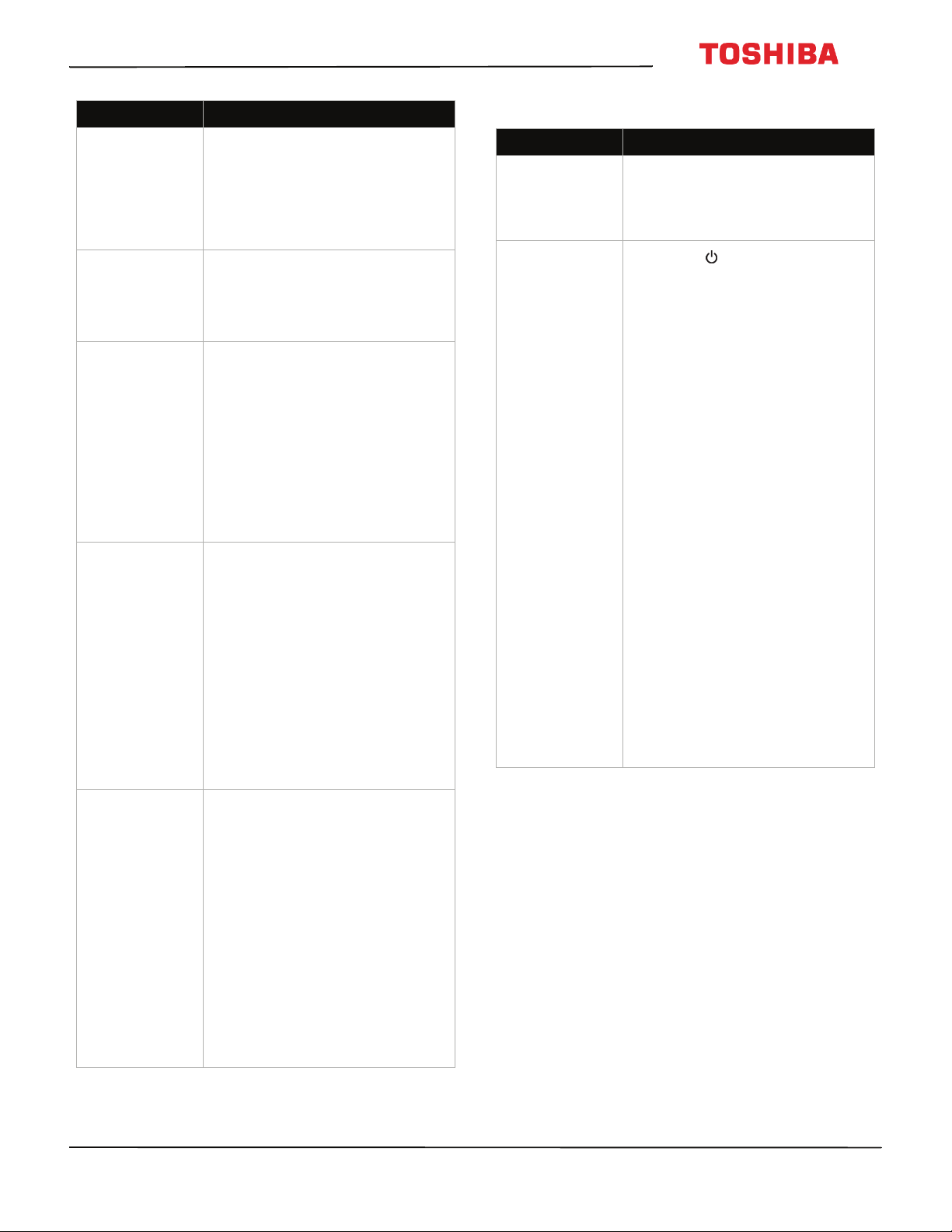
88
50
L
711
U
18
/
50
L
711
M
18
/
55
L
711
U
18
/
55
L
711
M
18
50" / 55" 2160p (4K), 60Hz, LED Chromecast built-in TV
www.tv.toshiba.com
Video and audio
Content is cut off
when casting.
• Try changing the picture size on
your mobile device to a lower
resolution.
• The full screen mode is
optimized for screens with 16:9
aspect ratio. To change this, go
to the Cast settings page.
Audio and video
are out of sync.
•Restart your TV and mobile
device, then try again.
• Try decreasing the distance
between your TV, router, and
mobile device.
I don't see the
Cast button in the
youtube.com
player.
• Make sure your TV is connected
to your Wifi network and make
sure that Chromecast built-in is
set up on your mobile device
and the device is connected to
the same network.
• Disconnect from a Virtual
Private Network (VPN) or proxy
server, if applicable.
Chromecast built-in cannot
communicate with your TV over
these networks.
The YouTube
video quality
keeps changing
throughout the
video.
• Because YouTube uses adaptive
bitrate streaming, videos may
appear at lower quality at first
but quickly switch to the
highest possible quality after a
few seconds.
Note: Not all videos on
YouTube are available in HD.
Videos recorded in SD play in
the same quality it was
recorded. If the video does not
buffer at playback speed, the
video is downgraded to a lower
quality allowing for smoother
playback.
Netflix.com does
not cast.
• Make sure that your TV is
connected to your Wifi network
and make sure that you set up
Chromecast built-in on your
mobile device and connected
the device to the same network.
• Disconnect what you're
currently casting from Netflix.
Try casting again.
• Disconnect from a Virtual
Private Network (VPN) or proxy
server, if applicable over these
networks.
• If you are seeing an error, such
as Error 16003 or 16001, try
setting up and casting from
another mobile device.
Problem Solution
Problem Solution
Picture does not
fill the screen.
There are black
bars around the
picture.
• Change the picture size (aspect
ratio). See Adjusting the picture
size on page 67.
No picture (screen
is not lit) and no
sound.
• Press on the TV or the
remote control.
• Make sure that the Audio Only
option is set to Off. See Playing
TV audio only on page 71.
• Make sure that the video cables
are connected correctly and
securely to your TV.
• Adjust the contrast and
brightness. See Adjusting the
TV picture on page 65.
• Make sure that the power cord
is plugged into a working
outlet.
• Press INPUT and make sure that
the correct video input source is
selected. See Selecting the
video input source on page 55.
• Try another channel. The station
may be experiencing problems.
• Make sure that the incoming
signal is compatible.
• Make sure that the antenna or
cable TV is connected correctly
and securely. See Connecting a
cable or satellite box on
page 24 or Connecting an
antenna or cable TV (no box) on
page 28.
• Check the closed caption
settings. Some TEXT modes can
block the screen. See Using
closed captioning on page 79.
89
50" / 55" 2160p (4K), 60Hz, LED Chromecast built-in TV
www.tv.toshiba.com
Dark, poor, or no
picture (screen is
lit), but sound is
good.
• Try another channel. The station
may be experiencing problems.
• Make sure that the antenna or
cable TV is connected correctly
and securely. See Connecting a
cable or satellite box on
page 24 or Connecting an
antenna or cable TV (no box) on
page 28.
• Adjust the brightness. See
Adjusting the TV picture on
page 65.
• If you are using an antenna and
the signal strength is low, adjust
the antenna or use a highly
directional outdoor antenna or
set-top antenna with a built-in
amplifier.
• Make sure that the video cables
are connected correctly and
securely to your TV.
• The video cable(s) you are using
may be bad. Try a new set.
No color, dark
picture, or color is
not correct.
• Try another channel. The station
may be experiencing problems.
• Adjust the color settings. See
Adjusting the TV picture on
page 65.
• Make sure that the video cables
are connected correctly and
securely to your TV.
• Make sure that the antenna or
cable TV is connected correctly
and securely. See Connecting a
cable or satellite box on
page 24 or Connecting an
antenna or cable TV (no box) on
page 28.
• If you are using an antenna and
the signal strength is low, adjust
the antenna or use a highly
directional outdoor antenna or
set-top antenna with a built-in
amplifier.
Only snow (noise)
appears on the
screen.
• Try another channel. The station
may be experiencing problems.
• Make sure that the antenna or
cable TV is connected correctly
and securely. See Connecting a
cable or satellite box on
page 24 or Connecting an
antenna or cable TV (no box) on
page 28.
• If you are using an antenna and
the signal strength is low, adjust
the antenna or use a highly
directional outdoor antenna or
set-top antenna with a built-in
amplifier.
Problem Solution
Picture quality is
good on some
channels and poor
on others. Sound
is good.
• The problem may be caused by
a poor or weak signal from the
broadcaster or cable TV
provider.
• If you connect to cable without
a set-top box and experience
poor picture quality, you may
need to install a set-top box to
improve signal reception and
picture quality. Contact your
cable TV provider about
upgrading to a set-top box.
Dotted lines or
stripes appear on
the screen.
• Make sure that the antenna or
cable TV is connected correctly
and securely. See Connecting a
cable or satellite box on
page 24 or Connecting an
antenna or cable TV (no box) on
page 28.
• If you are using an antenna and
the signal strength is low, adjust
the antenna or use a highly
directional outdoor antenna or
set-top antenna with a built-in
amplifier.
• Make sure that the video cables
are connected correctly and
securely to your TV.
• The video cable(s) you are using
may be bad. Try a new set.
• Other devices (for example, a
surround sound receiver,
external speakers, fans, or hair
dryers) may be interfering with
your TV. Try turning off one
device at a time, then back on
to determine which device is
causing interference. After you
have determined which device
is causing interference, move it
further from the TV to eliminate
the interference.
Double images.
• Use a highly directional outdoor
antenna, cable TV, or satellite
TV.
The picture has a
few bright or dark
spots.
• A few bright or dark spots on an
LCD screen is normal. It does
not affect the operation of
your TV.
Problem Solution
90
50
L
711
U
18
/
50
L
711
M
18
/
55
L
711
U
18
/
55
L
711
M
18
50" / 55" 2160p (4K), 60Hz, LED Chromecast built-in TV
www.tv.toshiba.com
Video description
or voice guide
does not work.
• Make sure that your TV is not
muted and the volume is
turned up.
• Make sure that the options
listed under the Accessibility
menu are turned on. See
Adjusting accessibility settings
on page 64.
• Video descriptions are not
available on all broadcasts.
• Some remote functions are not
narrated.
Good picture, but
no sound.
•Increase the volume.
• Make sure that the sound is not
muted.
• Make sure that you do not have
headphones connected. When
headphones are connected, the
TV speakers are muted.
•Make sure that the TV
Speakers option on the Sound
menu is not set to Off.
•If you are using a home theater
system, soundbar, or external
speaker system, make sure it is
turned on and is not muted.
•If you are using a home theater
system, soundbar, or external
speaker system, make sure that
you have selected the correct
output mode.
•If you are using a home theater
system, soundbar, or external
speaker system and have
connected it with a digital
optical cable, go to the Sound
menu, highlight Digital Audio
Output, then press OK.
Highlight Audio Format, then
press OK. Press
S
or
T
to select
PCM, then press OK. See the
Digital Audio Output option in
Adjusting sound settings on
page 70.
• Make sure that the audio cables
are connected correctly and
securely to your TV.
• Make sure that the antenna or
cable TV is connected correctly
and securely. See Connecting a
cable or satellite box on
page 24 or Connecting an
antenna or cable TV (no box) on
page 28.
• The audio cables you are using
may be bad. Try a new set.
Problem Solution
Poor picture.
• Make sure that the room is not
too bright. Light reflecting off
the screen can make the picture
difficult to see.
• If an S-VHS camera or a
camcorder is connected while
another connected device is
turned on, the picture may be
poor. Turn off one or more
devices.
Good sound, but
poor color.
• Adjust the contrast, color, and
brightness settings. See
Adjusting the TV picture on
page 65.
Audio noise.
• Other devices (for example, a
surround sound receiver,
external speakers, fans, or hair
dryers) may be interfering with
your TV. Try turning off one
device at a time to determine
which device is causing
interference. After you have
determined which device is
causing interference, move it
further from the TV to eliminate
the interference.
No output from
one of the
speakers.
• Adjust the audio balance. See
Adjusting sound settings on
page 70.
• Make sure that the audio cables
are connected correctly and
securely to your TV.
After images
appear.
• Do not display a still image,
such as a logo, game, or
computer image, for an
extended period of time. This
can cause a permanent
after-image to be burned into
the screen. This type of damage
is not covered by your warranty.
Problem Solution
91
50" / 55" 2160p (4K), 60Hz, LED Chromecast built-in TV
www.tv.toshiba.com
Remote control
General
Problem Solution
Remote
control does
not work.
• Make sure that the power cord is
plugged into a working outlet.
• Make sure that there are no
obstructions between the remote
control and the remote control
sensor on the front of the TV.
• Point the remote control directly at
the remote control sensor on your
TV. For the location of the remote
control sensor, see Aiming the
remote control on page 42.
• The supplied batteries are wrapped
tightly in clear plastic. Make sure
that you have removed this plastic
from the batteries.
• Make sure that the batteries are
installed correctly. See Installing
remote control batteries on
page 42.
• Replace dead batteries with new
batteries. See Installing remote
control batteries on page 42.
Problem Solution
No power.
• Make sure that the power cord
is plugged into a working
outlet.
• Unplug the power cord, wait 60
seconds, then plug the cord
back in and turn on your TV.
• Other devices (for example, a
surround sound receiver,
external speakers, fans, or hair
dryers) may be interfering with
your TV. Try turning off one
device, at a time, then turning
on your TV to determine which
device is causing interference.
After you have determined
which device is causing
interference, move it further
from the TV to eliminate the
interference.
“No video” error
message is
displayed.
• Press INPUT and make sure that
you have selected the correct
input for the device or service
you are trying to use.
• If you are using a cable or
satellite box, use the remote
that came with that box to
change channels.
After Auto
Channel Search,
there are no
channels.
• Reception can vary by channel
depending on the broadcast
power level of a given station.
Contact your cable or satellite
TV provider.
• Make sure that the antenna or
cable/satellite TV is connected
securely to your TV.
• Try replacing the cable between
the antenna/cable or
cable/satellite box and your TV.
When I press
INPUT, I cannot
select my
device (it is
grayed out).
• Make sure that the video input
source for the device is not
hidden. See Labeling a video
input source on page 83.
• Make sure that the video input
sources are not locked. See
Locking video inputs on
page 78.
One or more
channels do not
display.
• Make sure that the channels are
not blocked. See Locking
channels on page 78.
• Make sure that the channels are
not hidden. The channel may
have been deleted from the
channel list. You can tune to the
channel by pressing the
number buttons on the virtual
remote control or you can add
the channel back to the channel
list. See Hiding channels on
page 73.
• If you are using a cable or
satellite box, use the remote
that came with that box to
change channels.
• Press INPUT and make sure that
you have selected the correct
input for the device or service
you are trying to use.
Password is lost.
• If you forget your PIN, open the
screen where you enter your
PIN, highlight Cancel or Done,
then press INFO four times
within five seconds. The PIN is
cleared and you can enter a
new PIN. See Setting a new PIN
on page 74.
Some settings
cannot be
accessed.
• If a setting is grayed, the setting
is not available in the current
video input mode (for example
TV mode). Change to a different
video input source. See
Selecting the video input
source on page 55.
Problem Solution
92
50
L
711
U
18
/
50
L
711
M
18
/
55
L
711
U
18
/
55
L
711
M
18
50" / 55" 2160p (4K), 60Hz, LED Chromecast built-in TV
www.tv.toshiba.com
CEC-compatible devices
TV cabinet
creaks.
• When the TV is in use, the
temperature rises naturally and
may cause the cabinet to
expand or contract which can
cause a creaking noise. This is
not a malfunction.
Control buttons
do not work.
•Unplug the power cord, wait a
few seconds, then plug the cord
back in and turn on your TV.
TV keeps
turning off.
• Make sure that the sleep timer
is not turned on. See Setting the
sleep timer on page 82.
A retail banner
is displayed.
•You selected Store Mode when
you ran the Initial Setup wizard.
Go to the Installation menu,
highlight Store / Home Mode,
then press
W
or
X
to select
Home, then press OK.
Problem Solution
My TV is not
displaying the
video from the
connected CEC
device.
• Make sure that the HDMI cable
is connected securely to your
TV and the device.
• Make sure that the device is
connected to your TV with an
HDMI cable.
• Make sure that the device is a
CEC device. See the
documentation that came with
the device for more
information.
• Press INPUT and make sure that
the correct video input source is
selected. See Selecting the
video input source on page 55.
• Make sure that the HDMI-CEC
Control feature is turned on.
See Turning HDMI-CEC Control
on or off on page 59.
• Try adjusting the TV picture. See
Adjusting the TV picture on
page 65.
Problem Solution
My TV is not
playing the
audio from the
connected CEC
device.
• Make sure that the HDMI cable
is connected securely to your
TV and the device.
• Make sure that the device is
connected to your TV with an
HDMI cable.
• Make sure that the device is a
CEC device. See the
documentation that came with
the device.
• Make sure that the TV volume is
turned up and not muted.
• Try adjusting the TV sound. See
Adjusting sound settings on
page 70.
• Make sure that the TV speakers
are turned on and not muted.
See Adjusting sound settings
on page 70.
• Make sure that the HDMI-CEC
Control feature is turned on.
See Turning HDMI-CEC Control
on or off on page 59.
•If you have connected an
HDMI CEC audio receiver, adjust
the volume on the receiver.
When your TV detects an audio
receiver, the TV speakers may
turn off and sound plays
through receiver speakers only.
• If you are using a home theater
system, soundbar, or external
speaker system, make sure that
it is turned on and is not muted.
• If you are using a home theater
system, soundbar, or external
speaker system, make sure that
you have selected the correct
output mode.
• If you are using a home theater
system, soundbar, or external
speaker system and have
connected with a digital optical
cable, go to the Sound menu,
highlight Digital Audio
Output, then press OK.
Highlight Audio Format, then
press OK. Press
S
or
T
to select
PCM, then press OK. See the
Digital Audio Output option in
Adjusting sound settings on
page 70.
Problem Solution
93
50" / 55" 2160p (4K), 60Hz, LED Chromecast built-in TV
www.tv.toshiba.com
My TV’s remote
control does
not control the
device.
• Make sure that there are no
obstructions between the
remote control and the remote
control sensors on your TV and
the device.
• Depending on the device, all
the buttons may not work.
• Make sure that the HDMI-CEC
Control feature is turned on.
See Turning HDMI-CEC Control
on or off on page 59.
• If you are trying to control the
volume on an HDMI CEC audio
receiver using your TV remote
control, make sure that the
Amplifier Control option is set
to On. See Turning Amplifier
Control on or off on page 60.
• The device may not support this
feature. See the documentation
that came with the device for
more information.
The device does
not show up in
the list of CEC
devices.
• Make sure that the device is
turned on.
• Make sure that the HDMI cable
is connected securely to your
TV and the device.
• Make sure that the device is
connected to your TV with an
HDMI cable.
• Make sure that the HDMI-CEC
Control feature is turned on.
See Turning HDMI-CEC Control
on or off on page 59.
• Make sure that the device is a
CEC device. See the
documentation that came with
the device.
Problem Solution
My device does
not turn off
when I turn off
my TV.
• Make sure that the HDMI-CEC
Control feature is turned on.
See Turning HDMI-CEC Control
on or off on page 59.
•Make sure that Auto Standby is
set to On. See Turning Auto
Standby on or off on page 60.
• The device may not support this
feature. See the documentation
that came with the device for
more information.
My TV does not
turn on when I
turn on my
device.
• Make sure that the HDMI-CEC
Control feature is turned on.
See Turning HDMI-CEC Control
on or off on page 59.
•Make sure that TV Auto Power
is set to On. See Turning TV
Auto Power on or off on
page 59.
• The device may not support this
feature. See the documentation
that came with the device for
more information.
I cannot select
the Root Menu
option.
OR
The device’s
root menu does
not open when
I select Root
Menu.
• The device may not support this
feature. See the documentation
that came with the device for
more information.
Note
If the problem is not solved by using these
troubleshooting instructions, turn off your
TV, then turn it on again.
Problem Solution
94
50
L
711
U
18
/
50
L
711
M
18
/
55
L
711
U
18
/
55
L
711
M
18
50" / 55" 2160p (4K), 60Hz, LED Chromecast built-in TV
www.tv.toshiba.com
Specifications
Specifications are subject to change without notice.
50-inch (50L711U18/50L711M18)
Dimensions and weight
Screen
Tuner
Inputs
Outputs
Audio
Power
Miscellaneous
Without stand
H × W × D
26.4 × 44.6 × 3.7 in. (67.1 × 113.3 × 9.4 cm)
30.6 lbs (13.9 kg)
With stand
28.3 × 44.6 × 11.1 in. (71.9 × 113.3 × 28.2 cm)
32 lbs (14.5 kg)
Screen size measured
diagonally
49.5 in. (125.7 cm)
Panel LCD
Panel backlight type LED
Panel refresh rate 60Hz
Display resolution 2160p
Panel resolution H × V 3840 × 2160
Aspect ratio 16:9
Contrast ratio
(typical)–panel
4,000:1
Comb filter 3d y/c digital
Response time 8 ms
Horizontal viewing angle 178°
Vertical viewing angle 178°
Analog NTSC
Digital ATSC, 8-VSB, Clear-QAM
HDMI 3
Composite video 1
DVI (shared with HDMI) HDMI IN
USB
1
Supports JPEG
Antenna/Cable 1
Analog audio/Headphone 1
Digital audio 1 (optical)
WiFi Yes
LAN (Ethernet) Yes
Audio enhancement DTS Studio Sound
Speakers
Number: 2
Watts per channel: 10W
Power consumption ON 109.6W
Power consumption in
standby
<0.5W
Power input 120V~, 60Hz, 1.3A
OSD languages English, French, Spanish
HDMI CEC Yes
Game Mode Yes
GameTimer™ Yes
Chromecast built-in Yes
V-Chip
(version 2.0)
Yes
Sleep timer Yes
Text-to-Speech Yes
VESA mount (mm)
(hor. × ver.)
400 × 200
VESA mount screws M6 type
Note
The length of the wall-mount screws vary
depending on the wall-mount bracket you
purchased. See the instructions that came
with the wall-mount bracket for screw
lengths.
95
50" / 55" 2160p (4K), 60Hz, LED Chromecast built-in TV
www.tv.toshiba.com
55-inch (55L711U18/55L711M18)
Dimensions and weight
Screen
Tuner
Inputs
Outputs
Audio
Power
Miscellaneous
Without stand
H × W × D
28.7 × 49.1 × 3.7 in. (73 × 124.7 × 9.3 cm)
32.4 lbs. (14.7 kg)
With stand
30.2 × 49.1 × 9.7 in. (76.6 × 124.7 × 24.7 cm)
33.5 lbs. (15.2 kg)
Screen size measured
diagonally
54.6 in. (138.7 cm)
Panel LCD
Panel backlight type LED
Panel refresh rate 60Hz
Display resolution 2160p
Panel resolution H × V 3840 × 2160
Aspect ratio 16:9
Contrast ratio
(typical)–panel
4,000:1
Comb filter 3d y/c digital
Response time 8 ms
Horizontal viewing angle 178°
Vertical viewing angle 178°
Analog NTSC
Digital ATSC, 8-VSB, Clear-QAM
HDMI 3
Composite video 1
DVI (shared with HDMI) HDMI IN
USB
1
Supports JPEG
Antenna/Cable 1
Analog audio/Headphone 1
Digital audio 1 (optical)
WiFi Yes
LAN (Ethernet) Yes
Audio enhancement DTS Studio Sound
Speakers
Number: 2
Watts per channel: 10W
Power consumption ON 147.3W
Power consumption in
standby
<0.5W
Power input 120V~, 60Hz, 1.7A
OSD languages English, French, Spanish
HDMI CEC Yes
Game Mode Yes
GameTimer™ Yes
Chromecast built-in Yes
V-Chip
(version 2.0)
Yes
Sleep timer Yes
Text-to-Speech Yes
VESA mount (mm)
(hor. × ver.)
200 × 300
VESA mount screws M6 type
Note
The length of the wall-mount screws vary
depending on the wall-mount bracket you
purchased. See the instructions that came
with the wall-mount bracket for screw
lengths.
96
50
L
711
U
18
/
50
L
711
M
18
/
55
L
711
U
18
/
55
L
711
M
18
50" / 55" 2160p (4K), 60Hz, LED Chromecast built-in TV
www.tv.toshiba.com
Legal notices
FCC Statement
This device complies with Part 15 of the FCC Rules. Operation is
subject to the following two conditions: (1) this device may not
cause harmful interference, and (2) this device must accept any
interference received, including interference that may cause
undesired operation.
This equipment has been tested and found to comply with the
limits for a Class B digital device, pursuant to Part 15 of the FCC
Rules. These limits are designed to provide reasonable protection
against harmful interference in a residential installation. This
equipment generates, uses and can radiate radio frequency energy
and, if not installed and used in accordance with the instructions,
may cause harmful interference to radio communications.
However, there is no guarantee that interference will not occur in a
particular installation. If this equipment does cause harmful
interference to radio or television reception, which can be
determined by turning the equipment off and on, the user is
encouraged to try to correct the interference by one or more of the
following measures:
• Reorient or relocate the receiving antenna.
• Increase the separation between the equipment and receiver.
• Connect the equipment into an outlet on a circuit different
from that to which the receiver is connected.
• Consult the dealer or an experienced radio/TV technician for
help.
Warning
Changes or modifications not expressly approved by the party
responsible for compliance could void the user's authority to
operate the equipment.
Mexico IFETEL
WiFi/BT Combo module
TWCM-K007D
IFETEL ID: RCPLGTW16-0200
Cables
Connections to this device must be made with shielded cables with
metallic RF/EMI connector hoods to maintain compliance with FCC
Rules and Regulations.
Canadian Notice
Analog and Digital Television Receiving Apparatus - Appareil de
réception de télévision analogigue et numérique,
Canada BETS-7 / NTMR-7.
IC Statement
This device complies with Industry Canada licence—exempt RSS
standard(s).
Operation is subject to the following two conditions: (1) this device
may not cause interference, and (2) this device must accept any
interference, including interference that may cause undesired
operation of the device.
This equipment complies with IC radiation exposure limits set forth
for an uncontrolled environment.
Dolby License Notice and Trademark Acknowledgement
Manufactured under license from Dolby
Laboratories. Dolby, Dolby Audio, and the
double-D symbol are trademarks of Dolby
Laboratories.
HDMI®
The terms HDMI and HDMI High-Definition
Multimedia Interface, and the HDMI Logo are
trademarks or registered trademarks of HDMI
Licensing LLC in the United States and other
countries.
DTS Studio Sound™
For DTS patents, see http://patents.dts.com. Manufactured
under license from DTS Licensing Limited. DTS, the Symbol,
& DTS and the Symbol together are registered trademarks,
and DTS Studio Sound is a trademark of DTS, Inc. © DTS,
Inc. All Rights Reserved.
Open Source
This production contains Bitstream Vera Sans fonts under the
following copyright:
Copyright © 2003 by Bitstream, Inc. All Rights Reserved. Bitstream
Vera is a trademark of Bitstream, Inc.
For Toshiba OPEN SOURCE SOFTWARE information, refer to the
Get Help – Open Source Licenses section in the on-screen display
(OSD) on the TV. If you wish to receive the complete corresponding
licensed source code, please refer to TV.Toshiba.com or call the
Toshiba support center at 1-855-527-2411. This source code is
available for a period of three (3) years from the date of the
distribution of this product by Toshiba.
For Google Cast OPEN SOURCE SOFTWARE information, refer to
https://support.google.com/googlecast/answer/6121012?hl=en.
97
50" / 55" 2160p (4K), 60Hz, LED Chromecast built-in TV
www.tv.toshiba.com
One-year limited warranty -
Toshiba Televisions
Definitions:
Best Buy (“Warrantor”) warrants to you, the original purchaser of
this new Toshiba-branded television (“Product”), that the Product
shall be free of defects in the original manufacturer of the material
or workmanship for a period of one (1) year from the date of your
purchase of the Product (“Warranty Period”). For this warranty to
apply, your Product must be purchased in the United States or
Canada from a Best Buy authorized dealer of Toshiba brand
products only that are packaged with this warranty statement.
How long does the coverage last?
The Warranty Period lasts for 1 year (365 days) from the date you
purchased the Product. Your purchase date is printed on the receipt
you received with the Product.
What does this warranty cover?
During the Warranty Period, if the original manufacture of the
material or workmanship of the Product is determined to be
defective by an authorized Warrantor repair center or store
personnel, Warrantor will (at its sole option): (1) repair the Product
with new or rebuilt parts; or (2) replace the Product at no charge
with new or rebuilt comparable products or parts. Products and
parts replaced under this warranty become the property of
Warrantor and are not returned to you. If service of Products or
parts are required after the Warranty Period expires, you must pay
all labor and parts charges. This warranty lasts as long as you own
your Toshiba Product during the Warranty Period. Warranty
coverage terminates if you sell or otherwise transfer the Product.
How to obtain warranty service?
If you purchased the Product at a Best Buy retail store location and
your television Product has a screen size of less than 42 inches,
please take your original receipt and the Product to any Best Buy
store. Make sure that you place the Product in its original packaging
or packaging that provides the same amount of protection as the
original packaging. If you purchased the Product from a Best Buy
online web site, mail your original receipt and the Product to the
address listed on the web site. Make sure that you put the Product
in its original packaging or packaging that provides the same
amount of protection as the original packaging.
To obtain in-home warranty service for a television with a screen 42
inches or larger, in the United States call 1-888-BESTBUY, Canada
call 1-866-BESTBUY. Call agents will diagnose and correct the issue
over the phone or will have an Toshiba-approved repair technician
dispatched to your home.
Where is the warranty valid?
This warranty is valid only in the United States and Canada at Best
Buy branded retail stores or websites to the original purchaser of
the product in the county where the original purchase was made.
What does the warranty not cover?
This warranty does not cover:
• Customer instruction/education.
• Installation.
• Set up adjustments.
•Cosmetic damage.
• Damage due to acts of God, such as power surges.
•Accident(s).
• Misuse, unintentional or intentional.
• Abuse, unintentional or intentional.
•Negligence.
• Commercial purposes/use, including but not limited to use in
a place of business or in communal areas of a multiple
dwelling condominium or apartment complex, or otherwise
used in a place of other than a private home.
• Modification of any part of the Product, including the
antenna.
• Damage due to incorrect operation or maintenance.
• Connection to an incorrect voltage or power supply.
• Outages, static or other problems with over-the-air reception
of the television broadcast signals.
• Attempted repair by any person not authorized by Warrantor
to service the Product.
• Products sold “as is” or “with all faults.”
• Consumables, including but not limited to batteries (i.e. AA,
AAA, C etc.).
• Products where the factory applied serial number has been
altered or removed.
• Loss or Theft of this product or any part of the product
• Failures or Damage caused by any contact including but not
limited to liquids, gels or pastes.
• Up to three (3) pixel failures (dots that are dark or incorrectly
illuminated) grouped in an area smaller than one tenth (1/10)
of the display size or up to five (5) pixel failures throughout
the display. (Pixel based displays may contain a limited
number of pixels that may not function normally.)
• Problems with delay in motion or action of video images
while playing first-person style video games.
REPAIR REPLACEMENT AS PROVIDED UNDER THIS WARRANTY IS
YOUR EXCLUSIVE REMEDY FOR BREACH OF WARRANTY.
WARRANTOR SHALL NOT BE LIABLE FOR ANY INCIDENTAL OR
CONSEQUENTIAL DAMAGES FOR THE BREACH OF ANY EXPRESS OR
IMPLIED WARRANTY ON THIS PRODUCT, INCLUDING, BUT NOT
LIMITED TO, LOST DATA, LOSS OF USE OF YOUR PRODUCT, LOST
BUSINESS OR LOST PROFITS. WARRANTOR MAKES NO OTHER
EXPRESS WARRANTIES WITH RESPECT TO THE PRODUCT, ALL
EXPRESS AND IMPLIED WARRANTIES FOR THE PRODUCT,
INCLUDING, BUT NOT LIMITED TO, ANY IMPLIED WARRANTIES OF
AND CONDITIONS OF MERCHANTABILITY AND FITNESS FOR A
PARTICULAR PURPOSE, ARE LIMITED IN DURATION TO THE
WARRANTY PERIOD SET FORTH ABOVE AND NO WARRANTIES,
WHETHER EXPRESS OR IMPLIED, WILL APPLY AFTER THE WARRANTY
PERIOD. SOME STATES, PROVINCES AND JURISDICTIONS DO NOT
ALLOW LIMITATIONS ON HOW LONG AN IMPLIED WARRANTY
LASTS, SO THE ABOVE LIMITATION MAY NOT APPLY TO YOU. THIS
WARRANTY GIVES YOU SPECIFIC LEGAL RIGHTS, AND YOU MAY
ALSO HAVE OTHER RIGHTS, WHICH VARY FROM STATE TO STATE OR
PROVINCE TO PROVINCE.
Product information: www.tv.toshiba.com
Product support (855) 527-2411 For US and Canada
This product is distributed and warranted by
Best Buy Purchasing, LLC
©2017 Best Buy China LTD. All rights reserved.
Toshiba is a registered trademark of Toshiba Corporation;. All other
trademarks are property of their respective owners.
ColorMaster, DynaLight, GameTimer, Native Mode, Stable Sound,
Surflock and TheaterWide are trademarks or registered trademarks
of Toshiba America Information Systems, Inc.
Chromecast is a trademark of Google inc.
98
50
L
711
U
18
/
50
L
711
M
18
/
55
L
711
U
18
/
55
L
711
M
18
50" / 55" 2160p (4K), 60Hz, LED Chromecast built-in TV
www.tv.toshiba.com
One-year limited warranty -
Toshiba Televisions—Mexico
Esta póliza de garantía, expedida por Best Buy Imports, S. de R.L. de C.V.
(Best Buy), con domicilio en Av. Santa Fe No.440 Piso 2 OFNA 202 y 203 P3 y
P4, Col. Santa Fe Cuajimalpa, C.P. 05348, Del. Cuajimalpa de Morelos, México,
Ciudad De México, teléfono (01) (52) (55) 88-50-20-00 para productos de la
marca TOSHIBA (el “Producto” o los “Productos”) establece las normas y
condiciones de garantía para el Producto que se describe en la siguiente
tabla de Productos adquiridos por el cliente (cómo se define más adelante)
en tiendas Best Buy localizadas dentro de la República Mexicana.
El tiempo de garantía aplicable a cada producto será marcado con una “x”
por el vendedor en el listado que antecede al momento de su venta. El
tiempo de garantía correspondiente empieza a correr a partir de la Fecha de
compra y recepción * que se coloca al momento de su venta.
Para efectos de esta Póliza, se entenderá como Cliente, aquellos que
adquieran con carácter de usuario final, cualesquiera de los Productos
vendidos en las tiendas Best Buy, localizadas dentro de los Estados Unidos
Mexicanos (“México”).
CONCEPTOS
Mediante esta garantía, Best Buy se compromete a respaldar el Producto
contra cualquier defecto de los materiales y/o mano de obra empleados en
la fabricación del Producto. Asimismo, la presente garantía ampara todas las
piezas y componentes de este producto. Best Buy reparará el Producto en
caso de estar defectuoso, y remplazará la pieza o componente defectuosos,
sin costo para el Cliente, incluyendo la mano de obra y los gastos de
transportación derivados de su cumplimiento en nuestra red de servicio que
más adelante se detallará.
CONDICIONES
1. Notificación de las reclamaciones.
Solamente será necesario para ejercer la garantía, presentar el Producto y la
póliza de garantía debidamente sellada por el establecimiento de Best Buy
que lo vendió o se puede presentar la factura, o recibo, o el comprobante en
el que consten los datos específicos del producto adquirido.
Garantía de Servicio: Si el Cliente identifica que el Producto tiene partes,
componentes o materiales defectuosos, o defectos por mano de obra,
deberá dar aviso con prontitud y una explicación de la reclamación a la
tienda Best Buy donde adquirió su Producto y/o al centro de servicio
especializado señalado en esta póliza. Todas las reclamaciones para efectos
de la presente garantía deberán hacerse dentro de la vigencia de la misma.
El personal especializado del centro de servicio, realizará una inspección al
Producto con el fin de determinar la procedencia de la garantía. Ninguna
reparación o reposición de cualquier Producto o parte del mismo se hará sin
cargo fuera de la vigencia de la garantía del Producto. La garantía sobre la
reparación de una falla específica así como de las partes empleadas para la
misma, estará vigente por el período restante de la garantía del Producto o
por un período de 90 (noventa) días contados a partir de la fecha de
reparación del Producto o instalación de los repuestos, lo que resulte mayor.
Durante el período de garantía, para reparar el Producto defectuoso, el
Cliente podrá llevarlo a la tienda Best Buy en que lo adquirió, o al centro de
servicio especializado señalado en esta póliza. El Cliente deberá presentar el
Producto defectuoso con la póliza de garantía debidamente sellada por la
tienda Best Buy. Una vez reparado, Best Buy, o sus representantes,
entregarán el Producto al Cliente, en la misma tienda Best Buy en la que fue
reclamada la garantía. Best Buy no está obligado a proporcionar al Cliente
un Producto substituto durante el período de evaluación y en su caso de
reparación en que el Producto defectuoso se encuentre en el centro de
servicio autorizado.
2. Recurso exclusivo.
Aceptación: El recurso exclusivo del Cliente y la única obligación de Best
Buy consiste en realizar todos los trabajos necesarios para reparar cualquier
Producto que se determine como defectuoso dentro del período de esta
garantía y proporcionar, sin cargo extra para el Cliente, los repuestos de las
partes defectuosas. [En el caso de que la reparación del Producto o el
reemplazo de partes no solucione el defecto, o que hayan transcurrido 30
días posteriores a la recepción del Producto para su reparación, o se hayan
realizado 3 (tres) reparaciones consecutivas sobre la misma falla e incurra en
una cuarta entonces y sólo en dichos casos, Best Buy substituirá el Producto
defectuoso por otro igual ó de similares características, o reembolsará al
Cliente el precio de adquisición de dicho Producto, en la fecha en que fue
adquirido
3. Excepciones de la Garantía Limitada:
Best Buy no tendrá responsabilidad ni obligación ante el Cliente y por lo
tanto se exime de hacer efectiva la garantía en los siguientes casos: (i)
cuando el Producto se hubiese utilizado en condiciones distintas a las
normales; (ii) cuando el Producto no hubiese sido operado de acuerdo con
el instructivo de uso que se le acompaña; y (iii) cuando el Producto hubiese
sido alterado o reparado por personas no autorizadas por Best Buy. Best Buy
excluye también todos aquellos Productos que no hayan sido vendidos por
Best Buy en cualquiera de sus tiendas localizadas dentro de la República
Mexicana. No están cubiertas por la presente garantía las partes
consumibles del Producto. Esta garantía cubrirá defectos y/o fallos dentro
del período de garantía derivado de cualquier defecto de los materiales en
la fabricación del Producto.
4. Validez territorial: La presente póliza de garantía es válida únicamente
en la República Mexicana.
RENUNCIA DE LA GARANTIA:
Excepto por la garantía aquí estipulada, la cual cumple con lo dispuesto por
la NOM-024-SCFI-2013, Best Buy excluye expresamente del alcance de la
presente garantía cualquier otra garantía explícita o implícita incluyendo, sin
limitar, todas o cualquier declaración o garantías de comerciabilidad y/o
aplicación o uso del Producto para propósitos específicos. Best Buy excluye
expresamente, a toda y cualesquiera garantía relativas a que su Producto
sea compatible con cualquier otro Producto o combinación de productos
diferentes a los Productos de la marca TOSHIBA a los que el Cliente decida
conectar el Producto.
DATOS DEL PRODUCTO ADQUIRIDO:
Modelo: _______________________________________________________
No. de serie: ____________________________________________________
Tienda donde se adquirió: _________________________________________
Dirección de la tienda:
Calle ____________________________________________ no ___________
Col. _______________________________________ C.P. ________________
Delegación/Municipio _____________ Ciudad/ Estado _________________
Las Tiendas Best Buy en la Republica Mexicana, son los establecimientos
donde se puede hacer efectiva la garantía donde se pueden obtener
componentes, consumibles y accesorios del Producto: Centro de Servicio
(y/o red de servicio):
• BEST BUY MUNDO E: Bvd. Manuel Ávila Camacho, No. 1007,
San Lucas Tepetlatalco, Tlalnepantla, C.P. 54055, Estado de
Mé
x
ico.
• BEST BUY INTERLOMAS: Boulevard Magnocentro 35, Col.
Centro Urbano San Fernando la Herradura C.P 52784
Huixquilucan, Estado de México.
• BEST BUY ACOXPA: Avenida Acoxpa 430 Col. Ex Hacienda
Coapa, Del. Tlalpan, C.P 14300, Ciudad de México.
• BEST BUY POLANCO: Francisco Petrarca 202 Col. Polanco, Del.
Miguel Hidalgo, C.P. 11570, Ciudad de México.
• BEST BUY CIUDADELA: Calle Labna 1437, Col. Ciudad del Sol,
C.P. 45071, Zapopan, Jalisco.
• BEST BUY GALERIAS: Av. Rafael Sanzio 150, Sub Ancla 3, Col. La
Estancia, C.P. 45030, Zapopan, Jalisco.
• BEST BUY TLAQUEPAQUE; Boulevard Marcelino García
Barragán, Nº 2077 y 2377, Col. Prados del Nilo, C.P. 44840,
Guadalajara, Jalisco.
• BEST BUY CUAUTITLAN: Av. Primero de Mayo, S/N, Manzana
C-34-C', Col. Centro Urbano, Cuautitlán Izcalli, Estado de
México.
• BEST BUY MORELIA: Avenida Montaña Monarca Norte Nº
1000, Col. Desarrollo Montaña Monarca C.P. 58350, Morelia,
Michoacán.
• BEST BUY PEDREGAL: Calle de Ladera no. 16 Col. Jardines del
Pedregal de San Ángel, C.P. 04500, Del. Coyoacán Ciudad de
México.
• BEST BUY MONTERREY: Av. Batallón de San Patricio No. 1000
Col. Residencial San Agustín, C.P. 66260, San Pedro Garza
Garcia, Nuevo León, Monterrey.
• BEST BUY ANDARES: Blvd. Puerta de Hierro no. 4965 Fracc.
Plaza Andares, C.P. 45116, Zapopan, Jalisco
99
50" / 55" 2160p (4K), 60Hz, LED Chromecast built-in TV
www.tv.toshiba.com
También consulte el listado de los nuevos establecimientos en
http://www.bestbuy.com.mx/tiendas
Sello del establecimiento que vendió el Producto:
Fecha de compra y recepción*
Fecha de Instalación (en caso de ser aplicable)
___________/_____________/_____________
Centro de atención telefónica para la Ciudad de México e interior de la
República:
01-800 BESTBUY (2378289)
http://www.bestbuy.com.mx/
(O puede presentar la factura, o recibo, o el comprobante en el que
consten los datos específicos del producto adquirido)
DÍA MES AÑO
For product inquires or accessibility assistance, please contact us
with the information below.
U.S. and Canada:
www.tv.toshiba.com
Product support (855) 527-2411
Distributed and warranted by Best Buy Purchasing LLC
©2017 Best Buy China LTD. All rights reserved.
Mexico:
01-800-926-3080
Best Buy Imports S. DE R.L. DE C.V.
Avenida Santa Fe No. 440 Piso 2 Ofna 202 Y 203 P3 Y P4
Colonia Santa Fe Cuajimalpa, C.P. 05348, Cuajimalpa De Morelos,
México, Ciudad De México
©2017 Best Buy. All rights reserved.
Made in China
V3 ENGLISH
17-0044
If the power cord is
damaged, it must be
replaced by the
manufacturer or its service
agent or qualified personnel
to avoid risk.