For Customer Use
Enter below the Serial No. which is located on
the rear of the cabinet. Retain this information
for future reference.
Model No. ______________________________
Serial No.
___________________________
S
T
O
P
Thank you for choosing Philips.
Need help fast?
Read your Quick Use Guide and/or
Owner’s Manual first for quick tips
that make using your Philips product
more enjoyable.
If you have read your instructions
and still need assistance,
you may access our online help at
www.philips.com/hospitality
or call
1-866-497-4225
while with your product
(and Model / Serial number)
User Manual
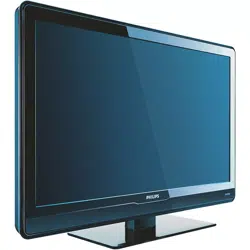
The following models are supported by this User Manual:
26HFL5830D/27, 32HFL5860D/27, 37HFL5560D/27, 42HFL5860D/27,
42HFL7580A/27, 52HFL5580D/27
Philips Professional and Business Solutions

1
Important safety instructions1.
. . . . . . . . . . . . . . . . . . . . . . . . . . . . . . . . 2
Safety information and useful 2.
tips
. . . . . . . . . . . . . . . . . . . . . . . . . . . 4
Before calling service3. . . . . . . 5
Basic TV connections4. . . . . . . 8
Antenna connection . . . . . . . . . 8
Mains connection . . . . . . . . . . . 8
Switching on the TV . . . . . . . . . 8
Overview of TV connectors 5.
and controls
. . . . . . . . . . . . . . . . . . . 9
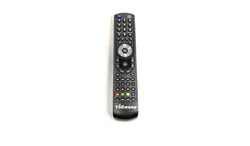
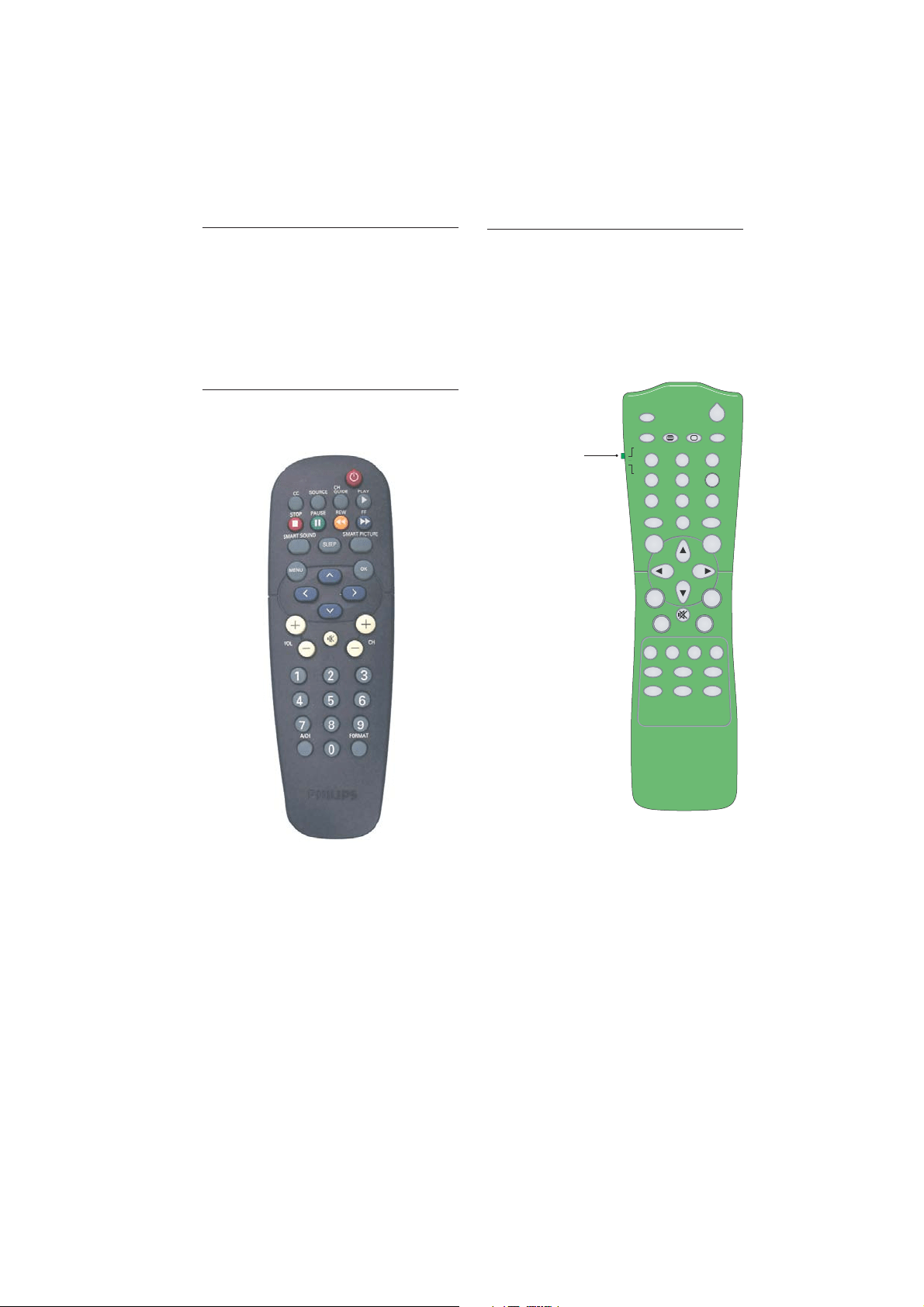
Optional remote controls6. 11
RC2888/01 . . . . . . . . . . . . . . . 11
RC2573GR
. . . . . . . . . . . . . . . 11
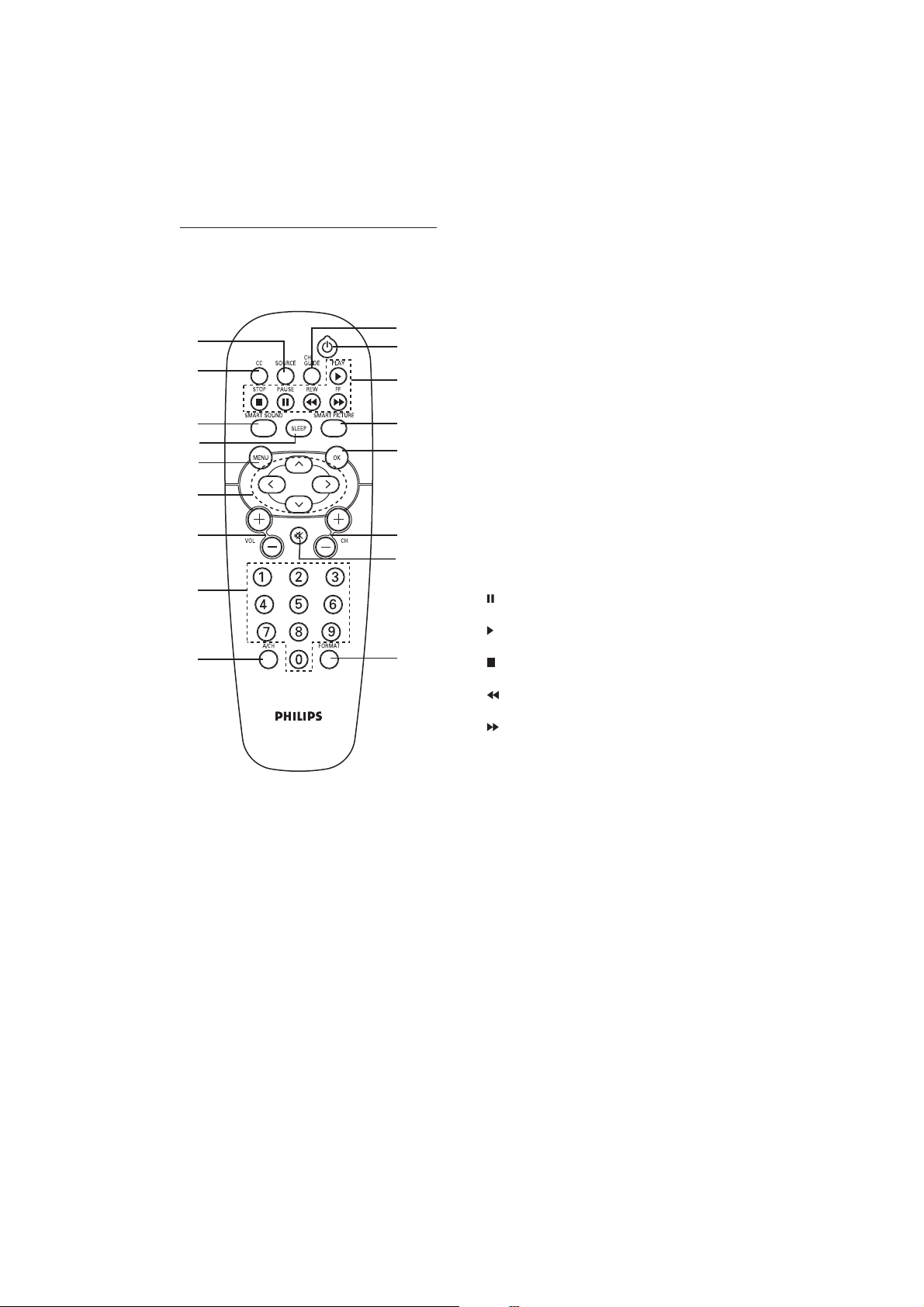
Description of guest remote 7.
control
. . . . . . . . . . . . . . . . . . . . . . 12
Overview of TV menus8. . . . 13
Accessing the setup menu9. 14
Installation10. . . . . . . . . . . . . . . . 15
Selecting the language . . . . . . . 15
Selecting the communication
source . . . . . . . . . . . . . . . . . . . 15
Changing the settings of a
channel . . . . . . . . . . . . . . . . . . 16
Tuning channels automatically. 19
Selecting cable or antenna mode
. . . . . . . . . . . . . . . . . . . . . . . . 19
Selecting a virtual or physical
channel . . . . . . . . . . . . . . . . . . 20
Enabling your current ring . . . 20
Setting options for digital
channels. . . . . . . . . . . . . . . . . . 20
Selecting and configuring settings
and options . . . . . . . . . . . . . . 23
Change Ambilight settings. . . . 36
Appendix A11. . . . . . . . . . . . . . . . 38
Definitions, acronyms and 12.
abbreviations
. . . . . . . . . . . . . . . . . 39
USA limited warranty13. . . . . 42
Cleaning and care14. . . . . . . . . 46
Environmental care15. . . . . . . . 46
Index16. . . . . . . . . . . . . . . . . . . . . . 47
Dolby Digital17. . . . . . . . . . . . . . 50
Kensington Security Slot18. . . 50
TABLE OF CONTENTS

2
1. Important safety
instructions
Read Before Operating
Equipment
For the quickest and most trouble free 1.
installation, please consult the quick start
guide that came packed in the television
or download it from www.philips.com/
hospitality.
Keep these instructions.2.
Heed all warnings.3.
Follow all instructions.4.
Do not use this TV near water.5.
Clean only with a dry, soft, non-abrasive 6.
cloth.
Do not block any of the ventilation 7.
openings.
Install in accordance with the 8.
manufacturers instructions.
Do not install near any heat sources 9.
such as radiators, heat registers, stoves,
or other apparatus (including amplifiers)
that produce heat.
Do not defeat the safety purpose of 10.
the polarized or grounding-type plug. A
polarized plug has two blades with one
wider than the other. A grounding type
plug has two blades and third grounding
prong. The wide blade or third prong
are provided for your safety. When
the provided plug does not fit into
your outlet, consult an electrician for
replacement of the obsolete outlet.
Protect the power cord from being 11.
walked on or pinched particularly at
plugs, convenience receptacles and at the
exit point.
Only use attachments/accessories 12.
specified by the manufacturer.
13.
Use only with a cart, stand,
tripod, bracket, or table
specified by the manufacturer,
or sold with the TV. When a cart is used,
use caution when moving the cart/TV
combination to avoid injury from tip-
over.
Unplug this TV during lightning storms 14.
or when unused for long periods of
time.
Refer all servicing to qualified service 15.
personnel. Servicing is required when
the TV has been damaged in any way,
such as power-supply cord or plug is
damaged, liquid has been spilled or
objects have fallen into apparatus, the TV
has been exposed to rain or moisture,
does not operate normally, or has been
dropped.
This product may contain lead and 16.
mercury. Disposal of these materials
may be regulated due to environmental
considerations. For disposal or recycling
information, please contact your local
authorities or the Electronic Industries
Alliance: www.eiae.org
Damage Requiring Service - The TV 17.
should be serviced by qualified service
personnel when:
The power supply cord or the plug •
has been damaged; or
Objects have fallen, or liquid has been •
spilled into the TV; or
The TV has been exposed to rain; or•
The TV does not appear to operate•
normally or exhibits a marked change
in performance; or
The TV has been dropped, or the •
enclosure damaged.
3
Know these safety symbols
C A U T I O N
RISK OF ELECTRICSHOCK
DO NOTOPEN
This “bolt of lightning” indicates material not insulated within your unit which may cause an
electrical shock.
For the safety of everyone in your property, please do not remove product covering.
The “exclamation point” calls attention to features for which you should read the enclosed
literature closely to prevent operating and maintenance problems.
WARNING: B To reduce the risk of fi re or electric shock, this appliance should not
be exposed to rain or moisture and objects fi lled with liquids, such as vases, should
not be placed on this apparatus.
CAUTION: C To prevent electric shock, match wide blade of plug to wide slot, and
fully insert.
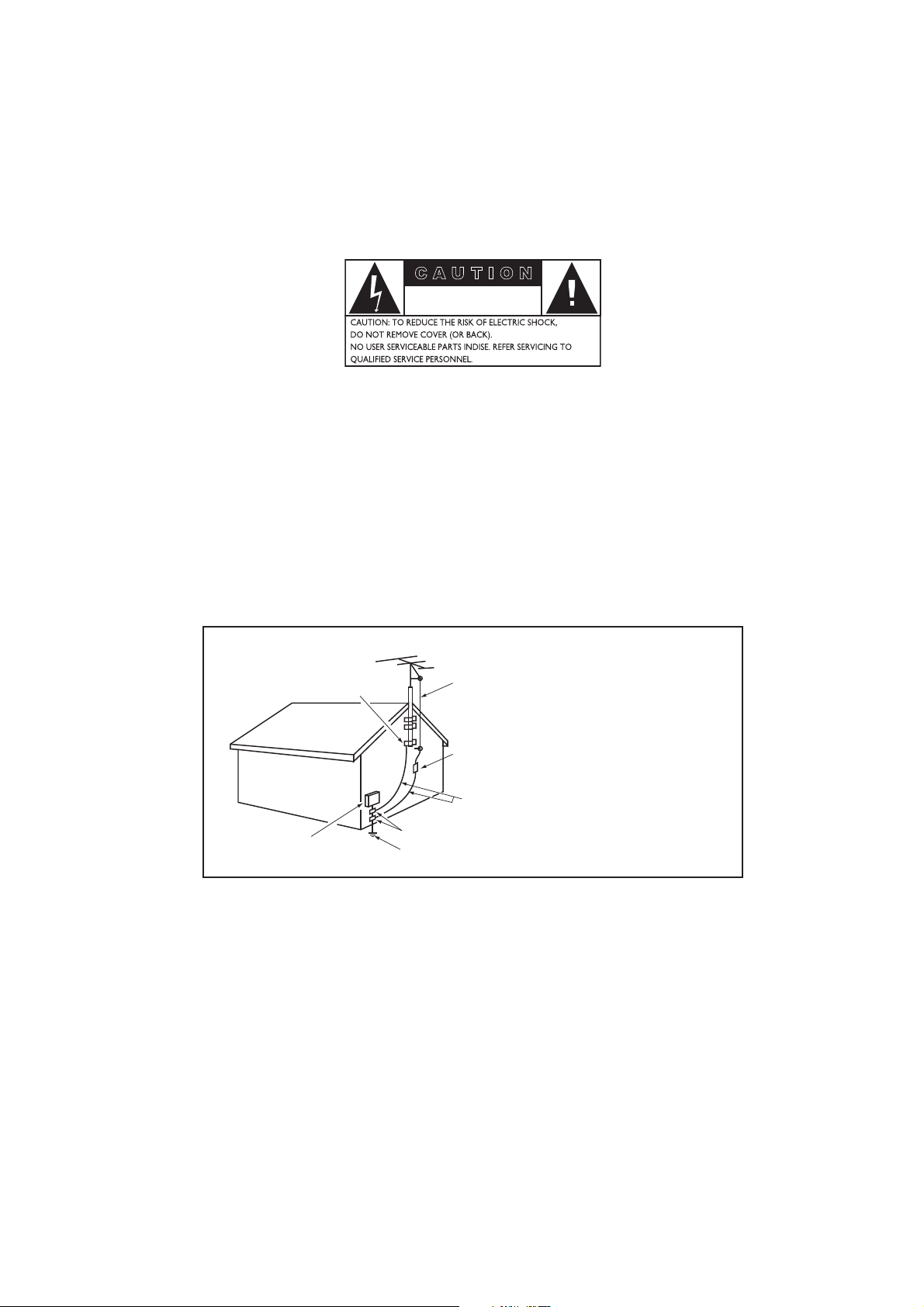
Example of America Grounding as per NEC - National Electric Code
ANTENNA LEAD-IN WIRE
ANTENNA DISCHARGE UNIT
(NEC SECTION 810-20)
GROUNDING CONDUCTORS
(NEC SECTION 810-21)
ELECTRIC SERVICE EQUIPMENT
GROUND CLAMP
GROUND CLAMPS
POWER SERVICE GROUNDING ELECTRODE
EQUIPMENT (NEC ART 250, PART H)

4
2. Safety information
and useful tips
Two people are required to lift and carry 1.
a TV that weighs more than 55 lb (25
kg). Improper handling of the TV can
cause serious injury.
If you place the TV set on a solid surface. 2.
Ensure the surface is level and that it can
withstand the weight of the TV.
Installing the TV on the wall requires 3.
special skill that should only be
performed by a qualified personnel. You
should not attempt to do the work
yourself. Philips bears no responsibility
for improper mounting or mounting
that results in accident or injury. Make
sure that the wall mount is being fixed
securely enough so that it meets safety
standards.
This TV is compatible with the VESA wall 4.
mounting standard. Please contact your
local electronics supplier for a VESA
compliant bracket to wall mount this
TV. Before you mount your TV on a wall,
ensure the wall is suitable to carry the
weight of the TV.
Do not insert the power plug in the wall 5.
socket before all connections are made.
Do not touch any part of the TV, power 6.
lead, or aerial lead during lightning
storms.
Do not leave the TV in stand-by mode 7.
for an extended period of time. Instead,
disconnect the TV from the mains.
The TV set is always connected to the 8.
mains. Disconnection of the TV set can
be done by:
unplugging the mains cord located at •
the back of TV set, or
unplugging the mains plug from the •
mains socket outlet.
Pull the power lead by the plug - do B
not pull by the wire.
Ensure the power cord is fully inserted 9.
into the TV mains socket and the wall
socket.
If the TV is mounted on a swivel base 10.
or swivel arm, ensure no strain is placed
on the power cord when the TV is
swivelled. Strain on the power cord can
loosen connections and cause arcing or
fire.
Verify that the mains supply voltage in 11.
your location corresponds to the voltage
printed on the sticker at the rear of the
TV.
5
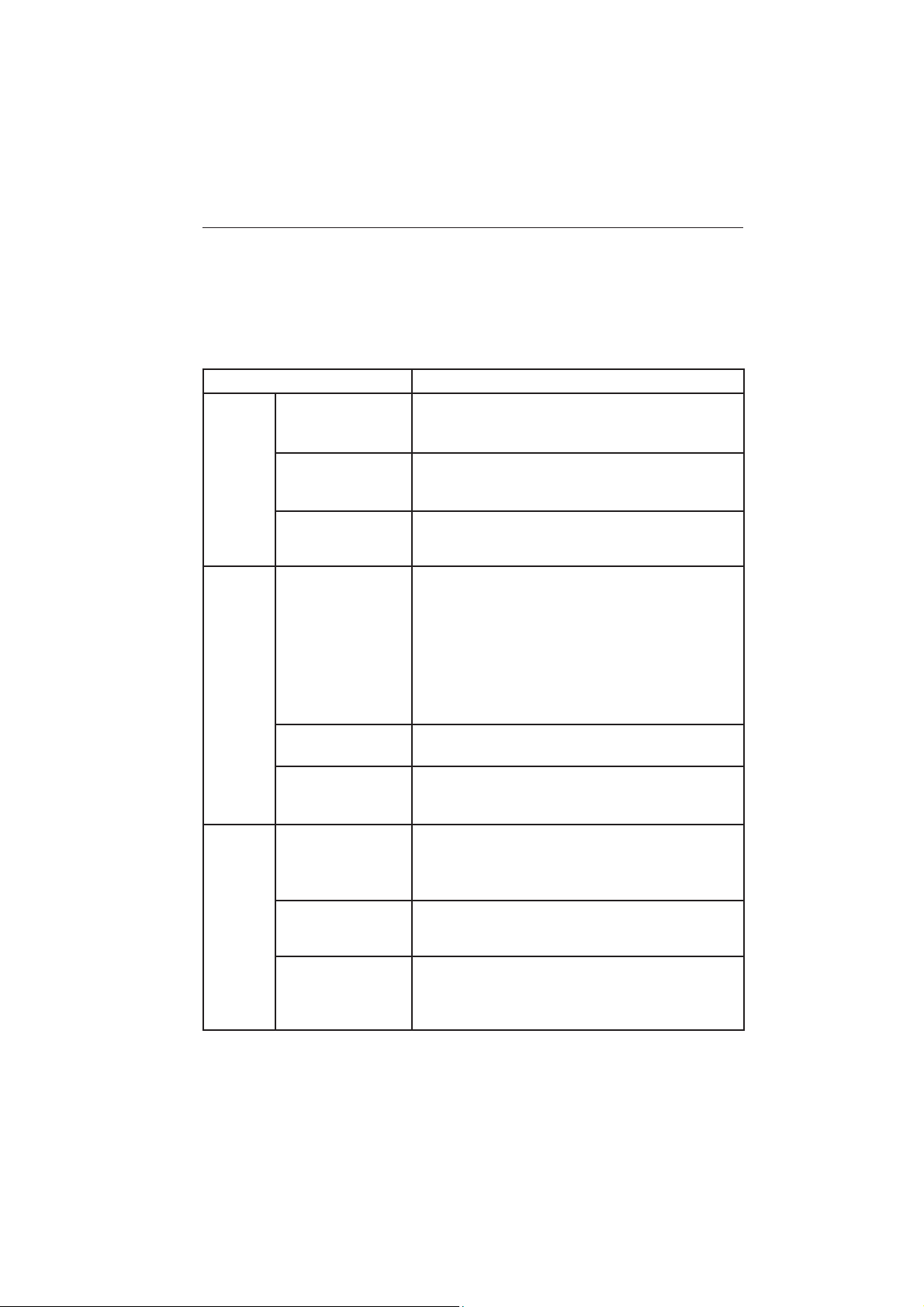
3. Before calling service
Check this list of symptoms and suggested steps before you request service.
Note: D Familiarize yourself with the commercial features described in the TV installation
setup. The effects of several of these features, if not thoroughly understood, might appear as
faulty operation.
Symptoms Suggested steps
Installation TV does not respond to
commands of the Setup
Remote Control
Check the button on the left hand side of the remote control
must be in the SETUP location (see Accessing the setup
menu
on page 14 ).
TV does not respond
to the Guest Remote
Control
Check if
YES is selected in the REMOTE CONTROL
LOCK
feature (see Specifying the security options on page
24 ). Select NO if YES is selected.
Unable to enter Setup
menu via Guest Remote
Control
Use the Green Remote Control (RC2573GR) to access the
Setup menu and reset the SECURITY setting (see
Specifying
the security options
on page 24 ).
Picture No picture Check that the antenna / cable is connected properly at the
back of the TV.
Check picture adjustments (brightness, contrast, colour, tint).
Check Tuning Mode setting (Air / Cable).
Possible TV station problem. Try another channel.
Ensure
VIDEO is not selected in the MUTE feature of the
CHANNEL INSTALL menu (see Selecting the Mute
Source
on page 18 ).
Double image / “ghost”
image
Check antenna, cable or set-top box.
Snowy / noisy picture Check antenna, cable and /or set-top box
connections. Ensure that they are properly connected.
Power No power Ensure that the TV's AC power cord is plugged into the main
socket and to your TV. If there is still no power, disconnect the
plug. Wait for 60 seconds and re-attach plug. Switch on the TV
again.
TV switches off by itself
Check
ESP (Energy Saving Programmability) setting in TV
installation / setup (see Configuring the control options on
page 27 .
TV cannot be switched
off
Ensure
FORCED ON is not selected in the POWER
ON
feature of the SWITCH ON / OSD menu (see
Specifying the configuration when switching on TV on page
23 ).

6
Symptoms Suggested steps
Power TV cannot be switched
on
The POWER . button of the remote control is used to
set the TV to stand-by mode or to switch on the TV.
Check if
YES is selected in the REMOTE CONTROL
LOCK
feature in SECURITY menu (see Specifying the
security options
on page 24 ). Select NO to deactivate the
lock function.
Check if
ALL is selected in the KEYBOARD LOCK
feature in SECURITY menu. Select NO to deactivate lock
function (see Specifying the security options on page 24 ).
Note: D If both REMOTE CONTROL LOCK and
KEYBOARD LOCK features are on, use the Setup
Remote Control to turn off the functions.
Sound No sound Check if the volume of the TV is not at the minimum. Try
pressing the Volume Up button of the remote control to
increase volume.
Check that the mute mode is off. If the mute mode is on, press
the Mute button [ on the remote control to deactivate
mute mode.
Check
AUDIO is not selected in the MUTE feature of the
CHANNEL INSTALL menu (see Selecting the Mute
Source
on page 18 ).
Check that the audio source in the
DEFAULT HDMI
AUDIO
feature is selected correctly (see Configuring the
features options and settings
on page 29 ).
If the TV is connected via HDMI to a DVD player, check
whether the Digital Audio output of the DVD player is set to
PCM mode.
Volume level cannot be
increased or decreased
beyond a certain value
Check the limit setting for the Minimum and Maximum
Volume and specify the setting in the
MIN VOLUME /
MAX VOLUME features in the CONTROL menu (see
Configuring the control options on page 27 ).
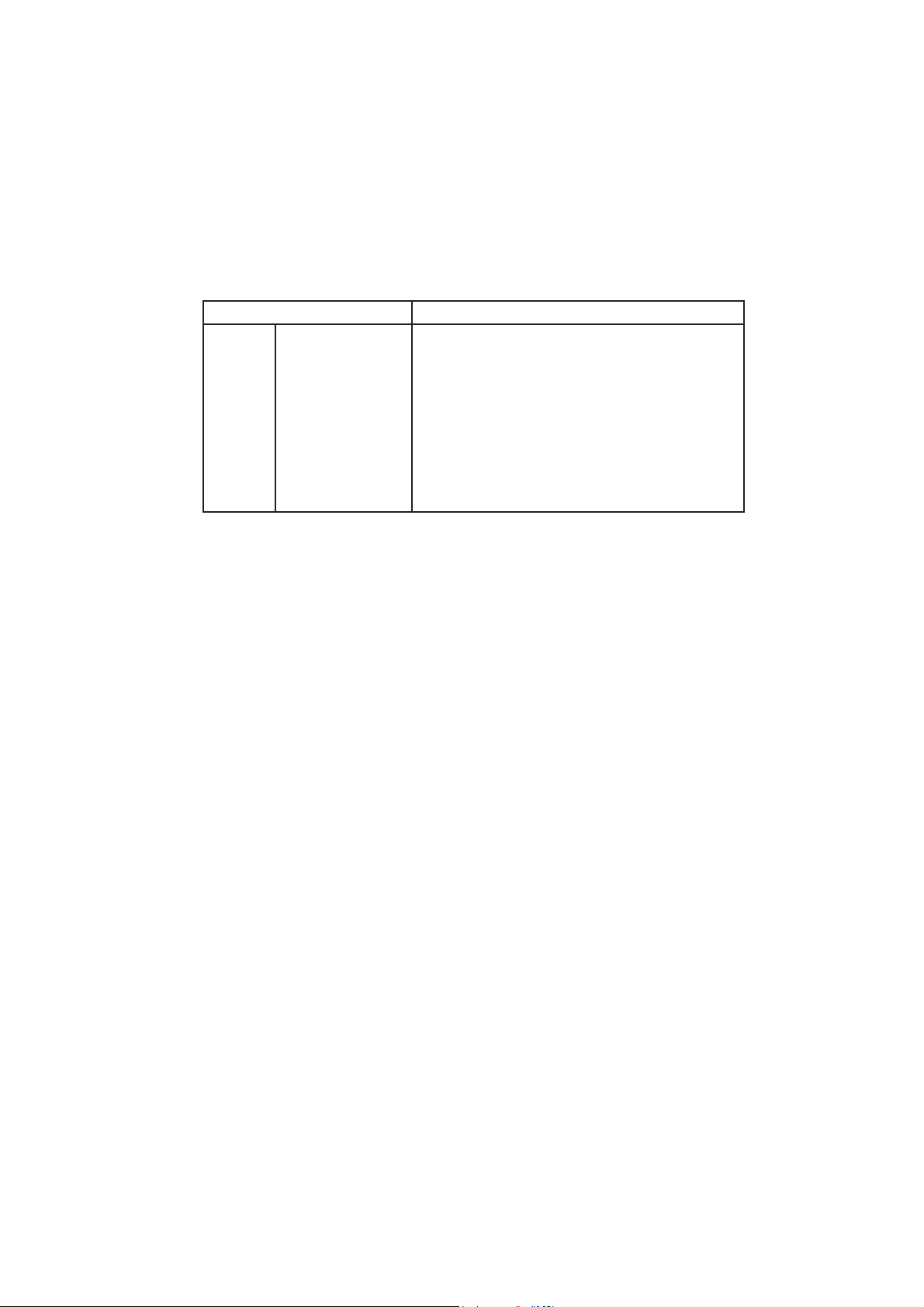
7
Symptoms Suggested steps
Remote
Control
TV does not respond to
Guest Remote Control
Change the batteries.
Aim the remote control directly at remote control sensor lens
on TV and press any button on the remote control.
Check if
YES is selected in the REMOTE CONTROL
LOCK
feature in SECURITY menu (see Specifying the
security options
on page 24 ). Select NO to deactivate lock
function.
8
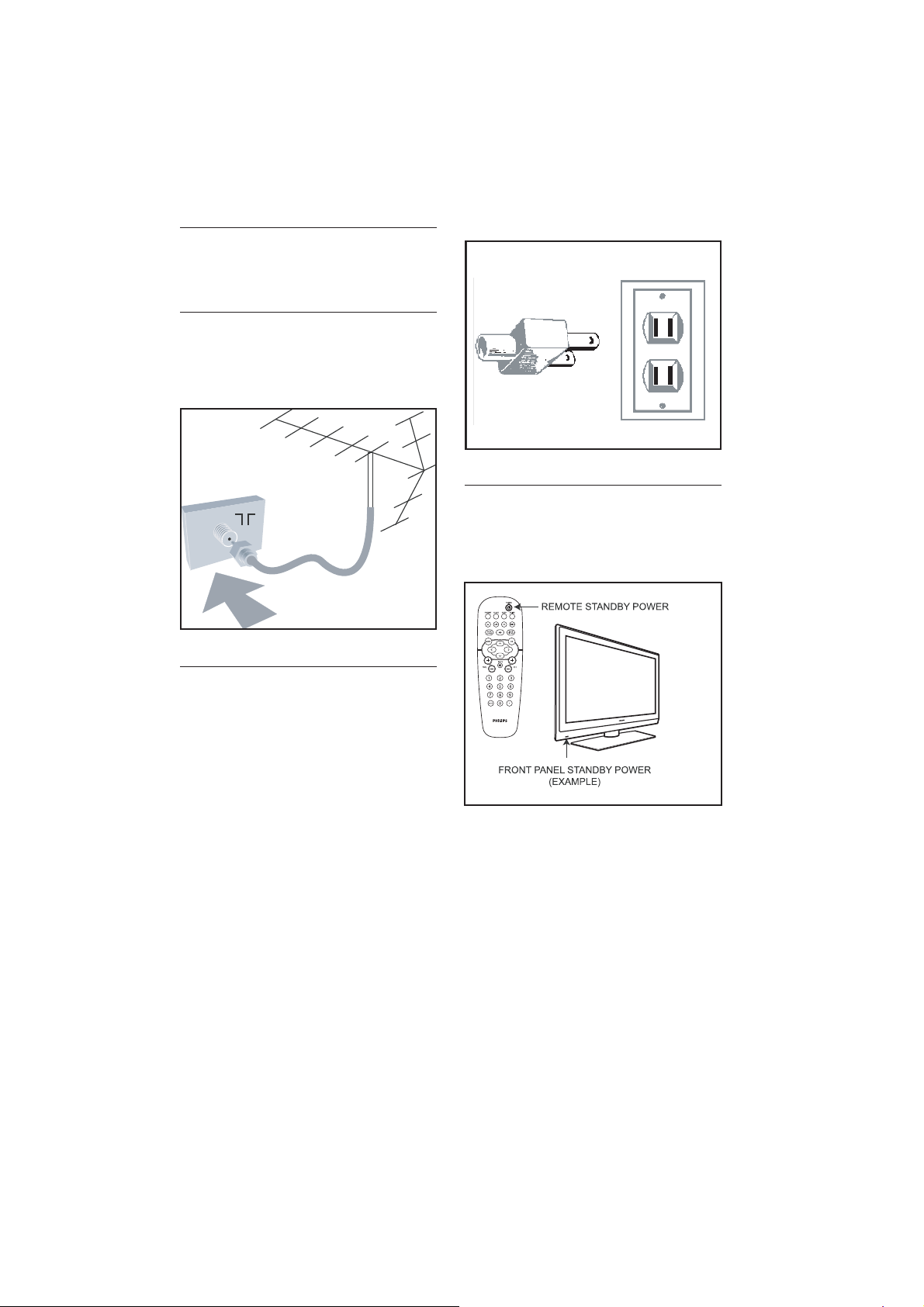
Basic TV 4.
connections
4.1 Antenna connection
Connect the antenna or RF cable signal to
the 75 Ω RF ‘:’ connector socket located
on the TV.
4.2 Mains connection
Ensure that the mains voltage and frequency
are correct. Refer to the product labelling
and documentation.
Note: D The power button . on the TV
does not disconnect the television from
the AC mains. It toggles the TV between
on and stand-by mode. To completely
turn off the TV you must unplug the AC
mains plugs from the wall socket.
4.3 Switching on the TV
Press . on the TV or on one of the
optional remote controls to switch the TV
set on.
9
5. Overview of TV
connectors and controls
CHANNEL
6
DATA 1
CVI
PC
AUDIO IN
HDMI 1
AV 1
HDMI 2 SERVICE
RS
232
SPDIF
S-VIDEO
VGA
8
AUDIO IN
AV
5
1514789 10 1213
1716
USB
18
21
20
19
11
B Warning:
Risk of electric shock. The rear jack •
panel must be removed by qualified
personnel only.
Do not connect any telephone cables •
or equipment to Data 1.
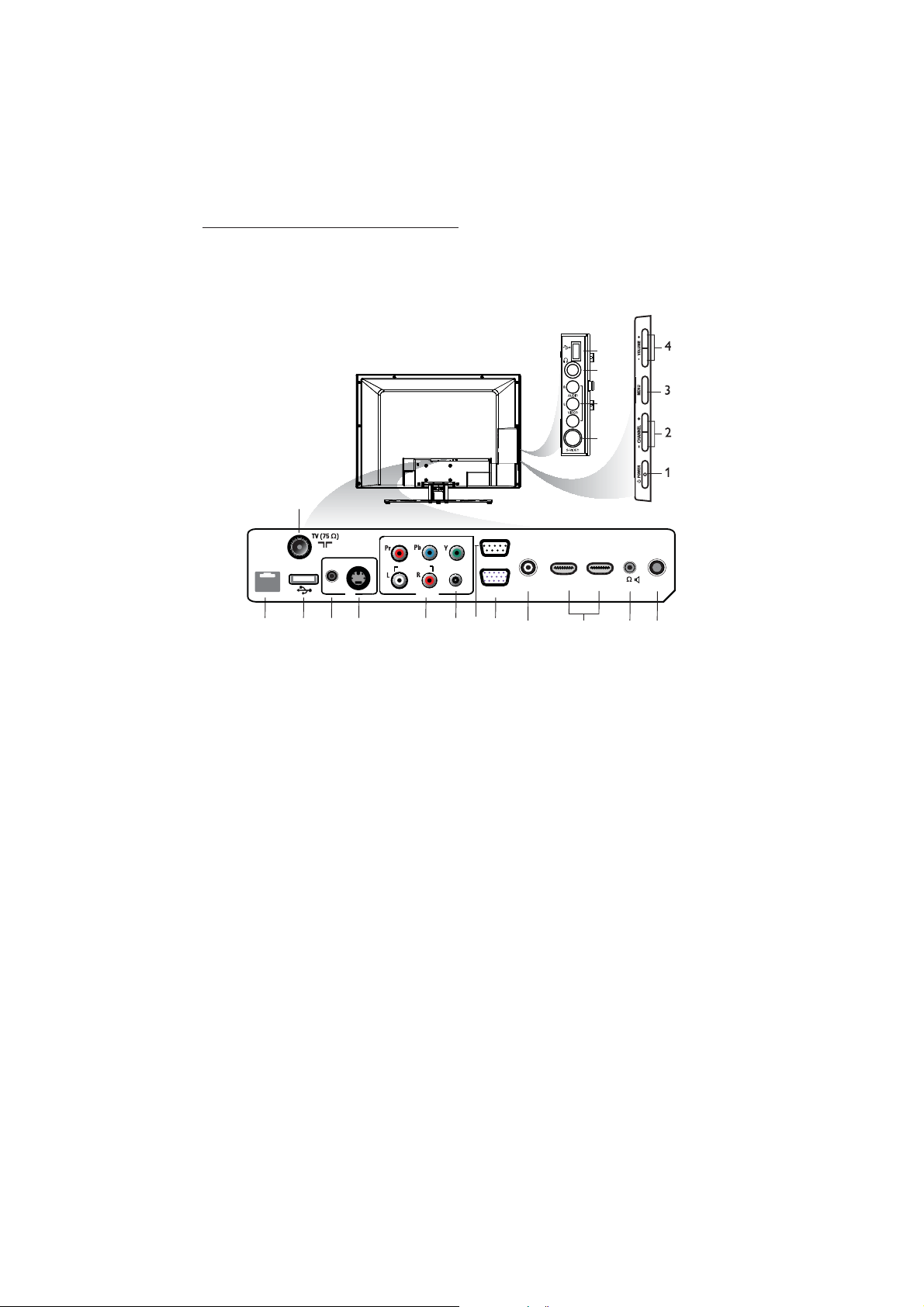
. 1. POWER
To switch the TV on and off. To
disconnect from the mains, remove the
mains cord from the mains socket at the
back of the TV or remove the mains plug
from the wall socket.
- CHANNEL + 2.
To select a channel.
MENU3.
To display or close menus.
- VOLUME + 4.
To increase or decrease volume.
TV Aerial5.
To connect to the aerial plug.
DATA 16.
For Pay Per View Terminal connection.
USB7.
To play media, clone and upgrade
software.
AV 18.
A replacement for the standard audio
and video cables - red, white and
yellow. To connect to video camera or
camcorder.
S-Video9.
To play video from an external device.
The audio is provided by the AV 1 jack.
Note: D Switching between AV 1 and
S-Video does not occur automatically. Set
the input to S-Video (see Select an input
source on page 17 ).
Component Video Inputs/Audio 10.
Inputs
To connect to a DVD player or decoder
which have the same connectors.

10
SPDIF11.
To connect to a HiFi / Home Theater
system.
RS 23212.
To use serial communications to an
external device.
Note: D Serial Xpress must be selected as
the communication source (see Selecting
the communication source on page 15 ).
VGA In13.
For input PC/Lap-top VGA.
PC Audio In 14.
To play audio from a PC. Only
compatible if also connected to an
HDMI or VGA input.
HDMI 1/215.
To connect to peripheral equipment,
including high-definition equipment.
8 16. Ω [
To connect to a bathroom speaker.
Service17.
For diagnostic purposes. Should only be
used by qualified Philips personnel.
Note: D The following connectors are
available on certain sets only.
Side USB18.
See USB.
Headphones 19. *
To listen to audio via headphones.
Side Audio / Video Inputs20.
To connect to a video camera or
camcorder.
Side S-Video21.
To play video from an external device.
The audio is provided by the Side Audio
/ Video Inputs.
Note: D Side Audio / Video Inputs and Side
S-Video cannot be used at the same time.
Do not connect both.
11
6. Optional remote
controls
The following remote controls are applicable
to TVs from Philips Commercial Solutions.
These remote controls can be used for
setup and configuration.
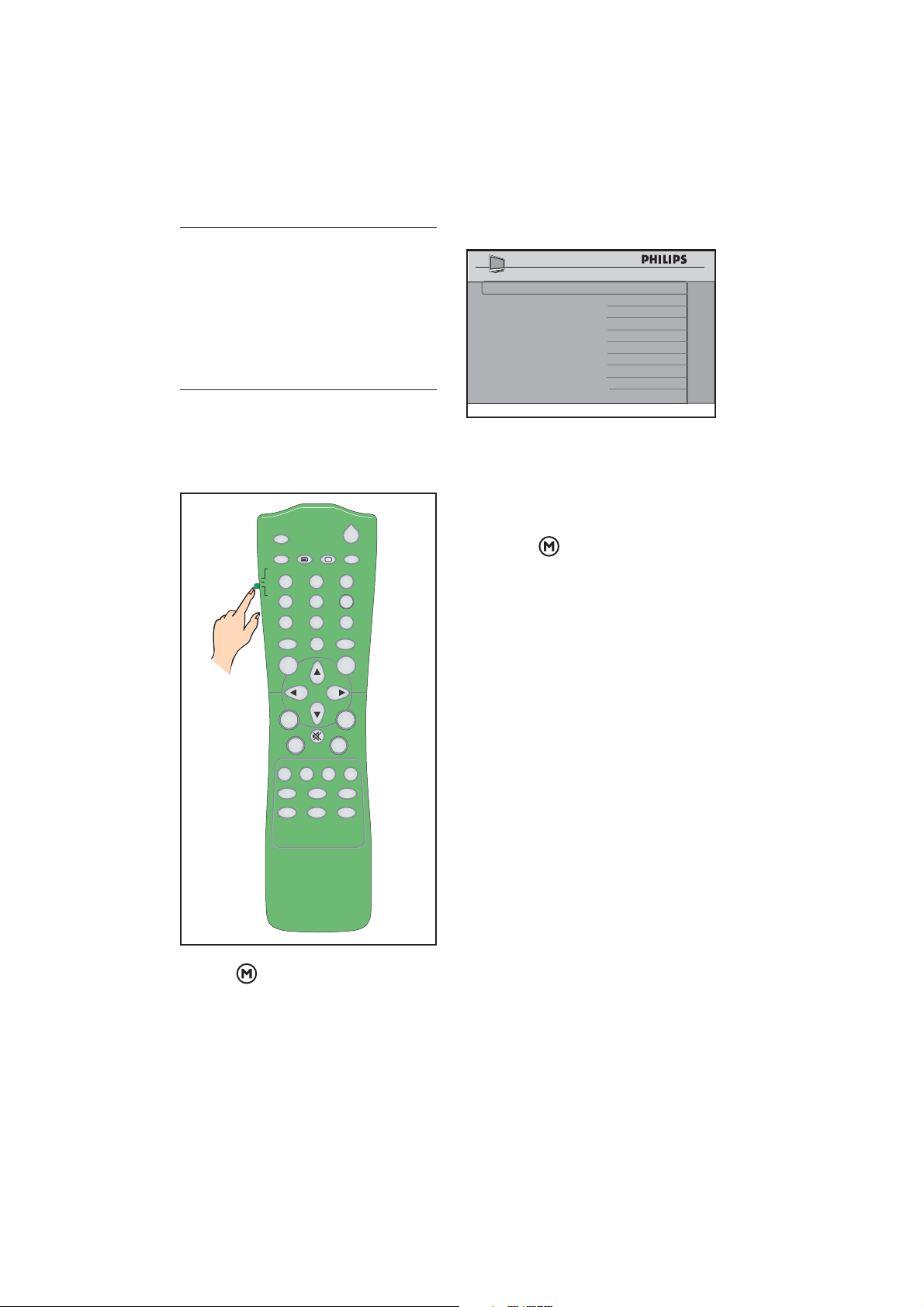
RC2888/016.1
Guest Mode Remote Control (optional)
RC2573GR6.2
RC2573GR is an optional remote control.
It is used for Philips Commercial Solutions
features and SmartCard settings. It can be
purchased separately.
POWER
SLEEP
GUIDE
CH
CC
RESET
CLOCK A / V
SMART
GUEST
DCM
SETUP
TEXT
RECALL
M
A
EFG
DBC
A/CH
VOL CH
1
4
7
8
0
9
2
56
3
+
++
__
_
Slide this button
up to enter into
Guest mode.
or
Slide this button
down to enter
into Setup
mode.
12
7. Description of guest
remote control
1
2
3
4
5
6
7
8
10
9
11
12
13
14
15
16
17
Source Select1.
To toggle between available video
sources.
Closed Caption2.
To activate the Closed Caption function.
Smart Sound3.
To select the predefined sound settings.
Sleep4.
To activate the sleep timer. Press
the button repeatedly to increase
countdown time.
Menu5.
To call up or exit the menus.
Navigation cursors6.
To navigate through the menus/
submenus.
Volume + / –7.
To adjust the TV volume.
0 to 9 Digit keys8.
To select a TV channel. For a two digit
number, enter the second digit before
the dash disappears.
Alternate Channel9.
To toggle between the alternate channels
Channel Guide 10.
To activate the channel guide function.
Standby 11.
To switch the TV on from standby oir
back to standby..
DVD keys 12. (if applicable)
To pause DVD play.
To start DVD playback.
To pause DVD playback.
To rewind DVD playback
To fast forward DVD playback.
Smart Sound13.
To select predefined sound settings.
OK14.
To confirm a selection.
Channel + / –15.
To select channels.
Mute16.
To mute or restore sound.
Format17.
To select TV picture formats.

13
Overview of TV menus8.
SETUP
LANGUAGE
COMMUNICATION
CHANNEL INSTALL
CHANNEL
INPUT
DIGITAL
RINGS
LABEL
MUTE
AUTO INSTALL TV
START
CABLE TUNING
USE CHANNEL TABLE
CURRENT RING
DIGITAL SETUP
CHANNEL SETUP
AUDIO
DIGITAL CC SETUP
EMERGENCY ALERT
CONFIGURATION
SWITCH ON / OSD
PICTURE / SOUND
SECURITY
CONTROL
FEATURES
CC / V-CHIP
AMBILIGHT
ENGLISH, ESPANOL, FRANCAIS
>
TV NUMBER
TUNER, AV, SVIDEO, CVI, *CARD CVB
S
*CARD-YC, *CARD CVI, *SIDE AV,
*SIDE SVIDEO, VGA, HDMI1, HDMI 2
NO, YES
(1) (2) (3) (4)
( )
>
NONE, AUDIO, VIDEO
>
NO, YES
NO, YES
RING1, RING2, RING3, RING4
>
>
>
>
>
>
>
>
>
>
>
>
* CARD CVBS, CARD-YC, CARD CVI, SIDE AV, SIDE SVIDEO are available on certain models
only.
14
9. Accessing the setup
menu
The following remote control commands
apply to Philips Commercial Solutions TV
products. These can be used for setup and
configuration purposes.
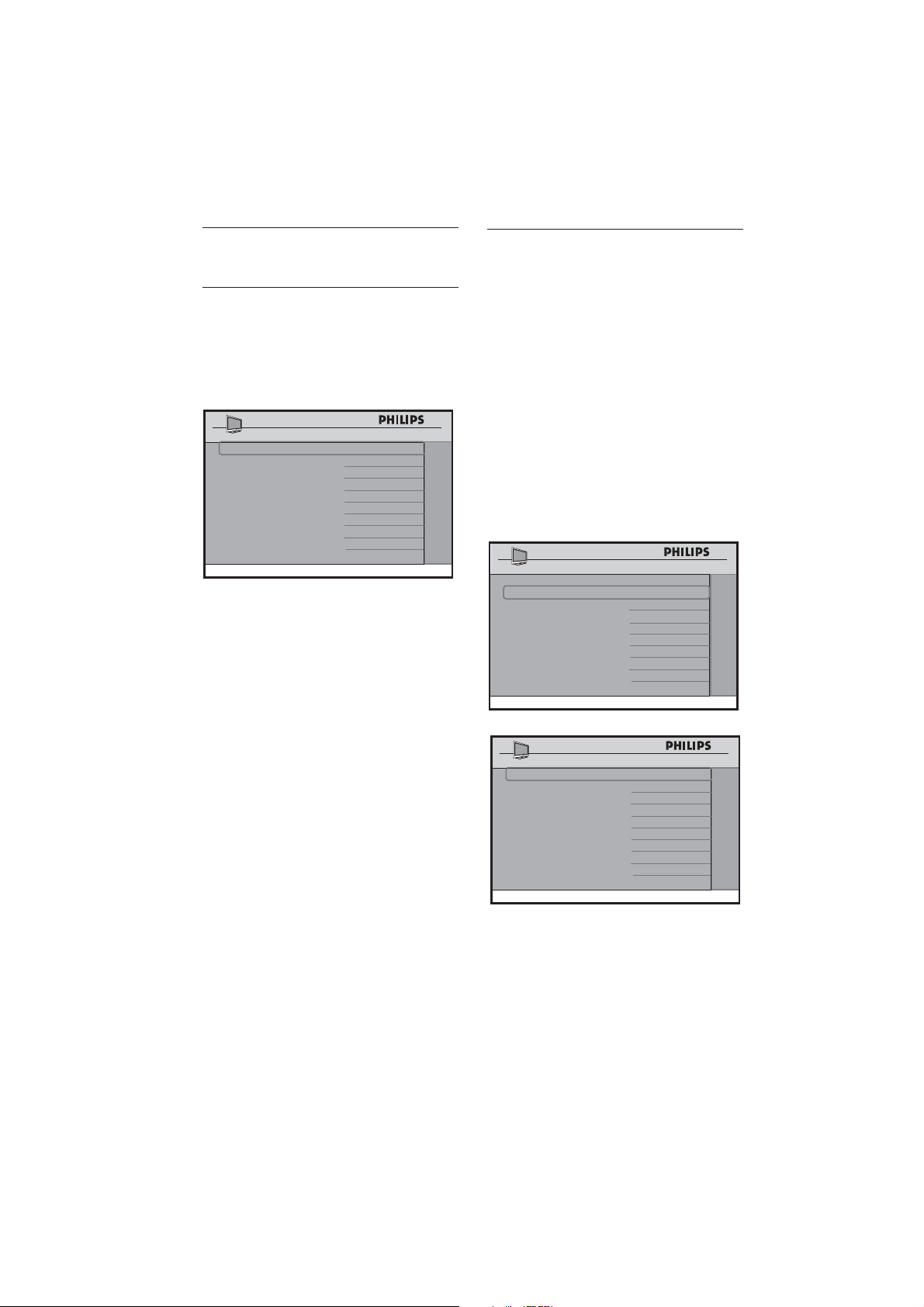
Accessing TV Setup Menu
using the Remote Control
(RC2573GR)
Slide the button to the 1. Setup location.
POWER
SLEEP
GUIDE
CH
CC
RESET
CLOCK A / V
SMART
GUEST
DCM
SETUP
TEXT
RECALL
M
A
EFG
DBC
A/CH
VOL CH
1
4
7
8
0
9
2
56
3
+
++
__
_
Press2.
on the remote control to
access the Setup Menu.
SETUP
LANGUAGE ENGLISH
COMMUNICATION >
CHANNEL INSTALL >
AUTO INSTALL TV >
CABLE TUNING NO
USE CHANNEL TABLE NO
CURRENT RING RING1
DIGITAL SETUP >
CONFIGURATION >
To scroll through the menu:
Press • Î or ï on the remote control
to a highlight a menu item.
Press • Æ to modify the setting of the
highlighted menu item.
Press •
to exit the setup menu.
15
Installation10.
Selecting the language10.1
You can select ENGLISH, ESPANOL or
FRANCAIS as your preferred language.
Press • Æ repeatedly to select your
preferred language.
SETUP
LANGUAGE ENGLISH
COMMUNICATION >
CHANNEL INSTALL >
AUTO INSTALL TV >
CABLE TUNING NO
USE CHANNEL TABLE NO
CURRENT RING RING1
DIGITAL SETUP >
CONFIGURATION >
Selecting the 10.2
communication source
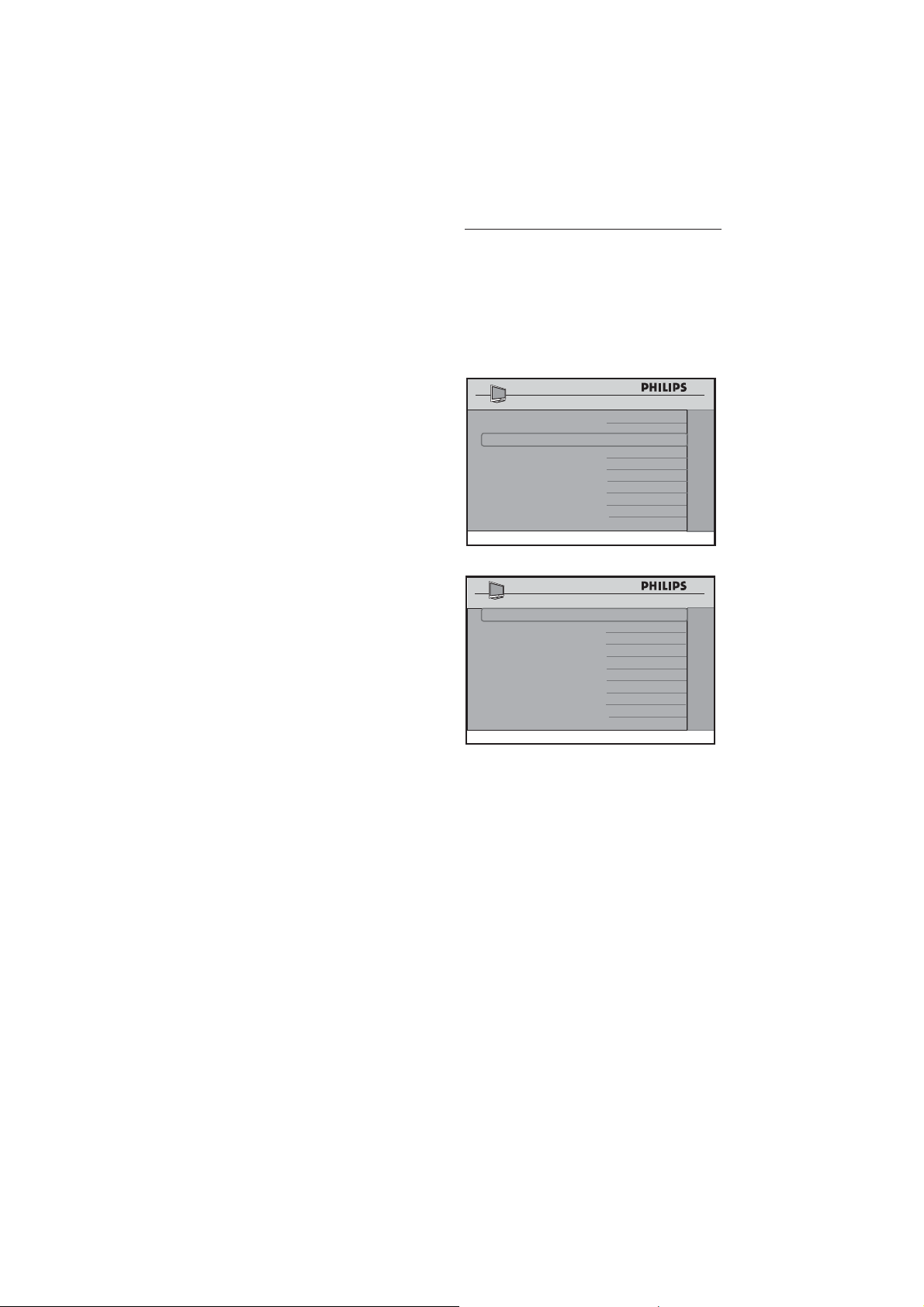
The following options are available in the
COMMUNICATION menu
SP - SPI•
SP - I2C•
SERIAL XPRESS•
MULTI RC•
SMART RC•
OFF•
The factory default (SP-SPI) is correct for
most systems.
SETUP
LANGUAGE ENGLISH
COMMUNICATION >
CHANNEL INSTALL
>
AUTO INSTALL TV >
CABLE TUNING NO
USE CHANNEL TABLE NO
CURRENT RING RING1
DIGITAL SETUP >
CONFIGURATION >
COMMUNICATION SP - SPI
STORE >
DCM TYPE >
COMMUNICATION
To identify a connection link between •
the TV display and the setup box, select
SP - SPI, SP - I2C or
SERIAL XPRESS.
For SP - SPI D and SP - I2C: if the set-
top box requires a source switch, select
GENERIC under DCM TYPE.
16
To use the specified color code to •
correspond to the remote control select
MULTI RC (see Appendix A on page
38 ).
Select • SMART RC to access the
SMOOVIE
TM
functionality on this TV
set.
Select • STORE and store all your
selections.
10.3 Changing the settings of a
channel
This feature allows you to change the
settings for a particular channel.
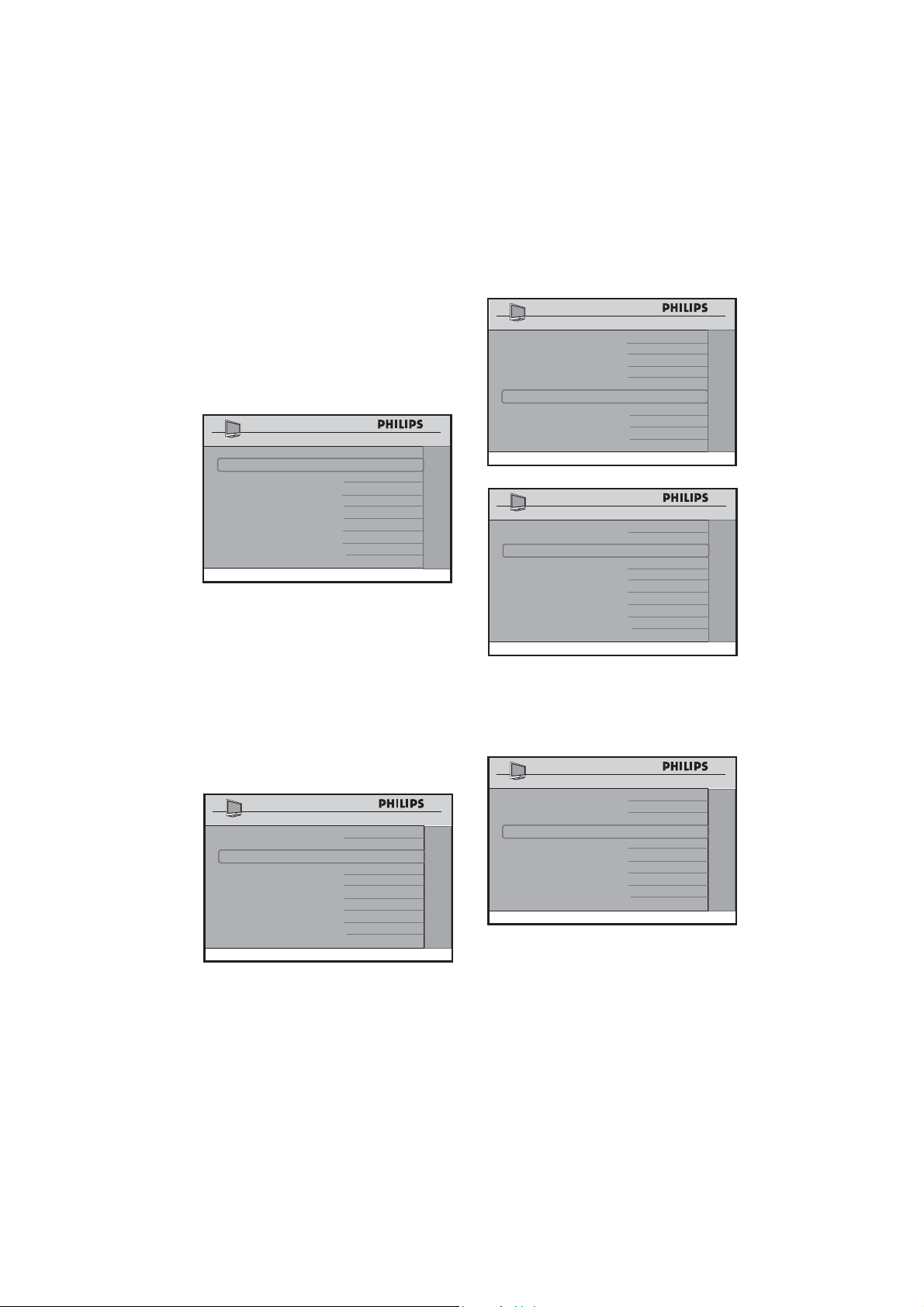
Press Æ to enter the CHANNEL
INSTALL menu.
SETUP
LANGUAGE ENGLISH
COMMUNICATION >
CHANNEL INSTALL >
AUTO INSTALL TV >
CABLE TUNING
NO
USE CHANNEL TABLE NO
CURRENT RING RING1
DIGITAL SETUP >
CONFIGURATION >
CHANNEL INSTALL
CHANNEL TV 2
INPUT TUNER
DIGITAL NO
RINGS
(1 ) (2 ) (3 ) (4 )
LABEL (
) >
MUTE NONE
CHANNEL INSTALL
Select a Channel
• Press 0 - 9 on the remote control to
select a channel.
For • Cable mode, select 01 - 250.
For • Antenna mode, select 02 - 250.
Note: D To input a three digit channel,
confi gure the TV to allow 3-digit channel
entry. (see Confi guring the control options
on page 27 )
17
Select an input source
TUNER, AV, SVIDEO, CVI,• VGA,
HDMI1, HDMI2, CARD-CVBS,
CARD-YC, CARD CVI, SIDE AV or
SIDE SVIDEO
Note: CARD-YC, CARD CVI, D
CARD-CVBS, SIDE AV and SIDE
SVIDEO are available on certain models
only.
CHANNEL INSTALL
CHANNEL TV 2
INPUT TUNER
DIGITAL NO
RINGS (1 ) (2 ) (3 ) (4 )
LABEL ( ) >
MUTE NONE
CHANNEL INSTALL
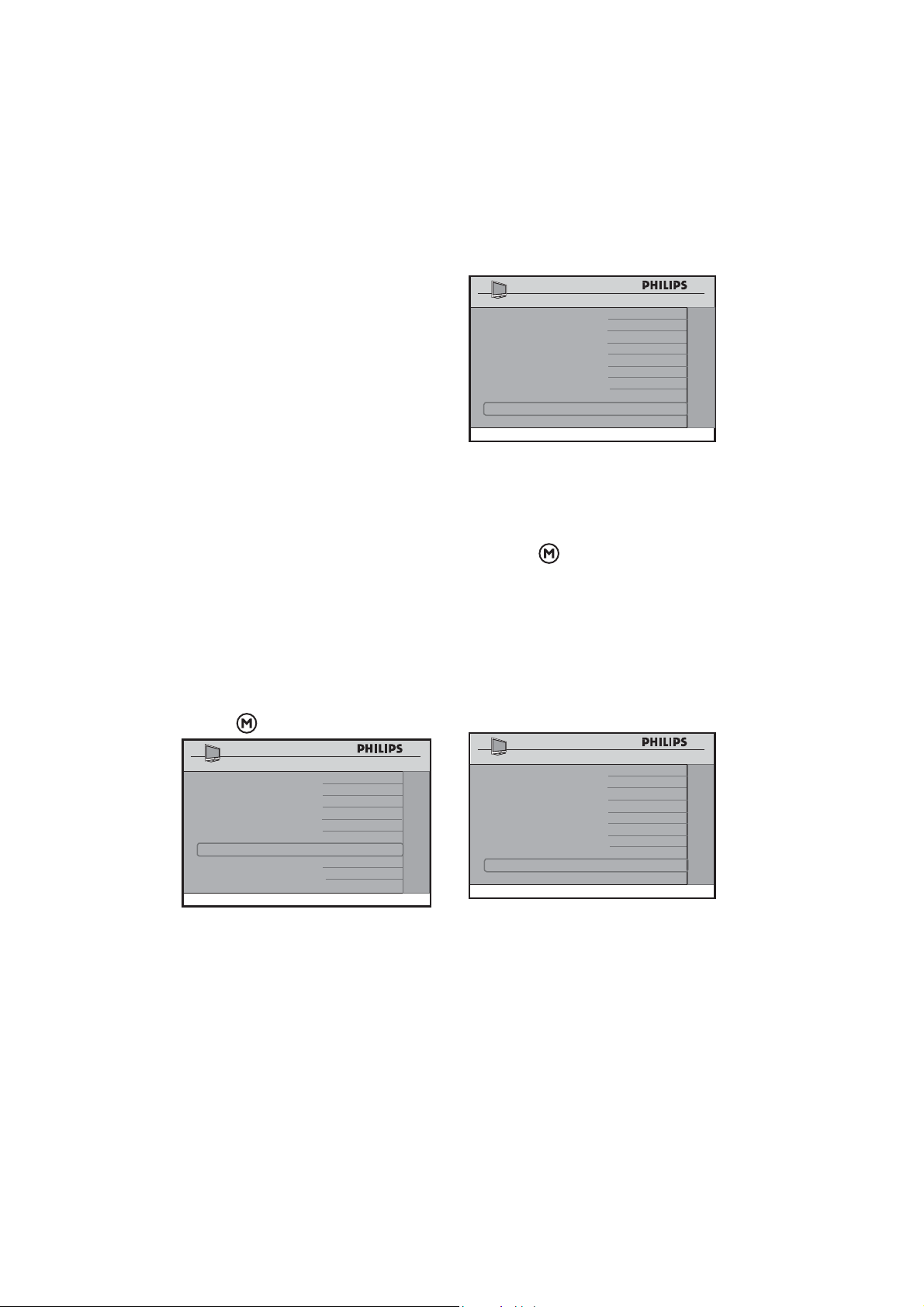
Selecting Digital Channel Options
If the current channel you are mapping •
is a digital or high definition channel,
use Í Æ to select YES. Selecting NO
removes the DIGITAL CH SCROLL,
DIGITAL MAJOR CH and DIGITAL
MINOR CH. Since the channel is not
digital, these options do not appear in
the menu.
CHANNEL INSTALL
CHANNEL TV 2
INPUT TUNER
DIGITAL CH SCROLL >
DIGITAL MAJOR CH 1
DIGITAL MINOR CH 0
RINGS (1 ) (2 ) (3 ) (4 )
LABEL ( ) >
MUTE NONE
CHANNEL INSTALL
DIGITAL YES
If • NO is selected in the USE
CHANNEL TABLE (see Selecting a
virtual or physical channel on page 20 ), the
options for DIGITAL MAJOR CH and
DIGITAL MINOR CH are replaced
with the options of RF CHANNEL
NUMBER and MPEG PROGRAM
NUMBER.
CHANNEL INSTALL
SETUP
LANGUAGE ENGLISH
COMMUNICATION >
CHANNEL INSTALL
>
AUTO INSTALL TV >
CABLE TUNING YES
USE CHANNEL TABLE NO
CURRENT RING RING1
DIGITAL SETUP >
CONFIGURATION
>
CHANNEL INSTALL
CHANNEL TV 2
INPUT TUNER
YES
DIGITAL CH SCROLL >
RF CHANNEL NUMBER 8
MPEG PROGRAM NUMBER 2
RINGS (1 ) (2 ) (3 ) (4 )
LABEL (
) >
MUTE NONE
CHANNEL INSTALL
DIGITAL
YESYe>
Scrolling the Digital Channels
If • YES is selected, press Í Æ to go the
previous or next digital channel.
CHANNEL INSTALL
CHANNEL TV 2
INPUT TUNER
DIGITAL YES
DIGITAL CH SCROLL >
DIGITAL MAJOR CH 1
DIGITAL MINOR CH 0
RINGS (1 ) (2 ) (3 ) (4 )
LABEL ( ) >
MUTE NONE
CHANNEL INSTALL
Searching the Digital Major Channels /
RF Channel Number
For • DIGITAL MAJOR CH / RF
CHANNEL NUMBER, key in the
channel number (1 to 999) using 0 - 9.
18
Searching the Digital Minor Channel /
MPEG Program Number
For • DIGITAL MINOR CH /
MPEG PROGRAM NUMBER, use
0 - 9 to key in the channel number
(0 to 999).
Press • Í from Channel 0 to select
NO.
If • NO is selected, go back to
DIGITAL MAJOR CH. / RF
CHANNEL NUMBER to enter
one part channel number.
Press • 0 - 9 to key in the channel
number (1 to 16383).
Selecting your Preferred Ring
There• are four groups of rings. Each ring
comprises a group of channels.
Press • Í Æ to select preferred ring. A red
dash appears beside the selected ring.
Press • Î ï to confirm selection. An “X”
appears beside the ring.
Press•
to save and exit ring mode.
CHANNEL INSTALL
CHANNEL TV 2
INPUT TUNER
DIGITAL YES
DIGITAL CH SCROLL >
DIGITAL MAJOR CH 1
DIGITAL MINOR CH 0
RINGS (1 ) (2 ) (3 ) (4 )
LABEL ( )
>
MUTE NONE
CHANNEL INSTALL
Naming a channel
You can assign a name to a channel. •
Press Í Æ to move to the first character
slot. A red dash appears.
Press • Î ï to key in the first
character.
CHANNEL INSTALL
CHANNEL TV 2
INPUT TUNER
CHANNEL LOGO >
DIGITAL YES
DIGITAL CH SCROLL >
DIGITAL MAJOR CH 1
DIGITAL MINOR CH 0
RINGS (1X ) ( 2 ) (3 ) (4 )
LABEL ( S P O _ )
MUTE NONE
CHANNEL INSTALL
Press • Í Æ to move to the next
character slot and continue to key in
the next character (maximum of 8
characters).
Press •
to save and exit label
mode.
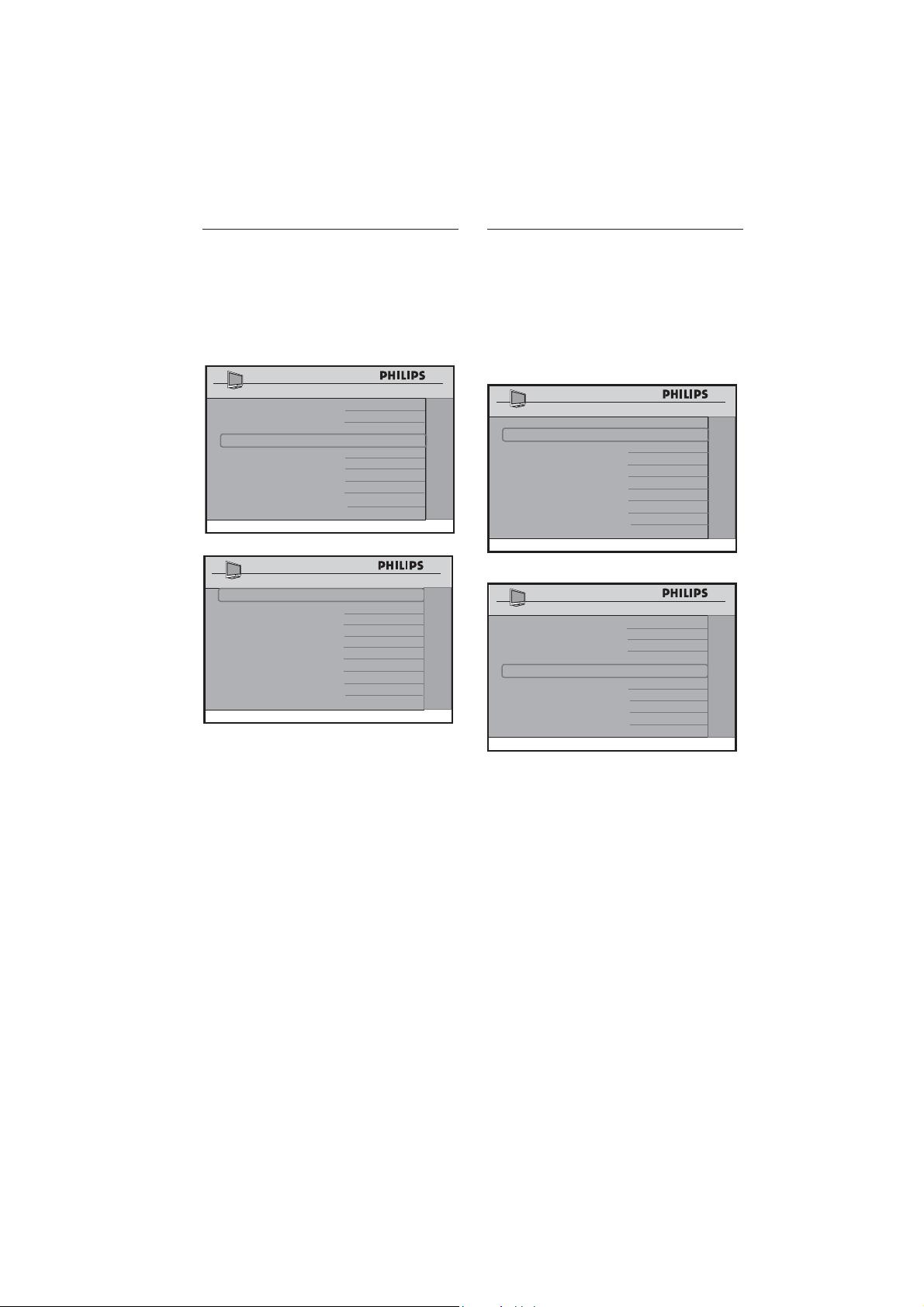
Selecting the Mute Source
You can choose to mute the audio or
the video.
Press • Í Æ to select NONE, AUDIO or
VIDEO.
CHANNEL INSTALL
CHANNEL TV 2
INPUT TUNER
DIGITAL YES
DIGITAL CH SCROLL >
DIGITAL MAJOR CH 1
DIGITAL MINOR CH 0
RINGS (1X ) ( 2 ) (3 ) (4 )
LABEL ( S P O _ ) >
MUTE AUDIO
CHANNEL INSTALL
19
10.4 Tuning channels
automatically
Note: D This option is only available when
TUNER is selected at the INPUT item
of the CHANNEL INSTALL menu.
Press 1. Æ to enter START mode.
SETUP
LANGUAGE ENGLISH
COMMUNICATION >
CHANNEL INSTALL >
AUTO INSTALL TV >
CABLE TUNING NO
USE CHANNEL TABLE
NO
CURRENT RING RING1
DIGITAL SETUP >
CONFIGURATION >
AUTO INSTALL TV
START >
Press 2. Æ again to start automatic
installation of channels.
Note: D To interrupt automatic installation
of channels, press any button on the
remote control.
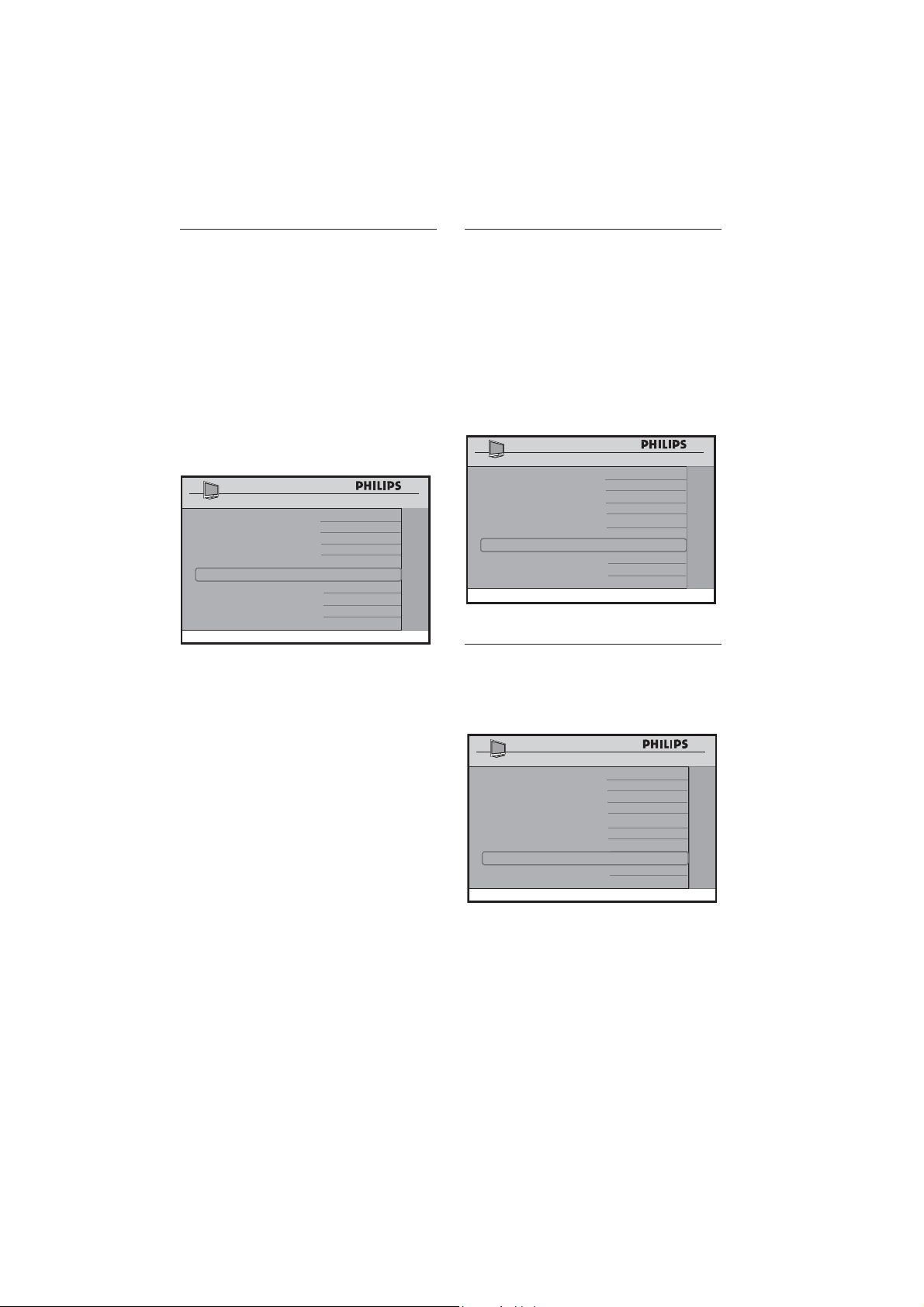
10.5 Selecting cable or antenna
mode
Note: D This option is only available when
TUNER is selected as the INPUT item
in the CHANNEL INSTALL menu.
Select YES to use Cable mode and NO to
use Antenna mode.
CHANNEL INSTALL
CHANNEL TV 2
INPUT TUNER
DIGITAL NO
RINGS (1 ) (2 ) (3 ) (4 )
LABEL ( )
>
MUTE NONE
CHANNEL INSTALL
CHANNEL INSTALL
SETUP
LANGUAGE ENGLISH
COMMUNICATION >
CHANNEL INSTALL
>
AUTO INSTALL TV >
CABLE TUNING YES
USE CHANNEL TABLE NO
CURRENT RING
RING1
DIGITAL SETUP
>
CONFIGURATION >
20
Selecting 10.6 a virtual or
physical channel
Note: D This option is only available when
TUNER is selected at the INPUT item
of the CHANNEL INSTALL menu.
The USE CHANNEL TABLE option
relates to the use of Virtual channels versus
Physical channels.
Select • NO to use a physical channel
number. Most Pay-Per-View systems
mandate that the TV uses physical
channels.
CHANNEL INSTALL
SETUP
LANGUAGE ENGLISH
COMMUNICATION >
CHANNEL INSTALL
>
AUTO INSTALL TV >
CABLE TUNING YES
USE CHANNEL TABLE NO
CURRENT RING RING1
DIGITAL SETUP
>
CONFIGURATION >
Select • YES for a stand alone system
where the channels are tuned and
ordered by their virtual channel
numbers.
Most HD stations are assigned physical
channel numbers that differ from their
traditional analog channel numbers. So, the
channel you know as channel 2 is actually
broadcasting its HD signal on a physical
channel unrelated to channel 2, say 19.1.
Selecting YES will cause the HD broadcast
of channel 2 to appear as channel 2.1.
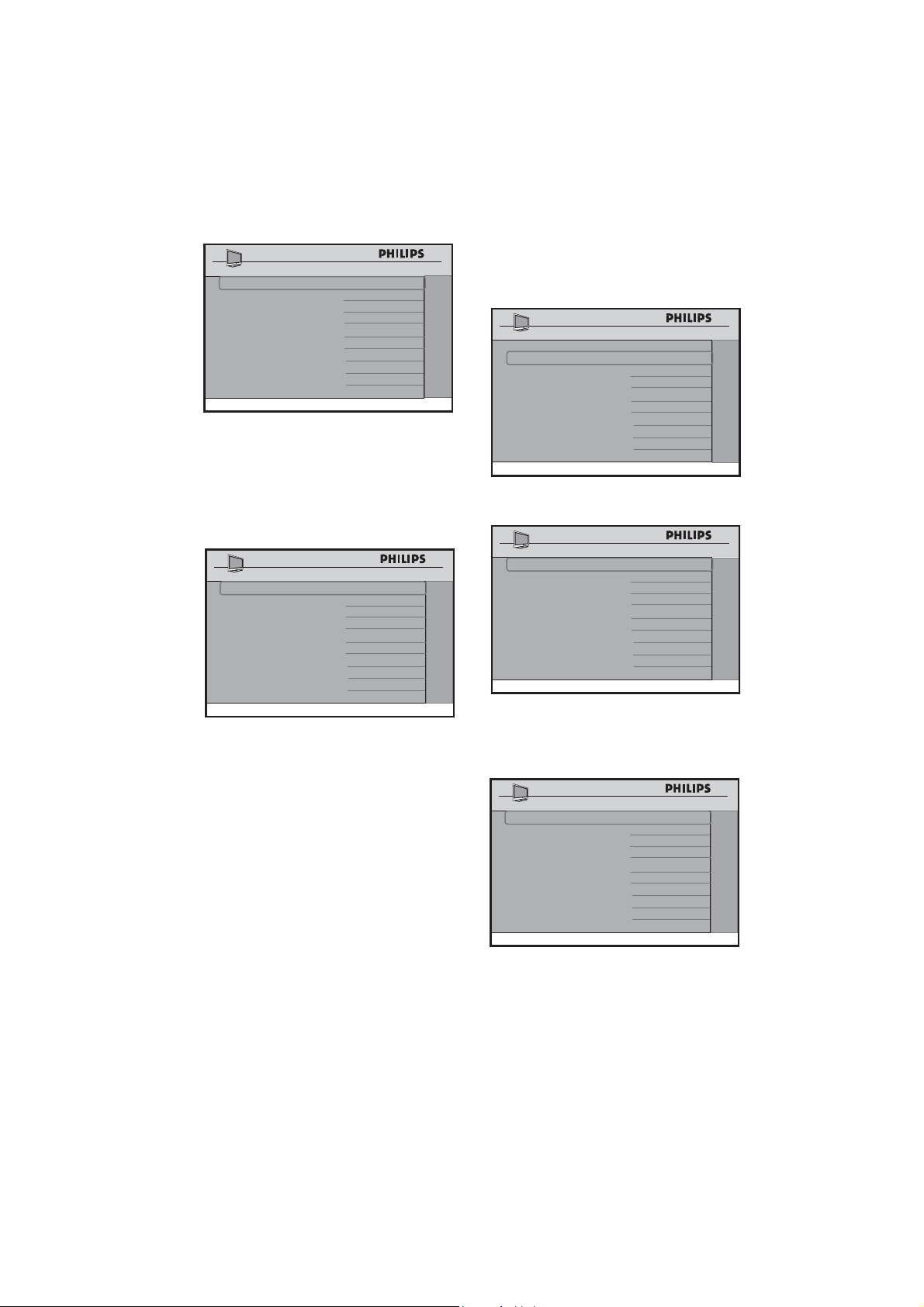
Enabling your current ring10.7
A ring is a group of favorite channels.
Four groups of RING are available.
To enable • CURRENT RING, select
from RING1 to RING4.
Note: D If “SMART RC” is selected
under COMMUNICATION source
(see Selecting the communication source on
page 15 ), then RING 4 is not available.
CHANNEL INSTALL
SETUP
LANGUAGE ENGLISH
COMMUNICATION >
CHANNEL INSTALL
>
AUTO INSTALL TV >
CABLE TUNING NO
USE CHANNEL TABLE YES
CURRENT RING RING1
DIGITAL SETUP >
CONFIGURATION >
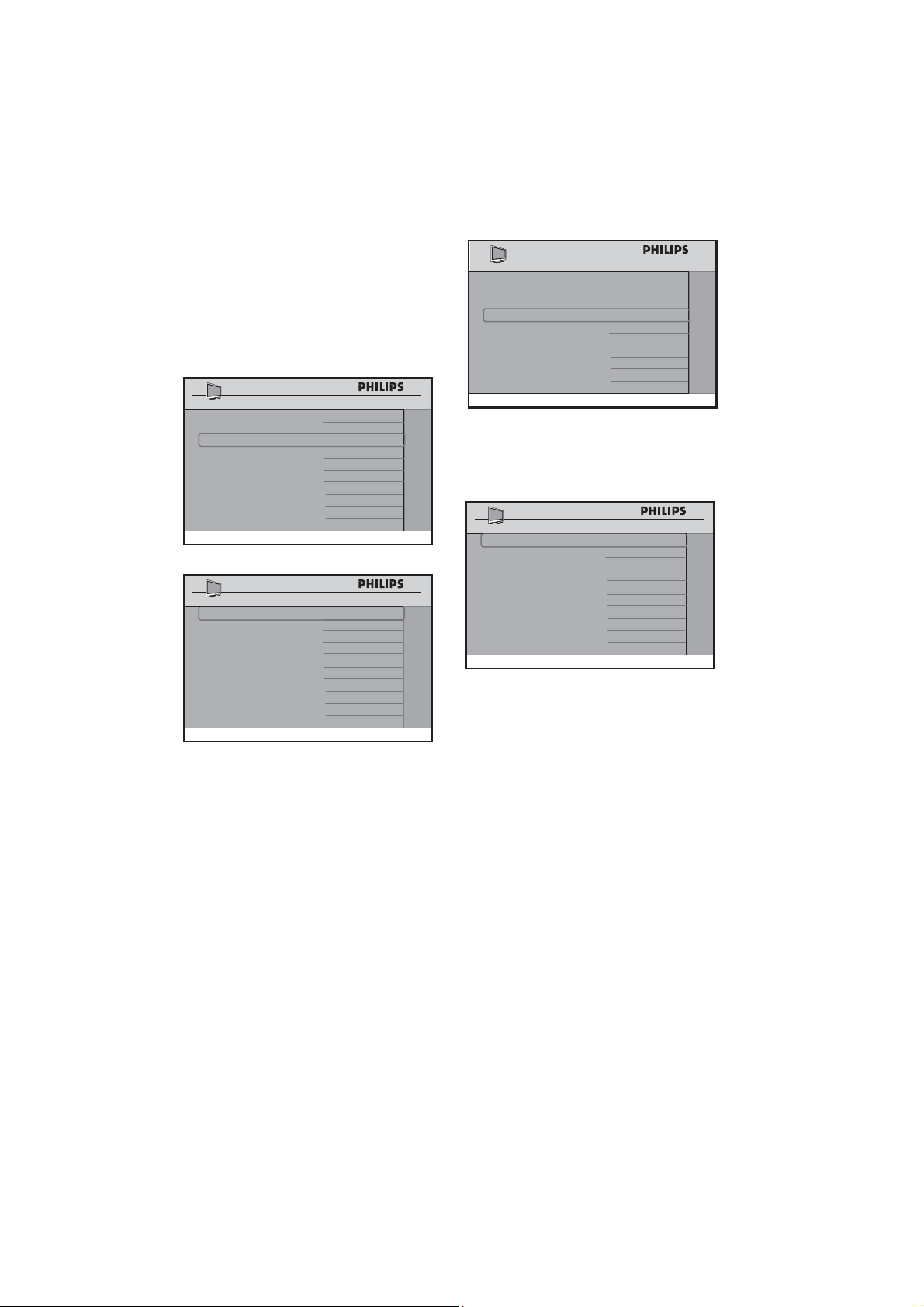
Setting options for digital 10.8
channels
Press • Æ to enter the DIGITAL SETUP
mode.
CHANNEL INSTALL
SETUP
LANGUAGE ENGLISH
COMMUNICATION >
CHANNEL INSTALL
>
AUTO INSTALL TV >
CABLE TUNING NO
USE CHANNEL TABLE YES
CURRENT RING RING1
DIGITAL SETUP >
CONFIGURATION >
21
CHANNEL INSTALL
DIGITAL SETUP
CHANNEL SETUP >
AUDIO >
DIGITAL CC SETUP >
EMERGENCY ALERT >
Setting up the VCHIP / DIGITAL
RATING and FACTORY CH RESET
Press • Æ to enter the CHANNEL
SETUP mode.
CHANNEL INSTALL
CHANNEL SETUP
VCHIP / DIGITAL RATING >
FACTORY CH RESET
>
• VCHIP / DIGITAL RATING allows
you to configure and enable content
restrictions on the TV based upon the
VCHIP STANDARD (see www.fcc.gov/
vchip/ for more information on ratings).
• FACTORY CHANNEL RESET
allows you to clear the digital channel
map. Note: You need to do an
automatic installation after FACTORY
CHANNEL RESET is confirmed.
Press • Î ï to select the item you
want to configure.
Press • Í Æ to select option.
Selecting the Digital Audio language
Digital Audio allows you to select your •
preferred digital audio language (English,
Spanish or French).
CHANNEL INSTALL
DIGITAL SETUP
CHANNEL SETUP >
AUDIO >
DIGITAL CC SETUP >
EMERGENCY ALERT
>
Press • Æ to enter the AUDIO mode.
CHANNEL INSTALL
AUDIO SETUP
PREFERRED LANGUAGE ENGLISH >
Press • Æ to enter the Preferred Language
mode and select your preferred
language.
CHANNEL INSTALL
AUDIO LANGUAGE
ENGLISH SELECTED
SPANISH
FRENCH
22
Selecting the Digital Closed Caption
options
DIGITAL CLOSED CAPTION SETUP
allows you to select the default Closed
Captioning option and also configure the
digital text / background properties of digital
CC.
CHANNEL INSTALL
DIGITAL SETUP
CHANNEL SETUP >
AUDIO
>
DIGITAL CC SETUP >
EMERGENCY ALERT >
DIGITAL CC
CAPTION OPTION ON
CAPTION TEXT >
CAPTION BACKGROUND >
Press • Æ to enter the DIGITAL CC
SETUP menu and select your default
Closed Captioning option and also
configure the digital text background
properties of digital CC.
Activating the Emergency Alert
Use this option to enable or disable
MEDIUM to LOW alert.
Press • Æ to enter the EMERGENCY
ALERT menu and select MEDIUM or
LOW.
CHANNEL INSTALL
DIGITAL SETUP
CHANNEL SETUP >
AUDIO >
DIGITAL CC SETUP
>
EMERGENCY ALERT >
•
Press the • Î ï buttons to select
MEDIUM or LOW.
Press • Í Æ to select ON or OFF.
CHANNEL INSTALL
EMERGENCY ALERT
MEDIUM ON
LOW OFF
Select ON option to enable EMERGENCY
ALERT.
Note: HIGH D EMERGENCY ALERT
cannot be disabled.
23
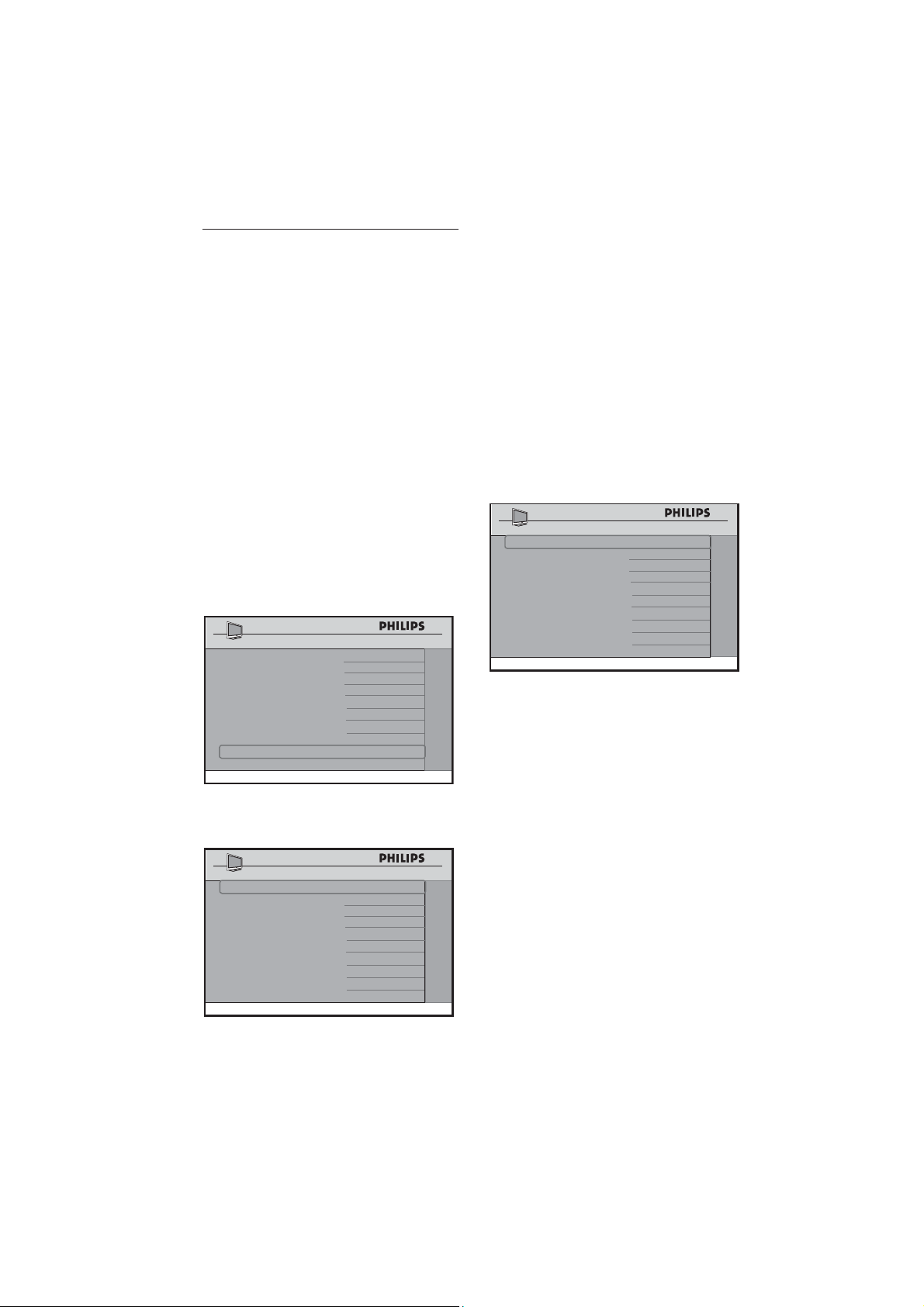
Selecting and confi guring 10.9
settings and options
The CONFIGURATION menu allows
you to select and configure the settings and
options for:
SWITCH ON / OSD•
PICTURE / SOUND•
SECURITY•
CONTROL•
VIDEO ADJUSTMENTS (only •
available on certain models)
FEATURES•
CC / V - CHIP•
AMBILIGHT (only available on certain •
models)
Press • Æ to enter the
CONFIGURATION menu.
CHANNEL INSTALL
SETUP
LANGUAGE ENGLISH
COMMUNICATION >
CHANNEL INSTALL
>
AUTO INSTALL TV >
CABLE TUNING YES
USE CHANNEL TABLE YES
CURRENT RING RING1
DIGITAL SETUP >
CONFIGURATION >
Press • Î ï to select the item you want
to configure.
CHANNEL INSTALL
CONFIGURATION
SWITCH ON / OSD >
PICTURE / SOUND >
SECURITY
>
CONTROL
>
VIDEO ADJUSTMENTS
>
FEATURES >
CC / V-CHIP >
AMBILIGHT >
Specifying the confi guration when
switching on TV
The SWITCH ON / OSD menu allows
you to select and configure the settings and
options for:
WELCOME MESSAGE•
SWITCH ON CHANNEL•
SWITCH ON VOLUME•
SWITCH ON PICTURE FORMAT•
POWER ON•
VOLUME INDICATOR•
CHANNEL DISPLAY•
CHANNEL INSTALL
SWITCH ON / OSD
WELCOME MESSAGE >
SWITCH ON CHANNEL TV 2
SWITCH ON VOLUME
30
SWITCH ON PIC FMT WIDESCREEN
POWER ON LAST STATUS
VOLUME INDICATOR YES
CHANNEL DISPLAY ALL
Press • Î or ï to select the item you
want to configure.
Press • Í Æ or 0 - 9 to make
adjustments or select options.
WELCOME MESSAGE• : key in a
welcome message.
SWITCH ON CHANNEL• : set a
channel which you want the TV to
always tune to at startup.
Note: D If STANDARD is selected in the
SWITCH ON CHANNEL feature,
the TV will switch to the last viewed
channel upon start-up.
SWITCH ON VOLUME• : specify the
volume setting at startup.
SWITCH ON PIC FMT• : select
your preferred picture format at
startup (AUTO, 4:3, ZOOM 14:9,
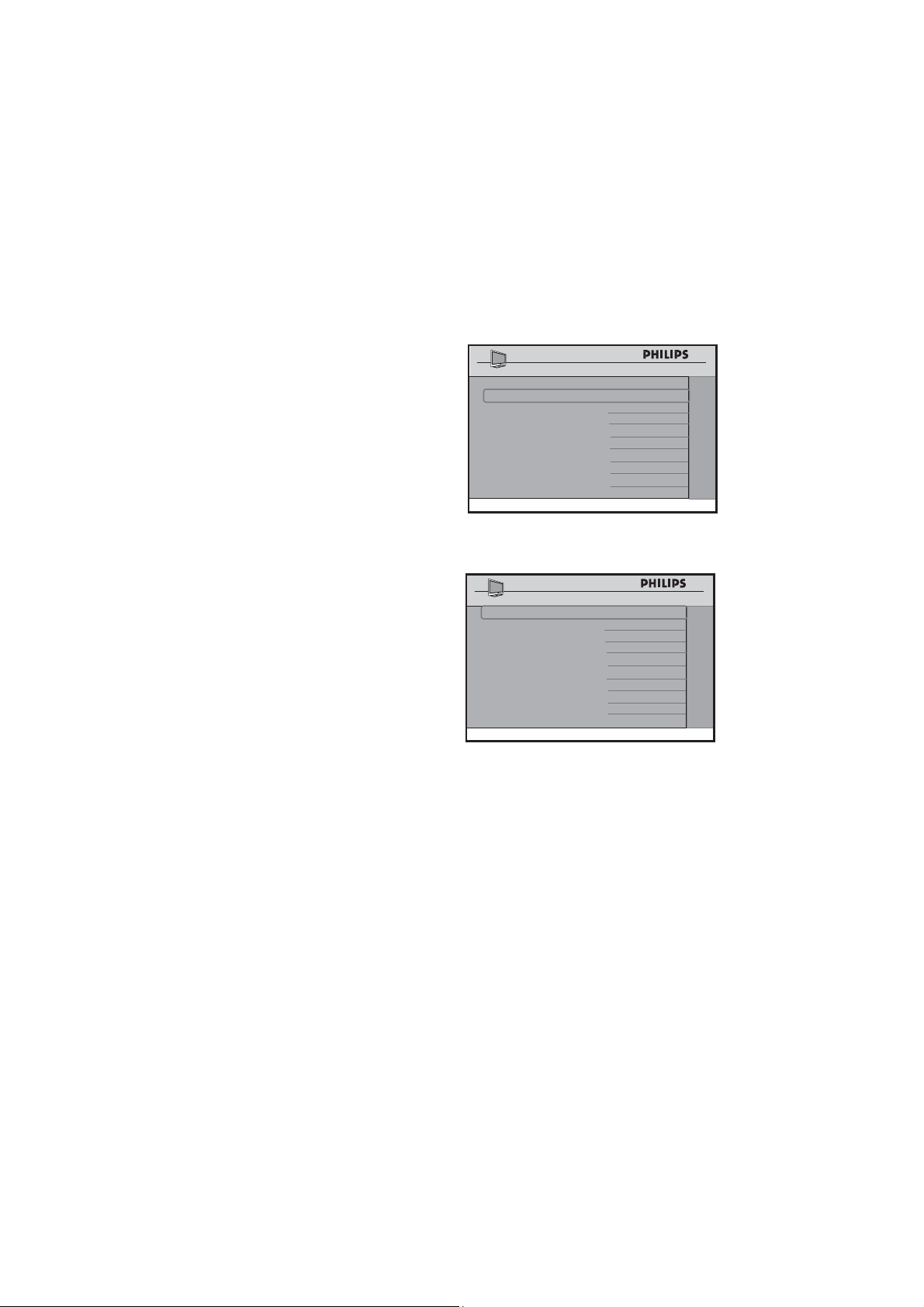
24
ZOOM 16:9, SUBTITLE ZOOM,
WIDESCREEN, SUPERWIDE or
FULLSCREEN).
POWER ON• : Select the status either
LAST STATUS, ON, STANDBY
or FORCED ON on the TV when
switched on. If LAST STATUS is
selected, the last power status will be
activated when the TV is switched on.
If • ON is selected, the TV always
switches on when the mains cord is
connected. The POWER . buttons
on the Guest Remote Control and
the TV are enabled.
If • STANDBY is selected, the TV
switches to stand-by when the mains
power is switched on.
If • FORCED ON is selected, the TV
always switches on when the mains
power is turned on. The POWER
. buttons on the Guest Remote
Control and the TV will be disabled.
VOLUME INDICATOR• :
Display the volume indicator.
CHANNEL DISPLAY• :
Display the programme number, label (if
any) or both.
Specifying the confi gurations for TV
PICTURE / SOUND
In the CONFIGURATION menu, the
PICTURE / SOUND feature allows you
to select and configure the settings and
options for:
BRIGHTNESS•
COLOR•
CONTRAST•
SHARPNESS•
TINT•
ACTIVE CONTROL•
TREBLE•
BASS•
BALANCE•
AVL (Auto Volume Leveler)•
Press • ï to select PICTURE /
SOUND.
CHANNEL INSTALL
CONFIGURATION
SWITCH ON / OSD >
PICTURE / SOUND >
SECURITY >
CONTROL
>
VIDEO ADJUSTMENTS >
FEATURES >
CC / V-CHIP >
AMBILIGHT >
Press • Æ to enter the PICTURE /
SOUND menu.
CHANNEL INSTALL
PICTURE / SOUND
BRIGHTNESS 45
COLOR 38
CONTRAST 70
SHARPNESS 50
TINT 36
ACTIVE CONTROL YES
TREBLE 52
BASS 55
BALANCE 0
AVL ON
Press • Î ï to select the item you want
to configure.
Press • Í Æ to make adjustments or to
select an option.
Specifying the security options
In the CONFIGURATION menu, the
SECURITY feature allows you to select
an option to enable access to the SETUP
menu without a RC2573GR setup remote
control.
The SECURITY feature allows you to
select and configure the settings and options
for:
SECURITY•
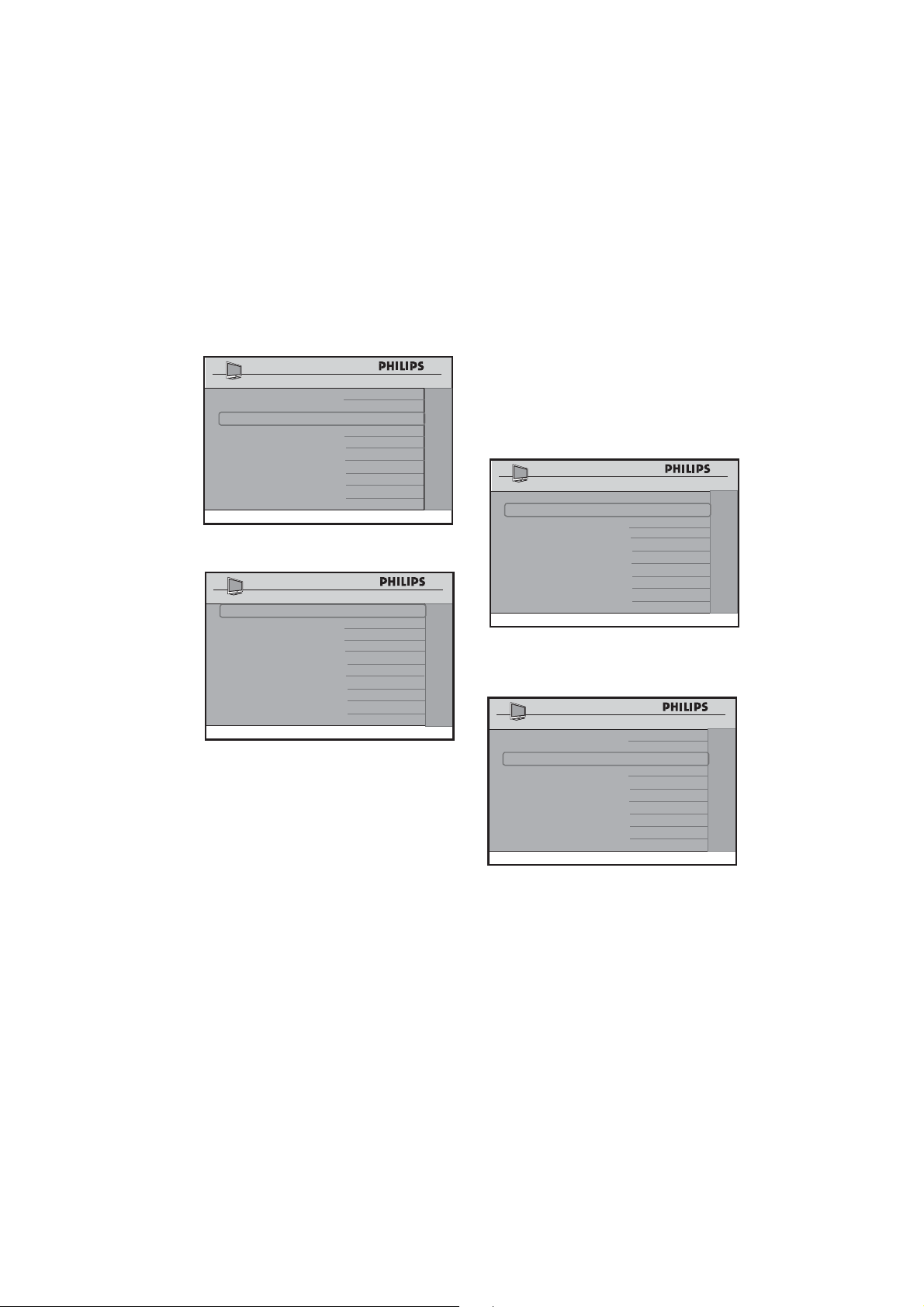
25
KEYBOARD LOCK•
REMOTE CONTROL LOCK•
DECRYPTION CONTROL•
VTRACK•
Press • ï and select SECURITY.
CHANNEL INSTALL
CONFIGURATION
SWITCH ON / OSD >
PICTURE / SOUND
>
SECURITY
>
CONTROL >
VIDEO ADJUSTMENTS
>
FEATURES >
CC / V-CHIP >
AMBILIGHT >
Press • Æ to enter the SECURITY menu.
CHANNEL INSTALL
SECURITY
SECURITY STANDARD
KEYBOARD LOCK ALL
REMOTE CONTROL LOCK YES
DECRYPTION CONTROL
>
VTRACK >
Press • Î ï to select the item you want
to configure.
If • STANDARD is selected in the
SECURITY menu, the TV SETUP
menu can be accessed by entering
a special security code with a guest
remote control. Contact the Philips
Commercial Solutions Customer Care
Center at +1 866 497-4225 should you
require further assistance.
If• HIGH is selected, the TV setup menu
can be accessed only with a RC2573GR
setup remote control in setup mode.
Note: D The default security setting is
STANDARD. When the security setting
is in STANDARD mode, it may be
vulnerable to unauthorized operations.
In the• KEYBOARD LOCK option.
Select • YES to lock the TV keyboard
buttons except for the POWER
button.
Select • ALL to lock all the TV
keyboard buttons including the
POWER button.
Select • NO to unlock all the TV
keyboard buttons.
CHANNEL INSTALL
SECURITY
SECURITY STANDARD
KEYBOARD LOCK ALL
REMOTE CONTROL LOCK YES
DECRYPTION CONTROL
>
VTRACK >
Press • ï to select REMOTE
CONTROL LOCK.
CHANNEL INSTALL
SECURITY
SECURITY STANDARD
KEYBOARD LOCK ALL
REMOTE CONTROL LOCK
YES
DECRYPTION CONTROL >
VTRACK >
• Press Æ to select YES to lock all the
guest remote control buttons.
Convert the TV set from a Pay-Per-
View mode
The DECRYPTION CONTROL option
allows you to convert the TV set from a
Pay-Per-View content protected mode to a
Stand-alone protected mode.
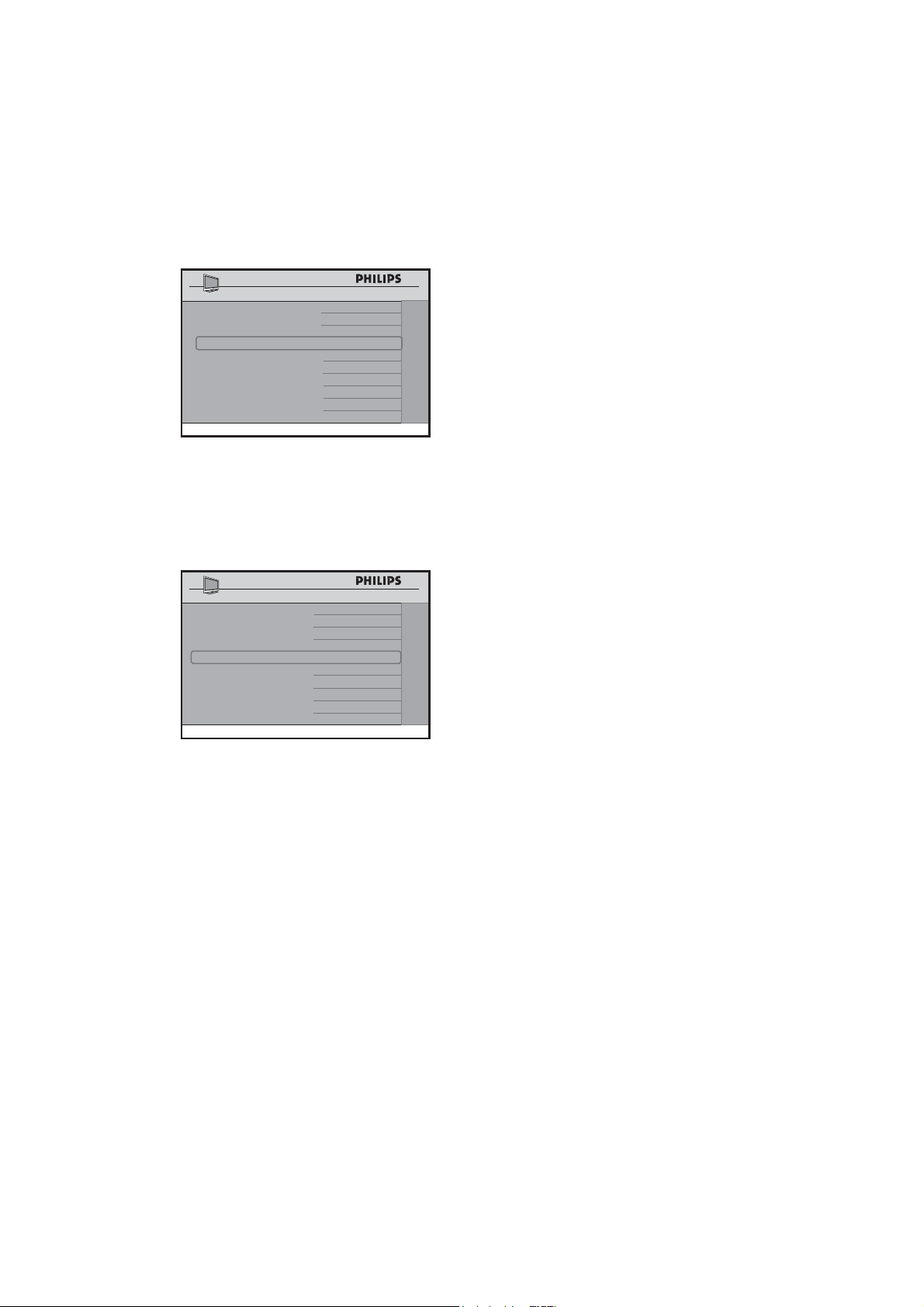
26
Press • ï to select DECRYPTION
CONTROL
CHANNEL INSTALL
SECURITY
SECURITY STANDARD
KEYBOARD LOCK ALL
REMOTE CONTROL LOCK YES
DECRYPTION CONTROL >
VTRACK >
Press • Æ to enter the DECRYPTION
CONTROL menu.
Note: D The fi rst four items in the
DECRYPTION CONTROL menu are
for your information only.
CHANNEL INSTALL
DECRYPTION CONTROL
MODEL
SERIAL SV1A07071000012
CURRENT MODE PPV
NEW MODE STANDALONE
PASSWORD
- - - - - - - - -
CONVERT >
32HF5860D/27
I
Instruction for the decryption control
menu will be provided when you receive
the Pro:Idiom certificates.
D
CHANNEL INSTALL
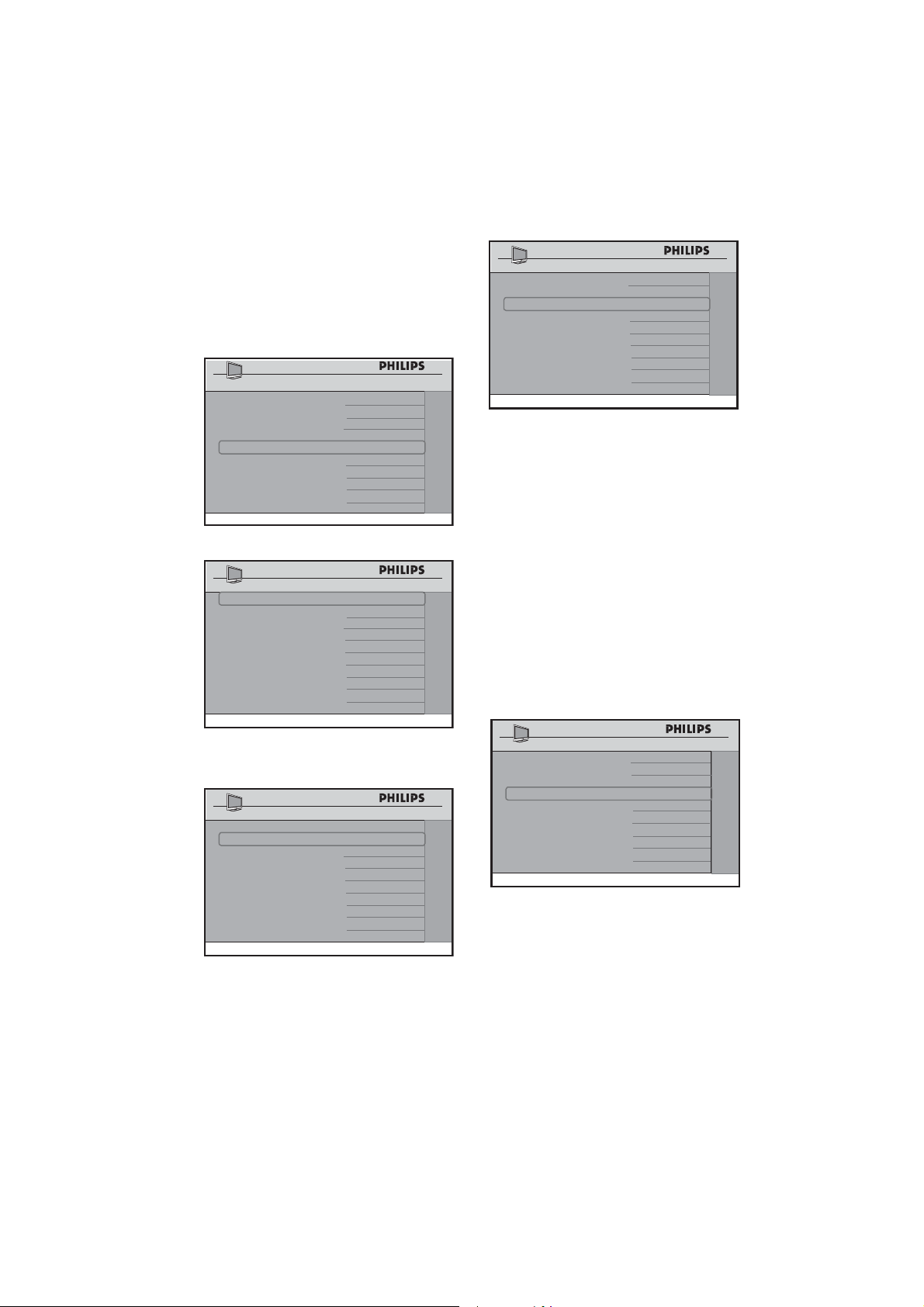
27
Using V-Track to watermark
NOTE: The VTRACK menu will not be displayed unless COMMUNICATION is set to OFF.
VTRACK allows you to activate the
watermarking functionality of the TV.
Press • Æ to enter the VTRACK menu.
CHANNEL INSTALL
SECURITY
SECURITY STANDARD
KEYBOARD LOCK ALL
REMOTE CONTROL LOCK YES
DECRYPTION CONTROL >
VTRACK >
Press • Æ to select YES, so that
watermarking is turned on.
CHANNEL INSTALL
VTRACK
VTRACK YES
TIME SETTING 12:00
DOWNLOAD CHANNEL TV2
The • TIME SETTING option allows
you to manually enter the time.
CHANNEL INSTALL
VTRACK
VTRACK YES
TIME SETTING 12:00
DOWNLOAD CHANNEL TV2
The • DOWNLOAD CHANNEL
option allows you to select a channel
from where the time is retrieved.
CHANNEL INSTALL
VTRACK
VTRACK YES
TIME SETTING 12:00
DOWNLOAD CHANNEL TV2
Confi guring the control options
The CONTROL menu allows you to select
and configure the settings and options for:
ESP (Energy Saving Programmability)•
DIGIT TIMEOUT•
3 DIGIT ENTRY•
SOURCE MENU ITEM•
CHANNEL GUIDE•
MIN VOLUME (Minimum volume)•
MAX VOLUME (Maximum volume)•
Press • Æ to enter the CONTROL menu.
CHANNEL INSTALL
CONFIGURATION
SWITCH ON / OSD >
PICTURE / SOUND >
SECURITY >
CONTROL >
VIDEO ADJUSTMENTS >
FEATURES >
CC / V-CHIP >
AMBILIGHT >
Press • Î ï to select the item you want
to configure.
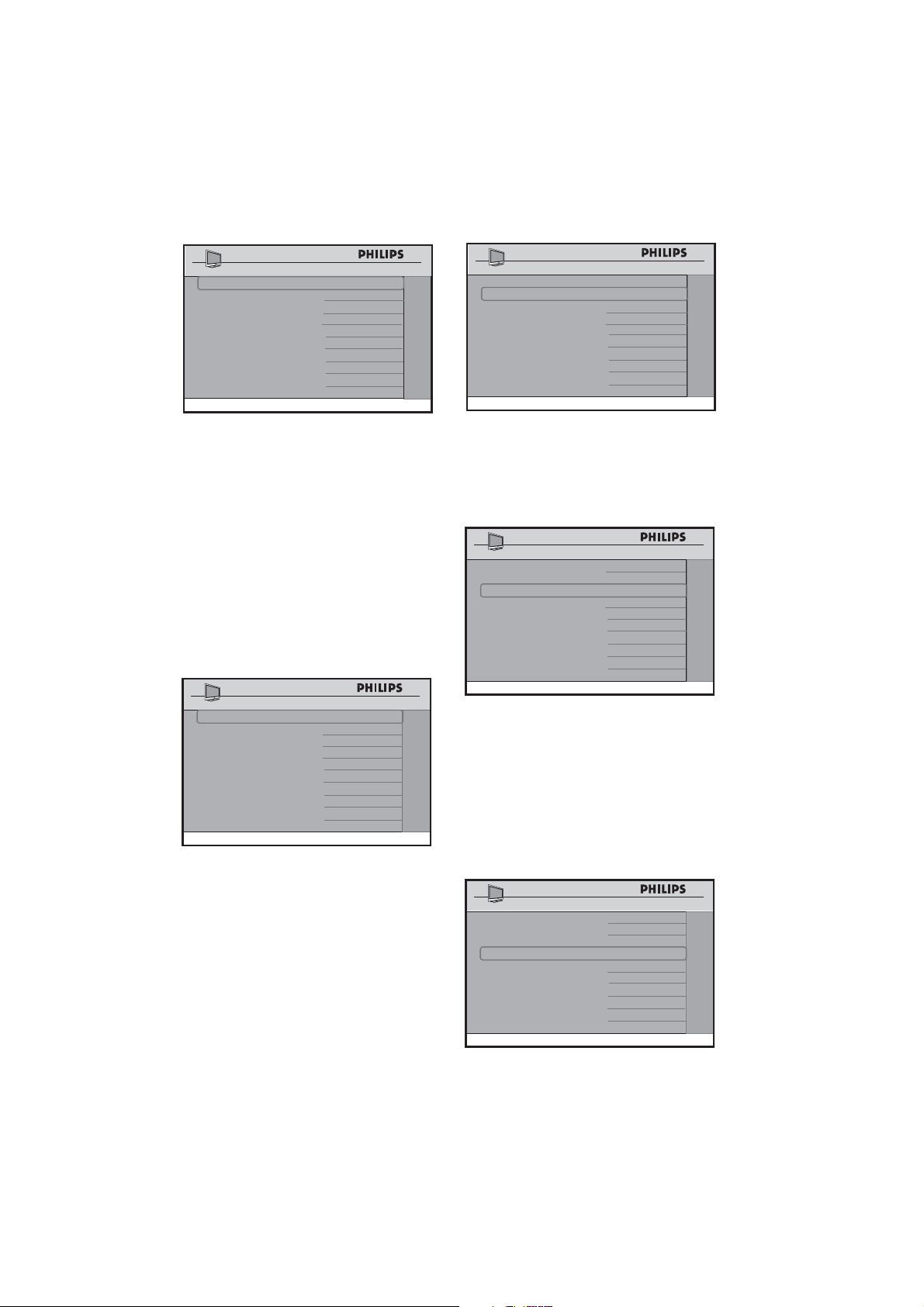
28
CHANNEL INSTALL
CONTROL
ESP OFF
DIGIT TIMEOUT
3 . 0
3 DIGIT ENTRY NO
PIC FMT MENU ITEM NO
CHANNEL GUIDE NO
MIN VOLUME 10
MAX VOLUME 35
SOURCE MENU ITEM NO
The • ESP (Energy Saving
Programmability) option allows you to
select a specified period of time (from
1 HR / 2 HR ......... / 99 HR) to power
down your TV automatically. If it does
not receive any commands during this
period from the remote control or the
TV keyboard, this energy saving feature
will take effect.
Note: D If a remote or keyboard command
is received before the ESP time period
expires, the Timer will reset and begin
counting down again.
CHANNEL INSTALL
CONTROL
ESP 2
DIGIT TIMEOUT
3 . 0
3 DIGIT ENTRY NO
SOURCE MENU ITEM NO
CHANNEL GUIDE NO
MIN VOLUME 10
MAX VOLUME 35
PIC FMT MENU ITEM NO
The • DIGIT TIMEOUT option allows
you to specify a time period (from 1 to
9.9 seconds) for the channel to switch
to another channel when you key in
the channel number. It is advisable not
to specify too short a time period
especially when you want to key in 2 or
3 digit channel numbers.
Note: D The recommended and default
setting is 3.0 seconds.
CHANNEL INSTALL
CONTROL
ESP 2
DIGIT TIMEOUT 3 . 0
3 DIGIT ENTRY NO
SOURCE MENU ITEM NO
CHANNEL GUIDE NO
MIN VOLUME 10
MAX VOLUME 35
PIC FMT MENU ITEM NO
Select • YES to enable channel selection
of 1 to 250 for cable mode and 2 to 250
for antenna mode. Select NO to enable
channel selection from 1 to 99 for cable
mode and 2 to 99 for antenna mode.
CHANNEL INSTALL
CONTROL
ESP 2
DIGIT TIMEOUT 3 . 0
3 DIGIT ENTRY Y
ES
SOURCE MENU ITEM NOSOURCE MENU ITEM NO
CHANNEL GUIDE NO
MIN VOLUME 10
M
AX VOLUME 35
PIC FMT MENU ITEM NO
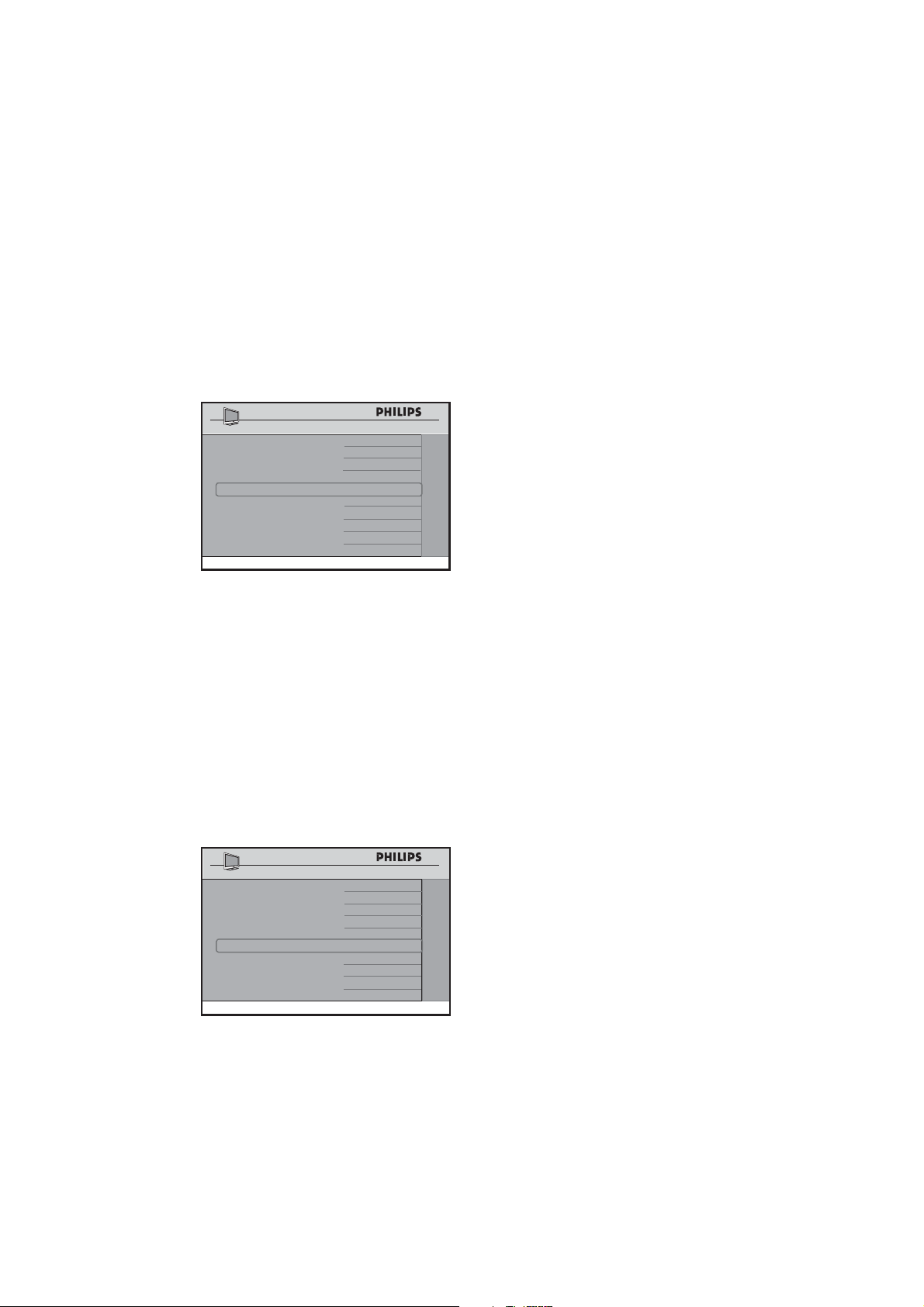
• SOURCE MENU ITEM allows you to
remove Source from the options menu
the guest can see. The guest will not
have access to any inputs not mapped to
a channel in this case.
If • YES is selected, Source will appear
in the options menu. If you select NO,
Source will not appear.
CHANNEL INSTALL
CONTROL
ESP 2
DIGIT TIMEOUT 3 . 0
3 DIGIT ENTRY NO
SOURCE MENU ITEM
YES
CHANNEL GUIDE NO
MIN VOLUME 10
MAX VOLUME 35
PIC FMT MENU ITEM NO
29
PIC FMT MENU ITEM• allows you to
remove Picture Format from the options
menu the guest can see. The guest will
not have access to change the picture
formats.
If • YES is selected, Picture Format will
appear in the options menu. If you
select NO, Picture Format will not
appear.
CHANNEL INSTALL
CONTROL
ESP 2
DIGIT TIMEOUT 3 . 0
3 DIGIT ENTRY NO
SOURCE MENU ITEM YES
CHANNEL GUIDE NO
MIN VOLUME 10
MAX VOLUME 35
PIC FMT MENU ITEM YES
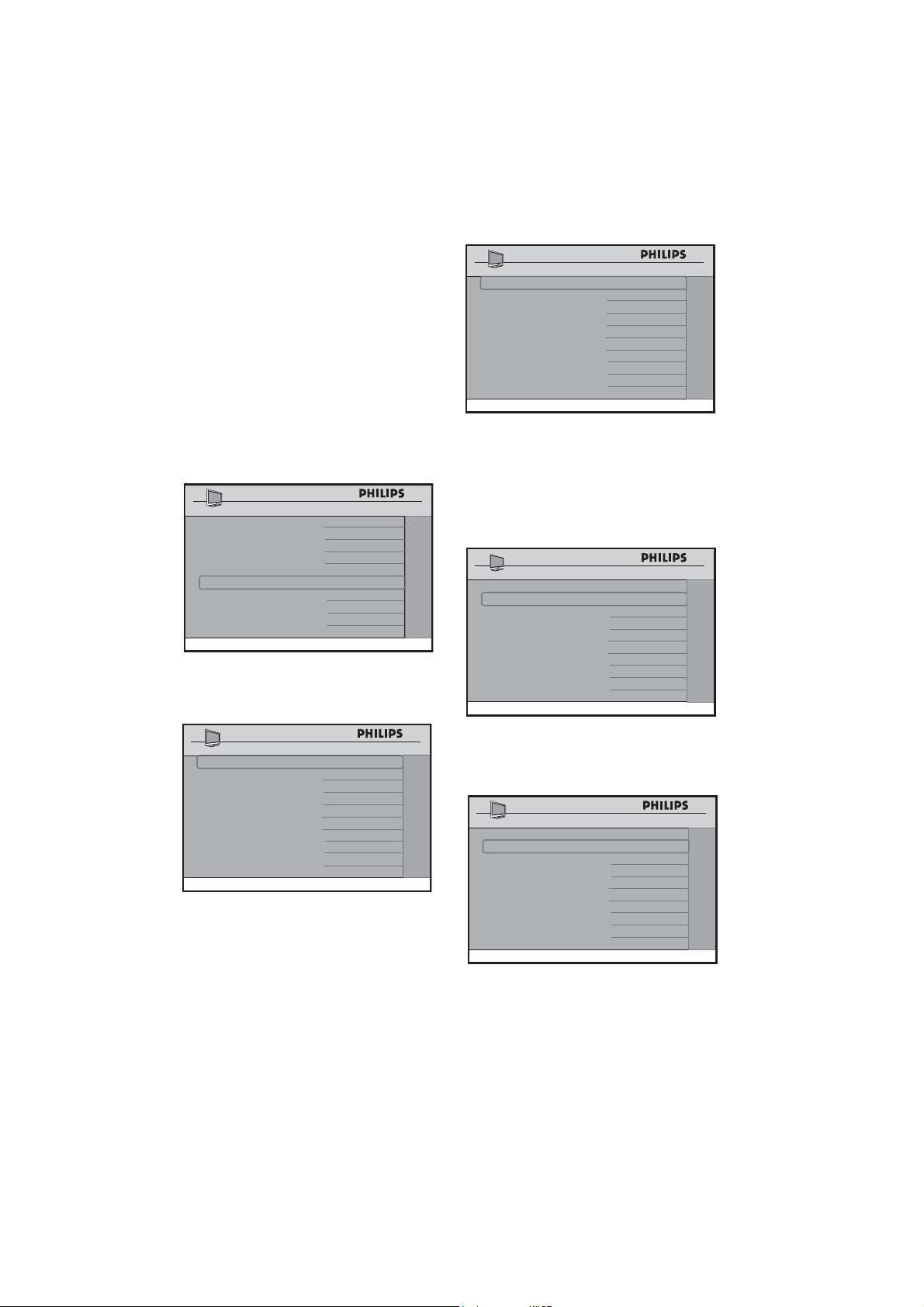
The • CHANNEL GUIDE is an
on-screen guide of channels that can
be used for displaying the channels
programmed into the TV. The guide will
only function for channels you have
labeled (see Naming a channel on page
18 ). This feature is useful for showing
your guests where channels or inputs
are mapped and is usually not used in a
PPV system as the PPV system has its
own map and guide.
In the • CHANNEL GUIDE option,
select YES to enable the Channel
Guide.
CONTROL
ESP 2
DIGIT TIMEOUT 3 . 0
3 DIGIT ENTRY YES
SOURCE MENU ITEM YES
CHANNEL GUIDE YES
MIN VOLUME 10
MAX VOLUME 35
PIC FMT MENU ITEM YES
• MIN and MAX VOLUME options
allows you to specify the limit setting for
Minimum and Maximum Volume.
Adjusting the picture horizontally and
vertically
The VIDEO ADJUSTMENT option
allows you to adjust the picture horizontally
and vertically. This is useful for configuring
channels that have tickers or scrolling
banners at the bottom such as news and
sports channels.
CHANNEL INSTALL
• Press Î ï to select the item you want
to configure.
Press • Í Æ to make adjustments.
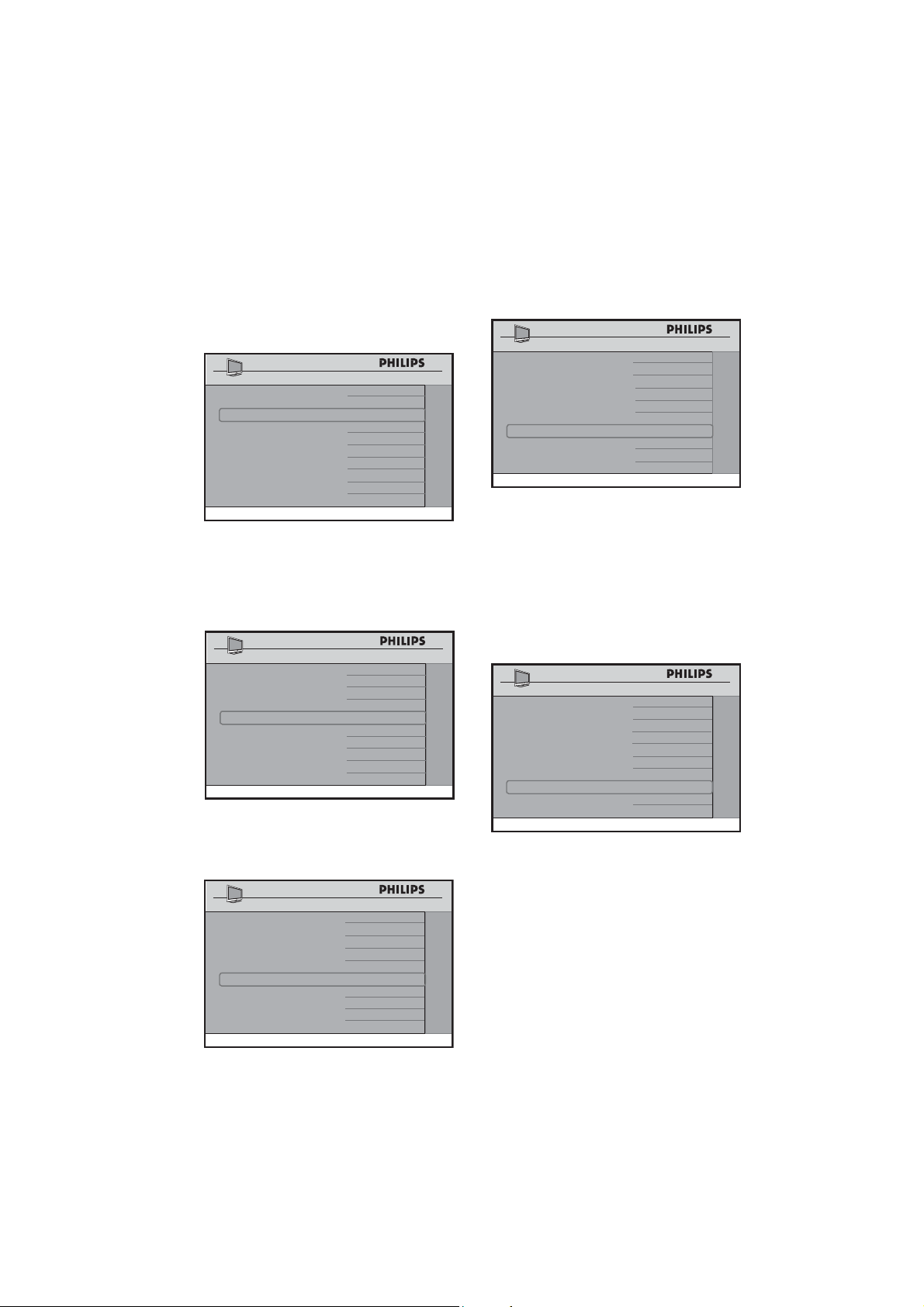
Confi guring the features options and
settings
Press • Æ to enter the FEATURES menu.
30
Select and configure the settings and options
for:
SMARTPOWER•
SMART SOUND KEY•
DEFAULT HDMI 1 AUDIO•
DEFAULT HDMI 2 AUDIO•
LOW POWER STANDBY•
LOUD SPEAKER MUTE•
USB BREAK-IN•
SW DOWNLOAD•
CHANNEL INSTALL
CONFIGURATION
SWITCH ON / OSD >
PICTURE / SOUND
>
SECURITY >
CONTROL >
VIDEO
ADJUSTMENTS >
FEATURES >
CC / V-CHIP >
>
AMBILIGHT
• Press Î ï to select the item you want
to configure.
Press• Í Æ to select options.
CHANNEL INSTALL
FEATURES
SMARTPOWER OFF
SMART SOUND KEY SMART SOUND
DEFAULT HDMI 1 AUDIO AV AUDIO
LOW POWER STANDBY YES
LOUD SPEAKER MUTE NO
USB BREAK-IN
SW DOWNLOAD
NO
>
DEFAULT HDMI 2 AUDIO AV AUDIO
The • SMARTPOWER option allows
you to put the TV in an energy saving
mode which can save up to 30% in
energy consumption costs.
Select from • LOW, MEDIUM or HIGH
to activate energy saving mode.
CHANNEL INSTALL
FEATURES
SMARTPOWER LOW
SMART SOUND KEY
SMART SOUND
DEFAULT HDMI 1 AUDIO
AV AUDIO
LOW POWER STANDBY
YES
LOUD SPEAKER MUTE
NO
USB BREAK-IN
NO
>
SW DOWNLOAD
DEFAULT HDMI 2 AUDIO
AV AUDIO
In the • SMART SOUND KEY option,
select AUDIO SELECT to allow you
to configure the Smart Sound button on
the Guest remote control to toggle the
different audio sources. and smart sound
settings.
SMARTPOWER LOW
SMART SOUND KEY
AUDIO SELECT
DEFAULT HDMI 1 AUDIO
AV AUDIO
LOW POWER STANDBY
YES
LOUD SPEAKER MUTE
NO
CHANNEL INSTALL
USB BREAK-IN
NO
>
SW DOWNLOAD
DEFAULT HDMI 2 AUDIO
AV AUDIO
FEATURES
Select • SMART SOUND to listen to
different SMART SOUND modes.
SMARTPOWER LOW
SMART SOUND KEY SMART SOUND
DEFAULT HDMI 1 AUDIO AV AUDIO
LOW POWER STANDBY
YES
LOUD SPEAKER MUTE NO
USB BREAK-IN
NO
>
SW DOWNLOAD
DEFAULT HDMI 2 AUDIO AV AUDIO
FEATURES
DEFAULT HDMI AUDIO 1 and 2 allows
you to select the HDMI Audio from different
Sources. This feature is particularly useful for
connecting DVI sources to this television.
31
DVI Video can convert easily to HDMI with
a simple adaptor, but the audio signal is not
present and must then be connected to one
of the other inputs on the TV. This feature
allows you to match the DVI video to the
Audio signal you have connected. The ports
are distinguished from each other by 1 and 2.
SMARTPOWER LOW
SMART SOUND KEY SMART SOUND
DEFAULT HDMI 1 AUDIO AV AUDIO
LOW POWER STANDBY YES
LOUD SPEAKER MUTE
NO
CHANNEL INSTALL
USB BREAK-IN
NO
>
SW DOWNLOAD
DEFAULT HDMI 2 AUDIO AV AUDIO
FEATURES
By default, the • LOW POWER
STANDBY option is set to NO.
If an interactive SmartCard is used
with the TV, set the LOW POWER
STANDBY option to NO.
SMARTPOWER LOW
SMART SOUND KEY SMART SOUND
DEFAULT HDMI 1 AUDIO AV AUDIO
LOW POWER STANDBY YES
LOUD SPEAKER MUTE NO
USB BREAK-IN
NO
>
SW DOWNLOAD
DEFAULT HDMI 2 AUDIO AV AUDIO
FEATURES
In the • LOUD SPEAKER MUTE
option, select YES to mute the TV
speakers permanently.
SMARTPOWER LOW
SMART SOUND kEY SMART SOUND
DEFAULT HDMI 1 AUDIO AV AUDIO
LOW POWER STANDBY
YES
LOUD SPEAKER MUTE YES
CHANNEL INSTALL
USB BREAK-IN
NO
>
SW DOWNLOAD
DEFAULT HDMI 2 AUDIO AV AUDIO
FEATURES
When inserting a USB device, the •
channel will be automatically switched to
the USB directory using USB BREAK-
IN. Select YES to enable this option.
SMARTPOWER LOW
SMART SOUND KEY SMART SOUND
DEFAULT HDMI 1 AUDIO AV AUDIO
LOW POWER STANDBY
YES
LOUD SPEAKER MUTE NO
CHANNEL INSTALL
YES
>
SW DOWNLOAD
USB BREAK-IN
DEFAULT HDMI 2 AUDIO
AV AUDIO
FEATURES
Software downloading and cloning
The SW DOWNLOAD feature allows you
to upload and download the TV software
and settings via USB or *RF. This includes
Cloning.
*Only available on certain models.
Select • SW DOWNLOAD.
SMARTPOWER LOW
SMART SOUND KEY
SMART SOUND
DEFAULT HDMI 1 AUDIO
AV AUDIO
LOW POWER STANDBY
YES
LOUD SPEAKER MUTE
YES
SW DOWNLOAD
>
USB BREAK-IN
YES
DEFAULT HDMI 2 AUDIO
AV AUDIO
FEATURES
Press • Æ to enter SW DOWNLOAD
menu.
In the • SOURCE option, select either
USB or RF. USB is the default option.
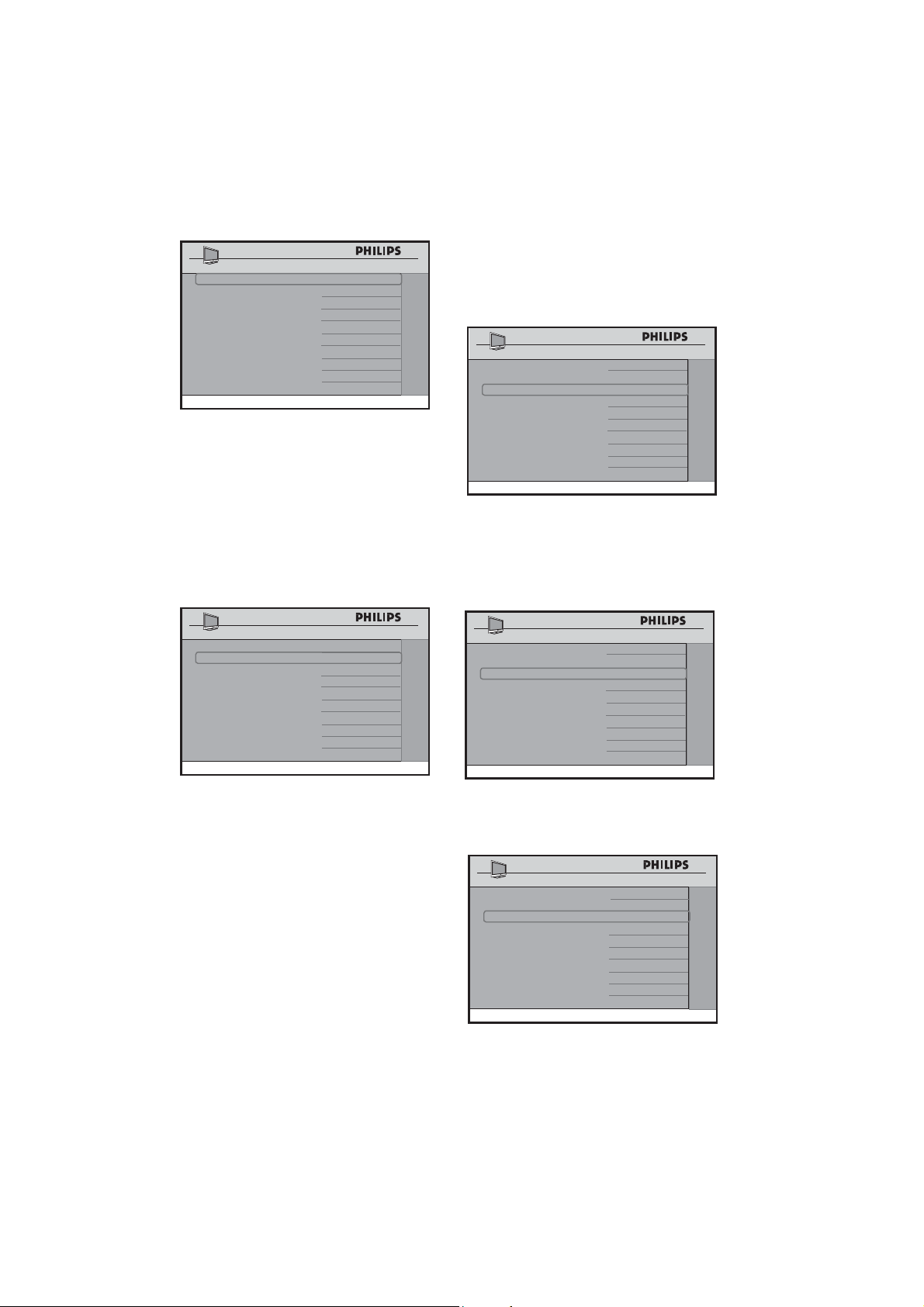
32
SOURCE USB
DIRECTION
DOWNLOAD
SW TYPE
ALL
START
>
SW DOWNLOAD
•
USB Source
Select • USB to upload or download
from a USB device.
In the • DIRECTION option, select
DOWNLOAD to download the
software from the USB device. Select
UPLOAD to upload the cloning
information to the USB device.
SOURCE USB
DIRECTION
DOWNLOAD
SW TYPE
ALL
START
>
SW DOWNLOAD
In the • SW TYPE option, select the type
of software or cloning information to
be downloaded. The types of software
available are:
ALL•
CLONE DATA•
SSB NVM•
SSB FIRMWARE • (only download)
STANDBY FIRMWARE • (only
download)
IBOARD NVM•
IBOARD FIRMWARE (• only
download)
If • ALL is selected, all the TV software
and settings available on the USB device
are downloaded.
SOURCE USB
DIRECTION
DOWNLOAD
SW TYPE
ALL
START
>
SW DOWNLOAD
If • CLONE DATA is selected, SSB
NVM and IBOARD NVM are updated
from the USB Device. These are the
components neccessary for cloning the
setup configurations.
SOURCE USB
DIRECTION
DOWNLOAD
SW TYPE
CLONE DATA
START
>
SW DOWNLOAD
If • SSB NVM is selected, the SSB NVM
is updated from the USB device.
SOURCE USB
DIRECTION DOWNLOAD
SW TYPE SSB NVM
START >
SW DOWNLOAD
•
Note: For SSB NVM to be cloned properly this path must be created on the USB drive: /SSB_NVM/ChannelTable
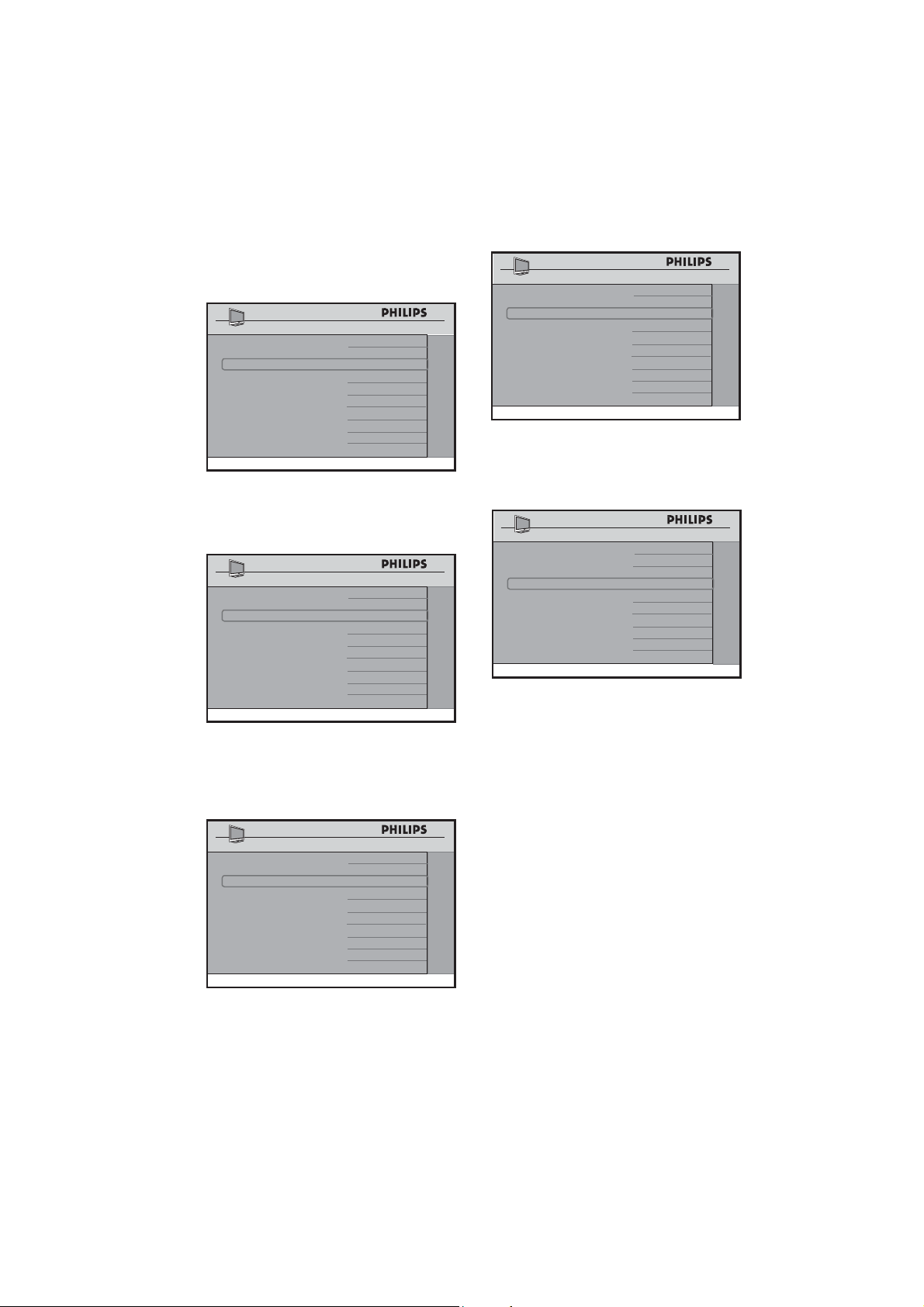
33
If • SSB FIRMWARE is selected, the
digital module software, including MPEG
2 and MPEG 4, is updated from the USB
device.
SOURCE USB
DIRECTION DOWNLOAD
SW TYPE SSB FIRMWARE
START >
SW DOWNLOAD
If • STANDBY FIRMWARE is selected,
the startup data is updated from the
USB device.
SOURCE USB
DIRECTION DOWNLOAD
SW TYPE STANDBY FIRMWARE
START >
SW DOWNLOAD
If • IBOARD NVM is selected, the TV
settings are updated from the USB
device.
SOURCE USB
DIRECTION DOWNLOAD
SW TYPE IBOARD NVM
START >
SW DOWNLOAD
If • IBOARD FIRMWARE is selected,
the iboard software is updated from the
USB device.
SOURCE USB
DIRECTION DOWNLOAD
SW TYPE IBOARD FIRMWARE
START >
SW DOWNLOAD
After all the selections for the • SW
DOWNLOAD have been completed,
select START.
SOURCE USB
DIRECTION DOWNLOAD
SW TYPE IBOARD FIRMWARE
START >
SW DOWNLOAD
Press • Æ to start. The TV will start to
perform the SW download. Upon
successful downloading, the TV will shut
down and re-start automatically.
Note: D It is strongly recommended in
the SW TYPE to select ALL. This
ensures all available software upgrades
are installed.
RF Source
*Only available on certain models.
If • RF is selected in the SOURCE
option, only downloading can be
performed.
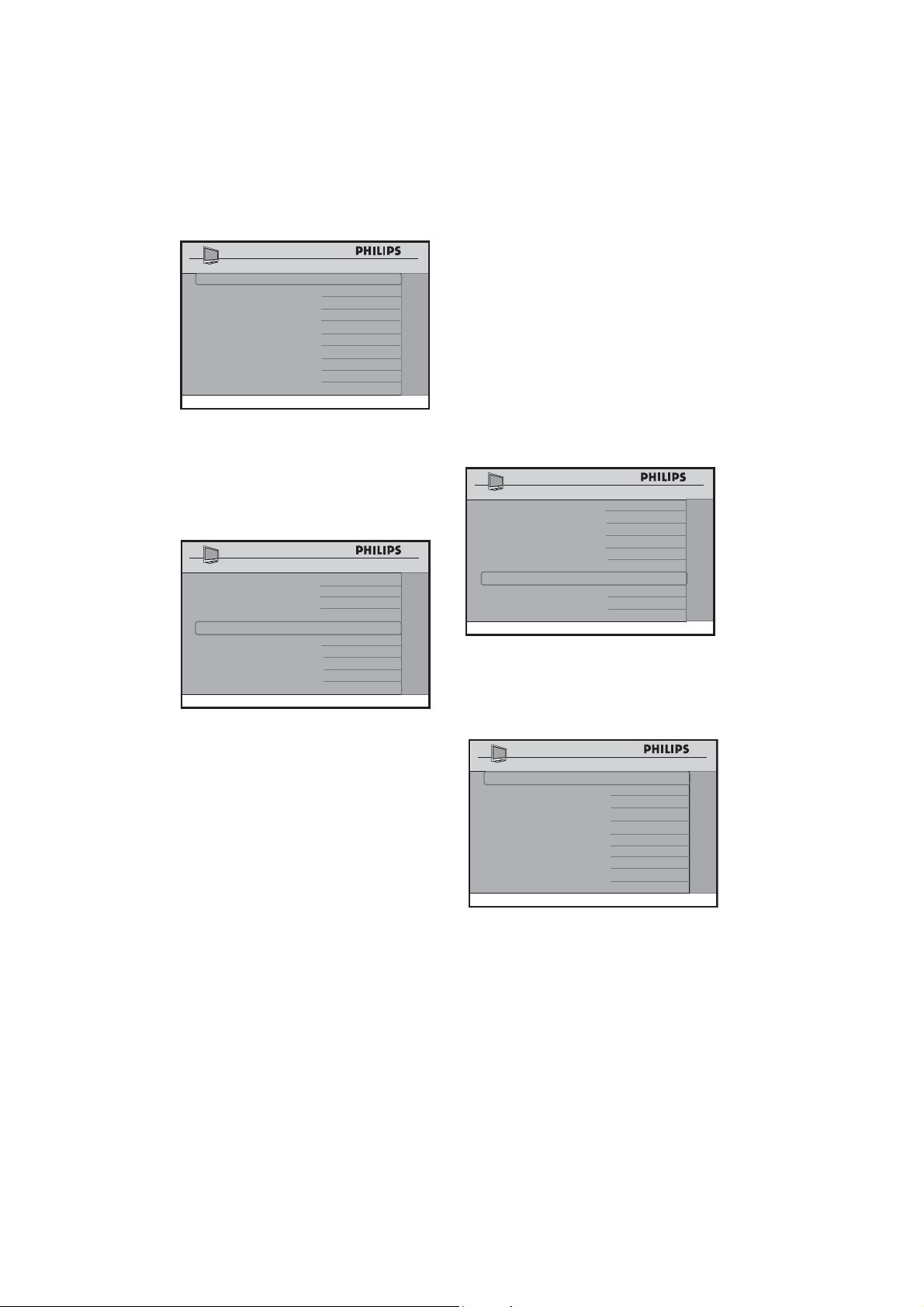
34
SOURCE RF
DIRECTION
DOWNLOAD
SW TYPE
ALL
START
>
CABLE TUNING
YES
RF CHANNEL NUMBER
2
SW DOWNLOAD
In the • CABLE TUNING option,. If
YES is selected, Channels 1 to 135
are available for selection at the RF
CHANNEL NUMBER option. If NO
is selected, only Channels 2 to 69 are
available for selection.
CHANNEL INSTALL
SETUP
LANGUAGE ENGLISH
COMMUNICATION >
CHANNEL INSTALL
>
AUTO INSTALL TV >
CABLE TUNING YES
USE CHANNEL TABLE NO
CURRENT RING
RING1
DIGITAL SETUP
>
CONFIGURATION >
In the • SW TYPE option, select the type
of software or cloning information to
be downloaded. The types of software
available are:
ALL•
SSB NVM•
SSB FIRMWARE • (only download)
STANDBY FIRMWARE • (only
download)
IBOARD NVM•
IBOARD FIRMWARE • (only
download)
Press • Æ to start. The TV will start to
perform the SW download. Upon
successful downloading, the TV will shut
down and re-start automatically.
Confi guring the CC (Closed Caption) /
V-CHIP options and settings
The CC / V-CHIP menu allows you to
select and configure the settings and options
for:
SAVE CC•
CC•
SAVED V-CHIP•
V-CHIP MENU ITEM•
V-CHIP SETUP•
CHANNEL INSTALL
CONFIGURATION
SWITCH ON / OSD >
PICTURE / SOUND
>
SECURITY >
CONTROL >
VIDEO ADJUSTMENTS
>
FEATURES >
CC / V-CHIP >
AMBILIGHT >
• The SAVE CC option allows the TV to
remain in whatever CC mode the last
guest selected, rather than returning
to the default setting you specify in the
next step.
SAVE CC YES
CC OFF
SAVED V - CHIP
NO
V - CHIP MENU ITEM NO
V - CHIP SETUP >
CHANNEL INSTALL
CC / V - CHIP
•
OFF• is the default CC mode. As long
as SAVE CC is set to NO the TV will
always power up with CC in the mode
specified here. The options are ON,
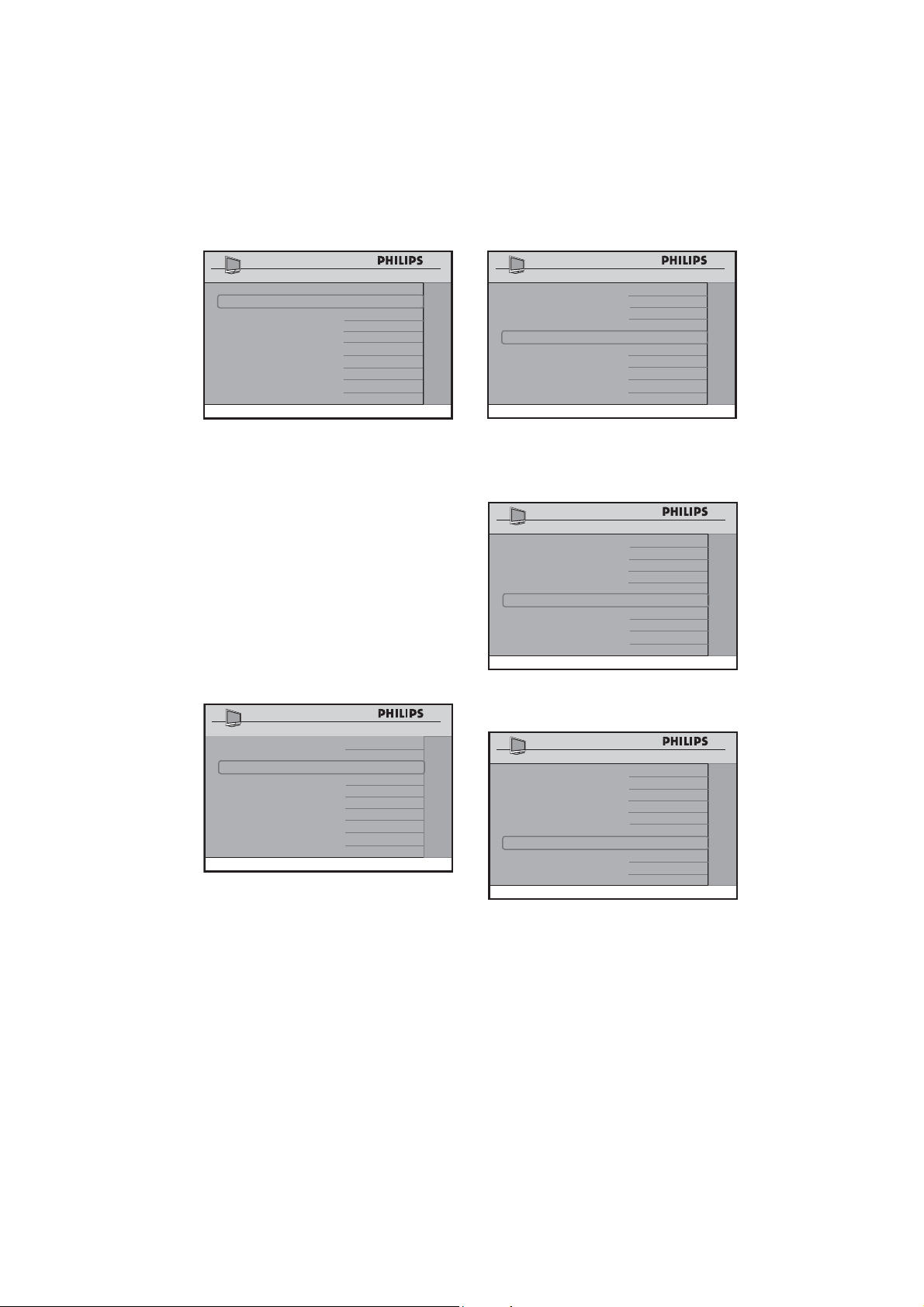
35
OFF and ON MUTE.
SAVE CC YES
CC ON
DIGITAL CC MODE CS1
ANALOG CC MODE
CC1
SAVED V - CHIP NO
V - CHIP MENU ITEM NO
V - CHIP SETUP >
CHANNEL INSTALL
CC / V - CHIP
Note: D CC MODE only appears when
CC is ON
The • DIGITAL CC MODE option
allows you to set your digital CC
options from CS1 to CS6. In the
ANALOG CC MODE option, it
allows you to set your analog CC
options from CC 1 to CC 4 and TXT
1 to TXT 4.
Note: D If Digital CC option that was
selected is not available in the current
digital channel, the TV will switch to
Analog CC mode.
SAVE CC YES
CC ON
DIGITAL CC MODE CS1
ANALOG CC MODE CC1
SAVED V - CHIP
NO
V - CHIP MENU ITEM NO
V - CHIP SETUP >
CHANNEL INSTALL
CC / V - CHIP
Go to the • SAVED V-CHIP option and
select YES to allow the guest to save all
the V-CHIP settings.
SAVE CC YES
CC ON
DIGITAL CC MODE CS1
ANALOG CC MODE
CC1
SAVED V - CHIP YES
V - CHIP MENU ITEM
NO
V - CHIP SETUP >
CC / V - CHIP
In the • V-CHIP MENU ITEM option,
select YES to allow the guest to change
all the V-CHIP settings.
SAVE CC YES
CC ON
DIGITAL CC MODE CS1
ANALOG CC MODE CC1
SAVED V - CHIP YES
V - CHIP MENU ITEM YES
V - CHIP SETUP >
CHANNEL INSTALL
CC / V - CHIP
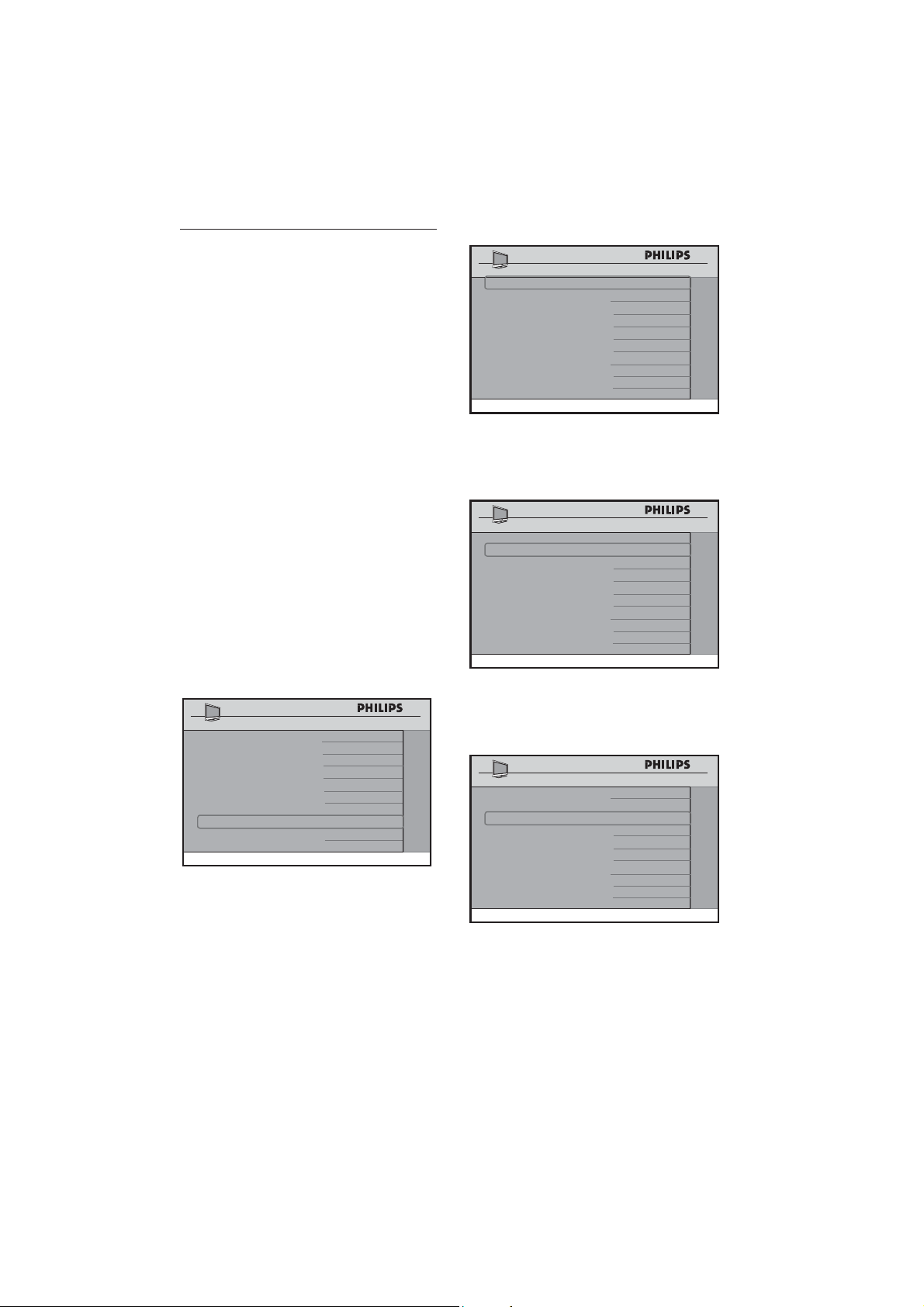
In the V-CHIP SETUP option, proceed
by pressing Æ to change the V-CHIP
settings
SAVE CC YES
CC ON
DIGITAL CC MODE CS1
ANALOG CC MODE CC1
SAVED V - CHIP YES
V - CHIP MENU ITEM YES
V - CHIP SETUP >
CC / V - CHIP
36
10.10 Change Ambilight settings
Note: D This feature is only available for
certain models.
This section describes how to adjust your
Ambilight settings.
Confi gure Ambilight
The AMBILIGHT menu allows you
to select and configure the settings and
options for:
AMBILIGHT•
BRIGHTNESS•
MODE•
COLOR•
CUSTOM COLOR•
SEPARATION•
COLOR BOOST•
BALANCE•
Press 1. Æ to enter the AMBILIGHT
menu.
CHANNEL INSTALL
CONFIGURATION
SWITCH ON / OSD >
PICTURE / SOUND
>
SECURITY >
CONTROL >
VIDEO
ADJUSTMENTS >
FEATURES >
CC / V-CHIP
>
>
AMBILIGHT
Press 2. Æ to turn amblight ON.
AMBILIGHT ON
BRIGHTNESS
50
MODE
MODERATE
SEPARATION MED
MED
COLOR BOOST
0
BALANCE
AMBILIGHT
The • BRIGHTNESS option allows you
to change the brightness of the ambilight.
Press Í Æ to make these adjustments.
AMBILIGHT ON
BRIGHTNESS
50
MODE
MODERATE
SEPARATION MED
MED
COLOR BOOST
0
BALANCE
AMBILIGHT
In the • MODE option, select between
COLOR, RELAXED, MODERATE,
DYNAMIC.
AMBILIGHT ON
BRIGHTNESS
50
MODE
MODERATE
SEPARATION MED
MED
COLOR BOOST
0
BALANCE
AMBILIGHT
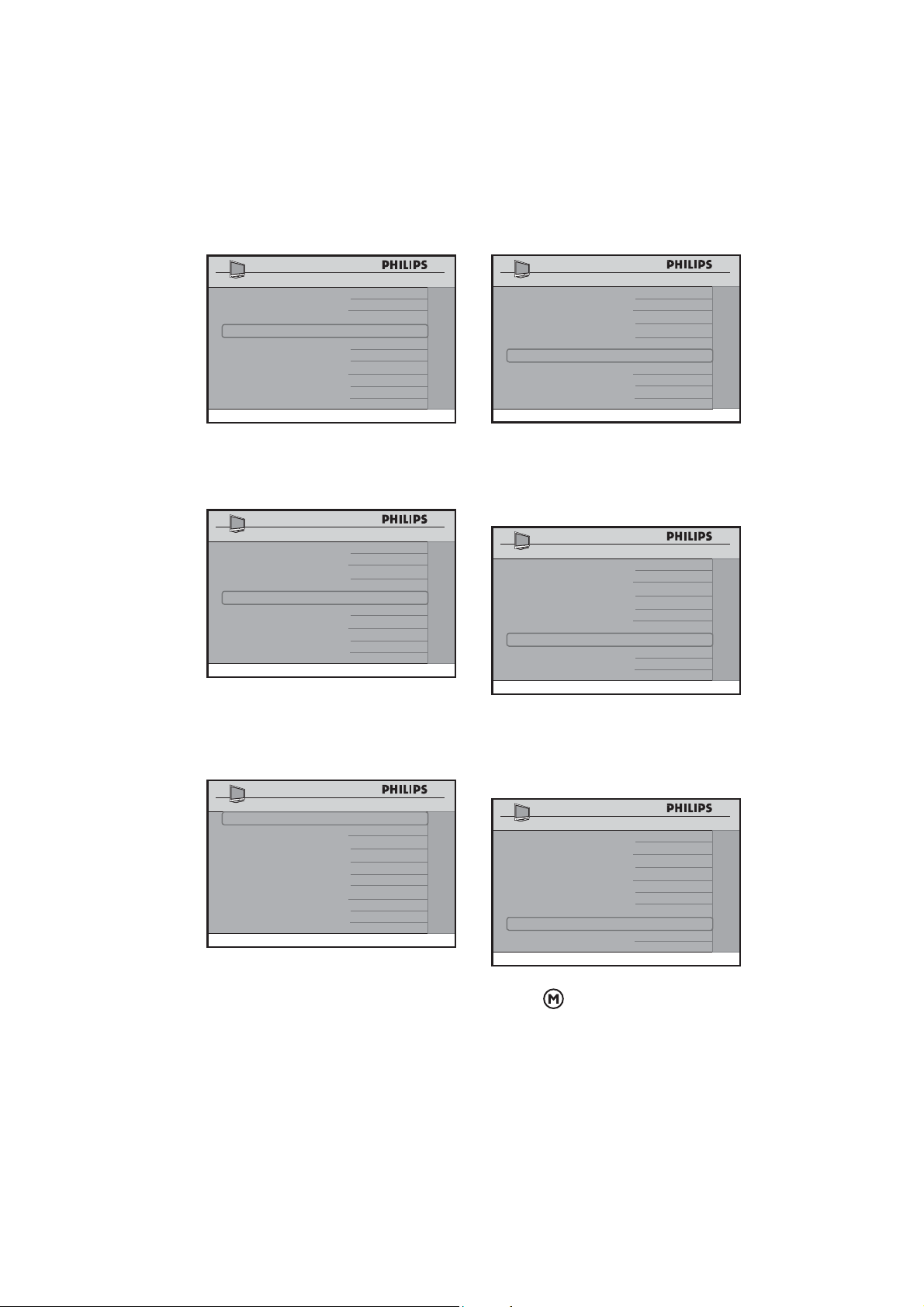
If • COLOR is selected, a new menu item,
COLOR, appears. Choose from COOL
WHITE, WARM WHITE, BLUE and
37
CUSTOM.
AMBILIGHT ON
BRIGHTNESS
50
MODE
COLOR
SEPARATION MED
MED
COLOR BOOST
0
BALANCE
COLOR
COOL WHITE
AMBILIGHT
If • CUSTOM is selected, a new menu
item, CUSTOM COLOR, appears.
Press Æ to enter the sub menu.
AMBILIGHT ON
BRIGHTNESS
50
MODE
COLOR
SEPARATION MED
MED
COLOR BOOST
0
BALANCE
COLOR
CUSTOM
CUSTOM COLOR
>
AMBILIGHT
The • PALETTE option allows you to
choose your color. The SATURATION
option allows you to select the strength
of the color.
PALETTE BLUE
SATURATION
80
CUSTOM COLOR
The • SEPARATION option allows
you to select the maximum amount of
seperation between colors. Select from
LOW, MED and HIGH.
AMBILIGHT ON
BRIGHTNESS
50
MODE
COLOR
SEPARATION MED
MED
COLOR BOOST
0
BALANCE
COLOR
CUSTOM
CUSTOM COLOR
>
AMBILIGHT
The • COLOR BOOST option allows to
configure the amount of color boosting
to be present. Choose from LOW,
MED and HIGH.
AMBILIGHT ON
BRIGHTNESS
50
MODE
COLOR
SEPARATION MED
MED
COLOR BOOST
0
BALANCE
COLOR
CUSTOM
CUSTOM COLOR
>
AMBILIGHT
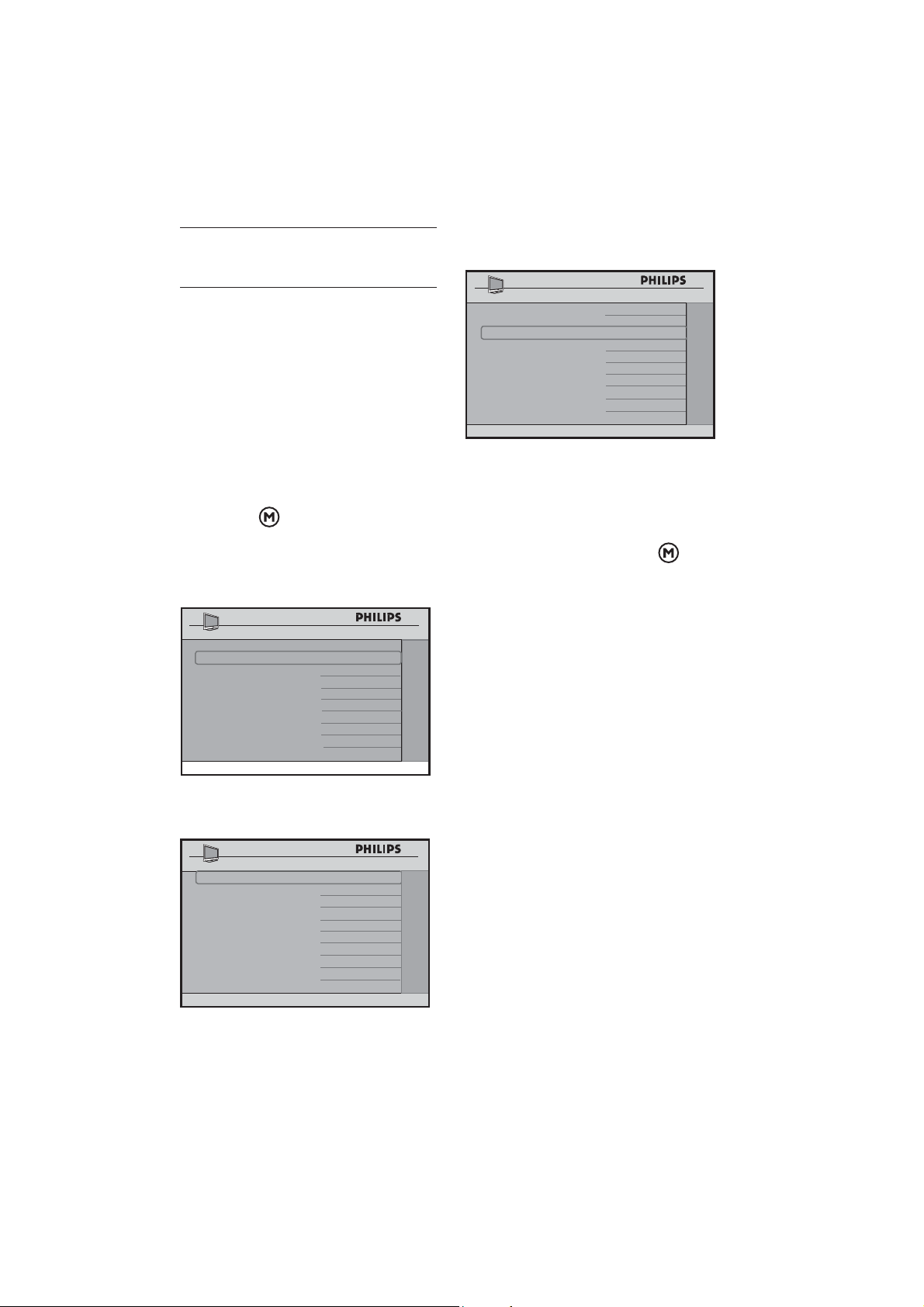
The • BALANCE option allows you to
change the balance between the left and
right ambilight bar. 0 is the the default
and recommended option.
AMBILIGHT ON
BRIGHTNESS
50
MODE
COLOR
SEPARATION MED
MED
COLOR BOOST
0
BALANCE
COLOR
CUSTOM
CUSTOM COLOR
>
AMBILIGHT
Press• to exit.
38
Appendix A11.
Support for multiple remote
controls
Programming the Multi Remote
Controls function
Multi RC function supports up to four
TV sets operating in one room without
any interference from each other remote
controls. Each Guest Remote Control must
be programmed individually to one of the
four color (Blue, Yellow, Green and Red)
buttons on the remote control.
Press the1.
button on the green
remote control (RC2573GR) to activate
the TV SETUP Menu.
Press 2. ï to select
COMMUNICATION.
SETUP
LANGUAGE ENGLISH
COMMUNICATION >
CHANNEL INSTALL
>
AUTO INSTALL TV >
CABLE TUNING NO
USE CHANNEL TABLE NO
CURRENT RING RING1
DIGITAL SETUP >
CONFIGURATION >
Press 3. Æ to enter the
COMMUNICATION menu.
COMMUNICATION
COMMUNICATION MULTI RC
STORE >
REMOTE CONTROL BL
UE
Press 4. Æ repeatedly until MULTI RC is
selected.
Press 5. ï to select REMOTE
CONTROL.
COMMUNICATION
COMMUNICATION MULTI RC
STORE >
REMOTE CONTROL YELLOW
Press 6. Æ repeatedly to toggle through the
four colors and select your preferred
color.
Press 7. Î to select STORE and press Æ
to store your selection. Press
to exit
menu.
Using the Guest Remote Control, 8.
press MENU and any color key
simultaneously to set the remote
control to the corresponding color that
you have selected in the REMOTE
CONTROL option. If BLUE is
selected on the REMOTE CONTROL
option, correspondingly, you must select
BLUE on the Guest Remote Control.
You can now use the Guest Remote
Control to operate the TV set.
To check whether you have programmed 9.
the MULTI RC function correctly, aim
the Guest Remote Control at the TV
and press OK for five seconds.
Information of the Remote Battery,
Remote Color and the TV Color are
shown on the screen. If the Remote
Color and the TV Color do not match,
you need to re-programme and ensure
they match to enable the Guest Remote
Control to operate the TV.
39
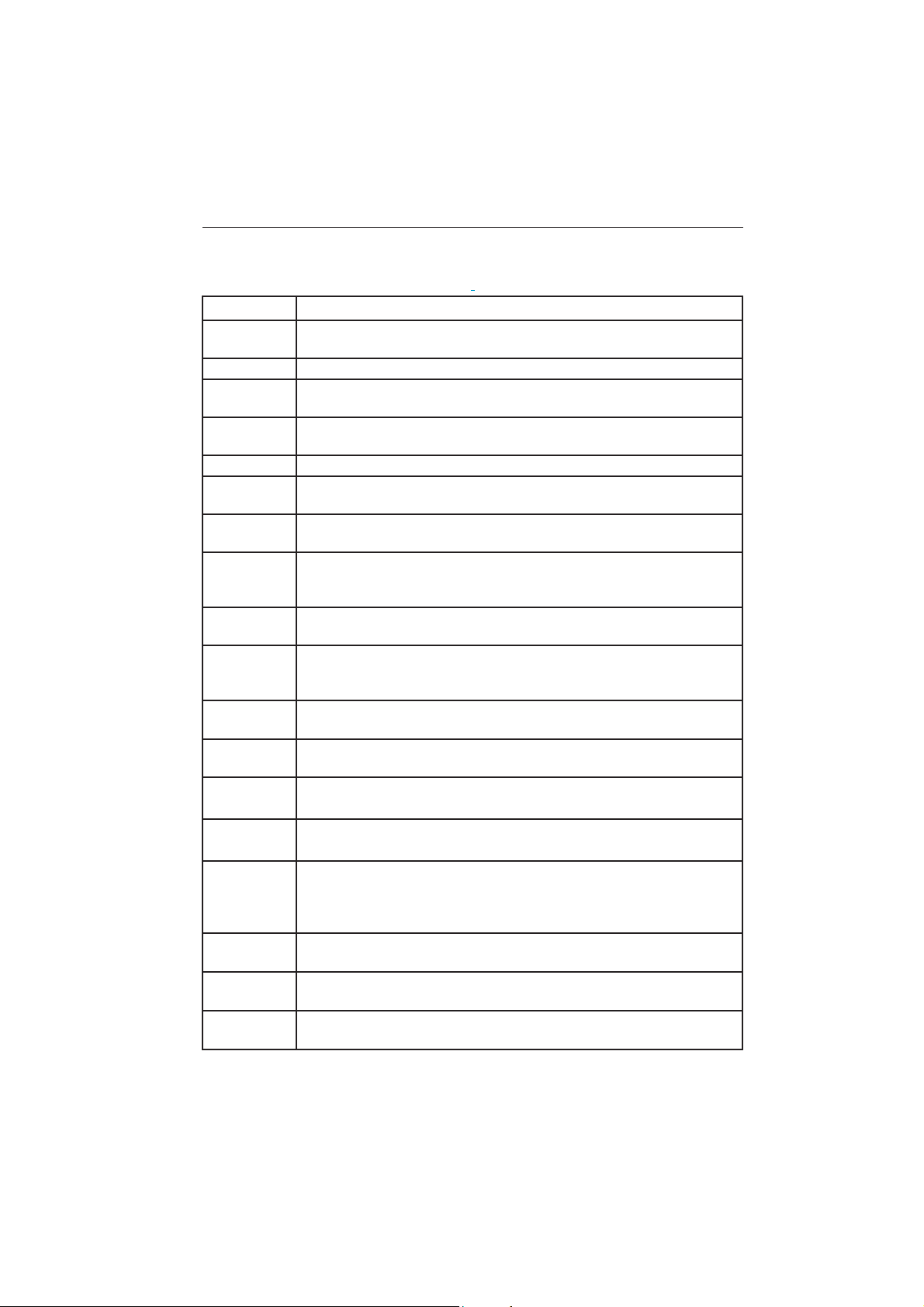
12. Definitions, acronyms and abbreviations
A/V Audio / video.
Bit Rate Sometimes written “bitrate”, the frequency at which bits are passing a given (physical
or metaphorical) “point”, quantified in terms of bits per second (bit/s).
CVI Component video input. Sometimes used interchangeably with “YPbPr”.
CVBS Composite Video Broadcast Standard. Video signal containing combined color,
luminance, and synchronization signals. Also often referred to as “AUX” video.
DB-9 Standardized 9-pin connector, typically used for RS-232 asynchronous serial
communications.
DB-15 Standardized 15-pin connector, typically used for VGA / computer display signals.
DCM Data Communications Module. PCS terminology for devices that communicate with
Philips Commercial Solutions products by means of the Philips SmartPort protocol.
DFU Directions For Use. Philips Consumer Electronics term for product instruction
documentation.
DHCP Dynamic Host Configuration Protocol. A protocol used on TCP/IP networks. Allows
client configuration (TCP/IP address, default gateway, DNS configuration, etc.) to be
sent to clients.
DNS The network service used in TCP/IP networks that translates host names to IP
addresses.
DVI Digital Visual Interface, a digital interface standard created by the Digital Display
Working Group (DDWG) to convert analog signals into digital signals to
accommodate both analog and digital monitors.
HTML Hypertext Markup Language. The set of markup symbols or codes inserted in a file
intended for display on a World Wide Web browser page.
IR Infrared, long-wavelength light energy invisible to the human eye. In this context as
applied to wireless remote controls.
MP3 A compressed digital audio format. MPEG (Motion Pictures Experts Group) Layer 3
Audio compression.
NVM Non-Volatile Memory.
MPEG Moving Picture Experts Group. General term for a range of audio and video
compression, and the name of the standards organization for digital video and digital
audio compression. Operates under the auspices of the International Organisation
for Standardization (ISO).
NA Not available, not applicable.
NC Not connected, no connection.
Off See “Stand-by”.
40
On A state of operation in which the unit (television) is connected to an AC power
source, in active use, and capable of responding to queries or commands from a
control device (IR remote control) and/or DCM.
OSD On-Screen Display. The display of alphanumeric text that appears over the video
image. Typically generated by a character generator usually integrated into the
television chassis control processor.
PCS Philips Commercial Solutions. A commercial / non-consumer division of Philips
Consumer Electronics. Co., formerly known as Philips BDS, Business Display
Solutions.
Plug Connector on a cable that connects to a plug.
PPV Pay Per View.
RC Remote control.
RC-5, RC-6 Philips IR remote control communication protocol.
RJ-12 Registered jack 12. Modular telephone-style connector form factor with 6 electrical
conductors.
Router Technically, also known as a Layer 2 Switch. A switching hub that operates at the Data
Link Layer (Layer 2), and builds a table of the MAC addresses of all the connected
stations.
RTSP Real-Time Streaming Protocol. Allows control of multimedia streams delivered, for
example, via RTP (RFC 3389, Real-time Transport Protocol Payload). Control includes
absolute positioning within the media stream, recording and possibly device control.
RTP Real-time Transport Protocol. Defines a standardized packet format for delivering
audio and video over the Internet.
Setup Mode See System 7. Remote control mode used to configure Philips Institutional Televisions
for specialized and/or restricted features such as front panel lockout, volume range,
channel list, etc..
SmartPort™ Philips proprietary three-wire synchronous serial communications and control
interface.
SmartPlug™ See SmartPort.
Socket Connector on a cable that connects to socket.
SBB Set-back box. Used interchangeably with “set-top box”. General term for a device
that adds functionality to, and / or interfaces a television with, a host content- and/or
control- environment.
41
STB Set-top box. See SBB.
Stand by Generally referred to as “off”. A state of operation, characterized by relatively low
power consumption, in which the unit (television) is connected to an AC power
source, but not in active use, and capable of responding to queries or commands
from a control device and/or DCM.
System 0 First data word of a Philips RC-5 / RC-6 remote control code for standard television
commands. Synonymous with Philips Commercial Solutions ”guest” mode.
System 7 First data word of a Philips RC-5 / RC-6 remote control code reserved for
specialized commands. Used for Philips Commercial Solutions ”setup” mode.
TCP Transmission Control Protocol / Internet Protocol. De facto standard protocol for
Internet communications.
UDP User Datagram Protocol. A minimal message-oriented transport layer protocol that
is currently documented in IETF RFC 768. Used by Philips NetLink to issue device
discovery packets.
YPbPr Component video signals consisting of luminance, and blue and red components.

42
13. USA limited warranty
Thank you for purchasing this PHILIPS branded Commercial Television.
All Philips branded commercial televisions are designed and manufactured
to high standards and deliver high-quality performance. Within the first
year of purchase, this two-year Limited Warranty may entitle you to
receive an “Advance Exchange*” model on-site within 72 hours of
qualification. Within the second year of purchase, this two-year Limited
Warranty may entitle you to receive an “Advance Exchange*” model
on-site delivered via Ground Transportation.
Philips’ Commercial Television
For more information on this and more great Philips products visit our web site at:
HTTP://WWW.PHILIPS.COM/HOSPITALITY
Philips F1rst Choice Limited Warranty
One Year 72 hour Advance Exchange* / Two Years Advance Exchange*
WHO IS COVERED?
The original purchaser for end use. You must have a sales receipt or other document showing
that you purchased the Product. Please retain and store your Proof of Purchase securely.
WHAT IS COVERED?
Defects in materials and workmanship if a valid claim is received by Philips within the Warranty
Period. When the warranty on the purchased product expires, the warranty on all exchanged
products (including their parts and service labor) also expires.
WHAT IS THE PERIOD OF COVERAGE?
Two (2) years. For two (2) years from the date of purchase, as evidenced by your proof of
purchase, Philips will provide an “Advance Exchange” subject to the terms and conditions
herein.

43
WHAT WE WILL DO TO CORRECT PROBLEMS?
*For the first year, the defective Product will be exchanged with a new Product (or one
that has been renewed to original specifications) and delivered within seventy-two hours
of qualification. During the second year, the defective product will be exchanged with one
that has been renewed to original specifications and delivered via Ground Transportation. In
the event of a failure of multiple units at the same location, Philips reserves the right at its
sole discretion to send personnel to the location to determine the cause of the failure and
determine the most efficient means of resolving the failure.
WHAT IS EXCLUDED?
unless otherwise provided for herein, shipping charges to return defective products to •
Philips.
unless shipped by Philips, damage to or loss of product during shipment.•
labor charges for installation or setup of the product, adjustment of customer controls on •
the product, and installation or repair of antenna systems outside of the product.
product repair and/or part replacement because of accident, misuse, unauthorized repair •
or other cause not within the control of Philips.
reception problems caused by signal conditions or PPV, cable, or antenna systems outside •
the unit. o modifications or adaptations to enable a product to operate in any country
other than the country for which it was designed, manufactured, approved
and/or authorized, or repair of products damaged by such modifications or adaptations.•
modifications or adaptations to enable a product to operate with any PPV system •
other than the PPV systems for which it was designed, manufactured, approved, and/or
authorized, or repair of products damaged by such modifications.
CONSEQUENTIAL, INCIDENTAL, INDIRECT OR SPECIAL DAMAGES RESULTING •
FROM THE PRODUCT, INCLUDING BUT NOT LIMITED TO DAMAGES FOR LOST
DATA, LOST SOFTWARE, OR LOSS OF USE OF THE PRODUCT. (Some states do not
allow the exclusion of such damages, so the above exclusion may not apply to you. This
provision also excludes such damages for prerecorded material, whether copyrighted or
not copyrighted, among all other potential claims.)
products on which the model, production or serial number has been altered, deleted, •
removed or made illegible.
product sold AS IS or Renewed.•

44
HOW TO GET WARRANTY SERVICE IN U.S.A., PUERTO RICO OR U.S.
VIRGIN ISLANDS? OR WHERE CAN I GET MORE INFORMATION?
Before requesting service, please check your owner’s manual as adjustments of the controls
discussed there may save you a service call. Also, please prepare the following details so we
can solve your problem quickly.
Philips type number•
Philips serial number•
Purchase date (copy of receipt of purchase may be required)•
Pay Per View Provider (if any)•
High Definition signals offered at property (if any)•
Your proof of purchase indicating: date of purchase, dealer name, model and product serial •
number.
The full address to which the swap model should be delivered.•
Then, contact Philips Commercial Solutions Customer Care Center at: (866) 497-4225
(IN U.S.A., PUERTO RICO AND U.S. VIRGIN ISLANDS, ALL IMPLIED
WARRANTIES, INCLUDING IMPLIED WARRANTIES OF MERCHANTABILITY
AND FITNESS FOR A PARTICULAR PURPOSE, ARE LIMITED IN DURATION
TO THE DURATION OF THIS EXPRESS WARRANTY. But, because some states do
not allow limitations on how long an implied warranty may last, this limitation may not apply
to you.)
This Limited Warranty gives you specific legal rights. You may have other rights which vary
from state to state.
WARRANTY SERVICE IN CANADA: While this warranty statement is not valid
for Canadian purchases, you may be eligible for warranty service. Please contact
Philips Canada at: (888) 292-3430

45
Just a phone call away
Philips’ customer help desks are located worldwide. Within the U.S. you can contact Philips
Customer Care Monday-Friday from 8:00 AM-9:00 PM Eastern Time (ET) and on Saturdays
from 10:00 AM-5:00 PM ET by using the USA contact phone number listed above.
To avoid possible shock hazard, please be sure that the television is unplugged from the •
electrical outlet before cleaning.
Do not touch the screen with anything hard as this scratch, mark or damage the screen •
permanently.
Do not rub with dust clothes with chemical treatment.•
Do not touch the surface with bare hands or greasy cloth (some cosmetics are •
detrimental to the screen).
Unplug the TV before cleaning the screen.•
When the surface becomes dusty, wipe gently with absorbent cotton or other soft •
materials like chamois soaks. Do not use acetone, toluene and alcohol cleaners because
they cause chemical damage.
Do not use liquid or aerosol cleaners. •
Wipe off saliva or water droplets as soon as possible. Long time contact with the screen •
causes deformations and color fading.
This Philips Institutional Television product and its packaging contain materials that can be •
recycled and
re-used. Specialized companies can recycle your product to increase the amount of
reusable materials and minimize the amounts which need to be properly disposed.
This product might also use batteries which should not be thrown away when depleted, •
but should be handed in and disposed of as small chemical waste.
Please find out about the local regulations regarding the disposal of the television, batteries, •
and packaging materials whenever you replace existing equipment.
This product consumes energy in the stand-by mode. Energy consumption contributes to •
air and water pollution. It is advisable to switch off your television overnight instead of
leaving it in stand-by mode.

46
14. Cleaning and care
Do not touch the screen with anything •
hard as this may scratch, mark or
damage the screen permanently.
Do not rub with dust clothes containing •
chemical treatment.
Do not touch the surface with bare •
hands or a greasy cloth (some cosmetics
are harmful to the screen).
Unplug the TV before cleaning the •
screen.
When the surface becomes dusty, wipe •
gently with absorbent cotton or other
soft materials like chamois soaks. Do
not use acetone, toluene and alcohol
cleaners because they cause chemical
damage.
Do not use liquid or aerosol cleaners. •
Wipe off saliva or water droplets as •
soon as possible. Long time contact with
the screen causes deformations and
color fading.
15. Environmental care
This Philips Institutional Television •
product and its packaging contain
materials that can be recycled and
re-used. Specialized companies can
recycle your product to increase the
amount of reusable materials and
minimize the amounts which need to be
properly disposed.
This product might also use batteries •
which should not be thrown away when
depleted, but should be handed in and
disposed of as small chemical waste.
Please find out about the local •
regulations regarding the disposal of
the television, batteries, and packaging
materials whenever you replace existing
equipment.
This product consumes energy in the •
stand-by mode. Energy consumption
contributes to air and water pollution. It
is advisable to switch off your television
overnight instead of leaving it in stand-by
mode.

47
Index16.
A
Accessing Setup Menu 15
Ambilight
Adjust settings 37
Change mode 37
Color 37
Modes 37
Analog CC Mode 36
Antenna connection 9
Antenna mode 21
Audio Select 31
Automatic channel tuning 20
B
Balance, Ambilight 37
Before calling service 6
Brightness
Ambilight 37
C
Cable mode 21
CC (Closed Caption) 35
Changing channel settings 17
Channel Guide 30
Channel Install 17
Channel Logo selection 18
Channel selection 17
Cleaning and Care 46
Confi guration 25
Control options 29
Current Ring 22
D
Decryption Control 27
Default HDMI Audio 32
Defi nitions, Acronyms and Abbrevia-
tions 39
Digital Audio Language 22
Digital CC Mode 36
Digital CC Setup 23
Digital channel options 18
Digital channel scroll 19
Digital closed caption setup 23
Digital Data Firmware 34
Digital Data Flash 34
Digital major channel 18
Digital minor channel 18
Digital NVM 34
Digital setup 22
Digit timeout 29
E
Emergency alert 24
Environmental Care 46
ESP (Energy Saving Programmabil-
ity) 29
F
Factory Channel Reset 22

48
Features 31
G
Guest Remote Control keys 13
I
Iboard FIRMWARE 34
Iboard NVM 34
Important Safety Instructions 3
K
Keyboard Lock 27
L
Loud Speaker Mute 32
Low Power Standby 32
M
Mains connection 9
Maximum volume 30
Minimum volume 30
MPEG Program number 18
Multi Remote Controls 38
N
Naming a channel 19
O
Optional Remote Controls 12
Overview of TV Connectors and
Controls 10
P
Physical Channel 21
Picture Format 26
R
Remote Control Lock 27
RF Channel Number 18
RF Download 33
S
Safety Information and Useful Tips 5
Security 26
Selecting Input Source 17
Selecting Mute Source 20
Smartpower 31
Smart RC 17
Smart Sound Key 31
Software Type 33, 35
Source Menu Item 30
Switching on the TV 9
Switch On/ OSD 25
T
Three Digit Entry 30

49
U
U.S.A. Limited Warranty 42
Use Channel Table 18
V
V-Chip Menu Item 36
V-Chip Setup 36
Video Adjustment 30
Virtual Channel 21

50
Dolby Digital17.
Manufactured under license from Dolby
Laboratories. ‘Dolby’ and the double-D
symbol are trademarks of Dolby
Laboratories.
Kensington Security 18.
Slot
(if present)
Your TV is equipped with a Kensington
Security Slot, to prevent it from getting
stolen. An anti-theft Kensington lock has to
be purchased separately. The Kensington
lock is a plastic-coated steel cable with a
lock. One end has to be fixed to the opening
of the TV and locked with a special key. The
other end is attached to a fixed point.
® Kensington and MicroSaver are
registered US trademarks of ACCO World
Corporation with issued registrations and
pending applications in other countries
throughout the world. All other registered
and unregistered trademarks are the
property of their respective owners.