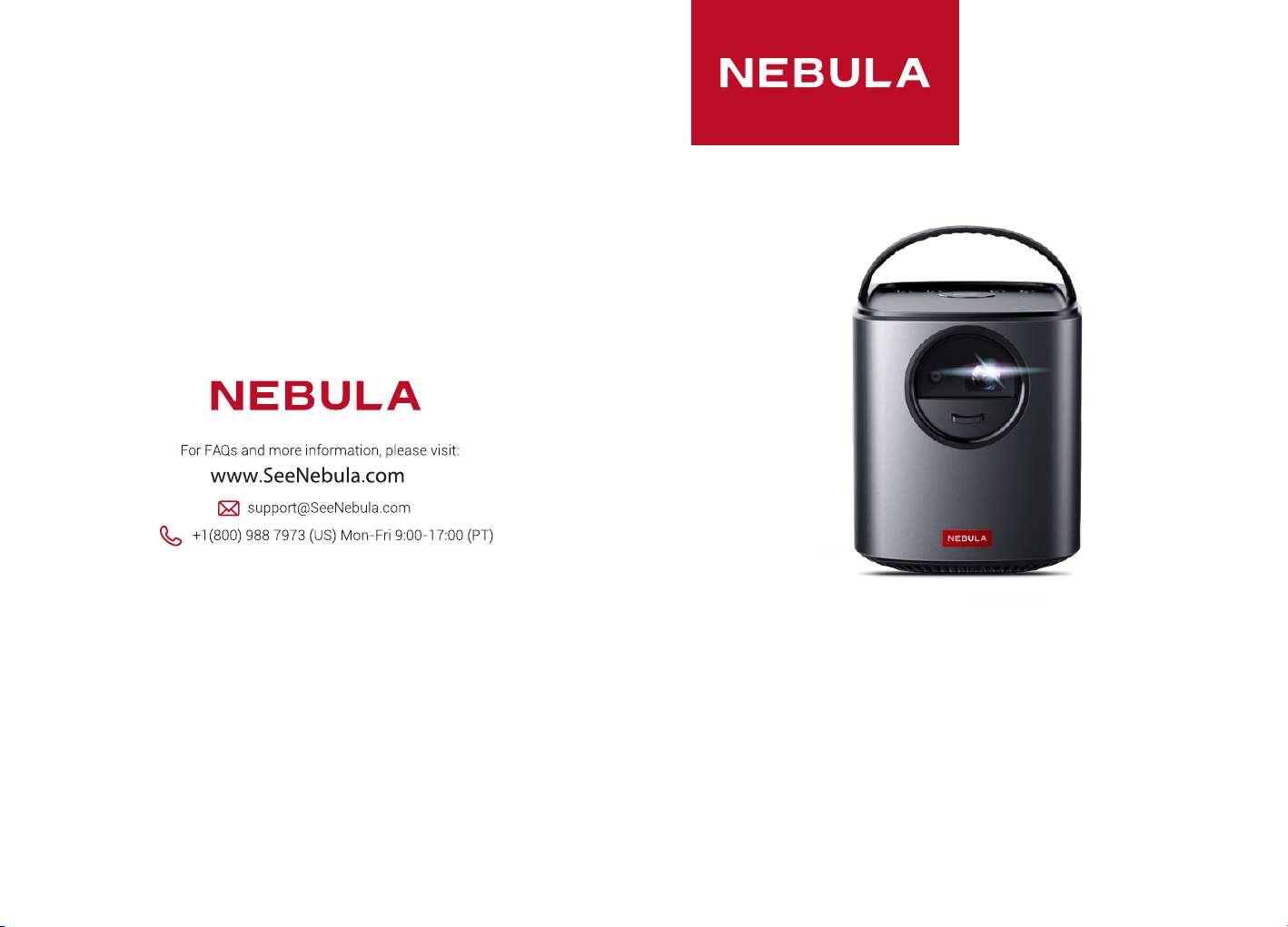
Owner’s Manual
Mars II
5100500XXXX V01
Model:
D2322
©Anker Innovations Limited. All rights reserved.
NEBULA and the NEBULA logo are trademarks
of Anker Innovations Limited, registered in the
United States and other countries. All other
trademarks are the property of their respective
owners.

English
01
Safety Instructions
Read and understand all instructions before you use this device. Do not
make any changes or settings that are not described in this manual.
If physical injury, loss of data or damage is caused by failure to follow
instructions, the warranty does not apply.
Setup
To reduce the risk of fire and/or electric shock, do not expose the
device to rain or moisture, and objects filled with liquids, such as
vases, should not be placed on the device.
Do not place the device on soft surfaces such as tablecloths or
carpets as doing so could be a fire-hazard.
Do not place the device in areas susceptible to excessive dust and
dirt or near any appliance generating a strong magnetic field.
To prevent overheating, do not block or clog the ventilation openings.
Never place the device in a confined space. Always leave enough
space around the device for ventilation.
Protect the device against direct sunlight, heat, large temperature
fluctuations and moisture.
When the device runs for a long period of time and the surface
becomes hot, shut it down and unplug the power cord. Resume
operation only after the device has cooled.
Always handle the device with care. Avoid touching the lens.
Never place heavy or sharp objects on the device or the power cord.
To avoid electric shock, do not disassemble.
Only use attachments or accessories specified by the manufacturer.
Avoid extreme vibration. It may damage the internal components.
Do not allow children to handle the device without supervision.
Under the following conditions, a layer of moisture can appear
inside the device which can lead to malfunctions: a) if the device is
moved from a cold to a warm area; b) after a cold room is heated; c)
when the device is placed in a damp room. To avoid any moisture,
seal the device in a plastic bag before moving it to another room,
and wait for one to two hours before you take it out of the bag.
English 01
Deutsch 21
Español 39
Français 57
Italiano 75
日本語
93
111
129
English
English
02 03
Power Supply
Use only the provided power adapter.
Power off the device before removing the power supply from the socket.
Protect the power cord from being walked on or pinched, particularly
at plugs, convenience receptacles, and the point where they exit from
this device.
Unplug this device if there are lightning storms or when unused for a
long period of time.
Where the
power
plug or an appliance coupler is used as the disconnect
device, the disconnect device shall remain readily operable.
Before you make or change any connections, ensure that all devices
are disconnected from the power outlet.
Never touch the power cable or the power connector with wet hands.
Hearing Safety
To avoid hearing damage, do not listen for extended periods at high
volume. Set the volume at a safe level.
Battery
Do not replace the built-in battery yourself. Contact an authorized
service center to replace it.
The remote control contains coin type batteries which can be
swallowed. Keep the batteries out of reach of children.
Risk of explosion! Keep batteries away from heat, direct sunlight, or
fire. Never discard batteries in fire.
When the remote control is not used for a long period of time, remove
the batteries.
There is a danger of explosion if the battery is incorrectly replaced.
Replace only with the same or equivalent type.
Batteries contain chemical substances, they should be disposed of
properly.
Charge the device regularly. Do not store the device with a
completely discharged battery.
Cleaning
Power off the device and remove it from the power supply before
cleaning the surface.
Use a soft, lint-free cloth. Never use liquid, gaseous, or easily
flammable cleansers (like sprays, abrasives, polishes, and alcohol).
Do not use any liquid cleaning agents to clean the lens as they may
damage the protective coating on the lens.
Wipe over the surfaces gently. Be careful that you do not scratch the
surfaces.
Use lens cleaning paper to clean the lens of the projector.
Repairs
Do not make any repairs to the device yourself. Only have your device
repaired by an authorized service center.
Improper maintenance can result in injuries or damage to the device.
Refer all servicing to qualified service personnel.
Class II equipment symbol
This symbol indicates that the unit has a double insulation system.
Laser Safety
CLASS 1
LASER PRODUCT
IEC 60825-1:2014. Complies with IEC 62471:2006 Risk Group 2.
Caution:
Possibly hazardous optical radiation emitted from this device.
Do not stare at operating beam. The bright light may hurt your eyes.
English
English
04 05
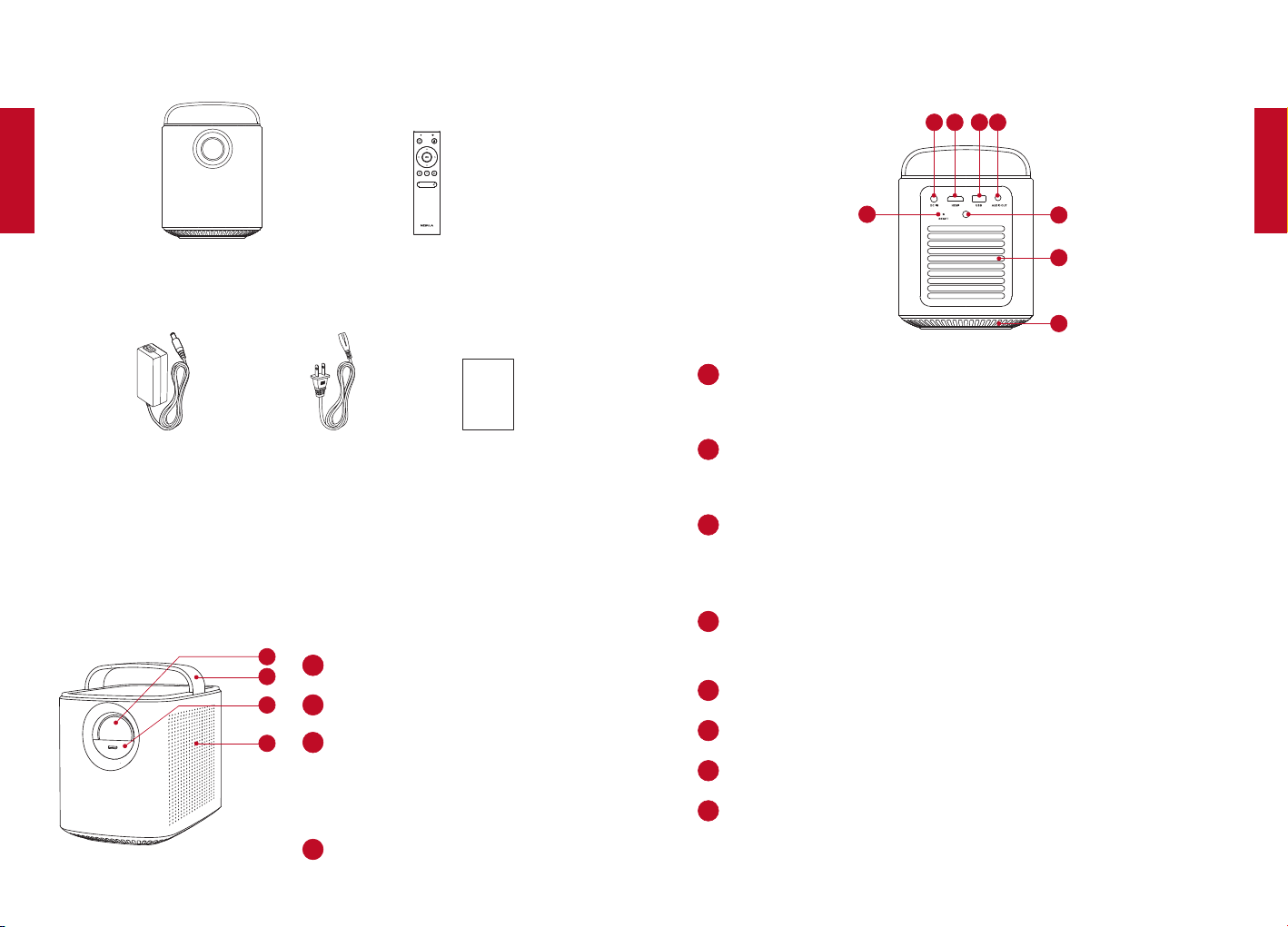
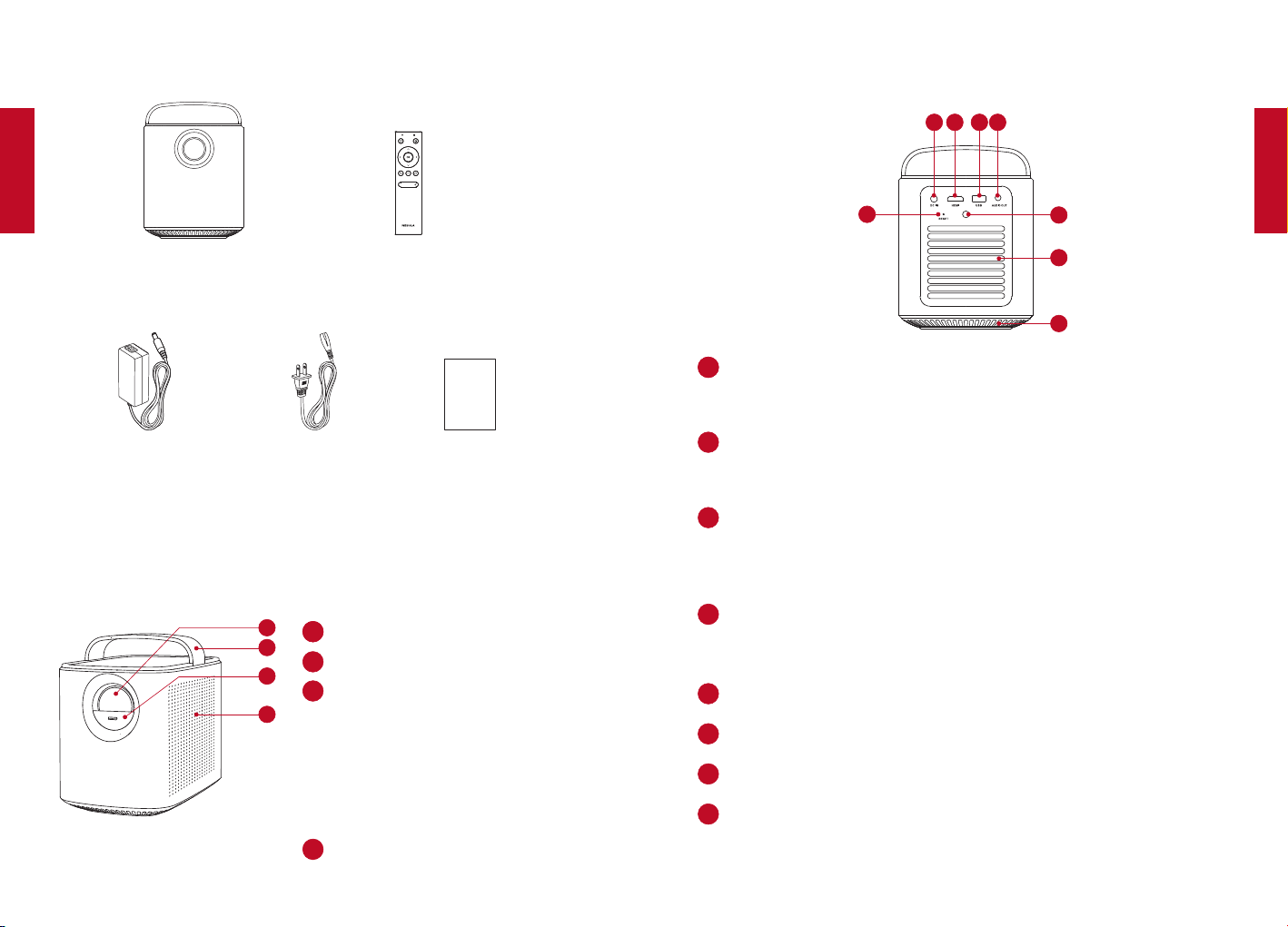
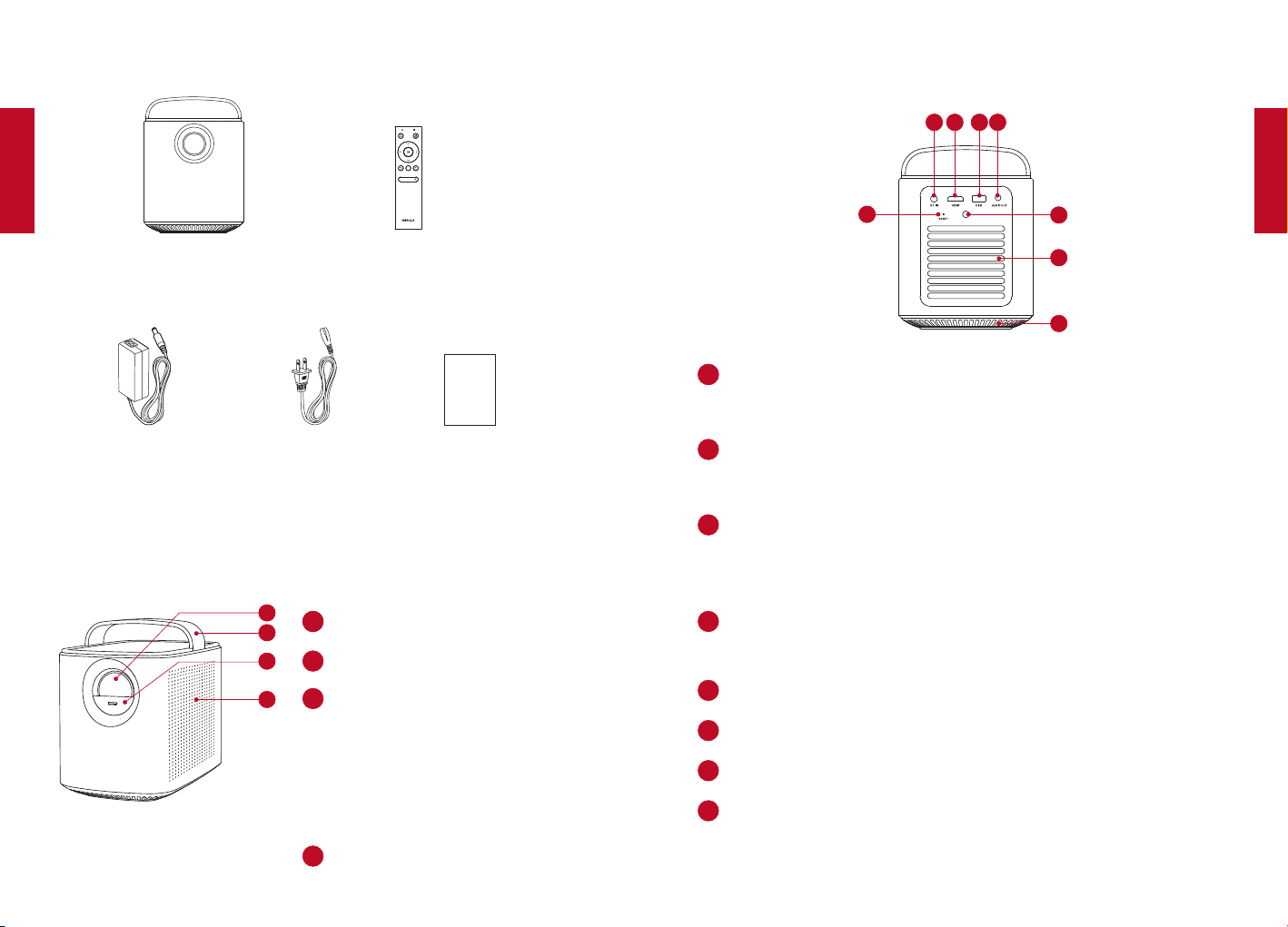
What’s Included
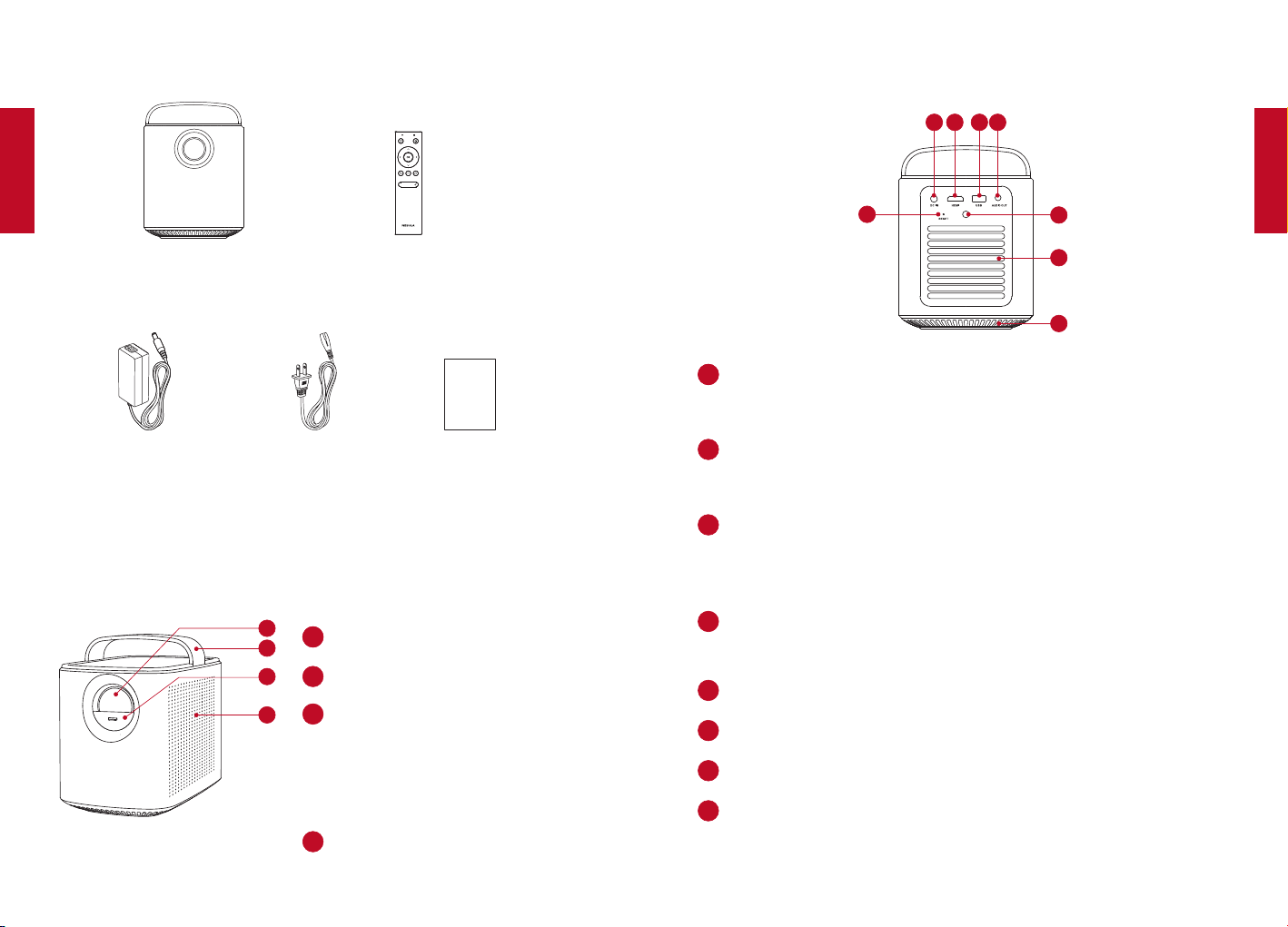
Main unit
Power Adapter Power cord
Remote control with batteries
Manual
Owner’s Manual
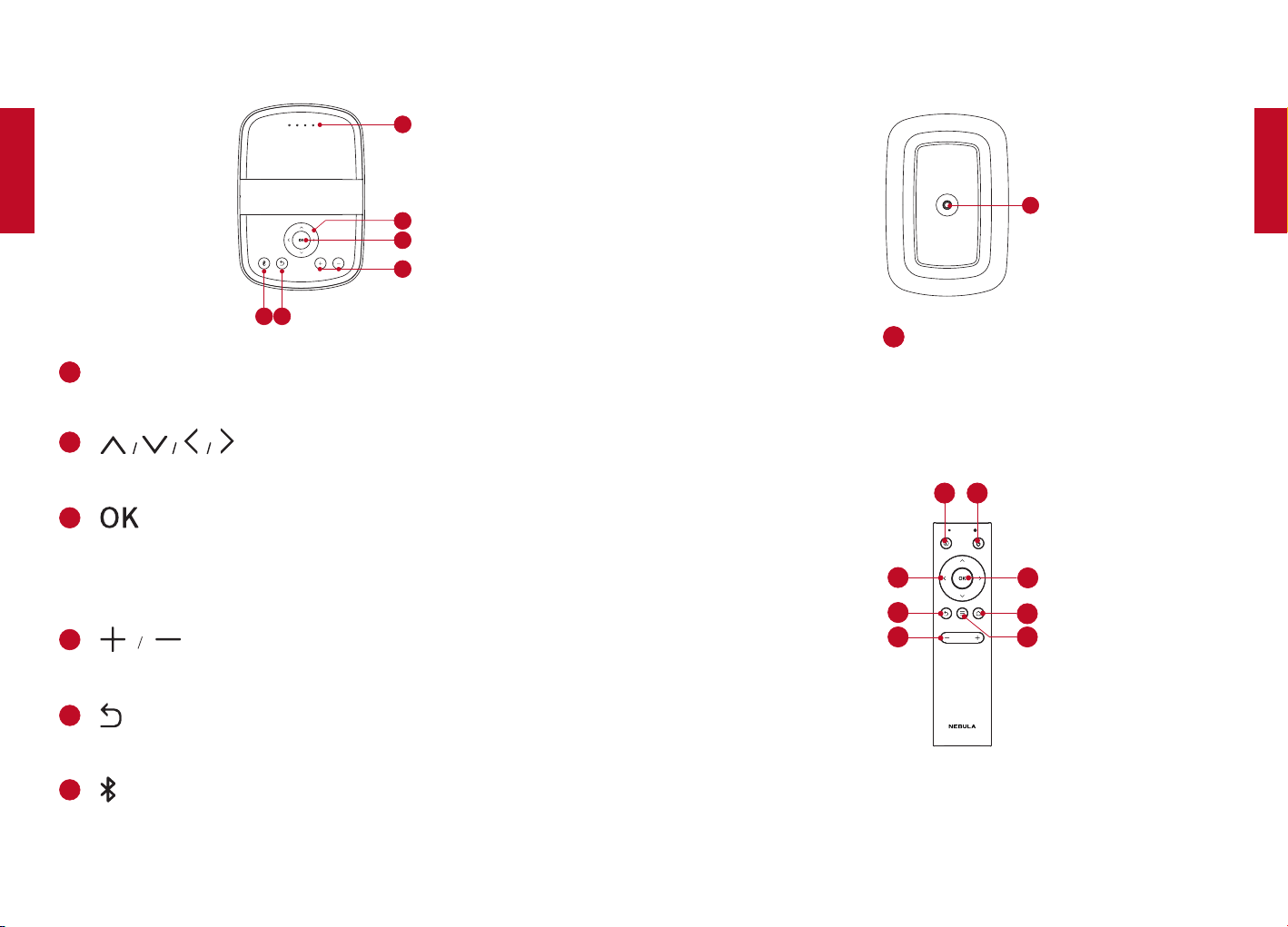
Overview
1. Front View
2
1
3
4
11
Lens
2
Handle
3
Lens cover
Slide down to power on and
automatically adjust focus
Slide up to power off
4
Loudspeaker
2. Rear View
2
1
3
4
6
5
7
8
11
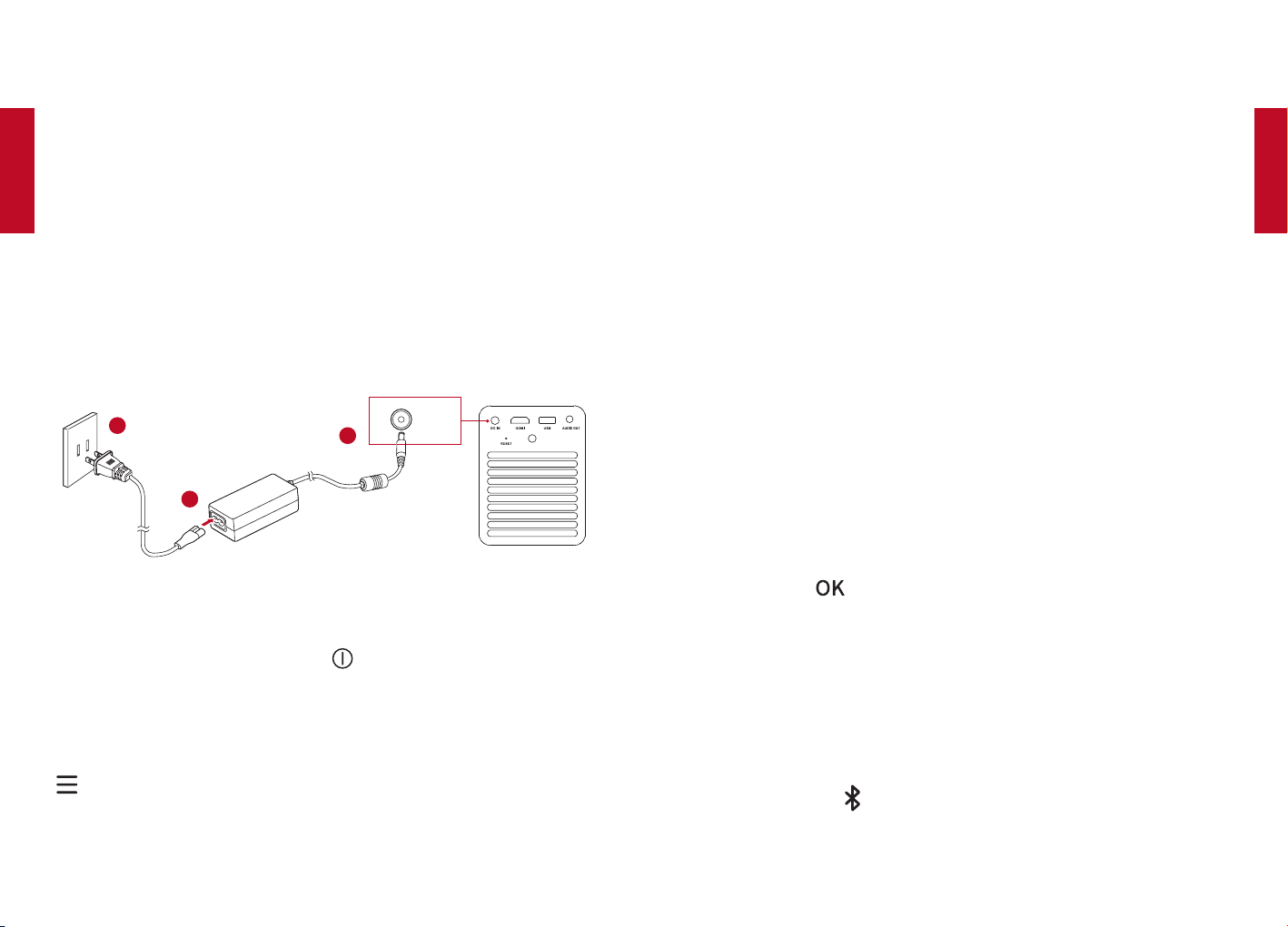
DC IN
Connect to power supply
2
HDMI
Connect to a playback device with HDMI output
3
USB
Connect to a USB storage device
Charge a USB device as a power bank
4
AUDIO OUT
Connect to a headphone or an external speaker
5
Infrared Receiver
6
Air ventilation (outlet)
7
Air ventilation (inlet)
8
RESET
Press and hold for 3 seconds to reset
English
English
06 07
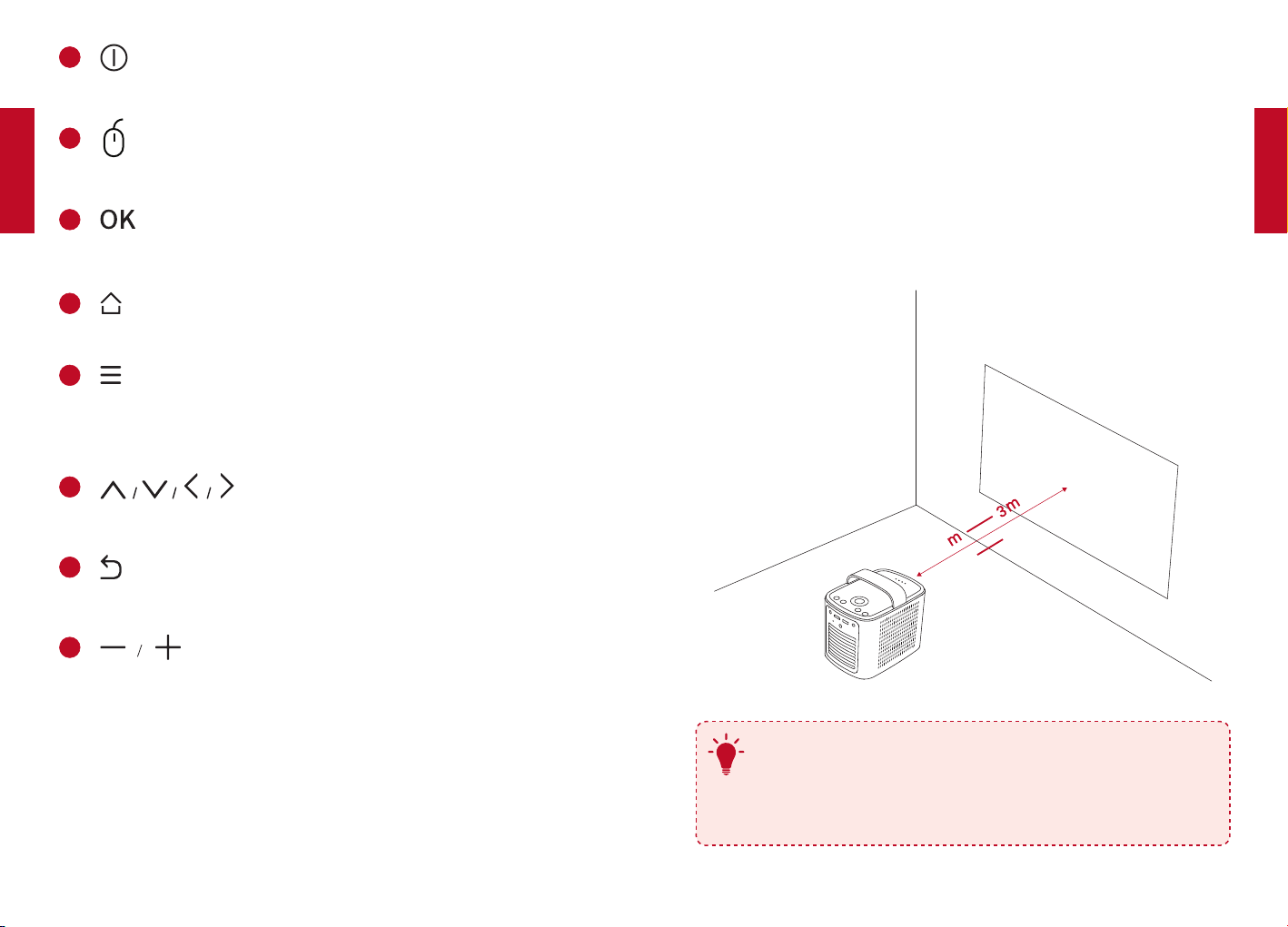
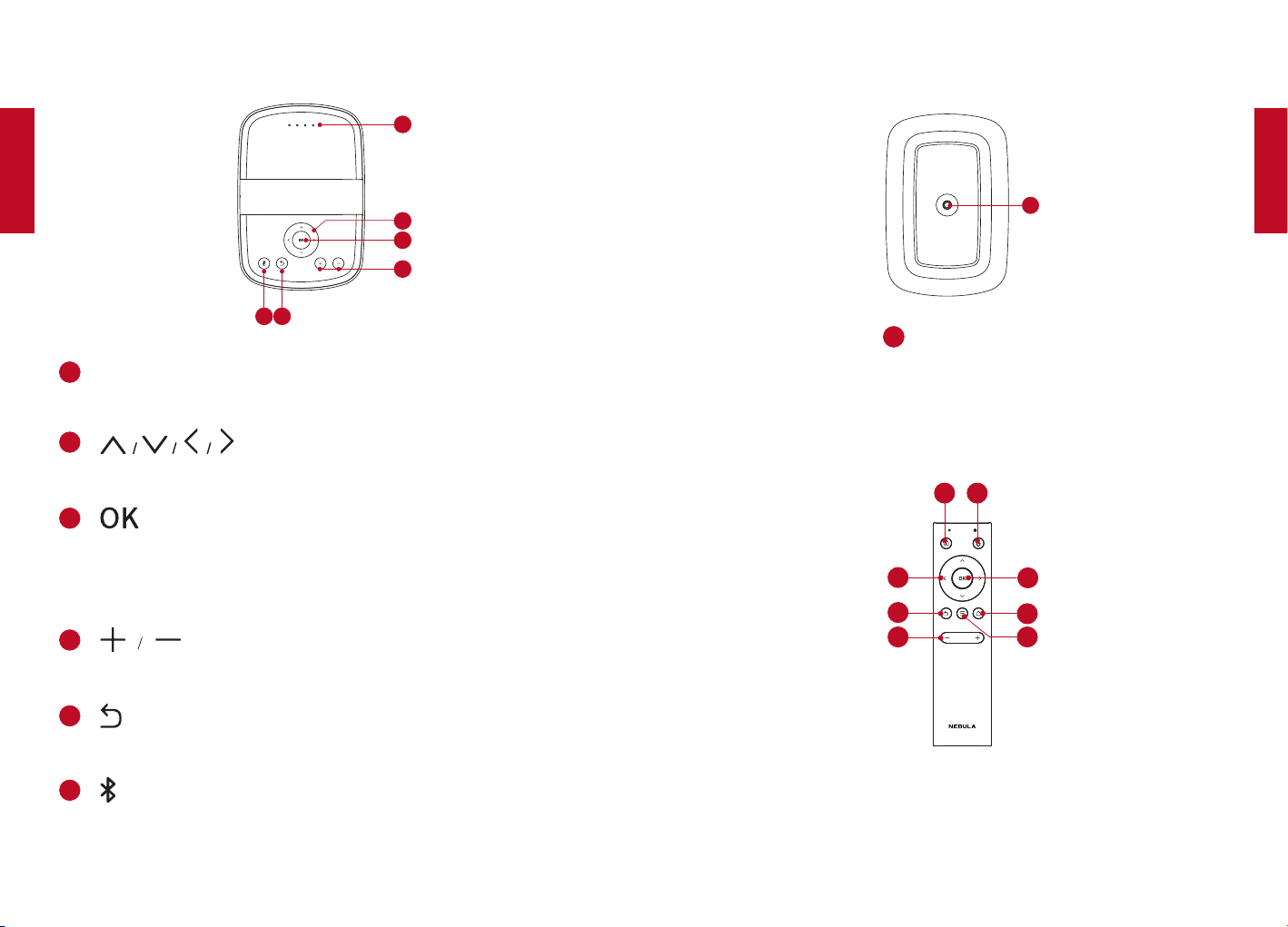
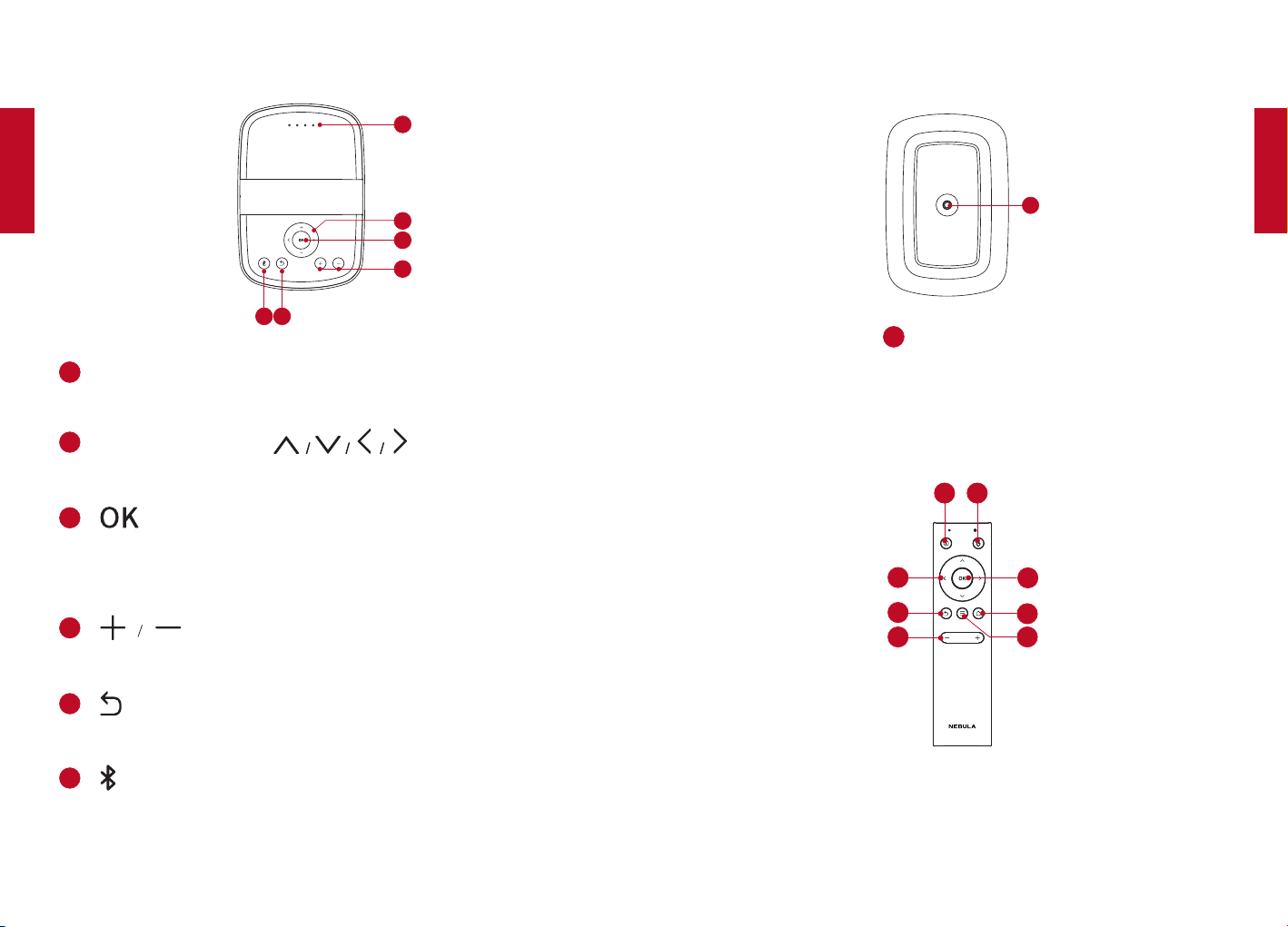
3. Top View
2
1
3
4
6
5
11
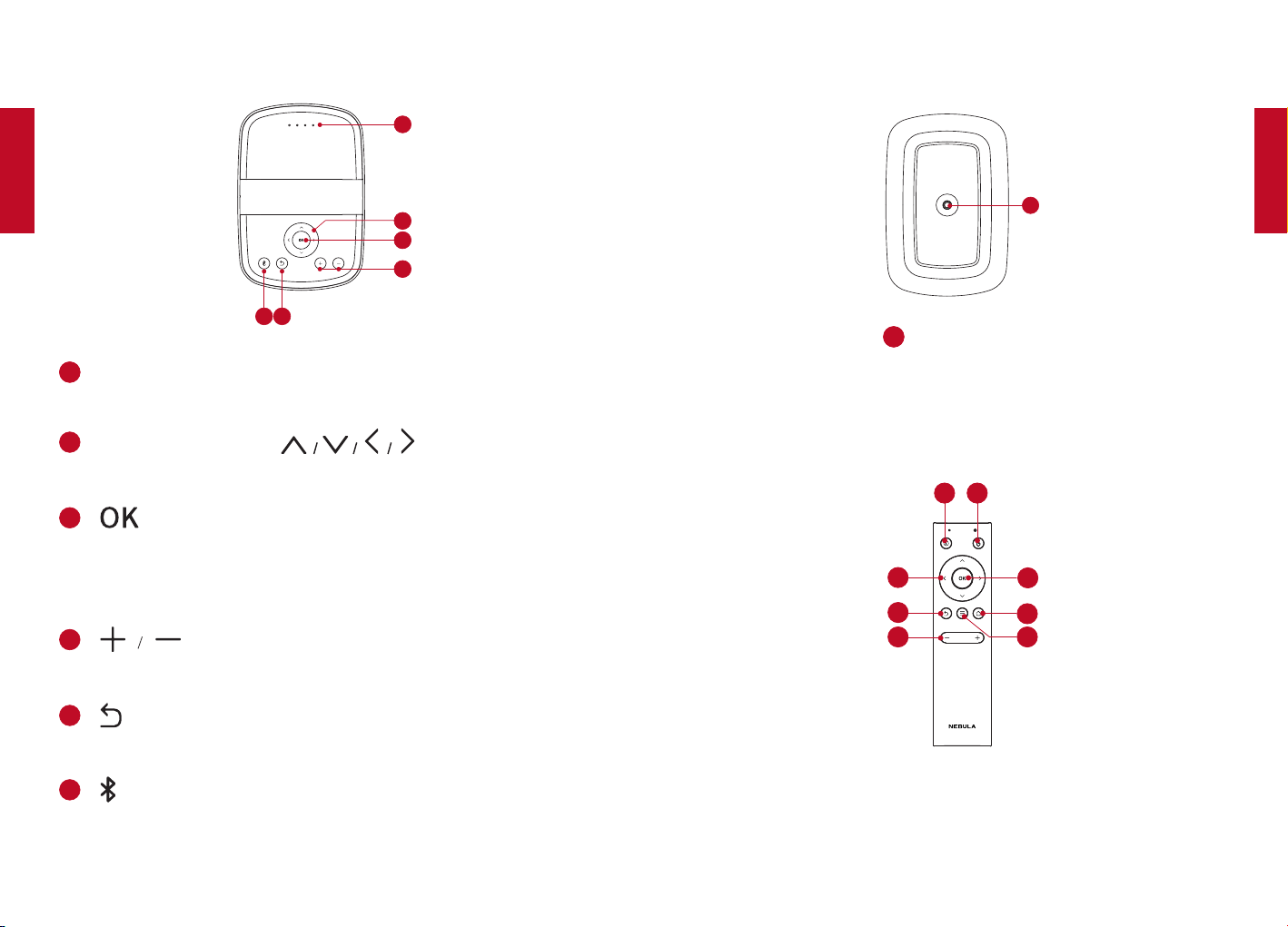
LED indicators
Power level
2
Navigation buttons
Navigate menus or adjust the selected contents
3
Press to confirm a selection or entry
Pause / resume play
4
Volume up / down
5
Return to the previous menu
6
Press to enter/exit Bluetooth mode
In standby mode, press to wake up the projector
4. Bottom View
1
11
Tripod socket
5. Remote Control
7
8
2
1
3
4
6
5
English
English
08 09
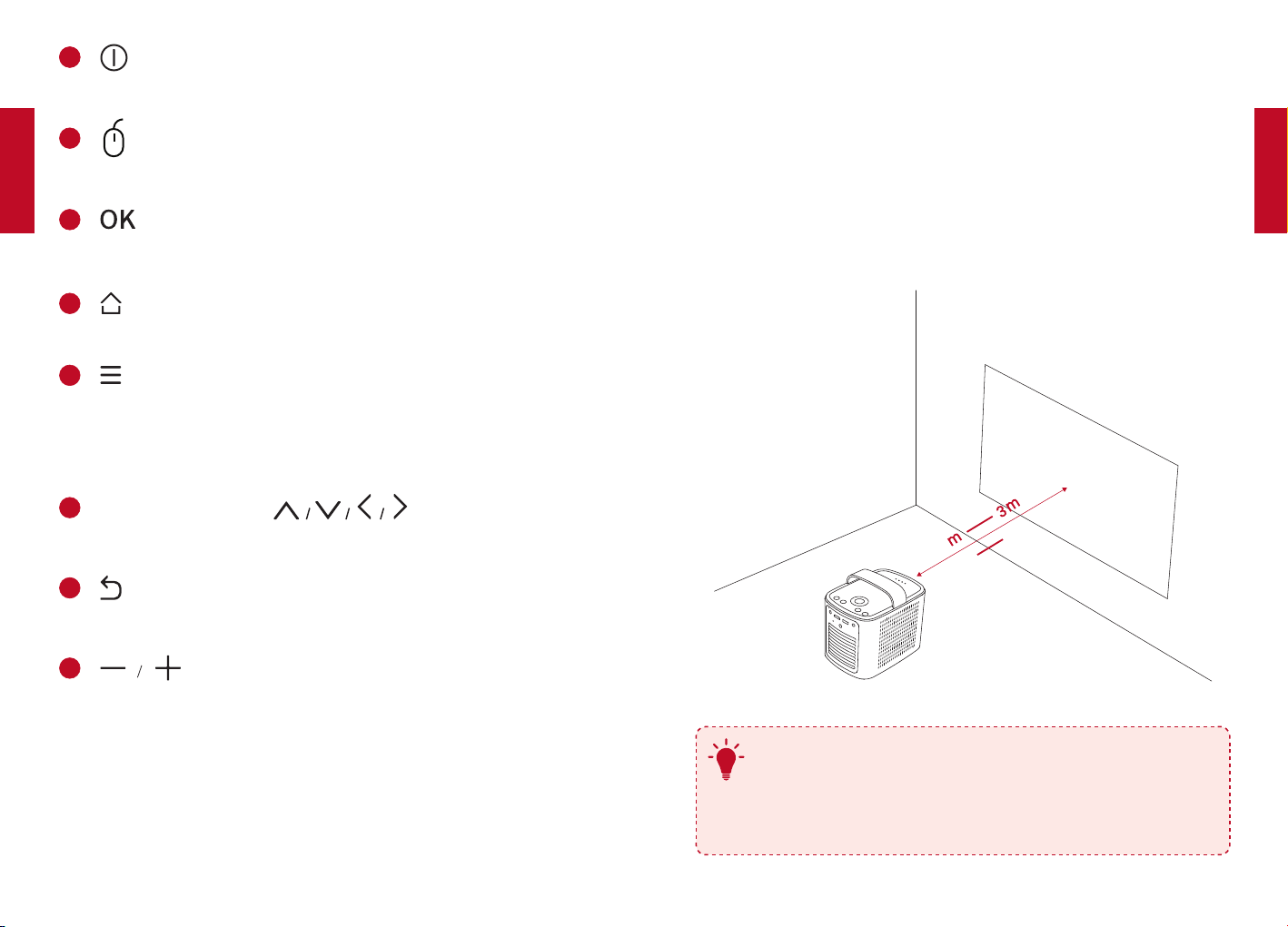
11
Power on / off / switch to standby
2
Press to enter / exit mouse key mode.
3
Press to confirm a selection or entry
Pause / resume during play
4
Press to access the home menu
5
Access more options during play (availability of options are
dependent on the source input).
Press and hold to adjust focus
6
Navigation buttons
Navigate menus or adjust the selected contents
7
Return to a previous menu
8
Volume down / up
Getting Started
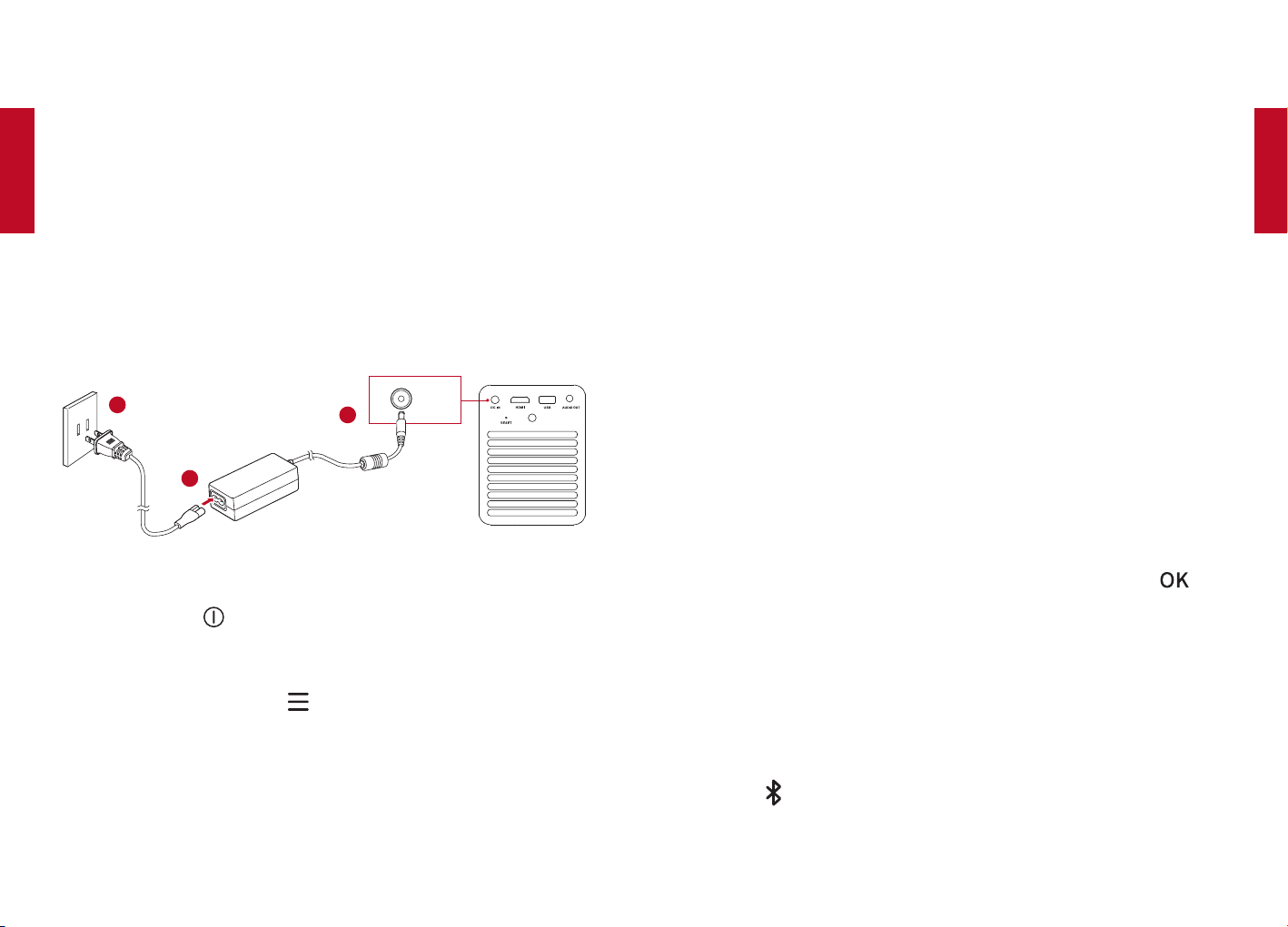
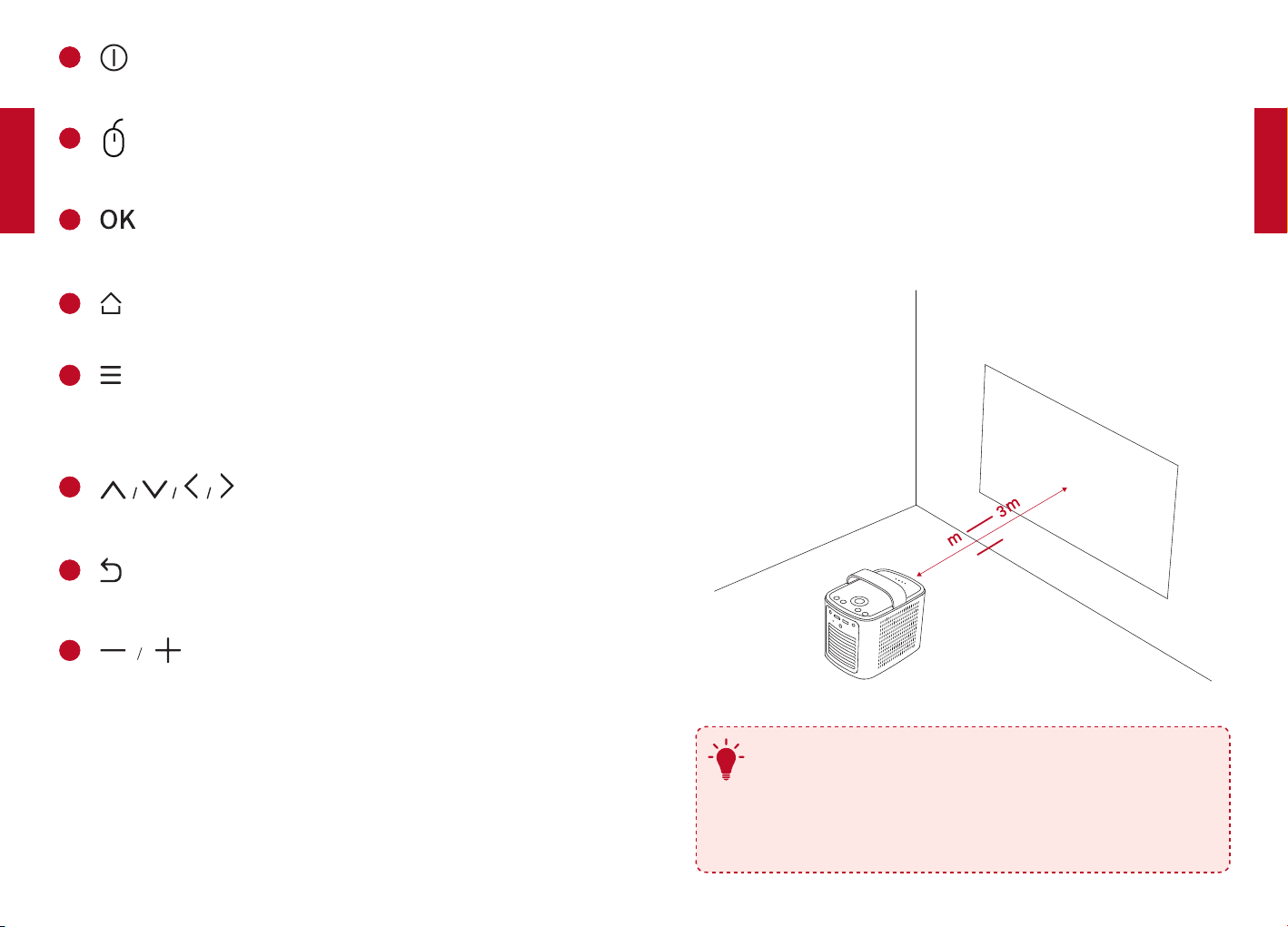
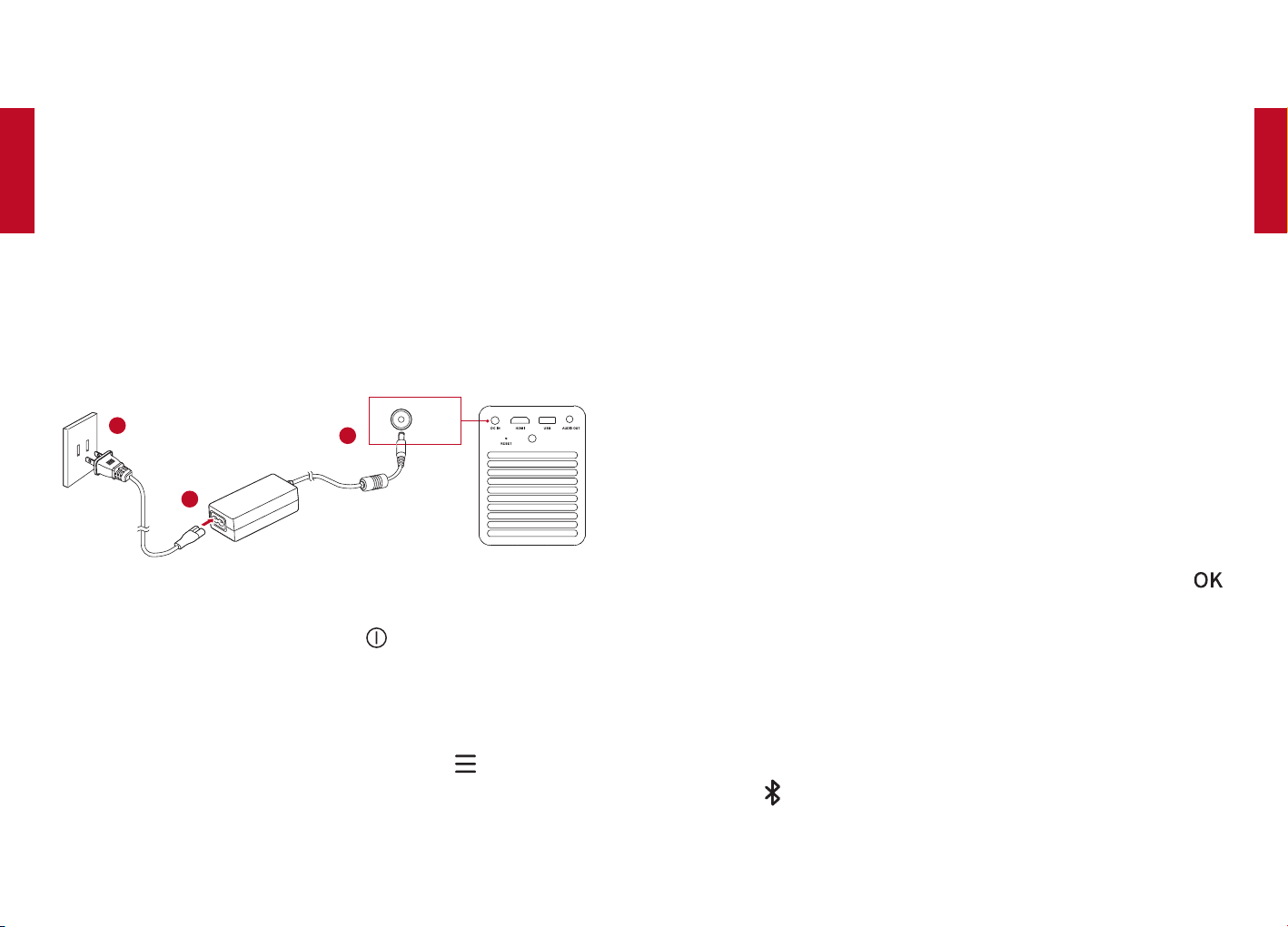
1. Placement
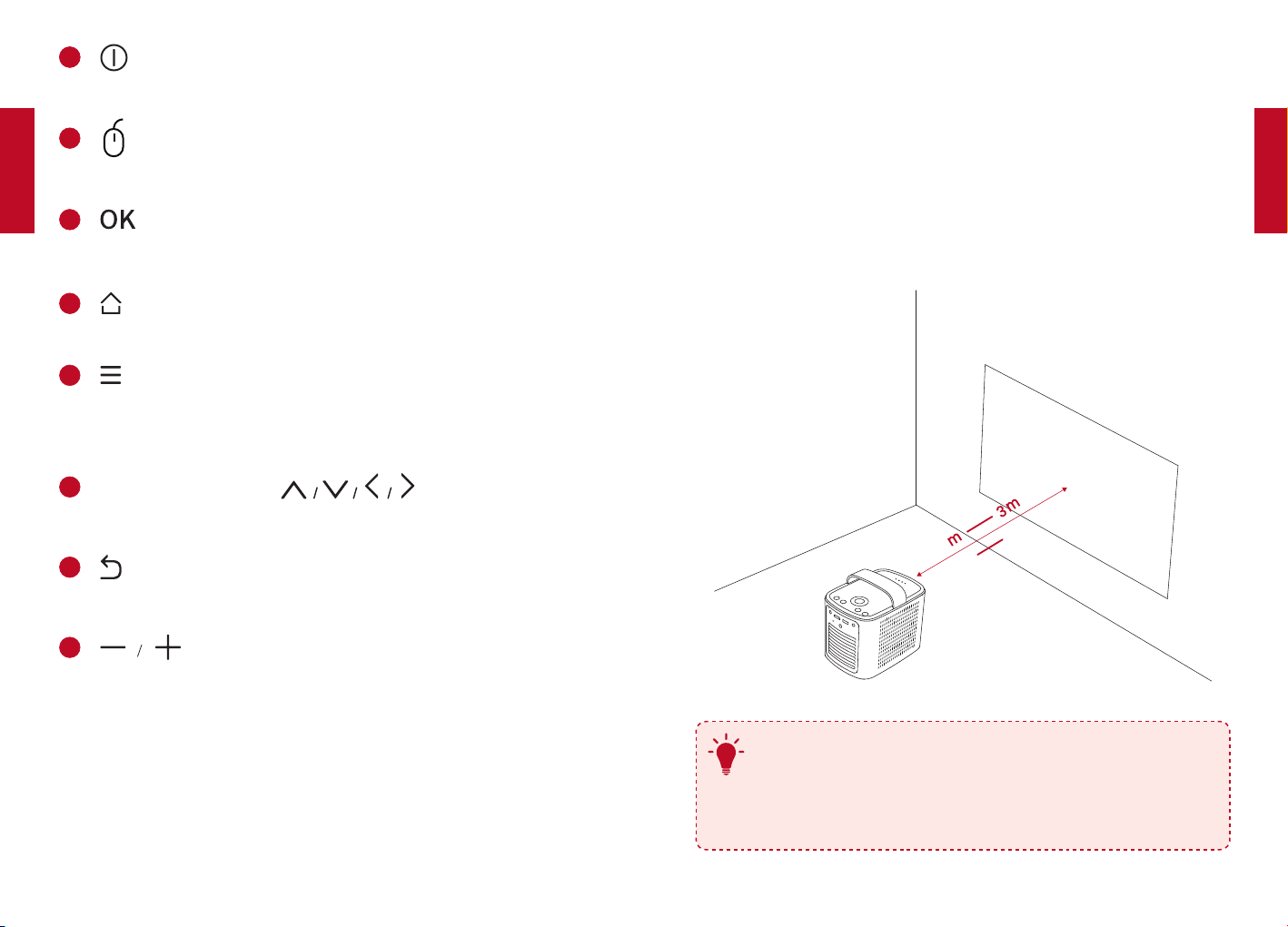
Place Mars
Ⅱ
on a stable, flat foundation in front of the projection
surface. For the best results, the projection surface should be white
and flat. The distance between the projector and the projection surface
must be a minimum of 1 meter (39.4 inches) and a maximum of 3
meters (118 inches).
39.4”
1
118”
T
It is unnecessary to tilt the projector towards the projection
surface. You can correct the projection image with the
built-in keystone correction.
The distance between the projector and the projection
surface determines the image size.
English
English
10 11
2. Prepare the Remote Control
①
For first time use, remove the plastic battery insulation tab to
activate the remote control batteries.
②
To replace the batteries, slide off the battery compartment backplate
to open the battery compartment, insert new batteries (matching the
polarity (+/-) indicated), and close the battery compartment.
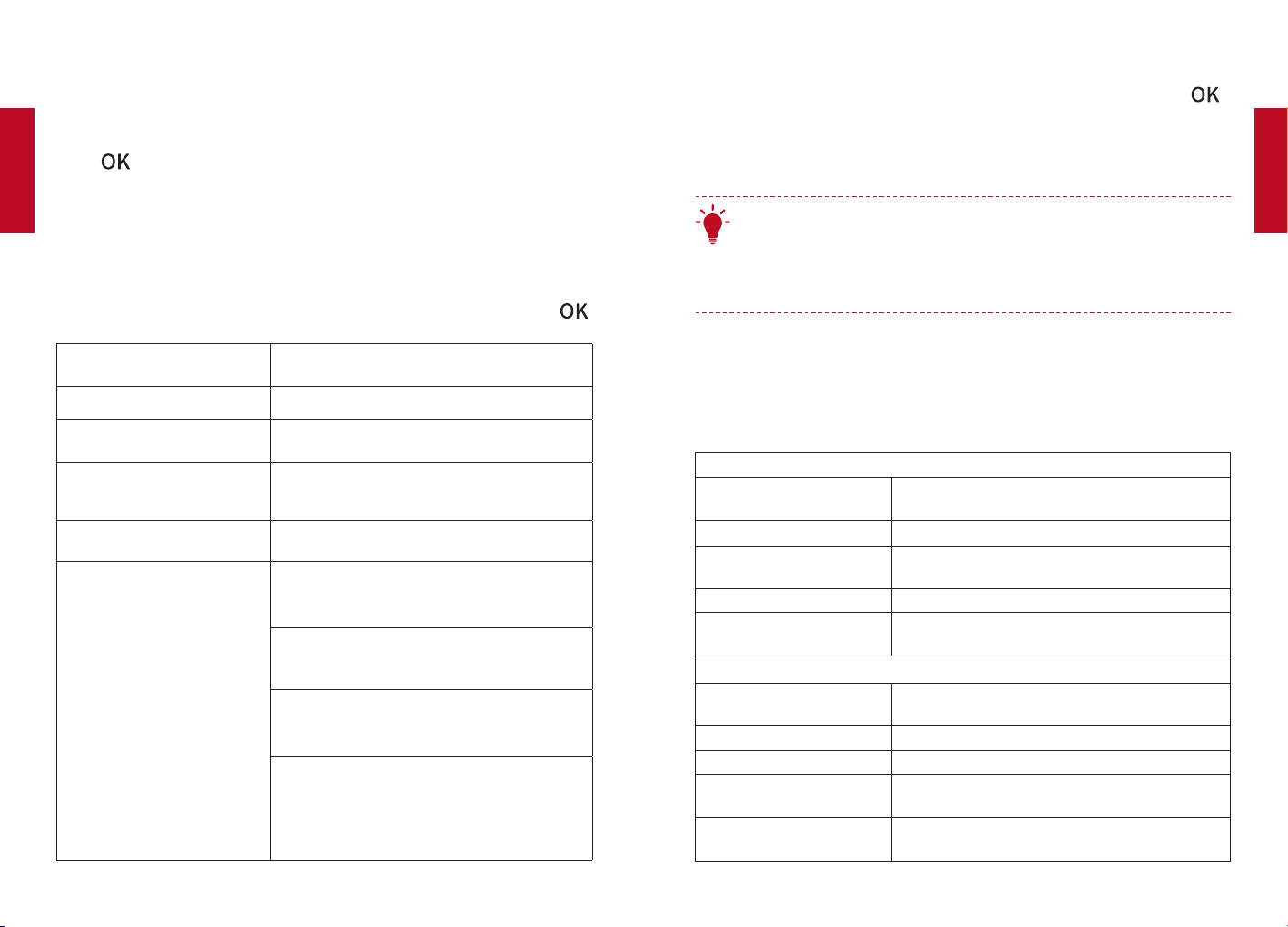
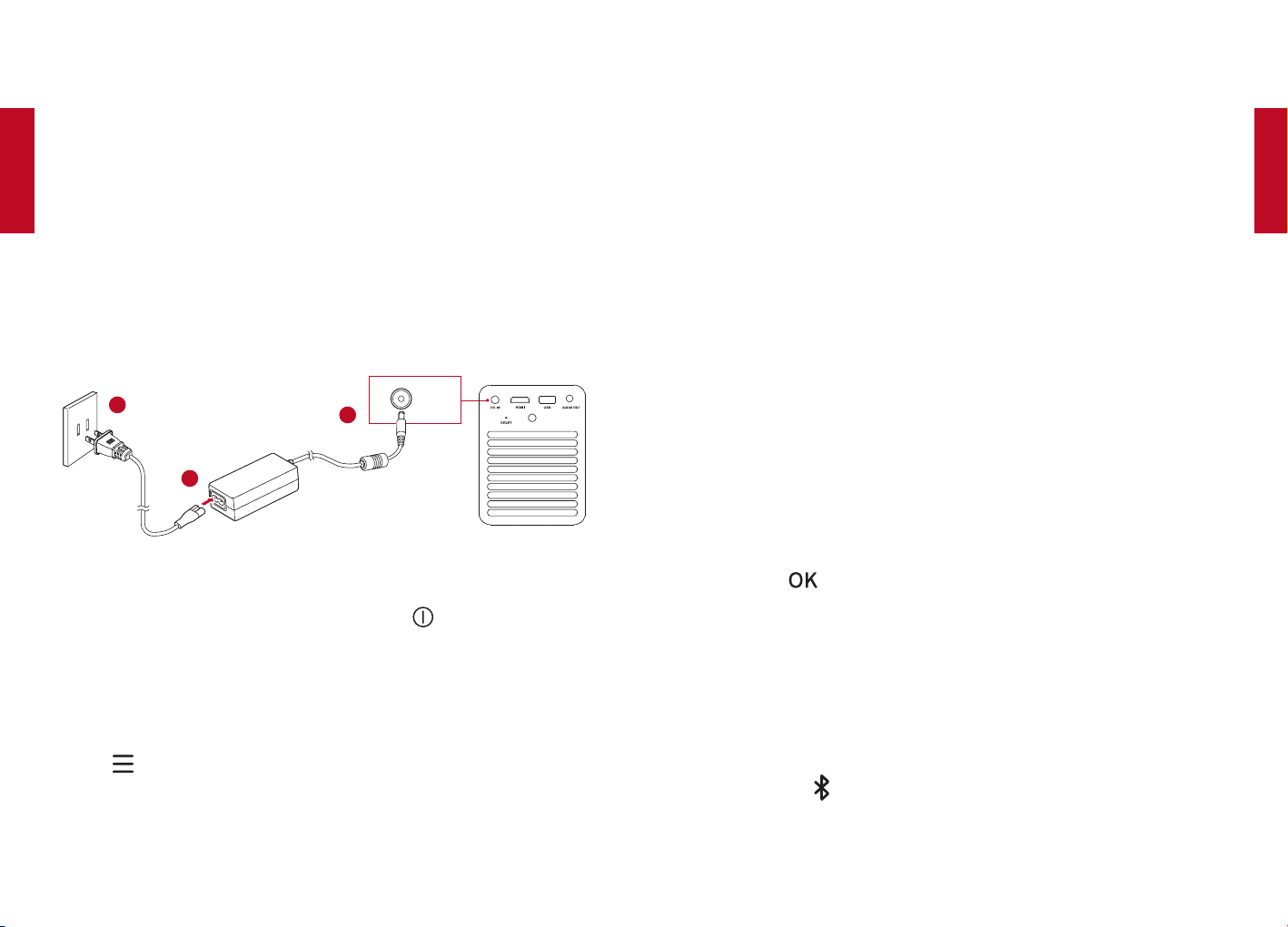
3. Get Started
①
Fully charge the built-in battery before using for the first time.
②
Connect the projector to the outlet by using the provided power
adapter and power cord, the built-in battery will be charged and the
LED indicators will light on.
DC IN
2
1
3
③
Slide down the lens cover, and the projector will automatically turn on.
You can also press on the remote control to turn it on.
④
Angle the projector towards a suitable projection surface or wall.
⑤
To focus the image, slightly move the projector to engage auto-
focus or press and hold the on the remote control to manually
adjust.
For first time use, follow the on-screen instructions to complete the
basic set-up.
Nebula App
To easily control this projector, we recommend you to download the
dedicated Nebula app, Nebula Connect. Using this app, you can use
your smartphone’s keyboard to input text and use the screen as a
mouse.
①
Download the Nebula Connect app from the App Store (iOS devices)
or Google Play (Android devices).
②
Enable Bluetooth on your smartphone and select
[Nebula]
as the
device to be connected.
③
Open the Nebula Connect app and follow the on-screen instructions
to complete connection setup.
Settings
Go through the set-up process when you turn on the projector for the first
time.
1. Network
This projector can be connected to the Internet via a wireless (Wi-Fi)
connection.
①
On the home menu, select
[Settings]
>
[Network]
and press .
②
Follow the on-screen instructions to complete the network
connection.
2. Bluetooth
Bluetooth Speaker Mode
You can use this projector as a standalone Bluetooth speaker.
①
Press on the projector to switch to Bluetooth speaker mode.
②
Enable Bluetooth on your smartphone and select
[Nebula]
as the
device to be connected.
English
English
12 13
Projector Mode
You can connect Bluetooth headphones or a speaker to Mars II while
it’s in projector mode.
①
On the home menu, select [Settings] > [Bluetooth] and press .
②
Follow the on-screen instructions to complete the Bluetooth
connection.
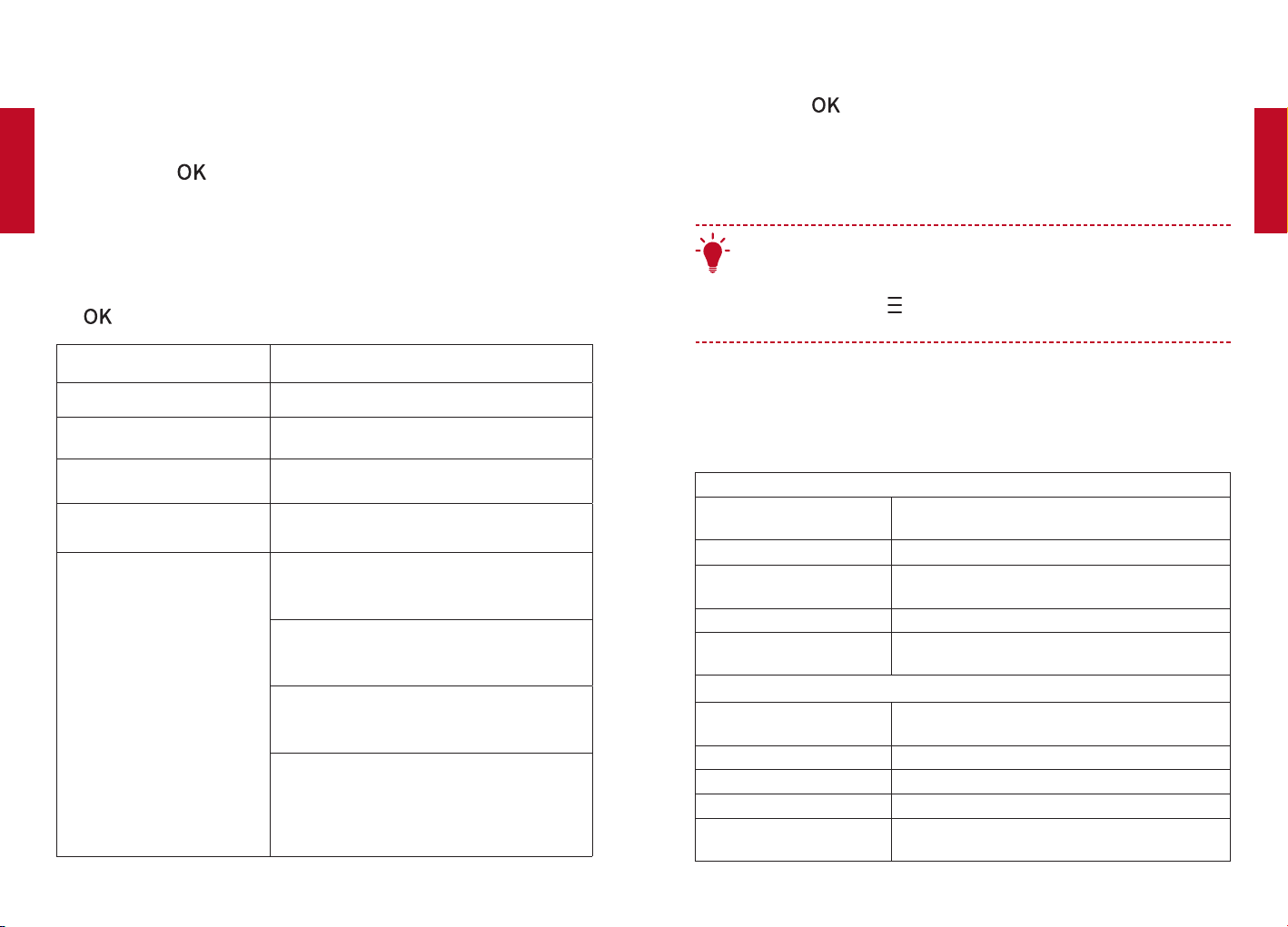
3. Projector
On the home menu, select [Settings] > [Projector], and press .
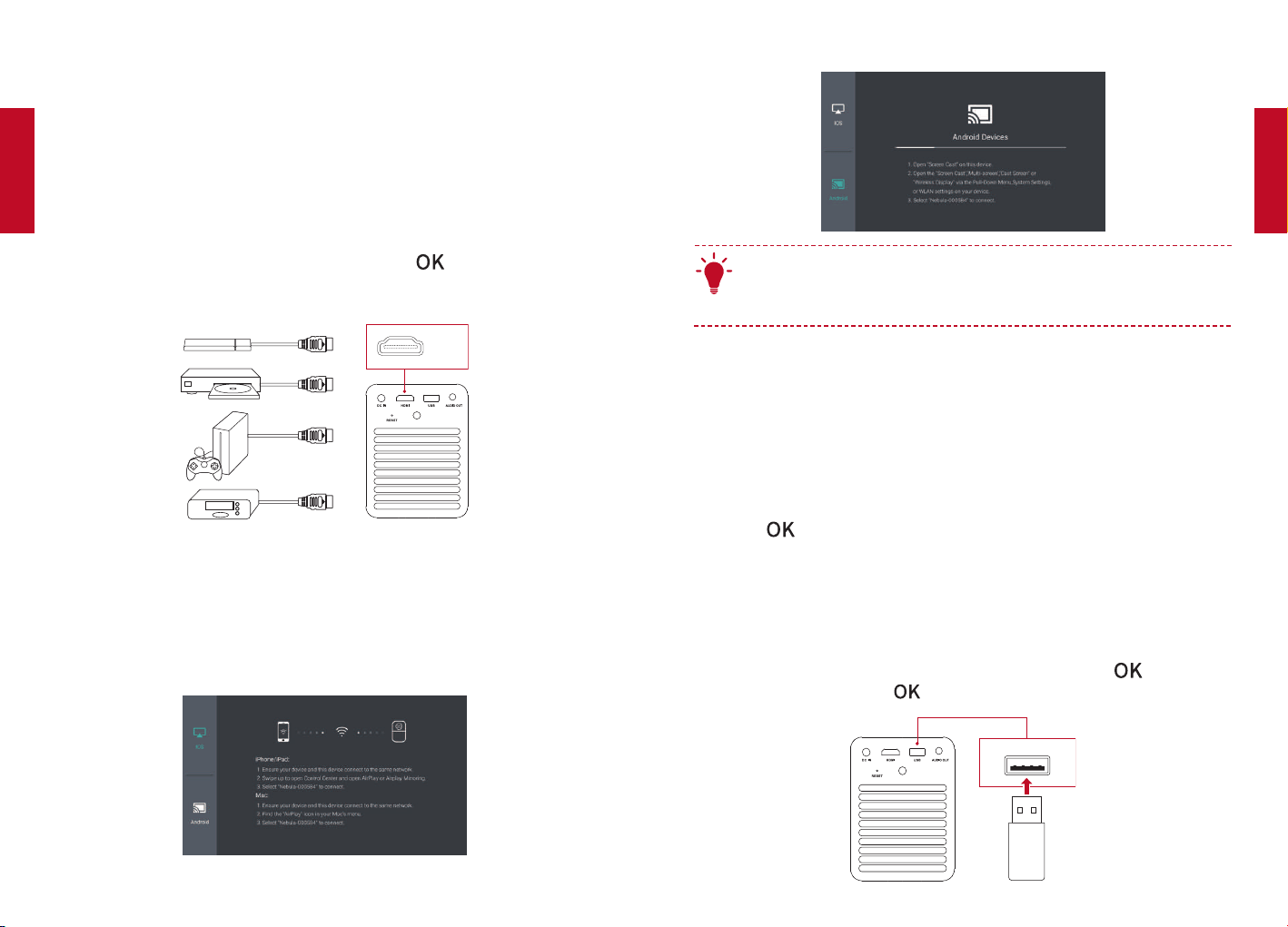
[Image Mode] [Auto] / [Standard Mode] / [Battery Mode]
[Color Temperature]
[Normal] / [Cool] / [Warm]
[Auto Keystone Correction]
Enable / disable auto keystone correction.
[Keystone Correction]
Manually make keystone correction. The
default value is 0.
[Auto Focus] Enable / disable auto focus.
[Projector Mode]
[Front]: The device is located in front of the
projection surface.
[Rear]: The device is located behind the
projection surface.
[Front Ceiling]: The device is hanging from
the ceiling in an upside down position. The
image is rotated by 180 degrees.
[Rear Ceiling]: The device is hanging from
the ceiling in an upside down position
behind the projection surface. The image
is rotated by 180 degrees and horizontally
mirrored.
4. App Manager
①
On the home menu, select [Settings] > [App Manager] and press .
②
Select an app and check the current version, open or force stop,
check the storage used, clear data or cache, or uninstall it.
T
When more than 3 apps are installed, you can select [All] at the
bottom line of the home page to enter the [Apps] page. Select
an app and press on the remote control, and then you can
select [Move To Home] or [Uninstall].
5. Others
On the home menu, select [Settings] to find more setting options.
[General]
[Language] Select an on-screen display language.
[Keypad Tone] Turn the keypad tone on/off.
[Automatic Sleep
Interval]
5 min / 15 min / 30 min
[Background] Select a background.
[Clear Cache]
Clear all the cached data stored on the
projector.
[Date&Time]
[Automatic Date&Time] Enable / disable automatic date and time.
[Date] Manually set date.
[Time] Manually set time.
[Select time zone] Select time zone.
[Use 24-hour format] Select 24-hour format or 12-hour format.
[Upgrade]
[Check Update]
Check if it is the latest version. Follow
the on-screen instructions to update the
software version.
[About]
[Recovery]
All data on the built-in storage will be
erased.
English
English
14 15
Using the Nebula Mars II
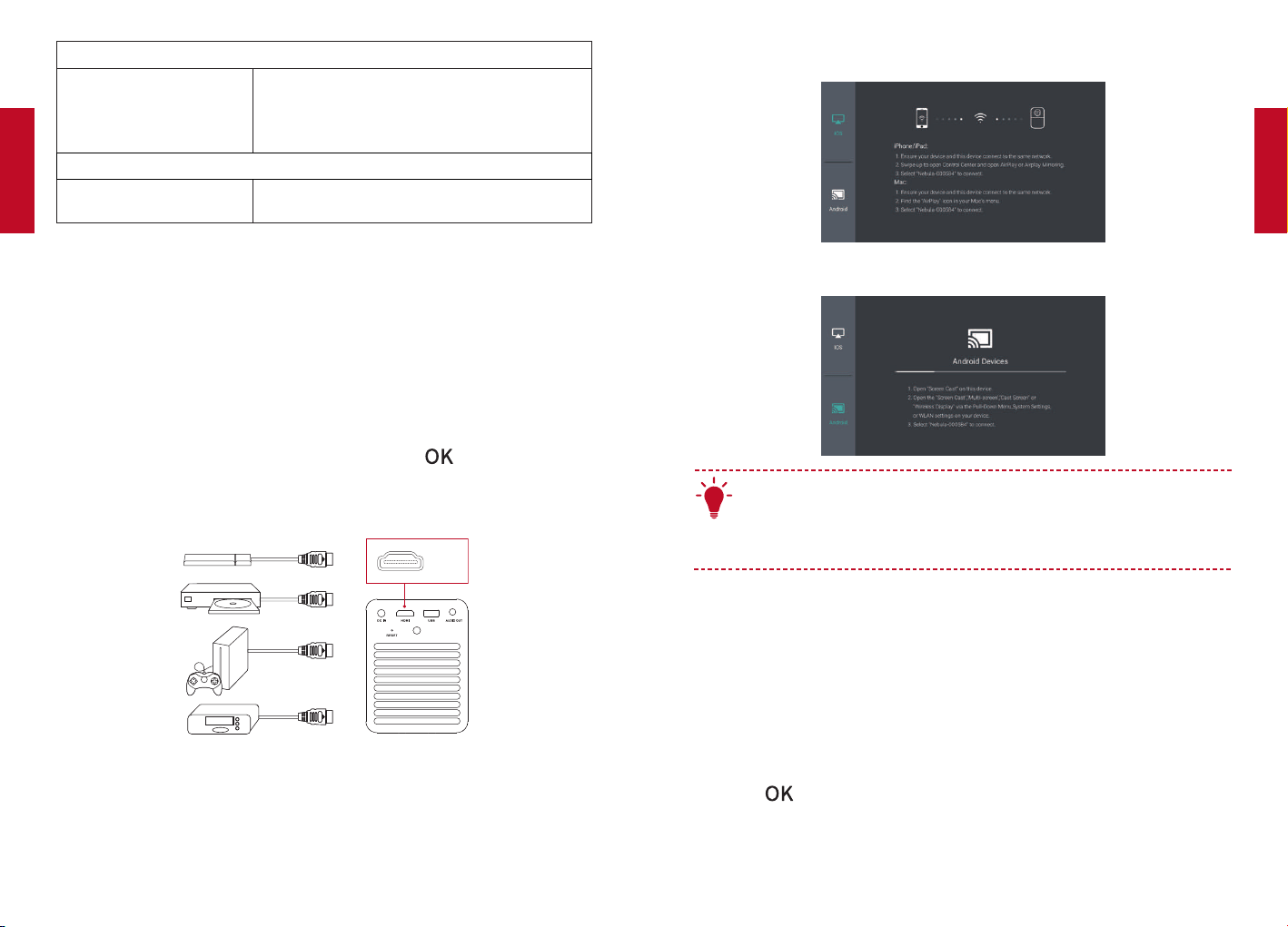
1. Connect to HDMI Playback Devices
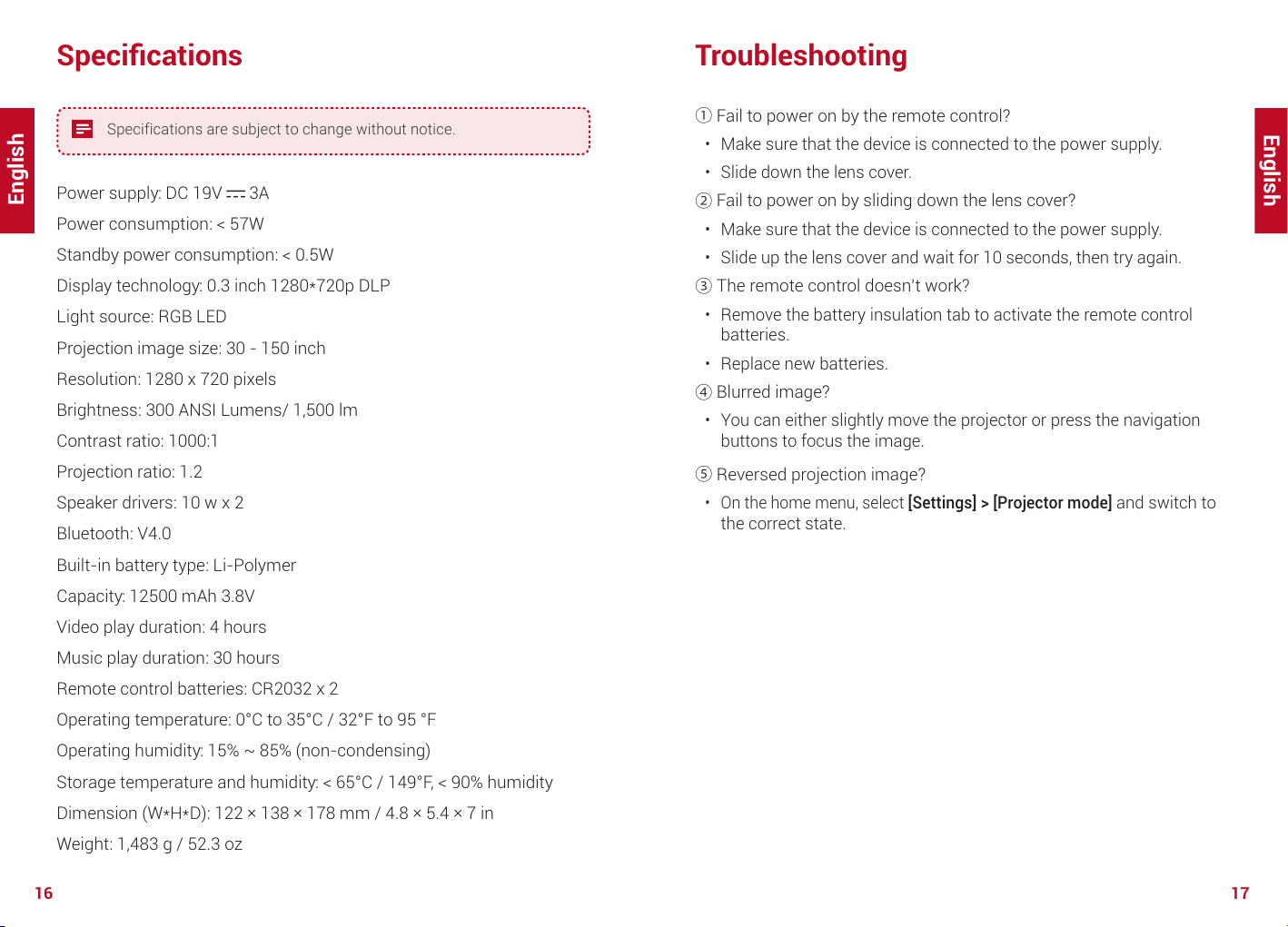
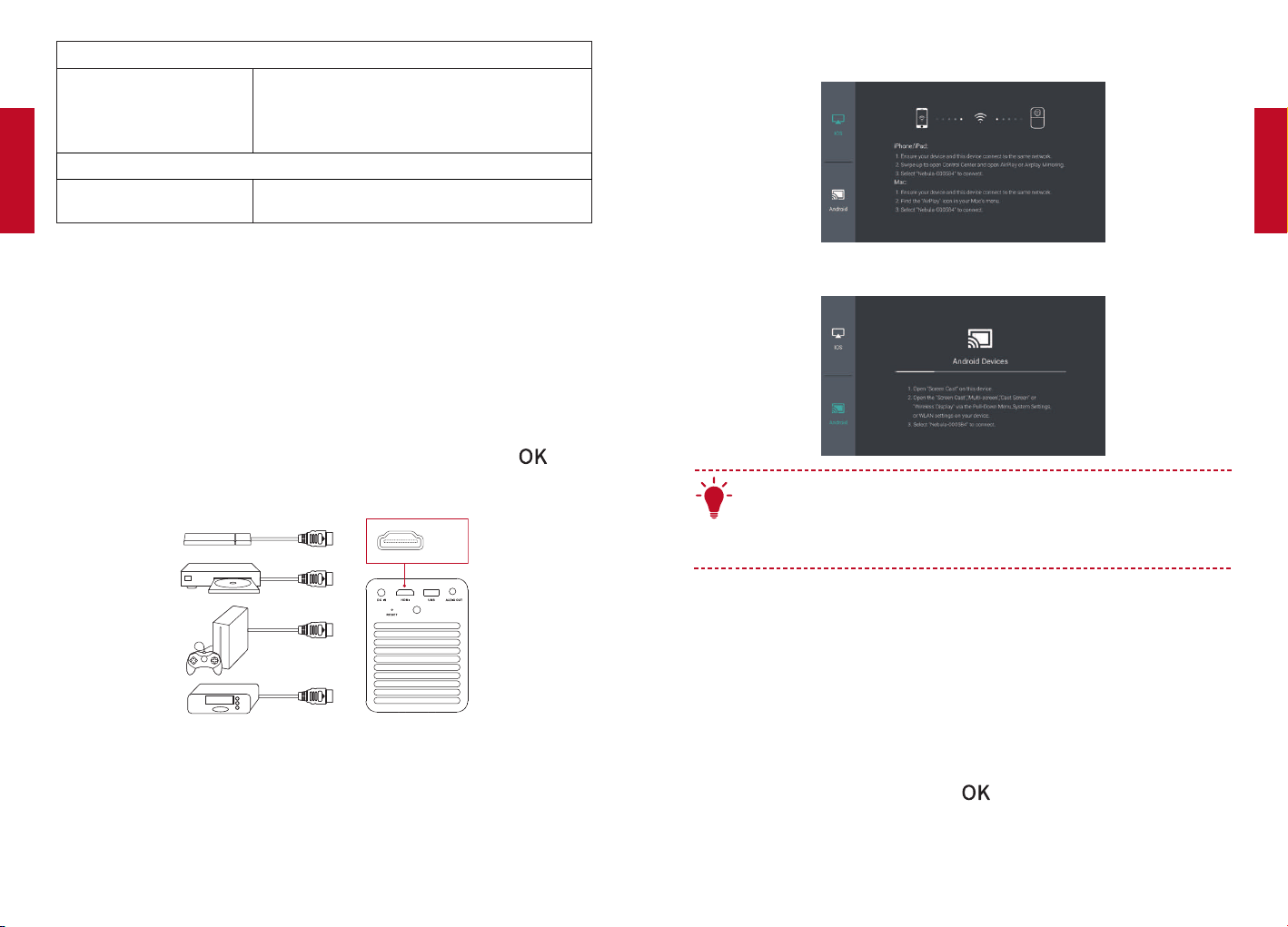
This projector supports connections with various HDMI playback
devices such as TV stick, TV box, DVD player, set-top box (STB), game
console or other devices.
①
Connect this projector to an HDMI playback device with an HDMI
cable (not provided).
②
On the home menu, select [HDMI] , and press . (*It will
automatically start the HDMI playback when connected to an HDMI
playback device for the first time.)
HDMI
2. Screen Cast
You can wirelessly cast the screen of your smartphone or tablet onto
the projection surface.
For iOS devices:
For Android devices:
T
Certain content may be unavailable for screen casting due to
copyright restrictions. In this case, you can play the content
directly by using the same app installed on your Nebula Mars II.
3. Select an App
Once connected to a wireless network, you can access online services,
enjoy movies, music and pictures, and browse the internet. Apart from
the apps installed by default, you can also install any other apps from
the Nebula Store or from a USB flash drive.
On the home menu, select an Internet service from “Apps” or “Nebula
Store”.
Press
to confirm.
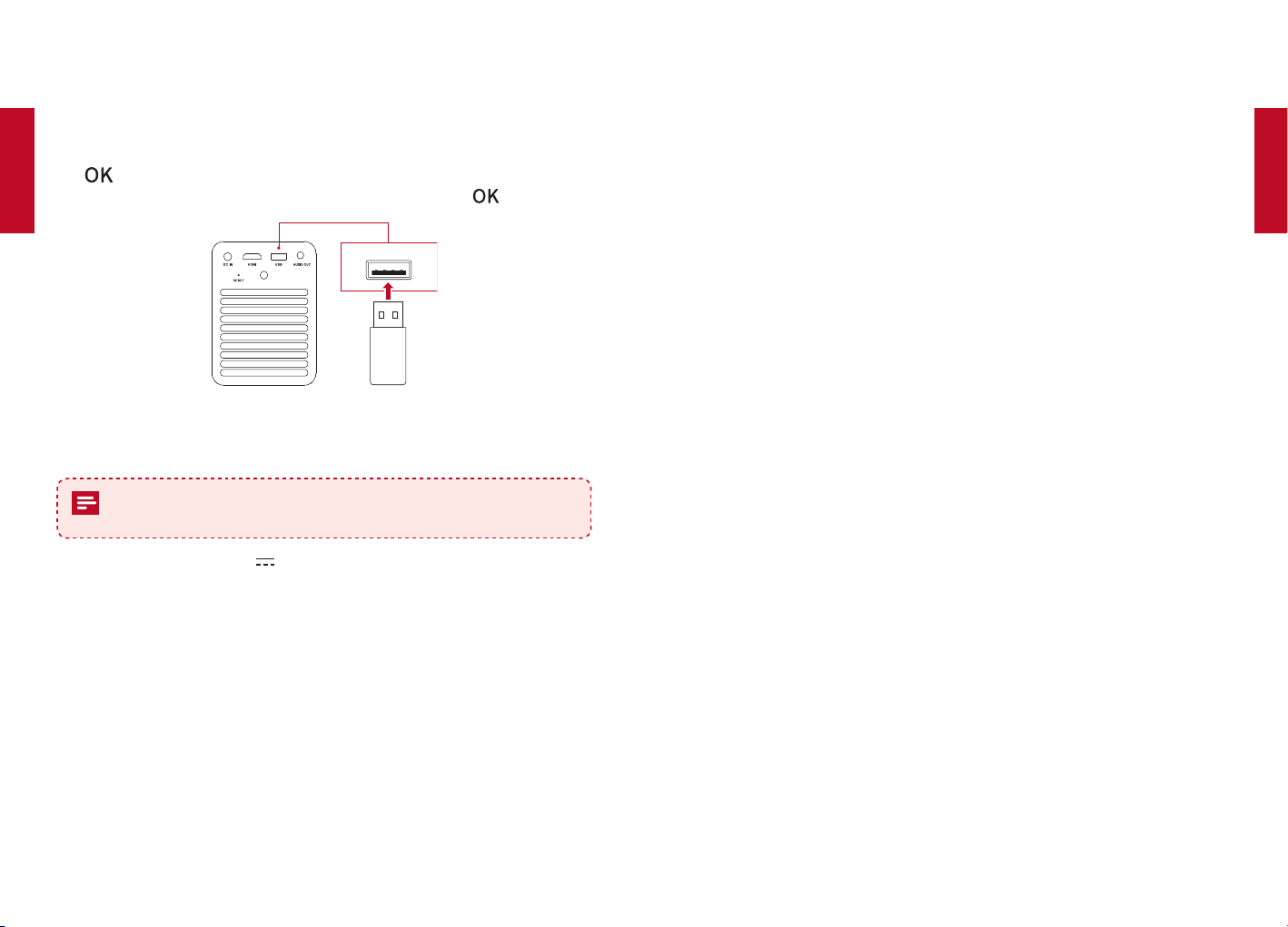
4. Connect to a USB Storage Device
With this projector, you can enjoy music, video, and pictures, or install
apps that are stored on a USB 2.0 storage device by using the OTG
cable (not provided).
①
On the home menu, select [File Manager] and press
.
②
Select a file, then press .
USB
English
English
16 17
Specifications
Specifications are subject to change without notice.
Power supply: DC 19V 3A
Power consumption: < 57W
Standby power consumption: < 0.5W
Display technology: 0.3 inch 1280*720p DLP
Light source: RGB LED
Projection image size: 30 - 150 inch
Resolution: 1280 x 720 pixels
Brightness: 300 ANSI Lumens/ 1,500 lm
Contrast ratio: 1000:1
Projection ratio: 1.2
Speaker drivers: 10 w x 2
Bluetooth: V4.0
Built-in battery type: Li-Polymer
Capacity: 12500 mAh 3.8V
Video play duration: 4 hours
Music play duration: 30 hours
Remote control batteries: CR2032 x 2
Operating temperature: 0°C to 35°C / 32°F to 95 °F
Operating humidity: 15% ~ 85% (non-condensing)
Storage temperature and humidity: < 65°C / 149°F, < 90% humidity
Dimension (W*H*D): 122 × 138 × 178 mm / 4.8 × 5.4 × 7 in
Weight: 1,483 g / 52.3 oz
Troubleshooting
①
Fail to power on by the remote control?
Make sure that the device is connected to the power supply.
Slide down the lens cover.
②
Fail to power on by sliding down the lens cover?
Make sure that the device is connected to the power supply.
Slide up the lens cover and wait for 10 seconds, then try again.
③
The remote control doesn’t work?
Remove the battery insulation tab to activate the remote control
batteries.
Replace new batteries.
④
Blurred image?
You can either slightly move the projector or press the navigation
buttons to focus the image.
⑤
Reversed projection image?
On the home menu, select [Settings] > [Projector mode]
and switch to
the correct state.
English
English
18 19
Notice
Declaration of Conformity
This product complies with the radio interference requirements
of the European Community. Hereby, Anker Technology
Co., Limited. declares that this device is in compliance with
the essential requirements and other relevant provisions of
Directive 2014/53/EU. For the Declaration of Conformity, visit
the Web site www.SeeNebula.com/certification.
RF exposure information: The Maximum Permissible Exposure
(MPE) level has been calculated based on a distance of d=20
cm between the device and the human body. To maintain
compliance with RF exposure requirement, use a product that
maintains a 20cm distance between the device and human
body.
BT Maximum output power: 8 dBm; BT Frequency band: 2402~2480
MHz;
Wi-Fi Max Output Power: 19 dBm (2.4G); 15 dBm (5G);
Wi-Fi Frequency Band: 2412~2472 MHz (2.4G); 5150~5250 MHz,
5725~5850 MHz (5G).
5150~5250 MHz can be used indoor only.
This product is designed and manufactured with high quality
materials and components, which can be recycled and reused.
This symbol means the product must not be discarded as
household waste, and should be delivered to an appropriate
collection facility for recycling. Follow local rules and never
dispose of the product and rechargeable batteries with
normal household waste. Correct disposal of old products and
rechargeable batteries helps prevent negative consequences
for the environment and human health.
FCC Notice
This device complies with the FCC rules, Part 15. Operation is subject
to the following two conditions: (1) This device may not cause harmful
interference, and (2) This device must accept any interference received,
including interference that may cause undesired operation.
Warning: Changes or modifications not expressly approved by the
partly responsible for compliance could void the user’s authority to
operate the equipment.
Note: This equipment has been tested and found to comply with the
limits for a Class B digital device, pursuant to part 15 of the FCC Rules.
These limits are designed to provide reasonable protection against
harmful interference in a residential installation.
This equipment generates, uses and can radiate radio frequency
energy and, if not installed and used in accordance with the instruction
manual, may cause harmful interference to radio communications.
However, there is no guarantee that interference will not occur
in a particular installation. If this equipment does cause harmful
interference to radio or television reception, which can be determined
by turning the equipment off and on, the user is encouraged to try to
correct the interference by one or more of the following measures:
Reorient or relocate the receiving antenna.
to which the receiver is connected.
.
FCC Radiation Exposure Statement:
This equipment complies with FCC radiation exposure limits set forth
for an uncontrolled environment. This equipment should be installed
and operated with a minimum distance of 20cm between the radiator
and your body. This transmitter must not be co-located or operated in
conjunction with any other antenna or transmitter.
Notice: Shielded cables
All connections to other computing devices must be made using
shielded cables to maintain compliance with FCC regulations.

21
Deutsch
English
20
Trademarks
HDMI, and HDMI logo and High-Definition Multimedia Interface are
trademarks or registered trademarks of HDMI licensing LLC in the
United States and other countries.
The Bluetooth® word mark and logos are registered trademarks owned
by Bluetooth SIG, Inc.
Warranty
30-Day Money-Back Guarantee for Any Reason
You may return your undamaged product and packaging within 30
days of purchase to receive a FULL REFUND for any reason. If the
reason for return isn’t quality-related, the customer must pay for the
return shipping.
12-Month Warranty for Quality-Related Issues
Nebula’s products are warrantied to be free from material and
workmanship defects for 12 months from the date of purchase. Within
this period, Nebula will provide a replacement and cover any return
shipping costs for products that fail in normal use.
Please Note: Any provided shipping labels must be used within 20 days
from the date they’re issued by Nebula Support.
Sicherheitsinformationen
Lesen Sie alle Anweisungen sorgfältig durch, bevor Sie dieses Gerät
verwenden. Nehmen Sie keine Änderungen oder Einstellungen vor, die
nicht in diesem Handbuch beschrieben sind. Wenn Personenschäden,
Datenverluste oder Schäden auf eine Missachtung der Anweisungen
zurückzuführen sind, greift die Garantie nicht.
Einrichtung
Verringern Sie das Brand- und/oder Stromschlagrisiko, indem Sie
das Gerät nicht Regen oder Feuchtigkeit aussetzen und keine mit
Flüssigkeit gefüllten Objekte, wie z.B. Vasen, auf das Gerät stellen.
Stellen Sie das Gerät nicht auf weiche Oberflächen wie Tischdecken
oder Teppiche, weil dies eine Brandgefahr darstellen könnte.
Platzieren Sie das Gerät nicht in übermäßig staubigen oder
schmutzigen Umgebungen und nicht in der Nähe anderer Geräte, die
ein starkes Magnetfeld erzeugen.
Zum Schutz vor Überhitzung dürfen die Belüftungsöffnungen nicht
abgedeckt oder verstopft werden.
Verwenden Sie das Gerät keinesfalls auf beengtem Raum. Lassen Sie
stets einen angemessenen Freiraum zur Belüftung um das Gerät.
Schützen Sie das Gerät vor direkter Sonneneinstrahlung, Hitze,
extremen Temperaturschwankungen und Feuchtigkeit.
Wenn das Gerät über einen längeren Zeitraum läuft und die Oberfläche
heiß wird, schalten Sie es aus und ziehen Sie das Netzkabel. Setzen
Sie den Betrieb erst fort, wenn das Gerät abgekühlt ist.
Handhaben Sie das Gerät stets mit Vorsicht. Vermeiden Sie es, das
Objektiv zu berühren.
Stellen Sie keine schweren oder scharfkantigen Gegenstände auf das
Gerät oder das Netzkabel.
Nehmen Sie das Gerät nicht auseinander – es besteht die Gefahr von
Stromschlägen.
Verwenden Sie nur das vom Hersteller zugelassene Zubehör.
Schützen Sie das Gerät vor extremen Erschütterungen, die zu Schäden
an internen Komponenten führen könnten.
Lassen Sie Kinder nicht unbeaufsichtigt mit dem Gerät hantieren.
Unter den folgenden Bedingungen kann sich im Gerät eine
Feuchtigkeitsschicht bilden, die wiederum zu Fehlfunktionen führen
kann: a) wenn das Gerät von einem kalten in einen warmen Bereich
bewegt wird; b) wenn in einem kalten Raum die Heizung eingeschaltet
wird; c) wenn das Gerät in einem feuchten Raum aufgestellt wird.
Um Feuchtigkeit zu vermeiden, empfiehlt es sich, das Gerät in einem
22 23
Deutsch
Deutsch
Plastikbeutel zu versiegeln, bevor Sie es in einen anderen Raum
bewegen. Warten Sie danach ein bis zwei Stunden, bis Sie das Gerät
wieder aus dem Beutel nehmen.
Stromversorgung
Verwenden Sie ausschließlich das mitgelieferte Netzteil.
Schalten Sie das Gerät aus, bevor Sie das Netzteil aus der Steckdose
ziehen.
Schützen Sie das Netzkabel, damit niemand darauf tritt oder
es anderweitig gequetscht wird, insbesondere an Steckern, an
Mehrfachsteckdosen und am Austrittspunkt des Kabels am Gerät.
Trennen Sie das Gerät bei Gewittern oder längerer Nichtverwendung
vom Stromnetz.
Wenn ein Netzstecker oder ein Gerätekoppler als Trennvorrichtung
verwendet wird, bleibt die Trennvorrichtung einsatzbereit.
Vor dem Herstellen oder Ändern von Verbindungen stellen Sie bitte
sicher, dass alle Geräte vom Stromnetz getrennt sind.
Berühren Sie niemals das Netzkabel oder den Netzanschluss mit
feuchten Händen.
Schutz des Gehörs
Zur Vermeidung von Gehörschäden nicht über längere Zeiträume
bei hoher Lautstärke verwenden. Stellen Sie die Lautstärke auf einen
sicheren Pegel ein.
Akku
Ersetzen Sie den integrierten Akku keinesfalls selbst. Falls
ein Austausch erforderlich sein sollte, wenden Sie sich an ein
autorisiertes Service Center.
Die Fernbedienung enthält Knopfzellenbatterien, die verschluckt
werden könnten. Bewahren Sie die Batterien außerhalb der
Reichweite von Kindern auf.
Explosionsgefahr! Halten Sie die Batterien von Hitze, direkter
Sonneneinstrahlung und offenen Flammen fern. Entsorgen Sie
Batterien keinesfalls im Feuer.
Falls Sie die Fernbedienung für einen längeren Zeitraum nicht
verwenden, nehmen Sie die Batterien heraus.
Es besteht Explosionsgefahr, wenn Batterien nicht ordnungsgemäß
ausgetauscht werden. Ersetzen Sie Batterien nur durch Batterien des
gleichen oder eines gleichwertigen Typs.
Batterien enthalten Chemikalien und müssen daher ordnungsgemäß
entsorgt werden.
Laden Sie das Gerät regelmäßig. Lagern Sie das Gerät nicht mit
einem vollständig entladenen Akku.
Reinigung
Schalten Sie das Gerät aus und trennen Sie es von der
Stromversorgung, bevor Sie die Oberfläche reinigen.
Verwenden Sie ein weiches, fusselfreies Tuch. Verwenden Sie niemals
flüssige, gasförmige oder leicht entzündliche Reinigungsmittel (wie
Sprays, Scheuermittel, Polituren und Alkohol).
Verwenden Sie keine flüssigen Reinigungsmittel zum Reinigen des
Objektivs, andernfalls könnte die Schutzbeschichtung des Objektivs
beschädigt werden.
Wischen Sie die Oberflächen vorsichtig ab. Achten Sie darauf, keine
Kratzer zu verursachen.
Verwenden Sie spezielles Objektiv-Reinigungspapier für den Projektor.
Reparaturen
Nehmen Sie keine Reparaturen am Gerät vor. Lassen Sie das Gerät
nur durch ein autorisiertes Service Center reparieren.
Unsachgemäße Wartung kann zu Personenschäden und Schäden
am Gerät führen.
Lassen Sie Wartungsarbeiten stets von qualifiziertem
Servicepersonal ausführen.
Symbol für Geräte der Schutzklasse II
Dieses Symbol zeigt an, dass das Gerät über eine doppelte Isolierung
verfügt.
Lasersicherheit
CLASS 1
LASER PRODUCT
IEC 60825-1:2014. Erfüllt die Anforderungen von IEC 62471:2006
Risikogruppe 2.
Vorsicht:
Dieses Gerät kann potenziell schädliche optische Strahlung abgeben.
Blicken Sie nicht direkt in den Lichtstrahl. Das helle Licht kann Ihren
Augen schaden.
24 25
Deutsch
Deutsch
Im Lieferumfang
Main unit
Power Adapter Power cord
Remote control with batteries
Manual
Owner’s Manual
Hauptkörper
Ladegerät
Ladekabel Bedienungsanleitung
Fernbedienung mit Batterien
Übersicht
1. Vorderseite
2
1
3
4
11
Objektiv
2
Griff
3
Objektivabdeckung
Nach unten ziehen, um das
Gerät einzuschalten und
den Fokus automatisch
anzupassen
Nach oben ziehen, um das
Gerät auszuschalten
4
Lautsprecher
2. Rückseite
2
1
3
4
6
5
7
8
11
DC IN
Verbindung zur Stromversorgung
2
HDMI
Verbindung zu einem Wiedergabegerät mit HDMI®-Ausgang
3
USB
Verbindung zu einem USB-Speichergerät
USB-Gerät als Powerbank aufladen
4
AUDIO OUT
Verbindung zu einem Kopfhörer oder einem externen
Lautsprecher
5
Infrarotempfänger
6
Belüftung (Austritt)
7
Belüftung (Einlass)
8
RESET
3 Sekunden lang gedrückt halten, um das Gerät zurückzusetzen
26 27
Deutsch
Deutsch
3. Oberseite
2
1
3
4
6
5
11
LED-Anzeigen
Ladestand
2
Navigationstasten
Navigieren in den Menüs oder Anpassen der ausgewählten
Inhalte
3
Zum Bestätigen einer Auswahl oder Eingabe drücken
Pause / Wiedergabe fortsetzen
4
Lauter / leiser
5
Zurück zum vorherigen Menü
6
Zum Aktivieren / Deaktivieren des Bluetooth-Modus drücken
Im Standby-Modus drücken, um den Projektor zu aktivieren
4. Unterseite
1
11
Stativsockel
5. Fernbedienung
7
8
2
1
3
4
6
5
28 29
Deutsch
Deutsch
11
Ein- / Ausschalten / In den Standby-Modus schalten
2
Zum Aktivieren / Deaktivieren des Maus-Modus drücken.
3
Zum Bestätigen einer Auswahl oder Eingabe drücken
Pause / Fortsetzen während der Wiedergabe
4
Zum Öffnen des Home-Menüs drücken
5
Während der Wiedergabe weitere Optionen aufrufen
(Verfügbarkeit der Optionen hängt vom Eingang ab)
Gedrückt halten, um den Fokus anzupassen
6
Navigationstasten
Navigieren in den Menüs oder Anpassen der ausgewählten
Inhalte
7
Zurück zu einem vorherigen Menü
8
Leiser / lauter
Erste Schritte
1. Platzierung
Platzieren Sie den MarsII auf einer stabilen, ebenen Oberfläche vor
der Projektionsfläche. Die besten Ergebnisse erzielen Sie mit einer
weißen und ebenen Projektionsfläche. Der Abstand zwischen dem
Projektor und der Projektionsfläche muss mindestens 1Meter und darf
höchstens 3Meter betragen.
39.4”
1
118”
T
Der Projektor muss nicht in Richtung der Projektionsfläche
geneigt werden. Sie können das Projektionsbild bei Bedarf
mit der integrierten Keystone-Korrektur (Trapezkorrektur)
anpassen.
Die Bildgröße richtet sich nach dem Abstand zwischen dem
Projektor und der Projektionsfläche.
30 31
Deutsch
Deutsch
2. Vorbereiten der Fernbedienung
①
Entfernen Sie vor der ersten Verwendung die Batterieschutzfolie von
der Fernbedienung.
②
Zum Auswechseln der Batterien öffnen Sie die Batteriefachabdeckung,
legen Sie die neuen Batterien ein (unter Beachtung des Polaritätsdiagramms
[+/-]), und schließen Sie die Batteriefachabdeckung wieder
.
3. Erste Schritte
①
Laden Sie den integrierten Akku vor der ersten Verwendung des
Geräts vollständig auf.
②
Schließen Sie den Projektor über das mitgelieferte Netzteil und
Netzkabel an die Steckdose an. Der integrierte Akku wird aufgeladen,
und die LED-Anzeigen leuchten auf.
DC IN
2
1
3
③
Ziehen Sie die Objektivabdeckung nach unten, und der Projektor
schaltet sich automatisch ein. Sie können den Projektor auch einschalten,
indem Sie auf der Fernbedienung die -Taste drücken.
④
Richten Sie das Gerät auf eine geeignete Projektionsfläche oder Wand
aus
.
⑤
Um die Bildschärfe einzustellen, bewegen Sie den Projektor leicht,
um die automatische Fokussierung zu aktivieren, oder halten Sie die
-Taste auf der Fernbedienung gedrückt, um den Fokus manuell
einzustellen.
Befolgen Sie bei der ersten Verwendung die Bildschirmanweisungen,
um die grundlegende Einrichtung vorzunehmen.
Nebula App
Zur leichteren Bedienung dieses Projektors empfehlen wir Ihnen den
Download von Nebula Connect, einer speziell für Nebula entwickelten
App. Mit dieser App können Sie Text über die Tastatur Ihres
Smartphones eingeben und das Display als Maus verwenden.
①
Laden Sie die Nebula Connect-App aus dem App Store (iOS-Geräte)
oder bei Google Play (Android) herunter.
②
Aktivieren Sie Bluetooth auf Ihrem Smartphone und wählen Sie
[Nebula] als das Gerät aus, zu dem eine Verbindung hergestellt werden
soll
.
③
Öffnen Sie die Nebula Connect-App und befolgen Sie die
Bildschirmanweisungen, um die Verbindungseinrichtung abzuschließen
.
Einstellungen
Nehmen Sie nach dem erstmaligen Einschalten des Projektors die
Einrichtung vor.
1. Netzwerk
Sie können mit diesem Projektor über ein WLAN eine Verbindung zum
Internet herstellen.
①
Wählen Sie im Home-Menü [Einstellungen] > [Netzwerk] aus und
drücken Sie auf ..
②
Befolgen Sie die Bildschirmanweisungen, um die Verbindung
herzustellen.
2. Bluetooth
Bluetooth-Lautsprecher-Modus
Sie können diesen Projektor als eigenständigen Bluetooth-
Lautsprecher verwenden.
①
Drücken Sie die -Taste auf dem Projektor, um in den Bluetooth-
Lautsprechermodus zu wechseln.
②
Aktivieren Sie Bluetooth auf Ihrem Smartphone und wählen Sie [Nebula]
als das Gerät aus, zu dem eine Verbindung hergestellt werden soll.
32 33
Deutsch
Deutsch
Projektor-Modus
Während der MarsII sich im Projektor-Modus befindet, können Sie eine
Bluetooth-Verbindung zu einem Kopfhörer oder einem Lautsprecher
herstellen.
①
Wählen Sie im Home-Menü [Einstellungen] > [Bluetooth] aus und
drücken Sie auf .
②
Befolgen Sie die Bildschirmanweisungen, um die Bluetooth-
Verbindung herzustellen.
3. Projektor
Wählen Sie im Home-Menü [Einstellungen] > [Projektor] aus. Drücken Sie
auf .
[Modus „Bild“] [Autom.] / [Standard] / [Batterie]
[Farbtemperatur]
[Normal] / [Kalt] / [Warm]
[Autom. Keystone-
Korrektur]
Automatische Keystone-Korrektur
(Trapezkorrektur) aktivieren/deaktivieren
[Keystone-Korrektur]
Nehmen Sie die Keystone-Korrektur manuell
vor. Der Standardwert ist 0.
[Autom. Fokussierung]
Aktivieren / deaktivieren Sie die
automatische Fokussierung.
[Modus „Projektor“]
[Vorderseite]: Der Projektor befindet sich
vor der Projektionsfläche.
[Rückseite]: Der Projektor befindet sich
hinter der Projektionsfläche.
[Vorderseite Decke]: Der Projektor hängt in
umgedrehter Position von der Decke. Das
Bild wird um 180 Grad gedreht.
[Rückseite Decke]: Der Projektor hängt
in umgedrehter Position und hinter der
Projektionsfläche von der Decke. Das Bild
wird um 180 Grad gedreht und horizontal
gespiegelt.
4. App-Manager
①
Wählen Sie im Home-Menü [Einstellungen] > [App-Manager] aus und
drücken Sie auf .
②
Wählen Sie eine App aus. Sie können nun die aktuelle Version
prüfen, die App öffnen oder das Beenden erzwingen, den belegten
Speicherplatz überprüfen oder Daten löschen bzw. den Cache leeren
oder die App deinstallieren.
T
Wenn mehr als 3 Apps installiert sind, können Sie unten
auf der Startseite [Alle] auswählen, um die Seite [Apps] zu
öffnen. Wählen Sie eine App aus und drücken Sie auf der
Fernbedienung auf . Sie können nun [Auf Home-Bildschirm]
oder [Deinstallieren] auswählen.
5. Sonstiges
Wählen Sie im Home-Menü [Einstellungen] aus, um weitere
Einstellungsoptionen zu finden.
[Allgemein]
[Sprache]
Wählen Sie eine Sprache für die
Bildschirmanzeige aus.
[Tastentöne] Aktivieren / Deaktivieren Sie die Tastentöne.
[Autom.
Abschaltintervall]
5 Min. / 15 Min. / 30 Min.
[Hintergrund] Wählen Sie einen Hintergrund aus.
[Cache leeren]
Leeren Sie alle Daten aus dem Cache des
Projektors.
[Datum und Uhrzeit]
[Datum und Uhrzeit
automatisch]
Aktivieren oder deaktivieren Sie die
automatische Datums- und Uhrzeitanzeige.
[Datum] Legen Sie das Datum manuell fest.
[Uhrzeit] Legen Sie die Uhrzeit manuell fest.
[Zeitzone auswählen] Wählen Sie eine Zeitzone aus.
[24-Stunden-Format
verwenden]
Sie können die Uhrzeit im 24-Stunden-Format
oder im 12-Stunden-Format anzeigen.
34 35
Deutsch
Deutsch
[Upgrade]
[Auf Update prüfen]
Prüfen Sie, ob Sie die neueste Version verwenden.
Befolgen Sie die Bildschirmanweisungen, um ein
Update auf die neueste Version der Firmware
vorzunehmen.
[Info]
[Zurücksetzen]
Alle Daten im integrierten Speicher werden
gelöscht.
Verwenden des Nebula Mars II
1. Verbindung zu HDMI-Wiedergabegeräten
Dieser Projektor unterstützt Verbindungen mit verschiedenen HDMI-
Wiedergabegeräten, z.B. TV-Box oder -Stick, DVD-Player, Set-Top-Box
(STB), Spielkonsole oder anderen Geräten.
①
Verbinden Sie diesen Projektor über ein HDMI-Kabel (nicht im
Lieferumfang enthalten) mit einem HDMI-Wiedergabegerät.
②
Wählen Sie im Home-Menü [HDMI] aus und drücken Sie auf .
(*Die HDMI-Wiedergabe beginnt automatisch bei der ersten
Verbindungsherstellung mit einem HDMI-Wiedergabegerät.)
HDMI
2. Screencast
Sie können den Bildschirm Ihres Smartphones oder Tablets drahtlos
auf die Projektionsfläche übertragen.
Für iOS-Geräte:
Für Android-Geräte:
T
Aufgrund urheberrechtlicher Beschränkungen sind Screencasts
für manche Inhalte nicht verfügbar. In diesen Fällen können
Sie den Inhalt direkt über dieselbe App abspielen, die auf Ihrem
Nebula MarsII installiert ist.
3. Auswählen einer App
Sobald die Verbindung zu einem WLAN besteht, können Sie auf Online-
Services zugreifen, Filme, Musik und Bilder genießen und im Internet
surfen. Abgesehen von den standardmäßig installierten Apps können
Sie beliebige weitere Apps aus dem Nebula Store oder von einem USB-
Flash-Laufwerk installieren.
Wählen Sie im Home-Menü unter „Apps“ einen Internet-Service oder
„Nebula Store“ aus.
Drücken Sie zur Bestätigung auf
.
36 37
Deutsch
Deutsch
4. Verbindung zu einem USB-Speichergerät
Sie können mit diesem Projektor über ein OTG-Kabel (nicht im
Lieferumfang enthalten) Musik, Videos und Bilder von einem USB
2.0-Speichergerät genießen oder darauf abgelegte Apps installieren.
①
Wählen Sie im Home-Menü [Datei-Manager] aus und drücken Sie
auf
.
②
Wählen Sie eine Datei aus und drücken Sie dann auf .
USB
Technische Daten
Änderungen der technischen Daten und des Designs ohne
Vorankündigung vorbehalten.
Netzteil: 19V Gleichstrom 3 A
Stromverbrauch: < 57W
Standby-Leistungsaufnahme: < 0,5W
Display-Technologie: 0,3Zoll 1.280x720p DLP
Lichtquelle: RGB-LED
Projektions-Bildgröße: 30–150Zoll
Auflösung: 1.280 x 720 Pixel
Helligkeit: 300 ANSI Lumen / 1.500 lm
Kontrastverhältnis: 1000:1
Projektionsverhältnis: 1,2
Lautsprecher: 10W x 2
Bluetooth: V4.0
Typ des integrierten Akkus: LiPo
Kapazität: 12.500mAh 3,8V
Videowiedergabekapazität: 4Stunden
Musikwiedergabekapazität: 30Stunden
Batterien der Fernbedienung: CR2032 x 2
Betriebstemperatur: 0°C bis 35°C
Betriebsluftfeuchtigkeit: 15% ~ 85% (nicht kondensierend)
Lagertemperatur und Luftfeuchtigkeit: < 65°C, < 90% relative
Luftfeuchtigkeit
Abmessungen (Bx HxT): 122x138x178mm
Gewicht: 1.483g
Fehlerbehebung
①
Das Einschalten per Fernbedienung funktioniert nicht?
Stellen Sie sicher, dass der Projektor an die Stromversorgung
angeschlossen ist.
Ziehen Sie die Objektivabdeckung nach unten.
②
Sie haben die Objektivabdeckung nach unten gezogen, aber der
Projektor wurde dadurch nicht eingeschaltet?
Stellen Sie sicher, dass der Projektor an die Stromversorgung
angeschlossen ist.
Ziehen Sie die Objektivabdeckung nach oben und warten Sie
10Sekunden, bevor Sie es erneut versuchen.
③
Die Fernbedienung funktioniert nicht?
Entfernen Sie die Batterieschutzfolie von der Fernbedienung.
Legen Sie neue Batterien ein.
④
Unscharfes Bild?
Bewegen Sie den Projektor leicht oder drücken Sie die
Navigationstasten, um die Bildschärfe einzustellen.
⑤
Das Projektionsbild ist seitenverkehrt?
Wählen Sie im Home-Menü [Einstellungen] > [Projektor-Modus] aus und
wechseln Sie in den richtigen Modus
.

39
Español
38
Deutsch
Garantie
Unkomplizierte 30-Tage-Geld-zurück-Garantie
Wenn Sie das unbeschädigte Produkt in der unbeschädigten
Originalverpackung innerhalb von 30 Tagen ab Kaufdatum
zurückgeben, wird Ihnen der GESAMTE KAUFPREIS ERSTATTET. Wenn
der Grund für die Rücksendung allerdings kein Qualitätsmangel ist,
trägt der Kunde die Versandkosten für die Rücksendung.
12 Monate Garantie bei qualitätsbezogenen Problemen
Nebula Produkte sind für einen Zeitraum von 12 Monaten ab dem
Kaufdatum gegen Material- und Verarbeitungsfehler garantiert.
Innerhalb dieses Zeitraums stellt Nebula Ersatz bereit und trägt die
Versandkosten für die Rücksendung, wenn ein Produkt bei normaler
Verwendung ausfallen sollte.
Bitte beachten: Versandaufkleber, die durch den Nebula Support
bereitgestellt werden, müssen innerhalb von 20 Tagen ab
Ausstellungsdatum verwendet werden.
Instrucciones de seguridad
Lea y comprenda todas las instrucciones antes de utilizar este
dispositivo. No realice cambios ni ajustes que no estén descritos en
este manual. En caso de producirse daños físicos, pérdida de datos o
daños por no seguir las instrucciones, no se aplicará la garantía.
Configuración
Para reducir el riesgo de incendio o descarga eléctrica, no exponga
el aparato a la lluvia ni a la humedad. No coloque objetos que
contengan líquidos, como jarrones, sobre el dispositivo.
No coloque el dispositivo sobre una superficie blanda, como un
mantel o una alfombra, ya que ello podría suponer un riesgo de
incendio.
No coloque el dispositivo en zonas expuestas a un exceso de polvo
y suciedad, ni cerca de ningún aparato que pueda generar un campo
magnético fuerte.
Para evitar el sobrecalentamiento, no bloquee ni obstruya las
aberturas de ventilación.
No coloque nunca el dispositivo en un espacio confinado. Deje
siempre espacio suficiente alrededor del dispositivo para facilitar la
ventilación.
Proteja el dispositivo de la luz solar directa, el calor, las grandes
fluctuaciones de temperatura y la humedad.
Si el dispositivo está funcionando durante un largo periodo de
tiempo y la superficie se calienta, apáguelo y desconecte el cable de
alimentación. Reanude el funcionamiento solo cuando el dispositivo
se haya enfriado.
Manipule siempre el dispositivo con cuidado. Evite tocar la lente.
No coloque objetos pesados o afilados sobre el dispositivo ni el cable
de alimentación.
Para evitar una descarga eléctrica, no desmonte el dispositivo.
Utilice únicamente los accesorios especificados por el fabricante.
Evite vibraciones extremas. Podrían dañarse los componentes
internos.
No permita que los niños manejen el dispositivo sin supervisión.
En las siguientes circunstancias, puede aparecer una capa de
humedad en el dispositivo que puede dar lugar a fallos: a) si el
dispositivo se mueve de una zona fría a otra caliente; b) después
de calentar una habitación fría; c) cuando el dispositivo se coloca
en una habitación húmeda. Para evitar la presencia de humedad,
40 41
Español
Español
selle el dispositivo en una bolsa de plástico antes de moverlo a otra
habitación y espere una o dos horas antes de sacarlo de la bolsa.
Fuente de alimentación
Utilice solo el adaptador de alimentación suministrado.
Apague el dispositivo antes de retirar la fuente de alimentación de la
toma.
Evite pisar o aplastar el cable de alimentación y preste especial
atención a los enchufes, ladrones y los puntos de salida del
dispositivo.
Desconecte el dispositivo si hay las tormentas eléctricas o cuando
no lo vaya a utilizar durante un largo periodo de tiempo.
Cuando se utiliza un conector de alimentación o un adaptador como
dispositivos de desconexión, el dispositivo de desconexión debe
estar operativo.
Antes de realizar cualquier conexión o cambiarla, asegúrese de
que todos los dispositivos estén desconectados de la toma de
alimentación.
No toque nunca el cable de alimentación ni el conector de
alimentación con las manos húmedas.
Protección auditiva
Para evitar daños auditivos, no utilice el producto a un volumen
elevado durante largos periodos de tiempo. Ajuste el volumen en un
nivel seguro.
Batería
No sustituya la batería integrada. Póngase en contacto con un centro
de servicio autorizado para sustituirla.
El mando a distancia incluye pilas de tipo moneda, que podrían
ingerirse. Mantenga las pilas fuera del alcance de los niños.
Riesgo de explosión Mantenga las pilas alejadas del calor, la luz solar
directa o el fuego. Nunca arroje las pilas al fuego.
Si no va a utilizar el mando a distancia durante un tiempo
prolongado, extraiga las pilas.
Si se sustituye la batería por una incorrecta, existe riesgo de
explosión. Sustitúyala solo por una batería del mismo tipo o
equivalente.
Las pilas contienen sustancias químicas, por lo que debe deshacerse
de ellas correctamente.
Cargue el dispositivo con regularidad. No guarde el dispositivo con la
batería completamente descargada.
Limpieza
Apague el dispositivo y desconéctelo de la fuente de alimentación
antes de limpiar la superficie.
Utilice un paño suave y sin pelusa. No utilice limpiadores líquidos,
gaseosos o fácilmente inflamables (como pulverizadores, abrasivos,
ceras o alcohol).
No utilice agentes de limpieza líquidos para limpiar la lente, ya que
podrían dañar el revestimiento de protección.
Limpie las superficies con cuidado. Tenga cuidado de no arañar las
superficies.
Utilice papel para limpieza de lentes para limpiar la lente del
proyector.
Reparaciones
No intente reparar el dispositivo usted mismo. Repárelo únicamente
en un centro de servicio autorizado.
Un mantenimiento inadecuado podría causar lesiones o daños en el
dispositivo.
El servicio técnico debe realizarlo siempre personal cualificado.
Símbolo de equipo de clase II
Este símbolo indica que la unidad cuenta con un sistema de doble
aislamiento.
Seguridad láser
CLASS 1
LASER PRODUCT
IEC 60825-1:2014. Cumple con IEC 62471:2006, grupo de riesgo 2.
Precaución:
Es posible que el dispositivo emita radiación óptica peligrosa.
No mire directamente al haz en funcionamiento. La luz brillante
podría dañarle los ojos.
42 43
Español
Español
Contenido
Main unit
Power Adapter Power cord
Remote control with batteries
Manual
Owner’s Manual
Unidad Principal
Cargador de
Corriente
Cable de
Alimentación
Manual de Usuario
Control Remoto con pilas
Descripción general
1. Vista frontal
2
1
3
4
11
Lente
2
Asa
3
Cubierta de la lente
Deslizar hacia abajo para
encender y ajustar el enfoque
automáticamente
Deslizar arriba para apagar
4
Altavoz
2. Vista posterior
2
1
3
4
6
5
7
8
11
Entrada de CC
Conectar a una fuente de alimentación
2
HDMI
Conectar a un dispositivo de reproducción con salida HDMI
3
USB
Conectar a un dispositivo de almacenamiento USB
Cargar un dispositivo USB como una batería externa
4
SALIDA DE AUDIO
Conectar unos auriculares o un altavoz externo
5
Receptor de infrarrojos
6
Ventilación de aire (salida)
7
Ventilación de aire (entrada)
8
RESTABLECER
Mantener pulsado durante 3 segundos para restablecer
44 45
Español
Español
3. Vista superior
2
1
3
4
6
5
11
Indicadores LED
Nivel de potencia
2
Botones de navegación
Navegar por los menús o ajustar los contenidos seleccionados
3
Pulsar para confirmar una selección o entrada
Pausar/reanudar la reproducción
4
Subir/bajar volumen
5
Volver al menú anterior
6
Pulsar para entrar/salir del modo Bluetooth
En el modo de espera, presione para activar el proyector
4. Vista inferior
1
11
Soporte para trípode
5. Mando a distancia
7
8
2
1
3
4
6
5
46 47
Español
Español
11
Encender/apagar/cambiar al modo de suspensión
2
Pulsar para entrar/salir del modo de tecla del ratón.
3
Pulsar para confirmar una selección o entrada
Pausar/reanudar durante la reproducción
4
Pulsar para acceder al menú de inicio
5
Acceder a más opciones durante la reproducción (la
disponibilidad de opciones depende de la entrada de fuente).
Mantener pulsado para ajustar el enfoque
6
Botones de navegación
Navegar por los menús o ajustar los contenidos seleccionados
7
Volver a un menú anterior
8
Subir o bajar el volumen
Primeros pasos
1. Colocación
Coloque el dispositivo Mars II sobre una superficie plana y estable,
delante de la superficie de proyección. Para obtener los mejores
resultados, la superficie de proyección debería ser blanca y plana. La
distancia entre el proyector y la superficie de proyección debe ser de
un mínimo de 1 metro y un máximo de 3 metros.
39.4”
1
118”
T
No es necesario inclinar el proyector hacia la superficie de
proyección. Puede corregir la imagen de proyección con la
función de corrección trapezoidal integrada.
La distancia entre el proyector y la superficie de proyección
determina el tamaño de la imagen.
48 49
Español
Español
2. Preparación del mando a distancia
①
La primera vez que lo use, retire la lengüeta de plástico protectora
de la batería para activar las pilas del mando a distancia.
②
Para reemplazar las pilas, retire la tapa posterior del compartimento
de las pilas para abrirlo, inserte las pilas nuevas (haciendo coincidir la
polaridad (+/-) como se indica), y cierre el compartimento.
3. Primeros pasos
①
Cargue por completo la batería antes de usar el dispositivo por
primera vez.
②
Conecte el proyector a la toma con el adaptador de alimentación
y el cable de alimentación proporcionados, la batería se cargará y los
indicadores LED se iluminarán.
DC IN
2
1
3
③
Deslice hacia abajo la cubierta de la lente y el proyector se encenderá
automáticamente. También puede pulsar en el mando a distancia
para encenderlo.
④
Oriente el proyector hacia una pared o superficie de proyección
adecuada.
⑤
Para enfocar la imagen, mueva ligeramente el proyector a fin de
activar el enfoque automático o mantenga pulsado en el mando a
distancia para realizar el ajuste manualmente.
La primera vez que lo use, siga las instrucciones que aparecen en
pantalla para completar la configuración básica.
Aplicación Nebula
Para controlar fácilmente este proyector, le recomendamos que
descargue la aplicación Nebula Connect de Nebula. La aplicación le
permite usar el teclado de su smartphone para introducir texto y usar
la pantalla a modo de ratón.
①
Descargue la aplicación Nebula Connect desde App Store
(dispositivos iOS) o Google Play (dispositivos Android).
②
Active la función de Bluetooth en su smartphone y seleccione
[Nebula] como el dispositivo que va a conectar.
③
Abra la aplicación Nebula Connect y siga las instrucciones que
aparecen en pantalla para completar la configuración de la conexión.
Configuración
Complete el proceso de configuración al encender el proyector por primera
vez.
1. Red
Es posible conectar el proyector a Internet a través de una conexión
inalámbrica (Wi-Fi).
①
En el menú de Inicio, seleccione [Configuración] > [Red] y pulse ..
②
Siga las instrucciones que aparecen en pantalla para completar la
conexión de red.
2. Bluetooth
Modo de altavoz Bluetooth
Puede utilizar este proyector como altavoz Bluetooth independiente.
①
Pulse en el proyector para cambiar al modo de altavoz Bluetooth.
②
Active la función de Bluetooth en su smartphone y seleccione
[Nebula] como el dispositivo que va a conectar.
50 51
Español
Español
Modo de proyector
Puede conectar un altavoz o unos auriculares Bluetooth a Marte II
mientras se encuentra en el modo de proyección.
①
En el menú de Inicio, seleccione [Configuración] > [Bluetooth] y
pulse .
②
Siga las instrucciones que aparecen en pantalla para completar la
conexión Bluetooth.
3. Proyector
En el menú de Inicio, seleccione [Configuración] > [Proyector] y pulse .
[Modo de imagen]
[Automático]/[Modo estándar]/[Modo de
batería]
[Temperatura del color]
[Normal]/[Fría]/[Cálida]
[Corrección trapezoidal
automática]
Activar/desactivar la corrección trapezoidal
automática.
[Corrección trapezoidal
Crear manualmente corrección trapezoidal.
El valor predeterminado es 0.
[Enfoque automático] Activar/desactivar el enfoque automático.
[Modo de proyección]
[Frontal]: el proyector está situado en
la parte delantera de la superficie de
proyección.
[Trasero]: el proyector está situado detrás
de la superficie de proyección.
[Techo frontal]: el proyector está colgando
del techo en posición invertida. La imagen
se gira 180 grados.
[Techo trasero]: el proyector está colgando
del techo en posición invertida detrás de
la superficie de proyección. La imagen se
gira 180 grados y se refleja en dirección
horizontal.
4. Gestor de aplicaciones
①
On the home menu, select [Settings] > [App Manager], and press .
②
Seleccione una aplicación para comprobar la versión actual, abrirla
o forzar el cierre, comprobar el almacenamiento usado, borrar datos,
borrar la memoria caché o desinstalarla.
T
Cuando haya más de 3 aplicaciones instaladas, seleccione
[Todas] en la parte inferior de la página de inicio para acceder
a la página [Aplicaciones]. Seleccione una aplicación, pulse en
el mando a distancia y, a continuación, podrá escoger entre
[Mover a página de inicio] o [Desinstalar].
5. Otros
En el menú de Inicio, seleccione [Ajustes] para ver más opciones de
configuración.
[General]
[Idioma]
Seleccione el idioma de visualización en
pantalla.
[Tono del teclado] Active o desactive el tono del teclado.
[Intervalo de suspensión
automático]
5 minutos/15 minutos/30 minutos
[Fondo de pantalla] Seleccione un fondo de pantalla.
[Borrar caché]
Borrar todos los datos almacenados en
caché, en el proyector.
[Fecha y hora]
[Fecha y hora
automática]
Active o desactive la fecha y hora automática.
[Fecha] Configure manualmente la fecha.
[Hora] Configure manualmente la hora.
[Seleccionar zona
horaria]
Seleccione la zona horaria.
[Utilizar formato de 24
horas]
Escoja entre el formato de 24 horas o el
formato de 12 horas.
52 53
Español
Español
[Actualizar]
[Comprobar
actualizaciones]
Compruebe si está usando la versión
más reciente. Siga las instrucciones que
aparecen en pantalla para actualizar la
versión del firmware.
[Acerca de]
[Recuperación]
Se borrarán todos los datos guardados en el
almacenamiento integrado.
Uso de Nebula Mars II
1. Conexión a dispositivos de reproducción HDMI
Este proyector es compatible con diversos dispositivos de
reproducción HDMI, como TV Box, TV Stick, reproductores de DVD,
set-top box (STB), consolas de videojuegos y otros dispositivos.
①
Conecte el proyector a un dispositivo de reproducción HDMI con un
cable HDMI (no incluido).
②
En el menú de Inicio, seleccione [HDMI] y pulse . (*La primera
vez que se conecte a un dispositivo de reproducción HDMI se iniciará
automáticamente la reproducción HDMI).
HDMI
2. Proyección de pantalla
Puede proyectar la pantalla de su smartphone o tablet en la superficie
de proyección de forma inalámbrica.
Para dispositivos iOS:
Para dispositivos Android:
T
Es posible que no puedan compartirse ciertos contenidos
debido a restricciones de copyright. En este caso, podrá
reproducir el contenido directamente utilizando la misma
aplicación instalada en Nebula Mars II.
3. Selección de una aplicación
Una vez conectado a una red inalámbrica, puede acceder a los
servicios en línea, disfrutar de películas, música y fotografías, y
navegar por Internet. Además de las aplicaciones instaladas de forma
predeterminada, puede instalar otras desde Nebula Store o mediante
una unidad flash USB.
En el menú de inicio, seleccione un servicio de Internet desde
“Aplicaciones” o “Nebula Store”.
Pulse
para confirmar
.

54 55
Español
Español
4. Conexión al dispositivo de almacenamiento USB
Con este proyector puede disfrutar de música, vídeos e imágenes, o
instalar aplicaciones guardadas en un dispositivo de almacenamiento
USB 2.0 mediante el cable OTG (no incluido).
①
En el menú de Inicio, seleccione [Administrador de archivos] y pulse .
②
Seleccione un archivo y, a continuación, pulse .
USB
Especificaciones
Las especificaciones y el diseño están sujetos a cambios sin
previo aviso.
Fuente de alimentación: CC 19V 3 A
Consumo de energía: < 57W
Consumo de potencia en suspensión: < 0,5W
Tecnología de pantalla: DLP 1280*720p de 0,3 pulgadas
Fuente de luz: LED RGB
Tamaño de la imagen de proyección: 30-150 pulgadas
Resolución: 1280 x 720 píxeles
Brillo: 300 lúmenes ANSI/1500 lm
Relación de contraste: 1000:1
Relación de proyección: 1,2
Controladores de altavoz: 10 W x 2
Bluetooth: V4.0
Tipo de batería incorporada: Polímero de litio
Capacidad: 12500 mAh, 3,8V
Duración de la reproducción de vídeo: 4horas
Duración de la reproducción de música: 30horas
Pilas del mando a distancia: CR2032 x 2
Temperatura de funcionamiento: de 0°C to 35°C
Humedad de funcionamiento: 15% ~ 85% (sin condensación)
Temperatura y humedad de almacenamiento: < 65°C, < 90% humedad
Dimensiones (anchura x altura x profundidad): 122x138x178 mm
Peso: 1483g
Resolución de problemas
①
¿No logra encender el proyector con el mando a distancia?
Asegúrese de que el proyector está conectado a la fuente de
alimentación.
Deslice hacia abajo la cubierta de la lente.
②
¿No logra encenderlo deslizando hacia abajo la cubierta de la lente?
Asegúrese de que el proyector está conectado a la fuente de
alimentación.
Deslice hacia abajo la cubierta de la lente y espere 10 segundos. A
continuación, vuelva a intentarlo.
③
¿No funciona el mando a distancia?
Retire la lengüeta protectora de la batería para activar las pilas del
mando a distancia.
Coloque pilas nuevas.
④
¿Se ve borrosa la imagen?
Puede desplazar ligeramente el proyector o pulsar los botones de
navegación para enfocar la imagen.
⑤
¿Se invierte la imagen de la proyección?
En el menú de inicio, seleccione [Configuración] > [Modo del proyección]
y luego seleccione el estado correcto
.

57
Français
56
Español
Garantía
Garantía de devolución del dinero de 30 días por cualquier motivo
Puede devolver el producto y el embalaje intactos en un plazo de 30
días desde la compra para recibir un REEMBOLSO COMPLETO por
cualquier razón. Si el motivo de la devolución no está relacionado con
la calidad, el cliente deberá pagar los gastos de envío de la devolución.
12 meses de garantía ante problemas de calidad
Nebula ofrece una garantía de 12 meses a partir de la fecha de compra
para cualquier defecto de material o fabricación del producto. Dentro
de este periodo, Nebula proporcionará una sustitución y se hará cargo
de cualquier gasto de envío relacionado con los productos que no
ofrezcan un uso normal.
Nota: Las etiquetas de envío suministradas deben usarse en un plazo
de 20 días a partir de su fecha de emisión por parte del equipo de
asistencia de Nebula.
Consignes de sécurité
Veuillez lire et comprendre toutes les instructions avant d’utiliser cet
appareil. N’apportez pas de modifications ou de paramètres qui ne
sont pas décrits dans ce manuel. En cas de lésions corporelles, de
pertes de données ou de dommages pour cause de non-respect des
instructions, la garantie ne s’applique pas.
Configuration
Pour réduire les risques d’incendie et/ou d’électrocution, ne pas
exposer l’appareil à la pluie ou à l’humidité. Aucun objet rempli de
liquide, comme un vase, ne doit être placé sur l’appareil.
Ne pas placer l’appareil sur des surfaces telles que des nappes ou
des tapis, car cela pourrait constituer un risque d’incendie.
Ne pas placer l’appareil dans des zones exposées à la poussière
et à la saleté, ou à proximité d’un appareil générant un fort champ
magnétique.
Pour éviter une surchauffe, ne pas bloquer ou obstruer les orifices de
ventilation.
Ne jamais placer l’appareil dans un espace confiné. Toujours laisser
suffisamment d’espace autour de l’appareil pour la ventilation.
Protéger l’appareil contre la lumière directe du soleil, la chaleur, les
fluctuations importantes de température et l’humidité.
Lorsque l’appareil fonctionne pendant une longue période et
que sa surface devient chaude, éteindre et débrancher le cordon
d’alimentation. Reprendre l’utilisation uniquement une fois que
l’appareil a refroidi.
Toujours manipuler l’appareil avec soin. Éviter de toucher l’objectif.
Ne jamais placer d’objets lourds ou coupants sur l’appareil ou le
cordon d’alimentation.
Pour éviter tout choc électrique, ne pas le démonter.
Utiliser uniquement des accessoires ou pièces de rechange spécifiés
par le fabricant.
Éviter les vibrations extrêmes. Cela peut endommager les
composants internes.
Ne pas laisser les enfants manipuler l’appareil sans surveillance.
Dans les conditions suivantes, une couche d’humidité peut apparaître
à l’intérieur de l’appareil et entraîner des dysfonctionnements: a)
si l’appareil est déplacé d’une zone froide vers une zone chaude;
58 59
Français
Français
b) après le réchauffement d’une salle froide; c) lorsque l’appareil
est placé dans une salle humide. Pour éviter toute humidité, sceller
l’appareil dans un sac plastique avant de le déplacer vers une autre
pièce, et attendre une à deux heures avant de le retirer du sac.
Alimentation
Utiliser uniquement l’adaptateur fourni.
Mettre l’appareil hors tension avant de retirer le bloc d’alimentation
de la prise.
Protéger le cordon d’alimentation pour éviter que quelqu’un ne
marche dessus ou ne le pince, particulièrement au niveau des fiches,
des prises de branchement, et du point auquel il sort de l’appareil.
Débrancher l’appareil en cas d’orage ou lorsqu’il n’est pas utilisé
pendant une longue période.
Lorsque la fiche d’alimentation ou un coupleur d’appareils est
utilisé(e) comme dispositif de déconnexion, le dispositif de
déconnexion doit être facilement utilisable.
Avant de réaliser une connexion ou d’en modifier une, s’assurer que
tous les appareils sont débranchés de la prise d’alimentation.
Ne jamais toucher le cordon d’alimentation ou le connecteur
d’alimentation avec les mains mouillées.
Protection de l’audition
Pour éviter tout dommage de l’audition, ne pas écouter à un volume
élevé pendant une période prolongée. Régler le volume à un niveau sûr.
Pile
Ne pas remplacer la pile intégrée vous-même. Contacter un centre
de service agréé pour la remplacer.
La télécommande contient des piles bouton susceptibles d’être
avalées. Garder les piles hors de portée des enfants.
Attention au risque d’explosion! Éloigner les piles de la chaleur, de la
lumière directe du soleil ou du feu. Ne jamais jeter les piles dans le feu.
Lorsque la télécommande n’est pas utilisée pendant une longue
période, retirer les piles.
Il existe un danger d’explosion si la pile est mal remplacée.
Remplacer uniquement avec le même type de pile ou équivalent.
Les piles contiennent des substances chimiques, elles doivent être
éliminées correctement.
Recharger l’appareil régulièrement. Ne pas ranger l’appareil avec une
pile complètement déchargée.
Nettoyage
Mettre l’appareil hors tension et le déconnecter de l’alimentation
avant de nettoyer la surface.
Utiliser un chiffon doux non pelucheux. Ne jamais utiliser de produits
liquides, gazeux, ou facilement inflammables (comme des aérosols,
des produits abrasifs, des produits à polir ou de l’alcool).
Ne pas utiliser d’agents nettoyants liquides pour le nettoyage de
l’objectif, car ils pourraient endommager le film de protection de
l’objectif.
Frotter les surfaces doucement. Veiller à ne pas rayer les surfaces.
Utiliser un chiffon nettoyant pour objectif pour nettoyer l’objectif du
projecteur.
Réparations
Ne pas réparer l’appareil soi-même. Faire réparer votre appareil par
un centre de service agréé uniquement.
Un mauvais entretien peut entraîner des blessures ou endommager
l’appareil.
Consulter un technicien qualifié pour toute réparation.
Symbole d’équipement de classe II
Ce symbole indique que l’unité dispose d’un système d’isolation double.
Sécurité laser
CLASS 1
LASER PRODUCT
CEI 60825-1:2014. Conforme à la norme CEI 62471:2006 groupe de
risque 2.
Précaution:
Le rayonnement optique émis par cet appareil est potentiellement
dangereux.
Ne pas regarder directement le faisceau pendant le fonctionnement.
La lumière vive peut abîmer vos yeux.
60 61
Français
Français
Ce qui est inclus
Main unit
Power Adapter Power cord
Remote control with batteries
Manual
Owner’s Manual
Unité principale
Adaptateur
secteur
Cordon
d'alimentation
Manuel
Télécommande avec piles
Présentation
1. Vue avant
2
1
3
4
11
Objectif
2
Poignée
3
Couvercle de l’objectif
Faire glisser vers le bas pour
mettre sous tension et régler
automatiquement la mise au
point
Faire glisser vers le haut pour
mettre hors tension
4
Haut-parleur
2. Vue arrière
2
1
3
4
6
5
7
8
11
ENTRÉE CC
Raccordement de l’alimentation
2
HDMI
Connexion d’un périphérique de lecture avec sortie HDMI
3
USB
Connexion à un périphérique de stockage USB
Chargement d’un périphérique USB comme un chargeur
4
SORTIE AUDIO
Connexion à un casque ou à un haut-parleur externe
5
Récepteur infrarouge
6
Ventilation (sortie d’air)
7
Ventilation (entrée d’air)
8
REMISE À ZÉRO
Maintenir appuyé pendant 3secondes pour réinitialiser
62 63
Français
Français
3. Vue de dessus
2
1
3
4
6
5
11
Voyants LED
Niveau d’alimentation
2
Boutons de navigation
Parcourir les menus ou ajuster le contenu sélectionné
3
Appuyer pour confirmer une sélection ou une saisie
Mettre en pause/reprendre la lecture
4
Augmenter/diminuer le volume
5
Revenir au menu précédent
6
Appuyer pour entrer/sortir du mode Bluetooth
En mode veille, appuyer pour activer le projecteur
4. Vue de dessous
1
11
Attache du trépied
5. Télécommande
7
8
2
1
3
4
6
5
64 65
Français
Français
11
Mettre sous/hors tension / mettre en veille
2
Appuyer pour entrer / sortir du mode souris.
3
Appuyer pour confirmer une sélection ou une saisie
Mettre en pause / reprendre la lecture
4
Appuyer pour accéder au menu d’accueil
5
Accéder à d’avantage d’options pendant la lecture (la
disponibilité des options dépend de la source d’entrée).
Appuyer sur la touche et la maintenir enfoncée pour régler la
mise au point
6
Boutons de navigation
Parcourir les menus ou ajuster le contenu sélectionné
7
Revenir à un menu précédent
8
Augmenter / réduire le volume
Pour démarrer
1. Placement
Placer MarsII sur une table stable et plate, en face de la surface de
projection. Pour de meilleurs résultats, la surface de projection doit
être de couleur blanche et plane. La distance entre le projecteur et la
surface de projection doit être de 1mètre (39,4pouces) minimum et
3mètres (118pouces) maximum.
39.4”
1
118”
T
Il n'est pas nécessaire d'incliner le projecteur vers la
surface de projection. Vous pouvez corriger l'image de
projection avec la correction de la distorsion intégrée.
La distance entre le projecteur et la surface de projection
détermine la taille de l'image.
66 67
Français
Français
2. Préparer la télécommande
①
Pour la première utilisation, retirer la languette de protection en
plastique des piles pour activer les piles de la télécommande.
②
Pour remplacer les piles, faire glisser le fond du compartiment de
piles pour ouvrir le compartiment, insérer de nouvelles piles (en faisant
correspondre la polarité (+/-) indiquée), et fermer le compartiment de piles.
3. Pour démarrer
①
Charger complètement la pile intégrée avant la première utilisation.
②
Connecter le projecteur à la prise à l’aide de l’adaptateur d’alimentation
et du cordon d’alimentation fournis; la pile intégrée se charge alors et
les voyants LED s’allument.
DC IN
2
1
3
③
Faire glisser le couvercle de l’objectif pour allumer automatiquement le
projecteur. Vous pouvez également appuyer sur sur la télécommande
pour l’allumer.
④
Tourner le projecteur vers un mur ou une surface de projection
appropriée.
⑤
Pour réaliser la mise au point de l’image, déplacer légèrement le
projecteur pour activer la mise au point automatique, ou appuyer sur la
touche sur la télécommande et la maintenir enfoncée pour effectuer
un réglage manuel.
Pour la première utilisation, suivre les instructions à l’écran pour effectuer
les réglages de base.
Application Nebula
Pour contrôler facilement ce projecteur, nous vous recommandons
de télécharger l’application Nebula dédiée, Nebula Connect. Cette
application vous permet d’utiliser le clavier de votre smartphone pour
saisir du texte et utiliser l’écran comme une souris.
①
Télécharger l’application Nebula Connect sur l’App Store (appareils
iOS) ou Google Play (appareils Android).
②
Activer le Bluetooth sur le smartphone et sélectionner [Nebula]
comme appareil à connecter.
③
Ouvrir l’application Nebula Connect et suivre les instructions à l’écran
pour effectuer la liaison.
Paramètres
Suivre le processus de configuration lors de la première mise sous tension
du projecteur.
1. Réseau
Ce projecteur peut être connecté à Internet via une connexion sans fil
(Wi-Fi).
①
Dans le menu d’accueil, sélectionner [Settings]> [Network] et
appuyer sur ..
②
Suivre les instructions à l’écran pour établir la connexion réseau.
2. Bluetooth
Mode enceinte Bluetooth
Vous pouvez utiliser ce projecteur comme une enceinte Bluetooth
autonome.
①
Appuyer sur sur le projecteur pour passer en mode enceinte
Bluetooth.
②
Activer le Bluetooth sur votre smartphone et sélectionner [Nebula]
pour connecter l’appareil.
68 69
Français
Français
Mode projecteur
Vous pouvez connecter un casque Bluetooth ou un haut-parleur à
MarsII pendant qu’il est en mode projecteur.
①
Dans le menu d’accueil, appuyer sur [Settings]> [Bluetooth] et
appuyer sur .
②
Suivre les instructions à l’écran pour établir la connexion Bluethooth.
3. Projecteur
Dans le menu d’accueil, sélectionner [Settings]> [Projector] et appuyer
sur .
[Image Mode] [Auto] / [Standard Mode] / [Battery Mode]
[Color Temperature]
[Normal] / [Cool] / [Warm]
[Auto Keystone Correction]
Activer / désactiver la correction
automatique de trapèze.
[Keystone Correction]
Effectuer manuellement la correction de
trapèze. La valeur par défaut est 0.
[Auto focus]
Activer / désactiver la mise au point
automatique.
[Projector Mode]
[Front]: Le projecteur est situé en face de
la surface de projection.
[Rear]: Le projecteur est situé derrière la
surface de projection.
[Front Ceiling]: Le projecteur est suspendu
au plafond, à l'envers. L'image est tournée
de 180degrés.
[Rear Ceiling]: Le projecteur est suspendu
au plafond à l'envers, derrière la surface
de projection. L'image est tournée à
180degrés et inversée horizontalement.
4. Gestionnaire d’application
①
Dans le menu d’accueil, sélectionner [Settings] > [App Manager] et
appuyer sur .
②
Sélectionner une application pour en vérifier la version actuelle,
l’ouvrir ou en forcer la fermeture, vérifier l’espace utilisé, effacer des
données ou le cache, ou la désinstaller.
T
Lorsque plus de 3applications sont installées, vous pouvez
sélectionner [All] en bas de la page d'accueil pour accéder à la
page [Apps]. Sélectionner une application et appuyer sur sur
la télécommande; vous pouvez alors sélectionner [Move To
Home] ou [Uninstall].
5. Autres
Dans le menu d’accueil, sélectionner [Settings] pour trouver plus
d’options de configuration.
[General]
[Language]
Sélectionner une langue pour l'affichage à
l'écran.
[Keypad Tone] Activer/désactiver la tonalité du clavier.
[Automatic Sleep
Interval]
5min / 15min / 30min
[Background] Sélectionner un arrière-plan.
[Clear Cache]
Effacer toutes les données en mémoire
cache stockées dans le projecteur.
[Date&Time]
[Automatic Date & Time]
Activer ou désactiver la date et l'heure
automatique.
[Date] Définir manuellement la date
[Time] Définir l'heure manuellement.
[Select Time Zone] Sélectionner le fuseau horaire
[Use 24-Hour Format]
Sélectionner le format 24heures ou
12heures.
70 71
Français
Français
[Upgrade]
[Check Update]
Vérifier s'il s'agit de la dernière version.
Suivre les instructions à l'écran pour mettre
à niveau la version du Firmware.
[About]
[Recovery]
Toutes les données sur le stockage interne
seront effacées.
Utilisation de Nebula MarsII
1. Se connecter à des dispositifs de lecture HDMI
Ce projecteur prend en charge la connexion à divers dispositifs de
lecture HDMI tels que Ies récepteurs TV, les clés TV, les lecteurs DVD,
les boîtiers décodeurs, les consoles de jeux ou autres appareils.
①
Connecter ce projecteur à un dispositif de lecture HDMI avec un
câble HDMI (non fourni).
②
Dans le menu d’accueil, sélectionner [HDMI] et appuyer sur . (*La
lecture via le HDMI commence automatiquement lors de la première
connexion à un dispositif de lecture HDMI.)
HDMI
2. Screen Cast
Vous pouvez projeter sans fil l’écran de votre smartphone ou tablette
sur la surface de projection.
Pour les appareils iOS :
Pour les appareils Android :
T
Il est possible que certains contenus ne puissent pas être
diffusés en Screen Cast en raison de restrictions de droit d'auteur.
Dans ce cas, vous pouvez en reproduire le contenu directement
via la même application installée sur votre Nebula MarsII.
3. Sélectionner une application
Une fois connecté à un réseau sans fil, vous pouvez accéder aux
services en ligne, profiter de films, de musique et d’images, ainsi que
naviguer sur Internet. Outre les applications installées par défaut, vous
pouvez également installer d’autres applications, soit à partir du Store
de Nebula, soit via une clé USB.
Dans le menu d’accueil, sélectionner un service Internet dans “Apps”
ou “Nebula Store”.
Appuyer sur pour confirmer.
72 73
Français
Français
4. Se connecter à un dispositif de stockage USB
Avec ce projecteur, vous pouvez reproduire de la musique, des vidéos
et des images, ou installer des applications stockées sur un dispositif
de stockage USB 2.0, en utilisant le câble OTG (non fourni).
①
Dans le menu d’accueil, sélectionner [File Manager] et appuyer sur
.
②
Sélectionner un fichier, puis appuyer sur .
USB
Spécifications
Les spécifications et la conception sont susceptibles d’être
modifiées sans préavis.
Alimentation: CC 19V 3A
Consommation: < 57 W
Consommation en veille: < 0,5W
Technologie d’affichage: 0,3po 1280*720p DLP
Source de lumière: LED RVB
Taille d’image projetée: De 30 à 150po
Résolution: 1280 x 720pixels
Luminosité: 300 Lumens ANSI / 1500lm
Rapport de contraste: 1000:1
Rapport de projection: 1,2
Enceintes: 10w x 2
Bluetooth: V4.0
Type de batterie intégrée: Li-polymère
Capacité: 12500mAh 3,8V
Durée de lecture de la vidéo: 4heures
Durée de lecture de la musique: 30heures
Piles de la télécommande: 2 x CR2032
Température de fonctionnement: 0°C à 35°C / 32°F à 95°F
Humidité de fonctionnement: 15% ~ 85% (sans condensation)
Température et humidité pour le stockage: <65°C / 149°F, < 90%
d’humidité
Dimensions (l*H*P): 122*138*178mm / 4,8*5,4*7po
Poids: 1483g / 52,3oz
Dépannage
①
Vous ne parvenez pas à mettre sous tension l’appareil avec la
télécommande ?
Assurez-vous que le projecteur est connecté à l’alimentation.
Faites glisser le couvercle de l’objectif vers le bas.
②
Vous ne parvenez pas à mettre l’appareil sous tension en faisant
glisser le couvercle de l’objectif vers le bas?
Assurez-vous que le projecteur est connecté à l’alimentation.
Faites glisser le couvercle de l’objectif vers le haut et attendez
10secondes, puis réessayez.
③
La télécommande ne fonctionne pas ?
Retirez la languette de protection des piles pour activer les piles de la
télécommande.
Remettez des piles neuves en place.
④
L’image est floue ?
Vous pouvez soit déplacer légèrement le projecteur, soit appuyer sur
les touches de navigation pour mettre l’image au point.
⑤
L’image projetée est inversée?
Dans le menu d’accueil, sélectionner [Settings] > [Projector mode] et
changer le mode pour obtenir l’image correcte.

75
Italiano
74
Français
Garantie
Garantie de remboursement sous 30 jours pour toute raison
Vous pouvez retourner votre produit en bon état et dans son emballage
dans les 30 jours suivant l’achat pour recevoir un remboursement
complet pour quelque raison que ce soit. Si le motif de retour n’est pas
lié à la qualité, le client doit payer les frais d’expédition de retour.
Garantie de 12mois de garantie pour des problèmes liés à la qualité
Les produits de Nebula sont garantis contre tout défauts matériels
et de fabrication pendant 12mois à compter de la date d’achat. Au
cours de cette période, Nebula couvrira le remplacement et les frais
d’expédition de retour pour les produits qui s’avéreraient défectueux
lors de leur utilisation normale.
Veuillez noter ce qui suit: Les étiquettes d’expédition fournies doivent
être utilisées dans les 20jours suivant la date à laquelle elles ont été
envoyées par l’assistance de Nebula.
Informazioni sulla sicurezza
Leggere e comprendere tutte le istruzioni fornite in questo manuale
prima di utilizzare il dispositivo. Non apportare modifiche o effettuare
impostazioni non descritte in questo manuale. La garanzia non si
applica in caso di lesioni fisiche, perdita di dati o danni causati dal
mancato rispetto delle istruzioni.
Configurazione
Per ridurre il rischio di incendio e/o scossa elettrica, non esporre il
dispositivo a pioggia o umidità e non collocare su di esso oggetti
contenenti liquidi, ad esempio i vasi.
Non posizionare il dispositivo su superfici morbide, come tovaglie o
tappeti, in quanto si potrebbe provocare un incendio.
Non posizionare il dispositivo in aree soggette a polvere e sporco
eccessivi o vicino a qualsiasi apparecchio che genera un forte campo
magnetico.
Per evitare il surriscaldamento, non bloccare o ostruire le aperture di
aerazione.
Non collocare mai il dispositivo in uno spazio ristretto. Lasciare
sempre spazio sufficiente attorno al dispositivo per l’areazione.
Proteggere il dispositivo dalla luce diretta del sole, dal calore, da
ampie fluttuazioni di temperatura e dall’umidità.
Se il dispositivo viene messo in funzione per un lungo periodo di
tempo e la superficie diventa calda, spegnerlo e scollegare il cavo
di alimentazione. Riprendere il funzionamento solo dopo che il
dispositivo si è raffreddato.
Maneggiare sempre il dispositivo con cura. Evitare di toccare l’obiettivo.
Non collocare mai oggetti pesanti o appuntiti sul dispositivo o sul
cavo di alimentazione.
Per evitare scosse elettriche, non smontare il prodotto.
Usare esclusivamente parti o accessori specificati dal produttore.
Evitare vibrazioni estreme poiché potrebbero danneggiare i
componenti interni.
Non consentire ai bambini di maneggiare il dispositivo senza
supervisione.
Nelle seguenti condizioni, all’interno del dispositivo potrebbe formarsi
uno strato di umidità che può provocare a malfunzionamenti: a) se il
dispositivo è stato spostato da un’area fredda a un’area calda; b) dopo
aver riscaldato una stanza fredda; c) se il dispositivo viene posizionato
76 77
Italiano
Italiano
in una stanza umida. Per evitare la formazione di umidità, sigillare
il dispositivo in una busta di plastica prima di spostarlo in un’altra
stanza e attendere da una a due ore prima di estrarlo dalla busta.
Alimentazione
Utilizzare solo l’adattatore di alimentazione fornito in dotazione.
Spegnere il dispositivo prima di rimuovere l’alimentatore dalla presa
di corrente.
Evitare che il cavo di alimentazione venga calpestato o danneggiato,
soprattutto in prossimità di spine, prese di derivazione e fori da cui le
spine o prese fuoriescono dal dispositivo.
Scollegare questo dispositivo in caso di temporali o se rimane
inutilizzato per un lungo periodo di tempo.
Nel caso in cui la spina di alimentazione o un accoppiatore vengano
utilizzati per scollegare il dispositivo, questo resta prontamente
operabile.
Prima di effettuare o modificare i collegamenti, assicurarsi che tutti i
dispositivi siano scollegati dalla presa di corrente.
Non toccare mai il cavo di alimentazione o il connettore di
alimentazione con le mani bagnate.
Sicurezza acustica
Per evitare danni all’udito, evitare l’ascolto ad alto volume per periodi
di tempo prolungati. Impostare il volume a un livello di sicurezza.
Batteria
Non sostituire da soli la batteria integrata. Contattare un centro di
assistenza autorizzato per la sostituzione.
Il telecomando contiene batterie di tipo a bottone, che possono
essere ingerite. Tenere le batterie lontano dalla portata dei bambini.
Rischio di esplosione. Tenere le batterie lontano da calore, luce solare
diretta o fuoco. Non gettare mai le batterie nel fuoco.
Se il telecomando non viene utilizzato per un lungo periodo di tempo,
rimuovere le batterie.
Se la batteria viene sostituita in modo non corretto, si potrebbe
provocare un’esplosione. Sostituire le batterie del telecomando solo
con altre batterie dello stesso tipo o di tipo equivalente.
Le batterie contengono sostanze chimiche e, pertanto, devono
essere smaltite correttamente.
Caricare regolarmente il dispositivo. Non conservare il dispositivo
con una batteria completamente scarica.
Pulizia
Spegnere il dispositivo e rimuoverlo dalla presa di alimentazione
prima di pulire la superficie.
Utilizzare un panno morbido e privo di lanugine. Non utilizzare mai
detergenti liquidi, gassosi o facilmente infiammabili (come spray,
detergenti abrasivi, lucidanti e alcol).
Non utilizzare sostanze liquide detergenti per la pulizia dell’obiettivo,
per evitare di danneggiare la pellicola di rivestimento sull’obiettivo.
Asciugare le superfici con attenzione. Fare attenzione a non graffiare
le superfici.
Utilizzare la carta per pulizia dell’obiettivo per pulire l’obiettivo del
proiettore.
Riparazioni
Non effettuare da soli riparazioni sul dispositivo. Rivolgersi a un
centro di assistenza autorizzato per la riparazione del dispositivo.
Una manutenzione errata può causare lesioni o danni al dispositivo.
Affidarsi a personale qualificato per tutti gli interventi di assistenza.
Simbolo di apparecchiature di Classe II
Questo simbolo indica che l’unità dispone di un doppio sistema di
isolamento.
Sicurezza del laser
CLASS 1
LASER PRODUCT
IEC 60825-1:2014. Conforme allo standard IEC 62471:2006 per il
gruppo di rischio 2.
Attenzione:
Possibili radiazioni ottiche pericolose emesse dal dispositivo.
Non fissare il fascio di luce quando il dispositivo è in funzione. La
luce intensa potrebbe danneggiare gli occhi.
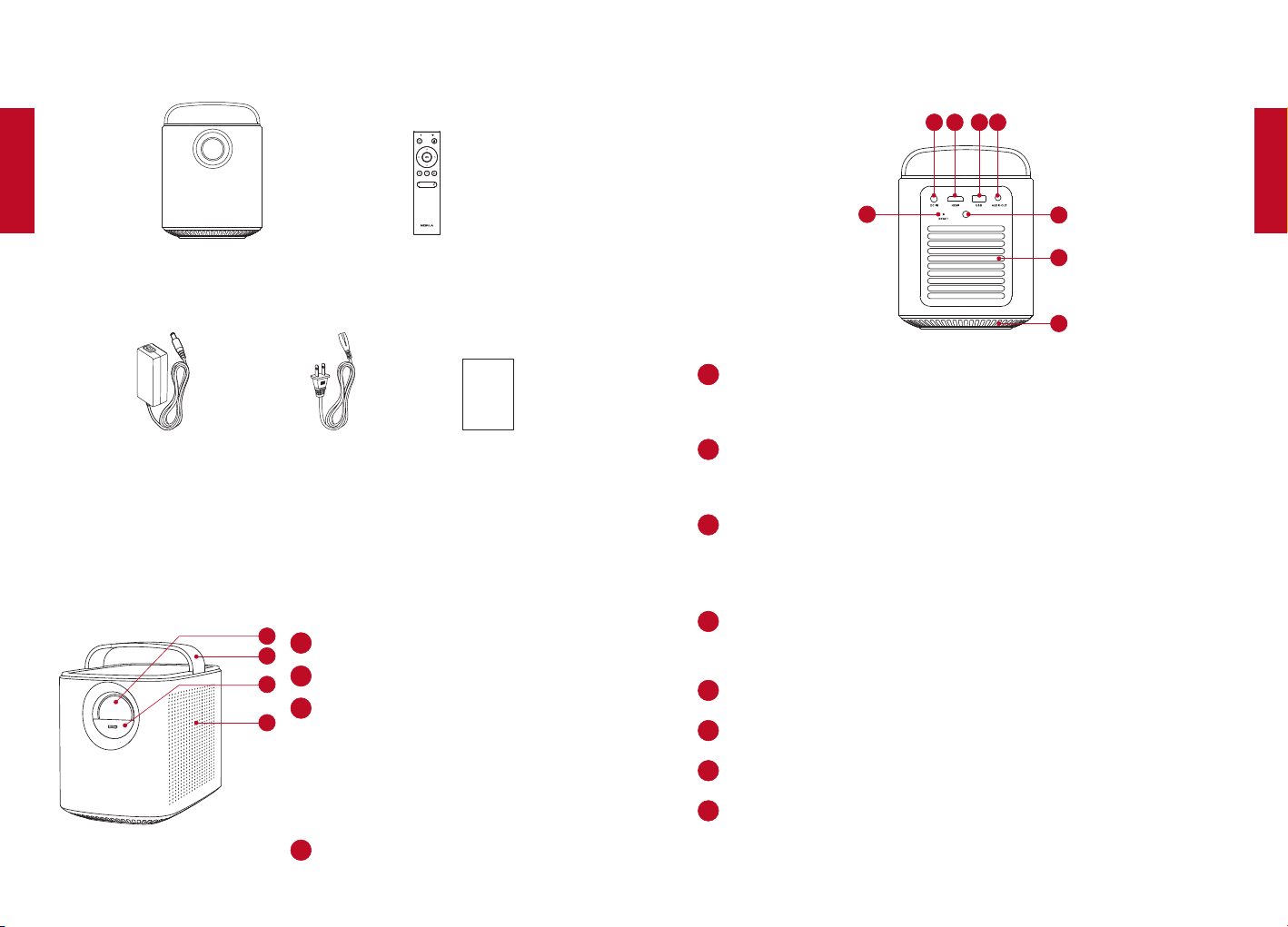
78 79
Italiano
Italiano
Contenuto
Main unit
Power Adapter Power cord
Remote control with batteries
Manual
Owner’s Manual
Panoramica
1. Vista anteriore
2
1
3
4
11
Obiettivo
2
Maniglia
3
Coperchio obiettivo
Scorrere verso il basso
per accendere e regolare
automaticamente la messa a
fuoco
Scorrere verso l’alto per spegnere
4
Altoparlante
2. Vista posteriore
2
1
3
4
6
5
7
8
11
DC IN
Collegamento all’alimentazione
2
HDMI
Collegamento a un dispositivo di riproduzione con uscita HDMI
3
USB
Collegamento a un dispositivo di archiviazione USB
Caricamento di un dispositivo USB come power bank
4
AUDIO OUT
Collegamento delle cuffie o di un altoparlante esterno
5
Ricevitore a infrarossi
6
Aerazione (uscita aria)
7
Aerazione (ingresso aria)
8
RESET
Tenere premuto per 3 secondi per effettuare un reset
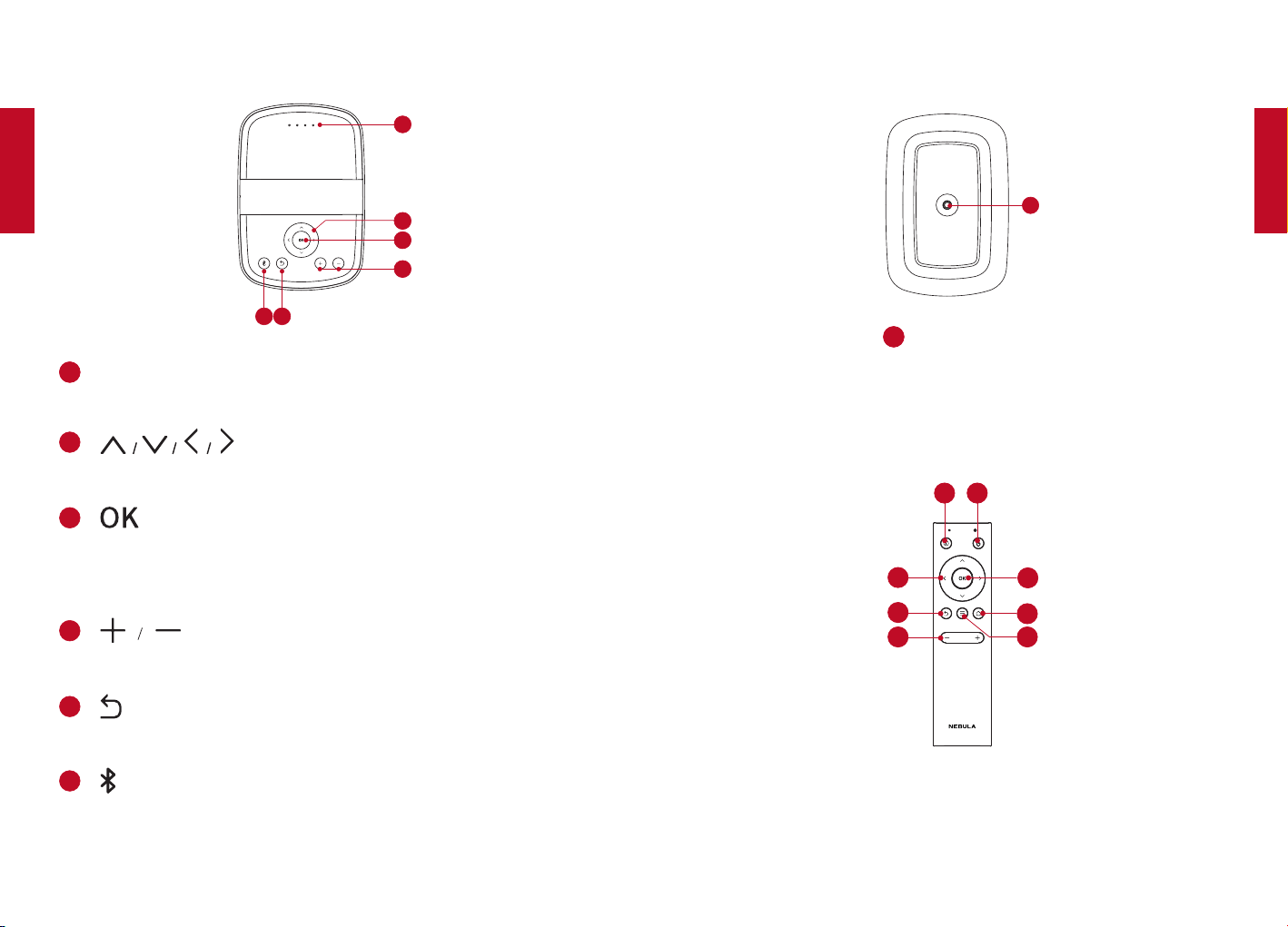
80 81
Italiano
Italiano
3. Vista dall’alto
2
1
3
4
6
5
11
Indicatori LED
Livello di carica
2
Pulsanti di navigazione
Per spostarsi nei menu o modificare i contenuti selezionati
3
Per confermare una selezione o un’immissione
Mette in pausa/riprende la riproduzione
4
Per alzare/abbassare il volume
5
Per tornare al menu precedente
6
Per accedere/uscire dalla modalità Bluetooth
In modalità standby, per riattivare il proiettore
4. Vista dal basso
1
11
Attacco per cavalletto
5. Telecomando
7
8
2
1
3
4
6
5

82 83
Italiano
Italiano
11
Accensione/spegnimento/standby
2
Per accedere/uscire dalla modalità mouse
3
Per confermare una selezione o un’immissione
Mette in pausa/riprende la riproduzione
4
Per accedere al menu Home
5
Per accedere ad altre opzioni durante la riproduzione (la
disponibilità delle opzioni dipende dall’origine).
Premere e tenere premuto per regolare la messa a fuoco
6
Pulsanti di navigazione
Per spostarsi nei menu o modificare i contenuti selezionati
7
Per tornare a un menu precedente
8
Per alzare/abbassare il volume
Per iniziare
1. Posizionamento
Posizionare il Mars II su un tavolo stabile e piano davanti alla superficie
di proiezione. Per ottenere i migliori risultati, la superficie di proiezione
deve essere bianca e piana. La distanza tra il proiettore e la superficie
di proiezione deve essere minimo 1 metro e massimo 3 metri.
39.4”
1
118”
T
Non è necessario inclinare il proiettore verso la superficie di
proiezione. È possibile correggere l'immagine di proiezione
con la correzione trapezoidale integrata.
La distanza tra il proiettore e la superficie di proiezione
determina le dimensioni dell'immagine.
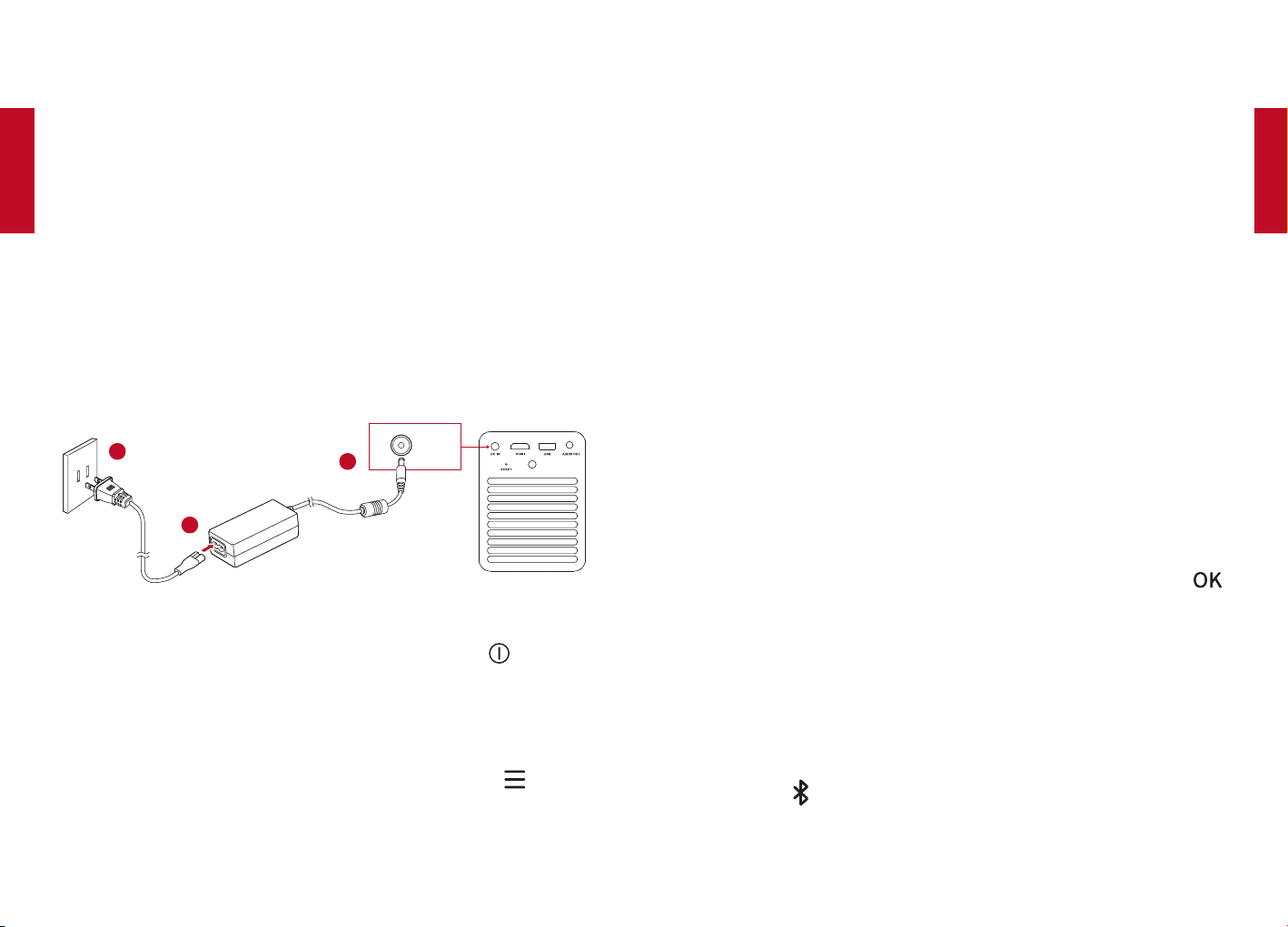
84 85
Italiano
Italiano
2. Preparazione del telecomando
①
Per il primo utilizzo, rimuovere la linguetta protettiva in plastica per
attivare le batteria del telecomando.
②
Per sostituire le batterie, estrarre la piastra del vano batterie per
aprire il coperchio del vano batterie, inserire le nuove batterie (facendo
corrispondere la polarità (+/-) indicata) e chiudere il coperchio del vano
batterie.
3. Per iniziare
①
Caricare completamente la batteria incorporata prima di utilizzare il
prodotto per la prima volta.
②
Collegare il proiettore all’uscita utilizzando l’adattatore e il cavo di
alimentazione in dotazione: la batteria incorporata verrà caricata e gli
indicatori LED si accenderanno.
DC IN
2
1
3
③
Far scorrere verso il basso il coperchio dell’obiettivo: il proiettore
si accenderà automaticamente. È possibile anche premere sul
telecomando per accenderlo.
④
Orientare il proiettore verso una superficie di proiezione o una parete
adatta.
⑤
Per mettere a fuoco l’immagine, spostare leggermente il proiettore
per attivare la messa a fuoco automatica oppure premere e tenere
premuto il tasto sul telecomando per la regolazione manuale.
Per il primo utilizzo, seguire le istruzioni visualizzate sullo schermo per
completare le impostazioni di base.
App Nebula
Per controllare facilmente il proiettore, consigliamo di scaricare l’app
Nebula dedicata, Nebula Connect. Utilizzando questa app, è possibile
utilizzare la tastiera dello smartphone per inserire il testo e lo schermo
dello smartphone come mouse.
①
Scaricare l’app Nebula Connect dall’App Store (dispositivi iOS) o da
Google Play (dispositivi Android).
②
Attivare il Bluetooth sullo smartphone e selezionare [Nebula] come
dispositivo da connettere.
③
Aprire l’app Nebula Connect e seguire le istruzioni visualizzate sullo
schermo per completare la configurazione della connessione.
Impostazioni
Quando si accende il proiettore per la prima volta, procedere con la
configurazione.
1. Rete
Questo proiettore può essere connesso a Internet tramite una
connessione wireless (Wi-Fi).
①
Nel menu Home, selezionare [Impostazioni] > [Rete] e premere .
②
Seguire le istruzioni visualizzate sullo schermo per completare la
connessione della rete.
2. Bluetooth
Modalità altoparlante Bluetooth
È possibile utilizzare il proiettore come altoparlante Bluetooth autonomo.
①
Premere sul proiettore per passare alla modalità altoparlante
Bluetooth.
②
Attivare il Bluetooth sullo smartphone e selezionare [Nebula] come
dispositivo da connettere.
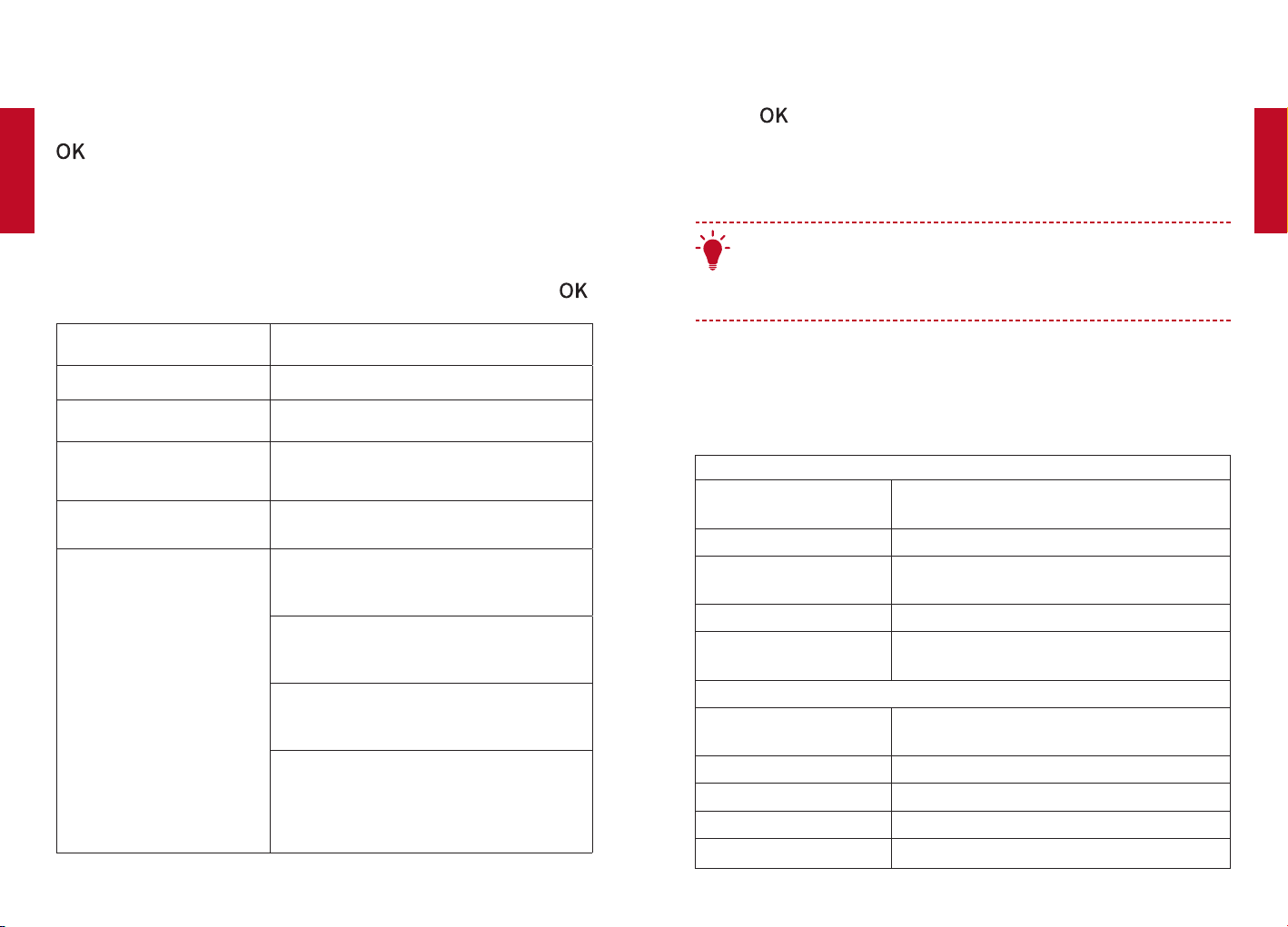
86 87
Italiano
Italiano
Modalità proiettore
È possibile collegare delle cuffie Bluetooth o un altoparlante al Mars II
mentre si trova in modalità proiettore.
①
Nel menu Home, selezionare [Impostazioni] > [Bluetooth] e premere
.
②
Seguire le istruzioni visualizzate sullo schermo per completare la
connessione Bluetooth.
3. Proiettore
Nel menu Home, selezionare [Impostazioni] > [Proiettore] e premere .
[Modalità immagine]
[Auto]/[Modalità standard]/[Modalità
batteria]
[Temperatura colore]
[Normale]/[Freddo]/[Caldo]
[Correzione trapezoidale
automatica]
Per attivare/disattivare la correzione
trapezoidale automatica.
[Correzione trapezoidale]
Eseguire manualmente la correzione
trapezoidale. Il valore predefinito è 0.
[Messa a fuoco automatica]
Per attivare/disattivare la messa a fuoco
automatica.
[Modalità proiettore]
[Anteriore]: il proiettore si trova davanti alla
superficie di proiezione.
[Posteriore]: il proiettore si trova dietro la
superficie di proiezione.
Anteriore sul soffitto]: il proiettore è
appeso al soffitto in posizione capovolta.
L'immagine è ruotata di 180 gradi.
[Posteriore sul soffitto]: il proiettore è
appeso al soffitto in posizione capovolta
dietro la superficie di proiezione.
L'immagine è ruotata di 180 gradi e
speculare in orizzontale.
4. Gestione app
①
Nel menu Home, selezionare [Impostazioni] > [Gestione app] e
premere .
②
È possibile selezionare un’app e verificare la sua versione corrente,
aprire l’app o forzarne l’arresto, controllare la quantità di memoria
utilizzata o cancellarne i dati oppure disinstallare l’app.
T
Se sono installate più di 3 app, è possibile selezionare [Tutte]
nella parte inferiore della home page per accedere alla pagina
[App]. Selezionare un'app e premere sul telecomando, quindi
selezionare [Sposta in home] o [Disinstalla].
5. Altre impostazioni
Nel menu Home, selezionare [Impostazioni] per trovare altre
impostazioni.
[Generale]
[Lingua]
Per selezionare una lingua visualizzata sullo
schermo.
[Toni tastiera] Per attivare/disattivare i toni tastiera.
[Intervallo sospensione
automatico]
5 min/15 min/30 min
[Sfondo] Per selezionare uno sfondo.
[Pulizia cache]
Per cancellare tutti i dati memorizzati nella
cache del proiettore.
[Data e ora]
[Data e ora automatica]
Per attivare o disattivare l'aggiornamento
automatico di data e ora.
[Data] Per impostare manualmente la data.
[Ora] Per impostare manualmente l'ora.
[Seleziona fuso orario] Per selezionare il fuso orario.
[Usa formato di 24 ore] Per selezionare il formato 24 ore o 12 ore.
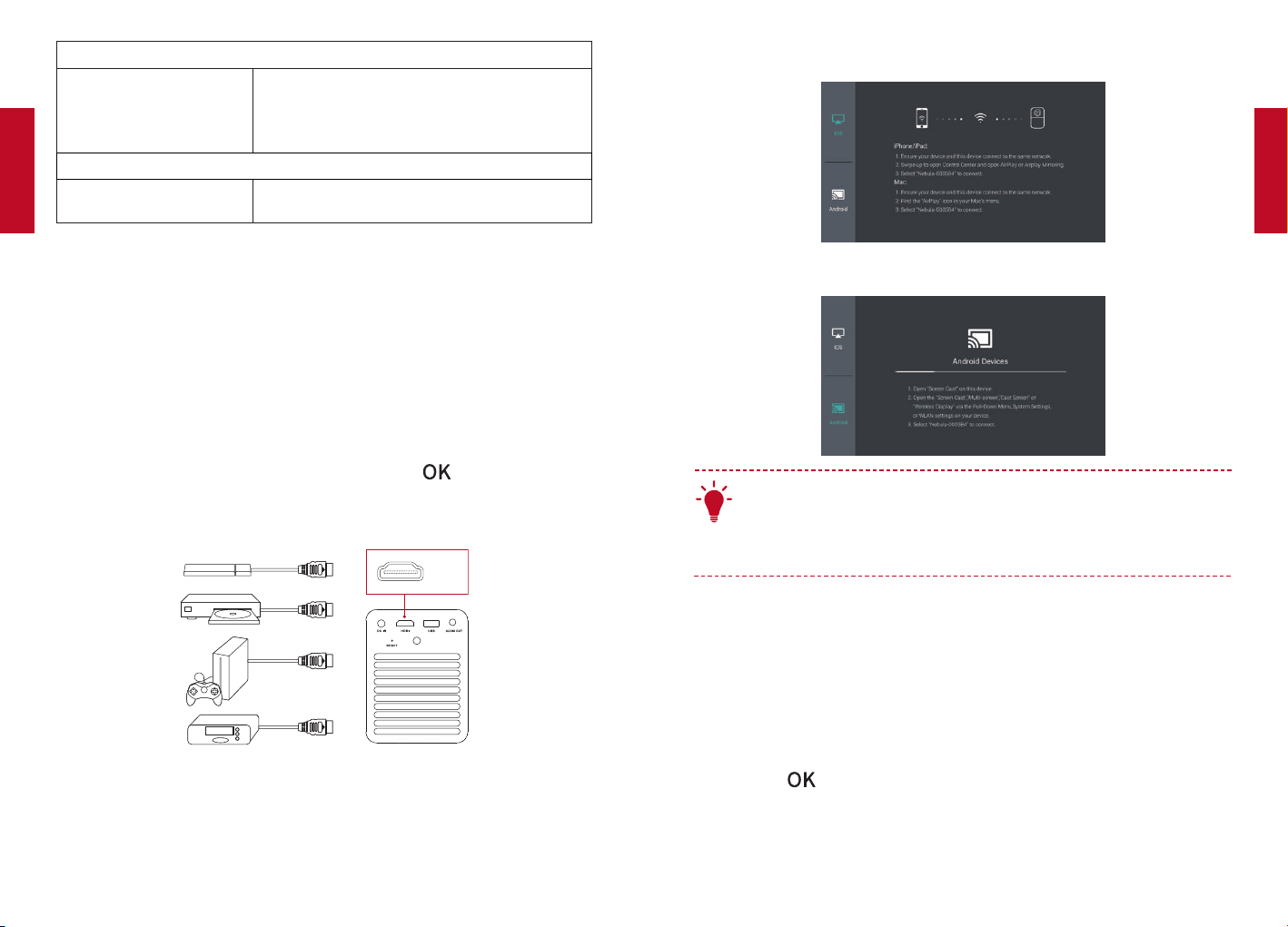
88 89
Italiano
Italiano
[Aggiornamento]
[Controlla
aggiornamenti]
Per controllare se si dispone della versione
più recente. Seguire le istruzioni visualizzate
sullo schermo per aggiornare la versione del
firmware.
[Informazioni su]
[Ripristino]
Tutti i dati della memoria incorporata verranno
cancellati.
Uso di Nebula Mars II
1. Collegamento ai dispositivi di riproduzione HDMI
Questo proiettore supporta i collegamenti a vari dispositivi di
riproduzione HDMI, ad esempio TV box, TV stick, lettori DVD, decoder,
console per videogiochi o altri dispositivi.
①
Collegare il proiettore a un dispositivo di riproduzione HDMI con un
cavo HDMI (non fornito).
②
Nel menu Home, selezionare [HDMI] e premere . (* La riproduzione
HDMI verrà automaticamente avviata quando il dispositivo viene
collegato per la prima volta a un dispositivo di riproduzione HDMI).
HDMI
2. Proiezione dello schermo
È possibile proiettare in modo wireless lo schermo del proprio
smartphone o tablet sulla superficie di proiezione.
Per i dispositivi iOS:
Per i dispositivi Android:
T
Alcuni contenuti potrebbero non essere disponibili per la
proiezione a causa di restrizioni dovute al copyright. In questo
caso, è possibile riprodurre il contenuto utilizzando direttamente
la stessa app installata su Nebula Mars II.
3. Selezione di un’app
Una volta connessi a una rete wireless, è possibile accedere ai servizi
online, godersi film, musica e foto e navigare in Internet. Oltre alle app
installate per impostazione predefinita, è possibile installare anche altre
app dal Nebula Store o da un’unità flash USB.
Nel menu Home, selezionare un servizio Internet da “App” o “Nebula
Store”.
Premere
per confermare.
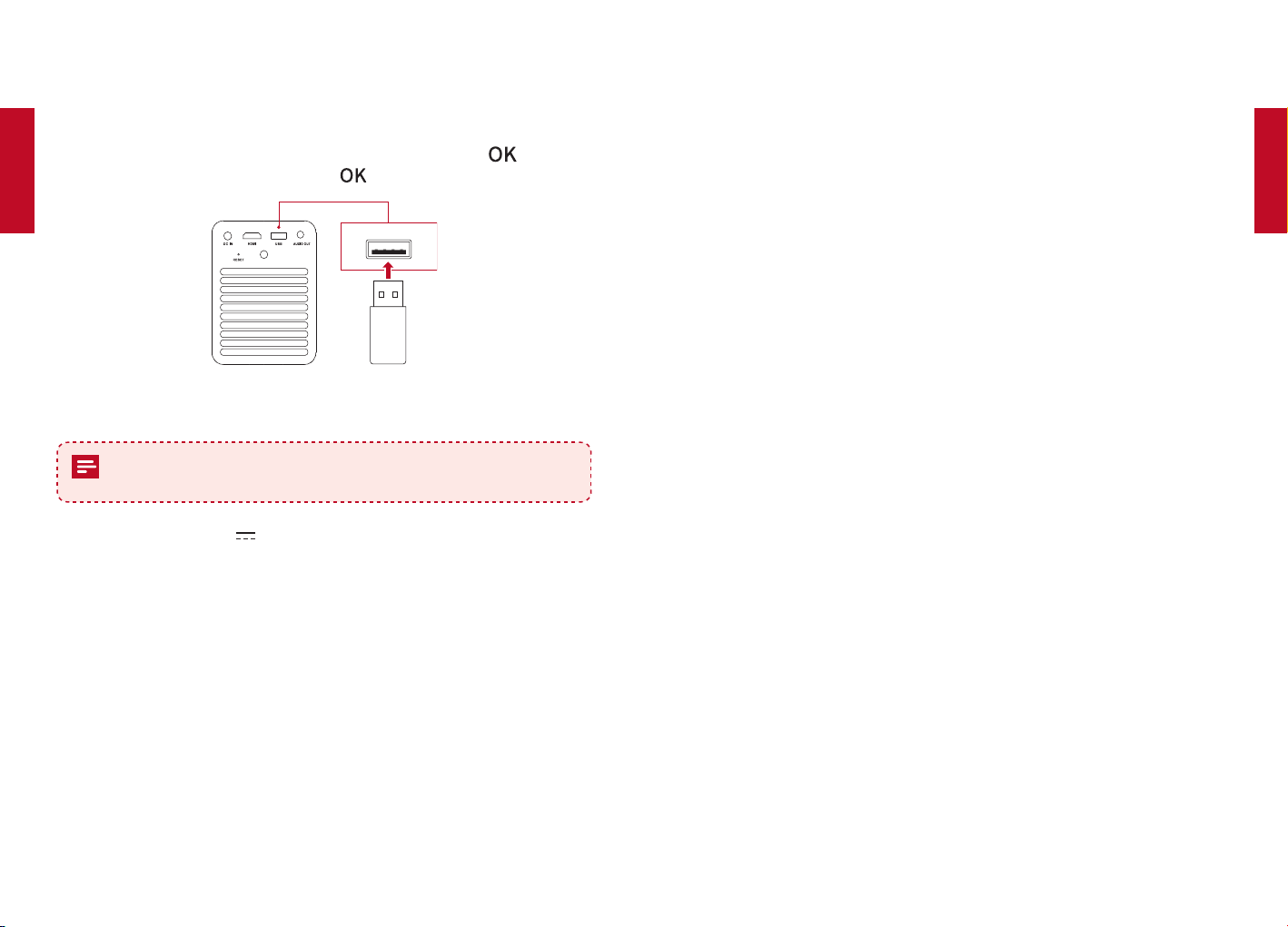
90 91
Italiano
Italiano
4. Collegamento a un dispositivo di archiviazione USB
Con questo proiettore, è possibile godere di musica, video e foto o
installare app memorizzate su un dispositivo di archiviazione USB 2.0
utilizzando il cavo OTG (non in dotazione).
①
Nel menu Home, selezionare [Gestione file] e premere
.
②
Selezionare un file, quindi premere .
USB
Specifiche
Le specifiche e il design sono soggetti a modifiche senza
preavviso.
Alimentazione: 19 V CC 3A
Consumo energetico: < 57 W
Consumo energetico in standby: < 0,5 W
Tecnologia display: DLP 0,3 pollici 1280*720p
Sorgente luminosa: LED RGB
Dimensioni immagine di proiezione: 30 - 150 pollici
Risoluzione: 1280 x 720 pixel
Luminosità: 300 ANSI Lumen/1.500 lm
Rapporto di contrasto: 1000:1
Rapporto di proiezione: 1,2
Driver altoparlante: 10 w x 2
Bluetooth: V4.0
Tipo batteria incorporata: Polimeri di litio
Capacità: 12500 mAh 3,8V
Durata riproduzione video: 4 ore
Durata riproduzione audio: 30 ore
Batterie telecomando: CR2032 x 2
Temperatura di esercizio: Da 0°C a 35°C
Umidità operativa: 15% ~ 85% (senza condensa)
Temperatura e umidità di conservazione: < 65 °C, < 90% di umidità
Dimensioni (L*A*P): 122 × 138 × 178 mm
Peso: 1.483 g
Risoluzione dei problemi
①
Non si riesce ad accendere il dispositivo utilizzando il telecomando?
Assicurarsi che il proiettore sia collegato a una fonte di
alimentazione.
Scorrere verso il basso il coperchio dell’obiettivo.
②
Non si riesce ad accendere il dispositivo facendo scorrere verso il
basso il coperchio dell’obiettivo?
Assicurarsi che il proiettore sia collegato a una fonte di alimentazione
.
Richiudere il coperchio dell’obiettivo e attendere 10 secondi, quindi
riprovare.
③
Il telecomando non funziona?
Rimuovere la linguetta protettiva per attivare le batterie del
telecomando.
Inserire batterie nuove.
④
Immagine sfocata?
È possibile spostare leggermente il proiettore o premere i pulsanti di
navigazione per mettere a fuoco l'immagine.
⑤
Immagine di proiezione rovesciata?
Nel menu Home, selezionare [Impostazioni] > [Modalità proiettore] e
passare allo stato corretto
.

93
日
本
語
92
Italiano
Garanzia
30 giorni di garanzia “soddisfatti o rimborsati” per qualsiasi motivo
È possibile restituire il prodotto integro e la sua confezione entro 30
giorni dalla data di acquisto per ricevere un RIMBORSO COMPLETO
per qualsiasi motivo. Se il motivo della restituzione non è relativo alla
qualità, il cliente dovrà pagare le spese di spedizione per la restituzione.
12 mesi di garanzia per problemi relativi alla qualità
I prodotti Nebula sono garantiti per essere privi di difetti di materiale
e di fabbricazione per un periodo di 12 mesi dalla data di acquisto.
Entro questo periodo, Nebula provvederà alla sostituzione e a coprire
qualsiasi costo di spedizione per la restituzione di prodotti danneggiati
in condizioni di normale utilizzo.
Nota: qualsiasi etichetta di spedizione fornita deve essere utilizzata
entro 20 giorni dalla data in cui è stata rilasciata da Nebula Support.
安全にご使用いただくために
本製品を使用する前に、すべての指示を読んで理解してください。こ
のマニュアルで説明されていない変更または設定はしないでくださ
い。指示に従わなかったことが原因で身体の傷害、データの損失、破
損が発生しても、保証の対象になりません。
セットアップ
火災や感電のリスクを軽減するため、本製品を雨や湿気にさらさな
いでください。また、花びんなど液体の入った物をこのデバイスの
上に置かないでください。
火災が発生する危険があるため、本製品をテーブルクロスやカーペ
ットなどの柔らかい面の上に置かないでください。
本製品を、埃や汚れが多く付きやすい場所や、強い磁場を発生する
機器の近くに置かないでください。
過熱を防ぐため、通気を妨げたり換気口をふさいだりしないでくだ
さい。
本製品は決して狭い場所に置かないでください。デバイスの周囲に
通気のためのスペースを常に十分に確保してください。
本製品を直射日光、熱、大きな温度変化、湿気から保護してください。
本製品を長時間使用して表面が高温になった場合は、電源をオフに
して電源コードを外してください。必ずデバイスが冷えた後で動作
を再開してください。
本製品の取り扱いには常に注意が必要です。レンズに触れないでく
ださい。
本製品や電源コードの上に重い物や尖った物を絶対に置かないでく
ださい。
感電を防ぐため、分解しないでください。
弊社指定のアタッチメントおよび付属品のみを使用してください。
極端な振動を避けてください。内部の部品が破損するおそれがあり
ます。
本製品を大人による監視なしにお子様だけで使用することがないよ
うにしてください。
次の状況では、本製品内部に湿気の層ができ、そのために誤動作が
発生することがあります。a) 本製品を冷えた場所から温かい場所に
移動した場合、b) 冷えた部屋が暖められた場合、c) 本製品を湿気
が多い部屋に置いた場合。湿気を避けるには、別の部屋に移動する
94 95
日
本
語
日
本
語
前に本製品をビニール袋やポリ袋に入れ、1 〜 2 時間待ってからを
袋から取り出します。
電源
付属の電源アダプター以外は使用しないでください。
ソケットから電源を取り外す前に本製品の電源をオフにしてくださ
い。
特にプラグやコンセント付近、デバイスから電源コードが出る位置
でコードが踏まれたり挟まったりしないように保護してください。
雷雨発生時や長期間使用しない場合は、本製品から電源を取り外し
てください。
電源プラグまたは機器との接続部を電源遮断装置として使用する場
合、すぐに遮断操作ができる状態を維持してください。
接続を行う前または変更する前に、すべてのデバイスがコンセント
から外されていることを確認してください。
電源ケーブルや電源コネクターに濡れた手で触れないようにしてく
ださい。
再生時の安全性
聴覚障害を避けるため、長時間、大きな音量で聴かないでください。
音量は安全なレベルに設定してください。
電池・バッテリー
お客様ご自身で内蔵バッテリーの交換はしないでください。内蔵バ
ッテリーの交換が必要な場合は、認定サービスセンターにお問い合
わせください。
リモコンに使用されているコイン型電池は小型のため、お子様が誤
って飲み込んでしまう恐れがあります。電池はお子様の手が届かな
い場所に保管してください。
電池やバッテリーは爆発の危険性があります。電池やバッテリーを
熱、直射日光、火気から遠ざけてください。また、絶対に火中に投
入しないでください。
リモコンを長期間使用しない場合は、電池を取り外してください。
電池を正しく交換しないと、爆発する恐れがあります。同じタイプ
の電池とのみ交換してください。
電池・バッテリーには化学物質が含まれており、適切に廃棄する必
要があります。
本製品は定期的に充電してください。本製品は、バッテリーが完全
に放電された状態では保管しないでください。
クリーニング
表面をクリーニングする前に、本製品の電源をオフにし、電源から
取り外してください。
糸くずの出ない柔らかい布を使用してください。液体、気体、可燃
性の洗浄剤 ( スプレー、研磨剤、アルコールなど ) を使用しないで
ください。
レンズの保護コーティングの損傷を避けるため、いかなるレンズク
リーニング用洗浄液も使用しないでください。
表面は優しく拭いてください。表面に傷を付けないように注意して
ください。
プロジェクターのレンズのクリーニングにはクリーニングペーパー
を使用してください。
修理
本製品のいかなる修理もお客様ご自身ではなさらないでください。
このデバイスの修理は必ず認定サービスセンターにご依頼くださ
い。
メンテナンスが不適切な場合、けがをしたり、本製品が損傷したり
するおそれがあります。
サービス作業はすべて、認定サービス担当者に依頼してください。
ClassII 機器記号
この記号は、ユニットに二重絶縁構造があることを示します。
レーザーに関する安全性
CLASS 1
LASER PRODUCT
IEC60825-1:2014。IEC62471:2006RiskGroup2 に適合しています。
注意
本製品からは、有害な可能性がある光線が放出されます。
動作時の光線をのぞき込まないでください。明るい光で目を傷める
おそれがあります。
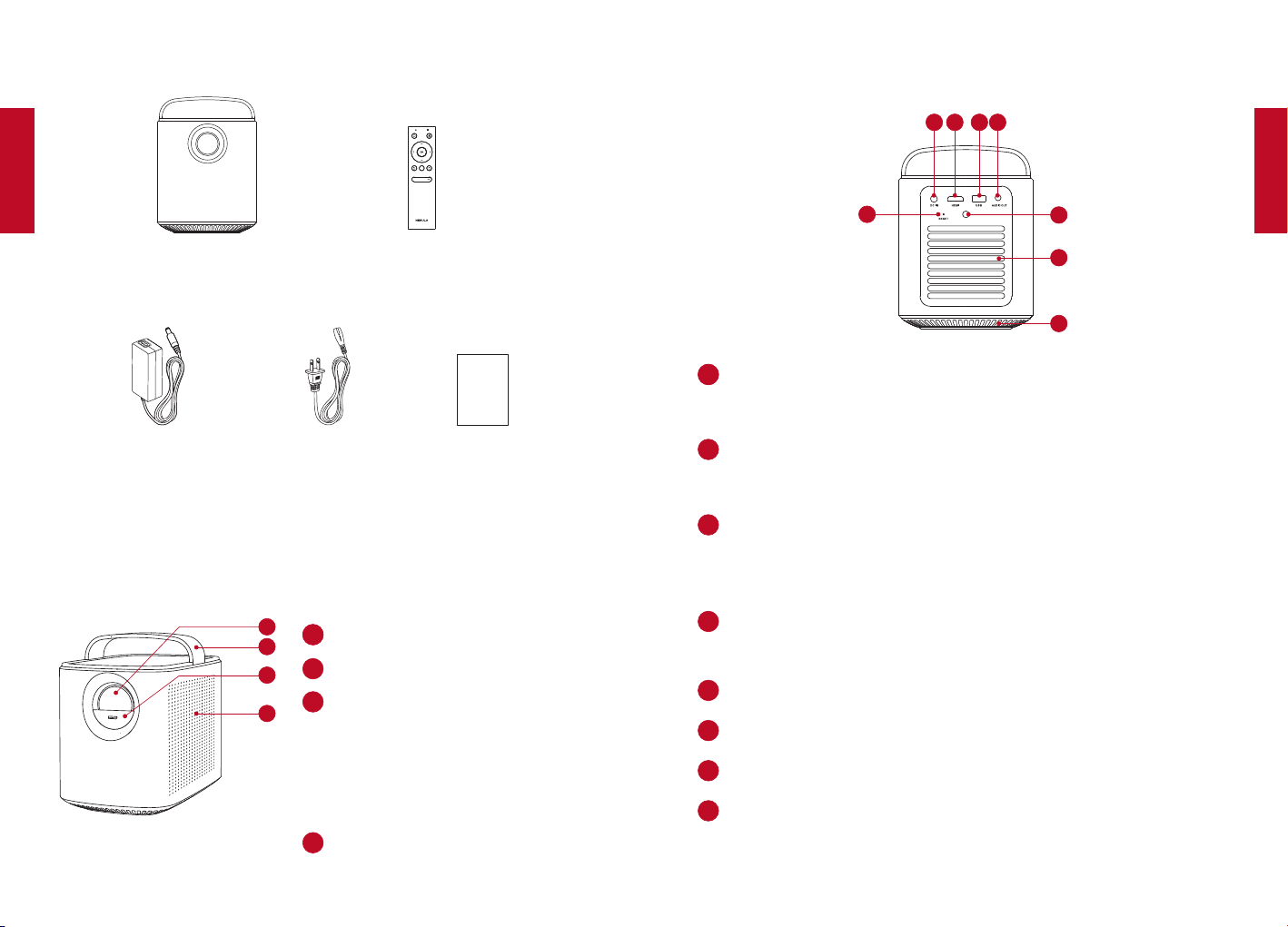
96 97
日
本
語
日
本
語
内容物
Main unit
Power Adapter Power cord
Remote control with batteries
Manual
Owner’s Manual
NebulaMarsII
電源アダプター 電源コード マニュアル
電池付きリモコン
概要
1.
正面図
2
1
3
4
11
レンズ
2
ハンドル
3
レンズカバー
下にスライドさせて電源をオ
ンにすると、フォーカスが自
動的に調整されます
上にスライドさせて電源をオ
フにします
4
スピーカー
2.
背面図
2
1
3
4
6
5
7
8
11
DC 入力
電源に接続します
2
HDMI
HDMI 出力を持つ再生デバイスに接続します
3
USB
USB ストレージデバイスに接続します
USBバッテリーデバイスを充電します
4
オーディオ出力
ヘッドフォンまたは外部スピーカーに接続します
5
赤外線レシーバー
6
換気口 ( 排気 )
7
換気口 ( 吸気 )
8
リセットボタン
3 秒間押し続けるとリセットします
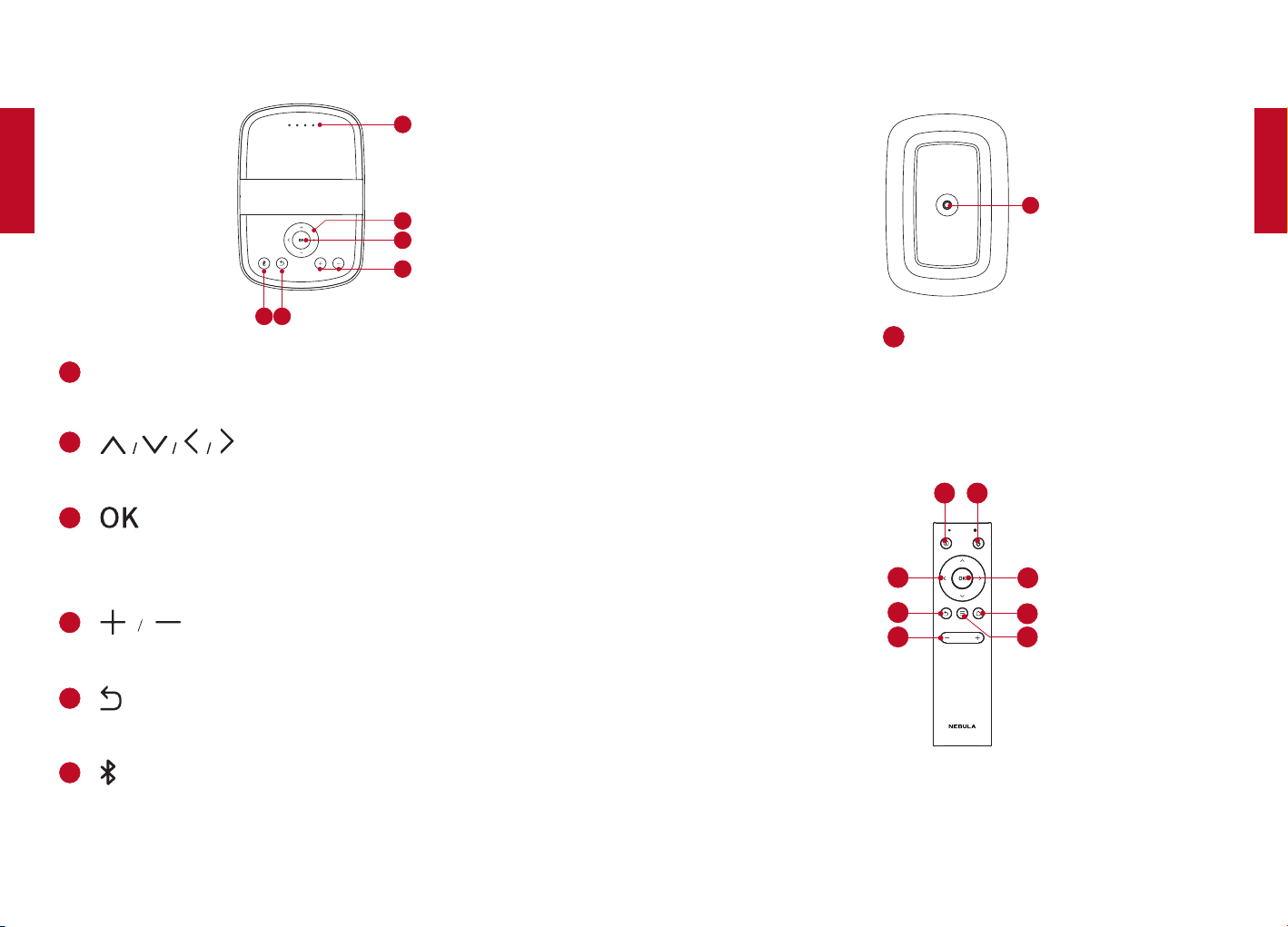
98 99
日
本
語
日
本
語
3.
上面図
2
1
3
4
6
5
11
LED インジケーター
電源レベル
2
ナビゲーションボタン
メニュー間を移動したり、選択した内容を調整したりします
3
選択または入力を確定します
再生を一時停止/再開します
4
音量を上下します
5
前のメニューに戻ります
6
Bluetooth モードを開始/終了します
スタンバイモードのときに押してプロジェクターを起動しま
す
4.
底面図
1
11
三脚取り付け部
5.
リモコン
7
8
2
1
3
4
6
5
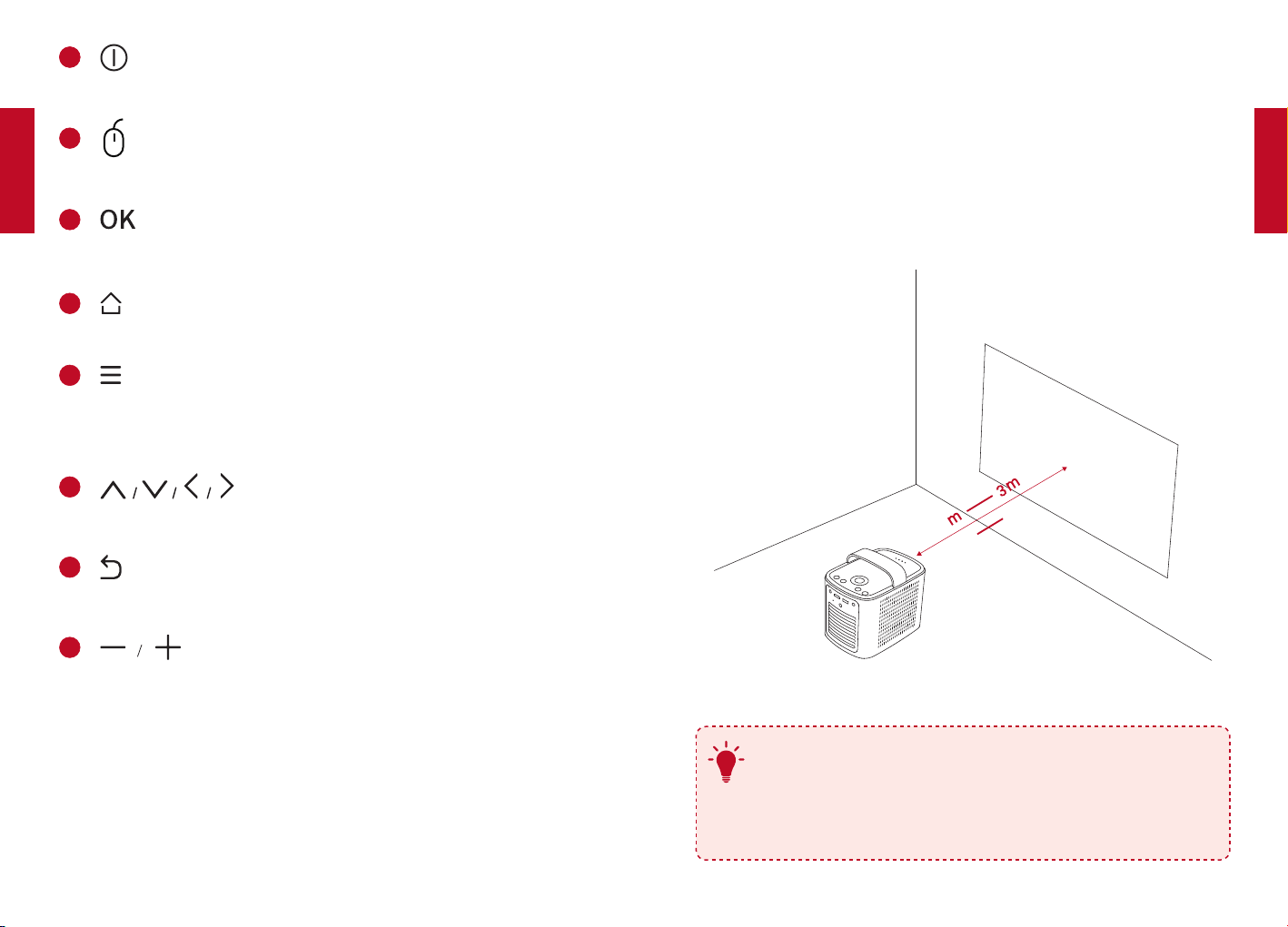
100 101
日
本
語
日
本
語
11
電源のオン/オフ/スタンバイの切り替えを行います
2
マウスキーモードを開始/終了します
3
選択または入力を確定します
再生を一時停止/再開します。
4
ホームメニューにアクセスします。
5
再生中に各種オプションにアクセスします ( 使用できるオプ
ションはソース入力によって異なります )
長押ししてフォーカスを調整します
6
ナビゲーションボタン
メニュー間を移動したり、選択した内容を調整したりします
7
前のメニューに戻ります
8
音量を上下します
はじめに
1.
設置
MarsII は、投影面の前にある、安定した平らな面の上に置いてくだ
さい。投影面が白くて平らな場合に、最もきれいに映ります。プロジ
ェクターと投影面の間の距離は、最小で 1 メートル、最大で 3 メー
トルにしてください。
39.4”
1
118”
T
プロジェクターを投影面に向けて傾ける必要はありませ
ん。内蔵のキーストーン補正機能を使用して、投影画像
を補正できます。
画像の大きさは、プロジェクターと投影面の距離で決ま
ります。
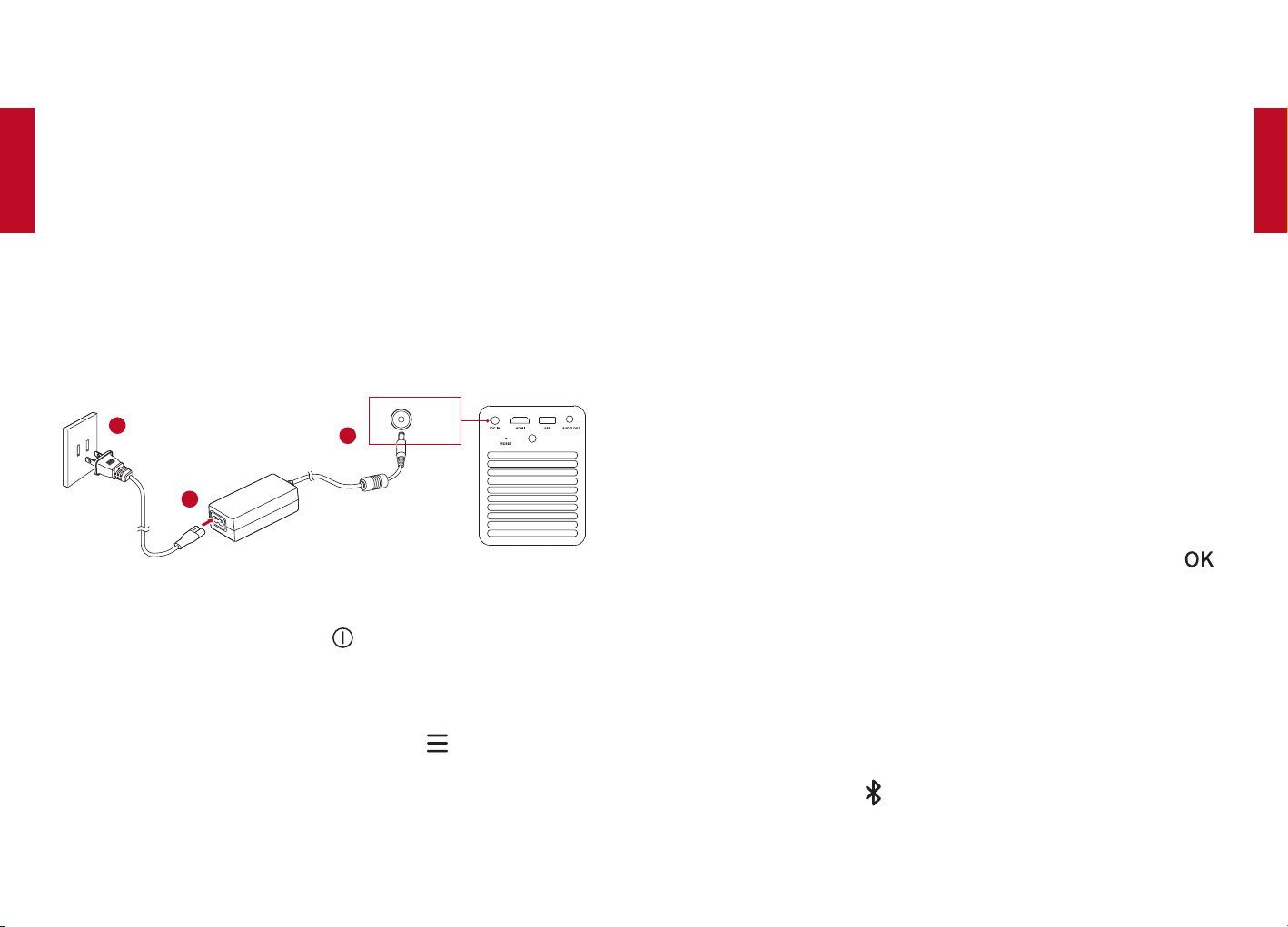
102 103
日
本
語
日
本
語
2.
リモコンを準備する
①初めて使用するときは、プラスチック製の電池装着タブをはずし
て、リモコンの電池を通電させてください。
②電池を交換するときには、電池格納部のカバーをスライドさせて
電池格納部を開き、新しい電池を挿入して ( 指定されている極 (+/-)
を一致させます )、電池格納部を閉じます。
3.
使い始める
①初めて使用するときは、事前に内蔵バッテリーをフル充電してく
ださい。
②付属の電源アダプターと電源コードを使用してプロジェクターを
コンセントに接続します。内蔵バッテリーが充電され、LED インジケ
ーターが点灯します。
DC IN
2
1
3
③
レンズカバーを下にスライドさせると、プロジェクターの電源が自
動的にオンになります。リモコンの を押してオンにすることもで
きます。
④
プロジェクターを適切な投影面または壁に向けます。
⑤画像のフォーカスを調整するには、プロジェクターを少し動かし
てオートフォーカスを起動するか、リモコンの を長押しして手動
で調整します。
⑥初回使用時は、画面の指示に従って基本設定を完了します。
Nebula アプリ
本製品を簡単に制御するために、専用の Nebula アプリ、Nebula
Connect をダウンロードすることをお勧めします。このアプリを利用
すると、スマートフォンのキーボードでテキストを入力したり、スマ
ートフォンの画面をマウスとして使用したりできます。
①AppStore(iOSデバイスの場合 ) または GooglePlay(Android デバ
イスの場合 ) から
Nebula Connect
アプリをダウンロードします。
②お使いのスマートフォンで Bluetooth を有効にし、接続するデバ
イスとして
Nebula
を選択します。
③
Nebula Connect
アプリを開き、画面の指示に従って、接続の設定
を完了します。
設定
プロジェクターを初めて起動したときには、各種設定を行います。
1.
ネットワーク
このプロジェクターは、ワイヤレス (Wi-Fi) 接続を使用してインター
ネットに接続できます。
①ホームメニューで、[設定]>[ネットワーク]を選択し、
を押します。
②画面の指示に従って、ネットワーク接続を完了します。
2.
Bluetooth
Bluetooth スピーカーモード
このプロジェクターは、スタンドアローン Bluetooth スピーカーとし
て使用できます。
①プロジェクターの を押して、Bluetooth スピーカーモードに切
り替えます。
②お使いのスマートフォンで Bluetooth を有効にし、接続するデバ
イスとして
Nebula
を選択します。
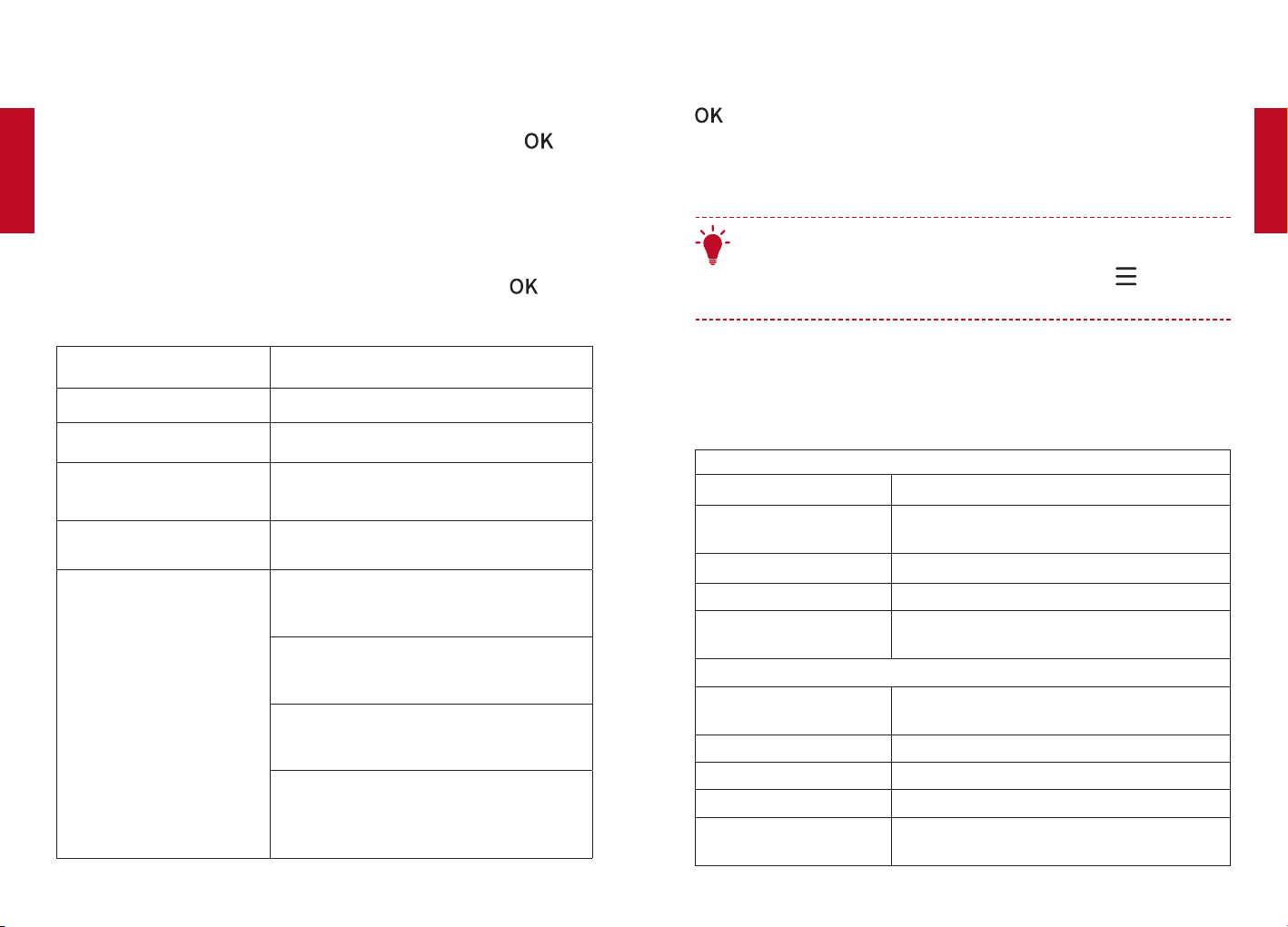
104 105
日
本
語
日
本
語
プロジェクターモード
プロジェクターモードのときには、Bluetooth ヘッドフォンまたはス
ピーカーを MarsII に接続できます。
①ホームメニューで、[設定]>[Bluetooth]を選択し、 を押
します。
②画面の指示に従って、Bluetooth 接続を完了します。
3.
プロジェクター
ホームメニューで、[設定]>[プロジェクタ]を選択し、 を押し
ます。
[画像モード]
[自動]/[標準モード]/[バッテリ
モード]
[色温度]
[標準]/[寒色]/[暖色]
[自動キーストーン補正]
自動キーストーン補正を有効または無効
にします。
[キーストーン補正]
手動でキーストーン補正を行います。デフ
ォルト値は 0 です。
[オートフォーカス]
オートフォーカスを有効または無効にし
ます。
[プロジェクタモード]
[前面]:プロジェクターが投影面の前
にある設定です。
[背面]:プロジェクターが投影面の背
後にある設定です。
[前面天井]:プロジェクターが天井か
ら逆さまに吊り下がっている設定です。
画像が 180 度回転します。
[背面天井]:プロジェクターが投影面
の背後で天井から逆さまに吊り下がって
いる設定です。画像が 180 度回転し、左
右が反転します。
4.
アプリマネージャ
①
ホームメニューで、[設定]>[アプリマネージャ]を選択し、
を押します。
②アプリを選択し、現在のバージョンの確認、アプリを開く操作ま
たは強制停止、使用ストレージの確認、データまたはキャッシュのク
リア、アンインストールを行います。
T
アプリが 4 つ以上インストールされている場合は、ホームメニ
ューの下部にある[すべて]を選択し、[アプリ]ページに入
ることができます。アプリを選択し、リモコンの
を押すと、
[ホームに移動]または[アンインストール]を選択できます。
5.
その他
ホームメニューで[設定]を選択し、その他の設定オプションを表示
します。
[一般]
[言語] 画面表示の言語を選択します。
[キーパッド操作音]
キーパッド操作音のオンとオフを切り替え
ます。
[自動スリープ間隔] 5 分/15 分/30 分
[背景] 背景を選択します。
[キャッシュを消去]
プロジェクターのキャッシュに保存されて
いるすべてのデータを消去します。
[日付と時刻]
[日付と時刻の自動
設定]
日付と時刻の自動設定を有効または無効に
します。
[日付] 日付を手動で設定します。
[時刻] 時刻を手動で設定します。
[タイムゾーンの選択] タイムゾーンを選択します。
[24時間形式の使用]
24 時間形式か 12 時間形式かを切り替えま
す。
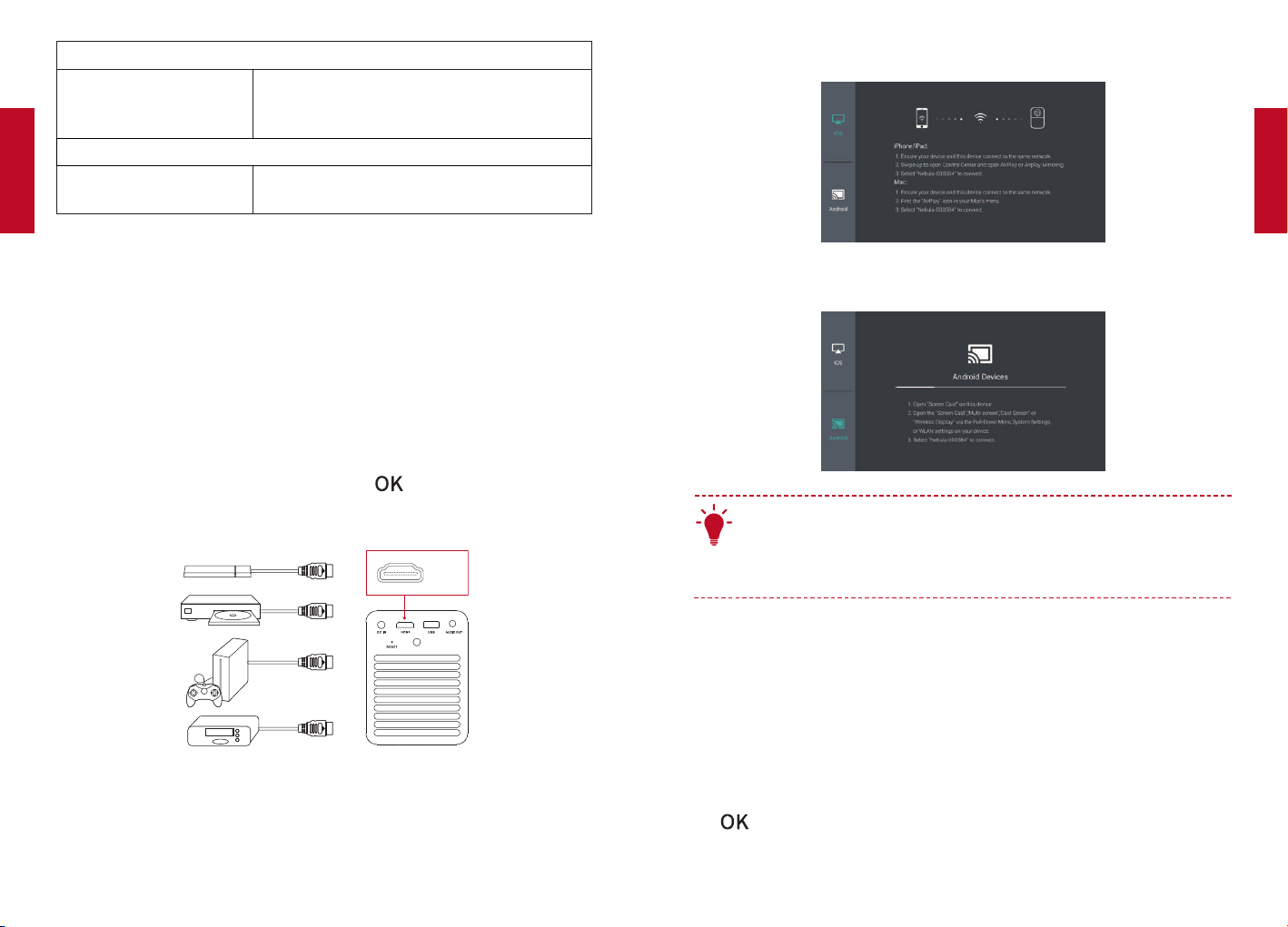
106 107
日
本
語
日
本
語
[アップグレード]
[更新の確認]
最新のバージョンを使用しているかどうか
を確認します。画面の指示に従って、ファー
ムウェアバージョンをアップデートします。
[バージョン情報]
[リカバリ]
内蔵ストレージの全データが消去されま
す。
使用方法
1.
HDMI 再生デバイスに接続する
このプロジェクターは、TV ボックス、TV スティック、DVD プレーヤー、
セットトップボックス (STB)、ゲーム機など、さまざまな HDMI 再生
デバイスとの接続をサポートしています。
①このプロジェクターを HDMI 再生デバイスに HDMI ケーブル ( 付
属していません ) で接続します。
②
ホームメニューで[HDMI]を選択し、 を押します (*HDMI 再生
デバイスへの初回接続時は、HDMI 再生が自動的に開始されます )。)
HDMI
2.
スクリーンキャスト
ワイヤレス接続したスマートフォンやタブレットの画面を、投影面に
映し出せます。
iOS デバイスの場合:
Androidデバイスの場合:
T
コンテンツによっては、著作権上の制限により、スクリーンキ
ャストを利用できない場合があります。その場合は、Nebula
MarsII にインストールされている同じアプリを使用してコン
テンツを直接再生することができます。
3.
アプリの選択
ワイヤレスネットワークに接続されると、オンラインサービスにアク
セスしたり、動画、音楽、写真を表示または再生して楽しんだり、イ
ンターネットを利用したりできます。デフォルトでインストールされ
ているアプリとは別に、NebulaStore または USB フラッシュドライ
ブから、他のアプリをインストールすることもできます。
ホームメニューで、[アプリ]または[NebulaStore]からインタ
ーネットサービスを選択します。
を押して確定します。
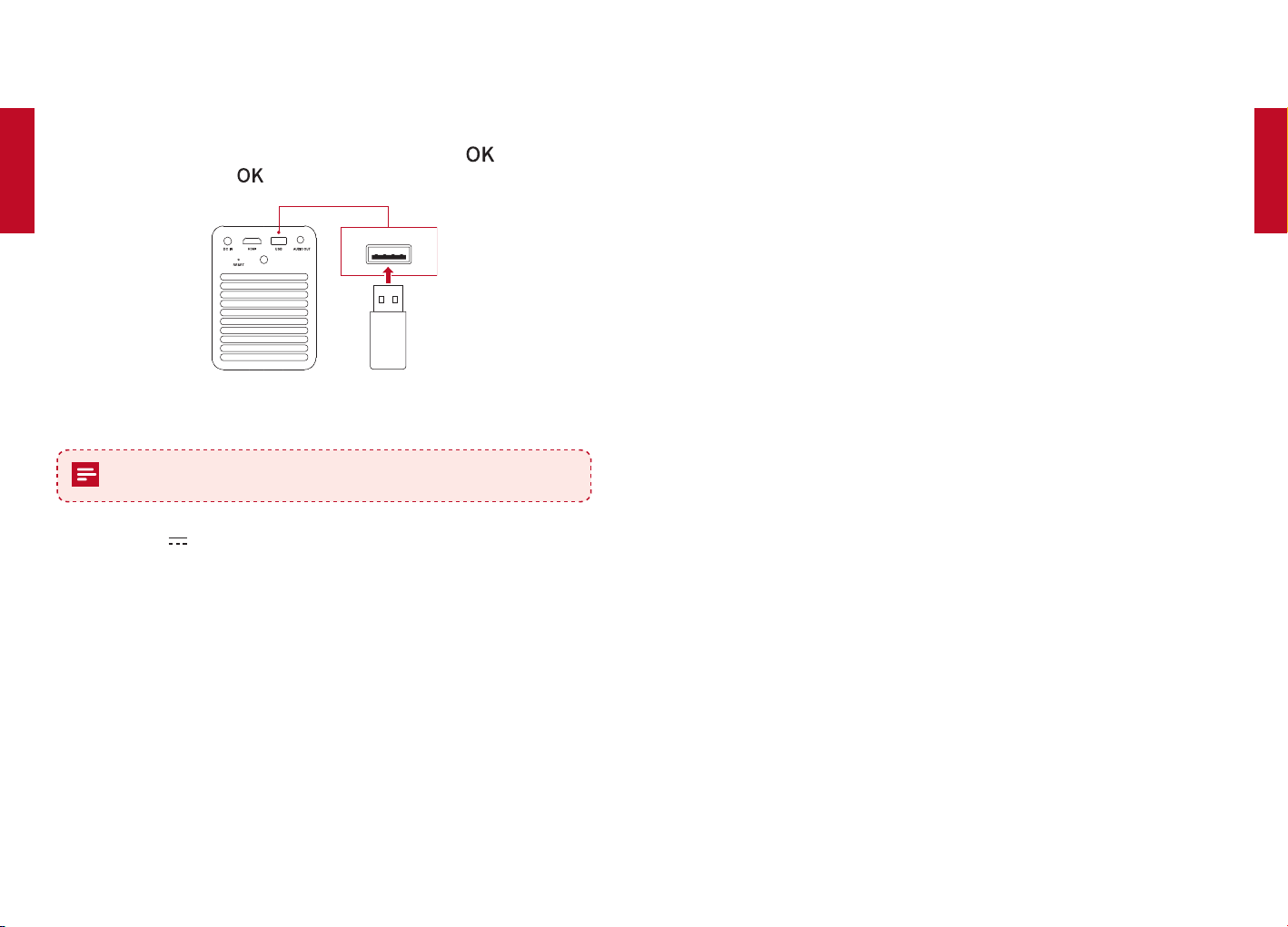
108 109
日
本
語
日
本
語
4.
USB ストレージデバイスに接続する
このプロジェクターでは、OTG ケーブル ( 付属していません ) を使用
して、音楽、ビデオ、写真を楽しんだり、USB2.0 ストレージデバイ
スに保存されたアプリをインストールしたりできます。
①ホームメニューで[ファイルマネージャ]を選択し、 を押します。
②ファイルを選択し、
を押します。
USB
製品仕様
仕様およびデザインは予告なく変更されることがあります。
電源:DC19V 3A
消費電力:57W未満
スタンバイ時消費電力:0.5W未満
表示技術:0.3 インチ 1280x720 画素 DLP
光源:RGBLED
投影画像サイズ:30 〜 150 インチ
解像度:1280x720 画素
輝度:300ANSI ルーメン/1,500lm
コントラスト比:1000:1
投影比:1.2
スピーカードライバー:10wx2
Bluetooth:V4.0
内蔵バッテリータイプ:リチウムポリマー
容量:12500mAh3.8V
ビデオ再生時間:4 時間
音楽再生時間:30 時間
リモコンの電池:CR2032x2
動作温度:0
°C
〜 35
°C
動作湿度:15 〜 85%(結露なし)
保管温度および湿度:65
°C
未満、湿度 90% 未満
寸法 (WxHxD):122×138×178mm
重量:1,483g
トラブルシューティング
①リモコンで電源をオンにすることができない。
プロジェクターが電源に接続されていることを確認してください。
レンズカバーを下にスライドさせます。
②レンズカバーを下にスライドさせて電源をオンにすることができ
ない。
プロジェクターが電源に接続されていることを確認してください。
レンズカバーを上にスライドさせ、10 秒待ってからもう一度やり
直します。
③リモコンが機能しない。
電池絶縁タブをはずして、リモコンの電池を通電させてください。
新しい電池に交換します。
④画像がぼやけている。
プロジェクターを少し動かすか、ナビゲーションボタンを押して画
像のフォーカスを調整します。
⑤投影された画像の向きが逆さになる。
ホームメニューで[設定]>[プロジェクタモード]を選択し、正し
い状態に切り替えます。

111
110
日
本
語
保証
理由を問わない 30 日間返金保証
損傷のない商品とパッケージを購入後 30 日以内にご返送いただけれ
ば、理由を問わず全額を返金いたします。ただし、返品理由が品質に
関係しない場合は、返送料はお客様の負担になります。
品質に関係する問題に対する十八か月保証
Nebula 製品は、購入日から十八か月間、材料や仕上がりに欠陥のな
いことが保証されます。この期間中、Nebula は交換品を提供し、通
常の使用で障害が発生した商品について返送費用を負担します。
注意:ご用意する発送ラベルは、Nebula サポートによる発行日から
20 日以内に使用する必要があります。
112 113
CLASS 1
LASER PRODUCT
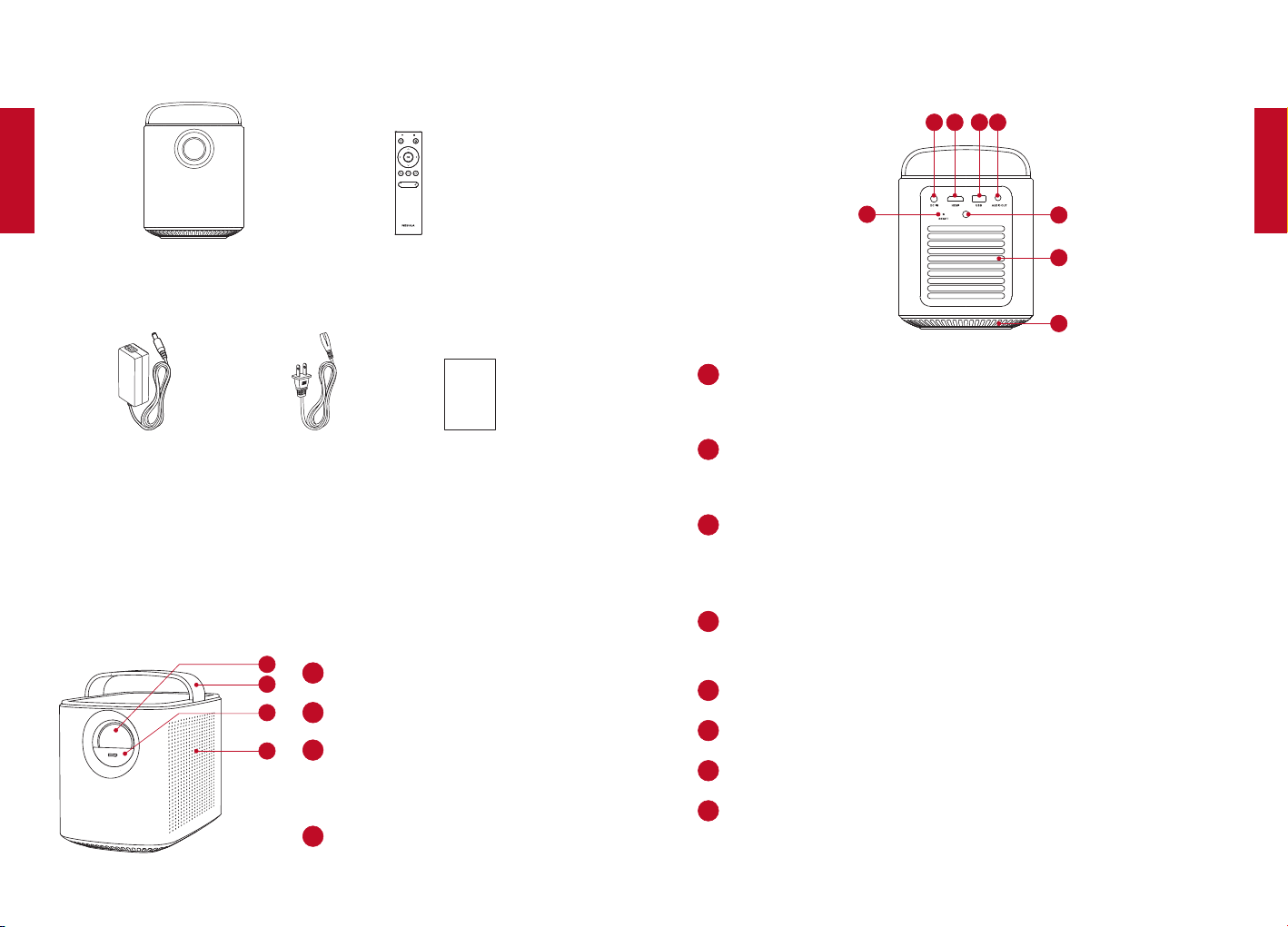
114 115
Main unit
Power Adapter Power cord
Remote control with batteries
Manual
Owner’s Manual
1.
2
1
3
4
11
2
3
4
2.
2
1
3
4
6
5
7
8
11
2
3
4
5
6
7
8
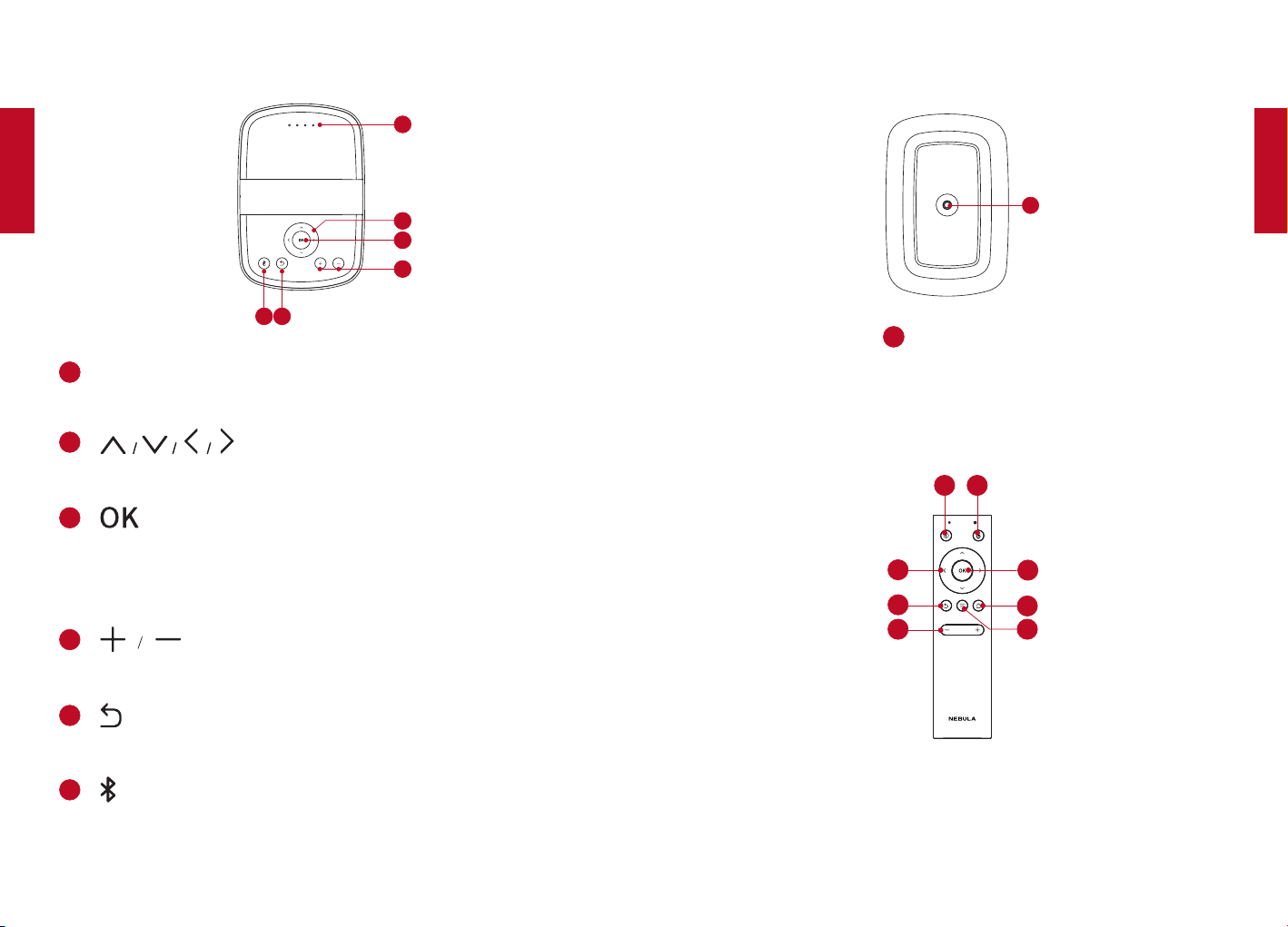
116 117
3.
2
1
3
4
6
5
11
2
3
4
5
6
4.
1
11
5.
7
8
2
1
3
4
6
5
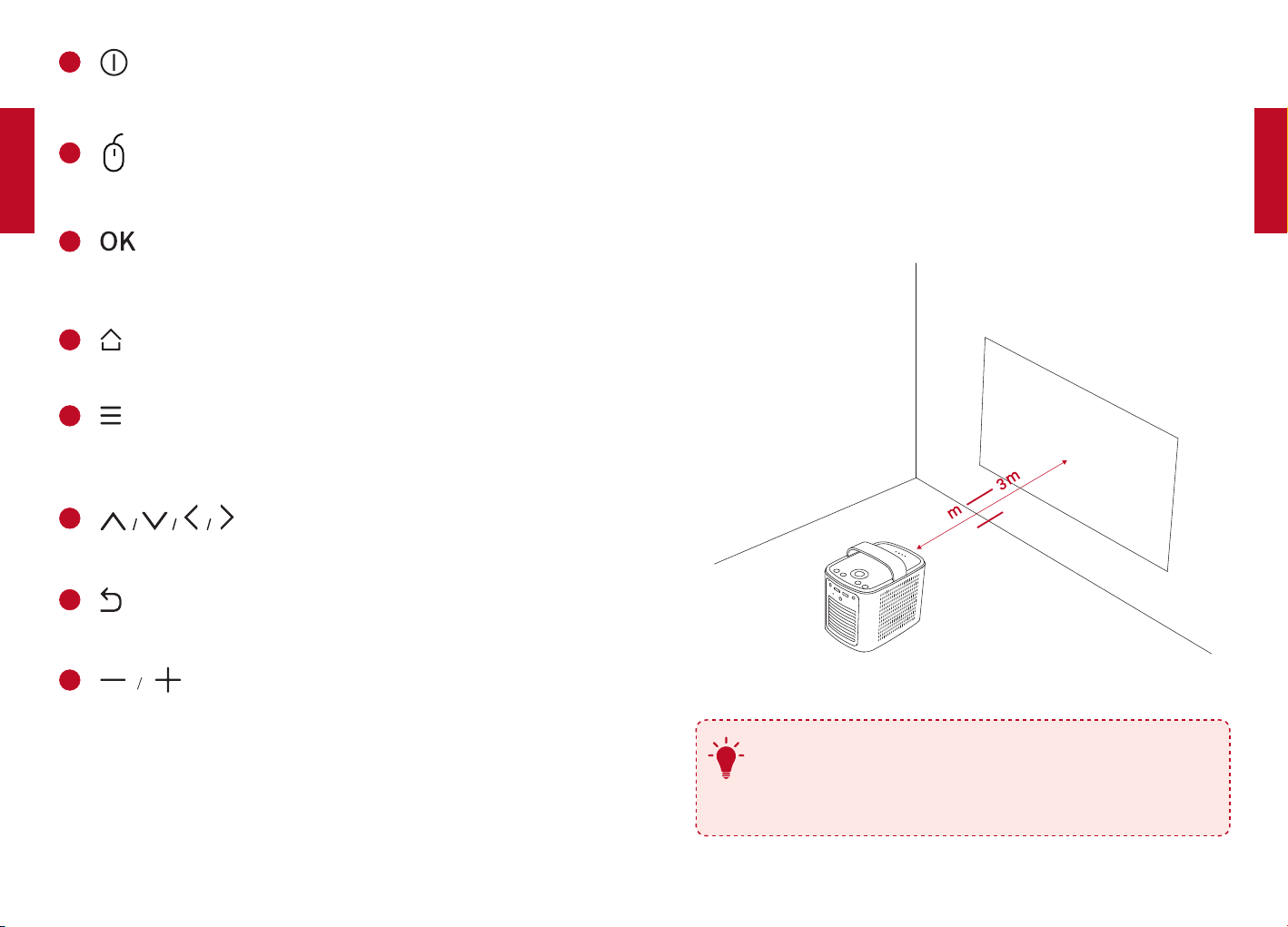
118 119
11
2
3
4
5
6
7
8
1.
39.4”
1
118”
T
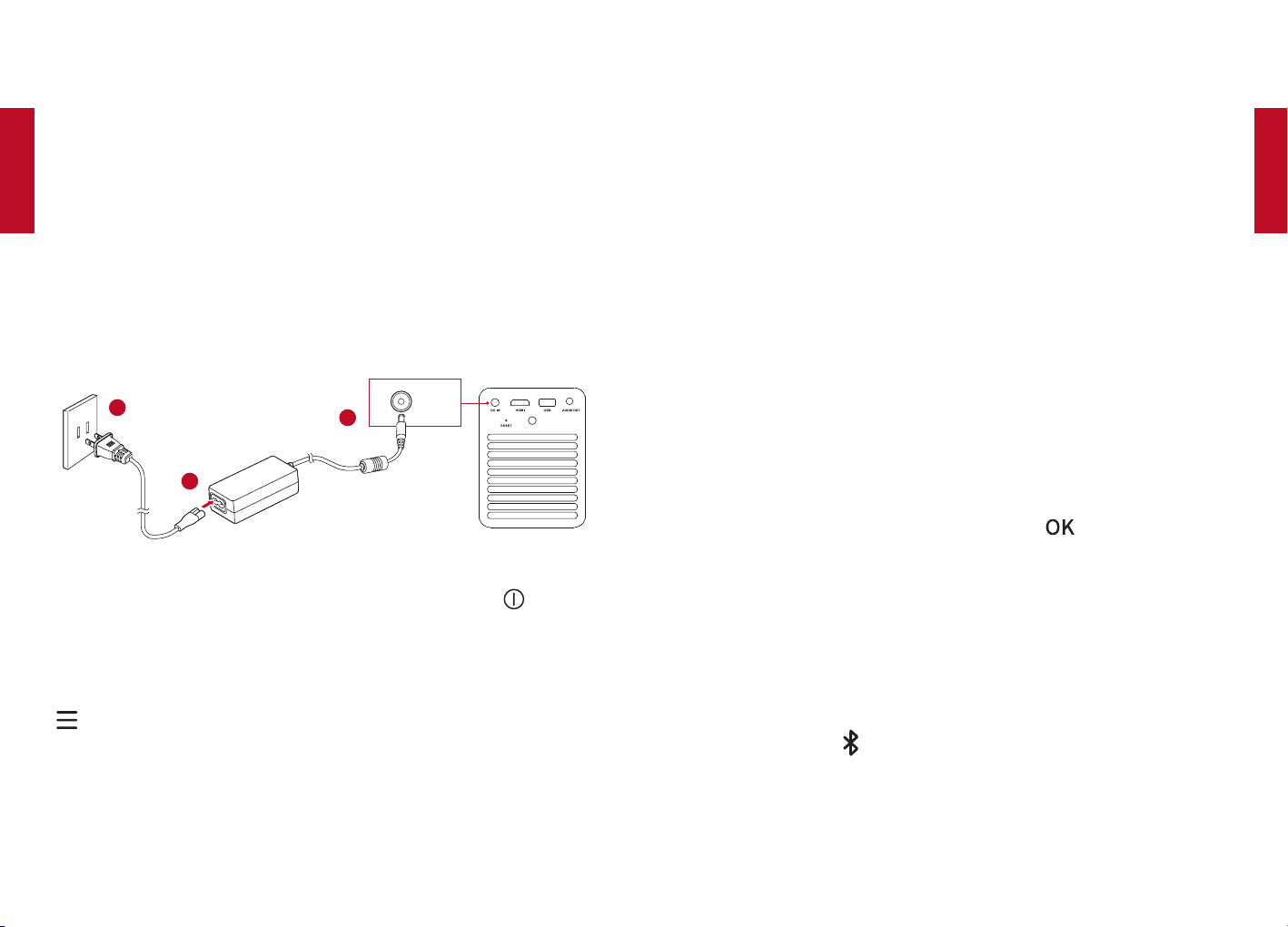
120 121
2.
①
②
①
②
DC IN
2
1
3
③
④
⑤
①
Nebula Connect
②
Nebula
③
Nebula Connect
1.
①
②
2.
①
②
[Nebula]
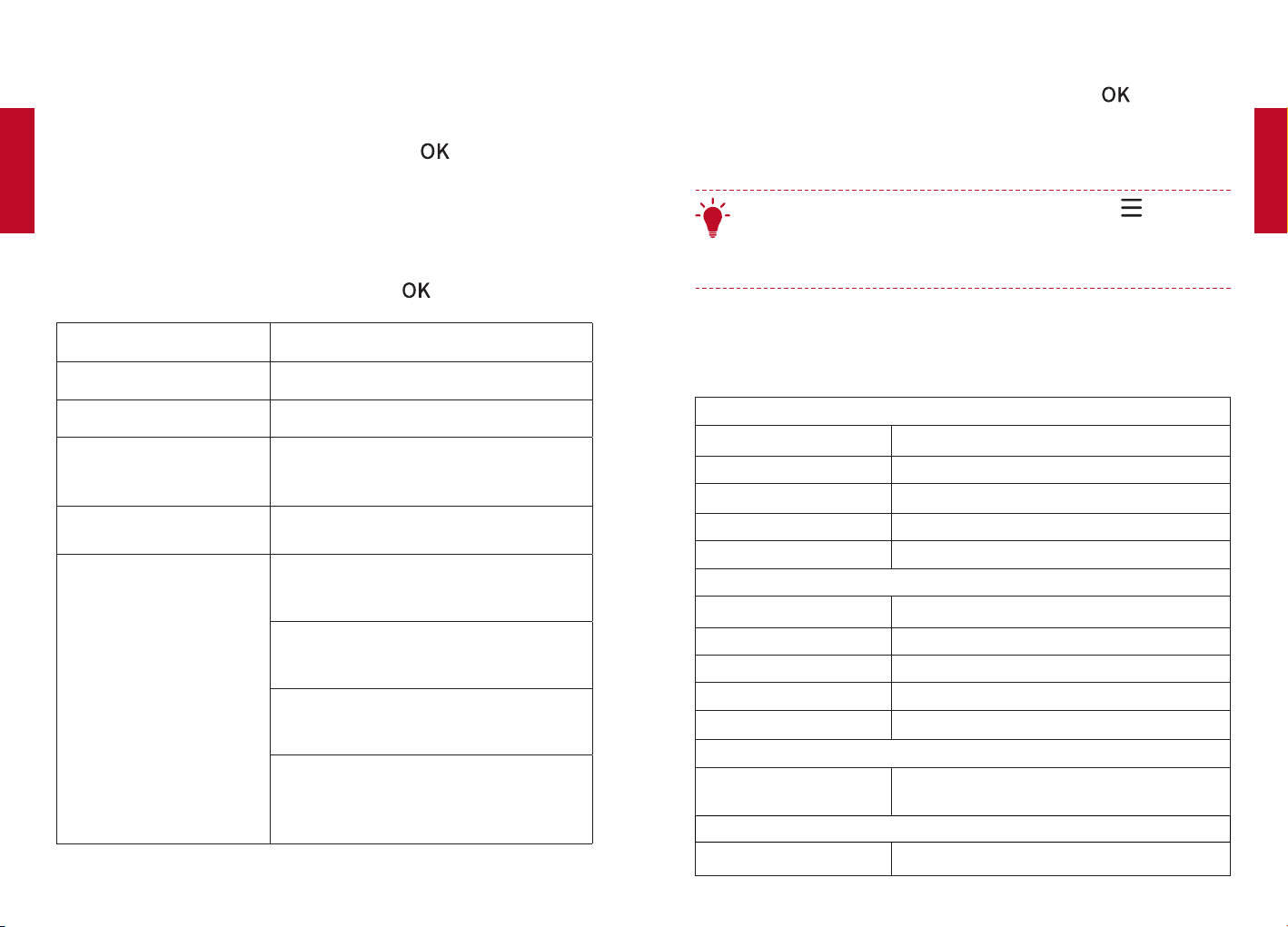
122 123
①
②
3.
4.
①
②
T
5.
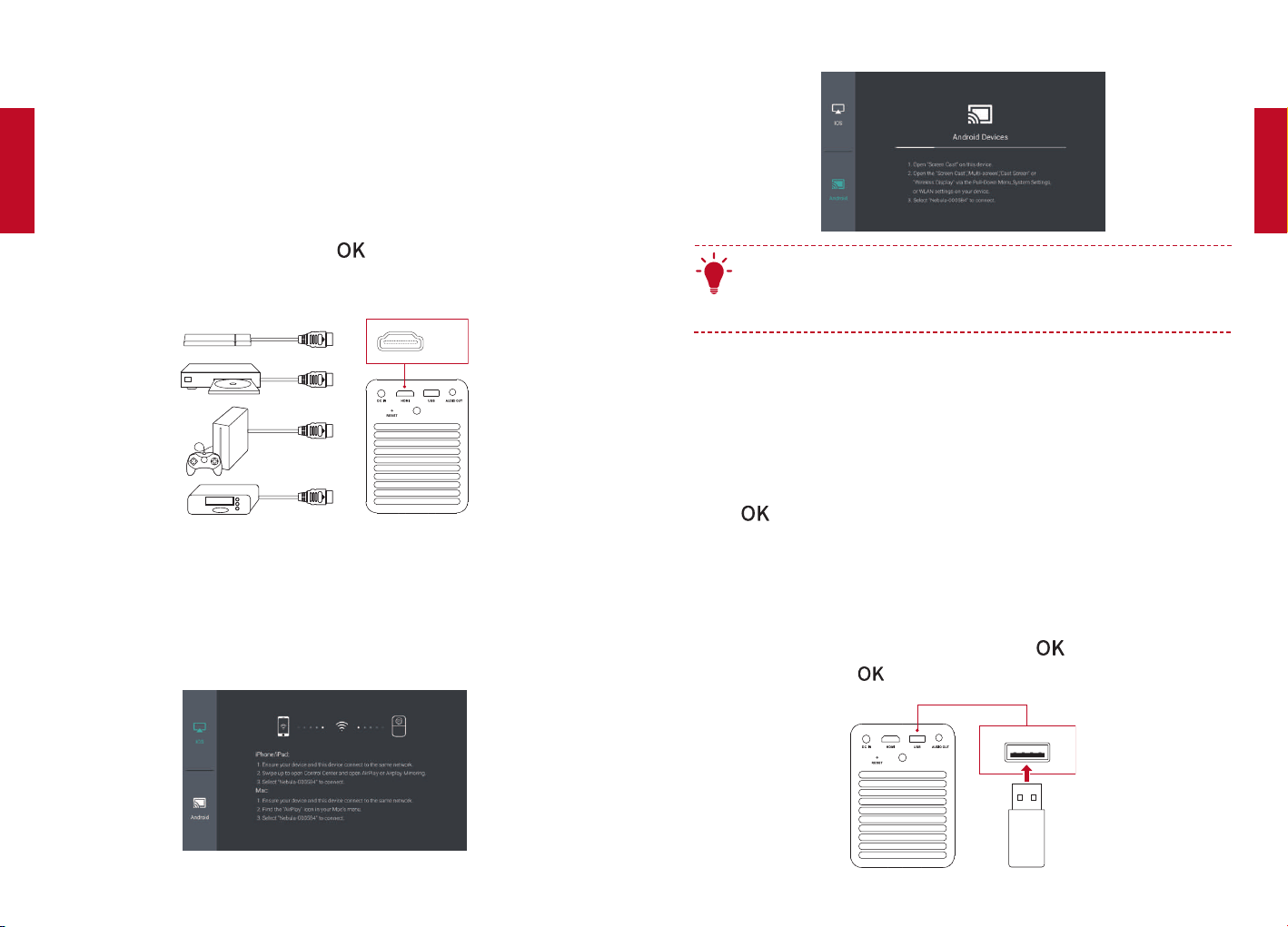
124 125
1.
①
②
HDMI
2.
T
3.
4.
①
②
USB
126 127
°C
°C
°F
°F
°C
°F
①
②
③
④
⑤

129
128
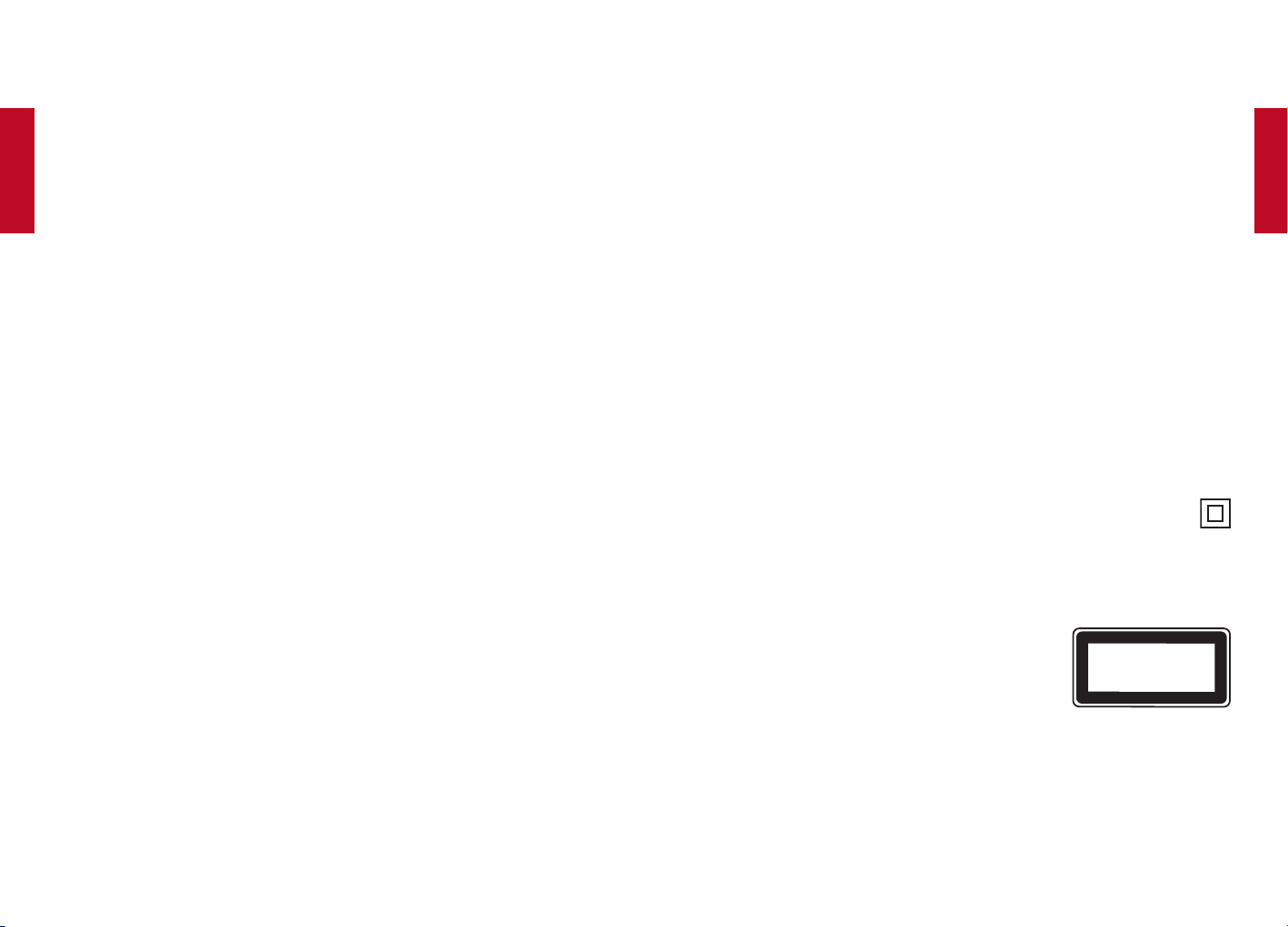
130 131
CLASS 1
LASER PRODUCT
2
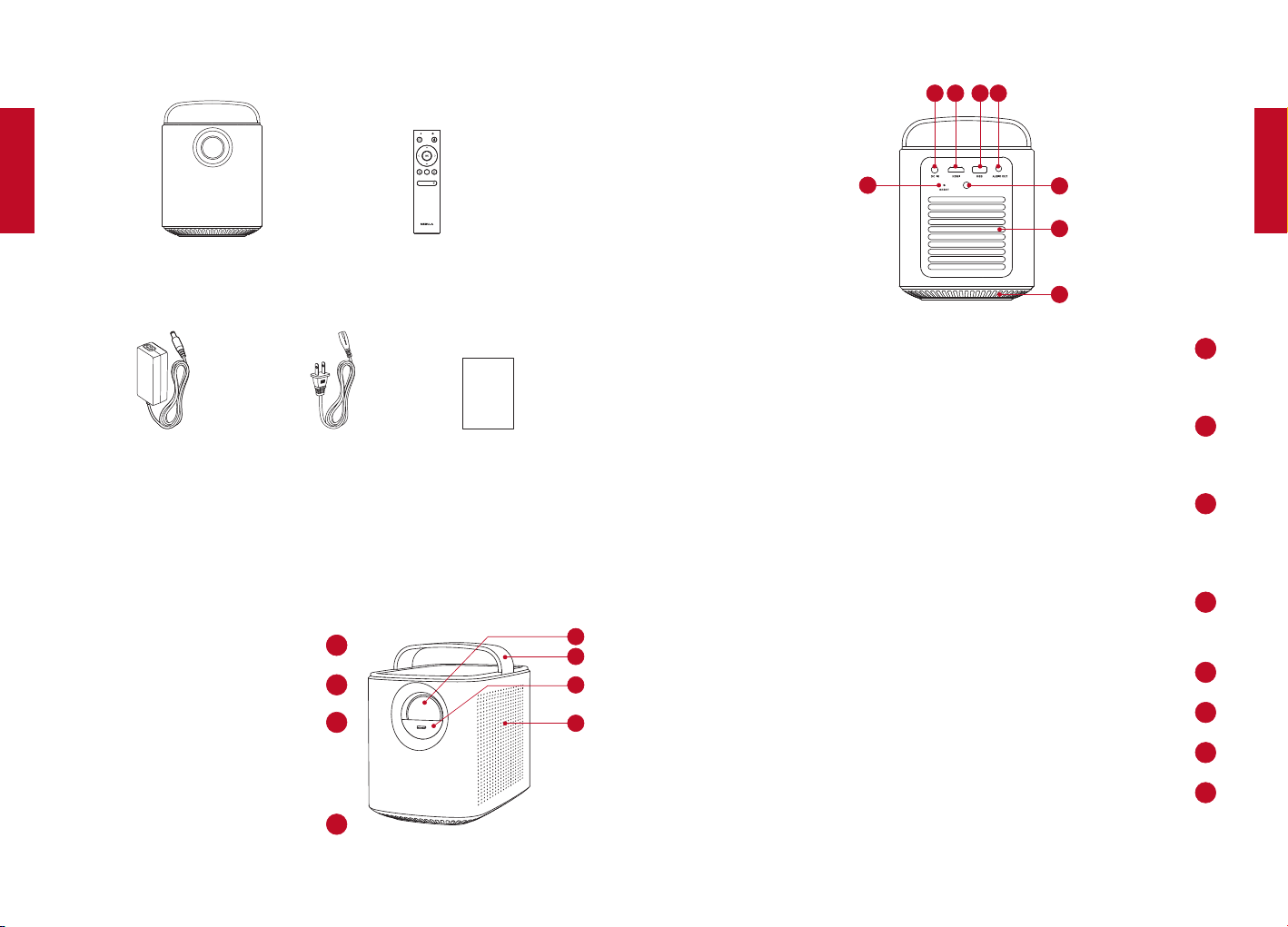
132 133
Main unit
Power Adapter Power cord
Remote control with batteries
Manual
Owner’s Manual
1
11
2
1
3
4
2
3
4
2
2
1
3
4
6
5
7
8
DC IN
11
HDMI
2
HDMI
USB
3
USB
USB
AUDIO OUT
4
5
6
7
RESET
8
3
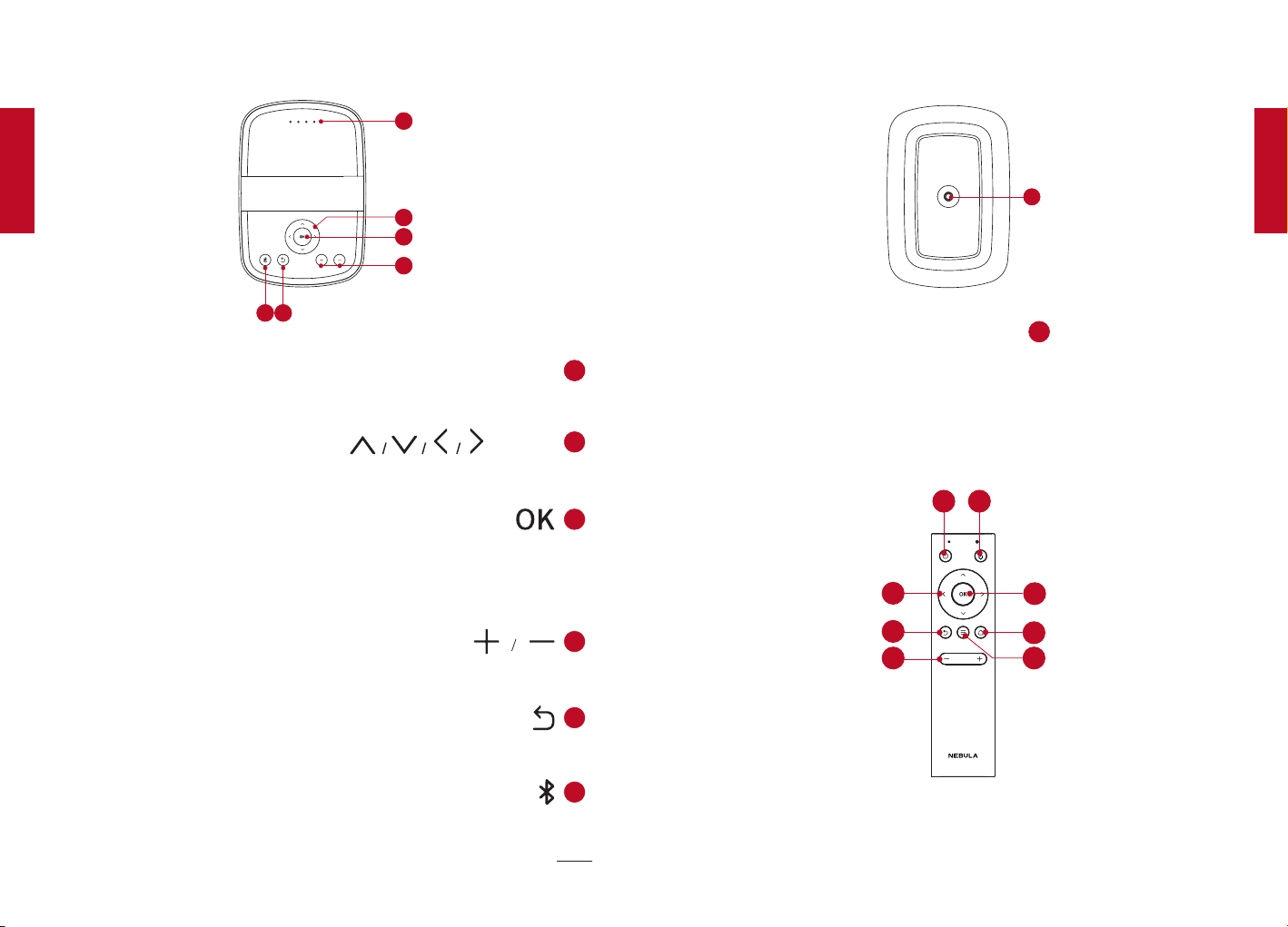
134 135
3
2
1
3
4
6
5
LED
11
2
3
4
5
6
Bluetooth
4
1
11
5
7
8
2
1
3
4
6
5
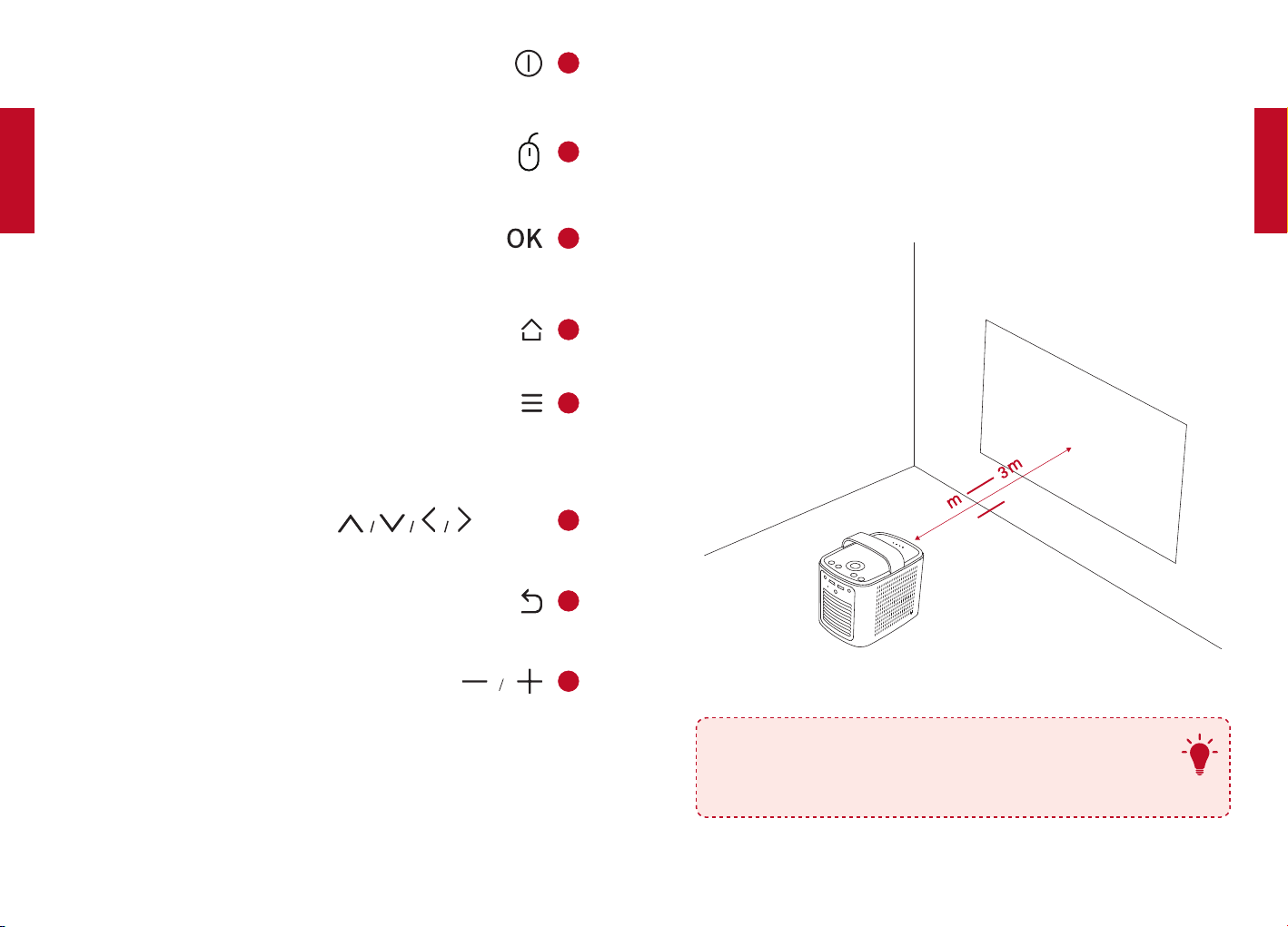
136 137
11
2
3
4
5
6
7
8
1
Mars II
3
39.4”
1
118”
T
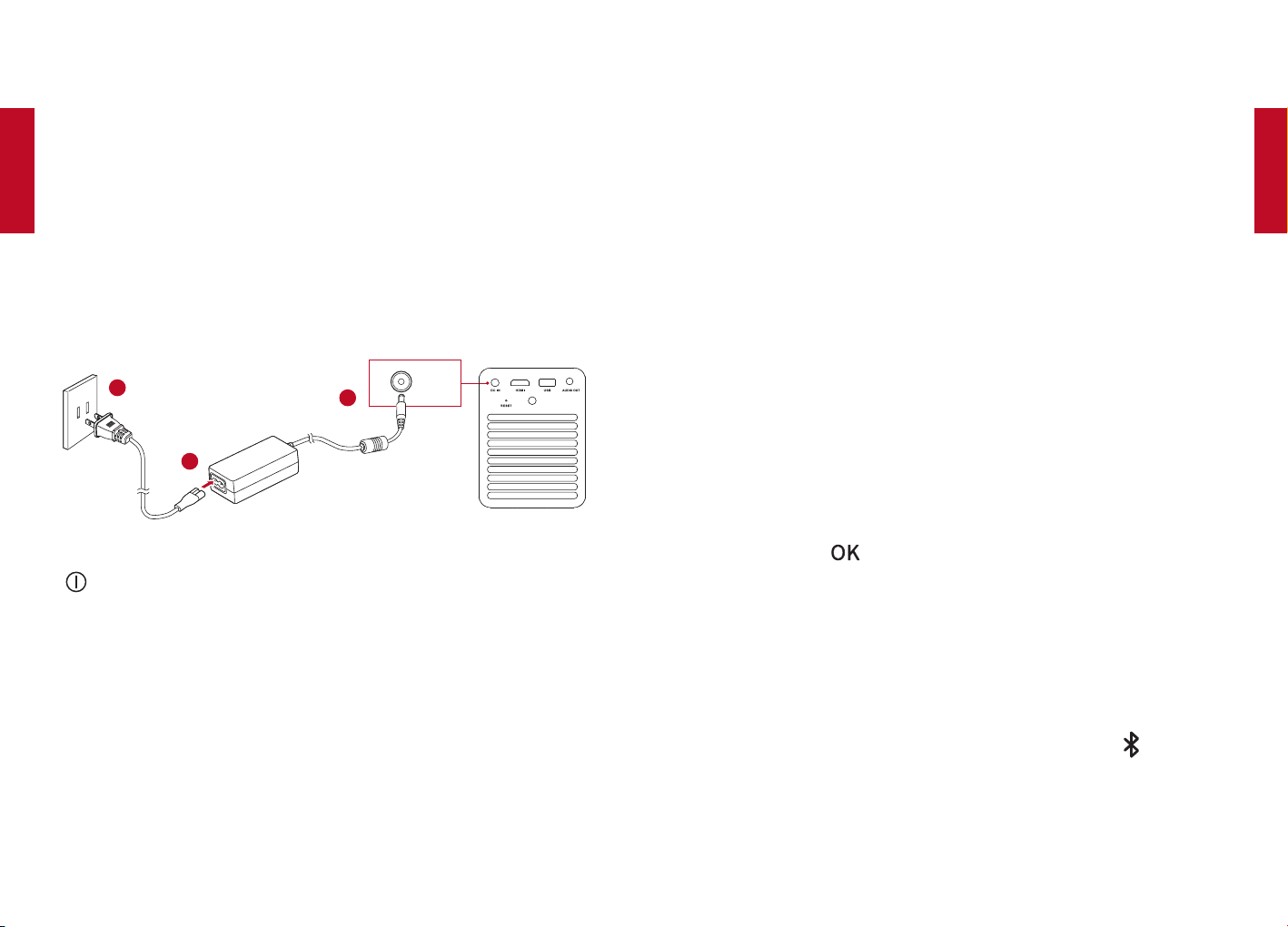
138 139
2
①
②
3
①
②
LED
DC IN
2
1
3
③
④
⑤
Nebula
NebulaNebula
Connect
iOSApp StoreNebula Connect①
AndroidGoogle Play
[NebulaBluetooth②
NebulaConnect③
1
①
②
Bluetooth2
Bluetooth
Bluetooth
Bluetooth
①
[Nebula]Bluetooth②
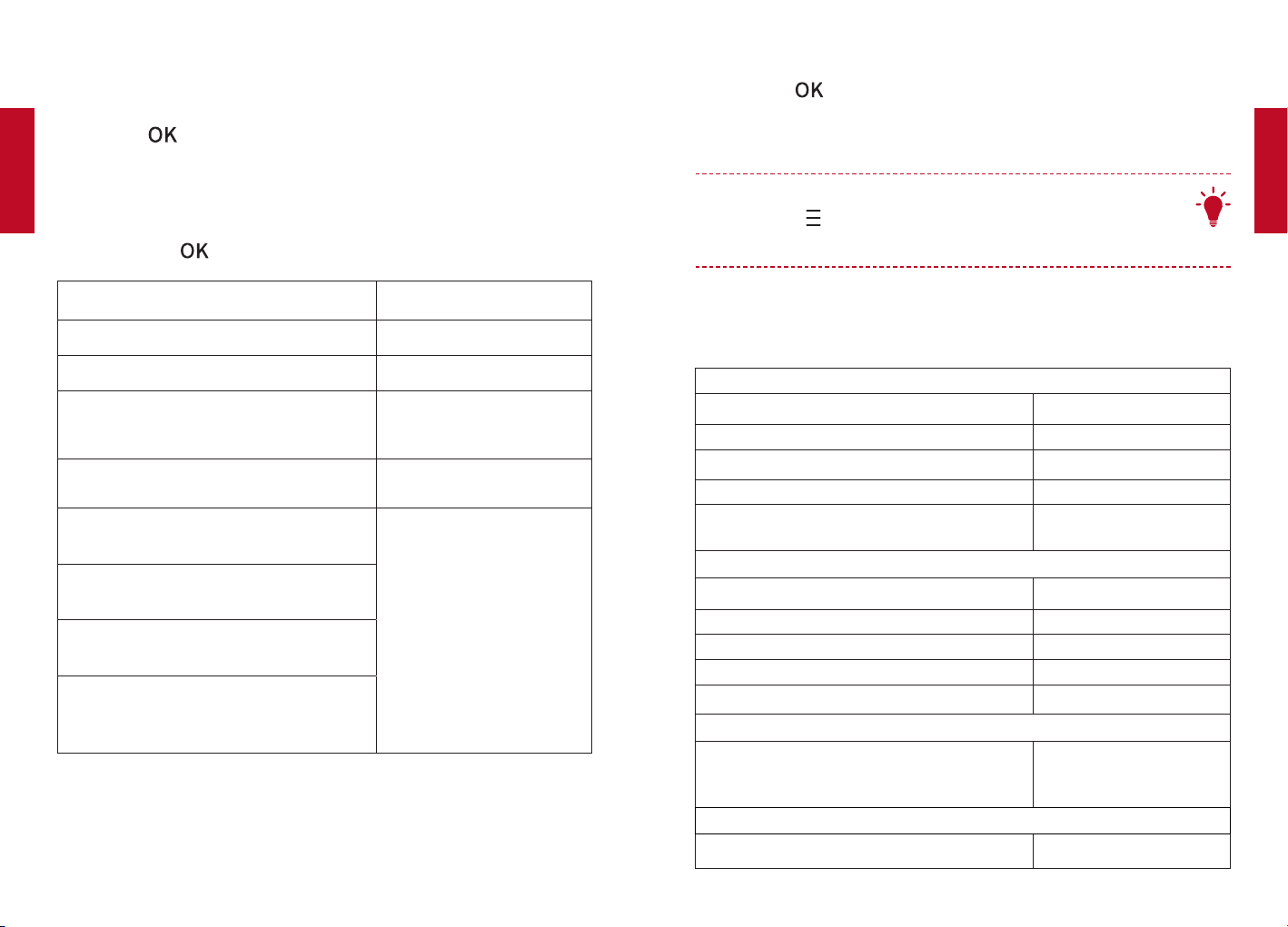
140 141
Mars II
Bluetooth
]Bluetooth①
Bluetooth②
3
4
①
②
T
3
5
1224
24
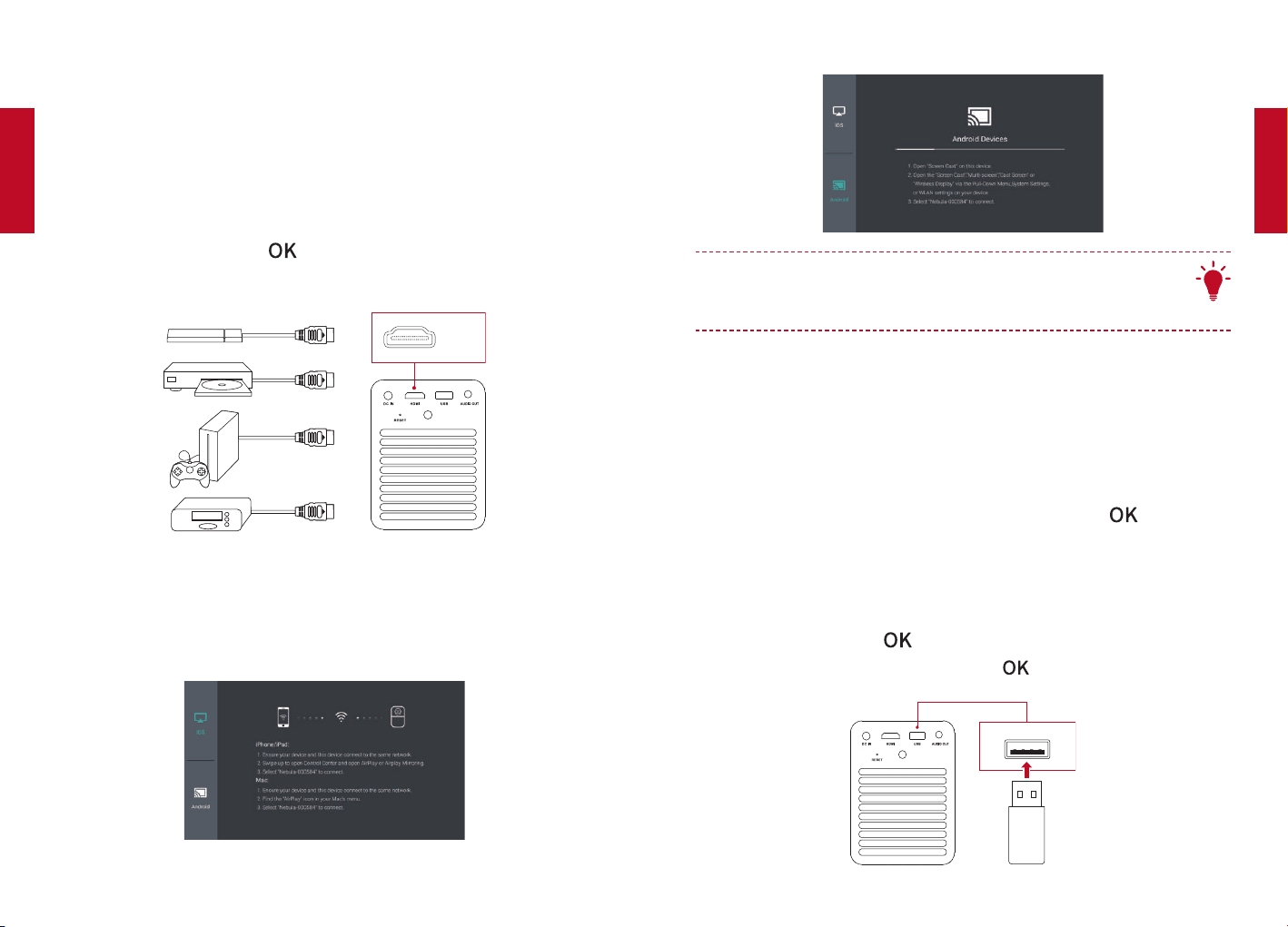
142 143
1
TV boxHDMI
STBDVD
TV stick
HDMIHDMI
①
HDMI ]②
HDMI
HDMI
2
iOS
Android
T
Nebula Mars II
3
USB
Nebula Store
Nebula Store
USB4
OTG
①
②
USB
144 145
3 19
RGBLED
×
ANSI
2
4
32
149
7122
①
②
③
④
⑤

146
30
12
12
Nebula
Nebula
Nebula