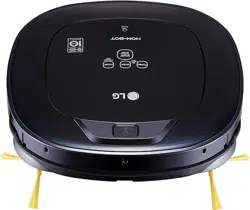
OWNER’S MANUAL
HOM-BOT
www.lg.com
• Charge the battery fully before using the product for the first time.
• Before using, carefully read the Safety Precautions to allow for safe
operation of the product.
• After reading this manual, keep it in an easily accessible location.
CR3*65**
MFL67680080
Copyright © 2017 LG Electronics Inc. All Rights Reserved.
TABLE OF CONTENTS
BEFORE USING
3
4
9
10
12
14
15
16
Features
Safety Precautions
Included with Product
Parts
Button Functions
Display Status
Before Starting
Overview
METHOD OF USE
17
18
19
20
23
24
26
28
29
30
31
32
34
49
Installing the Home Station
Turning the Robot Cleaner On/Off
How to Start and Stop Cleaning
Charging the Battery
Using Magnetic Wall Strips
Choosing a Cleaning Mode
Auxiliary Cleaning Modes
Setting the Clock
Scheduling Cleaning
Mop Cleaning (on some models)
Location Search Function
Smart Diagnosis™
Smart Application Function
Product Info Initialization
MAINTENANCE
50
51
52
53
54
55
Cleaning the
Dust Bin
Cleaning the Dust Bin Filter
Cleaning the Brush
Cleaning the Sensor/Charging Terminal
Cleaning the Side Brush
Cleaning the Ultra Microfiber Mop
(on some models)
ADDITIONAL INFORMATION
56
59
Troubleshooting
Before Calling for Service
REFERENCE
60
62
63
Product Specifications
Reference Items
Performance Testing (IEC 62929 Standard)
WARRANTY
64
LG Robot Cleaner WARRANTY
3
FEATURES
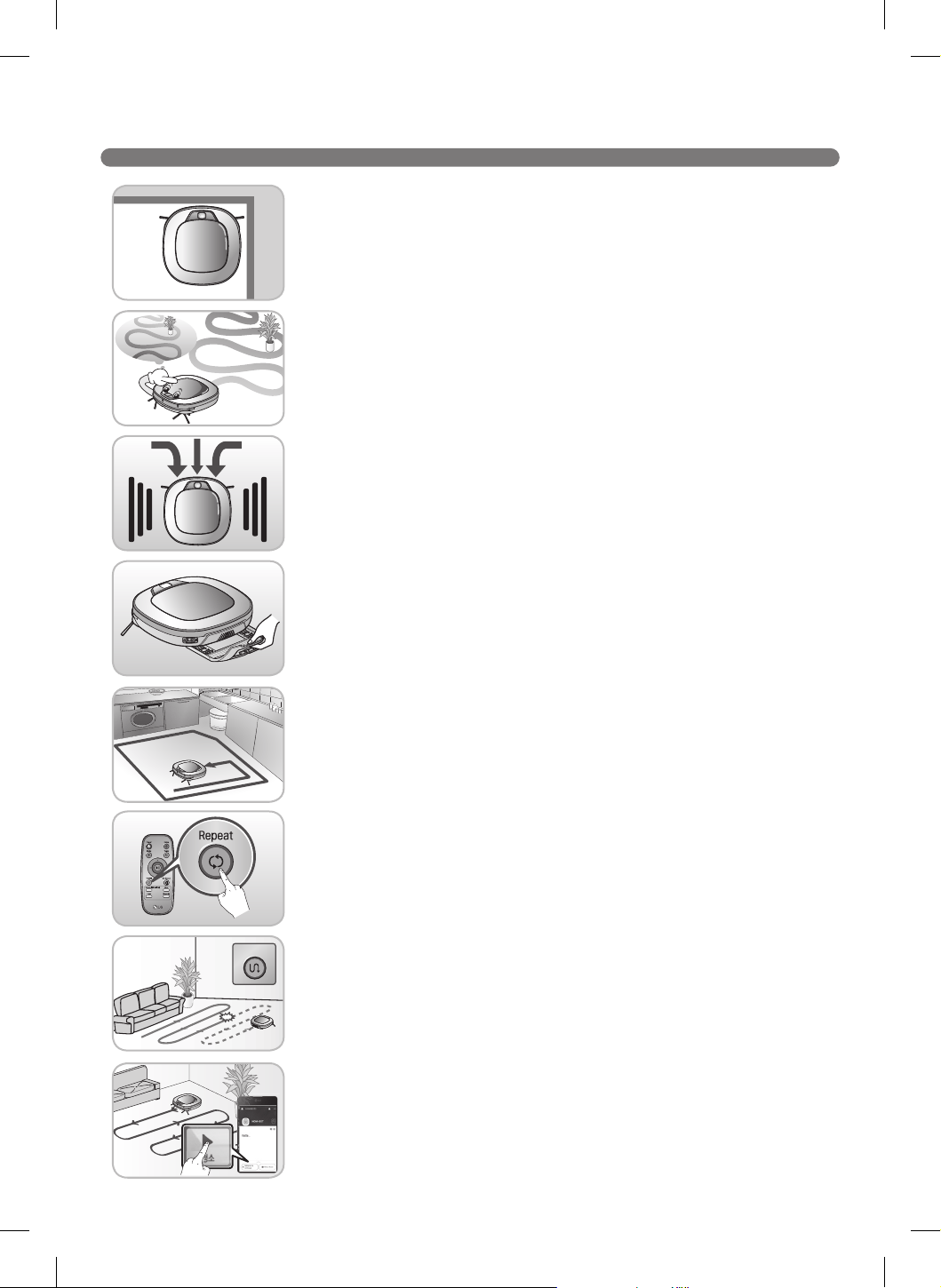
Corner Master
The Robot Cleaner's ability to navigate around walls is part of what makes
its cleaning performance so efcient.
Learning Mode
The Robot Cleaner memorizes the cleaning environment for smarter
cleaning via its Smart Operation feature.
Turbo Mode
In the Turbo mode, the Robot Cleaner operates the suction motor and
the brushes at a greater speed giving cleaner results.
When selected, the Turbo mode activates automatically, cleaning carpets
more efciently.
Drawer Mop Plate (on some models)
Use the optional drawer mop plate to t and remove the mop without
having to turn the Robot Cleaner over.
My Space Mode
The Robot Cleaner can be programmed to quickly clean a desired space.
Repeat Cleaning
The Robot Cleaner cleans continuously until the battery runs out.
Location Search Function
If the Robot Cleaner is moved from a spot while operating, the device
will automatically search for the previous location and return to the spot
where it was interrupted.
LG Smart ThinQ Smartphone Application
You can control the Robot Cleaner from your smartphone.
Zigzag
Cleaning
C
C
C
C
le
le
C
C
ng
ng
g
ng
ng
g
ea
ea
a
a
n
n
nin
nin
nin
n
Cleaning
4
SAFETY PRECAUTIONS
This guide contains many important safety messages. Always read and obey all safety messages.
Read all instructions before using.
SAVE THESE INSTRUCTIONS
IMPORTANT SAFETY INSTRUCTIONS
WARNING
1. This appliance can be used by children aged
8 years and above and persons with reduced
physical, sensory or mental capabilities or
lack of experience and knowledge if they
have been given supervision or instruction
concerning use of the appliance in a safe way
and understand the hazards involved. Children
shall not play with the appliance. Cleaning and
user maintenance must not be performed by
children without supervision.
2. Children should be supervised to ensure that
they do not play with the appliance.
3. If the supply cord is damaged, it must be
replaced by an LG Electronics Service Agent
in order to avoid a potential hazard.
Basic Safety Precautions
After reading this manual, please keep it in an easily accessible location.
This is the safety alert symbol. This symbol alerts you to potential hazards that can
result in property damage and/or serious bodily harm or death.
Indicates a hazardous situation which, if not avoided, could result in death or
serious injury.
Indicates a hazardous situation which, if not avoided, could result in minor or
moderate injury.
WARNING
CAUTION
5
SAFETY PRECAUTIONS
WARNING
•For your safety, do not remove the battery
from the Robot Cleaner. If you need to
replace the battery of the Robot Cleaner,
take it to the nearest authorized LG
Electronics service center or dealer for
assistance.
•Make sure the power cord of the home
station is not crushed under a heavy
object or damaged by contact with sharp
objects.
Do not use product if power cord or
plug is damaged. Take the product to an
authorized LG Electronics service center.
•Do not place the home station and/or the
Robot Cleaner near a heating device.
•Do not alter the power plug. Do not cut or
remove the grounding prong.
•Do not touch the power plug with wet
hands.
•Have servicing performed by authorized
service personnel using only identical
replacement parts. This will ensure that
the safety of the product is maintained.
•Never use the Robot Cleaner with a battery
and/or home station from any other
product than the Robot Cleaner.
•Do not use the Robot Cleaner when
candles or fragile objects are placed on
theoor.
•Always use a dedicated power outlet with
a 10 amp rating.
If multiple appliances are connected to an
outlet simultaneously, they can generate
enough heat to cause a re.
•When pulling out the home station power
plug, always pull it out by grabbing the
plug, not the cord. When pulling out the
power plug, do not touch the prongs with
yourngers.
To reduce the risk of explosion, re, death, electric shock, or injury to persons when
using this product, follow basic safety precautions, including the following.
1) Place the cords from other appliances out of the area to be cleaned.
2) Do not operate the vacuum in a room where an infant or child is sleeping.
3) Do not operate the vacuum in an area where there are lit candles or fragile objects
on the oor to be cleaned.
4) Do not operate the vacuum in a room that has lit candles on furniture that the
vacuum may accidentally hit or bump into.
5) Do not allow children to sit on the vacuum.
6) Do not use the vacuum on a wet surface.
6
SAFETY PRECAUTIONS
WARNING
•Do not allow children or pets to play with
or rest upon the Robot Cleaner at any
time. Do not use the Robot Cleaner while
an object is hanging from it.
•Keep gasoline, thinners, or other
ammablematerials,detergents,
shampoos, or other foaming agents,
and drinking water away from the Robot
Cleaner.
•Do not insert any part of the body, such as
a hand or foot, below the brush or wheels
of the Robot Cleaner while in use.
•Do not operate the Robot Cleaner on
narrow and high furniture such as a
wardrobe, refrigerator, desk, table, etc.
•Donotactivatethedeviceonaoorthat
has more than a 10 degree incline.
•Turn the power supply off immediately
if any abnormal sound, odor or smoke
is generated from the Robot Cleaner.
Remove the Robot Cleaner from the home
station and turn off the main switch on the
rear side of the unit.
•Do not leave children or pets near the
Robot Cleaner unsupervised.
•Do not repair or replace any parts or
attempt any servicing other than as
described in this manual. Service should
beperformedbyaqualiedtechnician.
•A coin cell battery on the mainboard of
the Robot Cleaner cannot be replaced by
the user. Used cells must be disposed of
properly.
•This product is intended for indoor,
domestic use and should not be used in
mobile or commercial locations, such as
workshops, garages, indoor swimming
pools, etc.
•This product contains chemicals known to
the State of California to cause cancer and
birth defects or reproductive harm.
WASH HANDS AFTER HANDLING.
To reduce the risk of explosion, re, death, electric shock, or injury to persons when
using this product, follow basic safety precautions, including the following.
7
SAFETY PRECAUTIONS
CAUTION
•Frequently empty the dust bin and keep it
clean.
The dust collected in the dust bin can trigger
allergies and may contain harmful insects. it
should be cleaned after each use.
•Only use the Robot Cleaner indoors.
Using it outdoors can cause product failure and
irreparable damage to the unit.
•Close the cover of the dust bin on the main
unit before use.
•DO NOT use the Robot Cleaner around a
banister, staircase or any other dangerous
place.
•In rare cases, the Robot Cleaner’s brush
can damage carpet. If this happens,
immediately stop the cleaning operation.
When a carpet has long tassels, the tassels
can be damaged.
•Do not let the main unit and charging
terminal of the home station come into
contact with metallic objects.
•Do not put water, detergent, etc. into or
onto the Robot Cleaner.
If liquids get inside of the Robot Cleaner, turn
off the power supply and call for service.
•Do not drop the Robot Cleaner or subject it
to strong impacts.
•Do not expose the Robot Cleaner to
temperatures lower than 23°F (-5°C) for a
long period of time.
•Removeanycablesorstringfromtheoor
before use.
Cable or string can get tangled in the wheels
of the Robot Cleaner and cause product failure
or cause another appliance to tip over or be
disconnected.
•Do not place the Robot Cleaner on a table
or other elevated surface while it is on.
•Do not allow the Robot Cleaner to sweep up
liquids, blades, thumb tacks, sharp objects
or ashes, hot or cold.
•Do not put sharp objects into the opening
of the Robot Cleaner’s ultrasonic sensors.
•Do not use the Robot Cleaner when the
dust bin is completely full.
•Iftheooriswetorhaswetspots,wipe
them up before using the Robot Cleaner. Do
not use the Robot Cleaner on a wet surface.
•Attach the mop so that it does not block the
lower camera sensor.
•Turn off the power switch to save energy
when the Robot Cleaner is not in use for
long periods. Turn on the power switch just
prior to resuming use.
• Prevent unintentional starting. Ensure the
switch is in the off-position before connecting
to the battery pack, picking up or carrying the
appliance. Carrying the appliance with your
ngerontheswitchorenergizinganappliance
that has the switch on invites accidents.
To reduce the risk of injury to persons, malfunction, or damage to the product or
property when using this product, follow basic precautions, including the following.
8
SAFETY PRECAUTIONS
Check the following items before use:
• Empty the dust bin after each operation.
• Remove any cables or long strings from the floor.
• Remove any moisture from the floor before cleaning.
• Close the cover of the dust bin before operating.
• Remove fragile objects and obstructions from the room to be cleaned.
For example, remove expensive ceramics and valuables from the floor.
• Make sure the battery is charged.
• Close the doors of any room that you do not want the Robot Cleaner to enter.
During cleaning, the Robot Cleaner may enter another room and continue cleaning.
• Do not use this product in the room where a child is sleeping alone. The child can be hurt
or woken.
• Remove towels, floor mats, or any other thin cloth from the floor as they can get caught
by the brush.
• Before starting the device, roll up or remove carpets that are thicker than 3/4 in. (20 mm)
as they may cause it to malfunction.
• Close any balcony doors as the wheels may get stuck while cleaning.
• If using the mop plate, remove or block off low-lying objects such as fan stands. Climbing
over such objects with the mop plate attached may damage the robot cleaner.
• Connecting to a wireless router without proper security setup may cause security issues.
• If you have a firewall set up, it may affect the ability of the product to connect.
Tip
CAUTION
•Disconnect the battery pack from the
appliance before making any adjustments,
changing accessories, or storing the
appliance. Such preventive safety
measures reduce the risk of starting the
appliance accidentally.
•When the robot cleaner is operating, it may
hit a chair leg, desk leg, table leg or other
narrow pieces of furniture.
For quicker and better cleaning, place dining
chairs on top of the dining table.
•Rechargeonlywiththechargerspeciedby
Robot Cleaner provided by LG Electronics.
A charger that is suitable for one type of
batterypackmaycreateariskofrewhen
used with another battery pack.
•Useappliancesonlywithspecically
designed battery packs for Robot Cleaner
provided by LG Electronics. Use of any
other battery packs may create a risk of
injuryandre.
(
※
Discharging Range : -4 – 140°F (-20 – 60°C)
Charging Range : 32 – 140°F (0 – 60°C)
•When battery pack is not in use, keep it
away from other metal objects, like paper
clips, coins, keys, nails, screws or other
small metal objects, that can make a
connection from one terminal to another.
Shorting the battery terminals together may
causeburnsorare.
•Under abusive conditions, liquid may be
ejected from the battery; avoid contact.
Ifcontactaccidentallyoccurs,ushwith
water. If liquid contacts eyes, seek medical
help.
Liquid ejected from the battery may cause
irritation or burns.
•Do not use a battery pack or appliance
thatisdamagedormodied.Damaged
ormodiedbatteriesmayexhibit
unpredictablebehaviorresultinginre,
explosion or risk of injury.
•Do not expose a battery pack or appliance
toreorexcessivetemperature.Exposure
toreortemperatureabove265°F(130°C)
may cause explosion.
•NOTE: Close doors to rooms that are not to
be cleaned. Robot cleaner may cross over
low thresholds.
9
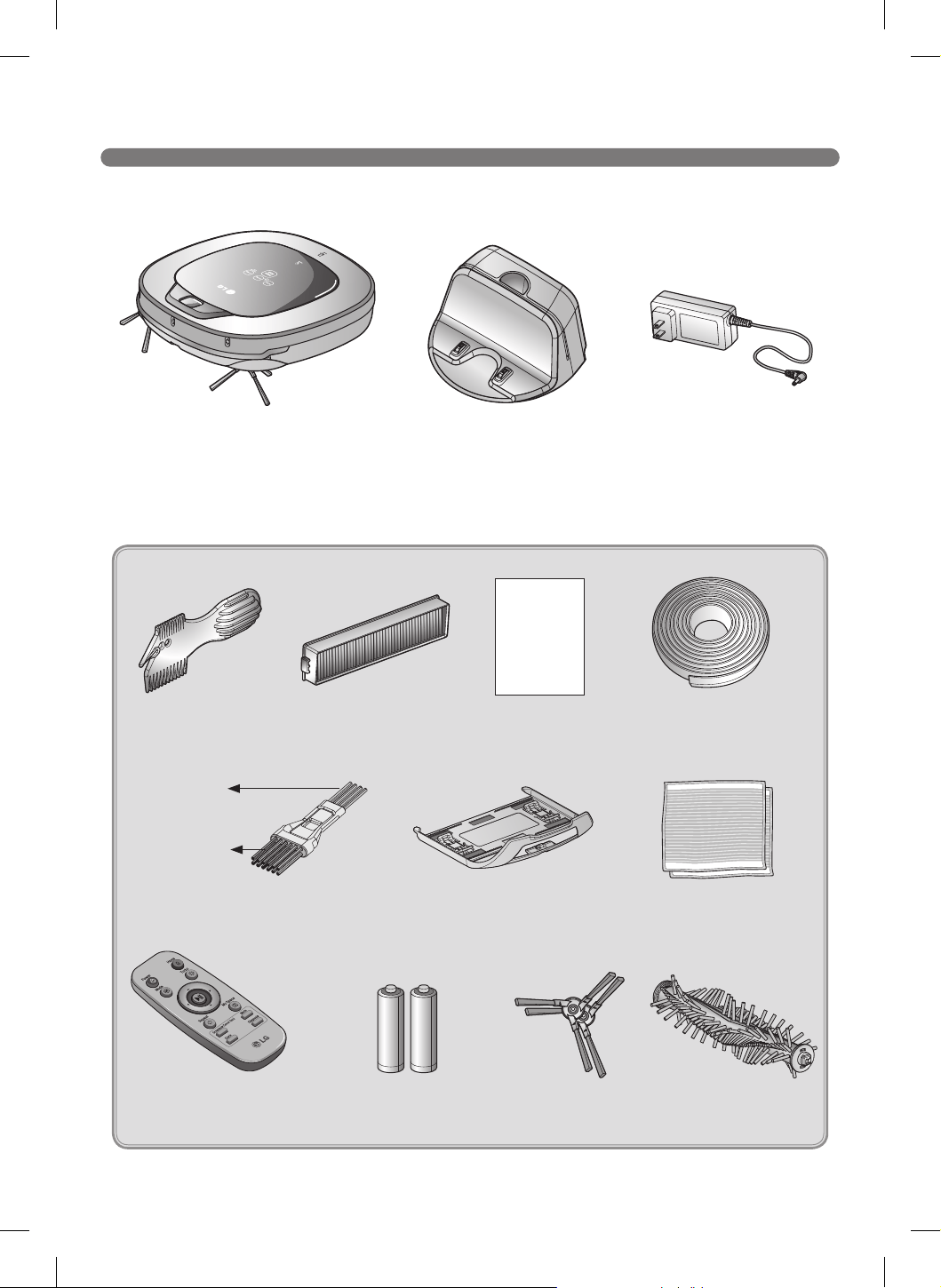
INCLUDED WITH PRODUCT
s Appearance and accessories may vary depending on model.
*Available on some models.
Dust bin lter* (spare) Manual Virtual Walls magnetic strip
(some models)
Cleaning Tool
Cleaning brush
(on dust bin cover)
Mop plate*
for cleaning
sensors
for cleaning
the lter
Ultra microber mop*
(2 pieces)
Batteries for remote controller
(2 units of AAA size)
Home stationRobot Cleaner
Remote controller
(some models)
Side brush*
(2 pieces)
Pet Brush*
Adapter
Manual
10
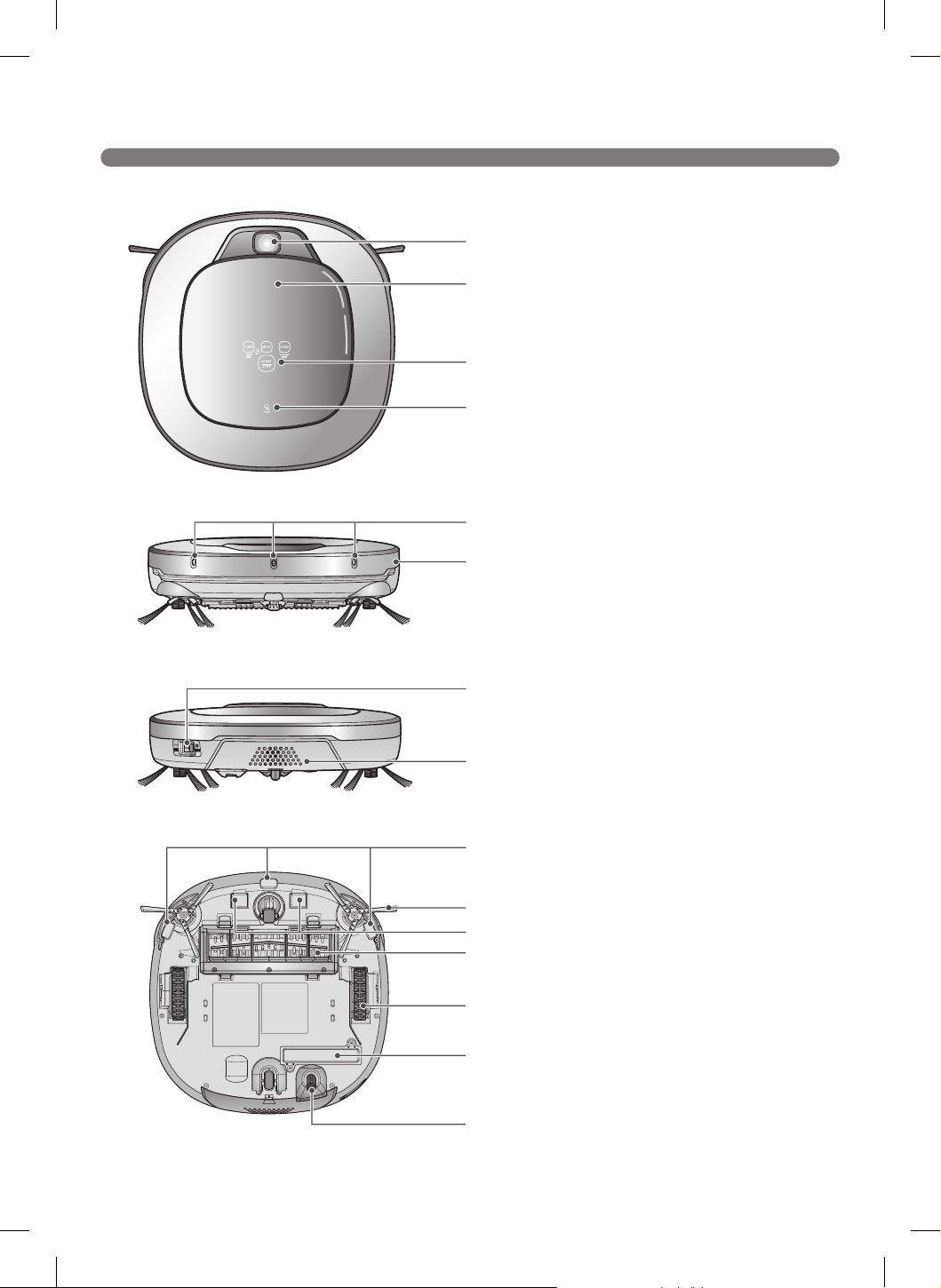
PARTS - ROBOT CLEANER
s Appearance may vary depending on model.
Top view
Front view
Rear view
Bottom view
Upper camera sensor
Dust bin cover
Display and function buttons
Dust bin compartment release button
Ultrasonic sensors
Obstacle detecting sensor window, home
station detecting sensors, remote controller
receiving sensors.
Main Power switch
Ventilation port
Cliff detection sensors
Side brush
Charging terminals
Brush
Wheel
Battery housing
Lower camera sensor
11
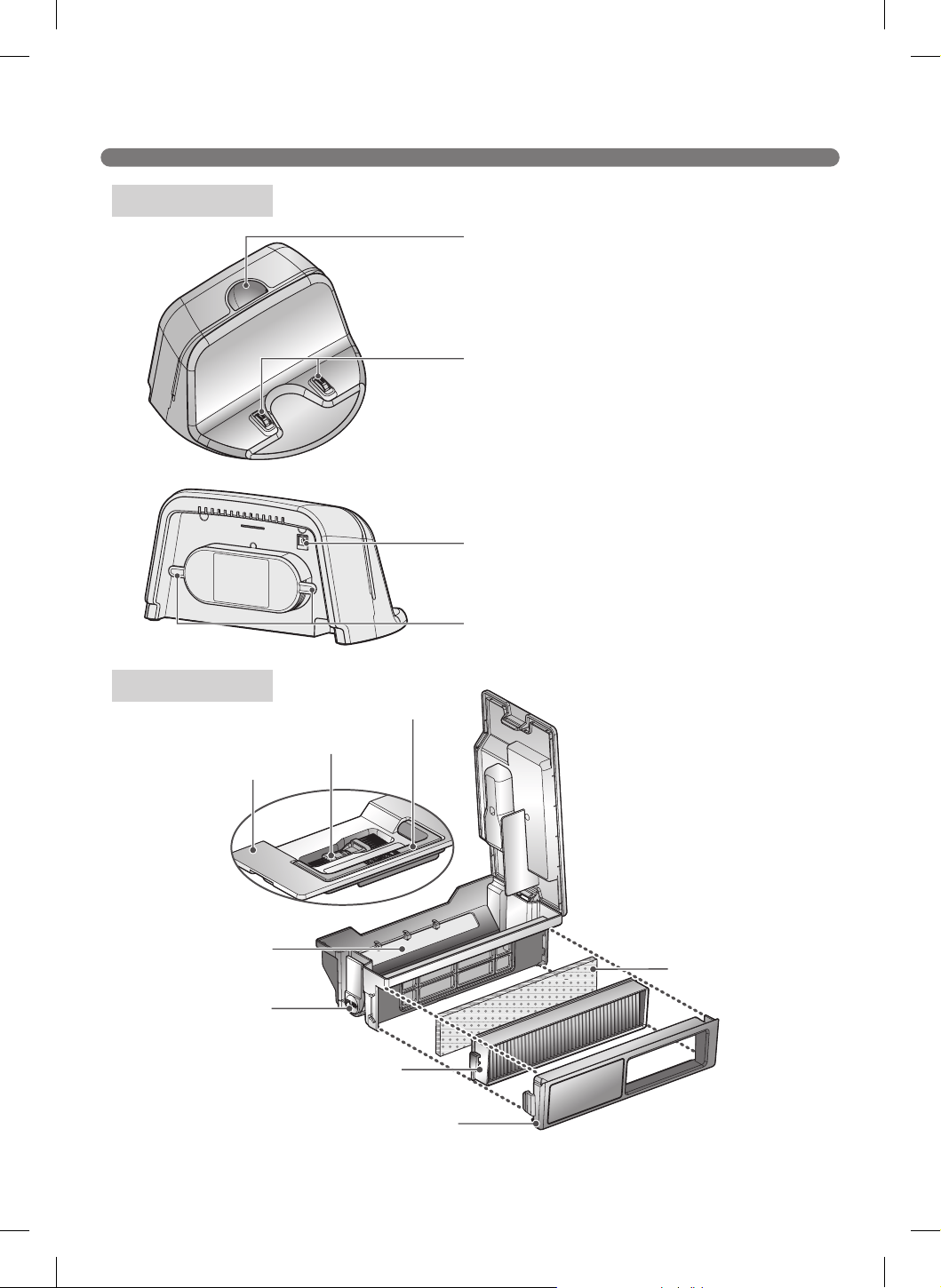
PARTS – HOME STATION / DUST BIN
s Appearance may vary depending on model.
Home station
Dust bin
Remote holder
Charging terminal
Sponge lter
Dust bin handle
Cleaning brush
Dust bin cover
Suction port ap
Particulate lter
Filter cover
Dust bin lid
opening button
Power cord keeper
Adapter jack
12
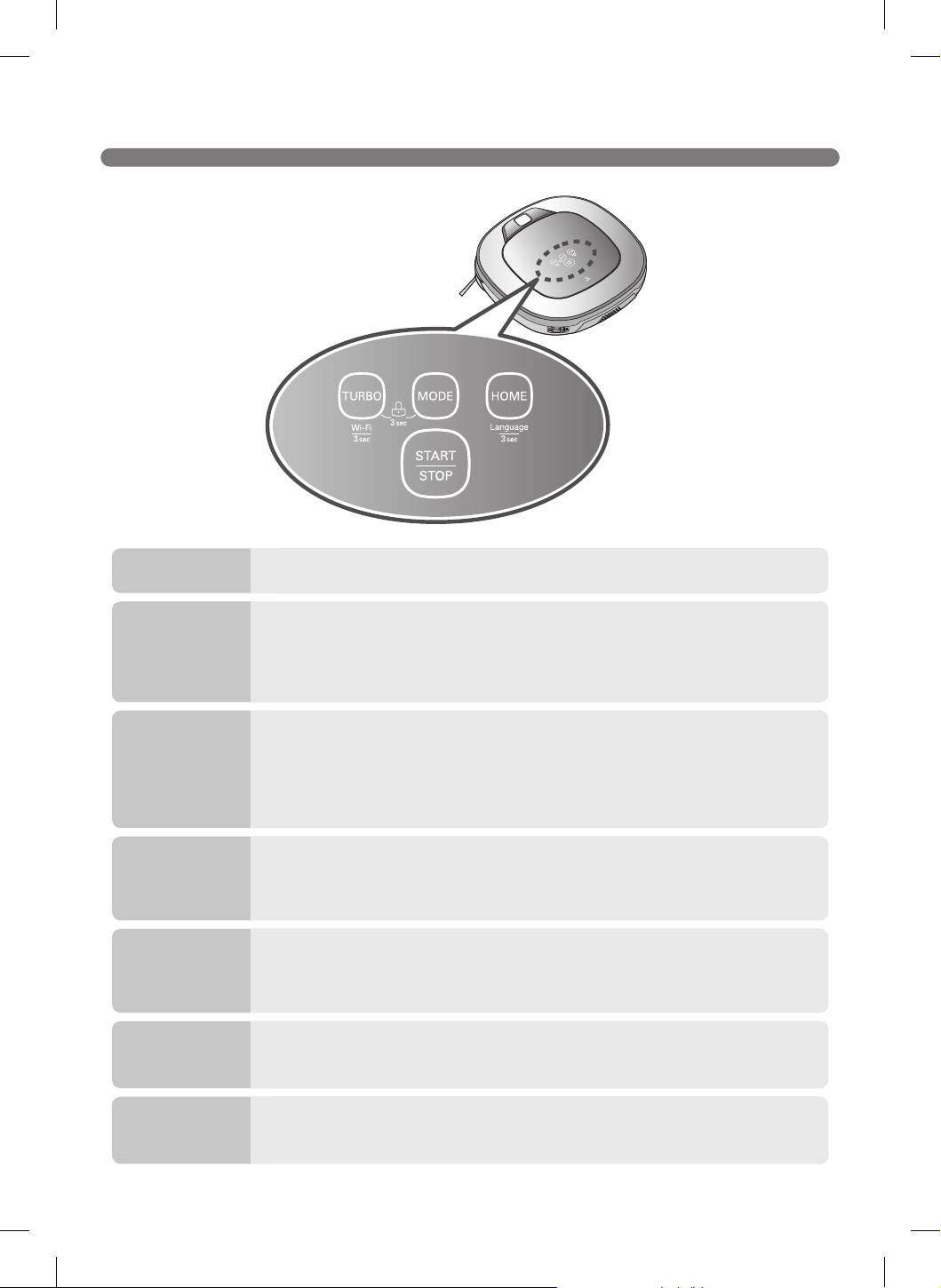
BUTTON FUNCTIONS – ROBOT CLEANER
• Press to turn Turbo Mode on or off.
• Press to change the mode. The mode icon will illuminate on the display when
selected.
• The Spot Clean mode is not available if the Robot Cleaner is at the home
station.
• The My Space mode can only be selected by remote control (when the
Robot Cleaner is not on the home station).
• Press to return the Robot Cleaner back to the home station for charging or
storage.
• If cleaning is finished or the battery is low, the Robot Cleaner will
automatically return to the home station to recharge the battery.
• Press and hold the Turbo and Mode buttons simultaneously for three
seconds to activate or deactivate the Control Lock function.
• If the Control Lock function is activated, "Key lock has already been set" voice
notification will play every time a button is pressed.
• Press the Home button for three seconds to change the language for the
voice message.
• This function cannot be set using the remote.
• After the power switch is in the ON position, press the Start/Stop button to
start cleaning.
• Press to stop cleaning.
• Press and hold for two seconds to return to standby mode.
• If button is pressed during Smart Diagnosis, the diagnosis will end.
TURBO
MODE
HOME
Control Lock
Language
Change
START/STOP
• Press and hold down the Turbo button for 3 seconds to activate the
registration mode with a voice message.
• This mode is for registering the product in the LG Smart ThinQ app over Wi-Fi.
Product
registration
(Wi-Fi)
13
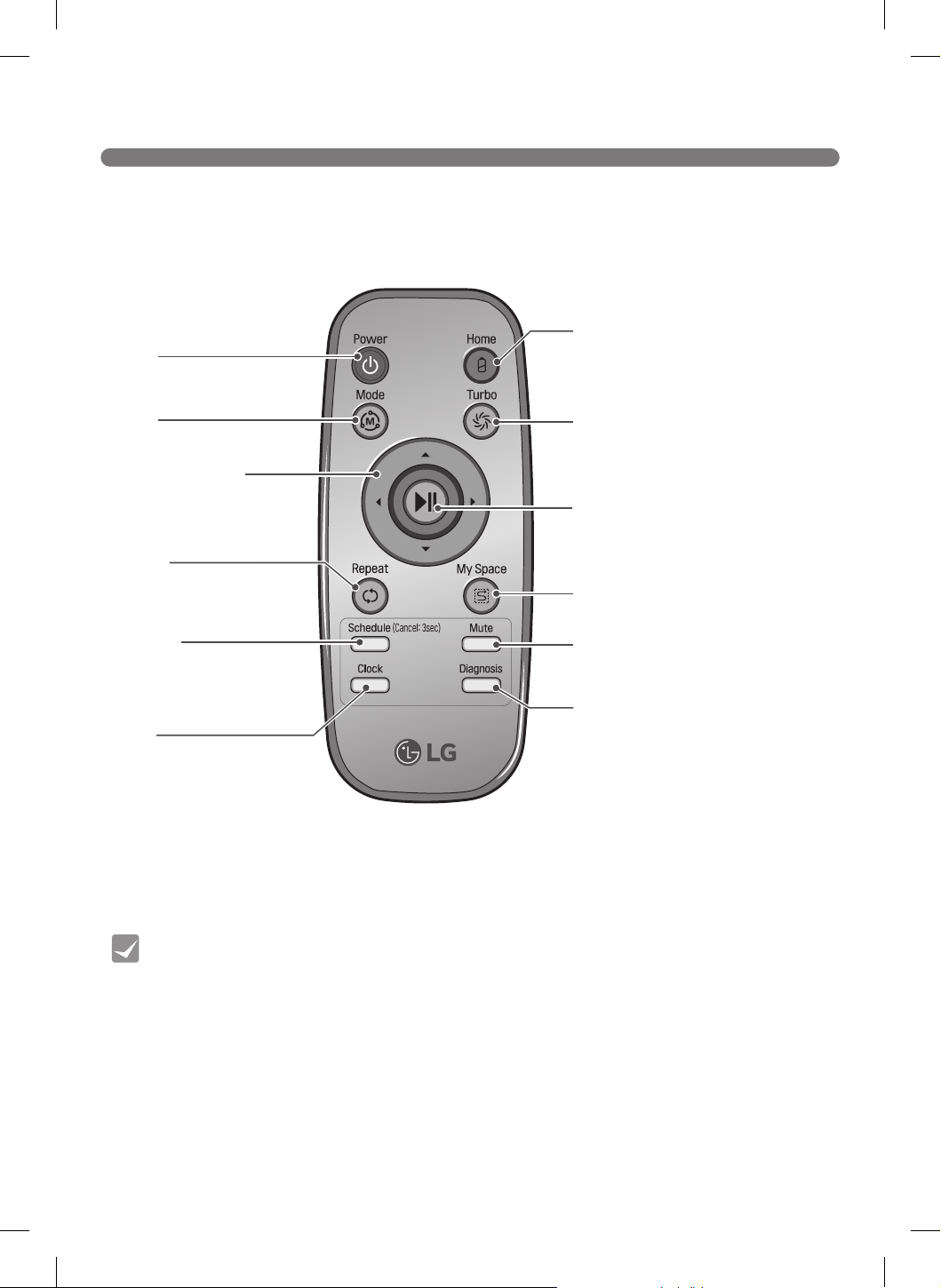
BUTTON FUNCTIONS – REMOTE
• To turn the power ON/OFF, use the START/STOP button on the upper section of the
Robot Cleaner or the Power button on the remote.
• The Mode, My Space and Clock buttons can only be set while the Robot Cleaner is not
cleaning.
• To cancel a scheduled cleaning, press and hold the Schedule button for three seconds
while the Robot Cleaner is recharging.
Remote not included with all models.
Tip
Power
Turn power on, return
power to standby
Home
Send the Robot Cleaner to the
Home Station
Turbo
Activate or deactivate Turbo mode
Start/Stop button
Start/Stop cleaning, or conrm a
cleaning schedule or time setting
My Space
Set the My Space mode
Mute
Activate or deactivate the voice
commands
Diagnosis
Run Smart Diagnosis™
Mode
Change cleaning mode
Directional button
Enable manual operation
or selection of an area in
My Space cleaning mode
Repeat
Activate or deactivate
Repeat Cleaning mode
Clock
Set the clock on the
Robot Cleaner
Schedule
Schedule a cleaning time,
or cancel a scheduled
cleaning time
14
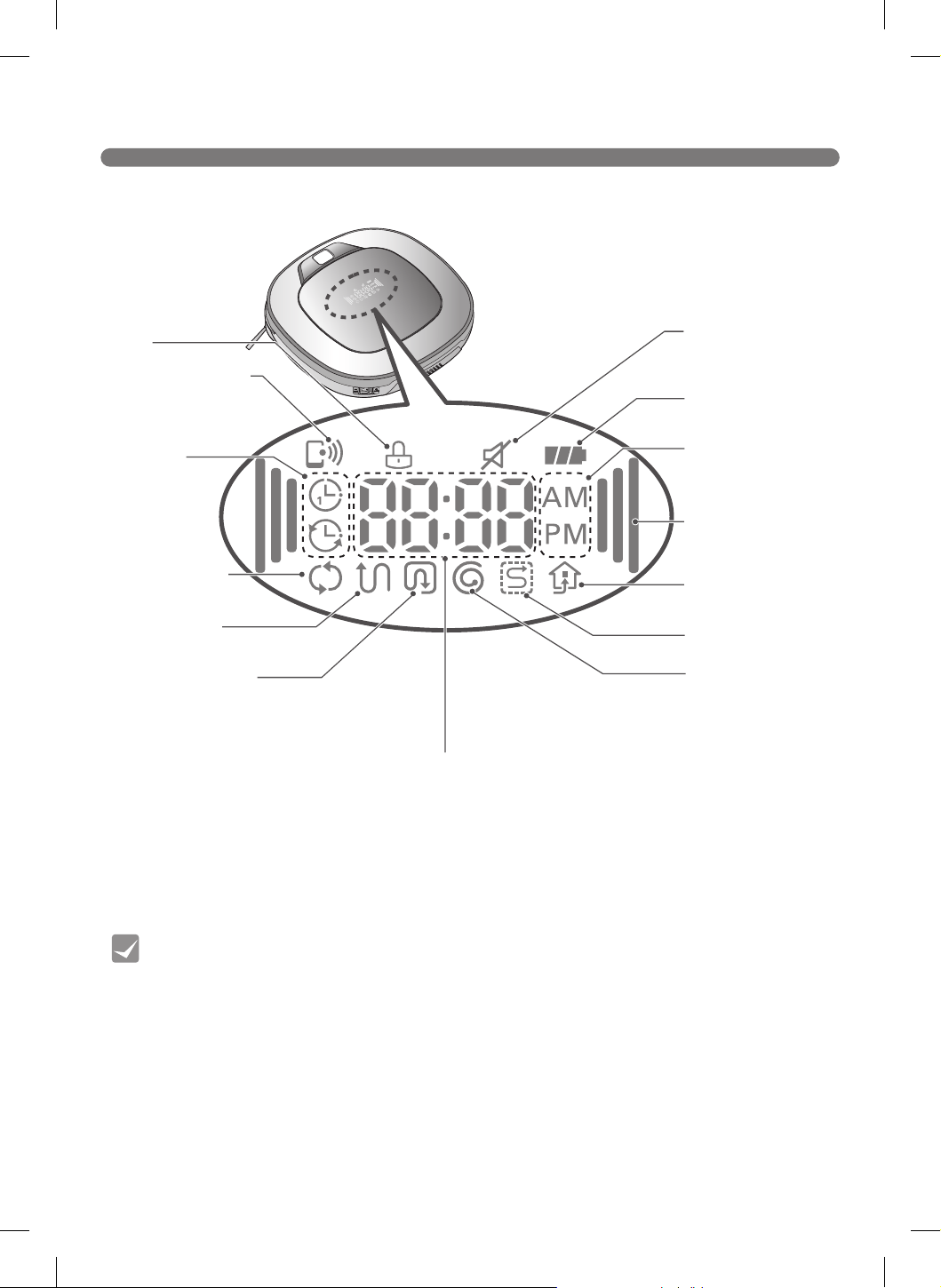
DISPLAY STATUS
• The Robot Cleaner defaults to the last cleaning mode selected.
• To cancel the reservation, please press the Schedule button on the remote for 3
seconds while the Robot Cleaner is recharging.
Tip
Lock.
Mute
Battery level
AM/PM
Turbo
Homing
My Space cleaning
Spot cleaning
Time display
Repeat cleaning
Zigzag cleaning
Cell by Cell cleaning
Schedule
Shows once or
daily icon
Remote connection
Appears when a
smartphone connects
to the robot cleaner.
15
BEFORE STARTING
• Do not use this device in a room where a child is left alone. The child could be injured.
• Remove fragile or unnecessary objects from the room to be cleaned, especially expensive ceramics
and valuables which could fall or break.
• Close the cover of the dust bin compartment before cleaning.
• Remove any moisture that might be on the floor.
• Remove cables, strips, towels, mats etc. from the floor so they will not get tangled in the brushes.
• Make sure the battery is charged.
• Empty the dust bin before or after each use, or before it becomes full.
• Close the doors of any room that you do not want the Robot Cleaner to enter. During cleaning,
the Robot Cleaner may enter another room and continue cleaning.
• When the mop is attached, Robot Cleaner will not be able to go over thresholds higher than 3/16 in.
(5 mm). If you are not planning to use the mop for cleaning, remove the mop before using Robot
Cleaner.
• Before starting the device, roll up or remove carpets that are thicker than 3/4 in. (20 mm) as they
may cause it to malfunction.
• Close any balcony doors as the wheels may get stuck while cleaning.
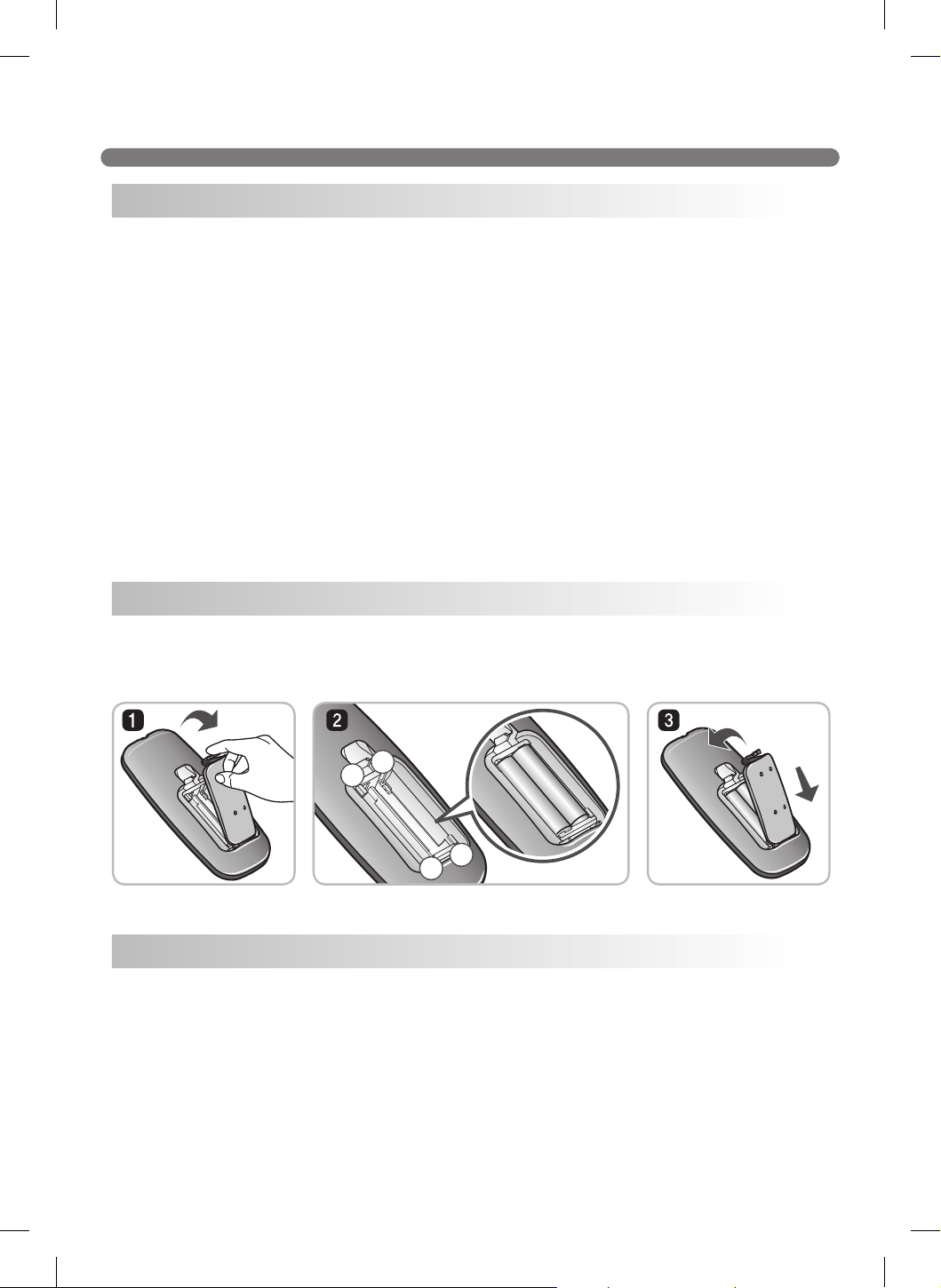
1. Open the battery cover by lifting the rear hook of the remote.
2. Insert two AAA batteries, checking for +, - nodes while loading.
3. Close the battery cover completely so that the batteries will not fall out.
• Only press one button at a time.
• Do not drop or subject the remote to any impact.
• Do not store the remote near devices that give off heat, fire or hot air.
• Certain fluorescent lamps, such as three band radiation lamps, can interfere with the activation of
the remote. Therefore, use it as far away as possible from such lamps.
• If the remote is far from the Robot Cleaner when activated, it may fail to operate properly. Use the
remote within 9.8 ft (3 m) of the Robot Cleaner if possible.
Before Cleaning
Loading the Remote's Batteries
Precautions while Using the Remote
–
+
+
–
–
+
+
–
–
+
+
–
16
OVERVIEW
Warning If the Robot Cleaner is operated with the dust bin compartment lid left open, it
can cause personal injury or serious damage to the product.
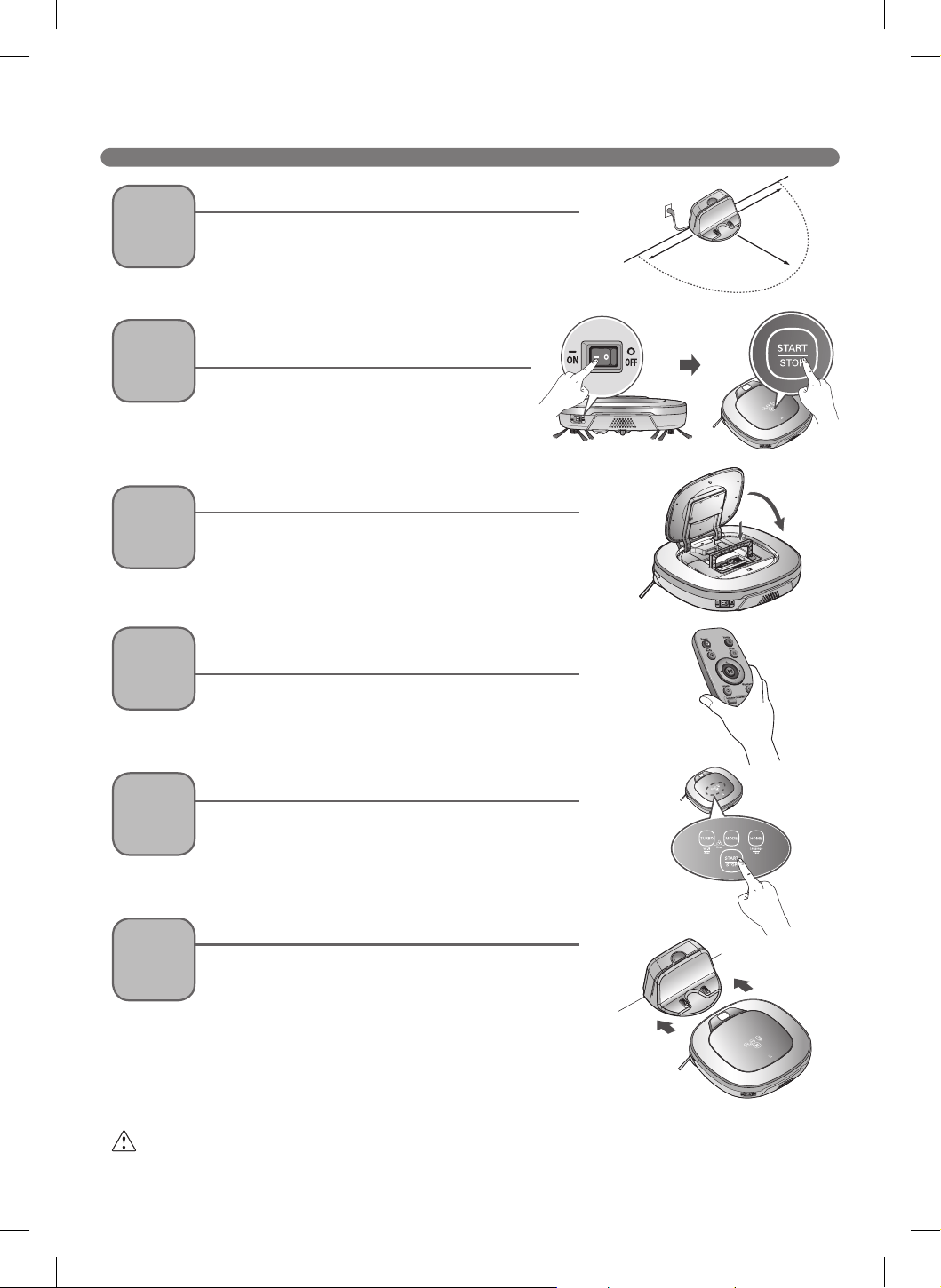
1
Install the home station. (p17)
Insert the power cord plug into an outlet and locate
the station against a wall. If power is not supplied to
the home station, the Robot Cleaner will not charge.
2
Turn on the power supply of the Robot
Cleaner. (p18)
Turn on the power switch located on the rear-
left side of the Robot Cleaner. Press the Start/
Stop button on the Robot Cleaner or the Start
button on the remote.
3
Check the dust bin.
Empty the dust bin if necessary.
5
Start cleaning. (p19)
Press the Start/Stop button on the Robot Cleaner
or the Start button on the remote. Cleaning begins
once the Robot Cleaner reverses and turns around.
6
Automatic charge. (p20-22)
The Robot Cleaner automatically returns to the home
station to charge. If the Robot Cleaner is in the
middle of cleaning and runs out of battery charge,
it returns to the home station to recharge and then
continues cleaning where it left off once the battery
is fully charged.
It takes approximately three hours for the battery to
fully charge.
4
Select the desired cleaning mode and options.
(p24-30)
Set the cleaning mode and options using the
buttons on the Robot Cleaner or on the remote.
5 ft.(1.5 m)
5 ft.(1.5 m)
6
1
/2 ft.(2 m)
17
INSTALLING THE HOME STATION
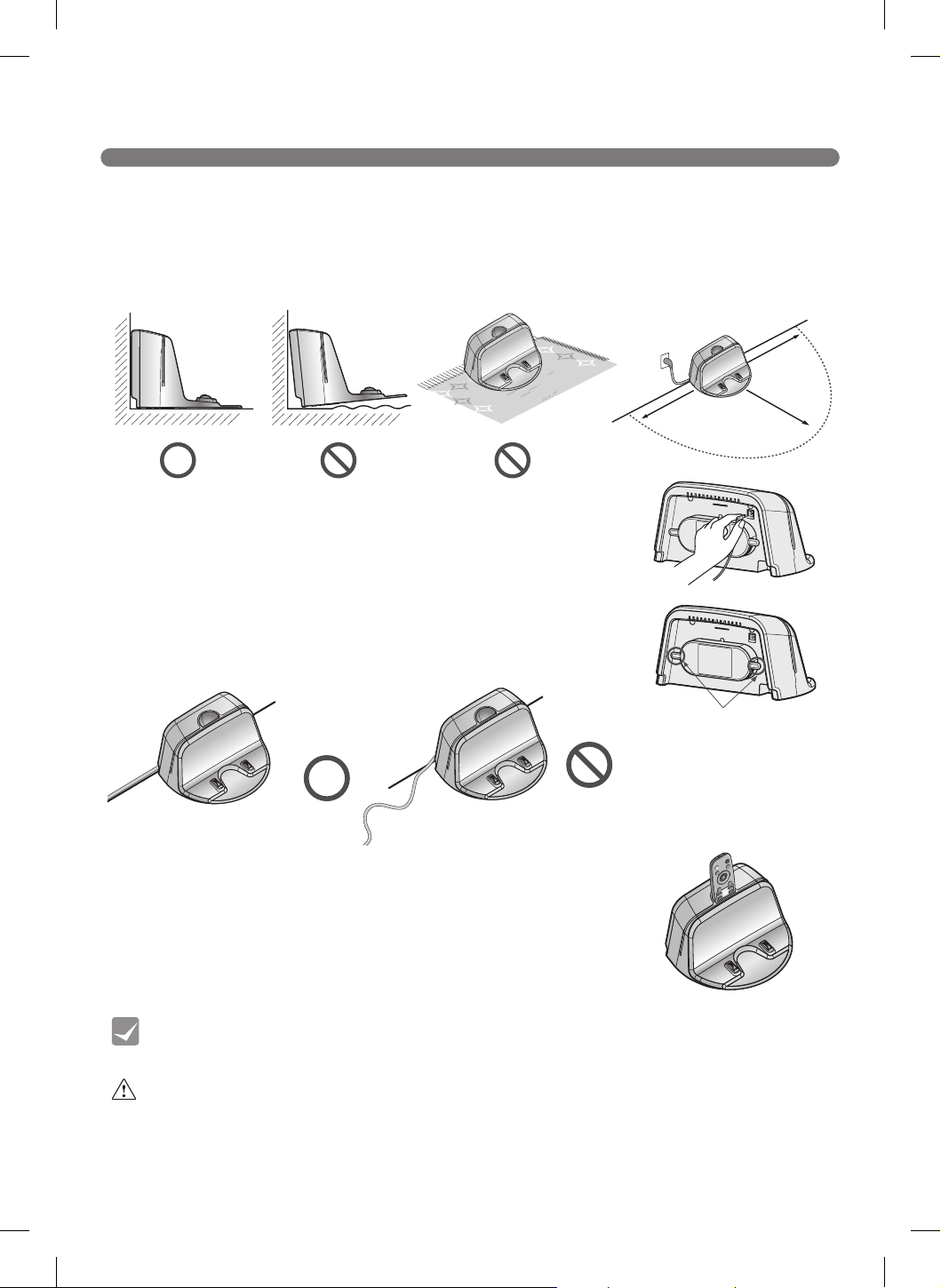
1. Position the home station against a wall on hard, level ooring to
prevent sliding during docking.
Installing the home station on carpet is not recommended. The
robot cleaner may have difculty docking.
Remove objects within 5 ft. (1.5 m) to the right and left side and
within 6
1
/2 ft. (2 m) to the front.
2. Plug the jack into the home station.
3. Plug the power cord into an outlet.
Wrap the remaining power cord around the cord keeper on the
back side of the home station or along the wall surface so that the
travel path of the Robot Cleaner will not be obstructed.
4. Fix the home station against the wall so that it does not move.
5. When the remote is not in use, store it in the remote holder on the
home station.
power cord keeper
• Always keep the home station plugged in when in use. If the home station is not plugged
in, the Robot Cleaner will not return to the station to charge automatically.
Warning Do not operate the Robot Cleaner if the home station has a damaged cord
or plug, if it is not working properly, or if it has been damaged or dropped. To
avoid electrical hazards, the cord must be replaced by LG Electronics, Inc. or a
qualified service person.
Tip
5 ft. (1.5 m)
5 ft. (1.5 m)
6
1
/2 ft. (2 m)
18
TURNING THE ROBOT CLEANER ON/OFF
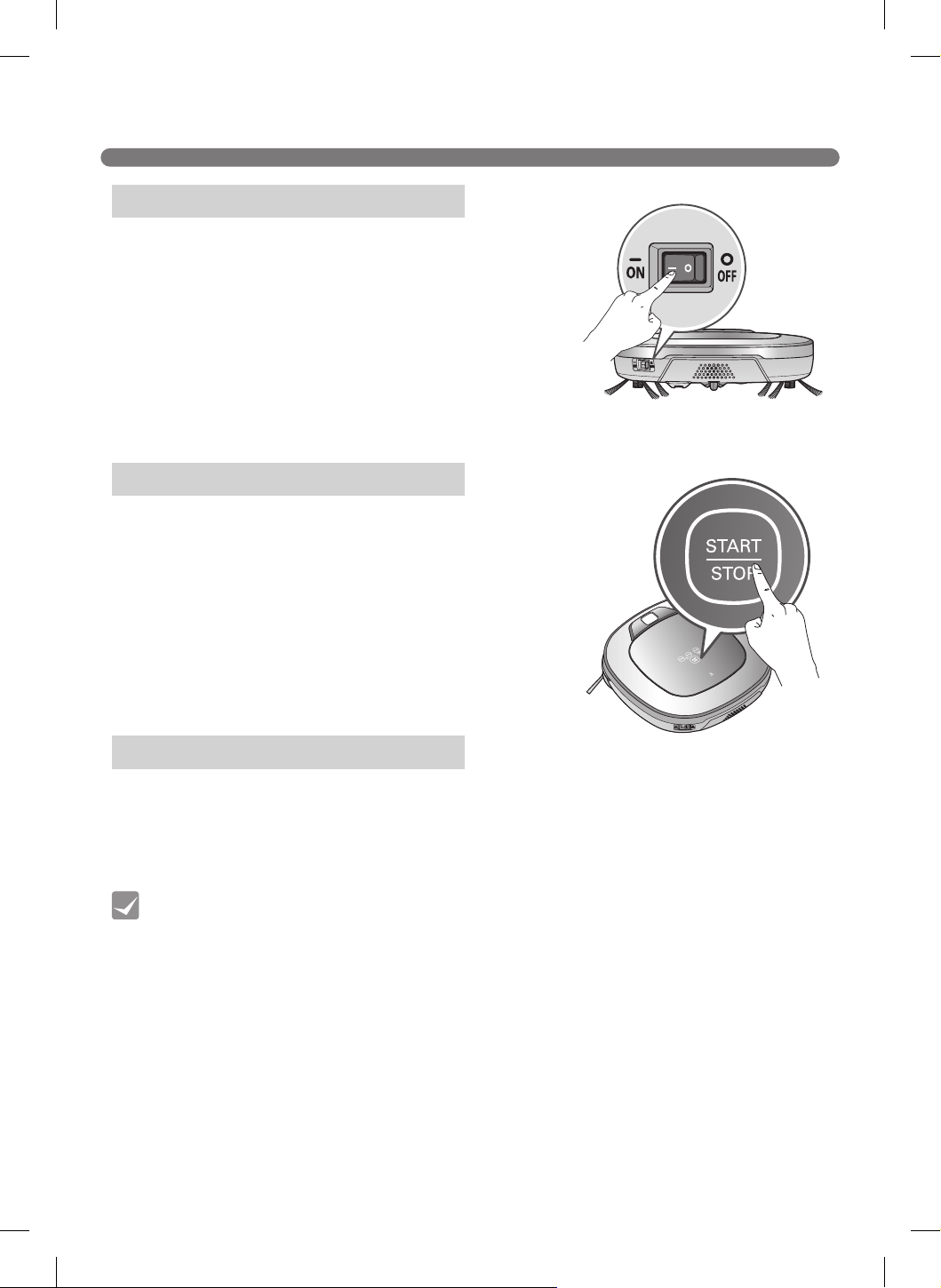
Flip the power switch to the ON position.
※
Do not press the Start/Stop button at the same time as
ipping the power switch. Doing so may delay the operation.
※
Turn off the power switch when the Robot Cleaner is not
used for long periods. The switch must be turned back on
for the Robot Cleaner to charge.
If the Robot Cleaner is in standby mode, press and hold the
Start/Stop button for one second or until a tone sounds. After
approximately 10 seconds a melody sounds and the Robot
Cleaner comes out of standby mode.
※
If the Robot Cleaner is not used within 10 minutes of being
turned on, it returns to standby mode.
Press the Power button on the remote or press and hold the
Start/Stop button on the Robot Cleaner for two seconds
to turn off the Robot Cleaner. A melody sounds when the
Robot Cleaner is turned off.
• If the power cannot be turned on, do the following.
1. Turn the main power switch OFF, wait 5 seconds, then turn it ON again.
2. Press the START/STOP button on the Robot Cleaner or the Power button on the
remote.
3. If the Robot Cleaner still does not power on or if there is nothing in the display, mount
the Robot Cleaner on the home station and let it charge.
Turning On the Main Power Supply
Turning On from Standby Mode
Turning Off the Power Supply
Tip
19
HOW TO START AND STOP CLEANING
For best results:
• Briefly scan the area to be cleaned for big and small objects that will cause difficulty for
the Robot Cleaner.
• If cleaning is started when the Robot Cleaner is at the home station, the device
can rapidly be returned to the home station as the current home position has been
accurately read.
• When the mop plate is installed, the Robot Cleaner will not go over door sills or other
obstructions higher than 3/16 in. (5 mm).
Tip
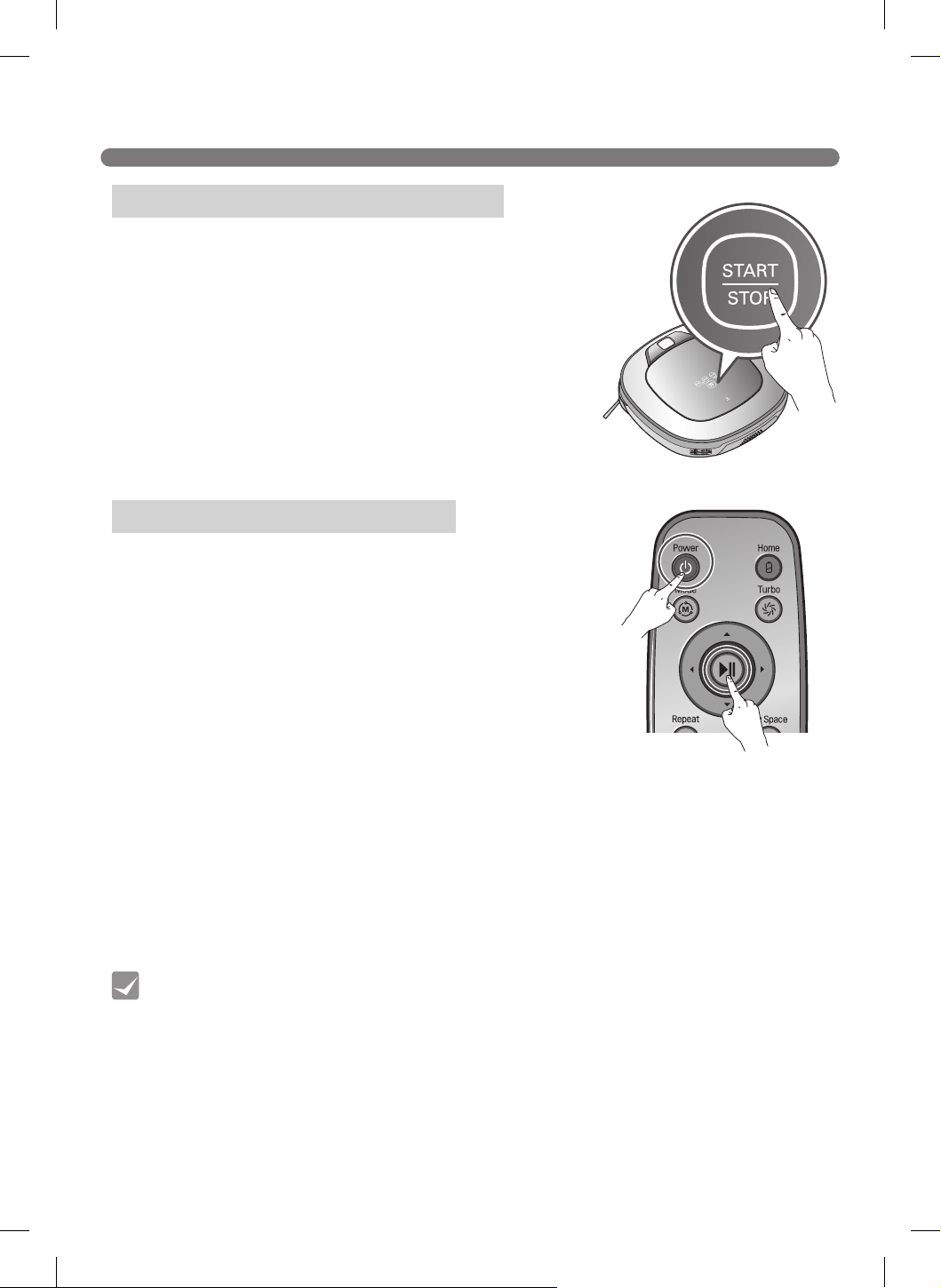
Once the Robot Cleaner is turned on, press the START/STOP
button on the top of the Robot Cleaner to begin cleaning. A
melody sounds and cleaning begins.
Press the START/STOP button any time during the cleaning cycle
to stop cleaning.
※
To start cleaning when the Robot Cleaner is in standby mode,
press START/STOP once to turn on the power, then press again
to start cleaning.
Press the Power button on the remote to turn on the Robot
Cleaner.
Once the Robot Cleaner is turned on, press the Start/Stop button
on the remote to start cleaning. A melody sounds and cleaning
begins.
Press the Start/Stop button any time during the cleaning cycle to
stop cleaning.
※
Collisions can occur during cleaning when the sensor cannot detect objects such as thin chair legs,
table legs, or furniture corners. The internal impact detecting sensor reacts by moving the Robot
Cleaner backwards.
※
If the Robot Cleaner is set to start cleaning at a location away from the home station, select a at
oor clear of obstacles for a starting location to prevent a malfunction of the obstacle detecting
sensor. Curtains and walls must be 12 in. (30 cm) from the Robot Cleaner.
Using the Robot Cleaner's Buttons
Using the Remote
20
CHARGING THE BATTERY
The Robot Cleaner returns to the home station at the end of a
cleaning cycle or when its battery is running low.
※
If 10 minutes elapse without the Robot Cleaner moving or the
battery is too low, the Robot Cleaner automatically goes into
standby mode.
※
The power switch has to be in the ON position in order for the
Robot Cleaner to charge at the home station. If the switch is
OFF, an error message sounds.
※
After the battery is fully charged, the Robot Cleaner resumes
cleaning, if interrupted, from the spot where it left off. (Page 21)
※
If the Robot Cleaner is unable to dock to the home station on its rst attempt, it will try again until it
docks successfully.
※
When the Robot Cleaner has completed cleaning the area, it will return to the home station even if
the battery level is not low.
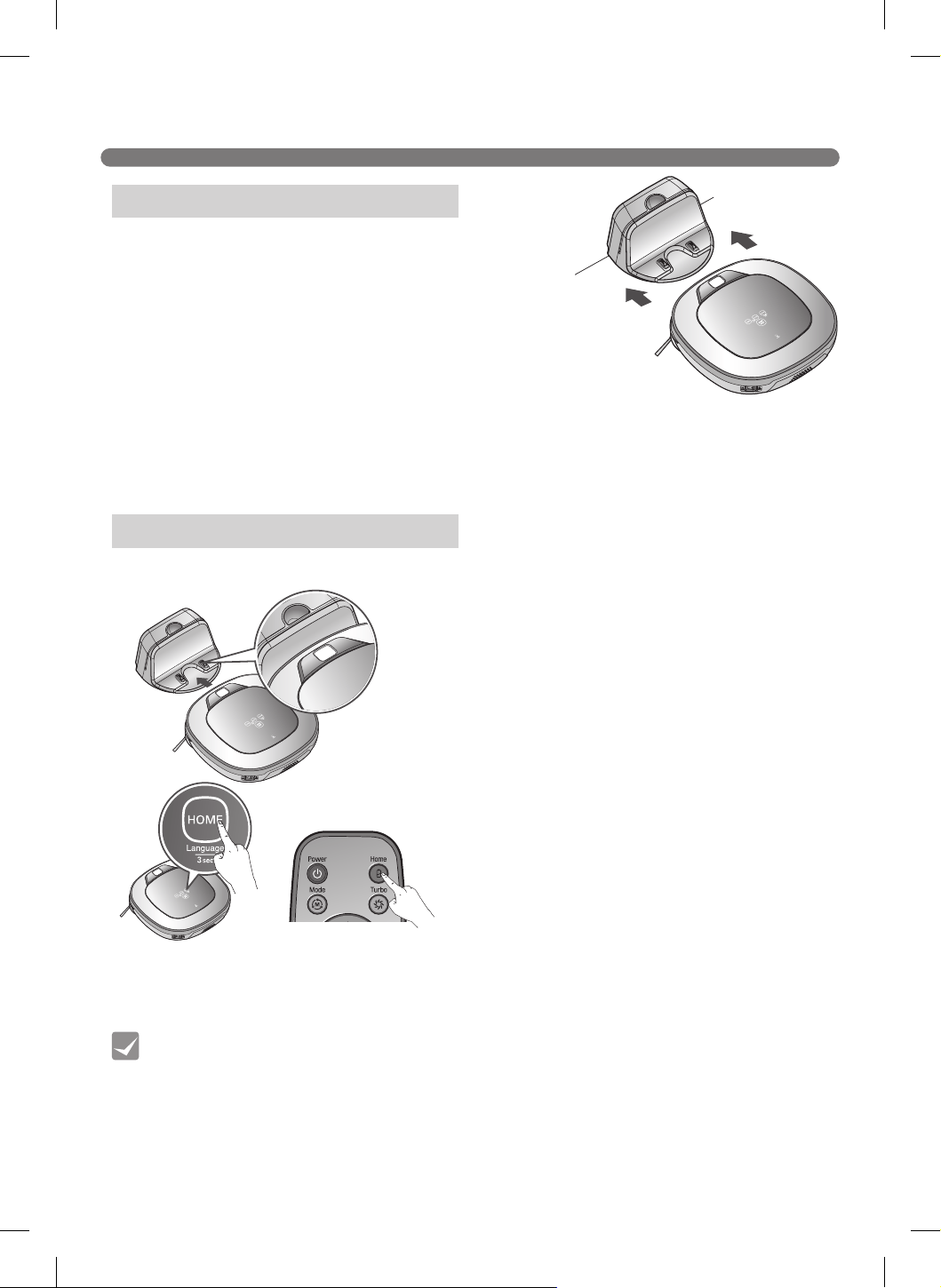
Method 1. Attach the Robot Cleaner to the home
station by aligning it to the front side of
the home station. A melody sounds along
with a message to start charging.
※
The main power switch must be in the
ON position in order for the Robot
Cleaner to charge. An error message is
heard if the power switch is in the OFF
position while mounted to the home
station.
Method 2. Press the HOME button on either the
Robot Cleaner or the remote to return
the Robot Cleaner to the home station to
charge.
Automatic Charging
Manual Charging
Take the following precautions when using the home station:
• If foreign material is caught on the charging terminal, charging may not be activated. Wipe
the terminal from time to time with a dry cloth after the power plug is disconnected.(p53)
• To prevent electric shock or damage to the home station, do not touch the charging
terminal with any metallic objects.
• To avoid fire or electric shock, never disassemble or modify the home station.
• Do not to place the Robot Cleaner, the home station or the power plug near a heat source.
Tip
Manually charge the Robot Cleaner before using it for the rst time.
※
If the Robot Cleaner did not start cleaning from the home station or if the Robot Cleaner is manually
charged by pressing the Home button, it may take slightly longer to find the home station.
※
If the Robot Cleaner is within 4 in. (10 cm) of the front of the charging terminal while the power is
turned on from Standby, it will automatically be returned to the home station and charging will begin.
21
CHARGING THE BATTERY
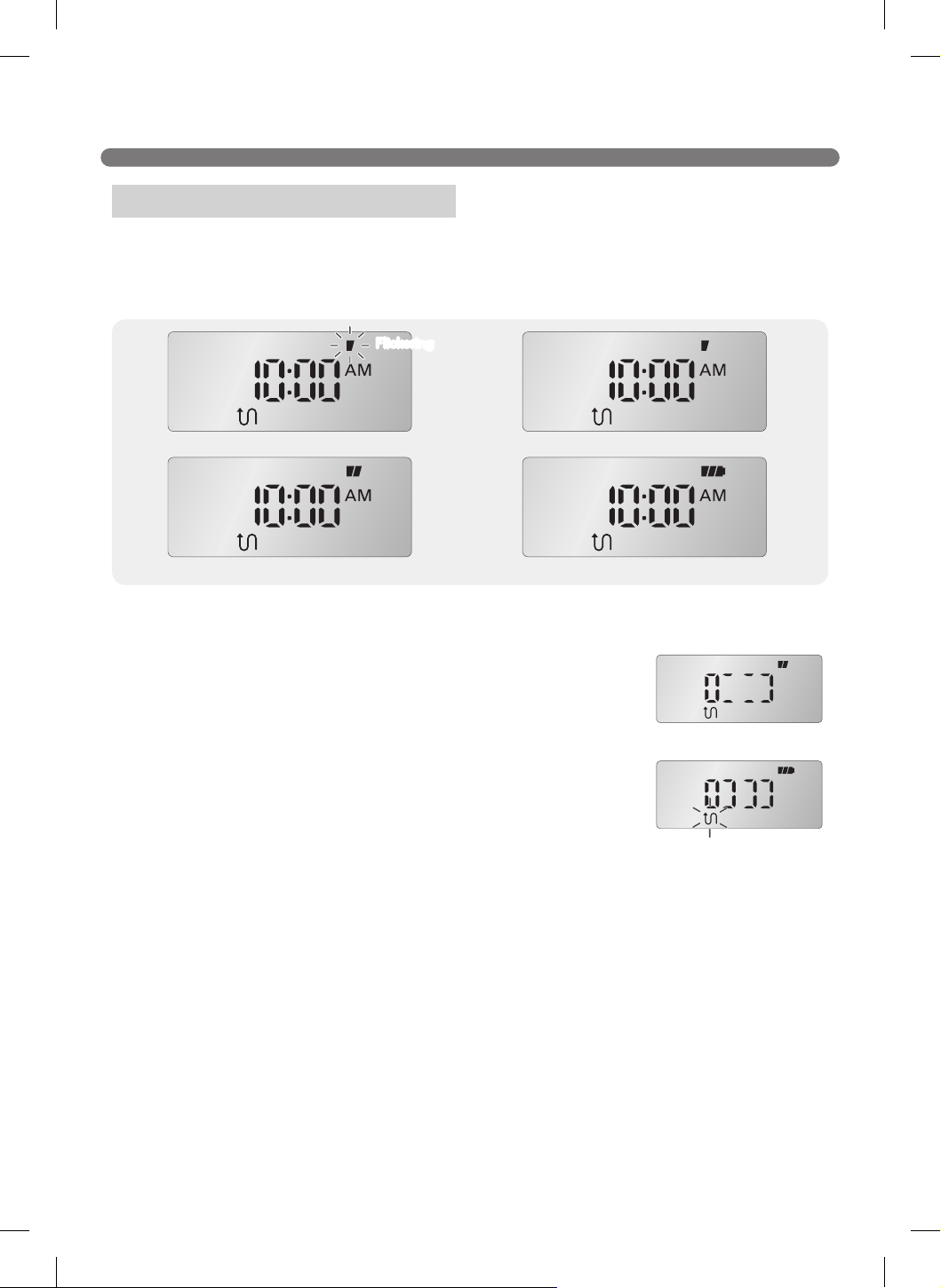
The battery level indicator is located on the status display.
• The battery level indicator ashes if recharging is in progress, showing the charge level.
• If recharging is complete, only the battery and clean mode icons are displayed to save energy.
• The rst level of the battery level icon ashes when the Robot Cleaner needs to be charged.
The status indicators show the
different pending conditions
during charging mode.
※
If the Robot Cleaner performs an automatic recharge while in a
cleaning cycle, the cleaning mode icon ashes while the Robot Cleaner
is mounted on the home station.
- After an automatic recharge, the Robot Cleaner continues cleaning in
the areas that were not completed.
- Pressing the Start button on the remote or the Start/Stop button on
the Robot Cleaner while the Clean Mode light is ashing will direct the
Robot Cleaner to clean uncovered areas.
- Press the Start button on the remote or the Start/Stop button on the
Robot Cleaner after charging is complete to start cleaning from the
beginning.
Battery Level Indicator
Flickering
When no area remains to be
cleaned after charging.
When an area remains that
the Robot Cleaner will resume
cleaning after charging.
(ashing Cleaning indicator)
Charging is required
Middle
Low
High
22
CHARGING THE BATTERY
Check 1:
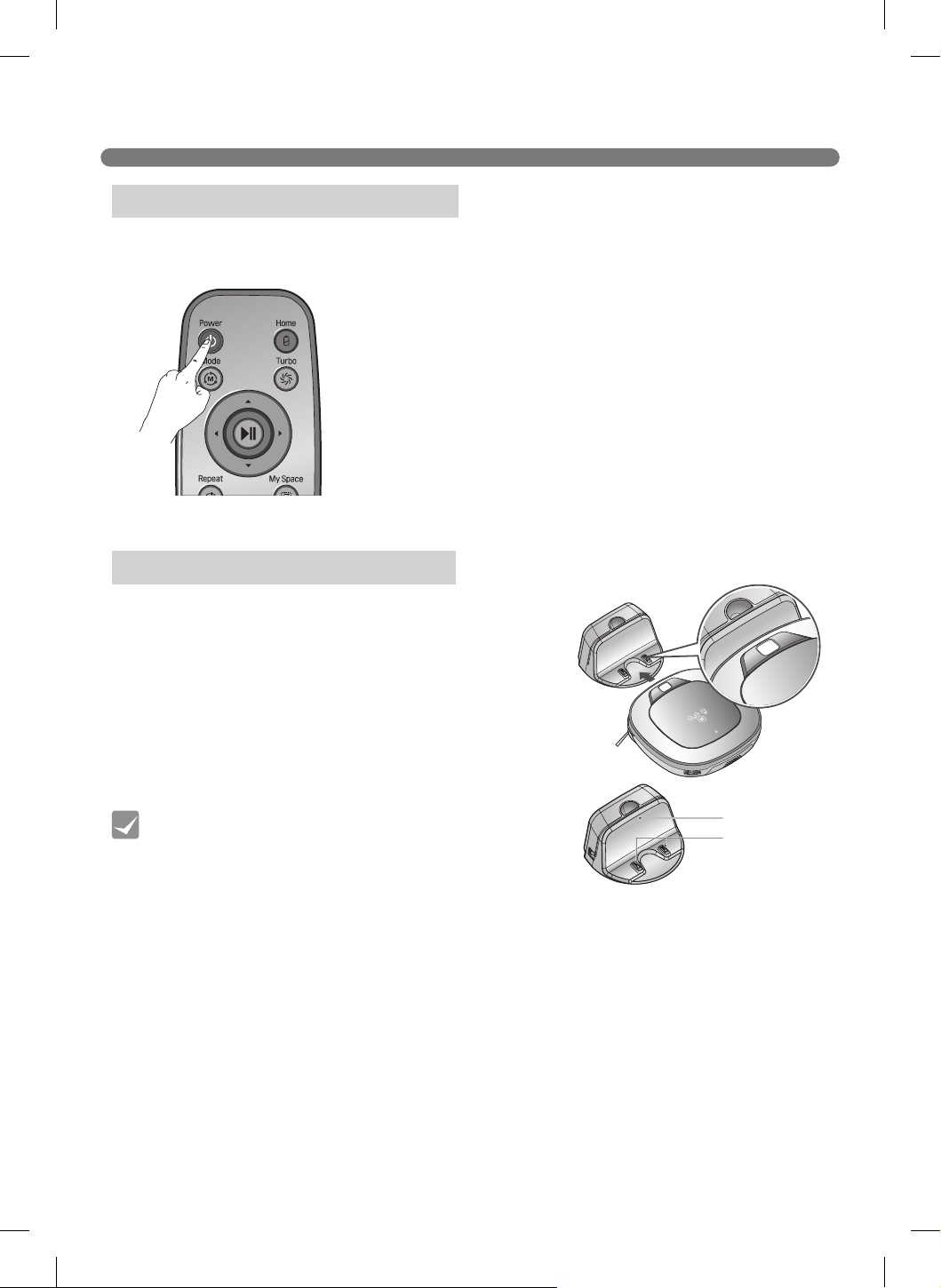
If the Robot Cleaner is not charging while attached to the
home station, try the following.
- Turn the power switch on the rear-left of the Robot
Cleaner off once and then on again.
- Check the power lamp to make sure the home station is
turned on.
- Wipe the terminals on the home station with a dry cloth.
(p53)
Tip
• Failure to charge the battery for long periods
may result in battery failure.
• Before storing the product, fully charge the
battery. Recharge the battery fully every six
months.
If the Battery is Not Charging
Power lamp
Charge terminal
Step 1. Press the Power button on the remote. All functions of
the Robot Cleaner are turned off except the recharging
mode.
※
After recharging is complete, press the Power button
on the remote to use the Robot Cleaner.
Energy Saving Charging Mode
You can recharge the battery with the Energy Saving mode, if you don't use the Robot Cleaner for a
long period of time or overnight.
23
USING MAGNETIC WALL STRIPS
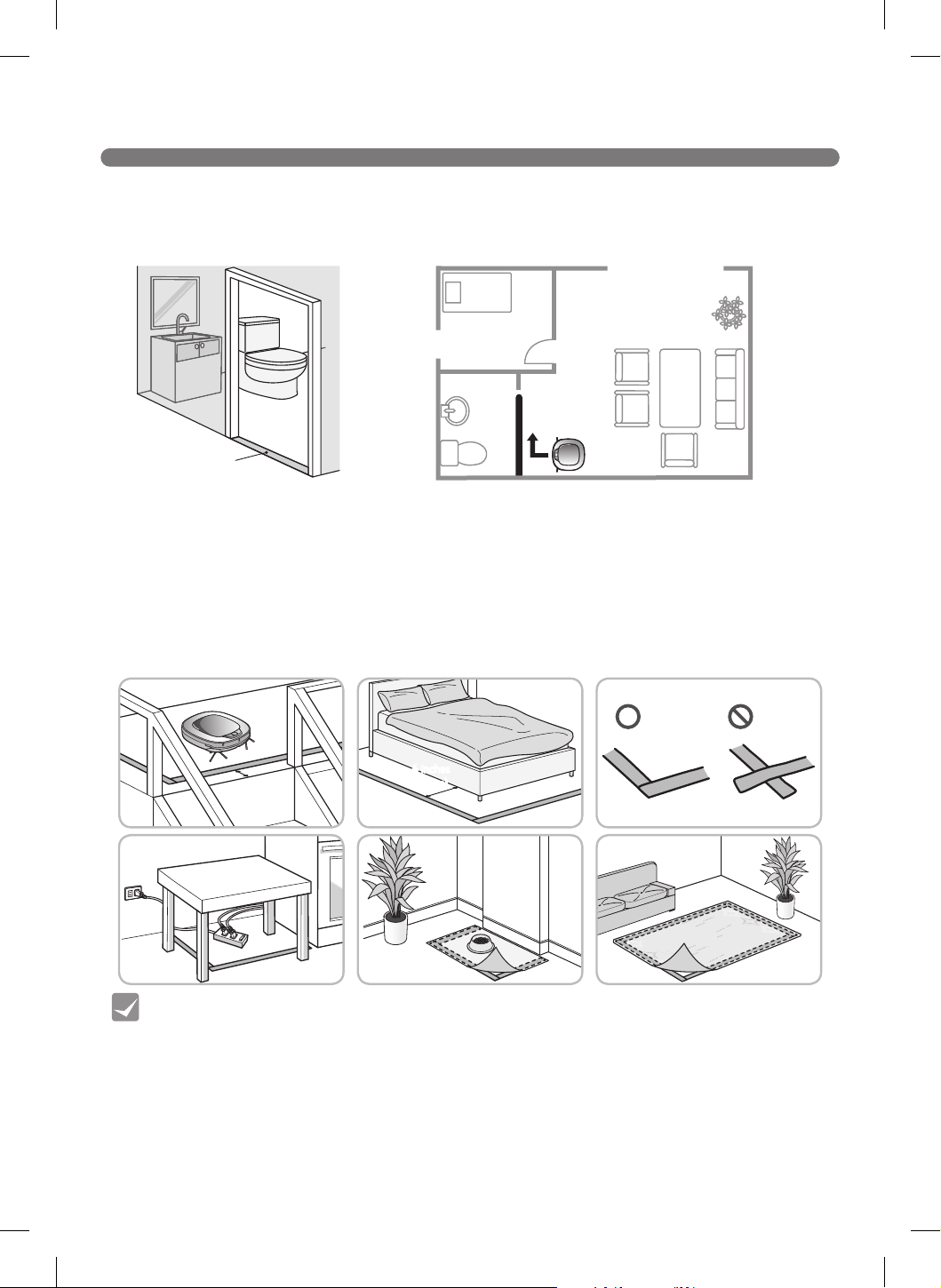
Use a Magnetic Wall strip to block off areas the robot cleaner should not enter. The Magnetic Wall
strip is only included with some models. To purchase a strip for use with a model that did not include
one, or to purchase additional strips, visit the LG website at www.lg.com.
1. Use a Magnetic Wall strip to block off areas the robot cleaner should not enter.
Magnetic
Wall strip
Magnetic
Wall
Bathroom
Living room
2. Use the Magnetic Wall in areas where the robot cleaner could be damaged or could cause damage
to objects.
※
Place the Magnetic Wall strip at least 6 inches (15 cm) away from the object.
※
Place the Magnetic Wall strips underneath the edges of carpets or mats you don't want cleaned.
※
Do not overlap the ends of the Magnetic Wall strips.
Use the strips:
- Around stairs where the robot cleaner could fall
- Around lamps, plants, or other fragile items
- Around sofas, tables, chairs, or pet bowls to avoid scuffs and impacts
- Around tables, or thick carpets where the robot cleaner wheels could get stuck
6 inches
(15 cm)
6 inches
(15 cm)
6 inches
(15 cm)
Tip
• You can cut the Magnetic Wall strip into shorter lengths. Make sure the Magnetic Wall
strips form a continuous shape when surrounding an object. If the strips do not form a
continuous line, the robot cleaner may have difficulty recognizing them.
• Only use the Magnetic Wall strip provided with the product. Third-party magnetic strips
may not be recognized by the robot cleaner.
• If necessary, use removable tape such as gaffer's tape or painter's tape to keep the
Magnetic Wall strip in place.
• Do not install Magnetic Wall strips near products which are susceptible to magnetic
fields, such as speakers, desktop computers or hard drives, laptops, and some
electronics including CRT TVs.
24
CHOOSING A CLEANING MODE
• The Robot Cleaner defaults to the last cleaning mode used when it is turned back on
after being powered off.
• To change the cleaning mode during operation, press the Start/Pause button on the
remote and select a new cleaning mode. Cleaning starts from the beginning.
Tip
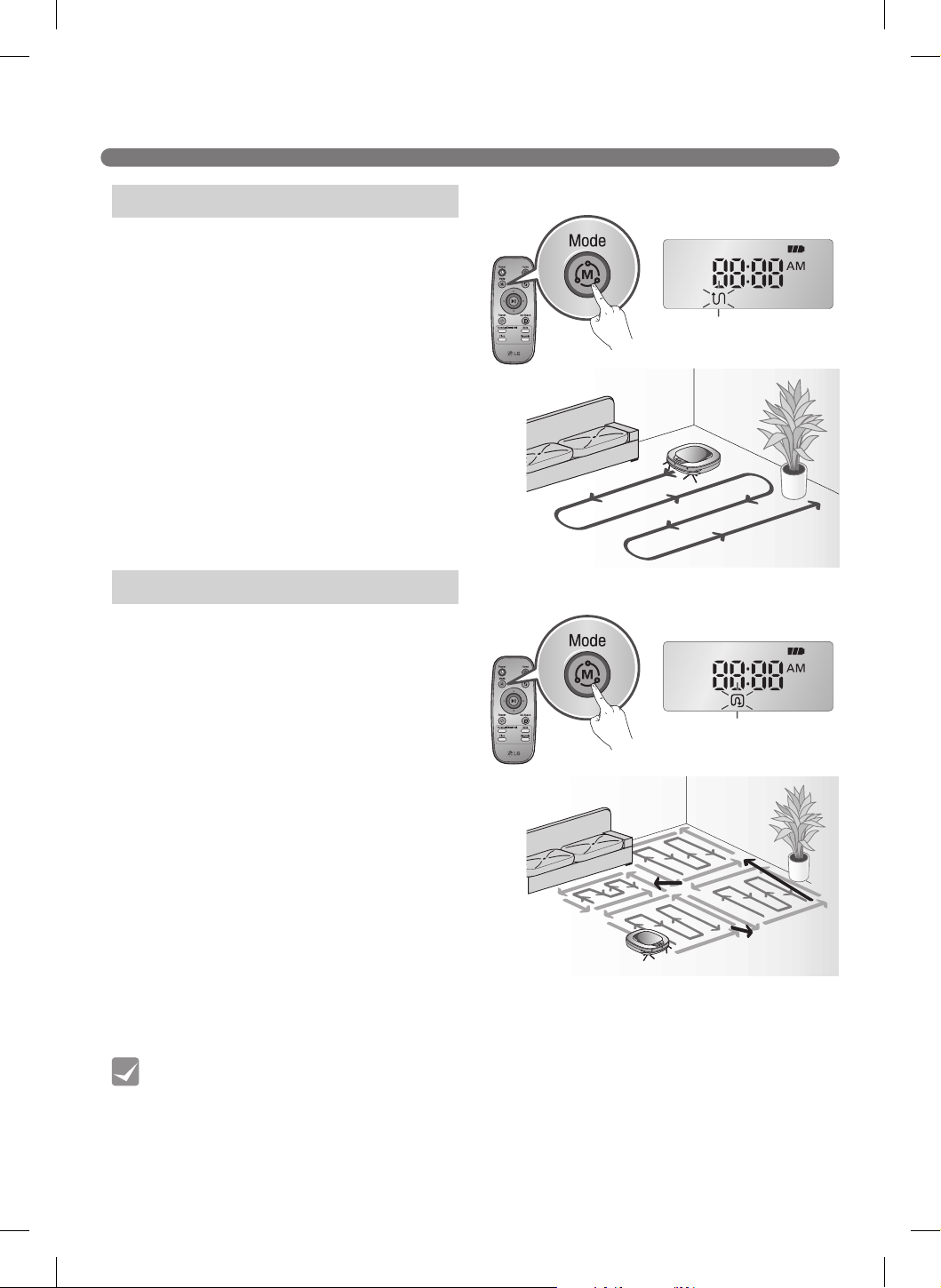
In Zigzag mode, the Robot Cleaner zigzags
through each spot of the cleaning area. Select
the Zigzag mode to quickly clean an area.
Selecting the Zigzag Mode
Press the Mode button continuously, on either
the Robot Cleaner or remote, until the Zigzag
icon illuminates.
※
The default mode on the Robot Cleaner is the
Zigzag mode.
Select the Cell by Cell mode for meticulous
cleaning. In this mode, the Robot Cleaner divides
the area to be cleaned into rectangular spaces.
Selecting the Cell by Cell Mode
Press the Mode button continuously, on either
the Robot Cleaner or remote, until the Cell by
Cell icon illuminates.
Stage One
First, the outline of each space is cleaned. The
size of the outline may vary with the shape of the
overall area to be cleaned, but the maximum size
of each space is approximately 10 ft. x 10 ft. (3 m
x 3 m).
Stage Two
Second, the interior of each space is cleaned in
the Zigzag mode.
These stages repeat until the entire area is clean.
Zigzag Cleaning
Cell by Cell Cleaning
25
CHOOSING A CLEANING MODE
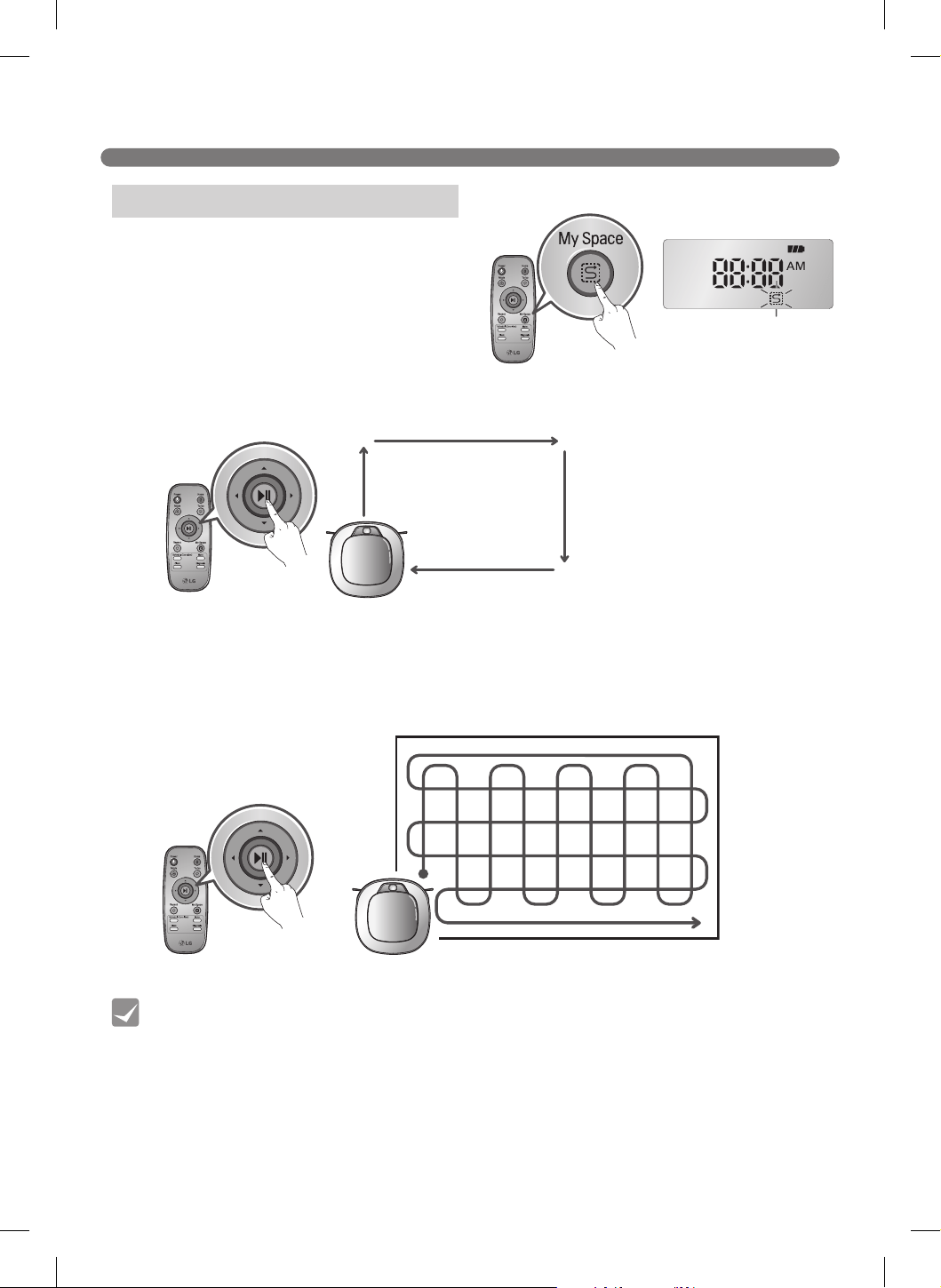
Select the My Space mode to manually set the
cleaning space.
Selecting the My Space Mode
1. Press the My Space button.
2. Using the arrow buttons on the remote, guide
the Robot Cleaner around the perimeter of the
desired cleaning space.
※
Cleaning space must be smaller than 3
1
/4 ft. (3 m).
• The My Space cleaning mode cannot be activated while the Robot Cleaner is charging
• To change the cleaning mode during operation, press the Stop button and select a
different mode. The cleaning cycle will then start over.
Tip
My Space
3. Once the area is specied, press the Start button.
NOTE: If the cleaning area is not correctly outlined, an error message sounds. Repeat steps 1 and 2
until the cleaning area has been correctly specied.
My Space Cleaning
26
AUXILIARY CLEANING MODES
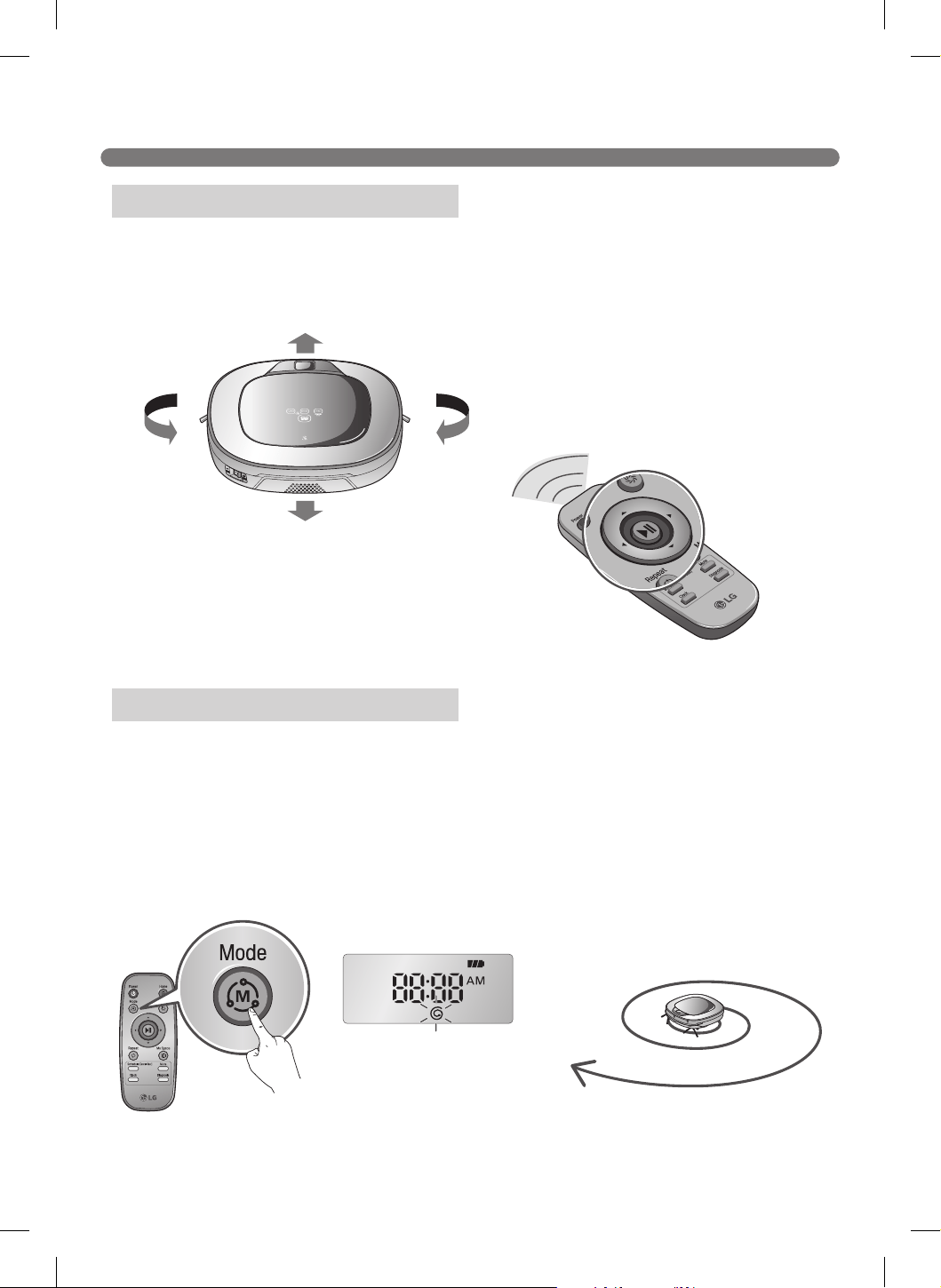
Manual mode moves the Robot Cleaner manually to the front, back and either side using the arrow
buttons on the remote.
While in Manual mode, the Robot Cleaner runs into obstacles placed behind it if the back arrow key
on the remote is held down.
The Spot mode cleans the area where it is placed within a 4
1
/2 ft (1.37 m) diameter.
Starting Spot Mode
1. Place the Robot Cleaner in the desired cleaning area.
2. Press the Mode button continuously until the Spot mode icon displays in the screen.
3. Press the Start button.
※
The Spot mode cannot be selected while the Robot Cleaner is recharging.
Manual Cleaning
Spot Cleaning
It stops at the original position after
completing the cleaning(takes 4~5 min.).
27
AUXILIARY CLEANING MODES
• Precautions with the Learning mode
• The Learning mode memorizes locations of obstacles in order to avoid them. The Robot
Cleaner memorizes every aspect of the environment it encounters from when it leaves
the home station to start cleaning to the moment it returns.
• If the home station is moved, the Robot Cleaner must learn the environment again.
• Once the Learning mode is complete, an alert message will sound.
Tip
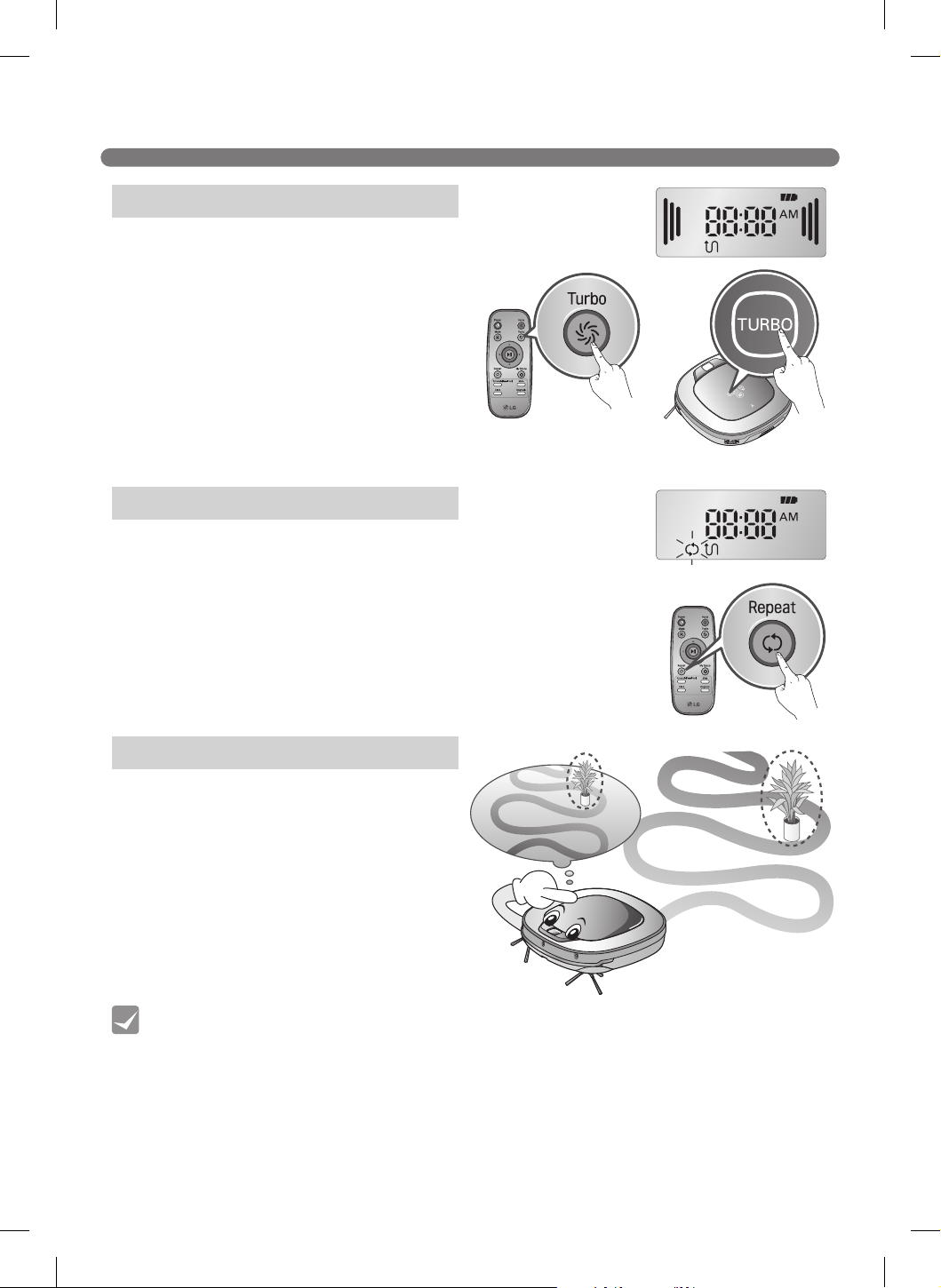
Select Turbo Mode for a more intense, powerful
clean. Turbo Mode reduces the battery duration.
Selecting Turbo Mode
Press the Turbo button on the remote or on the
Robot Cleaner to activate the Turbo mode.
Press the Turbo button at any time during the
cleaning operation to cancel the Turbo mode.
※
Turbo Mode (Floor Master Function)
Turbo mode activates automatically on carpets.
Select the Repeat mode to repeat the cleaning in progress until
the battery runs out, without returning to the home station.
Selecting the Repeat Mode
Press the Repeat button on the remote or on the Robot Cleaner
to activate the Repeat mode.
Press the Repeat button at any time during the cleaning
operation to cancel the Repeat mode.
The Robot Cleaner memorizes the cleaning
environment through the Learning mode.
※
The Learning mode is only available when the
Robot Cleaner starts cleaning from the home
station.
Turbo Mode
Repeat Mode
Learning Mode

28
SETTING THE CLOCK
You can set or change the current time on the Robot Cleaner.
Pressing the Clock button on the remote when the Robot Cleaner is in standby mode
starts the clock setting mode.
• Any scheduled cleaning will be activated based on the time on the Robot Cleaner. The
clock must be set before scheduled cleaning can be set.
• If there is no input for 10 seconds, the clock setting is canceled.
Tip
Select by using
s
s
buttons on the remote.
The function can be heard
through the voice guide.
Set the hour by using uv buttons on
the remote.
Set the minutes using uv buttons on
the remote.
Set AM/PM using uv buttons on the
remote.
Pressing the Clock or button on
the remote will complete the time
setting process.
Flickering
Flickering
Flickering
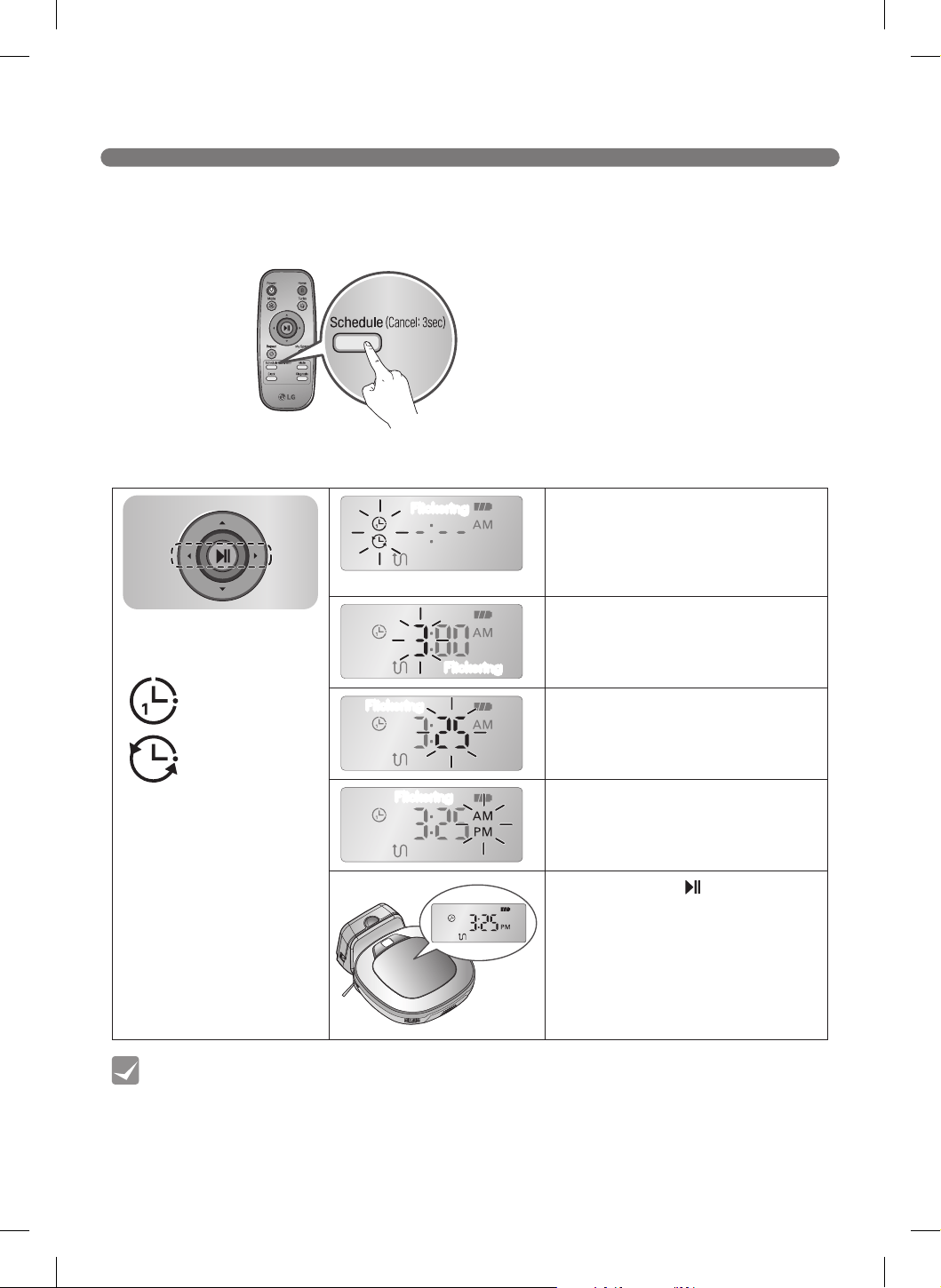
29
SCHEDULING CLEANING
Cleaning can be scheduled so that the Robot Cleaner starts cleaning at a scheduled time.
Press the Schedule button on the remote while the Robot Cleaner is recharging to set a
scheduled cleaning.
• When the scheduled time comes up, the Robot Cleaner starts cleaning by itself.
• Scheduled cleaning can only be set when the Robot Cleaner is recharging.
• Pressing the Schedule button on the remote for three seconds while the Robot Cleaner
is recharging cancels the set schedule.
• If there is no input when setting the schedule time within 10 seconds, the setting is
canceled.
Tip
Setting/Cancelling a scheduled cleaning is only possible when the unit is recharging on the home station
Select a setting by using
s
s buttons on the remote.
Schedule Once
Schedule Daily
Select Schedule Once or Schedule
Daily option using the uv buttons on
the remote.
A voice message conrms the
schedule.
Set the hour using the uv buttons on
the remote.
Set the minutes using the uv buttons
on the remote.
Set the AM/PM using the uv buttons
on the remote.
Press Schedule or button on the
remote to complete the process.
Flickering
Flickering
Flickering
Flickering
30
MOP CLEANING (on some models)
• To avoid odors, wash any foreign material or dust off the mop after cleaning is completed.
• To avoid staining floors, do not use the ultra microfiber mop to clean when dirt is
contaminated with liquids such as coffee or ink.
• To avoid damage to carpets from the Velcro or dirt transfer from the mop, do not attempt
to clean carpets while the mop plate or mop is attached.
• Keep the ultra microfiber mop dry. Do not use it on wet surfaces.
If there is moisture on the floor, it can interfere with the navigation and damage the unit.
• The Smart Diagnosis™ feature is not available when the mop plate is attached.
Tip
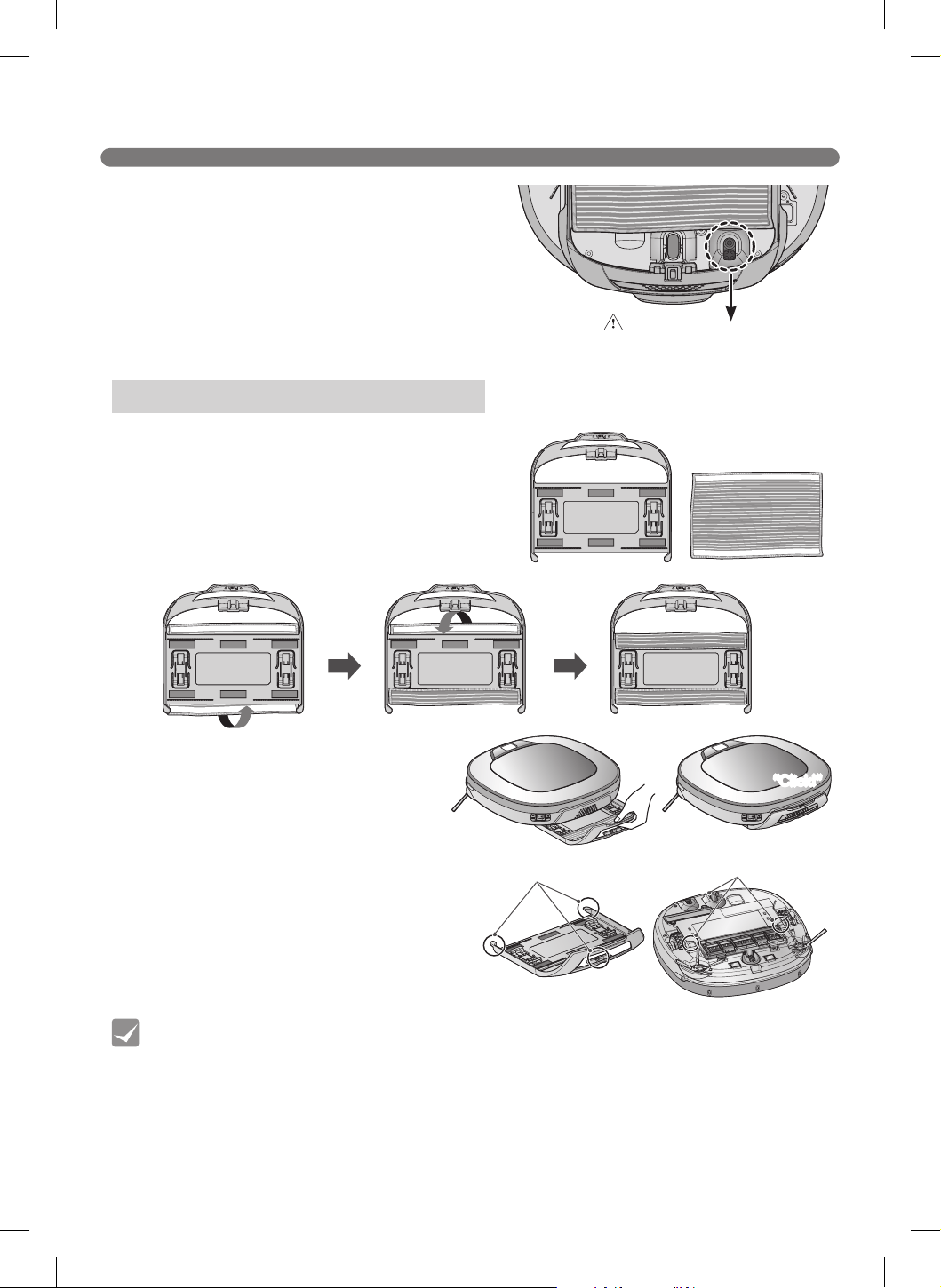
1. Attach the ultra microber mop to the
Velcro of the mop plate as shown in the
gure.
2. Firmly slide the mop plate into the
grooves until you hear a click.
※
If the mop plate is not secured
correctly, it may separate during
cleaning.
3. It is essential that the xing hooks on the
mop plate align correctly with the xing
grooves on the underside of the cleaner.
Remove dust on hard oors by attaching the ultra
microber mop to the Robot Cleaner.
When the mop plate is attached, the Robot
Cleaner will not climb on to carpets or over
thresholds, in order to prevent transferring dirt
from the mop.
Fixing hook
Fixing groove
“Click!”
Caution
Do not cover the bottom camera
sensor with the mop.
Mounting the Mop and Mop Plate
31
LOCATION SEARCH FUNCTION
• If the power is turned off after the location search function is set, the location search
function is canceled.
• Location search is more effective when the Robot Cleaner is closer to the location it was
moved from.
Tip
※
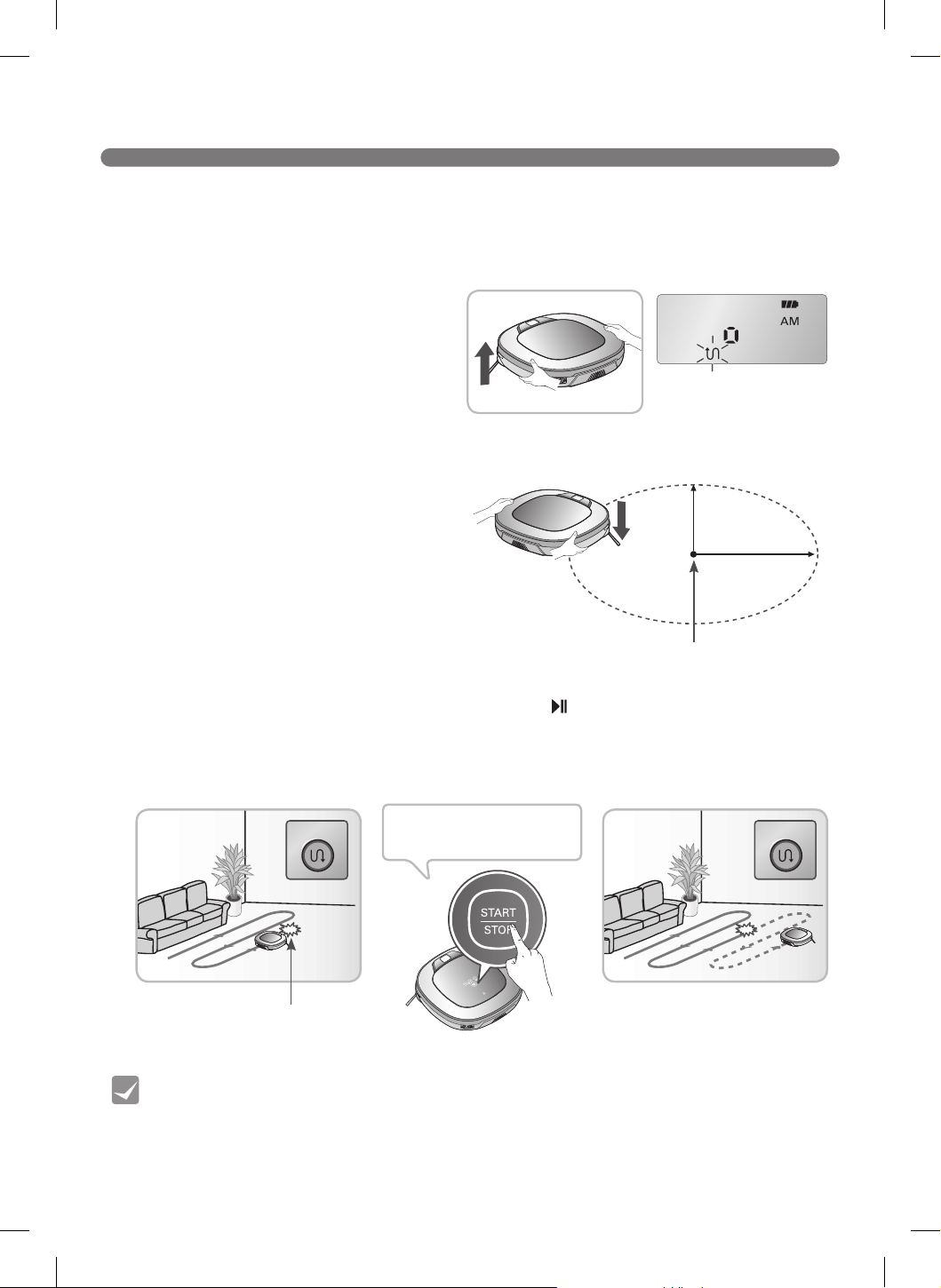
The navigational function is activated after
the Robot Cleaner adequately recognizes the
cleaning environment.
Manual Relocation
1. With the power off, locate the Robot Cleaner
near where it was originally moved from.
※
The location search is more effective when
the Robot Cleaner is closer to the location
where it was moved from.
※
If it is moved from its original cleaning
position by more than 3
1
/4 ft. (1 m), it
becomes difcult for the Robot Cleaner to
search for its previous location.
2. Press the START/STOP button on the Robot Cleaner or the
button on the remote.
The Robot Cleaner starts the location search function along with an audio guide.
※
When the location search is successfully completed, the Robot Cleaner continues cleaning from
where it was moved.
If the location search fails, cleaning starts again from the beginning.
The Robot Cleaner remembers its location while cleaning.
If the user moves the Robot Cleaner while it is operating, it will search for the location it
was moved from by using its navigational location search function before continuing to
clean.
Zigzag Zigzag
Zigzag Zigzag
Change location
Location of incident
Location of incident
1 m
1 m
When the location search
function is activated, the
cleaning mode of the status
indicator will ash
To nd exact location,
please step away from
the Robot Cleaner.
32
SMART DIAGNOSIS™
• Be careful not to touch the Robot Cleaner or disturb its operation before Smart
Diagnosis is complete. If it is accidentally interrupted, turn the main power switch OFF
then ON again to resume the diagnosis.
• Smart Diagnosis will not be activated in each of the following cases. In each case, check
the problem and try again.
- Robot Cleaner is detached from the home station.
- Battery level is insufficient
- No Dust Bin Filter is fitted.
- Mop Plate is attached
Tip
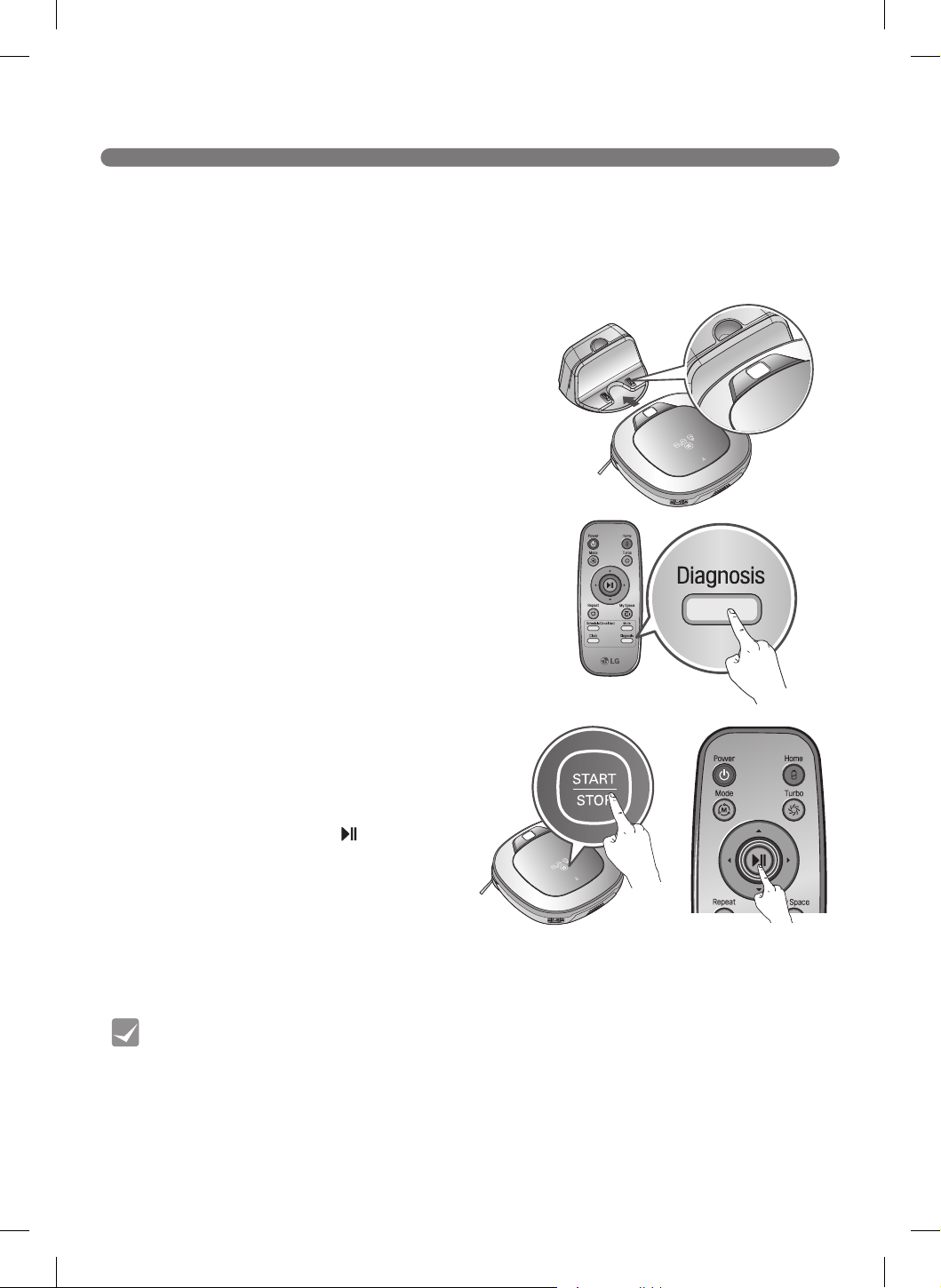
1. Smart Diagnosis will operate when the main power
switch of the Robot Cleaner and the home station are
turned on, and the unit is docked on the home station.
※
Smart Diagnosis is only possible when the Robot
Cleaner is attached to the home station.
2. Press the Diagnosis button on the remote, then the
process will start with a voice message which says
"Robot Cleaner Smart Diagnosis will be started. Please
step away and clear around 1 meter around the home
station."
※
If the Mop Plate is attached, the process will not be
activated.
3. When the Smart Diagnosis has successfully
nished, Robot Cleaner will return back to
the Home Station and inform you of the
result through a voice message. After the
voice message, pressing the Home button on
the remote or main unit will allow the voice
message to be repeated. To terminate the
diagnosing process, press the
button on the
remote or main unit.
※
After the Smart Diagnosis voice message,
the Robot Cleaner will start recharging after
1 minute.
※
If an error is detected with any of the
sensors while in Smart Diagnosis, a voice
message will announce, and the unit will not
return to the home station.
Robot Cleaner uses the Smart Diagnosis feature to run a self-diagnosis.
If any irregularity is found from the diagnosis, contact the local LG Electronics service
center.
※
During Smart Diagnosis, the Robot Cleaner moves about within a 1
3
/8 ft. (50 cm) radius. So,
make sure no objects are in the way within a 3
1
/4 ft. (1 m) radius around the home station, before
starting Smart Diagnosis.
33
SMART DIAGNOSIS™
Refer to the following table to resolve error messages encountered during Smart Diagnosis.
Voice message Solution
Robot Cleaner Smart Diagnosis will be started. Please step
away and clear around 1 meter around the home station.
Clear any object within a 3
1
/4 ft. (1 m)radius around Home
Station, and stay back until the diagnosis is complete.
Smart Diagnosis can start when it is being charged. Please
dock Robot Cleaner to the home station to charge.
Move Robot Cleaner to the Home Station to recharge it.
No defect found during diagnosis.
Diagnosis mode cannot be operated due to a low battery.
Please try again after the battery is charged.
Try the Smart Diagnosis again after recharging the
battery.
Please check if the dust bin is installed with the filter. Open the Dust Bin Cover and examine the bin.
Charging cannot be done due to a problem in infrared
sensor.
Run Smart Diagnosis again and, if the same message is
announced, contact an LG Electronics service center.
Charging cannot be done due to a problem in ultrasonic
sensor.
Run Smart Diagnosis again and, if the same message is
announced, contact an LG Electronics service center.
Charging cannot be done due to a problem in the cliff
detection sensors on the bottom. Please clean the sensors.
Clean the three Cliff Sensors on the bottom at the front
of the unit.
Please wipe the lower camera sensor on the right bottom
of the Robot Cleaner.
Clean the lens of Camera Sensor on the bottom-right.
Please wipe the obstacle detecting sensor window on the
left and right side of the Robot Cleaner.
Clean the lens of the Obstacle Sensors on both the left
and right hand sides.
A problem has been found on the Gyro Sensor. Run Smart Diagnosis again and, if the same message is
announced, contact an LG Electronics service center.
Please check for dirt on the left wheel. Check for foreign materials on the left wheel.
Please check for dirt on the right wheel. Check for foreign materials on the right wheel.
A problem has been found on the left wheel sensor. Run Smart Diagnosis again and, if the same message is
announced, contact an LG Electronics service center.
A problem has been found on the right wheel sensor. Run Smart Diagnosis again and, if the same message is
announced, contact an LG Electronics service center.
Please check the brushes for obstructions. Check for any foreign material stuck in the Brush.
A problem has been found in the suction motor. Run Smart Diagnosis again and, if the same message is
announced, contact an LG Electronics service center.
A problem has been found in the acceleration sensor. Run Smart Diagnosis again and, if the same message is
announced, contact an LG Electronics service center.
In order to listen to the Smart Diagnosis result again, please
press the charging button. To stop, please press the stop
button.
If you need to repeat the diagnosis result, press the
Home button, or press
button to nish the diagnosis.
Smart Diagnosis mode will be turned off.
Please try Smart Diagnosis again after turning the main
power switch off and on from the back of Robot Cleaner.
If the problem continues, please contact LG Electronics
customer care.
Smart Diagnosis mode cannot be operated with mop plate
being attached. Please try again after removing it.
Run Smart Diagnosis again after removing the Mop
Plate.
Smart Diagnosis has failed to operate. Please try it again
after turning off and on the main power switch on the back
of the Robot Cleaner.
Turn the main power switch OFF and then ON again
to resume the diagnosis. Do NOT touch the robot or
disturb its operation until the diagnosis is complete.

34
SMART APPLICATION FUNCTION
You can control the Robot Cleaner from your smartphone.
The LG Smart ThinQ application provides the following functions:
• Cleaning Diary, Schedule Cleaning, Smart Diagnosis
AP with Internet access
Robot Cleaner with network access
Smartphone (Android)
Some models and OS versions may restrict the use, or render the application inoperable from the
smartphone.
Special characters in the ID of the router may hamper product connection or registration.
Recommended Specifications
• Android: Version 4.1.2 (Jelly Bean) or later
• iOS : Version iOS 8 (iPhone 5) or later
• Screen resolution : 1920x1080
※
Connecting to the Wireless Access Point without proper security setup may cause security issues.
※
If you are using a rewall, it may affect product connection.
※
To improve the quality of the application in use, modications may be made without notice to
customers.
1. Search for LG Smart ThinQ in the Google Play Store or the Apple
App Store.
2. Download and install the LG Smart ThinQ application.
Application Requirements
Installing the LG Smart ThinQ Application
Smart ThinQ
[Smartphone application]
• The recommended specifications are necessary for running the smart control function.
• The application is not compatible with tablets or with desktop or laptop computers.
• For successful product registration, the name of your Wi-Fi access point (SSID) must
include only English letters and numbers.
• The robot cleaner supports 2.4 GHz Wi-Fi networks only.
Tip
35
SMART APPLICATION FUNCTION
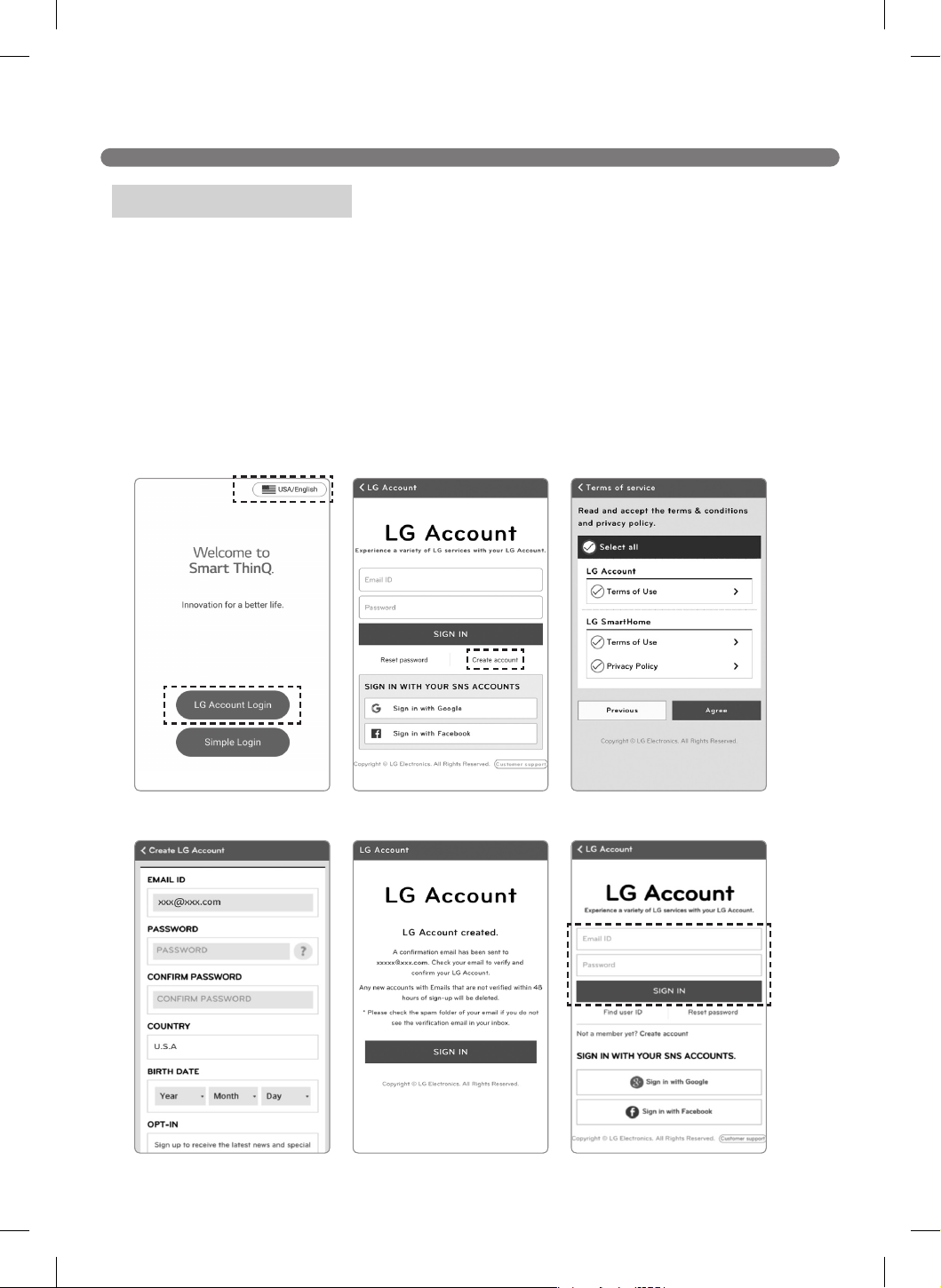
[Startup screen] [Terms of service][Sign in page]
[Conrm email][Create Account] [Sign in page]
You must create an account and register the product to a home network to control the Robot Cleaner
from a smartphone.
1. Run the LG Smart ThinQ application. Select "LG Account Login" on the start-up screen.
2. Press Create Account on the sign in screen. Read and agree to the terms and conditions. Fill in the
required information and press OK.
3. A conrmation email is sent to the email you entered in step 2. Respond to the email within
48 hours to complete the account creation. Once the account is conrmed, you can use the
information you entered to sign in to the application.
※
Don’t change ‘USA/English’ on the Startup screen. If you change it, you will not be able to register a
robot cleaner purchased in the U.S. Make sure the country is set to USA/English.
※
You can also sign in using a Google or Facebook account from the sign in screen.
Creating an Account
36
SMART APPLICATION FUNCTION
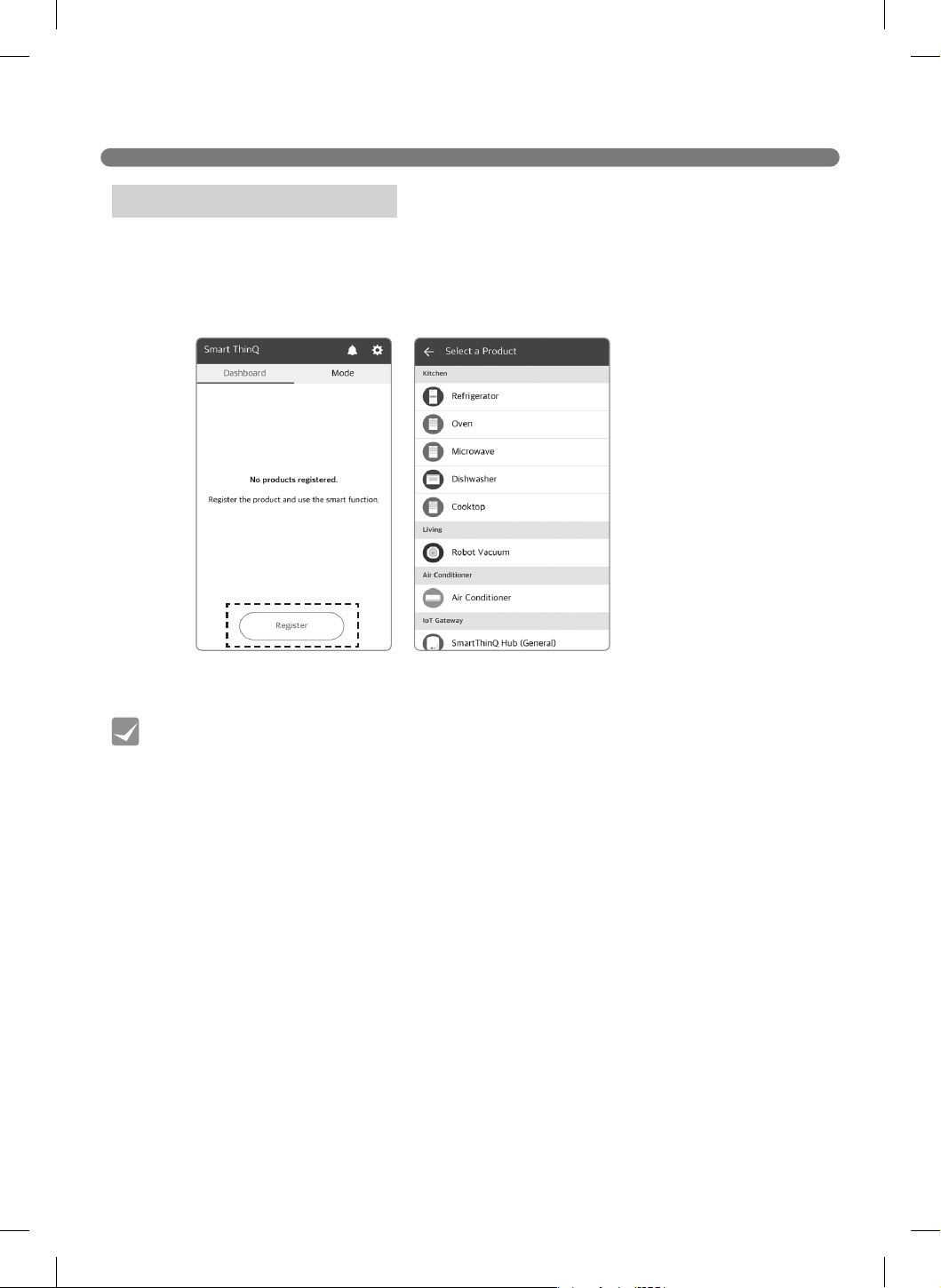
[Start-up screen] [Select Product screen]
You will need to register the product in the application to control the Robot Cleaner from your
smartphone. Add your Robot Cleaner to the app with the Tag On feature to use the Smart Functions.
1. Sign in to the LG Smart ThinQ application and select Register Product.
2. Select Robot Vacuum from the product list.
1. Registering the Product
• To help reduce problems during registration, place the robot cleaner near the router and
make sure there are no obstacles between the router and the robot cleaner.
• If the Robot Cleaner is having trouble connecting to the Wi-Fi network, it may be too far
from the router. Purchase a Wi-Fi repeater (range extender) to improve the Wi-Fi signal
strength.
• Replacing the router, changing its security settings, or changing the router settings on
the app, will require the Robot Cleaner to be reregistered. You can change the router
information in the product network on the settings page.
• Wait for approximately 5 minutes after replacing the router or changing its security
settings, as it may take some time for the changed settings to be recognized.
Tip
37
SMART APPLICATION FUNCTION
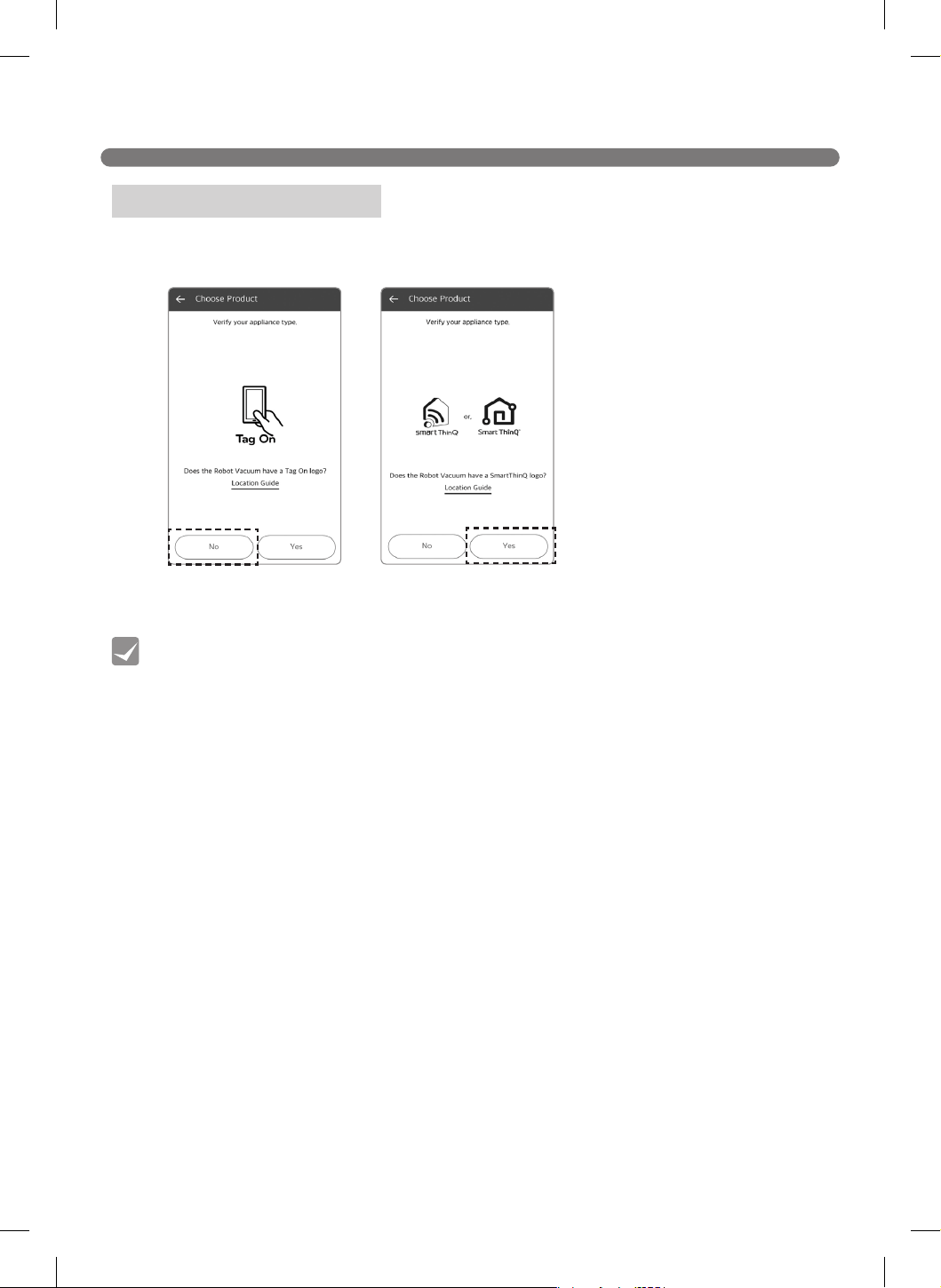
Verify that the product has a Smart ThinQ logo, then select No on the Tag On Screen and select Yes
on the Wi-Fi screen.
2. Verifying the Product
• Registering the product is required for the initial connection only; you can then connect
to the Robot Cleaner without having to repeat this process.
Tip
[Product category] [Product category 2]
38
SMART APPLICATION FUNCTION
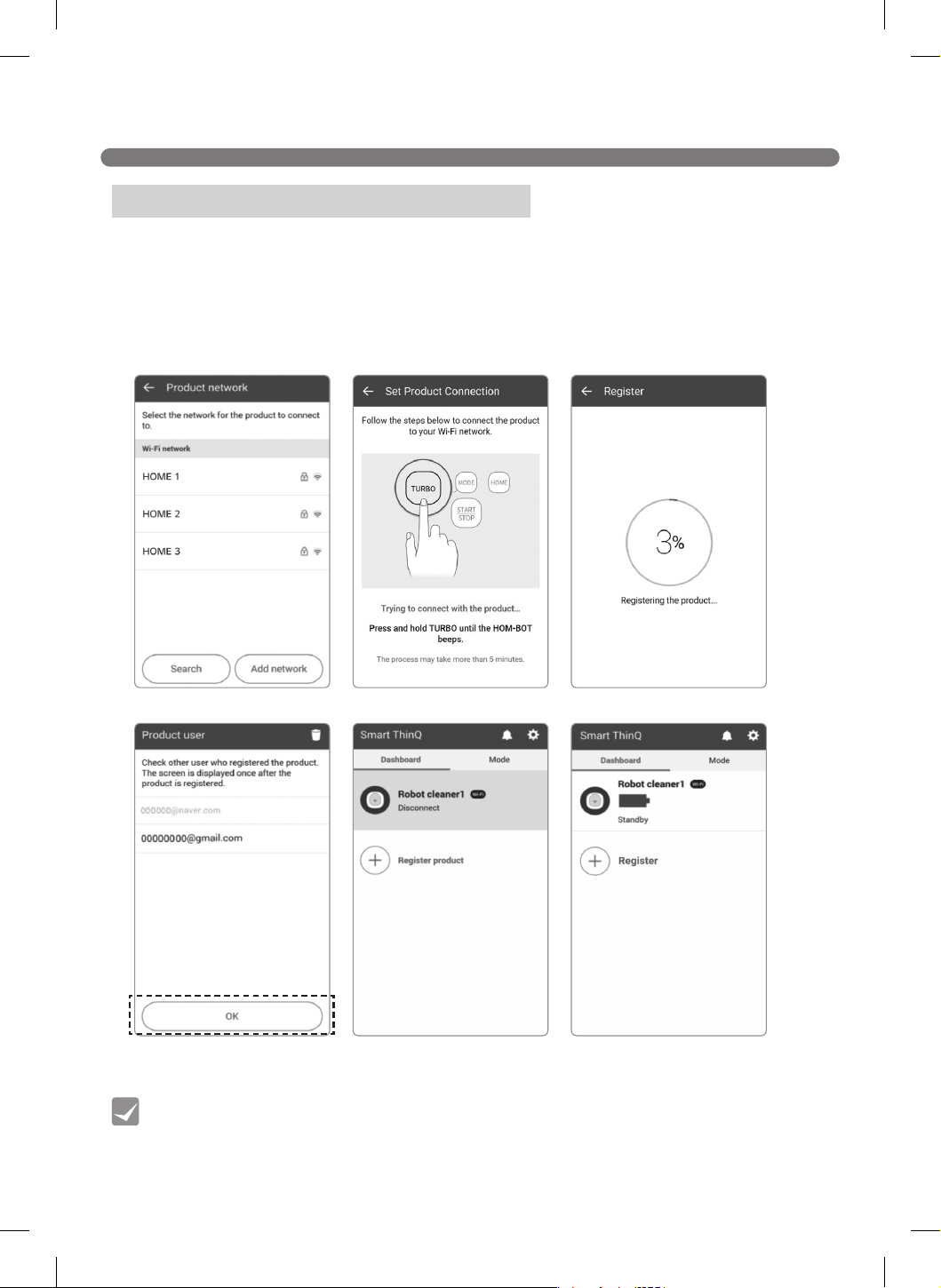
1. After creating an account and using Wi-Fi to recognize the product, connect the product to your
home Wi-Fi network.
2. Select your home network from the list and enter your password if necessary. Turn on the robot
cleaner and press and hold the Turbo button on the cleaner for 3 seconds to register the product
on the network. The Product Users screen now shows your e-mail in the user list.
3. The robot cleaner appears on the Dashboard screen once registration is complete.
4. Press the Robot Cleaner icon on the Dashboard screen to connect to the Robot Cleaner.
3. Connecting to the Network (Android)
[Select AP(Wi-Fi)] [Press the ‘TURBO’ button] [Register product]
[Product selection screen -
when connection unavailable]
[Registered user list] [Product selection screen -
when connection available]
• The robot cleaner supports 2.4 GHz Wi-Fi networks only.
• Special characters in the ID of the router may hamper product connection or
registration.
Tip
39
SMART APPLICATION FUNCTION
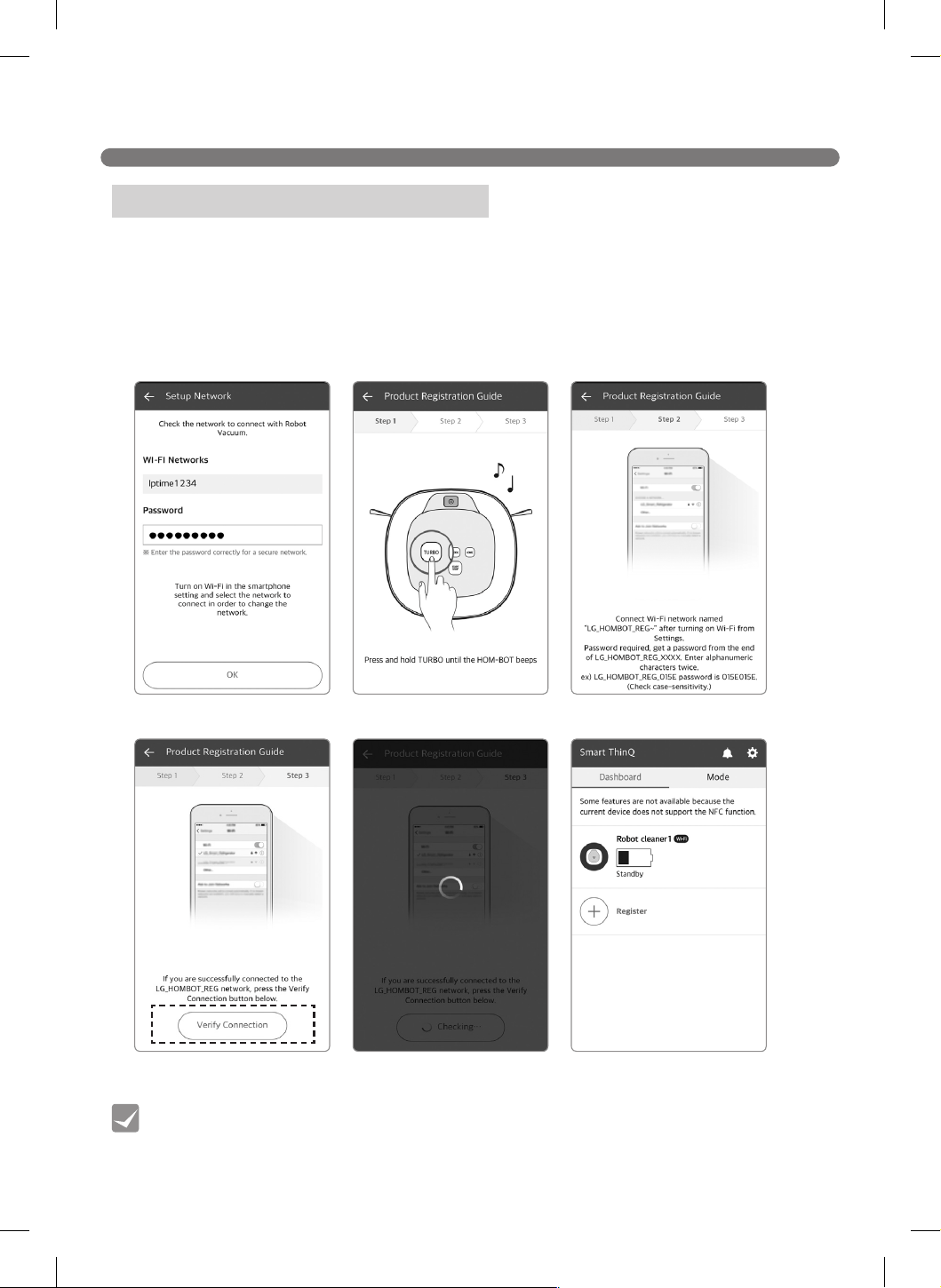
1. Enter your home network name (SSID) and your password.
2. Turn on the Robot Cleaner and place it near your router. Press and hold the Turbo button for 3
seconds until it chimes.
3. Turn on the Wi-Fi connection function in the iPhone settings.
4. Select LG-HOMBOT_REG from the network list and press Check Connection.
5. The robot cleaner appears on the Dashboard screen once registration is complete. Press the Robot
Cleaner icon on the Dashboard screen to connect to the Robot Cleaner.
2. Connecting to the Network (iOS)
[Select network] [Press ‘TURBO’ button] [Search the Wi-Fi]
[Product registration][Check connection] [Product selection screen -
when connection available]
• The robot cleaner supports 2.4 GHz Wi-Fi networks only.
• Special characters in the ID of the router may hamper product connection or
registration.
Tip
40
SMART APPLICATION FUNCTION
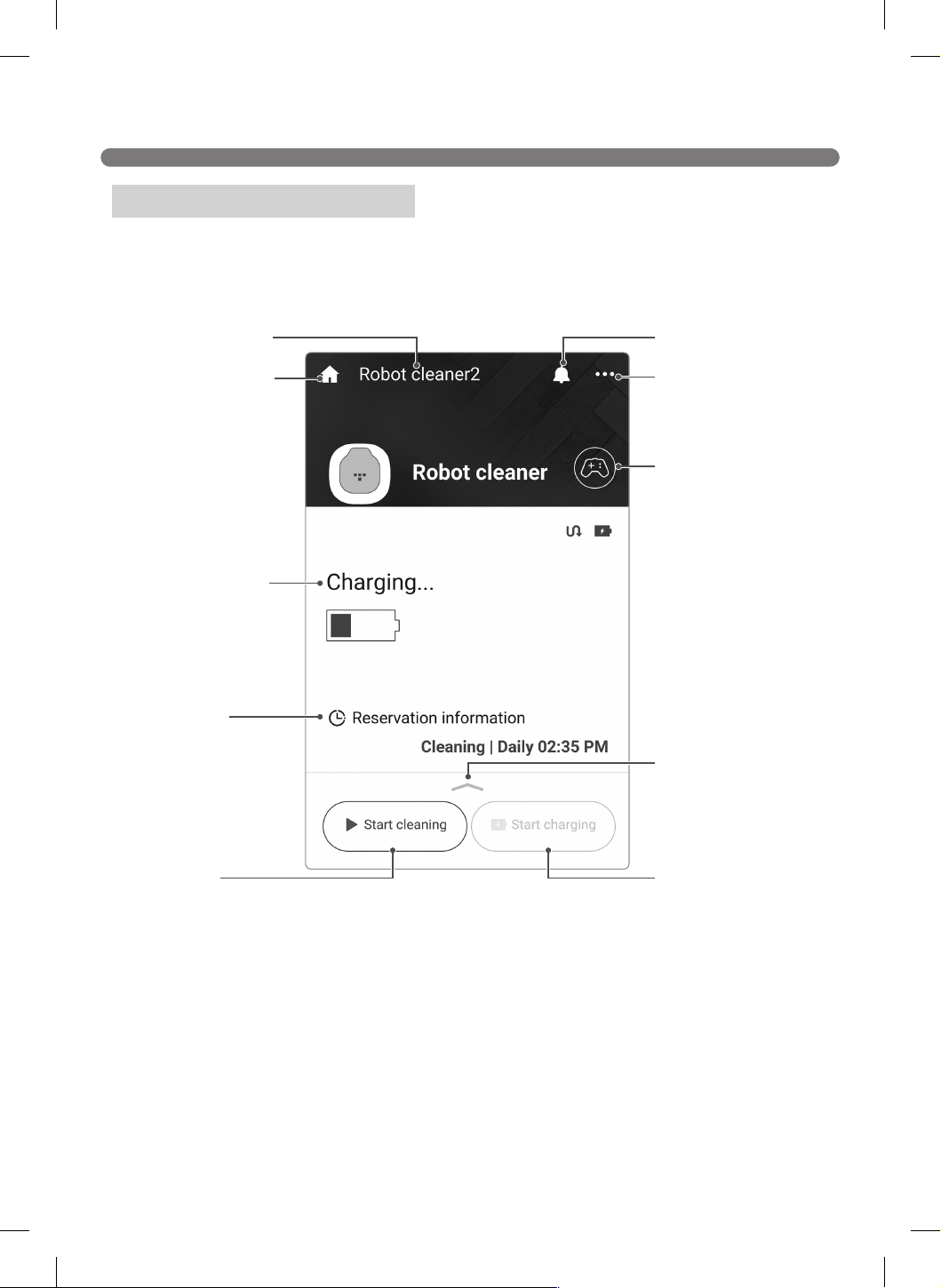
The following screen will open when you connect to the Robot Cleaner for the rst time from the LG
Smart ThinQ application:
Application Startup Screen
Displays the product
nickname.
The home icon selects
the product list page.
(Dashboard)
Displays the status of
Robot Cleaner.
Shows cleaning
schedule status
Start cleaning
immediately.
Start searching for the
home station.
Mode Menu
You can set several modes
of the robot cleaner.
Press to check alert
history
Menu
Schedule Cleaning,
Cleaning Diary, Smart
Diagnosis, Settings.
Simple Control
Operate the robot
cleaner manually from
the Simple control
screen.
41
SMART APPLICATION FUNCTION
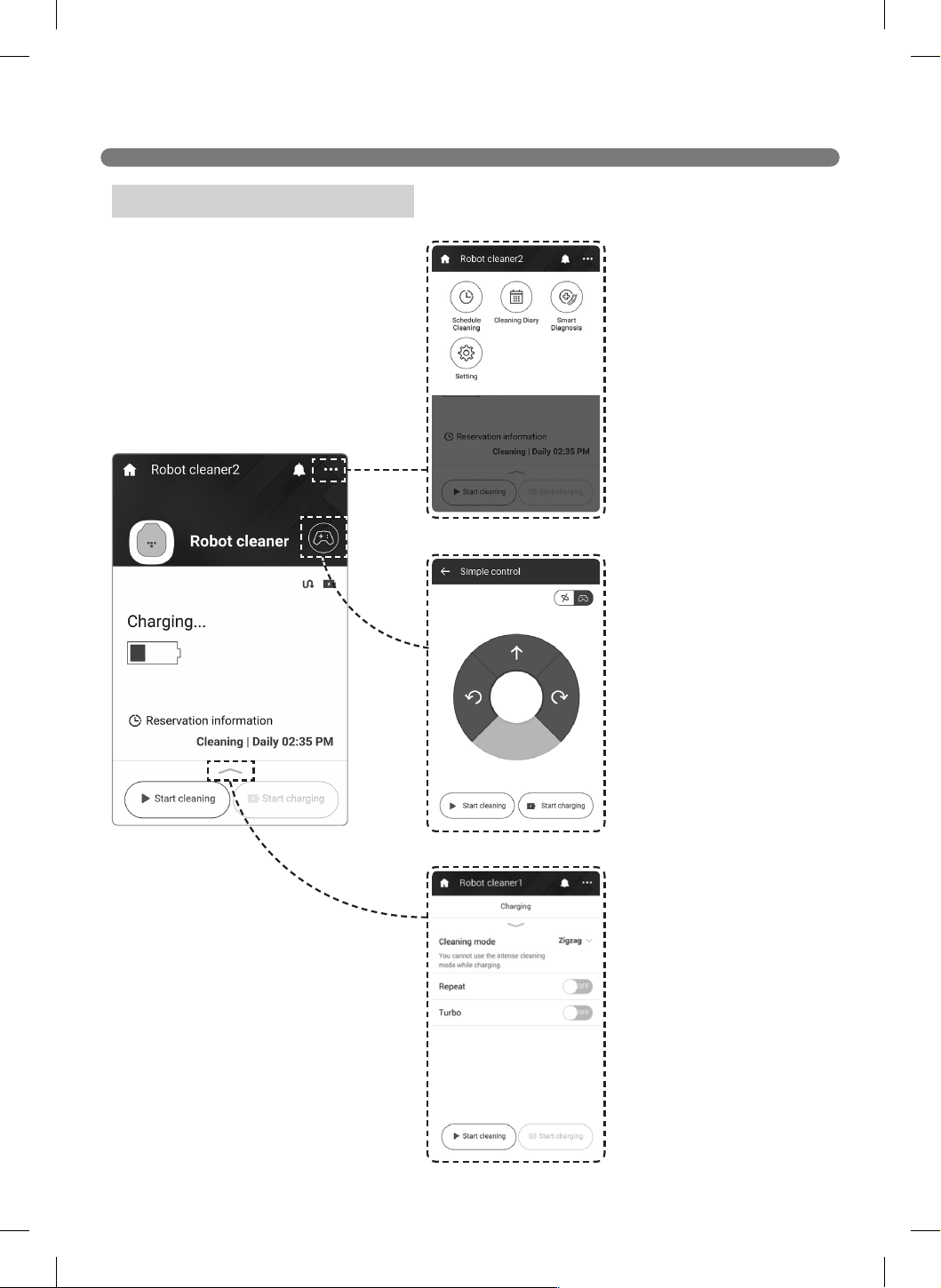
Application Startup Screen
Menu
Schedule Cleaning,
Cleaning Diary,
Smart Diagnosis, Settings.
Mode Menu
Cleaning mode, Repeat
mode, Turbo mode.
Simple Control
Operate the robot cleaner
manually from the Simple
Control screen. The screen
also contains buttons to start
cleaning or return the vacuum
to the home station for
charging.
42
SMART APPLICATION FUNCTION
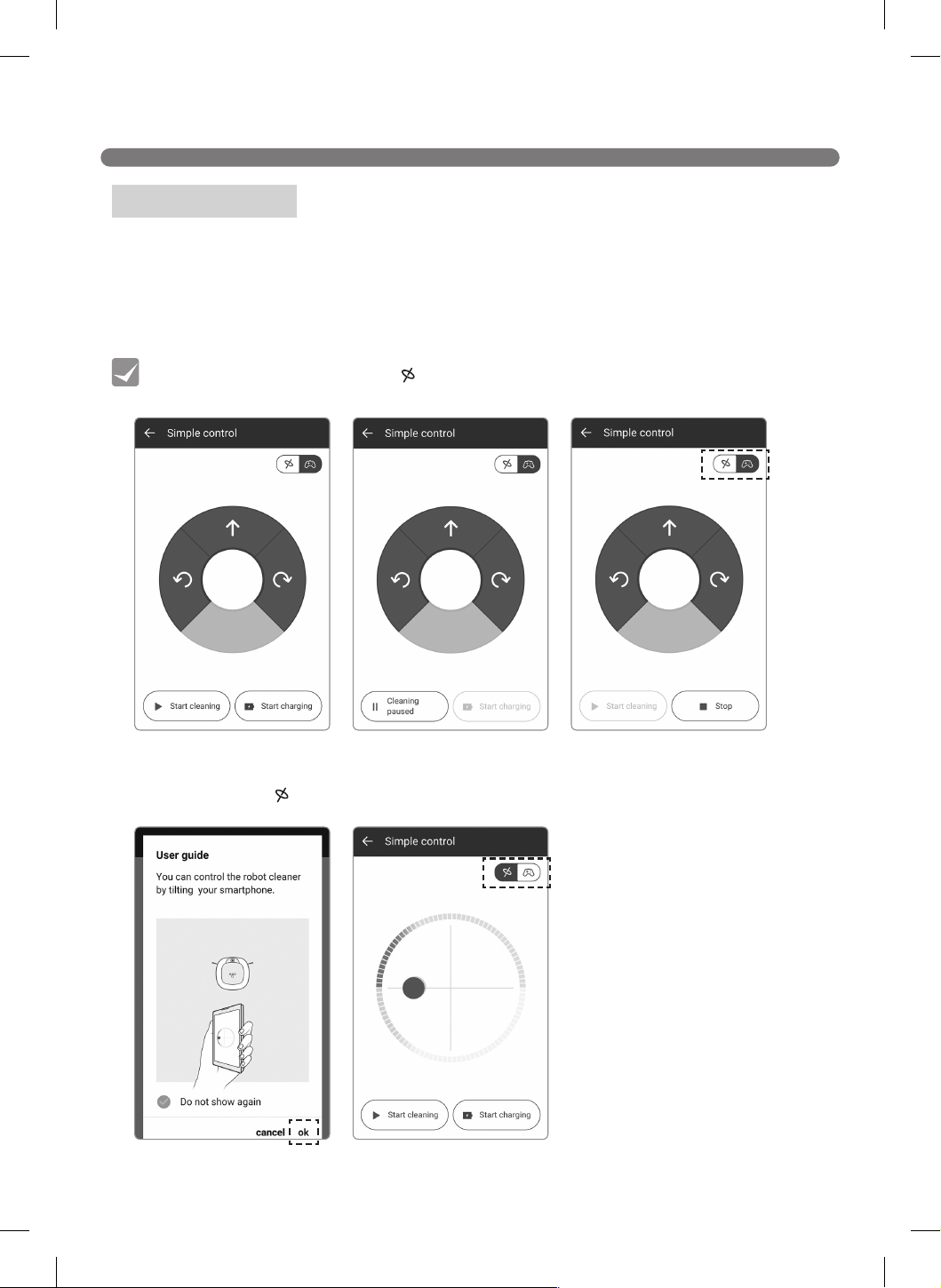
Operate the robot cleaner manually from the Simple Control screen. The screen also contains buttons
to start cleaning or to send the robot cleaner back to the charging station.
The Start Cleaning button will change to the Cleaning Paused button once cleaning has begun.
TheStart Charging button will change to the Stop button during its return to the docking station.
Use the Change Gyro [
] button to control the robot cleaner by tilting your smartphone.
Simple Control
[Simple control screen] [Screen during cleaning] [Moving to the Home station]
[tilting control][tilting control Guide]
• Pressing the Change Gyro [ ] button allows you to navigate the vacuum by tilting the
smartphone.
Tip
43
SMART APPLICATION FUNCTION
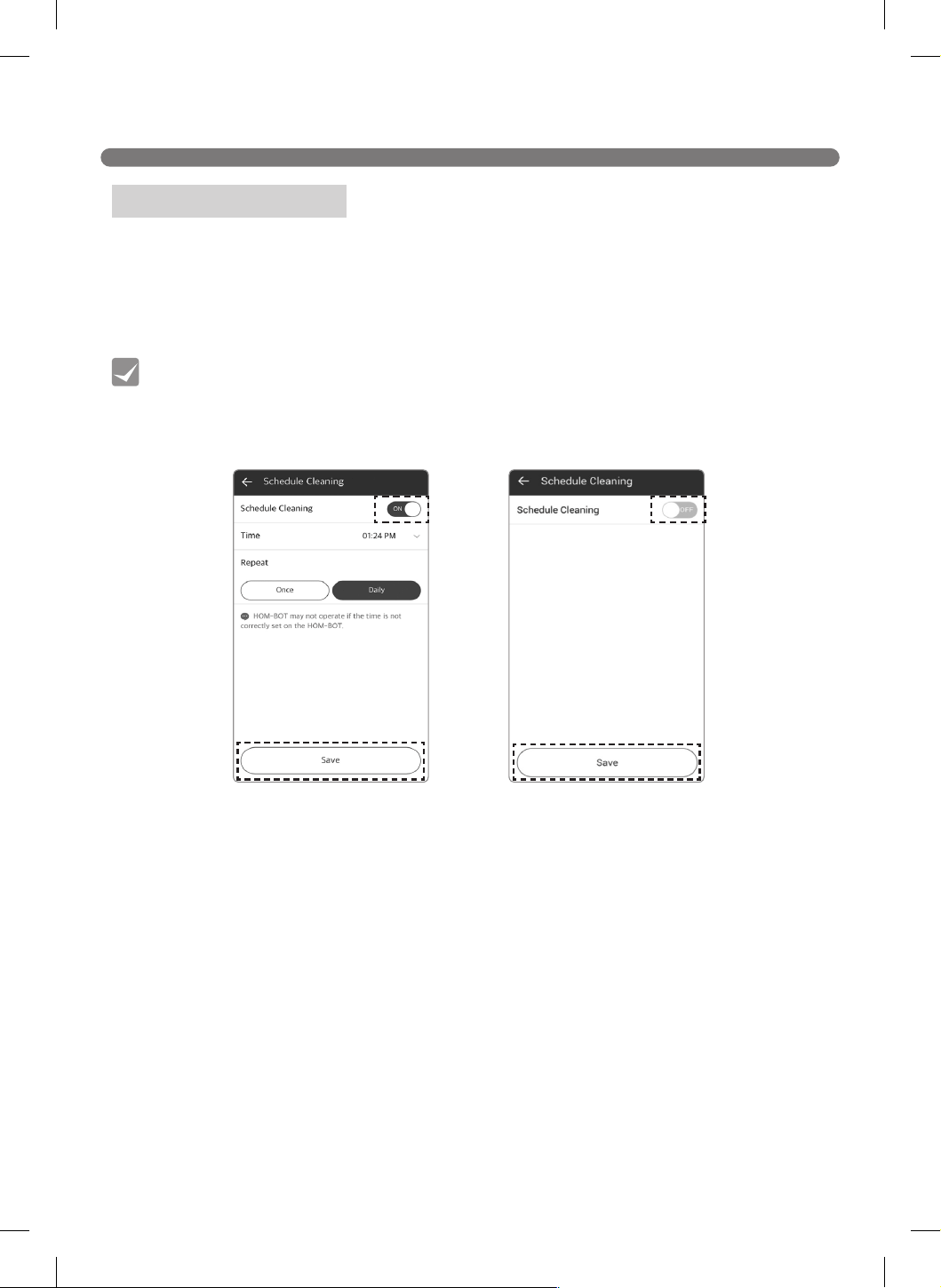
Use Schedule Cleaning to set a regular time for the Robot Cleaner to begin cleaning.
To set a regular cleaning schedule, open the menu at the top right of the Dashboard and select
Schedule Cleaning. Toggle the Schedule Cleaning function on and select a time. Choose either
"Once" or "Daily" and press "Save" to complete the setup.
Scheduling Cleaning
• The Schedule Cleaning menu in the application has the same function as that of the
remote control. Refer to Scheduling Cleaning on page 29.
• Setting up or starting Schedule Cleaning can only be done while the Robot Cleaner is
charging.
Tip
[With Schedule cleaning on] [With Schedule cleaning off]
44
SMART APPLICATION FUNCTION
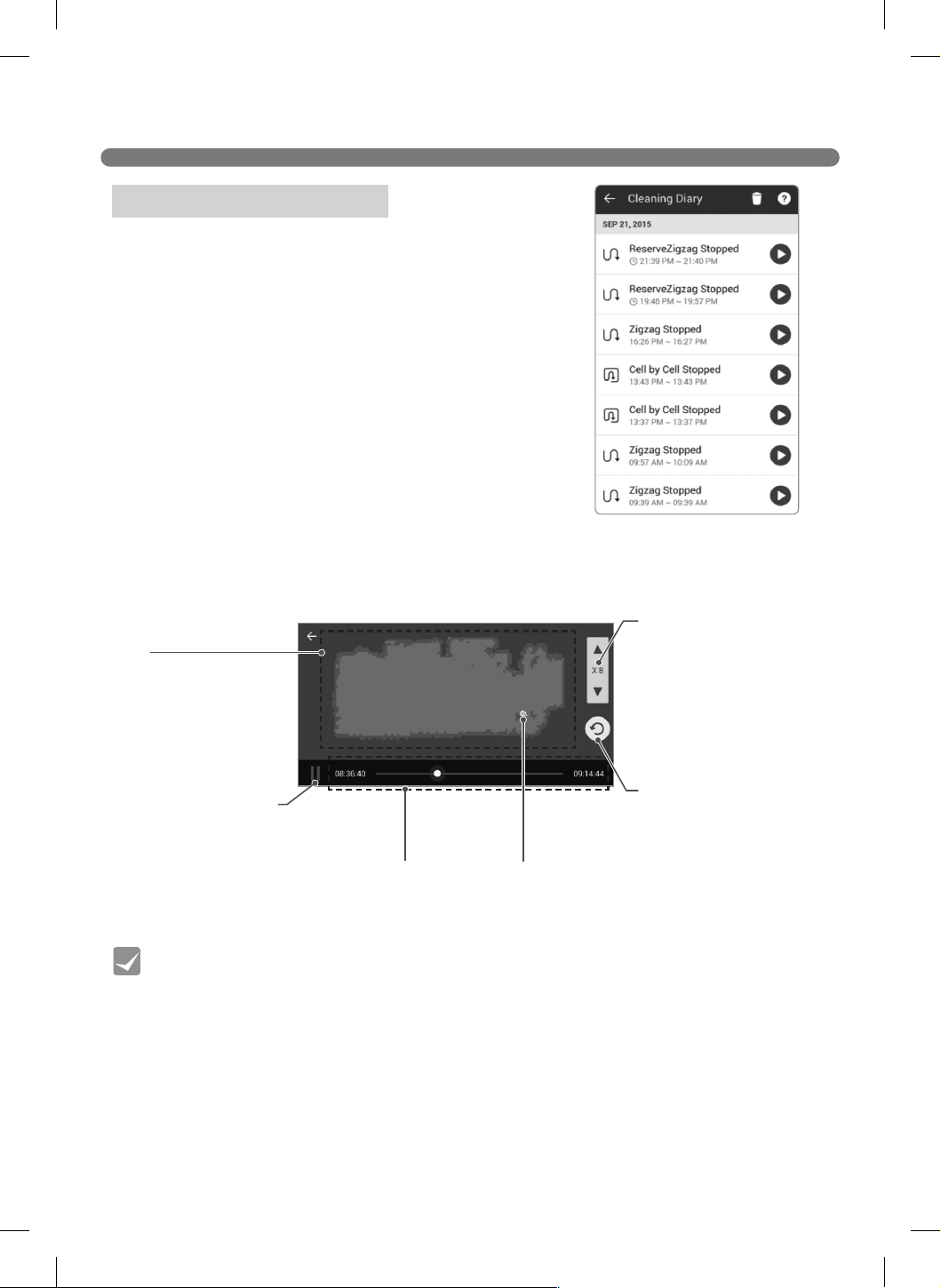
View the Cleaning Diary to check your cleaning history.
The Cleaning Diary records the date, cleaning mode, and start
and completion times of each cleaning.
Press the Play button to the right of each list item to see an
active cleaning map of that cleaning session.
Using the Cleaning Diary
[Cleaning Diary]
The cleaning map shows an animated map of the Robot Cleaner in cleaning mode; you can control
the playback speed or rotate the map.
[Cleaning map]
Map
Map drawn by Robot
Cleaner while cleaning
the area. Colors show the
areas it could not reach
because of obstacles or
walls as well as where it
completed cleaning.
Playback / Stop button
of cleaning animation
This starts or stops the
animation of the Robot
Cleaner in cleaning mode.
It changes to a Stop button
while the animation is
being played.
Time of starting/
cleaning completion.
Robot Cleaner location
Location of the Robot
Cleaner when it started
cleaning
Controlling the playback
speed
You can control the
playback speed of the
cleaning animation.
Each click of the triangle
button will accelerate the
playback speed from X1 to
2X, 4X, 8X, and 16X.
Rotate Map
Each click of this button
will rotate the map 90
degrees clockwise.
• The Cleaning Diary list shows the 20 most recent cleaning sessions.
• If charging was required during a session, the charging time is included in the
completed cleaning time. The displayed message will indicate the sequence that
occurred.
(For example) After recharging, Zigzag finished
• If cleaning was interrupted by pressing the Charge button, only a map up to that exact
point will be drawn.
(For example) Zigzag Stopped
• A cleaning diary list entry may say "Stopped" if the cleaning was interrupted and the
Robot Cleaner did not return back to the Home Station within 10 minutes after cleaning
stopped, or if the power turns off due to an error.
• If power is turned off manually, or any button on the Robot Cleaner is pressed during
cleaning, the session may not be logged in the list.
Tip
45
SMART APPLICATION FUNCTION
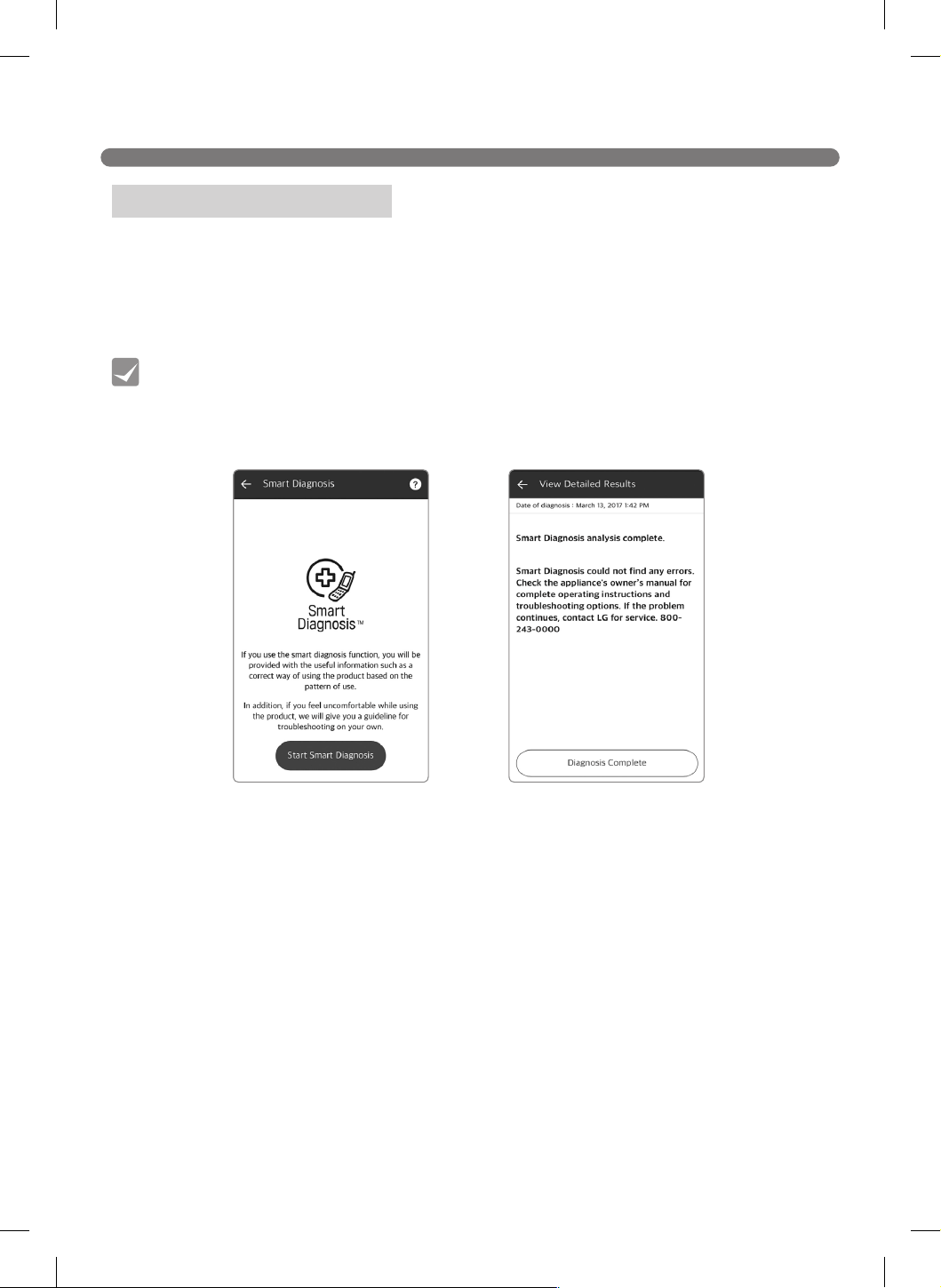
The Robot Cleaner can self-diagnose with the Smart Diagnosis function.
Click "Start Smart Diagnosis" while the Robot Cleaner is charging.
Be sure to resolve any issue identied in the diagnosis by taking the recommended measures. If the
symptom persists, contact an LG Electronics Customer Information Center.
Using Smart Diagnosis™
• Smart Diagnosis in the application provides the same function as that of the remote
control. Refer to pages 32 and 33 for details on Smart Diagnosis.
• Smart Diagnosis can only be activated while the Robot Cleaner is charging.
Tip
[Smart Diagnosis] [Smart Diagnosis result]
46
SMART APPLICATION FUNCTION
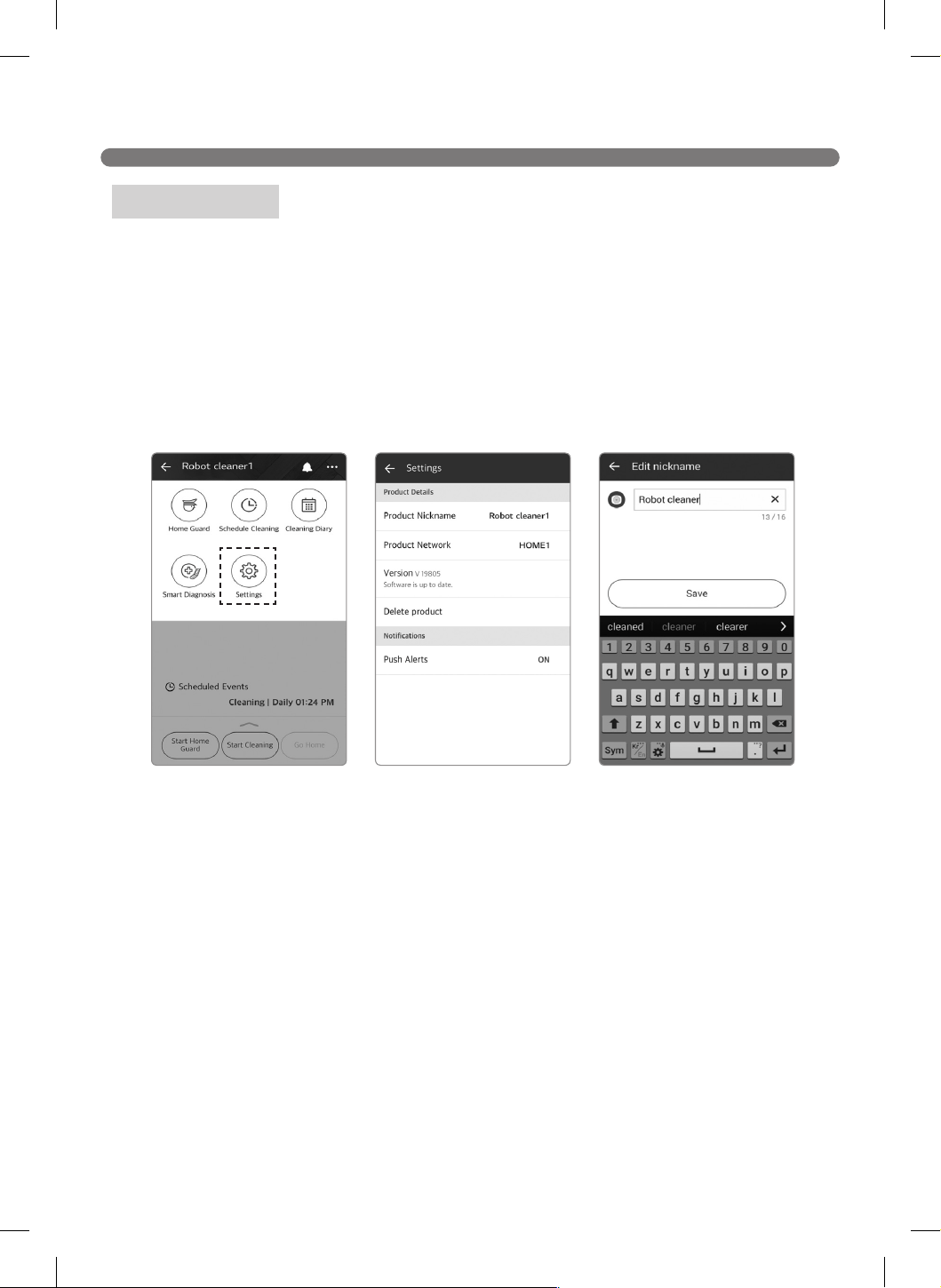
You can check or change the Robot Cleaner settings.
Press "Voice gender" to change the voice of the Robot Cleaner to male or female.
Press "Product nickname" to change the current nickname of the Robot Cleaner; a pop-up where you
can enter a new nickname opens (up to 10 characters allowed including English, Korean and numeric).
You can check the current software version of the Robot Cleaner and the latest version. If the current
software is not the latest, see Updating Software section for instructions on updating it.
The screen shows the current version of the application and open source license information.
Setting Menu
[Setting 2][Setting 1] [Edit nickname]
47
SMART APPLICATION FUNCTION
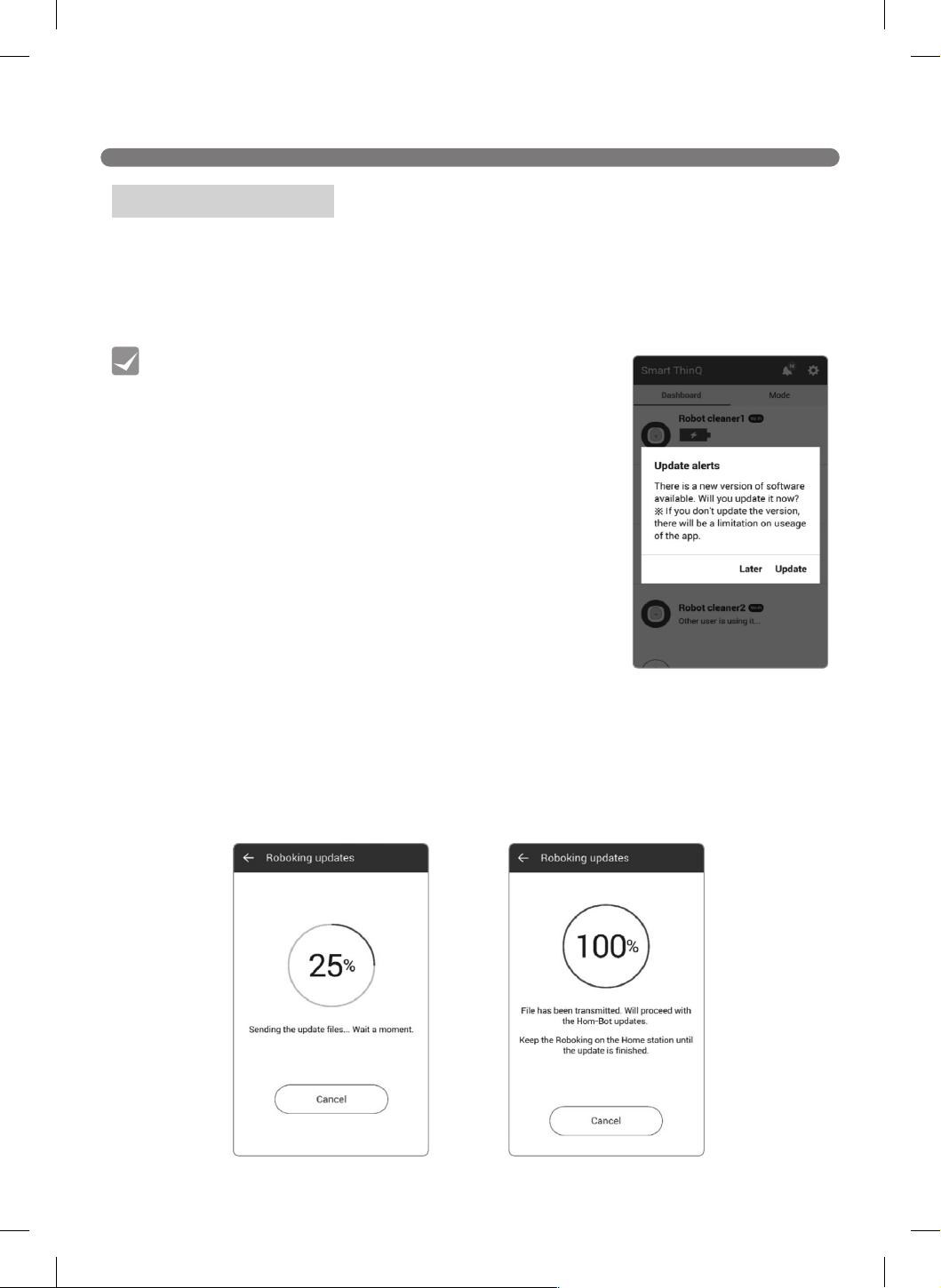
[Software le download window] [Updating Robot Cleaner]
The network-enabled model of the Robot Cleaner can update the software automatically via the
application.
1. Make sure that the LG Smart ThinQ application is up to date on the Play Store.(Unless you update
the app to the latest version, software update will not be available.)
2. If a new version is available upon connecting to the Robot Cleaner, an update will start.
3. A new software le is downloaded to the Robot Cleaner when the updating starts.
4. When the download is complete, the les are transmitted to the robot cleaner and the update
starts.
5. The Robot Cleaner will turn off and on again automatically during the process, and updating will
resume.
6. A voice message saying that update is completed will occur when the update is done. The Robot
Cleaner will turn off and on again to apply the updated software.
Updating Software
• Software update can only be done while the Robot
Cleaner is charging.
• Software updates will only be done if there is sufficient
battery level. Ensure that the battery is fully charged
before starting any software update.
Tip
48
SMART APPLICATION FUNCTION
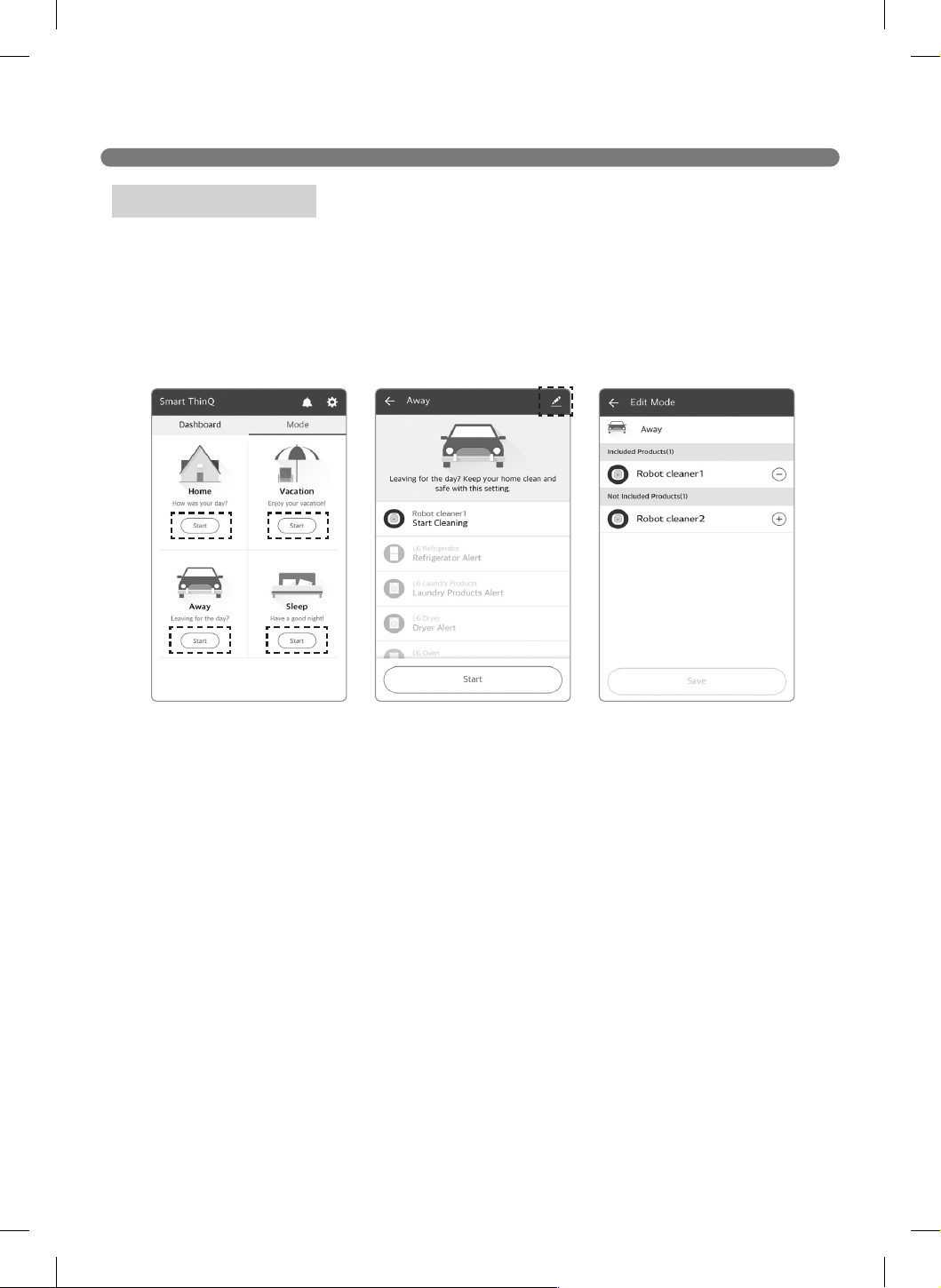
Operating Modes
The Robot Cleaner has 3 operating modes. Select a mode to change how the Robot Cleaner
operates.
Home mode : starts searching for home station
Away mode : starts cleaning
Sleep mode : starts searching for the home station
※
If more than one Robot Cleaner is registered, only one of them can use the mode function.
In the event that there are 2 registered Robot Cleaners, the rst one registered will be the one set by
the mode function.
You can change which of the Robot Cleaners can use the mode function by editing them. [Edit
mode] (You can enter Edit mode by pressing the pencil image.)
[Away mode][Mode] [Edit mode]
49
PRODUCT INFO INITIALIZATION
Initialize the product if you are planning to sell it or need to reset the product to factory default
settings.
※
Any dispute between seller and buyer is an issue between the two parties. LG Electronics provides a
product initialization function for smooth transaction.
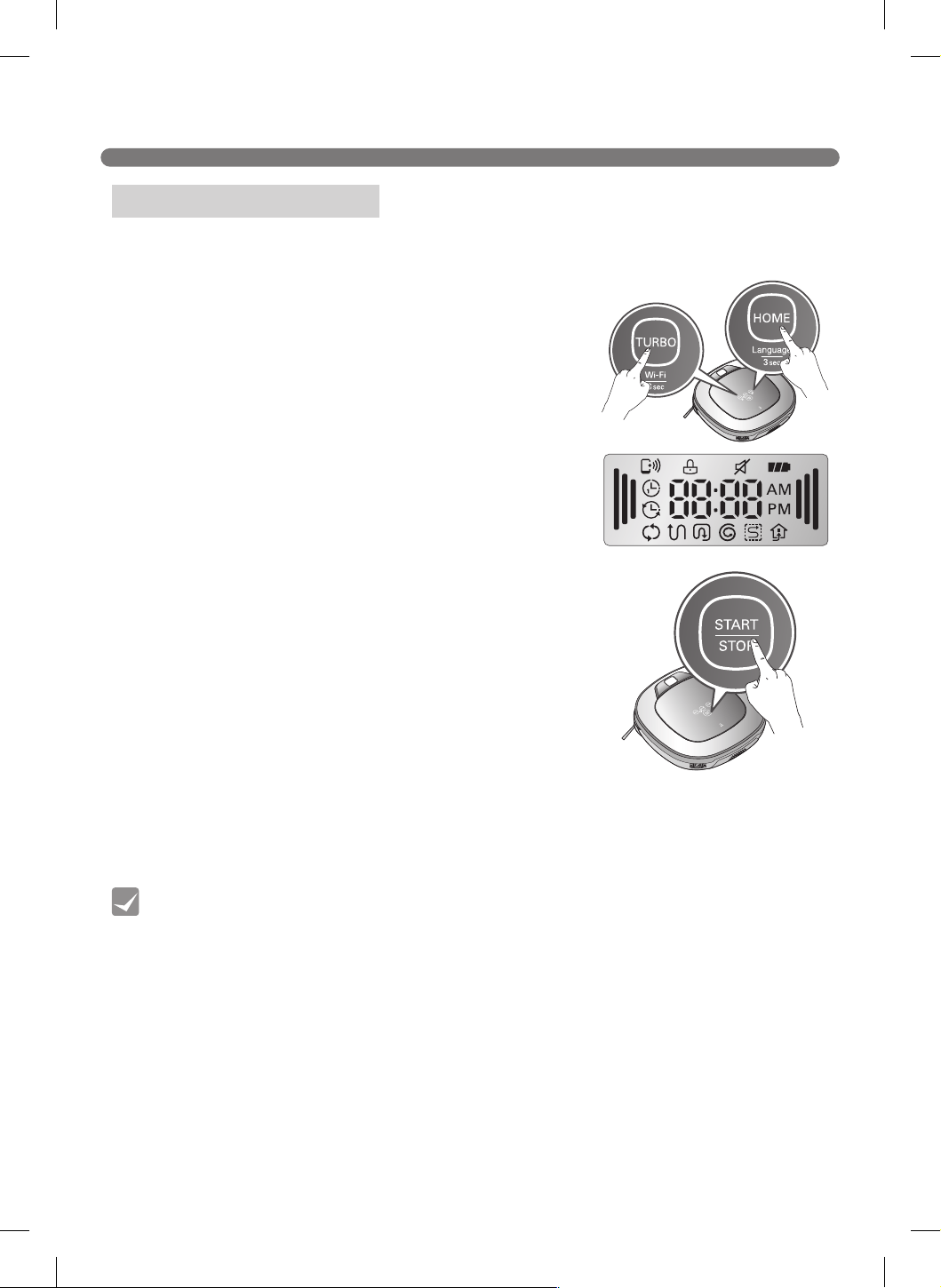
1. Turn the power on and press and hold the Turbo and Home
buttons for 3 seconds until you hear a chime.
2. Press Start/Stop to initialize the product. The power will be
turned off.
3. Press Start/Stop again to turn the Robot Cleaner back on.
Initializing Product Info
• Initialization returns the following information to the factory default settings.
- Cleaning Diary
- Smart Diagnosis record
- Nickname
- Learned cleaning information
Tip
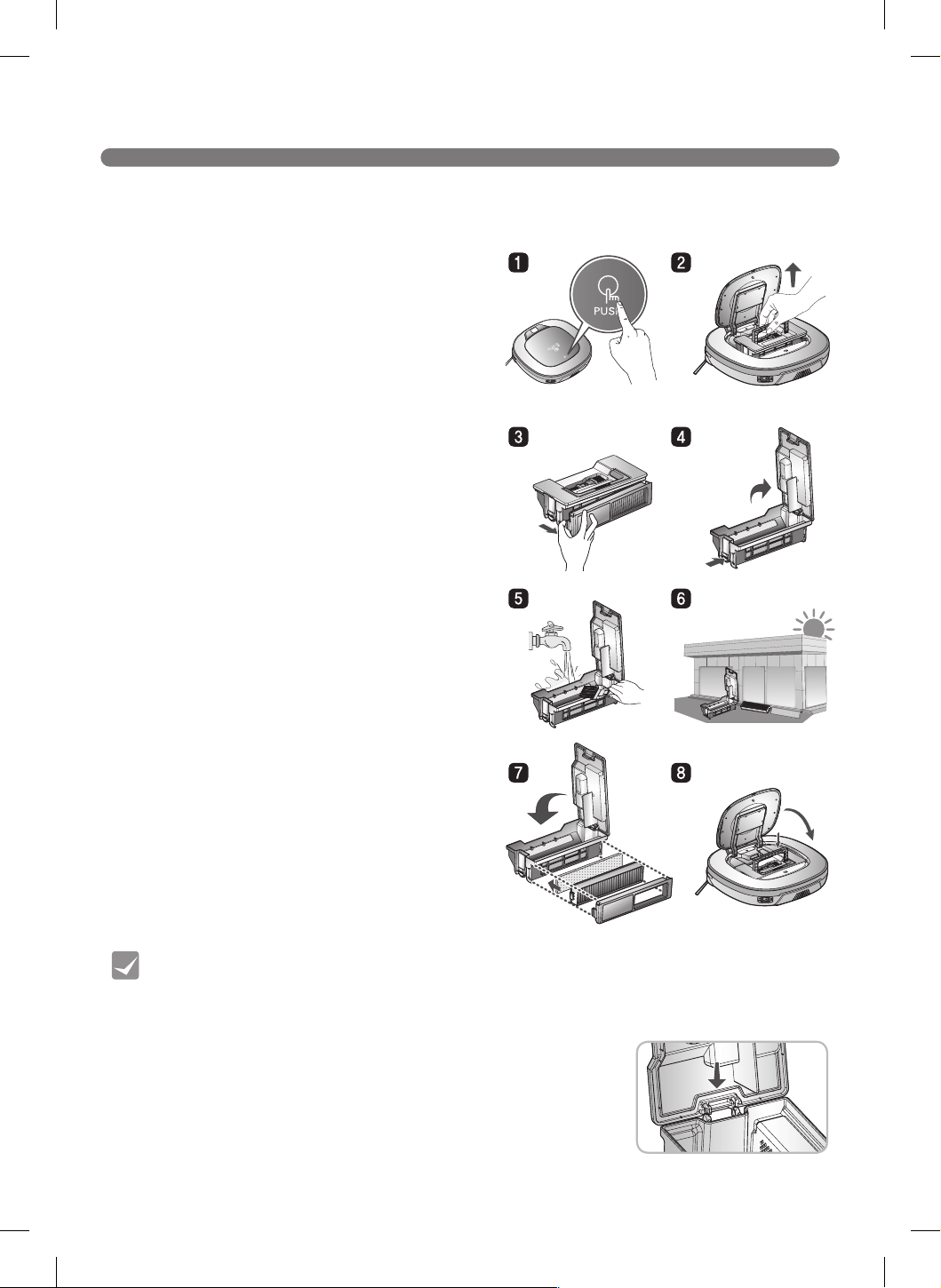
50
CLEANING THE DUST BIN
• Operating the unit without filters fitted to the dust bin can cause a motor malfunction
not covered by the warranty.
• After cleaning the dust bin, make sure to assemble the filter and fit it to the dust bin.
If the filters are not installed or the filter cover not assembled before cleaning is started,
an error message will sound.
• Always ensure that the dust bin lid is refitted correctly after
cleaning the dust bin so that it closes easily and accurately.
Tip
1. Open the dust bin compartment cover by
pressing the PUSH button on the Robot
Cleaner.
2. Grab the handle of the dust bin and pull it
upward.
3. Pull the hook on the left of the lter cover on
the rear of the dust bin to separate the lter
and the sponge.
※
Note that separating the lter may result in
dust dropping.
※
Refer to p.51 when cleaning the dust bin
lter.
4. Lift the dust bin lid upward while pressing the
separation button on the dust bin.
5. Empty the dust bin and clean it with a cleaning
brush or under running water.
6. After cleaning with water, completely dry the
dust bin in a well-ventilated area out of direct
sunlight.
7. Reassemble the dust bin, putting the sponge
and particulate lter back in and closing the lid.
※
Refer to p.51 for detailed assembly guides.
8. Put the dust bin into the Robot Cleaner and
close the dust bin compartment cover.
If the dust bin is full, suction power may be reduced. Clean the dust bin before or after each cleaning
session. Clean the dust bin using the following sequence:
51
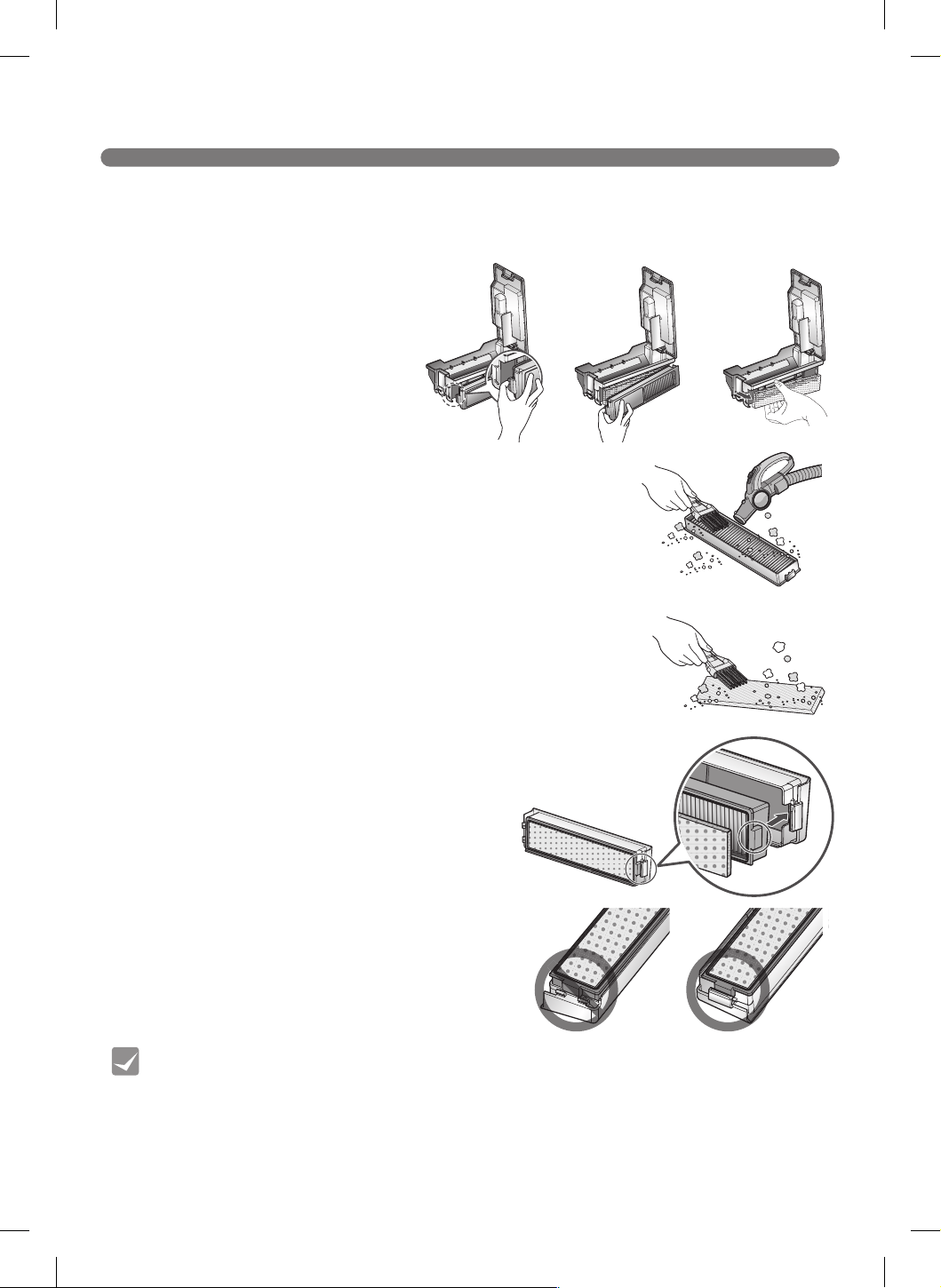
CLEANING THE DUST BIN FILTER
The Dust Bin Filter consists of a particulate lter and a sponge lter.
Clean both the particulate lter and sponge lters using the following sequence.
3. Use a cleaning brush to clean the sponge lter.
If using water to clean it, allow it to dry completely
in the shade before retting.
4. Assemble the particulate lter and sponge
lters back onto the lter housing using the
following sequence.
※
Insert the hinge hooks in the slots on one
end and snap the other end into the locking
tab (shown).
※
Be careful not to incorrectly assemble the
particulate lter and sponge lter onto the
lter housing.
2. Thoroughly clean out the ne dust particles on the
particulate lter with a vacuum cleaner or cleaning
brush.
※
Do NOT wash the particulate lter with water.
Its suction power will be reduced.
• To preserve the performance of the Robot Cleaner, clean the particulate filter at least
once a week, with a brush or vacuum cleaner.
• The particulate filter and sponge filters must be fitted to the filter housing before
refitting the filter to the dust bin. Operating the Robot Cleaner without the particulate
filter and sponge filters will cause the suction motor to malfunction and will be evident
when assessed by a technician, and would not be covered under the warranty.
Tip
1. Pull the hook on the left of the particulate
lter module on the rear side of the dust
bin to separate the particulate lter and the
sponge lter.
52
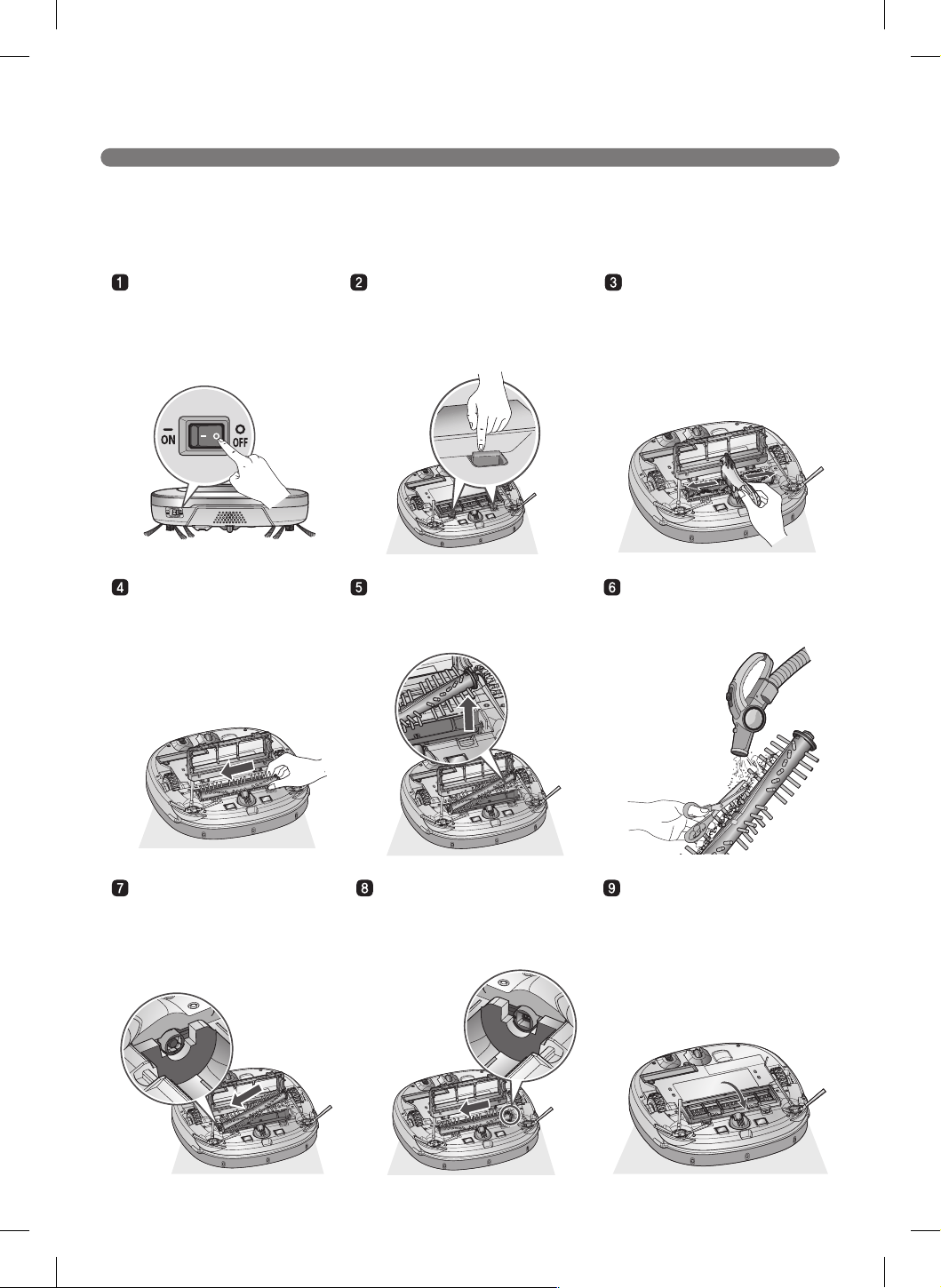
CLEANING THE BRUSH
To assemble the brush, t
the square yellow tab into
the matching yellow slot.
Pushing the brush toward the
yellow end, lower and snap
the white tab (marked with an
R) into the white slot.
Close the brush cover and
push down until the tabs
snap into place.
※
Be careful not to trap the
side brush bristles under
the cover when closing it.
To remove the brush, push
it toward the yellow end.
Lift the white end of the brush
to separate it from the main
unit.
Carefully clean the brush
with a vacuum cleaner or
scissors.
Turn the main power switch
OFF before starting to clean.
Remove the dust bin and put
the Robot Cleaner upside
down on a soft cloth.
Remove any foreign materials,
then press in tabs and pull up
to open the brush cover.
Use the cleaning tool to
clean hair, debris, and
foreign material off the
brush and the two smaller
jockey wheels.
The rotating brush, located on the bottom of the Robot Cleaner, helps collect dust. Clean the brush
using the following sequence.
※
Before turning over the main unit, lay a soft cloth on the floor and remove the Dust Bin.
Otherwise, the main unit can get scratched and dust will fall from the Dust Bin.
53
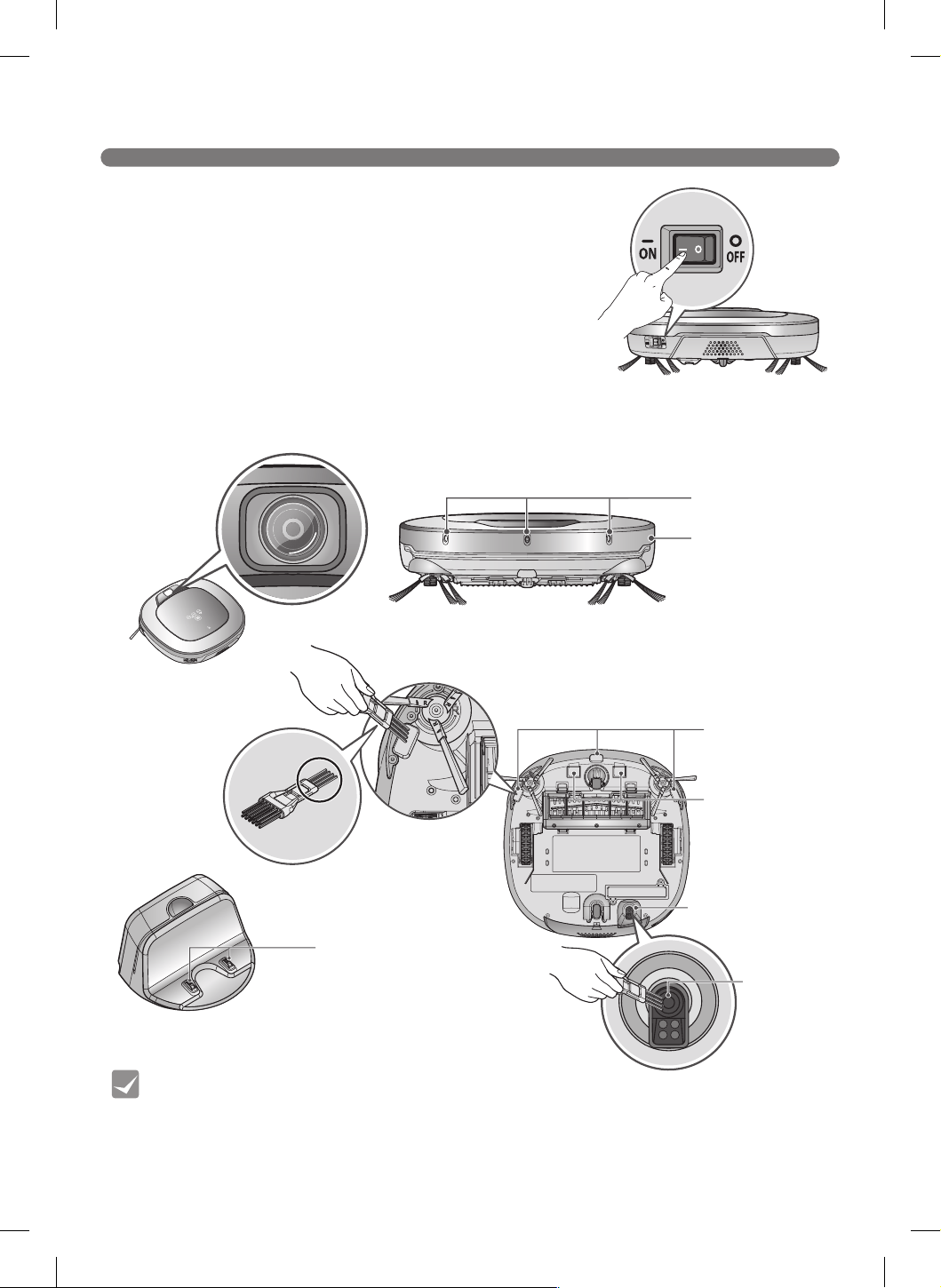
CLEANING THE SENSORS/CHARGING TERMINALS
Upper camera
sensor
• Do not clean the Robot Cleaner by directly spraying it with water, thinners, solvents,
benzene, or any other liquids.
• Call the service center if the sensor or charging terminal is damaged. Sensor and
terminal damage can cause the product to malfunction.
• Use the cleaning brush to clean the sensor/charging terminals.
There are sensors on the Robot Cleaner that detect obstacles,
stairways and the home station for charging the battery. In order
to maintain the performance of the Robot Cleaner, regularly clean
the sensors and charging terminals as follows:
1. Turn off the power switch on the rear side of the Robot Cleaner.
If the Robot Cleaner activates unexpectedly, it may cause injury.
2. Lay a smooth cloth on the oor, remove the dust bin, and turn
over the Robot Cleaner and put it on the cloth.
※
Make sure to remove the dust bin before rotating the main
body. Otherwise, the dust in the dust bin may fall out.
3. Use a smooth cloth or cleaning brush to wipe the dust off each of the 3 cliff sensors, camera
sensors and ultrasonic sensors and the charging terminal as described below.
Charging terminals
Ultrasonic sensors
Obstacle detecting
sensor window
Detecting sensors
of home station and
Receiving sensors
of remote controller
Cliff detection
sensors
Charging terminals
Bottom camera
sensor
Lens
Tip
54
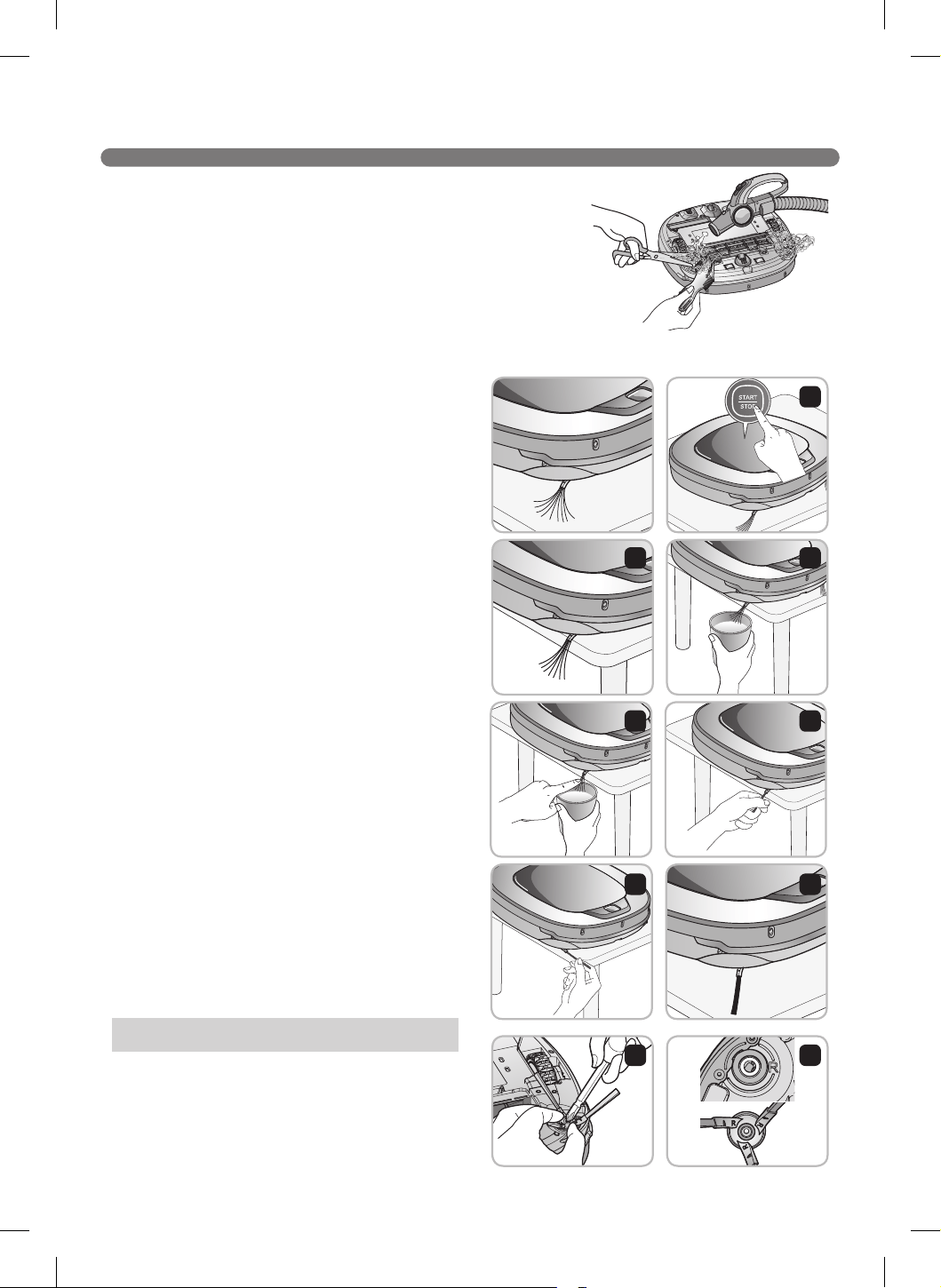
CLEANING THE SIDE BRUSH
Foreign objects/materials such as hair can easily adhere to the
side brush. Remove such materials at least once a week.
If excessive amounts of foreign materials are stuck to the brush,
there is the risk of damage to the brushes.
If the oor is rough or frequently cleaned, the side brushes may bend or become deformed. In this
case, use the following method to straighten the side brush.
1. Turn the main power switch at the rear of the
unit to Off (O).
2. Place the Robot Cleaner at the end of a table
to make cleaning the side brush easier. Make
sure that the Robot Cleaner is not in danger
of falling.
3. Soak the side brush in warm to hot water.
4. Press down on the side brush for about ten
seconds so that it is completely submerged in
the water.
5. Slowly wipe the side brush by sliding it through
your hand.
6. Rotate the side brush and repeat steps 4-6 for
each section of the brush.
7. Use the side brush only after it has completely
dried.
1. Use a screwdriver to remove the screws and
separate the side brush from the main unit.
2. Clean the brush and remove any trapped hair.
3. Insert screws and assemble the side brush with
the R and L markings on the brush and the
main unit aligned.
Side Brush Maintenance
1
3
5
7
2
2
4
6
1
55
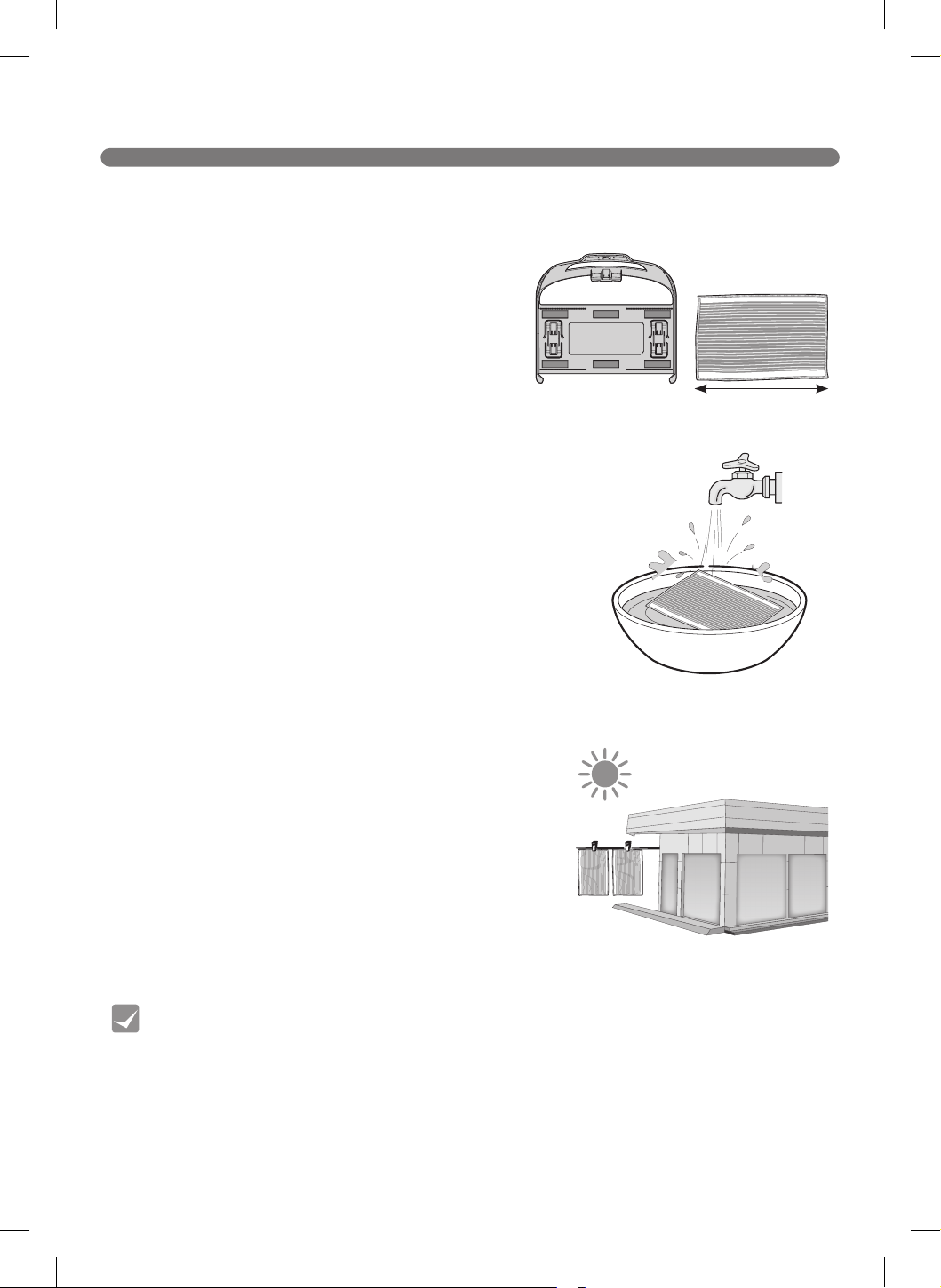
CLEANING THE ULTRA MICROFIBER MOP (on some models)
1. Separate the ultra microber mop from the mop plate.
2. Carefully clean it with warm water.
3. Use the mop after completely drying it in direct sunlight.
※
If the mop is used in a damp or wet state, it will cause
the Robot Cleaner to malfunction.
To avoid odors, dirt and dust should be washed off the mop after it is used for cleaning. Follow these
directions to wash the ultra microber mop:
• To avoid product malfunction, only use the ultra microfiber mop provided with the Robot
Cleaner.
• Additional microfiber mops can be purchased from an authorized LG service center.
Tip
210 mm
56
TROUBLESHOOTING
A warning message will be given if a wheel does not contact the oor surface for any reason.
• Is a wheel trapped in the front door, balcony, stairway, etc?
s Move the Robot Cleaner on to a at oor.
• Is any foreign material wound around the wheel?
s Turn off the main power switch on the rear side of the Robot Cleaner. Then lay a soft cloth on the
oor, remove the dust bin, turn over the Robot Cleaner, and put it on the cloth.
Remove foreign material after observing the wheels.
※
Please make sure to remove the dust bin before turning over the main body.
Otherwise, the dust in the dust bin may fall out.
A warning message will be given if the Robot Cleaner cannot go on cleaning due to any unfavourable
condition.
• Is the Robot Cleaner stuck?
s After removing it from the obstacle, place the Robot Cleaner back onto the at oor.
"The wheels are not touching the floor. Please move Robot Cleaner
onto flat floor."
"Please remove foreign material on the left/right wheel."
"Robot Cleaner cannot continue cleaning. Please check the area
around Robot Cleaner."
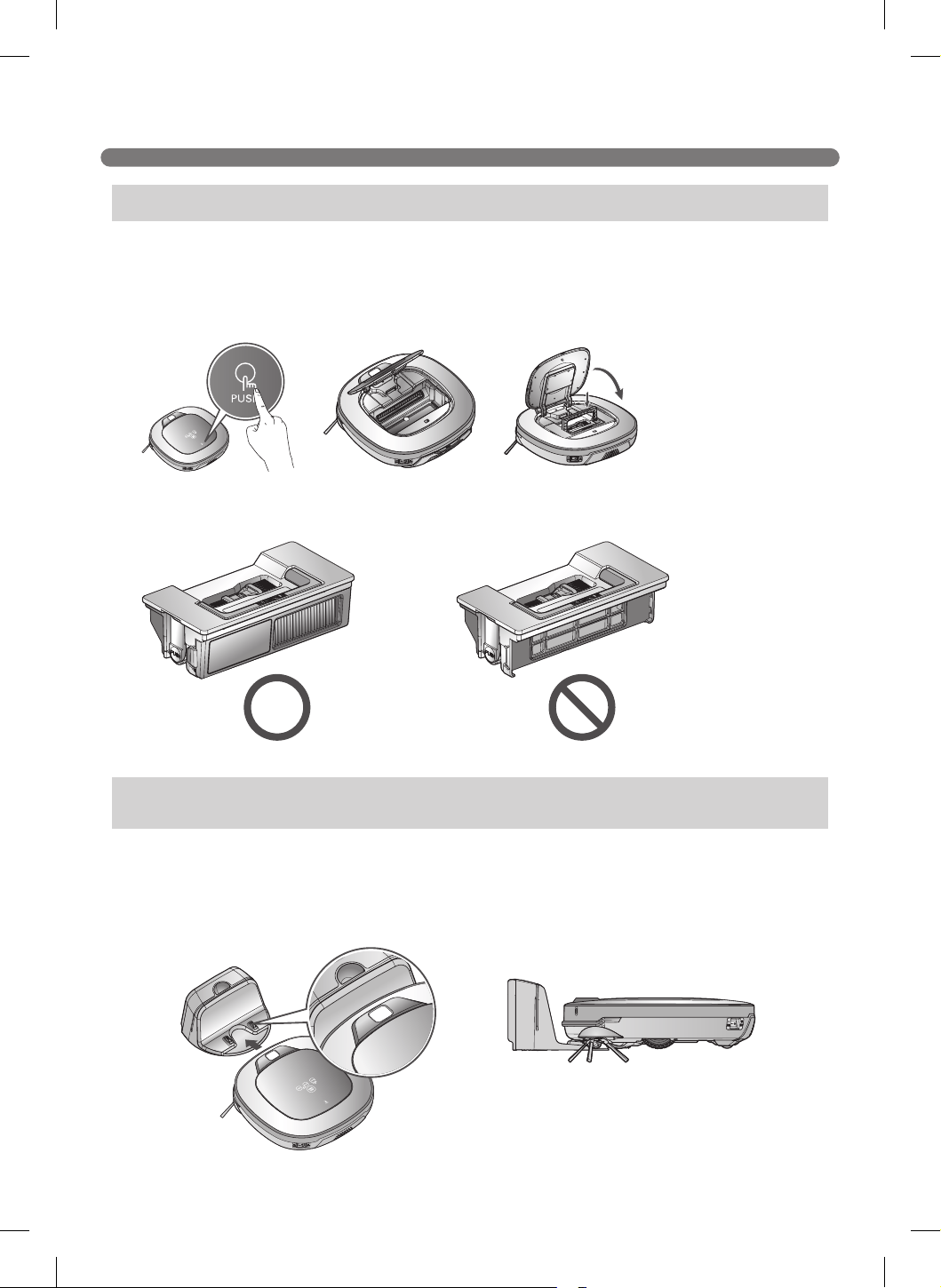
57
TROUBLESHOOTING
A warning message will be given if there is no dust bin or lter housing tted.
• Is the dust bin tted to the Robot Cleaner?
s Open the dust bin compartment cover and check to ensure the dust bin is in place.
s Do NOT leave the dust bin cover open.
When the remaining amount of battery power is very low, the voice alert, “Battery is low”, is generated.
• Initiate battery charging of the Robot Cleaner by moving it to the home station.
s When the Robot Cleaner is attached to the docking station successfully, it will start the recharging
with the recharging start melody.
"Please check if the dust bin is installed with the filter."
"Battery is low. Please move Robot Cleaner onto the home station to
charge."
• Make sure the lter housing is assembled onto the dust bin.
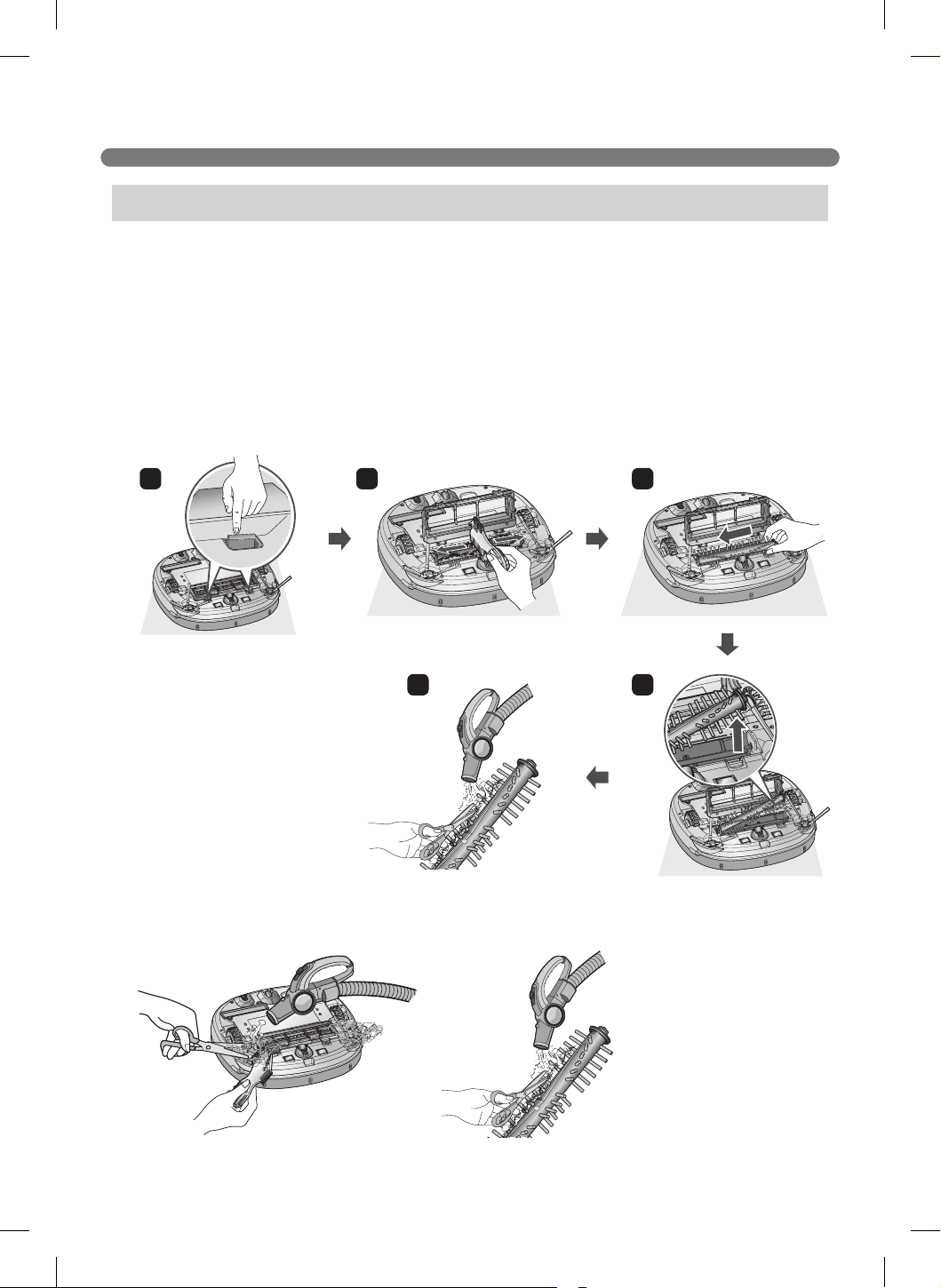
58
TROUBLESHOOTING
※
For a more detailed description of this process, refer to the instructions on pages 52 and 54.
A warning message will be given if foreign materials restrict the brush's rotation.
Turn off the main power switch on the rear of the Robot Cleaner. Remove the dust bin, lay a soft cloth
on the oor and put the Robot Cleaner upside down on it.
※
Before turning over the main unit, remove the Dust Bin.
Otherwise, it will cause dust to fall from the Dust Bin.
• If the brush is making a loud, abnormal sound:
s Conrm the correct assembly of the brush by checking the separation groove of the brush
s Remove the lower rotating brush from the Robot Cleaner and remove any foreign material from
the brush.
• If the lower rotating brush or side brush is stuck:
s Remove any foreign materials such as cables, thread or hair caught in the side brushes or the
lower rotating brush.
"Please remove foreign material from the brushes on the bottom."
1 2 3
45
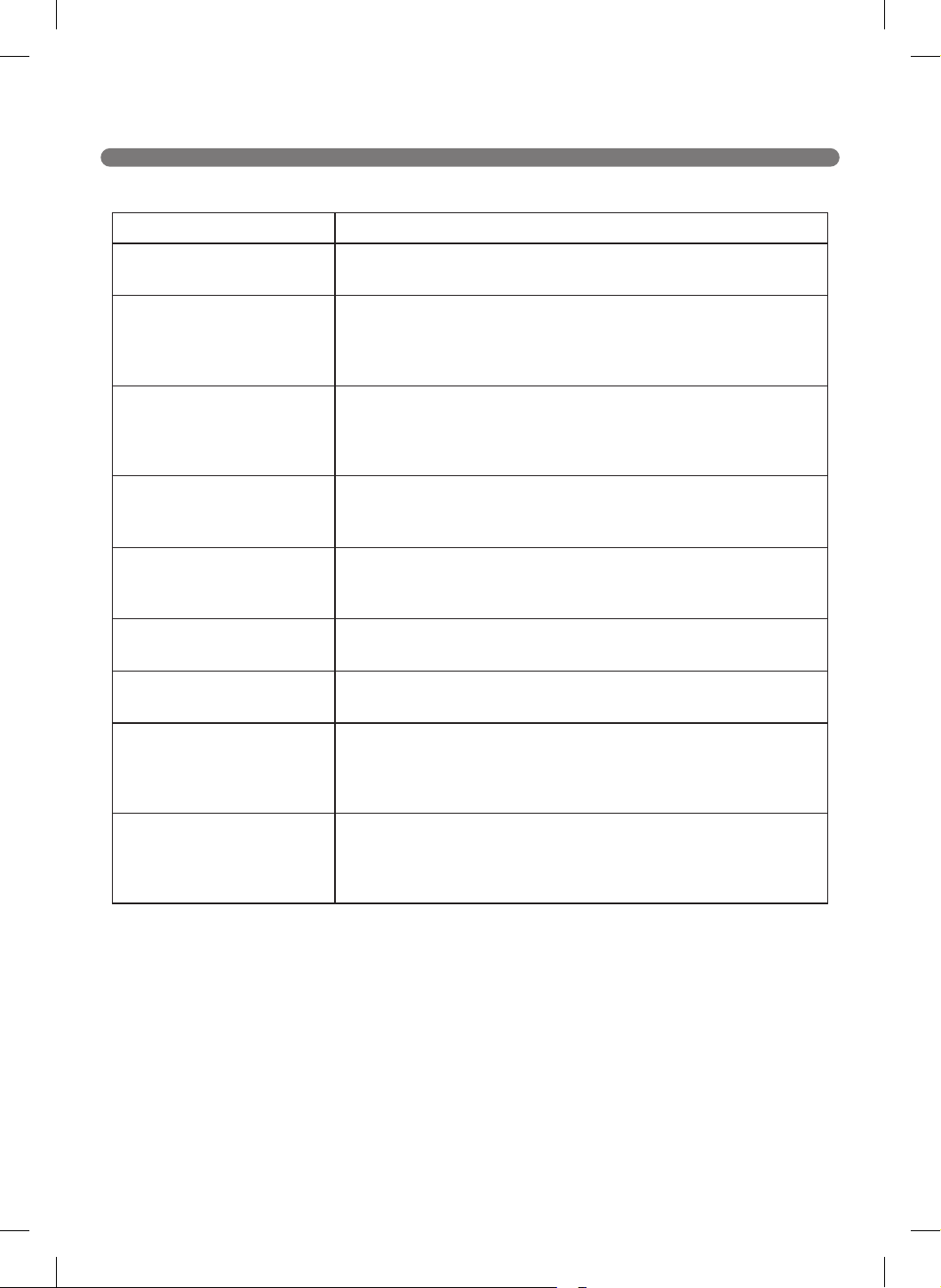
59
BEFORE CALLING FOR SERVICE
Check the following before you call for service.
Problem Solutions (Reference page)
The power supply cannot be
turned on.
Check that the power switch is turned on.
The power supply
automatically turns off.
This is not a failure. Robot Cleaner has its own power saving
function.
If it is not used for ten minutes after the power supply is turned on,
the power will automatically turn off.
The Robot Cleaner will not
charge.
s Check whether the main power switch is turned on.
s Remove objects around the home station.
s Conrm that the power supply is connected to the home station.
s Wipe the charging terminals with a dry cloth.
Suction power becomes
weak.
s Check whether there is foreign material blocking the suction port.
s Empty the dust bin.
s Clean the dust bin lter.
Noise becomes louder. s Conrm that the dust bin has been mounted properly.
s Conrm that the dust bin lter has been mounted properly.
s Check whether foreign material is caught in the brush.
The Robot Cleaner will not
activate.
s Conrm that the power switch is turned on.
s Conrm that the battery has been charged.
The lower brush does not
rotate.
s Clean the brush.
s Conrm that the brush has been mounted properly.
Movements or travel path are
abnormal.
s Carefully wipe the sensors with a dry soft cloth.
s If the ultra microber mop is attached, conrm that it is mounted
properly.
s Turn the main power switch off and on.
The Robot Cleaner cannot
be activated with the remote
control.
s Replace the remote control batteries.
s Conrm that the control is within the coverage area of the main
unit, which is less than 3
m
.
s Check whether the main power switch is turned on.
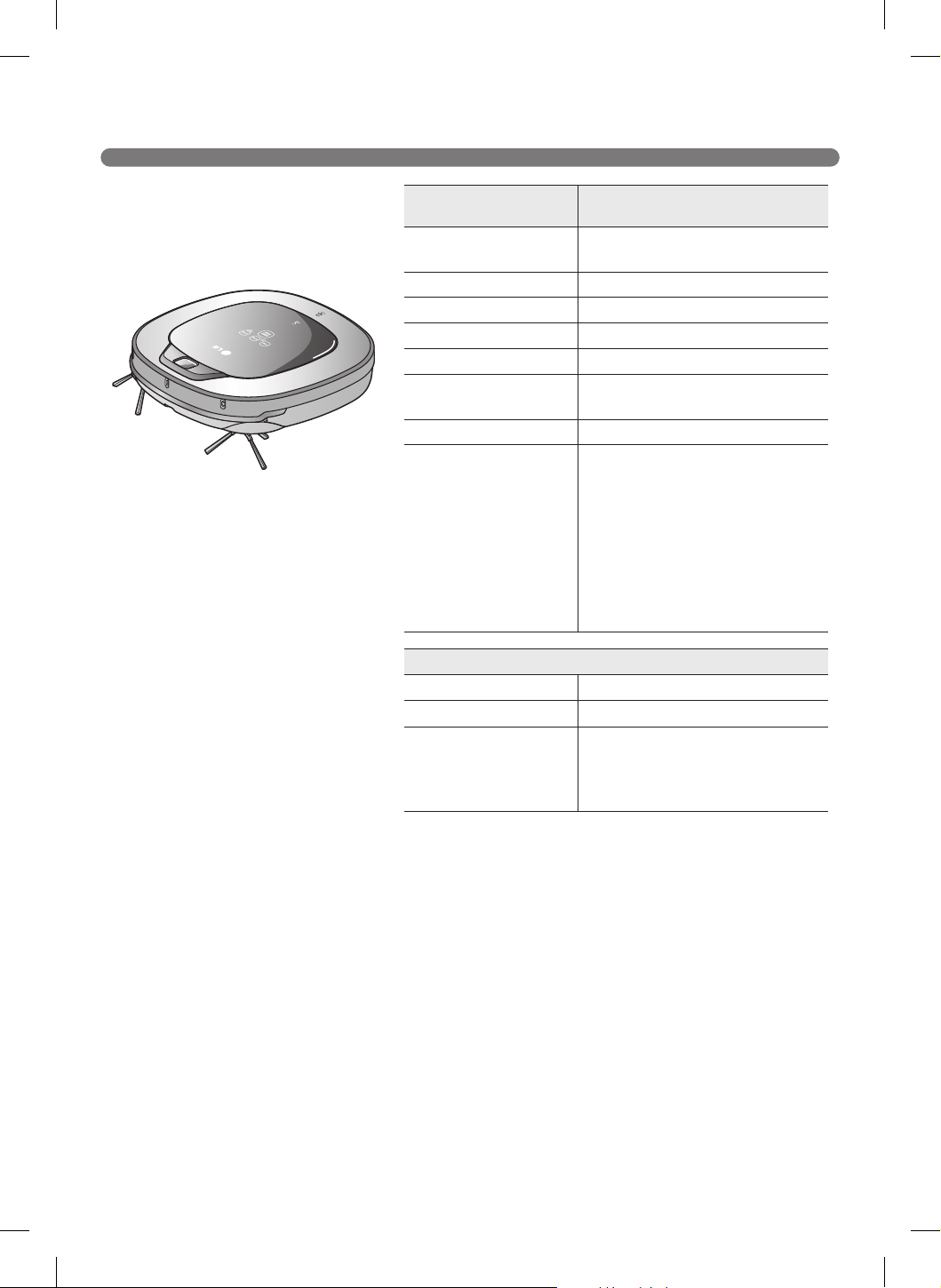
60
PRODUCT SPECIFICATIONS
Item/Model LG Robot Cleaner
CR3*65**
External Dimensions
13.4 inch x 13.4 inch x 3.5 inch
(340 mm x 340 mm x 89 mm)
Weight
6.6 lb (3 kg)
Power Consumption
58 W
Battery (Fully Charging)
DC 16.8 V
Traveling Velocity
1.38 inch/s (350 mm/s) (Maximum)
Use Time Approx. 100 minutes
(Based on general wooden oor)
Charging Time 3 hours
Main Functions
Turbo Mode/ Learning Mode
Obstacle Sensing / Anti-Plunge function
Scheduled Cleaning / Error Displaying
Navigation / Auto/Manual Recharging
Dry Mopping (cleaning) (Option)
Corner Clean / Voice Messeging
Map Drawing / Spot Cleaning
Repeat Cleaning / My Space Cleaning
Cell by Cell Cleaning / Zigzag Cleaning
Smart Application function
Wireless LAN module Specifications
Model TWFM-L302D
Frequency Range
2412 to 2462 MHz
Output Power (Max)
IEEE 802.11b: 21.89 dBm
IEEE 802.11g: 21.64 dBm
IEEE 802.11n (20 MHz): 21.31 dBm
IEEE 802.11n (40 MHz): 21.43 dBm
※
This equipment is a Class B digital
device that complies with 47 CFR
Parts 2 and 15 of the FCC Rules.
Operation is subject to the following
two conditions: (1) This device may
not cause harmful interference,
and (2) this device must accept
any interference received, including
interference that may cause
undesired operation.
FCC Notice (For transmitter module contained in this product)
This equipment has been tested and found to comply with the limits for a Class B digital device, pursuant to Part
15 of the FCC Rules. These limits are designed to provide reasonable protection against harmful interference
in a residential installation. This equipment generates, uses, and can radiate radio frequency energy and, if not
installed and used in accordance with the instructions, may cause harmful interference to radio communications.
However, there is no guarantee that interference will not occur in a particular installation. If this equipment does
cause harmful interference to radio or television reception, which can be determined by turning the equipment off
and on, the user is encouraged to try to correct the interference by one or more of the following measures:
- Reorient or relocate the receiving antenna.
- Increase the separation between the equipment and the receiver.
- Connect the equipment to an outlet on a circuit different from that to which the receiver is connected.
- Consult the dealer or an experienced radio/TV technician for help.
This device complies with part 15 of the FCC Rules. Operation is subject to the following two conditions:
(1) this device may not cause harmful interference and
(2) this device must accept any interference received, including interference that may cause undesired operation
of the device.
Any changes or modications in construction of this device which are not expressly approved by the party
responsible for compliance could void the user’s authority to operate the equipment.
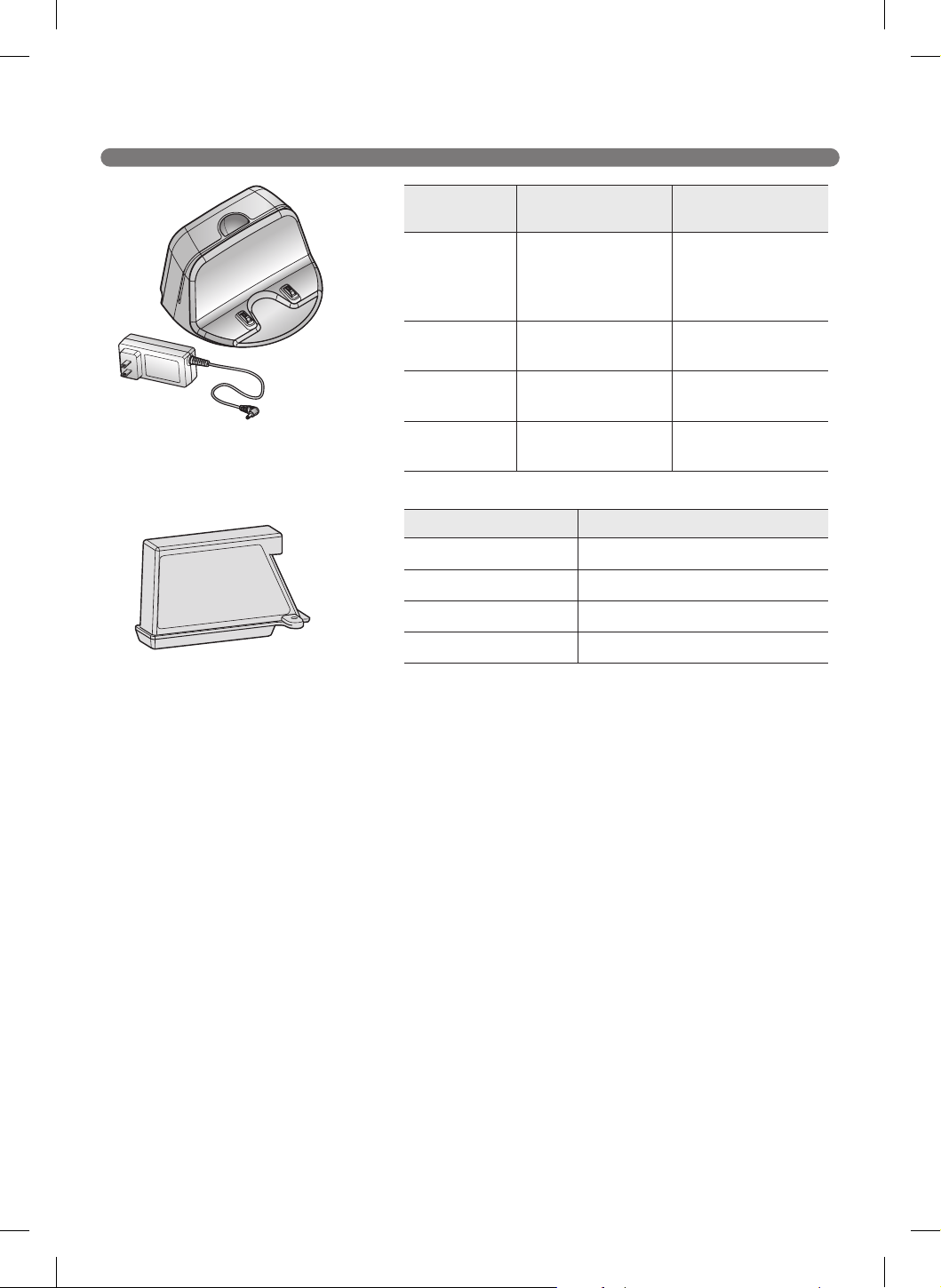
61
PRODUCT SPECIFICATIONS
Item/Model Battery(EAC62218205)
Type Lithium Battery
Rating
DC 14.4 V / 2330 mAh / 4 cells
Charging temperature
Standard charge at 23±5
˚C
Number of Batteries
1 EA
FCC RF Radiation Exposure Statement
This equipment complies with FCC radiation exposure limits set forth for an uncontrolled environment. This
transmitter must not be co-located or operating in conjunction with any other antenna or transmitter.
This equipment should be installed and operated with a minimum distance of 20 cm (7.8 inches) between
the antenna and your body. Users must follow the specific operating instructions for satisfying RF exposure
compliance.
Item/Model
Home Station
(VR650)
EPS : ADS-30FSA-17
17030EPCU
External
Dimensions
9.3 inch x 7.1 inch x
5.0 inch
(236 mm x 181 mm x
128 mm)
3.7 inch x 1.7 inch x
1.2 inch
(95 mm x 43 mm x
30.7 mm)
Rating
17.1 VDC AC 100–240 V~
50/60 Hz
Output Voltage
/ Current
17.1 VDC / 1.7 A DC 17.1 V / 1.7 A
Power
Consumption
1.7 A 0.8 A
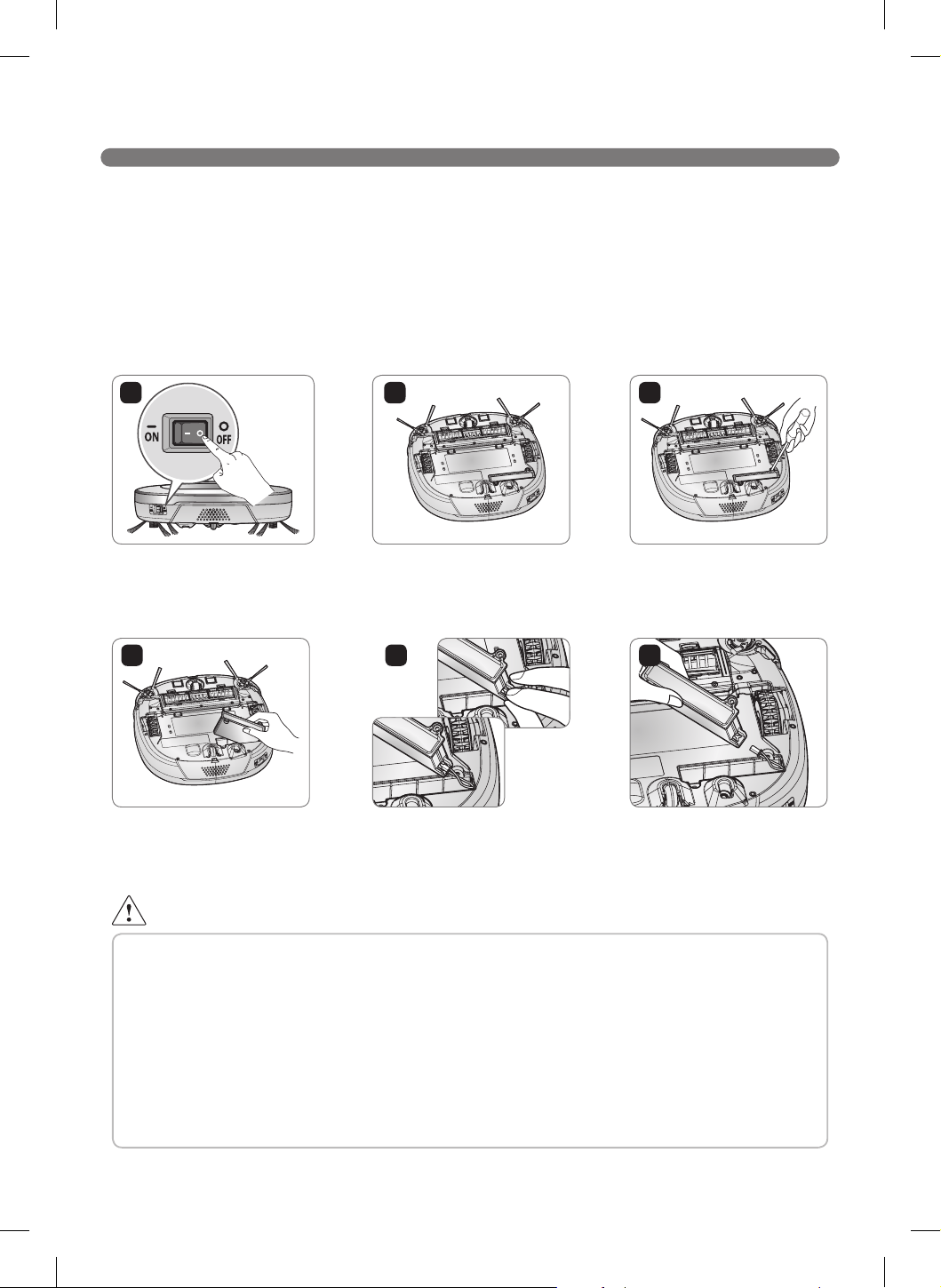
62
REFERENCE ITEMS
Open Source Software Notice
To obtain the source code under GPL, LGPL, MPL and other open source licenses, that is contained in this
product, visit http://opensource.lge.com.
In addition to the source code, all referred license terms, warranty disclaimers and copyright notices are
available for download.
Removing / Refitting the Battery Pack
1 3
4 5 6
Turn off the main power switch
on the back-left side of the
Robot Cleaner.
Ret the battery in the
reverse order.
Place a soft cloth on the oor,
remove the dust bin, and ip
the Robot Cleaner over.
Press the connector release
lug on the connecting plug to
disconnect the battery wiring.
Remove the screws using a
Phillips head screwdriver.
Remove the battery from the
device.
2
WARNING
Risk of fire, explosion, electric shock, or malfunction.
• Do not charge this Battery Pack with any other type of charger other than the one originally
provided with the Robot Cleaner.
• Do not damage the battery pack by dropping, crushing, cutting, or shorting extemal contacts.
• Do not attempt to disassemble the battery pack In any way. If the battery pack is damaged or
malfunctioning, bring it and the robot cleaner and home station to an authorized service center.
• Do not place the battery pack near a heat source or dispose of it in fire or water.
• Please keep the battery pack away from any damp or wet environment when the pack is charged.
• Please keep the battery pack away from children, infants or pets.
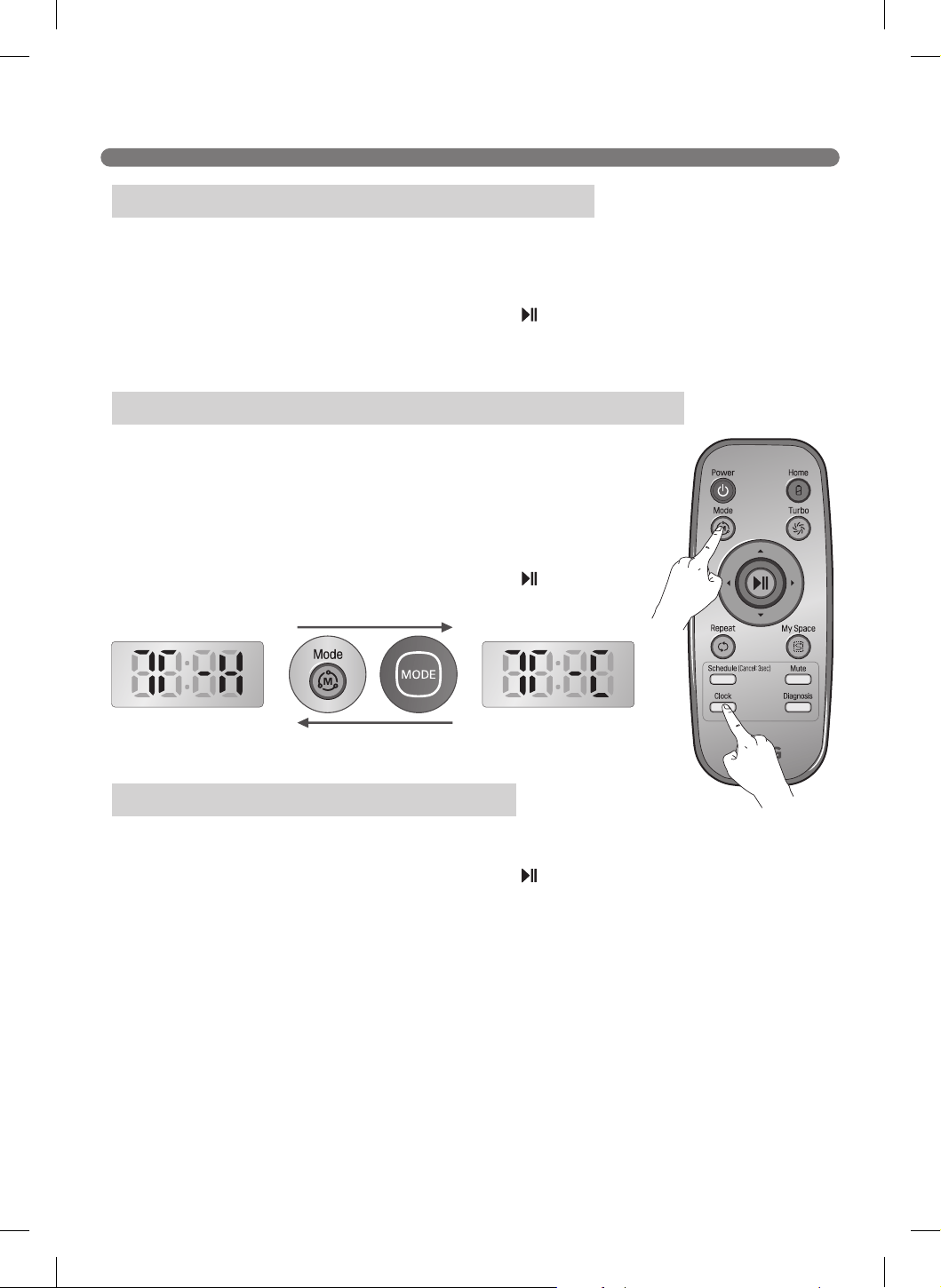
63
PERFORMANCE TESTING (IEC 62929 Standard)
1. Put fully charged Robot Cleaner down on start point and turn on.
2. Push TURBO button on the Robot Cleaner or Turbo button on the remote and Robot Cleaner will
be set to Turbo Mode.
3. Push the Repeat button on the remote and Robot Cleaner will be set to Repeat Mode.
4. Push the START/STOP button on the Robot Cleaner or button on the remote and Robot
Cleaner will operate.
1. Put fully charged Robot Cleaner down on start point and turn on.
2. Push both the Schedule button and the Mode button for 3 seconds to
access the Test Mode (Straight).
3. (1) In case of testing on Hard Floor, LED expression : T-H .
(2) In case of testing on Carpet, LED expression : T-C.
※
Change LED expression by pushing the Mode button on the
remote or the MODE button on the Robot Cleaner.
4. Push the START/STOP button on the Robot Cleaner or
button on
the remote and the Robot Cleaner will operate.
1. Put fully charged Robot Cleaner down on start point and turn on.
2. Push the Repeat button on the remote and Robot Cleaner will be set to Repeat Mode.
3. Push the START/STOP button on the Robot Cleaner or
button on the remote and the Robot
Cleaner will operate.
※
This mode is only used for organizations which test cleaning performance or driving performance
according to IEC62929
Dust Removal Test - Box (Hard Floor & Carpet)
Dust Removal Test - Straight Line (Hard Floor & Carpet)
Autonomous Navigation/Coverage Test
[Hard Floor Test mode] [Carpet Test mode]
64
LG Robot Cleaner WARRANTY
LG Electronics Inc. will repair or replace your product, at LG’s option, if it proves to be defective in
material or workmanship under personal household use, during the warranty period set forth below,
effective from the date of original consumer purchase of the product. This limited warranty is good
only to the original purchaser of the product and effective only when used in U.S.A. and Canada.
* Manufacturing Locations : LG Elecronics. Changwon Factory2 Sungsangu Gongdanro 473 road 33,
Changwon City, Gyeongnam, 641-711 KOREA
WARRANTY PERIOD: HOW SERVICE IS HANDLED:
1 Year
From the date of the
original purchase
Any part of the Robot Cleaner which fails due to a defect in materials
or workmanship. During this full 1 Year warranty, LG will also provide,
free of charge, all labor and shop service to replace the defective part.
Inverter motor : 10 year warranty (Suction motor)
THIS WARRANTY IS IN LIEU OF ANY OTHER WARRANTIES, EXPRESS OR IMPLIED,
INCLUDING WITHOUT LIMITATION, ANY WARRANTY OF MERCHANTABILITY OR
FITNESS FOR A PARTICULAR PURPOSE. TO THE EXTENT ANY IMPLIED WARRANTY IS
REQUIRED BY LAW, IT IS LIMITED IN DURATION TO THE EXPRESS WARRANTY PERIOD
ABOVE. LG WILL NOT BE LIABLE FOR ANY CONSEQUENTIAL, INDIRECT, OR INCIDENTAL
DAMAGES OF ANY KIND, INCLUDING LOST REVENUES OR PROFITS, IN CONNECTION
WITH THE PRODUCT. SOME STATES DO NOT ALLOW LIMITATION ON HOW LONG AN
IMPLIED WARRANTY LASTS OR THE EXCLUSION OF INCIDENTAL OR CONSEQUENTIAL
DAMAGES, SO THE ABOVE LIMITATIONS OR EXCLUSIONS MAY NOT APPLY TO YOU.
This warranty covers only defects in material and workmanship.
LGE will NOT pay for:
1. Expendable items that can wear out, including, but not limited to, filters and belts.
2. A service technician to instruct the user in correct product assembly, operation or
maintenance.
3. A service technician to clean or maintain this product.
4. Damage to or failure of this product if it is not assembled, operated or maintained according
to all instructions supplied with this product.
5. Damage to or failure of this product resulting from accident, abuse, misuse or use for other
than its intended purpose.
6. Damage to or failure of this product caused by the use of detergents, cleaners, chemicals or
utensils other than those recommended in all instructions supplied with this product.
7. Damage to or failure of parts or systems resulting from unauthorized modifications made to
this product.
This warranty is extended to the original purchaser for products purchased for home use within the
U.S.A. In Alaska, the warranty excludes the cost of shipping or service calls to your home.
Some states do not allow the exclusion or limitation of incidental or consequential damages, so this
exclusion or limitation may not apply to you. This warranty gives you specific legal rights, and you may
also have other rights which vary from states to states. To know what your legal rights are, consult your
local or state consumer affairs or your state’s Attorney General.
CUSTOMER ASSISTANCE INFORMATION:
To Prove Warranty Coverage
Retain your Sales Receipt to prove date of purchase.
A copy of your Sales Receipt must be submitted at the time warranty service is
provided.
To Obtain Nearest Authorized
Service Center or Sales Dealer,
or to Obtain Product, Customer,
or Service Assistance
Call 1-800-243-0000 (Phone answered 24 hours - 365 days a year) and choose
the appropriate prompt from the menu; or visit our website at:
http://us.lgservice.com. (In Canada- Call 1-888-542-2623,
website http://ca.lgservice.com)

65
MEMO
66
MEMO
67
MEMO
Made in Korea