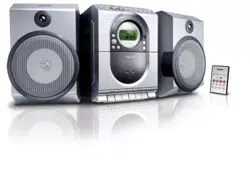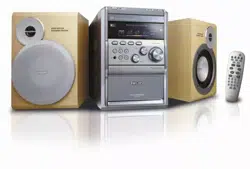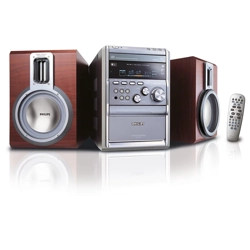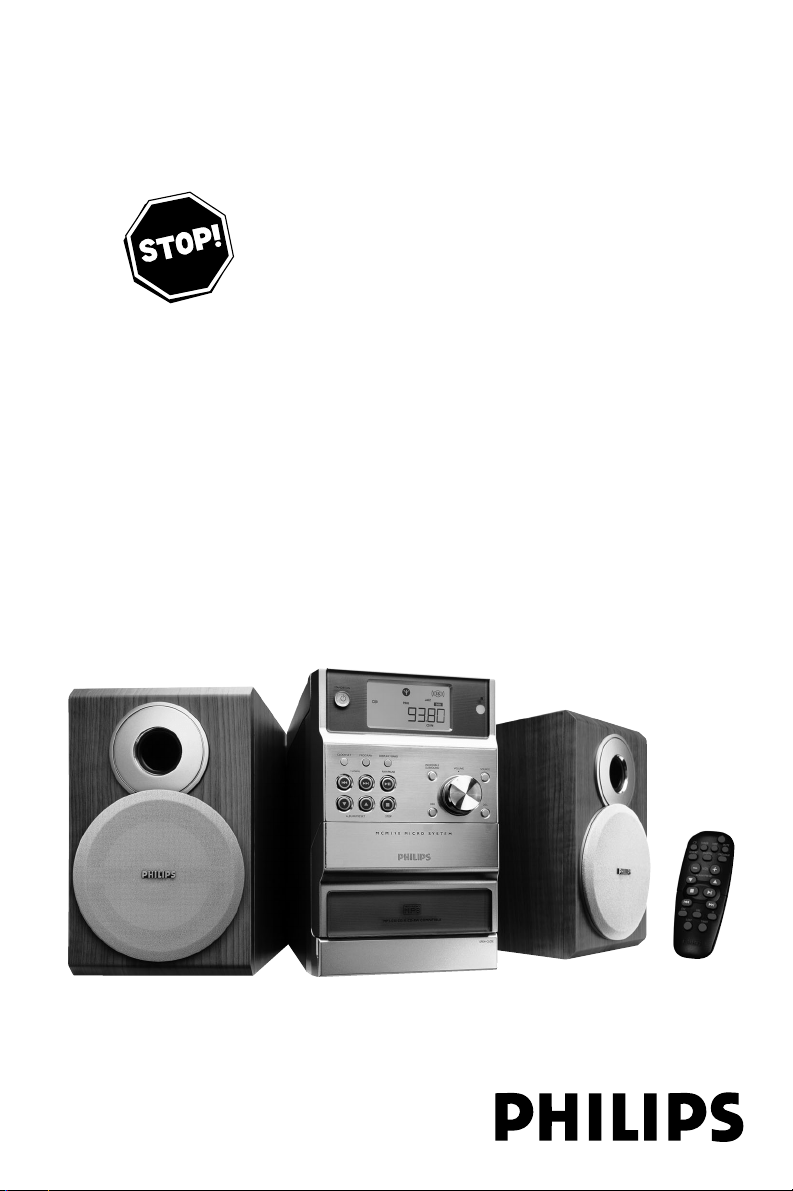
MCM195
Micro Hi-Fi System
THANK YOU FOR CHOOSING PHILIPS!
NEED HELP FAST?
Read your Quick-Use guide and/or owner's manual first for quick tips
that make using your Philips product more enjoyable. If you have read
your instructions and still need assistance,
you may access our online help at
www.usasupport.philips.com
or call 1-888-PHILIPS(744-5477) while with your
product, (and model/serial number).
User manual
Manuel d'utilisation
Manual del usuario
PG 001-022_MCM195_37-Eng 2005.5.20, 5:00 PM1

2
Canada
English:
This digital apparatus does not
exceed the Class B limits for radio
noise emissions from digital apparatus
as set out in the Radio Interference
Regulations of the Canadian
Department of Communications.
Français:
Cet appareil numérique n'emet pas
de bruits radioélectriques dépassant
les limites applicables aux appareils
numériques de Class B prescrites
dans le Règlement sur le Brouillage
Radioélectrique édicté par le
Ministère des Communications du
Canada.
CAUTION
Use of controls or adjustments or
performance of procedures other
than herein may result in hazardous
radiation exposure or other unsafe
operation.
ATTENTION
L'utilisation des commandes ou
réglages ou le non-respect des
procédures ci-incluses peuvent se
traduire par une exposition
dangereuse à l'irradiation.
ATENCIÓN
El uso de mando o ajustes o la
ejecucción de métodos que no sean
los aquí descritos puede ocasionar
peligro de exposición a radiación.
PG 001-022_MCM195_37-Eng 2005.5.20, 5:00 PM2
3
CD
TUNER TAPE
DSC
ISDBB
SLEEP
TIMER
MUTE
REPEAT SHUFFLE
VOL
PROGRAM
ALBUM/PRESET
1
#
^
4
7
$
%
9
&
@
6
!
1
3
6
4
5
2
8
9
0
7
DISPLAY/BAND
5
PG 001-022_MCM195_37-Eng 2005.5.20, 5:00 PM3
4
Return your Product Registration Card today
to get the very most from your purchase.
Registering your model with PHILIPS makes you eligible for all of the valuable benefits listed below, so
don't miss out. Complete and return your Product Registration Card at once to ensure:
*Proof of
Purchase
Returning the enclosed card
guarantees that your date of
purchase will be on file, so no
additional paperwork will be
required from you to obtain war-
ranty service.
*Product Safety
Notification
By registering your product, you'll
receive notification - directly
from the manufacturer - in the
rare case of a product recall or
safety defect.
*Additional
Benefits of
Product
Ownership
Registering your product guaran-
tees that you'll receive all of the
privileges to which you're enti-
tled, including special money-sav-
ing offers.
Know these
safety
symbols
This “bolt of lightning” indicates
uninsulated material within your
unit may cause an electrical
shock. For the safety of everyone in
your household, please do not remove
product covering.
The “exclamation point” calls
attention to features for which
you should read the enclosed
literature closely to prevent operating
and maintenance problems.
CAUTION: To prevent electric shock,
match wide blade of plug to wide slot,
fully insert.
CAUTION
RISK OF ELECTRIC SHOCK
DO NOT OPEN
CAUTION: TO REDUCE THE RISK OF ELECTRIC SHOCK, DO NOT
REMOVE COVER (OR BACK). NO USER-SERVICEABLE PARTS
INSIDE. REFER SERVICING TO QUALIFIED SERVICE PERSONNEL.
t
s
For Customer Use
Enter below the Serial No. which is
located on the rear of the cabinet.
Retain this information for future ref-
erence.
Model No. ______________________
Serial No. ______________________
WARNING: TO PREVENT FIRE OR
SHOCK HAZARD, DO NOT EXPOSE
THIS EQUIPMENT TO RAIN OR
MOISTURE.
PG 001-022_MCM195_37-Eng 2005.5.20, 5:00 PM4
5
Visit our World Wide Web Site at http://www.usasupport.philips.com
Congratulations on your purchase,
and welcome to the “family!”
Dear PHILIPS product owner:
Thank you for your confidence in PHILIPS. You’ve selected one of
the best-built, best-backed products available today. We’ll do every-
thing in our power to keep you happy with your purchase for many
years to come.
As a member of the PHILIPS “family,” you’re entitled to protection
by one of the most comprehensive warranties and outstanding serv-
ice networks in the industry. What’s more, your purchase guaran-
tees you’ll receive all the information and special offers for which
you qualify, plus easy access to accessories from our convenient
home shopping network.
Most importantly, you can count on our uncompromising commit-
ment to your total satisfaction.
All of this is our way of saying welcome - and thanks for investing in
a PHILIPS product.
P.S. To get the most from your PHILIPS purchase, be
sure to complete and return your Product Registration
Card at once.
PG 001-022_MCM195_37-Eng 2005.5.20, 5:00 PM5

6
IMPORTANT SAFETY INSTRUCTIONS
12.
Use only with the cart, stand,
tripod, bracket, or table specified by
the manufacturer or sold with the
apparatus. When a cart is used, use
caution when moving the cart/
apparatus combination to avoid
injury from tip-over.
13.
Unplug this apparatus during lightning
storms or when unused for long periods of
time.
14.
Refer all servicing to qualified service
personnel. Servicing is required when the
apparatus has been damaged in any way, such
as power-supply cord or plug is damaged,
liquid hs been spilled or objects have fallen
into the apprartus, the apparatus has been
exposed to rain or moisture, does not
operate normaly, or has been dropped.
15.
Bettery usage CAUTION – To
prevent battery leakage which may result in
bodily injury, property damage, or damage to
the unit:
● Install all batteries correctly, + and – as
marked on the unit.
● Do not mix batteries (old and new or
carbon and alkaline, etc.).
● Remove batteries when the unit is not used
for a long time.
16.
Apparatus shall not be exposed to
dripping or splashing.
17.
Do not place any sources of danger on
the apparatus. (e.g. liquid filled objects,
lighted candles).
18.
This product may contain lead and mercury.
Disposal of these material may be regulated
due to environment considerations.
For disposal or recycling information,
please contact your local authorities
or the Electronic Industries Alliance:
www.eiae.org.
EL 6475-E004: 03/12
1. Read these instructions.
2. Keep these instructions.
3. Heed all warnings.
4. Follow all instructions.
5. Do not use this apparatus near
water.
6. Clean only with dry cloth.
7. Do not block any ventilation
openings. Install in accordance with
the manufacturer's instructions.
8. Do not install near any heat sources
such as radiators, heat registers, stoves, or
other apparatus (including amplifiers) that
produce heat.
9. Do not defeat the
safety purpose of the
polarized or grounding-
type plug. A polarized
plug has two blades with one wider than
the other. A grounding type plug has two
blades and a third grounding prong. The
wide blade or the third prong are provided
for your safety. If the provided plug does not
fit into your outlet, consult and electrician
for replacement of the obsolete outlet.
10.
Protect the power cord from being
walked on or pinched, particularly at plugs,
convenience receptacles, and the point
where they exit from the apparatus.
11.
Only use attachments/ accessories
specified by the manufacturer.
AC Polarized
Plug
PG 001-022_MCM195_37-Eng 2005.5.20, 5:00 PM6

7
English
Français
Español
Index
English ------------------------------------------------ 8
Français -------------------------------------------- 26
Español --------------------------------------------- 44
PG 001-022_MCM195_37-Eng 2005.5.20, 5:00 PM7
8
English
Contents
General Information
Environmental information ................................ 9
Supplied accessories ............................................ 9
Safety information ................................................ 9
Preparations
Rear connections ........................................ 10–11
Inserting batteries into the remote control . 11
Controls
Controls on the system and remote
control .................................................................. 12
Controls buttons available on the remote
control only ......................................................... 12
Basic Functions
Switching the system on ................................... 13
Adjusting volume and sound ............................ 13
CD/MP3 Operation
Loading a disc ...................................................... 14
Basic playback controls ..................................... 14
Playing an MP3 disc ...................................... 14-15
Different play modes: Shuffle and Repeat ..... 15
Programming track numbers ........................... 15
Reviewing the programme ............................... 15
Erasing the programme ..................................... 15
Radio Reception
Tuning to radio stations .................................... 16
Programming radio stations ............................. 16
Automatic programming
Manual programming
Tuning to preset radio stations ....................... 16
Ta pe Operation / Recording
Tape playback ...................................................... 17
General information on recording ................. 17
Synchro start CD recording ...................... 17-18
Recording from the radio ................................. 18
Maintenance.............................................. 18
Clock/Timer
Setting the clock ................................................. 19
Setting the timer................................................. 19
Activating and deactivating TIMER ................. 19
Activating and deactivating SLEEP .................. 19
Specifications ........................................... 20
Tr oubleshooting .............................. 20-21
PG 001-022_MCM195_37-Eng 2005.5.20, 5:00 PM8

9
English
General Information
Environmental Information
All unnecessary packaging has been omitted. We
have tried to make the packaging easy to
separate into three materials: cardboard (box),
polystyrene foam (buffer) and polyethylene (bags,
protective foam sheet).
Your system consists of materials which can be
recycled and reused if disassembled by a
specialized company. Please observe the local
regulations regarding the disposal of packaging
materials, exhausted batteries and old
equipment.
Supplied accessories
–2 speaker boxes
– remote control
– AM loop antenna
Safety Information
● Before operating the system, check that the
operating voltage indicated on the typeplate (or
the voltage indication beside the voltage
selector) of your system is identical with the
voltage of your local power supply. If not, please
consult your dealer.
● Place the system on a flat, hard and stable
surface.
● Place the system in a location with adequate
ventilation to prevent internal heat build-up in
your system. Allow at least 10 cm (4 inches)
clearance from the rear and the top of the unit
and 5 cm (2 inches) from each side.
● The ventilation should not be impeded by
covering the ventilation openings with items,
such as newspapers, table-cloths, cur tains, etc.
● Do not expose the system, batteries or discs to
excessive moisture, rain, sand or heat sources
caused by heating equipment or direct sunlight.
● No naked flame sources, such as lighted candles,
should be placed on the apparatus.
● No objects filled with liquids, such as vases, shall
be placed on the apparatus.
● Don’t expose the system to dripping or
splashing.
● If the system is brought directly from a cold to a
warm location, or is placed in a very damp room,
moisture may condense on the lens of the disc
unit inside the system. Should this occur, the CD
player would not operate normally. Leave the
power on for about one hour with no disc in the
system until normal playback is possible.
● The mechanical parts of the set contain self-
lubricating bearings and must not be oiled or
lubricated.
● When the system is switched to Standby
mode, it is still consuming some power.
To disconnect the system from the
power supply completely, remove the AC
power plug from the wall socket.
PG 001-022_MCM195_37-Eng 2005.5.20, 5:00 PM9
10
English
Preparations
Rear connections
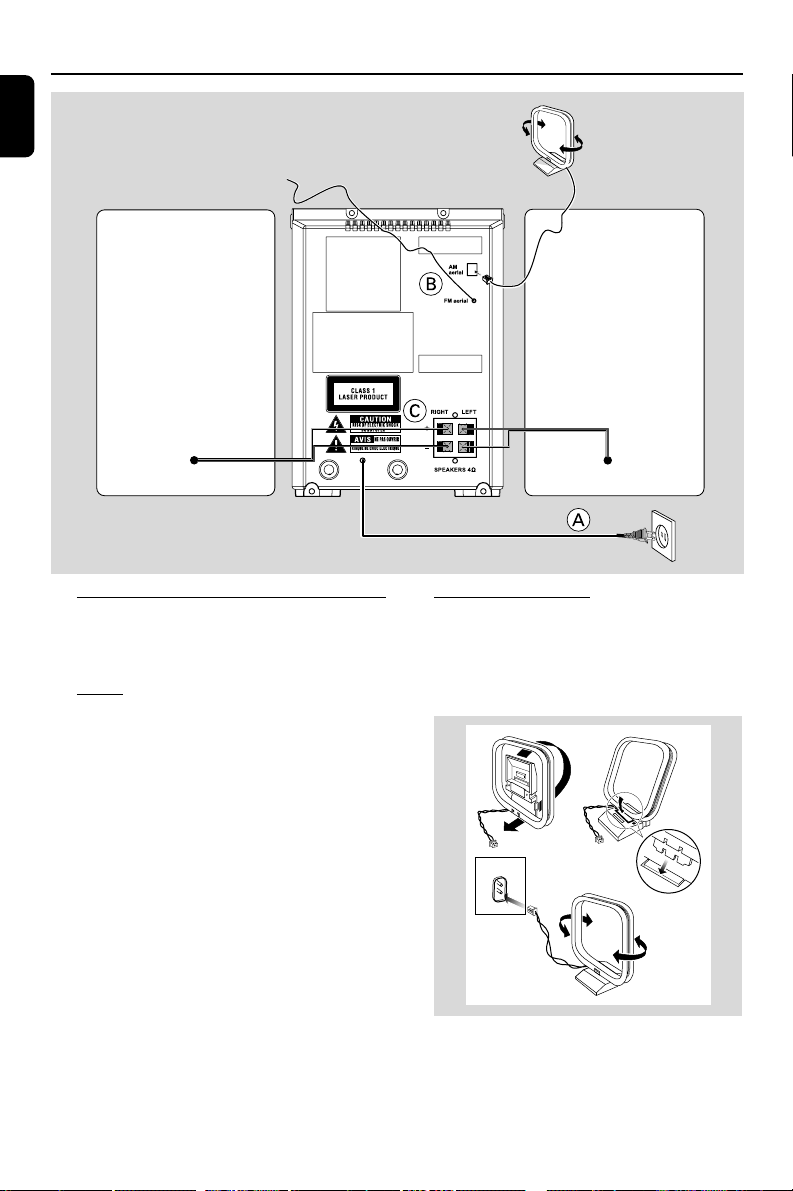
The type plate is located at the rear of the
system.
A Power
Before connecting the AC power cord to the
wall outlet, ensure that all other connections
have been made.
WARNING!
–For optimal performance, use only the
original power cable.
–Never make or change any connections
with the power switched on.
To avoid overheating of the system, a safety
circuit has been built in. Therefore, your
system may switch to Standby mode
automatically under extreme conditions. If
this happens, let the system cool down
before reusing it (not available for all versions).
B Antenna Connection
AM Antenna
Connect the supplied AM loop antenna to the
“AM aerial” terminal. Adjust the position of the
antenna for optimal reception.
Fix the claw
to the slot
1
2
3
MW ANTENNA
● Position the antenna as far as possible from a TV,
VCR or other radiation source.
speaker
(right)
speaker
(left)
AC power cord
FM wire antenna
AM loop
antenna
PG 001-022_MCM195_37-Eng 2005.5.20, 5:00 PM10
11
English
Preparations
FM Antenna
It is unnecessary to connect the FM pigtail
antenna since it is fixed to the main unit.
● Adjust the FM antenna for optimal FM stereo
reception.
C Speakers Connection
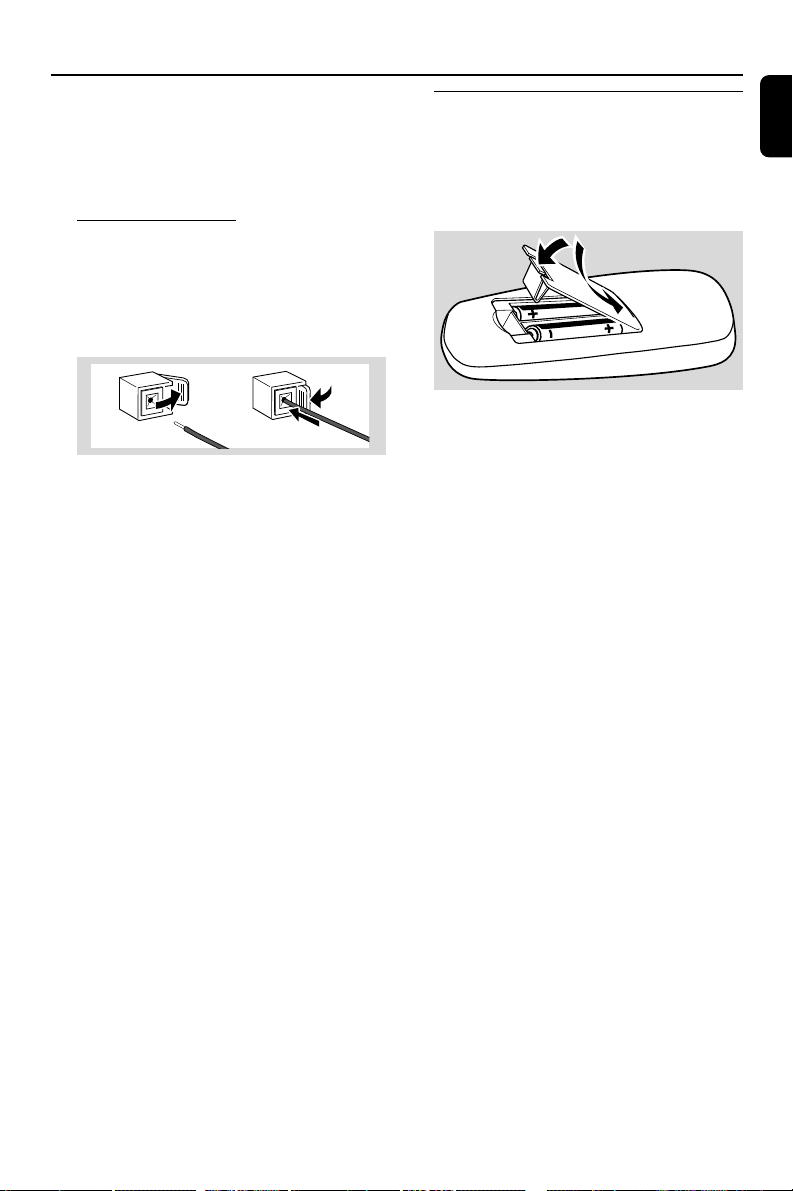
Front Speakers
Connect the speaker wires to the SPEAKERS
terminals, right speaker to "RIGHT" and left
speaker to "LEFT", coloured (marked) wire to
"+" and black (unmarked) wire to "-".
1
2
● Fully insert the stripped portion of the speaker
wire into the terminal as shown.
Notes:
–For optimal sound performance, use the
supplied speakers.
– Do not connect more than one speaker to any
one pair of +/- speaker terminals.
– Do not connect speakers with an impedance
lower than the speakers supplied. Please refer to
the SPECIFICATIONS section of this manual.
Inserting batteries into the
remote control
Insert two batteries (not supplied) type R03 or
AAA into the remote control with the correct
polarity as indicated by the "+" and "-"
symbols inside the battery compartment.
CAUTION!
– Remove batteries if they are exhausted
or will not be used for a long time.
– Do not use old and new or different
types of batteries in combination.
– Batteries contain chemical substances, so
they should be disposed of properly.
PG 001-022_MCM195_37-Eng 2005.5.20, 5:00 PM11

12
English
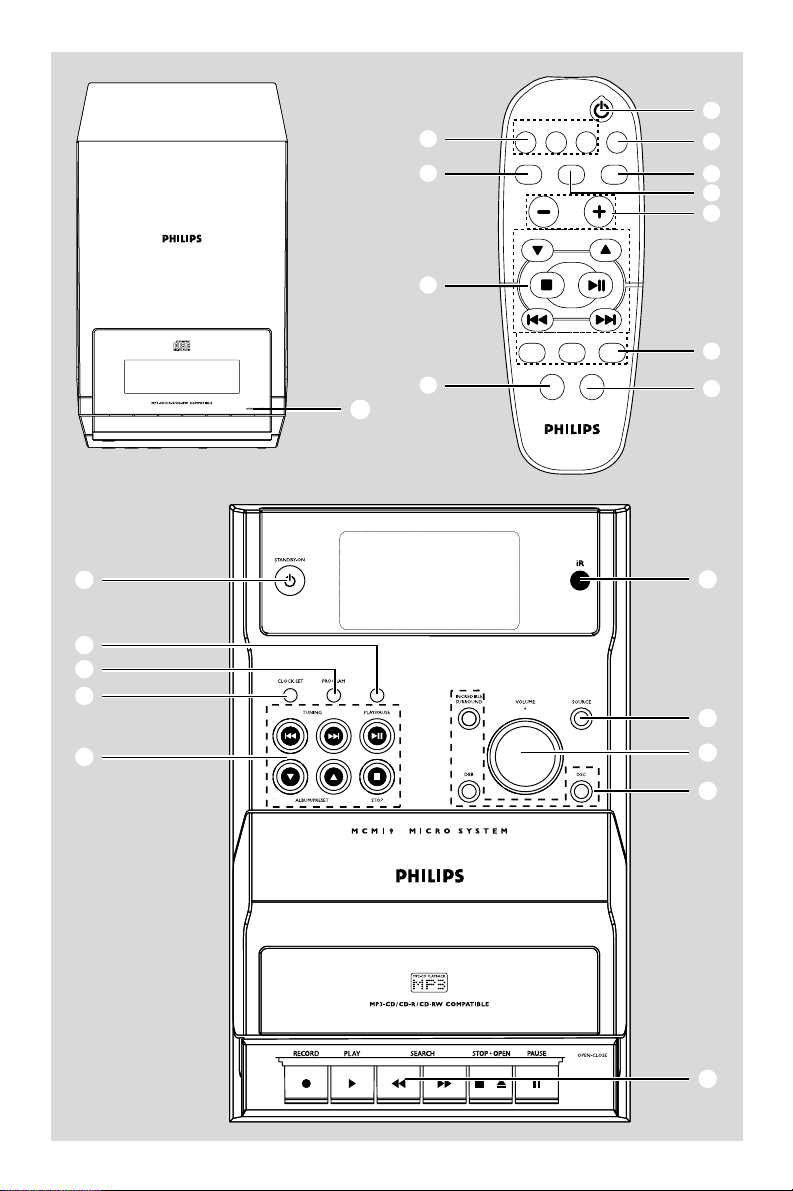
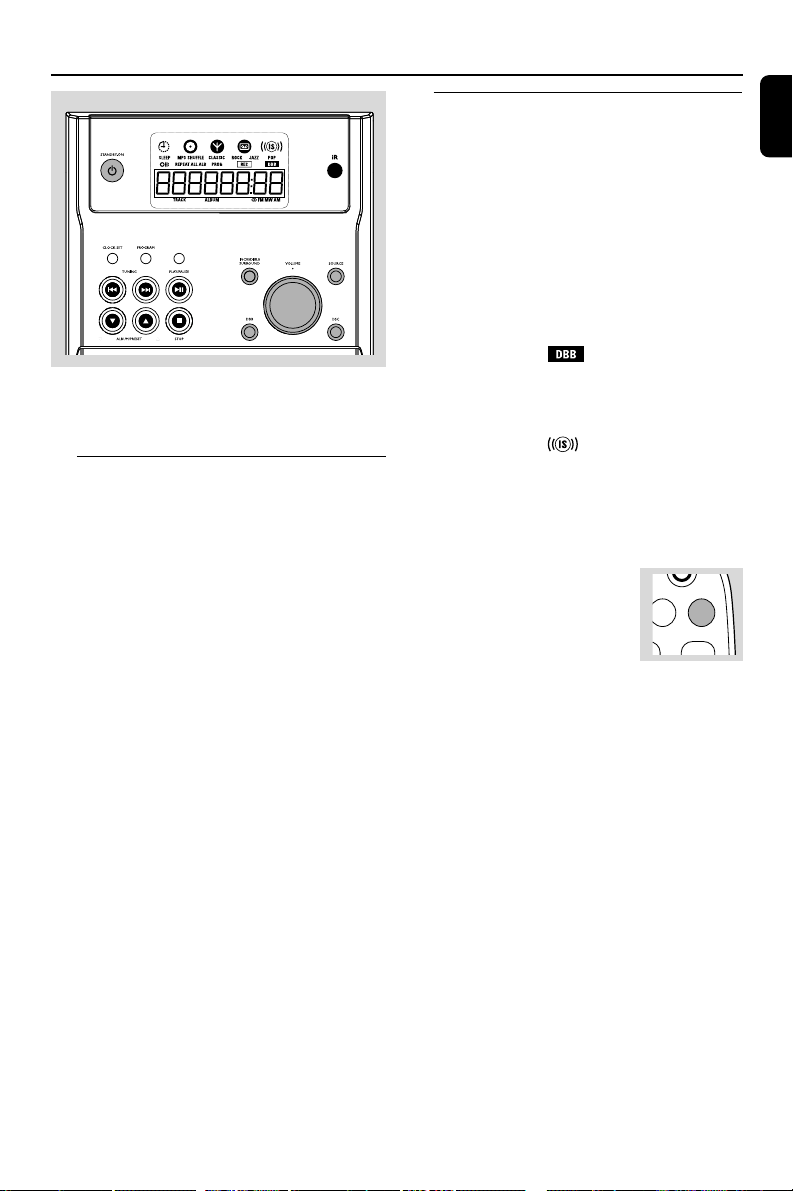
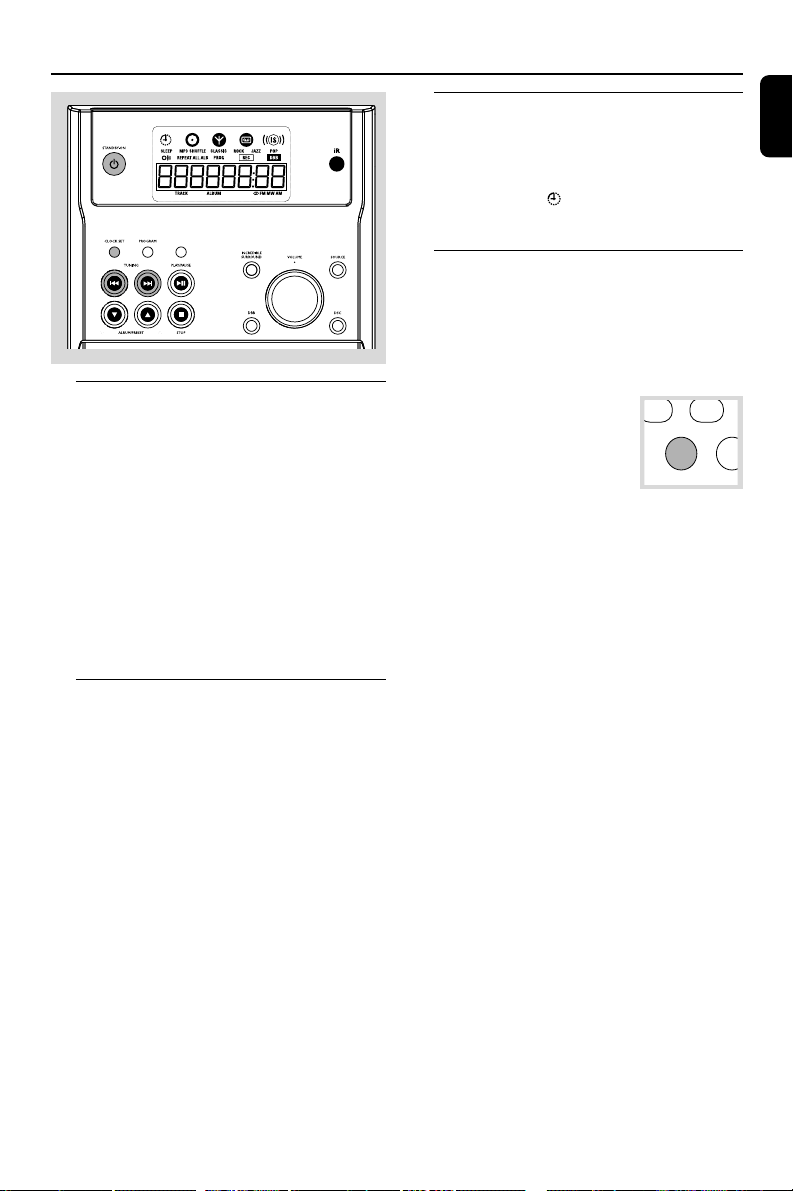
Controls (illustrations on page 3)
Controls on the system and
remote control
1 STANDBY ON y
– switches the system to standby/on.
2 iR SENSOR
– infrared sensor for remote control.
3 CLOCK SET
– sets the clock function.
4 PROGRAM
for CD ................. programmes tracks and reviews
the programme.
for Tuner ............. programmes tuner stations
manually or automatically.
5 DISPLAY/BAND
for CD ................. displays the current track
number and total remaining time
(or current album and track
numbers for MP3 disc) during
playback.
for Tuner ............. selects waveband.
6 Mode Selection
STOP 9 ............ stops CD playback or erases a
CD programme.
PLAY/PAUSE 2;
................................. starts or interrupts CD playback.
ALBUM/PRESET 4 3
for radio .............. selects a preset radio station.
for MP3 disc ..... selects an album.
TUNING 4 ¢
for Tuner ............. tunes to radio stations.
for CD ................. skips to the beginning of the
current/previous/subsequent
track.
................................. fast searches back and forward
within a track/CD.
for clock/timer adjusts the hours and minutes
for the clock/timer function
7 INTERACTIVE SOUND controls:
DBB .................... (Dynamic Bass Boost) enhances
the bass.
DSC..................... (Digital Sound Control) selects
sound characteristics: JAZZ/POP/
CLASSIC/ROCK.
INCREDIBLE SURROUND (IS) .......................
creates a super-enhanced stereo
effect.
8 SOURCE
– selects the respective sound source for CD/
TUNER/TAPE.
– switches on the system.
9 VOLUME (VOL -/+ )
– adjusts the volume level.
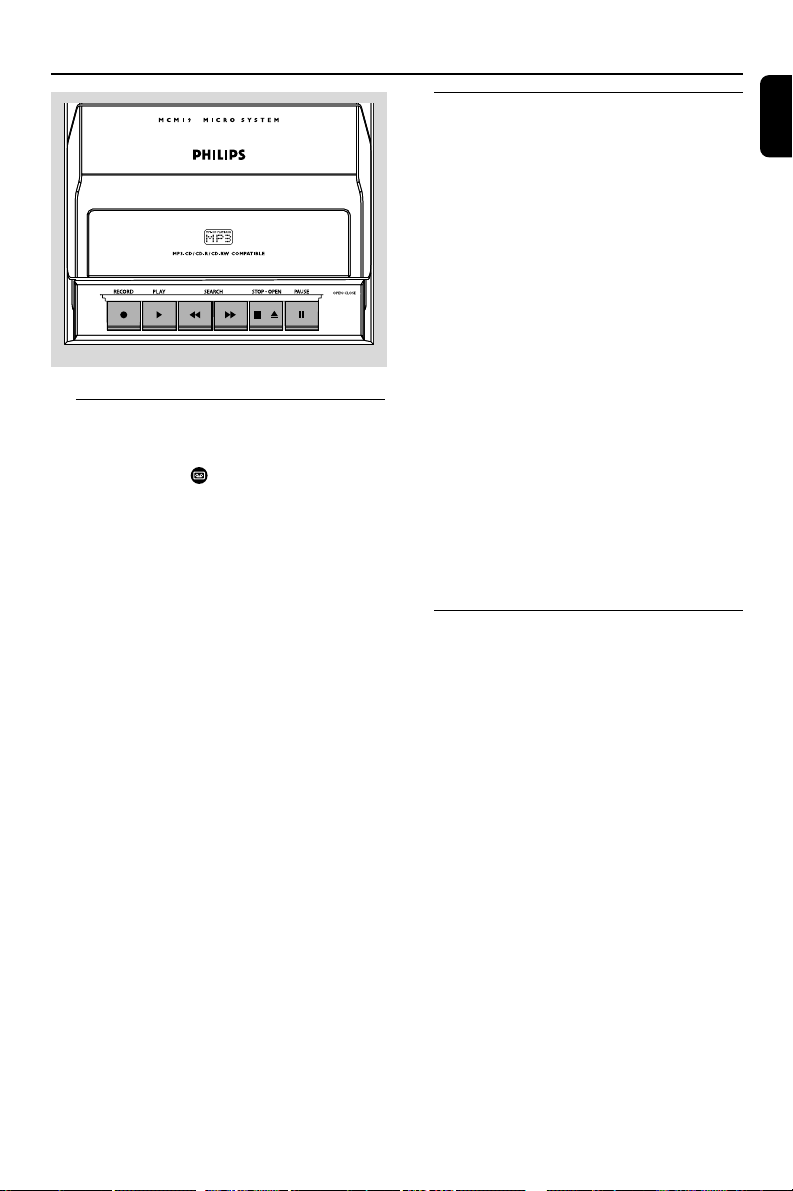
0 Ta pe Deck Operation
RECORD● ... starts recording.
PLAY 2 ............ starts playback.
SEARCHà / á fast rewinds/winds the tape.
STOP•OPENÇ0
................................. stops the tape; opens the tape
compartment.
PAUSEÅ ....... interrupts recording or playback.
! OPEN•CLOSE3
– opens/closes the CD door.
Controls available on the remote
control only
@ CD/TUNER/TAPE
– selects the respective sound source.
# MUTE
– interrupts and resumes sound reproduction.
$ SHUFFLE
– plays CD/MP3 tracks in random order.
% SLEEP
– activates/deactivates or selects the sleeper time.
^ TIMER
– activates/deactivates or sets the timer function.
& REPEAT
– repeats a track/disc/all programmed tracks.
PG 001-022_MCM195_37-Eng 2005.5.20, 5:00 PM12
13
English
Basic Functions
IMPORTANT:
Before you operate the system, complete
the preparation procedures.
Switching the system on
● Press 2 STANDBY ON or SOURCE.
➜ The system will switch to the last selected
source.
● Press CD, TUNER or TAPE on the remote
control.
➜ The system will switch to the selected source.
To switch the system to standby mode
● Press 2 STANDBY ON on the system or
remote control.
● If in tape mode or recording mode, press
STOP•OPENÇ0 first.
➜ The volume level (up to a maximum volume
level of 20), interactive sound settings, last
selected source and tuner presets will be
retained in the player's memory.
Adjusting volume and sound
1 Turn the VOLUME control anti-clockwise to
decrease or clockwise to increase volume on the
system (or press VOL -/+ on the remote
control).
➜ Display shows the volume level VOL and a
number from 0-32.
2 Press DSC repeatedly to select the desired
sound effect: JAZZ / POP / CLASSIC / ROCK.
3 Press DBB to switch bass enhancement on or
off.
➜ Display shows: if the DBB is activated.
4 Press INCREDIBLE SURROUND (IS on
the remote control) to switch the surround
sound effect on or off.
➜ Display shows: if activated.
Note:
– The effect of INCREDIBLE SURROUND may
vary with different types of music.
5 Press MUTE on the remote
control to interrupt sound
reproduction instantly.
➜ Playback will continue
without sound.
● To activate sound reproduction you can:
– press MUTE again;
– adjust the volume controls;
– change source.
DISPLAY/BAND
TAPE
MUTE
LE
PROGRAM
PG 001-022_MCM195_37-Eng 2005.5.20, 5:00 PM13
14
English
CD/MP3 Operation
➜ The current track number and elapsed
playing time of the track are displayed during
disc playback.
To select a different track
● Press TUNING 4 ¢ (on the remote
control 4 ¢) once or repeatedly until the
desired track number appears in the display.
To find a passage within a track
1 Press and hold down on TUNING 4 ¢
(on the remote control 4 ¢).
➜ The disc is played at high speed and low
volume.
2 When you recognise the passage you want,
release TUNING 4 ¢ (on the remote
control 4 ¢).
➜ Normal playback continues.
To interrupt playback
● Press PLAY/PAUSE 2; (on the remote
control 2;) during playback.
➜ The display freezes and the elapsed playing
time flashes when playback is interrupted.
➜ To resume, press 2; again.
To stop playback
● Press 9.
Notes: CD play will also stop when;
– the CD door is opened.
– the disc has reached the end.
– you select another source: TAPE or TUNER.
– you select standby.
– you press the tape deck PLAY 2 key.
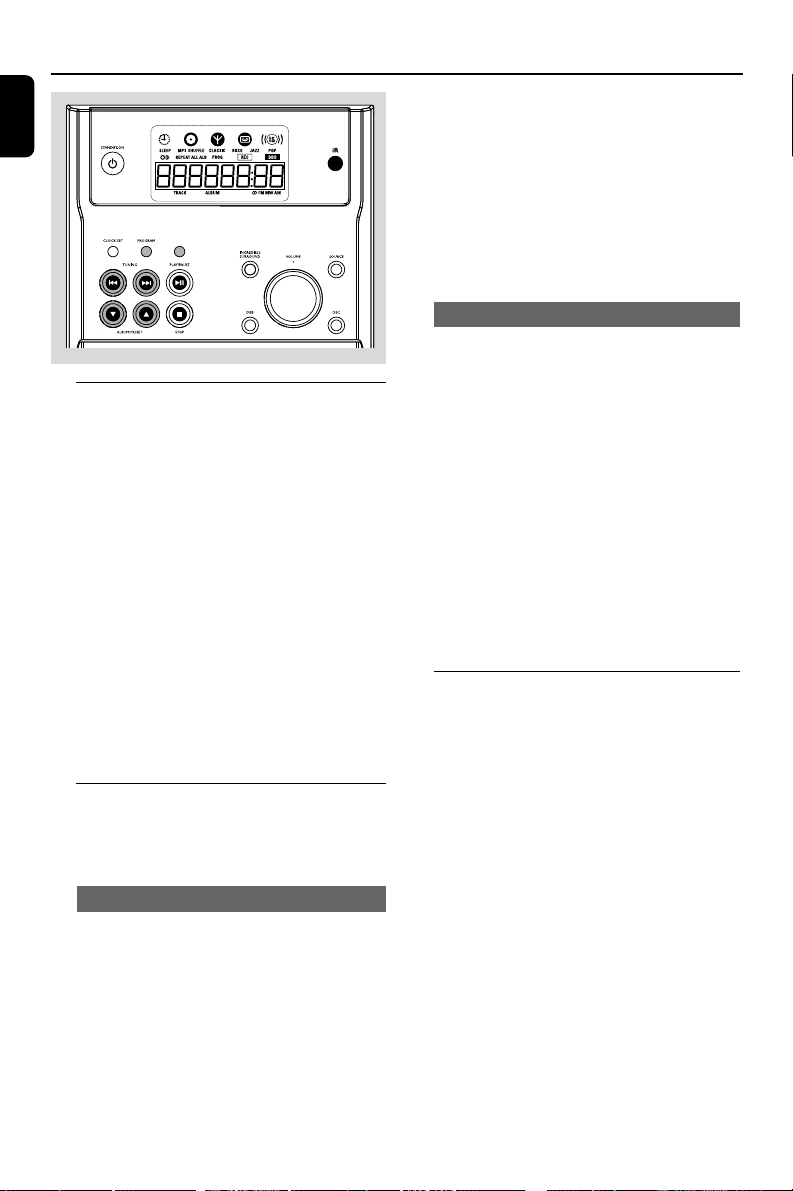
Playing an MP3 disc
1 Load an MP3 disc.
➜ The disc reading time may exceed 10
seconds due to the large number of songs
compiled into one disc.
➜ "XXX YY" is displayed. XXX is the current
track number and YY is the current album
number.
2 Press 4 3 to select a desired album.
IMPORTANT:
The lens of the CD player should never be
touched.
X
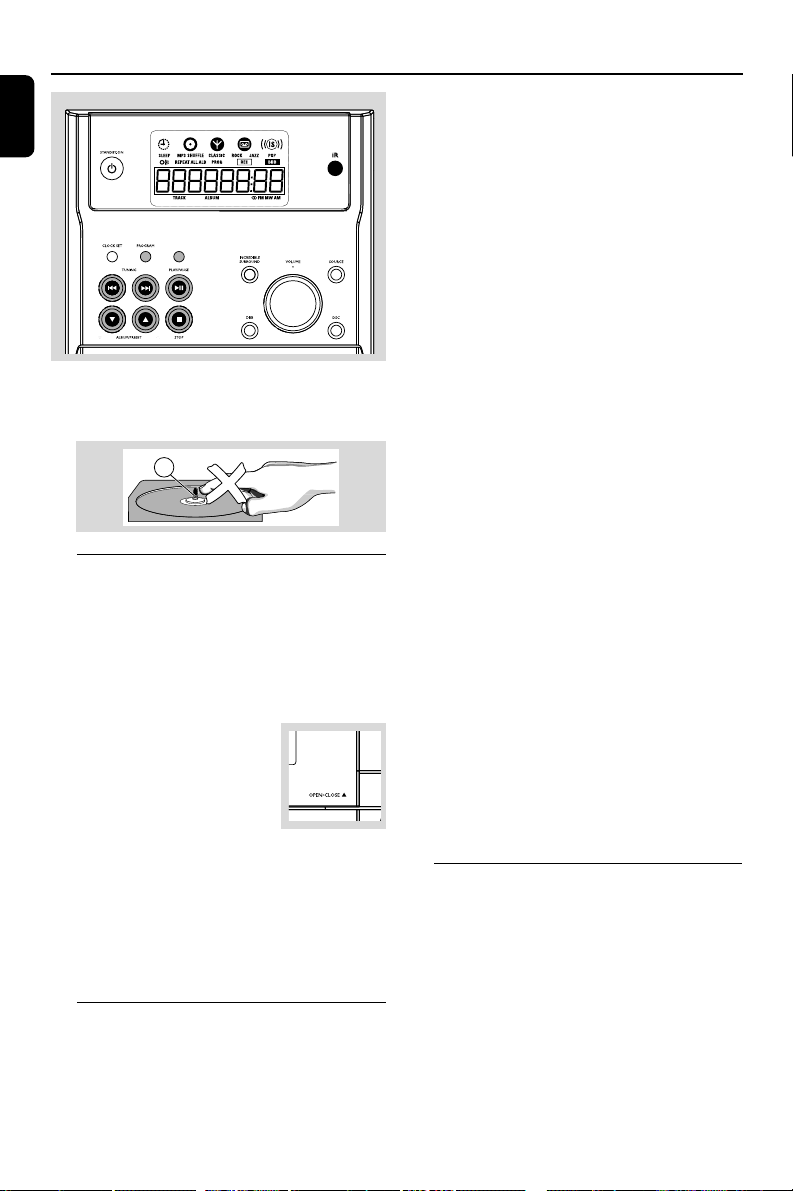
Loading a disc
This CD player plays Audio Discs including CD-
Recordables, CD-Rewritables and MP3 CD.
● CD-ROM, CD-I, CDV, VCD, DVD or computer
CDs, however, are not possible.
1 Select CD source.
2 Press OPEN•CLOSE3 on
the top of the system to open
the CD compartment.
➜ OPEN is displayed when you
open the CD compartment.
3 Insert a disc with the printed side facing up and
press down on OPEN•CLOSE3 to close the
CD door.
➜ READ is displayed as the CD player scans the
contents of a disc, and then the total number of
tracks and playing time (or the total number of
albums and tracks for MP3 disc) are shown.
Basic playback controls
To play a disc
● Press PLAY/PAUSE 2; (on the remote
control 2;) to start playback.
DISPLAY/BAND
PG 001-022_MCM195_37-Eng 2005.5.20, 5:00 PM14

15
English
CD/MP3 Operation
3 Press TUNING 4 ¢ (on the remote
control 4 ¢) to select a desired track.
➜ The album number will change accordingly as
you reach the first track of an album by pressing
4 or the last track of an album by pressing
¢.
4 Press PLAY/PAUSE 2; (on the remote
control 2;) to start playback.
● During playback, press DISPLAY/BAND to
show the album and track numbers.
Supported MP3 disc formats:
– ISO9660, Joliet, UDF 1.5
– Maximum title number: 256 (depending on
filename length)
– Maximum album number: 256
– Supported sampling frequencies: 32 kHz, 44.1
kHz, 48 kHz
– Supported Bit-rates: 32~256 (kbps), variable
bitrates
Different play modes: SHUFFLE
and REPEAT
You can select and change the various play
modes before or during playback. The play
modes can also be combined with
PROGRAMME.
SHUFFLE .........tracks of the entire disc are
played in random order
REPEAT ALL ... repeats the entire disc/
programme
REPEAT ............ plays the current track
continuously
REPEAT ALB ...repeats all tracks in the current
(for MP3 only) album
1 To select your play mode, press the SHUFFLE
or REPEAT button before or during playback
until the display shows the desired function.
2 Press PLAY/PAUSE 2; (on the remote
control 2;) to start playback if in the STOP
position.
➜ If you have selected SHUFFLE, playback starts
automatically.
3 To return to normal playback, press the
respective SHUFFLE or REPEAT button until
the various SHUFFLE/ REPEAT modes are no
longer displayed.
● You can also press STOP 9 to cancel your play
mode.
Note:
– The SHUFFLE and REPEAT functions cannot be
used simultaneously.
Programming track numbers
Programme in the STOP position to select and
store your disc tracks in the desired sequence. If
you like, store any track more than once. Up to
20 (10 for MP3 disc) tracks can be stored in the
memory.
1 Use the TUNING 4 ¢ (on the remote
control 4 ¢) to select your desired track
number.
2 Press PROGRAM to store.
➜ The number of tracks programmed and
PROG are shown briefly, then the selected track
number.
3 Repeat steps 1-2 to select and store all desired
tracks.
➜ FULL is displayed if you attempt to
programme more than 20 (10 for MP3 disc)
tracks.
4 To start playback of your disc programme, press
PLAY/PAUSE 2; (on the remote control
2;).
Reviewing the programme
● Stop playback and press PROGRAM
repeatedly.
● To exit review mode, press Ç.
Erasing the programme
You can erase the programme by:
● pressing STOP 9 once in the STOP mode;
● pressing STOP 9 twice during playback;
● opening the CD compartment;
➜ PROG disappears from the display.
PG 001-022_MCM195_37-Eng 2005.5.20, 5:00 PM15
16
English
Radio Reception
Tuning to radio stations
1 Select TUNER source.
2 Press DISPLAY/BAND on the set repeatedly
or press TUNER on the remote repeatedly
until the desired waveband (FM or AM) is
displayed.
3 Press down on TUNING 4 ¢ and release
button.
➜ The radio automatically tunes to a station
with sufficient reception. Display indication during
automatic tuning: Srch.
4 Repeat step 3 if necessary until you find the
desired station.
● To tune to a weak station, press TUNING 4
¢ briefly and repeatedly until you have found
optimal reception.
Programming radio stations
You can store up to a total of 20 radio stations (
10 for FM and 10 for AM respectively) in the
memory.
Automatic programming
Automatic programming will start with a chosen
preset number. From this preset number
upwards, former programmed radio stations will
be overridden. The system will only programme
stations which are not in the memory already.
1 Press ALBUM/PRESET 4 3 to select the
preset number where programming should star t.
Note:
– If no preset number is selected, default is preset
(1) and all your presets will be overridden.
2 Press PROGRAM for more than 2 seconds to
activate programming.
➜ AUTO is displayed and available stations are
programmed in order of waveband reception
strength. The first preset automatically stored will
then be played.
Manual programming
1 Tune to your desired station (see Tuning to radio
stations).
2 Press PROGRAM to activate programming.
➜ PROG flashes in the display.
3 Press ALBUM/PRESET 4 3 to allocate a
number from 1 to 10 to this station.
4 Press PROGRAM again to confirm the setting.
➜ PROG disappears, the preset number and the
frequency of the preset station are shown.
5 Repeat the above four steps to store other
stations.
● You can override a preset station by storing
another frequency in its place.
Tuning to preset radio stations
● Press ALBUM/PRESET 4 3 until the desired
preset station is displayed.
DISPLAY/BAND
PG 001-022_MCM195_37-Eng 2005.5.20, 5:00 PM16
17
English
Ta pe Operation / Recording
General information on
recording
● Recording is permissible insofar as copyright or
other rights of third parties are not infringed.
● For recording, use only NORMAL (IEC type I)
tapes on which the tabs have not yet been
broken. This deck is not suited for recording on
METAL (IEC IV) type tapes.
● The best recording level is set automatically.
Altering the VOLUME, INCREDIBLE
SURROUND, DBB or INTERACTIVE SOUND
controls will not affect the recording in progress.
● The recording sound quality might differ
depending on the quality of your recording
source and the recording tape.
● At the very beginning and end of the tape, no
recording will take place during the 7 seconds
when the leader tape passes the recorder heads.
● To protect a tape from accidental erasure, have
the tape in front of you and break out the left
tab. Recording on this side is no longer possible.
If, however, you wish to record over this side
again, cover the tabs with a piece of adhesive
tape.
Synchro start CD recording
1 Select CD source.
2 Insert a disc and if desired, programme track
numbers.
3 Press STOP•OPENÇ0 to open the tape
door.
4 Insert a suitable tape into the deck and close the
tape door.
5 Press RECORD to start recording.
➜ Playing of the CD programme starts
automatically from the beginning of the CD
after 7 seconds. It is not necessary to start the
CD player separately.
Tape playback
1 Select TAPE source.
➜ Display: shows throughout tape operation.
2 Open the tape key flap marked
“OPEN•CLOSE” on the front panel.
3 Press STOP•OPENÇ0 to open the tape
door.
4 Insert a recorded tape and close the tape door.
● Load the tape with the open side downward and
the full spool to the left.
5 Press PLAY 2 to start playback.
● The key is automatically released at the end of a
tape, except if PAUSE; has been activated.
6 To pause, press PA USE;. Press again to resume.
7 By pressing à or á on the system fast winding
of tape is possible in both directions.
8 To stop the tape, press STOP•OPENÇ0.
Note:
– The sound source cannot be changed while
playing or recording a tape.
5
PG 001-022_MCM195_37-Eng 2005.5.20, 5:00 PM17
18
English
Ta pe Operation / Recording
Cleaning the Cabinet
● Use a soft cloth slightly moistened with a mild
detergent solution. Do not use a solution
containing alcohol, spirits, ammonia or abrasives.
Cleaning Discs
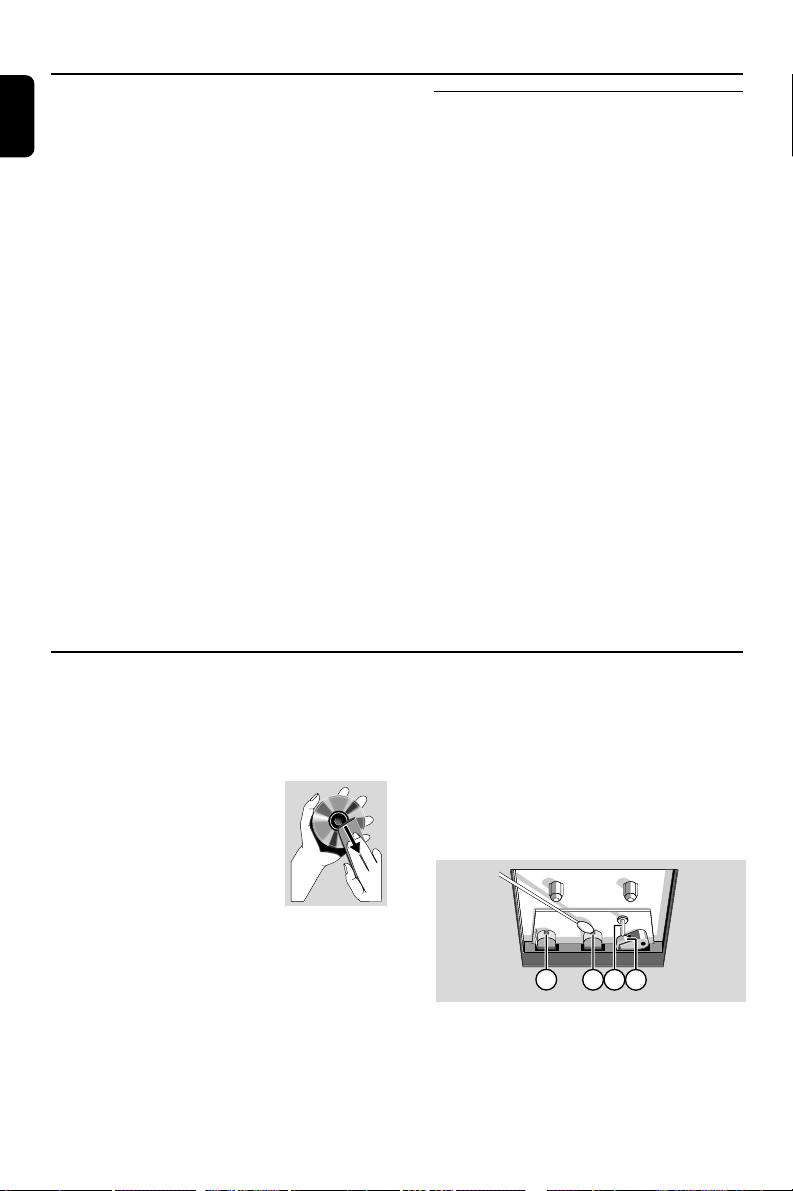
● When a disc becomes dirty,
clean it with a cleaning cloth.
Wipe the disc from the centre
out.
● Do not use solvents such as
benzene, thinner, commercially
available cleaners, or antistatic spray intended
for analogue records.
Cleaning the disc lens
● After prolonged use, dir t or dust may
accumulate at the disc lens. To ensure good
playback quality, clean the disc lens with Philips
CD Lens Cleaner or any commercially available
cleaner. Follow the instructions supplied with
cleaner.
Maintenance
Cleaning the Heads and the Tape Paths
● To ensure good recording and playback quality,
clean the heads A, the capstan(s) B, and
pressure roller(s) C after every 50 hours of
tape operation.
● Use a cotton swab slightly moistened with
cleaning fluid or alcohol.
● You can also clean the heads by playing a
cleaning tape once.
A A B C
Demagnetising the heads
● Use a demagnetising tape available at your
dealer.
To select and record a particular passage
within a CD track:
● Press and hold down on 4 ¢. Release the
control when you recognize the passage you
want.
● To pause CD playback press PLAY2; (on the
remote control 2;).
● Recording starts from this exact point in the
track when you press RECORD●.
6 To pause, press PAUSE;. Press again to resume.
7 To stop recording, press STOP•OPENÇ0.
Recording from the radio
1 Tune to the desired radio station (see Tuning to
radio stations).
2 Press STOP•OPENÇ0 to open the tape
door.
3 Insert a suitable tape into the deck and close the
tape door.
4 Press RECORD● to start recording.
5 To interrupt playback press PAUSE;. To resume,
press this key again.
6 To stop recording, press STOP•OPENÇ0.
PG 001-022_MCM195_37-Eng 2005.5.20, 5:00 PM18
19
English
Clock/Timer
Activating and deactivating
TIMER
● In standby or during playback, press
TIMER once.
➜ Display shows if activated, and disappears if
deactivated.
Activating and deactivating
SLEEP
The sleep timer enables the system to switch off
by itself after a set period of time. The clock time
needs to be set first before the sleep timer can
be used.
● Press SLEEP on the remote
control once or more.
➜ Display shows SLEEP and
one of the sleep time options in
sequence: 60, 45, 30,15, 0, 60...
if you have selected a time.
● To deactivate, press STANDBY ON on the
system or remote control.
➜ SLEEP disappears from the display.
Setting the clock
1 In standby, press CLOCK SET.
➜ The clock digits for the hours flash.
2 Press TUNING 4 ¢ to set the hours.
3 Press CLOCK SET again.
➜ The clock digits for the minutes flash.
4 Press TUNING 4 ¢ to set the minutes.
5 Press CLOCK SET to confirm the time.
Note:
–The backlight for clock display is off in standby.
Setting the timer
● The system can be used as an alarm clock,
whereby the CD or TUNER is switched on at a
set time. The clock time needs to be set first
before the timer can be used.
1 In standby or active mode, press TIMER for
more than 2 seconds.
2 Press TUNING 4 ¢ to select sound
source.
3 Press TIMER to confirm your desired mode.
➜ The clock digits for the hours flash.
4 Press TUNING 4 ¢ to set the hours.
5 Press TIMER again.
➜ The clock digits for the minutes flash.
6 Press TUNING 4 ¢ to set the minutes.
7 Press TIMER to confirm the time.
➜ The timer is now set and activated.
DISPLAY/BAND
SLEEP
TIME
PG 001-022_MCM195_37-Eng 2005.5.20, 5:00 PM19

20
English
Specifications
AMPLIFIER
Output power .......................................... 2 x 5 W RMS
........................................................................... 2 x 4 W FTC
Signal-to-noise ratio .......................... ≥ 65 dBA (IEC)
Frequency response .......................... 63 – 16000 Hz
Impedance loudspeakers ........................................... 4Ω
CD PLAYER
Frequency range .................................. 63 – 16000 Hz
Signal-to-noise ratio ............................................ 65 dBA
TUNER
FM wave range ................................... 87.5 – 108 MHz
AM wave range .................................. 530 – 1700 kHz
Sensitivity at 75 Ω
– FM 26 dB sensitivity .......................................... 20 µV
– AM 26 dB sensitivity ..................................... 5 mV/m
Total harmonic distortion ..................................... ≤ 5%
TAPE DECK
Frequency response
Normal tape (type I) ... 120 – 10000 Hz (8 dB)
Signal-to-noise ratio
Normal tape (type I) .................................... 48 dBA
Wow and flutter ......................................... ≤ 0.4% DIN
SPEAKERS
Bass reflex system
Dimensions (w x h x d) . 142 x 235 x 212 (mm)
.................................................. 5.59 x 9.25 x 8.35 (inch)
GENERAL INFORMATION
AC Power ................................................... 120 V / 60 Hz
Dimensions (w x h x d) ... 148 x 235 x 258(mm)
................................................ 5.83 x 9.25 x 10.16 (inch)
Weight (with/without speakers) ..................................
............................................................... approx. 5.9 / 2.7 kg
............................................. approx. 2.78 / 1.27 pounds
Power consumption
Active .......................................................................... 10 W
Standby .................................................................... < 3 W
Specifications and external appearance are
subject to change without notice.
WARNING
Under no circumstances should you try to repair the system yourself, as this will invalidate the
warranty. Do not open the system as there is a risk of electric shock.
If a fault occurs, first check the points listed below before taking the system for repair. If you
are unable to remedy a problem by following these hints, consult your dealer or Philips for
help.
“NO DISC” is displayed. ✔ Insert a disc.
✔ Check if the disc is inserted upside down.
✔ Wait until the moisture condensation at the lens
has cleared.
✔ Replace or clean the disc, see “Maintenance”.
✔ Use a finalized CD-RW or a correct MP3-CD
format disc.
Problem
Solution
Troubleshooting
PG 001-022_MCM195_37-Eng 2005.5.20, 5:00 PM20

21
English
Radio reception is poor.
Recording or playback cannot be made.
The tape deck door cannot open.
The system does not react when buttons
are pressed.
Sound cannot be heard or is of poor
quality.
The left and right sound outputs are
reversed.
The remote control does not function
properly.
The time is not working.
The Clock/Timer setting is erased.
✔ If the signal is too weak, adjust the antenna or
connect an external antenna for better
reception.
✔ Increase the distance between the Mini HiFi
System and your TV or VCR.
✔ Clean deck parts, see “Maintenance”.
✔ Use only NORMAL (IEC I) tape.
✔ Apply a piece of adhesive tape over the missing
tab space.
✔ Remove and reconnect the AC power plug and
switch on the system again.
✔ Remove and reconnect the AC power plug and
switch on the system again.
✔ Adjust the volume.
✔ Disconnect the headphones.
✔ Check that the speakers are connec ted
correctly.
✔ Check if the stripped speaker wire is clamped.
✔ Make sure the MP3-CD was recorded within
32-256 kbps bit rate with sampling frequencies
at 48 kHz, 44.1 kHz or 32 kHz.
✔ Check the speaker connections and location.
✔ Select the source (CD or TUNER, for example)
before pressing the function button (É,í,ë).
✔ Reduce the distance between the remote
control and the system.
✔ Insert the batteries with their polarities
(+/– signs) aligned as indicated.
✔ Replace the batteries.
✔ Point the remote control directly towards the IR
sensor.
✔ Set the clock correctly.
✔ Press and hold TIMER to switch on the timer.
✔ If recording or tape dubbing is in progress, stop
recording.
✔ Power has been interrupted or the power cord
has been disconnected. Reset the clock/timer.
PG 001-022_MCM195_37-Eng 2005.5.20, 5:00 PM21

22
Philips, P.O. Box 671539, Marietta, GA. 30006-0026
One (1) Year Labor and Parts Repair
PHILIPS LIMITED WARRANTY
PHILIPS CONSUMER ELECTRONICS warrants this
product against defect in material or workmanship, subject to
any conditions set forth as follows:
PROOF OF PURCHASE:
You must have proof of the date of purchase to receive war-
ranted repair on the product.A sales receipt or other docu-
ment showing the product and the date that you purchased the
product as well as the authorized retailer included, is consid-
ered such proof.
COVERAGE:
(If this product is determined to be defective)
LABOR: For a period of one (1) year from the date of purchase,
Philips will repair or replace the product, at its option, at no
charge, or pay the labor charges to any Philips authorized repair
facility. After the period of one (1) year, Philips will no longer be
responsible for charges incurred.
PARTS: For a period of one (1) year from the date of purchase,
Philips will supply, at no charge, new or rebuilt replacement
parts in exchange for defective parts, through a Philips autho-
rized service center.
Note: If Philips is unable to provide service in your area, receipt
of the paid service can be submitted for consideration of adjust-
ment or full reimbursement at Philips discretion.
EXCLUDED FROM WARRANTY COVERAGE
Your warranty does not cover:
• Labor charges for installation or setup of the product, adjust-
ment of customer controls on the product, and installation
or repair of antenna systems outside of the product.
•Product repair and/or part replacement because of improper
installation, connections to improper voltage supply, abuse,
neglect, misuse, accident, unauthorized repair or other cause
not within the control of Philips.
•A product that requires modification or adaptation to enable
it to operate in any country other than the country for
which it was designed, manufactured, approved and/or autho-
rized, or repair of products damaged by these modifications.
• Damage occurring to product during shipping when improp-
erly packaged or cost associated with packaging.
•Product lost in shipment and no signature verification of
receipt can be provided.
•A product used for commercial or institutional purposes
(including but not limited to rental purposes).
•Products sold AS IS or RENEWED.
CARRY-IN / SHIP-IN WARRANTY
For Carry-In warranty repair, take the product to a Philips
authorized service center for repair.When the product has
been repaired, you must pick up the unit at the center.
For Ship-In warranty repair, ship the product to a Philips autho-
rized service center for repair in its original carton and packing
material. If you do not have the original carton or packing mate-
rial, have your product professionally packed for shipping. Ship
product via a traceable carrier.When it is necessary for you to
ship the product to Philips for repair, you will pay the shipping
cost for shipment to Philips. Philips will pay the shipping costs
when returning the product to you.
TO OBTAIN WARRANTY SERVICE IN THE U.S.A.,
PUERTO RICO, OR U.S.VIRGIN ISLANDS…
Contact Philips Customer Care Center at:
1-888-PHILIPS (1-888-744-5477)
TO OBTAIN WARRANTY SERVICE IN CANADA…
1-800-661-6162 (French Speaking)
1-888-PHILIPS (1-888-744-5477) - (English or Spanish
Speaking)
REPAIR OR REPLACEMENT AS PROVIDED UNDER THIS
WARRANTY IS THE EXCLUSIVE REMEDY FOR THE CON-
SUMER. PHILIPS SHALL NOT BE LIABLE FOR ANY INCIDEN-
TAL OR CONSEQUENTIAL DAMAGES FOR BREACH OF
ANY EXPRESS OR IMPLIED WARRANTY ON THIS PROD-
UCT. EXCEPT TO THE EXTENT PROHIBITED BY APPLICABLE
LAW,ANY IMPLIED WARRANTY OF MERCHANTABILITY OR
FITNESS FOR A PARTICULAR PURPOSE ON THIS PRODUCT
IS LIMITED IN DURATION TO THE DURATION OF THIS
WARRANTY.
Some states do not allow the exclusions or limitation of inci-
dental or consequential damages, or allow limitations on how
long an implied warranty lasts, so the above limitations or exclu-
sions may not apply to you. In addition, if you enter into a ser-
vice contract agreement with the PHILIPS partnership within
ninety (90) days of the date of sale, the limitation on how long
an implied warranty lasts does not apply.
This warranty gives you specific legal rights. You may have other rights which vary from state/province to state/province.
(Warranty: 4835 710 27175)
PG 001-022_MCM195_37-Eng 2005.5.20, 5:00 PM22