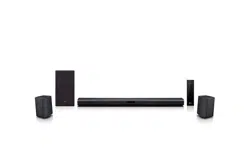
OWNER’S MANUAL
SMART Hi-Fi
AUDIO
MODEL
SH8
www.lg.com
SH8
Wireless Multi-room Sound Bar
To view the instructions of advanced features, visit
http://www.lg.com and then download Owner’s Manual.
Some of the content in this manual may differ from your unit.

1 Getting Started
Getting Started 3
Getting Started
1
Safety Information
CAUTION
RISK OF ELECTRIC SHOCK
DO NOT OPEN
CAUTION: TO REDUCE THE RISK OF ELECTRIC
SHOCK DO NOT REMOVE COVER (OR BACK)
NO USER-SERVICEABLE PARTS INSIDE REFER
SERVICING TO QUALIFIED SERVICE PERSONNEL.
This lightning ash with arrowhead
symbol within an equilateral triangle
is intended to alert the user to the
presence of uninsulated dangerous
voltage within the product’s
enclosure that may be of sufcient magnitude to
constitute a risk of electric shock to persons.
The exclamation point within an
equilateral triangle is intended
to alert the user to the presence
of important operating and
maintenance (servicing) instructions
in the literature accompanying the product.
WARNING: TO PREVENT FIRE OR ELECTRIC SHOCK
HAZARD, DO NOT EXPOSE THIS PRODUCT TO RAIN
OR MOISTURE.
WARNING: Do not install this equipment in a
conned space such as a book case or similar unit.
CAUTION: Do not use high voltage products around
this product. (ex. Electrical swatter) This product may
malfunction due to electrical shock.
CAUTION: The apparatus should not be exposed to
water (dripping or splashing) and no objects lled
with liquids, such as vases, should be placed on the
apparatus.
CAUTION: Do not block any ventilation openings.
Install in accordance with the manufacturer’s
instructions.
Slots and openings in the cabinet are provided
for ventilation and to ensure reliable operation of
the product and to protect it from over heating.
The openings shall be never be blocked by placing
the product on a bed, sofa, rug or other similar
surface. This product shall not be placed in a built-
in installation such as a bookcase or rack unless
proper ventilation is provided or the manufacturer’s
instruction has been adhered to.
CAUTION: No naked ame sources, such as lighted
candles, should be placed on the apparatus.
NOTICE: For safety marking information including
product identication and supply ratings, please refer
to the main label on the bottom or the other surface
of the product.
CAUTION
Only use the AC adapter supplied with this device.
Do not use a power supply from another device or
another manufacturer. Using any other power cable
or power supply may cause damage to the device and
void your warranty.
CAUTION concerning the Power Cord
Most appliances recommend they be placed upon a
dedicated circuit;
That is, a single outlet circuit which powers only
that appliance and has no additional outlets or
branch circuits. Check the specication page of this
owner’s manual to be certain. Do not overload wall
outlets. Overloaded wall outlets, loose or damaged
wall outlets, extension cords, frayed power cords, or
damaged or cracked wire insulation are dangerous.
Any of these conditions could result in electric
shock or re. Periodically examine the cord of your
appliance, and if its appearance indicates damage
or deterioration, unplug it, discontinue use of the
appliance, and have the cord replaced with an exact
replacement part by an authorized service center.
Protect the power cord from physical or mechanical
abuse, such as being twisted, kinked, pinched, closed
in a door, or walked upon. Pay particular attention to
plugs, wall outlets, and the point where the cord exits
the appliance. The Power Plug is the disconnecting
device. In case of an emergency, the Power Plug must
remain readily accessible.
Getting Started4
Getting Started
1
This device is equipped with a portable battery or
accumulator.
Safety way to remove the battery from the
equipment: Remove the old battery or battery pack,
follow the steps in reverse order than the assembly.
To prevent contamination of the environment and
bring on possible threat to human and animal health,
the old battery or the battery put it in the appropriate
container at designated collection points. Do not
dispose of batteries or battery together with other
waste. It is recommended that you use local, free
reimbursement systems batteries and accumulators.
The battery should not be exposed to excessive heat
such as sunshine, re or the like.
Disposal of your old appliance
1. This crossed-out wheeled bin
symbol indicates that waste
electrical and electronic products
(WEEE) should be disposed of
separately from the municipal
waste stream.
2. Old electrical products can contain hazardous
substances so correct disposal of your old
appliance will help prevent potential negative
consequences for the environment and human
health. Your old appliance may contain reusable
parts that could be used to repair other
products, and other valuable materials that can
be recycled to conserve limited resources.
3. You can take your appliance either to the shop
where you purchased the product, or contact
your local government waste office for details
of your nearest authorised WEEE collection
point. For the most up to date information for
your country please see
www.lg.com/global/recycling
Disposal of waste batteries/accumulators
Pb
1. This symbol may be combined with chemical
symbols for mercury (Hg), cadmium (Cd) or
lead (Pb) if the battery contains more than
0.0005% of mercury, 0.002% of cadmium or
0.004% of lead.
2. All batteries/accumulators should be disposed
separately from the municipal waste stream
via designated collection facilities appointed by
the government or the local authorities.
3. The correct disposal of your old batteries/
accumulators will help to prevent potential
negative consequences for the environment,
animal and human health.
4. For more detailed information about disposal
of your old batteries/ accumulators, please
contact your city office, waste disposal service
or the shop where you purchased the product.
(http://www.lg.com/global/sustainability/
environment/take-back-recycling/global-
network-europe)

Getting Started 5
Getting Started
1
Declaration of Conformity
Hereby, LG Electronics European Shared Service
Center B.V., declares that this Wireless Multi-
room Sound Bar is compliant with the essential
requirements and other relevant provisions of
Directive 1999/5/EC. The complete Declaration of
Conformity may be requested through the following
postal address:
LG Electronics European Shared Service Center B.V.
Krijgsman 1
1186 DM Amstelveen
The Netherlands
or can be requested at our dedicated DoC website:
http://www.lg.com/global/support/cedoc/cedoc#
This device is a 2.4 GHz and 5 GHz wideband
transmission system, intended for use in all EU
member states and EFTA countries, with indoor use
restriction for 5 GHz band. (5150 – 5250 MHz)
This device should be installed and operated with
minimum distance 20 cm between the device
and your body. And this phrase is for the general
statement for consideration of user environment.
POWER: This unit operates on a mains supply of
100 - 240 V ~ 50 / 60 Hz.
Wiring: This unit is supplied with a BS 1363
approved main plug. When replacing the fuse, always
use of the same rating approved to BS 1362. Never
use this plug with the fuse cover omitted. To obtain a
replacement fuse cover
contact your dealer. If the type of plug supplied is not
suitable for the mains sockets in your home, then the
plug should be removed and a suitable type tted.
Please refer to the wiring instructions below:
Warning: A mains plug removed from the mains lead
of this unit must be destroyed. A mains plug with
bared wires is hazardous if inserted in a mains socket.
Do not connect either wire to the earth pin, marked
with the letter E or with the earth symbol
6
or
coloured green or green and yellow. If any other plug
is tted, use same rating of fuse in the plug.
Important: The wires in this mains lead are coloured
in accordance with the following codes:
- BLUE: NEUTRAL, BROWN: LIVE - As the colours
of the wires in the mains lead of this unit may not
correspond with the coloured marking identifying
the terminals in your plug, proceed as follows: The
wire which is coloured blue must be connected to
the terminal which is marked with the letter N or
coloured black. The wire which is coloured brown
must be connected to the terminal which is marked
with the letter L or coloured red.

Table of Contents6
Table of Contents
1 Getting Started
3 Safety Information
8 Main Features
8 Introduction
9 Front panel
9 Rear panel
10 Remote control
11 Installing the sound bar
11 Mounting the main unit on a wall
2 Connecting
13 Organizing cables
13 Connecting the AC Adapter
13 Wireless subwoofer connection
14 Connecting to your TV
14 – Using an OPTICAL cable
15 – LG Sound Sync
16 – Using an HDMI cable
16 – Enjoy rich sound broadcast of the channel
with the sound bar
17 – What is SIMPLINK?
17 – ARC (Audio Return Channel) function
18 – Additional information for HDMI
18 Optional equipment connection
18 – HDMI connection
19 – PORTABLE IN connection
19 – MIC connection
20 – OPTICAL IN connection
20 Initial Multi-Room Setup
20 – Wired connection (MUSICflow Mesh
Network Connection)
20 – Wireless connection (Standard Wireless
Connection)
21 Installing “Music Flow Player” App
21 – Starting with Music Flow Player app
22 – Simple Connection (EZ Setup)
23 Using Media Server for PC
23 – Music Flow PC Software for windows
24 – Nero MediaHome 4 Essentials for Mac OS
25 Connecting the speaker to your Home
Network
26 – Connecting the speaker to your network
with a LAN cable
28 – Connecting the speaker to your Network
via the Wi-Fi Setup Method (Android)
30 – Connecting the speaker to your Network
via the Wi-Fi Setup Method (iOS)
34 Connecting the speakers to your Home
Network (Additional)
34 – Connecting the additional speaker to your
network with a LAN cable
36 – Connecting the additional speaker to your
network via the Wi-Fi Setup Method
38 Using the Bridge
38 – Use as a root device (wired to the home
router)
39 – Use as a wireless extender
3 Operating
41 Enjoying the Music with Music Flow Player app
41 – Overview of Home menu
42 – Overview of the side menu
43 – Playing a song
44 – Overview of Playback
46 Different ways of listening to music
46 – Group Playback
47 – Surround Sound Mode (Home Cinema
Mode)
49 – Seamless playback
50 Using LG HomeChat
50 – About LG HomeChat
50 – How to start LG HomeChat
51 – Usage Examples
52 Setting the Speaker with Music Flow Player
app
52 – Overview of setting menu
53 – [General] Menu
53 – [Speakers] Menu
54 – [Alarms/Sleep Timer] Menu
55 – [Music Library] Menu
55 – [Account management] Menu
55 – [Time Zone] Menu
55 – [Advanced Settings] Menu
57 – [Google Cast] Menu
57 – [Version Info.] Menu
58 – [Open source licenses] Menu
58 Using a Bluetooth Wireless Technology
Table of Contents 7
1
2
3
4
5
58 – About Bluetooth
58 – Bluetooth profiles
58 – Listening to Music of a Bluetooth Device
60 Other operations
60 – DRC (Dynamic Range Control)
60 – AV Sync
60 – Using your TV remote control
60 – Turn off the sound temporarily
60 – Sleep timer setting
61 – Auto power down
61 – AUTO POWER On/Off
62 – Auto Display Off / Dimmer
62 Sound adjustment
62 – Adjust volume level automatically
62 – Adjust the Treble/Bass/Sub-woofer
62 – Night mode
63 Standby mode
63 – Standby mode
63 – Network standby mode
63 – Bluetooth standby mode
63 Reset the Speaker
63 – Resetting the speaker
4 Troubleshooting
64 Troubleshooting
64 – General
65 – Network
66 – Application and PC Software
66 – NOTES to use wireless
5 Appendix
67 File requirement
67 Trademarks and licenses
68 Specifications
70 Handling the Speaker
70 Important Information Relating to Network
Services
71 TERMS OF USE
Some of the content in this manual may differ from Music Flow Player app depending on the application’s
version.
Getting Started8
Getting Started
1
Main Features
Made for iPod/iPhone/iPad or Android
device
Enjoys music from iPod/iPhone/iPad or Android
device with simple connection.
LG Sound Sync
Controls volume level of this unit by the remote
control of your LG TV that is compatible with LG
Sound Sync.
Portable In
Listens to music from your portable device.
Music Flow Player application
Listens to music stored on your smart device.
You can control this speaker with your iPod touch/
iPhone/iPad or Android device via Music Flow Player
app. This speaker and your smart device must be
connected to the same network. Visit “iTunes store”
or “Google Play Store” or use the QR code shown
below to search for “Music Flow Player” app. For
detailed information, refer to page 21.
(Apple iOS)
(Android OS)
y
Depending on the application’s version and the
settings of smart device, Music Flow Player app
may not be operated normally.
y
Some smart devices may not be compatible with
this speaker.
Introduction
Symbol used in this manual
,
Note
Indicates special notes and operating features.
>
Caution
Indicates cautions for preventing possible damages
from abuse.
Symbols
~
Refers to alternating current(AC).
0
Refers to direct current(DC).
Refers to class II equipment.
1
Refers to stand-by.
!
Refers to “ON” (power).
Refers to dangerous voltage.
Getting Started 9
Getting Started
1
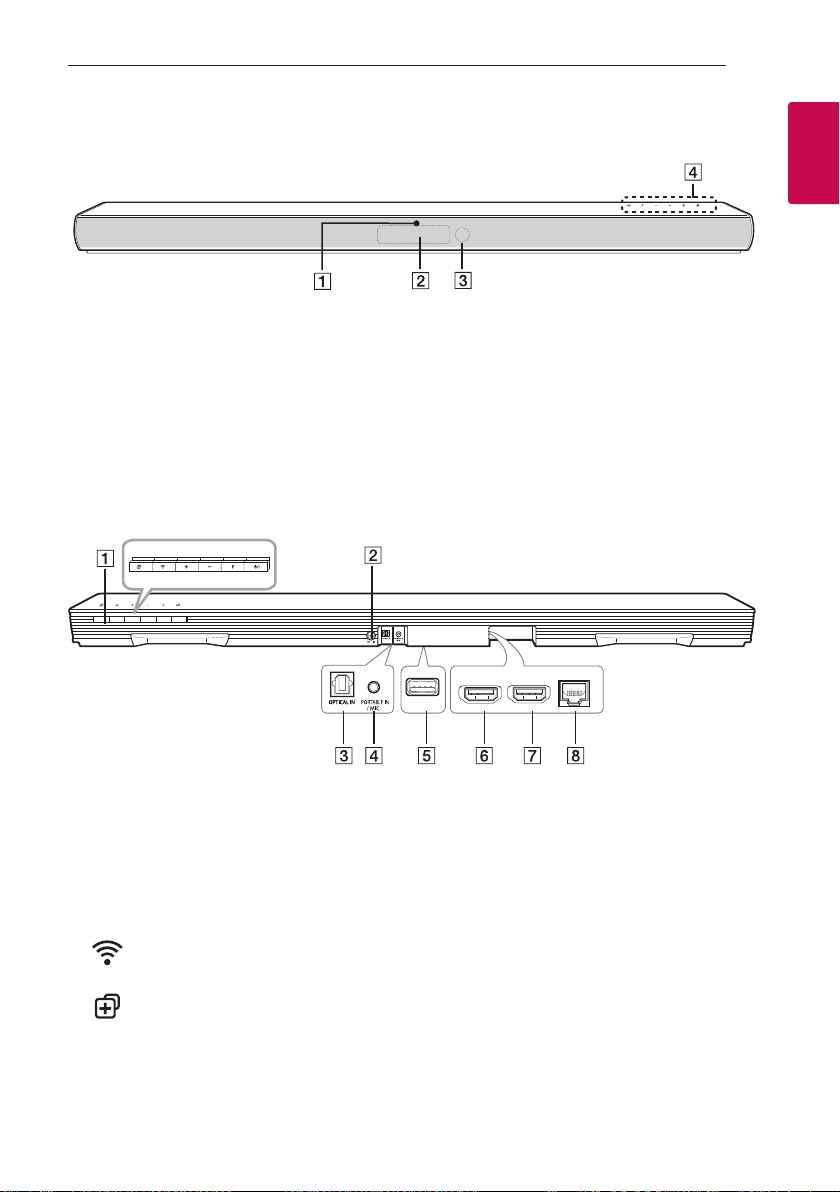
A
LED indicator
Shows connection status.
B
Display window
C
Remote sensor
D
The buttons are located on the rear.
Front panel
A
1/!
(Standby/On)
F (Function): Selects the function and input
source. (OPTICAL / HDMI IN / WI-FI / BT READY /
LG TV / PORTABLE / MIC)
-
/
+ (Volume)
(Wi-Fi): Connects initial MUSICflow
product to your network wirelessly.
(Add): Adds the additional MUSICflow
product to your network.
(In case that one or more MUSICflow product is
connected.)
B
DC IN (AC adapter input)
C
OPTICAL IN connectors
D
PORTABLE IN connector
/ MIC : Connect your microphone to the
microphone jack.
E
USB (Service only) : S/W download connector
F
HDMI IN
G
HDMI OUT (TV ARC) : Connect to HDMI IN
(ARC) on TV.
H
LAN port
Rear panel
HDMI OUT
(TV ARC)
HDMI IN
LAN
Getting Started10
Getting Started
1
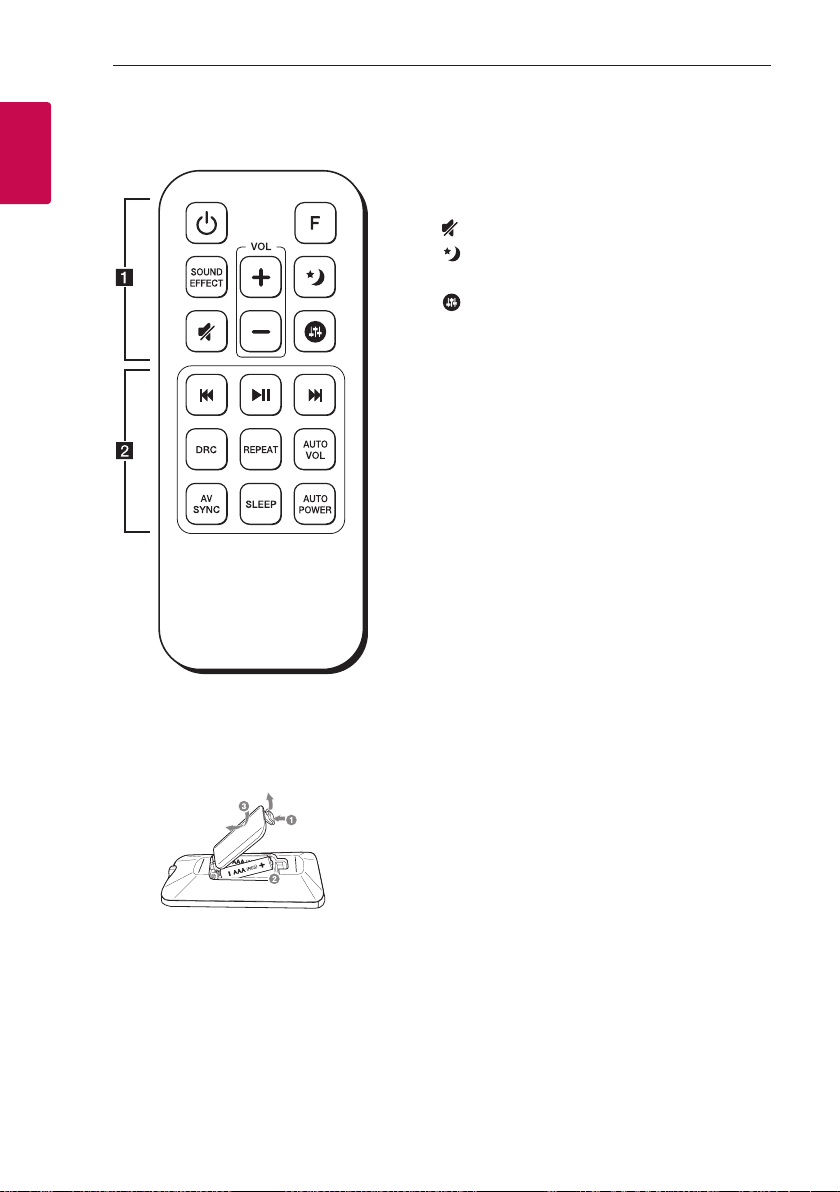
Remote control
Replacement of Battery
Remove the battery cover on the rear of the remote
control, and insert the battery with
4
and
5
matched correctly.
• • • • • • • • • • • • • •
a
• • • • • • • • • • • • •
1
(Power) : Switches the unit ON or OFF. / Switches
to the standby mode.
F : Selects the function and the input source.
SOUND EFFECT : Selects a sound effect mode.
(Mute) : Mutes the sound.
: Set Night mode to On to reduce the sound
intensity and improve neness and softness.
: Adjusts sound level of Treble, Bass and Sub-
woofer.
VOL
o
/
p
: Adjusts speaker volume.
• • • • • • • • • • • • • •
b
• • • • • • • • • • • • •
C/V
(Skip) :
- Skips Fast backward or Forward.
dM
(Play/Pause) : Starts playback. / Pauses playback.
DRC : Turns on or off DRC function.
REPEAT : Listen to your music repeatedly.
-
Press and hold REPEAT on the remote control
for about 3 seconds, you can see the connected
bluetooth device name on the bluetooth function.
AUTO VOL : Turns on or off the AUTO VOLUME
mode.
AV SYNC
- Synchronizes the audio and video.
- Controls TV remote. (Page 60)
SLEEP : Sets the system to turn off automatically at
a specied time.
AUTO POWER :
- Turns on or off AUTO POWER function.
(Page 61.)
- Turns on or off Auto Display. (Page 62)
Getting Started 11
Getting Started
1
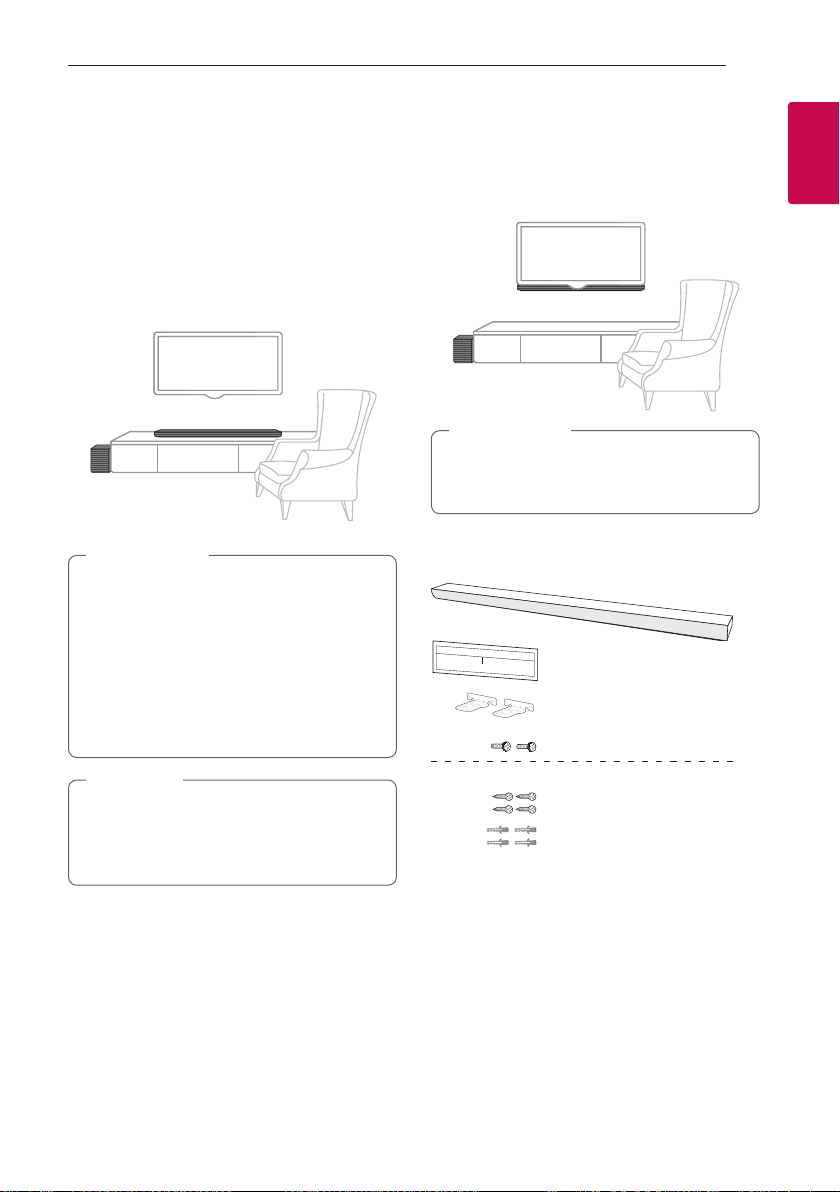
Installing the sound bar
You can hear the sound by connecting the unit to the
other device : TV, Blu-ray disc player, DVD player, etc.
Place the unit in front of the TV and connect it to the
device you want. (Refer to pp. 14 - 21)
You can place the wireless subwoofer anywhere in
your room. But it is better to place the subwoofer
near the main unit. Turn it slightly toward the center
of the room to reduce the wall reections.
y
For best performance of wireless connection
such as Bluetooth or wireless subwoofer,
do not install the unit on Metallic furniture
because wireless connection communicates
through a module positioned on the bottom
of the unit.
y
Be careful not to make scratches on the
surface of the Unit /Sub-Woofer when
installing or moving them.
>
Caution
For the convenient button usage, it is
recommended to take some distance between
the soundbar and your TV when you install the
sound bar.
,
Note
Mounting the main unit
on a wall
You can mount the main unit on a wall.
Because it is difcult to make a connection after
installing this unit, you should connect the cables
before installation.
>
Caution
Preparation materials
Unit
Wall bracket install guide
Screws
Screws (A)
Wall plug
Wall bracket
(Not supplied)
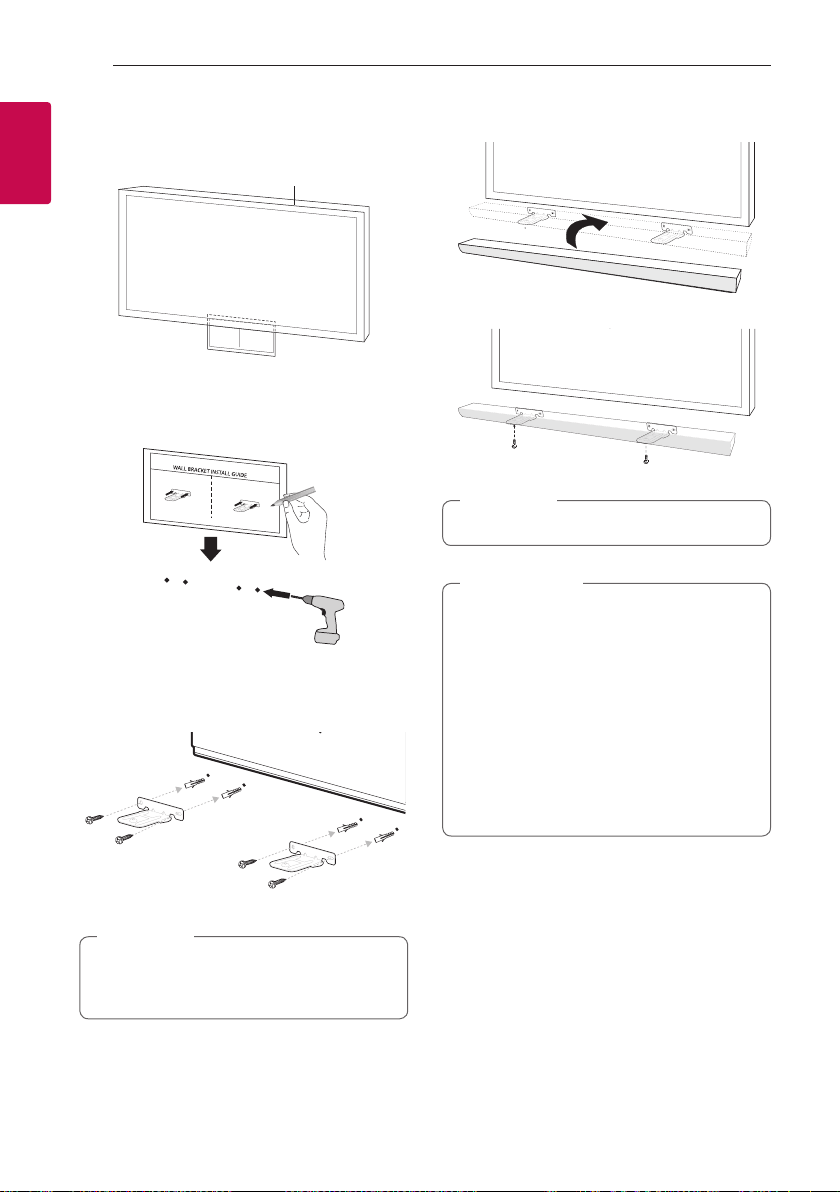
Getting Started12
Getting Started
1
1. Match the TV’s BOTTOM EDGE of Wall bracket
install guide with the bottom of TV and attach to
the position.
TV
2. When you mount it on a wall (concrete), use the
wall plugs. You should drill some holes. A guide
sheet (Wall bracket install guide) is supplied to
drill. Use the sheet to check the point to drill.
3. Remove the Wall bracket install guide.
4. Fix the brackets with screws (A) as shown in the
illustration below.
Screws (A) and Wall Plugs are not supplied for
mounting the unit. We recommend the Hilti
(HUD-1 6 x 30) for the mounting.
,
Note
5. Put the unit on the brackets to match screw
holes on the bottom of the unit.
6. Fix the unit with the screws firmly.
To detach the unit, perform it in reverse order.
,
Note
y
Do not install this unit upside down. It can
damage the parts of this unit or be the cause
of personal injury.
y
Do not hang onto the installed unit and avoid
any impact to the unit.
y
Secure the unit rmly to the wall so that it
does not fall off. If the unit falls off, it may
result in an injury or damage to the product.
y
When the unit is installed on a wall, please
make sure that a child does not pull any of
connecting cables, as it may cause it to fall.
>
Caution
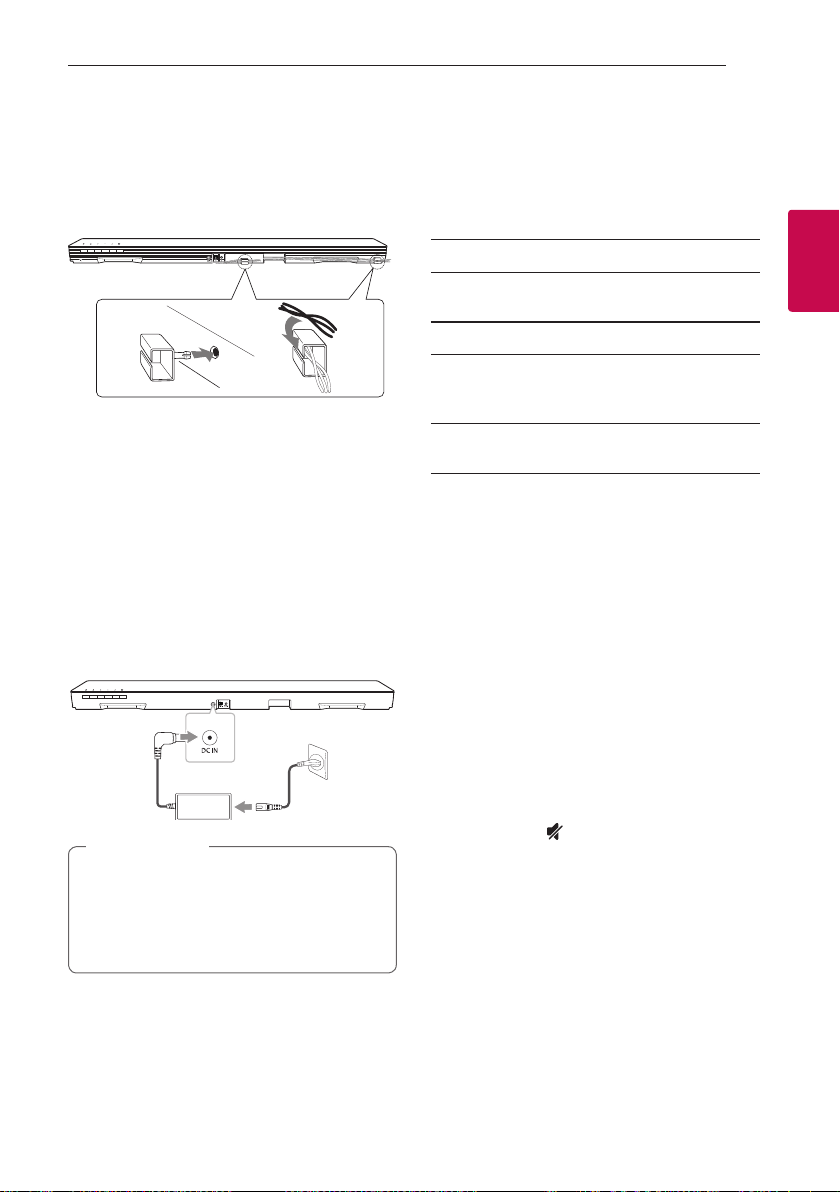
2 Connecting
Connecting 13
Connecting
2
Organizing cables
Organize the cable with cable holder.
1. Attach and fix the cable holder as shown below.
2. Insert cables to the cable holder.
Connecting the AC
Adapter
Connect the speaker to the power supply with the
supplied AC adapter.
1. Connect the supplied AC power cord to the AC
adapter.
2. Connect the AC adapter cable to DC IN adapter
input.
3. Plug the AC power cord into an AC outlet.
Only use the AC adapter supplied with this
device. Do not use a power supply from another
device or manufacturer. Using any other power
cable or power supply may cause damage to the
device and void your warranty.
>
Caution
Wireless subwoofer
connection
LED indicator of wireless subwoofer
LED Color Status
Green
(Blink)
The connection is trying.
Green The connection is completed.
Red The wireless subwoofer is in
standby mode or the connection
is failed.
Off (No
display)
The power cord of wireless
subwoofer is disconnected.
Setting up the wireless subwoofer for
the first time
1. Connect the power cord of the wireless
subwoofer to the outlet.
2. Turn on the main unit : The main unit and wireless
subwoofer will be automatically connected.
Manually pairing wireless subwoofer
When your connection is not completed, you can
see the red LED or the blinking of green LED on the
wireless subwoofer and the subwoofer does not
make sound. To solve the problem, follow the below
steps.
1. Adjust volume level of the main unit to minimum.
- ”VOL MIN” appears on the display window.
2. Press and hold (Mute) on the remote control
for about 3 seconds.
- “SUB-WF RESET” appears on the display
window briey.

Connecting14
Connecting
2
3. If the LED of the wireless subwoofer already
blinks in green continually, you can skip this step.
Press and hold PAIRING on the back of the
wireless subwoofer for more than 5 seconds.
Red Green
- The LED of the wireless subwoofer lights up
alternately in red and green.
4. Disconnect the power cord of the main unit and
the wireless subwoofer.
5. Connect them again after the LED of the main
unit and the wireless subwoofer is fully turned
off.
The main unit and the wireless subwoofer will be
paired automatically when you turn on the main
unit.
- When the connection is completed, you can see
the green LED on the subwoofer.
y
It takes a few seconds (and may take longer)
for the main unit and the subwoofer to
communicate with each other and make
sounds.
y
The closer the main unit and the subwoofer,
the better sound quality. It is recommended
to install the main unit and the subwoofer as
close as possible and avoid the cases below.
- There is a obstacle between the main unit
and the subwoofer.
- There is a device using same frequency
with this wireless connection such as
a medical equipment, a microwave or a
wireless LAN device.
,
Note
Connecting to your TV
Please connect with this unit and TV using the optical
digital cable or HDMI cable considering the state of
the TV.
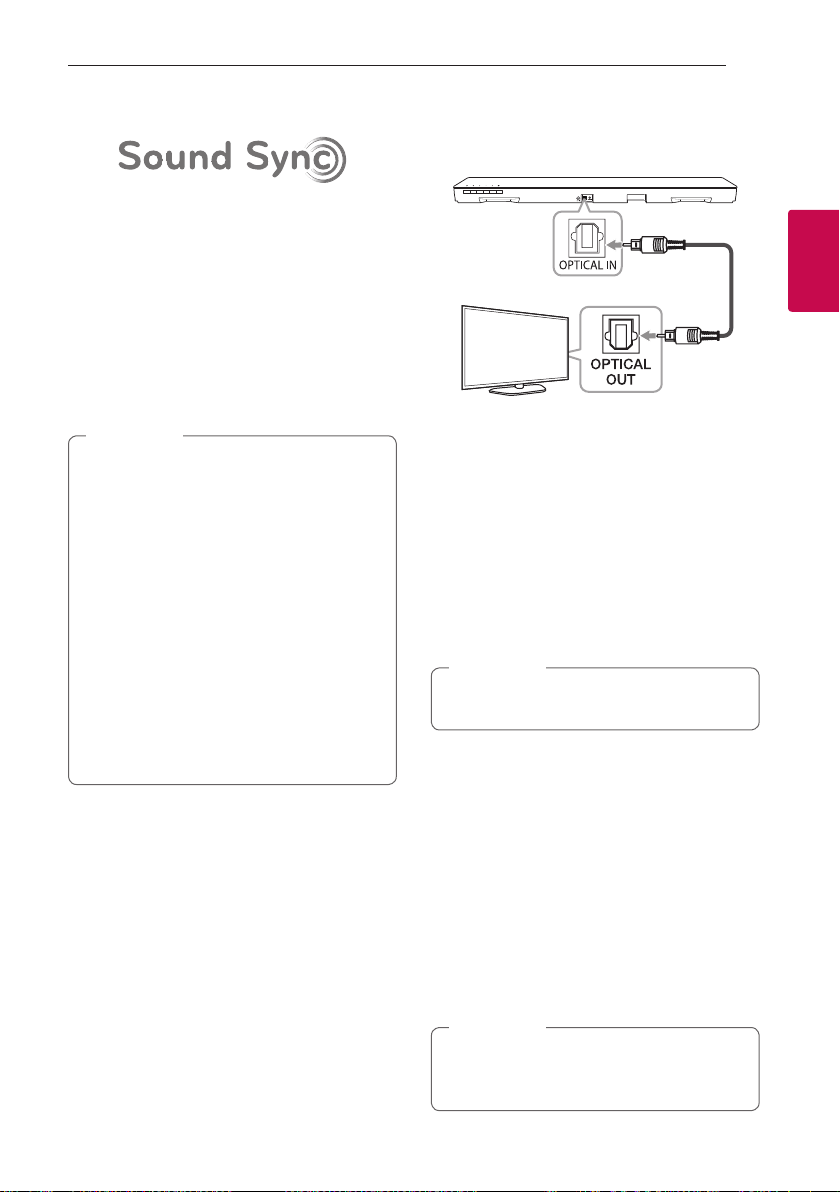
Using an OPTICAL cable
1. Connect the OPTICAL IN jack on the back of the
unit to OPTICAL OUT jack on the TV using an
OPTICAL cable.
Optical cable
2. Set the input source to OPTICAL. Press repeatedly
F on the remote control or F on the unit until the
function is selected.
y
You can enjoy the TV audio through the
speakers of this unit. In the case of some TV
models, you must select the external speaker
option from the TV menu. (For details,
reference your TV user manual.)
y
Set up the sound output of TV to listen to
the sound through this unit :
TV setting menu
[
[Sound]
[
[TV Sound
output]
[
[External speaker (Optical)]
y
Details of TV setting menu vary depending
on the manufacturers or models of your TV.
,
Note
Connecting 15
Connecting
2
LG Sound Sync
You can control some functions of this unit by
your TV’s remote control with LG Sound Sync. It is
compatible with the LG TV that is supported LG
Sound Sync. Make sure of the LG Sound Sync logo on
your TV.
Controllable function by LG TV’s remote control :
Volume up/down, mute
Refer to the TV’s instruction manual for the details
of LG Sound Sync.
Make one of the following connections, depending on
the capabilities of your equipment.
y
You can also use the remote control of this
unit while using LG Sound Sync. If you use TV's
remote control again, the unit synchronizes
with the TV.
y
When the connection fails, make sure of the
condition of the TV and power.
y
Make sure of the condition of this unit and
the connection in the cases below when using
LG Sound Sync.
- Turn off the unit.
- Changing the function to the others.
- Disconnecting the optical cable.
y
The amount of time to turn off this unit is
different depending on your TV when you set
AUTO POWER function to ON.
,
Note
With wired connection
1. Connect your LG TV to the unit by using an
optical cable.
Optical cable
2. Set up the sound output of TV to listen to the
sound through this unit :
TV setting menu
[
[Sound]
[
[TV Sound
output]
[
[LG Sound Sync (Optical)]
3. Turn on the unit by pressing
1
(Power) on the
remote control.
4. Select OPTICAL function by using F on the
remote control or F on the unit until the function
is selected.
You can see “LG OPT” on the display window if
connecting normally between this unit and your
TV.
Details of TV setting menu vary depending on
the manufacturers or models of your TV.
,
Note
With wireless connection
1. Turn on the unit by pressing
1
(Power) on the
remote control.
2. Select LG TV function by using F on the remote
control or F on the unit until the function is
selected.
3. Set up LG Sound Sync (Wireless) on the TV. Refer
to the TV’s instruction manual.
“PAIRED” appears on the display window for
about 3 seconds and then you can see “LG TV”
on the display window if connecting normally
between this unit and your TV.
If you turned off the unit directly by pressing
1
(Power), LG Sound Sync (Wireless) will be
disconnected.
,
Note
Connecting16
Connecting
2
Using an HDMI cable
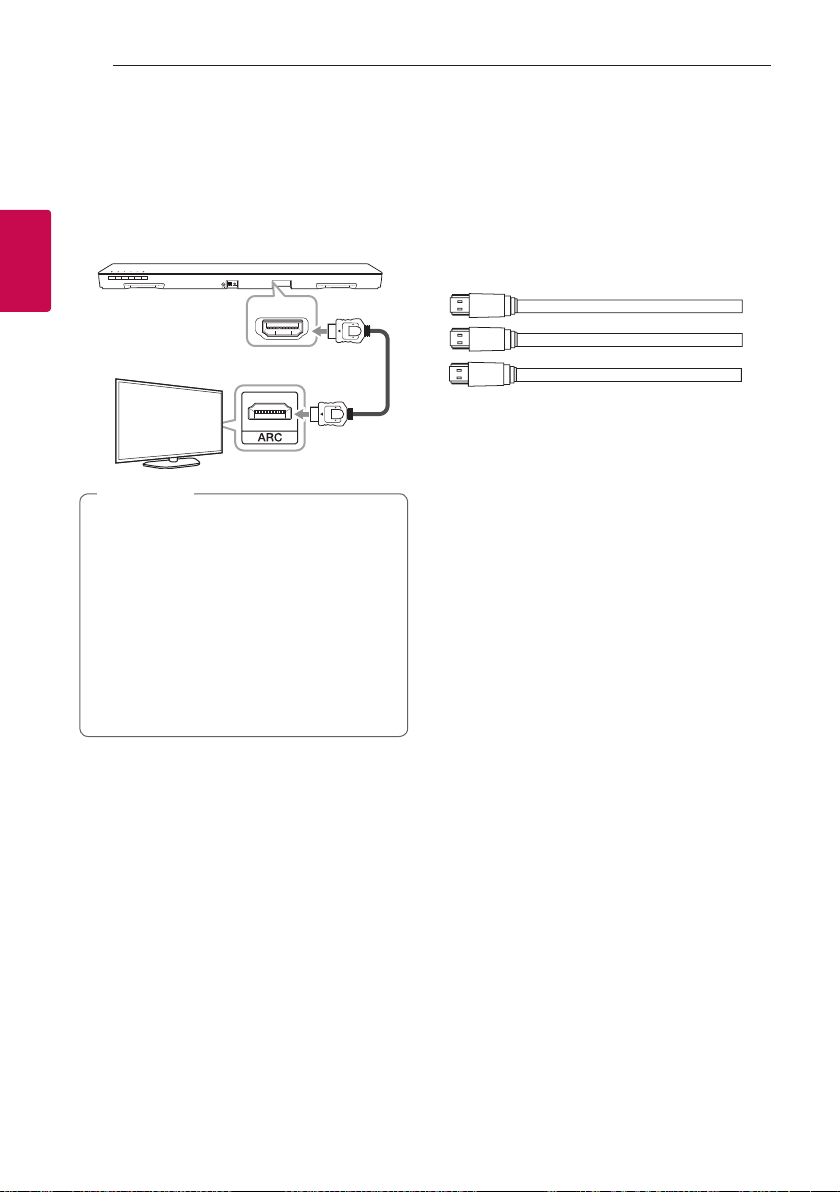
If you connect this unit to a TV that supports HDMI
CEC and ARC (Audio Return Channel), you can
enjoy the TV audio through the speakers of this unit
without connecting the optical cable.
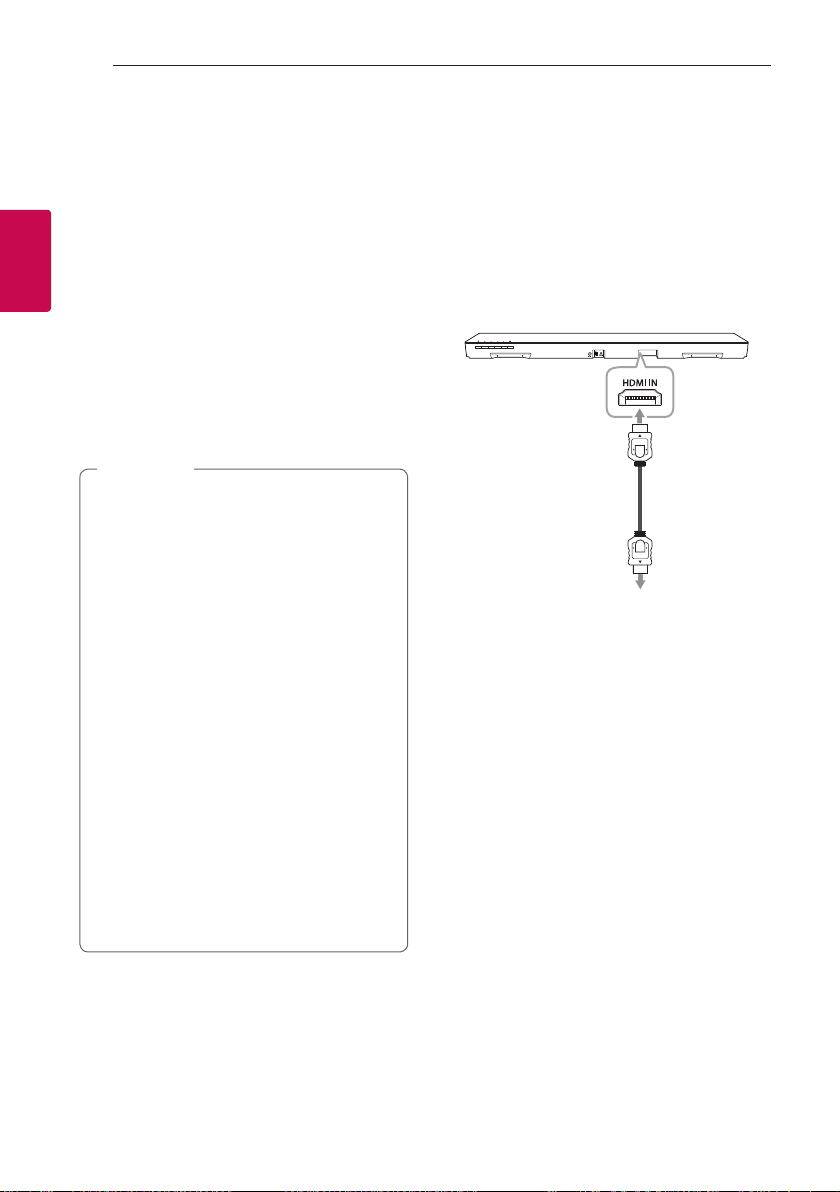
Connect the HDMI OUT (TV ARC) jack on the back of
the unit to ARC jack on the TV using an HDMI cable.
HDMI OUT
(TV ARC)
HDMI cable
y
HDMI CEC (Consumer Electronics Control):
Using a single remote control, you have the
ability to operate CEC compatible devices (TV,
Sound Bar, Blue-ray player, etc.)
y
You can also enjoy extra functions such as
Bluetooth with F on remote control or F on
this unit. When you go back to live TV channel
after using the extra functions (Bluetooth)
of this audio system, you should choose your
preferred speaker on TV to enjoy the sound
from this audio system again.
,
Note
HDMI cable Checklist
Some HDMI cables do not support the ARC function,
this can result in no sound output.
When connecting this unit to the TV, if there is no
sound, there might be a problem with the HDMI
cable. Therefore connect this unit to the TV and
check whether the Type A, High speed HDMI™ Cable
with Ethernet.
STANDARD HDMI CABLE WITH ETHERNET
HIGH SPEED HDMI CABLE
HIGH SPEED HDMI CABLE WITH ETHERNET
(X)
(X)
(O)
Enjoy rich sound broadcast of
the channel with the sound bar
Connection through HDMI Cable*
Your television must support the newest HDMI
features (HDMI CEC
1)
/ ARC (Audio Return Channel))
to fully enjoy the Live broadcasting channel with
audio system through an HDMI cable. Unless your
TV supports these HDMI features, the audio system
should be connected through an OPTICAL cable.
1) HDMI CEC (High-Denition Multimedia Interface
Consumer Electronics Control)
Consumer Electronics Control (CEC) is an HDMI
feature designed to allow the user to command and
control the CEC-enabled devices, that are connected
through HDMI by using only one of their remote
controls.
* Trade names for CEC are SimpLink (LG) , Anynet+
(Samsung), BRAVIA Sync (Sony), EasyLink (Philips),
etc.
Connecting 17
Connecting
2
What is SIMPLINK?
Some functions of this unit are controlled by the
TV’s remote control when this unit and LG TV’s with
SIMPLINK are connected through HDMI connection.
Controllable functions by LG TV’s remote control :
Power on/off, volume up/down, etc.
Refer to the TV owner’s manual for the details of
SIMPLINK function.
LG TV’s with SIMPLINK function has the logo as
shown above.
y
Depending on the state of the unit, some
SIMPLINK operation may differ from your
purpose or not work.
y
Depending on a TV or a player which is
connected with this unit, SIMPLINK operation
may differ from your purpose.
,
Note
ARC (Audio Return Channel)
function
The ARC function enables an HDMI capable TV to
send the audio stream to HDMI OUT of the unit.
To use this function :
- Your TV must support the HDMI-CEC and ARC
function and the HDMI-CEC and ARC must be set
to On.
- The setting method of HDMI-CEC and ARC may
differ depending on the TV. For details about ARC
function, refer to your TV manual.
- You must use the HDMI cable (Type A, High Speed
HDMI™ cable with Ethernet).
- You must connect the HDMI OUT on the unit with
HDMI IN of the TV that supports ARC function
using an HDMI cable.
- You can connect only one Sound bar to TV
compatible with ARC.
y
ARC function is automatically selected when
ARC signal comes in from TV, no matter what
kind of the function you are using.
y
You can enjoy the TV audio through the
speakers of this unit. In the case of some TV
models, you must select the external speaker
option from the TV menu. (For details,
reference your TV user manual.)
y
Set up the sound output of TV to listen to
the sound through this unit :
TV setting menu
[
[Sound]
[
[TV Sound
output]
[
[External speaker (HDMI ARC)]
y
Details of TV setting menu vary depending on
the manufacturers or models of your TV.
,
Note
Connecting18
Connecting
2
Additional information for HDMI
y
When you connect an HDMI or DVI compatible
device make sure of the following:
- Try switching off the HDMI/DVI device and this
player. Next, switch on the HDMI/DVI device and
leave it for around 30 seconds, then switch on
this player.
- The connected device’s video input is set
correctly for this unit.
- The connected device is compatible with
720 x 576p, 1280 x 720p, 1920 x 1080i or
1920 x 1080p video input.
y
Not all HDCP-compatible HDMI or DVI devices will
work with this player.
- The picture will not be displayed properly with
non-HDCP device.
y
If a connected HDMI device does not accept
the audio output of the player, the HDMI
device’s audio sound may be distorted or may
not output.
y
Changing the resolution when the connection
has already been established may result in
malfunctions. To solve the problem, turn off
the player and then turn it on again.
y
When the HDMI connection with HDCP is not
veried, TV screen is changed to black screen.
In this case, check the HDMI connection, or
disconnect the HDMI cable.
y
If there are noises or lines on the screen,
please check the HDMI cable (length is
generally limited to 4.5 m(15 ft).
y
You cannot change the video resolution in the
HDMI IN mode. Change the video resolution
of the connected component.
y
If the video output signal is abnormal when
your personal computer is connected to HDMI
IN jack, change the resolution of your personal
computer to 576p, 720p, 1080i or 1080p.
,
Note
Optional equipment
connection
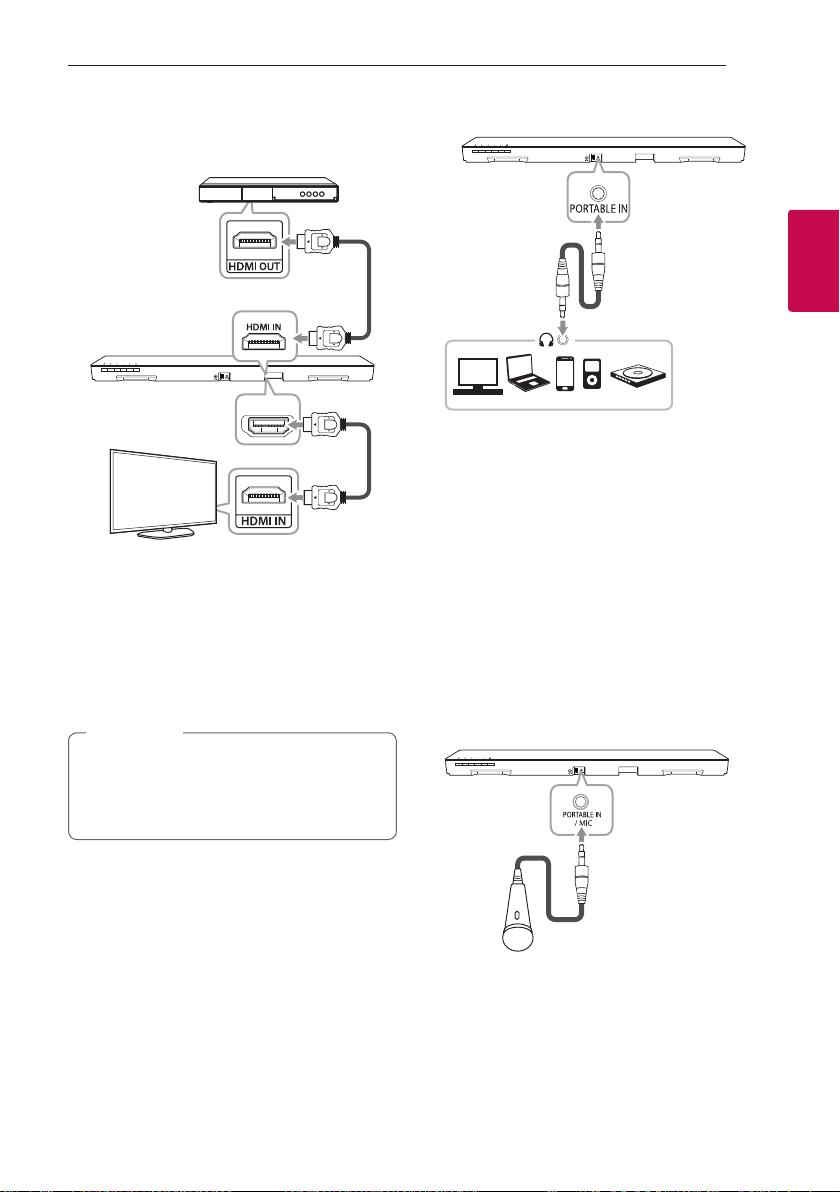
HDMI connection
For enjoying sound only
You can enjoy the sound from the external device you
connect.
To the Blu-ray disc player,
DVD player, etc.
1. Connect HDMI IN jack on the back of the unit to
HDMI OUT jack on the audio device such as Blu-
ray disc player, DVD player, etc.
2. Set the input source to HDMI IN. Press repeatedly
F on the remote control or F on the unit until the
function is selected.
Connecting 19
Connecting
2
For enjoying both sound and picture
You can enjoy both sound and picture from the
external device you connect.
HDMI OUT
(TV ARC)
1. Connect HDMI IN jack on the back of the unit to
HDMI OUT jack on the external device such as
Blu-ray disc player, DVD player, etc.
2. Connect HDMI OUT (TV ARC) jack on the back of
the unit to HDMI IN jack on the TV.
3. Set the input source to HDMI IN. Press repeatedly
F on the remote control or F on the unit until the
function is selected.
HDMI OUT jack is for TV connection. Even
though PCM multi channel is inputted to the
unit through an HDMI cable, the unit can only
output 2 channel to TV.
,
Note
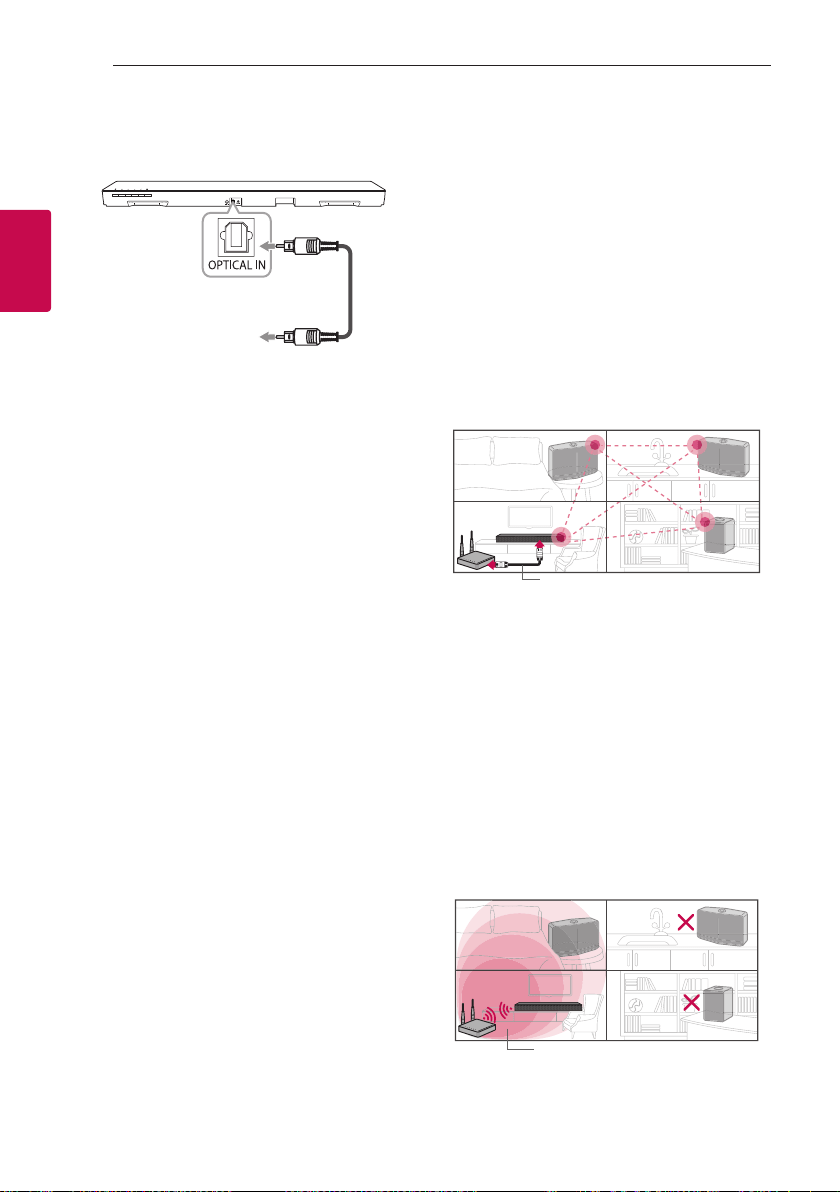
PORTABLE IN connection
Listening to music from your portable
player
The unit can be used to play the music from many
types of portable players or external devices.
1. Connect the portable player to the PORTABLE IN
connector of the unit.
2. Turn the power on by pressing
1
(Power).
3. Select the PORTABLE function by pressing F
on the remote control or F on the unit until the
function is selected.
4. Turn on the portable player or external device and
start playing it.
MIC connection
Connect a 3.5 mm microphone to the MIC connector
on the unit and select the input source of this unit to
MIC using F (Function) button. Adjust microphone’s
volume using VOL. +/-.
Connecting20
Connecting
2
OPTICAL IN connection
Connect an optical output jack of external devices to
the OPTICAL IN jack.
Optical cable
To the optical
output jack of
external device
1. Connect the OPTICAL IN jack on the back of
the unit to optical out jack of your TV (or digital
device etc.)
2. Select the input source to OPTICAL by pressing
F on the remote control or F on the unit until the
function is selected.
3. Listen to sound from the connected device.
To the optical output jack of external device
Initial Multi-Room Setup
When installing the MUSICow product for the rst
time, you can choose two types of connection as
below.
Wired connection (MUSICflow
Mesh Network Connection)
Connect your speaker to the home router using LAN
cable.
Then you can connect the additional MUSICow
products (Optional) to your home network wirelessly.
Refer to “Connecting the speakers to your Home
Network (Additional)” on page 34.
LAN Cable
Wireless connection (Standard
Wireless Connection)
When the wired connection is unavailable between
your speaker and home router, this unit offers
music streaming service within home router’s Wi-Fi
coverage.
Connect one of the your speaker to the home router
wirelessly.
Then you can connect the additional MUSICow
products (Optional) to your home network wirelessly.
Refer to “Connecting the speakers to your Home
Network (Additional)” on page 36.
Wireless signal
Connecting 21
Connecting
2
Installing “Music Flow
Player” App
Through “iTunes store” or “Google Play
Store”
1. Tap the “iTunes store” icon or “Google Play Store”
icon.
2. Type in “Music Flow Player” in the search bar and
tap “Search”.
3. Select “Music Flow Player” in the search result list
to download.
y
Music Flow Player app will be available in
version of the software as follow;
Android OS : Ver 4.0 (ICS) (or later)
iOS O/S : Ver 6.0 (or later)
y
Depending on the device, “Music Flow Player”
app may not work.
,
Note
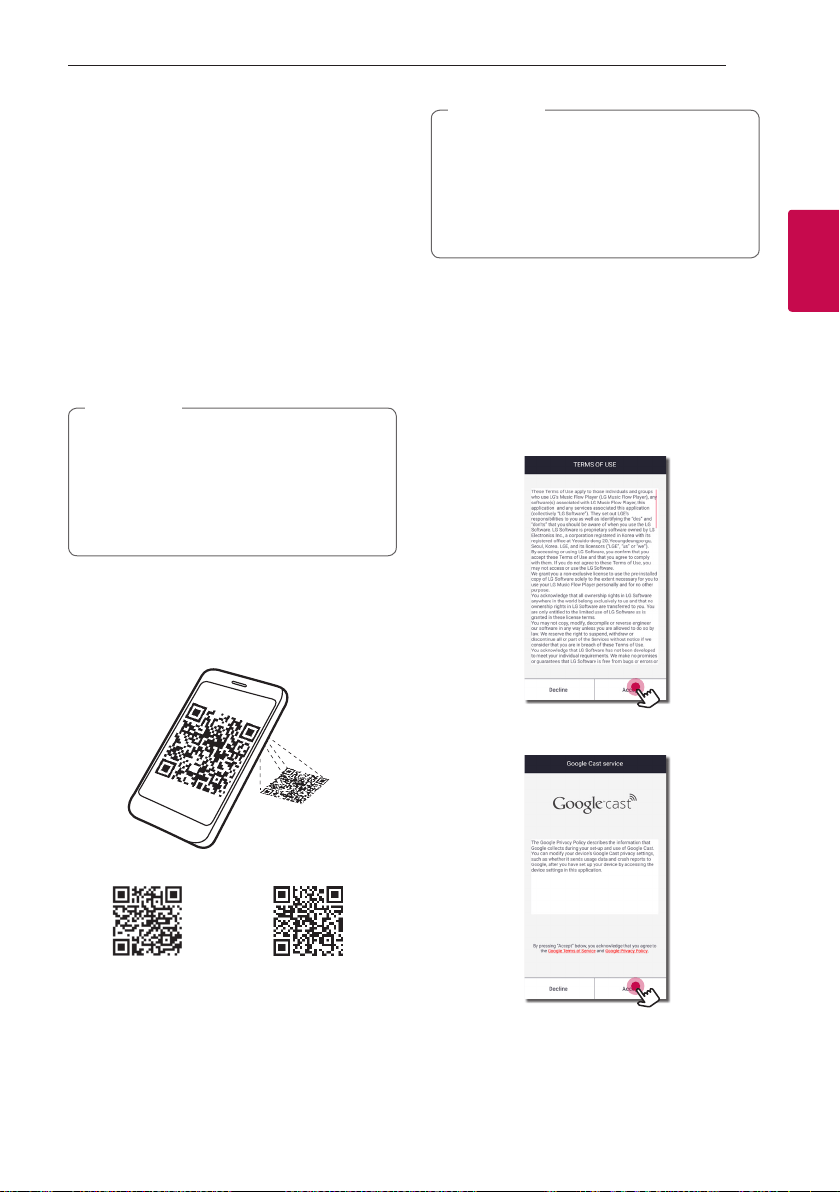
Through QR code
Install “Music Flow Player” app through QR code.
Scan the QR code using the scanning application.
(Apple iOS)
(Android OS)
y
Make sure that your smart device is
connected to the internet.
y
Make sure that your smart device has a
scanning application. If you don’t have,
download it from “iTunes store” or “Google
Play Store”.
,
Note
Starting with Music Flow Player
app
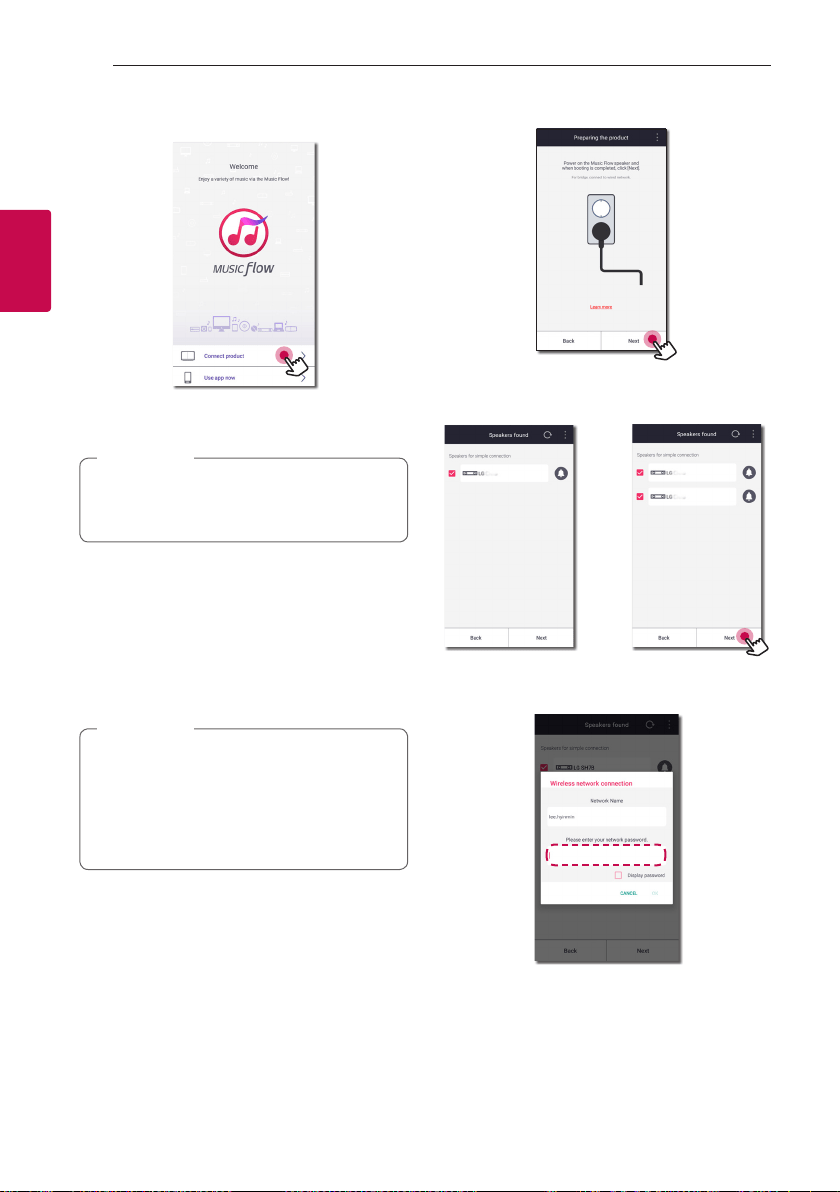
When you launch Music Flow Player app for the
rst time, the terms of use and Google Cast Service
appear on the screen.
1. Check the contents of terms of use and select
[Accept].
2. Check the contents of Google Cast Service and
select [Accept].
Connecting22
Connecting
2
3. Select [Connect product] to install the speaker
you’ve purchased.
Refer to “Connecting the speaker to your Home
Network” on page
26
.
If you want to return to the terms of use screen,
initialize the Music Flow Player app on the smart
device’s setting menu.
,
Note
Simple Connection (EZ Setup)
Preparation
y
For Simple Connection, Wi-Fi network condition is
needed.
y
Make sure that the Bluetooth setting on your
smart device in on.
y
Simple Connection is supported by Bluetooth
Ver 4.0 (or higher).
y
If Simple Connection screen is not displayed on
the screen, refer to “Connecting the speaker
to your Home Network” on page 26.
,
Note
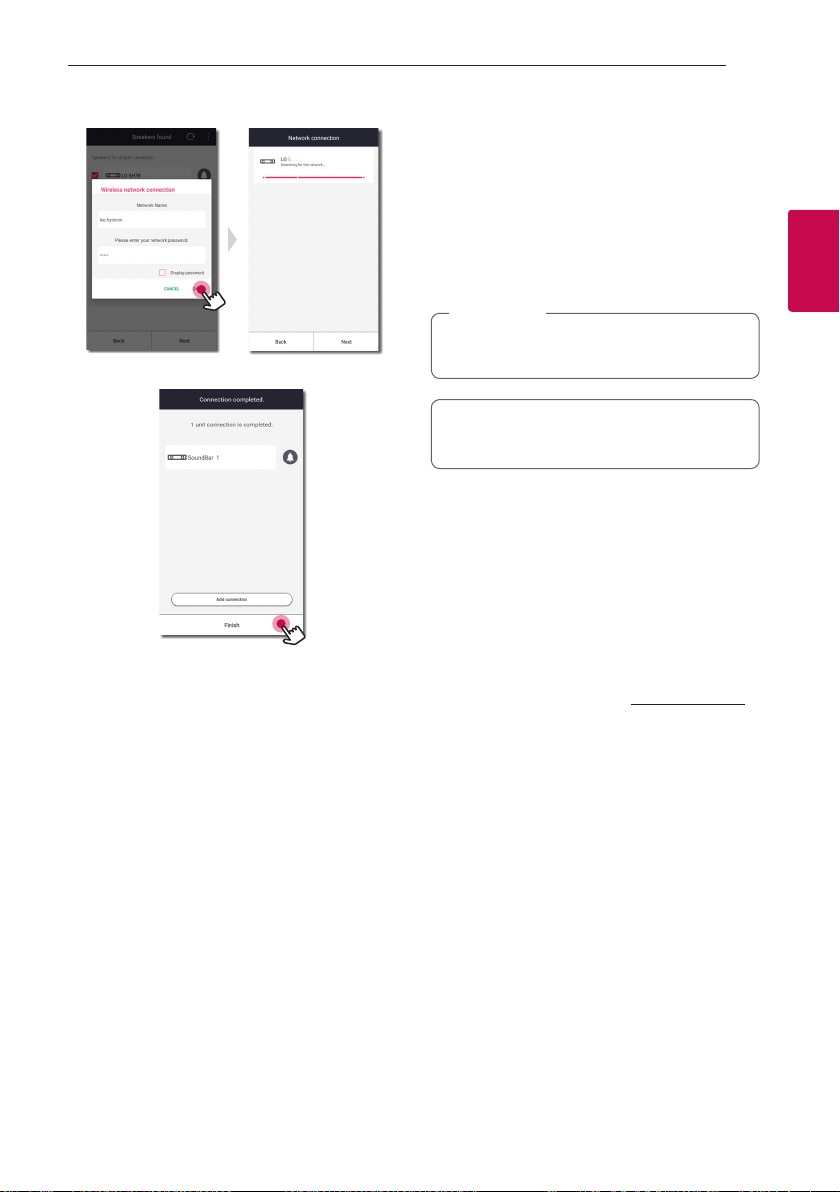
1. Plug in the desired device, and tap [Next].
2. App searches for the speaker and connects it
automatically, Tap [Next].
or
3. If the network password is set, security screen is
displayed. Type the password.
Connecting 23
Connecting
2
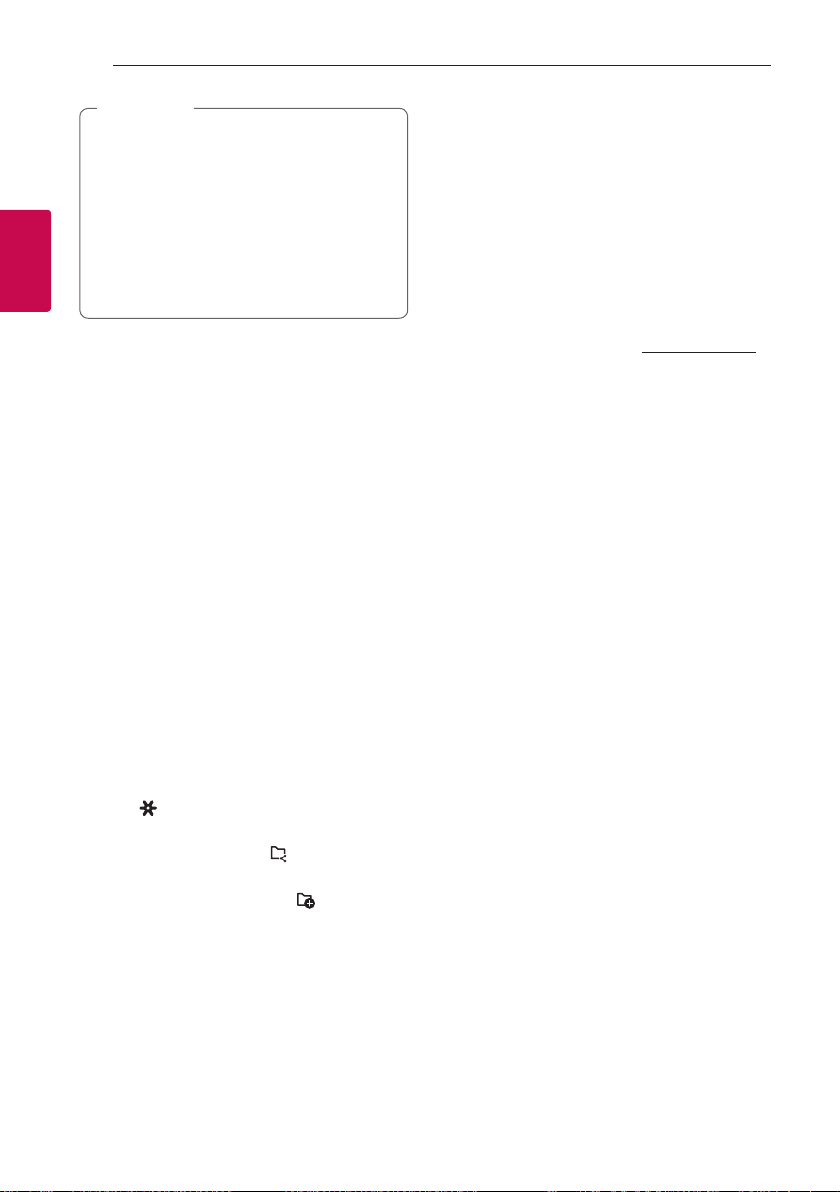
4. After typing password, tap [Next].
5. Tap [Finish] to finish making the connection.
After finishing, TV connection screen is displayed.
Follow the direction on the screen.
Using Media Server for
PC
Media server Software allows users to access audio
files stored in media server and enjoy them on this
speaker via home networking.
Before connecting to PC to play a le, Media server
Software should be installed on your PC.
Make sure that wireless network environment
using a router is installed at your home.
,
Note
y
Windows : Music Flow PC Software
y
Mac OS : Nero MediaHome 4 Essentials
Music Flow PC Software for
windows
About Music Flow PC Software
Music Flow PC Software makes you enjoy the audio
les stored on your media server (PC) via the speaker.
Downloading Music Flow PC Software
1. Start up your computer, visit http://www.lg.com. If
necessary, select your region.
2. Click support tab.
3. Fill your model name on the cover of owner’s
manual in search bar.
4. Find and download the “Music Flow PC Software”
file.
Installing Music Flow PC Software
1. Before installation, close all running programs
including firewall and Anti-Virus programs.
2. Unzip and double-click “Setup.exe” to install
Music Flow PC Software. The installation is
prepared and the installation wizard appears.
3. Follow the directions of the installation wizard
displayed on the screen.
4. Click the [Exit] button to complete the
installation.
Connecting24
Connecting
2
y
Music Flow PC Software is not supported
with Mac OS. In case of Mac OS, you can use
the Nero MediaHome.
y
The Music Flow PC Software is a customized
software edition only for sharing les and
folders to this speaker.
y
If you want a full explanation about Music
Flow PC Software, click the question marked
icon on home menu.
,
Note
System requirements (Windows PC)
y
CPU : Intel® 2.0 GHz or AMD Sempron™ 2000+
processors
y
Memory : 1 GB of free RAM
y
Graphics card : 64 MB video memory, minimum
resolution of 1024 x 768 pixels, and 16 bit color
settings
y
Free Disk Space : 200 MB
y
Windows® XP (Service Pack 2 or higher), Windows
Vista®, Windows® 7, Windows® 8.0, Windows®
8.1, Windows® 10
y
Windows® Media Player® 11.0 or higher
y
Network environment: 100 MB Ethernet, WLAN
Sharing music files
On your computer, you must share the folder
contained music les to play them on this speaker.
This parts explains the procedure for selecting the
shared folders on your computer.
1. Double-click the “Music Flow PC Software” icon.
2. Click [ ] icon in the upper-right-hand corner of
the screen. The setting menu appears.
3. On the setting menu, click [ ] icon on the left to
go to the sharing le menu.
4. On the sharing le menu, Click [ ] icon to open
the [Browse Folder] window.
5. Select the folder containing the les you want to
share. The selected folder is added to the list of
shared folders.
Nero MediaHome 4 Essentials
for Mac OS
About Nero MediaHome Essentials
Nero MediaHome 4 Essentials is a software for
sharing video, audio and photo les stored on your
computer to this speaker as a digital media server.
Downloading Nero MediaHome
Essentials
1. Start up your computer, visit http://www.lg.com.
If necessary, select your region.
2. Click support tab.
3. Fill your model name on the cover of owner’s
manual in search bar.
4. Find and download the “Nero MediaHome 4
Essentials” file.
Installing Nero MediaHome Essentials
1. Before installation, close all running programs
including firewall and Anti-Virus programs.
2. Unzip and double-click NeroMediaHome.dmg
file, In the Nero MediaHome window, drag the
Nero MediaHome icon either to the Applications
folder within the window or to any other desired
location.
3. Follow the directions of the installation wizard
displayed on the screen.
4. Click the [Exit] button to complete the
installation.
Connecting 25
Connecting
2
System requirements (Macintosh)
y
Mac OS X 10.5 (Leopard) or 10.6 (Snow Leopard)
y
Macintosh computer with an Intel x86 processor
y
Hard drive space: 200 MB hard drive space for a
typical installation of Nero MediaHome standalone
y
Memory: 256 MB RAM
Sharing music files
On your computer, you must share the folder
contained music les to play them on this speaker.
This parts explains the procedure for selecting the
shared folders on your computer.
1. Double-click the “Nero MediaHome 4 Essentials”
icon.
2. Click [Network] icon on the left and dene your
network name in the [Network name] eld. The
Network name you enter will be recognized by
your player.
3. Click [Shares] icon on the left.
4. Click [Local Folders] tab on the [Shares] screen.
5. Click [Add] icon to open the [Browse Folder]
window.
6. Select the folder containing the les you want to
share. The selected folder is added to the list of
shared folders.
7. Click [Start Server] icon to start the server.
The network drive cannot congure the shared
folder setting.
,
Note
Connecting the speaker
to your Home Network
Using a wired network provides the best
performance, because the attached devices connect
directly to the network without radio frequency
interference.
Please refer to the documentation for your network
device for further instructions.
Preparation
y
Make sure that wireless network environment
using a router is installed at your home.
y
Make sure that the speaker and the smart device
are connected to the same router.
Requirements
y
Wireless router
y
Smart device (Android or iOS)
y
Make sure that DHCP’s server is activated on
wireless router.
y
If you cannot connect the speaker with your
router, go to setting of the router and then
make sure that “Allow wireless client to see
each other and access my local network” box
is unchecked.
,
Note
Connecting26
Connecting
2
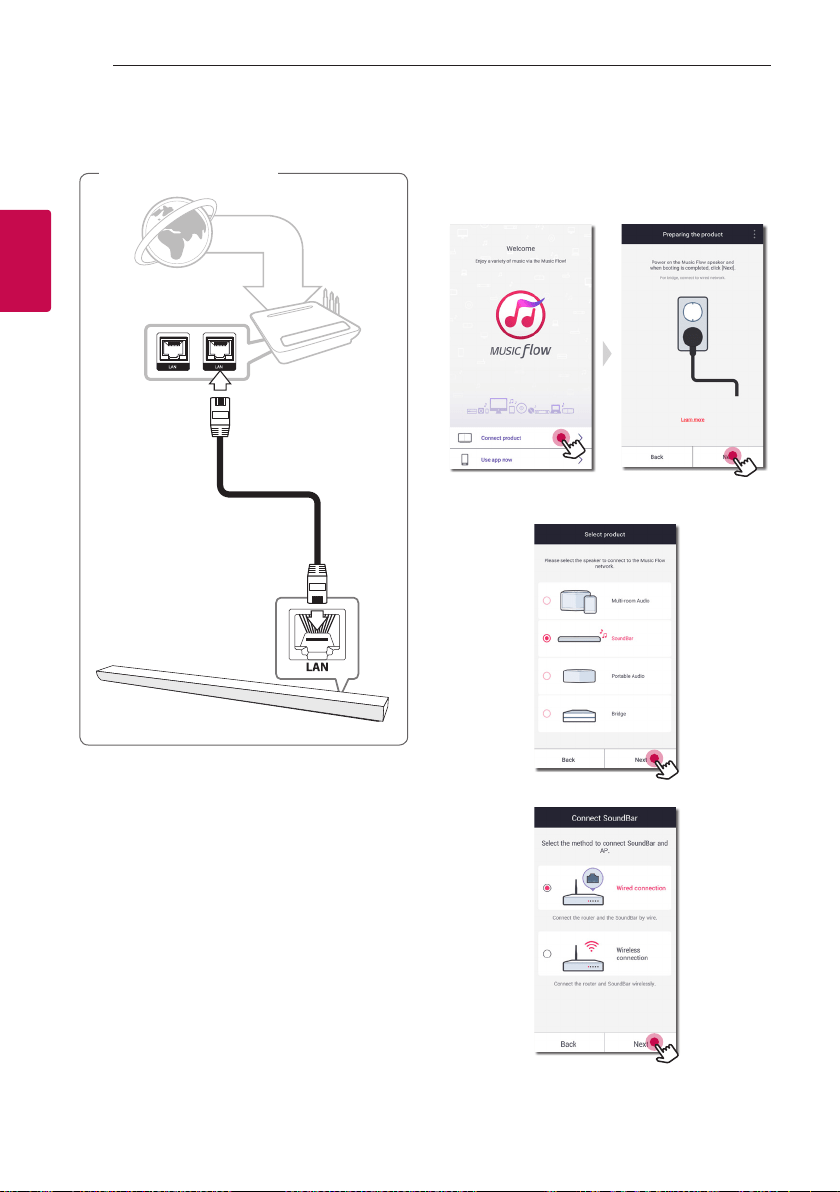
Connecting the speaker to your
network with a LAN cable
LAN
Broadband
service
Router
Connection overview
1. Turn on the unit by using
1
on the remote
control or
1/!
on the unit. The LED indicator
starts to blink in white.
2. On your smart device, launch Music Flow Player
app. Select [Connect product] to install the
speaker. Plug in the desired device, and tap [Next].
3. Select the product you want to connect and tap
[Next] on the screen.
4. Select [Wired connection] on the screen.
Connecting 27
Connecting
2
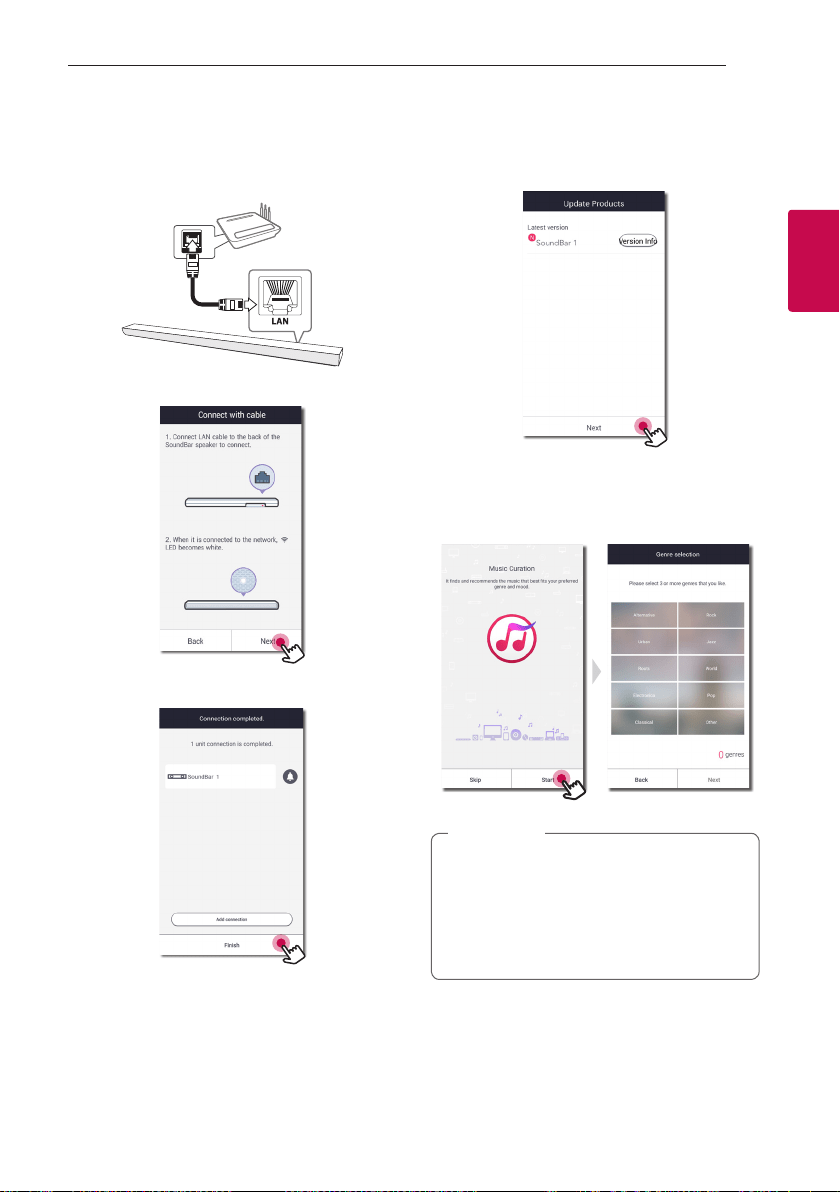
5. Connect one end of the LAN cable to the
speaker’s LAN port and connect the other end to
your wireless router.
Wait a moment until the LED indicator stops
blinking and stays white.
6. Then select [Next] on the screen.
7. Select [Finish] to complete the connection.
(If there is an update)
8. This application is checking the Version of
software of your speaker and then shows the
version.
Select [Next] after checking the version
information.
9. Select [Start] to curate your music on your smart
device.
y
You cannot use the speaker without a router.
When using the wired router, you can control
the speaker with Music Flow PC Software.
(Page 23)
y
The speaker and the smart device should be
connected to the same router.
,
Note
Connecting28
Connecting
2
Connecting the speaker to your
Network via the Wi-Fi Setup
Method (Android)
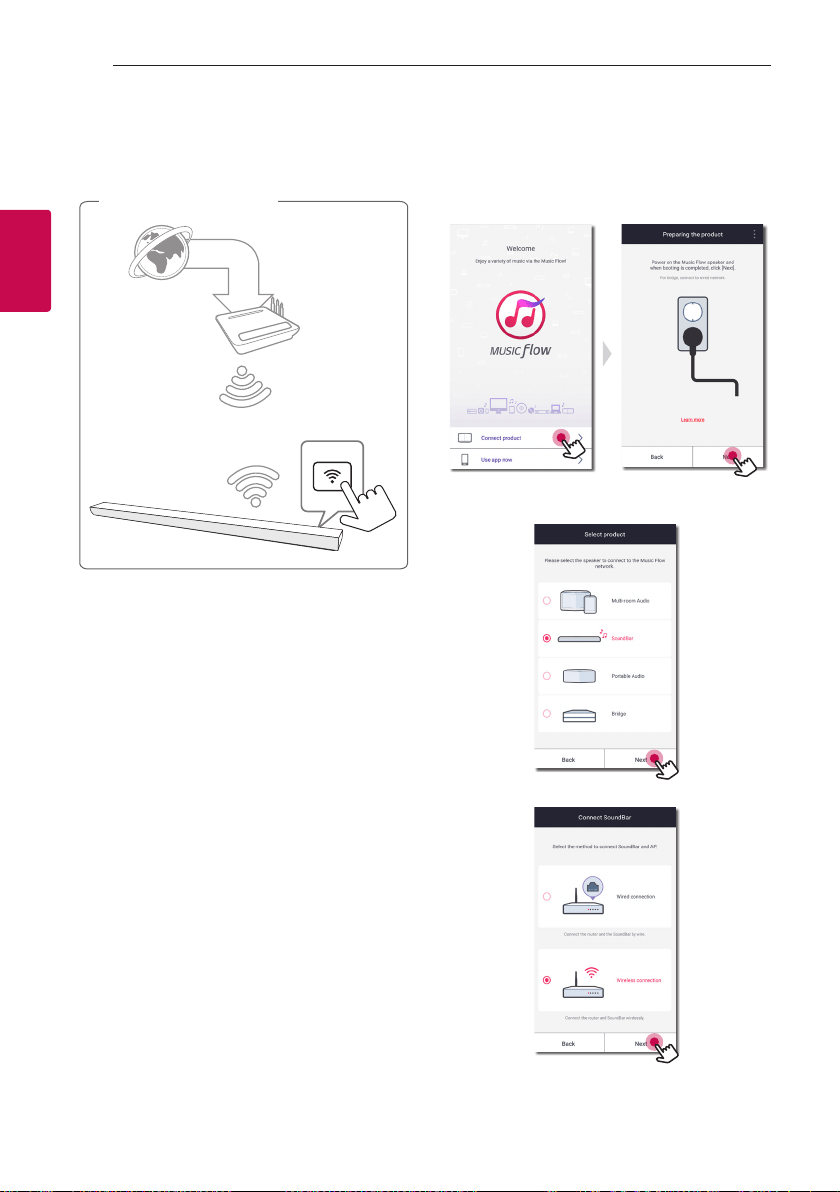
Connection overview
Broadband
service
Router
1. Turn on the unit by using
1
on the remote
control or
1/!
on the unit. The LED indicator
starts to blink in white.
2. On your smart device, launch Music Flow Player
app. Select [Connect product] to install the
speaker. Plug in the desired device, and tap [Next].
3. Select the product you want to connect and tap
[Next] on the screen.
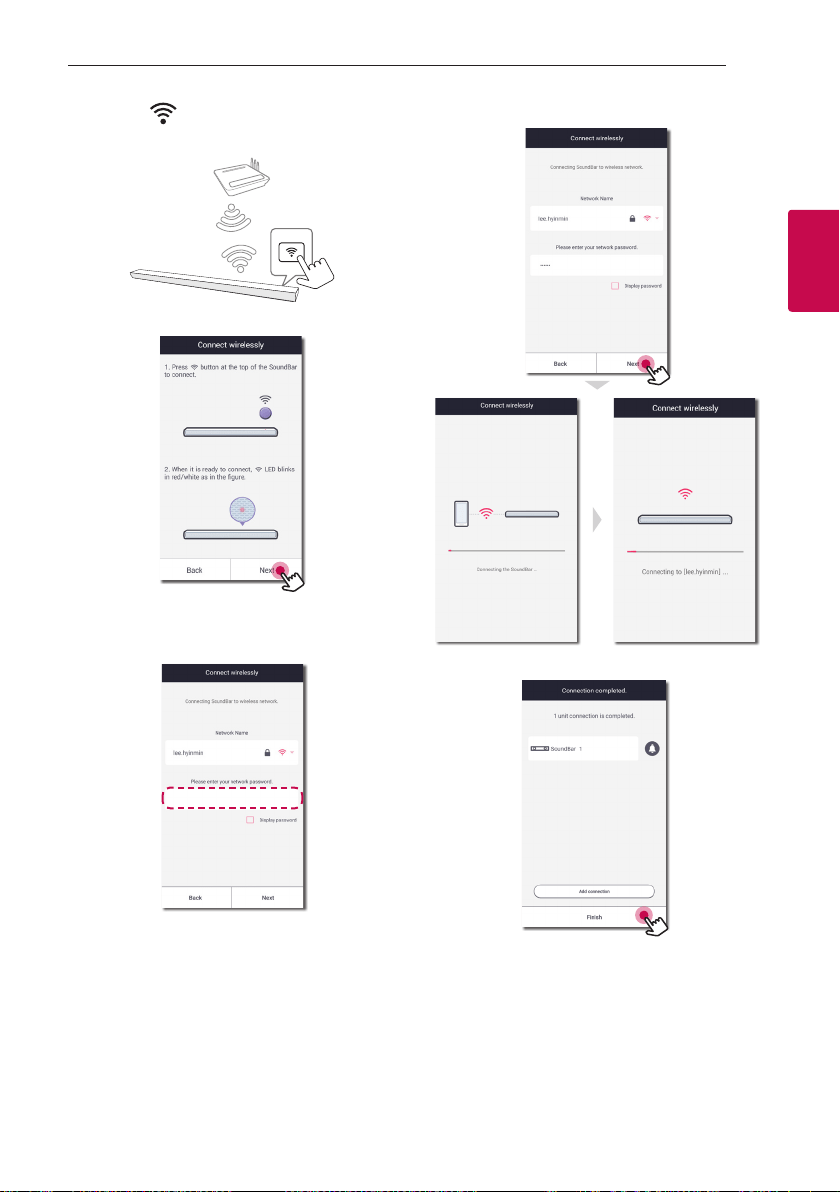
4. Select [Wireless connection] on the screen.
5. Then select [Next] on the screen.
Connecting 29
Connecting
2
6. Press the button on the unit. Then the LED
indicator blinks in white and red alternately.
7. Then select [Next] on the screen.
8. If you have a password for your network, the
security screen appears on your smart device.
Enter your password.
9. Then select [Next] on the screen.
10. Select [Finish] to complete the connection.
After speaker connection, follow the instructions
for TV connection.
Connecting30
Connecting
2
(If there is an update)
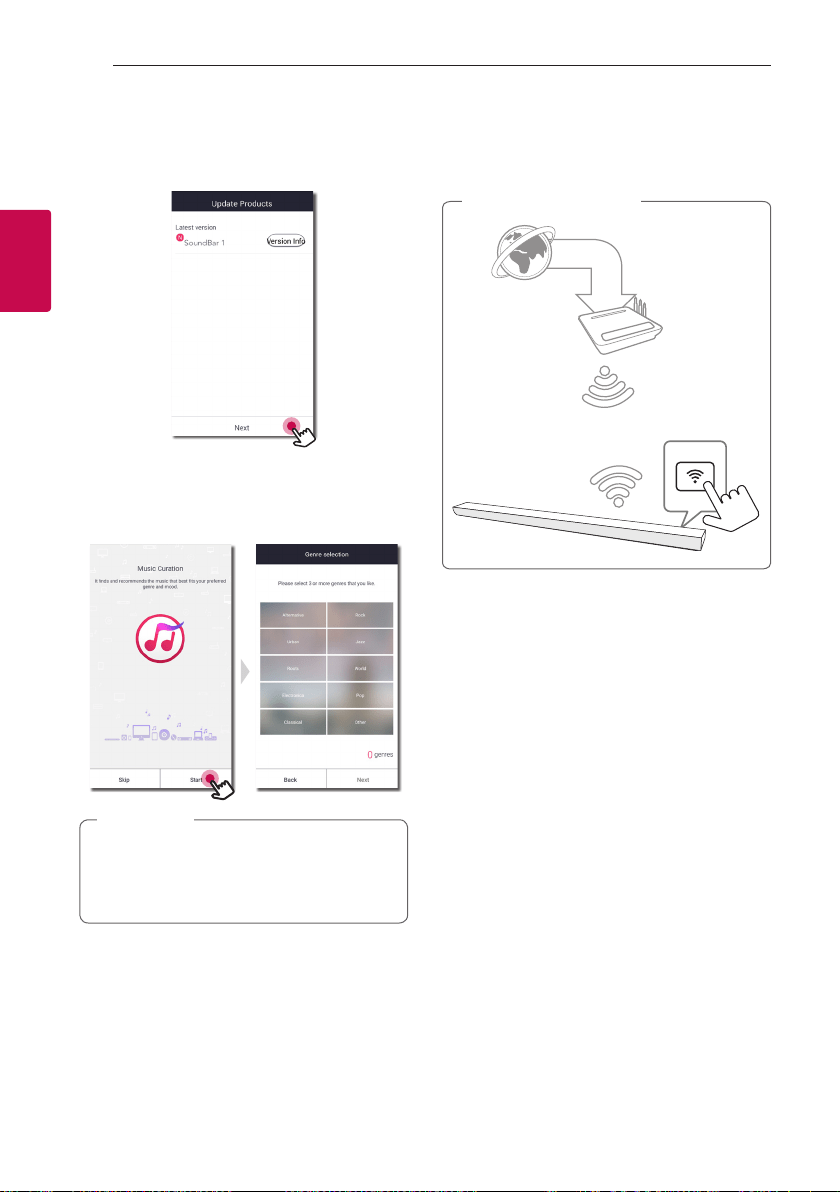
11. This application is checking the Version of
software of your speaker and then shows the
version.
Select [Next] after checking the version
information.
12. Select [Start] to curate your music on your smart
device.
If the speaker fails to connect to your network
or its network connection operates abnormally,
place the speaker closer to your router and try
again.
,
Note
Connecting the speaker to your
Network via the Wi-Fi Setup
Method (iOS)
Broadband
service
Router
Connection overview
Connecting 31
Connecting
2
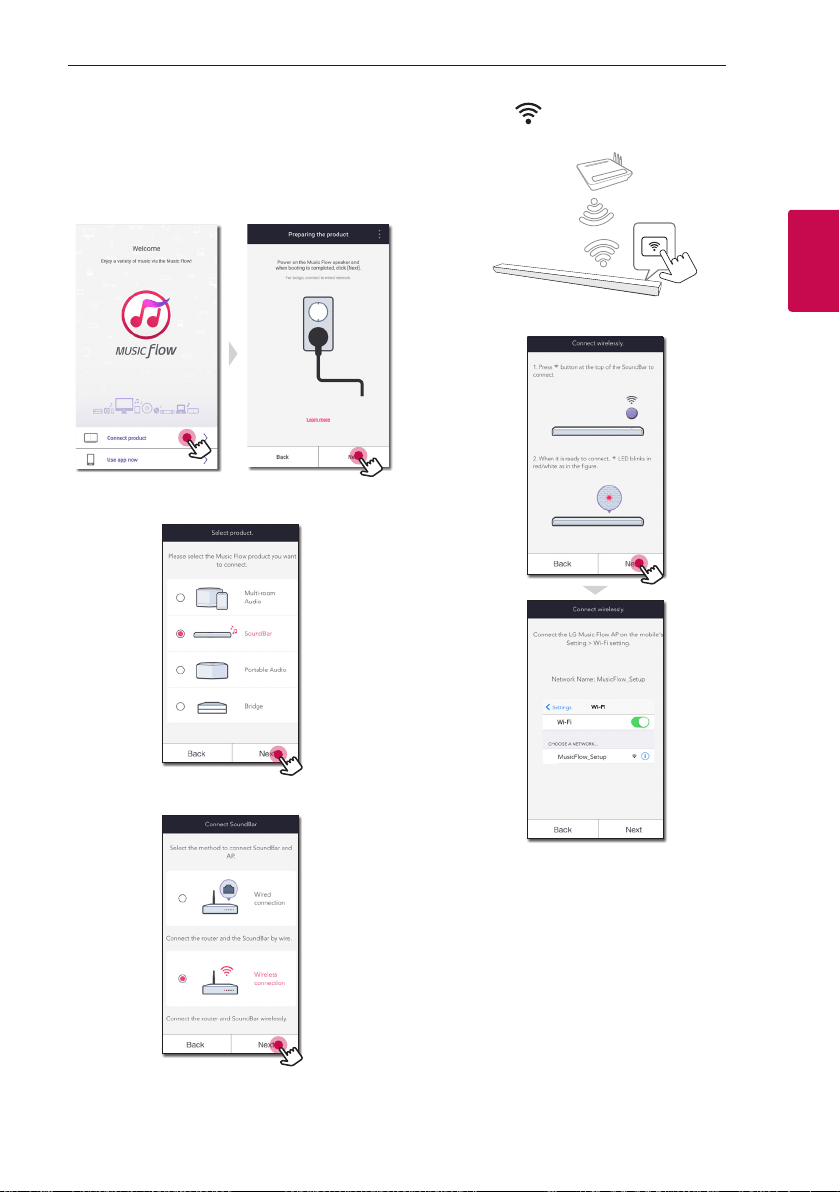
1. Turn on the unit by using
1
on the remote
control or
1/!
on the unit. The LED indicator
starts to blink in white.
2. On your smart device, launch Music Flow Player
app. Select [Connect product] to install the
speaker. Plug in the desired device, and tap [Next].
3. Select the product you want to connect and tap
[Next] on the screen.
4. Select [Wireless connection] on the screen.
5. Then select [Next] on the screen.
6. Press the button on the unit. Then the LED
indicator blinks in white and red alternately.
7. Then select [Next] on the screen.
Connecting32
Connecting
2
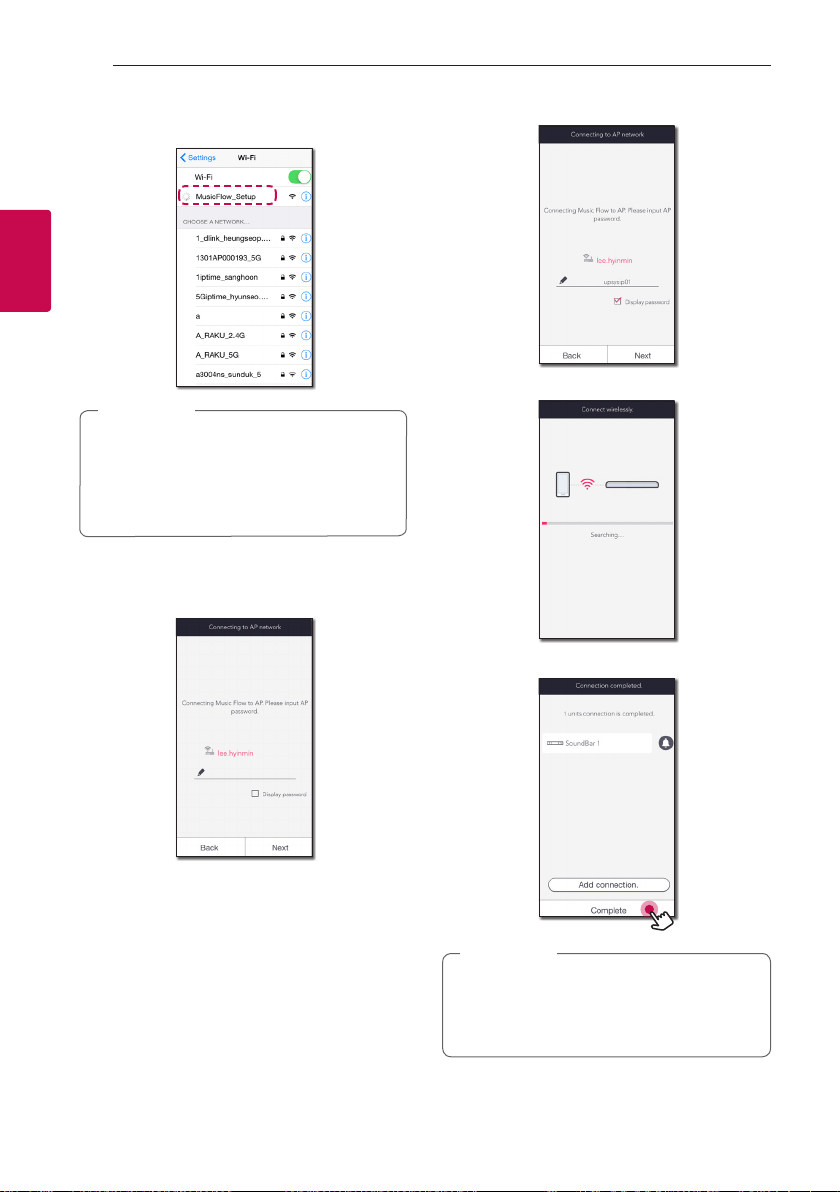
8. On your iOS device, go to iOS setting -> Wi-Fi
setting and select “MusicFlow_Setup” to connect.
y
If “MusicFlow_Setup” is not on the list, scan
for available Wi-Fi networks again.
y
When your smart device is connected to
“MusicFlow_Setup”, you cannot use the
internet.
,
Note
9. If you have a password for your network, the
security screen appears on your smart device.
Enter your password.
10. Then select [Next] on the screen.
11. Then select [Next] on the screen.
12. Select [Complete] to complete the connection.
If the speaker fails to connect to your network
or its network connection operates abnormally,
place the speaker closer to your router and try
again.
,
Note

Connecting 33
Connecting
2
Notes on Network Connection
y
Many network connection problems during set up
can often be xed by re-setting the router. After
connecting the speaker to the home network,
quickly power off and/or disconnect the power
cable of the home network router or cable modem.
Then power on and/or connect the power cable
again.
y
Our company is not responsible for any
malfunction of the speaker and/or the internet
connection feature due to communication errors/
malfunctions associated with your broadband
internet connection or other connected equipment.
y
The wireless network operate at 2.4 GHz radio
frequencies that are also used by other household
devices such as cordless telephone, Bluetooth
devices, microwave oven, and can be affected by
interference from them.
y
Turn off all unused network equipment in your
local home network. Some devices may generate
network trafc.
y
If the speaker fails to connect to your network or
its network connection operates abnormally, place
the speaker closer to your router and try again.
y
Depending on your home network environment
and the performance of wireless router, it may not
work well to connect the speaker to your wireless
router.
y
You cannot connect the speaker to wireless router
which has hidden SSID.
y
The connection you’ve made may be disconnected
if you select other application or change the
setting of the connected speaker via “Music
Flow Player” app. In such a case, please check the
connection status.
y
Even after connection of Music Flow Player app,
music may be output from your smart device. In
this case, select the connected speaker on the
playback screen.
y
Depending on the speed of your network, playback
of online contents may not work well.
y
Wireless signal interference may lead to
disconnection of network or stopping playback.
y
You need to turn the speaker’s power off and on
again if you restart the router.
y
You need to perform a factory set and setup the
network connection for speaker, if you install new
router.
y
If you use other characters than the english
alphabet or digits for the SSID name of your
access point or wireless router, it may be displayed
differently.
Connecting34
Connecting
2
Connecting the speakers
to your Home Network
(Additional)
You can enjoy the music with multiple speakers and
single smart device you have.
Requirements
y
Wireless router
y
Smart device (Android or iOS)
y
Another speaker
Signal interference may lead to stop playback.
,
Note
Connecting the additional
speaker to your network with a
LAN cable
Broadband
service
Router
Speaker (Main)
Speaker (Add)
LAN cable
Connection overview
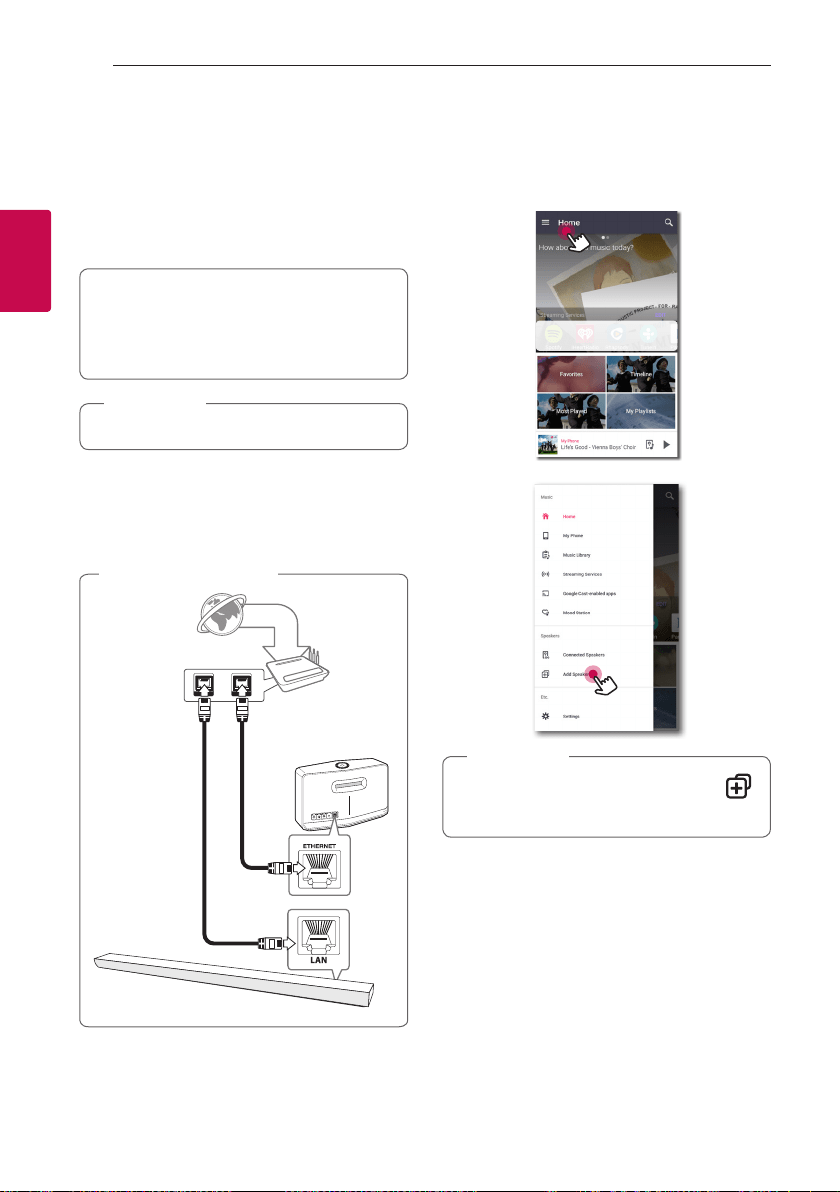
1. Connect the speaker (Main) to your network.
Refer to “Connecting the speaker to your Home
network” on page 26.
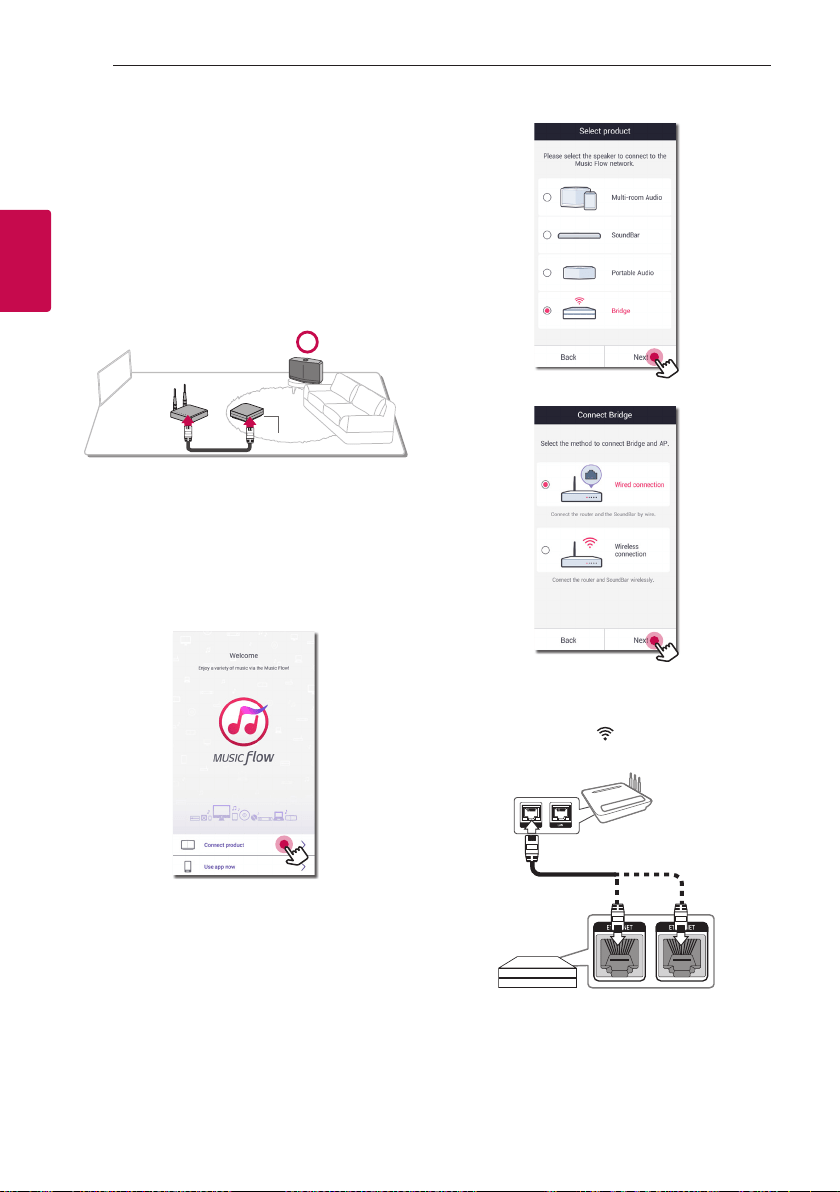
2. On your smart device, select the Music Flow
Player app. Tap the [Home] menu.
3. Select the [Add Speaker] on the side menu.
You can also add another speaker by using
button on the screen of [Connected Speakers].
,
Note
Connecting 35
Connecting
2
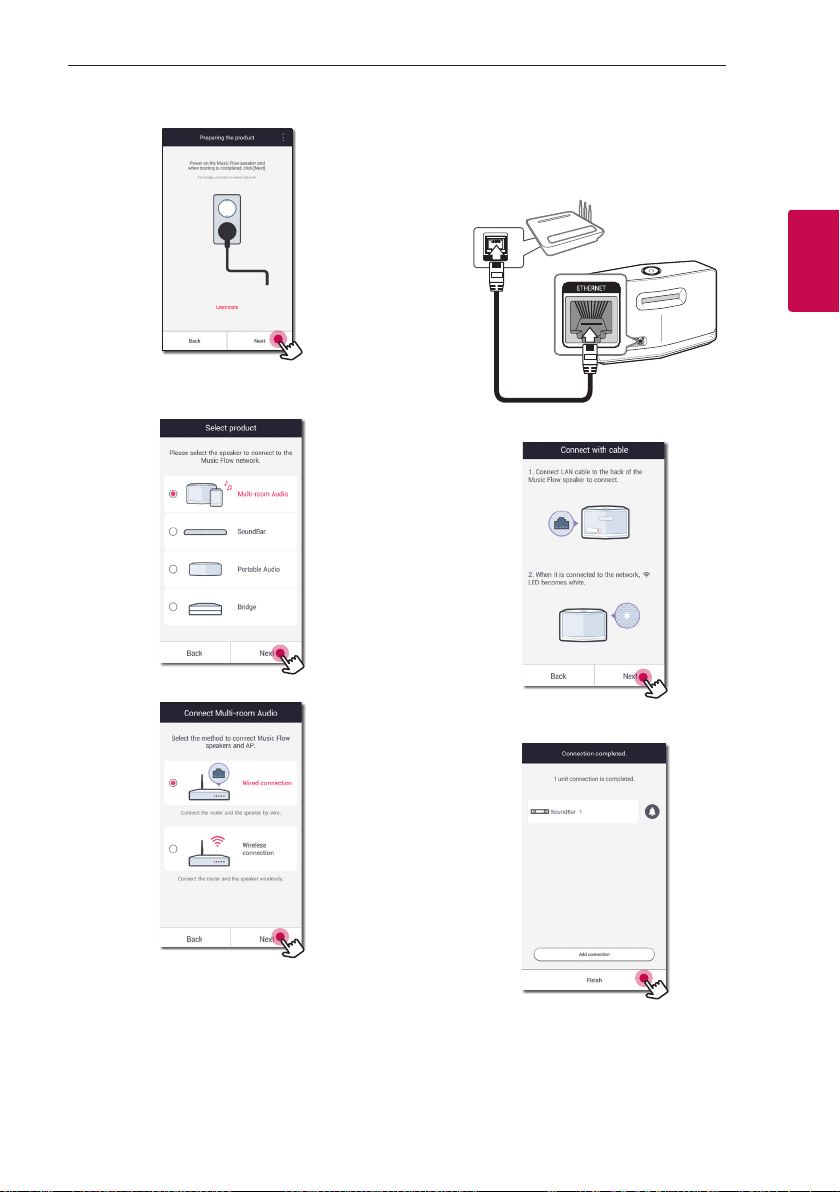
4. Plug in the desired device, and tap [Next].
5. Select the product you want to connect and tap
[Next] on the screen.
6. Select [Wired connection] on the screen.
7. Connect one end of the LAN cable to the
speaker’s ETHERNET port and connect the other
end to your wireless router.
Wait a moment until the LED indicator stops
blinking and stays white.
8. Then select [Next] on the screen.
9. Select [Finish] to complete the connection.
Connecting36
Connecting
2
Connecting the additional
speaker to your network via the
Wi-Fi Setup Method
Broadband service
Router
Speaker (Main)
Speaker (Add)
LAN cable
Connection overview
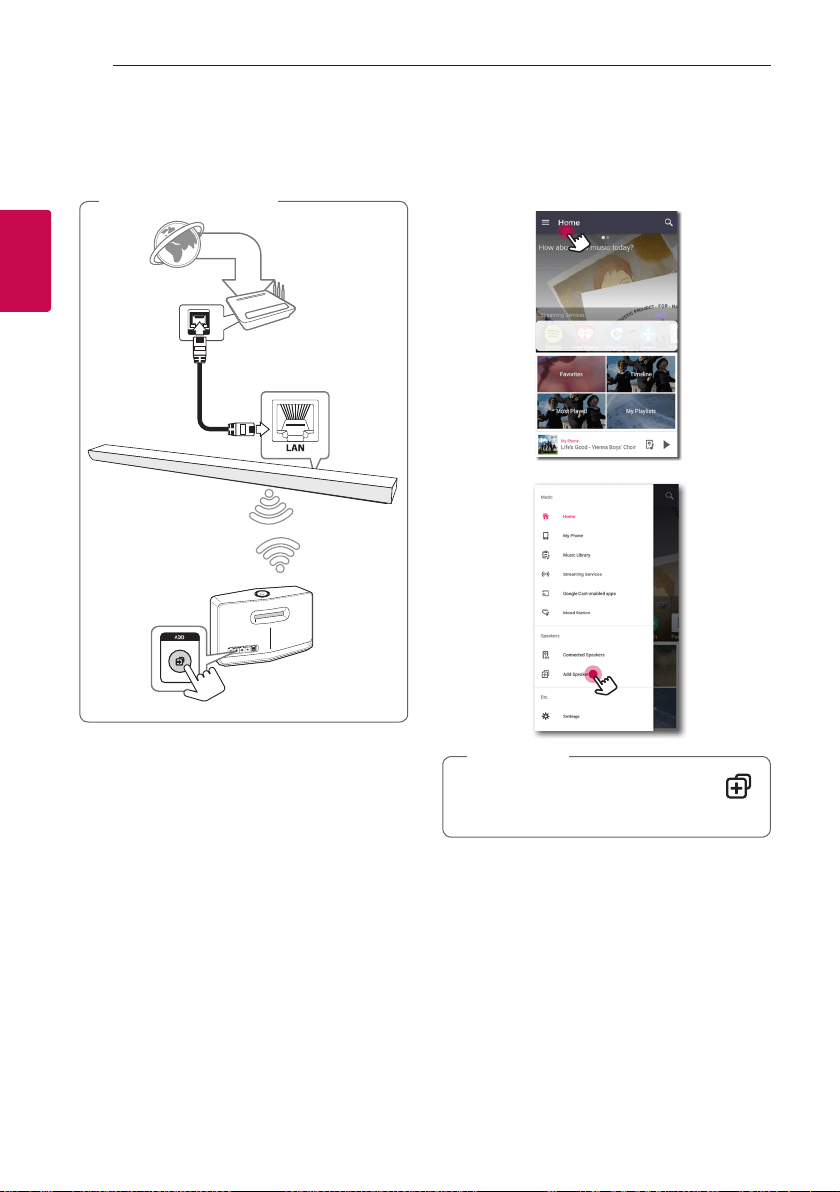
1. Connect the speaker (Main) to your network.
Refer to “Connecting the speaker to your Home
network” on page 28.
2. On your smart device, select the Music Flow
Player app. Tap the [Home] menu.
3. Select the [Add Speaker] on the side menu.
You can also add another speaker by using
button on the screen of [Connected Speakers].
,
Note
Connecting 37
Connecting
2
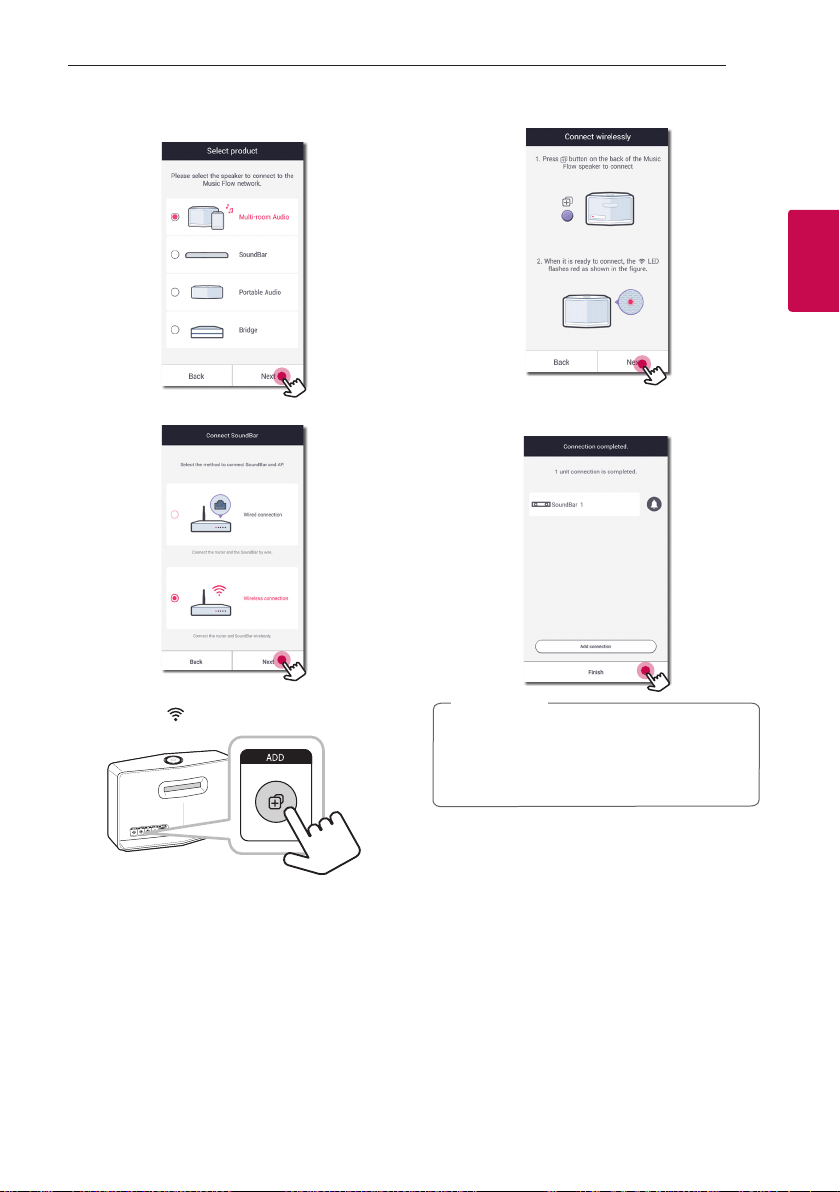
4. Select the product you want to connect and tap
[Next] on the screen.
5. Select [Wireless connection] on the screen.
6. Press the ADD button on the rear of the speaker
(Add). Then Network status LED blinks red.
7. Then select the [Next] on the screen.
8. Select [Finish] to complete the connection.
Speakers may be not connected if the distance
between the Sound Bar (Main) connected
by LAN cable and the speaker (Add) to be
connected is too far.
,
Note
Connecting38
Connecting
2
Using the Bridge
Use as a root device (wired to
the home router)
When your home router is located too far from any
speaker location that is to be connected via wired
mode, connect the Bridge (R1) to your home router
with LAN cable.
a
b
Bridge (R1)
1. Attach the power cord to the power port on the
rear of the Bridge (R1) and then plug the power
cord into an electrical outlet.
2. The power LED on the front of Bridge (R1) turns
on. On your smart device, launch Music Flow
Player app. Select [Connect product] to install the
speaker.
3. Select the [Bridge] and tap [Next] on the screen.
4. Select [Wired connection] on the screen.
5. Connect one end of the LAN cable to the Bridge’s
ETHERNET port, and connect the other end to
your wireless router.
Wait a moment until Network status LED
stops blinking and stays white.
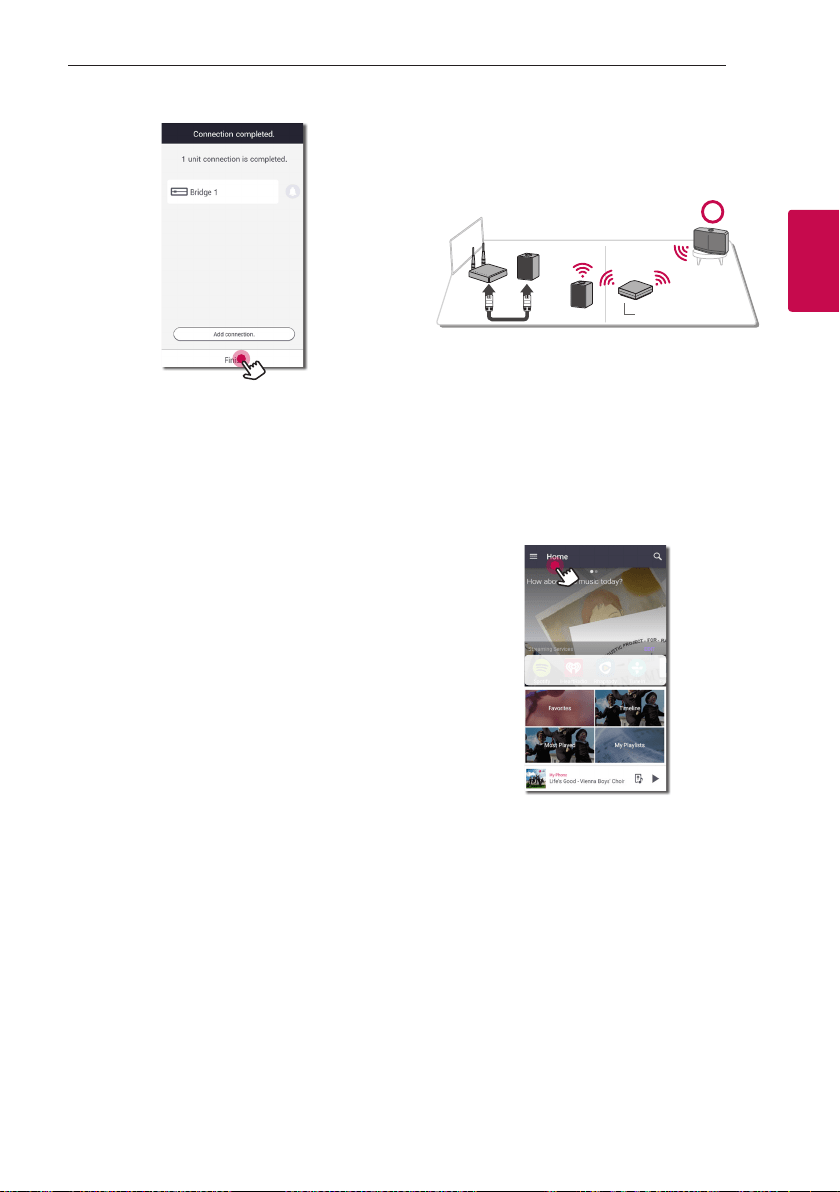
Connecting 39
Connecting
2
6. Select [Finish] to complete the connection.
7. Connect the speaker to Music Flow R1. Refer
to the “Connecting the speakers to your Home
Network (Additional)” on page 34.
Use as a wireless extender
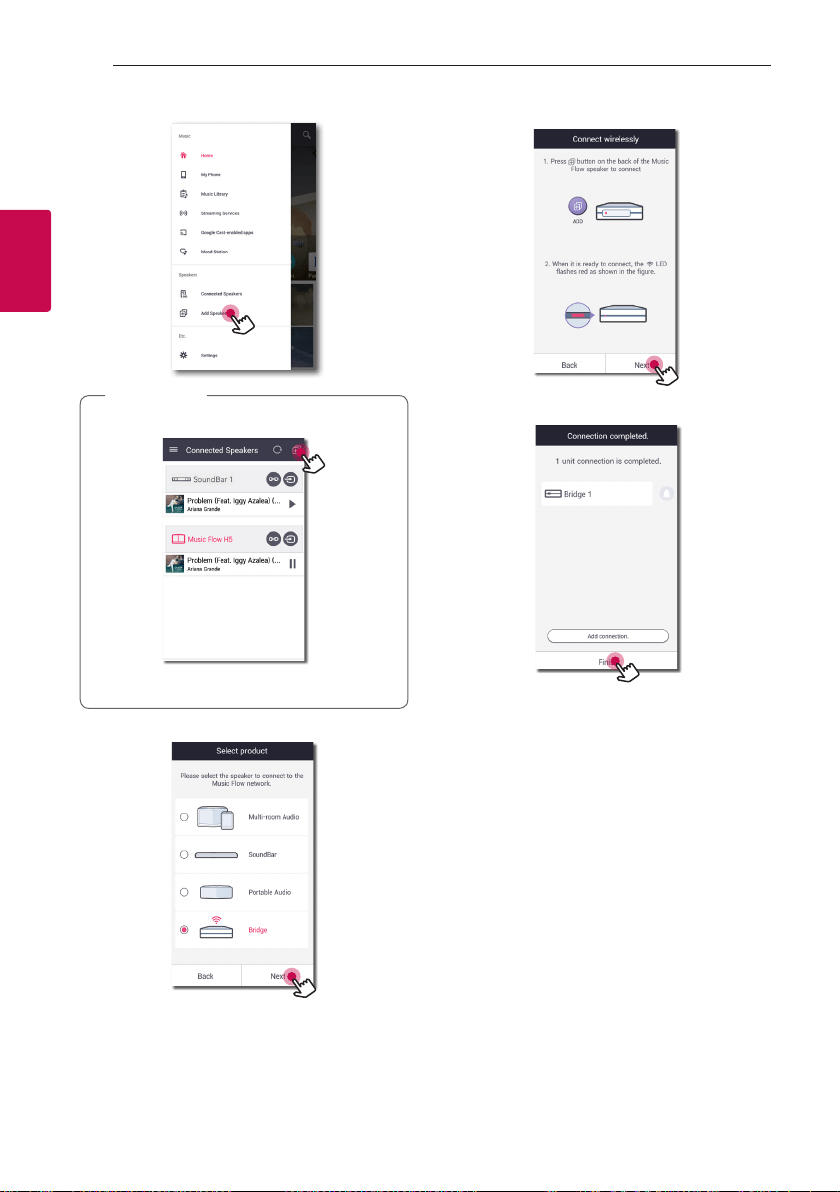
When you want to expand MUSICow mesh
network coverage, add the Bridge (R1) to your home
network.
a
b
Bridge
If you want to use this connection, Initial MUSICow
product is connected to your home router with LAN
cable.
1. Attach the power cord to the power port on the
rear of the Bridge (R1) and then plug the power
cord into an electrical outlet.
2. The power LED on the front of Bridge (R1) turns
on. On your smart device, select the Music Flow
Player app. Tap the [Home] menu.
Connecting40
Connecting
2
3. Select the [Add Speaker] on the side menu.
You can also add another speaker as below.
,
Note
4. Select the Bridge and tap [Next] on the screen.
5. Then select the [Next] on the screen.
6. Select [Finish] to complete the connection.
3 Operating
Operating 41
Operating
3
Enjoying the Music with
Music Flow Player app
With Music Flow Player app, you can play music in
your smart device.
y
For more detailed instruction about Music
Flow Player app, switch on the [User Guide]
in [Settings] > [General] on the side menu.
y
Some of the content in this part may differ
from Music Flow Player app depending on the
application’s version.
,
Note
Preparation
1. Check the network connection with the speaker.
(Page 26)
2. To use the speaker, you must download and install
the Music Flow Player app. (Page 21)
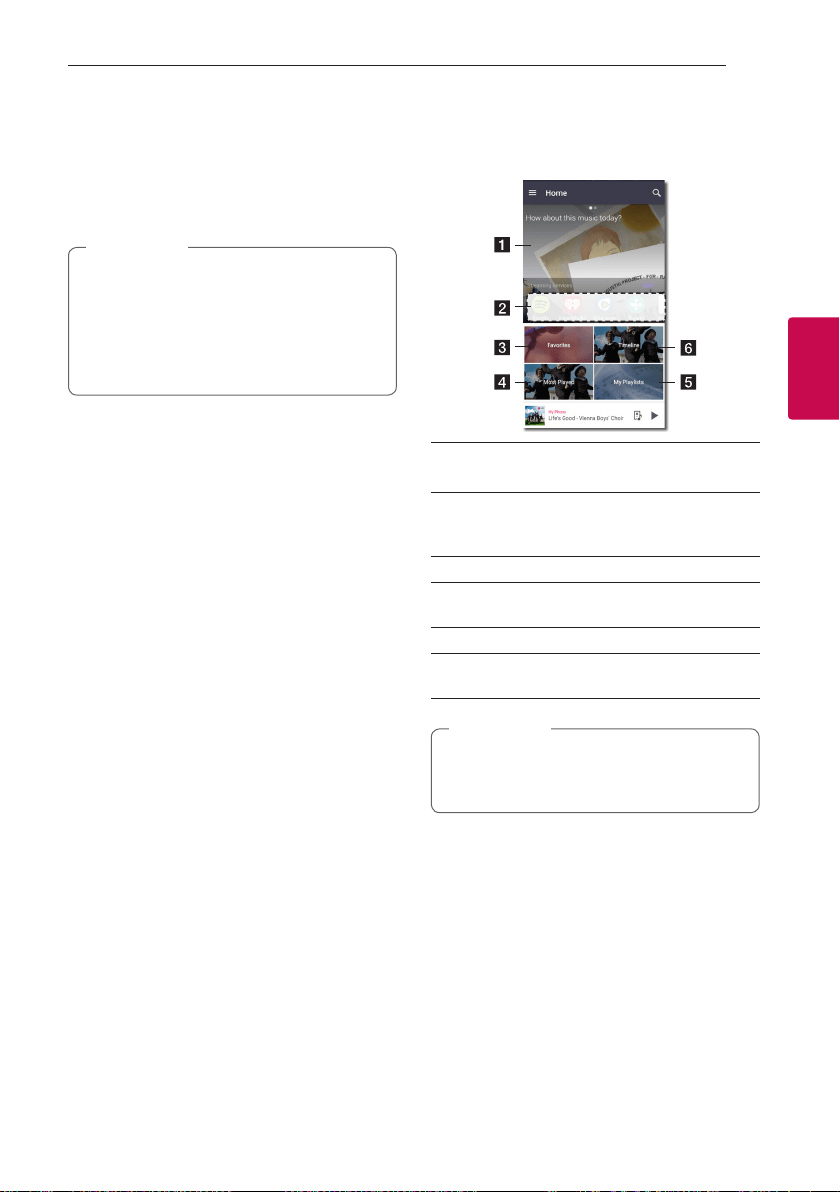
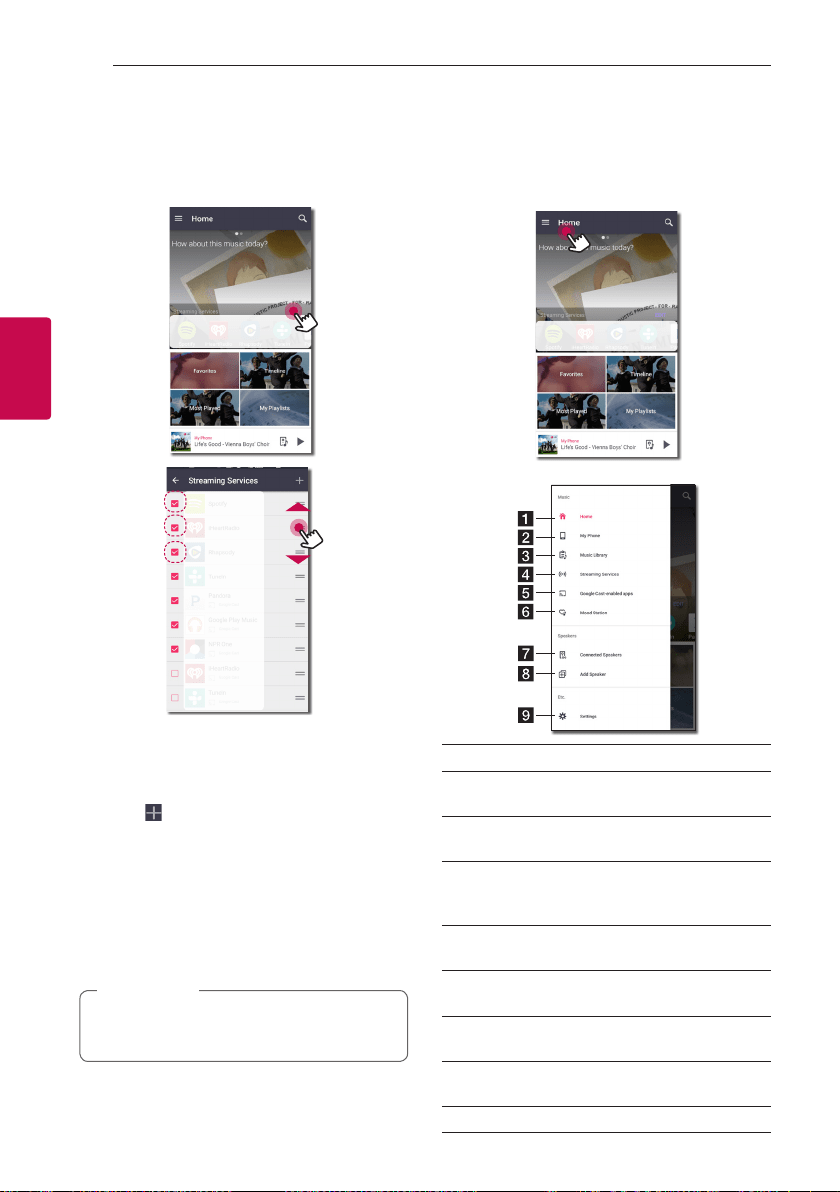
Overview of Home menu
Launch Music Flow Player app on your smart device.
The [Home] appears.
a
Recommendation – Click the sentence area to
see the recommendation.
b
Streaming Services – Displays the online
services. You can enjoy the online radio and
music.
c
Favorites– Displays the favorites songs
d
Most Played – Displays the songs most played
on this speaker.
e
My Playlists – Displays the playlists.
f
Timeline – Displays the songs played on this
speaker.
Depending on your smart device’s OS or version
of “Music Flow Player” app, some of the content
in this manual may differ.
,
Note
Operating42
Operating
3
Edit the Online streaming Service list
1. Launch Music Flow Player app on your smart
device. The [Home] appears.
2. Tap the [EDIT] menu.
y
Select the checkbox of the Online service you
want to see on Home.
y
Drag upwards or downwards to change the order
of the Online service.
y
Tap the , add the online services.
In case of the Android device, you can add the
online services among the installed apps in the
device. If you select the added app, the app is run
during the Bluetooth pairing operation.
In case of the iOS device, when you connect
the added app, you should set the Bluetooth
connection for yourself.
The displayed Online Streaming Services may
vary depending on your region.
,
Note
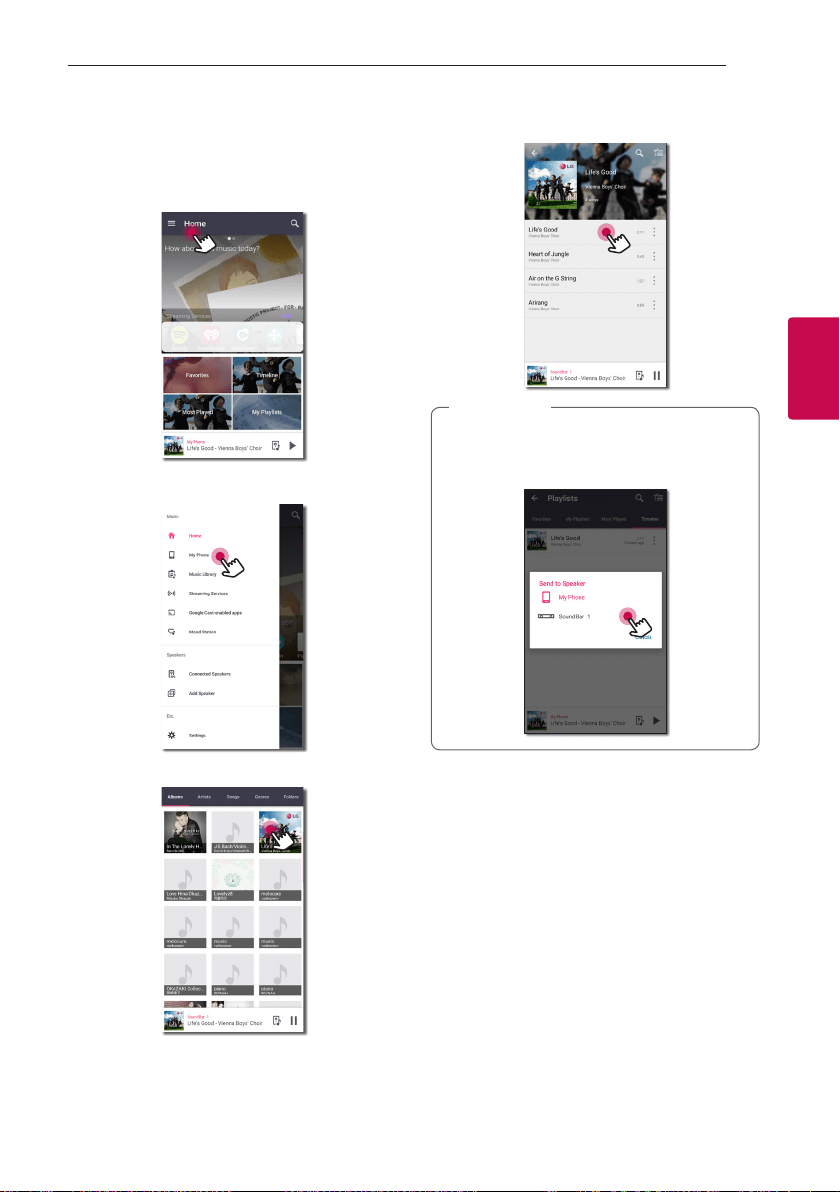
Overview of the side menu
1. Launch Music Flow Player app on your smart
device. The [Home] appears.
2. Tap the [Home] menu.
3. Side menu appears.
a
Home – Displays the Home menu.
b
My Phone – Displays the songs on this smart
device.
c
Music Library – Displays the songs on the
connected devices (Media server).
d
Streaming Services – Displays the online
services. You can enjoy the online radio and
music.
e
Google Cast-enabled apps - Displays available
apps on Google Cast.
f
Mood Station – Listens to prefered music
among 15 mood themes.
g
Connected Speakers – Displays the connected
speaker.
h
Add Speaker – Goes to the speaker installation
screen.
i
Settings – Displays the settings menu.
Operating 43
Operating
3
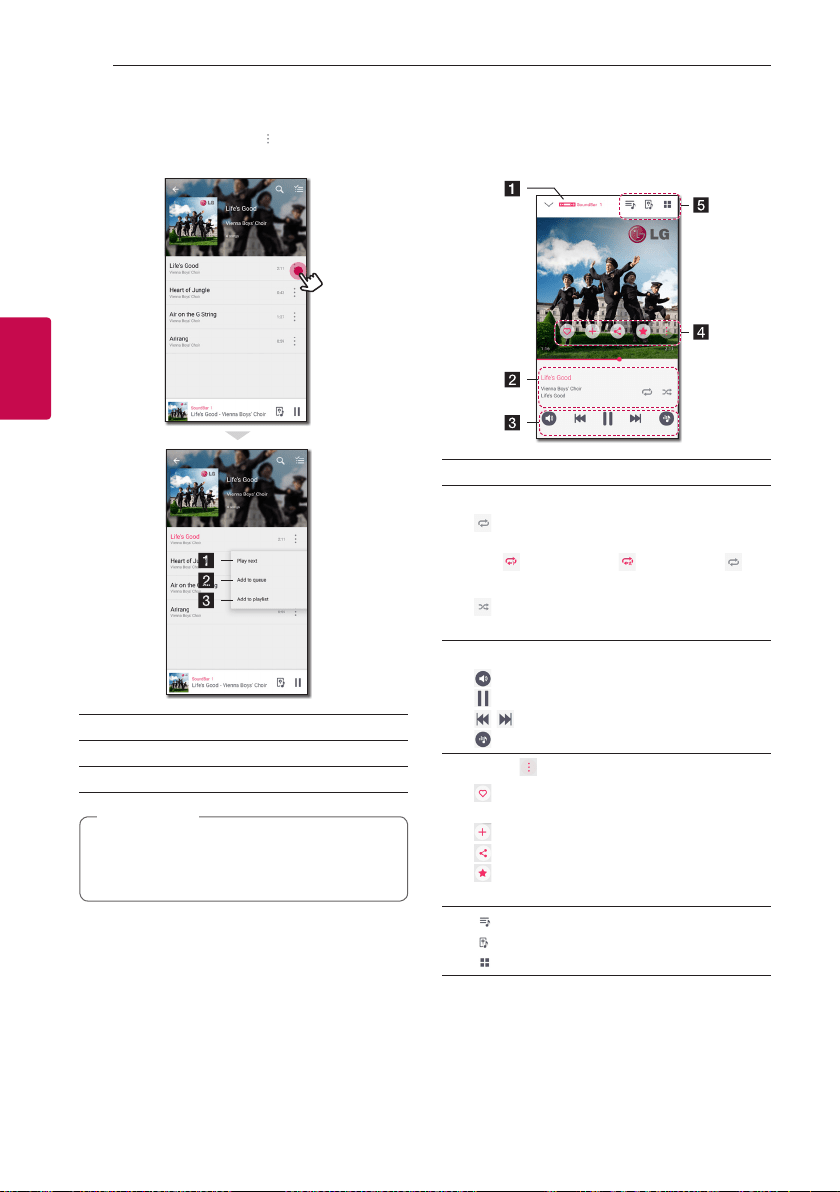
Playing a song
1. Launch Music Flow Player app on your smart
device. The [Home] appears.
2. Tap the [Home] menu.
3. Side menu appears.
Select the [My Phone] on the side menu.
4. Select the desired album.
5. Select the desired song. Then selected song is
displayed and played.
If the speaker is not selected, the selecting
speaker pop-up appears. Select a desired
speaker.
,
Note
Operating44
Operating
3
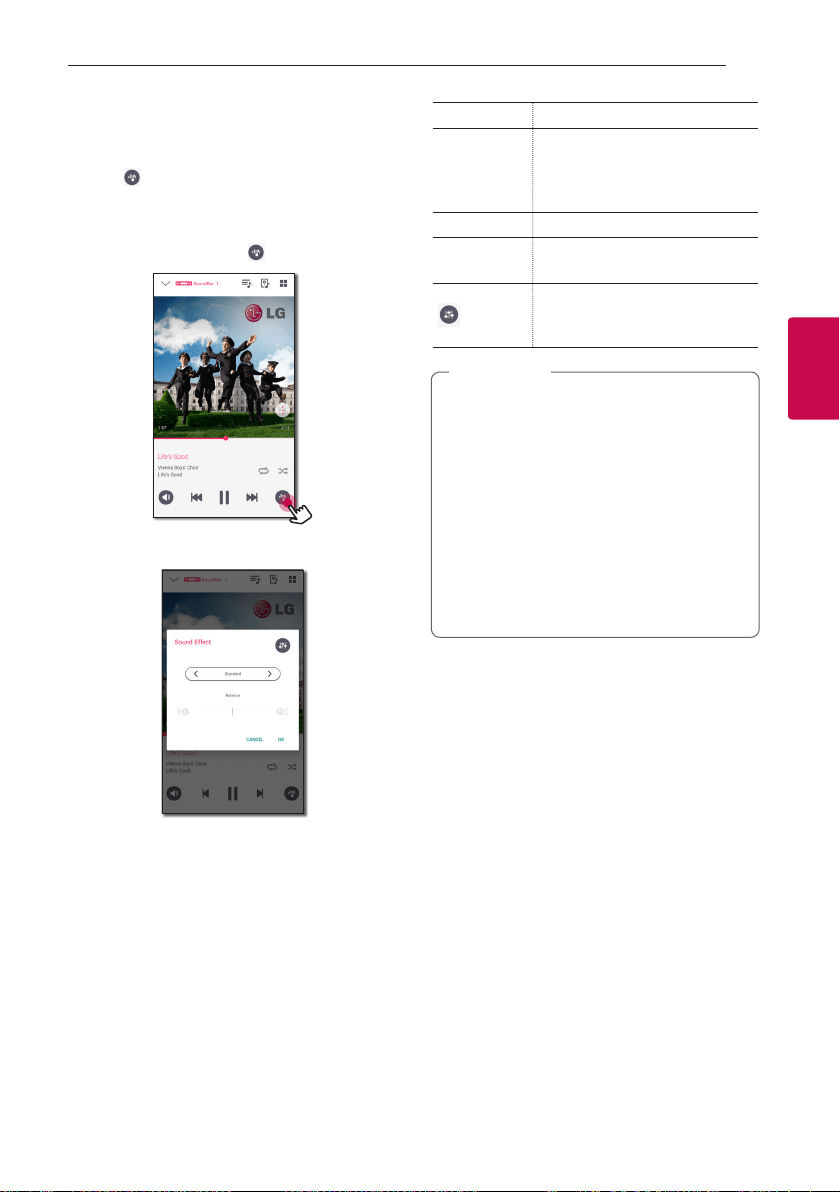
Managing a playlist
On an album screen, tap the [ ] of the desired song.
The pull down menu appears.
a
Play next – Selects music to play next.
b
Add to queue – Adds to queue list.
c
Add to playlist – Adds to a desired playlist.
Depending on your wireless environment, playing
a song with the speaker may not work smoothly.
,
Note
Overview of Playback
You can conrm and adjust various information on
the playback screen.
a
Displays the speaker that music plays through.
b
Displays current playing music.
- Repeats the desired contents. Every
time you click it, the state changed in the
(Repeat One) - (Repeat All) -
(Repeat Off) order.
- Shufes the music on the list. Music will
be played in random order.
c
Adjusts playback.
- Adjusts the volume.
- Pauses playback.
/ - Skips fast backward or forward.
- Adjusts the sound effect.
d
Tap the , various option appears.
- Saves the music to the [Favorites]. You
can nd [Favorites] on [Home] tab
- Adds music to [My Playlist].
- Shares on the social network services.
- Searches for more music that is similar to
the music being played.
e
- Edits the current playlist.
- Selects a speaker to play.
- Displays music menu.
Operating 45
Operating
3
Selecting Sound effect
This speaker has a number of pre-set surround
sound elds. You can select a desired sound mode by
tapping [ ].
The displayed items for the equalizer may be different
depending on sound sources and effects.
1. During playback, tap the [ ] as below.
2. Tap the
A
or
D
.
You can select the various sound effects.
Sound Effect Description
ASC
Analyzes the property of input
sound and provides the sound
optimized for the content in real
time.
Standard You can enjoy optimized sound.
Cinema
You can enjoy more immersive and
cinematic surround sound.
You can set Treble and Bass value.
The set value will be reected to
the overall sound effect.
y
When you play the songs with smart device’s
speaker, the sound equalizer is not supported.
y
You can also select a desired sound mode by
using SOUND EFFECT on the remote control.
y
In some of surround modes, some speakers,
there’s no sound or low sound. It depends
on the mode of surround and the source of
audio, it is not defective.
y
You may need to reset the surround mode,
after switching the input, sometimes even
after the sound le changed.
,
Note
Operating46
Operating
3
Different ways of
listening to music
There are a number of differing ways of listening to
music : Group, Surround and Seamless playbacks.
If you want to enjoy the group playback and
Surround playback, it is recommended that at
least one speaker is connected by LAN cable. To
change speaker connection setting when all the
speaker have been already connected wirelessly,
reset all the speaker and connect again after
connecting the one speaker of them.
In the wireless connection, the smoothness of
playback is subject to the location of installed
speaker. Install the speakers at a short distance
from the router. To enjoy the smooth group
playback or surround playback wirelessly, it is
recommended to use the router supporting
802.11n. In this case, set the router’s security
mode setting to OPEN or AES.
,
Note
Group Playback
You can group multiple speakers linked to the Music
Flow Player app and play the same music through all
the connected speakers in the same group.
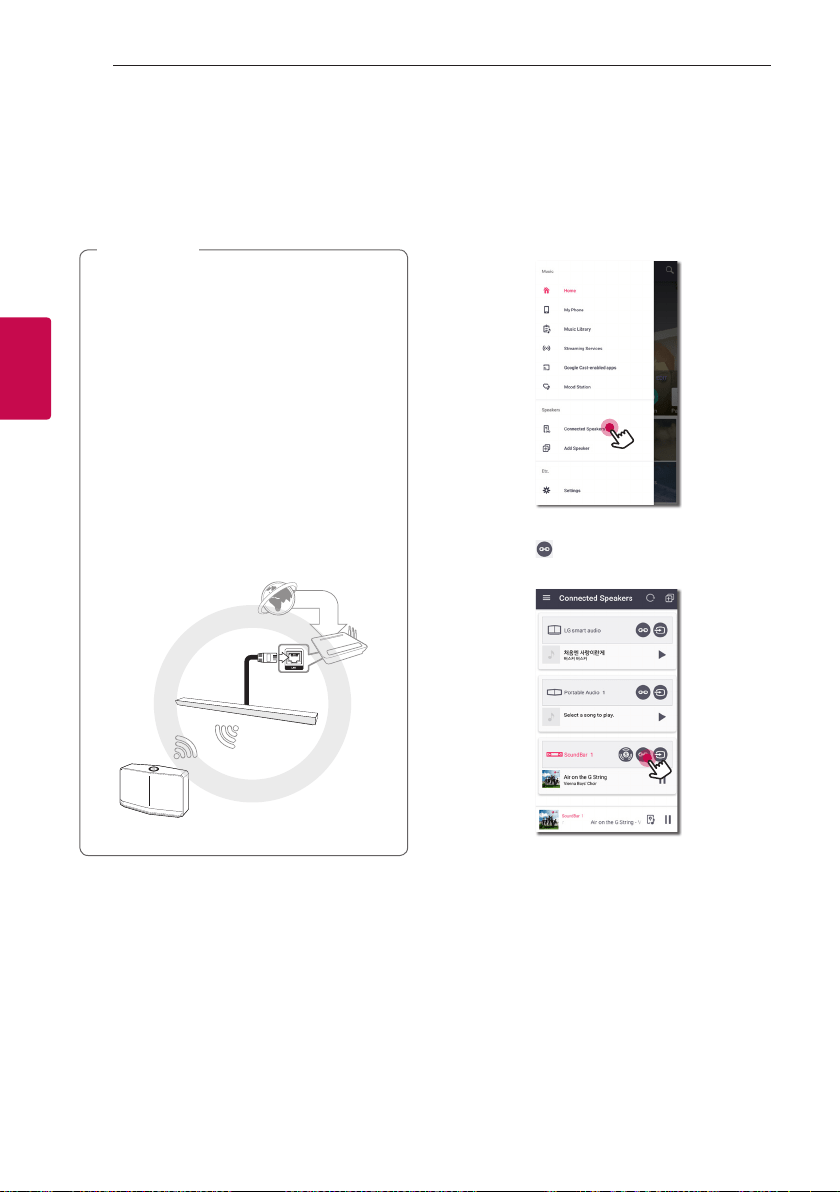
1. Select [Connected Speakers] on the side menu of
Music Flow Player app.
2. Connected speakers appear.
Select the [ ] on the speaker desired song plays
through.
Operating 47
Operating
3
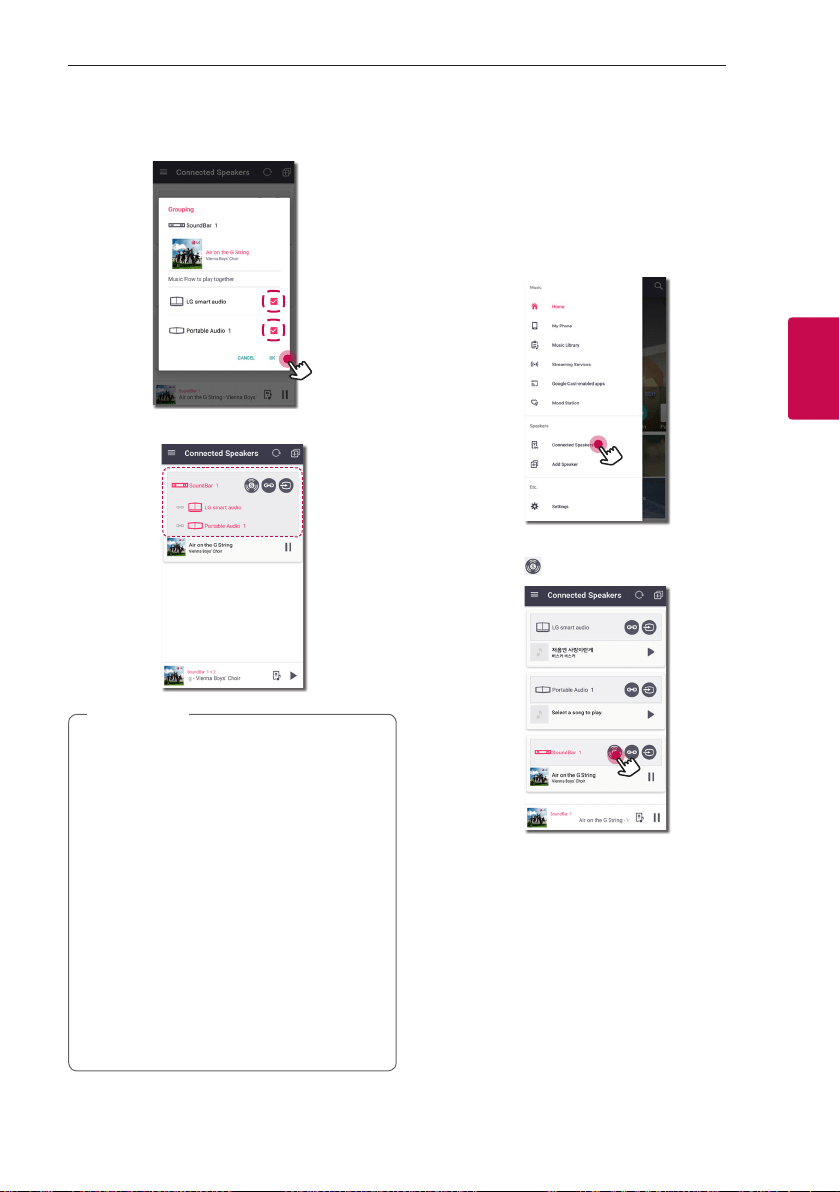
3. Grouping option appears.
Tap the checkbox to select the speaker you want
to play with. Then select [OK].
4. The speakers is ready to group playback.
y
If the speakers are not grouped, you can enjoy
different music on each speaker.
y
It is recommended to connect less than 5
devices for the smooth playback.
y
The weak signal because of the long distance
between speakers or wireless router and
signal interference may cause abnormal
playback.
y
Depending on your wireless environment, the
grouping may be broken.
y
For smooth group playback, it is
recommended to select the speaker
connected by LAN cable as a master speaker.
If you set the master speaker connected
wirelessly, placed closer from the speaker
connected wired.
,
Note
Surround Sound Mode (Home
Cinema Mode)
Simply add a LG MUSICow sound bar to your
network and synchronize it with your LG MUSICow
speakers to enjoy a home cinema system experience.
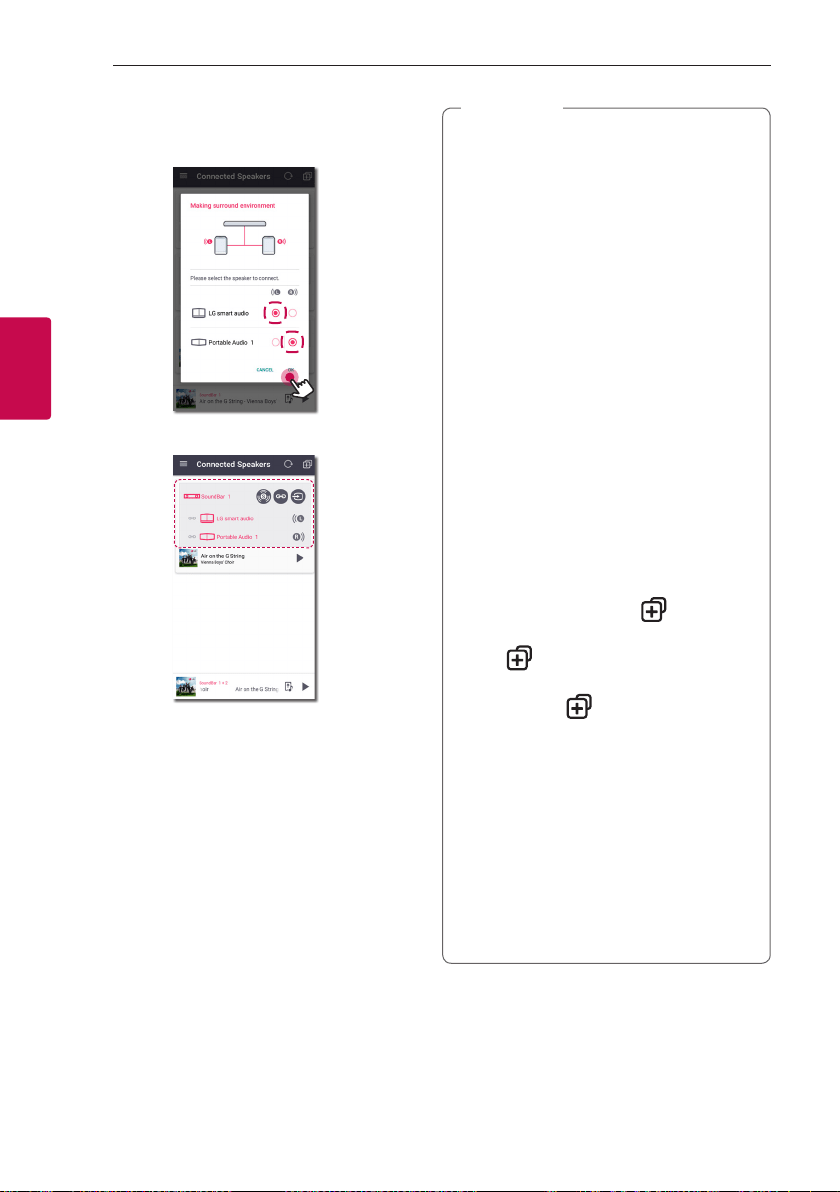
1. Select [Connected Speakers] on the side menu of
Music Flow Player app.
2. Connected speakers appear.
Select the [ ] on the speaker.
Operating48
Operating
3
3. Surround environment option appears.
Select the left and right speakers by tapping
connected speakers. Then select [OK].
4. The speakers are ready to surround playback.
y
It is recommended to set the surround
speakers to same models.
y
The weak signal because of the long distance
between speakers or wireless router and
signal interference may cause abnormal
playback.
y
Depending on your wireless environment, the
grouping may be broken.
y
For smooth playback, it is recommended to
select the speaker connected by LAN cable
as a master speaker. If you set the master
speaker connected wirelessly, placed closer
from the speaker connected wired.
y
To enjoy the home cinema system without
Music Flow Player app, follow the below
steps.
1. Plug in the Sound bar
2. The Sound bar connect to the home
network. (wired or wireless)
3. Plug in the rear speakers.
4. The rear speakers connect to the home
network. (wired or wireless)
5. Press the sound bar’s
(Add) button
and then press the left rear speaker’s
(Add) button. After left rear
speaker connection, press the right rear
speaker’s
(Add) button.
6. When the speaker setting is
complicated, surround sound mode is set
automatically.
y
if the home cinema mode congure with
retained product, updates the speaker to the
latest version.
y
Check every speaker’s network connection
when you cannot set the speakers. If the
speakers are not connected to the home
network, refer the “Connecting the speaker
to your Home Network”.
,
Note
Operating 49
Operating
3
Seamless playback
You can easily change the playing speaker from your
smart device or the speaker to the another speaker
without pause.
y
It is not supported when you go out of the
house with your smart device.
y
Wi-Fi function on smart device must be
turned on.
y
If the source is Portable In and Bluetooth,
seamless play is not supported. (Media server
and online streaming service are supported).
y
In case of the online streaming service, the
music you are listening to is played from the
beginning.
y
On seamless play, each speaker keeps its
existing volume value. If no sound coming out
from the speaker during playback, check the
switched speaker’s volume is set to 0.
,
Note
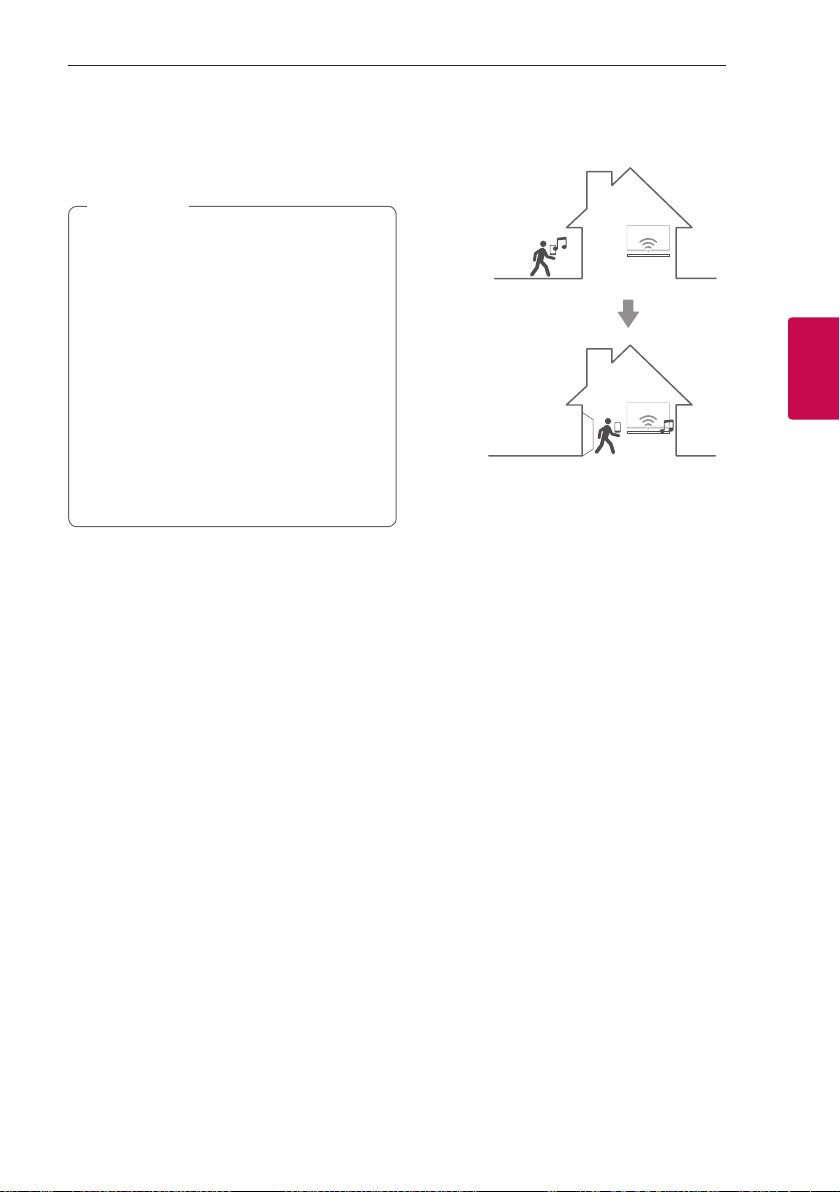
Changing playing speaker from a smart
device to a speaker
1. If the smart device playing music is carried from
outside to a room where the connected speaker
is in, the pop-up window on the smart device will
appear to ask you which speaker you want to play
music through.
2. Select the speaker on the pop-up list, the music
you are listening to is played through without a
pause.
Operating50
Operating
3
Using LG HomeChat
y
For more information,
see http://homechat.lge.com.
y
Depending on the region, the LG HomeChat
service may not be available.
,
Note
About LG HomeChat
y
What kind of service is LG HomeChat?
- LG HomeChat service enables users to chat with
Smart home appliances in friendly, daily language
through mobile messenger LINE.
y
What kind of audio functions does LG HomeChat
provide?
- Control : Play, Pause, Mood Station, Volume
Settings, Shufe, Repeat, Alarm/Sleep Timer, etc.
- Monitoring : Audio Status, View Alarm(s)/Sleep
Timer(s)
- Situation Scenario : Coming home, Sleeping and
Party mode
Supported LG HomeChat functions may vary
over time.
,
Note
How to start LG HomeChat
Step 1. Install LINE
Please check if “LINE” application is installed on your
mobile device, and if not, search and install “LINE”
from your application market(Google Play Store,
Apple App Store, etc.).
Additional data charges may occur if installed
over 3G/4G, according to your device plan.
,
Note
Step 2. Adding LG HomeChat as a
friend on LINE
1. Launch LINE and tap “More > Official Accounts”
button.
2. Find “LG HomeChat” from the list or search for
“LG HomeChat” through search function and
select it.
3. Add “LG HomeChat” as friend, and you are ready
to chat with LG HomeChat.
Step 3. Agree to Service Terms and
Conditions
1. Please tap the Terms and Conditions link in your
LG HomeChat conversations.
2. Please confirm your age. (Age requirements may
vary for different countries.)
3. Read our terms and conditions, check off the
three boxes, and tap the “I Agree” button.
For a safe appliance control, LG HomeChat does
not allow service to young children. Please make
sure young children do not use LG HomeChat
service.
,
Note
Operating 51
Operating
3
Step 4. Connect audio to LG HomeChat
1. To control your home appliance(s) through
HomeChat, you need to make sure that the
smart device installed Music Flow Player and
the speaker are connected to the same Wi-Fi
network and first register your speaker. Enter
“Register” for a link for product registration.
If you haven’t installed Music Flow Player app
already, refer to Installing “Music Flow Player” App
on page 21.
2. Click the audio button to connect product(s)
registered to Music Flow Player to LG HomeChat.
(For a pop-up asking for app install on Android”s
KitKat version, tap “yes”)
3. Product(s) with “Available” displayed on the right
is available for LG HomeChat service. Select
product(s) you wish to connect to LG HomeChat,
and tap “next”.
4. Connection successfully completed! Tap “Return
to LG HomeChat Conversations” and chat with
your product(s).
Step 5. Use LG HomeChat
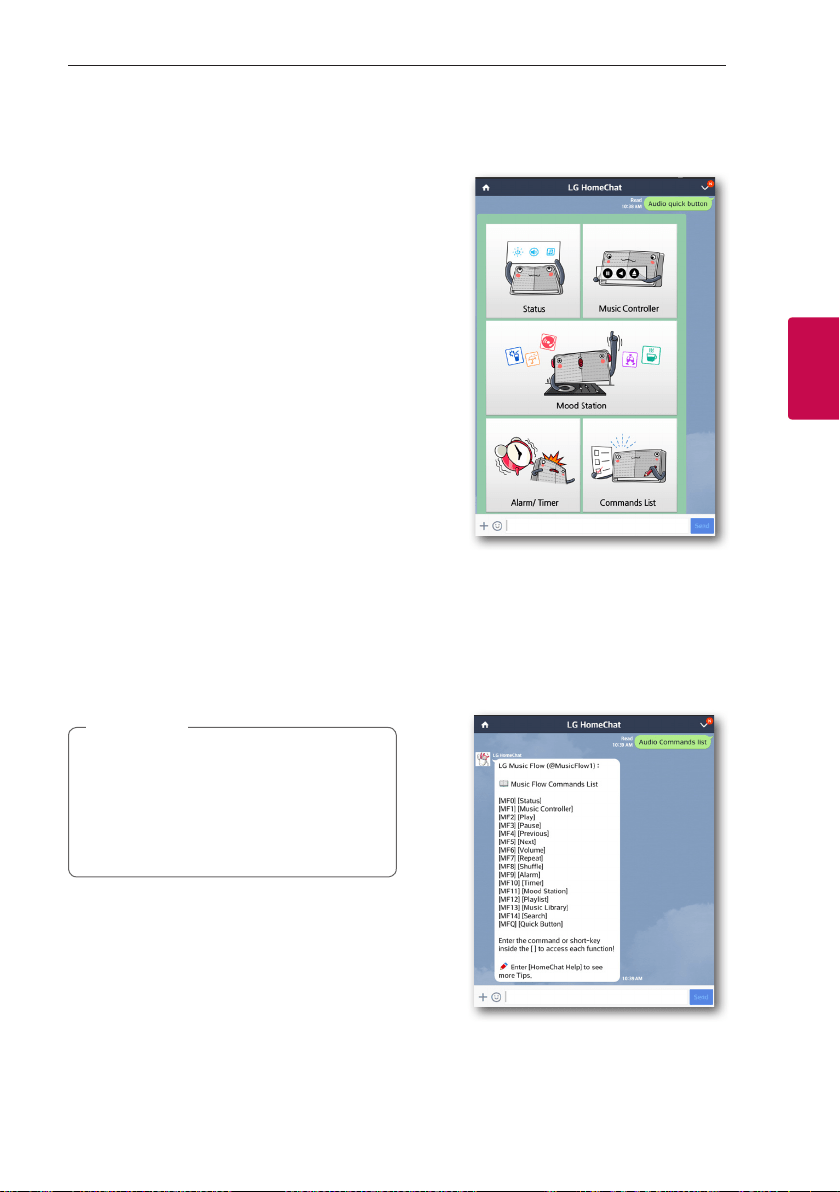
1. Call “Audio” to give command(s). Enter “Audio
What”s on now?” or “Audio Status” to check
current status of your audio.
2. Enter “Audio Commands” or “Audio Help” to see
the list of audio key functions and command
short-keys.
y
If you have any questions during LG
HomeChat use, enter “Help” for various user’s
manuals.
y
For questions regarding products, contact
LG Electronics Service Center for a faster
response.
,
Note
Usage Examples
Audio quick button
Audio Commands list
.
Operating52
Operating
3
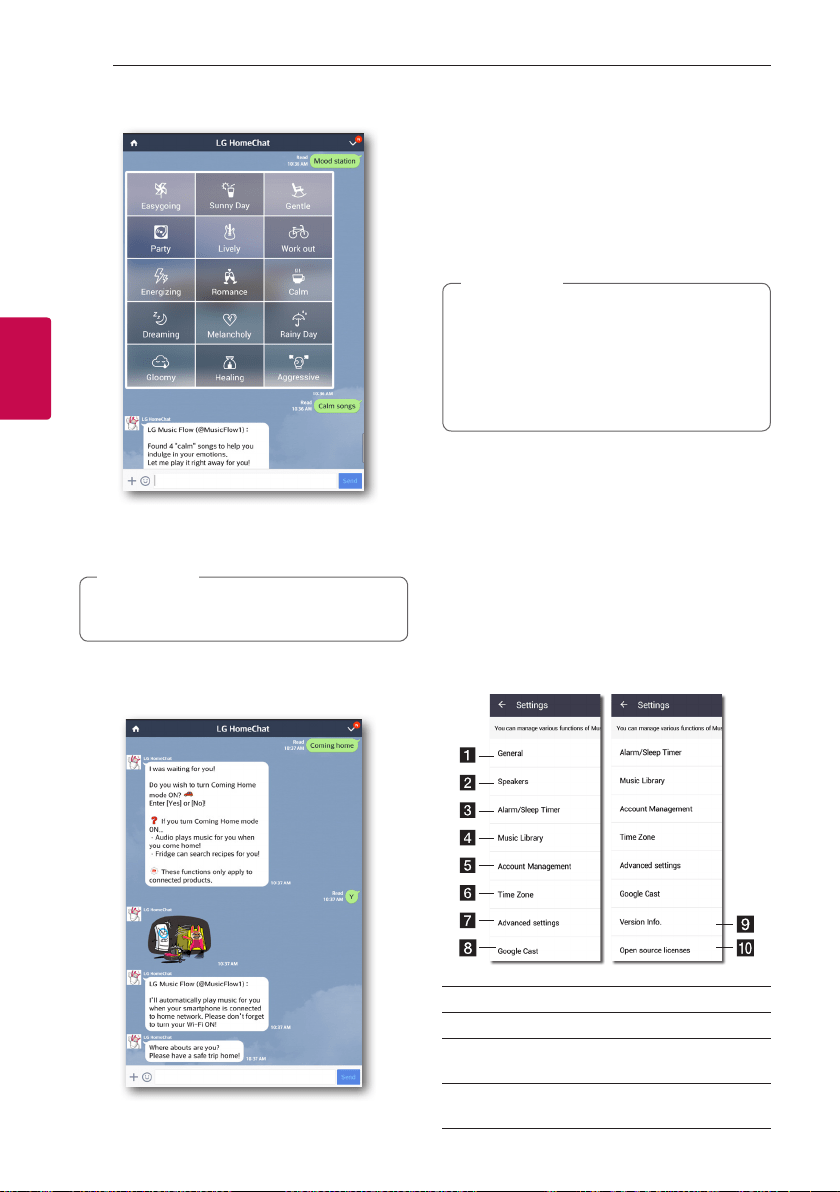
Mood station
Analyzes the songs in Music Library using
Gracenote, and organizes them according to Mood.
The organization may not be correct depending
on the audio le.
,
Note
Coming home
Setting the Speaker
with Music Flow Player
app
With Music Flow Player app, you can set the
connected speaker in your smart device.
y
For more detailed instruction about Music
Flow Player app, switch on the [User Guide]
in [Settings] > [General] on the side menu.
y
Some of the content in this part may differ
from Music Flow Player app depending on the
application’s version.
,
Note
Preparation
1. Check the network connection with the speaker.
(Page 26)
2. To use the speaker, you must download and install
the Music Flow Player app. (Page 21)
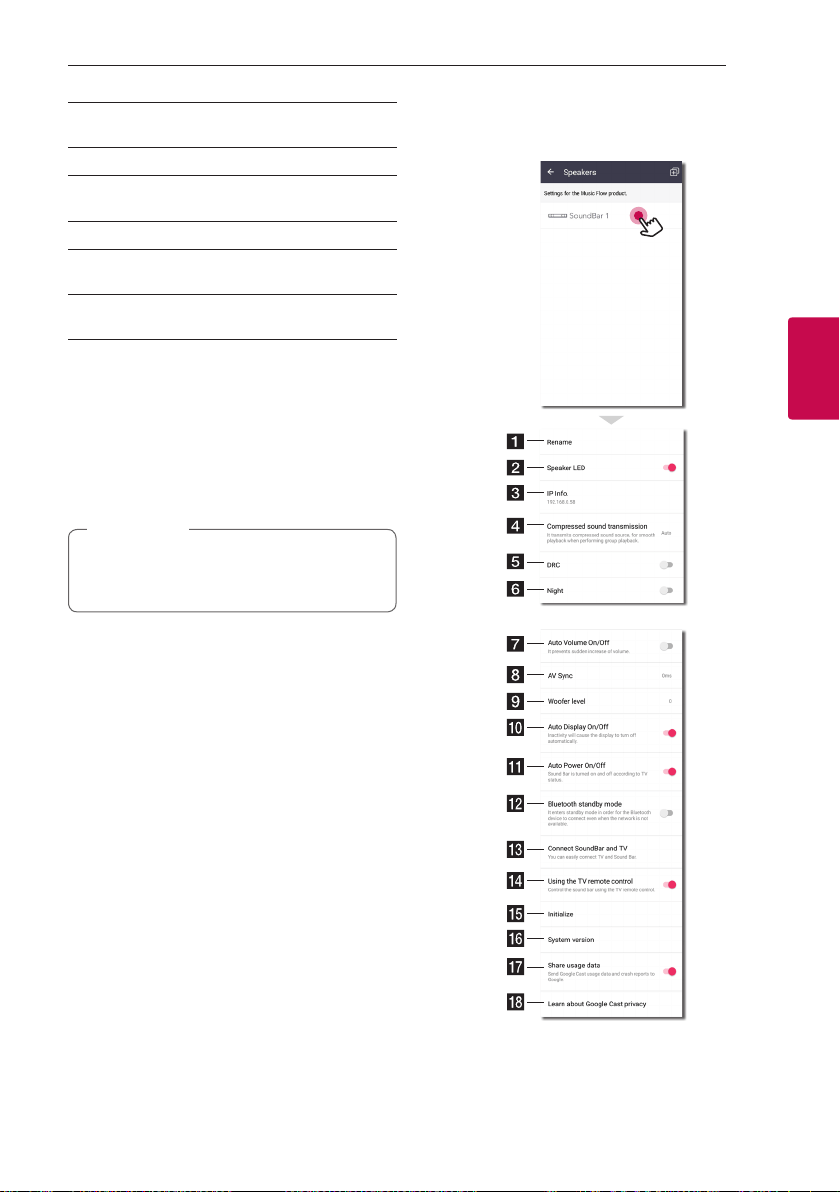
Overview of setting menu
1. Launch Music Flow Player app on your smart
device.
2. Select [Settings] on the side menu.
a
General – Sets for easier use of the speaker.
b
Speakers – Sets connected speaker.
c
Alarms/Sleep Timer – Wakes on and off the
speaker at a designated time.
d
Music Library – Manages the music library
Library.
Operating 53
Operating
3
e
Account Management – Manages social
networking service and streaming services.
f
Time zone - Sets time zone.
g
Advanced settings – Displays the Advance
settings menu. (Page 55)
h
Google Cast - Displays the Google cast menu.
i
Version Info. – Updates the speaker to the
latest version.
j
Open source licenses – Shows LGE Open
Source Software Notice.
[General] Menu
Sets for easier use of the speaker.
Lock Screen Setting (Android only)
This function allows you to display the Music Flow
Player on the lock screen. (Lock screen setting is
[ON] by default.)
[Lock Screen Setting] may differ from Music
Flow Player app depending on the application’s
version.
,
Note
User Guide
This function allows you to display or delete the guide
on the menu.
Music Curation
Goes to the music curation.
Gesture
When this function is on, you can easily continue
playback your music by simply shaking your mobile.
[Speakers] Menu
You can adjust speakers connected to your network.
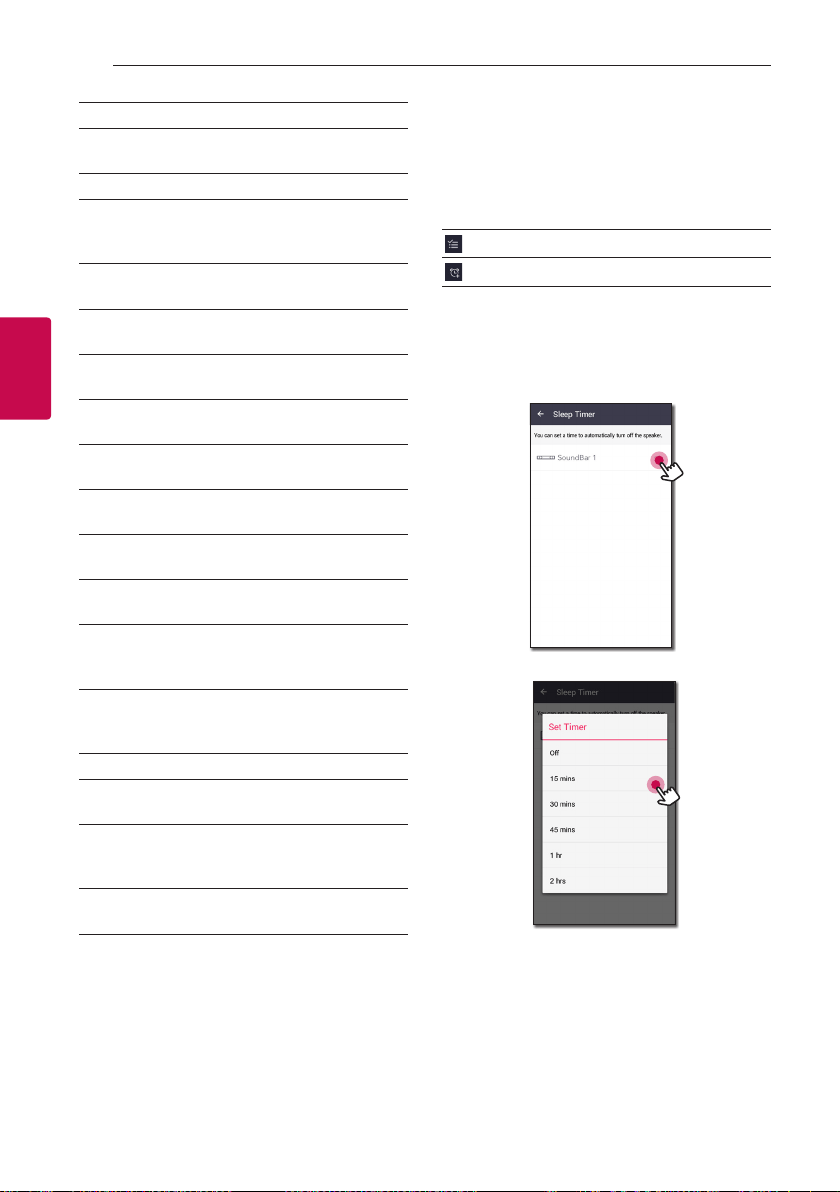
Operating54
Operating
3
a
Rename – Renames the speaker.
b
Speaker LED – Turns on or off speaker’s LED
indicator.
c
IP Info. - Shows the IP address of the speaker.
d
Compressed sound transmission – Adjusts
the compression of audio source according to
network status.
e
DRC – Turns on or off DRC function.
(Page 60)
f
Night – Turns on or off Night Mode function.
(Page 62)
g
Auto Volume On/Off – Turns on or off Auto
Volume function. (Page 62)
h
AV Sync – Adjust the audio and video
Synchronization. (Page 60)
i
Woofer level – Adjust Woofer level. (Page
62)
j
Auto Display On/Off – Turns on or off Auto
Display function.
k
Auto Power On/Off – Turns on or off Auto
Power function. (Page 61)
l
Bluetooth standby mode – Turns on or off
Bluetooth standby mode.
m
Connect SoundBar and TV – Guide you to
connect to your TV. (through Optical (Page
14) or HDMI (Page 16))
n
Using the TV remote control - Adjusts some
functions of this unit with your TV remote
control. (Page 60)
o
Initialize – Resets the speaker.
p
System version – Displays the current system
version.
q
Share usage data - Select whether to send
Google cast usage data and crash reports to
Google.
r
Learn about Google Cast privacy - Shows
Privacy policy of Google cast.
[Alarms/Sleep Timer] Menu
Turns on and off the speaker at a designated time.
Alarms
Speaker will let you know when it is time.
Deletes selected alarm.
Adds new alarm.
Sleep Timer
Sets a time to automatically turn off the speaker.
1. Select the speaker to set timer on [Sleep Timer]
in the [Alarms/Sleep Timer] menu.
2. Set the desired timer on selected speaker.
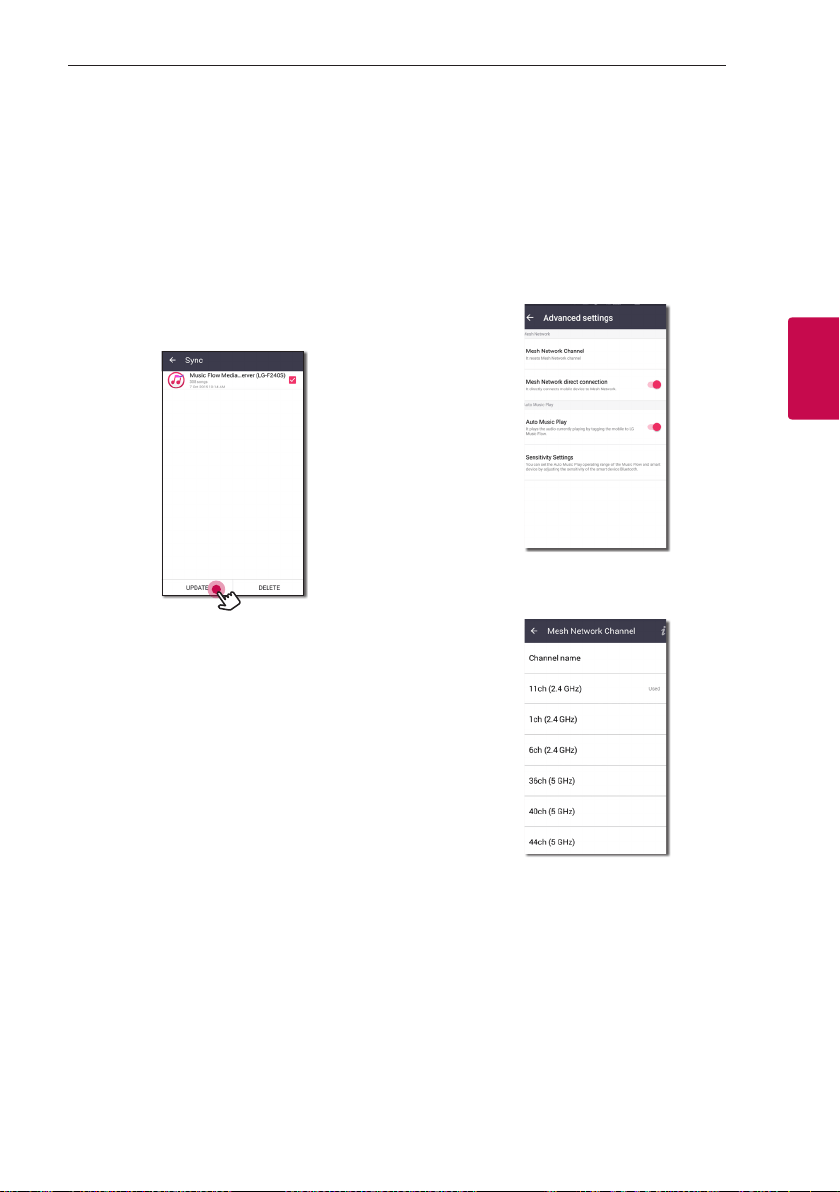
Operating 55
Operating
3
[Music Library] Menu
Manages the music library index.
Sync Schedule
You can set the time to update the Music index
automatically. Select the days and time to perform
the update. (Sync Schedule is [OFF] by default.)
Sync
Manages the music library index.
1. Select the desired server and click the checkbox.
2. Tap the [Update] to update the desired server.
[Account management] Menu
Manages various social networking service and online
streaming service.
[Time Zone] Menu
Automatic Time zone
It offers to use network provided time.
Set Time Zone
If you deselect [Automatic Time zone], you can select
your time zone yourself.
[Advanced Settings] Menu
Mesh Network Channel
If normal playback or group playback is not smooth
using multiple speakers including wireless speaker
connection, changed the mesh network channel to
improve network speed.
1. Select the [Settings] -> [Advanced Settings]
option.
2. Select the [Mesh Network Channel] option.
The channel information now being used is
displayed.
3. Select the channel to change.
4. The channel information is updated to the
selected channel.
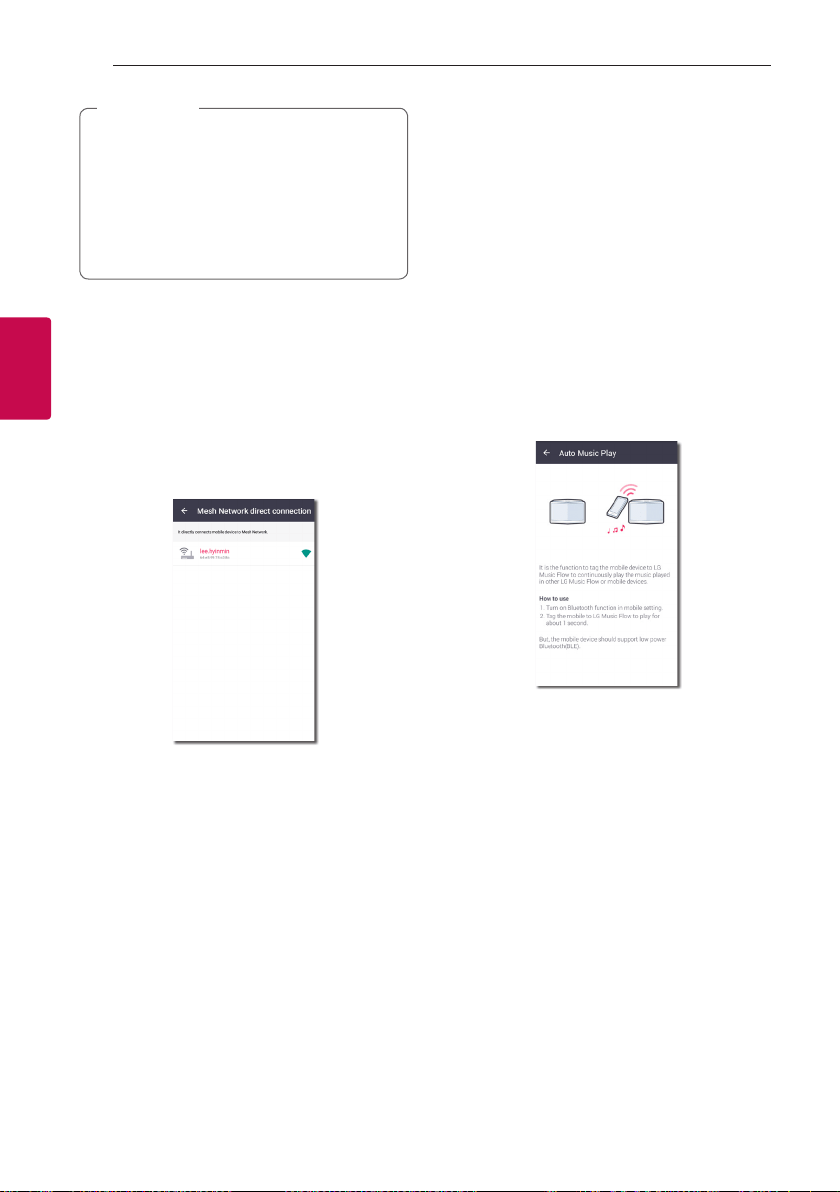
Operating56
Operating
3
y
The speaker is disconnected temporarily
during the channel changing.
y
If you changed the channel when the speaker
turned off, turn on and add it again.
y
If the speaker is not connected to network
after changing the channel, add the speaker
again.
,
Note
Mesh Network direct connection
(Android only)
You can directly connect the smart device to speaker
connected your home network.
When your smart device is placed in a position
where it cannot connect to the home network,
select a nearby speaker in the [Mesh Network direct
connection] list and then connect the smart device to
the speaker.
Auto Music Play
You can easily change the rendering device from your
smart device or a speaker to another speaker by
approaching your smart device to the desired speaker.
y
Your smart device should support bluetooth (BLE).
y
This function is subject to the smart device
capability and the Wi-Fi network status.
y
Auto music play option in the music ow app
should be turned on.
y
This function may cause more battery
consumption.
1. Turn on the [Auto Music Play] option in the
Advanced settings menu on the music flow app.
2. Tag the smart device to LG Music Flow to play for
about 1 second.
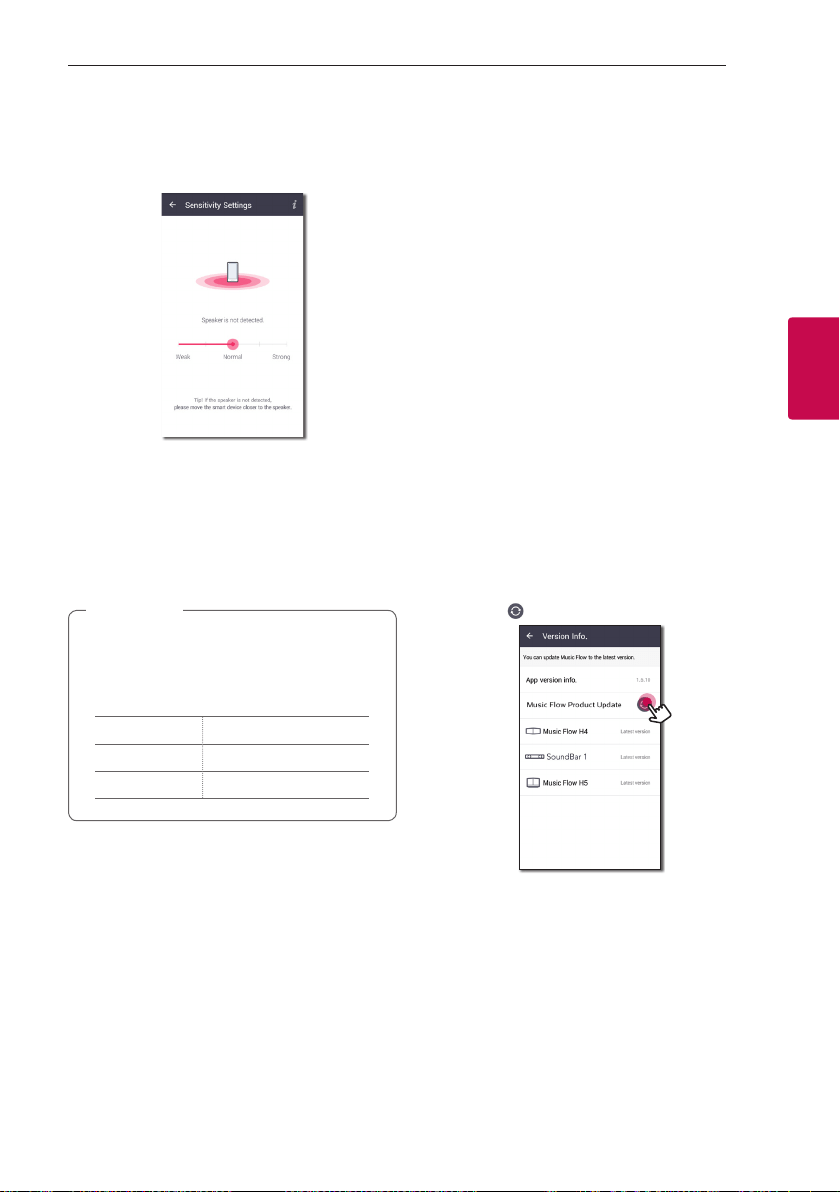
Operating 57
Operating
3
Sensitivity Settings
Sets the operating distance of Auto Music Play
between the speaker and your smart device to adjust
sensitivity of Bluetooth(BLE).
- Place your smart device close enough to the
tag on the speaker. It is recommend to be within
about 2 inches.
- Set the slide bar at [Close], the leftmost
position.
- Move the slide to the right slowly until the
notication appears.
y
The smart device should support low power
Bluetooth (BLE).
y
BLE support specications in case of android
can vary depending on the manufacturer.
Device O/S
Android Android 4.3 (or later)
Apple iOS 7.1.2 (or later)
,
Note
[Google Cast] Menu
Learn how to cast
Shows to use Google Cast.
Google Cast-enabled apps
Shows available apps on Google Cast.
Legal information
Select [Google Terms of Service], [Google Privacy
Policy] or [Open source license] to show the selected
information.
[Version Info.] Menu
Updates the speaker to the latest version.
App version info.
Displays the current application’s version.
Device version info.
Updates the latest speaker’s rmware version.
1. Find the speakers need to update and
tap the [ ].
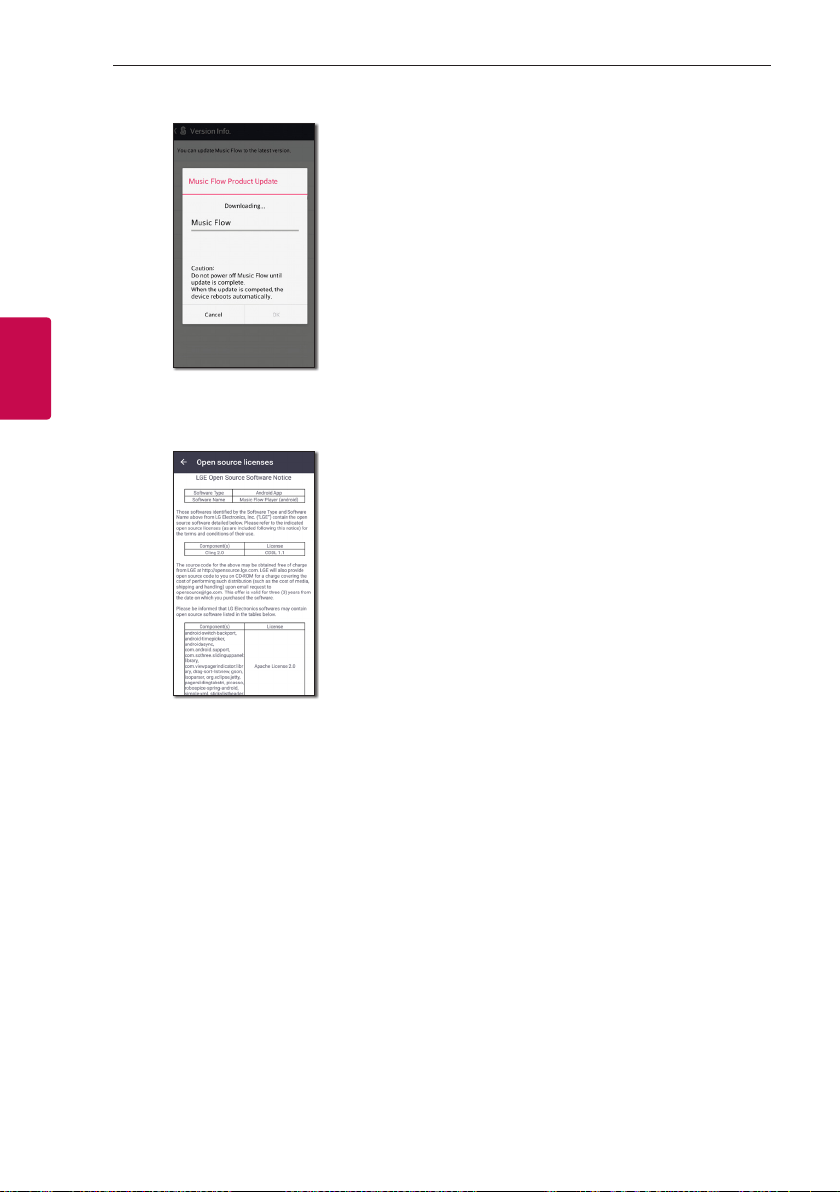
Operating58
Operating
3
2. Starts the software update.
[Open source licenses] Menu
Shows LGE Open Source Software Notice.
Using a Bluetooth
Wireless Technology
About Bluetooth
Bluetooth is wireless communication technology for
short range connection.
The sound may be interrupted when the connection
interfered by the other electronic wave or you
connect the bluetooth in the other rooms.
Connecting individual devices under Bluetooth
wireless technology does not incur any charges. A
mobile phone with Bluetooth wireless technology
can be operated via the Cascade if the connection
was made via Bluetooth wireless technology.
y
Available Devices : Android device, iOS device
y
Version: 4.0
y
Codec: SBC
Bluetooth profiles
In order to use Bluetooth wireless technology,
devices must be able to interpret certain proles. This
speaker is compatible with following prole.
A2DP (Advanced Audio Distribution
Prole)
Listening to Music of a
Bluetooth Device
Before you start the pairing procedure, make sure
that the Bluetooth feature on your smart device
is turned on. Refer to your Bluetooth device’s user
guide. Once a pairing operation is performed, it does
not need to be performed again.
Operating 59
Operating
3
1. Select the Bluetooth function by using F on the
remote control or F on the unit until the function
is selected.
Appears “BT” and then “BT READY” in display
window.
2. Operate the Bluetooth device and perform
the pairing operation. When searching for this
speaker on your Bluetooth device, a list of the
devices found may appear in the Bluetooth device
display depending on the type of Bluetooth
device. Your speaker appears as “LG SH8(XX:XX)”.
3. Select the “LG SH8(XX:XX)”.
y
XX:XX means the last four digits of
address. For example, if your unit has a
MAC address such as 20:C3:8F:C9:31:55,
you will see “LG SH8(31:55)” on your
Bluetooth device.
y
Depending on the Bluetooth device type,
some device have a different pairing way.
Enter the PIN code (0000) as needed.
,
Note
4. When this unit is successfully connected with
your Bluetooth device, “PAIRED” will appear on
the display window.
5. Listen to music.
To play music in your Bluetooth device, refer to
your Bluetooth device’s user guide.
According to your Bluetooth device’s volume level,
the volume level of Bluetooth will be adjusted.
y
When using Bluetooth technology, you have
to make a connection between the unit and
the bluetooth device as close as possible and
keep the distance.
However it may not work well in the case
below :
- There is a obstacle between the unit and
the bluetooth device.
- There is a device using same frequency
with Bluetooth technology such as a
medical equipment, a microwave or a
wireless LAN device.
,
Note
y
This unit supports Bluetooth auto pairing.
However it does not operate in the case
below:
- When you restart this unit.
- When you disconnect this unit by yourself.
- When you disconnect this unit on the
connected Bluetooth device.
y
The sound may be interrupted when the
connection is interfered with by the some
other electronic wave.
y
You cannot control the Bluetooth device with
this unit.
y
Pairing is limited to “One” Bluetooth device.
Multi-Pairing is not supported.
y
Depending on the type of the device, you may
not be able to use the Bluetooth function.
y
You can enjoy using Bluetooth when using
Phone, MP3, Notebook, etc..
y
The more distance between the unit and the
bluetooth device, the lower the sound quality
becomes.
y
The Bluetooth connection will be
disconnected when the unit is turned off or
the Bluetooth device gets too far from the
unit.
y
If the Bluetooth connection is disconnected,
connect the Bluetooth device again.
y
When a Bluetooth device is not connected,
“BT READY” appears on the display window.
y
If you set the Wi-Fi function in the state
of unconnected network, Bluetooth
and Wireless TV Sound Sync may not be
connected.
,
Note
Operating60
Operating
3
Other operations
DRC (Dynamic Range Control)
Make the sound clear when the volume is turned
down (Dolby Digital only). Set to [DRC ON] by using
DRC.
AV Sync
When receiving audio signals from TV, sound and
images may not be matched. In the case, this function
can adjust the delay time.
1. Press AV SYNC.
2. Use
C/V
to control the time which you
can set at between 0 and 300 ms.
Using your TV remote control
You can control some functions of this unit by your
TV remote control even by other company’s product.
Controllable functions are volume up/down and
mute.
Press and hold AV SYNC on the remote control for
about 3 seconds. “ON - TV REMOTE” appears and
you can control this unit by your TV remote control.
To check the status of this function, press and hold
AV SYNC.
To turn off this function, press and hold AV SYNC
and press it once again while “ON - TV REMOTE” is
scrolled.
y
Supported TV brands
LG Panasonic Philips Samsung
Sharp Sony Toshiba Vizio
y
Make sure that the sound output of your TV
is set to [External speaker].
y
Depending on the remote control, this
function may not work well.
y
This function does not operate on LG TV’s
magic remote control.
y
This function may not work well when some
TV control functions such as HDMI CEC,
SIMPLINK and LG Sound Sync set to ON.
y
Some remote control may not be supported.
y
Some remote control may not operate if you
press repeatedly the volume button.
,
Note
Turn off the sound temporarily
Press (Mute) to mute your unit.
You can mute your unit, for example, to answer the
telephone, “MUTE” is displayed in the display window.
To cancel it, press (Mute) again on the remote
control or change the volume level.
Sleep timer setting
This unit will turn off by itself after the time set.
Press SLEEP one or more times to select delay time
between 10 and 180 minutes.
To check the remaining time, press SLEEP.
To cancel the sleep function, press SLEEP repeatedly
until “SLEEP 10” appears, and then press SLEEP
once again while “SLEEP 10” is displayed.
You can check the remaining time before the
unit turns off . Press SLEEP the remaining time
appears in the display window.
,
Note
Operating 61
Operating
3
Auto power down
This unit will turn itself off to save electric
consumption when the main unit is not connected to
an external device and is not used for 20 minutes.
It will also turn off after six hours if the Main unit is
connected to a device using portable input.
When network is connected, the speaker switches to
the network standby mode. Then the LED indicator
on the unit becomes dimmed in white.
If network is disconnected, the speaker switches to
the standby mode. Then the LED indicator on the unit
turns red.
AUTO POWER On/Off
This unit automatically turns on and off by an input
source : Optical.
When you turn on your TV or an external device
connected to this unit, this unit recognizes the input
signal and selects the optical function. You can hear
the sound from your device.
This function turns on or off each time you press
AUTO POWER.
y
After the unit is turned on by AUTO POWER
function, it will be automatically turned off if
there is no signal for a certain period of time
from the TV connected by LG Sound Sync
(Optical).
y
After the unit is turned on by AUTO POWER
function, it will be automatically turned off if
there is no signal for a certain period of time
from the external device.
y
If you turned off the unit directly, it cannot
be turned on automatically by AUTO POWER
function. However the unit can be turned on
by AUTO POWER function when optical signal
comes in after 5 seconds of no signal.
y
Depending on the connected device, this
function may not operate.
y
If you want to use AUTO POWER, SIMPLINK
must be turned off. It takes for about 30
seconds to switch on or off SIMPLINK.
y
You can set the AUTO POWER function only
when this unit is turned on.
y
If you turn off(Red LED) this unit in
the network disconnected status, you
cannot AUTO POWER On by LG Sound
Sync(Wireless).
,
Note

Operating62
Operating
3
Auto Display Off / Dimmer
Press and hold AUTO POWER on the remote control
for about 3 seconds, “ON - AUTO DISPLAY” appears
and Auto Display off function is turned on.
(Default: ON)
OPT, HDMI, LG TV, ARC: If there is no key input for
about 15 seconds, display will be darkened and after
about 5 seconds, display will be turned off.
Wi-Fi, PORTABLE, BT: If there is no key input for
about 15 seconds, display will be darkened.
To turn off this function, press and hold AUTO
POWER and press it again. “OFF - AUTO DISPLAY” is
scrolled. Display window will be darkened if there is
no key input for about 15 seconds in all functions.
Sound adjustment
Adjust volume level
automatically
This unit supports Auto volume function that
automatically adjusts the volume level.
When the output sound is too loud or too low, press
AUTO VOL on the remote control. So you can enjoy
the sound with appropriate levels.
To cancel this function, press the button again while
“ON” is displayed.
Adjust the Treble/Bass/Sub-
woofer
You can adjust the sound level of Treble, Bass and
Subwoofer as your preference.
TREBLE/BASS : -5 dB to 5 dB
SUBWF (Subwoofer) : -15 dB to 6 dB
1. Press button repeatedly to select TREBLE,
BASS or SUBWF (Subwoofer).
2. Press VOL
o
/
p
to adjust the sound level.
Night mode
Set Night mode to On to reduce the sound intensity
and improve neness and softness.
Press button on the remote control. So you can
activate Night mode. To cancel it, press button
again.
Operating 63
Operating
3
Standby mode
The speaker switches to the standby mode if there is
no music playback or no button operation.
Standby mode
Option 1.
If network is disconnected and there is no music
playback and no button operation for 20 minutes,
the speaker switches to the standby mode. Then
“GOOD-BYE” appears on the display window and the
LED indicator on the unit turns red.
Option 2.
If you press and hold
1/!
on the unit or
1
on the
remote control for about 3 seconds, the speaker
switches to the standby mode. Then “GOOD-BYE”
appears on the display window and the LED indicator
on the unit turns red.
Network standby mode
Option 1.
When network is connected but music is not played
and buttons are not pressed for 20 minutes, the
speaker switches to the network standby mode.
Then the LED indicator on the unit becomes dimmed
in white.
Option 2.
If you press
1/!
on the unit or
1
on the remote
control, the speaker switches to the network standby
mode. Then the LED indicator on the unit becomes
dimmed in white.
Bluetooth standby mode
If the Bluetooth standby mode is set to ON, the
speaker switches Bluetooth standby mode when is
turned off.
When you turn on the main unit in the Bluetooth
standby mode, Bluetooth and LG TV are able to
connect even if network is not connected.
y
Adjust volume level of the main unit to
minimum. And then, press and hold VOL -
and DRC on the remote control for about
3 seconds. The speaker switches Bluetooth
standby mode.
y
If you turn off the unit in the Wi-Fi function,
Bluetooth standby mode does not operate.
y
To use this function, you should turn on the
AUTO POWER function.
,
Note
Reset the Speaker
If the speaker is not turned on or doesn’t respond,
reset the speaker.
Resetting the speaker
y
Press and hold the button until you hear the
beep sound once. You can see “DISABLED” on the
display window. Then all wireless network ports
are deactivated and the stored wireless network
information is deleted.
y
Press and hold the button until you hear the
beep sound twice. You can see “RESET” on the
display window. You can reset the speaker to its
original factory settings.
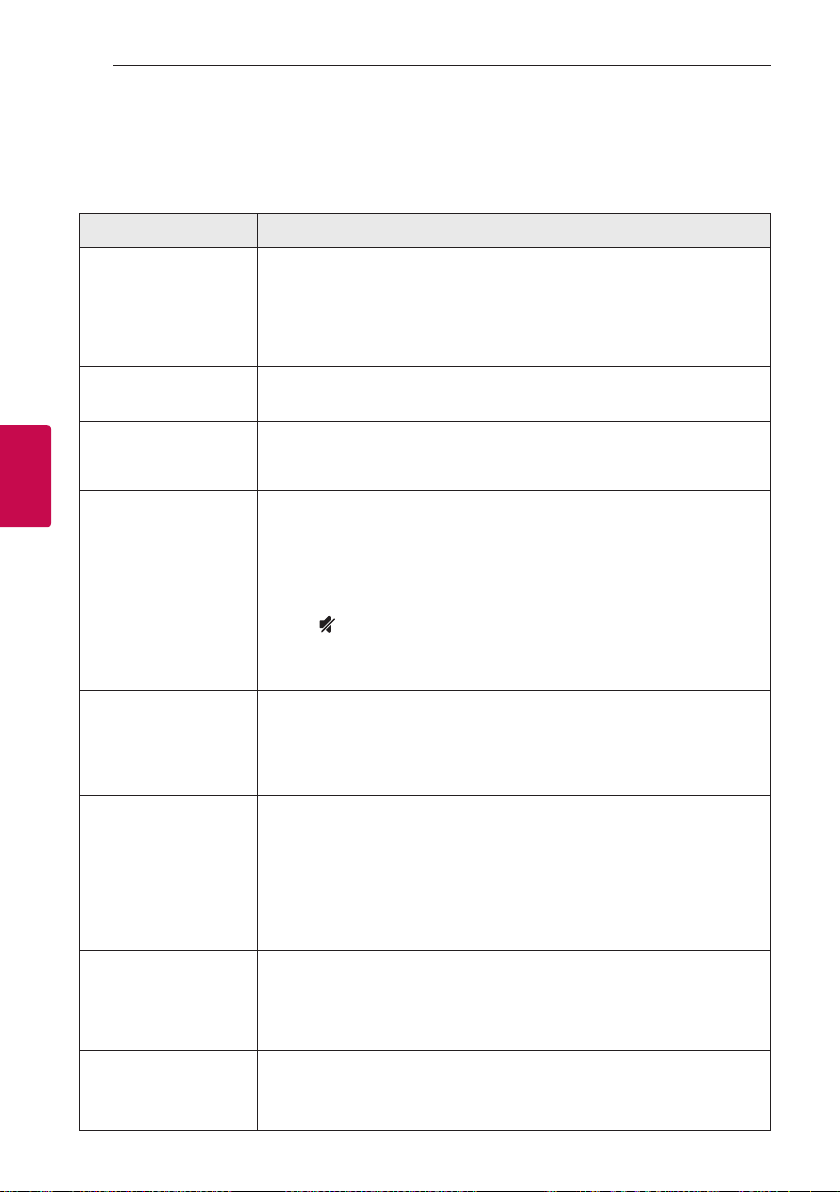
4 Troubleshooting
Troubleshooting64
Troubleshooting
4
Troubleshooting
General
Symptoms Cause & Solution
The unit does not work
properly.
y
Turn off the power of this unit and the connected external device (TV, Woofer,
DVD-player, Amplier, etc.) and turn it on again.
y
Disconnect the power cord of this unit and the connected external device (TV,
Woofer, DVD-player, Amplier, etc.) and then try connecting again.
y
Previous setting may not be saved when device power is shut off.
The power does not turn
on.
Is the power cord plugged into the outlet?
y
Connect the power plug to the outlet.
A function does not
work when the button is
pressed.
Is there static electricity in the air?
y
Disconnect the power plug and connect it again.
Sound is not produced. Is the volume set to minimum?
y
Adjust the volume.
y
When you are using connection with a external device (set top box, Bluetooth
device etc.), adjust volume level of the device.
Is the mute function activated?
y
Press or adjust the volume level to cancel the mute function.
Is the function selected properly?
y
Check the input source and select the correct input source.
No woofer sound Is the subwoofer plugged in?
y
Plug the power cord of subwoofer into the wall outlet securely.
Is pairing between the unit and the subwoofer disconnected?
y
Connect the unit and the subwoofer. (Refer to the page 13.)
The remote control does
not work properly.
Is the remote control too far from the unit?
y
Operate the remote control within about 7 m.
Is there an obstacle in the path of the remote control and the unit?
y
Remove the obstacle.
Are the batteries in the remote control exhausted?
y
Replace the batteries with new one.
The AUTO POWER
function does not work.
y
Check connection of the external device such as TV, DVD/Blu-Ray player or
Bluetooth device.
y
Check the state of SIMPLINK and turn off SIMPLINK.
y
Depending on the connected device, this function may not operate.
LG Sound Sync does not
work.
y
Check whether your LG TV supports LG Sound Sync.
y
Check connection of LG Sound Sync.
y
Check sound setting of your TV and this unit.
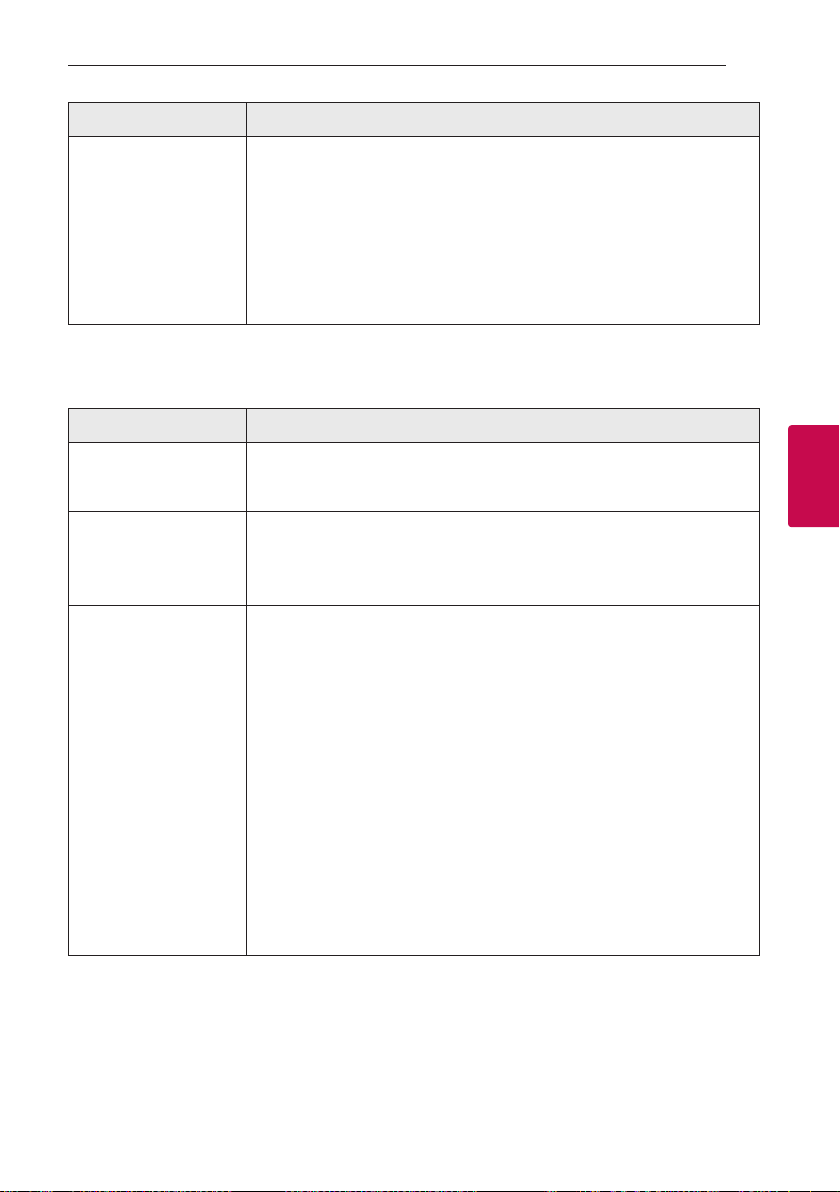
Troubleshooting 65
Troubleshooting
4
Symptoms Cause & Solution
When you feel the output
sound of the unit is low.
Check the details below and adjust the unit according to them.
y
Switch [ON] state of DRC function to [OFF] by using remote controller.
y
With the sound bar connected with TV, change the AUDIO DIGITAL OUT
setting on TV Setup Menu from [PCM] to [AUTO] or [BITSTREAM].
y
With the sound bar connected with Player, change the AUDIO DIGITAL OUT
setting on Player Setup Menu from [PCM] to [PRIMARY PASS-THROUGH] or
[BITSTREAM].
y
Change Audio DRC setting on Player setup menu to [OFF] state.
Network
Symptoms Cause & Solution
Cannot connect the
speaker to your home
network.
The wireless communication may be interrupted from household devices that are
using radio frequencies. Move the speaker away from them.
Media servers are not
displayed on the device
list.
y
The rewall or anti-virus software on your media server is running. Turn off
the rewall or anti-virus software running on your media server.
y
Make sure that the speaker is connected to the same network that your
media server is connected.
Music Flow Player doesn’t
work properly.
Is the Music Flow Player plugged in?
y
Plug in the Music Flow Player.
Is the LAN cable connected to the wireless router and the Music Flow Player
properly?
y
Connect the LAN cable to the LAN port on the back of the Music FlowPlayer
and to your wireless router.
When the Music Flow Player is plugged in, does the Music Flow Player’s LED
show it’s operating properly?
y
If you experience troubles with connecting the Music Flow Player, try
relocating the speaker closer to the wireless router or the Music Flow Player.
If you restart the router?
y
You need to turn the speaker’s power off and on again.
If you install new router.
y
You need to perform a factory set and setup the network connection for
speaker.
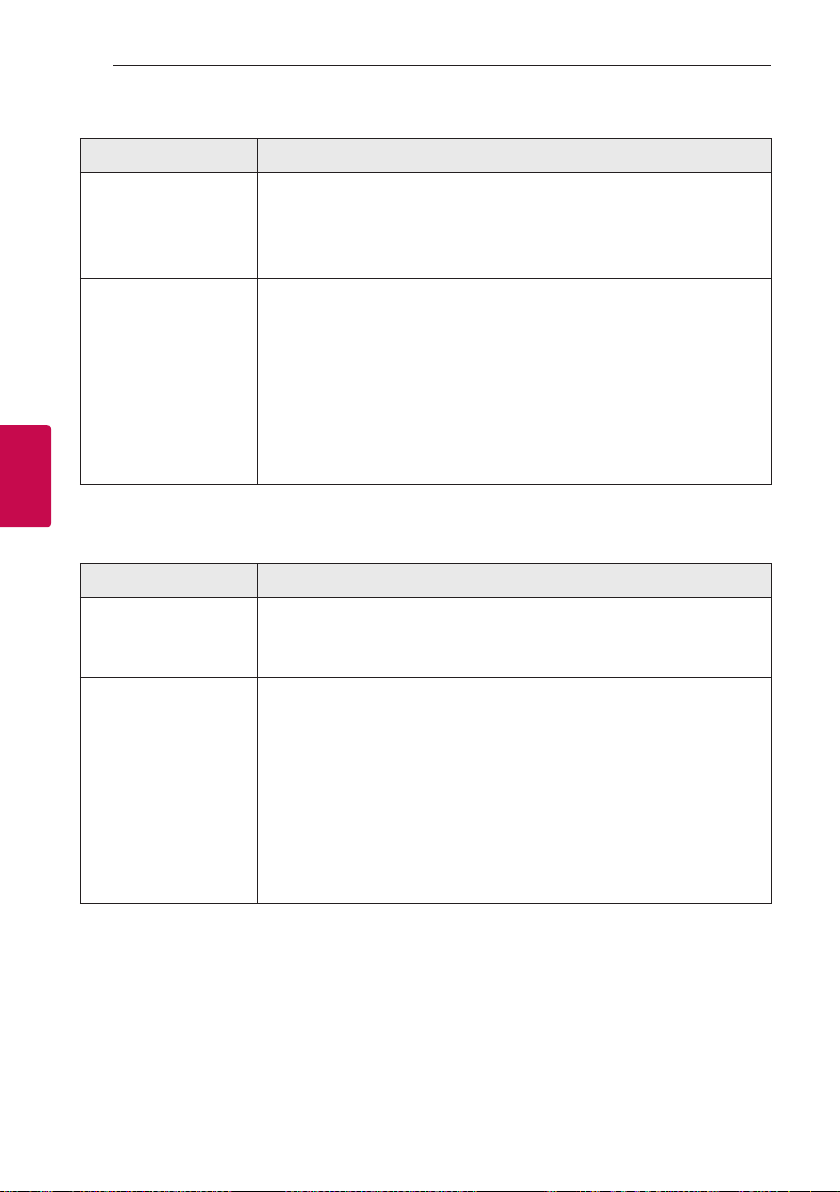
Troubleshooting66
Troubleshooting
4
Application and PC Software
Symptoms Cause & Solution
Music Flow Player app
doesn’t work properly.
Does an error occur when accessing the app?
y
Make sure that your smart device is compatible with the app.
y
Make sure that the Music Flow Player app is the latest version.
y
Make sure that the speaker’s front LED turns from red to white.
Music Flow PC Software
doesn’t work properly.
Does the rewall on your PC or Mac set to enable?
y
Disable all your rewalls and try to connect again. Refer to your rewall’s
instruction or website.
Is the LAN cable connected to the wireless router and your PC or Mac properly?
y
Ensure that the speaker and your PC or Mac are correctly connected to the
local area network and can access the internet.
y
The wireless communication may be interrupted from household devices that
are using radio frequencies. Move the speaker and your PC or Mac away from
them.
NOTES to use wireless
Symptoms Cause & Solution
This device may have
wireless interference.
y
Wireless may not operate normally in weak signal area.
y
Please install the device close enough to wireless subwoofer.
y
Do not install the device on metal furniture for optimum performance.
Bluetooth device may
malfunction or make
noise in the following
cases.
y
When any part of your body contact the transceiver of the Bluetooth device
or sound bar.
y
When there is an obstacle or wall or the device is installed in a secluded spot.
y
When there is a device(a wireless LAN, a medical equipment or a microwave)
using same frequency, make the distance between the products as far away
as possible each other.
y
When connecting the device to the Bluetooth device, make the distance
between the products as close as possible each other.
y
When the device gets too far from the Bluetooth device, the connection is
disconnected and also malfunction may occur.
5 Appendix
Appendix 67
Appendix
5
File requirement
Available File extensions : “.mp3”, “.wma”, “.ac”, “.m4a”,
“.aac”, “.ogg”, “.wav”
Sampling frequency: within 32 to 48 kHz (mp3,
wma), up to 192 kHz/24 bit (ac)
Bit rate: up to 320 kbps (mp3, wma)
y
The le requirements are not always compatible.
There may have some restrictions by le features
and media server’s ability.
y
Some wav les are not supported on this speaker.
y
Depending on the types of le or ways of
recording, it may not play back.
y
Some DRM-loaded les are not supported on this
speaker.
Trademarks and licenses
All other trademarks are trademarks of their
respective owners.
Manufactured under license from Dolby
Laboratories. Dolby and the double-D symbol are
trademarks of Dolby Laboratories.
For DTS patents, see http://patents.dts.com.
Manufactured under license from DTS Licensing
Limited. DTS, the Symbol, & DTS and the Symbol
together are registered trademarks, and DTS
Digital Surround is a trademark of DTS, Inc. © DTS,
Inc. All Rights Reserved.
Bluetooth wireless technology is a system which
allows radio contact between electronic.
Connecting individual devices under Bluetooth
wireless technology does not incur any charges. A
mobile phone with Bluetooth wireless technology
can be operated via the Cascade if the connection
was made via Bluetooth wireless technology.
The Bluetooth word mark and logos are owned by
the Bluetooth SIG, Inc. and any use of such marks
by LG Electronics is under license.
Other trademarks and trade names are those of
their respective owners.
The terms HDMI and HDMI High-Denition
Multimedia Interface, and the HDMI logo are
trademarks or registered trademarks of HDMI
Licensing LLC in the United States and other
countries.
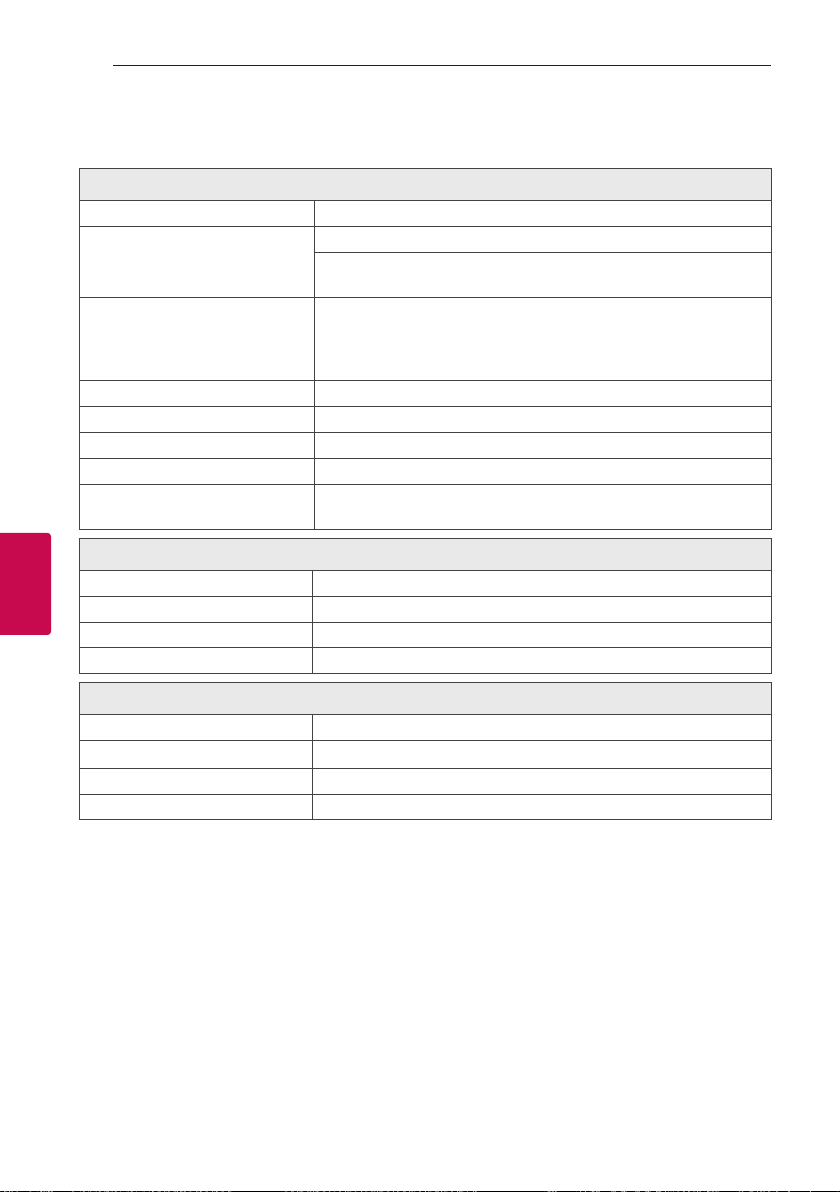
Appendix68
Appendix
5
Specifications
General (SH8)
Power requirements 25 V
0
2 A (AC adapter)
Power consumption
Refer to main label.
Networked standby : 5.8 W
(If all network ports are activated.)
AC adapter
Model : DA-50F25
Manufacturer: Asian Power Devices Inc.
Input: 100 - 240 V ~ 50 - 60 Hz
Output: 25 V
0
2 A
Dimensions (W x H x D) Approx. 1200 mm x 53 mm x 85 mm
Net Weight Approx. 3.52 kg
Operating temperature 5 °C to 35 °C
Operating humidity 5 % to 90 %
Available Digital Input Audio
Sampling Frequency
32 kHz, 44.1 kHz, 48 kHz, 96 kHz
Input/Output
OPTICAL IN 3 V (p-p), Optical jack x 1
PORTABLE IN 0.5 Vrms (3.5 mm stereo jack) x 1
HDMI IN 19 Pin (Type A, HDMI™ connector) x 1
HDMI OUT 19 Pin (Type A, HDMI™ connector) x 1
Amplier (RMS Output)
Total Refer to main label.
Front 70 W x 2 (4
Ω
at 1 kHz, THD 10%)
Surround 40 W x 2 (8
Ω
at 12 kHz, THD 10%)
Subwoofer 200 W (3
Ω
at 80 Hz, THD 10%)
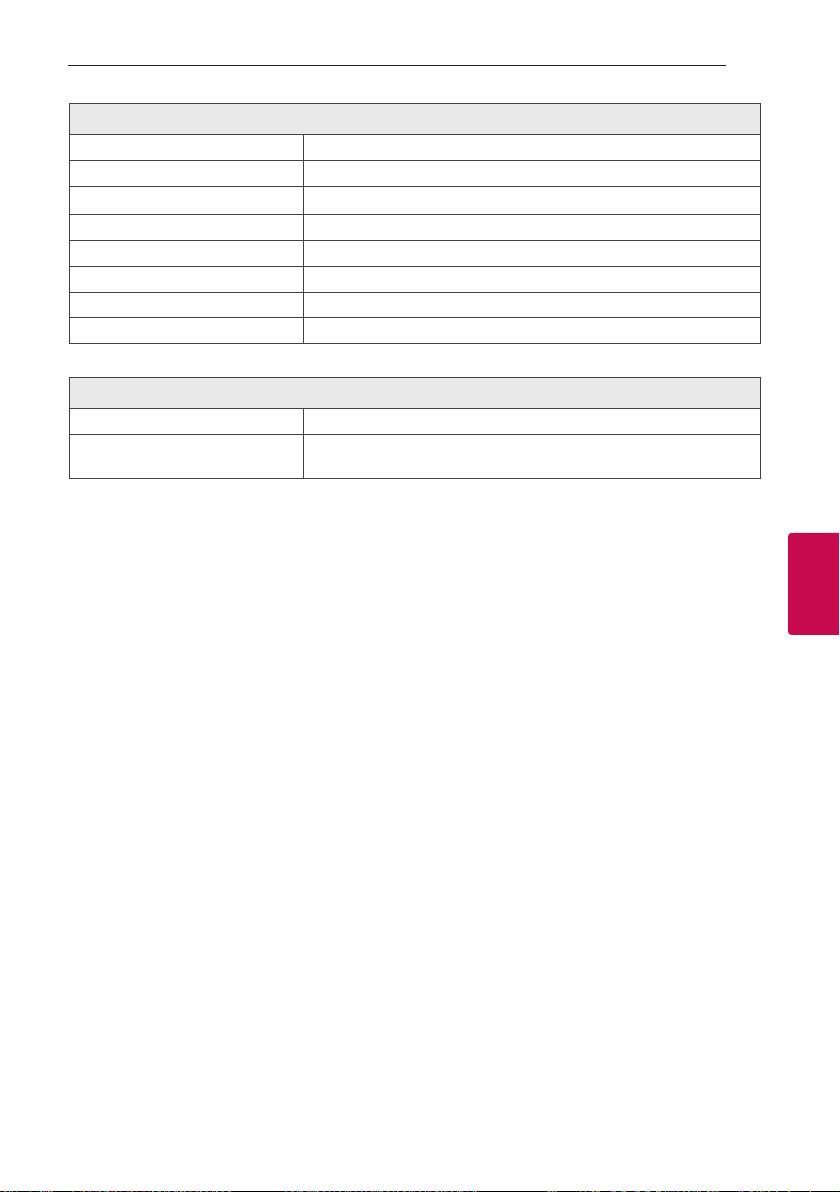
Appendix 69
Appendix
5
Wireless subwoofer (SPH7-W)
Power requirements Refer to the main label on the subwoofer.
Power consumption 33 W
Type 1 Way 1 Speaker
Impedance 3
Ω
Rated Input Power 200 W
Max. Input Power 400 W
Dimensions (W x H x D) Approx. 171 mm x 320 mm x 252 mm
Net Weight Approx. 4.3 kg
System
LAN port Ethernet jack x 1, 10 BASE-T/100 BASE-TX
Wireless LAN (Internal antenna)
Integrated IEEE 802.11n (Draft 2.0) wireless networking access,
compatible with 802.11a/b/g/n Wi-Fi networks.
y
Designs and specications are subject to change without prior notice.

Appendix70
Appendix
5
Handling the Speaker
When shipping the speaker
Please save the original shipping carton and packing
materials. If you need to ship the speaker, for
maximum protection, re-pack the speaker as it was
originally packed at the factory.
Keeping the exterior surfaces clean
y
Do not use volatile liquids such as insecticide spray
near the speaker.
y
Wiping with strong pressure may damage the
surface.
y
Do not leave rubber or plastic products in contact
with the speaker for a long period of time.
Cleaning the speaker
To clean the player, use a soft, dry cloth. If the
surfaces are extremely dirty, use a soft cloth lightly
moistened with a mild detergent solution. Do not use
strong solvents such as alcohol, benzine, or thinner,
as these might damage the surface of the speaker.
Important Information
Relating to Network
Services
All information, data, documents, communications,
downloads, les, text, images, photographs, graphics,
videos, webcasts, publications, tools, resources,
software, code, programs, applets, widgets,
applications, products and other content (“Content”)
and all services and offerings (“Services”) provided or
made available by or through any third party (each
a “Service Provider”) is the sole responsibility of the
Service Provider from whom it originated.
The availability of and access to Content and
Services furnished by the Service Provider through
the LGE Device are subject to change at any time,
without prior notice, including, but not limited to the
suspension, removal or cessation of all or any part of
the Content or Services.
Should you have any inquiry or problem related
to the Content or Services, you may refer to the
Service Provider’s website for the most up-to-date
information. LGE is neither responsible nor liable for
customer service related to the Content and Services.
Any question or request for service relating to the
Content or Services should be made directly to the
respective Content and Service Providers.
Please note that LGE is not responsible for any
Content or Services provided by the Service Provider
or any changes to, removal of, or cessation of
such Content or Services and does not warrant or
guaranty the availability of or access to such Content
or Services.

Appendix 71
Appendix
5
TERMS OF USE
These Terms of Use apply to those individuals
and groups who use LG’s Multiroom Speaker (LG
Mutiroom Speaker), any software(s) associated
with LG Multiroom Speaker, this application and
any services associated this application (collectively
“LG Software”). They set out LGE’s responsibilities
to you as well as identifying the “dos” and “don’ts”
that you should be aware of when you use the
LG Software. LG Software is proprietary software
owned by LG Electronics Inc., a corporation registered
in Korea with its registered ofce at Yeouido-dong
20, Yeoungdeungpo-gu, Seoul, Korea. LGE, and its
licensors (“LGE”, “us” or “we”).
By accessing or using LG Software, you conrm that
you accept these Terms of Use and that you agree to
comply with them. If you do not agree to these Terms
of Use, you may not access or use the LG Software.
To the extent that any conict arises between these
Terms of Use and any other document referred to
in these Terms of Use, these Terms of Use will take
precedence, unless clearly stated otherwise in the
relevant document.
We grant you a non-exclusive license to use the pre-
installed copy of LG Software solely to the extent
necessary for you to use your LG Multiroom Speaker
personally and for no other purpose.
You acknowledge that all ownership rights in LG
Software anywhere in the world belong exclusively to
us and that no ownership rights in LG Software are
transferred to you. You are only entitled to the limited
use of LG Software as is granted in these license
terms.
You may not copy, modify, decompile or reverse
engineer our software in any way unless you are
allowed to do so by law. We reserve the right to
suspend, withdraw or discontinue all or part of the
Services without notice if we consider that you are in
breach of these Terms of Use.
You acknowledge that LG Software has not been
developed to meet your individual requirements. We
make no promises or guarantees that LG Software
is free from bugs or errors or that it will always be
available. We use commercially reasonable efforts
to provide LG Software on a continuous, high quality
basis but cannot guarantee that they will always be
available, uninterrupted or error free. It is possible
that we may have to interrupt or discontinue the LG
Software or suspend or restrict your use of all or any
part of the Services where we consider it reasonably
necessary for technical, operational, security, legal or
regulatory reasons.
We do not accept any responsibility if for any reason
the Services or any part of them are unavailable at
any time or for any period.
Although you may use LG Software to download and
access content or applications made available by third
parties on your LG Software, we make no promises
or guarantees that you will always be able to access
such content or applications. So far as we are legally
able to do so, we exclude any warranties, conditions
or other terms which may be implied into these
license terms by law.
So far as we are legally able to do so, we exclude any
liability for any loss or damage incurred by you or
any other person in connection with your use of LG
Software. We are only responsible for loss or damage
suffered that is a foreseeable result of our breach
of these license terms or our negligence up to the
amount specied below, but we are not responsible
for any loss or damage that is not foreseeable .
Loss or damage is foreseeable if it is an obvious
consequence of our breach or if it was contemplated
by you and us when you starting using LG Software.
For any loss or damage that is not excluded
under these license terms, whether in contract,
tort (including negligence) or otherwise, the total
liability of us and our group of companies to you
is limited to the amount that you paid for your LG
Software service. To the extent permissible under
the applicable laws, some jurisdictions do not allow
the limitation or exclusion of liability for incidental
or consequential damages, or have legislation that
restricts the limitation or exclusion of liability, so the
above limitation may not apply to you.
Nothing is these license terms shall limit or exclude
our liability for death or personal injury relating from
our negligence, fraud or fraudulent misrepresentation
or any other liability that cannot be excluded or
limited by law.
LG Software provides access to “apps” and link to
other services owned and operated by third parties,
such as content providers. Any third party apps,
services and content that you access via the Services
are made available to you by these third party
providers and are outside the scope of these Terms of
Use.
Your dealings with any third party providers are solely
between you and the relevant provider and may be
subject to the provider’s own terms and conditions
and privacy policy. We encourage you to read these
documents, although we are not responsible for their
content. We do not accept any responsibility for apps,

Appendix72
Appendix
5
services or content provided by third party providers.
We may impose limits on the use of or access to
certain third party content, application or services,
in any case without notice or liability. We expressly
disclaims any responsibility or liability for any change,
interruption, disabling, removal of or suspension of
any content, application or service made available
through this LG Software. We are neither responsible
nor liable for customer service related to the content,
application and services. Any question or request for
service relating to third party’s content, application
or services should be made directly to the respective
content and service providers or application
developers, as appropriate.
These terms do not affect your statutory rights as a
consumer.
Suitability of the Services for children and parental
control tools
Modify this accordingly to suit if appropriate: The
Services are not directed at children under the age
of 13 and are not structured specically to attract
children under 13. Further, certain content that
you may access through your use of the Services
may contain material that you consider indecent,
objectionable or which may not be suitable for
children.
If you permit a child to use your LG Smart TV to
access the Services, you are solely responsible for
deciding whether or not the relevant Services are
appropriate for access by that child.
[Your Smart TV offers a parental control tool (by
way of a 4 digit PIN). If you have enabled the 4-digit
PIN, your LG Smart TV will not be able to display
restricted content unless you type in the PIN. You
are responsible for setting up and maintaining the
parental control tool and any other controls that are
available, and we will not be responsible for any harm,
loss or damage you suffer or any other user of your
LG Smart TV suffers as a result of your failure to do
so. Depending on the models of your LG Smart TV,
these features may not be available.
Viruses and Security
Modify this accordingly to suit if appropriate: We use
commercially reasonable efforts to ensure that the
Services are secure and virus free, but those efforts
cannot and do not guarantee that the Services will be
free from bugs, viruses, or other vulnerabilities.
Further, we do not accept responsibility for any loss
or damage caused by a virus, distributed denial-
of-service attack, or other technologically harmful
material that may infect your LG Smart TV, data or
other material belonging to you, during your use of
the Services.
Modify as you think appropriate: Complaints
If you have any queries, concerns or complaints
about the Services, please contact [include reference
to non-personal LG email address].
Modify as you think appropriate: Miscellaneous
Unless expressly stated otherwise, these Terms of
Use and the documents referred to in them contain
the entire agreement between us and you relating
to your use of the Services and supersede any
previous agreements, arrangements, undertakings
or proposals, written or oral, between us and you
relating to your use of the Services.
We may assign, sub-contract or otherwise transfer
any or all of our rights and obligations under these
Terms of Use to any company, rm or person. We
can only do this if it does not materially affect your
rights under these Terms of Use. You may not assign,
sub-contract or otherwise transfer your rights or
obligations under these Terms to anyone else (except
where you dispose of your LG Smart TV to a third
party) unless you rst agree this with us in writing.
If we decide not to exercise or enforce any right that
we have against you at a particular time, then this
does not prevent us from later deciding to exercise or
enforce that right.
If any part of these Terms of Use is found to be
illegal, invalid or otherwise unenforceable by a court
or regulator, then, where required, that part shall be
deleted and the remaining parts of the Terms of Use
will continue to be enforceable.
These Terms of Use do not create or infer any rights
that are enforceable by any person who is not party
to them.
These Terms of Use are governed by the laws of the
country where your LG Smart TV is sold and both you
and LGE agree to submit to the exclusive jurisdiction
of the courts of the country where your LG Smart TV
is sold in connection with the same
This Agreement shall be governed by the laws of the
Republic of Korea, excluding their conicts of laws
provisions.
If you have any questions or comments about these
Terms of Use please contact www.lg.com.
These Terms of Use may be updated by LGE from
time to time. If we make a material change to
our Terms of Use, we will update you via your LG
Software or other means.
Appendix 73
Appendix
5
OPEN SOURCE SOFTWARE NOTICE
INFORMATION
To obtain the source code under GPL, LGPL, MPL, and
other open source licenses, that is contained in this
product, please visit
http://opensource.lge.com.
In addition to the source code, all referred license
terms, warranty disclaimers and copyright notices are
available for download.
LG Electronics will also provide open source code to
you on CD-ROM for a charge covering the cost of
performing such distribution (such as the cost of
media, shipping and handling) upon email request
to [email protected]om. This offer is valid for three
(3) years from the date on which you purchased the
product.
Gracenote® End User License Agreement
This application or device contains software from
Gracenote, Inc. of Emeryville, California (“Gracenote”).
The software from Gracenote (the “Gracenote
Software”) enables this application to perform disc
and/or le identication and obtain music-related
information, including name, artist, track, and title
information (“Gracenote Data”) from online servers
or embedded databases (collectively, “Gracenote
Servers”) and to perform other functions. You may
use Gracenote Data only by means of the intended
End-User functions of this application or device.
You agree that you will use Gracenote Data, the
Gracenote Software, and Gracenote Servers for
your own personal non-commercial use only. You
agree not to assign, copy, transfer or transmit the
Gracenote Software or any Gracenote Data to any
third party. YOU AGREE NOT TO USE OR EXPLOIT
GRACENOTE DATA, THE GRACENOTE SOFTWARE,
OR GRACENOTE SERVERS, EXCEPT AS EXPRESSLY
PERMITTED HEREIN.
You agree that your non-exclusive license to use
the Gracenote Data, the Gracenote Software, and
Gracenote Servers will terminate if you violate
these restrictions. If your license terminates, you
agree to cease any and all use of the Gracenote
Data, the Gracenote Software, and Gracenote
Servers. Gracenote reserves all rights in Gracenote
Data, the Gracenote Software, and the Gracenote
Servers, including all ownership rights. Under no
circumstances will Gracenote become liable for any
payment to you for any information that you provide.
You agree that Gracenote, Inc. may enforce its rights
under this Agreement against you directly in its own
name.
The Gracenote service uses a unique identier to
track queries for statistical purposes. The purpose of
a randomly assigned numeric identier is to allow the
Gracenote service to count queries without knowing
anything about who you are. For more information,
see the web page for the Gracenote Privacy Policy for
the Gracenote service.
The Gracenote Software and each item of Gracenote
Data are licensed to you “AS IS.” Gracenote makes
no representations or warranties, express or implied,
regarding the accuracy of any Gracenote Data from
in the Gracenote Servers. Gracenote reserves the
right to delete data from the Gracenote Servers or to
change data categories for any cause that Gracenote
deems sufcient. No warranty is made that the
Gracenote Software or Gracenote Servers are error-
free or that functioning of Gracenote Software or

Appendix74
Appendix
5
Gracenote Servers will be uninterrupted. Gracenote
is not obligated to provide you with new enhanced or
additional data types or categories that Gracenote
may provide in the future and is free to discontinue
its services at any time. GRACENOTE DISCLAIMS ALL
WARRANTIES EXPRESS OR IMPLIED, INCLUDING,
BUT NOT LIMITED TO, IMPLIED WARRANTIES OF
MERCHANTABILITY, FITNESS FOR A PARTICULAR
PURPOSE, TITLE, AND NON-INFRINGEMENT.
GRACENOTE DOES NOT WARRANT THE RESULTS
THAT WILL BE OBTAINED BY YOUR USE OF THE
GRACENOTE SOFTWARE OR ANY GRACENOTE
SERVER. IN NO CASE WILL GRACENOTE BE LIABLE
FOR ANY CONSEQUENTIAL OR INCIDENTAL
DAMAGES OR FOR ANY LOST PROFITS OR LOST
REVENUES.
copyright © 2000 to present Gracenote