User Guide
www.sprint.com
© 2009 Sprint. Sprint and the logo are trademarks ofSprint.
Othermarks are the property of theirrespective owners.
06/03/09
LG LOTUS
TM
LX600(1.2)_0603.qxp 6/3/09 11:10 AM Page A
Table of Contents
Introduction . . . . . . . . . . . . . . . . . . . . . . . . . . .i
Your Phone’s Menu . . . . . . . . . . . . . . . . . . . .ii
Section 1 :
Getting Started . . . . . . . . . . . . . . .1
1A. Setting Up Service . . . . . . . . . . . . . . . . . . . . . .2
Setting Up Your Phone . . . . . . . . . . . . . . . . . . . . . . .2
Activating Your Phone . . . . . . . . . . . . . . . . . . . . . . . .3
Setting Up YourVoicemail . . . . . . . . . . . . . . . . . . . .3
Sprint Account Passwords . . . . . . . . . . . . . . . . . . . .4
Getting Help . . . . . . . . . . . . . . . . . . . . . . . . . . . . . . .5
Section 2 :
Your Phone . . . . . . . . . . . . . . . . . .7
2A. Phone Basics . . . . . . . . . . . . . . . . . . . . . . . . . .8
Your Phone . . . . . . . . . . . . . . . . . . . . . . . . . . . . . . . .8
Viewing the Display Screen . . . . . . . . . . . . . . . . . .11
Features of YourPhone . . . . . . . . . . . . . . . . . . . . . .14
Turning YourPhone On and Off . . . . . . . . . . . . . . .15
Using Your Phone’s Battery and Charger . . . . . . .16
Navigating Through the Menus . . . . . . . . . . . . . . .18
Displaying Your Phone Number . . . . . . . . . . . . . .19
Making and Answering Calls . . . . . . . . . . . . . . . .20
Entering Text . . . . . . . . . . . . . . . . . . . . . . . . . . . . . .29
2B. Navigating the Main Screen . . . . . . . . . . . .32
Getting to Know Sprint One Click . . . . . . . . . . . . .32
Personalizing the Carousel . . . . . . . . . . . . . . . . . .34
Personalizing the Home Screen . . . . . . . . . . . . . .37
2C. Settings . . . . . . . . . . . . . . . . . . . . . . . . . . . . . .39
Sound Settings . . . . . . . . . . . . . . . . . . . . . . . . . . . .39
Display Settings . . . . . . . . . . . . . . . . . . . . . . . . . . .42
Location Settings . . . . . . . . . . . . . . . . . . . . . . . . . .46
Messaging Settings . . . . . . . . . . . . . . . . . . . . . . . .47
Airplane/Music Mode . . . . . . . . . . . . . . . . . . . . . .49
TTYUse With Sprint Service . . . . . . . . . . . . . . . . .50
Phone Setup Options . . . . . . . . . . . . . . . . . . . . . . .51
Tip
Looking forsomething? If you don’t see it in the
headings listed here, try the Index on page 176.
LX600(1.2)_0603.qxp 6/3/09 11:10 AM Page B

2D. Security . . . . . . . . . . . . . . . . . . . . . . . . . . . . . .54
Accessing the Security Menu . . . . . . . . . . . . . . . .54
Using Your Phone’s Lock Feature . . . . . . . . . . . . .54
Using Special Numbers . . . . . . . . . . . . . . . . . . . . .56
Erasing Private BrowserData . . . . . . . . . . . . . . . .56
Erasing Contacts . . . . . . . . . . . . . . . . . . . . . . . . . .56
Resetting Your Picture Mail Account . . . . . . . . . . .57
Resetting Default Settings . . . . . . . . . . . . . . . . . . .57
Resetting Your Phone . . . . . . . . . . . . . . . . . . . . . . .58
Security Features for Data Service . . . . . . . . . . . .58
2E. Roaming . . . . . . . . . . . . . . . . . . . . . . . . . . . . .59
Understanding Roaming . . . . . . . . . . . . . . . . . . . .59
Setting Your Phone’s Roam Mode . . . . . . . . . . . .60
Using Call Guard . . . . . . . . . . . . . . . . . . . . . . . . . . .61
Using Data Roam Guard . . . . . . . . . . . . . . . . . . . .62
2F. History . . . . . . . . . . . . . . . . . . . . . . . . . . . . . . .63
Viewing History . . . . . . . . . . . . . . . . . . . . . . . . . . .63
History Options . . . . . . . . . . . . . . . . . . . . . . . . . . . .64
Making a Call From History . . . . . . . . . . . . . . . . . .64
Saving a Phone Number From History . . . . . . . . .65
Prepending a Phone NumberFrom History . . . .66
Erasing History . . . . . . . . . . . . . . . . . . . . . . . . . . . .66
2G. Contacts . . . . . . . . . . . . . . . . . . . . . . . . . . . . .67
Adding a New Contacts Entry . . . . . . . . . . . . . . . .67
Finding Contacts Entries . . . . . . . . . . . . . . . . . . . .68
Contacts Entry Options . . . . . . . . . . . . . . . . . . . . .69
Adding a Phone Numberto a Contacts Entry . . .69
Editing a Contacts Entry’s Phone Number . . . . . .70
Assigning Speed Dial Numbers . . . . . . . . . . . . . .70
Editing a Contacts Entry . . . . . . . . . . . . . . . . . . . . .71
Selecting a RingerType for an Entry . . . . . . . . . . .72
Secret Contacts Entries . . . . . . . . . . . . . . . . . . . . .72
Dialing Sprint Services . . . . . . . . . . . . . . . . . . . . . .73
Wireless Backup . . . . . . . . . . . . . . . . . . . . . . . . . . .74
2H. Scheduler and Tools . . . . . . . . . . . . . . . . . . .76
Using Your Phone’s Scheduler . . . . . . . . . . . . . . .76
Using Your Phone’s Alarm Clock . . . . . . . . . . . . . .79
Using Your Phone’s Notepad . . . . . . . . . . . . . . . . .80
Using EZ Tips . . . . . . . . . . . . . . . . . . . . . . . . . . . . .80
Using the Calculator . . . . . . . . . . . . . . . . . . . . . . . .81
LX600(1.2)_0603.qxp 6/3/09 11:10 AM Page C

Using the World Clock . . . . . . . . . . . . . . . . . . . . . .81
Updating Phone Software . . . . . . . . . . . . . . . . . . .81
Updating the PRL . . . . . . . . . . . . . . . . . . . . . . . . . .81
2I. Voice Services . . . . . . . . . . . . . . . . . . . . . . . . .82
Managing Voice Memos . . . . . . . . . . . . . . . . . . . .82
Using Voice Control . . . . . . . . . . . . . . . . . . . . . . . .84
2J. microSD Card . . . . . . . . . . . . . . . . . . . . . . . . .85
Using the microSD Card . . . . . . . . . . . . . . . . . . . .85
Using Your Phone’s microSD Card and Adapter .85
microSD Settings . . . . . . . . . . . . . . . . . . . . . . . . . .87
microSD Folders . . . . . . . . . . . . . . . . . . . . . . . . . . .89
Connecting Your Phone to YourComputer . . . . .89
2K. Camera . . . . . . . . . . . . . . . . . . . . . . . . . . . . . .91
Taking Pictures . . . . . . . . . . . . . . . . . . . . . . . . . . . .91
Recording Videos . . . . . . . . . . . . . . . . . . . . . . . . . .96
Storing Pictures and Videos . . . . . . . . . . . . . . . . .98
Sending Sprint Picture Mail . . . . . . . . . . . . . . . . .101
Managing Sprint Picture Mail . . . . . . . . . . . . . . .104
Printing Pictures Directly From Your Phone . . . .108
Settings and Info . . . . . . . . . . . . . . . . . . . . . . . . . .109
2L. Bluetooth . . . . . . . . . . . . . . . . . . . . . . . . . . . .110
Turning Bluetooth On and Off . . . . . . . . . . . . . . .110
Using the Bluetooth Settings Menu . . . . . . . . . . .111
Bluetooth Profiles . . . . . . . . . . . . . . . . . . . . . . . . .112
Pairing Bluetooth Devices . . . . . . . . . . . . . . . . . .113
Sending Contacts Using Bluetooth . . . . . . . . . . .114
Section 3 :
Sprint Service . . . . . . . . . . . . . .115
3A. Sprint Service Features: The Basics . . . .116
Voicemail . . . . . . . . . . . . . . . . . . . . . . . . . . . . . . . .116
Text Messaging (SMS) . . . . . . . . . . . . . . . . . . . . .119
VoiceSMS Messaging . . . . . . . . . . . . . . . . . . . . .122
CallerID . . . . . . . . . . . . . . . . . . . . . . . . . . . . . . . . .123
Call Waiting . . . . . . . . . . . . . . . . . . . . . . . . . . . . . .124
Making a Three-Way Call . . . . . . . . . . . . . . . . . . .124
Call Forwarding . . . . . . . . . . . . . . . . . . . . . . . . . . .125
3B. Web and Data Services . . . . . . . . . . . . . . .126
Data Services Applications . . . . . . . . . . . . . . . . .126
Getting Started With Data Services . . . . . . . . . . .127
Accessing Messaging . . . . . . . . . . . . . . . . . . . . .131
Downloading Games, Ringers and More . . . . .134
LX600(1.2)_0603.qxp 6/3/09 11:10 AM Page D

BrowserOptions Menu . . . . . . . . . . . . . . . . . . . .137
Phone as Modem . . . . . . . . . . . . . . . . . . . . . . . . .140
Data Services FAQs . . . . . . . . . . . . . . . . . . . . . . .141
3C. Entertainment: TV and Music . . . . . . . . . .143
TV . . . . . . . . . . . . . . . . . . . . . . . . . . . . . . . . . . . . . .143
Music – Sprint Music Store . . . . . . . . . . . . . . . . .146
Streaming Music . . . . . . . . . . . . . . . . . . . . . . . . . .151
3D. GPS Navigation . . . . . . . . . . . . . . . . . . . . . .152
Sprint Navigation . . . . . . . . . . . . . . . . . . . . . . . . .152
Using Sprint Navigation . . . . . . . . . . . . . . . . . . . .153
Getting Driving Directions . . . . . . . . . . . . . . . . . .154
Configuring Your Navigation Preferences . . . . .161
Launching the Product Tour . . . . . . . . . . . . . . . .162
Section 4 : Safety and Warranty
Information . . . . . . . . . . . . . .163
4A. Important Safety Information . . . . . . . . . .164
General Precautions . . . . . . . . . . . . . . . . . . . . . . .164
Maintaining Safe Use of and Access to
Your Phone . . . . . . . . . . . . . . . . . . . . . . . . . . . . . .165
Using Your Phone With a Hearing Aid Device . .166
Caring for the Battery . . . . . . . . . . . . . . . . . . . . . .168
Radio Frequency (RF) Energy . . . . . . . . . . . . . . .169
Owner’s Record . . . . . . . . . . . . . . . . . . . . . . . . . .171
UserGuide Proprietary Notice . . . . . . . . . . . . . . .171
4B. Manufacturer’s Warranty . . . . . . . . . . . . . .172
Manufacturer’s Warranty . . . . . . . . . . . . . . . . . . .173
4C. INDEX . . . . . . . . . . . . . . . . . . . . . . . . . . . . . . .176
LX600(1.2)_0603.qxp 6/3/09 11:10 AM Page E

LX600(1.2)_0603.qxp 6/3/09 11:10 AM Page F

i
Introduction
This
UserGuide
introduces you to Sprint
¨
Service and all
the features of yournew phone. It’s divided into four
sections:
Section 1:
Getting Started
Section 2:
Your Phone
Section 3:
Sprint Service
Section 4:
Safety and Warranty Information
Throughout this guide, you’ll find tips that highlight
special shortcuts and timely reminders to help you
make the most of your new phone and service. The
Table of Contents and Index will also help you
quickly locate specific information.
You’ll get the most out of yourphone if you read
each section. However, if you’d like to get right to a
specific feature, simply locate that section in the
Table of Contents and go directly to that page.
Follow the instructions in that section, and you’ll be
ready to use yourphone in no time.
WARNING
Please referto the
Important Safety
Information
section on page 164 to learn
about information that will help you safely
use your phone. Failure to read and follow
the Important Safety Information in this
phone guide may result in serious bodily
injury, death, or property damage.
User
Guide
Note
Because of updates in phone software, this
printed guide may not be the most current
version foryour phone. Visit
www.sprint.com
and log on to
My Sprint Wireless
to access
the most recent version of the userguide.
LX600(1.2)_0603.qxp 6/3/09 11:10 AM Page i
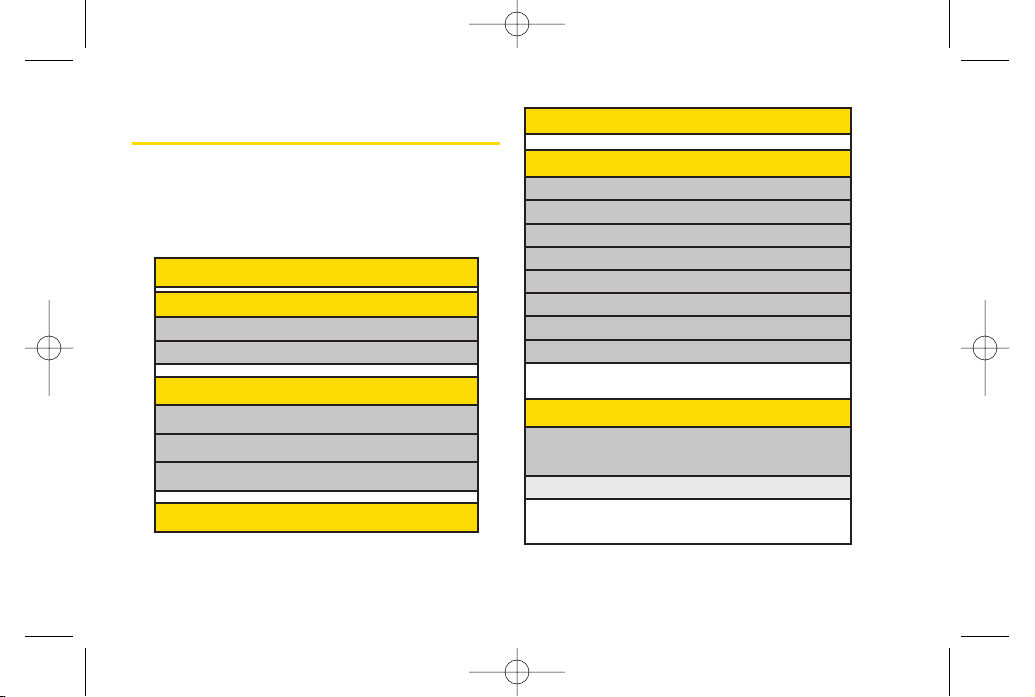
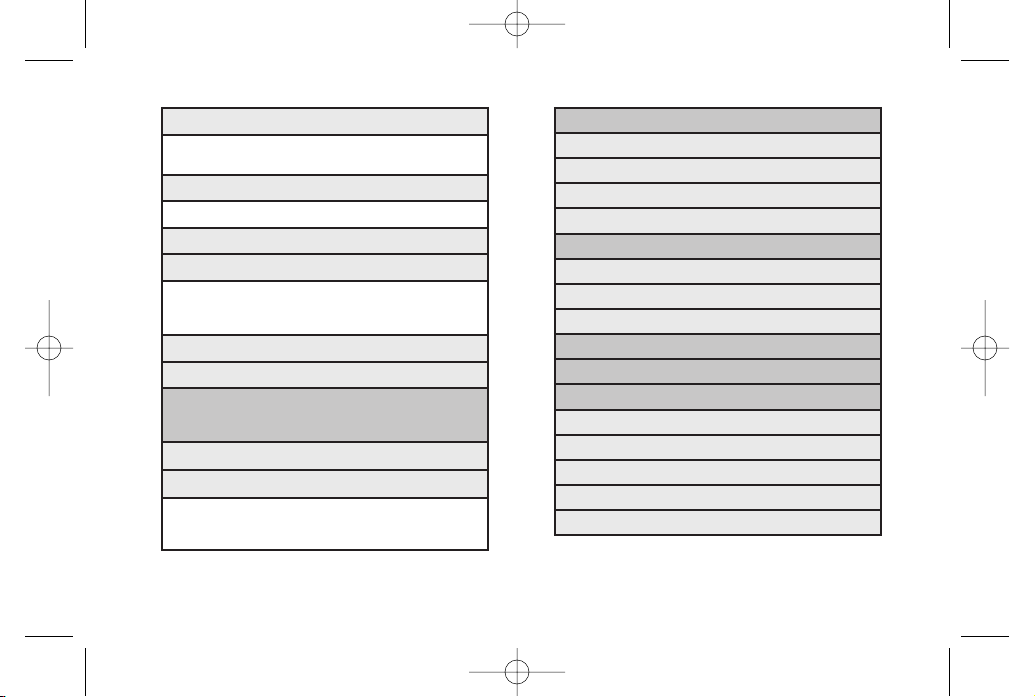
Your Phone’s Menu
The following table outlines yourphone’s menu
structure. Formore information about using your
phone’s menus, see “Navigating Through the Menus”
on page 18.
5: Missed Alerts
6: My Stuff
Application Manager
Games
Ringers
Screen Savers
Applications
IM & Emails
Call Tones
Options
1. Memory Status 2. Get New
3. My Content Manager
7: Photos
1: Camera
Select
OPTIONS
(right softkey)and press the navigation key
up and down to display the following options:
1: Self Timer
Off 5 seconds
10 seconds
1: Web
2: Maps
1:Sprint Navigation
2:Sprint Family Locator
3: Entertainment
1:Music
2:TV
3:Games
4: History
ii
LX600(1.2)_0603.qxp 6/3/09 11:10 AM Page ii
iii
3: Picture Mail
Inbox
Sent Mail
Saved Mail
Pending Messages
4: My Albums
In Phone
Memory Card
Online Albums
5: PictBridge
6: Order Prints
7: Settings & Info
1. Auto-Save to
2. Status Bar
3. Location
4. Account Info
5. Help
2: ColorTone
Normal Black & White
Negative Sepia
3: Image Controls
1: Brightness 2: White Balance
4: Fun Frames
5: Settings
1: Resolution 2: Quality
3: Shutter Sound 4: Status Bar
5: Night Mode
6: Review/Send Media
7: CamcorderMode
2: Camcorder
Select
OPTIONS
(right softkey)and press the navigation
key up and down to display the following options:
Video Mail
Long Video
1: Self Timer 2: ColorTone
3: Image Controls 4: Settings
5: Review/Send Media 6: Camera Mode
LX600(1.2)_0603.qxp 6/3/09 11:10 AM Page iii
5: Email
6: IM
7: Chat & Dating
8: VoiceSMS (1)
9: Settings
1: Notification
2: CallbackNumber
3: Signature
4: Preset Messages
5: VoiceSMS Options
1: Speakerphone 2: From Name
9: Contacts
8: Messaging
1: Voicemail
1: Call Voicemail
2: Voicemail Details
3: ClearIcon
2: Send Message
1: Text Message
2: Email
3: Picture Mail
4: VoiceSMS
5: IM
3: Text Messages
4: Picture Mail
1: Inbox
2: Sent Mail
3: Saved Mail
4: Pending Messages
iv
LX600(1.2)_0603.qxp 6/3/09 11:10 AM Page iv
2: RingerType
1: Incoming Calls 2: Messages
3: Vibrate Type
1: Incoming Calls 2: Messages
3 : Alarm & Scheduler
4: Alerts
1: Beep Each Minute 2: Out of Service
3: Connect 4: Signal Fade/Call Drop
5: KeyTones
1: Tone Length 2: Tone Volume
3: Airplane/Music Mode
4: Bluetooth
1: On/Off 2: Visibility
3: My Device Name 4: My Device Info
5: Exchange Folders 6. Voice Priority
5: Messages
1: Notification 2: Callback Number
3: Signature 4: Preset Messages
5: VoiceSMS Options
0: Settings
1: Display
1: Main Screen
1: Screen Saver 2: Backlight
3: Incoming Calls
2: OuterScreen
1: Screen Saver 2: Clock
3: Font Size
1: Messages 2: Browser
3: Notepad
4: Keypad Light
5: Language
1: English 2: Español
6: Status Light
2: Sounds
1: Volume
1: Ringer 2: Earpiece
3: Speakerphone 4: Keytones
5: Messages 6: Alarm & Scheduler
7: Applications 8 : Alerts
9 : PowerOn/Off
v
LX600(1.2)_0603.qxp 6/3/09 11:10 AM Page v
4: Data
1: On/Off 2: Net Guard
3: Update Data Profile
5: Headset Mode
1: Normal 2: Headset Only
6: Location
7: Restrict and Lock
1: Restrict Voice 2: Lock Data
3: Lock Photos 4: Lock My Phone
8: Roaming
1: Set Mode 2: Call Guard
3: Data Roaming
9: Security
1: Lock My Phone 2: Change Lock Code
3: Special Numbers 4: Edit Contacts List
5: Delete/Reset
0: Wireless Backup
6: Keyguard
7: Text Entr y
1: Auto-Capital 2: Auto-Space
3: Word Choice List 4: Word Prediction
5: Word Completion 6: Use My Words
7: My Words 8: Help
8: Phone Information
1: Phone Number 2: Icon Glossary
3: Version 4: My Account
5: Advanced
9: More...
1: Accessibility
1: TTY 2: Font Size
2: Call Setup
1: Auto-Answer 2: Abbreviated Dialing
3: Call Answer 4: Contacts Match
3. Contacts Settings
1: Speed Numbers 2: Show Secret/Hide Secret
3: My Name Card 4: Wireless Backup
5 : Services
vi
LX600(1.2)_0603.qxp 6/3/09 11:10 AM Page vi
4: USB Mode
5: Calculator
6: Voice Control
7: Scheduler
8: Voice Memo
9: Document Viewer
0: Notepad
*: World Clock
#: Update Phone
IN USE MENU
Mute/Unmute Contact Details/Save
Main Menu 3-Way Call
Contacts Voice Memo
Phone Info
*: Tools
1: Memory Card Manager
2: Alarm Clock
1: Alarm 1 2: Alarm 2
3: Alarm 3 4: Walk the Dog
5: Quick Alarm
3: Bluetooth
1: Pairwith Hands Free
2: Send a Contact
3: Send Files
4: Add a New…
5: Trusted Devices
6: More...
<Settings>
1: On/Off 2: Visibility
3: My Device Name 4: My Device Info
5: ExchangeFolders 6: Voice Priority
vii
LX600(1.2)_0603.qxp 6/3/09 11:10 AM Page vii

LX600(1.2)_0603.qxp 6/3/09 11:10 AM Page viii

Section 1
Getting Started
LX600(1.2)_0603.qxp 6/3/09 11:10 AM Page 1
2 Section 1A. Setting Up Service
Section 1A
Setting Up Service
Setting Up Your Phone (page 2)
Activating YourPhone (page 3)
Setting Up YourVoicemail (page 3)
Sprint Account Passwords (page 4)
Getting Help (page 5)
Setting up service on your new phone is quick and easy.
This
section walks you through the necessary steps to set up
and turn on yourphone, set up yourvoicemail, establish
passwords, and contact Sprint forassistance with your
Sprint service.
Setting Up YourPhone
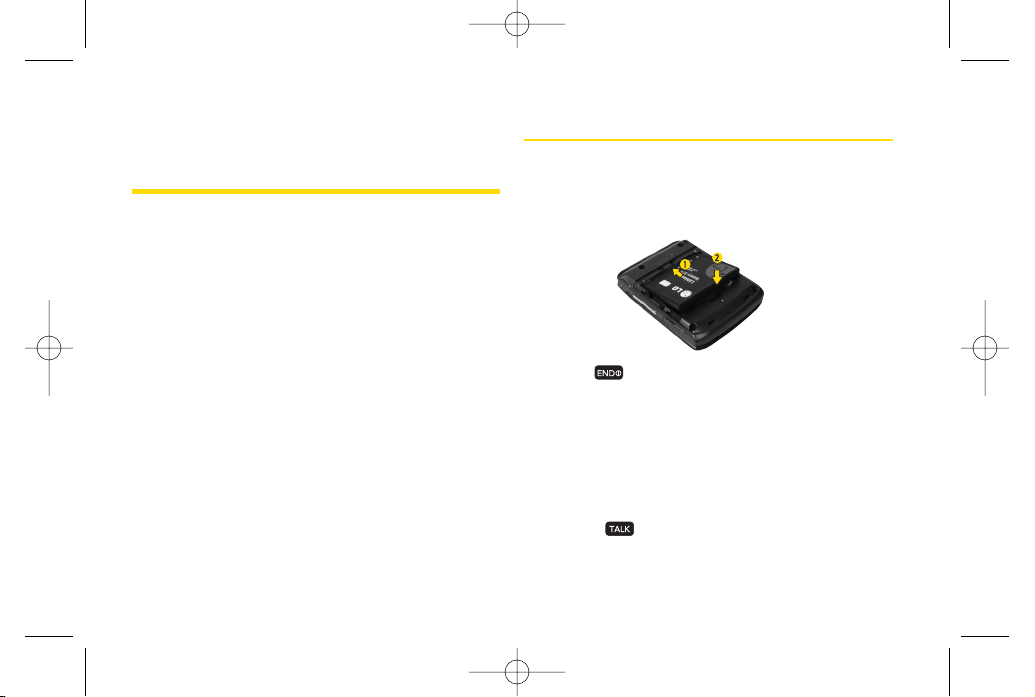
1. Install the battery.
Insert the battery into the opening, making sure
the connectors align (1). Gently press down to
secure the battery (2).
2. Press to turn the phone on.
If yourphone is activated, it will turn on, search for
Sprint service, and enterstandby mode.
If yourphone is not yet activated, see “Activating
Your Phone” on page 3 for more information.
3. Make yourfirst call.
Use yourkeypad to entera phone number.
Press .
LX600(1.2)_0603.qxp 6/3/09 11:10 AM Page 2
Section 1A. Setting Up Service 3
ActivatingYour Phone
If you purchased your phone at a Sprint Store,
your
phone should be activated and ready to use.
If you received your phone in the mail and it is for a new
Sprint account or a new line of service,
it is designed to
activate automatically. To confirm youractivation, make
a phone call.
If you received your phone in the mail and you are
activating a new phone for an existing numberon your
account,
you will need to contact Sprint Customer
Service to activate your new phone. There are two
activation options:
From yourcomputer’s web browser, go to
www.sprint.com/activate
and complete the
onscreen instructions to activate your phone.
Dial
1-800-SPRINT1(1-800-777-4681)
from
anotherphone to contact Sprint Customer Service
to complete the phone activation.
When you have finished, make a phone call to confirm
youractivation.
Setting UpYourVoicemail
All unanswered voice calls to your phone are
automatically transferred to yourvoicemail, even if your
phone is in use orturned off. Therefore, Sprint
recommends that you set up your voicemail and
personal greeting as soon as yourphone is activated.
1. From standby mode, press and hold .
Note
If you are having difficulty with activation, contact
Sprint CustomerService by dialing
1-800-SPRINT1
(1-800-777-4681)
from any otherphone.
Tip
Do not press
END
while the phone is being
activated. Pressing
END
cancels the activation
process.
Note
Yourphone’s battery should have enough charge
to turn on, find a signal, set up your voicemail, and
make a call. You should fully charge yourbattery as
soon as possible. See “Charging the Battery”on
page 17fordetails.
Setting Up Service
LX600(1.2)_0603.qxp 6/3/09 11:10 AM Page 3
4 Section 1A. Setting Up Service
2. Follow the system prompts to:
Create yourpasscode.
Record yourname announcement.
Record yourgreeting.
Choose whetherto activate One-Touch Message
Access (a feature that lets you access messages
simply by pressing and holding , bypassing the
need foryou to enteryourpasscode).
Formore information about using your voicemail, see
“Setting Up YourVoicemail”on page 116.
Sprint Account Passwords
As a Sprint customer, you enjoy unlimited access to
yourpersonal account information, yourvoicemail
account, and yourdata servuces account. To ensure that
no one else has access to yourinformation, you will
need to create passwords to protect yourprivacy.
Account Username and Password
If you are the account owner, you will create an account
username and password when you sign on to
www.sprint.com
. (Click
Need to registerfor access?
to get
started.) If you are not the account owner(if someone
else receives the bill foryourSprint service), you can get
a sub-account password at
www.sprint.com
.
Voicemail Password
You will create yourvoicemail password (or passcode)
when you set up your voicemail. See “Setting Up Your
Voicemail” on page 116 for more information on your
voicemail password.
Data Services Password
With yourSprint phone, you may elect to set up an
optional data services password to control access and
authorize Premium Service purchases.
Formore information, orto change yourpasswords, sign
on to
www.sprint.com
orcall Sprint Customer Service at
1-800-SPRINT1(1-800-777-4681)
.
Note
Voicemail Passcode
If you are concerned about unauthorized access to
yourvoicemail account, Sprint recommends that
you enable yourvoicemail passcode (do not
activate One-Touch Message Access).
LX600(1.2)_0603.qxp 6/3/09 11:10 AM Page 4
Section 1A. Setting Up Service 5
Getting Help
Managing Your Account
Online: ww
w.sprint.com
Access youraccount information.
Check yourminutes used (depending on yourSprint
service plan).
View and pay your bill.
Enroll in Sprint online billing and automatic payment.
Purchase accessories.
Shop forthe latest Sprint phones.
View available Sprint service plans and options.
Learn more about data services and otherproducts
like Sprint Picture Mail, games, ringers, screen savers,
and more.
From Your Sprint Phone
Press to check minute usage and account
balance.
Press to make a payment.
Press to access a summary of yourSprint
service plan orget answers to other questions.
From AnyOtherPhone
Sprint CustomerService:
1-800-SPRINT1(1-800-777-4681)
.
Business CustomerService:
1-800-927-2199
.
Sprint 411
Sprint 411gives you access to a variety of services and
information through yourphone, including residential,
business, and government listings; movie listings or
showtimes; driving directions, restaurant reservations,
and majorlocal event information. You can get up to
three pieces of information percall, and the operatorcan
automatically connect yourcall at no additional charge.
There is a per-call charge to use Sprint 411, and you will
be billed forairtime.
Setting Up Service
LX600(1.2)_0603.qxp 6/3/09 11:10 AM Page 5
6 Section 1A. Setting Up Service
To call Sprint 411:
Press .
Sprint Operator Services
Sprint OperatorServices provides assistance when
placing collect calls orwhen placing calls billed to a
local telephone calling card orthird party.
To access Sprint Operator Services:
Press .
Formore information orto see the latest in products and
services, visit us online at
www.sprint.com
.
LX600(1.2)_0603.qxp 6/3/09 11:10 AM Page 6

Section 2
Your Phone
LX600(1.2)_0603.qxp 6/3/09 11:10 AM Page 7
Section 2A
Phone Basics
YourPhone (page 8)
Viewing the Display Screen (page 11)
Features of YourPhone (page 13)
Turning YourPhone On and Off (page 15)
Using Your Phone’s Battery and Charger (page 16)
Navigating Through the Menus (page 18)
Displaying Your Phone Number (page 19)
Making and Answering Calls (page 20)
Entering Text (page 29)
Your phone is packed with features that simplify your life and
expand your ability to stay connected to the people and
information that are important to you.
This section will guide
you through the basic functions and calling features of
yourphone.
YourPhone
8 Section 2A. Phone Basics
19. END/POWER Key
17. Navigation Key
18. Menu/OK Key
1. Earpiece
11. Microphone
12. SPACE Key
4. Display Screen
2. Signal Strength
Indicator
3. Battery Strength
Indicator
5. Softkeys
28. Side Volume Button
24. HEADSETJack
29. Charger/Accessory
Jack
25. MUSIC Button
26. Camera Button
6. TALK Key
9. FN Key
8.Keypad
10. SHIFT Key
7. Speaker Key
20. BACK Key
21. SYM Key
22. ENTER Key
23. TEXT Key
15. Camera Lens
13. Outer Screen
14. Music Player
Hot Keys
16. Speakers
27. microSD Slot
LX600(1.2)_0603.qxp 6/3/09 11:10 AM Page 8

Phone Basics
Key Functions
1.
Earpiece
lets you hearthe caller and automated
prompts.
2.
Signal Strength Indicator
represents the signal
strength by displaying bars. The more bars
displayed, the better the signal strength.
3.
Battery Strength Indicator
represents the amount of
remaining battery charge currently available in
yourphone. When all bars are displayed in the
battery icon, the phone’s battery is fully charged.
When no bars are displayed, the phone’s battery
is completely discharged or empty.
4.
Display Screen
displays all the information needed
to operate your phone, such as the call status, the
Contacts list, the date and time, and the signal
and battery strength.
5.
Softkeys
let you select softkey actions or menu
items corresponding to the bottom left and right
lines on the display screen.
6.
TALKKey
allows you to place orreceive calls,
answerCall Waiting, and use Three-Way Calling.
7.
Speaker Key
lets you place orreceive calls in
speakerphone mode.
8.
Keypad
lets you enternumbers, letters, and
characters, and navigate within menus. Press
and hold keys 2–9 for speed dialing.
9.
FN Key
(Function) key, toggles to access the white
numbers/symbols on the QWERTYkeyboard.
10.
SHIFT Key
lets you change lettercapitalization
when entering text using the QWERTYkeyboard.
11.
Microphone
allows othercallers to hearyou
clearly when you are speaking to them.
12.
SPACE Key
lets you entera space.
13.
Outer Screen
provides useful information you can
view without opening the phone, such as the
date and time, signal and battery strength,
camera preview, and music playerstatus.
14 .
Music Player Hot Keys
let you play music without
opening the phone.
15.
Camera Lens ,
as part of the built-in camera, lets
you take pictures and videos.
Section 2A. Phone Basics 9
LX600(1.2)_0603.qxp 6/3/09 11:10 AM Page 9
10 Section 2A. Phone Basics
16.
Speakers
let you hearthe different ringers and
sounds. You can mute the ringer when receiving
incoming calls by pressing , , orany of
the side keys. The speakeralso lets you hearthe
caller’s voice in speakerphone mode.
17.
Navigation Key
scrolls through the phone’s menu
options.
18.
MENU/OK
lets you access the phone’s menus
and selects the highlighted choice when
navigating through a menu.
19.
BACK Key
deletes characters from the display in
text entry mode. When in a menu, press this key
to return to the previous menu.
20
END/POWER Key
lets you turn the phone on oroff,
end a call, orreturn to standby mode. While in the
main menu, it returns the phone to standby mode
and cancels yourinput. When you receive an
incoming call, press to entersilent mode and
mute the ringer.
21.
SYM Key
allows you to entersymbols when
entering text using the QWERTY keyboard.
22.
ENTER Key
selects the highlighted choice when
navigating through a menu.
23.
TEXT Key
lets you quickly create a new text
message.
24.
Headset Jack
allows you to plug in eithera stereo
ormono headset for convenient, hands-free
conversations. CAUTION! Inserting an accessory
into the incorrect jack may damage the phone.
25.
MUSIC Button
lets you activate the Sprint Music
Store and player application.
26.
Side Camera Button
lets you activate the camera
and video mode and take pictures and videos.
LX600(1.2)_0603.qxp 6/3/09 11:10 AM Page 10
Section 2A. Phone Basics 11
27.
microSD Slot
lets you use the microSD card to
expand the memory of your phone.
28.
Side Volume Button
allows you to adjust the ringer
volume in standby mode or adjust the voice
volume during a call. The volume key can also be
used to scroll up ordown to navigate through the
different menu options.
29.
Charger/Accessory Jack
allows you to connect the
phone to the phone charger and to optional
accessories, such as a USB cable. CAUTION!
Inserting an accessory into the incorrect jack may
damage the phone.
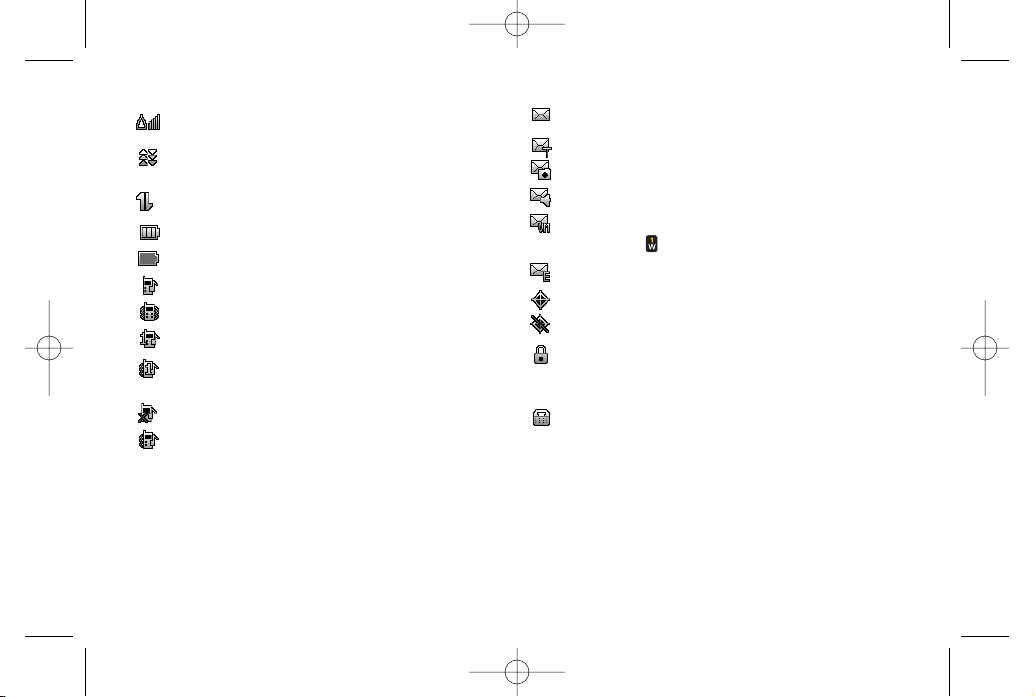
Viewing the Display Screen
Yourphone’s display screen provides information about
yourphone’s status and options. This list identifies the
symbols you’ll see on your phone’s display screen:
shows yourcurrent signal strength. (The more
lines you have, the stronger yoursignal.)
tells you your call is in progress.
means yourphone cannot find a signal.
Note
For information about using yourphone’s main
screen carousel, see
Section 2B: Navigating the
Main Screen
on page 32.
Tip
To view a list of yourphone’s icons and
descriptions, from the main menu select
Settings >
Phone Information > Icon Glossary
.
Phone Basics
LX600(1.2)_0603.qxp 6/3/09 11:10 AM Page 11
12 Section 2A. Phone Basics
indicates you are “Roaming” off the Sprint
National Network.
indicates yourdata connection is active. (Data
is being transferred.)
indicates you are using 3G service.
indicates full battery.
indicates low battery.
indicates ringeronly is set for call alert.
indicates ringervolume is set to vibrate.
indicates one beep is set forcall alert.
indicates one beep and vibration is set forcall
alert.
indicates RingerOff/Silence All mode is set.
indicates ringerand vibrate mode is set.
indicates you have new messages.
indicates you have new text messages.
indicates you have new Picture Mail.
indicates you have new Voice SMS messages.
indicates you have voicemail messages. (Press
and hold to call yourvoicemail box.)
indicates you have new Email.
indicates yourphone’s location feature is on.
indicates yourphone’s location feature is off.
indicates yourphone is using SSL (Secure
Sockets Layer) protocol forclient/server
communication.
indicates yourphone is operating in TTYmode.
LX600(1.2)_0603.qxp 6/3/09 11:10 AM Page 12
Section 2A. Phone Basics 13
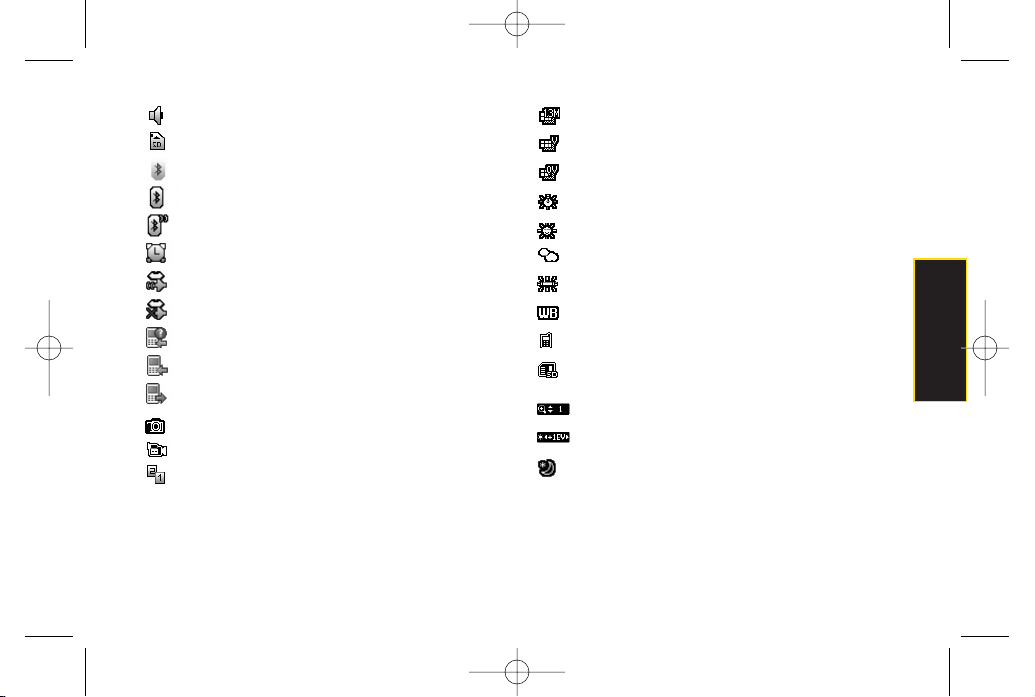
indicates speakeris activated.
indicates memory card has been inserted.
indicates Bluetooth Enabled (Hidden).
indicates Bluetooth Enabled (Visible).
indicates Bluetooth Connected.
indicates alarm is activated.
indicates voice guide and speaker is activated.
indicates voice guide and speaker is off.
indicates missed calls number.
indicates incoming calls number.
indicates outgoing calls number.
indicates Camera Mode.
indicates CamcorderMode.
indicates Multitasking Virtual Machine is
activated.
indicates Camera Resolution is set to 1.3M.
indicates Camera Resolution is set to VGA.
indicates Camera Resolution is set to QVGA.
indicates White Balance is set to Tungsten.
indicates White Balance is set to Sunny.
indicates White Balance is set to Cloudy.
indicates White Balance is set to Fluorescent.
indicates White Balance is set to Manual.
indicates a picture is saving to In Phone.
indicates a picture is saving to in the Memory
Card.
indicates Zoom Step.
indicates Brightness setting.
indicates Night mode is set.
Phone Basics
LX600(1.2)_0603.qxp 6/3/09 11:10 AM Page 13

14 Section 2A. Phone Basics
Features of YourPhone
The
LG LOTUS
TM
is lightweight, easy to use, and reliable,
and it offers many features and service options. This list
previews some of those features and provides page
numbers where you can find out more:
The easy-to-use
Sprint One Click
main screen brings
all yourfavorite features to yourfingertips (page 32).
Digital dual-band capability allows you to make and
receive voice calls while on the Sprint National
Network and to roam on other1900 and 800 MHz
digital networks where Sprint has implemented
roaming agreements (page 59).
Data services provides access to the wireless Internet
in digital mode (page 126).
Sprint Mail (page 131), Text Messaging (page 119),
and VoiceSMS Messaging (page 122) provide quick
and convenient messaging capabilities.
Games, ringers, screen savers, and otherapplications
can be downloaded to make your phone as unique as
you are (page 134). Additional charges may apply.
Your Contacts list allows you to store up to 600 entries,
with up to 7numbers per entry (page 67).
The built-in Calendaroffers several personal
information management features to help you
manage yourbusy lifestyle (page 76).
The Location feature works in connection with
available location-based services (page 46).
Predictive Text Input lets you quickly type messages
with one keypress perletter (see page 30).
Speed dial lets you dial phone numbers with one or
two keypresses (see page 28).
You can wirelessly pairyour
Bluetooth
-enabled
phone to certain
Bluetooth
devices, including
headsets and hands-free devices. You may also use
a personal computeror hand-held device to pair with
the phone fordial-up networking, using the phone as
a wireless modem (page 140).
LX600(1.2)_0603.qxp 6/3/09 11:10 AM Page 14
Section 2A. Phone Basics 15
The built-in camera allows you to take full-colordigital
pictures and view yourpictures using the phone’s
display (page 91).
Sprint Navigation, powered by the built-in GPS
hardware, gives you access to maps and directions
on the go (page 152).
WIreless Backup allows you to back up all of your
contacts to the Sprint Web site and restore them if your
phone is lost, stolen, damaged, orreplaced (see page
74) .
Data Roam Guard will alert you when you are roaming
and using yourbrowseror otheronline applications,
giving you the option to continue using those
applications while in the roaming area (page 62).
Turning YourPhone On and Off
Turning Your Phone On
Press .
Once yourphone is on, it may display “Searching for
Service.” When yourphone finds a signal, it
automatically enters standby mode – the phone’s idle
state. At this point, you are ready to begin making and
receiving calls.
If yourphone is unable to find a signal after searching, a
PowerSave feature is automatically activated. When a
signal is found, yourphone automatically returns to
standby mode.
In PowerSave mode, yourphone searches fora signal
periodically without yourintervention. You can also
initiate a search forSprint service by pressing any key
(when yourphone is turned on).
Tip
The PowerSave feature conserves your battery
powerwhen you are in an area where there is no
signal.
Note
The Bluetooth
®
word mark and logos are owned by
Bluetooth SIG, Inc. and any use of such marks by
LG Electronics, Inc. is underlicense. Other
trademarks and trade names are those of their
respective owners.
Phone Basics
LX600(1.2)_0603.qxp 6/3/09 11:10 AM Page 15
16 Section 2A. Phone Basics
Turning Your Phone Off
Press and hold fortwo seconds until you see
the powering down animation on the display
screen.
Your screen remains blank while your phone is off
(unless the battery is charging).
Using Your Phone’s Batteryand
Charger
Sprint-approved or
LG
-approved batteries and
accessories can be found at Sprint Stores orthrough
LG
;
orcall 1-866-343-1114 to order. They’re also available at
www.sprint.com
.
Battery Capacity
Your phone is equipped with a Lithium Ion (Li-Ion)
battery. It allows you to recharge your battery before it is
fully drained. The battery provides up to 5.5 hours of
continuous digital talk time.
When the battery reaches 5% of its capacity, the battery
icon blinks. When there are approximately two minutes
of talk time left, the phone sounds an audible alert and
then turns off.
Tip
Watch yourphone’s battery level indicator and
charge the battery before it runs out of power.
Note
Long backlight settings, searching forservice,
vibrate mode, browser use, and othervariables may
reduce the battery’s talk and standby times.
WARNING
Use only Sprint-approved orLG-approved
batteries and chargers with yourphone.
The failure to use a Sprint-approved orLG-
approved battery and charger may
increase the risk that your phone will
overheat, catch fire, or explode, resulting
in serious bodily injury, death, or property
damage.
LX600(1.2)_0603.qxp 6/3/09 11:10 AM Page 16
Section 2A. Phone Basics 17
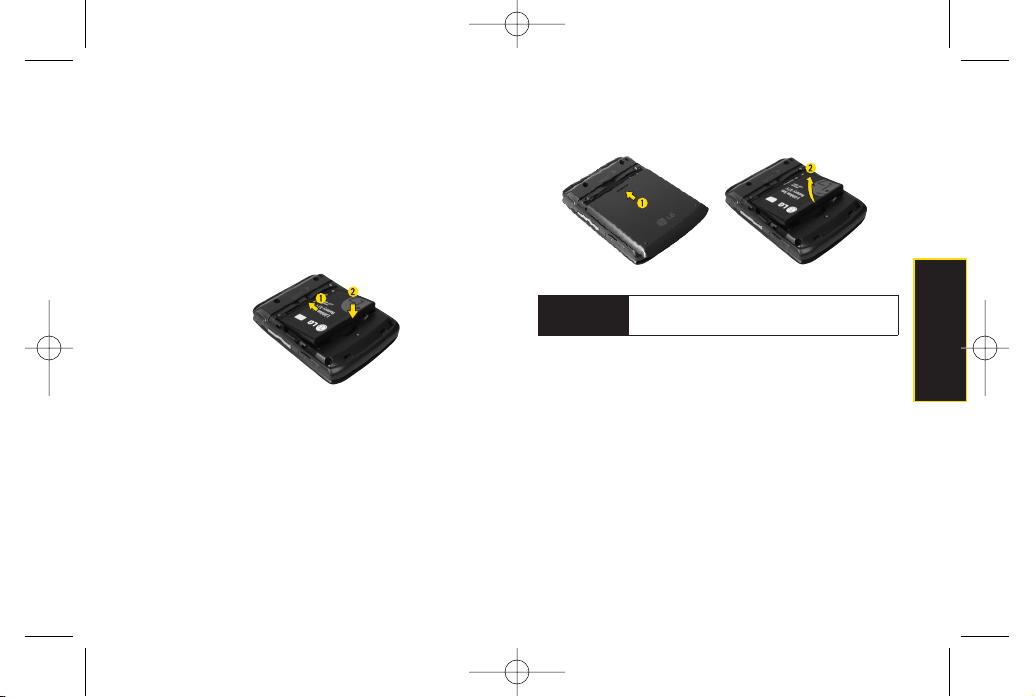
Installing the Battery
1. Push and slide the cover downward until it comes
free from the phone.
2. To install, insert the battery into the opening on the
back of the phone, aligning the battery contacts
with the contacts in the compartment (1) and then
gently press the battery down until it clicks into
place (2).
Removing the Battery
1. Make sure the power is off so that you don’t lose any
stored numbers ormessages.
2. Push and slide the coverdownward until it comes
free from the phone (1).
3. Hold the phone in one hand so that the battery is
facing you.
4. Hold the bottom edge of the battery and lift the
battery from the battery compartment (2).
Charging the Battery
Charge yourbattery as soon as possible so you can
begin using yourphone.
Keeping track of your battery’s charge is important. If
yourbattery level becomes too low, yourphone
automatically turns off, and you will lose any information
you were just working on. Fora quick check of your
battery level, glance at the battery charge indicator
located in the upper-right corner of your phone’s display
screen. If the battery charge is getting too low, the battery
WARNING
Do not handle a damaged or leaking Li-
Ion battery as you can be burned.
Phone Basics
LX600(1.2)_0603.qxp 6/3/09 11:10 AM Page 17
18 Section 2A. Phone Basics
icon ( ) blinks and the phone sounds a warning
tone.
Always use a Sprint-approved or
LG
-approved desktop
charger, travel charger, or vehicle power adapter to
charge yourbattery.
Using the Phone Charger
1. Plug the micro USB end of the chargercable into
the phone, and the USB end of the cable into the AC
adapter.
2. Insert the AC adapter into an outlet.
A
red indicator light
at the front of the telephone's
clamshell means the battery is charging.
A
white indicator light
at the front of the telephone's
clamshell means the battery is at least 90 percent
charged.
With the Sprint-approved Li-Ion battery, you can
recharge the battery before it becomes completely run
down.
Navigating Through the Menus
The navigation key on yourphone lets you scroll through
onscreen items. Many menus feature a scroll baron the
right to help you keep track of yourposition in the menu.
To navigate through a menu, press the navigation key
up ordown. If you are in a first-level menu, such as
Settings
, you may also navigate to the next or previous
Note
Your phone’s Sprint One Click main screen gives
you instant access to yourfavorite features. See
Section 2B: Navigating the Main Screen
on page
32forcomplete information.
Note
Charging with USB
Plug the micro USB end ofthe chargercable into the
phone, and the USB end of the cable into your
computer’s USB port. (commonly located on the front
panel of the computer).
Note
Actual battery life will depend on network
configuration, product settings, usage patterns,
battery and environmental conditions.
LX600(1.2)_0603.qxp 6/3/09 11:10 AM Page 18
Section 2A. Phone Basics 19
first-level menu by pressing the navigation key right
orleft.
Fora diagram of your phone’s menu, please see “Your
Phone’s Menu”on page ii.
Selecting Menu Items
As you navigate through the menu, menu options are
highlighted. Select any option by highlighting it and
pressing
.
If the option is numbered, you can select
it by pressing the corresponding numberon the phone’s
keypad.
Forexample, to view yourtext messages:
1. From the main screen, highlight and press
to access the main menu.
2. Select
Messages
by highlighting it and
pressing .
3. Select
Text Message
by highlighting it and
pressing .
(If you have any text messages, they are displayed.)
Forthe purposes of this guide, the above steps
condense into:
Highlight and press
> Messages >
Text Message > Inbox
.
Backing Up Within a Menu
To go to the previous menu:
Press .
To return to standby mode:
Press .
DisplayingYourPhone Number
Highlight and press
> Settings > Phone
Information > Phone Number
. (Your phone number
and otherinformation about yourphone and
account will be displayed.)
Phone Basics
LX600(1.2)_0603.qxp 6/3/09 11:10 AM Page 19
20 Section 2A. Phone Basics
Making and Answering Calls
Making Calls
Placing a call from yourwireless phone is as easy as
making a call from any landline phone. Enterthe
number, press , and you’re on your way to clear
calls.
1. Make sure yourphone is on.
2. Enter a phone number from standby mode. (If you
make a mistake while dialing, press to erase
the numbers.)
3. Press . (To make a call when you are roaming
and Call Guard is enabled, select
Roam Call
and
press . See “Call Guard”on page 61.)
4. Press or close the phone when you are
finished.
You can also place calls from yourphone by using
speed dialing numbers from yourContacts (page 73),
and using yourCall History listings (page 64).
Dialing Options
When you enternumbers in standby mode, press
OOPPTTIIOONNSS
(right softkey) and choose from a variety of
dialing options.
To initiate an option, select it and press .
Tip
To speed dial a phone number from standby
mode, press and hold the speed dial number. If
the speed dial numberis two digits, enterthe first
digit, and then press and hold the second digit.
(For information on setting up speed dial
numbers, see “Assigning Speed Dial Numbers”on
page 70) (This feature will not work when you are
roaming offthe Sprint National Network; when
roaming you must dial using eleven digits [1+ the
area code + the seven-digit phone number.])
Tip
To redial yourlast outgoing call, press
TALK
twice.
When making calls off the Sprint National Network,
always dial using 11digits (1+ area code + phone
number).
LX600(1.2)_0603.qxp 6/3/09 11:10 AM Page 20
Section 2A. Phone Basics 21
Contacts Details
allows you to check details for
contacts entries that are saved in phone.
Save
allows you to entera seven- orten-digit number
(phone numberand area code) and save the phone
numberin yourContacts. (See “Saving a Phone
Number”on page 25.)
Hard Pause
allows you to entera hard pause. (See
“Dialing and Saving Phone Numbers With Pauses”on
page 26.)
2-sec Pause
allows you to entera two-second pause.
(See “Dialing and Saving Phone Numbers With
Pauses”on page 26.)
-or-
Press
SEND MSG
(left softkey) to access a menu which
you can use to send Text Message, Picture Mail, or
Voice SMS for the dialed number.
Answering Calls
1. Make sure yourphone is on. (If your phone is off,
incoming calls go to voicemail.)
2. Press to answer an incoming call. (Depending
on yoursettings, you may also answer incoming
calls by pressing any numberkey. See “Call
AnswerMode”on page 52 for more information.)
Your phone notifies you of incoming calls in the
following ways:
The phone rings orvibrates.
The indicatorlight flashes.
The backlight illuminates.
The screen displays an incoming call message.
If the incoming call is from a numberstored in your
Contacts, the entry’s name is displayed. The caller’s
phone numbermay also be displayed, if available.
The following options are also displayed. To select an
option, press the corresponding softkey.
Silence
to mute the ringer.
Ignore
to ignore the call.
Phone Basics
LX600(1.2)_0603.qxp 6/3/09 11:10 AM Page 21
22 Section 2A. Phone Basics
Answering a Roam Call With Call Guard
Enabled
Call Guard is an option that helps you manage your
roaming charges when making orreceiving calls while
outside the Sprint National Network. Please see
“Roaming “ on page 59 formore information about
roaming.
Select
Answer
to answerthe call. (See “Using Call
Guard”on page 61for additional information.)
Ending a Call
Close the phone orpress .
Missed Call Notification
When an incoming call is not answered, the Missed Call
log is displayed on yourscreen.
To display the Missed Call entry from the notification
screen:
Select the entry and press . (To dial the phone
number, press .)
To display a Missed Call entry from standby mode:
1. Highlight and press
> Missed Alerts
.
2. Select the entry you wish to view and press .
Note
When yourphone is off, calls go directly to
voicemail.
LX600(1.2)_0603.qxp 6/3/09 11:10 AM Page 22
Section 2A. Phone Basics 23
Calling Emergency Numbers
You can place calls to 911 (dial ), even if
yourphone is locked oryour account is restricted.
During an emergency call, press to select your
options.
Speaker On
or
Speaker Off
to route the phone's audio
through the speakeror through the earpiece.
Select
Speaker On
to route the phone’s audio
through the speaker. (You can adjust the speaker
volume using the volume keys on the side of the
phone.)
Select
Speaker Off
to use the phone’s earpiece.
Phone Number
to display your wireless phone number.
To exit Emergency mode:
1. Press to end a 911call.
2. Select
Exit Emergency
and press .
Enhanced 911(E911) Information
This phone features an embedded Global Positioning
System (GPS) chip necessary forutilizing E911
emergency location services where available.
When you place an emergency 911 call, the GPS feature
of yourphone seeks information to calculate your
approximate location. Depending on several variables,
including availability and access to satellite signals, it
may take up to 30 seconds or more to determine and
report yourapproximate location.
IMPORTANT
Always report yourlocation to the 911
operatorwhen placing an emergencycall.
Some designated emergency call takers,
known as Public Safety Answering Points
(PSAPs) may not be equipped to receive GPS
location information from yourphone.
Note
When you are in Emergency mode, you can exit
only from the options menu.
Note
When you place an emergency call, yourphone
automatically enters Emergency mode.
Phone Basics
LX600(1.2)_0603.qxp 6/3/09 11:10 AM Page 23
24 Section 2A. Phone Basics
In-Call Options
During a call you can use the following features.
Mute
or
Unmute
to mute yourmicrophone, orto
unmute the microphone if it was muted earlier.
Speaker
routes the phone’s audio through the speaker
orthrough the earpiece.
Press to route the phone’s audio through the
speaker. (You can adjust the speakervolume
using the volume keys on the side of the phone.)
Press again to use the phone’s earpiece.
Press to send a text message.
The following options are available by selecting
OPTIONS
(right softkey).
Save
to save a phone number in yourContacts. (See
"Saving a Phone Number" on page 65.)
Main Menu
to display the phone’s main menu.
3-Way Call
to set up a three-way conversation.
Contacts
to access the Contacts menu.
Voice Memo
to record the current conversation.
Phone Info
to check the phone number, version, etc.
Note
During a call, press and hold
BACK
to display the
current time. Press
BACK
again to return to the call
duration display.
WARNING
Because of highervolume levels, do not
place the phone near your earduring
speakerphone use.
LX600(1.2)_0603.qxp 6/3/09 11:10 AM Page 24
Section 2A. Phone Basics 25
End-of-Call Options
After you receive a call from ormake a call to a phone
numberthat is not in yourContacts, the phone number
and the duration of the call are displayed. Press
OPTIONS
(right softkey)
> Save Contact
to add the new
numberto yourContacts. (See “Saving a Phone
Number”below.)
After receiving a call from or making a call to a phone
numberthat is already in your Contacts, the Contacts
entry name and phone number, and the duration of the
call are displayed. To select one of the following options
after a call has ended, press
OPTIONS
(right softkey):
Delete/ Delete All/ Contact Details
Saving a Phone Number
Your phone can store up to
7
phone numbers in each of
600 Contacts entries. Each entry’s name can contain
64
characters. Your phone automatically sorts the Contacts
entries alphabetically. (Formore information, see
“Contacts”on page 67.)
To save a number from standby mode:
1. Entera phone number.
2. Press
OPTIONS
(right softkey), select
Save
and
press .
3. Select
New Entry
fora new contact or
Existing Entry
to add a numberto an existing contact and
press .
4. Select
Mobile, Home, Work, Pager, Fax,
or
Other
forthe
phone label.
Note
The End-of-Call options are not displayed forcalls
identified as No ID orRestricted.
Phone Basics
LX600(1.2)_0603.qxp 6/3/09 11:10 AM Page 25
5. Use the QWERTY keyboard to enter the new contact
name and press
DONE
(left softkey) to save the new
entry.
– or–
Search foran existing contact name and press
to save the new number.
6. Press
DONE
(left softkey) to save the new entry.
Finding a Phone Number
You can search Contacts forentries by name.
1. Press
CONTACTS
(right softkey) and enter the first
letter or letters of an entry. (The more letters you
enter, the more specific the search.)
2. To display an entry, highlight it and press . To
dial a number, highlight it and press .
Dialing and Saving Phone Numbers With
Pauses
You can dial or save phone numbers with pauses for
use with automated systems, such as voicemail orcredit
card billing numbers.
There are two types of pauses available on your phone:
Hard Pause
sends the next set of numbers when you
press .
2-Second Pause
automatically sends the next set of
numbers after two seconds.
To dial or save phone numbers with pauses:
1. Enterthe phone number.
2. Press
OPTIONS
(right softkey), select either
Hard
Pause
or
2-sec Pause
and press . (Hard pauses
are displayed as a “P” and two-second pauses as a
“T.”)
3. Enter additional numbers.
4. Press to dial the number.
Note
You can have multiple pauses in a phone number
and combine two-second and hard pauses.
26 Section 2A. Phone Basics
LX600(1.2)_0603.qxp 6/3/09 11:10 AM Page 26
Phone Basics
– or–
To save the numberin yourContacts list, press
OPTIONS
(right softkey), highlight
Save
and
press .
Using Abbreviated Dialing
Abbreviated Dialing is similarto speed dialing. You can
use eitherof the following abbreviated dialing features.
Contacts Match
– Retrieve any numbersaved in your
Contacts by entering only three to six consecutive
digits of the number. (See “Contacts Match”on page
53.)
Prepend
– P
repend the first five orsix digits (for
example, the area code and prefix) to any fouror five
digits you enter. Pres
s
to dial the resulting
number.
To place a call using Contacts Match abbreviated dialing:
1. Enterthe last three to six digits of a Contacts entry’s
phone number. (The matched numbers are shown
at the bottom of the screen.)
2. Highlight the desired phone numberfrom the list
and press to call the displayed number.
To place a call using Prepend abbreviated dialing:
1. Enterthe last four or five digits of the number.
2. Press .
Note
When dialing a numberwith a hard pause, press
TALK
to send the next set of numbers.
Section 2A. Phone Basics 27
LX600(1.2)_0603.qxp 6/3/09 11:10 AM Page 27
28 Section 2A. Phone Basics
Dialing From the Contacts List
1. Highlight and press
> Contacts
.
2. Select the entry you want to call and press to
dial the entry’s default phone number.
– or–
To dial another numberfrom the entry, select the
name and press , and then select a number and
press .
Using Speed Dialing
You can store up to 99 numbers in yourphone’s speed
dial memory to make contacting friends and family as
easy as pressing a button or two. (See "Assigning
Speed Dial Numbers" on page 70.) With this feature, you
can dial speed dial entries using one keypress for
locations 1–9 ortwo keypresses forlocations 10–99.
To use One-Touch Dialing for speed dial locations 1–9:
Press and hold the appropriate key for
approximately two seconds. The display confirms
that the numberhas been dialed when it shows
“Connecting...”.
To use Two-Touch Dialing for speed dial locations 10–99:
1. Press the first digit.
2. Press and hold the second digit forapproximately
two seconds. The display confirms that the number
has been dialed when it shows “Connecting...”.
Note
Speed dialing is not available when you are
roaming; when you are roaming off the Sprint
National Network, you must always dial using
eleven digits (1+ area code + number).
Shortcut
From standby mode, press
CONTACTS
(right softkey) to list entries.
LX600(1.2)_0603.qxp 6/3/09 11:10 AM Page 28
Section 2A. Phone Basics 29
Entering Text
Your phone features a QWERTY keyboard, specifically
designed foreasy and comfortable text entry.
The QWERTYkeyboard uses the same layout and works
just like the keyboard on yourcomputer. Use your
thumbs to entertext.
To change capitalization, press .
To enter alternate characters on a key, press and
then press the key. To lock the function key (as when
entering a series of numbers), press twice or press
and hold the FN key.
To enter symbols, press and select a symbol.
Foradditional test entry options, see "Selecting a Text
Input Mode" below.
Selecting a Text Input Mode
Your phone provides convenient ways to enterwords,
letters, punctuation, and numbers wheneveryou are
prompted to entertext (forexample, when adding a
Contacts entry orwhen using Sprint Mail and SMS Text
Messaging).
1. From a screen where you can entertext, press
OPTIONS
(right softkey) and select
Text Mode
to
change the text input mode.
2. Select one of the following options:
Predictive Text
to entertext using a predictive text-
entry system that reduces the numberof
keystrokes required to enter a word (see page 30).
Symbols
to entersymbols (see page 31).
Emoticon
to enteremoticons.
Smileys
to enter“emoticons”(see page 31).
Settings
to entermessage settings.
Tip
When entering text, press to change letter
capitalization (
ABC > Abc > abc
).
Phone Basics
LX600(1.2)_0603.qxp 6/3/09 11:10 AM Page 29

30 Section 2A. Phone Basics
Entering Characters Using Predictive Text
Input
Predictive Text Input lets you enter text by a few key
strokes perword. (To select the
Predictive Word
mode
when entering text, see “Selecting a Text Input Mode”on
page 29.)
T9 Text Input uses an intuitive word database to analyze
the letters you enterand create a suitable word. (The
word may change as you type.)
1. Select the
Predictive
text input mode. (See
“Selecting a Text Input Mode”on page 29.)
2. Enter a couple of letters of a word. When you entera
letter of a word, a small window will appearand
shows the words starting with the letters.
(If you make a mistake, press to erase a single
character. Press and hold to erase an entire
word.)
3. Scroll to the desired word and press .
4. If a word you want to enter is not displayed in the list,
select
Add Word
.
5. Enter the word and press . The word will appear
as an option the next time you scroll through
options during Predictive Text Input.
Formore information about Predictive Text Input, visit the
Tegic Web site at w
ww.T9.com.
LX600(1.2)_0603.qxp 6/3/09 11:10 AM Page 30

Section 2A. Phone Basics 31
Entering Numbers, Symbols, Smileys
To enter symbols:
Select the
Symbols
mode. (See “Selecting a Text
Input Mode”on page 29.)To enter a symbol, press
the appropriate key indicated on the display.
To enter “emoticons”(smileys):
Select the
Emoticon
mode and press the
appropriate key. (See “Selecting a Text Input Mode”
on page 29.)
To enter “smileys”:
Select the
Smileys
mode and press the appropriate
key. (See “Selecting a Text Input Mode”on page 29.)
Phone Basics
LX600(1.2)_0603.qxp 6/3/09 11:10 AM Page 31

32 Section 2B. Navigating the Main Screen
Section 2B
Navigating the Main Screen
Getting to Know Sprint One Click (page 32)
Personalizing the Carousel (page 34)
Personalizing the Home Screen (page 37)
The easy-to-use Sprint One Click main screen gives you
instant access to all your favorite features.
This section
explains what Sprint One Click does, how to navigate
within the main screen, and how to personalize your
main screen so you get the most out of your phone.
Getting to Know Sprint One Click
Sprint One Click brings all yourfavorite features to your
fingertips. Instead of navigating through the levels of a
traditional phone menu, this design puts the things you
need the most – features like text messaging, Internet
access, and GPS navigation – right up front. Not only
can you access what you need right away, you get to
choose what and where it all goes.
Using yourSprint One Click is easy once you’ve learned
a few basics.
LX600(1.2)_0603.qxp 6/3/09 11:10 AM Page 32
Section 2B. Navigating the Main Screen 33
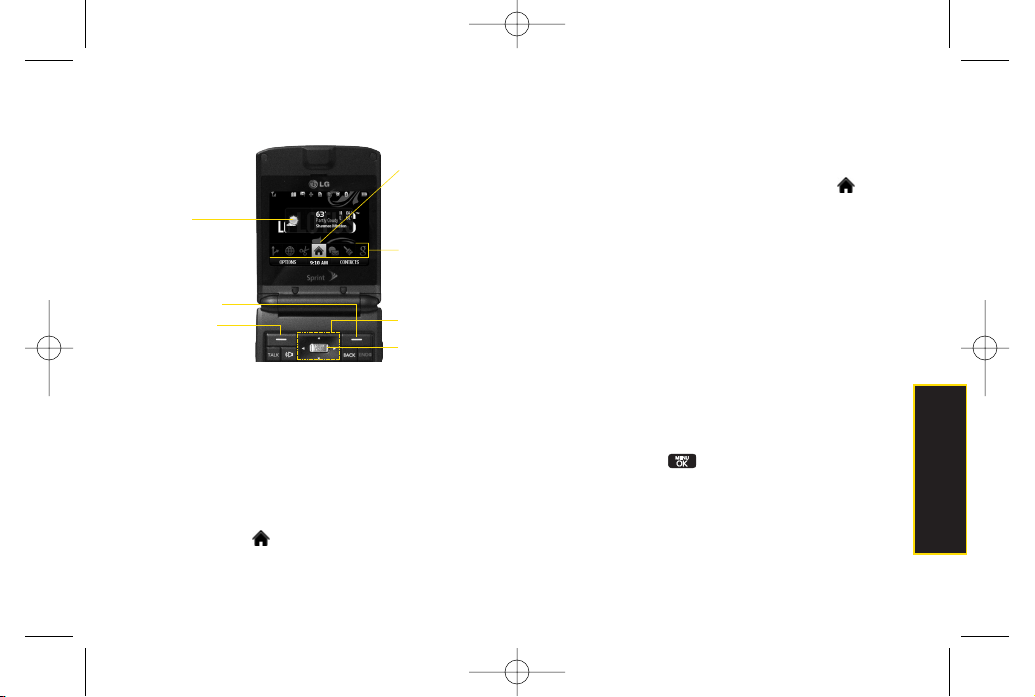
The Sprint One Click Main Screen
The illustration above shows the basic layout of your
phone’s main screen, also known as the standby
screen. The callouts highlight what you’ll need to know
to get started with Sprint One Click.
Carousel
–The carousel is the bottom row of
tiles
, or
icons, on yourmain screen. Pressing the
navigation
key
right orleft moves the carousel. The tile in the
centeris the menu that’s displayed. In the illustration,
the
Home
tile ( ) is in the center, so the Home
screen is displayed.
Tiles
–The tiles are the individual icons on the
carousel. Each tile displays a specific menu, such as
Messaging, Internet, and Call Log. The carousel can
hold up to 15 tiles, which you can add, remove, and
rearrange to suit your needs. The
Home
tile ( )
provides access to the phone’s full menu, and it is the
only one that cannot be moved or removed.
Bubbles
– Bubbles are at-a-glance information items
that may be displayed when the
Home
screen is
displayed, such as in the illustration. Your Home
screen can display up to eight bubbles.
Function Keys
–The keys you’ll use to navigate
through the main screen are:
Navigation key:
Press right orleft to move the
carousel to highlight tiles. Highlighted tiles occupy
the centerposition. Press the navigation key up or
down to highlight bubbles (Home screen only) or
menu items.
Menu/OK key
()
:
Press to select highlighted
menu items. From the Home screen, press to
display the phone’s full menu.
Main Screen Navigation
Navigation Key
Menu/OK Key
Bubbles
Left softkey
Right softkey
Carousel
Tiles
LX600(1.2)_0603.qxp 6/3/09 11:10 AM Page 33
34 Section 2B. Navigating the Main Screen
Softkeys:
Press the left or right softkey to perform
the action oraccess the menu indicated by the
text directly above it on the display. In the
illustration, pressing the left softkey displays
OPTIONS
, and pressing the right softkey displays
CONTACTS.
End/Power key
()
:
Press from any menu ortile
to return to the Home ( ) screen.
Take the Tutorial
Your phone has a built-in menu of tutorials to teach you
all you need to know about Sprint One Click.
1. Highlight and press
OPTIONS
(left softkey)
>
Tutorial
.
–or–
Highlight (
Personalize My Phone
)
> Tutorial
.
2. Highlight a topic and press to display the
tutorial.
Topics include:
Getting Started
,
Changing
the Carousel
,
Adding a Tile
,
Removing a Tile
,
Changing the Home Screen
,
Adding a Bubble
,
and
Removing a Bubble
.
Personalizing the Carousel
Now that you know what the carousel is, it’s time to make
it work foryou by adding, removing, orrearranging tiles
to match how you want to use your phone.
Adding a Tile to the Carousel
1. Highlight and press
OPTIONS
(left softkey)
>
Personalize Carousel
.
2. Press
ADD TILE
(left softkey), select a tile category
(
All
,
Featured
,
Communication
,
Entertainment
, or
Favorites
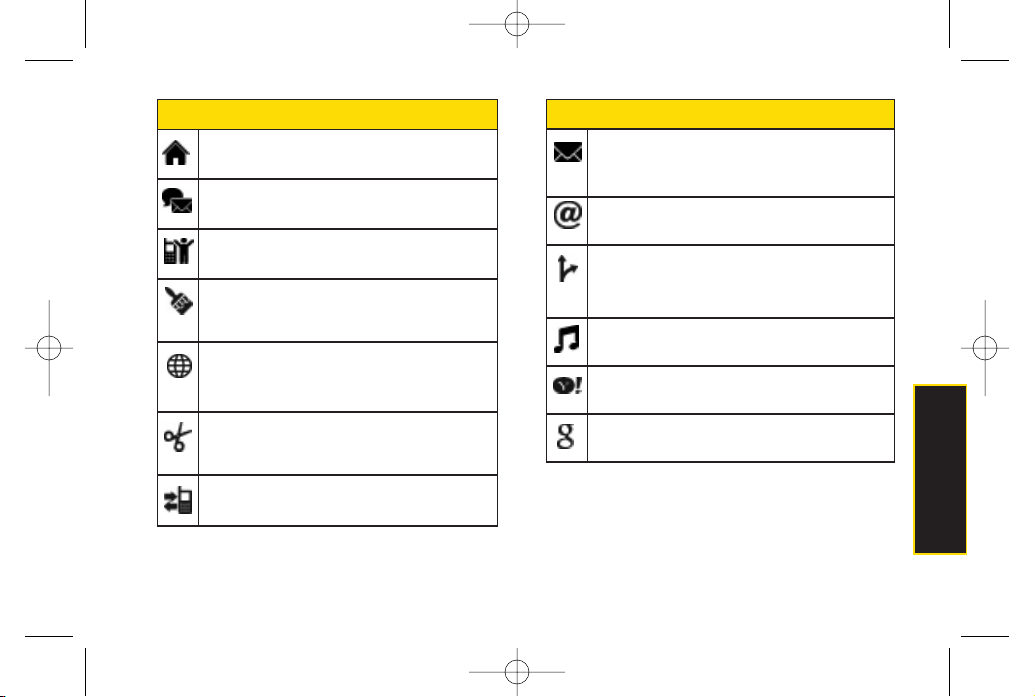
), and then highlight a tile (see table on
page 35).
3. To add the tile, press
ADD
(left softkey) or press
. (To view a preview, press
PREVIEW
[right
softkey].)
Tip
To see a full menu of tutorials when viewing another
tutorial, press
INDEX
(left softkey).
LX600(1.2)_0603.qxp 6/3/09 11:10 AM Page 34
Section 2B. Navigating the Main Screen 35
Sprint One Click Tiles (continued)
Text Message –
Instantly access the Text Message
menu, including Send Text, Inbox, and a list of
recent messages.
Email –
Access all youremail accounts in one
place.
Sprint Navigation –
Access Sprint Navigation,
including Drive To, Directory, Maps & Traffic, and
Tools/Extras.
Music –
Access the Music menu, including
My Music, Sprint Music Store, and Search.
Yahoo! –
Yahoo! Mail, Messenger, oneSearch and
more. Yahoo! at yourfingertips.
Google –
Get easy access to all yourfavorite
Google services.
Sprint One Click Tiles
Home –
View Home screen and bubbles. Press
OKto access the phone’s full menu.
Messaging –
Access Voicemail, Send Message,
Text Message, Picture Mail, and Email.
My Account –
Access links to Account Details
HearMinutes, and Hear Balance.
Personalize My Phone –
Access Change Screen
Saver, Change Ringer, Personalize Home
Screen, Personalize Carousel, and Tutorials.
Internet –
Access data services, including the
Sprint Home page, Favorites, Recent Pages, the
EnterWeb Address menu, and Google search.
Shortcuts –
Add and access up to five shortcuts
from My Stuff, My Album, Web Bookmarks, and
Menu Items.
Call Log –
Access Recent History.
Main Screen Navigation
LX600(1.2)_0603.qxp 6/3/09 11:10 AM Page 35
36 Section 2B. Navigating the Main Screen
Removing a Tile From the Carousel
1. Highlight and press
OPTIONS
(left softkey)
>
Personalize Carousel
.
2. Press the navigation key right orleft to highlight a
tile, and then highlight
Remove Tile
and press .
Rearranging Tiles on the Carousel
1. Highlight and press
OPTIONS
(left softkey)
>
Personalize Carousel
.
2. Press the navigation key right orleft to highlight a
tile, and then highlight
Move Tile
and press .
3. Press the navigation key right or left to select a
location, and then press
INSERT
(left softkey) or
press to place the tile.
Replacing Tiles on the Carousel
If yourcarousel is full orif you just want to swap out one
tile foranother, you can replace an existing tile with
another.
1. Highlight and press
OPTIONS
(left softkey)
>
Personalize Carousel
.
2. Press the navigation key right orleft to highlight a
tile, and then highlight
Replace Tile
and press .
3. Select a tile category and then highlight a tile.
4. To replace the previous tile, press
REPLACE
(left softkey) or press to place the tile.
Shortcut
From the main screen, select a tile, press
OPTIONS
(left softkey)
> Replace Tile
, and
then complete steps 3 and 4.
Shortcut
From the main screen, highlight a tile, press
OPTIONS
(left softkey)
> Move Tile
, and then
complete step 3.
Shortcut
From the main screen, highlight a tile and
press
OPTIONS
(left softkey)
> Remove Tile
.
Rememberthat you cannot remove, move,
orreplace the
Home
tile.
LX600(1.2)_0603.qxp 6/3/09 11:10 AM Page 36

Section 2B. Navigating the Main Screen 37
Editing Tiles
Certain tiles, such as Shortcuts and Favorite Contacts,
contain editable content. You can use the Personalize
Carousel menu to edit these tiles.
1. Highlight and press
OPTIONS
(left softkey)
>
Personalize Carousel
.
2. Press the navigation key right orleft to select a tile,
and then highlight
Edit Tile
and press .
3. Use your navigation key and function keys to edit
the tile.
Resetting the Carousel
To reset the carousel to the original default settings:
1. Select and press
OPTIONS
(left softkey)
> Reset
Carousel
.
2. Highlight
Yes
and press .
Personalizing the Home Screen
Use yourHome screen (the screen that is displayed
when the
Home
icon is selected) to provide at-a-
glance information and updates through customizable
bubbles. You can add up to eight bubbles to yourHome
screen.
To see more information from a bubble, press the
navigation key up ordown to highlight the bubble and
then press .
Adding a Bubble to the Home Screen
1. Highlight and press
OPTIONS
(left softkey)
>
Personalize Home Screen
.
2. Press
ADD
(left softkey) and then highlight a bubble
(see table on page 38).
3. To add the bubble, press
ADD
(left softkey) or
press . (To view a preview, press
PREVIEW
[right softkey].)
4. If prompted, follow the instructions to personalize
yourbubble (for example, by selecting an
astrological sign forthe Horoscope bubble).
Shortcut
From the main screen, select a tile, press
OPTIONS
(left softkey)
> Edit Tile
, and then
complete step 3.
Main Screen Navigation
LX600(1.2)_0603.qxp 6/3/09 11:10 AM Page 37
38 Section 2B. Navigating the Main Screen
5. When you are finished, press .
Removing a Bubble From the Home
Screen
1. Highlight and press
OPTIONS
(left softkey)
>
Personalize Home Screen
.
2. Press the navigation key up ordown to highlight a
bubble.
3. Press the navigation key left or right to select the
Remove Bubble
option and then press .
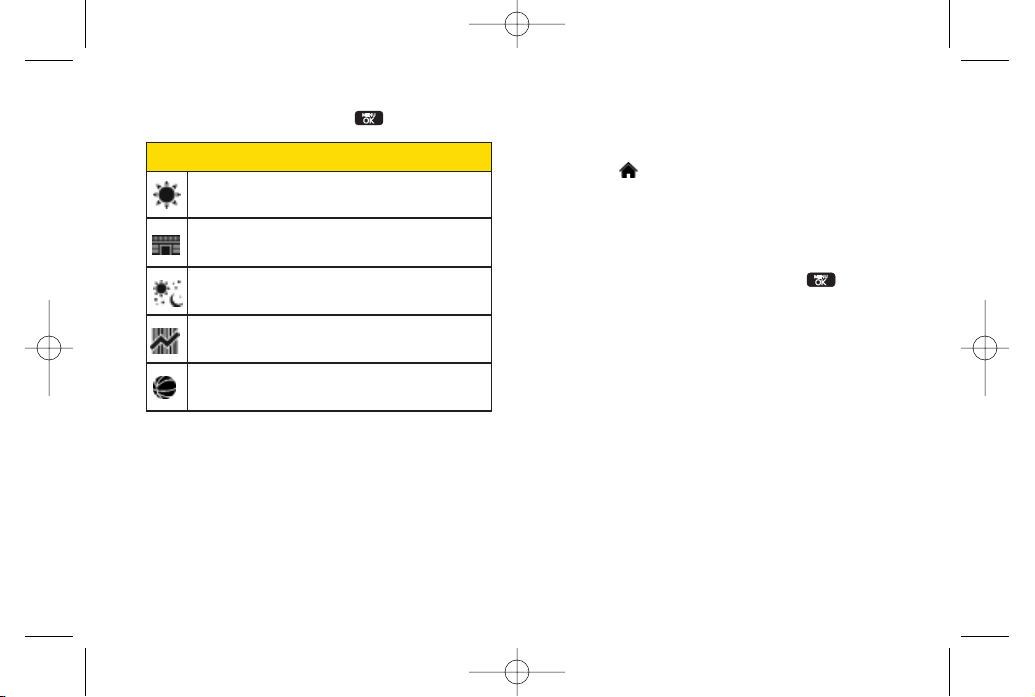
Sprint One Click – Home Screen Bubbles
Weather–
Check out the current forecast in your
city.
News –
Instantly access breaking news and top
stories.
Horoscope –
View yourdaily horoscope.
Finance –
Track your favorite stocks.
Sports News –
Get breaking sports news.
LX600(1.2)_0603.qxp 6/3/09 11:10 AM Page 38

Settings
Section 2C
Settings
Sound Settings (page 39)
Display Settings (page 42)
Location Settings (page 46)
Messaging Settings (page 47)
Airplane/Music Mode (page 49)
TTY Use With Sprint Service (page 50)
Phone Setup Options (page 51)
You can customize your phone to sound, look, and operate
just the way you want it to
. This section describes how to
change yourphone’s settings to best suit yourneeds.
Take a few moments to review these options and to
adjust oradd settings that are right foryou.
Sound Settings
RingerTypes
Ringertypes help you identify incoming calls and
messages. You can assign ringer types to individual
Contacts entries, types of calls, and types of messages.
Selecting RingerTypes forVoice Calls
Your phone provides a variety of ringeroptions that allow
you to customize yourring and volume settings. These
options allow you to identify incoming calls by the ring.
1. Highlight and press
> Settings > Sounds >
RingerType > Incoming Calls
.
2. Select
Contact Entries
or
Unknown #s
. (You can
identify incoming calls from the contacts or
unknown by setting the different ringertype.)
Contact Entries
All Contacts
: You can set a ringer type for the
calls from all contacts.
One Contact
: You can set a specific ringer type
forthe calls from one specific contact.
Section 2C. Settings 39
LX600(1.2)_0603.qxp 6/3/09 11:10 AM Page 39
Unknown #s
You can set a ringer type for anonymous calls.
(A list of ring type categories will be displayed.)
3. Select a category, and then use your navigation key
to scroll through the available ringers. A sample
ringerwill sound as you highlight each option.
4. Press to assign a ringer.
Selecting RingerTypes forMessages
1. Highlight and press
> Settings > Sounds >
RingerType > Messages
.
2. Select
Voicemail
,
Text Message
,
Picture Mail
,
VoiceSMS
or
Email
. (A list of ring type categories will
be displayed.)
3. Select a category, and then use your navigation key
to scroll through the available ringers. A sample
ringerwill sound as you highlight each option.
4. Press to assign a ringer.
Getting New Ringers
A wide variety of new ringers is available from the Sprint
Digital Lounge, and you can access them right from
yourphone. (Additional charges may apply, but some
are free.)
1. Highlight and press >
My Stuff
>
Ringers
>
Get
New Ringers
.
2. Follow the system prompts to purchase and
download ringers.
Selecting a Key Tone
Your phone offers a number of options for selecting the
audible tones accompanying a keypress.
1. Highlight and press
> Settings > Sounds >
Keytones.
2. Highlight an optionand press .
Tone Length
to select a key tone length. (Longer
tone lengths may be betterfor tone recognition
when dialing voicemail orother automated
systems.)
Tone Volume
to select a keypress volume level.
40 Section 2C. Settings
LX600(1.2)_0603.qxp 6/3/09 11:10 AM Page 40
Settings
Adjusting the Phone’s Volume Settings
Adjust yourphone’s volume settings to suit yourneeds
and yourenvironment.
1. Highlight and press
> Settings > Sounds >
Volume
.
2. Select
Ringer
,
Earpiece
,
Speakerphone
,
Keytones,
Messages, Alarm & Scheduler, Applications, Alerts
or
PowerOn/Off
.
3. Using the navigation key, choose a volume level
and press .
Selecting a Vibrate Type
Your phone provides a variety of vibration options. You
can assign vibration types to individual Contact entries,
types of calls, types of messages, and alarm &
scheduler.
1. Highlight and press
>Settings > Sounds >
Vibrate Type
.
2. Select
Incoming Calls, Messages
, or
Alarm &
Scheduler
.
3. Use your navigation key to scroll through the
available vibration types. A sample vibration will be
made as you highlight each option.
Alert Notification
Set yourphone to alert you with an audible tone when
you change service areas, once a minute during a voice
call, orwhen a call has been connected.
1. Highlight and press
> Settings > Sounds >
Alerts
.
2. Select
Beep Each Minute
,
Out of Service
,
Connect
,or
Signal Fade/Call Drop
and press .
3. Select
On
or
Off
and press .
Tip
You can adjust the ringer volume in standby mode
(or the earpiece volume during a call) by using the
volume keys on the left side of your phone.
Section 2C. Settings 41
LX600(1.2)_0603.qxp 6/3/09 11:10 AM Page 41
Silence All
The Silence All option allows you to mute all sounds
without turning yourphone off.
To activate Silence All:
With the phone open, press and hold the volume
button down in standby mode. (The screen will
display “Silence All.”)
To deactivate Silence All:
Press the volume button up repeatedly to select a
volume level.
Display Settings
Changing the Display Screen
Choose what you see on the display screen while
powering on oroff and when in standby mode.
1. Highlight and press >
Settings > Display >
Main Screen > Screen Saver
.
2. Select
Preloaded, My Albums, Assigned Media, My Stuff,
or
New Picture
.
3. Use the navigation key to select an image and press
to view the image. (Once an image is
displayed, you can use yournavigation key to scroll
through and view the otherdefault images.)
4. Press
ASSIGN
(left softkey) to assign the desired
image.
42 Section 2C. Settings
LX600(1.2)_0603.qxp 6/3/09 11:10 AM Page 42
Settings
You can choose what to be displayed on the outer
screen while powering on oroff and when in standby
mode.
1. Highlight and press >
Settings > Display >
Outer Screen > Screen Saver
.
2. Select
Preloaded, My Albums, Assigned Media, My Stuff,
or
New Picture
.
3. Use the navigation key to select an image and press
to view the image. (Once an image is displayed, you
can use yournavigation key to scroll through and
view the otherdefault images.)
4. Press
ASSIGN
(left softkey) to assign the desired
image.
Changing the Backlight Time Length
Select how long the display screen and keypad remain
backlit after any keypress is made.
1. Highlight and press >
Settings > Display >
Main Screen > Backlight
.
2. Select a time setting and press .
Note
Long backlight settings reduce the battery’s talk
and standby times.
Section 2C. Settings 43
LX600(1.2)_0603.qxp 6/3/09 11:10 AM Page 43
Changing the Display Screen for
Incoming Calls
You can set the screen saver to be shown on the
Incoming Calls display.
To set the incoming calls display:
1. Highlight and press >
Settings > Display >
Main Screen > Incoming Calls
.
2. Select
CallerID
or
No Caller ID
.
3. Select
None, New Picture, My Albums, Screen Savers,
or
Assigned Media
.
4. Use the navigation key to highlight your selection
and press to view the image. (Once an image
is displayed, you can use yournavigation key to
scroll through and view the otherdefault images.)
5. Press to assign the desired image.
Changing the Clock Display (on Outer
Screen)
Choose whetheryou want yourphone’s clock to be
displayed in analog mode, digital mode, or with time
and date.
1. Highlight and press >
Settings > Display >
Outer Screen > Clock
.
2. Select
Normal Clock, Analog Clock, Digital Clock,
or
Dual Clock,
and then press .
3. Press to apply the clock display setting.
Changing the Text Input Font
Adjust the font when entering text (forexample, when
using the notepad orwhen adding a Contacts entry).
1. Highlight and press >
Settings > Display >
Font Size
.
2. Select
Messages, Browser,
or
Notepad
.
3. Select a size and press .
44 Section 2C. Settings
LX600(1.2)_0603.qxp 6/3/09 11:10 AM Page 44
Settings
Changing Keypad Light Mode
The keypad light setting lets you to turn the keypad light
on/off.
To change the keypad light setting:
1. Highlight and press >
Settings > Display >
Keypad Light
.
2. Select
On
or
Off
and press .
Display Language
You can choose to display yourphone’s onscreen
menus in English orin Spanish.
To assign a language for the phone’s display:
1. Highlight and press >
Settings > Display >
Language
.
2. Select
English
or
Español
and press .
Changing the Status Light Mode
This feature uses a blinking light to inform you of your
phone’s current status.
To change the status light mode:
1. Highlight and press >
Settings > Display >
Status Light
.
2. Select
On
or
Off
and press .
Section 2C. Settings 45
LX600(1.2)_0603.qxp 6/3/09 11:10 AM Page 45
Location Settings
Your phone is equipped with a Location feature foruse in
connection with location-based services.
The Location feature allows the network to detect your
position. Turning Location off will hide yourlocation from
everyone except 911.
To enable your phone’s Location feature:
1. Highlight and press
> Settings > More... >
Location
. (The Location disclaimer will be
displayed.)
2. Read the disclaimer and press .
3. Select
On
or
Off
and press .
When the Location feature is on, yourphone’s standby
screen will display the icon. When Location is turned
off, the icon will be displayed.
Note
Turning Location on will allow the network to detect
yourposition using GPS technology, making some
Sprint applications and services easierto use.
Turning Location off will disable the GPS location
function forall purposes except 911, but will not
hide yourgeneral location based on the cell site
serving yourcall. No application or service may use
yourlocation without yourrequest orpermission.
GPS-enhanced 911is not available in all areas.
46 Section 2C. Settings
LX600(1.2)_0603.qxp 6/3/09 11:10 AM Page 46
Settings
Messaging Settings
Staying connected to your friends and family has never
been easier. With your phone’s advanced messaging
capabilities, you can send and receive many different
kinds of text messages without placing a voice call. (For
more information, see “Accessing Messaging”on
page 131.)
Messaging settings make text messaging easierby
letting you decide how you would like to be notified of
new messages, create a signature with each sent
message, and create yourown preset messages.
Setting Message Notification
When you receive a message, yourphone notifies you
by displaying an icon on yourdisplay screen. You can
also choose to be notified with a message notification
on yourdisplay screen.
1. Highlight and press
> Settings > Messages
> Notification
.
2. Select
Message & Icon
or
Icon Only
and press
.
Tip
To access the Messaging Settings menu, you can
also press
Menu > Messages > Settings
.
Section 2C. Settings 47
LX600(1.2)_0603.qxp 6/3/09 11:10 AM Page 47
CallbackNumber
1. Highlight and press
> Settings > Messages
> Callback Number
.
2. Select
None
,
My Phone Number
, or
Other
and
press . (If you select
Other
, entera numberand
press .)
Adding a Customized Signature
Add a customized signature to each message you send.
1. Highlight and press
> Settings > Messages
> Signature > Custom
. (If you do not wish to attach a
signature to youroutgoing messages, select
None
.)
2. Enter a signature and press . (See “Entering
Text”on page 29.)
Managing Preset Messages
Your phone is loaded with 20 preset messages to help
make sending text messages easier. Customize or
delete these messages, such as “Where are you?,”“Let’s
get lunch,”and “Meet me at”to suit yourneeds, or add
yourown messages to the list.
To edit or delete a preset message:
1. Highlight and press
> Settings > Messages
> Preset Messages
.(The list of preset messages will
be displayed.)
2. To edit ordelete a preset message, highlight it and
press .
3. Edit the selected message (see “Entering Text”on
page 29), and press .
– or–
Select
Delete
and press , and then select
Yes
to
delete the selected message. (Select
No
to cancel the
deletion.)
48 Section 2C. Settings
LX600(1.2)_0603.qxp 6/3/09 11:10 AM Page 48
Settings
To add a new preset message:
1. Highlight and press
> Settings > Messages
> Preset Messages
. (The list of preset messages will
be displayed.)
2. To add a new message, select
ADD
(right softkey).
3. Enter yourmessage (see “Entering Text”on page
29), and press . (Your new message will be
added to the beginning of the list.)
VoiceSMS Options
Your phone offers several options for organizing and
accessing your VoiceSMS messages.
1. Highlight and press
> Settings > Messages
> VoiceSMS Options
.
2. Select
Speakerphone
or
From Name
and press .
Airplane/Music Mode
Airplane/Music Mode allows you to use many of your
phone’s features, such as Games, Notepad, Voice
Memos, etc., when you are in an airplane or in any other
area where making orreceiving calls ordata is
prohibited. This feature can be used to extend battery life
while playing music. However, when you set yourphone
to Airplane/Music Mode, it cannot send orreceive any
calls oraccess online information.
1. Highlight and press
> Settings >
Airplane/Music Mode.
2. Read the disclaimer and press .
3. Select
On
,
Off
or
On PowerUp
and press .
While in Airplane Mode, your phone’s standby screen
will display “Phone off.”
Section 2C. Settings 49
LX600(1.2)_0603.qxp 6/3/09 11:10 AM Page 49
TTY UseWith Sprint Service
A TTY(teletypewriter, also known as a TDD orText
Telephone) is a telecommunications device that allows
people who are deaf, hard of hearing, orwho have
speech orlanguage disabilities, to communicate by
telephone.
Your phone is compatible with select TTYdevices.
Please check with the manufacturerof yourTTYdevice
to ensure that it supports digital wireless transmission.
Your phone and TTYdevice will connect via a special
cable that plugs into yourphone’s headset jack. If this
cable was not provided with yourTTY device, contact
yourTTY device manufacturerto purchase the
connectorcable.
When establishing yourSprint service, please call Sprint
CustomerService via the state Telecommunications
Relay Service (TRS) by first dialing . Then
provide the state TRS with this number:
866-727-4889
.
To turn TTYMode on or off:
1. Highlight and press
> Settings > More... >
Accessibility > TTY
. (An informational message will
be displayed.)
2. Press .
3. Select
On
to turn TTY mode on.
– or–
Select
Off
to turn TTY mode off.
Note
IfTTYmode is enabled, the audio quality of non-TTY
devices connected to the headset jack may be
impaired.
50 Section 2C. Settings
LX600(1.2)_0603.qxp 6/3/09 11:10 AM Page 50
Settings
Phone Setup Options
Main Screen
Your phone’s Sprint One Click main screen lets you
customize your phone and provides quick access to the
features and functions you use the most. See
“Personalizing the Carousel” on page 34 and
“Personalizing the Home Screen” on page 37 for details.
Shortcuts
Your phone offers you the option of assigning shortcuts
to favorite or often-used functions. Pressing the
navigation key to the assigned direction in standby
mode will launch yourpersonally designated shortcuts.
1. Highlight to access the Shortcuts menu.
2. Using the navigation key, select a current shortcut
and press .
3. Press to return to standby mode.
WARNING
911EmergencyCalling
Sprint recommends that TTYusers make
emergency calls by othermeans, including
Telecommunications Relay Services (TRS),
analog cellular, and landline
communications. Wireless TTYcalls to 911
may be corrupted when received by public
safety answering points (PSAPs), rendering
some communications unintelligible. The
problem encountered appears related to
TTYequipment or software used by PSAPs.
This matterhas been brought to the
attention of the FCC, and the wireless
industry and the PSAPcommunity are
currently working to resolve this.
Section 2C. Settings 51
LX600(1.2)_0603.qxp 6/3/09 11:10 AM Page 51
To create a new shortcut:
1. Select
shortcut
to access the Shortcuts menu.
2. Use the navigation key to select
Add Shortcut
and
press .
3. Select from one of the following categories:
My Stuff,
My Albums, Browser Bookmark,
or
Menu Item
.
4. Press
ASSIGN
(left softkey) to make the new shortcut
assignment.
Auto Keyguard
Allows you to set the keyguard. Keyguard setting applies
to flip closed position only.
1. Highlight and press
> Settings > Keyguard
.
(An information window is displayed.)
2. Read the information and press .
3. Select
On
or
Off
and press .
Call Answer Mode
Select how to answerincoming calls on yourphone:
whetheryou want to be required to press , to press any
numberkey, orto simply open the phone.
1. Highlight and press
> Settings > More... >
Call Setup > Call Answer
.
2. Select an option and press .
Flip Open
to answeran incoming call by just
opening the phone.
Any Key
to allow an incoming call to be answered
by pressing any key.
TALKOnly
to require to be pressed to answer all
incoming calls.
Auto-AnswerMode
Set yourphone to automatically pick up incoming calls
when connected to an optional hands-free carkit.
1. Highlight and press
> Settings > More... >
Call Setup > Auto-Answer
.
52 Section 2C. Settings
LX600(1.2)_0603.qxp 6/3/09 11:10 AM Page 52
Settings
2. Select an option and press .
Off
to disable Auto-Answer.
Headset
to answercalls automatically when the
phone is connected to a headset (sold
separately). Remember, your phone will answer
calls in Auto-Answermode even if you are not
present.
Setting Abbreviated Dialing
To set your abbreviated dialing options:
1. Highlight and press
> Settings > More... >
Call Setup > Abbreviated Dialing
.
2. Select
On
and entera five- or six-digit number(for
example, area code and prefix) and press .
Contacts Match
Your Contacts match option allows you to enable or
disable Contacts Match dialing.
To set your Contacts match options:
1. Highlight and press
> Settings > More... >
Call Setup > Contacts Match
.
2. Select
On
or
Off
and press .
Text Entry
1. Highlight and press
> Settings > Text Entry
.
2. Select
Auto-Capital
,
Auto-Space
,
Word Choice List
,
Word Prediction
,
Word Completion
,
Use My Words
,
My Words
, or
Help
and press .
Note
This setting does not apply to 911or Sprint 411.
Tip
To make an Abbreviated Dial call, see “Using
Abbreviated Dialing” on page 27.
Section 2C. Settings 53
LX600(1.2)_0603.qxp 6/3/09 11:10 AM Page 53
54 Section 2D. Security
Section 2D
Security
Accessing the Security Menu (page 54)
Using Your Phone’s Lock Feature (page 54)
Using Special Numbers (page 56)
Erasing Private BrowserData (page 56)
Erasing Contacts (page 56)
Resetting YourPicture Mail Account (page 57)
Resetting Default Settings (page 57)
Resetting YourPhone (page 58)
Security Features for Data Services (page 58)
By using the security settings on your phone, you receive
peace of mind without sacrificing flexibility.
This section will
familiarize you with yourphone’s security settings. With
several options available, you can customize your
phone to meet yourpersonal needs.
Accessing the Security Menu
All of yourphone’s security settings are available
through the Security menu. You must enter your lock
code to view the Security menu.
1. Highlight and press
> Settings > More... >
Security
.
2. Enter yourlock code to display the Security menu.
Using Your Phone’s Lock Feature
Locking YourPhone
When yourphone is locked, you can only receive
incoming calls ormake calls to 911, Sprint Customer
Service, orspecial numbers. (See “Using Special
Numbers”on page 28.)
Tip
If you can’t recall your lock code, try using the last
fourdigits of your wireless phone number. If this
doesn’t work, call Sprint CustomerService at
1-800-SPRINT1 (1-800-777-4681).
LX600(1.2)_0603.qxp 6/3/09 11:11 AM Page 54
Section 2D. Security 55
1. Highlight and press
> Settings > More... >
Security
and enteryourlock code.
2. Select
Lock My Phone > Lock Now
. (To set your
phone to lock the next time it is turned on, select
On PowerUp
.)
Unlocking YourPhone
1. From standby mode, press
Unlock
(left softkey).
2. Enter yourlock code.
Locking Data
To turn data lock on or off :
1. Highlight and press
> Settings > More... >
Restrict and Lock
.
2. Enter yourlock code, select
Lock Data
and
press .
3. Select
Lock
and press .
Locking Pictures
To turn picture lock on or off :
1. Highlight and press
> Settings > More... >
Restrict and Lock
.
2. Enter yourlock code and scroll to
Lock Photos
and
press .
3. Select
Lock
and press .
Changing the Lock Code
1. Highlight and press
> Settings > More... >
Security
and enteryourlock code.
2. Select
Change Lock Code
, and then enterand re-
enteryournew lock code.
Calling in Lock Mode
You can place calls to 911 and to yourspecial numbers
when in lock mode. (Forinformation on special
numbers, see “Using Special Numbers”on page 56.)
To call an emergency number, special number, or
Sprint CustomerService, enter the phone number
and press .
Security
LX600(1.2)_0603.qxp 6/3/09 11:11 AM Page 55
56 Section 2D. Security
Using Special Numbers
Special numbers are important numbers that you have
designated as being “always available.”You can call and
receive calls from special numbers even if your phone is
locked.
You can save up to 10 special numbers in addition to
yourContacts entries (the same number may be in both
directories).
To add or replace a special number:
1. Highlight and press
> Settings > More... >
Security
and enteryourlock code.
2. Select
Special Numbers
.
3. Select a location for yourentry.
4. Enter the number and press .
Erasing Private BrowserData
Use the Security menu to erase all content you have
downloaded to yourphone.
1. Highlight and press
> Settings > More... >
Security
and enteryourlock code.
2. Select
Delete/Reset > Delete Private Browser Data
.
3. To select an option, highlight it and press .
4. Press
DONE
(left softkey).
Erasing Contacts
Use the Security menu to quickly erase all the contents
of yourContacts list.
1. Highlight and press
> Settings > More... >
Security
and enteryourlock code.
2. Select
Delete/Reset > Delete Contacts
.
3. If you are certain you would like to erase all of your
Contacts entries, select
Ye s
.
Note
There are no speed dial options associated with
special numbers.
LX600(1.2)_0603.qxp 6/3/09 11:11 AM Page 56
Section 2D. Security 57
ResettingYourPicture Mail
Account
This option resets yourauthentication ID for yourSprint
Picture Mail account.
To reset your Picture Mail account:
1. Highlight and press
> Settings > More... >
Security
and enteryourlock code.
2. Select
Delete/Reset > Reset Picture Mail
. (A disclaimer
appears.)
3. Read the disclaimer and press .
4. If you are certain that you would like to reset your
Picture Mail account, select
Ye s
.
Resetting Default Settings
Resetting the current default settings restores all the
factory defaults, including the ringertypes and display
settings. The Contacts, Call History, Scheduler, and
Messaging are not affected.
To reset default settings:
1. Highlight and press
> Settings > More... >
Security
and enteryourlock code.
2. Select
Delete/Reset > Reset All Settings
. (A disclaimer
appears.)
3. Read the disclaimer and press .
4. If you are certain that you would like to restore all the
factory settings, select
Ye s
.
Security
LX600(1.2)_0603.qxp 6/3/09 11:11 AM Page 57
58 Section 2D. Security
Resetting Your Phone
Resetting the phone restores all the factory defaults,
including the ringertypes and display settings. All data
from Contacts, Messaging, Pictures, My Contents, Tools,
and Settings will be lost, and preference settings will be
set to factory defaults.
1. Highlight and press
> Settings > More... >
Security
and enteryourlock code.
2. Select
Delete/Reset > Reset Phone
. (A disclaimeris
displayed.)
3. Read the disclaimer and press .
4. If you are certain that you would like to restore all
factory settings, select
Ye s
.
Security Features for Data Service
Enabling and Disabling Data Services
You can disable data services without turning off your
phone; however, you will not have access to all data
services, including Web and messaging. Disabling data
services will avoid any charges associated with these
services. While signed out, you can still place orreceive
phone calls, check voicemail, and use othervoice
services. You may enable data services again at any
time.
To disable data services:
1. Highlight and press
> Settings > More... >
Data > On/Off
. (A message will be displayed.)
2. Press
Ye s
(right softkey) to confirm that you want to
disable data services.
To enable data services:
1. Highlight and press
> Settings > More... >
Data > On/Off
. (A message will be displayed.)
2. Press
Ye s
(right softkey) to enable data service.
LX600(1.2)_0603.qxp 6/3/09 11:11 AM Page 58
Section 2E. Roaming 59
Section 2E
Roaming
Understanding Roaming (page 59)
Setting Your Phone’s Roam Mode (page 60)
Using Call Guard (page 61)
Using Data Roam Guard (page 62)
Roaming is the ability to make or receive calls when you’re off
the Sprint National Network.
Your new dual-band
LG LOTUS
TM
works anywhere on the Sprint National
Network and allows you to roam on 1900 and 800 MHz
digital networks.
This section explains how roaming works as well as
special features that let you manage your roaming
experience.
Understanding Roaming
Recognizing the Roaming Icon on the Display
Screen
Your phone’s display screen always lets you know when
you’re off the Sprint National Network. Any time you are
roaming, the phone displays the roaming icon ( ).
Roaming on OtherDigital Networks
When you’re roaming on digital networks, yourcall
quality and security will be similarto the quality you
receive when making calls on the Sprint National
Network. However, you may not be able to access
certain features, such as Web, depending on the
available network.
Tip
Remember, when you are using yourphone off the
Sprint National Network, always dial numbers
using 11 digits (1+ area code + number).
Roaming
LX600(1.2)_0603.qxp 6/3/09 11:11 AM Page 59
60 Section 2E. Roaming
Checking for Voicemail Messages While
Roaming
When you are roaming off the Sprint National Network,
you may not receive on-phone notification of new
voicemail messages. Callers can still leave messages,
but you will need to periodically check your voicemail for
new messages if you are in a roaming service area for
an extended period of time.
1. Dial 1+ area code + yourphone number.
2. When you hearyourvoicemail greeting, press .
3. Enter yourpasscode when prompted and follow the
voice prompts.
When you return to the Sprint National Network,
voicemail notification will resume as normal.
Setting YourPhone’s Roam Mode
Your phone allows you to control yourroaming
capabilities. By using the Roaming menu option, you
can determine which signals yourphone accepts.
Choose from three different settings on your
dual-band
phone to control yourroaming experience.
1. Highlight and press
> Settings > More... >
Roaming > Set Mode
.
2. Select an option and press .
Automatic
to seek service on the Sprint National
Network. When Sprint service is unavailable, the
phone searches foran alternate system.
Sprint Only
to access the Nationwide Sprint PCS
Network only and prevent roaming on other
networks.
Note
If you’re on a call when you leave the Sprint National
Network, your call is dropped. If yourcall is dropped
in an area where you think Sprint service is
available, turn yourphone off and on again to
reconnect to the network.
LX600(1.2)_0603.qxp 6/3/09 11:11 AM Page 60
Section 2E. Roaming 61
Using Call Guard
Your phone has two ways of alerting you when you are
roaming off the Sprint National Network: the onscreen
roaming icon and Call Guard. Call Guard makes it easy
to manage yourroaming by requiring an extra step
before you can place oranswer a roaming call. (This
additional step is not required when you make or receive
calls while on the Sprint National Network.)
To turn Call Guard on or off:
1. Highlight and press
> Settings > More... >
Roaming > Call Guard
.
2. Highlight
On
or
Off
and press .
To place roaming calls with Call Guard on:
1. From standby mode, dial 1+ area code + the
seven-digit number and press .
2. Select
Roam Call
.
To answer incoming roaming calls with Call Guard on:
1. Press . (A message will be displayed notifying
you that roaming charges will apply.)
2. Select
Answer
.
Note
If the Call Guard feature is set to
On
, you need to
take extra steps to make and receive roaming calls.
Note
Call Guard is turned On by default on yourphone.
Voice dialing and speed dialing are not available
when you are roaming with Call Guard enabled.
Roaming
LX600(1.2)_0603.qxp 6/3/09 11:11 AM Page 61
62 Section 2E. Roaming
Using Data Roam Guard
Depending on service availability and roaming
agreements, yourphone may be able to access data
services while roaming on certain digital systems. You
can set yourphone to alert you when you are roaming
off the Sprint National Network and try to use data
services such as messaging.
To set your Data Roam Guard notification:
1. Highlight and press
> Settings > More... >
Roaming > Data Roaming
.
2. Select an option and press .
Default
:Data Roam Guard may appear when
roaming internationally.
Always Ask
sets yourphone’s Data Roam Guard
feature on. You will see a prompt and will be
required to respond anytime you access data
services while roaming.
NeverAsk
turns yourphone’s Data Roam Guard
feature off. You will not be notified of yourroaming
status when accessing data services.
To use data services when Data Roam Guard is active:
When a pop-up notification appears informing you
that data roam charges may apply, press
ROAM
(left
softkey) to connect.
Note
Data Roam Guard is turned On by default on your
phone.
LX600(1.2)_0603.qxp 6/3/09 11:11 AM Page 62
Section 2F. History 63
Section 2F
History
Viewing History (page 63)
History Options (page 64)
Making a Call From History (page 64)
Saving a Phone Number From History (page 65)
Prepending a Phone Number From History (page 66)
Erasing History (page 66)
History keeps track of incoming calls, outgoing calls, and
missed calls.
This section guides you through accessing
and making the most of yourHistory.
Viewing History
History is a list of the last 60 phone numbers (or
Contacts entries) forcalls you placed, accepted, or
missed. History makes redialing a number fast and easy.
It is continually updated as new numbers are added to
the beginning of the list and the oldest entries are
removed from the bottom of the list.
Each entry contains the phone number(if it is available)
and Contacts entry name (if the phone numberis in your
Contacts). Duplicate calls (same number and type of
call) may only appear once on the list.
1. Highlight and press
> History
.
2. Select an entry and press .
Note
History only records calls that occur while the phone
is turned on. If a call is received while yourphone is
turned off, it will not be included in the phone’s
Incoming orMissed call logs.
If you return a call from the voicemail menu, it will
not be included in yourphone’s Outgoing call log.
Note
You may also be able to access History from your
phone’s main screen carousel. See
Section 2B:
Navigating the Main Screen
on page 32for details.
History
LX600(1.2)_0603.qxp 6/3/09 11:11 AM Page 63
64 Section 2F. History
History Options
Select a History entry and press to display the date
and time of the call, the phone number(if available), and
the caller’s name (if the numberis already in your
Contacts). By pressing
OPTIONS
(right softkey), you can
select from the following options:
New Group
allows you to save the current history
entry to a new group.
Save Contact
allows you to save a new contact.
Contact Details
allows you to view the contact
information.
Delete
allows you to delete the selected entry.
Delete all
allows you to delete all entries.
Making a Call From History
1. Highlight and press
> History
.
2. Select a History entry and press .
Viewing History Thread
To view the History Thread fora contact, press .
Your phone will display all events related to the contact.
Press again to choose from the following options:
Call
Send Message
Call Alert
Contact Details
Prepend
Delete
Note
You cannot make calls from History to entries
identified as
No ID
or
Restricted
.
LX600(1.2)_0603.qxp 6/3/09 11:11 AM Page 64
Section 2F. History 65
Saving a Phone Number From
History
Your phone can store up to 600 Contacts entries.
Contacts entries can store up to a total of 7 phone
numbers, and each entry’s name can contain 64
characters.
1. Select a History entry and press .
2. Press
OPTIONS
(right softkey) >
Save Contact
and
press .
3. Select
New Entry
to create a new Contacts entry for
the numberor
Existing Entry
to save the number to
an existing entry.
4. Use yournavigation key to select a phone number
type (
Mobile, Home, Work, Pager, Fax,
or
Other
) and
press .
5. Use your navigation key to highlight the information
you want to edit, and then press .
6. Use the keypad orthe QWERTY keyboard to type in
the new entry name and press .
– or–
Use yournavigation key to scroll through your
existing Contacts entries, highlight a name, and
press .
7. Press
DONE
(left softkey)to save the entry.
After you have saved the number, the new Contacts
entry is displayed. (See “Contacts Entry Options” on
page 69.)
Note
You cannot save phone numbers already in your
Contacts orfrom calls identified as
No ID
or
Restricted
.
History
LX600(1.2)_0603.qxp 6/3/09 11:11 AM Page 65
66 Section 2F. History
Prepending a Phone Number
From History
If you need to make a call from History and you are
outside yourlocal area code, you can prepend the
numberby adding the appropriate prefix.
1. Select a History entry and press .
2. Go to option and select
Prepend
and press .
3. Enter the prefix and press to call the number.
– or–
Select
Save
and press to save the amended
numberin yourContacts.
Erasing History
To erase individual History entries, see “History Options”
on page 63.
1. Highlight and press
> History
.
2. Press
OPTIONS
(right softkey)
> Delete all
.
(A confirmation dialog will appear.)
3. If you are certain you want to erase the History,
select
DELETE
.
– or–
Select
CANCEL
to return to the previous menu.
LX600(1.2)_0603.qxp 6/3/09 11:11 AM Page 66
Section 2G. Contacts 67
Section 2G
Contacts
Adding a New Contacts Entry (page 67)
Finding Contacts Entries (page 68)
Contacts Entry Options (page 69)
Adding a Phone Number to a Contacts Entry (page 69)
Editing a Contacts Entry’s Phone Number(page 70)
Assigning Speed Dial Numbers (page 70)
Editing a Contacts Entry (page 71)
Selecting a RingerType for an Entry (page 72)
Secret Contacts Entries (page 72)
Dialing Sprint Services (page 73)
Wireless Backup (page 74)
Your phone’s Contacts list helps you stay in touch with
family, friends, and colleagues by keeping track of all their
contact information
.This section explains how to use your
phone’s Contacts list.
Adding a New Contacts Entry
Your phone can store up to 600 Contacts entries.
Contacts entries can store up to a total of 7 phone
numbers, and each entry’s name can contain 64
characters.
1. Highlight and press
> Contacts > Add New.
-or-
Press
CONTACTS
(right softkey) >
Add New
.
2. Select
New Contact
and press .
3. Enter a name for the entry and press .
4. Select
[Add Number]
, enterthe phone number, and
then press .
5. Select a label field (
Mobile, Home, Work, Pager, Fax,
or
Other
) and press .
6. Scroll down to additional fields and enteror edit
information as desired.
Shortcut
Enterthe phone number in standby mode
and press
SAVE
(left softkey). Proceed with
steps 5–7.
Contacts
LX600(1.2)_0603.qxp 6/3/09 11:11 AM Page 67
68 Section 2G. Contacts
7. Press
DONE
(left softkey).
After you have saved the number, the new Contacts
entry is displayed. (See “Contacts Entry Options” on
page 69.)
Finding Contacts Entries
There are several ways to display yourContacts entries:
by name, by speed dial number, and by group. Follow
the steps outlined in the sections below to display
entries from the Contacts menu.
Finding Contacts byName
1. Highlight and press
> Contacts
.
2. Scroll through all the entries.
– or–
Enterthe first letter of a name orpart of a name
(such as “ave” for “Dave”) from the contacts menu.
(The more letters you enter, the more your search
narrows.)
3. To display an entry, select it and press .
4. To dial the entry’s default phone number, press
.
– or–
To display additional Contacts entries, press the
navigation key left or right.
Shortcut
From standby mode, press
CONTACTS
(right softkey) to display the Contacts
feature.
Tip
ICE– In Case of Emergency
To make it easierforemergency personnel to
identify important contacts, you can list yourlocal
emergency contacts under“ICE” in yourphone’s
Contacts list. Forexample, if yourmotheris your
primary emergency contact, list heras “ICE–Mom”
in yourContacts list. To list more than one
emergency contact, use “ICE1–___,”“ICE2–___,”
etc.
LX600(1.2)_0603.qxp 6/3/09 11:11 AM Page 68
Section 2G. Contacts 69
Contacts Entry Options
To access a Contacts entry’s options, after displaying the
entry, press
OPTIONS
(right softkey)
> Edit
and
press .
Select an option and press .
[Add Name]
to add a new contact name to the
entry.
[Add Number]
to add a phone to the entry.
[Add Email]
to add an email address to the entry.
[Default Ringer]
to assign a preprogrammed or
downloaded ringer.
[Default Vibrate Type]
to assign a vibration type for
the incoming calls from the contact.
[Memo]
to add a note, street address, orother
information.
[No Secret]
to display the entry’s phone number(s).
Change to
Secret
to hide an entry’s phone number(s).
[URL]
to add a website’s URLto the entry.
[IM]
forInstant Messaging.
Adding a Phone Number to a
Contacts Entry
1. Display a Contacts entry. (See “Finding Contacts
Entries”on page 68.)
2. Press
OPTIONS
(right softkey)
> Edit
and press .
3. Select
[Add Number]
and press .
4. Enter the new phone numberand press .
5. Select a NumberType for the number(
Mobile, Home,
Work, Pager, Fax,
or
Others
) and press .
6. Press
DONE
(left softkey) to save the new number.
– or–
Press
OPTIONS
(right softkey)
> [Set # Type, Set as
Main #,
or
Set Speed Dial]
, and then press
DONE
(left
softkey) to save your new settings.
Tip
You can view the next entry by pressing the
navigation key right orview the previous entry by
pressing the navigation key left.
Contacts
LX600(1.2)_0603.qxp 6/3/09 11:11 AM Page 69
70 Section 2G. Contacts
Editing a Contacts Entry’s Phone
Number
1. Display a Contacts entry (see page 68).
2. Press
OPTIONS
(right softkey)
> Edit Contact
and
press .
3. Select the number you wish to edit and press .
4. Press to clear one digit at a time, or press and
hold to erase the entire number.
5. Re-enter oredit the number and press .
6. Press
DONE
(left softkey) to save the number.
– or–
Press
OPTIONS
(right softkey) for additional options.
When you're finished, press
DONE
(left softkey) to
save your new settings.
Assigning Speed Dial Numbers
Your phone can store up to 99 phone numbers in speed
dial locations. (Fordetails on how to make calls using
speed dial numbers, see “Using Speed Dialing”on
page 28.)
You can assign speed dial numbers when you add a
new Contacts entry, when you add a new phone
numberto an existing entry, or when you edit an existing
number.
To assign a speed dial number to a new phone number:
1. Add a phone numberto a new or to an existing
Contacts entry. (See “Adding a New Contacts Entry”
on page 67 or “Adding a Phone Numberto a
Contacts Entry” on page 69.)
2. Press
OPTIONS
(right softkey)
> Set Speed Dial
.
3. Select an available speed dial location and
press . (A confirmation will be displayed.)
LX600(1.2)_0603.qxp 6/3/09 11:11 AM Page 70
Section 2G. Contacts 71
5. Press
DONE
(left softkey) to save the new speed dial
number.
To assign a speed dial number to an existing phone
number:
1. Display a Contacts entry. (See “Finding Contacts
Entries”on page 68.)
2. Press
OPTIONS
(right softkey)
> Edit Contact
and
press .
3. Highlight the phone number forwhich you wish to
assign a speed dial number, and press >
OPTIONS
(right softkey).
4. Select
Set Speed Dial
and press .
5. Select an available speed dial location and
press . (A confirmation will be displayed.)
6. Press
DONE
(left softkey) to save the new speed dial
number.
Editing a Contacts Entry
1. Display a Contacts entry.
2. Press
OPTIONS
(right softkey)
> Edit Contact
and
press .
3. Highlight the part of the entry you wish to edit (
Name
,
Ringer
, etc.) and press .
4. Add or edit the desired information and press .
5. Press
DONE
(left softkey) to save yourchanges.
Note
If you attempt to assign an already in-use speed dial
location to a new phone number, a message will
appearasking if you wish to replace the existing
speed dial assignment. Press
Replace
to assign the
location to the new phone numberand delete the
previous speed dial assignment.
Contacts
LX600(1.2)_0603.qxp 6/3/09 11:11 AM Page 71
72 Section 2G. Contacts
Selecting a RingerType for an
Entry
Assign a ringertype to a Contacts entry so you can
identify the caller by the ringer type. (See “RingerTypes”
on page 39.)
1. Display a Contacts entry.
2. Press
OPTIONS
(right softkey)
> Edit Contact
and
press .
3. Select
Default Ringer > Default Ringer
,
Downloaded
Ringer
,
Other Ringers, My Albums, Voice Memo,
Assigned Media,
or
No Ringer
and press .
4. Use your navigation key to scroll through available
ringers. (When you highlight a ringer type, a sample
ringerwill sound.)
5. Select a ringer and press .
6. Press
DONE
(left softkey) to save the new ringertype.
Secret Contacts Entries
Making an entry secret hides its phone number(s) and
requires yourlock code to edit the entry. The name is still
displayed, but the phone numbers and other
information are replaced with “(SECRET)”.
To make an entry secret:
1. In standby mode, press
CONTACTS
(right softkey),
highlight a Contact and press , press
OPTIONS
(right softkey) >
Set as Secret.
2. Select
Secret
and press .
To make an entry public:
1. Display a Contacts entry and press
OPTIONS
(right
softkey)
> Set as secret
.
2. Enter yourlock code.
3. Select
No Secret
.
4. Press to save the new setting.
Tip
If you can’t recall your lock code, try using the last
fourdigits of your wireless phone number. If this
doesn’t work, call Sprint CustomerService at
1-800-SPRINT1 (1-800-777-4681).
LX600(1.2)_0603.qxp 6/3/09 11:11 AM Page 72
Section 2G. Contacts 73
Dialing Sprint Services
Your Contacts list is preprogrammed with contact
numbers forvarious Sprint services.
To dial a service from yourContacts:
1. Highlight and press
> Contacts
.
2. Press
OPTIONS
(right softkey) and select
Settings >
Services
.
2. Select
Sprint Customer Service, Dir Assistance
(Sprint
411)
, Pay Bill, Account Info, Sprint Operator, Voice
Command, Community Information, Non-Emergency
Svcs, Traffic Information, Carrier Service Repair, TRS for
TTY users
or
Call Before You Dig.
To dial a service from standby mode using your keypad:
1. Dial the appropriate service number:
CustomerService
–
Sprint 411
–
Pay Bill
–
Account Info
–
Sprint Operator
–
Voice Command
–
Community Info
–
Non Emergency Services
–
Traffic Info
–
Carrier Service Repair
–
TRS forTTY users
–
Call Before You Dig
–
2. Press to place the call.
Contacts
LX600(1.2)_0603.qxp 6/3/09 11:11 AM Page 73
74 Section 2G. Contacts
Wireless Backup
This feature allows you to back up all of your contacts to
the Sprint Web site and restore them if your phone is lost,
stolen, damaged, orreplaced.
To subscribe to the wireless backup service, you will
need to purchase a license to use the wireless backup
service through yourphone’s browser. The license
expires aftera set period of time and must be renewed
regularly. As part of the initial subscription process, a
random wireless backup password is generated. The
randomly-generated password will be sent to your
phone as an SMS text message. (
Subscribe
launches
the subscription process. If you are already subscribed
to wireless backup service,
Unsubscribe
will be
displayed.)
Activating Wireless Backup During Phone
Activation
1. When you turn on your phone, you will be prompted
to registeryourphone.
2. Select
Ye s
. (When activation is complete, an
activation confirmation screen is displayed.)
Activating and Deactivating Wireless Backup
Service
To activate the wireless backup service:
1. Highlight and press
> Contacts.
2. Press
OPTIONS
(right softkey) and select
Settings >
Wireless Backup
.
3. Select
SUBSCRIBE
(left softkey) and follow the
onscreen instructions to purchase the license.
4. Please wait while registering the license. (You will
see a confirmation screen if it has been registered.)
Tip
To use the wireless backup service, you are
required to activate the service from yourphone.
LX600(1.2)_0603.qxp 6/3/09 11:11 AM Page 74
Section 2G. Contacts 75
To deactivate the wireless backup service:
1. Highlight and press >
Contacts
.
2. Press
OPTIONS
(right softkey) >
Settings > Wireless
Backup > Unsubscribe
.
3. Follow the onscreen instructions to unsubscribe
from the wireless backup service.
Note
You can unsubscribe from the wireless backup
service only through the Sprint Web site.
Tip
Each time you edit the contacts on yourphone, they
are backed up at w
ww.wirelessbackup.sprint.com.
Note
Wireless Backup can also be activated by highlighting
and pressing
Menu > Settings > More... >
Wireless Backup
and following steps 3-4 above.
Once you have completed the registration, you will
receive an SMS text message with yourpassword,
which is required when you access the Sprint
Wireless Backup Web site
(www.wirelessbackup.sprint.com) in orderto edit
yourcontacts from your computer.
Contacts
LX600(1.2)_0603.qxp 6/3/09 11:11 AM Page 75
76 Section 2H. Scheduler and Tools
Section 2H
Scheduler and Tools
Using Your Phone’s Scheduler(page 76)
Using Your Phone’s Alarm Clock (page 79)
Using Your Phone’s Notepad (page 80)
Using EZTips (page 80)
Using the Calculator(page 81)
Using the World Clock (page 81)
Updating Phone Software (page 81)
Updating the PRL (page 81)
Your phone is equipped with several personal information
management features that help you manage your busy
lifestyle.
This section shows you how to use these
features to turn yourphone into a time management
plannerthat helps you keep up with yourcontacts,
schedules, and commitments.
Using Your Phone’s Scheduler
Adding an Event to the Scheduler
Your Scheduler helps organize your time and reminds
you of important events.
1. Highlight and press
> Tools > Scheduler
.
2. Using yournavigation key, highlight the day to which
you would like to add an event and press
ADD
(left
softkey).
3. Select a time for the event by highlighting the time
field and pressing .
Using yourkeypad ornavigation key, set the start
and end times forthe event and press .
4. Enter a title forthe event by highlighting
[Content]
and pressing .
Enterthe event title and press . (See “Entering
Text”on page 29.)
5. Select a repeating status forthe event by
highlighting the repeat field and pressing .
LX600(1.2)_0603.qxp 6/3/09 11:11 AM Page 76
Section 2H. Scheduler and Tools 77
Select
None
,
Daily
,
Mon – Fri
,
Weekly
,
Monthly
, or
Yearly
and press .
6. Select an alarm time for the event by highlighting
the alarm field and pressing .
Select
None
,
On time, 5 minutes
,
10 minutes
,
1hour
,
1 day
,
or 2 days
and press .
7. Select a ringertype for the alarm by highlighting the
ringerfield and pressing .
Select a ringermenu,
Downloaded Ringers, Voice
Memo, Other Ringers,
or
No Ringer
and press .
8. Press
OPTIONS
(right softkey) to select a ringer.
9. Press
SAVE
(left softkey) to save the event.
Event Alert Menu
When yourphone is turned on and you have an event
alarm scheduled, yourphone alerts you and displays
the event summary.
There are several ways your phone
alerts you to scheduled events:
By playing the assigned ringertype.
By illuminating the backlight.
By flashing the LED.
To silence the alarm and reset the schedule, press .
To view additional options, press the appropriate
softkey:
DETAIL
(right softkey) displays the event detail screen.
SNOOZE
(left softkey) silences the alarm and
schedules it to replay again in 5 minutes.
Viewing Events
1. Highlight and press
> Tools > Scheduler
.
2. Select the day forwhich you would like to view
events and press . (If you have events
scheduled forthe selected day, they will be listed in
chronological order.)
3. To display an event’s details, highlight it and
press .
Tip
In the calendarview, days with events scheduled are
underlined.
Scheduler / Tools
LX600(1.2)_0603.qxp 6/3/09 11:11 AM Page 77
78 Section 2H. Scheduler and Tools
Going to Today’s Scheduler Menu
To go to the Schedulermenu for today’s date:
Highlight and press
> Tools > Scheduler
,
press
OPTIONS
(right softkey)
> Go to Today
.
Erasing a Day’s Events
1. Press
> Tools > Scheduler
.
2. Select the day forwhich you would like to erase
events and press .
3. Press
OPTIONS
(right softkey)
> Delete All
. (An alert
will be displayed notifying you that all events will be
deleted.)
4. Select
Delete
or
Cancel
.
Erasing Past Events
To delete events scheduled before a specific time and
date:
1. Highlight and press
> Tools > Scheduler
,
press
OPTIONS
(right softkey)
> Delete Old
.
2. Select the option to erase events older than
One day
,
One week
,
One month
, or
One year
. (A dialog will be
displayed informing you that all events will be
deleted.)
Note
If the day forwhich you are erasing events contains
a repeating event, you will receive the following
prompt: “This is a recurring event. Do you want to?"
Select
Delete this event only
to erase a single
occurrence,
Delete all events
to erase all
occurrences of the event, or
Cancel
to cancel the
deletion of the repeating event.
Tip
In the calendarview, days with events scheduled are
underlined.
LX600(1.2)_0603.qxp 6/3/09 11:11 AM Page 78

Section 2H. Scheduler and Tools 79
Erasing All Events
1. Highlight and press
> Tools > Scheduler >
OPTIONS
(right softkey)
> Delete All
.
(A dialog will be displayed informing you that all
events will be deleted.)
2. Select
Delete
to erase all events or
Cancel
to return to
the calendarview.
Using Your Phone’s Alarm Clock
Your phone comes with a built-in alarm clock that has
multiple alarm capabilities.
1. Highlight and press
> Tools > Alarm Clock
.
2. Select
Alarm 1
,
Alarm 2
,
Alarm 3
,
Walk the Dog,
or
Quick
Alarm.
3. Turn the alarm on or off by selecting the activation
field and pressing .
Select
On
or
Off
and press .
4. Select a time for the alarm by selecting the time field
and pressing .
Using yourkeypad and/ornavigation key, set the
alarm time and press .
5. Select a repeating status forthe alarm by selecting
the repeat field and pressing .
Highlight
Once
,
Daily
,
Mon - Fri
, or
Weekends
and
press .
6. Select a ringer type forthe alarm by selecting the
ringerfield and pressing .
To select a ringer menu, press
OPTIONS
(right
softkey)
> Downloaded Ringers, Voice Memo, Other
Ringers, No Ringer
forringers.
7. Press
SAVE
(left softkey) to set the alarm.
To use the Quick Alarm:
1. Highlight and press
> Tools > Alarm Clock
.
2. Select
Quick Alarm
.
3. Select the quick alarm time.
Off / 1min later / 10 min later / 30 min later/ 1hour later
Scheduler / Tools
LX600(1.2)_0603.qxp 6/3/09 11:11 AM Page 79
80 Section 2H. Scheduler and Tools
Using YourPhone’s Notepad
Your phone comes with a notepad that you can use to
compose and store reminders and notes to help keep
you organized.
To compose a note:
1. Highlight and press
> Tools > Notepad >
ADD
(left sofkey).
2. Type yournote using the QWERTYkeyboard. (See
“Entering Text”on page 29.)
3. Press
Save
(left softkey) or to save yournote.
To read a saved note:
1. Highlight and press
> Tools > Notepad
.
2. Select a note and press .
To delete saved notes:
1. Highlight and press
> Tools > Notepad
.
2. Select a note and press .
3. Press
DELETE
(right softkey). (A confirmation will be
displayed.)
4. Select
DELETE
(left softkey).
Using EZ Tips
1. Select and press
> Tools > Calculator
> EzTip Calculator
.
2. Use yourkeypad and navigation key to enterthe bill
amount and tip percentage. (The correct tip will be
calculated instantly.)
3. If you’re splitting the check, select
Split
and enterthe
numberof people in yourparty. (An equal split of the
bill will be calculated and displayed.)
LX600(1.2)_0603.qxp 6/3/09 11:11 AM Page 80
Section 2H. Scheduler and Tools 81
Using the Calculator
Your phone comes with a built-in calculator.
1. Highlight and press
> Tools > Calculator >
Calculator
.
2. Enter numbers using yourkeypad.
Press to enterdecimal points.
Press to change the numeric value from
positive to negative.
Press
CLEAR
(left softkey) to clear all numbers.
3. Press for the total.
Using the World Clock
To view the time in over50 different locations:
1. Highlight and press
> Tools > World Clock
.
2. Press
CITIES
(right softkey) to choose a city.
– or–
Press the navigation key left or right to scroll through
different time zones.
Updating Phone Software
The update phone option allows you to download and
update the software in your phone automatically. Only
the internal software is update; no Contacts entries or
otherinformation saved to your phone will be deleted.
1. Highlight and press >
Tools > Update
Phone > Update Firmware
.
2. Follow the onscreen instructions.
Updating the PRL
This option allows you to download and update the PRL
(preferred roaming list) automatically.
1. Highlith and press >
Tools > Update Phone
> Update PRL
.
2. Follow the onscreen instructions.
Scheduler / Tools
LX600(1.2)_0603.qxp 6/3/09 11:11 AM Page 81

82 Section 2I. Voice Services
Section 2I
Voice Services
Managing Voice Memos (page 82)
Using Voice Control (page 84)
Your phone’s Voice Services let you record memos right on
your phone.
This section includes easy-to-follow
instructions forusing and managing voice memos.
Managing Voice Memos
Use yourphone’s Voice Services to record brief memos to
remind you of important events, phone numbers, or
grocery list items.
Recording Voice Memos
1. Highlight and press
> Tools > Voice Memo >
<Record >
. (The phone prompts you to start
recording after the tone.)
2. Wait forthe tone and then start speaking. (As it is
recording, the phone displays a countdown timer
that shows how many seconds are left forrecording.)
To end the recording of your memo:
Select
STO P
(left softkey)and press .
To record a conversation during a phone call:
During a call, select
OPTIONS
(right softkey) >
Voice
Memo
and press .
(A one-minute counteris displayed on the screen to
indicate the amount of time a single voice memo
can be recorded.)
LX600(1.2)_0603.qxp 6/3/09 11:11 AM Page 82
Section 2I. Voice Services 83
To end the recording of your conversation:
Select
OPTIONS
(right softkey) >
Stop Voice Memo
and press to end the recording priorto the
countdown completion.
Playing Voice Memos
To play the voice memos you have recorded:
1. Highlight and press
> Tools > Voice Memo
.
2. Select the voice memo you wish to hear and
press to play the selected voice memo.
Voice Memo Options
To choose voice memo options:
1. Highlight and press >
Tools > Voice Memo
.
2. Select the voice memo you wish to view and press
OPTIONS
(right softkey) to choose from the voice
memo options:
Set As
to assign the recording as a Default Ringer,
Contact Default, One Contact, Unknown #s,
Voicemail, Message, Picture Mail, VoiceSMS,
Email.
View Details
to view the selected voice memo
information.
Edit Title
to edit the selected voice memo title.
Delete This
to erase the selected voice memo.
Delete Multiple
to delete multiple voice memos at
once.
Delete All
to delete all voice memos.
Memory Info
to view the memory status forvoice
memo. The total memory forvoice memo is 10
minutes.
Erasing Voice Memos
To erase all voice memos:
1. Highlight and press
> Tools > Voice Memo
.
2. Select
OPTIONS
(right softkey) >
Delete All
and
press .
3. Select
Yes
and press to confirm that you want
to erase all voice memos.
Note
Yourphone can store a total of
10
minutes of
memos in up to 30 memos.
Voice Services
LX600(1.2)_0603.qxp 6/3/09 11:11 AM Page 83

84 Section 2I. Voice Services
Using Voice Control
To access Voice Control through Menu:
1. Highlight and press
> Tools > Voice Control
.
2. After hearing the message “Call: please say a
command,”simply say, in a natural voice,
“Call”
and
the name of the person you'd like to call. (For
example, you can say,
“Call Jane Smith work,”“Call
John Baker mobile,”
or
“Call Bob Miller.”
)
3. Your request will be repeated and you will be asked
to verify. Say
“Yes”
to call the numberor person.
(The number will automatically be dialed.) Say
“No”
if you wish to cancel.
You have 11 voice control options. Say
"Voice Control"
to
return to the main voice control menu. The menus are
1. Call [Name] [Type] [Number]
2. Send Msg to [Name] [Type] [Number]
3. Find [Name] [Type]
4. Missed Alerts
5. Voice Guide
6. Phone Status
7. Training
8. Bookmark
9. Help
0. Exit Voice Control
LX600(1.2)_0603.qxp 6/3/09 11:11 AM Page 84

Section 2J. microSD Card 85
Section 2J
Using the microSD Card
Using Your Phone’s microSD Card and
Adapter (page 85)
microSD Settings (page 87)
microSD Folders (page 89)
Connecting Your Phone to YourComputer(page 89)
Your phone lets you use a microSD card and an adapter to
expand the available memory space.
This highly secure
digital card enables you to exchange images, music,
and voice data between SD-compatible devices.
This section details the features and options of your
phone’s microSD functionality.
Using YourPhone’s microSD
Card and Adapter
Using the microSD Card
Your phone is equipped with a 512MB microSD (Secure
Digital) card and its adapter to expand the phone's
available memory space. It allows you to store images,
videos, music, and voice data in your phone.
Inserting the microSD Card
1. Open the microSD access panel located on the
right side of the phone.
2. Position the microSD card perpendicularto the
opening and gently slide it into place until it is fully
inserted and locked.
Note
Be sure to use only recommended microSD cards
(32MB–12GB). Using non-recommended microSD
cards could cause data loss and damage your
phone.
microSD Card
LX600(1.2)_0603.qxp 6/3/09 11:11 AM Page 85
86 Section 2J. microSD Card
Removing the microSD Card
1. Open the microSD access panel located on the
right side of the phone.
2. Push in and then release the microSD card to eject.
3. Pull the microSD card out of the phone.
microSD Icon Indicators
The following icons will be displayed on yourphone’s
display screen when a microSD card is properly
inserted into the microSD card slot:
Indicates that a microSD card has been inserted
into yourphone.
Note
DO NOTremove a microSD card while files are
being accessed ortransferred. Doing so will result
in loss ordamage of data.
Make sure your battery is fully charged before using
the microSD card. Your data may become
damaged orunusable if the battery runs out while
using the microSD card.
Note
The microSD card and its adaptercan be easily
damaged by improperoperation. Please be careful
when inserting, removing, orhandling them.
LX600(1.2)_0603.qxp 6/3/09 11:11 AM Page 86
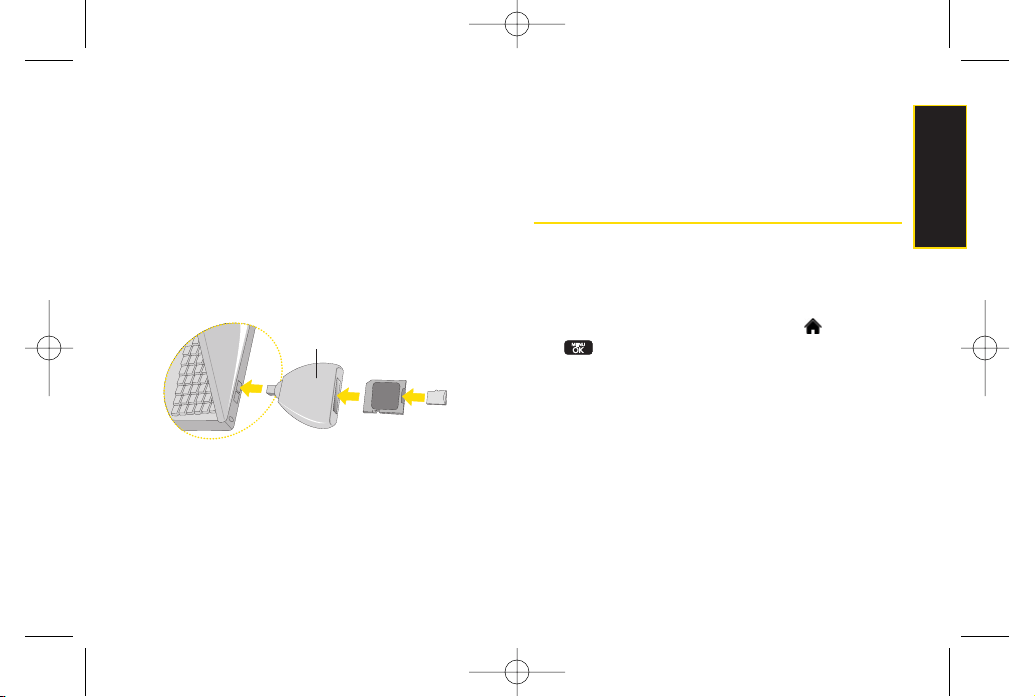
Section 2J. microSD Card 87
Using the microSD Adapter
A microSD adapter (included when you purchase a
microSD card) allows microSD cards to be used in SD-
compatible devices. Before using, you will need to insert
the microSD card into the microSD adapter.
To insert the microSD card into the microSD adapter:
With the label side of the microSD card facing up,
insert the card into the supplied microSD adapter,
and gently slide the card until it is fully inserted.
To remove the microSD card from the microSD adapter:
Hold the front edge of the microSD card, and gently
pull outward to remove it from the adapter.
microSD Settings
Creating Folders in the microSD Card
The following steps allow yourphone to create default
folders forstoring files in yourmicroSD card.
1. With the microSD inserted, highlight and press
>
Tools > Memory Card Manager
.
2. Press
OPTIONS
(right softkey) and select
Create New
Folder
. (The phone will create the microSD’s default
folders: DCIM, MUSIC, EMAIL, BLUETOOTH.)
microSD Card
microSD Card
Adapter
SD-compatible device
(USB Reader/Writer), sold separately.
LX600(1.2)_0603.qxp 6/3/09 11:11 AM Page 87
88 Section 2J. microSD Card
Viewing Memory in the microSD Card
1. With the microSD inserted, highlight and press
>
Tools > Memory Card Manage
r.
2. Press
OPTIONS
(right softkey) and select
Memory
Info
. (The used and available memory space will be
displayed.)
Formatting the microSD Card
Formatting a microSD card permanently removes all
files stored on the card.
1. With the microSD inserted, highlight and press
>
Tools > Memory Card Manager
.
2. Press
OPTIONS
(right softkey) and select
Format
Memory Card
.
3. If you are sure you wish to remove all the files from
yourmicroSD card, select
Format
and press .
Note
The formatting procedure erases all the data on the
microSD card, after which the files CANNOTbe
retrieved. To prevent the loss of importantdata,
please check the contents before you format the
card.
LX600(1.2)_0603.qxp 6/3/09 11:11 AM Page 88
Section 2J. microSD Card 89
microSD Folders
Displaying Your microSD Folders
All the files stored in yourmicroSD are accessible
through yourmicroSD card folders.
1. With the microSD inserted, highlight and press
>
Tools > Memory Card Manager
.
2. Select a folder and press .
3. To view or play a file, select it and press or the
appropriate softkey.
Connecting Your Phone to Your
Computer
Before using yourphone’s mass storage capabilities,
you need to prepare your phone’s data services to
synchronize with your desktop or laptop computer.
Once the phone is connected to the computer, you can
transferyourdata to or from the microSD card.
1. With the microSD inserted, highlight and press
>
Tools > USB Mode > Mass Storage
.
2. Connect yourphone to yourcomputer using a
compatible USB cable. (Wait for the connection to
be completed. When connected, the host computer
will automatically detect yourphone.)
To remove the connection:
When you have finished transferring data, click the
USB device icon on your computer’s taskbar, and
follow the onscreen instructions to safely unplug the
USB cable.
microSD Card
LX600(1.2)_0603.qxp 6/3/09 11:11 AM Page 89
90 Section 2J. microSD Card
Note
No driverinstallation is required forWindows
Vista/2000/ME/XPusers. If you use Windows
98/98SE, you have to download and install the USB
Mass Storage Driverfrom the Sprint website at
www.sprint.com.
To avoid loss of data, DO NOTremove the USB
cable, the microSD card, or the battery while files
are being accessed or transferred.
DO NOT use your computerto change oredit folder
orfile names on the minSD, and do notattemptto
transferlarge amounts of data from the computerto
the microSD card. Doing so maycause the
microSD cardto fail.
DO NOTturn off orrestart your computer, orput it
into standby mode, while using a mass storage
device. Doing so will result in loss ordamage of
data.
While you are connected to the computer, your
phone’s screen will display “Phone Off.”You
cannotmake orreceive calls.
If you connect a mass storage device to a
peripheral device, yourdevice may notwork
properly.
LX600(1.2)_0603.qxp 6/3/09 11:11 AM Page 90

Section 2K. Camera 91
Section 2K
Camera
Taking Pictures (page 91)
Recording Videos (page 96)
Storing Pictures and Videos (page 98)
Sending Sprint Picture Mail (page 101)
Managing Sprint Picture Mail (page 104)
Printing Pictures From Your Phone (page 108)
Settings and Info (page 109)
Your phone’s built-in camera gives you the ability to take full-
colordigital pictures, view your pictures using the phone’s
display, and instantly send them to family and friends.
It’s fun,
and it’s as easy to use as a traditional point-and-click
camera: just take a picture, view it on yourphone’s
display, and send it from yourphone to up to 25 people.
This section explains the features and options of your
phone’s built-in camera.
Taking Pictures
Taking pictures with yourphone’s built-in camera is as
simple as choosing a subject, pointing the lens, and
pressing a button. You can activate the phone’s camera
mode whetherthe phone is open or closed.
To take a picture with the phone open:
1. Highlight and press
> Photos > Camera
to
activate camera mode. (Additional camera options
are available through the camera mode
OPTIONS
menu. See “Camera Mode Options”on page 93 for
more information.)
Shortcut
Press the side camera button to activate
camera mode.
Camera
LX600(1.2)_0603.qxp 6/3/09 11:11 AM Page 91
92 Section 2K. Camera
2. Using the phone’s main display screen as a
viewfinder, aim the camera lens at yoursubject.
3. Press
CAPTURE
(left softkey), , or the side
camera button until the shutter sounds. (The picture
will automatically be saved in phone album.)
To return to camera mode to take anotherpicture,
press the side camera button.
4. Press
OPTIONS
(right softkey)formore options:
Send
to send yourpicture. (See page 101 for
details.)
Upload
to upload the picture to the Sprint Picture
Mail website (
www.sprint.com/picturemail
).
Assign
to assign the picture to a phone task. Select
an option:
Screen Saver
to use the picture as a screen
saver.
Incoming Calls
to display the picture for all
incoming calls.
Delete
to delete the picture you just took.
Print
to print the pictures. You can choose whether
to pick up yourprints at a retail store, have them
mailed to you, oruse a PictBridge-enabled printer
(see page 108).
Post to Service
to access available services. Select
Update
to display the latest services.
Review/Send Media
to go to the In Phone folderto
review your saved pictures.
Take New Picture
to return to camera mode to take
anotherpicture.
To take a picture with the phone closed:
1. Press and hold the side camera button to enterinto
camera mode.
2. Point the camera lens at your subject. (You can
check the picture framing through the external
display screen.)
LX600(1.2)_0603.qxp 6/3/09 11:11 AM Page 92
Section 2K. Camera 93
3. Press the side camera button to take the picture.
(The picture will automatically be saved in the In
Phone album.)
RegisteringYourSprint Picture Mail
Account
The first time you use any of the picture management
options involving the Sprint Picture Mail website, you will
be prompted to registeryourSprint Picture Mail account
and establish a password through yourphone. This
password will also allow you to sign in to the Sprint
Picture Mail website at
www.sprint.com/picturemail
to
access and manage youruploaded pictures and
albums.
1. Highlight and press
> Photos > My Albums
> Online Albums
. (You will be prompted to register
yourSprint Picture Mail account.)
2. Enter a password foryourPicture Mail account and
press . (You will be prompted to confirm your
password.)
3. Please wait while the system creates youraccount.
Once you have received confirmation that youraccount
has been successfully registered, you may upload and
share pictures and access the Sprint Picture Mail
website.
Camera Mode Options
When the phone is open and in camera mode, press
OPTIONS
(right softkey) to display additional camera
options:
Self Timer
to activate the camera’s timer. (See “Setting
the Self-timer”on page 94 fordetails.)
Tip
Write down yourSprint Picture Mail password in a
secure place.
Note
If yourSprint service plan does not include Sprint
Picture Mail, you will first be prompted to subscribe
to the service foran additional monthly charge.
Note
When taking a picture with the phone closed, the
subject image is displayed in reverse on the
external display. The captured image will not be
saved in reverse.
Camera
LX600(1.2)_0603.qxp 6/3/09 11:11 AM Page 93
94 Section 2K. Camera
ColorTone
: Press the navigation key right orleft to
select
Normal
,
Black & White
,
Negative
, or
Sepia
. (The
default setting is
Normal
.)
Image Controls
to select from the following options:
Brightness
to select
Auto
or
Manual
brightness
control. If you select
Manual
, press the navigation
key right (increase) or left (decrease) to select a
setting, and press to apply the selected
setting.
White Balance
to adjust white balance based on
changing conditions. Select from
Auto, Tungsten,
Fluorescent, Sunny, Cloudy,
or
Manual -5
~
5
.
Fun Frames
to take a picture in a fun frame.
Settings
to select
Resolution, Quality, Shutter Sound,
Status Bar,
or
Night Mode.
(See “Selecting Camera
Settings” on page 95 fordetails.)
Review/Send Media
to display the pictures saved in the
In Phone folder.
CamcorderMode
to switch to Video mode. (See
“Recording Videos”on page 96 for details.)
Setting the Self-timer
1. From camera mode, press
OPTIONS
(right softkey)
>
Self Timer
.
2. Highlight the length of delay you want the timer to
use (
OFF
,
5 seconds
, or
10 seconds
) and press .
3. Press
STA R T
(left softkey)when you are ready to start
the timer. (A countdown is displayed in the middle of
the screen. )
4. Get ready forthe picture. (When the timer is down to
three seconds, the countdown numbers will turn
red and the phone will begin to beep.)
To cancel the Self-timer after it has started:
Press
CANCEL
(right softkey).
Note
While the Self-timeris active, all keys are disabled
except
Back
,
End
, and the right softkey (
Cancel
).
LX600(1.2)_0603.qxp 6/3/09 11:11 AM Page 94
Section 2K. Camera 95
Using the Zoom
This feature allows you to zoom in on an object when
you take a picture. Depending on your resolution
settings, you can adjust the zoom from 1step to 15
steps. Objects can be zoomed in 2x.
1. From camera mode, press the navigation key up or
down, orthe side volume button up or down to
adjust the zoom. (The gauge baris displayed.)
2. Press
CAPTURE
(left softkey), , or the side
camera button to take the picture. (The picture will
automatically be saved in your phone.)
Selecting Camera Settings
1. From camera mode, press
OPTIONS
(right softkey)
>
Settings
.
2. Select an option and press :
Resolution
to select a picture’s file size
[
2M(1600x1200), 1.3M(1280x960), VGA (640x480),
or
QVGA (320x240)
].
Quality
to select the picture quality setting (
Fine ,
Normal,
or
Economy
).
ShutterSound
to select a shutter sound (
Shutter
1~3, Say Cheese ,
or
Off
).
Status Bar
to select a status bar(
On
or
Off
).
Night Mode
to activate the night mode (
On
or
Off
).
Note
The Zoom gauge will not be displayed when the
Resolution setting is 2M (1600*1200).
Camera
LX600(1.2)_0603.qxp 6/3/09 11:11 AM Page 95

96 Section 2K. Camera
Recording Videos
In addition to taking pictures, you can also record,
view, and send videos to your friends and family with
your phone’s built-in video camera.
1. Highlight and press
> Photos > Camcorder
to activate video mode. (Additional video options
are available through the video mode
Options
menu. See “Video Mode Options” on page 97for
more information.)
2. Select the video length between
Video Mail
and
Long Video
.
3. Using the phone’s main display screen as a
viewfinder, aim the camera lens at yoursubject.
4. Press
RECORD
(left softkey), , or the side
camera button to begin recording. (Press
PAUSE
or
RESUME
(left softkey) to pause and then resume the
recording.)
5. Press
DONE
(right softkey), or the side camera
button to stop recording. (The video will
automatically be saved in your designated storage
area.)
6. Press
OPTIONS
(right softkey) for more options:
Play
to play the video that was just captured.
Send
to send the video to up to 25 contacts at one
time.
Upload
to upload videos from the In Phone Folder
to the Sprint Picture Mail website
(
www.sprint.com/picturemail
). Depending on your
settings, you may be prompted to accept a data
connection. Choose
My Uploads
or
My Albums
.
Assign
to assign the video as an animated screen
saver or ringer.
Incoming Calls
to display the video forall
incoming calls.
Delete
to delete the video you just recorded.
Post to Service
to send the video to a numberof
popularthird-party web image services.
Review/Send Media
to display the pictures and
videos saved in the In Phone folder or to send
videos.
Take New Video
to return to camcordermode.
LX600(1.2)_0603.qxp 6/3/09 11:11 AM Page 96
Section 2K. Camera 97
Video Mode Options
When the phone is open and in camcordermode, press
OPTIONS
(right softkey) to display additional camera
options:
Self Timer
to activate the timer(
Off
,
5 seconds
, or
10 seconds
).
ColorTone
: Press the navigation key right orleft to
select
Normal
,
Black & White
,
Negative
, or
Sepia
. (The
default setting is
Normal
.)
Image Controls
to select from the following options:
Brightness
to select
Auto
or
Manual
brightness
control. If you select
Manual
, press the navigation
key right (increase) or left (decrease) to select a
setting and press to apply the selected
setting.
White Balance
to adjust white balance based on
changing conditions. Select from
Auto, Tungsten
,
Fluorescent
,
Sunny
,
Cloudy
, or
Manual -5
~
5
.
Settings
to select
Resolution
,
Quality, Cue Sound, Status
Bar
or
Video Length.
(See “Selecting Video Settings”
next.)
Review/Send Media
to display the videos saved in the
In Phone and to send the videos.
Camera Mode
to switch to Camera mode. (See “Taking
Pictures”on page 91for details.)
Selecting Video Settings
To select your video settings:
1. From camcordermode, select
OPTIONS
(right
softkey)
> Settings
.
2. Select one of the following options and press :
Resolution
to select a video’s file size
[
QVGA(320*240), QCIF(176*144), Sub-QCIF(128*96)
].
Quality
to select the video quality setting (
Fine
,
Normal
, or
Economy
).
Cue Sound
to select a cue sound (
Cue 1~3,
or
Off
).
Status Ba
rto select a status bar (
On
or
Off
).
Video Length
to select the video length (
Video Mail
or
Long Video
).
Camera
LX600(1.2)_0603.qxp 6/3/09 11:11 AM Page 97
98 Section 2K. Camera
Storing Pictures and Videos
Your phone’s picture and video storage area is called
My
Albums
. There are three types of folders in My Albums:
In Phone
Memory Card
Online Albums
In Phone Folder
Your phone’s internal storage area is called the
In Phone
folder. From the In Phone folder, you can view all the
pictures and videos you have stored there, send items to
the Sprint Picture Mail site (
www.sprint.com/picturemail
),
delete files, and access additional options.
To review your stored pictures and videos in the In Phone
folder:
1. Highlight and press
> Photos > My Albums
> In Phone
.
2. Use yournavigation key to view and scroll through
the pictures and videos.
In Phone Folder Options
When you are viewing the In Phone folder, press
OPTIONS
(right softkey) to display the following options:
Play
to play a video (if applicable).
Send
to send an image to another user using Picture
Mail orBluetooth.
Upload
to upload files from the In Phone folderto the
Picture Mail Web site (
www.sprint.com/picturemail
).
Depending on yoursettings, you may be prompted to
accept a data connection. Select
My Uploads
or
My
Albums
and then press
CONTINUE
(left softkey) to
upload the selected image(s).
Note
If this is the first time you have accessed Sprint
Picture Mail, you will be prompted to register your
Sprint Picture Mail account. See “Registering Your
Sprint Picture Mail Account”on page 93.
LX600(1.2)_0603.qxp 6/3/09 11:11 AM Page 98
Section 2K. Camera 99
Assign
to display the currently highlighted picture or
video forall incoming calls or to assign a picture as a
screen saver.
Delete
to delete pictures orvideos from the In Phone
folder. Select
Delete selection
or
Delete all
.
Post to Service
to send the image to a numberof
popularthird-party web image services.
Copy/Move
to copy/move the image to the memory
card.
Detail/Edit
to display the following options:
Text Caption
to edit the selected item's caption.
Video Info
to display information such as Caption,
Model, Taken, Resolution, File size, Quality,
Location, and Uploaded.
Rotate
allows you to rotate image and save it.
Only activated forVGA(640*480) and
QVGA(320*240) Resolution.
Media Filter
to display the following options:
All
to display all media.
Pictures Only
to display only pictures.
Videos Only
to display only videos.
Album List
to display the My Album list.
Camera/CamcorderMode
to activate
Camera/Camcorder mode.
Note
Deleting pictures and videos will free up memory
space in yourphone to enable you to take more
pictures and videos. Once deleted, items cannot be
uploaded to youronline Sprint Picture Mail account.
Camera
LX600(1.2)_0603.qxp 6/3/09 11:11 AM Page 99

100 Section 2K. Camera
When you are viewing images in a folder, press
EXPAND
(left softkey) to display the following option:
Expand/Thumbnail
to switch the display from
expanded view to thumbnail view (up to fourpictures
perscreen).
Online Albums
Sprint Picture Mail allows you to save yourpictures and
videos to Online Albums that make it easy to save,
organize and share all yourpictures and videos.
To save pictures and videos to an online album:
1. Highlight and press
> Photos > My Albums
> In Phone
.
2. Choose the items you want to upload and then
press
OPTIONS
(right softkey)
> Upload
.
3. Select an album (
My Uploads
or
My Albums
) and
press to upload your picture(s).
To review your online albums:
1. Highlight and press
> Photos > My Albums
> Online Albums
. (The
Uploads
folderand your
albums appear.)
2. Select
Uploads
oran album title and press to
display your saved images.
Online Album Options
When you are viewing images in youronline albums,
press
OPTIONS
(right softkey) to display the following
options:
Send
to send an image to anotheruser using Picture
Mail.
Assign
to download the selected item and assign it
to a phone task. (See “In Phone FolderOptions”on
page 98.)
Delete
to delete and videos from the current online
album. Select
Delete selection
or
Delete all
.
Print
to orderprints that can be delivered by mail or
picked up at a retail outlet; or to print directly to a
printerusing
Bluetooth
orPictBridge.
Note
If this is the first time you have accessed the Sprint
Picture Mail account, you will be prompted to create
yourSprint Picture Mail password.
LX600(1.2)_0603.qxp 6/3/09 11:11 AM Page 100
Section 2K. Camera 101
Post to Service
to send the image to a numberof
popularthird-party web image services.
Save To
to download the image to yourphone’s In
Phone Folderor memory card.
Copy/Move
to copy ormove pictures to a selected
album.
Detail/Edit
to display the following options:
Text Caption
to edit the selected item's caption.
Picture Info
to display information such as the
Caption, Model, Taken, Resolution, File size,
Quality, Location Info, and Uploaded.
Video Info
to display information such as Caption,
Model, Taken, Resolution, File size, Quality,
Location, and Uploaded.
Rotate
allows you to rotate image and save it. Only
activated forVGA(480*640) and QVGA(240*320)
Resolution.
Media Filter
to display the following options:
All
to display all media.
Pictures Only
to display only pictures.
Videos Only
to display only videos.
Album List
to display the My Album list.
Sending Sprint Picture Mail
Once you have taken a picture or a video, you can use
the messaging capabilities of yourphone to instantly
share it with family and friends. You can send a picture to
up to 25 people at a time using their email addresses or
theirphone numbers.
Sending Pictures and Videos From the
In Phone Folder
1. Highlight and press
> Photos > My Albums
> In Phone
.
2. Select a picture orvideo to send and press .
(The check box in the lowerright corner will be
marked. You can select multiple pictures and
videos.)
3. Press
OPTIONS
(right softkey)
> Send > Picture Mail.
(You will see a message.)
Camera
LX600(1.2)_0603.qxp 6/3/09 11:11 AM Page 101
102 Section 2K. Camera
4. Select
Go to Contacts
or
NEW ADDR
to enterthe
recipients.
Go to Contacts
to select recipients from your
Contacts. Select a recipient and press .
NEW ADDR
to entera mobile phone number or an
email address directly.
5. Select a contact orenter a mobile number or an
email address using the keypad, and press .
6. If you wish to include a subject, select
Subj:
and
press
ADD
(right softkey). Enter yoursubject using
the keypad and press
SAVE
(left softkey) to save and
exit.
7. If you wish to include a text message, select
Text:
and press . Enter yourmessage using the
phone’s keypad (orpress
MODE
[right softkey] to
select from
Preset messages
or
Preset Suffix
) and
press
SAVE
(left softkey) to save and exit.
8. If you wish to include a voice memo message with
the picture, select
Audio:
and press . Press
Done
(left softkey) to stop recording. (The maximum
recording time is 15 seconds.)
9. Confirm the recipients, subject, message, attached
audio and picture.
To change a recipient, highlight the
To
: field, select
the recipient using left/right navigation keys, press
CHANGE
(right softkey), and follow the instructions
in step 5 to select oredit the recipient.
To change the text message, select the
Text
: field,
and press
CHANGE
(right softkey).
To change the voice memo, select the
Audio
: field,
press
REVIEW
(right softkey), and select
Re-Record
.
To change the attached picture(s), select the
thumbnail picture and press
CHANGE
.
Note
Select
MULTIPLE
(left softkey) to send it to
multiple recipients. Afterpressing to select
the recipients, select
CONTINUE
.
Note
The first time you send Sprint Picture Mail, you will
be prompted to registeryour Sprint Picture Mail
account. (See “Registering Your Sprint Picture Mail
Account”on page 93.)
LX600(1.2)_0603.qxp 6/3/09 11:11 AM Page 102
Section 2K. Camera 103
(right softkey). Select the picture(s) by pressing
and press
NEXT
(left softkey).
10. Press
Send
(left softkey) to send the picture. If you
are notified that “
Yourmessage is being sent
,”press
Continue
(left softkey) to complete the process of
sending the picture.
Sending Pictures and Videos From
Messaging
You can also send Sprint Picture Mail from yourphone’s
Messages menu.
1. Highlight and press
> Messages > Send
Message > Picture Mail
.
2. Select
Go to Contacts
or
NEW ADDR
to enterthe
recipients.
Go to Contacts
to select recipients from your
Contacts. Select a recipient and press .
NEW ADDR
to entera mobile phone number or an
email address directly.
3. Select a contact orenter a mobile number or an
email address using the keypad, and press .
4. Use the up/down navigation key to select one of the
following media sources and press .
In Phone
Memory Card
Online Albums
Take New Picture
Take New Video
Text Only
5. Display the picture or video you wish to send and
press . (You can select multiple items.)
6. Press
NEXT
(left softkey) to continue.
7. To complete and send the picture mail, follow steps
6-10 in “Sending Pictures and Videos From the In
Phone Folder”on page 101.
Note
Select
MULTIPLE
(left softkey) to send it to
multiple recipients. Afterselecting the recipients,
select
CONTINUE
.
Camera
LX600(1.2)_0603.qxp 6/3/09 11:11 AM Page 103
104 Section 2K. Camera
Managing Sprint Picture Mail
Using the Sprint Picture Mail Website
Once you have uploaded pictures or videos to your
online Sprint Picture Mail account at
www.sprint.com/picturemail
(see “In Phone Folder
Options”on page 98), you can use yourcomputer to
manage yourpictures. From the Sprint Picture Mail
website, you can share pictures, edit album titles, add
captions, and organize images. You can even send your
pictures to be printed at participating retail locations.
You will also have access to picture management tools
to improve and customize yourpictures. You’ll be able to
lighten, darken, crop, add antique effects, add comic
bubbles and cartoon effects, and use other features to
transform your pictures.
To access the Sprint Picture Mail website:
1. From yourcomputer’s Internet connection, go to
www.sprint.com/picturemail
.
2. Enteryourphone number and Sprint Picture Mail
password to register. (See “Registering YourSprint
Picture Mail Account”on page 93.)
Managing Online Pictures and Videos
From Your Phone
Use yourphone to manage, edit, or share pictures you
have uploaded to the Sprint Picture Mail website at
www.sprint.com/picturemail
. (See “In Phone Folder
Options”on page 98 for information about uploading.)
To view your online pictures from your phone:
1. Highlight and press
> Photos> My Albums >
Online Albums
. (Depending on yoursettings you may
be prompted to accept a data connection.) (The
My
Uploads
folderand youralbums are displayed.)
2. Select
My Uploads
or an album title and press
to display. (Thumbnail pictures, up to four
per screen, are displayed.)
LX600(1.2)_0603.qxp 6/3/09 11:11 AM Page 104
Section 2K. Camera 105
3. Select a picture and press
OPTIONS
(right
softkey) to display your online picture options.
Uploading Pictures
1. Highlight and press
> Photos> My Albums >
In Phone
. (Thumbnail pictures will be displayed.)
2. Select the picture(s) you wish to upload and press
Options
(right softkey) and select
Upload
.
3. Select
My Uploads
or
My Albums
, and then select
My
Uploads
.
Downloading Your Online Pictures
From youronline Sprint Picture Mail albums display at
www.sprint.com/picturemail
, you can select pictures to
download to yourphone’s In Phone folder.
1. From the online pictures display, select the picture
you wish to download and press
OPTIONS
(right softkey). (See “Managing Online Pictures and
Videos From Your Phone” on page 104.)
2. Select
Save to
, and then select one of the following
options and press :
In Phone
to download the picture to the In Phone
folder.
My Content
to download the picture to the My
Content folder.
Sending Online Sprint Picture Mail
To send pictures using the online Address Book:
1. From the online Sprint Picture Mail display at
w
ww.sprint.com/picturemail
, select a picture and
press
Send
(left softkey). (See “Managing Online
Pictures and Videos From Your Phone” on
page 104.)
2. Select
Recipients > Online Addr. Book
.
3. Select a recipient orrecipients (up to 10) from your
Online Address Book and press .
4. Press
DONE
(left softkey) when you have finished
selecting recipients.
5. Press
NEXT
(left softkey).
Tip
To expand a selected picture from thumbnail to full-
screen, press
Expand
(left softkey).
Camera
LX600(1.2)_0603.qxp 6/3/09 11:11 AM Page 105

106 Section 2K. Camera
6. To include a text message, highlight the box under
Text Message
and press the appropriate softkey.
Enteryourmessage and press .
7. Confirm yourrecipients and attached data.
8. Press
SEND
(left softkey) to send the Sprint Picture
Mail.
To send an album from the online pictures menu:
1. From the online albums display, select an album
you wish to send and press
SEND
(left softkey). (See
“Managing Online Pictures and Videos From Your
Phone”on page 104.)
2. Follow steps 2–8 above to complete and send your
Sprint Picture Mail album.
Accessing Online Picture Options From
YourPhone
1. Select a picture from youronline Picture Mail. (See
“Managing Online Pictures and Videos From Your
Phone”on page 104.)
2. Press
OPTIONS
(right softkey)to display options.
3. Select an option and press .
Send
to send yourpicture. (See page 101for
details.)
Assign
to assign the picture to a phone task. Select
an option:
●
Screen Saver
to use the picture as a screen
saver.
●
Incoming Calls
to display the picture forall
incoming calls.
Delete
to select
Delete selection
or
Delete All
to
erase a single picture or all pictures saved in the
current album (orInbox).
Print
to print the pictures. You can choose whether
to pick up yourprints at a retail store, have them
mailed to you, oruse a PictBridge-enabled printer
(see page 108).
Post to Service
to access available services. Select
Update to display the latest services.
Save to
to copy the selected picture to the In Phone
folder. (See “In Phone Folder”on page 98.)
Copy/Move
to copy ormove pictures to a selected
album:
●
Copy This
to copy the selected picture to the
album.
LX600(1.2)_0603.qxp 6/3/09 11:11 AM Page 106
Section 2K. Camera 107
●
Copy All
to copy all pictures in the current
album (orInbox) to the target album.
●
Move This
to move the selected picture to the
album.
●
Move All
to move all pictures in the current
album (orInbox) to the target album.
Detail/Edit
to display the following options:
●
Text Caption to edit the selected item's caption.
●
Picture Info
to display information such as
Caption, Model, Taken, Resolution, File size,
Quality, Location, and Uploaded.
●
Rotate
allows you to rotate image and save it.
Only activated forVGA(640*480) and
QVGA(320*240) Resolution.
Media Filter
to display the following options:
●
All
to display all media.
●
Pictures Only
to display only pictures.
●
VideosOnly
to display only videos.
Album list
to to view all the Online folders. Press
OPTIONS
(left softkey) >
Create Album
to create a
new album.
Expand
to expand the selected picture.
To access your online Albums options from your phone:
1. Display the album list in the Online Sprint Picture
Mail menu. (See “Managing Online Pictures and
Videos From Your Phone”on page 104.)
2. Select an album (or Inbox).
3. Press
OPTIONS
(right softkey)to display options.
4. Select an option and press .
Send
to share the album through the Sprint Picture
Mail website. (See “Sending Online Sprint Picture
Mail”on page 106.)
Create Album
to create a new album. Entera new
album name and press
SAVE
(left softkey).
Rename Album
to rename the selected album.
Entera new name and press
SAVE
(left softkey).
Delete
to delete the selected album.
Album Info
to display information about the album.
You can view the name of the album, the creation
date, and the numberof pictures and videos in the
album.
Camera
LX600(1.2)_0603.qxp 6/3/09 11:11 AM Page 107
108 Section 2K. Camera
Printing Pictures Directly From
YourPhone
Your phone is PictBridge compatible, allowing you to
print directly from yourphone without connecting to a
computer. Simply connect yourphone to a PictBridge-
enabled printerand enjoy printing yourphotos.
To print pictures directly from your phone:
1. Connect yourphone to the PictBridge-enabled
printerby using a USB cable (not included). (Wait
until the connection is completed.)
2. Highlight and press
> Photos> PictBridge
.
3. Set the printer settings using yournavigation key.
Picture to Print
: You can select the picture from the
In Phone folder. (You can select up to 99 pictures;
however you can only select from one folder.)
Size:
You can set the print size from Default, 4x6 in,
letter, orCard. ((Print sizes may vary according to
the type of printeryou have.)
Date:
You can imprint the date on yourpictures.
Select On orOff. (Date stamping may not be
available depending on the type of printer you
have.)
Border:
You can imprint the borderon your
pictures. Select On orOff.
Copies:
You can set the number of copies (1-20).
(You cannot specify number of copies when Index
Print is selected.)
4. When you have finished selecting the printer
settings, select
Print
.
5. When printing is finished, press .
Note
While you are connected to the printer, you cannot
make orreceive calls during this time.
Note
You may not be able to print pictures that you
cannot display on yourphone.
Note
Make sure your battery is fully charged before using
the PictBridge.
LX600(1.2)_0603.qxp 6/3/09 11:11 AM Page 108
Section 2K. Camera 109
6. Select
Ye s
. Follow the instructions on the display to
unplug the USB cable from the phone.
Order Prints
This menu allows you to orderprints from third party
vendors by uploading images saved on yourphone.
Images saved at the highest quality and resolution settings
produce the best prints.
1. Highlight and press
> Photos > Order Prints
.
2. Select an onscreen options and press .
Options include:
Home Delivery
or
Retail Pickup
.
3. Follow the onscreen instructions.
Settings and Info
The settings and info menu allows you to configure,
view youraccount information, or switch the format
between portrait orlandscape mode.
To access the settings and info menu:
1. Highlight and press
> Photos > Settings
and Info
.
2. Select one of the following options and press .
Auto-Save to
to select where to save the
pictures/videos.(Memory card of In Phone)
Status Bar
to select a status bar.
Location
to select location info. (Not supported in
video mode.)
Account Info
to display your current Sprint account
settings via an online connection.
Help
to view the help file.
PictBridge
Error
Messages
From time to time you may encounter
printing problems. Any printererror
messages will be displayed on yourphone,
informing you of the specific problems
encountered. Please referto the user’s guide
that came with yourprinterfor descriptions,
explanations, and possible resolutions for
any error messages.
Camera
LX600(1.2)_0603.qxp 6/3/09 11:11 AM Page 109
110 Section 2L. Bluetooth
Section 2L
Bluetooth
Turning Bluetooth On and Off (page 110)
Using the Bluetooth Settings Menu (page 111)
Bluetooth Profiles (page 112)
Pairing Bluetooth Devices (page 113)
Sending Contacts Using Bluetooth (page 114)
Yourphone features built-in Bluetooth technology, allowing
you to share information more easily than ever before.
Bluetooth
is a short-range communications technology
that allows you to connect wirelessly to a number of
Bluetooth
devices, such as headsets and hands-free
carkits, and
Bluetooth
-enabled handhelds, computers,
printers, and wireless phones. The
Bluetooth
communication range is usually up to approximately 30
feet. This section details how to set up and make the
most of yourphone’s
Bluetooth
capabilities.
Turning Bluetooth On and Off
By default, yourdevice’s
Bluetooth
feature is turned off.
Turning
Bluetooth
on makes your phone
“undiscoverable”by other in-range
Bluetooth
devices.
To turn Bluetooth on:
1. Highlight and press
> Tools > Bluetooth >
More... > Settings > On/Off
.
2. Select
On
and press to enable
Bluetooth
.
To turn Bluetooth off:
1. Highlight and press
> Tools > Bluetooth >
More... > Settings > On/Off
.
2. Select
Off
and press to disable
Bluetooth
.
Shortcut
From standby mode, highlight and press
> Settings > Bluetooth.
LX600(1.2)_0603.qxp 6/3/09 11:11 AM Page 110
Section 2L. Bluetooth 111
Bluetooth
Status Indicators
The following icons show your
Bluetooth
connection
status at a glance:
indicates
Bluetooth
Enabled (Hidden).
indicates
Bluetooth
Enabled (Visible).
indicates
Bluetooth
Connected.
Using the Bluetooth Settings
Menu
The
Bluetooth Settings
menu allows you to set up many
of the characteristics of your phone’s
Bluetooth
service,
including:
Setting yourphone’s visibility (or“discoverability”) for
other
Bluetooth
devices
Entering orchanging the name yourphone uses for
Bluetooth
communication
Displaying your phone’s
Bluetooth
address
To access the Bluetooth Settings menu:
1. Highlight and press
> Tools > Bluetooth >
More... > Settings.
2. Set your
Bluetooth
options.
Select
Visibility > Hidden
,
Visible for 3 min
, or
Always
Visible
to set your
Bluetooth
visibility.
Select
My Device Name
to rename yourphone for
Bluetooth
.
Select
My Device Info
to display your phone’s
Bluetooth
profiles and address.
Select
Exchange Folders
to display your phone's
Bluetooth destination forfiles communicated between
yourphone and a Bluetooth-enabled device using the
FTP transferprotocol.
Select
Voice Priority
to display your phone's Bluetooth
communication priority.
To access the Trusted Devices list:
Highlight and press >
Tools > Bluetooth >
Trusted Devices
.
This displays your phone's current list of external
trusted Bluetooth devices.
Bluetooth
LX600(1.2)_0603.qxp 6/3/09 11:11 AM Page 111

112 Section 2L. Bluetooth
Bluetooth Profiles
All of the
Bluetooth
settings you configure are stored in
yourphone’s
Bluetooth
userprofile. You can use
different profiles for specific
Bluetooth
functions.
HSP: Headset Profile –
This profile functions as a
wireless headset. When an incoming call is received,
the voice callerID can be heard through the headset
and the phone will vibrate. Please note that the
handset will only vibrate. By using the controls on the
Bluetooth
®
headset, you can easily answeran
incoming call.
HFP: Hands-Free Profile –
This profile functions as a
wireless carkit. When an incoming call is received, the
voice callerID can be heard through the Car Kit and
the phone will vibrate. Calls can be received through
the wireless carkit. Fordialing, four functions are
supported: recent call dial, voice dial, speed dial, and
numberdial.
DUN: Dial-Up Network Profile –
This profile functions as a
wireless data cable, connecting a computeror PDA to
a network through yourhandset.
OPP: Object Push Profile
– This profile uses the Generic
Object Exchange profile services to send data objects
between devices and can be used to exchange
objects like calendar(vCal) and business cards
(vCard).
FTP: File Transfer Profile
– This profile allows you to
transferfiles to or from other
Bluetooth
-enabled
devices.
BPP: Basic Printing Profile
– This profile enables simpler
printing from yourphone to a
Bluetooth
-enabled
printer.
PBAP: Phone Book Access Profile
– This profile enables
exchange of Contacts information between devices. It
is likely to be used between a carkit and a mobile
phone to allow the carkit to display the name of the
incoming caller.
LX600(1.2)_0603.qxp 6/3/09 11:11 AM Page 112
Section 2L. Bluetooth 113
Pairing Bluetooth Devices
Paired Devices
The
Bluetooth
pairing process allows you to establish
trusted connections between yourphone and another
Bluetooth
device. When devices are paired, a passkey is
shared between devices, allowing forfast, secure
connections while bypassing the discovery and
authentication process.
To pair your phone with another Bluetooth device:
1. Highlight and press
> Tools > Bluetooth >
Add a New > Headset/Car Kit, All, Phone, PDA, PC,
or
Printer.
(When you select
All
, yourphone will display
a list of discovered in-range
Bluetooth
devices.)
2. Select a device and press .
3. Enter the passkey and press .
Exchange Folder
When yourphone has an FTPconnection, you may
transferfiles between the phone and other Bluetooth
devices.
To access the Exchange Folder:
1. Highlight and press
> Tools > Bluetooth >
More... > Settings > Exchange Folders.
2. Highlight the folder location (In Phone or Memory
Card) and press .
Note
Your phone is based on the Bluetooth
®
specification, but it is not guaranteed to work with
all devices enabled with Bluetooth
®
wireless
technology.
Bluetooth
LX600(1.2)_0603.qxp 6/3/09 11:11 AM Page 113

114 Section 2L. Bluetooth
Sending Contacts Using
Bluetooth
This allows you to send all Contacts information in your
phone to anotherparty via
Bluetooth
.
To send all Contacts:
1. If
Bluetooth
is not set to on, set to
On
.
2. Highlight and press
> Contacts
, select a
contact andpress
OPTIONS
(right softkey)
>
Send Contact
.
This
: Send the selected contact.
Select
: Select desired contacts and send.
All
: Send all contacts.
3. Highlight a device to send the Contacts information
to and press to send.
LX600(1.2)_0603.qxp 6/3/09 11:11 AM Page 114

Section 3
Sprint
®
Service
Section 3
Sprint
®
Service
LX600(1.2)_0603.qxp 6/3/09 11:11 AM Page 115

116 Section 3A. Sprint Service: The Basics
Section 3A
Sprint Service Features:
The Basics
Voicemail (page 116)
Text Messaging (SMS) (page 119)
VoiceSMS Messaging (page 122)
Caller ID (page 123)
Call Waiting (page 124)
Making a Three-Way Call (page 124)
Call Forwarding (page 125)
Now that you’ve explored your phone’s fundamentals, it’s time
to learn about the calling features that enhance your Sprint
service.
This section outlines yourbasic Sprint service
features.
Voicemail
Setting UpYourVoicemail
All unanswered voice calls to your phone are
automatically transferred to yourvoicemail, even if your
phone is in use orturned off. Therefore, you will want to
set up yourSprint Voicemail and personal greeting as
soon as yourphone is activated.
1. Press and hold .
2. Follow the system prompts to:
Create yourpasscode.
Record yourname announcement.
Record yourgreeting.
Choose whetherto activate One-Touch Message
Access (a feature that lets you access messages
simply by pressing and holding , bypassing the
need foryou to enteryourpasscode).
LX600(1.2)_0603.qxp 6/3/09 11:11 AM Page 116
Section 3A. Sprint Service: The Basics 117
Sprint Service
Voicemail Notification
There are several ways your phone alerts you to a new
message:
By displaying a message on the screen.
By sounding the assigned ringertype.
By the LED blinking red.
By displaying at the top of yourscreen.
New Voicemail Message Alerts
When you receive a new voice message, your phone
alerts you and prompts you to call yourvoicemail.
To call your voicemail:
Press and hold .
To display your Missed Log:
Highlight and press >
Missed Alerts
.
RetrievingYourVoicemail Messages
You can review yourmessages directly from your
wireless phone orfrom any othertouch-tone phone. To
dial from yourwireless phone, eitherspeed dial your
voicemail oruse the menu keys.
Using One-Touch Message Access
Press and hold . (Your phone will dial your
voicemail box.)
Note
When you are roaming offthe Sprint National
Network, you may not receive notification ofnew
voicemail messages. It is recommended that you
periodically check yourvoicemail by dialing 1+
area code + your wireless phone number. When
yourvoicemail answers, press (
*
)
and enteryour
passcode. You will be charged roaming rates when
accessing voicemail while roaming offthe Sprint
National Network.
Your phone accepts messages even when it is
turned off. However, you are notified of new
messages only when yourphone is turned on and
you are in a Sprint service area.
Note
Voicemail Passcode
If you are concerned about unauthorized access to
yourvoicemail account, Sprint recommends that
you enable yourvoicemail passcode. (Do not
activate One-Touch Message Access.)
LX600(1.2)_0603.qxp 6/3/09 11:11 AM Page 117
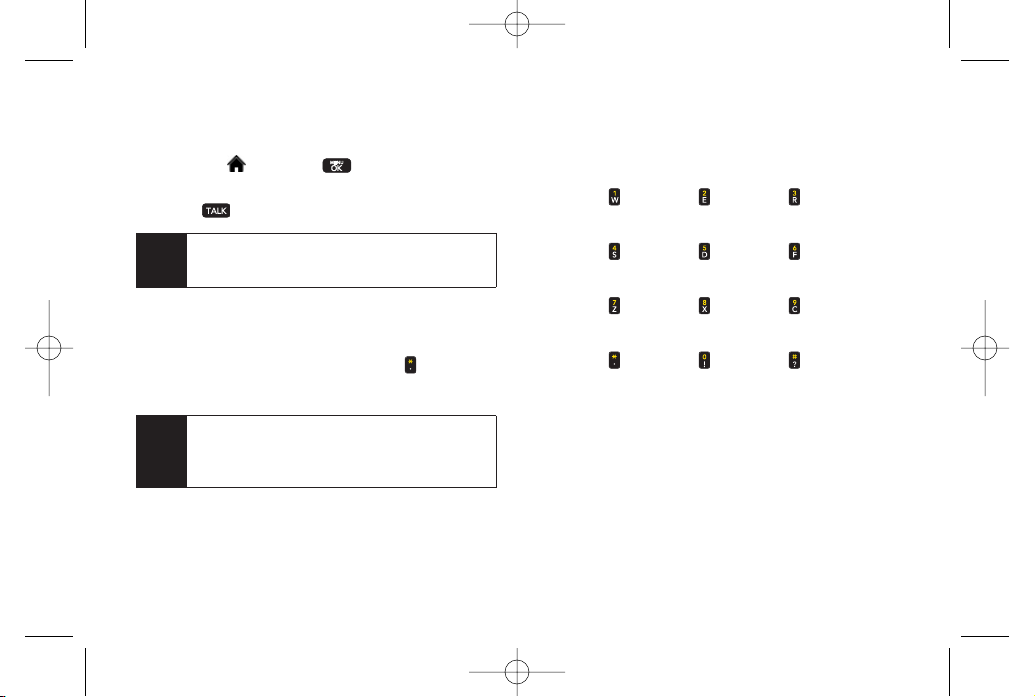
118 Section 3A. Sprint Service: The Basics
Using the Menu Keys on YourPhone to Access
YourMessages
1. Highlight and press
> Messages >
Voicemail > Call Voicemail
.
2. Press to listen to yourmessages.
Using AnotherPhone to Access Messages
1. Dial yourwireless phone number.
2. When yourvoicemail answers, press .
3. Enter yourpasscode.
Voicemail Key Guide
Here’s a quick guide to your keypad functions while
listening to voicemail messages.
Date/Time Send Reply Advance
Replay Rewind Forward
Erase Return Call Save
Cancel Help Skip
Tip
When you call into voicemail, you first hearthe
headerinformation (date, time, and sender
information) for the message. To skip directly to the
message, press
4
during the header.
Note
You are charged forairtime minutes when you are
accessing yourvoicemail from yourwireless
phone.
LX600(1.2)_0603.qxp 6/3/09 11:11 AM Page 118
Section 3A. Sprint Service: The Basics 119
Using Expert Mode
Using the Expert Mode setting for yourpersonal
voicemail box helps you navigate through the voicemail
system more quickly by shortening the voice prompts
you hearat each level.
1. Press and hold to access your voicemail. (If your
voicemail box contains any new messages, press
to access the main voicemail menu.)
2. Press to change your Personal Options, following
the system prompts.
3. Press forExpert Mode.
4. Press to turn Expert Mode on oroff.
Clearing the Message Icon
Your phone may temporarily continue to display the
message icon after you have checked your voice and
text messages.
1. Highlight and press
> Messages >
Voicemail > Clear Icon.
2. Select
Yes
or
No
and press .
Text Messaging (SMS)
With Text Messaging (SMS), you can send and receive
instant text messages between your wireless phone and
anothermessaging-ready phone. When you receive a
new message, it will automatically display on your
phone’s screen.
In addition, Text Messaging includes a variety of preset
messages, such as “I’m running late, I’m on my way,”that
make composing messages fast and easy. Use your
phone to customize your own preset messages (up to
160 characters).
To compose a text message using the TEXTkey:
1. Press the key and select the entry method you
prefer:
Tip
All yourphone’s messaging options, including Text
Messaging, can be accessed instantly using the
main screen carousel. See
Section 2B: Navigating
the Main Screen
on page 32for details.
Sprint Service
LX600(1.2)_0603.qxp 6/3/09 11:11 AM Page 119
120 Section 3A. Sprint Service: The Basics
Go to Contacts
to select a recipient from your
Contacts. (Qualifying Contacts entries must contain
a wireless phone numberor an email address.)
NEW ADDR
(right softkey) to use the keypad to
enterthe wireless phone numberor email address
of the person to whom you wish to send a
message.
MULTIPLE
(left softkey) to add multiple recipients.
2. Press .
3. Compose a text message.
ComposingText Messages
1. Highlight and press
> Messages > Send
Message > Text Message
and select the entry method
you prefer. (See “Using Text Messaging”on
page 119.)
2. Press .
3. Compose a message or use the preset messages
orsmileys and press .
To type a message, use yourkeypad to enter your
message. Use the right softkey to select a
characterinput mode. (See “Entering Text”on
page 29.)
To use a preset message ora smiley, press
OPTIONS
(right softkey), select
Add Preset
Messages,
or
Text Mode > Smileys
and then
highlight yourdesired message oremoticon and
press .
4. Review yourmessage and press
SEND
(left
softkey). (You may select additional messaging
options by pressing
OPTIONS
(right softkey) to
Add/Change Recipients
,
Mark as Urgent
, orto
Set
Callback #.
Note
For more information about using and managing
preset messages, see “Managing Preset
Messages”on page 48.
LX600(1.2)_0603.qxp 6/3/09 11:11 AM Page 120
Section 3A. Sprint Service: The Basics 121
AccessingText Messages
To read a text message:
When you receive a text message, it will be
displayed automatically on yourphone’s screen.
Use yournavigation key to scroll down and view the
entire message.
To reply to a text message:
1. Highlight and press
> Messages > Send
Message > Text Message
and select the recent list.
2. Follow steps 3-7under “Composing Text
Messages”on page 120 to complete and send your
reply.
Using Preset Messages
Preset messages make sending text messages to your
friends, family, and co-workers easierthan ever.
To add or edit preset messages:
1. Highlight and press
> Settings > Messages
> Preset Messages
and press
ADD
(left softkey).
2. Enter yournew message and press .
(See “Entering Text”on page 29.)
Note
Text and VoiceSMS Messages can be sent only to
10-digit wireless phone numbers oremail
addresses.
Sprint Service
LX600(1.2)_0603.qxp 6/3/09 11:11 AM Page 121
122 Section 3A. Sprint Service: The Basics
VoiceSMS Messaging
In addition to Text Messaging, yourphone is enabled
with VoiceSMS Messaging. With VoiceSMS Messaging,
you can send a voice message to other SMS-enabled
phones orto working email addresses without making a
phone call. Just record a message and send it directly to
the recipient’s phone messaging inbox.
Playing an VoiceSMS Message
1. Highlight and press
> Messages > Voice
SMS .
( indicates an unplayed message.)
2. Select the message you want to play and press
.
3. Press
REPLY
(left softkey) to reply to the message.
(To display the message options, press
OPTIONS
[right softkey].)
ComposingVoiceSMS Messages
1. Highlight and press
> Messages > Send
Message > Voice SMS
(orpress
OPTIONS
[right
softkey]
> Compose New
in VoiceSMS Inbox).
2. Select
Go to Contacts, Mobile #, Multiple,
or
New
Addr(Email address)
to select orenter a recipient.
3. Start recording after the beep. (You can record up to
two minutes.)
4. To finish recording, press
DONE
(left softkey).
5. Press
SEND
(left softkey) to send the voice message.
LX600(1.2)_0603.qxp 6/3/09 11:11 AM Page 122
Section 3A. Sprint Service: The Basics 123
AccessingVoiceSMS Messages
When you receive a voice message, a pop-up
notification will automatically be displayed on your
phone’s screen. Use yoursoftkeys to access and
play the voice message.
To reply to an VoiceSMS message:
1. From the VoiceSMS inbox, press
REPLY
(left softkey).
2. Record yourreply, and then press
SEND
(left
softkey).
CallerID
CallerID allows people to identify a caller before
answering the phone by displaying the number of the
incoming call. If you do not want your number displayed
when you make a call, follow these steps.
1. Press
.
2. Enter the number you want to call.
3. Press
.
To permanently block your number, call Sprint
CustomerService.
Sprint Service
LX600(1.2)_0603.qxp 6/3/09 11:11 AM Page 123
124 Section 3A. Sprint Service: The Basics
Call Waiting
When you’re on a call, Call Waiting alerts you to
incoming calls by sounding two beeps. Yourphone’s
screen informs you that anothercall is coming in and
displays the caller’s phone number (if it is available and
you are in digital mode).
To respond to an incoming call while you’re on a call:
Press . (This puts the first caller on hold and
answers the second call.)
To switch back to the first caller:
Press again.
Making a Three-Way Call
With Three-Way Calling, you can talk to two people at
the same time. When using this feature, the normal
airtime rates will be charged for each of the two calls.
1. Entera number you wish to call and press .
2. Once you have established the connection, enter
the second numberyou wish to call and press .
(This puts the first caller on hold and dials the
second number.)
3. When you’re connected to the second party, press
again to begin yourthree-way call.
If one of the people you called hangs up during your
call, you and the remaining caller stay connected. If you
initiated the call and are the first to hang up, all three
callers are disconnected.
Tip
For those calls where you don’t want to be
interrupted, you can temporarily disable Call
Waiting by pressing
*
70
before placing your call.
Call Waiting is automatically reactivated once you
end the call.
LX600(1.2)_0603.qxp 6/3/09 11:11 AM Page 124
Section 3A. Sprint Service: The Basics 125
Call Forwarding
Call Forwarding lets you forward all yourincoming calls
to anotherphone number – even when yourphone is
turned off. You can continue to make calls from your
phone when Call Forwarding is activated.
To activate Call Forwarding:
1. Press
.
2. Enter the area code and phone numberto which
yourfuture calls should be forwarded.
3. Press . (You will see a message and hear a
tone to confirm the activation of Call Forwarding.)
To deactivate Call Forwarding:
1. Press
.
2. Press . (You will see a message and hear a
tone to confirm the deactivation.)
Note
You are charged a higherrate for calls you have
forwarded.
Sprint Service
LX600(1.2)_0603.qxp 6/3/09 11:11 AM Page 125

126 Section 3B: Web and Data Services
Section 3B
Web and Data Services
Data Services Applications (page 126)
Getting Started With Data Services (page 127)
Accessing Messaging (page 131)
Downloading Games, Ringers and More (page 134)
Browser Options Menu (page 137)
Phone as Modem (page 140)
Data Services FAQs (page 141)
Sprint offers web and data services you will really use.
These features – including messaging, games,
downloadable ringers and screen savers, and portable
web access – let you have fun, stay in touch, and stay
informed no matter where you go on the Sprint National
Network.
Data Services Applications
Here is a brief list of the applications available through
yourphone. Formore information, please visit us online
at
www.sprint.com
.
Sprint Picture Mail
– Instantly shoot, share, and print sharp
digital pictures, and take and send short video clips with
yourphone.
Messaging
– Send and receive email messages and
instant messages and participate in online chat
discussions on yourwireless phone.
Games
– Play exciting games with full-colorgraphics,
sound, and vibration. Choose from hundreds of games
to play anytime.
Ringers
– Personalize yourphone by downloading and
assigning different ringers to numbers in your Contacts.
Screen Savers
–
Download unique images to use as
screen savers, or make it easy to tell who’s calling by
assigning specific images to numbers in yourContacts.
Web
– Experience full-color graphic versions of popular
websites from yourphone.
LX600(1.2)_0603.qxp 6/3/09 11:11 AM Page 126
Section 3B: Web and Data Services 127
Phone as Modem
– Use yourphone as a high-speed
Internet connection foryourlaptop computer.
Getting Started With Data Services
With yourSprint service, you are ready to start enjoying
the advantages of data services. This section will help
you learn the basics of using your data services,
including managing youruser name, launching a data
connection, and navigating the web with your phone.
Your User Name
When you buy your phone and sign up for service, you’re
automatically assigned a username, which is typically
based on yourname and a number, followed by
“@sprintpcs.com.”(Forexample, the third John Smith to
sign up forSprint services might have
as his username.)
When you use data services, your user name is
submitted to identify you to the Sprint National Network.
Your user name will be automatically programmed into
yourphone. You don’t have to enter it.
Finding Your User Name
If you aren’t sure what your username is, you can easily
find it on yourphone.
Highlight and press
> Settings > Phone
Information > Phone Number.
Updating Your User Name
If you choose to change your user name and select a
new one online, you must then update the username on
yourphone.
Highlight and press
> Settings > More... >
Data > Update Profile
. (To cancel, press before
completing the update.)
Web and Data
LX600(1.2)_0603.qxp 6/3/09 11:11 AM Page 127
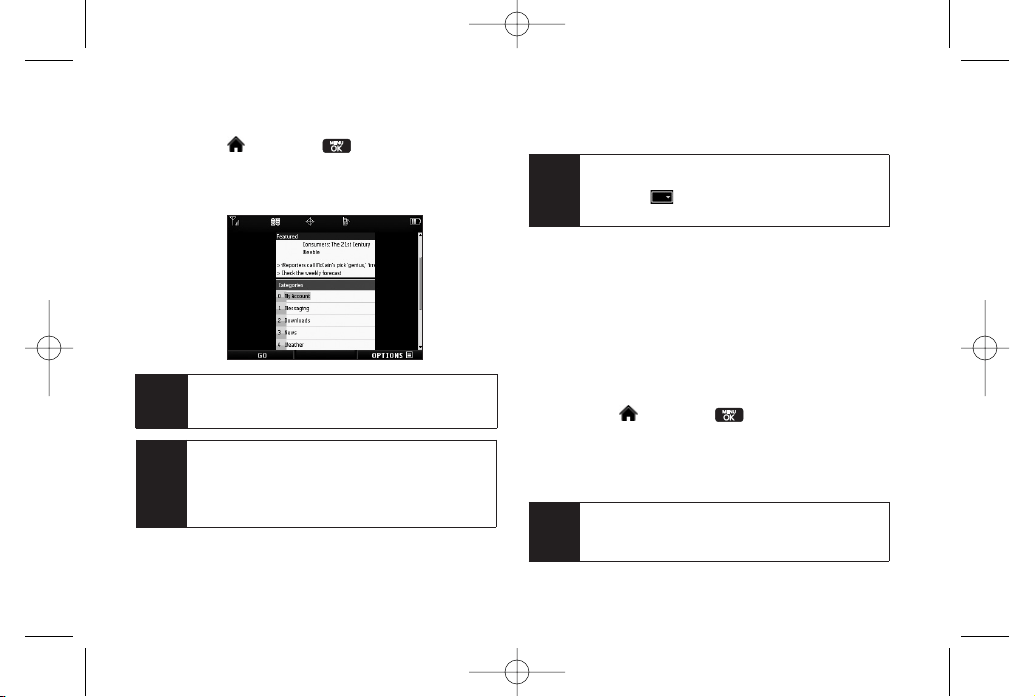
128 Section 3B: Web and Data Services
Launching a Web Connection
Highlight and press
> Web
. (Your data
connection starts and the home page is displayed.)
The Sprint Home Page
While connecting, an animation and a “Connecting”
message may be displayed.
Net Guard
When you first connect to the web, the Net Guard will be
displayed to confirm that you want to connect. This
feature helps you avoid accidental connections. You can
disable the Net Guard in the future by selecting
Always
Auto-Connect
when the Net Guard is displayed.
To change your Net Guard settings:
Highlight and press
> Settings > More... >
Data > Net Guard
.
Select
On
to activate the Net Guard.
Select
Off
to deactivate the Net Guard.
Note
When enabled, the Net Guard appears only once
as long as you have not turned the phone off
and on.
Tip
To change the default launch page to the last
page you viewed, press
OPTIONS
(right softkey)
>
OPTIONS > Advanced > Startup page
and
select
Last page viewed
.
Tip
For instant access to the Internet, including the
Sprint home page, Favorites, Recent Pages, and
Google search, use the main screen carousel. See
Section 2B: Navigating the Main Screen
on
page 32 for details.
Note
If Net Guard is enabled and displayed (see page
128), press
OK
(right softkey) to continue and
launch the web.
LX600(1.2)_0603.qxp 6/3/09 11:11 AM Page 128
Section 3B: Web and Data Services 129
Data Connection Status and Indicators
Your phone displays the current status of your data
connection through indicators at the top of the screen.
The following symbols are used:
Your phone is connected to the high-speed Sprint
Mobile Broadband Network (EVDO). When the
triangles are
green
, data is being transferred (for
example, when you are opening a web page);
when the triangles are gray, you are connected to
the network but data is not currently being
transferred (for example, when you are viewing a
web page that is completely open). In either state,
you can receive incoming calls.
Your phone is on and is connected to the Sprint
1xRTTdata network. When the arrows are
green
,
data is being transferred (for example, when you
are opening a web page) and you cannot receive
calls. When the arrows are gray, you are
connected to the network but data is not currently
being transferred (for example, when you are
viewing a web page that is completely open), and
you can receive calls.
If no indicatoris displayed, your phone does not have a
current data connection. To launch a connection, see
“Launching a Web Connection”on page 128.
Navigating the Web
Navigating through menus and websites during a data
session is easy once you’ve learned a few basics. Here
are some tips forgetting around:
Softkeys
During a data session, the bottom line of yourphone’s
display contains one ormore softkeys. These keys are
shortcut controls fornavigating around the web, and
they correspond to the softkeys directly below the
phone’s display screen.
Tip
Depending on which websites you visit, the labels
on the softkeys may change to indicate their
function.
Web and Data
LX600(1.2)_0603.qxp 6/3/09 11:11 AM Page 129
130 Section 3B: Web and Data Services
To use softkeys:
Press a softkey. (If an additional pop-up menu is
displayed when you press the softkey, select the
menu items using yourkeypad [if they’re
numbered], orby highlighting the option and
pressing .)
Scrolling
As with otherparts of yourphone’s menu, you’ll have to
scroll up and down to see everything on some websites.
To scroll line by line through websites:
Press the navigation key up and down.
To scroll page by page through websites:
Press the volume buttons on the side of the phone.
Selecting
Once you’ve learned how to use softkeys and scroll, you
can start navigating the web.
To select onscreen items:
Use the
navigation
key to highlight an item, and then
press the left softkey (orpress
)
.
Links, which are displayed as underlined text, allow you
to jump to web pages, select special functions, oreven
place phone calls.
To select links:
Highlight the link and press the appropriate softkey.
Going Back
To go back one page:
Press the key on yourphone.
-or-
Press
OPTIONS
(right softkey) >
BACK
.
Note
The
BACK
key is also used fordeleting text (like a
BACKSPACE key) when you are entering text.
Tip
You’ll find that the left softkey is used primarily for
selecting items. This softkey is often labeled “GO”
If the items on a page are numbered, you can use
yourkeypad (number keys)to select an item.
LX600(1.2)_0603.qxp 6/3/09 11:11 AM Page 130
Section 3B: Web and Data Services 131
Web and Data
Going Home
To return to the home page from any other page:
Press and hold .
– or–
Press
OPTIONS
(right softkey)
> MY HOMEPAGE.
Accessing Messaging
You can send and receive email messages, instant
messages, and text messages and participate in web-
based chat rooms right from yourphone. Messaging
allows you to stay connected 24 hours a day anywhere
on the Sprint National Network.
Using Email
Your phone’s Email application lets you access and
manage multiple email accounts simultaneously in one
convenient location.
Getting Started With Email
1. Highlight and press
> Messages > Email
.
(The Email setup wizard will start.)
-or-
Highlight
> Email
.
2. Press the right softkey to continue.
3. Enter yourwireless phone numberand press the
right softkey. (If the phone numberis already filled in,
press the right softkey to continue.)
4. Select an email provider(such as AOL
®
Mail, AIM
®
Mail, Hotmail, Yahoo!
®
, orGmail
®
) and press the right
softkey.
-or-
Select
Work
to set up a corporate email account
using eitherOutlook Web Access from a Microsoft
Exchange Server or the Sprint Mobile Email
connectorfor direct access.
– or–
Select
More
to choose from additional options.
There are many available email options listed, or
you may add yourown POPorIMAPemail
accounts.
LX600(1.2)_0603.qxp 6/3/09 11:11 AM Page 131
132 Section 3B: Web and Data Services
5. Follow the setup wizard instructions to enterthe
required sign-up information. Press
Accept
(right
softkey) if you are prompted to accept any license
agreements ordisclaimers.
6. If applicable, read the notice regarding Mail Push. If
you would like to enable Mail Push, press
Yes
(right
softkey). If another notice appears, review it and
press
Ye s
(right softkey) again to enable Mail Push.
Accessing Email
Using Email on yourphone is even easierthan using
multiple email accounts on yourcomputer. Launch the
application forinstant access to all youraccounts.
1. Once you have set up yourEmail, select and
press
> Messages> Email
to launch the
application. (Your default account inbox will be
displayed.)
– or–
From an Email New Message notice (if Mail Push is
enabled), select
GO
to go to yourinbox.
Note
The first time you access yourEmail, you will have
the option of completing a Help program. This
series of screens demonstates the application’s
navigation and available tools.
Note
Mail Push allows your phone to automatically
retrieve new email messages without having to
select the
Send/Receive
option. When Mail Push
is enabled, you will receive an onscreen notice of
new email messages. These notices may be
charged as SMS Text Messages. Please consult
yourservice plan for details.
Note
The information required to sign in will vary
depending on the email provideryou are
accessing.
Note
Consult yourcompany’s ITdepartment for
required information and permissions for any
Work email accounts. Read the onscreen setup
information foradditional information about using
Work email options on your LG Lotus
TM
.
LX600(1.2)_0603.qxp 6/3/09 11:11 AM Page 132
Section 3B: Web and Data Services 133
2. Use yourkeypad and navigation keys to read,
manage, and reply to youremail messages.
Press
Menu
(right softkey) to select messaging
options, such as
Delete
,
Compose
,
Reply
,
Send/Receive
, or
Settings
.
Press
Menu
(right softkey) >
Send/Receive
to
manually check fornew messages.
To view a different email account, use your
navigation key to select the drop-down menu next
to the Inbox tab at the top of the screen, and then
select an account. You can also navigate to the
Home tab at the top of the screen and select an
available account from there.
To add a new account, use your navigation key to
select the
Home
tab at the top of the screen, and
then select
Add Account.
Follow the instructions in
“Getting Started With Email”on page 131 to set up
a new account.
Accessing Sprint Instant Messaging
Data service also provides you with access to popular
instant messaging (IM) clients, including AOL
®
Instant
Messenger
TM
, Windows Live Messenger, and Yahoo!
®
Messenger.
1. Highlight and press
Messages > IM
.
-or-
Highlight >
Send Message > IM
.
2. Select an IM provider, such as
AOLInstant
Messenger
,
Windows Live Messenger
, or
Yahoo!
Messenger
.
3. Use your keypad to enterthe required sign-in
information forthe selected provider, such as user
Note
You can also access certain email accounts,
including yourSprint Mail account, through the
home page. Highlight and press
Menu > Web
and then select
Messaging > Email > [PCS Mail,
AOL& AIM Mail, MSN Hotmail,
or
Yahoo! Mail]
.
Follow the onscreen instructions to enteryour
account information and access your email
messages.
TIP
You can also customize yourmain screen carousel to
provide direct access to youremail. See
"Personalizing the Carousel" on page 34for details.
Web and Data
LX600(1.2)_0603.qxp 6/3/09 11:11 AM Page 133
134 Section 3B: Web and Data Services
name orpassword, and select
Sign In
. (Your IM
screen forthe selected provider will be displayed.)
4. Follow the onscreen instructions to read, reply to,
compose, and send messages and manage your
IM account.
Accessing Wireless Chatrooms
Data service gives you the ability to join wireless
chatrooms from yourphone.
1. Highlight and press >
Messages
>
Chat &
Dating
.
2. Select a chat provider and follow the onscreen
instructions to sign up and begin chatting.
Downloading Games, Ringers
and More
You have access to a dynamic variety of downloadable
content, such as Games, Ringers, Screen Savers, and
otherapplications. (Additional charges may apply.)The
basic steps required to access and download these
items are outlined below.
Accessing the Download Menus
1. Highlight and press
> My Stuff.
2. Select the type of file you wish to download (
Games
,
Ringers
,
Screen Savers
, or
Applications
), and then
select
Get New
. (The browserwill start and take you
to the corresponding download menu.)
To access the download menus from the web browser:
1. From the home page, select
Downloads
.
2. Select
Games
,
Ringers
,
Screen Savers
,or
Applications
to go to the corresponding download
menu. (Formore information on navigating the web,
see “Navigating the Web”on page 129.)
Note
Chat & Dating options change frequently, so check
back often to see what’s new.
Note
The information required to sign in will vary
depending on the instant messaging provideryou
are accessing.
LX600(1.2)_0603.qxp 6/3/09 11:11 AM Page 134

Section 3B: Web and Data Services 135
Selecting an Item to Download
You can search foravailable items to download in a
numberof ways:
Featured
displays a rotating selection of featured
items.
Categories
allows you to narrow yoursearch to a
general category, such as Country orPop/Rock for
Ringers orForthe Ladies for Screen Savers. (There
may be several pages of available content in a list.
Select
Next 9
to view additional items.)
Search
allows you to use your keypad to enter search
criteria to locate an item. You may enteran entire word
ortitle or perform a partial-word search.
Downloading an Item
Once you’ve selected an item you wish to download,
highlight it and press , or press
OK
(left softkey). You
will see a summary page forthe item including its title,
the vendor, the download details, the file size, and the
cost. Links allow you to view the
License Details
page,
which outlines the price, license type, and length of
license forthe download, and the
Terms of Use
page,
which details the Premium Services Terms of Use and
yourresponsibility forpayment.
To download a selected item:
1. From the information page, select
Buy
. (The item will
download automatically. When the
New Download
screen is displayed, the item has been successfully
downloaded to yourphone.)
2. Select an option to continue:
Select
Use/Run/View
to assign the downloaded
item (orto start, in the case of a game or an
application). Your data session will end, and you
will be redirected to the appropriate phone menu
screen.
Select
Set as
to assign a ringeror screen saverto a
phone function.
Select
Settings
to configure downloaded games
orapplications.
Select
Shop
to browse forother items to
download.
Note
If you have not previously purchased an item, you
will be prompted to create yourpurchasing profile.
Web and Data
LX600(1.2)_0603.qxp 6/3/09 11:11 AM Page 135
136 Section 3B: Web and Data Services
Press to quit the browserand return to
standby mode.
Using MyContent Manager
Whetheryou purchase yourPremium Services content
from yourphone or from your online account
management page at
www.sprint.com
, all of your
purchases are stored in
My Content Manager
and may
be downloaded to yourphone from there.
My Content Manager
is a storage area on the Sprint
National Network that allows you to store all yourPremium
Services downloadable files. The files remain in My
Content Manageruntil their license terms have expired –
even after you have downloaded the content to your
phone. This provides you with a convenient place to
access information about yourdownloaded files without
having to store the information in yourphone’s memory.
To access My Content Manager:
From the home page, select
Downloads >
My Content Manager
. (A list of your purchased items
will be displayed.)
To download purchased content from My Content
Manager:
1. From the
My Content Manager
display (see above),
highlight the item you wish to download, and press
. (The information page for the selected item
will be displayed.)
2. Select
Download
and press . (The item will
download automatically. When the
New Download
screen is displayed, the item has been successfully
downloaded to yourphone.)
3. Select an option to continue:
Select
Use/Run/View
to assign the downloaded
item (orto start, in the case of a game or an
application). Your data session will end, and you
will be redirected to the appropriate phone menu
screen.
Select
Set as
to assign a ringeror screen saverto a
phone function.
Select
Settings
to configure downloaded games
orapplications.
Select
Shop
to browse forother items to
download.
LX600(1.2)_0603.qxp 6/3/09 11:11 AM Page 136
Section 3B: Web and Data Services 137
Press to quit the browserand return to
standby mode.
Forcomplete information and instructions on
downloading
Games
,
Ringers
,
Screen Savers
, and
Applications
, visit the Digital Lounge at
www.sprint.com
.
Browser Options Menu
With web access on yourphone, you can browse full-
colorgraphic versions of your favorite websites, making
it easierthan everto stay informed while on the go.
Follow sports scores, breaking news, and weather, and
shop on yourphone anywhere on the Sprint National
Network.
In addition to the features already covered in this section,
the home page offers access to these colorful,
graphically rich web categories, including
News,
Weather, Entertainment, Sports, Money, Travel, Shopping,
and
Tools
, as well as useful management options
including
My Account
and
Search
. Many sites are
available under more than one menu – choose the one
that’s most convenient foryou.
Using the Browser Options Menu
Navigating the web from yourphone using the home
page is easy once you get the hang of it. For details on
how to navigate the web, select menu items, and more,
see “Navigating the Web”on page 129.
Although the home page offers a broad and convenient
array of sites and services for you to browse, not all sites
are represented, and certain functions, such as going
directly to specific websites, are not available. For these
and otherfunctions, you will need to use the browser
options menu. The browseroptions menu offers
additional options to expand your use of the web on
yourphone.
Tip
You can also access My Content Managerthrough
the phone’s main menu. Press
Menu > My Stuff >
[Games, Ringers, Screen Savers, orApplications]
> My Content Manager
. The browser will open and
take you to the corresponding content.
Web and Data
LX600(1.2)_0603.qxp 6/3/09 11:11 AM Page 137
138 Section 3B: Web and Data Services
Opening the BrowserOptions Menu
The browseroptions menu may be opened anytime you
have an active data session, from any page you are
viewing.
To open the browser options menu:
Press
OPTIONS
(right softkey).
Options available in the Options menu include:
BACK
to go back to the most recent web page.
FORWARD
to move to a previously viewed page (after
having used
BACK
option).
MYHOMEPAGE
to go back to the home page.
MY PAGES
to view yourfavorites and recently viewed
pages.
SPRINT SEARCH
to search the Internet.
OPTIONS
to choose font size, privacy settings, etc.
Creating a Bookmark
Bookmarks allow you to store the address of your
favorite websites for easy access at a later time.
1. Go to the web page you want to mark.
2. Press
OPTIONS
(right softkey) to open the browser
options menu.
3. Select
MY PAGES
and press twice to save the
bookmark.
4. Select
Add this page to favorites > ADD
(left softkey).
Note
Bookmarking a page does not store the page
contents, just its address.
Some pages cannot be bookmarked. Whethera
particular web page may be marked is controlled
by its creator.
LX600(1.2)_0603.qxp 6/3/09 11:11 AM Page 138
Section 3B: Web and Data Services 139
Accessing a Bookmark
1. Press
OPTIONS
(right softkey) to open the browser
options menu.
2. Select
MY PAGES.
3. Select a bookmark you wish to access in the list
and press .
Deleting a Bookmark
1. Press
OPTIONS
(right softkey) to open the browser
options menu.
2. Select
MY PAGES.
3. Select a bookmark and press
OPTIONS
(right
softkey).
4. Select
Remove this favorite
. (A confirmation will be
displayed.)
5. Press
REMOVE
(left softkey) to remove the
bookmark.
Going to a Specific Website
To go to a particular website by entering a URL (website
address):
1. Press
OPTIONS
(right softkey) to open the browser
options menu.
2. Select
SPRINT SEARCH
3. Select the
URL
field and press .
4. Use your keypad to enterthe URLof the website you
wish to go to and press .
5. Press again to go to the website.
Restarting the Web Browser
If the web browserseems to be malfunctioning or stops
responding, you can usually fix the problem by simply
restarting the browser.
1. Press
OPTIONS
(right softkey) to open the browser
options menu.
2. Select
OPTIONS > Advanced > Reset Browser.
Note
Not all websites are viewable on yourphone.
Web and Data
LX600(1.2)_0603.qxp 6/3/09 11:11 AM Page 139
140 Section 3B: Web and Data Services
Phone as Modem
Your phone’s data capabilities enable you to use its
high-speed data connection as a modem foryour
laptop computer. You’ll be able to send and receive
email, browse the Internet, and access yourcompany’s
network anywhere on the Sprint National Network.
Setting Up a Data Connection With Your
Computer
In orderto use yourphone as a modem, you’ll first need
to load the Sprint PCS Connection Manager
SM
software
on yourcomputer. Then, use a compatible USB cable or
built-in Bluetooth connection to connect yourphone to
yourcomputer.
1. From yourcomputer’s traditional Internet
connection, go to
www.sprint.com/downloads
and
download the
Sprint PCS Connection Manager for
Phone as Modem/USB Cables
software. (The
software and drivers can be downloaded free of
charge.)
2. Double-click the downloaded file and follow the
onscreen instructions to install the Sprint PCS
Connection Managersoftware and drivers to your
computer.
3. Once the software has been fully installed, connect
yourphone to yourcomputerusing a USB cable or
built-in Bluetooth connection. (Your computer will
detect the connection and a status icon may
appearin yoursystem tray.)
4. Launch the Sprint PCS Connection Manager
software, select a profile, and click Connect.
5. Once the connection is established, launch an
Internet session, check youremail, or do anything
else you would do using a traditional data
connection.
Note
To use this service, you are required to sign up on a
Sprint with Phone as Modem plan. Go to
www.sprint.com
or visit a Sprint Store for Phone as
Modem plan details and more information.
LX600(1.2)_0603.qxp 6/3/09 11:11 AM Page 140
Section 3B: Web and Data Services 141
6. When you’re ready to terminate the data
connection, double-click the Sprint PCS
Connection Managericon in the system tray, and
then click
Disconnect
to end the session.
Data Services FAQs
How will I know when my phone is ready for data service?
Your user name (for example,
bsmith0[email protected]
)
will be displayed when you highlight and press
> Settings > Phone Information > Phone Number
.
How do I sign in for the first time?
You are automatically signed in to access data services
when you turn on your phone.
How do I know when my phone is connected to data
services?
Your phone automatically connects when data service
is used oran incoming message arrives. Yourphone will
also display the or indicator.
Note
While yourdata connection is active, you will not be
able to receive incoming calls; all incoming calls will
be forwarded to yourSprint Voicemail. Placing an
outgoing call during a data session terminates the
data connection.
Data services work anywhere on the Sprint National
Network, but broadband-like download speeds are
only available in areas covered by the Sprint Mobile
Broadband Network.
Web and Data
LX600(1.2)_0603.qxp 6/3/09 11:11 AM Page 141

142 Section 3B: Web and Data Services
Can I make calls and use data services at the same time?
You cannot use voice and data services simultaneously.
If you receive a call while data service is active, the call
will be forwarded to voicemail. You can place an
outgoing call anytime, but it will interrupt any in-progress
data session.
When is my data connection active?
Your connection is active when data is being transferred.
Outgoing calls are allowed; incoming calls go directly to
voicemail. When active, the or indicator
animates on yourphone’s display screen.
When is my data connection dormant?
If no data is received for10 seconds, the connection
goes dormant. When the connection is dormant, voice
calls are allowed. (The connection may become active
again quickly.) If no data is received for an extended
period of time, the connection will terminate.
Can I sign out of data services?
You can sign out without turning off yourphone;
however, you will not be able to browse the Web oruse
otherdata services. While signed out, you can still place
orreceive phone calls, check voicemail, and use other
voice services. You may sign in again at any time. To
sign out, go to
Settings > More... > Data > On/Off
in your
phone’s menu.
LX600(1.2)_0603.qxp 6/3/09 11:11 AM Page 142

Section 3C. Entertainment: TV and Music 143
Section 3C
Entertainment: TV and
Music
TV (page 143)
Music – Sprint Music Store (page 146)
Streaming Music (page 151)
Sprint TV
gives you the ability to listen to audio clips and
to view video clips right from yourphone’s display.
Watch live TV and catch up on episodes of yourfavorite
shows – anywhere on the Sprint National Network.
Sprint Music
lets you preview, purchase, download,
and listen to over a million songs right on your
phone. You can even add songs from yourown
library to round out youron-the-go playlist.
TV
Your Sprint TVChannel Options
The Sprint TV application offers a wide variety of
accessible channels. Subscription options include
comprehensive basic packages as well as a full menu
of “a la carte”channels. Visit
www.sprint.com
formore
information on channels and pricing.
Some of the available categories may include:
Sprint Radio
Sprint PowerView
Primetime TV
Music Videos
Sprint TV Live
Music & Radio
Sports
Entertainment
Cartoons
News & Weather
Movies & Shorts
Mobile Previews
Note
Available categories and content are subject to
change.
TV and Music
LX600(1.2)_0603.qxp 6/3/09 11:11 AM Page 143
144 Section 3C. Entertainment: TV and Music
Watching TV
1. Highlight and press
> Entertainment > TV.
Depending on yoursettings, you may be asked to
accept a data connection.
2. Select
Sprint TV
,
Sprint Radio, Sprint Movies, or
Premium Channels
to display channel options.
3. Use your navigation key and press to select a
channel from the Sprint TV listings or to select an
available category.
4. If applicable, select a clip and press to view
the program. The clip will automatically load and
begin playing.
TV FAQs
1.
Will I know if I’m receiving an incoming call while I’m
viewing or listening to a media clip?
No. All incoming calls will roll into voicemail while
you are playing a clip. If the callerleaves a
voicemail, the voicemail icon will be displayed on
the screen.
2.
How long are the clips? Will I know the estimated time
it will take to play the clip prior to accessing it?
Once you have selected a channel, you will see a
listing of the available clips, with each clip’s length
displayed after the clip’s title. In general, a clip’s
Tip
While you are playing a clip, you can press the
navigation key up ordown to surf to a different
channel. A small pop-up screen will be displayed
that tells you which channel you are watching as
well as otherchannels that you have access to. Use
the navigation key to scroll through the channels.
Once you find a channel that you want to watch or
listen to, scroll to it and press
OK
(or simply wait
approximately three seconds), and the channel will
begin loading.
Note
The first time you access a channel, you will be
prompted to purchase access (unless the channel
doesn't have a monthly fee). Select
Subscribe
to
purchase access, or select
Preview
to view a
preview ofthe selected channel.
LX600(1.2)_0603.qxp 6/3/09 11:11 AM Page 144

Section 3C. Entertainment: TV and Music 145
duration will depend on the story orcontent being
provided, and can be fairly short oras long as a few
minutes.
3.
Can I access a clip wherever I am, as long as I have my
phone?
As long as you are on the Sprint National Network,
you will have access to the audio and video clips.
4.
Are the videos that I’m viewing “live” videos?
It depends on the content provider. Some of the
channels available through Sprint TV stream live
content. Others provide media on demand with
video and audio clips that are refreshed throughout
the day, but that are not “live.”
5.
After purchasing access to an Available Channel for a
monthly fee, do I receive any confirmation? That is,
how do I know it has been purchased?
The next time you access the channel, you bypass
the Preview/Purchase page and go directly to the
available content.
6.
If I don’t subscribe to a data plan, will I still be able to
view the multimedia clips?
Yes. Forservice access charges, please consult
yourSprint service plan or visit
www.sprint.com
.
7.
What does it mean when the video pauses and I see
the word “loading”at the bottom of the screen?
This happens when the phone is loading the data
necessary to play the clip. It typically occurs when
there is heavy traffic on the network.
8.
How can I cancel service if I decide I don’t want it?
To cancel your Sprint TVservice, visit
www.sprint.com
and sign on to My Sprint Wireless
with youraccount number and password. From this
page, you have the ability to cancel the service or
any channels to which you subscribe.
9.
If I put on my stereo headset and insert them into the
phone’s headset jack, can I close the phone while I am
playing an audio (or video) clip without interrupting the
clip?
Yes. When you insert your stereo headset into the
phone’s headset jack, the phone automatically
goes into “headset mode,”allowing you to close the
phone and continue playing the clip. (Likewise, if
Note
Sprint TVService does not work while roaming off
of the Sprint National Network orwhere service is
unavailable.
TV and Music
LX600(1.2)_0603.qxp 6/3/09 11:11 AM Page 145
146 Section 3C. Entertainment: TV and Music
yourphone is in “headset mode,”a phone call will
not disconnect when you close the phone.)
10.
Can I surf to a different channel while I am playing a
clip?
Yes. While you are playing a clip, you can use the up
and down navigation keys to surf to a different
channel. A small pop-up screen will be displayed
that tells you which channel you are watching as
well as otherchannels that you have access to. Use
the navigation keys to scroll through the different
channels. Once you find a channel that you want to
watch, scroll to it and press (orsimply wait
approximately three seconds), and the channel will
begin loading.
Music – Sprint Music Store
The Sprint Music Store enables you to purchase and
download digital music files to play on your phone or
computer.
Accessing the Sprint Music Store
You can access the Sprint Music Store right from your
phone’s main menu, anywhere on the Sprint National
Network. When you enterthe store forthe first time, you
will be prompted to set up youruser identification and
password.
1. Highlight and press
> Entertainment >
Music
.
2. Follow the onscreen instructions to establish your
UserID and password.
3. After you have entered yourpassword, highlight
Create New Account
and press .
4. Use your keypad and navigation key to explore the
store.
Purchasing and Downloading Music
Now that you’re in the store, you can shop forsongs to
purchase and download to yourphone’s microSD card.
Tip
Your UserID forthe Sprint Music Store is your10-
digit wireless phone number. The password may be
any 4-digit number.
LX600(1.2)_0603.qxp 6/3/09 11:11 AM Page 146
Section 3C. Entertainment: TV and Music 147
1. From the Sprint Music Store opening page, select
an option to browse the store:
Featured Musi
c offers a revolving selection of
highlighted songs and artists.
Categories
allows you to choose from categories
such as Top 10s, New This Week, What’s Hot,
Songs You Know, and specific musical genres.
Search
gives you the option of searching for
specific songs orartists. Just use yourkeypad to
enteryoursearch criteria in the available field.
2. Select a song and press . (The song
information screen will be displayed.)
3. Select an option and press :
Preview
to play an audio clip of the selected song.
Buy Song
to purchase the song and download it to
yourphone’s microSD card.
When you select
Buy Song
, the file will
download to yourphone’s microSD card. (If
there is no microSD card installed orif there is
not enough free memory space on the card,
you will see an alert.)
Once the song has been downloaded to your
microSD card, you will see options allowing
you to listen to the song, add it to a playlist, or
continue shopping.
Playing Music From the Sprint Music
Store
The Sprint Music Store not only gives you access to
great music, it also gives you a place to listen to and
organize your music library.
Accessing the Music Player
1. From the Sprint Music Store opening page, use
yourright navigation key to select the
Player
tab.
2. From the Player display, select an option:
All My Music
to browse through all of your
downloaded music, including music purchased
from the Sprint Music Store and any additional
songs you have loaded onto yourmicroSD card
from yourcomputer.
<playlist>
to select a customized playlist you’ve
created to organize yourmusic.
TV and Music
LX600(1.2)_0603.qxp 6/3/09 11:11 AM Page 147
148 Section 3C. Entertainment: TV and Music
Create Playlist...
to set up a custom playlist of
songs you like to hear together. Follow the
onscreen instructions to create a name forthe
playlist, select songs by artist, genre, and title, and
create an orderfor the playlist.
3. Once you’ve displayed a list of songs, you can
browse through youravailable titles by Song, Artist,
orGenre to select a specific song.
To play a song, select it and press .
To listen to a playlist, select it and press to
open the playlist, then press again to begin
playing from the selected song. (You can also
highlight the playlist and use the softkey menu to
begin listening.)
Backing Up Your Downloaded Music Files
When you purchase and download a music file
from the Sprint Music Store, you get two versions of
the song: one to download and play on your phone
(file type: KOZ), and another to download from
http://musicstore.sprint.com
and play on your computer.
The KOZfiles downloaded to your phone can only be
played on yourphone and on youraccount, and once
they have been downloaded, they cannot be
downloaded again without being repurchased.
Sprint recommends you back up your KOZmusic files to
yourcomputer so you can access the files in case your
microSD™ card is lost or damaged, or if you install a new
microSD™ card.
1. Connect yourphone using a USB cable or the built-
in connection on Bluetooth-enabled phones.
2. Use yourcomputer to navigate to the microSD™
card’s
Music
folder.
3. Select and copy the music files to a folder on your
computer’s hard drive.
Note
Although you can store KOZfiles on yourcomputer,
they will only be playable on yourphone and on
youraccount.
If you copy the files to a new microSD™ card, you
will need to create a folderon the card called
“MUSIC”to be able to play the music
files.Supported file types:
MP3, AAC, AAC+, M4A
LX600(1.2)_0603.qxp 6/3/09 11:11 AM Page 148
Section 3C. Entertainment: TV and Music 149
TV and Music
Multitasking
Multitasking is a way of maintaining one application
active while using another. While your current music
selection is playing, you can activate the Application
Managerscreen and choose from a list of available
applications which can be run in tandem with your
music.
To multitask on your phone:
1. Launch the Sprint Music Store application
(Highlight and press
> Entertainment >
Music
).
2. Select the player tab and press .
3. Select a file and press to play the selected
song.
4. Press to exit the Music Store application
without closing it and launch the popup menu,
where you can choose from the following options:
Application Manager, Send to Background, Resume,
and
Exit.
If is pressed while the song is still playing, the
display screen will reactivate the song’s playback
screen.
5. Select
Application Manager
and press to
launch an Application Managerscreen which
provides you access to several applications:
Application Managermanages all currently active
applications. With yourmusic still playing, the
Sprint Music Store entry appears in the list.
6. Press
OPTIONS
(right softkey) to access the
following management options:
Bring to Foreground
reactivates the current
application screen. Forexample, if your music is
currently playing in the background, selecting this
option activates the music Playertab with the song
displayed.
Exit Application
terminates the currently selected
application and returns you to the standby screen.
Exit All Background
terminates all currently active
applications and returns you to the standby
screen.
Launch New App
allows you to launch an
application from the My Stuff listing.
Note
Multitasking is enabled only while using the Sprint
Music Store (
Menu > Entertainment > Music
).
LX600(1.2)_0603.qxp 6/3/09 11:11 AM Page 149
150 Section 3C. Entertainment: TV and Music
Receiving an Incoming Call While Playing Music
An incoming call causes the currently played music file
to be paused while the phone call is active. Once the
current call is ended, you can select to resume any
paused applications. (Music will resume playing
automatically.)
1. Answeran incoming call by pressing
TALK
(left
softkey).
2. When you are done with yourcall, press to end
the call. The previously paused application then
resumes.
If the phone is running more than one simultaneous
application (such as
Music Store
,
Application
[from My
Content], and
Games
), the user interface can begin to
slow down and result in music orsound interruptions.
To solve this type of issue, it is best to close down all
otherapplications (Highlight and press
>
My Stuff> Application Manager> Options > Exit All
Applications
) before initiating a new application.
Also, in some situations, the camera orcamcordermay
have limited functionality or become unavailable. For
example, if you were currently playing music (via the
Music Store), or playing a game in the background, and
then wanted take a photo, the phone may prompt you
with a “CPU Low, Kill the Application” dialog. This
indicates that the current phone resources are stretched
and one of the current applications should be
terminated before continuing. Referto the procedure
above to exit eithera specific application or all current
applications, and then launch the camera orcamcorder
again.
Note
When placing an outgoing call, the Application
Managerpauses your current music playback and
allows you to proceed with your outgoing call.
When the call is ended, the Application Manager
restarts the music playback.
LX600(1.2)_0603.qxp 6/3/09 11:11 AM Page 150

Section 3C. Entertainment: TV and Music 151
Streaming Music
In addition to the Sprint Music Store, Sprint offers a
variety of musical options through the Music category in
the Sprint TV menu, including SIRIUS Music, Music
Choice, VH1, and many others. Choose from rock, pop,
hip-hop, and R&B, and access exclusive video clips,
music industry news, performances, and interviews with
yourfavorite artists.
1. Highlight and press
> Entertainment > TV>
Sprint Radio.
2. Select
Preview
to see and heara preview of your
selected channel (if available).
–or–
Select
OPTIONS
(left softkey) >
Subscriptions
to
purchase a monthly subscription to yourselected
channel.
Once you have purchased access to a music or radio
channel, you can select from a variety of stations to listen
to yourfavorite music orget caught up on what’s new in
music.
TV and Music
LX600(1.2)_0603.qxp 6/3/09 11:11 AM Page 151
152 Section 3D. GPS Navigation
Section 3D
GPS Navigation
Sprint Navigation (page 152)
Using Sprint Navigation (page 153)
Getting Driving Directions (page 154)
Configuring Your Navigation Preferences (page 161)
Launching the Product Tour (page 162)
The LG LOTUS™ allows you to utilize built-in GPS hardware to
easily access both directional information and location-ready
features such as nearby companies and services.
Sprint Navigation is a GPS navigation system that gives
you turn-by-turn directions onscreen and by voice right
from yourdevice. Get audible GPS directions for
appointments, meetings, oreven the closest coffee
shop.
Sprint Navigation
Before You Begin
Sprint Navigation requires that your device’s Location
setting is activated. Location is set to On by default.
To turn Location On if it is set to Off:
1. Highlight and press
> Settings > More ... >
Location.
(The Location disclaimer will be
displayed.)
2. Read the disclaimer and press .
3. Select
On
and press .
Note
Depending on yourplan, Sprint Navigation may
require a monthly subscription. Contact Sprint for
information and pricing.
LX600(1.2)_0603.qxp 6/3/09 11:11 AM Page 152
Section 3D. GPS Navigation 153
Registering forService
Before you can fully take advantage of the navigation
feature, you must first properly registeryourdevice.
1. Highlight >
Drive To
and press .
– or–
Highlight and press
> Maps > Sprint
Navigation
.
2. Select each of the onscreen registration fields and
use the keypad to enter the required information.
First Name, Last Name,
and
Email
.
The email must be entered properly to guarantee
successful registration. See “Entering Text”on
page 29.
3. Select
SUBMIT
(right softkey) to store your
information.
Using Sprint Navigation
1. Highlight to access the Sprint Navigation
menu.
– or–
Highlight and press
> Maps > Sprint
Navigation
.
2. Select an option and follow the onscreen
instructions to take advantage of Sprint Navigation’s
full suite of features.
Drive To
lets you get driving directions from
wherever you are to wherever you’re going. Press
the right navigation key to reveal the following
choices:
My Favorites
: user-defined favorite locations.
Recent Places
: recently entered locations.
Address
: manually entered street addresses.
Intersection
: used to locate a specific address
by using two separate street addresses to
identify an intersection.
GPS Navigation
LX600(1.2)_0603.qxp 6/3/09 11:11 AM Page 153
154 Section 3D. GPS Navigation
City
: used when you do not know a physical
address but would like driving directions to a
city.
Businesses:
locations based on business
categories.
Airports:
local airports based on current GPS
location.
Search
lets you search for locations based on
Name, Category, or Location.
Categories include options such as
Food/Coffee, Gas Stations, Gas by Price,
Banks/ATMs, WiFi Spots, Parking Lots, Hotels &
Motels, and Movie Theaters.
Maps & Traffic
provides access to 2D and 3D maps
foryourcurrent location and forseveral categories
of locations such as Airports and Contacts.
Share & More
offers additional options, such as
sharing yourlocation with contacts, creating and
storing My Favorites locations, accessing the
product tour, and setting detailed application
preferences.
Getting Driving Directions
The built-in GPS hardware (when enabled) allows you to
get driving directions to selected locations or
establishments based on yourcurrent location.
Using a Physical Address
1. Highlight >
Drive To
and press .
– or–
Highlight and press
> Maps > Sprint
Navigation > Drive To
.
2. Select
Address
and press .
LX600(1.2)_0603.qxp 6/3/09 11:11 AM Page 154
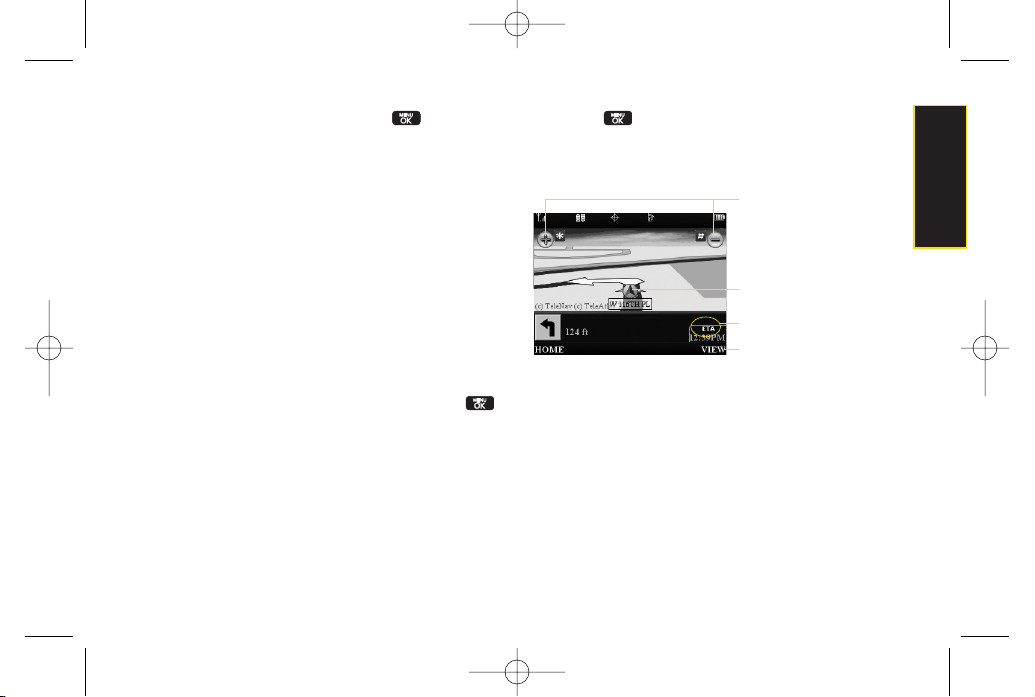
Section 3D. GPS Navigation 155
3. Select
Type It
or
Speak It
and press .
Type It
requires that you enterthe physical address
using the keypad.
Speak It
to place a call to the TeleNav™ operator
where you will speak the desired address. This is
similarto calling 411for directory assistance. (A fee
may be incurred.)
4. If typing in the address, enterthe following:
Address:
used to entera specific address by using
a number, street name, and city/state orzip code.
City:
used when you do not know a physical
address but would like driving directions to a city.
As you enterin the text, a list of possible city
matches appears onscreen. Use your
navigation key to choose one and press .
State, ZIP
or
Country
used when the specific
address information is not available but you would
like to provide some general driving parameters.
5. Press
GO
(right softkey) to enter the new address
and receive driving directions from the GPS
network.
6. Press to begin the navigation session.
7. Follow both the onscreen and audio directions.
GPS Navigation
Magnification
Your Current Location
Estimated Time of Arrival
Other Driving Options
LX600(1.2)_0603.qxp 6/3/09 11:11 AM Page 155
156 Section 3D. GPS Navigation
Once you have entered yourdesired location and your
phone has begun providing you with driving directions,
you can alterthe information being displayed by using
one of three otherdriving options, press
View
(right
softkey):
Route Summary, Traffic Summary, 2D or3D Map,
and
Search Along.
To review real-time traffic information along your route:
1. Highlight >
Drive To
and press .
– or–
Highlight and press
> Maps > Sprint
Navigation > Drive To
.
2. Select
Address
and press .
3. Enter the physical address information. See “Using
a Physical Address”on page 154.
4. Press
View > Traffic Summary
and press . This
action displays an onscreen current traffic
conditions along yourcurrent route.
5. Press
BACK
(left softkey) to return to your previous
driving screen.
To receive turn by turn directions (2D):
1. Highlight >
Drive To
and press .
– or–
Highlight and press
> Maps > Sprint
Navigation > Drive To
.
2. Select
Address
and press .
3. Enter the physical address information. See “Using
a Physical Address”on page 154.
4. Press
View > 2D MAP
and press . This action
provides both an outlined map view and a detailed
turn by turn description fornavigating to your
desired location.
LX600(1.2)_0603.qxp 6/3/09 11:11 AM Page 156
Section 3D. GPS Navigation 157
To search nearby locations based on type:
1. Highlight >
Drive To
and press .
– or–
Highlight and press
> Maps > Sprint
Navigation > Drive To
.
2. Select
Address
and press .
3. Enter the physical address information. See “Using
a Physical Address”on page 154.
4. Press
View > Search Along
and press . This
allows you to then search for a location based on a
name, location, orcategory such as Food/Coffee,
etc.
See “Using a Local Business Category” on page
157.
Using a Local Business Category
The
LG LOTUS™
can also cross-reference yourcurrent
location with local business and points of interest, such
as Grocery Stores, Gas Stations, Wi-Fi Spots, Malls,
Hospitals, etc.
1. Highlight >
Drive To
and press .
– or–
Highlight and press
> Maps > Sprint
Navigation > Drive To
.
2. Select
Businesses
and press .
Pressing either orthe right navigation key
opens the Businesses search page.
3. Select a desired field and then use eitheryour
keypad or keyboard to enter the information.
What
lets you use a keyword search for your
business.
Category
lets you refine yoursearch by using a
business category type such as:
Food/Coffee, Gas
Stations, Gas by Price, Banks/ATMs, WiFi Spots,
Hospitals, Complete List,
etc....
GPS Navigation
LX600(1.2)_0603.qxp 6/3/09 11:11 AM Page 157
158 Section 3D. GPS Navigation
Where
returns you to the Search Near page where
you can choose from a set of seven location
categories.
Entries with more than one available category (a
subcategory) appearwith an adjacent grey arrow.
These entries can be expanded and then closed.
To organize and arrange your search results:
1. Select a category entry from the Search page. By
default the Search Results page lists the Best
Matches based on closest location first (top).
2. Press
GO
(right softkey) and then press
OPTIONS
(right softkey) to apply the available filteroptions to
best display the matching results:
Map Results:
overlaps your current list over a map
of yourcurrent location. The numeric onscreen
entries correspond to yourcurrent sorted list.
Sort by Distance:
sorts a list of matching results by
placing the closest location (to yourpresent
position) at the top and farthest location at the
bottom.
Sort by Rating:
sorts the results by theiroverall
consumersatisfaction rating (indicated by a set of
staricons to the left of the entry). The best rated
location (5 stars) is placed at the top of the list. The
rating is from No stars to 5 stars.
To search for the least expensive gas in your area:
1. Highlight
> Search > Category > Gas By Price
and
press .
– or–
Highlight and press
> Maps > Sprint
Navigation > Search > Category > Gas By Price
.
2. Select a grade of gasoline:
Any, Regular, Plus 89,
Premium,
or
Diesel
.
By default the Search Results page lists the Best
Price at the top of the list.
3. Press
GO
(right softkey), highlight a gas station from
the list, and press to be provided with a new
route to the selected gas station.
See “Using a Physical Address”on page 154.
LX600(1.2)_0603.qxp 6/3/09 11:11 AM Page 158
Section 3D. GPS Navigation 159
Creating a My Favorites Location
Once you have begun using Sprint Navigation to find
yourdestination, you can then eitherrecall those
locations and add them to yourlist of favorite
destinations orcreate a new entry from one of the
available location categories (Address, Business,
Airport, orContacts).
To create a My Favorites entry from your Current Location:
1. Highlight >
Share & More > Connect > Record
Location
and press .
– or–
Highlight and press
> Maps > Sprint
Navigation > Share & More > Record Location
.
2. Enter a label for the newly stored location.
3. Select the
Save
field and press .
To create a My Favorites location from a Recent Place:
1. Highlight
> Drive To > Recent Places
and
press .
– or–
Highlight and press
> Maps > Sprint
Navigation > Drive To > Recent Places.
2. Select an entry from the list and press
Options
(right
softkey) >
Save to Favorites
and press .
3. Enter a label forthe newly stored location.
4. Select the
Save
field and press .
GPS Navigation
LX600(1.2)_0603.qxp 6/3/09 11:11 AM Page 159
160 Section 3D. GPS Navigation
Sharing a Recent Location with Others
Recently queried locations can be saved to your My
Favorites list and also shared with othercellular devices.
1. Highlight >
Share & More > Share Address
and
press .
– or–
Highlight and press >
Maps > Sprint
Navigation > Share & More > Share Address
.
2. Select the Address field and press .
3. Select a category from the Share Address page,
such as yourCurrent Location, My Favorites
location, Recent Places, etc..
4. Select an address and press . You are then
returned to the previous Share Address page.
5. Select a recipient by selecting the
Sent To
field,
pressing , and then choosing from one of the
following options:
Use the keypad to manually enter the recipients
phone number.
– or–
Choose an existing Contacts entry and
press .
Select from Contacts
to use the
Find
search field
to select a recipient from yourContacts
(qualifying Contacts entries must contain a
wireless phone number).
6. Select
Done
(right softkey) to store the recipients
and return to Share Address page.
7. Select
Send Now
and press to complete the
delivery process.
Note
Only Contact entry numbers that are associated to
a Mobile profile are allowed to receive this address
information. The target phone number must be
assigned to a Mobile profile. See “Adding a New
Contacts Entry”on page 67.
LX600(1.2)_0603.qxp 6/3/09 11:11 AM Page 160
Section 3D. GPS Navigation 161
Configuring YourNavigation
Preferences
1. Highlight >
Share & More > Preferences
and
press .
– or–
Highlight and press >
Maps > Sprint
Navigation > Share & More > Preferences
.
2. Scroll down the list and select an entry to change its
current setting:
Name
: allows you to alterthe current first and last
name registered with the service.
Email
: allows you to alterthe email address
registered with the service.
Route Style
: allows you to choose the method
which is used to provide you directions from Point
A to Point B. The default is
Fastest route
.
Choose from one of the following options:
Fastest route, Traffic optimized, Shortest, Prefer
streets, Prefer highway, Pedestrian,
or
Ask me each
trip
.
Traffic Alerts
: allows you to eitherenable (
On
)or
disable (
Off
) real-time traffic alerts along your
current route.
Distance Units
: allows you to alterthe descriptions
used fordistances:
Mi/Ft
(Miles/Feet) or
Km/Meters
.
Moving Maps
: allows you to select the default map
type displayed for your navigation:
3D Moving
Maps, 2D Moving Maps,
or
None (Turn Icons Only)
.
Backlight
: allows you to configure the Backlight
setting between
Always On, On At Turns,
or
Device
Settings
.
Audio Options
: allows you to choose whetherthe
street names are announced during your
navigation.
Options include:
Full Audio, Instructions Only,
or
No Audio
.
Audio Language
: allows you to change the
language currently used forannouncements
between either
English (US)
or
Spanish
.
GPS Navigation
LX600(1.2)_0603.qxp 6/3/09 11:11 AM Page 161

162 Section 3D. GPS Navigation
Call In
: to alterthe number used when accessing
Spoken directions from the TeleNav™ operator.
Help Card
: allows you to configure the settings for
the onscreen help message (card).
Options include:
Show Three Times, Always On,
or
Always Off
.
Launching the Product Tour
Highlight >
Share & More > Product Tour
and
press .
– or–
Highlight and press >
Maps > Sprint
Navigation> Share & More > Product Tour
.
LX600(1.2)_0603.qxp 6/3/09 11:11 AM Page 162

Section 4
Safety and Warranty
Information
LX600(1.2)_0603.qxp 6/3/09 11:11 AM Page 163

164 Section 4A: Important Safety Information
Section 4A
Important Safety
Information
General Precautions (page 164)
Maintaining Safe Use of and Access to YourPhone
(page 165)
Using Your Phone With a Hearing Aid Device (page 166)
Caring for the Battery (page 168)
Radio Frequency (RF) Energy (page 169)
Owner’s Record (page 171)
User Guide Proprietary Notice (page 171)
This phone guide contains important operational and safety
information that will help you safely use your phone.
Failure to
read and follow the information provided in this phone
guide may result in serious bodily injury, death, or
property damage.
General Precautions
There are several simple guidelines to operating yourphone
properly and maintaining safe, satisfactory service.
To maximize performance, do not touch the bottom portion of
yourphone where the internal antenna is located while using
the phone.
Speak directly into the mouthpiece.
Avoid exposing yourphone and accessories to rain orliquid
spills. If yourphone does get wet, immediately turn the power
off and remove the battery.
Do not expose your phone to direct sunlight for extended
periods of time (such as on the dashboard of a car).
Although yourphone is quite sturdy, it is a complex piece of
equipment and can be broken. Avoid dropping, hitting,
bending, orsitting on it.
Any changes ormodifications to your phone not expressly
approved in this document could void your warranty forthis
equipment and void yourauthority to operate this equipment.
Note
For the best care of yourphone, only Sprint-authorized
personnel should service your phone and accessories.
Failure to do so may be dangerous and void your
warranty.
LX600(1.2)_0603.qxp 6/3/09 11:11 AM Page 164
Section 4A: Important Safety Information 165
Maintaining Safe Use of and
Access to YourPhone
Do Not Rely on YourPhone for Emergency Calls
Mobile phones operate using radio signals, which cannot
guarantee connection in all conditions. Therefore you should
neverrely solely upon any mobile phone for essential
communication (e.g., medical emergencies). Emergency calls
may not be possible on all cellularnetworks or when certain
network services ormobile phone features are in use. Check
with yourlocal service provider for details.
Using Your Phone While Driving
Talking on yourphone while driving (or operating the phone
without a hands-free device) is prohibited in some jurisdictions.
Laws vary as to specific restrictions. Remember that safety
always comes first.
Following Safety Guidelines
To operate yourphone safely and efficiently, always follow any
special regulations in a given area. Turn yourphone off in areas
where use is forbidden or when it may cause interference or
danger.
Using Your Phone NearOtherElectronic Devices
Most modern electronic equipment is shielded from radio
frequency (RF) signals. However, RF signals from wireless
phones may affect inadequately shielded electronic equipment.
RFsignals may affect improperly installed orinadequately
shielded electronic operating systems orentertainment systems
in motorvehicles. Check with the manufactureror their
representative to determine if these systems are adequately
shielded from external RFsignals. Also check with the
manufacturer regarding any equipment that has been added to
yourvehicle.
Consult the manufacturer of any personal medical devices, such
as pacemakers and hearing aids, to determine if they are
adequately shielded from external RFsignals.
Turning Off YourPhone Before Flying
Turn off yourphone before boarding any aircraft. To prevent
possible interference with aircraft systems, the U.S. Federal
Aviation Administration (FAA) regulations require you to have
permission from a crew memberto use your phone while the
plane is on the ground. To prevent any risk of interference, FCC
regulations prohibit using your phone while the plane is in the
air.
Note
Always turn off the phone in healthcare facilities, and
request permission before using the phone near
medical equipment.
Tip
Purchase an optional hands-free accessory at your
local Sprint Store, orcall Sprint at 1-800-974-2221or by
dialing
# 222
on yourphone.
Important Safety Information
LX600(1.2)_0603.qxp 6/3/09 11:11 AM Page 165

166 Section 4A: Important Safety Information
Turning Off YourPhone in Dangerous Areas
To avoid interfering with blasting operations, turn your phone off
when in a blasting area or in other areas with signs indicating
two-way radios should be turned off. Construction crews often
use remote-control RFdevices to set off explosives.
Turn yourphone off when you’re in any area that has a
potentially explosive atmosphere. Although it’s rare, yourphone
and accessories could generate sparks. Sparks can cause an
explosion orfire, resulting in bodily injury or even death. These
areas are often, but not always, clearly marked. They include:
Fueling areas such as gas stations.
Below deck on boats.
Fuel or chemical transfer or storage facilities.
Areas where the aircontains chemicals or particles such
as grain, dust, ormetal powders.
Any otherarea where you would normally be advised to
turn off your vehicle’s engine.
Restricting Children’s Access to YourPhone
Your phone is not a toy. Do not allow children to play with it as
they could hurt themselves and others, damage the phone or
make calls that increase yourSprint invoice.
Using Your Phone With a Hearing
Aid Device
A numberof Sprint phones have been tested forhearing aid
device compatibility. When some wireless phones are used with
certain hearing devices (including hearing aids and cochlear
implants), users may detect a noise which can interfere with the
effectiveness of the hearing device.
Some hearing devices are more immune than others to this
interference noise, and phones also vary in the amount of
interference noise they may generate. ANSI standard C63.19
was developed to provide a standardized means of measuring
both wireless phone and hearing devices to determine usability
rating categories forboth.
Ratings have been developed formobile phones to assist
hearing device users find phones that may be compatible with
theirhearing device. Not all phones have been rated for
compatibility with hearing devices. Phones that have been rated
have a label located on the box.
Your LG LOTUS
TM
has an M3
and a T3 rating
.
Note
Never transport orstore flammable gas, flammable
liquids, or explosives in the compartment of your
vehicle that contains yourphone oraccessories.
LX600(1.2)_0603.qxp 6/3/09 11:11 AM Page 166
Section 4A: Important Safety Information 167
These ratings are not guarantees. Results will vary depending
on the user’s hearing device and individual type and degree of
hearing loss. If a hearing device is particularly vulnerable to
interference noise; even a phone with a higher rating may still
cause unacceptable noise levels in the hearing device. Trying
out the phone with yourhearing device is the best way to
evaluate it foryourpersonal needs.
M-Ratings
: Phones rated M3 orM4 meet FCC requirements for
hearing aid compatibility and are likely to generate less
interference to hearing devices than unrated phones. (M4 is the
better/higher of the two ratings.)
T-Ratings
: Phones rated T3 orT4 meet FCC requirements and
are likely to be more usable with a hearing device’s telecoil (“T
Switch”or“Telephone Switch”) than unrated phones. (T4 is the
better/higher of the two ratings. Note that not all hearing devices
have telecoils in them.)
Hearing aid devices may also be measured forimmunity to
interference noise from wireless phones and should have
ratings similarto phones. Ask yourhearing healthcare
professional for the rating of yourhearing aid. Add the rating of
yourhearing aid and yourphone to determine probable
usability:
Any combined rating equal to or greaterthan six offers
excellent use.
Any combined rating equal to five is considered normal use.
Any combined rating equal to four is considered usable.
Thus, if you pairan M3 hearing aid with an M3 phone, you will
have a combined rating of six for “excellent use.”This is
synonymous forT ratings.
Sprint furthersuggests you experiment with multiple phones
(even those not labeled M3/T3 orM4/T4) while in the store to
find the one that works best with yourhearing aid device. Should
you experience interference orfind the quality of service
unsatisfactory after purchasing your phone, promptly return it to
the store within 30 days of purchase. With the Sprint 30-day
Risk-Free Guarantee, you may return the phone within 30 days
of purchase for a full refund. More information about hearing aid
compatibility may be found at: w
ww.fcc.gov, www.fda.gov, and
w
ww.accesswireless.org.
Getting the Best Hearing Device
Experience With YourPhone
To further minimize interference:
Set the phone’s Display and Keypad backlight settings to
ensure the minimum time interval:
1. Hightlight and press
> Settings > Display >
Main Screen > Backlight
, or
Menu > Settings > Display
> Keypad Light
.
2. Select the minimum time interval setting and press .
Important Safety Information
LX600(1.2)_0603.qxp 6/3/09 11:11 AM Page 167

168 Section 4A: Important Safety Information
Position the phone so the internal antenna is farthest from
yourhearing aid.
Move the phone around to find the point with least
interference.
Caring for the Battery
Protecting Your Batter y
The guidelines listed below help you get the most out of your
battery’s performance.
Recently there have been some public reports of wireless
phone batteries overheating, catching fire or exploding. It
appears that many, if not all, of these reports involve
counterfeit orinexpensive, aftermarket-brand batteries with
unknown orquestionable manufacturing standards. Sprint is
not aware of similar problems with Sprint phones resulting
from the properuse of batteries and accessories approved by
Sprint orthe manufacturerof yourphone. Use only Sprint-
approved ormanufacturer-approved batteries and
accessories found at Sprint Stores or through yourphone’s
manufacturer, or call 1-866-343-1114 to order. They’re also
available at w
ww.sprint.com Ñ click
Accessories
. Buying
the right batteries and accessories is the best way to ensure
they’re genuine and safe.
In order to avoid damage, charge the battery only in
temperatures that range from 32° Fto 113° F (0° C to 45° C).
Don’t use the battery chargerin direct sunlight orin high
humidity areas, such as the bathroom.
Neverdispose of the battery by incineration.
Keep the metal contacts on top of the battery clean.
Don’t attempt to disassemble or short-circuit the battery.
The battery may need recharging if it has not been used fora
long period of time.
It’s best to replace the battery when it no longer provides
acceptable performance. It can be recharged hundreds of
times before it needs replacing.
Don’t store the battery in high temperature areas for long
periods of time. It’s best to follow these storage rules:
Less than one month:
-4° F to 140° F (-20° C to 60° C)
More than one month:
-4° F to 113° F (-20° C to 45° C)
Disposal of Lithium Ion (Li-Ion) Batteries
Do not handle a damaged orleaking Li-Ion battery as you can
be burned.
Forsafe disposal options of yourLi-Ion batteries, contact your
nearest Sprint authorized service center.
LX600(1.2)_0603.qxp 6/3/09 11:11 AM Page 168

Section 4A: Important Safety Information 169
Special Note:
Be sure to dispose of yourbattery properly. In
some areas, the disposal of batteries in household or business
trash may be prohibited.
Radio Frequency (RF) Energy
Understanding How Your Phone Operates
Your phone is basically a radio transmitter and receiver. When it’s
turned on, it receives and transmits radio frequency (RF) signals.
When you use yourphone, the system handling your call
controls the power level. This power can range from 0.006 watt to
0.2watt in digital mode.
Knowing Radio Frequency Safety
The design of yourphone complies with updated NCRP
standards described below.
In 1991–92, the Institute of Electrical and Electronics Engineers
(IEEE) and the American National Standards Institute (ANSI)
joined in updating ANSI’s 1982standard forsafety levels with
respect to human exposure to RF signals. More than 120
scientists, engineers and physicians from universities,
government health agencies and industries developed this
updated standard after reviewing the available body of research.
In 1993, the Federal Communications Commission (FCC)
adopted this updated standard in a regulation. In August 1996,
the FCC adopted hybrid standard consisting of the existing
ANSI/IEEE standard and the guidelines published by the
National Council of Radiation Protection and Measurements
(NCRP).
Body-Worn Operation
To maintain compliance with FCC RFexposure guidelines, if you
weara handset on yourbody, use the Sprint supplied or
approved carrying case, holsteror other body-worn accessory. If
you do not use a body-worn accessory, ensure the antenna is at
least 7/16 inch (1.5centimeters) from yourbody when
transmitting. Use of non-Sprint-approved accessories may
violate FCC RFexposure guidelines.
Formore information about RFexposure, visit the FCC Web site
at w
w
w.fcc.gov
.
Specific Absorption Rates (SAR)forWireless
Phones
The SAR is a value that corresponds to the relative amount of RF
energy absorbed in the head of a userof a wireless handset.
The SAR value of a phone is the result of an extensive testing,
measuring and calculation process. It does not represent how
much RFthe phone emits. All phone models are tested at their
highest value in strict laboratory settings. But when in operation,
the SAR of a phone can be substantially less than the level
reported to the FCC. This is because of a variety of factors
including its proximity to a base station antenna, phone design
and otherfactors. What is important to remember is that each
Important Safety Information
LX600(1.2)_0603.qxp 6/3/09 11:11 AM Page 169
170 Section 4A: Important Safety Information
phone meets strict federal guidelines. Variations in SARs do not
represent a variation in safety.
All phones must meet the federal standard, which incorporates
a substantial margin of safety. As stated above, variations in SAR
values between different model phones do not mean variations
in safety. SAR values at orbelow the federal standard of 1.6 W/kg
are considered safe foruse by the public.
The highest reported SAR values of the
LOTUS
TM
are:
Cellular CDMA mode (Part 22):
Head: 0.904W/kg; Body-worn: 0.432W/kg
PCS mode (Part 24):
Head: 1.360 W/kg; Body-worn: 0.411W/kg
FCC Radio FrequencyEmission
This phone meets the FCC Radio Frequency Emission
Guidelines.
FCC ID number: BEJLX600.
More information on the phone’s SAR can be found from the
following FCC Web site: http://w
ww.fcc.gov/oet/ea/.
FCC Notice
This device complies with Part 15 of the FCC Rules. Operation is
subject to the following two conditions: (1) this device may not
cause harmful interference, and (2) this device must accept any
interference received, including interference that may cause
undesired operation.
Changes ormodifications not expressly approved by the party
responsible for compliance could void the user’s authority to
operate the equipment.
These limits are designed to provide reasonable protection
against harmful interference in a residential installation. This
equipment generates, uses and can radiate radio frequency
energy and, if not installed and used in accordance with the
instructions, may cause harmful interference to radio
communications.
However, there is no guarantee that interference will not occur in
a particularinstallation.
Note
This equipment has been tested and found to comply
with the limits fora Class B digital device, pursuant to
Part 15 of the FCC Rules.
Note
Bluetooth QD ID(Qualified Design Id) is mandatory
marking by Bluetooth SIG(Bluetooth Special Interest
Group) for all models supporting Bluetooth.
Bluetooth QD ID B014029
LX600(1.2)_0603.qxp 6/3/09 11:11 AM Page 170

Section 4A: Important Safety Information 171
If this equipment does cause harmful interference to radio or
television reception, which can be determined by turning the
equipment off and on, the user is encouraged to try to correct
the interference by one ormore of the following measures:
Reorient the direction of the internal antenna.
Increase the separation between the equipment and receiver.
Connect the equipment into an outlet on a circuit different
from that to which the receiver is connected.
Consult the dealeror an experienced radio/TV technician for
help.
Owner’s Record
The model number, regulatory number, and serial number are
located on a nameplate inside the battery compartment. Record
the serial numberin the space provided below. This will be
helpful if you need to contact us about yourphone in the future.
Model:
LOTUS
TM
by LG
Serial No.:
User Guide Proprietary Notice
CDMATechnology is licensed by QUALCOMM Incorporated
underone or more of the following patents:
4,901,307 5,109,390 5,267,262 5,416,797
5,506,865 5,544,196 5,657,420 5,101,501
5,267,261 5,414,796 5,504,773 5,535,239
5,600,754 5,778,338 5,228,054 5,337,338
5,710,784 5,056,109 5,568,483 5,659,569
5,490,165 5,511,073
T9 Text Input is licensed by Nuance Communications, Inc. and is
covered by U.S. Pat. 5,818,437, U.S. Pat. 5,953,541, U.S. Pat.
6,011,554 and otherpatents pending.
UserGuide template version 8A (August 2008)
Important Safety Information
LX600(1.2)_0603.qxp 6/3/09 11:11 AM Page 171
172 Section 4B. Warranty
Section 4B
Manufacturer’s Warranty
Manufacturer’s Warranty (page 172)
Your phone has been designed to provide you with reliable,
worry-free service.
If forany reason you have a problem
with yourequipment, please referto the manufacturer’s
warranty in this section.
Forinformation regarding the terms and conditions
of service foryourphone, please visit
ww
w.sprint.com
orcall Sprint Customer Service at
1-800-SPRINT1(1-800-777-4681)
.
Note
In addition to the warranty provided by your phone’s
manufacturer, which is detailed on the following
pages, Sprint offers a number of optional plans to
coveryour equipment fornon-warranty claims.
Sprint Total Equipment Protection
provides the
combined coverage of the
Sprint Equipment
Replacement Program
and the
Sprint Equipment
Service and Repair Program
, both of which are
available separately. Each of these programs may
be signed up forwithin 30 days of activating your
phone. Formore details, please visit yournearest
Sprint Store orcall Sprint at
1-800-584-3666
.
LX600(1.2)_0603.qxp 6/3/09 11:11 AM Page 172

Section 4B. Warranty 173
Manufacturer’s Warranty
1. WHAT THIS WARRANTY COVERS:
LG offers you a limited warranty that the enclosed subscriber
unit and its enclosed accessories will be free from defects in
material and workmanship, according to the following terms
and conditions:
(1) The limited warranty forthe unit and enclosed accessories
shall be a period of one (1) year from the date of original
purchase. The remaining warranty period for the unit being
repaired orreplaced shall be determined by presentation of
the original sales receipt for the purchase of the unit.
(2) The limited warranty extends only to the original purchaser
of the product and is not assignable or transferable to any
subsequent purchaser / end user.
(3) The limited warranty is good only to the original purchaser
of the product during the warranty period as long as it is in
the U.S., including Alaska, Hawaii, U.S. Territories, and all
Canadian Provinces.
(4) The external housing and cosmetic parts shall be free of
majordefects at the time of shipment and, therefore, shall
not be covered underthese limited warranty terms.
(5) Upon request from LG, the consumer must provide
information satisfactory to LG to prove the date of purchase
orexchange.
(6) The customershall bear the cost of shipping the product to
the CustomerService Department of LG. LG shall bear the
cost of shipping the product back to the consumer after the
completion of service underthis limited warranty.
2. WHAT THIS WARRANTY DOES NOT
COVER:
(1) Defects ordamage resulting from use of the product in
otherthan its normal and customary manner.
(2) Defect ordamage from abnormal use, abnormal
conditions, improper storage, exposure to moisture or
dampness, unauthorized modifications, unauthorized
connections, unauthorized repair, misuse, neglect, abuse,
accident, alteration, improper installation, or other acts
which are not the fault of LG, including damage caused by
shipping, blown fuses, orspills of food or liquid.
(3) Breakage or damage to antennas unless caused directly
by defects in material orworkmanship.
(4) Alleged defects ormalfunctions of the product if the
CustomerService Department at LG was not notified by the
consumerduring the applicable limited warranty period.
(5) Products which have had the serial number removed or
made illegible.
Warranty
LX600(1.2)_0603.qxp 6/3/09 11:11 AM Page 173

174 Section 4B. Warranty
(6) This limited warranty is in lieu of all otherwarranties,
express or implied either in fact or by operations of law,
statutory orotherwise, including but not limited to any
implied warranty of marketability merchantability orfitness
fora particular use.
(7) Damage resulting from use of non-LG approved
accessories.
(8) All plastic surfaces and all otherexternally exposed parts
that are scratched ordamaged due to normal customer
use.
(9) Products operated outside published maximum ratings.
(10) Products used orobtained in a rental program.
(11) Consumables (such as fuses).
3. WHAT LG WILL DO:
LG will, at its sole option, either repair, replace or refund the
purchase price of any unit that does not conform to this limited
warranty. LG may choose at its option to use functionally
equivalent re-conditioned, refurbished ornew units or parts or
any units. In addition, LG will not re-install orback-up any data,
applications orsoftware that you have added to yourphone. It is
therefore recommended that you back-up any such data or
information priorto sending the unit to LG to avoid the
permanent loss of such information.
4. STATE LAW RIGHTS:
No otherexpress warranty is applicable to this product. THE
DURATION OFANY IMPLIED WARRANTIES, INCLUDING THE
IMPLIED WARRANTYOF MARKETABILITY OR
MERCHANTABILITY, IS LIMITED TO THE DURATION OFTHE
EXPRESS WARRANTY HEREIN. LG SHALLNOTBE LIABLE FOR
THE LOSS OFTHE USE OFTHE PRODUCT, INCONVENIENCE,
LOSS OR ANYOTHER DAMAGES, DIRECTOR
CONSEQUENTIAL, ARISING OUTOFTHE USEOF, OR
INABILITYTO USE, THIS PRODUCTOR FOR ANYBREACH OF
ANYEXPRESS OR IMPLIED WARRANTY, INCLUDING THE
IMPLIED WARRANTYOF MARKETABILITY OR
MERCHANTABILITY APPLICABLE TO THIS PRODUCT.
Some states do not allow the exclusion of limitation of incidental
orconsequential damages or limitations on how long an implied
warranty lasts; so these limitations orexclusions may not apply
to you. This warranty gives you specific legal rights and you may
also have other rights, which vary from state to state.
5. HOW TO GET WARRANTY SERVICE:
To obtain warranty service, please call the following telephone
numberfrom anywhere in the continental United States:
LG Electronics Service
201 James Record Road
Huntsville, AL35824
LX600(1.2)_0603.qxp 6/3/09 11:11 AM Page 174

Section 4B. Warranty 175
Tel. 1-800-793-8896 Email: http://us.lgser
vice.com
Please call orwrite for the location of the LGEauthorized service
centernearest you and the procedures forobtaining warranty
claims.
Warranty
LX600(1.2)_0603.qxp 6/3/09 11:11 AM Page 175

INDEX
A
Abbreviated Dialing 27, 53
Account Management 5
Activating Your Phone 3
Alarm Clock 79
Alert Notification 41
Answering Calls 21
Auto-AnswerMode 52
B
Battery 16-18
Capacity 16
Charger18
Charging 17
Disposal 168
Installing 17
Removing 17
Bluetooth 110
Bluetooth Profiles 112
Bubbles 33
C
Calculator81
Calendar
Adding an Event 76
Erasing Events 78
Event Alert Menu 77
Call Answer Mode 52
Call Forwarding 125
Call Guard 61
Call Waiting 124
Callback Number48
CallerID 123
Camera 91-109
Camera Mode Options 93
Recording Videos 96
Self-timer94
Settings 95
Taking Pictures 91-95
Video Mode Options 97
Zoom 95
Configuring Your Navigation
Preferences 161
Connecting Your Phone to Your
Computer89
Contacts 67-75
Adding 67
Assigning a Ringer72
Assigning Speed Dials 70
Dialing From 28
Editing 70, 71
Finding 68
Options 69
Secret Entries 72
Contacts Match 53
D
Data Roam Guard 62
Data Services- See Web
Dialing Options 20
Display Screen Icons 11
176 Index
LX600(1.2)_0603.qxp 6/3/09 11:11 AM Page 176

Index 177
E
Emergency Numbers 23
End-of-Call Options 25
Enhanced 911(E911) 23
Entering Text 29-31
Numbers, Symbols, Smileys
and Preset Messages 31
Settings 53
Entertainment: TVand Music 143
EZTips 80
F
FCC Notice 170
Features List 14
G
Getting Driving Directions 154
GPS Navigation 152
H
Hearing Aid Usage 166
History 63-66
Calling From 64
Erasing 66
Options 64
Saving a NumberFrom 65
Viewing 63
I
In Phone Folder98
In-Call Options 24
K
Key Functions 9
Key Tone 40
Keyguard 52
L
Launching the Product Tour 162
Lock Code 55
Locking Data 55
Locking Pictures 55
Locking Your Phone 54
M
Making Calls 20
Managing Voice Memos 82
Menu (table) ii
Menu Navigation 18
Message Notification 47
microSD Card 85
microSD Folders 89
microSD Settings 87
Missed Call Notification 22
Music – Sprint Music Store 146
N
Navigating the Main Screen 32
Notepad 80
O
Online Albums 100
OperatorServices 6
P
Pairing Bluetooth Devices 113
Phone (illus.) 8
Phone Number
Displaying 19
Index
LX600(1.2)_0603.qxp 6/3/09 11:11 AM Page 177

Finding 26
Saving 25
With Pauses 26
Phone Software 81
PictBridge 108
Picture Mail
Managing 104-107
Registering Account 93
Resetting Account 57
Sending Pictures and Videos
101
Pictures 91-95
Online Albums 100
Printing 108
Settings and Info 109
Storing 98
Uploading 105
Preset Messages 48, 121
R
Resetting Your Phone 58
Ringers 39
Assigning to Contacts 72
Roaming 59-62
Icon 59
Setting Roam Mode 60
S
Safety 164-171
Saving a Phone Number25
Schedulerand Tools 76
Security 54-58
Lock Feature 54
Menu 54
SelfTimer94
Sending Contacts Using
Bluetooth 114
Sending Pictures and Videos 101
Setting Up Service 2-6
Account Passwords 4
Activating 3
Settings 39-53
Display Settings 42-45
Location Settings 46
Messaging Settings 47-49
Sound Settings 39-42
Silence All 42
SMS Text Messaging- See Text
Messaging
Special Numbers 56
Speed Dialing 28
Assigning Numbers 70
Sprint Navigation 152
Sprint Picture Mail- See Picture
Mail
Sprint Service
Dialing List 73
OperatorServices 6
Sprint 4115
Sprint Account
Password 4
Streaming Music 151
T
Text Messaging 119-121
Accessing 121
178 Index
LX600(1.2)_0603.qxp 6/3/09 11:11 AM Page 178

Index 179
Composing 120
Preset Messages 121
Three-Way Calling 124
TTYUse 50
Turning Bluetooth On and Off
110
Turning Your Phone Off 16
Turning YourPhone On 15
TV143
U
Unlocking Your Phone 55
Updating the PRL81
V
Videos 96-97
Storing 98
Voice Control 84
Voicemail 116-119
Alerts 117
Clearing the Icon 119
Expert Mode 119
Notification 117
Password 4
Retrieving 117
Setting Up 3, 116
Voicemail Key Guide 118
While Roaming 60
Voice Services 82
VoiceSMS Messaging 122-123
Accessing 123
Composing 122
Playing 122
Volume 41
W
Warranty 173
Web
Data Roam Guard 62
Enabling and Disabling 58
Security Features 58
Wireless Backup 74
World Clock 81
Z
Zoom 95
Index
LX600(1.2)_0603.qxp 6/3/09 11:11 AM Page 179