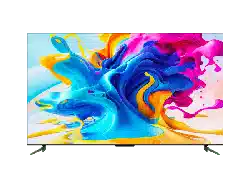
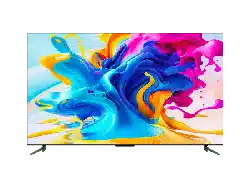
TCL 50C715 50 inch C715 QLED Android TV
Product's Documents
Below are documents related to this product, you can read online or download:
- Owner's manual - (English) Read Online | Download pdf
Owner's Guide Television
Power button 
If the batteries in your remote control are run down, you can use the button on your TV set.
The model has only one  button. It may work just as Power on/Standby button, or as a multi-function controller. You can turn on the TV by pressing the button on the TV set.
While the TV is on, press the button to display the multi-function menu. More information about how to use the multi-function menu, please refer to the figure below.
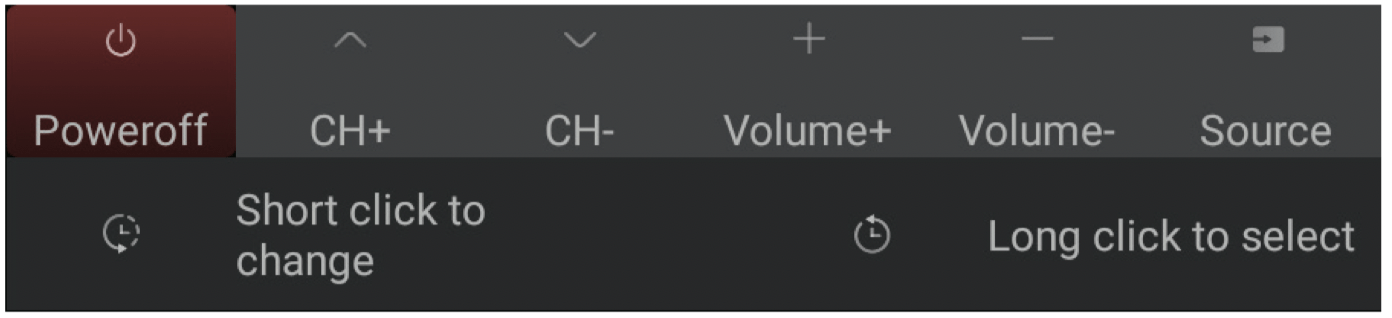
Note: You can follow the on-screen guide to operate. Figures and illustrations are provided for reference only and may vary depending on the model.
MIC switch 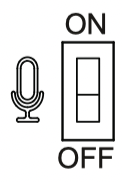 or
or 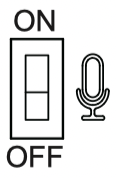
The MIC switch is located next to the power button. If you want to use the feature of hands-free TV voice control, turn on the switch (not available for some models).
Most of your television's functions are available via the menus that appear on the screen. The remote control supplied with your set can be used to navigate through the menus and to configure all the general settings.
Note: figures and illustrations in this operation manual are provided for reference only and may differ from actual product appearance. Certain function may not be available for some models, e.g. GUIDE/SUBTITLE functions are only available under DTV source. And DTV is not available for certain model.

 To switch the sound off and back on.
 Standby / quit standby.
Numeric buttons To enter channel numbers or a digit.
 To access T recommended apps.
LIST To display the channel list.
 To control the volume.
 To display programme information, if available.
 To display the Settings menu.
 To change channels.
 To access the Smart TV homepage.
 To display the Option menu.
▲/▼/◄/► Navigation direction buttons.
OK To confirm an entry or selection.
 To return to the previous menu or quit an app.
 To select input source.
EXIT To exit the Settings menu.
 To select an audio language available for selected digital TV programme.
GUIDE To toggle the Electronic Programme Guide on or off . (only available for digital channels.)
TEXT To toggle Teletext on or off.
SUBT. To select a subtitle language available for selected digital TV programme.
Colour buttons To select tasks or Teletext pages; to be used for HbbTV function.
 To start fast reverse.
 To pause playback.
 To start fast forward.
 To record programmes under DTV source.
 To start playback.
 To stop playback.
 To access the NETFLIX application. (Not available for some models.)
Exclusive Remote Control
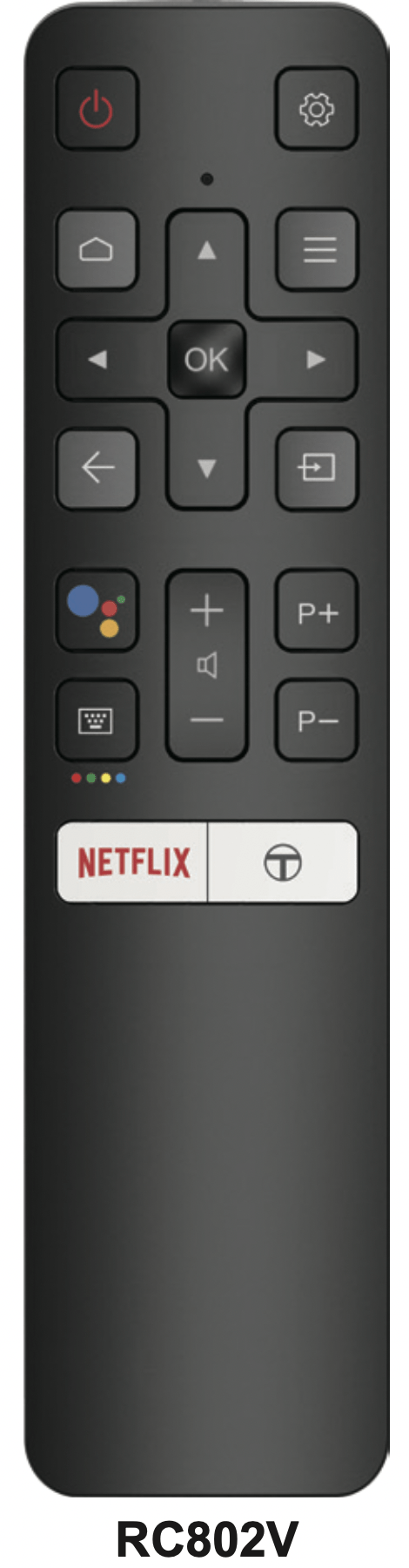
Standby / quit standby.
To display the Settings menu.
To access the Smart TV homepage.
To display the Option menu.
▲/▼/◄/► Navigation direction buttons. The ▲/▼ buttons are also ..used to change channels in TV mode.
OK To confirm an entry or selection. The button is also used to ..display the channel list in TV mode.
To return to the previous menu or quit an app.
To select input source.
 Press the Assistant button on your remote to talk to the Google ..Assistant. (Available only when the network connection works ..normally.)
 To pop up the virtual remote control keyboard when available.
To control the volume.
 To change channels.
To access the NETFLIX. (Not available for some models.)
To access T recommended apps.
Note: This remote control is available only for selected models. The remote control type may be changed without notice.
How to Use the Remote Control
When using the Google Assistant button for the first time, you will be prompted to pair the remote with the TV.
buttons: press the buttons on the remote control to scroll through the channels. buttons: press the buttons on the remote control to scroll through the channels. button: press to display the virtual remote control keyboard, then you can use the numeric buttons or the LIST button to operate accordingly.Press on the remote control to display the source list. Press ▲/▼ to select TV or other input sources and press OK to confirm.
You can also press on the remote control to display the homepage, press ▲/◄/► to move the cursor to the (Inputs) area on the right top of the screen, and press OK to enter. Then press ▲/▼ and OK to select the input source.
Volume control: press the buttons on the remote control or the corresponding buttons on the TV set to increase or decrease the volume.
Sound mute: press the button to temporarily mute the sound. Press this button again or the  button to restore the sound. (Available for RC802N remote control only.)
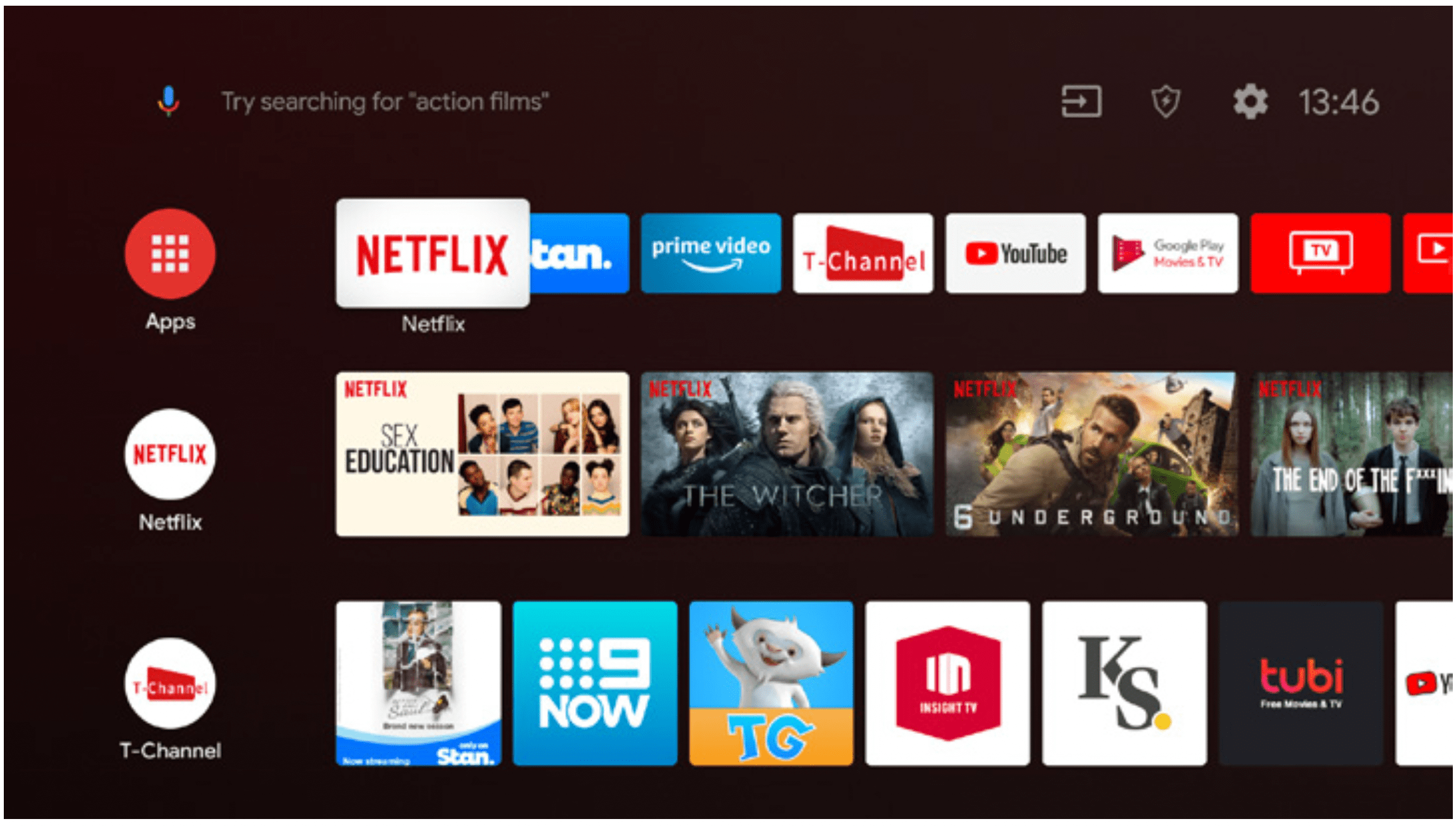
Allows you to enjoy Internet Applications (Apps) and specially adapted Internet websites, and perform system settings for your TV. You can make controlling with the TV remote control.
WARNING:
on the remote control to display the Smart TV homepage. to return to the homepage. (Inputs) area on the right top of the screen, press OK to enter and then press ▲/▼ and OK to select your desired input source.Note: since the connection with Internet takes time, it’s recommended that you wait a few minutes to use the Smart TV feature after activation of TV from standby.
Google Play is your entertainment unbound. It brings together all of the entertainment you love and helps you explore it in new ways, anytime, anywhere. We’ve brought the magic of Google to music, movies, TV, books, magazines, apps and games, so you get more from your content every day.
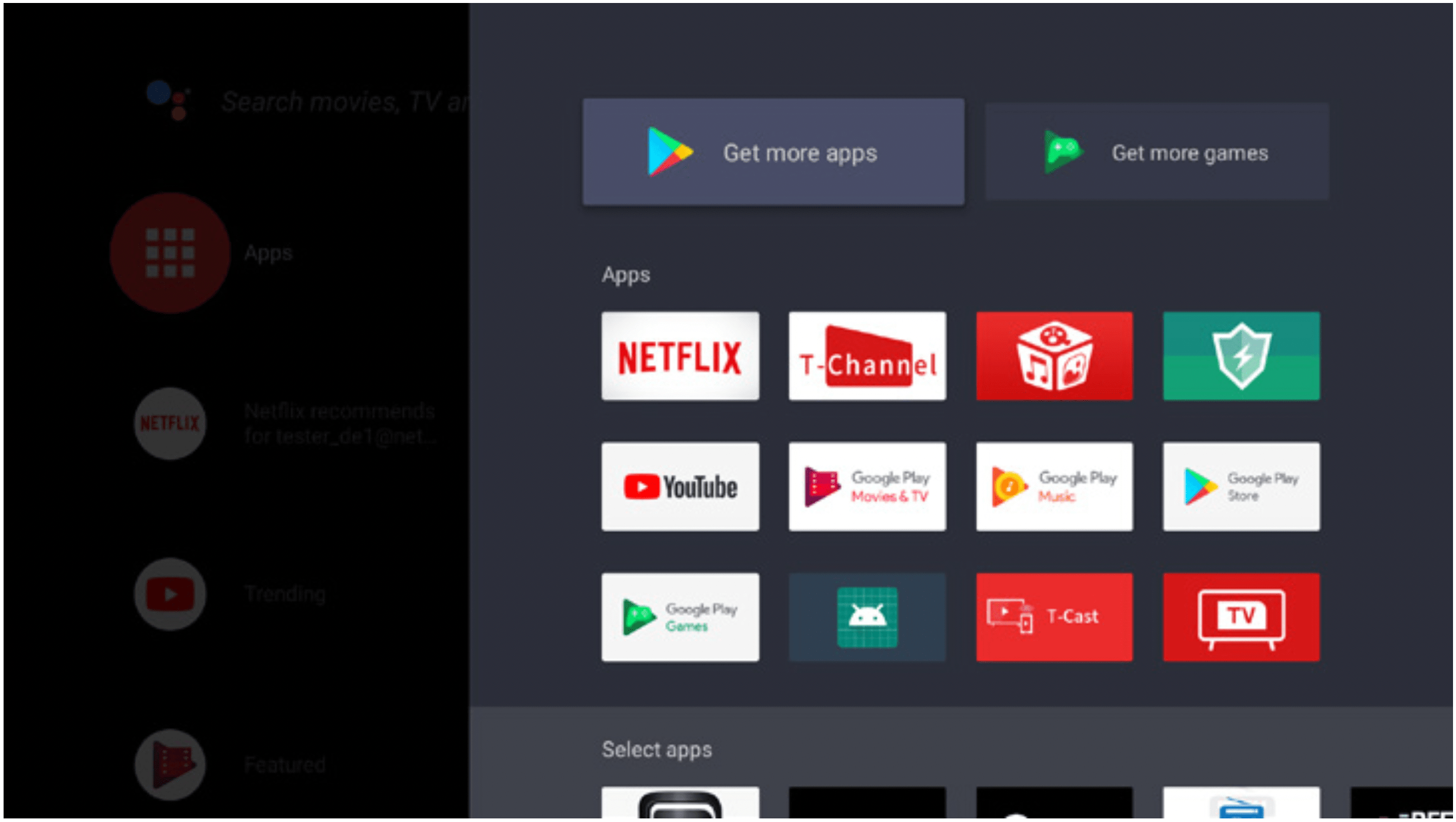
on the remote control to display the Smart TV homepage. to return to the homepage.Allows you to enjoy Internet Applications (Apps).
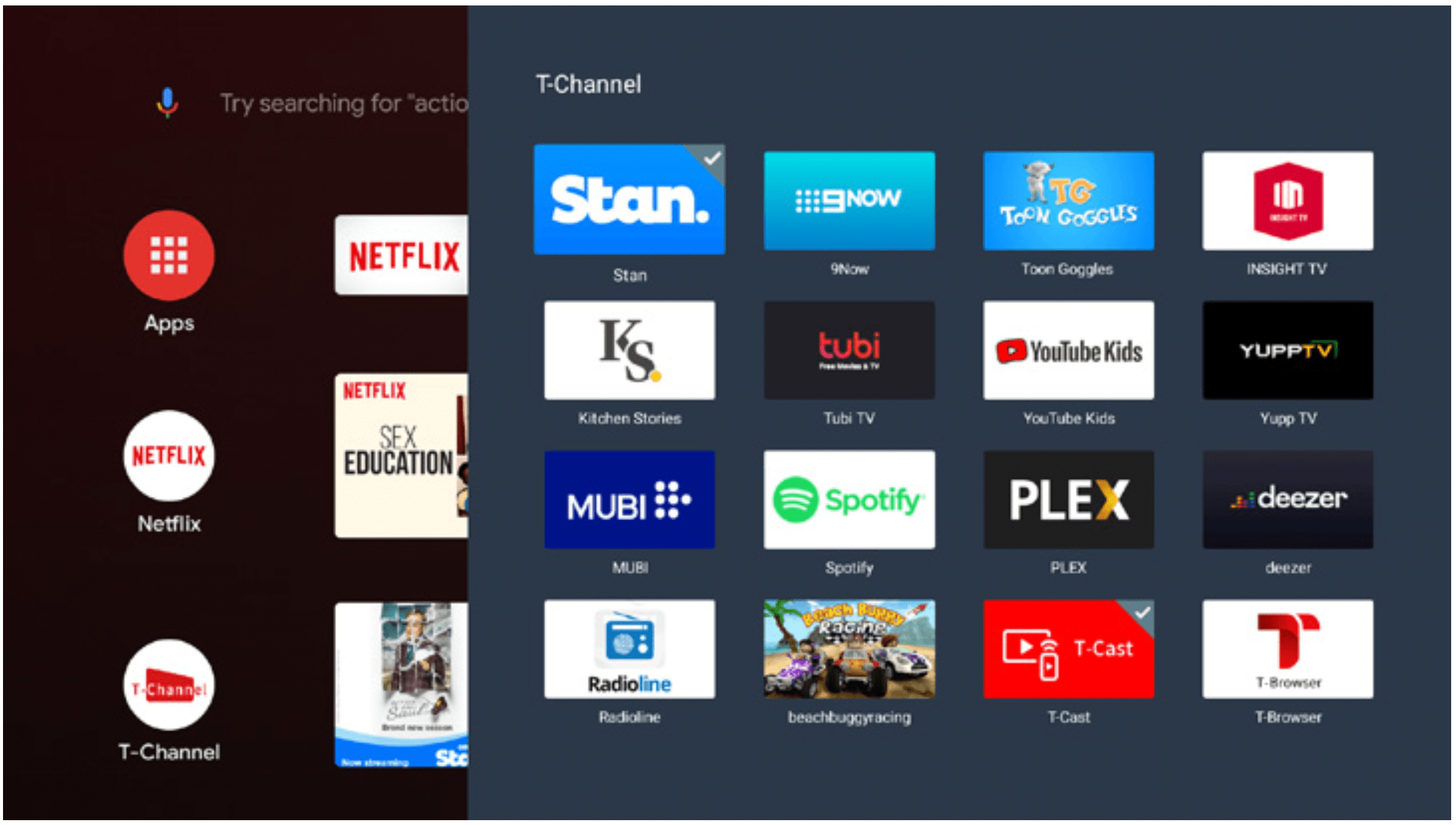
on the remote control to display the recommended apps. to return to the recommend page and exit.Allows you to not only adjust device settings, such as Network & Internet, Accounts & Sign-In, Apps and Device Preferences, etc., but also set preferences.
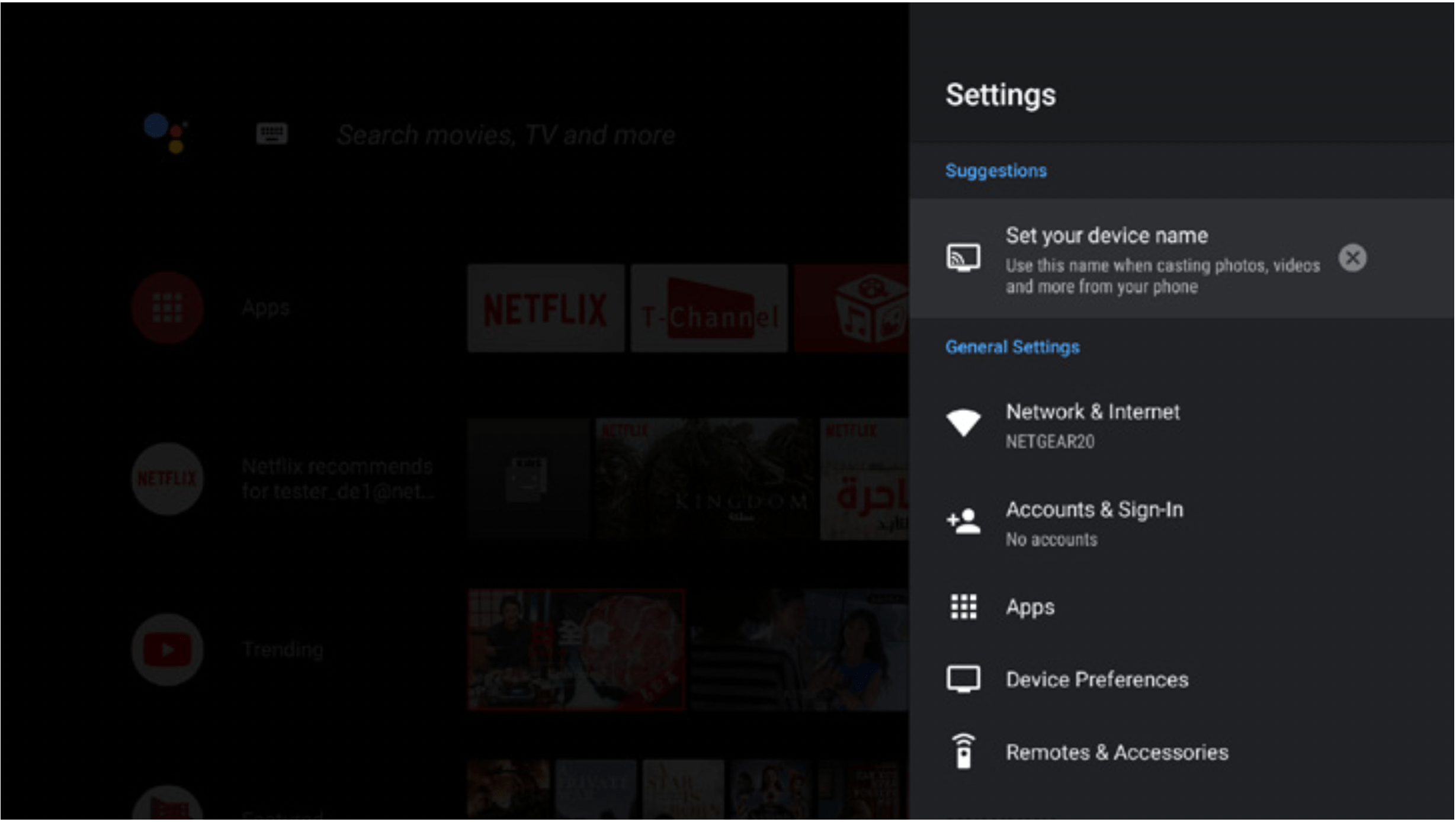
on the remote control to display the Smart TV homepage.(Settings) on the right top of the screen and press OK to enter the system settings. to return to previous interface.It enables you to turn on your TV faster from standby mode than turning this function off, but it will also increase standby power consumption.
to return to previous interface.Allows you to adjust TV settings, such as picture and sound.
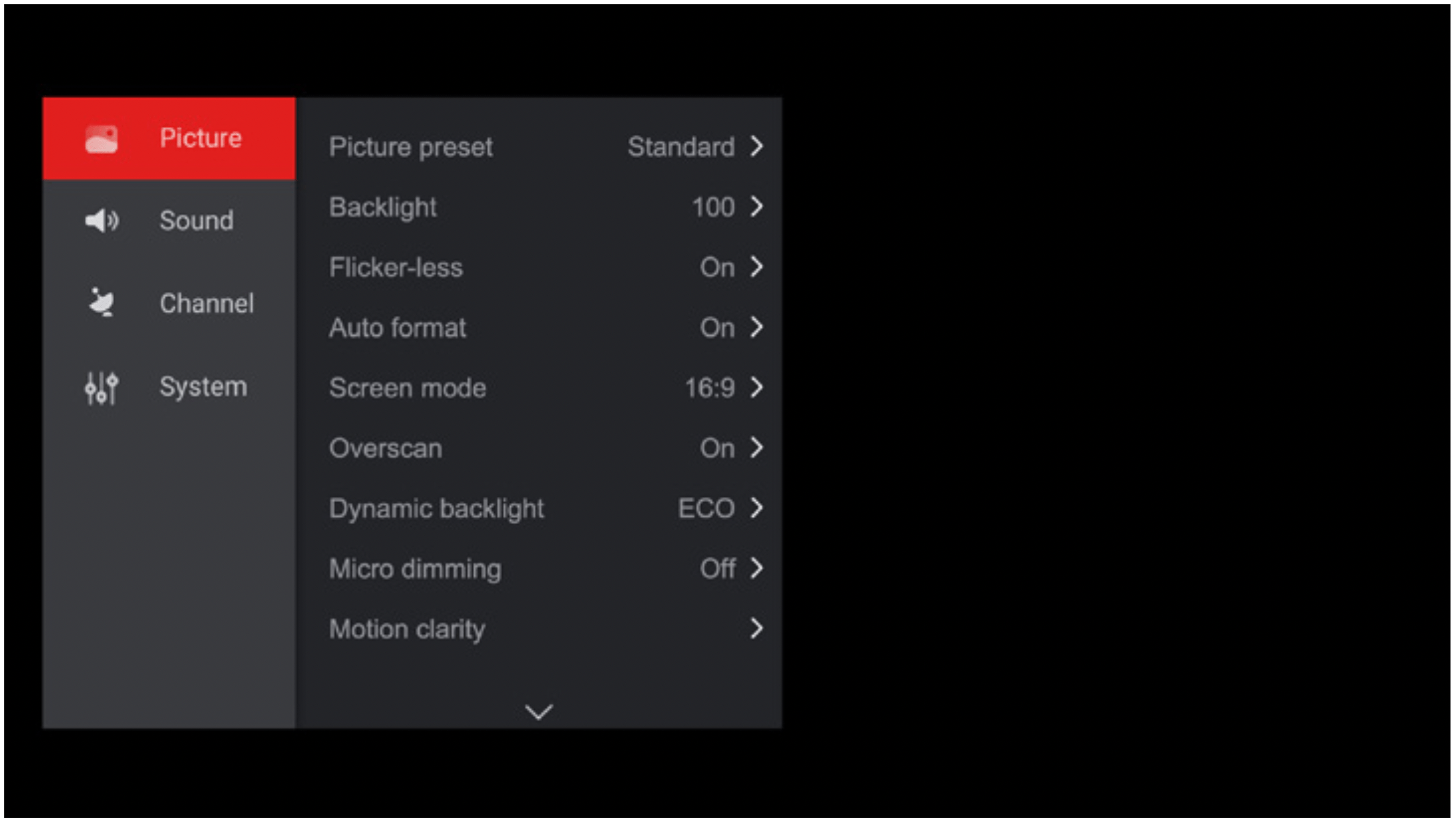
on the remote control to display the Settings menu. to return to the previous menu. to close the menu.Notes:
on the remote control, select Settings (if available) and press OK to enter the Settings menu. Some options may not be available for certain signal sources.This section describes how to search and store channels automatically. This may be done in any of the cases below:
on the remote control and select Channel > Channel scan. Press OK/► to enter. on the remote control, select Channel > Channel organizer and press OK/► to enter.Note: If the channel search retrieved only the analogue channels it could be caused by poor broadcasting and therefore is not covered by manufacturer warranty. Manufacturers cannot be held responsible for lack of or poor broadcasting in some areas.
You can enable subtitles for each TV channel. Subtitles are broadcast via Teletext or DVB-T digital broadcasts. With digital broadcasts, you have the additional option of selecting a preferred subtitle language.
Note: some options are available only when Subtitle is set to On.
Turning On/Off Subtitles
to close the menu.Enabling Subtitle Languages on digital TV Channels
on the remote control, select Channel > Subtitle > Digital subtitle language 1st and press OK/► to enter. to close the menu.Shortcut operation: Press SUBT. on the remote control to directly select a subtitle language available for the selected digital TV programme. (Available for RC802N remote control only.)
Selecting a Subtitle Type on Digital TV Channels
on the remote control, select Channel > Subtitle > Subtitle type and press OK/► to enter. to close the menu.Selecting Decoding Page Language
on the remote control, select Channel > Teletext > Decoding page language and press OK/► to enter. to close the menu.Digital Teletext Language
On digital TV channels, depending on the broadcaster, you may be able to enjoy a service with multiple initial Teletext pages in different languages. This function allows you to select an available language as primary language, which relates to different initial Teletext pages.
on the remote control, select Channel > Teletext > Digital teletext language and press OK/► to enter. to close the menu.This function allows you to turn on your TV from standby mode via a network. To use this function, please make sure:
> (Settings) > Network & Internet and use ▼ to select Networked standby and press OK to activate.When the TV is in networked standby mode, you can use the app to wake up the TV remotely.
Notes:
button on the remote control and confirm to shut the TV down (Settings) > Device Preferences > Power > Instant power on is set to on.Use this function to search for CEC devices connected to the HDMI sockets in your TV and enable auto power on and auto standby between the TV and CEC devices.
Enabling or Disabling T-Link
on the remote control, select System > T-Link and press OK/► to enter. to close the menu.Using Auto Power On
Enables the TV to automatically power on when you power on a CEC device (e.g. DVD) with the device’s remote. Select On to enable this function.
Using Auto Standby
Enables all CEC devices to automatically go to the standby mode when you turn off the TV with the TV remote. Select On to enable this function.
Note: the CEC functions depend on the devices connected and it is possible that some devices may not interoperate correctly when connected to this TV. The user manual or the manufacturer of the problematic devices should be consulted for further information.
T-Cast lets you enjoy plenty of videos, rich of applications, and share great contents on large screen. It also allows you to turn a smart device into a sophisticated remote control, providing more features than your normal TV remote control. You can then control your TV through your smart device.
Follow the on-screen instructions to scan the QR code on the TV screen and download T-Cast.
Note: Make sure the smart device and your TV are in the same home LAN (local area network) or network segment to use TV remote function.
EPG is an on-screen guide that displays scheduled digital TV programmes. You can navigate, select and view programmes.
Note: the DTV EPG does not require an internet connection.To use the DTV EPG, HbbTV must be set to Off. when HbbTV is set to ON, then it will enter the HbbTV EPG directly. Please refer to “ HbbTV ” part of this manual for assistance to set HbbTV to on or off.
1. Press on the remote control, select Channel > EPG and press OK/► to enter, or press GUIDE directly (if available) on the remote control, the Programme Guide menu will appear, which allows you to get information about the current or next programme playing on each channel. Navigate through the different programmes using the ▲/▼/◄/► buttons on the remote control.
2. Use the related buttons shown at the bottom of the screen to view EPG.
to display the type list of the programme.Note: if using the remote control of RC802V, to access the colour buttons, you need to press button on the remote control to display the virtual remote control keyboard first.
3. Press to exit EPG.
(* not available for some models)
Bluetooth ® is a wireless technology standard for exchanging data over short distance between Bluetooth devices. You can connect Bluetooth audio device, mouse or keyboard via the TV.
on the remote control, press ▲/◄/► to move the cursor to the (Settings) area on the right top of the screen and press OK to enter.Note: bluetooth technology (if available in your TV) uses 2.4GHz frequency thus close proximity to Wi-Fi access points, routers or microwave ovens might interfere with Bluetooth audio streaming. If you face interruptions in audio reception, you should restart your Bluetooth device to find frequency with less interferences and if you continue to face issues you should move closer to TV or increase space between TV and source of interferences.
The Bluetooth word mark and logos are registered trademarks owned by Bluetooth SIG, Inc. and any use of such marks by TCL is under license. Other trademarks and trade names are those of their respective owners.
(* not available for some models)
Allows you to pause, fast forward and rewind live TV, so you don’t have to miss any part of your favourite programmes. Before you use the function, connect a USB drive to the TV first. For the first time, you should complete the disk setup for the USB drive.
Press on the remote control and select Time shift, then press OK/► to confirm. (Note: this option is available only when Time shift is set to On: press on the remote control, press ▲/▼ to select Settings > Channel > Time Shift, press OK/► to enter and use ▲/▼ to set Time Shift to On or Off.)
and select Time shift. Press OK to display the time shift menu and operate according to the on-screen prompt. button on the remote control stops the time shift and exits.(for RC802V, you can find button on the virtual remote control keyboard.)Notes:
Note: problems & solutions 1 to 2 are for the TV models which have network functions, so users of non-connected TV models can disregard them.
1. Fail to link to the network.
2. The video could not be played smoothly.
3. When two mobile hard disks are connected with the TV at the same time, they will not be recognized some times.
4. The video from a mobile hard disk (USB) is playing with no sound.
5. Some videos fail to play.
6. Video stops playing midway.
7. What should I pay attention to, when I do SW updating?
8. There are no distinct changes of TV interface after SW updating.
9. What should I do when SW updating process stops due to a sudden power-off?
10. With a USB device being inserted into the TV in advance, I am prompted that no USB devices are detected after I access Media, why?
11. External device cannot be recognized.
12. Voice search does not work.
Most problems you encounter with your TV can be corrected by consulting the following troubleshooting list.
No picture, no sound
No colour
Remote control does not work
No picture, normal sound
Normal picture, no sound
Unorderly ripples on the picture
It is usually caused by local interference, such as cars, daylight lamps and hair driers. Adjust the antenna to minimize the interference.
Snowy dots and interference
If the antenna is located in the fringe area of a television signal where the signal is weak, the picture may be marred by dots. When the signal is extremely weak, it may be necessary to install a special antenna to improve the reception.
Ignition
Black spots or horizontal streaks appear, or the picture flutters or drifts. This is usually caused by interference from car ignition system, neon lamps, electric drills, or other electrical appliance.
Ghost
Ghosts are caused by the television signal following two paths. One is the direct path, the other is reflected from tall buildings, hills, or other objects. Changing the direction or position of the antenna may improve the reception.
Radio frequency interference
This interference produces moving ripples or diagonal streaks, and in some case, loss of contrast in the picture. Find out and remove the radio interference source.
*To bring you better visual experience, please remove all labels, if any, from TV front panel and screen before use.
*Figures and illustrations in this User Manual are provided for reference only and may differ from actual product appearance. Product design and specifications may be changed without notice.
Reference file: TCL 50C715 50 inch C715 QLED Android TV
Series: P715/C715 SERIES