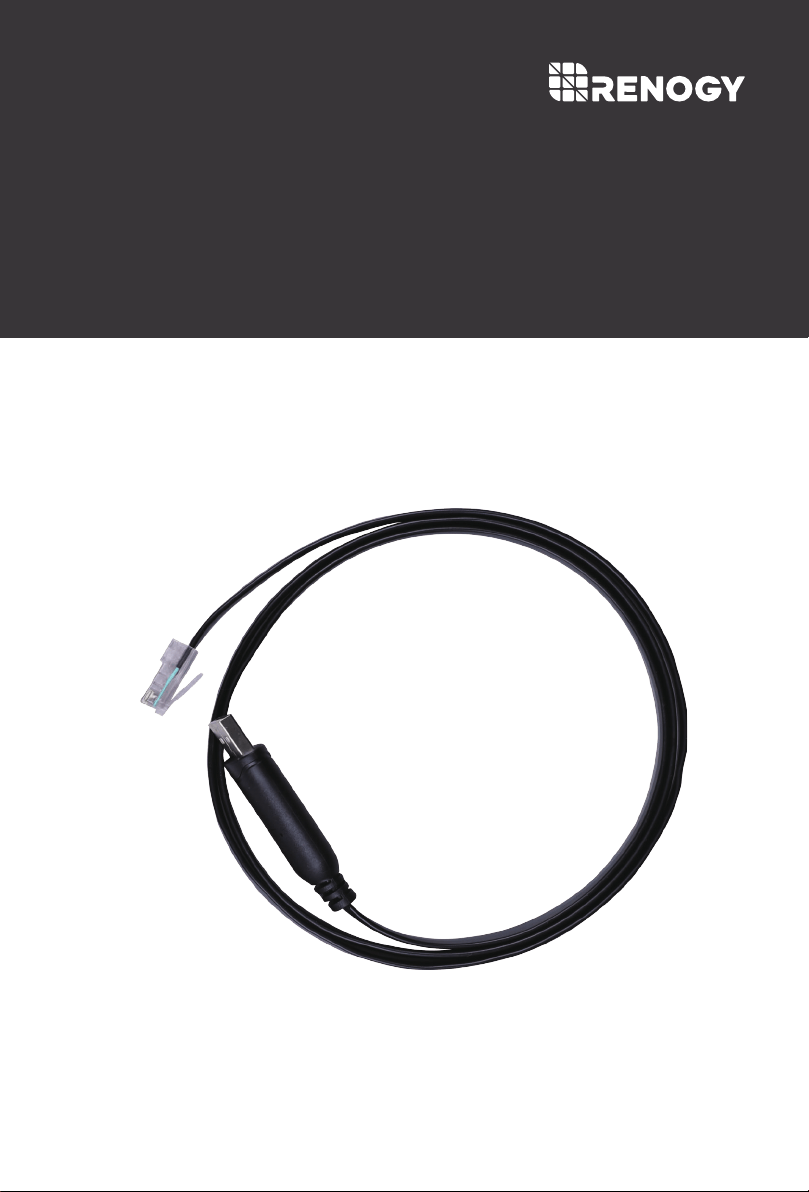
RS485 to USB
Version 1.3
SERIAL CABLE
Disclaimer
General Safety Information
Important Safety Instructions
Please save these instructions.
This manual contains important operation instructions for the RS485 to USB Serial Cable.
Please observe these instructions and keep them located near the serial cable for further
reference. The following symbols are used throughout the manual to indicate potentially
dangerous conditions or important safety information.
Force majeure including fire, typhoon, flood, earthquake, war, and terrorism.
Please disconnect the battery from the system before connecting it to the PC using a serial cable.
The serial cable is designed for Renogy Smart Lithium Iron Phosphate Batteries. DO NOT
attempt to connect other devices to the PC using the serial cable.
Please keep the battery away from water, heat sources, sparks, and hazardous chemicals.
DO NOT place tools on top of the battery.
DO NOT touch battery terminals.
Intentional or accidental misuse, abuse, neglect or improper maintenance, and use under
abnormal conditions.
Improper installation, improper operation, and malfunction of a peripheral device.
Contamination with hazardous substances, diseases, vermin, or radiation.
Alterations to the product without express written consent from the manufacturer.
Indicates a potentially dangerous condition. Use extreme caution when
performing this task.
Indicates a critical procedure for the safe and proper operation of the serial
cable.
Indicates a procedure or function that is important to the safe and proper
operation of the serial cable.
The manufacturer accepts no liability for any damage caused by:

Please ensure the stability of the firmware update environment. Unexpected situations such
as a power outage of the PC, trigging of the battery protection modes, disconnection of the
serial cable, and shutdown of the firmware update tool may cause update failure and battery
management system (BMS) lockout. It is highly recommended to turn off the antivirus
software, lock screen, screensaver,automatic sleep, and automatic system update on your
PC. Please ensure that the battery has a static voltage higher than 13.2V and is placed in a
room temperature environment before updating the firmware. DO NOT disconnect the
serial cable or operate the PC while the firmware update is in progress. If a laptop is used
for firmware update, please make sure that it has been plugged in or that its battery level is
over 50%.
DO NOT download the firmware update tool or battery firmware from unknown sources.
DO NOT puncture, drop, crush, burn, penetrate, or strike the serial cable.
TABLE OF CONTENTS
GENERAL INFORMATION
PRODUCT OVERVIEW
PREPARATION
OPERATIONS

GENERAL INFORMATION
The Renogy RS485 to USB Serial Cable is designed to connect Renogy Smart Lithium Iron
Phosphate Battery to a PC for firmware updates. With the help of the Renogy Firmware Update
Tool, you can keep the firmware of your Smart Lithium Iron Phosphate Battery up to date, enabling
smarter charge/discharge process management and state of charge estimation algorithm.
Flat wire design helps to avoid tangles
Low operating and USB suspended current
Low USB bandwidth consumption
USB 2.0 full speed compatible
Key Features
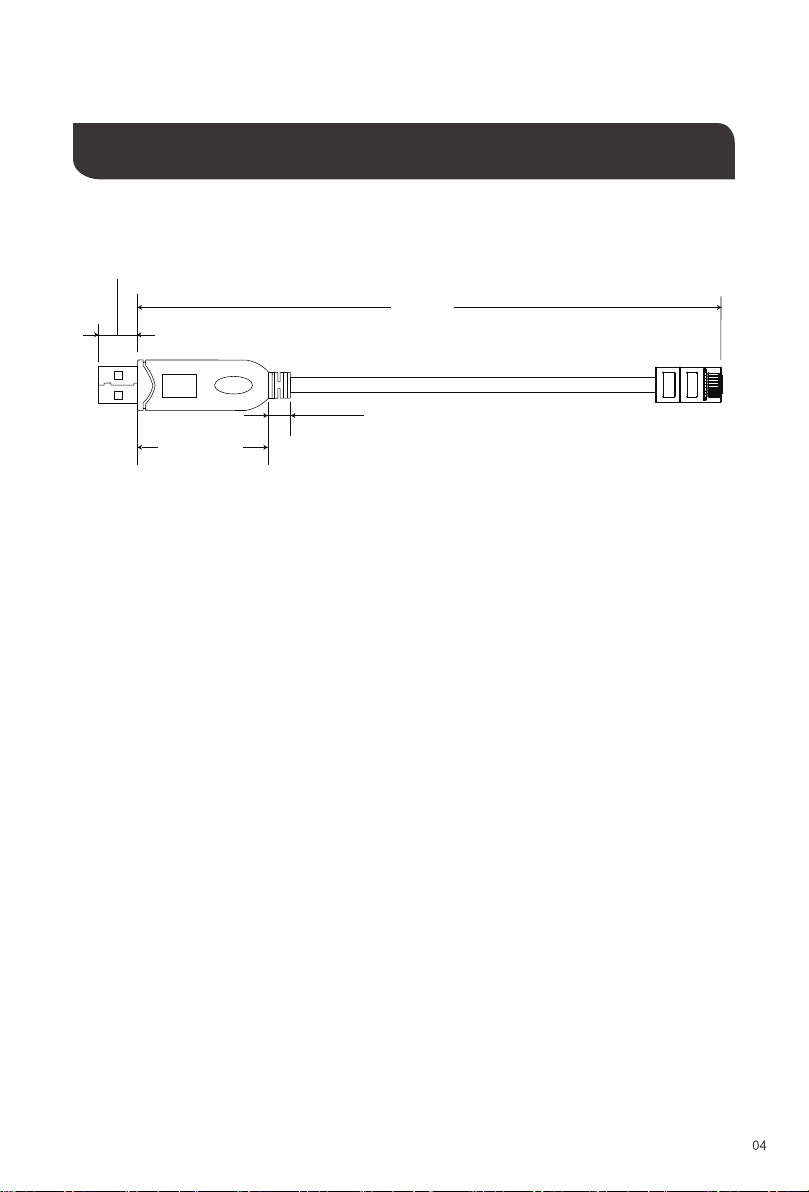
PRODUCT OVERVIEW
1800.0mm
5.9 in
10.0mm
0.4 in
12.0mm
0.5 in
45.0mm
1.8 in

Available on https://www.ftdichip.com/Drivers/VCP.htm. Please download the appropriate
driver based on your PC’s operating system version and processor architecture. Once
downloaded, install the driver according to the corresponding installation guide.
Available on our website in the Download section of the RS485 to USB Serial Cable product
page (https://www.renogy.com/rs485-to-usb-serial-cable/) or your region’s corresponding
website. Please download the appropriate installer based on your PC’s processor architecture
and install the firmware update tool according to the installation instructions in the
OPERATIONS section.
Available on our website in the Download section of the Renogy Smart Lithium Iron Phosphate
Battery product page or your region’s corresponding website. Please see OPERATIONS
section for firmware update instructions.
PREPARATION
Before updating the battery firmware, please have the following software available on your PC:
Virtual COM Port (VCP) Driver
Renogy Firmware Update Tool Installer
Latest Firmware for Renogy Smart Lithium Iron Phosphate Battery
OPERATIONS
Installing Renogy Firmware Update Tool
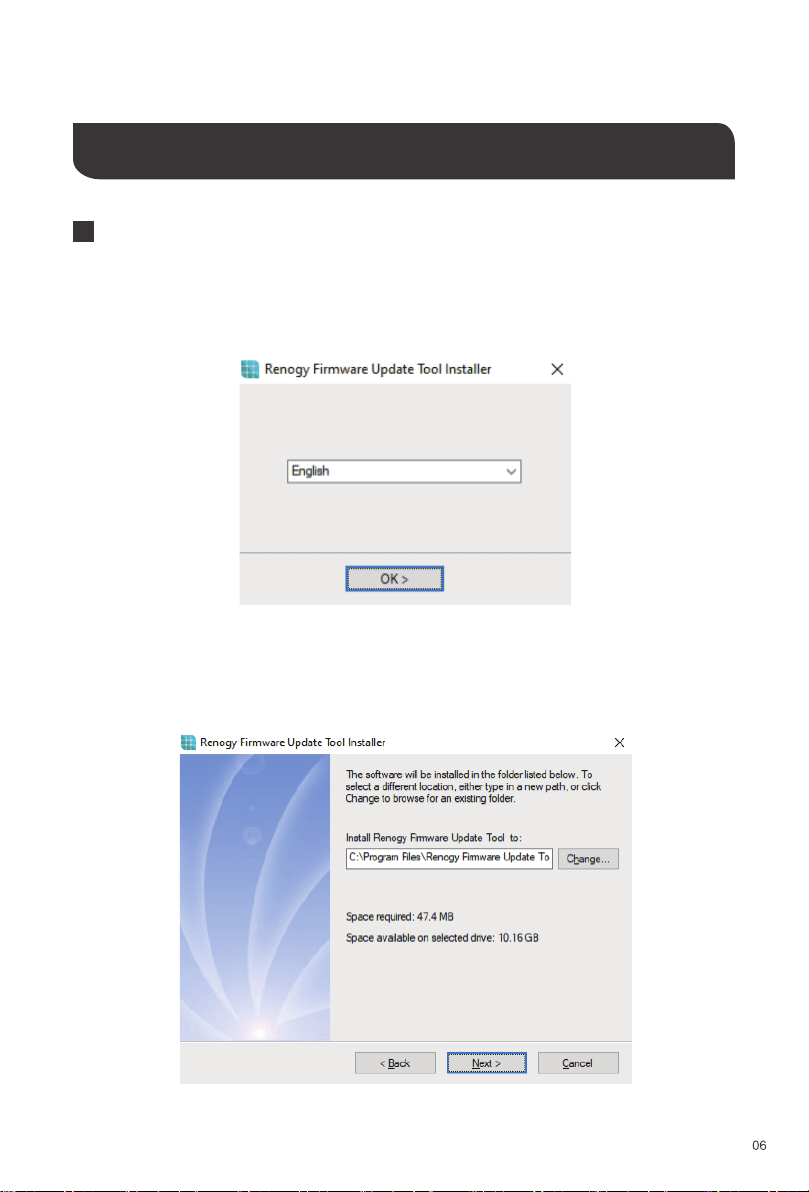
1.Open the Renogy Firmware Update Tool Installer.
2.Choose a preferred language and click [OK].
3.Specify the installation directory and click [Next].
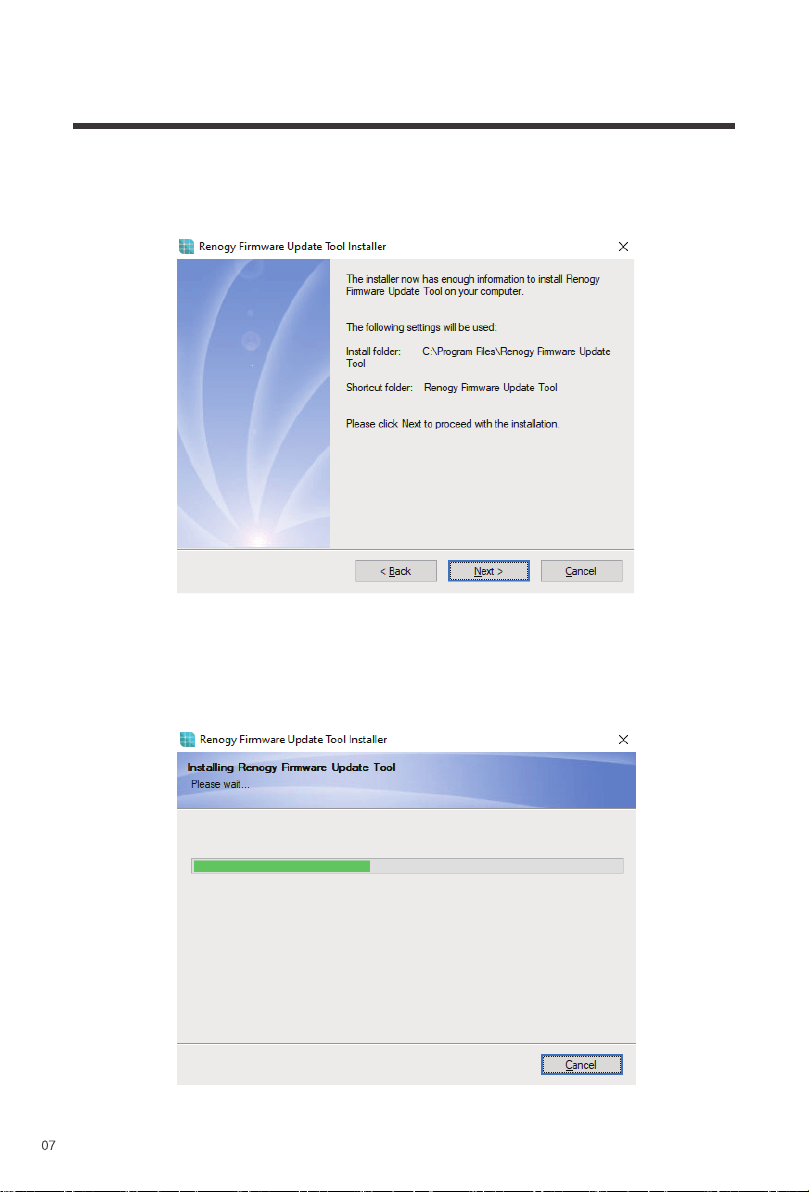
4.Confirm the installation setting and click [Next].
5.Installation starts. Wait until finished.
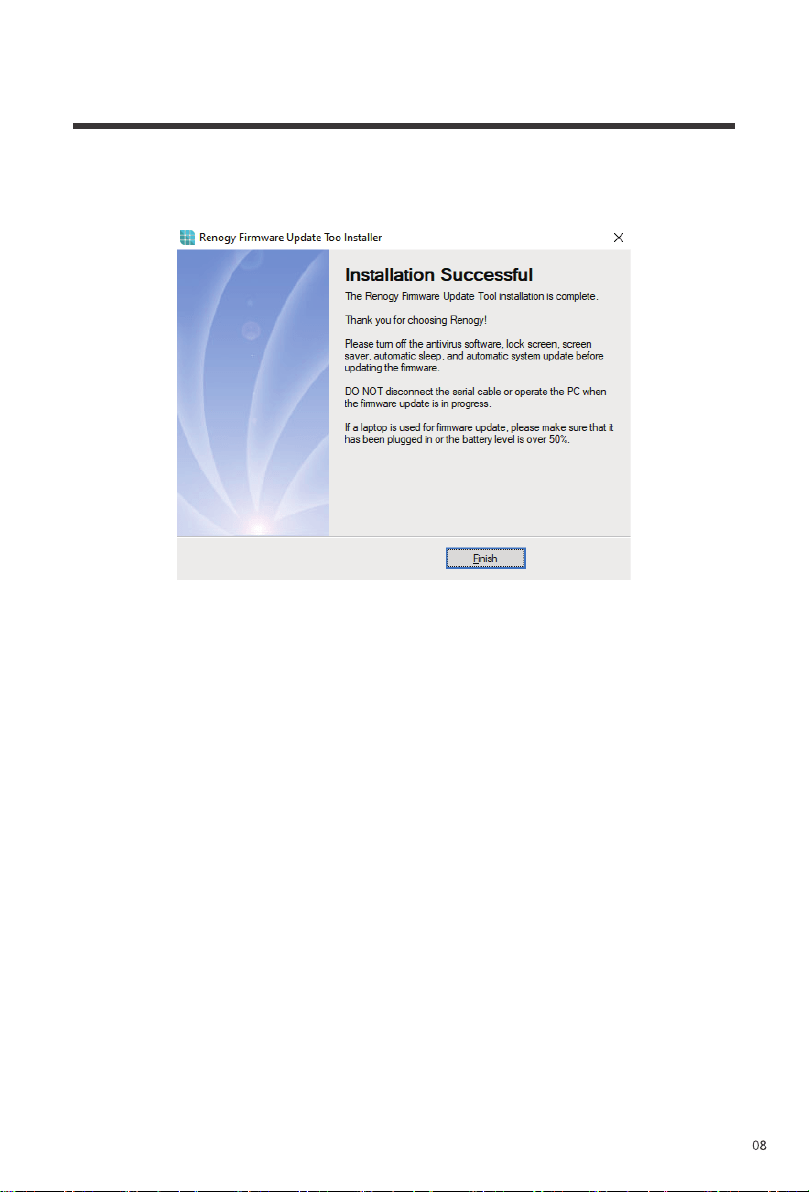
6.Installation finished. Read the firmware update instructions carefully and click [Finish].
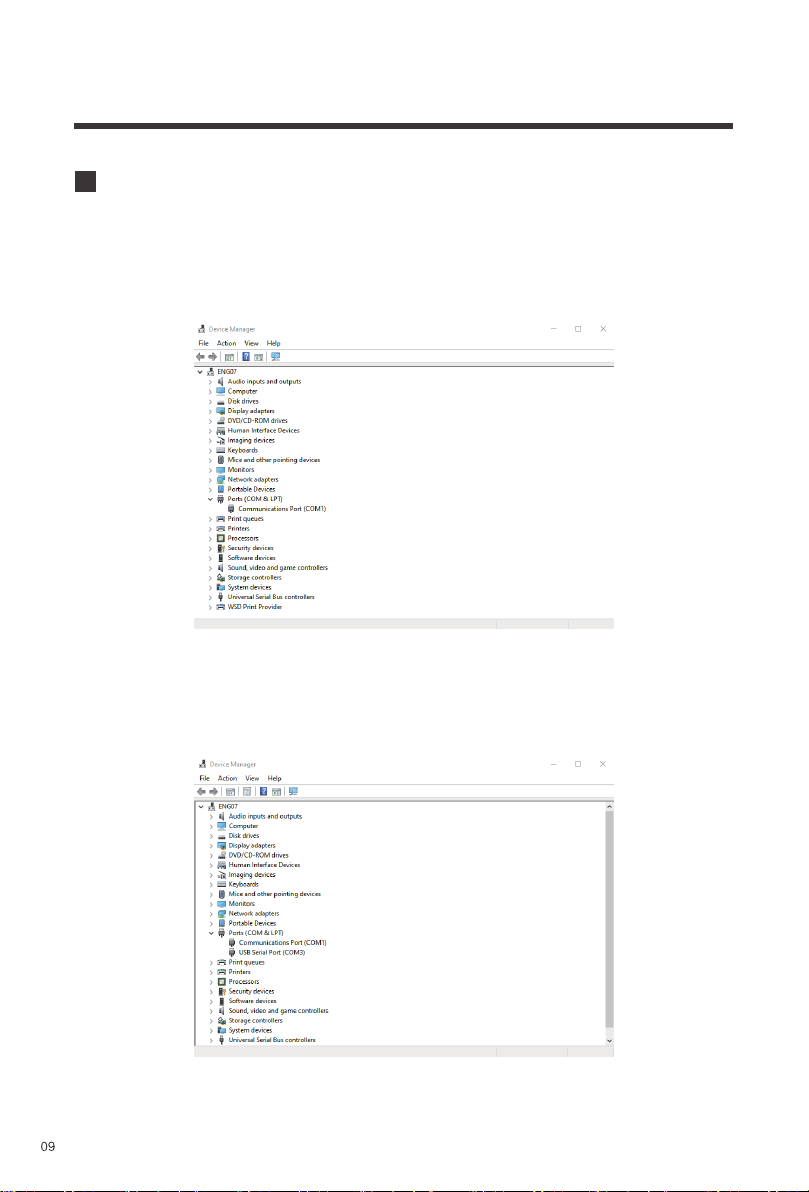
1.Open the Device Manager in the Control Panel of your PC before connecting the battery to
the PC using a serial cable. Depending on your Windows operating system, the Device
Manager may be under Hardware & Sound.
2.Expand the Ports (COM & LPT).
Identifying Serial Port Name
3.Connect the battery to your PC using a serial cable and a new serial port will appear under
Ports (COM & LPT), followed by its serial port name.
Updating Battery Firmware
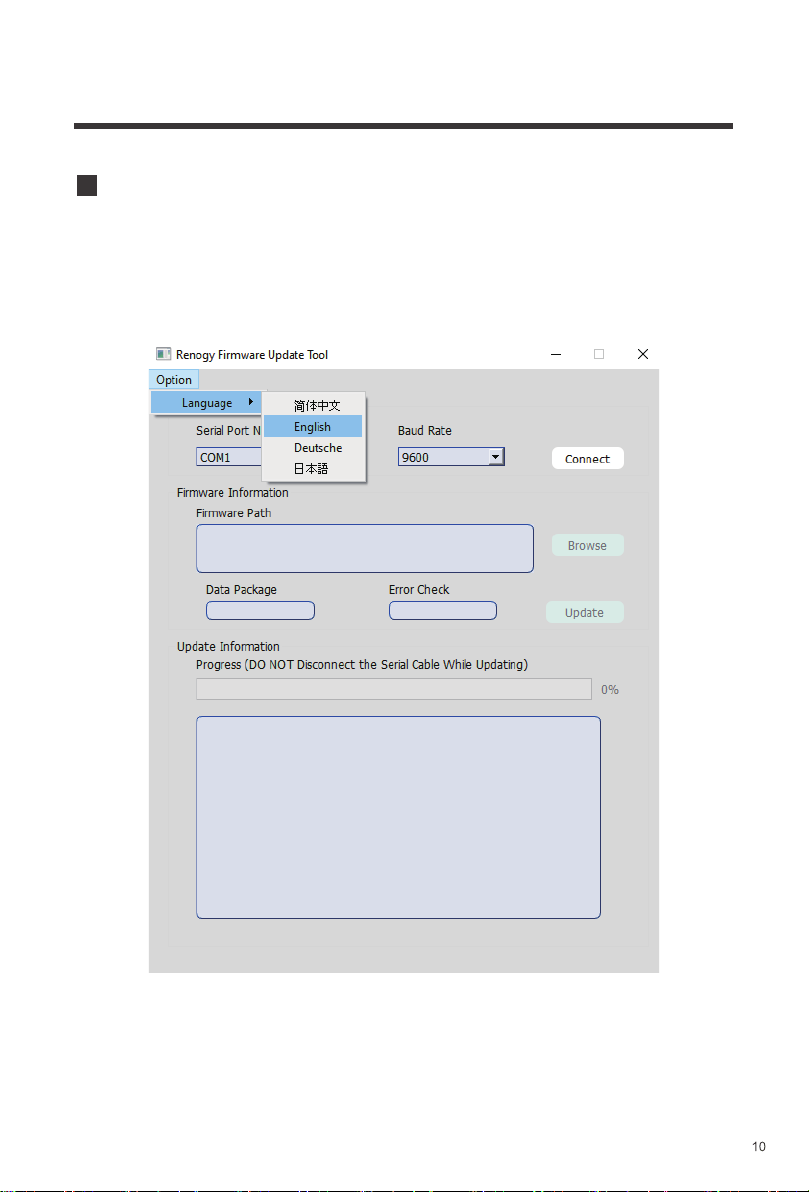
2.Open the Renogy Firmware Update Tool.
3. Go to [Option] > [Language] to choose a preferred language.
1.Connect the UP communication port of the battery to your PC’s USB port with the serial cable.
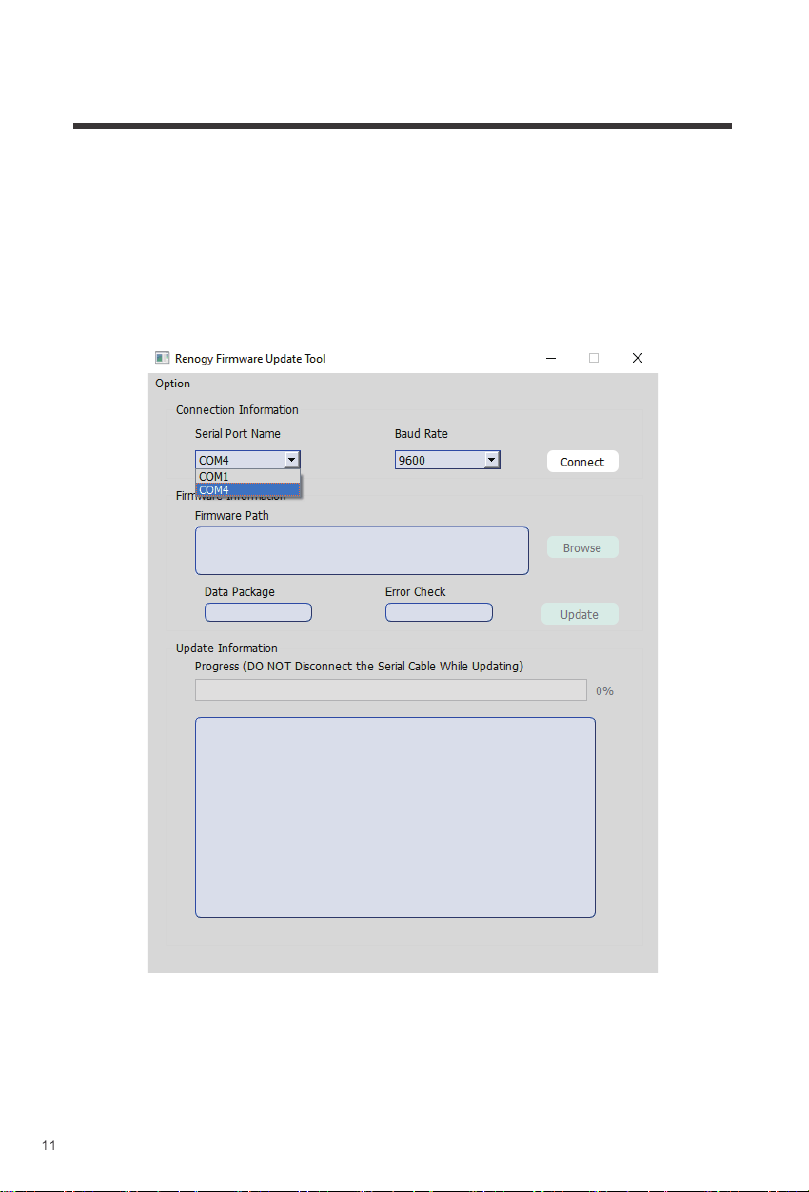
4.Click on the Serial Port Name drop-down menu to select the name of the serial port that the
battery is connected to.
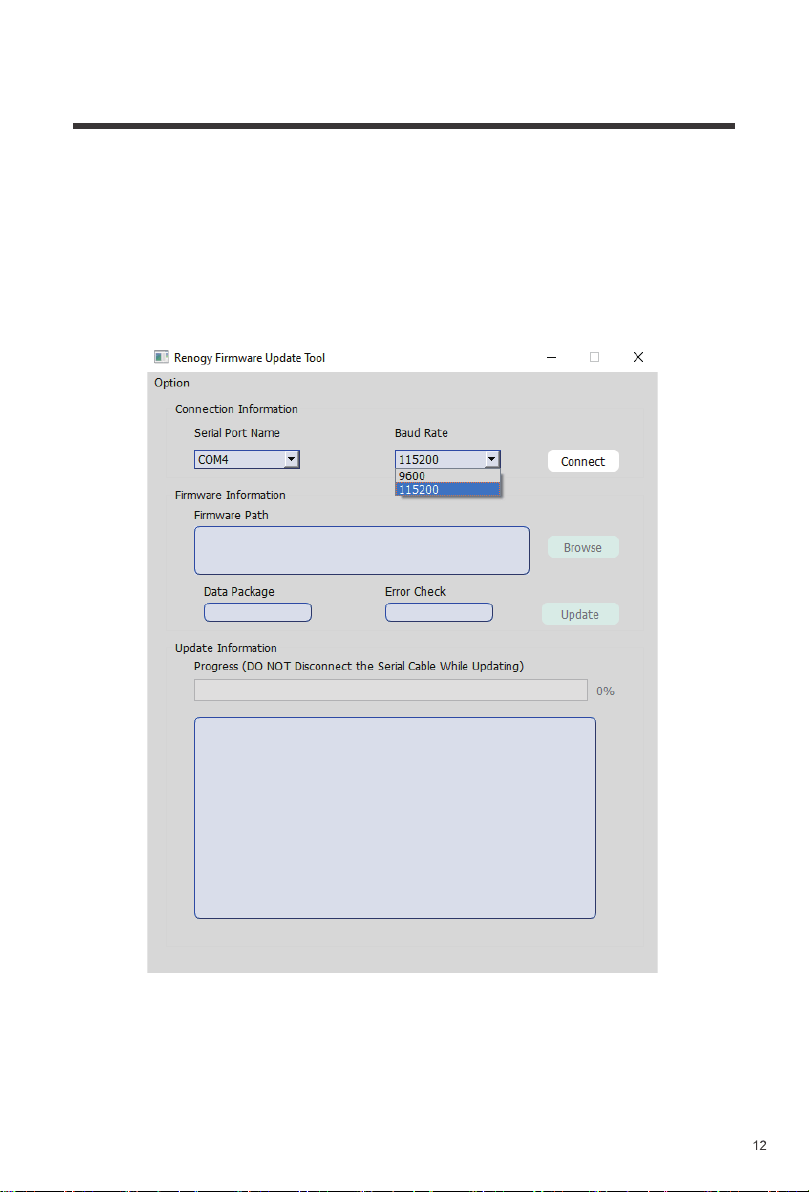
5. Click on the Baud Rate drop-down menu to change the baud rate to 115200.
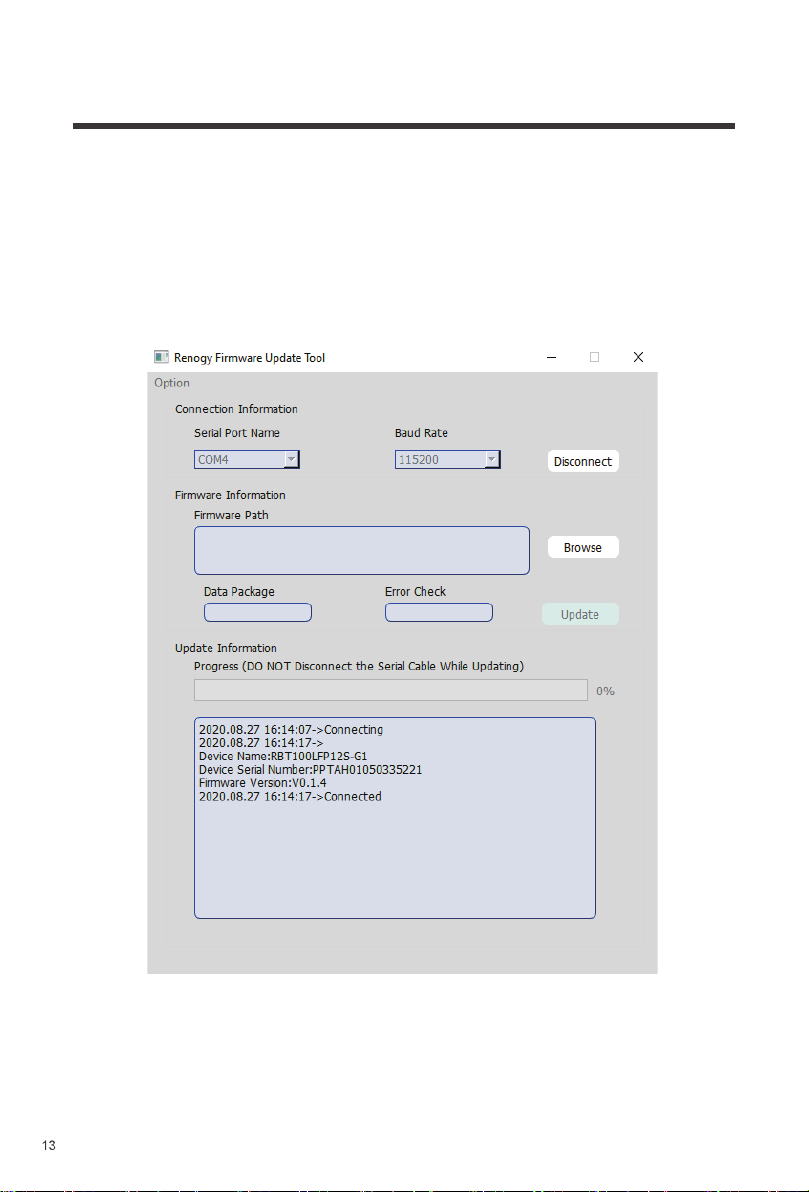
6.Click [Connect] to connect the battery to the Renogy Firmware Update Tool. Once the
connection is successful, the current battery firmware version will be displayed in the text box
at the bottom of the window.
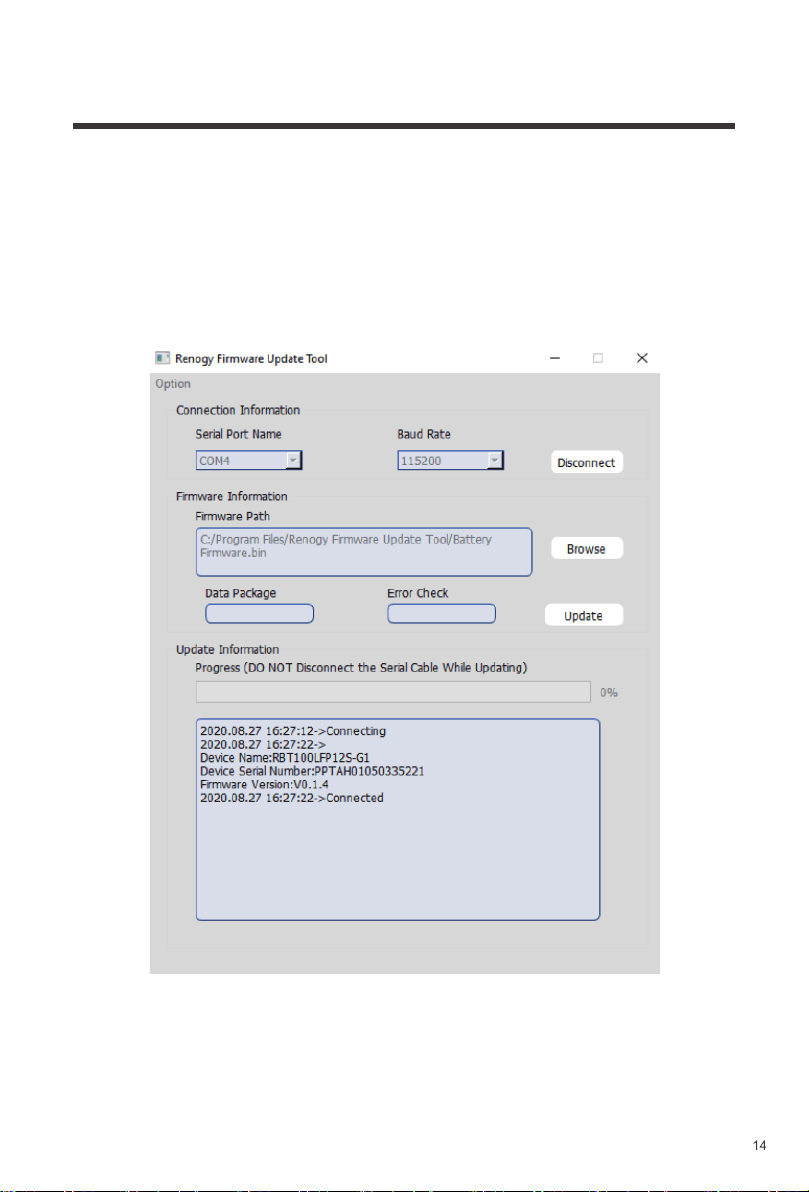
7.Click [Browse] to select the Latest Firmware for the Renogy Smart Lithium Iron Phosphate
Battery and Click [Update] to begin the firmware update.
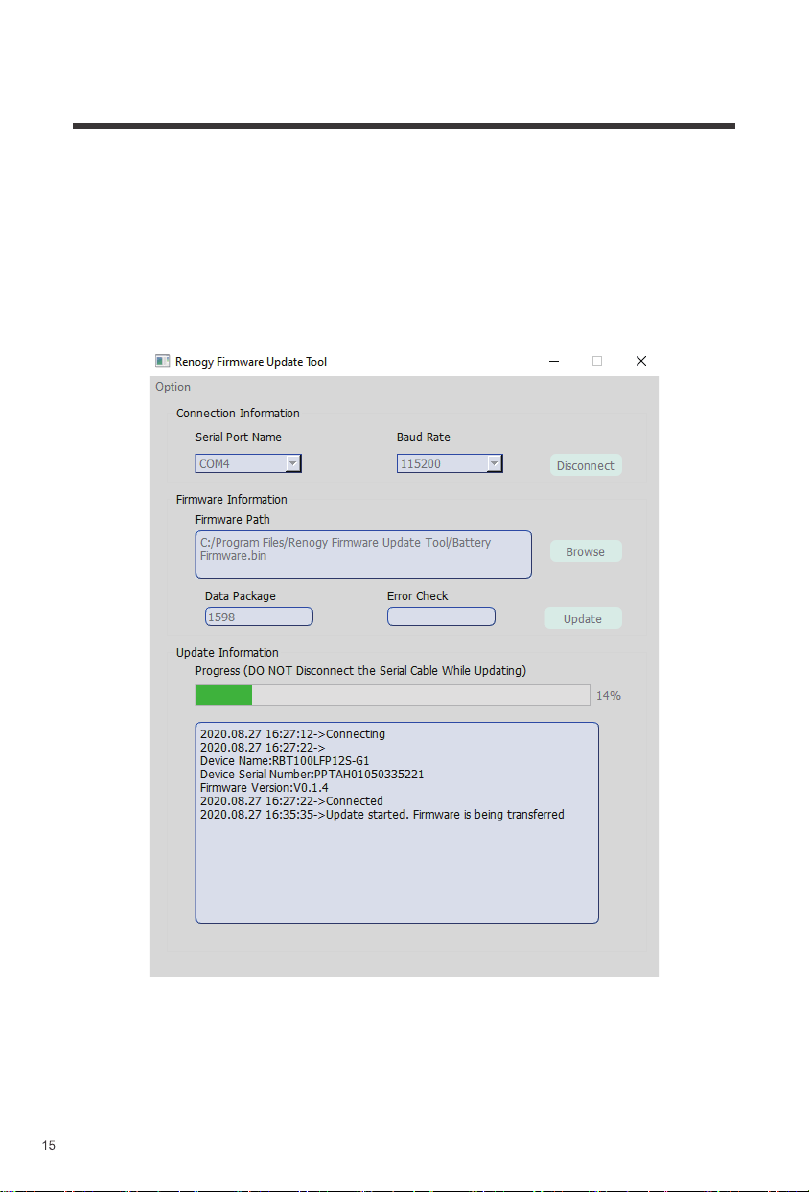
8.Firmware update starts. Wait until finished.
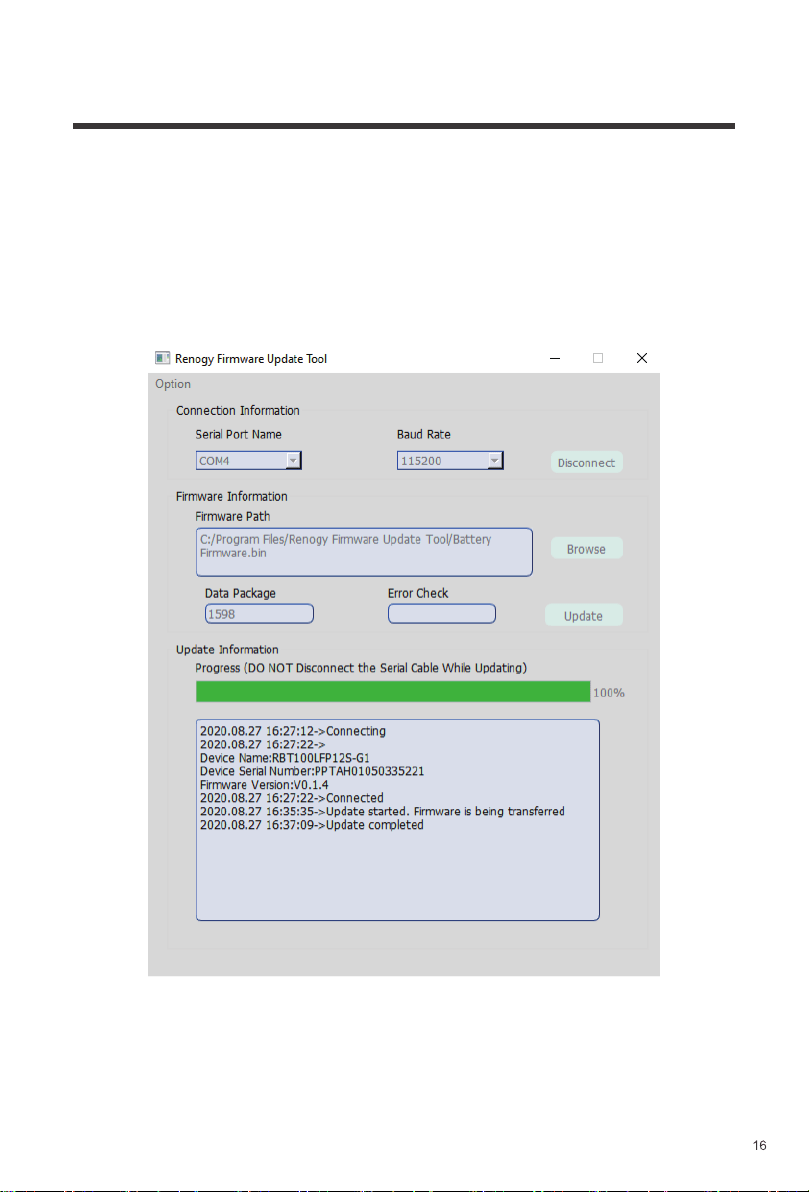
9.Firmware update finished. Exit the Renogy Firmware Update Tool.

DO NOT disconnect the serial cable or operate the PC when the firmware update is in
progress. Doing so may cause update failure and battery management system (BMS)
lockout.
DO NOT exit the Renogy Firmware Update Tool while connecting the battery. Doing so may
cause a background process conflict.
DO NOT hot-unplug the battery except after the firmware update is complete. Please click
[Disconnect] before disconnecting the battery from the PC.
Please make sure that the battery has been activated before connecting to the PC using the
activation switch that comes with the battery.
If the firmware update involves the improvement of the state of charge estimation algorithm,
please fully discharge and charge the battery to calibrate the state of charge.

TROUBLESHOOTING
TECHNICAL SPECIFICATIONS
If any problems occur during the firmware update, please refer to the following instructions or
contact Renogy for help:
If the battery fails to connect to the Renogy Firmware Update Tool, please check the battery
and PC connections. If all the connections are solid, please check the serial port name and
baud rate settings. If the serial port name and baud rate are set correctly, please check if the
battery has been activated. If the battery cannot be activated, it may have entered protection
mode and will need special attention. Refer to the user manual of the battery for more
details.
If the Renogy Firmware Update Tool prompts that "Failed to open the serial port" while
connecting the battery, it may have encountered a background process conflict. Please
restart the PC and reconnect the battery to the Renogy Firmware Update Tool.
If the Renogy Firmware Update Tool prompts that "Device no response", "Data package
parsing failed", or "Update failed" when the firmware update is in progress, the serial cable
connection may be loose. Please check the battery and PC connections, reconnect the
battery to the Renogy Firmware Update Tool, and update the firmware again. The
reconnection may take 1-3 minutes.
If the Renogy Monitoring Screen connected to the battery resets frequently after the
firmware update, please reactivate the battery using the Renogy Monitoring Screen or the
activation switch that comes with the battery.
Length
Conductor Material
Number of Conductors
Insulation Material
Connector
Chip
Outside Diameter
Weight
5.9 ft / 1.8 m
Bare Copper
8
Polyvinyl Chloride (PVC)
RJ45, USB-A
FT232RL
0.10 x 0.38 inch / 2.6 x 8.8 mm
1.8 oz / 51.5 g
Renogy reserves the right to change
the contents of this manual without notice.
RENOGY.COM
US
2775 E Philadelphia St, Ontario, CA 91761, USA
909-287-7111
www.renogy.com
support@renogy.com
https://www.renogy.cn
support@renogy.cn
CN
400-6636-695
CA
https://ca.renogy.com
supportca@renogy.com
https://au.renogy.com
supportau@renogy.com
AU
JP
https://www.renogy.jp
supportjp@renogy.com
https://uk.renogy.com
supportuk@renogy.com
UK
https://de.renogy.com
supportde@renogy.com
DE