
ENGLISH
2
TABLE OF CONTENTS
IMPORTANT PRECAUTIONS ......... 3
- Electrical Power Related Precautions ....................3
- Precautions for installing the Product ..................5
- Precautions for Moving the Product ...................... 6
- Precautions for Using/Cleaning the Product ..... 7
- Product Disposal (Only, Hg lamp used LCD
Monitor) ................................................................................. 7
LICENSES .......................................8
ASSEMBLY AND PREPARATION ..9
- Optional Accessories ....................................................10
- Parts and Buttons .........................................................12
- Connecting the Stand .................................................13
- Connecting the Speakers ..........................................15
- Using the IR Receiver ...................................................18
- Portrait Layout ................................................................19
- Attaching and removing
the LG Logo Bracket ....................................................20
- Installing on a Wall ........................................................22
REMOTE CONTROL .................... 24
- Displaying the Device Name Connected to an
Input Port ...........................................................................26
- White Balance Adjust Menu ....................................26
MAKING CONNECTIONS ........... 27
- Connecting to a PC.......................................................27
- External Device Connection .....................................27
TROUBLESHOOTING .................. 29
PRODUCT SPECIFICATIONS ...... 32
ENGLISH
3
WARNING -This equipment is compliant with Class A of CISPR 32. In a residential environment this equipment may
cause radio interference.
IMPORTANT PRECAUTIONS
Please read these safety precautions carefully before using the product.
WARNING
Failure to follow those warnings may result in death, serious injury or damage to the product or other property.
CAUTION
If you ignore the caution message, you may be slightly injured or the product may be damaged.
WARNING
• Indoor Use Only.
Electrical Power Related Precautions
WARNING
• Use only the power cord supplied with the unit or another manufacturer’s authorized cord.
- Failure to do so may result in fire or electrical shock or damage to the product.
• Use only a properly grounded plug and receptacle.
- If you do not you may be electrocuted or injured. Or the product might be damaged.
• Do not use a damaged or loose plug.
- This may cause electrical shock or fire.
• Operate the display only from a power source(i.e. voltage) indicated in the product specification.
- Otherwise the product can be damaged, fire can occur or you may be electrocuted. If you are not sure what type of
power supply you have, consult a certified electrician.
• In the presence of thunder and lightning, never touch the power cord and signal cable because it can be very
dangerous.
- It can cause electric shock.
• Do not connect several extension cords, electrical appliances or electrical heaters to a single outlet. Use a power strip
with a grounding terminal designed for exclusive use with the computer.
- A fire can break out due to overheating.
• Do not touch the power plug with wet hands. Additionally, if the cord pin is wet or covered with dust, dry the power
plug completely or wipe dust off before plugging in the cord.
- You may be electrocuted due to excess moisture.

ENGLISH
4
• If you don’t intend to use the product for a long time, unplug the power cable from the product.
- Layers of dust can cause a fire, or insulation deterioration can cause electric leakage, electric shock or fire.
• Insert the power plug firm so it cannot come loose.
- A loose connection can cause fire.
• Hold the plug when pulling out the power cable. Do not pull the plug out by the wire. Do not bend the power cord
with excessive force or put heavy objects on the power cord.
- The power line can be damaged, which may cause electric shock or fire.
• Do not insert metal or other conductive materials into the product openings. Additionally, do not touch the power
cable right after plugging into the wall input terminal.
- You may be electrocuted.
• Use an appliance coupler as a disconnect device.
• Please make sure the device is installed near the wall outlet to which it is connected and that the outlet is easily
accessible.
• Do not unplug the power cord while the product is in use.
- Electrical shock can damage the product.
• As long as this unit is connected to the AC wall outlet, it is not disconnected from the AC power source even if the
unit is turned off.

ENGLISH
5
Precautions for installing the Product
WARNING
• Keep away from heat sources like heaters or open flames.
- Electrical shock, fire, malfunction or deformation may occur.
• Keep the packing anti-moisture material or vinyl packing out of the reach of children.
- Anti-moisture material is harmful if swallowed. If swallowed by mistake, force the patient to vomit and visit the
nearest hospital. Additionally, vinyl packing can cause suffocation. Keep it out of the reach of children.
• Do not put heavy objects on the product or sit upon it.
- If the product collapses or is dropped, you may be injured. Prevent Children from climbing or pulling on the unit.
• Do not leave the power or signal cable where someone can trip over it.
- Pedestrians may become entangled in the cables and cause the device to become damaged causing electrical shock,
fire, or serious injury.
• Install the product in a neat and dry place. Do not use near water.
- Dust or moisture can cause electrical shock, fire or product damage.
• Do not add accessories that have not been designed for this display.
• If you smell smoke or other odors or hear a strange sound from the product unplug the power cord and contact LG
Customer Service.
- If you continue to use without taking proper measures, electrical shock or fire can occur.
• If you dropped the product or the case is broken, turn off the product and unplug the power cord.
- If you continue to use without taking proper measures, electrical shock or fire can occur. Contact LG Customer
Service.
• Do not drop an object on or apply impact to the product. Do not throw any toys or objects at the product.
- It can cause injury to humans, problems to the product and damage the display.
• Keep out of reach of children and do not place toys near the product.
• Make sure the product ventilation hole is not blocked. Install the product more than 100 mm (3.9 inches) from the
wall.
- If you install the product too close to the wall, it may be deformed or fire can break out due to internal heat build-
up.
• Do not cover the product with cloth or other material (eg. plastic) while plugged in.
- The product can be deformed or fire can break out due to internal overheating.
• Place the product on a flat and stable surface that is large enough to support the product.
- If the product is dropped, you may be injured or the product may be broken.
• Install the product where no Electromagnetic Interference occurs.
• Keep the product away from direct sunlight.
- The product can be damaged.
• Do not place the product on the floor.
- Small Children and others may trip over it.
• Do not install this product on a wall if it could be exposed to oil or oil mist.
- This may damage the product and cause it to fall.
• For displays with glossy bezels the user should consider the placement of the display as the bezel may cause
unwanted reflections from surrounding light and bright surfaces.

ENGLISH
6
Precautions for Moving the Product
WARNING
• Make sure to turn off the product.
- You may be electrocuted or the product can be damaged.
• Make sure to remove all cables before moving the product.
- You may be electrocuted or the product can be damaged.
• When lifting or moving the product, do not hold it upside down while holding only the stand.
- This may cause the product to fall resulting in damage or injury.
• Do not shock the product when moving it.
- You may be electrocuted or the product can be damaged.
• Make sure the panel faces forward and hold it with both hands to move.
- If you drop the product, the damaged product can cause electric shock or fire.
• Do not place the product face down.
- This may damage the TFT-LCD screen.
ENGLISH
7
Precautions for Using/Cleaning the Product
WARNING
• Do not attempt to disassemble, repair or modify the product yourself.
- Fire or electric shock can occur.
- Contact LG Customer Service for repair.
• When cleaning the product, unplug the power cord and scrub gently with a soft cloth to prevent scratching. Do not
clean with a wet cloth or spray water or other liquids directly onto the product. An electric shock may occur. (Do not
use chemicals such as benzene, paint thinners or alcohol.)
• Keep the product away from water.
- Fire or electric shock accident can occur.
• Avoid high temperatures and humidity.
• Do not put or store flammable substances near the product.
- There is a danger of explosion or fire.
• Keep the product clean at all times.
• Take a comfortable and natural position when working with the product.
• Take a regular break when working with the product for a long time.
• Do not press on the panel with a hand or sharp object such as nail, pencil or pen, or make a scratch on it.
• Keep proper distance from the product and rest from time-to-time.
- Your vision may be impaired if you look at the product too closely or for too long.
• Set the appropriate resolution by referring to the User’s Guide.
• Keep small accessories out of the reach of children.
• Displaying a still image for long time on the monitor may leave persistent image or stain on the monitor screen. To
avoid this problem, use a screen saver and power off when this product is not used. Persistent image or stain caused
by long time usage are not covered by the warranty on this product.
• Do not use products using high voltage around the Monitor. (ex. Electrical Swatter)
- Monitor may have malfunction as its electrical shock.
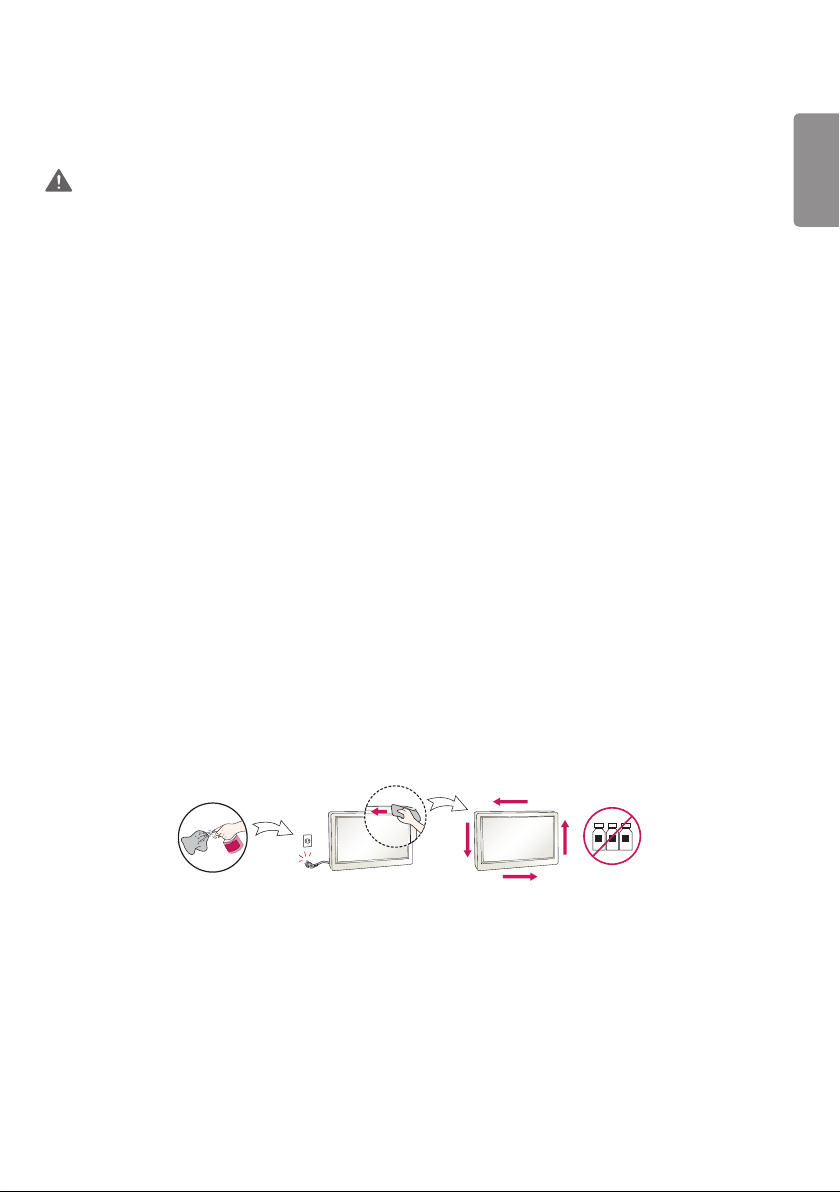
• Spray water onto a soft cloth 2 to 4 times, and use it to clean the front frame;wipe in one direction only. Too much
moisture may cause staining.
WATER
CHEMICALS
Product Disposal (Only, Hg lamp used LCD Monitor)
• The fluorescent lamp used in this product contains a small amount of mercury.
• Do not dispose of this product with general household waste.
• Disposal of this product must be carried out in accordance to the regulations of your local authority.
ENGLISH
8
LICENSES
Supported licenses may differ by model. For more information of the licenses, visit www.lg.com.
The terms HDMI and HDMI High-Definition Multimedia Interface, and the HDMI logo are trademarks or registered
trademarks of HDMI Licensing LLC in the United States and other countries.
This DivX Certified® device has passed rigorous testing to ensure it plays DivX® video.
To play purchased DivX movies, first register your device at vod.divx.com. Find your registration code in the DivX VOD
section of your device setup menu.
DivX Certified® to play DivX® video up to HD 1080p, including premium content.
DivX®, DivX Certified® and associated logos are trademarks of DivX, LLC and are used under license.
Covered by DivX Patents 7,295,673; 7,515,710; RE45,052; and others available at [www.divx.com/patents]
Manufactured under license from Dolby Laboratories. Dolby, Dolby Vision, Dolby Audio, and the double-D symbol are
trademarks of Dolby Laboratories.
ENGLISH
9
ASSEMBLY AND PREPARATION
CAUTION
• Always use genuine components to ensure safety and product performance.
• The product warranty will not cover damage or injury caused by the use of counterfeit components.
NOTE
• The accessories provided with your product may vary depending on the model or region.
• Product specifications or contents in this manual may be changed without prior notice due to upgrade of product
functions.
• SuperSign Software & Manual
- Downloading from the LG Electronics website.
- Visit the LG Electronics website (http://partner.lge.com) and download the latest software for your model.
• The warranty will not cover any damage caused by using the product in an excessively dusty environment.
ENGLISH
10
Optional Accessories
Without prior notice, optional accessories are subject to change to improve the performance of the product, and new
accessories may be added. The illustrations in this manual may differ from the actual product and accessories.
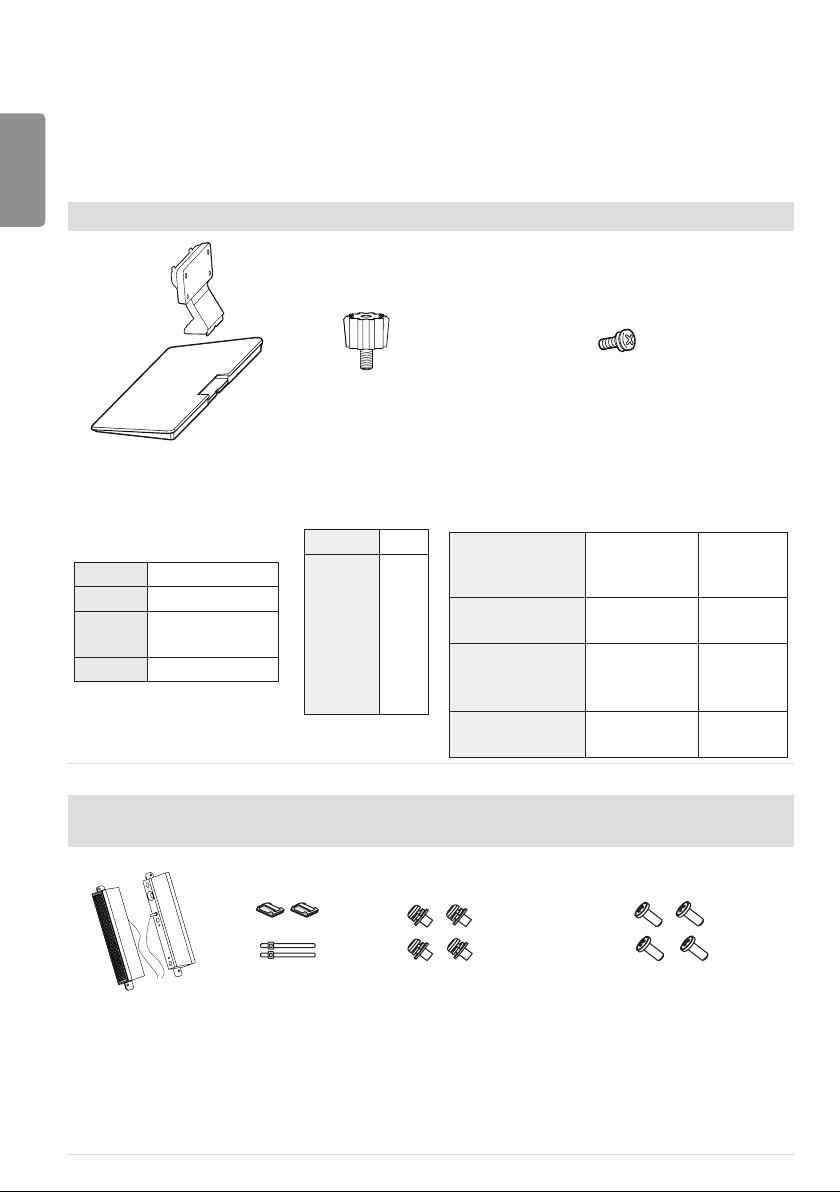
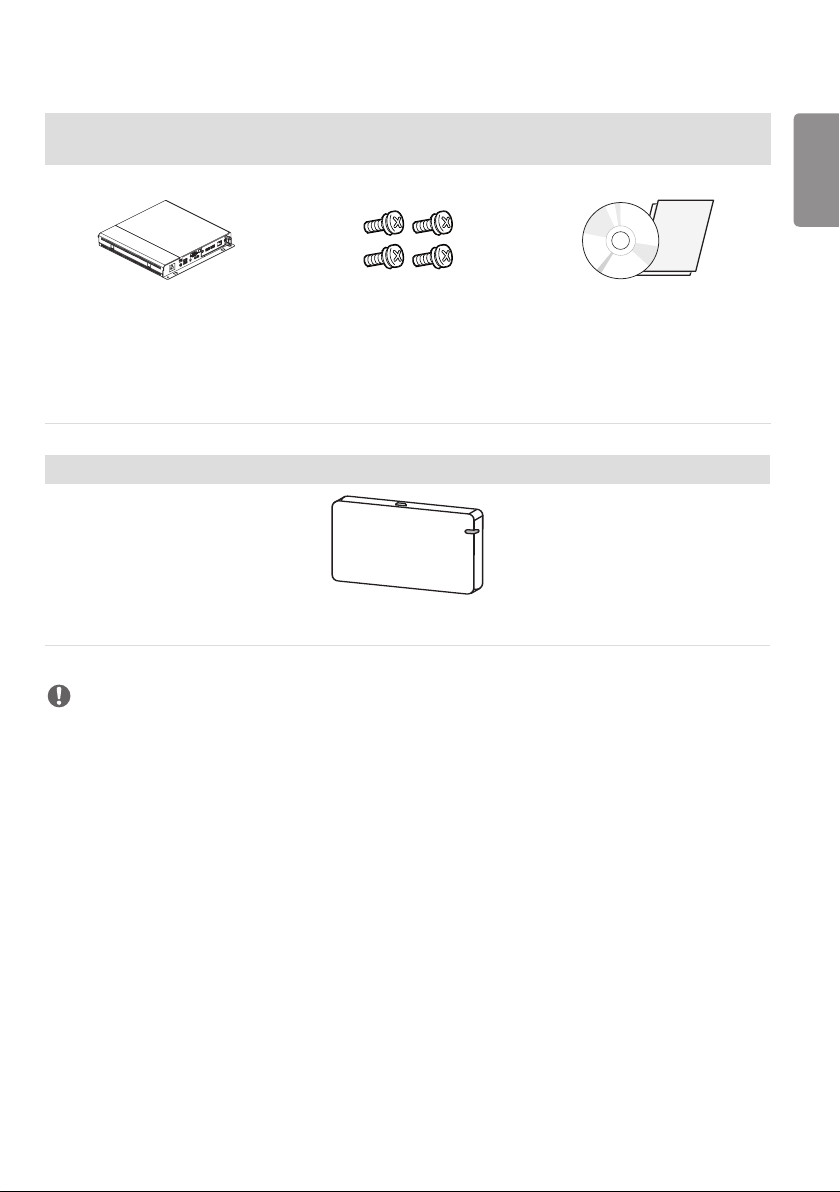
Stand kit
Stand
ST-322T 32SE3*
ST-432T 43SE3*/43SH7DD
ST-492T
49SE3*/49SH7DD
55SE3*/55SH7DD
ST-652T 65SE3*
Stand Spacers
32SE3* -
43SE3*
43SH7DD
49SE3*
49SH7DD
55SE3*
55SH7DD
65SE3*
2 EA
Screws
Diameter 4.0 mm x Pitch 0.7 mm
(Diameter 0.1 inches x Pitch 0.02 inches)
Model
Length
(including spring
washer)
Quantity
32SE3*
10 mm
(0.3 inches)
6 EA
43SE3*/43SH7DD
49SE3*/49SH7DD
55SE3*/55SH7DD
14 mm
(0.5 inches)
8 EA
65SE3*
16 mm
(0.6 inches)
8 EA
Speaker kit
(Only for **SE3D model)
Speakers
SP-5000
Cable
holder/
Cable Tie
Screws
Diameter 4.0 mm x
Pitch 0.7 mm x Length 8 mm
(Diameter 0.1 inches x Pitch
0.02 inches x Length 0.3 inches)
(including spring washer)
Screws
Diameter 4.0 mm x
Pitch 1.6 mm x Length 10 mm
(Diameter 0.1 inches x Pitch
0.06 inches x Length 0.3 inches)
(including spring washer)
ENGLISH
11
Media Player kit
(It may not be supported depending on the model.)
Media Player
MP500/ MP700
Screws
Diameter 3.0 mm x Pitch 0.5 mm
x Length 6mm
(Diameter 0.1 inches x Pitch 0.01
inches x Length 0.2 inches)
CD (Owner’s Manual)/ Cards
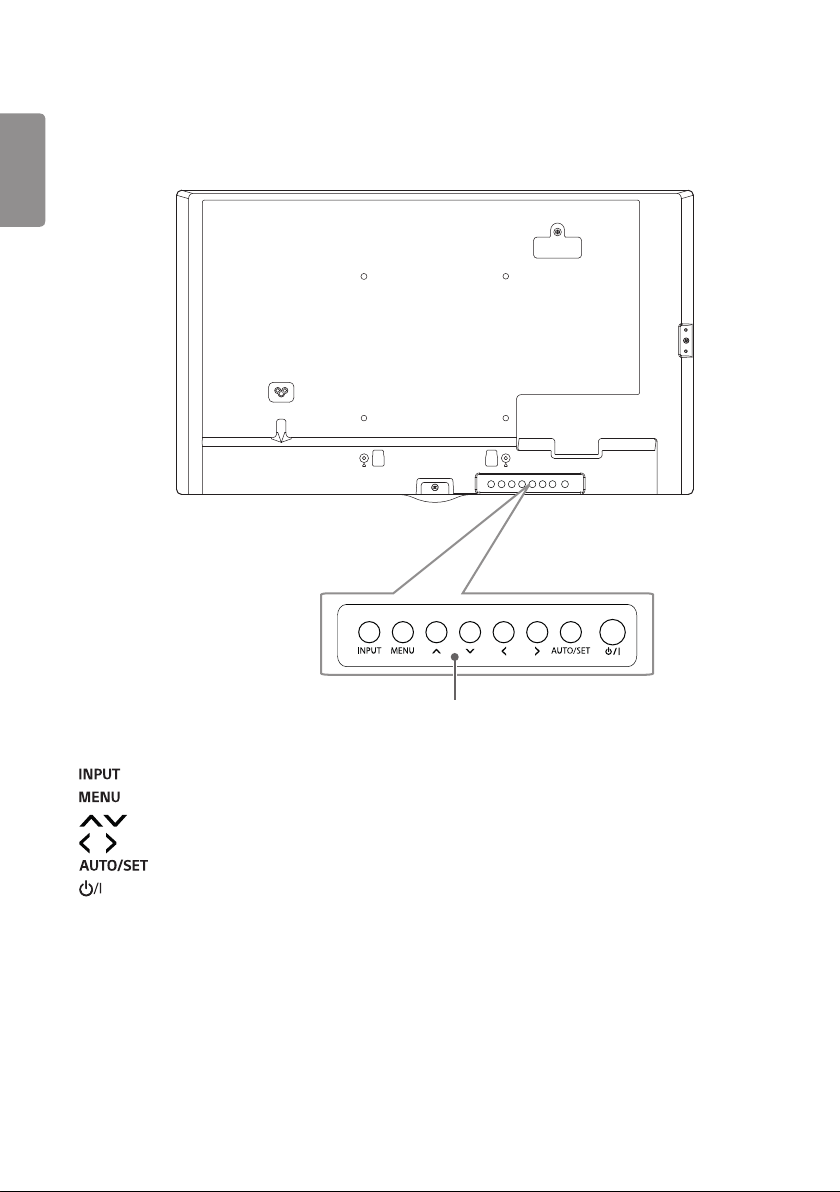
Wi-Fi Dongle kit
AN-WF500
NOTE
• Cable holder/Cable tie may not be available in some areas or for some models.
• Optional accessories are available for some models. If necessary, please purchase them separately.
• Before you attach the Media Player, connect the cable to the port.
• Please turn off the power before connecting or removing the Wi-Fi dongle kit.
ENGLISH
12
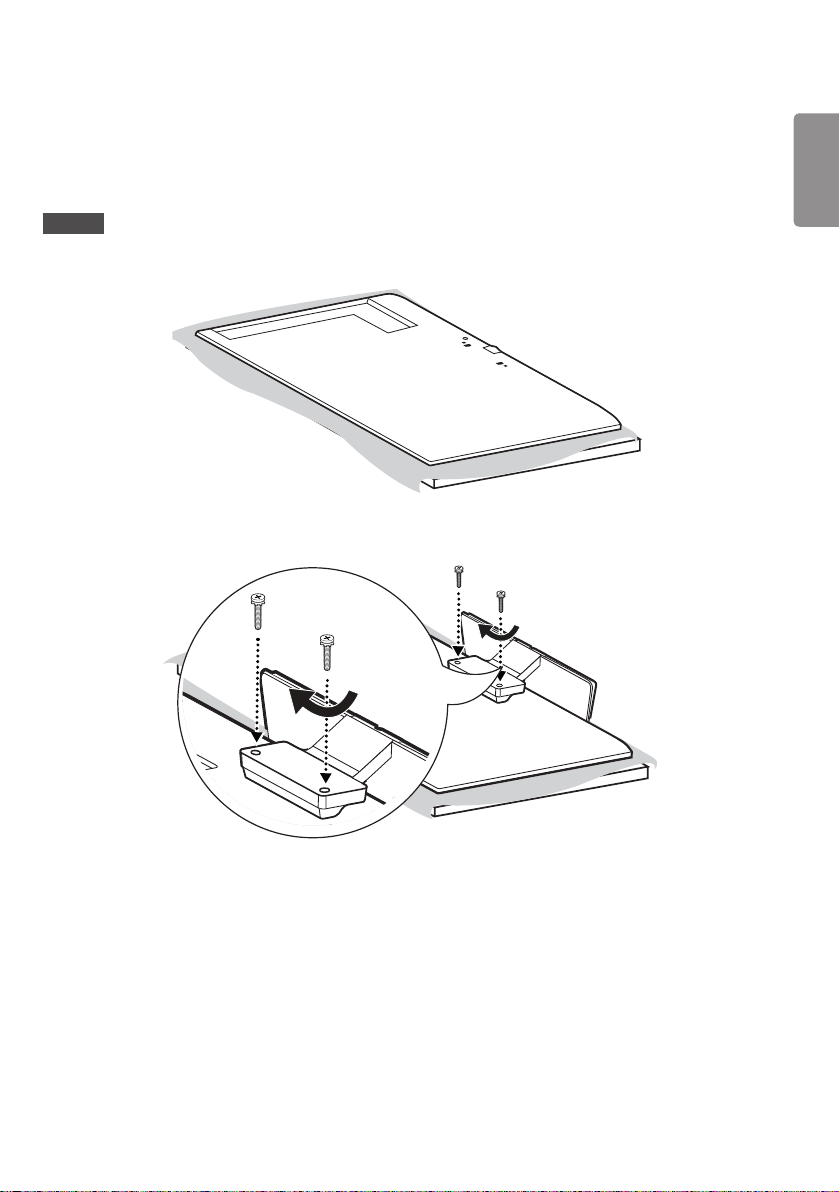
Parts and Buttons
The image may be different according to the model.
Buttons
• : Changes the input source.
• : Accesses the main menus, or saves your input and exits the menus.
• : Adjust the up and down.
• : Moves left and right.
• : Displays the current signal and mode.
• : Turns the power on or off.
ENGLISH
13
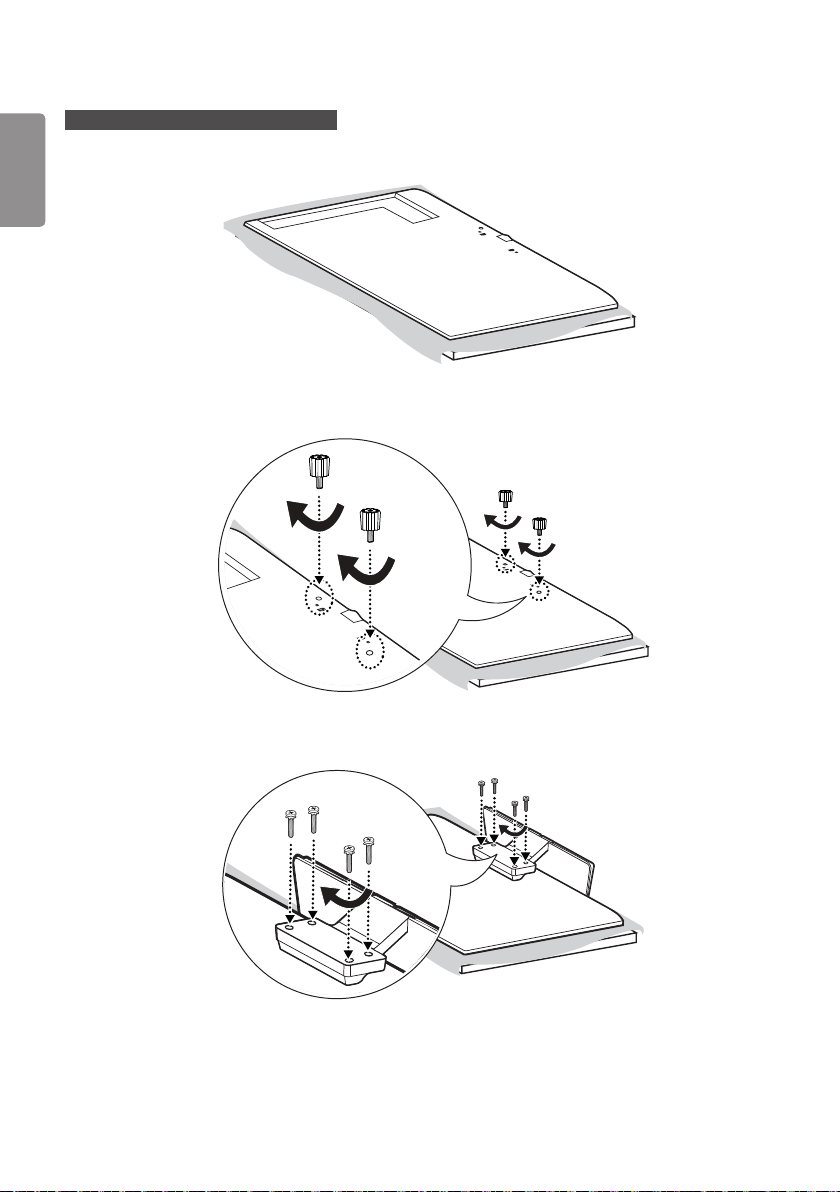
Connecting the Stand
- For certain models only.
- The image may be different according to the model.
32SE3*
1
2
ENGLISH
14
43/49/55/65SE3*, 43/49/55SH7DD
1
2
3
ENGLISH
15
Connecting the Speakers
- For certain models only.
- The image may be different according to the model.
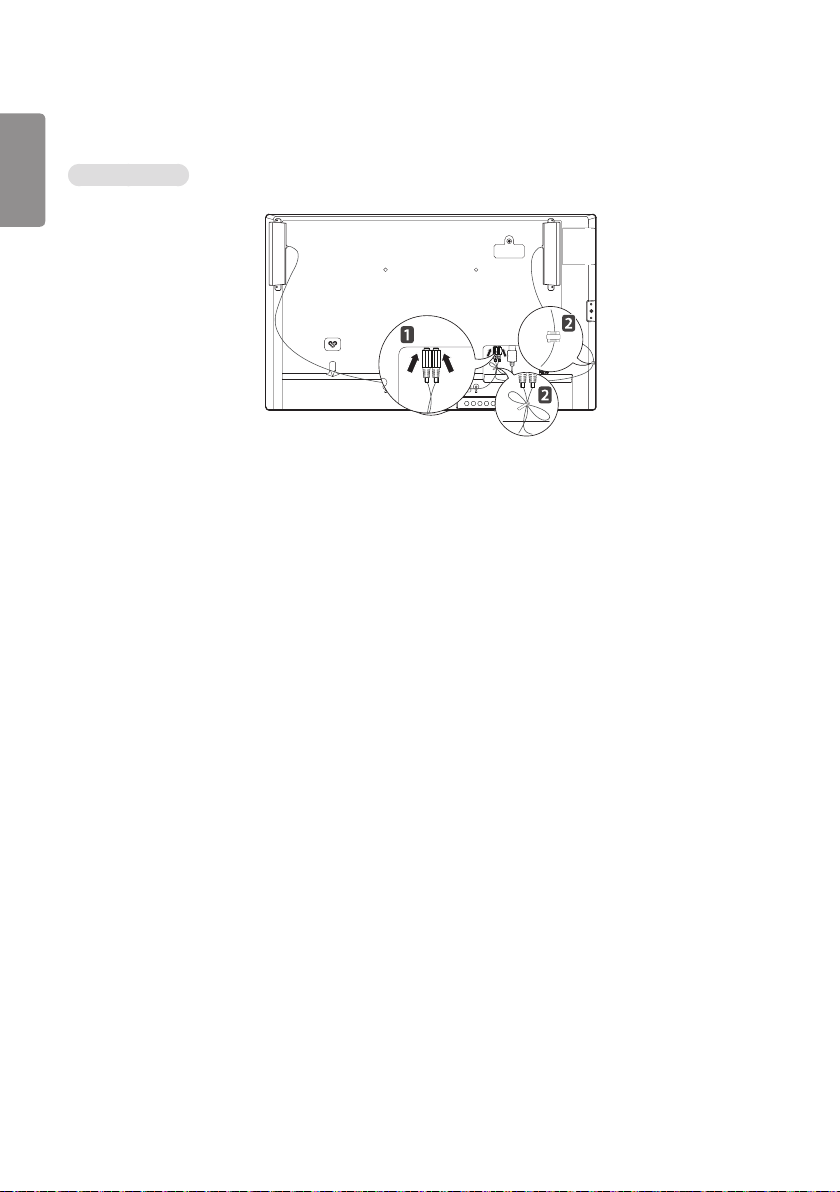
32SE3D
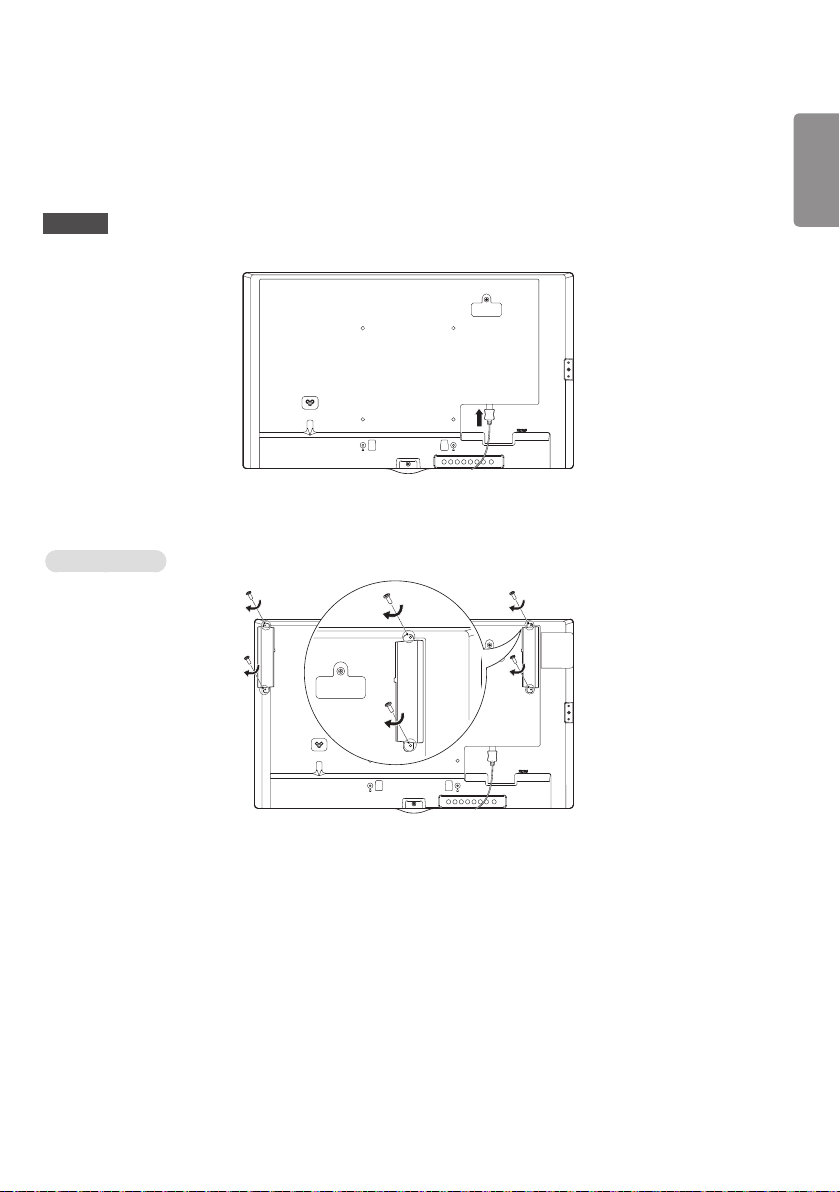
1 Connect an input signal cable before installing the speakers.
2 Mount the speakers by using screws as shown below. Make sure the power cable is disconnected before making a
connection.
Basic installation
ENGLISH
16
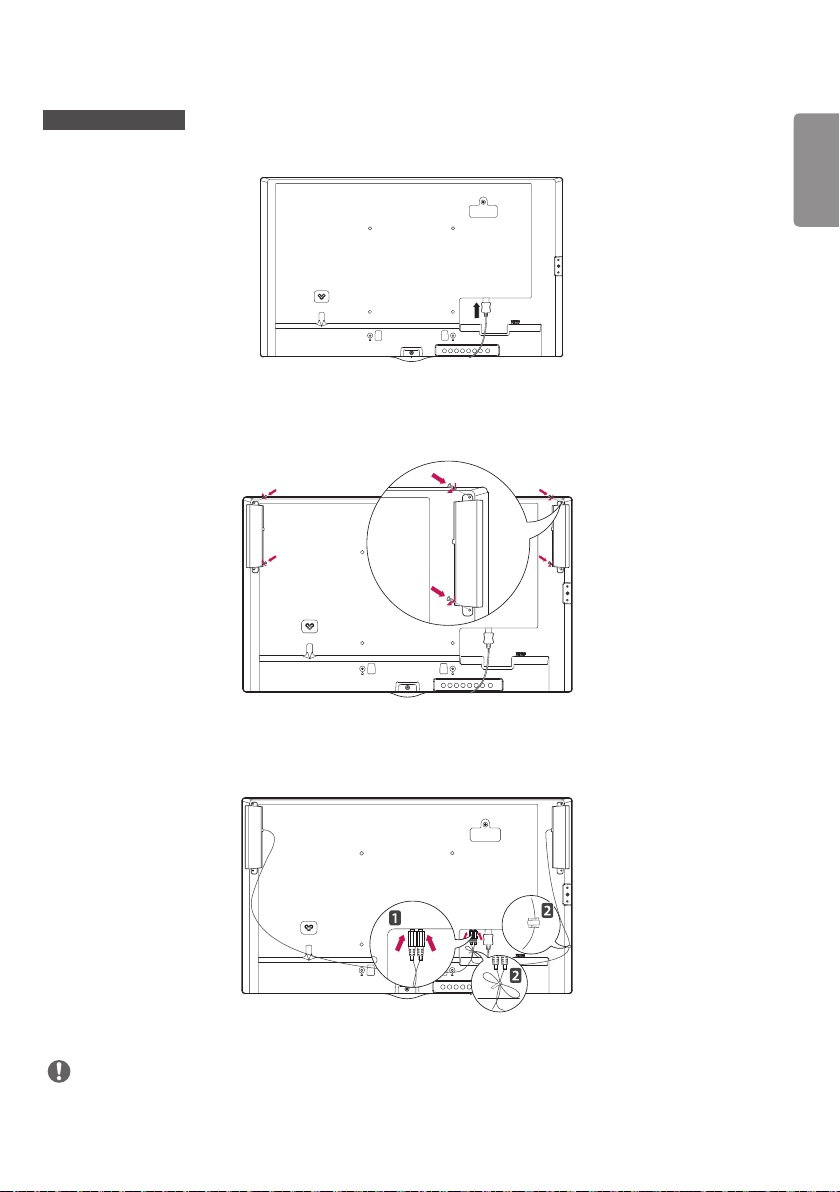
3 Then connect the speaker cable. After installing your speakers, use holders and cable ties to organize the speaker
cables.
Basic installation
ENGLISH
17
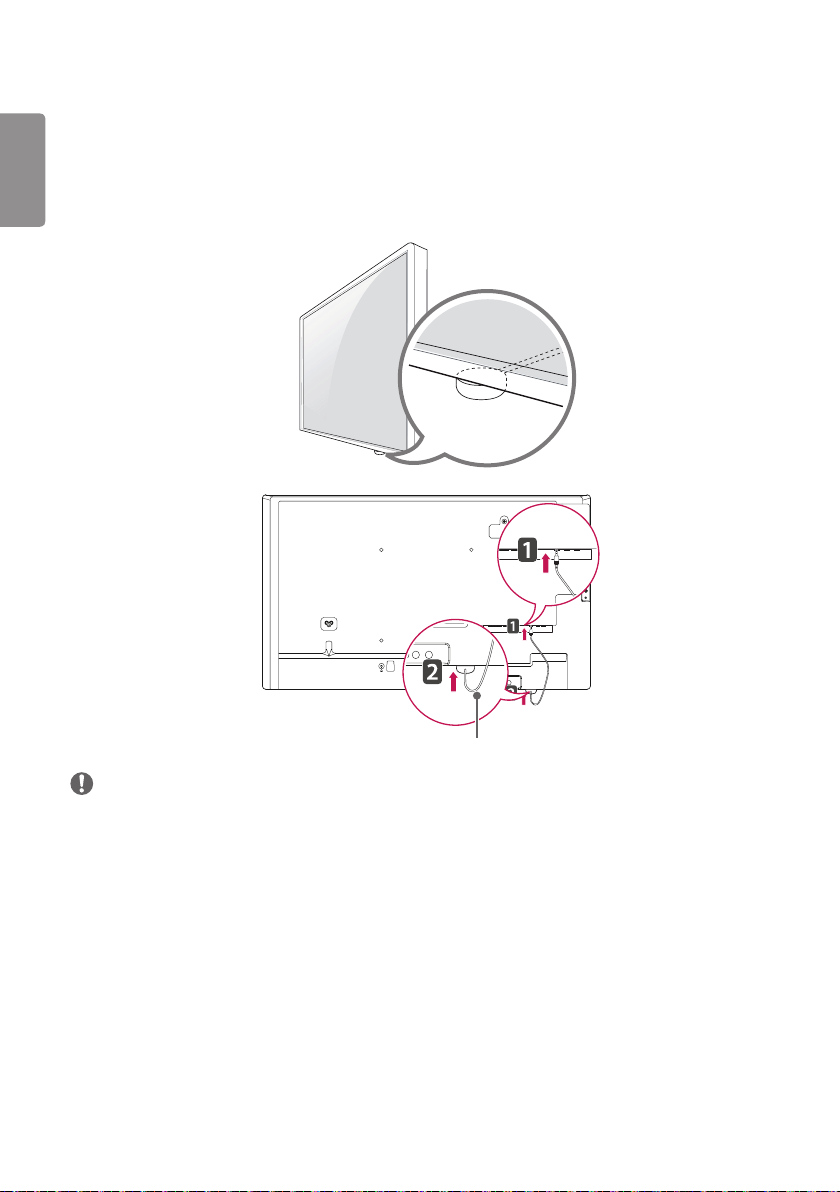
43/49/55/65SE3D
1 Connect an input signal cable before installing the speakers.
2 Mount the speakers by using screws as shown below. Make sure the power cable is disconnected before making a
connection.
3 Then connect the speaker cable. After installing your speakers, use holders and cable ties to organize the speaker
cables.
NOTE
• Please turn off the power before removing the cable. Connecting or removing the speaker cable while turned on may
result in no sound.
ENGLISH
18
Using the IR Receiver
- The image may be different according to the model.
This allows a remote control sensor to be placed in a custom location. Then that display can control other displays via
an RS-232C cable. Install the IR receiver towards the front of the set.
NOTE
• When you see from the back of the set, if the IR receiver cable does not face front, the signal reception range may
shorten.
• The IR receiver is made with a magnet.It is detachable at the bottom (typical installation) or back (wall installation) of
the set.
• Make sure that you unplug the power cord before connecting or removing the IR Receiver.
IR Receiver cable
ENGLISH
19
Portrait Layout
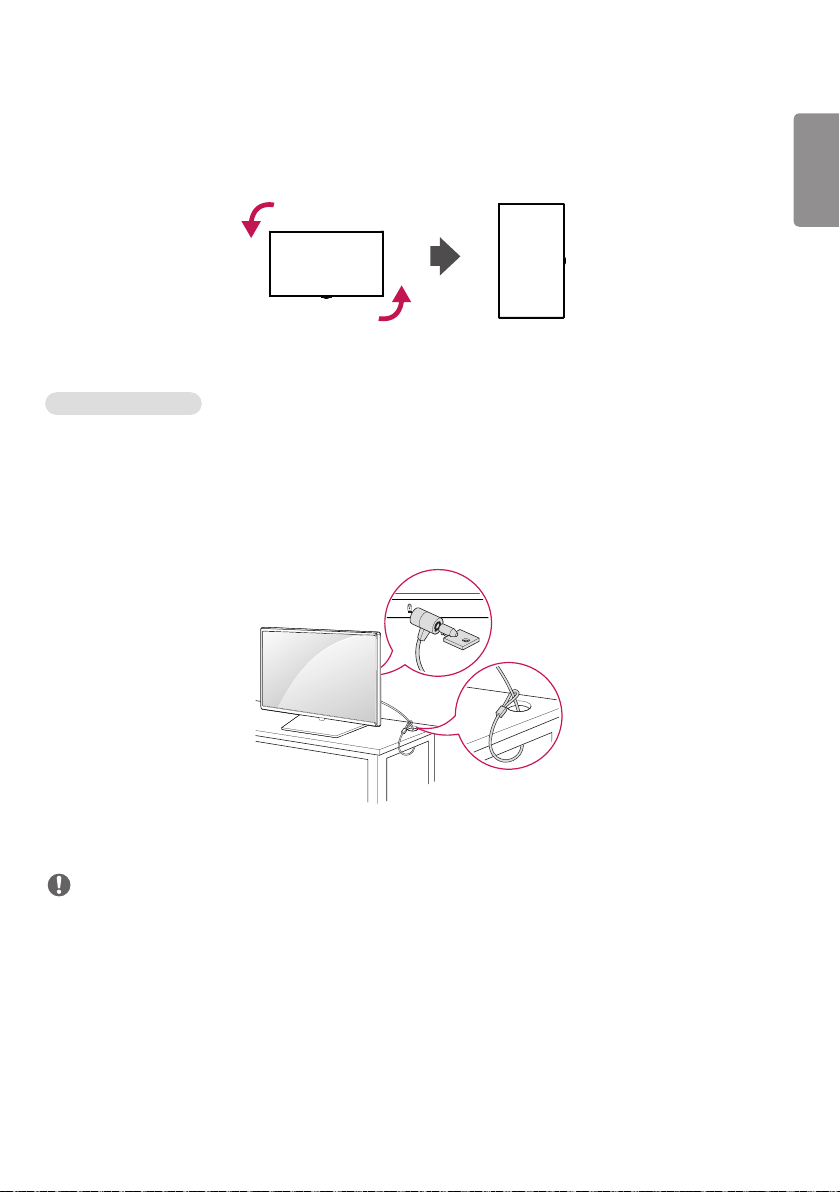
When installing in a portrait layout, rotate the monitor counterclockwise 90 degrees (when facing the screen).
Using Kensington Lock
(This is not available for all models.)
The Kensington security system connector is located at the back of the monitor. For more information on installation
and use of this system, refer to the manual provided with the Kensington security system or visit
http://www.kensington.com.
Connect the Kensington security system cable between the monitor and a table.
NOTE
• The Kensington security system is optional. You can obtain additional accessories from most electronics retail stores.
• The illustration shows a general example of installation and may look different from the actual product.
ENGLISH
20
Attaching and removing the LG Logo Bracket
- For certain models only.
- The image may be different according to the model.
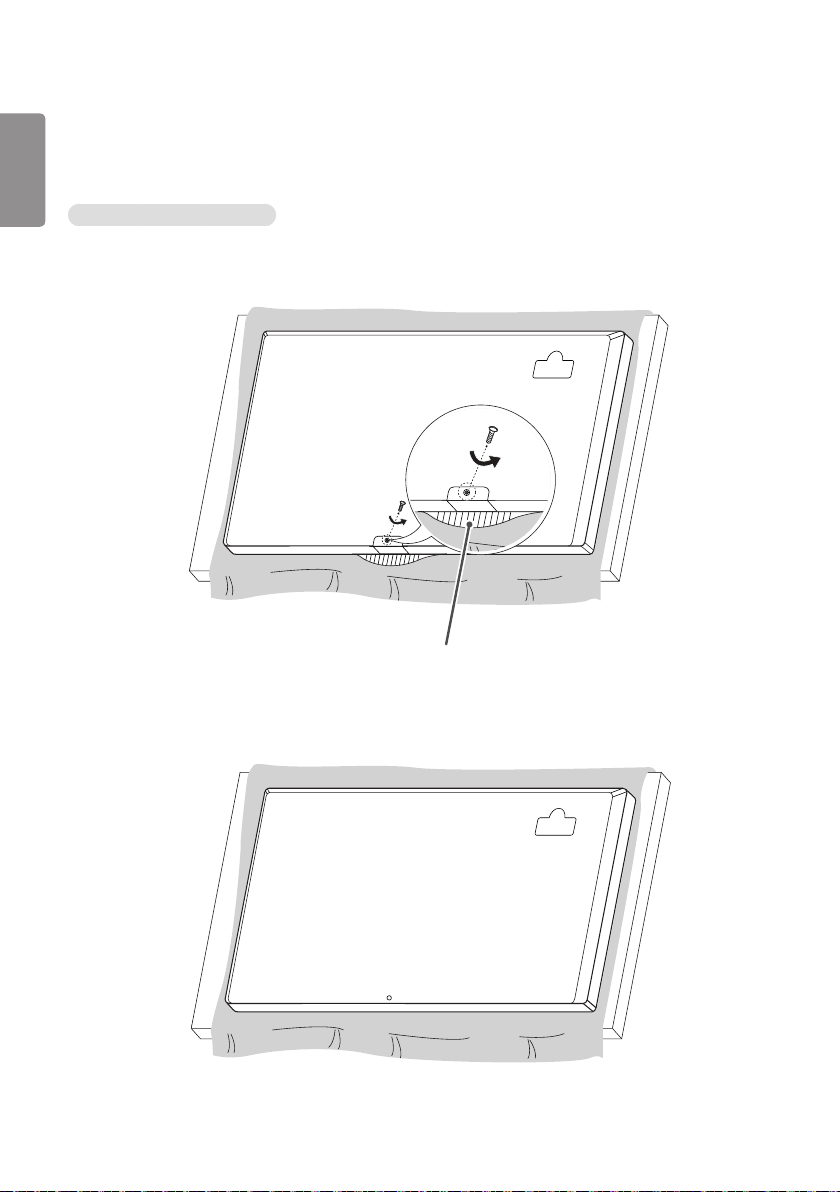
Removing the LG Logo Bracket
1 Lay a clean cloth on the floor, and then put the monitor on it with the screen face down. Using a screwdriver,
remove the screw that secures the LG Logo Bracket to the bottom rear of the monitor.
LG Logo Bracket
2 After removing the screw, remove the LG Logo Bracket. When re-attaching the LG Logo Bracket, repeat the process
in reverse order.
ENGLISH
21
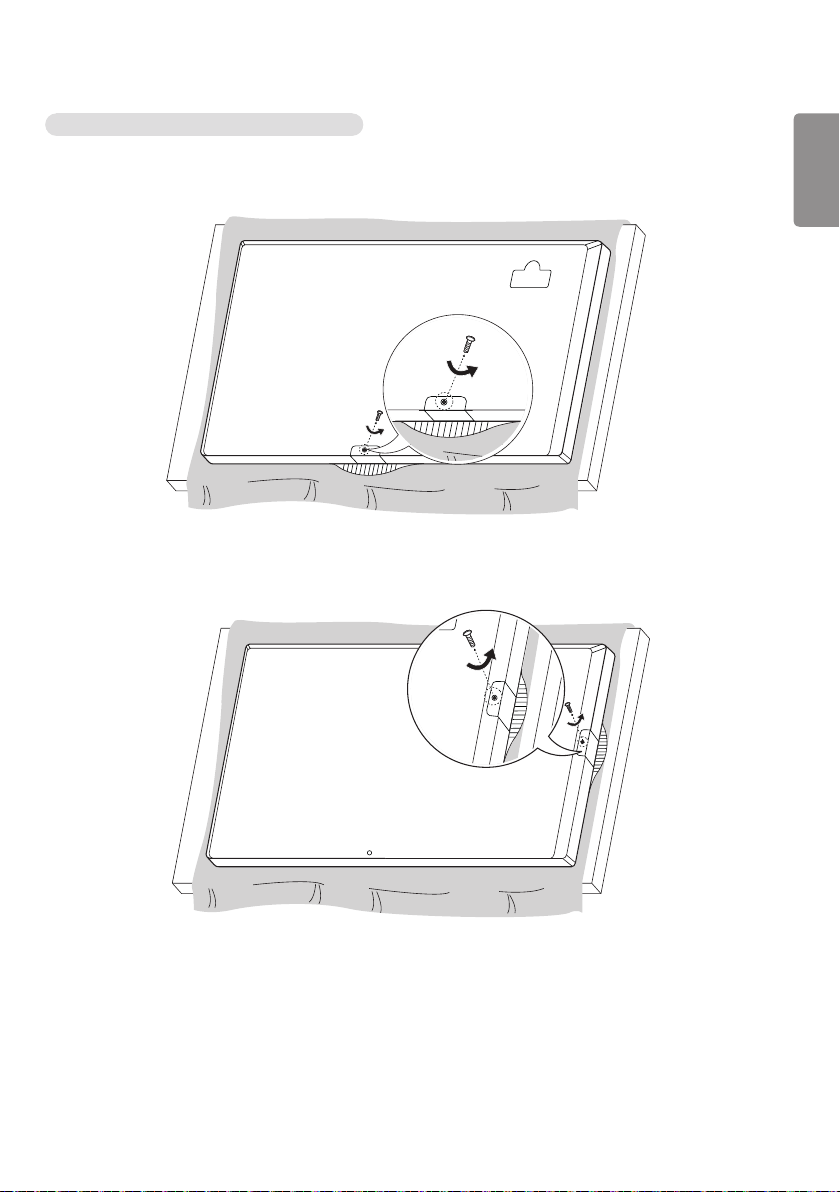
Attaching the LG Logo Bracket on the right side
1 Lay a clean cloth on the floor, and then put the monitor on it with the screen face down. Using a screwdriver,
remove the screw that secures the LG Logo Bracket to the bottom rear of the monitor.
2 After removing the screw, remove the LG Logo Bracket. Attach the LG Logo Bracket with a screw, aligning it with
the hole on the right side.
ENGLISH
22
Installing on a Wall
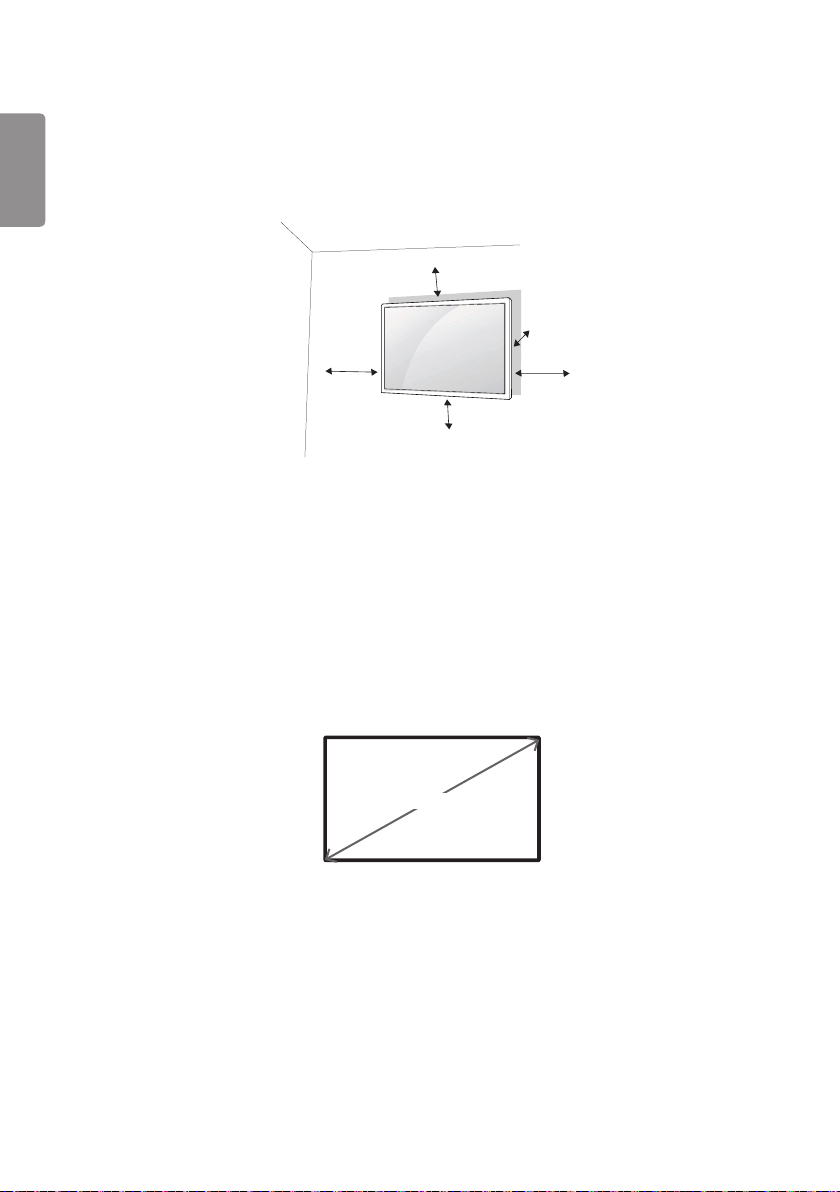
For proper ventilation, allow a clearance of 100 mm on each side and from the wall. Detailed installation instructions
are available from your dealer, see the optional Tilt Wall Mounting Bracket Installation and Setup Guide.
100 mm
100 mm
100 mm
(3.9 inches)
100 mm
100 mm
To install your monitor on a wall, attach a wall mounting bracket (optional part) to the back of the monitor.
Make sure that the wall mounting bracket is securely fixed to the monitor and to the wall.
1 Use only screws and wall mounting brackets that conform to VESA standards.
2 Screws which are longer than standard length may damage the inside of the monitor.
3 A non-VESA standard screw may damage the product and cause the monitor to fall. LG Electronics is not liable for
any accidents related to the use of non-standard screws.
4 Please use VESA standard as below.
• 785 mm (30.9 inches) and above
* Fixing screws: Diameter 6.0 mm (0.2 inches) x Pitch 1.0 mm (0.03 inches) x Length 12 mm (0.47 inches)
785 mm
ENGLISH
23
CAUTION
• Disconnect the power cord before moving or installing the monitor to avoid risk of electric shock.
• If you install the monitor on a ceiling or slanted wall, it may fall and result in injury. Use an authorized LG wall mount
and contact your local dealer or qualified personnel to assist with the installation.
• Do not over tighten the screws as this may damage the monitor and void your warranty.
• Use only screws and wall mounting brackets that meet the VESA standard. Any damage or injuries caused by misuse
or use of improper accessories are not covered by the warranty.
NOTE
• The wall mount kit includes the installation guide and all necessary parts.
• The wall mounting bracket is optional. You can obtain additional accessories from your local dealer.
• The length of screws required may differ depending on the wall mount. Be sure to use the correct length.
• For more information, please refer to the guide provided with the wall mount.
ENGLISH
24
REMOTE CONTROL
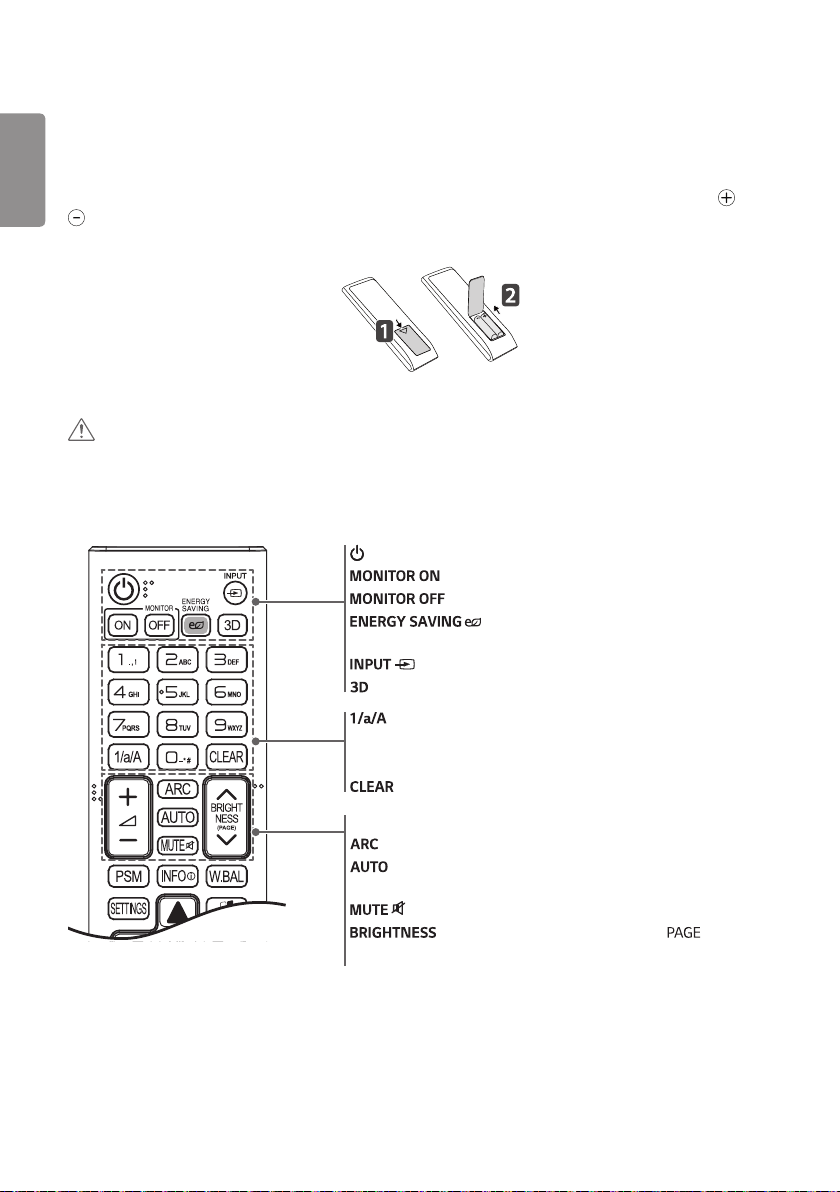
The descriptions in this manual are based on the buttons on the remote control. Please read this manual carefully to
use the monitor correctly. To install batteries, open the battery cover, place batteries (1.5 V AAA) matching and
terminals to the labels inside the compartment, and close the battery cover. To remove the batteries, perform the
installation actions in reverse. The illustrations may differ from the actual accessories.
CAUTION
• Do not mix old and new batteries, as this may damage the remote control.
• Be sure to point the remote control toward the remote control sensor on the monitor.
• Some features of the remote control may not be supported in certain models.
ID
BACK
TILE
ON
OFF
EXIT
(POWER) Turns the monitor on or off.
Turns the monitor on.
Turns the monitor off.
Reduces power consumption by adjusting peak
screen brightness.
Selects the input mode.
Used for viewing 3D videos.
Toggles between numerical and alphabetical.
Number and Alphabet buttons
Enters numerical or alphabetical characters depending upon the setting.
Deletes the entered numerical or alphabetical character.
Volume Up/Down Button Adjusts the volume.
Selects the Aspect Ratio mode.
Automatically adjusts picture position and minimizes image
instability (available for RGB input only).
Mutes all sounds.
Adjusts the brightness of the display. function is not
supported in this model.
ENGLISH
25
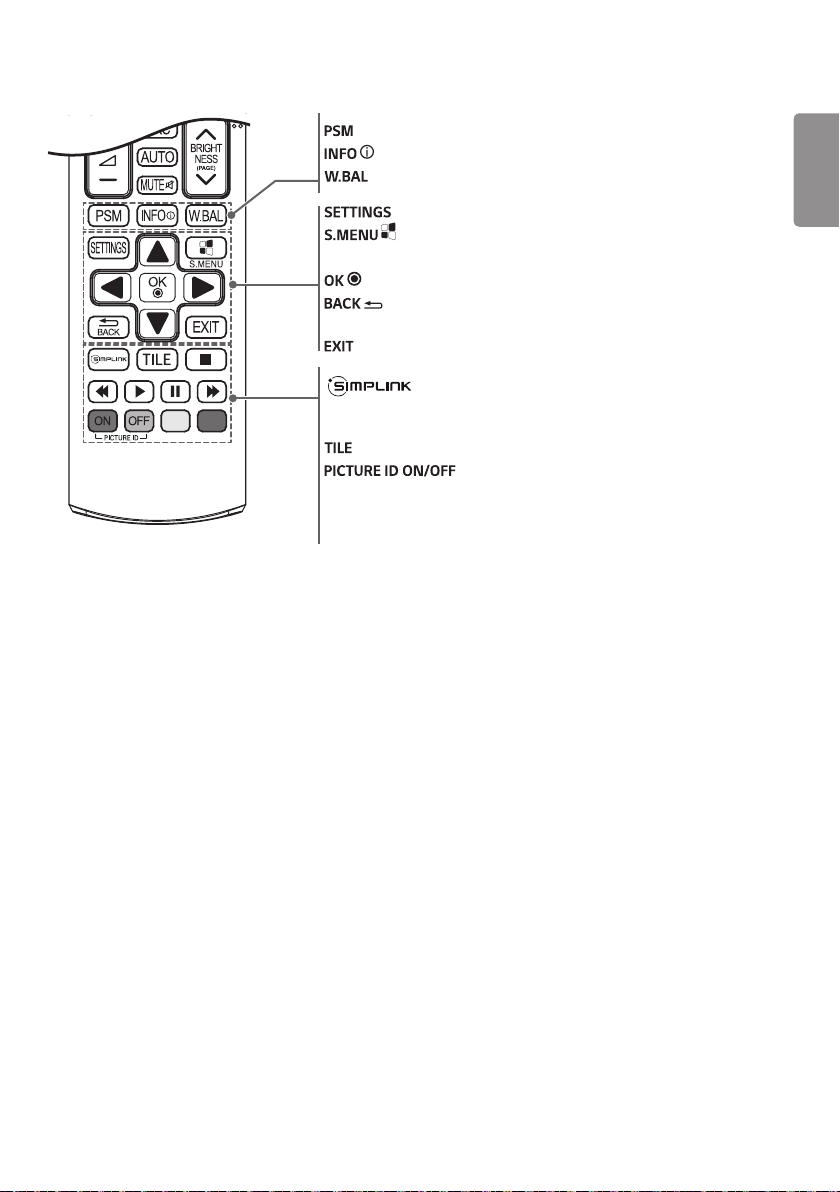
Selects the Picture Mode.
Views the information of the currently program and the screen.
Enters the White Balance menu.
Accesses the main menus or saves your input and exit menus.
SuperSign menu key.
Navigation Buttons Scrolls through menus or options.
Selects menus or options and confirms your input.
Allows you to move back one step in the user interaction
function.
Quit all OSD tasks and applications.
Allows you to control various multimedia devices to enjoy
multimedia simply by using the remote control through the SimpLink
menu.
Selects the TILE Mode.
When the Picture ID number matches the Set ID
number, you can control whichever monitor you want in multi-display
format.
USB Menu Control Buttons Controls media playback.

ENGLISH
26
Displaying the Device Name Connected to an Input Port
Display which devices are connected to which external input ports.
1 Access the Input list screen and press the red (input label) button on the remote control.
2 You can assign an input label for every input except USB.
NOTE
• External inputs supported: HDMI, DVI-D
• Labels available: PC, DTV
• The input labels are displayed on the Input Label screen or at the top left of the screen when you change the external
input setting.
• For DTV/ PC-compatible signals, such as 1080p 60 Hz, the screen settings may change according to the input label.
The Just Scan option is available if a PC is connected as an external device.
White Balance Adjust Menu
Press the button on the remote control.
• R-Gain: Adjusts the level of red. The higher the number, the redder the set. Decrease the number if the screen looks
too red.
• G-Gain: Adjusts the level of green. The higher the number, the greener the set. Decrease the number if the screen
looks too green.
• B-Gain: Adjusts the level of blue. The higher the number, the bluer the set. Decrease the number if the screen looks
too blue.
• Backlight: Adjusts the brightness. The higher the number, the brighter the set. This works in the same way as the
backlight of the user menu.
• Reset: Resets the white balance value to the factory settings.

ENGLISH
27
MAKING CONNECTIONS
You can connect various external devices to your monitor. Change the input mode and select the external device you
want to connect. For more information about external device connections, see the user manual provided with each
device.
Connecting to a PC
Some of the cables are not provided.
This monitor supports the Plug and Play* feature.
* Plug and Play: a feature that enables a PC to recognize devices attached by the user without device configuration or
user intervention when powering up.
External Device Connection
Connect a HD receiver, DVD, or VCR player to the monitor and select an appropriate input mode.
Some of the cables are not provided. For the best picture and sound quality, connecting external devices to your
monitor using HDMI cables is recommended.
ENGLISH
28
NOTE
• For the best image quality, using the monitor with HDMI connection is recommended.
• To comply with the specifications of the product, use a shielded interface cable with ferrite core, such as a D-sub
15-pin cable and DVI-D/HDMI cable.
• If you turn the monitor on when the set is cold, the screen may flicker. This is normal.
• Sometimes red, green, or blue spots may appear on the screen. This is normal.
• Use a High Speed HDMI®/
TM
cable.
• Use a certified cable with the HDMI logo attached. If you do not use a certified HDMI cable, the screen may not
display or a connection error may occur.
• Recommended HDMI Cable Types
- High-Speed HDMI®/
TM
Cable
- High-Speed HDMI®/
TM
Cable with Ethernet
• If you cannot hear any sound in HDMI mode please check your PC settings. Some PCs require you to manually change
the default audio output to HDMI.
• If you want to use HDMI-PC mode, you must set your PC/DTV to PC mode.
• You may experience compatibility issues if you use HDMI-PC mode.
• Make sure the power cable is disconnected.
• If you connect a gaming device to the monitor, use the cable provided with the gaming device.
• It is recommended to use the speakers that are provided as optional accessories.
• High Speed HDMI®/
TM
cables transmit a HD signal up to 1080p and higher.
CAUTION
• Connect the signal input cable and tighten it by turning the screws clockwise.
• Do not press the screen with your finger for a prolonged period as this may result in temporary distortion on the
screen.
• Avoid displaying static images on the screen for a long period of time to prevent image burn. Use a screensaver if
possible.
• A wireless communication device near your monitor can affect the image.
ENGLISH
29
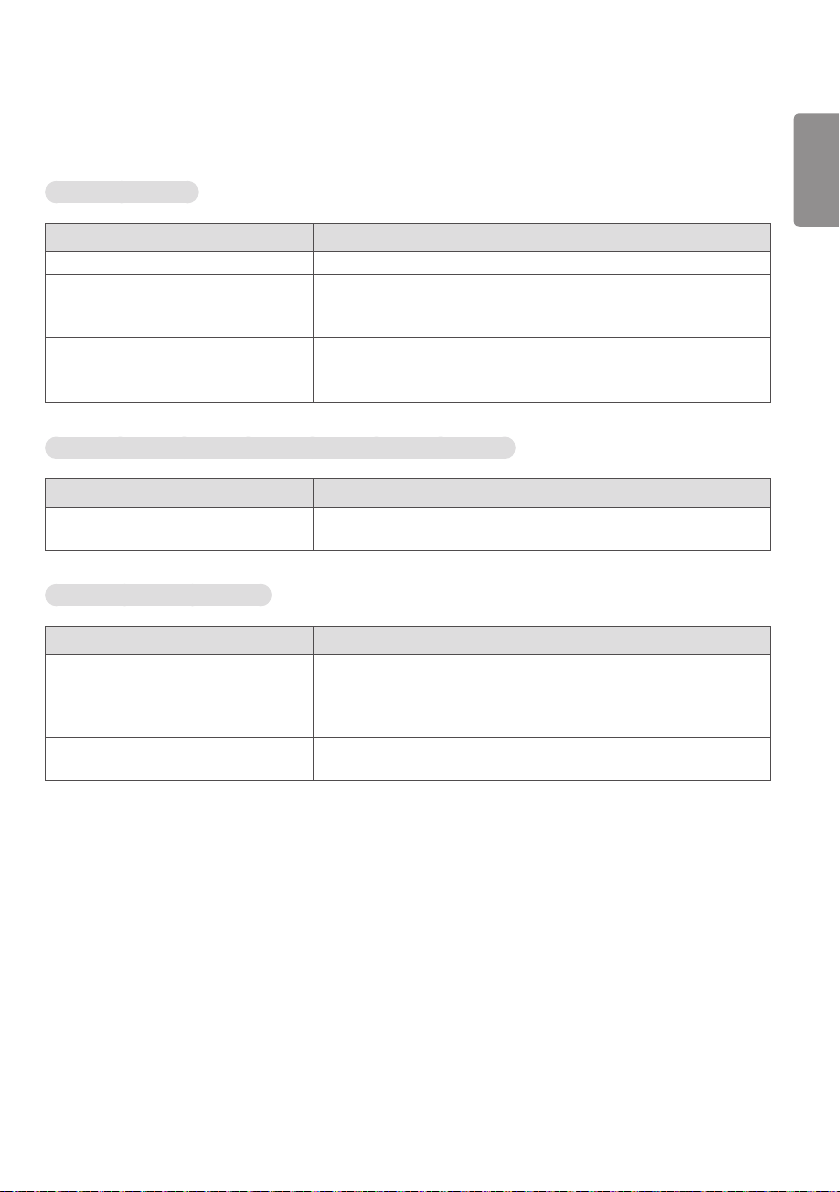
TROUBLESHOOTING
No image is displayed.
Problem Action
Is the product power cord connected? • Check if the power cord is correctly plugged into the power outlet.
Does the “Invalid Format” message
appear?
• The signal from the PC (Graphics card) is out of the vertical or
horizontal frequency range of the product. Adjust the frequency range
by referring to the Specifications in this manual.
Does the “No Signal” message appear? • The signal cable between PC and product is not connected. Check the
signal cable.
• Access the input menu to check the input signal.
The Unknown Product message appears when the product is connected.
Problem Action
Did you install the driver? • Check if the Plug and Play function is supported by referring to the
graphics card user manual.
The screen image looks abnormal.
Problem Action
Is the screen position wrong? • Check if the graphics card resolution and frequency are supported by
the product. If the frequency is out of range, set to the recommended
resolution in the [Control Panel] → [Display] → [Setting] menu. (The
settings may differ depending on your operating system.)
The screen is displayed abnormally. • The proper input signal is not connected to the signal port. Connect the
signal cable that matches with the source input signal.
ENGLISH
30
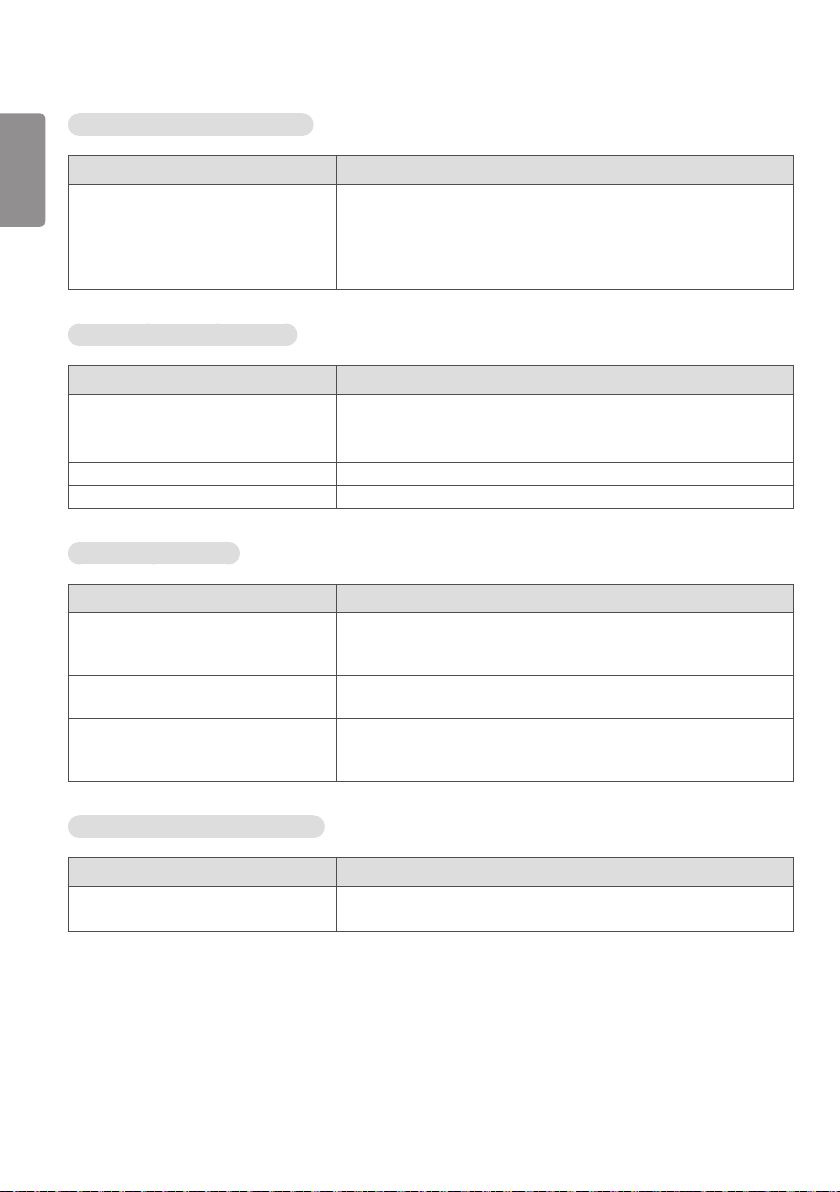
After-image appears on the product.
Problem Action
After-image appears when the product is
turned off.
• If you use a fixed image for a long time, the pixels may be damaged.
Use the screen-saver function.
• When a dark image is displayed on the screen after an image with high
contrast (black and white or gray), this may cause image sticking. This
is normal for LCD screen products.
The audio function does not work.
Problem Action
No sound? • See if the audio cable is connected properly.
• Adjust the volume.
• See if the sound is set properly.
Sound is too dull. • Select the appropriate equalizer sound.
Sound is too low. • Adjust the volume.
Screen color is abnormal.
Problem Action
Screen has poor color resolution (16
colors).
• Set the number of colors to more than 24 bits (true color). Select
[Control Panel] → [Display] → [Settings] → [Color Table] in Windows.
(The settings may differ depending on your operating system.)
Screen color is unstable or mono-colored. • Check the connection status of the signal cable. Or, re-insert the PC
graphics card.
Do black spots appear on the screen? • Several pixels (red, green, blue, white, or black color) may appear on the
screen, which can be attributable to the unique characteristics of the
LCD panel. This is not a malfunction of the LCD.
The operation does not work normally.
Problem Action
The power suddenly turned off. • Is the Timer set?
• Check the power control settings. Power interrupted.
ENGLISH
31
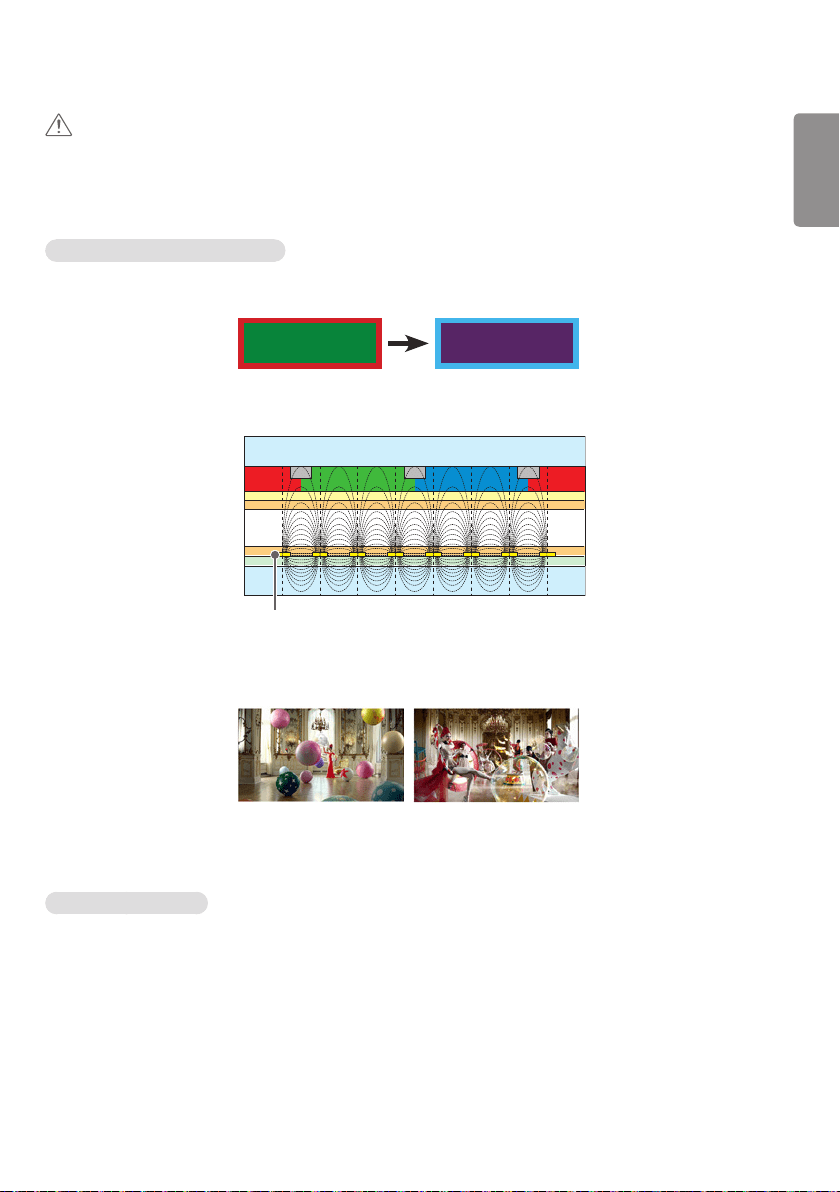
CAUTION
• Image sticking does not occur when using constantly changing images but may occur when using a fixed image for an
extended period of time. Therefore, it is recommended that you use the instructions below to decrease the likelihood
of image sticking occurring when using a fixed image. It is recommended that you change the screen at least once
every 12 hours at the very minimum; if done more frequently, the prevention of image sticking is more effective.
Recommended operating conditions
1 Change the background and the character colors using the same time interval.
ID: UPM 123
PW: ****
ID: UPM 123
PW: ****
When changing colors, using complementary colors helps to prevent image sticking.
BM BM BM
CFCFCF
OC
PI
PI
TFT Layers
Glass
Glass
LC
CF
ITO or MoTi Pixel Layer
2 Change the image using the same time interval.
Make sure that the characters or images before changing the image remain in the same location after changing the
image.
What is image sticking?
When the LCD panel displays a static image for an extended period of time, it can cause a voltage difference between
the electrodes that operate the liquid crystals. When the voltage difference between the electrodes builds up over
time, liquid crystals have a tendency to remain aligned in one direction. During this process, a previously displayed image
remains visible. This phenomenon is referred to as image sticking.
ENGLISH
32
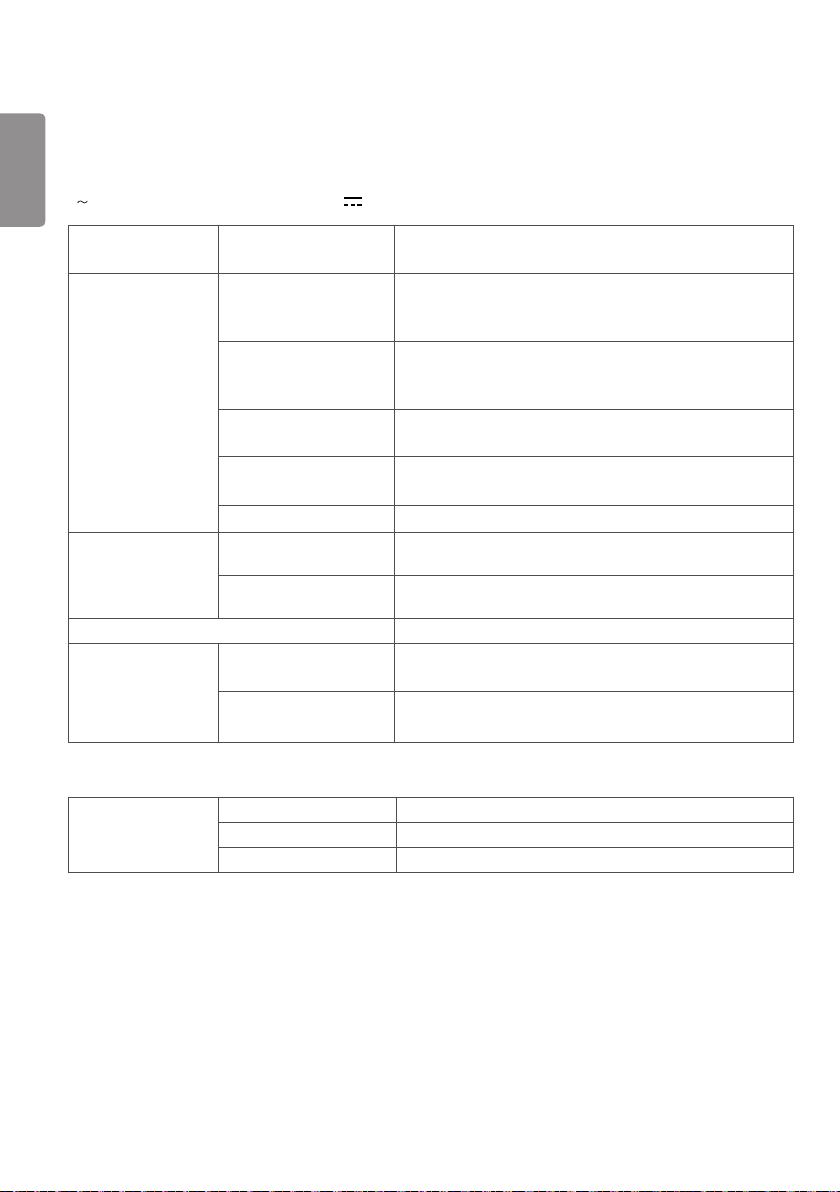
PRODUCT SPECIFICATIONS
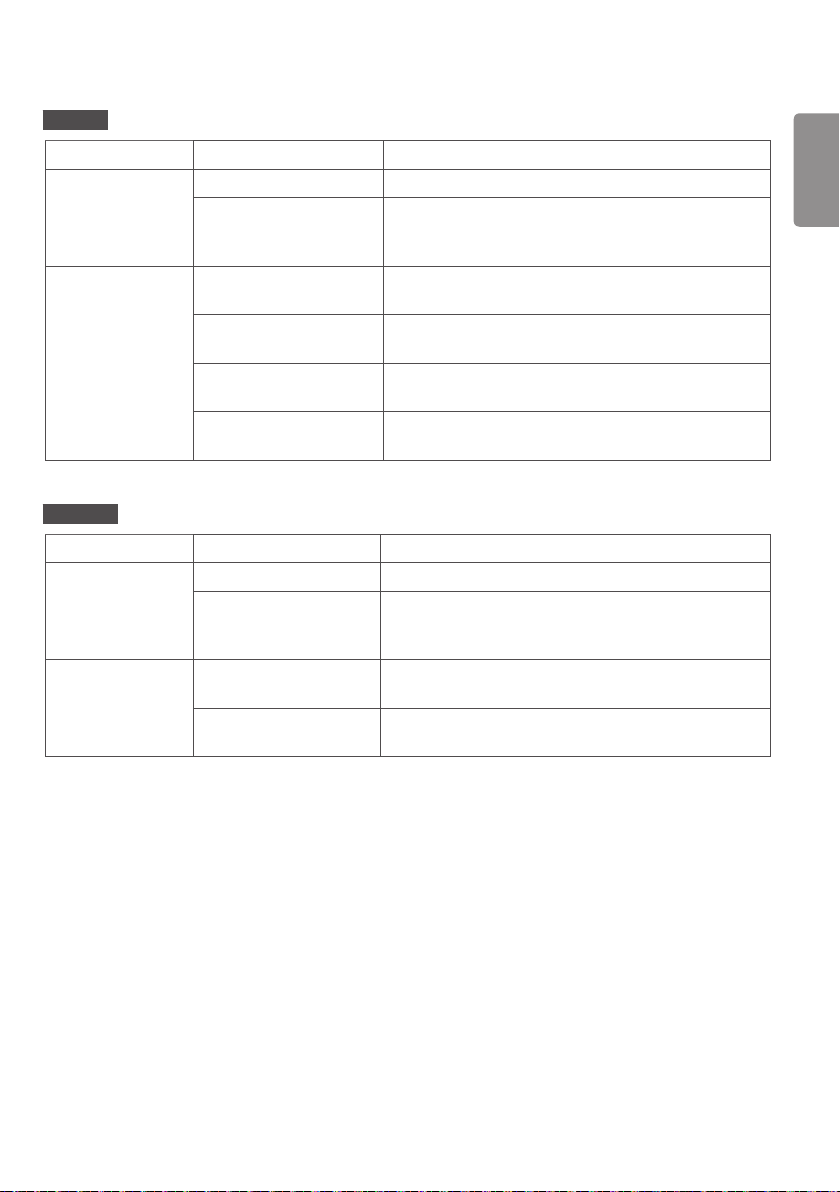
The product specifications below may be changed without prior notice due to upgrade of product functions.
“ ” refers to alternating current (AC), and “ ” refers to direct current (DC).
LCD screen Screen type Thin Film Transistor (TFT)
Liquid Crystal Display (LCD) Screen
Video signal Maximum resolution 1920 x 1080 @ 60 Hz
- This may not be supported on some OS or graphics card
types.
Recommended resolution 1920 x 1080 @ 60 Hz
- This may not be supported on some OS or graphics card
types.
Horizontal frequency RGB: 30 kHz to 83 kHz
HDMI: 30 kHz to 83 kHz
Vertical frequency RGB: 50 Hz to 75 Hz
HDMI: 56 Hz to 60 Hz
Synchronization Separate Sync, Digital
Input/output ports
**SE3D HDMI1 IN, HDMI2 IN, DVI-D IN, RGB IN, Audio IN/OUT, Speaker
OUT, EXT IR IN, USB, RS-232C IN/OUT, LAN
**SE3KD, **SH7DD HDMI1 IN, HDMI2 IN, DVI-D IN, RGB IN, Audio IN/OUT, EXT IR
IN, USB, RS-232C IN/OUT, LAN
Embedded battery Applied
Environmental
Conditions
Operating Temperature 0 °C to 40 °C (32 °F to 104 °F)
Operating Humidity 10 % to 80 %
Storage Temperature -20 °C to 60 °C (-4 °F to 140 °F)
Storage Humidity 5 % to 85 %
* Applicable only for models that support the speakers
Audio RMS Audio Output 10 W + 10 W (R + L)
Input Sensitivity 0.7 Vrms
Speaker Impedance 6 Ω
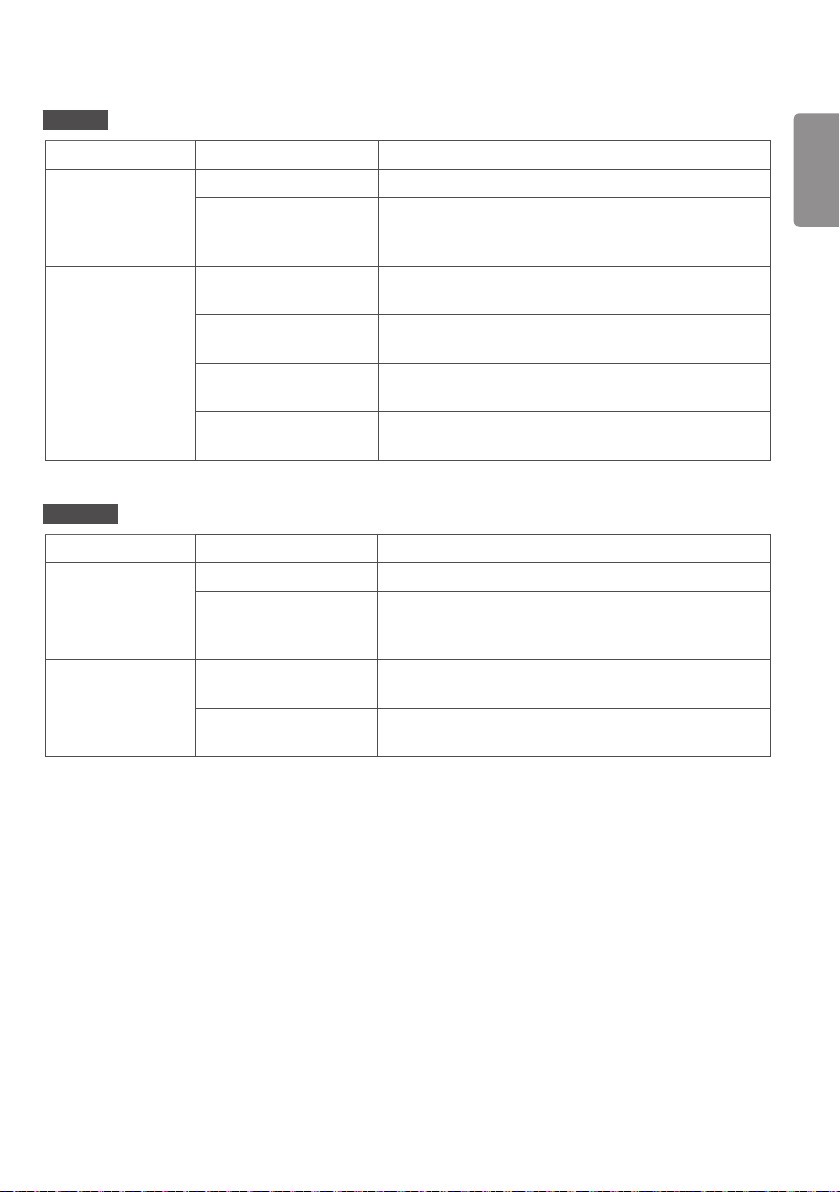
ENGLISH
33
32SE3D
LCD screen Pixel pitch
0.36375 mm (H) x 0.36375 mm (V)
Power Rated power
AC 100-240 V ~ 50/60 Hz 0.8 A
Power consumption
On Mode: 45 W (Typ.)
Sleep Mode: ≤ 0.5 W
Off Mode: ≤ 0.5 W
Dimensions (Width
x Height x Depth) /
Weight
Head
729.4 mm x 428.9 mm x 55.5 mm / 5.2 kg
(28.7 inches x 16.8 inches x 2.1 inches / 11.4 lbs)
Head + Stand
729.4 mm x 481 mm x 154.2 mm / 6 kg
(28.7 inches x 18.9 inches x 6.0 inches / 13.2 lbs)
Head + Speaker
729.4 mm x 428.9 mm x 95.7 mm / 5.7 kg
(28.7 inches x 16.8 inches x 3.7 inches / 12.5 lbs)
Head + Speaker + Stand
729.4 mm x 481 mm x 154.2 mm / 6.5 kg
(28.7 inches x 18.9 inches x 6.0 inches / 14.3 lbs)
32SE3KD
LCD screen Pixel pitch
0.36375 mm (H) x 0.36375 mm (V)
Power Rated power
AC 100-240 V ~ 50/60 Hz 0.8 A
Power consumption
On Mode: 45 W (Typ.)
Sleep Mode: ≤ 0.5 W
Off Mode: ≤ 0.5 W
Dimensions (Width
x Height x Depth) /
Weight
Head
729.4 mm x 428.9 mm x 55.5 mm / 5.4 kg
(28.7 inches x 16.8 inches x 2.1 inches / 11.9 lbs)
Head + Stand
729.4 mm x 481 mm x 154.2 mm / 6.2 kg
(28.7 inches x 18.9 inches x 6.0 inches / 13.6 lbs)
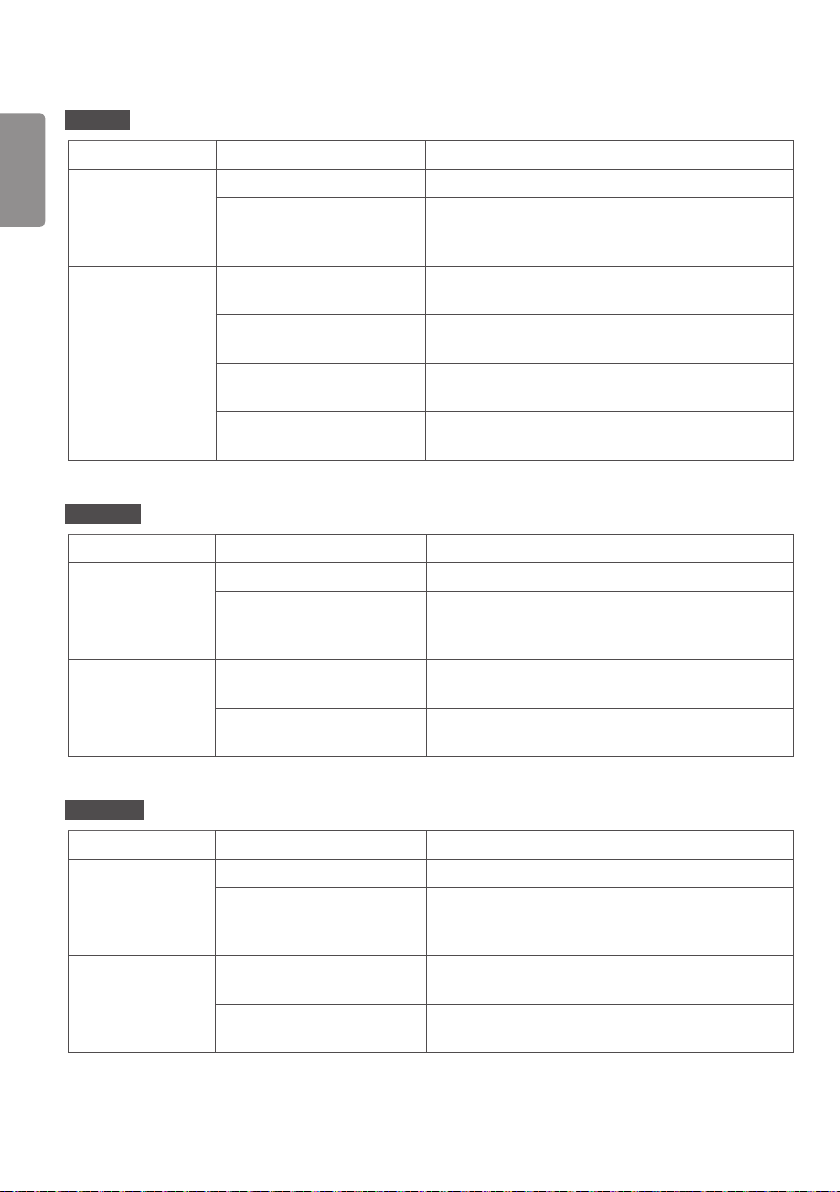
ENGLISH
34
43SE3D
LCD screen Pixel pitch
0.4902 mm (H) X 0.4902 mm (V)
Power Rated power
AC 100-240 V~ 50/60 Hz 0.9 A
Power consumption
On Mode: 55 W (Typ.)
Sleep Mode: ≤ 0.5 W
Off Mode: ≤ 0.5 W
Dimensions (Width
x Height x Depth) /
Weight
Head
969.6 mm x 563.9 mm x 38.6 mm / 9.6 kg
(38.1 inches x 22.2 inches x 1.5 inches / 21.1 lbs)
Head + Stand
969.6 mm x 622.2 mm x 193 mm / 12.1 kg
(38.1 inches x 24.4 inches x 7.5 inches / 26.6 lbs)
Head + Speaker
969.6 mm x 563.9 mm x 67.9 mm / 10.1 kg
(38.1 inches x 22.2 inches x 2.6 inches / 22.2 lbs)
Head + Speaker + Stand
969.6 mm x 622.2 mm x 193 mm / 12.6 kg
(38.1 inches x 24.4 inches x 7.5 inches / 27.7 lbs)
43SE3KD
LCD screen Pixel pitch
0.4902 mm (H) X 0.4902 mm (V)
Power Rated power
AC 100-240 V~ 50/60 Hz 0.9 A
Power consumption
On Mode: 55 W (Typ.)
Sleep Mode: ≤ 0.5 W
Off Mode: ≤ 0.5 W
Dimensions (Width
x Height x Depth) /
Weight
Head
969.6 mm x 563.9 mm x 54 mm / 10.0 kg
(38.1 inches x 22.2 inches x 2.1 inches / 22.0 lbs)
Head + Stand
969.6 mm x 622.2 mm x 193 mm / 12.5 kg
(38.1 inches x 24.4 inches x 7.5 inches / 27.5 lbs)
43SH7DD
LCD screen Pixel pitch
0.4902 mm (H) X 0.4902 mm (V)
Power Rated power
AC 100-240 V~ 50/60 Hz 1.3 A
Power consumption
On Mode: 75 W (Typ.)
Sleep Mode: ≤ 0.5 W
Off Mode: ≤ 0.5 W
Dimensions (Width
x Height x Depth) /
Weight
Head
969.6 mm x 563.9 mm x 54 mm / 10.0 kg
(38.1 inches x 22.2 inches x 2.1 inches / 22.0 lbs)
Head + Stand
969.6 mm x 622.2 mm x 193 mm / 12.5 kg
(38.1 inches x 24.4 inches x 7.5 inches / 27.5 lbs)
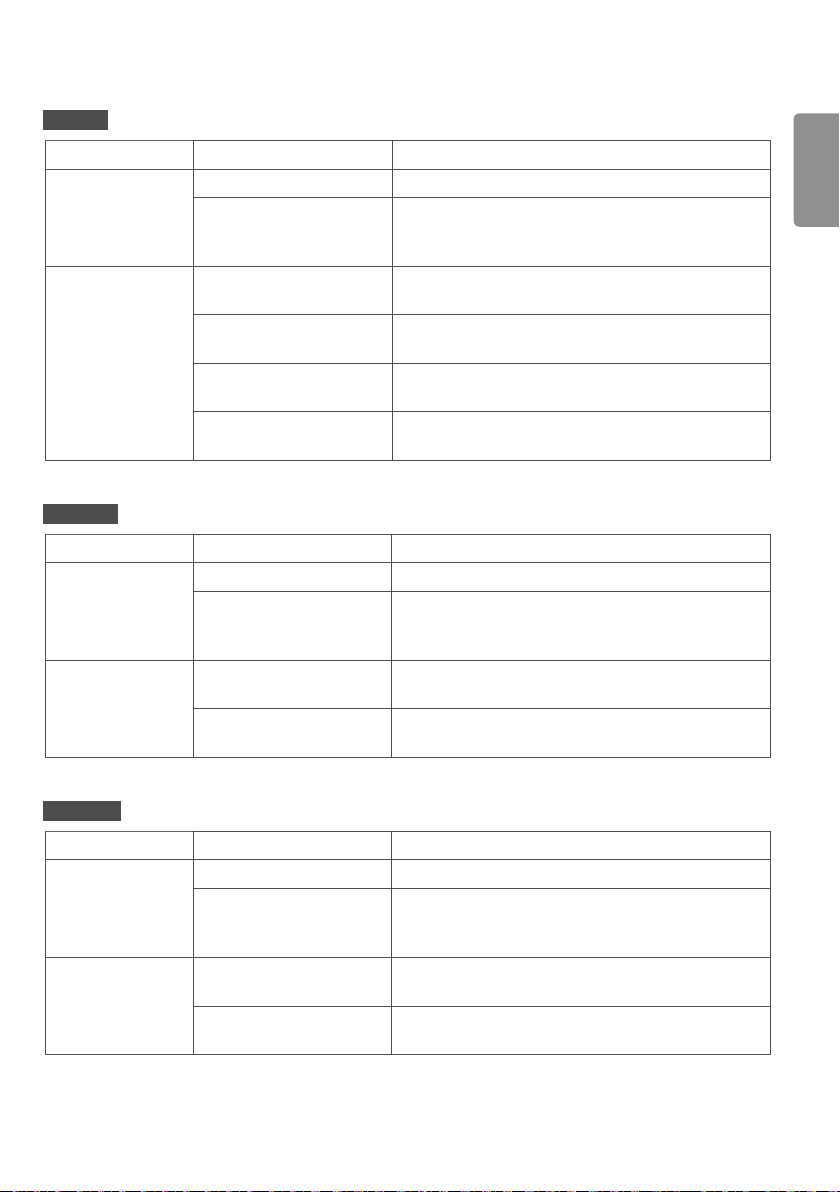
ENGLISH
35
49SE3D
LCD screen Pixel pitch
0.55926 mm (H) X 0.55926 mm (V)
Power Rated power
AC 100-240 V~ 50/60 Hz 1.0 A
Power consumption
On Mode: 60 W (Typ.)
Sleep Mode: ≤ 0.5 W
Off Mode: ≤ 0.5 W
Dimensions (Width
x Height x Depth) /
Weight
Head
1102.2 mm x 638.5 mm x 38.6 mm / 13.9 kg
(43.3 inches x 25.1 inches x 1.5 inches / 30.6 lbs)
Head + Stand
1102.2 mm x 696.8 mm x 219.6 mm / 17.2 kg
(43.3 inches x 27.4 inches x 8.6 inches / 37.9 lbs)
Head + Speaker
1102.2 mm x 638.5 mm x 67.9 mm / 14.4 kg
(43.3 inches x 25.1 inches x 2.6 inches / 31.7 lbs)
Head + Speaker + Stand
1102.2 mm x 696.8 mm x 219.6 mm / 17.7 kg
(43.3 inches x 27.4 inches x 8.6 inches / 39 lbs)
49SE3KD
LCD screen Pixel pitch
0.55926 mm (H) X 0.55926 mm (V)
Power Rated power
AC 100-240 V~ 50/60 Hz 1.0 A
Power consumption
On Mode: 60 W (Typ.)
Sleep Mode: ≤ 0.5 W
Off Mode: ≤ 0.5 W
Dimensions (Width
x Height x Depth) /
Weight
Head
1102.2 mm x 638.5 mm x 54 mm / 14.3 kg
(43.3 inches x 25.1 inches x 2.1 inches / 31.5 lbs)
Head + Stand
1102.2 mm x 696.8 mm x 219.6 mm / 17.6 kg
(43.3 inches x 27.4 inches x 8.6 inches / 38.8 lbs)
49SH7DD
LCD screen Pixel pitch
0.55926 mm (H) X 0.55926 mm (V)
Power Rated power
AC 100-240 V~ 50/60 Hz 1.4 A
Power consumption
On Mode: 85 W (Typ.)
Sleep Mode: ≤ 0.5 W
Off Mode: ≤ 0.5 W
Dimensions (Width
x Height x Depth) /
Weight
Head
1102.2 mm x 638.5 mm x 54 mm / 14.3 kg
(43.3 inches x 25.1 inches x 2.1 inches / 31.5 lbs)
Head + Stand
1102.2 mm x 696.8 mm x 219.6 mm / 17.6 kg
(43.3 inches x 27.4 inches x 8.6 inches / 38.8 lbs)
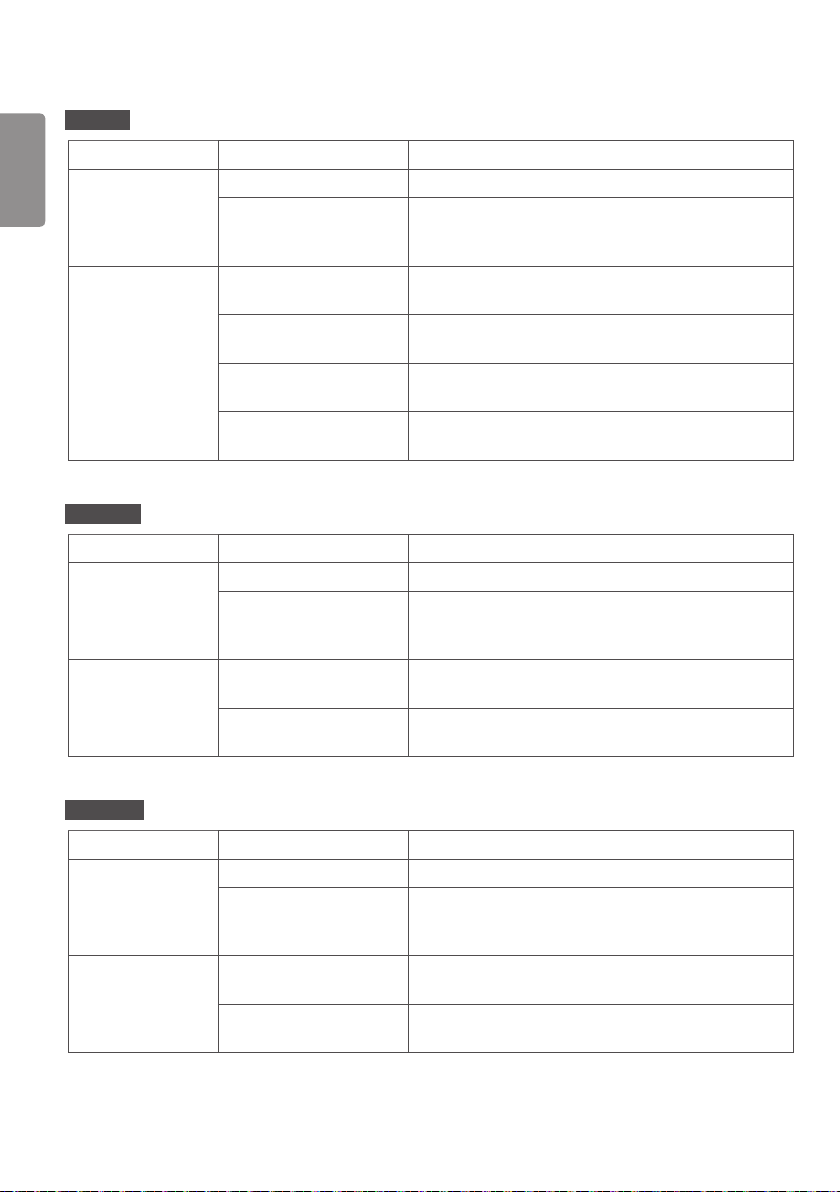
ENGLISH
36
55SE3D
LCD screen Pixel pitch
0.630 mm (H) x 0.630 mm (V)
Power Rated power
AC 100-240 V~ 50/60 Hz 1.1 A
Power consumption
On Mode: 65 W (Typ.)
Sleep Mode: ≤ 0.5 W
Off Mode: ≤ 0.5 W
Dimensions (Width
x Height x Depth) /
Weight
Head
1238 mm x 714.9 mm x 38.6 mm / 17.1 kg
(48.7 inches x 28.1 inches x 1.5 inches / 37.6 lbs)
Head + Stand
1238 mm x 773.4 mm x 219.6 mm / 20.4 kg
(48.7 inches x 30.4 inches x 8.6 inches / 44.9 lbs)
Head + Speaker
1238 mm x 714.9 mm x 67.9 mm / 17.6 kg
(48.7 inches x 28.1 inches x 2.6 inches / 38.8 lbs)
Head + Speaker + Stand
1238 mm x 773.4 mm x 219.6 mm / 20.9 kg
(48.7 inches x 30.4 inches x 8.6 inches / 46.0 lbs)
55SE3KD
LCD screen Pixel pitch
0.630 mm (H) x 0.630 mm (V)
Power Rated power
AC 100-240 V~ 50/60 Hz 1.1 A
Power consumption
On Mode: 65 W (Typ.)
Sleep Mode: ≤ 0.5 W
Off Mode: ≤ 0.5 W
Dimensions (Width
x Height x Depth) /
Weight
Head
1238 mm x 714.9 mm x 54 mm / 17.5 kg
(48.7 inches x 28.1 inches x 2.1 inches / 38.5 lbs)
Head + Stand
1238 mm x 773.4 mm x 219.6 mm / 20.8 kg
(48.7 inches x 30.4 inches x 8.6 inches / 45.8 lbs)
55SH7DD
LCD screen Pixel pitch
0.630 mm (H) x 0.630 mm (V)
Power Rated power
AC 100-240 V~ 50/60 Hz 1.5 A
Power consumption
On Mode: 95 W (Typ.)
Sleep Mode: ≤ 0.5 W
Off Mode: ≤ 0.5 W
Dimensions (Width
x Height x Depth) /
Weight
Head
1238 mm x 714.9 mm x 54 mm / 17.5 kg
(48.7 inches x 28.1 inches x 2.1 inches / 38.5 lbs)
Head + Stand
1238 mm x 773.4 mm x 219.6 mm / 20.8 kg
(48.7 inches x 30.4 inches x 8.6 inches / 45.8 lbs)
ENGLISH
37
65SE3D
LCD screen Pixel pitch
0.744 mm (H) x 0.744 mm (V)
Power Rated power
AC 100-240 V~ 50/60 Hz 1.4 A
Power consumption
On Mode: 90 W (Typ.)
Sleep Mode: ≤ 0.5 W
Off Mode: ≤ 0.5 W
Dimensions (Width
x Height x Depth) /
Weight
Head
1456.9 mm x 838 mm x 41.1 mm / 27.7 kg
(57.3 inches x 32.9 inches x 1.6 inches / 61.0 lbs)
Head + Stand
1456.9 mm x 898.1 mm x 293.7 mm / 32.9 kg
(57.3 inches x 35.3 inches x 11.5 inches / 72.5 lbs)
Head + Speaker
1456.9 mm x 838 mm x 70.4 mm / 28.2 kg
(57.3 inches x 32.9 inches x 2.7 inches / 62.1 lbs)
Head + Speaker + Stand
1456.9 mm x 898.1 mm x 293.7 mm / 33.4 kg
(57.3 inches x 35.3 inches x 11.5 inches / 73.6 lbs)
65SE3KD
LCD screen Pixel pitch
0.744 mm (H) x 0.744 mm (V)
Power Rated power
AC 100-240 V~ 50/60 Hz 1.4 A
Power consumption
On Mode: 90 W (Typ.)
Sleep Mode: ≤ 0.5 W
Off Mode: ≤ 0.5 W
Dimensions (Width
x Height x Depth) /
Weight
Head
1456.9 mm x 838 mm x 56.5 mm / 27.9 kg
(57.3 inches x 32.9 inches x 2.2 inches / 61.5 lbs)
Head + Stand
1456.9 mm x 898.1 mm x 293.7 mm / 33.1 kg
(57.3 inches x 35.3 inches x 11.5 inches / 72.9 lbs)
ENGLISH
38
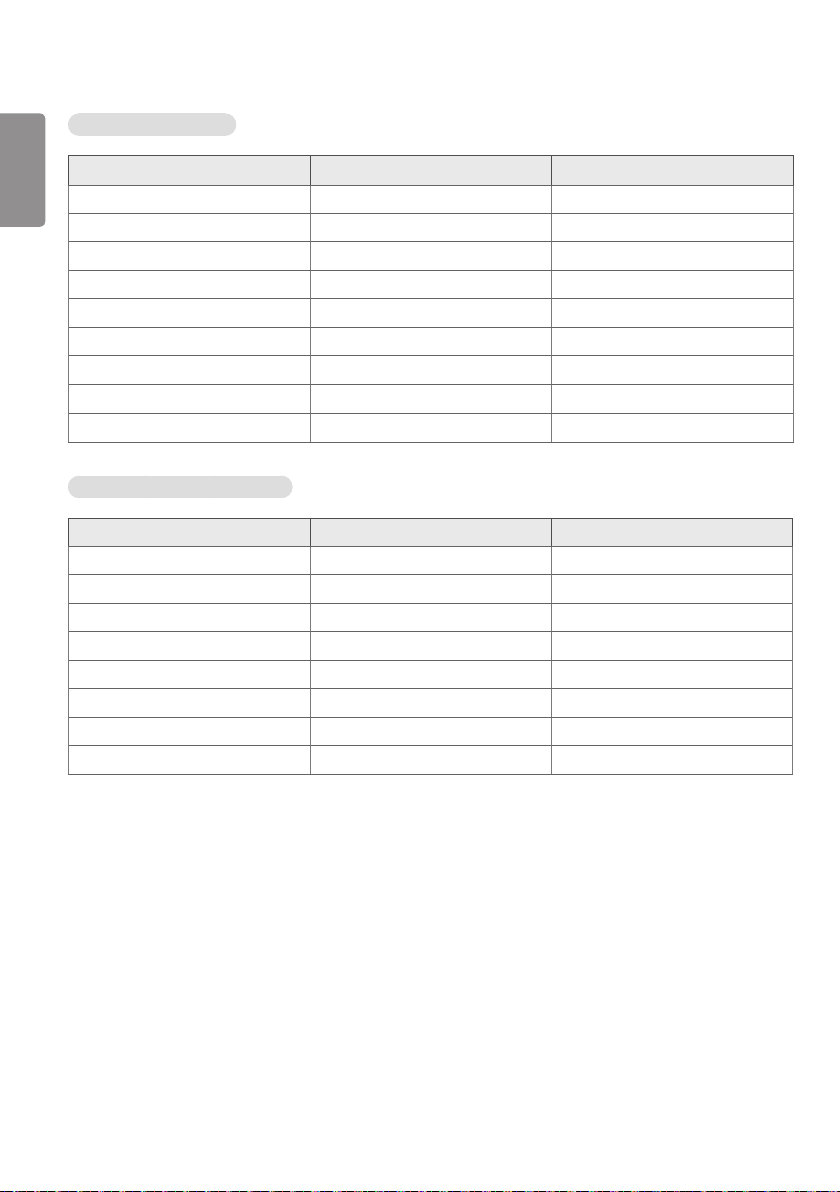
RGB (PC) Support Mode
Resolution Horizontal frequency (kHz) Vertical frequency (Hz)
720 x 400 31.468 70.8
640 x 480 31.469 59.94
800 x 600 37.879 60.317
1024 x 768 48.363 60
1280 x 720 44.772 59.855
1280 x 960 60 60
1152 x 864 57.717 59.934
1280 x 1024
63.981 60.02
1920 x 1080 67.5 60
HDMI/ DVI-D (PC) Support mode
Resolution Horizontal frequency (kHz) Vertical frequency (Hz)
640 x 480 31.469 59.94
800 x 600 37.879 60.317
1024 x 768 48.363 60
1280 x 720 44.772 59.855
1366 x 768 47.7 60
1280 x 1024 63.981 60.02
1680 x 1050 65.29 59.954
1920 x 1080 67.5 60
ENGLISH
39
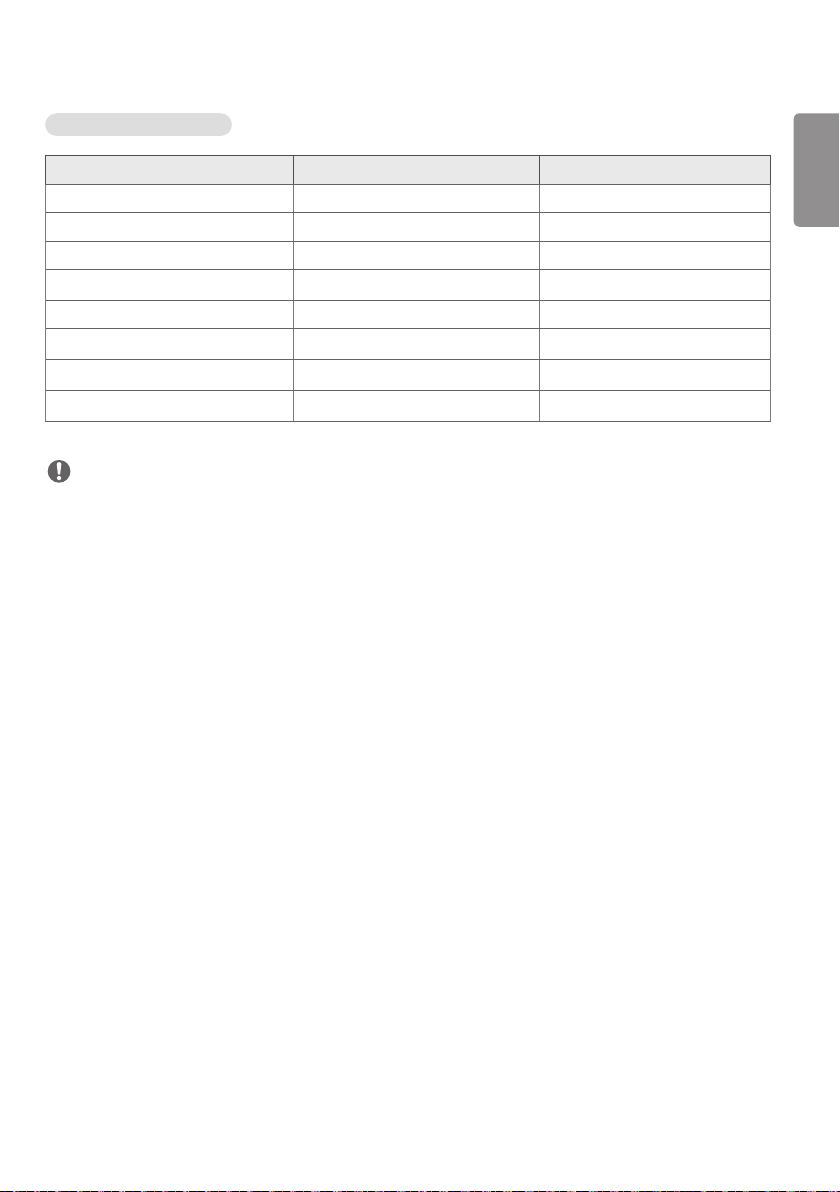
HDMI (DTV) Support Mode
Resolution Horizontal frequency (kHz) Vertical frequency (Hz)
480/60p 31.5 60
576/50p 31.25 50
720/50p 37.5 50
720/60p
45 60
1080/50i 28.1 50
1080/60i
33.75 60
1080/50p 56.25 50
1080/60p 67.5 60
NOTE
• Resolutions available for the Input Label option in RGB, HDMI/ DVI-D input modes.
- PC resolutions: 640 x 480 / 60 Hz, 1280 x 720 / 60 Hz, 1920 x 1080 / 60 Hz
- DTV resolutions: 480p, 720p, 1080p
• Vertical frequency: The product display functions by the screen image changing dozens of times every second like a
fluorescent lamp. The vertical frequency or refresh rate is the number of image displays per second. The unit is Hz.
• Horizontal frequency: The horizontal interval is the time taken to display one horizontal line. When 1 is divided by
the horizontal interval, the number of horizontal lines displayed every second can be tabulated as the horizontal
frequency. The unit is kHz.
ENERGY STAR® is a set of power-saving
guidelines issued by the U.S.Environmental
Protection Agency (EPA).
As an ENERGY STAR® Partner LGE U.
S. A.,
Inc. has determined that this product
meets the ENERGY STAR® guidelines for
energy efficiency.
Refer to ENERGYSTAR.gov for more information on the
ENERGY STAR® program.
Temporary noise is normal when powering ON or OFF
this device.
Make sure to read the Safety Precautions before using the
product.
The model and serial numbers of the SET are located on the
back and one side of the SET. Record it below should you
ever need service.
MODEL
SERIAL

ENGLISH
2
TABLE OF CONTENTS
USING THE MONITOR ................... 3
- Using the Input List .........................................................3
- Adjusting Aspect Ratio .................................................. 3
ENTERTAINMENT .........................5
- Using the Network ..........................................................5
Connecting to a Network
Network Status
- Using the My Media ........................................................9
Connecting USB storage devices
Browsing Files
Viewing Movies
Viewing Photos
Listening to Music
Viewing the Contents List
CUSTOMIZING SETTINGS ......... 21
- Accessing Main Menus ...............................................21
PICTURE Settings
AUDIO Settings
TIME Settings
OPTION Settings
NETWORK Settings
- PICTURE ID Settings ....................................................32
IR CODES .................................... 33
TO CONTROL MULTIPLE
PRODUCTS .................................. 34
- Connecting the Cable ..................................................34
- RS-232C Configurations ...........................................35
4P Cable
RS-232C Cable
- Communication Parameter ......................................35
- Command Reference List ..........................................36
- Transmission / Receiving Protocol ........................38
Open Source Software Notice Information
To obtain the source code under GPL, LGPL, MPL, and
other open source licenses, that is contained in this
product, please visit
http://opensource.lge.com.
In addition to the source code, all referred license terms,
warranty disclaimers and copyright notices are available
for download.
LG Electronics will also provide open source code to
you on CD-ROM for a charge covering the cost of
performing such distribution (such as the cost of
media, shipping, and handling) upon email request to
opensourc[email protected].
This offer is valid for a period of three years after our
last shipment of this product. This offer is valid to
anyone in receipt of this information.
ENGLISH
3
USING THE MONITOR
Using the Input List
1 Press to access the Input List.
2 Press the navigation buttons to scroll to one of the input mode and press .
- RGB-PC
- HDMI
- HDMI2
- DVI-D
- USB
- Display Port
- OPS
NOTE
• Some input signals may not be supported depending on the model.
Adjusting Aspect Ratio
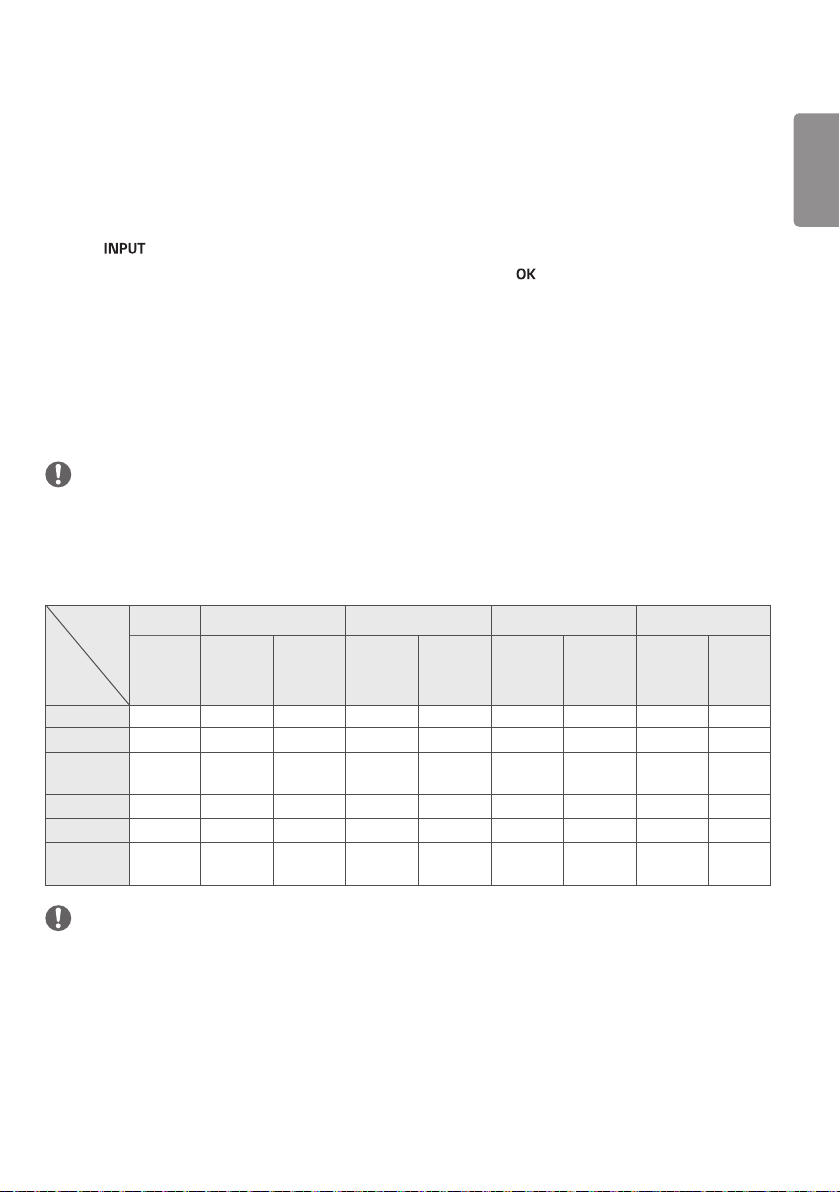
Resize the image to view the image at its optimal size by pressing ARC while you are watching monitor set.
MODE
Aspect
Ratio
RGB HDMI DVI-D Display Port OPS
PC DTV PC DTV PC DTV PC DTV PC
16:9 o o o o o o o o o
Just Scan
x o x o x o x o x
Set By
Program
x o x o x o x o x
4:3
o o o o o o o o o
Zoom
x o x o x o x o x
Cinema
Zoom1
x o x o x o x o x
NOTE
• You can also change the image size by accessing the main menus.
• The Just Scan mode operates when a video signal has resolution of 720p or higher.
ENGLISH
4
CAUTION
• If a fixed image displays on the screen for a long period of time, it will be imprinted and become a permanent
disfigurement on the screen. This is image burn or burn-in and not covered by the warranty.
• If you don’t use your monitor, turn the power off or set a screen saver program from the PC or the system to prevent
image retention.
• If the aspect ratio is set to 4:3 for a long period of time, image burn may occur on the letterboxed area of the screen.
• 16:9 : This selection will allow you to adjust the picture horizontally, in linear proportion, to fill the entire screen
(useful for viewing 4:3 formatted DVDs).
• Just Scan : This Selection will allow you view the picture of best quality without loss of original picture in high
resolution image. Note: If there is noise in original Picture, You can see the noise at the edge.
• Set By Program : Depending on the input signal, screen aspect ratio changes to 4:3 or 16:9.
• 4:3 : This selection will allow you to view a picture with an original 4:3 aspect ratio, black bars will appear on both the
left and right of the screen.
• Zoom : This selection will allow you to view the picture without any alteration, while filling the entire screen. However,
the top and bottom of the picture will be cropped.
• Cinema Zoom1 : Choose Cinema Zoom when you want to enlarge the picture in correct proportion. Note: When
enlarging or reducing the picture, the image may become distorted.
ENGLISH
5
ENTERTAINMENT
Using the Network
Connecting to a Network
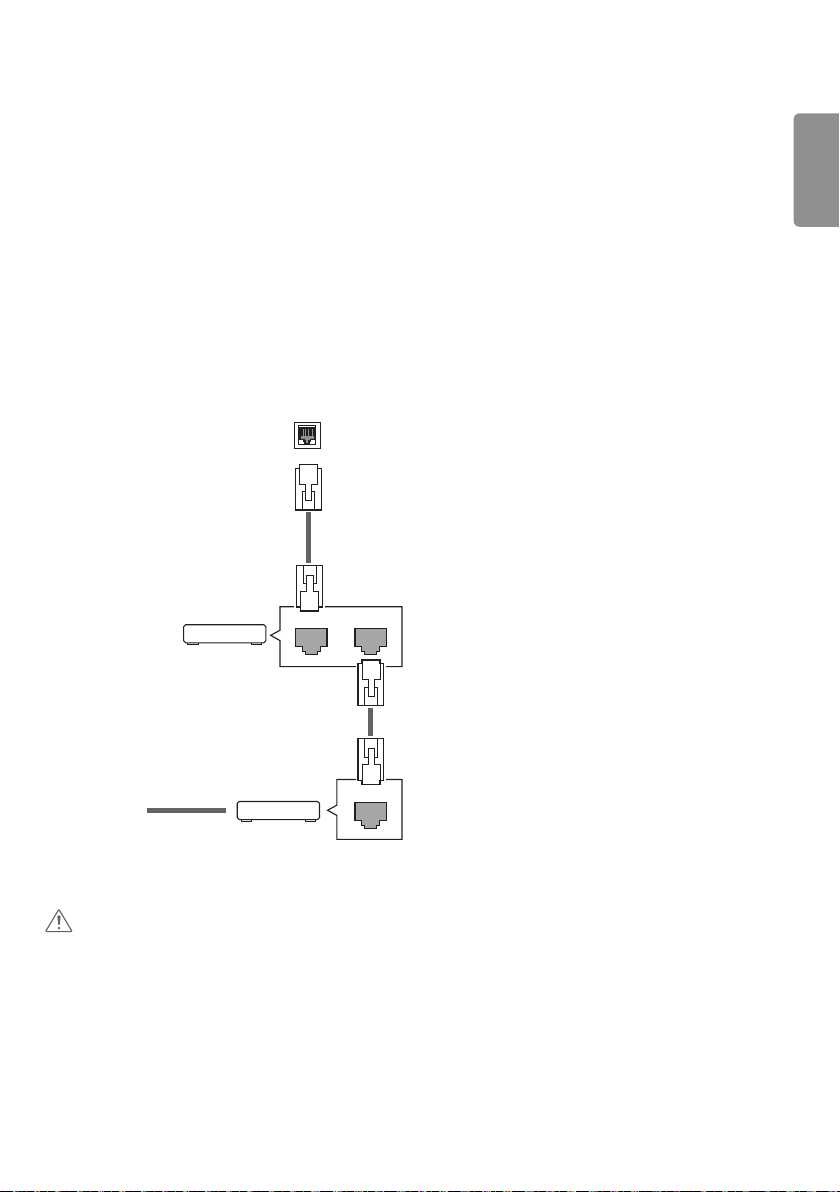
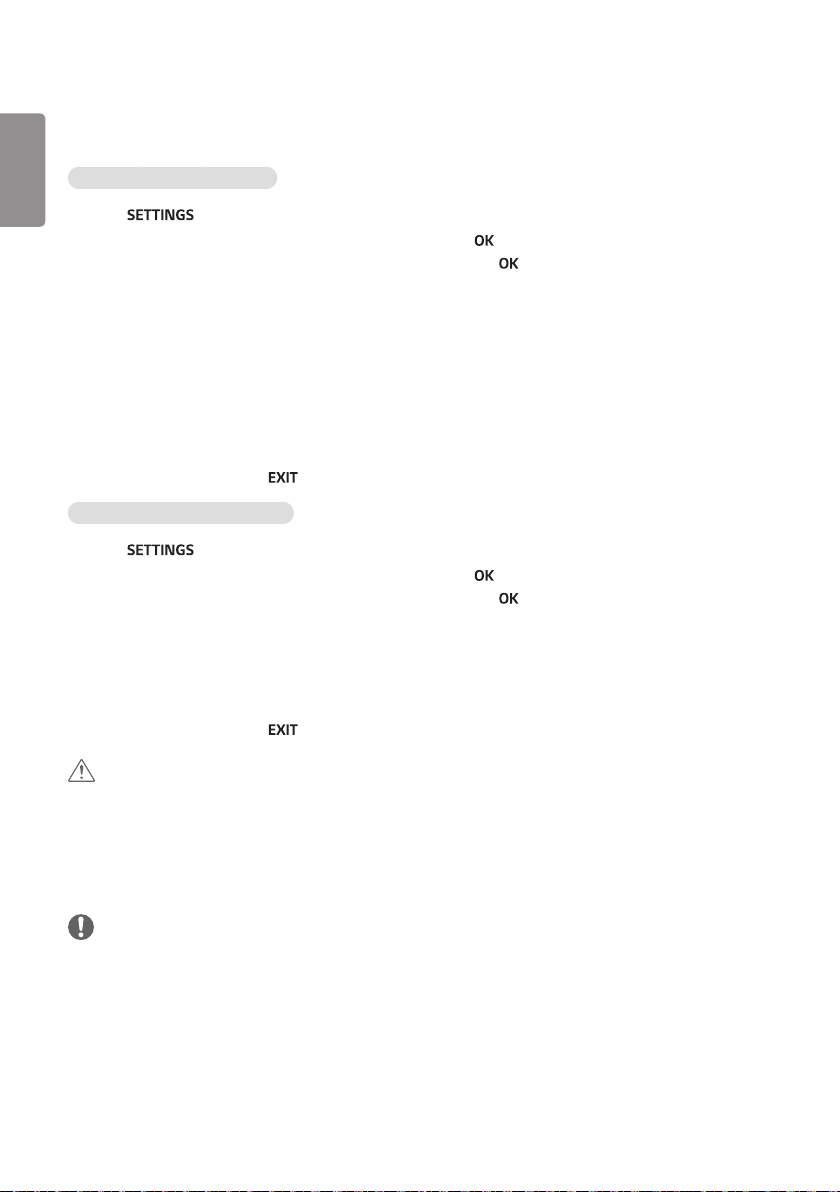
For wired network connections, connect the display to a local area network (LAN) via the LAN port as shown on the
following diagram. Then, set up the network settings. For wireless network connections, connect the Wi-Fi USB module
to the USB port. Then, set up the network settings.
After making a physical connection, a small number of home networks may require the display network settings to be
adjusted. For most home networks, the display will connect to automatically without any adjustments.
For detail information, contact your internet provider or router manual.
LAN
Router
LANWAN
Cable modem
ETHERNET
@
Internet
CAUTION
• Do not connect a modular phone cable to the LAN port.
• Since there are various connection methods, please follow the specifications of your telecommunication carrier or
internet service provider.
ENGLISH
6
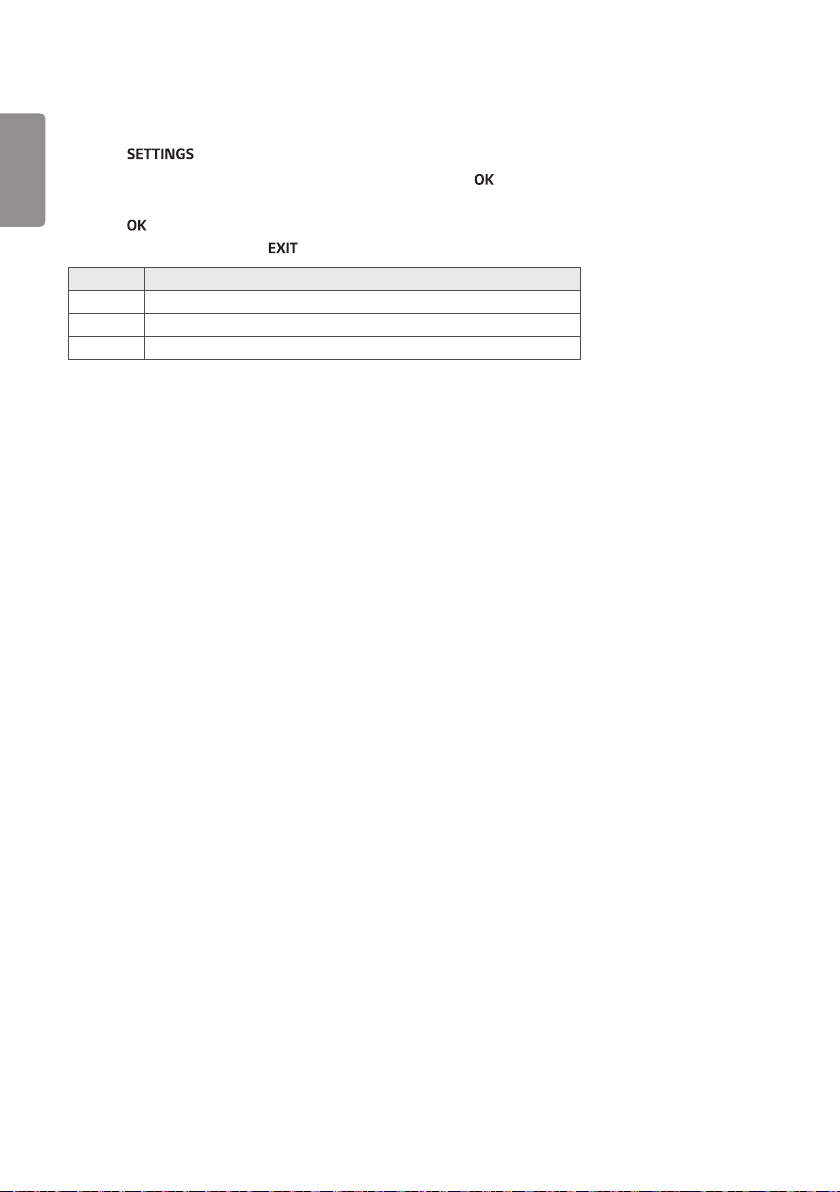
To set up the network settings: (Even if your display has already connected automatically, running setup again will not
harm anything),
Connecting to a wired network
1 Press to access the main menus.
2 Press the navigation buttons to scroll to NETWORK and press .
3 Press the navigation buttons to select Network Setting and press .
4 If you already set network setting, select Resetting. The new connection settings resets the current network
settings.
5 Select IP Auto Setting or IP Manual Setting.
- IP Manual Setting
press the navigation and number buttons. IP addresses will need to be input manually.
- IP Auto Setting
Select this if there is a DHCP server (Router) on the local area network (LAN) via wired connection, the display
will automatically be allocated an IP address. If you’re using a broadband router or broadband modem that has a
DHCP (Dynamic Host Configuration Protocol) server function. The IP address will automatically be determined.
6 When you are finished, press .
Connecting to a wireless network
1 Press to access the main menus.
2 Press the navigation buttons to scroll to NETWORK and press .
3 Press the navigation buttons to select Network Setting and press .
4 Select Setting from the AP list or Simple setting (WPS-button mode).
- Setting from the AP list
Select an AP to connect to a wireless network.
- Simple setting (WPS-button mode)
Press the button on the wireless router that supports PBC to easily connect to the router.
5 When you are finished, press .
CAUTION
• Network setting menu will not be available until the display connected to physical network.
• Since there are various connection methods, please follow the specifications of your telecommunication carrier or
internet service provider.
• When a Wi-Fi dongle is used with a model that has only one USB input port, the distribution or content schedule via
the SuperSign software is not available.
NOTE
• If you want to access the Internet directly on your display, the Internet connection should always be on.
• If you cannot access the Internet, check the network conditions from a PC on your network.
• When you use Network Setting, check the LAN cable or check if DHCP in the router is turned on.
• If you do not complete the network settings, the network may not work properly.
• When connected to a network that supports IPv6, you can select IPv4/IPv6 in the advanced wired/wireless network
setting. But, IPv6 connection only supports automatic connection.

ENGLISH
7
Tips for Network setting
• Use a standard LAN cable with this display. Cat5 or better with a RJ45 connector.
• Many network connection problems during set up can often be fixed by re-setting the router or modem. After
connecting the display to the home network, quickly power off and/or disconnect the power cable of the home
network router or cable modem. Then power on and/or connect the power cable again.
• Depending on the internet service provider (ISP), the number of devices that can receive internet service may be
limited by the applicable terms of service. For details, contact your ISP.
• LG is not responsible for any malfunction of the display and/or the internet connection feature due to communication
errors/malfunctions associated with your internet connection, or other connected equipment.
• LG is not responsible for problems within your internet connection.
• You may experience undesired results if the network connection speed does not meet the requirements of the
content being accessed.
• Some internet connection operations may not be possible due to certain restrictions set by the Internet service
provider (ISP) supplying your Internet connection.
• Any fees charged by an ISP including, without limitation, connection charges are your respon- sibility.
• A 10 Base-T or 100 Base-TX LAN port is required when using a wired connection to this display. If your internet
service does not allow for such a connection, you will not be able to connect the display.
• A DSL modem is required to use DSL service and a cable modem is required to use cable modem service. Depending
on the access method of and subscriber agreement with your ISP, you may not be able to use the internet connection
feature contained in this display or you may be limited to the number of devices you can connect at the same
time. (If your ISP limits subscription to one device, this display may not be allowed to connect when a PC is already
connected.)
• The use of a router may not be allowed or its usage may be limited depending on the policies and restrictions of your
ISP. For details, contact your ISP directly.
Tips for Wireless Network Setting
• Wireless networks can be subject to interference from other devices operating at a frequency of 2.4 GHz (wireless
phones, Bluetooth devices, or microwave ovens). There may also be interference from devices with a frequency of 5
GHz, same as other Wi-Fi devices.
• The surrounding wireless environment can cause the wireless network service to run slowly.
• For an AP connection, an access point device that supports wireless connection is required and the wireless
connection feature must be enabled on the device. Contact your service provider regarding availability of wireless
connection on your access point.
• Check the SSID and security settings of the AP for AP connection. Refer to the appropriate documentation for SSID
and security settings of the AP.
• Invalid settings on network devices (wired/wireless line sharer, hub) can cause the monitor to run slowly or not
operate properly. Install the devices correctly according to the appropriate manual and set the network.
• Connection method may differ according to the AP manufacturer.
ENGLISH
8
Network Status
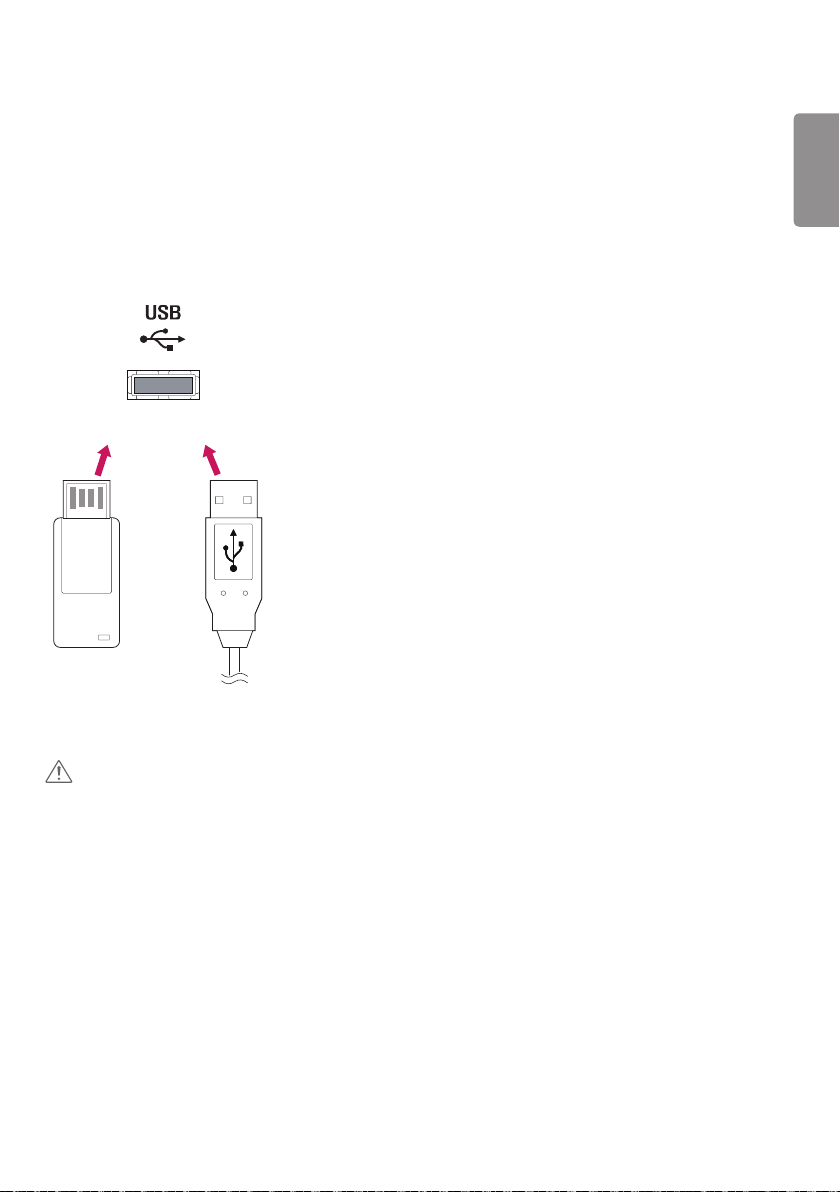
1 Press to access the main menus.
2 Press the navigation buttons to scroll to NETWORK and press .
3 Press the navigation buttons to select Network Status.
4 Press to check the network status.
5 When you are finished, press .
Option Description
Setting Return to the network setting menu.
Test Test the current network status after setting the network.
Close Return to the previous menu.
ENGLISH
9
Using the My Media
Connecting USB storage devices
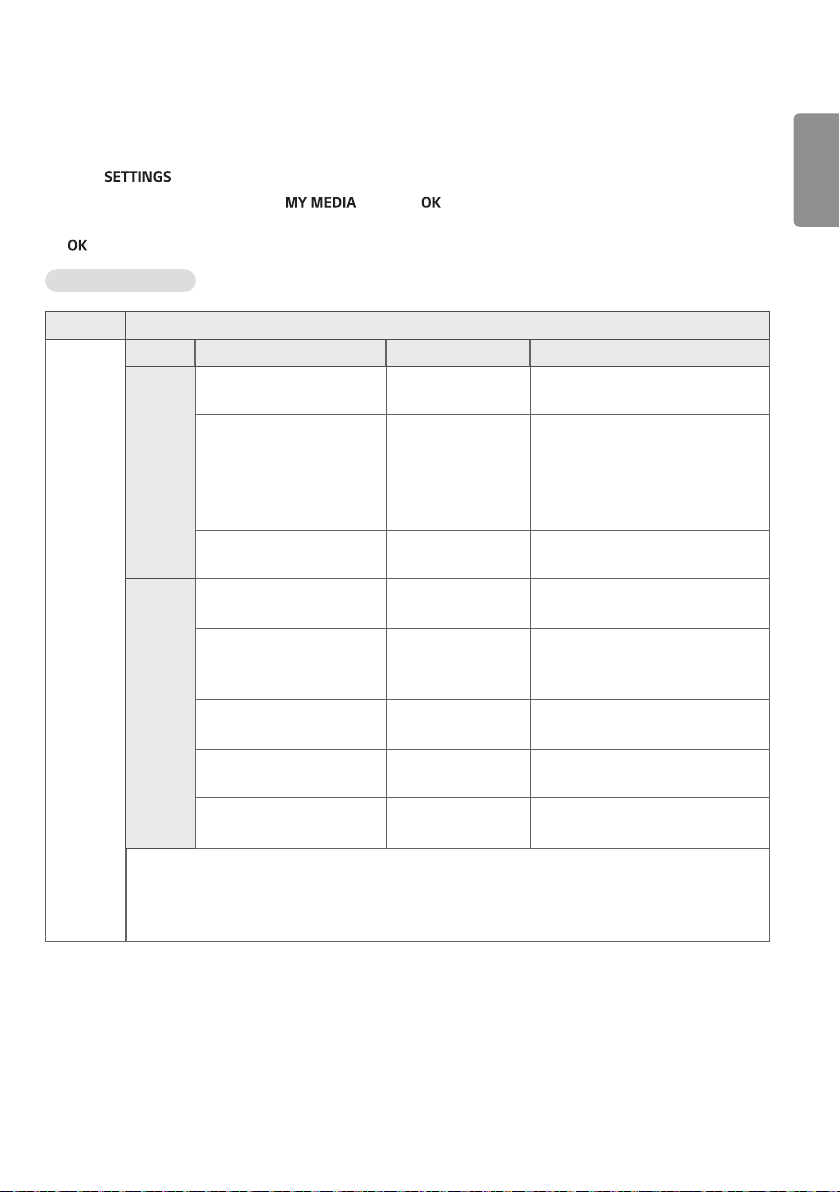
Connect USB storage devices such as a USB flash memory, external hard drive to the display and use multimedia
features.
Connect a USB flash memory or USB memory card reader to the Display as shown on the following illustration.
The My Media screen appears.
CAUTION
• Do not turn the display off or remove a USB storage device while MY MEDIA menu is activated, as this could result
in loss of files or damage to the USB storage device.
• Back up your files saved on a USB storage device frequently, as you may lose or damage the files and this may be not
covered by the warranty.
OR

ENGLISH
10
Tips for using USB storage devices
• Only a USB storage device is recognizable.
• If the USB storage device is connected through a USB hub, the device is not recognizable.
• A USB storage device using an automatic recognition program may not be recognized.
• A USB storage device which uses its own driver will not be recognized.
• The recognition speed of a USB storage device may depend on each device.
• Please do not turn off the display or unplug the USB device when the connected USB storage device is working.
When such a device is suddenly separated or unplugged, the stored files or the USB storage device may be damaged.
• Please do not connect the USB storage device which was artificially maneuvered on the PC. The device may cause the
product to malfunction. Only use a USB storage device which has normal music files, image files or movie files.
• Please only use USB storage devices formatted using the FAT32 file system. Storage devices formatted with utility
programs that are not supported by Windows may not be recognized.
• Please connect power to a USB storage device (over 0.5 A) which requires an external power supply. If not, the device
may not be recognized.
• Please connect a USB storage device with the cable included by the device maker.
• Some USB storage devices may not be supported or operate smoothly.
• File alignment method of USB storage devices is similar to Window XP and the monitor can recognize up to 100
English characters.
• Be sure to back up important files since data stored on a USB memory device may be damaged. We will not be
responsible for any data loss.
• If the USB HDD does not have an external power source, the USB device may not be detected. So be sure to connect
the external power source.
- Please use a power adaptor for an external power source.
• If your USB memory device has multiple partitions, or if you use a USB multi-card reader, you can use up to 4
partitions or USB memory devices.
• If a USB memory device is connected to a USB multi-card reader, its volume data may not be detected.
• If the USB memory device does not work properly, disconnect and reconnect it.
• How fast a USB memory device is detected differs from device to device.
• If the USB is connected in Standby Mode, that drive will automatically be loaded when the display is turned on.
• The recommended capacity is 1 TB or less for a USB external hard disk and 32 GB or less for USB memory.
• Any device with more than the recommended capacity may not work properly.
• If a USB external hard disk with a Energy Saving function does not work, turn the hard disk off and on again to make
it work properly.
• USB storage devices below USB 2.0 are supported as well. But they may not work properly with videos.
• A maximum of 999 folders or files can be recognized under one folder.
• A USB 3.0 storage device may not work.
• Data on some USB storage devices may be damaged in a high temperature environment.
• It is recommended that you avoid playing contents using more than two USB ports simultaneously.
ENGLISH
11
Browsing Files
Browse files saved in a USB storage device.
1 Press to access the main menu.
2 Press the search button to scroll to and press .
3 Press the Search button to go to the Movie List, Photo List, Music List, or Content List that you want, and press
.
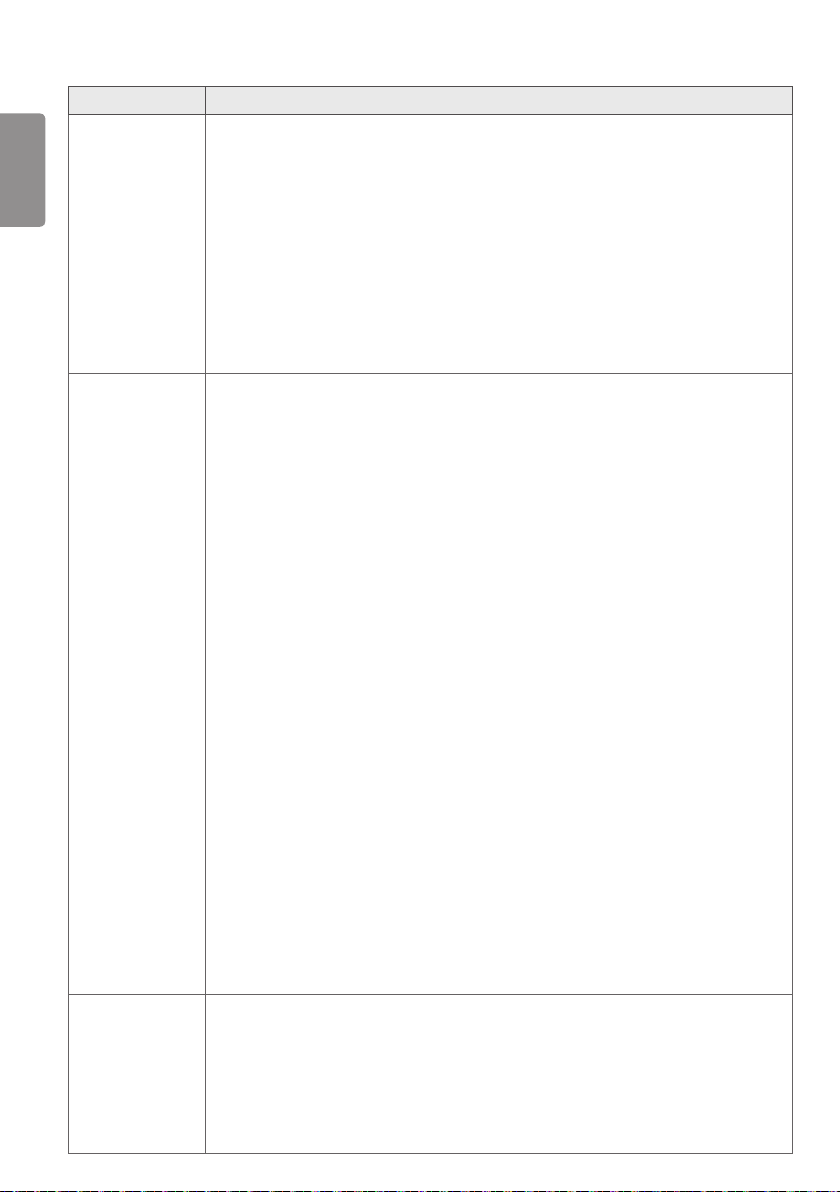
Supported file format
Type Supported file format
Movie Codec Media Container Profile
Video MPEG1 / MPEG2 DAT, MPG, MPEG,
TS, TP
1080P @ 30 fps
MPEG4
(DivX 3.11, DivX 4,
DivX 5, DivX 6,
Xvid 1.01, Xvid 1.02, Xvid
1.03, Xvid 1.10-beta1/2)
AVI, DIVX, MP4,
MKV, TS, TRP
1080P @ 30 fps
H.264 AVI, MP4, MKV, TS,
TRP, TP
1080P @ 60 fps
Audio MP3 MP3 8 kbps - 320 kbps(Bit rate)
16 kHz - 48 kHz(Sample rate)
AC3 AC3 32 kbps - 640 kbps(Bit rate)
32 kHz, 44.1 kHz, 48 kHz(Sample
rate)
MPEG MP3 32 kbps - 448 kbps(Bit rate)
16 kHz - 48 kHz(Sample rate)
AAC, HEAAC MP4 8 kHz - 48 kHz(Sample rate)
LPCM AVI, WAV 64 kbps - 1.5 Mbps(Bit rate)
8 kHz - 48 kHz(Sample rate)
Bit rate : within 8 kbps to 320 kbps(MP3)
External Subtitle format : *.smi/*.srt/*.sub(MicroDVD, Subviewer1.0/2.0)/*.ass/*.ssa/*.txt(TMPlayer)/
*.psb(PowerDivX)
Internal Subtitle format : only, XSUB (It is the subtitle format used in DivX6 files)
ENGLISH
12
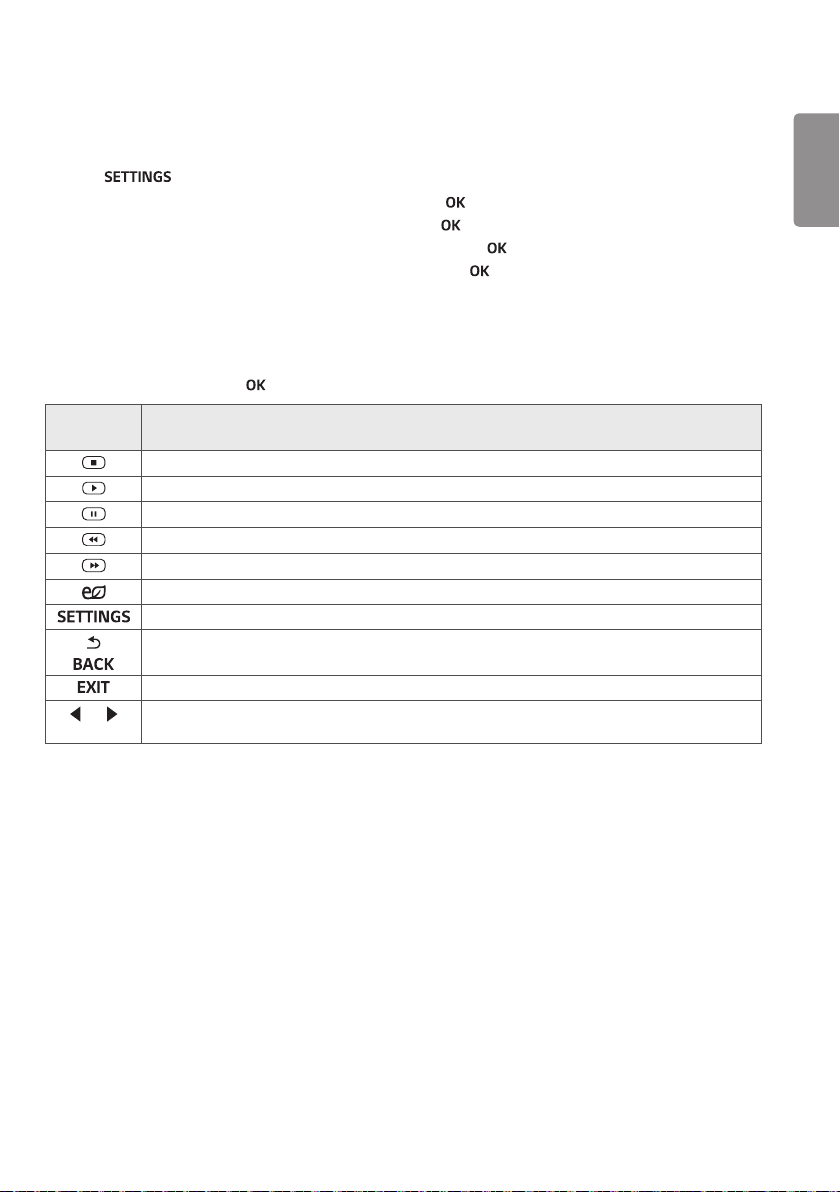
Type Supported file format
Photo Min : 64 x 64
Max : Normal Type: 15360 (W) x 8640 (H)
Progressive Type: 1920 (W) x 1440 (H)
BMP
Min : 64 x 64
Max : 9600 x 6400
PNG
Min : 64 x 64
Max : Interlace: 1200 x 800
Non-Interlace: 9600 x 6400
• Non-supported files are displayed in the form of predefined icon.
Music mp3
[Bit rate] 32 kbps ~ 320 kbps
[Sample freq] 16 kHz ~ 48 kHz
[Support] MPEG1, MPEG2, Layer2, Layer3
AAC
[Bit rate] Free Format
[Sample freq.] 8 kHz ~ 48 kHz
[Support] ADIF, ADTS
M4A
[Bit rate] Free Format
[Sample freq.] 8 kHz ~ 48 kHz
[Support] MPEG-4
OGG
[Bit rate] Free Format
[Sample freq.] ~ 48 kHz
[Support] Vorbis
WMA
[Bit rate] 128 kbps ~ 320 kbps
[Sample freq.] 8 kHz ~ 48 kHz
[Support] WMA7, 8, 9 Standard
WMA 10 Pro
[Bit rate] ~768 kbps
[Channel / Sample freq.]
M0 : Up to 2 / 48 kHz
M1 : Up to 5.1 / 48 kHz
M2 : Up to 5.1 / 96 kHz
[Support] WMA 10 Pro
Content (when
using SuperSign
software)
File Extensions : *.cts/ *.sce
Movie
File Extensions: *.mpg/*.mpeg/*.dat/*.ts/*.trp/*.tp/*.mp4/*.mkv/*.avi/*. avi(motion JPEG)/*.
mp4(motion JPEG)/*.mkv(motion JPEG)
Video format: MPEG1, MPEG2, MPEG4,H.264, DivX 3.11, DivX 4, DivX 5, DivX 6,
Xvid 1.00,Xvid 1.01, Xvid 1.02, Xvid 1.03,Xvid 1.10-beta1/2, JPEG
Audio format: MP3, Dolby Digital, LPCM, AAC, HE-AAC
ENGLISH
13
Viewing Movies
Plays movie files saved in the USB storage device.
1 Press to access the main menu.
2 Press the navigation button to scroll to MY MEDIA and press .
3 Press the navigation button to scroll to Movie List and press .
4 Press the navigation buttons to scroll to a folder you want and press .
5 Press the navigation buttons to scroll to a file you want and press .
- Change Device : Selects the USB storage device. (Depending on model)
- Go to root folder : Returns to the home screen of My Media.
- Go to upper folder : Returns to the previous screen.
- Exit : Exits My Media.
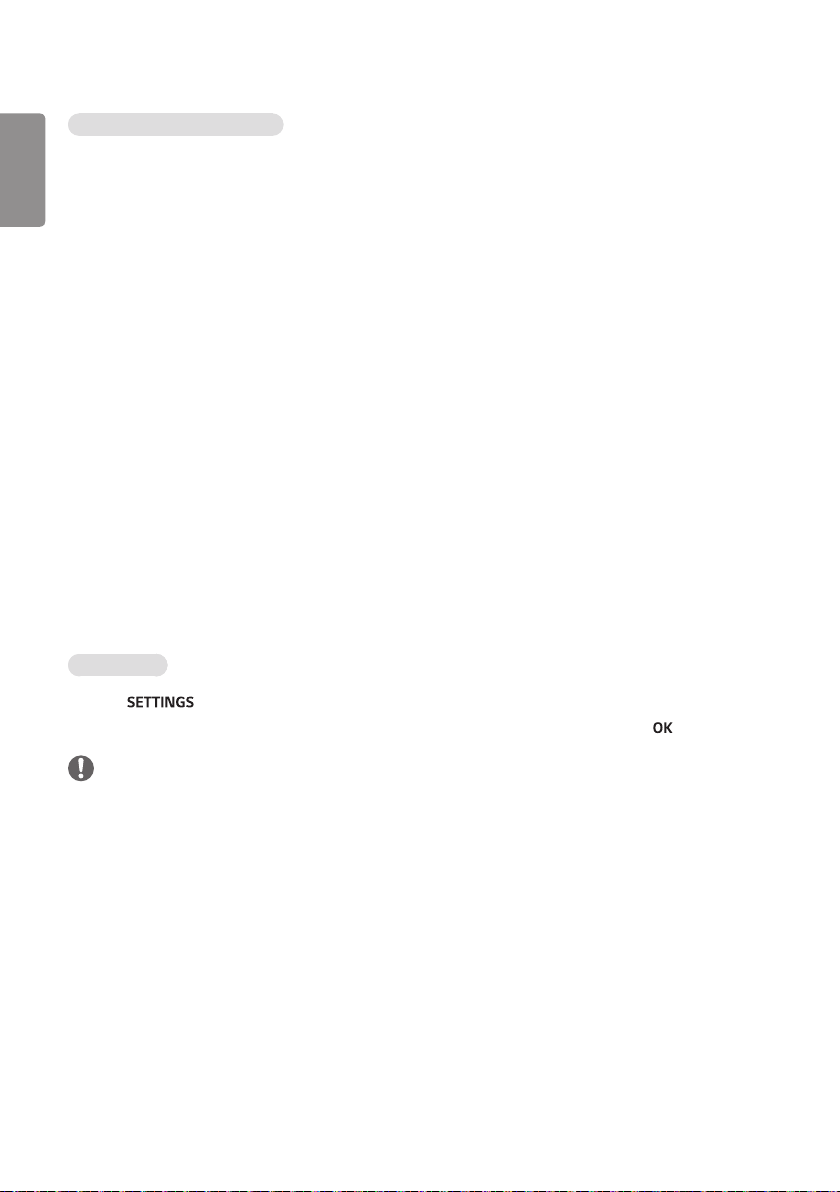
6 During movie playback, press to access the following settings.
Remote
button
Description
Stops the playback.
Plays a video.
Pauses or resumes the playback.
Scans backward in a file.
Scans forward in a file.
Adjusts the screen brightness to save energy.
Show the Option menu.
Hide the menu on the full-sized screen.
Returns to Movie List.
OR
Skips to specific points in a file during playback. The time of a specific point will appear on the
status bar. In some files, this function may not work properly.
ENGLISH
14
Tips for using playing video files
• Some user-created subtitles may not work properly.
• Some special characters are not supported in subtitles.
• HTML tags are not supported in subtitles.
• Subtitles in languages other than the supported languages are not available.
• The screen may suffer temporary interruptions (image stoppage, faster playback, etc.) when the audio language is
changed.
• A damaged movie file may not be played correctly, or some player functions may not be usable.
• Movie files produced with some encoders may not be played correctly.
• If the video and audio structure of recorded file is not interleaved, either video or audio is outputted.
• HD videos with a maximum of 1920 x 1080 @ 25/30p or 1280 x 720 @ 50/60p are supported, depending on the
frame.
• Videos with resolutions higher than 1920 x 1080 @ 25/30p or 1280 x 720 @ 50/60p may not work properly
depending on the frame.
• Movie files other than the specified types and formats may not work properly.
• Max bitrate of playable movie file is 20 Mbps. (only, Motion JPEG : 10 Mbps)
• We do not guarantee smooth playback of profiles encoded level 4.1 or higher in H.264/AVC.
• DTS Audio codec is not supported.
• A movie file more than 30 GB in file size is not supported for playback.
• A DivX movie file and its subtitle file must be located in the same folder.
• A video file name and its subtitle file name must be identical for it to be displayed.
• Playing a video via a USB connection that doesn’t support high speed may not work properly.
• Files encoded with GMC(Global Motion Compensation) may not be played.
Video options
1 Press to access the Pop-Up menus.
2 Press the navigation buttons to scroll to Set Video Play, Set Video, or Set Audio, and press .
NOTE
• The option values changed in Movie List do not affect Photo List or Music List. Therefore, they are not affected by
option values changed in Photo List or Music List.
• The option values changed in Photo List and Music List do affect each other.
• When replaying the video file after stopping, you can play from where it stopped previously.
ENGLISH
15
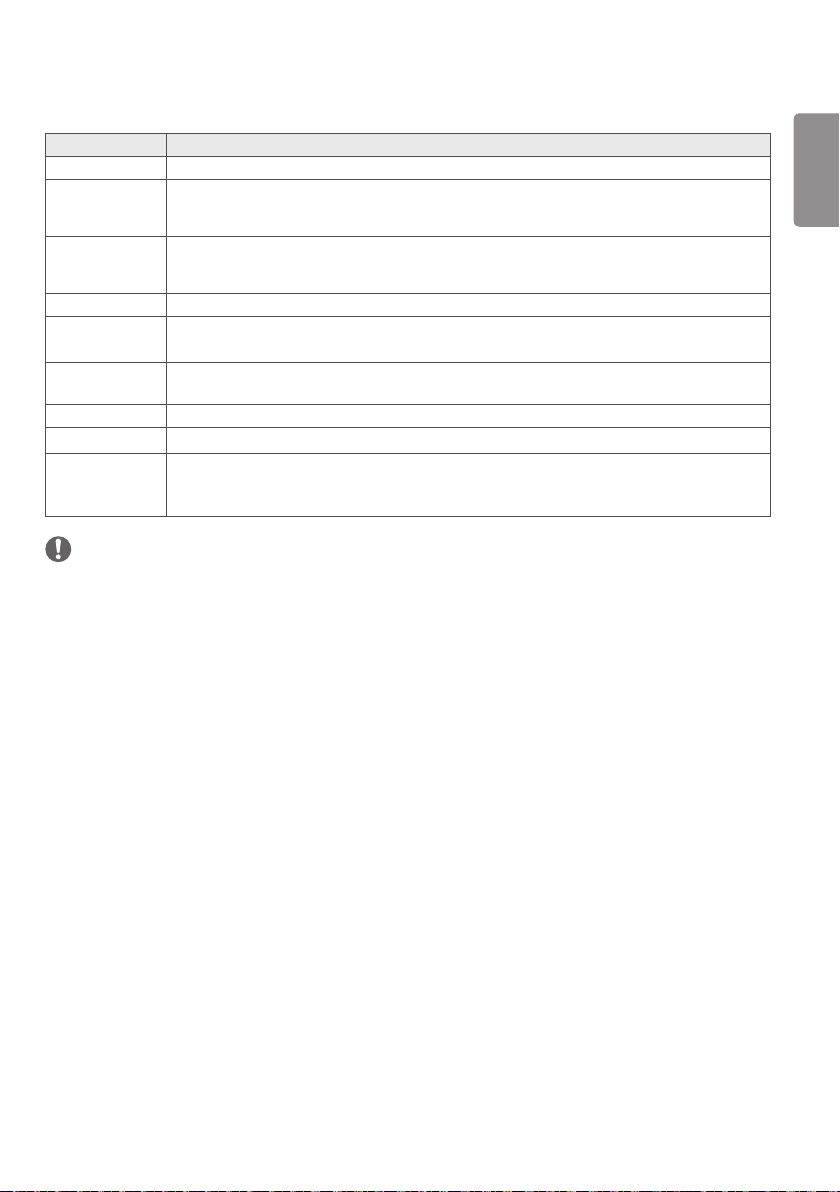
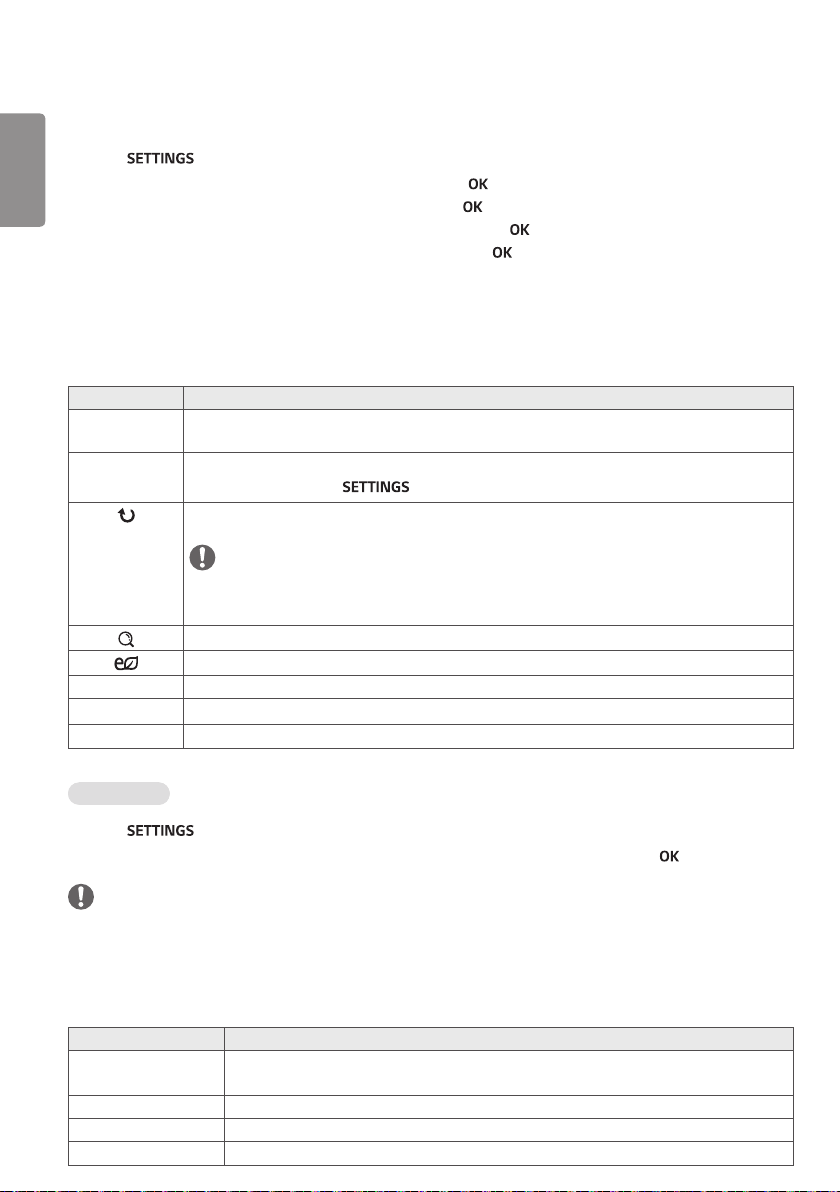
Select Set Video Play to access the following menus:
Menu Description
Picture Size Selects your desired picture format during movie play.
Audio
Language
Changes the Language Group of the audio during movie play. Files with a single audio track
cannot be selected.
Subtitle
Language
Turn on/off the subtitle.
Language Activated for SMI subtitle and can select the language within the subtitle.
Code Page Can select the font for subtitle.
When set to default, same font as general menu will be used.
Sync Adjusts the time synchronisation of the subtitle from -10 secs to +10 secs by steps of 0.5 secs
during movie play.
Position Changes the position of the subtitle either up or down during movie play.
Size Selects your desired Subtitle size during movie play.
Repeat Turn on/off repeat function of movie playback. When turned on, the file within the folder will be
played back repeatedly. Even when the repeated playback is turned off, it can run the playback if
the file name is similar to the previous file.
NOTE
• Only 10,000 of sync blocks can be supported within the subtitle file.
• When playing a video, you can adjust the picture size by pressing the ARC button.
• Subtitles in your language are only supported when the OSD menu is also in this language.
• The code page options may be disabled depending on the language of the subtitle files.
• Select the appropriate code page for the subtitle files.
ENGLISH
16
Viewing Photos
View image files saved in the USB storage device.
1 Press to access the main menu.
2 Press the navigation button to scroll to MY MEDIA and press .
3 Press the navigation button to scroll to Photo List and press .
4 Press the navigation buttons to scroll to a folder you want and press .
5 Press the navigation buttons to scroll to a file you want and press .
- Change Device : Selects the USB storage device. (Depending on model)
- Go to root folder : Returns to the home screen of My Media.
- Go to upper folder : Returns to the previous screen.
- Exit : Exits My Media.
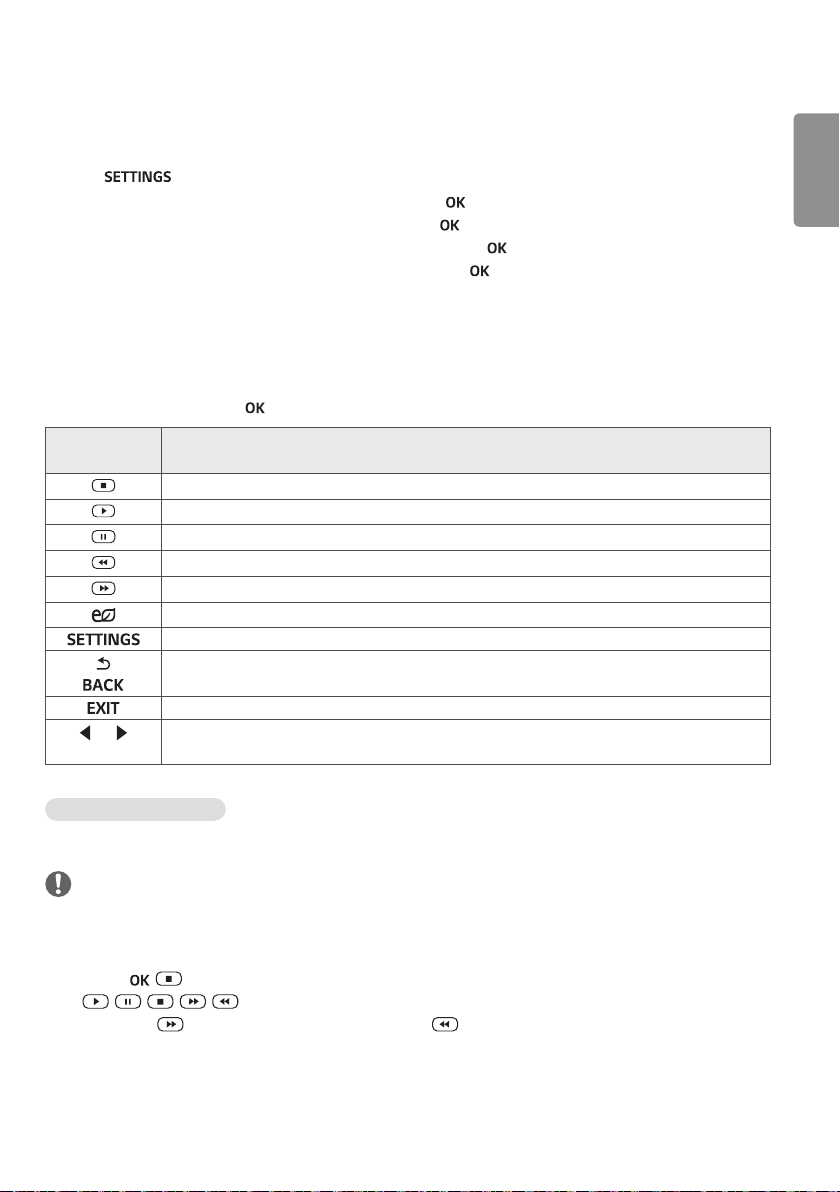
6 While viewing photos, you can access the following settings.
Menu Description
Slideshow Starts or stops a slideshow with selected photos. If there are no selected photos, all photos saved
in the current folder display during a slideshow. To set a slideshow speed, select Option.
BGM Turns the background music on or off. To set the background music folder, select Option.
You can adjust option by button on the remote control.
Rotates photos clockwise (90 °, 180 °, 270 °, 360 °).
NOTE
• The supported photo size is limited. You cannot rotate a photo if the resolution of the rotated
width is larger than the supported resolution size.
Enlarges the photo by 100 %, 200 % or 400 %.
Adjusts the brightness of the screen for energy saving.
Option To display the options.
Hide Hides the option window.
Exit Return to Photo List.
Photo options
1 Press to show the Option menus.
2 Press the navigation buttons to scroll to Set Photo View, Set Video, or Set Audio, and press .
NOTE
• The option values changed in Movie List do not affect Photo List or Music List. Therefore, they are not affected by
option values changed in Photo List or Music List.
• The option values changed in Photo List and Music List do affect each other.
Select Setting Photo View to access the following menus:
Menu Description
Slide Speed Select a slideshow speed.
(Options: Fast, Medium, or Slow.)
BGM Selects a music folder for the background music.
Repeat Plays background music on repeat.
Random Plays background music in random order.
ENGLISH
17
Listening to Music
Plays music files saved in the USB storage device.
1 Press to access the main menu.
2 Press the navigation button to scroll to MY MEDIA and press .
3 Press the navigation button to scroll to Music List and press .
4 Press the navigation buttons to scroll to a folder you want and press .
5 Press the navigation buttons to scroll to a file you want and press .
- Change Device : Selects the USB storage device. (Depending on model)
- Go to root folder : Returns to the home screen of My Media.
- Open Music Player : Opens the settings window for music. This feature is activated only during playback.
- Go to upper folder : Returns to the previous screen.
- Exit : Exits My Media.
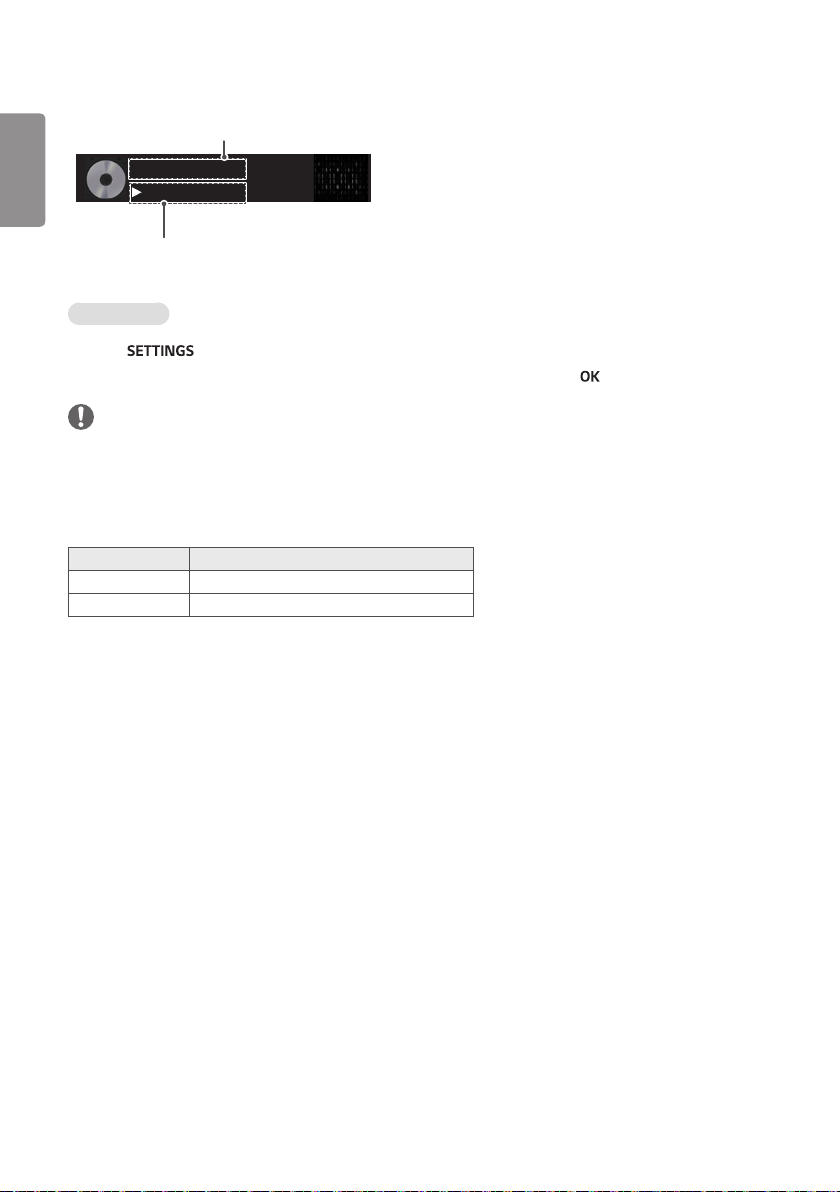
6 During music playback, press to access the following settings.
Remote
button
Description
Stops playing back the file and moves back to the Music List.
Plays a music file.
Pauses or resumes playback.
Skips to the previous file.
Skips to the next file.
Adjusts the brightness of the screen for energy saving (Off and Screen Off work only.)
Show the Option menu.
Hides the option window.
Return to Music List.
OR
Skips to specific points in a file during playback. The time of a specific point will appear on the
status bar. In some files, this function may not work properly.
Tips for playing music files
• This unit cannot support the ID3 Tag embedded MP3 files.
NOTE
• A damaged or corrupted music file does not play but displays 00:00 in playtime.
• A music downloaded from a paid service with copyright protection does not start but displays inappropriate
information in playtime.
• If you press , buttons, screen saver is stopped.
• The , , , , buttons on the remote control are also available in this mode.
• You can use the button to select the next music and the button to select the previous music.
ENGLISH
18
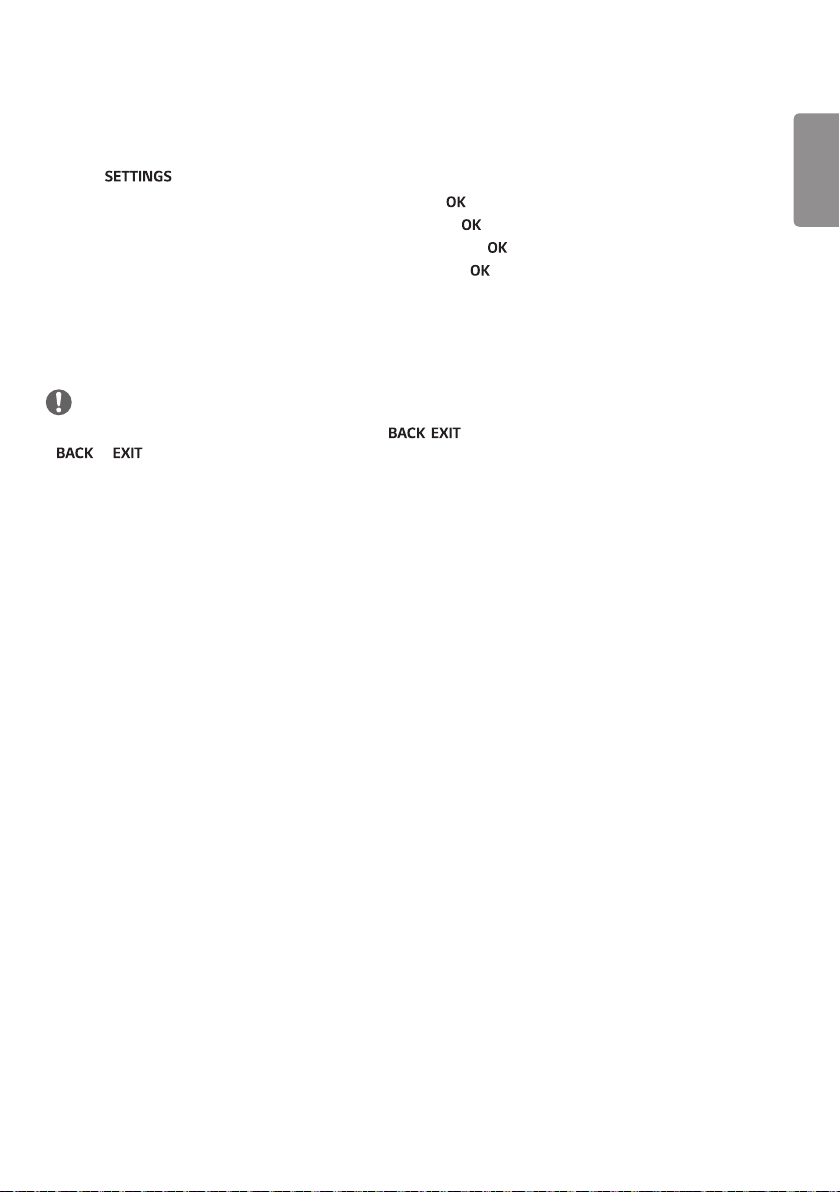
Time elapsed/ Duration
HR1.mp3
01:40 / 03:03
file name
Music options
1 Press to access the pop-up menus.
2 Press the navigation buttons to scroll to Set Audio Play or Set Audio and press .
NOTE
• The option values changed in Movie List do not affect Photo List or Music List. Therefore, they are not affected by
option values changed in Photo List or Music List.
• The option values changed in Photo List and Music List do affect each other.
When you select the Set Audio Play,
Menu Description
Repeat Repeats the music playback.
Random Plays random music tracks.
ENGLISH
19
Viewing the Contents List
You can play the files saved using the Export function to an external file in the SuperSign Software.
1 Press to access the main menu.
2 Press the navigation button to scroll to MY MEDIA and press .
3 Press the navigation button to scroll to Contents List and press .
4 Press the navigation buttons to scroll to a folder you want and press .
5 Press the navigation buttons to scroll to a file you want and press .
- Change Device : Selects the USB storage device. (Depending on model)
- Go to root folder : Returns to the home screen of My Media.
- Go to upper folder : Returns to the previous screen.
- Exit : Exits My Media.
NOTE
• While playing media files from Contents List, only the , , or volume button are available. Selecting the
or button stops playing media files and returns to the Contents List.
• When you use the distribution feature which utilizes SuperSign Software, the storage device used to store contents
is determined based on the size of the remaining memory space. (Note: If USB ports 1 and 2 have the same memory
space, contents will be saved on the storage device connected to USB port 1.(Depending on model))
• If there is the AutoPlay folder in the USB device and its files are in supported formats, they can be played back
automatically when the USB device is connected to the monitor.
• It is recommended that you avoid playing contents using more than two USB ports simultaneously.
• With respect to the playback of distribution or contents schedules through SuperSign Software, the schedule
executed last time is played.
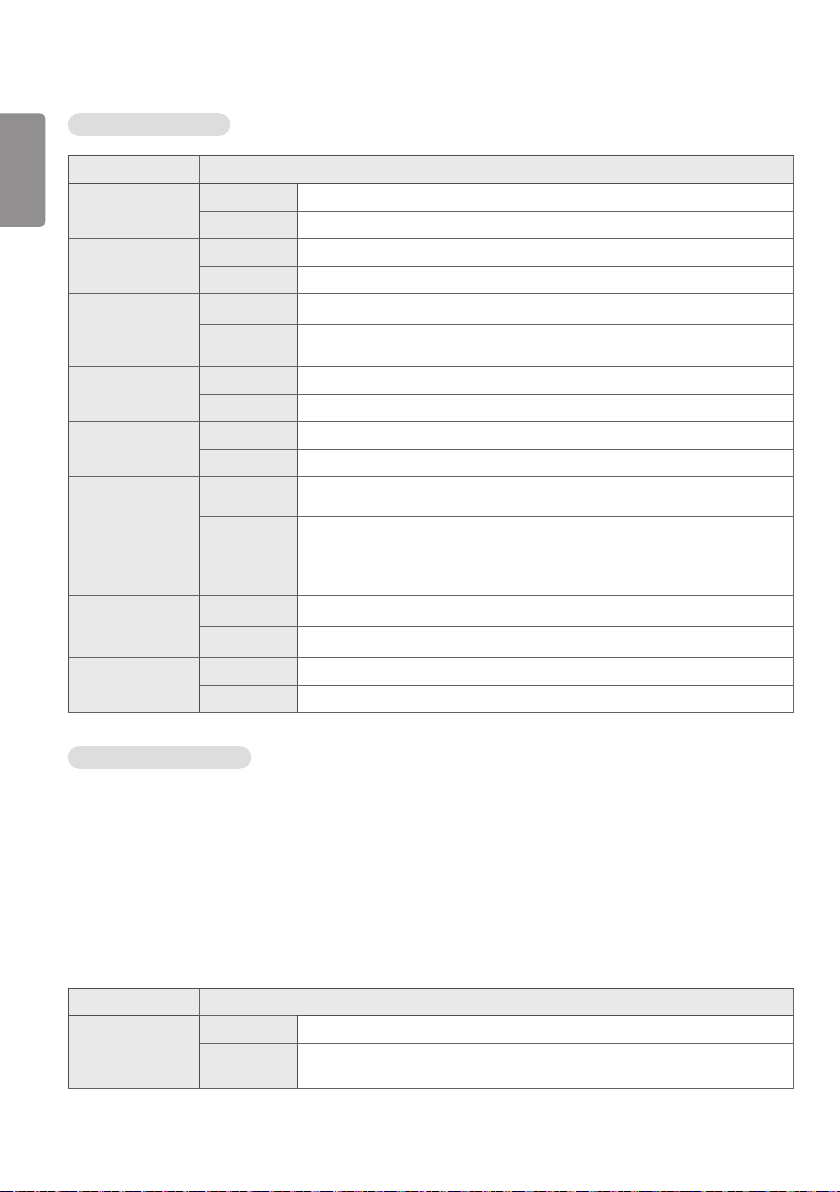
ENGLISH
20
Supported Video Codec
Extension Codec
.asf
.wmv
Videos VC-1 Simple and Main Profiles
Audio WMA Standard, WMA 10 Professional
.divx
.avi
Videos DivX3.11, DivX4, DivX5, DivX6, XViD, H.264/AVC, Motion Jpeg, MPEG-4 Part2
Audio MPEG-1 Layer I, II, MPEG-1 Layer III (MP3), Dolby Digital, LPCM, ADPCM, DTS
.mp4
.m4v
.mov
Videos H.264/AVC, MPEG-4 Part2
Audio AAC, MPEG-1 Layer III (MP3)
.3gp
.3g2
Videos H.264/AVC, MPEG-4 Part2
Audio AAC, AMR-NB, AMR-WB
.mkv Videos H.264/AVC
Audio HE-AAC, Dolby Digital
.ts
.trp
.tp
.mts
.m2ts
Videos H.264/AVC, MPEG-2
Audio MPEG-1 Layer I, II, MPEG-1 Layer III (MP3), Dolby Digital, Dolby Digital Plus,
AAC, PCM
.mpg
.mpeg
Videos MPEG-1, MPEG-2
Audio MPEG-1 Layer I, II, MPEG-1 Layer III (MP3), AAC
.vob Videos MPEG-1, MPEG-2
Audio Dolby Digital, MPEG-1 Layer I, II, DVD-LPCM
Tips for Playing Video Files
• A damaged movie file may not play correctly, or some player features may not be usable.
• Movie files produced with some encoders may not be played correctly.
• Movie files other than the specified types and formats may not work properly.
• Max bit rate of playable movie file is 20 Mbps. (For Motion JPEG: 10 Mbps only)
• We do not guarantee smooth playback of profiles encoded level 4.1 or higher in H.264 / AVC.
• Video files larger than 50 MB may not upload properly from mobile devices. We recommend that you play such files
via USB/SD storage devices.
• [For Ultra HD models only] Ultra HD image: 3840 X 2160
Some HEVC-encoded Ultra HD videos other than the content officially provided by LG Electronics may not be played.
Extension Codec
.mkv
.mp4
.ts
Video H.264/AVC, HEVC
Audio Dolby Digital, Dolby Digital Plus, AAC, HE-AAC
• Some codecs can be used after upgrading software.
ENGLISH
21
CUSTOMIZING SETTINGS
Accessing Main Menus
1 Press to access the main menus.
2 Press the navigation buttons to scroll to one of the following menus and press .
3 Press the navigation buttons to scroll to the setting or option you want and press .
4 When you are finished, press . When you return to the previous menu, press .
- PICTURE : Adjusts the image size, quality, or effect.
- AUDIO : Adjusts the sound quality, effect, or volume level.
- TIME : Sets the time, date, or timer feature.
- OPTION : Customizes the general settings.
- NETWORK : Sets up the network setting.
- MY MEDIA : Display and play movie, photo and music contents stored on your USB or signage device (Internal
storage device).
PICTURE Settings
1 Press to access the main menus.
2 Press the navigation buttons to scroll to PICTURE and press .
3 Press the navigation buttons to scroll to the setting or option you want and press .
- To return to the previous level, press .
4 When you are finished, press .
When you return to the previous menu, press .
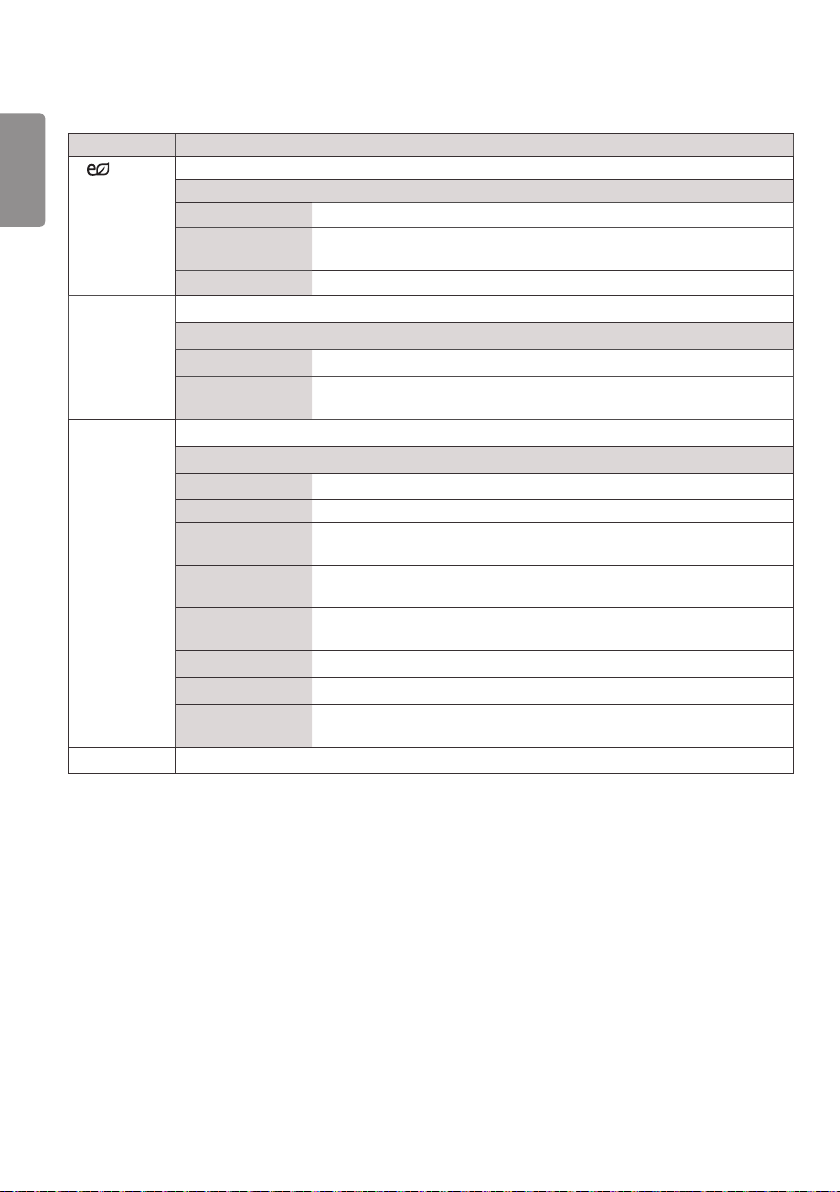
ENGLISH
22
The available picture settings are described in the following:
Setting Description
Energy
Saving
reduces power consumption by adjusting peak screen brightness.
Level
Off Disables Energy Saving function.
Minimum/Medium/
Maximum
Selects the brightness level of the backlight.
Screen Off The screen turns off in 3 seconds.
Smart Energy
Saving
Adjusts the backlight and contrast depending on the screen brightness.
Level
Off Disables the Smart Energy Saving function.
On Enables the Smart Energy Saving function to save power consumption as
much as the value set in the smart energy saving rate.
Picture Mode Selects the picture mode optimized for the viewing environment or the programme.
Mode
Vivid Heightens contrast, brightness, and sharpness to display vivid images.
Standard Displays images in standard levels of contrast, brightness, and sharpness.
APS APS ( Auto power saving ) mode reduces power consumption by dimming
control.
Cinema Optimizes the video image for a cinematic look to enjoy movies as if you are
in a movie theater.
Sport Optimizes the video image for high and dynamic actions by emphasizing
primary Colors such as white, grass, or sky blue.
Game Optimizes the video image for a fast gaming screen such as PCs or games.
Calibration Applies user-customized white balance based on Standard.
Expert1·2 Menu for adjusting picture quality that allows experts and amateurs to enjoy
the best Monitor viewing.
Aspect Ratio Changes the image size to view images at its optimal size.
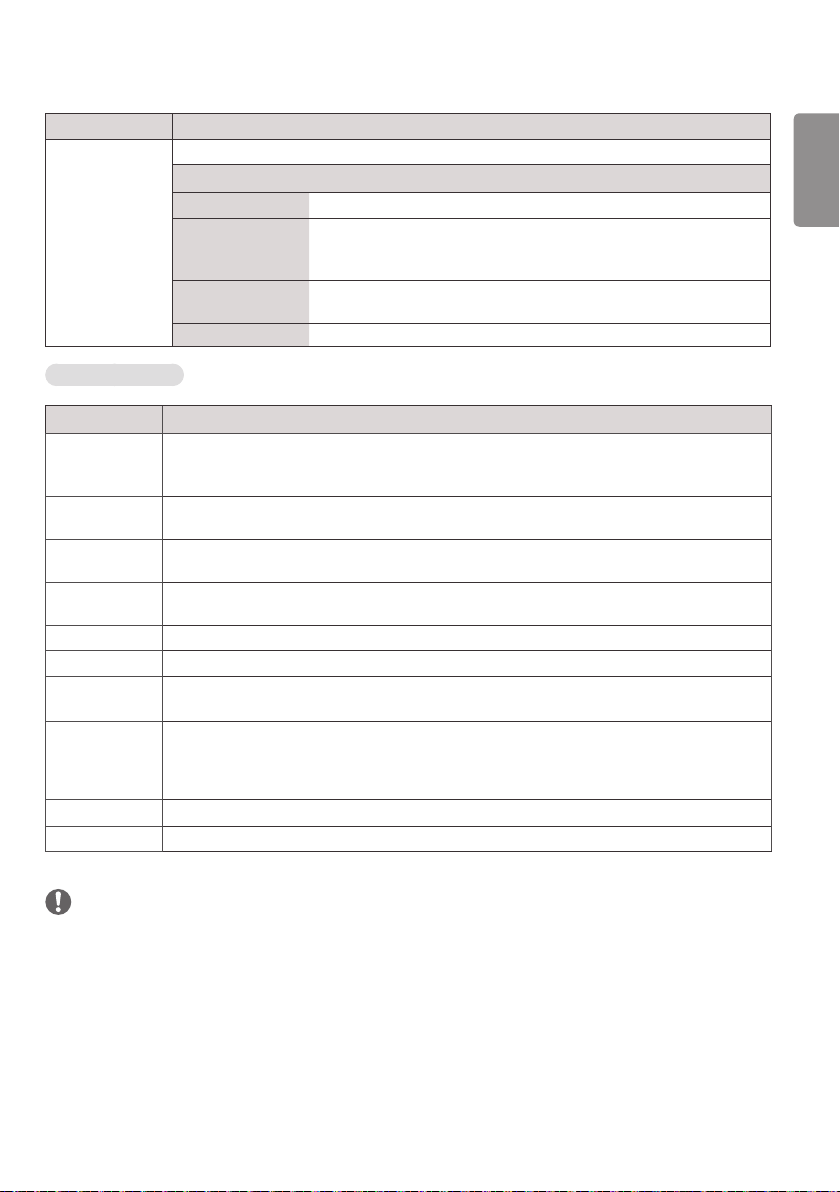
ENGLISH
23
Setting Description
Screen
(In RGB Mode
Only)
Customizes the PC display options in RGB mode.
Option
Resolution Selects a proper resolution.
Auto Configure Sets to adjust the screen position, clock, and phase automatically.
The displayed image may be unstable for a few seconds while the
configuration is in progress.
Position/Size/
Phase
Adjusts the options when the picture is not clear, especially when
characters are shaky, after the auto configuration.
Reset Restores the options to the default setting.
Basic image options
Setting Description
Backlight
Adjusts the brightness of the screen by controlling the LCD backlight. If you decrease the
brightness level, the screen becomes darker and the power consumption will be reduced without
any video signal loss.
Contrast Increases or decreases the gradient of the video signal. You may use Contrast when the bright
part of the picture is saturated.
Brightness Adjusts the base level of the signal in the picture. You may use Brightness when the dark part of
the picture is saturated.
Sharpness
Adjusts the level of crispness in the edges between the light and dark areas of the picture. The
lower the level, the softer the image.
Color
Adjusts intensity of all colors.
Tint
Adjusts the balance between red and green levels.
Color Temp.
Set to warm to enhance hotter Colors such as red, or set to cool to make picture bluish.
Advanced
Control/
Expert Control
You can adjust the picture for each Picture Mode, or adjust the picture settings according to a
specific picture image. First, select a desired Picture Mode.
* This option is unavailable if Picture Mode is set to Vivid.
Picture Option
Sets additional picture option.
Picture Reset
Restores the options to the default setting.
NOTE
• When you select a picture mode, related menus are set automatically.
• When using the Smart Energy Saving function, the screen may look saturated in the white area of a still image.
• If Energy Saving is set to Minimum, Medium, or Maximum, the Smart Energy Saving function is disabled.
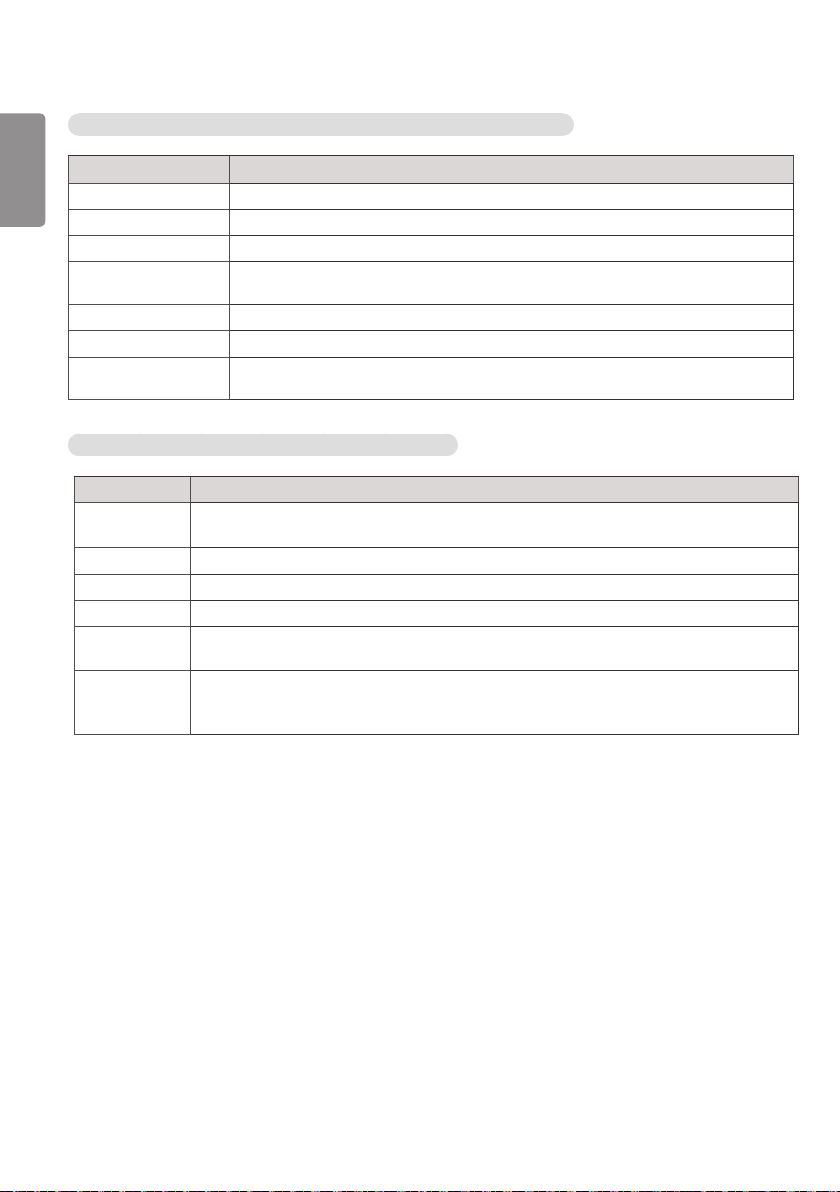
ENGLISH
24
Advanced Control - Picture Mode (Standard/ APS/ Sport/ Game/ Calibration)
Setting Description
Dynamic Contrast
Adjusts the contrast to the optimal level according to the brightness of the image.
Dynamic Color
Adjusts color for more natural-looking colors.
Color Gamut
Selects the range of colours that can be expressed.
Skin Color Skin color spectrum can be separately set to implement the skin color as defined by the
user.
Sky Color Sky color is set separately.
Grass Color Natural color spectrum (meadows, hills, etc.) can be separately set.
Gamma
Sets the gradation curve according to the output of the picture signal in relation to the
input signal.
Expert Control - Picture Mode (Cinema/ Expert1/ Expert2)
Setting Description
Dynamic
Contrast
Adjusts the contrast to the optimal level according to the brightness of the image.
(Function works in the following mode - HDMI-DTV)
Color Gamut
Selects the range of colours that can be expressed.
Edge Enhancer
Shows clearer and distinctive yet natural edges of the video.
Color Filter
Filters a specific colour spectrum in RGB colours to fine-tune colour saturation and hue accurately.
Color
Temperature
Adjusts the overall tone of the screen as desired. In Expert mode, detailed fine-tuning can be set
via Gamma method, etc.
Color
Management
System
This is a system that experts use when they adjust colour with a test pattern. They can select
from six colour areas (Red / Green / Blue / Cyan / Magenta / Yellow) without affecting other
colours. For normal images, adjustments may not result in noticeable colour changes.
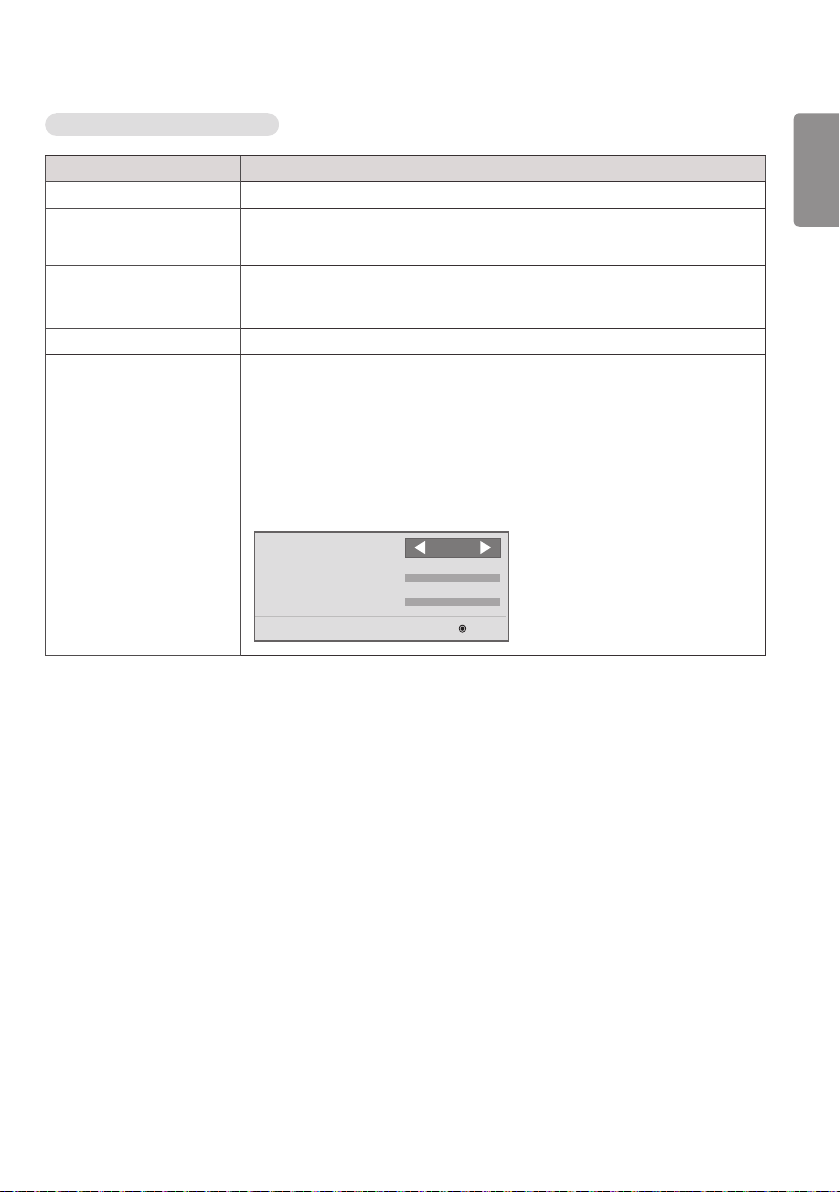
ENGLISH
25
Picture Option - HDMI(DTV) Mode
Setting Description
Noise Reduction
Reduces screen noise in the video.
MPEG Noise
Reduction
Reduces noise caused by compressing digital video.
Black Level
Adjusts the black level of the picture to correct the brightness and contrast of the
picture.(Recommended settings according to input signal: RGB 0–255: High, RGB
16–235: Low, YCbCr: Low)
Real Cinema
Optimizes the screen for movie viewing.
TruMotion
(This feature is supported
by 65SE3B and 65SE3KB
only.)
Corrects images to display smoother motion sequences.
• Off : Turn off the TruMotion.
• Smooth/ Clear : De-Judder / De-Blur can be set Auto.
• User : De-Judder / De-Blur can be set manually.
- De-Judder : This function adjusts juddering of
the screen.
- De-Blur : This function adjusts and eliminates blurring of the screen.
OK
TruMotion
• De-Judder Auto
• De-Blur Auto
Smooth
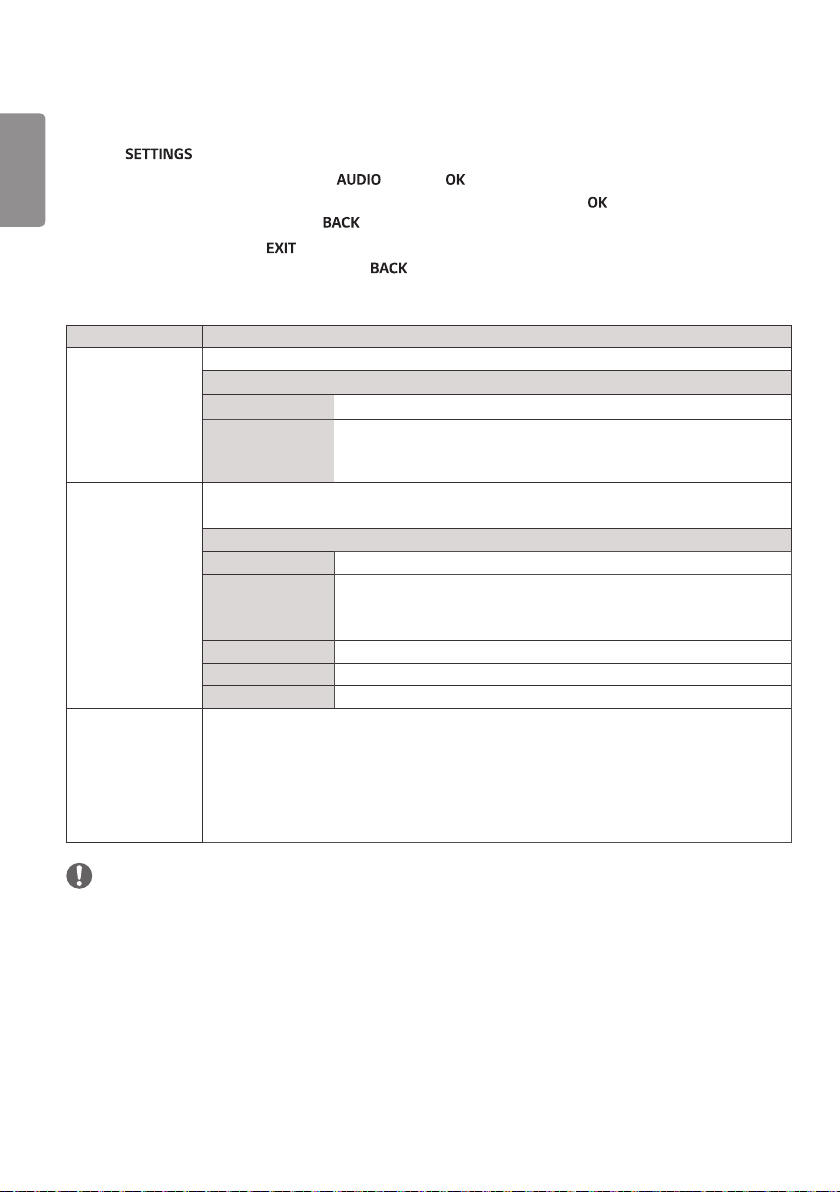
ENGLISH
26
AUDIO Settings
1 Press to access the main menus.
2 Press the navigation buttons to scroll to and press .
3 Press the navigation buttons to scroll to the setting or option you want and press .
- To return to the previous level, press .
4 When you are finished, press .
When you return to the previous menu, press .
The available audio options are described in the following:
Setting Description
Sound Mode
Allows optimized sound for custom Monitor installation.
Level
Standard
Suitable for all types of video.
News/ Music/
Cinema/ Sport/
Game
Sets audio optimized for a specific genre.
Sound Effect
The user can select various sound effects.
- Sound Effect function is available only for Standard mode in Sound Mode menu.
Level
Clear Voice ll
Boosts voice clarity.
Virtual Surround
LG’s proprietary audio processing technology allows 5.1ch-like surround
sound from two speakers.
- If Clear Voice ll is set to On, Virtual Surround will not be chosen.
Equalizer Adjusts the volume to a level of your choice using the Equalizer.
Balance Adjusts left/right audio balance.
Reset You can reset the settings under the Sound Effects menu.
AV Sync. Adjust
Synchronizes video and audio directly when they do not match.
If you set AV Sync. to ON, you can adjust the sound output to the screen image.
• Speaker: Adjusts the synchronization of the sound from the speakers. The “-” button makes
the sound output faster and the “+” button slower than the default value.
• Bypass : The audio of an external device without audio delay. Audio may be output before
video as it takes time to process video input into the Monitor.
NOTE
• Some models may not have built-in speakers. In that case, you need to connect external speakers to listen to sound.
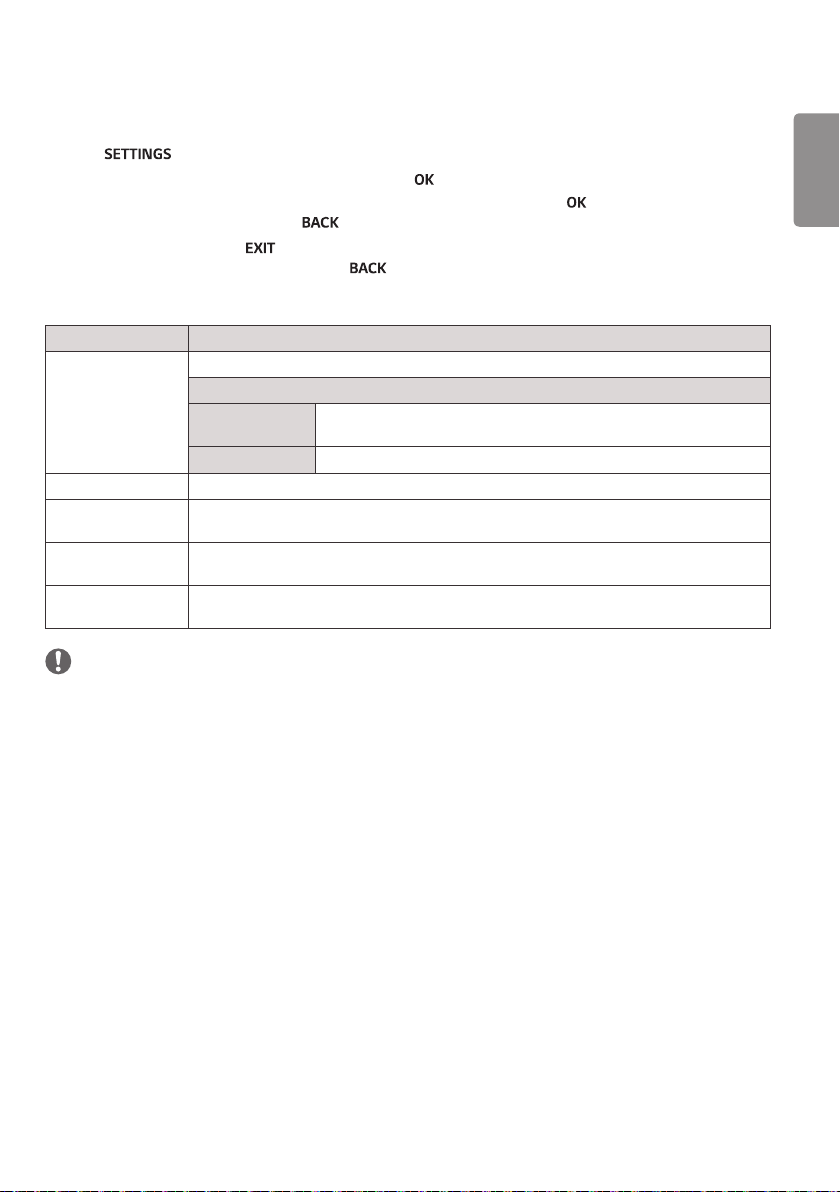
ENGLISH
27
TIME Settings
1 Press to access the main menus.
2 Press the navigation buttons to scroll to TIME and press .
3 Press the navigation buttons to scroll to the setting or option you want and press .
- To return to the previous level, press .
4 When you are finished, press .
When you return to the previous menu, press .
The available time settings are described in the following:
Setting Description
Clock Sets the time feature.
Level
Auto
The current time is entered according to the selected country when
connected to a network.
Manual
The current time needs to be entered manually.
On/Off Time Sets the time to turn on or off the monitor set.
Auto Off (15Min.) If Auto-off is active and there is no input signal, the set switches to off mode automatically
after 15 minutes.
Automatic Standby If the monitor is left unattended for a set period of time, it automatically goes into standby
mode.
Daylight Saving
Time
Set the start and end times for Daylight Saving Time. The DST start/end times function only
when you set them more than one day apart from each other.
NOTE
• Off Time/ On Time can be saved for up to seven schedules; the monitor is turned on or off at the preset time in the
schedule list. If multiple preset times are stored in the schedule list, this function works at the nearest time from the
current time.
• Once the on or off time is set, these functions operate daily at the preset time.
• When the scheduled power-on and power-off times are the same, the power-off time has priority over the power-on
time if the set is turned on, and vice versa if the set is turned off.
• If port 123 is blocked by a firewall, your monitor cannot receive the current time from the network.
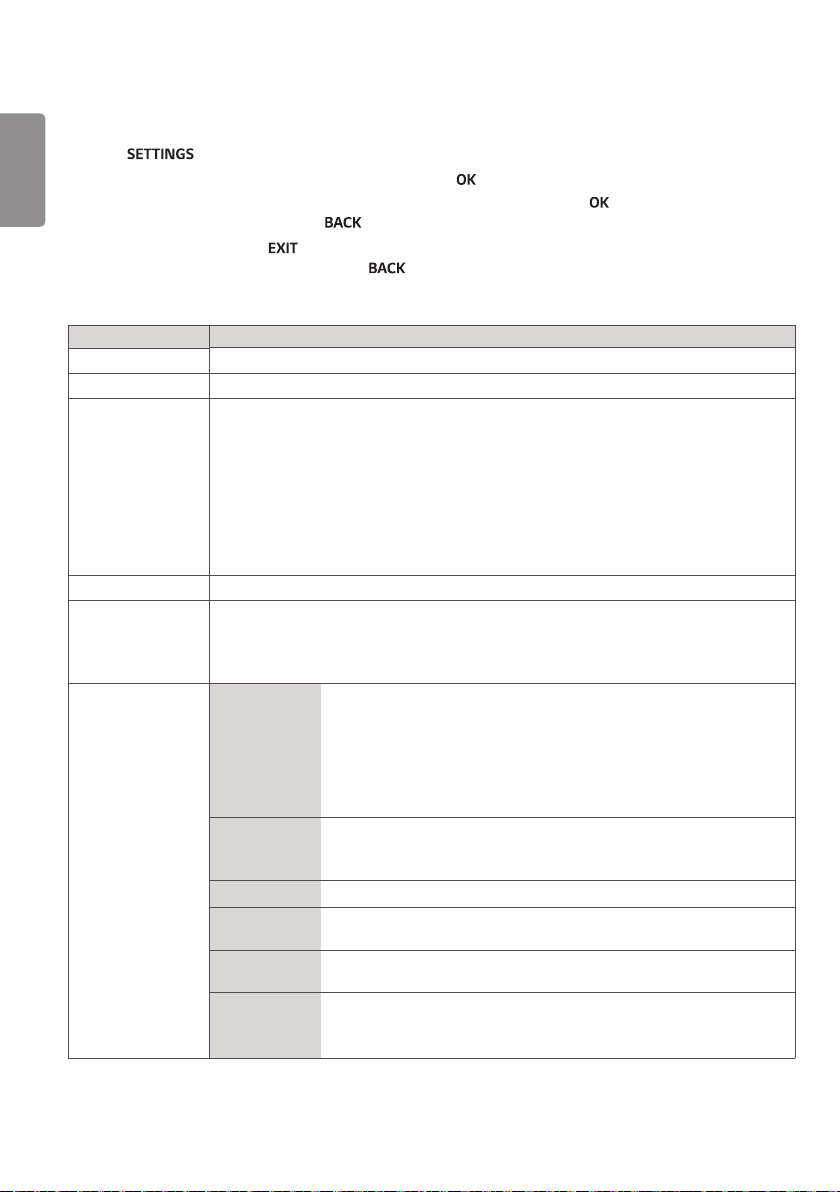
ENGLISH
28
OPTION Settings
1 Press to access the main menus.
2 Press the navigation buttons to scroll to OPTION and press .
3 Press the navigation buttons to scroll to the setting or option you want and press .
- To return to the previous level, press .
4 When you are finished, press .
When you return to the previous menu, press .
The available option settings are described in the following:
Setting Description
Language Selects a language for the display text.
Country Select your country.
DivX(R) VOD Registers or releases DivX.
Checks DivX Registration Code for playing DivX-protected videos.
Register at http://vod.divx.com.
Uses Registration Code to rent or purchase movies at www.divx.com/vod.
* Rented/purchased DivX files cannot be played if the DivX Registration Code of a different
device is used. Use only the DivX Registration Code granted to this device.
* Converted files not conforming to the DivX Codec Standard may not play or may produce
abnormal images.
Initial Setting Deletes all optional settings and returns to initial default mode.
Set ID You can assign a unique Set ID NO (name assignment) to each product when several products
are connected for display. Specify the number (1 to 255 or 1 to 1,000) using the button and
exit. Use the assigned Set ID to individually control each product using the Product Control
Program.
Tile Mode Tile Mode To use this function
- Must be displayed with various other products.
- Select Tile Mode, set rows and columns, and then enter the tile ID to set
the location.
- Tile Mode: row x column (row = 1-15, column = 1-15).
- 15 x 15 available.
Auto Config. Sets to adjust the screen position, clock, and phase automatically.
The displayed image may be unstable for a few seconds while the
configuration is in progress.
Position Moving the screen position horizontally and vertically.
Size Adjust the horizontal and vertical size of the screen taking into account the
size of the bezel.
Natural The image is omitted by the distance between the screens to be naturally
shown.
Reset Function to initialize and release Tile.
All Tile setting are released when selecting Tile recall and the screen returns
to Full screen.
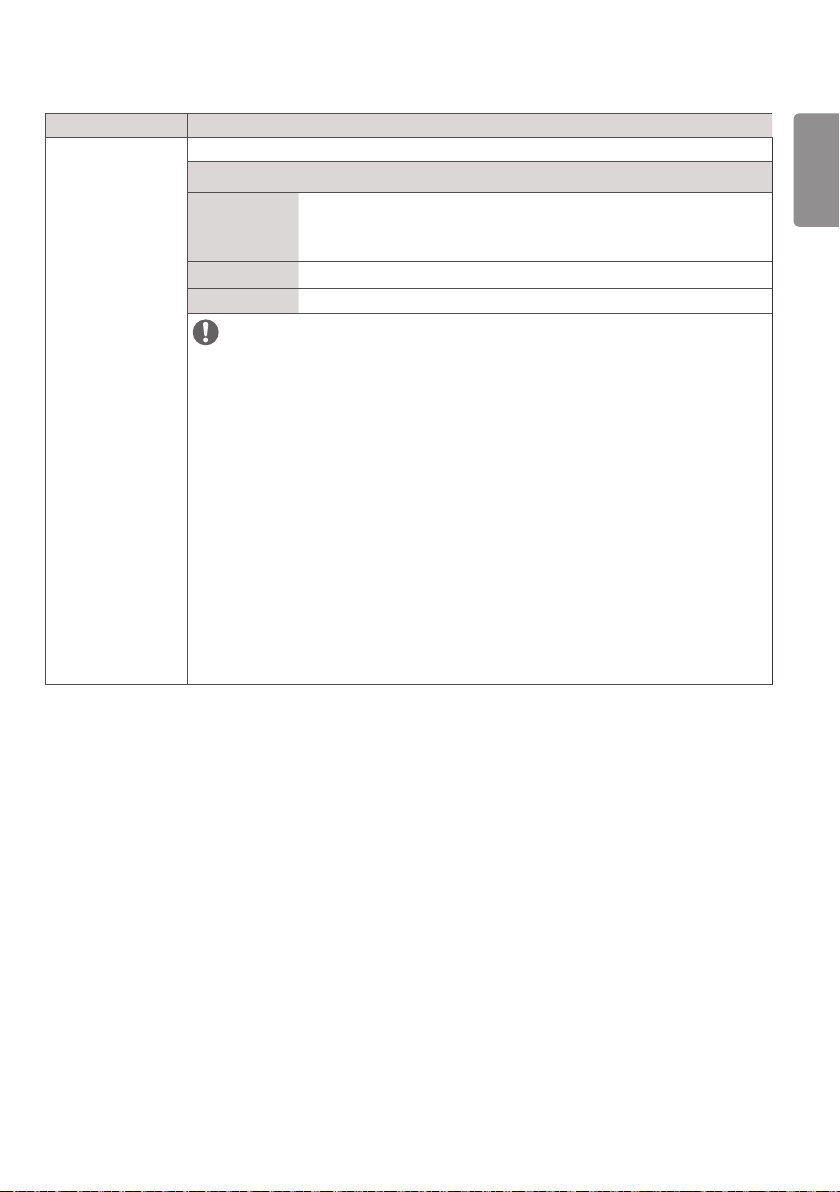
ENGLISH
29
Setting Description
Contents Schedule Creates simple schedules and sets playback using files in My Media.
Level
Add Schedule Creates a contents schedule.
- Media: Select the file to which you want to apply the contents schedule.
- Select [Create] to register the contents schedule.
Play Plays a contents schedule.
Delete All Deletes all registered schedules.
NOTE
• Information about registered schedules is stored on your USB storage device. This feature
does not work when your USB storage device has been removed.
• The picture size is 1920 x 1080.
• You can use photo and video files only.
• You can add up to 50 files (photo files + video files = 50).
• Only photos whose resolution is 1920 x 1080 or below are supported.
• The default display time for photos is 1 minute. Playback time for movies differs depending
on the running time.
• You can create up to 7 schedules.
• You cannot register a schedule when no file has been selected.
• Contents schedules that have had information forcibly modified using a PC, etc. may not
function properly.
• With respect to the playback of distribution or contents schedules through SuperSign
Software, the schedule executed last time is played.
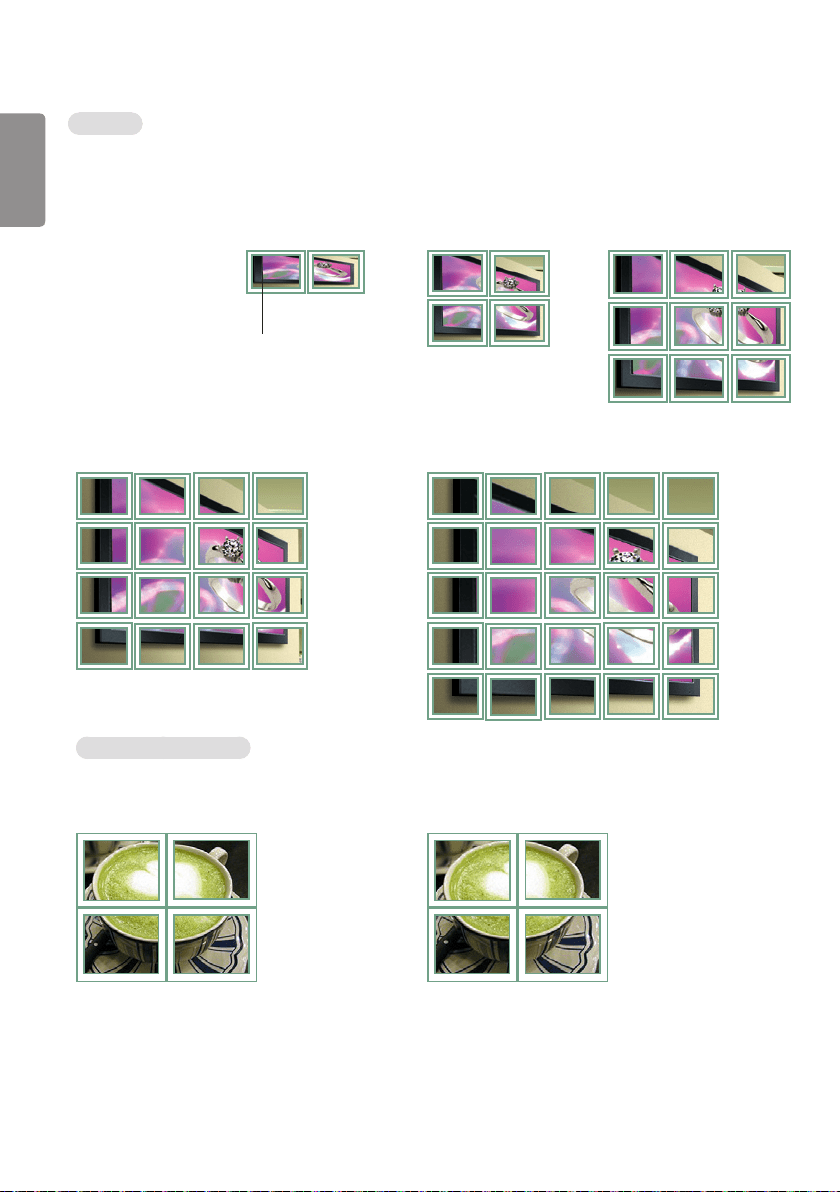
ENGLISH
30
Tile Mode
This monitor can be tiled with additional monitors to create a large tiled display.
Off
When the Tile Mode
option is disabled
1X2
When using 2 monitors
Tile ID
2X2
When using 4 monitors
3X3
When using 9 monitors
ID 1
ID 2
ID 1
ID 2
ID 3
ID 4
ID 1
ID 2
ID 4
ID 5
ID 3
ID 6
ID 7
ID 8
ID 9
4X4
When using 16 monitors
5X5
When using 25 monitors
ID 1
ID 2
ID 5
ID 6
ID 3
ID 7
ID 9
ID 10
ID 11
ID 4
ID 8
ID 12
ID 13
ID 14
ID 15
ID 16
ID 1
ID 2
ID 6
ID 7
ID 3
ID 8
ID 11
ID 12
ID 13
ID 4 ID 5
ID 9 ID 10
ID 14 ID 15
ID 16
ID 21
ID 17
ID 22
ID 18
ID 23
ID 19
ID 24
ID 20
ID 25
Tile Mode - Natural mode
When active, the part of the image that would normally be displayed in the gap between the monitors is omitted.
Before After
Tile ID
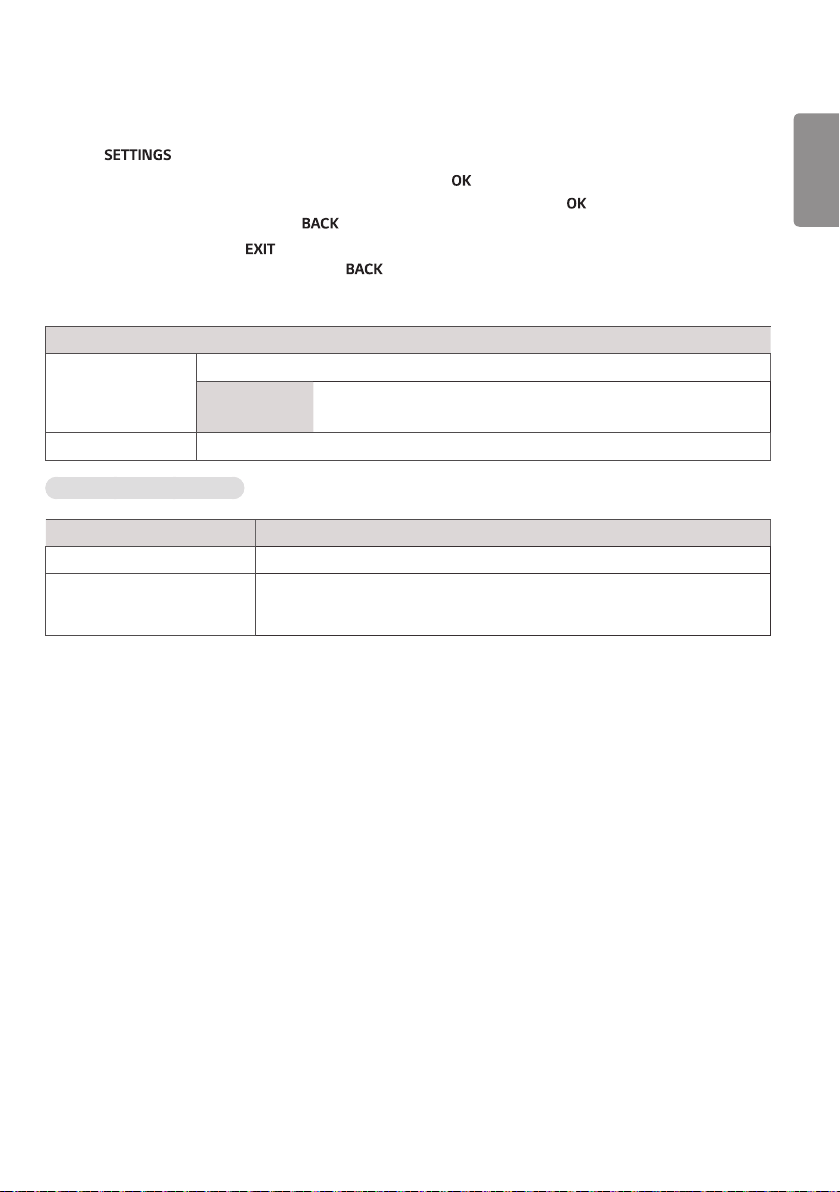
ENGLISH
31
NETWORK Settings
1 Press to access the main menus.
2 Press the navigation buttons to scroll to NETWORK and press .
3 Press the navigation buttons to scroll to the setting or option you want and press .
- To return to the previous level, press .
4 When you are finished, press .
When you return to the previous menu, press .
The available option settings are described in the following:
Setting Description
Network Setting Configure the network settings.
Network
setting
When the Wi-Fi dongle is connected, you can view and connect to any
available wireless network.
Network Status Display the network status.
Network Connection Options
Setting Description
Setting from the AP list Select an AP to connect to a wireless network.
Simple setting
(WPS-button mode)
Press the button on the wireless router that supports PBC to easily connect to
the router.
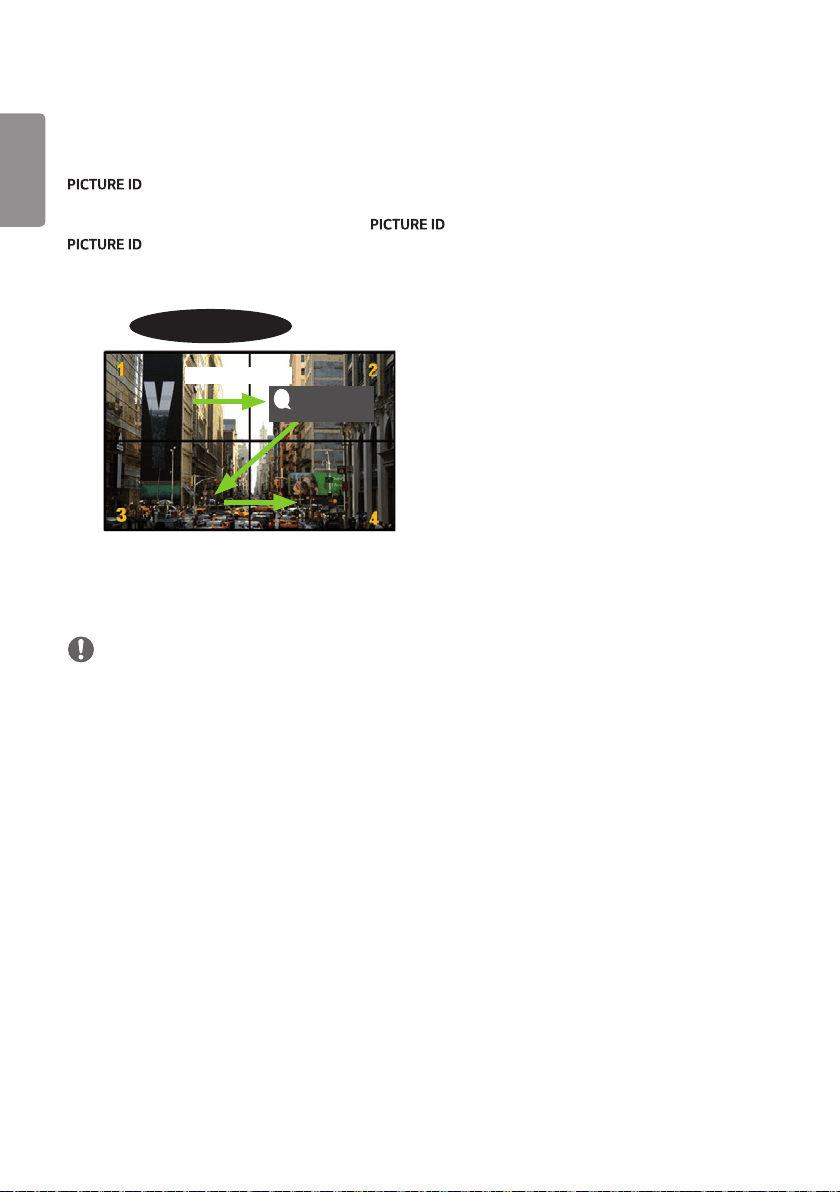
ENGLISH
32
PICTURE ID Settings
• Only applies to certain models.
is used to change the settings of a specific set (display) using a single IR receiver for multi-vision.
Communication is possible between a monitor with an IR receiver and other monitors using RS-232C cables. Each
monitor is identified by a Set ID. If you assign the using the remote control, only displays with matching
and Set ID can be controlled remotely.
1 Assign the Set ID to the installed monitors as shown below.
AUDIO
(RGB/DVI)
REMOTE
CONTROL IN
RS-232C OUT
RS-232C IN
RS-232C OUT
RS-232C IN
RS-232C OUT
RS-232C IN
2 Press the red ON button on the remote control to assign the PICTURE ID.
3 Assign the Set ID to the selection of your choice.
• A set with a different Set ID from the PICTURE ID cannot be controlled by IR signals.
NOTE
• If PICTURE ID is set to 2, only the upper right monitor, which has a Set ID of 2, can be controlled by IR signals.
• If you press the green OFF button for PICTURE ID, the PICTURE IDs for all monitors are turned off. If you then press
any button on the remote control, all monitors can be controlled by IR signals regardless of Set ID.
IR & Light Sensor
RS-232C cables
PICTURE ID
ON [2]
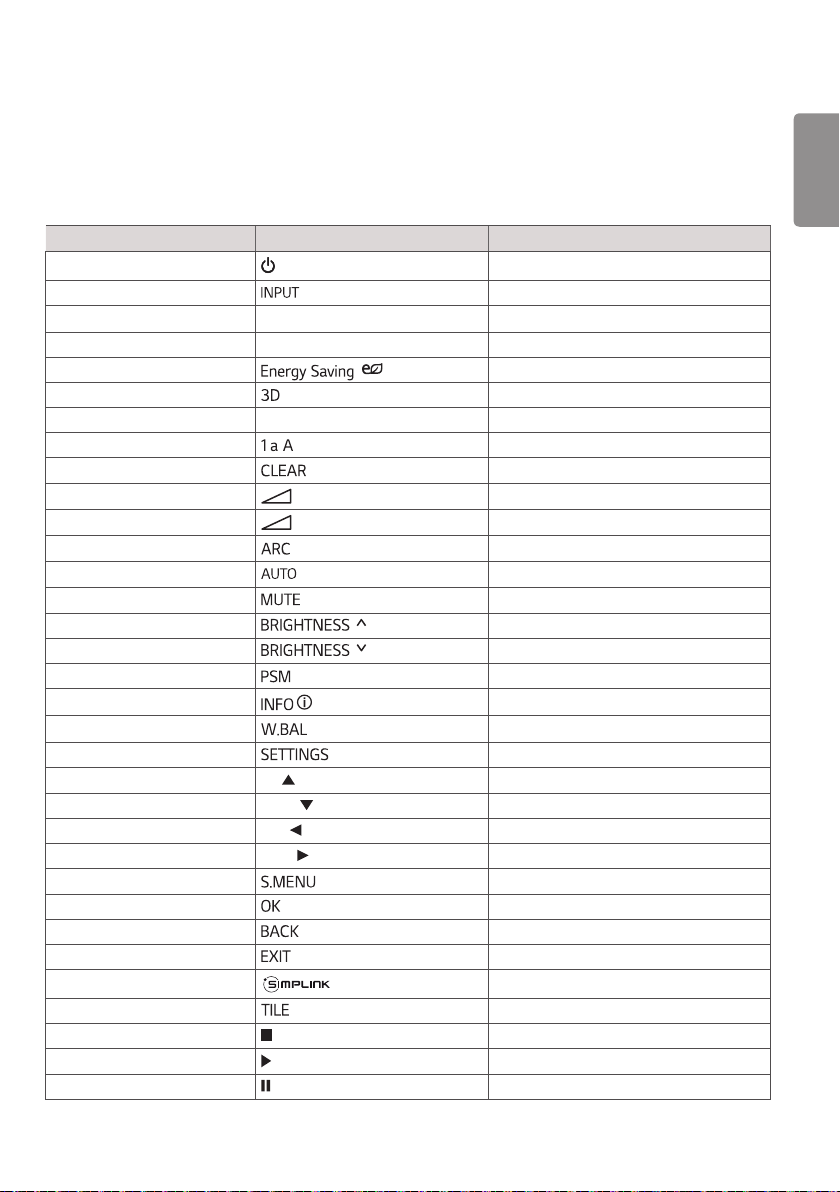
ENGLISH
33
IR CODES
• All models do not support the HDMI/USB function.
• Some key codes are not supported depending on the model.
Code (Hex) Function Note
08
(Power)
R/C BUTTON
0B
R/C BUTTON
C4 MONITOR ON
R/C BUTTON
C5 MONITOR OFF
R/C BUTTON
95
( )
R/C BUTTON
DC R/C BUTTON
10 to 19 Number Key 0 to 9
R/C BUTTON
32
/ /
R/C BUTTON
2F R/C BUTTON
02
( + )
R/C BUTTON
03
( - )
R/C BUTTON
79
R/C BUTTON
99
R/C BUTTON
09
R/C BUTTON
E0
R/C BUTTON
E1
R/C BUTTON
4D
R/C BUTTON
AA
R/C BUTTON
5F R/C BUTTON
43
R/C BUTTON
40 Up
R/C BUTTON
41 Down
R/C BUTTON
07 Left
R/C BUTTON
06 Right
R/C BUTTON
3F R/C BUTTON
44
R/C BUTTON
28
R/C BUTTON
5B
R/C BUTTON
7E
R/C BUTTON
7B
R/C BUTTON
B1
R/C BUTTON
B0
R/C BUTTON
BA
R/C BUTTON
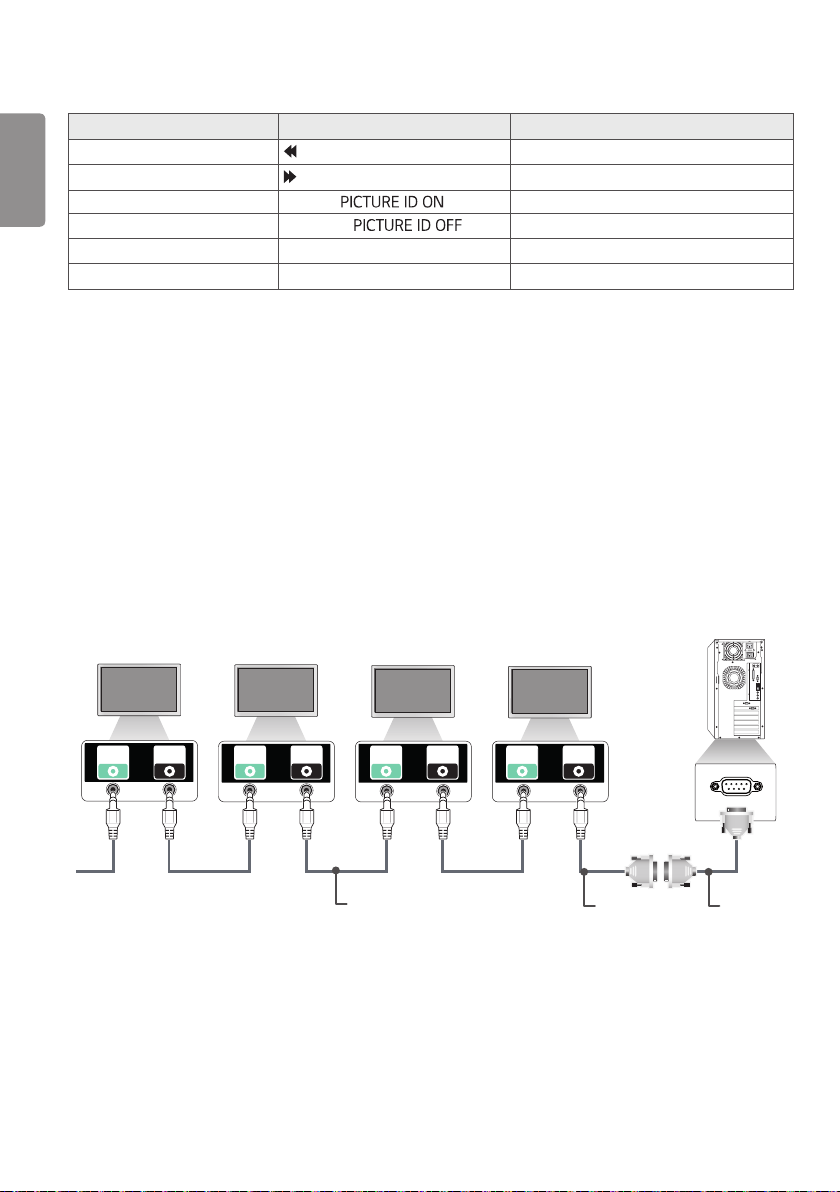
ENGLISH
34
Code (Hex) Function Note
8F
R/C BUTTON
8E
R/C BUTTON
72
Red Key ( )
R/C BUTTON
71
Green Key ( )
R/C BUTTON
63
Yellow Key
R/C BUTTON
61
Blue Key
R/C BUTTON
TO CONTROL MULTIPLE PRODUCTS
• Use this method to connect several products to a single PC. You can control several products at a time by connecting
them to a single PC.
• In the Option menu, Set ID must be between 1 and 255 (or from 1 to 1,000) without being duplicated.
Connecting the Cable
Connect the RS-232C cable as shown in the picture.
• The RS-232C protocol is used for communication between the PC and product. You can turn the product on or off,
select an input source or adjust the OSD menu from your PC.
RS-232C
IN
RS-232C
OUT
RS-232C
IN
RS-232C
OUT
RS-232C
IN
RS-232C
OUT
RS-232C
IN
RS-232C
OUT
Monitor 1 Monitor 2 Monitor 3Monitor 4
PC
RS-232C
Gender
4P Cable
(not included)
RS-232C Cable
(not included)
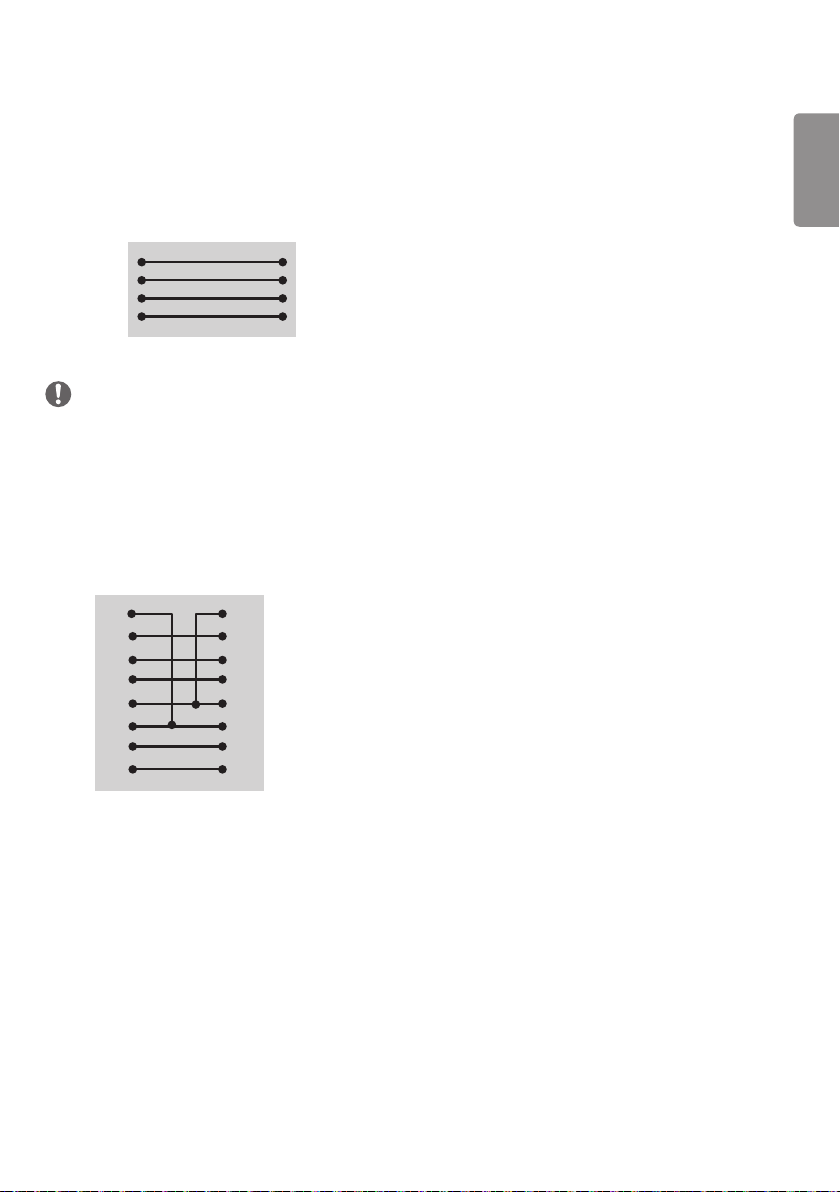
ENGLISH
35
RS-232C Configurations
4P Cable
• 4-Wire Configurations (Standard RS-232C cable)
RXD
TXD
GND
IR
TXD
RXD
GND
IR
NOTE
• When using three-wire connections (non-standard), an IR daisy chain cannot be used.
• If you want to control multiple units simultaneously, use 3.5 mm 4-pole cables (sold separately).
RS-232C Cable
• 8-Wire Configurations (Standard RS-232C cable)
PC
D-Sub 9 D-Sub 9
(Female) (Female)
DCD
RXD
TXD
GND
DTR
DSR
RTS
CTS
DCD
TXD
RXD
GND
DSR
DTR
CTS
RTS
RS-232C
Gender
1
3
2
5
6
4
8
7
1
2
3
5
4
6
7
8
Communication Parameter
• Baud Rate : 9600 BPS
• Data Length : 8 bit
• Parity Bit : None
• Stop Bit : 1 bit
• Flow Control : None
• Communication Code : ASCII code
• Use a crossed (reverse) cable
ENGLISH
36
Command Reference List
COMMAND
DATA
(Hexadecimal)
1 2
01 Power k a 00 to 01
02 Select input x b See [Select input]
03 Aspect ratio k c See [Aspect ratio]
04 Energy saving j q See [Energy saving]
05 Picture mode d x See [Picture mode]
06 Contrast k g 00 to 64
07 Brightness k h 00 to 64
08 Sharpness k k 00 to 32
09 Color k i 00 to 64
10 Tint k j 00 to 64
11 Color temperature x u 00 to 64
12 H position f q 00 to 64
13 V position f r 00 to 64
14 H size f s 00 to 64
15 Auto Config. j u 01
16 Balance k t 00 to 64
17 Sound Mode d y See [Sound mode]
18 Mute k e 00 to 01
19 Volume k f 00 to 64
20 Clock 1 (year/month/day) f a See [Clock 1]
21 Clock 2 (hour/minute/second) f x See [Clock 2]
22 Off time schedule f c 00 to 01
23 On time schedule f b 00 to 01
24 Off timer (repeat mode/time) f e See [Off timer]
25 On timer (repeat mode/time) f d See [On timer]
26 On timer input f u See [On timer input]
27 Automatic Standby m n 00 to 01
28 Auto off f g 00 to 01
29 Language f i See [Language]
30 Reset f k 00 to 02
31 Current temperature d n FF
32 Key m c See [Key]
33 Time elapsed d l FF
ENGLISH
37
COMMAND
DATA
(Hexadecimal)
1 2
34 Product serial number f y FF
35 Software version f z FF
36 White balance red gain j m 00 to FE
37 White balance green gain j n 00 to FE
38 White balance blue gain j o 00 to FE
39 White Balance Red Offset s x 00 to 7F
40 White Balance Green Offset s y 00 to 7F
41 White Balance Blue Offset s z 00 to 7F
42 Backlight m g 00 to 64
43 Screen off k d 00 to 01
44 Tile Mode d d See [Tile Mode]
45 Tile Mode Check d z FF
46 Tile ID d i Refer to ‘Tile ID'.
47 Tile H Position d e 00 to 32
48 Tile V Position d f 00 to 32
49 Tile H Size d g 00 to 32
50 Tile V Size d h 00 to 32
51
Natural Mode (In Tile mode)
d j
00 to 01
NOTE
• During USB operations such as Dvix or EMF, all commands except Power (k a) and Key (m c) are not executed and
treated as NG.
• Some commands are not supported depending on the model.
• The ‘f f’ command which shows the status of a certain command does not display the OSD as the result in order to be
compatible with SuperSign program.
ENGLISH
38
Transmission / Receiving
Protocol
Transmission
[Command1][Command2][ ][Set ID][ ][Data][Cr]
* [Command1] Identifies the factory setting and the user setting modes.
* [Command2] Controls monitors.
* [Set ID] Used for selecting a set you want to control. A Set ID can be assigned to each set from 1 to
255 (from 01H to FFH), or from 1 to 1,000 (from 001H to 3e8H) in certain models, under
OPTION in the OSD menu. Selecting '00H' or '000H' for Set ID allows the simultaneous control
of all connected monitors. (It may not be supported depending on the model.)
* [Data] Transmits command data.
Data count may increase depending on the command.
* [Cr] Carriage Return. Corresponds to '0x0D' in ASCII code.
* [ ] White Space. Corresponds to '0x20' in ASCII code.
Acknowledgement
[Command2][ ][Set ID][ ][OK/NG][Data][x]
* The Product transmits an ACK (acknowledgement)
based on this format when receiving normal data.
At this time, if the data is FF, it indicates the present
status data. If the data is in data write mode, it
returns the data of the PC computer.
* If a command is sent with Set ID ‘00’ (=0x00) or ‘000
(=0x000)’, the data is reflected to all monitor sets and
they do send any acknowledgement (ACK).
* If the data value ‘FF’ is sent in control mode via RS-
232C, the current setting value of a function can be
checked (only for some functions).
* Some commands may not be supported on some
models.

ENGLISH
39
01. Power (Command: k a)
Controls the power on/off of the set.
Transmission
[k][a][ ][Set ID][ ][Data][Cr]
Data 00: Off
01: On
Acknowledgement
[a][ ][Set ID][ ][OK/NG][Data][x]
* Only when the monitor is fully powered on, the
acknowledgement signal is returned properly.
* There may be a delay between the transmission and
acknowledgement signals.
02. Select input(Command: x b)
Selects an input signal.
Transmission
[x][b][ ][Set ID][ ][Data][Cr]
Data 20: AV
40: Component
60: RGB
90: HDMI (HDMI1) (DTV)
A0: HDMI (HDMI1) (PC)
91: HDMI2/OPS (DTV)
A1: HDMI2/OPS (PC)
70: DVI-D(PC)
80: DVI-D(DTV)
C0:DP(DTV)
D0:DP(PC)
Acknowledgement
[b][ ][Set ID][ ][OK/NG][Data][x]
* Some input signals may not be supported on some
models.
03. Aspect ratio (Command: k c)
Adjusts the aspect ratio.
Transmission
[k][c][ ][Set ID][ ][Data][Cr]
Data 01: 4:3
02: 16:9
04: Zoom (HDMI)(DTV)
06: Auto ratio(HDMI)(DTV)
09: Original (≥ 720p) (HDMI) (DTV)
10 to 1F: Cinema zoom 1 to 16 (HDMI) (DTV)
* Available data types differ depending on the input
signal. For more information, see the aspect ratio
section of the owner’s manual.
* The aspect ratio may differ depending on the model’s
input configuration.
Acknowledgement
[c][ ][Set ID][ ][OK/NG][Data][x]
04. Energy saving (Command: j q)
Sets the energy saving function.
Transmission
[j][q][ ][Set ID][ ][Data][Cr]
Data 00: Off
01: Minimum
02: Medium
03: Maximum
04: Automatic
05: Screen off
Acknowledgement
[q][ ][Set ID][ ][OK/NG][Data][x]
* This may not be supported on some models.
05. Picture mode (Command: d x)
Selects a picture mode.
Transmission
[d][x][ ][Set ID][ ][Data][Cr]
Data 00: Vivid
01: Standard
02: Cinema
03: Sport
04: Game
05: Expert 1
06: Expert 2
08: Eco
11 : Calibration
Acknowledgement
[x][ ][Set ID][ ][OK/NG][Data][x]
ENGLISH
40
06. Contrast (Command: k g)
Adjusts the screen contrast.
Transmission
[k][g][ ][Set ID][ ][Data][Cr]
Data 00 to 64: Contrast 0 to 100
Acknowledgement
[g][ ][Set ID][ ][OK/NG][Data][x]
07. Brightness (Command: k h)
Adjusts the screen brightness.
Transmission
[k][h][ ][Set ID][ ][Data][Cr]
Data 00 to 64: Brightness 0 to 100
Acknowledgement
[h][ ][Set ID][ ][OK/NG][Data][x]
08. Sharpness (Command: k k)
Adjusts the screen sharpness.
Transmission
[k][k][ ][Set ID][ ][Data][Cr]
Data 00 to 32: Sharpness 0 to 50
Acknowledgement
[k][ ][Set ID][ ][OK/NG][Data][x]
09. Color (Command: k i)
Adjusts the screen color.
Transmission
[k][i][ ][Set ID][ ][Data][Cr]
Data 00 to 64: Color 0 to 100
Acknowledgement
[i][ ][Set ID][ ][OK/NG][Data][x]
10. Tint (Command: k j)
Adjusts the screen tint.
Transmission
[k][j][ ][Set ID][ ][Data][Cr]
Data 00 to 64: Tint red 50 to green 50
Acknowledgement
[j][ ][Set ID][ ][OK/NG][Data][x]
11. Color temperature (Command: x u)
Adjusts the screen color temperature.
Transmission
[x][u][ ][Set ID][ ][Data][Cr]
Data 00 to 64: Warm 50 to cool 50
Acknowledgement
[u][ ][Set ID][ ][OK/NG][Data][x]
12. H position (Command: f q)
Adjusts the horizontal position of the screen.
This function is only available when the Tile Mode is set
to Off.
* The operational range varies depending on the RGB
input resolution. (Only available in RGB-PC input
mode)
Transmission
[f][q][ ][Set ID][ ][Data][Cr]
Data 00 to 64: Min -50 (left) to max 50 (right)
Acknowledgement
[q][ ][Set ID][ ][OK/NG][Data][x]
13. V position (Command: f r)
Adjusts the vertical position of the screen.
This function is only available when the Tile Mode is set
to Off.
* The operational range varies depending on the RGB
input resolution. (Only available in RGB-PC input
mode)
Transmission
[f][r][ ][Set ID][ ][Data][Cr]
Data 00 to 64: Min -50 (down) to max 50 (up)
Acknowledgement
[r][ ][Set ID][ ][OK/NG][Data][x]
ENGLISH
41
14. H size (Command: f s)
Adjusts the horizontal size of the screen.
This function is only available when the Tile Mode is set
to Off.
* The operational range varies depending on the RGB
input resolution. (Only available in RGB-PC input
mode)
Transmission
[f][s][ ][Set ID][ ][Data][Cr]
Data 00 to 64: Min -50 (small) to max 50 (large)
Acknowledgement
[s][ ][Set ID][ ][OK/NG][Data][x]
15. Auto Config. (Command: j u)
Automatically corrects position and shaking of the
picture. (Only available in RGB-PC input mode)
Transmission
[j][u][ ][Set ID][ ][Data][Cr]
Data 01: Execution
Acknowledgement
[u][ ][Set ID][ ][OK/NG][Data][x]
16. Balance (Command: k t)
Adjusts the sound balance.
Transmission
[k][t][ ][Set ID][ ][Data][Cr]
Data 00 to 64: Left 50 to right 50
Acknowledgement
[t][ ][Set ID][ ][OK/NG][Data][x]
17. Sound mode (Command: d y)
Selects a sound mode.
Transmission
[d][y][ ][Set ID][ ][Data][Cr]
Data 01: Standard
02: Music
03: Cinema
04: Sport
05. Game
07. News
Acknowledgement
[y][ ][Set ID][ ][OK/NG][Data][x]
18. Mute (Command: k e)
Mutes/unmutes the sound.
Transmission
[k][e][ ][Set ID][ ][Data][Cr]
Data 00: Mute
01: Unmute
Acknowledgement
[e][ ][Set ID][ ][OK/NG][Data][x]
19. Volume (Command: k f)
Adjusts the playback volume.
Transmission
[k][f][ ][Set ID][ ][Data][Cr]
Data 00 to 64: Volume 0 to 100
Acknowledgement
[f][ ][Set ID][ ][OK/NG][Data][x]
20. Clock 1 (year/month/day) (Command: f a)
Adjusts the Clock 1 (year/month/day) value.
Transmission
[f][a][ ][Set ID][ ][Data1][ ][Data2][ ][Data3][Cr]
Data1 00 to 14: Year 2010 to 2040
Data2 01 to 0C: January to December
Data3 01 to 1F: 1st to 31st
* Enter “fa [Set ID] ff” to view the Clock 1 (year/
month/day) settings.
Acknowledgement
[a][ ][Set ID][ ][OK/NG][Data1][Data2][Data3][x]
ENGLISH
42
21. Clock 2 (hour/minute/second) (Command: f x)
Adjusts the Clock 2 (hour/minute/second) value.
Transmission
[f][x][ ][Set ID][ ][Data1][ ][Data2][ ][Data3][Cr]
Data1 00 to 17: 00 to 23 hours
Data2 00 to 3B: 00 to 59 minutes
Data3 00 to 3B: 00 to 59 seconds
* Enter “fa [Set ID] ff” to view the Clock 2 (hour/
minute/second) settings.
* This function is only available when Clock 1 (year/
month/day) is set.
Acknowledgement
[x][ ][Set ID][ ][OK/NG][Data1][Data2][Data3][x]
22. Off time schedule (Command: f c)
Enables/disables the on time schedule.
Transmission
[f][c][ ][Set ID][ ][Data][Cr]
Data 00: Off
01: On
Acknowledgement
[c][ ][Set ID][ ][OK/NG][Data][x]
23. On time schedule (Command: f b)
Enables/disables the on time schedule.
Transmission
[f][b][ ][Set ID][ ][Data][Cr]
Data 00: Off
01: On
Acknowledgement
[b][ ][Set ID][ ][OK/NG][Data][x]
24. Off timer (repeat mode/time) (Command: f e)
Configures the off time (repeat mode/time) settings.
Transmission
[f][e][ ][Set ID][ ][Data1][ ][Data2][ ][Data3][Cr]
Data1
1. F1 to F7 (reading data)
F1: Read the 1st off timer data
F2: Read the 2nd off timer data
F3: Read the 3rd off timer data
F4: Read the 4th off timer data
F5: Read the 5th off timer data
F6: Read the 6th off timer data
F7: Read the 7th off timer data
2. E1 to E7 (deleting one index), E0 (deleting all
indexes)
E0: Erase all off timer setting
E1: Erase the 1st off timer setting
E2: Erase the 2nd off timer setting
E3: Erase the 3rd off timer setting
E4: Erase the 4th off timer setting
E5: Erase the 5th off timer setting
E6: Erase the 6th off timer setting
E7: Erase the 7th off timer setting
3. 01 to 0C (setting the day of the week for off timer)
01: Once
02. Daily
03: Mon - Fri
04: Mon - Sat
05: Sat - Sun
06. Every Sunday
07. Every Monday
08. Every Tuesday
09. Every Wednesday
0A. Every Thursday
0B. Every Friday
0C. Every Saturday
Data2 00 to 17: 00 to 23 hours
Data3 00 to 3B: 00 to 59 minutes
* To read or delete the Off Time list, set FFH for
[Data2] and [Data3].
Example 1: fe 01 f1 ff ff - Read the 1st index data
from off timer
Example 2: fe 01 e1 ff ff - Delete the 1st index data
from off timer.
ENGLISH
43
Example 3: fe 01 04 02 03 - Sets Off Timer to 02:03
for Monday-Saturday.
* This function is only available when Clock 1 (year/
month/day) and Clock 2 (hour/minute/second) are
set.
Acknowledgement
[e][ ][Set ID][ ][OK/NG][Data1][Data2][Data3][x]
25. On timer (repeat mode/time) (Command: f d)
Configures the on time (repeat mode/time) settings.
Transmission
[f][d][ ][Set ID][ ][Data1][ ][Data2][ ][Data3][Cr]
Data1
1. F1 to F7 (reading data)
F1: Read the 1st on timer data
F2: Read the 2nd on timer data
F3: Read the 3rd on timer data
F4: Read the 4th on timer data
F5: Read the 5th on timer data
F6: Read the 6th on timer data
F7: Read the 7th on timer data
2. E1 to E7 (deleting one index), E0 (deleting all
indexes)
E0: Erase all on timer setting
E1: Erase the 1st on timer setting
E2: Erase the 2nd on timer setting
E3: Erase the 3rd on timer setting
E4: Erase the 4th on timer setting
E5: Erase the 5th on timer setting
E6: Erase the 6th on timer setting
E7: Erase the 7th on timer setting
3. 01 to 0C (setting the day of the week for the on
timer)
01: Once
02. Daily
03: Mon - Fri
04: Mon - Sat
05: Sat - Sun
06. Every Sunday
07. Every Monday
08. Every Tuesday
09. Every Wednesday
0A. Every Thursday
0B. Every Friday
0C. Every Saturday
Data2 00 to 17: 00 to 23 hours
Data3 00 to 3B: 00 to 59 minutes
* To read or delete an on timer list you have set,
[Data2][Data3] must be set to FFH.
Example 1: fd 01 f1 ff ff - Read the 1st index data
from on timer.
Example 2: fd 01 e1 ff ff - Delete the 1st index data
from on timer.
Example 3: fd 01 04 02 03 - Set on timer at 02:03
on Monday to Saturday.
* This function is only available when Clock 1 (year/
month/day) and Clock 2 (hour/minute/second) are
set.
Acknowledgement
[d][ ][Set ID][ ][OK/NG][Data1][Data2][Data3][x]
26. On timer input (Command: f u)
Adds a new schedule entry by selecting input for the
current on timer setting.
Transmission
[f][u][ ][Set ID][ ][Data1][Cr]
[f][u][ ][Set ID][ ][Data1][Data2][Cr]
Data (adding schedule)
20: AV
40: Component
60: RGB
70: DVI-D
90: HDMI (HDMI1) (DTV)
91: HDMI2/OPS (DTV)
C0: DISPLAYPORT (DTV)
Data1
1. f1h to f7h (reading data)
F1: Select the 1st schedule input source
F2: Select the 2nd schedule input source
F3: Select the 3rd schedule input source
F4: Select the 4th schedule input source
F5: Select the 5th schedule input source
F6: Select the 6th schedule input source
F7: Select the 7th schedule input source

ENGLISH
44
Data2
1. ffh (reading data)
To read the schedule input, enter FFH for [Data2].
If no schedule is available for [Data1] when attempting
to read or change the schedule data, the text NG will be
displayed and the operation will fail.
(Example 1: fu 01 60 - Move existing schedule entries
down one row each and save RGB as input source for
the 1st schedule entry.)
(Example 2: fu 01 f1 ff - Read the 1st schedule input
data.)
* This function is only supported when 1 (year/month/
date), 2 (hour/minute/second) and On Time (repeat
mode/time) are set.
* Input may not be supported on some models.
Acknowledgement
[u][ ][Set ID][ ][OK/NG][Data][x]
[u][ ][Set ID][ ][OK/NG][Data1][Data2][x]
27. Automatic standby (Command: m n)
Configures the automatic standby settings.
Transmission
[m][n][ ][Set ID][ ][Data][Cr]
Data 00: Off (Will not turn off after 4/6/8 hours)
01: 4 hours (Off after 4 hours)
02: 6 hours (Off after 6 hours)
03: 8 hours (Off after 8 hours)
Acknowledgement
[n][ ][Set ID][ ][OK/NG][Data][x]
28. Auto off (Command: f g)
Configures the automatic off settings.
Transmission
[f][g][ ][Set ID][ ][Data][Cr]
Data 00: Off (Will not turn off after 15 minutes)
01: On (Off after 15 minutes)
Acknowledgement
[g][ ][Set ID][ ][OK/NG][Data][x]
29. Language (Command: f i)
Sets the OSD language.
Transmission
[f][i][ ][Set ID][ ][Data][Cr]
Data 00: Czech
01: Danish
02: German
03: English
04: Spanish (Europe)
05: Greek
06: French
07: Italian
08: Dutch
09: Norwegian
0A: Portuguese
0B: Portuguese (Brazil)
0C: Russian
0D: Finnish
0E: Swedish
0F: Korean
10: Chinese (Cantonese)
11: Japanese
12: Chinese (Mandarin)
13: Arabic
Acknowledgement
[i][ ][Set ID][ ][OK/NG][Data][x]
* This may not be supported on some models.
30. Reset (Command: f k)
Resets settings for Picture, Screen and Audio or
restores factory settings.
(Screen reset can only be performed in RGB input
mode.)
Transmission
[f][k][ ][Set ID][ ][Data][Cr]
Data 00: Picture reset
01: Screen reset
02: Initial settings (factory reset)
Acknowledgement
[k][ ][Set ID][ ][OK/NG][Data][x]
31. Current temperature (Command: d n)
Checks the inside temperature value.
ENGLISH
45
Transmission
[d][n][ ][Set ID][ ][Data][Cr]
Data FF: Check status
Acknowledgement
[n][ ][Set ID][ ][OK/NG][Data][x]
[n][ ][Set ID][ ][OK/NG][Data1][Data2][Data3][x]
* Temperature is displayed as a hexadecimal value.
32. Key (Command: m c)
Sends a key code for the IR remote control.
Transmission
[m][c][ ][Set ID][ ][Data][Cr]
Data IR_KEY_CODE
Acknowledgement
[c][ ][Set ID][ ][OK/NG][Data][x]
For key codes, see IR Codes.
* Some key codes may not be supported on some
models.
33. Time elapsed (Command: d l)
Checks the elapsed time.
Transmission
[d][l][ ][Set ID][ ][Data][Cr]
Data FF: Read status
Acknowledgement
[l][ ][Set ID][ ][OK/NG][Data][x]
* The data received is shown as a hexadecimal value.
34. Product serial number (Command: f y)
Checks the serial number of the product.
Transmission
[f][y][ ][Set ID][ ][Data][Cr]
Data FF: Check product serial number
Acknowledgement
[y][ ][Set ID][ ][OK/NG][Data][x]
* Data is in ASCII code.
35. Software version (Command: f z)
Checks the software version of the product.
Transmission
[f][z][ ][Set ID][ ][Data][Cr]
Data FF: Check software version
Acknowledgement
[z][ ][Set ID][ ][OK/NG][Data][x]
36. White balance red gain (Command: j m)
Adjusts the white balance red gain value.
Transmission
[j][m][ ][Set ID][ ][Data][Cr]
Data 00 to FE: Red gain 0 to 254
Acknowledgement
[m][ ][Set ID][ ][OK/NG][Data][x]
37. White balance green gain (Command: j n)
Adjusts the white balance green gain value.
Transmission
[j][n][ ][Set ID][ ][Data][Cr]
Data 00 to FE: Green gain 0 to 254
Acknowledgement
[n][ ][Set ID][ ][OK/NG][Data][x]
38. White balance blue gain (Command: j o)
Adjusts the white balance blue gain value.
Transmission
[j][o][ ][Set ID][ ][Data][Cr]
Data 00 to FE: Blue gain 0 to 254
Acknowledgement
[o][ ][Set ID][ ][OK/NG][Data][x]
ENGLISH
46
39. White Balance Red Offset(Command: s x)
Adjusts the white balance red offset value.
Transmission
[s][x][ ][Set ID][ ][Data][Cr]
Data 00 to 7F: Red offset 0 to 127
FF: Confirms red offset value
Acknowledgement
[x][ ][Set ID][ ][OK/NG][Data][x]
40. White Balance Green Offset (Command: s y)
Adjusts the white balance green offset value.
Transmission
[s][y][ ][Set ID][ ][Data][Cr]
Data 00 to 7F: Green offset 0 to 127
FF: Confirms green offset value
Acknowledgement
[y][ ][Set ID][ ][OK/NG][Data][x]
41. White Balance Blue Offset (Command: s z)
Adjusts the white balance blue offset value.
Transmission
[s][z][ ][Set ID][ ][Data][Cr]
Data 00 to 7F: Blue offset 0 to 127
FF: Confirms blue offset value
Acknowledgement
[z][ ][Set ID][ ][OK/NG][Data][x]
42. Backlight (Command: m g)
Adjusts the back light brightness.
Transmission
[m][g][ ][Set ID][ ][Data][Cr]
Data 00 to 64: Back light brightness 0 to 100
Acknowledgement
[g][][set ID][][OK/NG][Data][x]
* This may not be supported on some models.
43. Screen off (Command: k d)
Turns the screen on or off.
Transmission
[k][d][ ][Set ID][ ][Data][Cr]
Data 00: Turns the screen on
01: Turns the screen off
Acknowledgement
[d][ ][Set ID][ ][OK/NG][Data][x]
44. Tile Mode (Command: d d)
To set a Tile Mode and Tile Column/ Row values.
Transmission
[d][d][ ][Set ID][ ][Data][Cr]
Data 00 to FF: 1st byte - Tile Row
2nd byte - Tile Column
* 00, 01, 10, 11 means Tile Mode Off
* It may not be supported depending on the model.
Acknowledgement
[d][ ][Set ID][ ][OK/NG][Data][x]
45. Tile Mode Check (Command: d z)
To check Tile Mode status.
Transmission
[d][z][ ][Set ID][ ][Data][Cr]
Data FF: Check Tile Mode status.
* It may not be supported depending on the model.
Acknowledgement
[z][ ][Set ID][ ][OK/NG][Data1][Data2][Data3][x]
Data1 00: Tile Mode Off
01: Tile Mode On
Data2 00 to 0F: Tile Row
Data3 00 to 0F: Tile Column
46. Tile ID (Command: d i)
To set Tile ID.
Transmission
[d][i][ ][Set ID][ ][Data][Cr]
Data 01 to E1: Tile ID 01 to 225**
FF: Check Tile ID
* Data could not be set over (Tile Column) x (Tile Row).
* It may not be supported depending on the model.
ENGLISH
47
Acknowledgement
[i][ ][Set ID][ ][OK/NG][Data][x]
* NG will be return if data is over (Tile Column) x (Tile
Row), except 0xFF.
47. Tile H Position (Command: d e)
To adjust the Tile Horizontal position.
* This function is available only when the Natural option
of the Tile Mode is set to Off while the Tile Mode set
to On.
Transmission
[d][e][ ][Set ID][ ][Data][Cr]
Data 00 to 32: -50 (Left) to 0 (Right)
* Left/Right values depend on Tile H size.
* It may not be supported depending on the model.
Acknowledgement
[e][ ][Set ID][ ][OK/NG][Data][x]
48. Tile V Position (Command: d f)
To adjust the Tile Vertical position.
* This function is available only when the Natural option
of the Tile Mode is set to Off while the Tile Mode set
to On.
Transmission
[d][f][ ][Set ID][ ][Data][Cr]
Data 0 to 32: 0 (Bottom) to 50 (Top)
* Bottom/Top values depend on Tile Vertical size.
* It may not be supported depending on the model.
Acknowledgement
[f][ ][Set ID][ ][OK/NG][Data][x]
49. Tile H Size (Command: d g)
To adjust the Tile Horizontal Size.
* Set Tile H Position to 0x32 before setting Tile H Size.
* This function is available only when the Natural option
of the Tile Mode is set to Off while the Tile Mode set
to On.
Transmission
[d][g][ ][Set ID][ ][Data][Cr]
Data 00 to 32: 0 to 50
* It may not be supported depending on the model.
Acknowledgement
[g][ ][Set ID][ ][OK/NG][Data][x]
50. Tile V Size (Command: d h)
To adjust the Tile Vertical size.
* Set Tile V Position to 0x00 before setting Tile V Size.
* This function is available only when the Natural option
of the Tile Mode is set to Off while the Tile Mode set
to On.
Transmission
[d][h][ ][Set ID][ ][Data][Cr]
Data 00 to 32: 0 to 50
* It may not be supported depending on the model.
Acknowledgement
[h][ ][Set ID][ ][OK/NG][Data][x]
51. Natural Mode (In Tile Mode) (Command: d j)
To display the image naturally, the part of the image
that would normally be displayed in the gap between
the monitors is omitted.
Transmission
[d][j][ ][Set ID][ ][Data][Cr]
Data 00: Off
01: On
Acknowledgement
[j][ ][Set ID][ ][OK/NG][Data][x]

ENGLISH
2
TABLE OF CONTENTS
ACCESSING INSTALLATION MENU
........................................................4
INSTALLATION MENU ..................5
- LG Digital Signage Setup menu ................................5
Signage Mode Operation
Power On Status
Key Operation
IR Operation / Local Key Operation
Limited Mode
Input Source Change
Menu Display
OSD Display
Power On Default (Input Source, A/V Setting,
Aspect Ratio)
Input Source
A/V Setting
Aspect Ratio
Wake On LAN
DPM
Digital Audio Input
Speaker
Power On Delay
Pivot Mode
OSD Portrait Mode (Off, 90, 270)
Intelligent Auto
Master/Slave Mode
Time Sync Clock
Sync Mode
DPM Wakeup Control
Still Image Detecting
PM Mode
Factory Reset
OPS/PC Power Control
Interface Selection
Check Screen
Factory Reset VS Initial Setting
- USB Cloning .....................................................................13
Ez Download
Receive from USB
Send to USB
Logo Image Download
Send to DaisyChain
- Password Change ..........................................................18
- Set ID Setup ......................................................................19
Set ID Lock
Set ID
Auto Set ID
Reset ID
- Configuration Setup .....................................................20
Splash Offset Time
U SB Auto Playback
15 Min Auto Off
Automatic Standby
Screen Saver Cube
- Lock Mode .........................................................................22
USB
Initial Setting
- External Speaker / Audio out ..................................23
Output Control
- Fail Over ..............................................................................24
You can set Mode to Off, Auto, or Manual.
You can set USB to Off, Movie, or Photo.
Fail Over priority when set to Auto

ENGLISH
3
- ISM Method ......................................................................26
Mode
Timer
Period
Time
Still Image Detecting and ISM Method
Bar Image
Bar Color
Bar Transparency
Bar Direction
User Image
- Easy Brightness Control ............................................30
- SuperSign Server Setup .............................................31
Player Name
Server IP Setting
Server IP Status
- Holiday Schedule ............................................................32
- No Signal Image ..............................................................33
- Crestron ..............................................................................34
- Digital Signage Media Player ...................................34
Executable content
Using the My Media menu to play files
Auto-play on USB insertion
Distributing and playing content via SuperSign
W
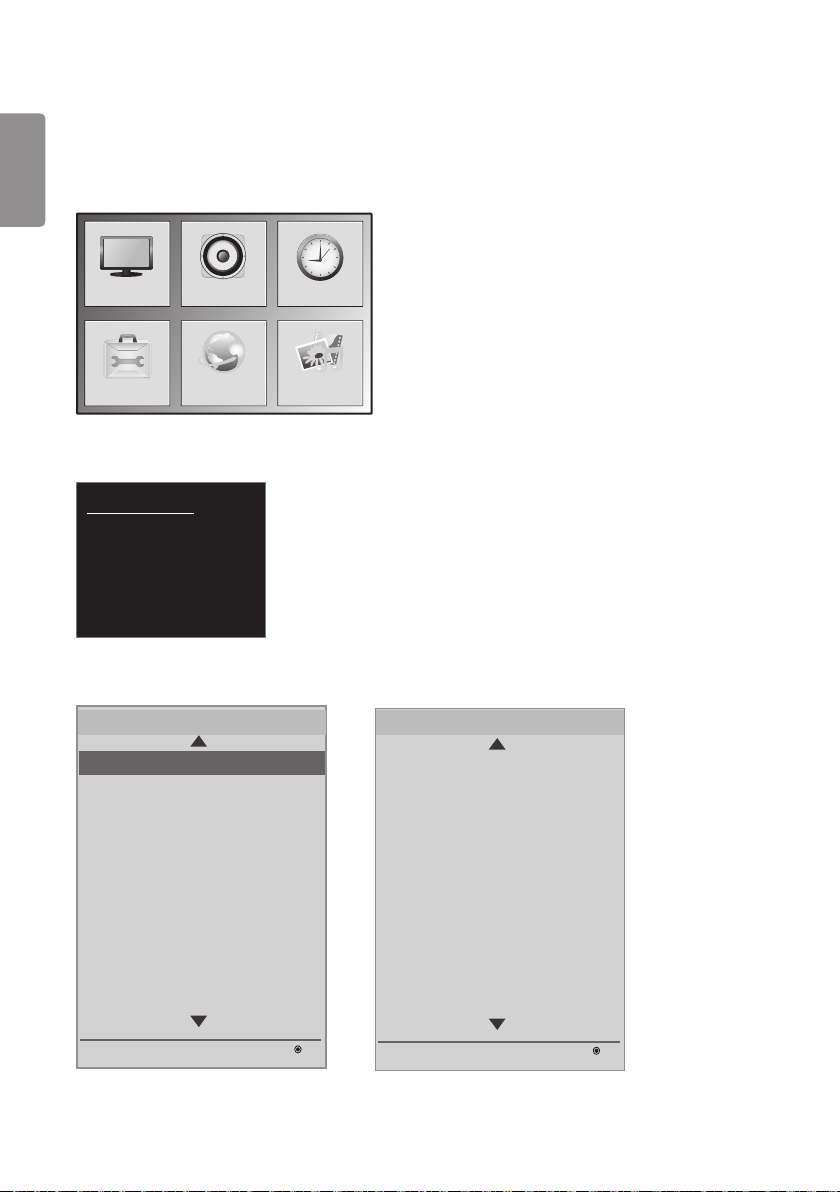
ENGLISH
4
ACCESSING INSTALLATION MENU
1 Press and hold the SETTINGS button for more than 5 seconds.
OPTION
PICTURE
NETWORK
AUDIO TIME
MY MEDIA
2 Enter the correct password (default: 0000) and press the OK button.
HDMI
(DTV)
No Signal
3 When the Installation Menu is displayed, select the desired item.
LG Digital Signage Setup
USB Cloning
Password Change
Set ID Setup
Configuration Setup
Lock Mode
External Speaker / Audio out
Fail Over
ISM Method
Easy Brightness Control
S/W : xx.xx.xx.xx Micom : x.xx.x
OK
Installation Menu (V 3.0)
LG Digital Signage Setup
S/W : xx.xx.xx.xx Micom : x.xx.x
OK
Installation Menu (V 3.0)
SuperSign Server Setup
Holiday Schedule
No Signal Image
Crestron
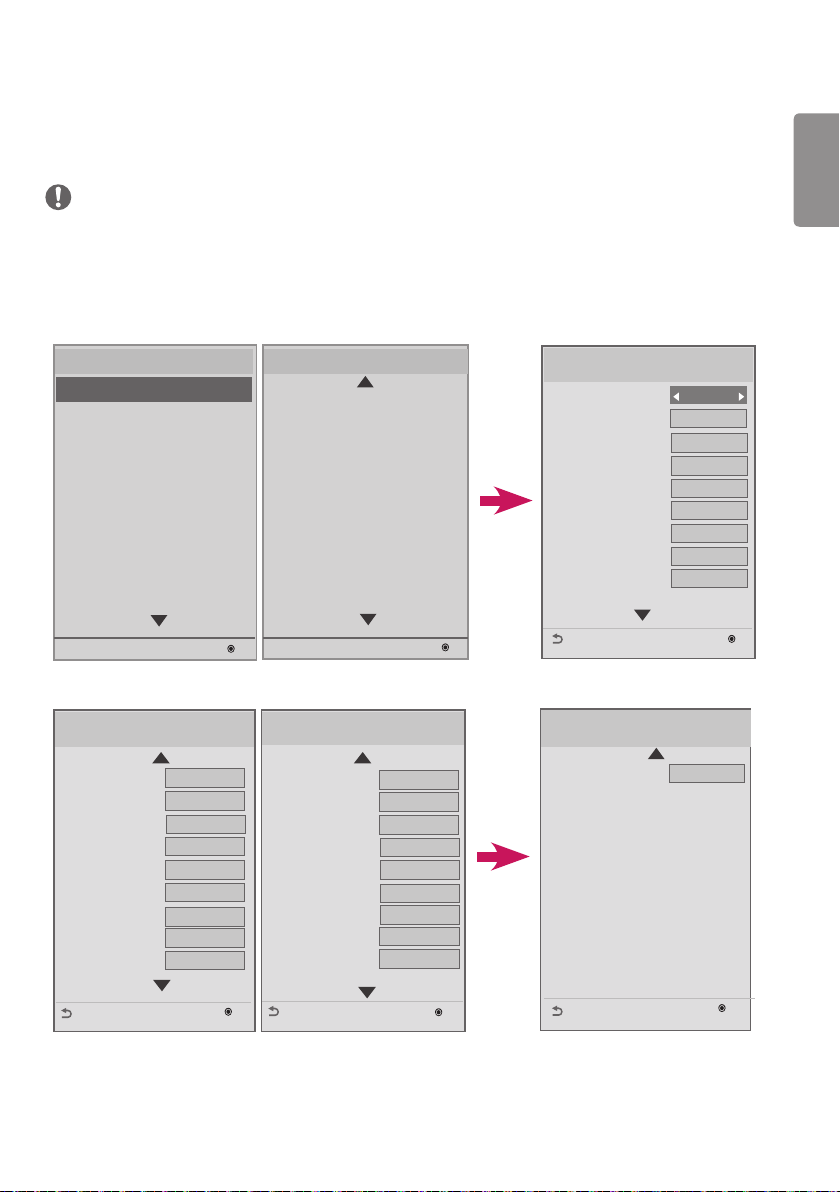
ENGLISH
5
INSTALLATION MENU
NOTE
• Default values may differ by region.
LG Digital Signage Setup menu
• Use this menu to configure the Digital Signage after in stallation.
LG Digital Signage Setup
Signage Mode Operation
• Power On Status
• Key Operation
• IR Operation
• Local Key Operation
• Limited Mode
• Input Source Change
• Menu Display
• OSD Display
LST
No
Normal
Normal
No
Yes
Yes
Yes
Yes
OK
Previous
USB Cloning
Password Change
Set ID Setup
Configuration Setup
Lock Mode
External Speaker / Audio out
Fail Over
ISM Method
Easy Brightness Control
S/W : xx.xx.xx.xx Micom : x.xx.x
OK
Installation Menu (V 3.0)
LG Digital Signage Setup
S/W : xx.xx.xx.xx Micom : x.xx.x
OK
Installation Menu (V 3.0)
SuperSign Server Setup
Holiday Schedule
No Signal Image
Crestron
LG Digital Signage Setup
• Power On Default
• Input Source
• A/V Setting
• Aspect Ratio
• Wake On LAN
• DPM
• Digital Audio Input
• Speaker
• Power On Delay
OK
Previous
No
Off
No
Disable
Off
10min.
Analog
On
Off
LG Digital Signage Setup
• Pivot mode
• OSD Portrait Mode
• Intelligent Auto
• Master/Slave Mode
• Time Sync Clock
• Sync Mode
• DPM Wakeup Control
• Still Image Detecting
• PM Mode
OK
Previous
Off
Off
On
Slave
Stand-by
Off
Clock
Yes
Power Off
LG Digital Signage Setup
• OPS/PC Power Control
• Factory Reset
OK
Previous
Off
ENGLISH
6
Signage Mode Operation
• Enable or disable all Signage Mode Operation functions by setting the feature to Yes or No.
• If you set Signage Mode Operation to Yes, all Signage Mode functions are enabled.
• If you set Signage Mode Operation to No, all Signage Mode functions are disabled, and the product operates with its
default settings.
(Depending on the model, this feature may not be supported.)
Power On Status
• You can select the operating status of the monitor when the main power is turned on.
• You can choose PWR, STD, or LST.
• PWR sets the monitor status to On whenever the main power is turned on.
• STD sets the monitor status to Standby when the main power is turned on.
• LST sets the monitor status back to its previous status. As in Power Backup mode, if you turn off the main power
while the monitor is turned on, the monitor status changes back to On. Also, if you turn off the main power while the
monitor is in standby mode, the monitor goes into standby mode.
(This feature may not be available with some models.)
Key Operation
• This feature allows you to manage the usability and operation of the local/front keys and your remote control. It
works according to the “IR Operation” settings.
(This feature may not be available with some models.)
IR Operation / Local Key Operation
• This feature allows you to set how the product operates after receiving a signal from a LG remote control or local key.
(0 - Normal, 1 - Use PWR Only, 2 - Block All)
• Selecting ‘Block All’ blocks any signal coming from a LG remote control/local key. (Power On feature is available.)
• Selecting ‘Use PWR Only’ blocks any signal coming from a LG remote control/local key, except the Power button.
• Selecting ‘Normal’ enables signals from any LG remote control/local key to be received normally.
• There are keys that must be operated in ‘Service mode’ when ‘Use PWR Only’ or ‘Block All’ is selected: In-Start, In-
Stop, Power-Only, ADJ, Installation Menu, P-Check, and S-check.
(This feature may not be available with some models.)
NOTE
• When all IR key signals or all local key signals are blocked, the “Power On Status” value switches to “PWR”. Changing
this value is not impossible to ensure the correct powering on operation. (To prevent mistakes by the user)
Limited Mode
• This feature allows you inhibit the operations of particular Signage functions. This feature works according to the
‘Input Source Change’, ‘Menu Display’, or ‘OSD Display’ settings.
(This feature may not be available with some models.)
Input Source Change
• Enable or disable input source changes by setting this feature to Yes or No.
• If you set this feature to No (changes disabled), the INPUT key is disabled.
• If you set this feature to Yes (changes enabled), the input source can be changed.
(This feature may not be available with some models.)

ENGLISH
7
Menu Display
• Setting this feature to Yes will display the menu. Setting this feature to No will hide the menu.
• However, even if you have set this feature to No, you can easily open the Installation Menu by pressing and holding
the Menu button for more than 5 seconds.
(This feature may not be available with some models.)
OSD Display
• Enable or disable OSDs by setting this feature to Yes (displayed) or No (not displayed).
• If you set this feature to No (not displayed), OSDs other than Installation Menu are not displayed.
(This feature may not be available with some models.)
Power On Default (Input Source, A/V Setting, Aspect Ratio)
• You can configure ‘Input Source’, ‘A/V Setting’, and ‘Aspect Ratio’ after the monitor is turned on.
• You can set this feature to Yes (enabled) or No (disabled).
• If you set ‘Power On Default’ to No, the settings for ‘Input Source’, ‘A/V Setting’, and ‘Aspect Ratio’ are not
applied.
• If you set ‘Power On Default’ to Yes, the settings for the menus above are applied.
(This feature may not be available with some models.)
Input Source
• This feature allows you to set whether to use a new input source or a pre-existing input source.
• Set ‘Input Source’ to Off to use the pre-existing input source.
• You can use any of the sources supported by the given model as the input source.
• If both ‘Input Source’ and ‘On Time’ have been set, ‘Input Source’ takes priority.
(This feature may not be available with some models.)
A/V Setting
• When your monitor is powered on, you can set certain video options.
• If you set this feature to Yes, the video settings configured before entering the Installation Menu are saved. In
addition, even if you changed the video settings before turning off the monitor, the saved settings are restored when
you turn the monitor on again.
• Saves video settings: Picture Mode, DPM Select, Smart Energy Saving, Backlight, Contrast, Brightness, Sharpness,
Color, Tint, and Color Temp.
• Saves audio settings: Sound Mode and Balance.
(This feature may not be available with some models.)
Aspect Ratio
• This feature allows you to set the screen aspect ratio applied to your monitor when turned on.
• Selecting ‘Disable’ sets the screen aspect ratio to ‘Aspect Ratio’ when the monitor is turned on.
• Selecting ‘Set By Program’ sets the screen aspect ratio to ‘Set By Program’ when the monitor is turned on.
• Selecting ‘4:3’ sets the screen aspect ratio to ‘4:3’ when the monitor is turned on.
• Selecting’16:9’ sets the screen aspect ratio to ‘16:9’ when the monitor is turned on.
(This feature may not be available with some models.)

ENGLISH
8
Wake On LAN
• Set whether to use the ‘Wake On LAN’ feature.
• You can set ‘Wake On LAN’ to On or Off.
• If you set this feature to On, ‘Wake On LAN’ is enabled and you can turn the product on remotely via a LAN.
• If you set this feature to Off, ‘Wake On LAN’ is disabled.
(This feature may not be available with some models.)
DPM
• Set whether to use ‘Display Power Management (DPM)’.
• You can set this feature to Off, 5 sec, 10 sec, etc.
• If this feature is not set to Off, the monitor will enter Power Saving Mode when there is no input signal.
• If you set this feature to Off, DPM is disabled.
(This feature may not be available with some models.)
Digital Audio Input
• You can set the audio for each input as ‘Analog’ or ‘Digital’.
• In the case of RGB input, audio is fixed as ‘Analog’.
• In the case of digital input, you can select ‘Analog’ or ‘Digital’ for audio.
(This feature may not be available with some models.)
Speaker
• You can restrict the audio settings by choosing whether or not to use the speakers.
• If you set this feature to Off, audio output is disabled, and you cannot enter the ‘Audio’ menu.
• If you set this feature to On, audio output is enabled, and the ‘Audio’ menu is accessible.
(This feature may not be available with some models.)
Power On Delay
• When multiple monitors are connected, this feature enables the monitors to turn on at specified time intervals to
prevent overload. You can choose an interval value between 1 and 250 seconds.
(This feature may not be available with some models.)
Pivot Mode
• This feature allows you to rotate the screen 180 degrees.
• Both the input signal and OSD rotate.
• You can set this feature to On or Off.
• If you set this feature to Off, the function is disabled.
• If you set this feature to On, the screen rotates 180°.
• If any changes are made, they are applied after reboot.
(This feature may not be available with some models.)
OSD Portrait Mode (Off, 90, 270)
• This feature allows you to rotate the OSD clockwise.
• You can set this feature to Off/90/270.
• If you set this feature to Off, the function is disabled.
• If you set this feature to 90, the OSD rotates clockwise 90 degrees.
• If you set this feature to 270, the OSD rotates clockwise 270 degrees.
(This feature may not be available with some models.)
ENGLISH
9
Intelligent Auto
• You can set this feature to On (enabled) or Off (disabled).
• If you change the screen resolution after setting this feature to ‘Yes’, the display is automatically adjusted to the new
resolution.
(This feature may not be available with some models.)
Master/Slave Mode
• This feature allows you to sync monitors connected via RS-232C.
• When various monitors are connected via RS-232C, the forefront monitor becomes the Master.
• Once the Master is selected, the rest become Slaves.
• If you want to change the Master monitor, you must change it in Master/Slave Mode.
(This feature may not be available with some models.)
NOTE
• The Master/Slave Mode menu is only enabled when Picture ID is set to Off.
• When entering or editing Master/Slave Mode, the menu cursors on the Slave monitors may not be moved.
Time Sync Clock
• This feature syncs the Slave monitors’ clocks to the Master monitor’s at a specified time via RS-232C.
• On the Master monitor, you can set the sync time as well as setting Time Sync Clock to Off .
• You can select a sync time between 0:00 - 23:00.
• While Time Sync Clock is performed, RS-232C control of other commands may not work.
(This feature may not be available with some models.)
NOTE
• To synchronize Time Sync Clock, be sure to set each slave monitor’s clock so that they are at least one minute later
than the master monitor’s clock.
• If the Clock setting is Auto, the setting is changed to Manual when Time Sync Clock runs.
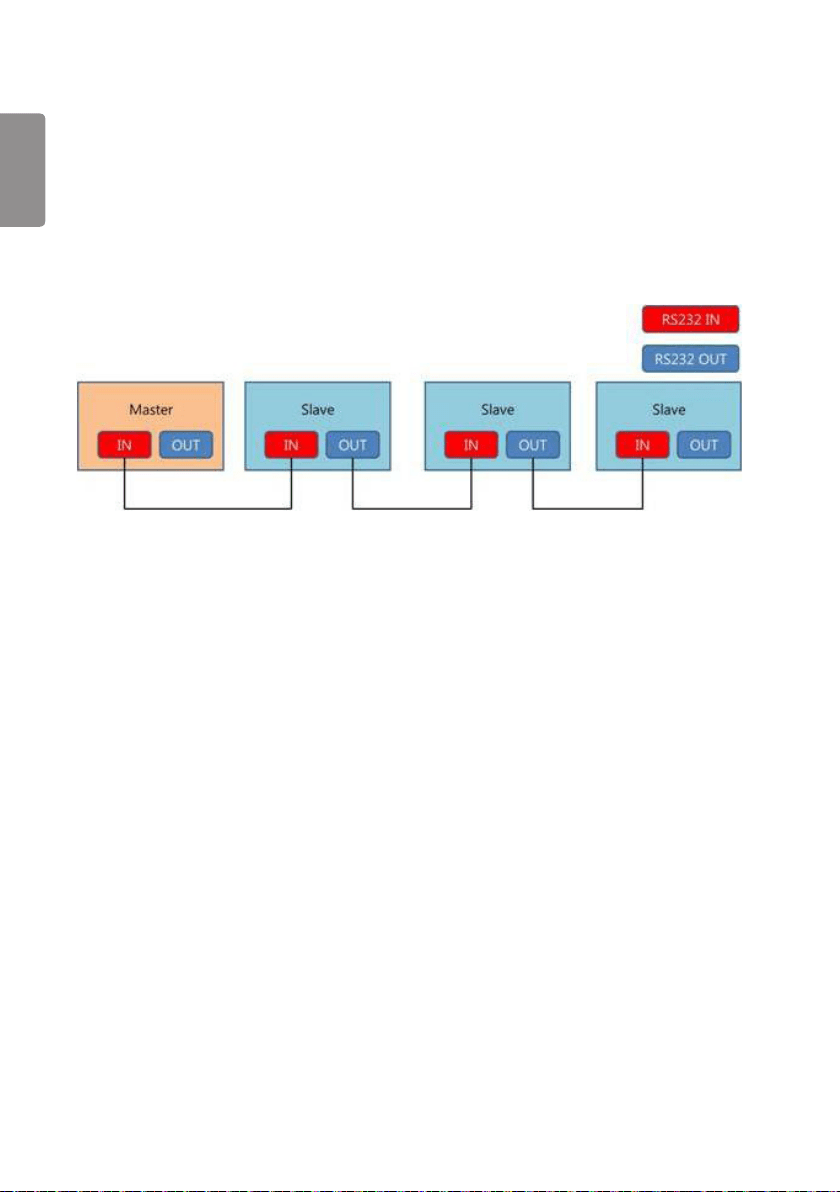
ENGLISH
10
Sync Mode
• This feature allows you to sync the start times of contents (videos or images that have been distributed by SuperSign
Software) played back on the Master and Slave monitors.
• If you set Sync Mode to Off, the sync feature is disabled.
• A Slave monitor plays contents at the same time as the Master monitor.
• While Sync Mode is performed, RS-232C control of other commands may not work.
(This feature may not be available with some models.)
DPM Wakeup Control
• This feature sets conditions for releasing the DPM status according to the DVI/HDMI’s processing of digital signals.
• Clock: Checks the clock signal of the digital signal and, if the clock signal exists, releases the DPM status.
• Sync: Releases the DPM status when both the clock signal and data of the digital signal are entered.
Still Image Detecting
• This feature detects still images.
• If you set this feature to Yes, you can use the RS-232C command for detecting still images.
PM Mode
• This feature activates some of the monitor’s functions after it enters Off status, allowing the monitor to remain
practically the same as when it is turned on.
• Power Off: All functions remain turned off except some functions (Power, Time, etc.) when the monitor turns off.
(Extended Display Identification Data (EDID) may be sustained depending on the input and model.)
• Sustain Aspect Ratio: Sustains Extended Display Identification Data (EDID) even when the monitor is turned off.
• Screen Off: Only turns off the screen and audio when the monitor enters Auto Off/Automatic Standby/DPM.
Network-based control is possible.
• Screen Off Always: Has the same function as PM Mode’s Screen Off. Entering and releasing the Screen Off status
using a remote control is also possible.
ENGLISH
11
Factory Reset
• This feature allows you to restore all set values to their factory default values.
• If you set this feature to Yes, all Signage settings except UTT setting (the Signage panel’s operational hours) are
restored to their factory default settings.
(This feature may not be available with some models.)
Yes No
All user settings will be reset.
Still Continue?
OPS/PC Power Control
• You can control the power of the OPS (media player) by turning the display power on or off.
• Disable: Disables the PC Power Control.
• Sync (on): Synchronizes the power status of the OPS (media player) only when the monitor is turned on.
• Sync (on/off): Synchronizes the power status of the OPS (media player) with the monitor.
• The PC Power Control feature can be used with the external RS-232C connection of the media player.
(This feature may not be supported in certain models.)
Interface Selection
• You can configure serial communication with the connected OPS.
• RS-232C: Enables communication with external devices via the serial port.
• OPS: Enables communication via the OPS connected to the product.
• Interface Selection is enabled only when the OPS kit is connected.
(This feature may not be supported in certain models.)
Check Screen
• The Check Screen feature judges whether there are abnormalities on the edges of the screen. R, G, and B OSDs are
formed on the screen at one second intervals and an RGB sensor tests the areas.
• If set to On, the Check Screen feature is enabled.
• If set to Off, the Check Screen feature is disabled.
• If the Portrait mode is set to 90 or 270, the Check Screen feature is off and deactivated.
• If the Pivot mode is On, the Check Screen feature is off and deactivated.
• When the Portrait mode and Pivot mode is off, the Check Screen feature is activated.
(This feature may not be supported in certain models.)
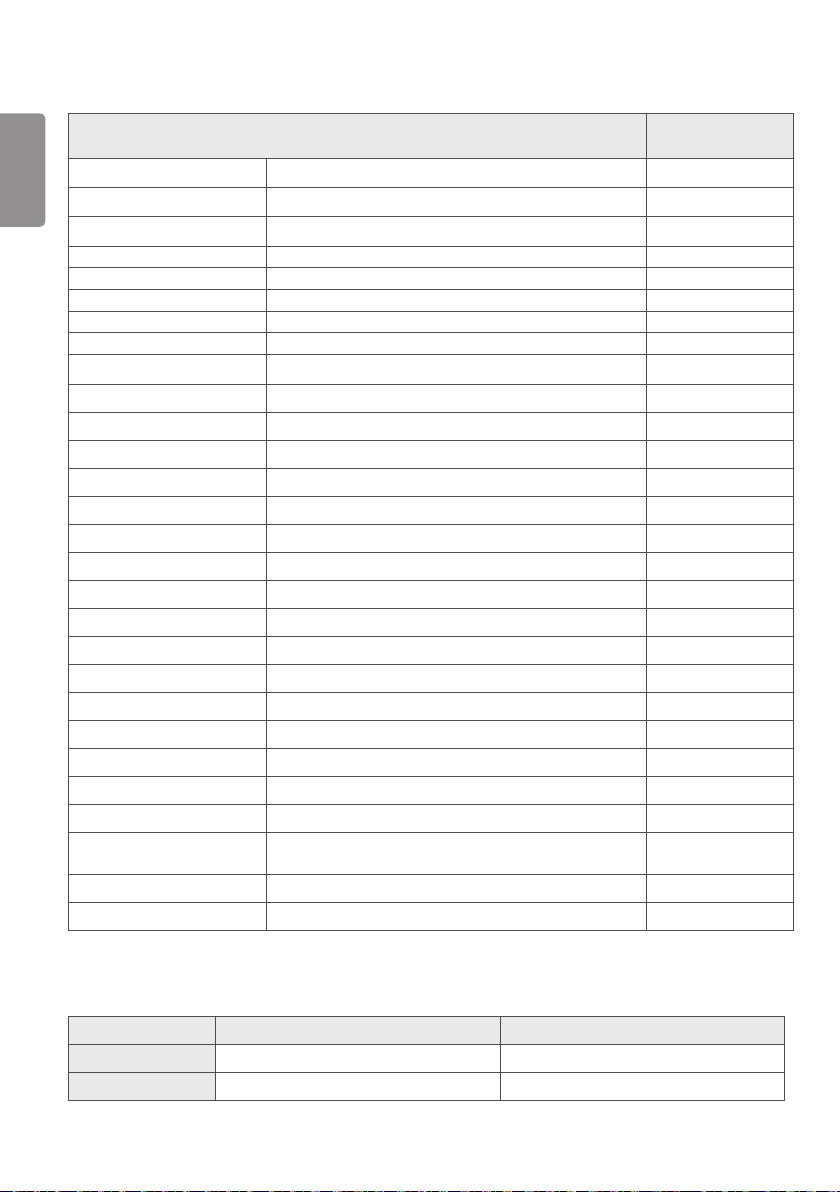
ENGLISH
12
LG Digital Signage Setup Initial setting /
Factory Reset
DPM Off/5sec/10sec/15sec/1min/3min/5min/10min 10min
Power On Status LST, STD, PWR LST
Key Operation Yes/no No
IR Operation Normal/Use PWR Only/Block All Normal
Local Key Operation Normal/Use PWR Only/Block All Normal
Limited Mode Yes/No NO
Input Source Change Yes/No Yes
Menu Display Yes/No Yes
OSD Display Yes/No Yes
Power On Default Yes/No No
Input Source Variable Off
A/V Setting Yes/No No
Aspec Ratio Disable/4:3/16:9/Set By Program Disable
Wake On LAN On/Off Off
Digital Audio Input Digital/Analog Digital
Speaker On/Off On
Power on Delay Off/1~250sec Off
Pivot Mode On/Off Off
OSD Portrait Mode Off/90/270 Off
Intelligent Auto On/Off On
Master / Slave Mode Master / Slave Slave
Time Sync Clock Off / Standby Stand-by
Sync Mode Off / On Off
DPM Wakeup Control Clock/Sync Clock
Still Image Detection On/Off Yes
PM mode Power Off/Sustain aspect ratio/Screen off/Screen Off
always
Power Off
OPS/PC Power Control Disable/Sync(On)/Sync(On/Off) Disable
Factory Reset Confirm
** User: User settings
Factory Reset VS Initial Setting
Item Factory Reset Initial Setting
Set ID 1 User
IP Reset to default value “0” User
** The rest are the same as each other.
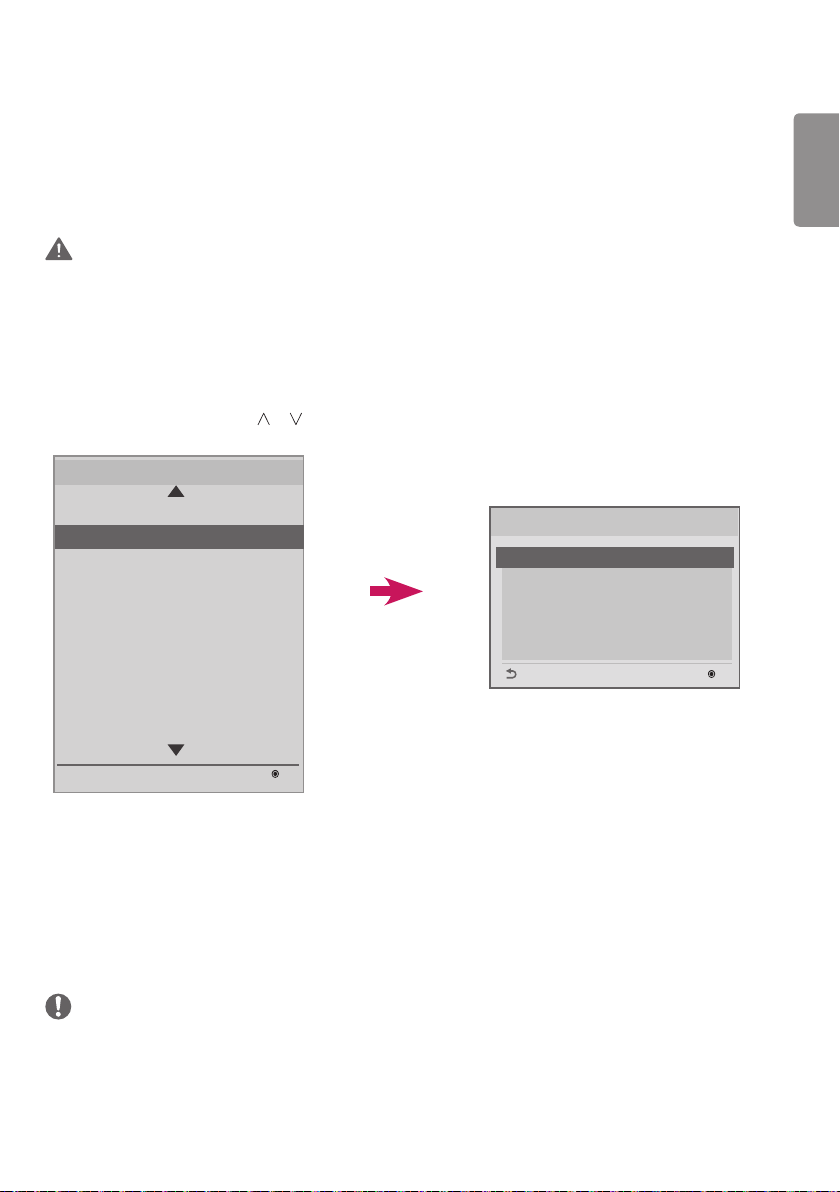
ENGLISH
13
USB Cloning
The administrator can configure a monitor more quickly via USB and configure multiple monitors simultaneously.
All monitors that have been configured this way operate according to the settings of the same master monitor.
Using this method reduces installation time compared to the standard RS-232C method.
CAUTION
• To use the USB function, make sure to use only USB storage devices formatted as FAT32. USB storage devices
formatted as other file systems may not work.
Ez Download
Items such as EPK, TLL, Splash Image, and Micom need to be downloaded.
Because there are many items to download and many downloading methods, users can experience difficulty and
inconvenience when downloading. Ez Download was created to facilitate the download process.
1 Select ‘Ez Download’ using the or buttons and press the OK button.
LG Digital Signage Setup
USB Cloning
Password Change
Set ID Setup
Configuration Setup
Lock Mode
External Speaker / Audio out
Fail Over
ISM Method
Easy Brightness Control
S/W : xx.xx.xx.xx Micom : x.xx.x
OK
Installation Menu (V 3.0)
USB Cloning
OK
USB Cloning
Ez Download
Receive from USB
Send to USB
Logo Image Download
Send to Daisy Chain
Previous
OK
2 Select the items you wish to download from the list and select Apply.
- If you check the EPK item, the Display EPK Version , SPI Boot, and LG Boot Logo items are enabled.
- If you check both the EPK and JPG items, the LG Boot Log item is disabled; if you uncheck the JPG item after
wards, LG Boot Log item is enabled.
- If both the Global TLL and Model TLL files exist, only the Global TLL file is displayed.
3 The selected TLL, JPG, and EPK items are downloaded in that order. During the download, the Downloading Percent
UI for each item is displayed. When the download is complete, the monitor turns off.
NOTE
• No Signal Image Download’s UI only displays one language (English) correctly.
• When you download files, only files with English names are displayed correctly.
• An item list for Ez Download can include up to 255 items.
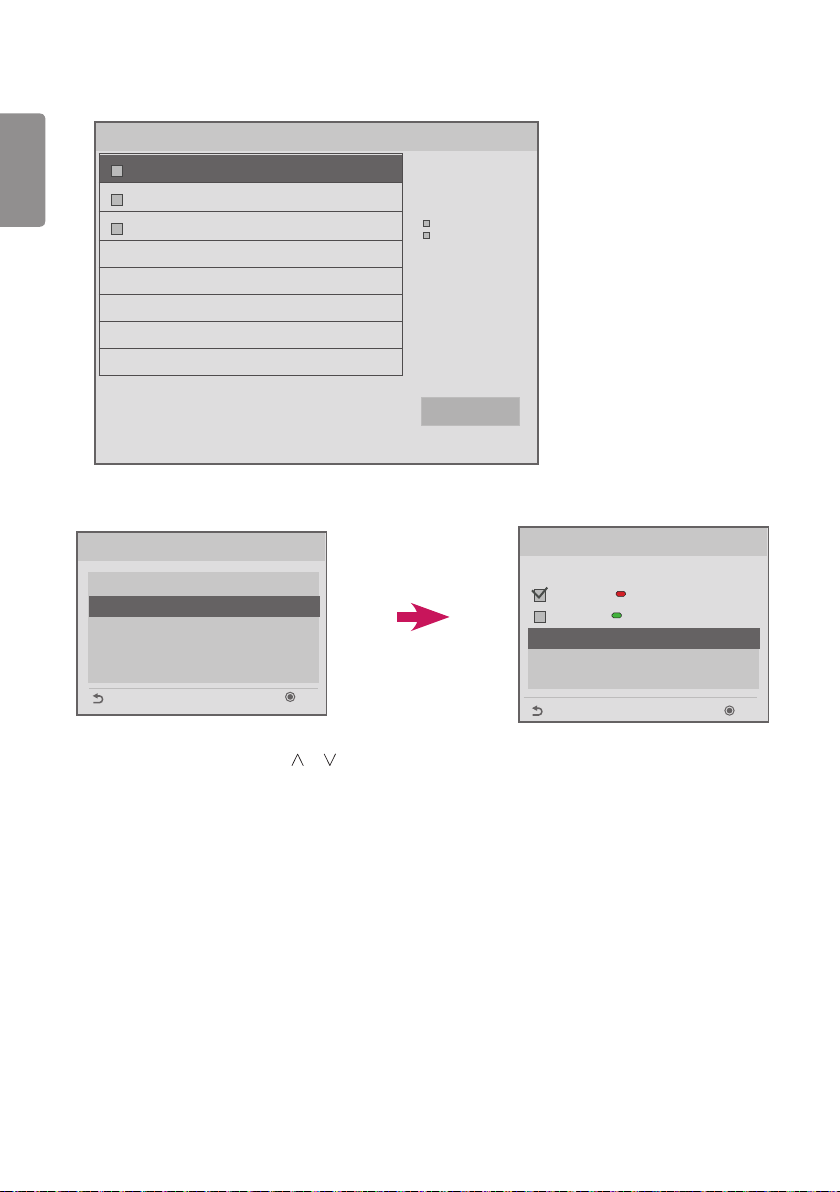
ENGLISH
14
Ez Download
Apply
[ Software Version ]
Current : 02.00.00.01
EPK : 02.00.00.01
[ Forced Update Option ]
SPI Boot
LG Boot Logo
[No Signal Image]
Max Size : 1024KB
Total Size : 0KB
[ISM Bar Image]
Max Size : 1024KB
Total Size : 0KB
[ISM User Image]
Max Size : 1024KB
Total Size : 0KB
[TLL] GlobalClone00001.TLL
[TLL] GlobalClone99999.TLL
[EPK] M1A_ATSC_KR_RevNo2800_V01...
Receive from USB
Receive from USB
GlobalClone00001.TLL
GlobalClone99999.TLL
Select file type
Global TLL
Model TLL
OK
Previous
USB Cloning
Ez Download
Receive from USB
Send to USB
Logo Image Download
Send to Daisy Chain
OK
Previous
1 Select the desired files using the or buttons and press the OK button.
2 When the download is complete, the monitor goes into standby mode. When the download fails, the screen
switches to the initial installation screen.
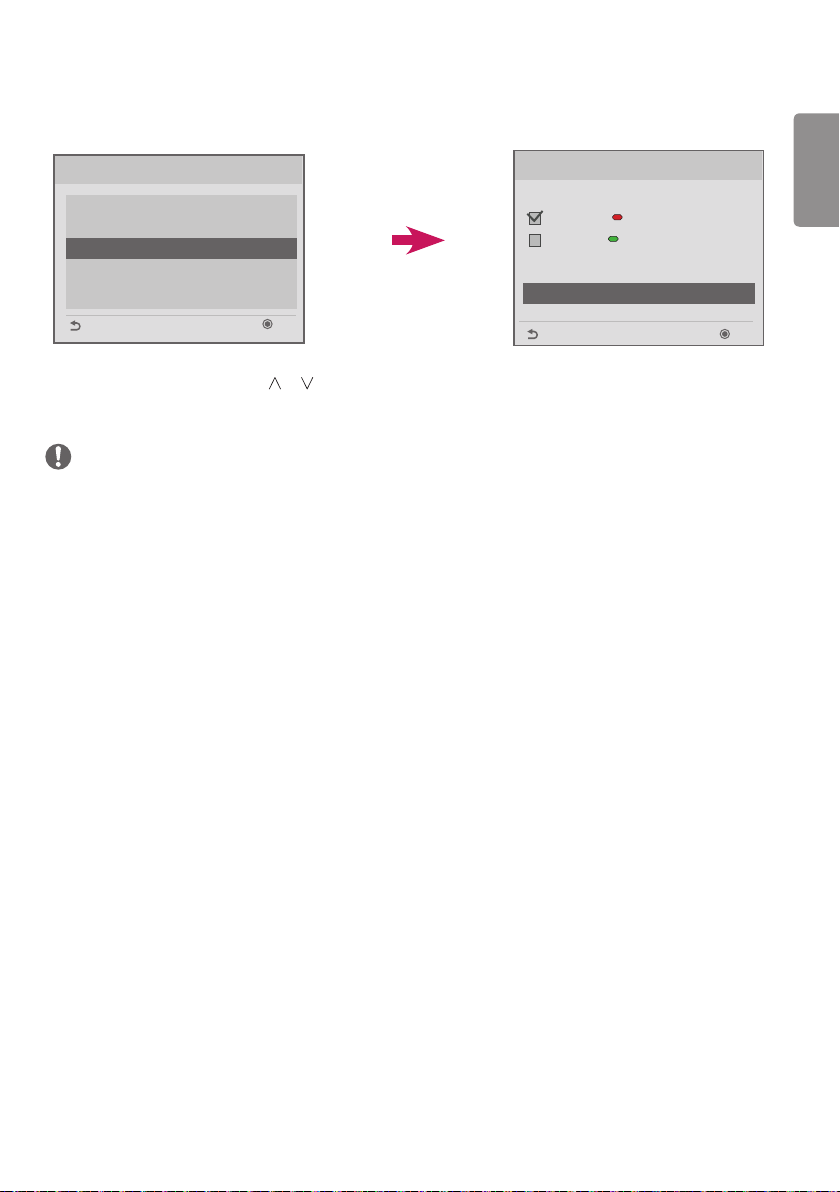
ENGLISH
15
Send to USB
Send To USB
GlobalClone00001.TLL
Select file type
Global TLL
Model TLL
OK
Previous
Select the file name and press OK to start
ꔠ
ꔡ
USB Cloning
Ez Download
Receive from USB
Send to USB
Logo Image Download
Send to Daisy Chain
OK
Previous
1 Select the desired files using the or buttons and press the OK button.
2 When the download is complete, the screen switches to the initial installation screen.
NOTE
• Model TLL: Appears under the top-level folder on your USB drive in the form of an xx(model name)xxxxx .TLL. The
‘xxxxx’ refers to a number. Model TTL files appear only when they are compatible with the given model, and they are
transferrable only when the model names match.
For example, if the model is 43SE3B-5DC, its Model TLL file is saved as a file with any name between xxSE3B-
5DC00001.TLL and xxSE3B-5DC99999.TLL.)
• Global TLL: Appears under top-level folder on your USB drive in the form of a GlobalClonexxxxx.TLL. The ‘xxxxx’ refers
to a number.
For example, if the model is 43SE3B-5DC, its Global TLL file is saved as a file with any name between
GlobalClone00001.TLL and GlobalClone99999.TLL.)
(* For a Global TLL file to be cloned, the Model TLL file located in the same folder needs to be deleted or moved to a
different folder.)
• When Global TLL and Model TLL files are both present in the top-level folder, press the red button to display the
Global TLL file or the green button to display the Model TLL file.
ENGLISH
16
Logo Image Download
This feature allows you to download splash image files onto your monitor.
Create a ‘LG_MONITOR’ folder on your USB flash drive and copy a splash image file into the folder.
1 Select the desired image file using the or buttons and press the OK button.
Logo Image Download
Image1.jpg
Image2.jpg
Image3.jpg
OK
Previous
USB Cloning
Ez Download
Receive from USB
Send to USB
Logo Image Download
Send to Daisy Chain
OK
Previous
2 Wait until the download is complete. When the download is complete, the monitor turns off and on again.
3 When the monitor turns on, you can see your new splash image.
NOTE
• Only JPEG files 1 MB or smaller can be used as splash images.
• Progressively encoded JPEG files are not applicable.
• Make sure that splash images have a resolution suitable for the screen resolution of the monitor.
• The maximum resolution for a splash image is Full HD, 1920 x 1080 and HD, 1360 x 768. The minimum resolution
for a splash image is 64 x 64.
ENGLISH
17
Send to DaisyChain
This feature allows you to copy the settings of a monitor to other monitors using RS-232C.
1 Transfer the settings of your current monitor to other linked monitors via RS-232C outputs.
2 The settings of the foremost monitor are copied, while the settings for other monitors in the RS-232C daisy-chain
are not.
3 Select Send to DaisyChain, then select Yes to transfer the data or select No to go back to the previous menu.
4 Repeat this until all monitors that are connected to the current monitor’s RS-232C output port turn off. After the
monitors turn off, turn them on and check if the settings have been copied.
(This feature may not be available with some models.)
All user settings will be Send to Daisy Chain.
Still Continue?
Yes No
Transfer Start !!!!
USB Cloning
Ez Download
Receive from USB
Send to USB
Logo Image Download
Send to Daisy Chain
OK
Previous
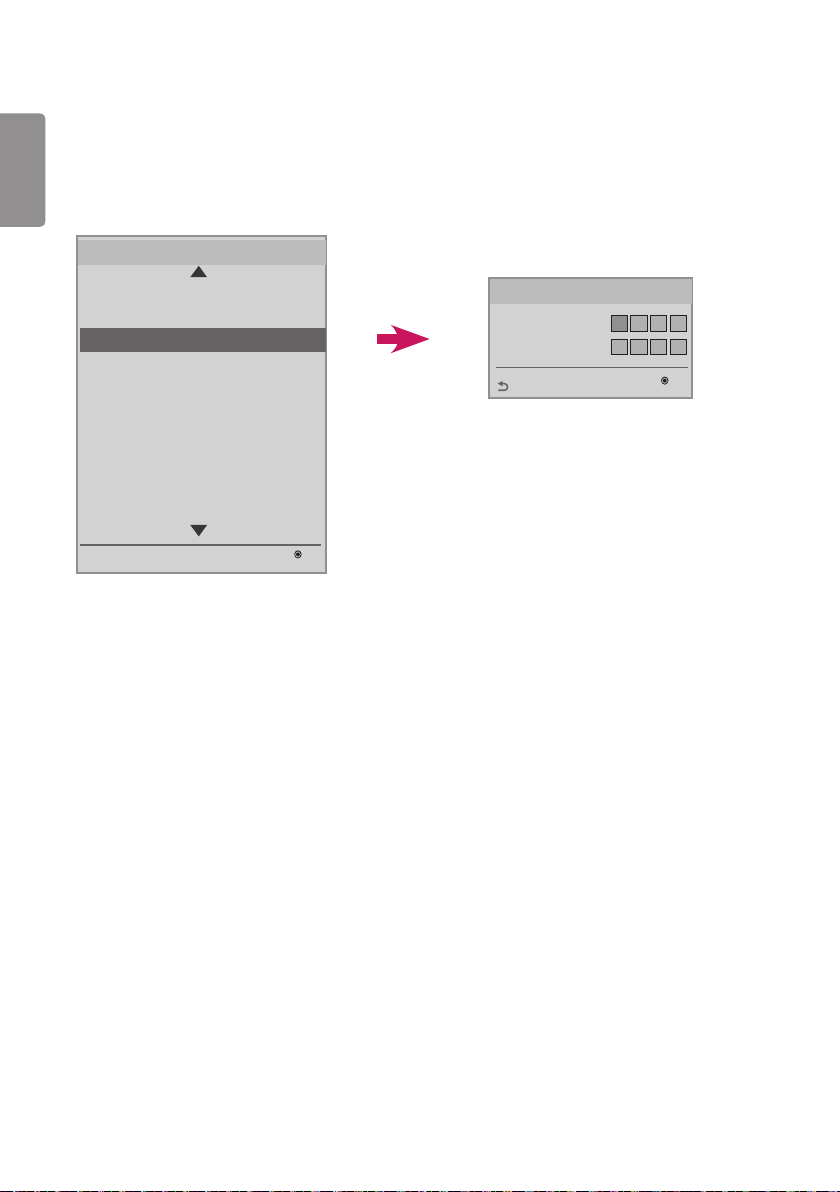
ENGLISH
18
Password Change
You can change your password for security purposes.
Enter a new 4-digit number in Change Password.
Enter the same number again in Confirm Password to confirm the password.
Password Change
Change Password
Confirm Password
*
*
*
*
*
*
*
*
OK
Previous
LG Digital Signage Setup
USB Cloning
Password Change
Set ID Setup
Configuration Setup
Lock Mode
External Speaker / Audio out
Fail Over
ISM Method
Easy Brightness Control
S/W : xx.xx.xx.xx Micom : x.xx.x
OK
Installation Menu (V 3.0)
Password Change

ENGLISH
19
Set ID Setup
This feature allows you to set an ID for the product.
Set ID Setup
Set ID Lock
Set ID
Auto Set ID
Reset ID
Press OK
No
OK
Previous
Press OK
1
LG Digital Signage Setup
USB Cloning
Password Change
Set ID Setup
Configuration Setup
Lock Mode
External Speaker / Audio out
Fail Over
ISM Method
Easy Brightness Control
S/W : xx.xx.xx.xx Micom : x.xx.x
OK
Installation Menu (V 3.0)
Set ID Setup
Set ID Lock
• You can enable Set ID Lock by selecting “Yes” or cancel Set ID Lock by selecting “No”.
Set ID
• Pick and enter a number between 1 - 255 (1 - 1000, with some models) for the Set ID.
Auto Set ID
• This feature sets an ID for the product automatically.
Yes No
Setting ID Automatically.
Do you want to start with 1?
(Current Set ID : 1)
• If you set this feature to Yes, all monitor in the RS-232C daisy-chain are assigned a sequential Set ID, starting with 1.
• If you set this feature to No, Set IDs are assigned to the monitor sequentially, starting with the foremost set.
• A Set ID cannot be decreased from its current value. Therefore, it is recommended that you execute Reset ID before
using this feature.
• Execution time may vary depending on the installation environment.
• If the Auto Set ID operation is not completed normally, turn the product off and on, and then try again.
• The Yes/No options only work on the foremost monitor in the daisy-chain.
(This feature may not be available with some models.)
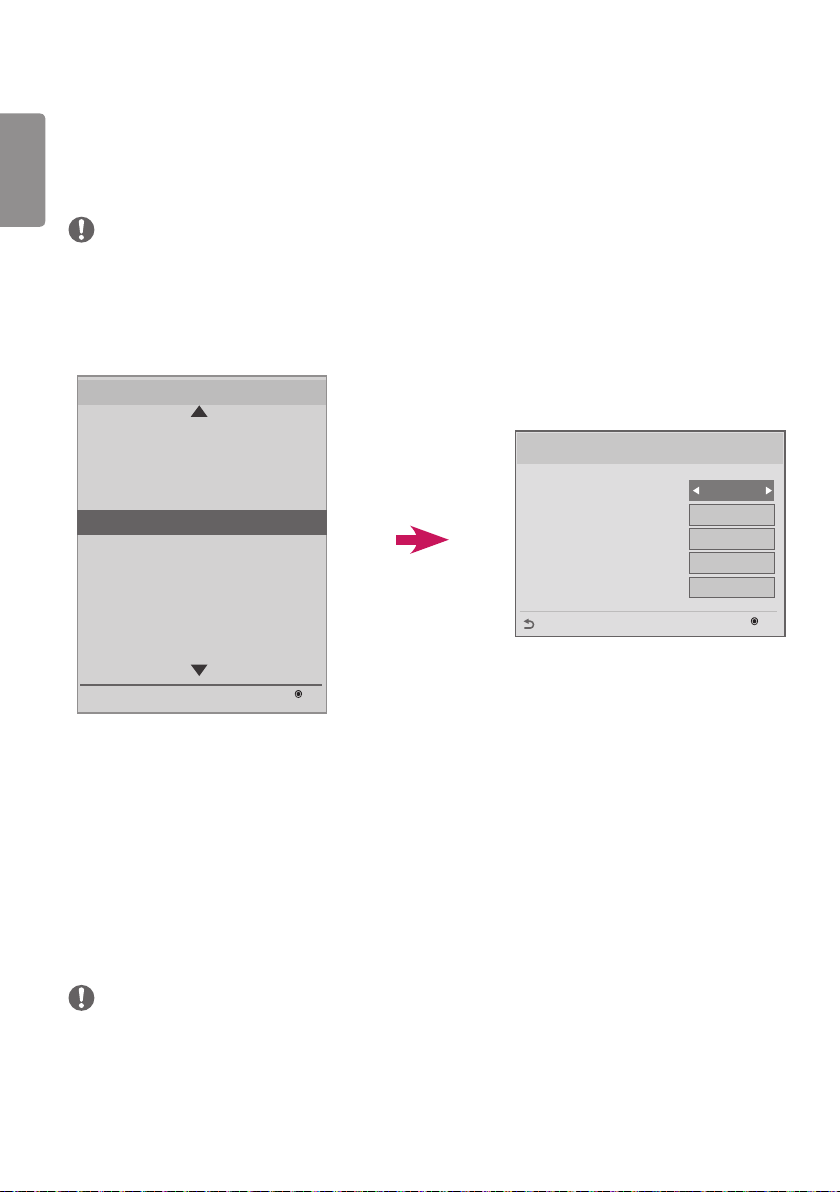
ENGLISH
20
Reset ID
• This feature initializes the Set ID of the product.
• After execution, the Set IDs of all monitor in the RS-232C daisy chain are reset to 1.
(This feature may not be available with some models.)
NOTE
• Be sure to execute Auto Set ID/Reset ID when Picture ID is set to Off.
Configuration Setup
• This feature enables a detailed configuration of the product.
Configuration Setup
Splash Offset Time
USB Auto Playback
15Min Auto Off
Automatic Standby
Screen Saver Cube
Disable
Disable
Off
Yes
+0 sec
OK
Previous
LG Digital Signage Setup
USB Cloning
Password Change
Set ID Setup
Configuration Setup
Lock Mode
External Speaker / Audio out
Fail Over
ISM Method
Easy Brightness Control
S/W : xx.xx.xx.xx Micom : x.xx.x
OK
Installation Menu (V 3.0)
Configuration Setup
Splash Offset Time
• This feature controls the amount of time a splash image is displayed.
• You can select a time between 0 and 10 seconds.
U SB Auto Playback
• This is a feature that automatically plays video or photo files from your USB storage device.
• This feature is activated when you connect a USB device to your monitor or when you turn on your monitor with a
USB device connected to it.
• Video and photo files must be located in the root folder, in the first partition of your USB storage device.
• Video or photo files located here will play back repeatedly.
NOTE
• Contents stored on the USB storage device connected to USB 1 are played back if USB storage devices are connected
to both USB 1 and USB 2.

ENGLISH
21
15 Min Auto Off
• Sets whether to use the 15 Min Auto Off feature.
• It can be set to Enable or Disable.
• Enable: If there is no signal for 15 minutes, the product turns off.
• Disable: 15 Min Auto Off is not used.
• It is recommended that you set this feature to Off if you intend to use the product for long periods of time as the
feature turns the power of the product off.
Automatic Standby
• Sets whether to use the 4 hour/6 hour/8 hour automatic standby feature.
• The option can be set to Off, 4 Hours, 6 Hours, or 8 Hours.
• If you set this feature to a setting other than Off, the product turns off if there is no input from the remote control
for 4 hours, 6 hours, or 8 hours.
• If you set this option to Off, the Automatic Standby feature is disabled.
Screen Saver Cube
• This Screen Saver feature lets you enable/disable the 360-degree-rotating LG Cube which appears on the screen
when there is no signal.
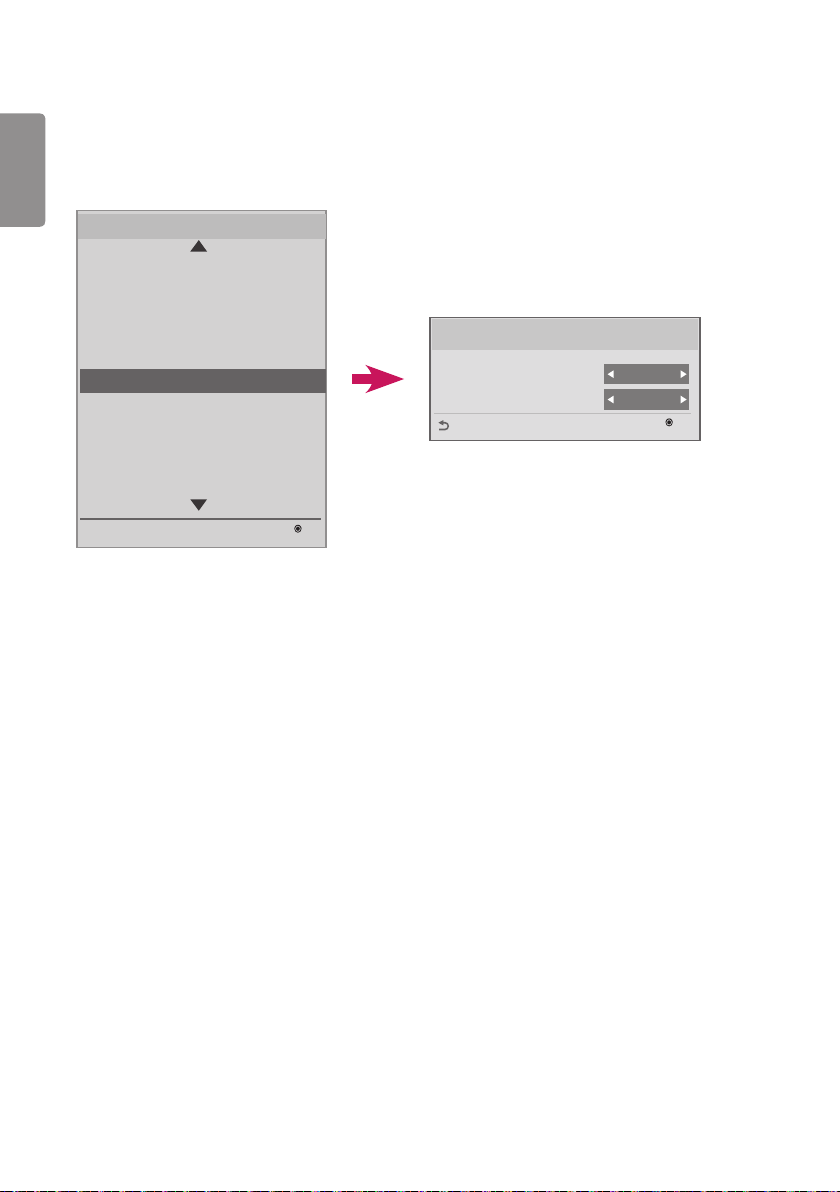
ENGLISH
22
Lock Mode
• This feature allows you to select an input that you want to restrict. The selected input is automatically restricted
according to your settings.
Lock Mode
USB
Initial Setting
Enable
Enable
OK
Previous
LG Digital Signage Setup
USB Cloning
Password Change
Set ID Setup
Configuration Setup
Lock Mode
External Speaker / Audio out
Fail Over
ISM Method
Easy Brightness Control
S/W : xx.xx.xx.xx Micom : x.xx.x
OK
Installation Menu (V 3.0)
Lock Mode
USB
• Enables/disables USB input. The following will happen when USB input is disabled:
• The pop-up window that appears when a USB disk is connected to your monitor is blocked.
• You cannot enter ‘My Media’ in the menu.
• You cannot enter ‘USB Input’ in the Input List.
• ‘USB Auto Playback’ is set to No, and input is not possible. (* However, you can download software updates and
Welcome Screens.)
Initial Setting
• Sets Initial Setting use to Enable or Disable.
• If set to Disable, the Initial Setting item is deactivated in the menu.
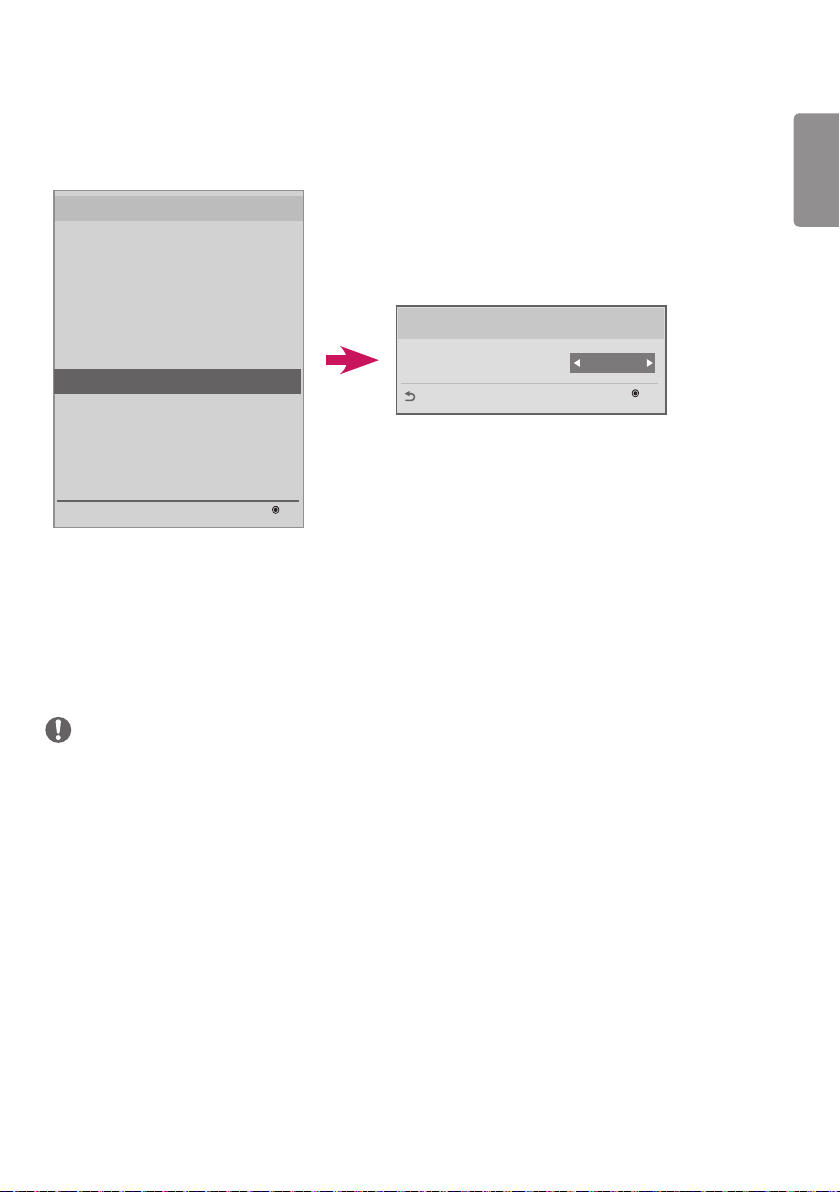
ENGLISH
23
External Speaker / Audio out
• This feature enables the transfer of analog/digital audio signals from your monitor to external devices.
LG Digital Signage Setup
USB Cloning
Password Change
Set ID Setup
Configuration Setup
Lock Mode
External Speaker / Audio out
Fail Over
ISM Method
Easy Brightness Control
S/W : xx.xx.xx.xx Micom : x.xx.x
OK
Installation Menu (V 3.0)
External Speaker / Audio out
External Speaker / Audio out
Output Control
Off
OK
Previous
Output Control
• Off: Does not transfer audio signals to external devices.
• Fixed: Outputs the volume at a fixed level.
(The volume of an external audio device cannot be muted.)
• Variable: The Volume level can be changed to a value between 0 and 100.
(This feature may not be supported on some models.)
NOTE
• When connecting an external audio device to your monitor, be sure to use one with a built-in audio amplifier.
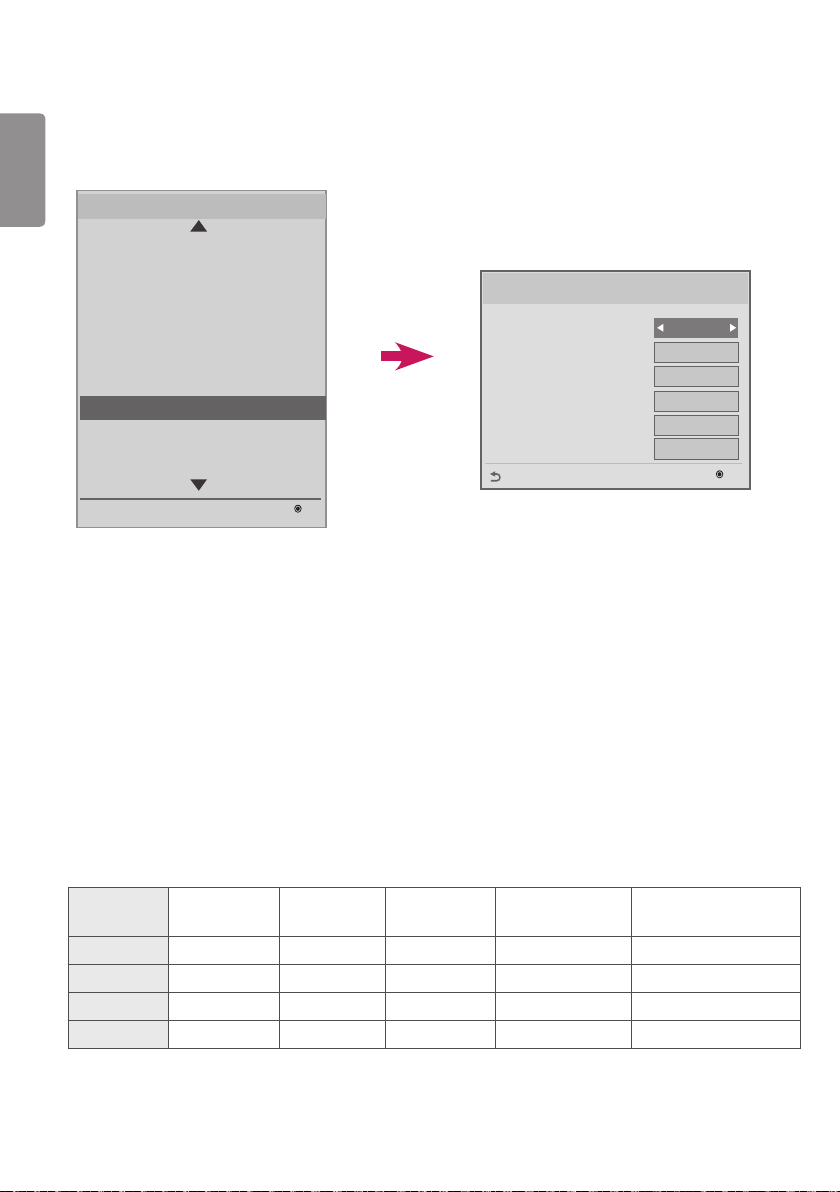
ENGLISH
24
Fail Over
• This feature enables automatic switching to another input signal when there is no signal from the current input.
Fail Over
Mode
USB
Priority1
Priority2
Priority3
Priority4
-----
-----
Off
OK
Previous
-----
-----
Off
LG Digital Signage Setup
USB Cloning
Password Change
Set ID Setup
Configuration Setup
Lock Mode
External Speaker / Audio out
Fail Over
ISM Method
Easy Brightness Control
S/W : xx.xx.xx.xx Micom : x.xx.x
OK
Installation Menu (V 3.0)
Fail Over
You can set Mode to Off, Auto, or Manual.
• Off: Fail Over is disabled.
• Auto: If there is no signal from the current input, the product input switches to a different input that has a video
signal following a specified order (*see table).
• Manual: You can set switching priorities for inputs when there is no signal. If there are a multiple video signals, the
current input switches to the input with the highest priority.
You can set USB to Off, Movie, or Photo.
• Off: Fail Over USB is disabled.
• Movie: If you set this feature to Auto, a movie is played back when there is no input signal. If you set this feature to
Manual, a movie is played back when there is no signal from any of the prioritized inputs.
• Photo: If you set this feature to Auto, a photo slideshow is played back when there is no input signal. If you set this
feature to Manual, a photo slideshow is played back when there is no signal from any of the prioritized inputs.
Fail Over priority when set to Auto
Current
source
1st change 2st change 3st change 4st change 5st change
RGB
HDMI DVI-D OPS USB Auto play RGB NO SIGNAL
DVI-D
HDMI OPS RGB USB Auto play DVI NO SIGNAL
HDMI
DVI-D OPS RGB USB Auto play HDMI NO SIGNAL
OPS
HDMI DVI-D RGB USB Auto play OPS NO SIGNAL

ENGLISH
25
NOTE
• The number of priorities may vary depending on the model.
• If you set Mode to Off, all of its sub-options are disabled.
• If you set Mode to Auto, the Priority menus are disabled.
• If you set USB to Movie or Photo, the USB Auto Playback option in Configuration Setup is disabled, and the
corresponding function is also disabled.
• If you set the USB Auto Playback option in Configuration Setup to Movie or Photo, the USB option in Fail Over is
disabled, and the corresponding function is also disabled.
• When the USB option in Lock Mode is disabled, both the USB Auto Playback option and Fail Over’s USB option are
disabled, and the corresponding functions are also disabled.
• For the Fail Over USB function to work, your USB drive must have a FAIL_OVER or fail_over folder, as well as valid
contents (movies and images).
• If your USB drive does not have either a FAIL_OVER/fail_over folder or contents, the default USB pop-up menu
appears when the Fail Over USB function is performed.
• The USB Fail Over function does not work after the distribution of contents (or the playback of a contents schedule).
However, if a Fail Over event occurs (input signal connection/change to Fail Over USB option/USB reconnection), the
Fail Over USB function works.
• USB Fail Over does not work during playback of a contents file or while in standby for the playback of a contents
schedule.
• USB Fail Over does not work during software updates, including EZ Download.
• Contents stored on the USB storage device connected to USB 1 are played back if USB storage devices are connected
to both USB 1 and USB 2.
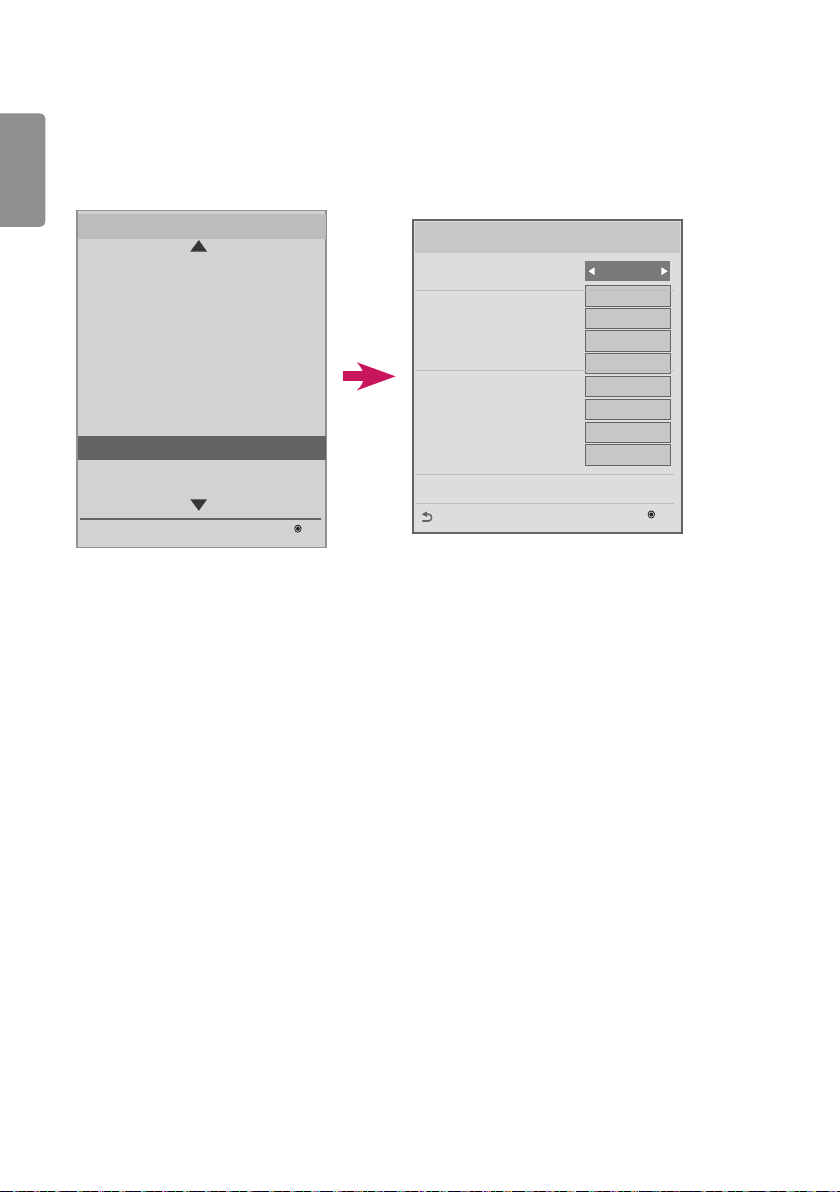
ENGLISH
26
ISM Method
If a still image is displayed on the screen for an extended period of time, image sticking can occur. The ISM method is a
feature that prevents image sticking.
LG Digital Signage Setup
USB Cloning
Password Change
Set ID Setup
Configuration Setup
Lock Mode
External Speaker / Audio out
Fail Over
ISM Method
Easy Brightness Control
S/W : xx.xx.xx.xx Micom : x.xx.x
OK
Installation Menu (V 3.0)
ISM Method
ISM Method
Mode
Timer
Period
Time
Bar Image
Bar Color
Bar Transparency
Bar Direction
User Image
1 hour
1 min.
Normal
OK
Previous
Off
Immediately
Red
Left -> Right
Off
Movie
Mode
• Normal: Disables the ISM method.
• Inversion: Inverts screen colors to remove image sticking.
• Orbiter: Moves the image’s position on the screen a certain number of pixels at regular intervals in a certain order to
remove image sticking.
• White Wash: Displays a white pattern to remove image sticking.
• Color Wash: Alternately displays a white pattern and a color pattern to remove image sticking.
• Washing Bar: Displays a bar on the screen to make the image move smoothly.
(If you select Washing Bar, Bar Image, Bar Color, or Bar Transparency is enabled.)
• User Image: Plays your photos or movies using a USB storage device.
ENGLISH
27
Timer
• Immediately: Performs the ISM function immediately after the ISM Method menu window disappears. The Period/
Time option is disabled.
a) Inversion: Inverts the screen every 30 minutes.
b) Orbiter: The image moves 3 pixels every 2 minutes in a certain order.
c) User Image: Displays the image on repeat until you press the EXIT button on your remote control.
• Repeat: Performs the ISM function for a specified amount of time in each period. (Period and Time are only enabled
when Repeat is selected.)
a) Inversion: Inverts the screen for a specified amount of time and then restores the screen to its original settings.
The period will be calculated again after the screen is restored.
b) Orbiter: Moves the image 3 pixels at specified time intervals. In Repeat mode, the Orbiter function is terminated
only when a movie is output or when there is a button input from the remote control. After the
termination of the Orbiter function, the period will be calculated again.
c) User Image: You can terminate User Image by pressing the EXIT button on your remote control before a specified
time passes. After termination of the User Image function, the period will be calculated again.
Period
• You can set the period between 1 and 24 hours.
• When there is a button input from your remote control, this function is terminated and the period is calculated again.
Time
• You can select from among 1 - 10 mins / 20 mins / 30 mins / 60 mins / 90 mins / 120 mins / 180 mins / 240 mins
• The ISM function is performed for a specified period.
NOTE
Still Image Detecting and ISM Method
• If you set Still Image Detecting to Yes, the ISM function starts when the amount of time the image has been still
reaches a specified period. When a movie is output, the function is terminated and the period is recalculated.
• If you set Still Image Detecting to No, the ISM function starts when the amount of time no button input from the
remote control is detected reaches a specified period.
ENGLISH
28
Bar Image
• Off: Displays a bar with a fixed resolution of 300 x 1080, then moves the bar.
• On: Displays a user-downloaded image, and moves the image.
NOTE
• Images can be displayed at your desired size without a size limit. (However, the image height is fixed at 1080.)
• If only one image is downloaded, the image is displayed alone and the bar moves.
• If multiple images are downloaded, the images move alternately fading in and out of each other.
• Each of the downloaded images is displayed once per cycle.
How to Download an ISM Bar Image in Ez Download.
1 In order to download an image in Ez Download, there must be an image file in an ‘ism_bar’ or ‘ISM_BAR’ folder on
your USB storage device.
2 Delete the existing contents stored on internal memory before downloading a new image file.
3 Add [ISMBAR] as a prefix to the name of a file to distinguish the file from others (EPK, Logo, No Signal, etc.).
4 Download ISM photos or movies in Ez Download.
NOTE
• You can download multiple images up to 5 MB combined.
• The total bit size of images must be under 50 MB.
For example, in the case of a 500 KB image with a resolution of 1920 x 1080, its bit size, as calculated by image
decoding, is about 7.91 MB (1920 * 1080 * 32 bit / 1024 / 1024 / 8).
Therefore, if you download 7 images of the same size, the total size of the images is about 3.5 MB, which falls within
5 MB, but because its total bit size is 7.91 MB * 7 = 55.3 MB, they cannot be downloaded.
Bar Color
• You can choose from six colors: red, green, blue, white, black, and gray.
• This feature is only applicable when Bar Image is set to Off.
Bar Transparency
• Off: Displays the bar opaquely.
• On: Displays the bar translucently.
Bar Direction
• Left -> Right: The bar moves from left to right.
• Right -> Left: The bar moves from right to left.
ENGLISH
29
User Image
• This feature enables the playback of your desired photos and movies using your USB storage device.
(If you select User Image, the contents options of Movie and Photo are enabled.
- Movie: Plays movies stored in the ISM (or ism) folder on your USB storage device
- Photo: Plays a slide show of images stored in the ISM (or ism) folder on your USB storage device.
• If both USB 1 and USB 2 are active, the User Image feature is performed on the device connected to USB 1.
• While User Image is performed, menus are not displayed until you press a key.
If you press a key, menus are displayed and you can change settings.
• The User Image feature is performed on the USB 1 device if USB storage devices are connected to both USB 1 and
USB 2.
• While User Image is performed, USB 1 and USB 2 must be unoccupied for the playback of contents stored on internal
memory.
• When there is no valid folder/contents, no action is performed.
• You can store movies and photos on internal memory using Ez Download.
How to Download an ISM Photo/Movie in Ez Download.
1 In order to download a user image in Ez Download, there must be a user image file in an ‘ism’ or ‘ISM’ folder on
your USB drive.
2 Delete the existing contents stored on internal memory before downloading a new image file.
3 Add [ISMPHO] as a prefix to the name of a file for photos or [ISMMOV] if the file contains movies, to distinguish
the file from others (EPK, Logo, No Signal, etc).
4 Download ISM photos or movies in Ez Download.
NOTE
• You can download one movie file of up to 30 MB.
• You can download multiple photos of up to 5 MB combined.
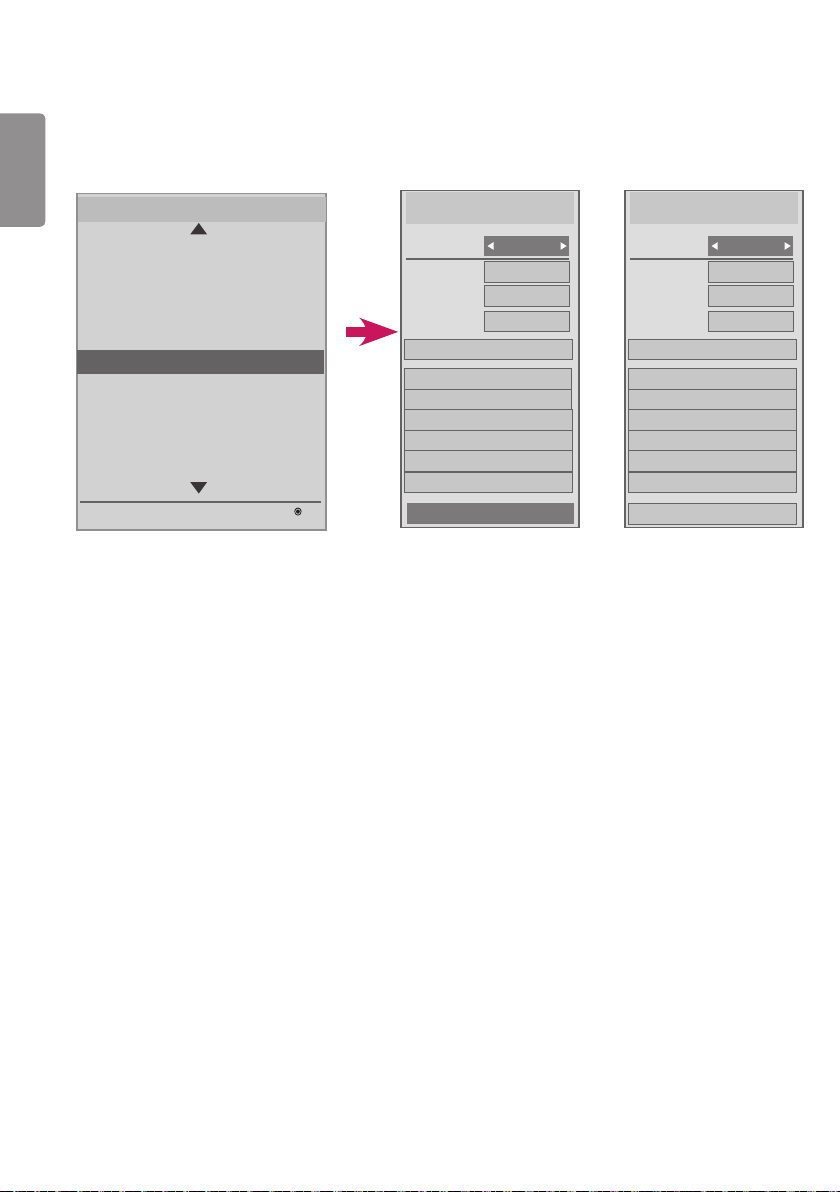
ENGLISH
30
Easy Brightness Control
The backlight is adjusted according to your schedule(s).
Easy Brightness Control
Mode
Hour
Minute
Backlight
Add Schedule
00
70
On
12
12:00 (70)
-------------------
-------------------
-------------------
-------------------
-------------------
Close
Easy Brightness Control
Mode
Hour
Minute
Backlight
Add Schedule
--
--
Off
--
-------------------
-------------------
-------------------
-------------------
-------------------
-------------------
Close
S/W : xx.xx.xx.xx Micom : x.xx.x
OK
Installation Menu (V 3.0)
Configuration Setup
Lock Mode
External Speaker / Audio out
Fail Over
ISM Method
Easy Brightness Control
SuperSign Server Setup
Holiday Schedule
No Signal Image
Crestron
Easy Brightness Control
• The backlight is adjusted according to your schedule(s).
• You can set this feature to On (enabled) or Off (disabled).
• Easy Brightness Control is disabled if the current time is not set.
• Easy Brightness Control is disabled if Energy Saving is set to Maximum.
• You can add up to six schedules, and they are sorted in ascending order by time.
• If more than six schedules are added, the latest schedule is automatically deleted.
• You can delete a schedule by selecting it from the list and pressing the OK button.
• Duplicate schedules are not added. However, the backlight value is renewed.
(This feature may not be available with some models.)
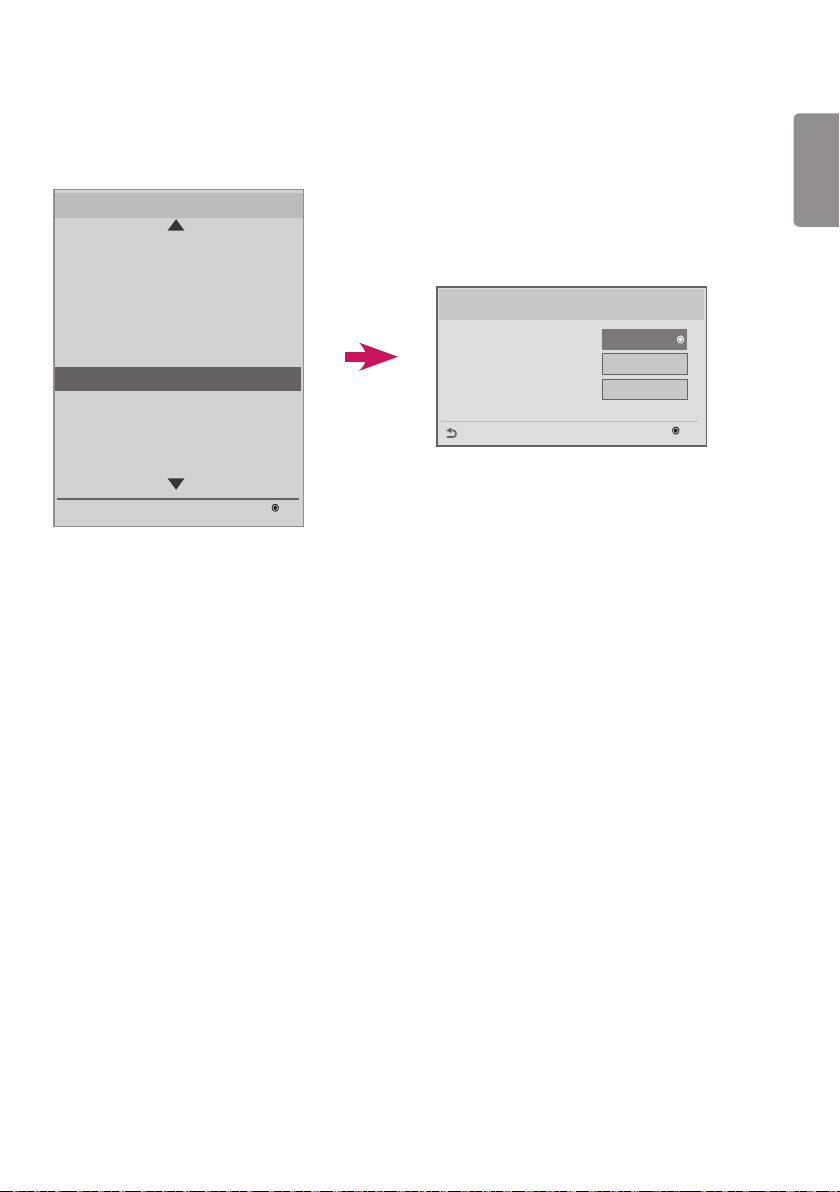
ENGLISH
31
SuperSign Server Setup
• This feature is used to link with the SuperSign software.
S/W : xx.xx.xx.xx Micom : x.xx.x
OK
Installation Menu (V 3.0)
Configuration Setup
Lock Mode
External Speaker / Audio out
Fail Over
ISM Method
Easy Brightness Control
SuperSign Server Setup
Holiday Schedule
No Signal Image
Crestron
SuperSign Server Setup
SuperSign Server Setup
Player Name
Server IP Setting
Server IP Status
OK
Previous
Press OK
Not connected
Press OK
Player Name
• You can set the name of the player you want controlled in the SuperSign software. (You can enter up to 20
characters.)
Server IP Setting
• You can set the IP address of the computer (server) on which the SuperSign software is installed.
Server IP Status
• This feature displays the status of the connection between your monitor and the SuperSign server.
- Not connected: Your monitor is not connected to the SuperSign server.
- Waiting for Approval: Your monitor is connected to the SuperSign server but has not yet been approved.
- Rejected: Your monitor is connected to the SuperSign server but has been rejected.
- Connected: Your monitor is connected to the SuperSign server and has been approved.
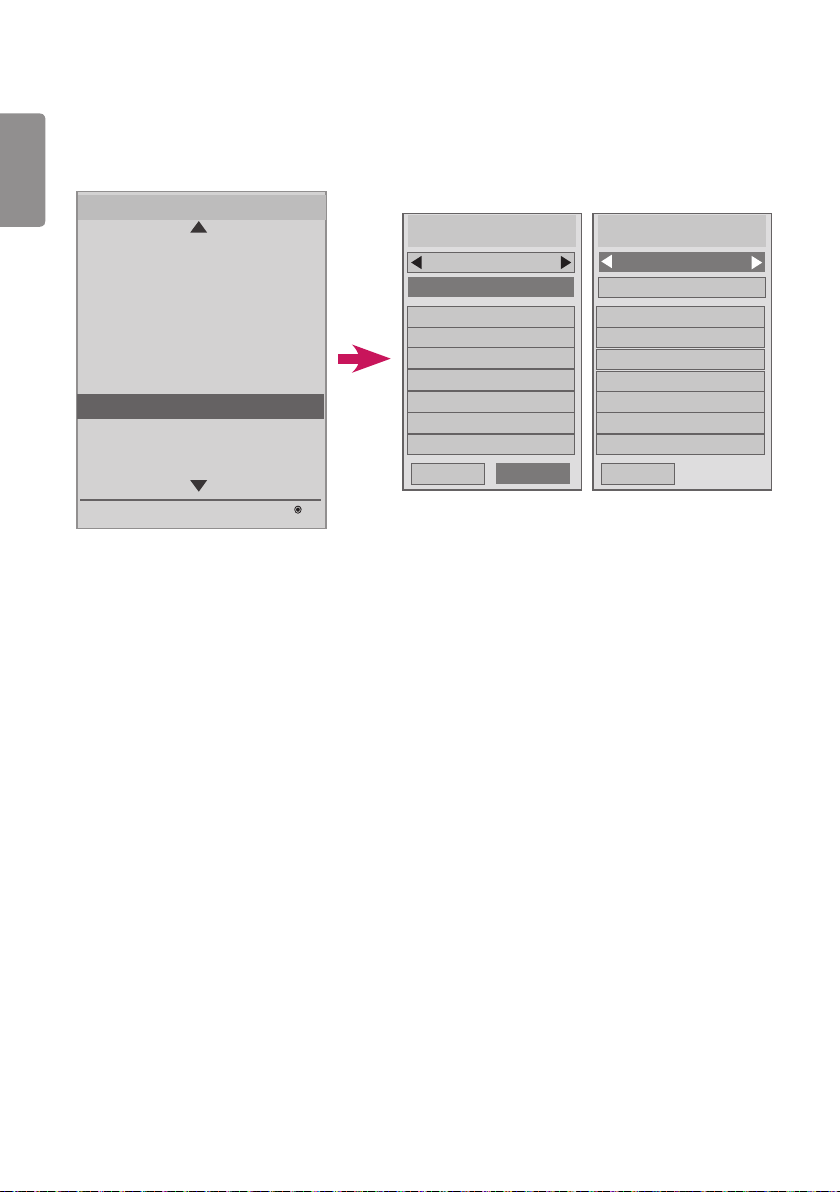
ENGLISH
32
Holiday Schedule
This feature allows you to specify holidays (unit: day) when the product will not be used.
S/W : xx.xx.xx.xx Micom : x.xx.x
OK
Installation Menu (V 3.0)
Configuration Setup
Lock Mode
External Speaker / Audio out
Fail Over
ISM Method
Easy Brightness Control
SuperSign Server Setup
Holiday Schedule
No Signal Image
Crestron
Holiday Schedule
Holiday Schedule
January 1 ~ January 1
-------------------
-------------------
-------------------
-------------------
-------------------
Close
On
Add Schedule
-------------------
Delete All
Close
Holiday Schedule
-------------------
-------------------
-------------------
-------------------
-------------------
-------------------
Add Schedule
Off
-------------------
Delete All
• Holidays are specified according to your schedule(s).
• You can set this feature to On (enabled) or Off (disabled).
• Holiday Schedule is disabled if the current time is not set.
• You can add up to seven schedules.
• Duplicate schedules cannot be added.
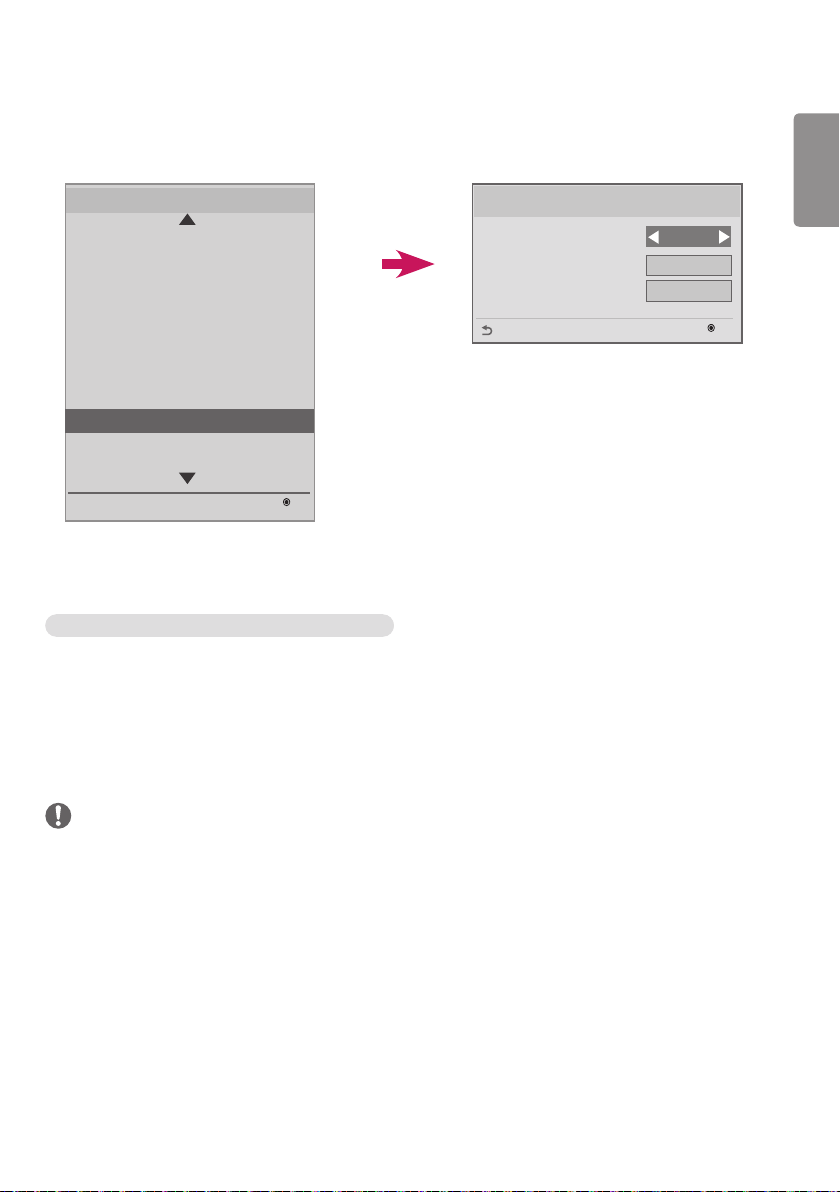
ENGLISH
33
No Signal Image
This feature allows the screen image to be changed when there is no signal.
S/W : xx.xx.xx.xx Micom : x.xx.x
OK
Installation Menu (V 3.0)
Configuration Setup
Lock Mode
External Speaker / Audio out
Fail Over
ISM Method
Easy Brightness Control
SuperSign Server Setup
Holiday Schedule
No Signal Image
Crestron
No Signal Image
No Signal Image
No Signal Image
Mode
Slide Time
Original
5 sec
OK
Previous
Disable
• You can use the default image of “No Signal” or a new image by disabling or enabling the No Signal Image feature.
• You can change the image size to Full, Original, or Fit in the Mode option.
• You can set Slide Time if you download multiple images. (5 / 10 / 15 / 20 sec)
How to Download a No Signal Image in Ez Download
1 In order to download an image in Ez Download, there must be an image file in an ‘lg_sig’ or ‘LG_SIG’ folder on your
USB drive.
2 Delete the existing contents stored in internal memory before downloading a new image file.
3 Select the image(s) you want to download. Please make sure that the Total Size in the right-hand corner of the Ez
Download menu does not exceed the Max Size 10240 KB (10 MB).
4 Download the image file for No Signal Image in EZ Download.
NOTE
• Only JPEG files 1 MB or smaller in size can be used as No Signal Image update.
• Progressively encoded JPEG files are not applicable.
• The maximum file resolution for a No Signal Image is Full HD, 1920 x 1080 and HD, 1360 x 768. The minimum file
resolution for a No Signal Image is 64 x 64.
• No Signal Image files with a resolution of Full HD, 1920 x 1080 can cause image sticking.
• Only No Signal Image files with English names are displayed correctly.

ENGLISH
34
Crestron
• This function allows synchronization with an application provided by Crestron.
• Server: This menu sets the IP for the network connection with the server (equipment provided by Crestron).
• Port: This menu sets the port for the network connection with the server. The default port number is 41794.
• IP ID: This menu sets a unique ID for synchronizing with the application.
Digital Signage Media Player
Content produced and distributed by SuperSign W can be played.
Supported content types include external input, text, and music, as well as photographs, videos, and Signage Monitors.
Executable content
*.cts: These files can be played at any time.
*.sce: These files can be played at any time like *.cts files or they can be played to a specific schedule.
Using the My Media menu to play files
• After inserting the USB storage device, access the My Media menu and select an executable content file under the
“All Media” tab or the “Contents List” tab to play the file.
Auto-play on USB insertion
• Turning on the main power or inserting a USB device when the main power is on will automatically play executable
content in a specific folder.
• If a USB device has already been inserted when the main power is turned on, executable content in the “normal”
folder is played by default. If the “normal” folder does not exist, executable content in the “AutoPlay” folder is played.
• If a USB device is inserted some time after the main power has been turned on, executable content in the “AutoPlay”
folder is played by default. If the “AutoPlay” folder does not exist, executable content in the “normal” folder is played.
• Autoplay for an inserted USB device is only supported on USB port 1.
Distributing and playing content via SuperSign W
• If a USB storage device is inserted in USB port #1, the LAN cable is connected, and the SuperSign Server settings are
configured, content can be distributed from the SuperSign W server to the player.
• Schedules can be set to play a combination of various content or media in SuperSign W at the time the user wants.
• Messages created by the user can be sent to the player via SuperSign W.
• For more information, see the SuperSign W manual.