ACT101M/17
Register your product and get support at
www.philips.com/welcome
EN User manual


3
English
EN
Contents
1 Important safety information 5
General maintenance 5
Recycling the product 6
2 Your new Activa 9
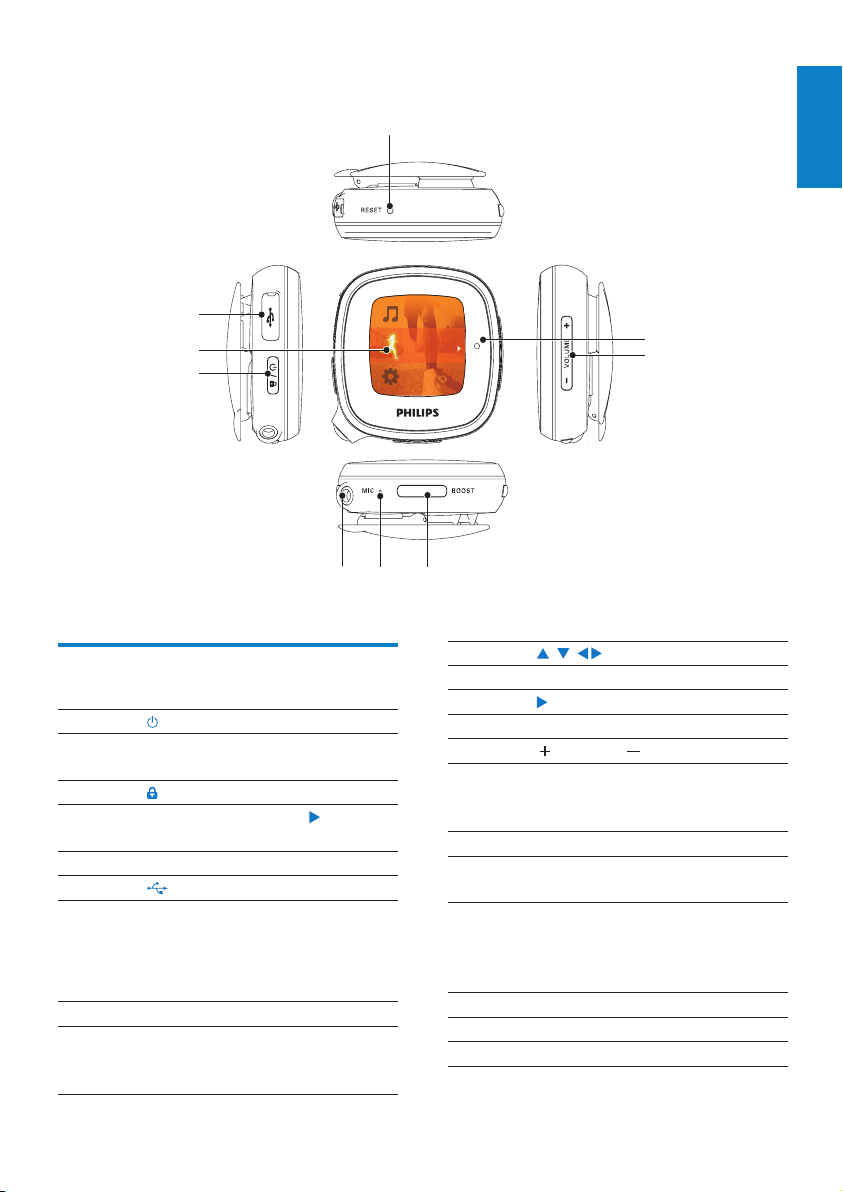
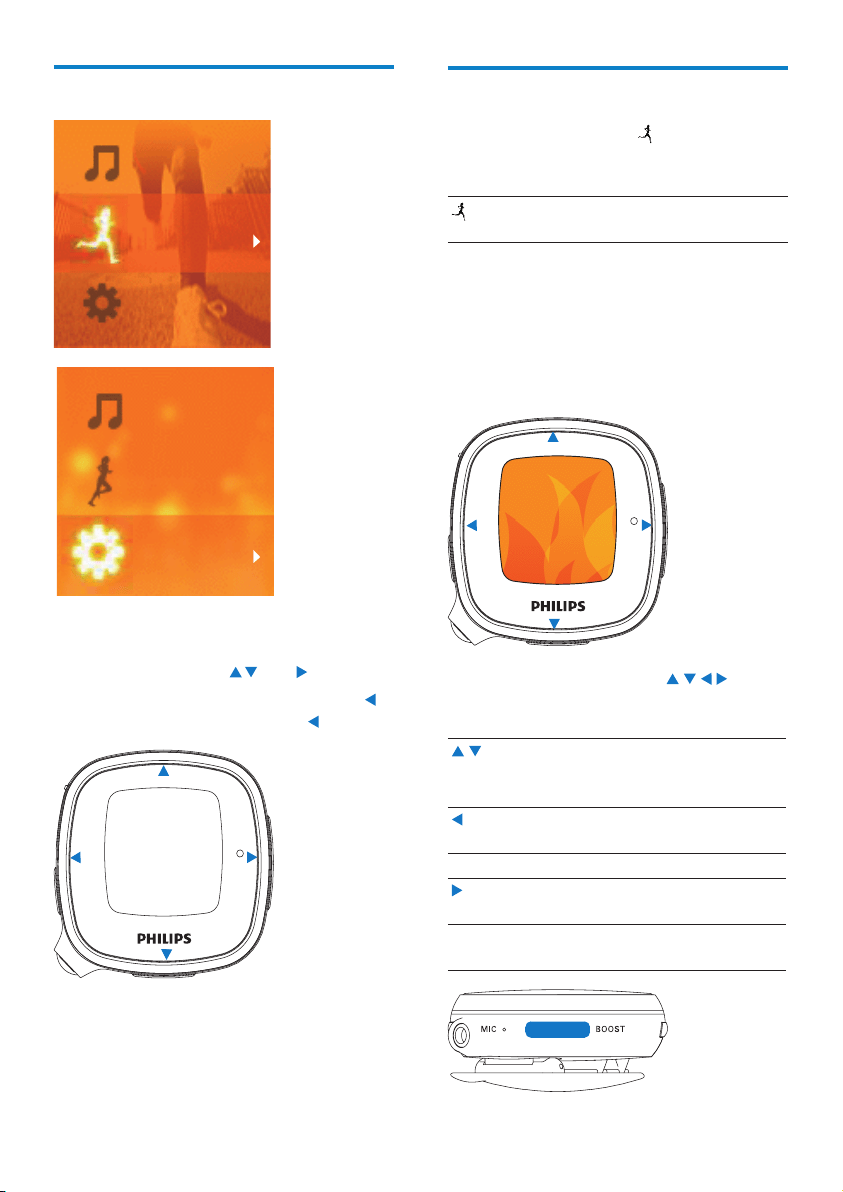
Controls 9
Home screen 10
Workout screen 10
To change music/radio station
during workout 11
To drive your pace with
TempoMusic 11
To change the type of music during
workout 11
Fitness device 11
Set up your personal prole 12
Wear Activa properly 12
3 Get started 14
Charge power 14
Connect headphones 14
Use the headphones 14
Turn on/off Activa 15
Auto power-off 15
First-time setup 15
On PC: Install Philips Songbird and
applications 15
Set the tness device 16
4 Move 18
Set workout goals 18
Set a long-term goal 18
Set a goal for each exercise 19
Personalize the workout 19
Music during workout 20
Use TempoMusic 20
Listen to radio 21
Record the workout 22
To listen to a voice report/boost
song during workout 22
To change settings during workout 22
To set a boost song 22
Calibrate the workout 23
Use previous exercise 23
Use current exercise 24
Review the workout 24
Review the workout on Activa 24
Review the workout on PC 24
5 Build your library for Activa 27
Browse your music library 27
Import music into Philips Songbird 28
Collect music les in Philips Songbird 29
Manage music centrally 29
Create a playlist 29
Remove music les from the
Songbird library 30
Fetch album artwork 30
Smart loading 31
Sync between Philips Songbird and
Activa 32
Sync after a workout 32
Sync after music/prole updating 33
Other functions on Philips Songbird 34
Get content from online sources 34
Edit and show metadata 34
6 Play 35
Play music 35
Find music 35
Play music 35
Delete a song/artist/album 35
Play pictures 36
Play pictures in slideshow 36
Play FM radio 36
Tune to radio stations 36
Store preset stations 37
Sound recording 37
Make recordings 37
Play recordings 37

4
7 Settings 38
Settings of tness device 38
Play mode 38
Sound settings 38
Sleep timer 39
Display settings 39
Theme 39
Brightness 39
Screensaver 39
Date and time 39
Slideshow settings 40
Select the language 40
About the device 40
Restore factory settings 40
8 Technical data 41
System requirements 41
9 Troubleshooting 42
EN
5
1 Important safety
information
General maintenance
Caution
To avoid damage or malfunction: •
Do not expose the product to excessive heat •
caused by heating equipment or direct sunlight.
Do not drop the product or allow objects to
•
fall on your player.
Do not allow the product to be submerged
•
in water. Do not expose headphone socket
or battery compartment to water, as water
entering the set may cause major damage.
Active mobile phones in the vicinity may cause
•
interference.
Back up your les. Ensure that you retain the
•
original les you have downloaded to your
device. Philips is not responsible for any loss of
data if the product becomes damaged or not
readable / legible.
Manage (transfer, delete, etc.) your music les
•
only with the supplied music software to avoid
problems.
Do not use any cleaning agents containing
•
alcohol, ammonia, benzene, or abrasives as
these may harm the product.
About operating and storage temperatures
Operate in a place where temperature is •
always between 0 and 35ºC (32 to 95ºF)
Store in a place where temperature is •
always between -20 and 45ºC (-4 to 113ºF).
Battery life may be shortened in low •
temperature conditions.
Replacement parts/accessories:
Visit www.philips.com/support to order
replacement parts/accessories.
English
EN
Hearing Safety
Listen at a moderate volume:
Using headphones at a high volume can impair
your hearing. This product can produce sounds
in decibel ranges that may cause hearing loss for
a normal person, even for exposure less than
a minute. The higher decibel ranges are offered
for those that may have already experienced
some hearing loss.
Sound can be deceiving. Over time your hearing
‘comfort level’ adapts to higher volumes of
sound. So after prolonged listening, what sounds
‘normal’ can actually be loud and harmful to
your hearing. To guard against this, set your
volume to a safe level before your hearing
adapts and leave it there.
To establish a safe volume level:
Set your volume control at a low setting.
Slowly increase the sound until you can hear it
comfortably and clearly, without distortion.
Listen for reasonable periods of time:
Prolonged exposure to sound, even at normally
‘safe’ levels, can also cause hearing loss.
Be sure to use your equipment reasonably and
take appropriate breaks.
Be sure to observe the following guidelines
when using your headphones.
Listen at reasonable volumes for reasonable
periods of time.
Be careful not to adjust the volume as your
hearing adapts.
Do not turn up the volume so high that you
can’t hear what’s around you.
You should use caution or temporarily
discontinue use in potentially hazardous
situations.
6
Copying or distributing unauthorized content
may violate copyright laws in various countries
including yours.
Compliance with copyright laws remains your
responsibility.
Data logging
Philips is committed to improving the quality
of your product and enhancing the Philips user
experience. To understand the usage prole of
this device, this device logs some info / data to
the non-volatile memory region of the device.
These data are used to identify and detect
any failures or problems you as a user may
experience while using the device. The data
stored, for example, will be the duration of
playback in music mode, duration of playback
in turner mode, how many times battery low
was encountered, etc. The data stored do not
reveal the content or media used on the device
or the source of downloads. The data stored on
the device are retrieved and used ONLY if the
user returns the device to the Philips service
center and ONLY to simplify error detection
and prevention. The data stored shall be made
available to user on user’s rst request.
Recycling the product
Your product is designed and manufactured
with high quality materials and components,
which can be recycled and reused.
When you see the crossed-out wheel bin
symbol attached to a product, it means the
product is covered by the European Directive
2002/96/EC:
Do not use headphones while operating a
motorized vehicle, cycling, skateboarding, etc.;
it may create a trafc hazard and is illegal in
many areas.
Modications
Modications not authorized by the
manufacturer may void user’s authority
to operate the product.
Copyright information
All other brands and product names are
trademarks of their respective companies
or organizations.
Unauthorized duplication of any recordings
whether downloaded from the Internet or
made from audio CDs is a violation of copyright
laws and international treaties.
The making of unauthorized copies of copy-
protected material, including computer
programs, les, broadcasts and sound
recordings, may be an infringement of
copyrights and constitute a criminal offense.
This equipment should not be used for such
purposes.
The Windows Media and the Windows logo are
registered trademarks of Microsoft Corporation
in the United States and/or other countries.
Be responsible! Respect copyrights.
Philips respects the intellectual property of
others, and we ask our users to do the same.
Multimedia content on the internet may have
been created and/or distributed without the
original copyright owner’s authorization.
EN
7
Please inform yourself about the local rules on
separate collection of batteries. The correct
disposal of batteries helps prevent potentially
negative consequences on the environment and
human health.
ab
cd
ef
gh
ij
Never dispose of your product with other
household waste. Please inform yourself about
the local rules on the separate collection of
electrical and electronic products. The correct
disposal of your old product helps prevent
potentially negative consequences on the
environment and human health.
Caution
Removal of the built-in battery invalidates the •
warranty and may destroy the product. The
following instructions are disposal instructions
at the end of product life.
Your product contains a built-in rechargeable
battery covered by the European Directive
2006/66/EC, which cannot be disposed of
with normal household waste.
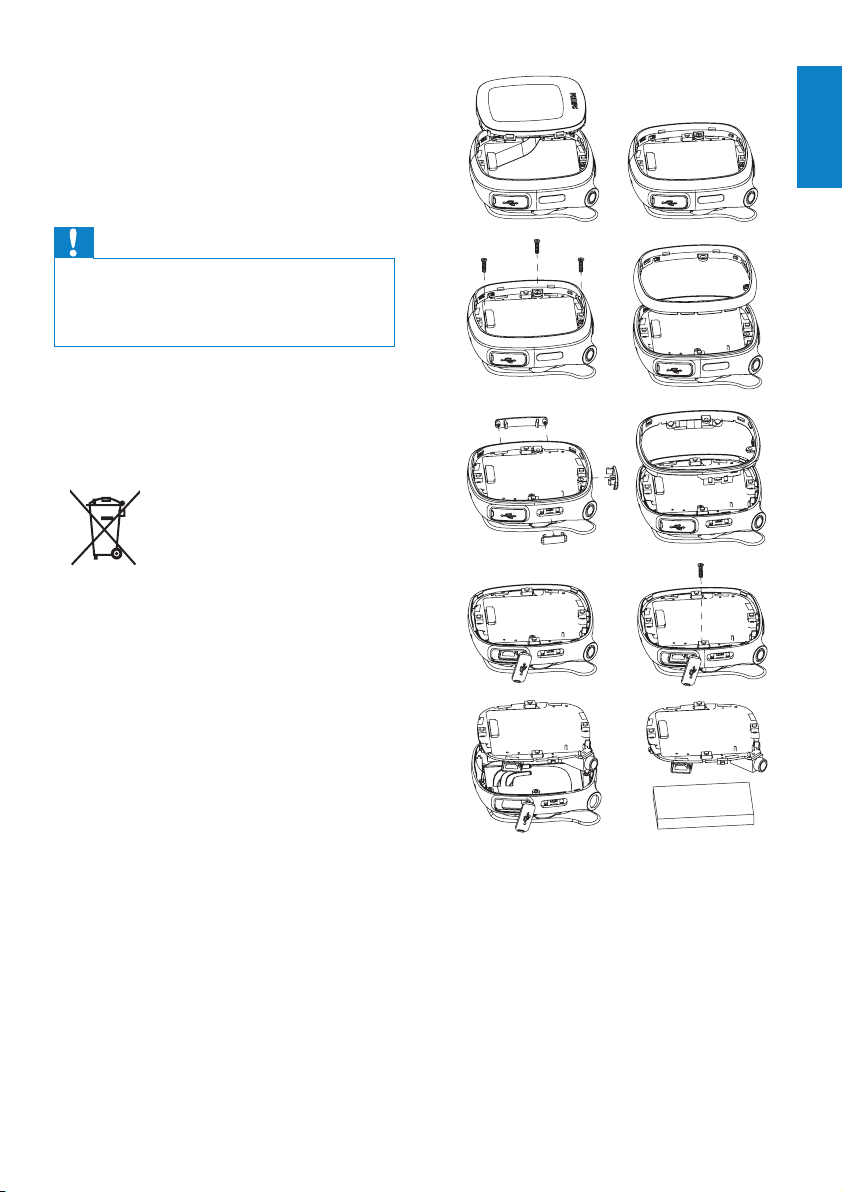
To safeguard the functionality and safety of
your product, take your product to an ofcial
collection point or service centre where a
professional can remove or replace the battery
as shown:
English
EN

8
Notice for the USA
This equipment has been tested and found
to comply with the limits for a Class B digital
device, pursuant to part 15 of the FCC Rules.
These limits are designed to provide reasonable
protection against harmful interference in a
residential installation. This equipment generates,
uses, and can radiate radio frequency energy
and, if not installed and used in accordance
with the instruction manual, may cause harmful
interference to radio communications.
However, there is no guarantee that
interference will not occur in a particular
installation. If this equipment does cause harmful
interference to radio or television reception,
which can be determined by turning the
equipment off and on, the user is encouraged
to try to correct the interference by one or
more of the following measures:
Relocate the receiving antenna.•
Increase the separation between •
equipment and receiver.
Connect the equipment into an outlet on •
a circuit different from that to which the
receiver is connected.
Consult the dealer or an experienced •
radio/TV technician for help.
EN
9
5 , , ,
Press to navigate through menus.
Conrm selection
6
VOLUME
Press repeatedly, or press and
hold to reach the desired volume
level.
7 BOOST
Press to select options available
on current menu.
On Workout screen, press to
listen to voice feedback; press
and hold to listen to the preset
boost song.
8 MIC
microphone for voice recording
9 3.5mm headphone jack
2 Your new Activa
English
EN
Controls
1
Press and hold to turn on or off
the unit.
Press, and then, press to lock/
unlock keys .
2 LCD screen
3
USB port for power charging and
data transfer
Lift the cover to insert the
supplied USB cable.
4 RESET
Press the hole by using the tip of a
ball pen when the screen does not
respond to the pressing of keys.
Move
a
b
c
d
e
f
gh
i
10
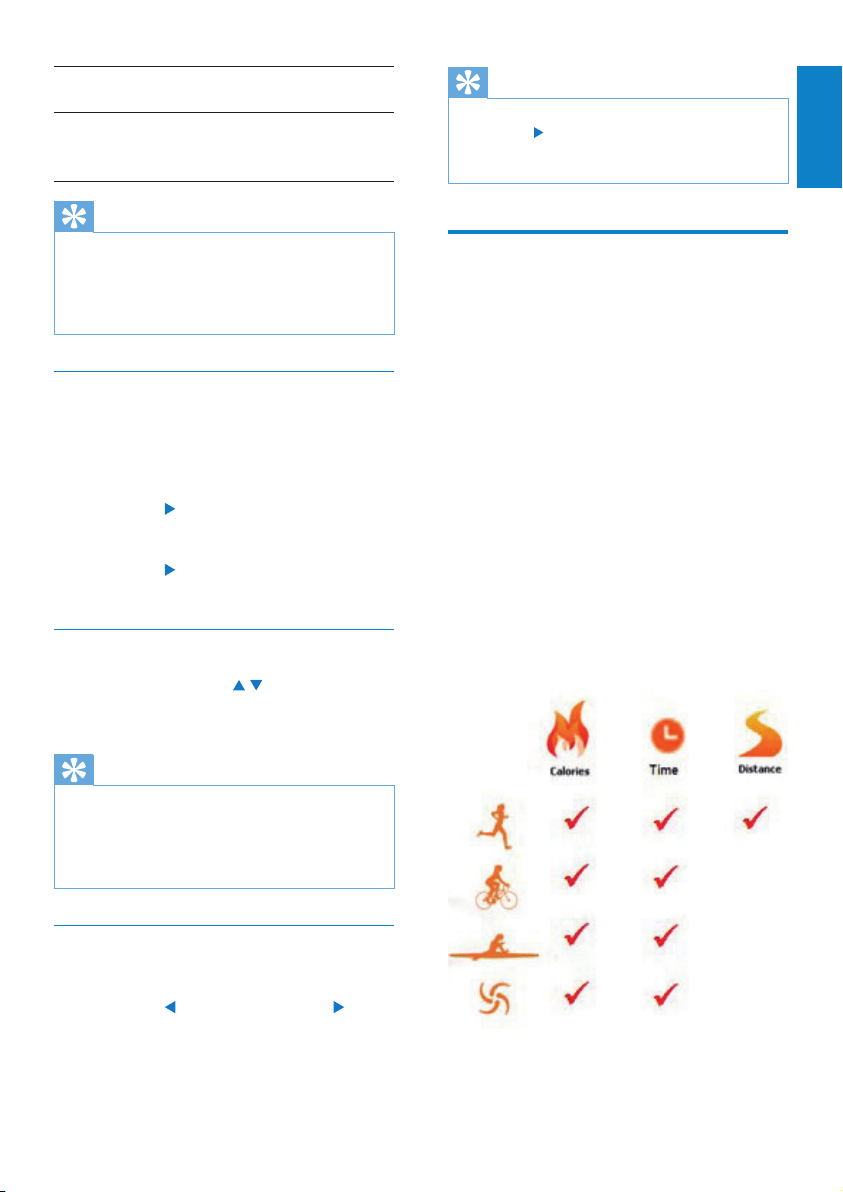
Workout screen
From Home screen, select , and you can
enter [Move] menus:
Record and calibrate your
workout.
Workout screen
Workout screen appears when workout
recording starts.
On Workout screen, you can see your workout
progress.
Press the navigation keys • / / / to
select functions:
/ Press repeatedly to display the
calories burnt, time used, and
distance covered;
Press to pause/resume/stop
workout recording;
Press to change sports.
Press repeatedly to skip songs if
you listen to music;
Press repeatedly to select a preset
station if you listen to radio.
340
kcal
Home screen
From Home screen, you can access •
desired functional menus by pressing
the navigation keys
, , and .
To go back to previous screens, press •
repeatedly; or, press and hold
.
Move
Settings
EN
11
Tip
•
To switch between music and radio, press
and hold
to switch between music and radio
during workout (e.g. you can switch to music,
if there is too much interference on the radio).
Fitness device
As a tness device, Activa allows you to easily
measure your workout progress. During
workout, you can choose to listen to the
progress report that is displayed on the screen,
preset encouragement, music, radio, or preset
boost song.
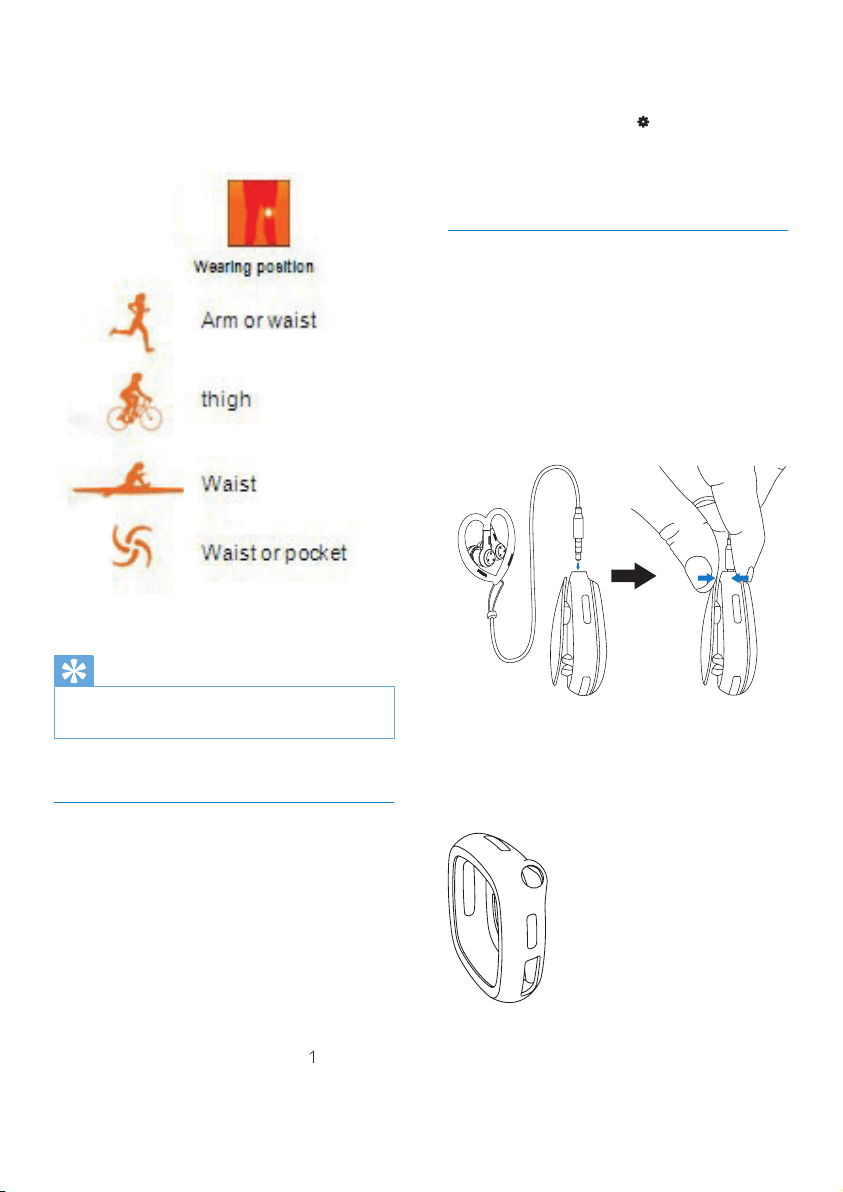
For accurate measurement, do the following
before you use the tness device:
Set up your personal prole in Activa. •
For current workout on Activa, select •
the desired sport, measurement option
on Activa, and then, wear Activa in the
position as recommended in the display
of Activa.
Select one of the available measurement
options:
BOOST Press to listen to the voice report
(e.g. calories burnt, time used);
Press and hold BOOST to start
the boost song that you selected
in Philips Songbird.
Tip
You can motivate yourself by starting the •
boost song. To set your favorite song as boost
song, use the supplied PC software (see ‘To
listen to a voice report/boost song during
workout’ on page 22)Philips Songbird.
To change music/radio station during
workout
If you are listening to music (including
TempoMusic)
Press •
repeatedly to skip songs.
If you are listening to radio
Press •
to switch to the next preset
radio station.
To drive your pace with TempoMusic
Press and hold • / to force
TempoMusic to match a faster or
slower pace.
Tip
With • [TempoMusic], suitable songs that match
your pace can be selected automatically from
the music library of Activa. By selecting a faster
or slower tempo, you can set a new pace to
drive your workout.
To change the type of music during
workout
Press • > [Change music] > to
change music type: [TempoMusic],
[No music], [Now playing], [Shufe],
or [Radio].
English
EN
12
To update your weight information
(e.g. once a month)
on Activa, go to •
> [Move] >
[User prole] > [Weight].
or, on • Philips Songbird, go to
[Activa Center] > [Workouts].
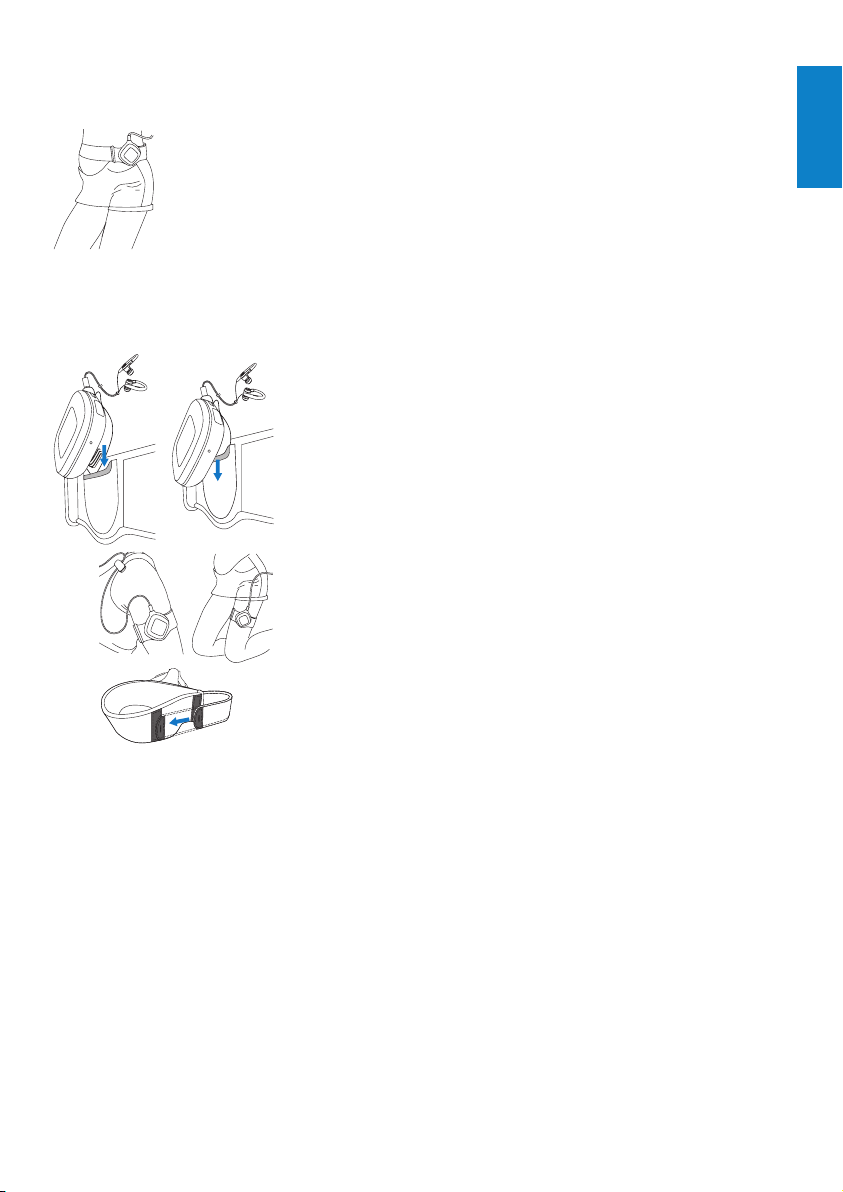
Wear Activa properly
If worn properly, the tness device can detect
and measure your movement correctly.
Wear Activa on the arm, waist, or thigh as
displayed on Activa.
1 On Activa, plug the headphones to use
the clip easily.
If necessary, use the pouch to •
protect Activa from scratches.
Insert Activa into the pouch before
you plug the headphones.
Wear Activa in the position as recommended
in the display:
Tip
For different sports, measurement options and •
wearing positions may vary on Activa.
Calibrate the tness device to your pace. •
Set up your personal prole
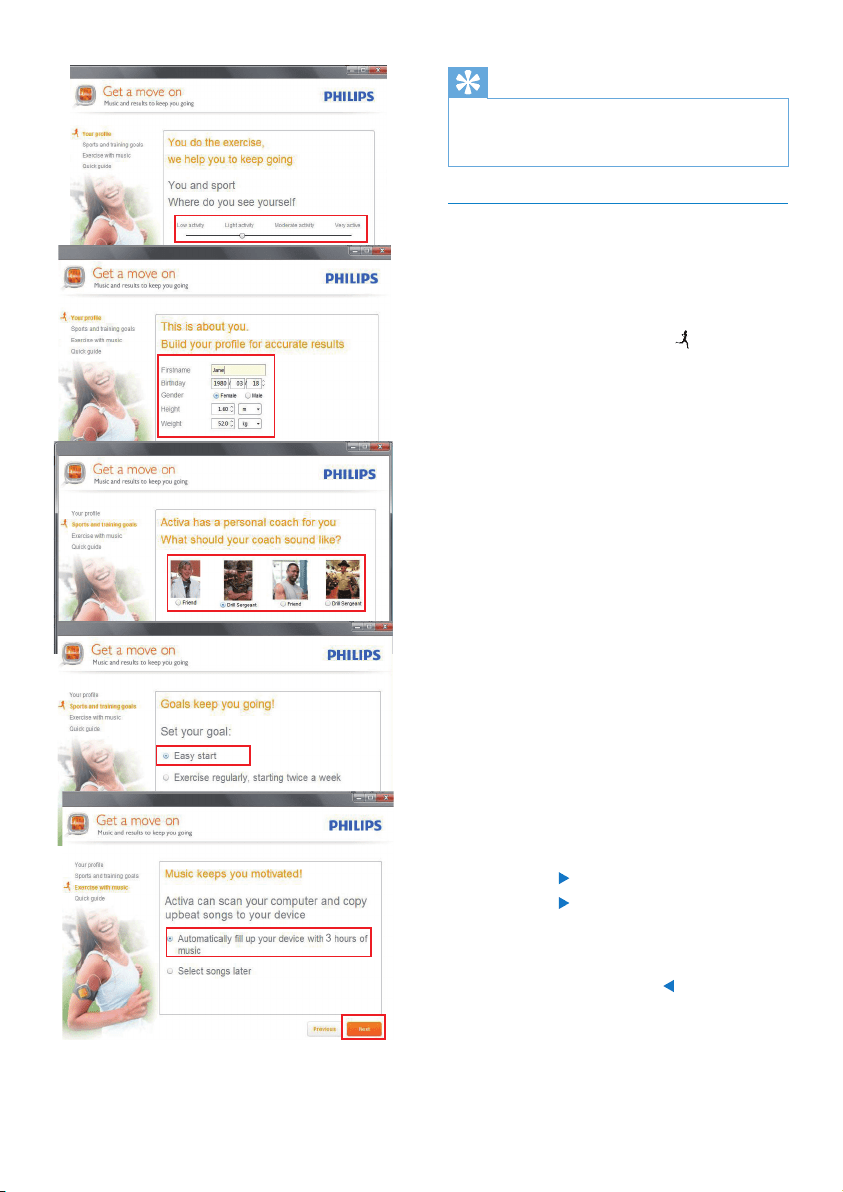
On the supplied PC software Philips Songbird
and applications, enter your personal
information as prompted. For meaningful
measurement and calculation, accurate prole
information is important.
Set up your personal prole
• during the rst-time setup (see
‘On PC: Install Philips Songbird
and applications’ on page 15).
EN
13
2 By using the clip, wear Activa on the
waist.
Or, as shown, use the clip to wear •
Activa on the supplied arm/thigh
band.
English
EN
14
By using the headphones, you can listen to
music, FM radio, and voice reports during
workout. The headphones also work as
antennas when you play FM radio.
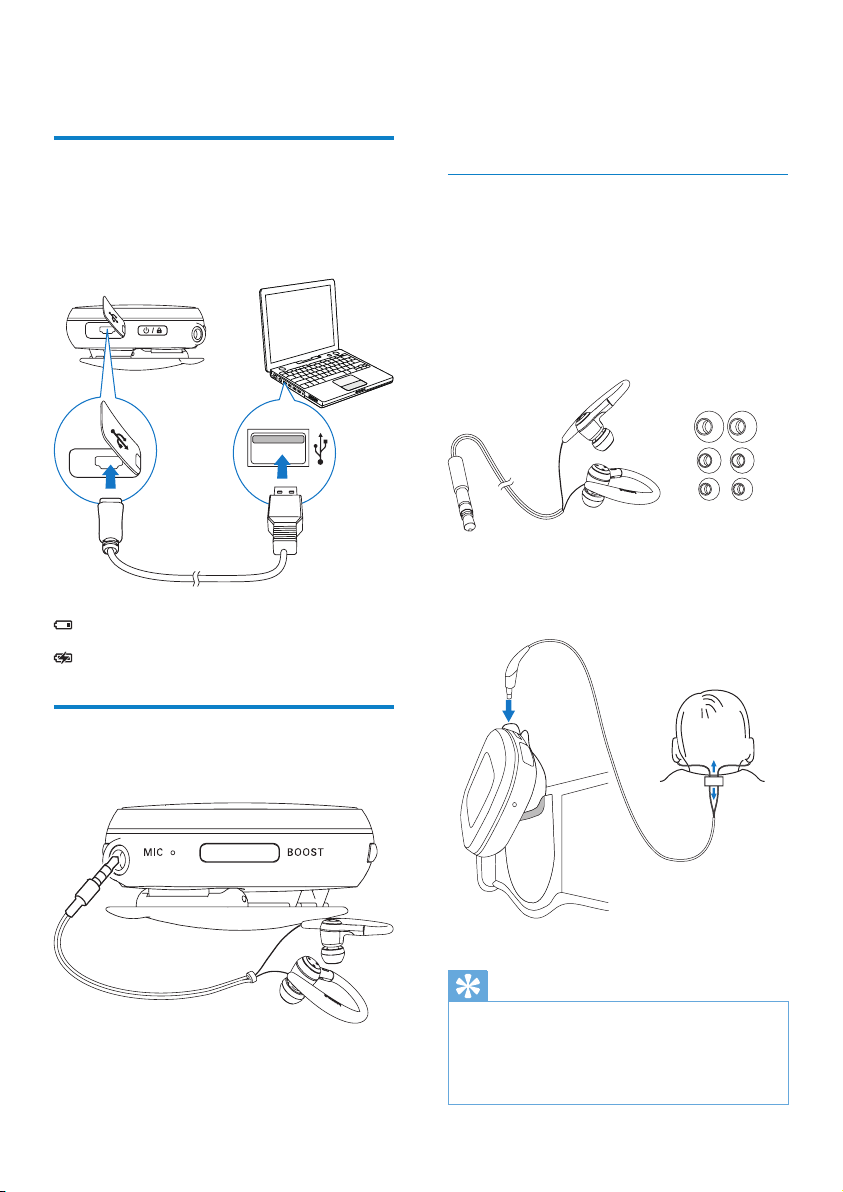
Use the headphones
With the ear hooks, cable cinch, and cable
clip, the supplied headphones provide
convenience for your workout.
Try the ear buds of different sizes •
(large, medium, small) to nd the
ones that suit you best;
If necessary, adjust the cable cinch •
for the secure t during workout;
Tip
The cable cinch also helps you manage the •
headphones cables when you store the
headphones. By pushing up the cable cinch,
you can keep the cables from getting too much
intertwined.
L
M
S
3 Get started
Charge power
As shown, connect Activa to a PC, •
or a USB power adapter (not supplied)
by using the supplied USB cable.
scrolls during power charging.
appears when power charging is completed.
Connect headphones
Connect the supplied headphones to Activa.
EN
15
First-time setup
On PC: Install Philips Songbird and
applications
On your PC, install the supplied software
Philips Songbirdand applications.
Philips Songbird and applications can help you
set and adjust your workout goals, and review
your workout history.
With Philips Songbird and applications, you
can also transfer music for your workout on
Activa.
1 Connect Activa to a PC by using the
supplied USB cable.
2 On the PC, nd Activa under
[My Computer] or [Computer].
3 In Activa, double click setup.exe to start
installation.
4 Follow the screen instruction to complete
installation.
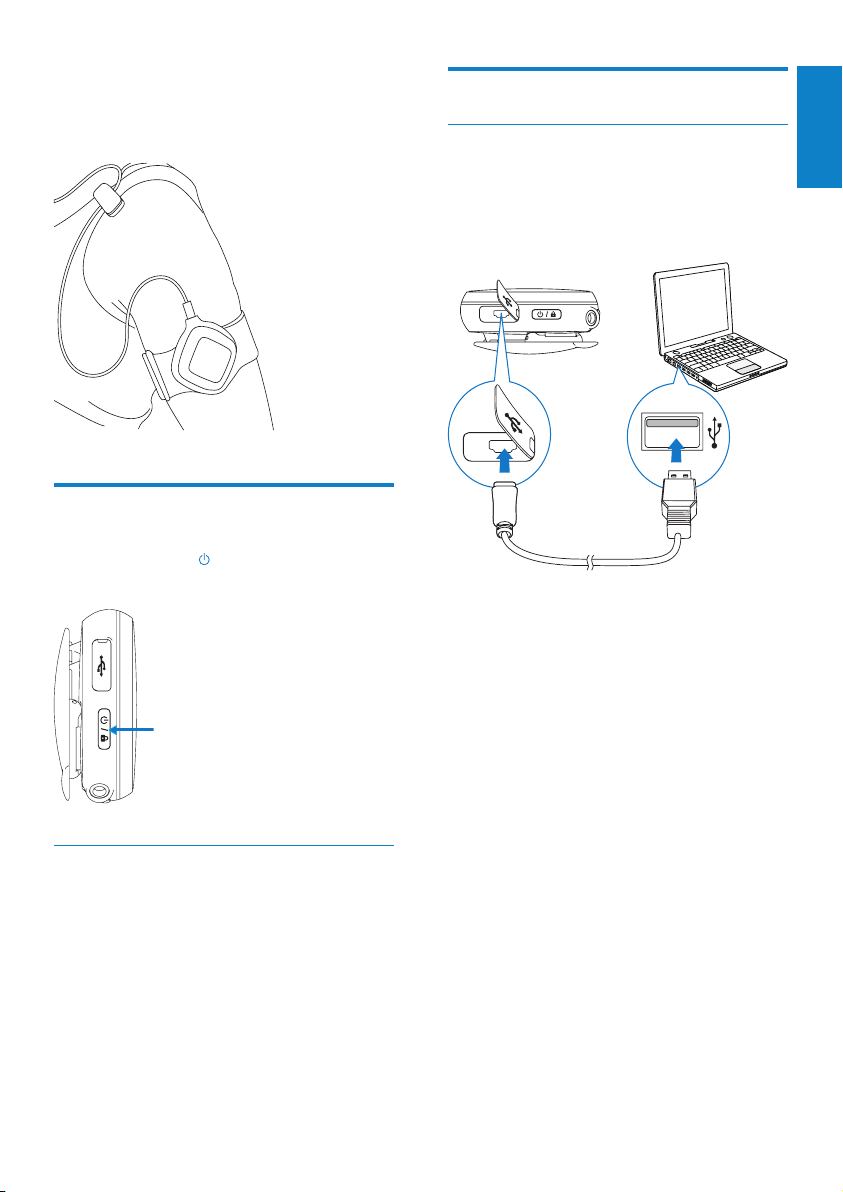
To keep the cable from swinging, •
pass the cable inside your shirt, or
use the cable clip to x the cable to
your clothes as shown.
Turn on/off Activa
Press and hold • until the device is turned
on or off.
Auto power-off
Activa can turn off automatically 20 minutes
later, if
no activity happens on • Activa, and
no workout is ongoing on • Activa.
English
EN
16
Tip
As add-ons to • Philips Songbird, the
applications are added to Philips Songbird
after installation.
Set the tness device
On the tness device, select your desired
language, and then, set the device for current
exercise.
1 From Home screen, go to .
2 Select the desired sports: [Running],
[Rowing],[Indoor cycling], [Outdoor
cycling] or [Freestyle].
Select • [Freestyle], if you plan to start
an exercise other than the listed
ones, e.g. aerobics, dancing.
3 Set a goal for this exercise:
To skip the step of goal setting, •
select [Open ended].
Select • [Calories], [Time], or
[Distance] (for running only).
4 Select [ TempoMusic] to listen to music
that matches your pace automatically. Or,
select another type of music.
• [TempoMusic] is unavailable if you
have selected [Freestyle] as the
sport.
5 To start recording:
A Wear Activa properly in the position
as displayed on the screen;
B Press
to start warm-up;
C Press
again.
Exercise/calorie measurement »
starts.
6 To stop recording, press , and then,
select [Finish].
EN
17
Tip
Keep the resistance level on Activa the same •
or close to the settings on your gym machine,
if you have selected [Rowing] or [Indoor
cycling] as the sport.
Note
For the • [Freestyle] sport, the calorie values
are based on your movement, and for
reference only.
English
EN

18
On the PC software Philips Songbird:
1 Click [My goals].
2 In the pop-up window, select one of four
options:
• [Easy start]: Goals self-adaptable
to your workout. Select the option
if you are uncertain about which
calorie goal to start with;
• [Regular exercise]: Set how many
times you target to exercise each
week;
• [Calories]: Set the calories you
target to burn over a period of time;
• [Distance] (for running only): Set the
distance you target to cover over a
period of time.
After achieving your goal, you can •
choose to extend goal, or set a new
goal.
3 Connect Activa to your PC.
The data is synchronized to Activa »
automatically.
Tip
Ensure that you have launched • Philips
Songbird when synchronizing data from a
PC to Activa.
4 Move
Activa allows you to measure, monitor, and
motivate you for your workout.
The supplied software Philips Songbird helps
you set and review your workout goals.
During the workout, you can
Get voice feedback on your progress;•
Get • [TempoMusic] select and play
from your library the music that
matches your pace;
Get the accompaniment of music or •
radio;
Get encouragement as desired. •
After the workout, you can
Review the workout by sports;•
Review the progress in achieving •
goals;
Adjust your workout goals;•
Review your workout history over a •
period of time.
Set workout goals
When setting workout goals, you can
On the PC, set a long-term goal (e.g. for •
two weeks, for one month); and
On the device (Activa), set a target •
before each exercise.
Set a long-term goal
The supplied software Philips Songbird helps
you set long-term goals and review your
workout statistics over a period of time
(e.g. calories burnt, frequency of exercises).
EN
19
Personalize the workout
During workout, you can get voice reports
on your progress, and voice encouragement
(praise or push) at different stages. As
desired, Activa can play the voice report/
encouragement automatically or manually;
You can also turn off the voice report/
encouragement.
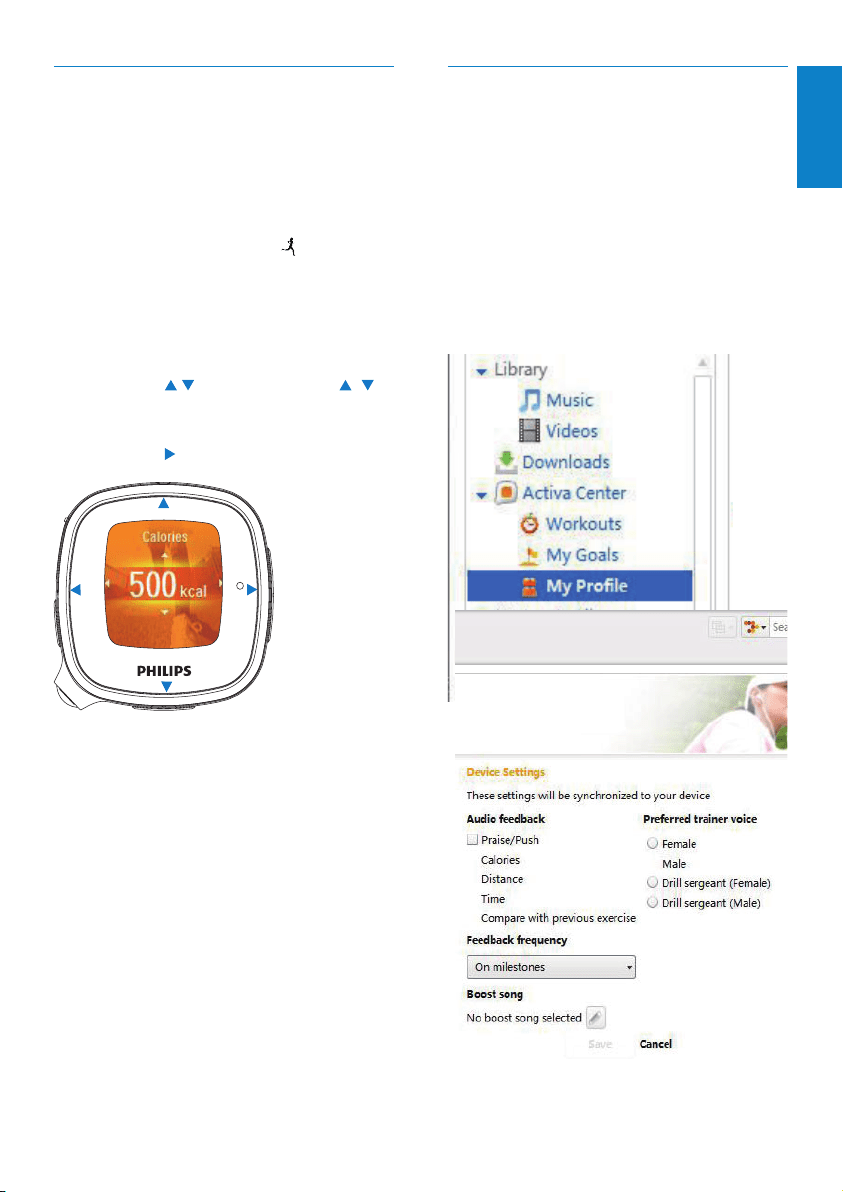
To select the options,
OnPhilips Songbird, go to [My prole]:
Set a goal for each exercise
On the device (Activa), set a target before
each exercise. By setting a target for each
exercise, you split the long-term goal into
tasks that can be implemented exercise by
exercise.
1 From Home screen, go to .
2 Select the desired sports.
3 Select one of the criteria to set a target:
[Calories], [Time], or [Distance] (for
running only).
A Press
/ , or press and hold /
to select a value (e.g. 400 Kcal, 30
minutes, 40 Km);
B Press
to conrm.
To skip the step of goal setting,
Select • [Open ended].
To compete against yourself,
Select the same sport and time •
duration as the exercise you want
to compete against (your last, your
best, or a session you select).
Select • [Compete against yourself].
You can get a voice report on »
your performance (this exercise
vs. your last, your best, or a session
you select).
English
EN

20
Tip
•
Voice encouragement: Make voice recordings
that can be played as encouragements during
workout. Such praise and push voices can
be yours, your friends’, or your partners’
(e.g. a surprising praise during workout).
From Home screen, go to
> [Move] >
[Personal encouragements]. In [Record
encouragement], select [Praise] or [Push].
Record voices as praise or push.
Music during workout
During workout, you can play music or radio as
accompaniment; or play tempo-based music.
Use TempoMusic
With [TempoMusic], you can have music in
the library automatically selected and played
to your pace.
Set TempoMusic during rst-time setup
TempoMusic comes from two steps: With
the supplied PC software Philips Songbird,
you have your PC music library analyzed and
transferred (entirely or in part) to Activa;
on Activa, you select TempoMusic to have
music automatically selected and played to
your pace.
During the rst-time setup, the whole music
library on the PC is scanned; Songs are
automatically sorted by tempo, type, and
other categories. The scanning process takes
time, depending on the library size. Next time
you launch Philips Songbird, the scanning
starts automatically for updates.
On Activa, go to
> [Move]:
Voice reports
During workout, voice reports can play
automatically or when you press the
BOOST button.
By default, you can automatically get the voice
reports on the calories burnt and distance
covered, when reaching 25%, 50%, 75%,
90% and 100% of the goal or time.
To set what the voice report tells,
1 From Home screen, go to > [Move] >
[Audio feedback].
2 Select one or more items that you want
the voice report to cover/not to cover:
[Praise/Push]: Help you get back to the
regular pace when your current pace is
too fast or slow compared to the regular
pace.
[Calories]/[Distance](when
available)/[Time]/[Compare with
previous exercise]: Remind you of the
progress during workout.
3 Press to turn on/off the item.
To set when the voice report plays,
From Home screen, go to •
>
[Move] > [Feedback frequency] .
Select an option: [No automatic
feedback], [On milestons].
Trainer voice
To change the trainer voice in voice •
reports, go to
> [Move] >
[Preferred trainer voice].
EN
21
With Philips Songbird, such song information
is transferred to Activa together with the
songs.
Note
To use TempoMusic properly, always transfer •
your PC music library to Activa through Philips
Songbird.
Listen to radio
During workout, you can listen to up to 20
preset FM radio stations. Use the headphones
as antenna.
1 After you set a goal for the exercise,
select [Radio].
A list of preset FM stations appears. »
2 Select the desired station.
3 During workout, press repeatedly to
switch between preset stations.
Tip
To store preset stations on Activa, see. •
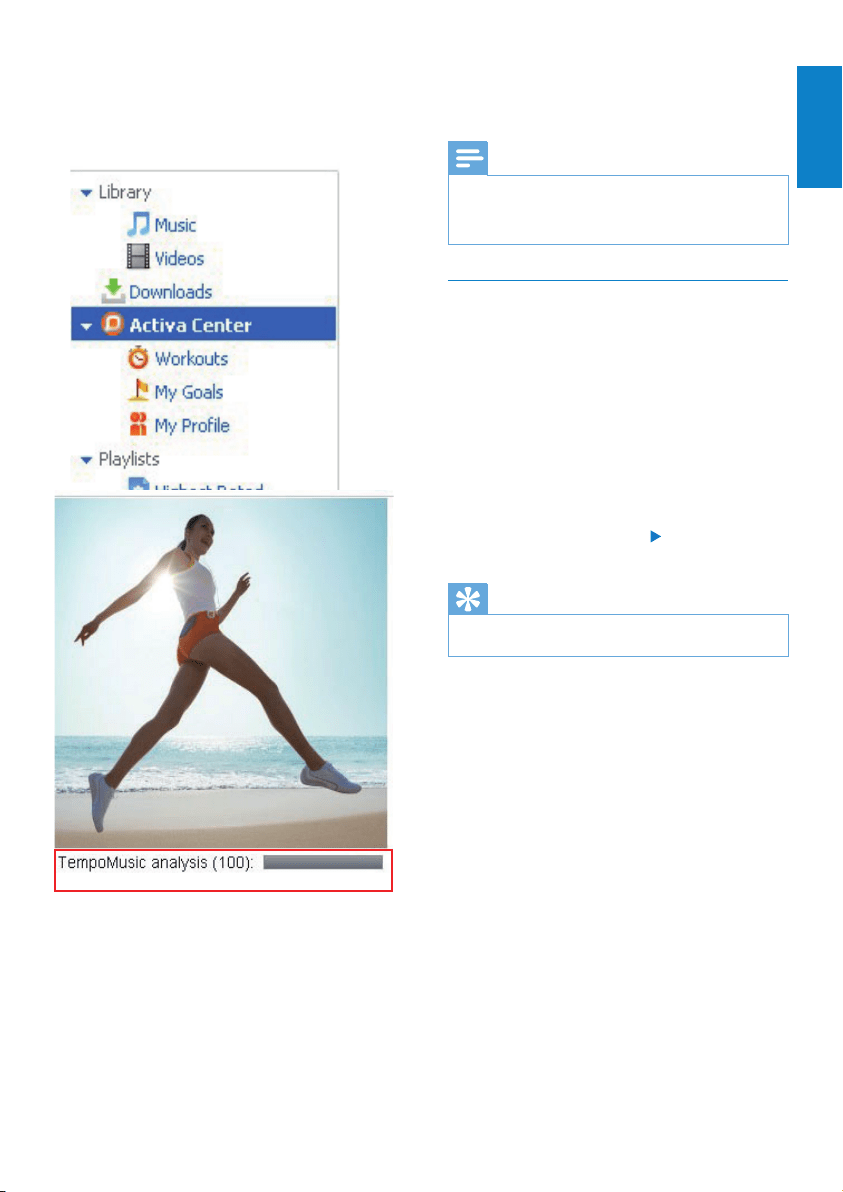
Always keep Philips Songbirdrunning until
the TempoMusic analysis is completed. To
check the status of TempoMusic analysis,
click[Activa Center]onPhilips Songbird.
English
EN
22
Tip
Voice reports are unavailable if a boost song •
is playing.
To change settings during workout
Press • to pause;
To resume, select [Continue];
To stop, select [Finish].
Workout results appear after four »
minutes of relaxation exercises.
To change sports and continue calorie
counting, select [Change activity];
To adapt to the changed resistance level on
the gym machine (for rowing and cycling
only), select [Resistance level];
To change the music type, select [Change
music].
To set a boost song
You can motivate yourself by starting the
boost song.
Set the desired song as boost song
You can set the desired song as boost song on
the supplied PC software Philips Songbird.
“22 minutes,
350 kcal,
Yo u are doing
great!”
Record the workout
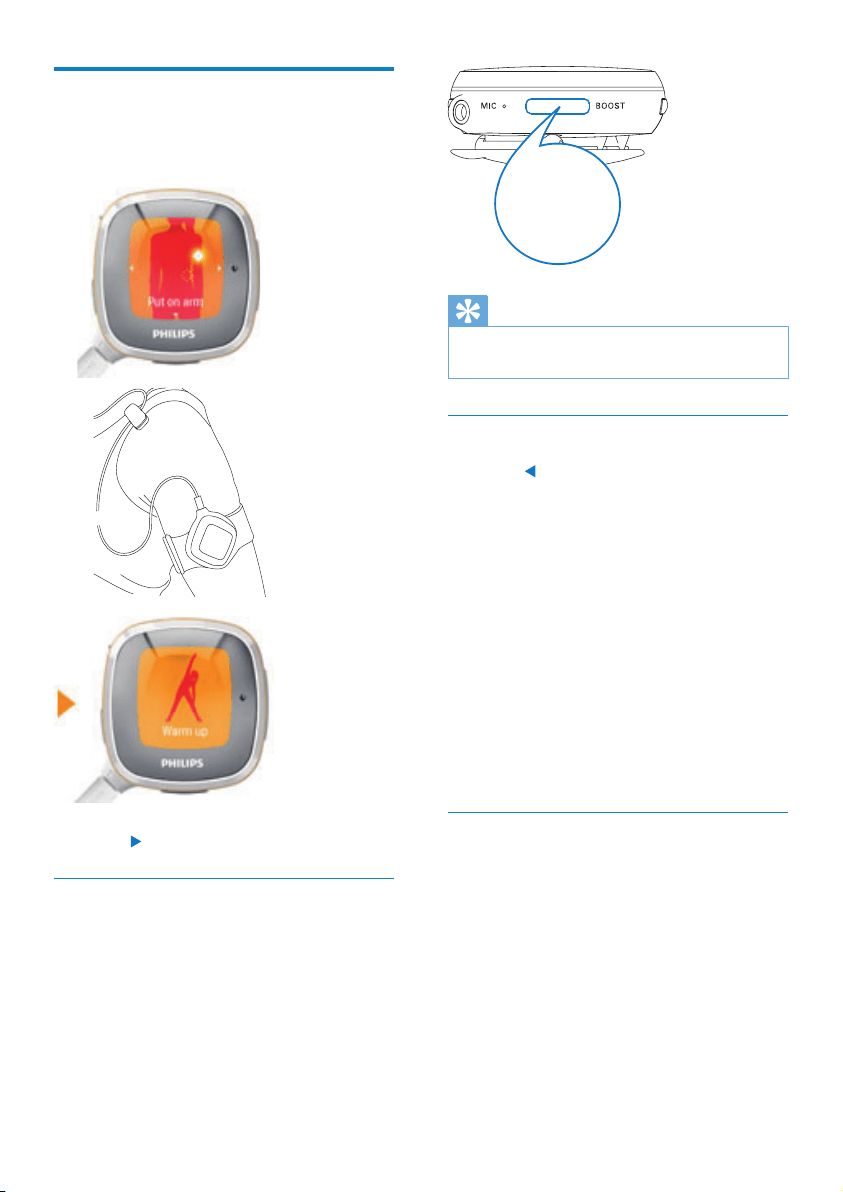
1
Wear Activa properly in the position as
displayed on the screen.
2 Press to start recording.
To listen to a voice report/boost song
during workout
Press • BOOST to listen to a voice report
on the workout progress.
Press and hold • BOOST to play a boost
song.
EN
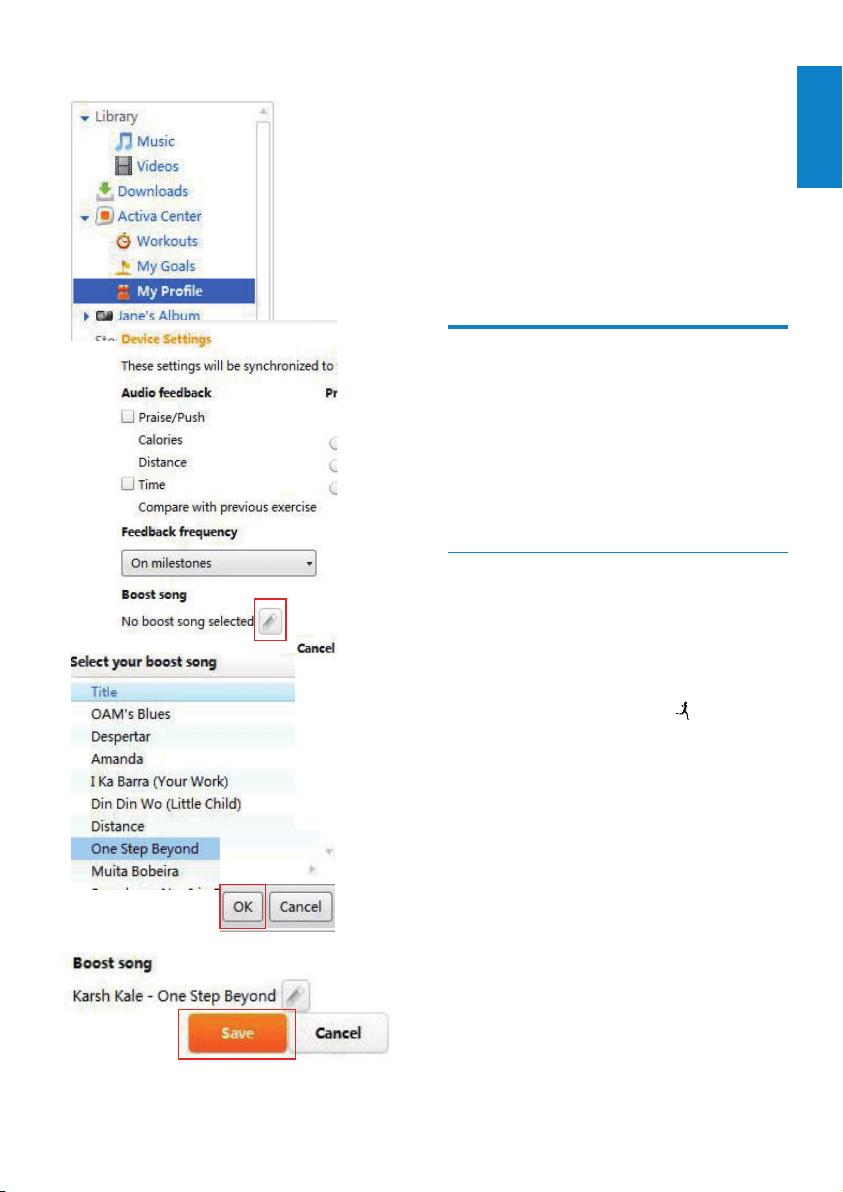
23
1 Go to [My prole].
2 Under [Boost song], click the edit button.
3 Click the desired option. Click [OK] to
conrm.
4 Click [Save].
The selected boost song is »
synchronized to Activa.
Click » [Cancel] to cancel the selection.
Calibrate the workout
On Activa, workout data, such as distance and
calories burnt, are based on step count, step
length, and some other factors that may vary
from one to others.
For accurate measurement, calibrate the tness
device to yourself.
Use previous exercise
You can use a previous exercise for calibration,
if you know the actual distance covered (for
a running session), or calories burnt (for a
rowing or cycling session).
1 From Home screen, go to >
[Calibrate] > [Use previous workout].
2 Select an workout entry.
3 In the text box of distance/calories, enter
the actual number.
OnPhilips Songbird
English
EN
24
Review the workout
You can review the workout on Activa, or
on PC by using Philips Songbird for more
information.
Review the workout on Activa
On Activa, you can review the workout over
the past week, or past 10 exercises.
To review the workout over the past week
From Home screen, go to •
>
[Review] > [This week review].
To review the past 10 exercises
From Home screen, go to •
>
[Review] > [Exercise history].
Review the workout on PC
By using the supplied software Philips
Songbird on PC, you can review both
exercises and goals.
Before the review, synchronize the PC with
your workout data on Activa.
1 On the PC, launch Philips Songbird.
2 Connect Activa to the PC by using the
supplied USB cable.
The workout data on Activa is »
automatically transferred to the PC.
Use current exercise
1 From Home screen, go to . >
[Calibrate] > [Workout and calibration].
2 Select an activity (sports). If necessary,
press
to ensure that you have selected
the specic sport for calibration.
For running: Enter a distance to •
cover;
For indoor rowing or indoor cycling: •
Enter a time duration (more than ve
minutes recommended).
3 Press when you start the activity at a
usual pace.
At the end of the distance/time »
duration, the recording stops.
4 For running, the exercise results and
calibration report are displayed.
For cycling or rowing, enter the »
resistance level during the exercise.
Calibration is done. »
Tip
You can also calibrate the workout after you •
have covered a known distance. When the
exercise result is displayed, press BOOST >
[Use exercise as calibration], and then enter
the actual distance.
EN
25
Review weight changes
By transferring the weight data to Philips
Songbird, you can also view weight changes
on PC.
Tip
To learn your accurate calorie expenditure, •
update your weight information regularly (e.g.
once a month).
As shown, click the sport/weight •
button to switch between the views
of workout and weight changes.
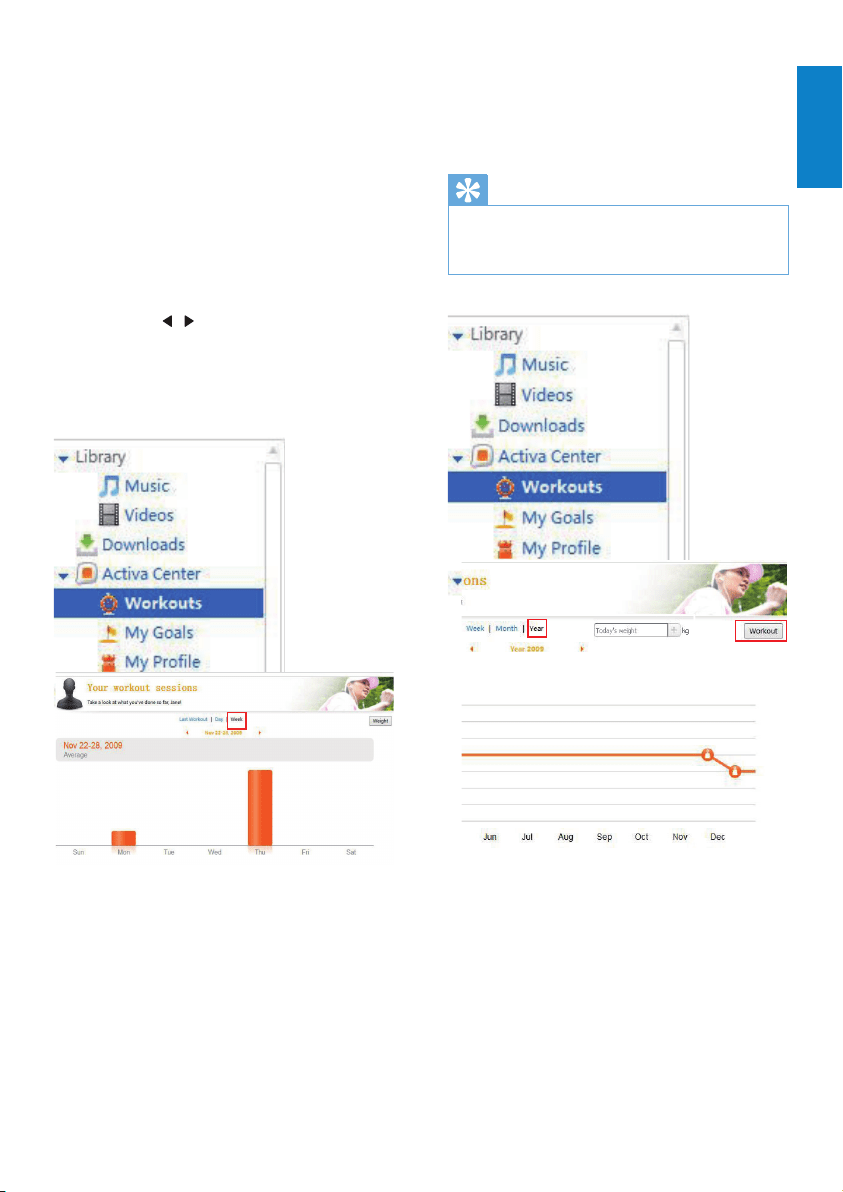
Review exercises
With Philips Songbird, you can review
exercises by time period, speed, makeup of
sports, calories burnt, or workout time.
1 Click [Workouts] to review exercises.
2 To select time period, click [Day], or
[Week].
3 To view the speed and contribution of
each sport, click [Last session].
Press•
/ to switch between
different sports, days, or weeks.
In the week view, exercises can be sorted in
graphs by calories or workout time.
English
EN
26
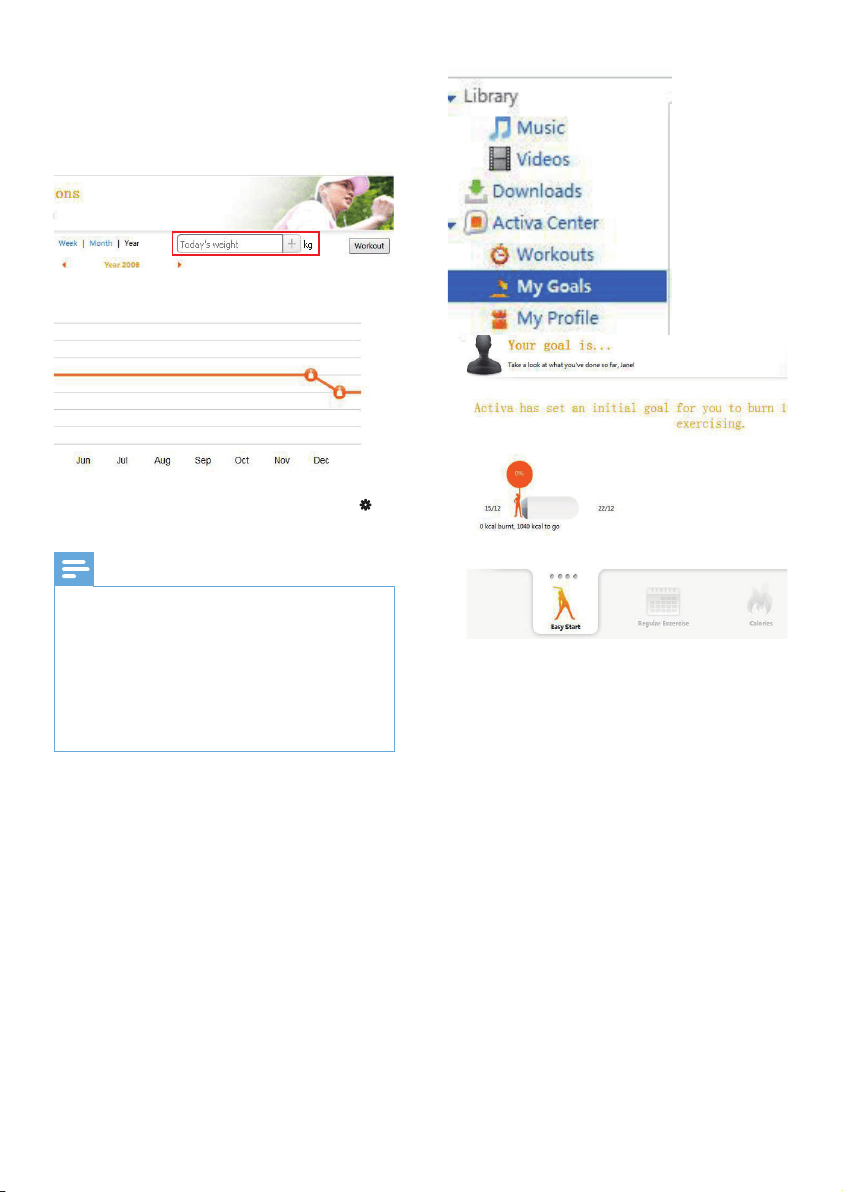
To update weight information
To update weights on • Philips
Songbird, enter your current
weight in the text box as shown.
To edit weights on Activa, go to • >
[Move] > [User prole] > [Weight].
Note
Always keep the weight information consistent •
in Philips Songbird and Activa.
To do so, synchronize
• Philips Songbird with
Activa: Launch Philips Songbird on the PC;
Plug Activa into the USB port of the PC.
After the synchronization, the last data you
•
entered are used as your latest information on
Philips Songbird and Activa.
Review goals
By transferring your workout data to Philips
Songbird on PC, you can view the status of
goal fulllment. Accordingly, adjust your goals.
To view the status of goals, go to •
[My goals].
EN
27
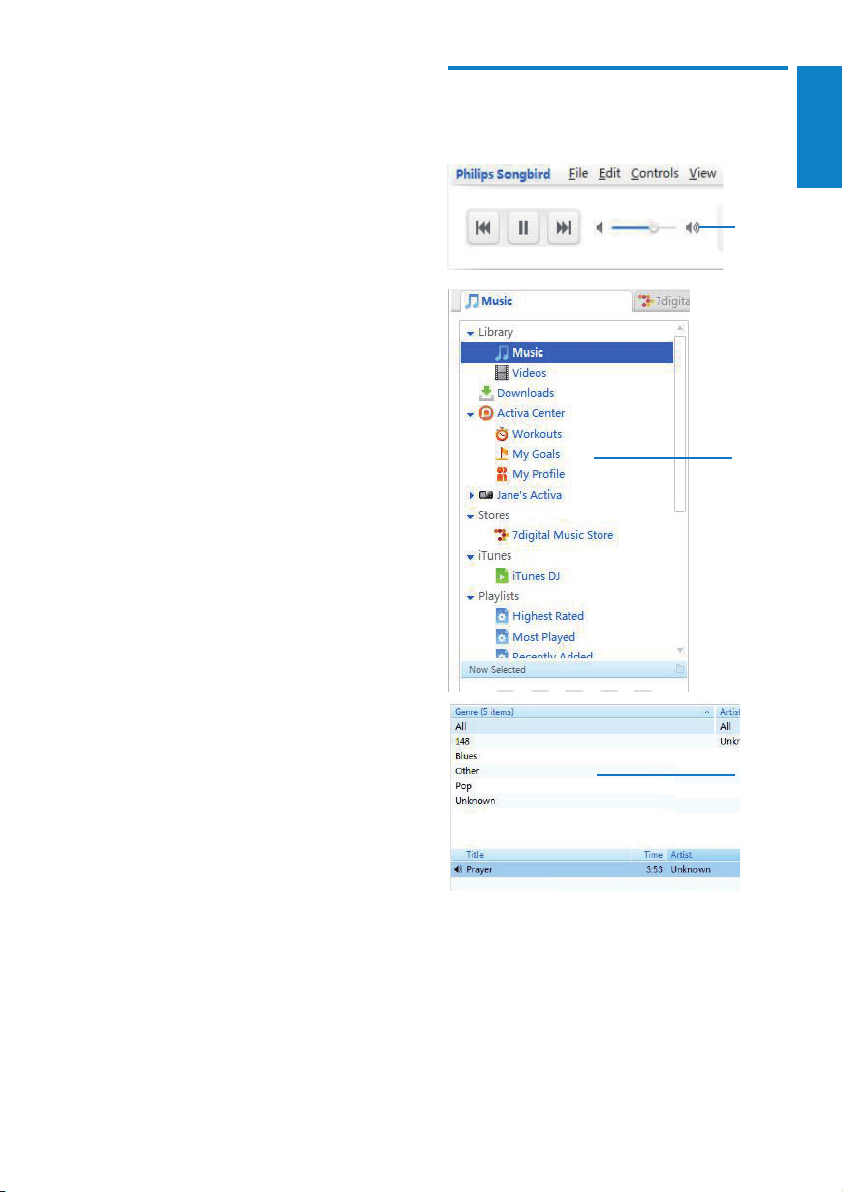
Browse your music library
Philips Songbird is structured as follows:
a
b
c
5 Build your
library for
Activa
On your PC, launch Philips Songbird. You can
manage your device that contains workout data,
music, and audio les.
With Philips Songbird, you can
Collect all music, workout data and •
downloads in one place;
Edit song information;•
Generate tempo-based playlist for your •
workout;
Transfer music/audio les from PC to •
Activa;
Transfer workout proles from PC to •
Activa;
Synchronize the PC with workout data •
from Activa;
Review workout progress. •
English
EN
28
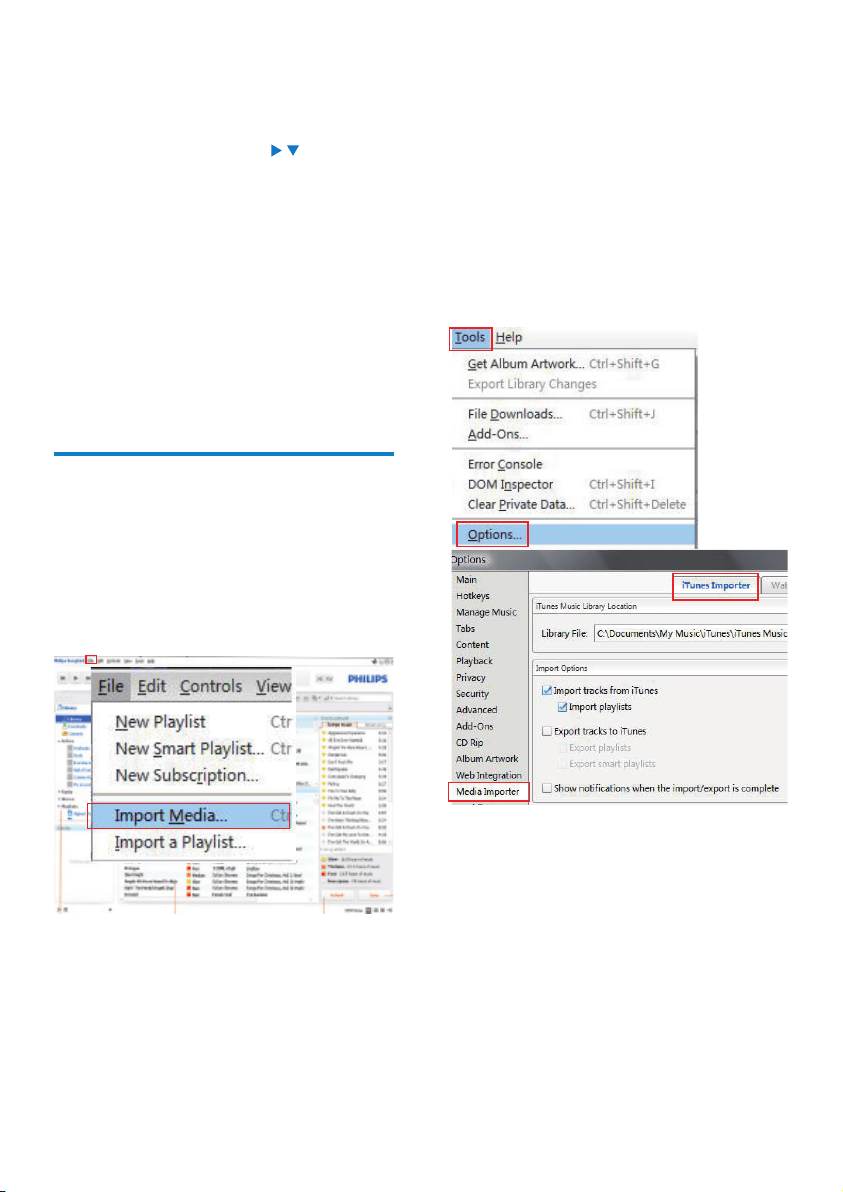
2 To import music,
go to [File] > [Import Media] to •
select the desired folders on PC.
Music les are added under »
[Library].
or, go to [File] > [Import a playlist] to •
select the desired playlists on PC.
Music les are added under »
[Playlists].
Import media from iTunes
1 On Philips Songbird, go to [Tools] >
[Options...] (Windows)
2 Select [Media Importer], and then the
[iTunes Importer] tab.
3 Verify your library location and options.
4 Click the [Import Library] button next to
the library location.
The software imports the iTunes »
library into Philips Songbird.
a Player pane: Click the buttons to play
music in Philips Songbird media library.
b Source selection pane: Click to select a
source of contents; Click
/ to show or
hide the sub-sources.
• [Library]: Philips Songbirdmedia
library;
• [Activa Center]: Philips Songbird
workout data library that is
synchronized to/from Activa;
• Activa connected to the PC;
Other add-ons.•
c Contents pane: View contents in current
source of contents.
Import music into Philips
Songbird
On your PC, you can import music/audio les
into Philips Songbird.
1 Launch Philips Songbird, with Activa
disconnected from the PC.
EN
29
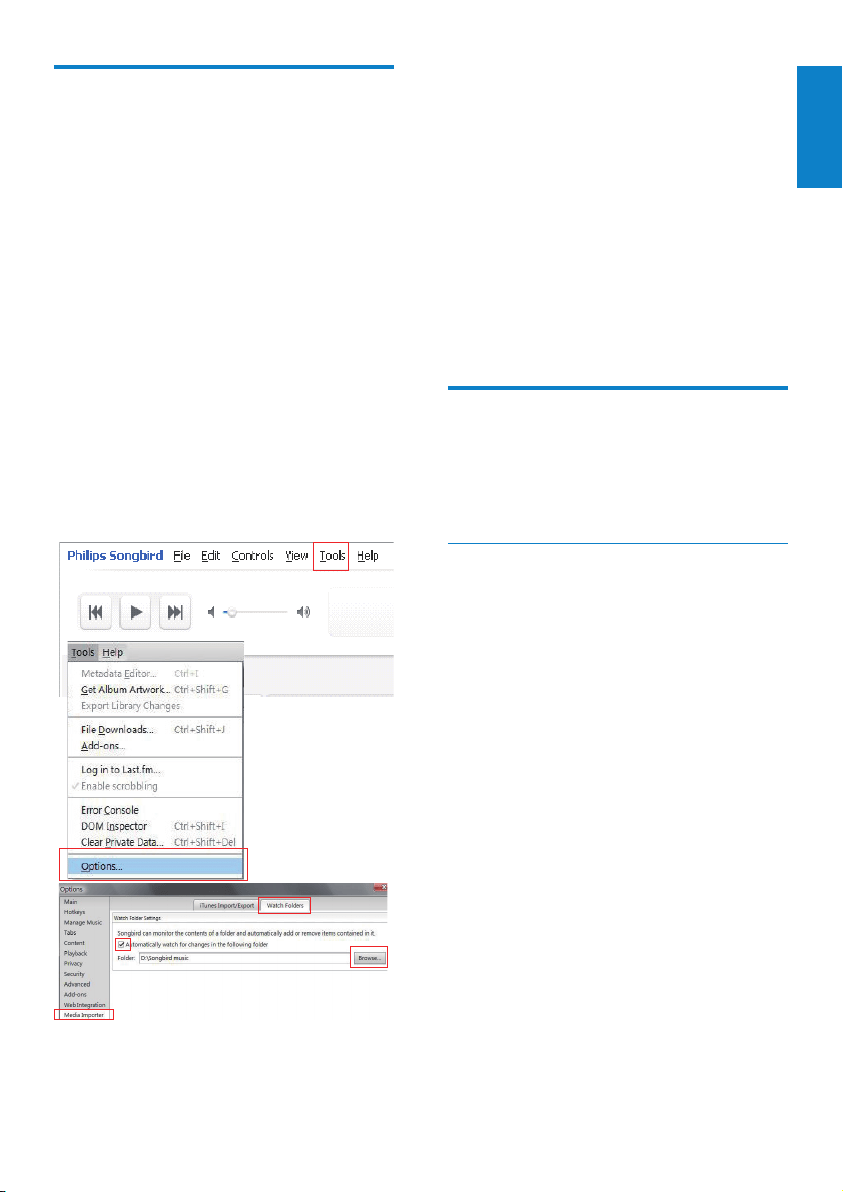
1 Select [Tools] > [Options].
2 In [Options], select [Media Importer].
Then, select the [Watch Folders] tab.
3 In [Watch Folders], tick the checkbox as
shown.
4 Click [Browse], and select the central
music folder (e.g.D:\Songbird music) as
the watch folder.
In » Philips Songbird, songs are added
or removed as they are in the central
music folder.
Manage music centrally
To manage music in Philips Songbird,
Launch • Philips Songbird, with Activa
disconnected from the PC. Click [Library].
Create a playlist
By creating a playlist, you can manage and sync
your favorites songs easily.
Collect music les in Philips
Songbird
You may wish to have all music les
automatically added to your library when you
copy them to a folder. Creating a central music
folder is recommended. In Philips Songbird, set
the central music folder as the watch folder.
Each time you launch Philips Songbird, songs
are added to/removed from Philips Songbird as
they are on the central music folder.
Create a central music folder
On the PC, create a central music folder to
save all music les, for example, D:\Songbird
music.
Set the watch folder
In Philips Songbird, set the watch folder as
follows:
English
EN
30
Tip
To drag and drop multiple songs at the same •
time, hold down the Ctrl button when you
click on selections.
Remove music les from the Songbird
library
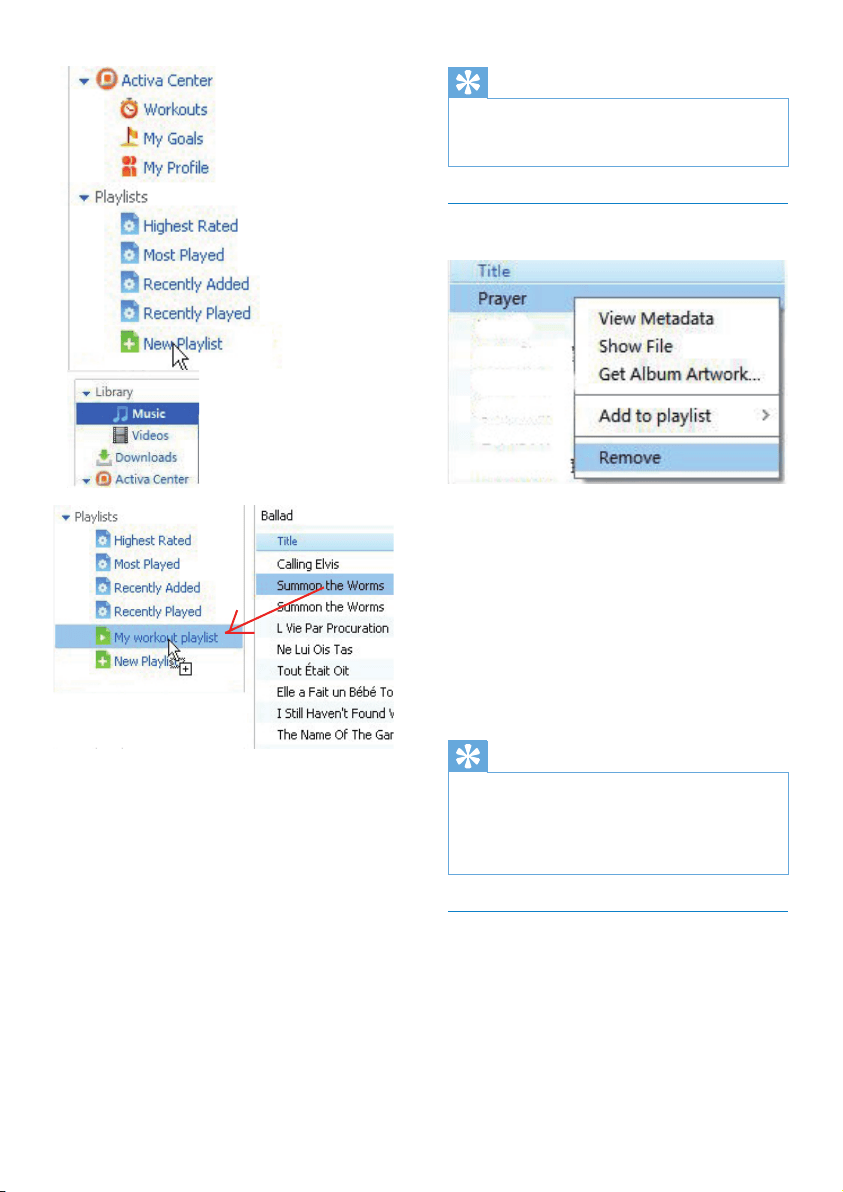
1 Right click on a music le. Select
[Remove].
2 Conrm as prompted.
The selected le is removed from »
the library and from all playlists.
(By default, the le is only “removed”,
not “deleted”. The music le still exists
in its original location on the computer
or computer network.)
Tip
To select multiple les, hold down the •
Ctrl button when you click on selections.
To select multiple consecutive les, hold down
•
the Shift button when you click on the rst
and last selections.
Fetch album artwork
Choose from these options to fetch the
artwork for your albums:
On the • Philips Songbird toolbar, select
[Tools] > [Get Album Artwork].
If no titles are selected, artwork is »
fetched for all titles in the library.
1 Click [New Playlist] to create a new
playlist.
A new playlist is created, with the »
playlist name to be edited.
2 Name new playlist as desired (e.g. “My
workout playlist’).
3 Click [Music] under [Library] to show the
music library on the PC.
4 Drag and drop songs from the music
library to playlist.
EN
31
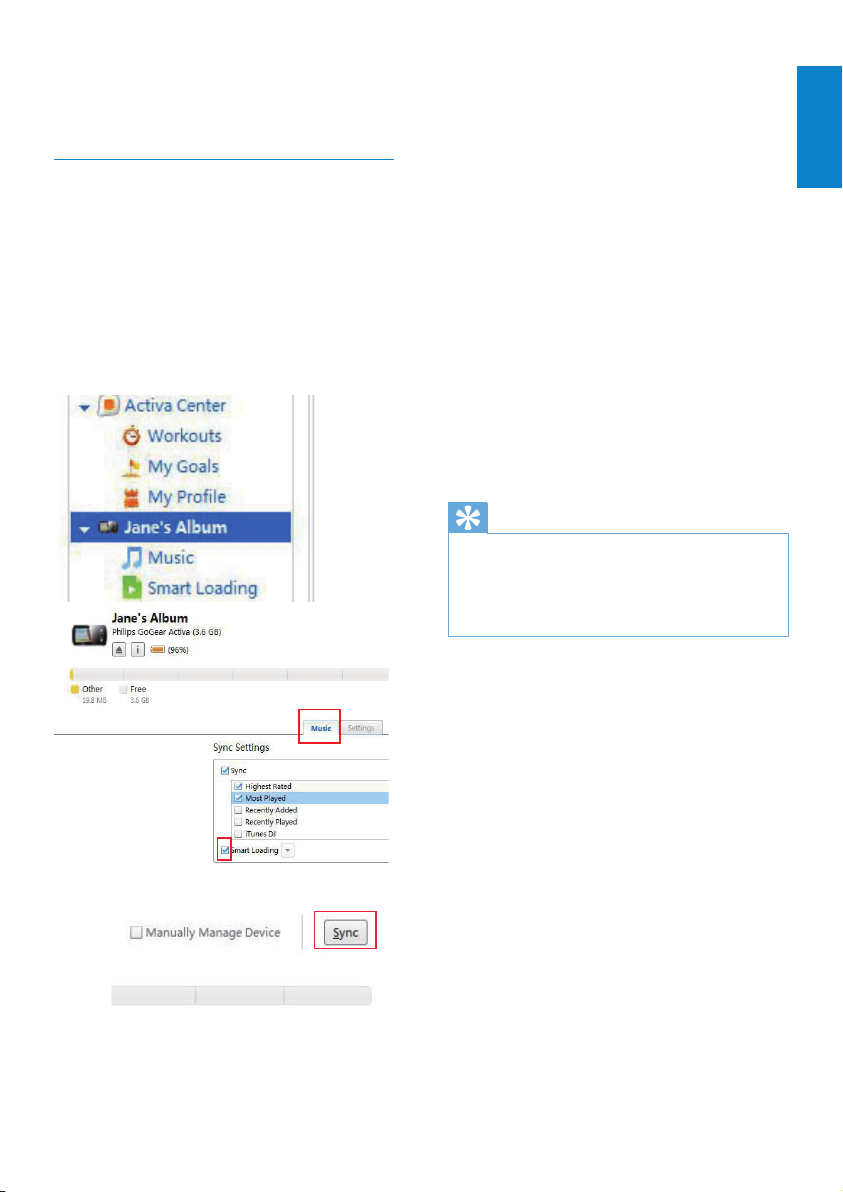
1 On Philips Songbird, connect Activa
to the PC by using the supplied USB
cable.
2 As shown, click your Activa.
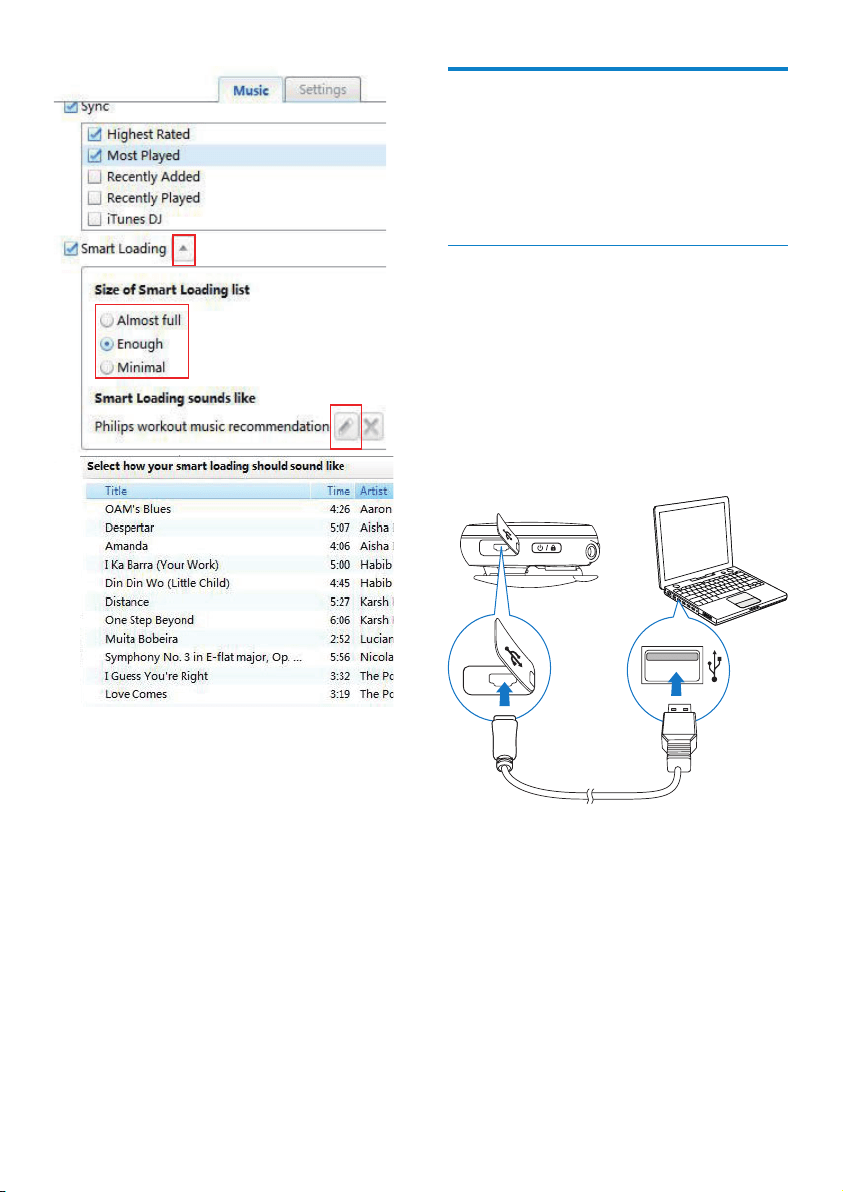
3 In [Music] > [Sync settings], tick the
check box next to [SmartLoad (smart
loading)].
4 Click [Sync] to start the synchronization
from the PC to Activa.
Select settings for smart loading
With the smart loading from the PC to Activa,
you can
Select what size the loaded music •
library occupies on Activa;
Select what similarities the loaded •
songs have.
Tip
•
[SmartLoad (smart loading)] can adapt to your
taste based on your selection of the song you
like: by priority, [SmartLoad (smart loading)]
searches for and load music that have musical
similarities to the song you selected.
Right-Click on selected titles.•
Artwork is fetched for all selected »
titles.
Smart loading
[SmartLoad (smart loading)] allows you to
easily and quickly load your Activa with a lot
of workout music.
With [SmartLoad (smart loading)], your PC
music library is scanned, and the relevant
songs are automatically selected and
transferred to Activa.
English
EN
32
Sync between Philips
Songbird and Activa
With Philips Songbird, you can sync your
workout data/proles and music on the
PC and Activa.
Sync after a workout
To synchronize your PC with workout data
from Activa,
1 On the PC, launch Philips Songbird.
2 Connect Activa to the PC by using the
supplied USB cable.
The workout data on Activa is »
automatically transferred to the PC.
1 As shown, click the drop-down button
next to [SmartLoad (smart loading)].
2 Select the desired size.
3 To select the similarities, click the edit
button to see the song list. Select the
song that you want the loaded songs to
be similar to.
EN
33
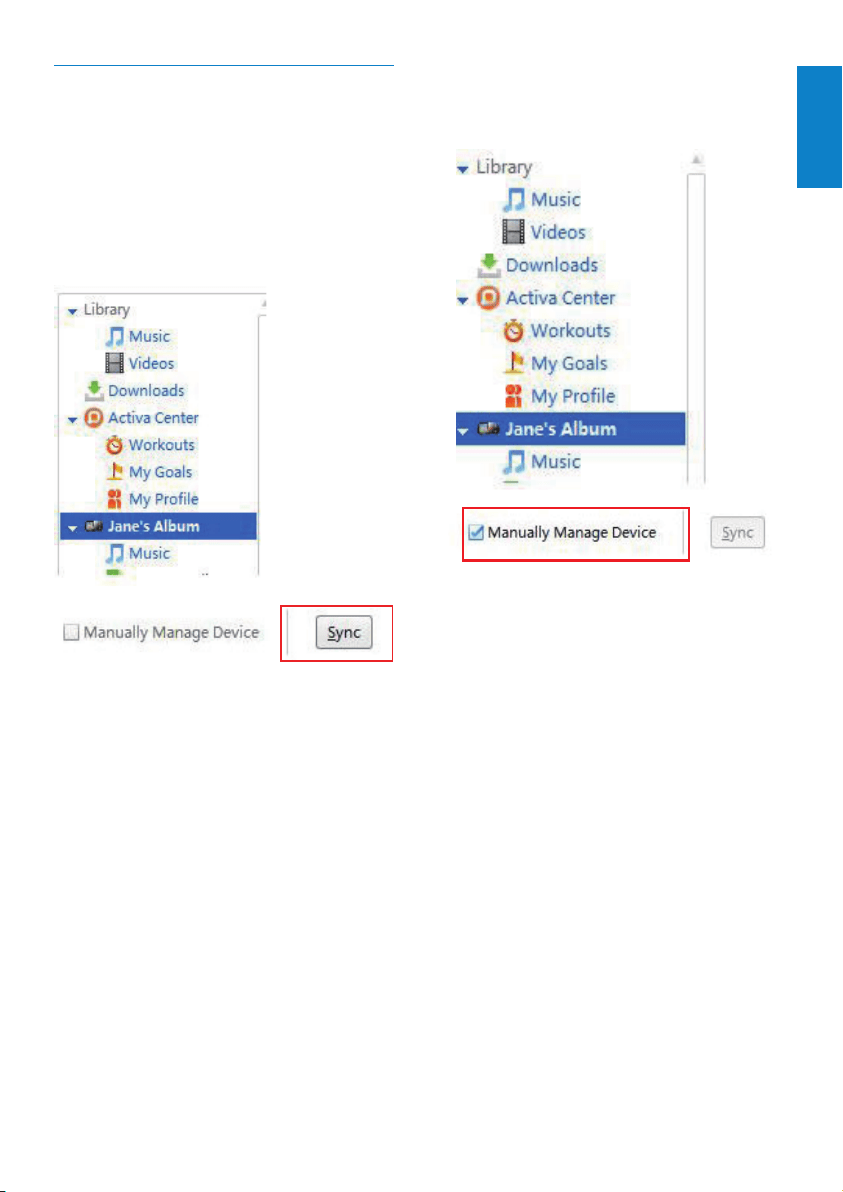
To sync music manually
To manually drag and drop songs from Philips
Songbirdto Activa,
1 On Philips Songbird, click your Activa.
2 On the top right corner of the panel, tick
the check box next to [Manually Manage
Device].
3 Click [Library] > [Music]. Drag and drop
desired songs from the library to your
Activa.
Sync after music/prole updating
To synchronize Philips Songbird and Activa
after you update music or your proles (e.g.
weight information),
1 On the PC, launch Philips Songbird.
2 Connect Activa to the PC by using the
supplied USB cable.
3 On Philips Songbird, click your Activa as
shown.
4 Click on [Sync] on the top right corner of
the panel.
The playlists, proles and other data »
are synchronized automatically on
Philips Songbird and Activa.
» [SmartLoad (smart loading)] works if
selected.
English
EN
34
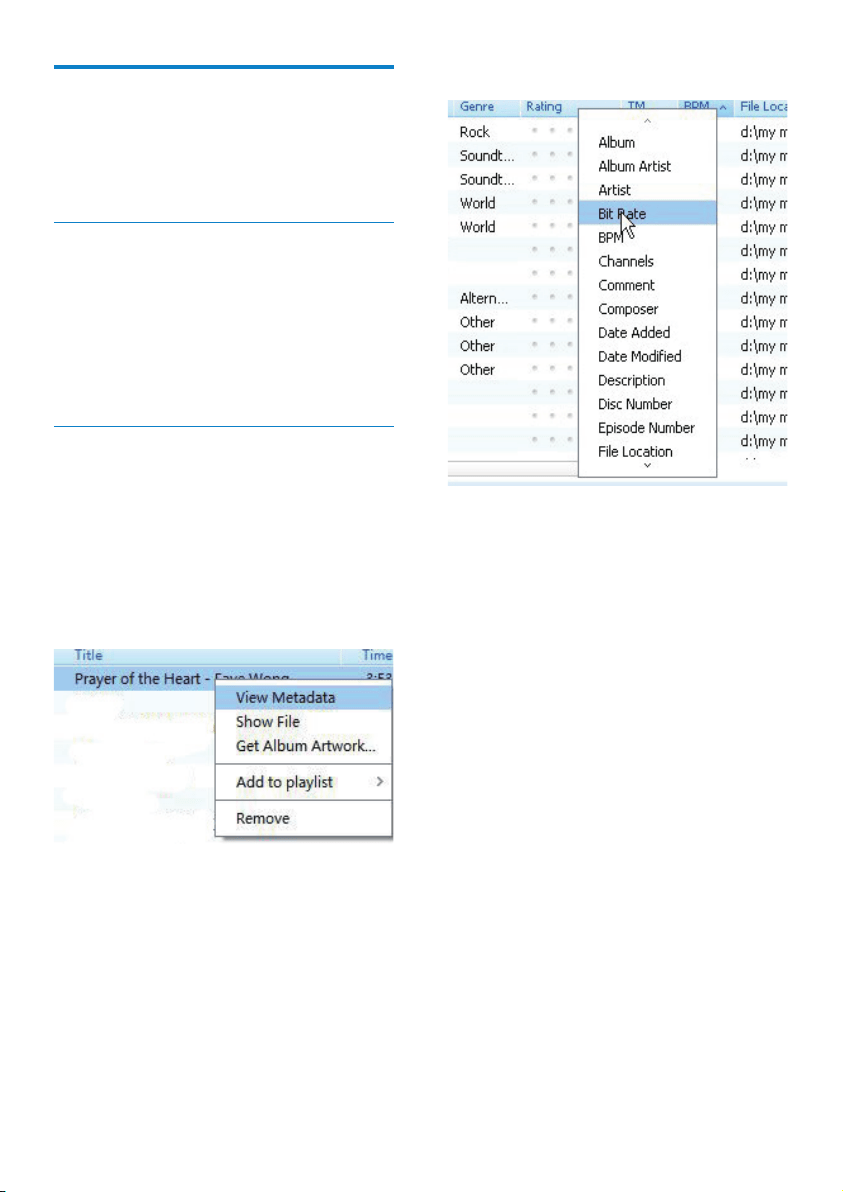
Show metadata
1 In [Library] > [Music], right click on the
bar of metadata titles.
A list of metadata titles appears. »
2 Click on the title that you want to show
on the metadata bar.
Other functions on Philips
Songbird
On Philips Songbird, you can use other
functions to manage the music library.
Get content from online sources
You can purchase content from online sources
such as the following:
7-digital•
Check the specications of your Activa to see
what services are available to you.
Edit and show metadata
On Philips Songbird, metadata provides
information about media les, such as song
name, artist, and album name.
You can edit the metadata and select what
metadata to show on Philips Songbird.
Edit metadata
1 In [Library] > [Music], select a song.
2 Right click on the song to select [View
Metadata].
A metadata table appears for you to »
edit the information.
EN
35
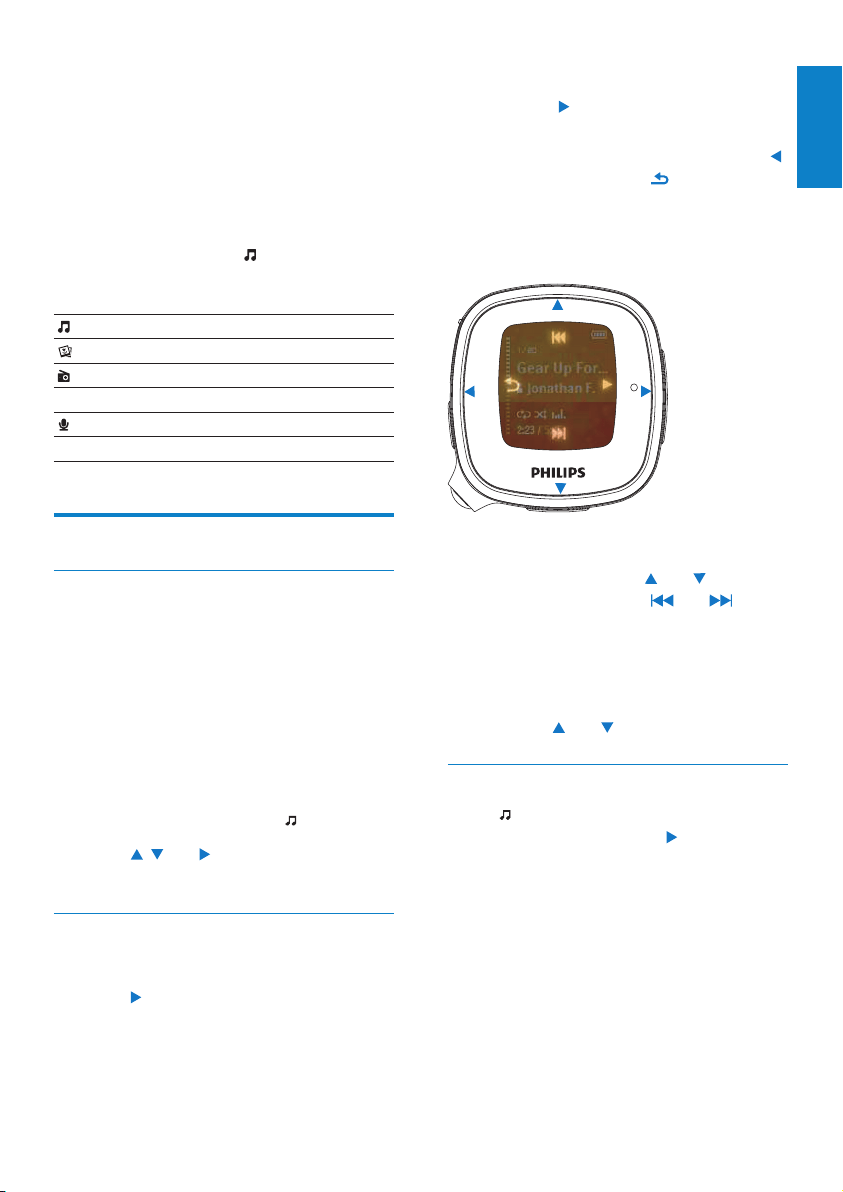
3 During playback,
Press •
to pause and resume
playback.
To go to the previous menu, press •
(corresponding to
on the screen).
Play screen returns a few seconds »
later.
To select a music le on the play screen
Repeatedly press •
and
(corresponding to
and
on the screen).
To rewind or fast forward within current
song
On the playback screen, press and •
hold
and .
Delete a song/artist/album
1 In > [Music], select a song, or an
album, or an artist. Press
.
2 Press BOOST, and then, select [Delete].
Current song is deleted from Activa. »
Or, all les under current album are »
deleted from Activa.
Or, all albums under current artist are »
deleted from Activa.
6 Play
When not recording workout, you can play
music/audio les, pictures, and FM radio on
Activa. You can also use Activa for voice/ FM
radio recording.
From Home screen, select
, and you can enter
Play menus:
Play music/audio les on Activa.
Play pictures on Activa.
Tune to radio stations;
Record radio programs.
Play recordings on Activa;
Record voices.
Play music
Find music
On Activa, music/audio les are organized in:
[All songs]: songs sorted by song name;
[Artists]: albums sorted by artist name;
[Albums]: albums sorted by album name;
[Genres]: songs sorted by genre, e.g. rock,
jazz, classical.
1 From Home screen, select > [Music].
2 Press , and to select the desired
folder or song.
Play music
1 Select the desired music folder or le.
2 Press to start playback.
On the playback screen, you can see »
the le information and playback status.
English
EN
36
Play FM radio
Note
Always plug in the supplied headphones when •
tuning to radio stations. The headphones
double as antenna. For better reception, move
the headphone cable in different directions.
Tune to radio stations
Auto tune
1 From Home screen, go to >
[FM radio].
The last played station starts to play. •
• The rst time you tune to the radio,
auto tune starts automatically.
Up to 20 available stations are •
stored as presets.
2 Press / repeatedly to select a preset
station. Press
to start play.
3 To restart auto tune, press BOOST>
[Auto tune] on the radio play screen.
Up to 20 available stations are stored »
to replace the old presets.
Tip
When moving to a new place (e.g. a new •
city or country), restart auto tune for better
reception.
Manual tune
Use Manual tune to tune to a desired
frequency or station.
1 From Home screen, go to >
[FM radio]. Press
.
The last played station starts to play. »
2 On the radio play screen, press BOOST
> [Manual tuning] to tune to a preset
station.
Play pictures
You can play .JPEG and .BMP les on Activa.
1 Ensure that you have transferred .JPEG
and .BMP les to Activa.
2 From Home screen, go to > [Pictures]
> [All pictures] or [Albums].
3 Press , to select a picture.
Thumbnail of the picture appears. »
4 To play the picture in full screen, press .
5 Press , to select the previous or next
picture.
Play pictures in slideshow
When in slideshow, pictures in current folder
play one by one.
1 From Home screen, go to > [Pictures]
> [All pictures] or [Albums].
2 Press , to select a picture/album.
3 To start playing in slideshow, press BOOST,
and then, select [Start slideshow].
Slideshow starts from the selected »
picture, or the rst picture in the
album.
4 During playback,
Press •
, to select previous or next
pictures, if necessary.
Press • BOOST > [Slideshow
settings] to select play options:
[Time per
slide]
selects play time for each slide.
To play slides one by one
manually, select [Manual advance].
[Repeat] plays all slides repeatedly, if
activated.
[Shufe] plays all slides in random order, if
activated.
EN
37
3 Press to start/pause/resume recording.
4 To stop recording, press (corresponding
to
).
The recording is saved in mono . »
WAV format to [Recordings] >
[Recordings library] > [Voice].
A le name is assigned automatically »
and sequentially.
Radio recording
1 Tune to a desired radio station
(see ‘Tune to radio stations’ on page 36).
2 On the radio play screen, press BOOST
> [Start FM radio recording].
Radio recording starts. »
3 Press to pause/resume recording.
4 To stop recording, press .
5 To save the recording, select [Yes] as
prompted.
The recording is saved in mono . »
WAV format to [Recordings] >
[Recordings library] > [FM radio].
A le name is assigned automatically »
and sequentially.
Play recordings
1 From Home screen, go to >
[Recordings]> [Recordings library].
2 Go to [Voice] or [FM radio] to select the
desired voice or radio recording.
3 Press to start/pause/resume play.
To delete all recordings
During play, press •
and select
[Delete all].
To delete current recording
During play, press • BOOST and select
[Delete].
3 Press and hold or .
You tune to the next available station »
from current frequency.
For ne tuning, press »
or
repeatedly.
Store preset stations
On Activa , you can store up to 20 preset
stations.
1 Tune to a desired radio station.
2 On the radio play screen, press to store
the station as a preset.
3 To save the station to a desired location,
select the location in the list of preset
stations. Press
.
Sound recording
Make recordings
With Activa, you can record:
Voice through the built-in microphone;•
Or, radio programs when playing the •
radio on Activa.
Voice recording
1 From Home screen, go to >
[Recordings] > [Start voice recording].
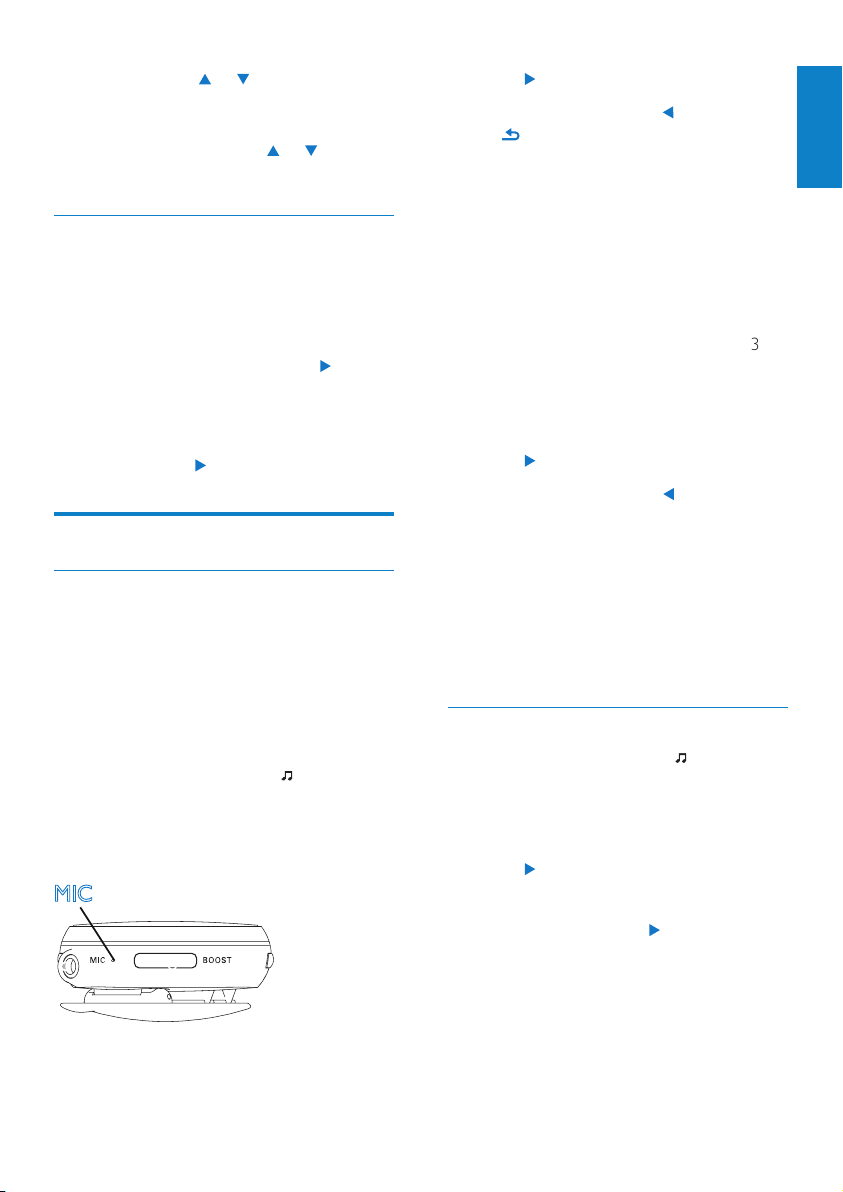
2 Ensure that the microphone is close to
the sound source to be recorded.
MIC
English
EN
38
Play mode
1
From Home screen, go to >
[Device]>[Play mode].
Or, on the music play screen, •
press BOOST> [Play mode].
2 Press , , and to select the desired
option:
[Repeat] [Repeat 1] repeats current song.
[Repeat all] repeats all songs in
current folder.
[Shufe] [On] plays all songs in
current folder in
random order.
If both [Repeat all] and [Shufe]are
activated,
All songs in current folder are •
repeatedly in random order.
Note
•
[Shufe] is unavailable if [Repeat 1]is activated.
Sound settings
1
From Home screen, select >
[Device] > [Sound settings].
Or, on the play screen, press • BOOST,
and then, select [Sound settings].
2 Press , , and to select the desired
option:
[FullSound] Restore the sonic details that
music compression loses (e.g.
MP3, WMA).
[Equalizer] Dene sound settings as desired.
[Volume
limit]
Set a maximum volume level for
the device. In this way, you can
always keep the volume within a
level safe enough to your hearing.
Press
/ to set the volume limit.
7 Settings
Settings of tness device
In > [Move], select settings for the tness
device.
[User prole] Set up/update your personal
prole.
On the supplied PC software
Philips Songbird, you can
set up your personal prole,
and synchronize the data to
Activa (including [Weight],
[Height], [Birth date],
[Gender]).
On Activa, update your
weight information in
[Weight] regularly
(e.g. once a month).
[Audio
feedback]
Select what the voice
report tells: [Praise/Push],
[Calories], [Distance] (when
available), and/or [Compare
with previous exercise].
[Feedback
frequency]
Set when the voice report
plays: [No automatic
feedback], or [On
milestons].
[Personal
encoura-
gements]
Make voice recordings
that can be played as
encouragements during
workout.
In [Record encouragement],
record voices as praise or
push.
[Preferred
trainer voice]
Select an option: [Female],
[Male], [Drill sergeant
(Female)], [Drill sergeant
(Male)],
[Units] Select the unit for
measurement: [Metric],
or [Imperial].
EN
39
To select the power-saving mode
1 From Home screen, select > [Device]
> [Display settings] > [Screensaver].
2 In [Screensaver], select [Off].
3 To select the desired time duration,
go to
> [Device] > [Display settings]
> [Backlight timer].
After the selected time duration, the »
idle screen is turned off automatically.
Tip
For power-saving purpose, always select a low •
value.
To exit the power-saving mode
Press any key. •
If you have selected a screensaver, the
screensaver appears on the idle screen
after the pre-dened time duration.
To select a screensaver
1 From Home screen, select > [Device]
> [Display settings] > [Screensaver].
2 In [Screensaver], press / and to
select an option:
[Album art] shows the CD cover of
current album, if available.
[Digital clock] shows time in digits.
To exit the screensaver
Press any key. •
Date and time
By setting the clock, you can have Activa
correctly record your workout date and time.
You can also set the digital clock as screensaver.
Sleep timer
With the sleep timer, you can have Activa
turned off automatically after a certain time
duration.
1 From Home screen, go to >
[Device] > [Sleep timer].
2 Select the desired time duration.
After the selected time duration, »
the device is turned off automatically.
Display settings
Theme
To select a theme
From Home screen, go to •
>[Device] >
[Display settings] > [Theme].
Brightness
To adjust the brightness
From Home screen, go to •
> [Device]
> [Display settings] > [Brightness].
Screensaver
The screen enters the idle mode, if no new
action is taken on Activa. To personalize the
idle screen, do one of the following:
For power saving purpose, have the idle •
screen turned off automatically after the
pre-dened time duration.
Or, you can show the selected •
screensaver on the screen.
If you have selected the power-saving mode,
the idle screen is turned off automatically after
the pre-dened time duration.
English
EN
40
Select the language
You can change the language selection after the
rst time setup.
1 From Home screen, go to >
[Device] > [Language].
2 Press , , and to select the desired
language.
About the device
From Home screen, go to > [Device] >
[Information]. You can learn the following
information about the device:
[Firmware
version:]
current rmware version.
Always check the rmware
version when updating rmware
from the support website.
[Model:] model number
[CTN] Full product name. Always check
the full product name when
updating rmware from the
support website.
[Support
site:]
web site that provides support
for the device
Restore factory settings
You can restore Activa to factory settings.
1 From Home screen, go to >
[Device] > [Reset].
2 As prompted, press , , and to
restore factory settings.
All settings on Activa are restored to »
factory settings.
Files transferred to Activa are retained. »
To set the clock
1 Go to > [Device] > [Date and time].
2 In [Date and time], press / to select an
option; press
to return to the previous
screen.
In • [Time zone]: select the time zone
where you are located;
In • [Set time format]: select a 12-hour
or 24-hour clock;
In • [Set time]: press
/ repeatedly,
or press and hold
/ to enter
desired digits; press
to select the
position of entries;
In • [Set date format]: select a date
format;
In • [Set date]: press
/ repeatedly,
or press and hold
/ to enter
desired digits; press
to select the
position of entries;
Slideshow settings
From Home screen, go to • >
[Device] > [Slideshow settings].
Or, on the picture play screen, press
BOOST > [Slideshow settings].
[Time per
slide]
selects play time for each slide.
To play slides one by one
manually, select [Manual advance].
[Repeat] plays all slides repeatedly, if
activated.
[Play
order]
[Random]: plays all slides in
random order, if activated.
[Date]: plays all slides in the
chronological order by le
creation date.
[Filename]: plays all slides in the
alphabetical order by le name.
EN
41
System requirements
Windows® XP / Vista / 7•
Internet connection•
CD-ROM drive•
USB port•
8 Technical data
Power
Playtime on internal battery: Up to 20 hours
in workout mode (music + monitoring)
Rechargeable: Yes, via USB
Software
Device manager: to restore and upgrade
Philips Songbird
Connectivity
Headphone: 3.5 mm
USB: High speed USB 2.0
Sound
Equalizer customizable
Equalizer settings: Funk, Hip Hop, Jazz, Rock,
Techno, Classical
Sound Enhancement: FullSound
Audio playback
Compression format:
MP3, WAV, WMA, AAC
ID3 Tag support:
Song title, artist, album
Audio capturing
Built-in microphone: mono
Voice recording: MP3
Tuner/Reception/Transmission
Tuner bands: FM
Station presets: 20
RDS: Station Name
Still picture display
Picture Compression Format: JPEG
Slide show
Storage media
Mass storage class compliant
Music memory capacity, MP3: Up 50h
(with 128kbps MP3 songs)
Picture/Display
Backlight
Type: LCD
Diagonal screen size (inch): 1.44 inch
Resolution: 128 x 128 - 65k colors
English
EN
42
9 Troubleshooting
The screen does not respond when I press
the key.
Press •
, and then to unlock the keys,
if necessary;
Charge the battery, if necessary; •
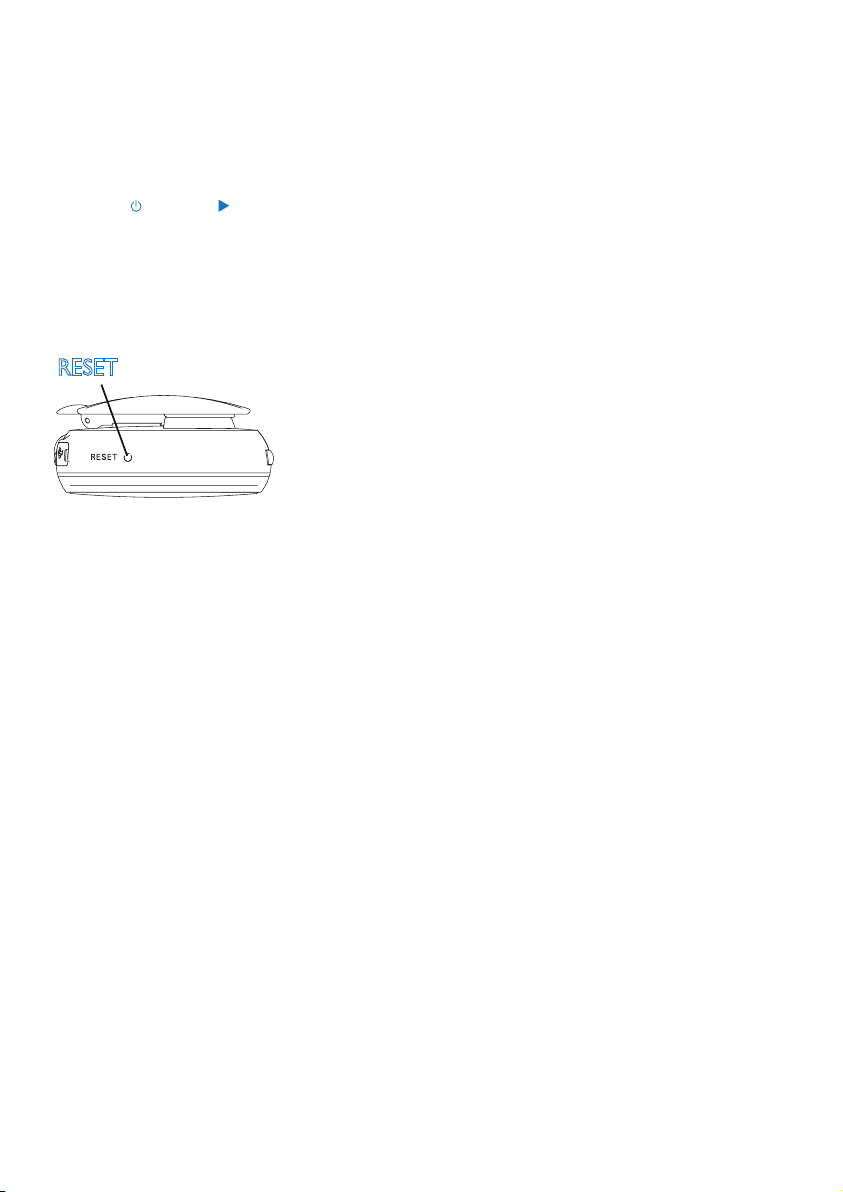
If the steps above do not work, reset the •
device. To do so, press the RESET hole
by using the tip of a ball pen or other tool.
I cannot nd the le that I stored on Activa.
The le may be in a format unsupported
on Activa. For more information about
the compatible formats on Activa, see
(see ‘Technical data’ on page 41).
The tness device cannot measure my
exercise accurately.
Ensure that you wear Activa properly. •
The tness device can detect and count
your movement. Wear the device
properly in the position as suggested on
the screen.
• Calibrate the tness device to yourself
(see ‘Calibrate the workout’ on page 23).
I cannot tune to a preset station.
The station may be out of service. •
Select another preset station.
When moving to a new place (e.g. a new •
city or country), restart auto tune for
better reception.
RESET
EN

ACT101M_17_EN_ActivaWK1012.5
© 2010 Koninklijke Philips Electronics N.V.
All rights reserved.