Product Code: 884-T11
Operation Manual
Embroidery Machine
English
884-T11
XE9989-001
Printed in Taiwan
Please visit us at http://solutions.brother.com where you can get product
support and answers to frequently asked questions (FAQs).
Operation Manual
884-T11
XE9989-001_cover_H1-4
PANTONE 285C K

Trademarks
FlashFX
®
is a registered trademark of Datalight, Inc.
FlashFX
®
Copyright 1998-2007 Datalight, Inc.
U.S.Patent Office 5,860,082/6,260,156
FlashFX
®
Pro™ is a trademark of Datalight, Inc.
Datalight
®
is a registered trademark of Datalight, Inc.
Copyright 1989-2007 Datalight, Inc., All Rights Reserved
Video powered by Mobiclip™ encoding and playback technology.
IMPORTANT:
READ BEFORE DOWNLOADING, COPYING, INSTALLING OR USING.
By downloading, copying, installing or using the software you agree to this license. If
you do not agree to this license, do not download, install, copy or use the software.
Intel License Agreement For Open Source Computer Vision Library
Copyright © 2000, Intel Corporation, all rights reserved. Third party copyrights are property of their respective owners.
Redistribution and use in source and binary forms, with or without modification, are permitted
provided that the following conditions are met:
• Redistribution’s of source code must retain the above copyright notice, this list of conditions
and the following disclaimer.
• Redistribution’s in binary form must reproduce the above copyright notice, this list of
conditions and the following disclaimer in the documentation and/or other materials
provided with the distribution.
• The name of Intel Corporation may not be used to endorse or promote products derived from
this software without specific prior written permission.
This software is provided by the copyright holders and contributors “as is” and any express or
implied warranties, including, but not limited to, the implied warranties of merchantability and
fitness for a particular purpose are disclaimed. In no event shall Intel or contributors be liable for
any direct, indirect, incidental, special, exemplary, or consequential damages (including, but
not limited to, procurement of substitute goods or services; loss of use, data, or profits; or
business interruption) however caused and on any theory of liability, whether in contract, strict
liability, or tort (including negligence or otherwise) arising in any way out of the use of this
software, even if advised of the possibility of such damage.
All information provided related to future Intel products and plans is preliminary and subject to change at any time,
without notice.
Secure Digital (SD) Card is a registered trademark or a trademark of SD Card Association.
CompactFlash is a registered trademark or a trademark of Sandisk Corporation.
Memory Stick is a registered trademark or a trademark of Sony Corporation.
SmartMedia is a registered trademark or a trademark of Toshiba Corporation.
MultiMediaCard (MMC) is a registered trademark or a trademark of Infineon Technologies AG.
xD-Picture Card is a registered trademark or a trademark of Fuji Photo Film Co. Ltd.
IBM is a registered trademark or a trademark of International Business Machines Corporation.
Microsoft, Windows and Windows Vista are registered trademarks or trademarks of Microsoft
Corporation.
Each company whose software title is mentioned in this manual has a Software License Agreement specific to its
proprietary programs.
All other brands and product names mentioned in this manual are registered trademarks of their respective companies.
However, the explanations for markings such as ® and ™ are not clearly described within the text.

Introduction 1
——
———————————————————————————————————————————
—
———————————————————————————————————————
Introduction
Thank you for purchasing this embroidery machine. Before using this machine, carefully read the
“IMPORTANT SAFETY INSTRUCTIONS”, and then study this manual for the correct operation of
the various functions.
In addition, after you have finished reading this manual, store it where it can quickly be accessed
for future reference.
IMPORTANT SAFETY INSTRUCTIONS
Please read these safety instructions before attempting to use the machine.
DANGER - To reduce the risk of electric shock:
1Always unplug the machine from the electrical outlet immediately after using, when cleaning,
when making any user servicing adjustments mentioned in this manual, or if you are leaving
the machine unattended.
WARNING - To reduce the risk of burns, fire, electric shock, or injury to persons:
2Always unplug the machine from the electrical outlet when lubricating it or when making any
other user servicing adjustments mentioned in the operation manual.
• To unplug the machine, switch the machine to the symbol “O” position to turn it off, then
grasp the plug and pull it out of the electrical outlet. Do not pull on the cord.
• Plug the machine directly into the electrical outlet. Do not use an extension cord.
• Always unplug your machine if the power is cut.
3Never operate this machine if it has a damaged cord or plug, if it is not working properly, if it
has been dropped or damaged, or water is spilled on the unit. Return the machine to the
nearest authorized dealer or service center for examination, repair, electrical or mechanical
adjustment.
• To avoid electric shock or fire; do not use a damaged power supply plug or loose electrical
outlet, and ensure that the power supply plug is fully inserted and secure.
• While the machine is stored or in use if you notice anything unusual, such as an odor, heat,
discoloration or deformation, stop using the machine immediately and unplug the power
cord.
• When transporting the machine, be sure to lift it from the bottom positions. Lifting the
machine by any other part may damage the machine or result in the machine falling, which
could cause injuries.
• When lifting the machine, be careful not to make any sudden or careless movements,
otherwise you may injure your back or knees.
• While the machine is being transported, be careful not to touch the operation panel, thread
guides or any other part, otherwise injuries may result.

—————————————————————————————————————————————————————————————————————————————————
——
2
4Always keep your work area clear:
• Never operate the machine with any air openings blocked. Keep ventilation openings of the
machine free from the build up of lint, dust, and loose cloth.
• Do not use extension cords. Plug the machine directly into the electrical outlet.
• Never drop or insert any object into any opening.
• Keep fingers out of all machine openings, such as near the carriage, otherwise injuries may
result.
• Do not operate where aerosol (spray) products are being used or where oxygen is being
administered.
• Do not use the machine near a heat source, such as a stove or iron; otherwise, the machine,
power cord or garment being sewn may ignite, resulting in fire or an electric shock.
• Do not use this machine near an open flame; the movement of the embroidery frame could
cause the garment being sewn to catch fire.
• Do not place this machine on an unstable surface, such as an unsteady or slanted table,
otherwise the machine may fall, resulting in injuries.
• While attaching or detaching an embroidery frame or other included accessory or while
maintaining the machine, be careful not to hit the machine with your body or any other part
of it.
5Special care is required when sewing:
• Always pay close attention to the needle. Do not use bent or damaged needles.
• Keep fingers away from all moving parts. Special care is required around the machine needle.
• While the machine is in operation, keep your hands away from the needle bar case and all
moving parts near the needle bar case, otherwise injuries may result.
• Switch the machine to the symbol “O” position to turn it off when making any adjustments in
the needle area, such as changing the needle.
• Do not use a damaged or incorrect needle plate, as it could cause the needle to break.
6This machine is not a toy:
• Your close attention is necessary when the machine is used by or near children.
• This machine is not intended for use by young children or infirm persons without supervision.
• Young children should be supervised to ensure that they do not play with this machine.
• Do not use the included scissors or seam ripper in any other way than how they are intended.
In addition, when opening a hole with the seam ripper, do not place your hands or fingers in
the cutting path, otherwise injuries may result if the seam ripper slips.
• The plastic bag that this machine was supplied in should be kept out of the reach of children
or disposed of. Never allow children to play with the bag due to the danger of suffocation.
• Do not use outdoors.

IMPORTANT SAFETY INSTRUCTIONS 3
——
———————————————————————————————————————————
—
———————————————————————————————————————
7For a longer service life:
• When storing this machine, avoid direct sunlight and high humidity locations. Do not use or
store the machine near a space heater, iron, halogen lamp, or other hot objects.
• Use only neutral soaps or detergents to clean the case. Benzene, thinner, and scouring
powders can damage the case and machine, and should never be used.
• Always consult the operation manual when replacing or installing any assemblies, needle, or
other parts to assure correct installation.
8For repair or adjustment:
• Do not try to disassemble, repair or alter this machine in any way, otherwise a fire, electric
shock or injuries may result.
• If the light unit is damaged, it must be replaced by an authorized dealer.
• In the event a malfunction occurs or adjustment is required, first follow the troubleshooting
table in the back of the operation manual to inspect and adjust the machine yourself. If the
problem persists, please consult your local authorized Brother dealer.
Use this machine only for its intended use as described in the manual.
Use accessories recommended by the manufacturer as contained in this manual.
Use only the interface cable (USB cable) included with this machine.
Use only a mouse designed specifically for this machine.
The contents of this manual and specifications of this product are subject to change
without notice.
For additional product information and updates, visit our website at www.brother.com
SAVE THESE INSTRUCTIONS
This machine is intended for household use.
This appliance is not intended for use by persons (including children) with reduced physical,
sensory or mental capabilities, or lack of experience and knowledge, unless they have been given
supervision or instruction concerning use of the appliance by a person responsible for their safety.
Children should be supervised to ensure that they do not play with the appliance.

—————————————————————————————————————————————————————————————————————————————————
——
4
FOR USERS IN THE UK, EIRE, MALTA
AND CYPRUS ONLY
IMPORTANT
• In the event of replacing the plug fuse, use a fuse approved by ASTA to BS 1362, i.e. carrying
the mark, rating as marked on plug.
• Always replace the fuse cover. Never use plugs with the fuse cover omitted.
• If the available electrical outlet is not suitable for the plug supplied with this equipment, you
should contact your authorized dealer to obtain the correct lead.

IMPORTANT SAFETY INSTRUCTIONS 5
——
———————————————————————————————————————————
—
———————————————————————————————————————
Federal Communications Commission (FCC) Declaration of
Conformity (For USA Only)
Responsible Party: Brother International Corporation
100 Somerset Corporate Boulevard
Bridgewater, NJ 08807-0911 USA
TEL : (908) 704-1700
declares that the product
Product Name: Brother Embroidery Machine
Model Number: PR1000e
complies with Part 15 of the FCC Rules. Operation is subject to the following two conditions: (1)
this device may not cause harmful interference, and (2) this device must accept any interference
received, including interference that may cause undesired operation.
This equipment has been tested and found to comply with the limits for a Class B digital device,
pursuant to Part 15 of the FCC Rules. These limits are designed to provide reasonable protection
against harmful interference in a residential installation. This equipment generates, uses, and can
radiate radio frequency energy and, if not installed and used in accordance with the instructions,
may cause harmful interference to radio communications. However, there is no guarantee that
interference will not occur in a particular installation. If this equipment does cause harmful
interference to radio or television reception, which can be determined by turning the equipment
off and on, the user is encouraged to try to correct the interference by one or more of the
following measures:
• Reorient or relocate the receiving antenna.
• Increase the separation between the equipment and receiver.
• Connect the equipment into an outlet on a circuit different from that to which the receiver is
connected.
• Consult the dealer or an experienced radio/TV technician for help.
• The included interface cable should be used in order to ensure compliance with the limits for
a Class B digital device.
• Changes or modifications not expressly approved by Brother Corporation could void the
user’s authority to operate the equipment.

—————————————————————————————————————————————————————————————————————————————————
——
6
License Agreement
The enclosed machine includes data, software and/or documentation (collectively “CONTENT”)
that are proprietary products of Brother Industries, Ltd. (“BROTHER”). BY USING THE
CONTENT, THE CUSTOMER ACCEPTS THE TERMS AND CONDITIONS OF THIS AGREEMENT.
BROTHER retains ownership of all rights to CONTENT and to the copies of the CONTENT
included in this package. The CONTENT are licensed (not sold) to you (“CUSTOMER”) under the
terms and conditions of this Agreement.
CUSTOMER is licensed to:
• Use the CONTENT in combination with an embroidery machine to create embroidery.
• Use the CONTENT in combination with an embroidery machine that CUSTOMER owns or
uses, provided that the CONTENT is not used on more than one embroidery machine at a
time.
Except as otherwise provided herein, CUSTOMER may not:
• Allow more than one copy of the CONTENT to be available for use at any one time.
• Reproduce, modify, publish, distribute, sell, rent, sublicense or otherwise make available to
others CONTENT.
• Distribute, rent, sublicense, lease, sell, transfer or assign the media card or CONTENT.
• Decompile, disassemble or otherwise reverse engineer the CONTENT or assist others to do
the same.
• Alter, translate, modify or adapt the CONTENT or any part thereof for business, commercial
or industrial purposes.
• Sell or otherwise distribute the EMBROIDERY created by use of the CONTENT, WHICH
ORIGINALLY BEARS CERTAIN COPYRIGHT NOTICE UNDER THE NAME OF ANY THIRD
PARTIES OTHER THAN BROTHER (e.g. “©DISNEY”).
BROTHER retains all rights not expressly granted to CUSTOMER herein.
Nothing in this agreement constitutes a waiver of the rights of BROTHER under any law. This
agreement shall be governed by the laws of Japan.
Please direct all inquiries concerning this Agreement in writing by regular mail, to Brother
Industries, Ltd., 1-1-1 Kawagishi, Mizuho-ku, Nagoya 467-8562, Japan, Attention: P&H company
Sales and Marketing Dept.
Warning Labels 7
——
———————————————————————————————————————————
—
———————————————————————————————————————
Warning Labels
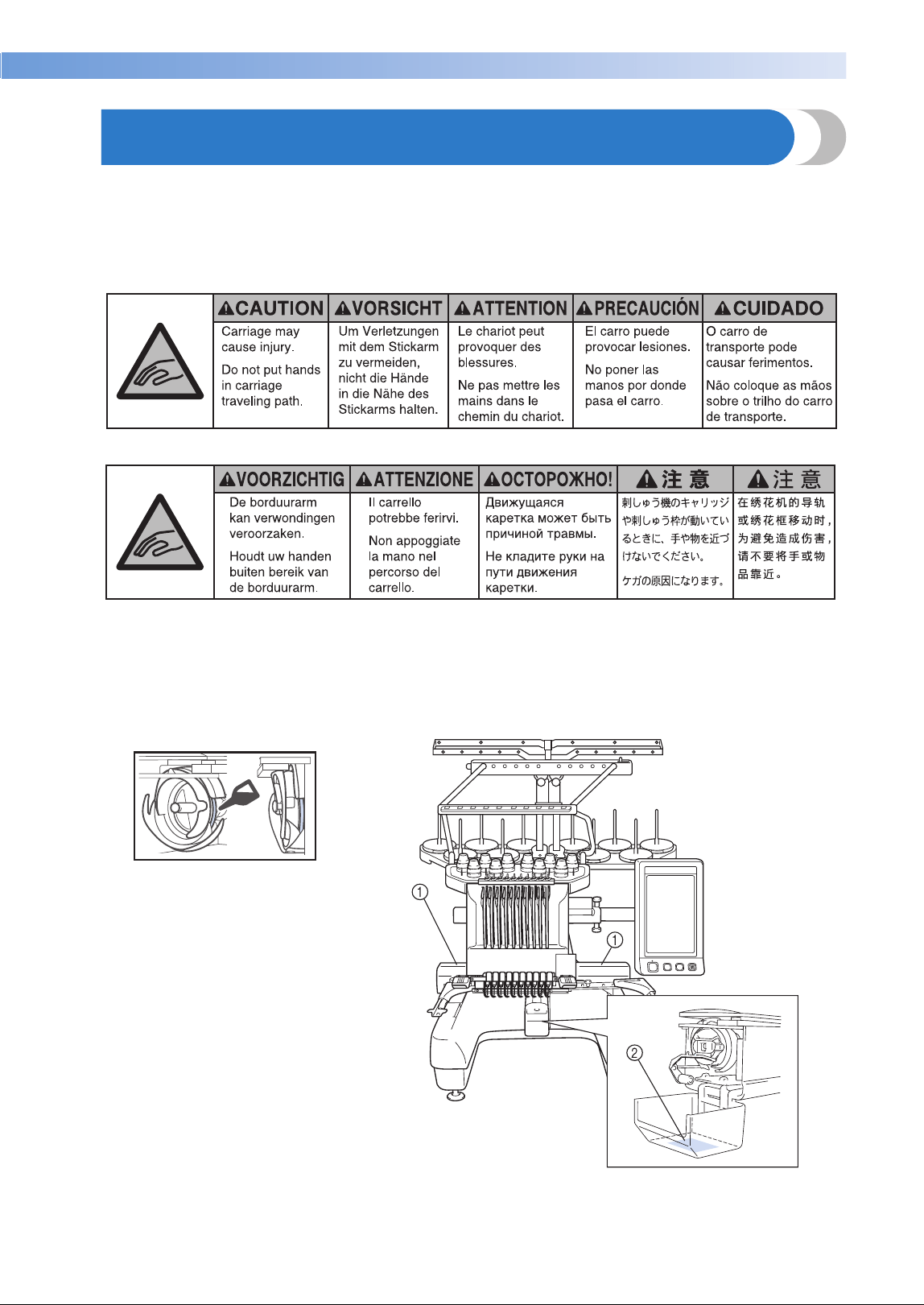
The following warning labels are on the machine.
Be sure to observe the precautions described in the labels.
1
2
Label locations
Please put a drop of oil onto the hook
once a day before use.
—————————————————————————————————————————————————————————————————————————————————
——
8
Machine Structure and Features
Ten-needle machine
embroidering
Your machine has ten needles, each threaded with
a different color of thread. It can sew embroidery
patterns that contain several colors by
automatically selecting the appropriate needle for
each color.
The mechanism that moves the needles up and
down is called the needle bar, and the needle bars
are in the needle bar case. The needle bars are
named from right to left: needle bar 1, needle bar 2,
needle bar 3, needle bar 4, needle bar 5, needle
bar 6, needle bar 7, needle bar 8, needle bar 9 and
needle bar 10.
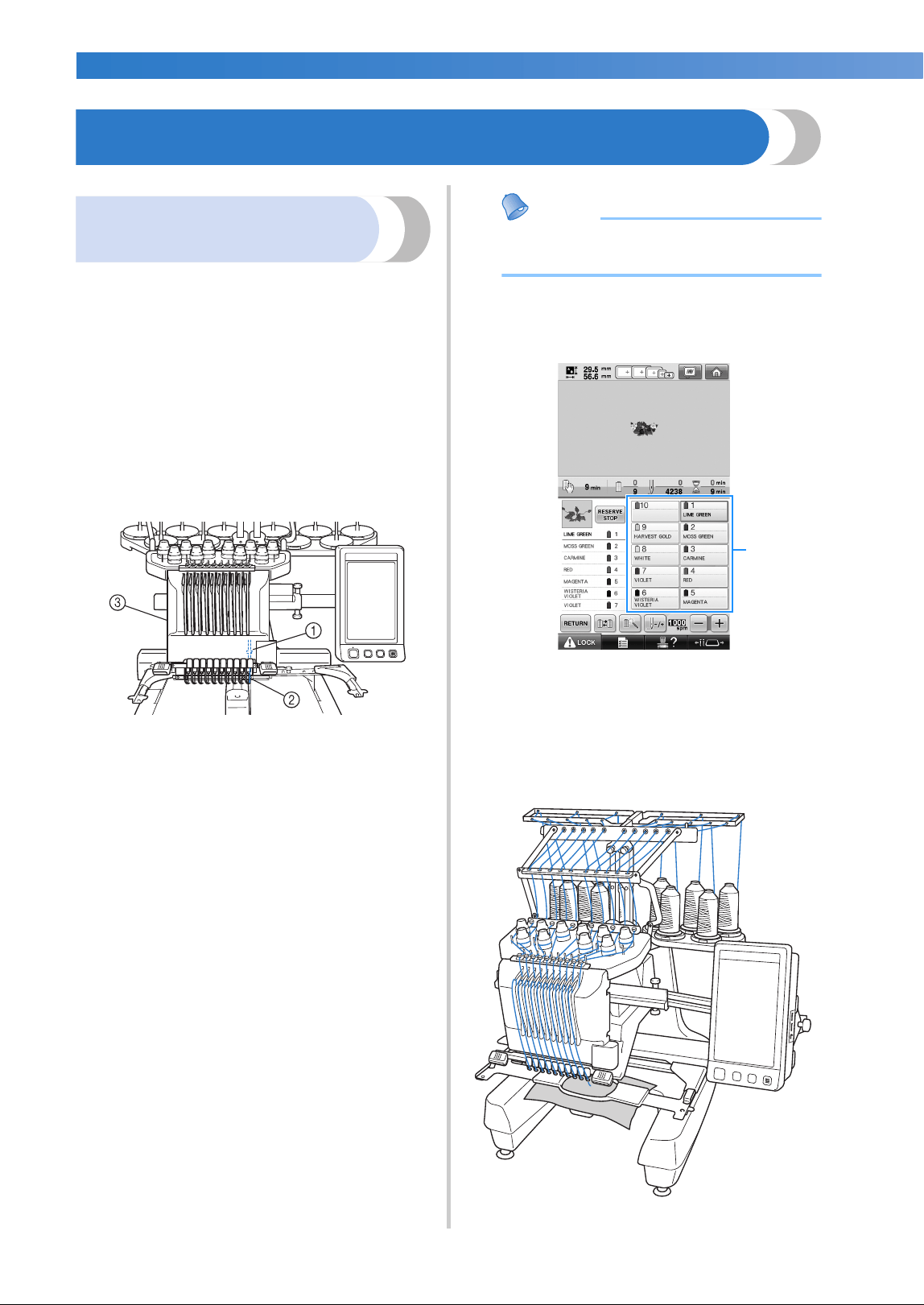
1 Needle bar 1
2 Needle 1
3 Needle bar case
The machine automatically assigns a thread color
to each needle. There are two methods for
assigning the thread colors. With the automatic
method (default method when the machine is
purchased), needles that are already threaded with
a color that will be used in the next pattern are
assigned to the same thread color based on the
needle bar assignments from the previous pattern in
order to reduce the number of thread spool
changes.
For more professional embroidering, using a
manual color sequence allows the needle bar
assignments to easily be specified manually.
Thread color and needle bar combinations can be
selected manually to create a menu so that the
needle bar assignments can be based on the thread
color numbers. (Refer to “Selecting/Managing
Thread Colors for Each Needle Bar (Manual Color
Sequence)” on page 132.)
Memo
● Sewing is not necessarily performed in the
order of the needle bar numbers.
The thread colors assigned to the needle bars are
listed on the screen. Thread the needle bars as
indicated.
1 The threads threaded on the needle bars are
indicated as shown here.
The spool pins, thread tension knobs, thread take-
up levers and thread paths, mentioned when
threading the upper thread, are different according
to their corresponding needle bar number.
1
Machine Structure and Features 9
——
———————————————————————————————————————————
—
———————————————————————————————————————
Not all ten needles can be used to sew at the same
time. Only one needle is moved to the
embroidering position at a time. According to the
sewing order, the needle bar case is moved to the
left and right so that the needle bar and needle
thread with the required color can be moved to the
embroidering position.
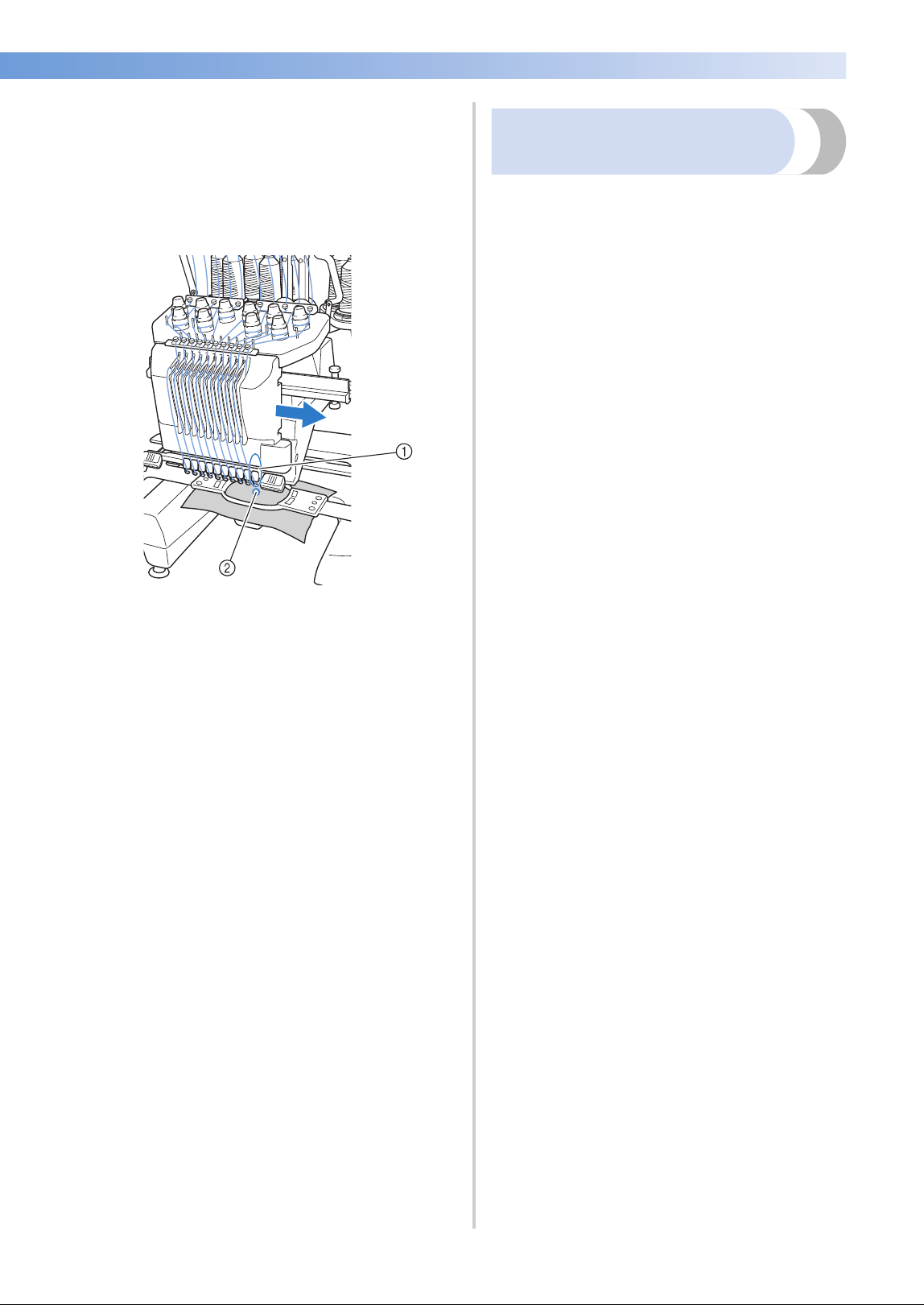
1 Needle at the embroidering position
The needle is positioned over the hole in the
needle plate 2.
When starting the machine, the presser foot is
automatically lowered. The embroidery is sewn
and thread is pulled away from the material when
thread trimming and when changing thread colors
(moving to the different needles to be sewn within
the embroidery). When sewing is finished, the
machine stops. If the pattern uses eleven or more
thread colors, the machine will stop when it is
necessary for the thread spools to be changed, and
the corresponding instructions appear on the LCD.
(However, when “Manual needle bar sequences” is
set to “ON”, the machine does not automatically
stop when a thread spool must be changed. For
details, refer to “Selecting/Managing Thread Colors
for Each Needle Bar (Manual Color Sequence)” on
page 132.)
Differences from single-needle
machines
■ Can sew embroidery patterns using ten or less
colors without the need to replace the thread
spools
With single-needle machines, the thread spool
must be changed and the machine must be
threaded each time a different thread color is
used. With this machine, it is not necessary to
change the thread spool or rethread the machine
with embroidery patterns containing ten or less
colors. If total colors are less than ten colors, and
if total color change is more than eleven times,
machine will come back to the needle that the
machine is already used and sew the same color
again automatically.
■ Automatic sewing reduces sewing time
Except to change the thread spools with patterns
containing eleven or more colors, once the
machine is started, it continues to operate
automatically, from lowering the presser foot to
performing the specified operations at the
starting and end positions in addition to
changing the thread colors. Since the machine
can change threads and finish stitching, sewing
time is reduced.
■ Automatically pulls and holds the thread tails to
the under side of fabric at the beginning and
end of stitching
Since the machine automatically pulls the upper
thread under the fabric at the beginning of a
color, and pulls the upper thread from the fabric
at the time of thread trimming, you don’t need to
deal with the upper thread tail at all.
■ Automatically moves the embroidery frame to
the embroidering position
With a single-needle machine, in most cases,
the embroidery pattern is centered in the frame
and the fabric must be correctly positioned
within the embroidery frame with the center of
the desired embroidering position aligned with
the center of the embroidery frame. However,
with 10 needle embroidery machine, the
embroidery frame is moved to determine the
embroidering position, making it easier to sew
the pattern at any place in the frame. In addition,
the embroidering position can be freely
determined manually as well as with the camera
positioning function after the fabric is hooped
and the embroidery frame is attached to the
machine, regardless of how the fabric is
positioned in the embroidery frame.
—————————————————————————————————————————————————————————————————————————————————
——
10
Other features
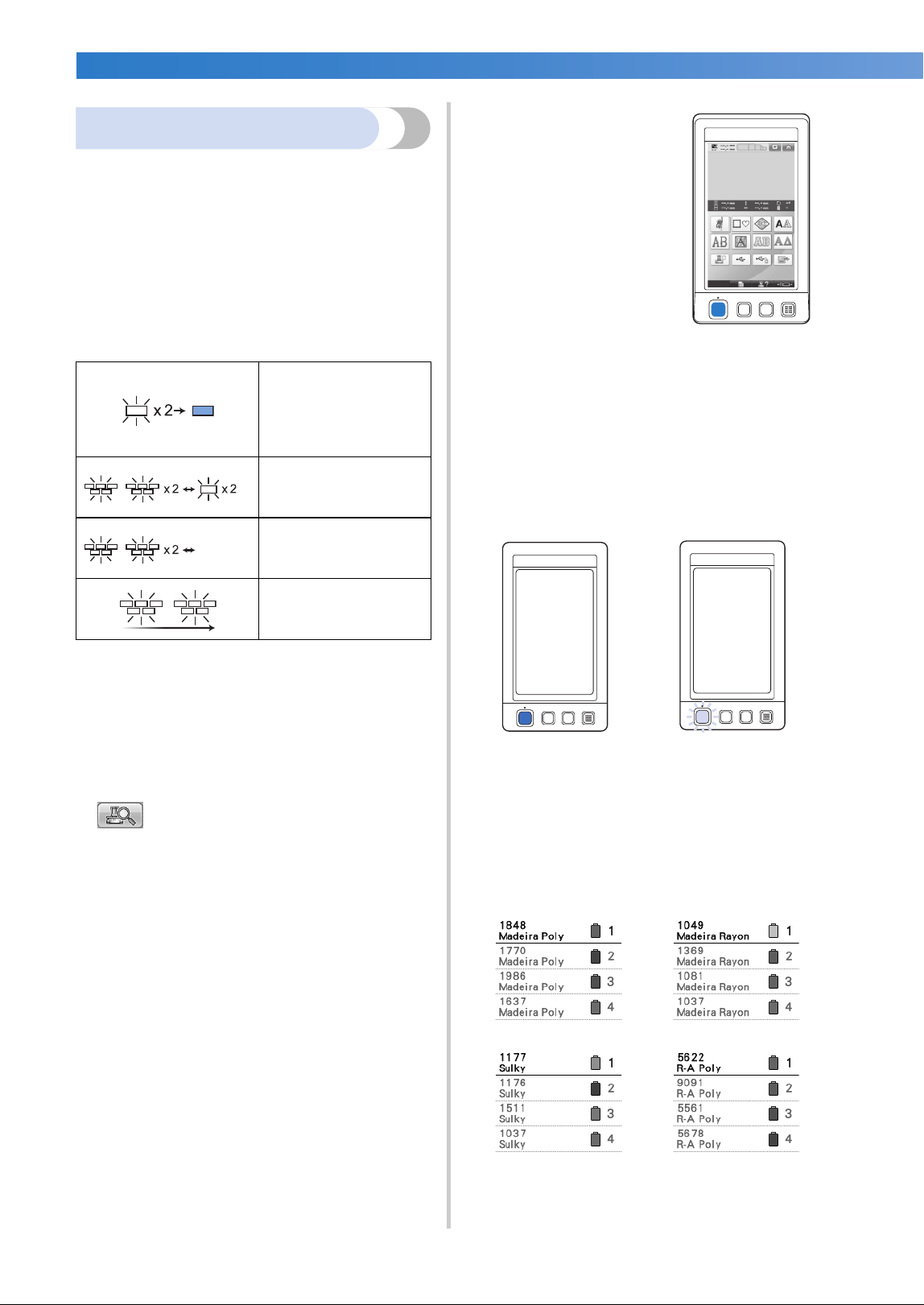
■ Colorful LED lights enhance the embroidery
process
The LED spool stands, light up individually to
transmit sewing information; when the machine
is turned on; similar color of the thread for a
specific spool, thread breakage on a specific
spool, etc. Unique flashing LED lights bring
immediate attention to a spool in question
eliminating the need to consult the LCD
machine screen regularly.
* Confirm the actual thread color number on
the LCD screen. The LED lights indicate the
approximate thread color to be used on that
particular spool.
■ Get a clear image of the needle area with the
needle-drop point function
A built-in camera above the needle plate gives a
bird’s eye view of the needle area. Touch
to display the camera view on the LCD
screen. It will be much easier to get the accurate
needle-drop point.
Furthermore, the machine automatically finds
the embroidering position by using the included
embroidering positioning sticker. (Refer to
“Using the built-in camera” on page 103.)
■ For your embroidery business -Link function-
You can send embroidery patterns edited in
embroidery editing software provided with the
Link function, such as PE-DESIGN NEXT or later,
from a computer to an embroidery machine.
You can connect 4 machines to a computer at a
same time. (Refer to “Sending Embroidery
Patterns From a Computer to the Machine (Link
Function)” on page 176.)
■ Easy-to-read and easy-to-
use LCD
Equipped with a large
color LCD, the colors of
an embroidery pattern can
be previewed in a nearly
realistic image. In
addition, since the LCD is
a touch panel, the keys
that are displayed can be
touched to easily perform
operations.
■ Safety mechanism
The machine is equipped with a locking
mechanism that helps prevent injuries from
accidental operation. The machine can only be
started after the machine is unlocked. The color
of the start/stop button changes to inform you of
whether or not the machine is locked.
■ Wide selection of built-in thread color
information
The thread color information for manufacturers’
threads is available, making it easy to choose the
appropriate thread color.
indicates the spool that
needs changing
(Appropriate thread color
is indicated. For black
thread color, LED light
turns off.)
indicates the spool that
activates thread breakage
error
OFF
sewing error
finished sewing
Lit in red Flashing in green
The machine is locked.
The machine can be
started.
Machine Structure and Features 11
——
———————————————————————————————————————————
—
———————————————————————————————————————
■ Expanded thread color display feature enables
colors to be displayed as realistic true color
The colors and thread color numbers are stored
in the machine’s memory. From this thread color
library, you can select colors to create your own
color thread table. If the pattern colors are
changed using this table, the pattern can be
displayed with only the thread colors that you
have. In addition, the embroidery pattern can be
displayed as it would appear after it is
embroidered.
■ Automatic needle-threading mechanism
Using the automatic needle-threading
mechanism, each needle can easily be threaded.
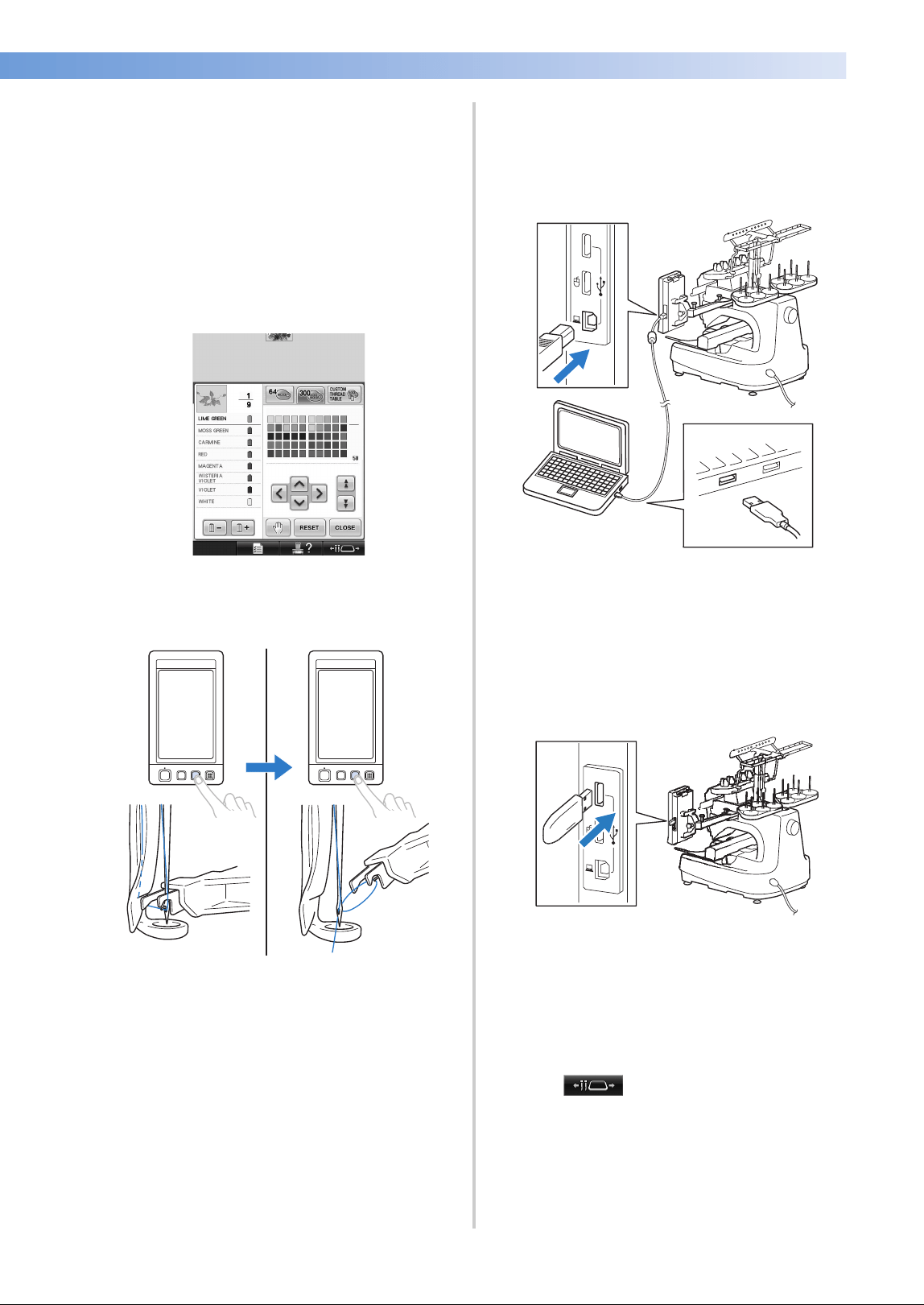
■ USB port available as standard equipment
By connecting a computer to the machine using
the included USB cable, embroidery patterns
can be transferred from the computer. (Refer to
“Computer (USB)” on page 168.)
If the machine is positioned at a distance that
prevents the USB cable from reaching the
computer, embroidery patterns can be
transferred from the computer by temporarily
saving them on USB media, which is then
connected to the machine. (Refer to “USB
media” on page 173.)
■ Moving or threading a selected needle bar at
any time
When selecting, editing or embroidering a
pattern, any one of the needle bars can be
selected at any time to be threaded or moved to
the embroidering position.
Touch to open the needle move
screen, then select the needle bar number that
you want to move or thread. (Refer to “Moving
and threading a selected needle bar” on
page 62.)

—————————————————————————————————————————————————————————————————————————————————
——
12
Available features
Designs with a maximum size of 200 mm (H) ×
360 mm (W) (7-7/8 inches (H) × 14 inches (W)) can
be embroidered. If the optional cap frame is used,
embroidery can be sewn on caps.
■ Manual color sequence - More professional use
of this machine
If you specify the thread colors used with this
machine, or if you use DST files frequently, it
would be convenient to use the manual color
sequence.
(Refer to “Selecting/Managing Thread Colors for
Each Needle Bar (Manual Color Sequence)” on
page 132.)
■ Availability of various accessories
In addition to the 4 embroidery frames included
with the machine, there are 3 optional frames
(quilt, border and jumbo) that can be used with
the included embroidery frame holder B. An
optional cap frame is available for caps. The
optional cap frame driver is required for the cap
hoop. When a round frame is preferred, there is
an optional round frame holder C for the
optional round frame.
For details on embroidery frames and
embroidery frame holders, refer to page 91.
■ Various built-in patterns
Many built-in character patterns, embroidery
patterns and frame patterns enable you to start
embroidering right after purchasing this
machine.
■ Embroidery pattern editing
Lettering and embroidery patterns can be
combined or a text arrangement can be
specified to arrange the patterns.
The machine can also be set to repeatedly sew
the same pattern.

Manual Structure 13
——
———————————————————————————————————————————
—
———————————————————————————————————————
Manual Structure
This manual is constructed as described below. Before using the machine, check the procedures described
with the numbered titles in the title list on the first page of chapter 2. This shows the sequence of these basic
operations.
Read before use
Chapter 1: Getting Ready
The setup of the embroidery machine and the
various preparations required before starting to sew
are described in this chapter.
Chapter 2: Embroidering Tutorial
This chapter describes the basic embroidering
operations in order—from turning on the machine
and sewing a pattern to finishing sewing. Follow
the steps of the tutorial to embroider a pattern and
master the operation of this embroidery machine.
Chapter 3: Other Basic Procedures
This chapter provides explanations on operations
other than those described in chapter 2, such as
sewing a pattern with eleven or more colors, and
other necessary operations, for example, changing
the needle.
Read when additional
information is required
Chapter 4: Embroidering Settings
This chapter contains descriptions on the various
embroidering settings, which make editing patterns
simple.
Chapter 5: Selecting/Editing/Saving Patterns
This chapter provides details on selecting, editing
and saving embroidery patterns.
Chapter 6: Basic Settings and Help Feature
This chapter contains descriptions on the use of the
settings key, the machine operations key and the
help key. Details on changing the basic embroidery
machine settings and viewing operations on the
LCD will be provided.
Chapter 7: Appendix
This chapter provides descriptions of techniques for
various embroidering operations, pointers for
creating beautiful embroidery, and details on
maintenance procedures and corrective measures
that should be taken when a problem occurs.
Searching for information
■ Searching the manual
By title
Check the descriptions at the left for the contents
of each chapter, and then check the table of
contents.
For basic operations, refer to the list of titles on
the first page of chapter 2. Find the appropriate
page by using the thumbtabs on the right edge of
the pages.
By keyword
Search the index at the end of this manual. Look
for the desired keyword, and then refer to the
page that is indicated.
By screen
Descriptions of the keys and other information
that appear in the main LCD screens are
provided in the tables on pages 71 to 80. For
details, refer to the page that is indicated.
By condition
Various possible conditions and the
corresponding operations are described on
page 81. For details, refer to the page that is
indicated.
■ Searching the machine
This machine is equipped with a help feature.
Learning how to perform an operation
Touch the machine operations guide key, and
then check for the desired information. (Refer to
“Using the Machine Operations Guide Key” on
page 232.)

—————————————————————————————————————————————————————————————————————————————————
——
14
Contents
Introduction .....................................................................................................................1
IMPORTANT SAFETY INSTRUCTIONS ............................................................................1
License Agreement ...........................................................................................................6
Warning Labels.................................................................................................................7
Machine Structure and Features.......................................................................................8
Ten-needle machine embroidering................................................................................................................ 8
Differences from single-needle machines ...................................................................................................... 9
Other features ............................................................................................................................................. 10
Available features........................................................................................................................................ 12
Manual Structure............................................................................................................13
Read before use .......................................................................................................................................... 13
Read when additional information is required............................................................................................. 13
Searching for information............................................................................................................................ 13
GETTING READY 19
Names of Machine Parts and Their Functions ................................................................20
Front view................................................................................................................................................... 20
Right-side/rear view .................................................................................................................................... 21
Operation panel.......................................................................................................................................... 21
Accessories.....................................................................................................................22
Included accessories ................................................................................................................................... 22
Optional accessories ................................................................................................................................... 24
Setting Up the Machine..................................................................................................26
Setup and transporting precautions ............................................................................................................. 26
Setup location ............................................................................................................................................. 27
Setting up the machine................................................................................................................................ 28
Remove the fixing plates ............................................................................................................................. 29
Adjusting the operation panel position........................................................................................................ 29
Preparing the thread guide assembly ........................................................................................................... 30
Preparing the spool stand ............................................................................................................................ 31
Attaching the embroidery frame holder ....................................................................................................... 32
EMBROIDERING TUTORIAL 33
Operating Precautions....................................................................................................34
Power supply precautions ........................................................................................................................... 34
Needle precautions..................................................................................................................................... 35
Checking the needle ................................................................................................................................... 35
Bobbin precautions ..................................................................................................................................... 35
Upper thread recommendations.................................................................................................................. 36
Fabric recommendations............................................................................................................................. 36
Display recommendations........................................................................................................................... 36
Basic Procedures ............................................................................................................37
Installing the Bobbin ......................................................................................................38
Removing the bobbin case .......................................................................................................................... 38
Installing the bobbin ................................................................................................................................... 38
Installing the bobbin case............................................................................................................................ 39
Turning ON the Machine ...............................................................................................40
Understanding the screens .......................................................................................................................... 41
Screen overview.......................................................................................................................................... 42
Selecting an Embroidery Pattern ....................................................................................44
Selecting an embroidery pattern.................................................................................................................. 45
Editing the Embroidery Pattern.......................................................................................46
Continuing to the embroidering settings screen ........................................................................................... 46
Specifying Embroidering Setting.....................................................................................47
Previewing the Image .....................................................................................................48
Checking a preview image .......................................................................................................................... 48

Contents 15
——
———————————————————————————————————————————
—
———————————————————————————————————————
Hooping the Fabric in the Embroidery Frame.................................................................49
Hooping the fabric in the embroidery frame ............................................................................................... 49
Attaching the Embroidery Frame to the Machine ...........................................................51
Attaching the embroidery frame.................................................................................................................. 51
Checking the Embroidery Area.......................................................................................53
Temporarily stopping to check the area ...................................................................................................... 53
Continuing to the embroidering screen ....................................................................................................... 53
Upper Threading ............................................................................................................54
Checking the needle bars and thread colors................................................................................................ 54
Upper threading ......................................................................................................................................... 56
Threading the needle .................................................................................................................................. 60
Sewing the Embroidery...................................................................................................64
Starting embroidering ................................................................................................................................. 64
Stopping embroidering ............................................................................................................................... 66
Checking the Thread Tension .........................................................................................68
Removing the Embroidery Frame and Fabric.................................................................. 69
Removing the embroidery frame................................................................................................................. 69
Removing the fabric.................................................................................................................................... 69
Turning OFF the Machine...............................................................................................70
Screen Quick Reference Guide ...................................................................................... 71
Key displays................................................................................................................................................ 71
Common screen controls ............................................................................................................................ 71
Understanding the pattern type selection screen ......................................................................................... 72
Understanding the pattern list screen .......................................................................................................... 73
Understanding the pattern editing screen.................................................................................................... 74
Understanding the embroidering settings screen ......................................................................................... 76
Understanding the embroidering screen ..................................................................................................... 79
When You Have a Question, This May Help You........................................................... 81
TECHNICAL TERMS: .................................................................................................................................. 81
PATTERNS:................................................................................................................................................. 81
EMBROIDERING: ....................................................................................................................................... 81
USB connectivity ........................................................................................................................................ 82
USB mouse operation ................................................................................................................................. 84
OTHER BASIC PROCEDURES 87
Changing the Needle......................................................................................................88
Replacing the needle .................................................................................................................................. 88
Correctly Using the Embroidery Frames.........................................................................90
Embroidery frame holders........................................................................................................................... 90
When difficult to replace the embroidery frame.......................................................................................... 90
Types of embroidery frames/frame holders and their applications ............................................................... 91
Attaching Iron-On Stabilizer (Backing) to Fabric ........................................................... 93
Hooping the Fabric.........................................................................................................94
Hooping the fabric in the extra-large and large embroidery frames ............................................................. 94
Using the embroidery sheet ........................................................................................................................ 95
Large/small pieces of fabric......................................................................................................................... 96
Embroidery Frame Position and Movement....................................................................97
Changing the Embroidering Position ..............................................................................99
Adjusting the angle ................................................................................................................................... 100
Aligning the Embroidering Position ..............................................................................103
Using the built-in camera ......................................................................................................................... 103
Using the included embroidery positioning sticker ................................................................................... 105
Switching the Thread Colors on the Screen..................................................................108
Embroidering a Pattern Containing Eleven or More Colors ......................................... 110
Checking if thread spool changes are necessary........................................................................................ 111
Changing the Thread Spools with Designs of Eleven or More Colors .......................... 113
Change thread spools message and spool thread indicators ...................................................................... 113
Easily changing the thread spools ............................................................................................................. 114
If the Thread Breaks or the Bobbin Thread Runs Out While Embroidering ................. 115
If the upper thread breaks ......................................................................................................................... 115

—————————————————————————————————————————————————————————————————————————————————
——
16
If the bobbin thread breaks or runs out...................................................................................................... 117
Embroidering From the Beginning or Middle of the Pattern ........................................ 118
Resume Embroidering After Turning Off the Machine..................................................120
Adjusting the Thread Tension .......................................................................................122
Adjusting the tension of the bobbin thread ................................................................................................ 122
Adjusting the tension of the upper thread .................................................................................................. 123
EMBROIDERING SETTINGS 125
Basting Embroidery ......................................................................................................126
Creating an Appliqué Piece ..........................................................................................127
Creating an appliqué piece ....................................................................................................................... 127
Using a frame pattern for the outline ......................................................................................................... 130
Selecting/Managing Thread Colors for Each Needle Bar (Manual Color Sequence) .... 132
Convenience of the manual color sequence.............................................................................................. 132
Specifying the manual color sequence ...................................................................................................... 132
Using the manual color sequence ............................................................................................................. 133
Precautions on the manual color sequence ............................................................................................... 133
Automatic Lock Stitch Setting ......................................................................................134
Starting/Ending Position Settings ..................................................................................135
Repeatedly sewing a pattern along a diagonal........................................................................................... 136
Embroidering linked characters ................................................................................................................. 137
Maximum Sewing Speed Setting...................................................................................139
Setting the Machine to Stop at Color Changes .............................................................140
Stopping the machine at the next color change ......................................................................................... 140
Specifying pause locations before embroidering........................................................................................ 140
Temporary Needle Bar Setting .....................................................................................142
Uninterrupted embroidering (monochrome).............................................................................................. 143
Reserved Needle Bar and Sewing Speed Settings..........................................................145
SELECTING/EDITING/SAVING PATTERNS 149
Precautions...................................................................................................................150
Concerning embroidery data..................................................................................................................... 150
Concerning optional embroidery cards ..................................................................................................... 152
Concerning USB media............................................................................................................................. 152
Selecting an Embroidery Pattern ..................................................................................153
General pattern selection .......................................................................................................................... 153
Embroidery patterns ..................................................................................................................................154
Frame patterns .......................................................................................................................................... 154
Monogram and frame designs ................................................................................................................... 155
Alphabet patterns ...................................................................................................................................... 159
Floral alphabet patterns............................................................................................................................. 162
Renaissance alphabet patterns................................................................................................................... 163
Appliqué alphabet..................................................................................................................................... 164
Greek alphabet patterns ............................................................................................................................ 165
Embroidery patterns stored in the machine memory.................................................................................. 165
Embroidery cards (optional) ...................................................................................................................... 166
Computer (USB) ........................................................................................................................................ 168
Connecting the USB using the included USB cord clamps ........................................................................ 171
USB media................................................................................................................................................ 173
Sending Embroidery Patterns From a Computer to the Machine (Link Function) ........ 176
Operations available with the Link function.............................................................................................. 176
Embroidering using the Link function ........................................................................................................ 177
Disabling the Link function ....................................................................................................................... 180
Editing the Embroidery Pattern (Pattern Editing Screen) ..............................................181
Enlarge the pattern image on the screen .................................................................................................... 181
Combining patterns................................................................................................................................... 181
Selecting the pattern to be edited .............................................................................................................. 182
Moving a pattern....................................................................................................................................... 183
Flipping a pattern horizontally .................................................................................................................. 184
Changing the size of a pattern ................................................................................................................... 184

Contents 17
——
———————————————————————————————————————————
—
———————————————————————————————————————
Rotating a pattern ..................................................................................................................................... 185
Changing the text arrangement of a character ........................................................................................... 186
Changing the character spacing ................................................................................................................ 187
Separating combined character patterns ................................................................................................... 188
Trimming the threads between characters................................................................................................. 189
Changing the thread density (only for selected character and frame patterns)............................................ 189
Specifying multi-color text ........................................................................................................................ 190
Changing the colors of the pattern ............................................................................................................ 190
Designing repeated patterns...................................................................................................................... 192
Creating a custom thread table ................................................................................................................. 200
Choosing a color from the custom thread table......................................................................................... 202
Duplicating a pattern ................................................................................................................................ 203
Editing patterns as a group ........................................................................................................................ 204
Deleting a pattern ..................................................................................................................................... 204
Editing the Embroidery Pattern (Embroidering Settings Screen) .................................. 205
Rotating the entire pattern......................................................................................................................... 205
Editing a Combined Pattern..........................................................................................206
Saving Embroidery Patterns..........................................................................................211
Machine’s memory ................................................................................................................................... 211
If the embroidery pattern cannot be saved ................................................................................................ 211
USB media ............................................................................................................................................... 213
Computer (USB)........................................................................................................................................ 214
BASIC SETTINGS AND HELP FEATURE 217
Using the Settings Key..................................................................................................218
Understanding the settings screen............................................................................................................. 218
Changing the display guides ..................................................................................................................... 220
Changing the thread color information ..................................................................................................... 222
Selecting the thread color information for “PES” format data..................................................................... 223
Specifying the thumbnail size ................................................................................................................... 224
Changing the background colors of the embroidery patterns or thumbnails .............................................. 224
Specifying jumpstitch trimming / “DST” jump codes for trimming............................................................. 225
Deleting short stitches............................................................................................................................... 226
Specifying the remaining length of thread ................................................................................................. 227
Changing the screen saver settings............................................................................................................ 227
Adjusting the brightness of the sewing light .............................................................................................. 229
Changing the speaker volume ................................................................................................................... 229
Specifying the spool stand LED setting ...................................................................................................... 230
Specifying thread sensor ........................................................................................................................... 230
Changing the pointer shape when a USB mouse is used ........................................................................... 231
Changing the units of measurements......................................................................................................... 231
Changing the language ............................................................................................................................. 231
Using the Machine Operations Guide Key ...................................................................232
APPENDIX 235
Appliqué Sewing...........................................................................................................236
Sewing appliqué patterns.......................................................................................................................... 236
Using a frame pattern to create appliqués (1) ............................................................................................ 237
Using a frame pattern to create appliqués (2) ............................................................................................ 238
Sewing Large-size (Split) Embroidery Patterns..............................................................240
Helpful Tips for the Operation of the Machine ............................................................243
Checking the thread tension of built-in patterns ........................................................................................ 243
Sewing a pattern aligned with a mark on the fabric................................................................................... 244
Color thread table..................................................................................................................................... 246
Colors of Tajima (.dst) embroidery data .................................................................................................... 246
Creating Beautiful Embroidery ..................................................................................... 247
Threads..................................................................................................................................................... 247
Stabilizers (backing).................................................................................................................................. 247
Hooping techniques ................................................................................................................................. 249
Fabric/stabilizer compatibility chart .......................................................................................................... 250
Installing the Included Table ........................................................................................251

—————————————————————————————————————————————————————————————————————————————————
——
18
Removing the table ................................................................................................................................... 253
OPTIONAL ACCESSORIES 254
Embroidery Patterns for the Optional Jumbo Frame.....................................................254
Using the Optional Cap Frame .....................................................................................258
Cap frame and its accessories.................................................................................................................... 258
Types of caps ............................................................................................................................................ 259
Fabric precautions..................................................................................................................................... 260
Preparing to use the cap frame .................................................................................................................. 260
Attaching the cap frame ............................................................................................................................ 266
Installing the embroidery frame holder...................................................................................................... 274
Additional digitizing information............................................................................................................... 275
Using the Optional Bobbin Winder ..............................................................................277
Precautions ............................................................................................................................................... 277
Optional bobbin winder and its accessories .............................................................................................. 277
Setting up the optional bobbin winder ...................................................................................................... 278
Connecting the AC adapter ....................................................................................................................... 278
Winding the bobbin .................................................................................................................................. 279
Maintenance.................................................................................................................282
Cleaning the LCD...................................................................................................................................... 282
Cleaning the machine surface ................................................................................................................... 282
Cleaning the hook..................................................................................................................................... 282
Cleaning around the needle plate.............................................................................................................. 283
Cleaning the bobbin case.......................................................................................................................... 284
Cleaning the thread paths of the upper threads.......................................................................................... 285
Oiling the machine ................................................................................................................................... 287
About the maintenance message ............................................................................................................... 288
Troubleshooting ...........................................................................................................289
On-screen troubleshooting........................................................................................................................ 289
Troubleshooting ........................................................................................................................................ 290
Error messages .......................................................................................................................................... 298
If the machine does not respond when a key is pressed............................................................................. 307
Specifications ...............................................................................................................308
Embroidery machine specifications ........................................................................................................... 308
Upgrading Your Machine’s Software............................................................................309
Upgrade procedure using USB media ....................................................................................................... 309
Upgrade procedure using computer .......................................................................................................... 310
Index ............................................................................................................................311

1
GETTING READY
After unpacking the machine, first refer to “Accessories” on page 22, and check that
all listed accessories are included. After checking that all accessories are included, the
embroidery machine can be set up.
The setup of the machine and the various preparations required before starting to sew
are described in this chapter.
Names of Machine Parts and Their Functions .........................................................20
Front view ...........................................................................................................20
Right-side/rear view .............................................................................................21
Operation panel ..................................................................................................21
Accessories..............................................................................................................22
Included accessories............................................................................................22
Optional accessories............................................................................................24
Setting Up the Machine...........................................................................................26
Setup and transporting precautions ......................................................................26
Setup location......................................................................................................27
Setting up the machine ........................................................................................28
Remove the fixing plates......................................................................................29
Adjusting the operation panel position.................................................................29
Preparing the thread guide assembly....................................................................30
Preparing the spool stand.....................................................................................31
Attaching the embroidery frame holder................................................................32
GETTING READY ——————————————————————————————————————————————————————————————————————
——
20
Names of Machine Parts and Their Functions
The names of the various parts of the sewing machine and their functions are described below. Before using
the sewing machine, carefully read these descriptions to learn the names of the machine parts.
Front view
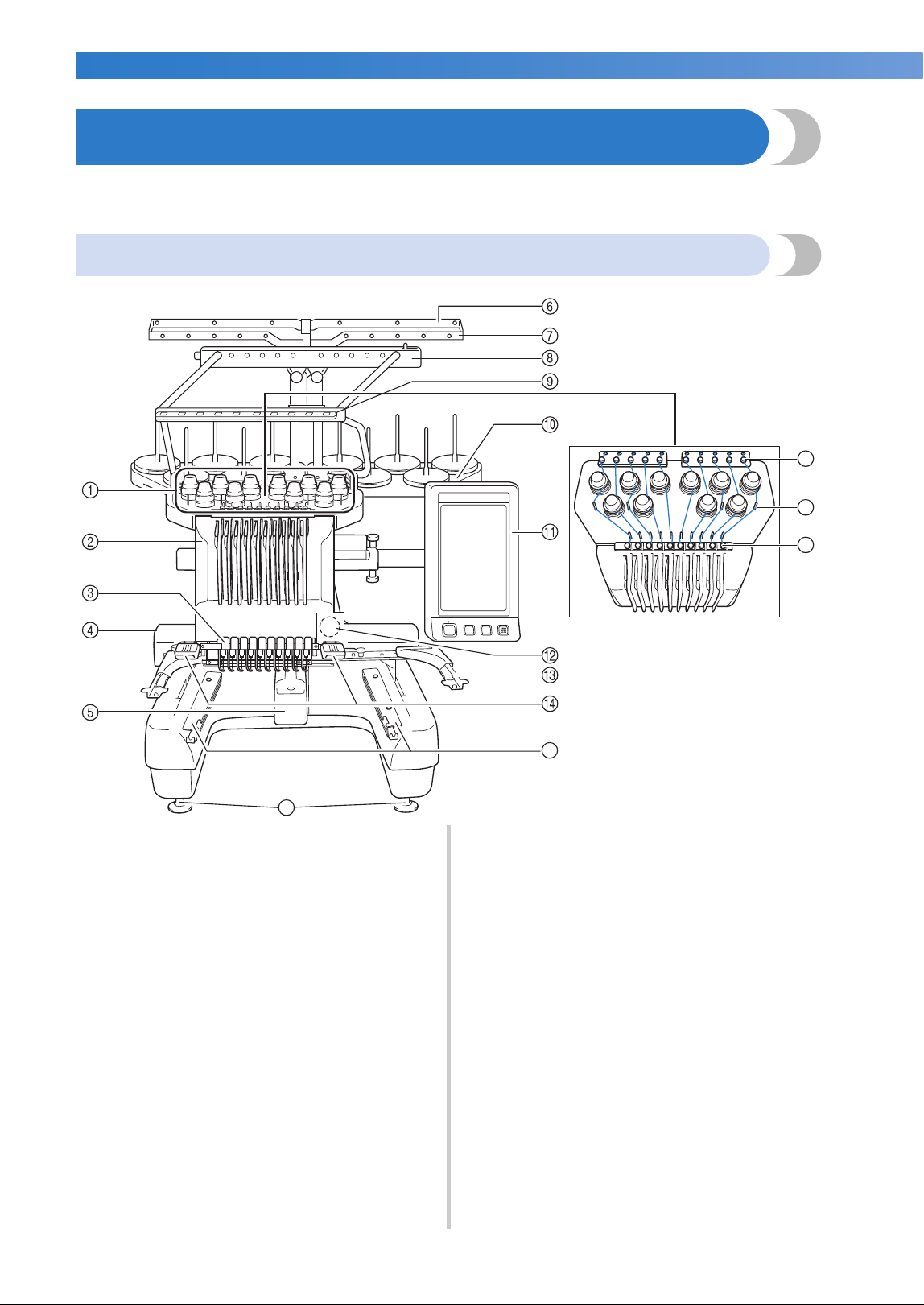
1 Thread tension knobs
Adjust the tension of the thread.
2 Needle bar case
Moves to the left and right to move the needle to the
embroidering position.
3 Lower thread guide
4 Carriage
Attach the embroidery frame to the carriage. When the
machine is turned on or when the machine is
embroidering, the carriage moves forward, backward,
left and right.
5 Hook cover/Hook
Open the hook cover, and then insert the bobbin case
into the hook.
6 Thread guide A
7 Thread guide B
8 Thread guide C
9 Thread guide D
0 Spool stand
Put 10 thread spools to embroider.
A Operation panel
B Built-in camera
C Embroidery frame holder
D Sewing light
The brightness of the sewing light can be adjusted in
the settings screen.
E Table brackets
F Upper thread guide
G Thread guide pins
H Middle thread guide
I Feet
Use the feet to adjust the height of the legs.
17
16
15
19
18
Names of Machine Parts and Their Functions 21
1
——
——————————————————————————————————————————————————————
—
————————————————————————————
Right-side/rear view
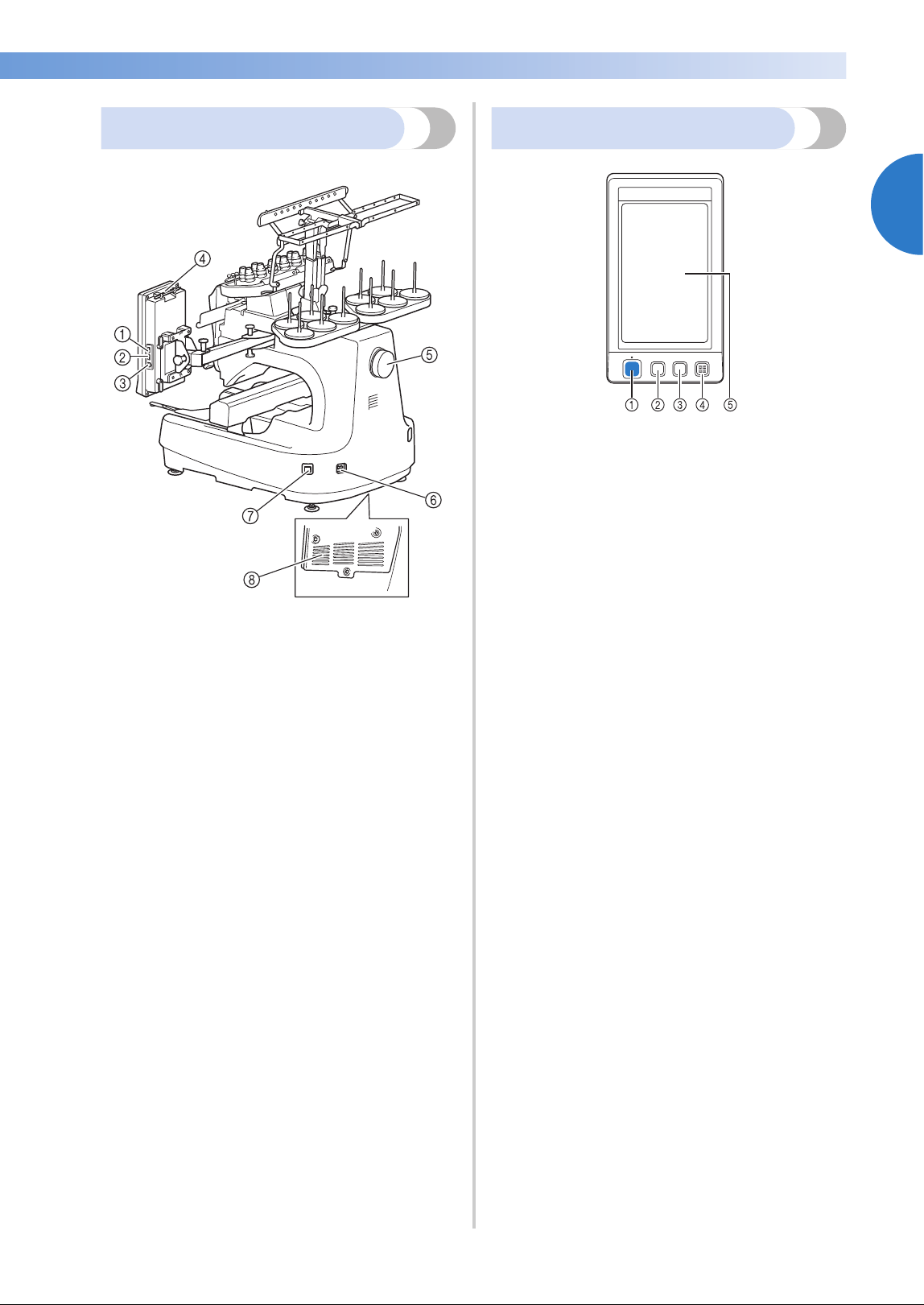
1 Primary (top) USB port for media
In order to send patterns from/to USB media, plug the
USB media directly into the USB port.
2 USB port for mouse
3 USB port for computer
In order to import/export patterns between a computer
and the machine, plug the USB cable into the USB
port.
4 Touch pen holder
Use the touch pen holder to hold the touch pen when
not in use.
5 Handwheel
Rotate the handwheel to move the needle up and
down. Be sure to rotate the handwheel toward the
LCD panel (counterclockwise).
6 Power supply plug
Insert the plug on the power supply cord into the
power supply plug.
7 Main power switch
Use the main power switch to turn the machine ON (I)
and OFF (
{).
8 Ventilation slots
Operation panel
1 Start/Stop button
Press the start/stop button to start or stop the machine.
The lighting status and color of the button changes
depending on the operation condition of the machine.
2 Thread trimming button
Press the thread trimming button to trim both the
upper and the bobbin threads.
3 Automatic needle-threading button
Press the automatic needle threading button to thread
the needle.
4 Speaker
5 LCD (touch panel)
Touch the keys that appear on the touch panel to
select and edit patterns and confirm various
information.
Bottom
Lit in red : When the machine cannot
start sewing
Flashing in
green
:
When the machine can start
sewing
Lit in green : While the machine is sewing
Off : When the machine is turned
off
22
GETTING READY ———————————————————————————————————————————————————————————————————————
——
Accessories
The accessories listed below are included with this machine. Make sure to use the accessories designed for
this machine.
Included accessories
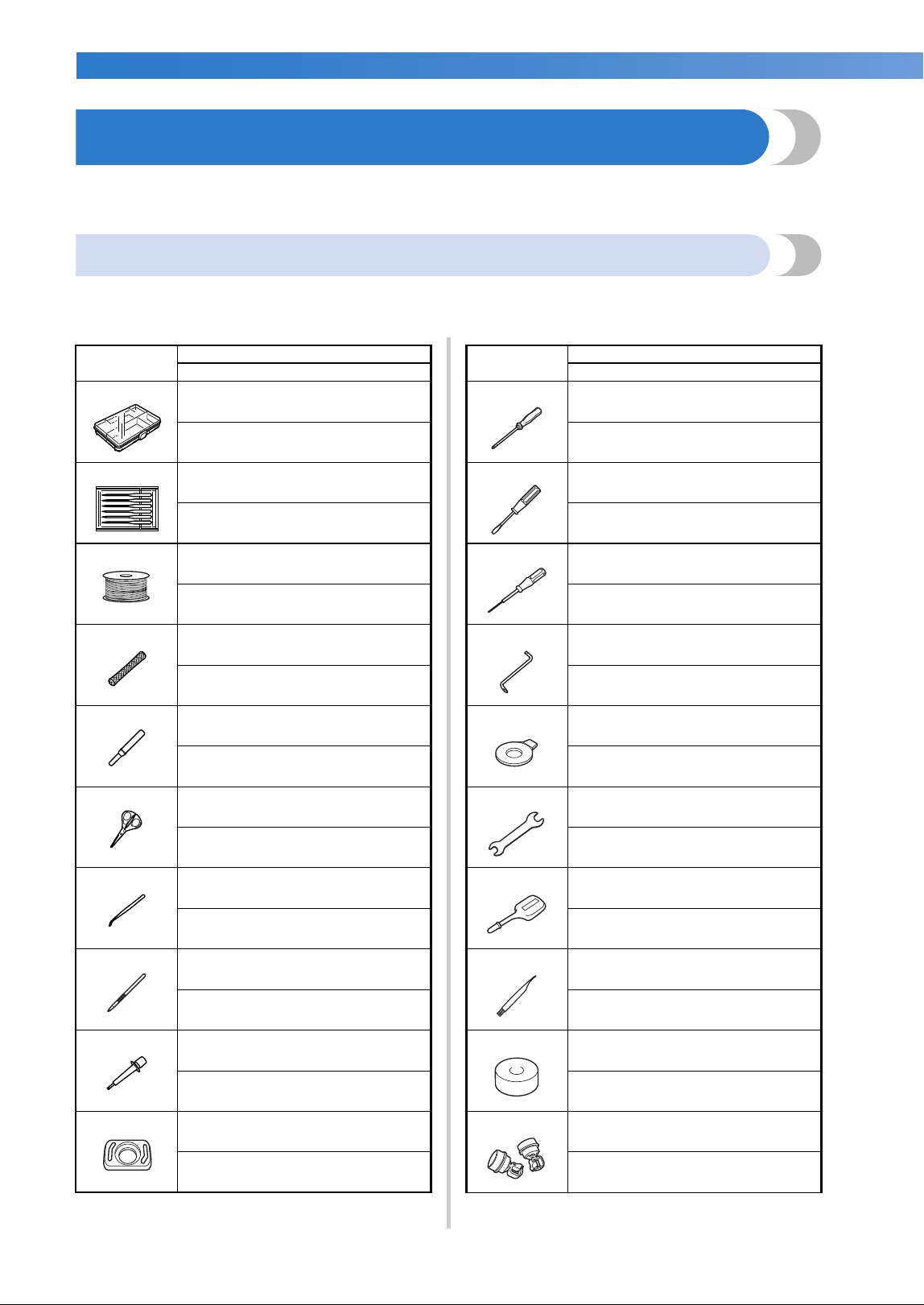
After opening the box, check that the following accessories are included. If any item is missing or damaged,
contact your Brother dealer.
Part Name
Part Code
1.
Accessory case
XC6482-051
2.
Needle set × 2
XC6469-001
3.
Prewound bobbin × 6
XC6368-051
4.
Spool net × 10
S34455-000
5.
Seam ripper
X54243-051
6.
Scissors
XC1807-121
7.
Tweezers
XC6542-051
8.
Touch pen
XA9940-051
9.
Needle changing tool (Threader)
XE8362-001
10.
Needle plate spacer
XC6499-151
11.
Phillips screwdriver
XC6543-051
12.
Standard screwdriver
X55468-051
13.
Allen screwdriver
XC5159-051
14.
Offset screwdriver
XC6545-051
15.
Disc-shaped screwdriver
XC1074-051
16.
Wrench 13 × 10
XC6159-051
17.
Oiler
XZ0206-051
18.
Cleaning brush
X59476-051
19.
Weight
XC5974-151
20.
USB cord clamp × 2
XE8396-002
Part Name
Part Code
Accessories 23
——
——————————————————————————————————————————————————————
—
————————————————————————————
1
CAUTION
Memo
● The included touch pen can be stored in
the touch pen holder on the back of the
operation panel. Refer to page 21.
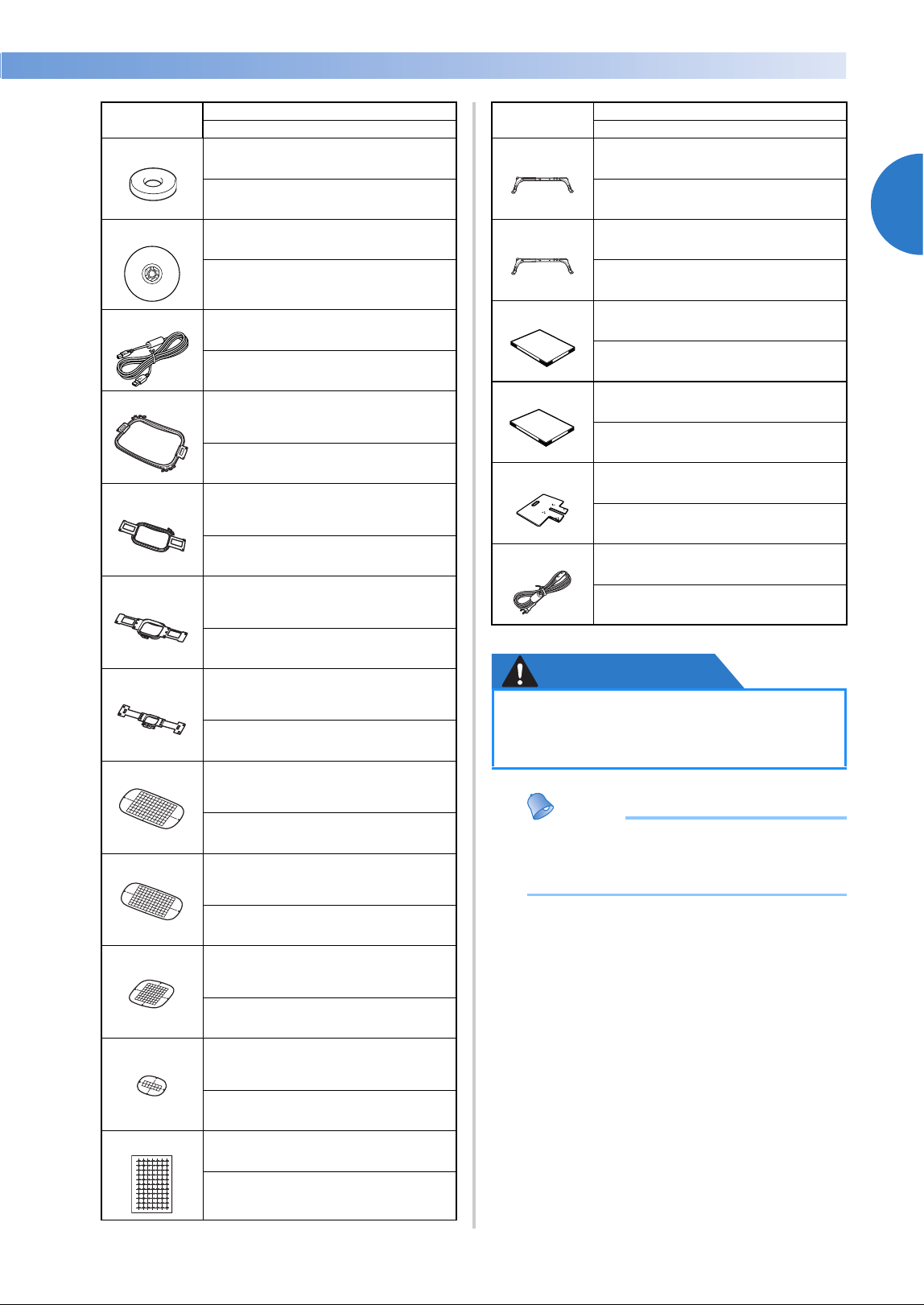
21.
Spool mat × 10
XC7134-051
22.
Spool cap × 10
130012-054
23.
USB cable
XD1851-051
24. Embroidery frame (extra-large)
200 mm (H) × 360 mm (W)
(7-7/8 inches (H) × 14 inches (W))
PRPH360 (Americas)
PRPH360:XE8421-001 (Other area)
25. Embroidery frame (large)
130 mm (H) × 180 mm (W) (5-1/8
inches (H) × 7-1/8 inches (W))
PRH180 (Americas)
PRH180: XC6285-052 (Other area)
26. Embroidery frame (medium)
100 mm (H) × 100 mm (W)
(4 inches (H) × 4 inches (W))
PRH100 (Americas)
PRH100: XC6286-052 (Other area)
27. Embroidery frame (small)
40 mm (H) × 60 mm (W) (1-1/2
inches (H) × 2-3/8 inches (W))
PRH60 (Americas)
PRH60: XC6287-052 (Other area)
28. Embroidery sheet (extra large)
200 mm (H) × 360 mm (W) (7-7/8
inches (H) × 14 inches (W))
XE7158-001
29. Embroidery sheet (large)
130 mm (H) × 180 mm (W) (5-1/8
inches (H) × 7-1/8 inches (W))
XC5721-051
30. Embroidery sheet (medium)
100 mm (H) × 100 mm (W)
(4 inches (H) × 4 inches (W))
XC5759-051
31. Embroidery sheet (small)
40 mm (H) × 60 mm (W) (1-1/2
inches (H) × 2-3/8 inches (W))
XC5761-051
32.
Embroidery positioning sticker
sheets
SAEPS2 (Americas)
EPS2: XF0763-001 (Other area)
Part Name
Part Code
33.
Embroidery frame holder A
(with white corner cover)
XE7374-001
34.
Embroidery frame holder B
(with light gray corner cover)
XE7376-001
35.
Operation Manual
This manual
36.
Quick reference guide
XE9991-001
37.
Table
PRWT1 (Americas)
PRWT1: XE8417-001 (Other area)
38.
Power cord
Visit your authorized Brother dealer.
● Be sure to use the included power cord
for this machine. Using any other
power cord may result in damage.
Part Name
Part Code
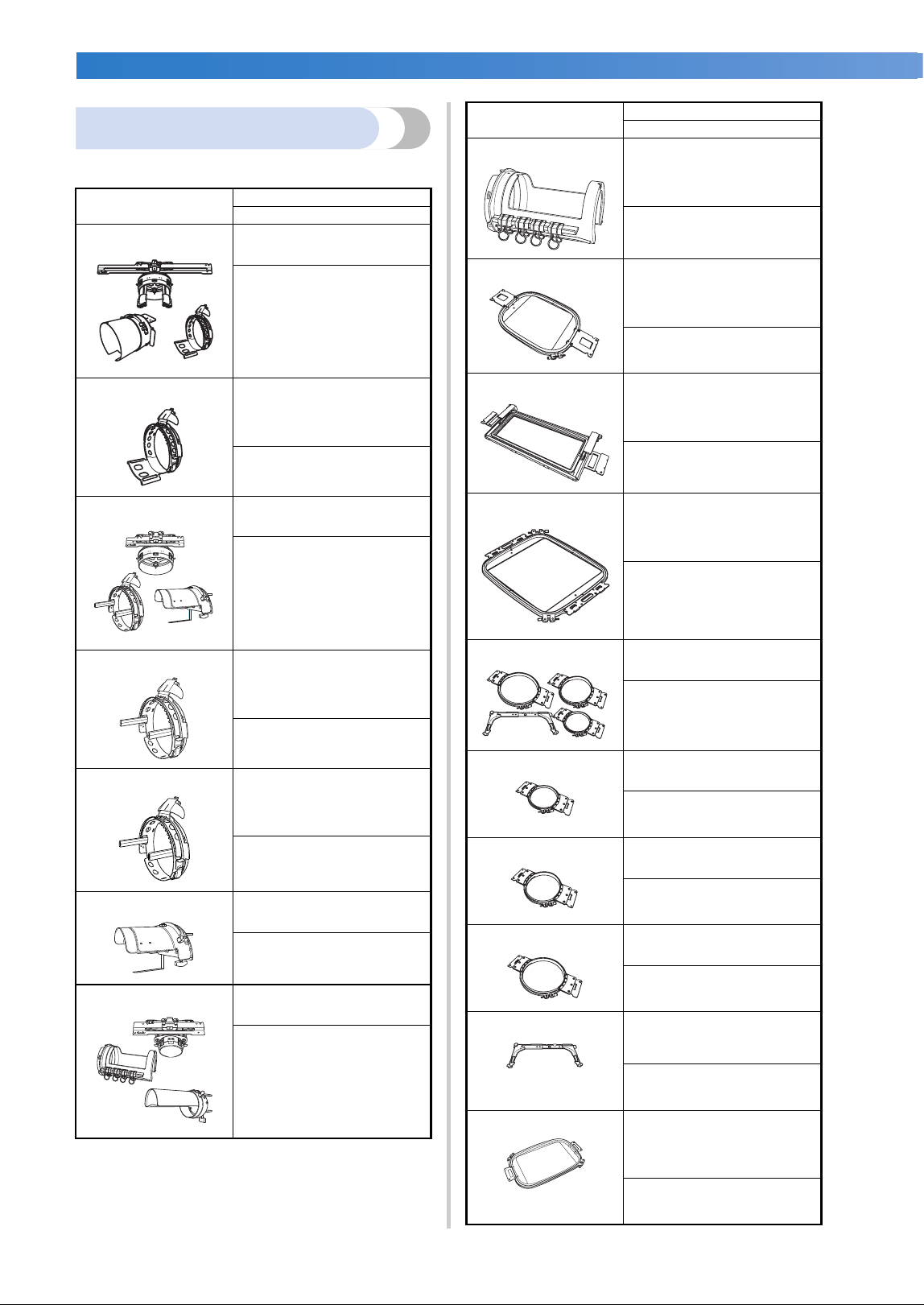
GETTING READY ——————————————————————————————————————————————————————————————————————
——
24
Optional accessories
The following are available as optional accessories.
Part Name
Part Code
1.
Wide cap frame set (Refer
to page 258.)
PRPCF1 (Americas)
PRPCF1:
XE8408-001 (Other area)
2. Wide cap frame
60 mm (H) × 360 mm (W)
(2-3/8 inches (H) × 14
inches (W))
PRPCFH4 (Americas)
PRPCFH4:
XE8424-001 (Other area)
3.
Advanced cap frame 2 set
PRCF3 (Americas)
PRCF3:
XE2158-001 (Other area)
4. Advanced cap frame 2
60 mm (H) × 130 mm (W)
(2-3/8 inches (H) × 5-1/8
inches (W))
PRCFH3 (Americas)
PRCFH3:
XE2162-001 (Other area)
5. Advanced cap frame
50 mm (H) × 130 mm (W)
(2 inches (H) × 5-1/8
inches (W))
PRCFH2 (Americas)
PRCFH2:
XC7610-052 (Other area)
6.
Mounting jig
PRCFJ2 (Americas)
PRCFJ2:
XC7611-052 (Other area)
7.
Cylinder frame set
PRCL1 (Americas)
PRCL1:
XE2166-001 (Other area)
8. Cylinder frame
80 mm (H) × 90 mm (W)
(3 inches (H) × 3-1/2
inches (W))
PRCLH1 (Americas)
PRCLH1:
XE2170-001 (Other area)
9. Quilt frame
200 mm × 200 mm
(7-7/8 inches × 7-7/8
inches)
PRPQF200 (Americas)
PRPQF200:
XE8411-001 (Other area)
10. Border frame
100 mm (H) × 300 mm (W)
(4 inches (H) × 11-3/4
inches (W))
PRPBF1 (Americas)
PRPBF1:
XE8414-001 (Other area)
11. Jumbo frame
360 mm (H) × 360 mm (W)
(14 inches (H) × 14 inches
(W))
PRPJF360 (Americas)
PRPJF360:
XE8405-001 (Other area)
12.
Round frame set
PRPRFK1 (Americas)
PRPRFK1:
XE8402-001 (Other area)
13.
Round frame
(∅100 mm (4 inches))
PRPRF100 (Americas)
PRPRF100:
XE8427-001 (Other area)
14.
Round frame
(∅130 mm (5 inches))
PRPRF130 (Americas)
PRPRF130:
XE8430-001 (Other area)
15.
Round frame
(∅160 mm) (6 inches))
PRPRF160 (Americas)
PRPRF160:
XE8433-001 (Other area)
16. Embroidery frame holder C
(with dark gray corner
covers)
PRPARMC (Americas)
PRPARMC:
XE8436-001 (Other area)
17. Flat frame
200 mm (H) × 300 mm (W)
(7-7/8 inches (H) × 11-3/4
inches (W))
PRF300 (Americas)
PRF300:
XE2086-001 (Other area)
Part Name
Part Code
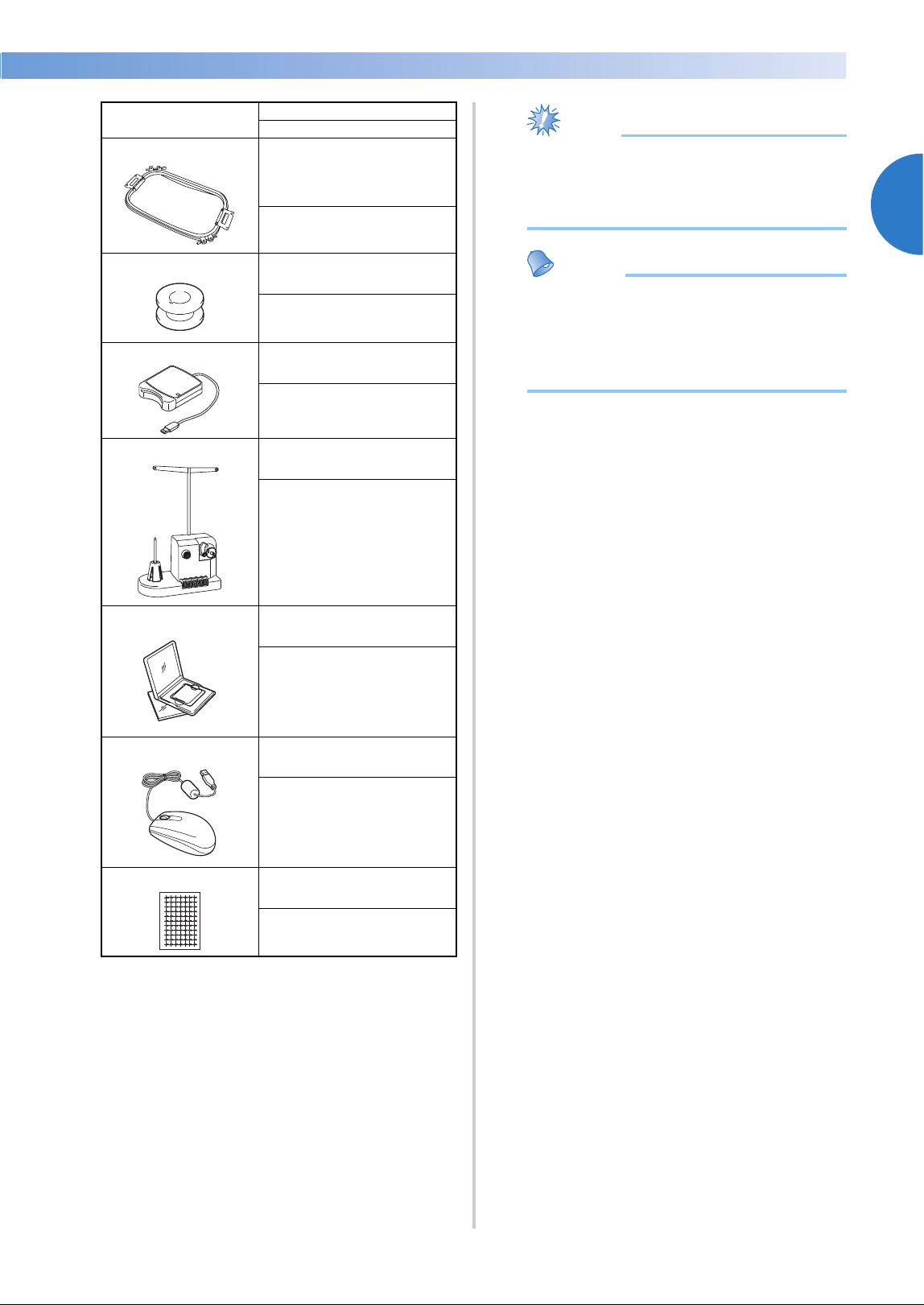
Accessories 25
1
——
——————————————————————————————————————————————————————
—
————————————————————————————
Note
● Visit your nearest Brother dealer for a
complete listing of optional accessories
and embroidery cards available for your
machine.
Memo
● Always use accessories recommended for
this machine.
● All specifications are correct at the time of
printing. Please be aware that some
specifications may change without notice.
18. Embroidery frame (extra-
large) 200 mm (H) × 300
mm (W) (7-7/8 inches (H)
× 11-3/4 inches (W))
PRH300 (Americas)
PRH300:
XC6284-052 (Other area)
19.
Metal bobbin
100376-053
20.
Embroidery card reader
SAECR1
21.
Bobbin winder set
(Refer to page 277.)
PRBW1
22.
Embroidery card
–
23.
USB mouse
XE5334-101
24.
Embroidery positioning
sticker sheets
SAEPS2 (Americas)
EPS2:
XF0763-001 (Other area)
Part Name
Part Code
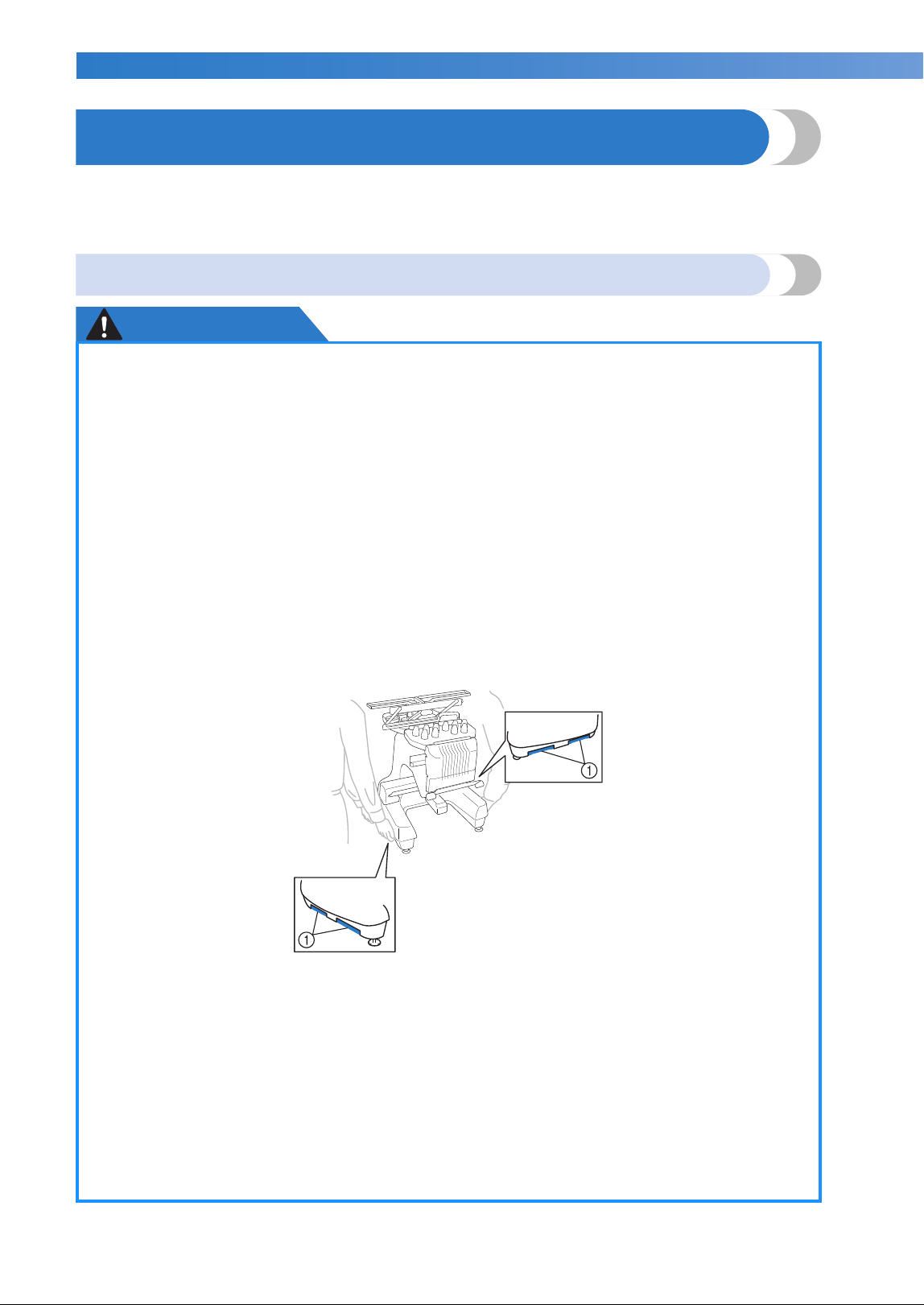
GETTING READY ——————————————————————————————————————————————————————————————————————
——
26
Setting Up the Machine
The procedures for setting up the machine are described below. If the machine is not set up correctly, it may
shake or produce loud noises and the embroidery will not be sewn correctly. An optional sewing stand is
also available.
Setup and transporting precautions
CAUTION
● The temperature of the operating environment should be between 5 °C (40 °F) and 40 °C
(104 °F). If the machine is operated in an environment that is either too cold or too hot,
the machine may malfunction.
● Do not use the machine in a location where it will be exposed to direct sunlight, otherwise
the machine may malfunction.
● Set up the machine with it’s four adjustable feet completely in contact with the desk or
table, so that the machine is level.
● Do not put anything under the embroidery machine that could block the ventilation slots
found on the rear underside of the machine, in order to avoid the possibility of the
machine’s motor overheating, resulting in a fire or in damage to the machine.
● The machine weight is approximately 42 kg (92 lb). The transporting or setting up of the
embroidery machine should be performed by two people.
● When transporting the machine, be sure to have two people lift the machine from the
bottom at the indicated slots (1). Lifting the machine from any other area may damage
the machine or result in the machine falling, which could cause injuries.
● When lightning occurs, turn off the machine and unplug the power supply cord. Lightning
may cause the machine to malfunction.
● Do not plug in the power supply cord until setup of the machine is completed, otherwise
injuries may result if the start/stop button is accidentally pressed and the machine starts
sewing.
● When lubricating the machine, wear protective eyeglasses and gloves to prevent the oil or
grease from getting into your eyes or on your skin. Do not put the oil or grease into your
mouth. Keep the oil and grease out of the reach of children.
● While attaching or detaching an embroidery frame or other included accessory or while
maintaining the machine, be careful not to hit the machine with your body or any other
part of it.
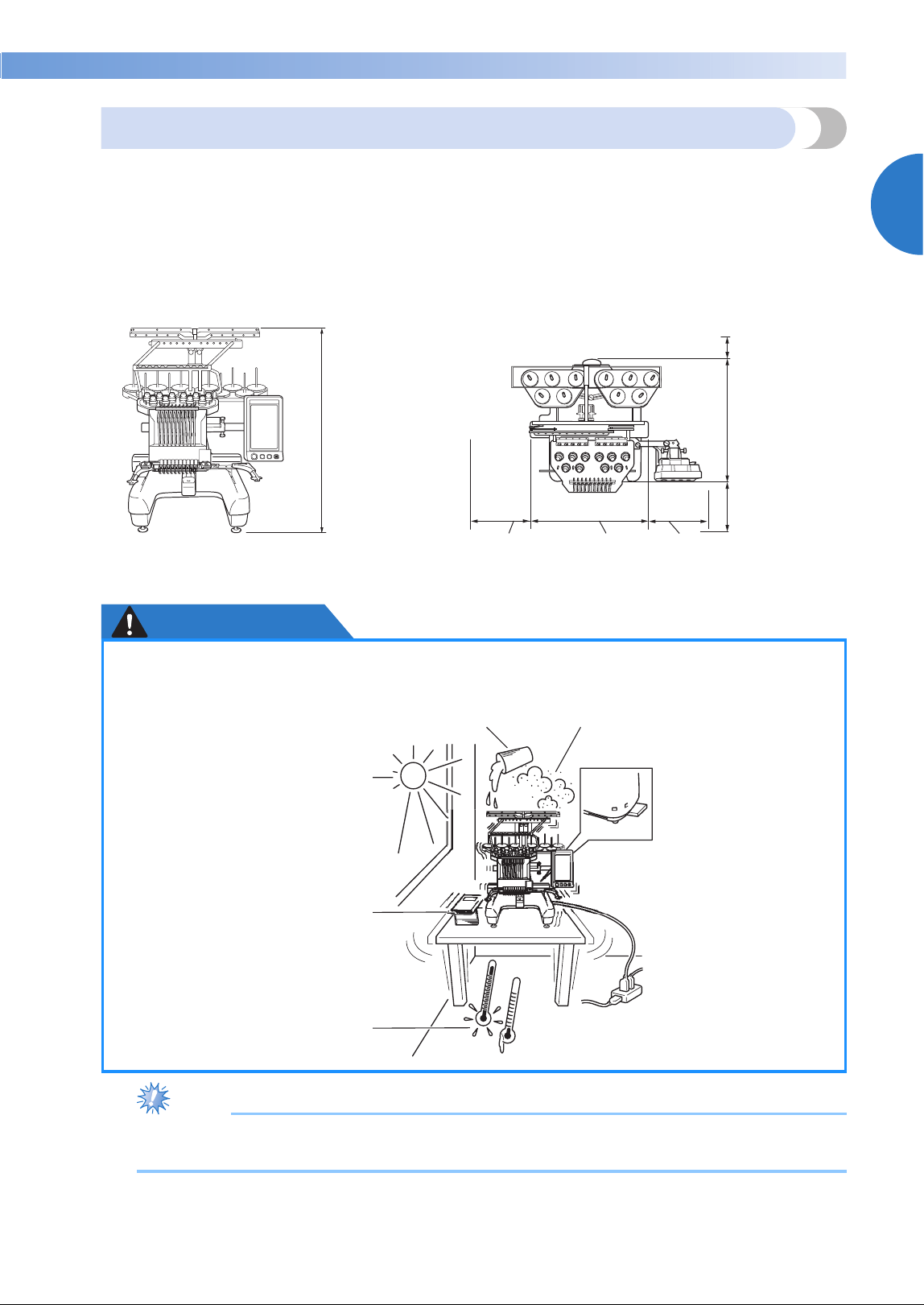
Setting Up the Machine 27
1
——
——————————————————————————————————————————————————————
—
————————————————————————————
Setup location
Set up the machine in a location that meets the following requirements.
• Position the machine a minimum of 50 mm (2 inches) away from the wall
• Allow sufficient space around the machine
• Place no objects within the moving range of the embroidery frame
• Set-up machine near an electrical outlet
• Use a level and stable surface, such as a desk or stand.
• Use a surface that can support the weight of the machine (about 42 kg (92 lb))
• Allow open space around the ventilation slots found on the rear underside of the machine
CAUTION
Note
● For your safety: Since the machine weighs approximately 42kg (92 lb), do not set it up on an
unstable table or desk.
785 mm
(31 inches)
Minimum of
50 mm
(2 inches)
589 mm
(23-1/4 inches)
More than
350 mm
(13-3/4 inches)
More than
210 mm
(8-1/4 inches)
560 mm
(22 inches)
220 mm
(8-3/4 inches)
● In order to prevent malfunctions or damage, do not set up the machine in a location
exposed to the following conditions.
Liquids, such as water Extreme dust
Direct sunlight
Blocked ventilation slots
Insufficient space
Objects within the moving range of
the embroidery frame
An unstable surface
Extremely high or extremely low
temperatures. The operating
environment should be between
5 °C (40 °F) and 40 °C (104°F).
Connection to extension
cords or multiple
adapters
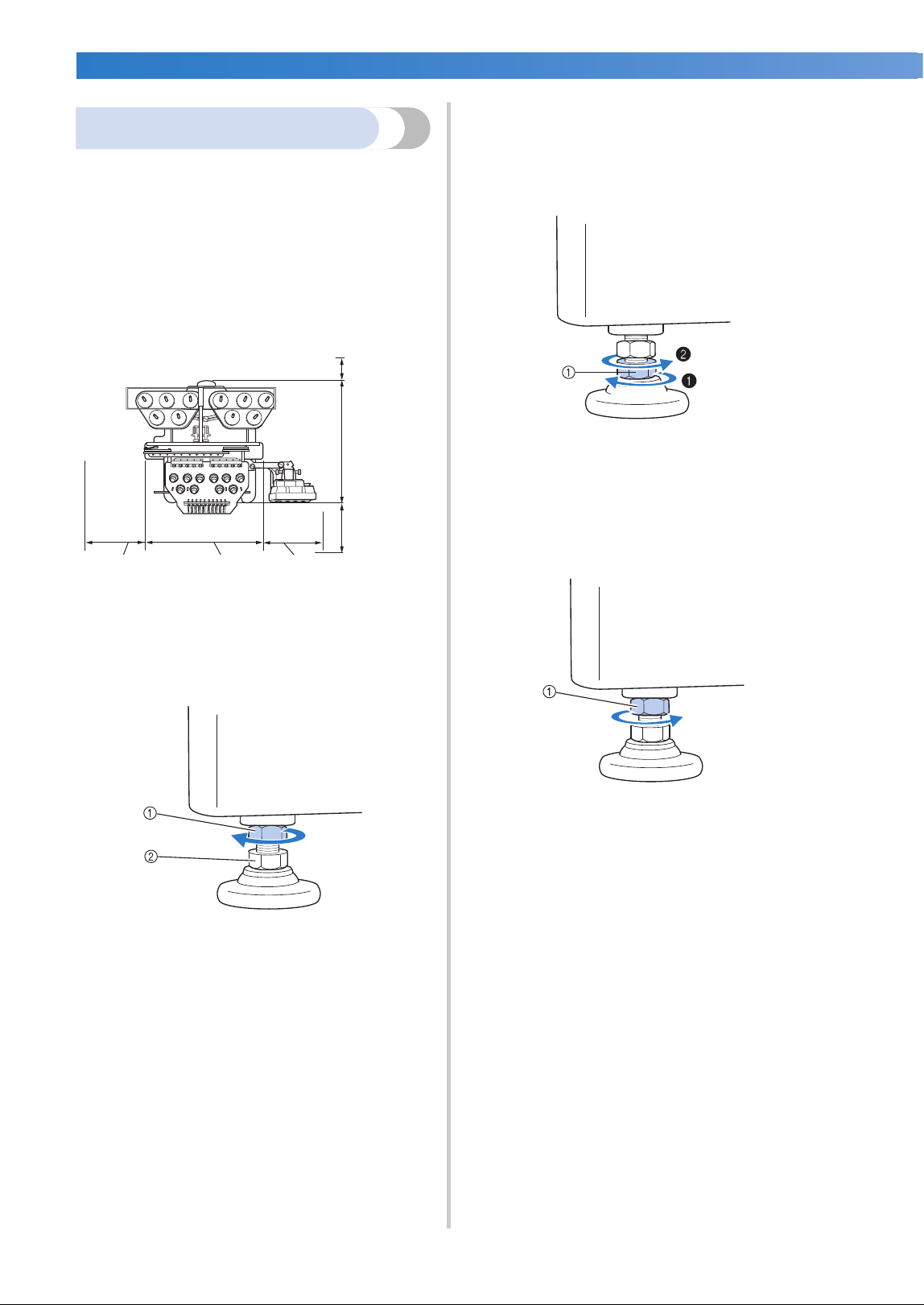
GETTING READY ——————————————————————————————————————————————————————————————————————
——
28
Setting up the machine
When setting up the machine, adjust the legs so
that the machine is steady.
1
Make sure that all packing tape affixed to the
machine is peeled off and that all packing
material is removed.
2
Set up the machine while making sure that
there is sufficient space around it.
3
Adjust the legs so that the machine is steady.
Use the included wrench to loosen the lock
nut on the leg that you wish to adjust.
1 Lock nut
2 Adjustable foot nut
X The foot can be turned.
4
Use the included wrench to turn the
adjustable foot nut on the foot.
Turning the nut in direction 1 lengthens the
leg; turning the nut in direction 2 shortens
the leg.
1 Adjustable foot nut
• Adjust all four legs so that they securely
contact the desk or table, and the machine
is level.
5
After adjusting the legs to the desired length,
use the included wrench to tighten the nuts.
1 Lock nut
6
Press down on each corner of the
embroidery machine to check that it is
stable.
If it is still unstable, perform steps
3 through
5 again to adjust the legs.
Minimum of
50 mm
(2 inches)
589 mm
(23-1/4
inches)
More than
350 mm
(13-3/4
inches)
More than
210 mm
(8-1/4 inches)
560 mm
(22 inches)
220 mm
(8-3/4 inches)
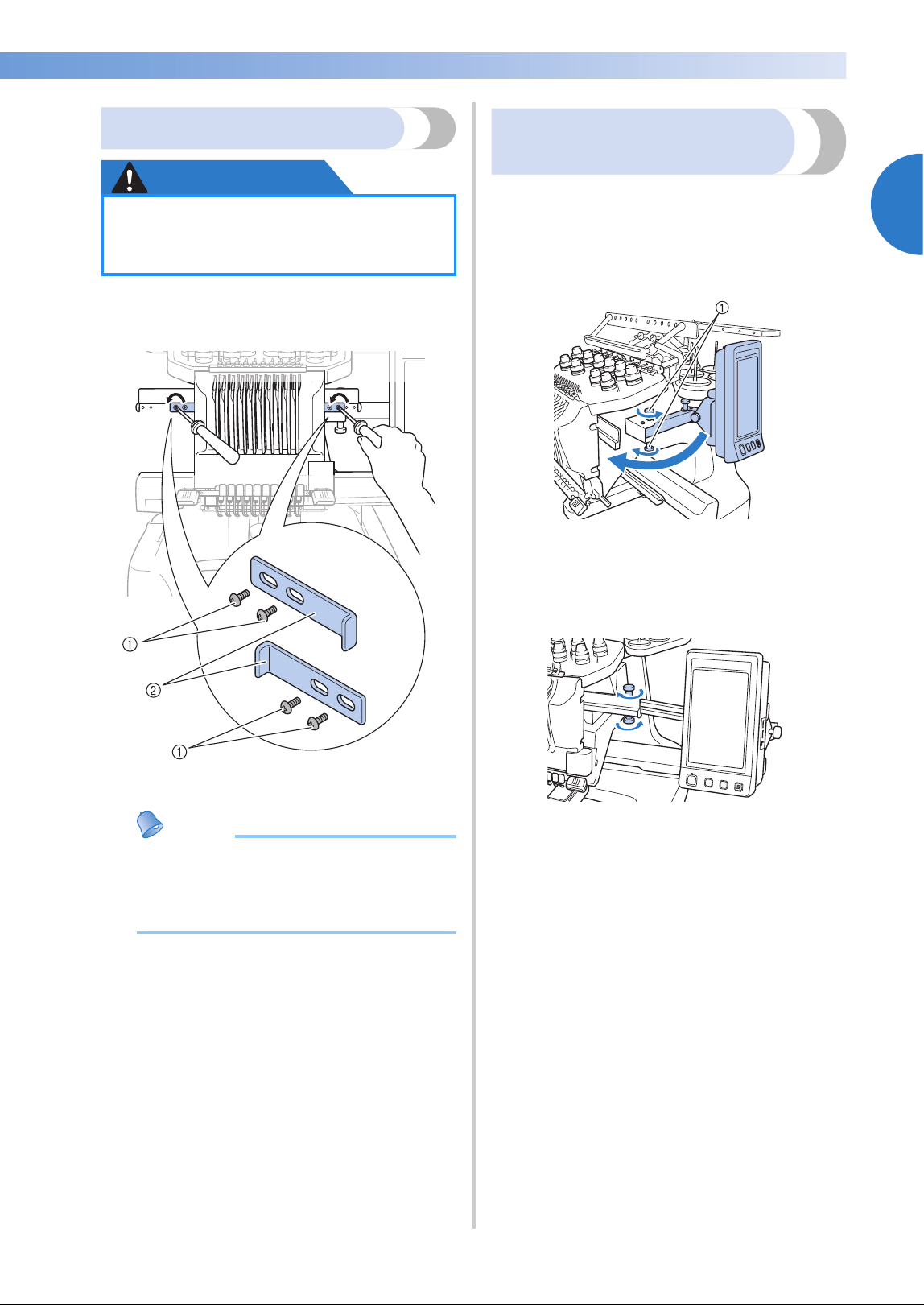
Setting Up the Machine 29
1
——
——————————————————————————————————————————————————————
—
————————————————————————————
Remove the fixing plates
CAUTION
1
Using the included Phillips screwdriver,
remove each of screws on the fixing plates.
1 Screws
2 Fixing plates
Memo
● After removing the fixing plates, be sure to
keep them to be used again. Before
transporting the machine, consult your
authorized Brother dealer.
Adjusting the operation
panel position
Adjust the orientation and angle of the operation
panel so it can easily be operated.
1
Loosen 2 thumb screws to bring the
operation panel forward.
1 Thumb screws
2
Adjust the operation panel to an easy-to-
operate position, and then tighten the thumb
screws.
●
Remove the fixing plates before turning
on the machine, otherwise the machine
may malfunction.
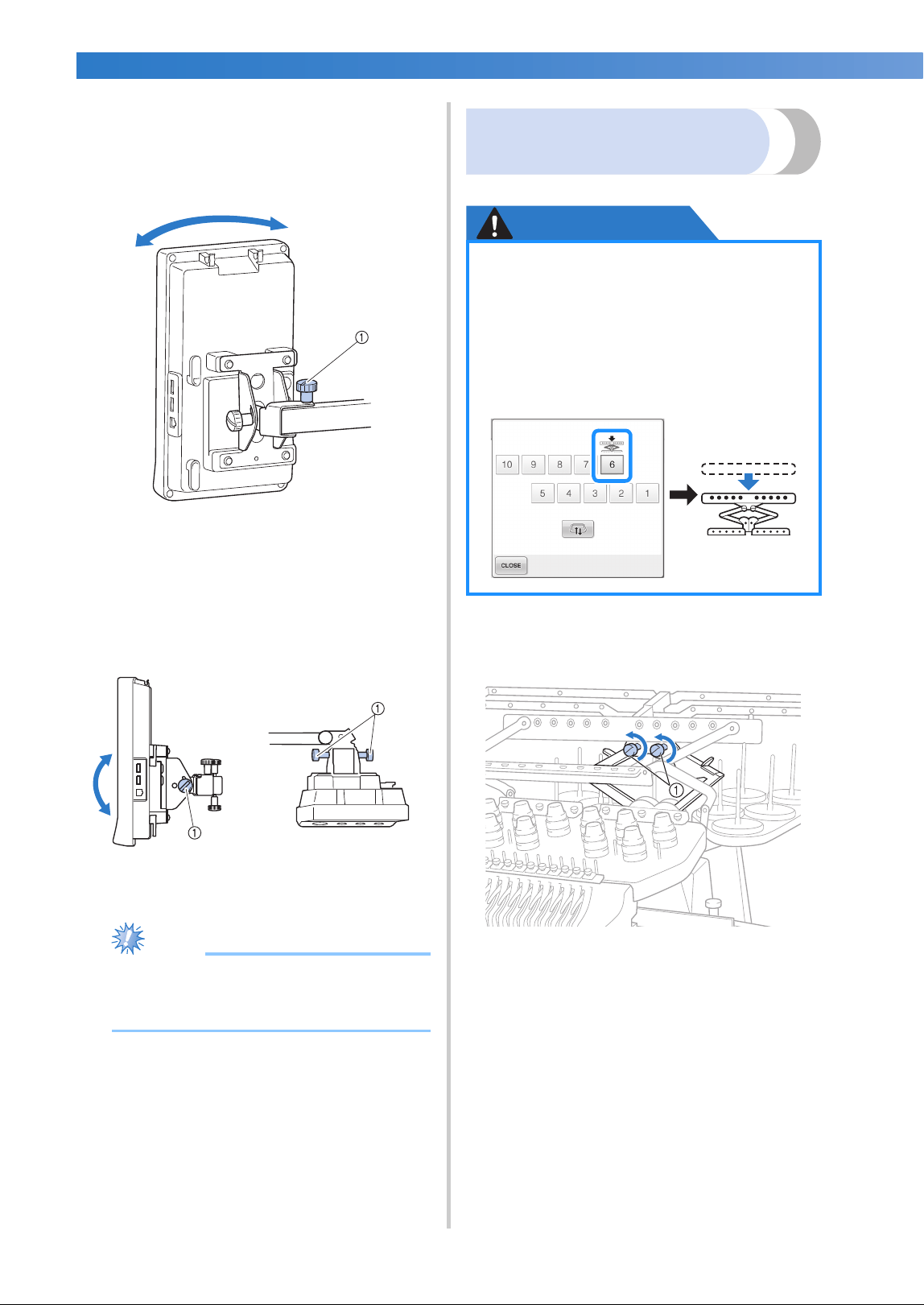
GETTING READY ——————————————————————————————————————————————————————————————————————
——
30
3
Adjust the orientation of the operation
panel.
Loosen the thumb screw, adjust the operation
panel to an easy-to-view orientation, and
then tighten the thumb screw.
1 Thumb screw
4
Adjust the angle of the operation panel.
Loosen the 2 thumb screws behind the
operation panel, adjust the operation panel to
an easy-to-view angle, and then tighten the
thumb screws.
1 Thumb screws
Note
● Using the disc-shaped screwdriver
included, loosen and firmly tighten the
five thumb screws.
Preparing the thread guide
assembly
Raise the thread guide assembly.
CAUTION
1
Loosen the two thumb screws on top of the
thread guide assembly support.
1 Turn the screw counterclockwise three or four
times to loosen it.
(Side view) (Top view)
● When setting up the thread guide
assembly, set it up with the needle bar
6 position selected, otherwise the
machine may malfunction. (Refer to
“Moving and threading a selected
needle bar” on page 62 for moving the
needle bar.)
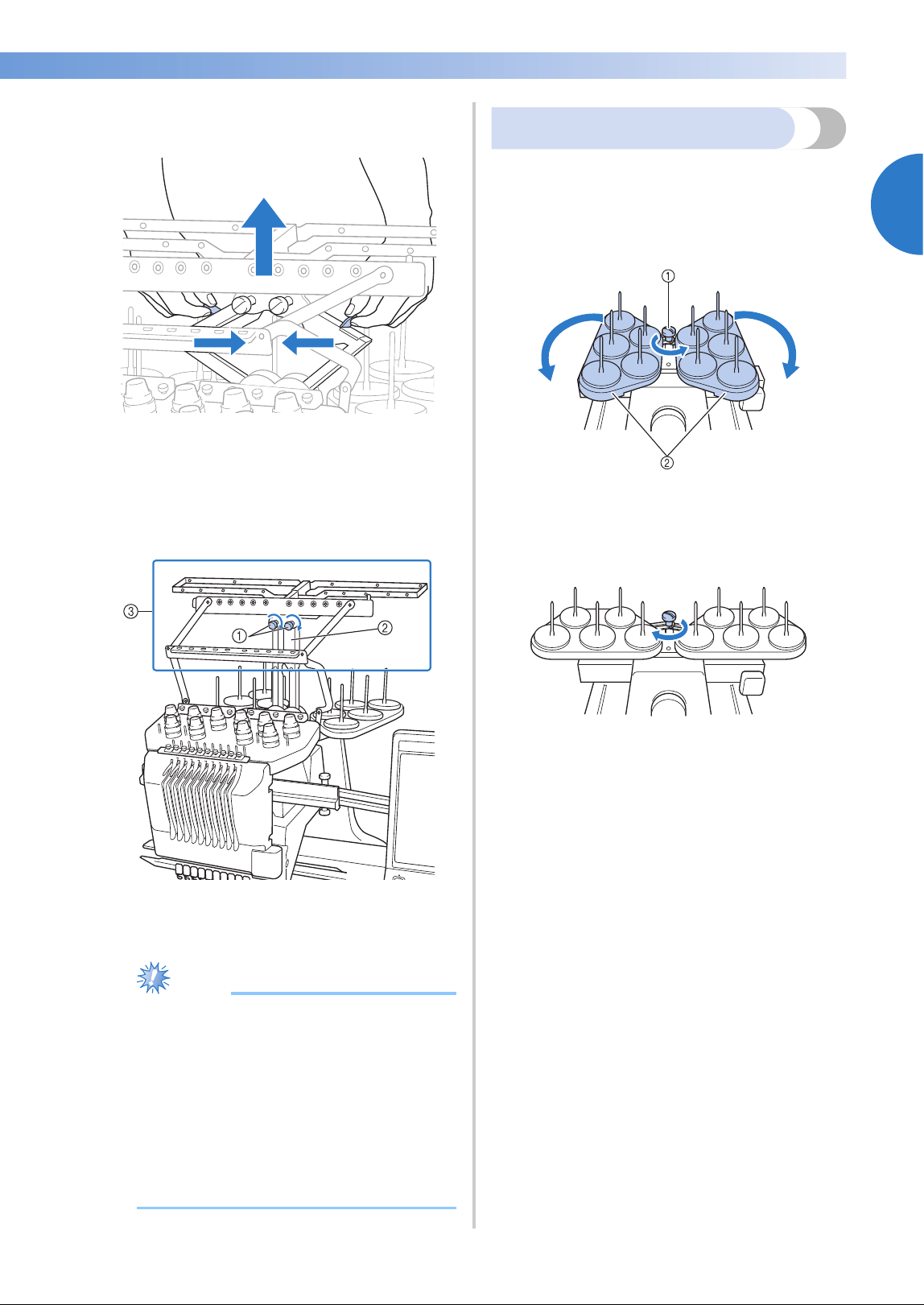
Setting Up the Machine 31
1
——
——————————————————————————————————————————————————————
—
————————————————————————————
2
Grab the grips on the thread guide assembly
support and push toward the middle.
3
After the thread guide assembly support is
extended and the thread guide assembly is
raised to its highest position, tighten the two
thumb screws to secure the thread guide
assembly in place.
1 Tighten screw.
2 Thread guide assembly support
3 Thread guide assembly
Note
● If the thumb screws are not loosened
enough, it may not be easy to move the
thread guide assembly support. Do not
apply extreme force when moving the
thread guide assembly support. Be sure
that the thumb screws are loosened well
enough before moving the part.
● Be sure to tighten each thumb screw well
enough that the thread guide assembly
support is secured.
Preparing the spool stand
Secure the spool stand in place for embroidering.
Use the included disc-shaped screwdriver.
1
Loosen the thumb screw two or three turns,
and then fold out the spool stand.
1 Thumb screw
2 Spool stand
2
After the spool stand is fully opened up,
tighten the thumb screw.
X Secure the spool stand in the opened
position.
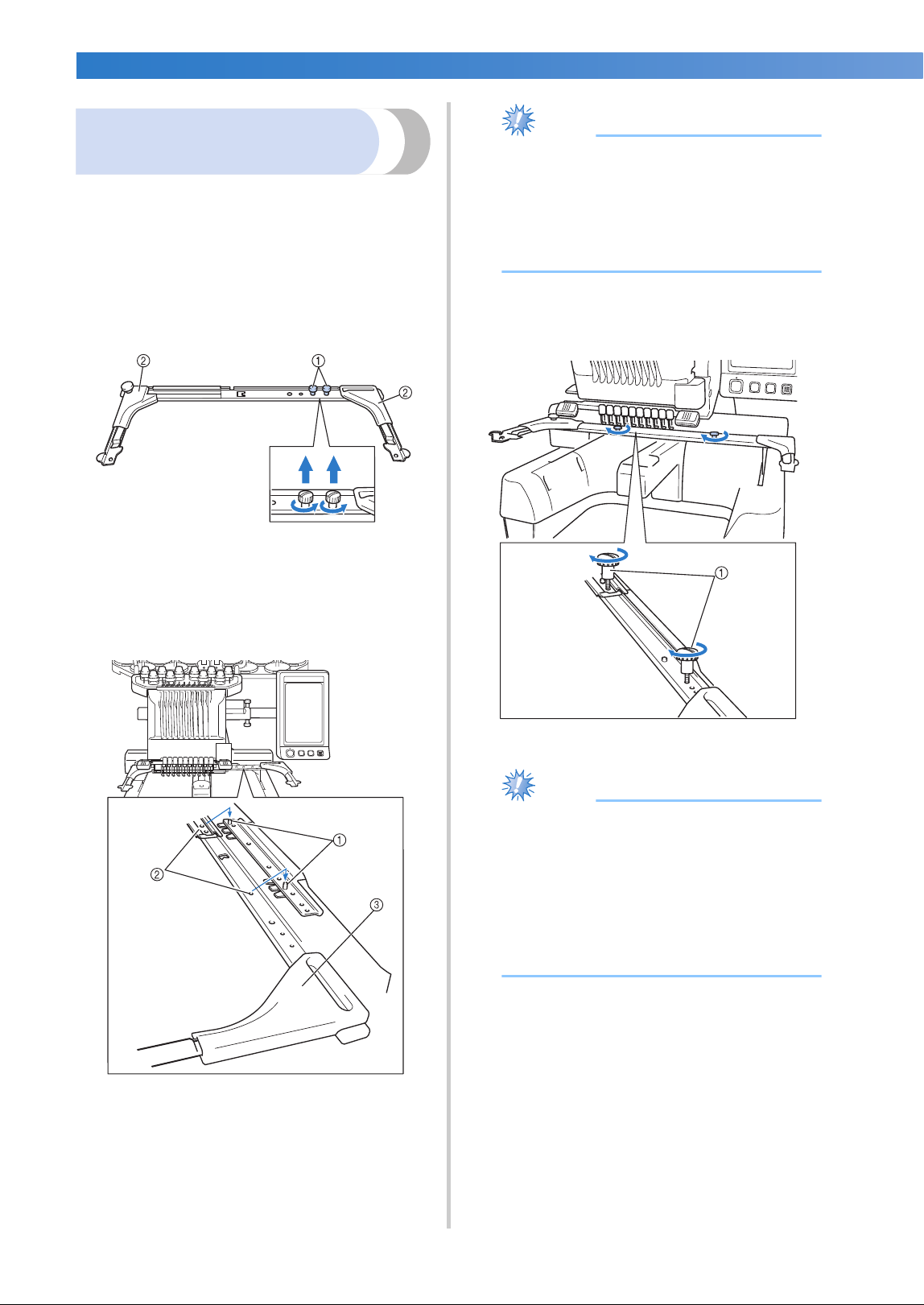
GETTING READY ——————————————————————————————————————————————————————————————————————
——
32
Attaching the embroidery
frame holder
Attach the embroidery frame holder to the carriage.
1
Use the embroidery frame holder
appropriate for the embroidery frame that
you are using. (Refer to page 90 to 92.)
2
Remove the two thumb screws of the
embroidery frame holder.
1 Thumb screws
2 Corner covers
3
Align the holes in the embroidery frame
holder with the pins on the frame-mounting
plate of the carriage.
1 Pins on the frame-mounting plate
2 Holes in the embroidery frame holder
3 Corner covers
Note
● Each embroidery frame holder has
different color of corner cover.
Holder A: White corner covers
Holder B: Light gray corner covers
Holder C: Dark gray corner covers
(Optional)
4
Secure the embroidery frame holder with
the two thumb screws removed in step
2.
1 Thumb screws
Note
● Using the disc-shaped screwdriver
included, firmly tighten the thumb screws.
● Two types of embroidery frame holders
are included with this machine.
Embroidery frame holder A is used with
the four included embroidery frames.
(Refer to “Correctly Using the Embroidery
Frames” on page 90 for the details.)
This completes the preparation of the machine.

2
EMBROIDERING TUTORIAL
This chapter describes the basic embroidering operations in order—from turning on
the machine and sewing a pattern to finishing sewing. Follow the steps of the tutorial
to embroider a pattern and master the operation of this embroidery machine.
Operating Precautions ....................... 34
Power supply precautions............... 34
Needle precautions......................... 35
Checking the needle ....................... 35
Bobbin precautions......................... 35
Upper thread recommendations ..... 36
Fabric recommendations ................ 36
Display recommendations .............. 36
Basic Procedures ................................ 37
1.Installing the Bobbin ....................... 38
Removing the bobbin case.............. 38
Installing the bobbin ....................... 38
Installing the bobbin case ............... 39
2.Turning ON the Machine ................ 40
Understanding the screens.............. 41
Screen overview ............................. 42
3.Selecting an Embroidery Pattern ..... 44
Selecting an embroidery pattern .....45
4.Editing the Embroidery Pattern .......46
Continuing to the embroidering
settings screen ................................ 46
5.Specifying Embroidering Setting...... 47
6.Previewing the Image...................... 48
Checking a preview image.............. 48
7.Hooping the Fabric in the Embroidery
Frame ................................................. 49
Hooping the fabric in the embroidery
frame.............................................. 49
8.Attaching the Embroidery Frame to the
Machine ............................................. 51
Attaching the embroidery frame...... 51
9.Checking the Embroidery Area........ 53
Temporarily stopping to check the
area...............................................53
Continuing to the embroidering
screen ...........................................53
10.Upper Threading ...........................54
Checking the needle bars and thread
colors .............................................54
Upper threading .............................56
Threading the needle ......................60
11.Sewing the Embroidery..................64
Starting embroidering .....................64
Stopping embroidering ...................66
12.Checking the Thread Tension ........68
13.Removing the Embroidery Frame and
Fabric .................................................69
Removing the embroidery frame.....69
Removing the fabric........................69
14.Turning OFF the Machine..............70
Screen Quick Reference Guide ..........71
Key displays....................................71
Common screen controls ................71
Understanding the pattern type
selection screen ..............................72
Understanding the pattern list screen.....73
Understanding the pattern editing
screen.............................................74
Understanding the embroidering set-
tings screen.....................................76
Understanding the embroidering
screen.............................................79
When You Have a Question, This May
Help You ............................................81
TECHNICAL TERMS: ......................81
PATTERNS:.....................................81
EMBROIDERING: ...........................81
USB connectivity ............................82
USB mouse operation .....................84
34
EMBROIDERING TUTORIAL
—
———————————————————————————————————————————————————————————————
——
Operating Precautions
The necessary points to ensure the correct operation of this machine are described below.
Power supply precautions
Be sure to observe the following precautions concerning the power supply.
WARNING
CAUTION
● Use only regular household electricity for the power source. Using other power sources
may result in fire, electric shock, or damage to the machine.
● Make sure that the plugs on the power supply cord are firmly inserted into the electrical
outlet and the power supply cord receptacle on the machine.
● Do not insert the plug on the power supply cord into an electrical outlet that is in poor
condition.
● If any of the following occur, turn off the embroidery machine and unplug the power
supply cord, otherwise a fire, an electric shock or damage to the machine may result.
• When you are away from the machine.
• After using the machine.
• If a power outage occurs while the machine is being operated.
• If the machine is not operating properly, for example, when there is a loose or cut con-
nection.
• During electrical storms.
● Use only the power supply cord included with this machine.
● Do not plug this machine in with extension cords or multi-plug adapters with any other
appliances plugged into them, otherwise a fire or an electric shock may result.
● Do not plug in or unplug the power supply cord with wet hands, otherwise an electric
shock may result.
● When unplugging the power supply cord, be sure to first turn off the machine, and then
grasp the plug when unplugging the cord. Pulling on the cord may damage it or result in a
fire or an electric shock.
● Do not allow the power supply cord to be cut, damaged, modified, forcefully bent, pulled,
twisted, or bundled. In addition, do not place heavy objects on the cord or expose it to
heat, otherwise damage to the cord, fire or an electric shock may result. If the power
supply cord or its plug is damaged, stop using the machine, and then take the machine to
your authorized dealer for repairs before continuing use.
● If the machine is not to be used for a long period of time, unplug the power supply cord,
otherwise a fire may result.
● When leaving the machine unattended, either the main switch of the machine should be
turned to OFF or the plug must be removed from the socket-outlet.
● When servicing the machine or when removing covers, the machine must be unplugged.
● For U.S.A only
This appliance has a polarized plug (one blade wider than the other). To reduce the risk of
electrical shock, this plug is intended to fit in a polarized outlet only one way.
If the plug does not fit fully in the outlet, reverse the plug. If it still does not fit, contact a
qualified electrician to install the proper outlet. Do not modify the plug in any way.
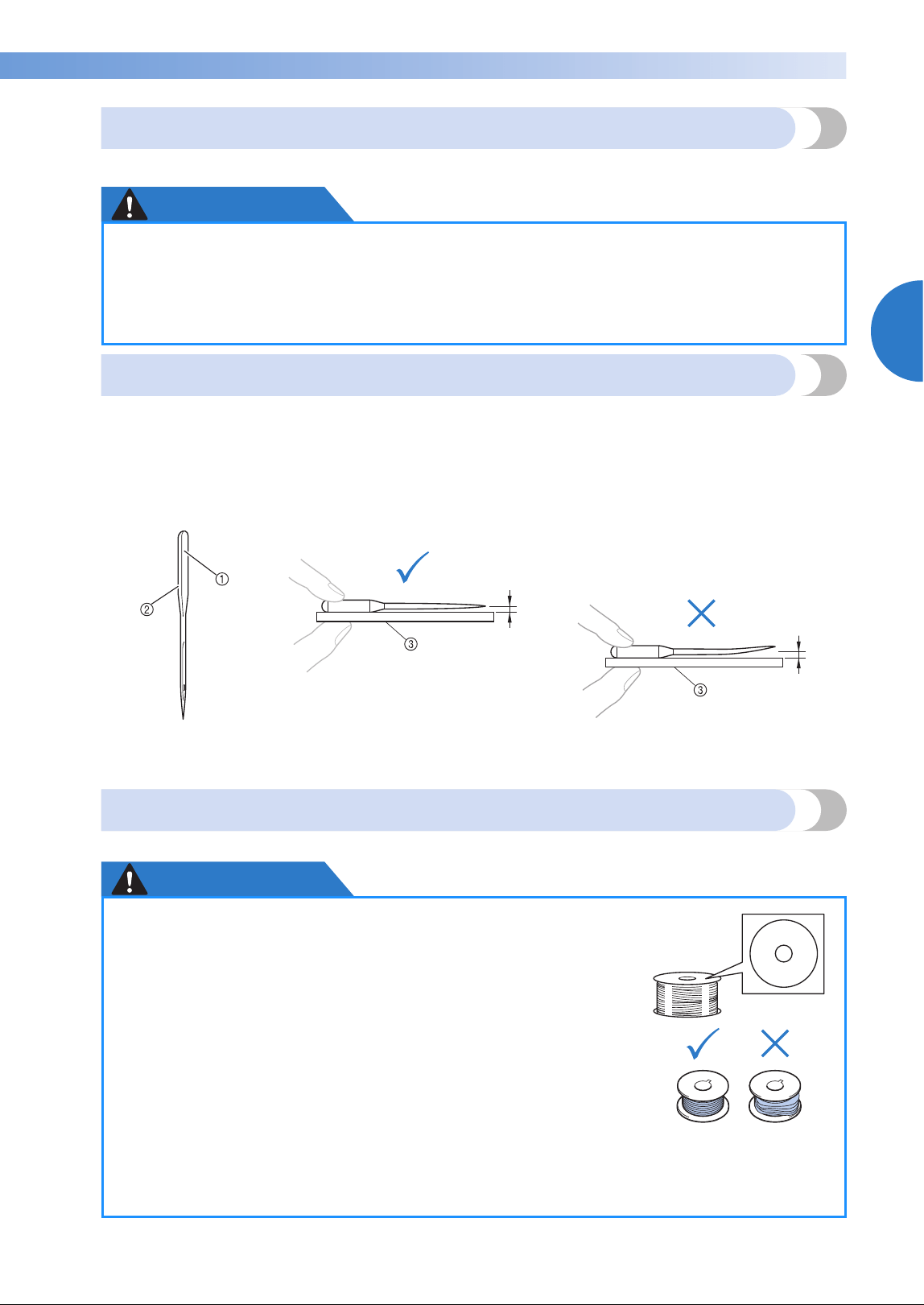
Operating Precautions 35
2
——
—————————————————————————————————————————————————————————————
—
—————————————————————
Needle precautions
Be sure to observe the following precautions concerning the correct choice of needle for your machine.
CAUTION
Checking the needle
Sewing with a bent needle is extremely dangerous since the needle may break while the machine is
operating.
Place the flat side of the needle on a flat surface and check that the distance between the needle and the flat
surface is even. If the needle is bent or the tip of the needle is broken, replace the needle with a new one.
(Refer to “Changing the Needle” on page 88.)
Bobbin precautions
Be sure to observe the following precautions concerning the bobbin.
CAUTION
● Your machine is designed to use household embroidery needles. The factory
recommended needle is “HAX 130 EBBR” (Organ). Schmetz needles 130/705 H-E may be
used as a substitute. Use of any other needles may break the needle or thread or damage
the needle-threading mechanism or result in injuries.
● Never use bent needles. Bent needles can easily break, possibly resulting in injuries.
■ Good needle ■ Bad needle
If the distance between the needle and
the flat surface is not even, the needle is
bent. Do not use a bent needle.
1 Flat side
2 Needle type marking
3 Flat surface
● Only use prewound bobbin (COATS “L” type/TRU-SEW
POLYESTER “Filaments”) or bobbins designed specifically for
this machine. Use of any other bobbin may result in injuries or
damage to the machine.
● Use a bobbin thread that has been correctly wound, otherwise
the needle may break or the thread tension will be incorrect.
● When winding a bobbin, only use optional bobbin winder (refer
to page 277) and metal bobbins (Part code: 100376-053).
● When winding the bobbin, be sure to use cotton or spun polyester bobbin thread
(between 74 dtex/2 and 100 dtex/2).
COATS
Polyester
L

EMBROIDERING TUTORIAL
—
——————————————————————————————————————————————————————————————
——
36
Upper thread recommendations
Be sure to observe the following recommendations concerning the upper thread.
Note
● It is recommended that rayon or polyester embroidery thread be used (120 den x 2 / 135 dtex x 2 /
40 weight (in Americas and Europe) / #50 (in Japan)).
Fabric recommendations
Be sure to observe the following recommendations concerning the fabric.
Note
● Your machine can embroider fabric that is up to 1 mm (1/16 inch) thick. If thicker fabric is sewn,
the needle may bend or break.
● When embroidering overlapping stitches, it is difficult for the needle to penetrate the fabric,
possibly resulting in the needle bending or breaking.
● Attach stabilizers to thin or stretch fabrics. (Refer to “Attaching Iron-On Stabilizer (Backing) to
Fabric” on page 93 for information.)
● When embroidering large pieces of fabric, make sure that the fabric is not caught in the carriage.
Display recommendations
Be sure to observe the following recommendations concerning the use of the operation panel display.
Note
● Only touch the display with your finger or included touch pen. Do not use a mechanical pencil,
screwdriver or any other hard or sharp object. In addition, do not apply extreme pressure to the
display screen, otherwise damage to the display screen may result.
Memo
• If you are not directly facing the operation panel display, the colors may be distorted or
the display may be difficult to read. This is a normal characteristic of the display and is not
a malfunction. Be sure to sit in front of the display while using it. (Refer to “Adjusting the
operation panel position” on page 29, if adjusting is necessary.)
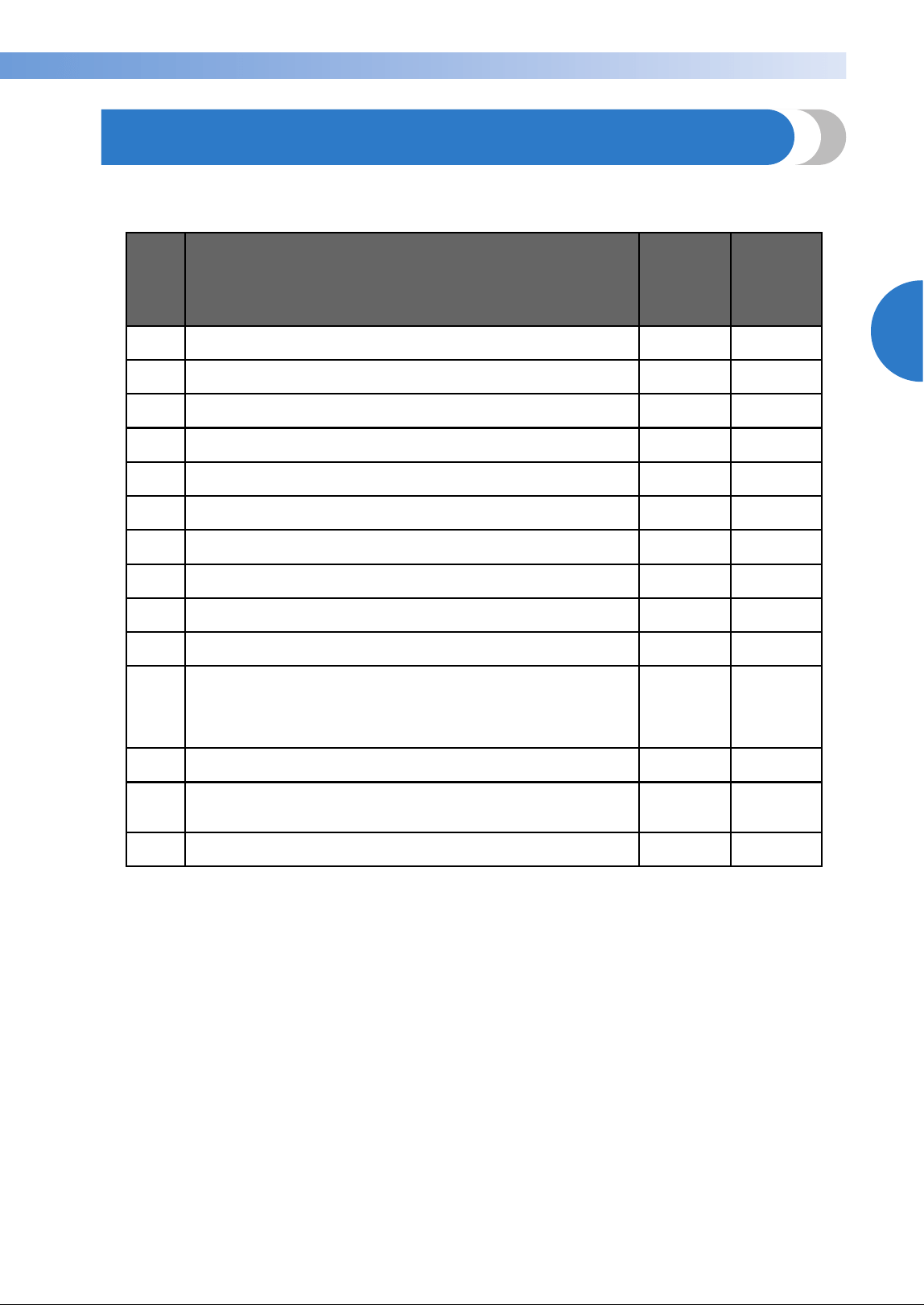
Basic Procedures 37
2
——
—————————————————————————————————————————————————————————————
—
—————————————————————
Basic Procedures
Basic embroidering procedures are described below.
Check the overall procedure below, before operating the embroidery machine.
The operations to embroider the pattern are described on the following pages.
Although embroidering can continue without the pattern being edited or embroidering settings being
specified, refer to page 181 for details on editing the patterns, and refer to page 125 for details on specifying
embroidering settings.
Descriptions of the keys and other information that appear in the main LCD screens are provided in the
tables on pages 71 to 80. Use these tables for quick reference.
The various operating precautions that must be observed during the basic procedures are provided on pages
34 to 36. These precautions must be strictly observed in order for the machine to function properly. Make
sure to read these precautions.
Step
Operation
Tutorial
Reference
Page
Operating
Procedure
Reference
Page
1 Install the bobbin. p. 38 p.35
2 Turn on the machine. p. 40 p.34, 36
3 Select an embroidery pattern. p. 44
4 Edit the embroidery pattern. p. 46
5 Specify the embroidering settings. p. 47
6 Check the previewed image. p. 48
7 Hoop the fabric in the embroidery frame. p. 49 p. 36
8 Attach the embroidery frame to the machine. p. 51
9 Check the embroidery area. p. 53
10 Thread the upper threads. p. 54 p.36
11
Unlock the machine, then press the start/stop button to start
embroidering.
(Once embroidering is completed, the machine automatically
stops.)
p. 64
12 Check the thread tension. p. 68
13
Remove the embroidery frame, and then remove the fabric from
the frame.
p. 69
14 Turn off the machine. p. 70
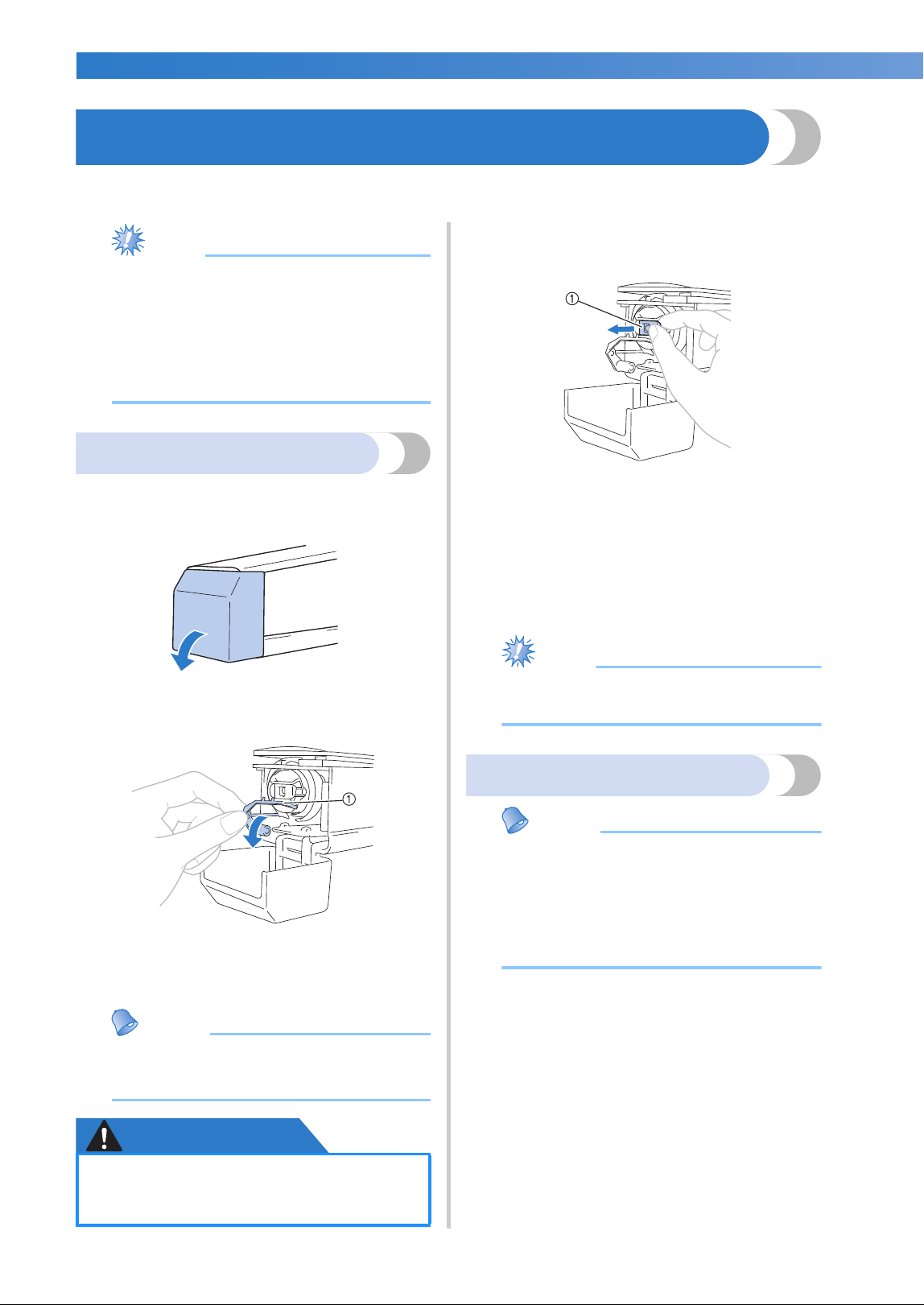
EMBROIDERING TUTORIAL
—
——————————————————————————————————————————————————————————————
——
38
1. Installing the Bobbin
When the machine is purchased, only the bobbin case is installed in the hook. Insert a bobbin wound with
bobbin thread for embroidering. For precautions concerning the bobbin, refer to page 35.
Note
● The machine does not indicate how much
bobbin thread is remaining. Before starting
to embroider make sure that there is
enough bobbin thread for the pattern.
● Make sure to clean the bobbin case every
time the bobbin is changed. For details on
cleaning the bobbin case, refer to
“Cleaning the bobbin case” on page 284.
Removing the bobbin case
1
Open the hook cover.
Pull the hook cover toward you.
2
Pull the thread picker toward you if it was
not pulled toward the front.
1 Thread Picker
To gain access to the bobbin case easily, pull
the thread picker toward front.
Memo
● Thread picker is a device that is used to
hold the thread when beginning to sew or
when trimming the thread.
CAUTION
3
Grab the bobbin case latch, and remove the
bobbin case.
1 Latch
■ Oiling the machine
After removing the bobbin case, apply oil to the
machine. The race should be oiled. For details
on oiling the machine, refer to “Oiling the
machine” on page 287.
Note
● Put a drop of oil onto the hook once a day
before use.
Installing the bobbin
Memo
● This embroidery machine is not equipped
with a bobbin-winder. Use pre-wound (L
type) bobbins.
● The optional bobbin winder (stand-alone
type) and optional metal bobbins can also
be used. (Refer to page 24, 277.)
● The thread picker can only be moved
within a certain range. Do not pull it
with extreme force.
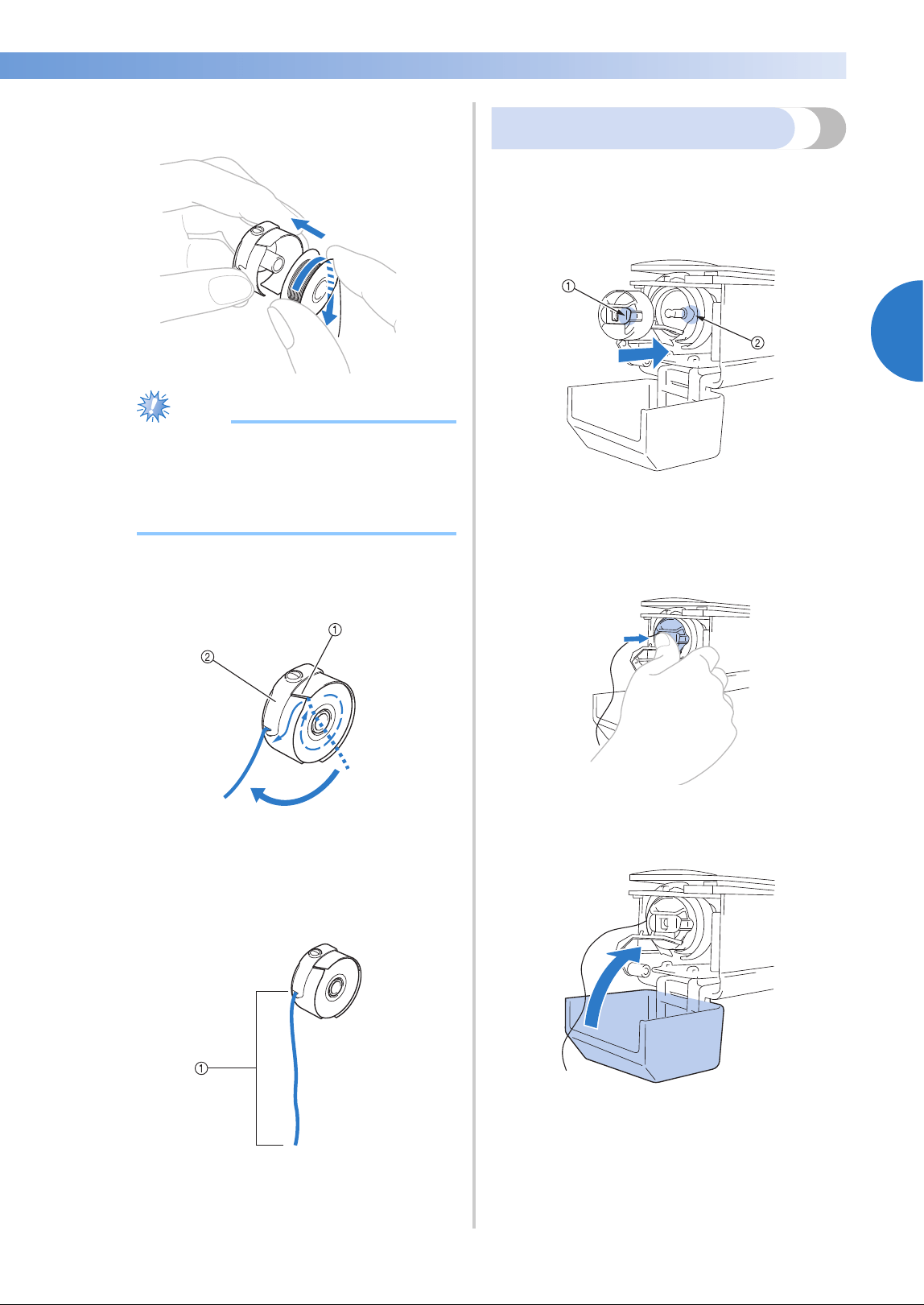
Installing the Bobbin 39
2
——
—————————————————————————————————————————————————————————————
—
—————————————————————
1
Insert the bobbin into the bobbin case.
Note
● Check that the thread winds off the bobbin
clockwise as shown in the illustration. If
the bobbin is installed with the thread
winding off in the opposite direction, the
embroidery will not be sewn correctly.
2
Pass the thread through the thread slit and
under the tension-adjusting spring.
1 Thread slit
2 Tension-adjusting spring
3
Pull the thread about 50 mm (2 inches)
through the opening in the tension-adjusting
spring.
1 About 50 mm (2 inches).
Installing the bobbin case
1
Insert the bobbin case into the hook.
Insert the bobbin case while aligning the tab
on the bobbin case with the notch in the
hook, as shown in the illustration.
1 Tab
2 Notch
2
Fully insert the bobbin case until it snaps
into place.
3
Close the hook cover.
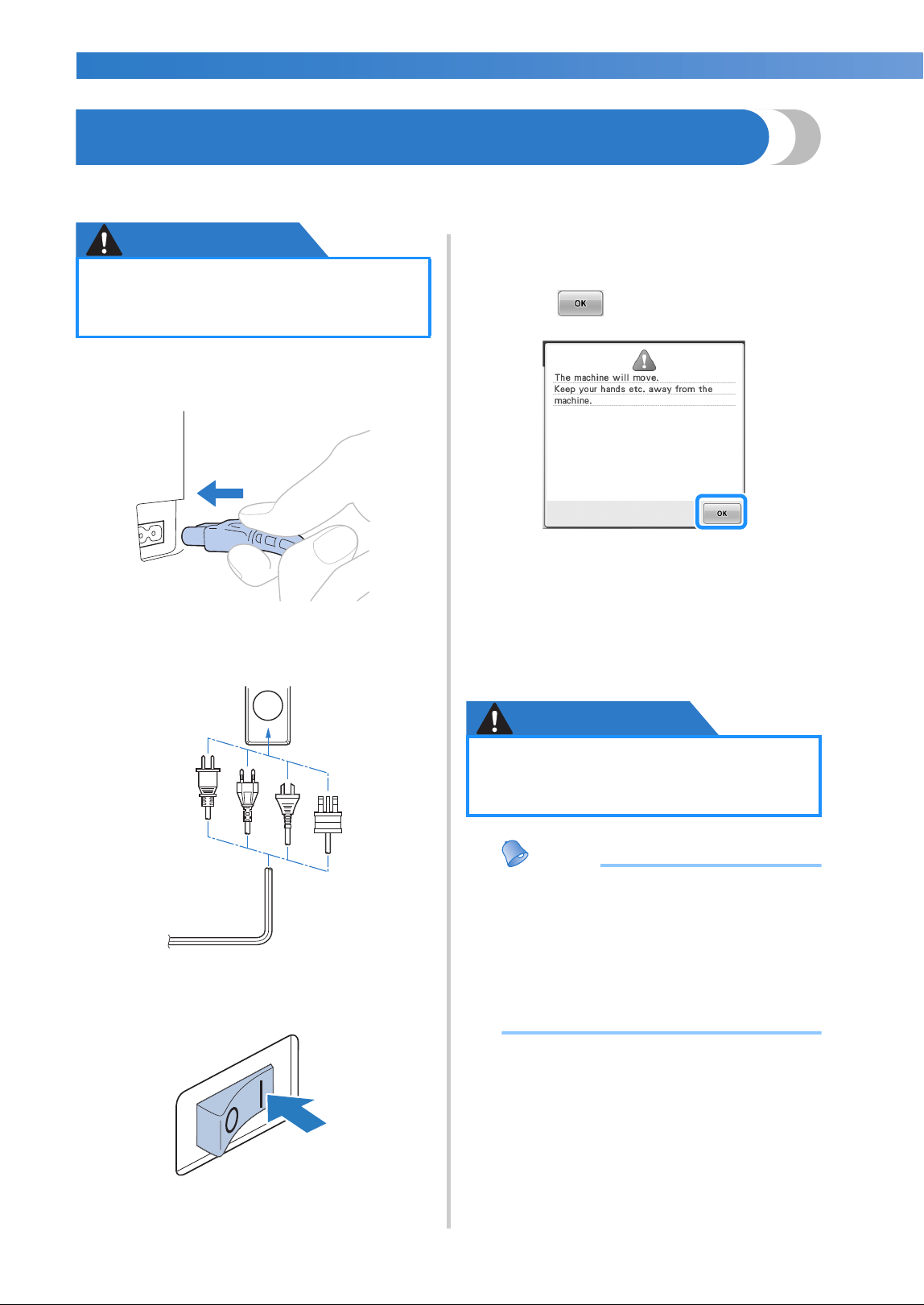
EMBROIDERING TUTORIAL
—
——————————————————————————————————————————————————————————————
——
40
2. Turning ON the Machine
Connect the power supply cord, and then turn on the embroidery machine. For precautions concerning the
power supply, refer to page 34.
CAUTION
1
Plug the power supply cord into the
machine.
2
Insert the plug of the power supply cord into
a household electrical outlet.
3
Switch on the main power switch on the
back of the machine to “I”.
X The LCD screen comes on.
4
When the machine is turned on, the opening
movie is played. Touch anywhere on the
screen to display the message below.
5
Touch .
X The pattern type selection screen appears,
and the start/stop button lights up in red.
6
The carriage moves to its initial position.
• If the number 1 needle bar is not already at
the embroidering position, the needle bar
case moves and the number 1 needle bar
moves to the embroidering position.
CAUTION
Memo
● If the machine is turned off in the middle
of embroidering, the machine will
automatically save the design position
when turned on again. At that time, you
will be asked if you wish to continue
embroidering or begin a new operation.
(Refer to “Resume Embroidering After
Turning Off the Machine” on page 120.)
● Be sure to use the included power cord
for this machine. Using any other
power cord may result in damage.
● Make sure to keep your hands and
other items away from the carriage, in
order to prevent any injuries.
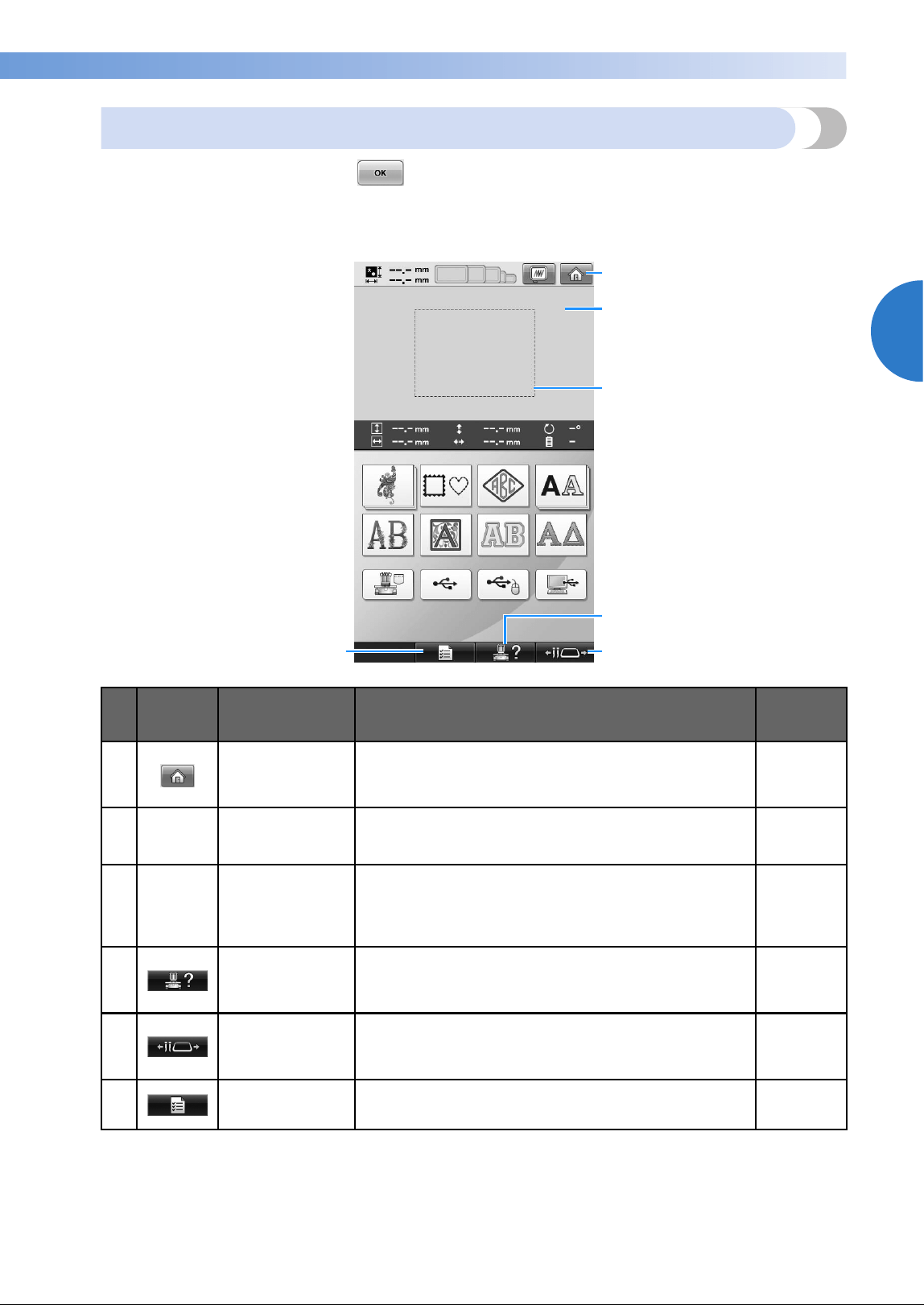
Turning ON the Machine 41
2
——
—————————————————————————————————————————————————————————————
—
—————————————————————
Understanding the screens
When the machine is turned on and is touched, the pattern type selection screen appears. The
operations described below will be entered using the operation panel. For precautions concerning the use of
the touch panel, refer to page 36.
* The keys in the table above appear and can be used in most of the screens described later in this manual.
No. Display Key Name Function
Reference
Page
1 Home key
Touch this key to cancel all operations previously
performed and return to the initial pattern group
selection screen.
2
Pattern display
area
This area displays the selected pattern. p. 220
3
Embroidering
area line
Shows the available embroidering area. The embroidery
frame indications, the grid lines and other display
settings can be specified from the machine settings
screen.
p. 220
4
Machine
operations guide
key
Touch this key to check a machine operation. p.232
5
Needle bar/Frame
move key
Touch this key to move or thread a selected needle bar,
or to position the carriage so the embroidery frame can
easily be removed or attached.
p.30, 62, 90
6 Settings key
Touch this key to change the embroidery machine
settings.
p. 218
6
5
1
4
3
2
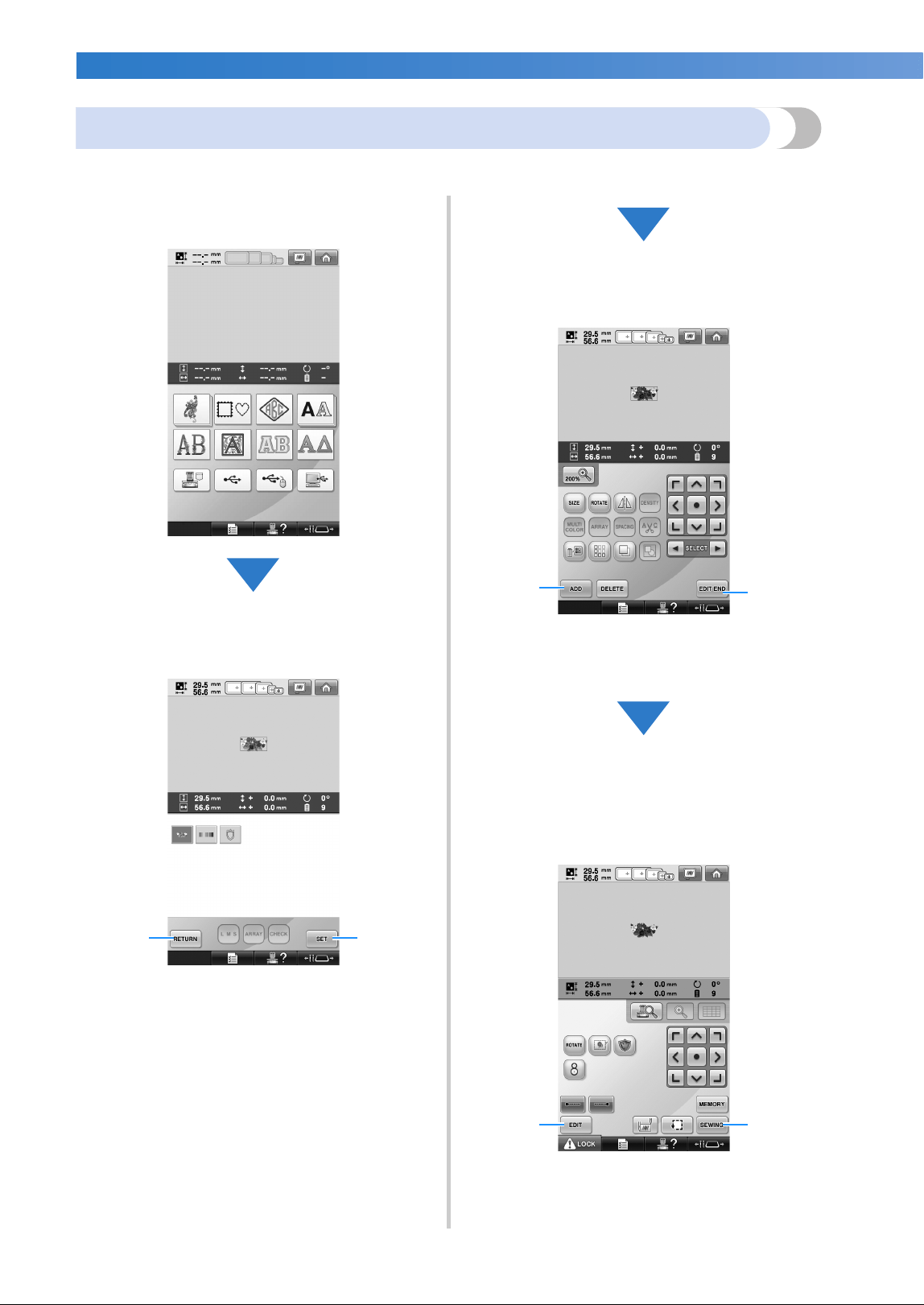
EMBROIDERING TUTORIAL
—
——————————————————————————————————————————————————————————————
——
42
Screen overview
The basic operation flow is shown below.
In the pattern type selection screen, select a
pattern type. (Refer to page 44, 72.)
In the pattern list screen, select the pattern.
(Refer to page 44, 73.)
1 Touch this key to return to the pattern type
selection screen.
2 Touch this key to continue to the pattern
editing screen.
In the pattern editing screen, edit the pattern.
(Refer to page 46, 74.)
1 Touch this key to return to the pattern type
selection screen and add another pattern.
2 Touch this key to continue to the embroidering
settings screen.
In the embroidering settings screen, if it is a
combined pattern, edit the entire pattern,
specify the embroidering settings and check
the embroidery area. (Refer to page 47, 76.)
1 Touch this key to return to the pattern editing
screen.
2 Touch this key to continue to the embroidering
screen.
21
2
1
21
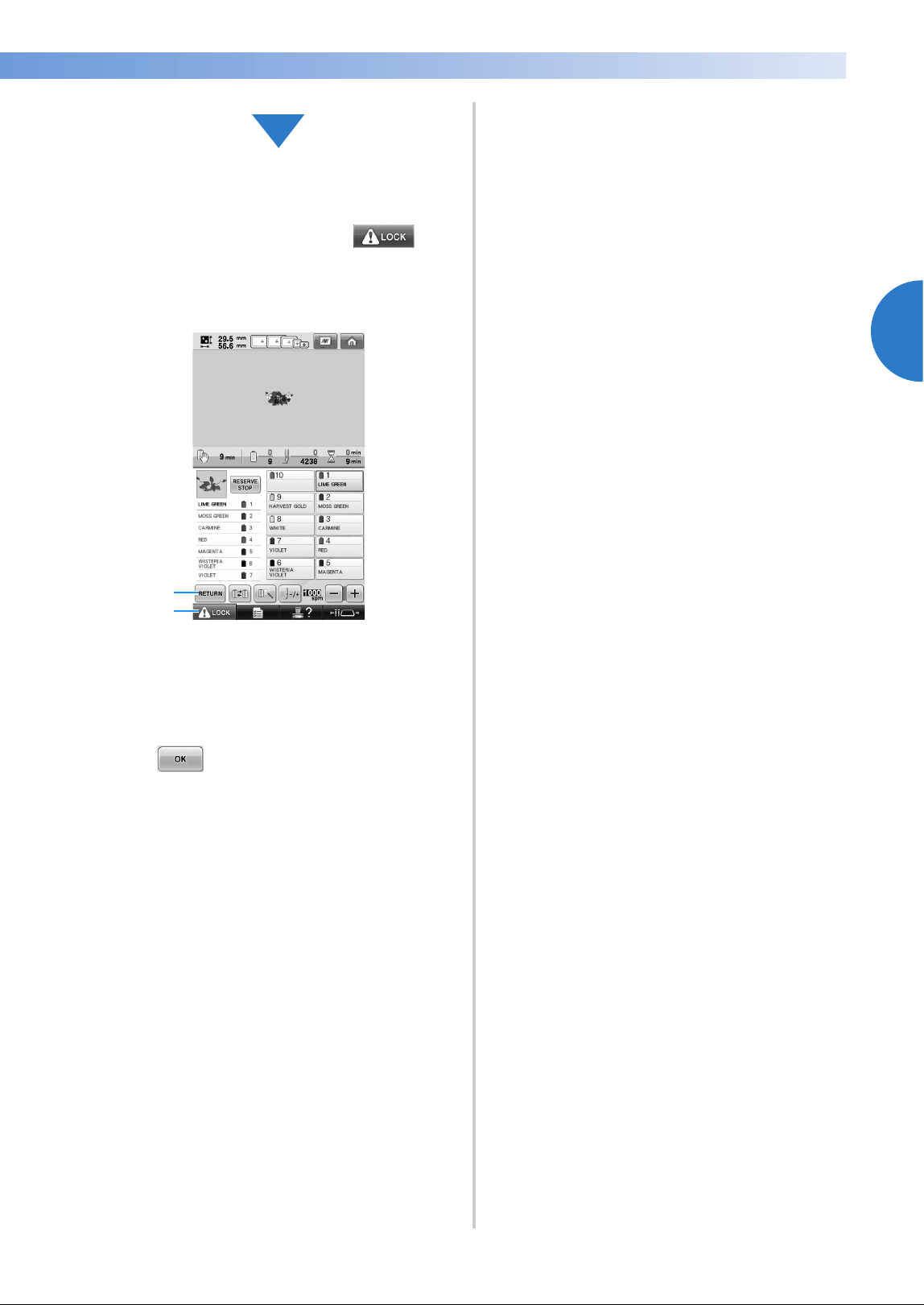
Turning ON the Machine 43
2
——
—————————————————————————————————————————————————————————————
—
—————————————————————
In the embroidering screen, check the thread
colors assigned to the needle bars, and then
install the upper threads. Touch to
unlock the machine so that the start/stop
button starts flashing in green. The embroidery
machine is now ready to begin sewing.
1 Touch this key to return to the embroidering
settings screen.
2 Unlock key
After the embroidery pattern is sewn, a
“Finished sewing” message screen appears.
Touch to return to the embroidering
settings screen. (Refer to page 47, 76)
1
2
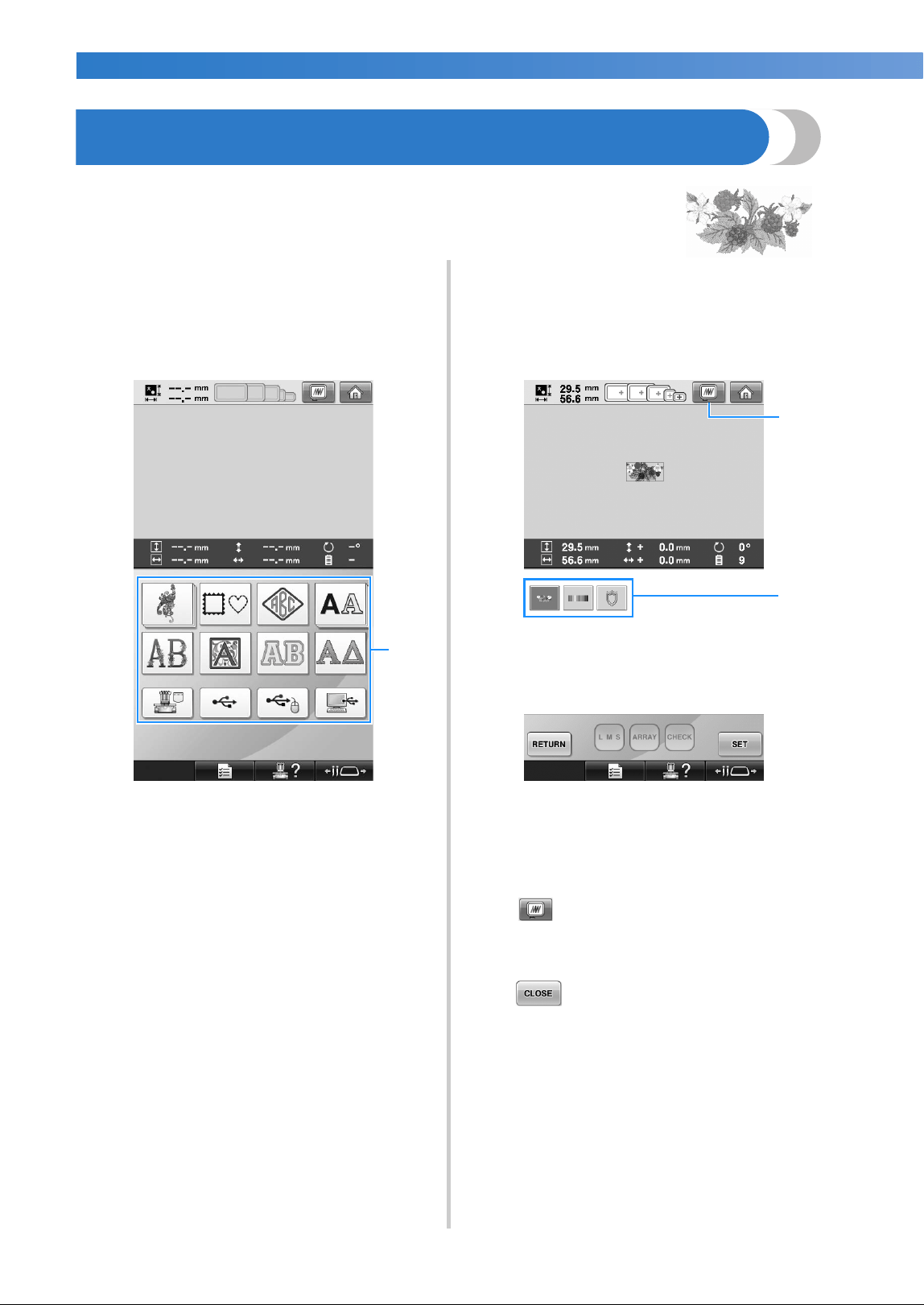
EMBROIDERING TUTORIAL
—
——————————————————————————————————————————————————————————————
——
44
3. Selecting an Embroidery Pattern
As an example, we will select the pattern shown at the right.
In the pattern type selection screen, select a pattern
category (type).
Pattern type selection screen (For details on the
keys and other information on the screen, refer to
page 72.)
1 Pattern type keys
In the pattern list screen, search for the desired
pattern, and then touch the key for the pattern.
Pattern list screen (For details on the keys and
other information on the screen, refer to page 73.)
1 Displays a preview image.
2 Pattern keys
■ Checking a preview image from the pattern list
screen
Touch to preview the image prior to
selecting.
Touch to return to the pattern list screen.
1
2
1
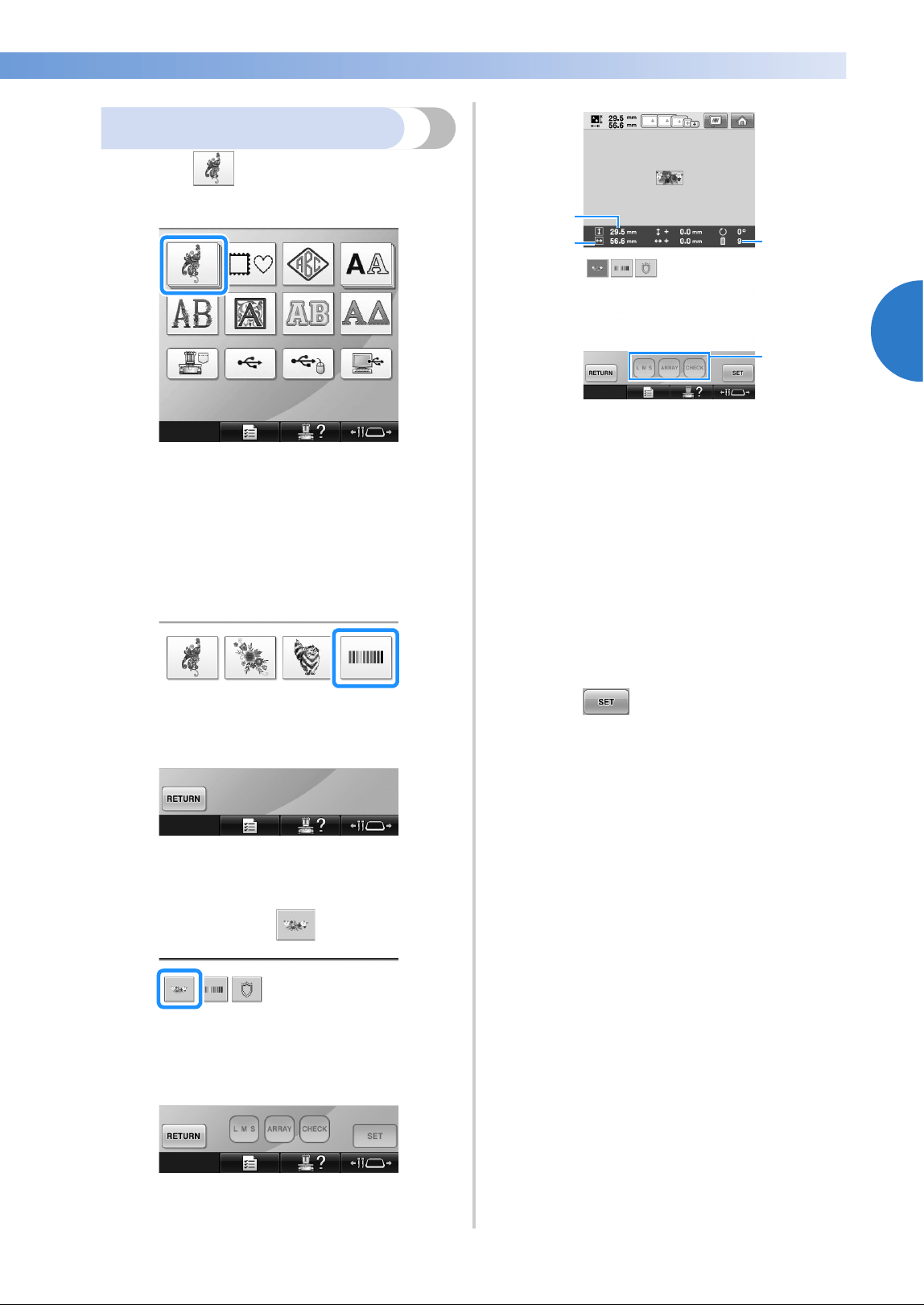
Selecting an Embroidery Pattern 45
2
——
—————————————————————————————————————————————————————————————
—
—————————————————————
Selecting an embroidery pattern
1
Touch to select the embroidery
patterns category.
X The embroidery pattern categories appear.
• If the category that was selected appears as
multiple stacked keys, a sub-category can
be selected. Touch the key for the sub-
category containing the desired pattern.
2
Select an embroidery pattern category.
Touch the desired pattern category.
X The pattern list screen appears.
3
Touch the desired pattern.
In this case, touch .
After a pattern is selected, the following
appear:
1 Vertical length of the pattern
2 Horizontal width of the pattern
3 Number of thread color changes
4 These keys can be used to change the pattern
size or change the text arrangement of a
character. The functions may be used differ
depending on the type of pattern that is
selected.
(Refer to “Changing the size of a pattern” on
page 184.)
• If the wrong pattern was selected or you
wish to select a different pattern, touch the
desired pattern.
4
Touch to display the next screen.
This confirms the pattern selection.
X The pattern editing screen appears.
2
4
3
1
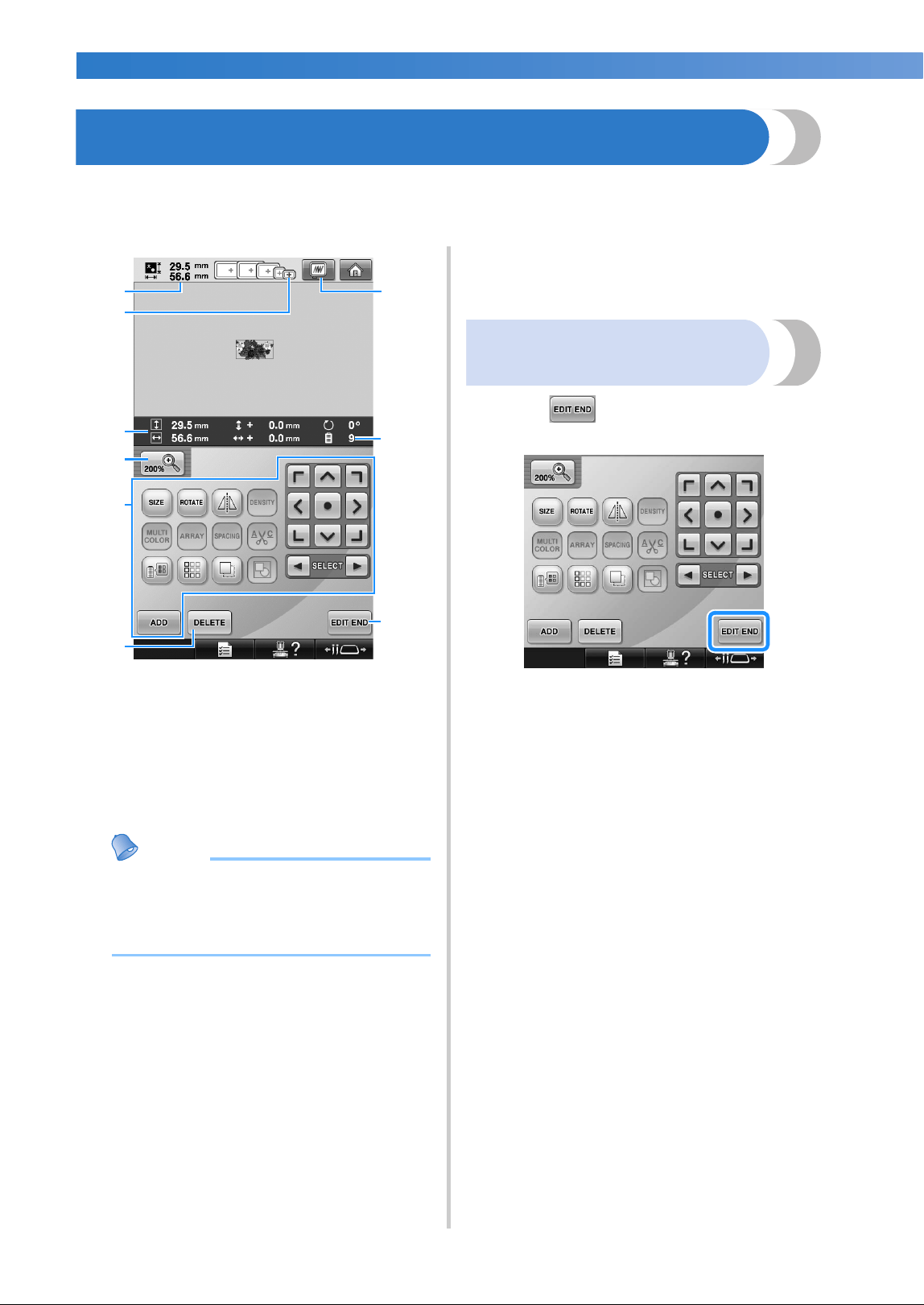
EMBROIDERING TUTORIAL
—
——————————————————————————————————————————————————————————————
——
46
4. Editing the Embroidery Pattern
From this screen, the pattern can be edited.
Pattern editing screen (For details on the keys and other information on the screen, refer to page 74.)
1 Shows the size of the embroidery pattern
currently displayed in the pattern display area.
The top value shows the height and the bottom
value shows the width. If the embroidery
pattern consists of multiple patterns that have
been combined, the size of the entire pattern,
including all patterns, is shown.
2 Highlights the sizes of embroidery frames that
can be used to sew the currently selected
embroidery pattern.
Memo
● If the embroidery frame holder is not
attached to the machine, the embroidering
area will not display the correct frame
size. (Refer to page 51.)
3 Shows the size of the currently selected
embroidery pattern.
The top value shows the height and the bottom
value shows the width.
4 Press the Enlarge key to change the size of the
on screen embroidery image presentation.
5 Touch to edit the pattern.
6 Touch this key to delete the pattern, for
example, if the wrong pattern was selected. No
pattern is selected and the pattern type selection
screen appears.
7 Displays a preview image.
8 Shows the number of thread color changes for
the currently selected embroidery pattern
9 Continues to the next screen.
In this example, we will not edit the pattern.
Without performing any editing operations,
continue to the next screen.
Continuing to the embroidering
settings screen
1
Press .
X The embroidering settings screen is
displayed.
6
1
3
5
9
7
8
2
4
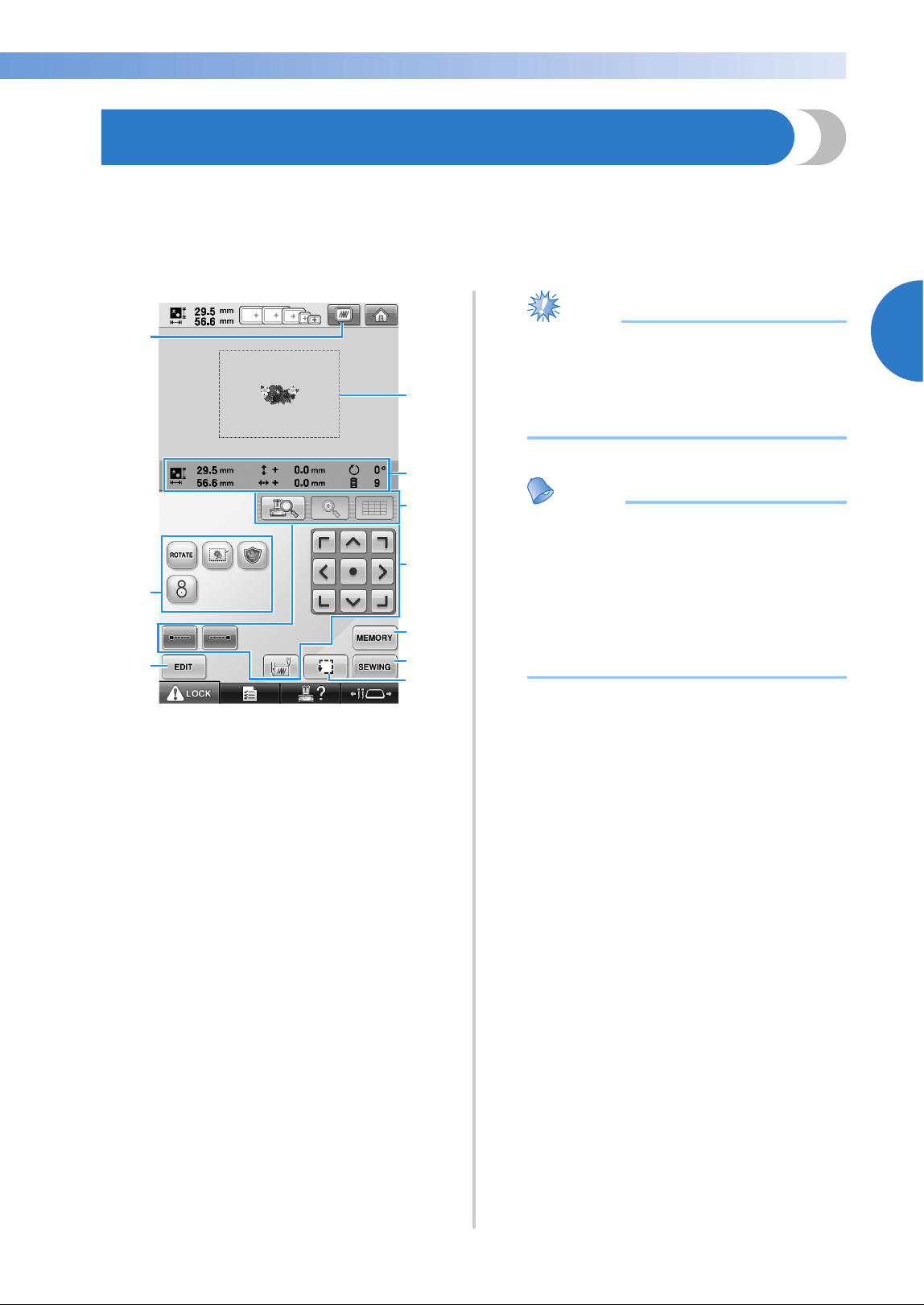
Specifying Embroidering Setting 47
2
——
—————————————————————————————————————————————————————————————
—
—————————————————————
5. Specifying Embroidering Setting
From this screen, the entire pattern can be edited and embroidering settings can be specified. In addition,
the embroidering position can be checked and a pattern can be saved for later use.
Embroidering settings screen (For details on the keys and other information on the screen, refer to page 76.)
1 Displays a preview image.
2 Touch for additional editing functions.
3 Returns to the pattern editing screen.
4 In the embroidering settings screen, the
embroidery frame guide in the pattern display
area indicates the size of the embroidery frame
selected in settings screen.
5 Image on the Design Page shows image size,
rotation, number of thread changes and
measured position of image within the
embroidery area.
6 Touch to check the needle drop point on the
LCD screen.
7 Touch these keys to specify how the pattern will
be embroidered.
8 Touch to store the pattern in memory.
9 Continues to the next screen
0 Touch to check the embroidering area.
In this example, we will not specify any of the
embroidering settings. Continue with the next
operation.
Note
● Available keys are not the same if you set
“Manual Color Sequence” to “ON” in the
settings screen. For details on the keys and
other information on the screen, refer to
page 78.
Memo
● If the embroidery frame is not positioned
correctly when continuing to the
embroidering settings screen, the
embroidery frame is moved to the correct
position at the same time that the
embroidering settings screen is displayed.
(Refer to “Moving to the correct position”
on page 98.)
1
2
9
4
7
8
0
3
6
5
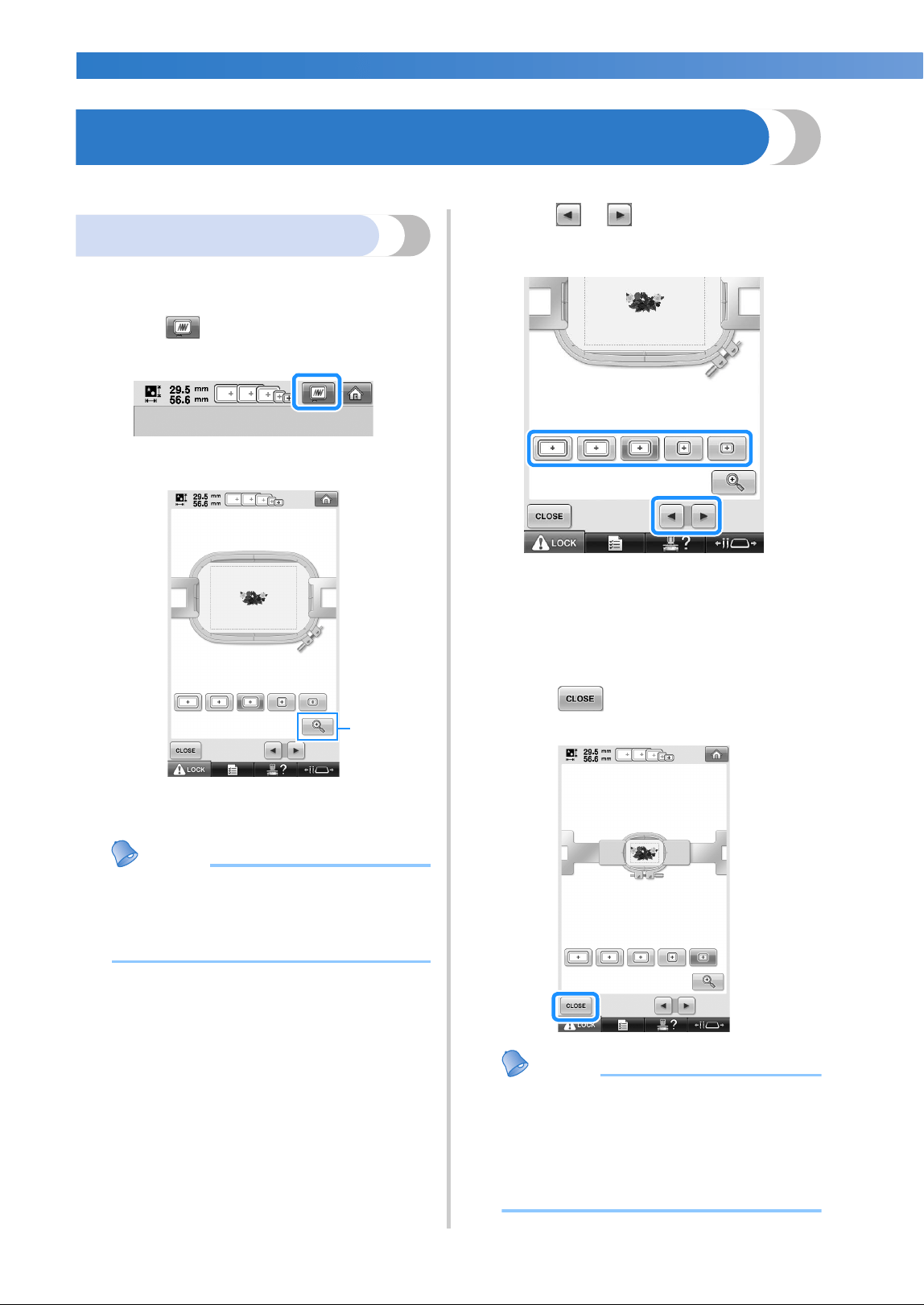
EMBROIDERING TUTORIAL
—
——————————————————————————————————————————————————————————————
——
48
6. Previewing the Image
You can view an image of the completed pattern within the embroidery frame.
Checking a preview image
Display the preview image to check that the
embroidery will be sewn as desired.
1
Touch .
X The preview image is displayed.
1 Touch this key to display an enlarged view of
the pattern.
Memo
● A preview image in a landscape
orientation cannot be rotated to a portrait
orientation, even if there is space at the
top and bottom.
2
Touch or to select the type of
embroidery frame holder, and then select
the embroidery frame you are going to use.
• If you find out the type of embroidery
frame holder and size of embroidery frame
which are best for your embroidery, select
the display guides in the settings screen for
your better embroidery editing (Refer to
page 91 and 220.).
3
Touch to return to the previous
screen.
Memo
● The embroidery can be sewn while the
preview image is displayed in the
embroidering screen. If the preview image
is displayed in any screen other than the
embroidering screen, the embroidery
cannot be sewn.
1
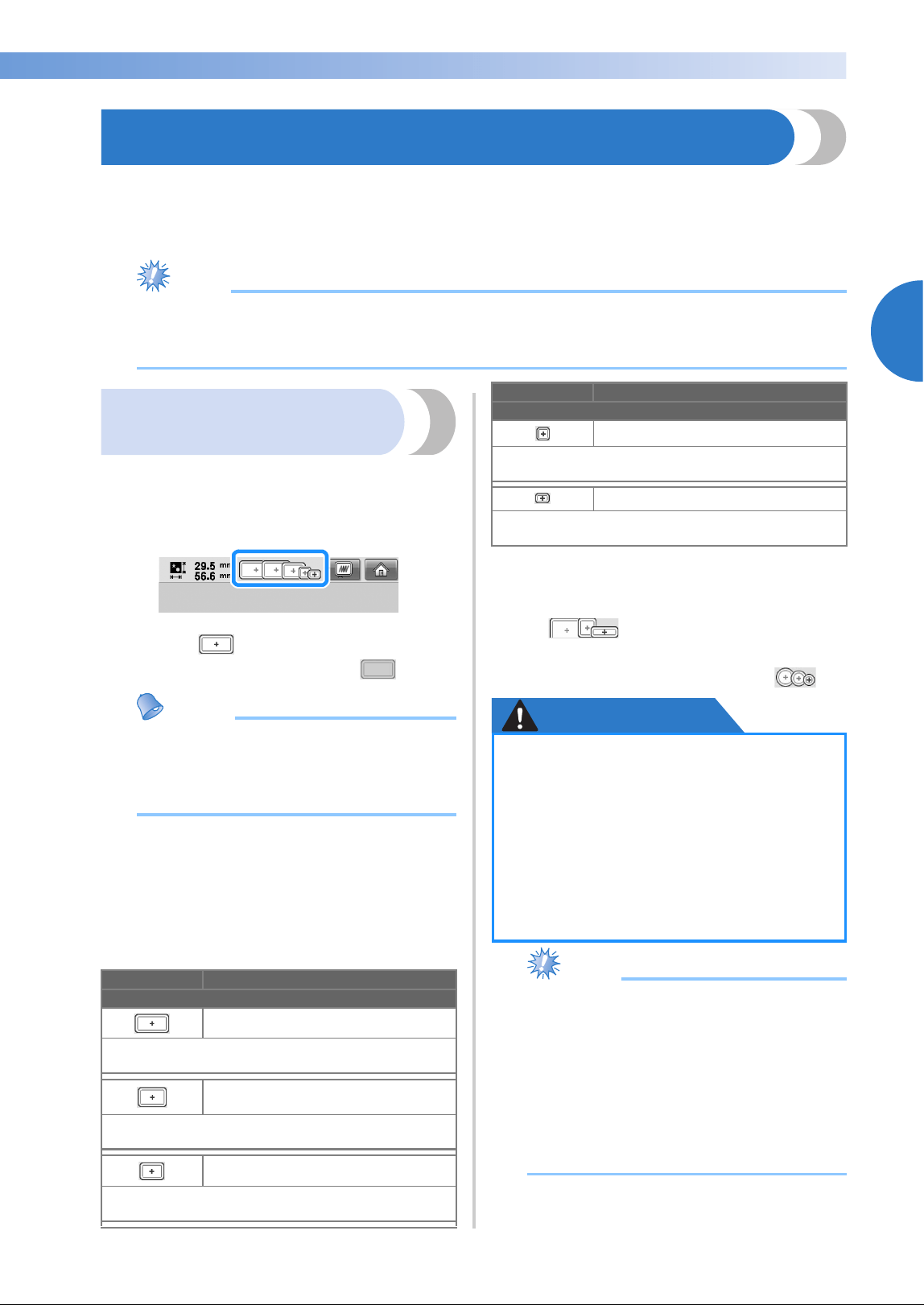
Hooping the Fabric in the Embroidery Frame 49
2
——
—————————————————————————————————————————————————————————————
—
—————————————————————
7. Hooping the Fabric in the Embroidery Frame
After selecting the pattern to be embroidered, check which embroidery frames can be used to sew the
pattern. Select the appropriate frame, and hoop the fabric and stabilizer in the embroidery frame.
(Refer to “Attaching Iron-On Stabilizer (Backing) to Fabric” on page 93.) For precautions concerning the
fabric, refer to page 36.
Note
●
If the fabric is not taut, the pattern may be misaligned or the fabric may pucker. Follow the procedure
described below to firmly stretch the fabric in the embroidery frame so that the fabric is not loose. In
addition, be sure to work on a level surface when putting the fabric in the embroidery frame.
Hooping the fabric in the
embroidery frame
1
Select an embroidery frame.
From the sizes of embroidery frames
indicated in the screen, select the embroidery
frame that you wish to use.
Embroidery frames that can be used appear
lighter ( ) embroidery frames that
cannot be used appear darker ( ).
Memo
● If the embroidery frame holder is not
attached to the machine, the embroidering
area will not display the correct frame
size. (Refer to page 51.)
■ Embroidery frame types
There are four sizes of embroidery frames
included with this machine, which are used with
the included embroidery frame holder A. For
details on the uses for each frame, refer to
“Correctly Using the Embroidery Frames” on
page 90.
If you use the optional embroidery frames (quilt,
border and jumbo) with the included embroidery
frame holder B, following icons appear in the
screen; . If you use the optional round
frame with the optional embroidery frame holder
C, following icons appear in the screen; .
CAUTION
Note
● The embroidery frame indicators show all
embroidery frame sizes in which the
embroidery pattern can be sewn. Be sure
to use an embroidery frame of the most
suitable size. If the embroidery frame that
is too large is used, the pattern may be
misaligned or the fabric may pucker.
(Refer to “Correctly Using the Embroidery
Frames” on page 90.)
Icon Name
Embroidering area
Extra-large embroidery frame
200 mm (H) × 360 mm (W)
(7-7/8 inches (H) × 14 inches (W))
Extra-large embroidery frame
(optional)
200 mm (H) × 300 mm (W)
(7-7/8 inches (H) × 11-3/4 inches (W))
Large embroidery frame
130 mm (H) × 180 mm (W)
(5-1/8 inches (H) × 7-1/8 inches (W))
Medium embroidery frame
100 mm (H) × 100 mm (W)
(4 inches (H) × 4 inches (W))
Small embroidery frame
40 mm (H) × 60 mm (W)
(1-1/2 inches (H) × 2-3/8 inches (W))
●
If embroidery frames other than the
four included frames or recommended
optional frames are used, the
embroidery frame may hit the presser
foot and damage the machine, or cause
injury to the user. (See “Correctly
Using the Embroidery Frames” on
page 90 for the details about the
embroidery frames.)
Icon Name
Embroidering area
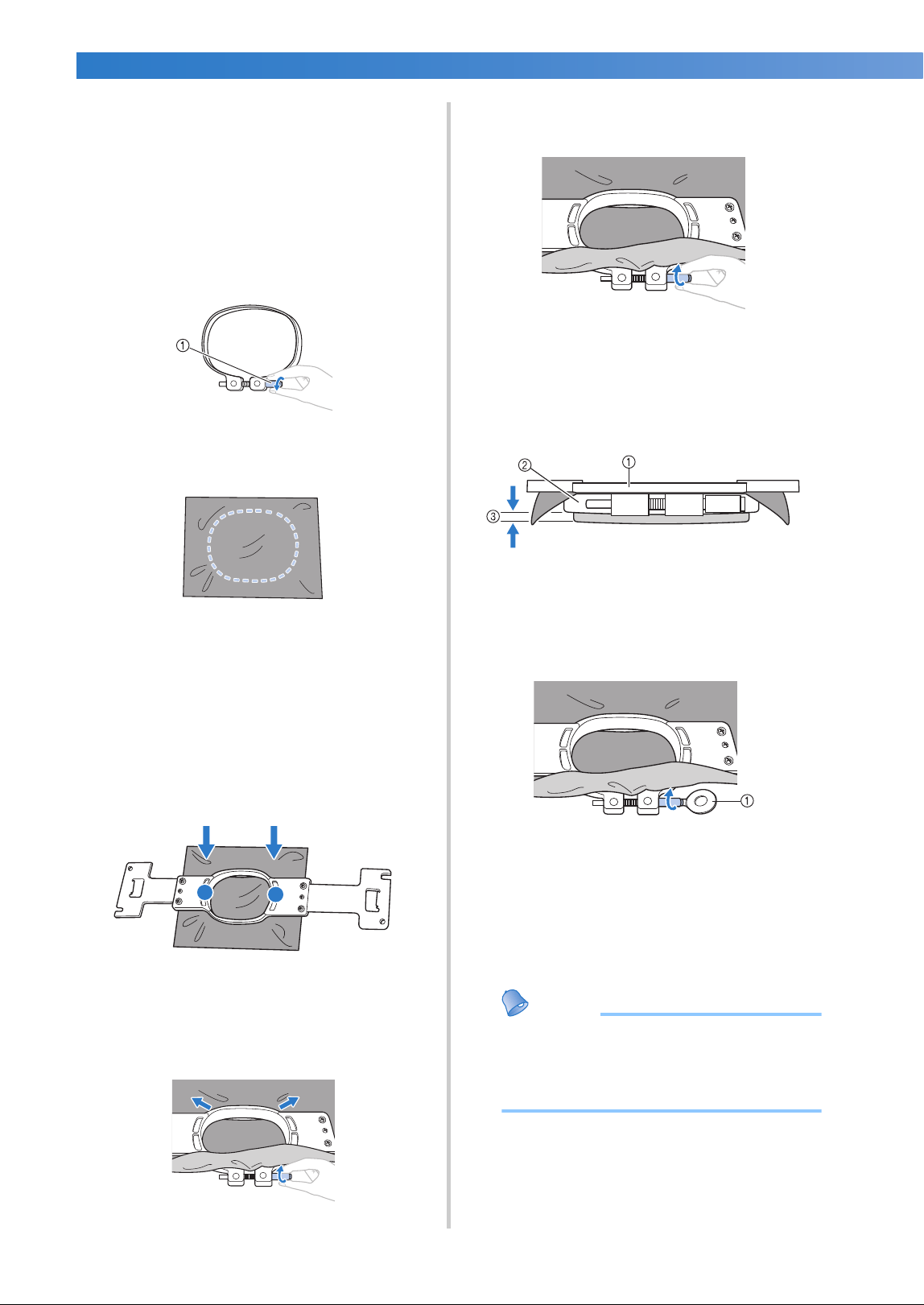
EMBROIDERING TUTORIAL
—
——————————————————————————————————————————————————————————————
——
50
■ Hooping fabric in the small embroidery frame
The procedure for hooping fabric in the small
embroidery frame is described below.
The same procedure is used to hoop the fabric in
the medium embroidery frame.
For details on hooping fabric in the other
included embroidery frames, refer to “Hooping
the Fabric” on page 94.
2
Loosen the screw on the outer frame.
1 Screw
3
Place the fabric with the right side up on top
of the outer frame.
• The outer frame does not have a front or
back side. Either side can be used as the
front.
• In order to prevent shrinkage of the stitching
or misaligned patterns, we recommend that
iron-on stabilizer (backing) be used for
embroidering. (Refer to “Attaching Iron-On
Stabilizer (Backing) to Fabric” on page 93.
4
Press the inner frame into the outer frame.
• Be sure that there are no wrinkles in the
fabric after it is positioned in the embroidery
frame.
5
Lightly tighten the screw, and then pull the
edges of the fabric.
6
Securely tighten the screw, and then check
to make sure that the fabric is taut.
• After securing the fabric, lightly tapping it
should produce a drum-like sound.
• Firmly clamp together the inner and outer
frames so that the bottom of the inner
frame is lower than the bottom of the outer
frame.
1 Inner frame
2 Outer frame
3 Bottom of inner frame
• Using the included disc-shaped
screwdriver, firmly tighten the screw.
1 Disc-shaped screwdriver
The amount that the fabric is stretched and the use
of stabilizer material differ depending on the type
of fabric being embroidered. Try various methods
to achieve the best embroidering results. (Refer to
“Hooping techniques” on page 249.)
Memo
● This embroidery machine can also be used
with the optional cap frames. (Refer to
“Using the Optional Cap Frame” on
page 258.)
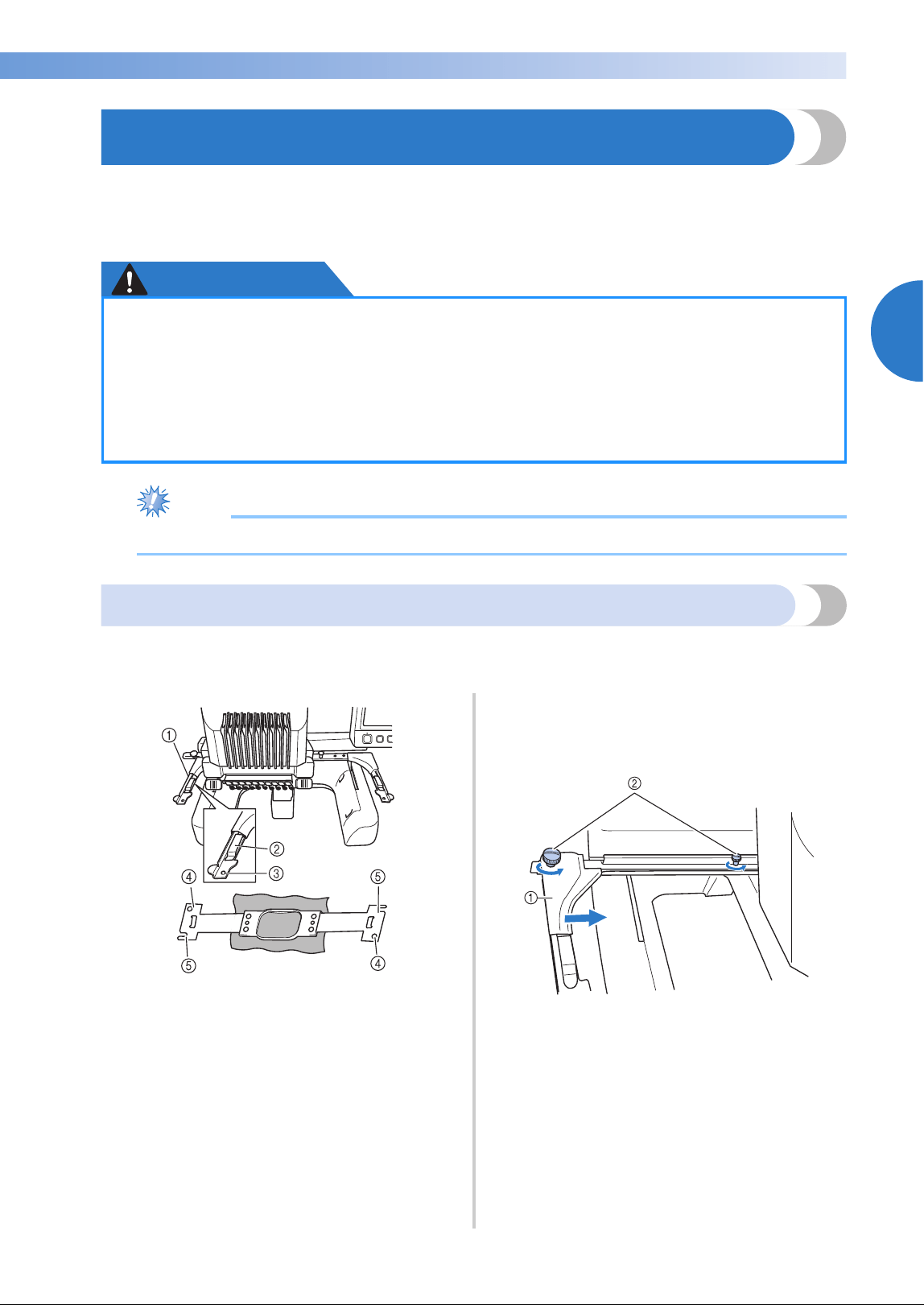
Attaching the Embroidery Frame to the Machine 51
2
——
—————————————————————————————————————————————————————————————
—
—————————————————————
8. Attaching the Embroidery Frame to the Machine
After hooping the fabric in the embroidery frame, attach the frame to the embroidery machine. Embroidery
frame holders A and B are included accessories with this machine.
Install embroidery frame holder A when an included embroidery frame is to be used. (See “Correctly Using
the Embroidery Frames” on page 90 for the details about the embroidery frame holders.)
CAUTION
Note
● Before attaching the embroidery frame, check that there is enough thread in the bobbin.
Attaching the embroidery frame
Adjust the width of the embroidery frame holder to the size of the embroidery frame, and then attach the
embroidery frame to the machine. As an example, the procedure for attaching the small embroidery frame is
described below.
1 Left arm of embroidery frame holder
Move the arm of the embroidery frame holder
to the left or right to adjust it to the size of the
embroidery frame.
2 Clip on embroidery frame holder.
Insert the embroidery frame into the clips on the
embroidery frame holder.
3 Positioning pin
4 Holes
5 Positioning slots
1
Loosen the two thumb screws on the
embroidery frame holder.
If the screw is too tight, please use the
included disc-shaped screwdriver.
1 Left arm
2 Thumb screws
X The left arm of the embroidery frame
holder can be moved.
• Only loosen the thumb screws a maximum
of 2 turns counterclockwise. Do not
remove the screw.
● If the embroidery frame is not correctly attached it may hit the presser foot and damage
the machine, or cause injury to the user.
● When attaching the embroidery frame, make sure that the start/stop button is lit in red. If
the start/stop button is flashing in green, the embroidery machine may start sewing. If the
embroidery machine accidentally starts operating, injuries may result.
● When attaching the embroidery frame, make sure that the embroidery frame does not hit
any other part of the embroidery machine.
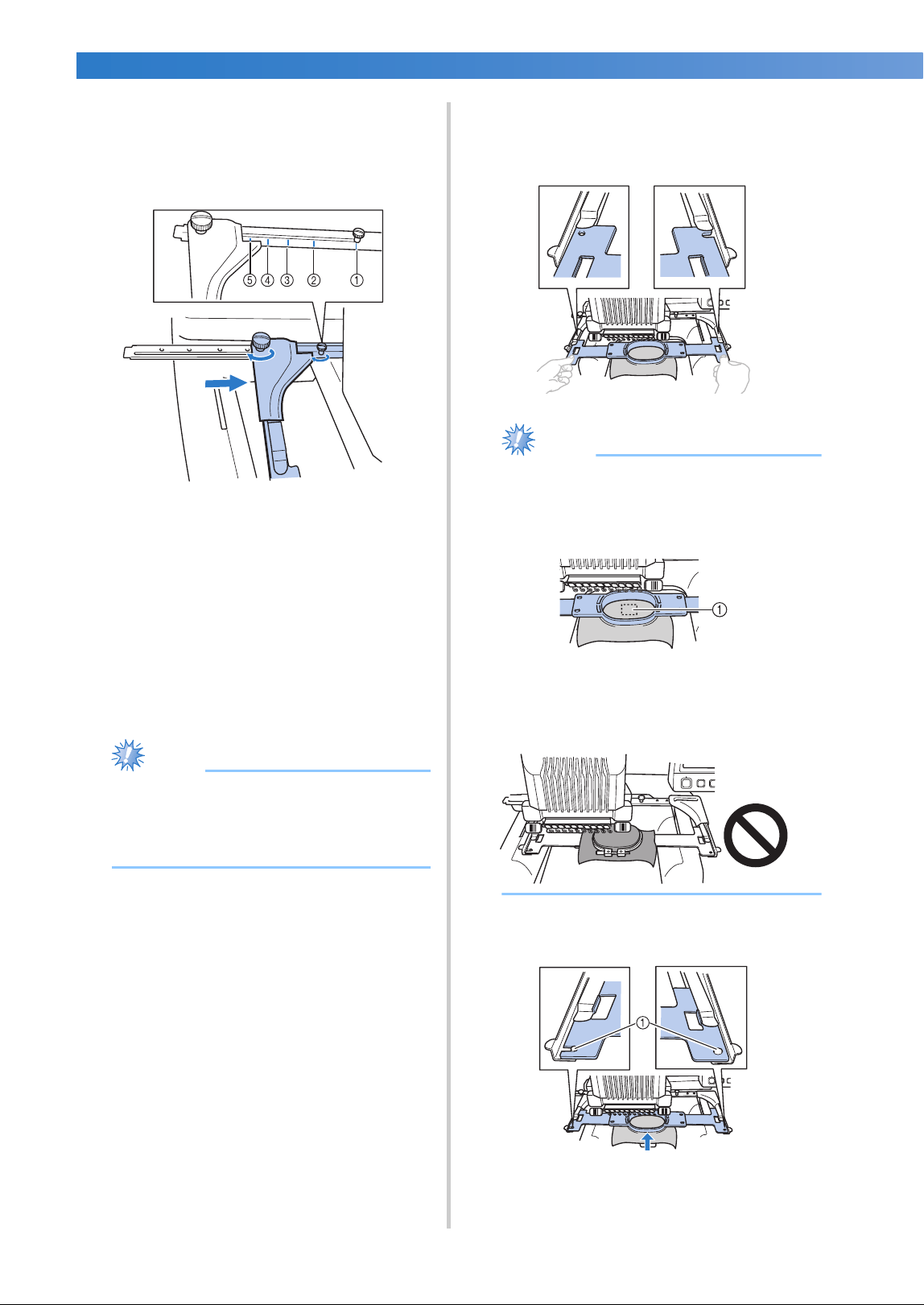
EMBROIDERING TUTORIAL
—
——————————————————————————————————————————————————————————————
——
52
2
Move the left arm to align the screw on the
right side with the mark for the embroidery
frame to be installed, and then tighten the
thumb screws.
For this example, align with mark 5.
1 Mark for extra-large embroidery frame
200 mm (H) × 360 mm (W) (7-7/8 inches (H) ×
14 inches (W))
2 Mark for extra-large embroidery frame
200 mm (H) × 300 mm (W) (7-7/8 inches (H) ×
11-3/4 inches (W)) (optional)
3 Mark for large embroidery frame
130 mm (H) × 180 mm (W) (5-1/8 inches (H) ×
7-1/8 inches (W))
4 Mark for medium embroidery frame
100 mm (H) × 100 mm (W) (4 inches (H) × 4
inches (W))
5 Mark for small embroidery frame
40 mm (H) × 60 mm (W) (1-1/2 inches (H) × 2-
3/8 inches (W))
Note
● Please firmly tighten the two thumb screws
with included disc-shaped screwdriver. The
machine will recognize the wrong frame
size, if the two screws are not tightened.
X The embroidery frame holder is ready for
the embroidery frame to be attached.
3
Hold the embroidery frame level, and then
simultaneously align both the left and right
mounts with the embroidery frame holder
clips.
• The inner frame should be on top.
Note
● Attach the embroidery frame to place the
needle plate under the embroidering area
otherwise the embroidery frame hits the
needle plate.
1 Needle plate
● If the outer frame is on top, as shown
below, the embroidery frame is incorrectly
attached.
4
Insert the embroidery frame until it snaps
into place.
1 Make sure that the pins on the left and right arms
of the embroidery frame holder fit into the
positioning slot and hole on the embroidery
frame.
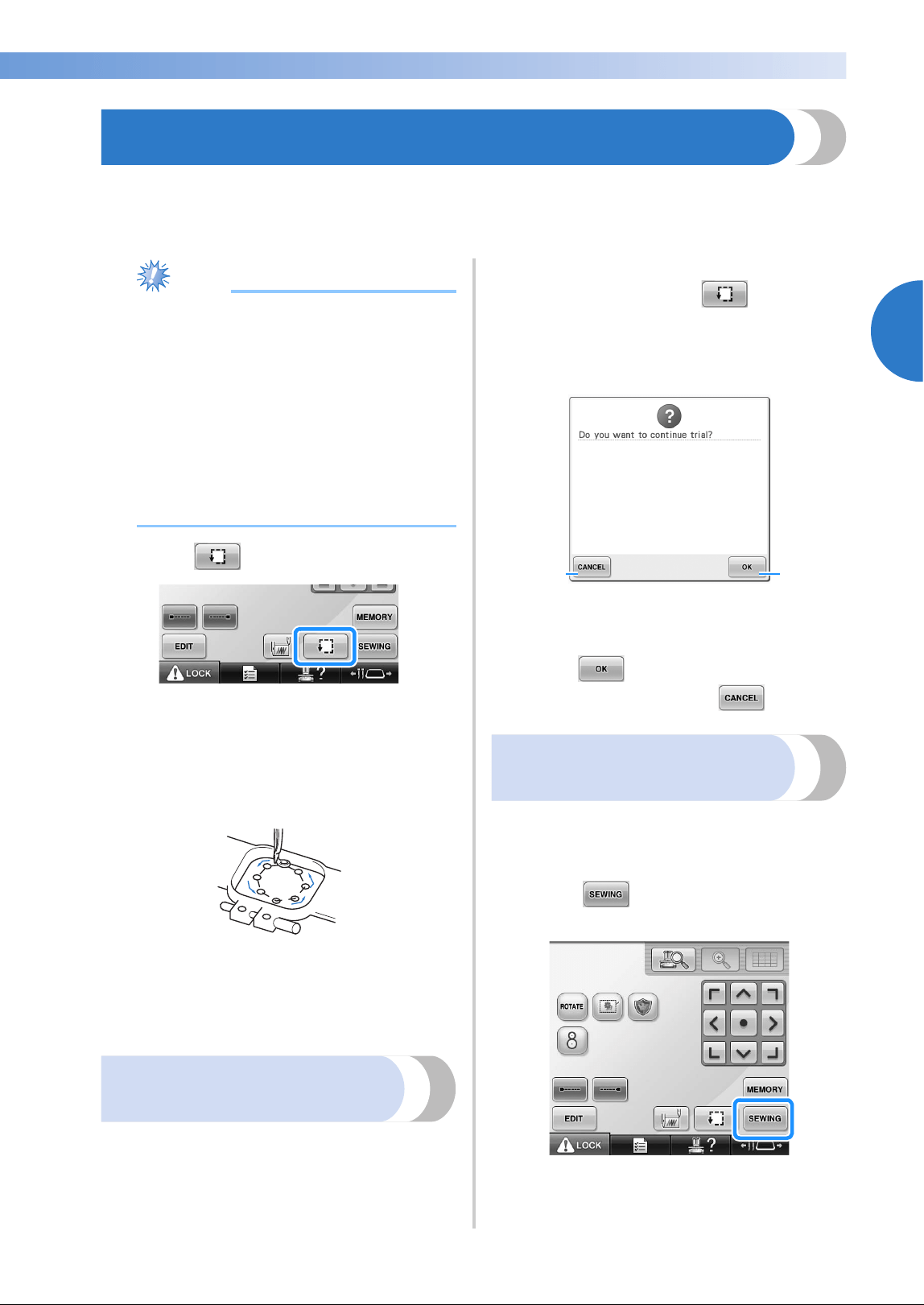
Checking the Embroidery Area 53
2
——
—————————————————————————————————————————————————————————————
—
—————————————————————
9. Checking the Embroidery Area
Check the embroidery area to make sure that the embroidery will be sewn in the desired location and will
not be misaligned and that the embroidery frame will not hit the presser foot.
If the embroidery frame is not correctly positioned, it moves to the correct position, and then the
embroidering position is indicated.
Note
● If you are embroidering a large project
such as a jacket or curtains, using the flat,
quilt or jumbo frame, your embroidering
may be interrupted by the presser feet not
in use catching on the fabric outside of the
design area. Try to stitch the design as
close to the center of the embroidery
frame, using needle bars 3 through 7,
keeping the head of the machine as
centered as possible. (Refer to page 108 or
132 to select the needle bar).
1
Touch .
X The presser foot is lowered and the
embroidery frame moves to show the
embroidery area.
2
The corners of the octagon showing the
embroidery area for the pattern are
indicated by changing direction.
Carefully watch the movement of the
embroidery frame and check that the
embroidery is sewn in the desired location
and that the embroidery frame does not hit
the presser foot.
Temporarily stopping to
check the area
The embroidery frame can be temporarily stopped
at a desired position or the checking of the
embroidering area can be stopped.
1
When the embroidery frame moves to the
desired position, touch again.
X The embroidery frame stops moving, and
the next screen appears.
1 Touch to continue moving the frame.
2 Touch to stop checking the embroidering area.
2
To continue moving the embroidery frame,
touch . To stop checking the
embroidering area, touch .
Continuing to the
embroidering screen
After finishing the necessary operations in the
embroidering settings screen, continue to the
embroidering screen.
1
Touch .
X The embroidering screen appears.
12
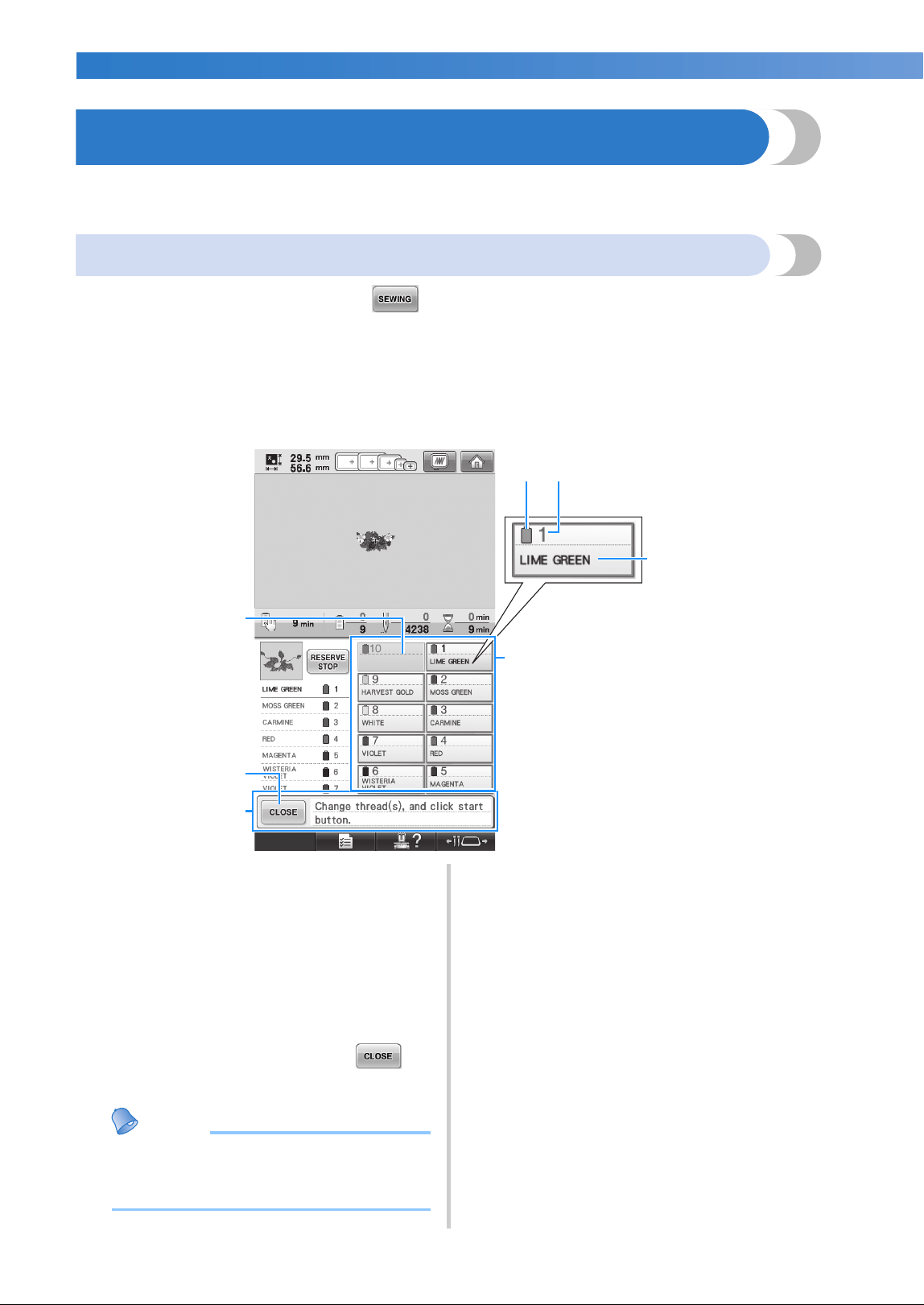
EMBROIDERING TUTORIAL
—
——————————————————————————————————————————————————————————————
——
54
10. Upper Threading
Check the embroidering screen for information on which needle bars should be threaded with which thread
colors, and then thread the upper threads.
Checking the needle bars and thread colors
In the embroidering settings screen, touch to display the embroidering screen. Check the thread
colors in this screen.
Change thread spools message will appear if the thread spools from the previous embroidery project need to
be changed. If you set “Manual Color Sequence” to “ON” in the settings screen, the message does not
appear even if the thread spools need to be changed. (Refer to “Selecting/Managing Thread Colors for Each
Needle Bar (Manual Color Sequence)” on page 132.)
Embroidering screen (For details on the keys and other information on the screen, refer to page 79.)
1 Thread information for the first to tenth needle
bars
2 If no thread color name is displayed, that
needle bar has not been used.
If a thread color had been assigned to the
needle bar on a previously sewn design, the
needle bar will show the previously assigned
color.
3 Change thread spools message. (Refer to
page 113.)
This message appears when it is necessary for
the thread spools to be changed. If 4
is not touched to close the message,
embroidering cannot continue.
Memo
● The thread information for the thread
spool to be changed appears framed in
red.
5 Thread color
6 Needle bar number
7 Thread color name or number
If the thread color number (#123) is selected in
the settings screen (Refer to “Changing the
thread color information” on page 222), the
thread brand will also displayed.
Thread with the color name that appears beside
each needle bar number is threaded on that needle
bar. For the screen shown
If there is no name beside the needle bar number,
that needle bar is not used. For this example,
needle bar 10 is not used.
4
56
3
1
2
7
1: LIME GREEN 6: WISTERIA VIOLET
2: MOSS GREEN 7: VIOLET
3: CARMINE 8: WHITE
4: RED 9: HARVEST GOLD
5: MAGENTA
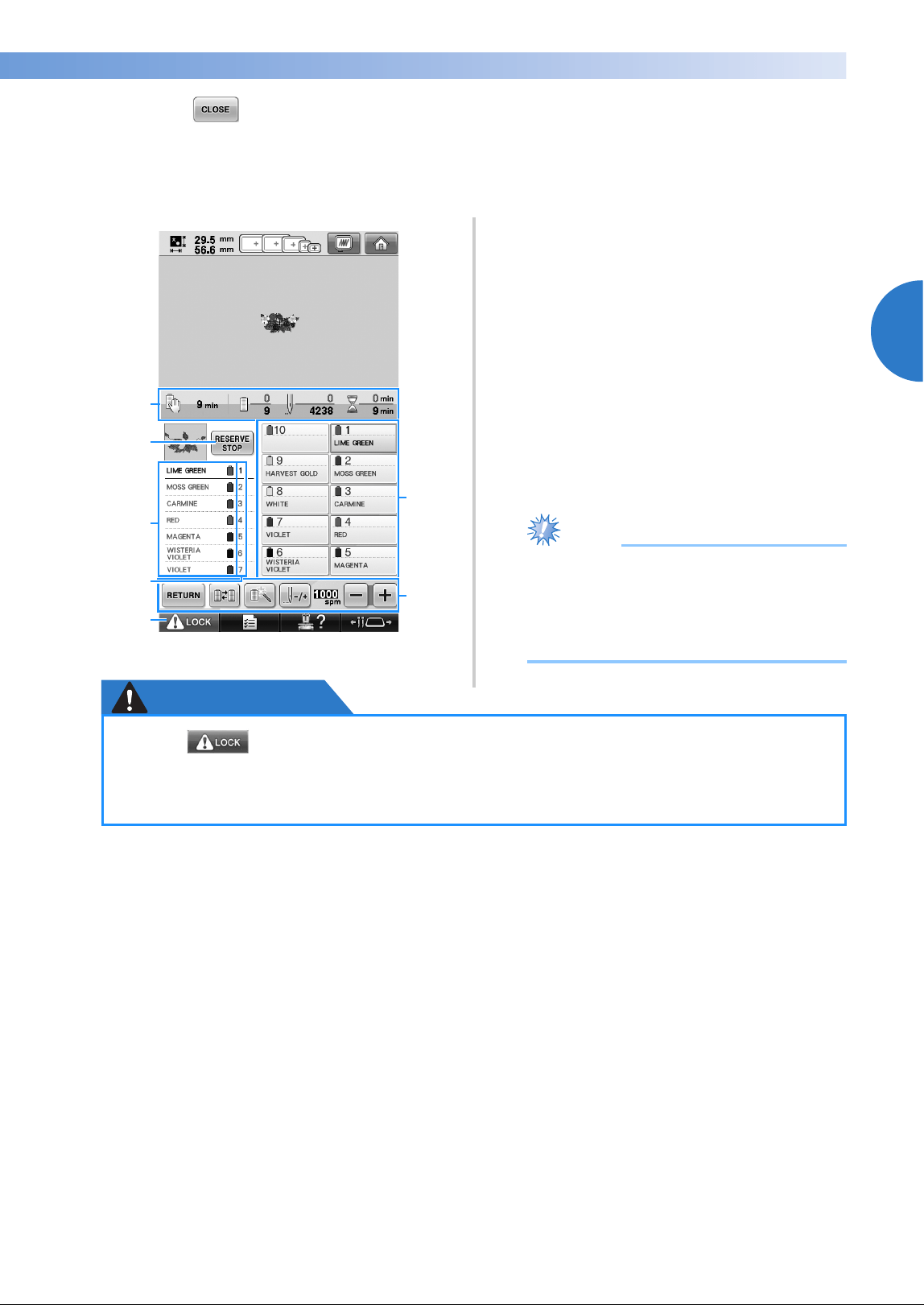
Upper Threading 55
2
——
—————————————————————————————————————————————————————————————
—
—————————————————————
1
Touch .
X The screen indicating that the spools be changed is closed.
• In addition to checking the thread colors, information such as the number of stitches and the sewing
time can be checked and various embroidering settings can be specified in the embroidering screen.
1 Shows the number of thread color changes, the
number of stitches, the embroidering time and
the length of time until the machine will stop.
2 Use these keys to specify various embroidering
settings or to return to the embroidering settings
screen.
3 Shows the embroidering order for the thread
colors.
4 Indicates the needle bar number where the
thread color at the left is assigned.
5 To start the machine, touch this key to unlock
the machine, and then press the start/stop
button.
6 Touch a key to move the selected needle bar to
the sewing position. Use when threading the
needle with the automatic needle-threading
mechanism.
Note
● Available keys are not the same if you set
“Manual Color Sequence” to “ON” in the
settings screen. (Refer to page 79 for
details on the keys and other information
on the screen.)
CAUTION
5
2
3
6
1
2
4
● When (unlock key) in the embroidering screen is touched, the start/stop button
begins flashing in green and the embroidery machine can start sewing. If the upper
threading is being performed or the needle is being threaded, be careful that the
embroidery machine is not accidentally started, otherwise injuries may result.
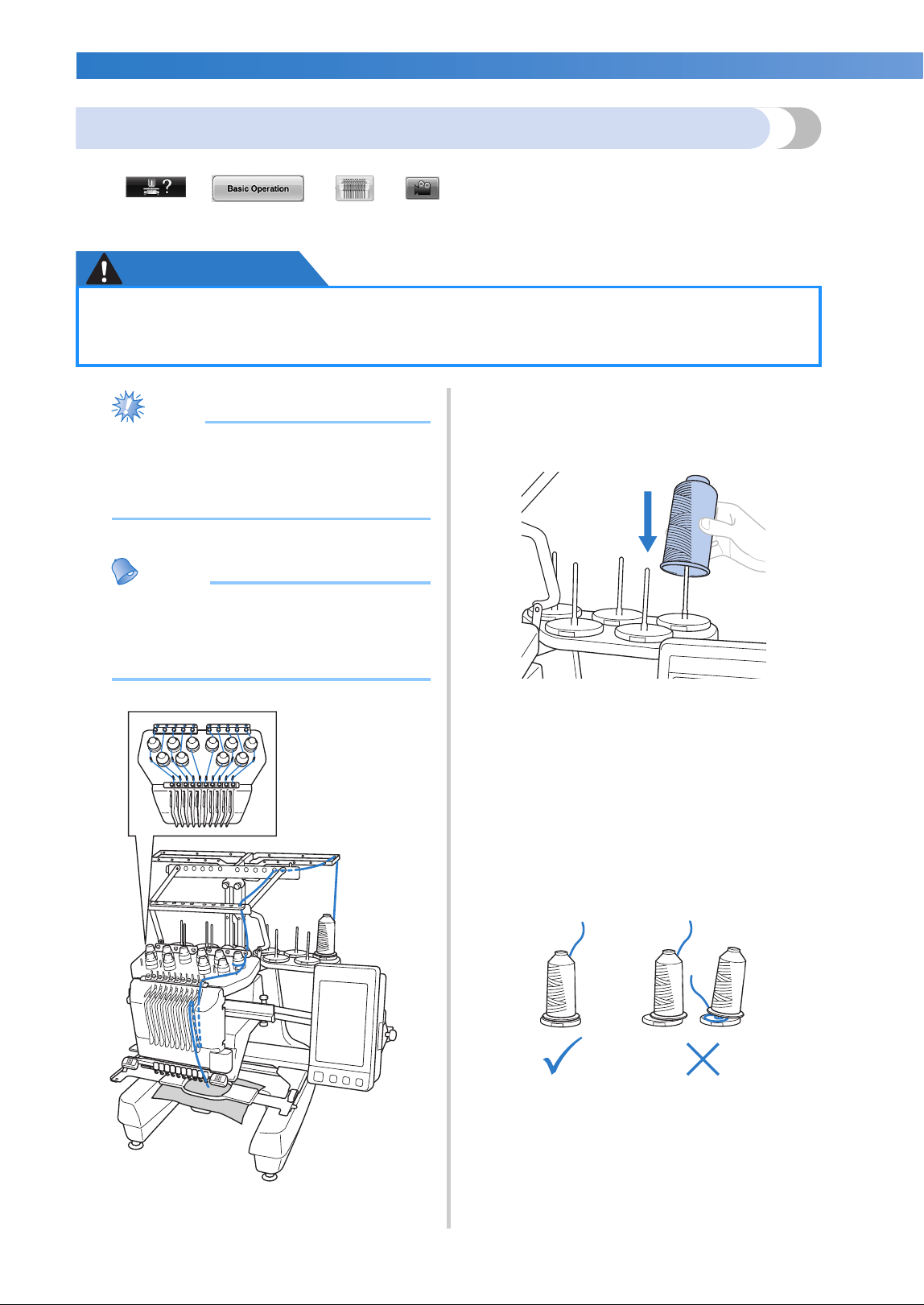
EMBROIDERING TUTORIAL
—
——————————————————————————————————————————————————————————————
——
56
Upper threading
Use machine embroidery thread to thread the needle bars in order, starting with needle bar 1.
Touch →
→ → in order to view a video of the operation on the LCD
(refer to page 232).
CAUTION
Note
● It is recommended that rayon or polyester
machine embroidery thread be used (120
den/2, 135 dtex/2, 40 weight (in Americas
and Europe), #50 (in Japan)).
Memo
● The path that the embroidery machine
should be threaded is indicated by a line
on the machine. Be sure to thread the
machine as indicated.
1
On the spool pin, place a spool with the
thread color specified for the corresponding
needle bar.
• Check that the spool stand has been
completely opened.
• When using small spools of thread, be sure
to place the included spool mat on the
spool pin before placing the spool on the
pin.
• Place the thread in the center of the spool
stand so that the thread feeds off of the
spool correctly and does not get tangled
around the spool pin directly under the
thread spool.
●
When threading the upper thread, carefully follow the instructions. If the upper threading
is not performing correctly, the thread may break or become tangled, causing the needle
to bend or break.
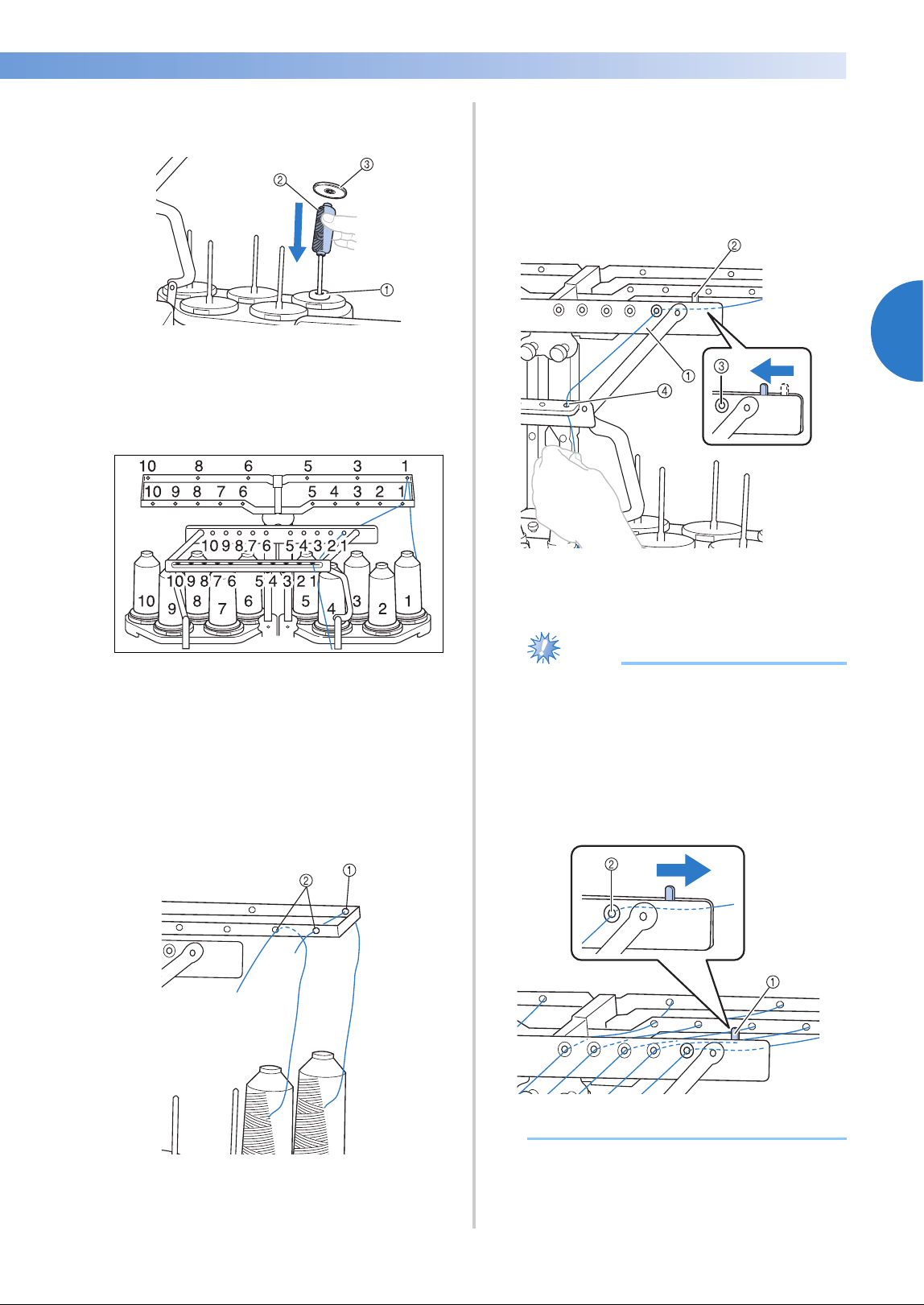
Upper Threading 57
2
——
—————————————————————————————————————————————————————————————
—
—————————————————————
• Use spool cap on all spools of thread
shorter than the height of the spool pin.
1 Spool mat
2 Small spool
3 Spool cap
The numbers indicate the thread path for each of
the numbered needle bars. Be very careful to
correctly thread the needle bars.
2
Pass the thread of a specified color through
the holes on the thread guide, making sure
that you have the thread color matched to
the coordinating needle bar.
Pass the thread from spool pins 1, 3, 5, 6, 8
and 10 through the holes in both thread
guides A and B.
Pass the thread from spool pins 2, 4, 7 and 9
through the hole in thread guide B only.
1 Thread guide A (There are 6 holes in this thread
guide)
2 Thread guide B (There are 10 holes in this
thread guide)
3
Pass the thread through the hole (with the
corresponding needle bar number) in thread
guide C, then through the corresponding
hole in thread guide D.
As an example, the threading for spool pin 1
is shown.
1 Thread guide C
2 Thread tension lever
3 Holes in thread guide C
4 Thread guide D
Note
● Before threading, make sure to slide the
thread tension lever to the left so that the
holes in thread guide C are fully open.
● After all upper threading is finished, be
sure to slide the thread tension lever back
to the right. Embroidering with the holes in
thread guide C fully open may cause the
thread to become tangled or break.
1 Thread tension lever
2 Holes in thread guide C
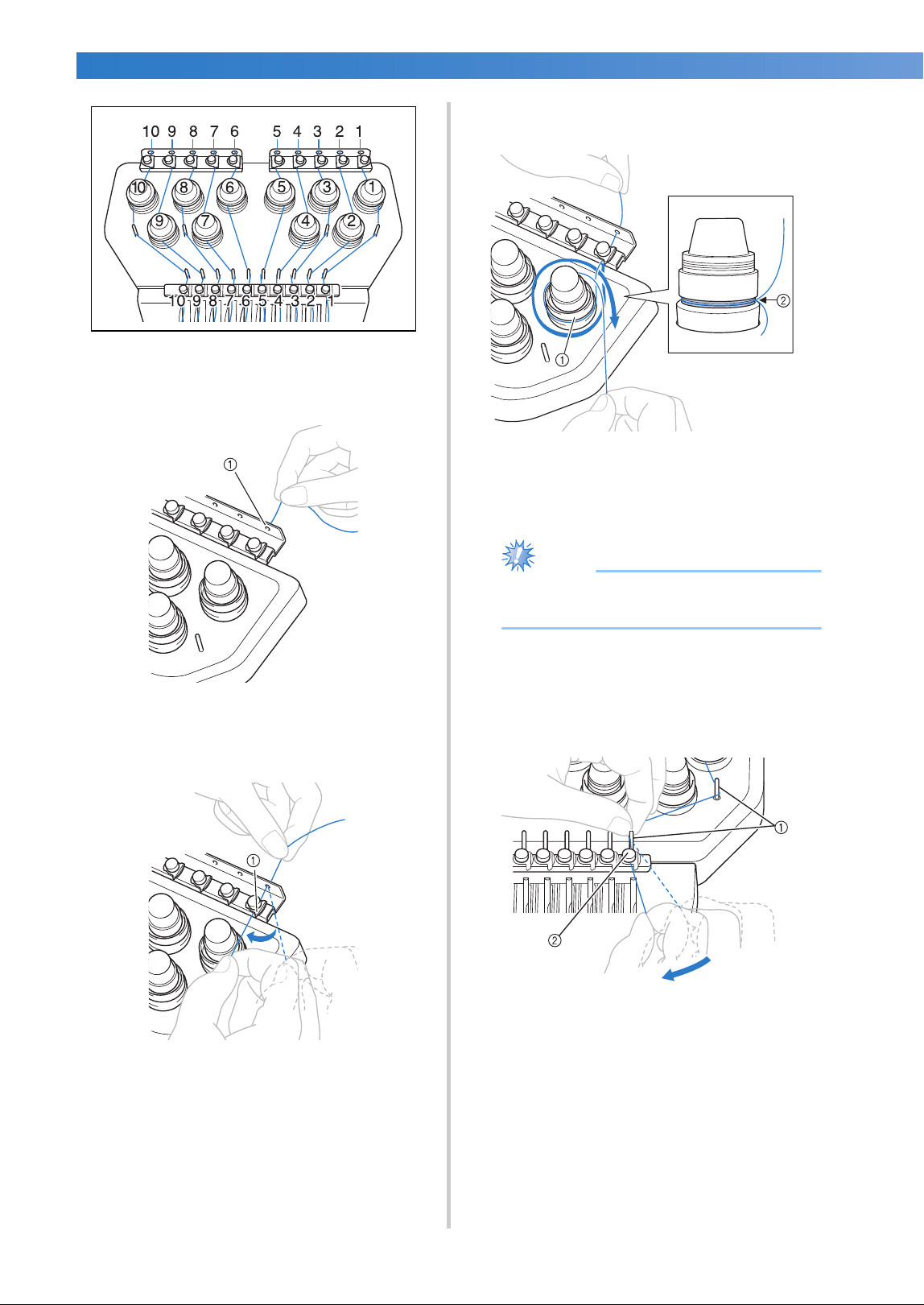
EMBROIDERING TUTORIAL
—
——————————————————————————————————————————————————————————————
——
58
4
Pass the thread through the hole in the
number 1 upper thread guide and pull the
thread toward you.
1 Hole in upper thread guide
5
Hold the thread with both hands, and then
pass it under the guide plate from the right.
1 Upper thread guide plate
6
Wind the thread clockwise once around the
number 1 thread tension disc.
1 Thread tension disc
2 Pass thread in a clockwise direction at this
location on the tension disks.
• Make sure that the thread is securely
positioned in the thread tension.
Note
● All thread tension discs are threaded in
clockwise direction.
7
Lead the thread along the thread path and
around the correct thread guide pins as
indicated on the machine, then slip the
thread under the number 1 middle thread
guide plate from the right.
1 Thread guide pin
2 Middle thread guide
• The path from the upper thread guide
around the thread tension disc and to the
middle thread guide (steps
6 through 7)
may differs depending on the spool
number. Passing the thread through the
thread guide pins is designed to prevent the
thread from becoming tangled. Be sure to
follow the thread path indicated on the
machine.
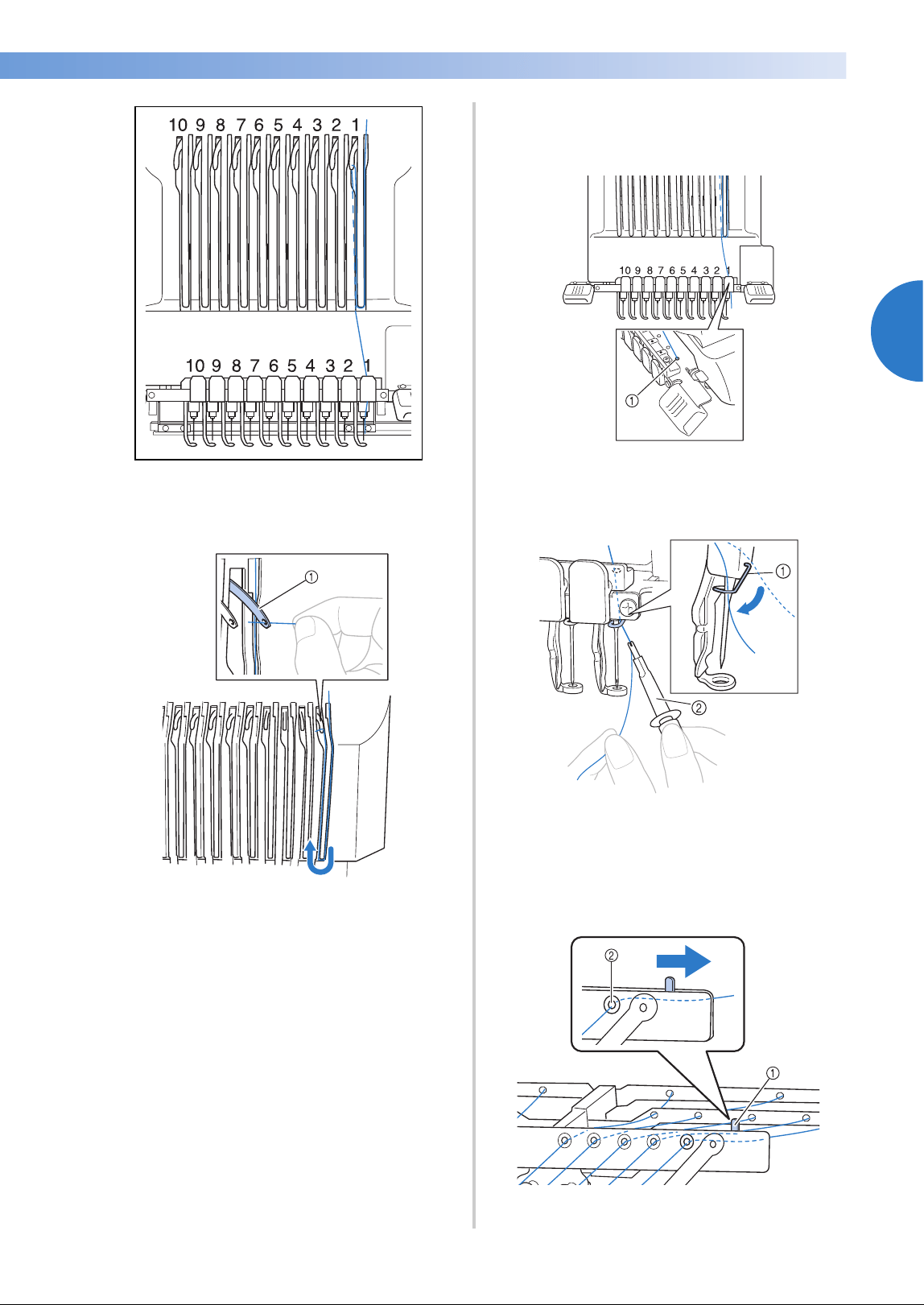
Upper Threading 59
2
——
—————————————————————————————————————————————————————————————
—
—————————————————————
8
Pass the thread along the number 1 slot to
pass it through the number 1 take-up lever
hole from right to left.
1 Thread take-up lever
9
Pass the thread down through the slot to the
lower thread guide, and then through the
hole in the number 1 lower thread guide.
1 Hole in lower thread guide
0
Use the included threader to pass the thread
into the number 1 needle bar thread guide.
1 Needle bar thread guide
2 Needle changing tool (Threader)
a
When all upper threading is complete, be
sure to slide the thread tension lever for
thread guide C to the right, closing the holes
in the thread guide.
1 Thread tension lever
2 Holes in thread guide C
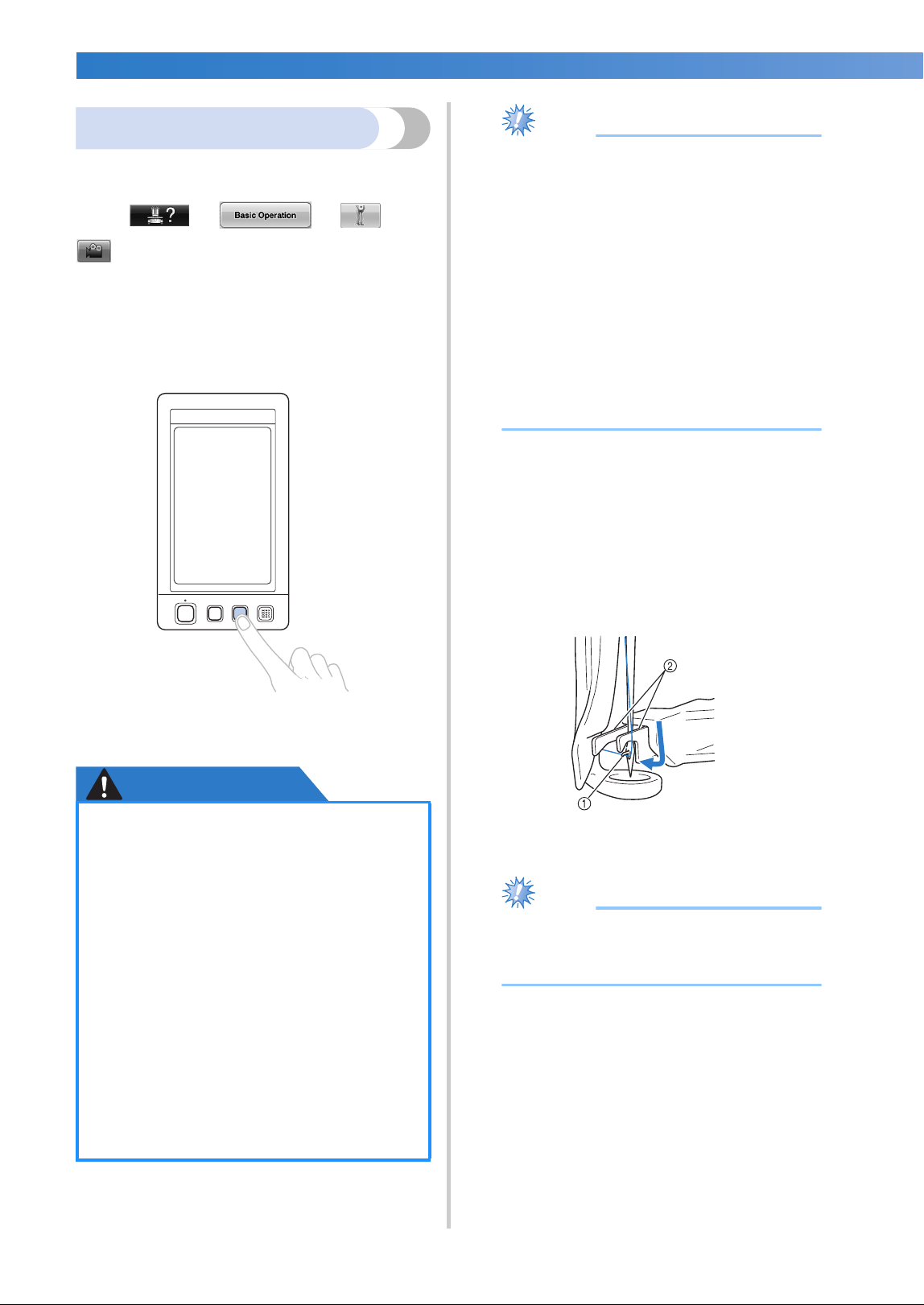
EMBROIDERING TUTORIAL
—
——————————————————————————————————————————————————————————————
——
60
Threading the needle
Use the automatic needle-threading mechanism to
thread the needle.
Touch →
→ →
in order to view a video of the operation on
the LCD (refer to page 232).
1
Press the automatic needle-threading
button.
X The hook on the automatic needle-
threading mechanism passes through the
eye of the needle.
CAUTION
Note
● To avoid damage, the automatic needle-
threading mechanism may return to the
back position when you turn the
handwheel.
● The automatic needle-threading
mechanism can thread one needle at the
sewing position. When this mechanism is
used, be sure that the needle bar that you
want to thread is positioned as the sewing
position, otherwise the automatic needle-
threading mechanism cannot be used at
the particular needle. If the needle bar is
not at the sewing position, move it there.
(Refer to page 62.)
2
Pull out about 150 mm (6 inches) of thread.
Allow thread to relax and eliminate any
stress on the thread. Then, as shown in the
illustration, pass the thread under the fork of
the automatic needle-threading mechanism
from the right, and then catch the thread
with the hook that passes through the eye of
the needle.
1 Hook
2 Fork
Note
● When catching the thread with the hook,
be careful that the thread does not become
loose.
● If the needle is not fully inserted, the
hook of the automatic needle-threading
mechanism will not pass through the
eye of the needle during automatic
needle threading, and the hook may
bend or the needle cannot be threaded.
● If the hook of the automatic needle-
threading mechanism is bent or
damaged, contact your authorized
dealer.
● While the hook of the automatic
needle-threading mechanism is passed
through the eye of the needle, do not
rotate the handwheel, otherwise the
automatic needle-threading mechanism
may be damaged.
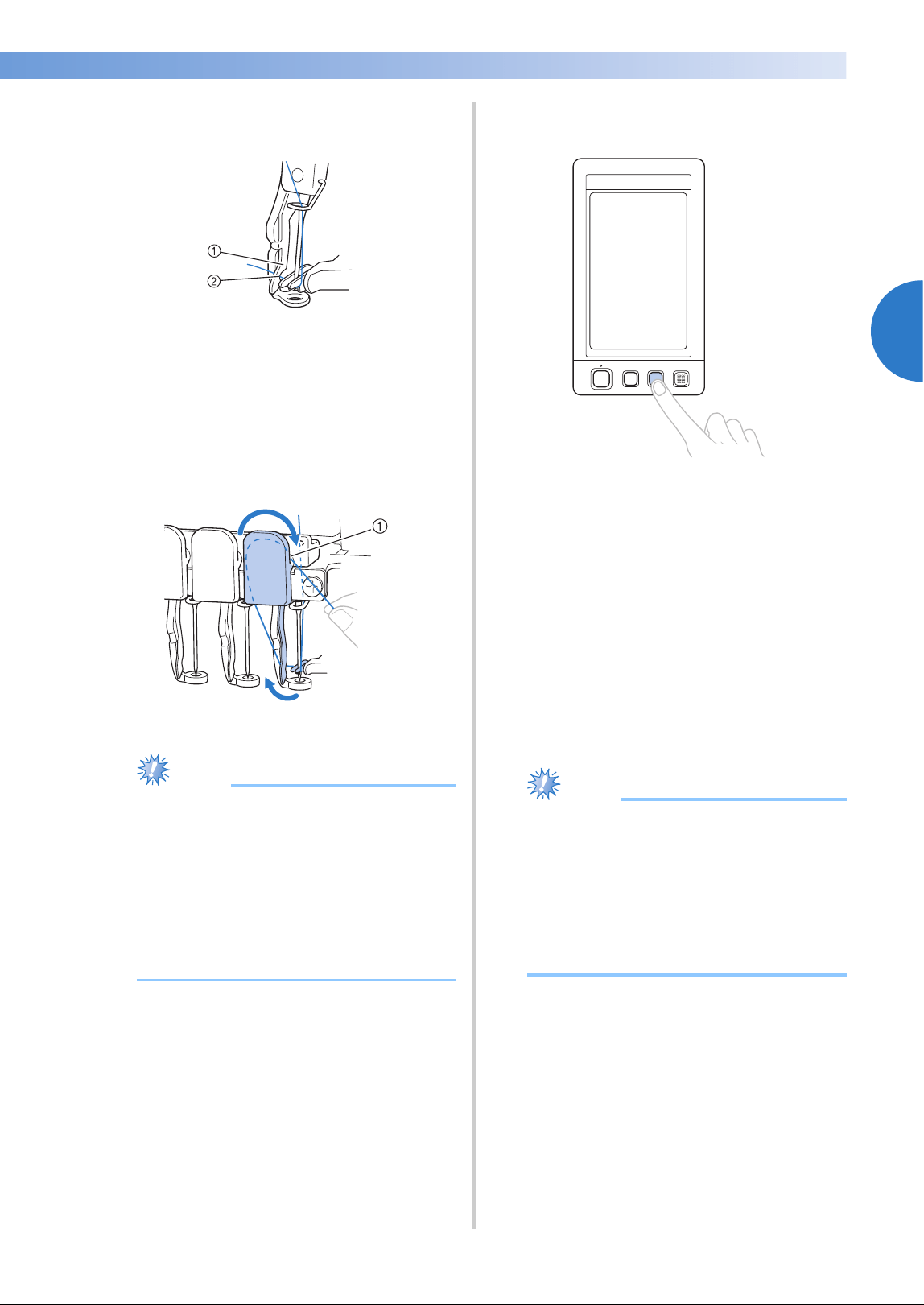
Upper Threading 61
2
——
—————————————————————————————————————————————————————————————
—
—————————————————————
3
Pass the thread under the guide on the
presser foot.
1 Guide on presser foot
2 Notch in guide on presser foot
• Make sure that the thread securely passes
through the notch in the guide on the
presser foot.
4
Securely pass the thread through the groove
in the thread cutter, and then lightly pull the
thread to cut it.
1 Groove in thread cutter
Note
● If the thread is not correctly passed
through the groove in the thread cutter,
the message “Wiper error” appears and
the needle cannot be threaded. Be sure to
securely pass the thread through the
groove.
● If enough thread is not pulled out, the
thread cannot be pulled through the
thread cutter.
5
Press the automatic needle-threading
button.
• The threader moves back away from the
needle. The thread is pulled through the
needle eye.
• The wiper comes out and catches the
thread between the needle and the
threader.
• The threader goes back to the original
home position.
This completes the upper threading for
needle bar 1.
Thread the remaining needle bars in the same
way.
Note
● If the needle bar to be threaded is not
moved to the embroidering position, the
needle cannot be threaded with the
automatic needle-threading mechanism.
For the remaining needle bars, perform the
following operation to move the needle
bar to the embroidering position before
trying to thread the needle.
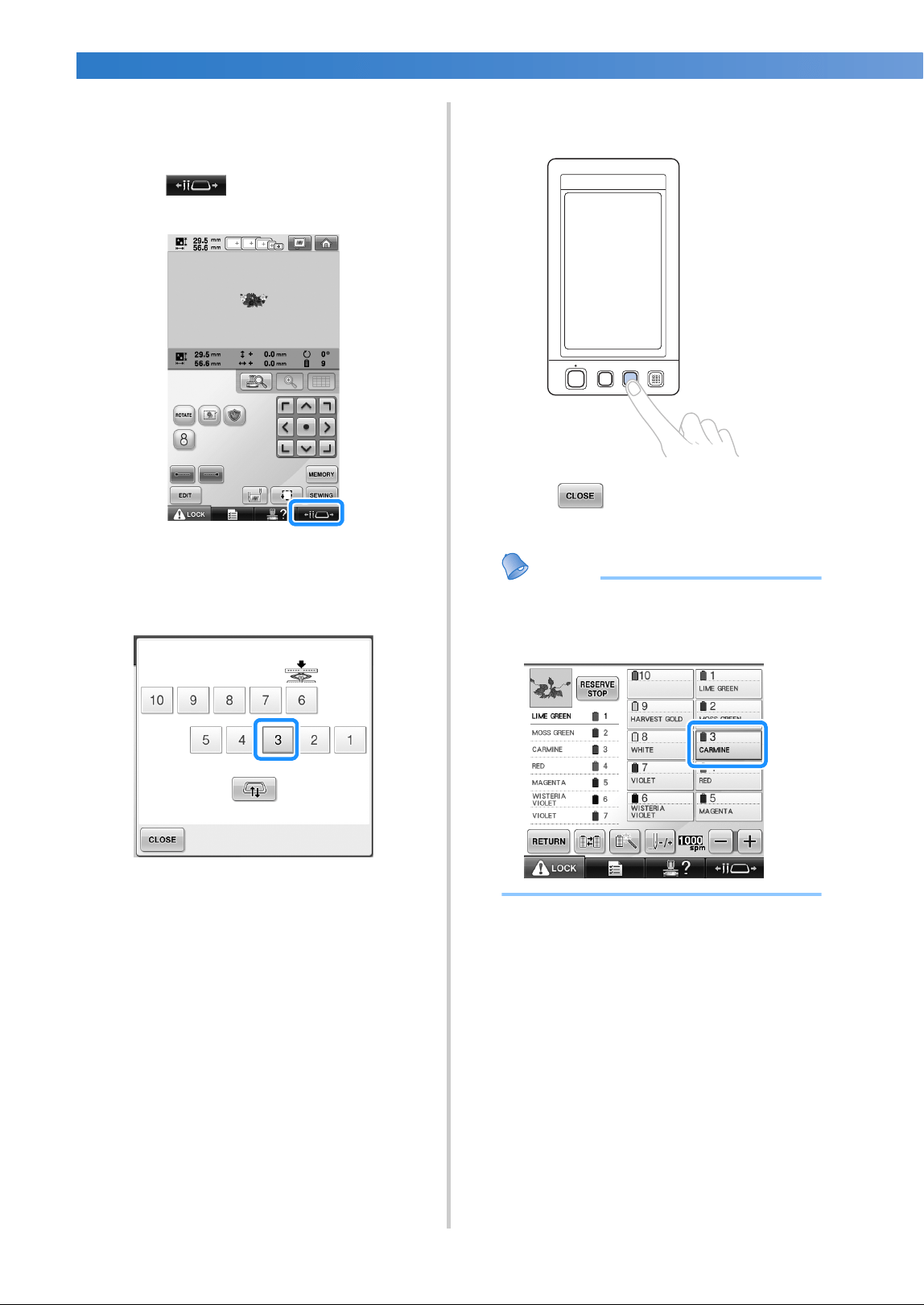
EMBROIDERING TUTORIAL
—
——————————————————————————————————————————————————————————————
——
62
■ Moving and threading a selected needle bar
You can move and thread a selected needle bar
to the embroidering position at any time.
1
Touch .
X The needle bar move screen appears.
2
Touch the key for the needle bar that you
wish to move or thread.
X The selected needle bar moves to the
position of embroidery.
3
Press the automatic needle-threading button
while the needle bar move screen appears.
4
Touch to return to the previous
screen.
Memo
● In the embroidering screen, a blue frame
appears around the thread information
box of the selected needle bar.
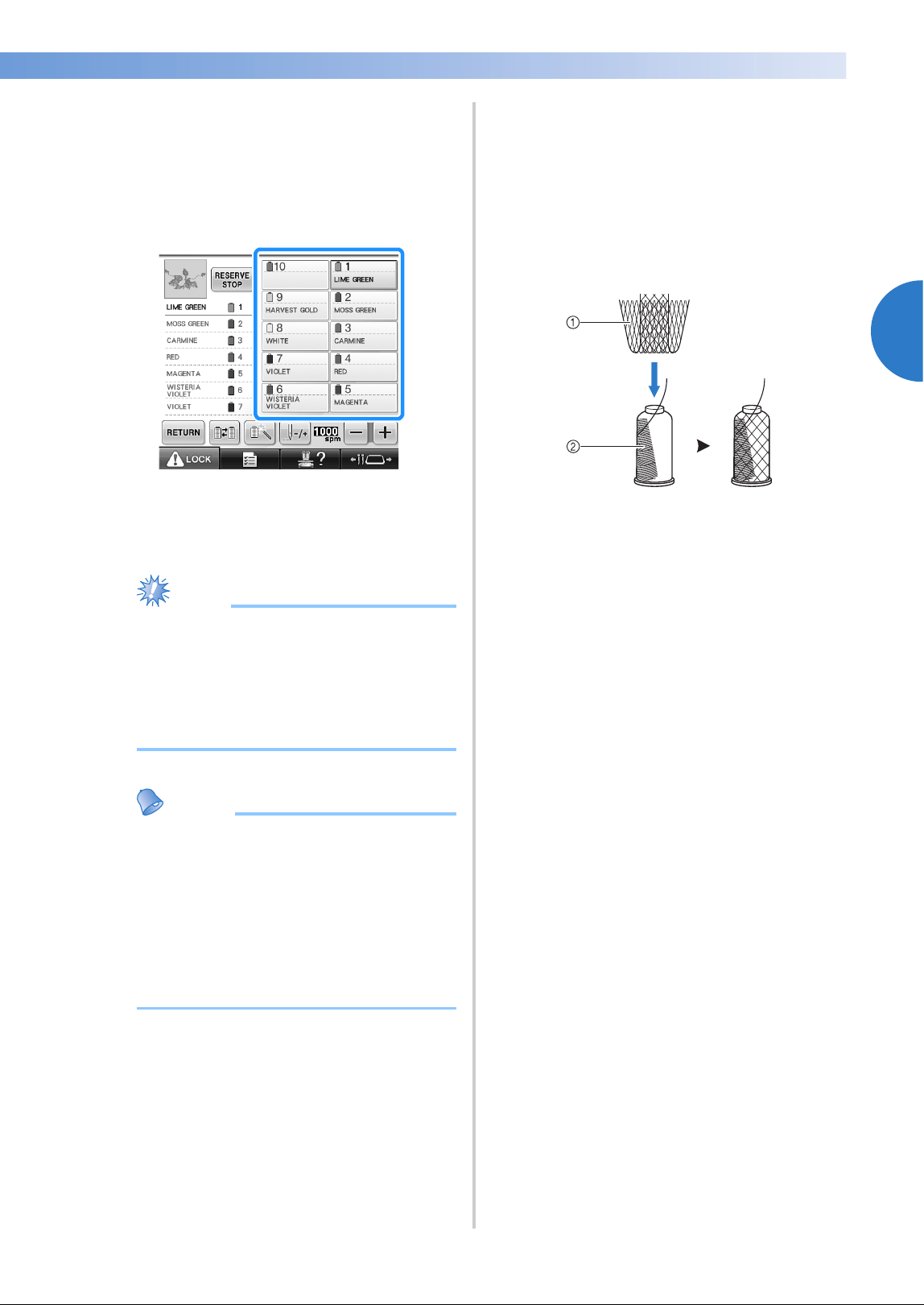
Upper Threading 63
2
——
—————————————————————————————————————————————————————————————
—
—————————————————————
■ Moving the needle bar to be threaded to the
position of embroidery
You can move the needle bar in the
embroidering screen.
1
Touch the key for the needle bar that you
wish to thread.
X The selected needle bar moves to the
embroidering position.
Note
● If the thread is not taut, it may come out of
the thread tension disc. After upper
threading is finished, check again to make
sure that the thread is correctly passed into
the thread tension disc. (Refer to step 6
on page 58.)
Memo
● When changing one of the upper thread
colors, it is easy to re-thread by cutting the
thread currently being used between the
spool and the thread guide above the
spool. Place the new spool on the spool
pin and tie the end of the new thread to
the end of the previous thread. Then pull
the thread through to the needle. (Refer to
page 114.)
■ Using the spool net
When using metallic thread or any other strong
thread, place the included spool net over the
spool before sewing.
If the spool net is too long, fold it once to match
the size of the spool before placing it over the
spool.
It may be necessary to adjust thread tension
when using the spool net.
1 Spool net
2 Thread
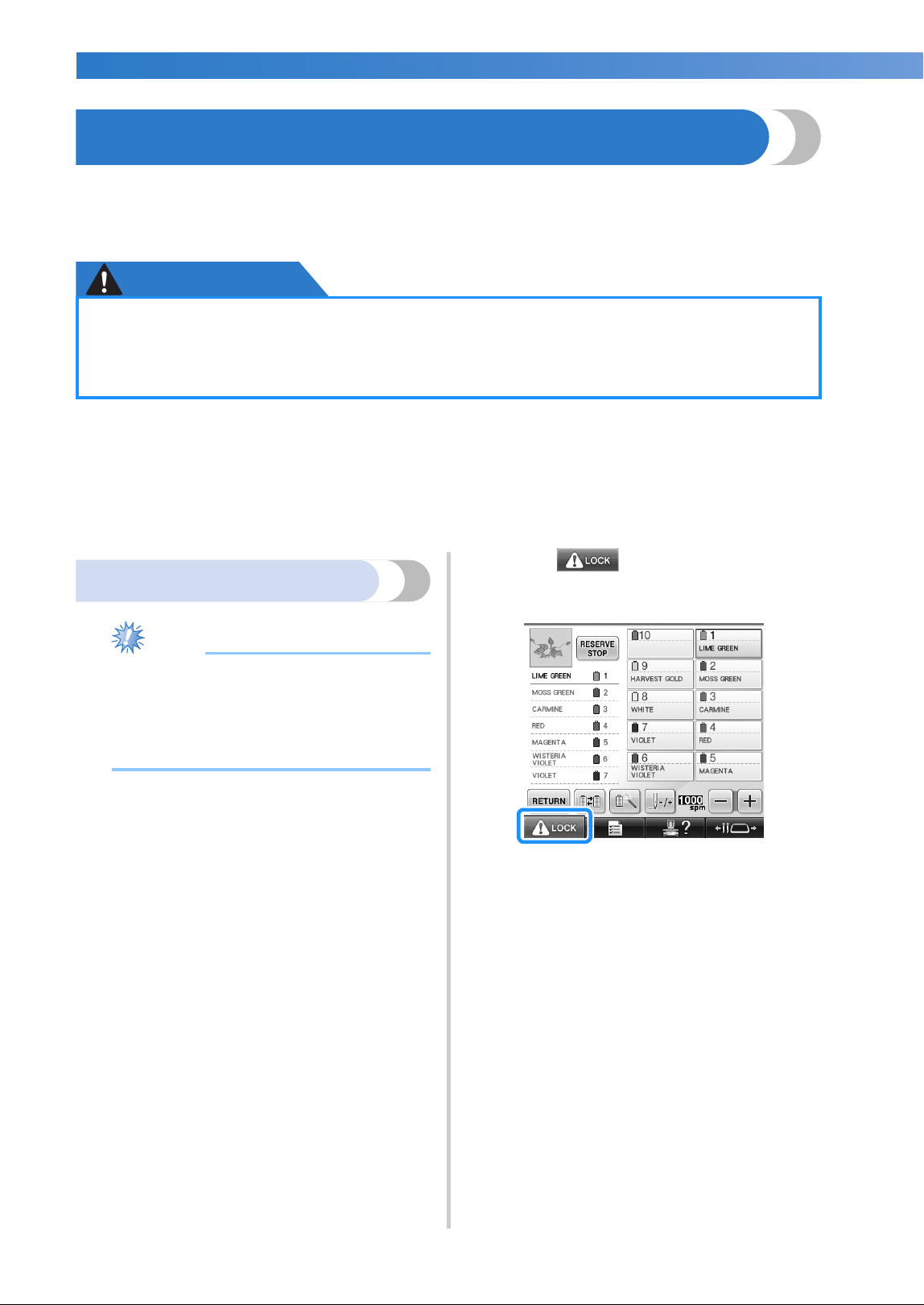
EMBROIDERING TUTORIAL
—
——————————————————————————————————————————————————————————————
——
64
11. Sewing the Embroidery
Now, the embroidery machine is ready to begin sewing.
When the machine starts sewing, the presser foot is automatically lowered, the necessary thread trimming
operations at the end of stitching are performed, the threads are changed as necessary while the embroidery
is sewn, and the machine stops when the end of the stitching is reached.
CAUTION
■ Locking mechanism
For safety reasons, this embroidery machine is equipped with a locking function.
Normally, the embroidery machine is locked (it cannot start sewing). Unless the machine is unlocked, it
cannot start sewing. If the embroidery machine is not started within 10 seconds after unlocking it, it
automatically returns to being locked.
The start/stop button shows whether or not the embroidery machine is locked. If the start/stop button
lights up in red, the machine is locked. If the start/stop button flashes in green, the machine is unlocked.
Starting embroidering
Note
● Make sure that there are no objects within
the moving area of the embroidery frame.
If the embroidery frame hits another
object, the pattern may become
misaligned.
1
Touch to unlock the embroidery
machine.
X The start/stop button begins flashing in
green and the embroidery machine can be
started.
• If the start/stop button is not pressed within
10 seconds after unlocking the embroidery
machine, the machine becomes locked
again.
●
For safety reasons, the embroidery machine must not be left unattended while it is sewing.
● While the machine is in operation, pay special attention to the needle location. In
addition, keep your hands away from all moving parts such as the needle, needle bar case,
thread take-up lever and carriage, otherwise injuries may result.
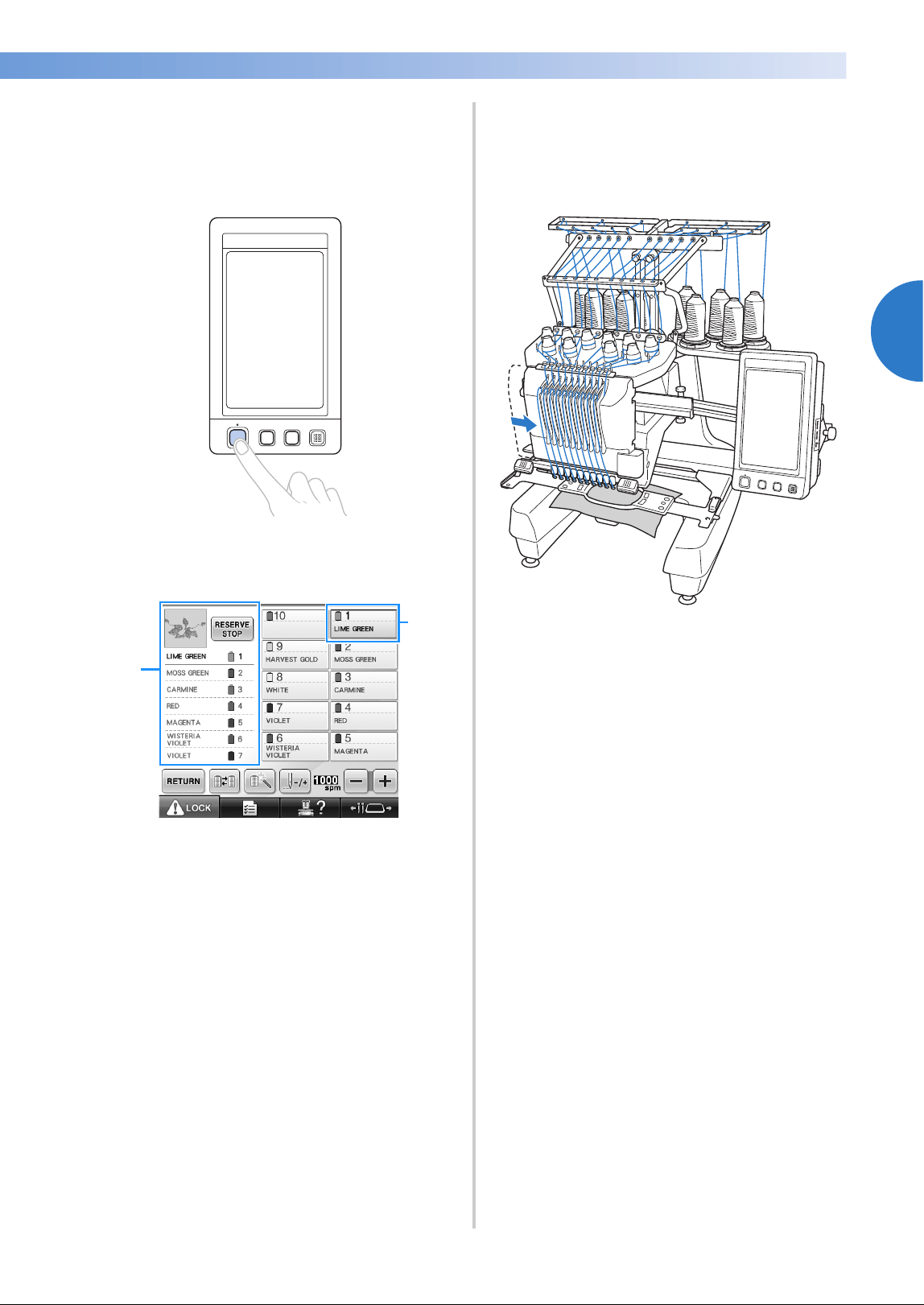
Sewing the Embroidery 65
2
——
—————————————————————————————————————————————————————————————
—
—————————————————————
2
Press the start/stop button.
Press the start/stop button while it is flashing
in green. If the start/stop button returns to
being lit in red, perform this procedure again
from step
1.
X The start/stop button lights up in green and
begins sewing the first color.
1 The thread color for the needle bar that is
currently being used for sewing or will soon be
used for sewing appears at the top of the thread
color sequence display. The remaining thread
colors are listed in the sewing order, starting
from the top.
2 A blue frame appears around the thread
information box of the needle bar currently
being selected.
• While the embroidery machine is sewing,
the point being sewn is indicated by the
green crosshairs in the pattern display area.
In addition, the number of stitches and the
time count up.
3
After sewing of the first color is finished, the
machine automatically stops and trims the
thread. The needle bar case moves to the
2nd color position and sewing of the second
color begins.
X The thread color display in the screen
continues to the second color, and the
thread information for the second needle
bar is surrounded by the blue frame.
4
This continues until the last color is sewn,
and the embroidery machine automatically
stops.
X The embroidering settings screen
reappears.
X The start/stop button lights up in red.
• No thread trimming operations at the
beginning of stitching and at the end of
stitching are necessary.
1
2
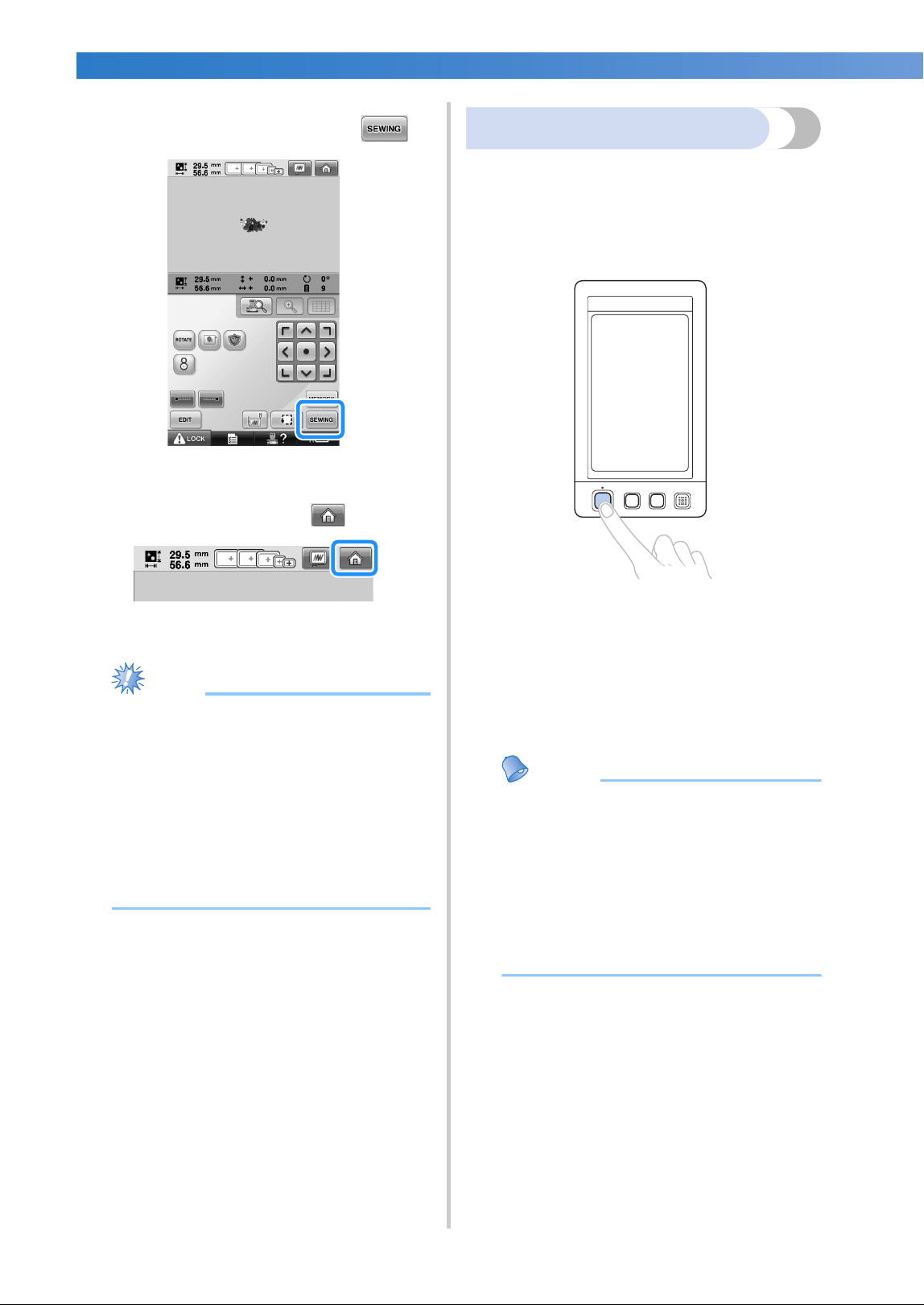
EMBROIDERING TUTORIAL
—
——————————————————————————————————————————————————————————————
——
66
■ Continuing embroidering
To sew the same pattern again, touch .
X The embroidering screen appears so the
same pattern can be sewn again.
To select a new pattern, touch .
X The pattern type selection screen appears.
Note
● Automatic Lock stitching can be set so that
it is sewn at the beginning of the
embroidery, when starting to sew after
changing thread colors, and when
trimming the thread. (Refer to “Automatic
Lock Stitch Setting” on page 134.)
● The sewing speed can be changed, even
while the pattern is being sewn. (Refer to
“Maximum Sewing Speed Setting” on
page 139.)
Stopping embroidering
The machine can be stopped during sewing.
■ Temporarily pausing
1
Press the start/stop button.
X The machine stops and the start/stop
button lights up in red.
• The thread is not trimmed.
• To continue sewing, after checking that the
upper thread is taut, touch the unlock key,
and then press the start/stop button.
Memo
● If the Reserve Stop key is touched while
embroidery is being sewn, the machine
stops sewing before the next color begins.
(Refer to “Stopping the machine at the
next color change” on page 140.)
● Before starting to sew, the machine can be
set to stop at any thread color change.
(Refer to “Specifying pause locations
before embroidering” on page 140.)
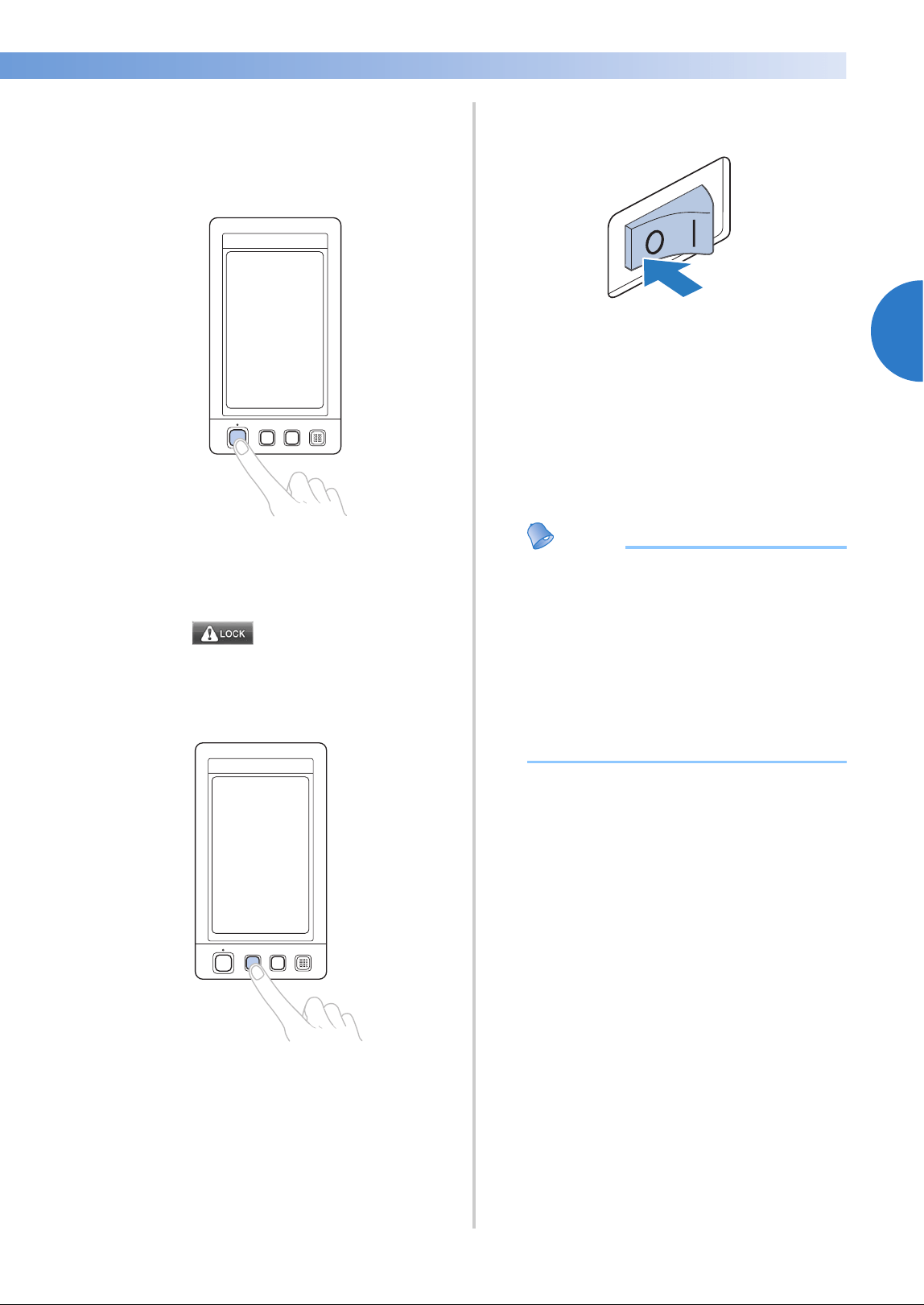
Sewing the Embroidery 67
2
——
—————————————————————————————————————————————————————————————
—
—————————————————————
■ Resume sewing after the machine was turned
off
1
Press the start/stop button.
X The embroidery machine stops and the
start/stop button lights up in red.
• The thread is not trimmed.
2
Touch to unlock the embroidery
machine.
3
Press the thread trimming button.
X The bobbin and upper threads are
trimmed.
• Before turning off the embroidery machine,
be sure to trim the threads.
4
Set the main power switch to “{”.
X The embroidery machine is turned off and
the display and the start/stop button
indicator go off.
• Sewing can resume after the embroidery
machine is turned on again. Back up
several stitches to overlap the stitching.
(Refer to “Resume Embroidering After
Turning Off the Machine” on page 120 for
details.)
Memo
● The machine can be stopped at any time,
even while it is embroidering; however, if
the machine is stopped when the thread
color is changed, it is not necessary to go
back through the stitching when
embroidering is continued. The machine
can be set to stop when the thread color is
changed. (For details, refer to “Specifying
pause locations before embroidering” on
page 140.)
■ If the thread breaks while sewing
If a problem occurs while sewing, such as if the
thread breaks, the machine stops automatically.
Re-thread the broken thread, back up several
stitches, and then continue sewing. (Refer to “If
the Thread Breaks or the Bobbin Thread Runs
Out While Embroidering” on page 115 for
details.)
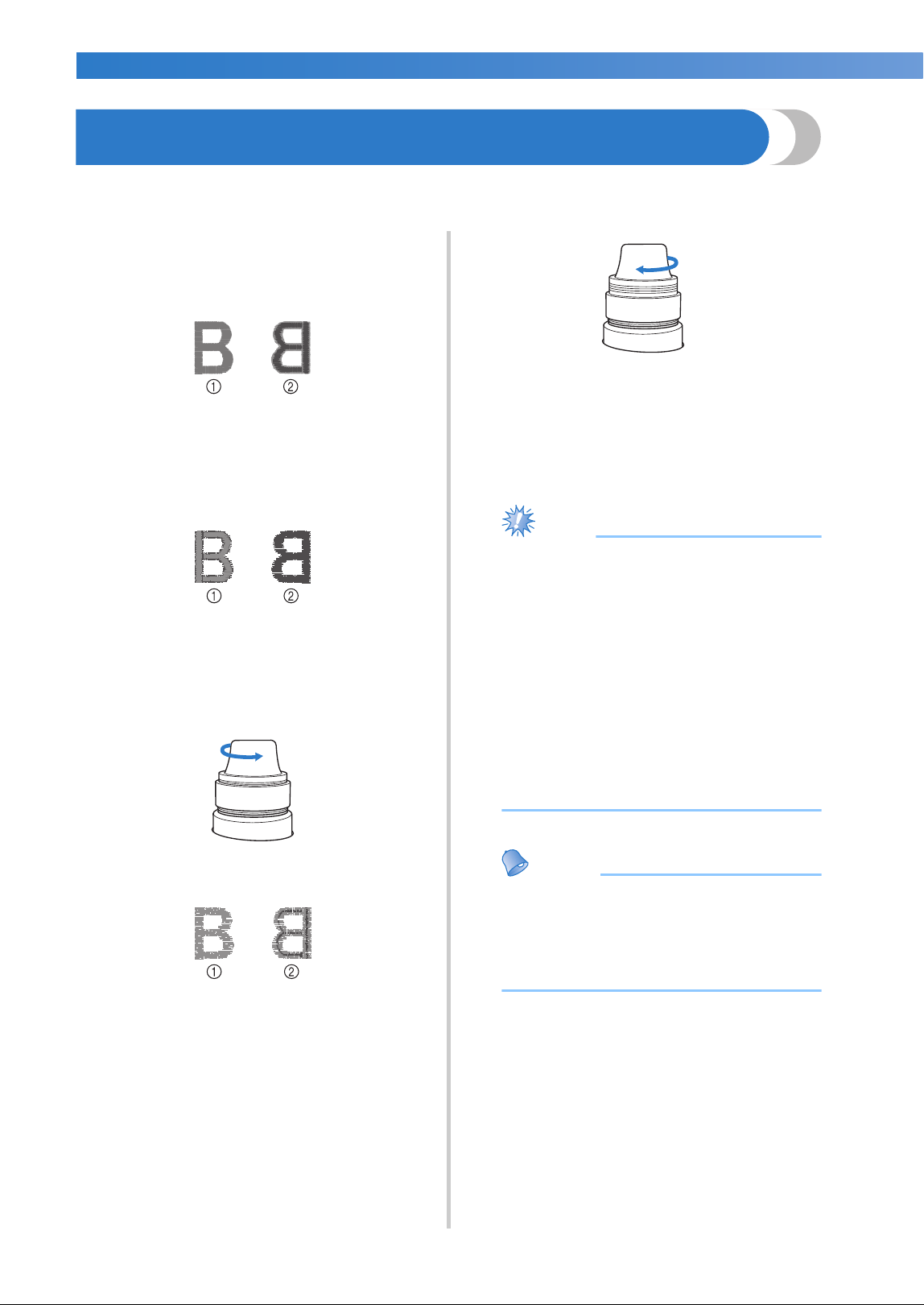
EMBROIDERING TUTORIAL
—
——————————————————————————————————————————————————————————————
——
68
12. Checking the Thread Tension
Check the embroidery to see if it was sewn with the correct thread tension. If the thread tension is not
adjusted correctly, the stitching may be uneven or there may be puckering in the fabric.
■ Correct thread tension
From the wrong side of the fabric, the bobbin
thread should be about one third of the stitch
width.
1 Right side
2 Wrong side
If the embroidery appears as shown below, the
thread tension is incorrect. Correct the thread
tension.
1 Right side
2 Wrong side
The tension of the upper thread is too tight,
resulting in the lower thread being visible from
the right side of the fabric.
Loosen the tension dial by turning the dial
counterclockwise.
1 Right side
2 Wrong side
The tension of the upper thread is too loose,
resulting in a loose upper thread, loose thread
locks or loops appearing on the right side of the
fabric.
Tighten the tension dial by turning the dial
clockwise.
(Refer to “Adjusting the Thread Tension” on
page 122 for details on adjusting the thread
tension.)
Note
● In this tutorial, the thread tension was
checked after embroidering was finished.
However, normally, embroidering should
be temporarily paused and the thread
tension should be checked after the first
100 stitches of each color sewn with each
needle bar.
● The resulting embroidery may not appear
as expected, due to the type or thickness
of the fabric being sewn or to the type of
stabilizer material used. Be sure to sew a
trial embroidery before sewing on your
project.
Memo
● In the built-in embroidery patterns, one
pattern is used for checking the thread
tension. For details, refer to “Checking the
thread tension of built-in patterns” on
page 243.
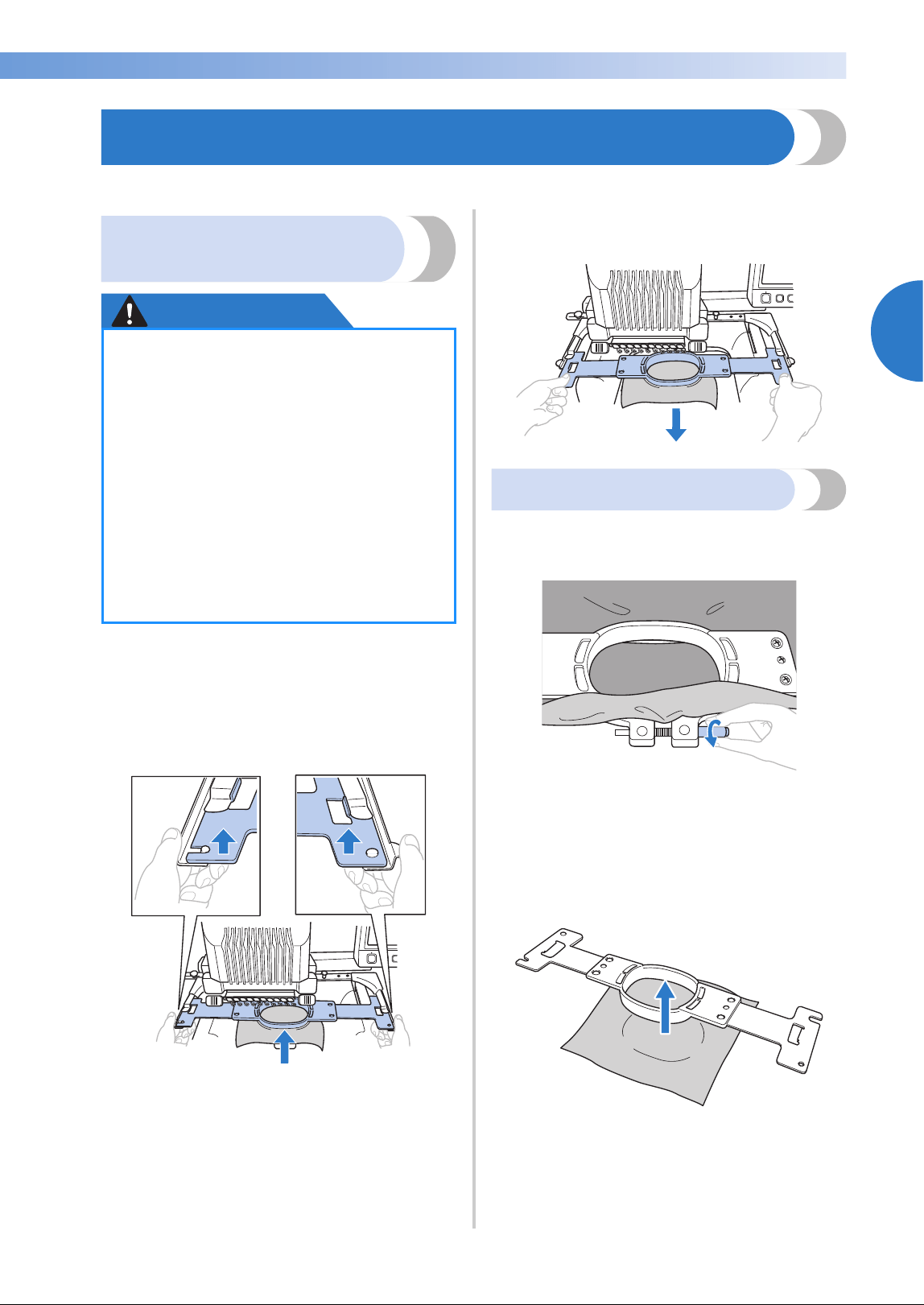
Removing the Embroidery Frame and Fabric 69
2
——
—————————————————————————————————————————————————————————————
—
—————————————————————
13. Removing the Embroidery Frame and Fabric
After sewing is finished, remove the embroidery frame, and then remove the fabric from the frame.
Removing the embroidery
frame
CAUTION
1
With both hands, grab the left and right sides
of the arms of the embroidery frame holder,
and then slightly lift up the frame.
The pins on the arms of the embroidery frame
holder should come out of the holes in the
sides of embroidery frame.
2
Pull off the embroidery frame toward you.
Removing the fabric
1
Loosen the outer frame screw.
X If the screw was tightened using a disc-
shaped screwdriver, use the included disc-
shaped screwdriver to loosen it.
2
Remove the outer frame, and then remove
the fabric.
●
When removing the embroidery frame,
make sure that the start/stop button is
lit in red. If the start/stop button is
flashing in green, the machine may start
sewing. If the machine accidentally
starts operating, injuries may result.
● When removing the embroidery frame,
be careful that the embroidery frame
does not hit any other part of the
machine.
● Do not lift up the embroidery frame
holder with extreme force, otherwise it
may be damaged.
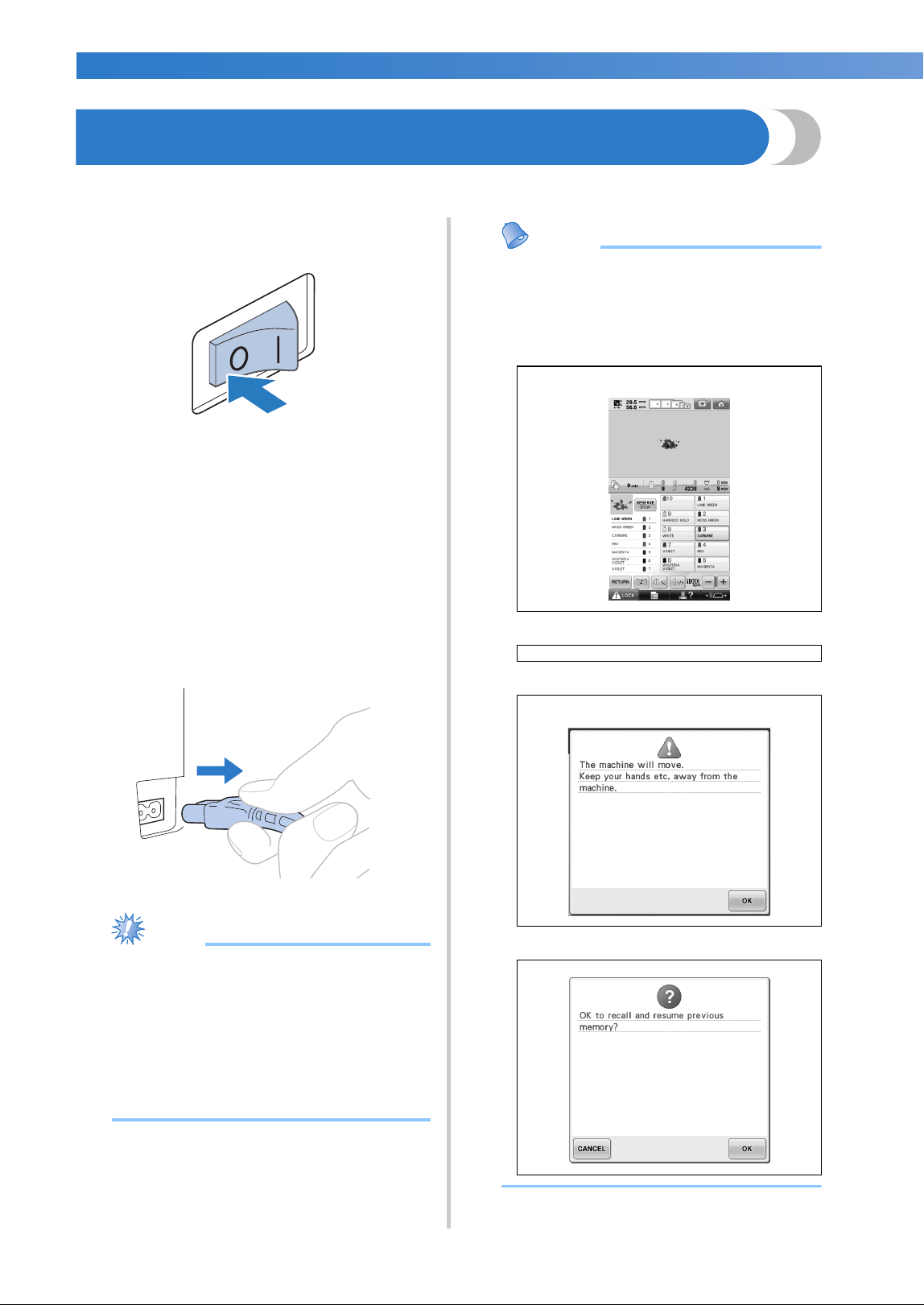
EMBROIDERING TUTORIAL
—
——————————————————————————————————————————————————————————————
——
70
14. Turning OFF the Machine
After all embroidery is finished, turn off the machine.
1
Set the main power switch to “{”.
X The embroidery machine is turned off and
the display and the start/stop button
indicator goes off.
2
Unplug the power supply cord from the
electrical outlet.
Grasp the plug when unplugging the power
supply cord.
3
If necessary, unplug the power supply cord
from the machine.
Store the power supply cord in a safe place.
Note
● If a power outage occurs while the
embroidery machine is being operated,
turn off the embroidery machine and
unplug the power supply cord. When
restarting the embroidery machine, follow
the necessary procedure to correctly
operate the machine. (Refer to “Turning
ON the Machine” on page 40.)
Memo
● If the machine is turned off while it is
sewing, embroidering can continue when
the machine is turned on again. (Refer to
“Resume Embroidering After Turning Off
the Machine” on page 120.)
Turned off while embroidering
Ð
Turned on
Ð
After the opening movie
Ð
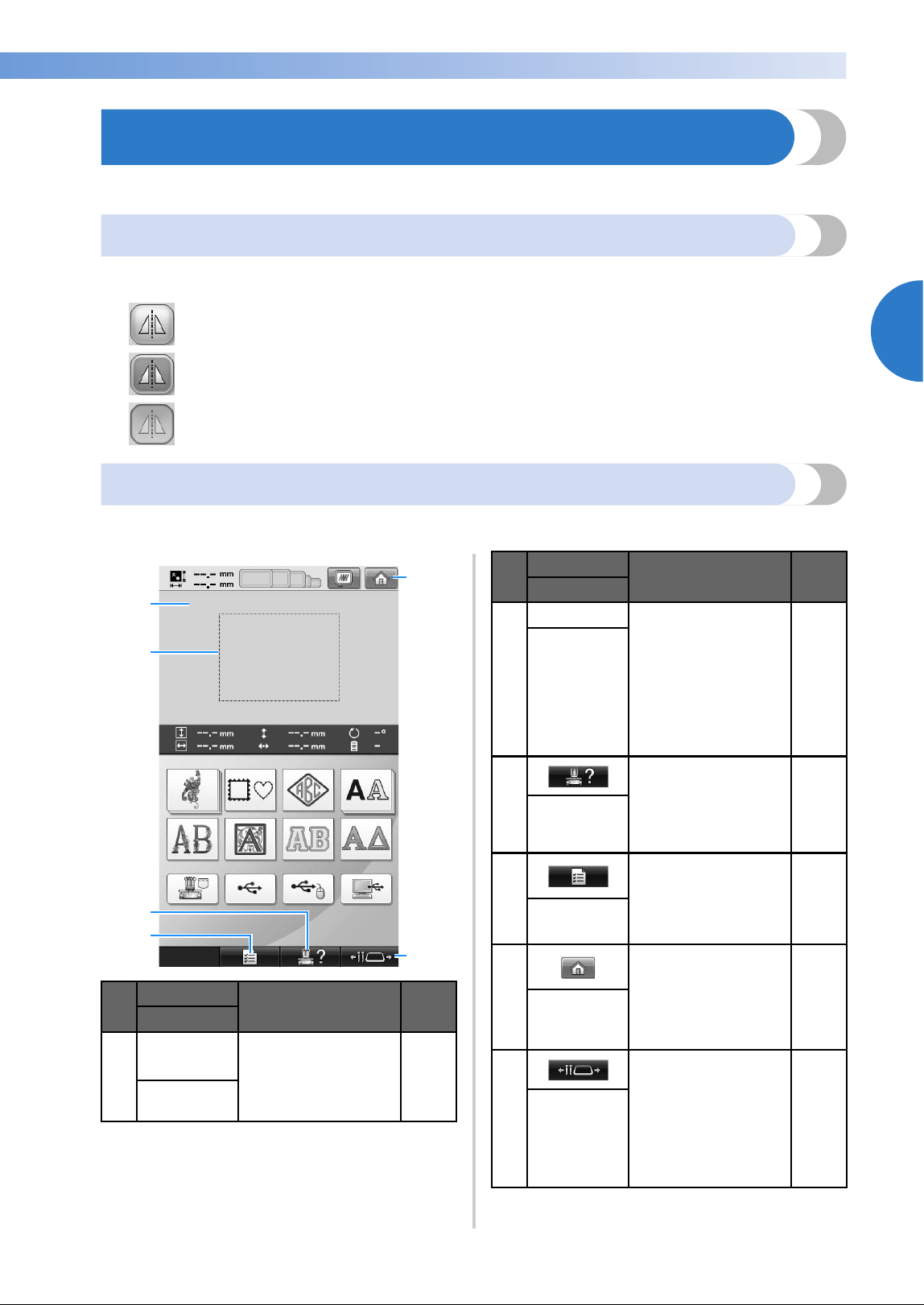
Screen Quick Reference Guide 71
2
——
—————————————————————————————————————————————————————————————
—
—————————————————————
Screen Quick Reference Guide
Descriptions of the keys and other information that appear in the screens are provided in the tables below.
Key displays
The appearances of the keys have the following meanings.
Common screen controls
The keys described below, except for the settings key, appear in all screens and can always be used.
However, the settings key cannot be used in the embroidering screen.
(Normal color display) : This key is not selected, but can be selected.
(Dark-colored display) : This key is selected.
(Gray display) : This key cannot be selected.
No.
Display
Function Page
Key Name
1
This area displays the
selected pattern.
Pattern
display area
4
6
5
1
2
3
2
Shows the available
embroidering area.
The embroidery frame
indications, the grid
lines and other display
settings can be
specified from the
machine settings
screen.
p.220
Embroidering
area line
3
Touch this key to
check a machine
operation.
p.232
Machine
operations
guide key
4
Touch this key to
change the
embroidery machine
settings.
p.218
Settings key
5
Touch this key to
cancel all operations
previously performed
and return to the
initial pattern group
selection screen.
Home key
6
Touch this key to
move or thread a
selected needle bar,
or to position the
carriage so the
embroidery frame can
easily be removed or
attached.
p.30,
62, 90
Needle bar/
Frame move
key
No.
Display
Function Page
Key Name
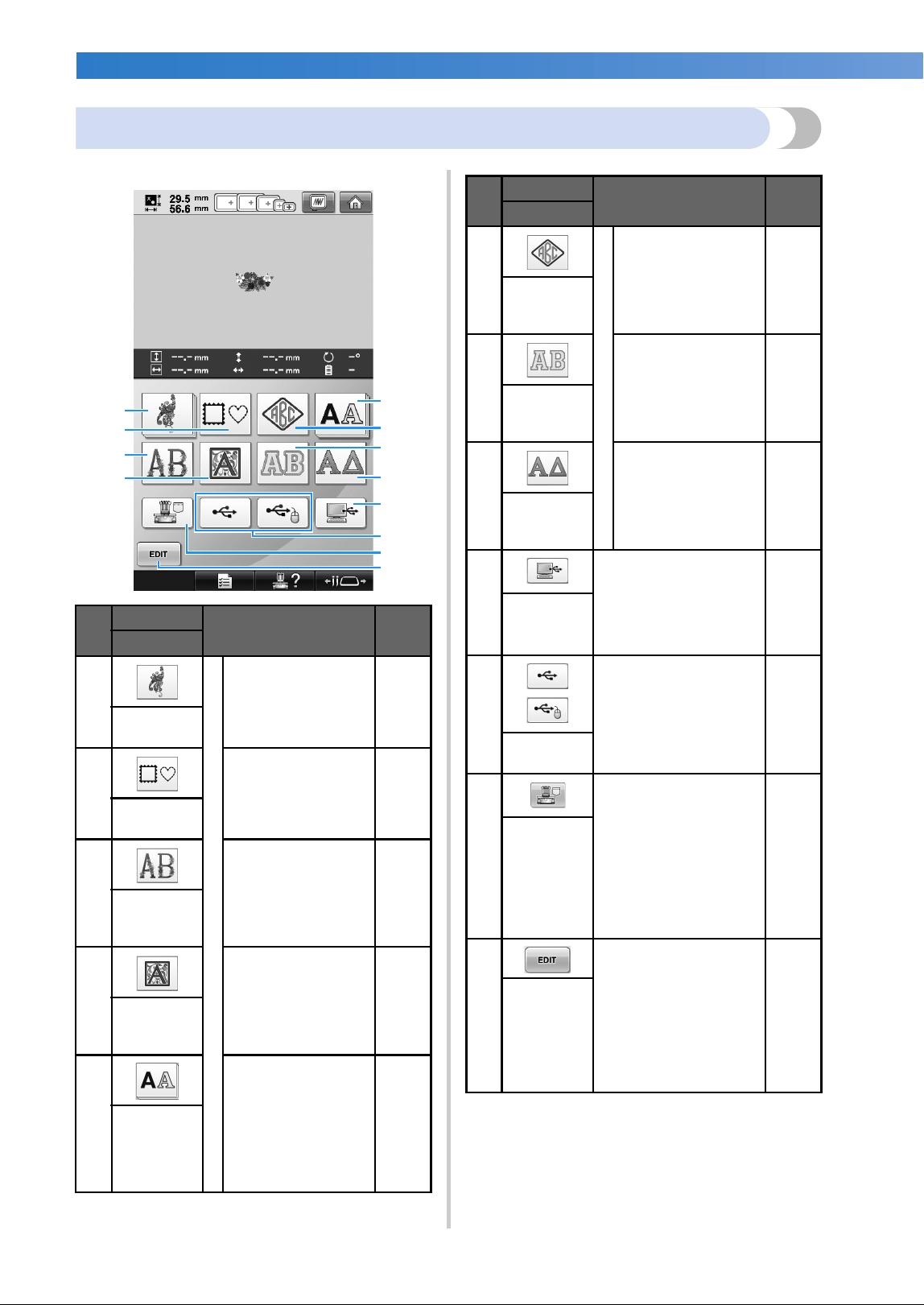
EMBROIDERING TUTORIAL
—
——————————————————————————————————————————————————————————————
——
72
Understanding the pattern type selection screen
In this screen, select a pattern category (type).
No.
Display
Function Page
Key Name
1
Built-in patterns
The embroidery
pattern for a design
can be selected.
p.154
Embroidery
pattern key
2
12 stitch types can
be combined with
10 frame shapes,
such as a circle and
a square.
p.154
Frame
pattern key
3
Alphabet patterns
designed with
flowers decorating
large uppercase
letters (130 mm (H)
× 80 mm (W)).
p.162
Floral
alphabet
key
4
Renaissance-style
characters designed
in a 50 mm × 50 mm
square.
p.163
Renaissance
alphabet
key
5
Uppercase and
lowercase letters,
numbers, symbols
and accented
characters from 28
fonts can be selected
in small, medium
and large sizes.
p.159
Alphabet
key
B
A
5
1
2
0
3
6
8
4
7
9
6
Built-in patterns
Monogram designs
can be created by
combining two or
three letters.
p.155
Monogram
and frame
key
7
Alphabet appliqué
patterns, which are
available in small,
medium and large
sizes.
p.164
Appliqué
alphabet
key
8
Greek uppercase
letters.
p.165
Greek
alphabet
key
9
By using the included
USB cable to connect a
computer to the
embroidery machine,
patterns can be recalled
from the computer.
p.168
Computer
(USB) key
0
Recall patterns from
USB media.
p.173
USB media
keys
A
Recalls patterns stored
in the machine’s
memory.
p.165
Embroidery
patterns
stored in
the
machine
memory
key
B
This key is not
displayed unless a
pattern is selected.
Touch this key to quit
trying to add another
pattern from the pattern
type selection screen.
Return to the pattern
editing screen.
p.181
Edit key
No.
Display
Function Page
Key Name
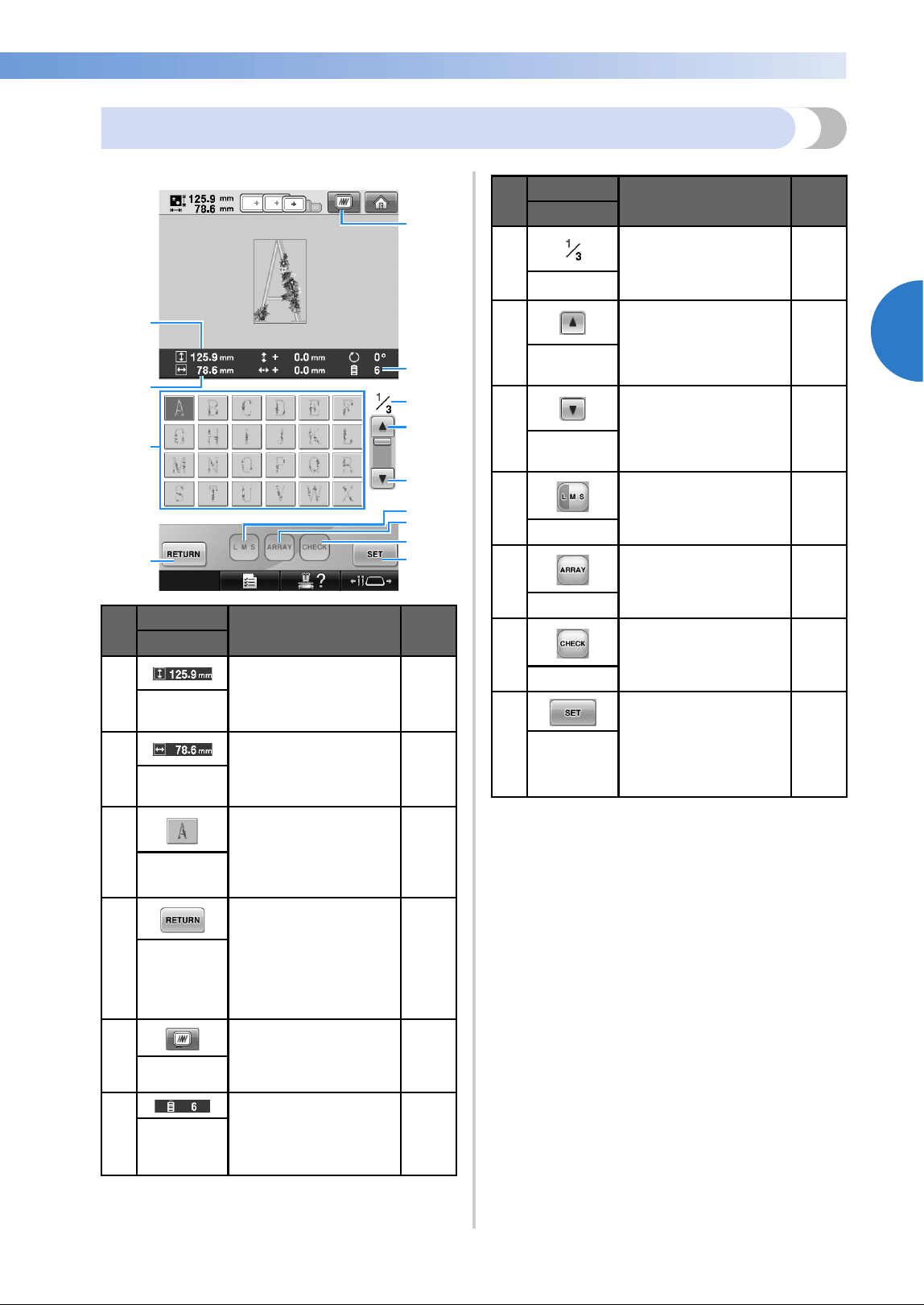
Screen Quick Reference Guide 73
2
——
—————————————————————————————————————————————————————————————
—
—————————————————————
Understanding the pattern list screen
In this screen, select the pattern.
* Some patterns cannot be edited with 0 or A.
No.
Display
Function Page
Key Name
1
Shows the vertical
length of the currently
selected embroidery
pattern.
Size
(vertical)
2
Shows the horizontal
width of the currently
selected embroidery
pattern.
Size
(horizontal)
3
An image of the pattern
appears on the key.
Touch the image to
select the pattern.
p.153
Pattern keys
4
Touch to leave the
currently selected
pattern category and
choose a different
category. Returns to the
pattern type selection
screen.
p.153
Return key
5
Displays an image of
the pattern that is to be
embroidered so it can
be previewed.
p.48
Preview key
6
Shows the number of
thread colors for the
currently selected
embroidery pattern.
Number of
thread
colors
1
C
7
6
0
3
8
4
9
B
A
5
2
7
Shows the number of
the currently displayed
page and the total
number of pages.
Page
8
Touch this key to
display the previous
page.
p.153
Previous
page key
9
Touch this key to
display the next page.
p.153
Next page
key
0
Allows the size of the
currently selected
embroidery pattern to
be changed.
p.160
Size key
A
Touch this key to
change the
configuration of a
character pattern.
p.162
Array key
B
Touch this key to check
the entered text for a
character pattern.
p.161
Check key
C
Touch after selecting
the pattern. The
selection of the pattern
is confirmed and the
pattern editing screen
appears.
p.153
Set key
No.
Display
Function Page
Key Name
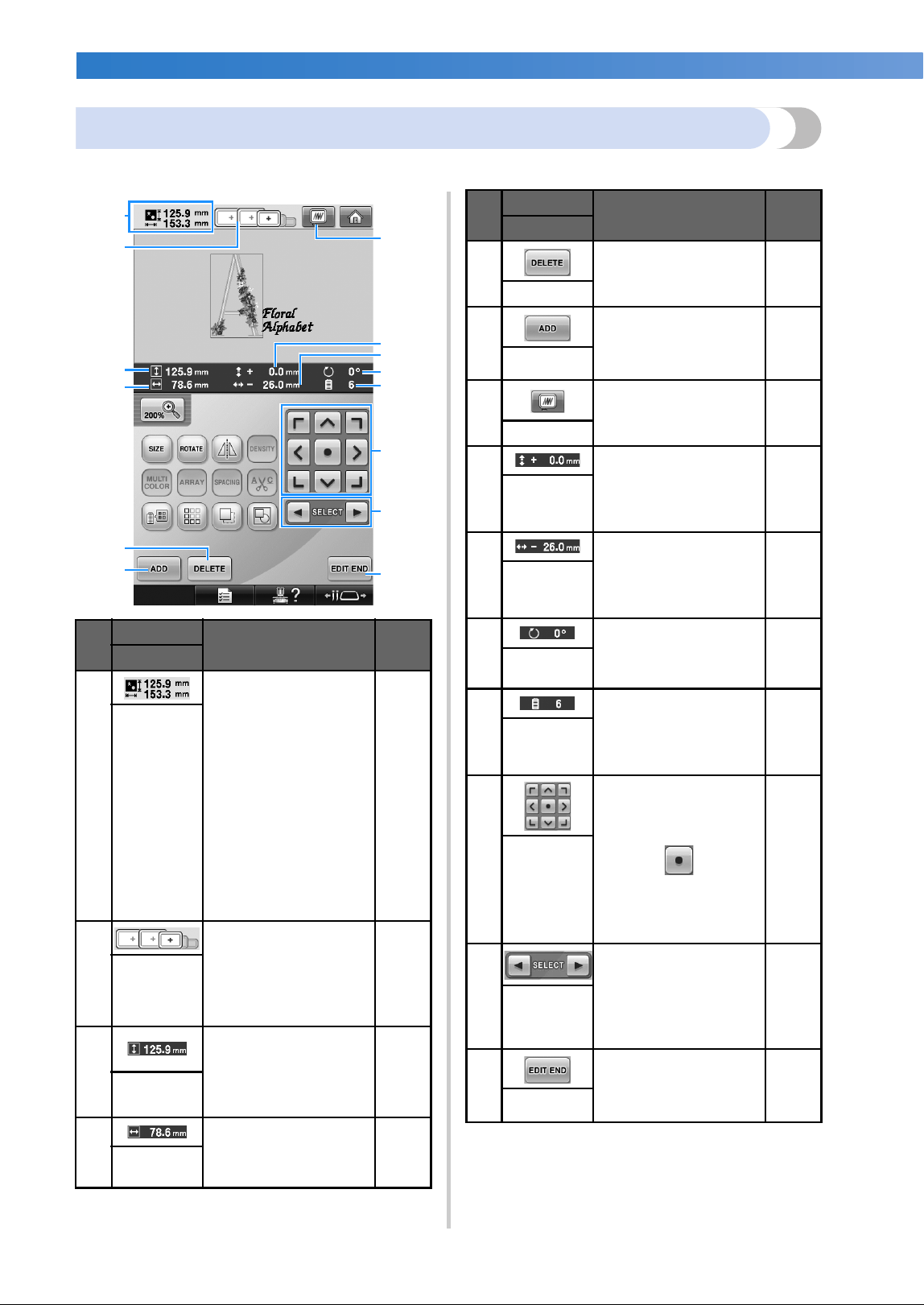
EMBROIDERING TUTORIAL
—
——————————————————————————————————————————————————————————————
——
74
Understanding the pattern editing screen
In this screen, the pattern can be edited.
No.
Display
Function Page
Key Name
1
Shows the size of the
embroidery pattern
currently displayed in
the pattern display area.
The top value shows
the height and the
bottom value shows the
width. If the
embroidery pattern
consists of multiple
patterns that have been
combined, the size of
the entire pattern,
including all patterns, is
shown.
Pattern size
2
Shows the sizes of
embroidery frames that
can be used to sew the
embroidery pattern
currently displayed in
the pattern display area.
p.49
Embroidery
frame
indicators
3
Shows the vertical
length of the pattern
that is being edited.
Size
(vertical)
4
Shows the horizontal
width of the pattern that
is being edited.
Size
(horizontal)
2
D
A
3
B
6
C
7
1
4
5
0
9
8
5
Deletes the pattern. If
touched, the pattern
being edited is deleted.
p.204
Delete key
6
Adds a pattern. If
touched, the pattern
group selection screen
appears.
p.181
Add key
7
Displays an image of
the pattern so that it can
be previewed.
p.48
Preview key
8
Shows the vertical
distance that the pattern
being edited is moved.
p.183
Distance
from center
(vertical)
9
Shows the horizontal
distance that the pattern
being edited is moved.
p.183
Distance
from center
(horizontal)
0
Shows the rotation
angle that the pattern
being edited is rotated.
p.185
Rotation
angle
A
Shows the total number
of thread colors for the
pattern that is being
edited.
Number of
thread
colors
B
Moves the sewing
position of the pattern
that is being edited in
the direction of the
arrow. (If is
touched, the sewing
position is moved to the
center of the
embroidering area.)
p.183
Positioning
keys
C
Selects the pattern that
is being edited when
the embroidery pattern
consists of multiple
patterns that have been
combined.
p.183
Pattern
selection
keys
D
Finish editing and
continue to the
embroidering settings
screen.
p.46
Edit End key
No.
Display
Function Page
Key Name
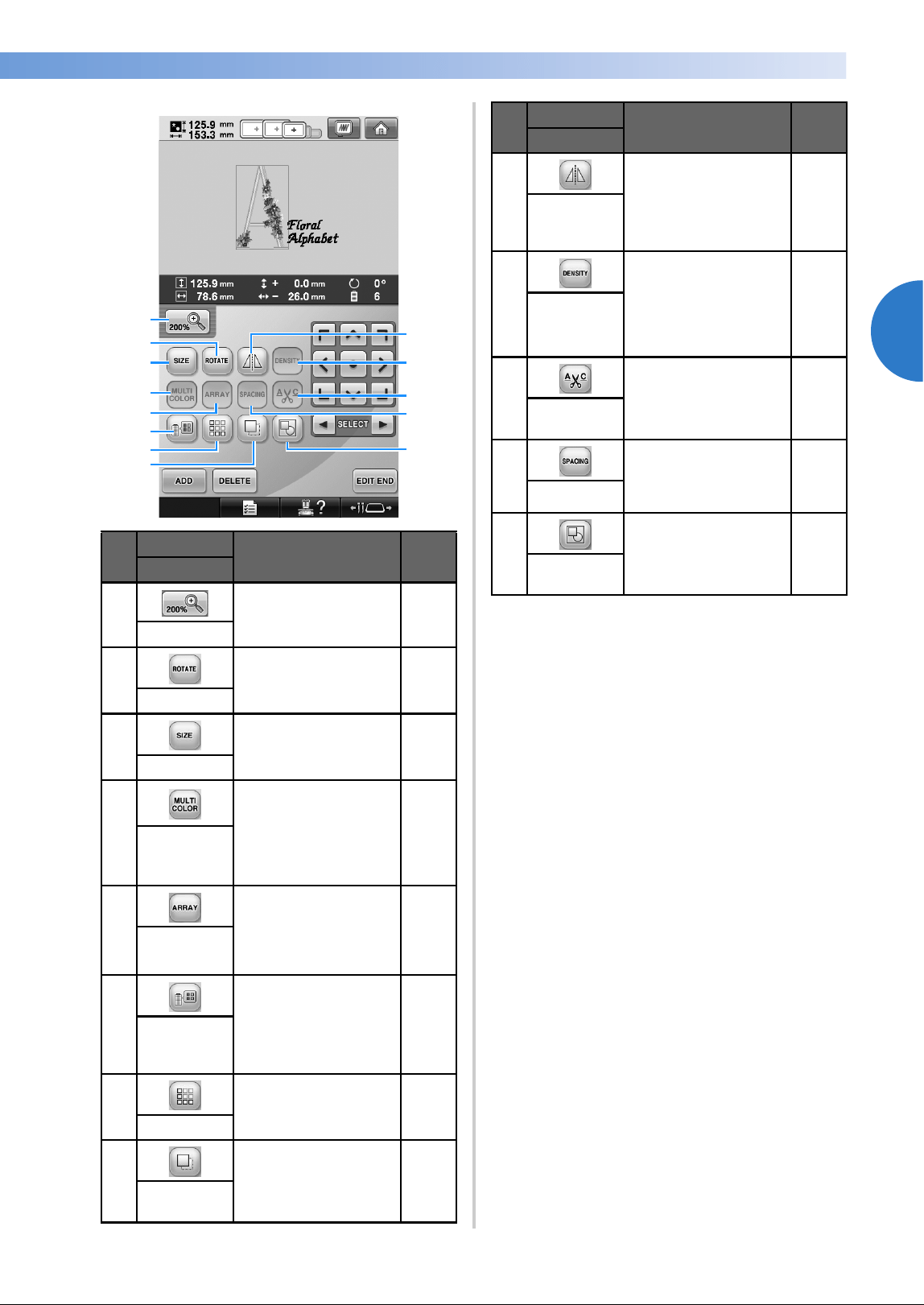
Screen Quick Reference Guide 75
2
——
—————————————————————————————————————————————————————————————
—
—————————————————————
No.
Display
Function Page
Key Name
1
Touch to enlarge the
image of editing
pattern twice the size.
p.181
Enlarge key
2
Rotates the pattern that
is being edited.
p.185
Rotate key
3
Changes the size of the
pattern that is being
edited.
p.184
Size key
4
Enables the thread
color of each character
in an alphabet pattern
to be changed; can
only be used when an
alphabet is selected.
p.190
Multi Color
key
5
Changes the
orientation of the
characters in the
alphabet pattern that is
being edited.
p.186
Array key
6
Changes the color of
the pattern.
p.190
Change
thread color
key
7
Makes and edits a
repeating pattern.
p.192
Border key
8 Duplicates the pattern. p.203
Duplicate
key
7
3
6
4
2
9
8
5
B
0
A
1
C
9
Flips the pattern being
edited horizontally.
p.184
Horizontal
mirror image
key
0
Changes the density of
the pattern that is
being edited; can only
be used if an alphabet
or frame pattern is
selected.
p.189
Density key
A
Automatically trim any
excess thread jumps
within the letters of
alphabet pattern.
p.189
Thread trim
setting key
B
Changes the spacing
between the characters
in the alphabet pattern
that is being edited.
p.187
Spacing key
C
Touch to edit all the
separated patterns as a
group.
p.204
Grouping
key
No.
Display
Function Page
Key Name
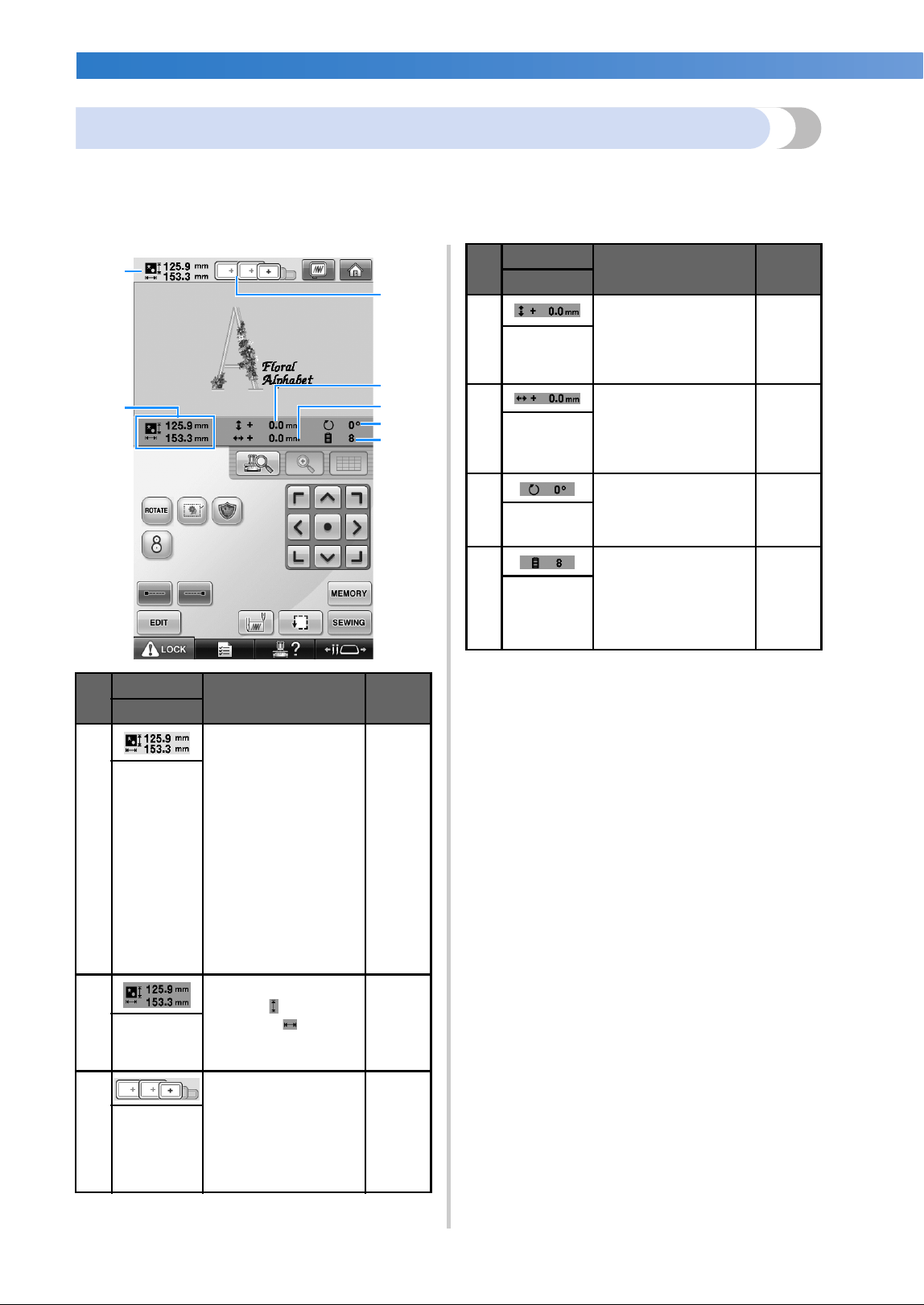
EMBROIDERING TUTORIAL
—
——————————————————————————————————————————————————————————————
——
76
Understanding the embroidering settings screen
From this screen, the entire pattern can be edited and embroidering settings can be specified. In addition,
the embroidering position can be checked and a pattern can be saved for later use. Keys available in this
screen differ when you set “Manual Color Sequence” to “ON” in settings screen. (Refer to page 78 and 132.)
No.
Display
Function Page
Key Name
1
Shows the size of the
embroidery pattern
currently displayed in
the pattern display
area. The top value
shows the height and
the bottom value
shows the width. If the
embroidery pattern
consists of multiple
patterns that have
been combined, the
size of the entire
pattern, including all
patterns, is shown.
Pattern size
2
Shows the overall size
(vertical and
horizontal ) of the
entire combined
pattern.
p.183
Combined/
edited
pattern size
3
Shows the sizes of
embroidery frames
that can be used to
sew the embroidery
pattern currently
displayed in the
pattern display area.
p.49
Embroidery
frame
indicators
4
5
1
2
6
3
7
4
Shows the vertical
distance that the
pattern being
combined/edited is
moved.
p.99
Distance
from center
(vertical)
5
Shows the horizontal
distance that the
pattern being
combined/edited is
moved.
p.99
Distance
from center
(horizontal)
6
Shows the rotation
angle that the pattern
being edited is
rotated.
p.100,
205
Rotation
angle
7
Shows the total
number of thread
colors for the pattern
that is being edited.
Number of
thread
colors
changes
No.
Display
Function Page
Key Name
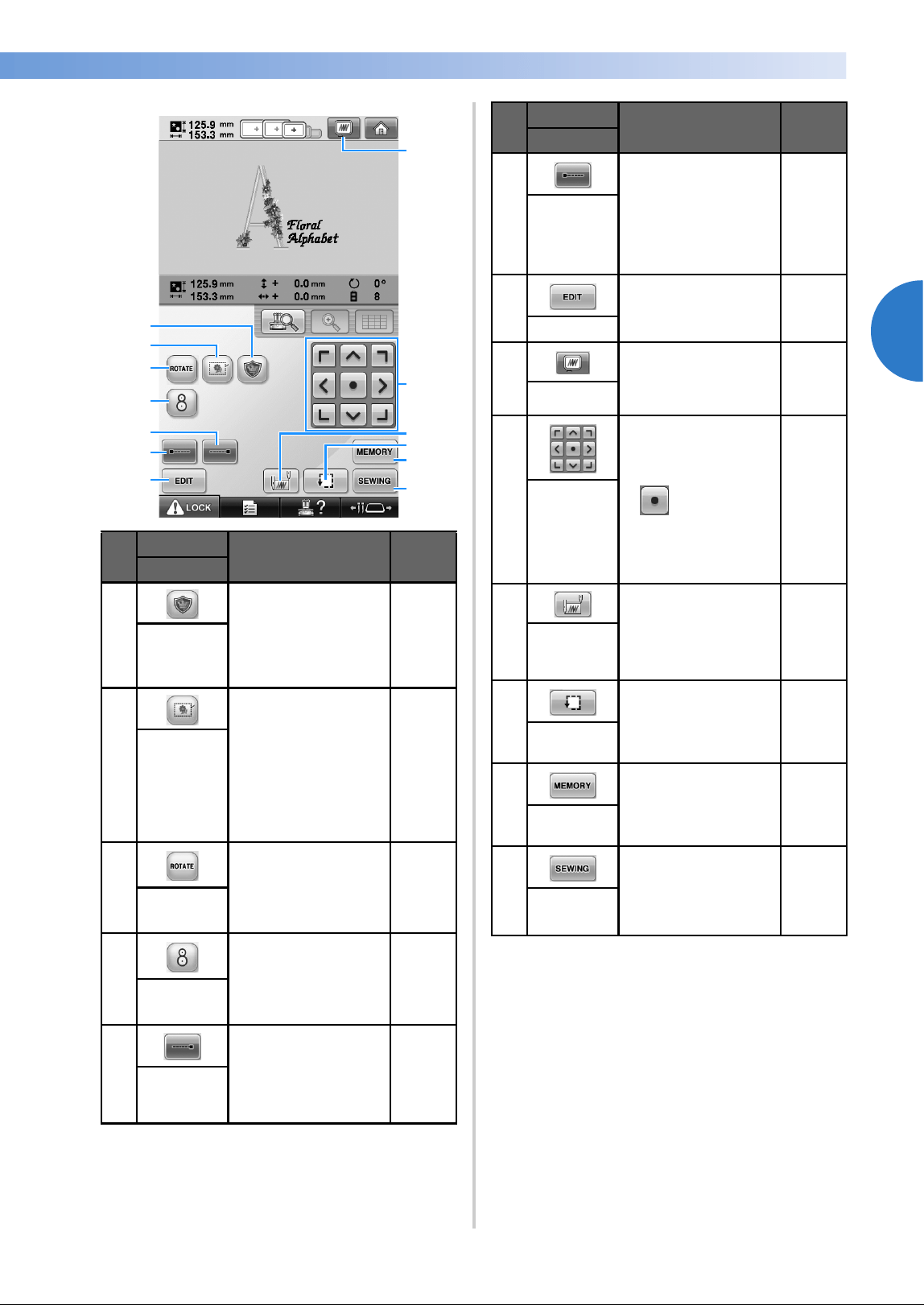
Screen Quick Reference Guide 77
2
——
—————————————————————————————————————————————————————————————
—
—————————————————————
• The functions and operations for the
preview key 8 is the same in both the
pattern editing screen and the
embroidering settings screen.
No.
Display
Function Page
Key Name
1
Makes an appliqué
piece from a desired
pattern. The outline
for the appliqué piece
is sewn around the
pattern.
p.127
Embroidery
appliqué
key
2
When stabilizer
material is not affixed
to the fabric, sew
basting stitches along
the outline of the
pattern to minimize
shrinkage of the
stitching and
misaligned patterns.
p.126
Embroidery
basting key
3
Rotates the entire
embroidery pattern
when it consists of
multiple patterns that
have been combined.
p.100,
205
Rotate key
4
Touch to align the
embroidering position
using the machine's
built-in camera.
p.105
Positioning
key
5
Specifies that
automatic lock stitch
is sewn when the
thread is trimmed.
p.134
Lock
stitching
(end) key
3
7
6
2
0
B
C
8
A
9
5
1
4
6
Specifies that
automatic lock stitch
is sewn at the
beginning of the
pattern and at the
beginning of sewing
after thread trimming.
p.134
Lock
stitching
(beginning)
key
7
Touch to return to the
pattern editing screen.
Edit key
8
Displays an image of
the pattern that is to
be embroidered so it
can be previewed.
p.48
Preview key
9
Moves the sewing
position of the whole
pattern in the
direction of the arrow.
(If is touched, the
sewing position is
moved to the center of
the embroidering
area.)
p.99
Positioning
keys
0
Specifies the needle
position at the
beginning of sewing
and at the end.
p.135
Starting/
ending
position key
A
Moves the embroidery
frame so that the
embroidering position
can be checked.
p.53
Trial sewing
key
B
Save a pattern in the
machine’s memory,
USB media or a
computer.
p.211
Memory
key
C
Finish all operations
in the embroidering
settings screen and
continues to the
embroidering screen.
p.53
Sewing key
No.
Display
Function Page
Key Name
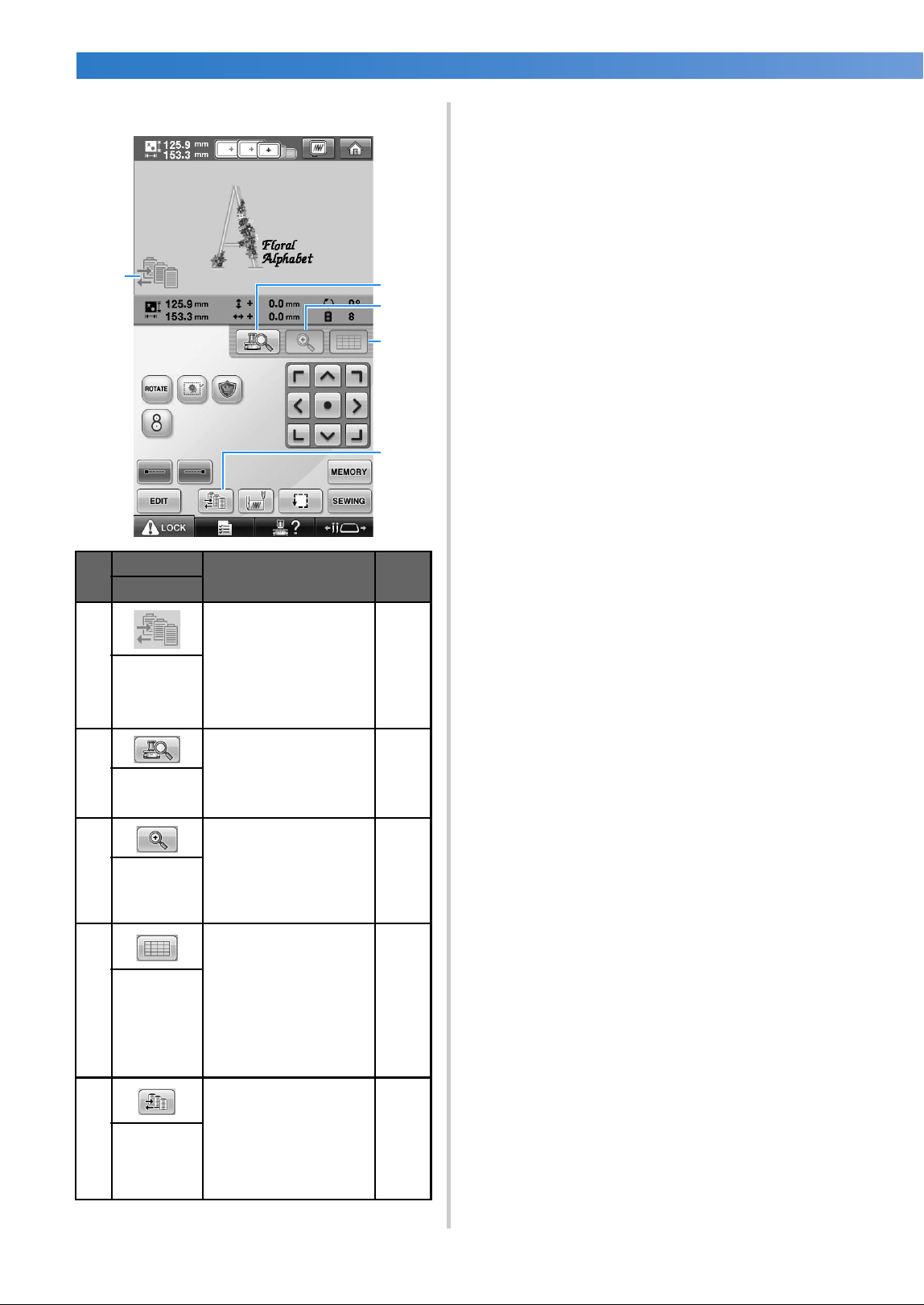
EMBROIDERING TUTORIAL
—
——————————————————————————————————————————————————————————————
——
78
■ In the “Manual Color Sequence” mode
No.
Display
Function Page
Key Name
1
This illustration appears
when the sewing
machine is in the
“Manual Color
Sequence” mode.
p.132
Manual
color
sequence
mode icon
2
Touch to view the
needle drop point from
the LCD screen without
actually lowering the
needle.
p.103
Camera
view key
3
Touch to zoom up the
camera view twice the
size of normal view.
This key is available
when the camera view
is displayed.
p.181
Camera
zoom key
4
Touch to display the
grid lines on the
camera view for
hooping the fabric
when embroidering the
border pattern.
This key is available
when the camera view
is displayed.
p.104
Camera
grid display
key
5
Touch to change the
needle bar color
setting.
This key appears when
you set “Manual Color
Sequence” to “ON” in
settings screen.
p.133
Manual
color
sequence
key
1
3
4
2
5
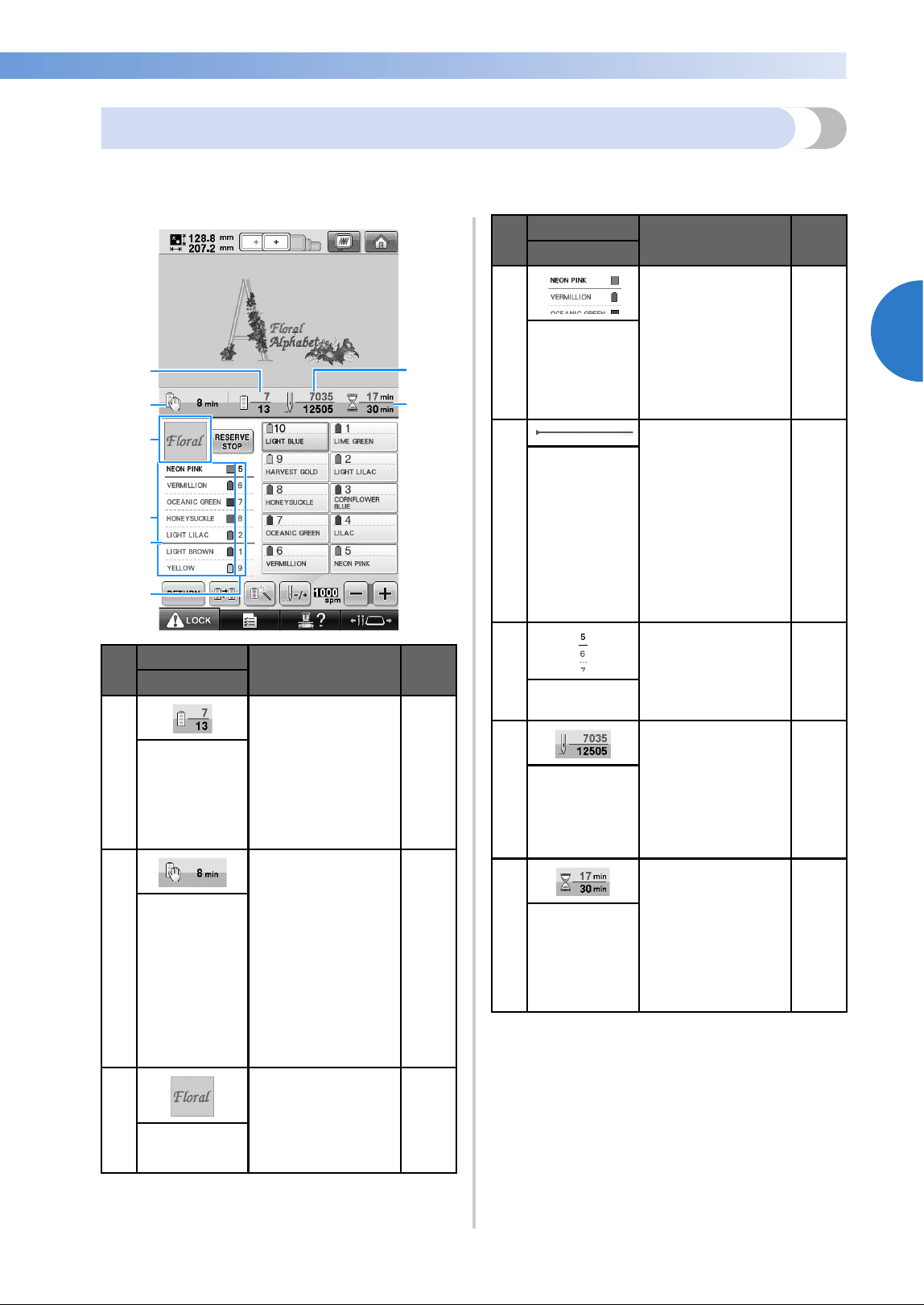
Screen Quick Reference Guide 79
2
——
—————————————————————————————————————————————————————————————
—
—————————————————————
Understanding the embroidering screen
From this screen, the total number of thread colors and the sewing time can be checked, the needle bar
settings can be specified, and the needle placement forward or backward can be done. Keys available in this
screen differ when you set “Manual Color Sequence” to “ON” in settings screen. (Refer to page 132.)
No.
Display
Function Page
Key Name
1
The bottom value
shows the total
number of thread
colors in the pattern
and the top value
shows the thread
colors that is
currently being
sewn.
Sewing order
2
Shows the amount of
time until the
machine will stop.
When the last thread
spool is being sewn,
the number appears
in red.
If the pattern
contains 11 or more
colors, this shows
the time until the
thread spool will
need to be changed.
p.111
Time until the
machine stops
3
Shows the part of the
pattern that will be
sewn with the thread
color shown first in
the thread color
sequence display.
Region display
3
4
6
2
7
8
1
5
4
Shows the order for
the thread color
changes. During
embroidering, this
display scrolls so
that the color of the
thread currently
being sewn appears
at the top.
Thread color
sequence
display
5
This red line
indicator shows
when the thread
spools will need to
be changed. The
thread spools will
need to be changed
at the point between
the two thread
colors where the
indicator is
displayed.
p.111
Spool change
indicator
6
Indicates the needle
bar number where
the thread color at
the left is assigned.
Needle bar
number
7
The bottom value
shows the total
number of stitches in
the pattern and the
top value shows
how many stitches
have already been
sewn.
Stitch count
8
The bottom value
shows the total
amount of time
required to sew the
pattern and the top
value shows how
much time has
already passed
sewing.
Sewing time
No.
Display
Function Page
Key Name
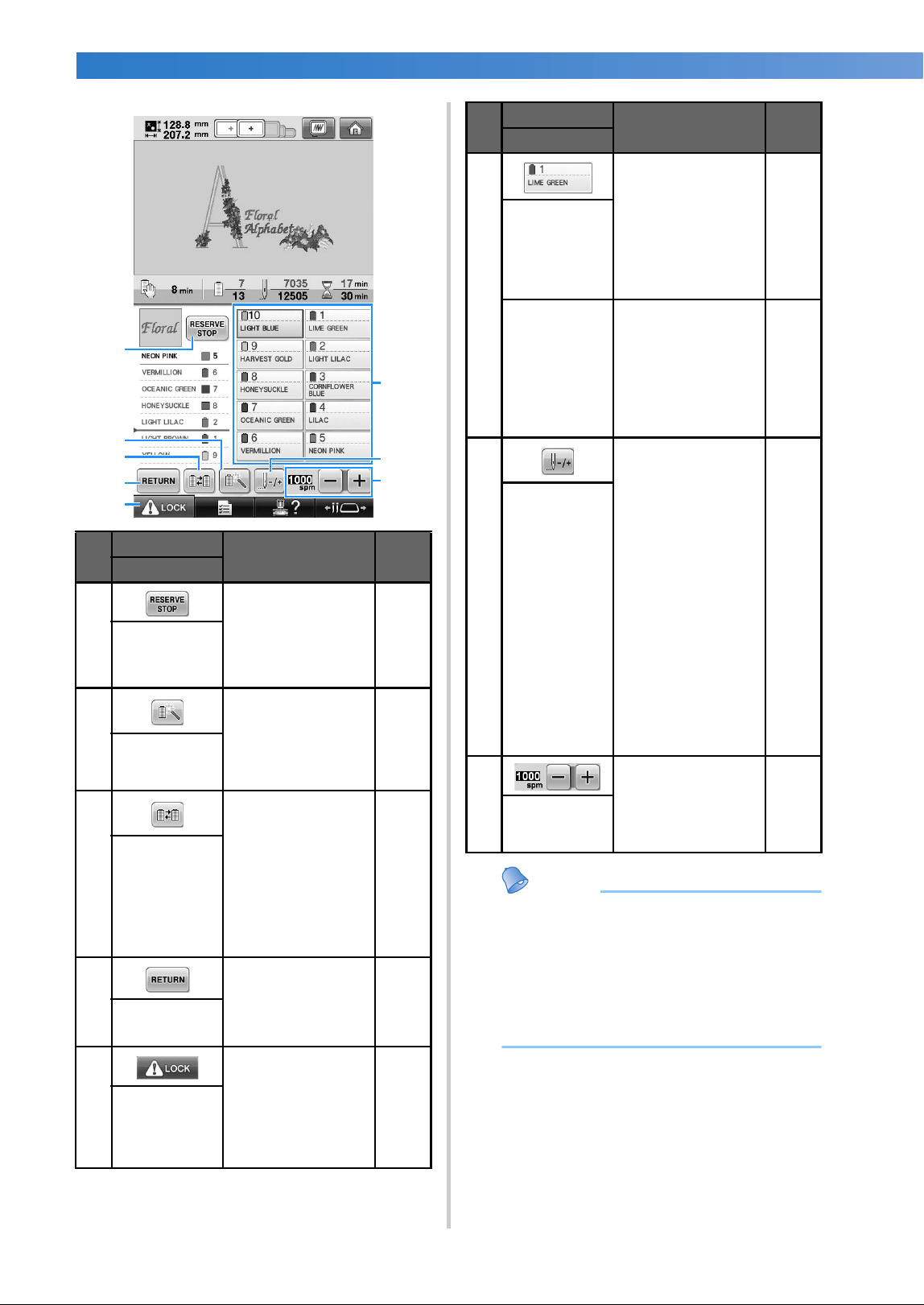
EMBROIDERING TUTORIAL
—
——————————————————————————————————————————————————————————————
——
80
Memo
● The thread color numbers in the thread
color sequence display and the thread
color set up display can be changed, for
example, to the color name or the thread
color number for other brands. (Refer to
“Changing the thread color information”
on page 222.)
No.
Display
Function Page
Key Name
1
While sewing
embroidery, touch
this key for the
machine to stop
prior to the next
color beginning.
p.140
Reserve Stop
key
2
Enables the needle
bar settings to
manually be
specified.
p.142
Temporary
needle bar
settings key
3
Change the needle
bar settings from the
screen without
changing the thread
spools on the
machine.
p.108
Switch spool
key
(Not available
in the “Manual
Color
Sequence”
mode)
4
Touch this key to
quit sewing and
return to the
embroidering
settings screen.
Return key
5
Unlocks the
machine so it can
start sewing within
10 seconds. When
this key is touched,
the start/stop button
flashes in green.
p.64
Unlock key
1
4
7
2
8
5
3
6
6
Touch a key to move
the needle bar
position to the
selected needle bar
number. Use when
threading the needle
with the automatic
needle-threading
mechanism.
Needle bar
key
Thread color
set up display
Shows the color and
the thread color
name (number) for
the thread on the
needle bar indicated
on the key. Thread
the machine as
indicated here.
p.54
7
Moves the needle
forward or backward
through the
stitching. Use this
key in the following
situations:
● If the thread
breaks or runs out
while
embroidering
● To restart sewing
from the
beginning
● To continue
sewing after the
machine was
turned off
p.115
Forward/
Backward
stitch key
8
Specifies the
maximum sewing
speed.
p.139
Maximum
sewing speed
key
No.
Display
Function Page
Key Name
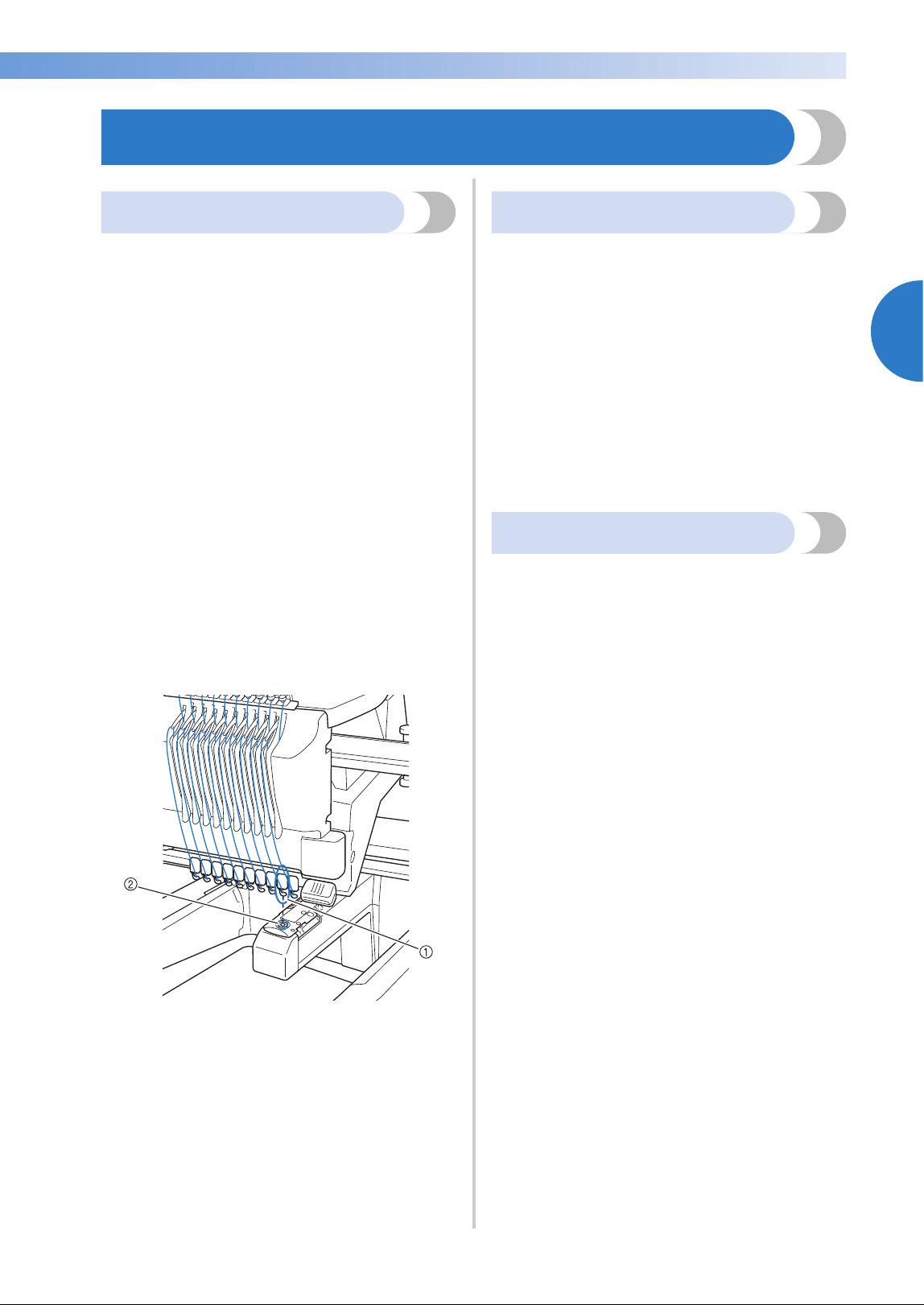
When You Have a Question, This May Help You 81
2
——
—————————————————————————————————————————————————————————————
—
—————————————————————
When You Have a Question, This May Help You
TECHNICAL TERMS:
■ DST
This is the extension of Tajima data file (*.dst)
that is one of the data formats of embroidery
patterns. Tajima data does not contain color
information, therefore the embroidery machine
automatically assigns colors when a Tajima
(.dst) file is loaded. (Refer to page 246.)
■ Needle number
The needles are numbered from right to left. The
far right needle is number 1 needle. (Refer to
page 8.)
■ Needle at the “embroidering position”
This is the needle that is placed above the
needle hole in the needle plate. The needle bar
case is moved to position that particular needle
with the next thread color to the “embroidering
position”.
Also when using the needle threader, the needle
that is going to be threaded should be moved to
the “position of embroidery”. (Refer to page 62
and page 63.)
1 Needle
2 Needle hole in the needle plate
■ Wiper
This is the mechanism for pulling the thread.
The wiper pulls the thread when the needle
threader is used.
The wiper also pulls the thread from the material
when the machine trims the thread. This makes
trimming threads after embroidering un-
necessary. (Refer to page 61.)
PATTERNS:
Following patterns can be processed by the
machine to embroider.
- Embroidery data with *.pes, *.phc or *.dst
format.
Use USB media to transfer the data to the
machine.
Using the USB cable, the data can be transferred
from the PC to the machine.
- Optional embroidery cards
- Embroidery patterns created by digitizing
software program
- The patterns saved on USB media by the
machine
EMBROIDERING:
■ Customize the embroidery colors
- Use the thread color function by selecting
either 64 colors or 300 colors, or by setting
the custom thread color table on the pattern
editing screen. For more details, see
page 200 and page 202.
- Use the “Temporary needle bar setting”
function by selecting the key on the
“embroidering” screen. More details please
see the page 142.
■ Resume an unfinished pattern from the last
time the machine was switched off.
- The machine remembers the pattern and the
position even after turning off the power. And
the machine can resume the embroidery
when the machine turns on again. (Refer to
“Resume Embroidering After Turning Off the
Machine” on page 120.)
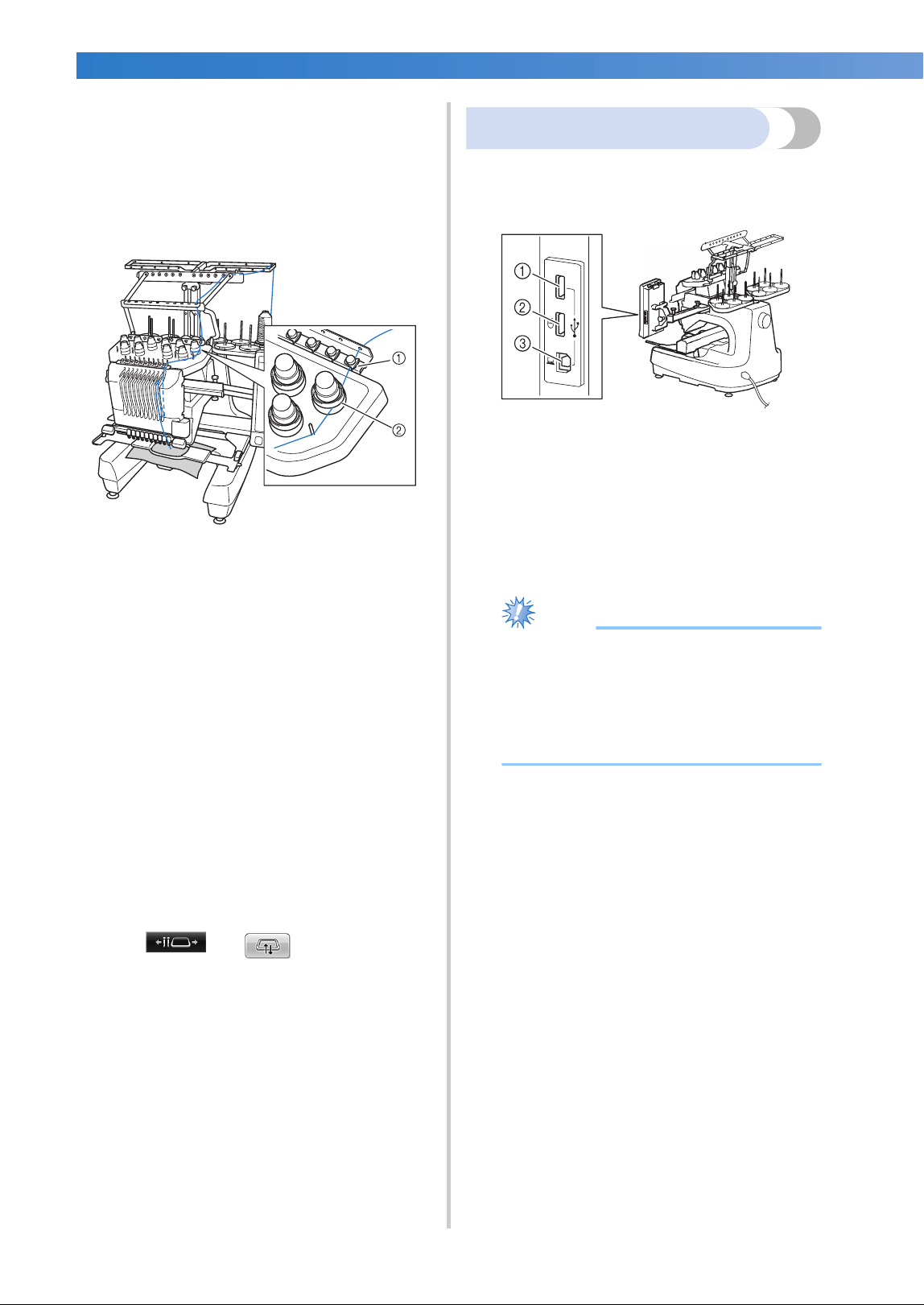
EMBROIDERING TUTORIAL
—
——————————————————————————————————————————————————————————————
——
82
■ Getting false thread breakage error
- Check that the position of the upper thread is
under the upper thread guide plates. (Refer to
page 56.)
- Check that the position of the upper thread is
around the thread tension disc. (Refer to
page 58.)
1 Upper thread guide plates
2 Thread tension disc
■ Thread tension changed suddenly
- Thread is caught on a rough edge of the spool
of upper thread.
- Upper thread is caught under the spool of
thread.
- The thread dust or lint is gathered under the
bobbin’s tension spring.
■ The embroidery frame becomes separated from
the carriage
Make sure that the positioning pins are placed
into the frame’s positioning slot and hole. (Refer
to page 51.)
To insure proper registration of pattern for
embroidery, turning off the machine and turning
it back on will allow the embroidery arm to reset
it’s registration points.
■ Unable to detach the frame from the machine
Touch and to move the
carriage, then the frame will be detachable.
(Refer to page 90.)
■ Cancel the current design and start again
Select the “Home” key on the upper right of the
screen. The pattern and all information will be
deleted. (Refer to page 71.)
USB connectivity
You can perform many functions using the USB
ports on the machine. Connect the appropriate
devices according to the feature of each ports.
1 Primary (top) USB port for media or card
Reader/USB card writer module* (USB2.0)
* If you have purchased the PE-DESIGN Ver5 or
later, PE-DESIGN Lite or PED-BASIC, you can
plug the included USB card writer module into
the machine as an embroidery card reader, and
recall patterns.
2 USB port for mouse (USB1.1)
3 USB port for computer
Note
● The processing speed may vary by port
selection and quantity of data.
● Do not insert anything other than USB
media into the USB media port.
Otherwise, the USB media drive may be
damaged.
■ Using USB media or embroidery card Reader/
USB card writer module*
When sending or reading patterns using the USB
media or the embroidery card Reader/USB card
writer module*, connect the device to the
primary (top) USB port.
The primary (top) USB port processes the data
faster than the other ports.
* If you have purchased the PE-DESIGN Ver5 or
later, PE-DESIGN Lite or PED-BASIC, you can
plug the included USB card writer module into
the machine as an embroidery card reader, and
recall patterns.
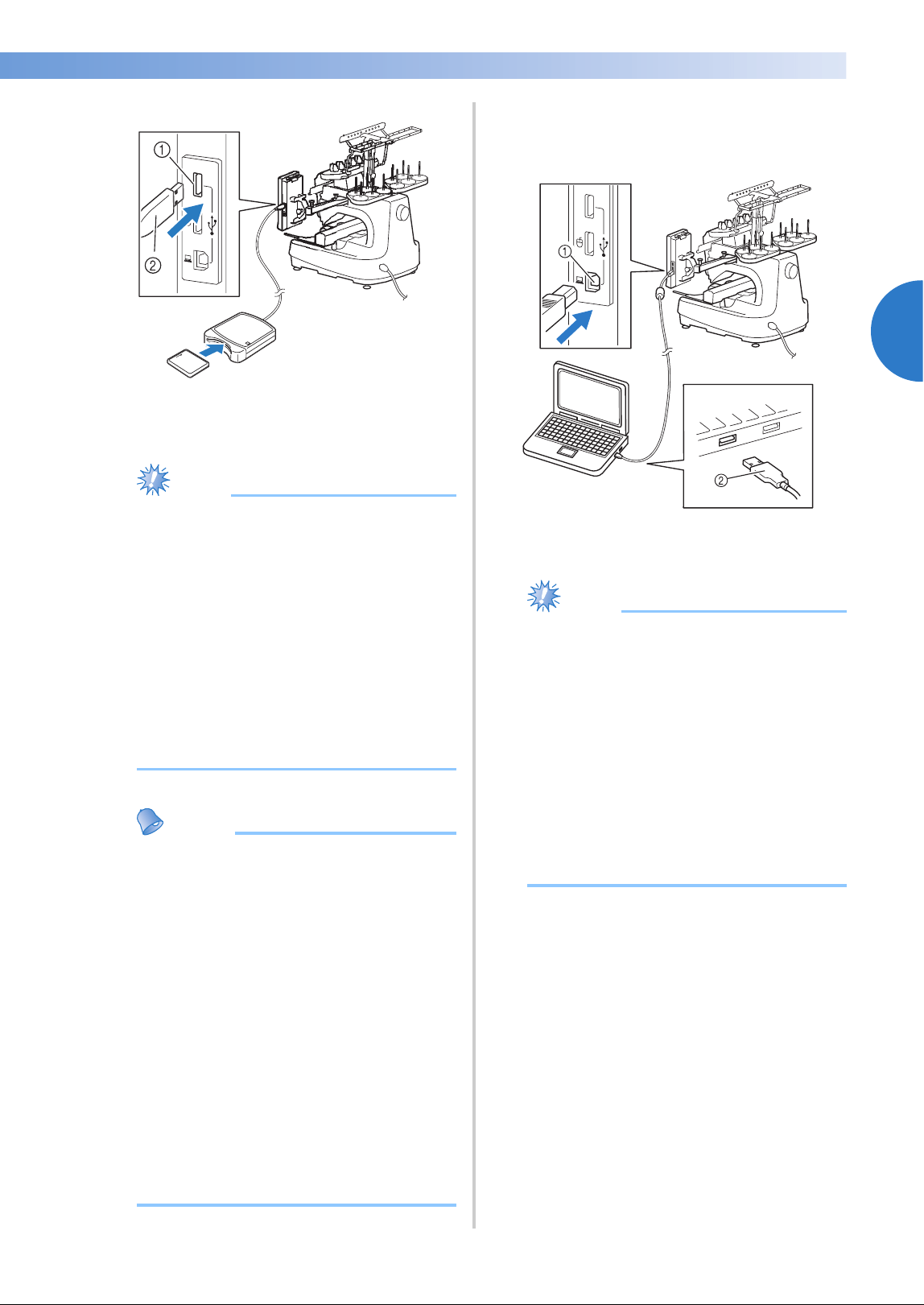
When You Have a Question, This May Help You 83
2
——
—————————————————————————————————————————————————————————————
—
—————————————————————
1 Primary (top) USB port
2 Embroidery card Reader/USB card writer
module* or USB media
Note
● Two USB media cannot be used with this
machine at the same time. If two USB
media are inserted, only the USB media
inserted first is detected.
● Use only an embroidery card reader
designed for this machine. Using an
unauthorized embroidery card reader may
cause your machine to operate
incorrectly.
● Embroidery patterns cannot be saved from
the machine to an embroidery card
inserted into a connected USB card writer
module.
Memo
● USB media is widely used, however some
USB media may not be usable with this
machine. Please visit our website (http://
solutions.brother.com) for more details.
● Depending on the type of USB media
being used, either directly plug the USB
device into the machine’s USB port or
plug the USB media Reader/Writer into the
machine’s USB port.
● You can plug the optional embroidery
card Reader/USB card writer module* into
the primary (top) or center port, when the
mouse is not connected.
● You can plug a USB media into the center
port, but the primary (top) USB port
processes the data faster. It is
recommended to use the primary (top)
USB port.
■ Connecting the machine to the computer
Using the included USB cable, the sewing
machine can be connected to your computer.
1 USB port for computer
2 USB cable connector
Note
● The connectors on the USB cable can only
be inserted into a port in one direction. If it
is difficult to insert the connector, do not
insert it with force. Check the orientation
of the connector.
● For details on the position of the USB port
on the computer (or USB hub), refer to the
instruction manual for the corresponding
equipment.
● You can arrange the USB cable using the
included USB clamp. (Refer to
“Connecting the USB using the included
USB cord clamps” on page 171.)
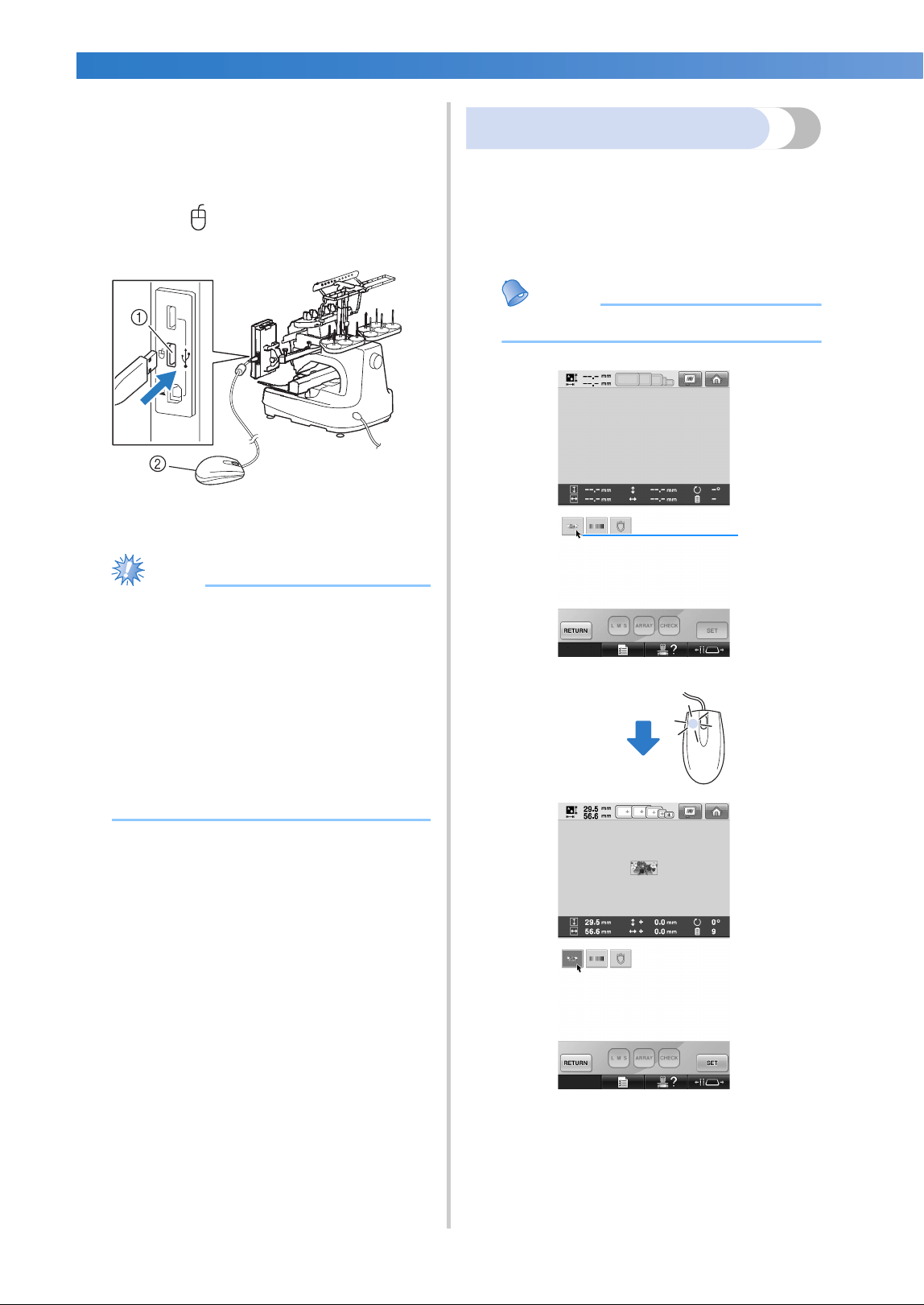
EMBROIDERING TUTORIAL
—
——————————————————————————————————————————————————————————————
——
84
■ Using a USB mouse
The USB mouse, connected to the sewing
machine, can be used to perform a variety of
operations in the screens.
Connect a USB mouse to the USB 1.1 port
marked with . You can also connect a USB
mouse to the other USB port (USB 2.0).
1 USB port for mouse
2 USB mouse
Note
● Do not perform operations with the mouse
at the same time that you are touching the
screen with your finger or the included
touch pen.
● A USB mouse can be connected or
disconnected at any time.
● Only the left mouse button and its wheel
can be used to perform operations. No
other buttons can be used.
● The mouse pointer does not appear in the
screen saver.
USB mouse operation
■ Clicking a key
When the mouse is connected, the pointer
appears on the screen. Move the mouse to
position the pointer over the desired key, and
then click the left mouse button.
Memo
● Double-clicking has no effect.
1 Pointer
1
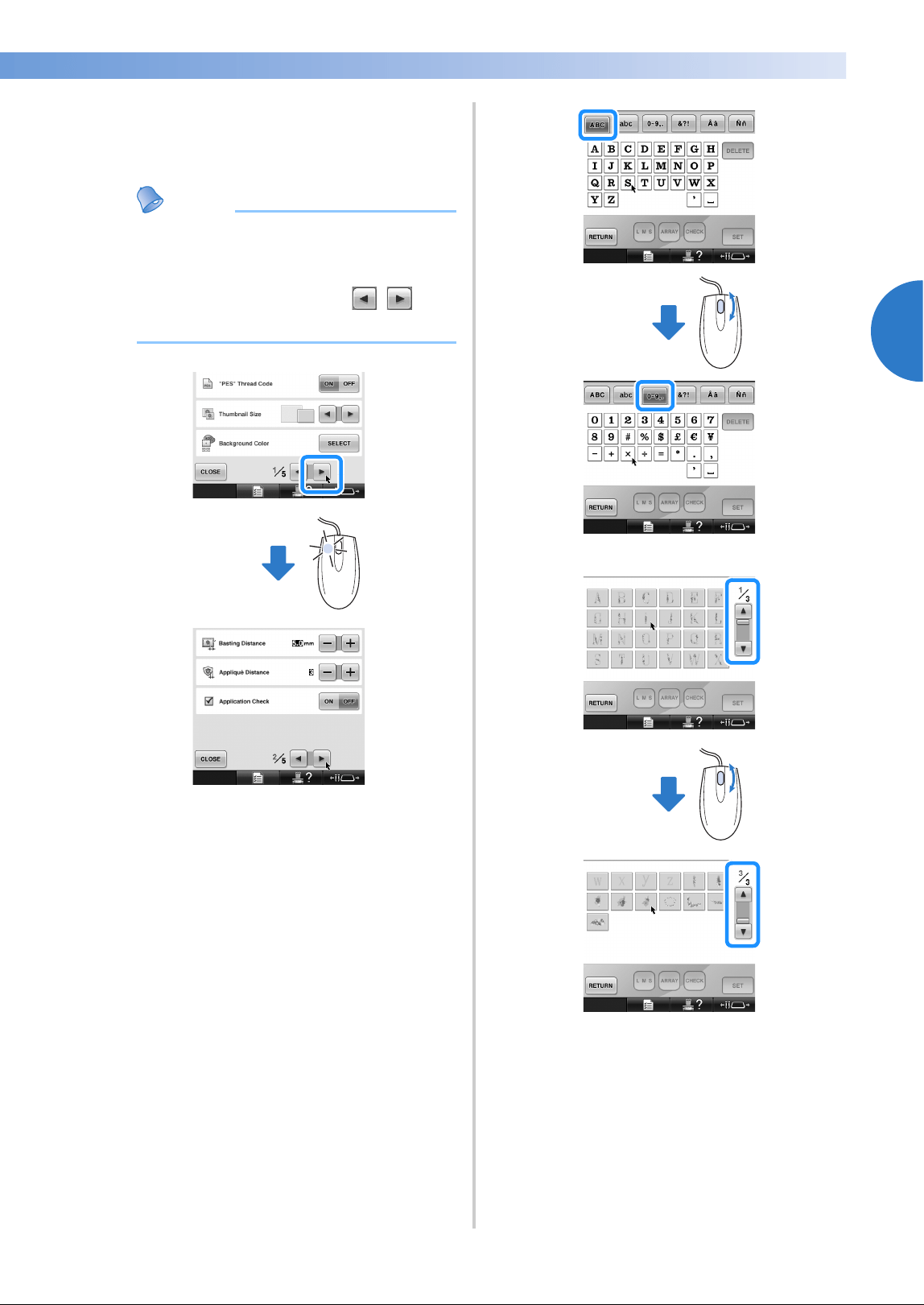
When You Have a Question, This May Help You 85
2
——
—————————————————————————————————————————————————————————————
—
—————————————————————
■ Changing pages
Rotate the mouse wheel to switch through the
tabs of the pattern selection screens.
Memo
● If page numbers and a vertical scroll bar
for additional pages are displayed, rotate
the mouse wheel or click the left mouse
button with the pointer on / to
display the previous or next page.
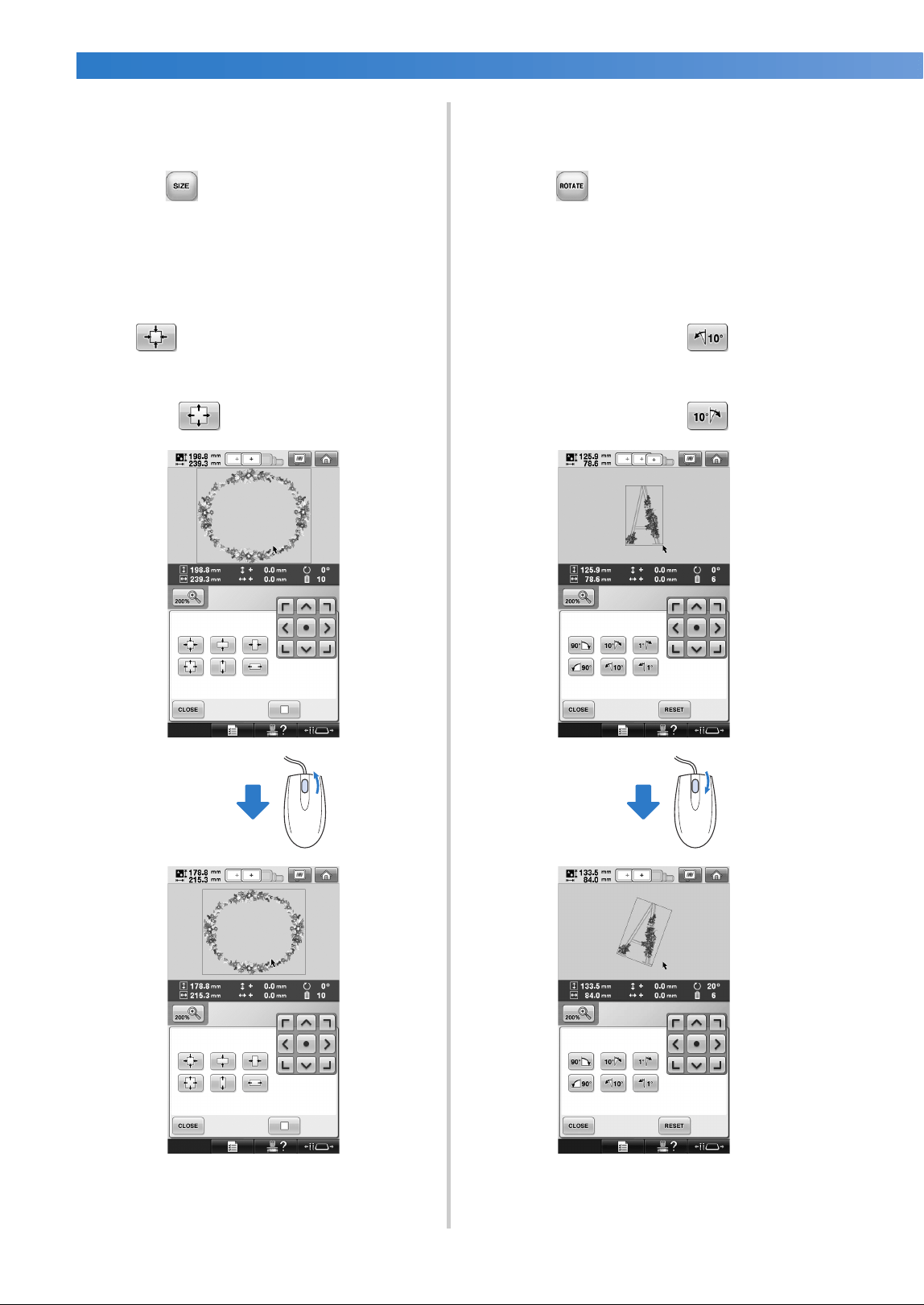
EMBROIDERING TUTORIAL
—
——————————————————————————————————————————————————————————————
——
86
■ Changing the size
Refer to “Changing the size of a pattern” on
page 184.
1
Touch .
2
Change the size of the pattern.
• Rotate the mouse wheel away from you to
shrink the pattern in the same way as when
is touched.
• Rotate the mouse wheel toward you to
enlarge the pattern in the same way as
when is touched.
■ Rotating the pattern
Refer to “Adjusting the angle” on page 100 and
“Rotating a pattern” on page 185.
1
Touch .
2
Rotate the pattern.
• Rotate the mouse wheel away from you to
rotate the pattern 10 degrees to the left in
the same way as when is touched.
• Rotate the mouse wheel toward you to
rotate the pattern 10 degrees to the right in
the same way as when is touched.

3
OTHER BASIC PROCEDURES
This chapter provides explanations on operations other than those described in
chapter 2, such as sewing a pattern with eleven or more colors, changing the needles
and changing thread spools.
Changing the Needle...............................................................................................88
Replacing the needle ...........................................................................................88
Correctly Using the Embroidery Frames..................................................................90
Embroidery frame holders....................................................................................90
When difficult to replace the embroidery frame...................................................90
Types of embroidery frames/frame holders and their applications ........................91
Attaching Iron-On Stabilizer (Backing) to Fabric ....................................................93
Hooping the Fabric .................................................................................................94
Hooping the fabric in the extra-large and large embroidery frames ......................94
Using the embroidery sheet .................................................................................95
Large/small pieces of fabric..................................................................................96
Embroidery Frame Position and Movement.............................................................97
Changing the Embroidering Position .......................................................................99
Adjusting the angle ............................................................................................100
Aligning the Embroidering Position .......................................................................103
Using the built-in camera ..................................................................................103
Using the included embroidery positioning sticker ............................................105
Switching the Thread Colors on the Screen...........................................................108
Embroidering a Pattern Containing Eleven or More Colors ...................................110
Checking if thread spool changes are necessary.................................................111
Changing the Thread Spools with Designs of Eleven or More Colors ....................113
Change thread spools message and spool thread indicators ...............................113
Easily changing the thread spools ......................................................................114
If the Thread Breaks or the Bobbin Thread Runs Out While Embroidering ...........115
If the upper thread breaks ..................................................................................115
If the bobbin thread breaks or runs out ..............................................................117
Embroidering From the Beginning or Middle of the Pattern..................................118
Resume Embroidering After Turning Off the Machine ..........................................120
Adjusting the Thread Tension................................................................................122
Adjusting the tension of the bobbin thread.........................................................122
Adjusting the tension of the upper thread...........................................................123
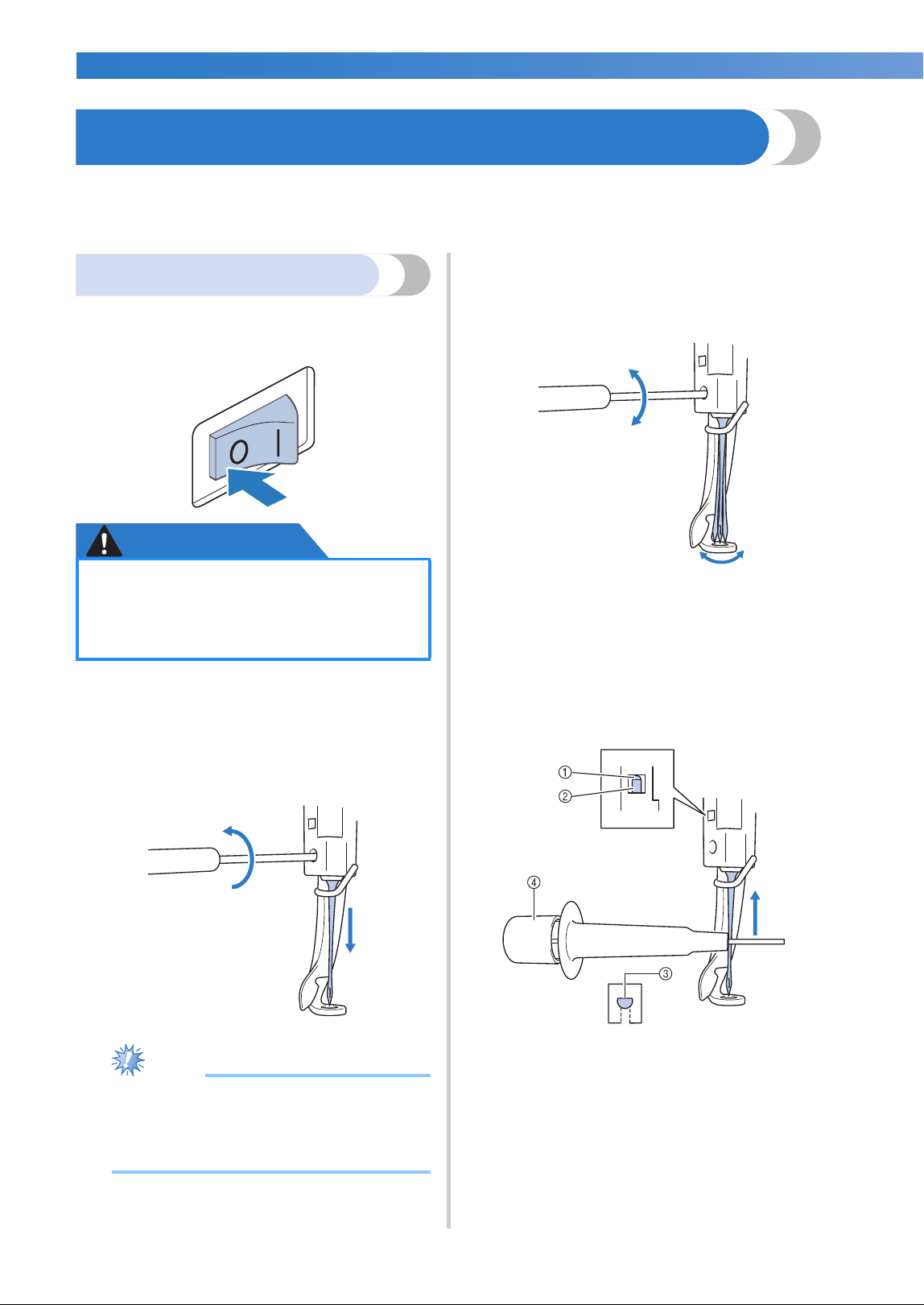
OTHER BASIC PROCEDURES
—
——————————————————————————————————————————————————————————————
——
88
Changing the Needle
If the needle is bent or the tip of the needle is broken, replace the needle with a new one. Use the included
Allen screw driver to replace the needle with one that is designed specifically for this machine and that
passes the test described in “Checking the needle” on page 35.
Replacing the needle
1
Turn off the embroidery machine.
CAUTION
2
Loosen the needle set screw and remove the
needle.
Hold the needle with your left hand, and then
hold the Allen screw driver in your right hand
and turn the needle set screw
counterclockwise.
Note
● Be sure to use the included Allen screw
driver to replace the needle, otherwise too
much force may be applied to the needle,
causing it to break.
• Do not apply extreme force when
loosening or tightening the needle set
screw, otherwise the machine may be
damaged.
3
With the flat side of the needle toward the
back of the machine, insert the needle all the
way up until it touches the needle bar
stopper.
Pass the needle through the hole in the
presser foot, and then use the needle
changing tool to lift up the needle.
1 Needle bar stopper
2 Needle
3 Flat side of needle
4 Needle changing tool (Threader)
● Be sure to turn off the embroidery
machine before replacing the needle,
otherwise injuries may result if the
machine starts sewing.
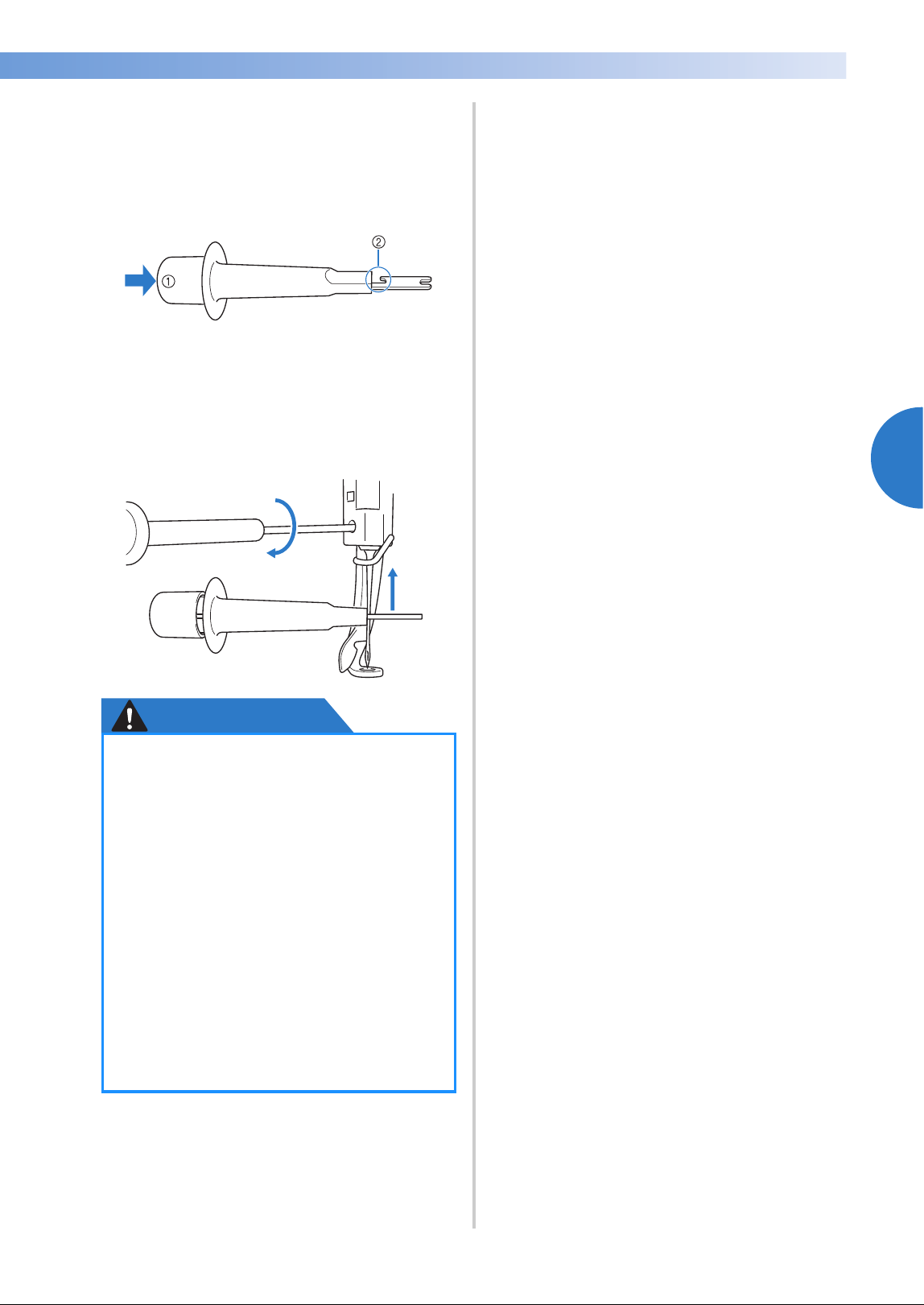
Changing the Needle 89
3
——
—————————————————————————————————————————————————————————————
—
—————————————————————
Hold the needle changing tool and press the
end of the needle changing tool 1 in to
extend the needle-mounting clamp 2. Attach
the clamp to the needle, and then release the
pressed area to clamp the needle. To
unclamp the needle, press 1 again.
1 End of the needle changing tool
2 Needle mounting clamp
4
While holding the needle in place with your
left hand, tighten the needle set screw.
Use the Allen screw driver to turn the needle
set screw clockwise.
CAUTION
● Be sure to insert the needle in the
needle bar chamber until it reaches the
needle bar stopper and securely tighten
the needle set screw with the Allen
screw driver, otherwise the needle may
break or the machine may be damaged.
● If the needle is not fully inserted, the
hook of the automatic needle-threading
mechanism will not pass through the
eye of the needle during automatic
needle threading, and the hook may
bend or the needle cannot be threaded.
● If the hook of the automatic needle-
threading mechanism is bent or
damaged, contact your authorized
dealer.
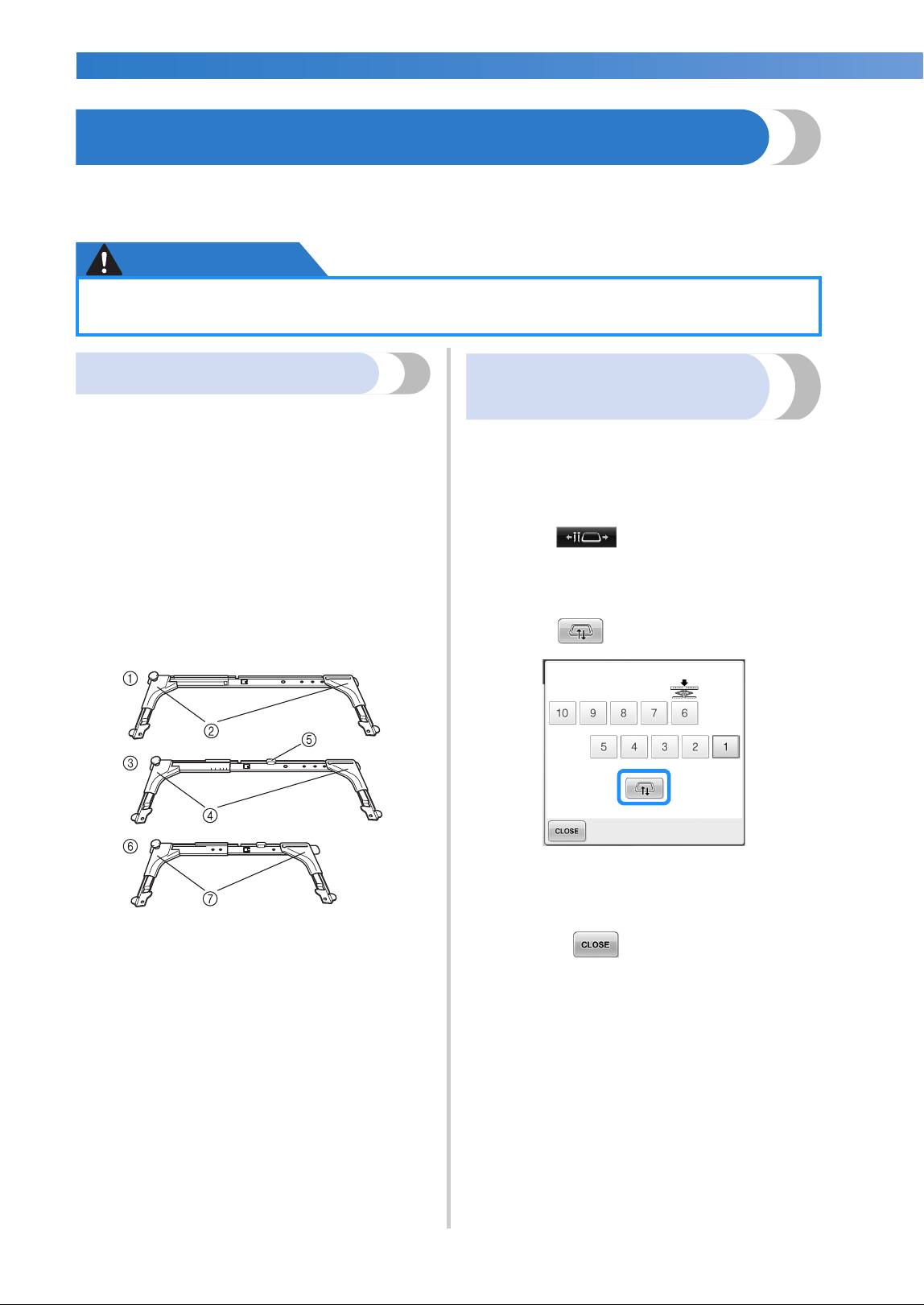
OTHER BASIC PROCEDURES
—
——————————————————————————————————————————————————————————————
——
90
Correctly Using the Embroidery Frames
Various types of embroidery frames can be used with this machine to suit your project.
In addition to the four included embroidery frames, there are many frames that can be used with this
embroidery machine. (Refer to “Optional accessories” on page 24.)
CAUTION
Embroidery frame holders
Two types of embroidery frame holders
(embroidery frame holder A and embroidery frame
holder B) are included with this machine.
Embroidery frame holder A is used with the four
included embroidery frames. Embroidery frame
holder B is used with the optional embroidery
frames. In addition, if optional embroidery frame
holder C is used, a frame from the optional round
frame series can be installed. For details on which
embroidery frame can be installed on each
embroidery frame holder, refer to “Types of
embroidery frames/frame holders and their
applications” on page 91.
1 Embroidery frame holder A
2 White corner covers
3 Embroidery frame holder B
4 Light gray corner covers
5 Magnet
6 Embroidery frame holder C (optional)
7 Dark gray corner covers
When difficult to replace the
embroidery frame
Depending on the position of the needle bars, it
may be difficult to replace the embroidery frame. In
that case, follow the procedure described below to
move the embroidery frame.
1
Touch .
X The needle bar move screen appears.
2
Touch .
X The carriage automatically moves to a
position where the embroidery frame can
easily be replaced.
• Touch to close the needle bar
move screen and to move the carriage to
the previous position.
● Only use embroidery frames of the sizes indicated in the screen, otherwise the
embroidery frame may hit the presser foot, which may result in injuries.
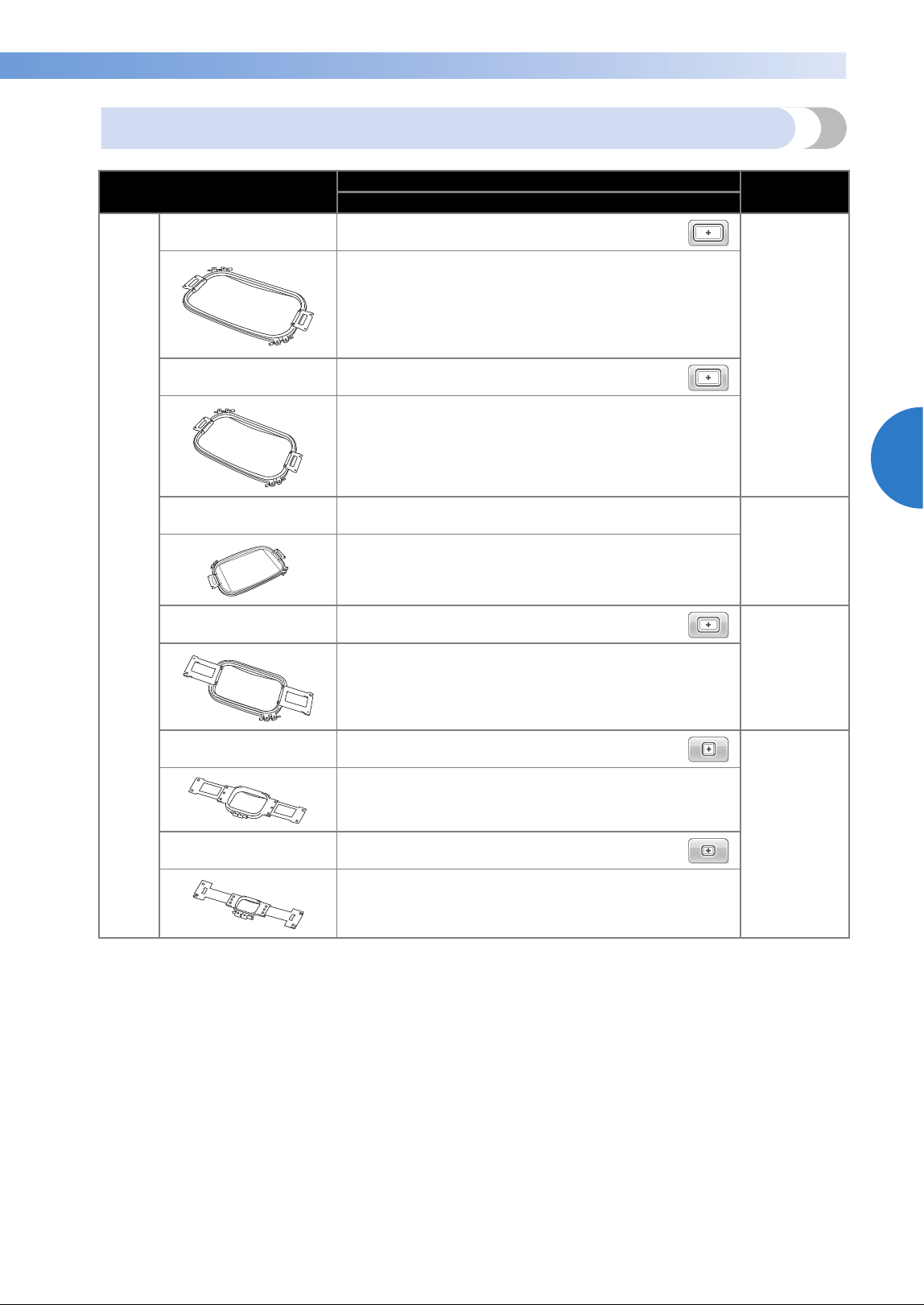
Correctly Using the Embroidery Frames 91
3
——
—————————————————————————————————————————————————————————————
—
—————————————————————
Types of embroidery frames/frame holders and their applications
Embroidery type
Embroidering area
Reference
Usage
Embroidery frame holder A
Extra-large embroidery
frame
200 mm (H) × 360 mm (W)
(7-7/8 inches (H) × 14 inches (W))
(Refer to
“Hooping the
Fabric” on
page 94.)
Use when embroidering connecting characters or patterns,
combined patterns or large embroidery patterns.
Extra-large embroidery
frame (optional)
200 mm (H) × 300 mm (W)
(7-7/8 inches (H) × 11-3/4 inches (W))
Use when embroidering connecting characters or patterns,
combined patterns or large embroidery patterns.
Flat frame (optional) 200 mm (H) × 300 mm (W)
(7-7/8 inches (H) × 11-3/4 inches (W))
Consult your
nearest
Brother
dealer.
Use when embroidering jackets and other thick garments.
Large embroidery frame 130 mm (H) × 180 mm (W)
(5-1/8 inches (H) × 7-1/8 inches (W))
(Refer to
“Hooping the
Fabric” on
page 94.)
Use when embroidering patterns with a size less than 130
mm (H) × 180 mm (W) (5-1/8 inches (H) × 7-1/8 inches
(W))
Medium embroidery
frame
100 mm (H) × 100 mm (W)
(4 inches (H) × 4 inches (W))
(Refer to
“Hooping the
Fabric in the
Embroidery
Frame” on
page 49.)
Use when embroidering standard-sized patterns.
Small embroidery frame 40 mm (H) × 60 mm (W)
(1-1/2 inches (H) × 2-3/8 inches (W))
Use when embroidering small-sized patterns, such as
nametags.
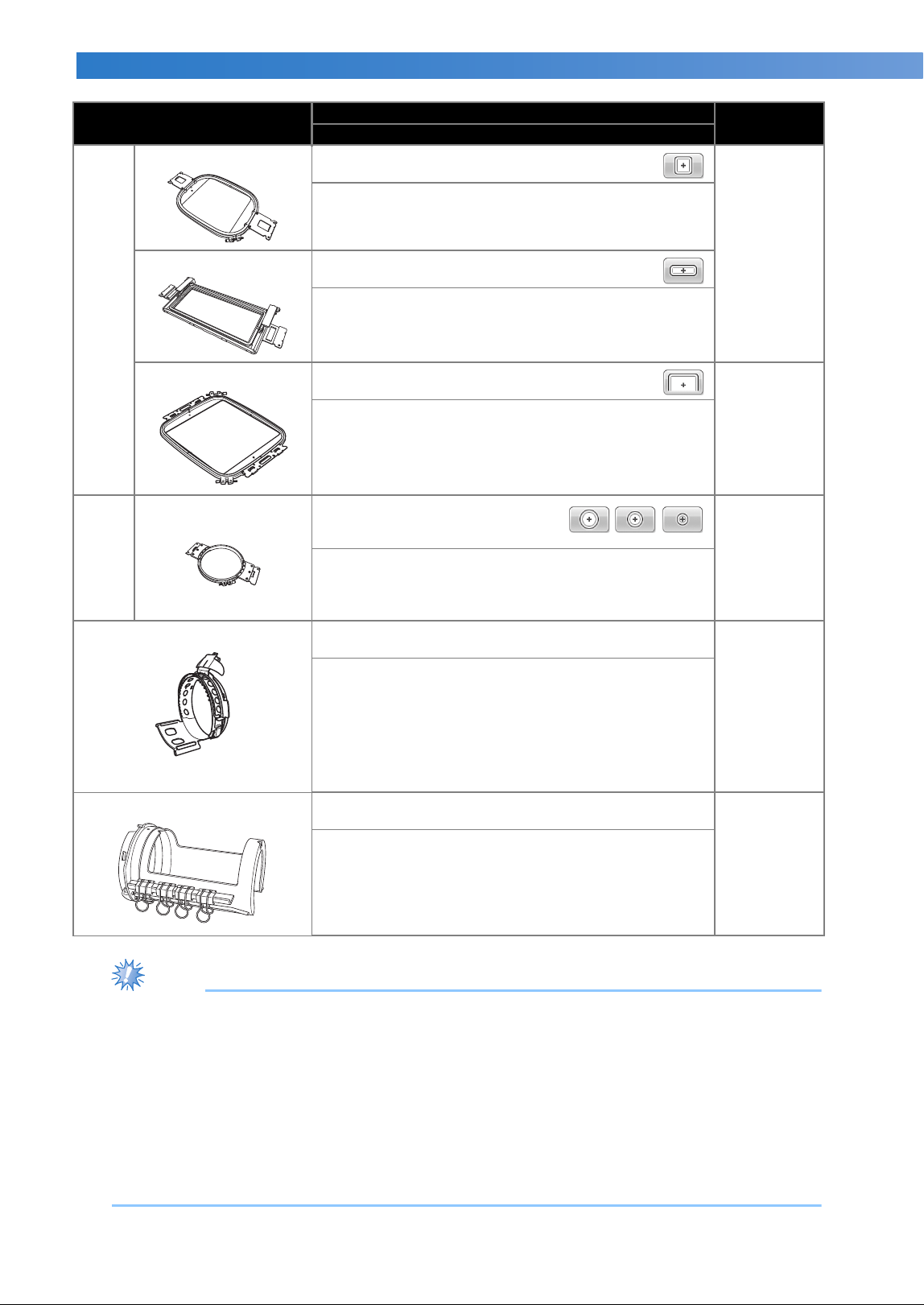
OTHER BASIC PROCEDURES
—
——————————————————————————————————————————————————————————————
——
92
Note
● The embroidery frame indicators show all embroidery frame sizes in which the embroidery pattern
can be sewn. Be sure to use an embroidery frame of the most suitable size. If the embroidery frame
that is used is too large, the pattern may be misaligned or the fabric may pucker.
● All genuine embroidery frames that can be used with PR-600, PR-600II, PR-620 and PR-650 can be
installed on this machine.
● When sewing with a following optional embroidery frame; jumbo frame, border frame, quilt frame
or flat frame, the included table must be installed to the machine.
● Due to the weight of the embroidery frame and fabric it is recommended that the included table be
used, to prevent the frame holder from bending, which may result in the distortion of your design or
machine damage.
Embroidery
frame holder B
Quilt frame (optional) 200 mm (H) × 200 mm (W) (7-7/8 inches (H) ×
7-7/8 inches (W))
Consult your
nearest
Brother
dealer.
Use when embroidering pieces for quilts.
Border frame (optional) 100 mm (H) × 300 mm (W) (4 inches (H) ×
11-3/4 inches (W))
Use when embroidering a long string of characters or
patterns.
Jumbo Frame (optional) 360 mm (H) × 360 (W) mm (14 inches (H) ×
14 inches (W))
Refer to
“Embroidery
Patterns for
the Optional
Jumbo
Frame” on
page 254.
Use when embroidering combined patterns with a size less
than 350 mm (H) × 200 mm (W) (13-3/4 inches (H) × 7-7/8
inches (W)) or patterns with a maximum size of 350 mm
(H) × 350 mm(W) (13-3/4 inches (H) × 13-3/4 inches (W)).
Embroidery
frame holder C
(optional)
Round frame (optional)
∅=diameter
∅100 mm (4 inches)
∅130 mm (5 inches)
∅160 mm (6 inches)
Consult your
nearest
Brother
dealer.
Use when adding a built-in embroidery pattern to a sleeve.
Select the frame appropriate for the size of the pattern.
Cap frame wide type (optional) 60 mm (H) × 360 mm (W) (2-3/8 inches (H) × 14 inches
(W))
(For details on
attaching this
frame, refer to
“Using the
Optional Cap
Frame” on
page 258.)
Use when embroidering caps.
Baseball (golf) caps, tulip hats and bucket hats can be
embroidered with these frames.
These frames cannot be used with hats having a front area
of 60 mm (2-3/8inches) or less, such as sun visors and
children’s hats.
In addition, these cannot be used with hats that have a
brim longer than 80 mm (3-1/8 inches).
Cylinder frame (optional) 80 mm (H) × 90 mm (W)
(3 inches (H) × 3-1/2 inches (W))
Consult your
nearest
Brother
dealer.
Use when embroidering tubular and curved fabric, such as
shirt sleeves and trousers.
Embroidery type
Embroidering area
Reference
Usage
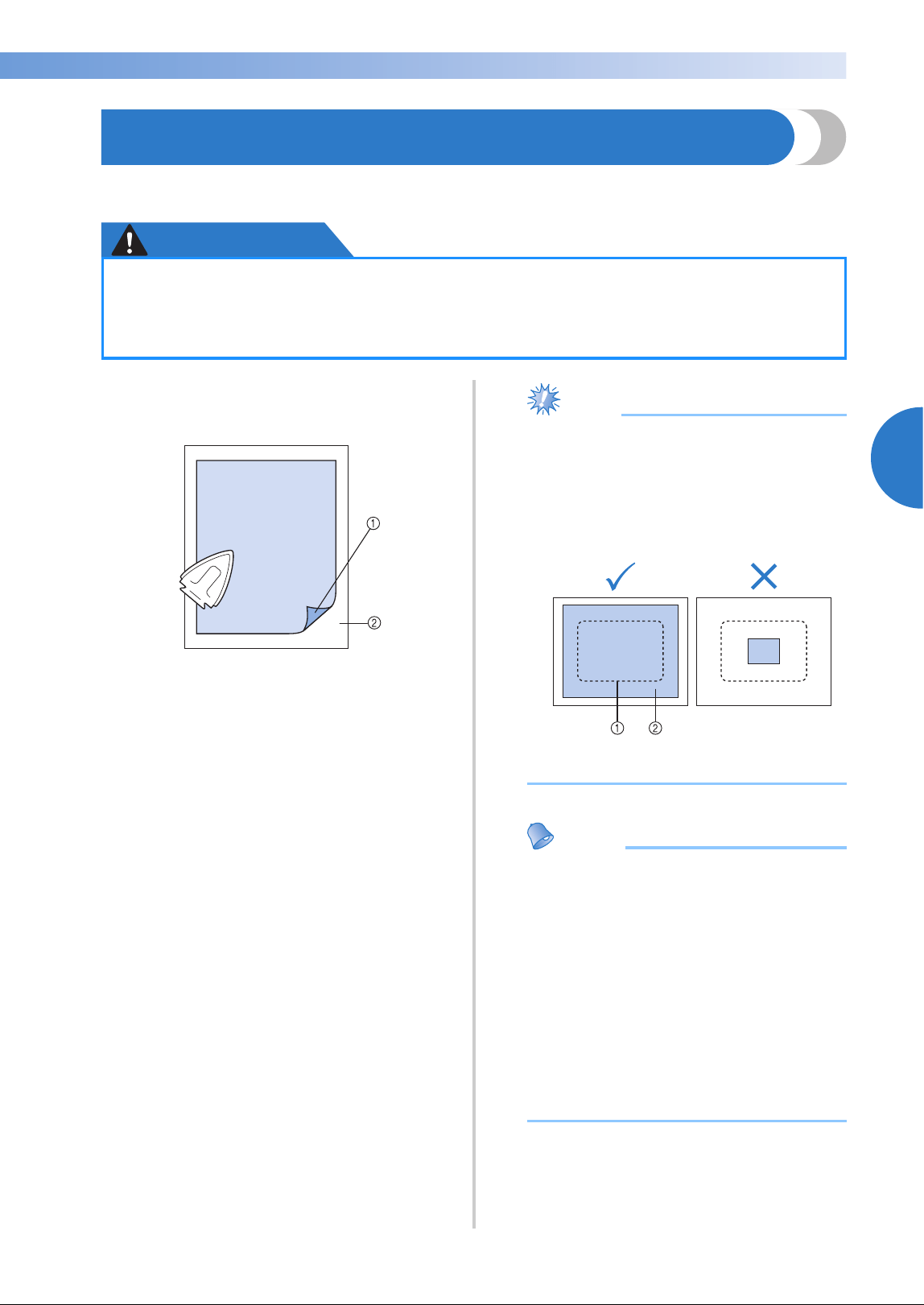
Attaching Iron-On Stabilizer (Backing) to Fabric 93
3
——
—————————————————————————————————————————————————————————————
—
—————————————————————
Attaching Iron-On Stabilizer (Backing) to Fabric
In order to prevent shrinkage of the stitching or misaligned patterns, we recommend that iron-on stabilizer
(backing) be used for embroidering.
CAUTION
1
Using a steam iron, affix the iron-on
stabilizer (backing) to the back of the fabric.
1 Adhesive side of iron-on stabilizer (backing)
2 Fabric (wrong side)
• When embroidering fabric that should not
be ironed or when embroidering an area
that is difficult to iron, hoop a layer of the
iron-on stabilizer (backing) under the fabric
in the embroidery frame without ironing it.
Note
● Use a piece of iron-on stabilizer (backing)
that is larger than the embroidery frame.
When framing the fabric in the embroidery
frame, be sure that the stabilizer (backing)
is clamped on all edges in order to prevent
wrinkles in the fabric.
1 Area of embroidery frame
2 Iron-on stabilizer (backing)
Memo
● When embroidering thin fabrics, such as
organza or lawn, use a water-soluble
stabilizer (backing). Water-soluble
stabilizers dissolve when washed,
allowing you to create beautiful
embroidery that is not stiff.
● When embroidering fabric with a nap,
such as towels or corduroy, hoop a layer
of iron-on stabilizer (backing) under the
fabric in the embroidery frame without
ironing it.
● For other uses of stabilizer (backing), refer
to “Stabilizers (backing)” on page 247.
● When embroidering on thin or stretch fabrics, fabrics with a coarse weave or fabrics that
easily allow the stitching to shrink, be sure to use iron-on stabilizer (backing) for
embroidering. If iron-on stabilizer (backing) is not used while embroidering, the needle
may bend or break or the pattern may become misaligned.
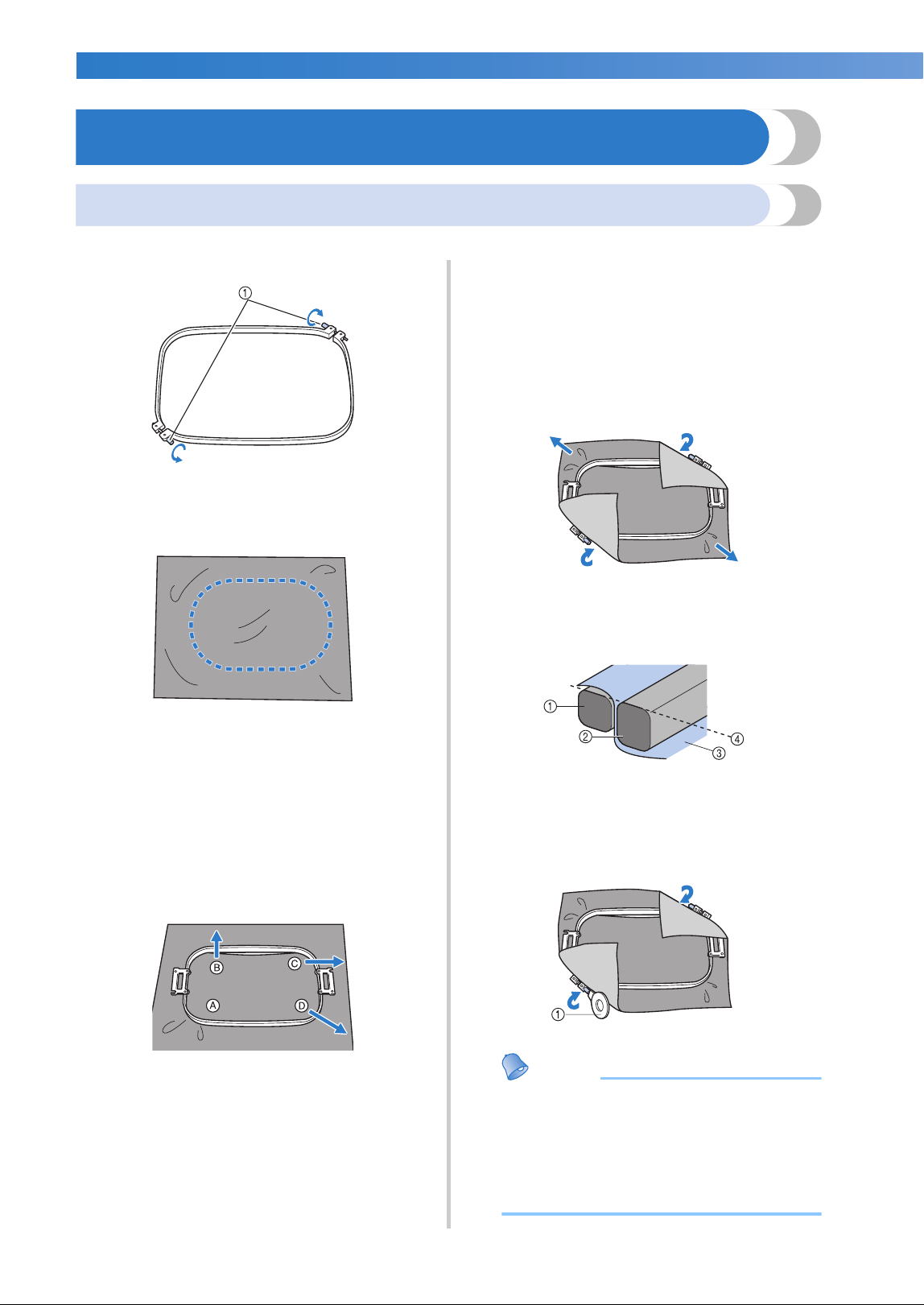
OTHER BASIC PROCEDURES
—
——————————————————————————————————————————————————————————————
——
94
Hooping the Fabric
Hooping the fabric in the extra-large and large embroidery frames
1
Loosen the screw on the outer frame.
1 Screw
2
Place the fabric with right side up on top of
the outer frame.
• The outer frame does not have a front or
back side. Either side can be used as the
front.
3
Press the inner frame into the outer frame.
First insert the inner frame at the corner with
the screw A, next insert the nearby one
corner B, and then insert the opposite corner
C. Then insert the opposite corner (non
screw) D.
First, align the inner and outer frames at the
corner with the screw A. Then, while lightly
pulling the fabric in the direction indicated
by arrow B so that the fabric is taut, insert
the inner frame at corner B. In the same way,
lightly pull the fabric in the direction
indicated by arrow C and insert corner C,
and then lightly pull the fabric in the
direction indicated by arrow D and insert
corner D.
• Be sure that there are no wrinkles in the
fabric after it is stretched in the embroidery
frame.
4
While stretching the fabric even more,
securely tighten the screw so that the fabric
is taut.
• After stretching the fabric, lightly tapping it
should produce a drum-like sound.
• Firmly clamp together the inner and outer
frames so that their tops are even.
1 Outer frame
2 Inner frame
3 Right side of fabric
4 Top of inner and outer frames are even
• Using the included disc-shaped
screwdriver, firmly tighten the screw.
1 Disc-shaped screwdriver
Memo
● To correctly frame the fabric in the
embroidery frame, we recommend using a
flat surface.
● Refer to “Hooping fabric in the small
embroidery frame” on page 50 for details
on hooping smaller frames.
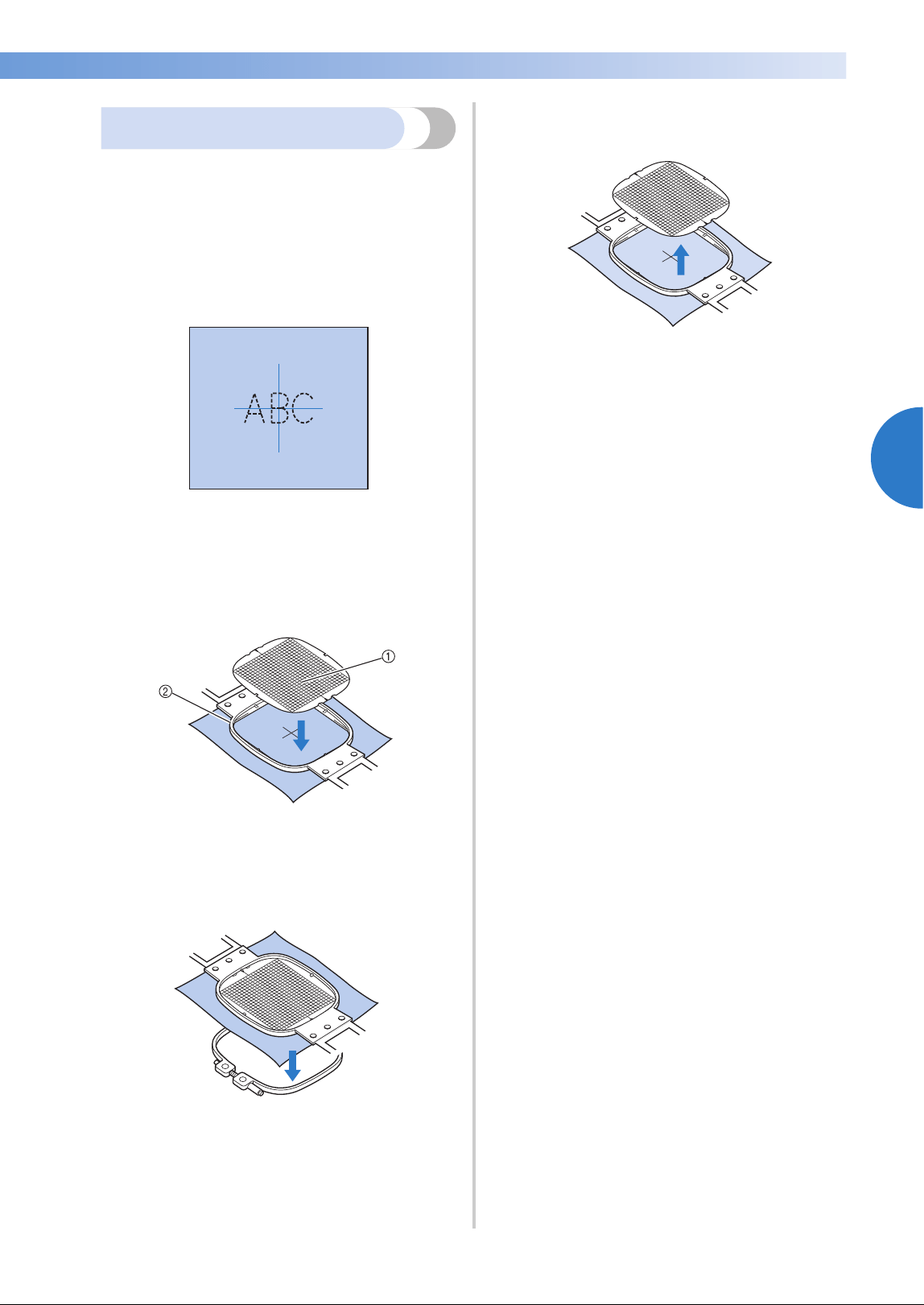
Hooping the Fabric 95
3
——
—————————————————————————————————————————————————————————————
—
—————————————————————
Using the embroidery sheet
In order to hoop the fabric so that the pattern will
be sewn in the correct position, use the guidelines
on the embroidery sheet to accurately stretch the
fabric in the frame.
1
With a fabric marker, mark the area of the
fabric you want to embroider.
2
Place the embroidery sheet on the inner
frame. Align the guidelines on the
embroidery sheet with the marks that you
drew on the fabric.
1 Guidelines
2 Inner frame
3
Gently stretch the fabric, so that there are
no folds or wrinkles.
4
Press the inner frame into the outer frame.
Remove the embroidery sheet.
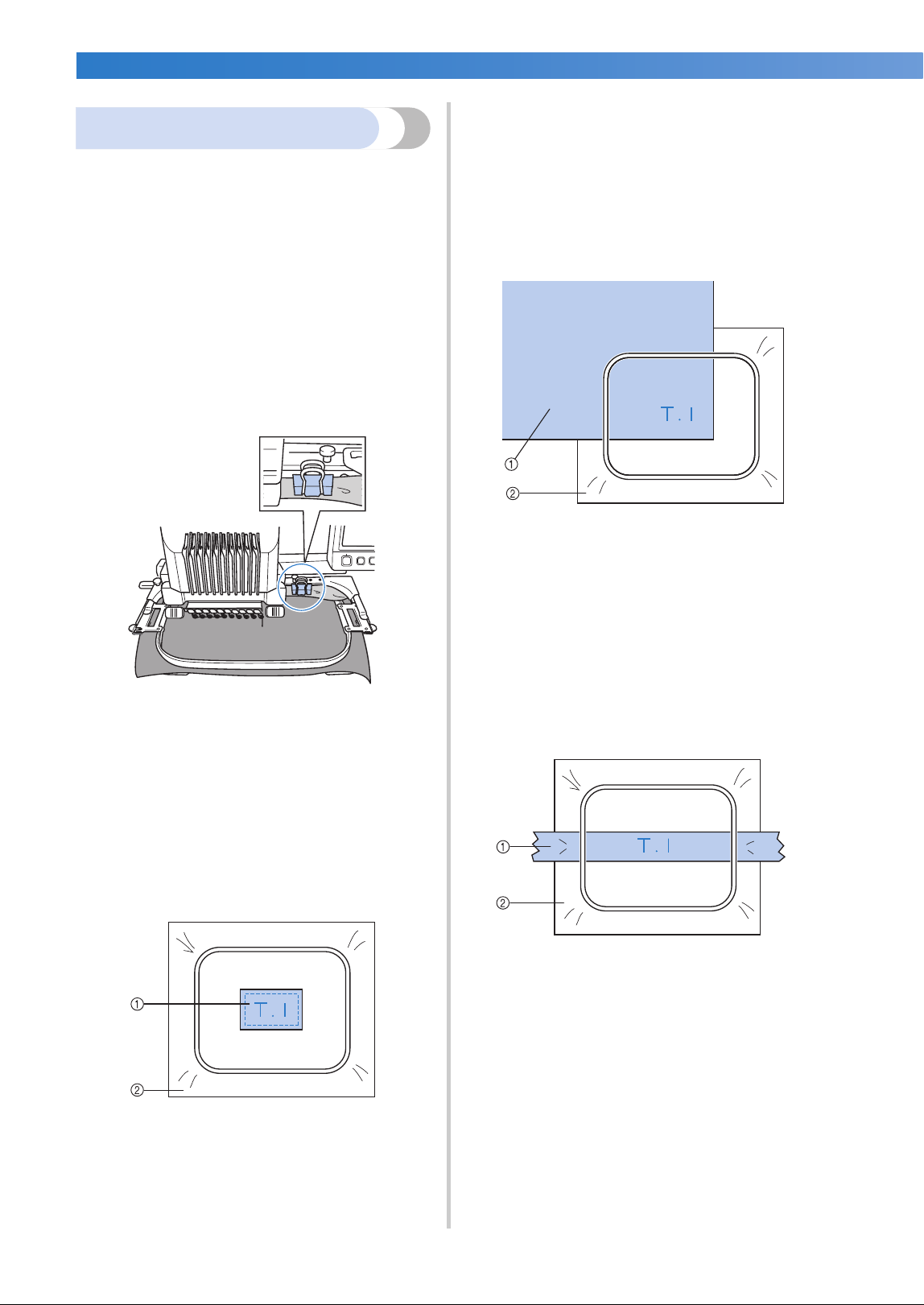
OTHER BASIC PROCEDURES
—
——————————————————————————————————————————————————————————————
——
96
Large/small pieces of fabric
This section provides information on embroidering
fabric that is either much larger or much smaller
than the embroidery frame.
■ Embroidering large pieces of fabric or heavy
clothing
When embroidering large pieces of fabric or
heavy pieces of clothing, use a clothespin or
binder clip to fasten the excess fabric to the
embroidery frame so that it does not hang down
from the frame. Embroidering with excess fabric
hanging down from the embroidery frame may
prevent the frame from moving properly and
may result in a misaligned pattern.
• Use a clothespin or binder clip to fasten the
excess fabric to the embroidery frame.
■ Embroidering small pieces of fabric
When embroidering pieces of fabric that are
smaller than the embroidery frame, use spray
fabric adhesive to attach the fabric to stabilizer
(backing) hooped in the embroidery frame. With
fabrics where you do not wish to use spray
adhesive, baste the fabric to the stabilizer
(backing).
1 Fabric
2 Stabilizer (backing)
■ Embroidering the corner of fabric
When embroidering the corner of a piece of
fabric, use spray fabric adhesive to attach the
corner of the fabric to stabilizer (backing), and
then hoop the stabilizer (backing) in the
embroidery frame. With fabrics where you do
not wish to use spray adhesive, baste the fabric
to the stabilizer (backing).
1 Fabric
2 Stabilizer (backing)
■ Embroidering narrow pieces of fabric, such as
ribbon
When embroidering narrow pieces of fabric, use
spray fabric adhesive to attach the fabric to
stabilizer (backing), and then hoop the stabilizer
(backing) in the embroidery frame. With fabrics
where you do not wish to use spray adhesive,
clamp both ends of the fabric, together with the
stabilizer (backing), in the embroidery frame.
1 Ribbon
2 Stabilizer (backing)
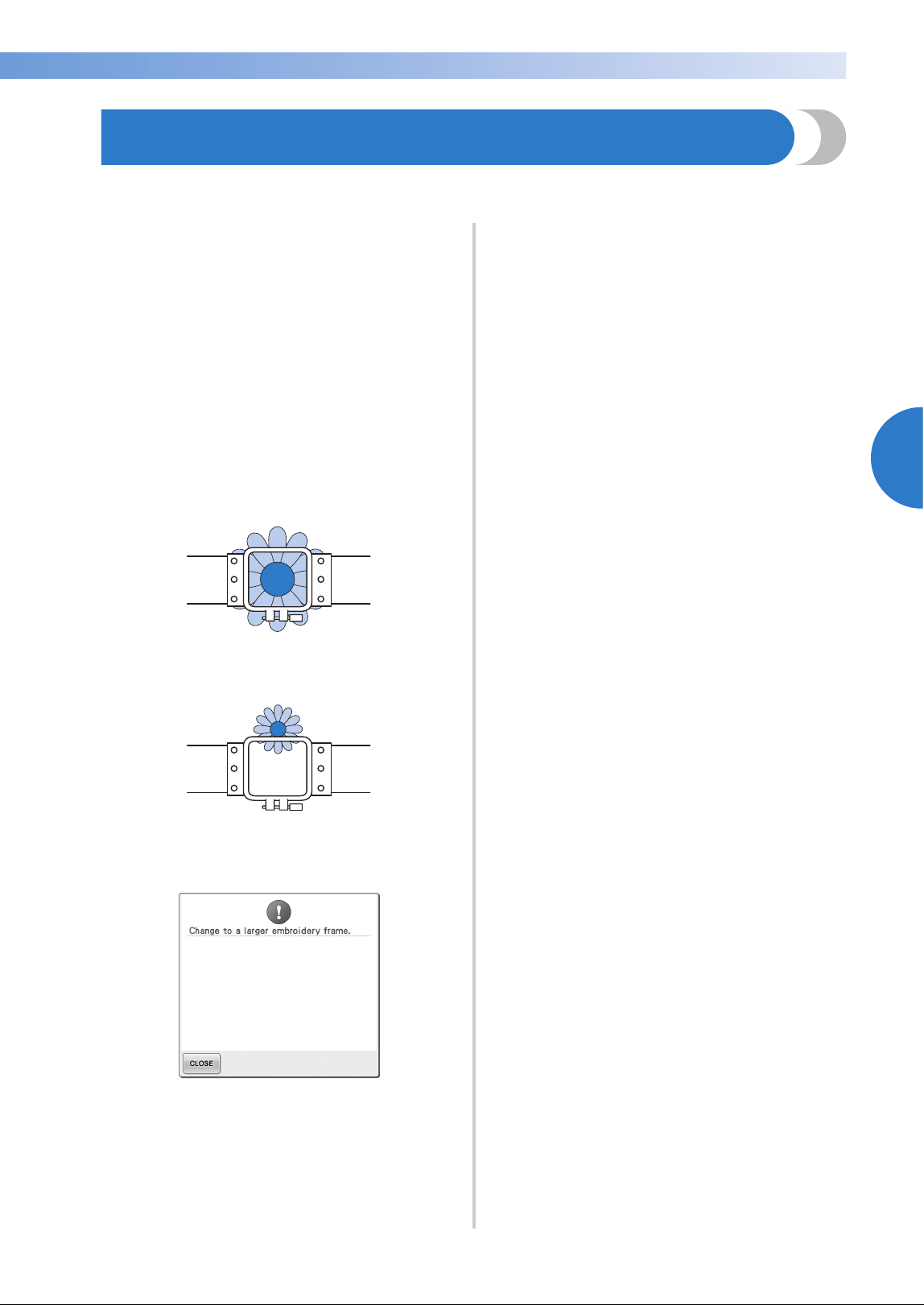
Embroidery Frame Position and Movement 97
3
——
—————————————————————————————————————————————————————————————
—
—————————————————————
Embroidery Frame Position and Movement
The following provides information concerning the embroidery frame when operating the embroidery
machine.
■ Embroidery frames that cannot be used for
embroidering
As explained on page 49, the embroidery frame
indicators at the top of the screen show the
embroidery frames that can be used to sew the
currently selected pattern.
Embroidery frames with an embroidering area
smaller than the pattern cannot be used. In
addition, the embroidery frame cannot be used
if the embroidery is smaller than the
embroidering area but is positioned so that it
extends out of the embroidering area of the
frame.
Embroidery frames with an embroidering area
smaller than the pattern
Patterns that extend out of the embroidering
area of the frame
In either of these cases, a message appears on
the embroidery machine, warning that the
embroidery frame must be changed.
A message indicating that the embroidery frame
be replaced may appear even if no embroidery
frame is installed.
The embroidery machine detects which
embroidery frame is installed according to the
position of the left arm of the embroidery frame
holder. Therefore, the embroidery frame size is
determined by the position of the left arm, even
if the embroidery frame is not actually installed.
In addition, if the embroidery frame holder is not
installed, the embroidery machine determines
that the cap frame (optional) is installed.
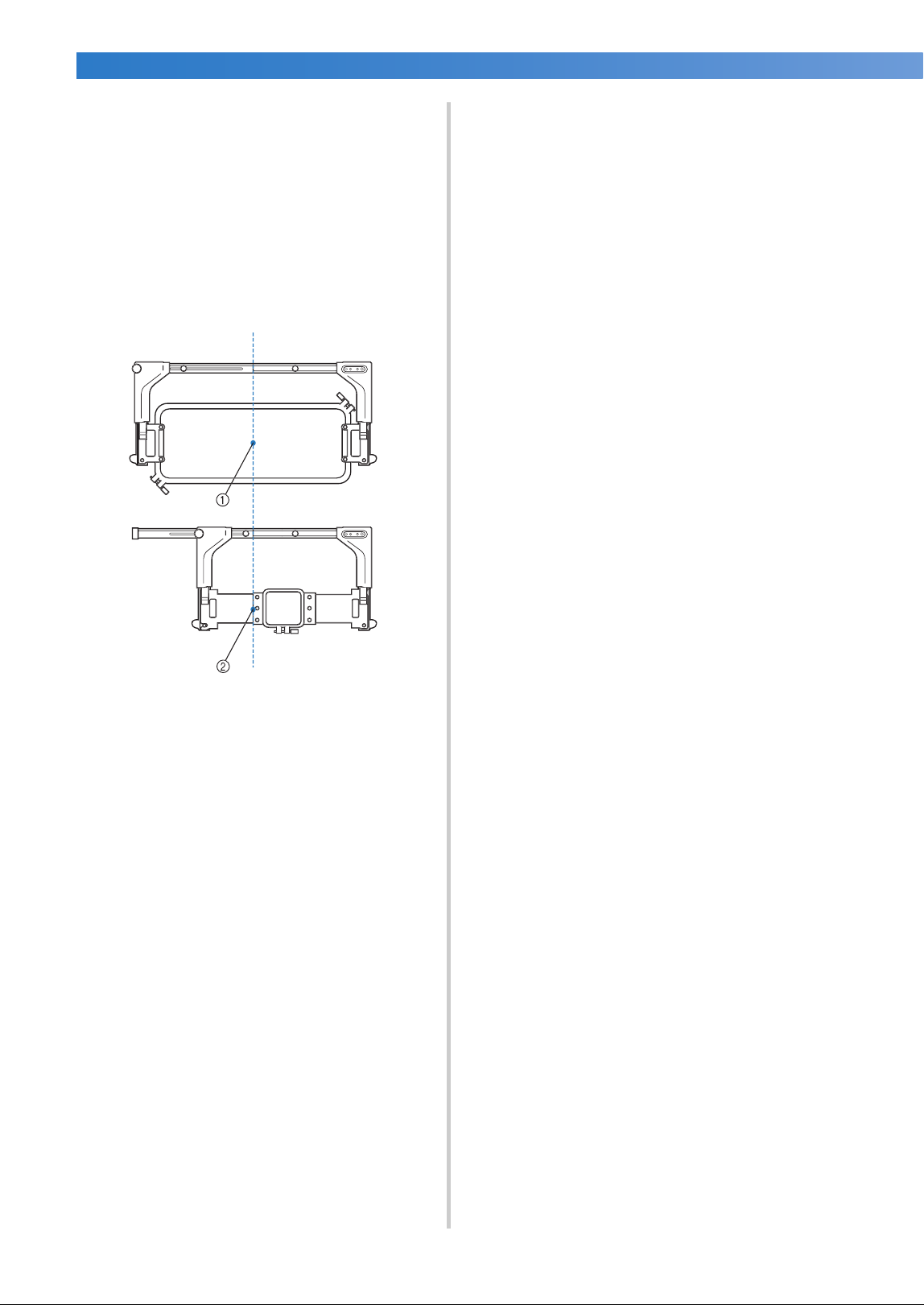
OTHER BASIC PROCEDURES
—
——————————————————————————————————————————————————————————————
——
98
■ Moving to the correct position
If the center of the embroidery frame is at the
needle drop point in the embroidering area, the
embroidery frame is correctly positioned, in
other words, at the starting position before
embroidering.
If the embroidery frame is changed, the next
frame that is installed will not be correctly
positioned.
For example, if the extra-large embroidery frame
is replaced with the small frame, the following
will occur.
1 Center of embroidery frame at the correct position
2 Needle position when the embroidery frame is
replaced
In order to correct the misalignment of this
embroidery frame, the embroidery frame
automatically moves to the correct position
when any of the following are performed.
• The embroidery machine is turned on.
The embroidery frame will move.
• The embroidering settings screen is
displayed.
The embroidery frame will not move if it is
correctly positioned.
If the pattern extends out of the embroidering
area for the frame, a message appears,
indicating that the embroidery frame should
be replaced. Either replace the embroidery
frame or return to the pattern editing screen
and move the embroidering position.
• The embroidery frame is replaced while the
embroidering settings screen or
embroidering screen is displayed, and then
the key for checking the embroidering area,
for moving the embroidery frame, or for
starting embroidering is touched.
The embroidery frame will move.
Since the embroidery frame is moved to the
correct position and paused, touch the
desired key again.
If the pattern extends out of the embroidering
area for the frame after the frame is moved, a
message appears, indicating that the
embroidery frame should be replaced. Either
replace the embroidery frame or return to the
pattern editing screen and adjust the pattern
size or embroidering position.
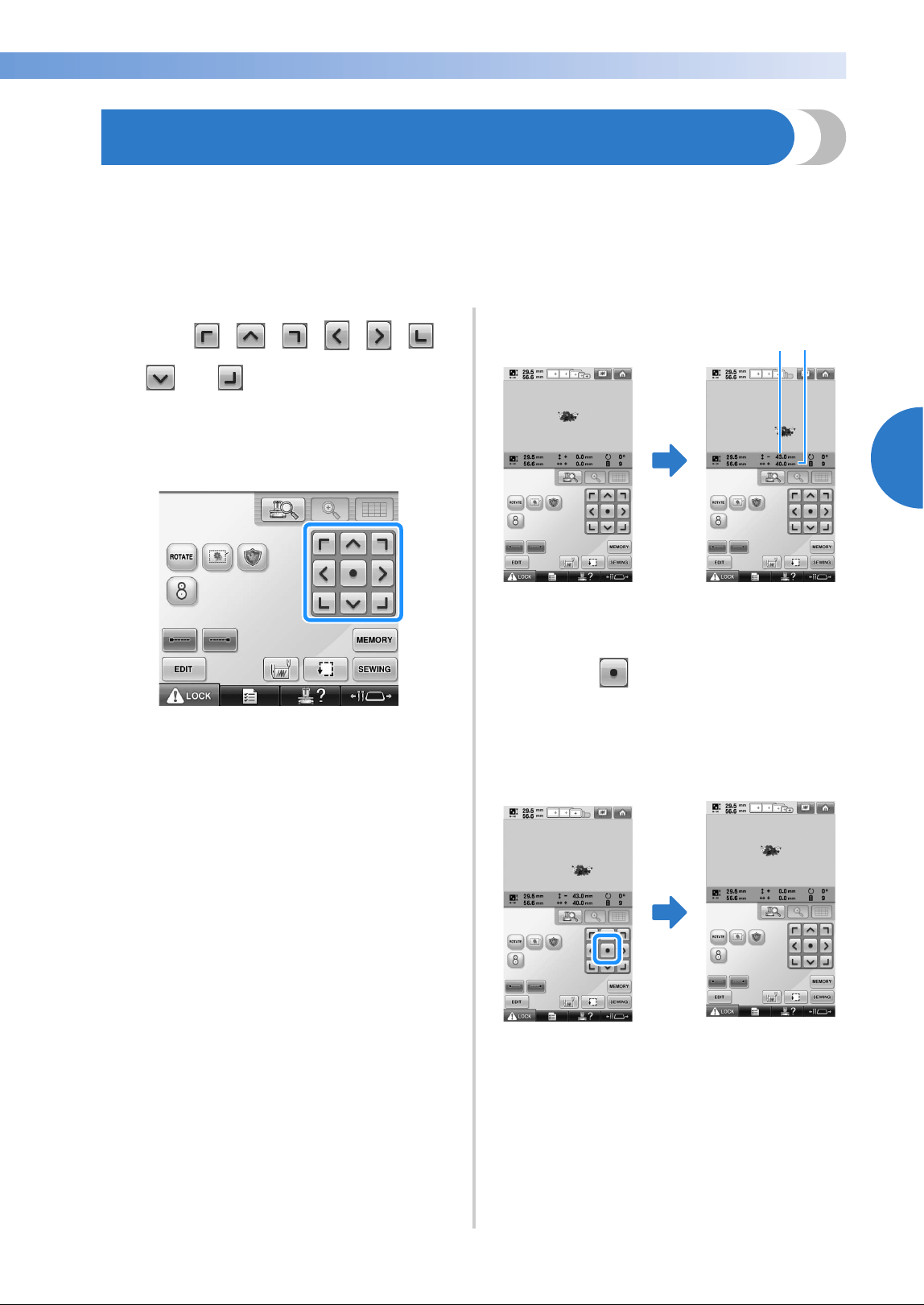
Changing the Embroidering Position 99
3
——
—————————————————————————————————————————————————————————————
—
—————————————————————
Changing the Embroidering Position
When the embroidery machine is purchased, it was adjusted so that the beginning of the stitching was from
the center of the pattern. Therefore, move the frame and adjust the embroidering position so that the center
of the pattern aligns with the needle drop point at the sewing position. If you need to align the embroidering
position to the specific point, follow the procedure described in “Aligning the Embroidering Position” on
page 103. In addition, the angle of the entire pattern can be adjusted if the fabric cannot be hooped evenly
within the embroidery frame and the pattern is positioned at an angle on the fabric.
1
Touch , , , , , ,
and in the embroidering settings
screen.
Move the embroidery frame so that the
needle drop point is at the center of the area
where you wish to embroider.
X The embroidery frame moves in the
opposite direction of the arrow.
X The pattern in the pattern display area
moves in the same direction of the arrow.
1 Shows the vertical distance moved from center
2 Shows the horizontal distance moved from
center
• Touch to move the embroidery frame
back to its original position (where the
center of the embroidery frame is aligned
with the needle drop point at the sewing
position).
The pattern can also be moved by dragging it.
If a USB mouse is connected, move the
mouse to position the pointer on the desired
pattern, and then while holding in the left
mouse button, drag the pattern. The pattern
can also be dragged by selecting it directly in
the screen with your finger or the touch pen.
12
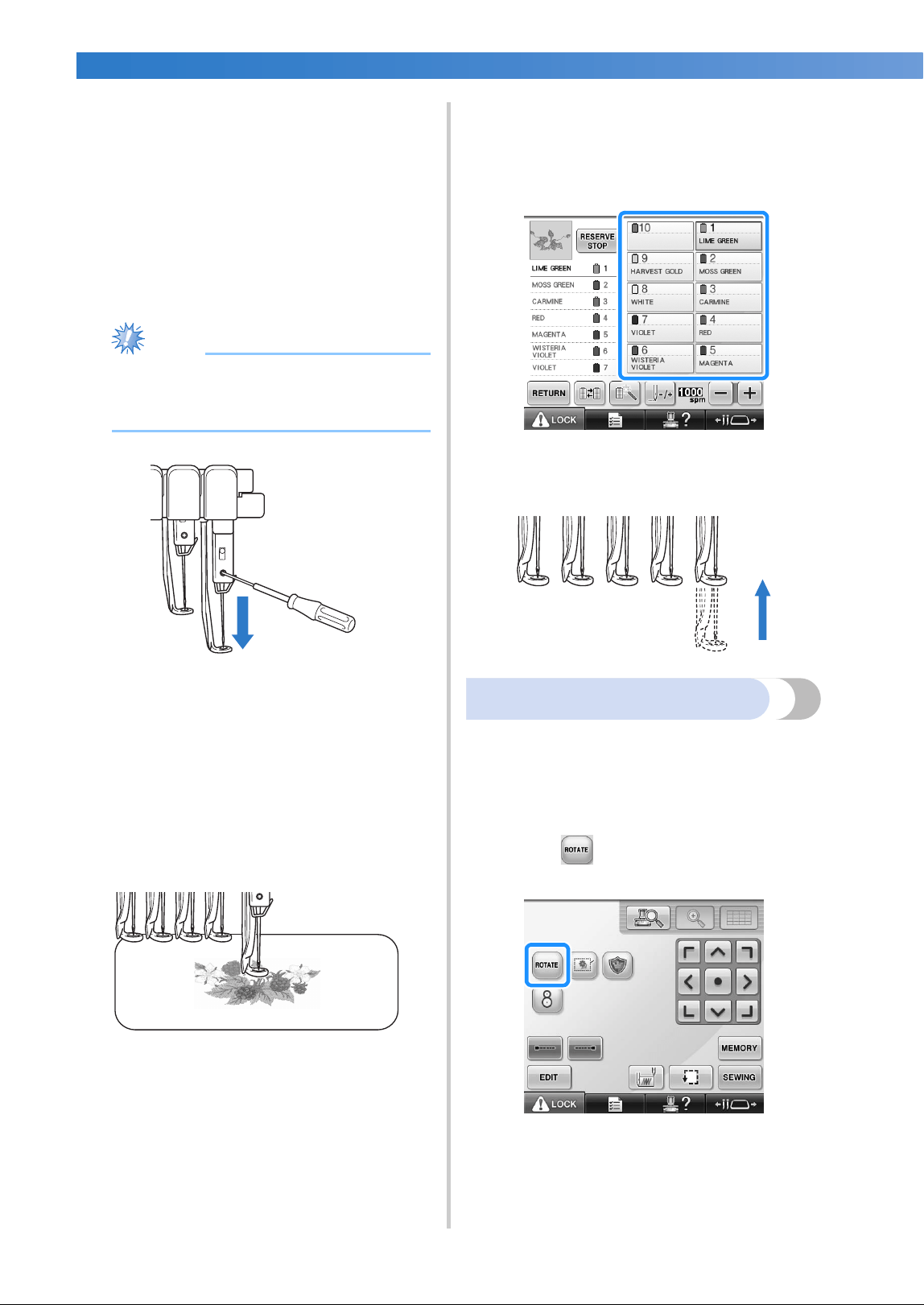
OTHER BASIC PROCEDURES
—
——————————————————————————————————————————————————————————————
——
100
■ Finding the sewing position
By locking the needle bar (securing the needle
and presser foot in the down position), the
needle drop point can easily be seen.
1
As shown in the illustration, insert the Allen
screwdriver into the hole in the needle
clamp to slowly lower the needle bar down
till needle bar stops then clicks into the lock
position.
Note
● Make sure that the needle is not lowered
beyond the positioning click into the
fabric.
X The needle and presser foot are locked in
the down position.
2
Touch the arrow keys in the embroidery
settings screen to move the embroidery
frame so that the needle drop point is at the
center of the area where you wish to
embroider.
• With a USB mouse, your finger or the
touch pen, drag the pattern to move it.
• When specifying the starting of stitching,
align the needle drop point with the point
specified as the starting of stitching. (For
details on specifying the starting/ending of
stitching, refer to page 135.)
■ Unlocking the needle bar
1
Display the embroidering screen, and then
touch the key for any needle bar other than
the one that is locked.
X The needle bar is unlocked and will return
to original position.
Adjusting the angle
Depending on the type of fabric being
embroidered, it may not be possible to stretch the
fabric in the embroidery frame at the desired angle.
In this case, adjust the angle of the pattern so that it
is correctly positioned on the fabric.
1
Touch .
The following screen appears.
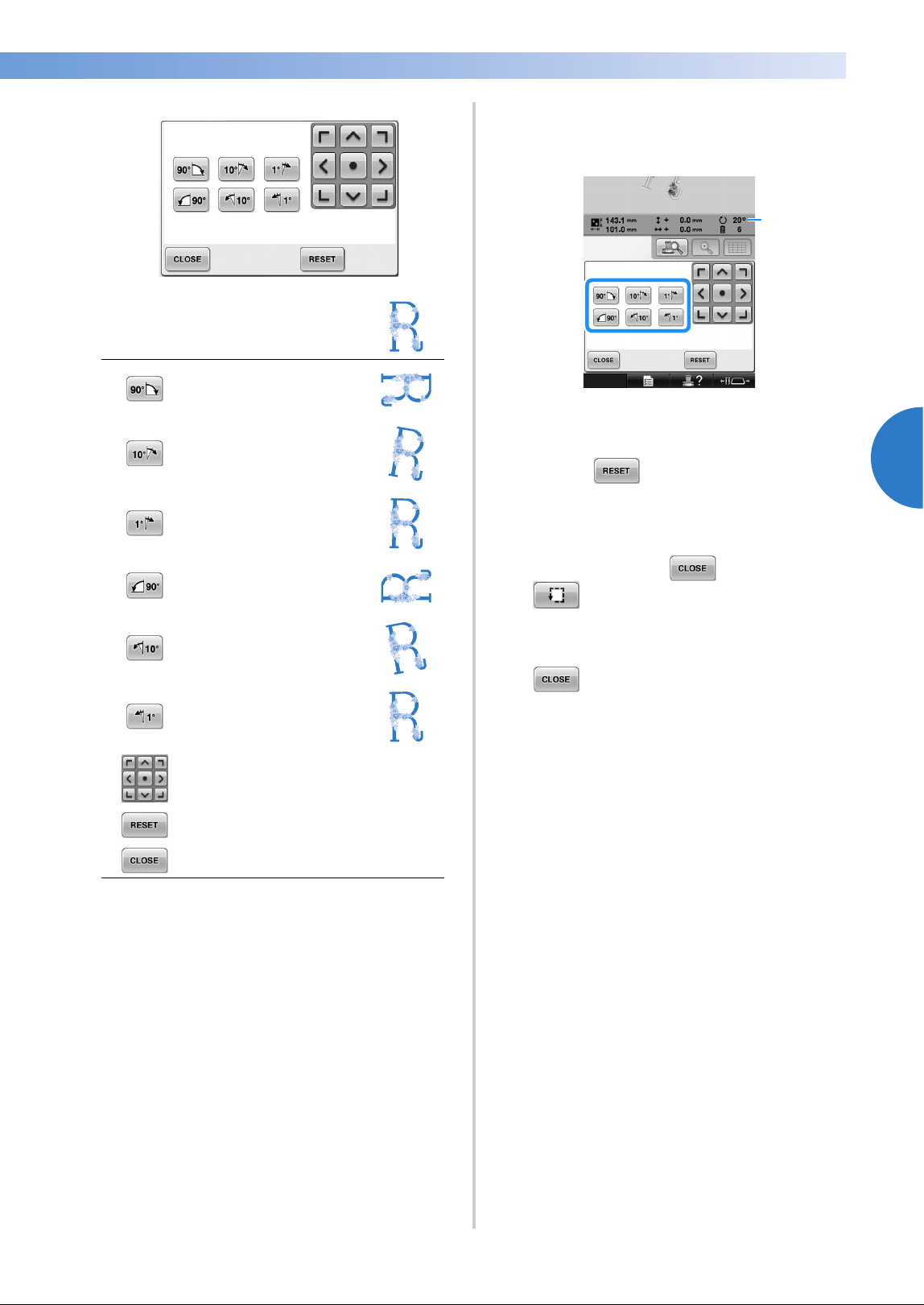
Changing the Embroidering Position 101
3
——
—————————————————————————————————————————————————————————————
—
—————————————————————
2
Touch the keys to adjust the pattern to the
desired angle.
Each touch of a key rotates the pattern.
1 Shows the angle of the pattern after a key is
touched to change it.
• To return the pattern to its original angle,
touch .
3
If necessary, touch the arrow keys to adjust
the position of the pattern.
For more details, refer to page 99.
4
If necessary, touch and then touch
to check the embroidering area.
For more details, refer to page 53.
5
After making the desired changes, touch
.
The embroidering settings screen appears again.
Example: Original angle
Rotates 90 degrees to the
right
Rotates 10 degrees to the
right
Rotates 1 degree to the
right
Rotates 90 degrees to the
left
Rotates 10 degrees to the
left
Rotates 1 degree to the
left
Moves the pattern in the direction of
the arrow on the key.
Touch this key to return the pattern
to its original angle.
Touch this key to close this screen.
1
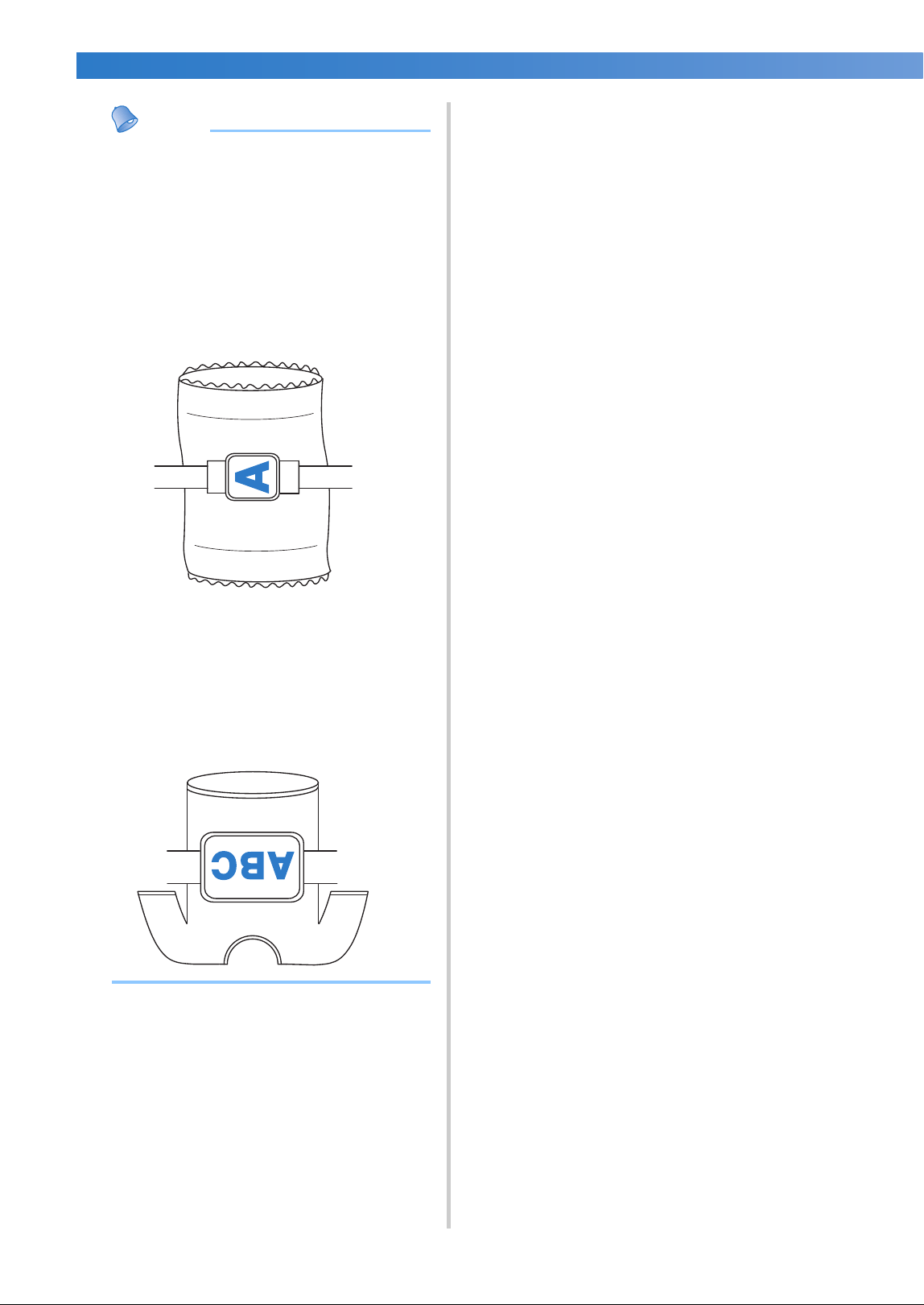
OTHER BASIC PROCEDURES
—
——————————————————————————————————————————————————————————————
——
102
Memo
● With this operation, fine adjustments can
be made to the angle; also, this operation
is particularly useful when embroidering
items, such as bags and tubular items, that
have limitations to being hooped in the
embroidery frame.
Example: When embroidering a
pillowcase
Rotate the pattern 90 degrees to the left
before embroidering.
Example: When embroidering a T-shirt
Rotate the pattern 180 degrees. Pass the
machine bed through from the waist of the
T-shirt, not from the neck, and attach the
embroidery frame to the machine. This will
prevent the neck of the shirt from being
stretched when the embroidery frame is
moving.
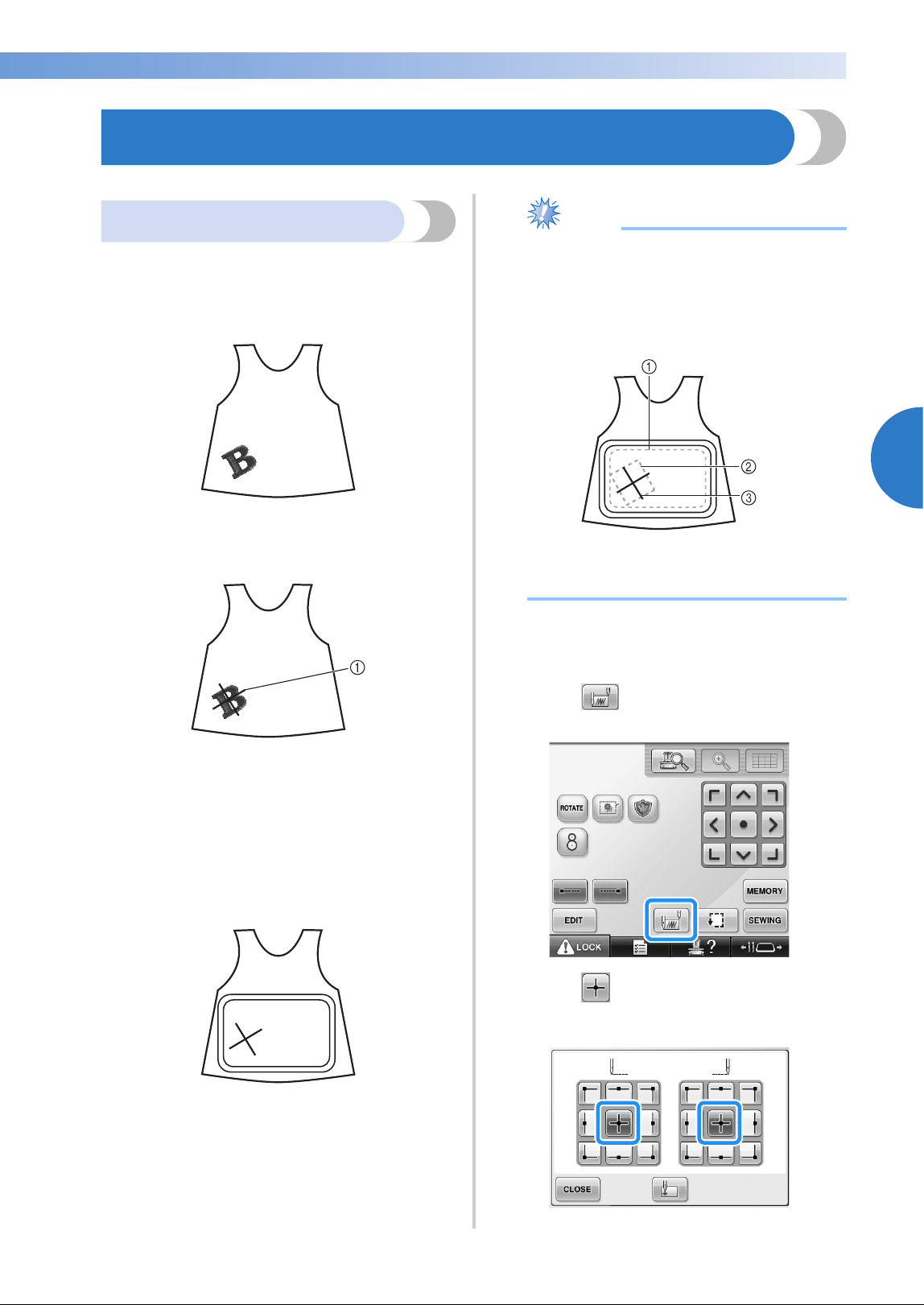
Aligning the Embroidering Position 103
3
——
—————————————————————————————————————————————————————————————
—
—————————————————————
Aligning the Embroidering Position
Using the built-in camera
The camera built into this machine can be used to
easily align the embroidering position. This is
useful for patterns which need to be embroidered
in particular position as shown below.
1
Use a chalk pencil to draw a cross at the
desired embroidering location.
1 Chalk pencil mark
• Display the grid lines or cross grid lines in
the pattern display area to check the
pattern orientation. (Refer to “Centerpoint
marker and grid lines” on page 222.)
2
Hoop the fabric.
Note
● When hooping the fabric in the
embroidery frame, make sure that the
embroidery pattern will fit within the
embroidering area of the frame being
used.
1 Embroidering area
2 Embroidery pattern size
3 Chalk pencil mark
3
Select the pattern on your sewing machine.
4
Touch in the embroidering settings
screen.
5
Touch to set the starting point to the
center of the pattern.
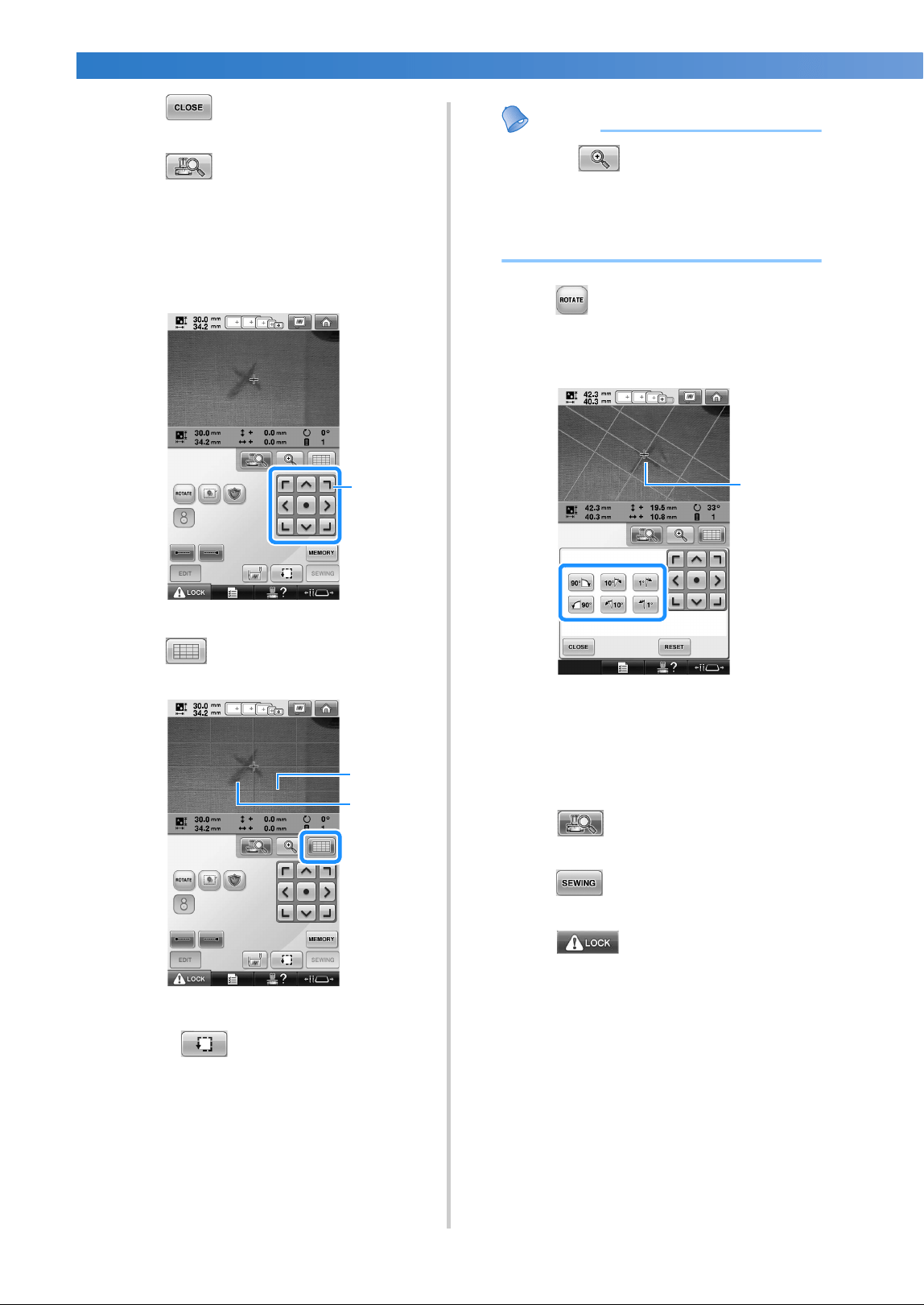
OTHER BASIC PROCEDURES
—
——————————————————————————————————————————————————————————————
——
104
6
Touch .
7
Touch .
8
Touch the positioning keys to move the
embroidery frame until the cross-shaped
chalk mark drawn on the fabric is displayed
in the camera view window.
1 Positioning keys
9
Touch to display the grid lines.
1 Grid lines
2 Chalk mark on the fabric
• Touch to check the embroidering
position.
Memo
● Touch to enlarge the camera view.
By enlarging the camera view, you can
make a close adjustment for the center
point of the pattern moving the
embroidery frame little by little.
0
Touch and adjust the orientation of the
pattern until the grid lines are parallel with
the chalk mark drawn on the fabric. (Refer
to “Adjusting the angle” on page 100.)
1 Center point of the pattern
• Touch the positioning keys to move the
embroidery frame until the center point of
the pattern in the camera view window is
aligned with the chalk mark drawn on the
fabric.
a
Touch to return to the previous
screen.
b
Touch .
c
Touch , and then press the start/
stop button to start embroidering.
1
1
2
1
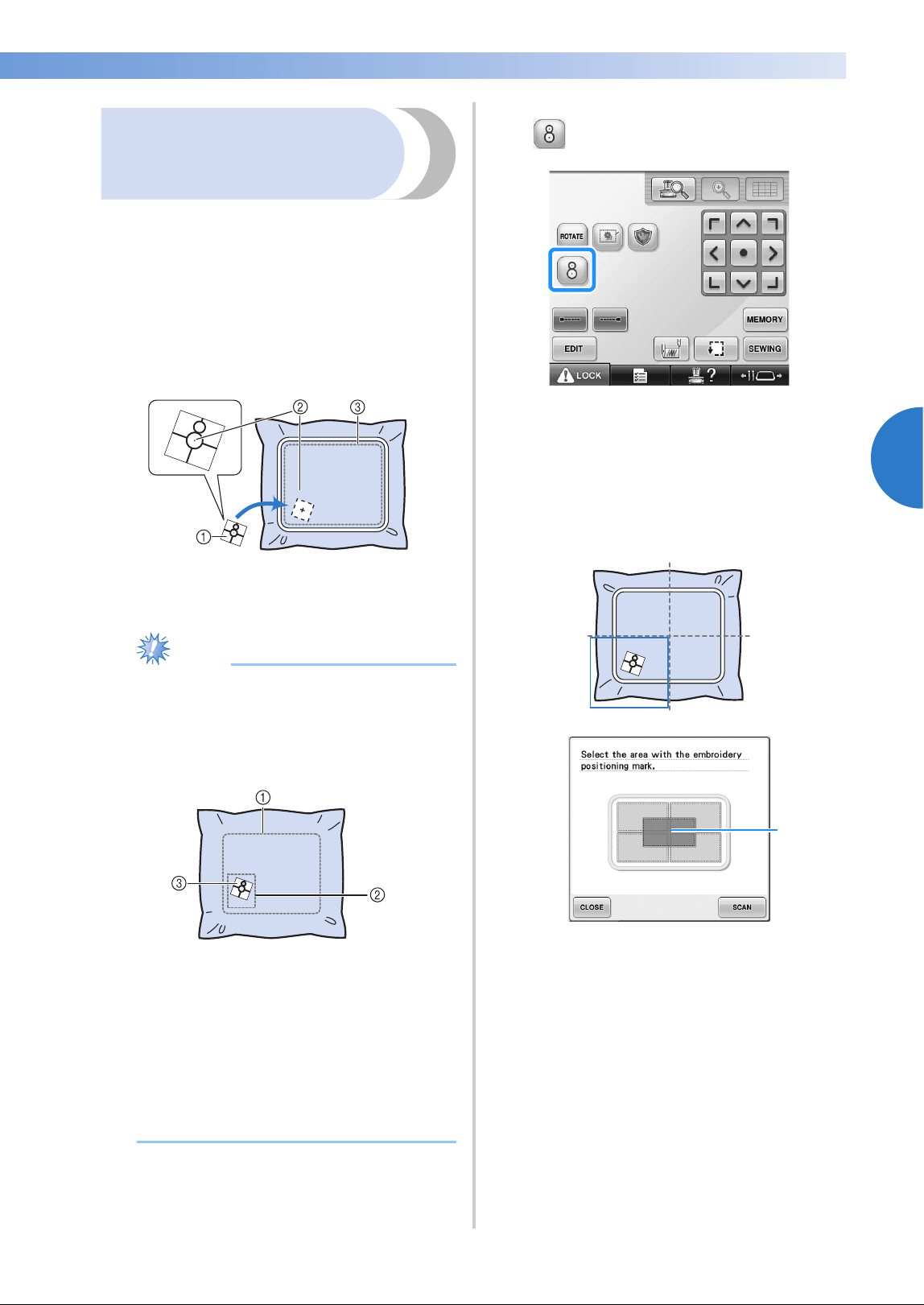
Aligning the Embroidering Position 105
3
——
—————————————————————————————————————————————————————————————
—
—————————————————————
Using the included
embroidery positioning
sticker
Using the camera built into this machine and the
included embroidery positioning stickers, the
embroidering position can easily be aligned.
1
Affix an embroidery positioning sticker to
the fabric at the desired embroidering
position. Align the center of the large circle
in the embroidery positioning sticker with
the center of the embroidery pattern.
1 Embroidery positioning sticker
2 Center of embroidery pattern
3 Embroidering area
Note
● When hooping the fabric in the
embroidery frame, make sure that the
embroidery pattern will fit within the
embroidering area of the frame being
used.
1 Embroidering area
2 Embroidery pattern size
3 Embroidery positioning sticker
● Depending on the type of fabric to be
used, it may not be possible to easily
remove the embroidery positioning
sticker. Before affixing the embroidery
positioning sticker, check how easily the
sticker can be removed by affixing it to a
scrap of the same type of fabric.
2
In the embroidering settings screen, touch
.
X A screen appears, allowing the area to be
selected where the embroidery positioning
sticker has been affixed.
3
From the areas displayed in the LCD, touch
the area containing the embroidery
positioning sticker to select it.
1 Inner grid is center of embroidery area.
• The displayed embroidery area differs
depending on the attached embroidery
frame.
1
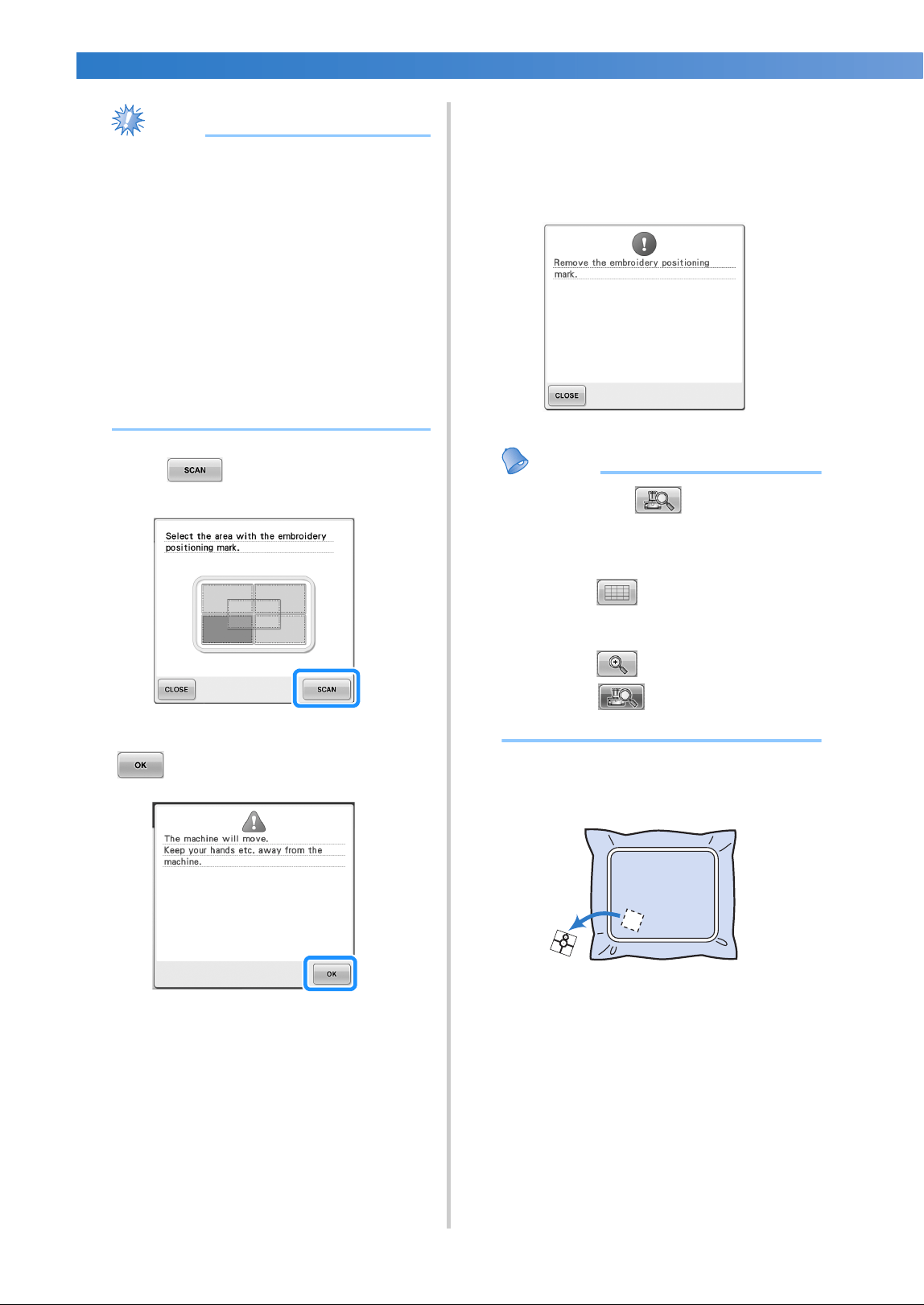
OTHER BASIC PROCEDURES
—
——————————————————————————————————————————————————————————————
——
106
Note
● The built-in camera may not be able to
detect the embroidery positioning sticker if
the four corners of the sticker are not
firmly affixed to the fabric. Use tape to
firmly affix the sticker to the fabric.
● When using the optional cap frame or
cylinder frame, attach the embroidery
positioning sticker so that the two circles
of the positioning mark fit within one of
the embroidering areas.
● If the embroidery positioning sticker has
been affixed over two areas, the sticker
will be detected no matter which of the
two areas is selected.
4
Touch .
5
When the following message appears, touch
.
X The built-in camera automatically detects
the embroidery positioning sticker, and
then the embroidery frame is moved so
that the center of the embroidery pattern is
aligned with the center of the large circle
in the embroidery positioning sticker.
6
When the machine's built-in camera has
finished detecting the location of the
embroidery positioning sticker, the following
message appears.
Memo
● You can touch to confirm the
embroidery position is correctly aligned
before removing the embroidery
positioning sticker.
• Touch to display the grid lines
which would make it easier to find the
position.
• Touch for the closer image.
• Touch again to return to the
previous screen.
7
Remove the embroidery positioning sticker
from the fabric.
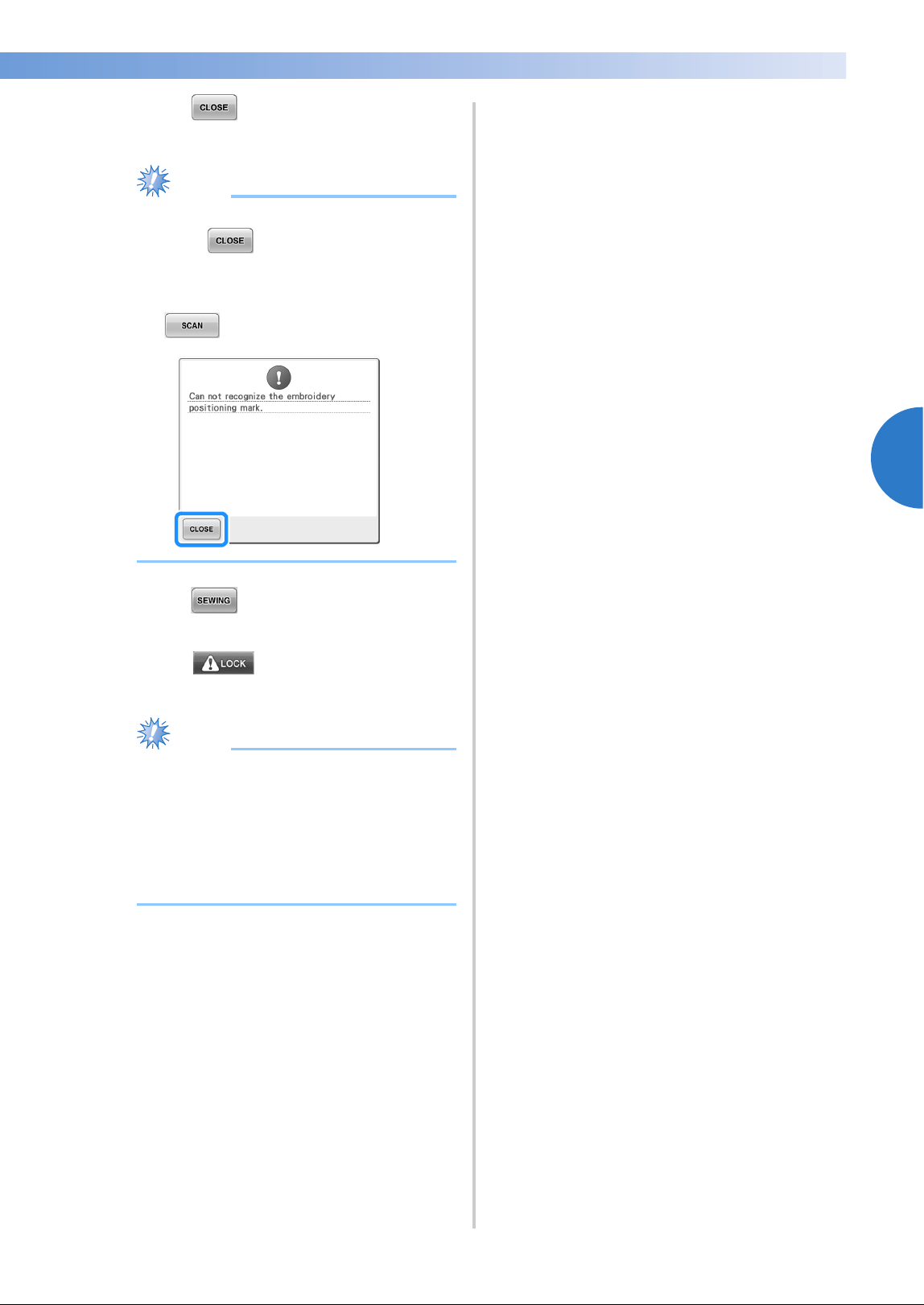
Aligning the Embroidering Position 107
3
——
—————————————————————————————————————————————————————————————
—
—————————————————————
8
Touch .
Note
● If the following error message appears,
touch , remove the embroidery
positioning sticker, and then affix it within
the embroidering area. Then, touch
again.
9
Touch .
0
Touch , and then press the start/
stop button to start embroidering.
Note
● After all of the included embroidery
positioning stickers have been used, new
ones can be purchased separately. When
purchasing new ones, check “Optional
accessories” on page 24 for the part code,
and then contact your nearest authorized
Brother dealer.
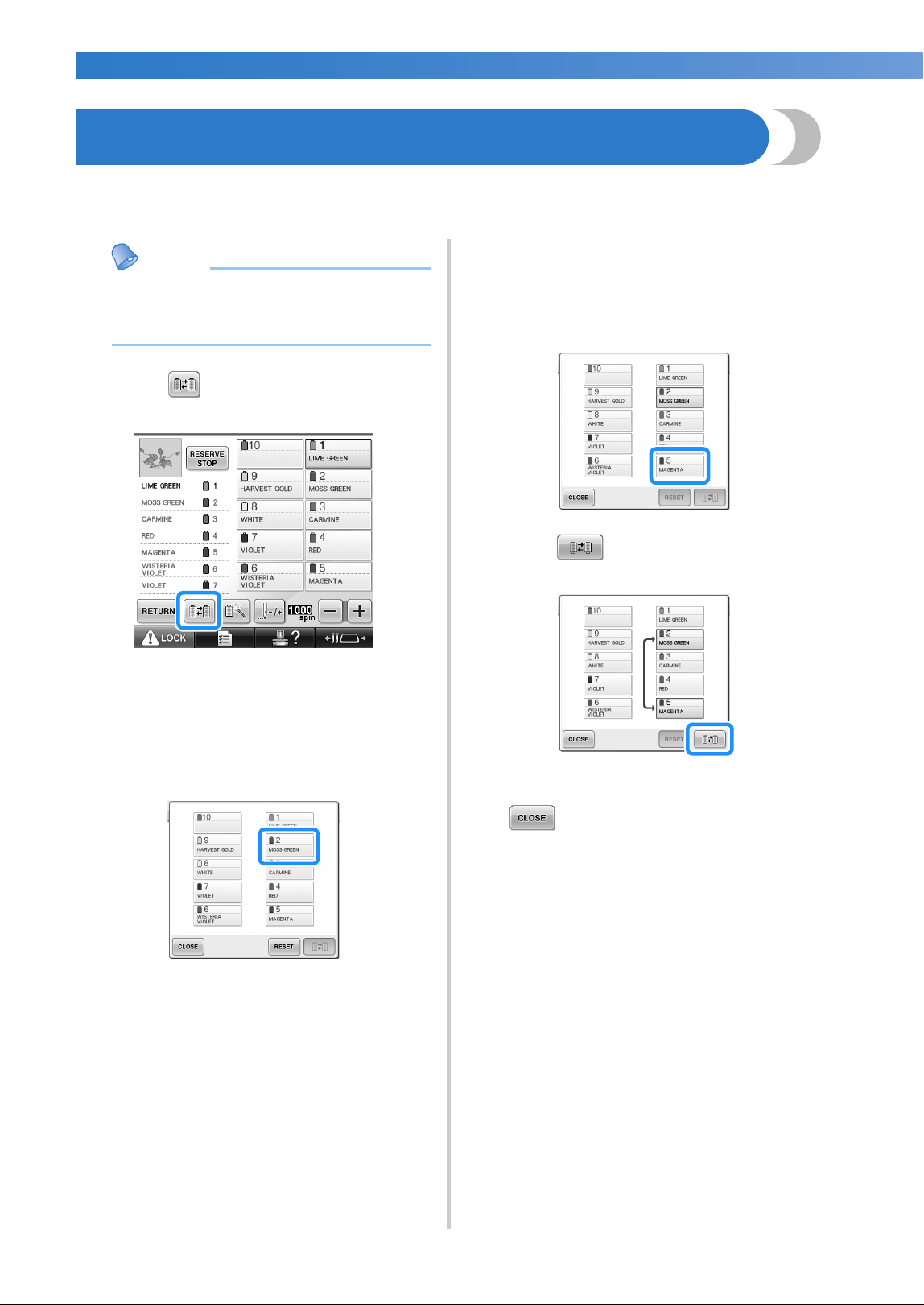
OTHER BASIC PROCEDURES
—
——————————————————————————————————————————————————————————————
——
108
Switching the Thread Colors on the Screen
If a thread color on the spool stand is different than the needle position thread color on the screen, the thread
colors on the screen can be switched to match the spool stand thread color position.
Memo
● This function is not available when you set
“Manual Color Sequence” to “ON” in
settings screen.
1
Touch .
X The spool selection screen appears.
2
Touch the number of the first needle bar that
will be switched.
• To cancel the selection, touch the same
needle number again.
3
Touch the number of the other needle bar
that will be switched. The two needle
numbers are connected with an arrow.
• To cancel the selection, touch the same
needle number again.
4
Touch to switch the two thread
colors.
5
After making the desired changes, touch
.
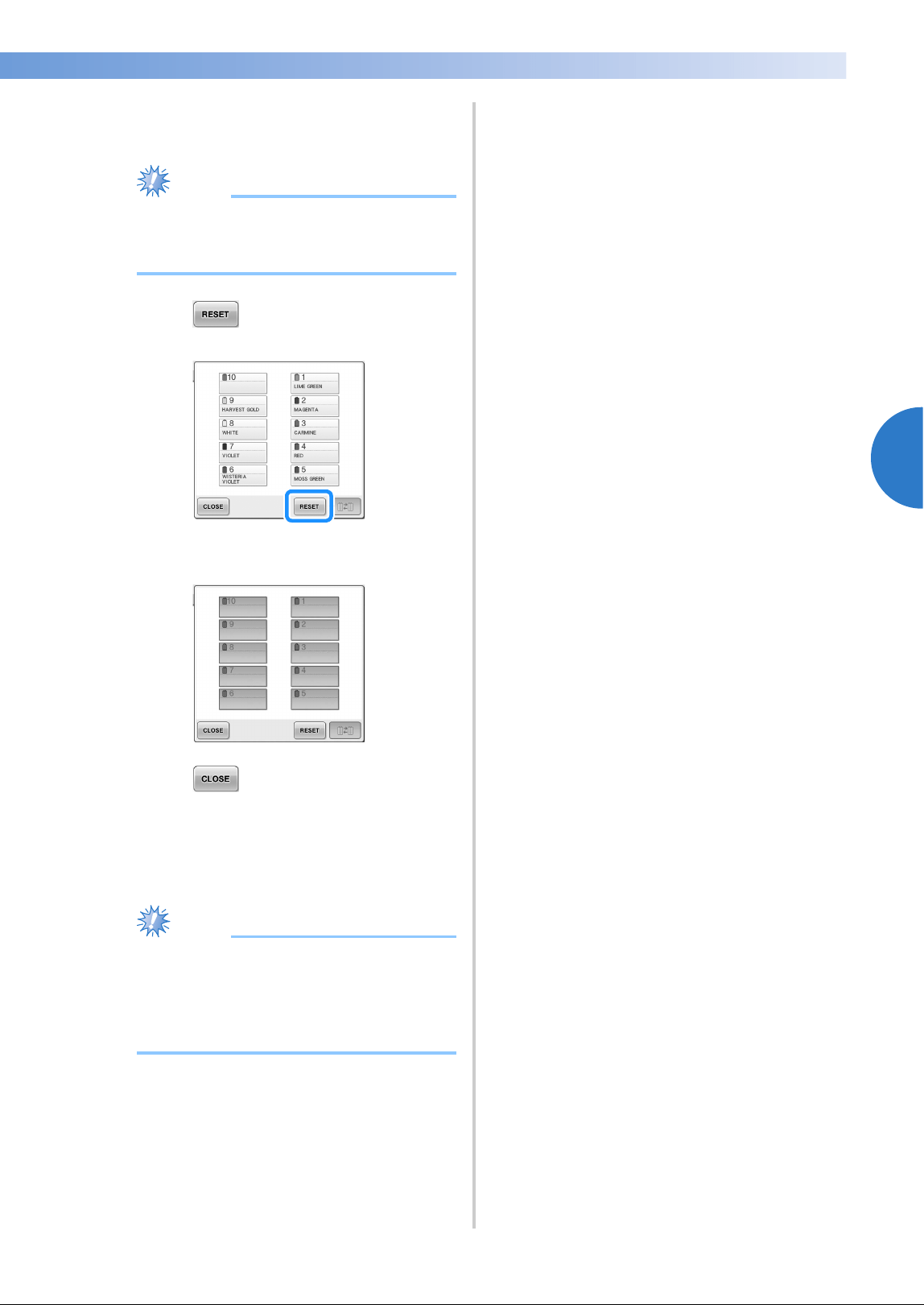
Switching the Thread Colors on the Screen 109
3
——
—————————————————————————————————————————————————————————————
—
—————————————————————
■ To cancel the thread color settings for all
previously stitched design
Note
● The color settings will be completely
canceled even if the machine is in the
middle of the embroidery.
1
Touch .
X The thread color setting is canceled.
2
Touch .
X Thread colors are assigned by the machine
again, regardless of the previous spool
setting.
Note
● This function will not clear anchor settings
of any of the needles which have been
assigned a thread color (Refer to “Reserved
Needle Bar and Sewing Speed Settings” on
page 145).
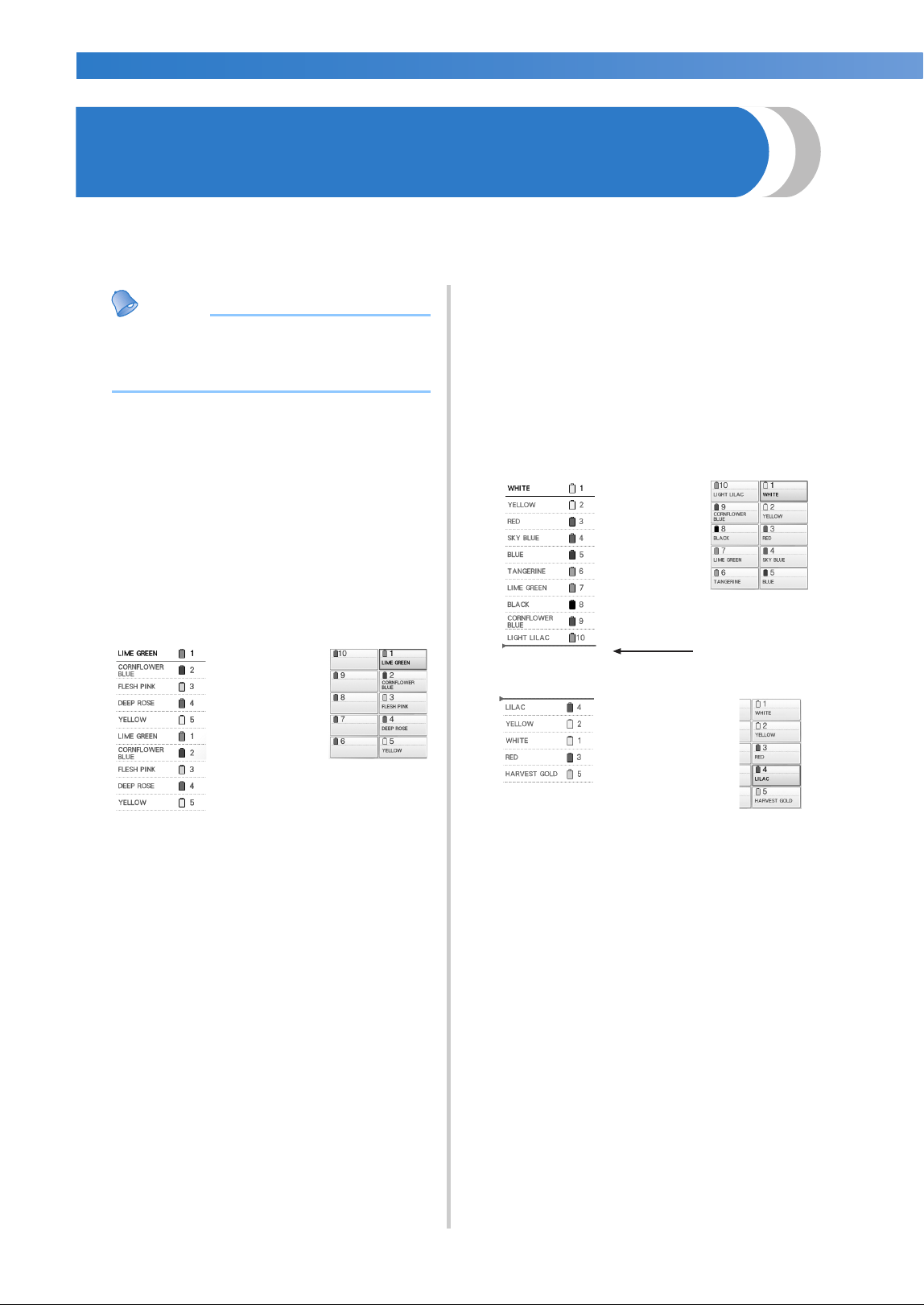
OTHER BASIC PROCEDURES
—
——————————————————————————————————————————————————————————————
——
110
Embroidering a Pattern Containing Eleven or More
Colors
When embroidering a pattern that uses eleven or more thread colors, it is necessary to change the thread
spools. When changing the thread spools, instruction to change the thread spools will appear with the
machine automatically stopping.
Memo
● This function is not available when you set
“Manual Color Sequence” to “ON” in
settings screen.
■ Assignment of thread colors to needle bars
Thread colors are automatically assigned by the
machine to needle bars 1 to 10, starting with the
thread colors that are sewn first. (However, if a
new pattern has thread colors that are the same
as the previously sewn pattern, the thread colors
will be assigned to the same needle bar as
before, regardless of the sewing order.)
For example, for a pattern with five thread colors
and ten thread color changes, the thread colors
are assigned as shown below.
For a pattern with eleven or more thread colors,
the thread spool information is updated when
the eleventh thread color is needed.
Afterward, the machine adjusts the assignment
of thread colors to reduce the number of times
that the thread spools will have to be changed.
For example, for a pattern with eleven thread
colors and eleven thread color changes, the
thread colors are assigned as shown below.
Since the thread colors on needle bars 1 to 3 will be
used again after the thread spools are changed, they
will not be replaced. However, different colors are
assigned to the other needle bars.
1 Needle bar 1
2 Needle bar 2
3 Needle bar 3
4 Needle bar 4
5 Needle bar 5
1
2
3
4
5
1 Needle bar 1
2 Needle bar 2
3 Needle bar 3
4 Needle bar 4
5 Needle bar 5
6 Needle bar 6
7 Needle bar 7
8 Needle bar 8
9 Needle bar 9
10 Needle bar 10
Change thread spools here.
4 Needle bar 4
2 Needle bar 2
1 Needle bar 1
3 Needle bar 3
5 Needle bar 5
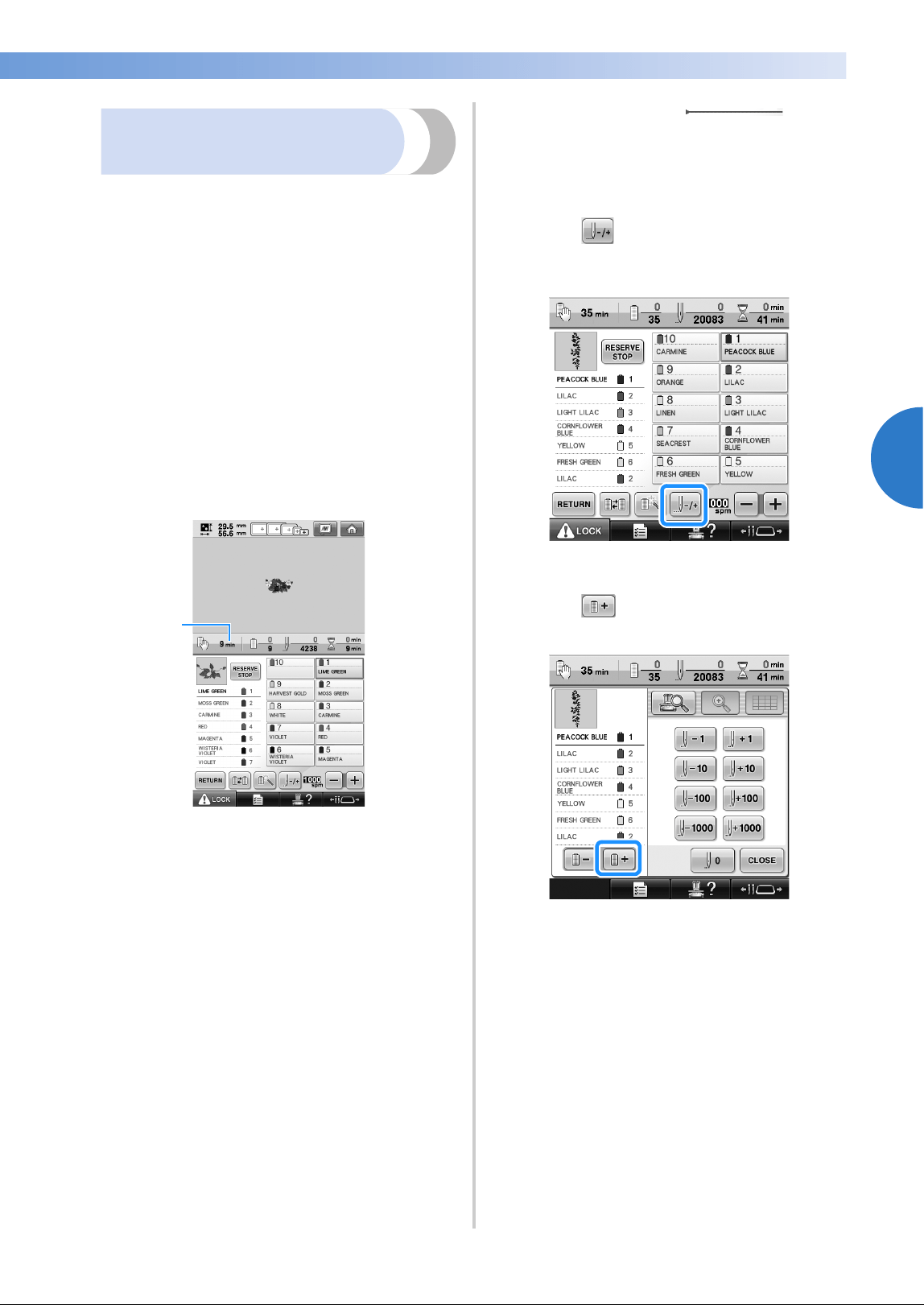
Embroidering a Pattern Containing Eleven or More Colors 111
3
——
—————————————————————————————————————————————————————————————
—
—————————————————————
Checking if thread spool
changes are necessary
When selecting a pattern, the number of thread
changes can be viewed, however, which thread
colors are used in the pattern cannot be checked
on this screen. Whether or not and when thread
spools will need to be changed can be checked
with the following indicators.
■ Time until the machine stops embroidering
This indicator shows the amount of time until
the machine stops embroidering. The machine
stops when a spool change is required, or when
the machine is set to be stopped by other
settings.
If the spool change indicator is appears, the
machine will require a spool change. When the
time is indicated in red, it is the last color
embroidering before the machine stops.
1 Time until the machine stops
■ Spool change indicator ( )
The spool change indicator in the stitch
navigating screen indicates the number of times
that the thread spools will need to be changed
and the amount of time between changes.
1
Touch in the embroidering screen.
X The stitch navigating screen appears.
2
Touch .
X Each time this key is touched, the next
color in the thread color sequence display
is selected. After reaching the last color in
the thread color sequence display, the first
color is selected.
1
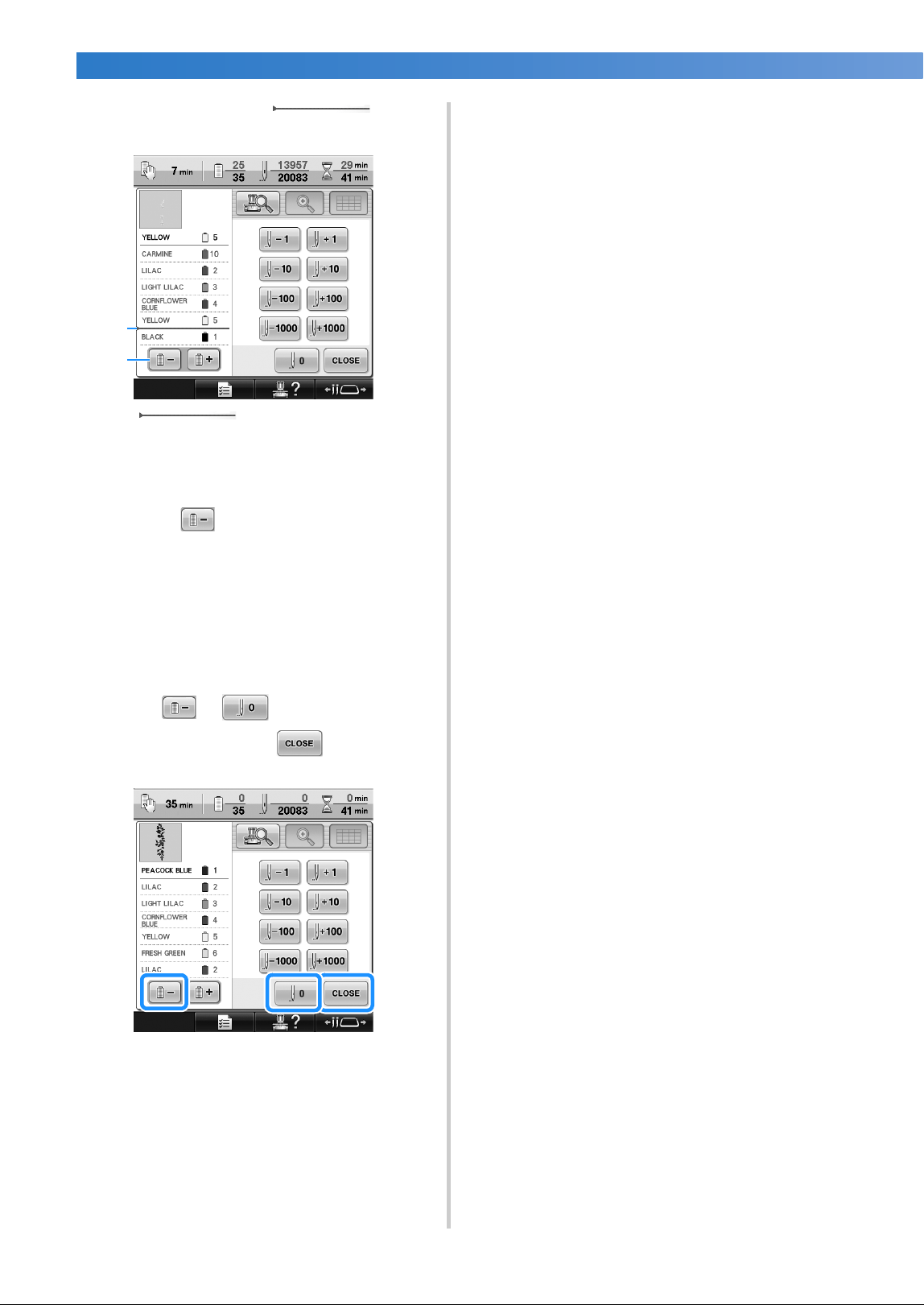
OTHER BASIC PROCEDURES
—
——————————————————————————————————————————————————————————————
——
112
3
Check the position of .
1 indicates when the thread
spools will need to be changed. The thread
spools will need to be changed the number of
times that this indicator is displayed and
between the two thread colors at the point
where it is displayed.
2 Touch to scroll up through the thread
color sequence display. Each time this key is
touched, the previous color in the thread color
sequence display is selected. After reaching the
first color in the thread color sequence display,
the last color is selected.
4
After checking the desired information,
touch or to return to the first
color. And then touch .
X The embroidering screen appears again.
1
2
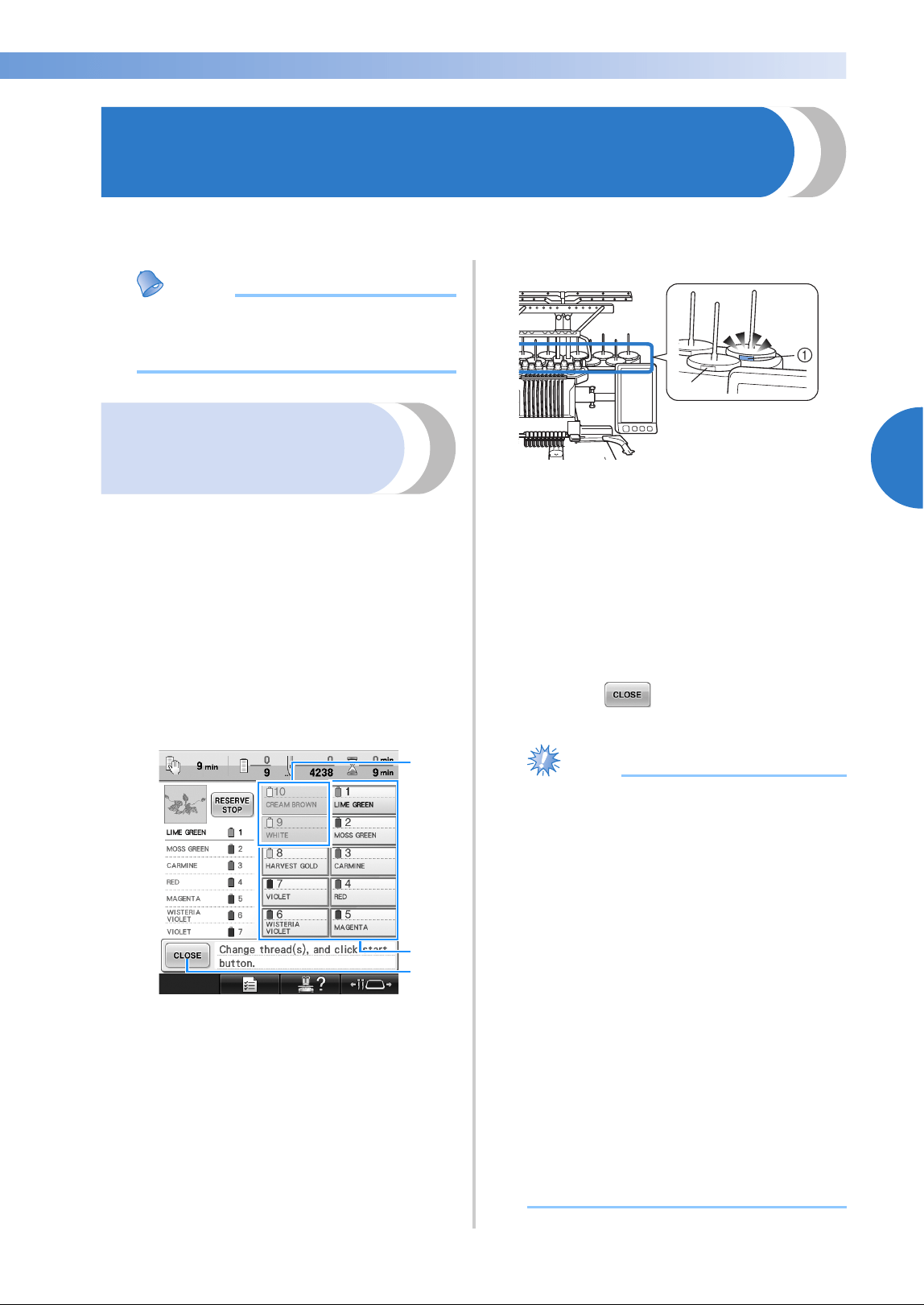
Changing the Thread Spools with Designs of Eleven or More Colors 113
3
——
—————————————————————————————————————————————————————————————
—
—————————————————————
Changing the Thread Spools with Designs of Eleven or
More Colors
This section provides details on the spool thread indicators and the change thread spools message in
addition to the procedure for easily changing the spools.
Memo
● This feature is not available if “Manual
Color Sequence” has been set to “ON” in
the settings screen.
Change thread spools
message and spool
thread indicators
When it is necessary to replace the thread spool
while embroidering a pattern that contains eleven
or more colors, the machine automatically stops
sewing and the message shown below appears. At
the same time, the indicator on the spool stand for
the spool to be replaced lights up in white, then
flashes in the thread color of the next spool to be
installed.
When a new pattern is selected, the LCD message
and indicators warn you if the thread spools must
be changed. Change the thread spools according to
their new assignments.
1 The thread information for the thread spool
needs not to be changed appears in gray.
2 The thread information for the thread spool to
be changed appears in the new thread color
and framed in red.
3 Touch this key to close the message indicating
that the thread spool be changed.
1 Flashing in white, then lights up with the next
thread color (light turns off when indicates
black thread color)
2 The thread does not need to be changed on
spools where the LED is not flashing.
• Confirm the actual thread color number on
the LCD screen. The LED lights indicate the
approximate thread color to be used on
that particular spool.
After the necessary thread spools have been
changed, touch to stop the flashing of the
spool stand indicator. Then, start embroidering.
Note
● Touch needle bar key to move the needle
into the correct position for threading into
the new thread color. Refer to “Moving
and threading a selected needle bar” on
page 62.
● When the embroidering screen appears,
the needle bar settings are saved.
● If the needle bar settings are saved and the
next pattern that is opened contains thread
colors that are the same as those from the
previous pattern, the same needle bars will
be assigned the same thread colors from
the previous pattern.
● The settings for the lighting and flashing of
the spool thread indicator can be changed.
For details, refer to “Specifying the spool
stand LED setting” on page 230.
● If you wish to delete all assigned color on
display refer to “To cancel the thread color
settings for all previously stitched design”
on page 109.
3
1
2
2
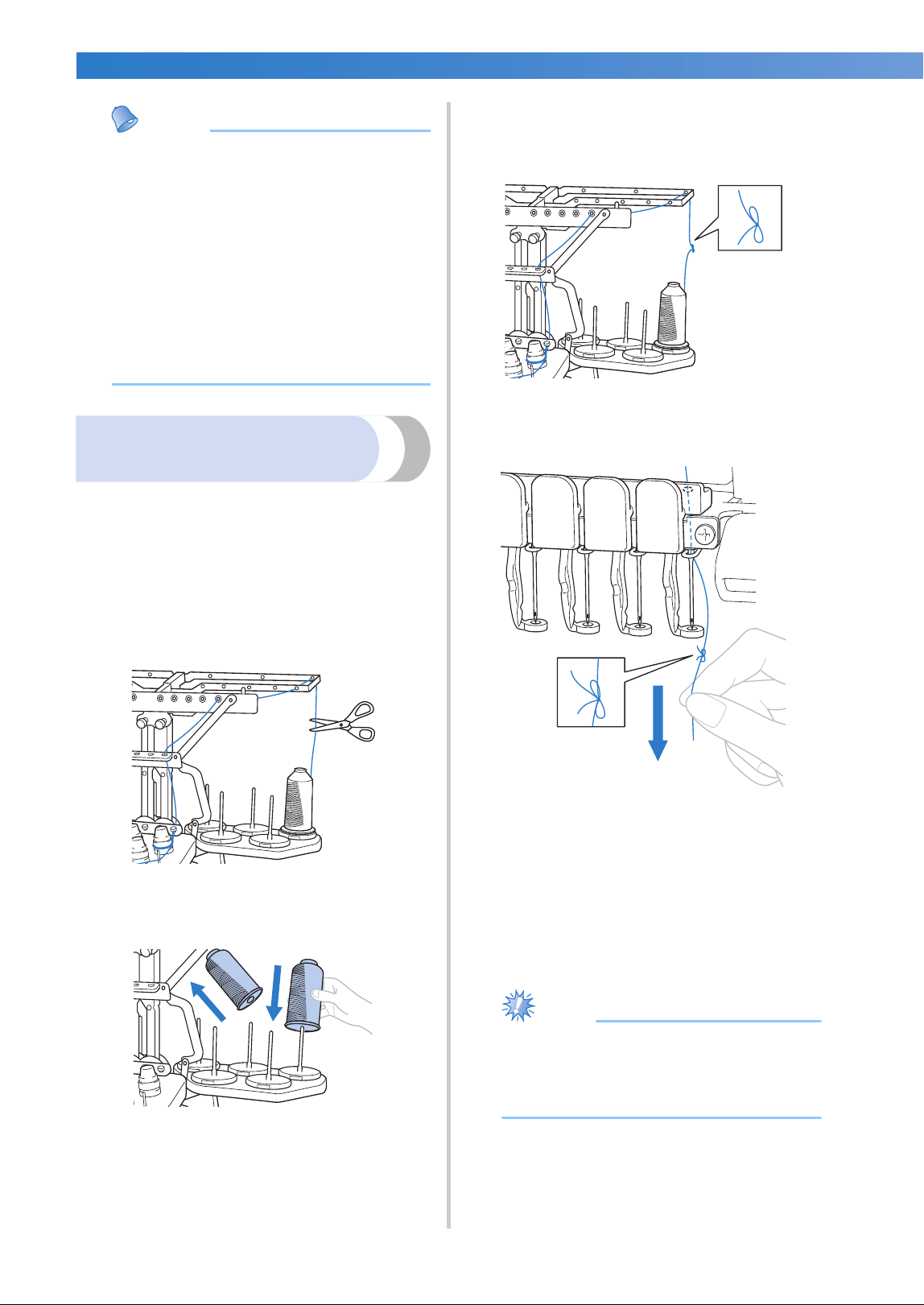
OTHER BASIC PROCEDURES
—
——————————————————————————————————————————————————————————————
——
114
Memo
● To use a different thread color than the
one that was specified, use the temporary
needle bar setting key, and then change
the thread color setting. (For details, refer
to “Temporary Needle Bar Setting” on
page 142.)
● To minimize changing the thread spools,
frequently used thread colors can be
specifically assigned to certain needle
bars. (For details, refer to “Reserved
Needle Bar and Sewing Speed Settings” on
page 145.)
Easily changing the thread
spools
When replacing the thread spools, it is necessary to
re-thread the upper thread. However, the thread
spools can easily be changed when replacing a
thread spool whose thread is correctly threaded
through the machine.
1
Cut the thread between the thread spool and
the thread guide.
2
Change the thread spool.
3
Tie the end of the thread on the new spool
with the end of the thread remaining from
the previous color.
4
Pull out the old thread just after the needle
bar thread guide.
Continue pulling the thread until the knot is
above the needle. Cut the knot.
5
Use the automatic needle-threading
mechanism to thread the needle with the
new thread. (Refer to page 60.)
X This completes the changing of the thread
spool.
Note
● When pulling out the thread, do not pull
the knot through the eye of the needle. If
the knot is pulled through the eye of the
needle, the needle may be damaged.
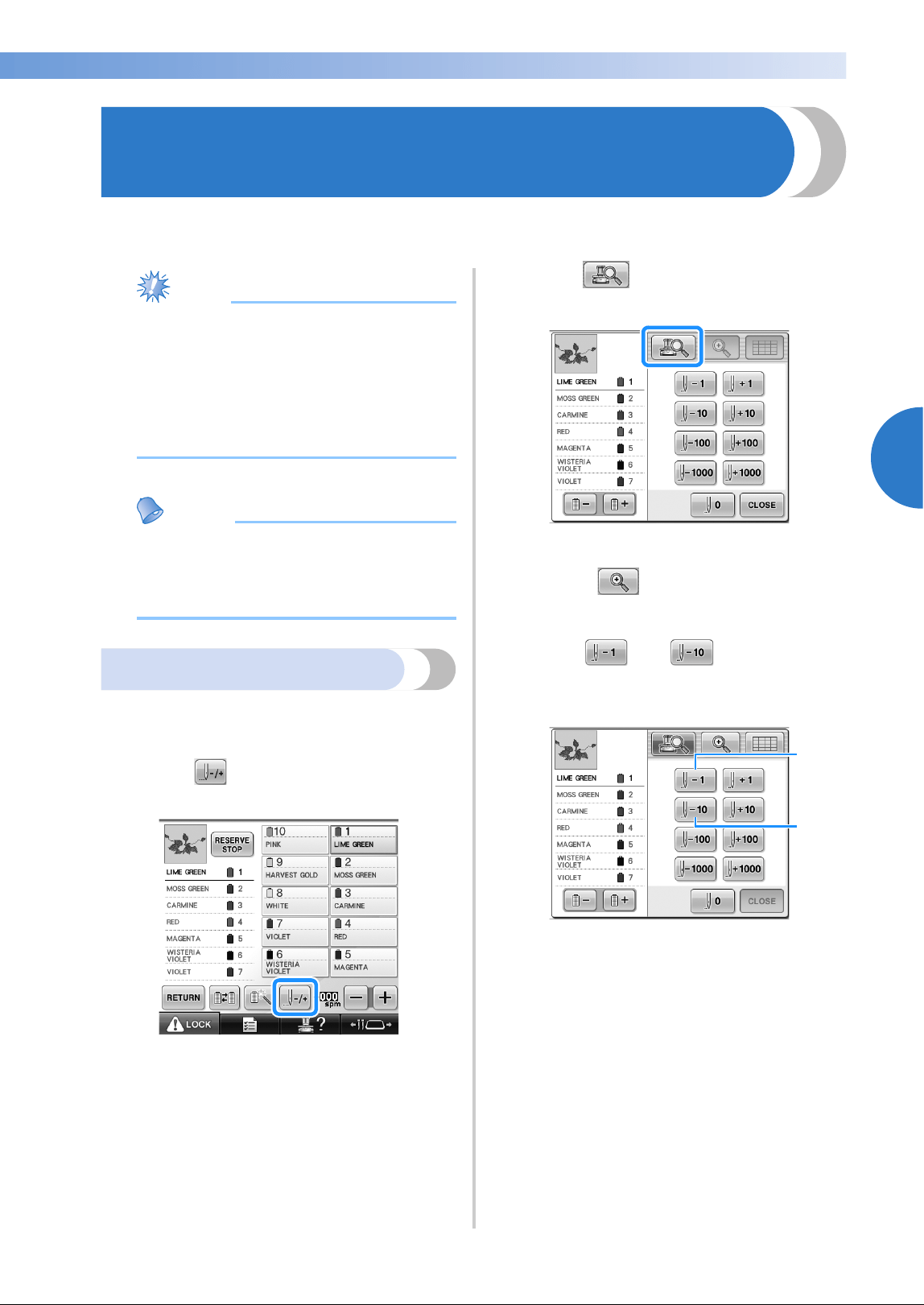
If the Thread Breaks or the Bobbin Thread Runs Out While Embroidering 115
3
——
—————————————————————————————————————————————————————————————
—
—————————————————————
If the Thread Breaks or the Bobbin Thread Runs Out
While Embroidering
If the thread breaks or the bobbin thread runs out while embroidering, the machine will automatically stop.
Since some stitches may be sewn with only one thread, go back through the stitching to a point where
stitches have already been sewn before continuing embroidering.
Note
● If the thread sensor is turned off, the
machine does not stop until embroidering
is finished. Normally, the thread sensor
should be turned on. (Refer to page 230.)
● Be careful when going back or forward
through the stitching since the embroidery
frame moves at the same time.
Memo
● When the thread breaks or the bobbin
thread runs out while embroidering, the
spool stand LEDs flash to notify you of the
problem.
If the upper thread breaks
1
Re-thread the upper thread. (Refer to
page 56.)
2
Touch .
X The stitch navigating screen appears.
3
Touch to check the needle drop
point on the LCD screen.
X The camera view window appears.
• Touch to zoom up the camera view
twice the size of normal view.
4
Touch and to go back
through the stitching to a point where
stitches have already been sewn.
1 Each touch of this key moves one stitch back
through the stitching.
2 Each touch of this key moves ten stitches back
through the stitching.
1
2
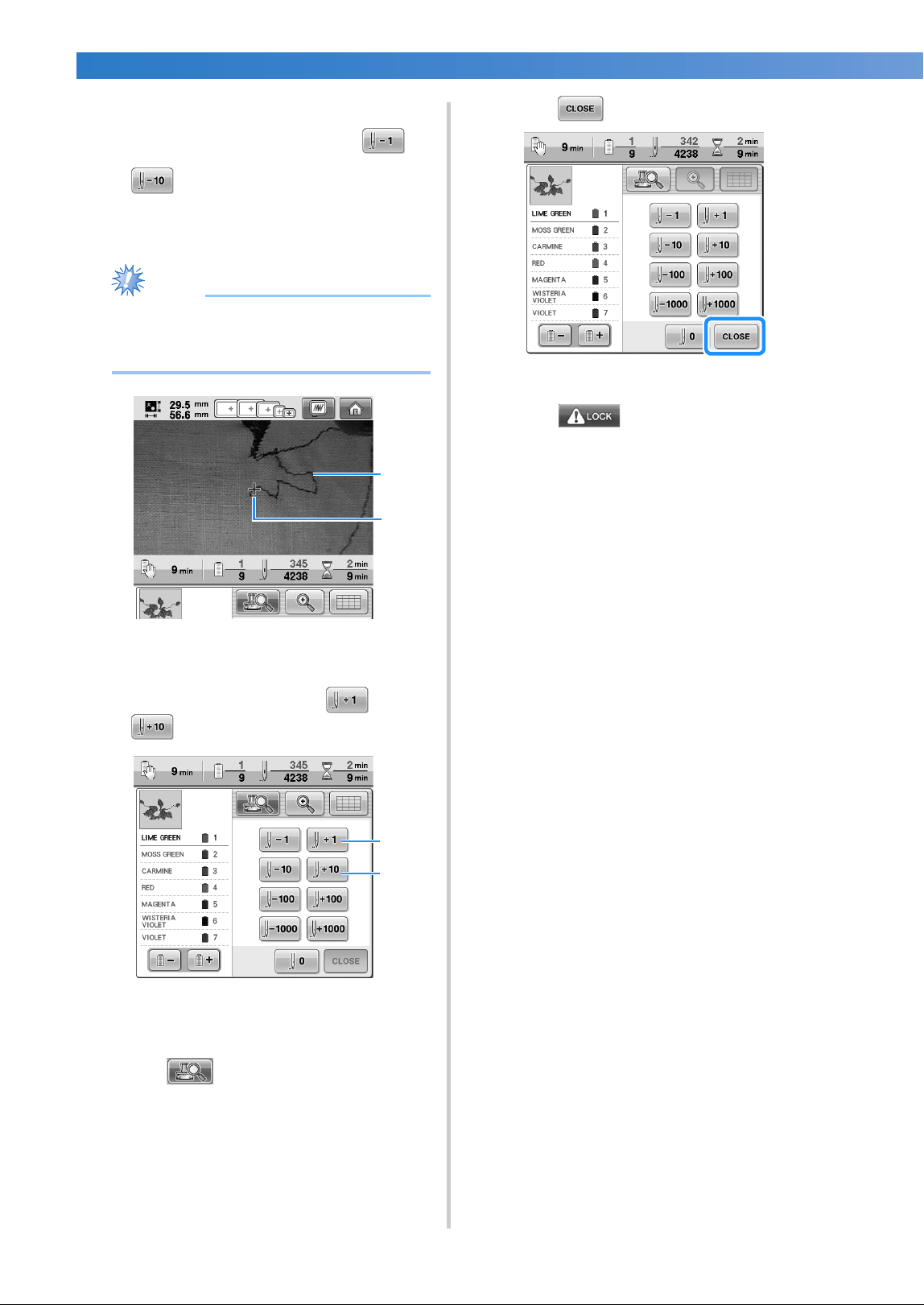
OTHER BASIC PROCEDURES
—
——————————————————————————————————————————————————————————————
——
116
As you move to the area where your design
was last stitched, by touching the or
, the embroidery frame will move,
allowing you to place the cross mark
directly on the last stitch shown.
Note
● It is recommended to stitch over the top of
the last two or three stitches for complete
coverage.
1 Stitch line
2 Cross mark
If the needle bar is moved back too far
through the stitching, touch or
to go forward through the stitching.
1 Each touch of this key moves one stitch forward
through the stitching.
2 Each touch of this key moves ten stitches
forward through the stitching.
5
Touch .
6
Touch .
X The embroidering screen appears again.
7
Touch , and then press the start/
stop button to continue embroidering.
1
2
1
2

If the Thread Breaks or the Bobbin Thread Runs Out While Embroidering 117
3
——
—————————————————————————————————————————————————————————————
—
—————————————————————
If the bobbin thread breaks
or runs out
1
Touch , and then press the thread
trimming button.
X The upper thread is trimmed.
2
Remove the stitches sewn only with the
upper thread.
Pull the trim end of the upper thread.
• If the stitches cannot be cleanly removed,
trim the thread with scissors.
■ If the bobbin thread ran out, replace the bobbin
at this point in the procedure.
3
Replace the bobbin with a bobbin wound
with bobbin thread. (Refer to page 38.)
• If the hook cover can be opened, replace
the bobbin without removing the
embroidery frame from the machine.
• If the machine bed is hidden, for example,
with a bag-shaped piece of fabric, or if the
hook cover cannot be opened, temporarily
remove the embroidery frame. (Refer to
page 69.) After replacing the bobbin, re-
attach the embroidery frame. (Refer to
page 51.)
Note
If the embroidery frame is removed before
embroidering of the pattern is finished, take
caution, otherwise the pattern may become
misaligned.
● Do not apply extreme pressure to the
framed fabric and cause it to become
loose.
● When removing and re-attaching the
embroidery frame, do not allow the frame
to hit the carriage or the presser foot.
If the carriage is hit and moves, turn the
machine off, then on again. The correct
frame position at the time that the
machine was stopped is stored in the
machine’s memory, and the embroidery
frame is returned to the correct position.
● When the embroidery frame is re-
attached, make sure that the pins on the
left and right arms of the embroidery frame
holder securely fit into the holes in the
handles on the embroidery frame.
4
Go back through the stitching in the same
way as that described in step
2 of “If the
upper thread breaks” on page 115, and then
continue embroidering.
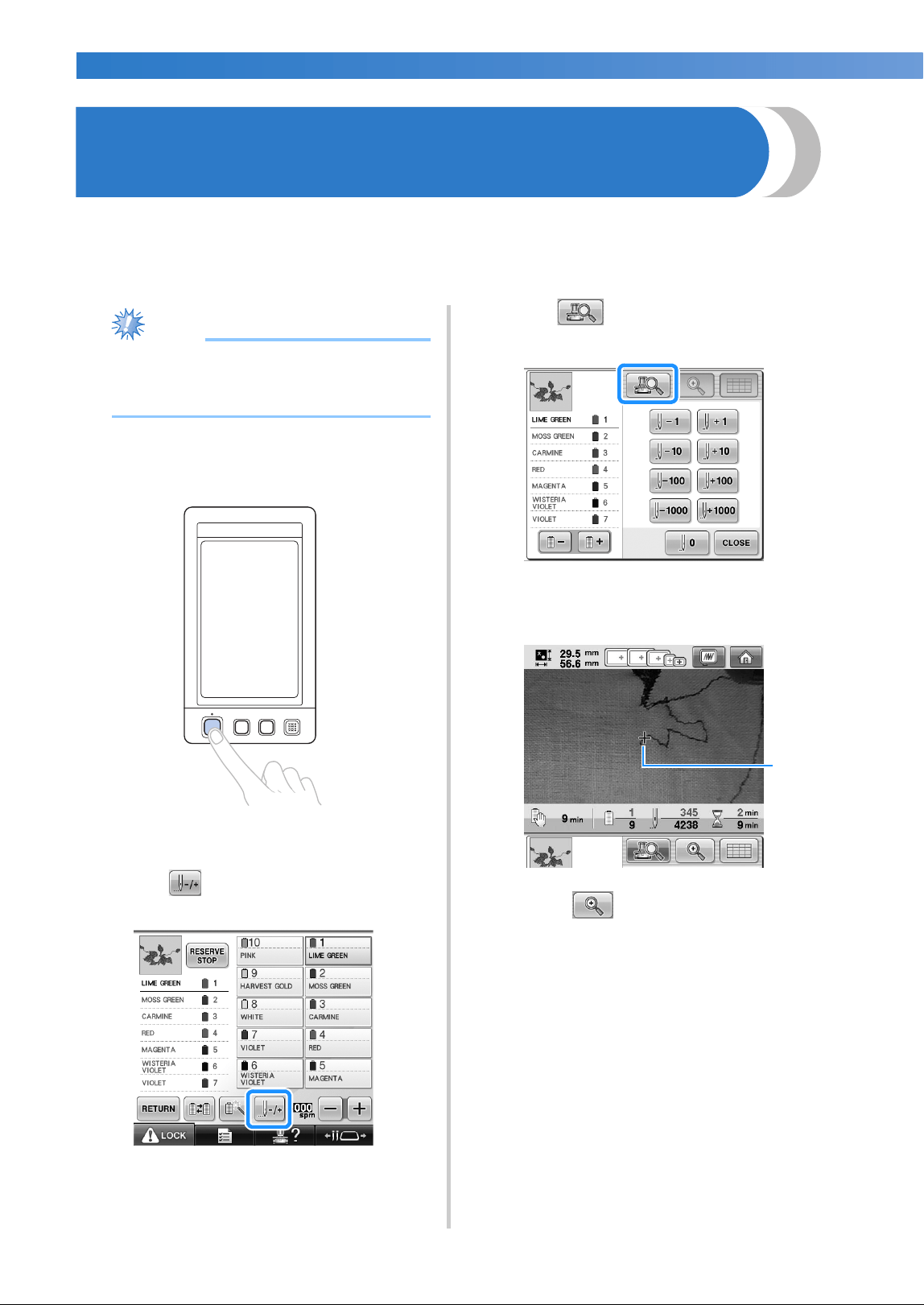
OTHER BASIC PROCEDURES
—
——————————————————————————————————————————————————————————————
——
118
Embroidering From the Beginning or Middle of the
Pattern
If you wish to restart embroidering from the beginning, for example, if trial embroidery was sewn and an
incorrect thread tension was used or if the wrong thread color was used, restart the embroidering using the
forward/backward stitch key. In addition, you can go forward or back through the stitching by thread color
or by stitch to start stitching at any position of the pattern.
Note
● Be careful when going back or forward
through the stitching since the embroidery
frame moves at the same time.
1
Press the start/stop button to stop the
machine.
• If necessary, trim and remove the sewn
stitches.
2
Touch .
X The stitch navigating screen appears.
3
Touch to check the needle drop
point on the LCD screen.
X The camera view window appears and the
cross mark in the camera view indicates
the needle drop point.
1 Needle drop point
• Touch to zoom up the camera view
twice the size of normal view.
1
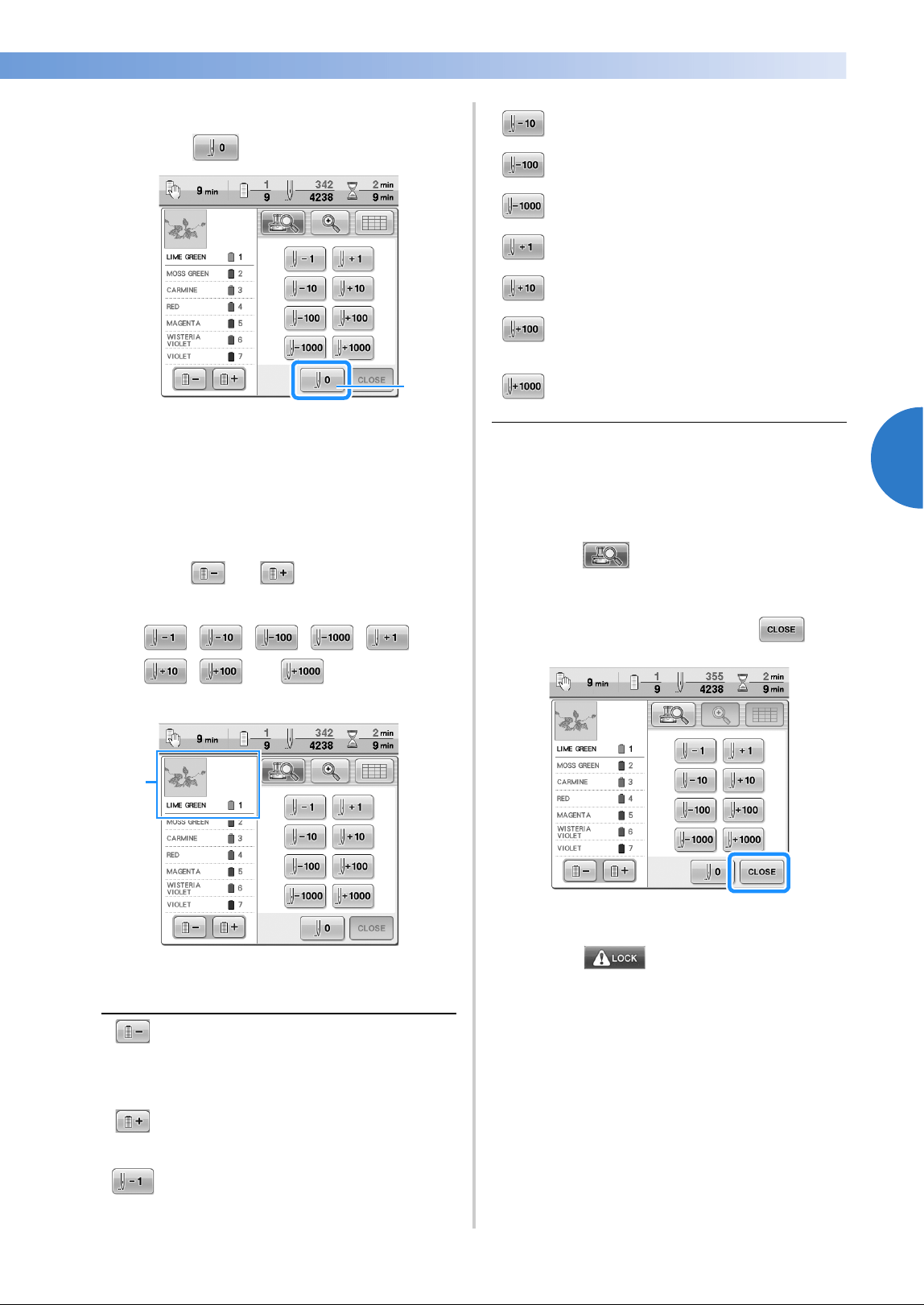
Embroidering From the Beginning or Middle of the Pattern 119
3
——
—————————————————————————————————————————————————————————————
—
—————————————————————
■ To start sewing from the beginning
4
Touch .
1 Touch this key to return to the beginning of the
first color.
X The embroidery frame moves to the
starting position.
■ To select the stitch from where embroidering is
to begin
5
Touch and to select a color in the
thread color sequence, and then touch
, , , , ,
, and to select the
stitch.
1 The thread color at the top of the thread color
sequence display is the color of the area
currently selected.
X The needle bar case moves and the
current needle bar moves to the sewing
position, and then the embroidery frame
moves and current needle position is
indicated.
6
Touch .
7
After selecting the stitch from where
embroidering is to begin, touch .
X The embroidering screen appears again.
8
Touch , and then press the start/
stop button to begin embroidering.
X Embroidering begins from the specified
point.
Touch this key once to return to the
beginning of the stitching for the color
being sewn. Afterward, each touch of this
key returns to the beginning of sewing for
the previous thread color.
Each touch of this key advances to the
beginning of sewing the next thread
color.
Each touch of this key moves one stitch
back through the stitching.
1
1
Each touch of this key moves ten stitches
back through the stitching.
Each touch of this key moves one hun-
dred stitches back through the stitching.
Each touch of this key moves one thou-
sand stitches back through the stitching.
Each touch of this key moves one stitch
forward through the stitching.
Each touch of this key moves ten stitches
forward through the stitching.
Each touch of this key moves one hun-
dred stitches forward through the stitch-
ing.
Each touch of this key moves one thou-
sand stitches forward through the stitch-
ing.
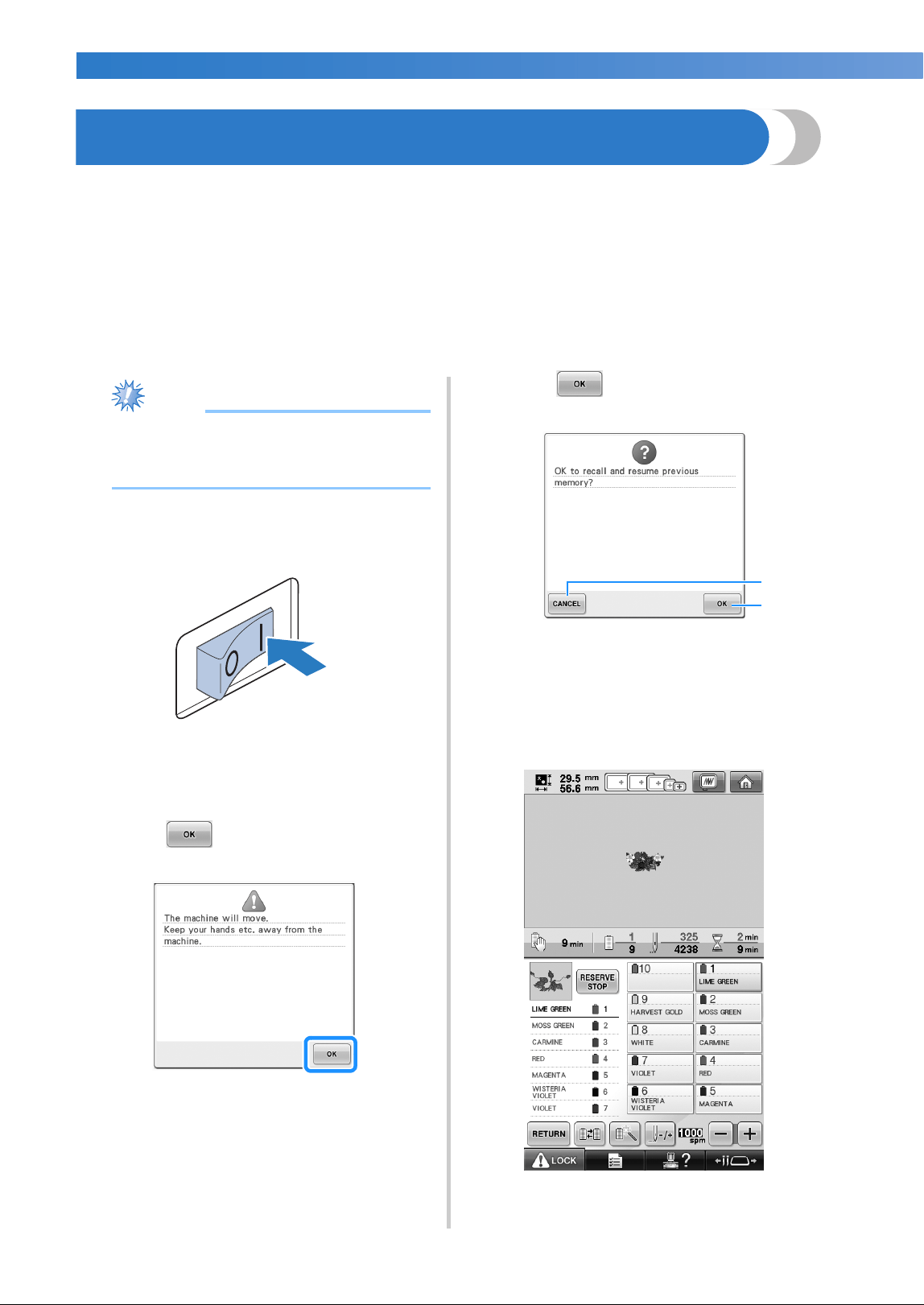
OTHER BASIC PROCEDURES
—
——————————————————————————————————————————————————————————————
——
120
Resume Embroidering After Turning Off the Machine
In either of the following cases, the remaining stitches of the embroidery are stored in the machine’s
memory.
• If the machine’s power switch is pressed to turn off after stopping embroidering.
Cut the thread before the machine’s main power switch is turned off, otherwise the thread may be pulled
or may catch when the carriage returns to its initial position after the machine is turned on again.
• If the machine was accidentally turned off, for example, due to a power outage, while it was
embroidering.
The remainder of the embroidery can be sewn when the machine is turned on again; however, some of
the stitches that were already sewn may be sewn again.
Note
● Be careful when going back or forward
through the stitching since the embroidery
frame moves at the same time.
1
Set the main power switch to “I” to turn on
the machine.
2
When the machine is turned on, the opening
movie is played. Touch anywhere on the
screen to display the message below.
3
Touch .
X A message appears, asking if you wish to
continue embroidering or start a new
operation.
4
Touch .
1 Touch to cancel embroidering and display the
pattern type selection screen to select a new
pattern.
2 Touch to continue embroidering.
X The embroidering screen displayed before
the machine was turned off appears.
1
2
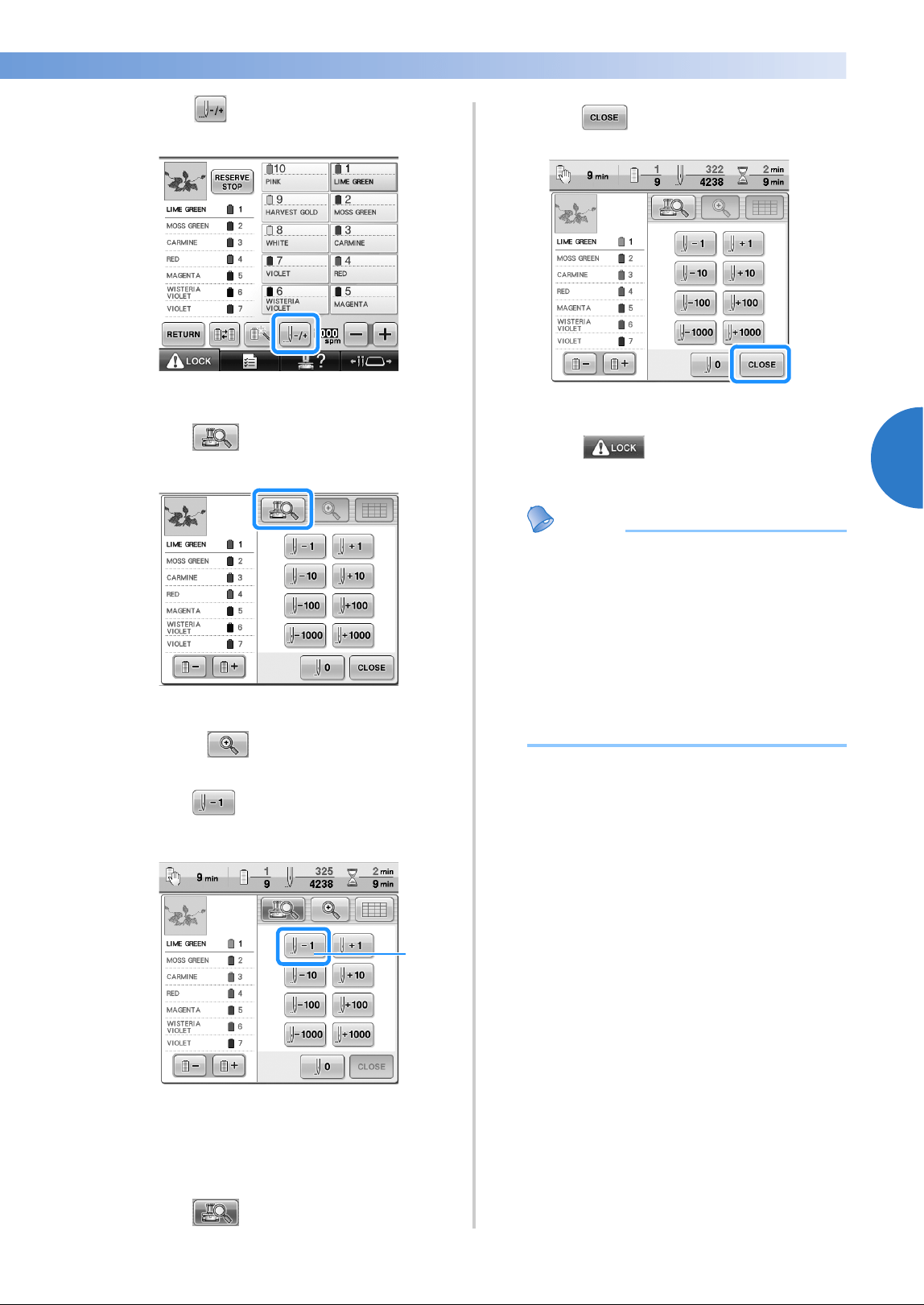
Resume Embroidering After Turning Off the Machine 121
3
——
—————————————————————————————————————————————————————————————
—
—————————————————————
5
Touch .
X The stitch navigating screen appears.
6
Touch to check the needle drop
point on the LCD screen.
X The camera view window appears.
• Touch to zoom up the camera view
twice the size of normal view.
7
Touch two or three times to go back
two or three stitches.
1 Each touch of this key moves one stitch back
through the stitching.
• Check that the needle drop point is
positioned where stitches have already
been sewn.
8
Touch .
9
Touch .
X The embroidering screen appears again.
0
Touch , and then press the start/
stop button to continue embroidering.
Memo
● The machine can be stopped at any time,
even while it is embroidering; however, if
the machine is stopped when the thread
color is changed, it is not necessary to go
back through the stitching when
embroidering is continued. The machine
can also be set to stop when the thread
color is changed. (For details, refer to
“Setting the Machine to Stop at Color
Changes” on page 140.)
1
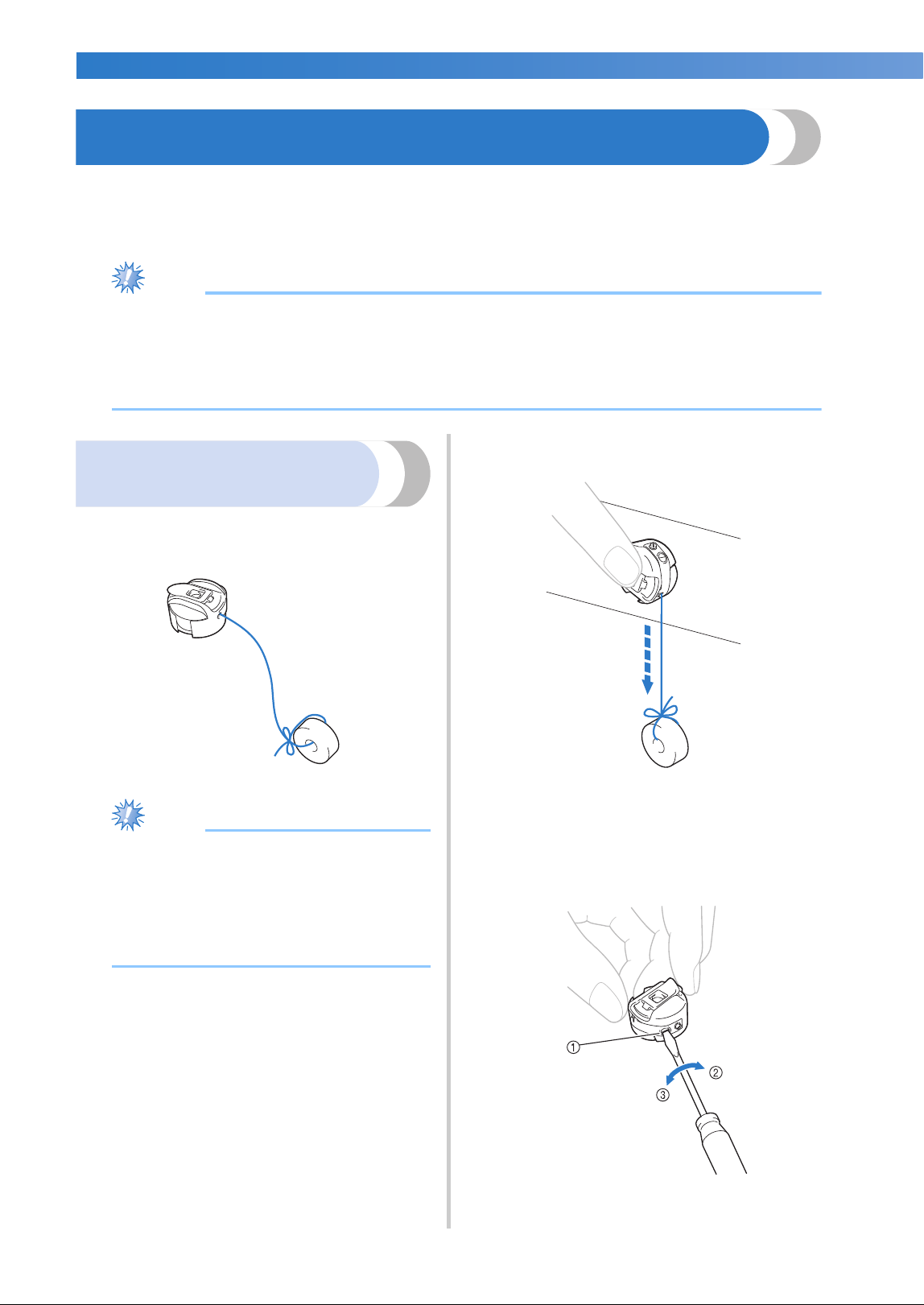
OTHER BASIC PROCEDURES
—
——————————————————————————————————————————————————————————————
——
122
Adjusting the Thread Tension
The following procedure describes how to adjust the thread tension if the correct thread tension as described
on page 68 was not used. After adjusting the tension of the bobbin thread, adjust the tension of the upper
thread for each needle bar.
Note
● Be sure to check the tension of the bobbin thread each time that the bobbin is changed.
Depending on the bobbin thread type and whether a prewound bobbin is used, the tension of the
bobbin thread may differ. For example, when replacing an empty prewound bobbin with one of the
same type, be sure to check the tension of the bobbin thread and adjust the tension if necessary.
● Be sure to adjust the tension of the bobbin thread before adjusting the tension of the upper thread.
Adjusting the tension of the
bobbin thread
1
Tie the included weight to the end of the
thread extending from the bobbin case.
Note
● Different weights are used to adjust pre-
wound bobbins and metal bobbins.
Pre-wound bobbins: Only weight (L)
Metal bobbins: Weight (L) and weight (S)
* Weight (S) is included with the optional
bobbin winder.
2
As shown in the illustration, hold the bobbin
case against a smooth vertical surface.
• If the thread with the weight attached is
slowly pulled out, the thread tension is
correct.
3
Use the included standard screwdriver to
turn the tension-adjusting screw and adjust
the thread tension.
1 Tension-adjusting screw
2 Tighter
3 Looser
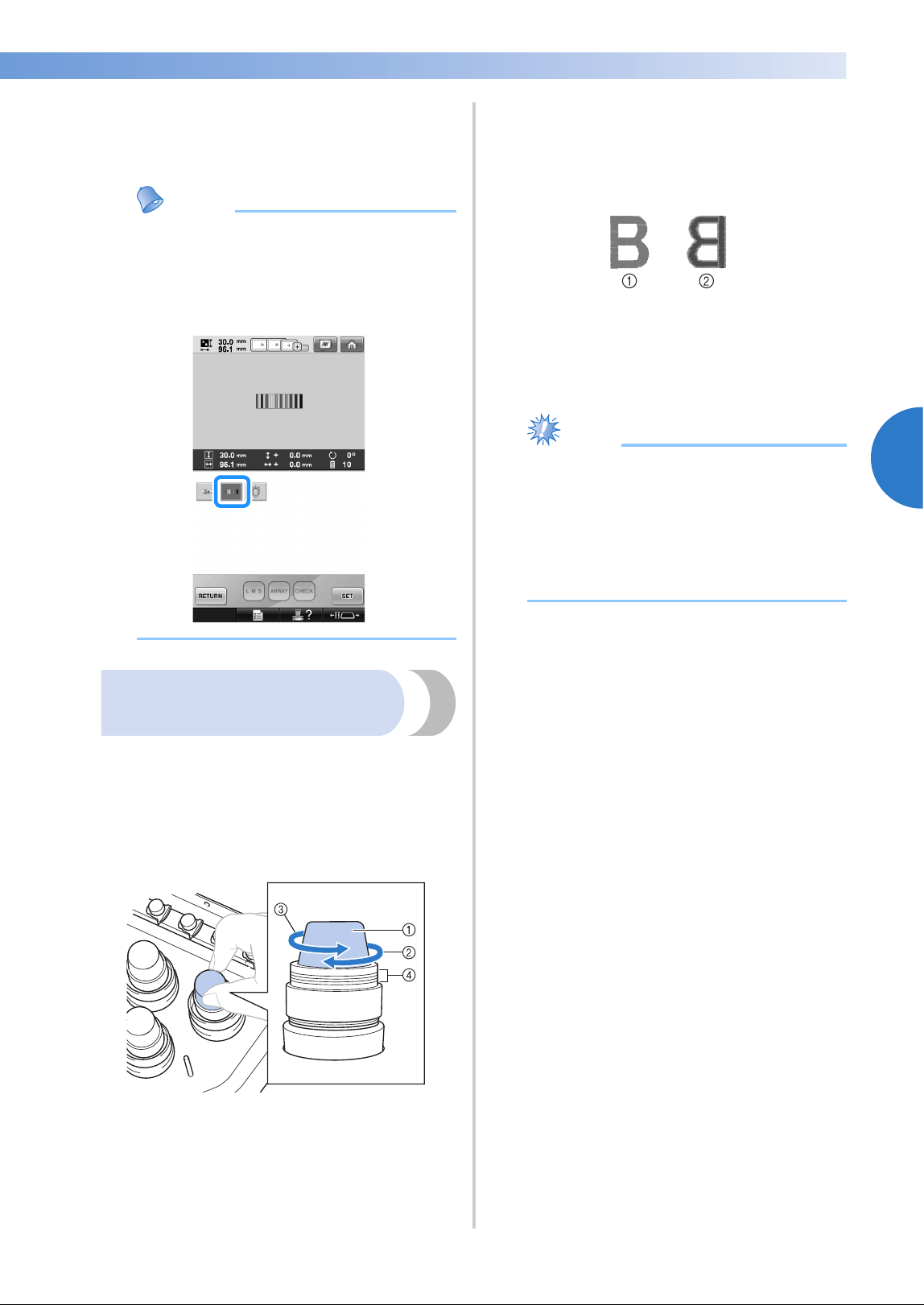
Adjusting the Thread Tension 123
3
——
—————————————————————————————————————————————————————————————
—
—————————————————————
4
After making the adjustments, try
embroidering with all needle bars to check
the thread tension.
Memo
● In the built-in embroidery patterns, one
pattern is used for checking the thread
tension. By sewing this pattern, the thread
tension can easily be checked. For details,
refer to page 243.
Adjusting the tension of the
upper thread
When embroidering, the thread tension should be
set so that the upper thread can slightly be seen on
the wrong side of the fabric.
1
Turn the thread tension knobs.
1 Thread tension knobs
2 Tighter
3 Looser
4 Mark
■ Correct Thread Tension
The pattern can be seen from the wrong side of
the fabric. If the thread tension is not set
correctly, the pattern will not finish well. The
fabric may pucker or the thread may break.
1 Right side
2 Wrong side
Follow the operations described below to adjust
thread tension according to the situation.
Note
● If the thread tension setting is made
extremely weak, the machine may stop
during sewing. This is not the sign of a
malfunction. Increase the thread tension
slightly, and begin sewing again.
● If necessary, refer to page 286 for
reassembling the tension unit.
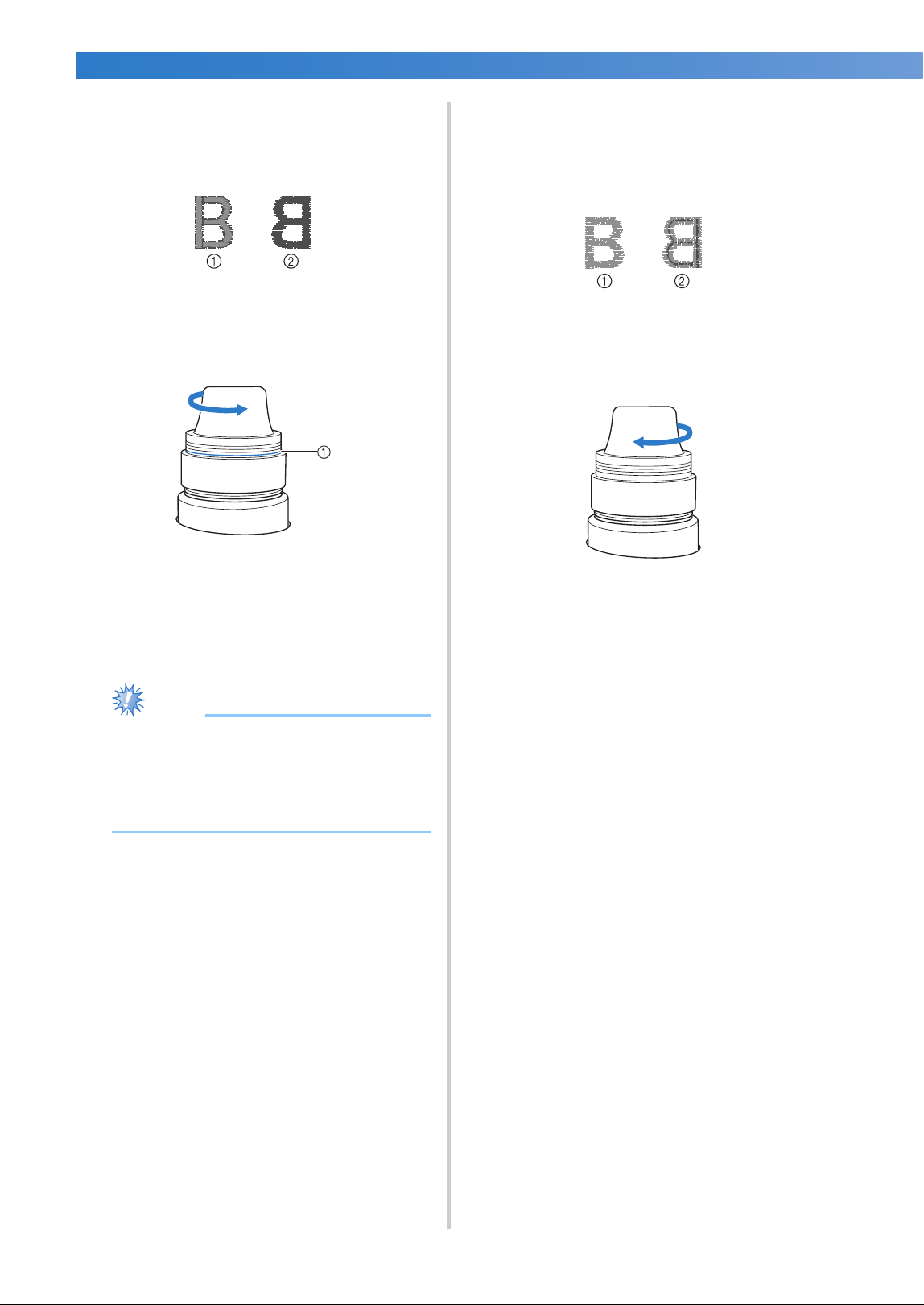
OTHER BASIC PROCEDURES
—
——————————————————————————————————————————————————————————————
——
124
■ Upper thread is too tight
The tension of the upper thread is too tight,
resulting in the bobbin thread being visible from
the right side of the fabric.
1 Right side
2 Wrong side
Turn the knob in the direction of the arrow to
decrease the tension of the upper thread.
1 Red line
If the red line is visible, the thread tension
cannot be decreased any further. Increase the
tension of the bobbin thread. For details, refer to
page 122.
Note
● If you decrease the thread tension further
than the red line, the tension knob may be
disassembled.
● If necessary, refer to page 286 for
reassembling the tension unit.
■ Upper thread is too loose
The tension of the upper thread is too loose,
resulting in a loose upper thread, loose thread
locks or loops appearing on the right side of the
fabric.
1 Right side
2 Wrong side
Turn the knob in the direction of the arrow to
increase the tension of the bobbin thread.

4
EMBROIDERING SETTINGS
This chapter contains descriptions on the various embroidering settings, which make
operation easier.
Basting Embroidery ...............................................................................................126
Creating an Appliqué Piece ...................................................................................127
Creating an appliqué piece ................................................................................127
Using a frame pattern for the outline..................................................................130
Selecting/Managing Thread Colors for Each Needle Bar (Manual Color Sequence) ........132
Convenience of the manual color sequence ......................................................132
Specifying the manual color sequence...............................................................132
Using the manual color sequence......................................................................133
Precautions on the manual color sequence........................................................133
Automatic Lock Stitch Setting ...............................................................................134
Starting/Ending Position Settings...........................................................................135
Repeatedly sewing a pattern along a diagonal ...................................................136
Embroidering linked characters..........................................................................137
Maximum Sewing Speed Setting............................................................................139
Setting the Machine to Stop at Color Changes ......................................................140
Stopping the machine at the next color change..................................................140
Specifying pause locations before embroidering ................................................140
Temporary Needle Bar Setting ..............................................................................142
Uninterrupted embroidering (monochrome) ......................................................143
Reserved Needle Bar and Sewing Speed Settings ..................................................145
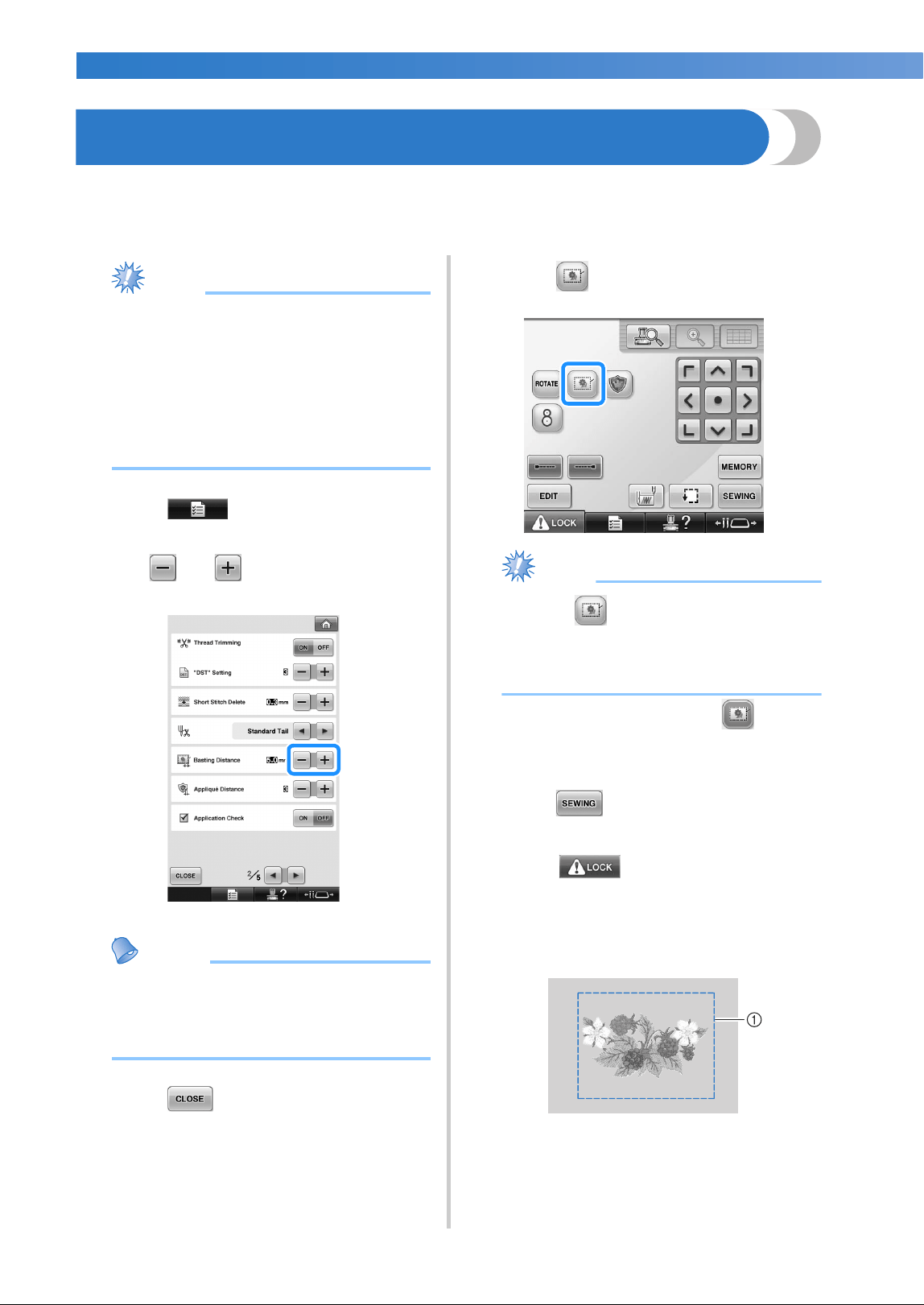
EMBROIDERING SETTINGS
—
———————————————————————————————————————————————————————————————
——
126
Basting Embroidery
Before embroidering, basting stitches can be sewn along the outline of the pattern. This is useful for
embroidering fabric that cannot have stabilizer material affixed with an iron or adhesive. By stitching
stabilizer material to the fabric, shrinkage of the stitching or misaligned pattern can be minimized.
Note
● It is recommended to finish combining
and editing the pattern before selecting the
basting setting. If the pattern is edited after
selecting the basting setting, the basting
and pattern may become misaligned, and
the basting under the pattern may be
difficult to remove after embroidering is
complete.
1
Touch , and then display page 2/5
of the settings screen.
2
Use and to specify the distance
from the pattern to the basting stitching.
Memo
● The higher the setting, the farther the
basting is from the pattern.
● The setting remains selected even if the
machine is turned off.
3
Touch to return to the embroidering
settings screen.
4
Touch to select the basting setting.
Note
● When is pressed, the pattern is
moved to the center. After selecting the
basting setting, move the pattern to the
desired position.
• To cancel the setting, touch .
X Basting is added to the beginning of the
sewing order.
5
Touch to continue to the
embroidering screen.
6
Touch , and then press the start/
stop button to begin embroidering.
7
When embroidering is finished, remove the
basting stitching.
1 Basting stitching
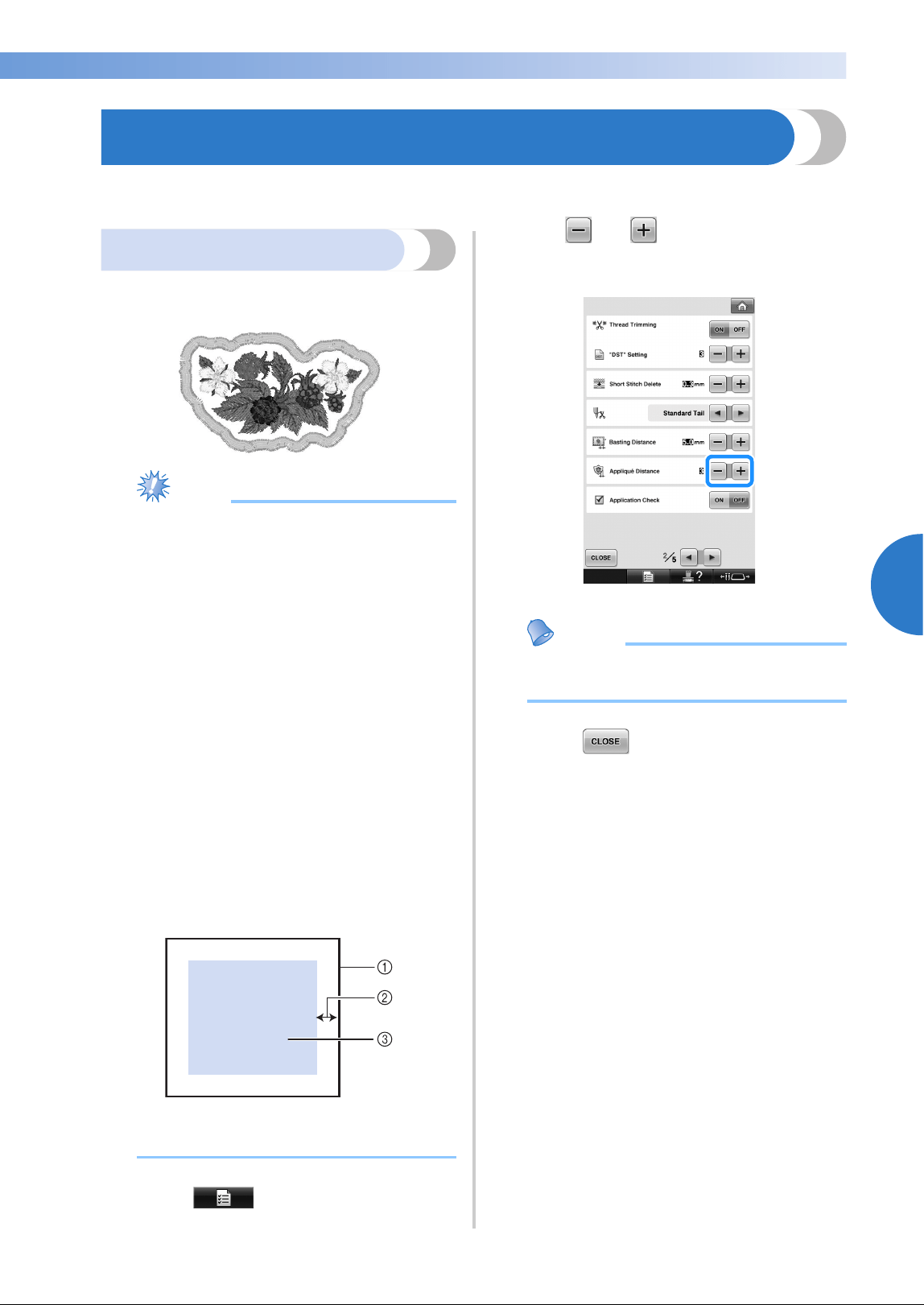
Creating an Appliqué Piece 127
——
————————————————————————————————————————————————————————————
—
——————————————————————
4
Creating an Appliqué Piece
Appliqué pieces can be created from the built-in patterns and patterns on embroidery cards. This is
convenient for fabrics that cannot be embroidered or when you wish to attach an appliqué to a garment.
Creating an appliqué piece
The following pattern will be used to create an
appliqué piece.
Note
● Felt or denim fabrics are recommended to
make the appliqué piece. Depending on
the pattern and fabric used, lighter weight
fabrics may cause the stitching to appear
smaller.
● For best results, be sure to use stabilizer
material for embroidering.
● Select a frame that matches the pattern
size. Frame options are displayed on the
LCD screen.
● Finish combining and editing the pattern
before selecting the appliqué setting. If the
pattern is edited after selecting the
appliqué setting, the appliqué stitching
and pattern may become misaligned.
● Since an outline is added, the pattern for
an appliqué piece (when the appliqué
setting is selected) will be larger than the
original pattern.
First, adjust the size and position of the
pattern as shown below.
1 Embroidering area
2 Approx. 10 mm
3 Pattern size
1
Touch , and then display page 2/5
of the settings screen.
2
Use and to specify the distance
between the pattern and the appliqué
outline.
Memo
● The setting remains selected even if the
machine is turned off.
3
Touch to return to the embroidering
settings screen.
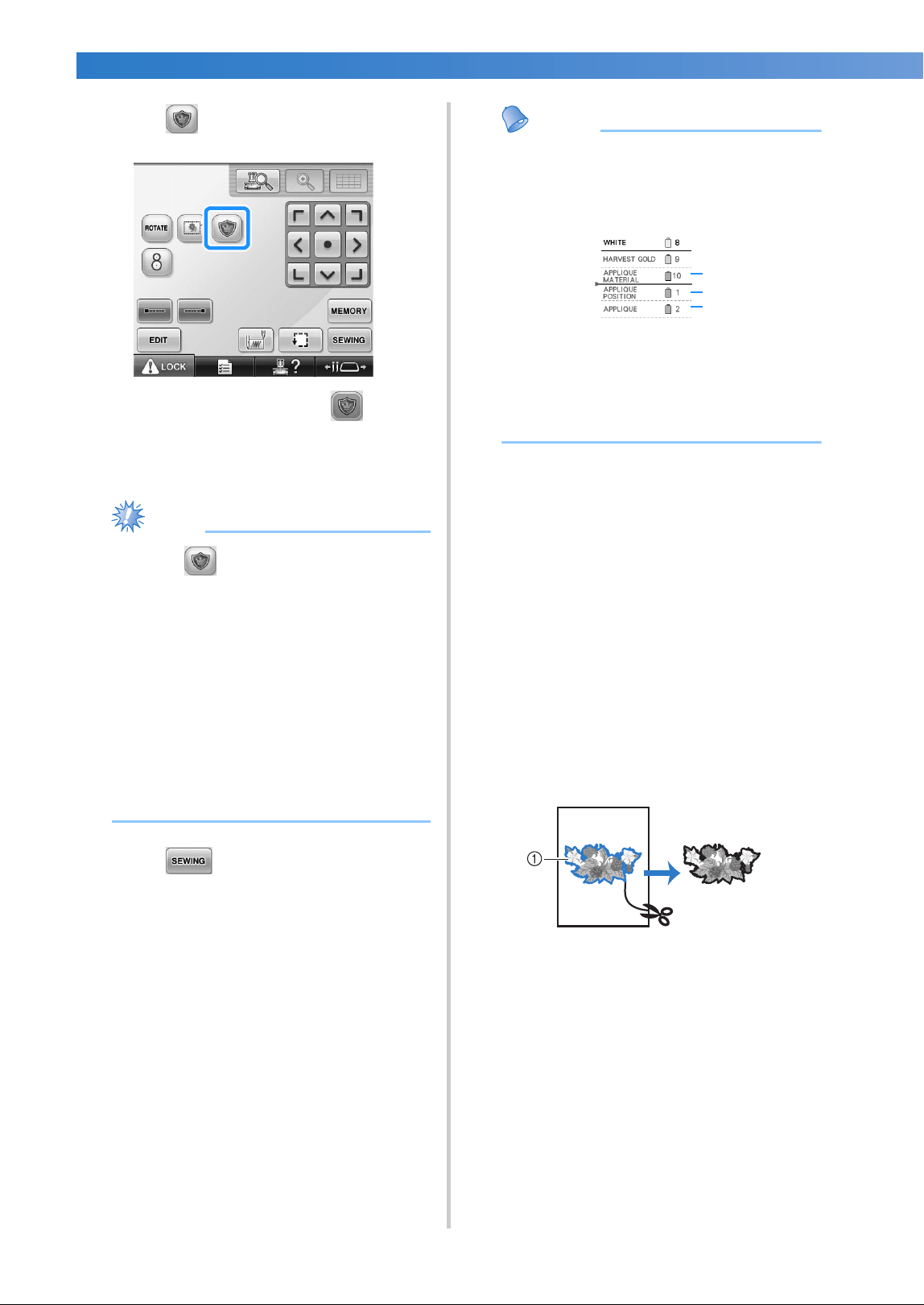
EMBROIDERING SETTINGS
—
———————————————————————————————————————————————————————————————
——
128
4
Touch to select the appliqué setting.
• To cancel the setting, touch .
X The steps for creating the appliqué piece
are added to the sewing order.
Note
● When is touched, the pattern is
moved to the center. After selecting the
appliqué setting, move the pattern to the
desired position.
● An appliqué piece cannot be created if the
pattern is too large or too complicated or a
combined pattern is separated. Even if the
selected pattern fits within the
embroidering area, the entire appliqué
pattern may exceed the embroidering area
when the outline is added. If an error
message appears, select a different pattern
or edit it.
5
Touch to continue to the
embroidering screen.
Memo
● Three steps are added to the sewing order:
appliqué cutting line, position of pattern
placement on the garment, and appliqué
stitching.
1 Cutting line for appliqué
2 Position of pattern placement on garment
3 Appliqué stitching
● We recommend using thread for the
cutting line “APPLIQUE MATERIAL” that
is closest to the color of the fabric.
6
Fuse or stick a piece of stabilizer to the back
of the felt or denim fabric to be used as the
appliqué piece.
7
Hoop the appliqué fabric in the embroidery
frame, attach the embroidery frame to the
machine, and then start embroidering.
8
After the cutting line “APPLIQUE
MATERIAL” is embroidered, stop the
machine and remove the appliqué material
from the embroidery frame.
9
Carefully cut along the stitching. After
cutting, carefully remove all of the cutting
line thread.
1 Cutting line for appliqué
1
2
3
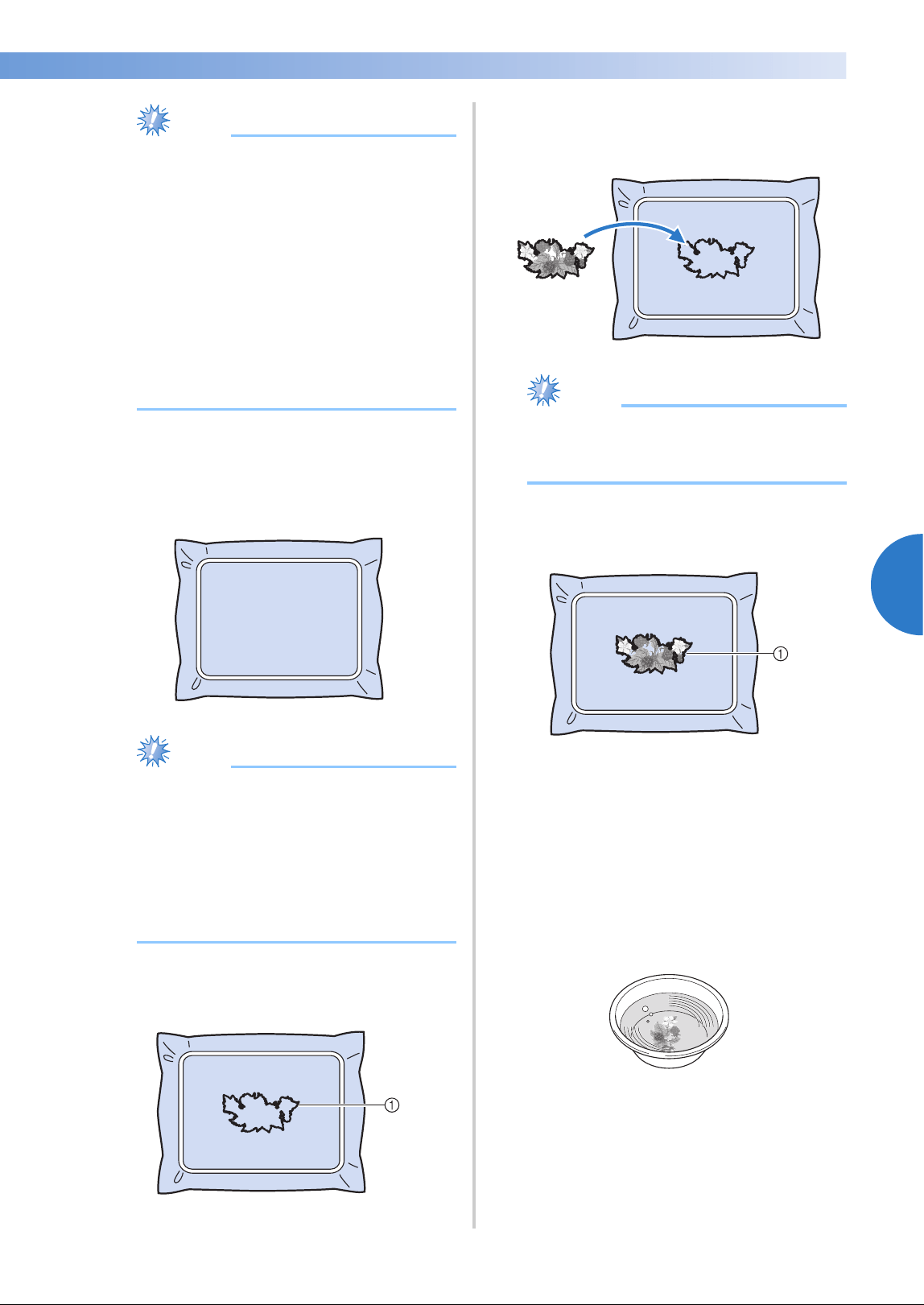
Creating an Appliqué Piece 129
——
————————————————————————————————————————————————————————————
—
——————————————————————
4
Note
● Depending on the pattern density and
fabric used, there may be shrinking of the
pattern or the appliqué may be misaligned
with the placement line. We recommend
cutting slightly outside of the cutting line.
● When using patterns that are vertically and
horizontally symmetrical, use a chalk
pencil to indicate the pattern orientation
before cutting it out.
● Carefully cut out the pattern on the outline
you just sewed. Do not cut inside the
cutting line, otherwise the appliqué fabric
will not be caught by the appliqué stitch.
0
Use two layers of adhesive water-soluble
stabilizer material with their sticky sides
together, and then hoop them in the
embroidery frame.
Note
● If water-soluble stabilizer is used, it is not
necessary to remove the stabilizer material
after sewing the appliqué outline. To
reduce shrinkage of the pattern, we
recommend using water-soluble stabilizer.
● Put together two layers of water-soluble
stabilizer, otherwise the stabilizer material
may tear during embroidering.
a
Sew the placement line for the appliqué
position “APPLIQUE POSITION”.
1 Pattern placement line
b
Lightly apply glue or spray adhesive, and
paste the appliqué piece so that it aligns with
the placement line.
Note
● Before pasting the appliqué piece down,
make sure the appliqué piece is positioned
correctly within the placement line.
c
Sew the outline “APPLIQUE”.
1 Outline of appliqué piece
d
After embroidering is finished, remove the
stabilizer material from the embroidery
frame.
e
Use scissors to cut the excess water-soluble
stabilizer from outside the appliqué outline.
f
Soak the appliqué piece in water to dissolve
the water-soluble stabilizer.
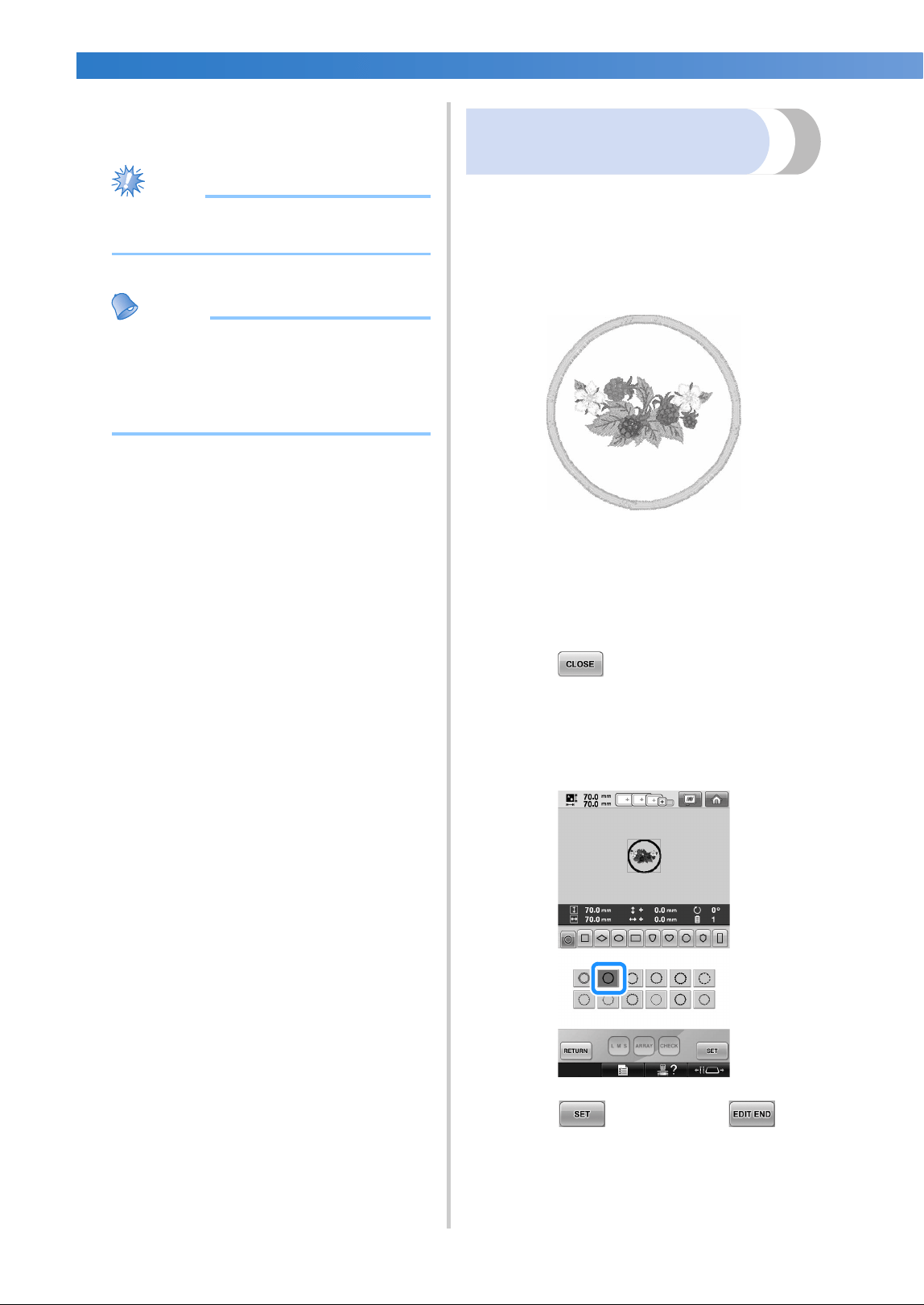
EMBROIDERING SETTINGS
—
———————————————————————————————————————————————————————————————
——
130
g
Dry the appliqué piece, and then iron it if
necessary.
Note
● Do not apply a strong force when ironing,
otherwise the stitching may be damaged.
Memo
● The outline is sewn using satin stitching.
● Some glue may get onto the presser foot,
needle, and needle plate at this time.
Finish embroidering the appliqué pattern,
and then clean off the glue.
Using a frame pattern for
the outline
Instead of having a multi-step appliqué created
by following the embroidery image, you can
create a shape to surround the embroidery
image with a frame pattern. Once the multi-step
appliqué is created to follow the frame pattern,
you simply delete the frame pattern.
1
After selecting and editing pattern in the
pattern editing screen, perform the
operations described in steps 1 through 2
of “Creating an appliqué piece” on
page 127.
2
Touch to return to the previous
screen.
3
From the pattern type screen, select the
desired frame shape and pattern, and add it
to the appliqué pattern.
4
Touch and then touch .
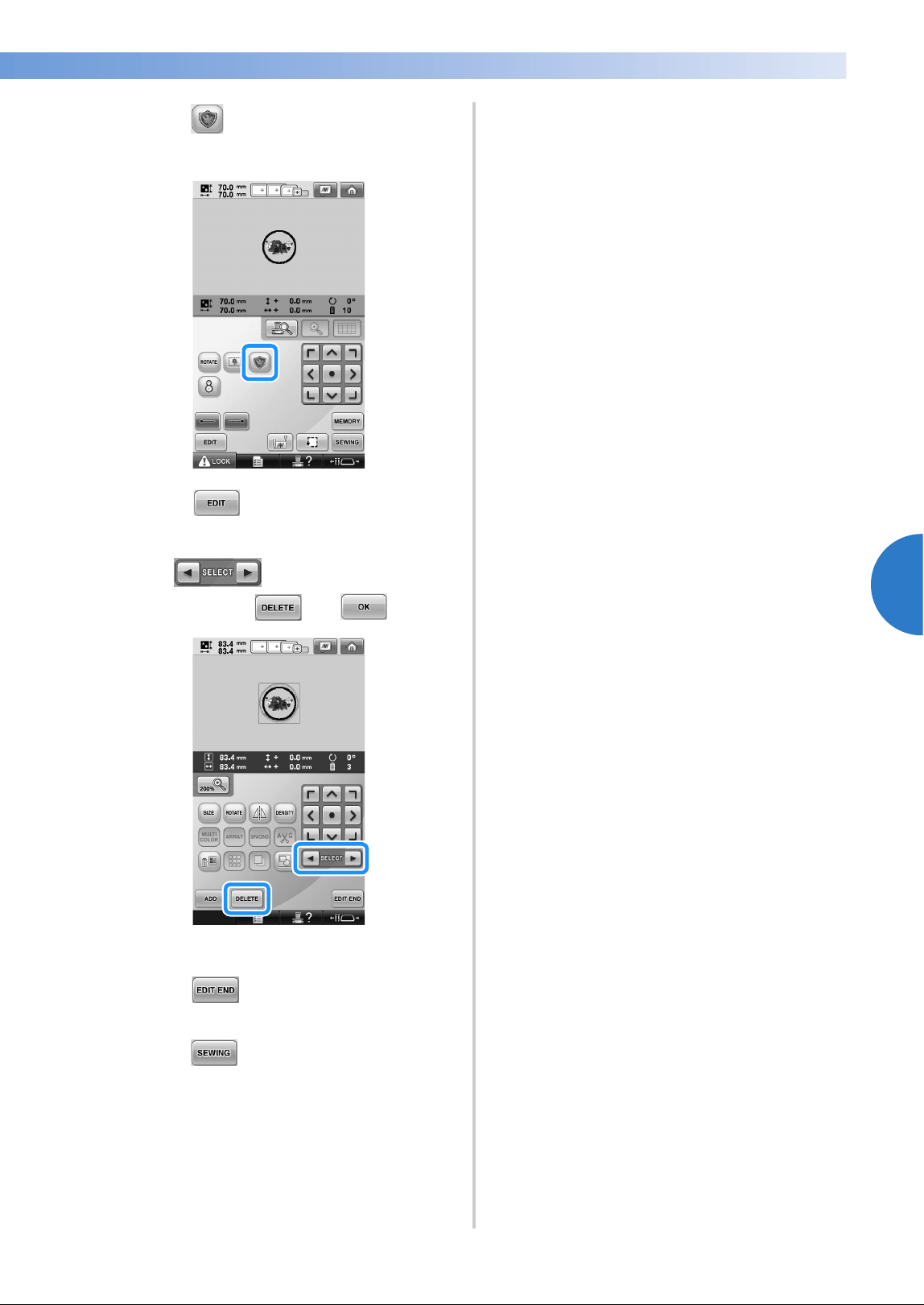
Creating an Appliqué Piece 131
——
————————————————————————————————————————————————————————————
—
——————————————————————
4
5
Touch to select the appliqué piece
setting.
6
Touch .
7
Use to select the frame pattern,
and then touch and .
X The frame pattern is deleted.
8
Touch to continue to the
embroidering settings screen.
9
Touch to continue to the
embroidering screen.
0
Continue with step 6 of “Creating an
appliqué piece” on page 128 to complete
the appliqué piece.
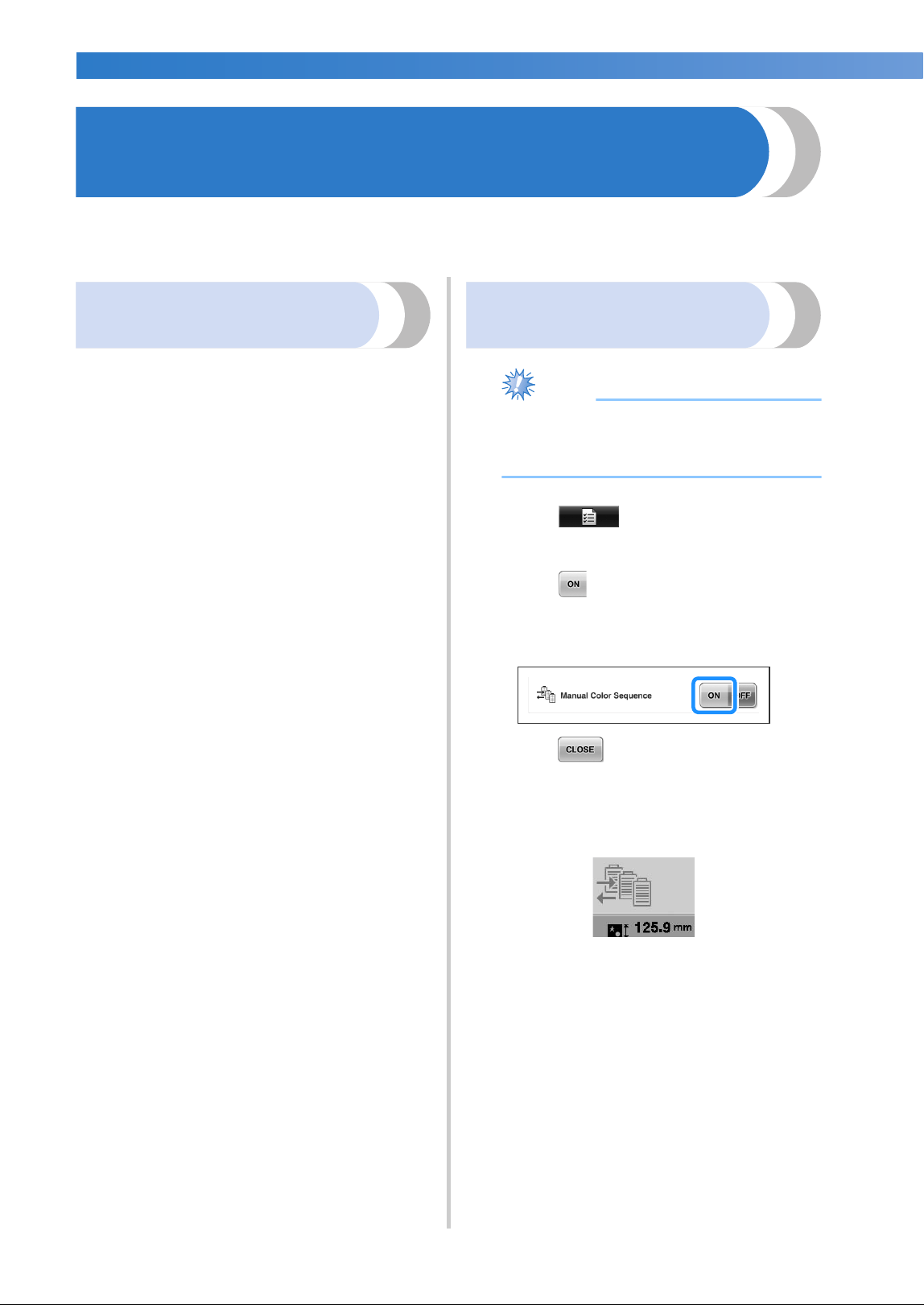
EMBROIDERING SETTINGS
—
———————————————————————————————————————————————————————————————
——
132
Selecting/Managing Thread Colors for Each Needle Bar
(Manual Color Sequence)
The thread colors assigned to each needle bar can be manually specified/managed.In addition, the thread
colors can be assigned to needle bars automatically and more efficiently than when the settings are normally
specified.
Convenience of the manual
color sequence
The manual color sequence is convenient when the
machine is being used under the following
conditions.
■ When using embroidery data that has no thread
color information, such as with DST files
The thread spools to be used can easily be
selected for data with no thread color
information. (For details on the thread color
information for DST files, refer to “Colors of
Tajima (.dst) embroidery data” on page 246.)
■ When the same combination of thread colors is
always used
If specific thread colors are assigned to certain
needle bars, the thread color settings can be
changed with the needle bar number
assignments, even when the pattern is changed.
The operation is simplified if the same thread
colors are always used.
■ When continuously sewing with the same
needle bar settings
If the settings are specified normally, the needle
bar settings are canceled when the embroidering
settings screen appears after sewing stops.
However, with the manual color sequence, the
needle bar settings continue to be applied unless
the pattern is deleted or the machine is turned
off.
This is useful if the same pattern is to be sewn
continuously multiple times.
Specifying the manual color
sequence
Note
● The manual color sequence cannot be
changed while operations are being
performed in the embroidering screen.
1
Touch , and then display page 5/5
of the settings screen.
2
Touch , and then select the manual
color sequence.
• When the embroidery machine is
purchased, “OFF” is selected.
3
Touch to return to the previous
screen.
X The icon for the manual color sequence
appears in the screen.
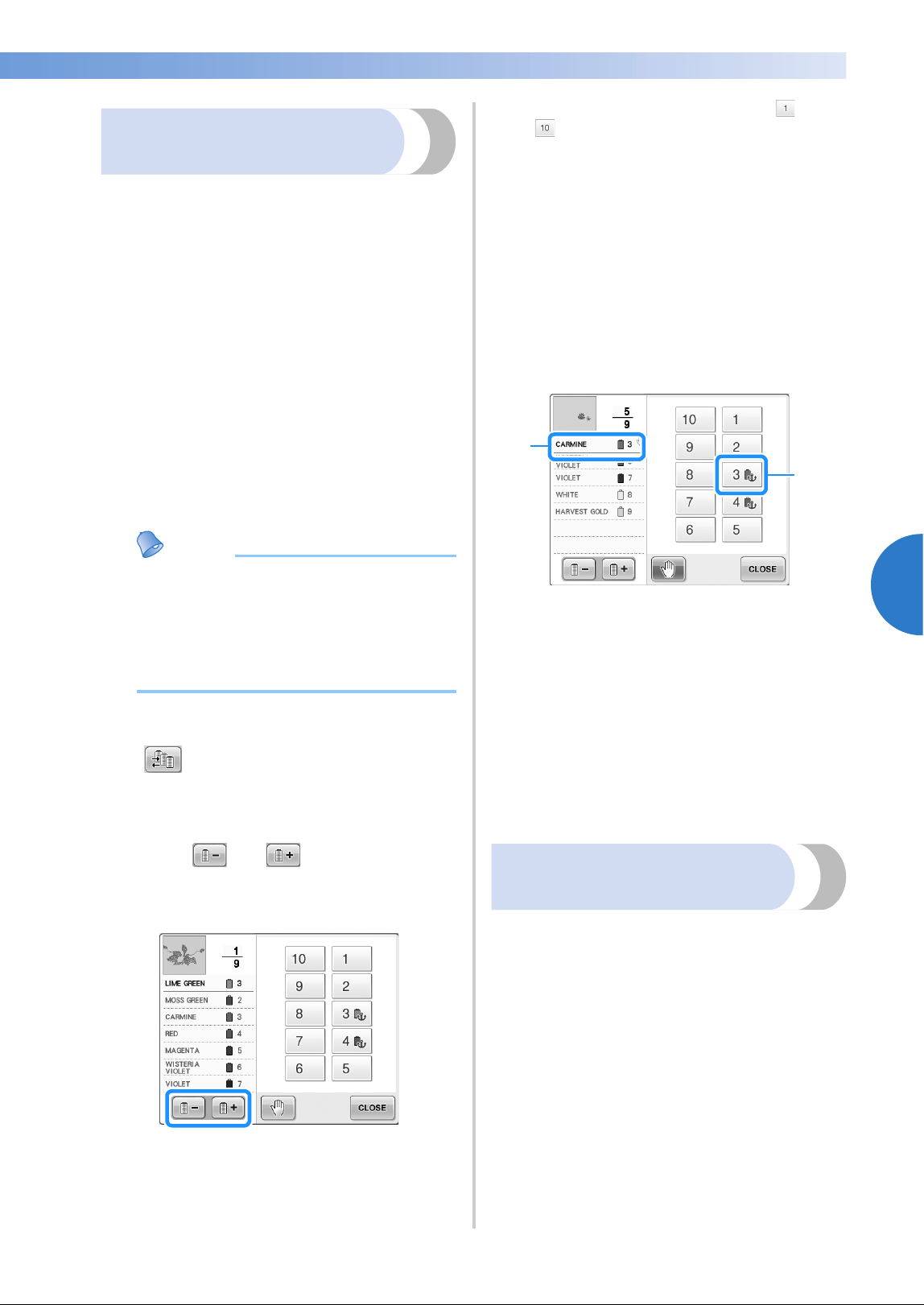
Selecting/Managing Thread Colors for Each Needle Bar (Manual Color Sequence) 133
——
————————————————————————————————————————————————————————————
—
——————————————————————
4
Using the manual color
sequence
■ Manually assign thread colors to all needle bars
By specifying the thread colors used with this
machine, sewing can continue more efficiently
simply by changing the needle bar assignments
after a pattern is selected. With the normal
method of specifying settings, only a maximum
of 9 needle bars can be manually assigned
thread colors; however, with the manual color
sequence, all 10 needle bars can be assigned
thread colors.
(For details on specifying the settings, refer to
“Reserved Needle Bar and Sewing Speed
Settings” on page 145.)
■ Needle bar number settings
The needle bar used with each thread color can
be specified.
Memo
● Using the procedure described in
“Reserved Needle Bar and Sewing Speed
Settings” on page 145, the finished
embroidery colors can be checked in the
screen if thread colors are assigned to
thread spools.
1
In the embroidering settings screen, touch
.
X A screen appears, allowing the needle bar
numbers to be selected.
2
Touch and to select the thread
color whose assigned needle bar is to be
changed.
3
Touch a number button (between and
) to select the number of the needle bar
whose settings are to be specified.
X The needle bar number for the thread
color selected in step
2 changes to the
selected needle bar number.
If the needle bar number was specified
with reserved needle bar settings, the color
of the thread spool on the left side changes
to the specified thread color, and the
pattern in the pattern display area also
changes to the color of the specified
needle bar.
1 Needle bar number specified with reserved
needle bar settings
2 Needle bar set to a different number (needle bar
5)
■ Initializing thread color settings
With the manual color sequence, the thread
color information on the machine can be
initialized each time a new pattern is selected,
and then the needle bars can be assigned. This
allows the needle bar settings to be specified
without being affected by the thread color
information from the previous pattern.
Precautions on the manual
color sequence
■ When embroidering a pattern containing 11 or
more colors
With the manual color sequence, the machine
does not monitor the timing for replacing thread
spools. Since the machine does not
automatically stop and no message indicating
that the thread spool be changed appears, as
with the normal needle bar settings, follow the
procedure described in either “Stopping the
machine at the next color change” or
“Specifying pause locations before
embroidering” on page 140 to set the machine
to stop with thread spools that must be changed.
2
1
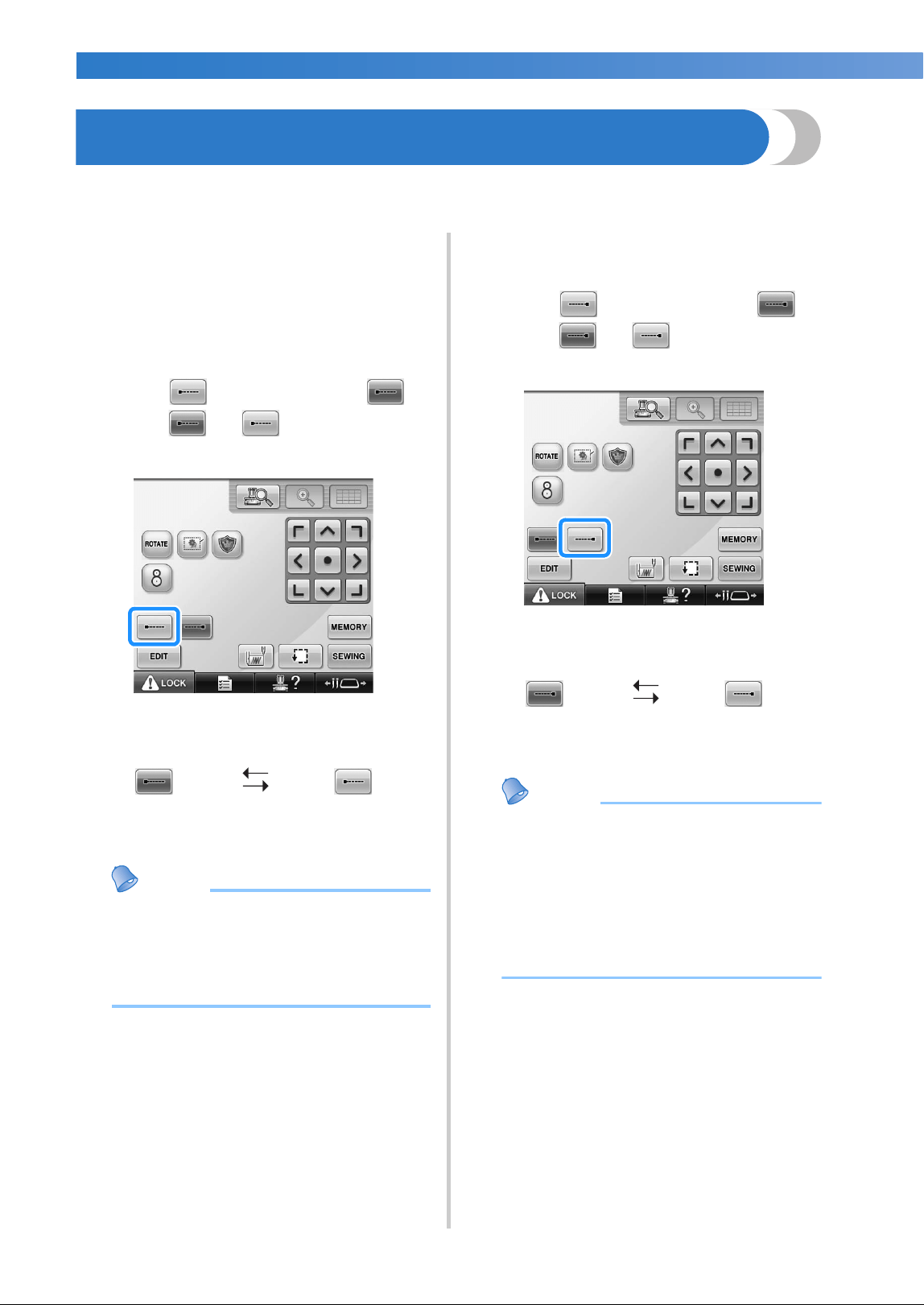
EMBROIDERING SETTINGS
—
———————————————————————————————————————————————————————————————
——
134
Automatic Lock Stitch Setting
The machine can be set to automatically sew lock stitches, for example at the beginning of the pattern,
before sewing each thread color change, and before trimming the thread.
When the embroidery machine is purchased, this
function is set ON.
■ Specifying that lock stitches be sewn at the
beginning of the pattern, at the beginning of
sewing each thread color change and at the
beginning of sewing after the thread trim.
1
Touch so that it changes to .
Touch (or ) to select the desired
setting.
• Each touch of the key turns the setting
either on or off.
Memo
● If the first stitch length is less than 0.8 mm,
the lock stitch won’t be inserted.
● If “Thread Trimming” is set “OFF” in
setting screen, the lock stitch won’t be
inserted (refer to page 225).
■ Specifying that lock stitches be sewn before the
thread is trimmed.
1
Touch so that it changes to .
Touch (or ) to select the desired
setting.
• Each touch of the key turns the setting
either on or off.
Memo
● The automatic lock stitch setting stays the
same until the key is touched to turn it off.
The setting specified before the machine is
turned off remains selected the next time
that the machine is turned on.
● If “Thread Trimming” is set “OFF” in
setting screen, the lock stitch won’t be
inserted (refer to page 225).
Automatic lock stitch
setting turned on
Automatic lock stitch
setting turned off
Automatic lock stitch
setting turned on
Automatic lock stitch
setting turned off
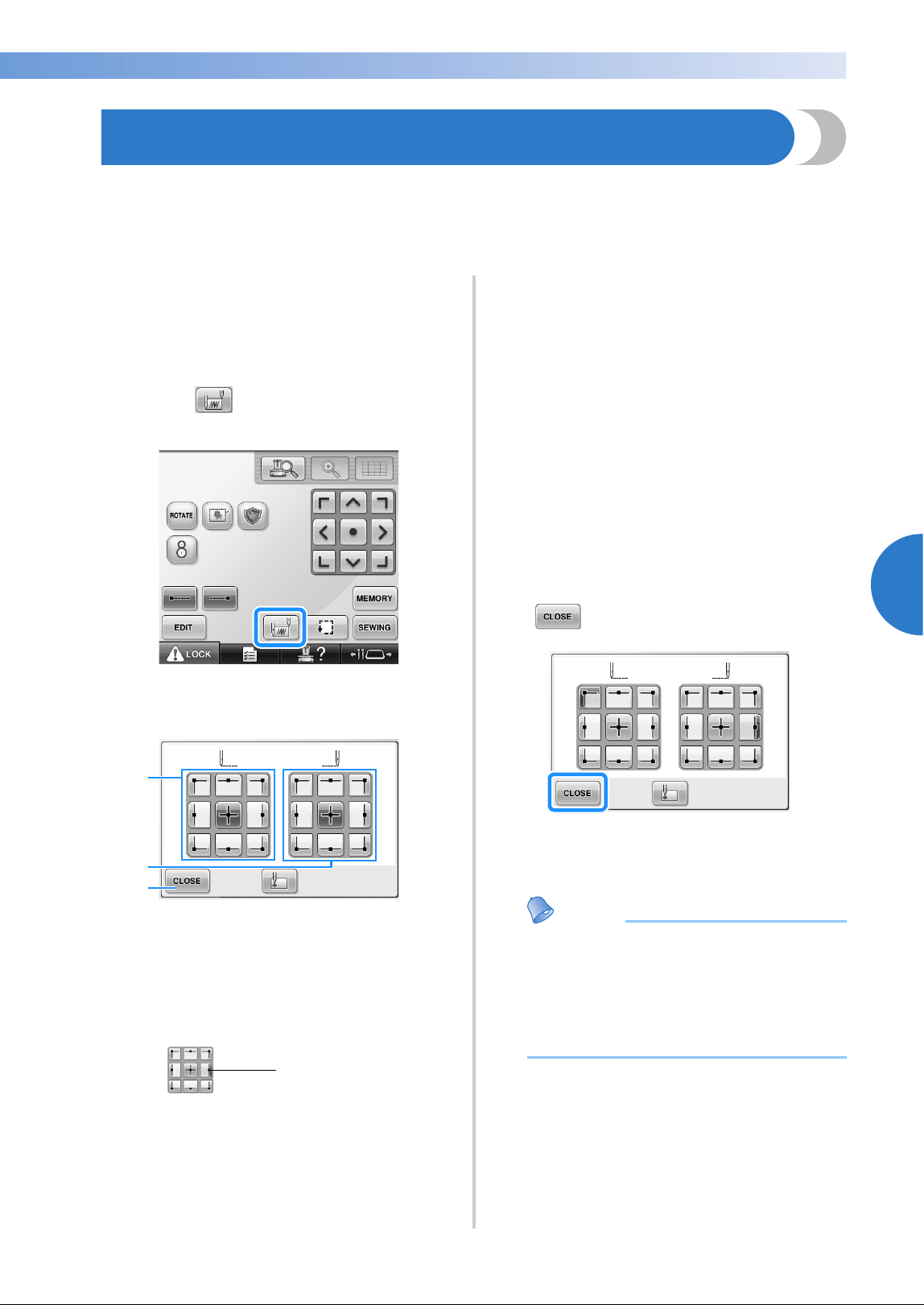
Starting/Ending Position Settings 135
——
————————————————————————————————————————————————————————————
—
——————————————————————
4
Starting/Ending Position Settings
The machine can set the start point and the ending point separately from the 9 points of the pattern. Those
are upper-left corner, upper-center, upper-right corner, center-left, center-center, center-right, lower-left
corner, lower-center and lower-right corner.
These settings can be used to repeatedly sew a pattern along a diagonal.
The starting/ending position settings are specified
from the embroidering settings screen.
When the embroidery machine is purchased, both
the starting position and the ending positions are
set to the center of the pattern.
1
Touch .
X The starting/ending position settings
screen appears.
1 Specifies the starting position
2 Specifies the ending position
Touch a key to select the setting.
The highlighted key shows the currently
selected setting.
Example
3 Touch this key to close this screen.
■ Specifying the starting position
2
Touch the key for the desired starting
position setting.
X When a starting position is selected, the
ending position is automatically set to the
same position.
X The embroidery frame moves to the
starting position.
■ Specifying the ending position
3
Touch the key for the desired ending
position setting.
4
After selecting the desired settings, touch
.
X The embroidering settings screen appears
again.
Memo
● The starting/ending position settings do
not change until the key for a new setting
is touched. The settings specified before
the machine is turned off remain selected
the next time that the machine is turned
on.
This key is selected.
1
2
3
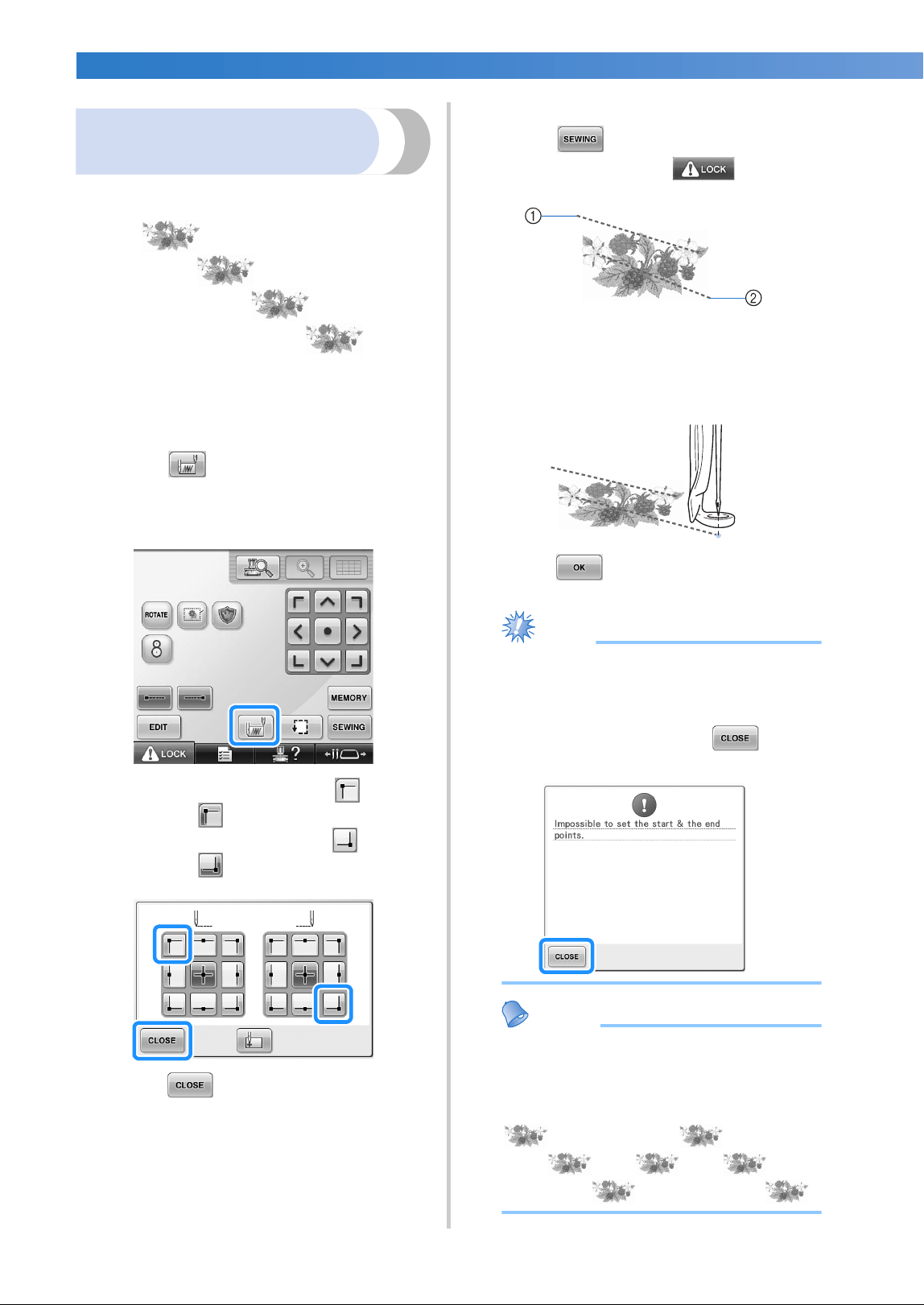
EMBROIDERING SETTINGS
—
———————————————————————————————————————————————————————————————
——
136
Repeatedly sewing a pattern
along a diagonal
Example
1
Specify the upper-left corner as the starting
position and the lower-right corner as the
ending position.
Touch in the embroidering settings
screen to display the starting/ending position
settings screen.
For the starting position, touch so that it
changes to .
For the ending position, touch so that it
changes to .
Touch to close the starting/ending
position settings screen.
2
Sew the first embroidery pattern.
Touch to display the embroidering
screen, and then touch and press
the start/stop button.
1 Starting position
2 Ending position
3
After embroidering is finished, the machine
stops at the lower-right corner of the
pattern.
4
Touch and repeat steps 2 and 3
three times.
Note
● If the next embroidery pattern of the series
will be stitched outside the embroidery
field, the following screen will appear.
Rehoop the fabric to continue to repeat
the sewing pattern. Touch and
repeat steps
2 and 3.
Memo
● If the starting position and ending position
settings are changed, instead of sewing the
patterns in a fixed direction, various
pattern designs are possible.
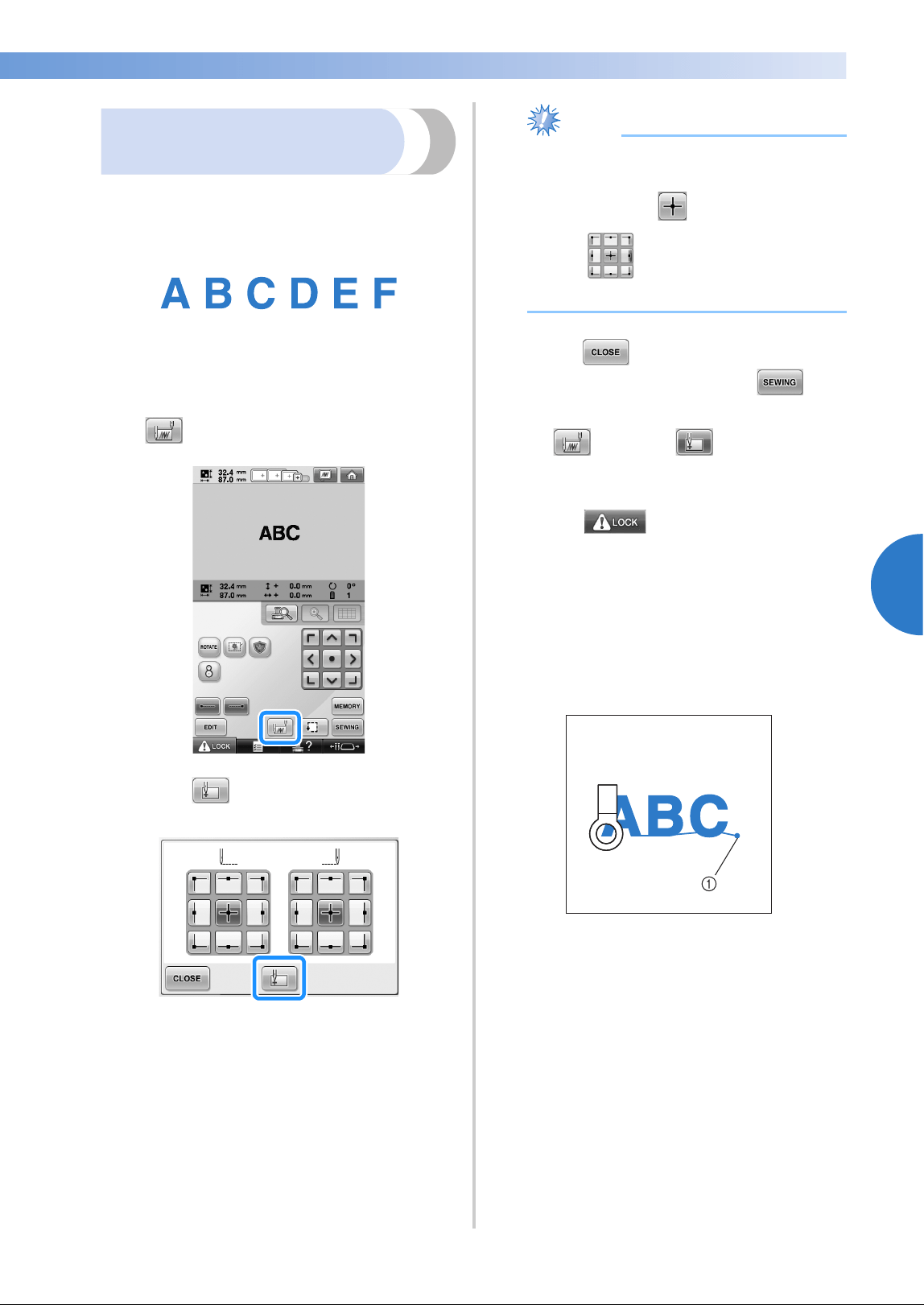
Starting/Ending Position Settings 137
——
————————————————————————————————————————————————————————————
—
——————————————————————
4
Embroidering linked
characters
Follow the procedure described below to
embroider linked characters in a single row when
the pattern extends beyond the embroidery frame.
Example: Linking “DEF” to the characters “ABC”
1
Select the character patterns for “ABC”.
2
In the embroidering settings screen, touch
.
3
Touch .
X The needle bar is positioned in the lower-
left corner of the pattern. The embroidery
frame moves so that the needle is
positioned correctly.
Note
● To cancel the starting point setting and
return the starting point to the center of the
pattern, touch .
● Use to select a different starting
point for embroidering.
4
Touch to return to the embroidering
settings screen, and then touch to
continue to the embroidering screen.
X changes to while the starting
point is set in the lower-left corner of the
pattern.
5
Touch , and then press the start/
stop button to begin embroidering.
6
After the characters are embroidered, cut
the threads to a generous length, remove the
embroidery frame, and then attach the
embroidery frame again so that the
remaining characters (“DEF”) can be
embroidered.
1 End of the embroidering
7
As in step 1, select the character patterns
for “DEF”.
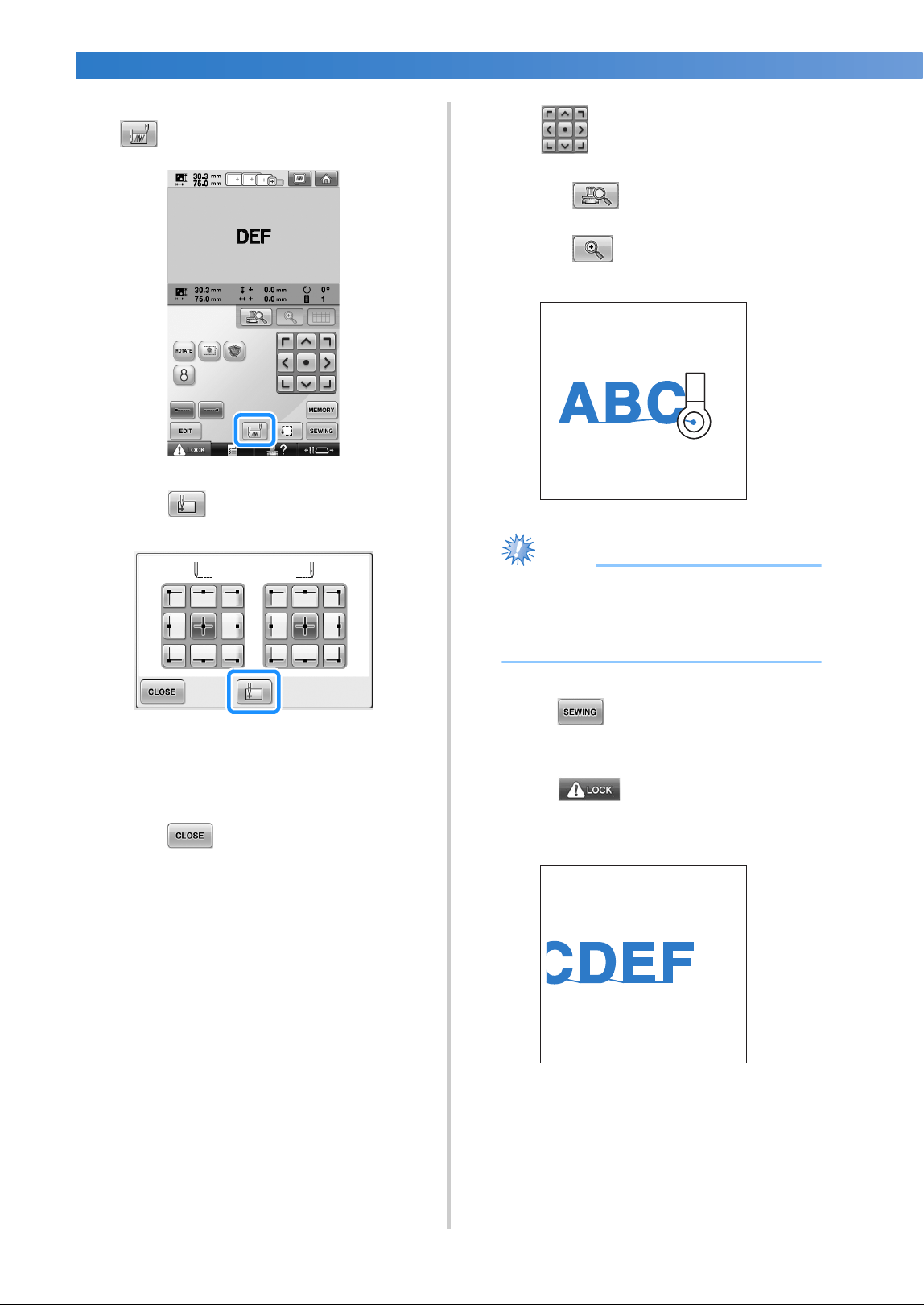
EMBROIDERING SETTINGS
—
———————————————————————————————————————————————————————————————
——
138
8
In the embroidering settings screen, touch
.
9
Touch .
X The needle bar is positioned in the lower-
left corner of the pattern. The embroidery
frame moves so that the needle is
positioned correctly.
0
Touch .
a
Use to align the needle with the end
of embroidering for the previous pattern.
• Touch to check the needle drop
point on the LCD screen.
• Touch to zoom up the camera view
twice the size of normal view.
Note
● You can also follow the procedure in
page 100 to find the sewing position, by
directly place the needle over the end of
the previous pattern.
b
Touch .
c
Touch , and then press the start/
stop button to begin embroidering the
remaining character patterns.
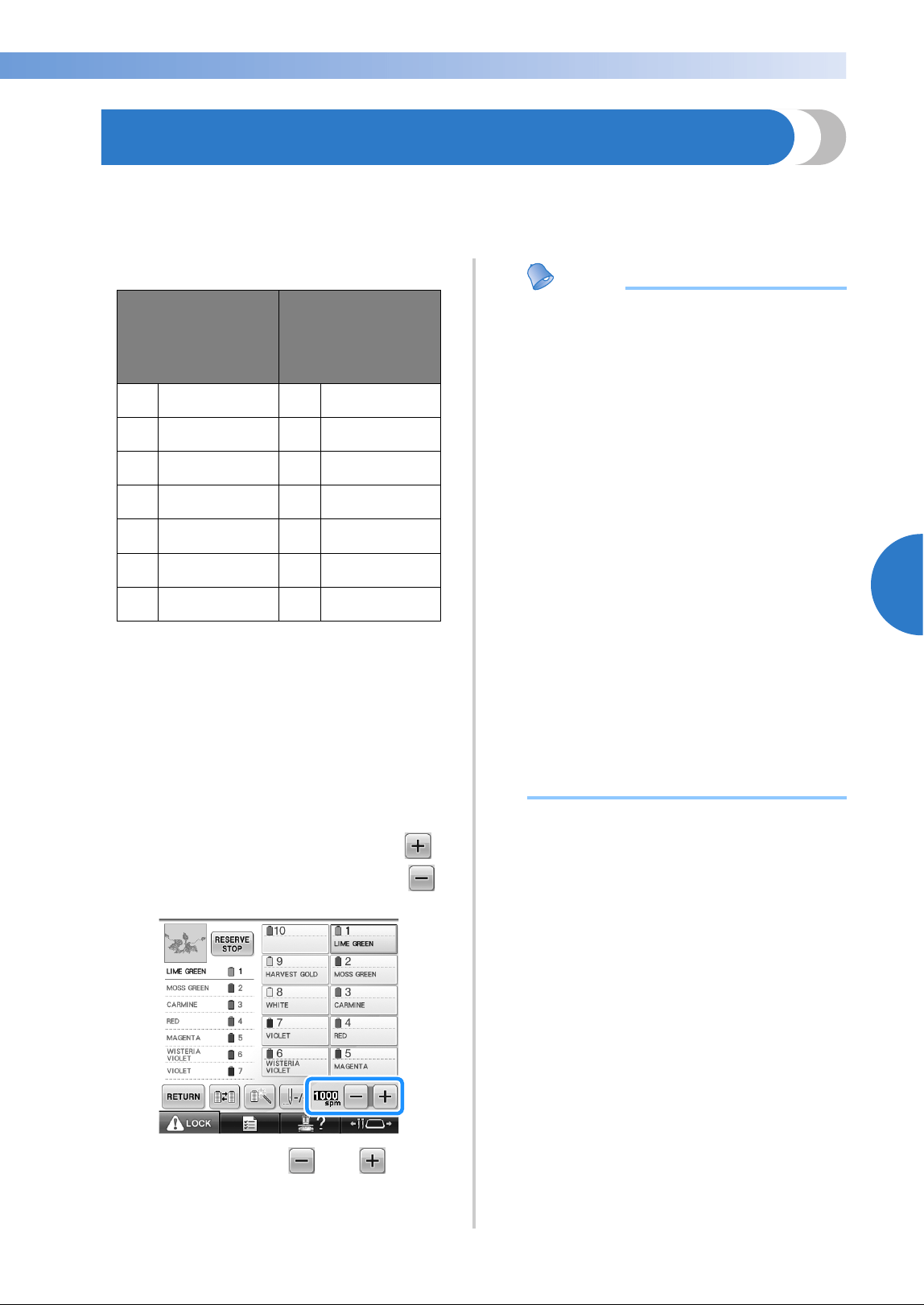
Maximum Sewing Speed Setting 139
——
————————————————————————————————————————————————————————————
—
——————————————————————
4
Maximum Sewing Speed Setting
The maximum sewing speed can be set to one of five levels at every 100 spm between 400 and 1000 spm. If
the cap frame or the cylinder frame is used, the maximum sewing speed can be set to one of five levels at
every 50 spm between 400 and 600 spm.
Maximum sewing speed
The maximum sewing speed setting is specified
from the embroidering screen.
When the embroidery machine is purchased, the
maximum sewing speed is set to 1000 spm (Cap
frame or cylinder frame for 400 spm).
The cap frame, cylinder frame, round frame and flat
frame are not included accessories; however, they
are available as an option.
1
To increase the sewing speed, touch .
To decrease the sewing speed, touch .
X The value beside and changes.
Memo
● You can also specify a maximum sewing
speed to a certain needle bar in the
reserved needle bar settings (refer to
page 146). When you set the slower
sewing speed to a certain needle bar, the
sewing speed set with the procedure
described in this page, will not change the
sewing speed on the balance of the
needles. It changes the speed of the
reserved needle.
● Decrease the sewing speed when
embroidering on thin, thick or heavy
fabrics. In addition, the machine
embroiders more quietly at a slower
sewing speed.
● The sewing speed can be changed while
embroidery is being sewn.
● The maximum sewing speed setting does
not change until a new setting is selected.
The setting specified before the machine is
turned off remains selected the next time
that the machine is turned on.
● Decrease the sewing speed to 400 spm,
when using a weak thread like a metallic
thread.
Embroidery frame/
Flat frame/
Round frame/
or other frames
Cap frame/
Cylinder frame
1 1000 1 600
2 900 2 550
3 800 3 500
4 700 4 450
5 600 5 400
6 500 – –
7 400 – –
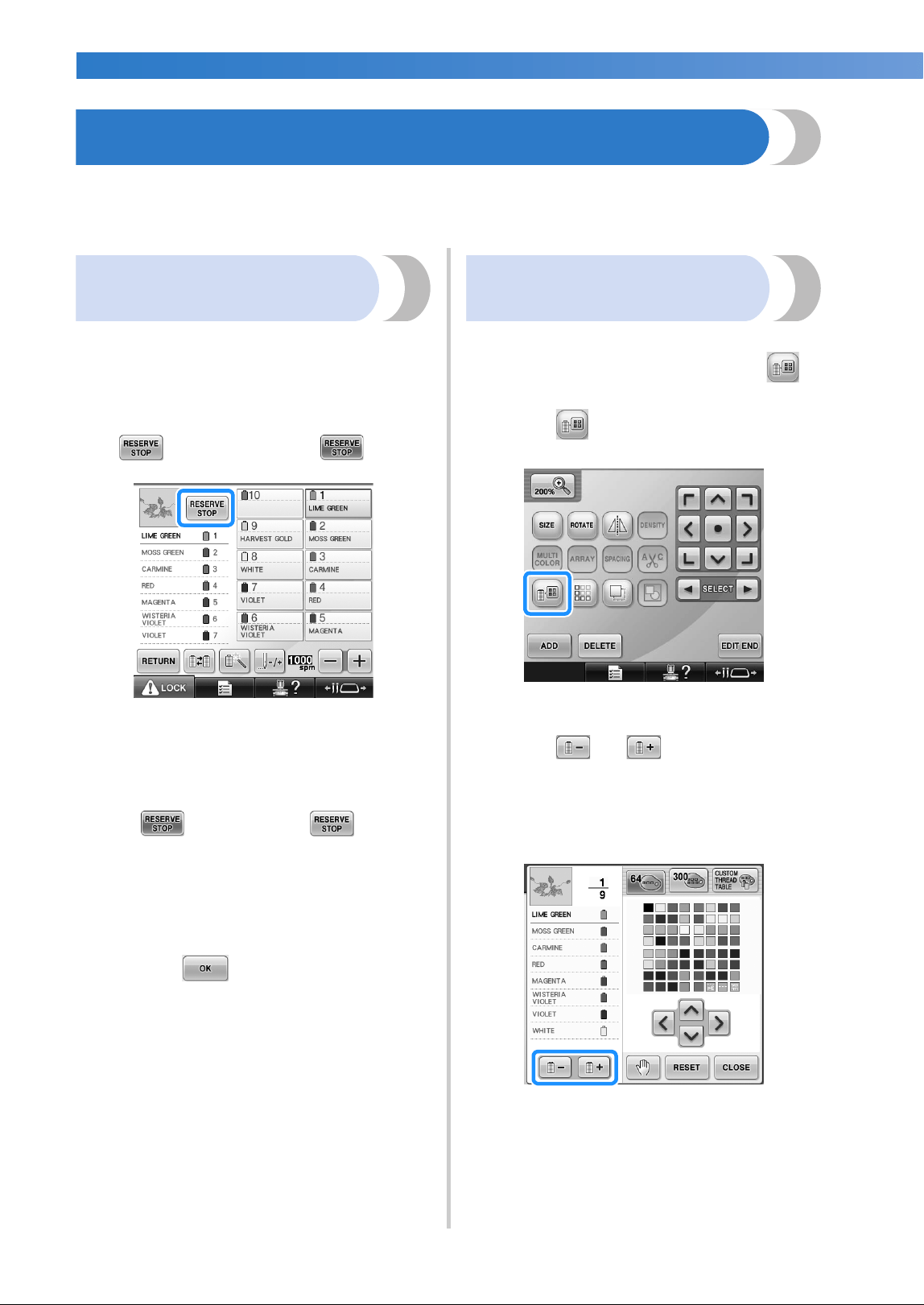
EMBROIDERING SETTINGS
—
———————————————————————————————————————————————————————————————
——
140
Setting the Machine to Stop at Color Changes
The machine can be stopped at any time; however, if the machine is stopped while it is embroidering, it is
better to go back a few stitches before continuing sewing to overlap the stitching. If the machine stops at a
color change, it is not necessary to go back through the stitching before continuing embroidering.
Stopping the machine at the
next color change
The machine can be set to stop before sewing the
next color.
1
While sewing the color before the point
where you wish to stop the machine, touch
so that it changes to .
2
After finishing sewing the area for the
current color, the next needle bar moves
into position and the machine stops before
sewing the next color.
X changes back to .
• If the machine is temporarily turned off,
you will be asked if you wish to continue
sewing or select a new pattern when the
machine is turned on again.
Touch to continue embroidering.
(Refer to “Resume Embroidering After
Turning Off the Machine” on page 120.)
Specifying pause locations
before embroidering
Pause locations can be specified in the change
thread color screen, displayed by touching .
1
Touch in the pattern editing screen.
X The change thread color screen appears.
2
Touch and so that the color at
the top of the thread color sequence display
is the color where you wish to stop the
machine before sewing it.
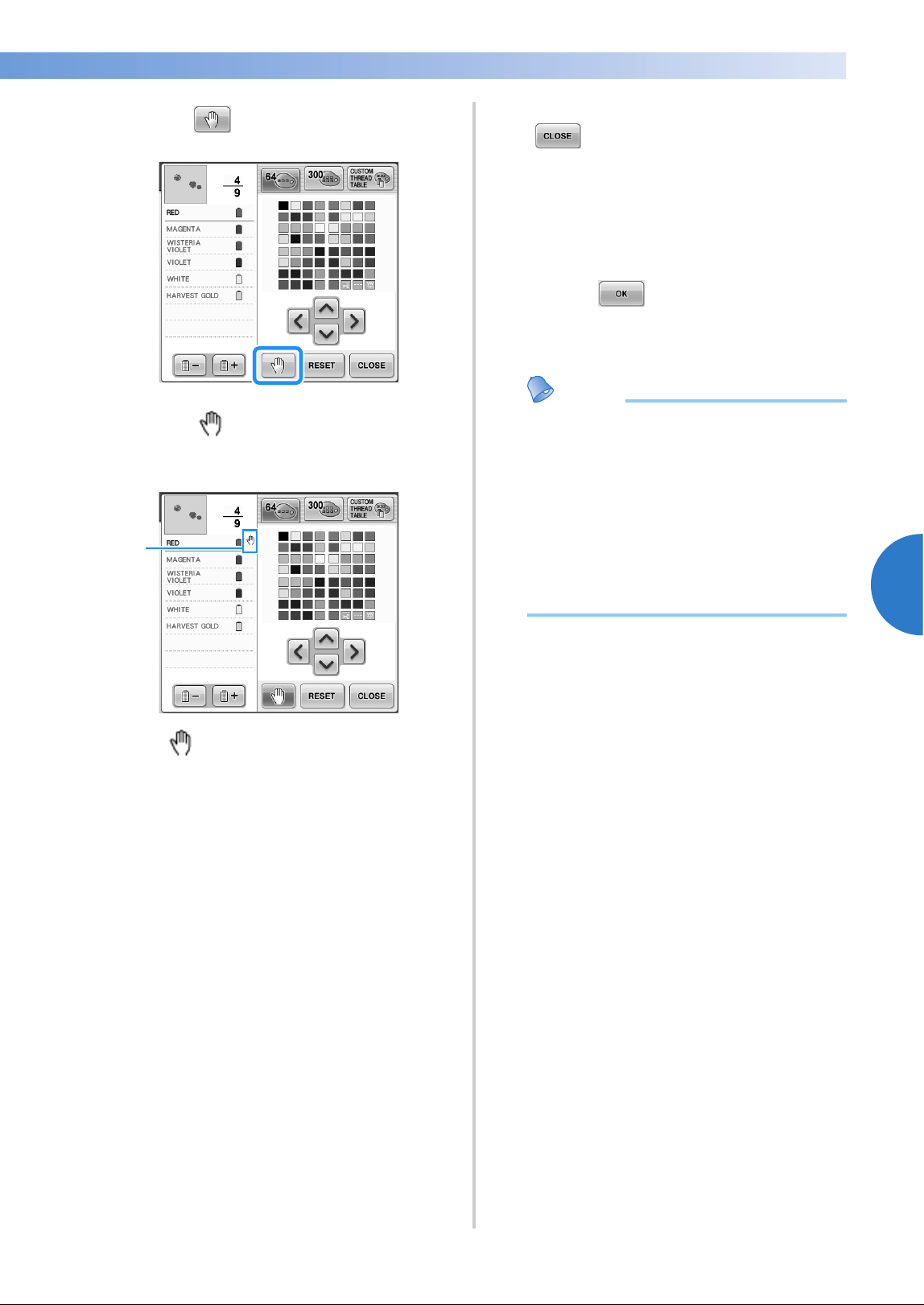
Setting the Machine to Stop at Color Changes 141
——
————————————————————————————————————————————————————————————
—
——————————————————————
4
3
Touch .
X The mark appears to indicate where
the machine will stop.
1 mark
4
Repeat steps 2 and 3 for each pause that
you wish to specify.
• Any number of pauses can be specified.
5
After specifying the desired settings, touch
.
• If the machine is temporarily turned off
when it is stopped at the specified location
after embroidering, you will be asked if you
wish to continue sewing or select a new
pattern when the machine is turned on
again.
Touch to continue embroidering.
(Refer to “Resume Embroidering After
Turning Off the Machine” on page 120.)
Memo
● If the machine is temporarily turned off,
the settings to stop the machine at color
changes specified before the machine was
turned off are not cancelled. However, the
settings are cancelled if a new pattern is
selected.
● If a pattern with the settings to stop the
machine at color changes is saved, the
settings to stop the machine at color
changes are also saved.
1
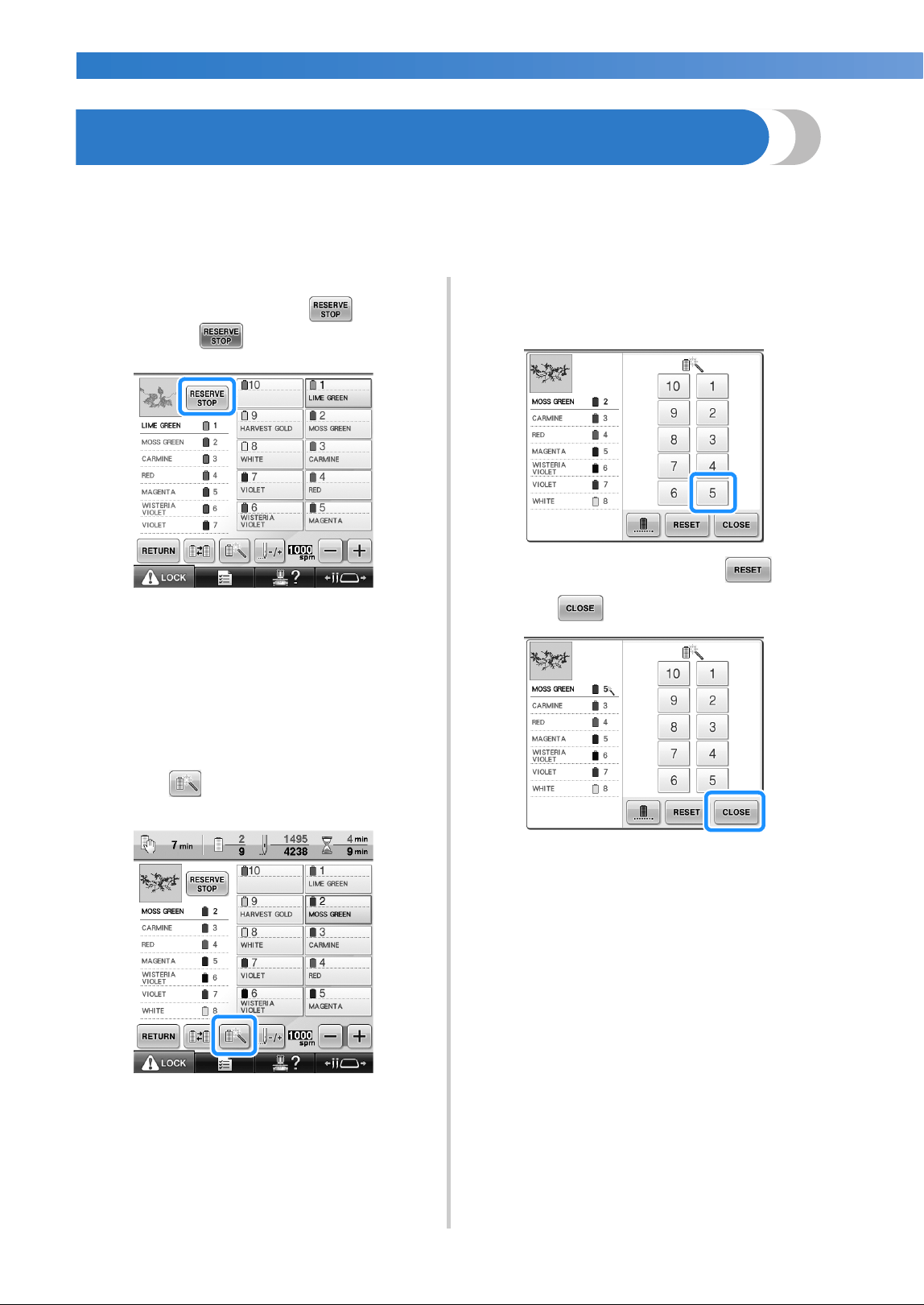
EMBROIDERING SETTINGS
—
———————————————————————————————————————————————————————————————
——
142
Temporary Needle Bar Setting
After embroidering begins, the machine can be stopped at a color change and a different needle bar can be
specified for the next color to be sewn.
By substituting an upper thread color already threaded on a different needle bar, the time for sewing can be
saved. For example, similar color thread can be substituted for temporary use.
1
While sewing the color before the one that
you wish to change, touch so that it
changes to .
X After the color currently being sewn is
finished, the threads are trimmed and the
machine stops.
• The start/stop button can be pressed at the
color change to stop the machine, but, in
that case, stop the machine after the
threads are trimmed.
2
Touch .
X The temporary needle bar setting screen
appears.
3
Touch the key for the needle bar threaded
with the thread that you wish to embroider
with.
X To cancel the setting, touch .
4
Touch .
X The embroidering screen appears again.
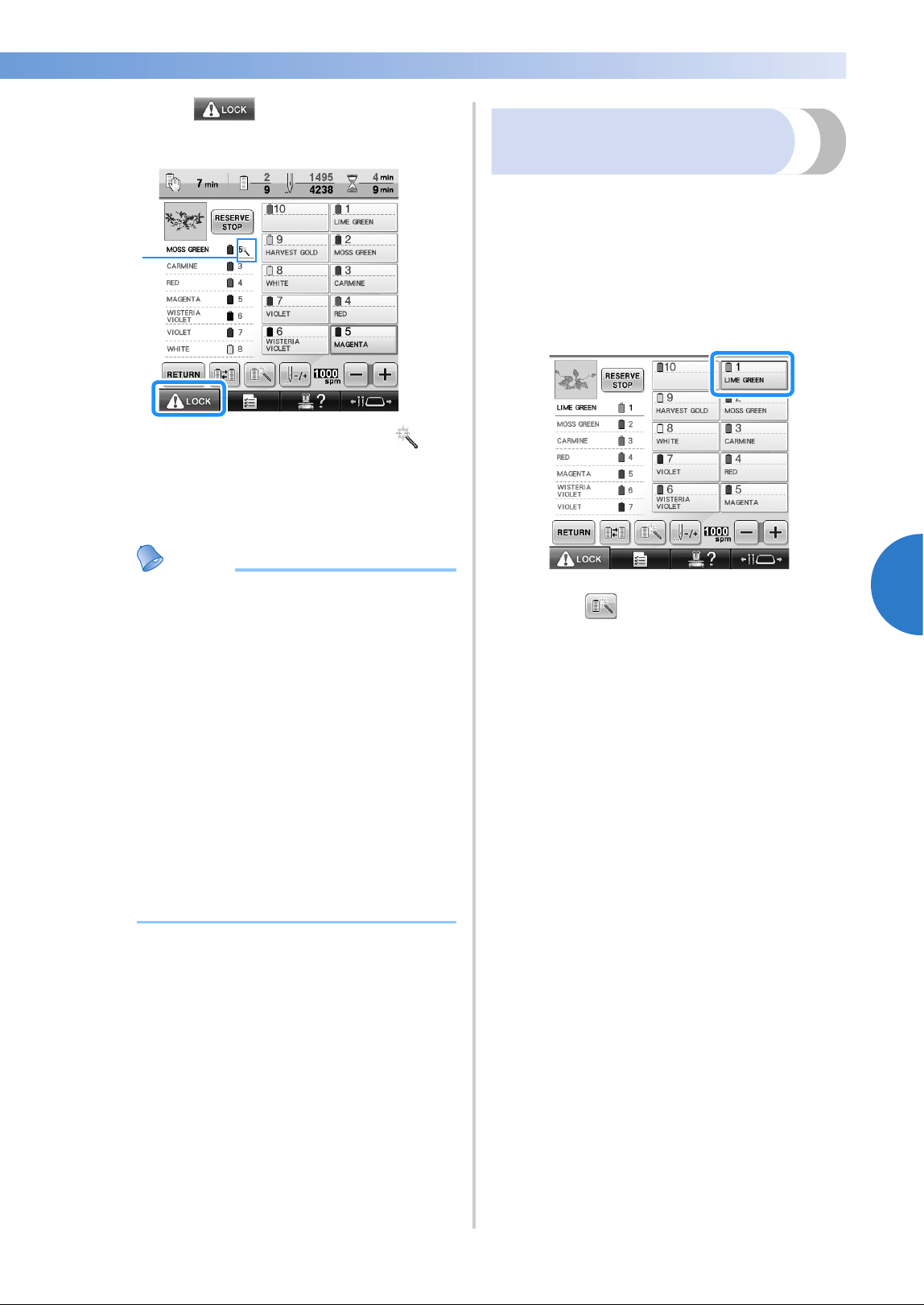
Temporary Needle Bar Setting 143
——
————————————————————————————————————————————————————————————
—
——————————————————————
4
5
Touch , and then press the start/
stop button to begin embroidering.
1 The needle bar number changes and
appears to indicate the selected needle bar.
X Embroidering continues with the specified
needle bar.
Memo
● Temporary needle bar setting only applies
until the next color change. If the pattern
contains another area with the same color
or when the same pattern is sewn the next
time, the area is sewn with the original
color.
● The thread color (needle bar) can be
changed with this procedure even when
the machine has been stopped with a
specified pause or at the time of spool
change.
● If the start/stop button was pressed to stop
the machine while an area was being
sewn, a temporary needle bar setting
cannot be applied. The thread color
(needle bar) cannot be changed in the
middle of an area that is being sewn.
Uninterrupted embroidering
(monochrome)
A selected pattern can be stitched out in one color
instead of multicolor. The machine will hesitate but
not stop between color steps, and then continue till
the pattern is completed.
1
Touch the key for the needle bar threaded
with the thread you wish to embroider
uninterruptedly.
2
Touch .
X The temporary needle bar setting screen
appears.
1
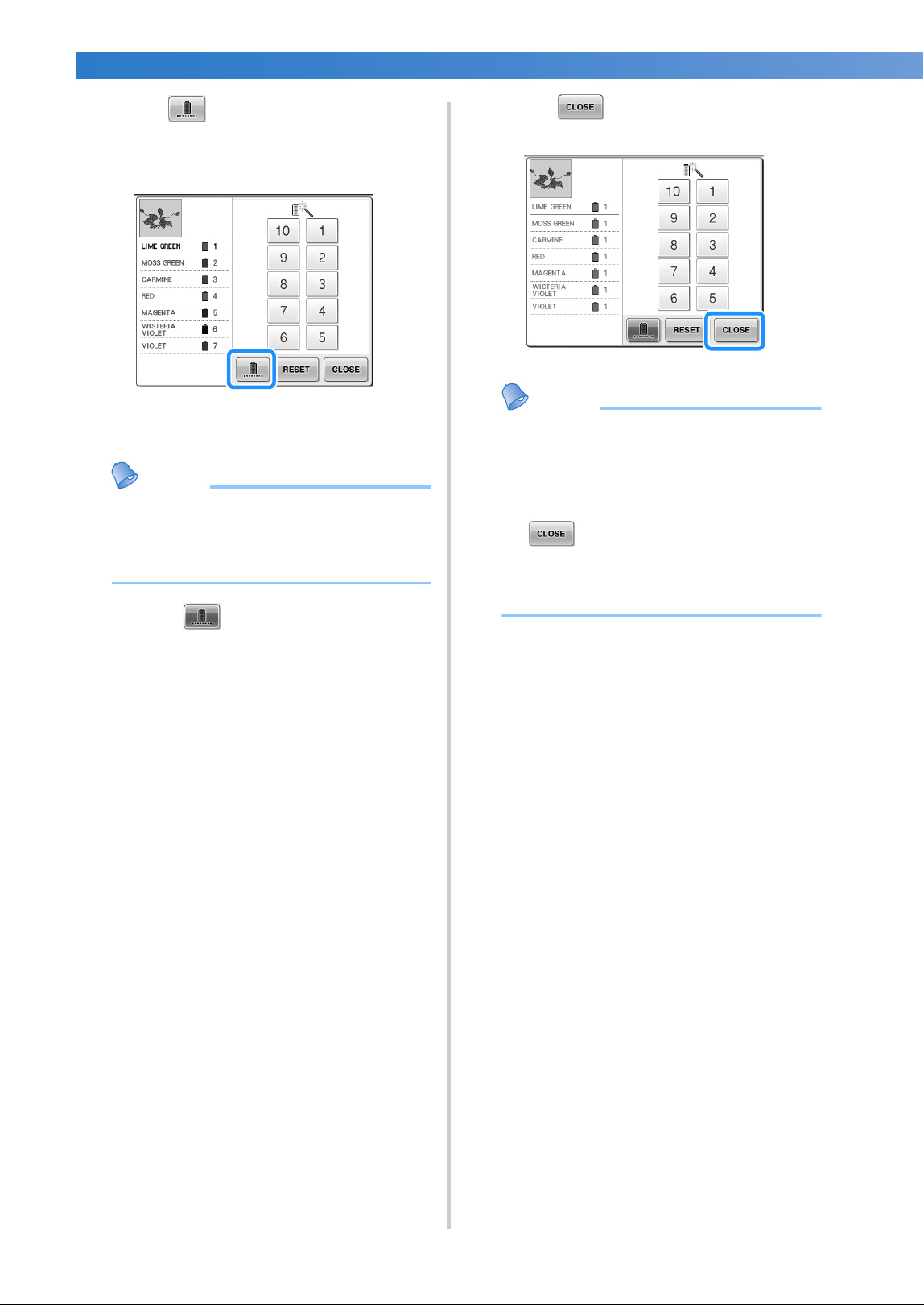
EMBROIDERING SETTINGS
—
———————————————————————————————————————————————————————————————
——
144
3
Touch for the multicolor steps to
become shaded and the selected pattern will
embroider in a single color, instead of
changing the thread while embroidering.
X The thread color displayed on the screen
will be grayed out.
Memo
● If you touch any key of the needle bar
number above, the temporary needle bar
setting will be activated. (Refer to
page 142.)
• Touch again to return to the
pattern’s original settings.
4
Touch .
Memo
● Even if uninterrupted embroidering has
been set, the DST thread trimming
function can be used (refer to page 225).
● You can select the needle bar on the
embroidering screen, even after touching
in step
4.
● After finishing the embroidery,
uninterrupted embroidery will be
canceled.
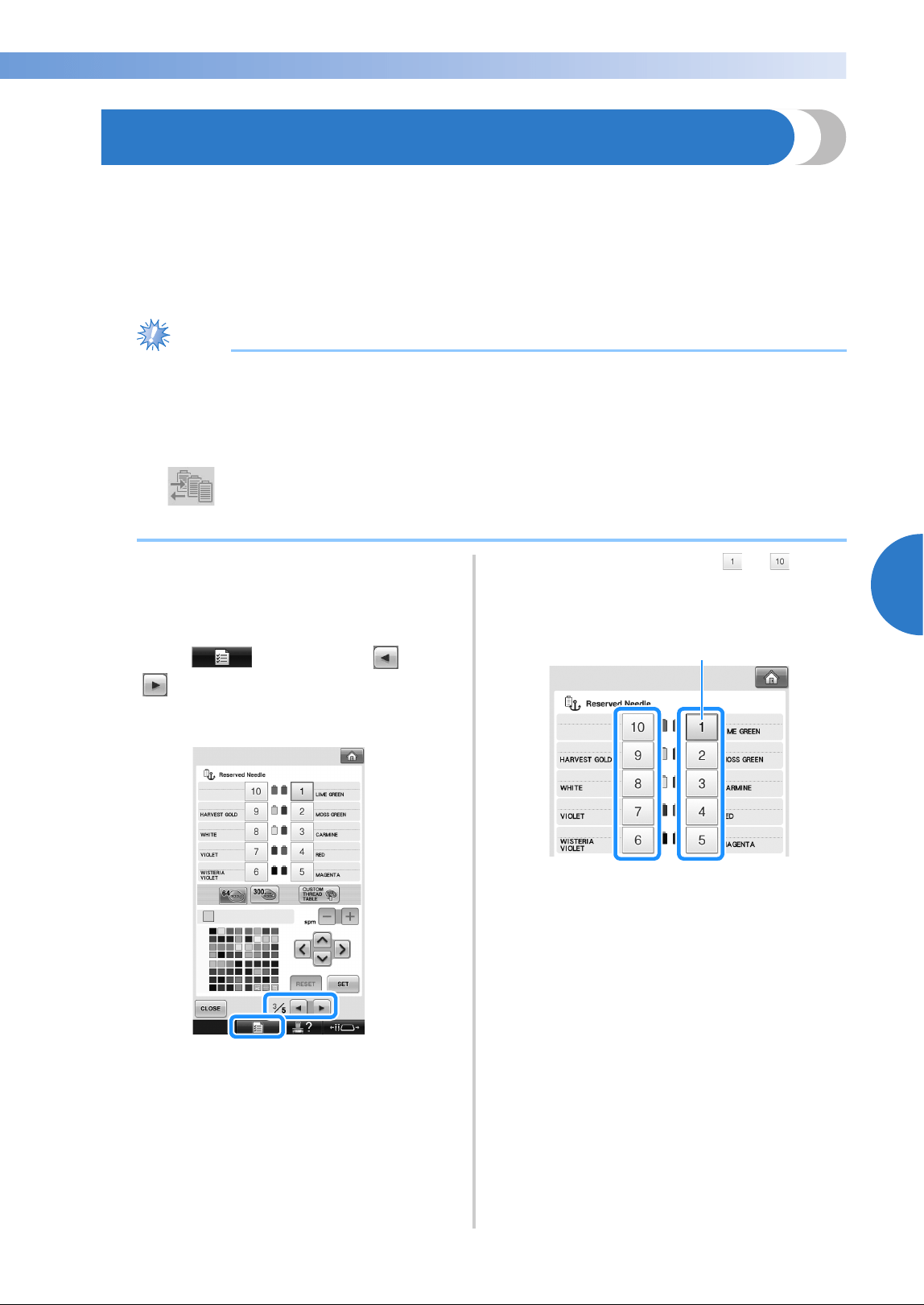
Reserved Needle Bar and Sewing Speed Settings 145
——
————————————————————————————————————————————————————————————
—
——————————————————————
4
Reserved Needle Bar and Sewing Speed Settings
Normally, the machine automatically assigns thread colors to the needle bars; however, a specific thread
color can be manually assigned to a certain needle bar. If a needle bar is specified, that needle bar is
removed from the machine’s automatic assignments and the specified color remains assigned to it.
By specifically assigning often used thread colors to certain needle bars, the trouble of changing the thread
spools can be reduced.
Also, the maximum sewing speed can be specified to the assigned needle bar. It is useful when you specially
set a weak thread such as a metallic thread to the assigned needle bar.
Note
● This feature is not accessible through the embroidering screen.
● You can assign thread colors up to 9 needle bars in normal mode. When you set “Manual Color
Sequence” to “ON” in settings screen, it is available to assign up to 10 needle bars. If you assign all
the 10 needle bars in the “Manual color sequence” mode, and then you set the machine to the
normal mode, the setting of needle bar 10 is canceled automatically.
Refer to “Selecting/Managing Thread Colors for Each Needle Bar (Manual Color
Sequence)” on page 132
Once a manual needle bar setting is specified, it
remains applied until the setting is cancelled.
The manual needle bar settings can be specified in
page 3/5 of the settings screen.
1
Touch , and then touch and
to display page 3/5 of the settings
screen.
2
Touch any of the key from to for the
number of the needle bar that you wish to
specify.
1 Indicates the number of the selected needle bar
1
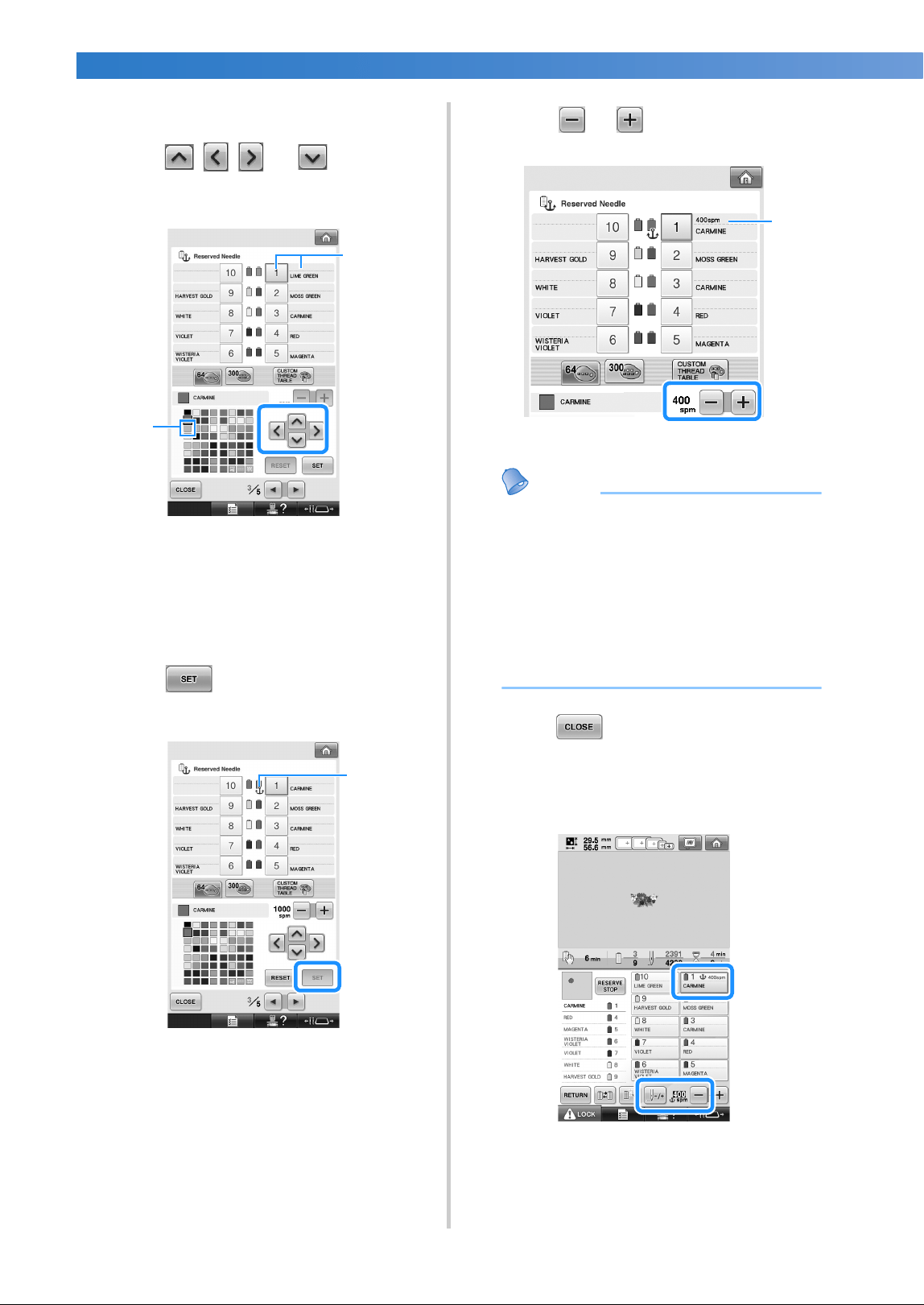
EMBROIDERING SETTINGS
—
———————————————————————————————————————————————————————————————
——
146
3
Select the color to be assigned to the needle
bar.
Touch , , and until the color
that you wish to select from the thread table
appears enlarged.
1 The color that appears enlarged is the color that
is selected.
2 Displays the color that is selected and its name
X Highlighting a color square moves in the
direction of the arrow on the key that is
touched.
4
Touch .
X The color selected in step
3 is specified.
1 The selected color of thread and the anchor
appear on the spool.
5
Touch or to set the maximum
sewing speed for the assigned needle bar.
1 Value of maximum sewing speed setting
Memo
● Decrease the sewing speed to 400 spm,
when you specially set a specialty thread
such as a metallic thread to the assigned
needle bar.
● The maximum sewing speed specified
here is always effective to the assigned
needle bar, even if you set the faster speed
in the embroidering screen (refer to
page 139).
6
Touch .
• Specified needle bar is indicated with
anchor mark and the specified maximum
sewing speed in the embroidering screen.
2
1
1
1
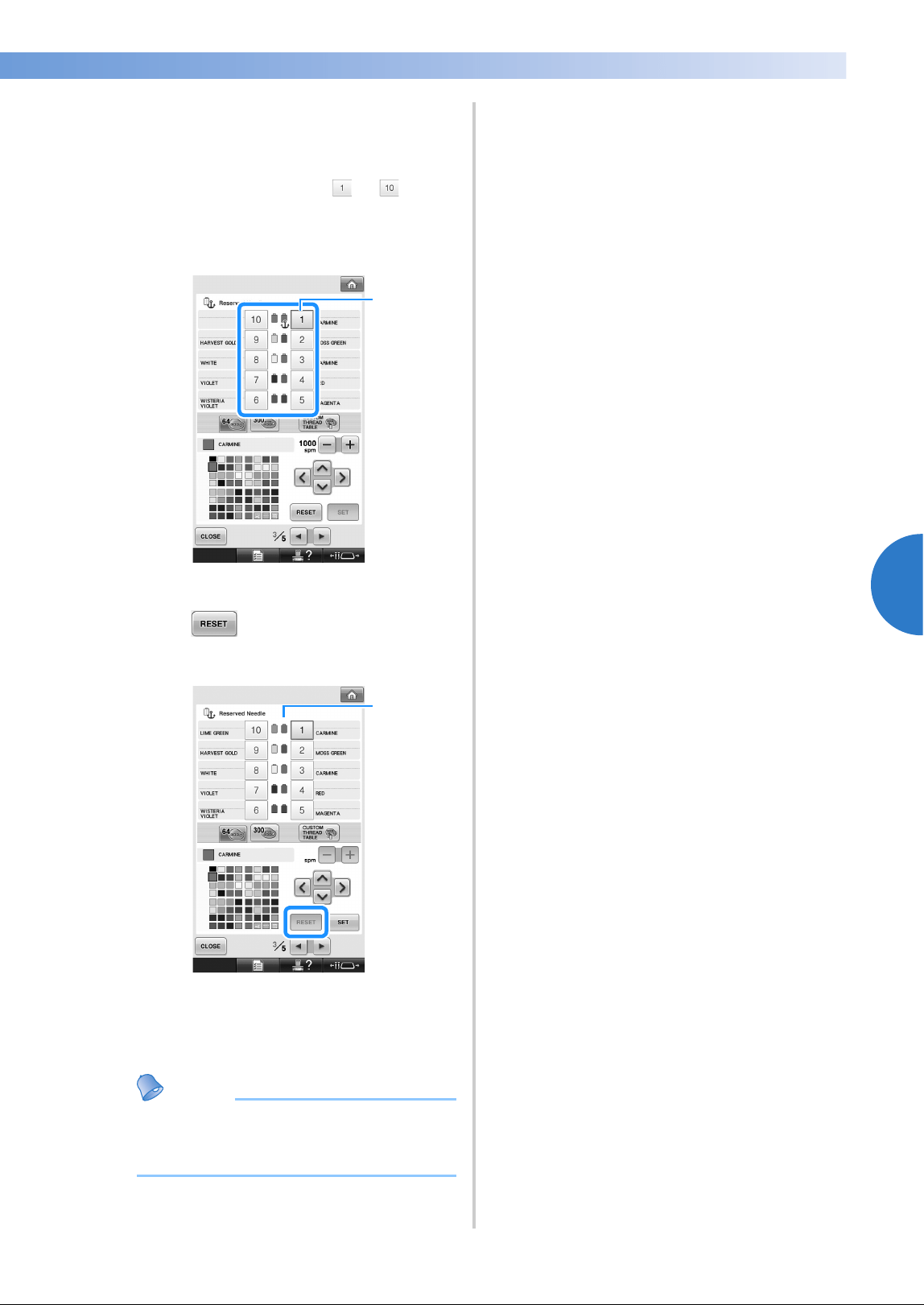
Reserved Needle Bar and Sewing Speed Settings 147
——
————————————————————————————————————————————————————————————
—
——————————————————————
4
■ Cancelling the setting
To change the setting, first cancel it, and then
select the new setting.
1
Touch any of the key from to for the
number of the needle bar whose setting you
wish to cancel.
1 Indicates the number of the selected needle bar
2
Touch .
1 The anchor disappears from the thread spool.
X This cancels the manual needle bar
setting.
Memo
● Follow the procedure from step 3 on
page 146, to assign the other thread color
to the needle bar you canceled the setting.
1
1

EMBROIDERING SETTINGS
—
———————————————————————————————————————————————————————————————
——
148

5
SELECTING/EDITING/SAVING PATTERNS
This chapter provides details on selecting, editing and saving embroidery patterns.
Precautions ...................................... 150
Concerning embroidery data ........ 150
Concerning optional embroidery
cards ...........................................152
Concerning USB media ................ 152
Selecting an Embroidery Pattern ...... 153
General pattern selection.............. 153
Embroidery patterns...................... 154
Frame patterns .............................. 154
Monogram and frame designs....... 155
Alphabet patterns.......................... 159
Floral alphabet patterns ................ 162
Renaissance alphabet patterns ...... 163
Appliqué alphabet ........................ 164
Greek alphabet patterns................ 165
Embroidery patterns stored in the
machine memory.......................... 165
Embroidery cards (optional) .......... 166
Computer (USB)............................ 168
Connecting the USB using the
included USB cord clamps ........... 171
USB media ...............................173
Sending Embroidery Patterns From a Computer
to the Machine (Link Function)....................176
Operations available with the Link
function ........................................ 176
Embroidering using the Link function ......177
Disabling the Link function........... 180
Editing the Embroidery Pattern
(Pattern Editing Screen).................... 181
Enlarge the pattern image on the screen....... 181
Combining patterns ...................... 181
Selecting the pattern to be edited.........182
Moving a pattern ..........................183
Flipping a pattern horizontally ......184
Changing the size of a pattern.......184
Rotating a pattern .........................185
Changing the text arrangement of a
character ......................................186
Changing the character spacing ....187
Separating combined character patterns ...... 188
Trimming the threads between
characters .....................................189
Changing the thread density (only for selected
character and frame patterns) ..................189
Specifying multi-color text ............190
Changing the colors of the pattern
....190
Designing repeated patterns .............192
Creating a custom thread table.........200
Choosing a color from the custom
thread table ..................................202
Duplicating a pattern........................203
Editing patterns as a group................204
Deleting a pattern .............................204
Editing the Embroidery Pattern
(Embroidering Settings Screen).........205
Rotating the entire pattern.............205
Editing a Combined Pattern..............206
Saving Embroidery Patterns..............211
Machine’s memory .......................211
If the embroidery pattern cannot be
saved ............................................211
USB media...............................213
Computer (USB) .......................214

SELECTING/EDITING/SAVING PATTERNS
—
——————————————————————————————————————————————————————
——
150
Precautions
Concerning embroidery data
Observe the following precautions when using embroidery data other than that created and saved in this
machine.
CAUTION
■ Types of embroidery data that can be used
• Only .pes, .phc and .dst embroidery data files can be used with this machine. Using pattern data other than
those saved using our data design systems or sewing machines may cause this embroidery machine to
malfunction.
■ Types of USB Devices/Media that can be Used (through USB Type “A” (host) connector)
Stitch data can be saved to or recalled from USB media. Use media that meets the following
specifications.
• USB Floppy disk drive
• USB Flash drive (USB Flash memory)
• USB CD-ROM, CD-R, CD-RW drives (recalling only)
Memo
● Stitch/embroidery data cannot be saved using a USB CD-ROM, CD-R or CD-RW drive.
● USB devices/media can be used only through the primary (top) USB port for media or the USB port for
mouse. USB port for computer is only for a computer connection.
You can also use the following types of media with the USB Memory Card Reader/Writer.
• Secure Digital (SD) Card
• CompactFlash
• Memory Stick
•SmartMedia
• MultiMediaCard (MMC)
• xD-Picture Card
Note
● Some USB media may not be usable with this machine. Please visit our website
“http://solutions.brother.com” for more details.
● USB hubs cannot be used through the primary (top) USB port for media or the USB port for mouse. The
machine will not recognize the above USB devices or USB memory cards through a USB hub.
● The access lamp will begin blinking after inserting USB Devices/Media, and it will take about 5 to 6
seconds to recognize the Devices/Media. (Time will differ depending on the USB Device/Media.)
● Do not unplug a USB device/media from this machine immediately after it has been plugged in. Be sure
to wait at least 5 seconds before unplugging the USB device/media.
● For additional information, refer to the instruction manual included with the USB media that you have
purchased.
● While using embroidery data other than our original patterns, the thread or needle may break
when sewing with a stitch density that is too fine or when sewing three or more overlapping
stitches. In that case, use one of our original data design systems to edit the embroidery data.
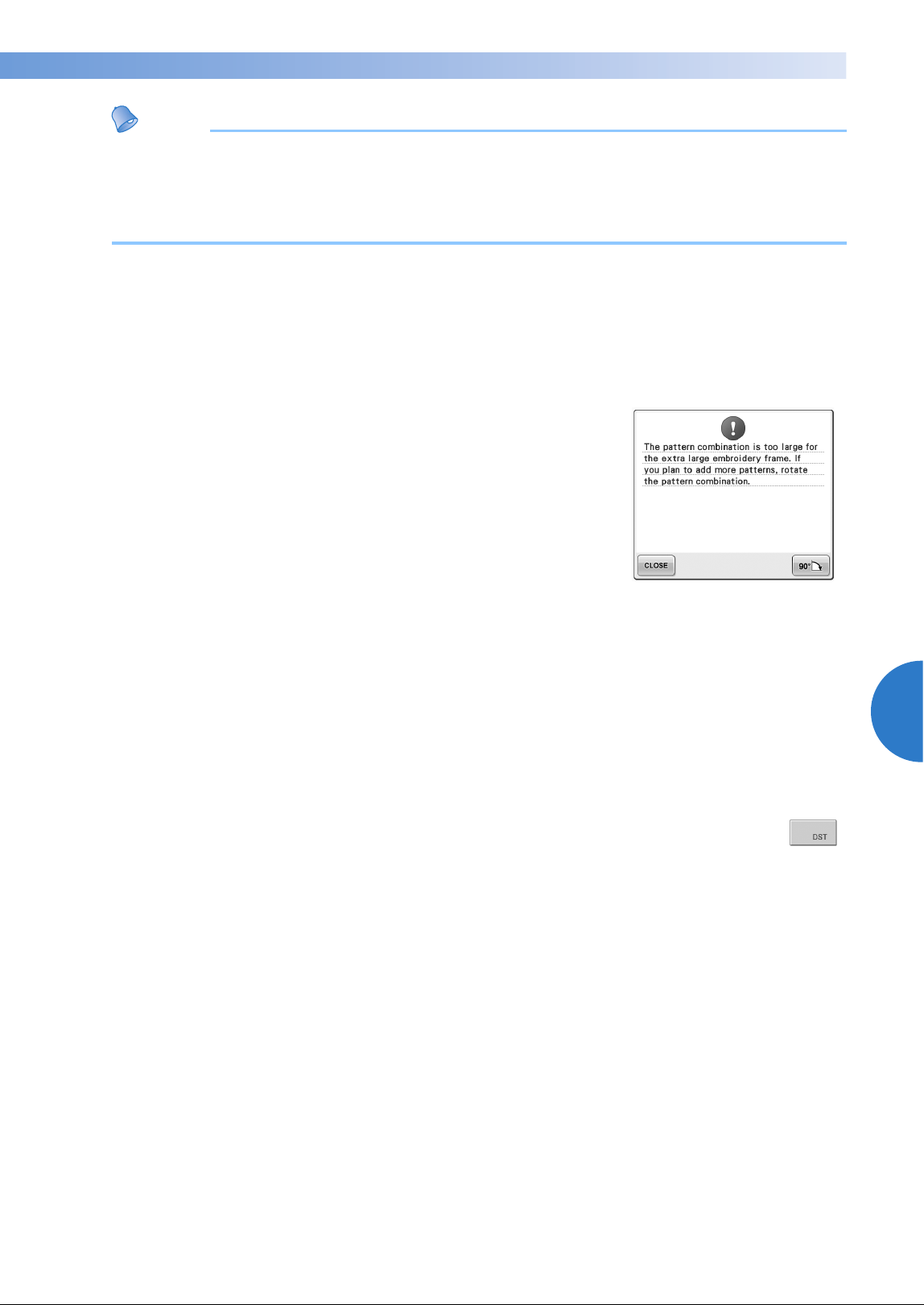
Precautions 151
——
—————————————————————————————————————————————————————————————————————
—
—————————————
5
Memo
● When a file folder is necessary to create, use a computer.
● Letters and numerals can be used in the file names. In addition, if the file name contains no more than
eight characters, the entire file name will appear on the screen.
If the file name is more than eight characters long, only the first six characters followed by “~” and a
number appear as the file name.
■ Computers and Operating Systems with the Following Specifications can be Used
• Compatible models:
IBM PC with a USB port as standard equipment
IBM PC-compatible computer equipped with a USB port as standard equipment
• Compatible operating systems:
Microsoft Windows 2000/XP, Windows Vista, Windows 7
■ Precautions on using the computer to create data
• If the name of embroidery data file/folder cannot be identified, for
example, because the name contains special characters or symbols, the
file/folder is not displayed. If this occurs, change the name of the file/
folder. We recommend using the 26 letters of the alphabet (uppercase and
lowercase), the numbers 0 through 9, the dash “-”, and the underline “_”.
Do not use comma “,” or period “.” in the file name.
• If embroidery data larger than 200 mm (H) × 360 mm (W)
(approx. 7-7/8 inches (H) × 14 inches (W)) is selected, a message is shown
at the right asking if you wish to rotate the pattern 90 degrees.
Even after being rotated 90 degrees, embroidery data larger than 200 mm
(H) × 360 mm (W) (approx. 7-7/8 inches (H) × 14 inches (W)) cannot be used. (All designs must be within the
200 mm(H) × 360 mm(W) (approx. 7-7/8 inches (H) × 14 inches (W)) design field size.)
For more details, refer to page 167.
• .pes files saved with the number of stitches or the number of colors exceeding the specified limits cannot be
displayed. The combined design can not exceed a maximum number of 500,000 stitches or a maximum
number of 125 color changes (Above numbers are approximate, depending on the overall size of the design).
Use one of our design software programs to edit the embroidery pattern so that it meets these specifications.
• Do not create folders in “Removable disk” on a computer. If embroidery data is stored in a folder in
“Removable disk,” that embroidery data cannot be retrieved by the machine.
■ Tajima (.dst) embroidery data
• .dst data is displayed in the pattern list screen by their file names. (The actual image cannot be
displayed.) Only the first eight characters of the file name can be displayed.
• Since Tajima (.dst) data does not contain specific thread color information, it is displayed with our
default thread color sequence. Check the preview and change the thread colors as desired. For more details,
refer to page 246.
• You cannot select .dst data to send from a computer using the Link function. (Refer to the “Sending
Embroidery Patterns From a Computer to the Machine (Link Function)” on page 176.

SELECTING/EDITING/SAVING PATTERNS
—
——————————————————————————————————————————————————————
——
152
Concerning optional embroidery cards
• Do not disassemble or alter the embroidery cards.
• Do not forcefully bend, drop, scratch or place heavy objects on top of the embroidery cards.
• Do not allow the embroidery cards to become wet, such as with water, solvents, drinks or
any other liquids.
• Do not use or store the embroidery cards in a location exposed to strong static electricity or
electrical interference.
• Do not use or store embroidery cards in locations exposed to vibrations or impacts, direct
sunlight, extreme dust (or lint), high temperatures, high humidity, severe temperature
fluctuations, or strong magnetic forces (such as from speakers).
• To use optional embroidery cards to recall embroidery patterns, connect the embroidery card
reader/USB card writer module* to this machine.
• Store embroidery cards in their protective cases.
• If an embroidery card other than our original embroidery cards are used, the embroidery
machine may not operate correctly. Be sure to use only recommended embroidery cards.
• Some licensed or copyright embroidery cards cannot be used with this embroidery machine.
• Embroidery cards sold overseas cannot be used with this embroidery machine.
• Only insert or remove embroidery cards while an access lamp on the embroidery card
reader/USB card writer module* is not flashing, or while the embroidery machine is turned
off (refer to page 166).
* If you have purchased the PE-DESIGN Ver5 or later, PE-DESIGN Lite or PED-BASIC, you can plug the included
USB card writer module into the machine as an embroidery card reader, and recall patterns.
Concerning USB media
• Do not disassemble or alter the USB media.
• Do not allow the USB media to become wet, such as with water, solvents, drinks or any other
liquids.
• Do not use or store the USB media in a location exposed to strong static electricity or
electrical interference.
• Do not use or store USB media in locations exposed to vibrations or impacts, direct sunlight,
extreme dust (or lint), high temperatures, high humidity, severe temperature fluctuations, or
strong magnetic forces (such as from speakers).
• While embroidery data is being recalled from the USB media, do not allow the machine to be
exposed to vibrations or impacts, and do not attempt to remove the USB media from the machine.
• Some USB media may not be usable with this machine. Please visit our web site
“http://solutions.brother.com” for more details.
• Only remove USB media while an access lamp on the USB media is not flashing (refer to
page 173).
• For additional information, refer to the instruction manual included with the USB media that
you have purchased.
• Do not unplug a USB device/media from this machine immediately after it has been plugged
in. Be sure to wait at least 5 seconds before unplugging the USB device/media.
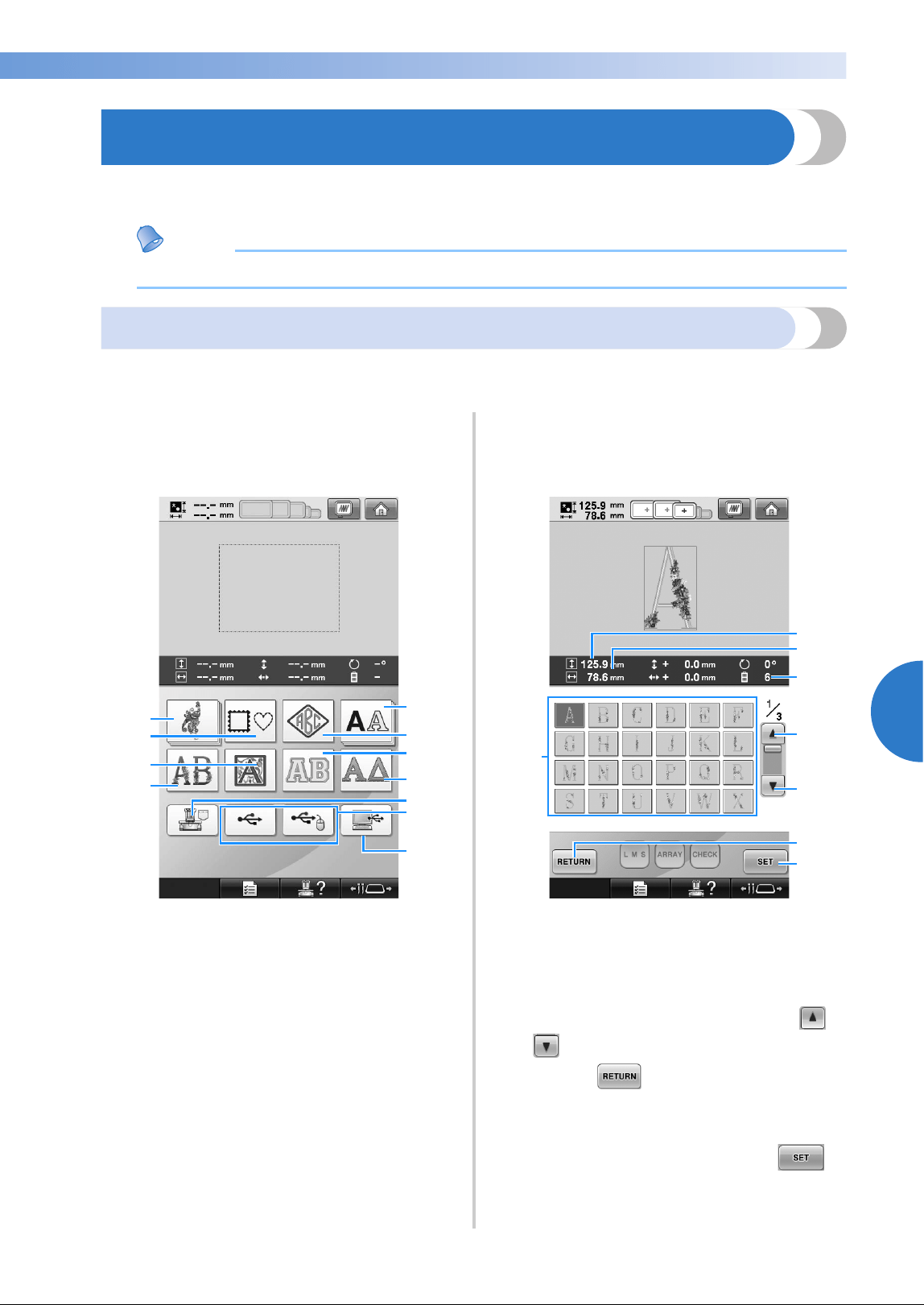
Selecting an Embroidery Pattern 153
——
—————————————————————————————————————————————————————————————————————
—
—————————————
5
Selecting an Embroidery Pattern
Various embroidery patterns are built into this machine. Other than the built-in patterns, various other
patterns can be selected from embroidery cards (optional) and from the computer.
Memo
● Refer to page 166 about recalling the embroidery pattern from the embroidery cards (optional).
General pattern selection
The procedure for selecting a pattern differs depending on the type of pattern; however, the general
procedure for selecting a pattern is described below.
1
In the pattern type selection screen, touch
the key for the desired category.
■ Pattern type selection screen
1 Embroidery patterns
2 Frame patterns
3 Renaissance alphabet patterns
4 Floral alphabet patterns
5 Alphabet patterns
6 Monogram and frame pattern
7 Appliqué alphabet
8 Greek alphabet patterns
9 Embroidery patterns stored in the machine’s
memory
0 USB media
A Computer (USB)
2
In the pattern list screen, which appears
next, touch the desired pattern to select it.
■ Pattern list screen
1 Pattern keys
Touch a pattern to display the following
information of the pattern.
2 Vertical length of the pattern
3 Horizontal width of the pattern
4 Number of thread color changes
5, 6 If there is more than one page, touch or
until the desired page is displayed.
7 Touch to return to pattern type
selection screen to change category.
8 Touch to confirm the pattern, and move to the
pattern editing screen.
• After selecting the pattern, touch .
3
2
1
5
8
0
9
A
4
6
7
2
4
1
3
5
6
8
7
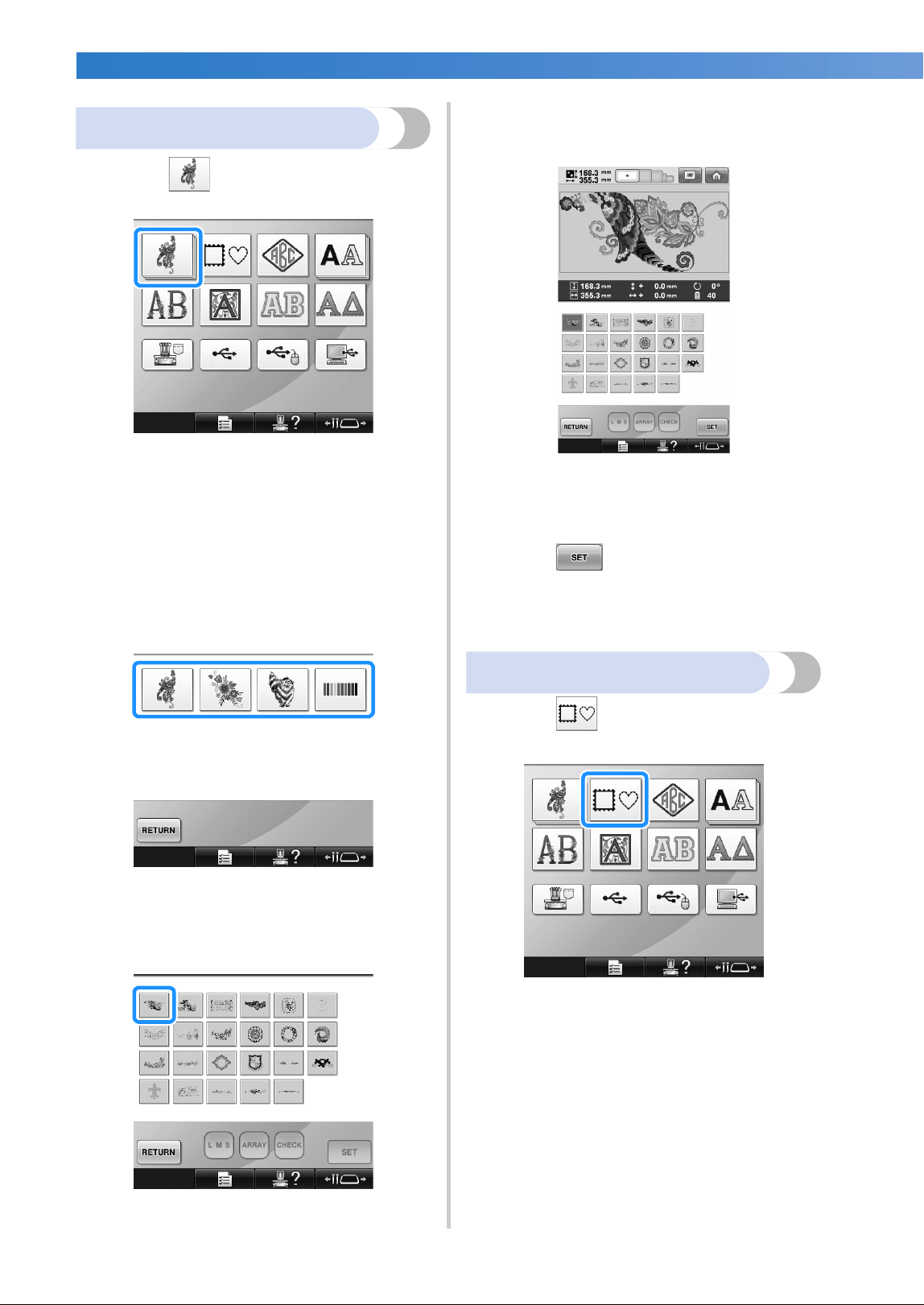
SELECTING/EDITING/SAVING PATTERNS
—
——————————————————————————————————————————————————————
——
154
Embroidery patterns
1
Touch .
X The embroidery pattern categories
appears.
• If the category that was selected appears as
multiple stacked keys, a sub-category can
be selected. Touch the key for the sub-
category containing the desired pattern.
2
Select an embroidery pattern category.
Touch the desired pattern.
X The list of embroidery patterns appears.
3
Select an embroidery pattern.
Touch the desired pattern.
X The selected pattern appears in the pattern
display area.
• If the wrong pattern was selected or you
wish to select a different pattern, touch the
desired pattern.
4
Touch .
This confirms the pattern selection.
X The pattern editing screen appears.
Frame patterns
1
Touch .
X The list of frame patterns appears.
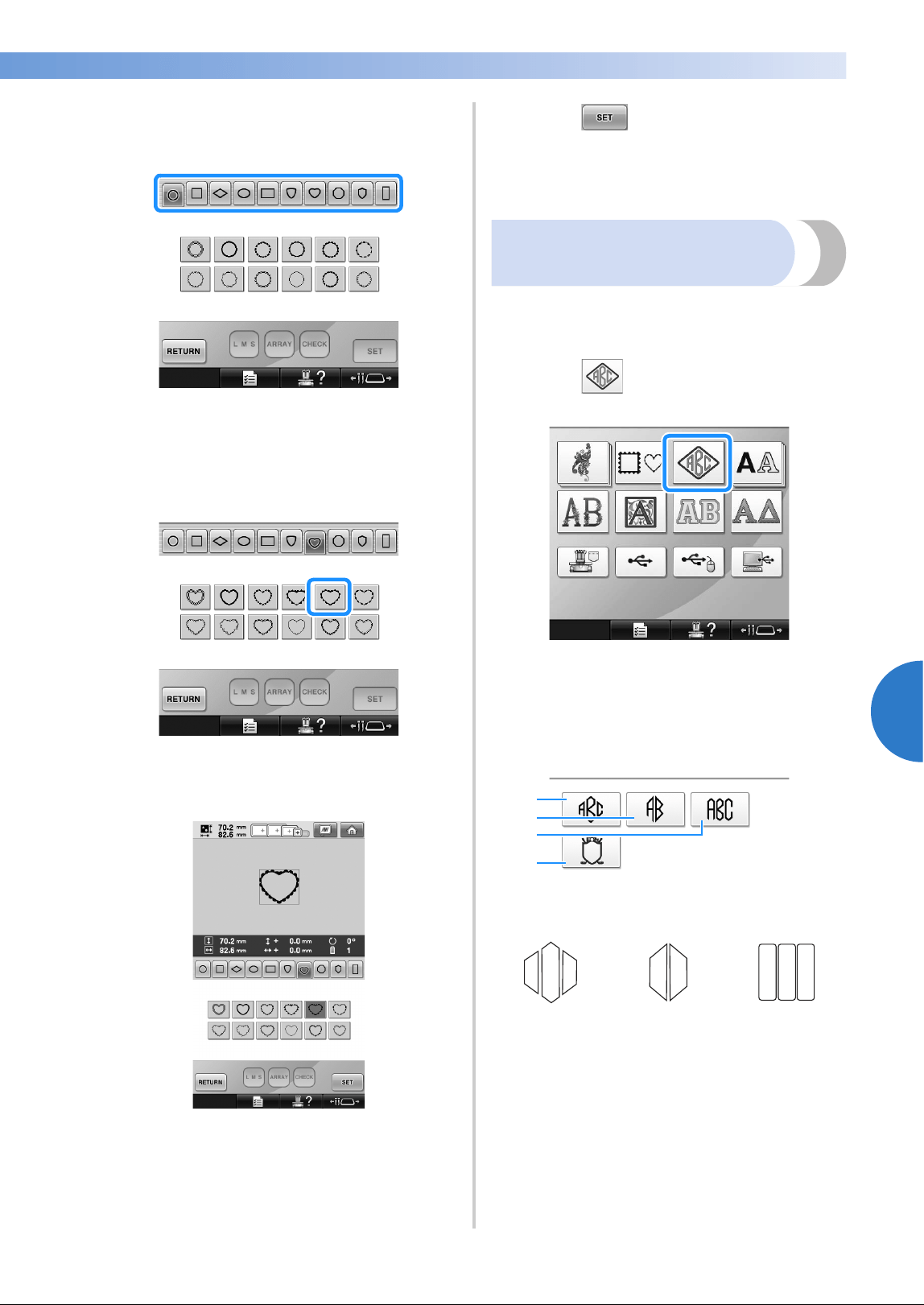
Selecting an Embroidery Pattern 155
——
—————————————————————————————————————————————————————————————————————
—
—————————————
5
2
From the upper tabs of the screen, select the
desired shape for the frame.
Touch the desired frame shape.
X The available frame patterns appear in the
lower half of the screen.
3
Select a frame pattern.
Touch the desired pattern.
X The selected pattern appears in the pattern
display area.
• If the wrong pattern was selected or you
wish to select a different pattern, touch the
desired pattern.
4
Touch .
This confirms the pattern selection.
X The pattern editing screen appears.
Monogram and frame
designs
Monogram designs can be created by combining
two or three letters. Frame patterns are also
available for these types of designs.
1
Touch .
X The design selection screen appears.
2
Select the monogram design.
Touch the button for the desired character
style.
X The text input screen appears.
• If 4 is selected, the frame pattern list
appears. When creating a pattern by
combining letters with a frame, it does not
matter which of the two, the letters or the
frame, is selected first. The sewing order
follows the order in which the parts of the
monogram are selected. For this example,
we will select the letters first.
1
2
3
4
1
2
3
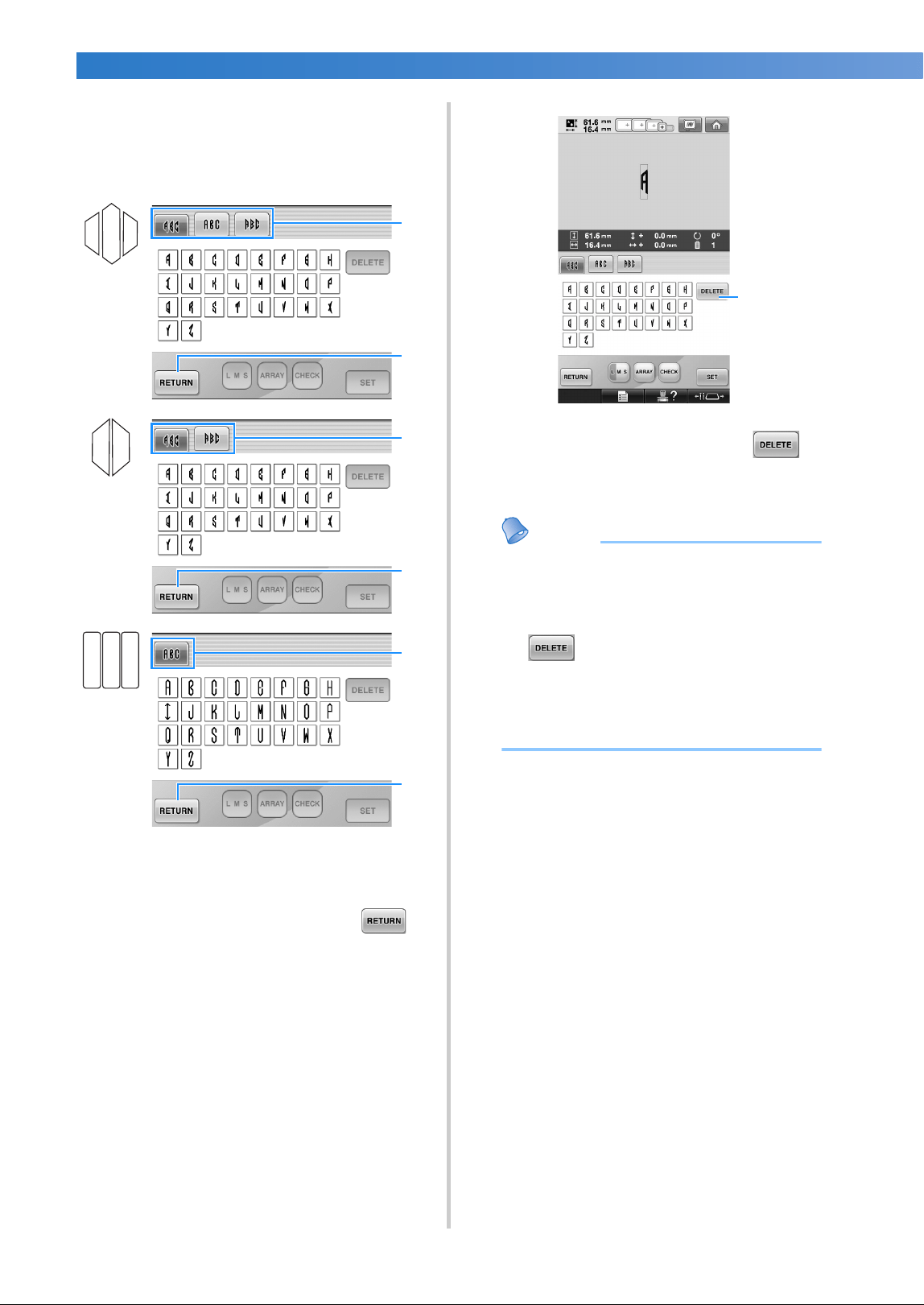
SELECTING/EDITING/SAVING PATTERNS
—
——————————————————————————————————————————————————————
——
156
3
Select the characters.
Touch the tabs to select different character
shapes, and then touch the key for one letter
on each tab.
* Since the shapes of the letters are the same with
this design, there are no tabs to select. On this
screen, select three letters.
1 Tabs
2 To change the character font, touch to
return to the design selection screen.
X The selected characters appear in the
pattern display area.
1 If the wrong character was selected or you wish
to select a different character, touch to
delete the last character selected, and then
touch the desired character.
Memo
● Depending on the design, there is a preset
number of letters; however, more than the
preset number of letters can be entered. If
too many letters are selected, touch
to delete the letters.
● If desired, multiple letters can be selected
to use these characters in the same way as
any other alphabet pattern without
creating a monogram.
2
1
2
1
2
1
1
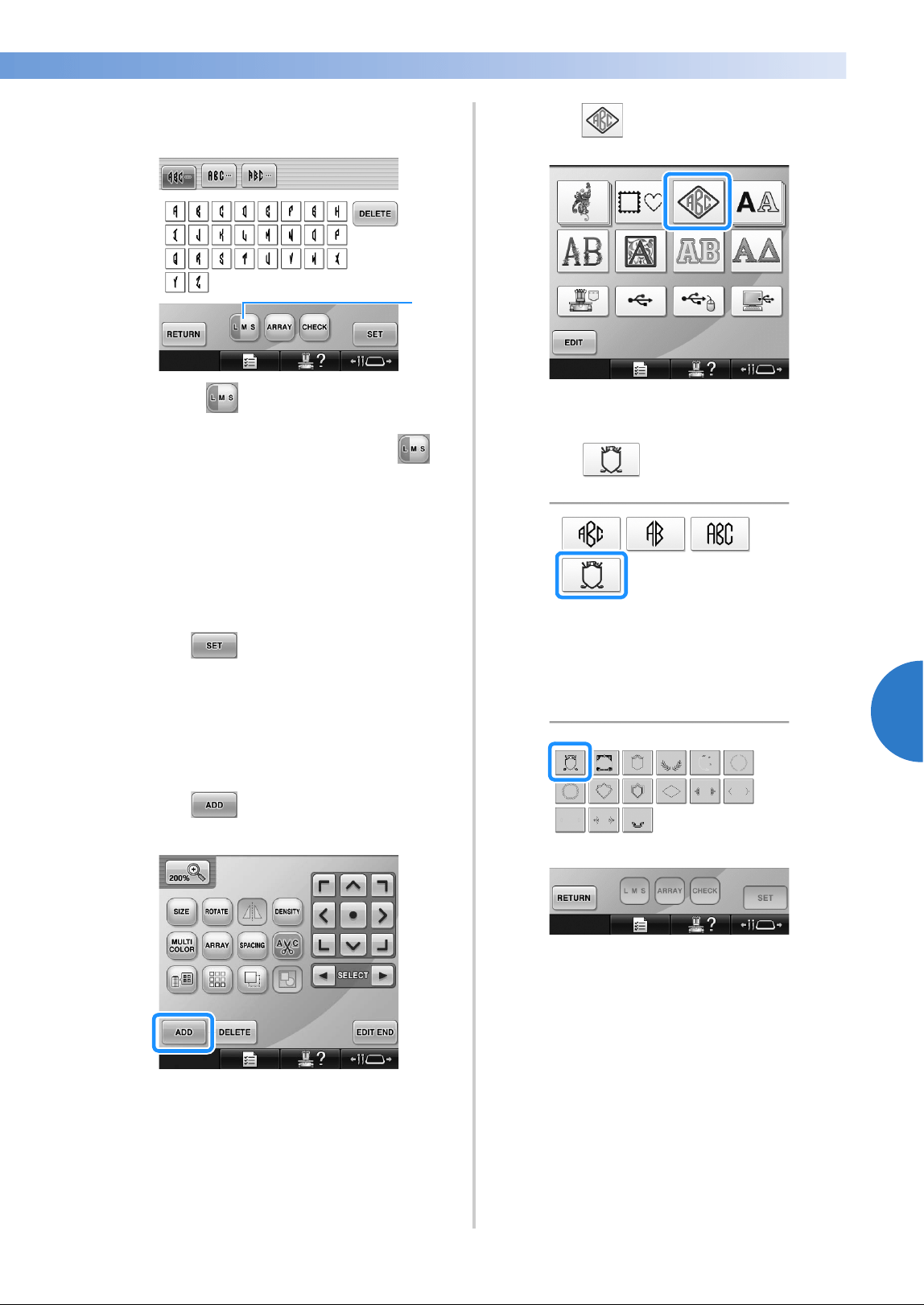
Selecting an Embroidery Pattern 157
——
—————————————————————————————————————————————————————————————————————
—
—————————————
5
4
With one character entered, if necessary,
change the size of the character.
1 Touch to change the size.
■ Changing the size
After selecting the first character, touch
until the character is the desired size.
• The next character that is selected will
have the new character size.
• The character size of all entered characters
cannot be changed after the characters are
combined. (The size of the entire pattern
can be changed from the pattern editing
screen.)
5
Touch .
This confirms the character selection.
X The pattern editing screen appears.
Next, we will combine the letters with a
frame.
6
Touch .
X The pattern type selection screen appears.
7
Touch .
X The design selection screen appears.
8
Touch .
X The list of frame patterns appears.
9
Select a pattern.
Touch the desired pattern.
X The selected frame pattern appears in the
pattern display area.
1
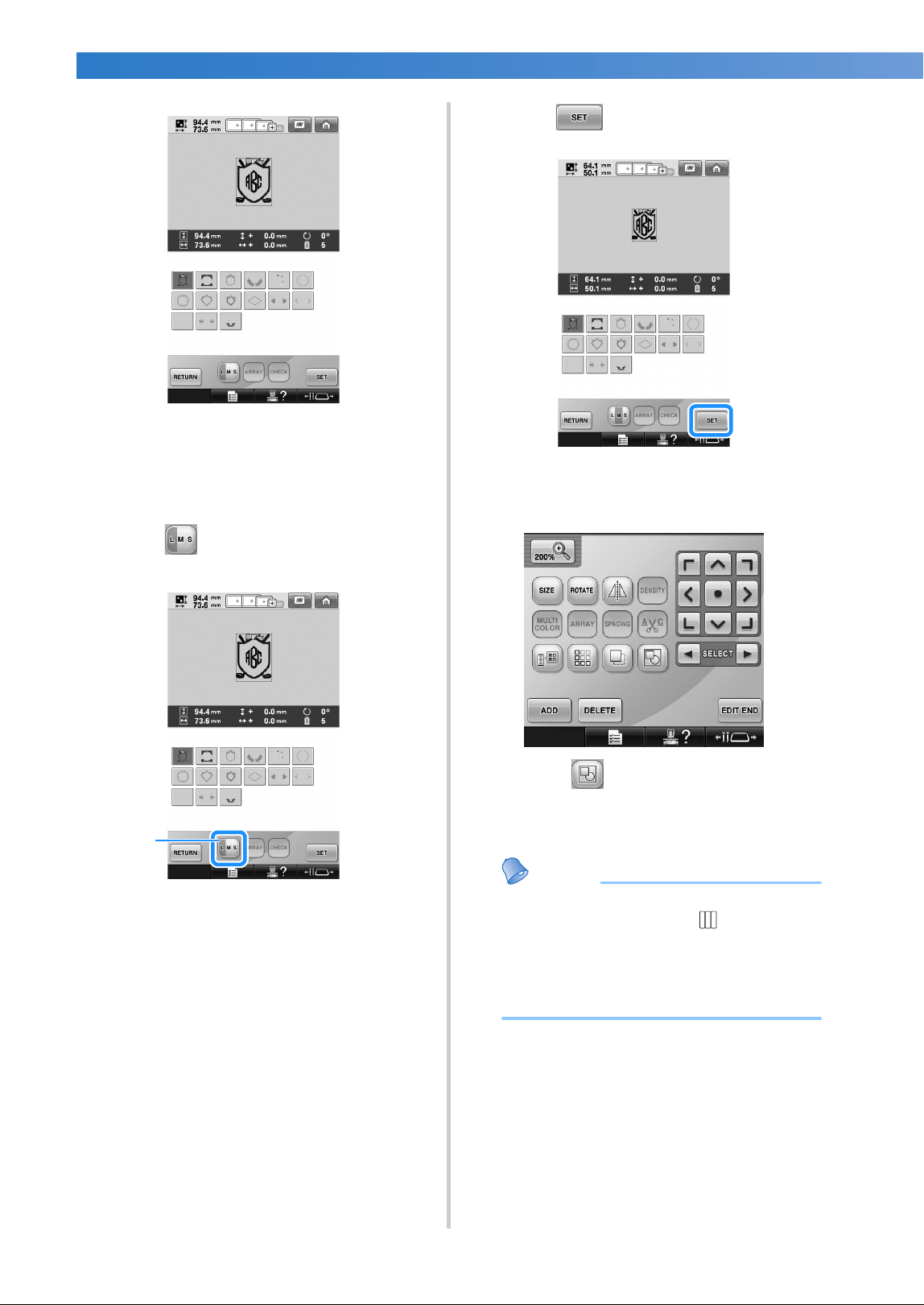
SELECTING/EDITING/SAVING PATTERNS
—
——————————————————————————————————————————————————————
——
158
• If the wrong pattern was selected or you
wish to select a different pattern, touch the
desired frame pattern.
0
If the character size was changed, change
frame pattern to the same size.
Touch to change the pattern to the same
size as the letters.
1 Touch this key to change the size.
a
Touch .
This confirms the frame selection.
X The pattern editing screen appears.
• Touch to group this combined
pattern. (Refer to “Editing patterns as a
group” on page 204.)
Memo
● Due to size or shape, some frame patterns
cannot be used with the design.
● The frame patterns are just some of the
patterns that can be used. Character
patterns other than the 3-letter monogram
patterns can be used in the combination.
1
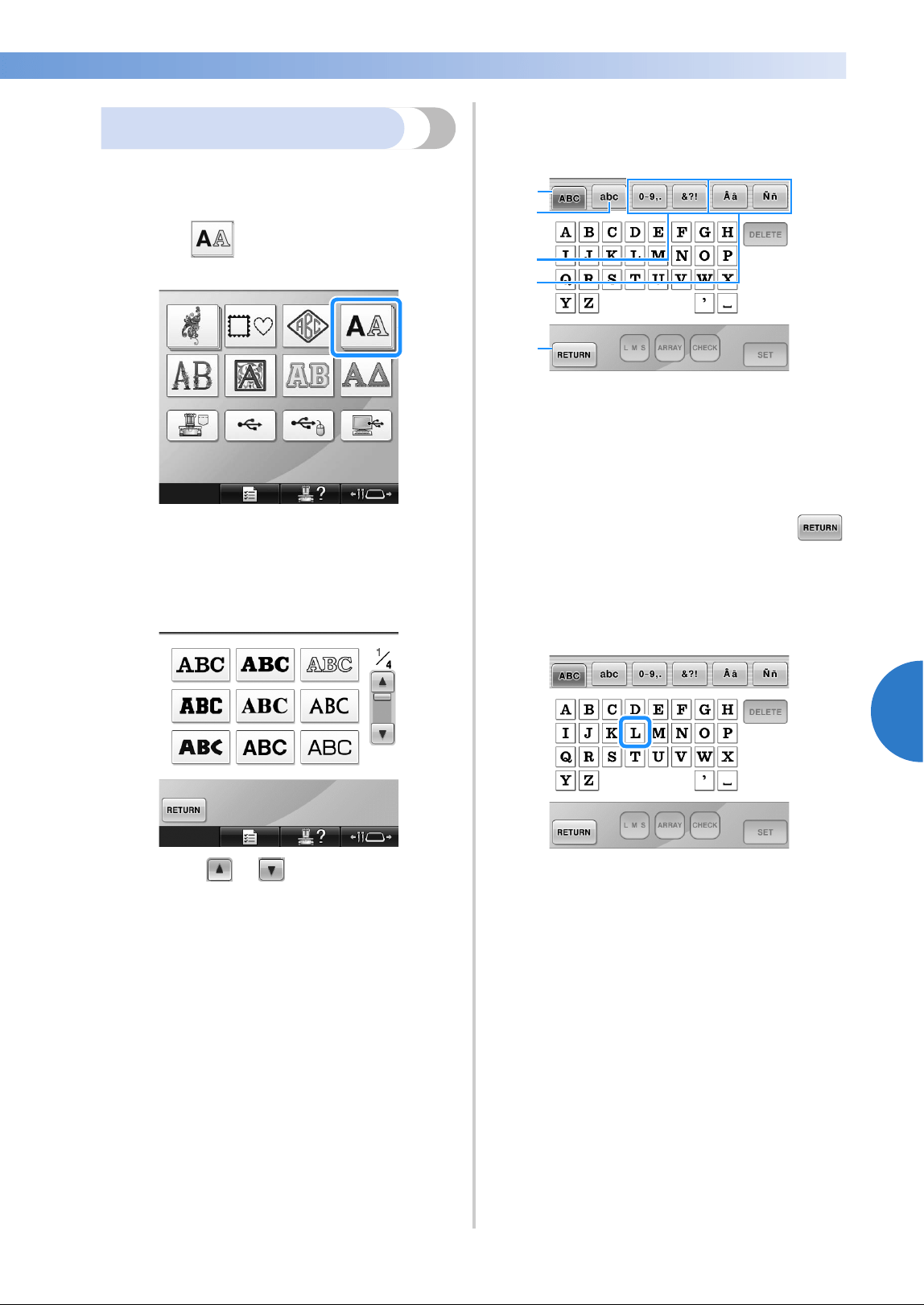
Selecting an Embroidery Pattern 159
——
—————————————————————————————————————————————————————————————————————
—
—————————————
5
Alphabet patterns
There are 28 built-in character fonts.
Example: Entering “Lucky Color”.
1
Touch .
X The font selection screen appears.
2
Select a character font.
Touch the desired character font.
• Touch or for additional
selections.
X The text input screen appears.
3
If the key for the character that you wish to
select is not displayed, touch the tab for the
desired set of characters.
1 Uppercase letters
2 Lowercase letters
3 Numbers/symbols
4 Accented characters
5 Touch this key to change the character font.
X The text input screen for the characters
shown on the tab appears.
• To change the character font, touch
to return to the font selection screen.
4
Enter “L”.
5
1
2
3
4
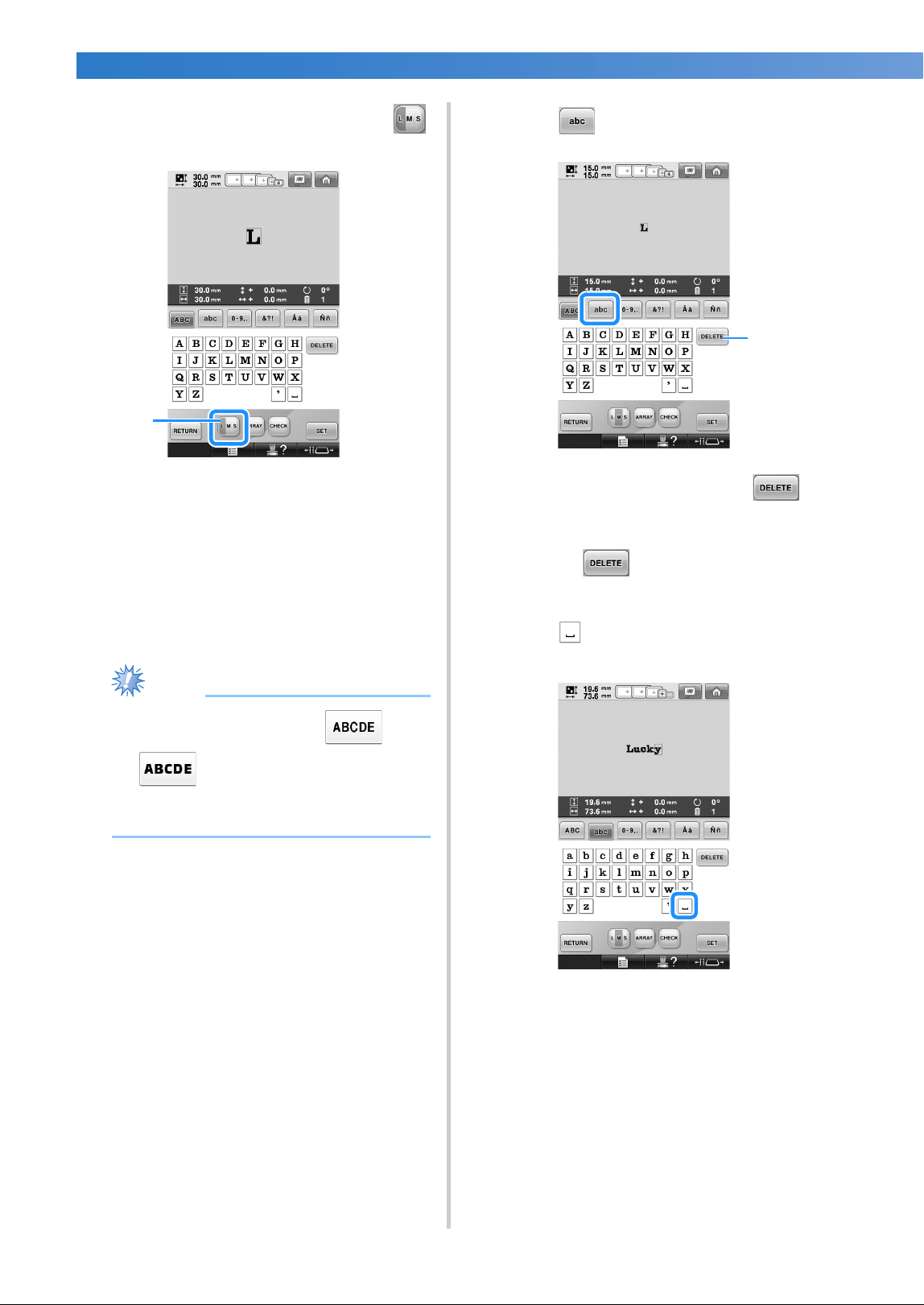
SELECTING/EDITING/SAVING PATTERNS
—
——————————————————————————————————————————————————————
——
160
5
With the first character entered, touch
to change the size of the character.
1 Touch this key to change the size.
• The next characters that are selected will
have the new character size.
• The character size of all entered characters
cannot be changed after the characters are
combined. (The size of the entire pattern
can be changed from the pattern editing
screen.)
Note
● Size of the two small fonts and
cannot be changed. Both of these
smaller fonts are shown on page 4/4 of the
font selection screen.
6
Touch and enter “ucky”.
1 If the wrong character was selected or you wish
to select a different character, touch to
delete the last character selected, and then
touch the key for the desired character. Each
touch of deletes the last character of
the text.
7
Touch to enter a space.
1
1
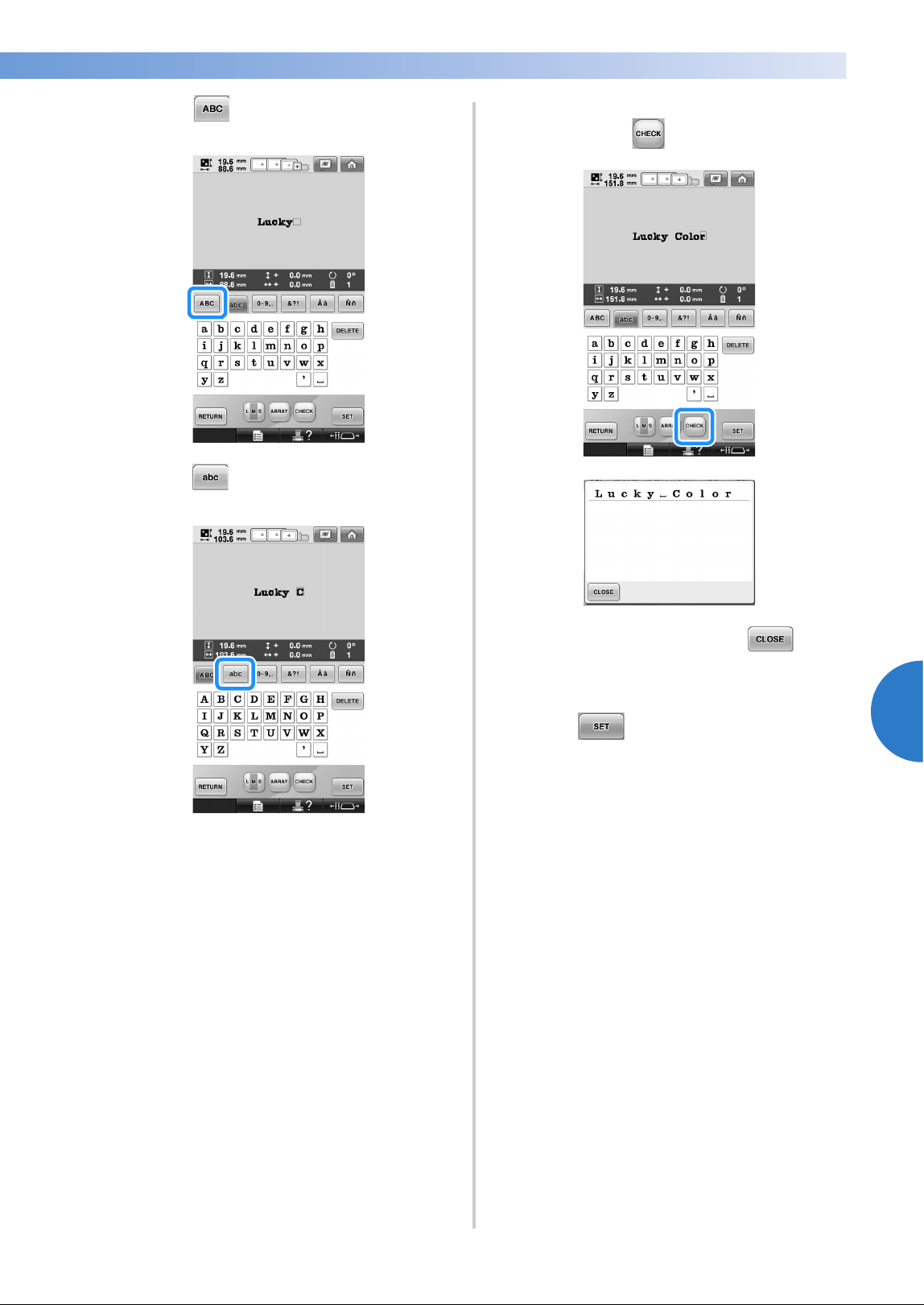
Selecting an Embroidery Pattern 161
——
—————————————————————————————————————————————————————————————————————
—
—————————————
5
8
Touch and enter “C”.
9
Touch and enter “olor”.
0
If the text is small and difficult to read on the
screen, touch to check the text.
a
After checking the text, touch to
return to the text input screen.
b
After entering all of the text as desired,
touch .
This confirms the pattern selection.
X The pattern editing screen appears.
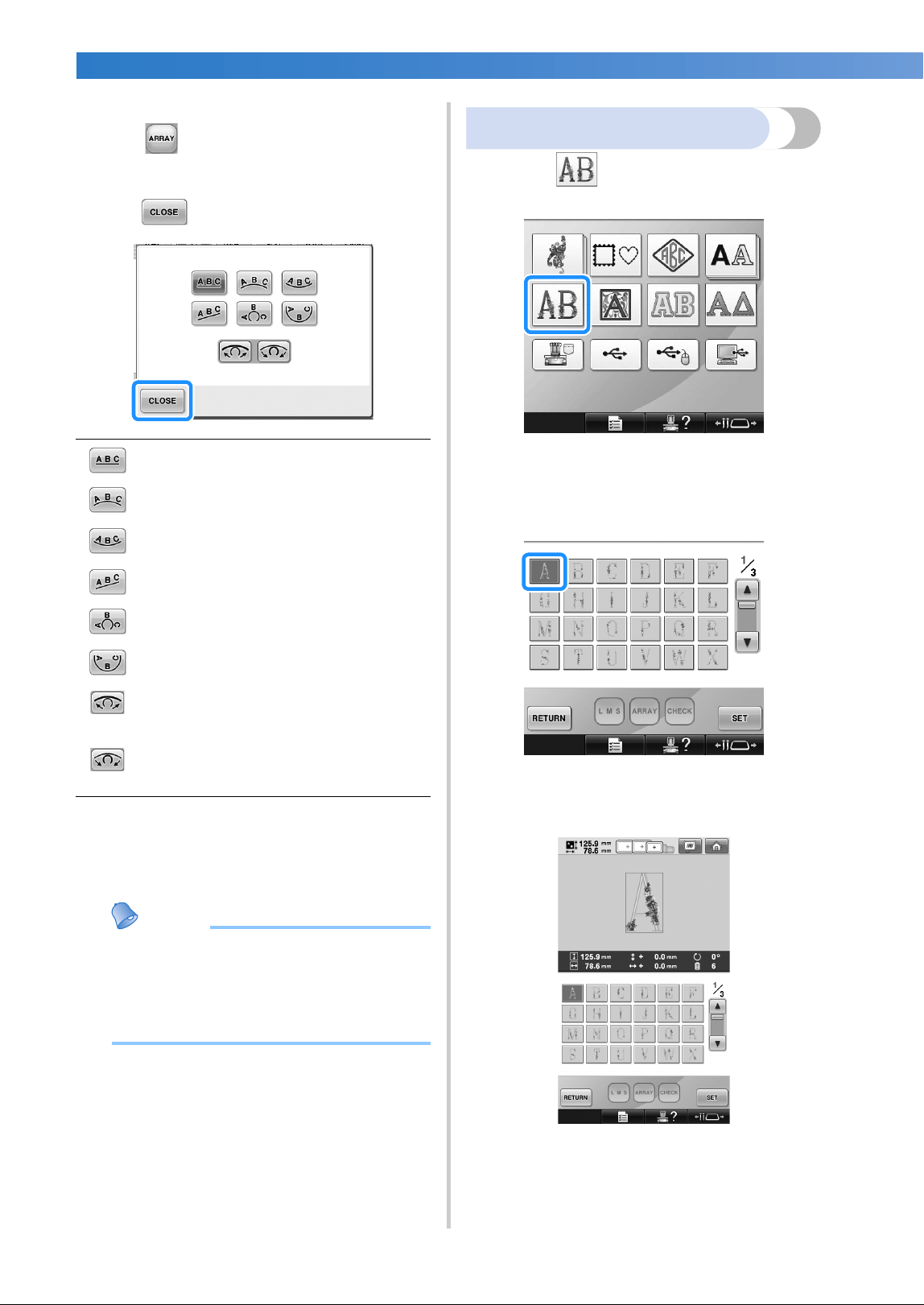
SELECTING/EDITING/SAVING PATTERNS
—
——————————————————————————————————————————————————————
——
162
■ Changing the text arrangement
Touch to display the screen shown below.
Touch the key for the desired text arrangement.
After selecting the desired text arrangement,
touch to return to the text input screen.
• If the text is arranged using one of the text
arrangements on this screen, even more
characters can be entered.
Memo
● The color of the text is set to black. To
change the color, refer to “Specifying
multi-color text” on page 190 and
“Changing the colors of the pattern” on
page 190.
Floral alphabet patterns
1
Touch .
X The list of floral alphabet patterns appears.
2
Select an embroidery pattern.
Touch the desired pattern.
X The selected pattern appears in the pattern
display area.
• If the wrong pattern was selected or you
wish to select a different pattern, touch the
desired pattern.
Arranges the text on a straight line.
Arranges the text on the outside of a wide
curve.
Arranges the text on the inside of a wide
curve.
Arranges the text on a slanted line.
Arranges the text on the outside of a
sharp curve.
Arranges the text on the inside of a sharp
curve.
If text is arranged on a curve, each touch
of this key decreases the bend of the
curve (makes it flatter).
If text is arranged on a curve, each touch
of this key increases the bend of the
curve (makes it more curved).
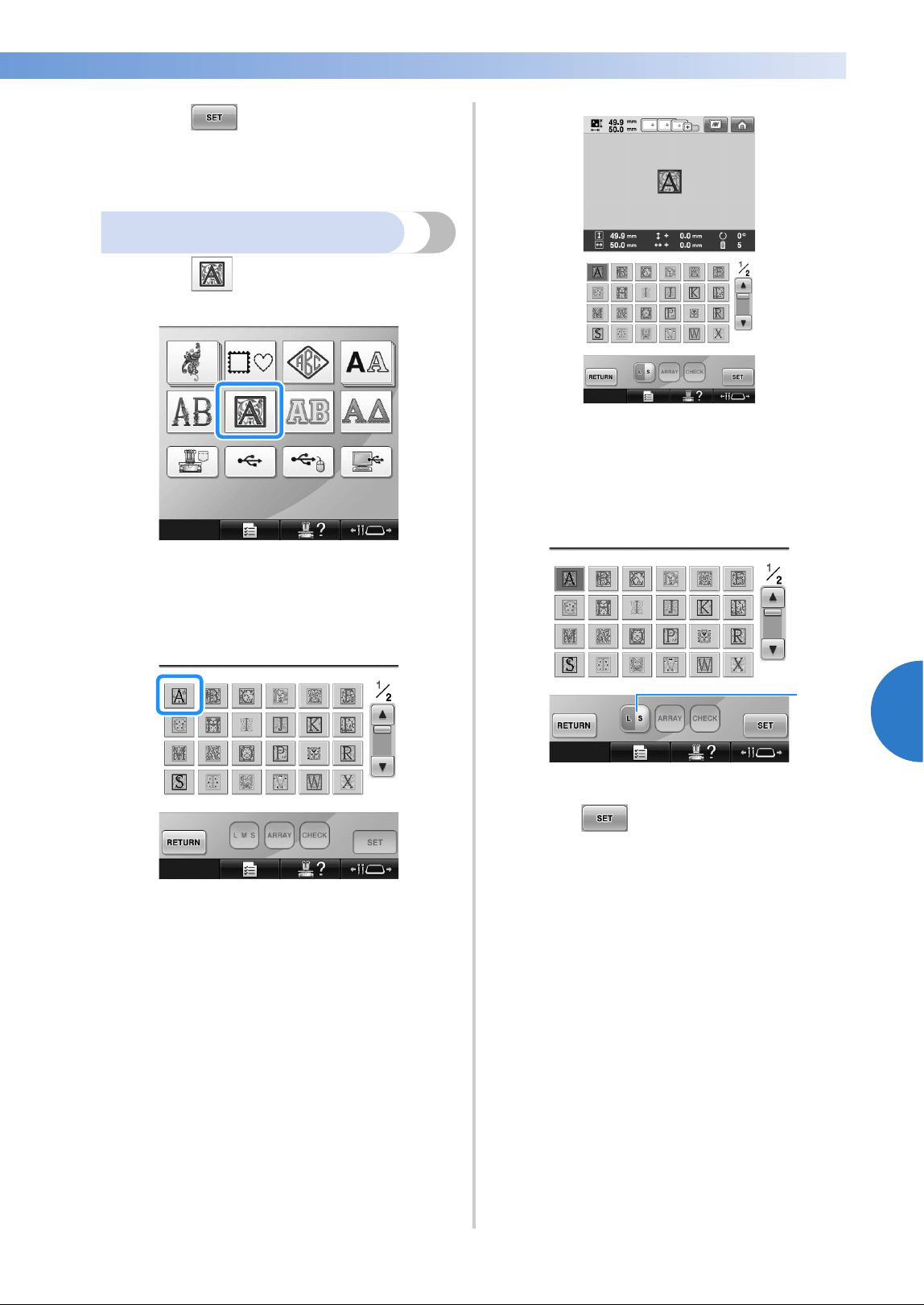
Selecting an Embroidery Pattern 163
——
—————————————————————————————————————————————————————————————————————
—
—————————————
5
3
Touch .
This confirms the pattern selection.
X The pattern editing screen appears.
Renaissance alphabet patterns
1
Touch .
X The list of Renaissance alphabet patterns
appears.
2
Select an embroidery pattern.
Touch the desired pattern.
X The selected pattern appears in the pattern
display area.
• If the wrong pattern was selected or you
wish to select a different pattern, touch the
desired pattern.
3
If necessary, edit the pattern.
1 Touch this key to change the size.
4
Touch .
This confirms the pattern selection.
X The pattern editing screen appears.
1
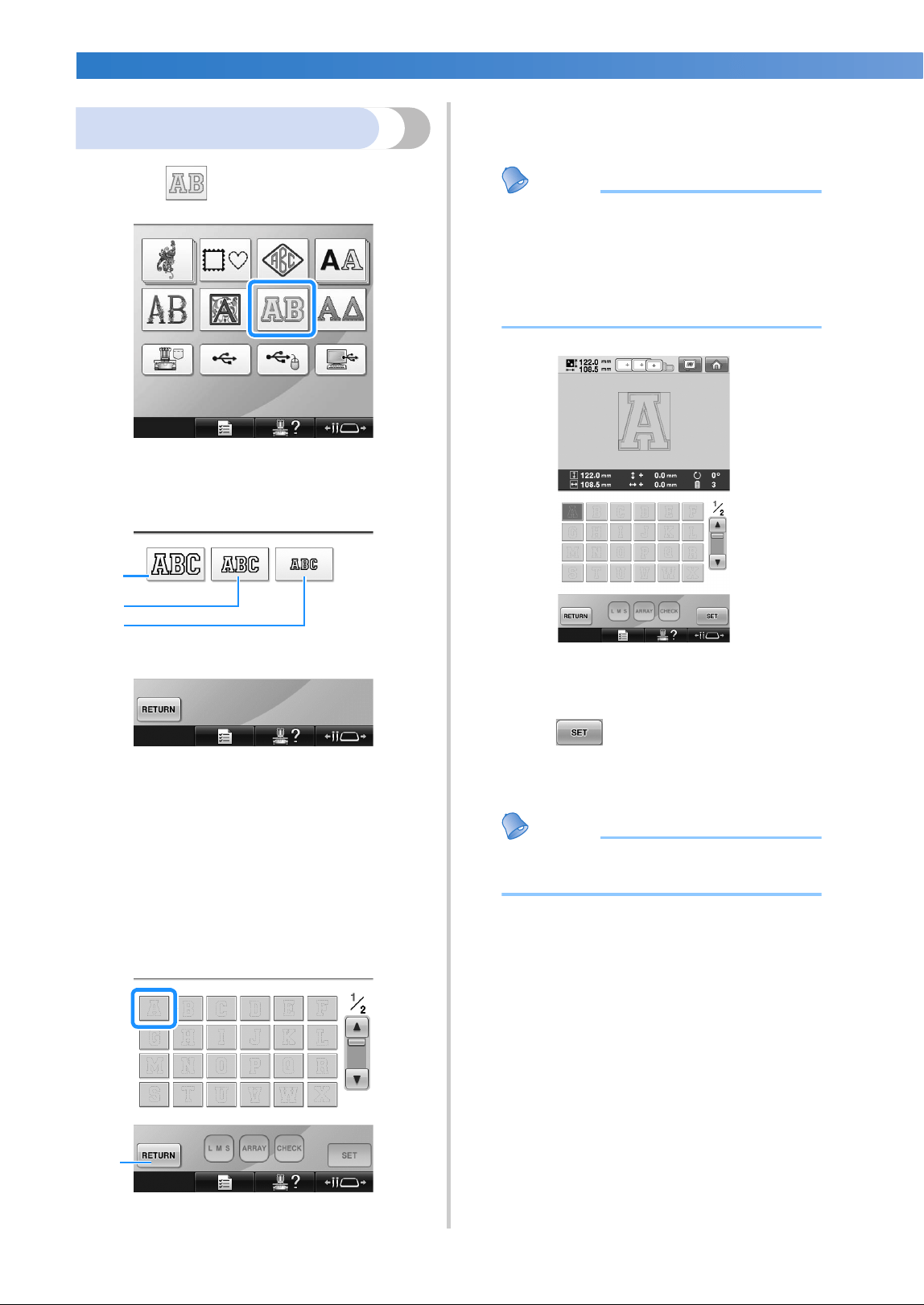
SELECTING/EDITING/SAVING PATTERNS
—
——————————————————————————————————————————————————————
——
164
Appliqué alphabet
1
Touch .
X The size selection screen appears.
2
Select the text size.
Touch the key for the desired text size.
• The character will have the following
vertical length when the corresponding
size is selected.
1 Large: about 122mm (4-13/16 inches)
2 Medium: about 68mm (2-11/16 inches)
3 Small: about 49mm (1-15/16 inches)
X The list of appliqué alphabet patterns
appears.
3
Select an embroidery pattern.
Touch the desired pattern.
1 Touch this button to change the character size.
X The selected pattern appears in the pattern
display area.
Memo
● Change the background color of the
embroidery thumbnails, when the patterns
are not clearly displayed. (Refer to
“Changing the background colors of the
embroidery patterns or thumbnails” on
page 224.)
• If the wrong pattern was selected or you
wish to select a different pattern, touch the
desired pattern.
4
Touch .
This confirms the pattern selection.
X The pattern editing screen appears.
Memo
● For details on sewing appliqués, refer to
“Sewing appliqué patterns” on page 236.
2
3
1
1
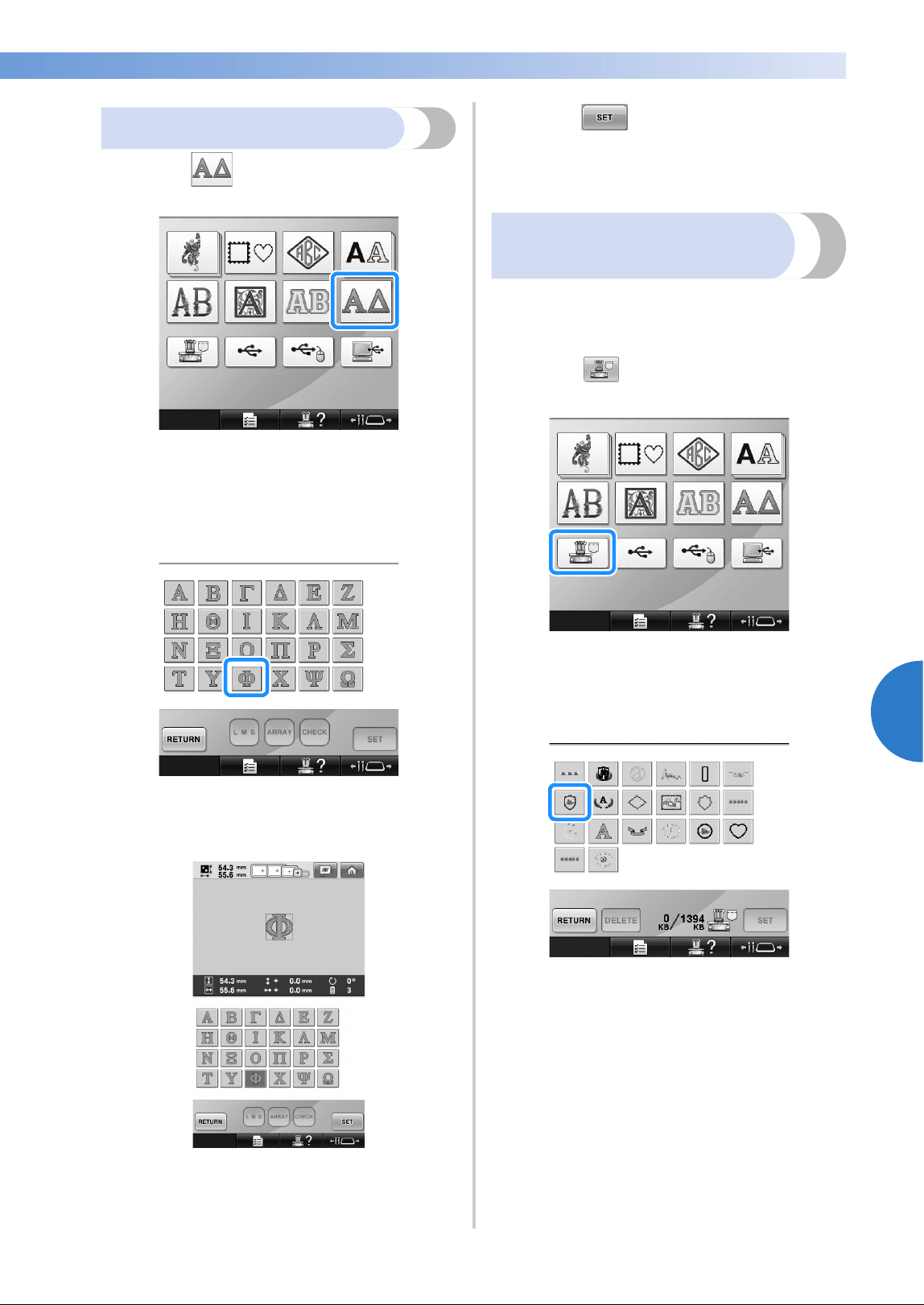
Selecting an Embroidery Pattern 165
——
—————————————————————————————————————————————————————————————————————
—
—————————————
5
Greek alphabet patterns
1
Touch .
X The list of Greek alphabet patterns
appears.
2
Select a character pattern.
Touch the desired character pattern.
X The selected pattern appears in the pattern
display area.
• If the wrong pattern was selected or you
wish to select a different pattern, touch the
desired pattern.
3
Touch .
This confirms the pattern selection.
X The pattern editing screen appears.
Embroidery patterns stored
in the machine memory
Embroidery patterns stored in the machine memory
can be recalled. For details on storing a pattern,
refer to “Saving Embroidery Patterns” on page 211.
1
Touch .
X The list of patterns appears.
2
Select an embroidery pattern.
Touch the desired pattern.
X The selected pattern appears in the pattern
display area.
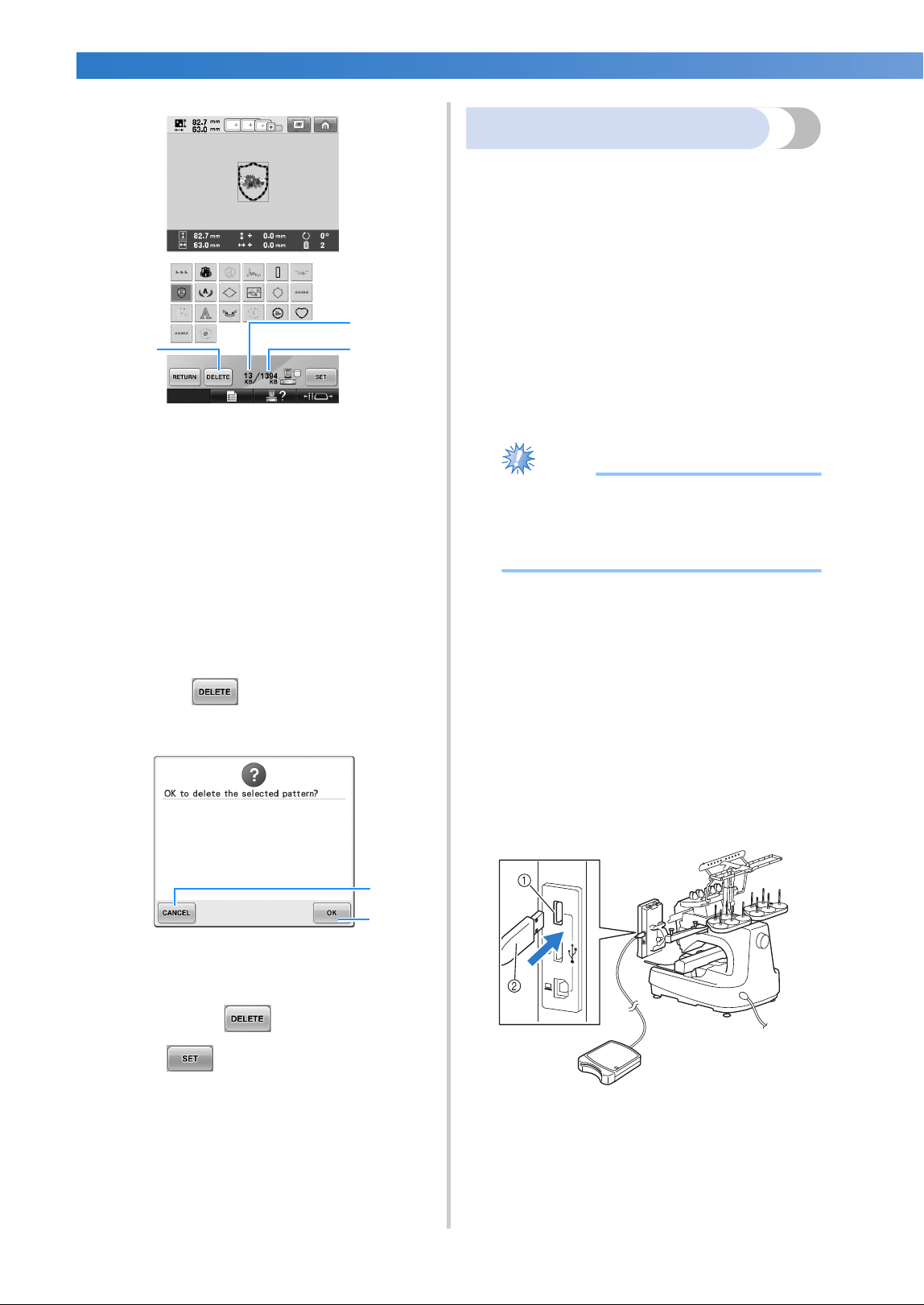
SELECTING/EDITING/SAVING PATTERNS
—
——————————————————————————————————————————————————————
——
166
1 Shows the amount of memory used by selected
pattern.
2 Shows the amount of free space in the
machine’s memory.
3 Touch this key to delete the selected pattern
from the memory.
• If the wrong pattern was selected or you
wish to select a different pattern, touch the
key for the desired pattern.
■ Deleting embroidery data
From this screen, the embroidery data stored in
the machine’s memory can be organized by
deleting unnecessary data.
After selecting the pattern that you wish to
delete, touch to display the screen
shown below.
1 Permanently deletes the data from the
machine’s memory, then returns to the data
with no pattern selected.
2 Does not delete the data, then returns to the
screen before was touched.
3
Touch .
This confirms the pattern selection.
X The pattern editing screen appears.
Embroidery cards (optional)
■ About embroidery cards (optional)
• Use only embroidery cards manufactured
for this machine. Using unauthorized cards
may cause your machine to operate
incorrectly.
• Embroidery cards sold in foreign countries
cannot be used with this machine.
• Store embroidery cards in the hard case.
■ About embroidery card reader (optional) and
USB card writer module*
• Use only an embroidery card Reader
designed for this machine. Using an
unauthorized embroidery card Reader may
cause your machine to operate incorrectly.
Note
● Embroidery patterns cannot be saved from
the machine to an embroidery card
inserted into a connected USB card writer
module*.
* If you have purchased the PE-DESIGN Ver5 or
later, PE-DESIGN Lite or PED-BASIC, you can
plug the included USB card writer module
into the machine as an embroidery card
reader, and recall patterns.
■ Using embroidery card reader
When using the embroidery card reader,
carefully support the embroidery card reader
near the operation panel.
1
Plug the optional embroidery card reader/
USB card writer module* into the primary
(top) USB port on the machine.
1 Primary (top) USB port
2 Embroidery card reader/USB card writer
module*
* If you have purchased the PE-DESIGN Ver5 or
later, PE-DESIGN Lite or PED-BASIC, you can
plug the included USB card writer module into
the machine as an embroidery card reader, and
recall patterns.
3 2
1
2
1
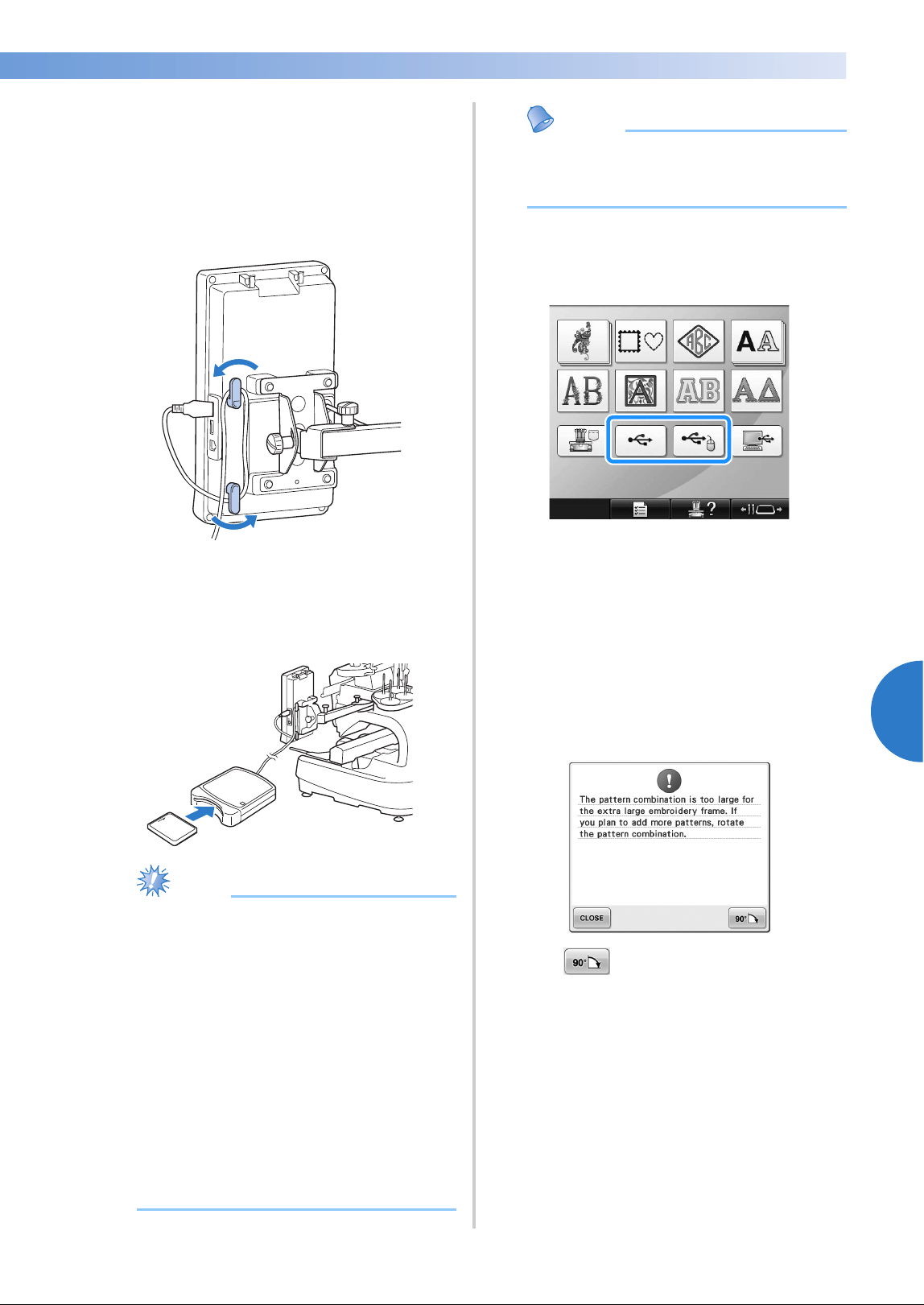
Selecting an Embroidery Pattern 167
——
—————————————————————————————————————————————————————————————————————
—
—————————————
5
When connecting the USB card reader/writer
to the machine’s USB port, be sure to secure
the cable with the two hooks on the back
panel. If the cable is not secured, the
embroidery frame may catch on the cable
while the frame is moving, causing the
pattern to become misaligned.
2
Insert the card completely into the card
reader/USB card writer module*.
• Insert the embroidery card so that the end
with a printed arrow is facing up.
Note
● Two embroidery USB card readers/USB
card writer module* cannot be used with
this machine at the same time. If two
embroidery USB card readers/USB card
writer module* are inserted, only the
embroidery USB card reader/USB card
writer module* inserted first is detected.
● If an embroidery card other than our
original embroidery cards are used, the
embroidery machine may not operate
correctly. Be sure to use only
recommended embroidery cards.
● Some licensed or copyright cards may not
be compatible with this embroidery
machine.
Memo
● You can also plug the embroidery card
reader/USB card writer module* into the
center port of the machine.
3
Touch the key of the USB port that the
embroidery card reader/USB card writer
module* is plugged into.
X The list of patterns on the embroidery card
appears.
4
Select the pattern as described on page 154
to 165.
■ With patterns larger than 200 mm (H) × 360 mm
(W) (7-7/8 inches (H) × 14 inches (W))
When a pattern larger than 200 mm (H) × 360 mm
(W) (7-7/8 inches (H) × 14 inches (W)) is selected,
the following message appears.
Touch
to rotate the pattern 90 degrees
before opening it.
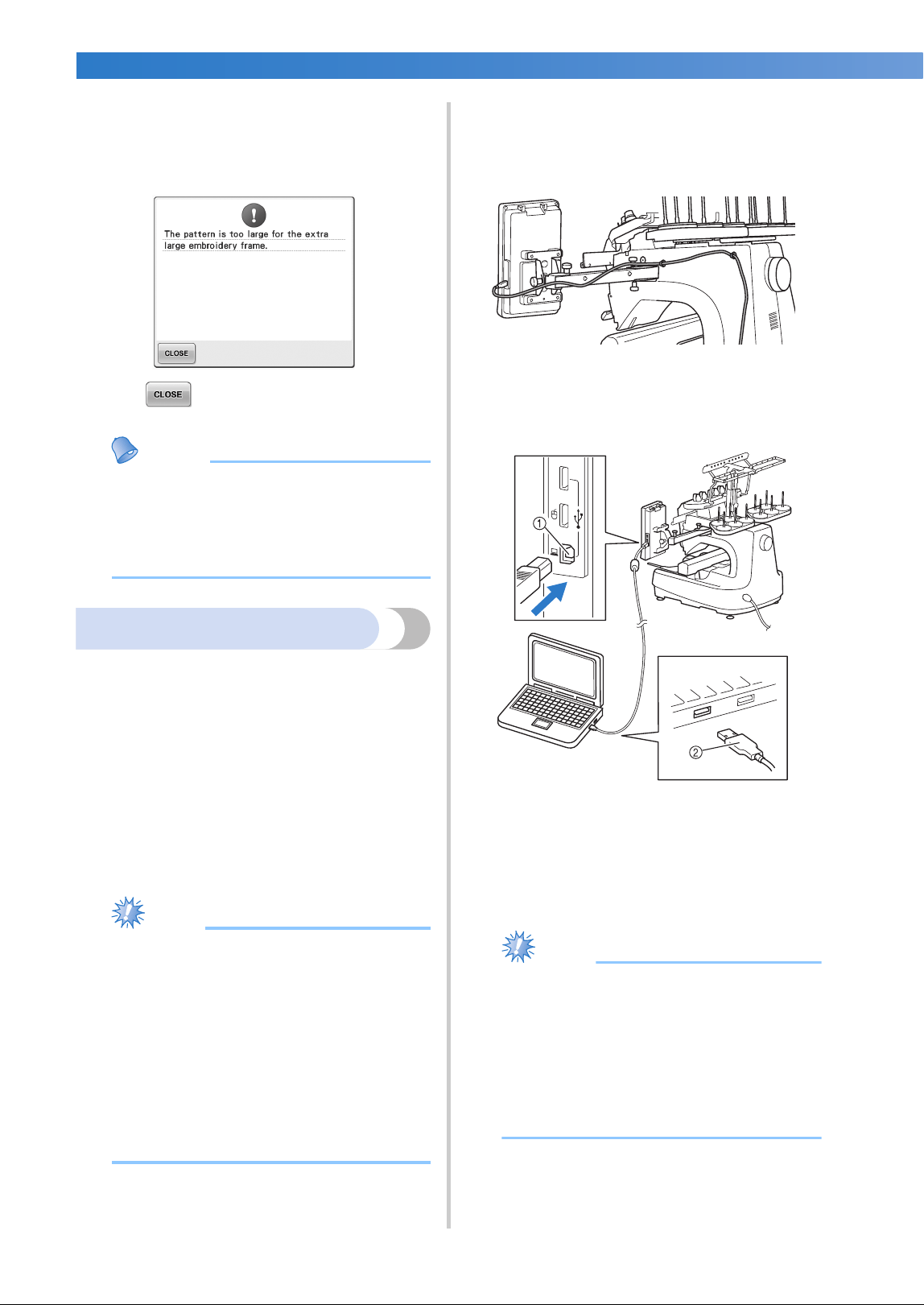
SELECTING/EDITING/SAVING PATTERNS
—
——————————————————————————————————————————————————————
——
168
If the data is larger than 200 mm (H) × 360 mm
(W) (7-7/8 inches (H) × 14 inches (W)) even after it
is rotated 90 degrees, the following message
appears.
Touch to return to the pattern list screen.
Memo
● Perform the same operation when a
pattern larger than 200 mm(H) × 360
mm(W) (7-7/8 inches (H) × 14 inches (W))
is selected, whether from the computer or
USB media.
Computer (USB)
Using the included USB cable, the embroidery
machine can be connected to your computer, and
the embroidery patterns saved on the computer can
be temporarily recalled and used from the
machine.
Also, this machine is compatible with the Link
function. The Link function enables you to send
embroidery patterns edited on a computer to the
embroidery machine. (Refer to “Sending
Embroidery Patterns From a Computer to the
Machine (Link Function)” on page 176.)
Note
Check that the computer to be connected
meets the following operating conditions.
● Compatible models:
IBM-PC with a USB port as
standard equipment
IBM-PC-compatible computer
equipped with a USB port as
standard equipment
● Compatible operating systems:
Microsoft Windows 2000/XP,
Windows Vista, Windows 7
■ Connecting
You can arrange the USB cable using the included
USB clamp. (Refer to “Connecting the USB using the
included USB cord clamps” on page 171.)
1
Plug the USB cable connector into the
corresponding USB ports for the computer
and for the machine.
1 USB port for computer
2 USB cable connector
• The USB cable can be plugged into the
USB ports on the computer and
embroidery machine whether or not they
are turned on.
Note
● The connectors on the USB cable can only
be inserted into a connector in one
direction. If it is difficult to insert the
connector, do not insert it with force and
check the orientation of the connector.
● For details on the position of the USB port
on the computer, refer to the instruction
manual for the corresponding equipment.
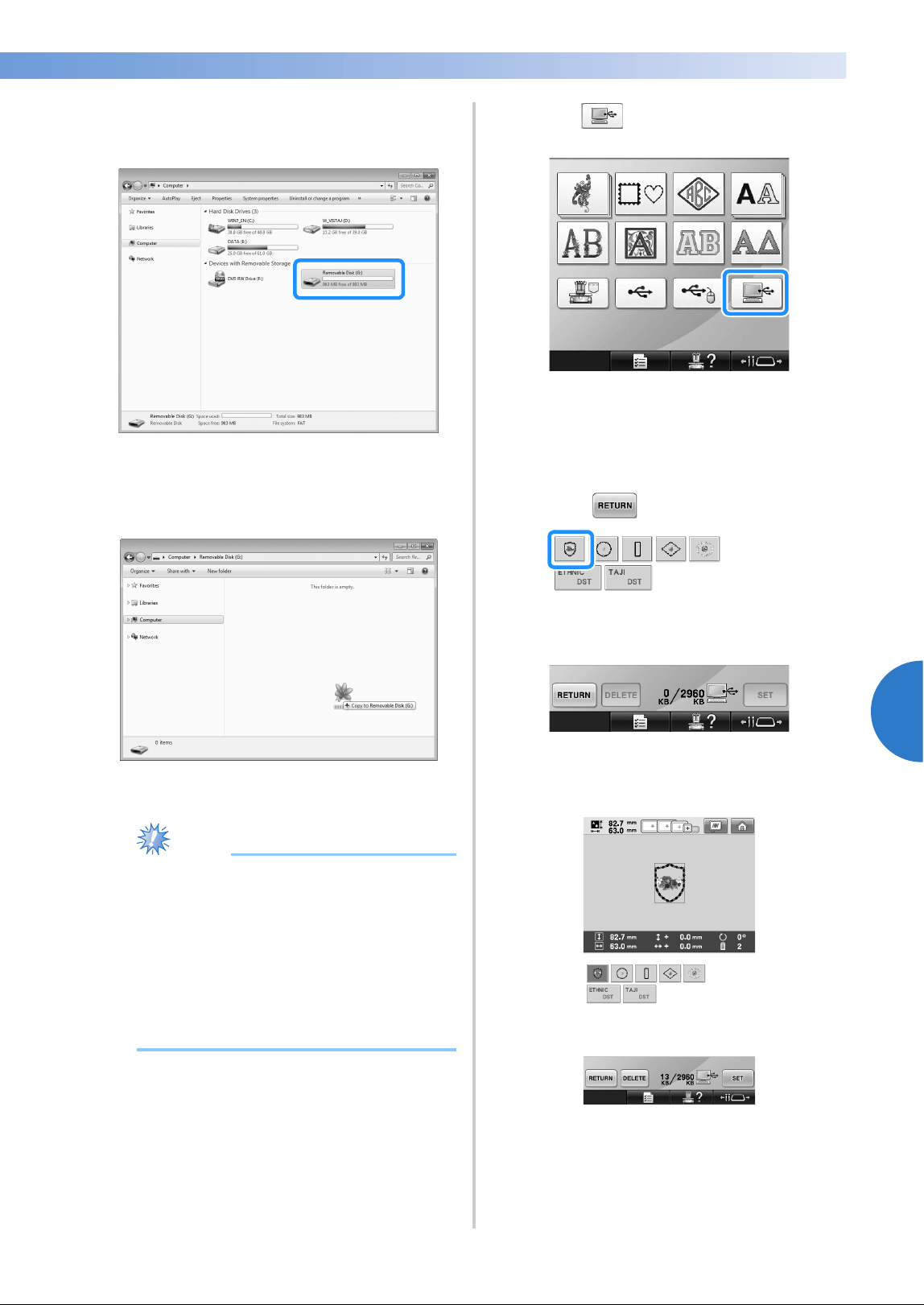
Selecting an Embroidery Pattern 169
——
—————————————————————————————————————————————————————————————————————
—
—————————————
5
2
After the “Removable Disk” folder appears
in the “Computer (My computer)” folder on
the computer, the connection is completed.
■ Recalling
1
Move/copy the pattern data that you wish to
recall into the “Removable Disk” folder.
X Pattern data in the “Removable Disk”
folder is written to the machine.
Note
● While data is being written, do not
disconnect the USB cable.
● Do not create folders within the
“Removable Disk” folder. Even if folders
have been created, they will not appear in
the machine’s screen.
● While the machine is sewing, do not write
data to or delete data from “Removable
Disk”.
2
Touch .
X The list of patterns is displayed.
3
Select an embroidery pattern.
Touch the desired pattern.
• If you decide not to recall the pattern,
touch .
X The selected pattern appears in the pattern
display area.
• If the wrong pattern was selected or you
wish to select a different pattern, touch the
desired pattern.
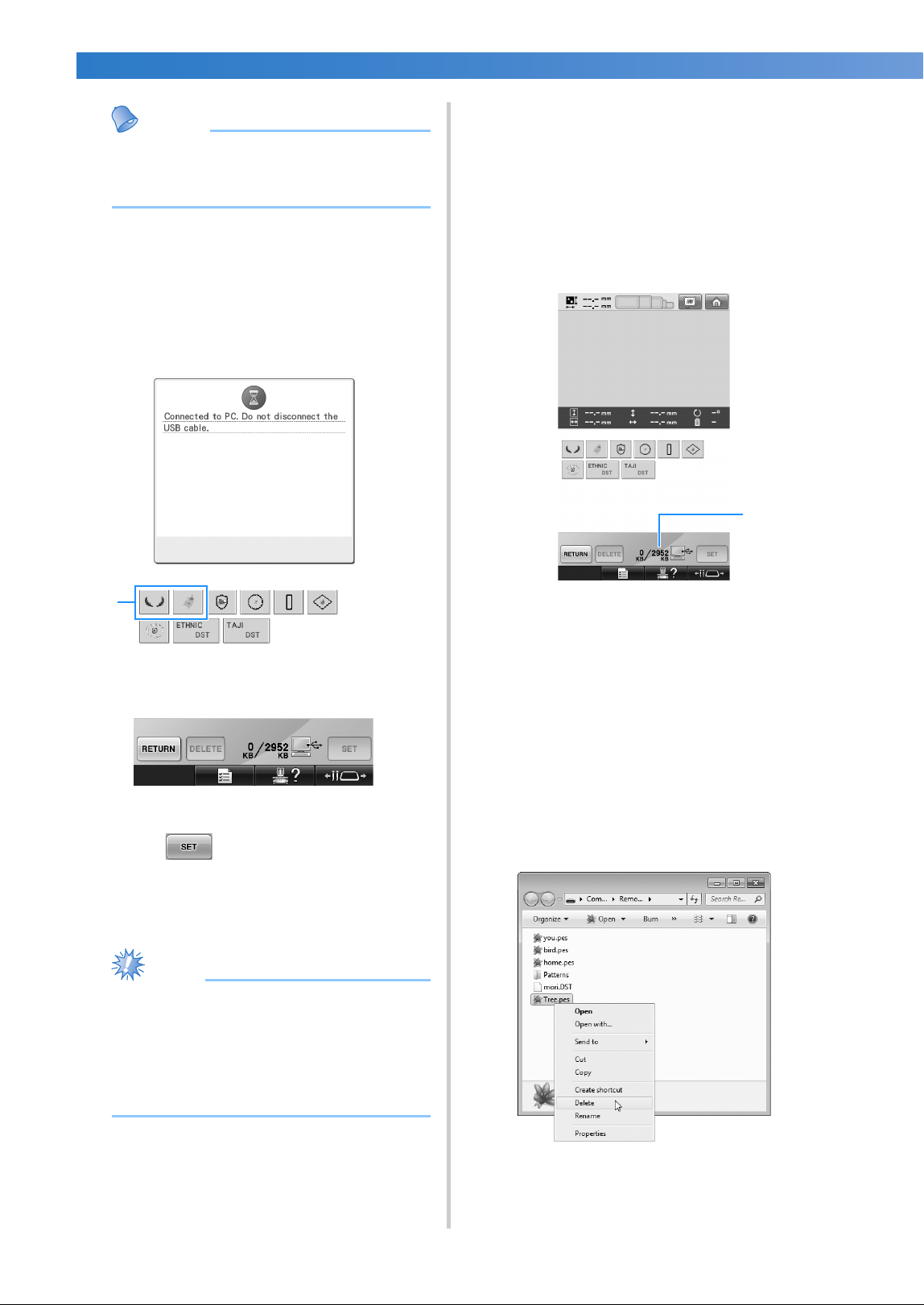
SELECTING/EDITING/SAVING PATTERNS
—
——————————————————————————————————————————————————————
——
170
Memo
● For details on large-size embroidery
patterns, refer to “Sewing Large-size (Split)
Embroidery Patterns” on page 240.
• To add a pattern from the computer, repeat
step
1.
X The following screen appears while data is
written to the embroidery machine, and
the key for that pattern appears when
writing is finished.
1 Added patterns
4
Touch .
This confirms the pattern selection.
X The pattern editing screen appears.
Note
● The pattern recalled from the computer is
only temporarily written to the machine. It
is erased from the machine when the
machine is turned off. If you wish to keep
the pattern, store it in the machine. (Refer
to “Machine’s memory” on page 211.)
■ If the desired pattern cannot be recalled
When recalling pattern data from the computer,
the data is not taken directly from the computer.
Instead, the pattern data is temporarily written to
the machine, and that written pattern data is
recalled. A total of about 3 MB of embroidery
patterns can be saved in the “Removable Disk”.
Pattern data cannot be recalled if that data
amount is exceeded.
1 Shows the amount of free space in the USB area
of the machine. If pattern data with this size is
added, it can be recalled (temporarily written).
To recall a pattern larger than the amount of
space available, delete any currently written
patterns, and then place the pattern that you
wish to recall into the folder.
1
Remove all unnecessary patterns from the
“Removable Disk” folder on the computer.
Select the pattern data, and then move it to a
different folder, the Recycle Bin, or right-click
it and click “Delete”.
1
1
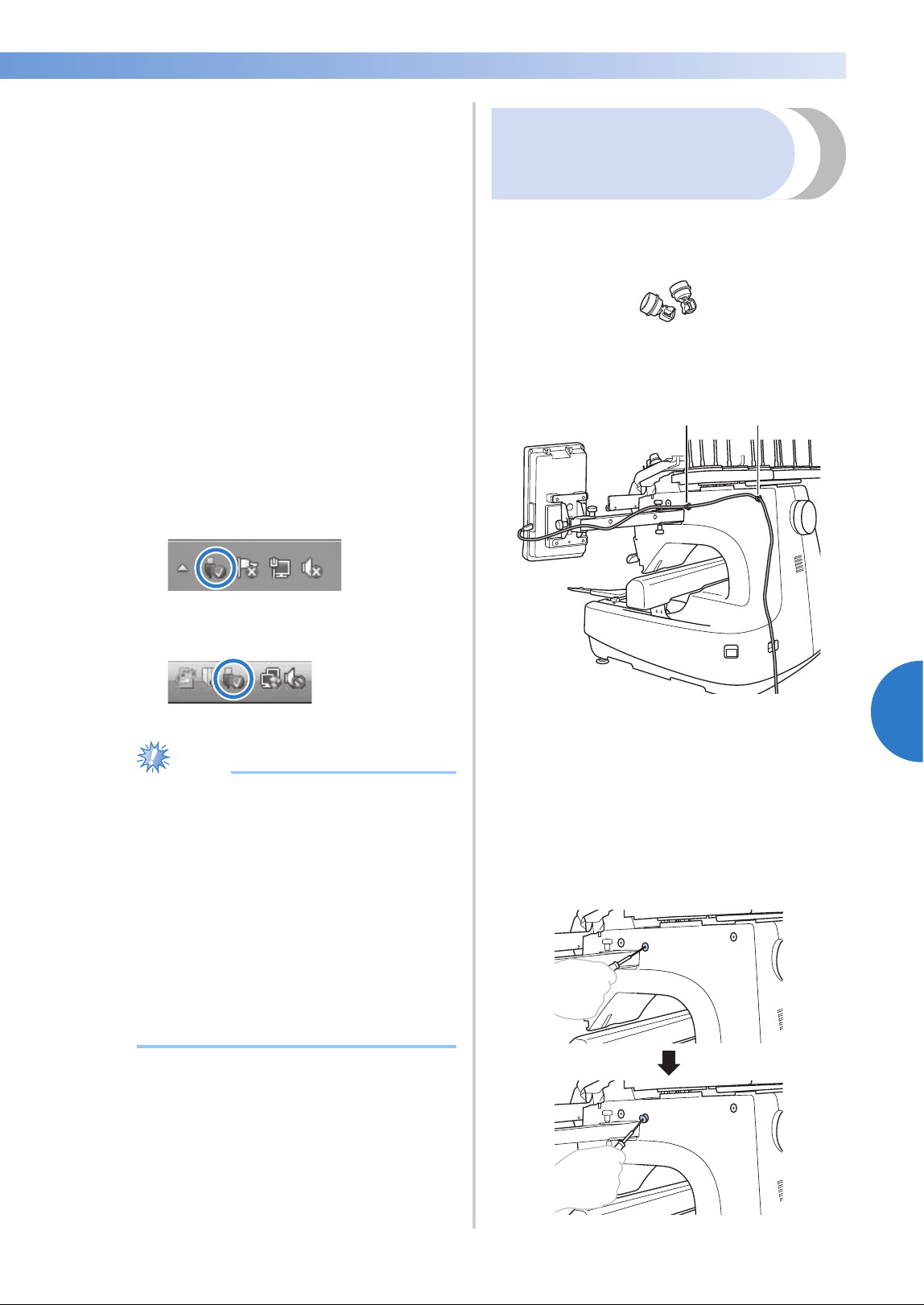
Selecting an Embroidery Pattern 171
——
—————————————————————————————————————————————————————————————————————
—
—————————————
5
2
Place the pattern that you wish to recall into
the “Removable Disk” folder.
X After writing the data to the embroidery
machine, the key for that pattern appears
in the screen.
3
If the desired pattern can still not be written,
repeat steps
1 and 2.
■ Disconnecting the USB cable
Before disconnecting the USB cable, click the
“Unplug or Eject Hardware” icon in the taskbar
of Windows 2000, the “Safely Remove
Hardware” icon in the taskbar of Windows XP/
Windows Vista or the “Safely Remove Hardware
and Eject Media” icon in the taskbar of
Windows 7. Then, when the removable disk can
safely be removed, disconnect the USB cable
from the computer and the machine.
In case of Windows 7
In case of Windows Vista
Note
● Be sure to perform the operation described
above before disconnecting the USB cable
from the computer and embroidery
machine, otherwise the computer may
malfunction, the data may not be written
correctly, or the data or data writing area
on the embroidery machine may be
damaged.
● Do not unplug a USB device/media from
this machine immediately after it has been
plugged in. Be sure to wait at least 5
seconds before unplugging the USB
device/media.
Connecting the USB
using the included USB
cord clamps
When connecting the embroidery machine to a
computer, use the included USB cord clamps to
keep the cord away from the carriage.
Included cord clamps
Installation positions of the USB cord clamps
1 Front screw hole on the side of the machine
2 Rear screw hole on the side of the machine
1
Using the included Allen screwdriver,
remove the protective cap covering the front
screw on the side of the machine.
• Insert the end of the Allen screwdriver into
the hole in the protective cap, and then
lightly pull out the protective cap to
remove it.
12
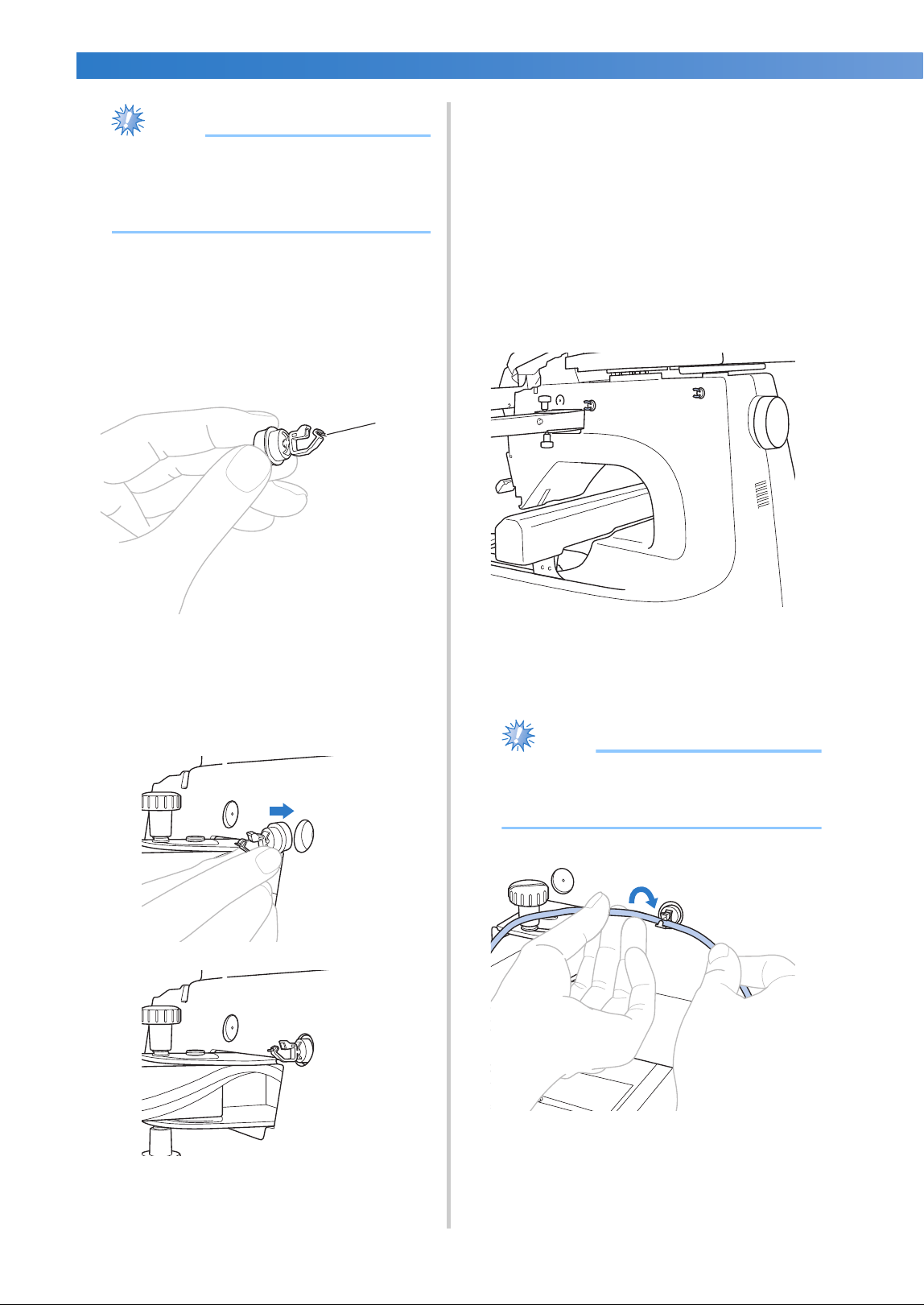
SELECTING/EDITING/SAVING PATTERNS
—
——————————————————————————————————————————————————————
——
172
Note
● Do not insert the Allen screwdriver too far
into the hole in the protective cap;
otherwise, the machine or the Allen
screwdriver may be damaged.
2
Open the USB cord clamp.
• With your fingernail, press on the tab to
open the clamp.
1 Tab
3
Hold the clip end of the USB cord clamp,
and then firmly insert the other end into the
screw hole where the protective cap was
removed.
4
As described in steps 1 through 3, remove
the protective cap from the rear screw hole
on the side of the machine, and then insert
an opened USB cord clamp.
5
Check that the USB cord clamps have been
firmly inserted into the front and rear screw
holes on the side of the machine.
• If the USB cord clamps are not firmly
inserted into the screw holes, they are not
correctly installed. Firmly insert the cord
clamps into the screw holes.
6
Pass the USB cable through the front USB
cord clamp, and then close the clamp to
secure the cable.
Note
● When passing the USB cable through the
clamp, do not insert it with excessive
force; otherwise, the clamp may break.
1
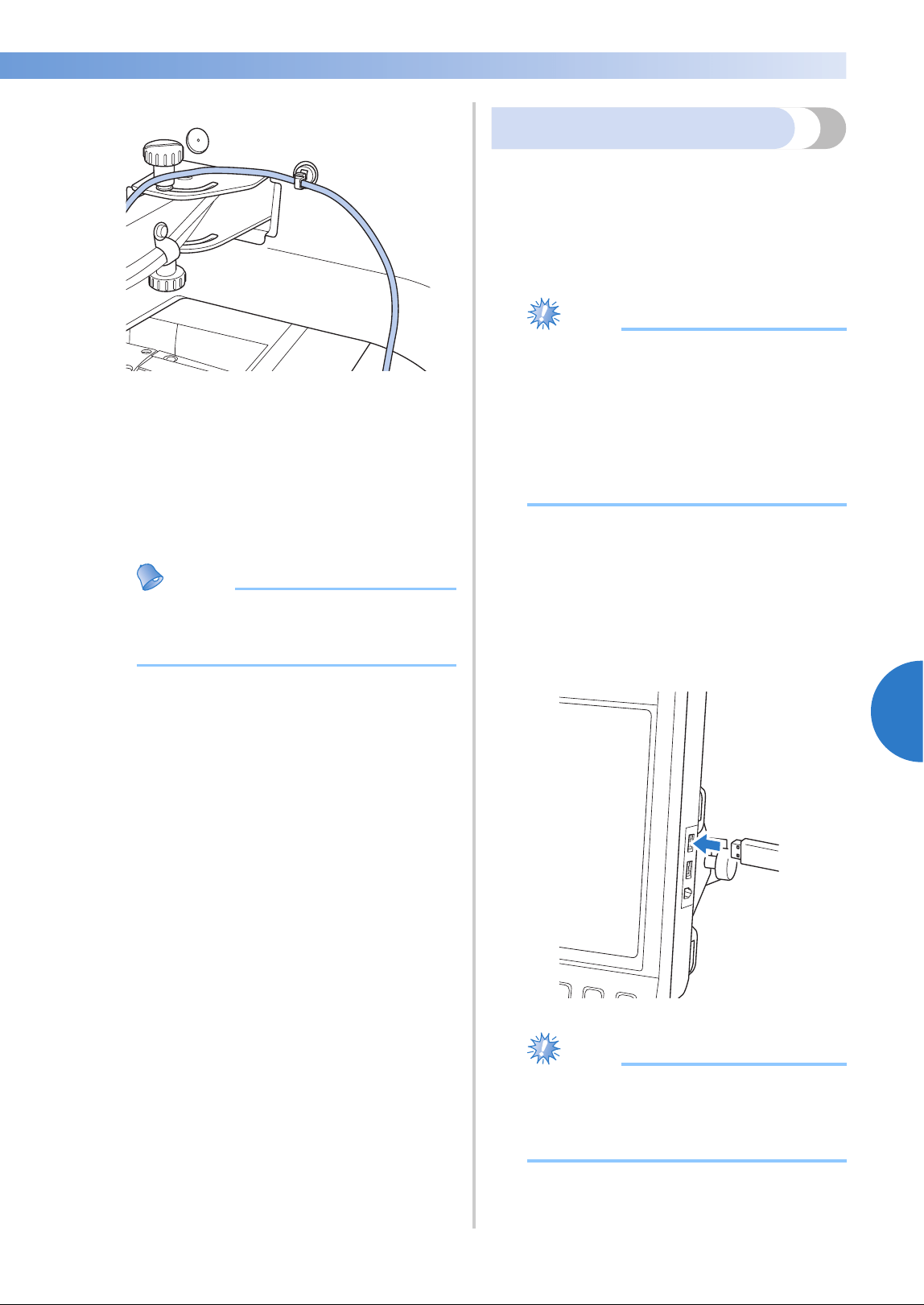
Selecting an Embroidery Pattern 173
——
—————————————————————————————————————————————————————————————————————
—
—————————————
5
7
Using the same operation described in step
5, secure the USB cable with the rear USB
cord clamp.
8
Arrange the USB cable between the USB
cord clamps so that the cable does not
interfere with the operation of the machine.
Memo
● Store the protective caps, which were
removed in step
1, in the included
accessory case so they will not be lost.
USB media
You can recall a specific embroidery pattern from
either directly USB media or a folder in the USB
media. If the embroidery pattern is under the folder,
move down layers of folders following a path to it.
For details on storing a pattern, refer to “USB
media” on page 213.
Note
● USB media and reader/writer units can be
purchased at electronic/computer dealer.
● Some USB media may not be usable with
this machine. Please visit our web site
“http://solutions.brother.com” for more
details.
● The processing speed may vary by port
selection and quantity of data.
1
Insert the USB media into the primary (top)
USB port on the machine.
Depending on the type of USB media being
used, either directly plug the USB device into
the machine’s USB port on the right side of
the operation panel or plug the USB Card
Reader/Writer into the machine’s port.
Note
● Do not insert anything other than USB
media into the USB media port.
Otherwise, the USB media drive may be
damaged.
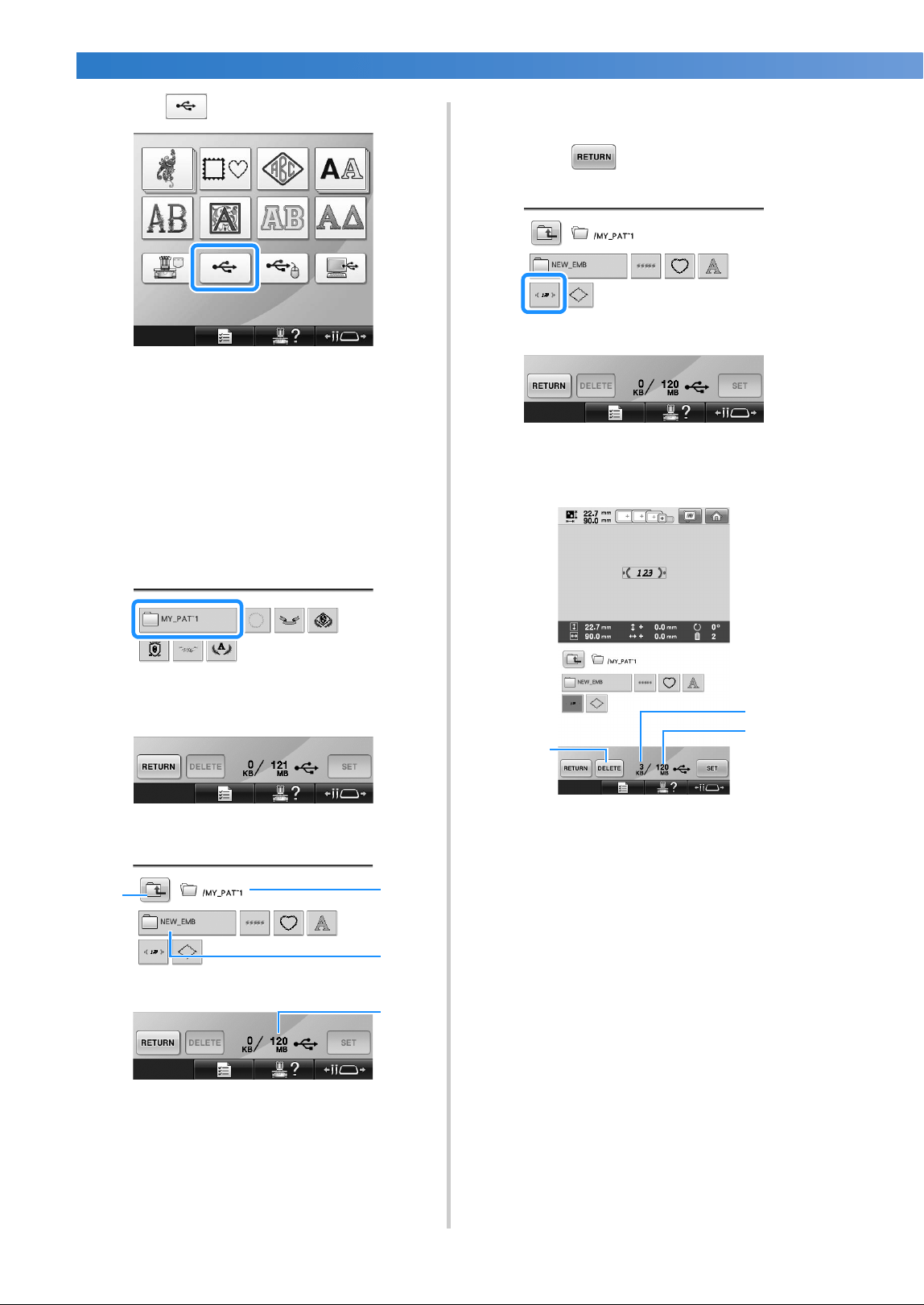
SELECTING/EDITING/SAVING PATTERNS
—
——————————————————————————————————————————————————————
——
174
2
Touch .
X A list of patterns and folders at the topmost
level are displayed.
• The pattern list is usually displayed within
a few seconds; however, if there are many
patterns, it may take some time for them to
be displayed. While the patterns are being
read, do not remove the USB media.
Instead, wait until the patterns are
displayed.
3
To select a pattern in a lower-level folder,
select the folder.
X The list of folders and patterns in the
selected folder are displayed in order.
1 Shows the name of the current folder.
2 Shows the folder in the current folder.
If the folder name is more than nine characters
long, the name changes to the first six
characters followed by “~” and a number.
3 Shows the amount of free space in the USB
media.
4 Touch this key to move up one folder level.
4
Select an embroidery pattern.
Touch the key for the desired pattern.
• Touch to return to the original
screen.
X The selected pattern appears in the pattern
display area.
1 Shows the amount of memory used by selected
pattern.
2 Shows the amount of free space in the USB
media.
3 Touch this key to delete the selected pattern.
X If the wrong pattern was selected or you
wish to select a different pattern, touch the
key for the desired pattern.
3
4
1
2
3
1
2
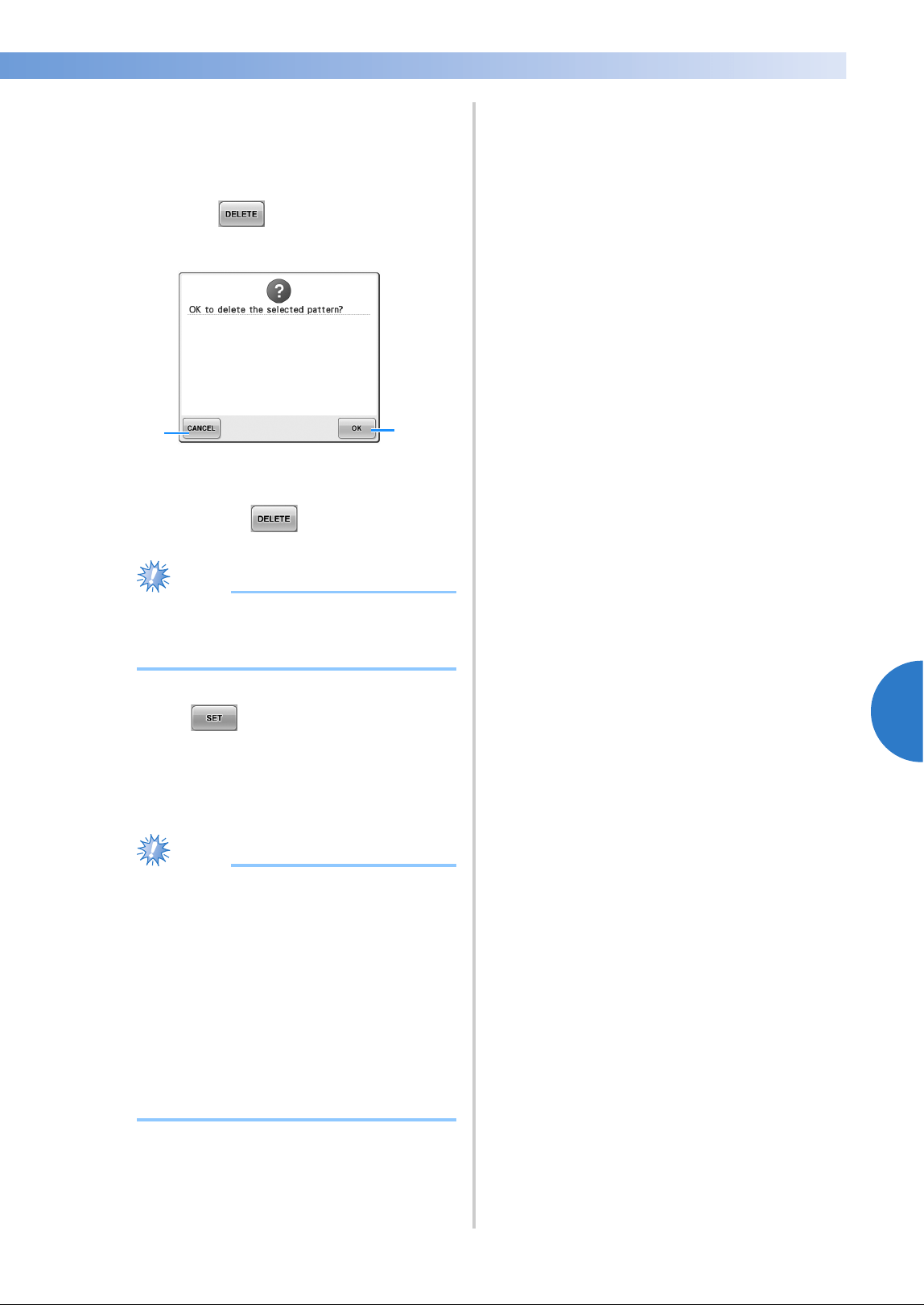
Selecting an Embroidery Pattern 175
——
—————————————————————————————————————————————————————————————————————
—
—————————————
5
■ Deleting embroidery data
From this screen, the embroidery data stored on
the USB media can be organized by deleting
unnecessary data.
After selecting the pattern that you wish to
delete, touch to display the screen
shown below.
1 Deletes the data, then returns to the screen with
no pattern selected.
2 Does not delete the data, then returns to the
screen before was touched.
Note
● To delete the USB media pattern data,
delete it from the machine. This will delete
design data completely.
5
Touch .
This confirms the pattern selection.
X The pattern editing screen appears.
Note
● Do not unplug the USB media or CD
while a pattern is being read or deleted,
otherwise the USB media may be
damaged or data may be lost.
In addition, do not unplug the USB media
or CD while the contents of the USB
media, or CD are displayed.
● Do not unplug a USB device/media from
this machine immediately after it has been
plugged in. Be sure to wait at least 5
seconds before unplugging the USB
device/media.
1
2
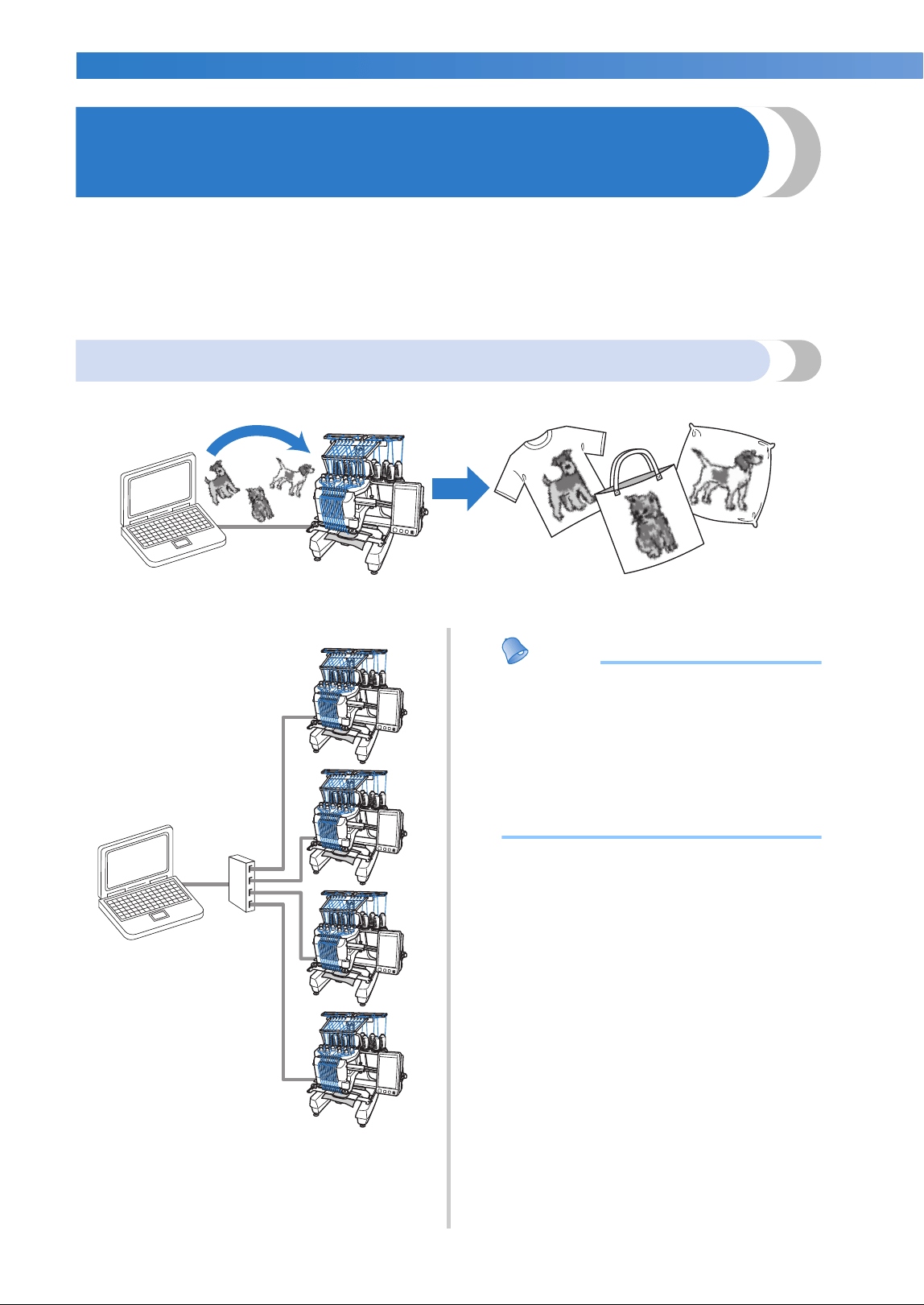
SELECTING/EDITING/SAVING PATTERNS
—
——————————————————————————————————————————————————————
——
176
Sending Embroidery Patterns From a Computer to the
Machine (Link Function)
This machine is compatible with the Link function. This function allows embroidery patterns edited in
embroidery editing software provided with the Link function, such as PE-DESIGN NEXT or later, to be
transferred from a computer to multiple embroidery machines. As many as 100 embroidery patterns can be
transferred to an embroidery machine, and the embroidering status of the patterns being transferred can be
viewed from the computer monitor.
Use the included USB cable to connect the embroidery machine to a computer.
Operations available with the Link function
■ Send multiple embroidery patterns to connected embroidery machines
■ Check the sewing status of the embroidery machine (this model) from the computer
(Example of multiple machines connected)
Memo
● When connecting multiple embroidery
machines to the computer, use a
commercially available USB hub.
Please note that we recommend you to
use a self-powered USB hub. Do not use
USB extension cables or repeater cables.
For details on using the USB hub, refer to
its operating instructions.
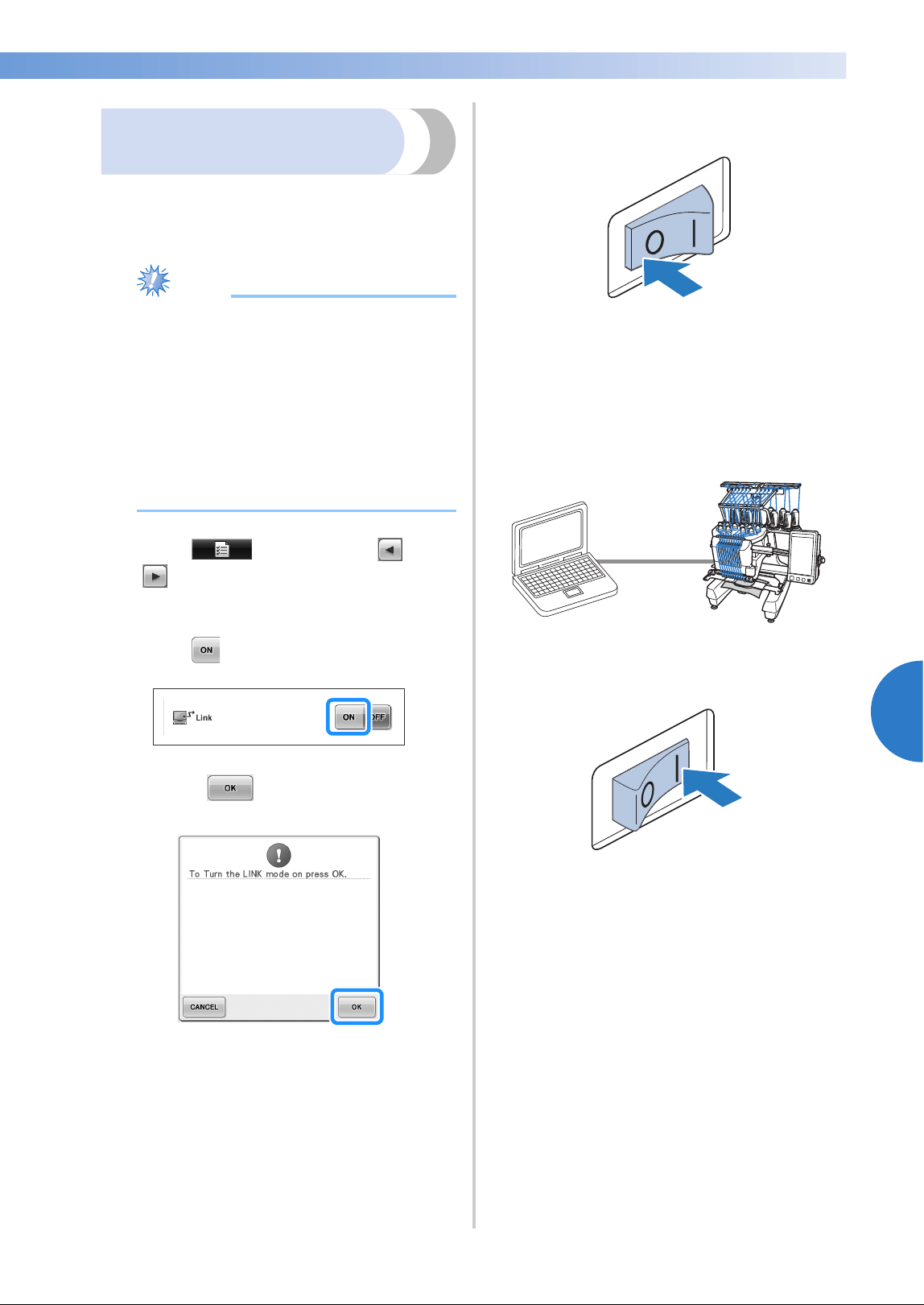
Sending Embroidery Patterns From a Computer to the Machine (Link Function) 177
——
—————————————————————————————————————————————————————————————————————
—
—————————————
5
Embroidering using
the Link function
First, use the embroidery editing software to create
the embroidery pattern to be sent to the embroidery
machine.
Note
● Only embroidery data in the PES format
(.pes) can be embroidered using the Link
function.
● The Link function cannot be used with
large-size (split) embroidery patterns or
embroidery patterns for the jumbo frame
(optional).
● Attach to the embroidery machine the
embroidery frame for the size of the
pattern to be sent.
1
Touch , and then touch and
to display page 5/5 of the settings
screen.
2
Touch to enable the Link function.
X When the following message appears,
touch .
3
Turn off the machine.
4
Use the included USB cable to connect the
embroidery machine to the computer.
• When connecting the embroidery machine
to the computer, be sure to use the
included USB cord clamps. For details on
using the USB cord clamps, refer to
page 171.
5
Turn on the machine.
6
Using embroidery editing software provided
with the Link function, such as PE-DESIGN
NEXT or later from a computer, send the
embroidery pattern to the machine in the
Link mode.
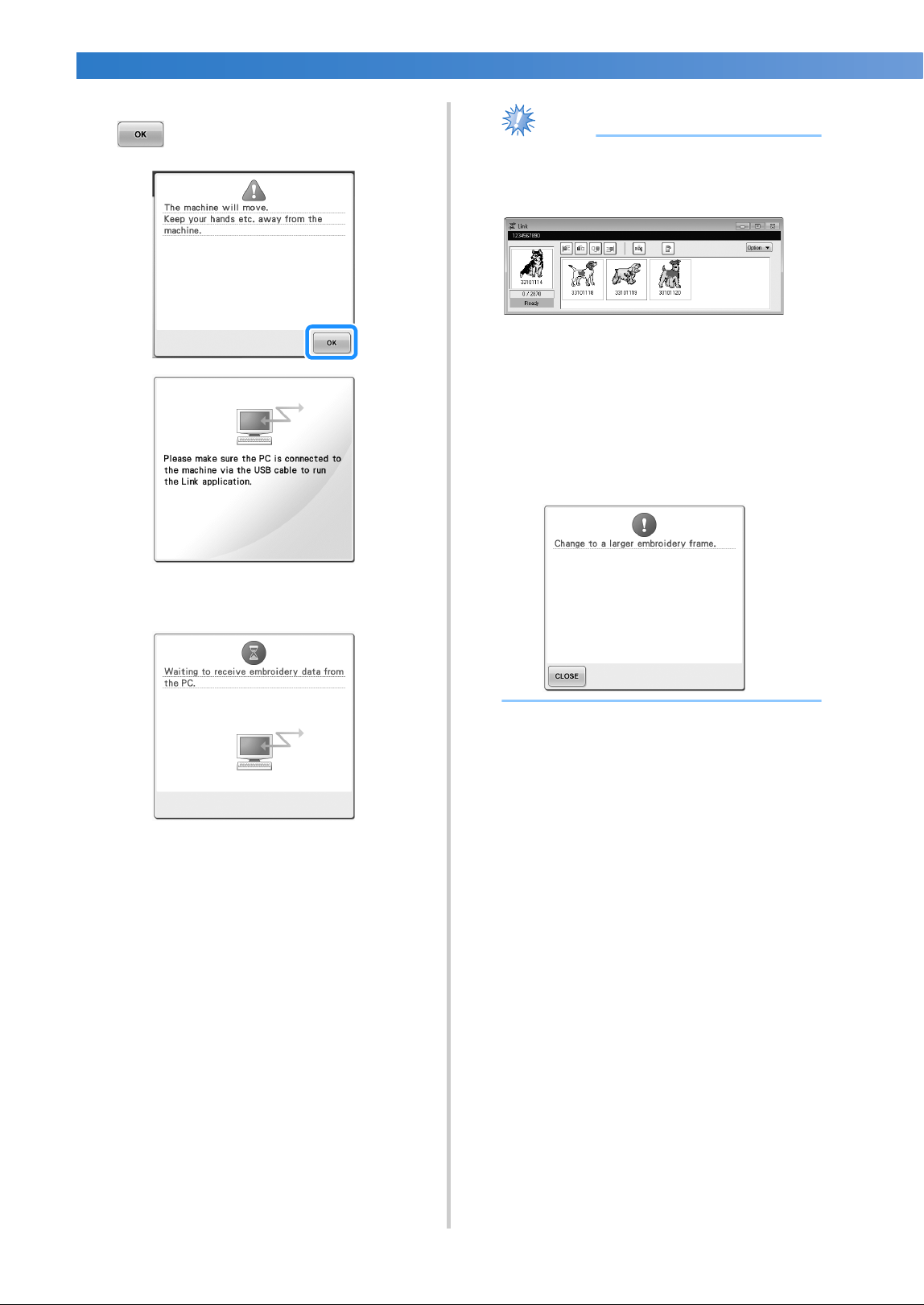
SELECTING/EDITING/SAVING PATTERNS
—
——————————————————————————————————————————————————————
——
178
7
When the following message appears, touch
.
X A message appears in the machine’s LCD
while the machine is connecting to PC.
Note
● For details on using the embroidery editing
software, refer to the Instruction Manual
included with it.
* This Link dialog box is found in PE-DESIGN
NEXT software.
● If the following error message appears, the
type of embroidery frame installed on the
machine is not compatible with the size of
the pattern. Replace the embroidery frame
with one compatible with the size of the
pattern.
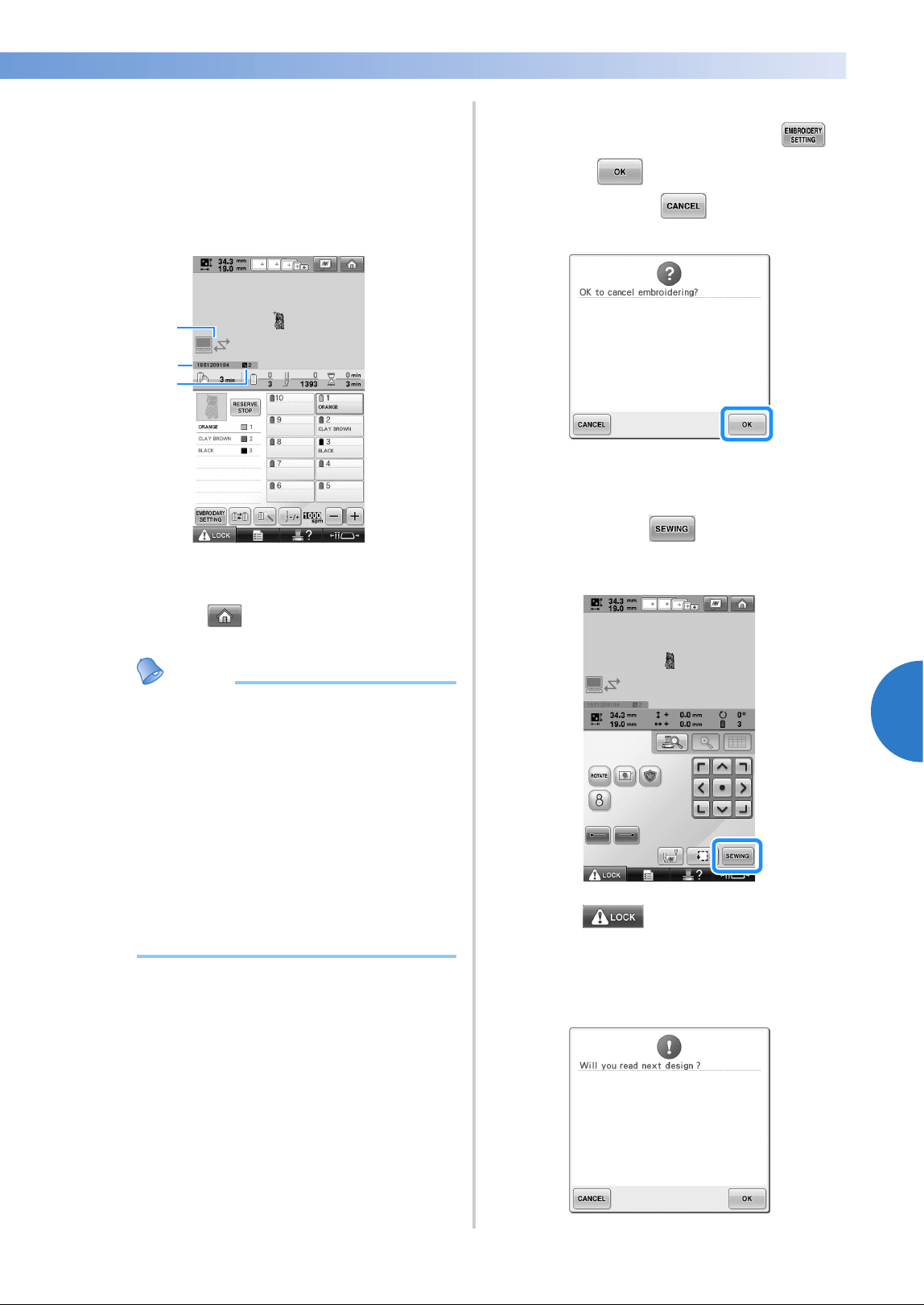
Sending Embroidery Patterns From a Computer to the Machine (Link Function) 179
——
—————————————————————————————————————————————————————————————————————
—
—————————————
5
8
After the embroidery pattern has been
opened by the machine, the embroidering
screen appears.
X The opened embroidery pattern appears in
the pattern display area with the icon for
the Link function.
1 Icon for Link function
2 10-digit machine ID
3 Number of the pattern in the queue
• Touch to delete the pattern.
Memo
● While the embroidery machine is
connected to the computer, the machine’s
status can be displayed by using a function
of the embroidery editing software. If
multiple embroidery machines are
connected at the same time, check the
status of the machines using the 10-digit
machine ID that appears in the machine’s
screen. The following information can be
viewed from the computer.
• Number of the stitch being sewn and
total number of stitches in the pattern
• Information on sewing errors
9
To change the embroidery settings for the
opened embroidery pattern, touch .
• Touch when the following message
appears. Touch to return to the
embroidering screen.
X The embroidery settings screen appears.
0
After the desired settings have been
specified, touch to return to the
embroidering screen.
a
Touch , and then press the start/
stop button to start embroidering.
X When embroidering is finished, the
following message appears.
2
1
3
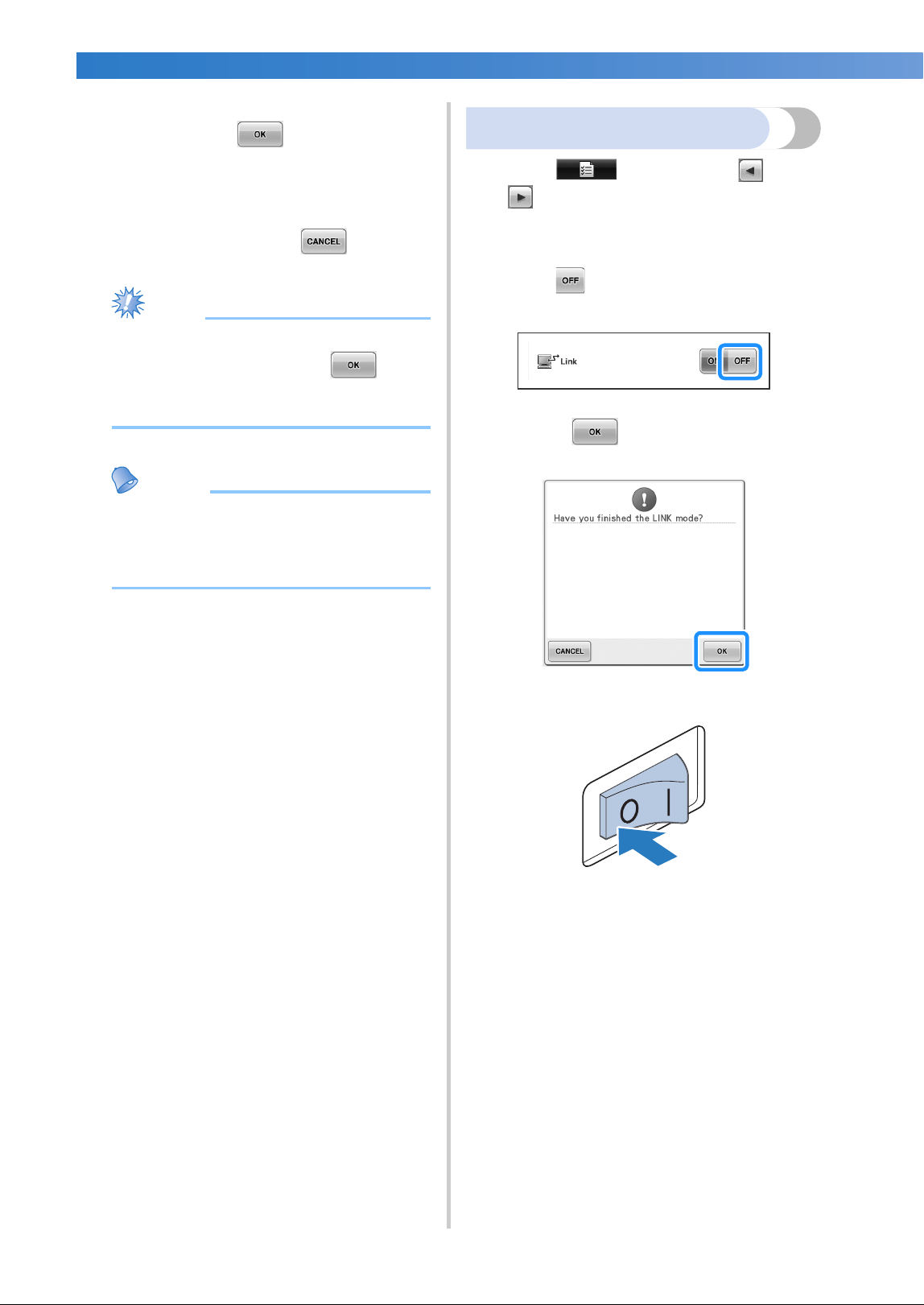
SELECTING/EDITING/SAVING PATTERNS
—
——————————————————————————————————————————————————————
——
180
b
To open another pattern sent from the
computer, touch , and then repeat the
procedure starting from step
8 to continue
embroidering.
To stop embroidering or to embroider the
same pattern again, touch .
Note
● The embroidering screen settings specified
in step 0 are saved even if was
touched to continue sewing after
embroidering is finished.
Memo
● If the embroidery machine is turned off
while it is embroidering, the resume
operation can be used the next time it is
turned on.
Disabling the Link function
1
Touch , and then touch and
to display page 5/5 of the settings
screen.
2
Touch to disable the Link function.
X When the following message appears,
touch .
3
Turn off the machine.
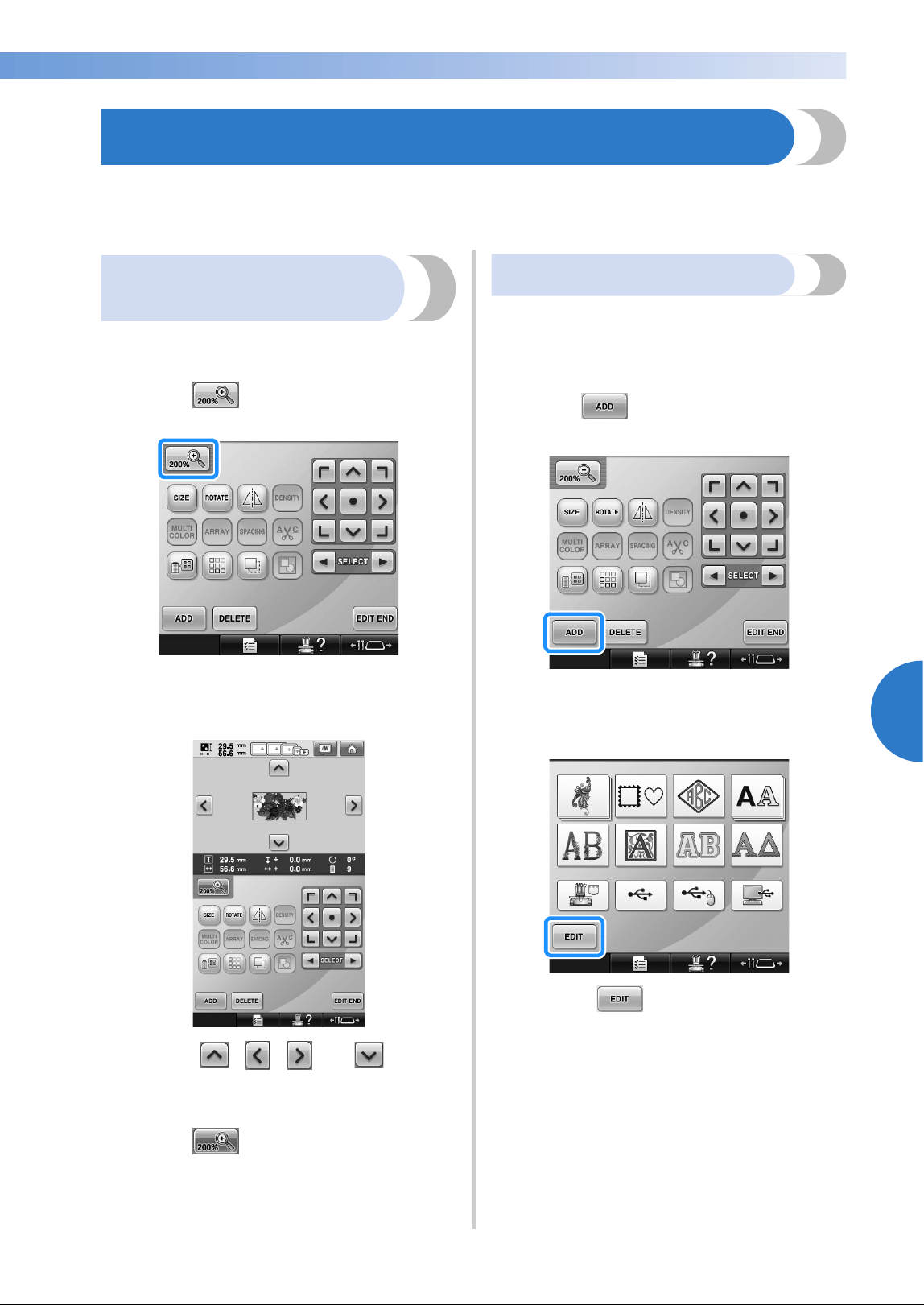
Editing the Embroidery Pattern (Pattern Editing Screen) 181
——
—————————————————————————————————————————————————————————————————————
—
—————————————
5
Editing the Embroidery Pattern (Pattern Editing Screen)
The patterns can be edited from the pattern editing screen and the embroidering settings screen. Individual
patterns can be edited with the pattern editing screen, and the entire pattern can be edited with the
embroidering settings screen. The results of editing the pattern can be seen in the pattern display area.
Enlarge the pattern image
on the screen
You can view the pattern image twice the size of
the normal previewed image.
1
Touch .
X The enlarged pattern image is displayed
on the screen.
• Press , , and on the
pattern display area to view the hidden
area of the pattern.
2
Touch to return to the normal size
image.
Combining patterns
Various patterns, such as embroidery patterns,
frame patterns, built-in alphabet patterns and
patterns on embroidery cards, can easily be
combined.
1
Touch .
X The pattern type selection screen appears
again.
• Touch in the pattern type selection
screen, if you no longer want to combine
patterns. The pattern editing screen will
then appear. This key is not available
unless a pattern has been previously
selected.
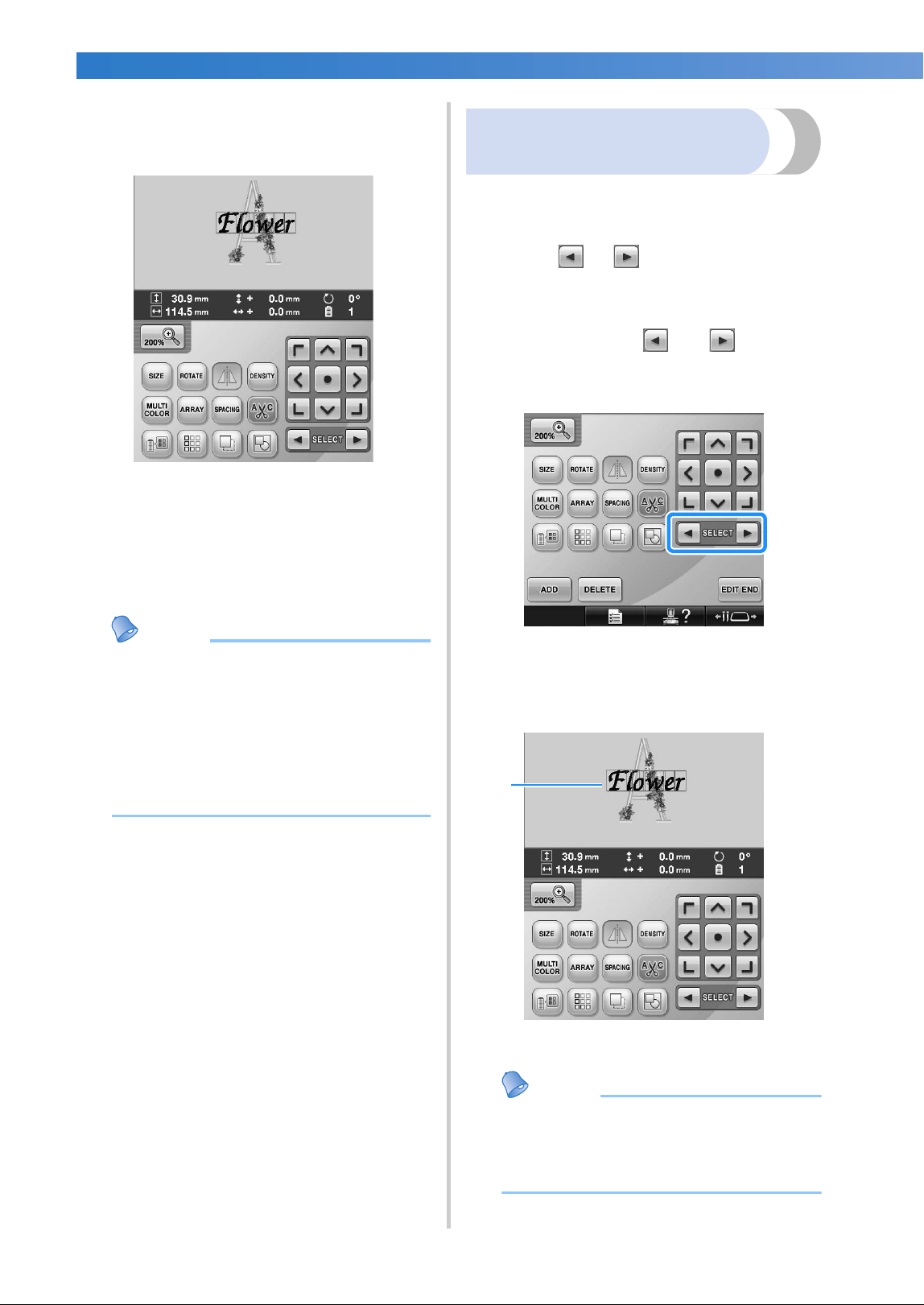
SELECTING/EDITING/SAVING PATTERNS
—
——————————————————————————————————————————————————————
——
182
2
Select an embroidery pattern.
Select the pattern to be added as described
on page 153 to 175.
• When another pattern is selected, it is
normally added at the center of the pattern
display area.
3
Repeat steps 1 and 2 until all patterns to
be combined are selected.
Memo
● The position of individual patterns and
other editing operations can be performed
from the pattern editing screen. The
editing operations can be performed in the
same way from the pattern editing screen
whether it is displayed as each pattern is
selected or after all patterns that you wish
to combine have been selected.
Selecting the pattern to be
edited
If multiple patterns are selected, you can choose
which pattern will be edited.
1
Touch or .
The pattern that will be edited is the pattern
enclosed by the red frame.
Continue touching and until the
red frame is around the pattern that you wish
to edit.
X The patterns are selected in the order or
the opposite order that they were added to
the pattern.
1 Red frame indicating the pattern to be edited.
Memo
● If multiple patterns appear in the pattern
editing screen, the basic editing procedure
is to 1. select the pattern to be edited, and
then 2. edit that pattern.
1
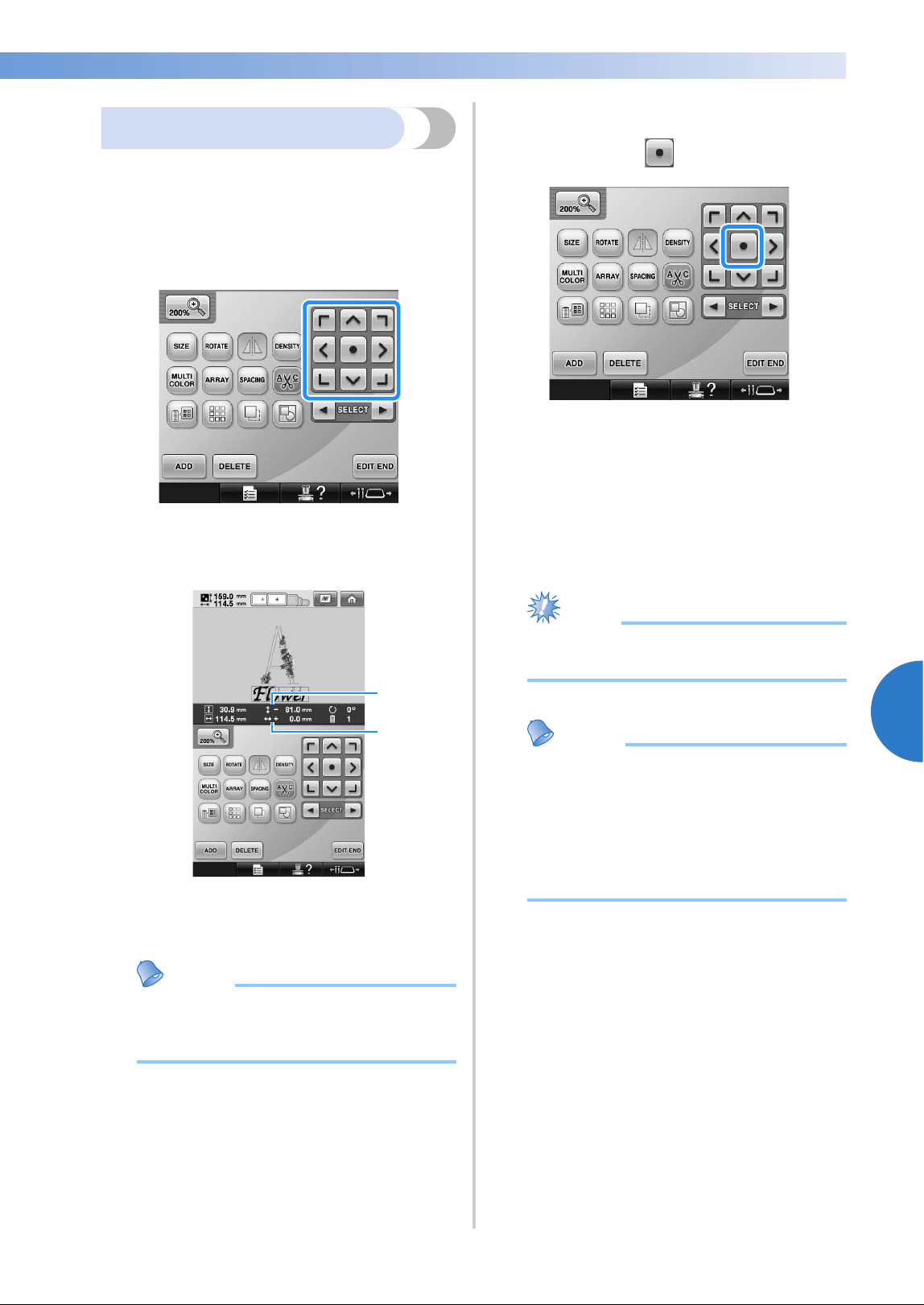
Editing the Embroidery Pattern (Pattern Editing Screen) 183
——
—————————————————————————————————————————————————————————————————————
—
—————————————
5
Moving a pattern
Determine where in the embroidery frame the
pattern will be embroidered. If multiple patterns are
combined, move each pattern to lay out the design.
1
Touch the key for the direction where you
wish to move the pattern.
X The pattern moves in the direction of the
arrow on the key.
1 Shows the vertical distance moved from center.
2 Shows the horizontal distance moved from
center.
Memo
● If you wish to group combined patterns,
refer to “Editing patterns as a group” on
page 204.
• To return the pattern to its position before it
was moved (center of the embroidery
frame), touch .
The pattern can also be moved by dragging it.
If a USB mouse is connected, move the
mouse to position the pointer on the desired
pattern, and then hold in the left mouse
button while dragging the pattern. The
pattern can also be dragged by selecting it
directly in the screen with your finger or the
touch pen.
Note
● The pattern can only be moved when the
arrow keys are on the screen.
Memo
● The pattern can also be moved by
touching the arrow keys in the screens that
appear when any of the other editing keys
are touched.
● The arrow keys in the embroidering
settings screen are used to move the frame
to select the embroidering position.
1
2
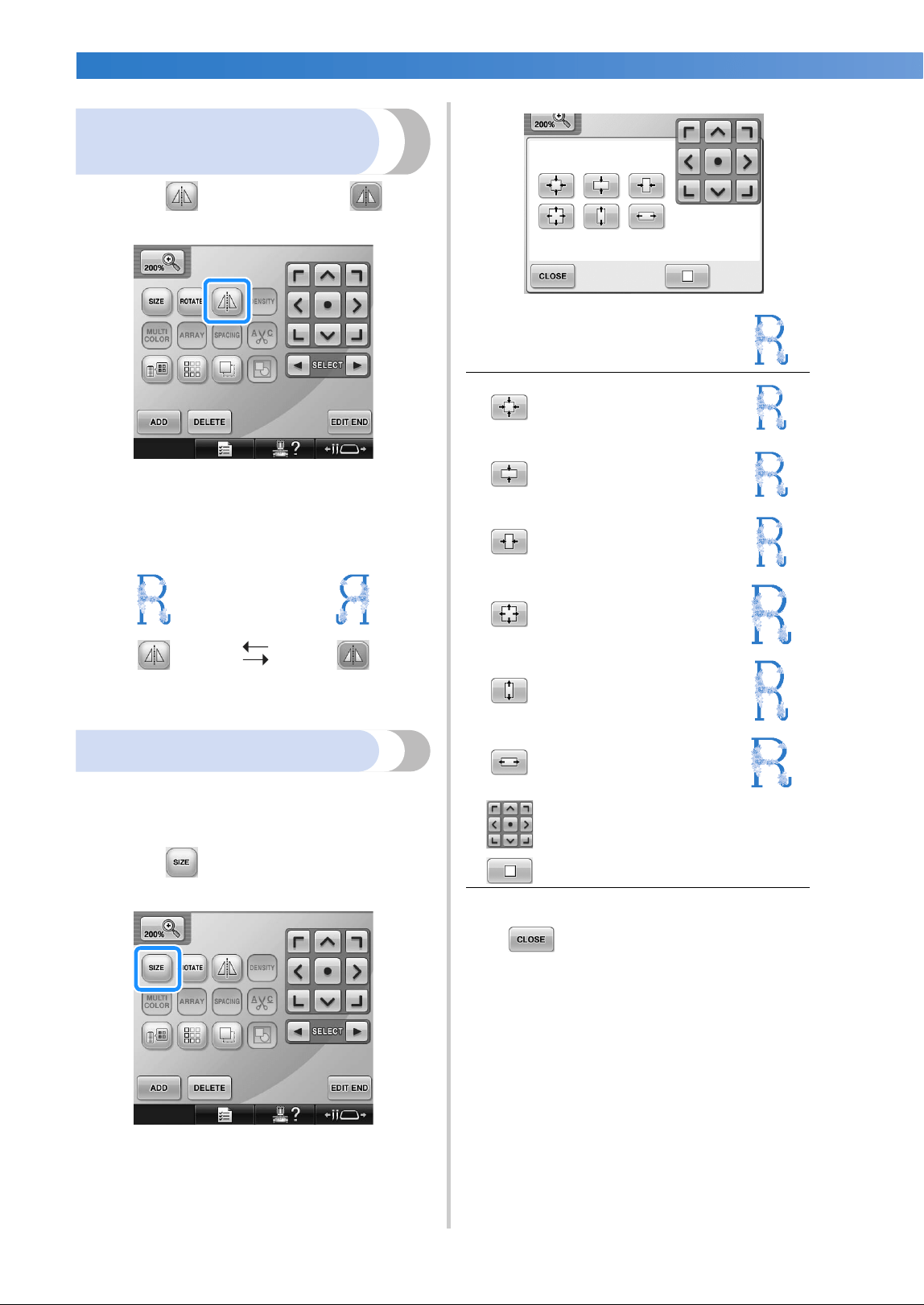
SELECTING/EDITING/SAVING PATTERNS
—
——————————————————————————————————————————————————————
——
184
Flipping a pattern
horizontally
1
Touch so that it changes to .
X The pattern is flipped horizontally.
• Each touch of the key turns the setting
either on or off.
Changing the size of a pattern
The size of the pattern can be increased or
decreased to between 90% and 120% of its original
size.
1
Touch .
X The screen shown below appears.
2
After making the desired changes, touch
.
Horizontal flip
turned off
Flipped horizontally
Example: Original angle
Reduces without
changing the height-to-
width proportion.
Reduces only in the
vertical direction.
Reduces only in the
horizontal direction.
Enlarges without
changing the height-to-
width proportion.
Enlarges only in the
vertical direction.
Enlarges only in the
horizontal direction.
Moves the pattern in the direction of
the arrow on the key.
Touch this key to return the pattern
to its original size.
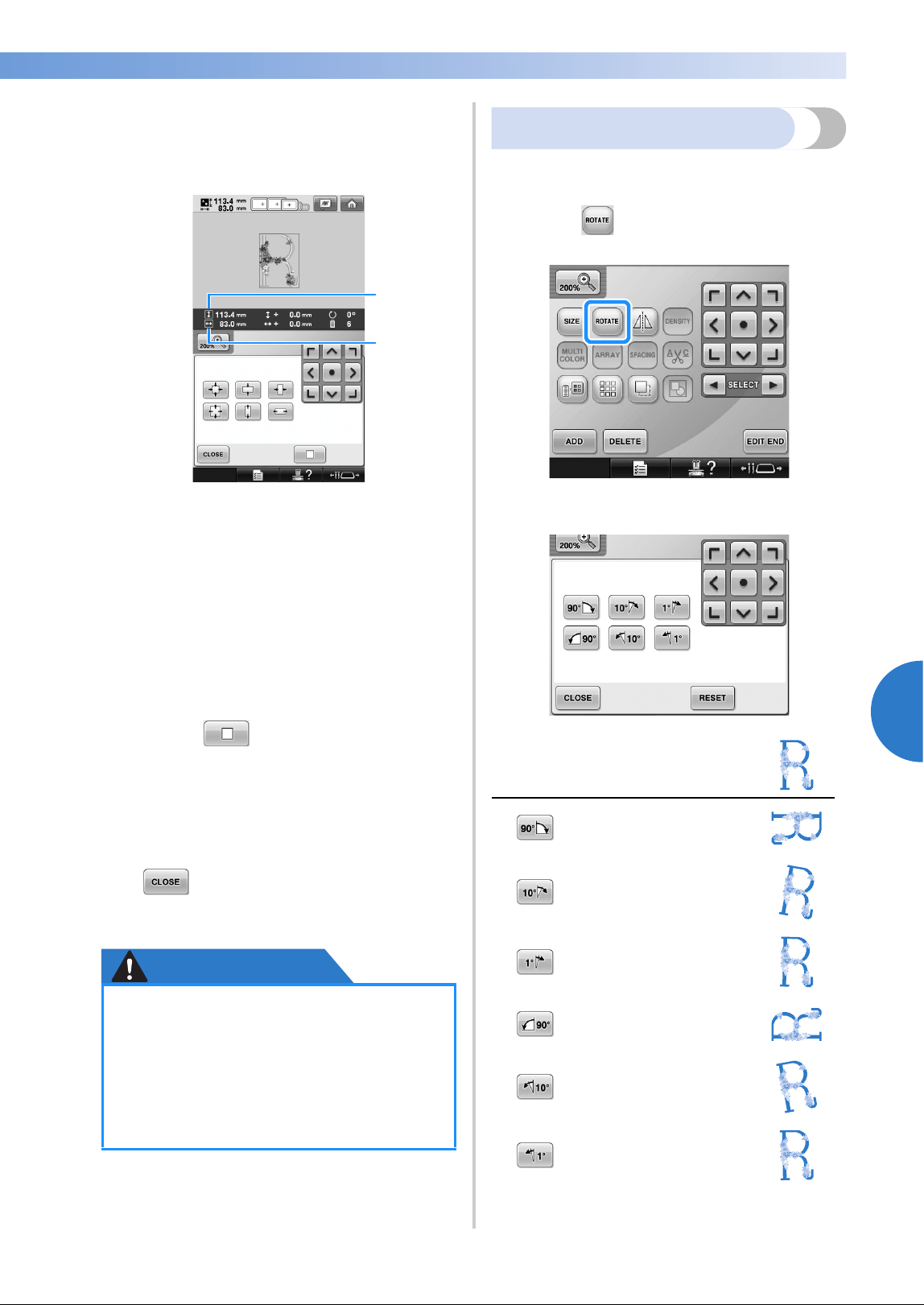
Editing the Embroidery Pattern (Pattern Editing Screen) 185
——
—————————————————————————————————————————————————————————————————————
—
—————————————
5
3
Touch the keys to adjust the pattern to the
desired size.
Each touch of a key slightly enlarges or
reduces the pattern.
The size of the pattern is displayed after a key
is touched to change it.
1 Vertical length
2 Horizontal width
• The size that the pattern can be enlarged
depending on the pattern or character.
• Depending on the pattern or character, if it
is rotated 90 degrees it may be enlarged
even more.
• If the pattern is rotated, the vertical and
horizontal directions may be reversed.
• To return the pattern to its original size,
touch .
4
If necessary, touch the arrow keys to adjust
the position of the pattern.
(For more details, refer to page 183.)
5
After making the desired changes, touch
.
X The pattern editing screen appears again.
CAUTION
Rotating a pattern
The pattern can be rotated between 1 and 359
degrees either clockwise or counterclockwise.
1
Touch .
X The screen shown below appears.
●
After changing the size of the pattern,
check the icons for the embroidery
frames that can be used and use only
the indicated frames. If a frame other
than those indicated are used, the
presser foot may hit the embroidery
frame and cause injuries.
1
2
Example: Original angle
Rotates 90 degrees to the
right
Rotates 10 degrees to the
right
Rotates 1 degree to the
right
Rotates 90 degrees to the
left
Rotates 10 degrees to the
left
Rotates 1 degree to the
left
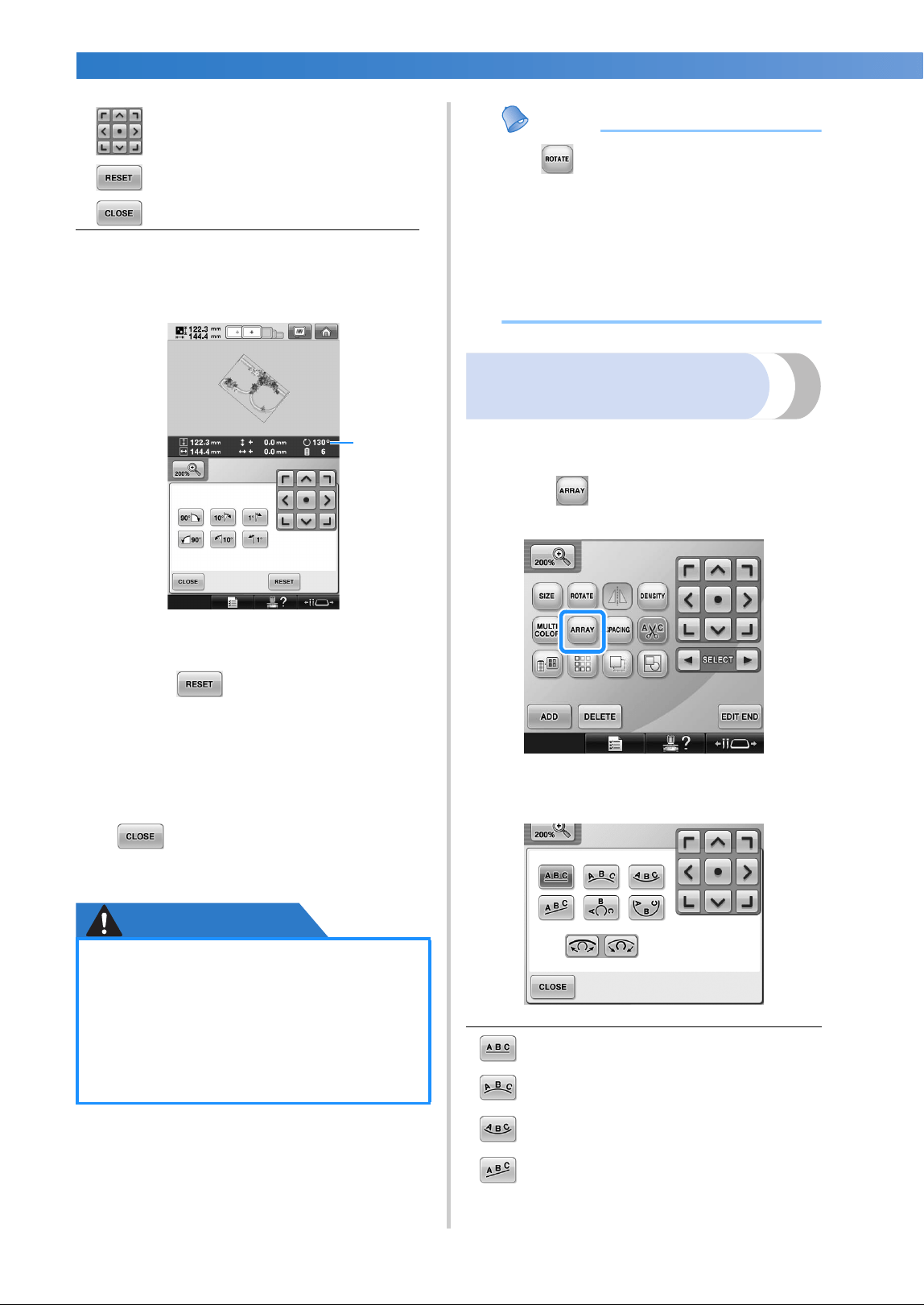
SELECTING/EDITING/SAVING PATTERNS
—
——————————————————————————————————————————————————————
——
186
2
Touch the keys to adjust the pattern to the
desired angle.
Each touch of a key rotates the pattern.
1 Shows the angle of the pattern after a key is
touched to change it.
• To return the pattern to its original angle,
touch .
3
If necessary, touch the arrow keys to adjust
the position of the pattern.
(For more details, refer to page 183.)
4
After making the desired changes, touch
.
X The pattern editing screen appears again.
CAUTION
Memo
● If in the embroidering settings screen
is used, the entire combined pattern can
be rotated. (For details, refer to “Rotating
the entire pattern” on page 205.)
● If the pattern is too large or the pattern is
too close to the edge of the embroidery
field, all of the rotating options may not
apply.
Changing the text
arrangement of a character
Characters can be arranged on a horizontal line, on
a slant or on an arc.
1
Touch .
X The screen shown below appears.
Moves the pattern in the direction of
the arrow on the key.
Touch this key to return the pattern
to its original angle.
Touch this key to close this screen.
●
After changing the angle of the pattern,
check the icons for the embroidery
frames that can be used and use only
the indicated frames. If a frame other
than those indicated are used, the
presser foot may hit the embroidery
frame and cause injuries.
1
Arranges the text on a straight line.
Arranges the text on the outside of a wide
curve.
Arranges the text on the inside of a wide
curve.
Arranges the text on a slanted line.
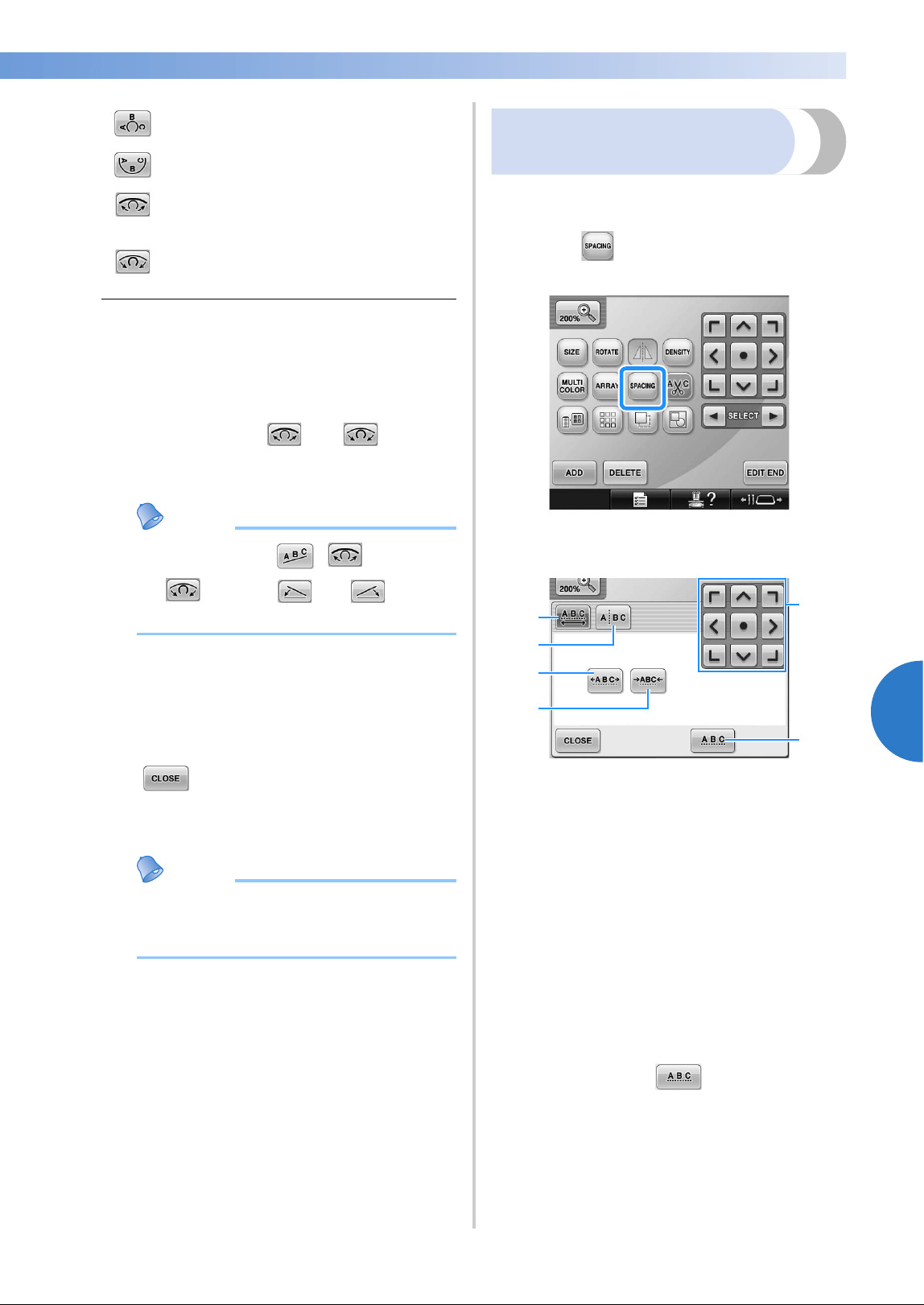
Editing the Embroidery Pattern (Pattern Editing Screen) 187
——
—————————————————————————————————————————————————————————————————————
—
—————————————
5
2
Touch the key of the desired text
arrangement.
3
After selecting the desired text arrangement,
the bend of the curve can be adjusted. If
necessary, touch and to adjust
the bend of the curve.
Memo
● When selecting , and
change to and . You can
increase or decrease the incline.
4
If necessary, touch the arrow keys to adjust
the position of the pattern.
(For more details, refer to page 183.)
5
After making the desired changes, touch
.
X The pattern editing screen appears again.
Memo
● The text arrangement specified when the
character was selected on page 162 can
be changed at this point.
Changing the character
spacing
The spacing between the characters can be made
wider or narrower.
1
Touch .
X The screen shown below appears.
1 Specifies that all of the characters in a word
selected will be spaced equally.
2 Separates characters to be spaced and
positioned individually.
3 Increases the space between characters equally.
4 Decreases the space between characters
equally.
5 Moves the pattern in the direction of the arrow
on the key.
6 Selects the standard character spacing (original
character spacing).
2
Touch the keys to adjust the characters to
the desired spacing.
Each touch of a key slightly increases or
decreases the character spacing.
• To return the characters to their original
spacing, touch .
3
If necessary, touch the arrow keys to adjust
the position of the pattern.
(For more details, refer to page 183.)
Arranges the text on the outside of a
sharp curve.
Arranges the text on the inside of a sharp
curve.
If text is arranged on a curve, each touch
of this key decreases the bend of the
curve (makes it flatter).
If text is arranged on a curve, each touch
of this key increases the bend of the
curve (makes it more curved).
3
2
5
6
4
1
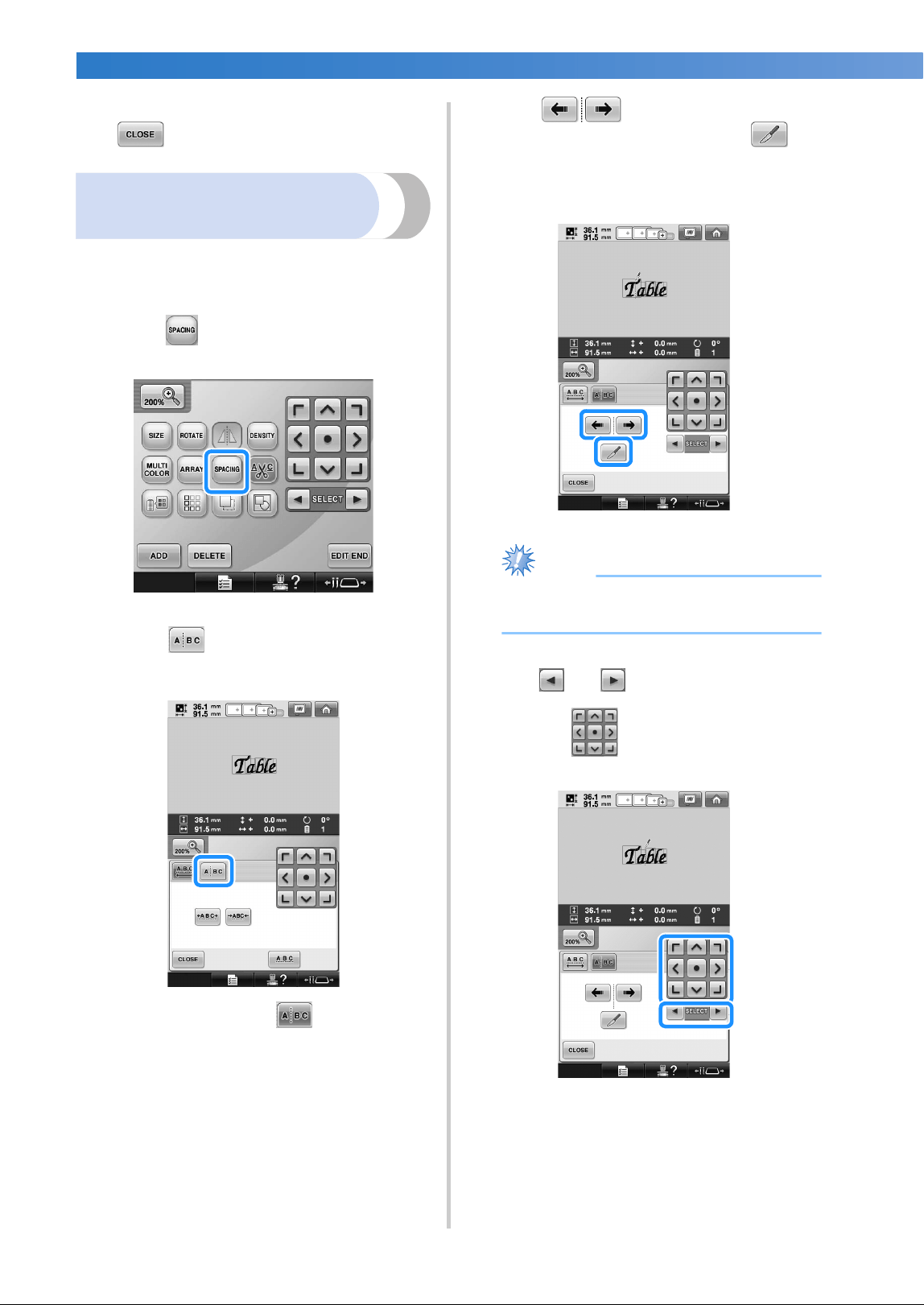
SELECTING/EDITING/SAVING PATTERNS
—
——————————————————————————————————————————————————————
——
188
4
After making the desired changes, touch
.
Separating combined
character patterns
Combined character patterns can be separated to
adjust the character spacing or to separately edit
the patterns after all character have been entered.
1
Touch .
2
Touch .
X The key appears as .
3
Use to select where the pattern
is to be separated, and then touch to
separate it. For this example, the pattern will
be separated between “T” and “a”.
Note
● A separated character pattern cannot be
combined again.
4
Use and to select a pattern, and
then use to adjust the character
spacing.
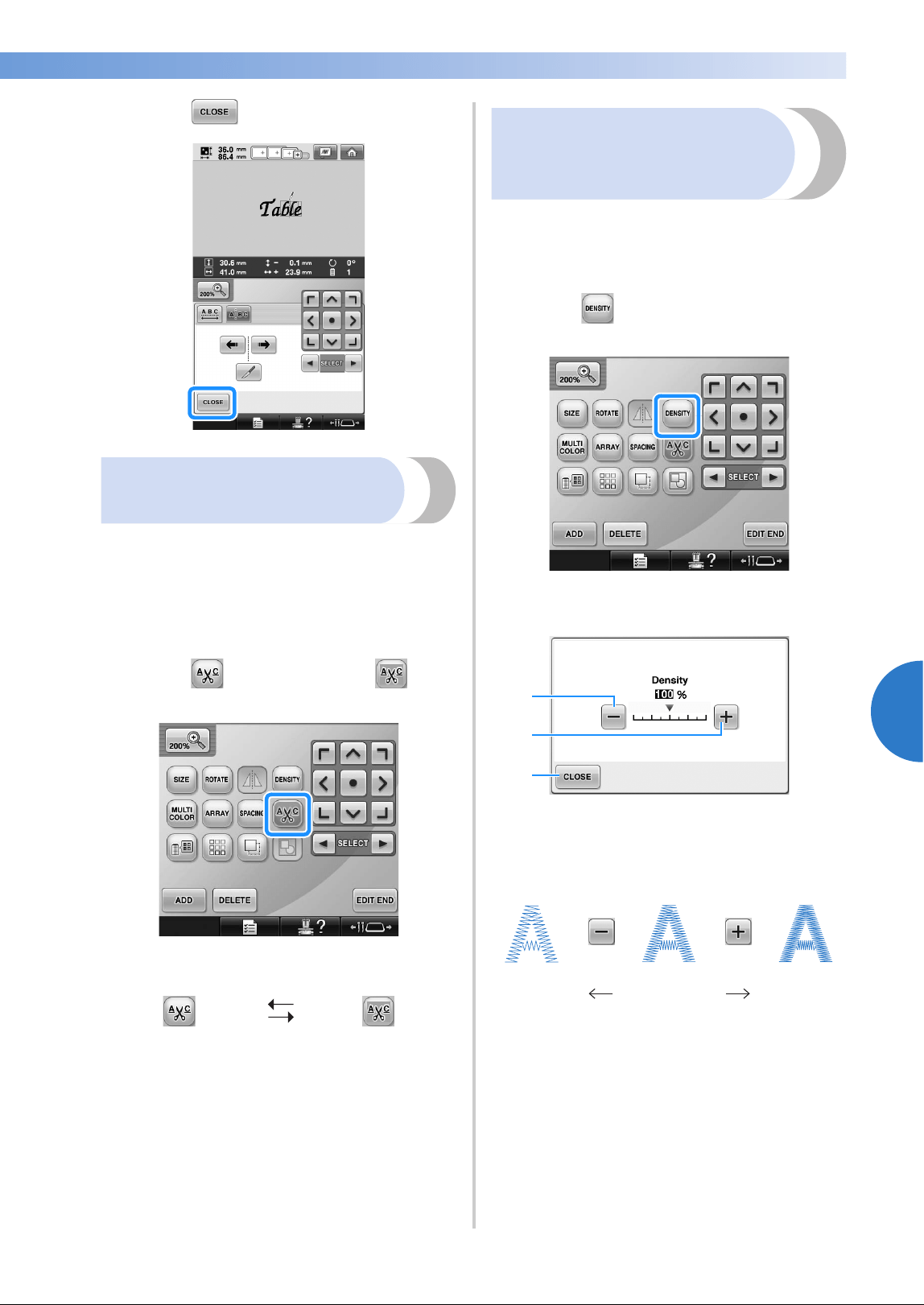
Editing the Embroidery Pattern (Pattern Editing Screen) 189
——
—————————————————————————————————————————————————————————————————————
—
—————————————
5
5
Touch .
Trimming the threads
between characters
If the machine is set to trim the threads between the
characters, the jumpstitches between the characters
are reduced and any other necessary procedures
after embroidering are reduced. However, the
embroidering time will increase if the threads are
trimmed between each of the characters.
1
Touch so that it changes to .
• Each touch of the key turns the setting
either on or off.
Changing the thread density
(only for selected character and frame
patterns)
The thread density for some character and frame
patterns can be changed.
A setting between 80% and 120% in 5%
increments can be specified.
1
Touch .
X The screen shown below appears.
1 Selects a less thread density
2 Selects a more thread density
3 Touch this key to close this screen.
■ Selects a less/more thread density
Threads are not
trimmed.
Threads are
trimmed.
Less Standard More
3
1
2
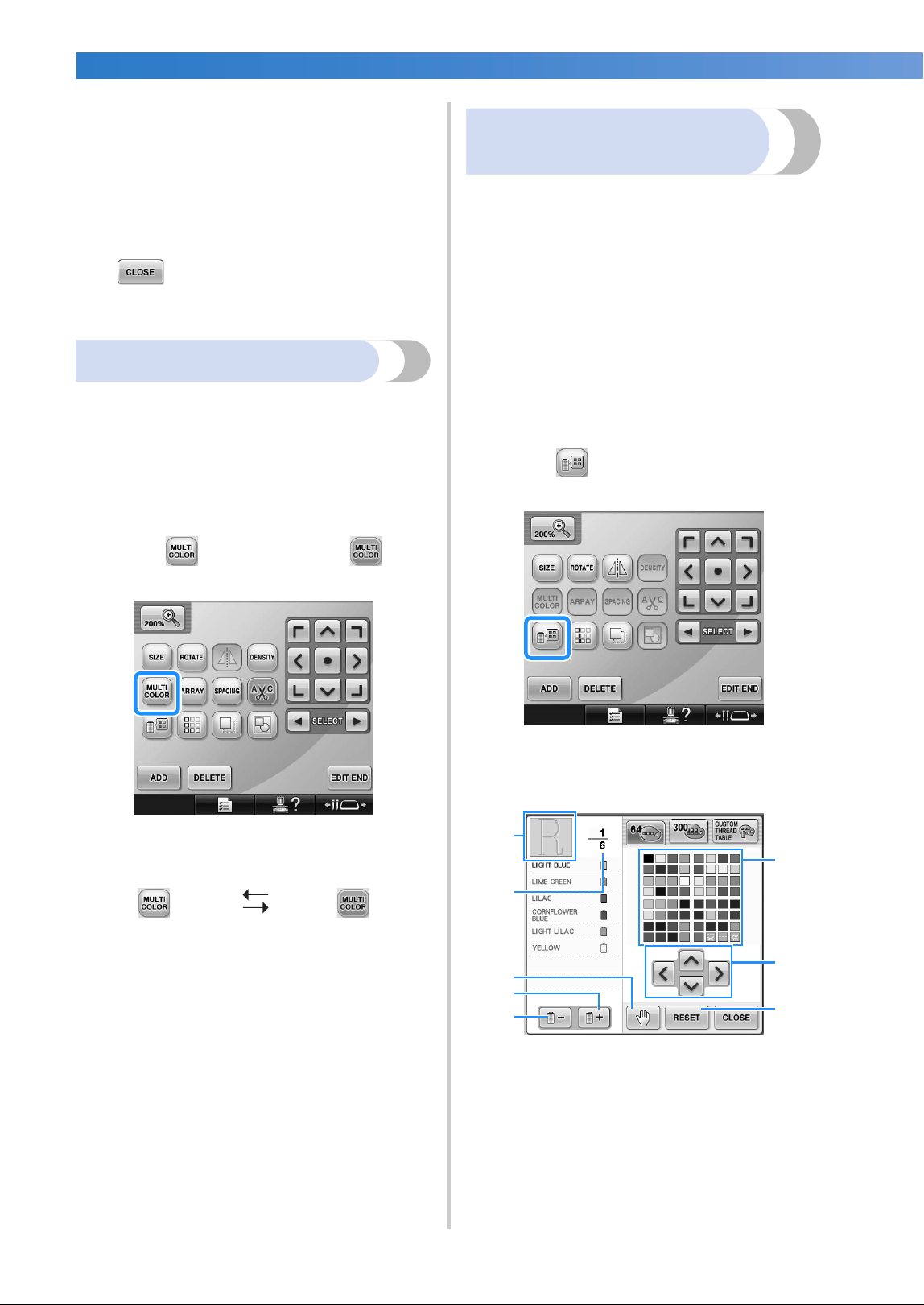
SELECTING/EDITING/SAVING PATTERNS
—
——————————————————————————————————————————————————————
——
190
2
Touch the keys to select the desired thread
density.
Each touch of a key slightly increases or
decreases the thread density.
• To return to the original thread density
(standard), select “100%”.
3
After making the desired changes, touch
.
X The pattern editing screen appears again.
Specifying multi-color text
The alphabet pattern characters selected on
page 159 are set to black. The color of the
characters can be changed using the change thread
color key; however, to change the color of
individual characters, touch the Multi Color key to
turn it on, and then specify the color for each
character.
1
Touch so that it changes to .
• Each touch of the key turns the setting
either on or off.
• For details on changing the thread color,
refer to “Changing the colors of the
pattern” on page 190.
Changing the colors of the
pattern
The colors of the pattern can be changed and
previewed on the screen.
By changing the colors of the pattern, the same
pattern can be viewed in various ways.
If your thread colors are registered in a color thread
table and if you used the table for changing color,
the thread spools can be assigned with the thread
colors that you have. And the pattern displayed in
the screen will appear with colors that are almost
the same as the actual thread colors.
With this operation, the colors of all patterns will
be changed, not just those of the pattern being
edited.
1
Touch .
X The 64 embroidery threads table screen
appears.
1 The part of the pattern in the color at the top of
the thread color sequence display is the part
whose color is being changed.
2 Shows the number of thread color changes. The
top value shows the position in the sewing
order for the color at the top of the thread color
sequence display and the bottom value shows
the total number of thread color changes.
3 Specifies pause locations. (Refer to “Specifying
pause locations before embroidering” on
page 140.)
Multi-color text
turned off
Multi-color text
turned on
5
1
2
6
8
4
3
7
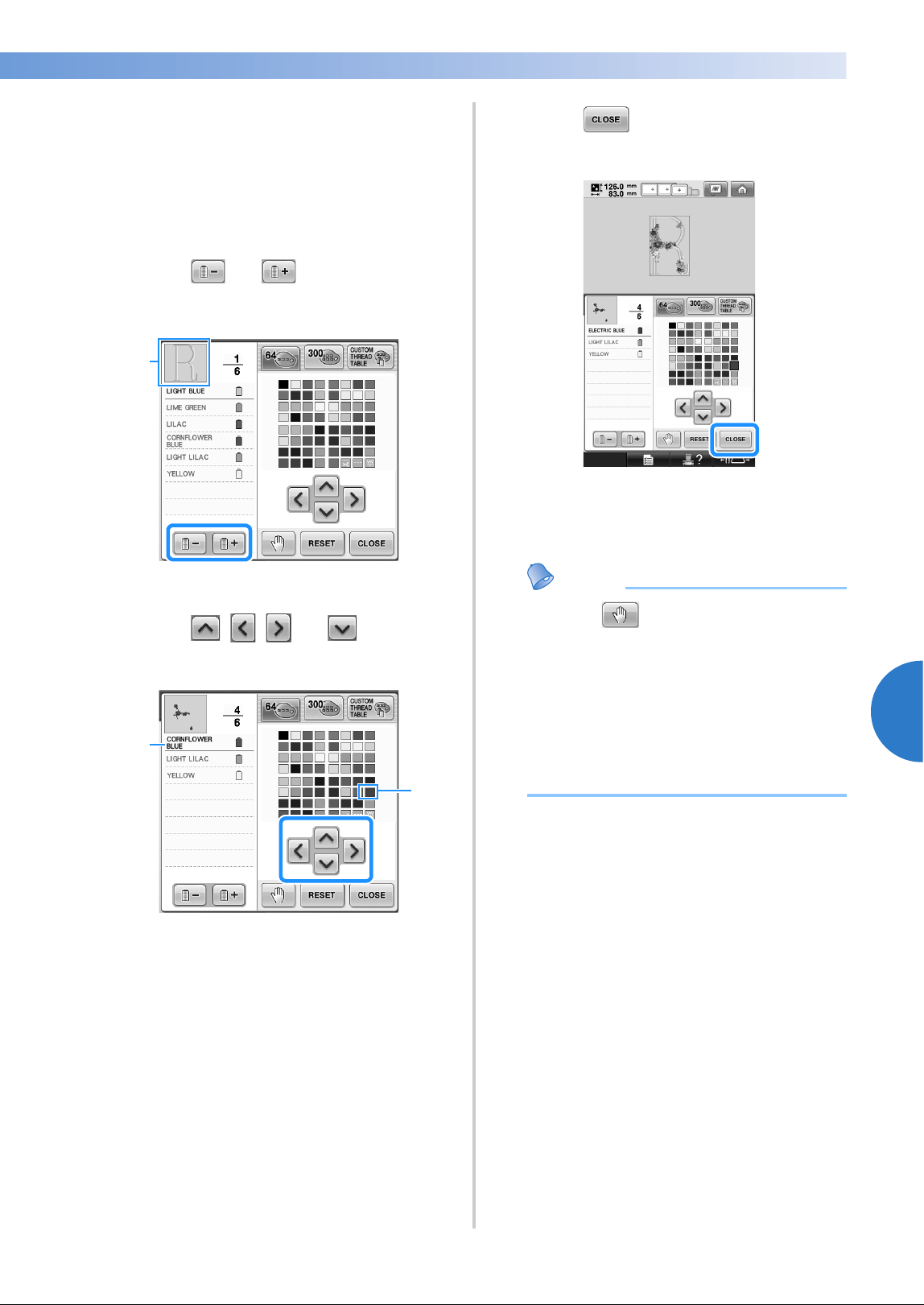
Editing the Embroidery Pattern (Pattern Editing Screen) 191
——
—————————————————————————————————————————————————————————————————————
—
—————————————
5
4 Selects the next color in the thread color
sequence display.
5 Selects the previous color in the thread color
sequence display.
6 Thread color table
Select a color from this table.
7 Use these keys to select a color from the thread
color table.
8 Touch this key to return to the original color.
2
Touch and until the color to be
changed appears at the top of the thread
color sequence display.
1 The thread color for the part of the pattern
displayed at the top will be changed.
3
Touch , , and to select the
new color from the color palette.
1 The color that appears enlarged is the color that
is selected.
2 Displays the name of the selected thread color
X In the pattern display area, the color of the
selected part of the pattern is changed.
4
Touch .
X The color change is confirmed.
X The pattern editing screen appears again.
Memo
● Touch to specify pause locations.
(For details, refer to “Specifying pause
locations before embroidering” on
page 140.)
● The color thread table can be changed to a
custom thread table that you create to
reflect the thread colors that you have.
(Refer to “Creating a custom thread table”
on page 200.)
1
2
1
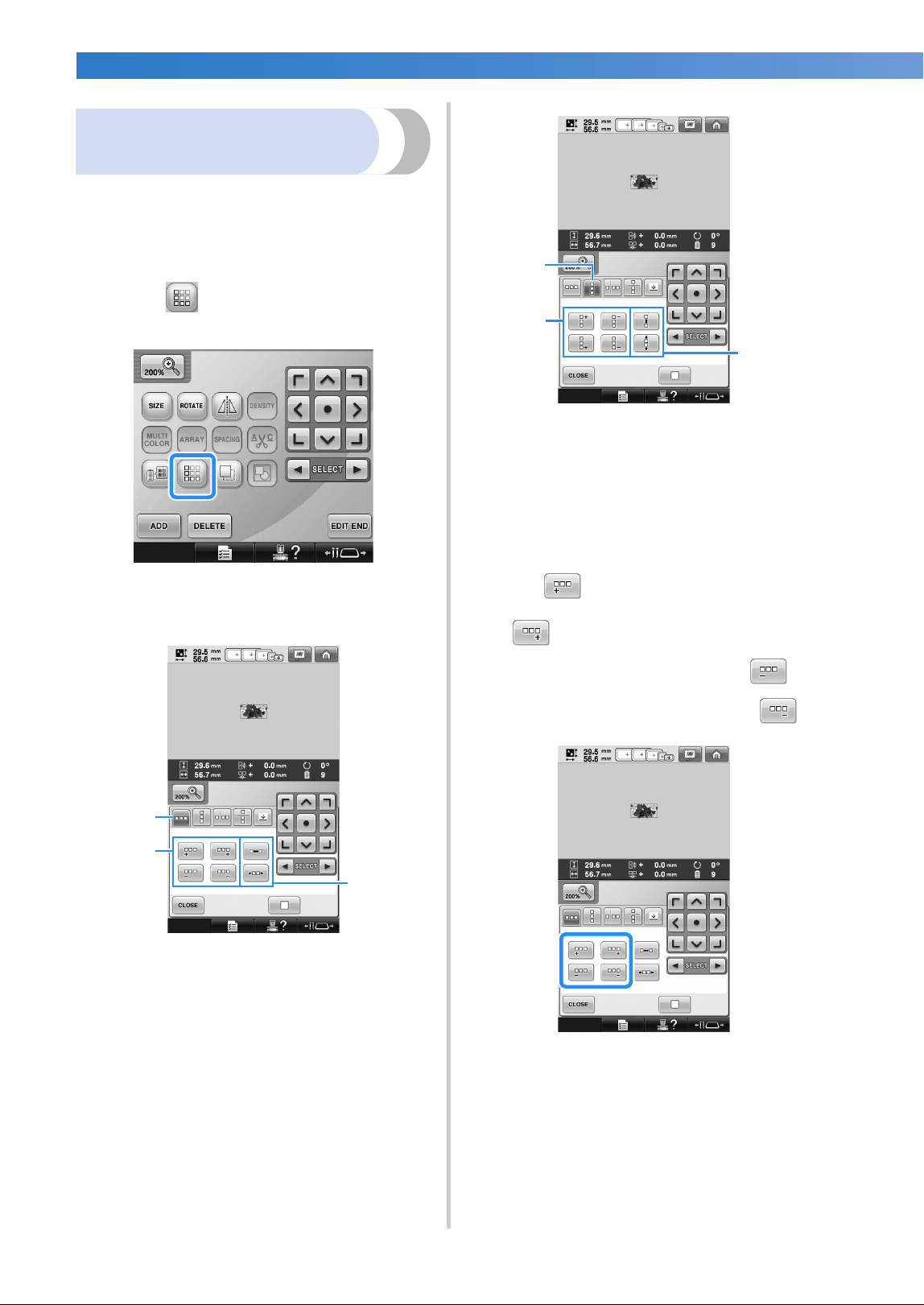
SELECTING/EDITING/SAVING PATTERNS
—
——————————————————————————————————————————————————————
——
192
Designing repeated
patterns
Using the border function, you can create stitches
using repeated patterns. You can also adjust the
spacing of the patterns within a repeated pattern
stitch.
1
Touch .
2
Select the direction in which the pattern will
be repeated.
1 Horizontal direction
2 Vertical direction
3 Repeating and deleting horizontal keys
4 Repeating and deleting vertical keys
5 Spacing keys
X The pattern direction indicator will change
depending on the direction selected.
3
Use to repeat the pattern on left and
to repeat the pattern at the right.
• To delete the left pattern, touch .
• To delete the right pattern, touch .
3
5
1
4
5
2
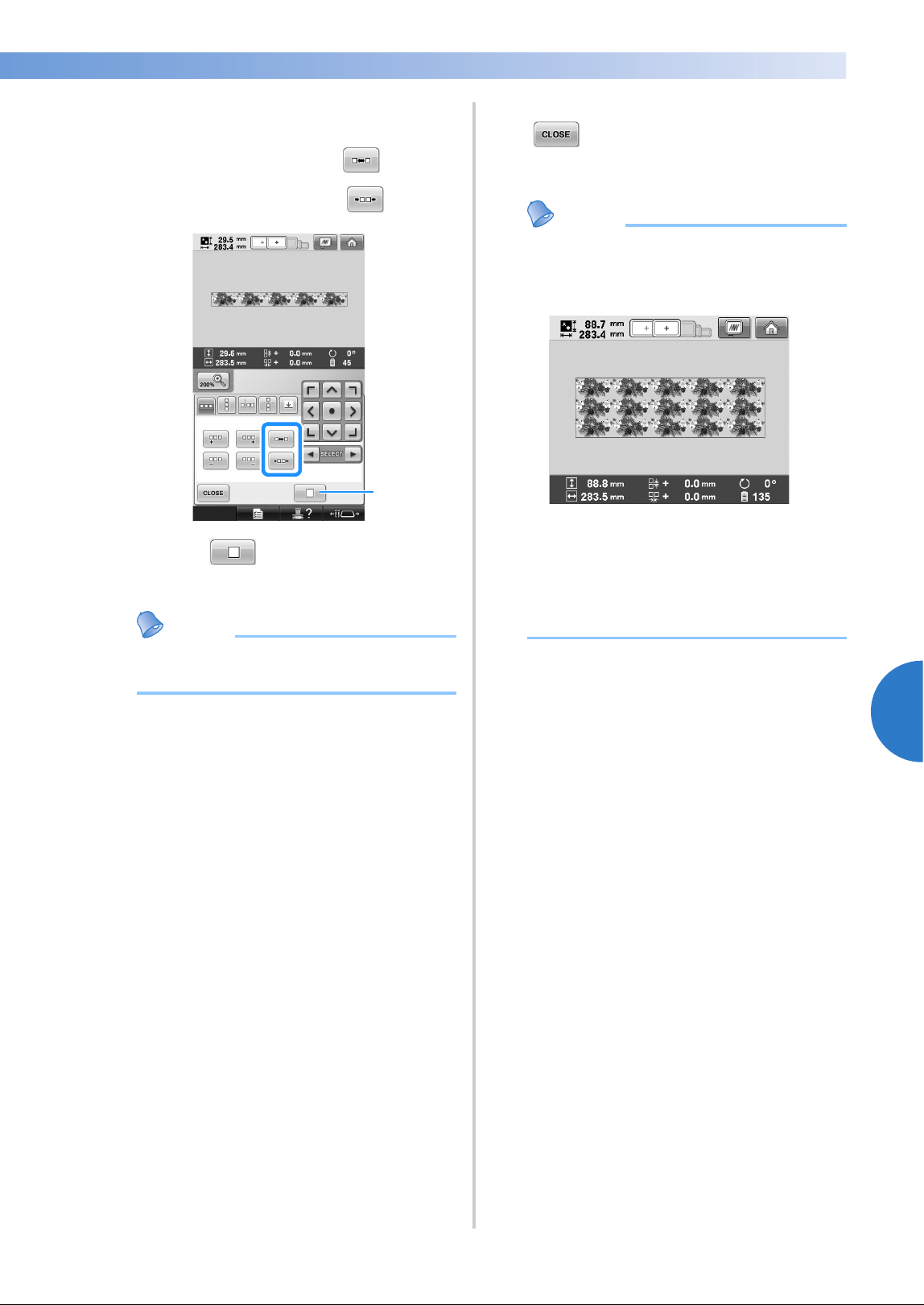
Editing the Embroidery Pattern (Pattern Editing Screen) 193
——
—————————————————————————————————————————————————————————————————————
—
—————————————
5
4
Adjust the spacing of the repeated pattern.
• To widen spacing, touch .
• To tighten spacing, touch .
1 Touch to change a repeated pattern
back to one single pattern.
Memo
● You can only adjust the spacing of
patterns included in the red frame.
5
Complete repeated patterns by repeating
steps
2 through 4.
6
After making the desired changes, touch
.
The pattern editing screen appears again.
Memo
● When there are two or more patterns, all
patterns will be grouped together as one
pattern in the red frame.
● When changing the direction in which the
pattern will be repeated, all of the patterns
in the red frame will automatically be
grouped as one repeating unit. See the
following section on how to repeat one
element of a repeated pattern.
1
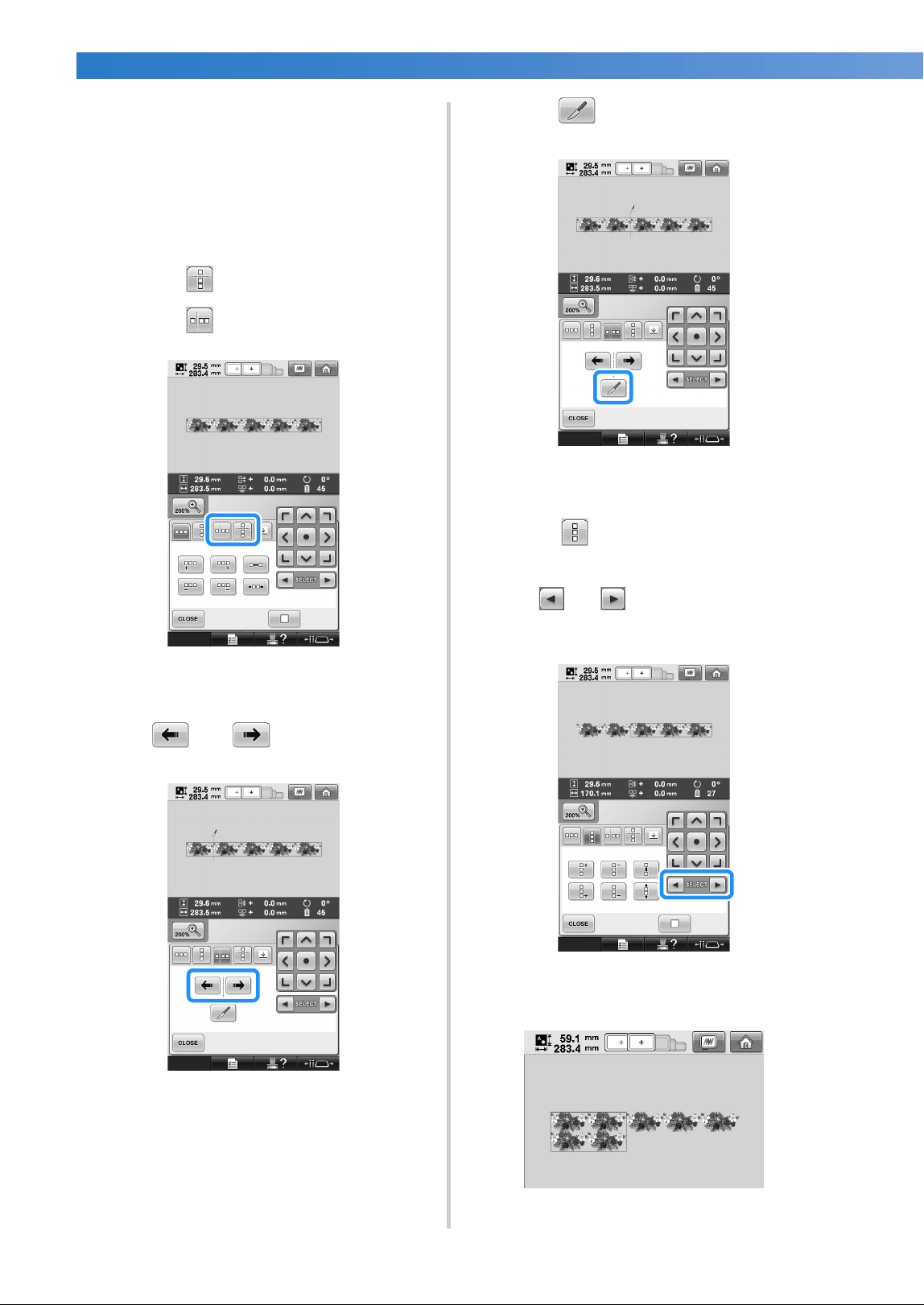
SELECTING/EDITING/SAVING PATTERNS
—
——————————————————————————————————————————————————————
——
194
■ Repeating one element of a repeated pattern
By using the Cut function, you can select one
element of a repeated pattern and repeat only
that single element. This function allows you to
design complex repeated patterns.
1
Choose the direction in which the repeated
pattern will be cut.
• Touch to cut horizontally.
• Touch to cut vertically.
X The pattern direction indicator will change
depending on the direction selected.
2
Use and to select the cut line.
X The cut line will move.
3
Touch .
X The repeated pattern will be divided into
separate elements.
4
Touch .
5
Use and to select the element to
repeat.
6
Repeat the selected element.
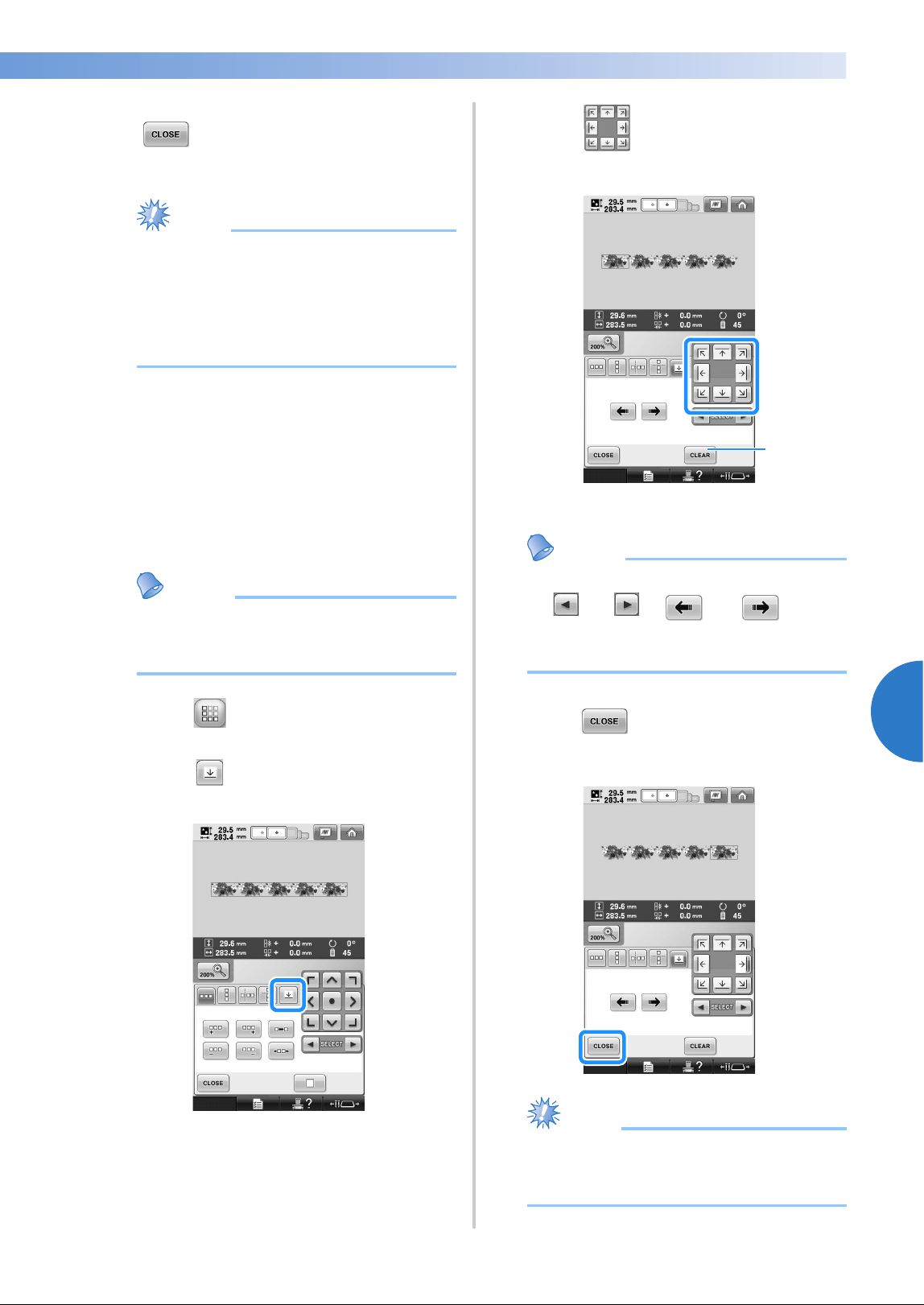
Editing the Embroidery Pattern (Pattern Editing Screen) 195
——
—————————————————————————————————————————————————————————————————————
—
—————————————
5
7
After making the desired changes, touch
.
The pattern editing screen appears again.
Note
● Once you have cut a repeated pattern into
separate elements, you cannot return to
the original repeated pattern.
● Each element can be edited separately in
the edit screen. Refer to “Selecting the
pattern to be edited” on page 182.
■ Assigning thread marks
By sewing thread marks, you can easily align
patterns when sewing a series. When sewing is
finished on a pattern, a thread mark in the shape
of an arrow will be sewn using the final thread.
When sewing a series of patterns, use the point
of this arrow for positioning the following
designs to be sewn.
Memo
● When repeatedly sewing individual
patterns, thread marks can be sewn
around the perimeter of the pattern only.
1
Touch .
2
Touch .
3
Touch to select the thread mark to
be sewn.
1 Touch to cancel thread mark setting.
Memo
● When there are two or more elements, use
and or and to select
a pattern that you want to assign a thread
mark(s) to.
4
Touch .
Note
● If the combined border pattern is rotated
in the embroidery settings screen, the
thread mark will be removed.
1
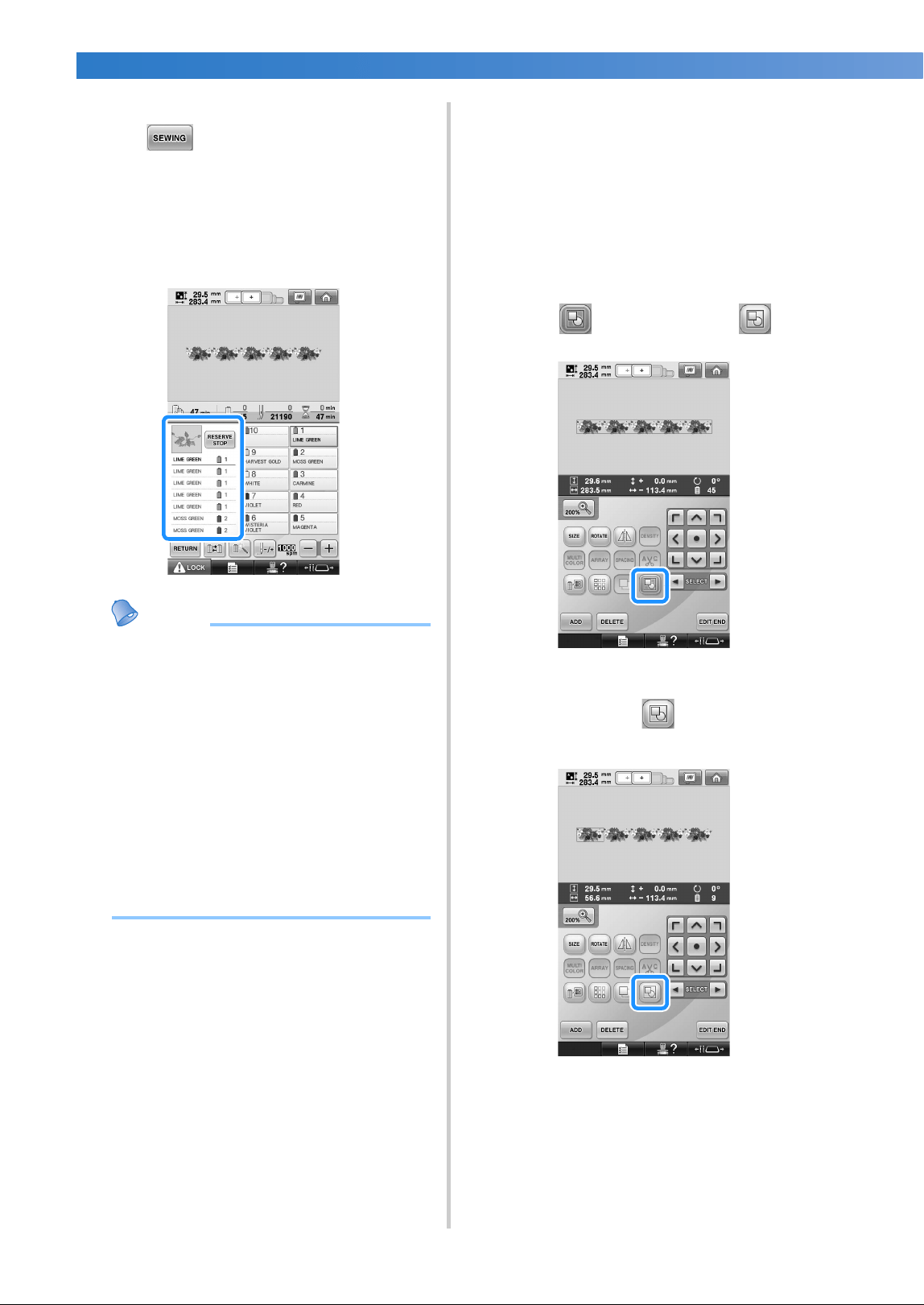
SELECTING/EDITING/SAVING PATTERNS
—
——————————————————————————————————————————————————————
——
196
■ Color sorting repeated patterns
Touch to automatically change the
sewing order of colors for combined border
embroidery patterns so that the same color can
be continuously sewn. This allows you to
continue sewing without repeatedly changing
the upper thread or changing the sewing order
manually.
Memo
● In combined stitch patterns that contain
two or more border patterns or other
patterns combined with border patterns,
the sewing order of only the border
patterns is changed.
● When a group of two or more patterns
using border patterns is repeated, the
sewing order is changed so that the same
color can be sewn continuously in each
pattern.
● To sew a repeated pattern without sorting
colors, refer to “Sewing the repeated
pattern without sorting colors” on
page 196.
■ Sewing the repeated pattern without sorting
colors
Edit the pattern according to the procedure
below to sew the repeated pattern without
sorting the colors.
1
Create the combined border embroidery
pattern (Refer to page 192 to 193).
2
Touch so that it change to .
X The border function is canceled.
3
If necessary touch so that the patterns
are grouped.
X All patterns displayed in the pattern
display area are grouped.
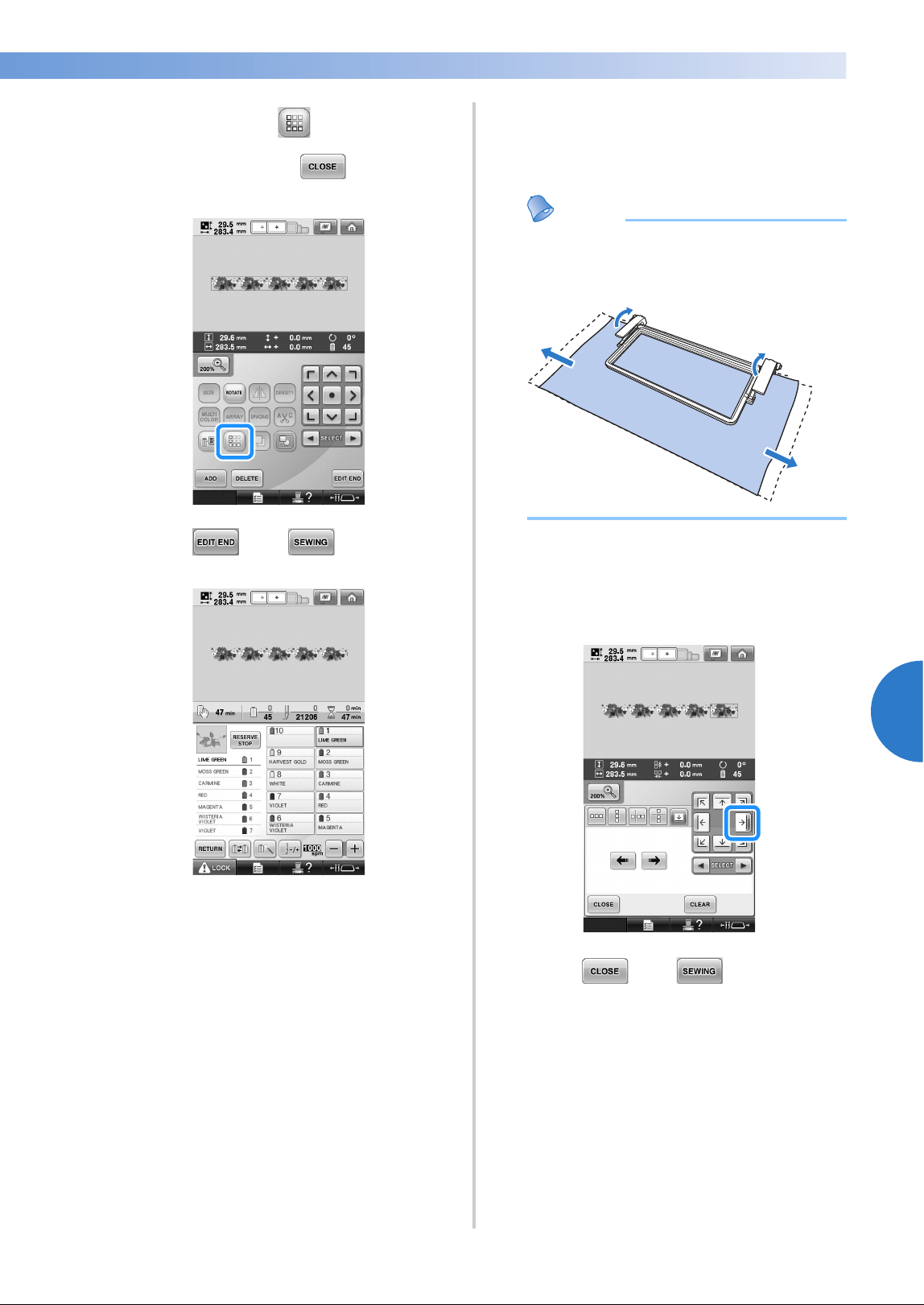
Editing the Embroidery Pattern (Pattern Editing Screen) 197
——
—————————————————————————————————————————————————————————————————————
—
—————————————
5
4
If necessary touch to sew the thread
mark, and then touch .
(Refer to page 195)
5
Touch , then .
■ Embroidering the pattern repeatedly
After creating the repeated pattern, rehoop the
embroidery frame and keep sewing for the next
pattern.
Memo
● The optional border frame allows you to
easily rehoop the fabric without removing
the embroidery frame from the machine.
1
Create the repeated pattern with the thread
mark at the center of the end of the pattern.
Refer to “Assigning thread marks” on
page 195.
2
Touch , then .
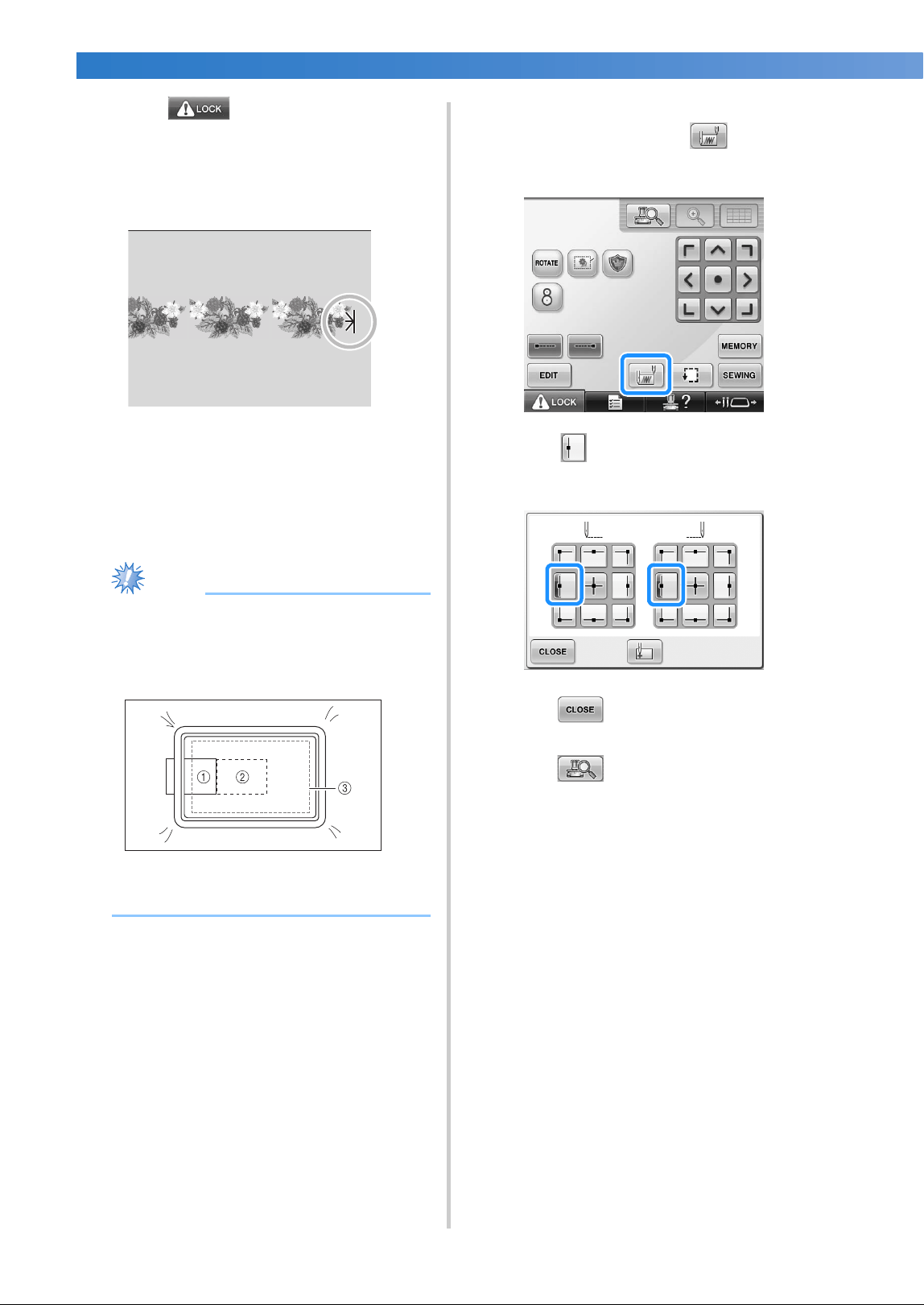
SELECTING/EDITING/SAVING PATTERNS
—
——————————————————————————————————————————————————————
——
198
3
Touch , and then press the start/
stop button to start embroidering.
X When embroidering is finished, the thread
mark is sewn with the last thread color.
4
Remove the embroidery frame.
5
Rehoop the fabric in the embroidery frame.
Note
● Adjust the position of the fabric so that the
embroidering area for the next pattern is
within the embroidering area of the
embroidery sheet.
1 Pattern embroidered first
2 Position of pattern to be embroidered next
3 Embroidering area of embroidery sheet
6
Attach the embroidery frame to the
machine, and then touch in the
embroidering settings screen.
7
Touch to set the starting point to the
left side of the pattern.
8
Touch .
9
Touch .
• To adjust the embroidering position
without using the built-in-camera, refer to
“Changing the Embroidering Position” on
page 99.
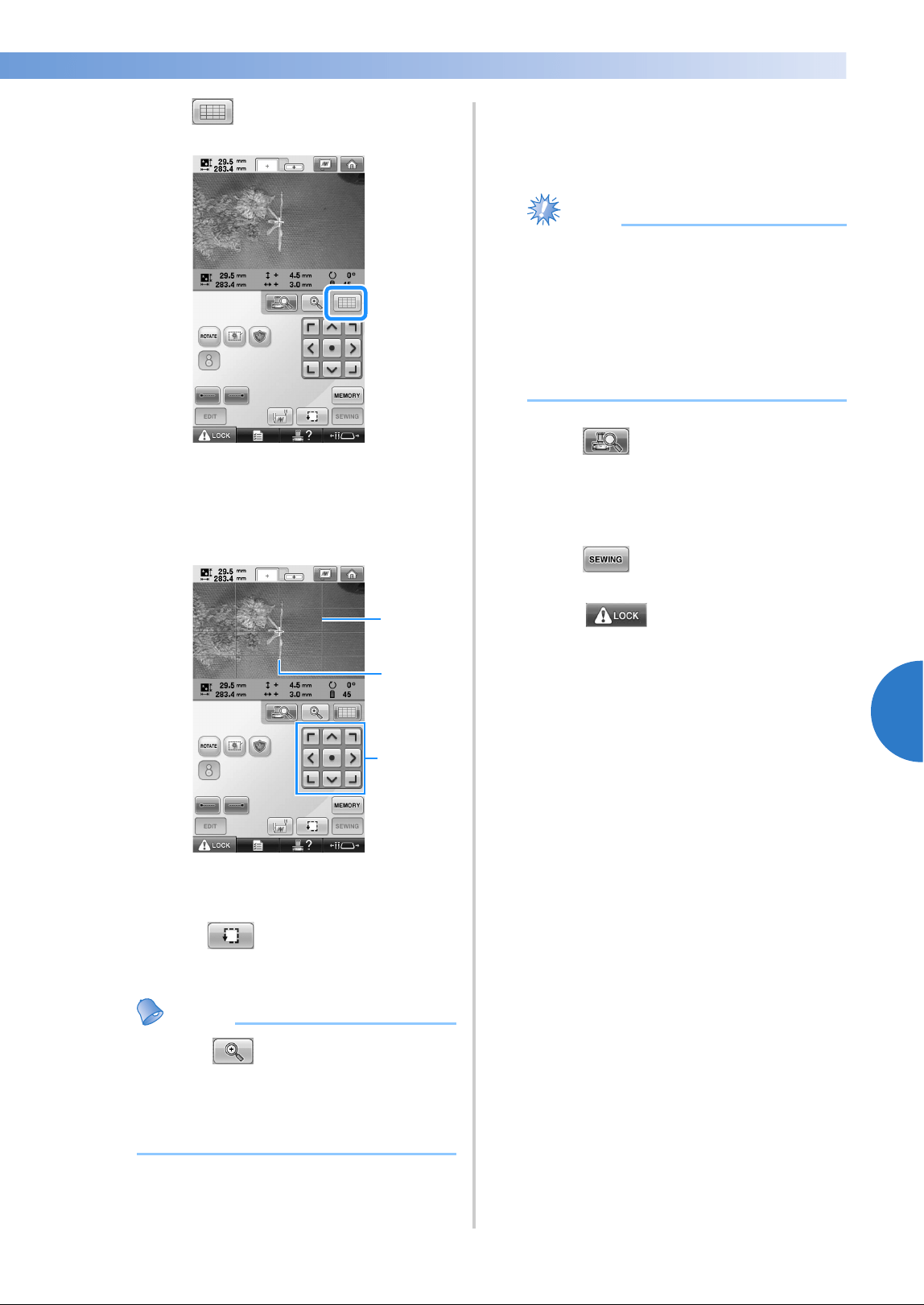
Editing the Embroidery Pattern (Pattern Editing Screen) 199
——
—————————————————————————————————————————————————————————————————————
—
—————————————
5
0
Touch to display the grid lines.
a
Touch the positioning keys to move the
embroidery frame until the thread mark on
the fabric is aligned on the starting point in
the camera view window.
1 Grid lines
2 Thread mark on the fabric
3 Positioning keys
• Touch to check the embroidering
position.
Memo
● Touch to enlarge the camera view.
By enlarging the camera view, you can
make a close adjustment for the needle
drop position moving the embroidery
frame little by little.
b
If the pattern position cannot be aligned
using the positioning keys, rehoop the fabric,
and then try again to align the position with
the positioning keys.
Note
● After you have aligned the position of the
combined border pattern, do not rotate the
pattern in the embroidery settings screen.
If the pattern is rotated in the embroidery
settings screen, you cannot sew the pattern
properly aligned even if the thread mark
and the starting point are aligned in the
camera view window.
c
Touch to return to the previous
screen.
d
Remove the thread mark.
e
Touch .
f
Touch , and then press the start/
stop button to start embroidering.
3
1
2
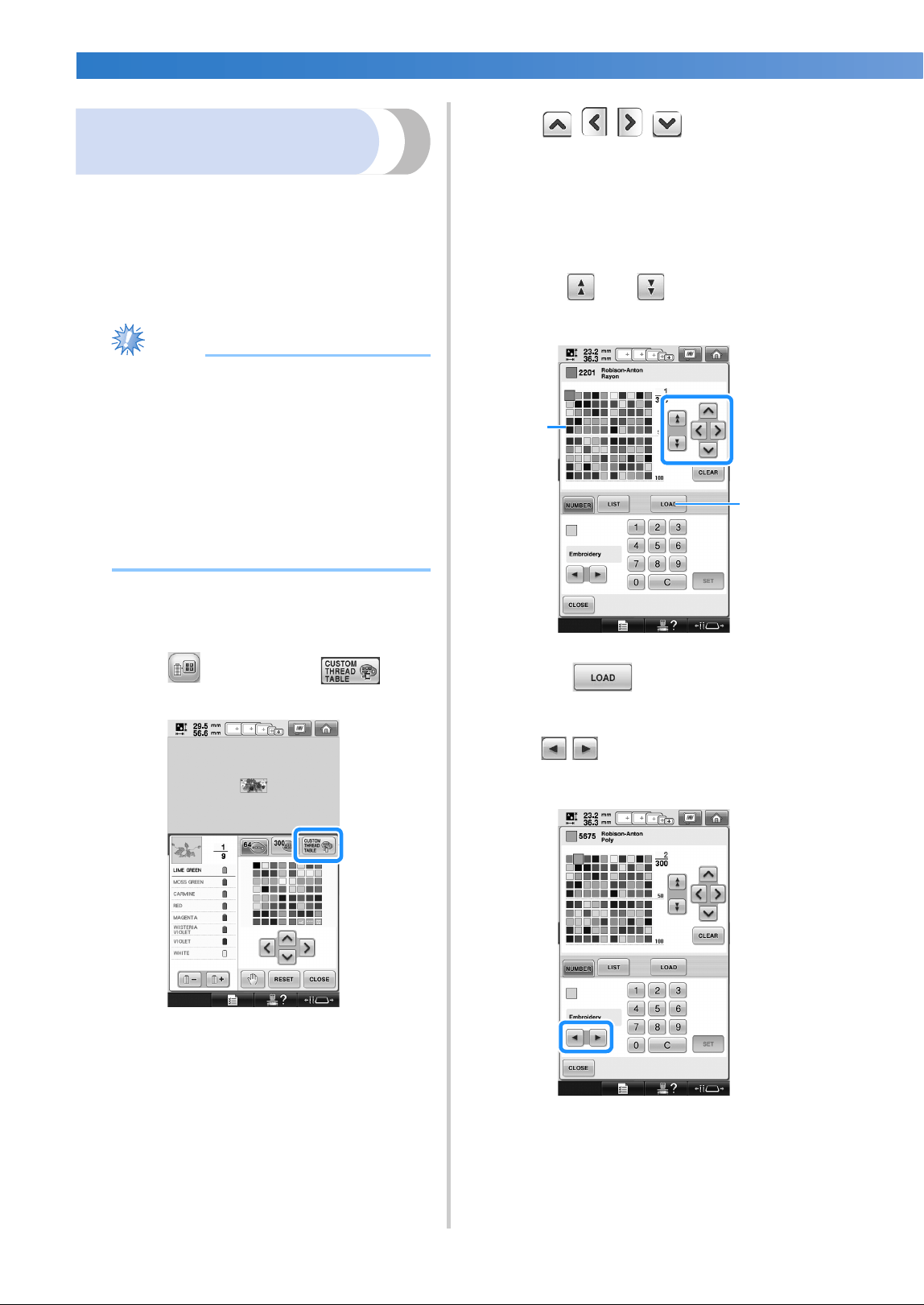
SELECTING/EDITING/SAVING PATTERNS
—
——————————————————————————————————————————————————————
——
200
Creating a custom thread
table
You can create a custom thread table containing
the thread colors that you most often use. You can
select thread colors offered by the machine’s
extensive list of thread colors from nine different
thread brands. You can select any color and move
the color to your custom thread table.
Note
● Some machine models may already have
an additional 300 Robison-Anton thread
colors contained in the custom thread
table.
● You have the option to completely clear,
or to restore the Custom Thread Table to
the original factory setting. Visit our
website at “http://solutions.brother.com”
for Custom Thread Table Clear/Restore
Program and instructions.
Before creating a custom thread table, select a
pattern and display the pattern editing screen.
(Refer to page 46 and 74.)
1
Touch and then touch .
2
Use to choose where
to add a color on the custom thread table.
• You can choose color box from the custom
thread from the custom thread table by
directly touching the screen with the touch
pen.
• You can scroll through 100 colors at a time
using and on the custom thread
table.
1 Custom thread table
2 Touch to download the clear and
restore programs from the website
3
Use to select one of the thread
brands in the machine.
1
2
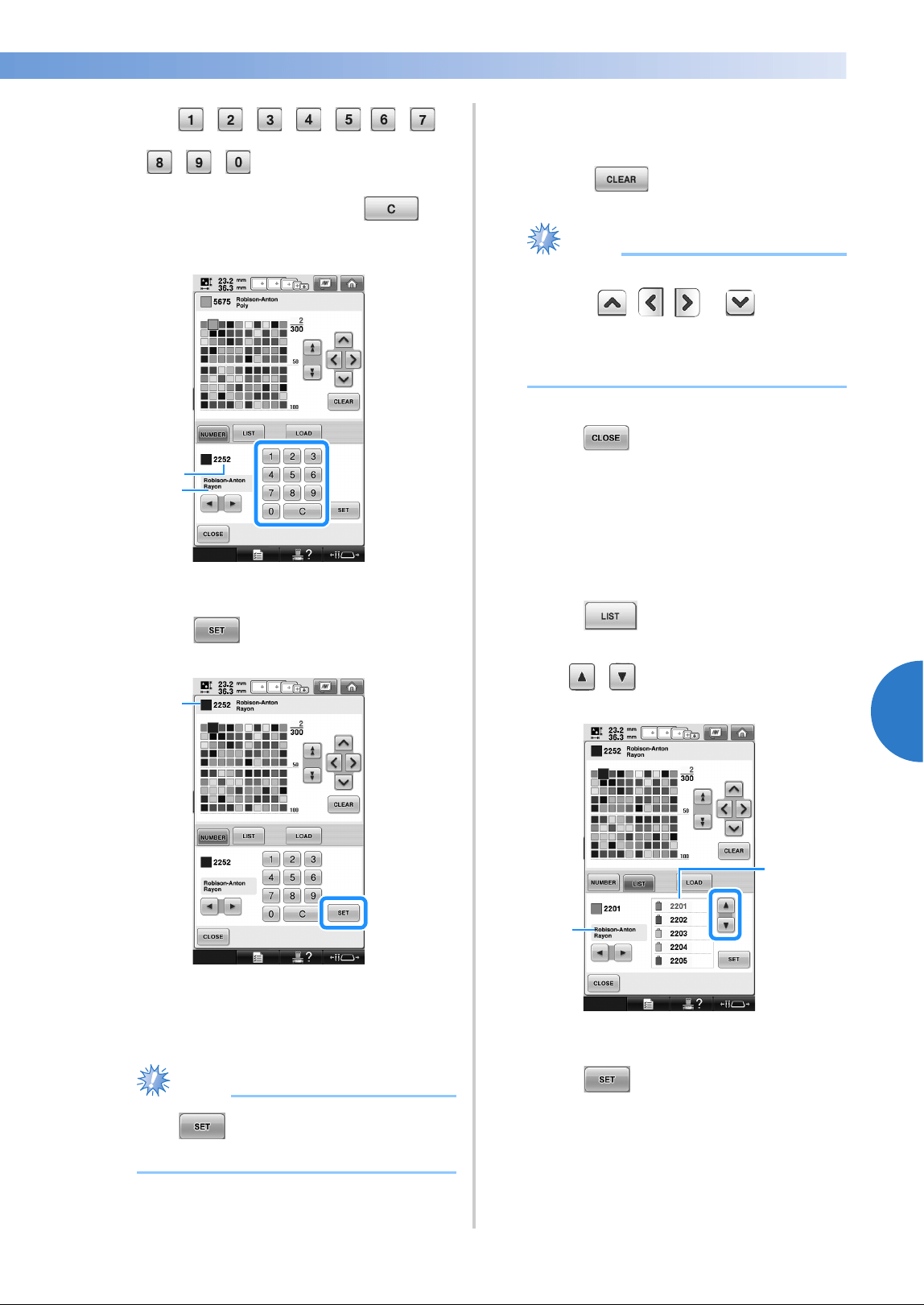
Editing the Embroidery Pattern (Pattern Editing Screen) 201
——
—————————————————————————————————————————————————————————————————————
—
—————————————
5
4
Use
to enter a color’s 4-digit
number.
• If you make a mistake, touch to
erase the entered number, and then enter
the correct number.
1 Entered thread color number
2 Thread brand
5
Touch .
1 Selected thread color
X The selected thread color is set in the
custom thread table.
Note
● If is not touched, the thread color
number will not be changed.
6
Repeat the previous steps until all desired
thread colors are specified.
• To delete a specified color from the palette,
touch .
Note
● When setting up custom thread table,
touch , , or or touch the
next square directly to set the next color
after each selection. Machine will not
advance to the next square automatically.
7
Touch to return to the original
screen.
■ Adding a color to the custom thread table from
the list
1
Repeat the previous step 1 on page 200.
2
Touch to display the thread list.
3
Use to select a thread color.
1 Thread list
2 Thread brand
4
Touch .
2
1
1
2
1
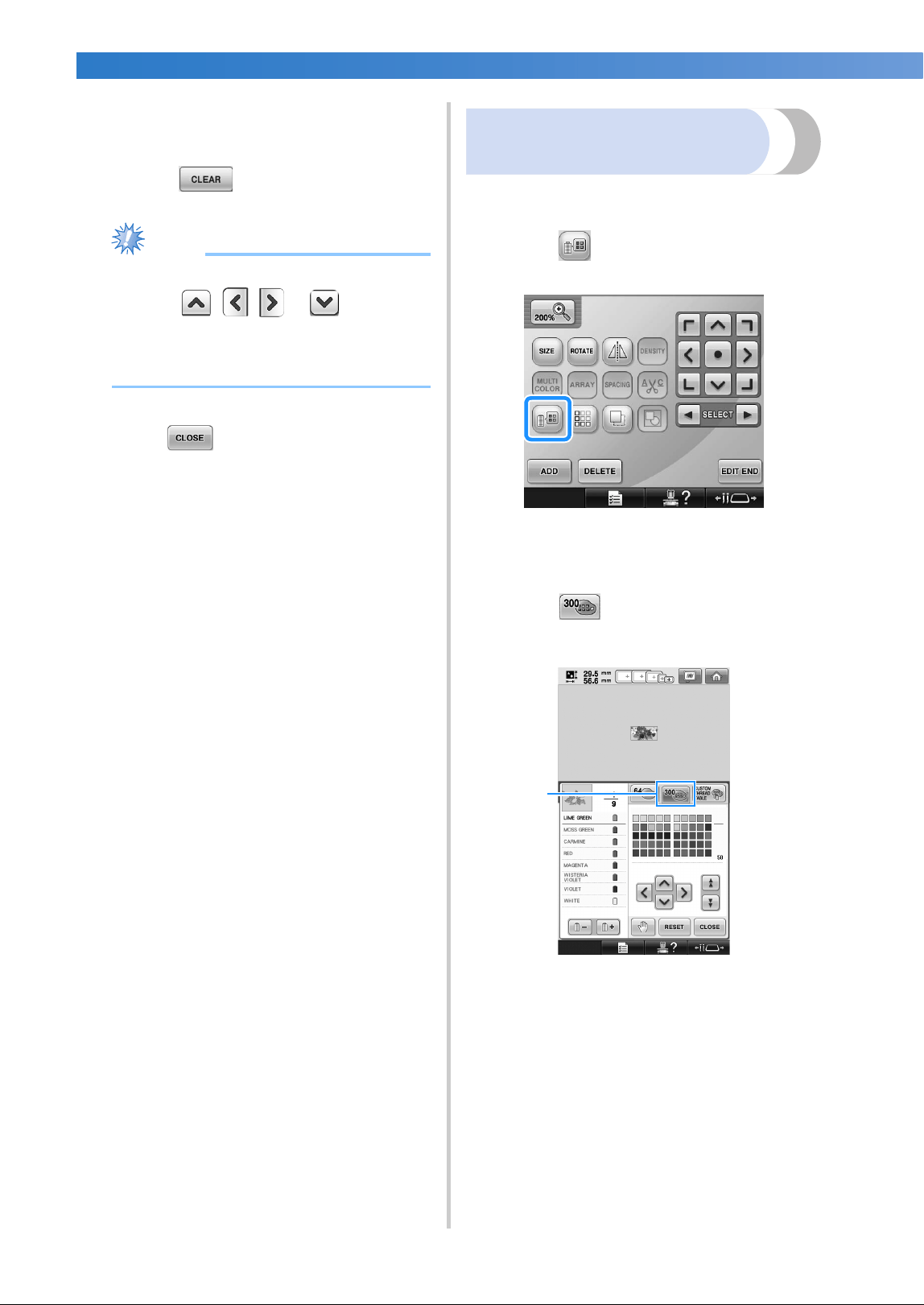
SELECTING/EDITING/SAVING PATTERNS
—
——————————————————————————————————————————————————————
——
202
5
Repeat the previous steps until all desired
thread colors are specified.
• To delete a specified color from the palette,
touch .
Note
● When setting up custom thread table,
touch , , or or touch the
next square directly to set the next color
after each selection. Machine will not
advance to the next square automatically.
6
Touch to return to the original
screen.
Choosing a color from the
custom thread table
You can select a color from the up to 300 thread
colors you have set in the custom thread table.
1
Touch .
X The 64 embroidery threads table screen
displays.
2
Touch .
1 Custom thread change key
X The custom thread (300 embroidery
threads) table screen will appear.
1
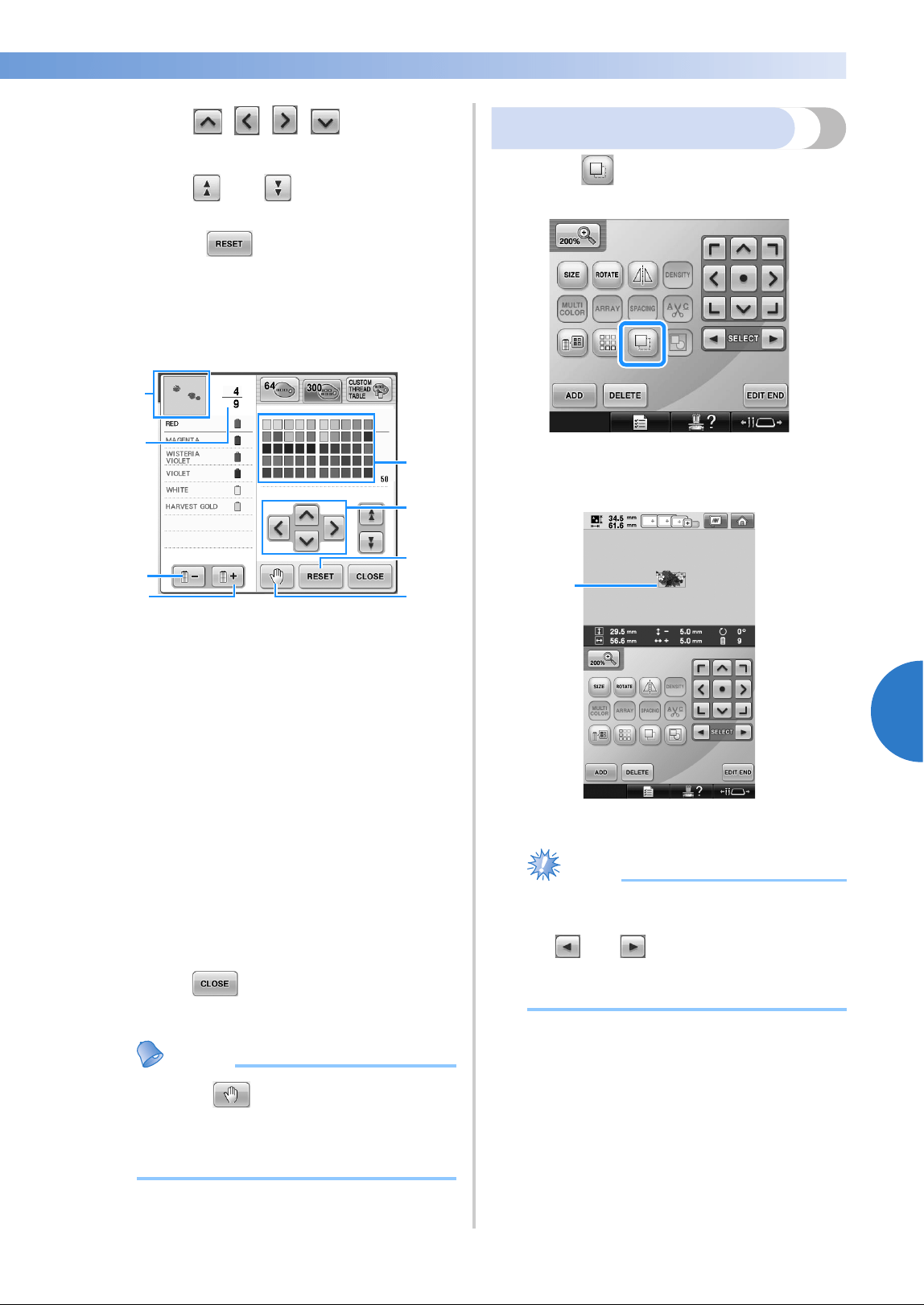
Editing the Embroidery Pattern (Pattern Editing Screen) 203
——
—————————————————————————————————————————————————————————————————————
—
—————————————
5
3
Touch to choose a
new color from the custom thread table.
• Use and to scroll through the
custom thread table.
• Touch to return to the original
color.
• You can choose colors from the custom
thread (300 embroidery threads) table by
directly touching the screen with the touch
pen.
1 The part of the pattern in the color at the top of
the thread color sequence display is the part
whose color is being changed.
2 Shows the number of thread color changes. The
top value shows the position in the sewing
order for the color at the top of the thread color
sequence display and the bottom value shows
the total number of thread color changes.
3 Selects the previous color in the thread color
sequence display.
4 Selects the next color in the thread color
sequence display.
5 Color thread table
Select a color from this table.
6 Use these arrows to navigate the color selection
within the color thread table.
7 Touch this key to return to the original color.
8 Specifies pause locations. (Refer to “Specifying
pause locations before embroidering” on
page 140.)
X The display shows the changed colors.
4
Touch .
Memo
● Touch to specify pause locations.
For details, refer to “Specifying pause
locations before embroidering” on
page 140.
Duplicating a pattern
1
Touch .
X The duplicate is positioned over the
original pattern.
1 Duplicated pattern
Note
● If multiple patterns are displayed in the
screen, only the pattern selected using
and is duplicated.
● Move and edit each duplicated pattern
individually.
1
2
3
4
5
6
7
8
1
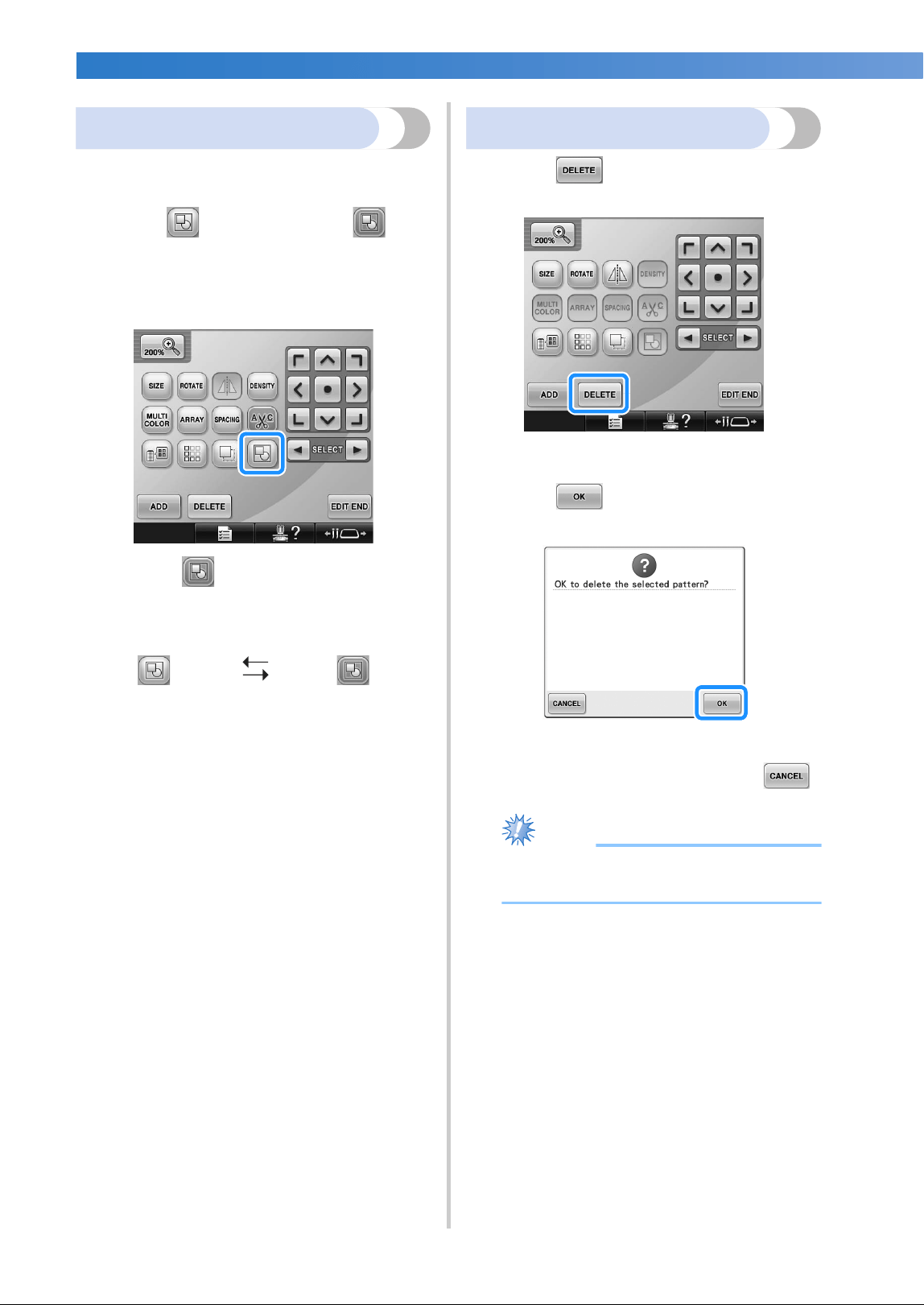
SELECTING/EDITING/SAVING PATTERNS
—
——————————————————————————————————————————————————————
——
204
Editing patterns as a group
Combined patterns can be grouped and can all be
edited (rotated, resized, etc.) at the same time.
1
Touch so that it changes to .
X All patterns displayed in the pattern
display area are grouped.
• Touch to ungroup the patterns. If
there are multiple grouped patterns, the
selected pattern group is ungrouped.
Deleting a pattern
1
Touch .
X The screen shown below appears.
2
Touch .
X The pattern is deleted.
• To quit deleting the pattern, touch .
Note
● If multiple patterns are displayed, only the
pattern selected will be deleted.
The displayed
patterns are grouped.
The selected pattern
group is ungrouped.
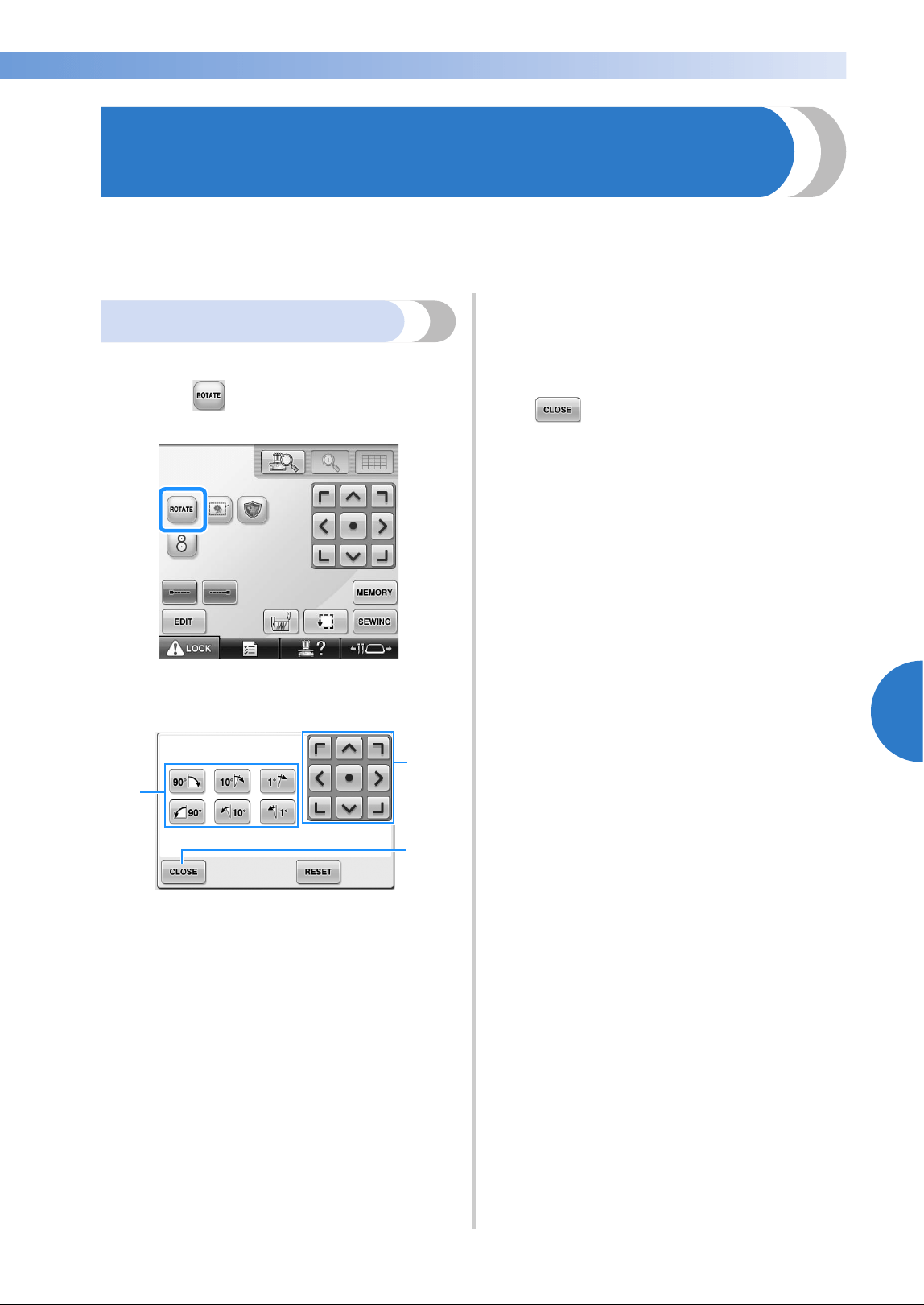
Editing the Embroidery Pattern (Embroidering Settings Screen) 205
——
—————————————————————————————————————————————————————————————————————
—
—————————————
5
Editing the Embroidery Pattern (Embroidering Settings
Screen)
In the embroidering settings screen, a single pattern can be edited if patterns were not combined or an entire
combined pattern can be edited as a single pattern.
In addition, the arrow keys can be used to move the pattern in the pattern editing screen or move the
embroidery frame in the embroidering settings screen. Touching these keys moves the embroidery frame.
Rotating the entire pattern
The entire pattern can be rotated.
1
Touch .
X The screen shown below appears.
1 Enables the entire pattern to be rotated.
2 Enables the embroidery frame to be moved.
3 Touch this key to close this screen.
2
Touch the keys to adjust the pattern to the
desired angle.
(For more details, refer to page 185.)
3
If necessary, touch the arrow keys to adjust
the position of the embroidery frame.
(For more details, refer to page 99.)
4
After making the desired changes, touch
.
X The embroidering settings screen appears
again.
2
1
3
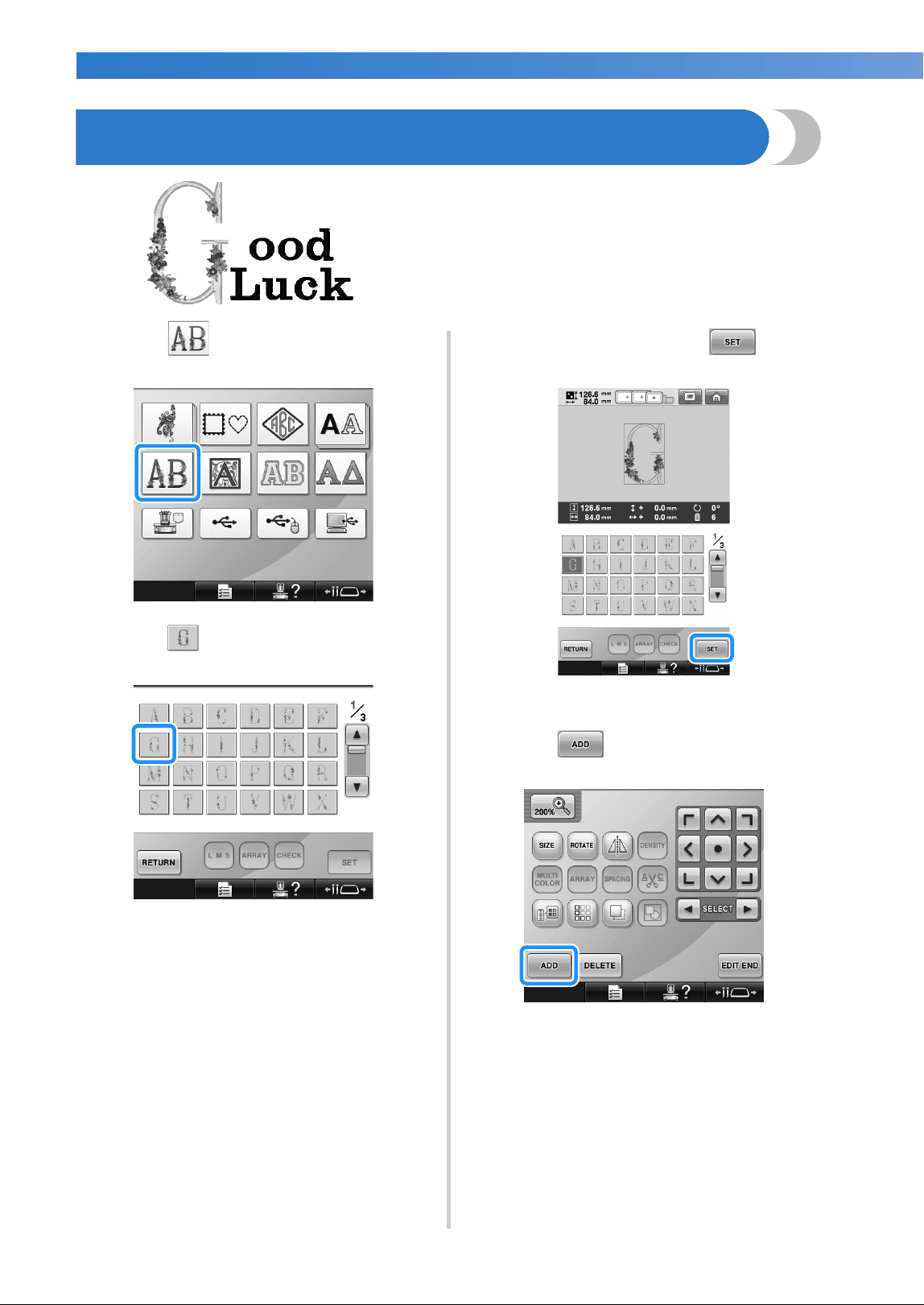
SELECTING/EDITING/SAVING PATTERNS
—
——————————————————————————————————————————————————————
——
206
Editing a Combined Pattern
Example) In this section, we will combine text with floral alphabet pattern,
which we will then edit.
1
Touch .
2
Select .
X This pattern will be positioned at the
center of the embroidery area.
3
To select the pattern, touch .
X The pattern editing screen appears.
4
Touch .
X The pattern type selection screen appears
again.
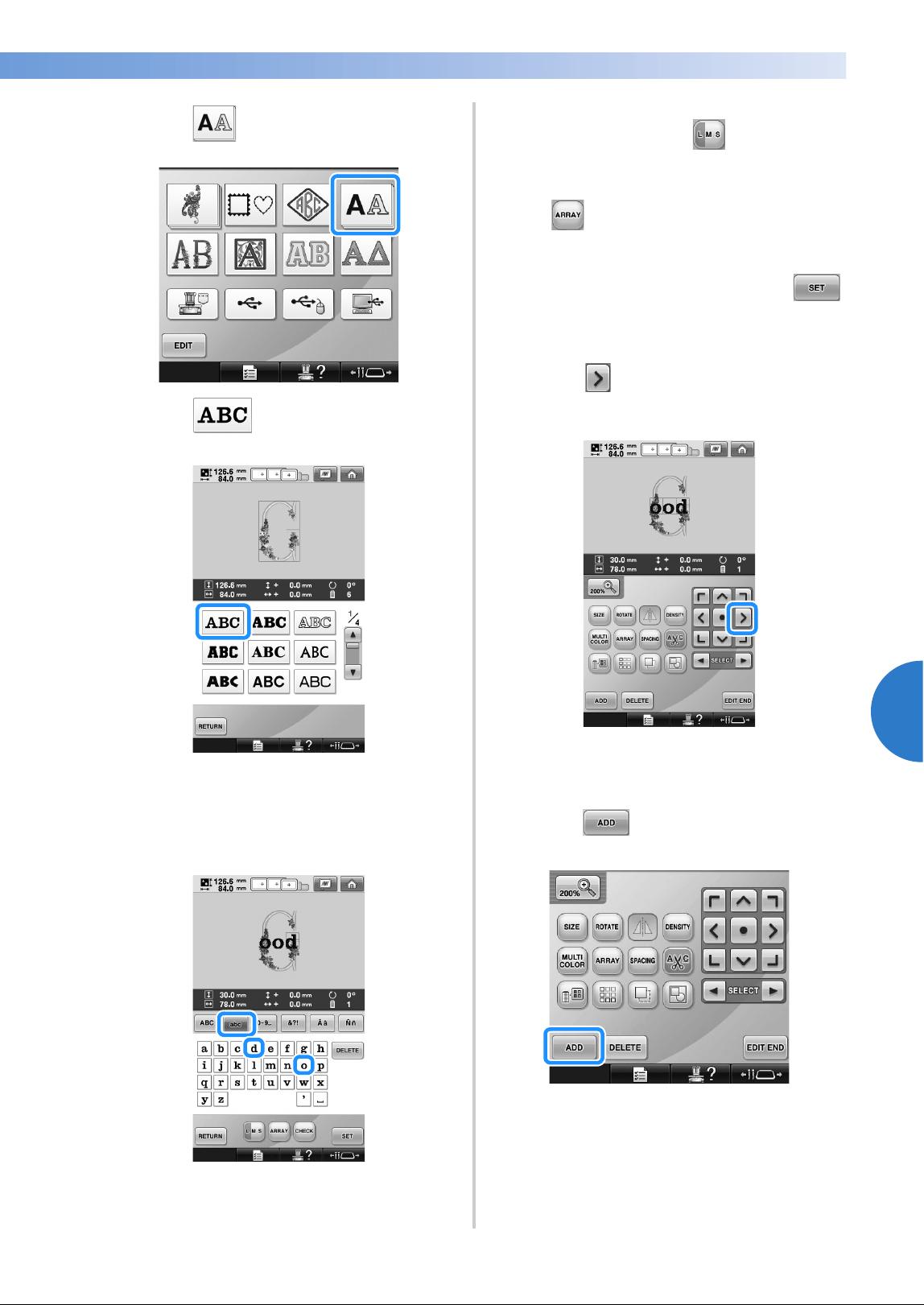
Editing a Combined Pattern 207
——
—————————————————————————————————————————————————————————————————————
—
—————————————
5
5
Touch .
6
Touch .
7
Type “ood”.
Touch the tab for lowercase letters to display
the lowercase letters input screen, and then
touch “o”, “o”, then “d”.
X The selected letters appear at the center of
the embroidery area.
• To change the size of the pattern, select
“o”, and then touch to select the
desired size.
• To change the text arrangement, touch
, and then select the desired text
arrangement.
8
After selecting the characters, touch .
X The pattern editing screen appears.
9
Touch and adjust the position of the
letters.
• With a USB mouse, your finger or the
touch pen, drag the characters to move
them.
0
Touch .
X The pattern type selection screen appears
again.
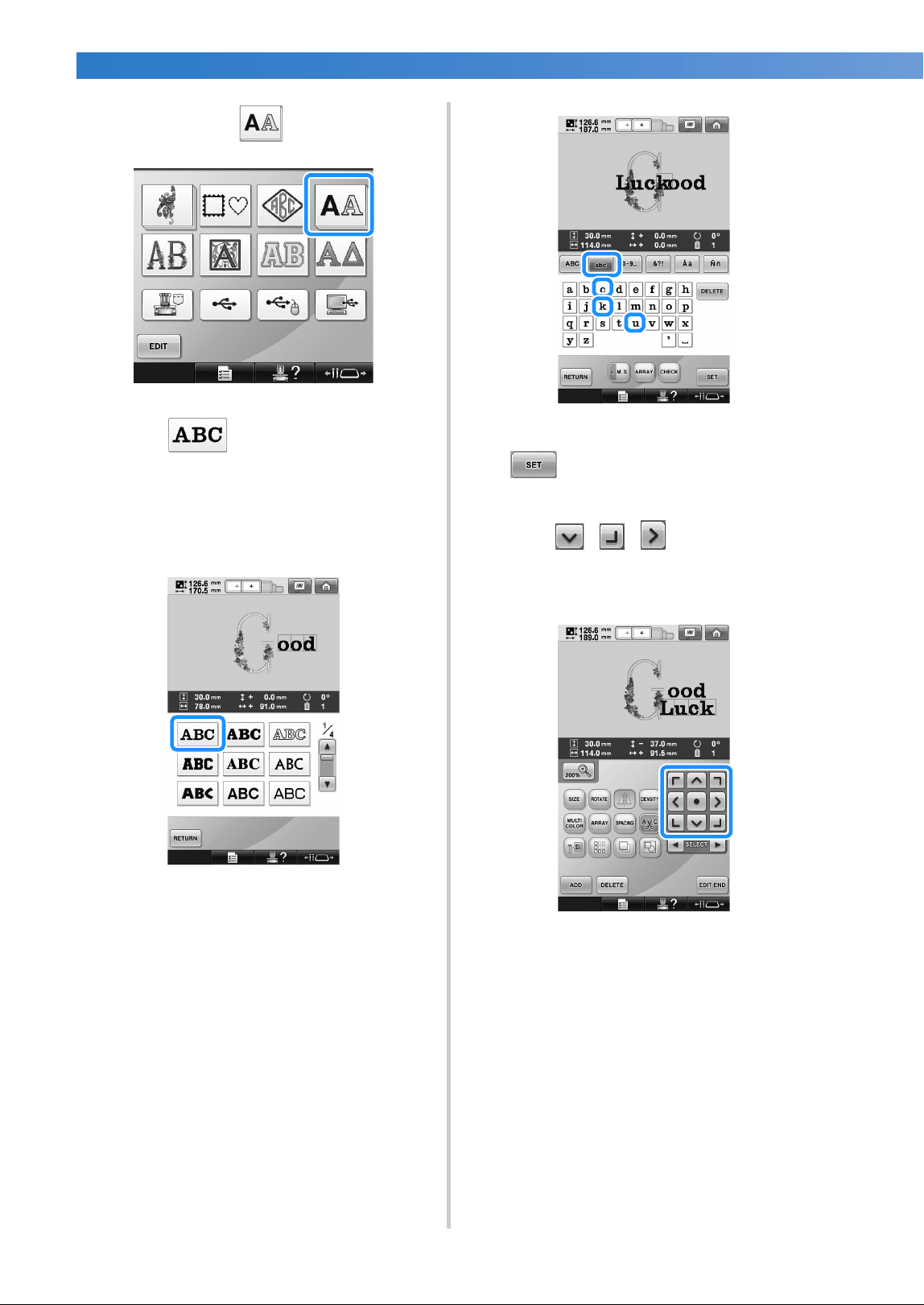
SELECTING/EDITING/SAVING PATTERNS
—
——————————————————————————————————————————————————————
——
208
a
As before, touch .
b
Touch to select the same font, and
then type “Luck”.
After touching “L”, touch the tab for
lowercase letters to display the lowercase
letters input screen, and then touch “u”, “c”,
then “k”.
X The selected letters appear at the center of
the embroidery area.
c
After selecting the characters, touch
.
X The pattern editing screen appears.
d
Touch / / and adjust the
position of the letters so that they are well
balanced.
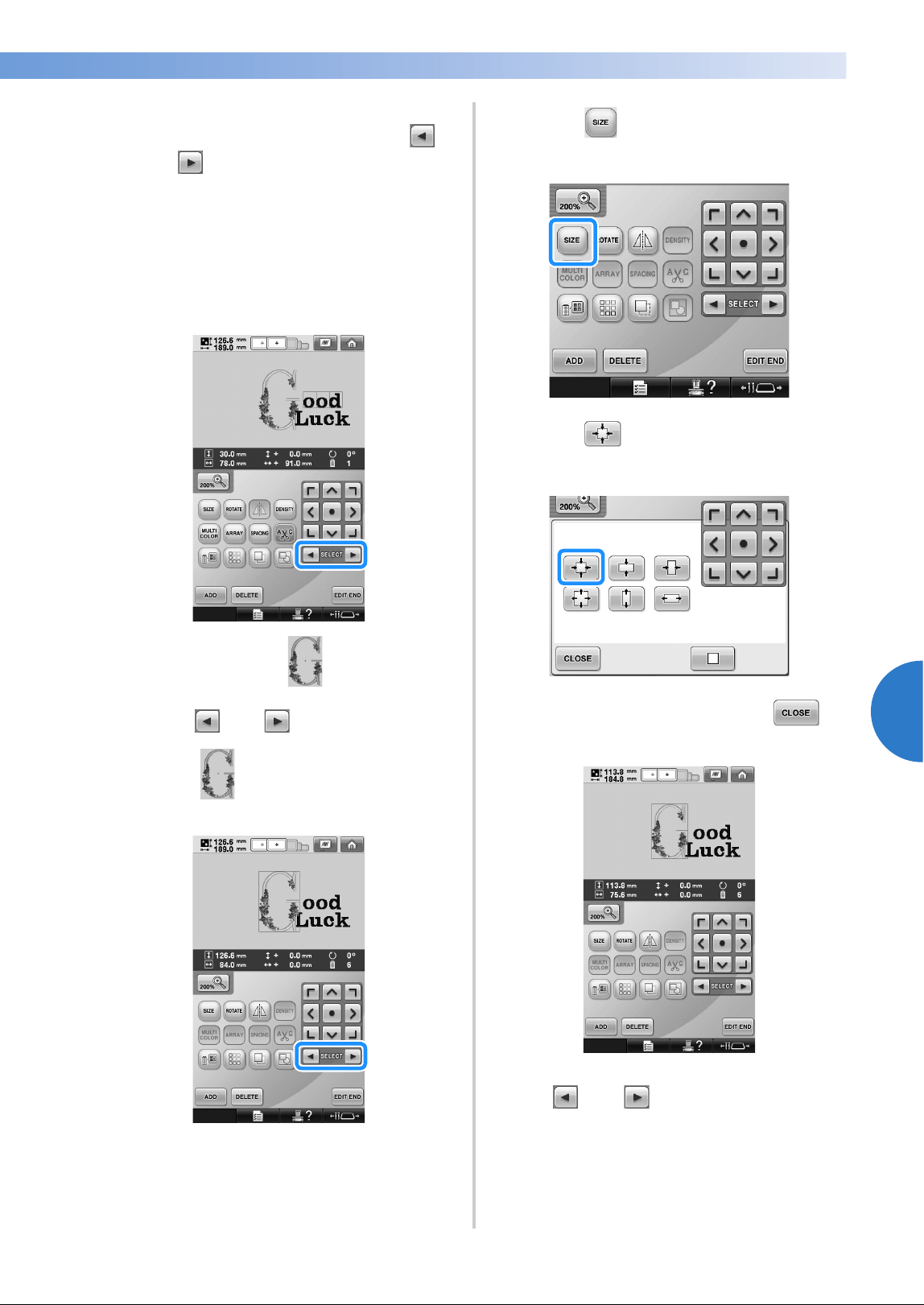
Editing a Combined Pattern 209
——
—————————————————————————————————————————————————————————————————————
—
—————————————
5
e
Check the balance of the entire pattern, and,
if you wish to edit the pattern, touch
and to select the pattern to be edited.
If a USB mouse is connected, the pattern can
be selected by clicking it. Move the mouse to
position the pointer over the desired pattern,
and then click the left mouse button. In
addition, patterns can be selected by directly
touching the screen with your finger or touch
pen.
Example: To reduce size.
f
Touch and to move the red frame
around .
g
Touch .
h
Touch to reduce the pattern
proportionately.
i
After reducing the pattern, touch to
return to the pattern editing screen.
• To adjust other parts of the pattern, touch
and again, and then adjust the
pattern as desired.
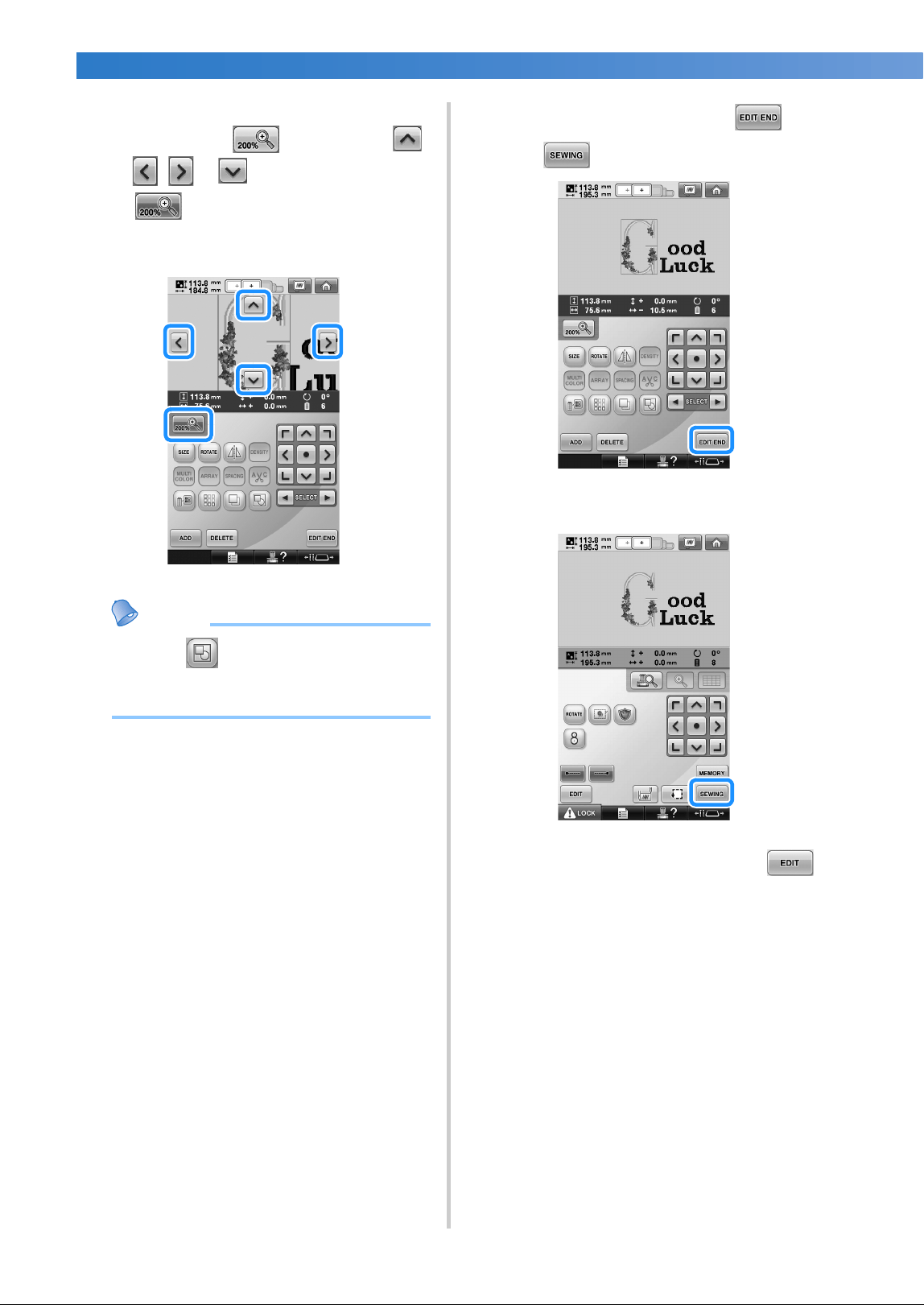
SELECTING/EDITING/SAVING PATTERNS
—
——————————————————————————————————————————————————————
——
210
• If it is difficult to view the text and the
pattern, touch and then touch ,
, or to preview. Touch
again to return to the previous
screen.
Memo
● Touch to group this combined
pattern. (Refer to “Editing patterns as a
group” on page 204.)
j
After finishing all editing, touch and
then .
X The embroidering settings screen appears.
• To return to the pattern editing screen and
continue editing the pattern, touch .
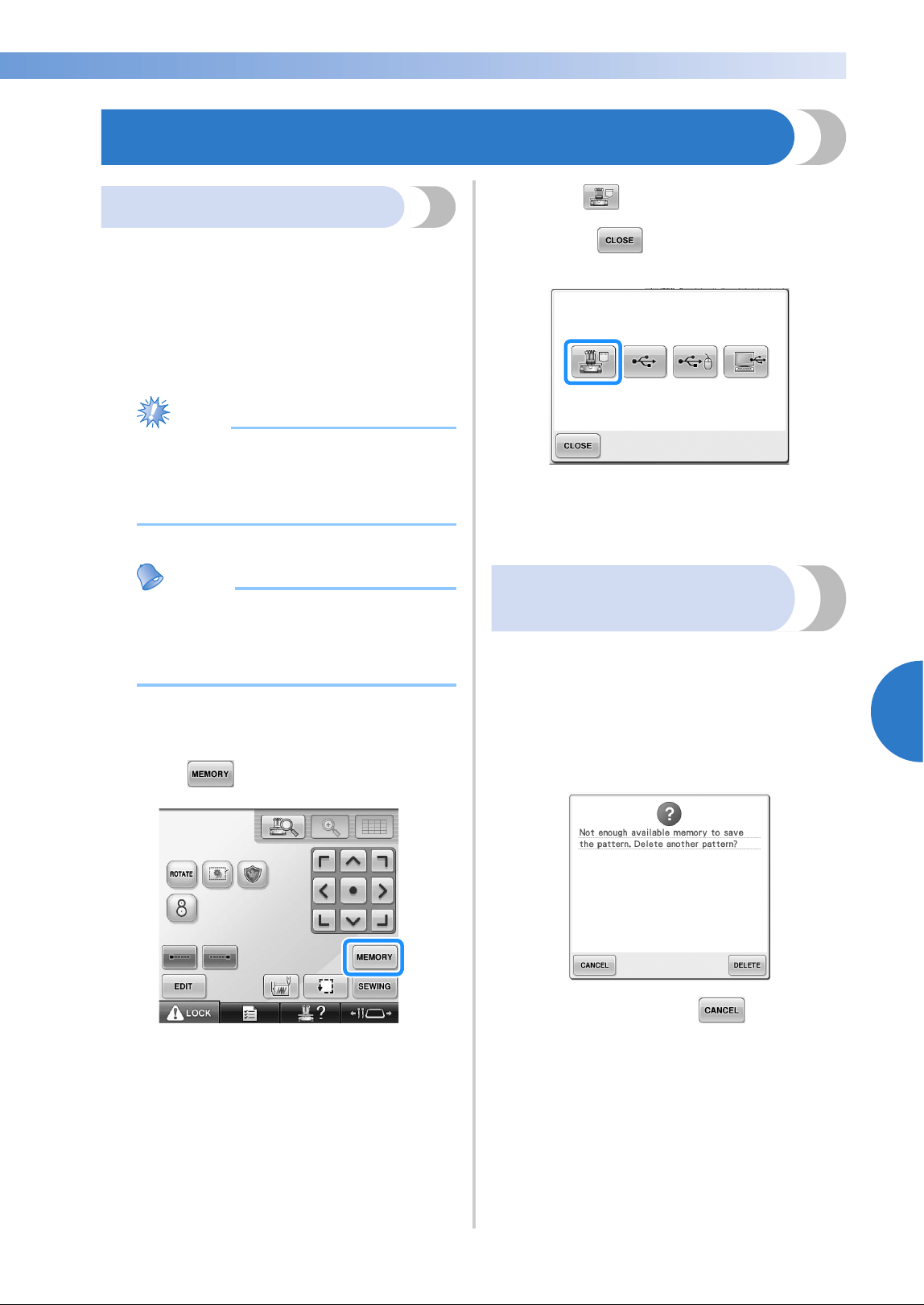
Saving Embroidery Patterns 211
——
—————————————————————————————————————————————————————————————————————
—
—————————————
5
Saving Embroidery Patterns
Machine’s memory
You can save embroidery patterns that you have
customized and will use often, for example, your
name or other pattern combinations, patterns that
have been rotated or resized, or patterns that have
had their embroidering position changed.
A total of about 1.7 MB of patterns can be saved in
the machine’s memory.
Note
● Do not turn off the machine while the
“Saving” screen is displayed, otherwise
you may lose the pattern that you are
saving.
Memo
● It takes a few seconds to save a pattern in
the machine’s memory.
● See page 165 for information on retrieving
a saved pattern.
1
With the pattern that you want to save
displayed in the embroidery settings screen,
touch .
2
Touch .
• Touch to return to the previous
screen without saving the pattern.
X The “Saving” screen appears. When the
pattern is saved, the previous screen
appears automatically.
If the embroidery pattern
cannot be saved
If the following screen appears, the embroidery
pattern cannot be saved because either the
machine’s memory is full or the pattern being saved
is larger than the amount of space available in the
memory. To be able to save the embroidery pattern
in the machine’s memory, a previously saved pattern
must be deleted.
• To quit saving, touch .
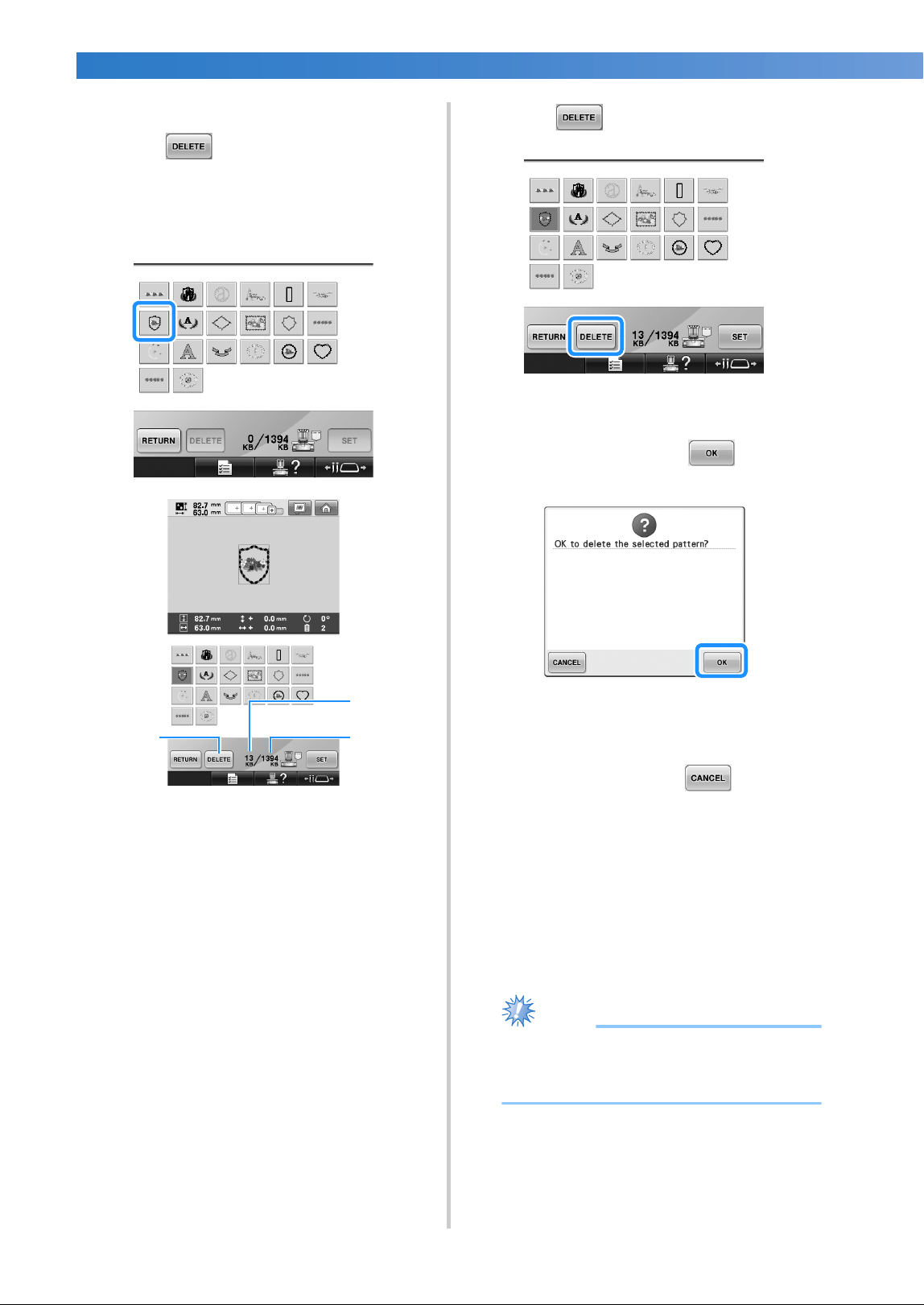
SELECTING/EDITING/SAVING PATTERNS
—
——————————————————————————————————————————————————————
——
212
■ Deleting saved data
1
Touch .
X The list of patterns appears.
2
Select the pattern to be deleted.
Touch the pattern.
1 Shows the amount of memory used by selected
pattern.
2 Shows the amount of free space in the
machine’s memory.
3 Touch this key to delete the selected pattern.
• If the wrong pattern was selected or you
wish to select a different pattern, touch the
desired pattern.
3
Touch .
X The screen shown below appears.
4
To delete the data, touch .
X The pattern is deleted, and if there is
enough space, the previous screen
appears automatically.
• To quit deleting, touch .
5
If there is not enough space, delete another
pattern.
X If the embroidery data was saved
successfully, the previous screen
automatically appears.
• Saving the data takes approximately 10
seconds.
Note
● Do not turn off the machine while the
“Saving” message is displayed, otherwise
the pattern data being saved may be lost.
3 2
1
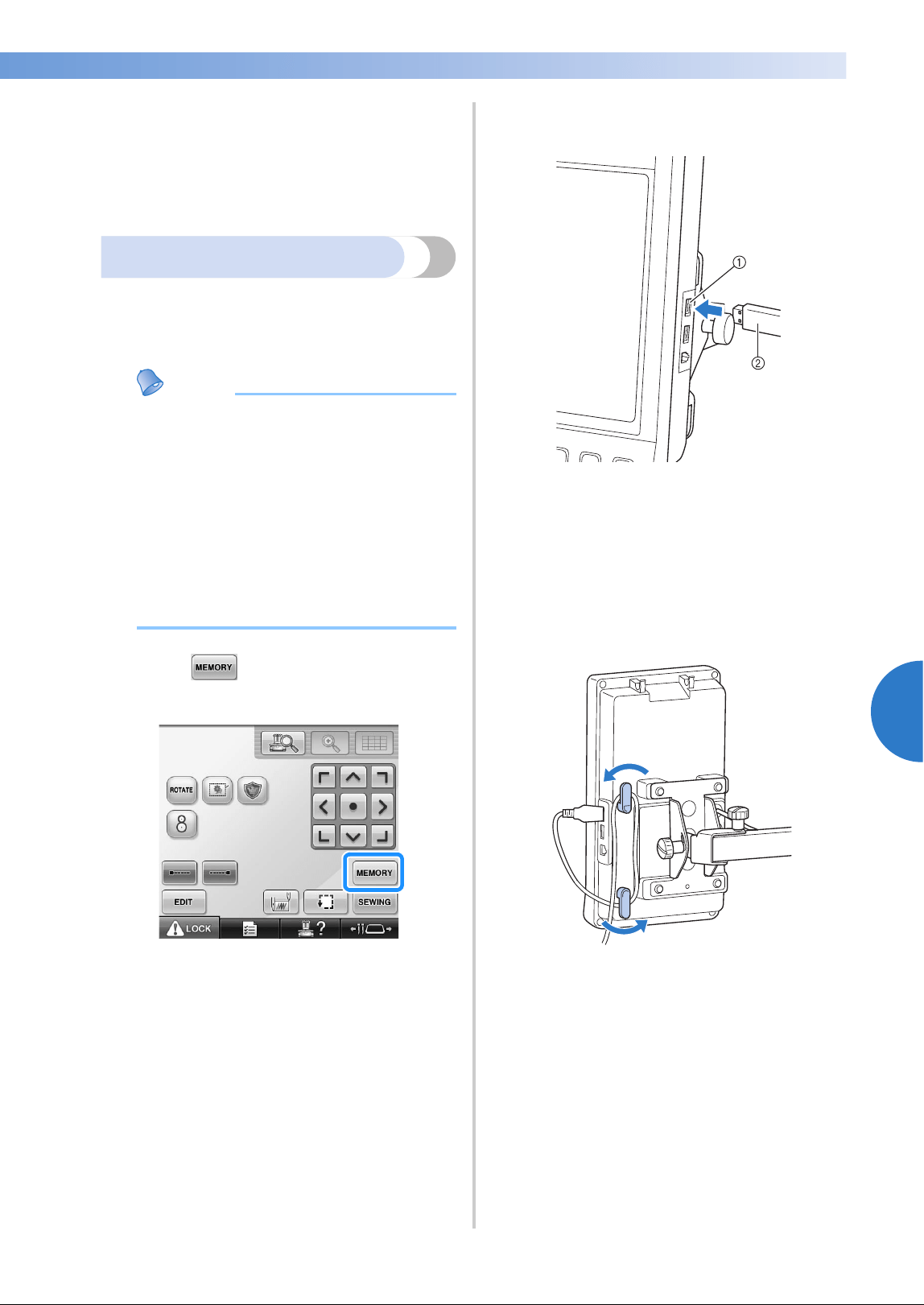
Saving Embroidery Patterns 213
——
—————————————————————————————————————————————————————————————————————
—
—————————————
5
■ Recalling stored patterns
Refer to the appropriate page of “Selecting an
Embroidery Pattern” according to the media
being used. (Refer to page 165 for patterns saved
on the machine.) (Refer to page 173 for patterns
saved on USB media.)
USB media
When sending embroidery patterns from the
machine to USB media, plug the USB media into
the machine’s USB port.
Memo
● Some USB media may not be usable with
this machine. Please visit our web site
“http://solutions.brother.com” for more
details.
● Depending on the type of USB media
being used, either directly plug the USB
device into the machine’s USB port or
plug the USB media Reader/Writer into the
machine’s USB port.
● The USB media can be inserted or
removed at any time.
1
Touch when the pattern you want to
save is in the embroidering settings screen.
2
Insert the USB media into the primary (top)
USB port on the machine.
1 Primary (top) USB port for media
2 USB media
• When connecting the USB Card Reader/
Writer to the machine’s USB port, be sure
to secure the cable with the two hooks on
the back panel. If the cable is not secured,
the embroidery frame may catch on the
cable while the frame is moving, causing
the pattern to become misaligned.
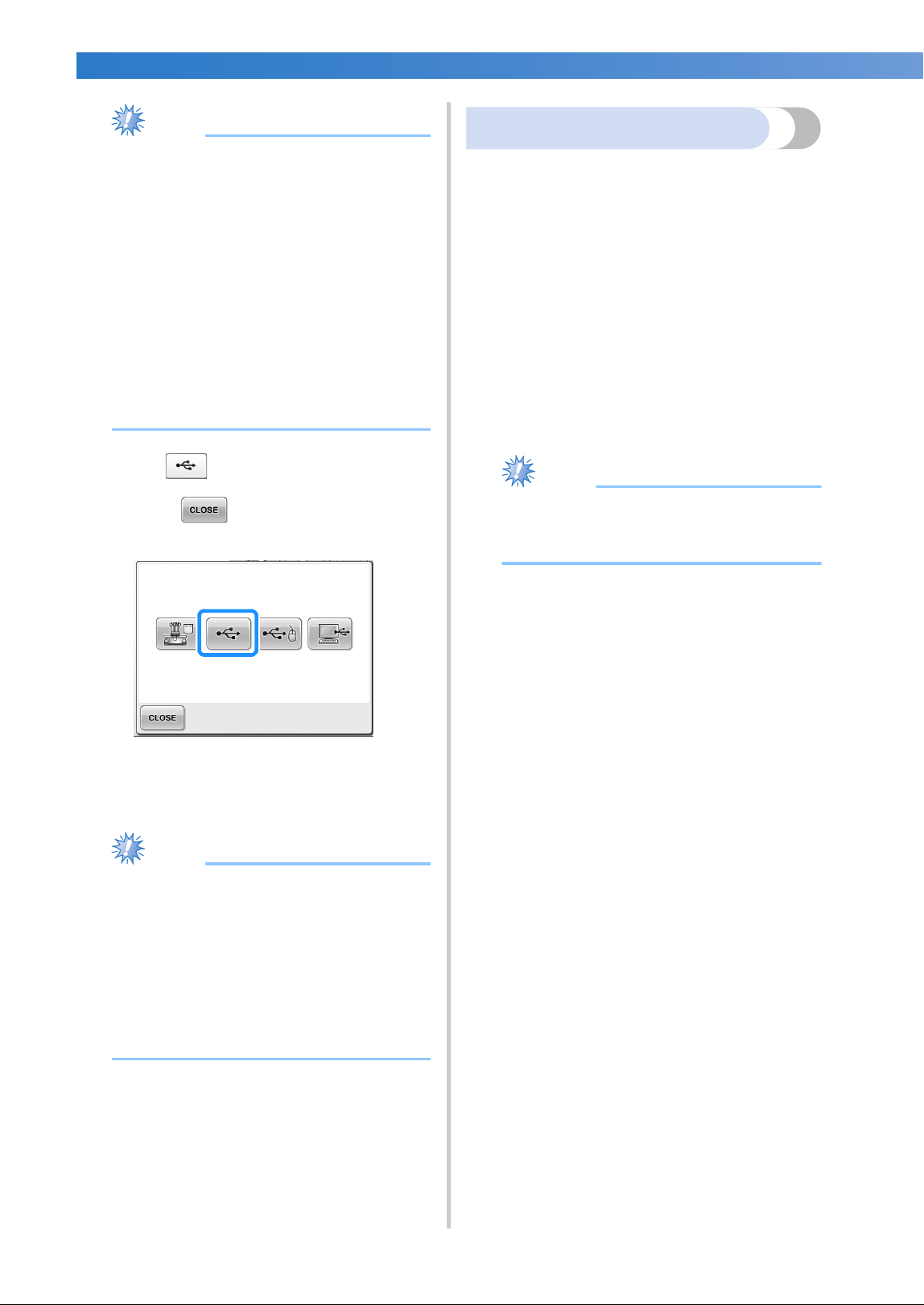
SELECTING/EDITING/SAVING PATTERNS
—
——————————————————————————————————————————————————————
——
214
Note
● The processing speed may vary by port
selection and quantity of data. The
primary (top) USB port processes the data
faster than the center port. It is
recommended to use the primary (top)
USB port.
● Two USB media cannot be used with this
machine at the same time. If two USB
media are inserted, only the USB media
inserted first is detected.
● Do not insert anything other than USB
media into the USB media port.
Otherwise, the USB media drive may be
damaged.
3
Touch .
• Touch to return to the original
screen without saving.
X The “Saving” screen is displayed. When
the pattern is saved, the display returns to
the original screen automatically.
Note
● Do not unplug the USB media while
“Saving” is displayed, otherwise the USB
media may be damaged or data may be
lost.
● Do not unplug a USB device/media from
this machine immediately after it has been
plugged in. Be sure to wait at least 5
seconds before unplugging the USB
device/media.
Computer (USB)
Using the included USB cable, the embroidery
machine can be connected to your computer, and
the embroidery patterns can be saved in the
“Removable Disk” folder in your computer. A total
of about 3 MB of embroidery patterns can be saved
in the “Removable disk”, but the saved embroidery
patterns are deleted when the machine is turned
off.
Also, this machine is compatible with the Link
function, this function enables you to send
embroidery patterns edited on a computer to the
embroidery machine. (Refer to “Sending
Embroidery Patterns From a Computer to the
Machine (Link Function)” on page 176.)
Note
● Do not turn off the machine while the
“Saving” message is displayed, otherwise
the pattern data being saved may be lost.
1
Plug the USB cable connector into the
corresponding USB ports for the computer
and for the machine.
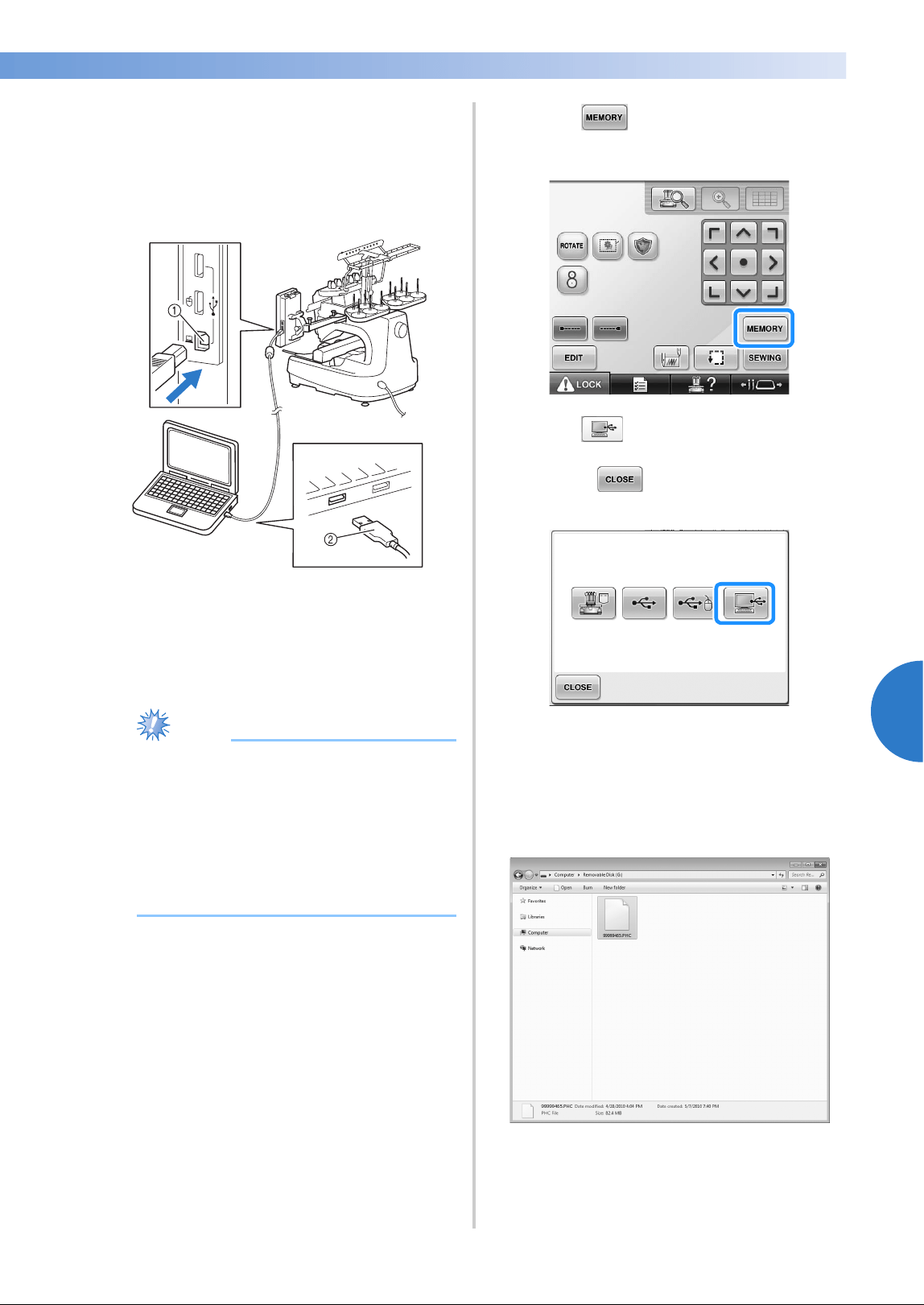
Saving Embroidery Patterns 215
——
—————————————————————————————————————————————————————————————————————
—
—————————————
5
2
Turn on your computer and select
“Computer (My computer)”.
• The USB cable can be plugged into the
USB ports on the computer and
embroidery machine whether or not they
are turned on.
1 USB port for computer
2 USB cable connector
X The “Removable Disk” icon will appear in
“Computer (My computer)” on the
computer.
Note
● The connectors on the USB cable can only
be inserted into a connector in one
direction. If it is difficult to insert the
connector, do not insert it with force and
check the orientation of the connector.
● For details on the position of the USB port
on the computer, refer to the instruction
manual for the corresponding equipment.
3
Touch when the pattern you want to
save is in the embroidering settings screen.
4
Touch .
• Touch to return to the original
screen without saving.
X The pattern will be temporarily saved to
“Removable Disk” under “Computer (My
computer)”.
5
Move/copy the pattern data in “Removable
Disk” that you want to save to the computer.

SELECTING/EDITING/SAVING PATTERNS
—
——————————————————————————————————————————————————————
——
216

6
BASIC SETTINGS AND HELP FEATURE
This chapter contains descriptions on the use of the settings key, the machine
operations guide key and the help key, introduced on page 41. Details on changing
the basic embroidery machine settings and viewing operations on the LCD will be
provided.
Using the Settings Key...........................................................................................218
Understanding the settings screen......................................................................218
Changing the display guides ..............................................................................220
Changing the thread color information ..............................................................222
Selecting the thread color information for “PES” format data..............................223
Specifying the thumbnail size ............................................................................224
Changing the background colors of the embroidery patterns or thumbnails .......224
Specifying jumpstitch trimming / “DST” jump codes for trimming......................225
Deleting short stitches........................................................................................226
Specifying the remaining length of thread ..........................................................227
Changing the screen saver settings.....................................................................227
Adjusting the brightness of the sewing light .......................................................229
Changing the speaker volume............................................................................229
Specifying the spool stand LED setting ...............................................................230
Specifying thread sensor ....................................................................................230
Changing the pointer shape when a USB mouse is used ....................................231
Changing the units of measurements..................................................................231
Changing the language ......................................................................................231
Using the Machine Operations Guide Key ............................................................232
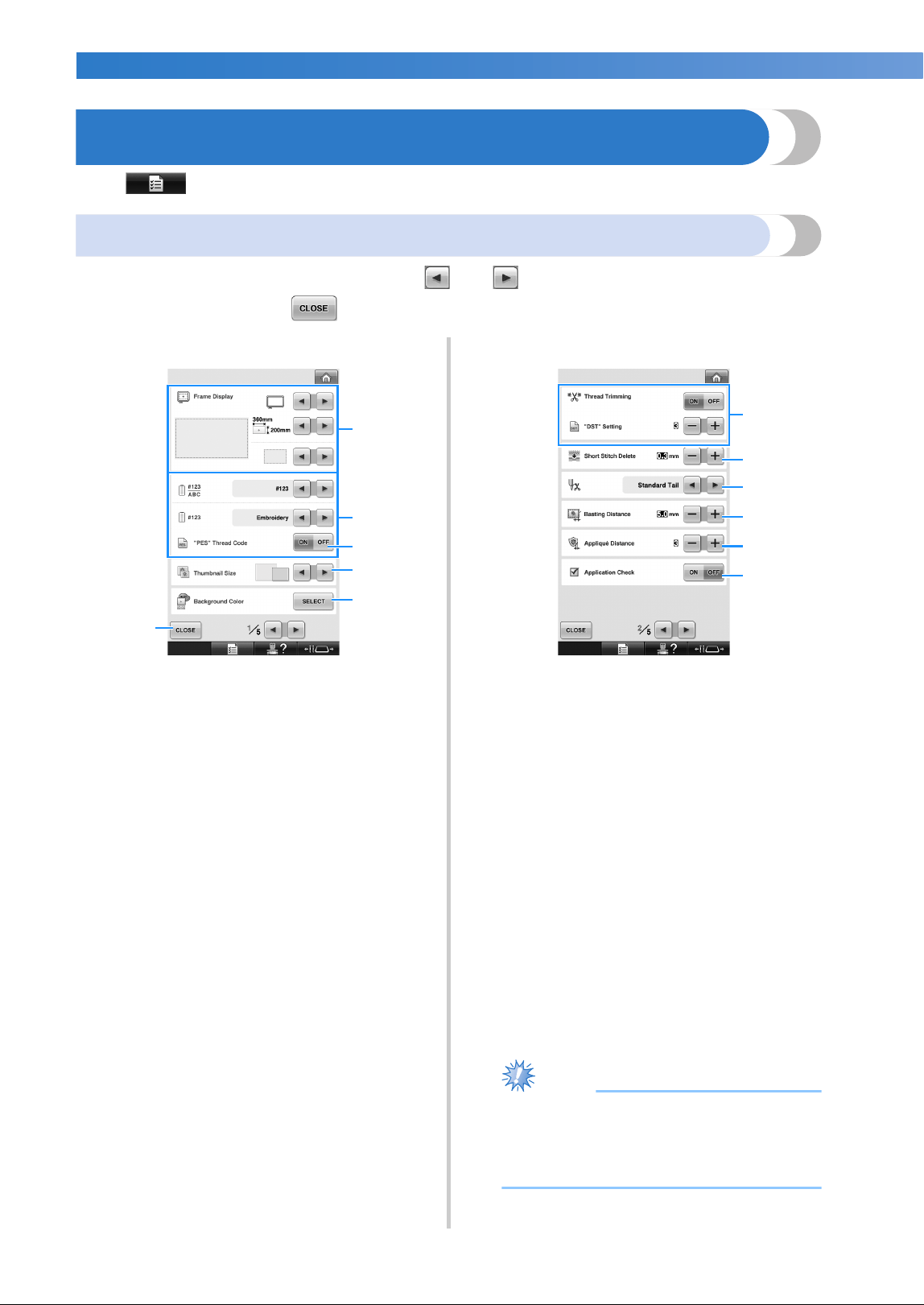
BASIC SETTINGS AND HELP FEATURE —————————————————————————————————————————————————————————
——
218
Using the Settings Key
Touch (settings key) to change many of the basic embroidery machine settings.
Understanding the settings screen
There are five pages in the settings screen. Touch and in the lower-center of the screen until the
desired page is displayed. The key appears on all pages.
■ Page 1
1 Touch to quit specifying settings. The settings
are confirmed and the screen that was
displayed before the settings key was touched
appears again.
2 The guides (type of embroidery frame holder,
embroidery frame size, centerpoint marker and
grid) for the pattern display area can be
specified. (Refer to page 220.)
3 Changing the thread color display
The color information in the thread color
sequence display and the needle bar thread
information can be switched to the color name,
the thread brand and color number or the
sewing time. (Refer to page 222.)
4 “PES” Thread Code
You can display the thread color for “PES”
format data according to the machine setting, or
setting from the embroidery editing software.
(Refer to page 223.)
5 Thumbnail Size
Specifies whether the size of image keys that
appear when selecting a pattern from the
pattern list screen are displayed “Small” or
“Large”. (Refer to page 224.)
6 Embroidery Background Color/Thumbnail
Background Color
Depending on the color of the embroidery,
changing the background color of the pattern
display area and thumbnails may make them
more visible and easier to select. (Refer to
page 224.)
■ Page 2
7 “DST” Setting
Specifies whether or not jumpstitches are cut. In
addition, when using Tajima embroidery data
(.dst), you can specify whether or not the thread
is cut according to the specified number of
jump codes. (Refer to page 225.)
8 Short Stitch Delete
Specifies the length of short stitches that are to
be deleted. (Refer to page 226.)
9 Thread Tail
Specifies the length of upper thread that
remains threaded through the needle after the
thread is trimmed (length of thread passed
through the eye of the needle). (Refer to
page 227.)
0 Basting Distance
Specify the distance between the pattern and
the basting stitching. (Refer to page 126.)
A Appliqué Distance
Specify the distance between the appliqué
pattern and the outline. (Refer to page 127.)
B Use the application check when running an
application.
Note
● If the settings for “DST” Setting 7 or Short
Stitch Delete 8 are changed from the
previous setting, the new settings are only
applied to the next embroidery.
1
6
5
3
2
4
B
A
7
0
9
8
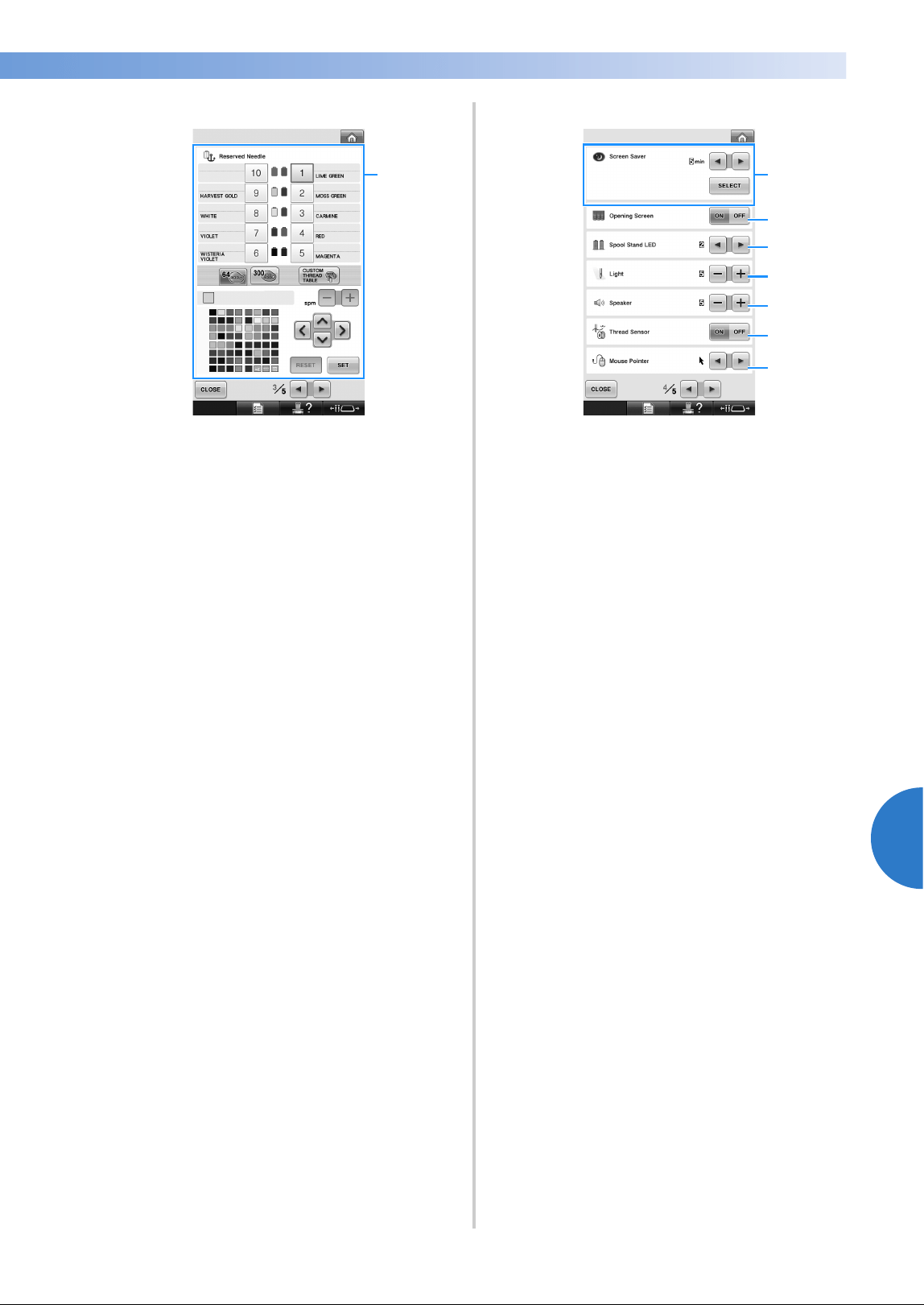
Using the Settings Key 219
6
——
———————————————————————————————————————————————————————————————————
—
———————————————
■ Page 3
C Reserved Needle
A specific thread color can be set to a needle
bar. The specified color remains assigned to the
needle bar specified here until the setting is
cancelled. You can also specify the maximum
sewing speed for a needle bar. This feature is
not accessible through the embroidering screen.
(Refer to “Reserved Needle Bar and Sewing
Speed Settings” on page 145.)
■ Page 4
D Screen Saver
Select the length of time until the screen saver
appears, and change the image of the screen
saver. (Refer to page 227.)
E Opening Screen
The machine can be set so that the opening
screen is either displayed (“ON”) or not
displayed (“OFF”) when the machine is turned
on.
F Spool Stand LED
Specifies the setting of spool stand LED
function. Spool stand LED informs when the
machine starts sewing, needs changing thread
and the error occurs, etc.(Refer to page 230.)
G Light
The brightness of the sewing light can be
adjusted. (Refer to page 20 or 229.)
H Speaker
The volume of operation sounds and alarm
sounds can be adjusted. (Refer to page 21 or
229.)
I Thread Sensor
Set “Thread Sensor” to either “ON” or “OFF”.
(Refer to page 230.)
J Mouse Pointer
Change the shape of the pointer when a USB
mouse is used. (Refer to page 231.)
C
I
H
D
G
F
E
J
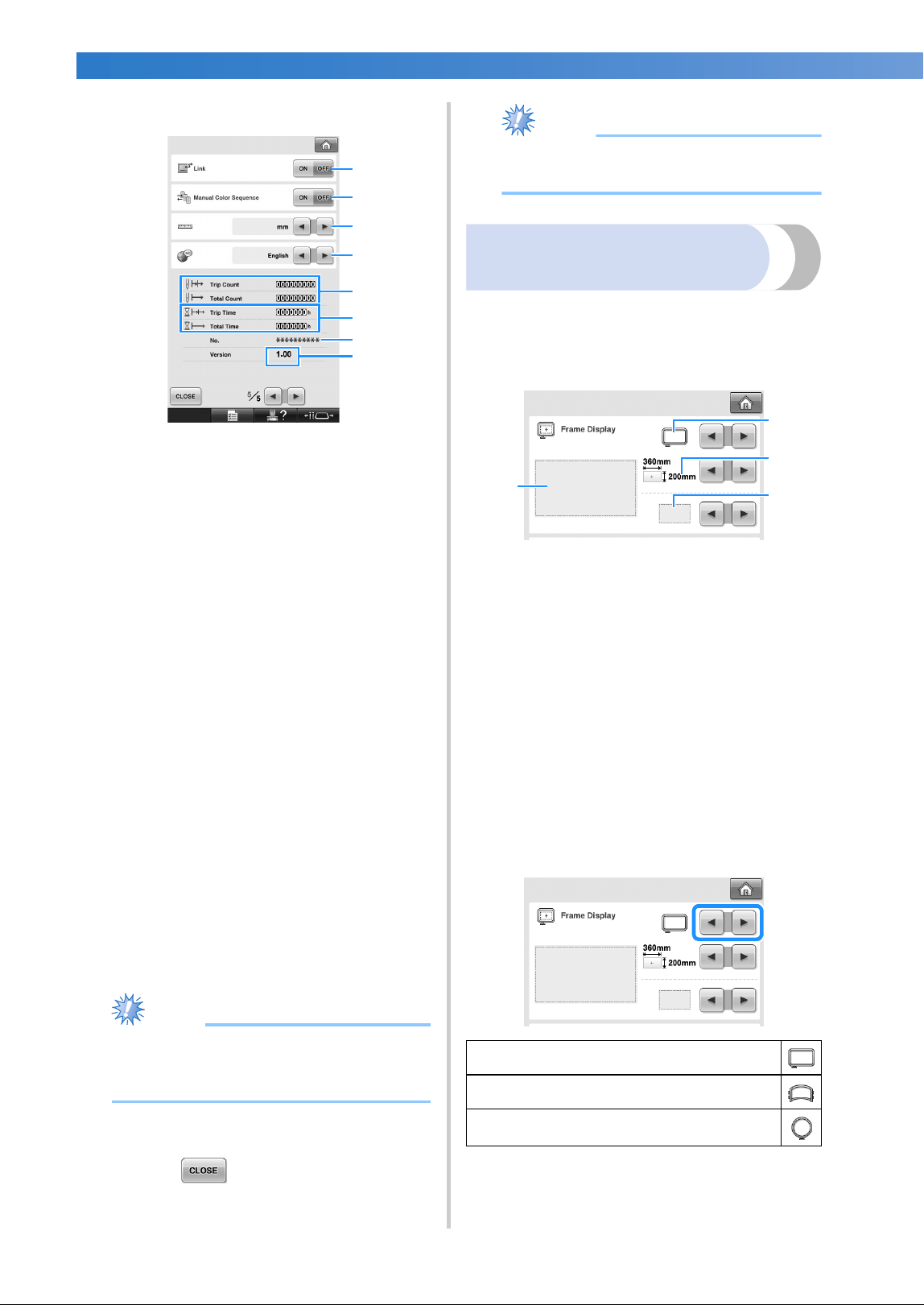
BASIC SETTINGS AND HELP FEATURE —————————————————————————————————————————————————————————
——
220
■ Page 5
K Link function
Set the Link function on or off. (Refer to
“Sending Embroidery Patterns From a Computer
to the Machine (Link Function)” on page 176)
L Manual Color Sequence
Set the Manual color sequence on or off. (Refer
to “Selecting/Managing Thread Colors for Each
Needle Bar (Manual Color Sequence)” on
page 132)
M Units of Measure
Enables the units of measurements that appear
in the screens to be changed. (Refer to
page 231.)
N LANGUAGES
Enables the display language to be changed.
The keys and messages appear in the selected
language. (Refer to page 231.)
O The Total Count counter shows the total
number of stitches sewn, and the Trip Count
counter show the number of stitches that have
been sewn since the machine’s last
maintenance.
P The Total Time counter shows the total amount
of time that the machine has been used, and the
Trip Time counter shows the amount of time
that the machine has been used since its last
maintenance.
Use counters O and P as a standard for
performing periodic maintenance and for receiving
maintenance for the machine.
Q The “No. ##” is the number for the embroidery
machine.
R Version
Shows the version of the software installed on
this embroidery machine. (Refer to page 309.)
Note
● Check with your local authorized Brother
dealer or at “http://solutions.brother.com”
for details on available updates.
Details of each of the settings are described in the
following sections. After specifying the desired
settings, touch to return to the screen that
was displayed before the settings screen was
displayed.
Note
● Some settings cannot be changed while
sewing.
Changing the display
guides
The guides in the pattern display area can be set for
the desired embroidery frame.
The guide settings can be specified from page 1/5
of the settings screen.
1 How the guides will appear with the specified
settings can be previewed here.
2 Type of embroidery frame holder
Specifies the type of the embroidery frame
holder.
3 Area
Specifies the size of the embroidery frame
displayed as a guide.
The guides that appears does not indicates the
size of the embroidery frame that is actually
installed.
4 Centerpoint marker or grid lines
Display or the grid lines or hides the
centerpoint marker of the design.
■ Type of the embroidery frame holder
Select the type of the embroidery frame holder
according to the embroidery frame you want to
use.
Refer to “Types of embroidery frames/frame
holders and their applications” on page 91 to
92.
Q
R
L
K
N
M
O
P
Embroidery frame holder A/B (included)
Cap frame/Cylinder frame (Optional)
Embroidery frame holder C (Optional)
1
4
2
3
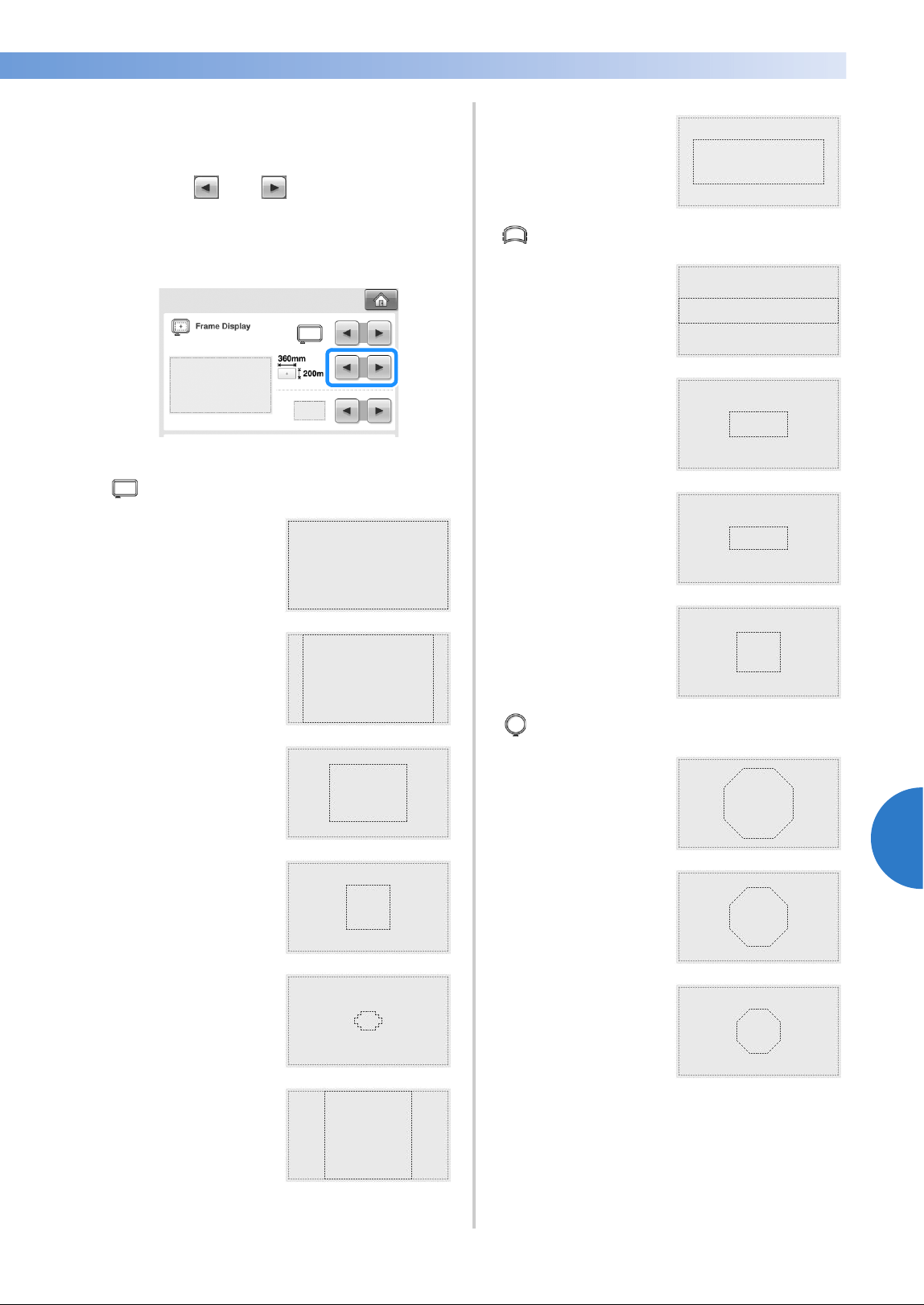
Using the Settings Key 221
6
——
———————————————————————————————————————————————————————————————————
—
———————————————
■ Size of the embroidery frame
When the embroidery machine is purchased,
the extra-large embroidery frame is selected.
1
Touch and to select the desired
embroidery frame display.
The embroidering area for the desired
embroidery frame is displayed.
Extra-large embroidery
frame
200 mm (H) × 360 mm
(W) (7-7/8 inches (H) ×
14 inches (W))
Extra-large embroidery
frame (optional)
200 mm (H) × 300 mm
(W) (7-7/8 inches (H) ×
11-3/4 inches (W))
Large embroidery frame
130 mm (H) × 180 mm
(W) (5-1/8 inches (H) ×
7-1/8 inches (W))
Medium embroidery
frame
100 mm (H) × 100 mm
(W) (4 inches (H) ×
4 inches (W))
Small embroidery frame
40 mm (H) × 60 mm
(W) (1-1/2 inches (H) ×
2-3/8 inches (W))
Quilt frame (optional)
200 mm (H) × 200 mm
(W) (7-7/8 inches (H) ×
7-7/8 inches (W))
Border frame (optional)
100 mm (H) × 300 mm
(W) (4 inches (H) ×
11-3/4 inches (W))
Cap frame wide type
(optional)
60 mm (H) × 360 mm
(W) (2-3/8 inches (H) ×
14 inches (W))
Advanced cap frame 2
(optional)
60 mm (H) × 130 mm
(W) (2-3/8 inches (H) ×
5-1/8 inches (W))
Cap frame (optional)
50 mm (H) × 130 mm
(W) (2 inches (H) ×
5-1/8 inches (W))
Cylinder frame
(optional)
80 mm (H) × 90 mm
(W) (3 inches (H) ×
3-1/2 inches (W))
Round frame (optional)
ø 160 mm
(ø 6 inches)
Round frame (optional)
ø 130 mm
(ø 5 inches)
Round frame (optional)
ø 100 mm
(ø 4 inches)
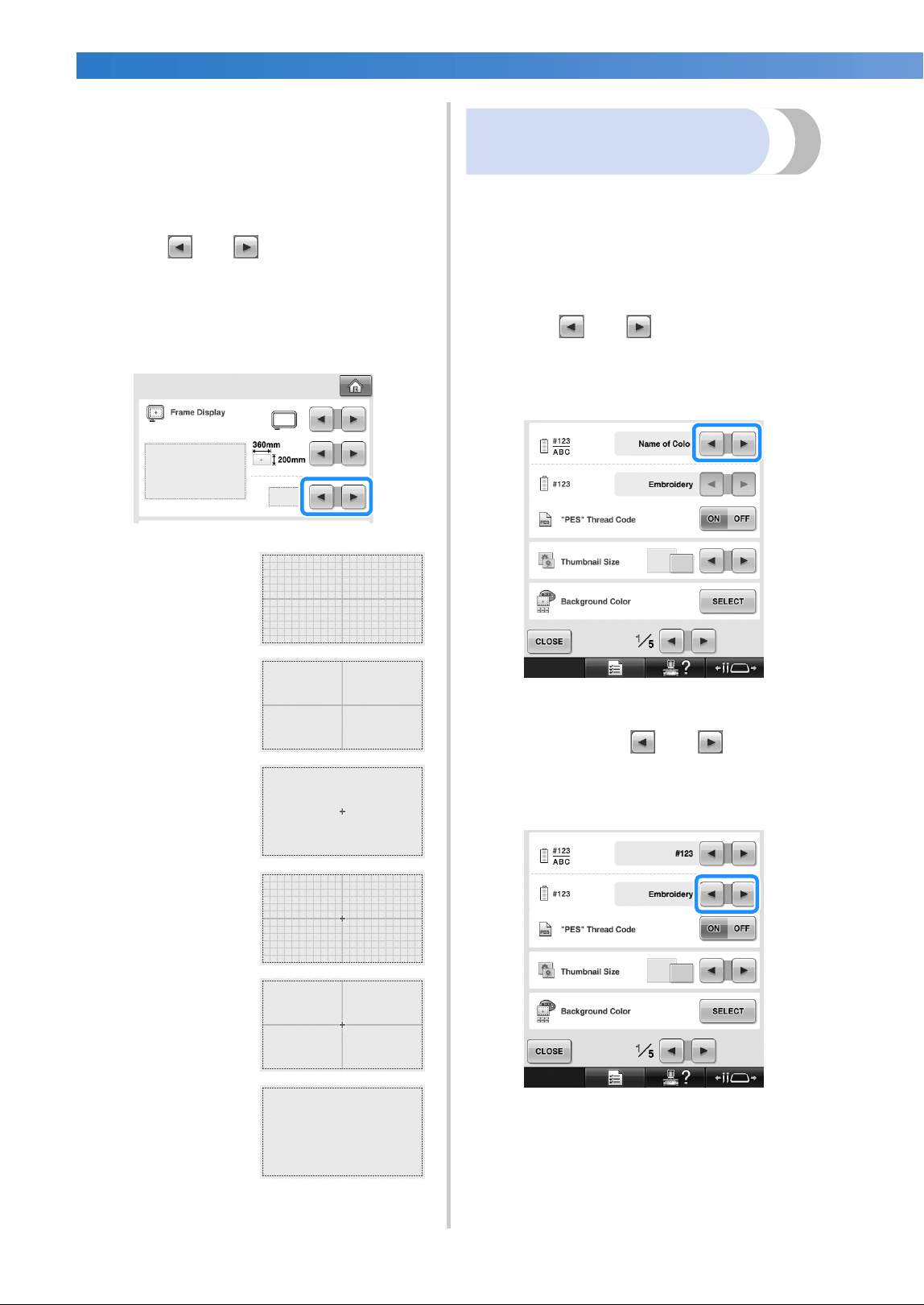
BASIC SETTINGS AND HELP FEATURE —————————————————————————————————————————————————————————
——
222
■ Centerpoint marker and grid lines
The centerpoint is indicated with a red plus sign
(+).
When the embroidery machine is purchased,
the centerpoint marker and grid lines are not
displayed.
1
Touch and to select whether or
not to display the centerpoint marker and
the grid lines.
The centerpoint marker is displayed as
specified.
Changing the thread color
information
You can display the name of the thread colors,
embroidery thread number or the embroidery time.
When the embroidery machine is purchased, the
thread color number (#123) is selected.
The thread color display setting can be specified
from page 1/5 of the settings screen.
1
Touch and to display the name of
the thread colors, the embroidery thread
number or the embroidering time.
2
When the thread number [#123] is
displayed, touch and to select
from six embroidery thread brands pictured
below.
Grid lines
Cross grid lines
Centerpoint marker
Centerpoint marker
and grid lines
Centerpoint mark
with cross grid lines
No centerpoint
marker or grid lines
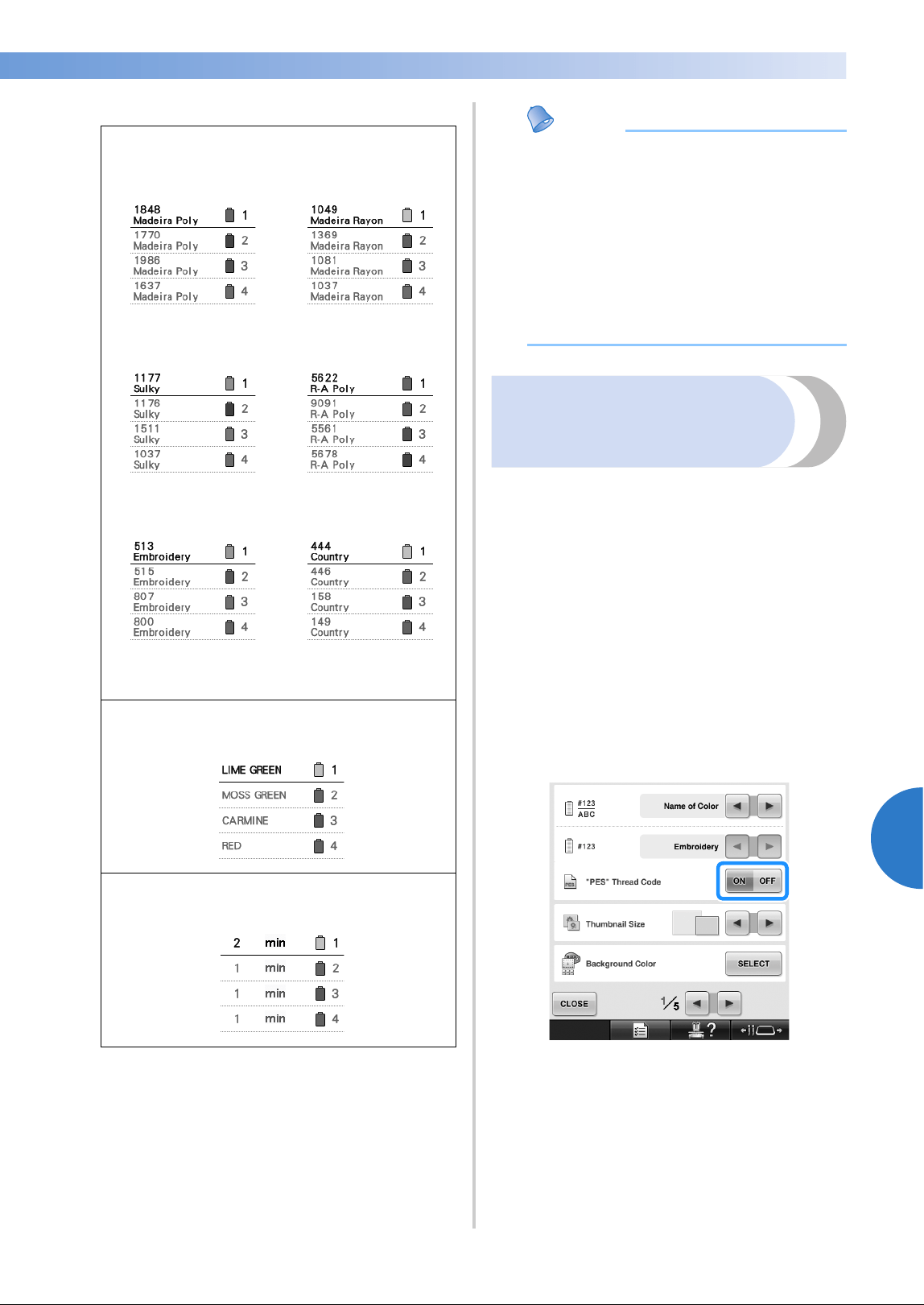
Using the Settings Key 223
6
——
———————————————————————————————————————————————————————————————————
—
———————————————
■ Sample displays
Memo
● The thread colors in the thread color
sequence display and in the patterns in the
pattern display area are displayed in the
original thread color (i.e. the thread colors
that have been built-in the machine). The
thread color numbers are displayed with
the number (or the nearest number) for the
brand specified here.
● Colors on the screen may vary slightly
from actual spool colors.
Selecting the thread color
information for “PES”
format data
You can display the thread color for “PES” format
data according to the machine setting, or setting
from the PE-DESIGN, PE-DESIGN Lite or PED-
BASIC (embroidery editing software).
(Refer to “Changing the thread color information”
on page 222 for the machine setting of thread
color.)
The “PES” Thread Code can be selected from page
1/5 of the settings screen.
ON: The thread color information displayed
according to the PE-DESIGN, PE-DESIGN Lite or
PED-BASIC (embroidery editing software)
OFF: The thread color information displayed
according to the machine setting.
When the machine is purchased, “ON” is selected.
Thread color number (#123)
Madeira Poly
(Polyester)
Madeira Rayon
(Rayon)
Sulky
(Rayon)
Robison-Anton
(Polyester)
Embroidery
(Polyester)
Country
(Cotton*)
* Depending on the country or area, cotton-like
polyester thread is sold.
Thread color name
Name of Color
Time
Time
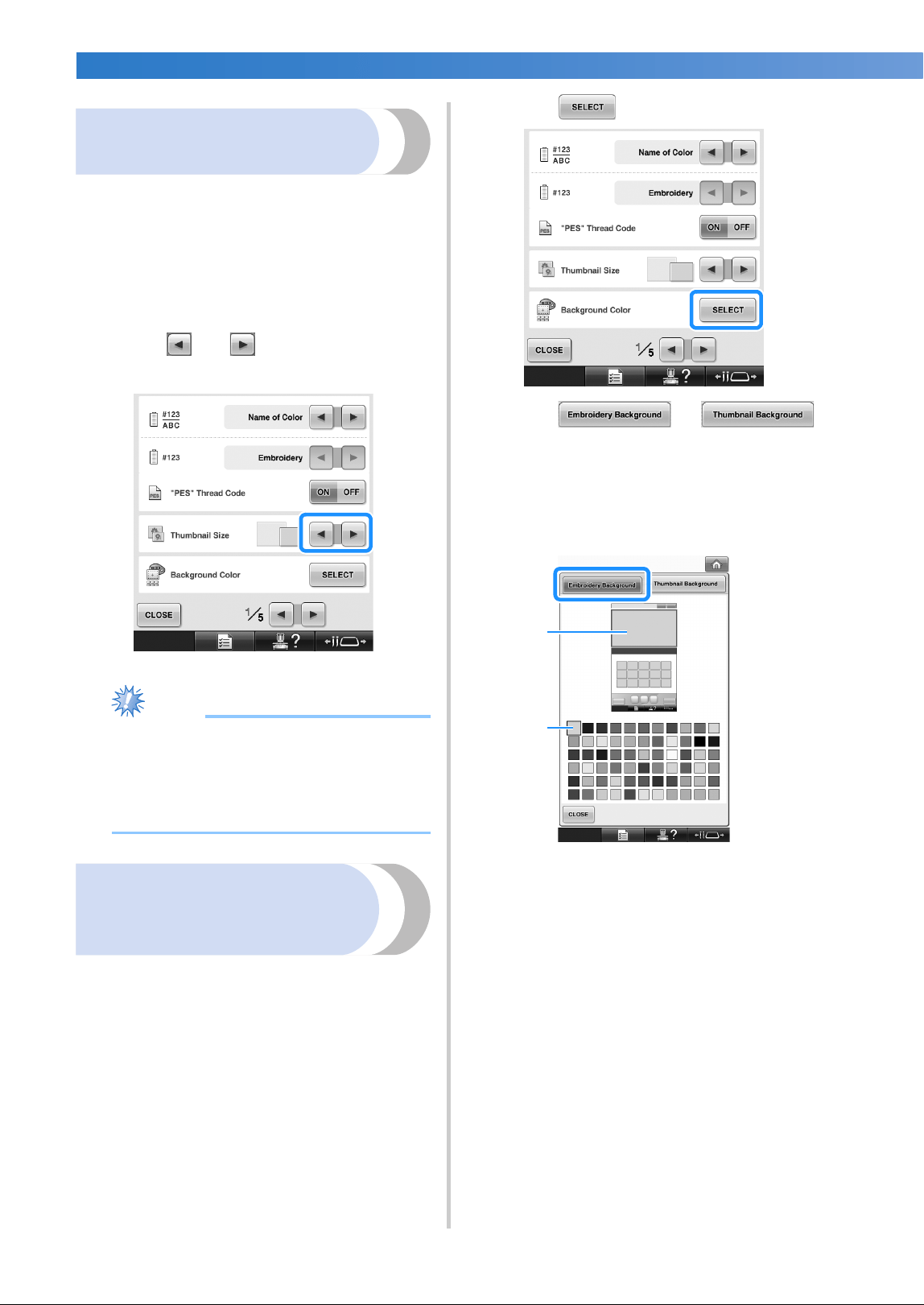
BASIC SETTINGS AND HELP FEATURE —————————————————————————————————————————————————————————
——
224
Specifying the thumbnail
size
You can set whether the thumbnails for selecting an
embroidery pattern are displayed in normal size or
large size. Large size is 1.5 times the normal size.
When the embroidery machine is purchased,
normal size is selected.
The thumbnail size setting can be specified from
page 1/5 of the settings screen.
1
Touch and to select the desired
thumbnail size.
Note
● The thumbnail size will not show a
change while in the pattern selection
screen. In this case, return to the category
selection screen and reselect a pattern
category.
Changing the background
colors of the embroidery
patterns or thumbnails
The background colors of the pattern display area
and pattern thumbnails. Depending on the pattern
color, select the desired background color from the
66 settings available. Different background colors
can be selected for the pattern display area and
pattern thumbnails.
When the embroidery machine is purchased, gray
color is selected.
The background color settings can be specified
from page 1/5 of the settings screen.
1
Touch .
2
Touch or
to select which of the pattern display area or
pattern thumbnails you want to change the
background color.
Select the background color from the 66
settings available.
1 Embroidery Background colors
2 Selected color
2
1
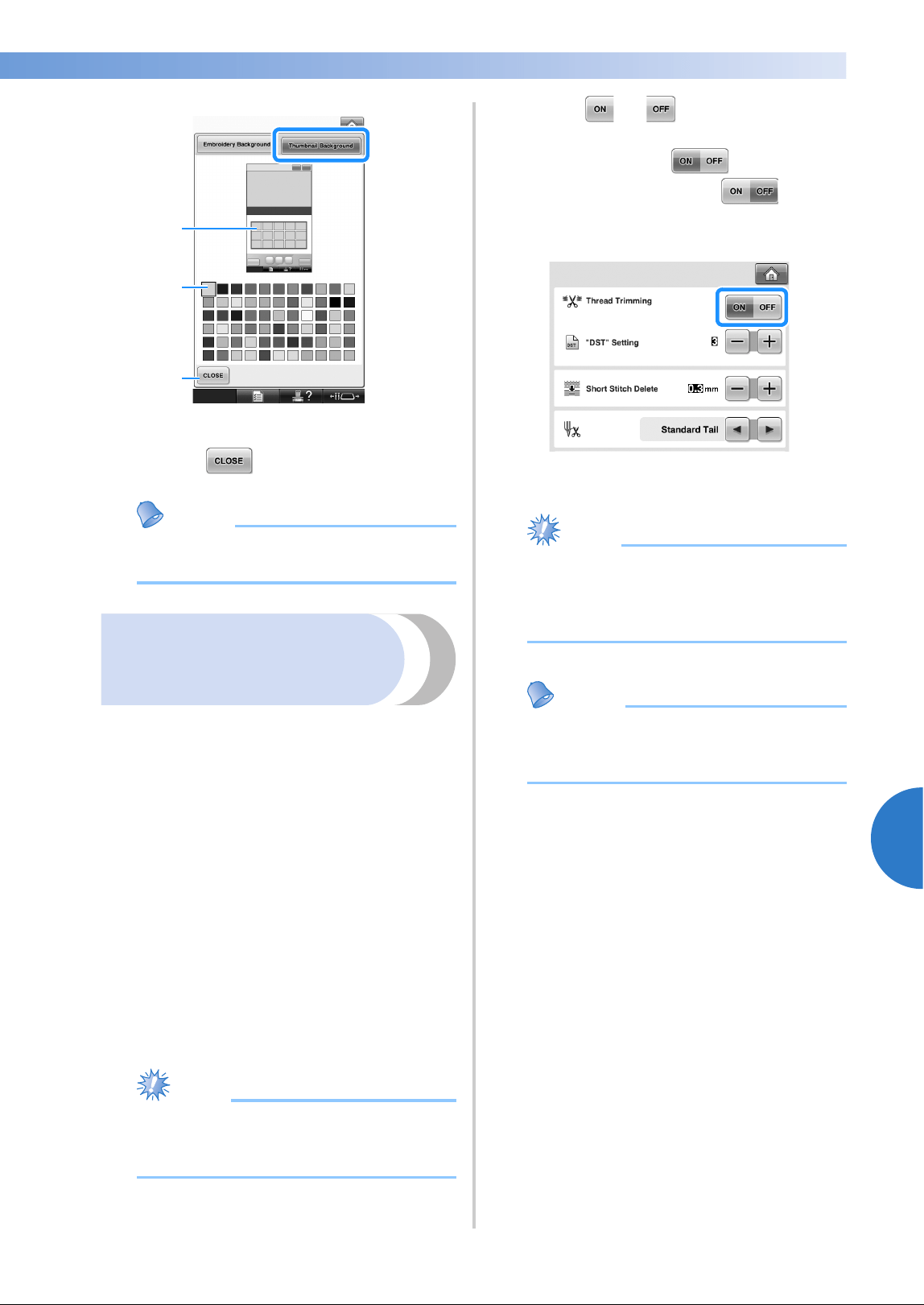
Using the Settings Key 225
6
——
———————————————————————————————————————————————————————————————————
—
———————————————
1 Thumbnail Background colors
2 Selected color
3 Touch to return to the settings screen.
Memo
● The setting remains selected even if the
machine is turned off.
Specifying jumpstitch
trimming / “DST” jump
codes for trimming
You can specify whether or not jumpstitches are
cut. In addition, when using Tajima embroidery
data (.dst), you can specify whether or not the
thread is cut according to the specified number of
jump codes.
ON: The machine cuts the upper and bobbin
thread before the jumpstitch. When Tajima
embroidery data (.dst) is used, the machine
converts the “jump” code to a trim code, based on
the number specified on the next line.
OFF: The machine does not cut either a jumpstitch
or the “jump” code in Tajima embroidery data
(.dst).
When the machine is purchased, “ON” is selected
and the number of jumps is set to “3”.
The “DST” thread trim settings can be specified
from page 2/5 of the settings screen.
Note
● If the setting is changed from the previous
setting, the new setting is only applied to
the next embroidery.
1
Touch or to select the desired
setting.
The key appears as when “ON” is
selected, and it appears as when
“OFF” is selected.
• Each touch of the key turns the setting
either on or off.
Note
● This setting is not applied to the trimming
of threads between characters in alphabet
patterns. (Refer to “Trimming the threads
between characters” on page 189.)
Memo
● The number of jump codes cannot be
specified for data other than Tajima
embroidery data (.dst).
2
1
3
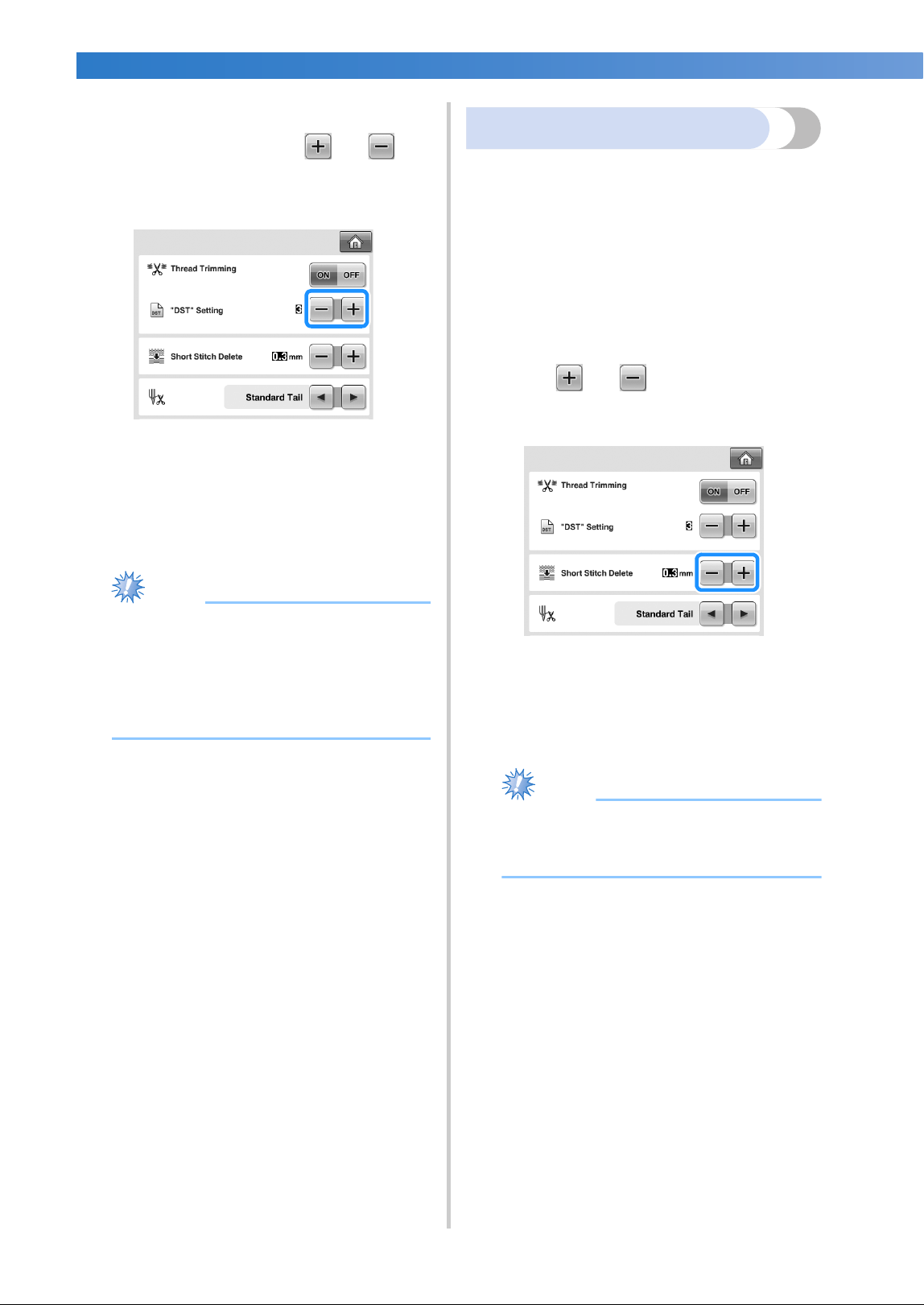
BASIC SETTINGS AND HELP FEATURE —————————————————————————————————————————————————————————
——
226
■ When using Tajima embroidery data (.dst)
2
If “ON” is selected, touch and to
select the number of feed codes.
The desired setting is displayed.
• A value between 1 and 8 can be specified.
For example, if 3 is specified, sequential 3
jump codes will be converted to the trim
code. But sequential 2 jump codes will not
be converted to the trim code, it will be
sewed as the feed (jump) stitch.
Note
● You need to set the jump number same as
the number that was used when the
particular Tajima data was created.
If the jump number is not matched, either
unexpected trim or no trimming at trim
expected point will happen.
Deleting short stitches
If embroidery data other than our original patterns
are used, the stitch length may be too short,
possibly resulting in the thread or the needle
breaking. In order to prevent this problem from
occurring, the machine can be set to delete stitches
with a short stitch length. Stitches with a length less
than that specified in this function, can be deleted.
When the embroidery machine is purchased, “0.3”
was selected (delete stitches with a length of 0.3
mm or less).
1
Touch and to select the stitch
length.
The desired size is displayed.
• A value between 0 and 1 millimeters if the
units of measurements is set to “mm” (or a
value between 0 and 0.04 inch if the units
of measurements is set to “inch”) can be
specified.
Note
● If the setting is changed from the previous
setting, the new setting is only applied to
the next embroidery.
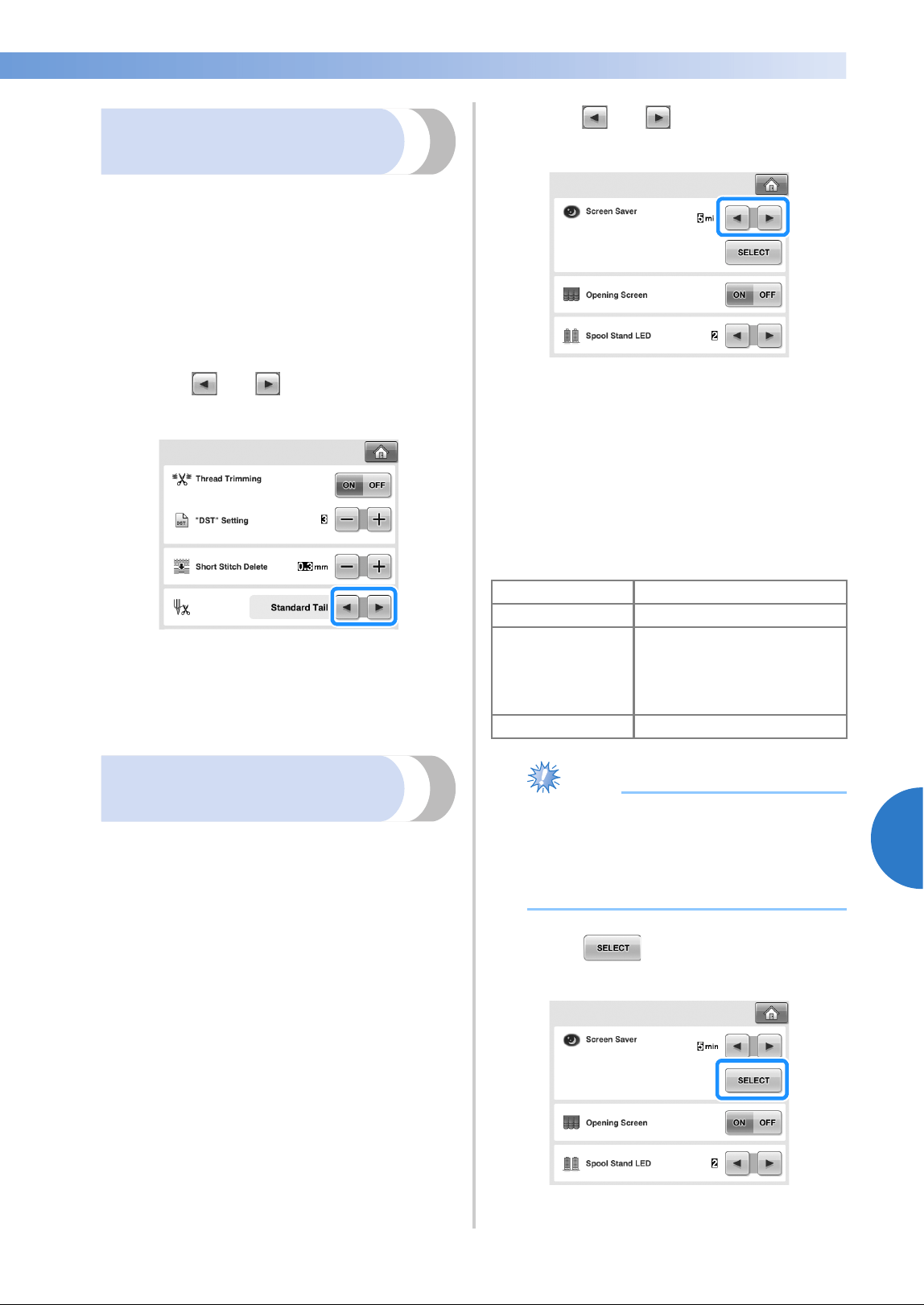
Using the Settings Key 227
6
——
———————————————————————————————————————————————————————————————————
—
———————————————
Specifying the remaining
length of thread
This setting specifies whether the length of upper
thread that remains threaded through the needle
after the thread is trimmed (length of thread passed
through the eye of the needle) has a standard tail or
long tail.
When the embroidery machine is purchased,
“Standard Tail” is selected.
The setting for the remaining length of thread can
be specified from page 2/5 of the settings screen.
1
Touch and to select the setting.
The desired length is displayed.
• If the machine misses stitches with a
standard length of thread after it is
trimmed, select “Long Tail”.
• When using metallic thread, select “Long
Tail”.
Changing the screen saver
settings
■ Specifying the length of time until the screen
saver is displayed
The screen saver is displayed when no machine
operation is performed for the specified length of
time.
A setting between “OFF” (0) and “60” minutes
can be set in 1-minute increments.
When the embroidery machine is purchased, “5
min” is selected.
The screen saver settings can be specified from
page 4/5 of the settings screen.
1
Touch and to select the desired
setting.
■ Changing the screen saver image
You can select your own personal images for the
screen saver of your machine.
Before changing the screen saver image, prepare
the image on your computer or USB media.
When the embroidery machine is purchased,
the default setting is selected.
The screen saver settings can be specified from
page 4/5 of the settings screen.
Note
● When using USB media, make sure that it
contains only your own personal images
to be selected for the screen saver.
● Folders are recognized. Open the folder
that holds your personal images.
1
Touch .
Compatible image files
Format JPEG format (.jpg)
File size Max. 150 KB for each image
File dimension
480 × 800 pixels or less, (If
the width is more than 480
pixels, the image imported
will be reduced to a width of
480 pixels.)
Number allowed 5 or less
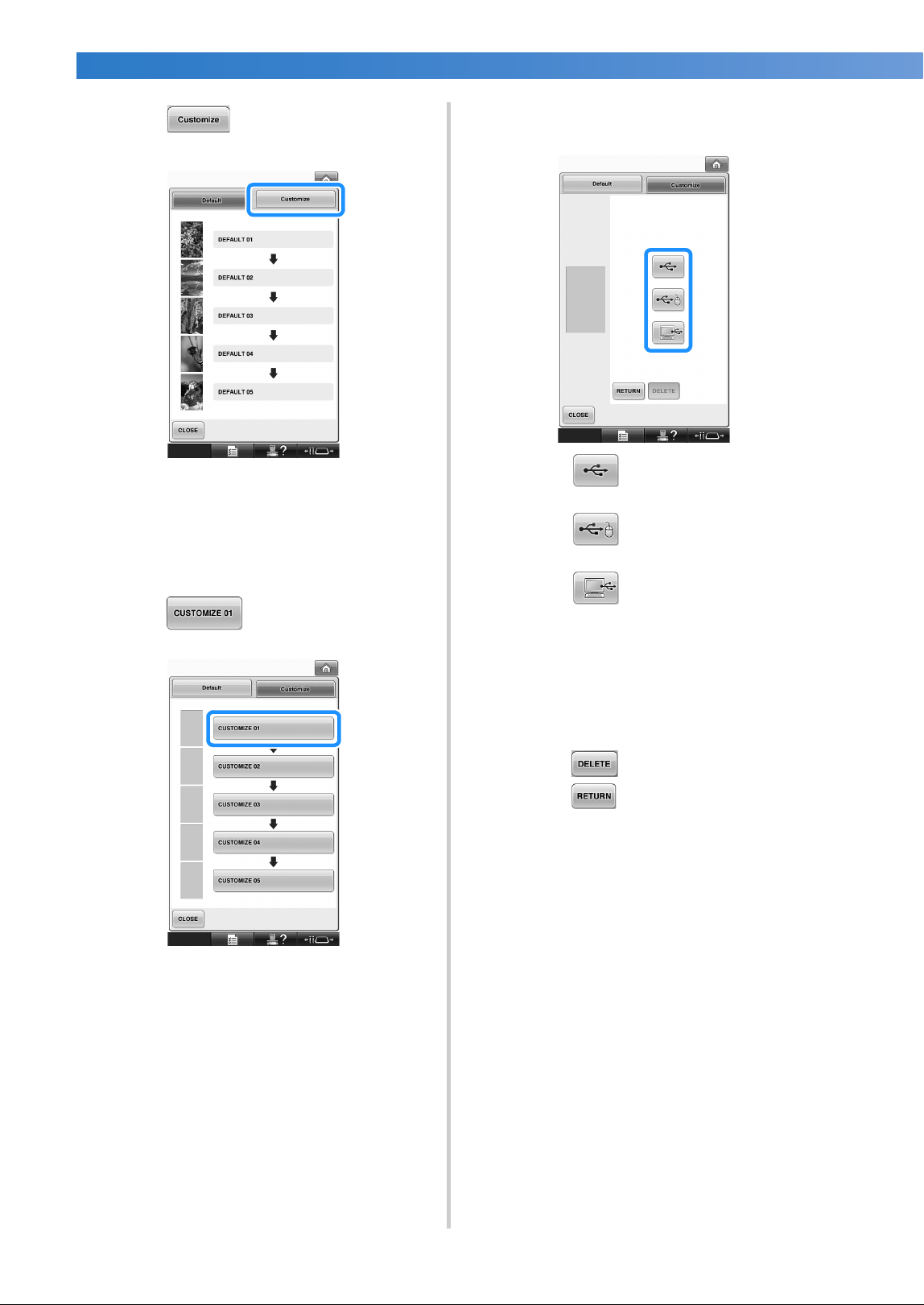
BASIC SETTINGS AND HELP FEATURE —————————————————————————————————————————————————————————
——
228
2
Touch .
3
Connect the USB media or the computer
(using a USB cable) that contains your
personal image to the USB port of the
machine.
• Refer to page 82 about USB connectivity.
4
Touch to select the first image.
• The images will appear in a list in this
screen. Select the desired number to
specify the image.
5
Select the device that is connected.
• Touch when connecting USB
media to the primary (top) USB port.
• Touch when connecting USB
media to the center USB port.
• Touch when connecting a
computer using a USB cable, and then
copy your personal images into
“Removable Disk”, which appears on the
desktop of the computer.
X A list of your personal images appear on
the screen.
• Touch to delete the selected image.
• Touch to return to the previous
screen.
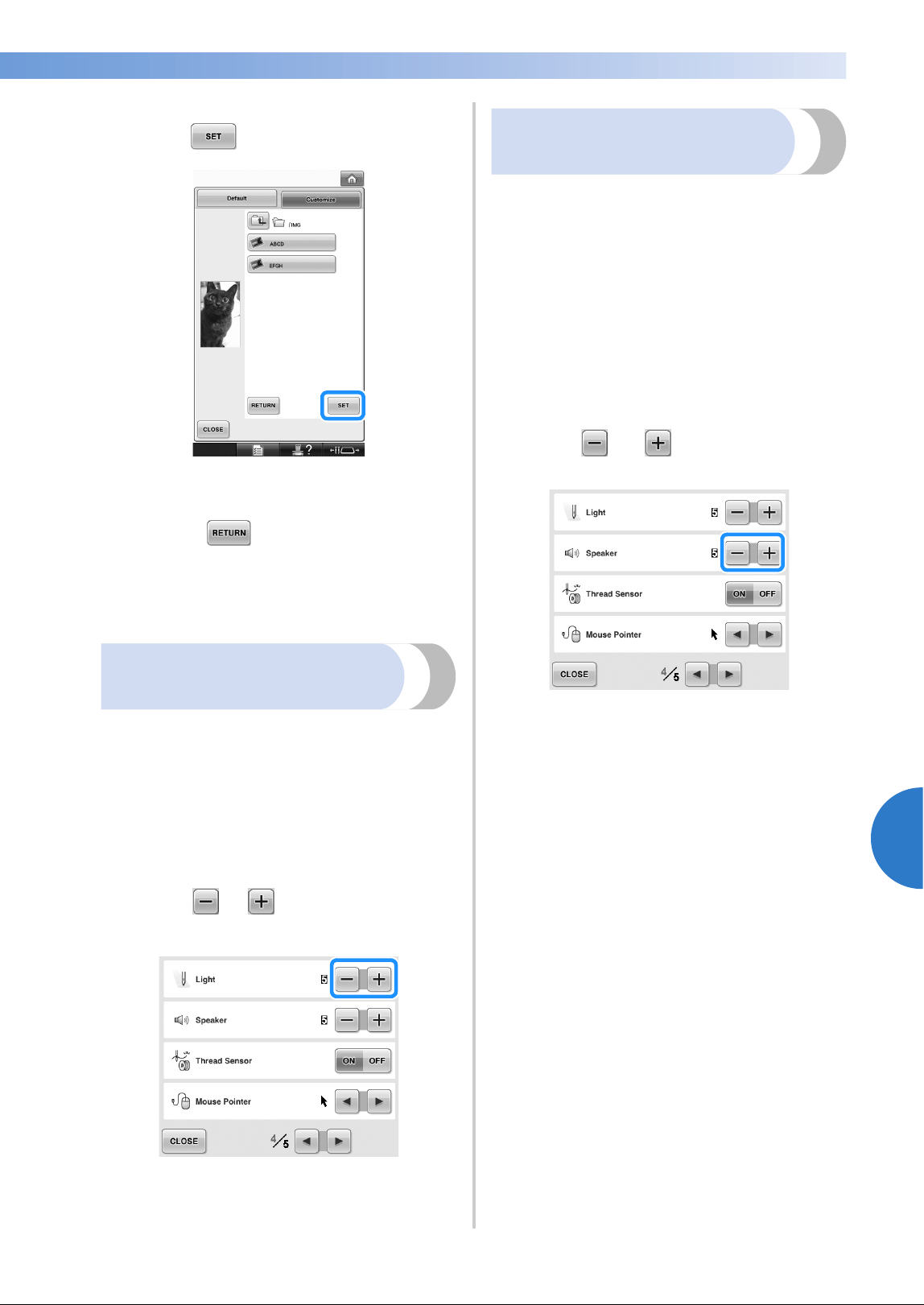
Using the Settings Key 229
6
——
———————————————————————————————————————————————————————————————————
—
———————————————
6
Touch a file name to select image and then
touch .
X The selected image is stored on your
machine.
• Touch to return to the previous
screen.
7
According to the procedure from step 4,
select the remaining images.
Adjusting the brightness of
the sewing light
You can adjust the brightness of the sewing light to
light up the embroidering area. The brightness of
the sewing light can be set to “OFF” or a setting
between “1” and “5”. When “OFF” is selected, the
sewing light does not turn on. When the machine is
purchased, “5” is selected.
The sewing light can be specified from page 4/5 of
the settings screen.
1
Touch or to select the desired
brightness.
X Check that the desired sewing light
brightness is selected by checking the
embroidering area.
Changing the speaker
volume
The volume of operation sounds (which are
produced when a key is touched in a screen or a
button is pressed in the operation panel) and alarm
sounds (which indicate that an error has occurred)
can be changed.
The speaker volume can be set to “OFF” or a
setting between “1” and “5”. When “OFF” is
selected, no sound is produced from the speaker.
When the embroidery machine is purchased, “5” is
selected.
The speaker setting can be specified from page 4/5
of the settings screen.
1
Touch and to select the desired
speaker volume.
X Check that the desired speaker volume is
selected with the operation sound
produced when a key is touched.
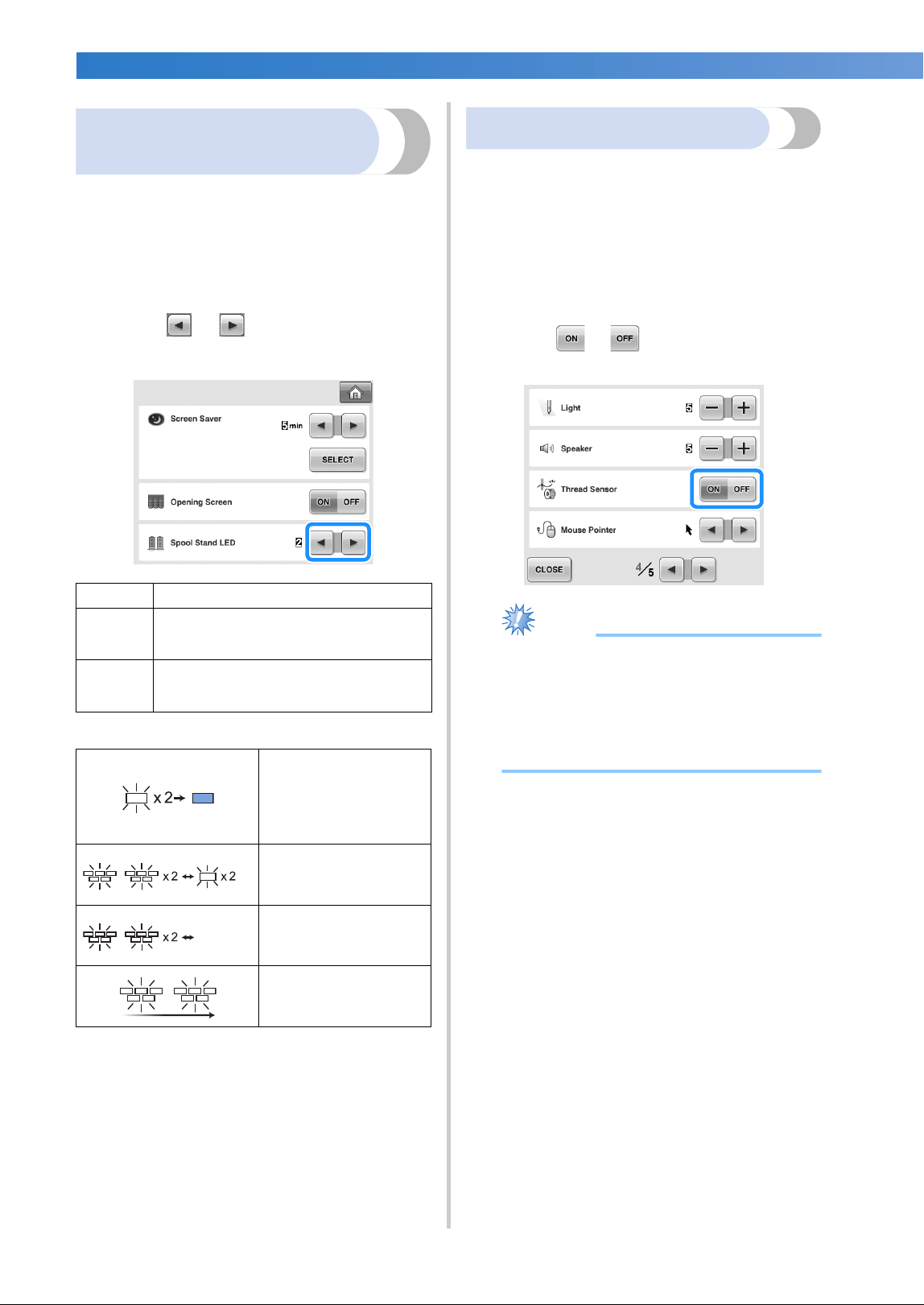
BASIC SETTINGS AND HELP FEATURE —————————————————————————————————————————————————————————
——
230
Specifying the spool stand
LED setting
The spool stand LED lights inform you when the
machine stops, when the thread need to be
changed or error has occurred. Set the spool stand
LED setting to “OFF”, “1” or “2”.
The spool stand LED setting can be specified from
page 4/5 of the settings screen.
1
Touch or to select the desired
setting.
■ Spool stand LED indications
Specifying thread sensor
If thread sensor is set to “OFF”, the machine does
not stop until embroidering is finished, even if the
thread breaks or there is no more thread in the
bobbin. Set thread sensor to “ON”, except when it
is necessary to set it to “OFF”.
When the machine is purchased, “ON” is selected.
The thread sensor can be specified from page 4/5 of
the settings screen.
1
Touch or to select the desired
setting.
Note
● Normally, set thread sensor to “ON”.
When thread sensor is set to “OFF”, the
machine will not be able to detect if the
upper thread has become tangled.
Continuing to use the machine with
tangled thread may cause damage.
OFF
Turns off the spool stand LED.
1 Spool stand LED turns on in the particular
situations; when the machine starts sewing,
thread changed, a sewing error occurs, etc.
2 Spool stand LED is always turned on; indi-
cating the thread color and in the particular
situation.
indicates the spool that
needs changing
(Appropriate thread color
is indicated. For black
thread color, LED light
turns off.)
indicates the spool that
activates thread breakage
error
OFF
sewing error
finished sewing
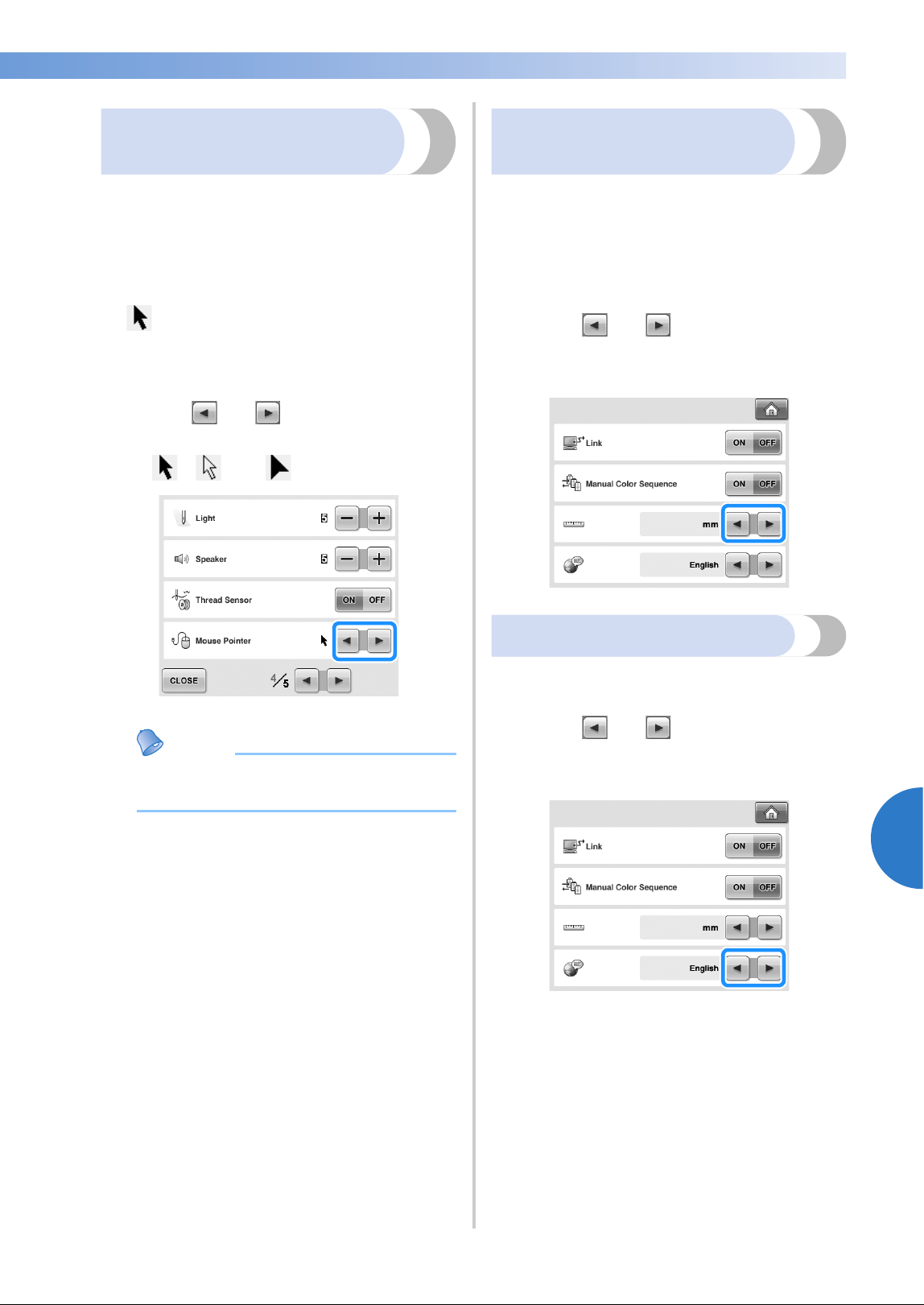
Using the Settings Key 231
6
——
———————————————————————————————————————————————————————————————————
—
———————————————
Changing the pointer shape
when a USB mouse is used
The shape can be selected for the pointer that
appears when a USB mouse is connected.
Depending upon the background color, select
the desired shape from the three that are
available.
When the embroidery machine is purchased,
is selected.
The mouse pointer setting can be specified from
page 4/5 of the settings screen.
1
Touch and to select the pointer
shape from the three settings available
(, and ).
Memo
● The setting remains selected even if the
machine is turned off.
Changing the units of
measurements
The units of measurements can be set to millimeters
or inches.
When the embroidery machine is purchased, “mm”
is selected.
The measurement units setting can be specified
from page 5/5 of the settings screen.
1
Touch and to select the desired
measurement units.
The desired units are displayed.
Changing the language
The language setting can be specified from
page 5/5 of the settings screen.
1
Touch and to select the desired
language.
The desired language is displayed.
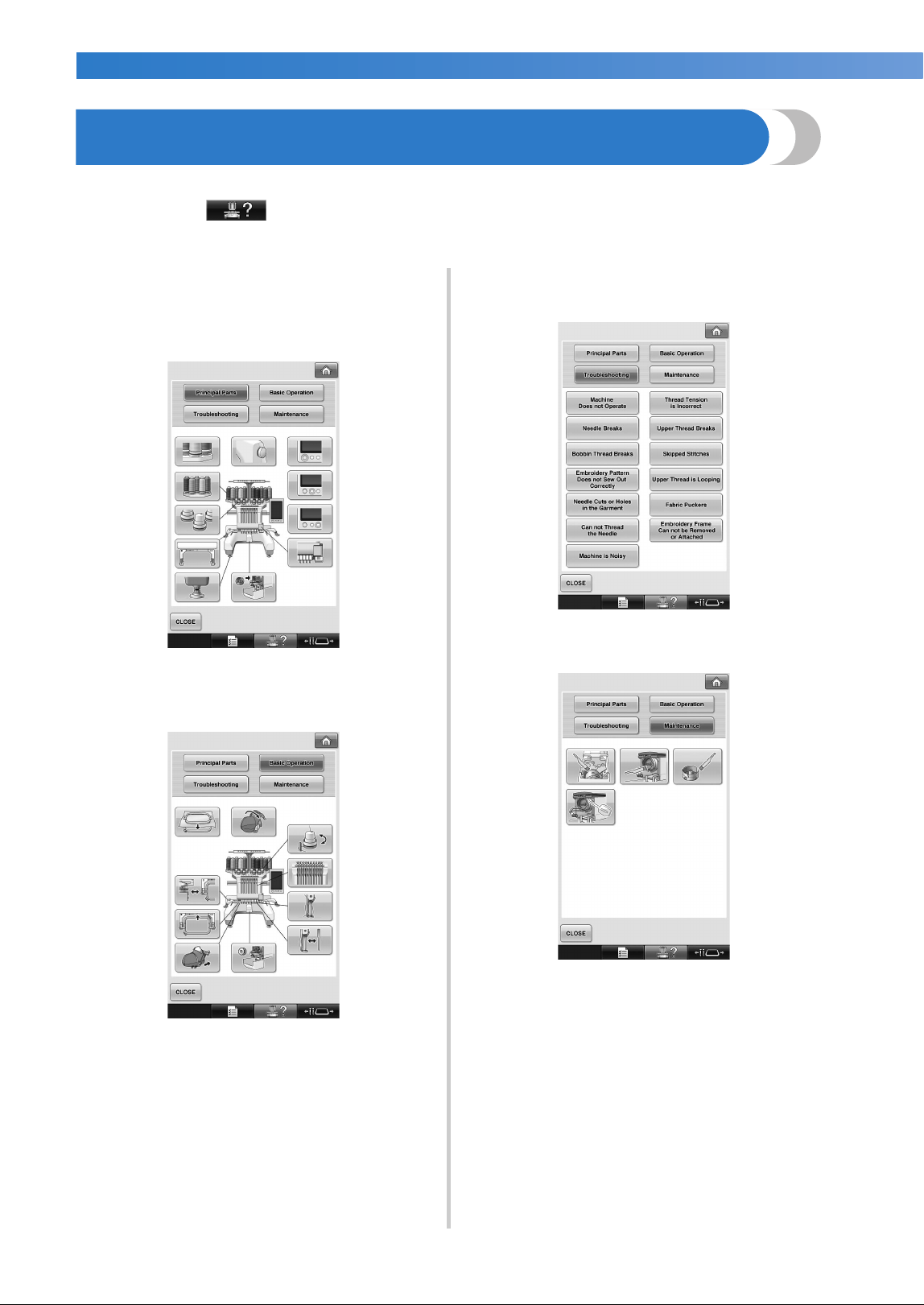
BASIC SETTINGS AND HELP FEATURE —————————————————————————————————————————————————————————
——
232
Using the Machine Operations Guide Key
This machine contains information based on the contents of the Operation Manual, such as basic machine
operations. Touch (machine operations guide key), and then select from the four topics that appear
to display the available information.
■ Contents of Categories
Principal Parts
Displays and explains principal parts of the
machine and their functions.
Basic Operation
Illustrates basic threading and hooping
instruction.
Troubleshooting
Basic guide for problems solving.
Maintenance
Instruction for maintaining your machine.
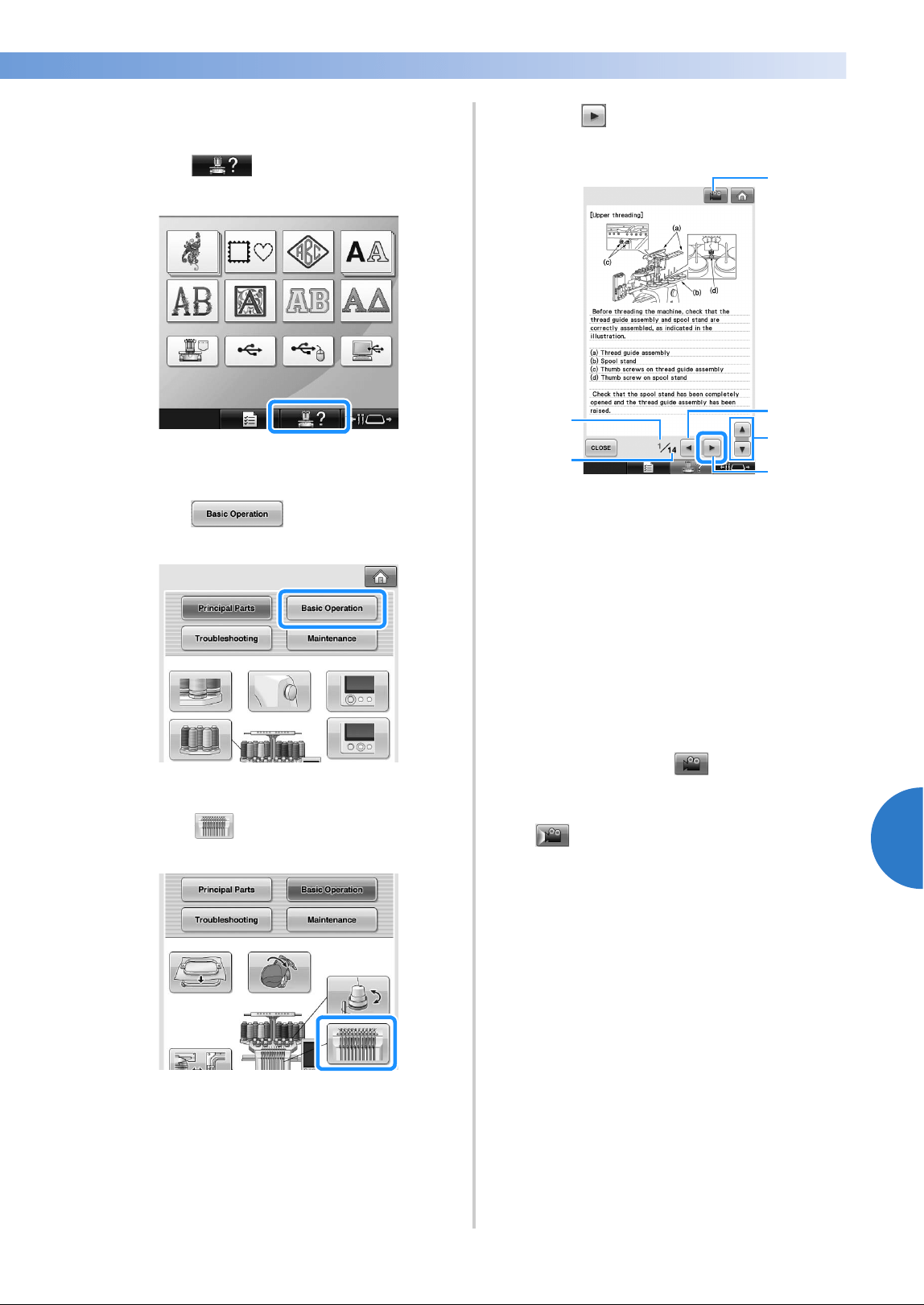
Using the Machine Operations Guide Key 233
6
——
———————————————————————————————————————————————————————————————————
—
———————————————
Example: To learn how to thread the upper
thread
1
Touch .
X The machine operations guide screen
appears.
2
Touch .
X The list of basic operations appears.
3
Touch .
X The procedure for threading the upper
thread appears.
4
Touch to display the next page.
1 Next page key
Touch this key to display the next page.
2 Balance of information on current topic
3 Previous page key
Touch this key to display the previous page.
4 Current page number
5 Total number of pages
6 Movie key
Movies are available only for the topics listed
below.
• Upper threading
• Threading the needle
• Preparing the cap frame
• Installing the cap frame driver
A movie showing the procedure can be
viewed by touching when in the
instructional area for the above topics. While
a movie is being shown, the key changes to
.
1
3
4
5
6
2
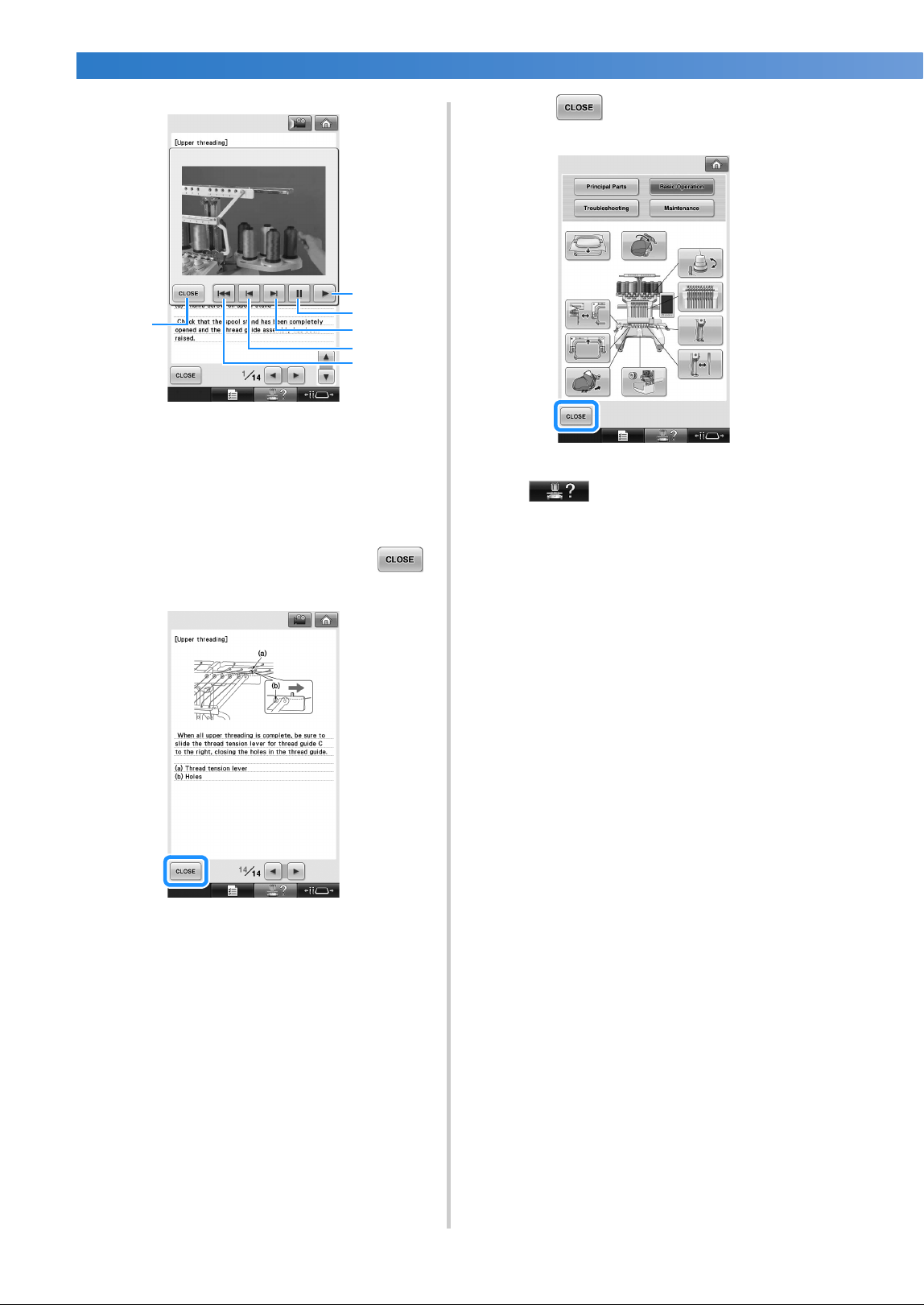
BASIC SETTINGS AND HELP FEATURE —————————————————————————————————————————————————————————
——
234
1 Touch this key to return to the illustration.
2 Touch this key to continue showing the movie.
3 Touch this key to pause the movie.
4 Touch this key to fast-forward the movie.
5 Touch this key to rewind the movie.
6 Touch this key to display the movie from the
beginning of the current page.
5
After checking the procedure, touch .
6
Touch .
X The screen that was displayed before
was touched appears.
6
1
2
3
5
4

7
APPENDIX
This chapter provides descriptions of techniques for sewing applications, pointers for
creating beautiful embroidery, and details on maintenance procedures and corrective
measures that should be taken when a problem occurs.
Appliqué Sewing .............................. 236
Sewing appliqué patterns.............. 236
Using a frame pattern to create
appliqués (1)................................. 237
Using a frame pattern to create
appliqués (2)................................. 238
Sewing Large-size (Split) Embroidery
Patterns ..................................... 240
Helpful Tips for the Operation of the
Machine ........................................... 243
Checking the thread tension of built-in
patterns......................................... 243
Sewing a pattern aligned with a mark
on the fabric ................................. 244
Color thread table......................... 246
Colors of Tajima (.dst) embroidery
data .............................................. 246
Creating Beautiful Embroidery ......... 247
Threads......................................... 247
Stabilizers (backing)...................... 247
Hooping techniques ..................... 249
Fabric/stabilizer compatibility
chart............................................. 250
Installing the Included Table ............ 251
Removing the table....................... 253
OPTIONAL ACCESSORIES
Embroidery Patterns for the Optional
Jumbo Frame ...............................254
Using the Optional Cap Frame......... 258
Cap frame and its accessories ....... 258
Types of caps................................ 259
Fabric precautions ........................ 260
Preparing to use the cap frame...... 260
Attaching the cap frame................ 266
Installing the embroidery frame
holder......................................... 274
Additional digitizing information
.....275
Using the Optional Bobbin Winder
.....277
Precautions...................................277
Optional bobbin winder and its
accessories ...................................277
Setting up the optional bobbin
winder.......................................278
Connecting the AC adapter...........278
Winding the bobbin......................279
Maintenance.....................................282
Cleaning the LCD .........................282
Cleaning the machine surface.......282
Cleaning the hook ........................282
Cleaning around the needle plate
.....283
Cleaning the bobbin case .............284
Cleaning the thread paths of the
upper threads ............................285
Oiling the machine.......................287
About the maintenance message...288
Troubleshooting ...............................289
On-screen troubleshooting ...........289
Troubleshooting............................290
Error messages ..............................298
If the machine does not respond
when a key is pressed ................307
Specifications ...................................308
Embroidery machine specifications
.......308
Upgrading Your Machine’s Software
......309
Upgrade procedure using USB media
.......309
Upgrade procedure using computer
......310
Index ................................................311
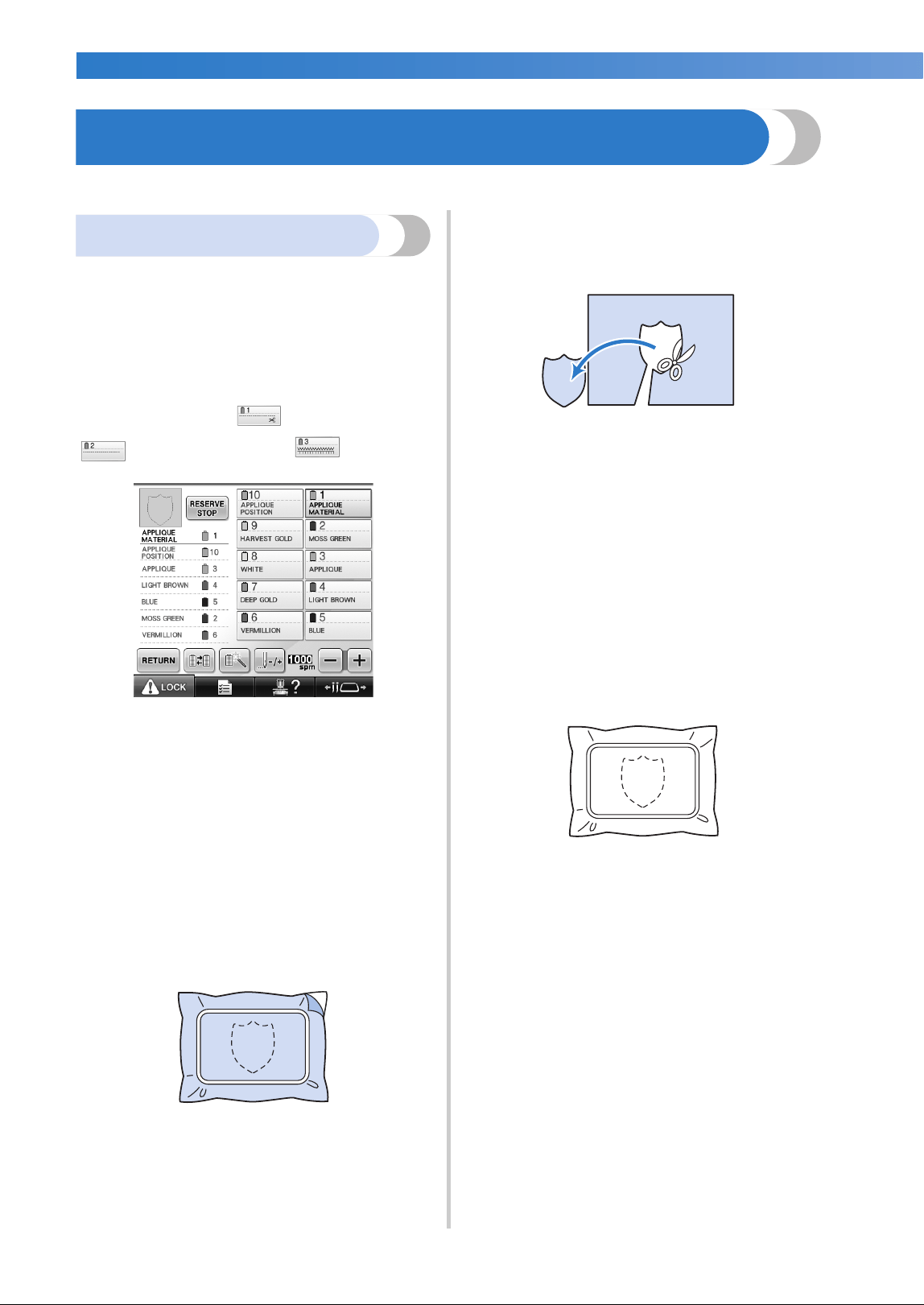
APPENDIX ——————————————————————————————————————————————————————————————————————————
——
236
Appliqué Sewing
This section describes the procedure for sewing appliqués.
Sewing appliqué patterns
Some of the built-in embroidery patterns can be
used for sewing appliqués. Follow the procedures
described below to sew appliqués using the
patterns with “APPLIQUE MATERIAL”, “APPLIQUE
POSITION” or “APPLIQUE” in the region display at
the top of the thread color sequence display.
*Depending on the thread color display setting, the
display may appear as (Appliqué Material),
(Appliqué Position) or (Appliqué).
■ Procedure for sewing appliqués
1
Place stabilizer on the back of the appliqué
fabric/material.
2
Frame the fabric for the appliqué (from step
1) in the embroidery frame, and then sew
an “APPLIQUE MATERIAL” pattern. The line
that indicates where the appliqué will be cut
out is sewn, and then the machine stops.
3
Remove the appliqué fabric from the
embroidery frame, and then carefully cut
along the sewn cutline.
• If the appliqué is cut out along the inside of
the sewn cutline, the appliqué may not be
correctly attached to the fabric. Therefore,
carefully cut out the appliqué along the
sewn cutline. If this step is not performed
carefully, the appliqué will not be cleanly
finished. In addition, carefully remove any
excess threads.
4
Frame the base fabric or garment in the
embroidery frame, and then sew an
“APPLIQUE POSITION” pattern. The
appliqué position is sewn, and then the
machine stops.
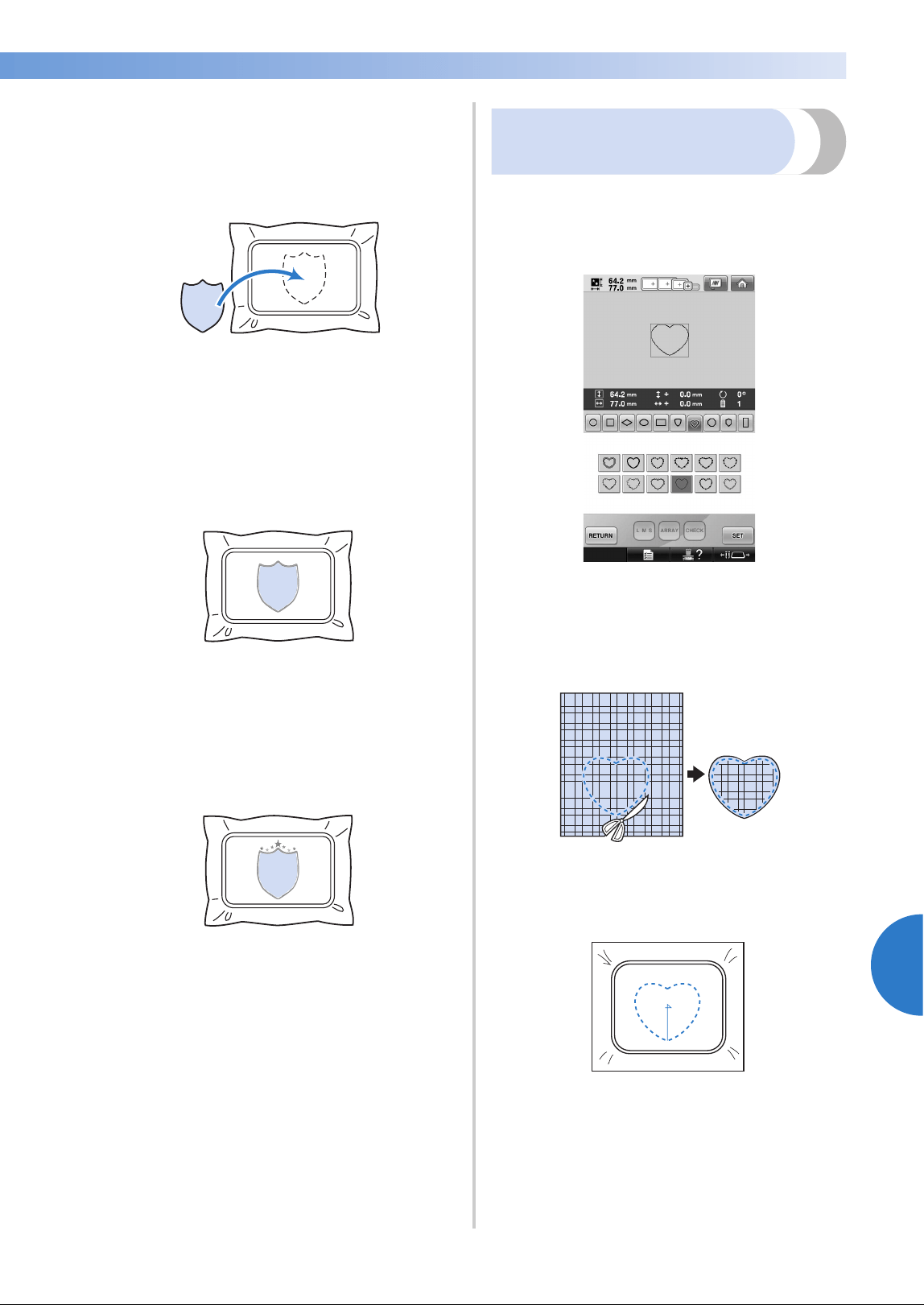
Appliqué Sewing 237
7
——
——————————————————————————————————————————————————
—
————————————————————————————————
5
Lightly apply fabric glue or spray adhesive to
the back of the appliqué piece that was cut
out, and then attach the appliqué piece to
the base fabric at the position sewn using the
“APPLIQUE POSITION” pattern in step
4.
• If an iron-on stabilizer is used to attach the
appliqué piece to the base fabric, iron the
pieces together without removing the base
fabric from the embroidery frame.
6
After attaching the appliqué piece, sew an
“APPLIQUE” pattern. The appliqué is
finished.
• Depending on the pattern, an “APPLIQUE”
pattern may not be available. In this case,
sew the appliqué using thread in the color
of a part of the embroidery.
7
Finish sewing the embroidery.
Using a frame pattern to
create appliqués (1)
Appliqués can be created by sewing two frame
patterns of the same size and shape—one sewn
with straight stitches and the other sewn with satin
stitches.
1
Select a frame pattern sewn with straight
stitches to embroider onto the fabric for the
appliqué. Carefully cut outside of the
stitching.
2
Embroider the same pattern on the base
fabric.
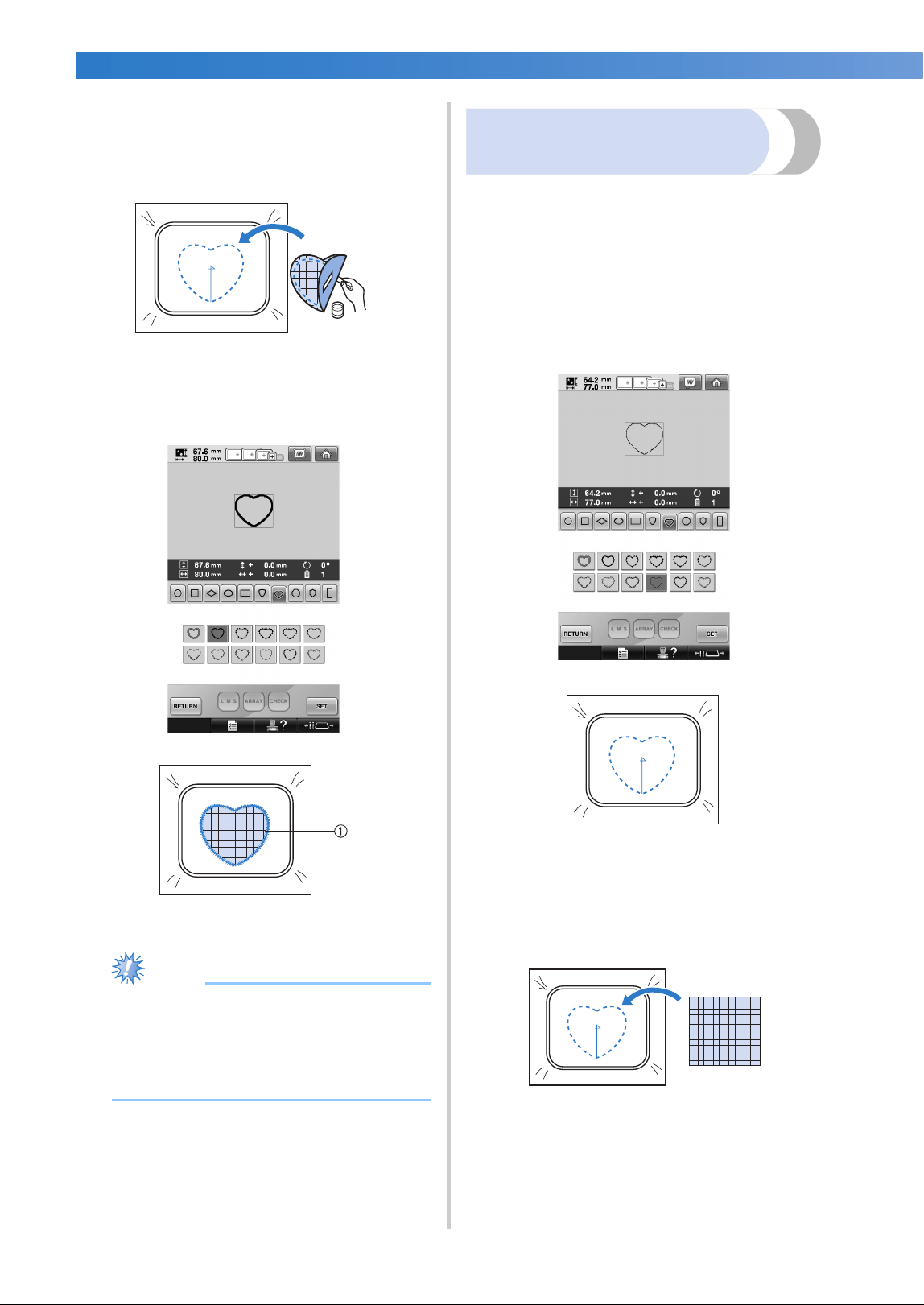
APPENDIX ——————————————————————————————————————————————————————————————————————————
——
238
3
Lightly apply fabric glue or spray adhesive to
the back of the appliqué piece that was cut
out in step
1, and then attach the appliqué
piece to the base fabric.
4
Select the satin-stitched frame pattern with
the same shape to embroider the appliqué
attached in step 3.
1 Appliqué
Note
● If the size or sewing position of the
straight-stitched frame pattern is changed,
be sure to change the size or sewing
position of the satin-stitched frame pattern
in the same way.
Using a frame pattern to
create appliqués (2)
There is another way of sewing appliqués. With this
method, there is no need to change the fabric in the
embroidery frame. The appliqué can be created by
sewing two frame patterns of the same size and
shape—one sewn with straight stitches and the
other sewn with satin stitches.
1
Select a frame pattern sewn with straight
stitches to embroider onto the base fabric.
2
Place the appliqué fabric over the
embroidery sewn in step
1. Make sure that
the area surrounded by the stitching is not
larger than the area of the appliqué fabric.
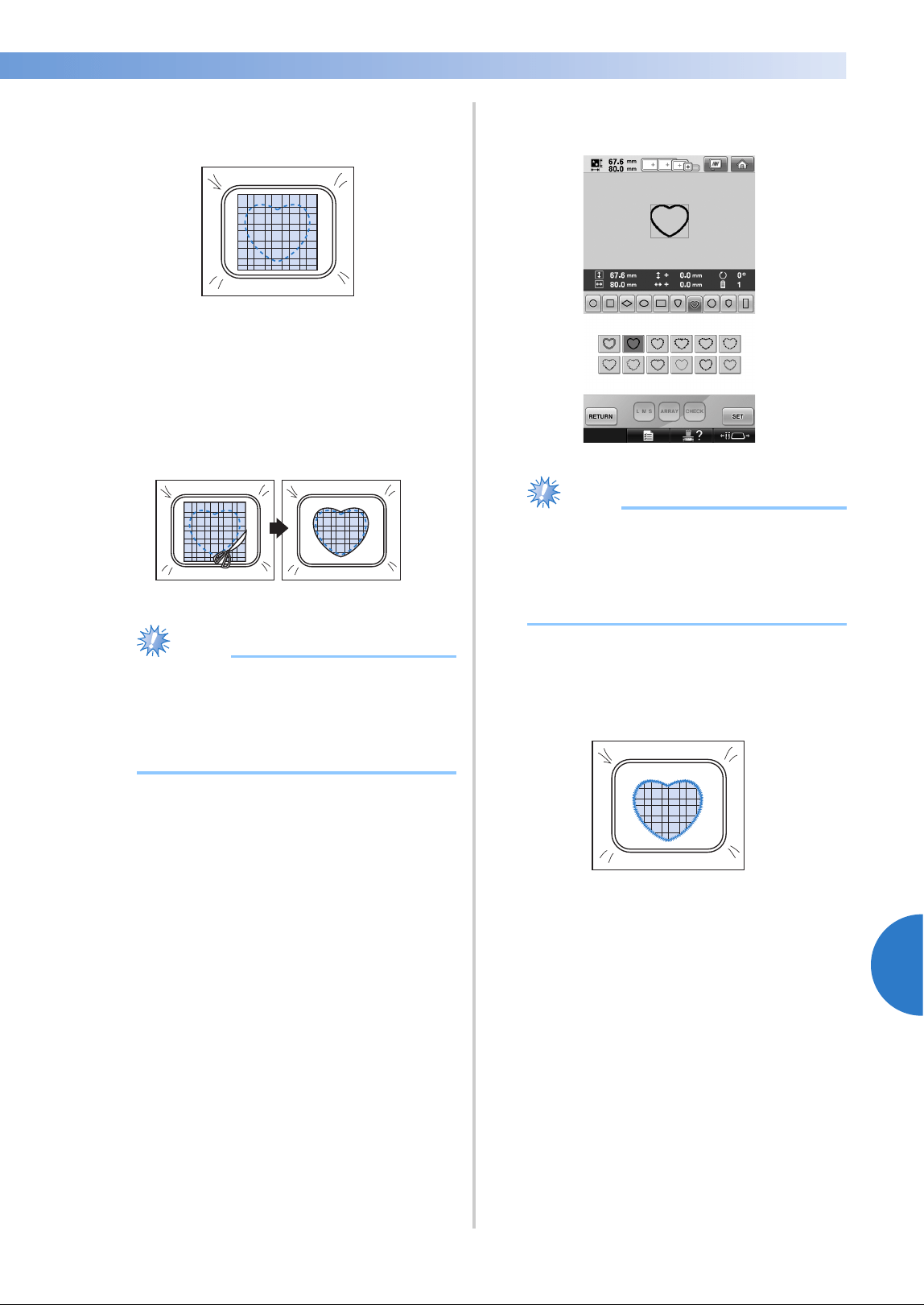
Appliqué Sewing 239
7
——
——————————————————————————————————————————————————
—
————————————————————————————————
3
Embroider over the appliqué fabric using the
same frame pattern.
• Be sure to stop the machine before the
cross at the center is sewn.
4
Remove the embroidery frame from the
machine, and then cut off the excess
appliqué fabric along the outside of the
stitching.
Note
● Leave the fabric in the embroidery frame
when cutting off the excess appliqué
fabric. In addition, do not apply extreme
pressure to the framed fabric, otherwise
the fabric could become loose.
5
Select the satin-stitched frame pattern with
the same shape.
Note
● If the size or sewing position of the
straight-stitched frame pattern is changed,
be sure to change the size or sewing
position of the satin-stitched frame pattern
in the same way.
6
Attach the embroidery frame removed in
step
4, and then finish embroidering the
appliqué.
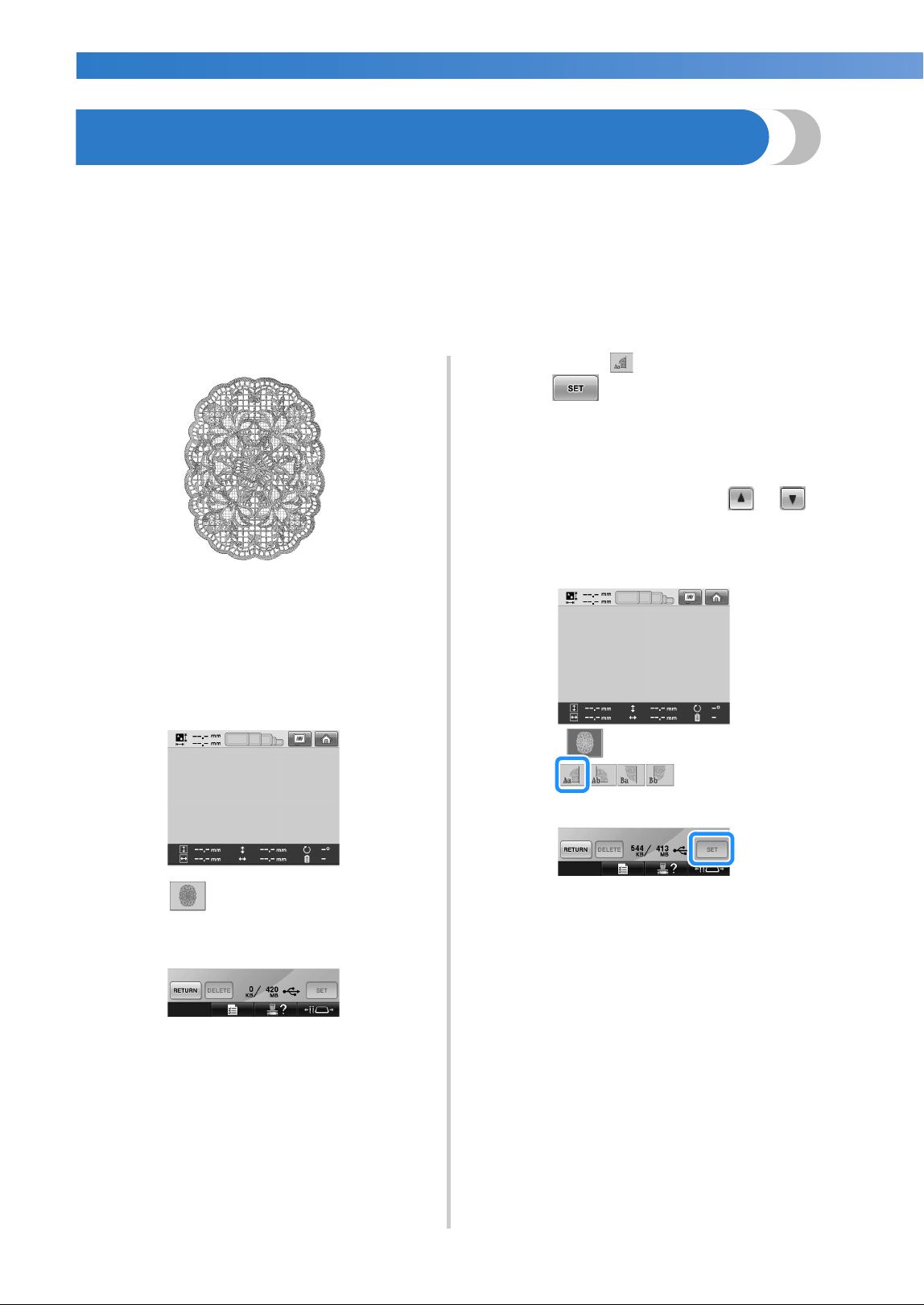
APPENDIX ——————————————————————————————————————————————————————————————————————————
——
240
Sewing Large-size (Split) Embroidery Patterns
Large-size (split) embroidery patterns created with PE-DESIGN Ver.7 or later can be sewn. With large-size
embroidery patterns, embroidery designs larger than the embroidery hoop are divided into multiple sections,
which combine to create a single pattern after each section is sewn.
For details on creating large-size embroidery patterns and for more detailed sewing instructions, refer to the
operation manual included with PE-DESIGN Ver.7 or later.
The following procedure describes how to read the large-size embroidery pattern shown below from USB
media and embroider it.
1
Connect to the machine the media
containing the created large-size embroidery
pattern, and then select the large-size
embroidery pattern to be embroidered.
* For details on recalling patterns, refer to “USB
media” on page 173.
X A screen appears so that a section of the
large-size embroidery pattern can be
selected.
2
Select section to be embroidered, then
touch .
• Select the sections in alphabetical order.
• A maximum of 18 sections can be
displayed in one page with normal
thumbnail size. If there are 19 or more
sections in the pattern, touch or
to display the previous or next page. With
large thumbnail size, a maximum of 10
sections can be displayed in one page.
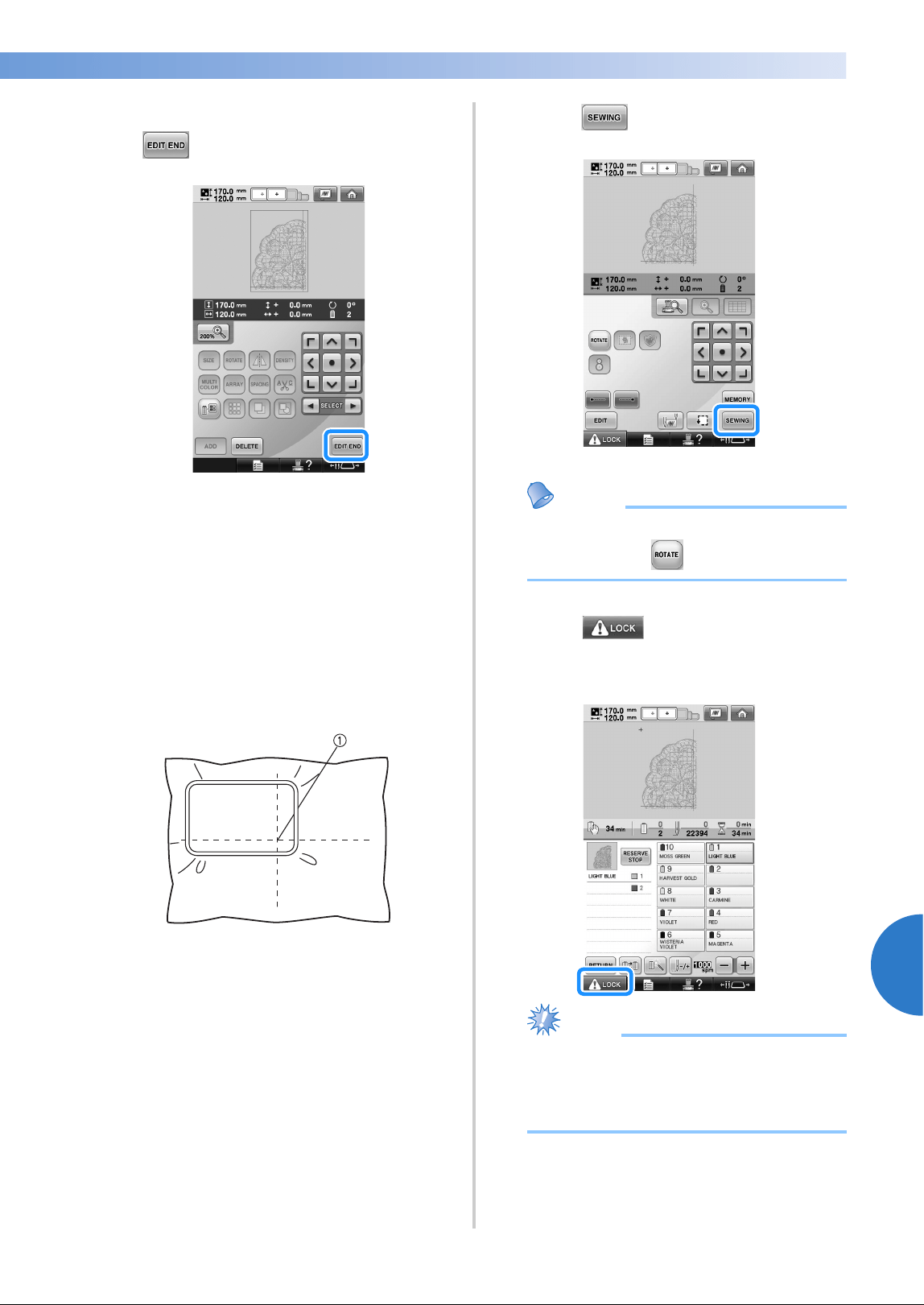
Sewing Large-size (Split) Embroidery Patterns 241
7
——
——————————————————————————————————————————————————
—
————————————————————————————————
3
If necessary, edit the pattern. Then, touch
.
• For details, refer to “Editing the Embroidery
Pattern (Pattern Editing Screen)” on
page 181.
4
Confirm the pattern size, and then select the
appropriate fabric and the embroidery
frame.
• Be sure to select fabric of the size of
combined pattern.
5
Hoop the appropriate part of the fabric. In
this case, hoop upper-left part of the fabric.
1 Center of fabric
6
Touch .
Memo
● The pattern can be rotated to either the left
or right when is touched.
7
Touch , and then press the start/
stop button to embroider the pattern
section.
Note
● The last step of the stitching of the pattern
section will be an alignment stitching. Use
this stitching for placement of adjacent
pattern section.
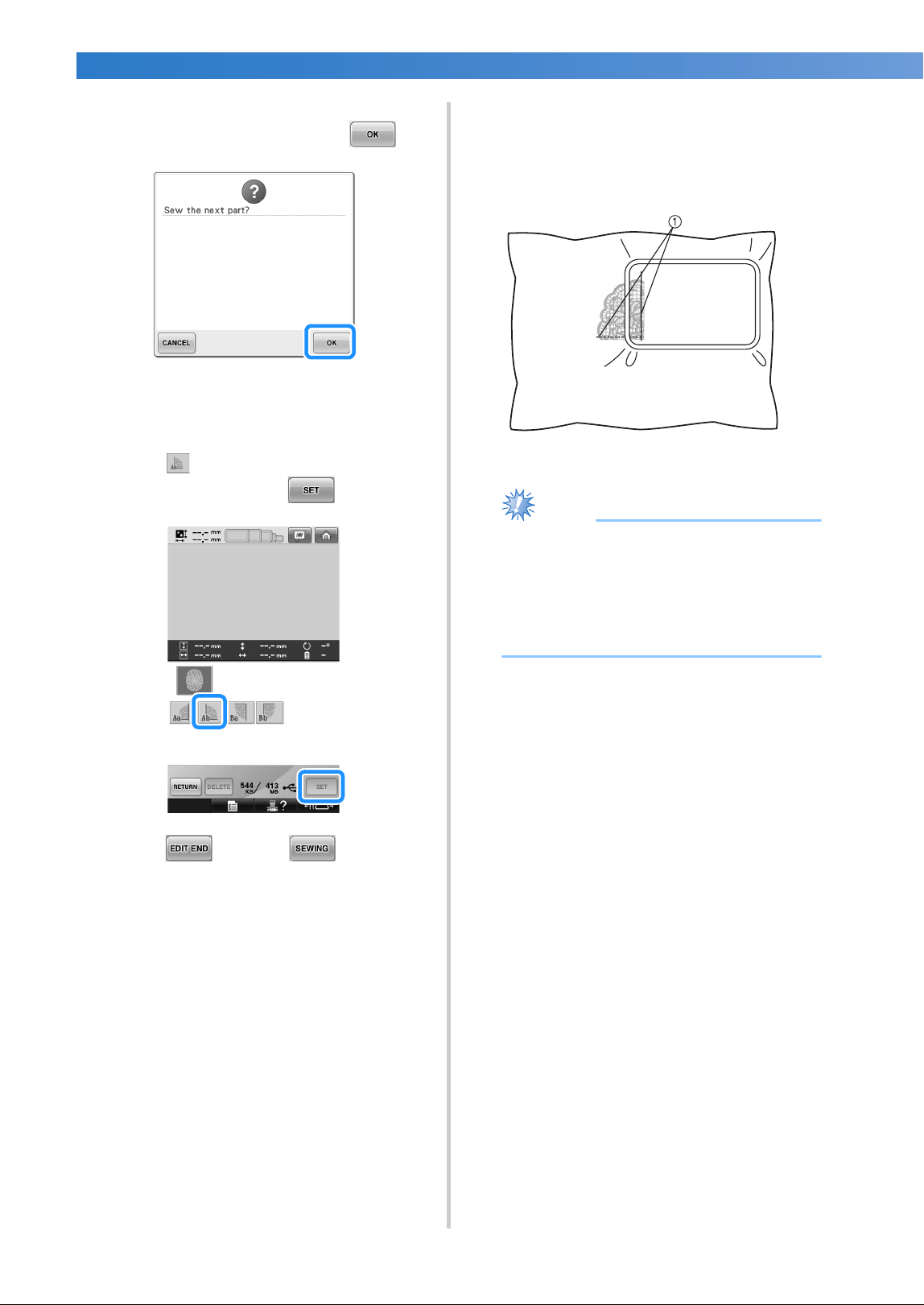
APPENDIX ——————————————————————————————————————————————————————————————————————————
——
242
8
When embroidering is finished, the
following screen appears. Touch .
X A screen appears so that a section of the
large-size embroidery pattern can be
selected.
9
Touch to select the next section of the
pattern, and then touch .
0
Touch , and then .
a
Hoop the fabric for the next design section
aligning on the alignment stitching. In this
case, align the left side of the hoop on the
right side of the design section embroidered
in step
6.
1 Alignment stitching
Note
● Make sure that the alignment stitching is
completely within the embroidery field.
Set the embroidery sheet inside the
embroidery frame and align the grid with
the alignment stitching for easier
placement.
b
Repeat steps 7 to 0 to embroider and
combine the remaining sections of the
pattern.
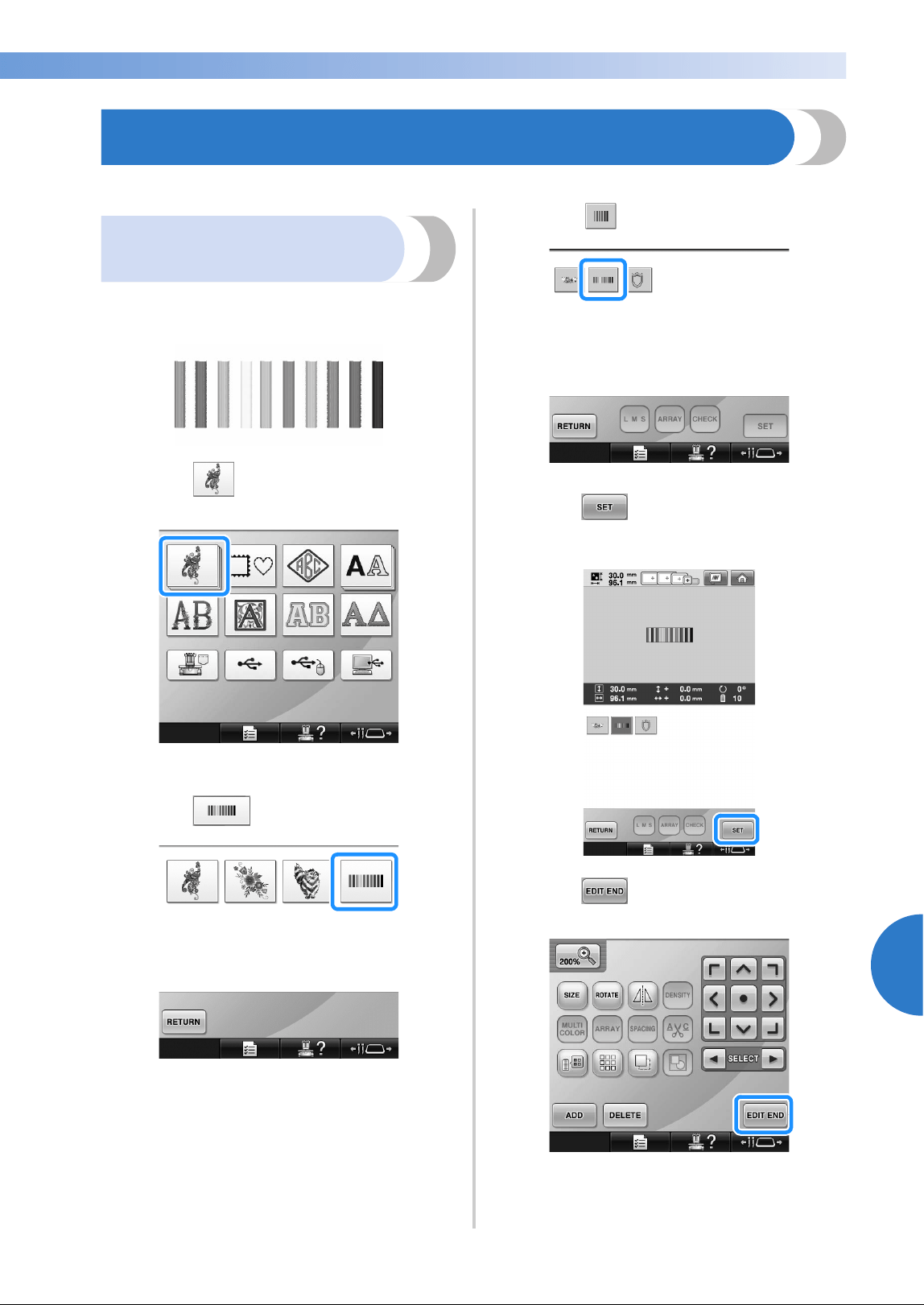
Helpful Tips for the Operation of the Machine 243
7
——
——————————————————————————————————————————————————
—
————————————————————————————————
Helpful Tips for the Operation of the Machine
This section provides descriptions to operations useful in the operation of this machine.
Checking the thread tension
of built-in patterns
We will sew this pattern to check the thread
tension.
1
Touch .
X The embroidery pattern categories appear.
2
Touch .
X The list of embroidery patterns appears.
3
Touch .
4
Touch .
5
Touch .
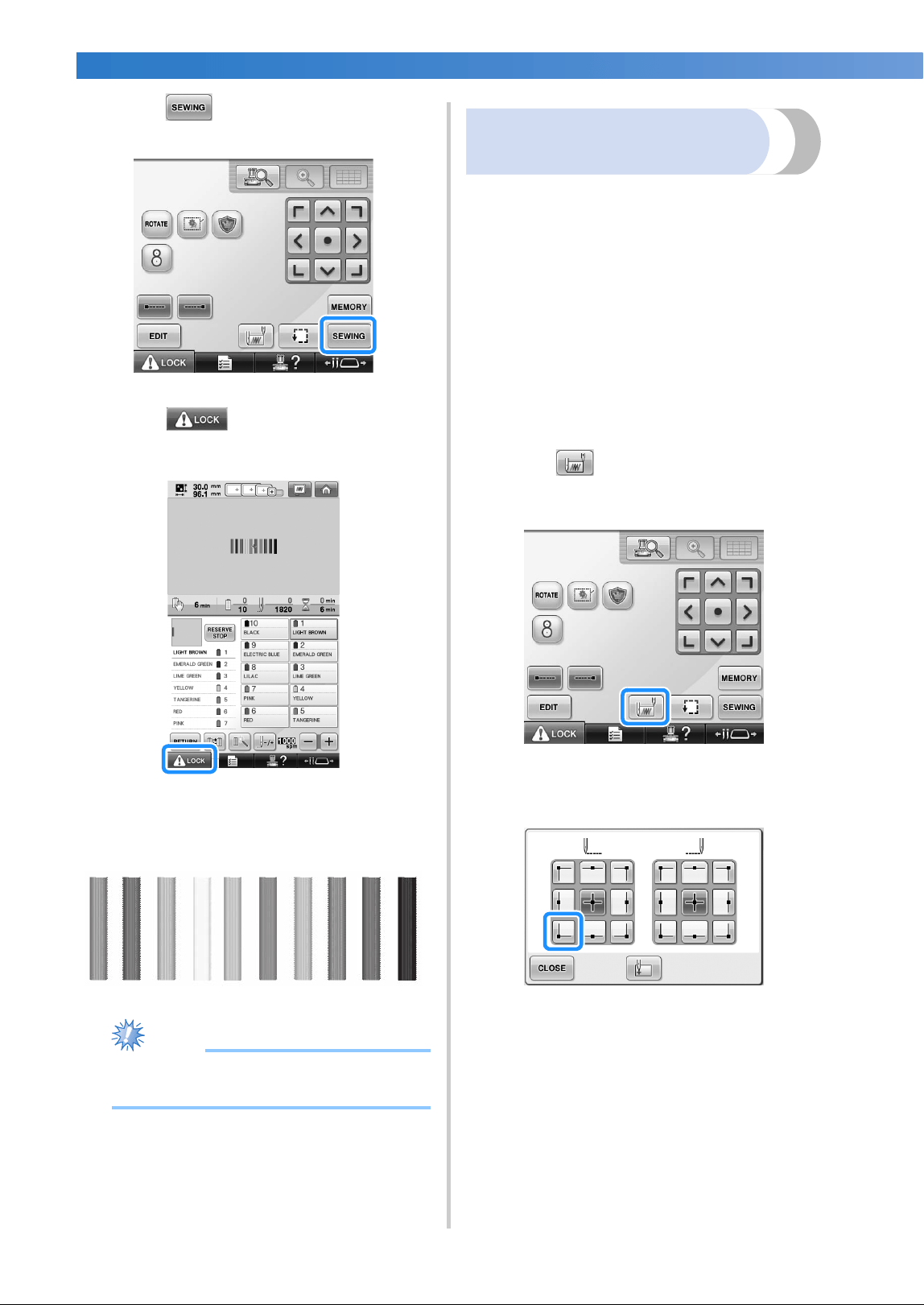
APPENDIX ——————————————————————————————————————————————————————————————————————————
——
244
6
Touch .
7
Touch (unlock key), and then press
the start/stop button to begin embroidering.
8
Correct thread tension. From the wrong side
of the fabric, the bobbin thread should be
about one third of the stitch width.
Note
● If adjustment is necessary, refer to
instructions on page 68 or 122/123.
Sewing a pattern aligned
with a mark on the fabric
By specifying the beginning of stitching and the end
of stitching, the exact position of the pattern can be
checked.
For example, when sewing text along a line in the
fabric pattern, the beginning of the stitching can be
set in the lower-left corner so that the position can
be checked, and then the beginning of stitching can
be reset. Next, the beginning of stitching can be set
in the lower-right corner to check the position. The
straight line connecting the first point and the
second point is the baseline for the text. If the
baseline that the text follows leaves the fabric
pattern, the embroidering position can be adjusted.
1
Touch in the embroidering settings
screen.
2
Set the beginning of stitching in the lower-
left corner.
X The frame moves so that the needle drop
point aligns with the beginning of
stitching.
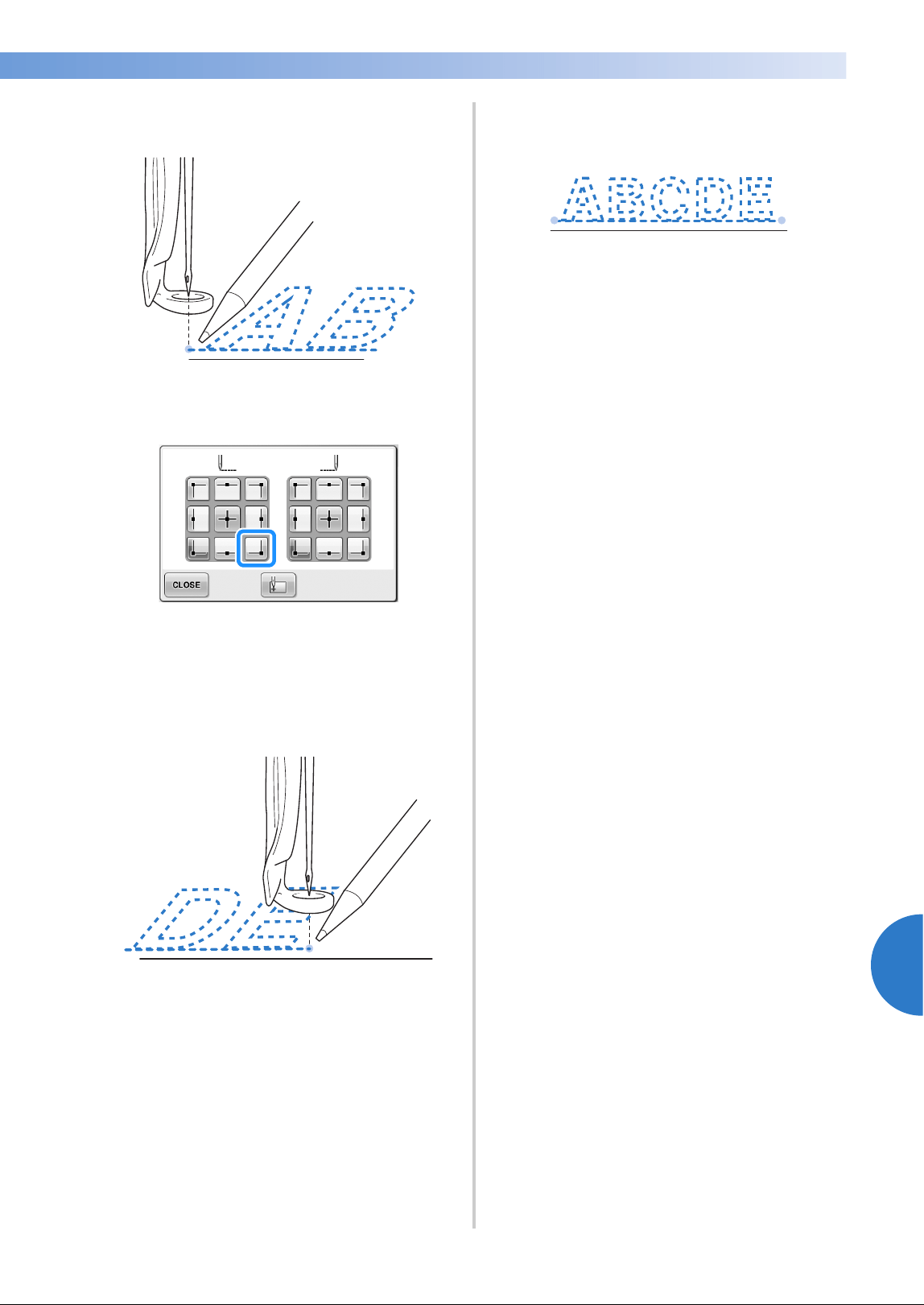
Helpful Tips for the Operation of the Machine 245
7
——
——————————————————————————————————————————————————
—
————————————————————————————————
3
With a fabric marker, mark this point on the
fabric.
4
Set the beginning of stitching in the lower-
right corner.
X The frame moves so that the needle drop
point aligns with the beginning of
stitching.
5
With a fabric marker, mark this point on the
fabric.
6
Remove the embroidery frame from the
machine, and then connect these two points
to check the embroidering position.
• If the baseline is misaligned or intersects
another line, reframe the fabric in the
embroidery frame or adjust the position of
the pattern.
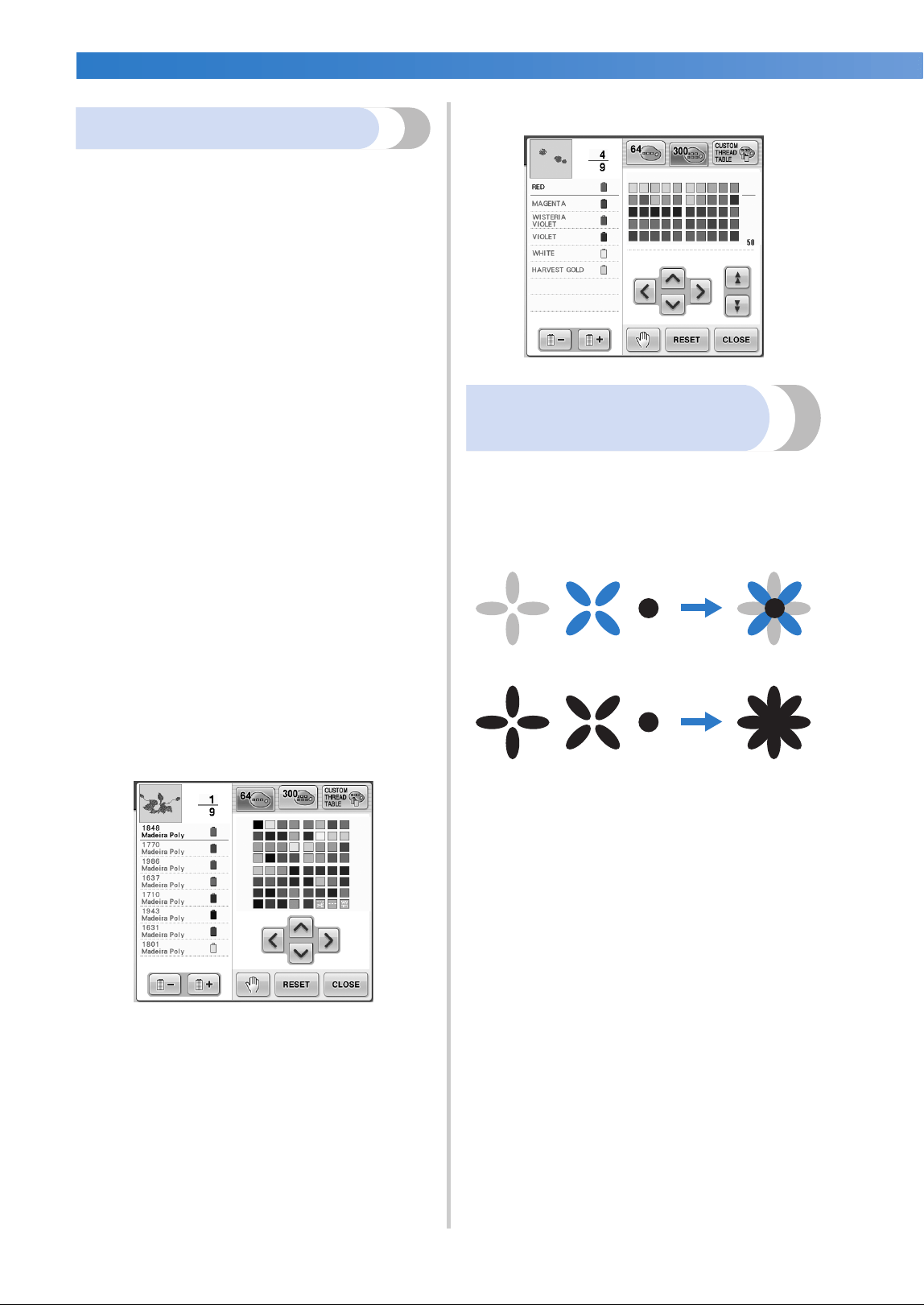
APPENDIX ——————————————————————————————————————————————————————————————————————————
——
246
Color thread table
Additional explanations of the machine’s built-in
color thread table and the custom thread table are
provided below.
Normally, the thread colors in the thread color
sequence display and in the pattern display area
are displayed in the colors of the machine’s built-in
color thread table. The thread color numbers with
these thread colors are displayed with the thread
color number (or the nearest number) for the brand
specified on the first page of the settings screen.
Therefore, the finished embroidery colors may have
a slightly different tinge.
However, since the custom thread table specified
on the change thread color screen in the pattern
editing screen is created by specifying thread colors
by the thread color numbers and color names from
individual brands in the machine’s built-in color
library, the thread table is displayed with those
original thread colors.
If pattern colors changed using the custom thread
table, pattern can be previewed with colors nearest
to the actual embroidered thread colors.
Create color thread tables from the colors of
threads that you have and use them to display the
patterns in your own thread colors.
(Refer to “Creating a custom thread table” on
page 200, and “Choosing a color from the custom
thread table” on page 202 for the change thread
color function.)
Normal thread color display
Thread color display using a custom thread
Colors of Tajima (.dst)
embroidery data
Tajima data (.dst) does not contain pattern color
information. The data is created by combining only
shapes.
For example, the following embroidery data
appears as shown below in the Tajima format (.dst)
In order for the parts of the pattern to be
differentiated when Tajima data is used with this
machine, the pattern is displayed with colors
automatically applied in the default thread color
sequence. Since the thread colors are applied
according to the sewing order of the parts,
regardless of the design of the pattern, colors may
be applied that seem unusual for the design, for
example, an orange-colored fruit may be displayed
in blue. LED lights, also indicate colors according
to the sewing order, which may be not the same
thread colors to be sewn.
When using Tajima data, be sure to preview the
sewn image on the screen and change the colors
from the change thread color screen.
It is recommended to try the Manual color
sequence if you use Tajima data very often. Using
the Manual color sequence, you can directly
change the color setting according to your thread
spool setting. Set “Manual Color Sequence” to
“ON” in setting screen. (Refer to page 132)

Creating Beautiful Embroidery 247
7
——
——————————————————————————————————————————————————
—
————————————————————————————————
Creating Beautiful Embroidery
The various precautions concerning the thread, embroidery frames and stabilizers (backings) that must be
observed in order to create beautiful embroidery are described below.
Threads
Embroidery thread can be costly, therefore caring
for it should be a priority. No matter how well a
thread is manufactured, it must be appropriately
stored if it is to sew properly. This is especially true
when one considers the time that lapses between
delivery to the thread user and the moment the
thread is actually used on the embroidery machine.
It is important that embroidery threads be stored in
an environment that is free of damaging agents
such as excessive heat, light or moisture.
Embroidery threads are best stored in an area that is
as clean and dust-free as possible. It is also
important that the storage area be free of smoke,
fumes and gases. Certain gases may cause the
thread to yellow. These fumes originate from such
appliances as gas heaters or from gas or diesel
engines.
Direct sunlight is also extremely destructive for
embroidery threads. Boxes of thread should not be
left open and exposed to direct sunlight. If possible,
skylights and windows should be diffused. The best
type of lighting for embroidery thread is tungsten-
filament or fluorescent tubes. It is important to
remember that prolonged exposure to these
harmful sources may also cause the colors of
cardboard boxes and other objects to fade.
Temperature and humidity also pose a threat to
embroidery threads. The ideal conditions are
between 59
°F and 77 °F (or 15 °C and 25 °C).
Humidity should be between 40% and 60%. These
conditions should be kept as constant as possible in
order to prevent mildew from forming. Excessive
temperatures can also cause lubrication problems
that ultimately result in thread breaks. Damp
conditions can affect paper bobbins as the
cardboard will swell and the thread can become
oversized. It is also important to realize that even if
the overall storage conditions are good, there may
be “spot problems” where a thread is exposed to a
heat source or bright lights. Ensuring that thread
does not become damaged requires that stock be
frequently rotated and that threads are not left in
the same place for an extremely long time.
Choice of thread is a major factor in improving
production time. The thread run ability, strength,
consistency and weight all affect output. These
qualities determine how well the machine will sew
and the number of thread breaks during sewing.
Thread breaks have an important influence on
production. Each thread break reduces output by at
least 0.07% a day (7.5 hours), assuming that it takes
20 seconds to rethread a needle. For every
reduction of 14 thread breaks per a day, output can
be improved by more than 1.0 %.
Stabilizers (backing)
Backing and topping serve to stabilize and support
the product being embroidered so the stitches can
be sewn with the least amount of interference or
instability. They serve as stabilizers for your
embroidery work. Without the proper type of
stabilizer, the fabric may move too much within the
embroidery frame causing poor alignment of the
embroidery. At times, topping will be required in
order to manage fabrics with a pile-like surface,
such as towels, corduroy and piqué knit. There are
many types of backing and toppings with various
weights for the various fabrics that you may be
sewing.
There are four types of stabilizers (backing) that can
be used in embroidery: cut-away, tear-away, water
soluble and self-adhesive. In these four types,
various weights, sizes and textures are available.
When selecting the stabilizer type for a particular
fabric, consider the design size in addition to the
stitch count and stitch type used in the design.
Finally, make sure that the stabilizer is not
stretched. Some backings may not stretch vertically
or horizontally but may stretch diagonally. DO
NOT USE THESE TYPES. This type of backing will
stretch during sewing and may cause the design to
shift.
1. Polyester mesh cut-away stabilizer works
extremely well with light-colored fabrics since
it prevents a shadow from showing through on
the front after you have trimmed away the
excess. This type of backing is ideal whenever
you need stability with a light and soft touch in
your finished product, for example, with baby
garments.

APPENDIX ——————————————————————————————————————————————————————————————————————————
——
248
2. Cut-away stabilizer is excellent for medium- to
heavyweight knits, however it can also be used
on woven material. It will hold a large number
of stitches and with two or three layers can hold
a tremendous amount of stitches. This type of
backing is also available in black for those who
want the inside of their garments to look as
good as the outside. Black stabilizer is very
useful on similarly colored garments of
lightweight fabrics. The black backing is less
likely to show through as compared to white
backing.
3. Tear-away stabilizer can be used on
mediumweight woven fabrics and sturdy fabrics
such as canvas, poplin and denim. This
stabilizer will hold many stitches especially
when used in two or more layers. This type of
stabilizer is made of a non-woven material that
enables it to easily be torn away from the edges
of your embroidery design when it is
completed. This stabilizer is also available in
black.
4. Water-soluble stabilizer is useful when you
need to keep the nap or pile, for example, on
towels, from interfering with the placement of
stitches. Fabrics such as terry cloth, corduroy,
velvet and faux fur are examples of materials
that have a nap or pile that can actually
penetrate embroidery stitches as your machine
sews. The result is an unfinished and often
sloppy appearance when fibers of the fabric
poke out between the finished stitches of an
embroidery design. In these situations, water-
soluble stabilizer is used as a topping to hold
the fibers of the fabric flat so the stitches can be
placed on top neatly and accurately. Water-
soluble stabilizer is also used as a backing
when stitching lace or other motifs where the
desired result is only the stitching. This is
accomplished with water-soluble stabilizer,
which can easily be pulled off of the fabric after
embroidering is completed and any remnants
can easily be dissolved with water. Water-
soluble stabilizer is also used as a backing on
towels, where you often need some
stabilization, but any remnants of a formal
backing must not be visible in the finished
product.
5. Self-adhesive (peel-and-stick) backing is used
on those difficult-to-hoop fabrics. This backing
is applied (with sticky side up) to the underside
of the frame, enabling your fabric to “stick on”
the exposed surface in the embroidery area.
When the embroidery is finished, the fabric can
be removed, the excess backing can be
disposed of and the process repeated.

Creating Beautiful Embroidery 249
7
——
——————————————————————————————————————————————————
—
————————————————————————————————
Hooping techniques
“Use the right tool for the right job” is a statement
many of us have heard throughout the years. This
statement holds true even in the embroidery
industry. The wrong size or type of embroidery
frame may result in poor design alignment during
sewing or damage the product altogether. You can
take a perfectly created design and ruin the final
results by simply not using the correct frame size,
type or technique designed for its application.
■ Frame Basics
Tubular frames: This type of frame allows
tubular fabric or pre-assembled garments to be
placed around the hook assembly. It allows
embroidering of the front of a garment without
stitching through the back of it.
Cap frames: These are specialized embroidery
frames (hoops) designed to hold caps for
embroidering. They are available in a variety of
styles for various machines, with two basic
styles: one that allows sewing a flattened cap
(for use on a flat machine) or one that allows
sewing the cap in its natural curved shape (for
use on a tubular machine).
Hooping fabric: The framed fabric and backing
should be perfectly flat and free of wrinkles or
bubbles. If there are bubbles or wrinkles that
must be removed, be sure that you pull on the
fabric and backing together. Pull no more than is
necessary to make the fabric flat and smooth.
Overstretching the fabric during this process
may cause puckers around the finished design
when the frame is removed. Gaps may also be
generated between design parts.
Inner/outer frame positioning: There should be
a slight ridge (3 mm (1/8 inch)) of fabric and
backing below the outer frame on the back side.
Tighten the screw only if the inner frame feels
loose. Avoid overtightening the screw as this
will cause puckers in the fabric and may “strip”
the screw.
■ When embroidering thick fabric
If the fabric slips within the frame or cannot be
correctly hooped, wrap masking tape or bias
tape around the outer frame. The tape will
provide resistance so that the fabric does not
easily slip.
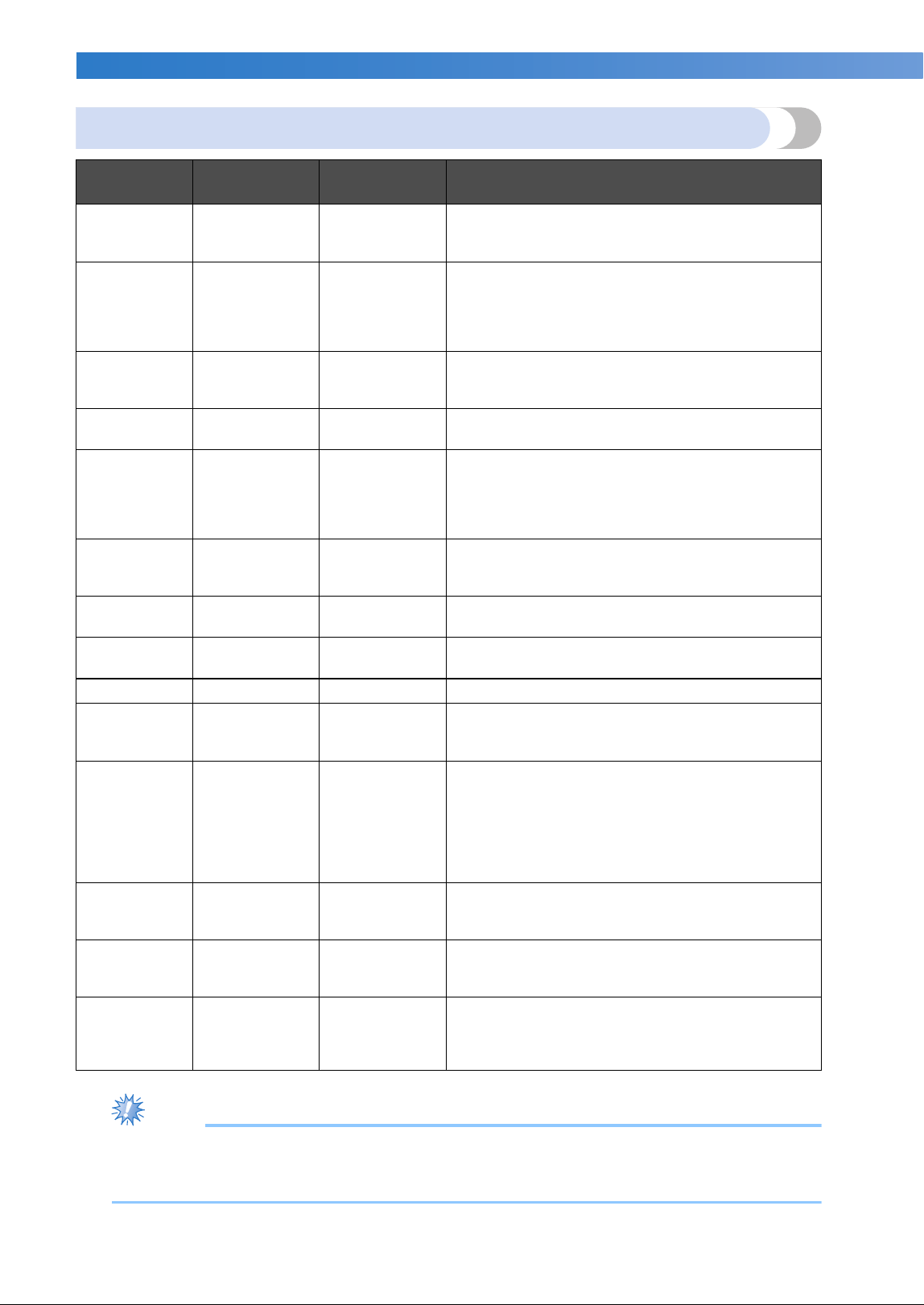
APPENDIX ——————————————————————————————————————————————————————————————————————————
——
250
Fabric/stabilizer compatibility chart
Note
● Due to the wide variety of fabrics and stabilizers available, the above information should be used as
guideline only. If unsure of a particular fabric/stabilizer combination, please sew test a sample prior
to the finished garment.
Fabric/
Garment
No. of Backing
Pieces
No. of Topping
Pieces
Comments
Terry cloth 1 tear-away 1 water-soluble
Increase density and/or satin stitch width. Fine
details and small lettering tend to get caught in the
terry loops.
Satin jacket
Heavy lining:
None
Light or no
lining: 1 tear-
away
None
If garment slips in frame, causing alignment
problems, wrap inner frame with masking tape or
fabric bias tape. This provides a rough surface to
grip garment and also helps minimize frame burn.
Cotton
sheeting
1 tear-away None
High-density or highly detailed designs may require
more backing. If so, use two pieces of lightweight
backing instead of one piece of heavy backing.
Denim 1 tear-away None
Reduce speed if needle begins to heat up and the
thread breaks.
Headwear Optional Optional
Change needles more often than usual because the
buckram backing dulls needles faster. A lightweight
tear-away backing helps reduce thread breaks and
regulates thread tension. Use a topping on corduroy
or foam cap fronts.
Dress shirt
(woven)
1 tear-away None
High-density or highly detailed designs may require
more backing. If so, use two pieces of lightweight
backing instead of one piece of heavy backing.
Golf shirt 1 cut-away Optional
Use topping for designs containing small lettering
or a lot of detail, and also for piqué knits.
Canton fleece 1 tear-away Optional
Use a topping if the garment has a textured surface,
such as a basketweave or pronounced twill.
Canvas 1 tear-away None Frame tightly.
Corduroy 1 tear-away 1 water-soluble
A higher stitch density or more understitches, as
well as a topping, may be necessary to prevent
stitches from sinking into the fabric.
Lingerie or
silk
1 or 2
lightweight
tear-away
Optional
Reduce sewing speed. The thread tension should be
low. Use topping for designs with high detail or
small lettering. For very fine fabrics, use a thinner
thread. Avoid extremely narrow satin stitching on
letters or details; instead increase satin stitch width
or use a bean stitch. Gently remove (don’t pull)
backing and topping from garment.
Sweater knit
1 cut-away or
adhesive tear-
away
1 water-soluble
Use tightly woven organza or curtain fabric in a
matching color as a backing for bulky or “holey”
knits.
Sweatshirt
1 cut-away or
adhesive tear-
away
Optional
Highly detailed designs may require two layers of
lightweight cut-away stabilizer. Use a topping on
extra-thick fabrics or with fine-detail designs.
T-shirt
1 light-weight
cut-away or
adhesive tear-
away
Optional
Use a topping on designs with fine detail or small
lettering. Tensions should be light. Avoid stitch-
heavy designs.
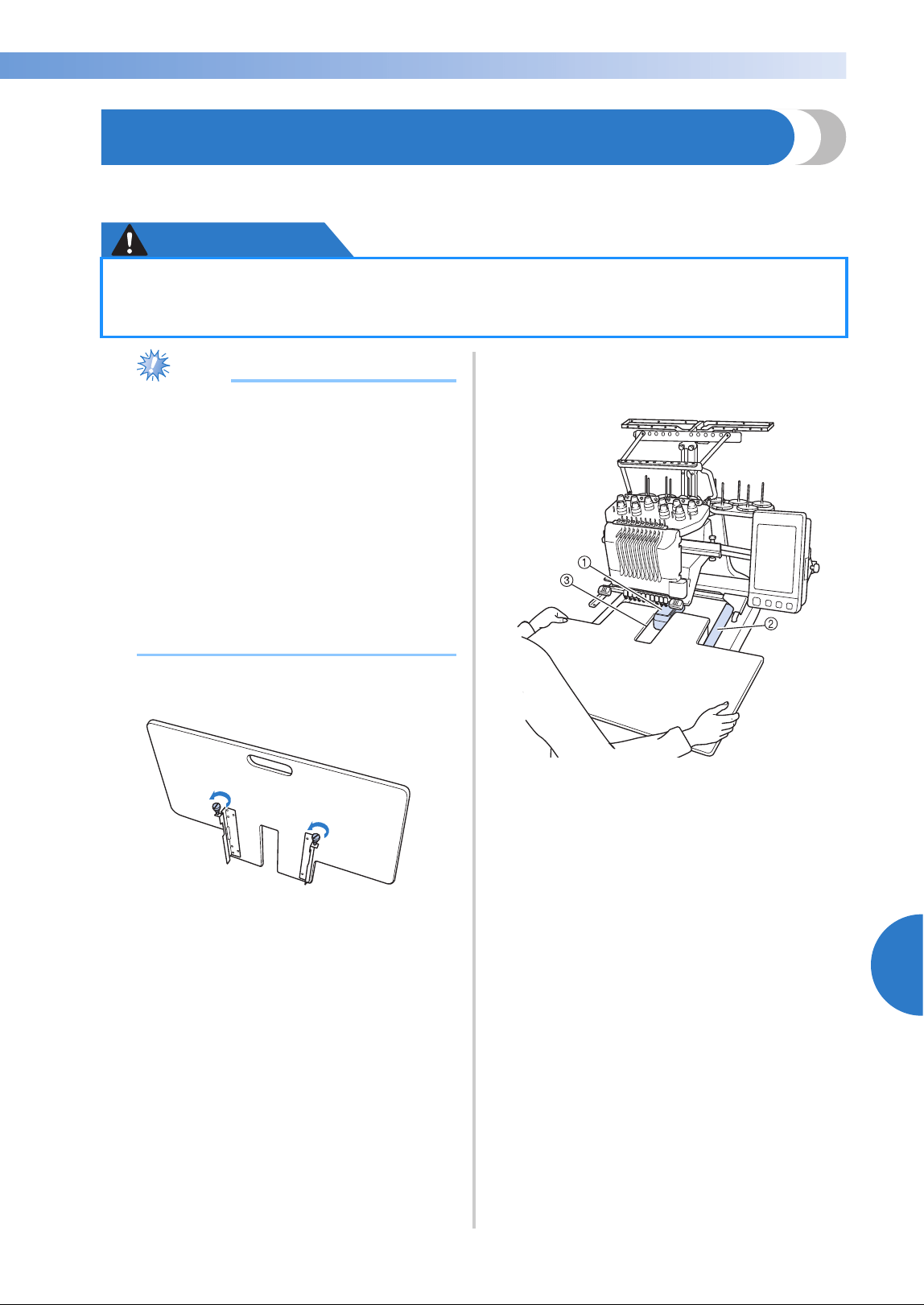
Installing the Included Table 251
7
——
——————————————————————————————————————————————————
—
————————————————————————————————
Installing the Included Table
When using the optional border, quilt, flat or jumbo frame, it is recommended that the table be used for
additional support.
CAUTION
Note
● When carrying the table, be sure to hold it
with both hands.
● Attach the table to the machine before
installing the embroidery frame.
● Do not place heavy objects on top of the
installed table or press down on it.
● Remove the table from the machine while
using embroidery frame that do no need to
be used with the table or while
embroidering tubular items, bags or caps.
The embroidery frames for these types of
objects cannot be installed while the table
is attached to the machine.
1
Loosen the two thumb screws 5 to 6 turns.
2
Position the table so that the notch at the
center aligns with the machine bed, and then
place the table flat on the guide plates.
1 Machine bed
2 Guide plate
3 Notch in table
● Be sure to install the table when using the optional jumbo frame, border frame, quilt frame
or flat frame. If these frames are used without the table installed, the weight of the frame
and fabric may cause the frame to slant and result in poor embroidering quality.
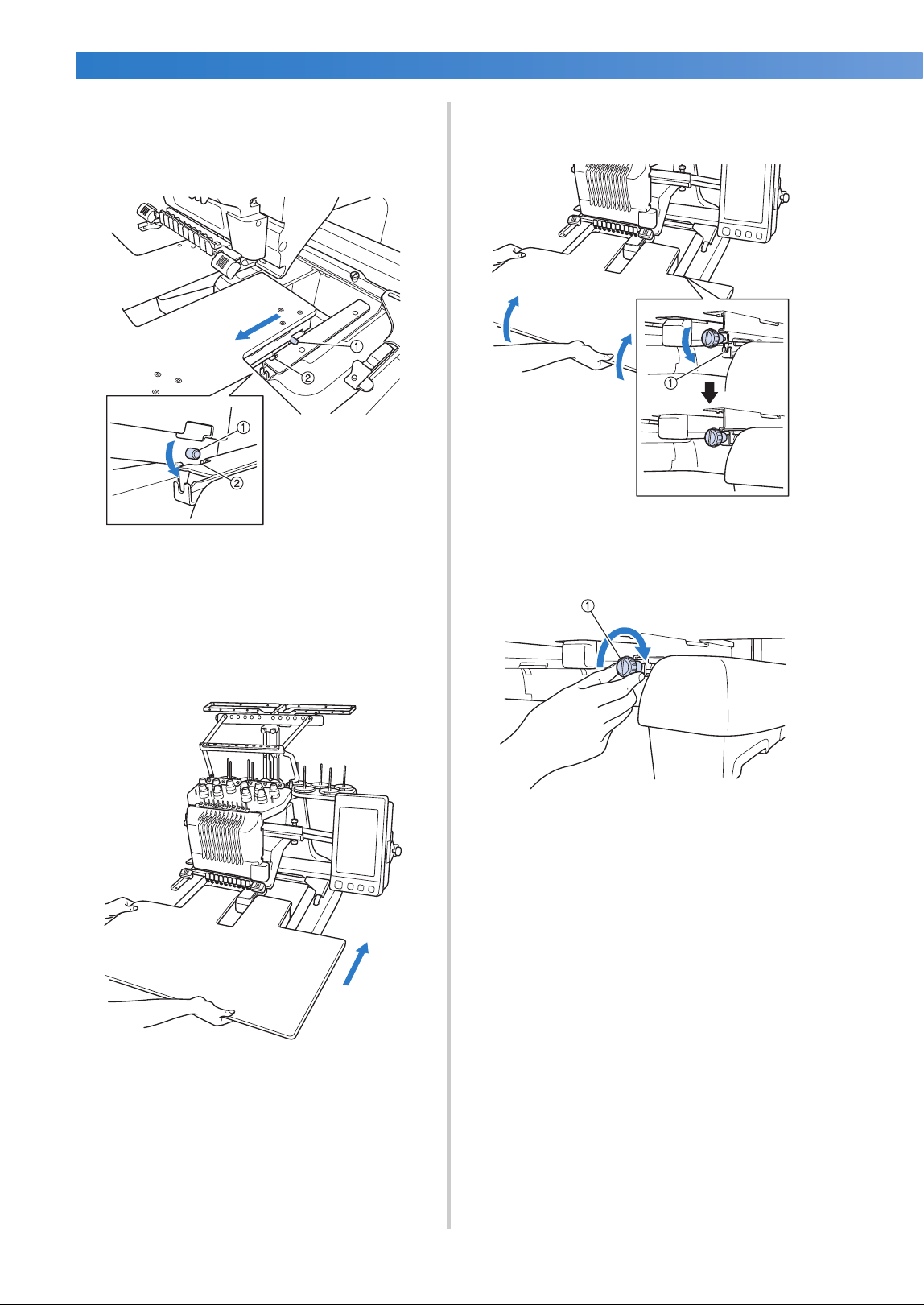
APPENDIX ——————————————————————————————————————————————————————————————————————————
——
252
3
Pull the table toward you until the pins on
the mounting brackets (attached on each
side to the bottom of the table) fit into the
notches in the guide plates.
1 Pin
2 Notch
4
Slide in the table while supporting it so that
it remains level. Push the table in until it
lightly touches the machine.
• If the table does not move smoothly,
slightly lift it up, and then slide it in.
5
While looking below the table, lightly lift it
up, and then lower it so that the screw fits
into the notch at the front of the guide plate.
1 Notch at front
6
Tighten the two thumb screws so that the
table is secured.
1 Thumb screw
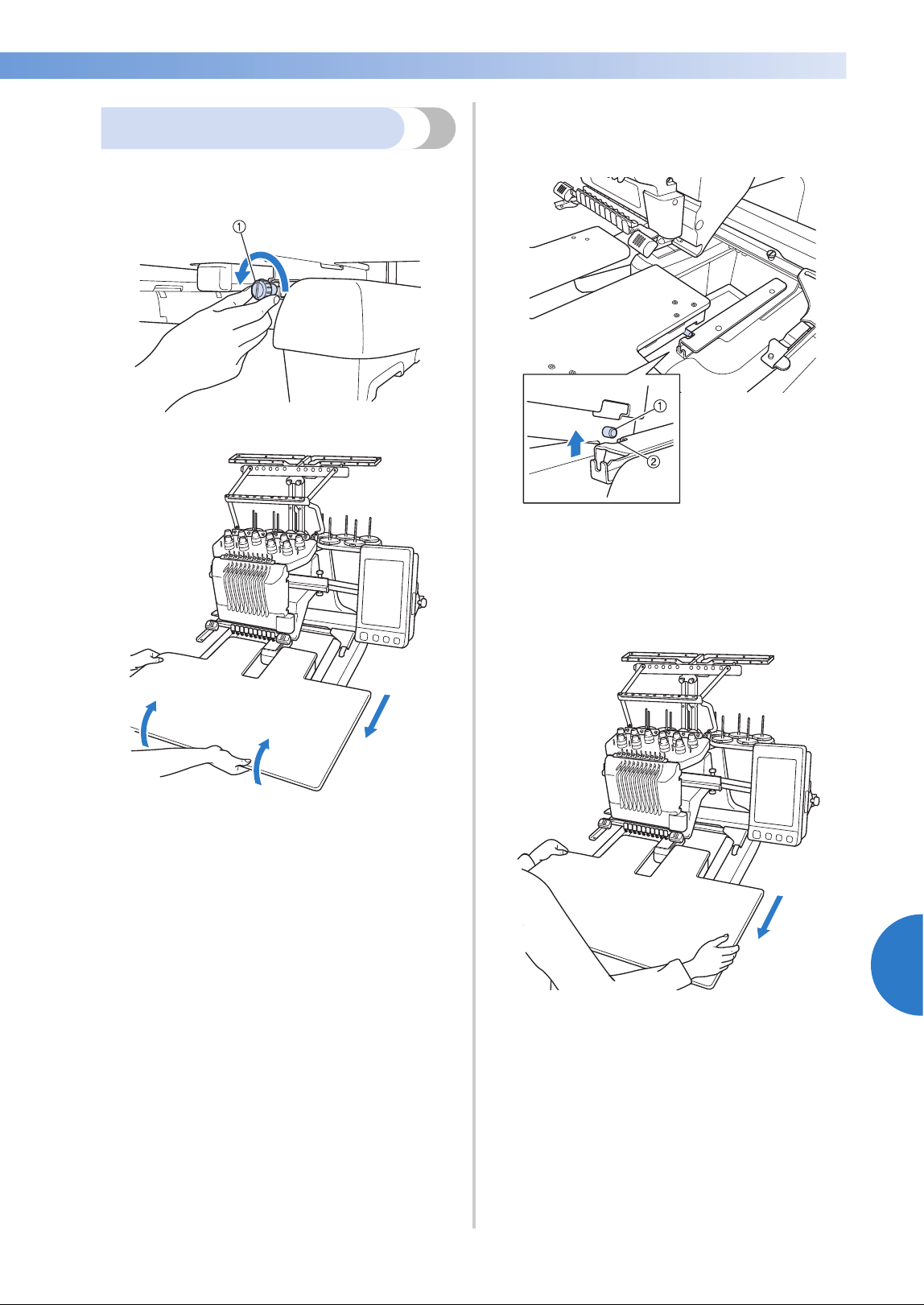
Installing the Included Table 253
7
——
——————————————————————————————————————————————————
—
————————————————————————————————
Removing the table
1
Loosen the two thumb screws, lift up the
table, and then pull it off toward you.
1 Thumb screw
2
After the pins on each side reach the notches
in the guide plates, raise the table to lift the
pins up through the notches.
1 Pin
2 Notch
X Remove the table from the machine.
3
Carefully pull out the table so that it does
not hit the machine.
4
Tighten the thumb screws on the table.
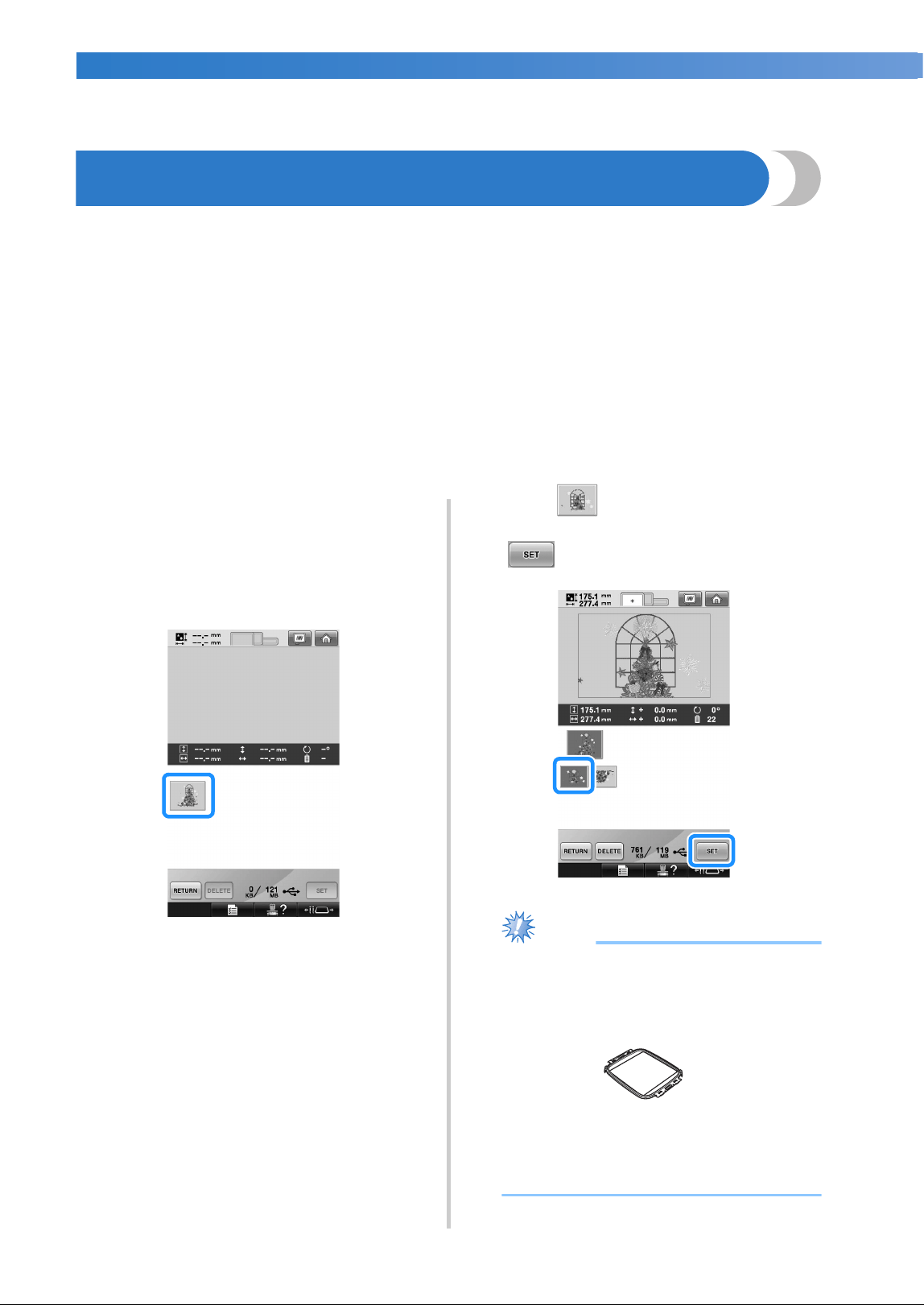
APPENDIX ——————————————————————————————————————————————————————————————————————————
——
254
OPTIONAL ACCESSORIES
Embroidery Patterns for the Optional Jumbo Frame
Patterns can be created in embroidery editing software version PE-DESIGN NEXT or later to be used with the
Jumbo frame (optional).
When a jumbo frame pattern is created in embroidery editing software, the pattern is automatically divided
into two sections that can be combined into a single embroidery design when it is sewn with the jumbo
frame. When the jumbo frame is used, embroidery with a maximum size of 350 mm × 350 mm (14 inches ×
14 inches) can be sewn without having to shift the fabric within the frame.
For details on creating jumbo frame patterns, refer to the Instruction Manual provided with the embroidery
editing software version PE-DESIGN NEXT or later.
After the jumbo frame pattern has been created, follow the procedure described below to transfer the pattern
to the machine using USB media and begin embroidering.
Jumbo frame patterns consist of a set of two patterns. Both of the patterns must be saved in the machine’s
memory to be able to use them as a jumbo frame pattern.
1
Connect the USB media containing the
jumbo frame pattern to this machine, and
then select the jumbo frame pattern from the
pattern selection screen.
* For details on importing the pattern, refer to
“USB media” on page 173.
2
Touch to select the first section of the
pattern to be embroidered, and then touch
.
Note
● Before you start sewing the jumbo frame
pattern, prepare the optional jumbo frame.
● Contact your authorized dealer for
purchasing the optional jumbo frame.
● After hooping fabric or a garment, make
sure that the inner frame is lower than the
outer frame so that the frame sits flat
against the extension table.
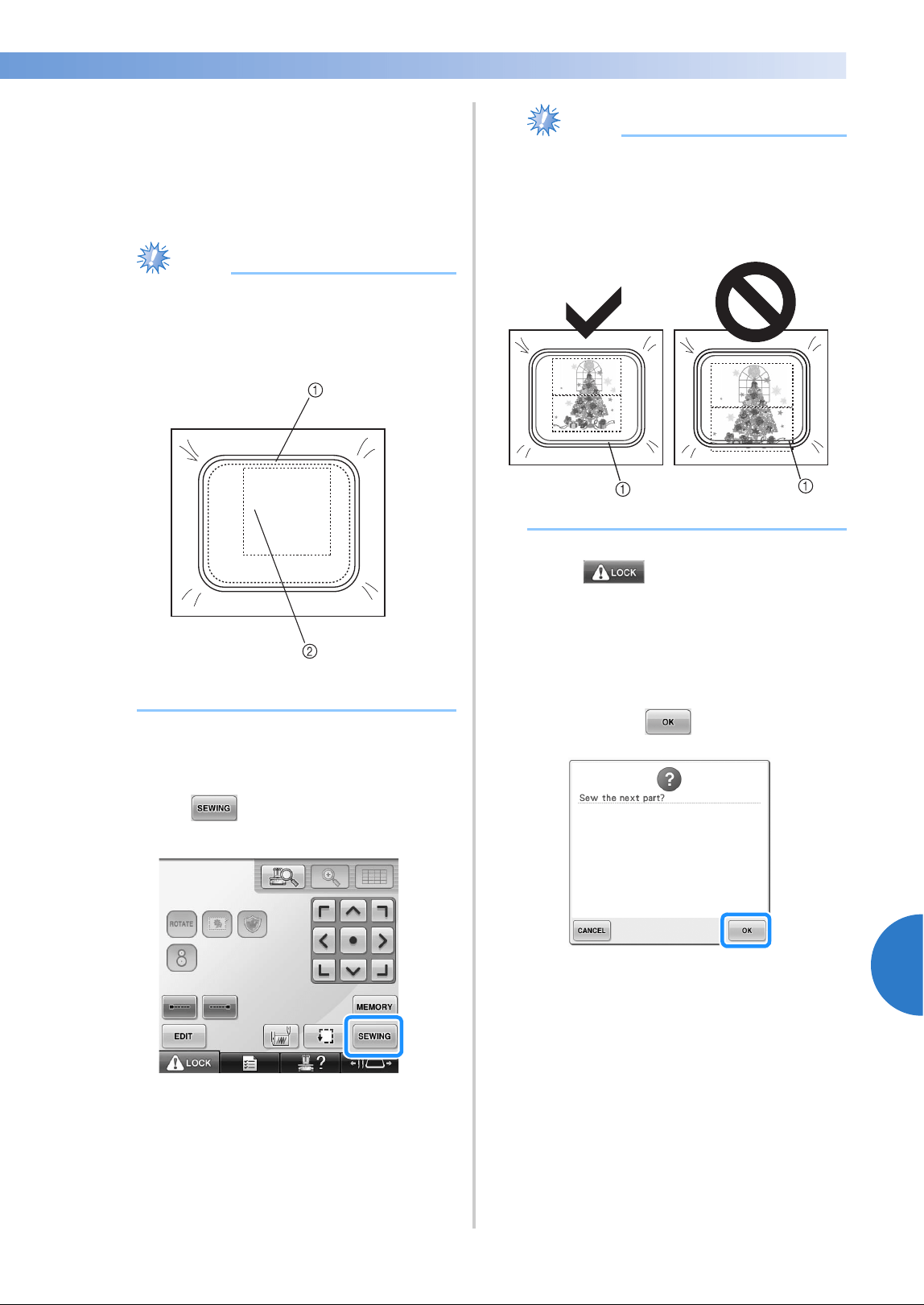
Embroidery Patterns for the Optional Jumbo Frame 255
7
——
——————————————————————————————————————————————————
—
————————————————————————————————
3
Check the size of the pattern, and then hoop
fabric that is large enough in the optional
jumbo frame.
* For details on attaching the optional jumbo
frame, refer to “Hooping the Fabric” on
page 94.
Note
● When hooping the fabric, position it
within the embroidery frame so there is at
least 10 mm of space to the inside of the
frame.
1 more than 10 mm (3/8 inch)
2 Location where the pattern is to be embroidered
4
Attach the jumbo frame to the machine.
5
Touch .
Note
● When you change the embroidering
position using the jumbo frame, be sure to
be aware of the size of the combined
pattern. You cannot change the position
exceeding the embroidery area.
1 Embroidery area
6
Touch , and then press the start/
stop button to start embroidering the first
section of the pattern.
7
After embroidering of the first section of the
pattern is finished, the following message
appears. Touch .
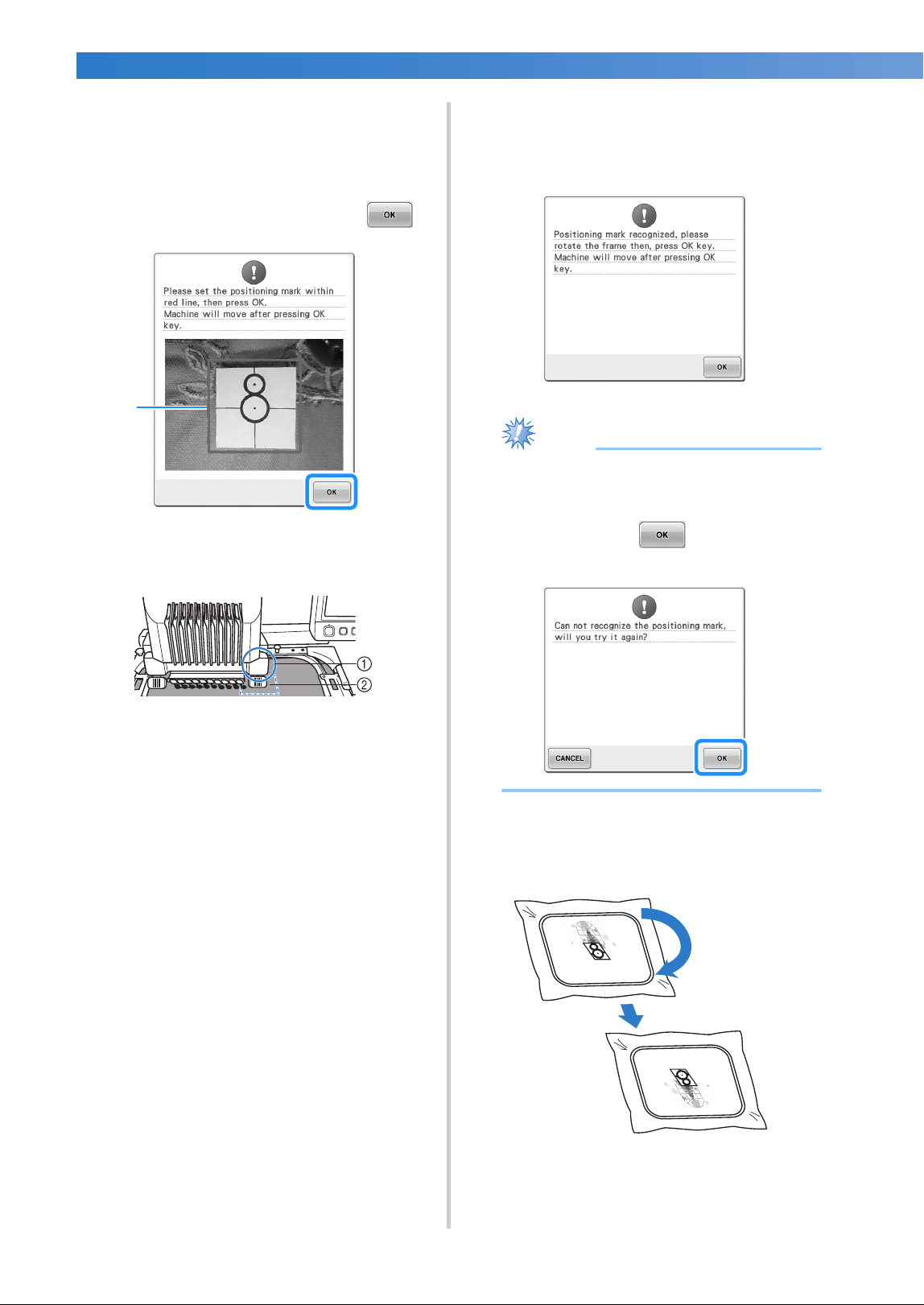
APPENDIX ——————————————————————————————————————————————————————————————————————————
——
256
8
An image of the needle location appears in
the screen with the positioning detection
area framed by a red line. Affix an
embroidery positioning sticker so that it fits
within the red line, and then touch .
1 Red line
• The positioning detection area is under the
built-in camera.
1 Built-in camera is in this box.
2 Affix the sticker in this area.
9
When the machine's built-in camera has
finished detecting the location of the
embroidery positioning sticker, the following
message appears.
Note
● If the built-in camera cannot detect the
location of the embroidery positioning
sticker, the following error message
appears. Touch , and then perform
the procedure again starting from step
8.
0
Remove the jumbo frame from the
embroidery machine, turn the frame around,
and then attach it to the machine.
1
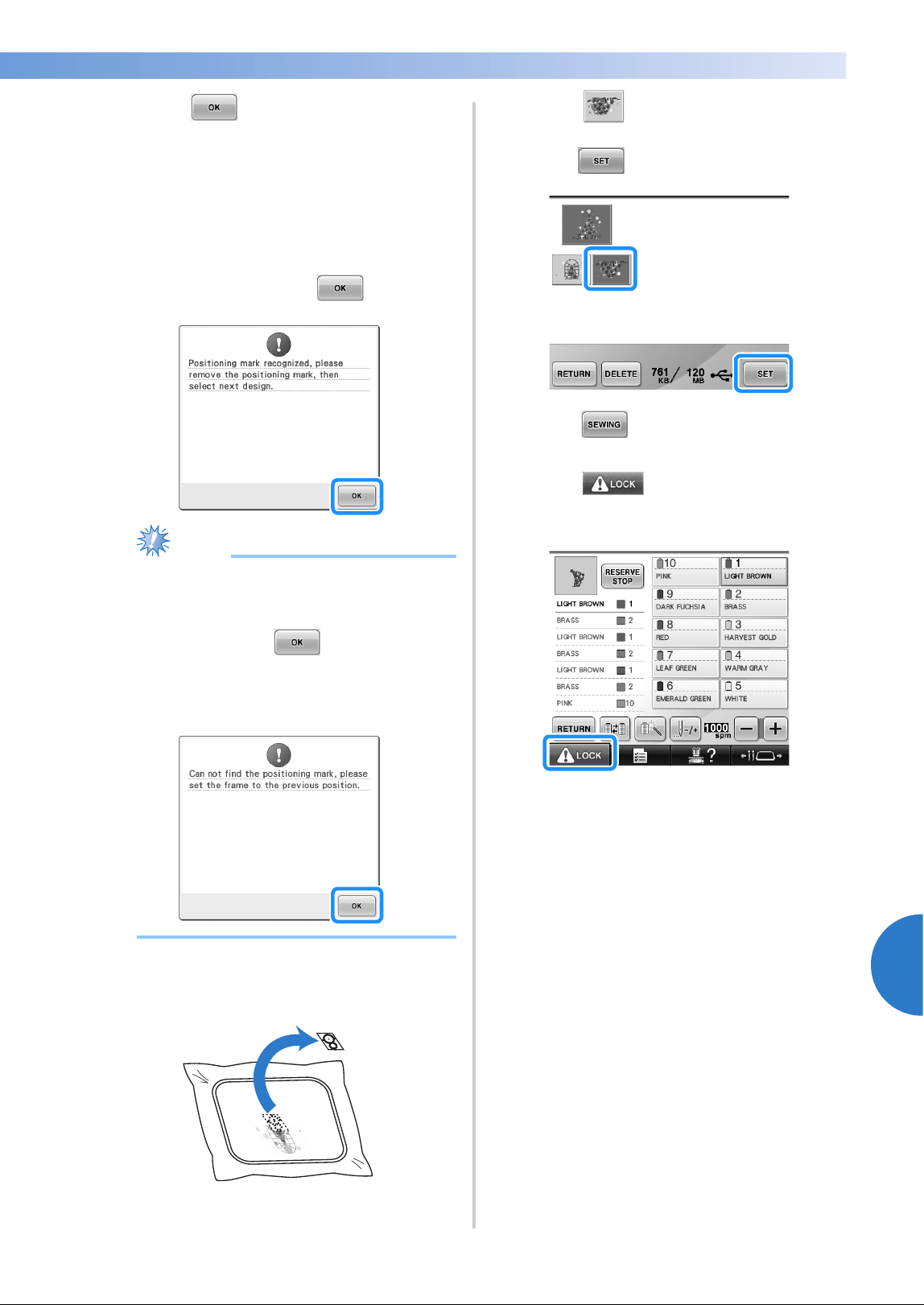
Embroidery Patterns for the Optional Jumbo Frame 257
7
——
——————————————————————————————————————————————————
—
————————————————————————————————
a
Touch , then the machine starts to
detect the location of the embroidery
positioning sticker.
b
When the machine's built-in camera has
finished detecting the location of the
embroidery positioning sticker, the following
message appears. Touch .
Note
● If the built-in camera cannot detect the
location of the embroidery positioning
sticker, the following error message
appears. Touch , return the jumbo
frame to its previous orientation, and then
perform the procedure again starting from
step
8.
c
Remove the embroidery positioning sticker
from the fabric.
d
Touch to select the next section of
the pattern to be embroidered, and then
touch .
e
Touch .
f
Touch , and then press the start/
stop button to start embroidering the next
section of the pattern.
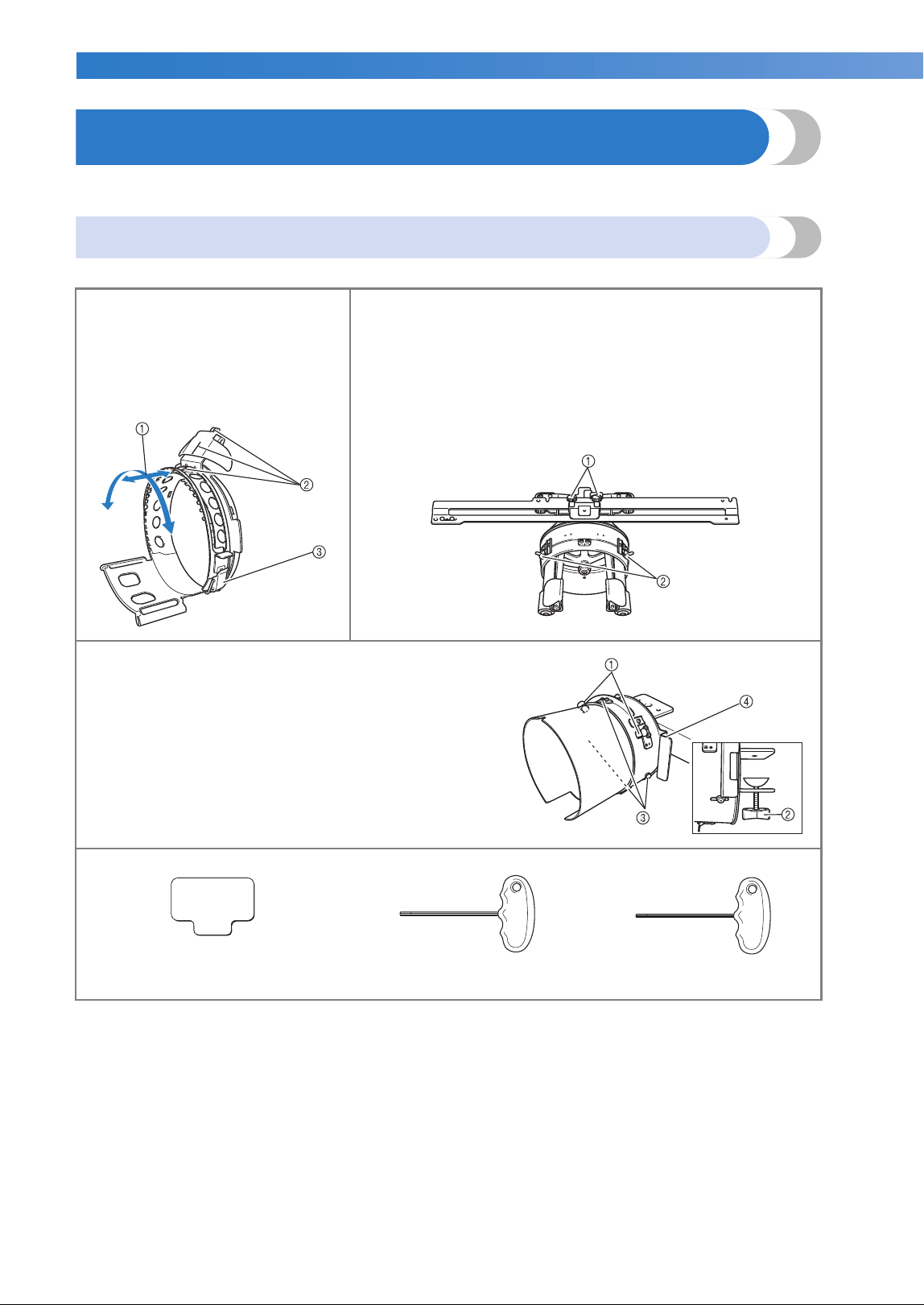
APPENDIX ——————————————————————————————————————————————————————————————————————————
——
258
Using the Optional Cap Frame
By using the optional cap frame, patterns can be embroidered onto caps and hats. The procedures for using
the cap frame are described below.
Cap frame and its accessories
The cap frame driver and the mounting jig are required in order to use the cap frame.
Cap frame
1 Embroidering area:
60 mm (H) × 360 mm (W)
(2-3/8 inches (H) × 14 inches (W))
2 The mark indicates the center of
the embroidering area.
3 Snap lock
Cap frame driver and 4 thumb screws
In order to attach the cap frame to the carriage, remove the
embroidery frame holder, and then attach this cap frame driver to the
carriage of the machine.
1 Insert the thumb screws into these holes and tighten the screws to
secure the movable section. Use these holes when storing this
cap frame driver.
2 Holding Spring
The cap frame is secured by the two holding Springs.
Mounting jig
Use when framing a cap in the cap frame.
1 Holders
The cap frame is secured by the three holders.
2 Mounting bracket
Tighten thumb screw to secure to mounting surface.
3 Screws
Adjust the size of the mounting jig according to the type of
cap being embroidered.
4 Lever
Rotate the cap frame to the location easier to frame the
fabric, by pulling the lever.
Pad Allen screwdriver (large) Allen screwdriver (medium)
• Use when adjusting the ring of the cap frame driver and the height of the L-shaped bracket. (Refer to
page 263.)
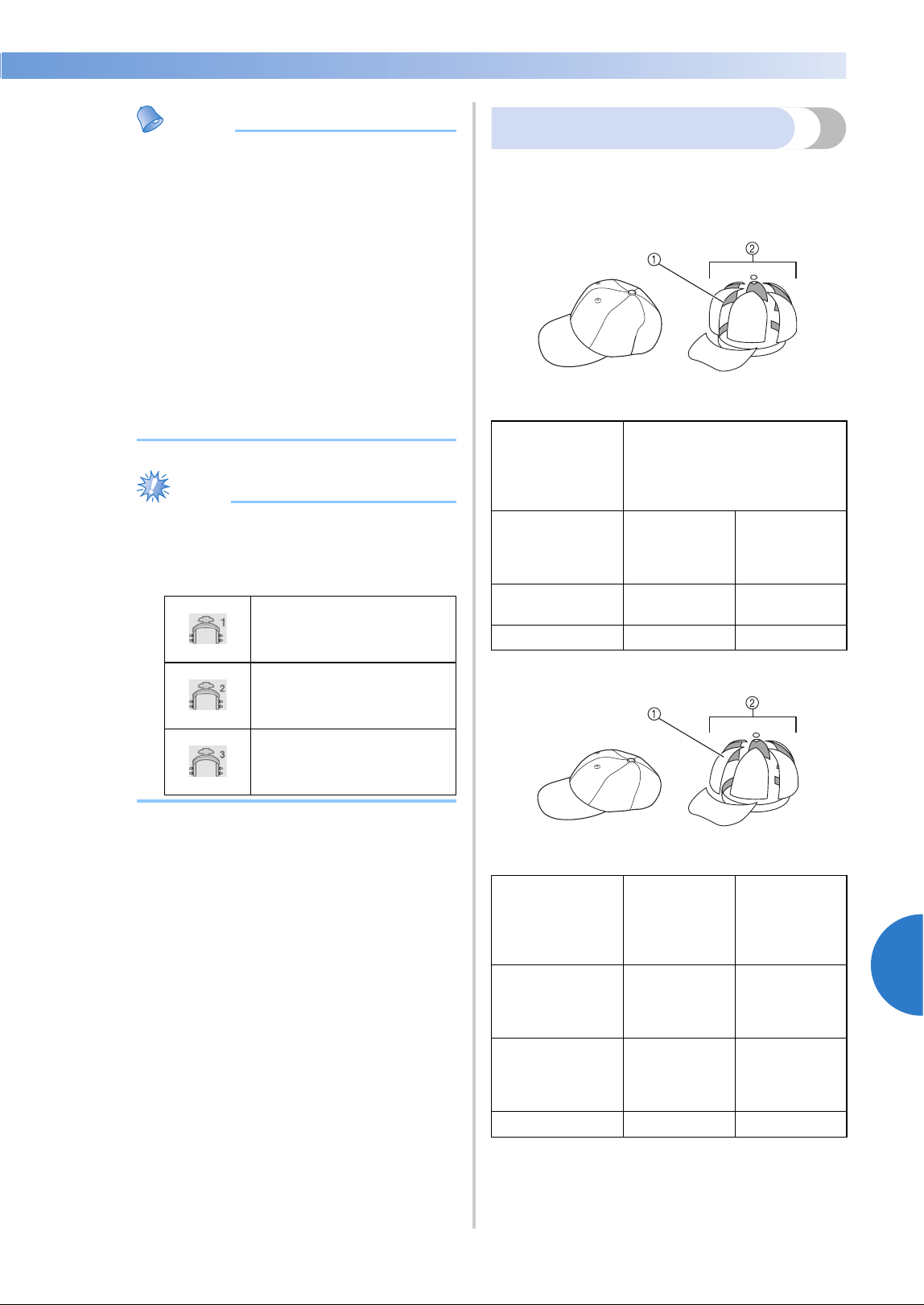
Using the Optional Cap Frame 259
7
——
——————————————————————————————————————————————————
—
————————————————————————————————
Memo
● Before installing the cap frame, be sure to
adjust the ring of the cap frame driver and
the height of the L-shaped bracket. (If the
same machine is being used, this
adjustment is only required the first time
that it is used. In addition, this adjustment
is not necessary if the included cap frame
is installed.)
● After the ring of the cap frame driver and
the height of the L-shaped bracket have
been adjusted, they must be adjusted
again if a different machine is being used.
The height may differ depending on the
machine that is used. For details, contact
your Brother dealer.
Note
● If the cap embroidery frame is attached,
the embroidery frame indicators, showing
which embroidery frames can be used,
appear as shown below.
Types of caps
With the machine, we recommend that the
following types of caps be embroidered.
■ Standard (Pro Style)
1 Face: Pro style
2 6 sections
■ Low Profile (Low fitting)
1 Face: Low fitting
2 6 sections
50 mm (H) × 130 mm (W)
(2 inches (H) × 5-1/8
inches (W))
60 mm (H) × 130 mm (W)
(2-3/8 inches (H) × 5-1/8
inches (W))
60 mm (H) × 360 mm (W)
(2-3/8 inches (H) × 14
inches (W))
Otto
International,
Inc. cap model
number
(Example)
OTTO27-007
Mesh backing
on the back of
front panels
(soft or hard)
Constructed
firm front
Unconstructed
soft crown
Ease of framing
(hooping)
Easy
(Recommended)
Fairly easy
Backing 1 to 2 ply 2 to 3 ply
Otto
International,
Inc. cap model
number
(Example)
OTTO23-225 OTTO18-203
Mesh backing
on the back of
front panels
(soft or hard)
Constructed
firm front
Unconstructed
soft crown
Ease of framing
(hooping)
Very difficult
(because the
cap material
is very hard.)
Fairly easy
Backing 1 to 2 ply 2 to 3 ply
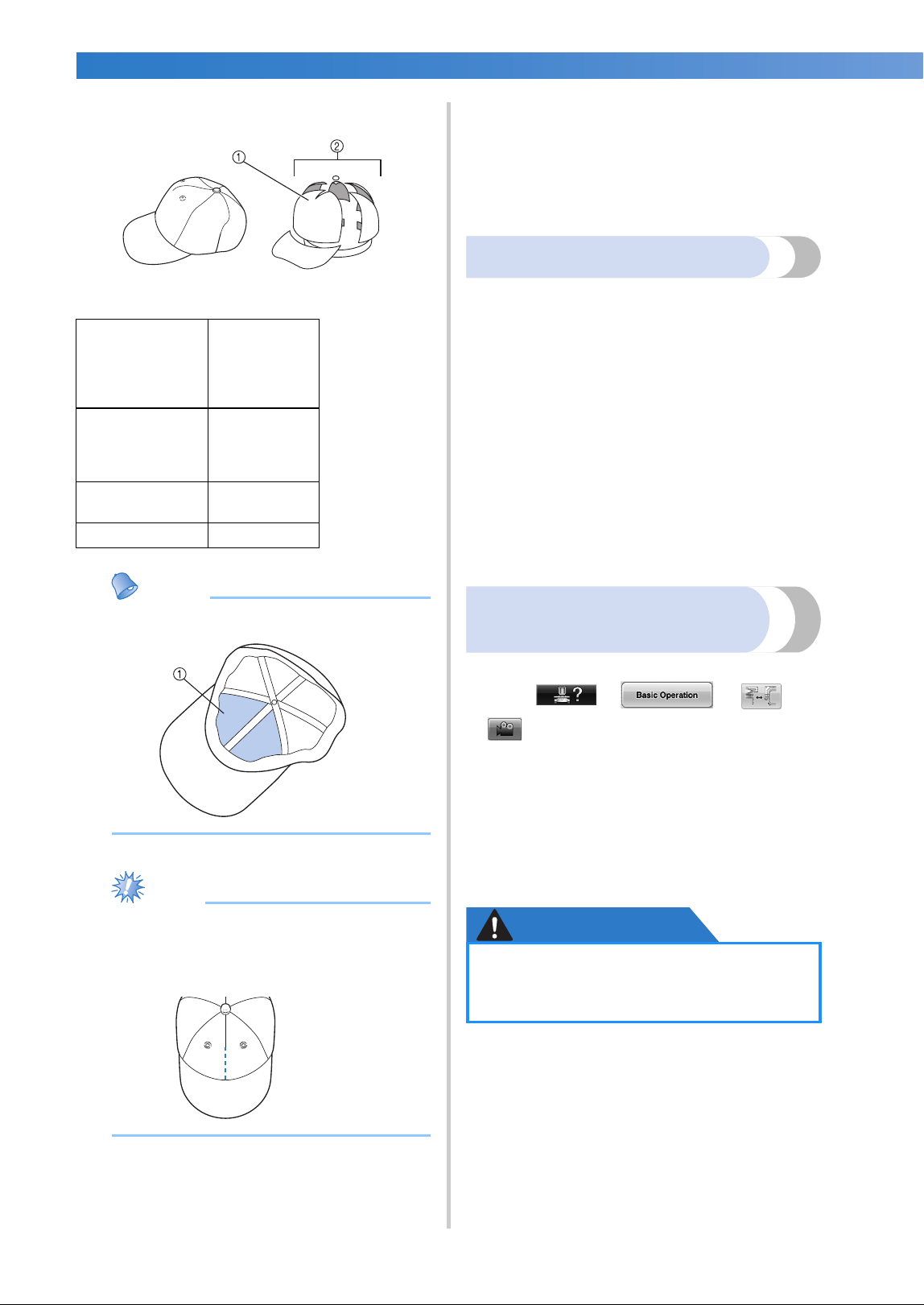
APPENDIX ——————————————————————————————————————————————————————————————————————————
——
260
■ Golf Style
1 Face: Not divided
2 5 sections
Memo
● Check if this area 1 is covered with mesh.
Note
● There is no centerline that can be used as
a guide for placing the cap in the cap
frame. Before framing the cap, use a
charcoal pen to mark the centerline.
■ Cap fabric not recommended for embroidering
• Caps with a front panel that is less than
50 mm (2 inches) high (such as a sun visor)
• Children’s caps
• Caps with a brim that is longer than 80 mm
(3-1/16 inches)
Fabric precautions
■ Cap fabric recommended for embroidering
• 35%Cotton / 65%Polyester
• 100%Cotton
• 80%Wool / 20%Nylon
• 15%Wool / 85%Acrylic
■ Cap fabric not recommended for embroidering
If caps of the following types of fabric are used,
they will be very difficult to frame, easily wrinkled,
or easily shrink.
• Polyester Foam
• Stretch material
• Melton Wool
•100%Nylon
• Suede
Preparing to use the cap
frame
■ Installing the cap frame driver
Touch → → →
in order to view a video of the operation
on the LCD (refer to page 232).
Remove the embroidery frame holder from the
carriage on the machine, and then install the cap
frame driver. Before removing the embroidery
frame holder, remove the embroidery frame.
(Refer to “Removing the embroidery frame” on
page 69.)
CAUTION
Otto
International,
Inc. cap model
number
(Example)
OTTO37-024
Mesh backing
on the back of
front panels
(soft or hard)
Constructed
firm front
Ease of framing
(hooping)
Fairly easy
Backing 1 to 2 ply
● Before changing any embroidery frame
holder, make sure your machine is
turned off.
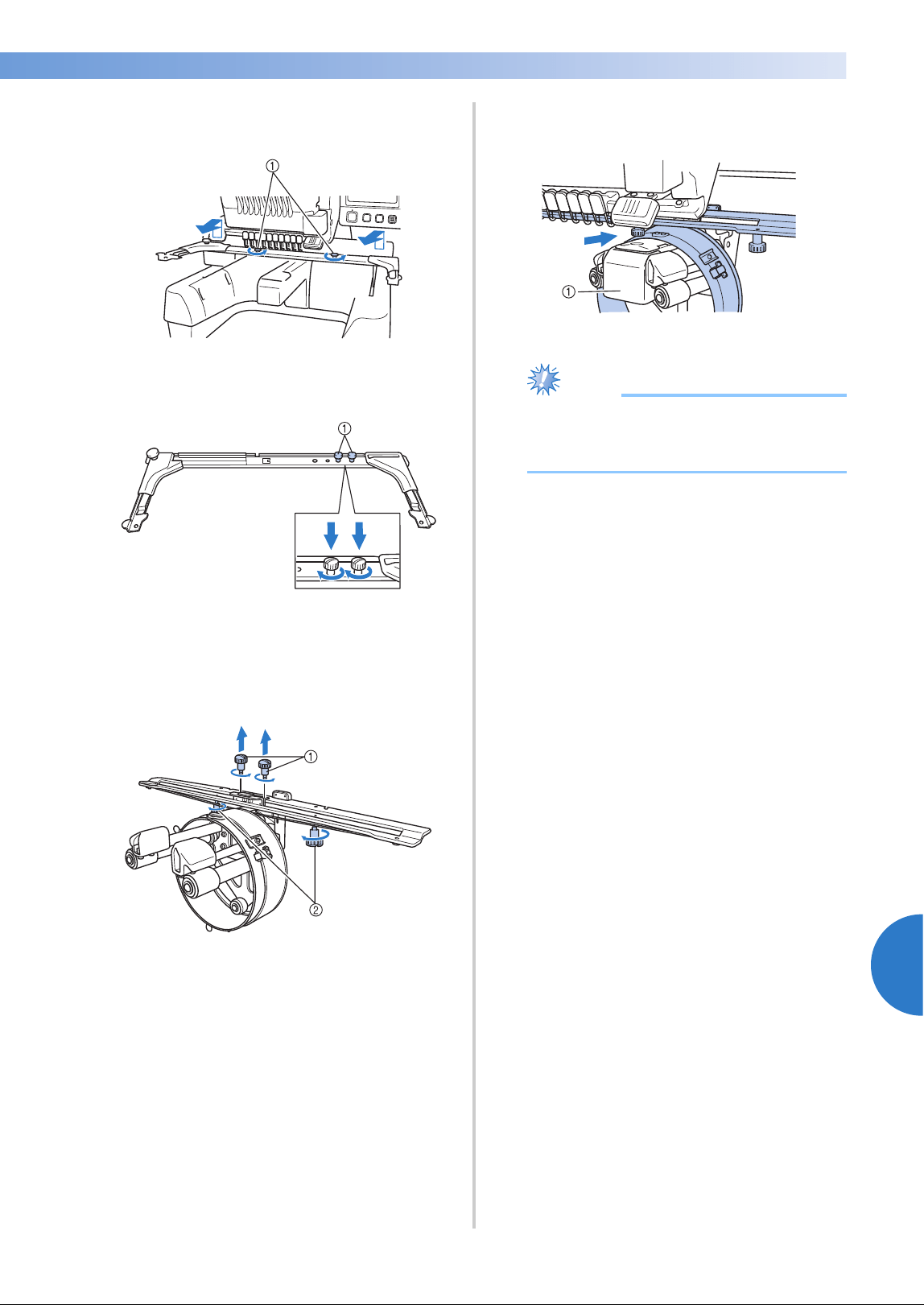
Using the Optional Cap Frame 261
7
——
——————————————————————————————————————————————————
—
————————————————————————————————
1
Loosen and then remove the two thumb
screws and the embroidery frame holder.
1 Thumb screws
• The removed thumb screws remain
attached to the embroidery frame holder.
1 Put the two thumb screws back in the
embroidery frame holder.
2
Remove the two upper thumb screws of the
cap frame driver and set aside. Loosen the
two lower thumb screws (4 turns).
1 Upper thumb screws
2 Lower thumb screws
3
Pass the machine bed through the ring of the
cap frame driver.
1 Machine bed
Note
● Be careful that the cap frame driver does
not hit any nearby parts, such as the
presser foot.
Attach the cap frame driver to the carriage as
described below in steps
4 through 7.
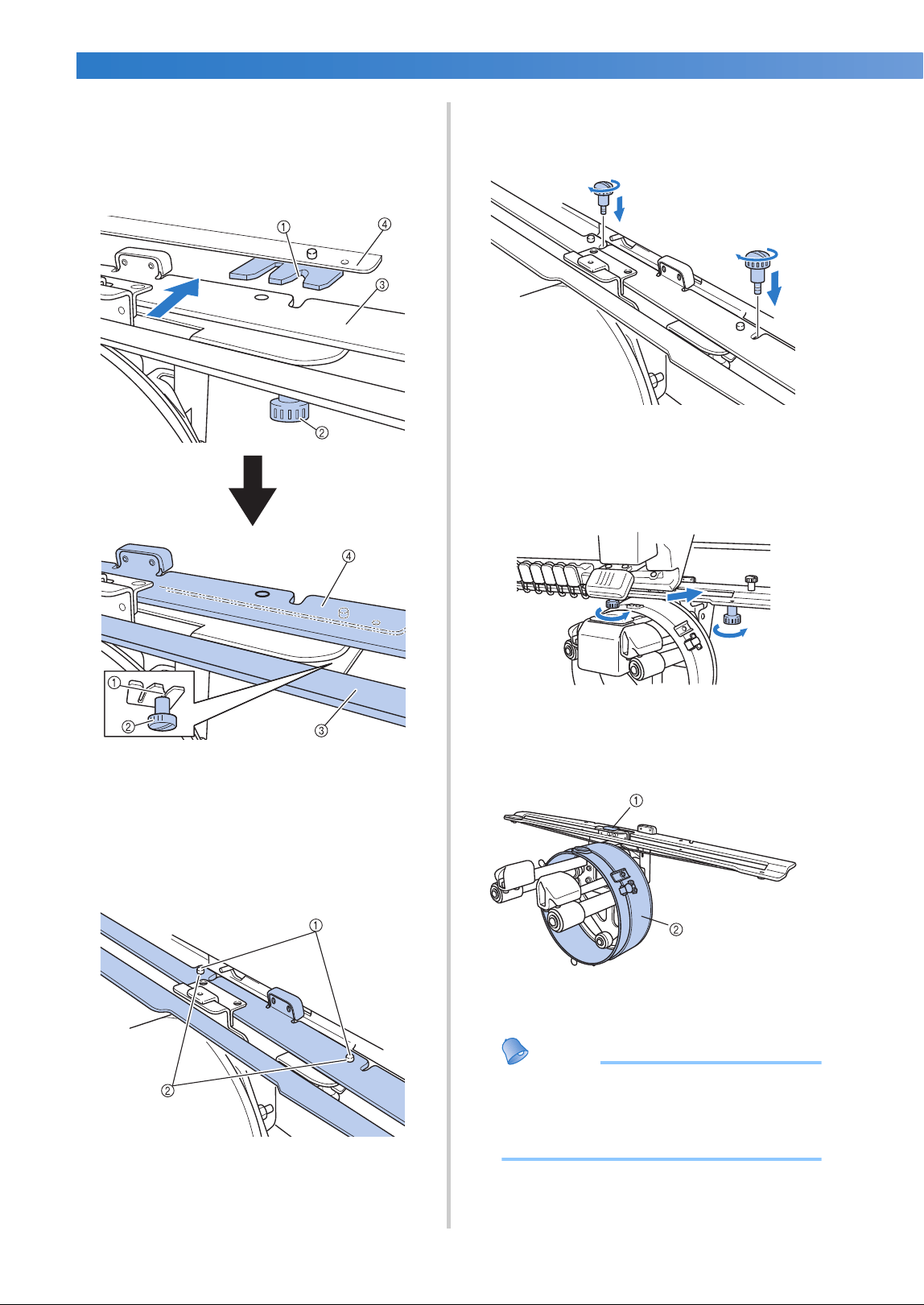
APPENDIX ——————————————————————————————————————————————————————————————————————————
——
262
4
Insert the two thumb screws at the bottom
of the cap frame driver into the v-cuts in the
carriage, and then place the mounting plate
of the cap frame driver on top of the frame-
mounting plate of the carriage.
1 Notch in the carriage
2 Thumb screw of the cap frame driver
3 Mounting plate of the cap frame driver
4 Frame-mounting plate of the carriage
5
Insert the pins on the frame-mounting plate
of the carriage into the holes in the
mounting plate of the cap frame driver.
1 Pins on the frame-mounting plate of the
carriage
2 Holes in the mounting plate of the cap frame
driver
6
Insert and tighten the two upper thumb
screws in outer holes of mounting plate of
cap frame driver.
7
While pushing in the cap frame driver
toward the machine so that it is fully
inserted, tighten the two lower thumb
screws to secure the cap frame driver.
X This completes the installation of the cap
frame driver.
■ Adjusting the cap frame driver
1 L-shaped bracket
2 Ring
Memo
● If the same machine is being used, the
adjustment to the cap frame driver is only
required the first time that the machine is
used.
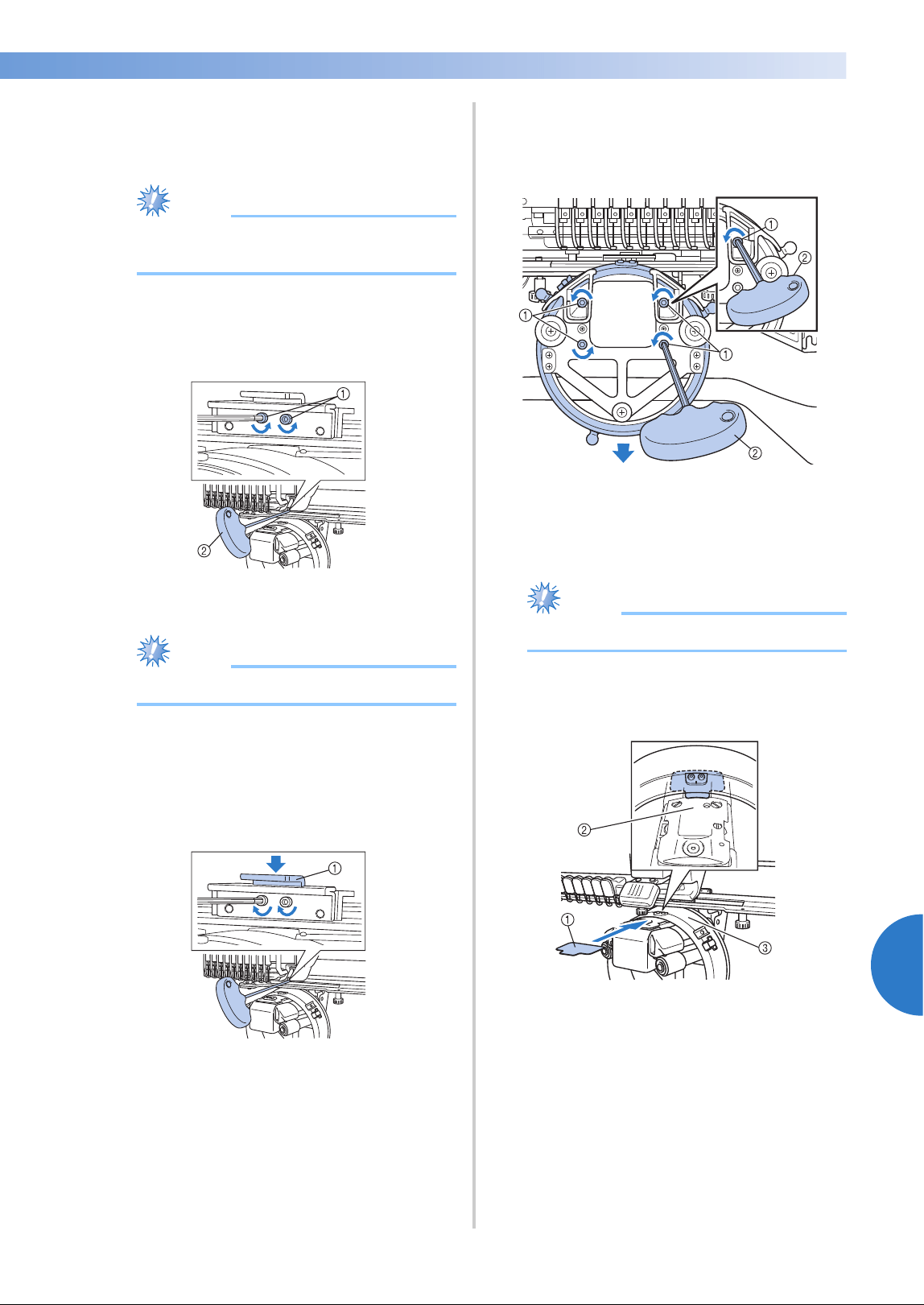
Using the Optional Cap Frame 263
7
——
——————————————————————————————————————————————————
—
————————————————————————————————
1
Turn on the machine. After the carriage
moves to its initial position, turn off the
machine.
Note
● Be sure to adjust the cap frame driver with
the carriage at its initial position.
2
Using the Allen screwdriver (medium),
loosen the two hexagonal screws. Loosen the
screws only by about one turn.
1 Hexagonal screws
2 Allen screwdriver (medium)
Note
● Do not loosen them too far.
3
Lower the L-shaped bracket to make it touch
the machine bed and then tighten the two
hexagonal screws using the Allen
screwdriver (medium). Firmly tighten the
screws.
1 L-shaped bracket
4
Using the Allen screwdriver (large), loosen
the four hexagonal screws on the inside of
the ring. Loosen the screws only by about
one turn.
1 Hexagonal screws
2 Allen screwdriver (large)
X When the screws are loosened, the ring
can be lowered.
Note
● Do not loosen them too far.
5
Insert the pad between the machine bed and
the ring of the cap frame driver.
1 Pad
2 Machine bed
3 Ring of the cap frame driver
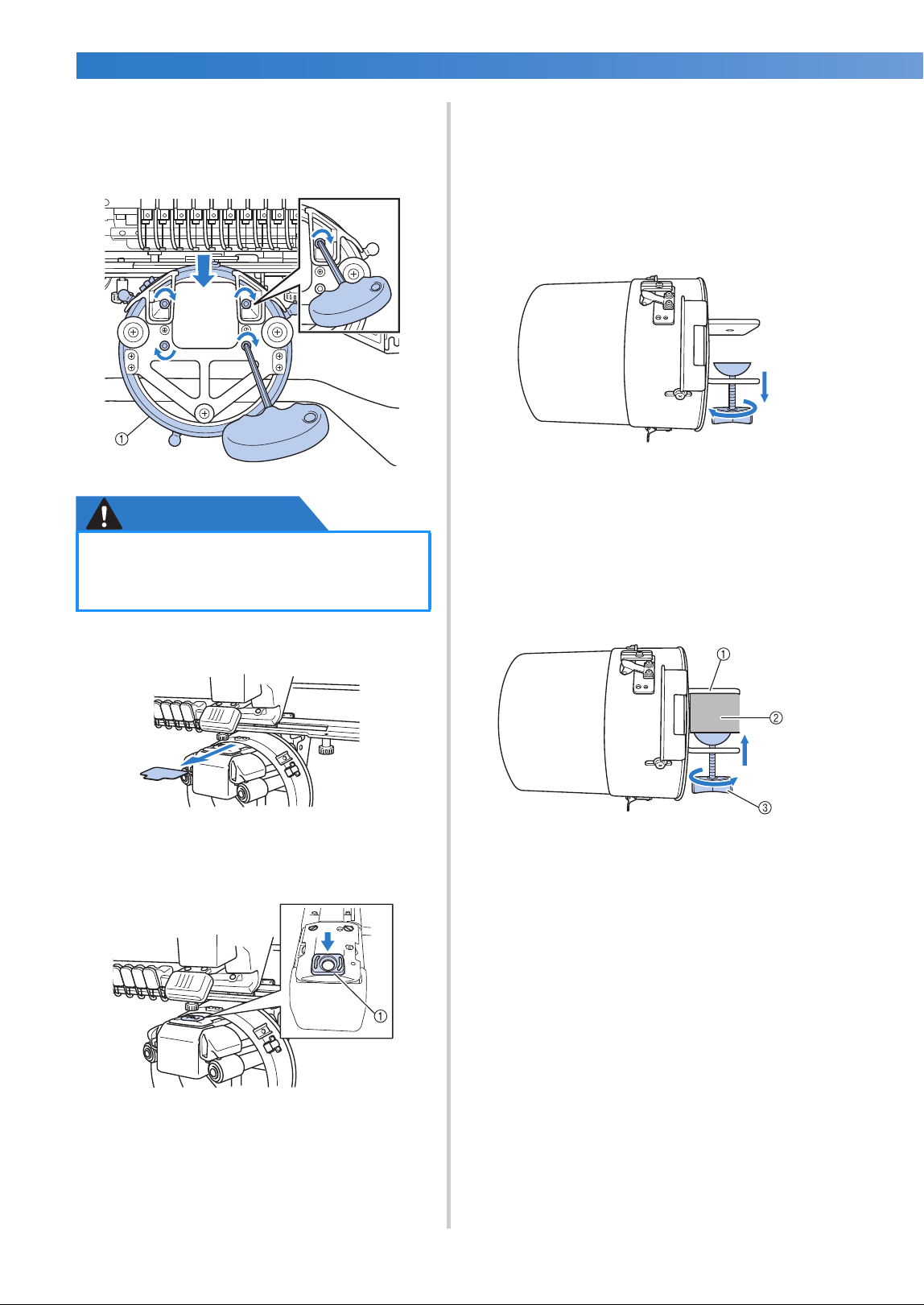
APPENDIX ——————————————————————————————————————————————————————————————————————————
——
264
6
Lightly press down the ring, and then use the
Allen screwdriver (large) to tighten the four
hexagonal screws on the inside of the ring.
Firmly tighten the screws.
1 Ring
CAUTION
7
Remove the pad inserted in step 5.
■ Installing the needle plate spacer
Attach the needle plate spacer to the needle
plate.
1 Needle plate spacer
■ Preparing the mounting jig
Attach the mounting jig to a stable surface, such
as a desk.
1
Loosen the thumb screw for the mounting jig
to open the mounting bracket so that it is
wider than the thickness of the mounting
surface.
• The mounting bracket can be mounted
onto a mounting surface with a thickness
from 9 mm (3/8 inch) to 38 mm (1-1/2
inches).
2
Securely clamp the mounting bracket onto
the mounting surface by tightening the
thumb screw.
1 Mounting bracket
2 Mounting surface
3 Tighten thumb screw
● Make sure that each hexagonal screw is
firmly tightened. If any screw remains
loosen, injuries may result.
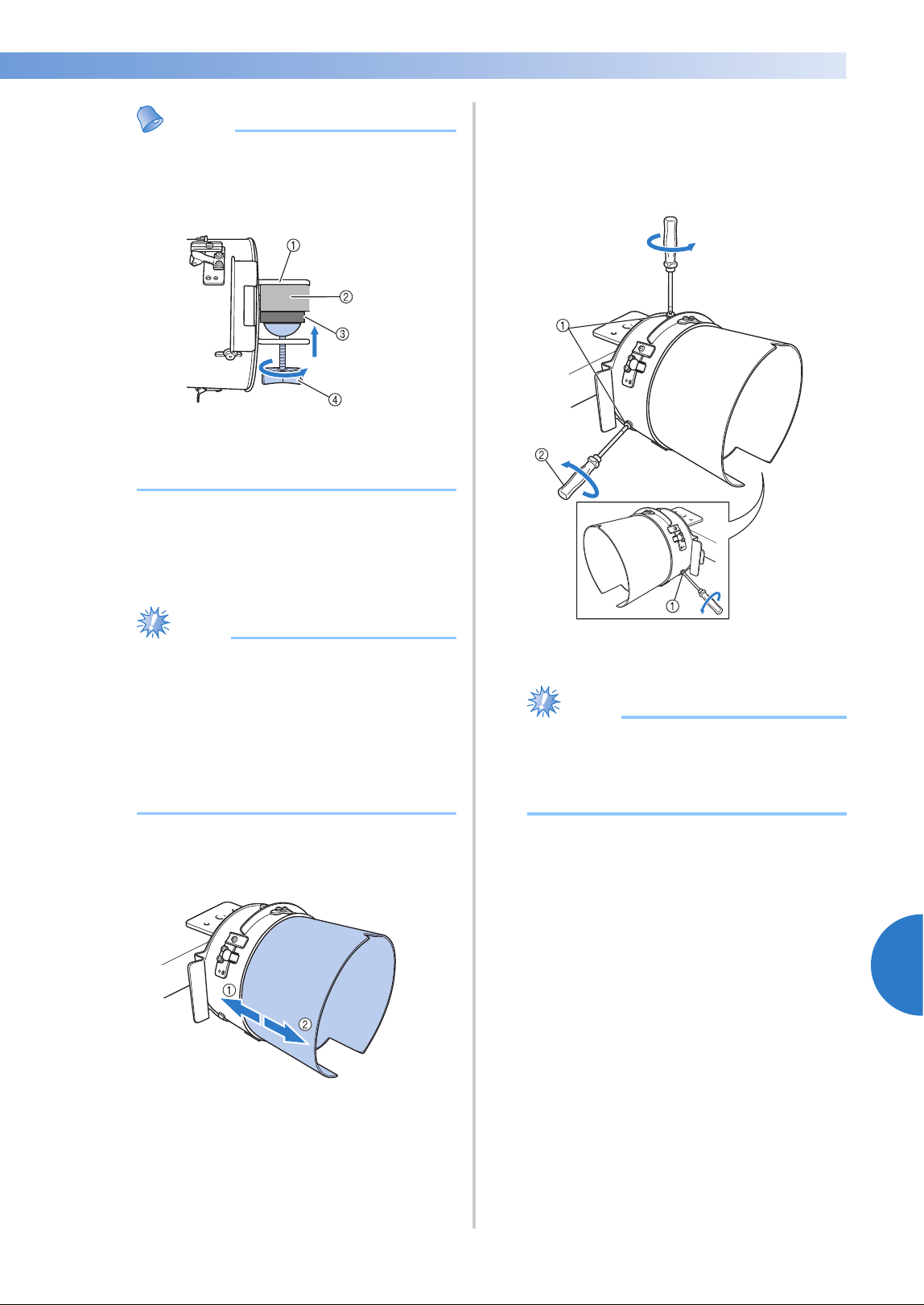
Using the Optional Cap Frame 265
7
——
——————————————————————————————————————————————————
—
————————————————————————————————
Memo
● If there is a gap between the clamp of the
thumb screw and the mounting surface,
insert the included pad as shown below.
1 Mounting bracket
2 Mounting surface (worktable, desk, etc.)
3 Pad
4 Thumb screw
3
Check that there is no looseness.
If there is looseness, mount the mounting jig
onto the mounting surface again.
Note
● Be sure that the mounting bracket is
securely clamped onto the mounting
surface and that the thumb screw is firmly
tightened.
● Do not attach the mounting jig to an
unstable surface (flexible, bent or warped).
● Be careful that the mounting jig does not
fall when it is removed.
4
Adjust the size of the mounting jig according
to the type (size) of cap being embroidered.
1 Low Profile (shorter caps)
2 Standard type (taller caps)
■ For the standard type
Using a Phillips screwdriver, loosen the three
screws (one each at the top and on the left and
right sides) on the outside of the mounting jig
two or three turns.
1 Screws
2 Phillips screwdriver
Note
● Do not remove the three screws (one each
at the top, left and right), otherwise they
may be lost. Only turn the screws to
slightly loosen them.
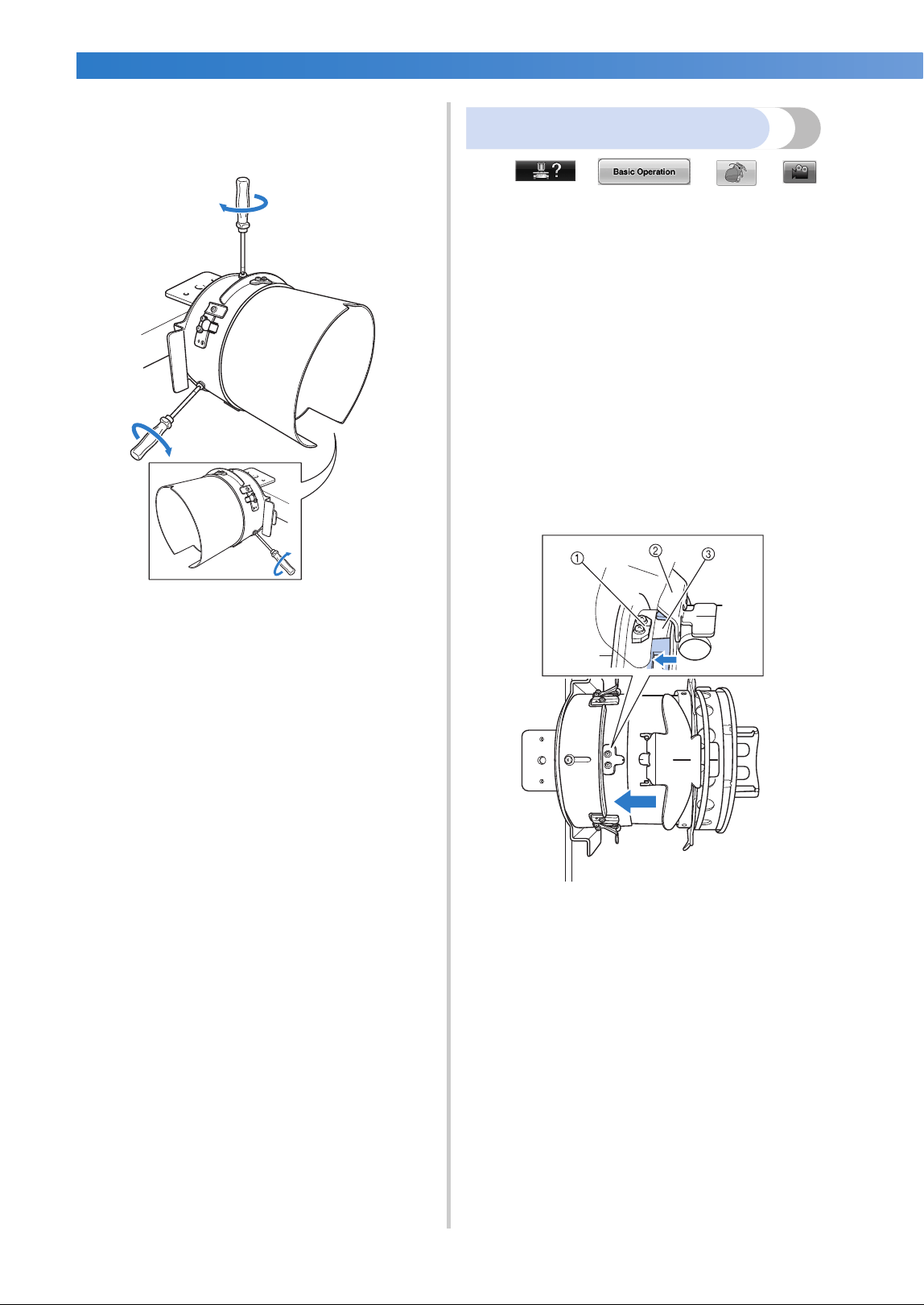
APPENDIX ——————————————————————————————————————————————————————————————————————————
——
266
Pull the mounting jig toward you, and then use
the Phillips screwdriver to tighten the three
screws (one each at the top, left and right sides).
X This completes the preparation of the
mounting jig.
Attaching the cap frame
Touch → → →
in order to view a video of the operation on the
LCD (refer to page 232).
Put the cap into the cap frame attached to the
mounting jig, and then remove the cap frame from
the mounting jig with the cap clamped. Next,
attach the cap frame to the cap frame driver on the
machine.
■ Attaching the cap frame to the mounting jig
and putting a cap into the frame
1
Attach the cap frame to the mounting jig.
Slide the cap frame onto the mounting jig,
making sure that the notch at the base of the
brim holder on the cap frame is aligned with
the guide plate on the top of the mounting jig.
1 Guide plate on mounting jig
2 Brim holder
3 Notch
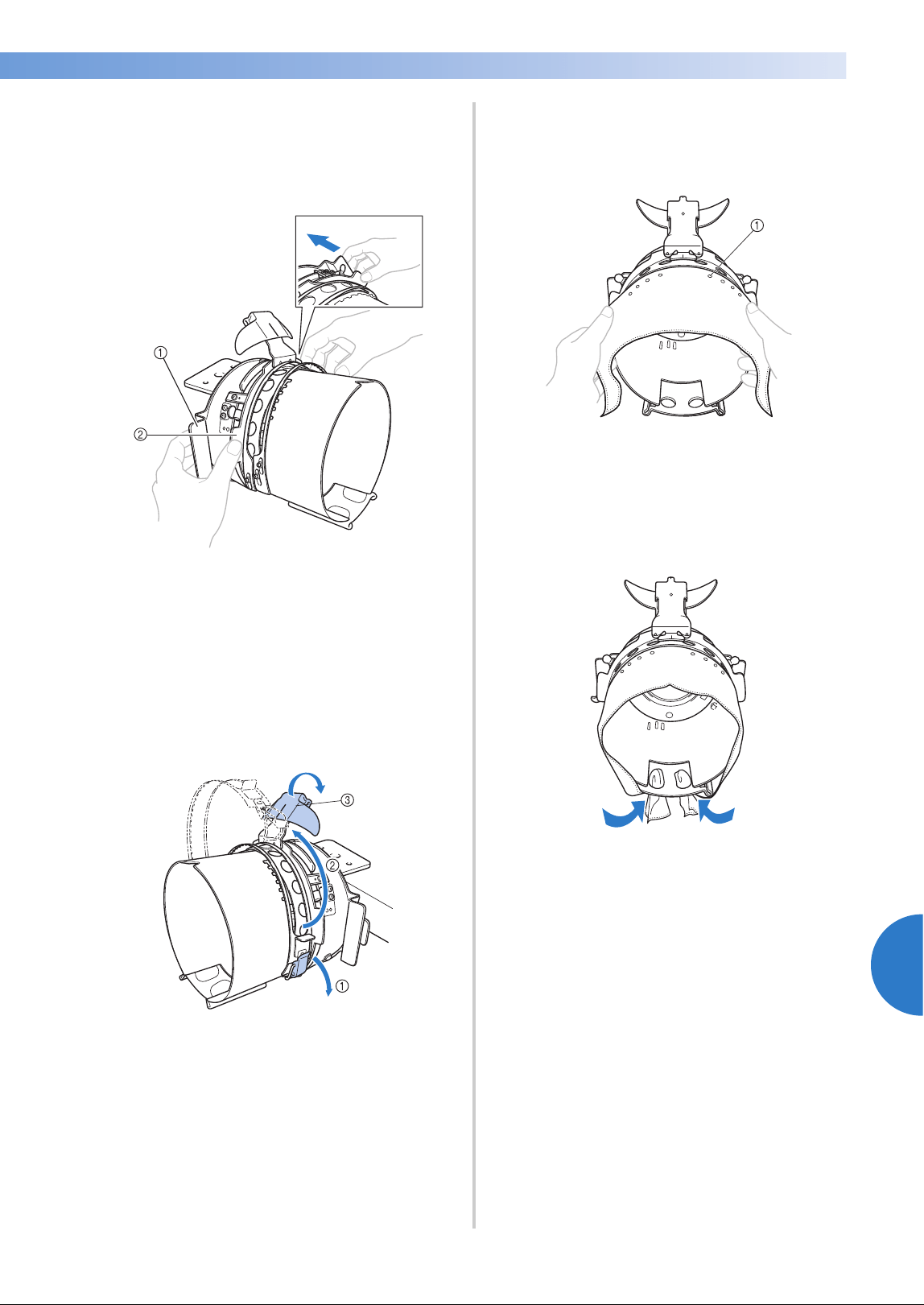
Using the Optional Cap Frame 267
7
——
——————————————————————————————————————————————————
—
————————————————————————————————
2
With your fingers behind the handles on the
left and right sides of the mounting jig, push
the cap frame onto the mounting jig by
pushing the handles on the left and right
sides of the cap frame with your thumbs.
1 Handle on mounting jig
2 Handle on cap frame
X The cap frame is secured when the two
holders on the cap frame snap into place.
3
Release the snap lock on the cap frame by
pressing down and then disengage the latch.
Open the clamping frame. Also, open brim
holder.
1 Snap lock released
2 Clamping frame opened
3 Brim holder
4
Align the center of the stabilizer with the
center of the brim holder.
We recommend a stabilizer size of 100 × 510
mm (4 × 20 inches).
1 Teeth
• Make sure that the teeth go through the
stabilizer to firmly secure it.
5
Push both ends of the stabilizer into the
holes at the bottom of the cap frame to
firmly secure it.
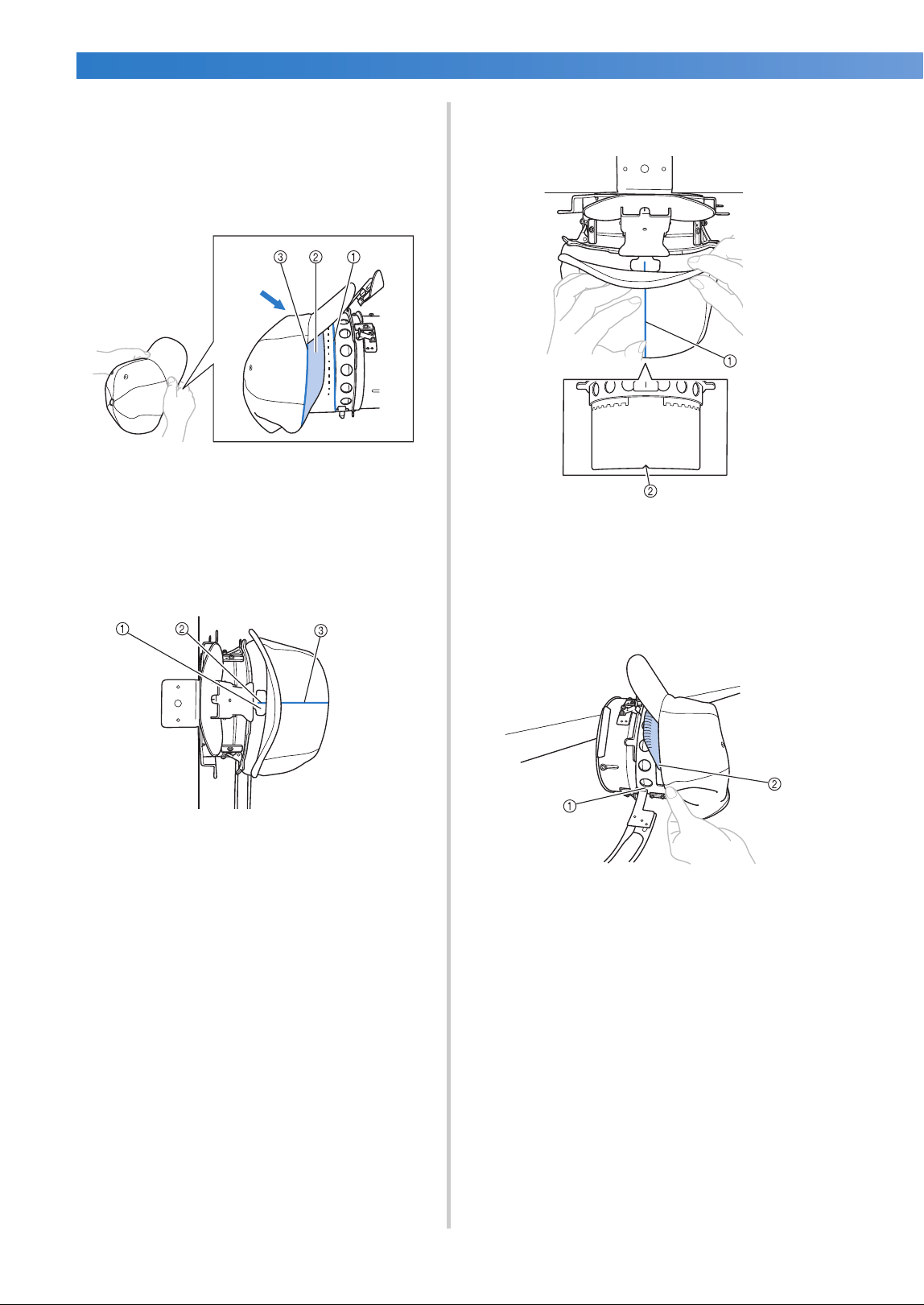
APPENDIX ——————————————————————————————————————————————————————————————————————————
——
268
6
Lift out the sweat guard on the inside of the
cap, and then place the cap over the cap
frame.
Using both hands, hold both sides of the cap,
and then align the edge of the lower frame
with the base of the brim.
1 Edge of the lower frame
2 Sweat guard
3 Base of the brim
At the same time, align the center line of the
cap with the centerline of the sweat guard
holder on the cap frame, and then slide the
sweat guard under the sweat guard holder.
1 Sweat guard holder
2 Center line of sweat guard holder
3 Center line of cap
7
Align the center line of the cap with the
notch in the mounting jig.
1 Center line of cap
2 Notch in mounting jig
8
Before closing the clamping frame, push the
ends of the sweat guard into the cap to move
them away from the hinge and latch of the
clamping frame.
1 Hinge of clamping frame
2 Fold the sweat guard as shown.
• Neatly folding the sweat guard before
closing the clamping frame helps prevent
wrinkles in the cap.
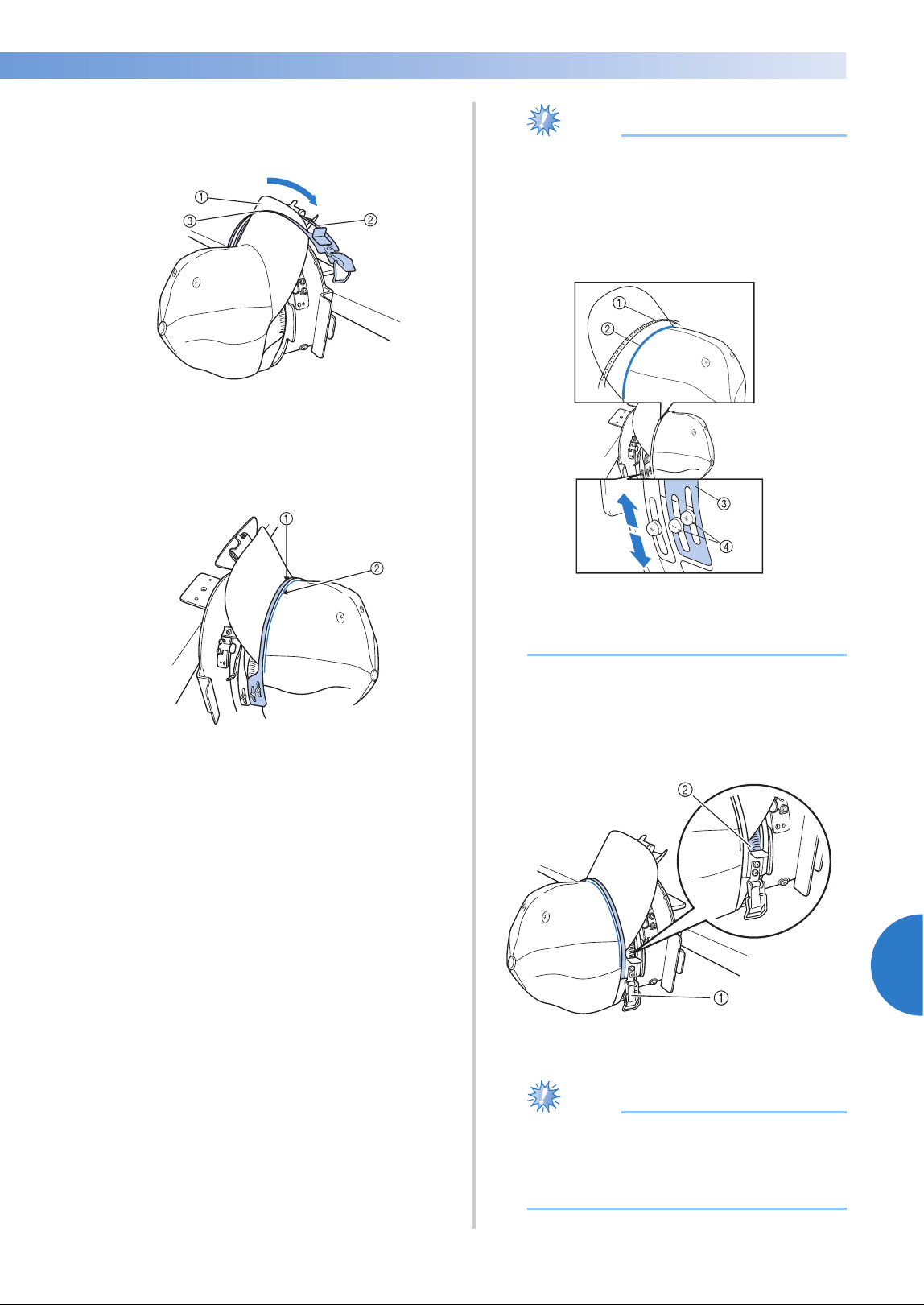
Using the Optional Cap Frame 269
7
——
——————————————————————————————————————————————————
—
————————————————————————————————
9
Close the clamping frame so that the brim of
the cap passes between the inside clamping
frame and the outside clamping frame.
1 Brim of the cap
2 Inside clamping frame
3 Outside clamping frame
0
Neatly align the teeth of the clamping frame
with the base of the brim.
1 Teeth of outside clamping frame
2 Base of brim
Note
● Loosen the two screws for the outside
clamping frame, and then adjust the
position of the outside clamping frame so
that it conforms to the shape of the cap
and so that the teeth of the clamping frame
perfectly align with the base of the brim.
1 Teeth of outside clamping frame
2 Base of brim
3 Outside clamping frame
4 Screws for the outside clamping frame
a
Secure the clamping frame with the snap
lock. At this time, push the end of the sweat
guard into the cap so it does not interfere
with the snap lock.
1 Snap lock
2 Fold the sweat guard as shown.
Note
● Before closing the lever of the snap lock,
check that the cap has not moved out of
position and that there are no wrinkles.
Adjust the cap if necessary.
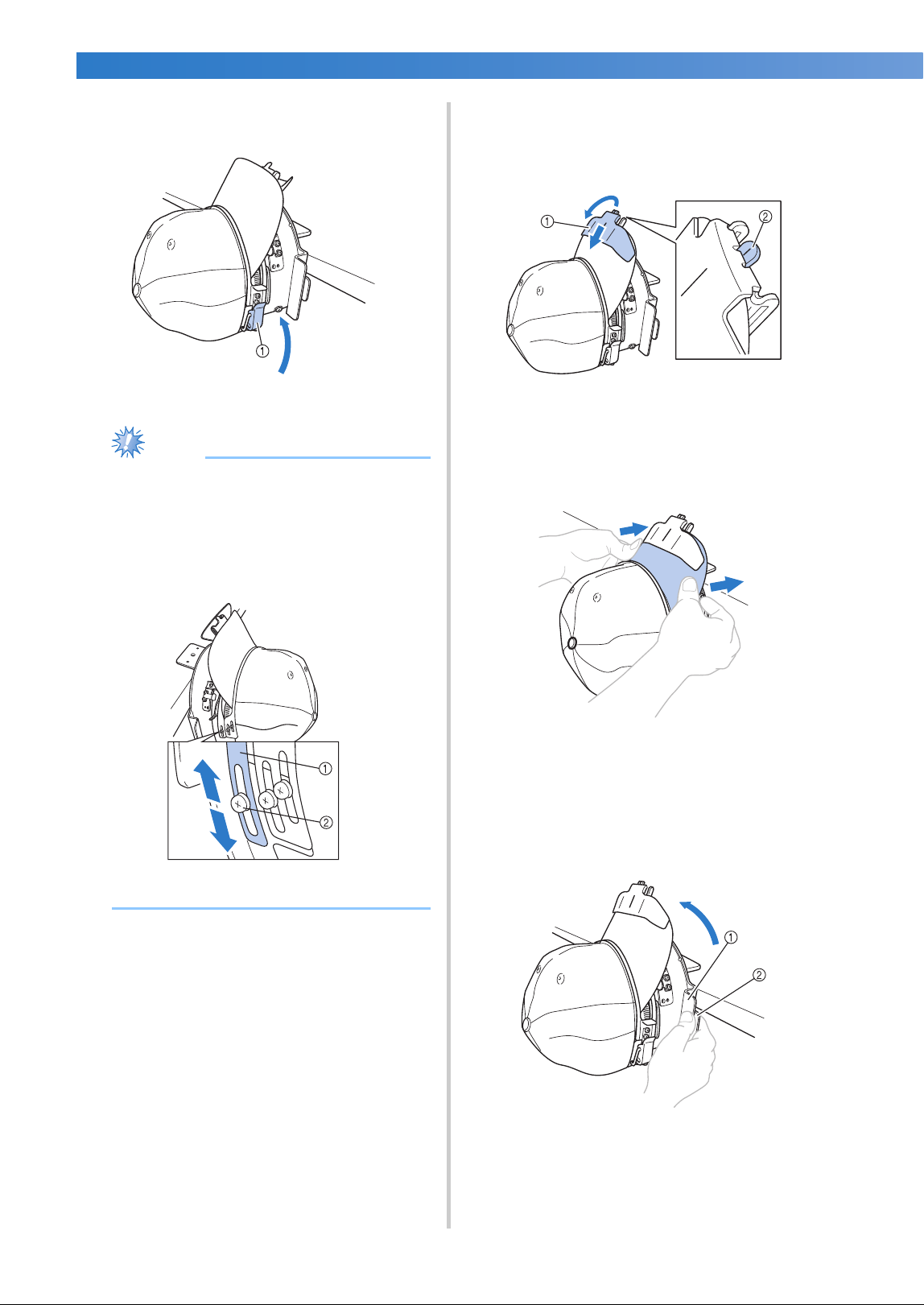
APPENDIX ——————————————————————————————————————————————————————————————————————————
——
270
b
Close the lever of the snap lock.
1 Lever of the snap lock
Note
● If the cap fabric is thick and the clamping
frame cannot be closed, or if the fabric is
thin and the cap is too loose within the
frame, loosen the screw for the inside
clamping frame, and then adjust the inside
clamping frame.
1 Inside clamping frame
2 Screw for the inside clamping frame
c
Pull the brim holder up as far as possible,
flipping the holder over the cap brim then
pushing down on the holder to secure the
brim.
1 Brim holder
2 Center line of brim holder
• Make sure the notch comes out.
d
Adjust the brim so that it maintains a
rounded shape.
e
While pulling the lever toward you that is
located behind the handle on the right side
of the mounting jig, rotate the cap frame to
the left. After the cap frame has been rotated
90°, release the lever to lock the cap frame
in place.
1 Handle
2 Lever
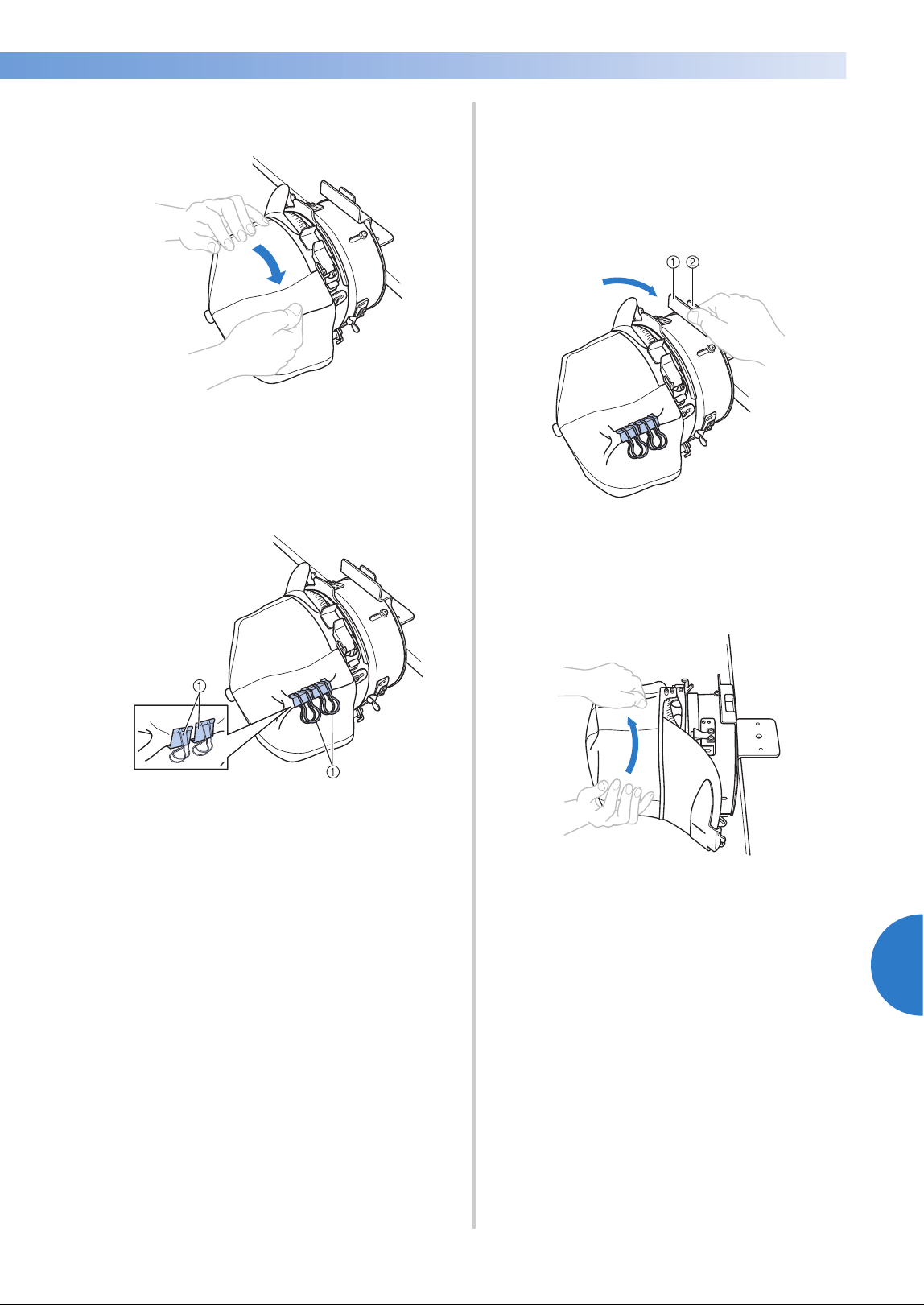
Using the Optional Cap Frame 271
7
——
——————————————————————————————————————————————————
—
————————————————————————————————
f
Pull the ends of the cap out from the center
to remove any slack.
g
Use the clips to secure the cap.
Attach the clips with their handles folded
inward. If the handles are pointed outward,
they may be hit by the machine’s presser
foot.
1 Clips
h
While pulling the lever toward you that is
located behind the handle on the right side
of the mounting jig, rotate the cap frame to
the right.
After the cap frame has been rotated 180°
and the brim points to the right, release the
lever to lock the cap frame in place.
1 Handle
2 Lever
i
Pull the ends of the cap out from the center
to remove any slack in the same way as the
other side.
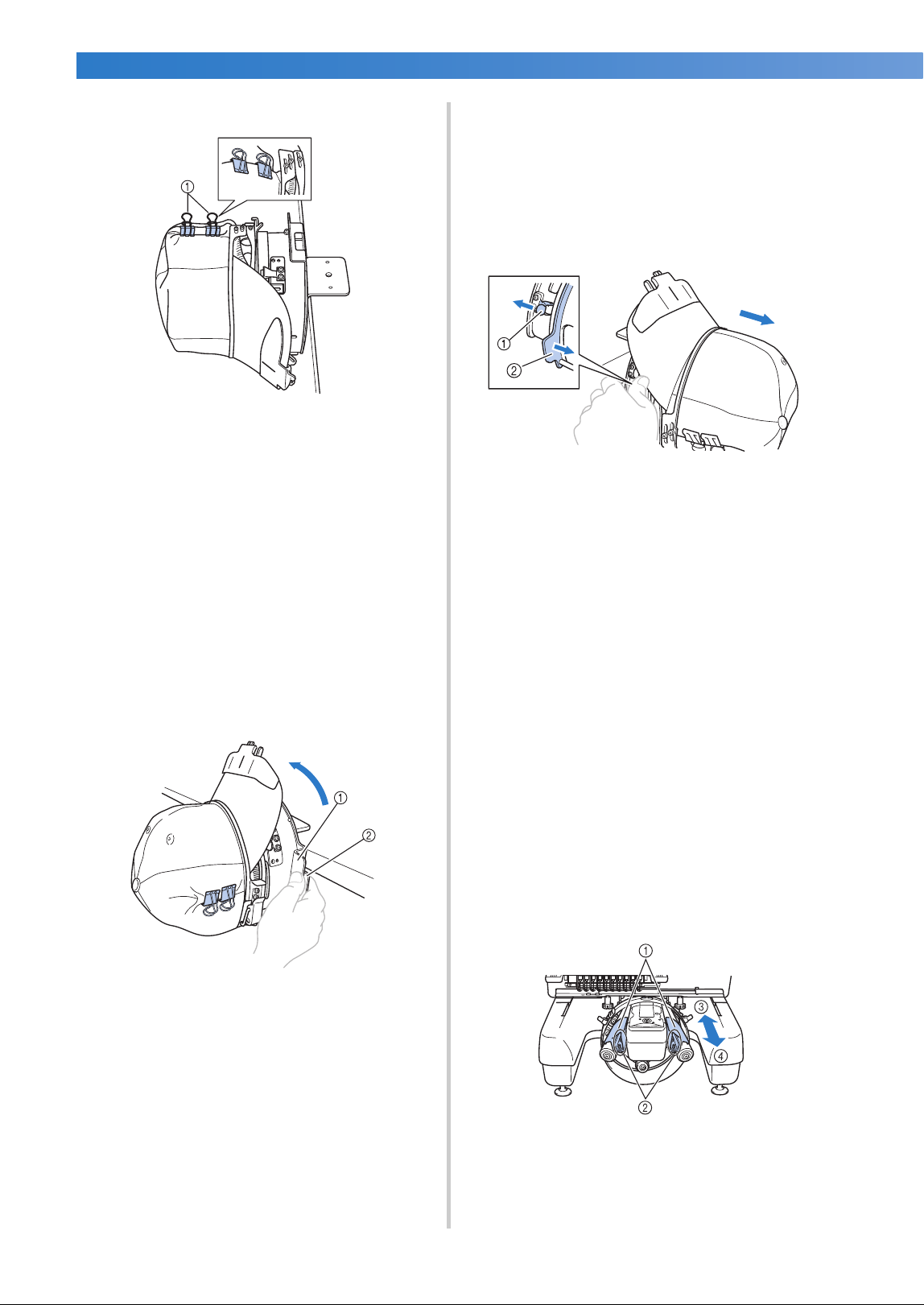
APPENDIX ——————————————————————————————————————————————————————————————————————————
——
272
j
Use the clips to secure the cap.
1 Clips
• Attach the clips with their handles folded
inward. If the handles are pointed outward,
they may be hit by the machine’s presser
foot.
X This completes the positioning of the cap
in the cap frame.
k
Return the cap frame to its original position.
• While pulling the lever behind the handle
on the right side of the mounting jig toward
you, rotate the cap frame to the left. After
the cap frame has been rotated 90° and the
brim points up, release the lever to lock the
cap frame in place.
1 Handle
2 Lever
l
Remove the cap frame from the mounting
jig.
To remove the cap frame from the mounting
jig, place both thumbs on the holders on the
mounting jig, grasping the handles on both
the right and left side of the cap frame, gently
pulling toward you. As shown in the
illustration.
1 Holder
2 Handle
■ Attaching the cap frame to the embroidery
machine
The cap frame driver is required in order to
attach the cap frame to the embroidery machine.
Before attaching the cap frame to the machine,
attach the cap frame driver to the carriage.
(Refer to “Installing the cap frame driver” on
page 260.)
Before attaching the cap frame, adjust the
position of the cap supports to fit the type (size)
of cap to be embroidered. To adjust move the
cap supports to the front or back depending on
the cap size.
1
Loosen the four screws on the cap supports
two or three turns, and then move the cap
supports to a position where tension in the
cap will be maintained.
• Do not remove any of the screws,
otherwise they may be lost. Only turn the
screws to slightly loosen them.
1 Cap supports
2 Screws
3 Low profile (shorter caps)
4 Standard (taller caps)
• Be sure to adjust both the right and left cap
supports to the same position.
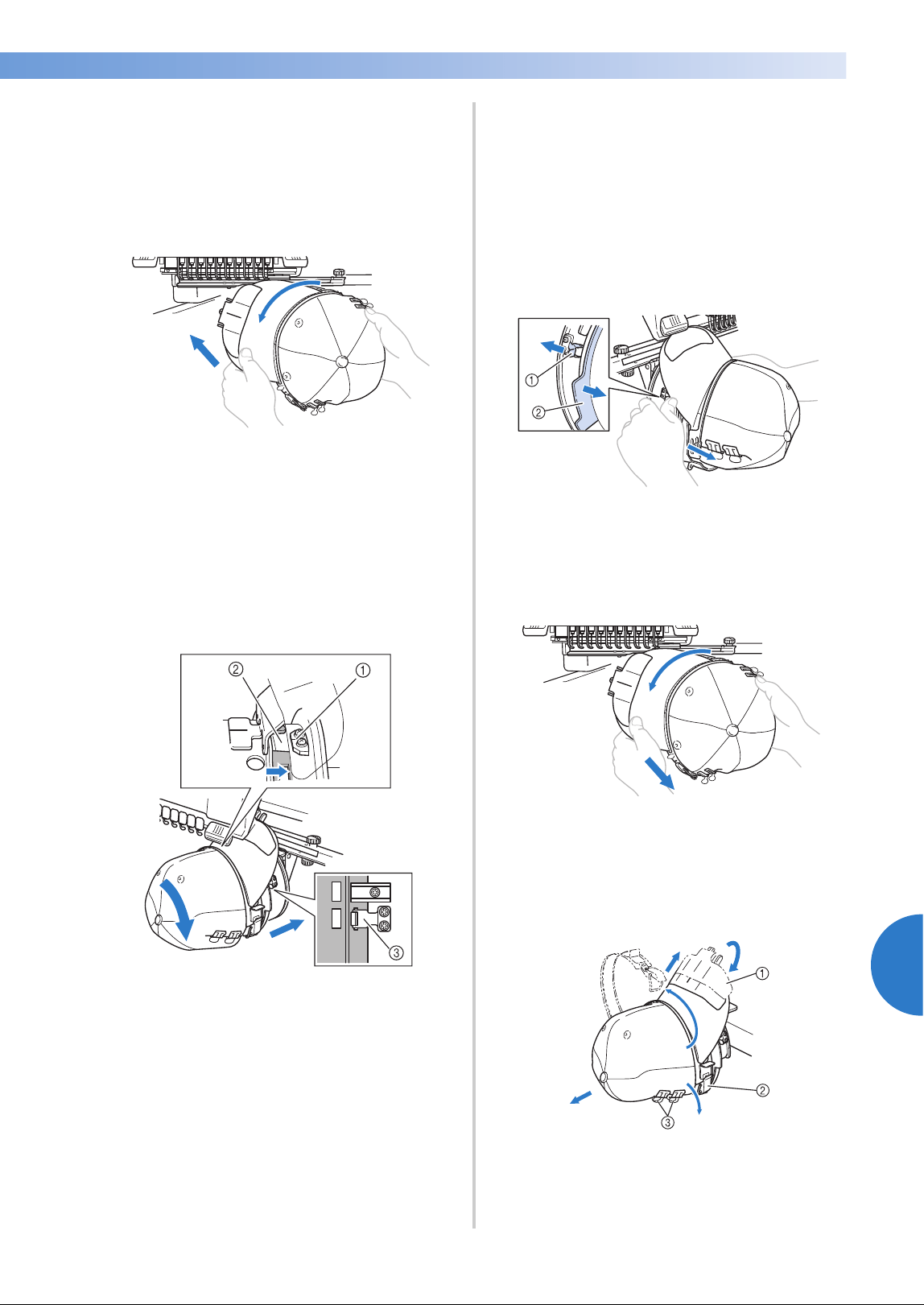
Using the Optional Cap Frame 273
7
——
——————————————————————————————————————————————————
—
————————————————————————————————
2
Attach the cap frame to the cap frame
driver.
Turn the cap frame to the left so the brim of
the cap does not hit the embroidery machine.
Do not insert the cap frame with the brim
pointing to the right, otherwise parts of the
cap frame may hit the embroidery machine.
• Be careful that the cap frame does not hit
any nearby parts, such as the presser foot.
After turning the cap frame so that the front of
the cap faces upward, align the ring of the
cap frame with the ring of the cap frame
driver. While sliding the cap frame to the left
and right, align the notch in the cap frame
with the guiding plate on the cap frame
driver, and then snap the frame into place.
1 Guiding plate on cap frame driver
2 Notch on cap frame
3 Holder
X The cap frame is secured with holders.
Make sure that all of the holders on the
driver are firmly secured in the frame
holes. This completes the installation of
the cap frame, and the cap is ready to be
embroidered.
■ Removing the cap frame
After embroidering is finished, remove the cap
frame, and then remove the cap.
1
Remove the cap frame from the cap frame
driver.
Place both thumbs on the cap frame holders,
grasping the handles on both the right and
left side, gently pulling toward you. As shown
in the illustration.
1 Holder
2 Handle
Before removing the cap frame, turn it to the
left so that the brim of the cap does not hit the
embroidery machine.
• Be careful that the cap frame does not hit
any nearby parts, such as the presser foot.
2
After removing the brim holder, unlock the
snap lock of the clamping frame, remove the
clips, and then remove the cap.
1 Brim holder
2 Snap lock
3 Clips
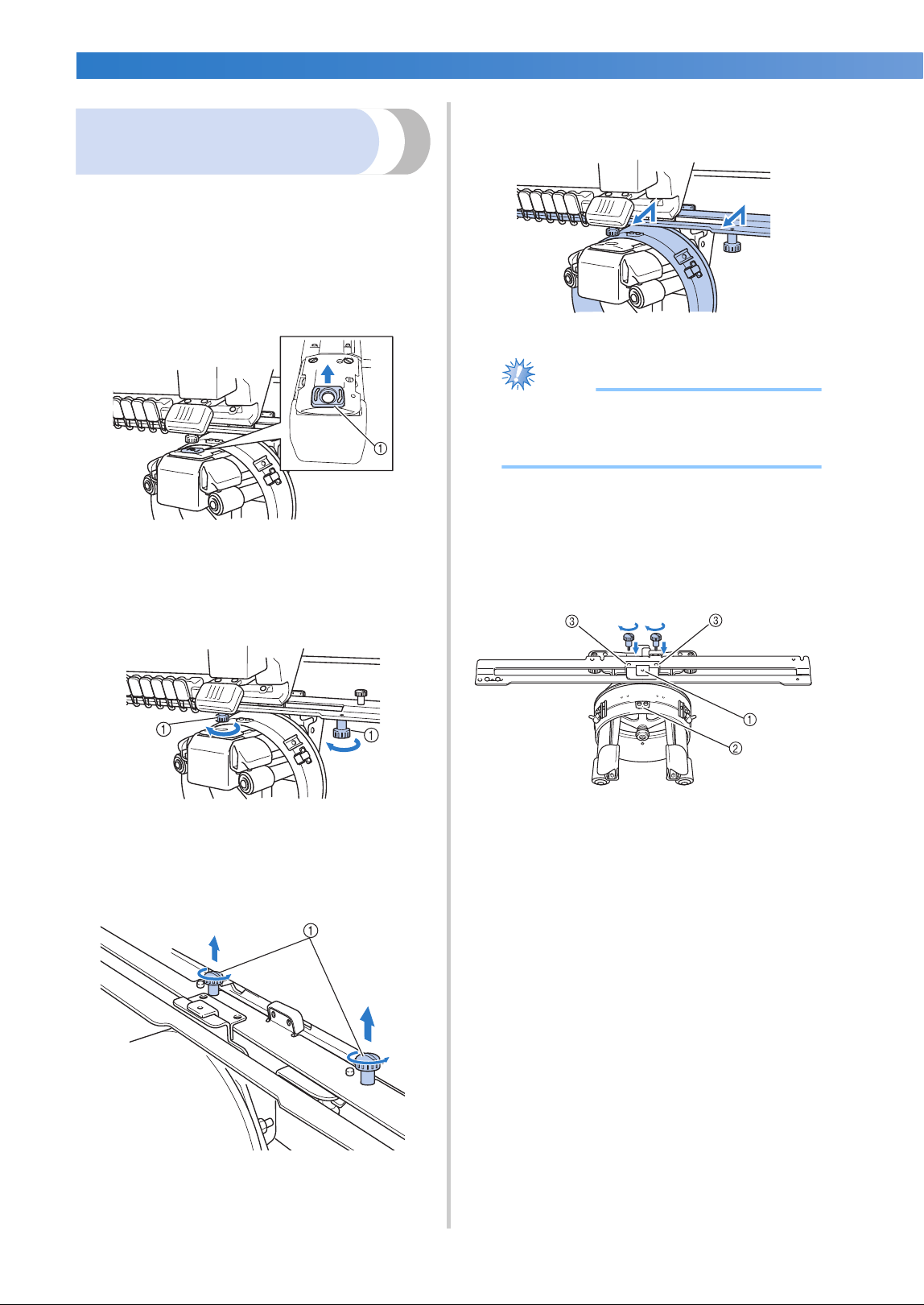
APPENDIX ——————————————————————————————————————————————————————————————————————————
——
274
Installing the embroidery
frame holder
After embroidering using the cap embroidery frame
is finished, remove the needle plate spacer and cap
frame driver, and then re-attach the embroidery
frame holder.
1
Remove the needle plate spacer.
1 Needle plate spacer
2
Loosen the two lower thumb screws.
1 Thumb screws
3
Remove the two upper thumb screws
1 Thumb screws
4
Remove the cap frame driver.
Note
● Be careful that the cap frame driver does
not hit any nearby parts, such as the
presser foot.
5
With the hole on the sweat guard holder
aligned with the centerline of the guiding
plate, insert the two thumb screws removed
in step
3 into the holes at the top, and then
tighten the thumb screws.
1 Hole on the sweat guard holder
2 Centerline of guiding plate
3 Holes on the top
• Insert the thumb screws into the holes
where the cap frame driver that was
originally installed (holes that the thumb
screws were removed from in step
2 on
page 261).
X The movable section of the cap frame
driver is secured.
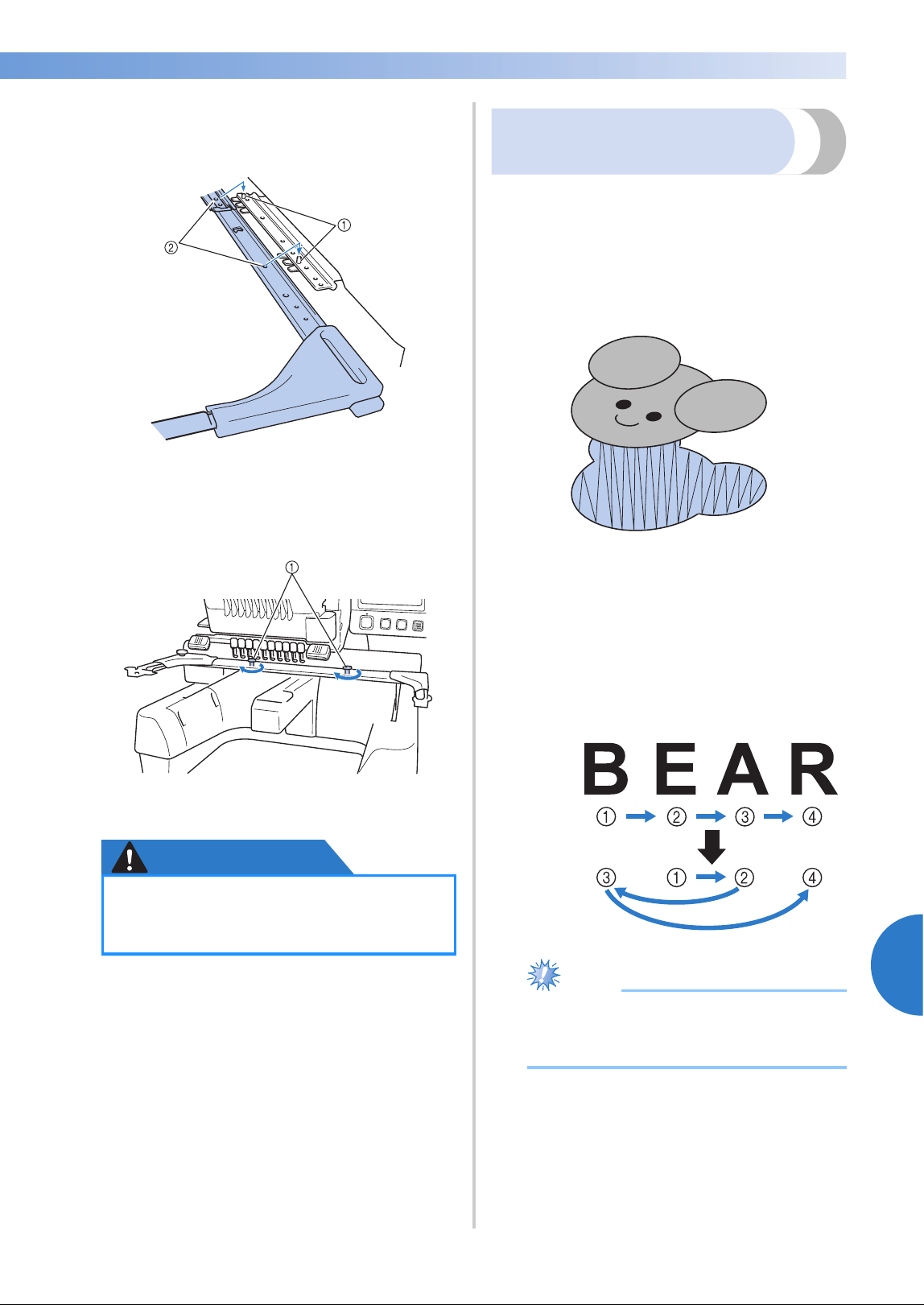
Using the Optional Cap Frame 275
7
——
——————————————————————————————————————————————————
—
————————————————————————————————
6
Align the holes on the embroidery frame holder
with the pins in the frame-mounting plate of the
carriage.
1 Pins in the frame-mounting plate
2 Holes on the embroidery frame holder
7
Secure the embroidery frame holder with the
two thumb screws.
1 Use the thumb screws included with the
machine (thumb screws removed in step
1 on
page 261).
CAUTION
Additional digitizing
information
When creating a pattern for embroidering with a
cap frame, pay attention to following points in
order to avoid registration problems (misalignment
of gaps in the pattern).
1
Sew underlay stitches.
2
Start the embroidery pattern from the
center, and sew toward the ends.
With the machine, the order in which
patterns are selected when they are
combined is the order in which they will be
sewn. For the following example, select the
patterns in the order “E”
→“A”→“B”→“R”
to make the combined pattern “BEAR”.
Note
● Do NOT sew from one end to the other,
otherwise wrinkling or shrinking may
occur.
● Using the disc-shaped screwdriver
included, firmly tighten the thumb
screws.
Incorrect
sewing
order
Correct
sewing
order
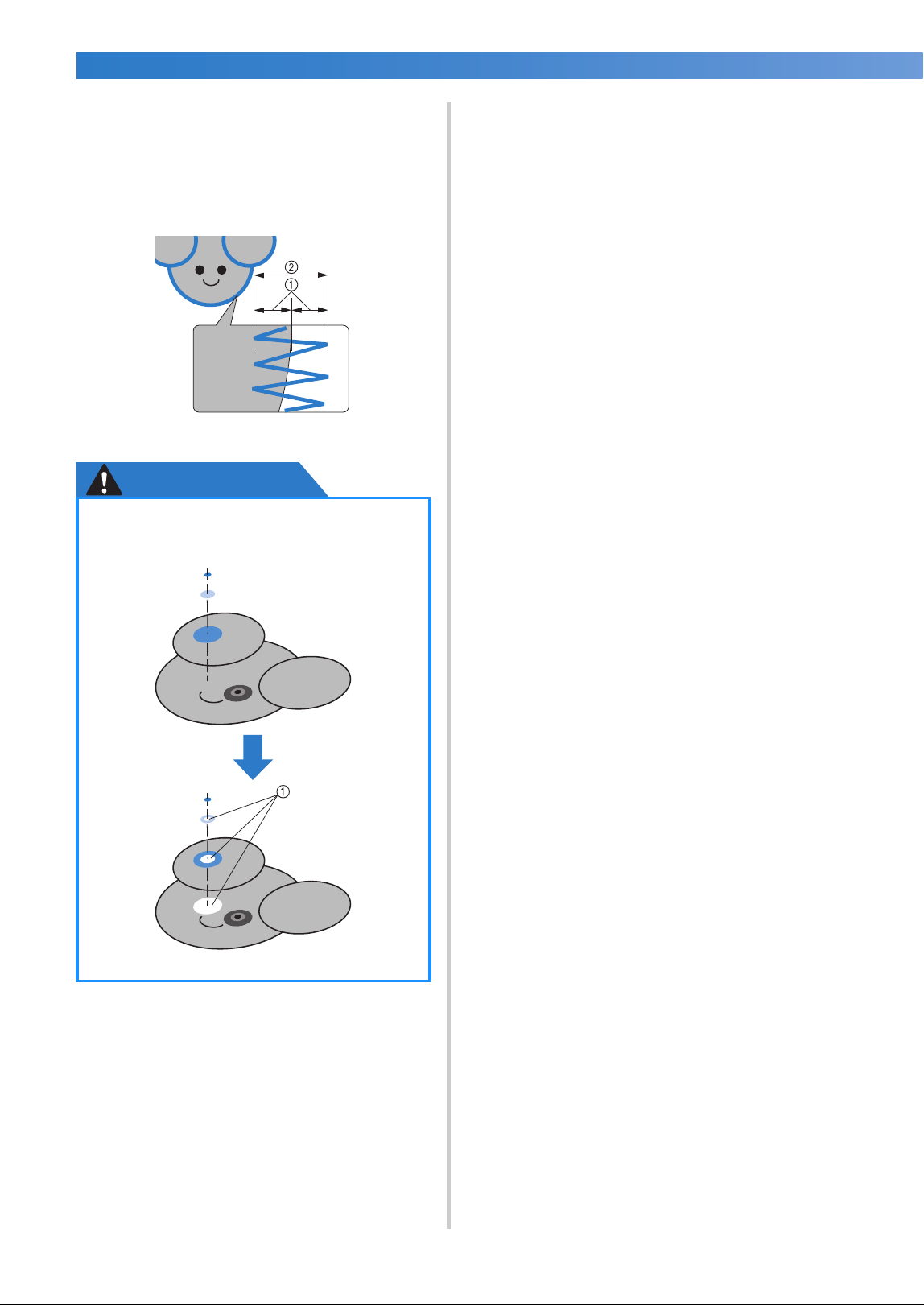
APPENDIX ——————————————————————————————————————————————————————————————————————————
——
276
3
When sewing outlines of patterns, make sure
that the stitch width of the satin stitching is
at least 2 mm, and that the stitching over-
laps the fabric by at least 1 mm. Also, make
sure that there are no jumps of long stitches
in the outlining on each region or letter.
1 At least 1 mm
2 At least 2 mm
CAUTION
● Don’t sew more than four overlapping
layers.
1 Specify that overlapping areas not be sewn.
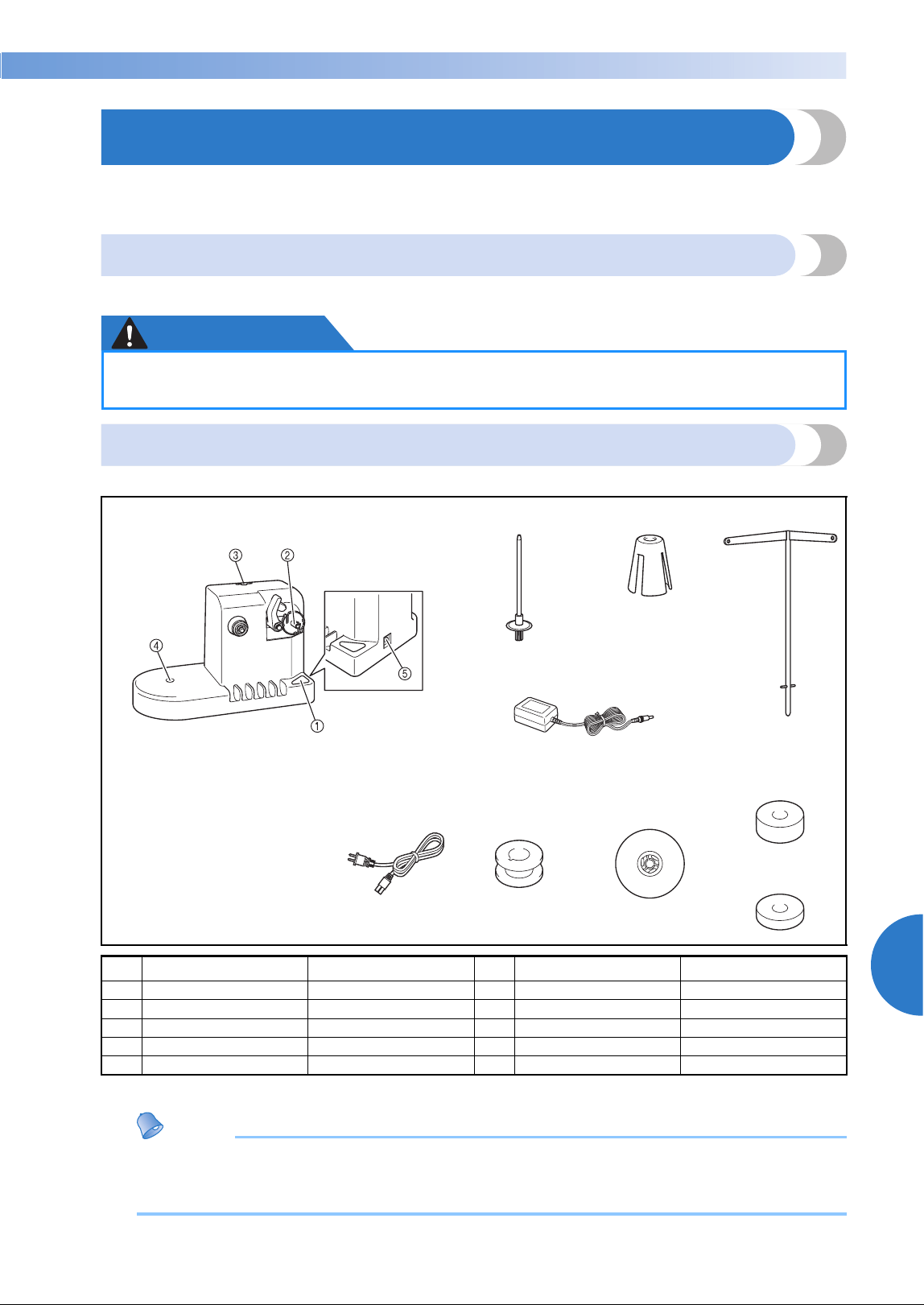
Using the Optional Bobbin Winder 277
7
——
——————————————————————————————————————————————————
—
————————————————————————————————
Using the Optional Bobbin Winder
When winding the bobbin thread onto a metal bobbin, use the optional bobbin winder. The procedures for
using the optional bobbin winder are described below.
Precautions
For precautions concerning the power supply, refer to page 34.
CAUTION
Optional bobbin winder and its accessories
Check that the following bobbin winder and accessories are included.
* Visit your authorized Brother dealer.
Memo
● The part code of the bobbin winder set may differ depending on the country/area where the
machine was purchased.
● Depending on the model you purchased, the bobbin winder may be included with the machine.
● Be sure to place the bobbin winder on a level, stable surface.
● Only use the bobbins supplied with this bobbin winder.
1. 2. 3. 4.
5.
1 Main power switch
2 Bobbin winder shaft
3 Hole for thread guide
4 Hole for spool pin
5 DC input connector
6. 7. 8. 9.
10.
No. Name Part Code No. Name Part Code
1 Bobbin winder PRBW1 6 Power supply cord* –
2 Spool pin XC5949-051 7 Metal bobbin × 5 100376-053
3 Spool cushion XA0679-050 8 Spool cap 130012-054
4 Thread guide XC6644-151 9 Weight (L) XC5974-151
5 AC adapter* – 10 Weight (S) XC6631-051
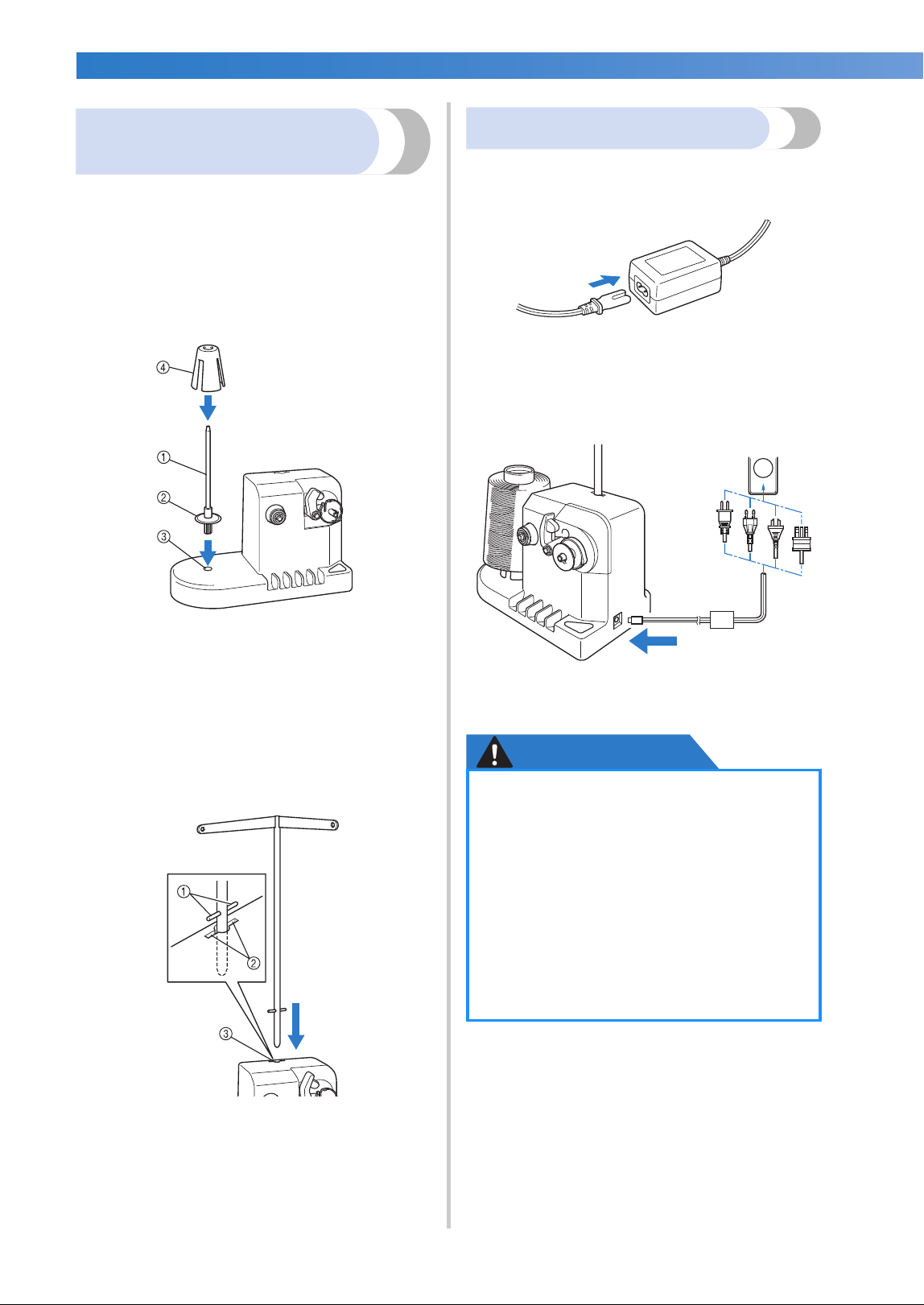
APPENDIX ——————————————————————————————————————————————————————————————————————————
——
278
Setting up the optional
bobbin winder
Attach the spool pin, spool cushion and thread
guide to the bobbin winder.
1
Insert the spool pin and the spool cushion.
Lower the holder, and then insert the spool
pin straight into the hole. And insert the spool
cushion.
1 Spool pin
2 Spool pin holder
3 Hole for spool pin
4 Spool cushion
2
Insert the thread guide.
Insert the thread guide straight into the hole
with the pins on the thread guide aligned
with the notches on the sides of the hole.
1 Pins on thread guide
2 Notches on hole for thread guide
3 Hole for thread guide
• Firmly insert the thread guide as far as
possible and make sure that it is secure.
Connecting the AC adapter
1
Insert the plug of the power supply cord into
the AC adapter.
2
Plug the cord on the AC adapter into the DC
input connector of the bobbin winder, and
then insert the plug of the power supply cord
into a household electrical outlet.
• Be sure to firmly insert the plug on the AC
adapter into the DC input connector of the
bobbin winder.
CAUTION
● Be sure to use the included power cord.
Using any other power cord may result
in damage.
● Be sure to use the included AC adapter.
Using any other AC adapter may result
in damage.
● Before connecting or disconnecting the
AC adapter, be sure that the unit is not
operating.
● After using the bobbin winder,
disconnect it from the electrical outlet.
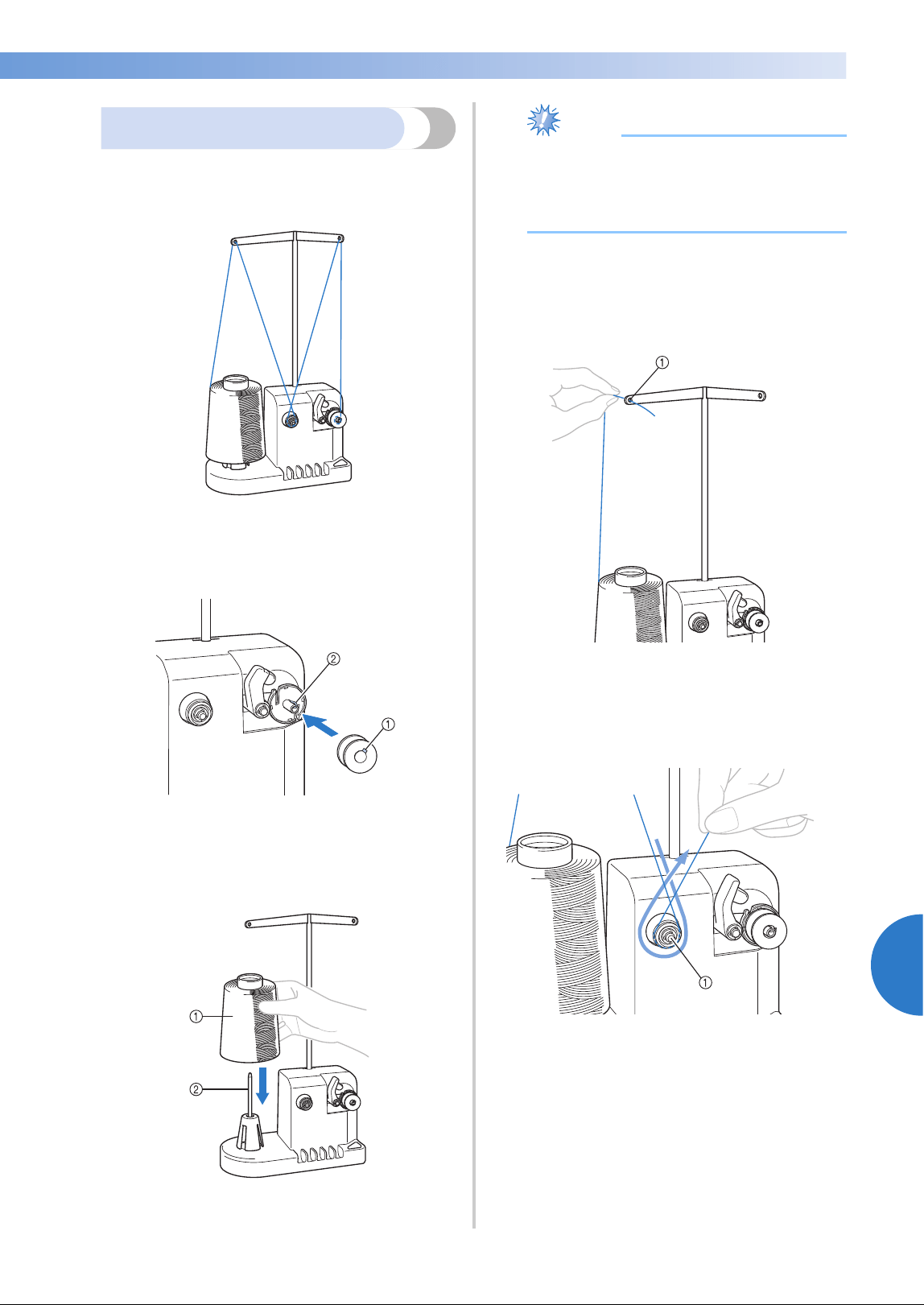
Using the Optional Bobbin Winder 279
7
——
——————————————————————————————————————————————————
—
————————————————————————————————
Winding the bobbin
Prepare the bobbin and the spool of bobbin thread.
Use cotton or spun polyester bobbin thread (from
74 dtex/2 to 100 dtex/2).
1
Align the groove in the bobbin with the
spring on the bobbin winder shaft, and set
the bobbin on the shaft.
1 Groove in the bobbin
2 Spring on the shaft
2
Set the thread spool on the spool pin.
1 Thread spool
2 Spool pin
Note
● When using a small spool, remove the
spool cushion and set the spool directly
onto the spool pin. Also use the included
spool cap to keep the small spool stable.
3
Pass the thread through the hole in the left of
the thread guide toward the front of the
winder.
1 Hole in the thread guide
4
Pass the thread around the tension disc as
shown in the illustration. Make sure that the
thread is correctly fed into the tension disc.
1 Tension disc
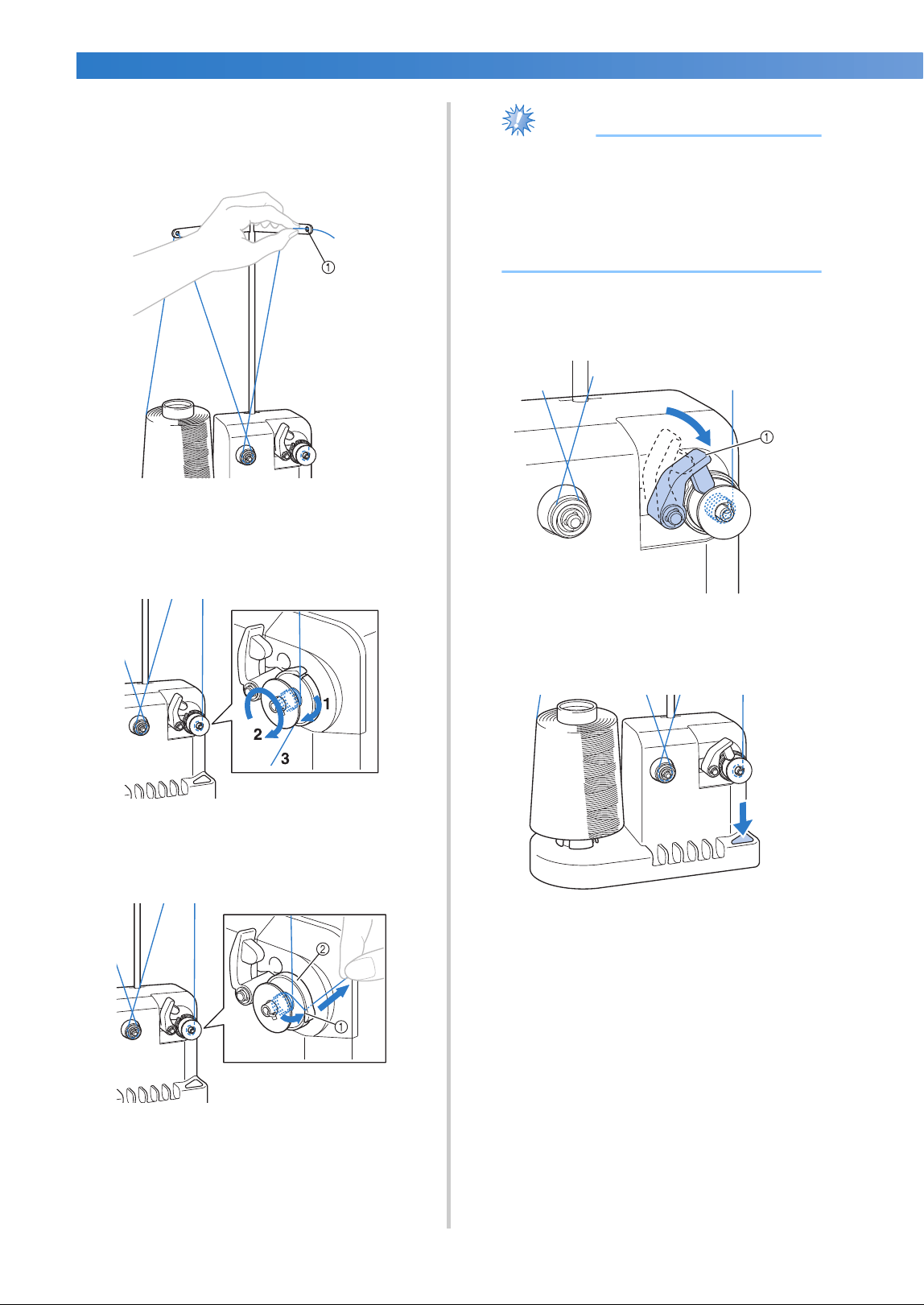
APPENDIX ——————————————————————————————————————————————————————————————————————————
——
280
5
Pass the thread through the hole in the right
of the thread guide toward the back of the
machine.
1 Hole in the thread guide
6
Wind the thread clockwise around the
bobbin 4 or 5 times, as shown in the
illustration.
7
Pass the end of the thread through the guide
slit in the bobbin winder seat, and pull the
thread. The cutter will cut the thread.
1 Guide slit
2 Bobbin winder seat
Note
● Be sure to follow the procedure described.
If the bobbin is wound without the thread
being cut with the cutter, when the bobbin
thread runs low, the thread may become
tangled around the bobbin and cause the
needle to break.
8
Slide the bobbin holder, until it clicks into
place.
1 Bobbin holder
9
Press the main power switch to start winding
the bobbin.
X Start winding the bobbin.
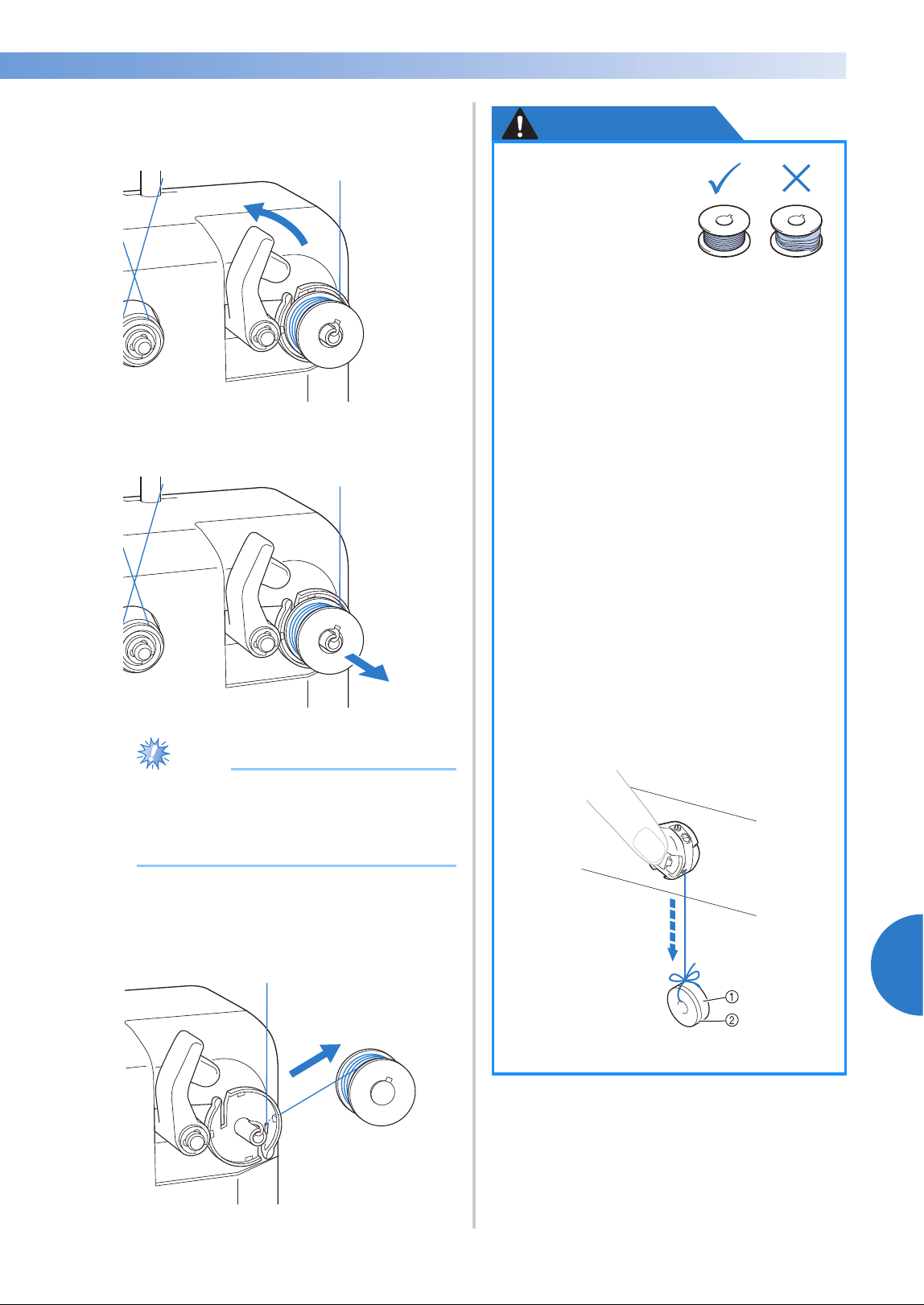
Using the Optional Bobbin Winder 281
7
——
——————————————————————————————————————————————————
—
————————————————————————————————
0
The bobbin will stop rotating automatically
when it is done winding, and the bobbin
holder will return to its original position.
a
Remove the bobbin.
Note
● When removing the bobbin, do not pull
on the bobbin winder seat. Doing so could
loosen or remove the bobbin winder seat,
resulting in damage to the bobbin winder.
b
Pull the thread through the guide slit in the
bobbin winder seat to cut the thread with
the cutter.
CAUTION
■ If bobbin winding is stopped before it is
finished:
The bobbin winder stops automatically if the
thread does not feed, for example, if it becomes
tangled on the spool pin. If this occurs, correctly
thread the bobbin winder, and then wind the
bobbin correctly.
● Check that the
bobbin thread has
been wound
correctly,
otherwise the
needle may break
or the thread tension will be incorrect.
● Be sure to clean the bobbin case each
time that the bobbin is changed. Thread
wax and dust easily collect around the
hole in the tension-adjusting spring on
the bobbin case, resulting in an
incorrect thread tension. For details,
refer to “Cleaning the bobbin case” on
page 284.
● Be sure to check the tension of the
bobbin thread each time that the
bobbin is changed.
● Depending on the bobbin thread type,
the tension of the bobbin thread may
differ. Be sure to check the tension of
the bobbin thread and adjust the
tension if necessary.
For a metal bobbin, use both weights,
large (L) and small (S).
For detailed instructions on how to
adjust the bobbin tension, refer to
page 122.
1 Weight (L) (Part Code: XC5974-151)
2 Weight (S) (Part Code: XC6631-051)
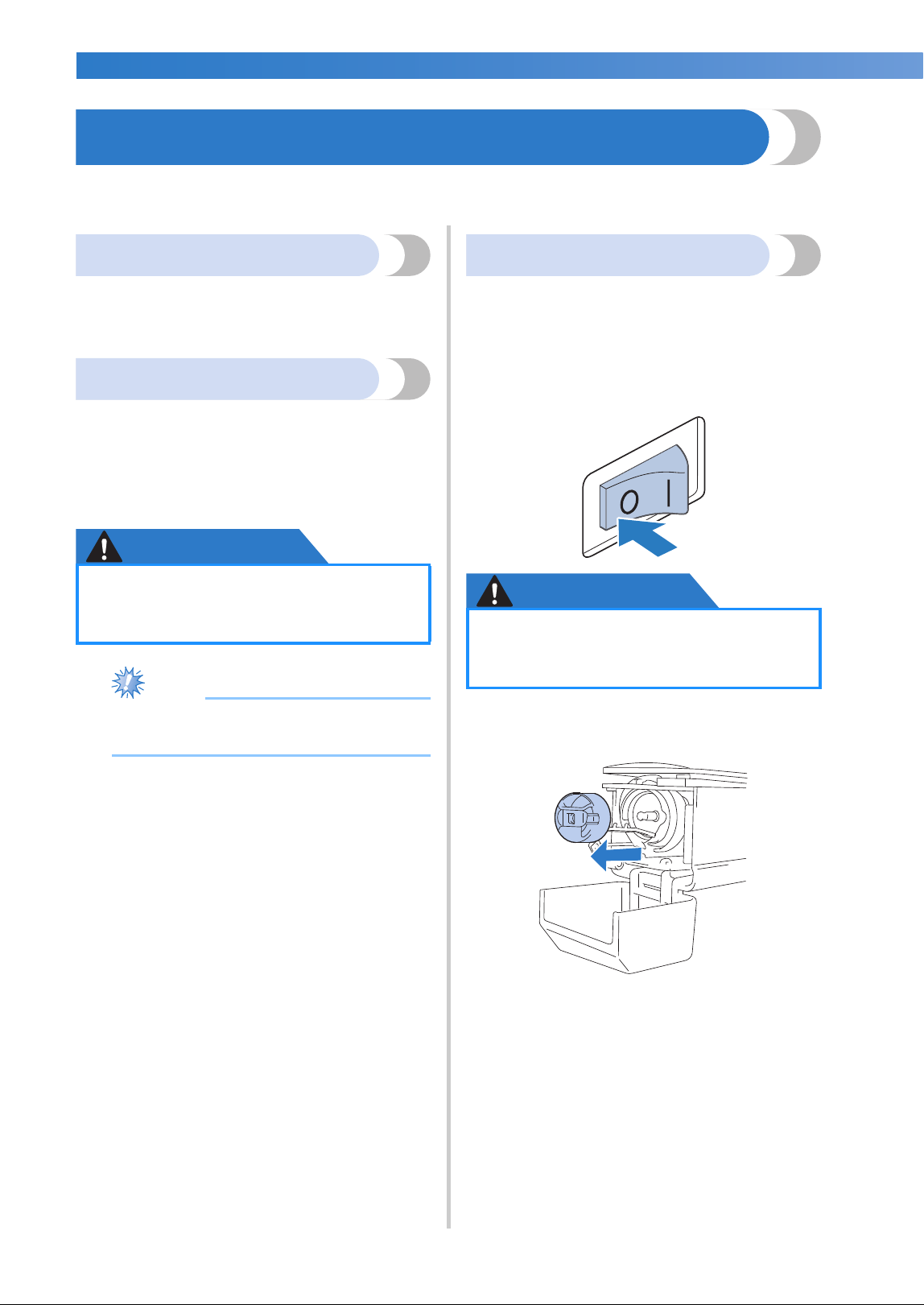
APPENDIX ——————————————————————————————————————————————————————————————————————————
——
282
Maintenance
Simple embroidery machine maintenance operations are described below. Always keep the machine clean,
otherwise malfunctions may occur.
Cleaning the LCD
If the surface of the LCD is dirty, lightly wipe it with
a soft dry cloth. Do not use organic cleansers or
detergents.
Cleaning the machine surface
If the surface of the machine is slightly dirty, wipe it
with a soft dry cloth. If the machine is heavily dirty,
lightly soak a cloth in neutral detergent, squeeze it
out firmly, and then wipe the surface of the
machine. After cleaning it once with a wet cloth,
wipe it again with a dry cloth.
CAUTION
Note
● Do not use chemical products, such as
benzene or thinner.
Cleaning the hook
Periodically remove lint and dust for better
performance from Hook race area.
Use the included cleaning brush.
1
Turn off the embroidery machine.
CAUTION
2
Open the hook cover, and remove the
bobbin case. (Refer to page 38.)
●
Unplug the power supply cord before
cleaning the machine, otherwise
injuries or an electric shock may occur.
● Unplug the power supply cord before
cleaning the machine, otherwise
injuries or an electric shock may occur.
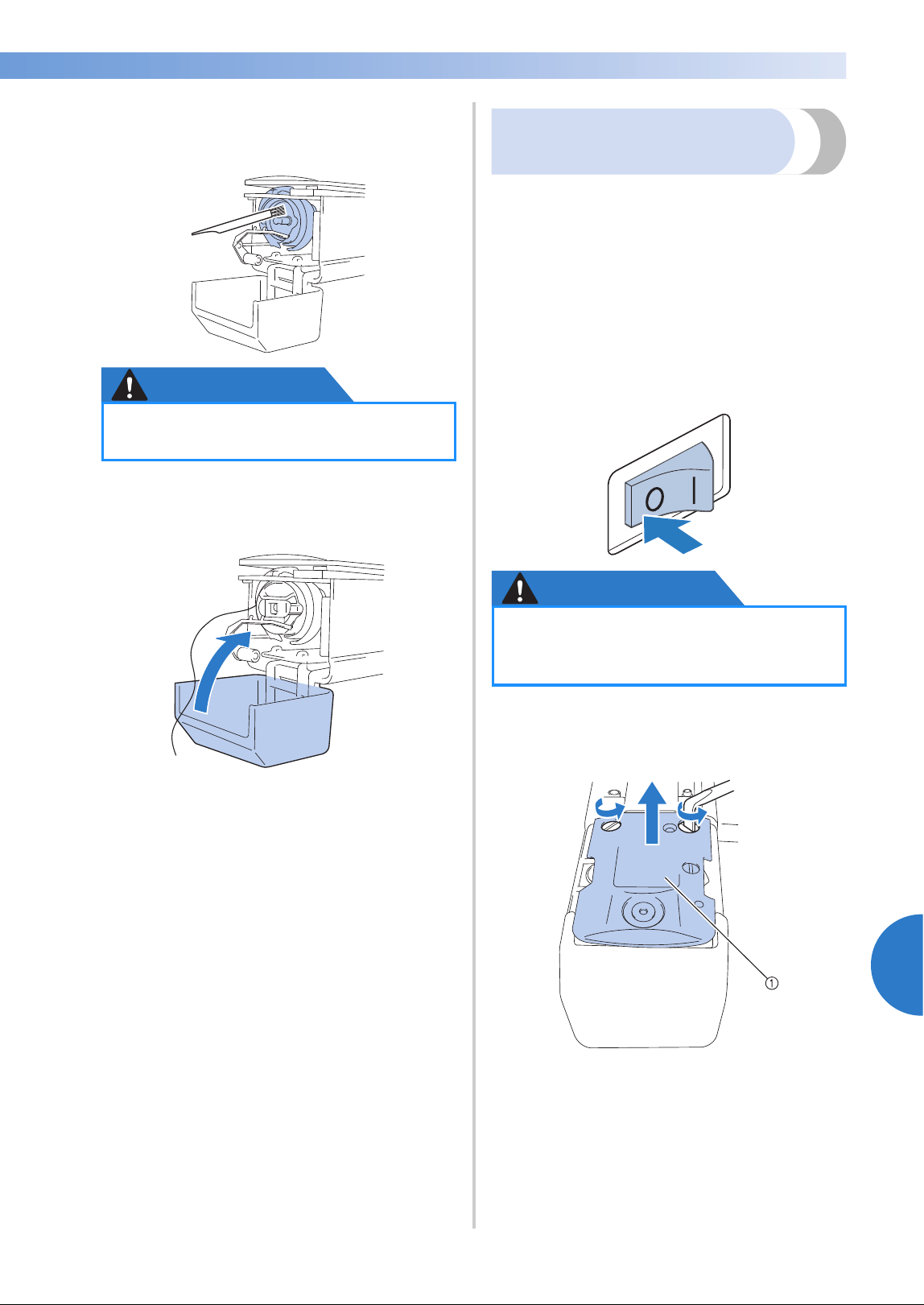
Maintenance 283
7
——
——————————————————————————————————————————————————
—
————————————————————————————————
3
Use the included cleaning brush to remove
any lint and dust from the hook and its
surrounding area.
CAUTION
4
After cleaning is finished, insert the bobbin
case into the hook, and then close the hook
cover. (Refer to page 38, 39.)
Cleaning around the needle
plate
If lint and dust collect around the moving knife, the
fixed knife or the thread retaining plate, the thread
may not be cut correctly and the error message
may appear, or various parts of the machine may
be damaged. Make sure to clean around the needle
plate once a month.
Use on offset screwdriver and the included
cleaning brush.
1
Turn off the embroidery machine.
CAUTION
2
Remove the needle plate.
With an offset screwdriver, loosen the
screws, and then remove the needle plate.
1 Needle plate
● If the hook is scratched or damaged,
consult your Brother dealer.
● Unplug the power supply cord before
cleaning the machine, otherwise
injuries or an electric shock may occur.
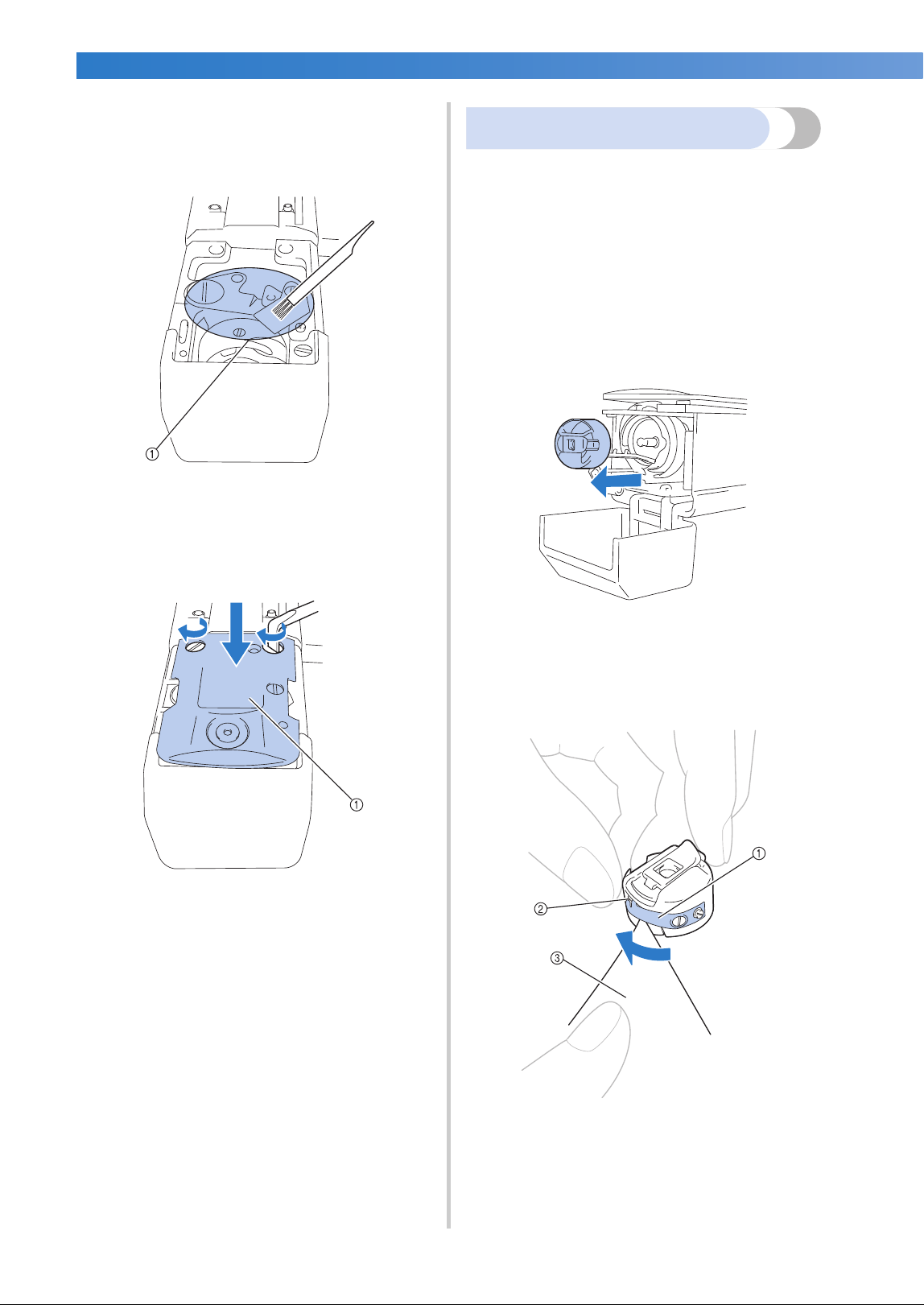
APPENDIX ——————————————————————————————————————————————————————————————————————————
——
284
3
Use the included cleaning brush to remove
any lint and dust from the moving knife, the
fixed knife, the thread retaining plate, and
their surrounding areas.
1 Remove all lint in this area
4
After cleaning is finished, attach the needle
plate in the opposite way that it was
removed in step
2.
1 Needle plate
Cleaning the bobbin case
Thread wax and dust easily collect around the hole
in the tension-adjusting spring on the bobbin case,
resulting in an incorrect thread tension. Therefore,
it should be cleaned each time when the bobbin is
changed.
Use a piece of paper with the thickness of a
business card.
1
Open the hook cover, remove the bobbin
case, and then remove the bobbin. (Refer to
page 38.)
2
Slide the paper under the tension-adjusting
spring to remove any dust.
Use a corner of the paper to remove any dust
from around the hole.
1 Tension-adjusting spring
2 Hole
3 Paper
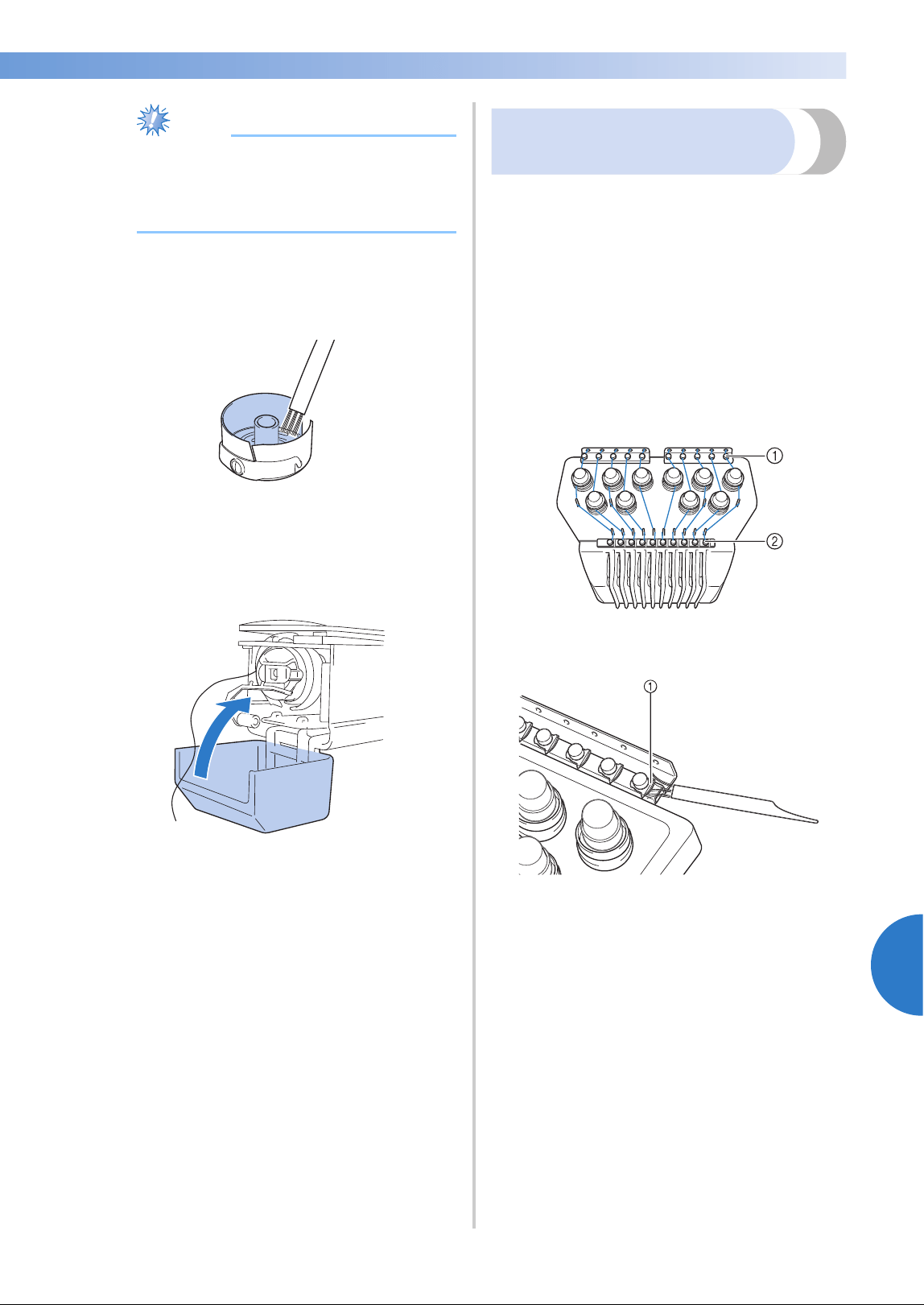
Maintenance 285
7
——
——————————————————————————————————————————————————
—
————————————————————————————————
Note
● Do not bend the tension-adjusting spring.
In addition, do not use anything other than
thick paper or paper of the specified
thickness to clean the bobbin case.
3
Use the included cleaning brush to remove
any lint and dust from inside the bobbin
case.
4
After cleaning is finished, insert the bobbin
into the bobbin case and the bobbin case
into the hook, and then close the hook
cover. (Refer to page 38, 39.)
Cleaning the thread paths
of the upper threads
If dust or lint has accumulated in the thread guides
or tension unit in the paths of the upper threads, the
thread may break while embroidery is being sewn.
Periodically clean the thread paths.
■ Cleaning the thread guides
1
Use the included cleaning brush to remove
any lint and dust from below the thread
guide plates.
Clean the thread guide plates for both the
upper thread guides and the middle thread
guides.
1 Upper thread guide
2 Middle thread guide
1 Thread guide plate
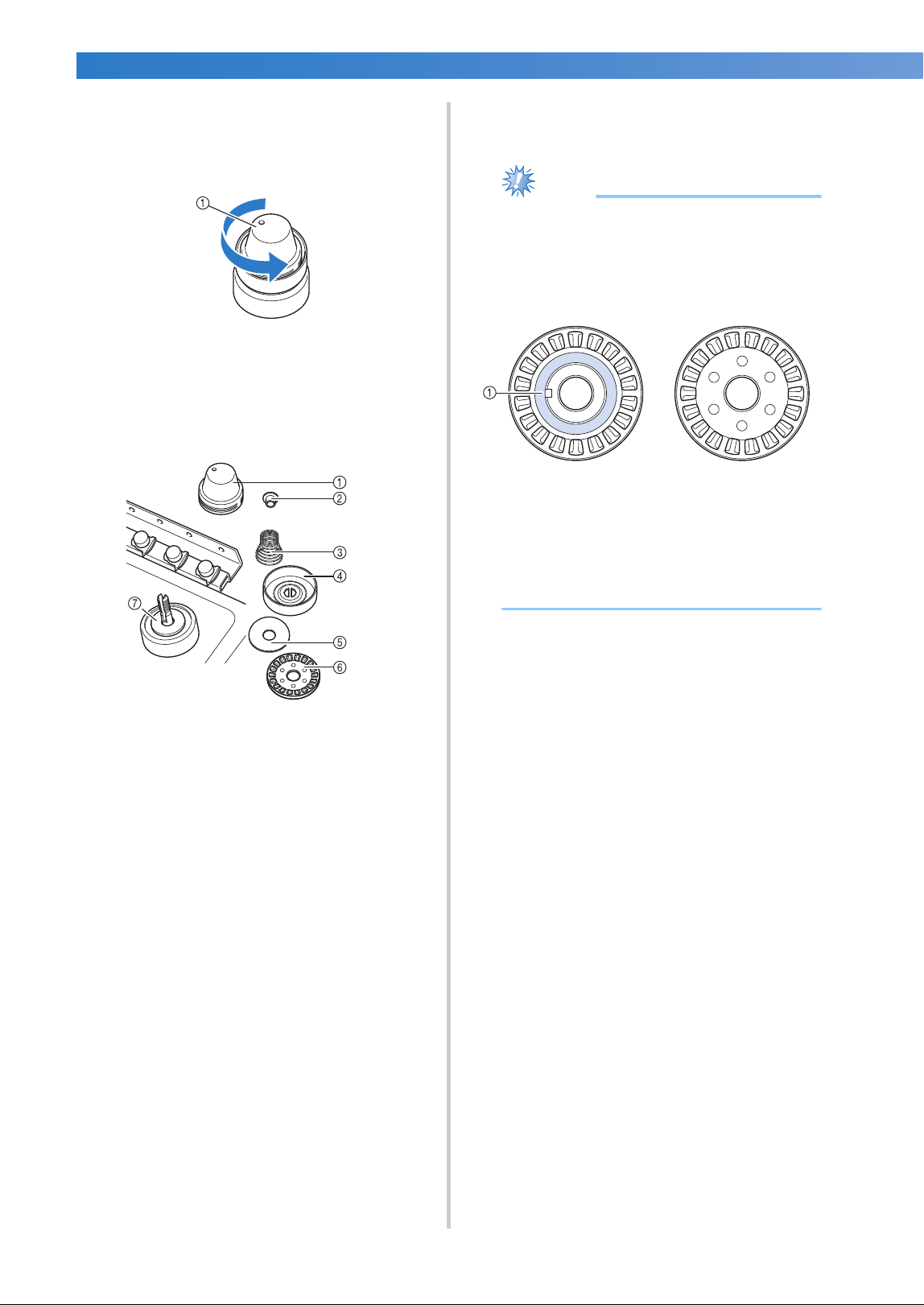
APPENDIX ——————————————————————————————————————————————————————————————————————————
——
286
■ Disassembling and cleaning the tension unit
1
To remove tension dial, turn dial
counterclockwise as shown on illustration.
1 Tension dial
2
Using the included cleaning brush, remove
any lint and dust from the two pieces of felt
washers (top, bottom) inside the tension
dial.
1 Tension dial
2 Nylon shoulder washer
3 Tension spring
4 Tension base spring
5 Felt washer (top)
6 Tension disc
7 Felt washer (bottom)
3
Reassembling the tension unit.
Note
● When reassembling the tension unit, be
sure not to install the tension disc upside-
down.
There is a magnet on the bottom.
1 Magnet
● When reassembling the tension unit, be
careful not to lose any parts or install any
parts in an incorrect order. The machine
may not operate correctly if the tension
units are incorrectly reassembled.
Bottom Top
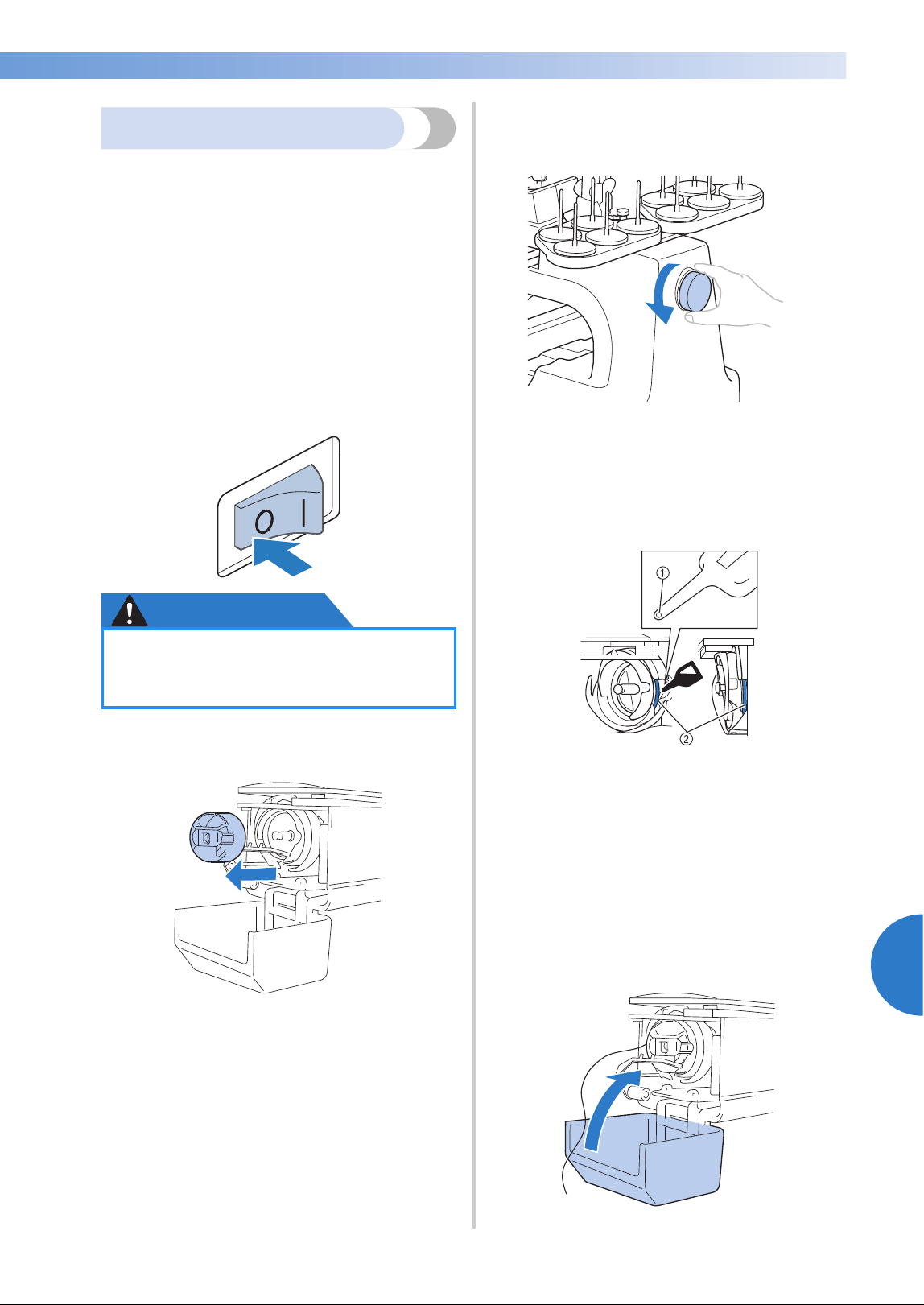
Maintenance 287
7
——
——————————————————————————————————————————————————
—
————————————————————————————————
Oiling the machine
In order to extend the life of the embroidery
machine’s parts and keep the machine operating
correctly, be sure to oil the machine before the first
time that it is used. If too little oil was applied to the
race, an error message may appear.
Afterward, put a drop of oil onto the hook once a
day before use, and put a drop of oil to the lower
needle bar felt washer every 40 to 50 hours of
machine use.
■ Oiling the race
1
Turn off the embroidery machine.
CAUTION
2
Open the hook cover, and remove the
bobbin case. (Refer to page 38, 39.)
3
Rotate the handwheel (about 50 degrees) to
move the race of the hook to a position
where it can easily be oiled.
1 Handwheel
• Be sure to rotate the handwheel toward the
LCD panel (counterclockwise).
4
Put a drop of oil onto the hook.
1 Punch a small hole in oil bottle.
2 Apply oil here.
• Use a pointed object to punch a small hole
in the tip of the included oiler before using
it.
5
After oiling, insert the bobbin case into the
hook, and then close the hook cover. (Refer
to page 38.)
●
Unplug the power supply cord before
cleaning the machine, otherwise
injuries or an electric shock may occur.
Front angle view Side view
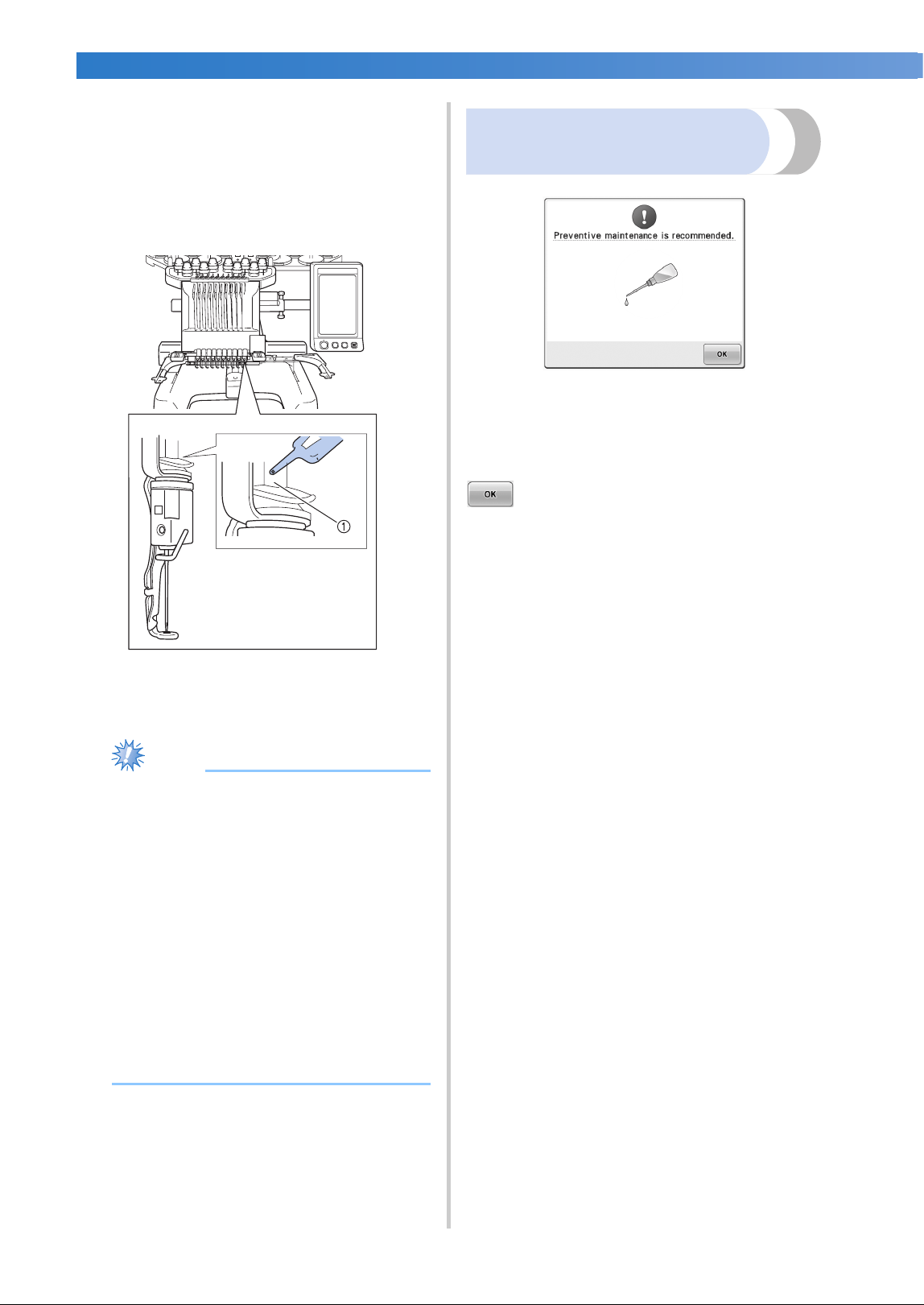
APPENDIX ——————————————————————————————————————————————————————————————————————————
——
288
■ Oiling the needle bars
From embroidering screen, select one needle
bar at a time. (Refer to page 63 for needle bar
screen). Turn the handwheel counterclockwise
bringing the needle bar to its lowest position.
Put one drop of oil, as high as possible on the
needle bar above the felt washer.
1 Apply oil here.
• Too much oil may drip onto sewing
project.
Note
● Put a drop of oil onto the hook once a day
before use.
● Apply one drop of oil on the lower needle
bar above the felt washer every 40 – 50
hours of sewing time.
● Apply only sewing machine oil. Use of
any other type of oil may result in damage
to the embroidery machine.
● Do not apply too much oil. Fabric or
thread may get contaminated. If too much
oil is applied, wipe off any excess with a
rag.
● If the thread breaks while sewing or the
operating noise of the hook becomes loud,
apply oil onto the race hook.
About the maintenance
message
Once this message appears, it is recommended to
take your machine to your nearest authorized
Brother dealer for a regular maintenance check.
Although this message will disappear and the
machine will continue to function once you touch
, the message will display several more
times until the appropriate maintenance is
performed.
Please take the time to arrange for the maintenance
that your machine requires once this message
appears. Such steps will help to ensure you receive
continued, uninterrupted hours of machine
operation for the future.
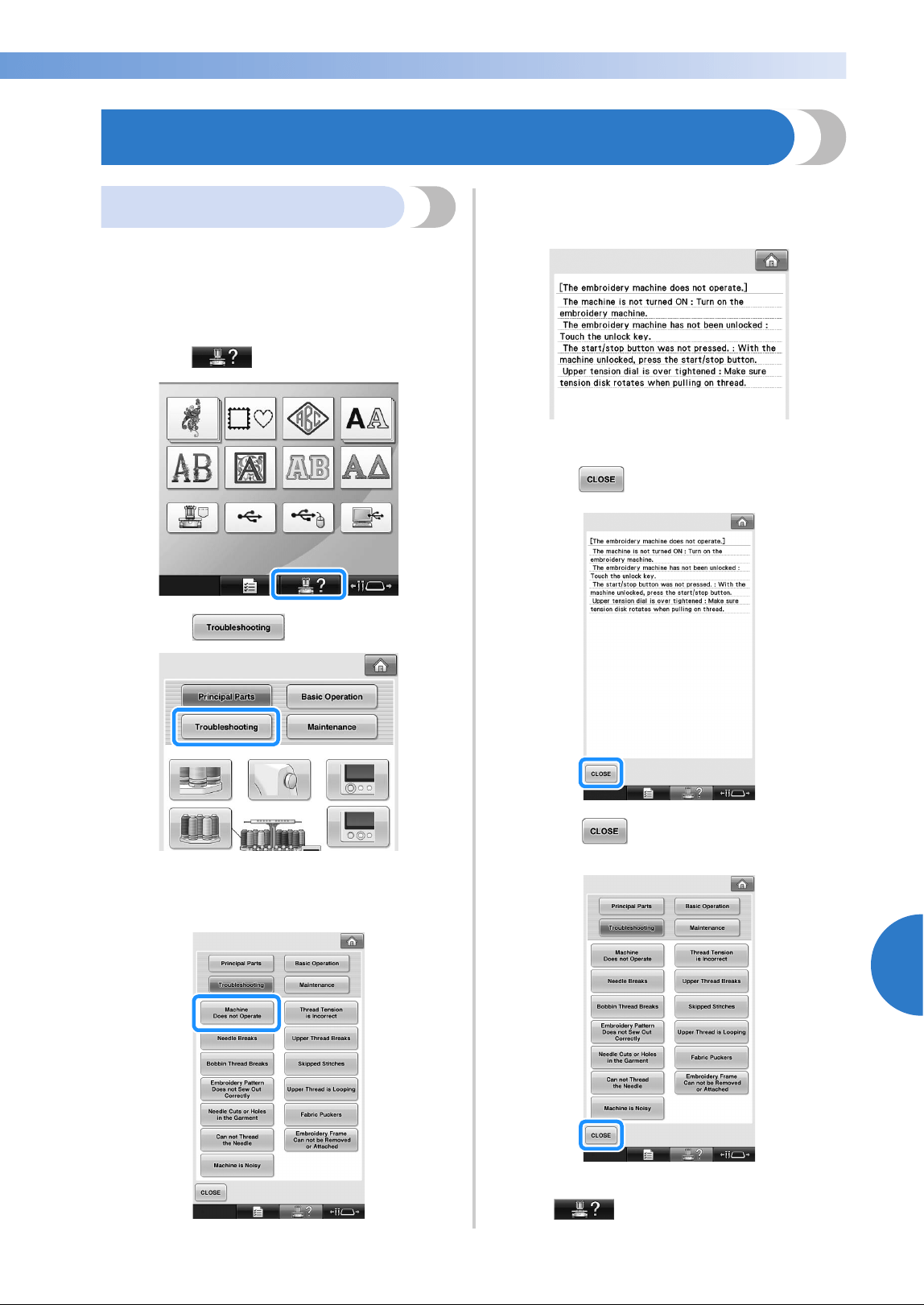
Troubleshooting 289
7
——
——————————————————————————————————————————————————
—
————————————————————————————————
Troubleshooting
On-screen troubleshooting
This embroidery machine is equipped with an
easy-to-use troubleshooting feature for problems
during sewing. Touch the key that shows the
problem, and then check for the causes that are
displayed.
1
Touch .
2
Touch .
3
Touch the key that contains a description of
the problem.
4
Check the items that are displayed.
5
After checking the desired information,
touch .
6
Touch .
X The screen that was displayed before
was touched appears.
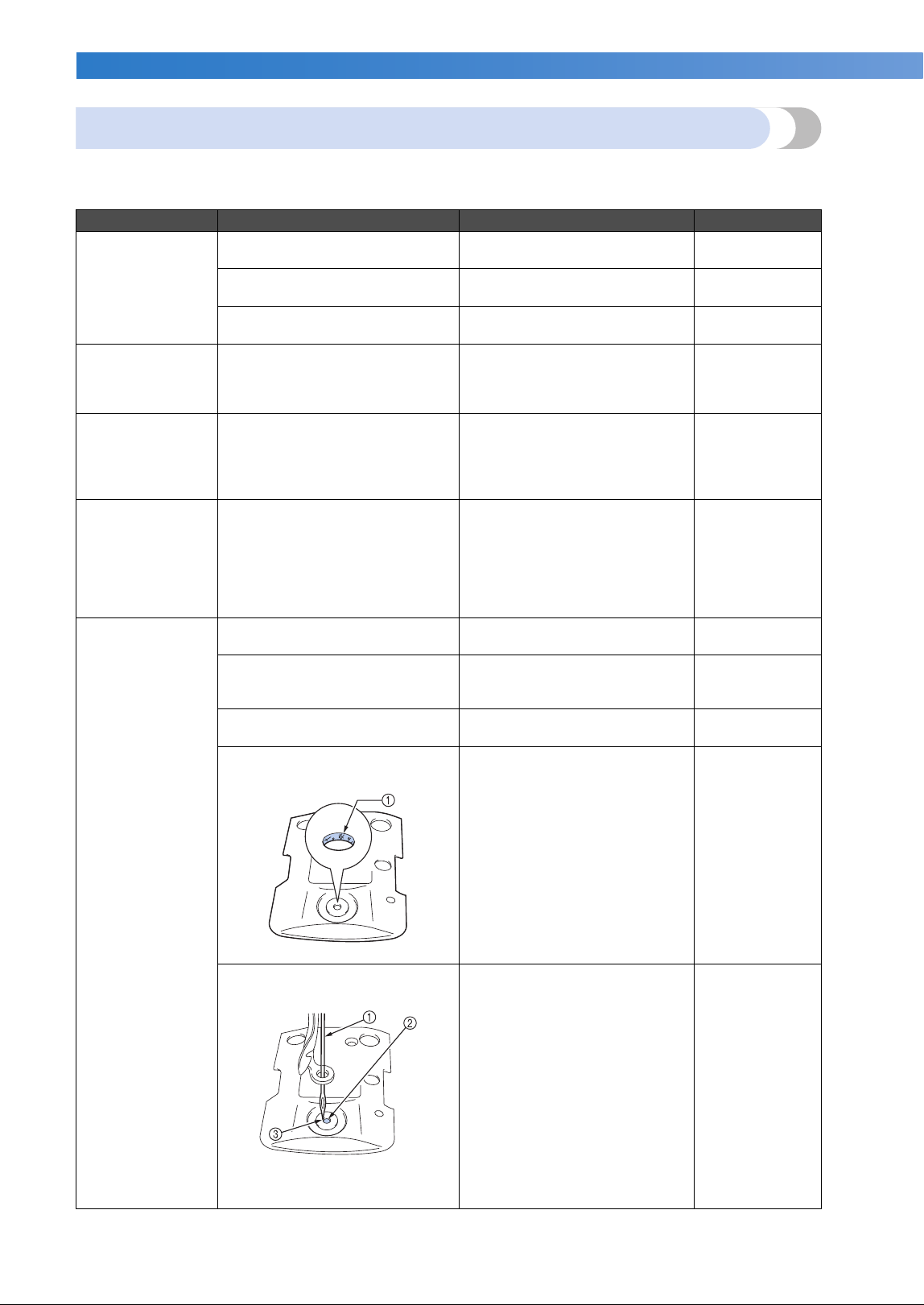
APPENDIX ——————————————————————————————————————————————————————————————————————————
——
290
Troubleshooting
If the machine does not operate correctly, check for the following points/issues before requesting service.
If the suggested remedy does not correct the problem, contact your Brother dealer.
Symptom Probable Cause Remedy Reference Page
The embroidery
machine does not
operate.
The machine is not turned on.
Turn on the embroidery
machine.
p.40
The machine has not been
unlocked.
Touch the unlock key. p.64
The start/stop button was not
pressed.
With the machine unlocked,
press the start/stop button.
p.64
The embroidery
frame cannot be
attached to the
machine.
The embroidery frame holder
attached to the machine is not
appropriate for the selected
embroidery frame.
Select the appropriate
embroidery frame holder for
the embroidery frame.
p.90
The embroidery
frame cannot be
removed or
attached.
Depending on the position
where the machine? carriage
has stopped, it may be difficult
to remove or attach the
embroidery frame.
Touch the “Needle bar/Frame
move key” to position the
carriage, so the embroidery
frame can easily be removed or
attached.
p.90
Embroidering is
interrupted while
embroidering a
large project
using the flat,
quilt or jumbo
frame.
Embroidering is interrupted by
the presser feet not in use
catching on the fabric outside of
the design area.
Stitch the design as close to the
center of the embroidery frame
using needle bars 3 through 7,
keeping the head of the
machine as centered as
possible.
p.108, 132
The needle
breaks.
The needle is not installed
correctly.
Correctly install the needle. p.88
The needle set screw is loose.
Use the Allen screw driver to
securely tighten the needle set
screw.
p.88
The needle is bent or blunt.
Replace the needle with a new
one.
p.35, 88
The area around the hole in the
needle plate is damaged.
1 Scratches/Burrs
Replace the needle plate.
Consult your nearest Brother
dealer.
The needle hits/touches the
needle plate.
1 Needle
2 Hole in needle plate
3 Needle hits hole
Replace or consult your nearest
Brother dealer.
p.88
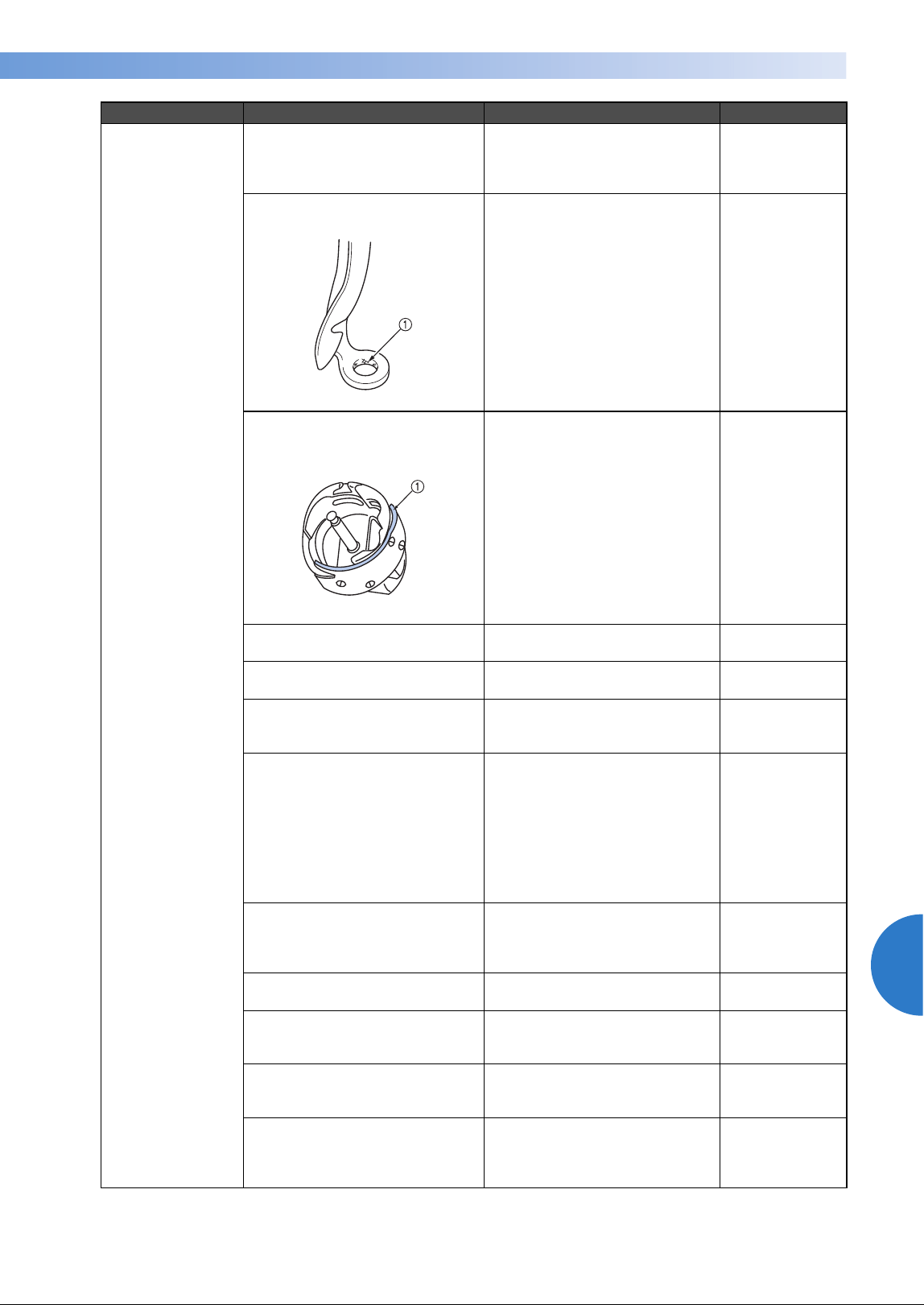
Troubleshooting 291
7
——
——————————————————————————————————————————————————
—
————————————————————————————————
The needle
breaks.
The presser foot is set too high
and not correctly positioned.
The needle hits/touches the
presser foot.
Consult your nearest Brother
dealer.
The area around the embroidery
foot hole is damaged.
1 Scratches or Burrs
Replace the presser foot.
Consult your nearest Brother
dealer.
Sliding surface on hook race is
not smooth. There are scratches
or burrs on it.
1 Hook race area
Consult your nearest Brother
dealer.
The bobbin or bobbin case are
not correctly installed.
Remove and reinstall bobbin
and bobbin case.
p.38, 39
The hook is not correctly
installed.
Consult your nearest Brother
dealer.
The hook stopper is not
correctly installed, the hook is
making a complete rotation.
Consult your nearest Brother
dealer.
The upper thread is not
threaded correctly.
The upper thread is catching
somewhere.
Pull the upper thread by hand
from below the presser foot,
and check that the thread
moves smoothly. If the thread
does not move, it is not
threaded correctly. Thread the
upper thread correctly. Make
sure the thread is caught by the
needle bar thread guide.
p.56-59
The upper thread tension is set
too high. It does not run.
Decrease the upper thread
tension and make sure tension
disc rotates when pulling on
thread.
p.123
A bobbin designed specifically
for this machine is not used.
Use the correct bobbin. p.35
The needle and the hook are not
correctly passing each other.
Hook timing may be OFF.
Consult your nearest Brother
dealer.
There is backlash play (forward/
backward) in the needle bar
case.
Consult your nearest Brother
dealer.
The thread density of the
embroidery data is too fine.
Three or more overlapping
stitches are being sewn.
Using a data design system,
correct the thread density and
overstitching settings in the
embroidery data.
p.150
Symptom Probable Cause Remedy Reference Page
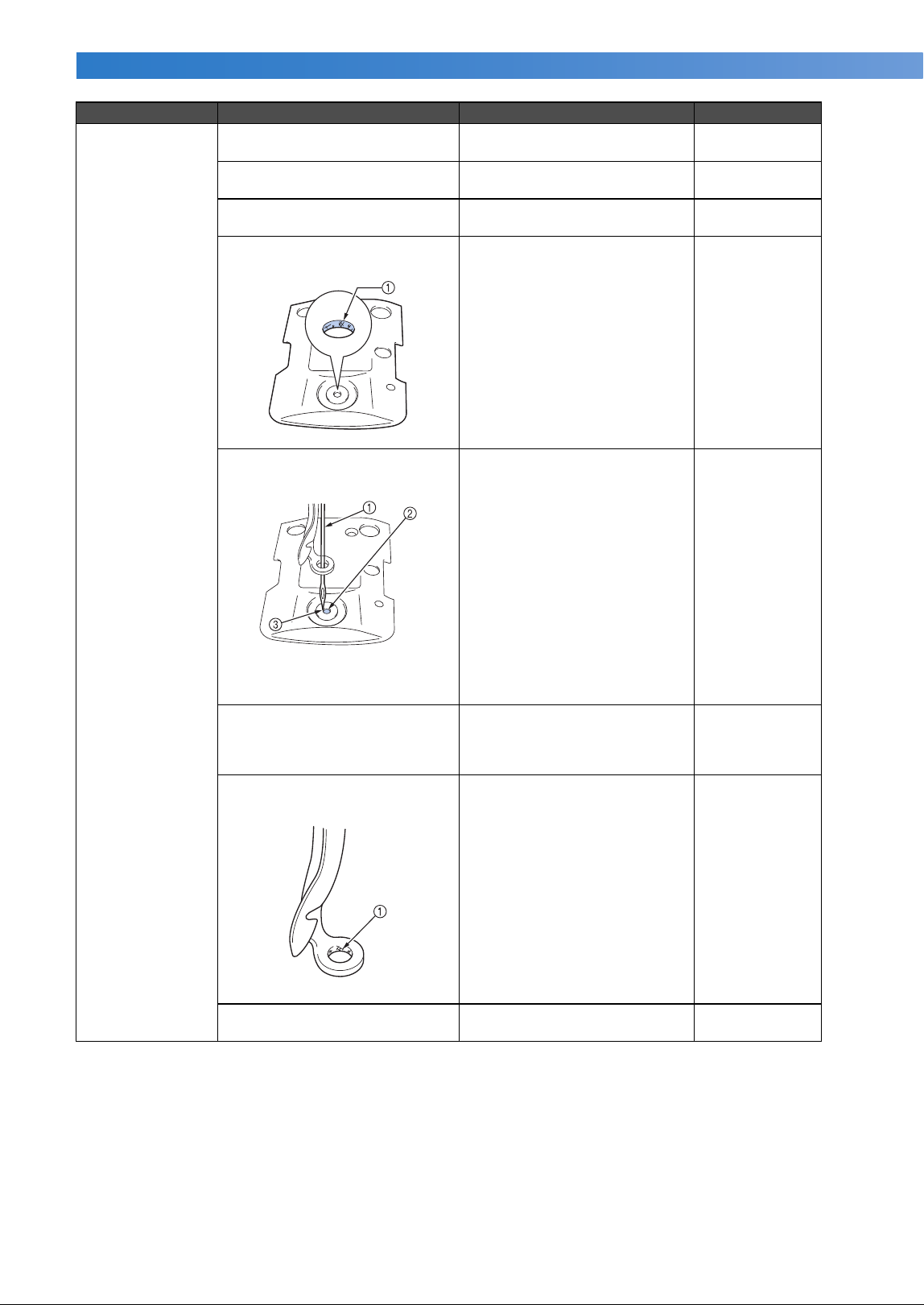
APPENDIX ——————————————————————————————————————————————————————————————————————————
——
292
The upper thread
breaks.
The needle is not correctly
installed.
Correctly install the needle. p.88
The needle set screw is loose.
Use the Allen screw driver to
tighten the needle set screw.
p.88
The needle is bent or blunt.
Replace the needle with a new
one.
p.35, 88
The area around the hole in the
needle plate is damaged.
1 Scratches/Burrs
Replace the needle plate or
consult your nearest Brother
dealer.
The needle is touching the
needle plate.
1 Needle
2 Needle plate hole
3 Needle touching hole
Consult your nearest Brother
dealer.
The presser foot is set too high
and not correctly positioned.
The needle hits/touches the
presser foot.
Consult your nearest Brother
dealer.
The area around the embroidery
foot hole is damaged.
1 Scratches/Burrs
Replace the presser foot.
Consult your nearest Brother
dealer.
Using a specialty thread like a
metallic thread.
Slow down the machine
sewing speed.
p.139
Symptom Probable Cause Remedy Reference Page
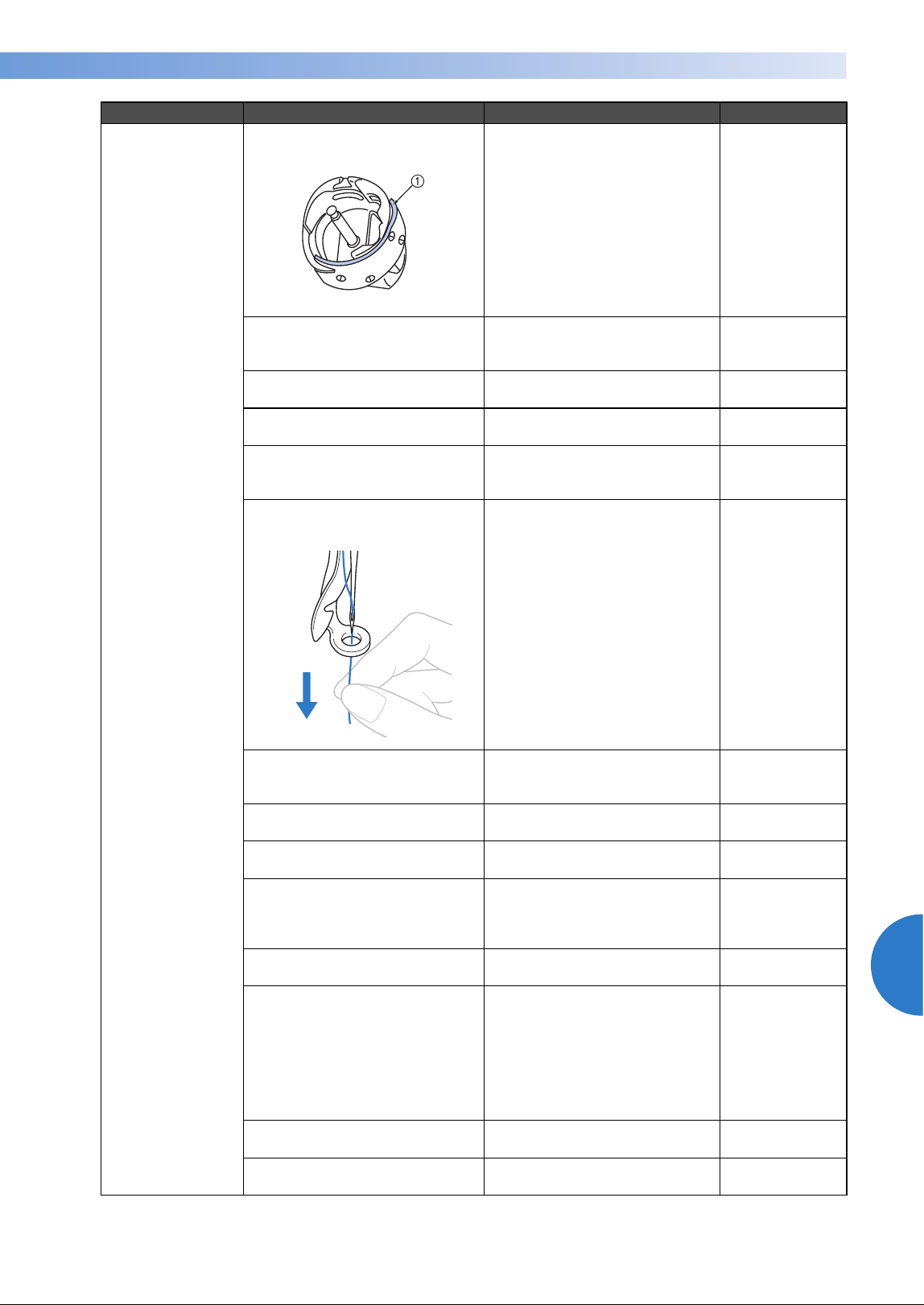
Troubleshooting 293
7
——
——————————————————————————————————————————————————
—
————————————————————————————————
The upper thread
breaks.
Sliding surface on hook is not
smooth. There are burns on it.
1 Hook race area
Consult your nearest Brother
dealer.
The thread is loose in the hook
area.
Remove the loose thread. If the
thread is tangled in the hook,
clean the hook.
p.282
The play between the hook and
the race is too much.
Consult your nearest Brother
dealer.
The hook does not rotate
smoothly.
Remove lint, clean and apply
oil.
p.282, 287
The space between the hook
stopper and the hook cannot be
adjusted.
Consult your nearest Brother
dealer.
The upper thread is not
threaded correctly.
Pull the upper thread by hand
from below the presser foot,
and check that the thread
moves smoothly. If the thread
does not move smoothly, it is
not correctly threaded.
Un-thread the machine and
re-thread the machine.
Make sure the thread is
correctly positioned in the
needle bar thread guide.
p.56-59
Upper thread is not positioned
in upper or middle thread guide.
Make sure thread passes
completely under upper and
middle thread guide.
p.56-59
There are knots or tangles in the
thread.
Remove any knots or tangles.
The upper thread tension is too
high.
Decrease the upper thread
tension.
p.123
The lower thread tension is
incorrect.
The thread does not roll out of
the bobbin case smoothly.
Adjust the lower thread
tension.
p.122
The bobbin case is damaged.
Replace the bobbin case with a
new one.
p.35
The bobbin thread is not wound
correctly.
Check that the bobbin is
wound so that it is about 80%
full and that the thread is
evenly wound. If the bobbin is
not correctly wound, replace
the bobbin with one that is
correctly wound or rewind the
bobbin.
p.35
A bobbin designed specifically
for this machine is not used.
Use the correct bobbin. p.35
The automatic needle-threading
mechanism is broken.
Consult your nearest Brother
dealer.
Symptom Probable Cause Remedy Reference Page
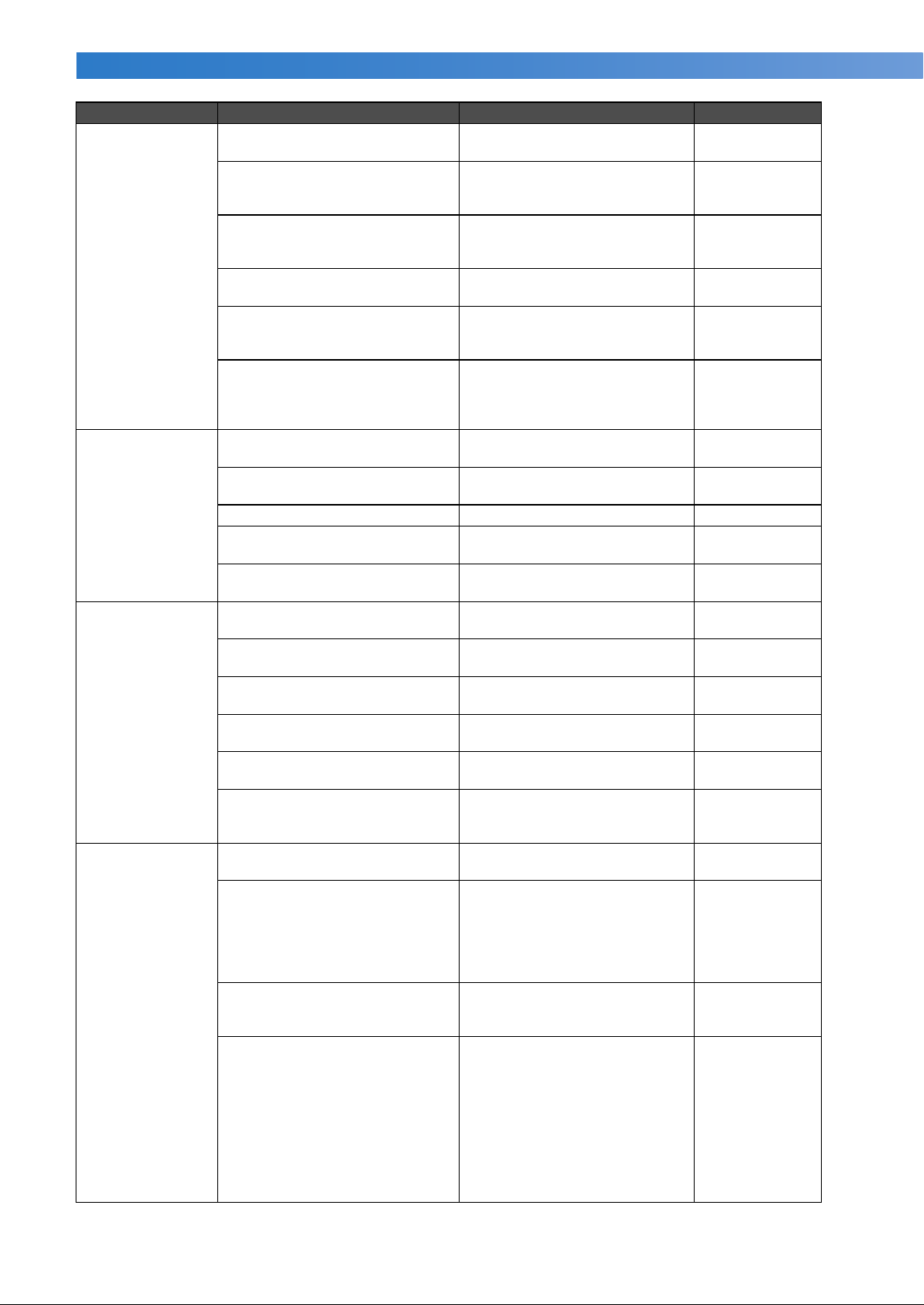
APPENDIX ——————————————————————————————————————————————————————————————————————————
——
294
The upper thread
breaks.
Adhesive is attached to the
needle.
Replace the needle. p.88
The fabric is not taut.
Firmly set the fabric in the
embroidery frame so that it is
taut.
p.49, 94
The thread quality is poor.
The thread quality is too weak
due to age of thread. Replace
thread.
The embroidery data contains
stitches with a pitch of zero.
Delete all stitches with a zero
pitch.
p.226
The embroidery data contains
many stitches with an extremely
small pitch.
Delete all stitches with a small
pitch.
p.226
The thread density of the
embroidery data is too fine.
Three or more overlapping
stitches are being sewn.
Using a data design system,
correct the thread density and
overstitching settings in the
embroidery data.
p.150
The bobbin
thread breaks.
The bobbin thread is not
correctly threaded.
Correctly thread the bobbin
thread.
p.38
The bobbin is scratched or does
not rotate smoothly.
Replace the bobbin. p.38
The bobbin case is damaged. Replace the bobbin case. p.38
The thread is tangled.
Remove the thread jammed
and clean the hook.
p.282
A bobbin designed specifically
for this machine is not used.
Use the correct bobbin. p.35
Stitches are
skipped.
The upper thread is not
threaded correctly.
Thread the upper thread
correctly.
p.56
The needle is bent or blunt.
Replace the needle with a new
one.
p.35, 88
The needle is not installed
correctly.
Correctly install the needle. p.88
Dust has accumulated under the
needle plate or in the hook.
Clean the hook and the needle
plate.
p.282, 283
The needle and the hook are not
correctly passing each other.
Consult your nearest Brother
dealer.
The thread twist is either too
tight or too loose.
Improper twisting results in
irregular loop formation. Try
using a new spool.
The embroidery
pattern is
misaligned.
The thread is tangled.
Use tweezers to remove any
tangled thread from the hook.
The fabric is not secured in the
embroidery frame (for example,
the fabric is not taut).
If the fabric is not taut, the
pattern may become
misaligned or the stitching may
shrink. Be sure to correctly
frame the fabric in the
embroidery frame.
p.49, 94
The embroidery frame is too
large for the size of the
embroidery.
Use an embroidery frame that
is close to the size of the
embroidery.
p.90
Stabilizer (backing) is not used.
Use stabilizer (backing) when
embroidering on thin or stretch
fabrics, fabrics with a coarse
weave or fabrics that easily
allow the stitching to shrink.
<When using the optional cap
frame>
Use hard stabilizer when
embroidering on a cap made of
soft material.
p.93
Symptom Probable Cause Remedy Reference Page
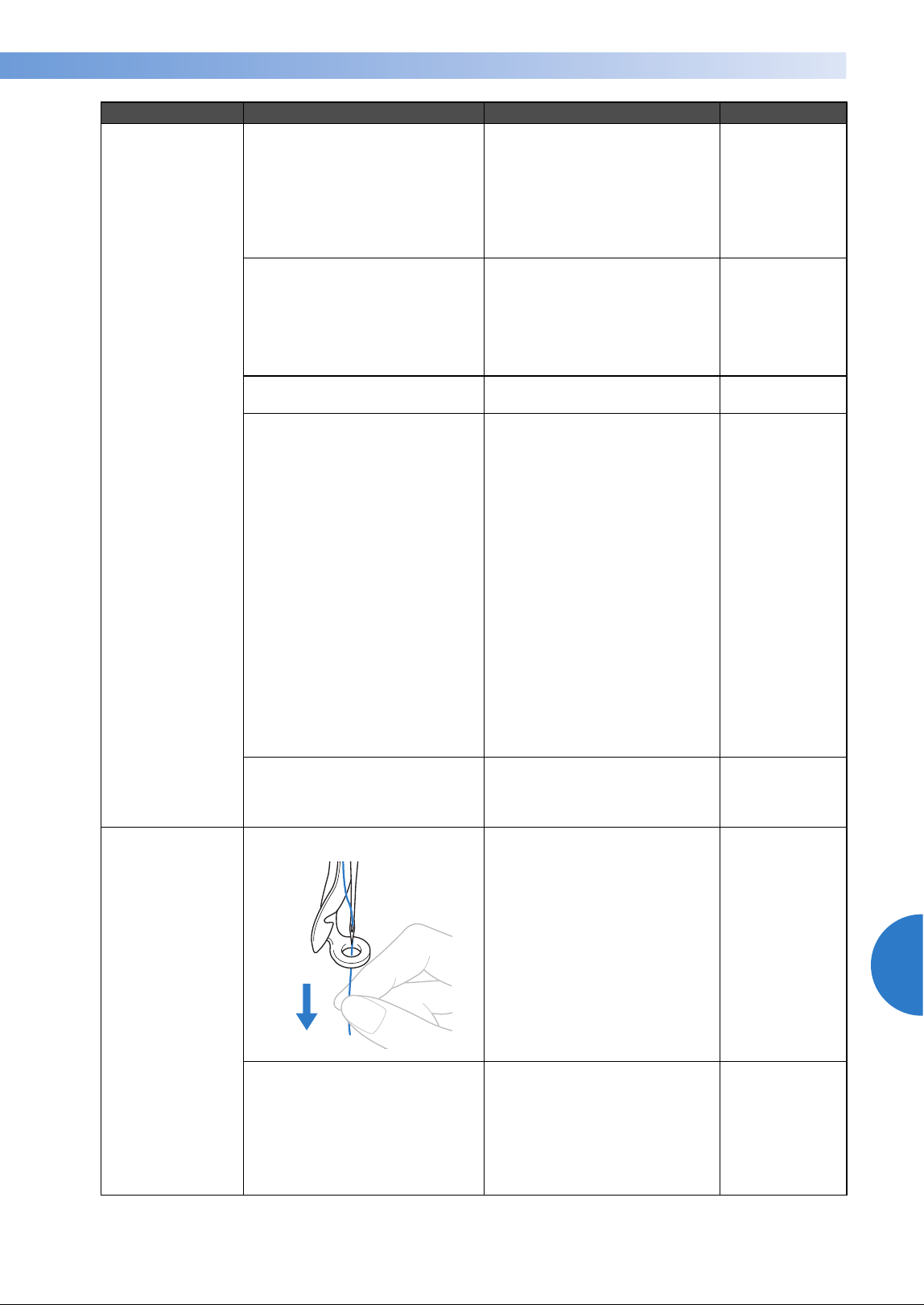
Troubleshooting 295
7
——
——————————————————————————————————————————————————
—
————————————————————————————————
The embroidery
pattern is
misaligned.
The embroidery frame is not
correctly attached to the
carriage.
Correctly attach the
embroidery frame to the
carriage. Make sure that the
pins on the left and right arms
of the embroidery frame holder
securely fit into the holes in the
handles on the embroidery
frame.
p.51
The carriage or the embroidery
frame is hitting objects.
The pattern may become
misaligned if the carriage or
embroidery frame is hitting
objects. Make sure that there
are no objects within the
operating field of the
embroidery frame.
The fabric is caught or pinched.
Stop the machine, and then
correctly position the fabric.
The carriage moved while
removing embroidery frame.
The pattern may become
misaligned if the presser foot
was hit or the carriage was
moved while replacing bobbin
thread, changing needle, or
working near embroidery
frame.
Be careful when removing and
reattaching the embroidery
frame while replacing bobbin
thread, changing needle, or
working near embroidery
frame.
If the carriage is moved, turn
the machine off, then on again.
The correct frame position at
the time that the machine was
stopped is stored in the
machine’s memory, and the
embroidery frame is returned to
the correct position.
The design was not digitized
correctly.
The design may need more pull
compensation or underlay to
accommodate stretchy or high-
napped fabrics.
There are loops in
the upper thread.
The upper thread tension is low.
After passing the upper thread
through the hole in the presser
foot, pull the thread by hand to
check the thread tension. If it is
difficult to determine, compare
it with other needle bars where
looping does not occur.
p.123
The thread tension does not
correspond to the amount that
the thread tension knob was
tightened.
If the thread tension cannot be
adjusted, thread wax and dust
may have collected in the
upper or middle thread guide
plates, causing the thread
tension guide plates to rise.
Clean the thread tension guide
plates.
p.285
Symptom Probable Cause Remedy Reference Page
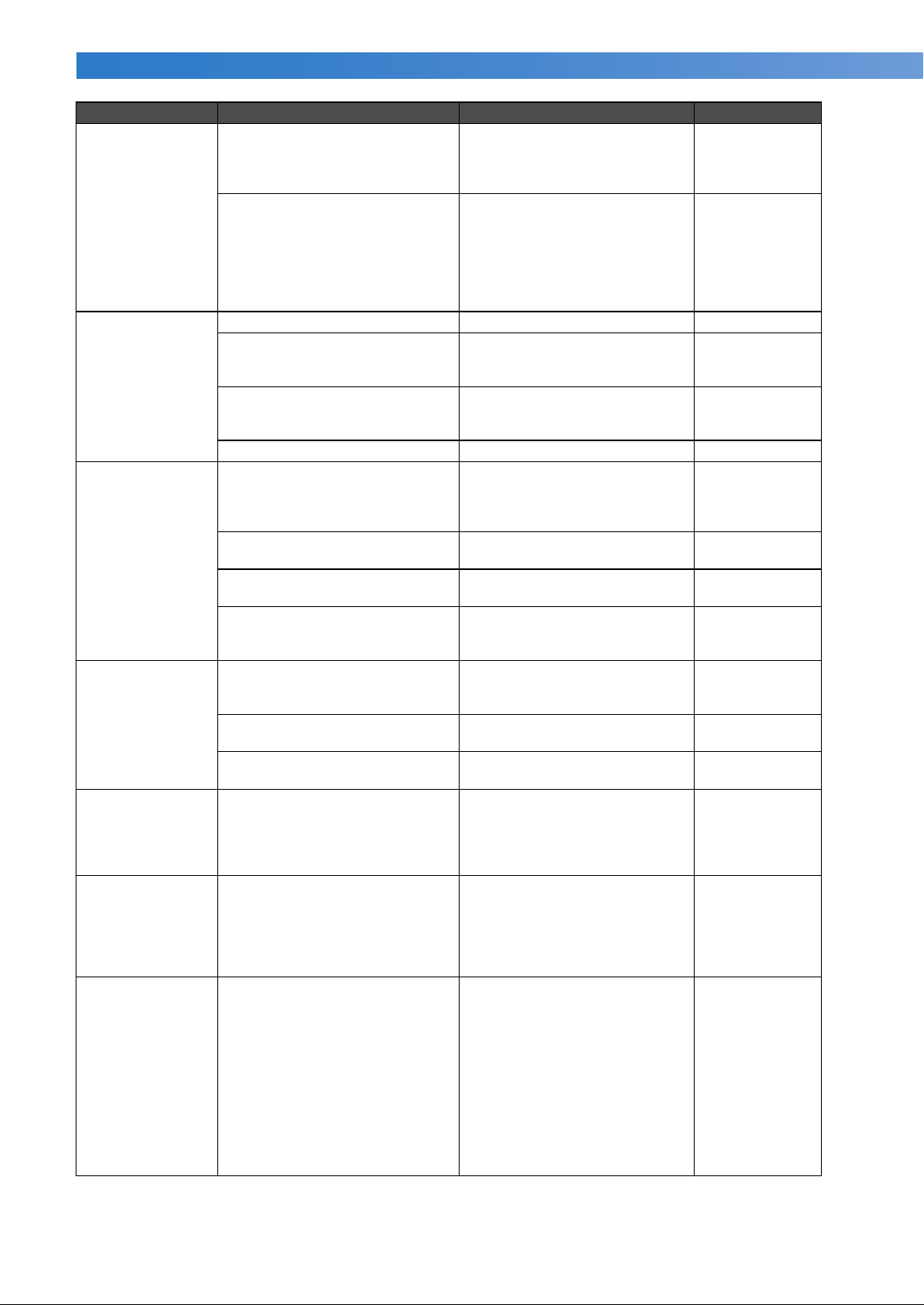
APPENDIX ——————————————————————————————————————————————————————————————————————————
——
296
There are loops in
the upper thread.
Thread is not correctly threaded
around upper thread tension
discs.
Clean upper thread tension
disc. Rethread and make sure
tension disc rotates when
pulling on thread.
p.286
The thread quality is poor.
Try sewing with different
thread. If the problem no
longer occurs after the thread is
changed, the thread quality is
the problem. Replace the
thread with one of good
quality.
The machine is
noisy.
Lint may be wound in the hook. Clean the hook. p.282
The upper thread is not
threaded correctly.
Check the thread path, and
then thread the upper thread
again.
p.56
The hook is damaged.
Replace the hook.
Consult your nearest Brother
dealer.
Not enough oil was applied. Oil recommended parts. p.287
The needle
threader cannot
be used.
The needle is not at the correct
position.
Touch the key to move the
desired needle bar to be
threaded into embroidering
position.
p.63
Recommended needles are not
used on this machine.
Replace and use recommended
needle.
p.35, 88
The needle is not installed
correctly.
Correctly install the needle. p.35, 88
The hook on the automatic
needle-threading mechanism is
bent.
Consult your nearest Brother
dealer.
p.35, 88
The thread
tension is
incorrect.
The upper thread is not
threaded correctly.
Check the thread path, and
then thread the upper thread
again.
p.56
The bobbin thread is not
correctly threaded.
Correctly thread the bobbin
thread.
p.38
The lower thread tension is
incorrect.
Adjust the tension of the
bobbin thread.
p.122
The upper thread
comes out of the
needle when
embroidering
begins.
If a short length of thread
remains after the thread is
trimmed, the needle may
become unthreaded when
embroidering begins again.
Set the remaining length of
thread to “Long Tail” on the
second page of the settings
screen.
p.227
The upper thread
does not reach
the bobbin thread
when
embroidering
begins.
There is no more thread in the
bobbin, the thread does not
feed from the bobbin, or the
thread that is fed from the
bobbin is too short.
Correctly thread the lower
thread.
p.38
Although the
thread is not
broken, a broken
thread error
occurs and the
machine stops.
If the thread breakage sensor in
the thread tension disc of the
thread tension knobs cannot
detect that the thread is being
fed, even if the machine is
running, a broken thread error
occurs and the machine is
stopped. If the thread came out
of the thread tension disc, even
though the thread is not broken,
the machine detects that the
thread is not being fed and stops.
Clean the tension unit.
Correctly pass the thread
through the thread tension disc.
If the broken thread error
occurs after the machine is
cleaned and rethreaded, the
sensor may be damaged.
Consult your nearest Brother
dealer.
p.58, 286
Symptom Probable Cause Remedy Reference Page
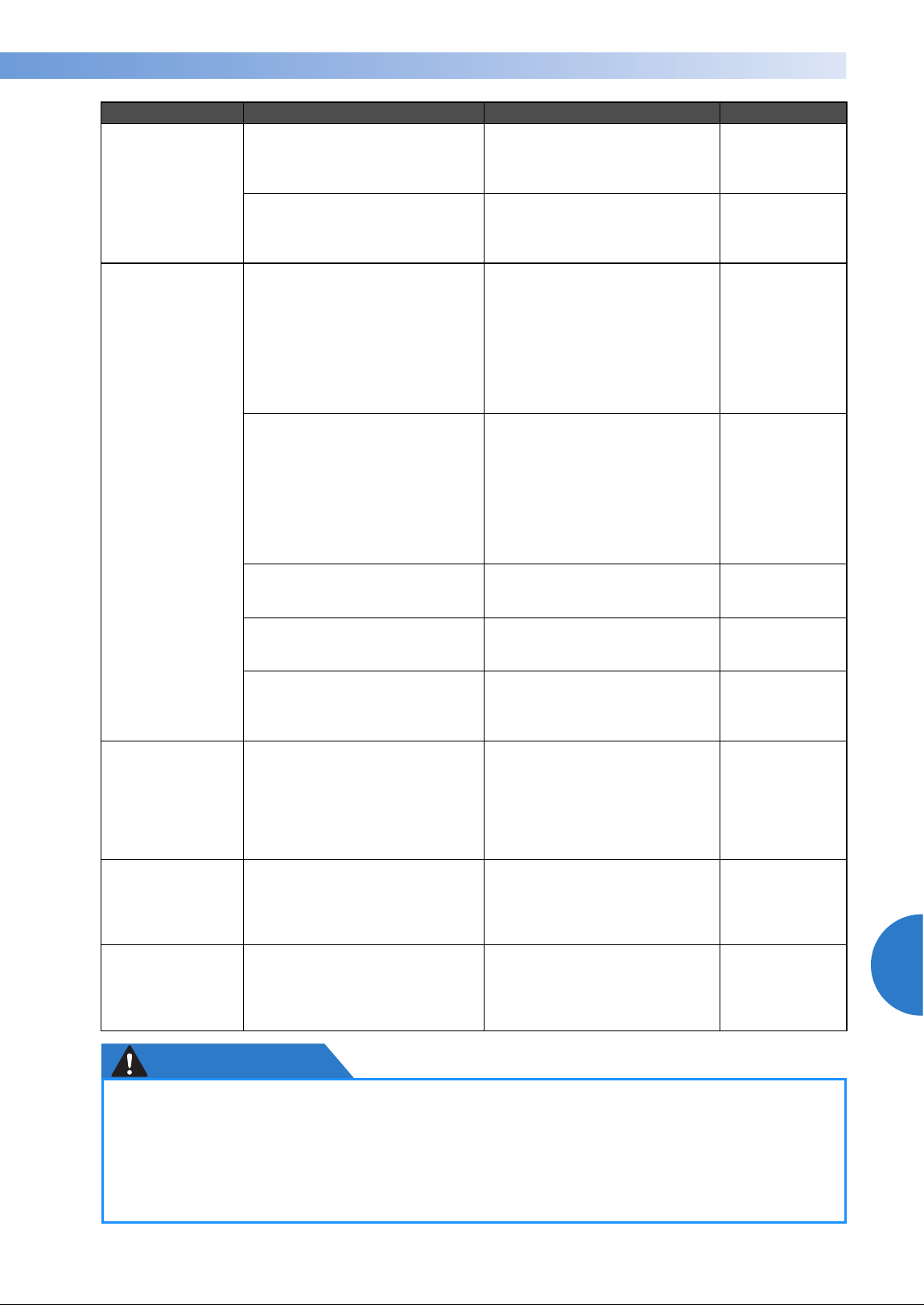
Troubleshooting 297
7
——
——————————————————————————————————————————————————
—
————————————————————————————————
CAUTION
There are needle
cuts or holes in
the garment.
The needle is dull.
Replace the needle. Dull
needles have a difficult time
passing through the garment,
causing fabrics to tear.
p.35, 88
The fabric is too delicate.
The simple penetration of the
needle could damage delicate
fabrics. Use stabilizer on top of
fabric.
p.250
There is
puckering in the
fabric.
The thread tension is too tight.
Adjust the tension according to
the type of fabric and thread
being used. Polyester thread
will stretch during sewing
especially if the tensions are set
too high. After the stitching is
complete, the thread returns to
its original strength, causing
puckers in the fabric.
p.123
The framing tension of the fabric
is incorrect.
Tightly frame non-stretchable,
woven fabrics. Loose framing
will cause the fabric to bunch
up under the stitching.
Tautly frame soft knits using a
stable backing. Overstretching
the garment will cause it to
look puckered when the frame
is removed.
p.249
The column stitches are too
long.
Re-digitize the design with fill
stitching or with multiple rows
of column stitching.
The needle is dull.
Dull needles push fabric down
and damage material. Replace
the needle.
p.35, 88
The design density is too heavy.
Too many stitches in an area
pull fabric, causing it to pucker.
Slightly decrease the design
density by 5% to 10%.
There is no color
indicated on LED
light after the
lights flashing,
when the thread
color needs to be
changed.
Black is assigned as the next
thread color.
When black is assigned as the
next thread color, LED light
does not indicate the next
thread color. The light turns off
after flashing.
p.113
When
embroidering
thick fabric, the
fabric cannot be
correctly hooped.
Fabric slips within the frame
because of its thickness.
Wrap masking tape or bias tape
around the outer frame. The
tape will provide resistance so
that the fabric does not easily
slip.
p. 249
There is flickering
in built-in camera
image displayed
in the LCD
screen.
If the machine is being used in a
very cold environment, there
may be flickering in the built-in
camera image displayed in the
LCD screen.
This is not a malfunction. Leave
the machine turned on, and
then wait a while before using
the built-in camera.
–
●
This machine is equipped with a thread detecting mechanism. If the machine is not
threaded with the upper thread, the machine will not operate correctly, even if the start/
stop button is pressed after unlocking the machine.
● If the machine suddenly stops:
- Turn off the machine, and unplug the power cord.
- Restart the machine with the correct operating procedure. Refer to page 40.
Symptom Probable Cause Remedy Reference Page
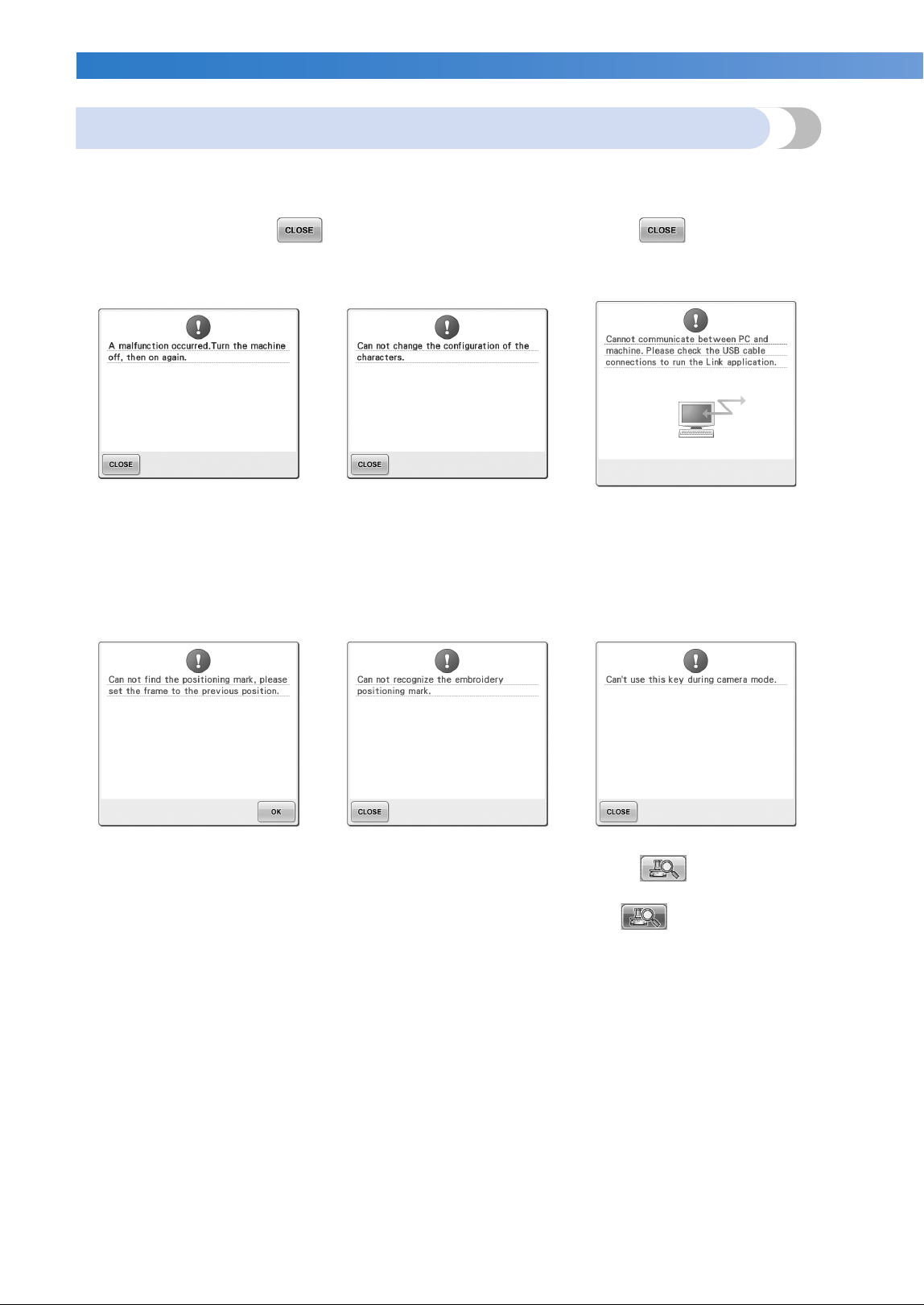
APPENDIX ——————————————————————————————————————————————————————————————————————————
——
298
Error messages
If the start/stop button is pressed while the machine is not correctly set up or if an incorrect operation is
performed, the machine stops and informs you of the error with a buzzer and an error message. If an error
message appears, correct the problem according to the instructions in the message.
To close the message, touch or perform the correct operation, then touch . If the message
appears again, consult your nearest Brother dealer.
Some malfunction occurred. There are too many characters in
the curved text arrangement for
the selected embroidery frame.
Change the text arrangement or the
embroidery frame.
Machine cannot receive any data
from the PC in the Link mode.
Turn off the machine, and check
the USB connection. After connect
the USB cord securely, turn on the
machine again. (Refer to page 176)
When embroidering the pattern
for the optional jumbo frame, the
machine failed to find the
positioning mark.
Follow the procedure from step
8
on page 256, again.
Machine failed to recognize the
embroidery positioning mark.
Confirm that the embroidery
positioning mark is in the selected
area. If problem persists, reposition
the mark.
When in camera mode by
touching , some keys are
unavailable.
Touch to cancel the camera
mode to activate the key.
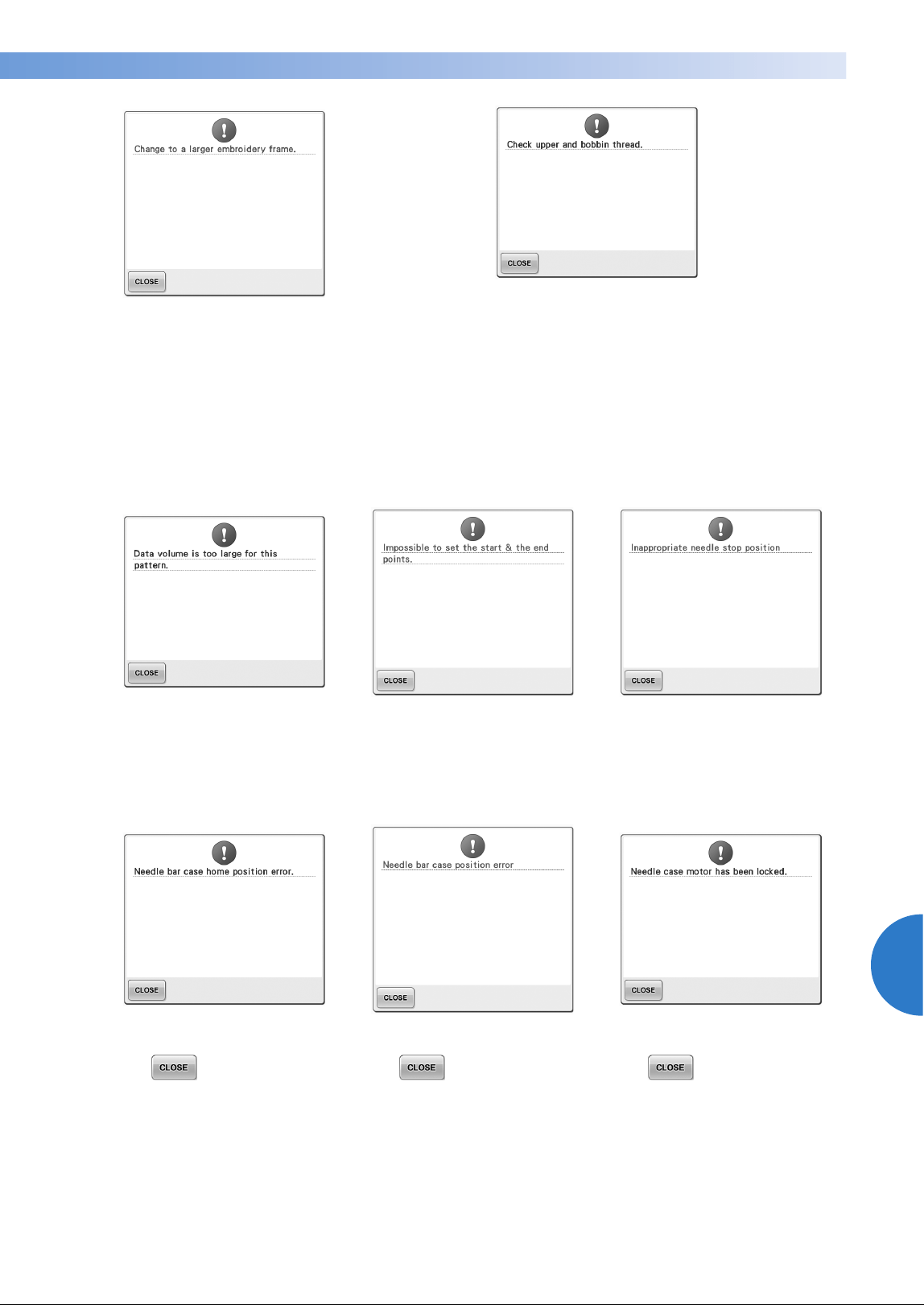
Troubleshooting 299
7
——
——————————————————————————————————————————————————
—
————————————————————————————————
The installed embroidery frame is
too small.
Check which embroidery frames
can be used, and then install a
larger embroidery frame. (Refer to
page 49.)
The upper thread broke, the
thread came out of the thread
tension disc or a thread guide, or
the machine is not threaded
correctly.
Check that the thread passes under
the upper and middle thread
guides, and correctly thread the
upper thread. (Refer to page 56.) If
the thread is not broken, clean the
thread guides and the tension unit.
(Refer to page 285.)
The bobbin thread broke or ran
out.
Check that there is thread on the
bobbin and that approximately 50
mm (2 inches) of thread has been
pulled out, and then re-install the
bobbin. (Refer to page 38.)
The patterns you are editing take
up too much memory, or you are
editing too many patterns for the
memory.
Sewing cannot begin from the
specified starting position.
Change the starting position or
rehoop the fabric and change the
embroidering position. (Refer to 94,
135.)
The needle has stopped at an
incorrect position.
Turn the handwheel so that the
mark on the handwheel is at the
top.
The needle bar case could not be
moved to its initial position.
Touch to automatically
reset the needle bar case.
The needle bar case has stopped at
an incorrect position.
Touch to automatically
reset the needle bar case.
The needle bar case motor has
locked up.
Touch to automatically
reset the needle bar case.
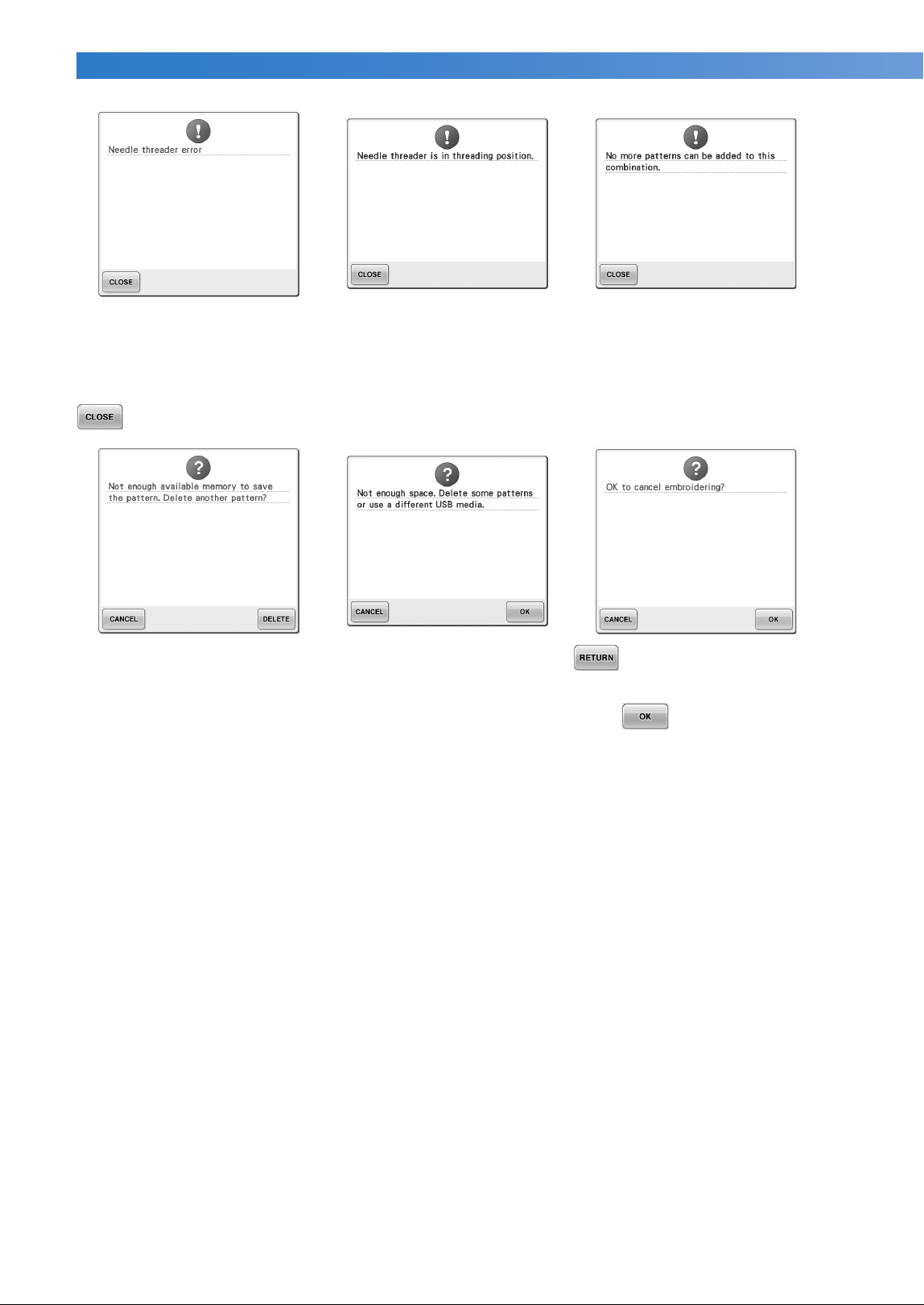
APPENDIX ——————————————————————————————————————————————————————————————————————————
——
300
The automatic needle-threading
mechanism did not operate
correctly.
Remove the thread entangled in the
automatic needle-threading
mechanism, and then touch
.
Another operation was performed
while the automatic needle-
threading mechanism was
threading the needle.
Press the automatic needle
threading button, and then perform
the other operation after the needle
is threaded. (Refer to page 60.)
Too many patterns are being
combined for the amount of
memory available.
Delete some patterns from the
combined pattern.
The pattern could not be saved
because the memory is full.
Delete some patterns.
The memory capacity of the USB
media has been exceeded.
There is too much data in either the
machine or the USB media.
was touched in the
embroidering screen.
Touch to return to the
embroidering settings screen. The
previous embroidery in the
embroidering screen will be
canceled.
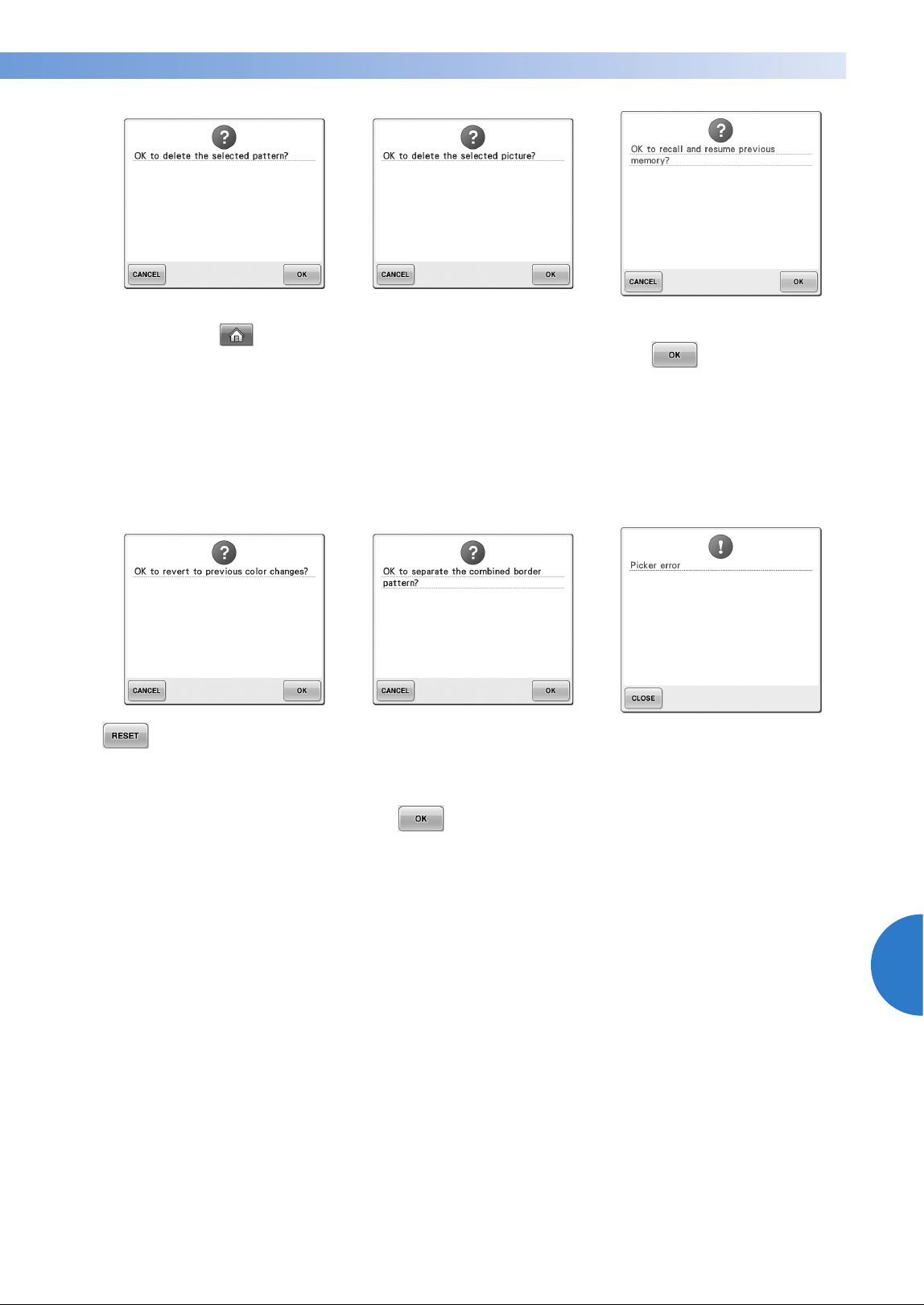
Troubleshooting 301
7
——
——————————————————————————————————————————————————
—
————————————————————————————————
The selected pattern is going to be
deleted because was
touched.
The image is going to be deleted. The machine was turned off while
sewing, then turned on again.
Touch to return the
machine to the condition (pattern
position and number of stitches)
when it was turned off. Follow the
procedure described in “Resume
Embroidering After Turning Off the
Machine” on page 120 to align the
needle position and sew the
remainder of the pattern.
was touched while thread
colors were being changed.
A saved combined pattern is being
rotated in the embroidering
settings screen.
Color sorting for the combined
border pattern will be canceled
when is touched. In
addition, the thread marks will be
removed even if they have been
set.
The thread picker did not operate
correctly.
Remove the thread entangled on
the thread picker.
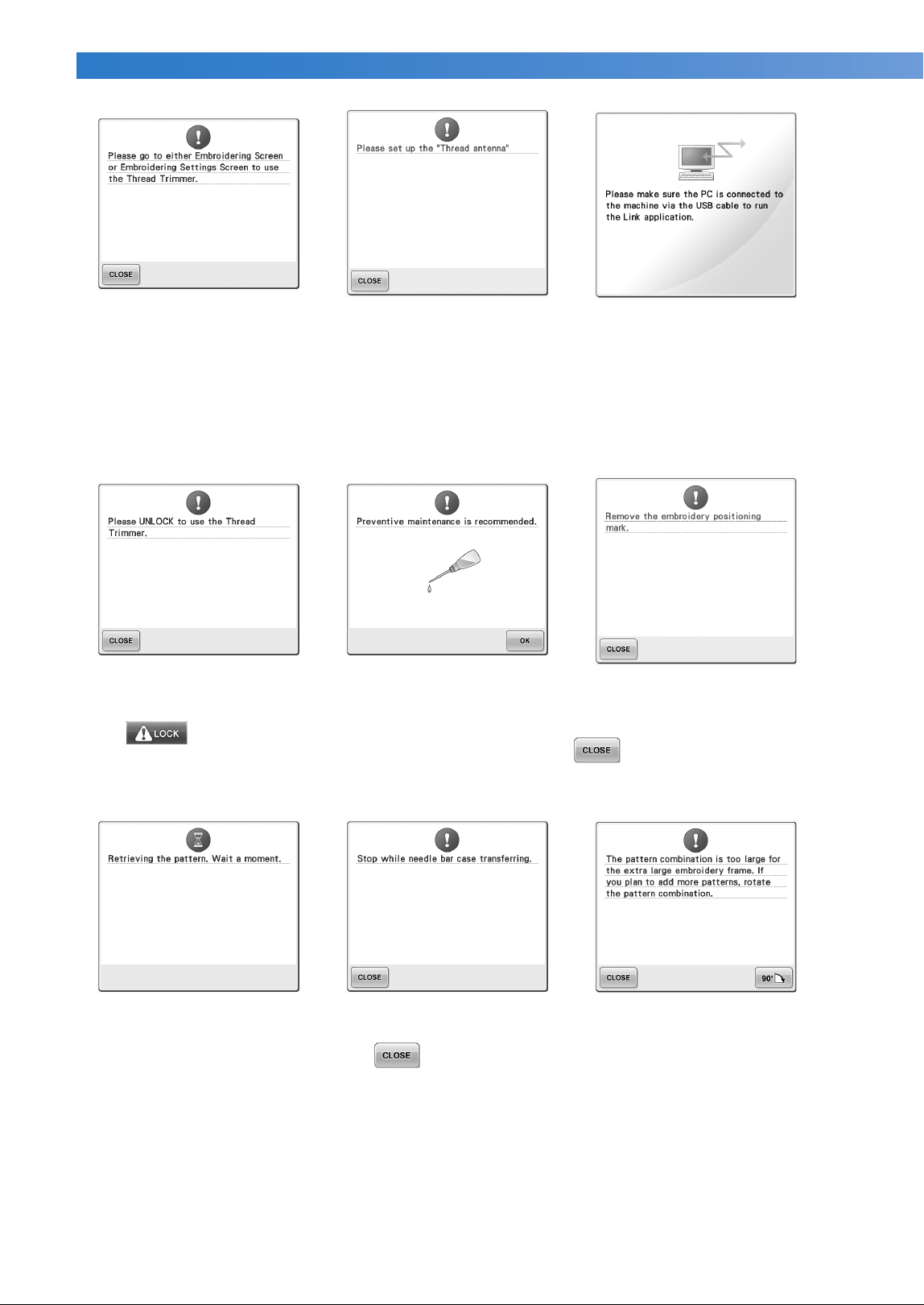
APPENDIX ——————————————————————————————————————————————————————————————————————————
——
302
The thread trimming button was
pressed while a screen other than
the embroidering screen or
embroidering settings screen was
displayed.
Display either the embroidering
screen or embroidering settings
screen before using the thread
trimming function.
Thread guide assembly support is
not prepared.
Prepare the thread guide assembly.
(Refer to “Preparing the thread
guide assembly” on page 30.)
Machine failed to communicate
with the PC in the Link mode.
Turn off the machine, and on
again.
The thread trimming button was
pressed before the machine was
unlocked.
Touch to use the thread
trimming function.
The machine needs maintenance.
(Refer to page 288.)
Machine has recognized the
embroidery position mark.
Remove the embroidery
positioning sticker and touch
to continue.
The machine is retrieving a
previously saved pattern.
The machine was stopped while
the needle bar case was moving.
Touch to automatically
reset the needle bar case.
The combined character pattern is
too large for the embroidery
frame.
Rotate the pattern 90 degrees and
then continue combining
characters.
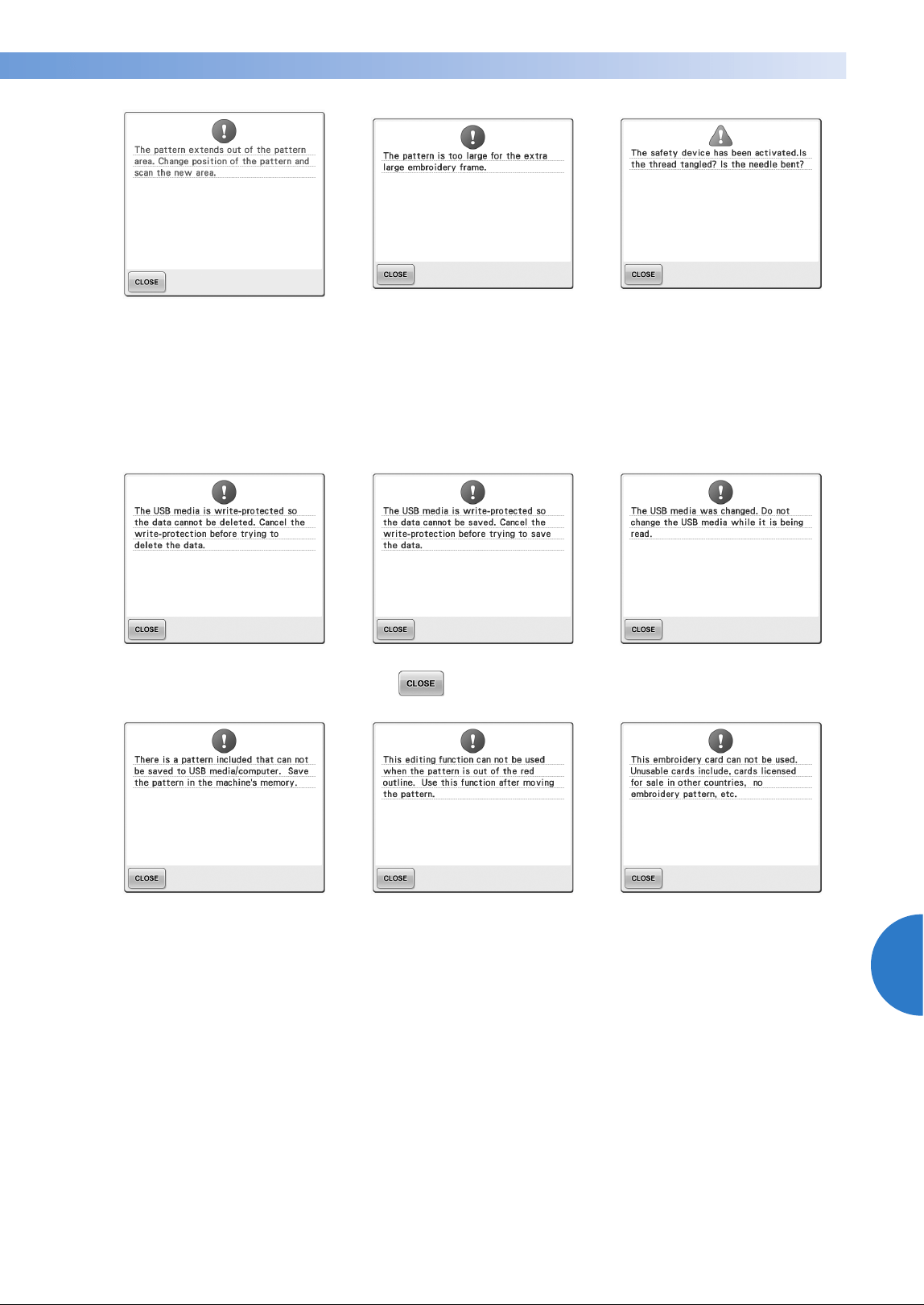
Troubleshooting 303
7
——
——————————————————————————————————————————————————
—
————————————————————————————————
The built-in camera is being used
to align the embroidery position,
but the embroidery positioning
sticker is too near an edge or the
pattern extends from the
embroidery frame.
Change the position of the
embroidery positioning sticker, and
then try aligning the position again.
The combined character pattern is
too large to fit in the extra-large
embroidery frame.
Change the character pattern
combination.
The motor has locked up due to
tangled thread or for other reasons
related to thread delivery.
If the thread is entangled in the
bobbin case, clean the race, and
then oil it. (Refer to page 284 and
288.)
The USB media is write-protected.
Cancel the write protection.
The USB media is write-protected.
Touch , and cancel the write
protection.
You tried to select a pattern after
the USB media in which the
pattern is saved has been changed.
You tried to save a copyright-
protected pattern to USB media or
a computer.
According to copyright laws,
patterns that are illegal to
reproduce or edit cannot be saved
to USB media or a computer. Save
the pattern in the machine’s
memory.
You tried to use an editing
function while the pattern is not
completely within the red outline.
Move the pattern so it is completely
within the outline.
An unusable embroidery card is
inserted.
Remove the embroidery card.
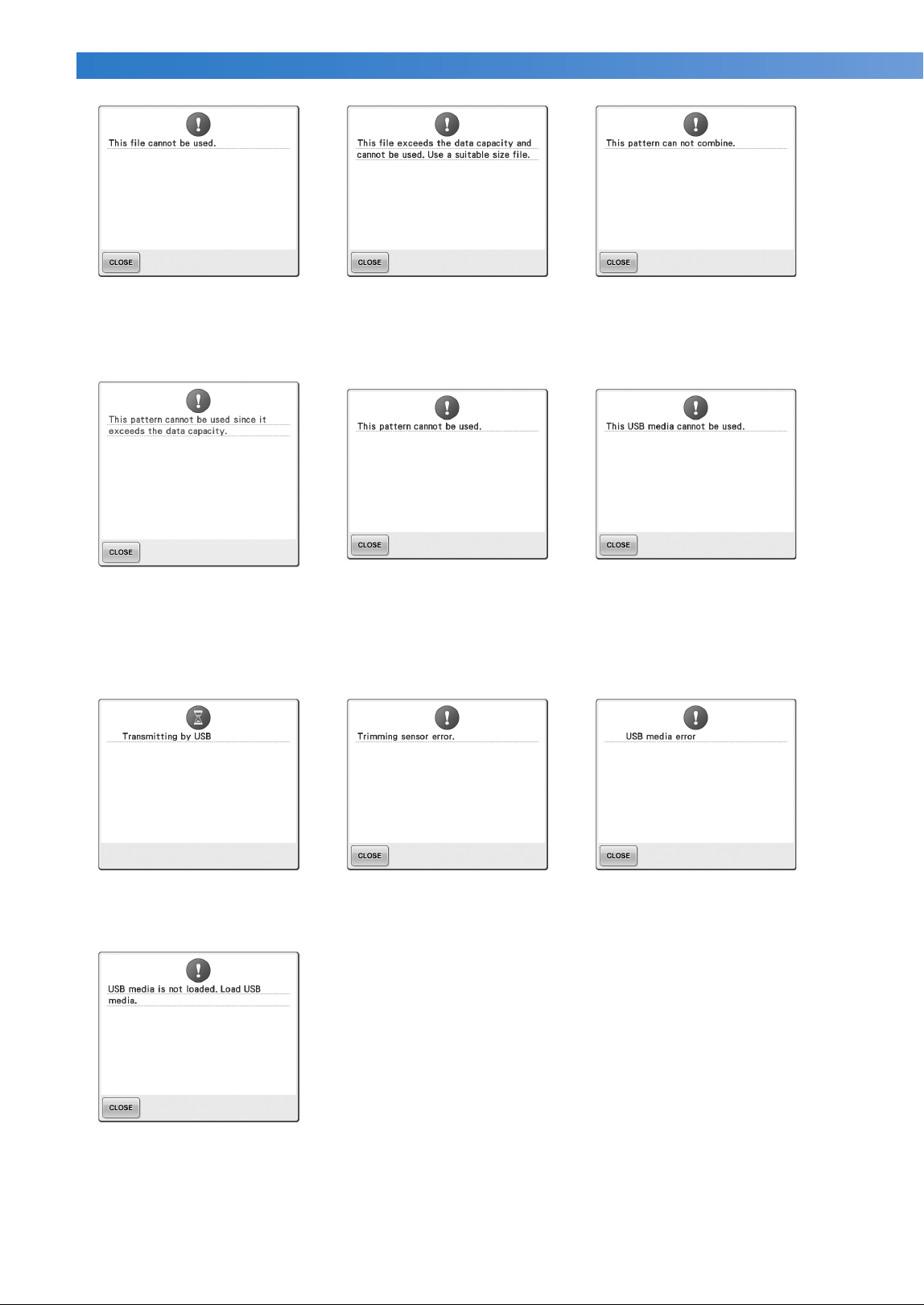
APPENDIX ——————————————————————————————————————————————————————————————————————————
——
304
The file format is incompatible
with this machine.
Check the list of compatible file
formats. (Refer to page 227.)
The file size exceeds the data
capacity of the machine.
Confirm the file size and format.
(Refer to page 227.)
A large-size (split) embroidery
pattern was selected to be
combined with another
embroidery pattern.
This pattern can not be combined.
The pattern has too many stitches
and cannot be used.
Data with stitches that exceed
specifications (500,000 stitches)
cannot be displayed. Use data
design software to reduce the
number of stitches.
You tried to retrieve a pattern that
was downloaded for a different
machine.
You tried to use incompatible
media.
The USB media is transmitting. Dust may have accumulated
within the moving cutter.
Clean the moving cutter. (Refer to
page 283.)
An error has occurred with the
USB media.
You tried to recall or save a
pattern while no USB media is
loaded.
Load USB media.
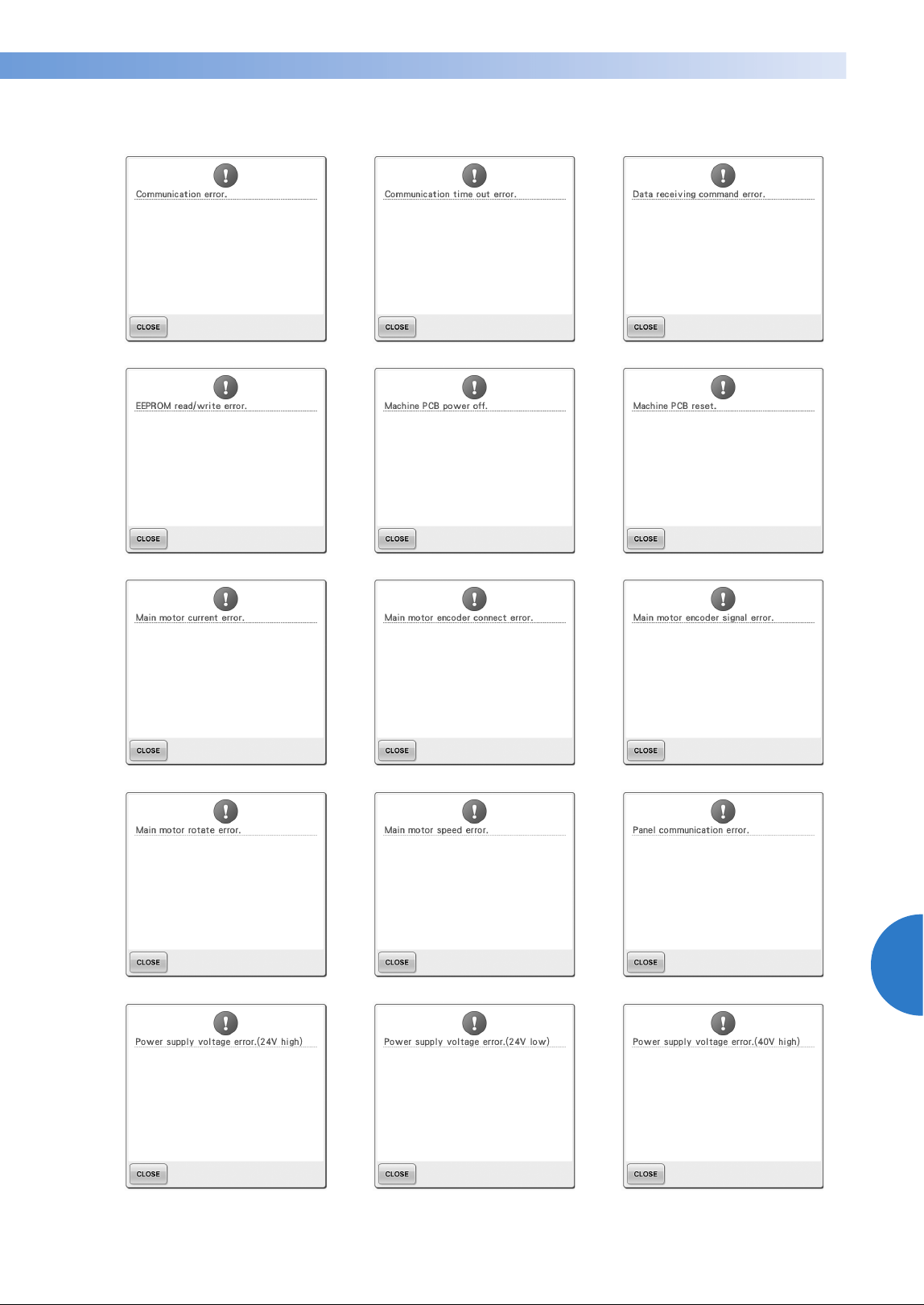
Troubleshooting 305
7
——
——————————————————————————————————————————————————
—
————————————————————————————————
If any of the following messages appear, consult your nearest Brother dealer.
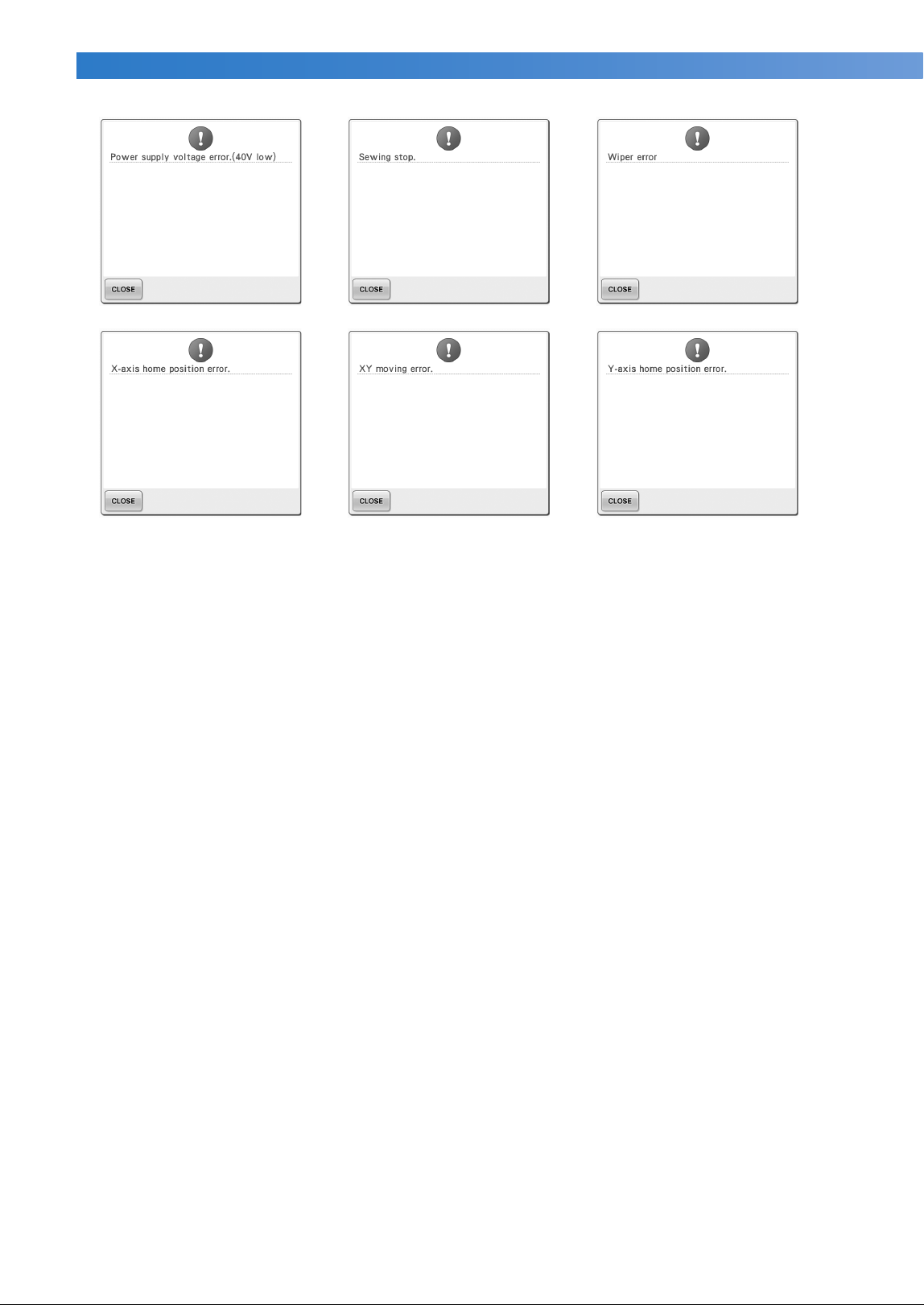
APPENDIX ——————————————————————————————————————————————————————————————————————————
——
306
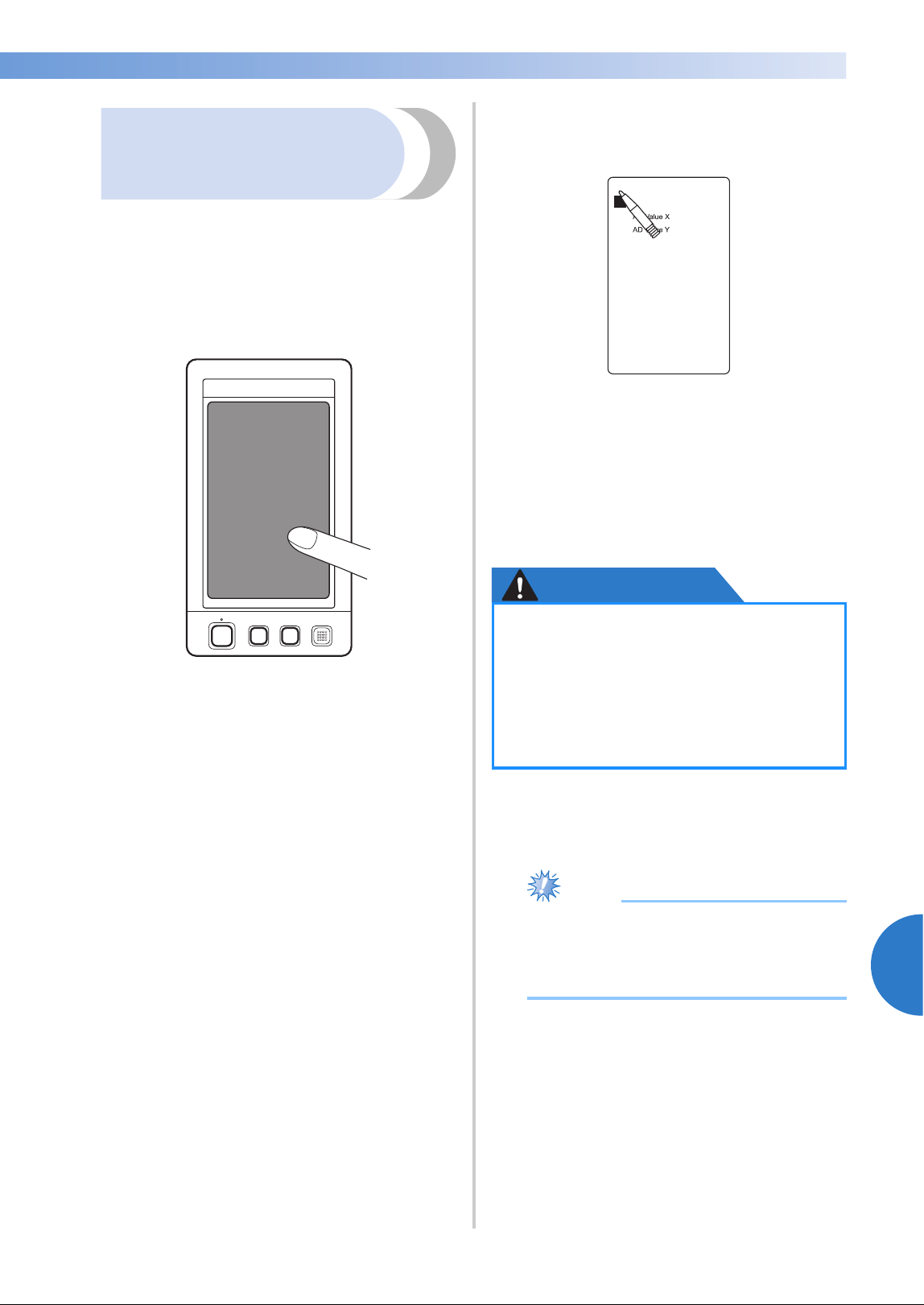
Troubleshooting 307
7
——
——————————————————————————————————————————————————
—
————————————————————————————————
If the machine does not
respond when a key is
pressed
If nothing happens when a key on the screen is
touched (no key can be selected or the keys are
misaligned), adjust the touch panel as described
below.
1
Touch anywhere inside the touch panel, and
turn the machine off, then on again.
• Continue touching the touch panel until
the screen shown below appears.
• The start/stop button is red.
X The adjustments screen appears.
2
Use the included touch pen to touch the
center of the numbered crosses on the screen,
from 1 to 5.
X AD Value X and AD Value Y numbers
change with the touch of each numbered
cross to show variables.
• If the buzzer sounds when cross number 5
is touched, an error occurred during
setting, and “ERROR” appears on the
screen. Touch the crosses again, starting
from 1 to 5.
CAUTION
3
After making the necessary touch panel
adjustment, “SUCCESS” will show on the
screen.
Note
● If the keys still do not respond, even after
the touch panel is adjusted, or if the touch
panel cannot be adjusted, contact your
nearest Brother dealer.
4
Turn the machine off, and on again.
● Be sure to use the included touch pen
to adjust the touch panel. Do not use a
mechanical pencil, screwdriver or any
other hard or sharp object. Do not
apply pressure to the LCD screen
display, otherwise damage to the
display may result.
+1
+4
+2
+5
+3
APPENDIX ——————————————————————————————————————————————————————————————————————————
——
308
Specifications
Embroidery machine specifications
Item Specification
Weight 42 kg (92 lb)
Machine size 560 (W) × 589 (D) × 785 (H) mm
(22 (W) × 23-1/4 (D) × 31 (H) inches)
Sewing speed Maximum / Tubular: 1,000 spm, Cap: 600 spm
Speed range / Max.: 1,000 spm, Min.: 400 spm
Hook Type Vertical rotary hook
Hook size Normal size (Type L)
Needle HA130EBBR / #11
Number of needle 10 needles
Thread tension Manual
Cap sewing (Option) 60 mm (H) × 360 mm (W) (2-3/8 inches (H) × 14 inches (W))
Tubular sewing (4 frames available)
200 mm (H) × 360 mm (W) (7-7/8 inches (H) × 14 inches (W)),
130 mm (H) × 180 mm (W) (5-1/8 inches (H) × 7-1/8 inches (W)),
100 mm (H) × 100 mm (W) (4 inches (H) × 4 inches (W)),
40 mm (H) × 60 mm (W) (1-1/2 inches (H) × 2-3/8 inches (W))
Thread trimming Upper and lower thread
Thread breakage
sensor
Yes / Upper thread and bobbin thread
Automatic needle
threader
Yes
Communication
with PC
USB port
Data storage USB media
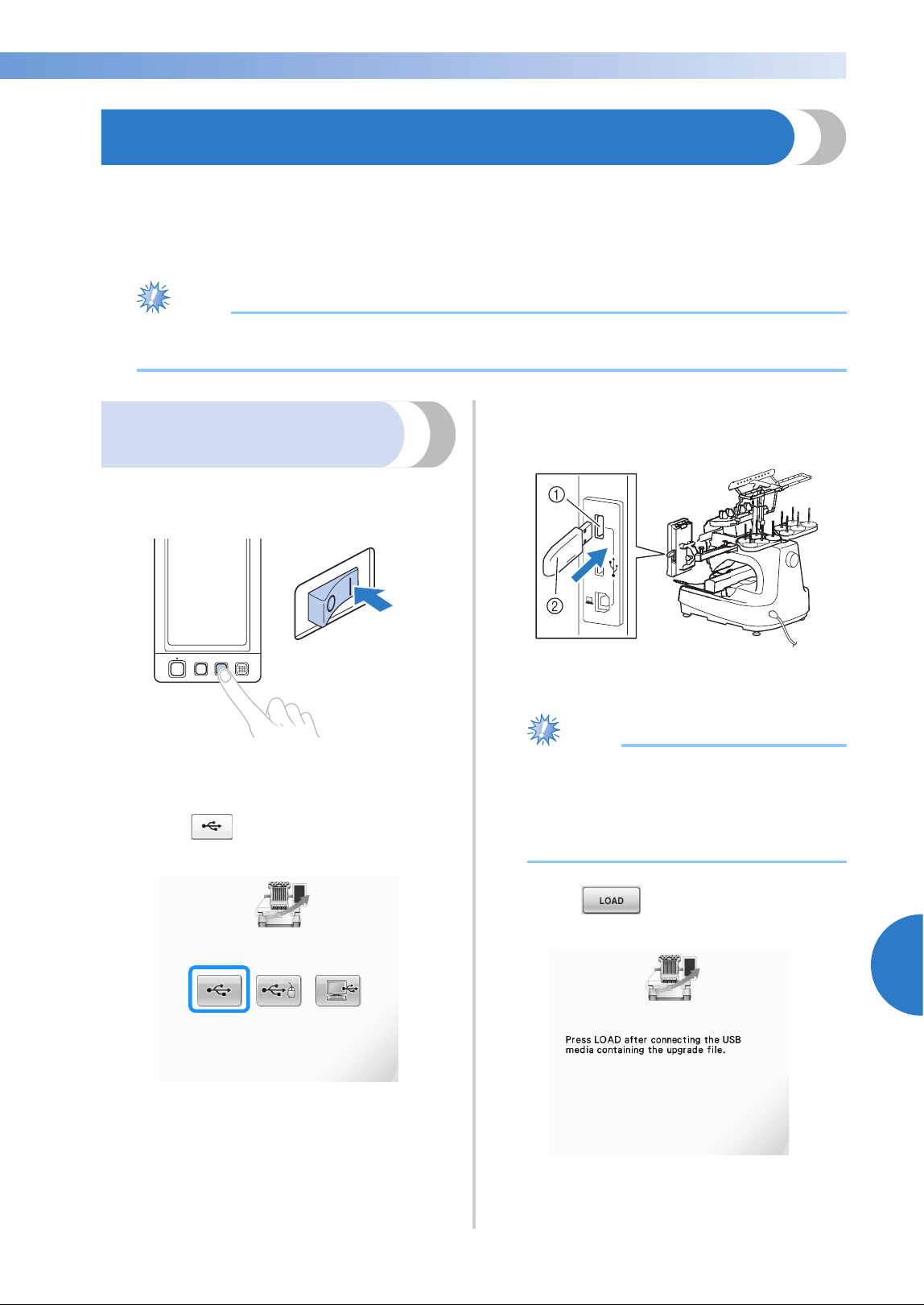
Upgrading Your Machine’s Software 309
7
——
——————————————————————————————————————————————————
—
————————————————————————————————
Upgrading Your Machine’s Software
You can use USB media or a computer to download software upgrades for your embroidering machine.
When an upgrade program is available on “http://solutions.brother.com”, please download the files
following the instructions on the website and steps below.
You can use USB to download software upgrades/updates (**********.upf) for your sewing machine.
Note
● When using USB media to upgrade the software, check that no data other than the upgrade file is
saved on the USB media being used for this upgrade.
Upgrade procedure using
USB media
1
While pressing the automatic threading
button, turn the main power to on.
X The following screen will appear on the
LCD.
2
Touch .
3
Insert the USB media into the primary (top)
USB port on the machine. The media device
should only contain the upgrade file.
1 Primary (top) USB port for media
2 USB media
Note
● The access lamp will begin blinking after
inserting USB media, and it will take about
5 to 6 seconds to recognize the media.
(Time will differ depending on the USB
media).
4
Touch .
X The upgrade file is downloaded.
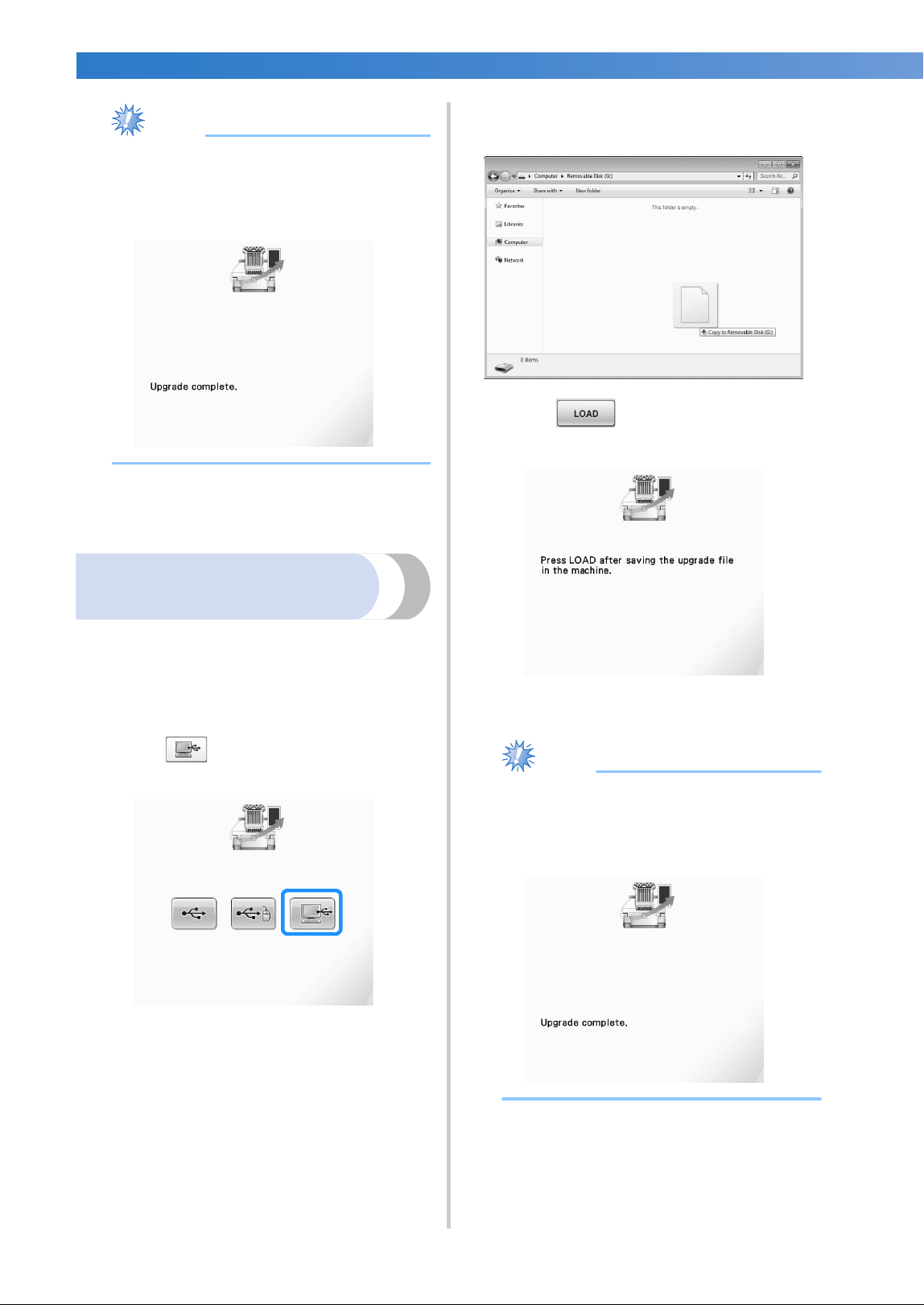
APPENDIX ——————————————————————————————————————————————————————————————————————————
——
310
Note
● If an error occurs, a red text error message
will appear. When the download is
performed successfully, following message
will appear.
5
Remove the USB media, and turn the
machine off and on again.
Upgrade procedure using
computer
1
While pressing the automatic threading
button, turn the main power to on.
X The following screen will appear on the
LCD.
2
Touch .
3
Plug the USB cable connector into the
corresponding USB ports for the computer
and for the machine.
X “Removable Disk” will appear in
“Computer (My computer)”.
4
Copy the upgrade file to “Removable Disk”.
5
Touch .
X The upgrade file is downloaded.
Note
● If an error occurs, a red text error message
will appear. When the download is
performed successfully, following message
will appear.
6
Unplug the USB cable, and turn the machine
off and on again.

Index 311
7
——
———————————————————————————————————————————
—
———————————————————————————————————————
Index
Symbols
“DST” Setting ...................................................218, 225
A
Accessories ................................................................ 22
Adjusting
angle ................................................................. 100
cap frame driver ................................................ 262
edited patterns ................................................... 183
legs ...................................................................... 28
operation panel ...................................................29
sewing speed .....................................................139
thread tension ....................................................122
touch panel .......................................................307
Alphabet patterns ..................................................... 159
Application check .................................................... 218
Appliqué alphabet ........................................... 164, 236
Appliqué sewing .............................................. 127, 236
Array key ................................................... 75, 162, 186
Arrow key ..........................................................99, 183
Automatic lock stitch ...............................................134
Automatic needle-threading button ...................... 21, 60
Automatic needle-threading mechanism .................... 60
B
Background colors ...................................................224
Backing .................................................................... 247
Basic procedures ........................................................37
Basting ..................................................................... 126
Bobbin .......................................................................35
installing .............................................................. 38
Bobbin case ......................................... 38, 39, 122, 284
reinstalling ........................................................... 39
removing .............................................................38
Bobbin winder .........................................................277
Border frame ............................................................197
Border function ........................................................ 192
Built-in camera ..................................................20, 103
C
Canton fleece ...........................................................250
Canvas ..................................................................... 250
Cap frame ................................................................ 258
attaching ........................................................... 266
preparing to use ................................................. 260
removing ...........................................................273
Cap frame driver ...................................................... 260
adjusting ............................................................262
installing ............................................................260
Cap frame mounting jig ...........................................260
Caps
golf style ............................................................ 260
low profile (low fitting) ...................................... 259
standard (pro style) ............................................259
Carriage .....................................................................20
Centerpoint .............................................................. 222
Change thread color key ............................ 75, 140, 190
Changing
character spacing .............................................. 187
colors of the pattern .......................................... 190
display guides ................................................... 220
embroidering position ......................................... 99
language ........................................................... 231
size ................................................................... 184
text arrangement of a character ......................... 186
thread color display ........................................... 222
thread density .................................................... 189
thread spools ..................................................... 113
units of measurements ....................................... 231
Checking
needle bars and thread colors .............................. 54
preview image ..................................................... 48
thread spool changes ......................................... 111
thread tension ..................................................... 68
Cleaning
around the needle plate ..................................... 283
bobbin case ....................................................... 284
hook .................................................................. 282
LCD .................................................................. 282
machine surface ................................................ 282
maintenance message ....................................... 288
oiling machine .................................................. 287
thread paths ...................................................... 285
Color information .................................................... 222
Color thread table .................................................... 246
Combining patterns ................................................. 181
Common screen ........................................................ 71
Computer
port ..................................................................... 83
USB ................................................................... 168
Corduroy ................................................................. 250
Cotton sheeting ........................................................ 250
D
Delete file key ................................................. 166, 175
Delete key ......................................................... 74, 160
Deleting
pattern ............................................................... 204
previously saved pattern ............................ 166, 175
short stitches ..................................................... 226
Denim ..................................................................... 250
Density key ........................................................ 75, 189
Digitizing information .............................................. 275
Display ................................................................ 36, 71
Display guides ......................................................... 220
Distance from center (horizontal) ............................... 74
Distance from center (vertical) ............................. 74, 76
Dress shirt (woven) .................................................. 250
DST ......................................................................... 225
Duplicating a pattern ............................................... 203

APPENDIX ——————————————————————————————————————————————————————————————————————————
——
312
E
Edit end key ...............................................................74
Edit key ................................................................72, 77
Editing ........................................................46, 181, 205
combined pattern ...............................................206
restart from beginning or middle ................115, 118
Editing patterns as a group ........................................204
Embroidering
corner of fabric ....................................................96
small fabric ..........................................................96
tape or ribbon ......................................................96
Embroidering position ................................................99
Embroidering screen .............................................54, 79
Embroidering settings screen ........................47, 76, 205
Embroidery
basic method .......................................................64
repeatedly sewing ..............................................136
Embroidery cards .....................................................166
Embroidery data .......................................................150
Embroidery frame
attaching to the machine ......................................51
hooping ...............................................................49
removing .............................................................69
types ....................................................................91
Embroidery frame holder
attaching ..............................................................32
installing ............................................................274
removing ...........................................................260
Embroidery frame holders ..........................................90
Embroidery frame indicators ...........................49, 74, 76
Embroidery patterns .................................................154
editing .................................................................46
selecting ..............................................................44
Embroidery positioning sticker .................................105
Embroidery thread ......................................................56
Enlarge the pattern image .........................................181
Error messages ..........................................................298
F
Fabric ...................................................................36, 96
precautions for caps ...........................................260
recommendations ................................................36
removing .............................................................69
Fabric/stabilizer compatibility chart ..........................250
Features ........................................................................8
Feet ............................................................................20
Floral alphabet patterns ............................................162
Forward/Backward stitch key ......................80, 115, 118
Frame patterns ..........................................................154
Front view ..................................................................20
G
Golf shirt ..................................................................250
Golf Style cap ...........................................................260
Greek alphabet patterns ...........................................165
H
Handwheel ........................................................21, 287
Headwear ................................................................250
Hook ........................................................................282
Hook cover/Hook .......................................................20
Hooping .......................................................49, 94, 249
Horizontal mirror image key ....................................184
J
Jumbo frame ............................................................254
Jump code ................................................................225
Jumpstitch trimming .................................................225
L
Language .........................................................220, 231
LCD ...............................................................21, 36, 71
Lingerie ....................................................................250
Link function ............................................................176
Lock stitching key ..............................................77, 134
Locking mechanism ...................................................64
Locking the needle bar .............................................100
Low Profile (Low fitting) ...........................................259
Lower thread guide ....................................................20
M
Machine operations guide key .................................232
Main power switch ........................................21, 40, 70
Maintenance ....................................................232, 282
Manual color sequence ............................................132
Manual needle bar settings .......................................145
Maximum sewing speed key ......................................80
Monogram and frame designs ..................................155
Mounting jig cap frame ............................................264
Mouse pointer shape ................................................231
Moving a pattern ......................................................183
Moving needle ...........................................................63
Multi color key ...................................................75, 190
N
Names of machine parts .............................................20
Needle .......................................................................35
changing ..............................................................88
threading .............................................................60
Needle bar case .........................................................20
Needle bar key .....................................................55, 80
Needle plate ............................................................283
Next page key ............................................................73
Number of thread color changes ....................73, 75, 76
O
Oiling ......................................................................287
Operation panel .............................................20, 21, 29
Optional accessories ..................................................24
P
Pattern display area ..............................................71, 76
Pattern editing screen ...................................46, 74, 181
Pattern list screen .................................................44, 73
Pattern selection .......................................................153
Pattern selection key ..........................................71, 182
Pattern size ..........................................................74, 76
Pattern type selection screen ................................44, 72
Positioning key .......................................74, 77, 99, 183
Power supply cord ...............................................40, 70
Power supply plug .....................................................21

Index 313
7
——
———————————————————————————————————————————
—
———————————————————————————————————————
Preview key ................................................... 73, 74, 77
Previewing the Image .................................................48
Previous page key ...................................................... 73
Principal parts ....................................................20, 232
R
Region display ...........................................................79
Remaining length .....................................................227
Renaissance Alphabet Patterns ................................. 163
Reserve stop key ........................................ 80, 140, 142
Reserved needle ............................................... 145, 219
Resume embroidering ..............................................120
Retrieving
from Computer (USB) ........................................168
from Embroidery cards ......................................166
from memory ..................................................... 165
from USB media ................................................173
Return key ........................................................... 73, 80
Right-side/rear view ...................................................21
Rotate all key ............................................. 77, 100, 205
Rotate key .......................................................... 75, 185
Rotation angle ...................................................... 74, 76
S
Satin jacket ..............................................................250
Saving embroidery patterns ...................................... 211
computer ...........................................................214
machine’s memory ............................................211
USB media ........................................................213
Screen ......................................................36, 41, 42, 71
Screen saver settings ................................................ 227
Selecting
edited pattern ....................................................182
embroidery pattern ...................................... 44, 153
Set key ....................................................................... 73
Setting up ................................................................... 26
Settings key ........................................................ 71, 218
Sewing
appliqué ............................................................236
pattern aligned with a mark on the fabric .......... 244
Sewing key ................................................................77
Sewing light ....................................................... 20, 229
Sewing order ..............................................................79
Sewing speed ........................................................... 139
Sewing the embroidery .............................................. 64
Sewing time ...............................................................79
Short stitch delete ............................................218, 226
Silk ..........................................................................250
Size (horizontal) .............................................73, 74, 76
Size (vertical) .......................................................73, 74
Size key .......................................................73, 75, 184
Spacing key ....................................................... 75, 187
Speaker ......................................................................21
speaker volume .................................................229
Specifications ...........................................................308
Split (large-size) embroidery patterns ....................... 240
Spool ......................................................................... 56
Spool change indicator ...................................... 79, 111
Spool stand .......................................................... 20, 31
Spool stand LED ......................................... 10, 113, 230
Stabilizer .................................................... 93, 247, 250
Standard (Pro Style) caps .......................................... 259
Standard Tail ................................................... 218, 227
Start/stop button ................................................... 21, 65
Starting/ending position key ....................... 77, 135, 136
Stitch count ............................................................... 79
Stopping embroidering .............................................. 66
at color changes ................................................ 140
pause ................................................................ 140
Sweater knit ............................................................. 250
Sweatshirt ................................................................ 250
T
Table ....................................................................... 251
Tajima data .............................................. 151, 225, 246
Temporary needle bar setting key ...................... 80, 142
Ten-needle machine .................................................... 8
Tension dial ....................................................... 68, 123
Terry cloth ............................................................... 250
Thread ................................................... 35, 36, 56, 247
Thread color ............................................................ 246
Thread color display ................................................ 222
Thread color set up display ........................................ 80
Thread density ......................................................... 189
Thread guide ....................................................... 20, 57
Thread guide assembly .............................................. 30
Thread mark ............................................................ 195
Thread recommendations .......................................... 36
Thread sensor .......................................................... 230
Thread spools .......................................................... 113
changing ........................................................... 113
easily changing ................................................. 114
Thread tail length ..................................................... 227
Thread tension ................................................. 122, 281
Thread tension disc .................................................... 58
Thread tension knobs ......................................... 20, 123
Thread trimming button ....................................... 21, 67
Threading
needle ................................................................. 60
upper thread .................................................. 54, 56
Thumbnail size ........................................................ 224
Tips for machine operation ...................................... 243
Touch panel .............................................................. 21
Trial sewing key ................................................... 53, 77
Troubleshooting ............................................... 232, 289
T-shirt ...................................................................... 250
U
Uninterrupted embroidering (one color) .................. 143
Units of measurements .................................... 220, 231
Unlock key .......................................................... 64, 80
Upgrading machine’s software ................................. 309
computer ........................................................... 310
USB media ........................................................ 309
Upper threading ........................................................ 54
USB connectivity ....................................................... 82
computer ............................................................. 83
media .................................................................. 82
mouse ................................................................. 84
USB media ...................................................... 173, 213
V
Ventilation slots ......................................................... 21

APPENDIX ——————————————————————————————————————————————————————————————————————————
——
314
Version .....................................................................220
Volume of speaker ...................................................229




Product Code: 884-T11
Operation Manual
Embroidery Machine
English
884-T11
XE9989-001
Printed in Taiwan
Please visit us at http://solutions.brother.com where you can get product
support and answers to frequently asked questions (FAQs).
Operation Manual
884-T11
XE9989-001_cover_H1-4
PANTONE 285C K