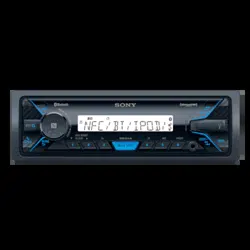
You can detach the front panel of this unit to prevent theft.
Press and hold OFF 1 until the unit turns off, press the front panel release button 2, then pull the panel towards you to remove.
Caution alarm
If you turn the ignition switch to the OFF position without detaching the front panel, the caution alarm will sound for a few seconds. The alarm will only sound if the built-in amplifier is used.
Serial numbers
Make sure the serial numbers on the bottom of the unit and the back of the front panel are matched correctly. Otherwise you cannot make BLUETOOTH pairing, connection and disconnection by NFC.
Resetting the Unit
Before operating the unit for the first time, or after replacing the car battery or changing connections, you must reset the unit.
Press DSPL and (back)/MODE for more than 2 seconds.
Setting the Clock
Press MENU, rotate the control dial to select [GENERAL], then press it.
Rotate the control dial to select [SET CLOCK], then press it.
Rotate the control dial to select [MANUAL], then press it. The hour indication flashes.
Rotate the control dial to set the hour and minute. To move the digital indication, press (SEEK –/+).
After setting the minute, press MENU. The setup is complete and the clock starts.
To display the clock
Press DSPL.
To set the clock automatically
Select [AUTO ] in step 3.
Checking the Battery Voltage
You can check the current battery voltage. (Not available while the source is off and the clock is displayed.)
Press DSPL repeatedly until the battery voltage display appears.
Preparing a BLUETOOTH Device
You can enjoy music, or perform handsfree calling depending on the BLUETOOTH compatible device such as a smartphone, cellular phone and audio device (hereafter “BLUETOOTH device” if not otherwise specified). For details on connecting, refer to the operating instructions supplied with the device.
Before connecting the device, turn down the volume of this unit; otherwise, loud sound may result.
Connecting with a Smartphone using One-touch connection (NFC)
By touching the control dial on the unit with an NFC* compatible smartphone, the unit is paired and connected with the smartphone automatically.
* NFC (Near Field Communication) is a technology enabling short-range wireless communication between various devices, such as mobile phones and IC tags. Thanks to the NFC function, data communication can be achieved easily just by touching the relevant symbol or designated location on NFC compatible devices.
For a smartphone with Android OS 4.0 or lower installed, downloading the app “NFC Easy Connect” available at Google Play™ is required. The app may not be downloadable in some countries/regions
Activate the NFC function on the smartphone. For details, refer to the operating instructions supplied with the smartphone.
Touch the N-Mark part of the unit with the N-Mark part of the smartphone.
Make sure that lights up on the display of the unit.
Pairing and connecting with a BLUETOOTH device
When connecting a BLUETOOTH device for the first time, mutual registration (called “pairing”) is required. Pairing enables this unit and other devices to recognize each other. This unit can connect two BLUETOOTH devices (two cellular phones, or a cellular phone and an audio device).
Place the BLUETOOTH device within 1 m (3 ft) of this unit.
Press MENU, rotate the control dial to select [BLUETOOTH], then press it.
Rotate the control dial to select [SET PAIRING], then press it.
Rotate the control dial to select [SET DEVICE 1]* or [SET DEVICE 2]*, then press it.
Perform pairing on the BLUETOOTH device so it detects this unit.
Select [DSX-XXXX] (your model name) shown in the display of the BLUETOOTH device. If your model name does not appear, repeat from step 2.
If passkey* input is required on the BLUETOOTH device, input [0000]. * Passkey may be called “Passcode,” “PIN code,” “PIN number” or “Password,” etc., depending on the device.
Select this unit on the BLUETOOTH device to establish the BLUETOOTH connection. or lights up when the connection is made.
Maintenance
Replacing the lithium battery (CR2025) of the remote commander
When the battery becomes weak, the range of the remote commander becomes shorter.
CAUTION: Danger of explosion if battery is incorrectly replaced. Replace only with the same or equivalent type.
Note on the lithium battery
Keep the lithium battery out of the reach of children. Should the battery be swallowed, immediately consult a doctor.
Cleaning the connectors
The unit may not function properly if the connectors between the unit and the front panel are not clean. In order to prevent this, detach the front panel (page 8) and clean the connectors with a cotton swab. Do not apply too much force. Otherwise, the connectors may be damaged.
Notes
For safety, turn off the ignition before cleaning the connectors, and remove the key from the ignition switch.
Never touch the connectors directly with your fingers or with any metal device.
Troubleshooting
The following checklist will help you remedy problems you may encounter with your unit. Before going through the checklist below, check the connection and operating procedures. For details on using the fuse and removing the unit from the dashboard, see “Connection/Installation”
If the problem is not solved, visit the support site on the back cover.
General
No power is being supplied to the unit.
If the unit is turned off and the display disappears, the unit cannot be operated with the remote commander.
- Turn on the unit.
No sound or the sound is very low.
The position of the fader control [FADER] is not set for a 2-speaker system.
The volume of the unit and/or connected device is very low.
-Increase the volume of the unit and connected device.
No beep sound.
An optional power amplifier is connected and you are not using the built-in amplifier.
The contents of the memory have been erased.
The power supply lead or battery has been disconnected or not connected properly.
Stored stations and correct time are erased. The fuse has blown. Makes a noise when the position of the ignition is switched.
The leads are not matched correctly with the car’s accessory power connector.During playback or reception, the demonstration mode starts.
If no operation is performed for 5 minutes with [DEMO-ON] set, the demonstration mode starts.
-Set [DEMO-OFF] (page 22).
The display disappears from/does not appear in the display window.
The dimmer is set to [DIM-ON] (page 24).
The display disappears if you press and hold OFF.
-Press OFF on the unit until the display appears.
The connectors are dirty (page 26).
The display/illumination flashes.
The power supply is not sufficient.
-Check that the car battery supplies enough power to the unit. (The power requirement is 12 V DC.)
The operation buttons do not function.
Press DSPL and (back)/MODE for more than 2 seconds to reset the unit. The contents stored in memory are erased. For your safety, do not reset the unit while you are driving.
Radio reception
Stations cannot be received. The sound is hampered by noises.
The connection is not correct.
- If your car has built-in radio antenna (aerial) in the rear/side glass, connect an REM OUT lead (blue/white striped) or accessory power supply lead (red) to the power supply lead of a car’s antenna (aerial) booster.
-Check the connection of the car antenna (aerial).
- If the auto antenna (aerial) will not extend, check the connection of the power antenna (aerial) control lead.
Preset tuning is not possible.
The broadcast signal is too weak.
RDS
PTY displays [- - - - - - - -].
The current station is not an RDS station.
RDS data has not been received.
The station does not specify the program type.
USB device playback
You cannot play items via a USB hub.
This unit cannot recognize USB devices via a USB hub.
A USB device takes longer to play.
The USB device contains files with a complicated tree structure.
The sound is intermittent.
The sound may be intermittent at a high-bit-rate.
DRM (Digital Rights Management) files may not be playable in some cases.
The audio file cannot be played.
USB devices formatted with file systems other than FAT16 or FAT32 are unsupported.*
* This unit supports FAT16 and FAT32, but some USB device may not support all of these FAT. For details, refer to the operating instruction of each USB device or contact the manufacturer.
Operations for skipping an album, skipping items (Jump mode), and searching a track by name (Quick-BrowZer) cannot be performed.
These operations cannot be performed when a USB device in Android mode or iPod is connected.
- Set [USB MODE] to [MSC/MTP] (page 23).
- Remove the iPod.
The USB mode of the device is not set to the appropriate mode.
- Make sure that the USB mode of the device is set to MSC/MTP mode.
The sound cannot be output during playback in Android mode.
While the unit is in Android mode, the sound outputs only from the Android smartphone.
- Check the status of the audio playback application on the Android smartphone.
- Playback may not perform properly depending on the Android smartphone.
NFC function
One-touch connection (NFC) is not possible.
If the smartphone does not respond to the touching.
- Check that the NFC function of the smartphone is turned on.
- Move the N-Mark part of the smartphone closer to the N-Mark part on this unit.
- If the smartphone is in a case, remove it.
NFC receiving sensitivity depends on the device. If One-touch connection with the smartphone fails several times, make BLUETOOTH connection manually.
BLUETOOTH function
The connecting device cannot detect this unit.
Before the pairing is made, set this unit to pairing standby mode.
While connected to a BLUETOOTH device, this unit cannot be detected from another device.
- Disconnect the current connection and search for this unit from another device.
When the device pairing is made, set the BLUETOOTH signal output to on (page 11).
Connection is not possible.
The connection is controlled from one side (this unit or BLUETOOTH device), but not both.
- Connect to this unit from a BLUETOOTH device or vice versa.
The name of the detected device does not appear.
Depending on the status of the other device, it may not be possible to obtain the name.
No ringtone.
Adjust the volume by rotating the control dial while receiving a call.
Depending on the connecting device, the ringtone may not be sent properly.
- Set [RINGTONE] to [1] (page 24).
The speakers are not connected to the unit.
- Connect the speakers to the unit. To select the speakers for ringtone, press MENU, then select [BLUETOOTH]
[SET VOICE-OUT] (page 25).
The talker’s voice cannot be heard.
The speakers are not connected to the unit.
- Connect the speakers to the unit. To select the speakers for talker’s voice, press MENU, then select [BLUETOOTH]
[SET VOICE-OUT] (page 25).
A call partner says that the volume is too low or high.
Adjust the volume accordingly using Mic gain adjustment (page 19).
Echo or noise occurs in phone call conversations.
Lower the volume.
Set EC/NC Mode to [EC/NC-1] or [EC/NC-2] (page 19).
If the ambient noise other than the phone call sound is loud, try reducing this noise. E.g.: If a window is open and road noise, etc., is loud, shut the window. If an air conditioner is loud, lower the air conditioner.
The phone is not connected.
When BLUETOOTH audio is played, the phone is not connected even if you press CALL.
- Connect from the phone.
The phone sound quality is poor.
Phone sound quality depends on reception conditions of cellular phone.
- Move your car to a place where you can enhance the cellular phone’s signal if the reception is poor.
The volume of the connected audio device is low (high).
Volume level will differ depending on the audio device.
- Adjust the volume of the connected audio device or this unit.
The sound skips during playback of a BLUETOOTH audio device.
Reduce the distance between the unit and the BLUETOOTH audio device.
If the BLUETOOTH audio device is stored in a case which interrupts the signal, remove the audio device from the case during use.
Several BLUETOOTH devices or other devices which emit radio waves are in use nearby.
- Turn off the other devices.
- Increase the distance from the other devices.
The playback sound stops momentarily when the connection between this unit and the cellular phone is being made. This is not a malfunction.
The connected BLUETOOTH audio device cannot be controlled.
Check that the connected BLUETOOTH audio device supports AVRCP.
Some functions do not work.
Check if the connecting device supports the functions in question.
A call is answered unintentionally.
The connecting phone is set to answer a call automatically.
Pairing failed due to a timeout.
Depending on the connecting device, the time limit for pairing may be short.
- Try completing the pairing within the time.
Cannot pair.
The unit may not be able to pair with a previously paired BLUETOOTH device after initializing the unit if the pairing information of the unit is on the BLUETOOTH device. In this case, delete the pairing information of the unit from the BLUETOOTH device, and then pair them again.
BLUETOOTH function cannot operate.
Turn off the unit by pressing OFF for more than 2 seconds, then turn the unit on again.
No sound is output from the car speakers during handsfree call.
If the sound is output from the cellular phone, set the cellular phone to output the sound from the car speakers.
Siri Eyes Free is not activated.
Perform the handsfree registration for an iPhone that supports Siri Eyes Free.
Set the Siri function on the iPhone to on.
Cancel the BLUETOOTH connection with the iPhone and the unit, and reconnect.
Sony | Music Center operation
Application name is mismatched with the actual application in “Sony | Music Center”.
Launch the application again from the “Sony | Music Center” application.
While running the “Sony | Music Center” application via BLUETOOTH, the display automatically switches to [BT AUDIO].
The “Sony | Music Center” application or BLUETOOTH function has failed.
Run the application again.
The “Sony | Music Center” application is automatically disconnected when the display switches to [IPOD].
The “Sony | Music Center” application on iPhone/ iPod does not support iPod playback.
- Change the source of the unit to other than [IPOD], then establish the “Sony | Music Center” connection (page 20).
The “Sony | Music Center” connection is automatically disconnected when the USB mode of the unit is changed to [ANDROID].
The Android smartphone is not supporting playback in Android mode.
- Set the USB mode of the unit to [MSC/MTP], then establish the “Sony | Music Center” connection (page 20).
Pandora® operation
Pandora® connection is not possible.
Shut down the Pandora® application on the mobile device, and then launch it again.
Specifications
Tuner section
FM
Tuning range: 87.5 MHz – 107.9 MHz
Antenna (aerial) terminal:
External antenna (aerial) connector
Intermediate frequency:
FM CCIR: -1,956.5 kHz to -487.3 kHz and +500.0 kHz to +2,095.4 kHz
Usable sensitivity: 7 dBf
Selectivity: 75 dB at 400 kHz
Signal-to-noise ratio: 73 dB
Separation: 50 dB at 1 kHz
Frequency response: 20 Hz – 15,000 Hz
AM
Tuning range: 530 kHz – 1,710 kHz
Antenna (aerial) terminal:
External antenna (aerial) connector
Sensitivity: 26 μV
USB Player section
Interface: USB (Full-speed)
Maximum current: 1 A
Maximum number of recognizable folders and files:
Folders (albums): 256
Files (tracks) per folder: 256
Compatible Android Open Accessory protocol
(AOA): 2.0
Corresponding codec:
MP3 (.mp3)
Bit rate: 8 kbps – 320 kbps (Supports VBR (Variable Bit Rate))
Sampling rate: 16 kHz – 48 kHz
WMA (.wma)
Bit rate: 32 kbps – 192 kbps (Supports VBR (Variable Bit Rate))
Sampling rate: 32 kHz, 44.1 kHz, 48 kHz
AAC (.m4a, .mp4)
Bit rate: 16 kbps – 320 kbps (stereo)
Sampling rate: 8 kHz – 48 kHz
FLAC (.flac)
Bit depth: 16 bit, 24 bit
Sampling rate: 44.1 kHz, 48 kHz
Wireless Communication
Communication System:
BLUETOOTH Standard version 3.0
Output:
BLUETOOTH Standard Power Class 2
(Max. +4 dBm)
Maximum communication range:
Line of sight approx. 10 m (33 ft)*1
Frequency band:
2.4 GHz band (2.4000 GHz – 2.4835 GHz)
Modulation method: FHSS
Compatible BLUETOOTH Profiles*2:
A2DP (Advanced Audio Distribution Profile) 1.3
AVRCP (Audio Video Remote Control Profile) 1.3
HFP (Handsfree Profile) 1.6
PBAP (Phone Book Access Profile)
SPP (Serial Port Profile)
Corresponding codec:
SBC (.sbc), AAC (.m4a)
*1 The actual range will vary depending on factors such as obstacles between devices, magnetic fields around a microwave oven, static electricity, reception sensitivity, antenna (aerial)’s performance, operating system, software application, etc.
*2 BLUETOOTH standard profiles indicate the purpose of BLUETOOTH communication between devices.
Power amplifier section
Output: Speaker outputs
Speaker impedance: 4 Ω – 8 Ω
Maximum power output: 55 W × 4 (at 4 Ω)
General
Outputs:
Audio outputs terminal (REAR, SUB)
Power antenna (aerial)/Power amplifier control terminal (REM OUT)
Inputs:
SiriusXM input terminal
Remote controller input terminal
Antenna (aerial) input terminal
AUX input jack (stereo mini jack)
USB port
Power requirements: 12 V DC car battery (negative ground (earth))
Rated current consumption: 10 A
Dimensions:
Approx. 178 mm × 50 mm × 119 mm (7 1/8 in × 2 in × 4 3/4 in) (w/h/d)
Mounting dimensions:
Approx. 182 mm × 53 mm × 102 mm (7 1/4 in × 2 1/8 in × 4 1/8 in) (w/h/d)
This unit will come with the wiring harness for the radio itself, but it will not come with any vehicle specific installation parts
#5 Can you shut it off even with the automobile running? Does it still show the clock when off?
Press and hold the source button for 1 second to turn the source off and display the clock or Press and hold the source button for more than 2 seconds to turn off the power and the display.

 (back)/MODE for more than 2 seconds.
 (SEEK –/+).
 lights up on the display of the unit.


 or
or  lights up when the connection is made.

 (back)/MODE for more than 2 seconds to reset the unit. The contents stored in memory are erased. For your safety, do not reset the unit while you are driving.