
20_JC_OM_EN_USC
FIRST EDITION V1
2020 DODGE JOURNEY OWNER’S MANUAL
2020 DODGE JOURNEY
©2020 FCA US LLC. ALL RIGHTS RESERVED. TOUS DROITS RÉSERVÉS.
DODGE IS A REGISTERED TRADEMARK OF FCA US LLC OR FCA CANADA INC., USED UNDER LICENSE. DODGE EST UNE MARQUE DÉPOSÉE DE FCA US LLC OU FCA CANADA INC., UTILISÉE SOUS LE PERMIS.
APP STORE IS A REGISTERED TRADEMARK OF APPLE INC. GOOGLE PLAY STORE IS A REGISTERED TRADEMARK OF GOOGLE.
Whether it’s providing information about specic product features, taking a tour through your vehicle’s heritage, knowing what steps to take following an
accident or scheduling your next appointment, we know you’ll nd the app an important extension of your Dodge brand vehicle.
Simply download the app, select your make and model and enjoy the ride. To get this app, go directly to the App Store
®
or Google Play
®
Store and enter the search
keyword “Dodge” (U.S. residents only).
mopar.com/om owners.mopar.ca
DOWNLOAD A FREE ELECTRONIC COPY OF THE MOST UP-TO-DATE
OWNER’S MANUAL, UCONNECT AND WARRANTY BOOKLETS
U. S. Canada

WARNING: Operating, servicing and maintaining a passenger vehicle or off-highway motor vehicle can expose you to
chemicals including engine exhaust, carbon monoxide, phthalates, and lead, which are known to the State of California to
cause cancer and birth defects or other reproductive harm. To minimize exposure, avoid breathing exhaust, do not idle the
engine except as necessary, service your vehicle in a well-ventilated area and wear gloves or wash your hands frequently
when servicing your vehicle. For more information go to www.P65Warnings.ca.gov/passenger-vehicle.
This Owner’s Manual illustrates and describes the operation of features and equipment that are either standard or optional on this vehicle. This manual may also include
a description of features and equipment that are no longer available or were not ordered on this vehicle. Please disregard any features and equipment described in this
manual that are not on this vehicle. FCA US LLC reserves the right to make changes in design and specications, and/or make additions to or improvements to its
products without imposing any obligation upon itself to install them on products previously manufactured.
With respect to any vehicles sold in Canada, the name FCA US LLC shall be deemed to be deleted and the name FCA Canada Inc. used in substitution therefore.
If you are the rst registered retail owner of your vehicle, you may obtain a complimentary printed copy of the Warranty Booklet by calling 1-800-423-6343 (U.S.) or
1-800-387-1143 (Canada) or by contacting your dealer.
This Owner’s Manual is intended to familiarize you with the important features of your vehicle. Your most up-to-date Owner’s Manual, Navigation/Uconnect manuals and
Warranty Booklet can be found by visiting the website on the back cover. U.S. residents can purchase replacement kits by visiting www.techauthority.com and Canadian
residents can purchase replacement kits by calling 1-800-387-1143.
The driver’s primary responsibility is the safe operation of the vehicle. Driving while distracted can result in loss of vehicle control, resulting in an accident and
personal injury. FCA US LLC strongly recommends that the driver use extreme caution when using any device or feature that may take their attention off the road.
Use of any electrical devices, such as cellular telephones, computers, portable radios, vehicle navigation or other devices, by the driver while the vehicle is moving
is dangerous and could lead to a serious accident. Texting while driving is also dangerous and should never be done while the vehicle is moving. If you nd yourself
unable to devote your full attention to vehicle operation, pull off the road to a safe location and stop your vehicle. Some states or provinces prohibit the use of
cellular telephones or texting while driving. It is always the driver’s responsibility to comply with all local laws.
This Owner’s Manual has been prepared to help you get acquainted with your new Dodge brand vehicle and to provide a convenient reference source
for common questions.
Not all features shown in this manual may apply to your vehicle. For additional information, visit www.mopar.com (U.S.), www.mopar.ca (Canada) or your local
Dodge brand dealer.
Drunk driving is one of the most frequent causes of accidents. Your driving ability can be seriously impaired with blood alcohol levels
far below the legal minimum. If you are drinking, don’t drive. Ride with a designated non-drinking driver, call a cab, a friend or use
public transportation.
DRIVING AND ALCOHOL
Driving after drinking can lead to an accident. Your perceptions are less sharp, your reexes are slower and your judgment is impaired
when you have been drinking. Never drink and then drive.
WARNING

TABLE OF CONTENTS
1
2
3
4
5
6
7
8
9
10
11
1 INTRODUCTION.............................................................................................................................. 7
2 GETTING TO KNOW YOUR VEHICLE ..
.................................................................................9
3 GETTING TO KNOW YOUR INSTRUMENT PANEL ..
..................................................... 93
4 SAFETY .
........................................................................................................................................109
5 S
TARTING AND OPERATING ..
............................................................................................. 157
6 IN CASE OF EMERGENCY ..
...................................................................................................189
7 SERVICING AND MAINTENANCE .
.
..................................................................................... 216
8 TECHNICAL SPECIFICATIONS ..
..........................................................................................256
9 MULTIMEDIA ..
............................................................................................................................265
10 CUSTOMER ASSISTANCE .
.
...................................................................................................380
11 INDEX .............................................................................................................................................384

2
INTRODUCTION
HOW TO USE THIS MANUAL.................................. 8
Essential Information ..
.................................. 8
Symbols.
......................................................... 8
W
ARNINGS AND CAUTIONS .
.
...............................8
VEHICLE MODIFICATIONS/ALTERATIONS ..
........ 8
GETTING TO KNOW YOUR VEHICLE
KEYS ........................................................................ 9
Key Fob........................................................... 9
I
GNITION SWITCH .
.
...............................................12
Keyless Push Button Ignition..
....................12
Ignition Or Accessory On Message ..
..........14
REMOTE START — IF EQUIPPED .
.
.......................14
How To Use Remote Start ..
.........................14
Remote Start Abort Message.
.
....................15
To Enter Remote Start Mode ..
....................15
To Exit Remote Start Mode Without
Driving The Vehicle .
.
...................................15
To Exit Remote Start Mode And Drive
The Vehicle.
.
.................................................15
Remote Start Comfort System —
If Equipped .
.
.................................................16
General Information .
.
..................................16
SENTRY KEY ..
.......................................................16
Key Programming ....................................... 17
Replacement Keys..
.....................................17
General Information .
.
..................................17
VEHICLE SECURITY ALARM — IF EQUIPPED..
... 18
To Arm The System..
.................................... 18
To Disarm The System ..
.............................. 18
Rearming Of The System.
.
........................... 19
Security System Manual Override ..
............19
Tamper Alert.
.
............................................... 19
DOORS .................................................................. 19
M
anual Door Locks...................................... 19
Power Door Locks ..
..................................... 20
Keyless Enter-N-Go — Passive Entry
(If Equipped) .
.
.............................................. 21
Child-Protection Door Lock System —
Rear Doors .
.
................................................ 23
SEATS .................................................................... 25
M
anual Adjustment (Front Seats) ..
............25
Manual Adjustment (Rear Seats) .
.
.............26
Power Adjustment (Front Seat).
.
................. 30
Front Heated Seats — If Equipped..
............31
Seatback/Armrest — Second Row
Passenger Seat.
.
.......................................... 32
HEAD RESTRAINTS ..
............................................ 32
Supplemental Active Head Restraints
(AHR) — Front Seats..
................................... 33
Rear Head Restraint Adjustment..
.............. 34
Rear Head Restraint Removal.
.
.................. 35
STEERING WHEEL ..
.............................................. 35
Tilt/Telescoping Steering Column ..
............35
Heated Steering Wheel — If Equipped .
.
.... 35
MIRRORS ..............................................................36
I
nside Day/Night Mirror — If Equipped..
..... 36
Automatic Dimming Mirror — If Equipped ..
. 37
Automatic Dimming Mirror With Rear View
Camera Display — If Equipped .
.
................. 37
Outside Mirrors .
.
......................................... 38
Interior Observation Mirror ..
...................... 38
Power Mirrors.
.
............................................. 38
Heated Mirrors — If Equipped..
................... 39
Power Folding Mirrors — If Equipped ..
....... 39
Illuminated Vanity Mirrors — If Equipped .
.
40
EXTERIOR LIGHTS..
...............................................40
Multifunction Lever ..................................... 40
Headlights.................................................... 40
D
aytime Running Lights (DRLs)..
................ 41
High/Low Beam Switch.
.
............................. 41
Flash-To-Pass..
............................................. 41
Automatic Headlights .
.
............................... 41
Headlights On With Wipers (Available With
Automatic Headlights Only) .
.
...................... 41
Headlight Time Delay ..
............................... 41
Lights-On Reminder..
................................... 42
Fog Lights — If Equipped.
.
........................... 42
Turn Signals ..
.............................................. 42
Lane Change Assist — If Equipped .
.
........... 42
INTERIOR LIGHTS ..
...............................................43
Courtesy/Interior Lighting ..
........................ 43
WIPERS AND WASHERS .
.
..................................44
Windshield Wiper Operation..
..................... 44
Rear Window Wiper/Washer .
.
................... 46

3
CLIMATE CONTROLS ...........................................47
Manual Climate Control Overview ..
............47
Automatic Climate Controls Overview ..
......58
Climate Control Functions.
.
.........................70
Automatic Temperature Control (ATC) — If
Equipped .
.....................................................70
O
perating Tips ..
...........................................71
WINDOWS .
.
..........................................................72
Power Windows ..
.........................................72
Wind Buffeting ..
..........................................74
POWER SUNROOF — IF EQUIPPED.
.
...................74
Opening Sunroof..
........................................75
Closing Sunroof.
.
..........................................75
Wind Buffeting ..
...........................................75
Sunshade Operation..
..................................75
Anti Pinch Protect Feature .
.
........................75
Sunroof Maintenance.
.
................................75
Ignition Off Operation ..
................................76
HOOD......................................................................76
O
pening ........................................................ 76
Closing..........................................................76
L
IFTGATE................................................................77
O
pening ........................................................ 77
Cargo Area Features ..
.................................78
GARAGE DOOR OPENER — IF EQUIPPED.
.
........80
Before You Begin Programming
HomeLink® ..
................................................80
Canadian/Gate Operator Programming.
.
...82
Using HomeLink®..
...................................... 83
Security......................................................... 83
T
roubleshooting Tips ..
................................. 83
General Information .
.
.................................. 84
INTERNAL EQUIPMENT..
...................................... 84
Storage......................................................... 84
Cupholders ..
................................................ 86
Power Outlets.
.
............................................. 87
Power Inverter — If Equipped ..
...................89
Sunglasses Storage ..
.................................. 90
ROOF LUGGAGE RACK — IF EQUIPPED .
.
.......... 91
GETTING TO KNOW YOUR
INSTRUMENT PANEL
INSTRUMENT CLUSTER ....................................... 93
Instrument Cluster Descriptions................. 94
INSTRUMENT CLUSTER DISPLAY..
..................... 95
Instrument Cluster Display Location And
Controls ........................................................ 95
O
il Change Due ..
......................................... 96
Instrument Cluster Display Selectable
Menu Items.
.
................................................ 96
Battery Saver On/Battery Saver Mode
Message — Electrical Load Reduction
Actions — If Equipped .
.
............................... 99
WARNING LIGHTS AND MESSAGES ..
............. 100
Red Warning Lights ..
.................................100
Yellow Warning Lights ..
.............................103
Green Indicator Lights.
.
.............................106
White Indicator Lights ..
.............................106
Blue Indicator Lights .
.
...............................106
ONBOARD DIAGNOSTIC SYSTEM — OBD II ..
. 107
Onboard Diagnostic System (OBD II)
Cybersecurity ..
...........................................107
EMISSIONS INSPECTION AND MAINTENANCE
PROGRAMS ..
...................................................... 108
SAFETY
SAFETY FEATURES ............................................ 109
Anti-Lock Brake System (ABS) ..
...............109
Electronic Brake Control (EBC) System..
..110
AUXILIARY DRIVING SYSTEMS .
.
...................... 116
Tire Pressure Monitoring System
(TPMS)........................................................116
O
CCUPANT RESTRAINT SYSTEMS ..
............... 120
Occupant Restraint Systems Features ....120
Important Safety Precautions..
.................121
Seat Belt Systems ..
..................................121
Supplemental Restraint
Systems (SRS) .
.
.........................................130
Child Restraints .
.
.......................................139
Transporting Pets ..
...................................154

4
SAFETY TIPS ...................................................... 154
Transporting Passengers ..
........................154
Exhaust Gas ..
.............................................154
Safety Checks You Should Make Inside
The Vehicle .
.
..............................................155
Periodic Safety Checks You Should
Make Outside The Vehicle .
.
......................156
STARTING AND OPERATING
STARTING THE ENGINE .................................... 157
Automatic Transmission ..
.........................157
Normal Starting .
.
.......................................158
Keyless Enter-N-Go — Ignition..
.................158
Cold Weather Operation
(Below –22°F Or −30°C) .
.
.......................159
If Engine Fails To Start ..
............................159
After Starting.
.
............................................159
ENGINE BLOCK HEATER — IF EQUIPPED..
...... 159
ENGINE BREAK-IN RECOMMENDATIONS ...... 160
PARKING BRAKE ..
............................................ 160
AUTOMATIC TRANSMISSION..
.......................... 161
Ignition Park Interlock ...............................162
Brake/Transmission Shift Interlock
System .
......................................................162
F
our-Speed Automatic Transmission ..
.....163
Gear Ranges .
.
...........................................163
POWER STEERING..
........................................... 168
Power Steering Fluid Check ..
....................168
SPEED CONTROL — IF EQUIPPED ..
.................168
To Activate..................................................169
T
o Set A Desired Speed..
...........................169
To Vary The Speed Setting.
.
......................169
To Accelerate For Passing..
.......................170
To Resume Speed .
.
...................................170
To Deactivate..
...........................................171
PARKSENSE REAR PARK ASSIST .
.
.................171
ParkSense Sensors ..
.................................171
ParkSense Display..
...................................172
ParkSense Warning Display.
.
....................173
Enabling And Disabling ParkSense ..
........173
Service The ParkSense Rear Park
Assist System.
.
...........................................173
Cleaning The ParkSense System..
............174
ParkSense System Usage Precautions.
.
..174
PARKVIEW REAR BACK UP CAMERA..
............175
REFUELING THE VEHICLE..................................176
Loose Fuel Filler Cap Message..
...............177
VEHICLE LOADING .
.
..........................................177
Vehicle Certification Label ..
......................177
Gross Vehicle Weight Rating (GVWR)..
.....178
Gross Axle Weight Rating (GAWR) .
.
.........178
Overloading..
..............................................178
Loading .
.....................................................178
T
RAILER TOWING ..
............................................ 178
Common Towing Definitions..
...................178
Trailer Hitch Classification ..
......................180
Trailer Towing Weights (Maximum Trailer
Weight Ratings) .
.
.......................................181
Trailer And Tongue Weight .
.
.....................181
Towing Requirements ..
............................182
Towing Tips .
.
.............................................184
RECREATIONAL TOWING (BEHIND
MOTORHOME, ETC.) ..
....................................... 186
Towing This Vehicle Behind Another
Vehicle........................................................186
D
RIVING TIPS .
.
................................................... 187
Driving On Slippery Surfaces ..
.................187
Driving Through Water ..
...........................187
IN CASE OF EMERGENCY
HAZARD WARNING FLASHERS ...................... 189
BULB REPLACEMENT ........................................ 189
Replacement Bulbs ..
................................189
Replacing Exterior Bulbs.
.
.........................191
FUSES.................................................................. 193
I
nterior Fuses ..
..........................................193
Underhood Fuses (Power Distribution
Center) .
......................................................196

5
JACKING AND TIRE CHANGING........................ 199
Jack Location ..
...........................................199
Spare Tire Location And Removal ..
..........200
Preparations For Jacking.
.
.........................201
Jacking Instructions..
.................................201
Road Tire Installation .
.
..............................205
Spare Tire Stowage..
..................................206
JUMP STARTING ................................................ 2
0
6
Preparations For Jump Start..
...................207
Jump Starting Procedure..
.........................208
IF YOUR ENGINE OVERHEATS .
.
....................... 209
2.4L Engine — If Equipped ..
......................210
GEAR SELECTOR OVERRIDE .
.
.......................... 210
FREEING A STUCK VEHICLE ..
........................... 211
TOWING A DISABLED VEHICLE..
...................... 212
Front-Wheel Drive (FWD) Models..............213
Tow Eye Usage — If Equipped ..
................213
ENHANCED ACCIDENT RESPONSE
SYSTEM (EARS) ..
............................................... 215
EVENT DATA RECORDER (EDR)....................... 215
SERVICING AND MAINTENANCE
SCHEDULED SERVICING................................... 216
Maintenance Plan......................................217
ENGINE COMPARTMENT ..
................................ 220
2.4L Engine................................................220
Checking Oil Level ..
...................................221
Adding Washer Fluid ..
...............................221
Maintenance-Free Battery .
.
......................221
Pressure Washing..
....................................222
DEALER SERVICE ..
............................................222
Engine Oil ..................................................223
E
ngine Oil Filter..
........................................224
Engine Air Cleaner Filter .
.
.........................224
Air Conditioner Maintenance ..
.................224
Accessory Drive Belt Inspection .
.
.............225
Body Lubrication..
......................................226
Windshield Wiper Blades .
.
........................226
Exhaust System ..
......................................227
Cooling System ..
.......................................228
Brake System .
.
..........................................232
Automatic Transmission..
..........................233
RAISING THE VEHICLE.
.
.....................................234
TIRES....................................................................234
T
ire Safety Information ..
...........................234
Tires — General Information .
.
..................242
Tire Types .
..................................................246
S
pare Tires — If Equipped ..
.......................247
Wheel And Wheel Trim Care ..
..................249
Tire Chains and Traction Devices.
.
...........250
Tire Rotation Recommendations ..
...........251
DEPARTMENT OF TRANSPORTATION UNIFORM
TIRE QUALITY GRADES ..
...................................251
Treadwear ..................................................251
T
raction Grades .
.
.......................................251
Temperature Grades ..
...............................252
BODYWORK ..
......................................................252
Protection From Atmospheric Agents.......252
Body And Underbody Maintenance..
........253
Preserving The Bodywork.
.
........................253
INTERIORS ..
....................................................... 254
Seats And Fabric Parts..
............................254
Plastic And Coated Parts..
.........................254
Leather Parts .
.
...........................................255
Glass Surfaces ..
........................................255
Cleaning The Cupholders .
.
.......................255
TECHNICAL SPECIFICATIONS
IDENTIFICATION DATA ...................................... 256
Vehicle Identification Number ..
................256
BRAKE SYSTEM ..
............................................... 256
WHEEL AND TIRE TORQUE
SPECIFICATIONS..
.............................................. 257
Torque Specifications..
..............................257
FUEL REQUIREMENTS .
.
.................................... 257
Reformulated Gasoline ..
..........................258
Materials Added To Fuel .
.
.........................258
Gasoline/Oxygenate Blends ..
...................258
Do Not Use E-85 In Non-Flex Fuel
Vehicles.
.....................................................259
C
NG And LP Fuel System Modifications .
.
259
MMT In Gasoline..
......................................259
Fuel System Cautions..
..............................259
Carbon Monoxide Warnings.
.
....................260
FLUID CAPACITIES..
........................................... 261
FLUIDS AND LUBRICANTS................................ 262
Engine .......................................................262
C
hassis ......................................................264

6
MULTIMEDIA
CYBERSECURITY ............................................... 265
UCONNECT SETTINGS ...................................... 266
Customer Programmable
Features — Radio 4.3 Settings..
................266
Customer Programmable Features —
Uconnect 3/3 NAV Settings .
.
....................274
SAFETY AND GENERAL INFORMATION .
.
........ 285
Safety Guidelines..
.....................................285
RADIO 4.3.
.......................................................... 286
I
ntroduction..
..............................................286
Radio Mode..
..............................................287
Media Mode .
.
.............................................291
Uconnect Phone (4.3) ..
.............................294
More Mode.
.
...............................................305
UCONNECT 3/3 NAV WITH 8.4-INCH
DISPLAY.............................................................. 306
I
ntroduction To the Uconnect 3/3 NAV
With 8.4-Inch Display..
...............................306
Radio Mode.
.
..............................................307
Media Mode ..
.............................................316
Uconnect Phone.
.
.......................................324
Navigation Mode — If Equipped..
..............339
More Mode..
...............................................363
STEERING WHEEL AUDIO CONTROLS — IF
EQUIPPED ..
........................................................ 363
Radio Operation.........................................364
Media Mode ..
.............................................364
IPOD®/USB/MP3 CONTROL .
.
......................... 364
UCONNECT MULTIMEDIA — VIDEO
ENTERTAINMENT SYSTEM (VES)
(IF EQUIPPED) ..
..................................................365
Getting Started ..........................................365
Single Video Screen..
.................................365
Play Video Games.
.
....................................365
Listen To An Audio Source On Channel 2 While
A Video Is Playing On Channel 1.
.
.............366
Play A DVD Using The Touchscreen
Radio .
.........................................................367
V
ES Remote Control — If Equipped .
.
........367
Remote Control Storage..
..........................369
Locking The Remote Control.
.
...................369
Replacing The Remote Control
Batteries.
....................................................369
I
mportant Notes For Single Video Screen
System.
.......................................................369
Uconnect Headphones Operation ..
..........370
Controls ......................................................370
R
eplacing The Headphone Batteries .
.
.....371
Accessibility..
..............................................371
Stereo Headphone Lifetime Limited
Warranty.
....................................................371
S
ystem Information .
.
.................................372
RADIO OPERATION AND MOBILE PHONES ..
..376
Regulatory And Safety Information..
.........377
VOICE COMMAND (UCONNECT 3/3 NAV) .
.....378
U
connect 3/3 NAV.....................................378
U
connect Voice Commands..
....................379
CUSTOMER ASSISTANCE
SUGGESTIONS FOR OBTAINING SERVICE FOR
YOUR VEHICLE .................................................. 380
Prepare For The Appointment ..
................380
Prepare A List.
.
...........................................380
Be Reasonable With Requests..
...............380
IF YOU NEED ASSISTANCE ..
............................ 380
FCA US LLC Customer Center...................381
FCA Canada Inc. Customer Center..
.........381
In Mexico Contact.
.
....................................381
Puerto Rico And US Virgin Islands..
..........381
Customer Assistance For The Hearing Or
Speech Impaired (TDD/TTY) .
.
...................381
Service Contract ..
.....................................381
WARRANTY INFORMATION.
.
............................ 382
MOPAR PARTS..
................................................. 382
REPORTING SAFETY DEFECTS ........................ 382
In The 50 United States And
Washington, D.C. ..
.....................................382
In Canada.
..................................................383
P
UBLICATION ORDER FORMS ..
...................... 383

7
INTRODUCTION
Dear Customer,
Congratulations on selecting your new vehicle. Be assured that it represents precision workmanship, distinctive styling, and high quality. This Owner's
Ma
nual has been prepared with the assistance of service and engineering specialists to acquaint you with the operation and maintenance of your
vehicle. It is supplemented by customer-oriented documents. Within this information, you will find a description of the services that FCA US LLC offers
to its customers as well as the details of the terms and conditions for maintaining its validity. Please take the time to read all of these publications
carefully before driving your vehicle for the first time. Following the instructions, recommendations, tips, and important warnings in this manual will help
assure safe and enjoyable operation of your vehicle.
This Owner's Manual describes all versions of this vehicle. Options and equipment dedicated to specific markets or versions are not expressly indicated in
th
e text. Therefore, you should only consider the information which is related to the trim level, engine, and version that you have purchased. Any content
introduced throughout the Owner's Information, that may or may not be applicable to your vehicle, will be identified with the wording “If Equipped”. All data
contained in this publication are intended to help you use your vehicle in the best possible way. FCA US LLC aims at a constant improvement of the vehicles
produced. For this reason, it reserves the right to make changes to the model described for technical and/or commercial reasons. For further information,
contact an authorized dealer.
When it comes to service, remember that authorized dealers know your vehicle best, have factory-trained technicians and genuine MOPAR® parts, and
ca
re about your satisfaction.
1
8
HOW TO USE THIS MANUAL
ESSENTIAL INFORMATION
Consult the Table of Contents to determine which section contains the
information you desire.
Since the specification of your vehicle depends on the items of equipment
or
dered, certain descriptions and illustrations may differ from your
vehicle's equipment.
The detailed Index at the back of this Owner's Manual contains a
co
mplete listing of all subjects.
SYMBOLS
Some vehicle components have colored labels whose symbols indicate
precautions to be observed when using this component. Refer to
“Warning Lights and Messages” in “Getting To Know Your Instrument
Panel” for further information on the symbols used in your vehicle.
WARNINGS AND CAUTIONS
This Owner’s Manual contains WARNINGS against operating procedures
that could result in a collision, bodily injury and/or death. It also contains
CAUTIONS against procedures that could result in damage to your vehicle.
If you do not read this entire Owner’s Manual, you may miss important
information. Observe all Warnings and Cautions.
VEHICLE MODIFICATIONS/ALTERATIONS
WARNING!
Any modifications or alterations to this vehicle could seriously affect its
roadworthiness and safety and may lead to a collision resulting in
serious injury or death.

9
GETTING TO KNOW YOUR VEHICLE
KEYS
KEY FOB
Your vehicle uses a keyless ignition system.
The ignition system consists of a key fob with
Re
mote Keyless Entry (RKE) and a START/STOP
push button ignition system. The Remote
Keyless Entry system consists of a key fob and
Keyless Enter-N-Go feature if equipped.
NOTE:
The key fob may not be found if it is located next
t
o
a mobile phone, laptop or other electronic
device; these devices may block the key fob’s
wireless signal.
The Remote Keyless Entry key fob also contains
an
emergency key, which stores in the rear of
the key fob.
The emergency key allows for entry into the
ve
hicle should the battery in the vehicle or the
key fob become depleted. The emergency key is
also for locking the glove compartment. You can
keep the emergency key with you when valet
parking.
To remove the emergency key, slide the
me
chanical latch on the back of the key fob
sideways with your thumb and then pull the key
out with your other hand.
Emergency Key Removal
NOTE:
You can insert the double-sided emergency key
in
to the lock cylinders with either side up.
The Remote Keyless Entry system allows you to
lo
ck or unlock the doors, open the liftgate, or
activate the Panic Alarm from distances up to
approximately 66
ft (20 m). The key fob does
no
t need to be pointed at the vehicle to activate
the system.
NOTE:
Driving at speeds 2 mph (4 km/h) and above
di
sables the system from responding to all key
fob buttons for all key fobs.
Key Fob
1 — Unlock
2 — Lock
3 — Remote Start
4 — Panic Button
2

10 GETTING TO KNOW YOUR VEHICLE
Backup Starting Method
In case the ignition switch does not change with
th
e push of a button, the key fob may have a low
or fully depleted battery.
In a situation of a low or fully depleted battery,
a backup method can be used to operate the
i
g
nition switch. Put the nose side of the key fob
(side opposite of the emergency key) against
the START/STOP ignition button and push to
operate the ignition switch.
To Unlock The Doors And Liftgate
Push and release the unlock button on the key
fob once to unlock the driver's door or twice
within five seconds to unlock all doors and the
liftgate.
All doors can be programmed to unlock on the
fi
rst push of the unlock button. Refer to
“Uconnect Settings” in “Multimedia” for further
information.
NOTE:
If the vehicle is unlocked by a key fob, and no
do
or is opened within 60 seconds, the vehicle
will re-lock and if equipped, the security alarm
will arm.
The turn signal lights will flash twice to
ac
knowledge the unlock signal. The illuminated
entry system will be activated.
1st Push Of Key Fob Unlock Button
This feature lets you program the system to
un
lock either the driver's door or all doors on
the first push of the unlock button on the key
fob. To change the current setting, refer to
“Uconnect Settings” in “Multimedia” for further
information.
NOTE:
If the vehicle is equipped with Passive Entry,
re
fer to “Keyless Enter-N-Go — Passive Entry” in
“Doors” in this chapter for further information.
Headlight Illumination On Approach
This feature activates the headlights for up
to 90 seconds when the doors are unlocked
wi
th the key fob. The time for this feature is
programmable, on vehicles equipped, through
Uconnect Settings. To change the current
setting, refer to “Uconnect Settings” in
“Multimedia” for further information.
To Lock The Doors And Liftgate
Push and release the lock button on the key fob
to lock all doors and liftgate.
The turn signal lights will flash and the horn will
ch
irp to acknowledge the signal. Refer to
“Uconnect Settings” in “Multimedia” for further
programmable information.
If the vehicle is equipped with Passive Entry,
re
fer to “Keyless Enter-N-Go — Passive Entry” in
“Doors” in this chapter for further information.
Vehicles Equipped With Keyless Enter-N-Go —
Pa
ssive Entry
If one or more doors are open, or the liftgate is
op
en, the doors will lock. The doors will unlock
again automatically if the key is left inside the
passenger compartment, otherwise the doors
will stay locked.
Sound Horn With Lock
This feature will cause the horn to chirp
when the doors are locked with the key fob.
This feature can be turned on or turned off.
To change the current setting, refer to
“
U
connect Settings” in “Multimedia” for
further information.

GETTING TO KNOW YOUR VEHICLE 11
Using The Panic Alarm
To turn the Panic Alarm feature on or off, push
the Panic button on the key fob. When the Panic
Alarm is activated, the turn signals will flash, the
horn will pulse on and off, and the interior lights
will turn on.
The Panic Alarm will stay on for three minutes
un
less you turn it off by either pushing the Panic
button a second time or drive the vehicle at a
speed of 15
mph (24 km/h) or greater.
NOTE:
The interior lights will turn off if you place the
ignition in the ACC or ON/RUN position while
the Panic Alarm is activated. However, the
exterior lights and horn will remain on.
You may need to be less than 35 ft (11 m)
fr om the vehicle when using the key fob to
turn off the Panic Alarm due to the radio
frequency noises emitted by the system.
Key Fob Battery Replacement
The recommended replacement battery is one
CR2032 battery.
NOTE:
Perchlorate Material – special handling may
apply. See www.dtsc.ca.gov/hazard-
ouswaste/perchlorate .
Do not touch the battery terminals that are
on the back housing or the printed circuit
board.
1. Remove the emergency key by sliding the
m
echanical latch on the back of the key
fob sideways with your thumb and then pull
the key out with your other hand.
Emergency Key Removal
2. I
nsert the tip of the emergency key or a #2
f
lat blade screwdriver into the slot and
gently pry the two halves of the key fob
apart. Make sure not to damage the seal
during removal.
Separating Key Fob Case
3. Remove the battery by turning the back
c
over over (battery facing downward) and
tapping it lightly on a solid surface such as
a table or similar, then replace the battery.
When replacing the battery, match the (+)
sign on the battery to the (+) sign on the
inside of the battery clip, located on the
back cover. Avoid touching the new battery
with your fingers. Skin oils may cause
battery deterioration. If you touch a battery,
clean it with rubbing alcohol.
2

12 GETTING TO KNOW YOUR VEHICLE
4. To assemble the key fob case, snap the two
halves together.
Programming Additional Key Fobs
Programming the key fob may be performed by
an authorized dealer.
NOTE:
Once a key fob is programmed to a vehicle, it
c
a
nnot be repurposed and reprogrammed to
another vehicle.
General Information
The following regulatory statement applies to all
Radio Frequency (RF) devices equipped in this
vehicle:
This device complies with Part 15 of the FCC
Ru
les and with Innovation, Science and
Economic Development Canada license-exempt
RSS standard(s). Operation is subject to the
following two conditions:
1. This device may not cause harmful
i
nterference, and
2. This device must accept any interference
r
eceived, including interference that may
cause undesired operation.
Le présent appareil est conforme aux CNR
d`
Innovation, Science and Economic
Development applicables aux appareils radio
exempts de licence. L'exploitation est autorisée
aux deux conditions suivantes:
1. l'appareil ne doit pas produire de
b
rouillage, et
2. l'utilisateur de l'appareil doit accepter tout
b
rouillage radioélectrique subi, même si le
brouillage est susceptible d'en compro
-
mettre le fonctionnement.
La operación de este equipo está sujeta a las
si
guientes dos condiciones:
1. es posible que este equipo o dispositivo no
c
ause interferencia perjudicial y
2. este equipo o dispositivo debe aceptar
c
ualquier interferencia, incluyendo la que
pueda causar su operación no deseada.
NOTE:
Changes or modifications not expressly
ap
proved by the party responsible for compli-
ance could void the user’s authority to operate
t
h
e equipment.
IGNITION SWITCH
KEYLESS PUSH BUTTON IGNITION
This feature allows the driver to operate the
ignition with the push of a button as long as the
key fob is in the passenger compartment.
The Keyless Push Button Ignition has four
op
erating positions, three of which are labeled
and will illuminate when in position. The three
positions are OFF, ACC, and ON/RUN. The fourth
position is START. During START, RUN will
illuminate.
NOTE:
If the ignition switch does not change with the
pu
sh of a button, the key fob may have a low or
depleted battery. In this situation, a back up
method can be used to operate the ignition
switch. Put the nose side (side opposite of the
emergency key) of the key fob against the
START/STOP ignition button and push to
operate the ignition switch.
GETTING TO KNOW YOUR VEHICLE 13
(Continued)
START/STOP Ignition Button
The START/STOP ignition button can be placed
in
the following modes:
OFF
The engine is stopped.
Some electrical devices (e.g. central locking,
alarm, etc.) are still available.
ACC
Engine is not started.
Some electrical devices are available.
ON/RUN
Driving position.
All the electrical devices are available.
START
The engine will start.
NOTE:
Refer to "Starting The Engine" in "Starting And
Op
erating" for further information.
1 — OFF
2 — ACC
3 — ON/RUN
WARNING!
When exiting the vehicle, always remove
the key fob from the vehicle and lock your
vehicle.
Never leave children alone in a vehicle, or
with access to an unlocked vehicle.
Allowing children to be in a vehicle unat-
tended is dangerous for a number of
re
asons. A child or others could be seriously
or fatally injured. Children should be
warned not to touch the parking brake,
brake pedal or the gear selector.
Do not leave the key fob in or near the vehicle,
or in a location accessible to children, and do
not leave the ignition of a vehicle equipped with
Keyless Enter-N-Go in the ON/RUN mode.
A child could operate power windows, other
co
ntrols, or move the vehicle.
Do not leave children or animals inside
parked vehicles in hot weather. Interior
heat build-up may cause serious injury or
death.
CAUTION!
An unlocked vehicle is an invitation for
thieves. Always remove key fob from the
vehicle and lock all doors when leaving the
vehicle unattended.
WARNING! (Continued)
2
14 GETTING TO KNOW YOUR VEHICLE
(Continued)
IGNITION OR ACCESSORY ON MESSAGE
Opening the driver's door when the ignition is in
the ACC or ON (engine not running) position, a
chime will sound to remind you to place the
ignition in the OFF position. In addition to the
chime, the ignition or accessory on message will
display in the cluster.
NOTE:
With the Uconnect system, the power window
sw
itches, radio, power sunroof (if equipped),
and power outlets will remain active for up to
10
minutes after the ignition is placed in the
OF
F position. Opening either front door will
cancel this feature. The time for this feature is
programmable. Refer to “Uconnect Settings” in
“Multimedia” for further information.
REMOTE START — IF EQUIPPED
HOW TO USE REMOTE START
All of the following conditions must be met
before the engine will remote start:
Gear selector in PARK
Doors closed
Hood closed
Liftgate closed
Hazard switch off
Brake switch inactive (brake pedal not pushed)
Battery at an acceptable charge level
System not disabled from previous remote
start event
Vehicle security alarm not active
Ignition in the OFF position
Malfunction Indicator Light (MIL) is not illumi-
nated
WARNING!
Before exiting a vehicle, always shift the
automatic transmission into PARK and
apply the parking brake. Always make sure
the keyless ignition is in the OFF position,
remove the key fob from the vehicle and
lock the vehicle.
Never leave children alone in a vehicle, or
with access to an unlocked vehicle.
Allowing children to be in a vehicle unat-
tended is dangerous for a number of
re
asons. A child or others could be seriously
or fatally injured. Children should be
warned not to touch the parking brake,
brake pedal or the gear selector.
Do not leave the key fob in or near the
vehicle, or in a location accessible to chil-
dren, and do not leave the ignition of a
ve
hicle equipped with Keyless Enter-N-Go
in the ACC or ON/RUN position. A child
could operate power windows, other
controls, or move the vehicle.
Do not leave children or animals inside parked
vehicles in hot weather. Interior heat build-up
may cause serious injury or death.
CAUTION!
An unlocked vehicle is an invitation for
thieves. Always remove the key fobs from
vehicle, place the ignition in the OFF position
and lock all doors when leaving the vehicle
unattended.
WARNING! (Continued)

GETTING TO KNOW YOUR VEHICLE 15
REMOTE START ABORT MESSAGE
The following messages will appear in the
instrument cluster display if the vehicle fails to
remote start or exits remote start prematurely if
equipped with Remote Start:
Remote Start Cancelled — Door Open
Remote Start Cancelled — Hood Open
Remote Start Cancelled — Fuel Low
Remote Start Cancelled — L/Gate Open
Remote Start Disabled — Start Vehicle To
Reset
The message stays active until the ignition is
pl
aced in the ON/RUN position.
TO ENTER REMOTE START MODE
Push and release the remote start button on the
key fob twice within five seconds. The vehicle
doors will lock, the parking lights will flash and
the horn will chirp twice (if programmed). Then,
the engine will start and the vehicle will remain
in the Remote Start mode for a 15
minute cycle.
NOTE:
If an engine fault is present or fuel level is
low, the vehicle will start and then shut down
in 10 seconds.
The park lamps will turn on and remain on
during Remote Start mode.
For security, power window and power
sunroof operation (if equipped) are disabled
when the vehicle is in the Remote Start
mode.
The engine can be started two consecutive
times (two 15 minute cycles) with the key
fo
b. However, the ignition must be placed in
the ON/RUN position before you can repeat
the start sequence for a third cycle.
TO EXIT REMOTE START MODE
W
ITHOUT DRIVING THE VEHICLE
Push and release the remote start button one
time or allow the engine to run for the entire
15
minute cycle.
NOTE:
To avoid unintentional shutdowns, the system
wi
ll disable for two seconds after receiving a
valid Remote Start request.
TO EXIT REMOTE START MODE AND
D
RIVE THE VEHICLE
Before the end of 15 minute cycle, push and
re lease the unlock button on the key fob to
unlock the doors and disarm the vehicle
security alarm (if equipped). Then, prior to the
end of the 15
minute cycle, push and release
th
e START/STOP ignition button.
NOTE:
The message “Push Start Button” will appear in
t
h
e instrument cluster display until you push the
START/STOP ignition button.
WARNING!
Do not start or run an engine in a closed
garage or confined area. Exhaust gas
contains Carbon Monoxide (CO) which is
odorless and colorless. Carbon Monoxide is
poisonous and can cause serious injury or
death when inhaled.
Keep key fobs away from children. Opera-
tion of the Remote Start System, windows,
do
or locks or other controls could cause
serious injury or death.
2

16 GETTING TO KNOW YOUR VEHICLE
REMOTE START COMFORT SYSTEM — IF
E
QUIPPED
When Remote Start is activated, the driver
heated seat feature will automatically turn on in
cold weather. This feature will stay on through
the duration of Remote Start or until the ignition
switch is placed in the ON/RUN position.
The Remote Start Comfort system can be
ac
tivated and deactivated through the
Uconnect system. Refer to “Uconnect Settings”
in “Multimedia” for further information on
Remote Start Comfort system operation.
GENERAL INFORMATION
The following regulatory statement applies to all
Radio Frequency (RF) devices equipped in this
vehicle:
This device complies with Part 15 of the FCC
Ru
les and with Innovation, Science and
Economic Development Canada license-exempt
RSS standard(s). Operation is subject to the
following two conditions:
1. This device may not cause harmful
i
nterference, and
2. This device must accept any interference
r
eceived, including interference that may
cause undesired operation.
Le présent appareil est conforme aux CNR
d`
Innovation, Science and Economic
Development applicables aux appareils radio
exempts de licence. L'exploitation est autorisée
aux deux conditions suivantes:
1. l'appareil ne doit pas produire de
b
rouillage, et
2. l'utilisateur de l'appareil doit accepter tout
b
rouillage radioélectrique subi, même si le
brouillage est susceptible d'en compro
-
mettre le fonctionnement.
La operación de este equipo está sujeta a las
si
guientes dos condiciones:
1. es posible que este equipo o dispositivo no
c
ause interferencia perjudicial y
2. este equipo o dispositivo debe aceptar
c
ualquier interferencia, incluyendo la que
pueda causar su operación no deseada.
NOTE:
Changes or modifications not expressly
ap
proved by the party responsible for compli-
ance could void the user’s authority to operate
t
h
e equipment.
SENTRY KEY
The Sentry Key Immobilizer system prevents
unauthorized vehicle operation by disabling the
engine. The system does not need to be armed
or activated. Operation is automatic, regardless
of whether the vehicle is locked or unlocked.
The system uses a key fob and a Keyless Push
Bu
tton Ignition, and a Radio Frequency (RF)
receiver to prevent unauthorized vehicle
operation. Therefore, only key fobs that are
programmed to the vehicle can be used to start
and operate the vehicle. If an invalid key fob
is used to attempt to start and operate the
v
e
hicle, the system will not allow the engine to
crank. If an invalid key fob is used to start the
engine, the system will shut the engine off in
two seconds.
GETTING TO KNOW YOUR VEHICLE 17
After placing the ignition in the ON/RUN position,
the vehicle security light will turn on for
three seconds for a bulb check. If the light
r
e
mains on after the bulb check, it indicates
that there is a problem with the electronics.
In addition, if the light begins to flash after the
b
u
lb check, it indicates that someone used an
invalid key fob to start the engine. Either of these
conditions will result in the engine being shut off
after two seconds.
If the vehicle security light turns on during
no
rmal vehicle operation (vehicle running for
longer than 10 seconds), it indicates that there
is a fault in the electronics. Should this occur,
have the vehicle serviced as soon as possible by
an authorized dealer.
All of the key fobs provided with your new
ve
hicle have been programmed to the vehicle
electronics.
KEY PROGRAMMING
Programming key fobs may be performed at an
authorized dealer.
REPLACEMENT KEYS
NOTE:
Only key fobs that are programmed to the
ve
hicle electronics can be used to start and
operate the vehicle. Once a key fob is
programmed to a vehicle, it cannot be
programmed to any other vehicle.
NOTE:
Duplication of key fobs may be performed at an
au
thorized dealer. This procedure consists of
programming a blank key fob to the vehicle
electronics. A blank key fob is one that has
never been programmed.
When having the Sentry Key Immobilizer system
se
rviced, bring all vehicle keys with you to an
authorized dealer.
GENERAL INFORMATION
The following regulatory statement applies to all
Radio Frequency (RF) devices equipped in this
vehicle:
This device complies with Part 15 of the FCC
Ru
les and with Innovation, Science and
Economic Development Canada license-exempt
RSS standard(s). Operation is subject to the
following two conditions:
1. This device may not cause harmful
i
nterference, and
2. This device must accept any interference
r
eceived, including interference that may
cause undesired operation.
CAUTION!
The Sentry Key Immobilizer system is not
compatible with some aftermarket remote
starting systems. Use of these systems may
result in vehicle starting problems and loss of
security protection.
CAUTION!
Always remove the key fobs from the
vehicle and lock all doors when leaving the
vehicle unattended.
For vehicles equipped with Keyless
Enter-N-Go — Ignition, always remember to
place the ignition in the OFF position.
2

18 GETTING TO KNOW YOUR VEHICLE
Le présent appareil est conforme aux CNR
d`Innovation, Science and Economic
Development applicables aux appareils radio
exempts de licence. L'exploitation est autorisée
aux deux conditions suivantes:
1. l'appareil ne doit pas produire de
b
rouillage, et
2. l'utilisateur de l'appareil doit accepter tout
b
rouillage radioélectrique subi, même si le
brouillage est susceptible d'en compro
-
mettre le fonctionnement.
La operación de este equipo está sujeta a las
si
guientes dos condiciones:
1. es posible que este equipo o dispositivo no
c
ause interferencia perjudicial y
2. este equipo o dispositivo debe aceptar
c
ualquier interferencia, incluyendo la que
pueda causar su operación no deseada.
NOTE:
Changes or modifications not expressly
ap
proved by the party responsible for compli-
ance could void the user’s authority to operate
t
h
e equipment.
VEHICLE SECURITY ALARM — IF EQUIPPED
The vehicle security alarm monitors the vehicle
doors and liftgate for unauthorized entry and the
START/STOP ignition button for unauthorized
operation. While the vehicle security alarm is
armed, interior switches for door locks are
disabled. If something triggers the alarm, the
vehicle security alarm will provide the following
audible and visible signals: the horn will pulse,
the headlights will turn on, the park lamps and/or
turn signals will flash, and the vehicle security
light in the instrument cluster will flash.
TO ARM THE SYSTEM
Follow these steps to arm the vehicle security
alarm:
1. Make sure the vehicle ignition system is
O
FF (refer to "Starting The Engine" in
"Starting And Operating" for further
information).
2. Perform one of the following methods to
l
ock the vehicle:
Push lock on the interior power door lock
switch with the driver and/or passenger
door open.
Push the lock button on the exterior
Passive Entry Door Handle with a valid
key fob available in the same exterior
zone (refer to "Keyless Enter-N-Go —
Passive Entry" in “Doors” in this chapter
for further information).
Push the lock button on the key fob.
3. If any doors are open, close them.
TO DISARM THE SYSTEM
The vehicle security alarm can be disarmed
using any of the following methods:
Push the unlock button on the key fob.
Grasp the Passive Entry Door Handle with a
valid key fob within 5 ft (1.5 m) of the passive
en
try door handle (if equipped). Refer to
"Keyless Enter-N-Go — Passive Entry" in
“Doors” in this chapter for further information.
Cycle the vehicle ignition system out of the
OFF position.
For vehicles equipped with Keyless
Enter-N-Go — Passive Entry, push the
START/STOP ignition button (requires at
least one valid key fob in the vehicle).

GETTING TO KNOW YOUR VEHICLE 19
NOTE:
The driver's door key cylinder and the liftgate
button on the key fob cannot arm or disarm
the vehicle security alarm.
When the vehicle security alarm is armed,
the interior power door lock switches will not
unlock the doors.
The vehicle security alarm is designed to protect
yo
ur vehicle; however, you can create
conditions where the system will give you a false
alarm. If one of the previously described arming
sequences has occurred, the vehicle security
alarm will arm regardless of whether you are in
the vehicle or not. If you remain in the vehicle
and open a door, the alarm will sound. If this
occurs, disarm the vehicle security alarm.
If the vehicle security alarm is armed and the
ba
ttery becomes disconnected, the vehicle
security alarm will remain armed when the
battery is reconnected; the exterior lights will
flash, the horn will sound. If this occurs, disarm
the vehicle security alarm.
REARMING OF THE SYSTEM
If something triggers the alarm, and no action is
taken to disarm it, the vehicle security alarm will
turn the horn off after 3
minutes, turn all of the
vi
sual signals off after 15 additional minutes,
and then the vehicle security alarm will rearm
itself.
SECURITY SYSTEM MANUAL OVERRIDE
The vehicle security alarm will not arm/disarm if
you lock/unlock the doors using the manual
door lock.
TAMPER ALERT
If something has triggered the vehicle security
alarm in your absence, the horn will sound three
times and the exterior lights will blink three
times when you disarm the vehicle security
alarm. Check the vehicle for tampering.
DOORS
MANUAL DOOR LOCKS
To lock each door, push the door lock knob on
each door trim panel downward. To unlock the
front doors, pull the inside door handle to the
first detent. To unlock the rear doors, pull the
door lock knob on the door trim panel upward.
Manual Door Lock Knob
If the door lock knob is down when you shut the
do
or, the door will lock. Therefore, make sure
the key fob is not inside the vehicle before
closing the door.
NOTE:
The manual door locks will not lock or unlock
th
e liftgate.
2
20 GETTING TO KNOW YOUR VEHICLE
POWER DOOR LOCKS
A power door lock switch is on each front door
trim panel. Use this switch to lock or unlock the
doors and liftgate.
Power Door Lock Switch Location
The doors can also be locked and unlocked with the
Ke
yless Enter-N-Go (Passive Entry) system. Refer to
“Keyless Enter-N-Go — Passive Entry (If Equipped)”
in this section for further information.
If you push the power door lock switch, with the
ig
nition in the ACC or ON/RUN position and any
front door is open, the power locks will not
operate. This prevents you from accidentally
locking the key fob in the vehicle. Turning off the
ignition or closing the door will allow the locks to
operate. If a door is open, and the ignition is in
the ACC or ON/RUN position, a chime will sound
as a reminder to remove the key fob.
Automatic Door Locks — If Equipped
The auto door lock feature default condition is
enabled. When enabled, the door locks will lock
automatically when the vehicle's speed exceeds
15
mph (24 km/h). The auto door lock feature
ca
n be enabled or disabled by an authorized
dealer per written request of the customer.
Please see an authorized dealer for service.
Auto Unlock On Exit
The doors will unlock automatically on vehicles
with power door locks if:
1. The Automatic Unlock Doors On Exit
f
eature is enabled.
2. The transmission was in gear and the
v
ehicle speed returned to 0 mph (0 km/h).
3. The transmission is in PARK.
4
. Any vehicle door is opened.
5
. The doors were not previously unlocked.
6
. The vehicle speed is 0
mph (0 km/h).
To change the current setting, refer to
“U
connect Settings” in “Multimedia” for further
information.
WARNING!
For personal security and safety in the
event of a collision, lock the vehicle doors
before you drive as well as when you park
and leave the vehicle.
When leaving the vehicle, always remove the
key fob from the vehicle and lock your vehicle.
Unsupervised use of vehicle equipment may
cause severe personal injuries or death.
Never leave children alone in a vehicle, or
with access to an unlocked vehicle.
Allowing children to be in a vehicle unat-
tended is dangerous for a number of
re
asons. A child or others could be seriously
or fatally injured. Children should be
warned not to touch the parking brake,
brake pedal or the gear selector.
Do not leave the key fob in or near the
vehicle or in a location accessible to chil-
dren, and do not leave the ignition of a
ve
hicle equipped with Keyless Enter-N-Go
in the ACC or ON/RUN mode. A child could
operate power windows, other controls, or
move the vehicle.

GETTING TO KNOW YOUR VEHICLE 21
NOTE:
Use the Automatic Unlock Doors On Exit feature
in
accordance with local laws.
KEYLESS ENTER-N-GO — PASSIVE
E
NTRY (IF EQUIPPED )
The Passive Entry system is an enhancement to
the vehicle’s Remote Keyless Entry (RKE)
system and a feature of Keyless Enter-N-Go.
This feature allows you to lock and unlock the
vehicle’s door(s) without having to push the key
fob lock or unlock buttons.
NOTE:
Passive Entry may be programmed on/off;
refer to “Uconnect Settings” in “Multimedia”
for further information.
If wearing gloves on your hands, or if it has
been raining/snowing on the Passive Entry
door handle, the unlock sensitivity can be
affected, resulting in a slower response time.
If the vehicle is unlocked by Passive Entry
and no door is opened within 60 seconds, the
vehicle will re-lock and if equipped will arm
the security alarm.
The key fob may not be detected by the
vehicle Passive Entry system if it is located
next to a mobile phone, laptop, or other elec-
tronic device; these devices may interfere
wi
th the key fob’s wireless signal and prevent
the Passive Entry system from locking/
unlocking the vehicle.
To Unlock From The Driver's Side:
With a valid Passive Entry key fob within 5 ft
(1
.5 m) of the driver's door handle, grab the
dr
iver's front door handle to unlock the driver's
door automatically. The interior door panel lock
knob will raise when the door is unlocked.
Grab The Door Handle To Unlock
NOTE:
If “Unlock All Doors 1st Press” is programmed
al
l doors will unlock when you grab hold of the
driver’s front door handle. To select between
“Unlock Driver Door 1st Press” and “Unlock All
Doors 1st Press,” refer to “Uconnect Settings”
in “Multimedia” for further information.
To Unlock From The Passenger Side:
With a valid Passive Entry key fob within 5 ft
(
1
.5 m) of the passenger door handle, grab the
fr
ont passenger door handle to unlock all four
doors and the liftgate automatically.
NOTE:
All doors and the liftgate will unlock when the
fr
ont passenger door handle is grabbed regard-
less of the driver’s door unlock preference
s
e
tting (“Unlock Driver Door 1st Press” or
“Unlock All Doors 1st Press”).
2
22 GETTING TO KNOW YOUR VEHICLE
Preventing Inadvertent Locking Of Passive Entry
Key Fob In Vehicle:
To minimize the possibility of unintentionally
lo
cking a Passive Entry key fob inside your
vehicle, the Passive Entry system is equipped
with an automatic door unlock feature which
will function if the ignition is OFF.
If one of the vehicle doors is open and the
ve
hicle is locked with a door panel switch, key
fob button or door handle button, once all open
doors have been closed the vehicle checks the
inside and outside of the vehicle for any valid
Passive Entry key fobs. If one of the vehicle's
Passive Entry key fobs is detected inside the
vehicle, and no other valid Passive Entry key
fobs are detected outside the vehicle, the
Passive Entry system automatically unlocks all
vehicle doors and chirps the horn three times
(on the third attempt, ALL doors will lock and the
Passive Entry key fob can be locked in the
vehicle).
To Enter The Liftgate:
With a valid Passive Entry key fob within 5 ft
(
1
.5 m) of the liftgate, push the button
un
derneath the left side of the accent bar,
which is located on the liftgate below the glass,
to lock or unlock the vehicle.
Liftgate Unlock/Lock Button
To Lock The Vehicle’s Doors:
With one of the vehicle’s Passive Entry key fobs
wi
thin 5 ft (1.5 m) of the driver or passenger
fr
ont door handle, push the door handle lock
button to lock all four doors and liftgate.
Push The Door Handle Button To Lock
Do NOT grab the door handle, when pushing the
d
o
or handle button. This could unlock the door(s).
Do NOT Grab The Door Handle When Locking
NOTE:
After pushing the door handle button, you must
wait two seconds before you can lock or unlock
the doors, using either Passive Entry door handle.
This is done to allow you to check if the vehicle is
locked by pulling the door handle, without the
vehicle reacting and unlocking.
If Passive Entry is disabled using Uconnect
System, the key protection described in
"Preventing Inadvertent Locking Of Passive Entry
Key Fob In Vehicle" remains active/functional.
The Passive Entry system will not operate if
the key fob battery is depleted.

GETTING TO KNOW YOUR VEHICLE 23
The vehicle doors can also be locked by using
the key fob lock button or the lock button
located on the vehicle’s interior door panel.
General Information
The following regulatory statement applies to all
Radio Frequency (RF) devices equipped in this
vehicle:
This device complies with Part 15 of the FCC
Ru
les and with Innovation, Science and
Economic Development Canada license-exempt
RSS standard(s). Operation is subject to the
following two conditions:
1. This device may not cause harmful
i
nterference, and
2. This device must accept any interference
r
eceived, including interference that may
cause undesired operation.
Le présent appareil est conforme aux CNR
d`
Innovation, Science and Economic
Development applicables aux appareils radio
exempts de licence. L'exploitation est autorisée
aux deux conditions suivantes:
1. l'appareil ne doit pas produire de
b
rouillage, et
2. l'utilisateur de l'appareil doit accepter tout
b
rouillage radioélectrique subi, même si le
brouillage est susceptible d'en compro
-
mettre le fonctionnement.
La operación de este equipo está sujeta a las
si
guientes dos condiciones:
1. es posible que este equipo o dispositivo no
c
ause interferencia perjudicial y
2. este equipo o dispositivo debe aceptar
c
ualquier interferencia, incluyendo la que
pueda causar su operación no deseada.
NOTE:
Changes or modifications not expressly
ap
proved by the party responsible for compli-
ance could void the user’s authority to operate
t
h
e equipment.
CHILD-PROTECTION DOOR LOCK
S
YSTEM — REAR DOORS
To Engage The Child-Protection Door Lock
System
To provide a safer environment for small
ch
ildren riding in the rear seats, the rear doors
are equipped with a Child-Protection Door Lock
system.
1. Open the rear door.
2
. Insert the tip of the emergency key (or alike)
i
nto the child lock control and rotate it to the
lock position.
Child-Protection Door Lock Location
2
24 GETTING TO KNOW YOUR VEHICLE
Child-Protection Door Lock Function
3. Repeat steps 1 and 2 for the opposite rear
d
oor.
NOTE:
When the Child-Protection Door lock system is
e
n
gaged, the door can be opened only by using
the outside door handle even though the inside
door lock is in the unlocked position.
NOTE:
After engaging the Child-Protection Door Lock
system, always test the door from the inside
to make certain it is in the desired position.
For emergency exit with the system engaged,
move the lock knob up to the unlock position,
open the window, and open the door with the
outside door handle.
To Disengage The Child-Protection Door Lock
Sy
stem
1. Open the rear door.
2
. Insert the tip of the emergency key (or alike)
i
nto the child lock control and rotate it to the
unlock position.
Child-Protection Door Lock Function
3. Repeat steps 1 and 2 for the opposite rear
d
oor.
NOTE:
After disengaging the Child-Protection Door Lock
s
y
stem, always test the door from the inside to
make certain it is in the desired position.
WARNING!
Avoid trapping anyone in a vehicle in a
collision. Remember that the rear doors can
only be opened from the outside when the
Child-Protection locks are engaged. Failure to
follow this warning may result in serious injury
or death.
GETTING TO KNOW YOUR VEHICLE 25
SEATS
Seats are a part of the Occupant Restraint
System of the vehicle.
MANUAL ADJUSTMENT (FRONT SEATS)
Forward/Rearward Adjustment
For models equipped with manual seats, the
driver and passenger seats can be adjusted
forward or rearward by using a bar located by
the front of the seat cushion, near the floor.
Forward/Rearward Seat Adjustment Bar
While sitting in the seat, lift up on the bar and
mo
ve the seat forward or rearward. Release
the bar once the desired position has been
r
e
ached. Then, using body pressure, move
forward and rearward on the seat to be sure
that the seat adjusters have latched.
WARNING!
It is dangerous to ride in a cargo area,
inside or outside of a vehicle. In a collision,
people riding in these areas are more likely
to be seriously injured or killed.
Do not allow people to ride in any area of
your vehicle that is not equipped with seats
and seat belts. In a collision, people riding
in these areas are more likely to be seri-
ously injured or killed.
Be sure everyone in your vehicle is in a seat
and using a seat belt properly.
WARNING!
Adjusting a seat while the vehicle is moving
is dangerous. The sudden movement of the
seat could cause you to lose control. The
seat belt might not be adjusted properly
and you could be injured. Adjust the seat
only while the vehicle is parked.
Do not ride with the seatback reclined so
that the shoulder belt is no longer resting
against your chest. In a collision you could
slide under the seat belt and be seriously or
even fatally injured. Use the recliner only
when the vehicle is parked.
WARNING!
Adjusting a seat while driving may be
dangerous. Moving a seat while driving could
result in loss of control which could cause a
collision and serious injury or death.
Seats should be adjusted before fastening
the seat belts and while the vehicle is
parked. Serious injury or death could result
from a poorly adjusted seat belt.
2
26 GETTING TO KNOW YOUR VEHICLE
(Continued)
Driver's Seat Height Adjustment — If
Equipped
The seat height control lever is located on the
outboard side of the seat. Raise the lever to
raise the seat. Lower the lever to lower the seat.
The total seat travel is approximately 2.5
inches
(6
4 mm).
Seat Height Adjustment Lever
Recliner Adjustment
The recline lever is located on the outboard side
of the seat. To recline the seat, lean forward
slightly, lift the lever, lean back to the desired
position and release the lever. To return the
seatback to its normal upright position, lean
forward and lift the lever. Release the lever
once the seatback is in the upright position.
Recline Lever
MANUAL ADJUSTMENT (REAR SEATS)
To provide additional storage area, each
second-row passenger seat can be folded flat.
This allows for extended cargo space and still
maintains some seating room if needed.
NOTE:
Prior to folding the second-row passenger seat,
ma
ke sure the front seatback is not in a reclined
position. This will allow the second-row seat to
fold easily.
WARNING!
Adjusting a seat while the vehicle is moving
is dangerous. The sudden movement of the
seat could cause you to lose control. The
seat belt might not be adjusted properly
and you could be injured. Adjust the seat
only while the vehicle is parked.
Do not ride with the seatback reclined so
that the shoulder belt is no longer resting
against your chest. In a collision you could
slide under the seat belt and be seriously or
even fatally injured. Use the recliner only
when the vehicle is parked.
WARNING!
Do not pile luggage or cargo higher than the
top of the seatback. This could impair
visibility or become a dangerous projectile in
a sudden stop or collision.
WARNING!
It is extremely dangerous to ride in a cargo
area, inside or outside of a vehicle. In a
collision, people riding in these areas are
more likely to be seriously injured or killed.
GETTING TO KNOW YOUR VEHICLE 27
Forward And Rearward Adjustment
The control lever is on the outboard side of the
seat. Lift the lever to move the seat forward or
rearward. Release the lever once the seat is in
the desired position. Then, using body pressure,
move forward and rearward on the seat to be
sure that the seat adjusters have latched.
Manual Seat Adjustment
Recliner Adjustment
The recline lever is on the outboard side of the
seat. To recline the seatback, lean back, lift the
lever, position the seatback as desired, and
then release the lever. To return the seatback to
its normal upright position, lean back, lift the
lever, lean forward, and then release the lever
once the seatback is in the upright position.
Recline Lever
Do not allow people to ride in any area of
your vehicle that is not equipped with seats
and seat belts.
Be sure everyone in your vehicle is in a seat
and using a seat belt properly.
On seven passenger models, do not allow a
passenger to sit in a third row seat with the
second row seatback(s) folded flat. In a
collision, the passenger could slide under-
neath the seat belt and be seriously or even
fa
tally injured.
WARNING! (Continued)
WARNING!
Adjusting a seat while the vehicle is moving is
dangerous. The sudden movement of the
seat could cause you to lose control. The seat
belt might not be adjusted properly and you
could be injured. Adjust any seat only while
the vehicle is parked.
WARNING!
Adjusting a seat while the vehicle is moving
is dangerous. The sudden movement of the
seat could cause you to lose control. The
seat belt might not be adjusted properly
and you could be injured. Adjust the seat
only while the vehicle is parked.
Do not ride with the seatback reclined so
that the shoulder belt is no longer resting
against your chest. In a collision you could
slide under the seat belt and be seriously or
even fatally injured. Use the recliner only
when the vehicle is parked.
2
28 GETTING TO KNOW YOUR VEHICLE
Stadium Tip 'n Slide (Easy Entry/Exit Seat) —
Seven Passenger Models
This feature allows passengers to easily enter or
exit the third-row passenger seats from either
side of the vehicle.
To Move The Second-Row Passenger Seat
Fo
rward
NOTE:
Raise the seatback/armrest before moving the
s
e
at to allow for full seat travel.
Move the control lever on the upper outboard
si
de of the seatback forward. Then, in one fluid
motion, the seat cushion flips upward and the
seat moves forward on its tracks.
Tip 'n Slide Control Lever
Tip 'n Slide Seat
NOTE:
A hand-grip is molded into the front of each
qu
arter trim panel near the door opening to
assist entry and exit from the third-row
passenger seats.
To Unfold And Move The Second-Row
Pa
ssenger Seat Rearward
Move the seatback rearward until it locks in
pl
ace and then continue sliding the seat
rearward on its tracks until it locks in place.
Push the seat cushion downward to lock it in
pl
ace.
Adjust the seat track position as desired. Using
bo
dy pressure, move forward and rearward on
the seat to be sure that the seat adjusters have
latched.
WARNING!
Do not drive the vehicle with the seat in this
position, as it is only intended for entering
and exiting the third row seats. Failure to
follow this warning may result in personal
injury.
WARNING!
Be certain that the seatback is securely
locked into position. If the seatback is not
securely locked into position the seat will not
provide the proper stability for child seats
and/or passengers. An improperly latched
seat could cause serious injury.
GETTING TO KNOW YOUR VEHICLE 29
Manual Folding Second Row Seat
To Fold The Seat
1. Locate the control lever on the lower
o
utboard side of the seat.
Seatback Release
2. Place one hand on the seatback and apply
a
gentle pressure.
3. Lift the control lever with the other hand,
a
llow the seatback to move forward slightly,
and then release the lever.
4. Gently guide the seatback into the folded
p
osition.
NOTE:
You may experience deformation in the seat
cu
shion from the seat belt buckles if the seats
are left folded for an extended period of time.
This is normal and by simply opening the seats
to the open position, over time the seat cushion
will return to its normal shape.
To Unfold The Seat
Raise the seatback and lock it in place.
Manual Folding Third Row Seats
To provide additional storage area, each
third-row passenger seatback can be folded flat.
This allows for extended cargo space and still
maintains some rear seating room if needed.
NOTE:
Prior to folding the third-row passenger seat-
back, make sure the second-row passenger
s
e
atback is not in a reclined position. This will
allow the seatback to fold easily.
To Fold The Seatback
Pull the latch release-loop located at the top of
th
e seatback upward, push the seatback
forward slightly, and release the release-loop.
Then, continue to push the seatback forward.
The head restraints will fold automatically as
the seatback moves forward.
Seatback Release
WARNING!
To prevent personal injury or damage to
objects, keep your head, arms, and objects
out of the folding path of the seatback.
WARNING!
Be certain that the seatback is securely
locked into position. If the seatback is not
securely locked into position the seat will not
provide the proper stability for child seats
and/or passengers. An improperly latched
seat could cause serious injury.
2

30 GETTING TO KNOW YOUR VEHICLE
NOTE:
You may experience deformation in the seat
cu
shion from the seat belt buckles if the seats
are left folded for an extended period of time.
This is normal and by simply opening the seats
to the open position, over time the seat cushion
will return to its normal shape.
To Unfold The Seatback
Grasp the assist strap loop on the seatback and
p
u
ll it toward you to raise the seatback. Continue
to raise the seatback until it locks in place. Raise
the head restraint to lock it in place.
Assist Strap
The seatback can also be locked in the reclined
po
sition. To do so, pull the latch release-loop
located at the top of the seatback upward, allow
the seatback to recline, and release the
release-loop.
POWER ADJUSTMENT (FRONT SEAT)
The power seat switch is on the outboard side of the
seat near the floor. Use this switch to move the seat
up, down, forward, rearward or to tilt the seat.
Power Seat Switch
Adjusting The Seat Forward Or Rearward
The seat can be adjusted both forward and
rearward. Push the seat switch forward or
rearward, and the seat will move in the direction
of the switch. Release the switch when the
desired position has been reached.
Adjusting The Seat Up Or Down
The height of the seats can be adjusted up or
down. Pull upward or push downward on the
rear of seat switch, the seat will move in the
WARNING!
Be certain that the seatback is locked
securely into position. Otherwise, the seat
will not provide the proper stability for
passengers. An improperly latched seat
could cause serious injury.
Do not allow a passenger to sit in a third
row seat without having the head restraint
unfolded and locked in place. Failure to
follow this warning may result in personal
injury to the passenger in the event of a
collision.
Do not allow a passenger to sit in a third
row seat with the second row seatback(s)
folded flat. In a collision, the passenger
could slide underneath the seat belt and be
seriously or even fatally injured.
GETTING TO KNOW YOUR VEHICLE 31
direction of the switch. Release the switch when
the desired position has been reached.
Tilting The Seat Up Or Down
The angle of the seat cushion can be adjusted
in four directions. Pull upward or push
downward on the front or rear of the seat
switch; the front or rear of the seat cushion will
move in the direction of the switch. Release the
switch when the desired position is reached.
Power Lumbar — If Equipped
The Power Lumbar switch is located on the
outboard side of the driver's seat. Push the
switch forward to increase the lumbar support.
Push the switch rearward to decrease the
lumbar support. Pushing upward or downward
on the switch will raise or lower the position of
the support.
Power Lumbar Switch
FRONT HEATED SEATS — IF EQUIPPED
The front heated seats control buttons are
located within the Uconnect system. You can
gain access to the control buttons through the
climate screen or the controls screen.
Press the heated seat button once to turn
the HI setting on.
Press the heated seat button a second
time to turn the LO setting on.
Press the heated seat button a third time
to turn the heating elements off.
If the HI-level setting is selected, the system
will automatically switch to LO-level after
ap
proximately 60 minutes of continuous
op
eration. At that time, the display will change
from HI to LO, indicating the change. The LO-level
setting will turn off automatically after
approximately 45
minutes.
NOTE:
The engine must be running for the heated
s
e
ats to operate.
WARNING!
Adjusting a seat while driving may be
dangerous. Moving a seat while driving
could result in loss of control which could
cause a collision and serious injury or
death.
Seats should be adjusted before fastening
the seat belts and while the vehicle is
parked. Serious injury or death could result
from a poorly adjusted seat belt.
Do not ride with the seatback reclined so
that the shoulder belt is no longer resting
against your chest. In a collision you could
slide under the seat belt, which could result
in serious injury or death.
CAUTION!
Do not place any article under a power seat
or impede its ability to move as it may cause
damage to the seat controls. Seat travel may
become limited if movement is stopped by an
obstruction in the seat's path.
2
32 GETTING TO KNOW YOUR VEHICLE
(Continued)
Vehicles Equipped With Remote Start
On models that are equipped with remote start,
th
e heated seats can be programmed to come
on during a remote start.
This feature can be programmed through the
Uc
onnect system. Refer to “Uconnect Settings”
in “Multimedia” for further information.
SEATBACK /ARMREST — SECOND ROW
P
ASSENGER SEAT
The latch release-loop is located at the top of
the seatback/armrest. Pull the release-loop
forward to release the latch and then downward
to lower the seatback/armrest.
Seatback/Armrest
Raise the seatback/armrest and lock it in place
w
h
en not in use, or when additional seating
area is required.
HEAD RESTRAINTS
Head restraints are designed to reduce the risk
of injury by restricting head movement in the
event of a rear impact. Head restraints should
be adjusted so that the top of the head restraint
is located above the top of your ear.
WARNING!
Persons who are unable to feel pain to the
skin because of advanced age, chronic
illness, diabetes, spinal cord injury, medica-
tion, alcohol use, exhaustion or other phys-
ical condition must exercise care when
us
ing the seat heater. It may cause burns
even at low temperatures, especially if
used for long periods of time.
Do not place anything on the seat or seat-
back that insulates against heat, such as a
bla
nket or cushion. This may cause the seat
heater to overheat. Sitting in a seat that has
been overheated could cause serious
burns due to the increased surface
temperature of the seat.
WARNING!
Keep the latch clean and free of objects and
be certain that the seatback/armrest is
locked securely into position. Otherwise, the
seat will not provide the proper stability for
child seats and/or passengers. An improperly
latched seat could cause serious injury.
WARNING!
All occupants, including the driver, should
not operate a vehicle or sit in a vehicle’s seat
until the head restraints are placed in their
proper positions in order to minimize the risk
of neck injury in the event of a crash.
GETTING TO KNOW YOUR VEHICLE 33
SUPPLEMENTAL ACTIVE HEAD
R
ESTRAINTS (AHR) — F RONT SEATS
Supplemental Active Head Restraints (AHR) are
passive, deployable components, and vehicles with
this equipment can not be readily identified by any
markings, only through visual inspection of the head
restraint. The head restraint will be split in two
halves, with the front half being soft foam and trim,
the back half being decorative plastic.
When AHRs deploy during a rear impact, the front
ha
lf of the head restraint extends forward to
minimize the gap between the back of the
occupant’s head and the AHR. This system is
designed to help prevent or reduce the extent
of injuries to the driver and front passenger in
ce
rtain types of rear impacts. Refer to “Occupant
Restraint Systems” in “Safety” for further
information.
To raise the head restraint, pull upward on the
he
ad restraint. To lower the head restraint,
push the adjustment button, located at the
base of the head restraint, and push downward
on the head restraint.
Adjustment Button
For comfort, the Active Head Restraints can be
ti
lted forward and backward. To tilt the head
restraint closer to the back of your head, pull
forward on the bottom of the head restraint.
Push rearward on the bottom of the head
restraint to move the head restraint away from
your head.
Active Head Restraint (Normal Position)
Active Head Restraint (Tilted)
Head restraints should never be adjusted
while the vehicle is in motion. Driving a
vehicle with the head restraints improperly
adjusted or removed could cause serious
injury or death in the event of a collision.
WARNING! (Continued)
2
34 GETTING TO KNOW YOUR VEHICLE
(Continued)
NOTE:
The head restraints should only be removed
by qualified technicians, for service purposes
only. If either of the head restraints require
removal, see an authorized dealer.
In the event of deployment of an Active Head
Restraint, refer to “Occupant Restraints/
Supplemental Active Head Restraints (AHR)/
Resetting Active Head Restraints (AHR)” in
“Safety” for further information.
REAR HEAD RESTRAINT ADJUSTMENT
The second row seats are equipped with
adjustable and removable head restraints.
To raise the head restraint, pull upward on the
h
e
ad restraint. To lower the head restraint,
push the adjustment button located on the
base of the head restraint, and push downward
on the head restraint.
Rear Head Restraint
WARNING!
All occupants, including the driver, should
not operate a vehicle or sit in a vehicle’s seat
until the head restraints are placed in their
proper positions in order to minimize the risk
of neck injury in the event of a collision.
Do not place items over the top of the
Active Head Restraint, such as coats, seat
covers or portable DVD players. These
items may interfere with the operation of
the Active Head Restraint in the event of a
collision and could result in serious injury or
death.
Active Head Restraints may be deployed if they
are struck by an object such as a hand, foot or
loose cargo. To avoid accidental deployment of
the Active Head Restraint ensure that all cargo
is secured, as loose cargo could contact the
Active Head Restraint during sudden stops.
Failure to follow this warning could cause
personal injury if the Active Head Restraint is
deployed.
WARNING! (Continued)
1 — Release Button
2 — Adjustment Button
WARNING!
A loose head restraint thrown forward in a
collision or hard stop could cause serious
injury or death to occupants of the vehicle.
Always securely stow removed head
restraints in a location outside the occupant
compartment.
GETTING TO KNOW YOUR VEHICLE 35
REAR HEAD RESTRAINT REMOVAL
To remove the head restraint, push the
adjustment and the release buttons while
pulling upward on the whole assembly and
raise it up as far as it can go. To reinstall the
he
adrest, put the headrest posts into the holes
while pushing the release buttons. Then adjust
it to the appropriate height.
NOTE:
For proper routing of a Child Seat Tether, refer
to
“Occupant Restraint Systems” in “Safety”.
STEERING WHEEL
TILT/TELESCOPING STEERING COLUMN
This feature allows you to tilt the steering
column upward or downward. It also allows
you to lengthen or shorten the steering column.
T
h
e tilt/telescoping control handle is located
below the steering wheel at the end of the
steering column.
Tilt/Telescoping Steering Control Handle
To unlock the steering column, push the control
h
a
ndle downward. To tilt the steering column,
move the steering wheel upward or downward
as desired. To lengthen or shorten the steering
column, pull the steering wheel outward or push
it inward as desired. To lock the steering column
in position, pull the control handle upward until
fully engaged.
HEATED STEERING WHEEL — IF
E
QUIPPED
The steering wheel contains a heating element
that helps warm your hands in cold weather.
The heated steering wheel has only one
temperature setting. Once the heated steering
wheel has been turned on, it will stay on for an
average of 80
minutes before automatically
sh
utting off. This time will vary based on
environmental temperatures. The heated
steering wheel can shut off early or may not turn
on when the steering wheel is already warm.
WARNING!
ALL the head restraints MUST be reinstalled in
the vehicle to properly protect the occupants.
Follow the re-installation instructions above prior
to operating the vehicle or occupying a seat.
WARNING!
Driving a vehicle with the head restraints
removed or improperly adjusted could cause
serious injury or death in the event of a
collision. The head restraints should be
checked prior to operating the vehicle and
never adjusted while the vehicle is in motion.
WARNING!
Do not adjust the steering column while
driving. Adjusting the steering column while
driving or driving with the steering column
unlocked, could cause the driver to lose
control of the vehicle. Failure to follow this
warning may result in serious injury or death.
2
36 GETTING TO KNOW YOUR VEHICLE
The heated steering wheel control button is
located within the Uconnect system. You can
gain access to the control button through the
climate screen or the controls screen.
Press the heated steering wheel button
once to turn the heating element on.
Press the heated steering wheel button a
second time to turn the heating element off.
NOTE:
The engine must be running for the heated
st
eering wheel to operate.
Vehicles Equipped With Remote Start
On models that are equipped with remote start,
th
e heated steering wheel can be programmed
to come on during a remote start through the
Uconnect system. Refer to “Uconnect Settings”
in “Multimedia” for further information.
MIRRORS
INSIDE DAY/NIGHT MIRROR — IF
E
QUIPPED
The mirror head can be adjusted up, down, left,
and right for various drivers. The mirror should
be adjusted to center on the view through the
rear window.
Headlight glare from vehicles behind you can be
re
duced by moving the small control under the
mirror to the night position (toward the rear of the
vehicle). The mirror should be adjusted while set
in the day position (toward the windshield).
NOTE:
A single ball joint mirror is provided in the
v
e
hicle. It is a twist on mirror that has a fixed
position at the windshield. The mirror installs on
the windshield button with a counterclockwise
rotation and requires no tools for mounting.
The mirror head can be adjusted left and right
an
d tilted up and down for various drivers.
The mirror should be adjusted to center on the
v
i
ew through the rear window.
Adjusting Rearview Mirror
WARNING!
Persons who are unable to feel pain to the
skin because of advanced age, chronic
illness, diabetes, spinal cord injury, medica-
tion, alcohol use, exhaustion, or other phys-
ical conditions must exercise care when
us
ing the steering wheel heater. It may
cause burns even at low temperatures,
especially if used for long periods.
Do not place anything on the steering wheel
that insulates against heat, such as a
blanket or steering wheel covers of any type
and material. This may cause the steering
wheel heater to overheat.
GETTING TO KNOW YOUR VEHICLE 37
AUTOMATIC DIMMING MIRROR — IF
E
QUIPPED
A single ball joint mirror is provided in the
vehicle. It is a twist on mirror that has a fixed
position at the windshield. The mirror installs on
the windshield button with a counterclockwise
rotation and requires no tools for mounting.
The mirror head can be adjusted up, down, left,
an
d right for various drivers. The mirror should
be adjusted to center on the view through the
rear window.
This mirror automatically adjusts for headlight
gl
are from vehicles behind you.
NOTE:
The Automatic Dimming Mirror feature is
disabled when the vehicle is in REVERSE to
improve rear view viewing.
The Automatic Dimming Mirror feature can
be turned on or off using the Uconnect
system. Refer to “Uconnect Settings” in
“Multimedia” for further information.
Automatic Dimming Mirror
AUTOMATIC DIMMING MIRROR WITH
R
EAR VIEW CAMERA DISPLAY — IF
E
QUIPPED
A single ball joint mirror is provided in the
vehicle. It is a twist on mirror that has a fixed
position at the windshield. The mirror installs on
the windshield button with a counterclockwise
rotation and requires no tools for mounting.
The mirror head can be adjusted up, down, left,
a
n
d right for various drivers. The mirror should
be adjusted to center on the view through the
rear window.
This mirror automatically adjusts for headlight
gl
are from vehicles behind you.
When the vehicle is placed in REVERSE, a video
di
splay illuminates to display the image
generated by the rear view camera located on
the liftgate handle. The auto dimming feature is
also disabled to improve rear view viewing.
Automatic Dimming Mirror With Rear View Camera
CAUTION!
To avoid damage to the mirror during
cleaning, never spray any cleaning solution
directly onto the mirror. Apply the solution
onto a clean cloth and wipe the mirror clean.
2

38 GETTING TO KNOW YOUR VEHICLE
OUTSIDE MIRRORS
To receive maximum benefit, adjust the outside
mirrors to center on the adjacent lane of traffic
and a slight overlap of the view obtained from
the inside mirror.
NOTE:
The passenger side convex outside mirror will
gi
ve a much wider view to the rear, and espe-
cially of the lane next to your vehicle.
Outside Mirrors Folding Feature
All outside mirrors are hinged and may be
moved either forward or rearward to resist
damage. The hinges have three detent
positions:
Full forward position
Full rearward position
Normal position
INTERIOR OBSERVATION MIRROR
The convex interior observation mirror provides
the driver and front seat passenger a wide field of
view to conveniently view passengers sitting in
the rear passenger seats. To use the interior
observation mirror, push on the raised bars on
the compartment door and release (the door will
swing downward), then raise the door until it is
almost closed and release. The door will latch in
position to use the interior observation mirror.
NOTE:
From the “observation mirror” position, the door
c
a
n only be closed.
To return to the full open position, the door must
fi
rst be closed and then opened by pushing the
latch again to release.
Observation Mirror
POWER MIRRORS
The power mirror switch is located on the
driver's door trim panel.
Power Mirror Switches
WARNING!
Vehicles and other objects seen in the
passenger side convex mirror will look smaller
and farther away than they really are. Relying
too much on your passenger side convex
mirror could cause you to collide with another
vehicle or other object. Use your inside mirror
when judging the size or distance of a vehicle
seen in the passenger side convex mirror.

GETTING TO KNOW YOUR VEHICLE 39
Models Without Express Window Feature
Push the mirror select button marked L (left) or
R
(right). Then, push one of the four arrow
buttons to move the mirror in the direction the
arrow is pointing.
Models With Express Window Feature
Push and release the mirror select button
ma
rked L (left) or R (right). Then, push one of
the four arrow buttons to move the mirror in the
direction the arrow is pointing. The selection
times out after 30 seconds of inactivity in order
to guard against accidentally changing a mirror
position following an adjustment.
NOTE:
A light in the selected button will illuminate indi-
cating the mirror is activated and can be
ad
justed.
HEATED MIRRORS — IF EQUIPPED
These mirrors are heated to melt frost
or ice. This feature will be activated
wh
enever you turn on the rear window
defroster (if equipped).
Refer to “Climate Controls” in this chapter for
fu
rther information.
POWER FOLDING MIRRORS — IF
E
QUIPPED
The switch for the power folding mirrors is
located between the power mirror switches
L (left) and R (right). Push the switch once and
t
h
e mirrors will fold in, pushing the switch a
second time will return the mirrors to the
normal driving position.
Power Folding Mirror Switch
NOTE:
If the vehicle speed is greater than 10 mph
(1
6 km/h), the folding feature will be disabled.
If the mirrors are in the folded position, and
ve
hicle speed is equal or greater than 10 mph
(1
6 km/h), they will automatically unfold.
Resetting The Power Folding Outside Mirrors
You may need to reset the power folding mirrors
if
the following occurs:
The mirrors are accidentally blocked while
folding.
The mirrors are accidentally manually
folded/unfolded.
The mirrors come out of the unfolded position.
The mirrors shake and vibrate at normal
driving speeds.
To reset the power folding mirrors, fold and
un
fold them by pushing the button (this may
require multiple button pushes). This resets
them to their normal position.
2

40 GETTING TO KNOW YOUR VEHICLE
ILLUMINATED VANITY MIRRORS — IF
E
QUIPPED
An illuminated vanity mirror is on each sun
visor. To use the mirror, rotate the sun visor
downward and swing the mirror cover upward.
The light will turn on automatically. Closing the
mirror cover will turn off the light.
Illuminated Vanity Mirror
Sun Visor “Slide-On-Rod” Feature — If
Equipped
The sun visor “Slide-On-Rod” feature allows for
additional flexibility in positioning the sun visor
to block out the sun.
1. Fold down the sun visor.
2
. Unclip the visor from the center clip.
3
. Pull the sun visor toward the inside rearview
m
irror to extend it.
EXTERIOR LIGHTS
MULTIFUNCTION LEVER
The multifunction lever controls the operation
of the turn signals, headlight beam selection
and passing lights. The multifunction lever is
located on the left side of the steering column.
Multifunction Lever
HEADLIGHTS
The headlight switch is located on the left side
of the instrument panel. This switch controls the
operation of the headlights, parking lights,
instrument panel lights, instrument panel light
dimming, interior lights and fog lights
(if equipped).
Headlight Switch
Rotate the headlight switch clockwise to the
fi
rst detent for parking lights and instrument
panel light operation. Rotate the headlight
switch to the second detent for headlight,
parking light and instrument panel light
operation.
1 — Auto
2 — Rotate Headlight Switch
3 — Push Fog Light
4 — Rotate Dimmer

GETTING TO KNOW YOUR VEHICLE 41
DAYTIME RUNNING LIGHTS (DRLS)
The Daytime Running Lights will turn on the first
time the vehicle is shifted out of PARK, and
remain on unless the parking brake is applied.
Upon returning to the PARK position, the DRLs
will turn off. DRLs will turn off when the ignition
is placed in the OFF position.
NOTE:
The DRLs can be turned on and off using the
Uconnect system, refer to “Uconnect Settings”
in “Multimedia” for further information.
On some vehicles, the Daytime Running
Lights may deactivate or reduce intensity on
one side of the vehicle (when a turn signal is
activated on that side), or on both sides of
the vehicle (when the hazard warning lights
are activated).
HIGH/LOW BEAM SWITCH
Push the multifunction lever away from you to
switch the headlights to high beam. Pull the
multifunction lever toward you to switch the
headlights back to low beam.
FLASH-TO-PASS
You can signal another vehicle with your
headlights by lightly pulling the multifunction
lever toward you. This will cause the high beam
headlights to turn on, and remain on, until the
lever is released.
AUTOMATIC HEADLIGHTS
This system automatically turns the headlights
on or off according to ambient light levels. To turn
the system on, rotate the headlight switch
counterclockwise to the AUTO position. When the
system is on, the headlight time delay feature is
also on. This means the headlights will stay on for
up to 90 seconds after you place the ignition in
the OFF position. The headlight time delay can be
programmed 0/30/60/90 seconds.
Refer to “Uconnect Settings” in “Multimedia”
fo
r further information.
To turn the automatic system off, move the
he
adlight switch out of the AUTO position.
NOTE:
The engine must be running before the head-
lights will come on in the automatic mode.
HEADLIGHTS ON WITH WIPERS
(A
VAILABLE WITH AUTOMATIC
H
EADLIGHTS ONLY)
When this feature is active, the headlights will
turn on after the wipers are turned on if the
headlight switch is placed in the AUTO position
and programmable feature is set to on. In
addition, the headlights will turn off when the
wipers are turned off if they were turned on by
this feature.
NOTE:
The Headlights On with Wipers feature can be
tu
rned on or off using the Uconnect System.
Refer to “Uconnect Settings” in “Multimedia”
for further information.
HEADLIGHT TIME DELAY
This feature provides the safety of headlight
illumination for up to 90 seconds when leaving
your vehicle in an unlit area.
To activate the delay feature, place the ignition in
th
e OFF position while the headlights are still on.
Then, turn off the headlights within 45 seconds.
The delay interval begins when the headlight
switch is turned off.
2

42 GETTING TO KNOW YOUR VEHICLE
NOTE:
The lights must be turned off within 45 seconds
of
placing the ignition in the OFF position to acti-
vate this feature.
If you turn on the headlights or parking lights, or
p
l
ace the ignition in the ON position again, the
system will cancel the delay.
If you turn the headlights off before the ignition,
th
ey will turn off in the normal manner.
NOTE:
The Headlight Time Delay is programmable
using the Uconnect System, refer to “Uconnect
S
e
ttings” in “Multimedia” for further information.
LIGHTS-ON REMINDER
If the headlights or parking lights are on after
the ignition is placed in the OFF position, a
chime will sound to alert the driver when the
driver's door is opened.
FOG LIGHTS — IF EQUIPPED
The front fog light switch is built into the
headlight switch.
Front Fog Light Switch
To activate the front fog lights, turn on
the parking lights or the low beam
he
adlights and push the headlight
switch. To turn off the front fog lights, either
push the headlight switch a second time or turn
off the headlight switch.
An indicator light in the instrument cluster
il
luminates when the fog lights are turned on.
NOTE:
The fog lights will operate when the low beam
h
e
adlights or parking lights are on. However,
selecting the high beam headlights will turn off
the fog lights.
TURN SIGNALS
Move the multifunction lever up or down and
the arrows on each side of the instrument
cluster display flash to show proper operation of
the front and rear turn signal lights.
NOTE:
If either light remains on and does not flash,
or there is a very fast flash rate, check for a
defective outside light bulb. If an indicator
fails to light when the lever is moved, it would
suggest that the indicator bulb is defective.
A “Turn Signal On” message will appear in the
instrument cluster display and a continuous
chime will sound if the vehicle is driven more
than 1 mile (1.6 km) with either turn signal on.
LANE CHANGE ASSIST — IF EQUIPPED
Tap the multifunction lever up or down once,
without moving beyond the detent, and the turn
signal (right or left) will flash three times then
automatically turn off.

GETTING TO KNOW YOUR VEHICLE 43
INTERIOR LIGHTS
COURTESY /INTERIOR LIGHTING
The interior lights come on when a door is
opened.
To protect the battery, the interior lights will turn
of
f automatically 10 minutes after the ignition is
pl
aced in the OFF position. This will occur if the
interior lights were switched on manually or are
on because a door is open. The battery
protection also includes the glove compartment
light. To restore interior light operation after
automatic battery protection is enabled (lights
off), either place the ignition in the ON/RUN
position or cycle the light switch.
Courtesy Lights
The overhead console has two courtesy lights.
The lights turn on when a front door, a rear door
or the liftgate is opened. If your vehicle is
equipped with Remote Keyless Entry, the lights
will also turn on when the unlock button on the
key fob is pushed. The courtesy lights also
function as reading lights. Push in on each lens
to turn these lights on while inside the vehicle.
Push the lens a second time to turn each light
off. You may adjust the direction of these lights
by pushing the outside ring, which is identified
with four directional arrows.
Courtesy/Reading Light
Rear Dome Light
Rotate the instrument panel dimmer control
completely upward to the second detent to turn
on the rear dome light. The rear dome light will
remain on when the dimmer control is in this
position.
Rotate the dimmer control downward to the last
de
tent (off position). The rear dome light will
remain off when the doors are open.
Dimmer Controls
The dimmer control is part of the headlight
switch and is located on the driver’s side of the
instrument panel.
Instrument Panel Dimmer
Rotating the dimmer control upward with the
p
a
rking lights or headlights on will increase the
brightness of the instrument panel lights.
Interior Light Defeat (Off)
Rotate the instrument panel dimmer control to
the extreme bottom (O) off position. The interior
lights will remain off when the doors are open.
Parade Mode (Daytime Brightness
Feature)
Rotate the dimmer control upward to the first
detent. This feature brightens all text displays
such as the odometer, instrument cluster
display, and radio when the parking lights or
headlights are on.
2
44 GETTING TO KNOW YOUR VEHICLE
WIPERS AND WASHERS
The windshield wiper/washer control lever is
located on the left side of the steering column.
Windshield Wiper/Washer Lever
The front wipers are operated by rotating
a switch, located at the end of the lever.
For information on using the rear window wiper/
wa
sher, refer to “Rear Window Wiper/Washer”
in this section.
WINDSHIELD WIPER OPERATION
Rotate the end of the lever upward, to the
first detent past the intermittent settings for
lo
w-speed wiper operation. Rotate the end of
the lever upward to the second detent past the
intermittent settings for high-speed wiper
operation.
Front Wiper Control
NOTE:
The wipers will automatically return to the
“p
ark” position if you place the ignition in
the OFF position while they are operating.
The wipers will resume operation when you
p
l
ace the ignition in the ON position.
CAUTION!
Turn the windshield wipers off when driving
through an automatic car wash. Damage to
the windshield wipers may result if the
wiper control is left in any position other
than off.
In cold weather, always turn off the wiper
switch and allow the wipers to return to the
park position before turning off the engine.
If the wiper switch is left on and the wipers
freeze to the windshield, damage to the
wiper motor may occur when the vehicle is
restarted.
Always remove any buildup of snow that
prevents the windshield wiper blades from
returning to the off position. If the wind-
shield wiper control is turned off and the
bla
des cannot return to the off position,
damage to the wiper motor may occur.
GETTING TO KNOW YOUR VEHICLE 45
Intermittent Wiper System
Use the intermittent wiper system when
weather conditions make a single wiping cycle,
with a variable pause between cycles,
desirable. Rotate the end of the windshield
wiper/washer control lever to one of the first
five detents to select the desired delay interval.
Front Wiper Control
There are five delay settings, which allow you to
re
gulate the wipe interval from a minimum of
one cycle every two seconds to a maximum of
approximately 36 seconds between cycles
at vehicle speeds below 10 mph (16 km/h).
At speeds greater than 10 mph (16 km/h),
the delay varies from a minimum of one cycle
e
v
ery second to a maximum of approximately
18 seconds between cycles.
NOTE:
The wiper delay times depend on vehicle speed.
I
f
the vehicle is moving less than 10 mph
(1
6 km/h), delay times will be doubled.
Windshield Washers
To use the windshield washer, push the washer
knob, located on the end of the multifunction
lever, inward to the second detent.
If you activate the washer while the wiper
co
ntrol is in the delay range, the wipers will
operate in low-speed for two or three wipe
cycles after releasing the lever and then resume
the intermittent interval previously selected.
If you activate the washer while the wiper
co
ntrol is in the off position, the wipers will
operate for two or three wipe cycles and then
turn off.
Mist Feature
Push the washer knob, located on the end of
the multifunction lever, inward to the first
detent to activate a single wipe cycle to clear
the windshield of road mist or spray from a
passing vehicle. The wipers will continue to
operate until you release the lever.
NOTE:
The mist feature does not activate the washer
pu
mp; therefore, no washer fluid will be sprayed
on the windshield. The wash function must be
used in order to spray the windshield with
washer fluid.
WARNING!
Sudden loss of visibility through the windshield
could lead to a collision. You might not see other
vehicles or other obstacles. To avoid sudden icing
of the windshield during freezing weather, warm
the windshield with the defroster before and
during windshield washer use.
2
46 GETTING TO KNOW YOUR VEHICLE
REAR WINDOW WIPER/WASHER
The rear window wiper/washer control is
located on the left side of the steering column.
Rear Wiper/Washer
Rotate the switch upward to the first
detent position for rear wiper
op
eration.
Rotate the switch upward past the
first detent position to activate the
re
ar washer. The washer pump will
continue to operate as long as the
switch is held. Upon release, the wiper will cycle
three times before returning to the set position.
Rear Wiper/Washer Control
If the rear wiper is operating when the ignition is
p
l
aced in the OFF position, the wiper will
automatically return to the “park” position.
When the vehicle is restarted, the wiper will
resume function at whichever position the
switch is set at.
CAUTION!
Turn the windshield wipers off when driving
through an automatic car wash. Damage to
the windshield wipers may result if the
wiper control is left in any position other
than off.
In cold weather, always turn off the wiper
switch and allow the wipers to return to the
park position before turning off the engine.
If the wiper switch is left on and the wipers
freeze to the windshield, damage to the
wiper motor may occur when the vehicle is
restarted.
Always remove any buildup of snow that
prevents the windshield wiper blades from
returning to the off position. If the wind-
shield wiper control is turned off and the
bla
des cannot return to the off position,
damage to the wiper motor may occur.

GETTING TO KNOW YOUR VEHICLE 47
CLIMATE CONTROLS
The Climate Control system allows you to regulate the temperature, air flow, and direction of air circulating throughout the vehicle. The controls are
located on the touchscreen (if equipped) and on the instrument panel below the radio.
MANUAL CLIMATE CONTROL OVERVIEW
Radio 4.3 Manual Tri-Zone Temperature Controls
2

48 GETTING TO KNOW YOUR VEHICLE
Uconnect 3/3 NAV with 8.4–inch Display Tri-Zone Manual Temperature Controls
GETTING TO KNOW YOUR VEHICLE 49
Manual Climate Control Descriptions
Icon Description
MAX A/C Button
Press and release the MAX A/C button on the touchscreen to change the current setting to the coldest output of air. The
MA
X A/C indicator illuminates when MAX A/C is on. Pressing the button again will cause the MAX A/C operation to exit.
NOTE:
The MAX A/C button is only available on the touchscreen.
Faceplate Knob
Touchscreen Buttons
Blower Control
Blower Control regulates the amount of air forced through the climate system. There are seven blower speeds available.
T
h
e speeds can be selected using either the blower control knob on the faceplate or the buttons on the touchscreen.
Faceplate:
The blower speed increases as you turn the blower control knob clockwise from the lowest blower setting. The blower
s
p
eed decreases as you turn the blower control knob counterclockwise.
Touchscreen:
For Radio 4.3: use the circle around the blower icon by pressing on the circle spot where you want the blower setting to
be. To increase blower, the circle bar will go clockwise. To decrease the blower, the circle bar will move counter-clockwise.
For Uconnect 3/3 NAV: Use the small blower icon to reduce the blower setting and the large blower icon to increase the
blo wer setting. The blower can also be selected by pressing the blower bar area between the icons.
Temperature Control
Provides the driver and passenger with independent temperature control. Push the red button on the faceplate or
t
o
uchscreen or press and slide the temperature bar towards the red arrow button on the touchscreen for warmer
temperature settings. Push the blue button on the faceplate or touchscreen or press and slide the temperature bar towards
the blue arrow button on the touchscreen for cooler temperature settings.
2
50 GETTING TO KNOW YOUR VEHICLE
SYNC Button
Press the SYNC button on the touchscreen to toggle the SYNC feature on/off. The SYNC indicator illuminates when SYNC is
on
. SYNC synchronizes the front passenger temperature and rear passenger temperature/mode/blower settings with the
driver temperature/mode/blower settings. Changing the front passenger temperature or rear passenger temperature/
mode/blower settings while in SYNC will automatically exit this feature.
NOTE:
The SYNC button is only available on the touchscreen.
Rear Climate Control Button
Press and release this button to access the rear climate controls. The rear climate indicator illuminates when the rear
cli
mate controls screen is on.
Mode Control
Mode Control
Select Mode by pressing one of the Mode buttons on the touchscreen to change the airflow distribution mode. The airflow
d
i
stribution mode can be adjusted so air comes from the instrument panel outlets, floor outlets, defrost outlets and demist
outlets. The Mode settings are as follows:
Panel Mode
Panel Mode
Air comes from the outlets in the instrument panel. Each of these outlets can be individually adjusted to direct the flow of
ai
r. The air vents of the center outlets and outboard outlets can be moved up and down or side to side to regulate airflow
direction. There is a shut off wheel located below the air vanes to shut off or adjust the amount of airflow from these
outlets.
Icon Description
GETTING TO KNOW YOUR VEHICLE 51
Bi-Level Mode
Bi-Level Mode
Air comes from the instrument panel outlets and floor outlets. A slight amount of air is directed through the defrost and
si de window demister outlets.
NOTE:
Bi-Level mode is designed under comfort conditions to provide cooler air out of the panel outlets and warmer air from the
f
l
oor outlets.
Floor Mode
Floor Mode
Air comes from the floor outlets. A slight amount of air is directed through the defrost and side window demister outlets.
Mix Mode
Mix Mode
Air is directed through the floor, defrost, and side window demister outlets. This setting works best in cold or snowy
c
o
nditions that require extra heat to the windshield. This setting is good for maintaining comfort while reducing moisture on
the windshield.
A/C Button
Press and release this button on the touchscreen, or push the button on the faceplate to change the current setting.
The A/C indicator illuminates when A/C is on.
Icon Description
2
52 GETTING TO KNOW YOUR VEHICLE
Recirculation Button
Press and release this button to change the system between recirculation mode and outside air mode. The Recirculation
in
dicator and the A/C indicator illuminate when the Recirculation button is pressed. Recirculation can be used when
outside conditions such as smoke, odors, dust, or high humidity are present. Recirculation can be used in all modes except
Defrost. Recirculation may be unavailable (button on the touchscreen greyed out) if conditions exist that could create
fogging on the inside of the windshield. The A/C can be deselected manually without disturbing the mode control selection.
Continuous use of the Recirculation mode may make the inside air stuffy and window fogging may occur. Extended use of
this mode is not recommended.
Front Defrost Button
Press and release the Front Defrost button on the touchscreen, or push and release the button on the faceplate, to change
th
e current airflow setting to Defrost mode. The Front Defrost indicator illuminates when Front Defrost is on. Air comes from
the windshield and side window demist outlets. When the defrost button is selected, the blower level may increase. Use
Defrost mode with maximum temperature settings for best windshield and side window defrosting and defogging. When
toggling the front defrost mode button, the climate system will return to the previous setting.
Rear Defrost Button
Press and release the Rear Defrost button on the touchscreen, or push and release the button on the faceplate, to turn on
th
e rear window defroster and the heated outside mirrors (if equipped). The Rear Defrost indicator illuminates when the
rear window defroster is on. The rear window defroster automatically turns off after 15
minutes.
Climate Control OFF Button
Press and release the OFF button on the touchscreen, or push the OFF button on the faceplate to turn the Climate Control
O
N
/OFF.
Icon Description

GETTING TO KNOW YOUR VEHICLE 53
Controlling The Rear Climate Controls
From The Front Manual Temperature
Control (MTC) Panel
The rear MTC system has floor air outlets at
the rear right side of the third row seats and
ov
erhead outlets at each outboard rear seating
position. The system provides heated air
through the floor outlets or cool, dehumidified
air through the headliner outlets.
The rear system climate controls on the
to
uchscreen are located in the Uconnect touch
system, located on the instrument panel.
The Three-Zone climate control system allows
fo
r adjustment of the rear climate controls from
the front climate panel.
To change the rear system settings:
Press the REAR CLIMATE button to change
control to rear control mode, the rear display
appears. Control functions now operate rear
system.
To return to Front screen, press the FRONT
CLIMATE button.
Rear Lock
Pressing the Rear Lock button on the
Uconnect touchscreen illuminates a lock
symbol in the rear display. The rear climate
controls are controlled from the front
Uconnect system.
Rear occupants can only adjust the rear
controls when the Rear Temperature Lock
button is turned off.
The rear MTC is located in the headliner, near
the center of the vehicle.
Radio 4.3 Manual Rear Climate Controls
Uconnect 3/3 NAV Manual Rear Climate Controls
2
54 GETTING TO KNOW YOUR VEHICLE
Icon Description
Rear Lock Button
Press and release the LOCK REAR button to lock out the rear manual temperature controls from adjusting the rear
te
mperature and blower settings. The LOCK REAR indicator illuminates when LOCK REAR is on.
Done Button
For Radio 4.3: Press and release this button to complete any climate changes.
Front Climate Button
For Uconnect 3/3 NAV: Press and release the Front Climate button to return to the Front Climate Control screen.
Rear Passenger Temperature Up and Down Buttons
Provides the front occupants with the ability to control rear temperature.
For Radio 4.3: Press and hold the slide bar to increase or decrease the temperature.
For Uconnect 3/3 NAV: Press and hold the slide bar to increase or decrease the temperature or push the up arrow button
o
n
the touchscreen to increase the temperature and push the down arrow button on the touchscreen to decrease the
temperature.
When the SYNC feature is active, the passenger’s temperature moves up and down with the driver’s temperature.
Rear Blower Control
Blower Control regulates the amount of air forced through the rear climate system. There are seven blower speeds
av
ailable. The speeds can be selected using the buttons on the touchscreen.
Rear Passenger Climate Control OFF Button
Press and release this button to turn the Rear Climate Controls off.
GETTING TO KNOW YOUR VEHICLE 55
Mode Control
Rear Mode Control
Select Mode by pressing one of the Mode buttons on the touchscreen to change the airflow distribution mode. The airflow
di stribution mode can be adjusted so air comes from the instrument panel outlets and floor outlets. The Mode settings are
as follows:
Panel Mode
Panel Mode
Press this button on the touchscreen to change the air distribution mode to Panel Mode. In Panel Mode, air comes from the
o
u
tlets in the instrument panel. Each of these outlets can be individually adjusted to direct the flow of air. The air vanes of
the center outlets and outboard outlets can be moved up and down or side to side to regulate airflow direction. There is a
shut off wheel located below the air vanes to shut off or adjust the amount of airflow from these outlets.
Bi-Level Mode
Bi-Level Mode
Press this button on the touchscreen to change the air distribution mode to Bi-Level Mode. In Bi-Level Mode, air comes
fr
om the instrument panel outlets and floor outlets. A slight amount of air is directed through the defrost and side window
demister outlets.
NOTE:
Bi-Level mode is designed under comfort conditions to provide cooler air out of the panel outlets and warmer air from the
fl
oor outlets.
Floor Mode
Floor Mode
Press this button on the touchscreen to change the air distribution mode to Floor Mode. In Floor Mode, air comes from the
f
l
oor outlets. A slight amount of air is directed through the defrost and side window demister outlets.
Icon Description
2
56 GETTING TO KNOW YOUR VEHICLE
Rear Manual Climate Controls
Rear MTC Control Knobs
SYNC Button
Press the SYNC button on the touchscreen to toggle the SYNC feature on/off. The SYNC indicator illuminates when SYNC is
on
. SYNC synchronizes the front passenger temperature and rear passenger temperature/mode/blower settings with the
driver temperature/mode/blower settings. Changing the front passenger temperature or rear passenger temperature/
mode/blower settings while in SYNC will automatically exit this feature. Note: The SYNC button is only available on the
touchscreen.
Icon Description
Icon Description
Mode Knob
Rear Mode Knob
Turn the rear mode knob to adjust airflow distribution. The rear mode settings are displayed in the control head. The rear
ai
rflow distribution mode can be adjusted so air comes from the headliner outlets, the floor outlets or both.
GETTING TO KNOW YOUR VEHICLE 57
Panel Mode
Panel Mode
Air comes from the outlets in the headliner. Each of these outlets can be individually adjusted to direct the flow of air. Moving
th
e air vanes of the outlets to one side will shut off the airflow.
Bi-Level Mode
Bi-Level Mode
Air comes from both the headliner outlets and the floor outlets.
NOTE:
In many temperature positions, the Bi-Level mode is designed to provide cooler air out of the headliner outlets and warmer
ai
r from the floor outlets.
Floor Mode
Floor Mode
Air comes from the floor outlets.
Rear Temperature Control Knob
Turn the rear temperature knob to adjust the temperature. Turn it to the right (clockwise) to raise the temperature. Turn it to
t
h
e left (counterclockwise) to lower the temperature. The rear temperature setting is displayed on the control head.
Rear Blower Control Knob
Rear Blower Control regulates the amount of air forced through the rear climate system. There are seven blower speeds
a
v
ailable. The blower speeds can be selected using the blower buttons on the touchscreen.
Rear Climate Control/Blower Off
To turn the Rear Climate Controls off, turn the Blower Control knob to the O (off) position.
Icon Description
2
58 GETTING TO KNOW YOUR VEHICLE
AUTOMATIC CLIMATE CONTROLS OVERVIEW
Radio 4.3 Automatic Tri-Zone Temperature Controls

GETTING TO KNOW YOUR VEHICLE 59
Uconnect 3/3 NAV Automatic Tri-Zone Temperature Controls
2
60 GETTING TO KNOW YOUR VEHICLE
Automatic Climate Controls Descriptions
Icon Description
MAX A/C Button
Press and release the MAX A/C button on the touchscreen to change the current setting to the coldest output of air. The
MA
X A/C indicator illuminates when MAX A/C is on. Pressing the button again will cause the MAX A/C operation to exit.
NOTE:
The MAX A/C button is only available on the touchscreen.
A/C Button
Press and release this button on the touchscreen, or push the button on the faceplate to change the current setting.
The A/C indicator illuminates when A/C is on.
Recirculation Button
Press and release this button to change the system between recirculation mode and outside air mode. The Recirculation
i
n
dicator illuminates when Recirculation is on. Recirculation can be used when outside conditions such as smoke, odors,
dust, or high humidity are present. Recirculation can be used in all modes. Recirculation may be unavailable (button on the
touchscreen greyed out) if conditions exist that could create fogging on the inside of the windshield. The A/C can be
deselected manually without disturbing the mode control selection. Continuous use of the Recirculation mode may make
the inside air stuffy and window fogging may occur. Extended use of this mode is not recommended.
AUTO Button
Set your desired temperature and press AUTO. AUTO will achieve and maintain your desired temperature by automatically
a
d
justing the blower speed and air distribution. AUTO mode is highly recommended for efficiency. You can press and
release this button on the touchscreen, or push the button on the faceplate, to turn AUTO on. The AUTO indicator
illuminates when AUTO is on. Toggling this function will cause the system to switch between manual mode and automatic
modes. Refer to “Automatic Operation” within this section for more information.
GETTING TO KNOW YOUR VEHICLE 61
Front Defrost Button
Press and release the Front Defrost button on the touchscreen, or push and release the button on the faceplate, to change
th
e current airflow setting to Defrost mode. The Front Defrost indicator illuminates when Front Defrost is on. Air comes from
the windshield and side window demist outlets. When the defrost button is selected, the blower level may increase. Use
Defrost mode with maximum temperature settings for best windshield and side window defrosting and defogging. When
toggling the front defrost mode button, the climate system will return to the previous setting.
Rear Defrost Button
Press and release the Rear Defrost button on the touchscreen, or push and release the button on the faceplate, to turn on
th
e rear window defroster and the heated outside mirrors (if equipped). The Rear Defrost indicator illuminates when the
rear window defroster is on. The rear window defroster automatically turns off after 15
minutes.
Rear Climate Control Button
Press and release this button on the touchscreen to access the rear climate controls. The rear climate indicator illuminates
w
h
en the rear climate controls are on.
NOTE:
The REAR CLIMATE button is only available on the touchscreen.
Driver And Passenger Temperature Up And Down Buttons
Provides the driver and passenger with independent temperature control. Push the red button on the faceplate or
to
uchscreen or press and slide the temperature bar towards the red arrow button on the touchscreen for warmer
temperature settings. Push the blue button on the faceplate or touchscreen or press and slide the temperature bar towards
the blue arrow button on the touchscreen for cooler temperature settings.
Icon Description
2
62 GETTING TO KNOW YOUR VEHICLE
SYNC Button
Press the SYNC button on the touchscreen to toggle the SYNC feature on/off. The SYNC indicator illuminates when SYNC is
on
. SYNC synchronizes the front passenger temperature and rear passenger temperature/mode/blower settings with the
driver temperature/mode/blower settings. Changing the front passenger temperature or rear passenger temperature/
mode/blower settings while in SYNC will automatically exit this feature.
NOTE:
The SYNC button is only available on the touchscreen.
Faceplate Knob
Touchscreen Buttons
Blower Control
Blower Control regulates the amount of air forced through the climate system. There are seven blower speeds available.
T
h
e speeds can be selected using either the blower control knob on the faceplate or the buttons on the touchscreen.
Faceplate: The blower speed increases as you turn the blower control knob clockwise from the lowest blower setting.
The blower speed decreases as you turn the blower control knob counterclockwise.
Touchscreen:
For Radio 4.3: use the circle around the blower icon by pressing on the circle spot where you want the blower setting to
be. To increase blower, the circle bar will go clockwise. To decrease the blower, the circle bar will move counter-clockwise.
For Uconnect 3/3 NAV: Use the small blower icon to reduce the blower setting and the large blower icon to increase the
blo wer setting. The blower can also be selected by pressing the blower bar area between the icons.
Mode Control
Mode Control
Select Mode by pressing one of the Mode buttons on the touchscreen to change the airflow distribution mode. The airflow
d
i
stribution mode can be adjusted so air comes from the instrument panel outlets, floor outlets, defrost outlets and demist
outlets. The Mode settings are as follows:
Icon Description
GETTING TO KNOW YOUR VEHICLE 63
Panel Mode
Panel Mode
Air comes from the outlets in the instrument panel. Each of these outlets can be individually adjusted to direct the flow of
a
i
r. The air vanes of the center outlets and outboard outlets can be moved up and down or side to side to regulate airflow
direction. There is a shut off wheel located below the air vanes to shut off or adjust the amount of airflow from these
outlets.
Bi-Level Mode
Bi-Level Mode
Air comes from the instrument panel outlets and floor outlets. A slight amount of air is directed through the defrost and
si
de window demister outlets.
NOTE:
Bi-Level mode is designed under comfort conditions to provide cooler air out of the panel outlets and warmer air from the
f
l
oor outlets.
Floor Mode
Floor Mode
Air comes from the floor outlets. A slight amount of air is directed through the defrost and side window demister outlets.
Mix Mode
Mix Mode
Air is directed through the floor, defrost, and side window demister outlets. This setting works best in cold or snowy
c
o
nditions that require extra heat to the windshield. This setting is good for maintaining comfort while reducing moisture on
the windshield.
Climate Control OFF Button
Press and release the OFF button on the touchscreen, or push the OFF button on the faceplate to turn the Climate Control
ON
/OFF.
Icon Description
2

64 GETTING TO KNOW YOUR VEHICLE
Controlling The Rear Climate Controls
From The Front Automatic Temperature
Control (ATC) Panel
The rear ATC system has floor air outlets at
the rear right side of the third row seats and
ov
erhead outlets at each outboard rear seating
position. The system provides heated air through
the floor outlets or cool, dehumidified air through
the headliner outlets. The rear system
temperature control buttons are located in the
Uconnect system, located on the instrument
panel.
The Three-Zone ATC system allows for
ad
justment of the rear climate controls from the
front ATC panel. To change the rear system
settings:
Press the REAR CLIMATE button to change
control to rear control mode, rear display will
appear. Control functions now operate the
rear system.
To return to Front screen, press the FRONT
CLIMATE button.
Radio 4.3 Automatic Rear Climate Buttons On The
To
uchscreen
Uconnect 3/3 NAV Automatic Rear Climate Buttons On
Th
e Touchscreen
GETTING TO KNOW YOUR VEHICLE 65
Icon Description
Rear Auto Button
Set your desired rear temperature and press REAR AUTO on the touchscreen. REAR AUTO will achieve and maintain your
de
sired rear temperature by automatically adjusting the rear blower speed and rear air distribution. REAR AUTO mode is
highly recommended for efficiency. The REAR AUTO indicator illuminates when REAR AUTO is on. Toggling this function will
cause the system to switch between manual mode and automatic modes. Refer to "Automatic Operation" within this
section for further information.
Rear Lock Button
Press and release the LOCK REAR button to lock out the rear manual temperature controls from adjusting the rear
te
mperature and blower settings. LOCK REAR indicator illuminates when LOCK REAR is on.
Done Button
For Radio 4.3: Press and release this button to complete any climate changes.
Front Climate Button
For Uconnect 3/3 NAV: Press and release this button to change the display on the Uconnect system back to the Front
C
li
mate Controls.
Rear Passenger Temperature Up and Down Buttons
Provides the front occupants with the ability to control rear temperature.
For Radio 4.3: Press and hold the slide bar to increase or decrease the temperature.
For Uconnect 3/3 NAV: Press and hold the slide bar to increase or decrease the temperature or push the up arrow button
o
n
the touchscreen to increase the temperature and push the down arrow button on the touchscreen to decrease the
temperature.
When the SYNC feature is active, the passenger’s temperature moves up and down with the driver’s temperature.
2
66 GETTING TO KNOW YOUR VEHICLE
SYNC Button
Press the SYNC button on the touchscreen to toggle the SYNC feature on/off. The SYNC indicator illuminates when SYNC is
on
. SYNC synchronizes the front passenger temperature and rear passenger temperature/mode/blower settings with the
driver temperature/mode/blower settings. Changing the front passenger temperature or rear passenger temperature/
mode/blower settings while in SYNC will automatically exit this feature.
NOTE:
The SYNC button is only available on the touchscreen.
Rear Blower Control
Rear Blower Control regulates the amount of air forced through the rear climate system. There are seven blower speeds
av
ailable. The speeds can be selected using the buttons on the touchscreen. Use the small blower icon (or blower icon with
downward arrow) to reduce the blower setting and the large blower icon (or blower icon with upward arrow) to increase the
blower setting. Blower can also be selected by pressing the blower bar area between the icons.
Rear Passenger Climate Control OFF Button
Press and release this button to turn the Rear Climate Controls off.
Mode Control
Rear Mode Control
Select Mode by pressing one of the Mode buttons on the touchscreen to change the airflow distribution mode. The airflow
di
stribution mode can be adjusted so air comes from the instrument panel outlets, the floor outlets or both. The Mode
settings are as follows:
Panel Mode
Panel Mode
Press this button on the touchscreen to change the air distribution mode to Panel Mode. In Panel Mode, air comes from the
o
u
tlets in the instrument panel. Each of these outlets can be individually adjusted to direct the flow of air. The air vanes of
the center outlets and outboard outlets can be moved up and down or side to side to regulate airflow direction. There is a
shut off wheel located below the air vanes to shut off or adjust the amount of airflow from these outlets.
Icon Description
GETTING TO KNOW YOUR VEHICLE 67
Rear Automatic Temperature Control (ATC)
Rear ATC Control Features
1. Adjust the Rear Blower, Rear Temperature
a
nd the Rear Modes to suit your comfort
needs.
2. ATC is selected by adjusting the knob to the
A
UTO position.
Once the desired temperature is displayed, the
AT
C System achieves and maintain that comfort
level. When the system is set up for your comfort
level, it is not necessary to change the settings.
You experience the greatest efficiency by simply
allowing the system to function automatically.
NOTE:
It is not necessary to move the temperature
se
ttings. The system automatically adjusts the
temperature, mode and fan speed to provide
comfort as quickly as possible.
Bi-Level Mode
Bi-Level Mode
Press this button on the touchscreen to change the air distribution mode to Bi-Level Mode. In Bi-Level Mode, air comes
f
r
om the instrument panel outlets and floor outlets. A slight amount of air is directed through the defrost and side window
demister outlets.
NOTE:
Bi-Level mode is designed under comfort conditions to provide cooler air out of the panel outlets and warmer air from the
fl
oor outlets.
Floor Mode
Floor Mode
Press this button on the touchscreen to change the air distribution mode to Floor Mode. In Floor Mode, air comes from the
f
l
oor outlets. A slight amount of air is directed through the defrost and side window demister outlets.
Icon Description
2
68 GETTING TO KNOW YOUR VEHICLE
Icon Description
Mode Knob
Rear Mode Knob
Turn the rear mode knob to adjust airflow distribution. The rear mode settings are displayed in the control head. The rear
ai
rflow distribution mode can be adjusted so air comes from the headliner outlets, the floor outlets or both.
Panel Mode
Panel Mode
Air comes from the outlets in the headliner. Each of these outlets can be individually adjusted to direct the flow of air. Moving
th
e air vanes of the outlets to one side will shut off the airflow.
Bi-Level Mode
Bi-Level Mode
Air comes from both the headliner outlets and the floor outlets.
NOTE:
In many temperature positions, the Bi-Level mode is designed to provide cooler air out of the headliner outlets and warmer
ai
r from the floor outlets.
Floor Mode
Floor Mode
Air comes from the floor outlets.
GETTING TO KNOW YOUR VEHICLE 69
Rear Temperature Control Knob
Turn the rear temperature knob to adjust the temperature. Turn it to the right (clockwise) to raise the temperature. Turn it to
th
e left (counterclockwise) to lower the temperature. The rear temperature setting is displayed in the control head.
Rear Blower Control Knob
The rear blower control can be manually set to off, or any fixed blower speed by rotating the Blower Control Knob in the rear
o
f
the vehicle. This allows the rear seat occupants to control the volume of air circulated in the rear of the vehicle.
When rear controls are locked by the front system, the Rear Lock symbol on the temperature knob is illuminated and any
re
ar overhead adjustments are ignored.
Rear AUTO Setting
Turn the blower knob to the AUTO setting. The rear AUTO setting is displayed in the control head when REAR AUTO is on. This
f
e
ature automatically controls the rear interior cabin temperature by adjusting airflow distribution and amount. Changing the
blower knob to any other blower setting will cause the rear system to switch to manual mode. Refer to "Automatic Operation"
within this section for more information.
Rear Climate Control/Blower Off
To turn the Rear Climate Controls off, turn the Blower Control knob to the O (off) position.
Icon Description
2

70 GETTING TO KNOW YOUR VEHICLE
CLIMATE CONTROL FUNCTIONS
A/C (Air Conditioning)
The Air Conditioning (A/C) button allows the
operator to manually activate or deactivate
the air conditioning system. When the air
c
o
nditioning system is turned on, cool
dehumidified air will flow through the outlets into
the cabin. For improved fuel economy, press the
A/C button to turn off the air conditioning and
manually adjust the blower and airflow mode
settings. Also, make sure to select only Panel,
Bi-Level, or Floor modes.
NOTE:
For Manual Climate Controls, if the system is
in Mix, Floor or Defrost Mode, the A/C can be
turned off, but the A/C system shall remain
active to prevent fogging of the windows.
If fog or mist appears on the windshield or
side glass, select Defrost mode, and increase
blower speed if needed.
If your air conditioning performance seems
lower than expected, check the front of the
A/C condenser (located in front of the radi-
ator), for an accumulation of dirt or insects.
Cle
an with a gentle water spray from the front
of the radiator and through the condenser.
MAX A/C
MAX A/C sets the control for maximum cooling
pe
rformance.
Press and release to toggle between MAX A/C
an
d the prior settings. The button illuminates
when MAX A/C is on.
In MAX A/C, the blower level and mode position
ca
n be adjusted to desired user settings.
Pressing other settings will cause the MAX A/C
operation to switch to the selected setting and
MAX A/C to exit.
Recirculation
In cold weather, use of Recirculation mode
may lead to excessive window fogging. The
Re
circulation feature may be unavailable (button
on the touchscreen greyed out) if conditions exist
that could create fogging on the inside of the
windshield.
On systems with Manual Climate Controls,
if equipped, the Recirculation mode is not
al
lowed in Defrost mode to improve window
clearing operation. Recirculation is disabled
automatically if this mode is selected.
Attempting to use Recirculation while in this
mode causes the LED in the control button to
blink and then turns off.
AUTOMATIC TEMPERATURE CONTROL
(ATC) — I
F EQUIPPED
Automatic Operation
1. Push the AUTO button on the faceplate, or
the AUTO button on the touchscreen on the
Automatic Temperature Control (ATC)
Panel.
2. Next, adjust the temperature you would like
t
he system to maintain by adjusting the
driver and passenger temperature control
buttons. Once the desired temperature is
displayed, the system achieves and
automatically maintains that comfort level.
3. When the system is set up for your comfort
l
evel, it is not necessary to change the
settings. You will experience the greatest
efficiency by simply allowing the system to
function automatically.

GETTING TO KNOW YOUR VEHICLE 71
NOTE:
It is not necessary to move the temperature
settings for cold or hot vehicles. The system
automatically adjusts the temperature,
mode, and blower speed to provide comfort
as quickly as possible.
The temperature can be displayed in U.S. or
Metric units by selecting the US/Metric customer
programmable feature. Refer to the “Uconnect
Settings” in “Multimedia” for further information.
To provide you with maximum comfort in the
Automatic mode during cold start-ups, the blower
fan remains on low until the engine warms up.
The blower will increase in speed and transition
into Auto mode.
Manual Operation Override
This system offers a full complement of manual
override features. The AUTO symbol in the front
ATC display will be turned off when the system
is being used in the manual mode.
OPERATING TIPS
NOTE:
Refer to the chart at the end of this section for
su
ggested control settings for various weather
conditions.
Summer Operation
The engine cooling system must be protected
with a high-quality antifreeze coolant to provide
proper corrosion protection and to protect
against engine overheating. OAT coolant
(conforming to MS.90032) is recommended.
Refer to “Fluids And Lubricants” in “Technical
Specifications” for proper coolant selection.
Winter Operation
To ensure the best possible heater and defroster
performance, make sure the engine cooling
system is functioning properly and the proper
amount, type, and concentration of coolant is
used. Refer to “Fluids And Lubricants” in
“Technical Specifications” for proper coolant
selection. Use of the air Recirculation mode
during Winter months is not recommended,
because it may cause window fogging.
Vacation/Storage
Before you store your vehicle, or keep it out of
service (i.e., vacation) for two weeks or more, run
the air conditioning system at idle for about five
minutes, in fresh air with the blower setting on high.
This will ensure adequate system lubrication to
minimize the possibility of compressor damage
when the system is started again.
Window Fogging
Vehicle windows tend to fog on the inside in
mild, rainy, and/or humid weather. To clear the
windows, select Defrost or Mix mode and
increase the front blower speed. Do not use the
Recirculation mode without A/C for long
periods, as fogging may occur.
CAUTION!
Failure to follow these cautions can cause
damage to the heating elements:
Use care when washing the inside of the
rear window. Do not use abrasive window
cleaners on the interior surface of the
window. Use a soft cloth and a mild
washing solution, wiping parallel to the
heating elements. Labels can be peeled off
after soaking with warm water.
Do not use scrapers, sharp instruments, or
abrasive window cleaners on the interior
surface of the window.
Keep all objects a safe distance from the
window.
2
72 GETTING TO KNOW YOUR VEHICLE
Outside Air Intake
Make sure the air intake, located directly in
front of the windshield, is free of obstructions
such as leaves. Leaves collected in the air
intake may reduce airflow, and if they enter
the plenum, they could plug the water drains.
In winter months, make sure the air intake is
cle
ar of ice, slush, and snow.
A/C Air Filter
The climate control system filters out dust and
pollen from the air. Refer to an authorized
dealer for filter replacement instructions.
Economy Mode
If ECONOMY mode is desired, push the A/C
button to turn off the LED indicator and the A/C
compressor. Rotate the temperature control
knob to the desired temperature. Also, make
sure to select only Panel, Bi-Level, or Floor
modes.
Operating Tips Chart
WINDOWS
POWER WINDOWS
The window controls on the driver's door trim
panel control all of the door windows.
Power Window Switches
There are single window controls on each
pa
ssenger door trim panel, which operate the
passenger door windows. The window controls
will operate when the ignition is in the ON/RUN
or ACC position.
NOTE:
For vehicles equipped with Uconnect, the power
w
i
ndow switches will remain active for up to
10
minutes after the ignition is placed in the
OF
F position. Opening either front door will
WEATHER CONTROL SETTINGS
Hot Weather
And Vehicle
Interior Is Very
Hot
Set the mode control to ,
on, and blower on high.
Roll down the windows for a
mi
nute to flush out the hot
air. Adjust the controls as
needed to achieve comfort.
Warm Weather
Turn on and set the
mode control to the
position.
Cool Sunny
Operate in position.
Cool & Humid
C
o
nditions
Set the mode control to
and turn on to keep
windows clear.
Cold Weather
Set the mode control to
t
h
e position. If
windshield fogging starts to
oc
cur, move the control to
the position.
GETTING TO KNOW YOUR VEHICLE 73
cancel this feature. The time is programmable.
Refer to “Uconnect Settings” in “Multimedia”
for further information.
Auto-Down Feature
The driver's power window switch has an
Auto-Down feature. Push the window switch
past the first detent, release, and the window
will go down automatically.
To open the window part way, push the window
sw
itch to the first detent and release it when
you want the window to stop.
To stop the window from going all the way down
du
ring the Auto-Down operation, pull up on the
switch briefly.
Auto-Up Feature With Anti-Pinch Protection
On some models, the driver and front
passenger power window switches have an
Auto-Up feature. Pull the window switch up to
the second detent, release, and the window will
go up automatically.
To stop the window from going all the way up
du
ring the Auto-Up operation, push down on the
switch briefly.
To close the window part way, pull the window
sw
itch up to the first detent and release it when
you want the window to stop.
NOTE:
If the window runs into any obstacle during
Auto-Closure, it will reverse direction and
then go back down. Remove the obstacle and
use the window switch again to close the
window.
Any impact due to rough road conditions may
trigger the Auto-Reverse function unexpect-
edly during Auto-Closure. If this happens, pull
th
e switch lightly to the first detent and hold
to close window manually.
Reset Auto-Up
Should the Auto-Up feature stop working, the
window may need to be reset. To reset Auto-Up:
1. Make sure the door is fully closed.
2
. Pull the window switch up to close the
w
indow completely and continue to hold the
switch up for an additional two seconds
after the window is closed.
3. Push the window switch down firmly to the
s
econd detent to open the window
completely and continue to hold the switch
down for an additional two seconds after
the window is fully open.
WARNING!
Never leave children unattended in a vehicle.
Do not leave the key fob in or near the vehicle or
in
a location accessible to children, and do not
leave the ignition of a vehicle equipped with
Keyless Enter-N-Go in the ACC or ON/RUN mode.
Occupants, particularly unattended children,
can become entrapped by the windows while
op
erating the power window switches. Such
entrapment may result in serious injury or death.
WARNING!
There is no anti-pinch protection when the
window is almost closed. To avoid personal
injury, be sure to clear your arms, hands,
fingers, and objects from the window path
before closing the window. Such entrapment
may result in serious injury.
2
74 GETTING TO KNOW YOUR VEHICLE
Window Lockout Switch
The window lockout switch on the driver's door
trim panel allows you to disable the window
control on the rear passenger doors. To disable
the window controls, push and release the
window lockout button (setting it in the down
position). To enable the window controls, push
and release the window lockout button again
(setting it in the up position).
Window Lockout Switch
WIND BUFFETING
Wind buffeting can be described as the perception
of pressure on the ears or a helicopter-type sound in
the ears. Your vehicle may exhibit wind buffeting
with the windows down, or the sunroof (if equipped)
in certain open or partially open positions. This is a
normal occurrence and can be minimized. If the
buffeting occurs with the rear windows open, open
the front and rear windows together to minimize the
buffeting. If the buffeting occurs with the sunroof
open, adjust the sunroof opening to minimize the
buffeting or open any window.
POWER SUNROOF — IF EQUIPPED
The power sunroof switch is located between
the sun visors on the overhead console.
Power Sunroof Switch
WARNING!
Never leave children unattended in a
vehicle, or with access to an unlocked
vehicle. Never leave the key fob in or near
the vehicle, or in a location accessible to
children. Do not leave the ignition of a
vehicle equipped with Keyless Enter-N-Go
in the ACC or ON/RUN mode. Occupants,
particularly unattended children, can
become entrapped by the power sunroof
while operating the power sunroof switch.
Such entrapment may result in serious
injury or death.
In a collision, there is a greater risk of being
thrown from a vehicle with an open sunroof.
You could also be seriously injured or killed.
Always fasten your seat belt properly and
make sure all passengers are also properly
secured.
Do not allow small children to operate the
sunroof. Never allow your fingers, other
body parts, or any object, to project through
the sunroof opening. Injury may result.

GETTING TO KNOW YOUR VEHICLE 75
OPENING SUNROOF
Express
Push the switch rearward and release it within
on
e-half second, the sunroof and sunshade will
open automatically and stop at full open
position. During Express Open operation any
other actuation of the sunroof switches will stop
the sunroof in a partially open position.
Manual Mode
Push and hold the switch rearward, the sunroof
an
d sunshade will open and automatically stop
at full open position. Releasing the switch while
the sunroof is in motion will stop the sunroof in
a partially open position.
Vent Open
Push and release the Vent switch within one
ha
lf second and the sunroof will open to the
vent position. During Express Vent operation
any other actuation of the sunroof switches will
stop the sunroof operation.
CLOSING SUNROOF
Express
Push the switch forward and release it within
on
e-half second and the sunroof will close
automatically from any position. During Express
Close operation any other actuation of the
sunroof switches will stop the sunroof in a
partially open position.
Manual Mode
Push and hold the switch forward and the
su
nroof will close from any position and stop at
a full closed position. Releasing the switch while
the sunroof is in motion will stop the sunroof in
a partially open position.
WIND BUFFETING
Wind buffeting can be described as the
perception of pressure on the ears or a
helicopter-type sound in the ears. Your vehicle
may exhibit wind buffeting with the windows
down, or the sunroof (if equipped) in certain
open or partially open positions. This is a normal
occurrence and can be minimized. If the
buffeting occurs with the rear windows open,
open the front and rear windows together to
minimize the buffeting. If the buffeting occurs
with the sunroof open, adjust the sunroof
opening to minimize the buffeting or open any
window.
SUNSHADE OPERATION
The sunshade can be opened manually.
However, the sunshade will open automatically
as the sunroof opens.
NOTE:
The sunshade cannot be closed if the sunroof is
op
en.
ANTI PINCH PROTECT FEATURE
This feature will detect an obstruction in the
opening of the sunroof during Express Close
operation. If an obstruction in the path of the
sunroof is detected, the sunroof will automatically
retract. Remove the obstruction if this occurs. Next,
push the switch forward and release to Express
Close.
SUNROOF MAINTENANCE
Use only a non-abrasive cleaner and a soft cloth
to clean the glass panel. Periodically check for
and clear out any debris that may have
collected in the tracks.
2
76 GETTING TO KNOW YOUR VEHICLE
IGNITION OFF OPERATION
The power sunroof switch will remain active for
up to approximately ten minutes after the
ignition is placed in the OFF position. Opening
either front door will cancel this feature.
NOTE:
Ignition Off time is programmable through the
Uc
onnect System. Refer to “Uconnect Settings/
Customer Programmable Features” in “Multi
-
media” for further information.
HOOD
OPENING
Two latches must be released to open the hood.
1. Pull the hood release lever located under
t
he left side of the instrument panel.
Hood Release
2. Outside of the vehicle, locate the safety
l atch lever near the center of the grille
between the grille and hood opening. Push
the safety latch lever to the left and raise
the hood.
Underhood Safety Latch
3. U
se the hood prop rod to secure the hood in
t
he open position. Place the upper end of
the prop rod in the hole on the underside of
the hood.
Hood Prop Rod
CLOSING
WARNING!
Be sure the hood is fully latched before
driving your vehicle. If the hood is not fully
latched, it could open when the vehicle is in
motion and block your vision. Failure to follow
this warning could result in serious injury or
death.

GETTING TO KNOW YOUR VEHICLE 77
LIFTGATE
OPENING
The liftgate can be unlocked or locked pushing
the unlock or lock button on the Remote
Keyless Entry key fob, the Keyless Enter-N-Go
(Passive Entry) lock/unlock button underneath
the left side of the accent bar, which is located
on the liftgate below the glass, or by activating
the power door lock switch located on either
front door trim panel.
Refer to “Keyless Enter-N-Go — Passive Entry” in
“D
oors” in this chapter for further information
on Keyless Enter-N-Go (Passive Entry).
NOTE:
The liftgate cannot be unlocked or locked with
th
e manual door locks on the door trim panels
or the door lock cylinder on the driver's door.
To open the unlocked liftgate, squeeze the
ha
ndle and pull the liftgate toward you. Gas
props will raise and support the liftgate in the
open position.
Liftgate Release
NOTE:
Because the gas pressure drops with tempera-
ture, it may be necessary to assist the props
w
h
en opening the liftgate in cold weather.
CAUTION!
To prevent possible damage:
Before closing hood, make sure the hood
prop rod is fully seated into its storage
retaining clips.
Do not slam the hood to close it. Use a firm
downward push at the center front edge
of the hood to ensure that both latches
en
gage. Never drive your vehicle unless the
hood is fully closed, with both latches
engaged.
WARNING!
Driving with the liftgate open can allow
poisonous exhaust gases into your vehicle.
You and your passengers could be injured
by these fumes. Keep the liftgate closed
when you are operating the vehicle.
If you are required to drive with the liftgate
open, make sure that all windows are
closed, and the climate control blower
switch is set at high speed. Do not use the
recirculation mode.
2

78 GETTING TO KNOW YOUR VEHICLE
CARGO AREA FEATURES
Cargo Management System
Five Passenger System Features
A raised load floor that sits on top of a large
built-in storage bin.
A tri-fold door built into the load floor that
allows easy access to items in the built-in
storage bin.
60/40 split second-row passenger seats with
fold flat feature, which allows for extended
cargo space. Refer to “Seats” in this chapter
for further information.
An optional front passenger seat with fold flat
feature, which extends cargo space even
further. Refer to “Seats” in this chapter for
further information.
Cargo tie-downs.
A retractable cargo area cover (if equipped).
Seven Passenger System Features
A large built-in storage bin with a hinged hard-
cover located in the floor behind the third-row
pa
ssenger seats.
60/40 split second-row passenger seats with
fold flat feature, which allows for extended
cargo space. Refer to “Seats” in this chapter
for further information.
50/50 split third-row passenger seats with
fold flat feature, which allows for extended
cargo space. Refer to “Seats” in this chapter
for further information.
An optional front passenger seat with fold flat
feature, which extends cargo space even
further. Refer to “Seats” in this chapter for
further information.
Cargo tie-downs.
Retractable Cargo Area Cover (Five
Passenger Models) — If Equipped
NOTE:
The purpose of this cover is for privacy, not to
se
cure loads. It will not prevent cargo from
shifting or protect passengers from loose cargo.
The removable retractable cargo area cover
mo
unts in the cargo area behind the top of the
rear seats.
The cover, when extended, covers the cargo
ar
ea to keep items out of sight. Notches in the
trim panels near the liftgate opening secure the
extended cover in place.
The cover rolls away neatly inside its housing
wh
en not in use. You can also remove the cover
from the vehicle to make more room in the
cargo area.
To Install The Cover:
1. Position the cover in the vehicle so that the
f
lat side of the housing faces upward.
2. Insert either the left or the right
s
pring-loaded post (located on the ends of
the cover housing) into the left attachment
point or the right attachment point (shown).
Installing Retractable Cargo Area Cover
GETTING TO KNOW YOUR VEHICLE 79
(Continued)
3. Insert the spring-loaded post on the
opposite end of the cover housing into the
attachment point on the opposite side of
the vehicle.
4. Grab the cover handle and pull it toward
y
ou. As the cover nears the liftgate opening,
guide the rear attachment posts (on both
ends of the cover) into the notches in the
trim panels. Lower the cover to position the
posts into the bottom of the notches and
release the handle.
Positioning Retractable Cargo Area Cover
Cargo Tie-Downs
Cargo tie-downs are located on both rear trim
panels. These tie-downs should be used to
secure loads safely when the vehicle is moving.
Cargo Tie-Downs
WARNING!
In a collision, a loose cargo cover in the
vehicle could cause injury. It could fly around
in a sudden stop and strike someone in the
vehicle. Do not store the cargo cover on the
cargo floor or in the passenger compartment.
Remove the cover from the vehicle when
taken from its mounting. Do not store it in the
vehicle.
WARNING!
Cargo tie-downs are not safe anchors for a
child seat tether strap. In a sudden stop or
collision, a tie-down could pull loose and
allow the child seat to come loose. A child
could be badly injured. Use only the anchors
provided for child seat tethers.
WARNING!
The weight and position of cargo and
passengers can change the vehicle center of
gravity and vehicle handling. To avoid loss of
control resulting in personal injury, follow
these guidelines for loading your vehicle:
Do not carry loads that exceed the load
limits described on the label attached to
the left door or left door center pillar.
Always place cargo evenly on the cargo
floor. Put heavier objects as low and as far
forward as possible.
2
80 GETTING TO KNOW YOUR VEHICLE
GARAGE DOOR OPENER — IF EQUIPPED
HomeLink® replaces up to three remote controls
(hand-held transmitters) that operate devices
such as garage door openers, motorized gates,
lighting or home security systems. The
HomeLink® unit operates off your vehicle’s
battery.
The HomeLink® buttons, located on either the
ov
erhead console, headliner or sunvisor,
designate the three different HomeLink®
channels. The HomeLink® indicator is located
above the center button.
HomeLink® Buttons/Overhead Consoles
HomeLink® Buttons/Sunvisor/Headliner
NOTE:
HomeLink® is disabled when the vehicle secu-
rity alarm is active.
BEFORE YOU BEGIN PROGRAMMING
H
OMELINK®
Be sure that your vehicle is parked outside of
the garage before you begin programming.
For more efficient programming and accurate
tr
ansmission of the Radio Frequency (RF) signal
it is recommended that a new battery be placed
in the hand-held transmitter of the device that is
being programmed to the HomeLink® system.
To erase the channels, place the ignition in the
ON
/RUN position, and push and hold the two
outside HomeLink® buttons (I and III) for up to
20 seconds or until the orange indicator
flashes.
NOTE:
Erasing all channels should only be
performed when programming HomeLink®
for the first time. Do not erase channels when
programming additional buttons.
If you have any problems, or require assis-
tance, please call toll-free 1-
800-355-3515
or, on the Internet at HomeLink.com for infor-
mation or assistance.
Place as much cargo as possible in front of
the rear axle. Too much weight or improp-
erly placed weight over or behind the rear
ax
le can cause the vehicle to sway.
Do not pile luggage or cargo higher than the
top of the seatback. This could impair visi-
bility or become a dangerous projectile in a
su
dden stop or collision.
To help protect against personal injury,
passengers should not be seated in the
rear cargo area. The rear cargo space is
intended for load carrying purposes only,
not for passengers, who should sit in seats
and use seat belts.
WARNING! (Continued)

GETTING TO KNOW YOUR VEHICLE 81
Programming A Rolling Code
For programming garage door openers that
were manufactured after 1995:
These garage door openers can be identified by
th
e “LEARN” or “TRAIN” button located where
the hanging antenna is attached to the garage
door opener. It is NOT the button that is
normally used to open and close the door.
The name and color of the button may vary by
ma
nufacturer.
Training The Garage Door Opener
1. Place the ignition in the ON/RUN position.
N
OTE:
For vehicles equipped with Keyless Enter-N-Go,
pl
ace the ignition in the RUN position with the
engine ON. Make sure while programming
HomeLink® with the engine ON that your
vehicle is outside of your garage, or that the
garage door remains open at all times.
2. Place the hand-held transmitter 1 to
3
inches (3 to 8 cm) away from the
Ho
meLink® button you wish to program
while keeping the HomeLink® indicator
light in view.
3. Push and hold the HomeLink® button you
w
ant to program while you push and hold
the hand-held transmitter button.
4. Continue to hold both buttons and observe
t
he indicator light. The HomeLink® indicator
will flash slowly and then rapidly after
HomeLink® has received the frequency
signal from the hand-held transmitter.
Release both buttons after the indicator light
changes from slow to rapid.
5. At the garage door opener (in the garage),
l
ocate the “LEARN” or “TRAINING” button.
This can usually be found where the
hanging antenna wire is attached to
the garage door opener/device motor.
F
i
rmly push and release the “LEARN” or
“TRAINING” button. On some garage door
openers/devices there may be a light that
blinks when the garage door opener/device
is in the LEARN/TRAIN mode.
NOTE:
You have 30 seconds in which to initiate the
ne
xt step after the LEARN button has been
pushed.
6. Return to the vehicle and push the
p
rogrammed HomeLink® button twice
(holding the button for two seconds each
time). If the garage door opener/device
activates, programming is complete.
NOTE:
If the garage door opener/device does not
activate, push the button a third time (for
two seconds) to complete the training.
To program the remaining two
HomeLink® buttons, repeat each step
for each remaining button. DO NOT erase
the channels.
1 — Door Opener
2 — Training Button
2

82 GETTING TO KNOW YOUR VEHICLE
Programming A Non-Rolling Code
For programming garage door openers
manufactured before 1995:
1. Place the ignition in the ON/RUN position.
N
OTE:
For vehicles equipped with Keyless Enter-N-Go,
pl
ace the ignition in the RUN position with the
engine on. Make sure while programming
HomeLink® with the engine on that your vehicle
is outside of your garage, or that the garage
door remains open at all times.
2. Place the hand-held transmitter 1 to 3
inches
(3 to 8 cm) away from the HomeLink® button
yo
u wish to program while keeping the
HomeLink® indicator light in view.
3. Push and hold the HomeLink® button you
w
ant to program while you push and hold
the hand-held transmitter button.
4. Continue to hold both buttons and observe
t
he indicator light. The HomeLink®
indicator will flash slowly and then rapidly
after HomeLink® has received the
frequency signal from the hand-held
transmitter. Release both buttons after the
indicator light changes from slow to rapid.
5. Push and hold the programmed
H
omeLink® button and observe the
indicator light.
NOTE:
If the indicator light stays on constantly,
programming is complete and the garage
door/device should activate when the
HomeLink® button is pushed.
To program the two remaining HomeLink®
buttons, repeat each step for each remaining
button. DO NOT erase the channels.
CANADIAN /GATE OPERATOR
P
ROGRAMMING
For programming transmitters in Canada/
United States that require the transmitter
signals to “time-out” after several seconds of
transmission:
Canadian radio frequency laws require
tr
ansmitter signals to time-out (or quit) after
several seconds of transmission, which may not
be long enough for HomeLink® to pick up the
signal during programming. Similar to this
Canadian law, some U.S. gate operators are
designed to time-out in the same manner.
It may be helpful to unplug the device during the
cy
cling process to prevent possible overheating
of the garage door or gate motor.
1. Place the ignition in the ON/RUN position.
N
OTE:
For vehicles equipped with Keyless Enter-N-Go,
pl
ace the ignition in the ON/RUN position with
the engine on. Make sure while programming
HomeLink® with the engine on that your vehicle
is outside of your garage, or that the garage
door remains open at all times.
2. Place the hand-held transmitter 1 to
3
inches (3 to 8 cm) away from the
Ho
meLink® button you wish to program
while keeping the HomeLink® indicator
light in view.
3. Continue to push and hold the HomeLink®
b
utton while you push and release (“cycle”) your
hand-held transmitter every two seconds until
HomeLink® has successfully accepted the
frequency signal. The indicator light will flash
slowly and then rapidly when fully trained.
GETTING TO KNOW YOUR VEHICLE 83
(Continued)
4. Watch for the HomeLink® indicator to
change flash rates. When it changes, it is
programmed. It may take up to 30 seconds
or longer in rare cases. The garage door
may open and close while you are
programming.
5. Push and hold the programmed
H
omeLink® button and observe the
indicator light.
NOTE:
If the indicator light stays on constantly,
programming is complete and the garage
door/device should activate when the
HomeLink® button is pushed.
To program the two remaining HomeLink®
buttons, repeat each step for each remaining
button. DO NOT erase the channels.
If you unplugged the garage door opener/
de
vice for programming, plug it back in at this
time.
USING HOMELINK®
To operate, push and release the programmed
HomeLink® button. Activation will now occur for
the programmed device (i.e. garage door opener,
gate operator, security system, entry door lock,
home/office lighting, etc.) The hand-held
transmitter of the device may also be used at any
time.
SECURITY
It is advised to erase all channels before you sell
or turn in your vehicle.
To do this, push and hold the two outside
bu
ttons for 20 seconds until the red indicator
flashes.
NOTE:
All channels will be erased. Individual channels
ca
nnot be erased.
The HomeLink® Universal Transceiver is disabled
wh
en the vehicle security alarm is active.
TROUBLESHOOTING TIPS
If you are having trouble programming
HomeLink®, here are some of the most
common solutions:
Replace the battery in the garage door
opener hand-held transmitter.
Push the LEARN button on the garage door
opener to complete the training for a Rolling
Code.
Did you unplug the device for programming
and remember to plug it back in?
If you have any problems, or require assistance,
pl
ease call toll-free 1-800-355-3515 or, on the
Internet at
HomeLink.com for information or
assistance.
WARNING!
Vehicle exhaust contains carbon monoxide,
a dangerous gas. Do not run your vehicle in
the garage while programming the trans-
ceiver. Exhaust gas can cause serious
in
jury or death.
2

84 GETTING TO KNOW YOUR VEHICLE
GENERAL INFORMATION
The following regulatory statement applies to all
Radio Frequency (RF) devices equipped in this
vehicle:
This device complies with Part 15 of the FCC
Ru
les and with Innovation, Science and
Economic Development Canada license-exempt
RSS standard(s). Operation is subject to the
following two conditions:
1. This device may not cause harmful
i
nterference, and
2. This device must accept any interference
r
eceived, including interference that may
cause undesired operation.
Le présent appareil est conforme aux CNR
d`
Innovation, Science and Economic
Development applicables aux appareils radio
exempts de licence. L'exploitation est autorisée
aux deux conditions suivantes:
1. l'appareil ne doit pas produire de
b
rouillage, et
2. l'utilisateur de l'appareil doit accepter tout
b
rouillage radioélectrique subi, même si le
brouillage est susceptible d'en compro
-
mettre le fonctionnement.
La operación de este equipo está sujeta a las
si
guientes dos condiciones:
1. es posible que este equipo o dispositivo no
c
ause interferencia perjudicial y
2. este equipo o dispositivo debe aceptar
c
ualquier interferencia, incluyendo la que
pueda causar su operación no deseada.
NOTE:
Changes or modifications not expressly
ap
proved by the party responsible for compli-
ance could void the user’s authority to operate
t
h
e equipment.
INTERNAL EQUIPMENT
STORAGE
Glove Compartment
The glove compartment is located on the
passenger side of the instrument panel.
To open the glove compartment, pull the
re
lease handle.
Glove Compartment
Your motorized door or gate will open and close
while you are programming the universal trans-
ceiver. Do not program the transceiver if
pe
ople, pets or other objects are in the path of
the door or gate. Only use this transceiver with
a garage door opener that has a “stop and
reverse” feature as required by Federal safety
standards. This includes most garage door
opener models manufactured after 1982.
Do not use a garage door opener without these
sa
fety features.
WARNING! (Continued)

GETTING TO KNOW YOUR VEHICLE 85
Second-Row Map Pocket And Grocery
Retainers — If Equipped
A map storage pocket and grocery retainers are
located on the back of the driver’s and
passenger’s seatbacks.
Seat Storage And Grocery Retainers
Floor Console Storage
An open storage area, or cubby bin, is located in
the floor console.
Floor Console Cubby Bin
Center Console Storage
There is a storage tray and storage
compartment located under the center console
armrest.
Center Console
2
86 GETTING TO KNOW YOUR VEHICLE
Pull upward on the release handle, located on
the front of the lid, to gain access to the storage
tray and storage compartment.
Center Console Storage Tray
The storage tray can be slid forward and
re
arward or removed to access the center
console storage compartment.
Center Console Storage Compartment
Sliding Armrest
The center console armrest can also slide
rearward for easy access to the storage area.
Sliding Armrest
CUPHOLDERS
There are two cupholders, located in the center
floor console, for the front passengers.
Floor Console Cupholders
For passengers in the second row, there are two
cu
pholders located in the center armrest
between the two seats.
WARNING!
Do not operate this vehicle with a console
compartment lid in the open position. Driving
with the console compartment lid open may
result in injury in a collision.
WARNING!
Do not operate this vehicle with a console
compartment lid in the open position. Driving
with the console compartment lid open may
result in injury in a collision.
GETTING TO KNOW YOUR VEHICLE 87
When the armrest is folded flat, the cupholders
are in the back of the Head Restraint. The Head
Restraint can be adjusted to better position the
cupholders.
Armrest Cupholders
For vehicles equipped with third row seating,
t
h
ere are additional cupholders located in the
trim panels.
In addition to cupholders, your vehicle may also
be
equipped with bottle holders. The bottle
holders are located on the door trim panels.
Door Bottle Holder
POWER OUTLETS
A 12 Volt (13 Amp) power outlet is located in the
center console below the radio. The power
outlet has power available when the ignition in
the ACC or ON/RUN position.
Front 12 Volt Power Outlet
This power outlet will also operate a
c
o
nventional cigar lighter unit. To preserve the
heating element, do not hold the lighter in the
heating position.
WARNING!
If containers of hot liquid are placed in the
bottle holder, they can spill when the door is
closed, burning the occupants. Be careful
when closing the doors to avoid injury.
2

88 GETTING TO KNOW YOUR VEHICLE
A second 12 Volt (13 Amp) power outlet is
located inside the center console storage area.
Power is available with the ignition is in the OFF,
ACC, or ON/RUN position.
Center Console 12 Volt Power Outlet
A third fused 12 Volt power outlet is located on
t
h
e back of the center console. This power
outlet has power available when the ignition is
in the OFF, ACC, or ON/RUN position.
Rear Seat 12 Volt Power Outlet
A fourth fused 12 Volt power outlet is located on
t
h
e left quarter trim panel in the cargo area.
This power outlet has power available when the
ignition is in the ACC or ON/RUN position.
Rear Cargo Area Power Outlet
CAUTION!
Do not exceed the maximum power of
160 Watts (13 Amps) at 12 Volts. If the
160 Watt (13 Amp) power rating is exceeded
th
e fuse protecting the system will need to be
replaced.
The power outlet on the bottom of the
center console shares the fuse with the
power outlet on the back of the console.
The combined usage must not exceed
160 Watts (13 Amps) at 12 Volts.
Power outlets are designed for accessory
plugs only. Do not insert any other object in
the power outlets as this will damage the
outlet and blow the fuse. Improper use of
the power outlet can cause damage not
covered by your New Vehicle Limited
Warranty.
GETTING TO KNOW YOUR VEHICLE 89
Power Outlet Fuses
POWER INVERTER — IF EQUIPPED
Your vehicle may be equipped with a 115 Volt AC
(150 Watt maximum) power outlet located on the
back of the center console. This outlet can power
mobile phones, electronics and other low power
devices requiring power up to 150 Watts. Certain
high-end video game consoles will exceed this
power limit, as will most power tools.
Power Inverter
The power inverter is designed with built-in
o
v
erload protection. If the power rating of
150 Watts is exceeded, the power inverter will
a
u
tomatically shut down. Once the electrical
device has been removed from the outlet the
inverter should automatically reset. If the power
rating exceeds approximately 170 Watts, the
power inverter may have to be reset manually.
1 — F103 20 Amp Yellow — Power Outlet Console
Bin And Power Outlet Console Rear
2 — F102 20 Amp Yellow — Cigar Lighter Instru-
ment Panel And Power Outlet Left Rear Cargo Area
WARNING!
To avoid serious injury or death:
Only devices designed for use in this type of
outlet should be inserted into any 12 Volt
outlet.
Do not touch with wet hands.
Close the lid when not in use and while
driving the vehicle.
If this outlet is mishandled, it may cause an
electric shock and failure.
CAUTION!
Many accessories that can be plugged in
draw power from the vehicle's battery, even
when not in use (i.e., cellular phones, etc.).
Eventually, if plugged in long enough, the
vehicle's battery will discharge sufficiently
to degrade battery life and/or prevent the
engine from starting.
Accessories that draw higher power
(i.e., coolers, vacuum cleaners, lights, etc.)
wi
ll degrade the battery even more quickly.
Only use these intermittently and with
greater caution.
After the use of high power draw accesso-
ries, or long periods of the vehicle not being
st
arted (with accessories still plugged in),
the vehicle must be driven a sufficient
length of time to allow the alternator to
recharge the vehicle's battery.
Power outlets are designed for accessory
plugs only. Do not hang any type of acces-
sory or accessory bracket from the plug.
2

90 GETTING TO KNOW YOUR VEHICLE
To reset the inverter manually press the power
inverter button off and on within the Uconnect
Settings. To avoid overloading the circuit, check
the power ratings on electrical devices prior to
using the inverter.
NOTE:
Due to built-in overload protection, the power
o
u
tlet will shut down if the 115 Volt AC
(150 Watt maximum) power rating is exceeded.
Power Inverter Operation
The power inverter is turned on and off using
the Uconnect System.
Vehicles Equipped With Radio 4.3
To turn the power inverter on or off perform the
fo
llowing:
1. Press the “More” button on the faceplate
(
located next to the Uconnect display).
2. Press the “Outlet” button on the
t
ouchscreen (located on the Uconnect
display) to turn the power inverter on or off.
Vehicles Equipped With Uconnect 3/3 NAV
To turn the power inverter on or off perform the
fo
llowing:
1. Press the “Controls” button on the
t
ouchscreen.
2. Press the “Outlet” button on the touchscreen
t
o turn the power inverter on or off.
SUNGLASSES STORAGE
To access the storage compartment, push on
the raised bars on the compartment door in the
center of the console and release and the door
will swing downward.
Sunglasses Storage Compartment
WARNING!
To avoid serious injury or death:
Do not use a three-prong adapter.
Do not insert any objects into the receptacles.
Do not touch with wet hands.
Close the lid when not in use.
If this outlet is mishandled, it may cause an
electric shock and failure.

GETTING TO KNOW YOUR VEHICLE 91
ROOF LUGGAGE RACK — IF EQUIPPED
The roof rack cross rails and side rails are
designed to carry cargo weight. The load must
not exceed 150 lbs (68 kg), and it should be
distributed uniformly over the cross rails. In
addition, the roof rack does not increase the
total load carrying capacity of the vehicle.
Be sure the total load of cargo inside the vehicle
p
l
us that on the roof rack does not exceed the
maximum vehicle load capacity.
NOTE:
The roof rack side rails on your vehicle are NOT
de
signed to carry a load without the addition of
crossbars.
Metal crossbars are offered by Mopar accesso-
ries to provide a functional roof rack system.
Se
e an authorized dealer.
To Move The Crossbars
1. Loosen the knobs on top of each crossbar
a
pproximately six turns to disengage the
clamp tooth from the side rail.
Crossbar Knobs
2. Relocate the crossbars, aligning the crossbar
s
tanchions (end pieces) with one of the
vertical marks on the outboard surface of the
side rail for proper positioning. There are four
frontward marks for the front crossbar and
four rearward marks for the rear crossbar.
Make sure the crossbars remain equally
spaced or parallel at any position for proper
function.
3. Tighten the knobs on each crossbar to lock
i
t in position. As you tighten the knob, make
sure the clamp tooth engages completely
into the side rail slot.
4. Attempt to move the crossbar to ensure that
i
t is locked in position.
NOTE:
To help control wind noise when installing the
crossbars, make sure the arrows marked on
the underside of the crossbars face the front
of the vehicle.
To help reduce the amount of wind noise
when the crossbars are not in use, fasten the
front crossbar in the fourth position from the
front and the rear crossbar in the eighth posi-
tion. The tie down holes on the crossbar ends
sh
ould always be used to tie down the load.
Check the straps frequently to be sure that
the load remains securely attached.
2
92 GETTING TO KNOW YOUR VEHICLE
(Continued)
(Continued)
WARNING!
Cargo must be securely tied down before
driving your vehicle. Improperly secured loads
can fly off the vehicle, particularly at high
speeds, resulting in personal injury or property
damage. Follow the roof rack cautions when
carrying cargo on your roof rack.
CAUTION!
To prevent damage to the roof of your
vehicle, DO NOT carry any loads on the roof
rack without the crossbars installed. The
load should be secured and placed on top
of the crossbars, not directly on the roof. If
it is necessary to place the load on the roof,
place a blanket or other protective layer
between the load and the roof surface.
Crossbars should remain equally spaced or
parallel at any roof rack position for proper
function. Noncompliance could result in
damage to the roof rack, cargo, and
vehicle.
To avoid damage to the roof rack and
vehicle, do not exceed the maximum roof
rack load capacity of 150 lb (68 kg). Always
distribute heavy loads as evenly as possible
and secure the load appropriately.
Long loads, which extend over the wind-
shield, such as wood panels or surfboards,
sh
ould be secured to both the front and
rear of the vehicle.
CAUTION! (Continued)
Travel at reduced speeds and turn corners
carefully when carrying large or heavy loads
on the roof rack. Wind forces, due to
natural causes or nearby truck traffic, can
add sudden upward lift. This is especially
true on large flat loads and may result in
damage to the cargo or your vehicle.
CAUTION! (Continued)

93
GETTING TO KNOW YOUR INSTRUMENT PANEL
INSTRUMENT CLUSTER
Instrument Cluster
3
94 GETTING TO KNOW YOUR INSTRUMENT PANEL
INSTRUMENT CLUSTER DESCRIPTIONS
1. Tachometer
Indicates the engine speed in revolutions
per minute (RPM x 1000).
2. Instrument Cluster Display
When the appropriate conditions exist,
this display shows the instrument cluster
display messages. Refer to “Instrument
Cluster Display” in this chapter for further
information.
3. Speedometer
Indicates vehicle speed.
4. Fuel Gauge
The pointer shows the level of fuel in the
fuel tank when the Keyless Push Button
Ignition is in the ON/RUN position.
The fuel pump symbol points
to the side of the vehicle where
th
e fuel door is located.
5. Temperature Gauge
The temperature gauge shows engine
coolant temperature. Any reading within
the normal range indicates that the
engine cooling system is operating satis
-
factorily.
The gauge pointer will likely indicate a
higher temperature when driving in hot
weather, up mountain grades, or when
towing a trailer. It should not be allowed
to exceed the upper limits of the normal
operating range.
NOTE:
The hard telltales will illuminate for a bulb check
wh
en the ignition is first cycled.
WARNING!
A hot engine cooling system is dangerous.
You or others could be badly burned by steam
or
boiling coolant. You may want to call an
authorized dealer for service if your vehicle
overheats. If you decide to look under the hood
yourself, see “Servicing And Maintenance.”
Follow the warnings under the Cooling System
Pressure Cap paragraph.
CAUTION!
Driving with a hot engine cooling system could
damage your vehicle. If the temperature gauge
reads “H,” pull over and stop the vehicle. Idle
the vehicle with the air conditioner turned off
until the pointer drops back into the normal
range. If the pointer remains on the “H,” turn
the engine off immediately and call an
authorized dealer for service.

GETTING TO KNOW YOUR INSTRUMENT PANEL 95
INSTRUMENT CLUSTER DISPLAY
Your vehicle may be equipped with an
instrument cluster display, which offers useful
information to the driver. With the ignition in
the OFF mode, opening/closing of a door will
ac
tivate the display for viewing, and display
the total miles, or kilometers, in the odometer.
Y
o
ur instrument cluster display is designed to
display important information about your
vehicle’s systems and features. Using a driver
interactive display located on the instrument
panel, your instrument cluster display can show
you how systems are working and give you
warnings when they aren’t. The steering wheel
mounted controls allow you to scroll through
and enter the main menus and submenus.
You can access the specific information you
wa
nt and make selections and adjustments.
INSTRUMENT CLUSTER DISPLAY
L
OCATION AND CONTROLS
The instrument cluster display features a
driver-interactive display that is located in the
instrument cluster.
Instrument Cluster Display
This system allows the driver to select a variety
o
f
useful information by pushing the switches
mounted on the steering wheel. The menu
items consist of the following:
Radio Info
Fuel Economy
Vehicle Speed
Trip Info
Tire Pressure
Vehicle Information
Messages
Turn Menu OFF
The system allows the driver to select
in
formation by pushing the following buttons
mounted on the steering wheel:
Instrument Cluster Display Controls
Up Arrow Button
Push and release the up
arrow
button to scroll upward through the
ma
in menus and submenus.
Down Arrow Button
Push and release the do
wn arrow
button to scroll downward through
th
e main menus and submenus.
3

96 GETTING TO KNOW YOUR INSTRUMENT PANEL
Right Arrow Button
Push and release the ri
ght arrow
button for access to main menus or
su
bmenus. Push and hold the right
arrow button for two seconds to
reset features.
Back Button
Push and release the BA
CK button
to scroll back to a previous menu.
OIL CHANGE DUE
Your vehicle is equipped with an engine oil
change indicator system. The “Oil Change Due”
message will appear in the instrument cluster
display for five seconds after a single chime has
sounded to indicate the next scheduled oil
change interval. The engine oil change indicator
system is duty cycle based, which means the
engine oil change interval may fluctuate
dependent upon your personal driving style.
Unless reset, this message will continue to
di
splay each time you cycle the ignition to the
ON/RUN position. To turn off the message
temporarily, push and release the up arrow
button. To reset the oil change indicator system
(after performing the scheduled maintenance),
perform the following procedure:
1. Without pushing the brake pedal, push and
r
elease the ENGINE START/STOP button
and cycle the ignition to the ON/RUN
position (do not start the engine).
2. Fully push the accelerator pedal, slowly,
t
hree times within 10 seconds.
3. Without pushing the brake pedal, push and
r
elease the ENGINE START/STOP button
once to return the ignition to the OFF/LOCK
position.
NOTE:
If the indicator message illuminates when you
s
t
art the vehicle, the oil change indicator system
did not reset. If necessary, repeat this procedure.
INSTRUMENT CLUSTER DISPLAY
S
ELECTABLE MENU ITEMS
Push and release the up or down arrow button
until the desired Selectable Menu item is
displayed in the instrument cluster display.
Follow the Menu or submenu prompts as
de
sired.
Fuel Economy
Push and release the up or down arrow button
until “Fuel Economy” displays highlighted in the
instrument cluster display and push the right
arrow button. The following Fuel Economy
functions will display in the instrument cluster
display:
Average Fuel Economy
Distance To Empty (DTE)
Instantaneous Fuel Economy

GETTING TO KNOW YOUR INSTRUMENT PANEL 97
Average Fuel Economy
Shows the average fuel economy since the last
re
set. When the fuel economy is reset, the
display will read “RESET” or show dashes for
two seconds. Then, the history information will
be erased, and the averaging will continue from
the last fuel average reading before the reset.
Fuel Economy
Distance To Empty (DTE)
Shows the estimated distance that can be
tr
aveled with the fuel remaining in the tank. This
estimated distance is determined by a weighted
average of the instantaneous and average fuel
economy, according to the current fuel tank
level. DTE cannot be reset through the right
arrow button.
NOTE:
Significant changes in driving style or vehicle
lo
ading will greatly affect the actual drivable
distance of the vehicle, regardless of the DTE
displayed value.
When the DTE value is less than 30 miles
(4
8 km) estimated driving distance, the DTE
di
splay will change to a “LOW FUEL” message.
This display will continue until the vehicle runs
out of fuel. Adding a significant amount of fuel
to the vehicle will turn off the “LOW FUEL”
message and a new DTE value will display.
Instantaneous Fuel Economy
This display shows the instantaneous fuel economy
MP
G or L/ 100 km in bar graph form while driving.
Th
is will monitor the gas mileage in real-time as you
drive and can be used to modify driving habits in
order to increase fuel economy.
Vehicle Speed
Push and release the up or down arrow button
until “Vehicle Speed” displays highlighted in the
instrument cluster display. Push the right arrow
button to display the current speed in mph or
km/h. Pushing the right arrow button a second
time will toggle the unit of measure between
mph or km/h.
NOTE:
Changing the unit of measure in the Vehicle
Sp
eed menu will not change the unit of
measure in the instrument cluster display.
Trip Info
Push and release the up or down arrow button
until “Trip Info” displays highlighted in the
instrument cluster display and push the right
arrow button. Pushing the right arrow button
with "Trip Info" highlighted will cause the
instrument cluster display to show Trip A, Trip B,
and Elapsed Time all in one display. If you want
to reset one of the three functions you use the
up or down arrow button to highlight (select) the
feature that you want to reset. Pushing the right
arrow button will cause the selected feature to
reset individually. The three features can only
be reset individually. The following Trip
functions display in the instrument cluster
display:
Trip A
Trip B
Elapsed Time
3

98 GETTING TO KNOW YOUR INSTRUMENT PANEL
The Trip Functions mode displays the following
information:
Trip A
Shows the total distance traveled for Trip A
since the last reset.
Shows the elapsed time traveled for Trip A
since the last reset.
Trip B
Shows the total distance traveled for Trip B
since the last reset.
Shows the elapsed time traveled for Trip B
since the last reset.
Elapsed Time
Shows the total elapsed time of travel since the
l
a
st reset. Elapsed time will increment when the
ignition is in the ON/RUN position.
To Reset The Display
Reset will only occur while a resettable function
is
being displayed. Push and release the right
arrow button once to clear the resettable
function.
Tire Pressure
Push and release the up or down arrow button
until “Tire PSI:” displays highlighted in the
instrument cluster display. Push and release
the right arrow button to view a graphic of the
vehicle with a tire pressure value at each corner
of the graphic.
Vehicle Info (Customer Information
Features)
Push and release the up or down arrow button
until “Vehicle Info” displays in the instrument
cluster display and push the right arrow button.
Push the up or down arrow button to scroll
through the available information displays.
Coolant Temperature
Displays the actual coolant temperature.
Oil Temperature
Displays the actual oil temperature.
Oil Pressure - If Equipped
Displays the actual oil pressure.
Transmission Temperature
Displays the actual transmission temperature.
Engine Hours
Displays the number of hours of engine operation.
Messages
Push and release the up or down arrow button
until “Messages: XX” displays highlighted in the
instrument cluster display. If there is more than
one message, pushing the right arrow button
will display a stored warning message. Push
and release the up or down arrow button if there
is more than one message to cycle through the
remaining stored messages. If there are no
messages, pushing the right arrow button will
not change the display.
Turn Menu OFF
Select from the Main Menu using the up or
down arrow button. Pushing the right arrow
button clears the menu display. Pushing any
one of the four Display control buttons will bring
the menu back.

GETTING TO KNOW YOUR INSTRUMENT PANEL 99
BATTERY SAVER ON/BATTERY SAVER
M
ODE MESSAGE — ELECTRICAL LOAD
R
EDUCTION ACTIONS — IF EQUIPPED
This vehicle is equipped with an Intelligent
Battery Sensor (IBS) to perform additional
monitoring of the electrical system and status
of the vehicle battery.
In cases when the IBS detects charging system
fa
ilure, or the vehicle battery conditions are
deteriorating, electrical load reduction actions
will take place to extend the driving time and
distance of the vehicle. This is done by reducing
power to or turning off non-essential electrical
loads.
Load reduction is only active when the engine is
ru
nning. It will display a message if there is a
risk of battery depletion to the point where the
vehicle may stall due to lack of electrical supply,
or will not restart after the current drive cycle.
When load reduction is activated, the message
“B
attery Saver On” or “Battery Saver Mode” will
appear in the instrument cluster.
These messages indicate the vehicle battery
ha
s a low state of charge and continues to lose
electrical charge at a rate that the charging
system cannot sustain.
NOTE:
The charging system is independent from
load reduction. The charging system
performs a diagnostic on the charging
system continuously.
If the Battery Charge Warning Light is on it
may indicate a problem with the charging
system. Refer to “Battery Charge Warning
Light” in “Getting To Know Your Instrument
Panel” for further information.
The electrical loads that may be switched off
(if equipped), and vehicle functions which can
b
e
affected by load reduction:
Heated Seat/Vented Seats/Heated Wheel
Rear Defroster And Heated Mirrors
HVAC System
115 Volts AC Power Inverter System
Audio and Telematics System
Loss of the battery charge may indicate one or
mo
re of the following conditions:
The charging system cannot deliver enough
electrical power to the vehicle system
because the electrical loads are larger than
the capability of charging system. The
charging system is still functioning properly.
Excess vehicle electrical loads are turned on
(e.g. HVAC on max settings, exterior and inte-
rior lights, overloaded power outlets +12 Volts,
11
5 Volts AC, USB ports) during certain driving
conditions (city driving, towing, frequent stop-
ping, etc.).
Installed options (additional lights, upfitter
electrical accessories, audio systems, alarms
and similar devices.
Unusual driving cycles (short trips separated
by long parking periods).
The vehicle was parked for an extended
period of time (weeks, months).
The battery was recently replaced and was
not charged completely.
The battery was discharged by an electrical
load left on when the vehicle was parked.
The battery was used for an extended period
with the engine not running to supply radio,
lights, chargers, +12 Volts portable appli-
ances like vacuum cleaners, game consoles
an
d similar devices.
3

100 GETTING TO KNOW YOUR INSTRUMENT PANEL
What to do when an electrical load reduction
action message is present (“Battery Saver On”
or “Battery Saver Mode”)
During a trip:
Reduce power to unnecessary loads if possible:
Turn off redundant lights (interior or exterior)
Check what may be plugged in to power
outlets +12 Volts, 115 Volts AC, USB ports
Check HVAC settings (blower, temperature)
Check the audio settings (volume)
After a trip:
Check if any aftermarket equipment was
installed (additional lights, upfitter electrical
accessories, audio systems, alarms) and
review specifications if any (load and ignition
OFF draw currents).
Evaluate the latest driving cycles (distance,
driving time and parking time).
The vehicle should have service performed if
the message is still present during consecu-
tive trips, and if the evaluation and driving
pa
ttern of the vehicle did not help to identify
the cause.
WARNING LIGHTS AND MESSAGES
The warning/indicator lights will illuminate in
the instrument panel together with a dedicated
message and/or acoustic signal when
applicable. These indications are indicative
and precautionary and as such must not be
co
nsidered as exhaustive. Always refer to the
information in this chapter in the event of a
failure indication. All active telltales will display
first if applicable. The system check menu may
appear different based upon equipment
options and current vehicle status. Some
telltales are optional and may not appear.
RED WARNING LIGHTS
Seat Belt Reminder Warning Light
This warning light indicates when
the driver or passenger seat belt is
un
buckled. When the ignition is first
placed in the ON/RUN or ACC/ON/RUN
position and if the driver’s seat belt is unbuckled,
a chime will sound and the light will turn on.
When driving, if the driver or front passenger seat
belt remains unbuckled, the Seat Belt Reminder
Light will flash or remain on continuously and a
chime will sound.
Refer to “Occupant Restraint Systems” in
“S
afety” for further information.
Air Bag Warning Light
This warning light will illuminate to
indicate a fault with the air bag, and
wi
ll turn on for four to eight seconds
as a bulb check when the ignition is
placed in the ON/RUN or ACC/ON/RUN
position. This light will illuminate with a single
chime when a fault with the air bag has been
detected, it will stay on until the fault is cleared.
If the light is either not on during startup, stays
on, or turns on while driving, have the system
inspected at an authorized dealer as soon as
possible.
Brake Warning Light
This warning light monitors various
brake functions, including brake fluid
le
vel and parking brake application.
If the brake light turns on it may
i
n
dicate that the parking brake is applied, that
the brake fluid level is low, or that there is a
problem with the Anti-Lock Brake System
reservoir.
GETTING TO KNOW YOUR INSTRUMENT PANEL 101
If the light remains on when the parking brake has
been disengaged, and the fluid level is at the full
mark on the master cylinder reservoir, it indicates a
possible brake hydraulic system malfunction or that
a problem with the Brake Booster has been
detected by the Anti-Lock Brake System (ABS) /
Electronic Stability Control (ESC) system. In this
case, the light will remain on until the condition has
been corrected. If the problem is related to the
brake booster, the ABS pump will run when applying
the brake, and a brake pedal pulsation may be felt
during each stop.
The dual brake system provides a reserve
br
aking capacity in the event of a failure to a
portion of the hydraulic system. A leak in either
half of the dual brake system is indicated by the
Brake Warning Light, which will turn on when
the brake fluid level in the master cylinder has
dropped below a specified level.
The light will remain on until the cause is
co
rrected.
NOTE:
The light may flash momentarily during sharp
c
o
rnering maneuvers, which change fluid level
conditions. The vehicle should have service
performed, and the brake fluid level checked.
If brake failure is indicated, immediate repair is
ne
cessary.
Vehicles equipped with the Anti-Lock Brake
Sy
stem (ABS) are also equipped with Electronic
Brake Force Distribution (EBD). In the event of
an EBD failure, the Brake Warning Light will turn
on along with the ABS Light. Immediate repair to
the ABS system is required.
Operation of the Brake Warning Light can be
ch
ecked by turning the ignition switch from the
OFF position to the ON/RUN position. The light
should illuminate for approximately two
seconds. The light should then turn off unless
the parking brake is applied or a brake fault is
detected. If the light does not illuminate, have
the light inspected by an authorized dealer.
The light also will turn on when the parking
br
ake is applied with the ignition switch in the
ON/RUN position.
NOTE:
This light shows only that the parking brake is
ap
plied. It does not show the degree of brake
application.
Vehicle Security Warning Light — If
Equipped
This light will flash at a fast rate for
approximately 15 seconds when the
ve
hicle security alarm is arming, and
then will flash slowly until the vehicle
is disarmed.
Engine Coolant Temperature Warning
Light
This warning light warns of an
overheated engine condition. If the
en
gine coolant temperature is too
high, this indicator will illuminate and
a single chime will sound. If the temperature
reaches the upper limit, a continuous chime will
sound for four minutes or until the engine is
able to cool, whichever comes first.
If the light turns on while driving, safely pull over
an
d stop the vehicle. If the Air Conditioning (A/C)
system is on, turn it off. Also, shift the
transmission into NEUTRAL and idle the vehicle.
WARNING!
Driving a vehicle with the red brake light on is
dangerous. Part of the brake system may
have failed. It will take longer to stop the
vehicle. You could have a collision. Have the
vehicle checked immediately.
3
102 GETTING TO KNOW YOUR INSTRUMENT PANEL
If the temperature reading does not return to
normal, turn the engine off immediately and call
for service.
Refer to “If Your Engine Overheats” in “In Case
Of
Emergency” for further information.
Transmission Temperature Warning Light
— If Equipped
This warning light will illuminate to
warn of a high transmission fluid
te
mperature. This may occur with
strenuous usage such as trailer
towing. If this light turns on, stop the vehicle and
run the engine at idle or slightly faster, with the
transmission in PARK or NEUTRAL, until the
light turns off. Once the light turns off, you may
continue to drive normally.
Battery Charge Warning Light
This warning light will illuminate when
the battery is not charging properly. If
it
stays on while the engine is running,
there may be a malfunction with the
charging system. Contact an authorized dealer
as soon as possible.
This indicates a possible problem with the
el
ectrical system or a related component.
Oil Pressure Warning Light
This warning light will illuminate to
indicate low engine oil pressure. If the
li
ght turns on while driving, stop the
vehicle, shut off the engine as soon as
possible, and contact an authorized dealer.
A chime will sound when this light turns on.
Do not operate the vehicle until the cause is
c
o
rrected. This light does not indicate how
much oil is in the engine. The engine oil level
must be checked under the hood.
Electronic Throttle Control (ETC) Warning
Light
This warning light will illuminate to
indicate a problem with the Electronic
Th
rottle Control (ETC) system. If a
problem is detected while the vehicle is
running, the light will either stay on or flash
depending on the nature of the problem. Cycle the
ignition when the vehicle is safely and completely
stopped and the transmission is placed in the PARK
position. The light should turn off. If the light
remains on with the vehicle running, your vehicle
will usually be drivable; however, see an authorized
dealer for service as soon as possible.
NOTE:
This light may turn on if the accelerator and
br
ake pedals are pressed at the same time.
If the light continues to flash when the vehicle is
ru
nning, immediate service is required and you
may experience reduced performance, an
elevated/rough idle, or engine stall and your
vehicle may require towing. The light will come
on when the ignition is placed in the ON/RUN or
ACC/ON/RUN position and remain on briefly as
a bulb check. If the light does not come on
during starting, have the system checked by an
authorized dealer.
WARNING!
If you continue operating the vehicle when
the Transmission Temperature Warning Light
is illuminated you could cause the fluid to boil
over, come in contact with hot engine or
exhaust components and cause a fire.
CAUTION!
Continuous driving with the Transmission
Temperature Warning Light illuminated will
eventually cause severe transmission
damage or transmission failure.
GETTING TO KNOW YOUR INSTRUMENT PANEL 103
Electric Power Steering Fault Warning
Light
This warning light will turn on when
there's a fault with the Electric Power
St
eering (EPS) system. Refer to
“Power Steering” in “Starting And
Operating” for further information.
Door Open Warning Light — If Equipped
This indicator will illuminate when a
door is ajar/open and not fully closed.
NOTE:
If the vehicle is moving, there will also be a
s
i
ngle chime.
Liftgate Open Warning Light
This warning light will illuminate when
the liftgate is open.
NOTE:
If the vehicle is moving, there will also be a
s
i
ngle chime.
YELLOW WARNING LIGHTS
Engine Check/Malfunction Indicator
Warning Light (MIL)
The Engine Check/Malfunction
Indicator Light (MIL) is a part of an
On
board Diagnostic System called
OBD II that monitors engine and
automatic transmission control systems. This
warning light will illuminate when the ignition
is in the ON/RUN position before engine start.
If the bulb does not come on when turning the
i
g
nition switch from OFF to ON/RUN, have the
condition checked promptly.
Certain conditions, such as a loose or missing
ga
s cap, poor quality fuel, etc., may illuminate
the light after engine start. The vehicle should
be serviced if the light stays on through several
typical driving styles. In most situations, the
vehicle will drive normally and will not require
towing.
When the engine is running, the MIL may flash
to
alert serious conditions that could lead to
immediate loss of power or severe catalytic
converter damage. The vehicle should be
serviced by an authorized dealer as soon as
possible if this occurs.
WARNING!
Continued operation with reduced assist
could pose a safety risk to yourself and
others. Service should be obtained as soon
as possible.
WARNING!
A malfunctioning catalytic converter, as
referenced above, can reach higher
temperatures than in normal operating
conditions. This can cause a fire if you drive
slowly or park over flammable substances
such as dry plants, wood, cardboard, etc.
This could result in death or serious injury to
t
h
e driver, occupants or others.
3
104 GETTING TO KNOW YOUR INSTRUMENT PANEL
Electronic Stability Control (ESC) Active
Warning Light — If Equipped
This warning light will indicate when the
Electronic Stability Control system is
Ac
tive. The “ESC Indicator Light” in the
instrument cluster will come on when the
ignition is placed in the ON/RUN or ACC/ON/RUN
position, and when ESC is activated. It should go out
with the engine running. If the “ESC Indicator Light”
comes on continuously with the engine running, a
malfunction has been detected in the ESC system. If
this warning light remains on after several ignition
cycles, and the vehicle has been driven several
miles (kilometers) at speeds greater than 30
mph
(4
8 km/h), see an authorized dealer as soon as
po
ssible to have the problem diagnosed and
corrected.
The “ESC OFF Indicator Light” and the “ESC
Indicator Light” come on momentarily each
time the ignition is placed in the ON/RUN or
ACC/ON/RUN position.
The ESC system will make buzzing or clicking
sounds when it is active. This is normal; the
sounds will stop when ESC becomes inactive.
This light will come on when the vehicle is in
an ESC event.
Electronic Stability Control (ESC) OFF
Warning Light — If Equipped
This warning light indicates the
Electronic Stability Control (ESC) is
of
f.
Each time the ignition is turned to ON/RUN or
AC
C/ON/RUN, the ESC system will be on, even
if it was turned off previously.
Tire Pressure Monitoring System (TPMS)
Warning Light
The warning light switches on and a
message is displayed to indicate that
th
e tire pressure is lower than the
recommended value and/or that slow
pressure loss is occurring. In these cases,
optimal tire duration and fuel consumption may
not be guaranteed.
Should one or more tires be in the condition
me
ntioned above, the display will show the
indications corresponding to each tire.
Each tire, including the spare (if provided),
sh
ould be checked monthly when cold and
inflated to the inflation pressure recommended
by the vehicle manufacturer on the vehicle
placard or tire inflation pressure label. If your
vehicle has tires of a different size than the size
indicated on the vehicle placard or tire inflation
pressure label, you should determine the
proper tire inflation pressure for those tires.
CAUTION!
Prolonged driving with the Malfunction
Indicator Light (MIL) on could cause damage
to the vehicle control system. It also could
affect fuel economy and driveability. If the
MIL is flashing, severe catalytic converter
damage and power loss will soon occur.
Immediate service is required.
CAUTION!
Do not continue driving with one or more flat
tires as handling may be compromised. Stop
the vehicle, avoiding sharp braking and
steering. If a tire puncture occurs, repair
immediately using the dedicated tire repair
kit and contact an authorized dealer as soon
as possible.
GETTING TO KNOW YOUR INSTRUMENT PANEL 105
As an added safety feature, your vehicle has
been equipped with a Tire Pressure Monitoring
System (TPMS) that illuminates a low tire
pressure telltale when one or more of your tires is
significantly under-inflated. Accordingly, when
the low tire pressure telltale illuminates, you
should stop and check your tires as soon as
possible, and inflate them to the proper pressure.
Driving on a significantly under-inflated tire
causes the tire to overheat and can lead to tire
failure. Under-inflation also reduces fuel
efficiency and tire tread life, and may affect the
vehicle’s handling and stopping ability.
Please note that the TPMS is not a substitute for
pr
oper tire maintenance, and it is the driver’s
responsibility to maintain correct tire pressure,
even if under-inflation has not reached the level
to trigger illumination of the TPMS low tire
pressure telltale.
Your vehicle has also been equipped with a TPMS
ma
lfunction indicator to indicate when the system is
not operating properly. The TPMS malfunction
indicator is combined with the low tire pressure
telltale. When the system detects a malfunction, the
telltale will flash for approximately one minute and
then remain continuously illuminated. This
sequence will continue upon subsequent vehicle
start-ups as long as the malfunction exists. When
the malfunction indicator is illuminated, the system
may not be able to detect or signal low tire pressure
as intended. TPMS malfunctions may occur for a
variety of reasons, including the installation of
replacement or alternate tires or wheels on the
vehicle that prevent the TPMS from functioning
properly. Always check the TPMS malfunction
telltale after replacing one or more tires or wheels
on your vehicle to ensure that the replacement or
alternate tires and wheels allow the TPMS to
continue to function properly.
Anti-Lock Brake System (ABS) Warning
Light
This warning light monitors the
Anti-Lock Brake System (ABS).
The light will turn on when the
ignition is placed in the ON/RUN or
A
C
C/ON/RUN position and may stay on for as
long as four seconds.
If the ABS light remains on or turns on while
dr
iving, then the Anti-Lock portion of the brake
system is not functioning and service is
required as soon as possible. However, the
conventional brake system will continue to
operate normally, assuming the Brake Warning
Light is not also on.
If the ABS light does not turn on when the
ig
nition is placed in the ON/RUN or ACC/ON/
RUN position, have the brake system inspected
by an authorized dealer.
Low Fuel Warning Light
When the fuel level reaches
approximately 2 gal (7.5 L), this light
wi
ll turn on and a chime will sound. The
light will remain on until fuel is added.
CAUTION!
The TPMS has been optimized for the original
equipment tires and wheels. TPMS pressures and
warning have been established for the tire size
equipped on your vehicle. Undesirable system
operation or sensor damage may result when
using replacement equipment that is not of the
same size, type, and/or style. Aftermarket wheels
can cause sensor damage. Using aftermarket tire
sealants may cause the Tire Pressure Monitoring
System (TPMS) sensor to become inoperable.
After using an aftermarket tire sealant it is
recommended that you take your vehicle to an
authorized dealer to have your sensor function
checked.
3

106 GETTING TO KNOW YOUR INSTRUMENT PANEL
Low Washer Fluid Warning Light — If
Equipped
This warning light will illuminate when
the windshield washer fluid is low.
Refer to “Engine Compartment” in “Servicing
A
n
d Maintenance” for further information.
GREEN INDICATOR LIGHTS
Park/Headlight On Indicator Light
This indicator light will illuminate
when the park lights or headlights are
tu
rned on.
Refer to “Exterior Lights” in “Getting To Know
Yo
ur Vehicle” for further information.
Front Fog Indicator Light — If Equipped
This indicator light will illuminate
when the front fog lights are on.
Refer to “Exterior Lights” in “Getting To Know
Y
o
ur Vehicle” for further information.
Turn Signal Indicator Lights
When the left or right turn signal is
activated, the turn signal indicator
will flash independently and the
c
o
rresponding exterior turn signal
lamps will flash. Turn signals can be activated
when the multifunction lever is moved down
(left) or up (right).
NOTE:
A continuous chime will sound if the vehicle is
driven more than 1 mile (1.6 km) with either
tu
rn signal on.
Check for an inoperative outside light bulb if
either indicator flashes at a rapid rate.
Cruise Control Set Indicator Light — If
Equipped
This indicator light will illuminate
when the cruise control is set to the
de
sired speed. Refer to “Speed
Control” in “Starting And Operating”
for further information.
WHITE INDICATOR LIGHTS
Cruise Control Ready Indicator
This indicator light will illuminate when
the cruise control is ready, but not set.
Re
fer to “Speed Control” in “Starting
And Operating” for further information.
BLUE INDICATOR LIGHTS
High Beam Indicator Light
This indicator light will illuminate to
indicate that the high beam
he
adlights are on. With the low beams
activated, push the multifunction
lever forward (toward the front of the vehicle) to
turn on the high beams. Pull the multifunction
lever rearward (toward the rear of the vehicle) to
turn off the high beams. If the high beams are
off, pull the lever toward you for a temporary
high beam on, "flash to pass" scenario.

GETTING TO KNOW YOUR INSTRUMENT PANEL 107
(Continued)
(Continued)
ONBOARD DIAGNOSTIC SYSTEM — OBD II
Your vehicle is equipped with a sophisticated
Onboard Diagnostic system called OBD II.
This system monitors the performance of the
e
m
issions, engine, and transmission control
systems. When these systems are operating
properly, your vehicle will provide excellent
performance and fuel economy, as well as
engine emissions well within current
government regulations.
If any of these systems require service, the OBD
II
system will turn on the Malfunction Indicator
Light (MIL). It will also store diagnostic codes
and other information to assist your service
technician in making repairs. Although your
vehicle will usually be drivable and not need
towing, see an authorized dealer for service as
soon as possible.
ONBOARD DIAGNOSTIC SYSTEM
(OBD II) C
YBERSECURITY
Your vehicle is required to have an Onboard
Diagnostic system (OBD II) and a connection
port to allow access to information related to
the performance of your emissions controls.
Authorized service technicians may need to
access this information to assist with the
diagnosis and service of your vehicle and
emissions system.
For further information, refer to “Cybersecurity”
in
“Multimedia”.
CAUTION!
Prolonged driving with the MIL on could
cause further damage to the emission
control system. It could also affect fuel
economy and driveability. The vehicle must
be serviced before any emissions tests can
be performed.
If the MIL is flashing while the vehicle is
running, severe catalytic converter damage
and power loss will soon occur. Immediate
service is required.
WARNING!
ONLY an authorized service technician
should connect equipment to the OBD II
connection port in order to read the VIN,
diagnose, or service your vehicle.
CAUTION! (Continued)
If unauthorized equipment is connected to
the OBD II connection port, such as a
driver-behavior tracking device, it may:
Be possible that vehicle systems,
including safety related systems, could
be impaired or a loss of vehicle control
could occur that may result in an acci
-
dent involving serious injury or death.
Access, or allow others to access, infor-
mation stored in your vehicle systems,
in
cluding personal information.
Be possible that vehicle systems,
including safety related systems, could
be impaired or a loss of vehicle control
could occur that may result in an acci
-
dent involving serious injury or death.
Access, or allow others to access, infor-
mation stored in your vehicle systems,
in
cluding personal information.
WARNING! (Continued)
3

108 GETTING TO KNOW YOUR INSTRUMENT PANEL
EMISSIONS INSPECTION AND
MAINTENANCE PROGRAMS
In some localities, it may be a legal requirement
to pass an inspection of your vehicle's
emissions control system. Failure to pass could
prevent vehicle registration.
For states that require an Inspection
a
nd Maintenance (I/M), this check
ve
rifies the “Malfunction Indicator
Light (MIL)” is functioning and is not
on when the engine is running, and that the
OBD II system is ready for testing.
Normally, the OBD II system will be ready. The
OB
D II system may not be ready if your vehicle
was recently serviced, recently had a depleted
battery or a battery replacement. If the OBD II
system should be determined not ready for the
I/M test, your vehicle may fail the test.
Your vehicle has a simple ignition actuated test,
wh
ich you can use prior to going to the test
station. To check if your vehicle's OBD II system
is ready, you must do the following:
1. Cycle the ignition switch to the ON position,
b
ut do not crank or start the engine.
NOTE:
If you crank or start the engine, you will have to
s
t
art this test over.
2. As soon as you cycle the ignition switch to
t
he ON position, you will see the
“Malfunction Indicator Light (MIL)” symbol
come on as part of a normal bulb check.
3. Approximately 15 seconds later, one of two
t
hings will happen:
The MIL will flash for about 10 seconds
and then return to being fully illuminated
until you turn OFF the ignition or start the
engine. This means that your vehicle's
OBD II system is not ready and you
should not proceed to the I/M station.
The MIL will not flash at all and will
remain fully illuminated until you place
the ignition in the off position or start the
engine. This means that your vehicle's
OBD II system is ready and you can
proceed to the I/M station.
If your OBD II system is not ready, y
ou should
see an authorized dealer or repair facility. If your
vehicle was recently serviced or had a battery
failure or replacement, you may need to do
nothing more than drive your vehicle as you
normally would in order for your OBD II system
to update. A recheck with the above test routine
may then indicate that the system is now ready.
Regardless of whether your vehicle's OBD II
sy
stem is ready or not, if the MIL is illuminated
during normal vehicle operation you should have
your vehicle serviced before going to the I/M
station. The I/M station can fail your vehicle
because the MIL is on with the engine running.
109
(Continued)
SAFETY
SAFETY FEATURES
ANTI-LOCK BRAKE SYSTEM (ABS)
The Anti-Lock Brake System (ABS) provides
increased vehicle stability and brake
performance under most braking conditions.
The system automatically prevents wheel lock,
and enhances vehicle control during braking.
The ABS performs a self-check cycle to ensure
th
at the ABS is working properly each time the
vehicle is started and driven. During this
self-check, you may hear a slight clicking sound
as well as some related motor noises.
ABS is activated during braking when the
sy
stem detects one or more wheels begin to
lock. Road conditions such as ice, snow, gravel,
bumps, railroad tracks, loose debris, or panic
stops may increase the likelihood of ABS
activation(s).
You also may experience the following when
AB
S activates:
The ABS motor noise (it may continue to run
for a short time after the stop)
The clicking sound of solenoid valves
Brake pedal pulsations
A slight drop of the brake pedal at the end of
the stop
These are all normal characteristics of ABS.
WARNING!
The ABS contains sophisticated electronic
equipment that may be susceptible to inter-
ference caused by improperly installed or
hi
gh output radio transmitting equipment.
This interference can cause possible loss of
anti-lock braking capability. Installation of
such equipment should be performed by
qualified professionals.
Pumping of the Anti-Lock Brakes will diminish
their effectiveness and may lead to a collision.
Pumping makes the stopping distance longer.
Just press firmly on your brake pedal when you
need to slow down or stop.
The ABS cannot prevent the natural laws of
physics from acting on the vehicle, nor can
it increase braking or steering efficiency
beyond that afforded by the condition of the
vehicle brakes and tires or the traction
afforded.
The ABS cannot prevent collisions,
including those resulting from excessive
speed in turns, following another vehicle
too closely, or hydroplaning.
The capabilities of an ABS equipped vehicle
must never be exploited in a reckless or
dangerous manner that could jeopardize
the user’s safety or the safety of others.
WARNING! (Continued)
4

110 SAFETY
ABS is designed to function with the Original
Equipment Manufacturer (OEM) tires.
Modification may result in degraded ABS
performance.
Anti-Lock Brake Warning Light
The yellow “Anti-Lock Brake Warning Light” will
turn on when the ignition is placed in the ON/RUN
mode and may stay on for as long as four
seconds.
If the “Anti-Lock Brake Warning Light” remains
on
or comes on while driving, it indicates that
the anti-lock portion of the brake system is not
functioning and that service is required.
However, the conventional brake system will
continue to operate normally if the “Anti-Lock
Brake Warning Light” is on.
If the “Anti-Lock Brake Warning Light” is on, the
br
ake system should be serviced as soon as
possible to restore the benefits of anti-lock
brakes. If the “Anti-Lock Brake Warning Light”
does not come on when the ignition is placed in
the ON/RUN mode, have the light repaired as
soon as possible.
ELECTRONIC BRAKE CONTROL (EBC)
S
YSTEM
Your vehicle is equipped with an advanced
Electronic Brake Control (EBC) system.
This system includes Electronic Brake Force
D
i
stribution (EBD), Anti-Lock Brake System
(ABS), Brake Assist System (BAS), Hill Start
Assist (HSA), Traction Control System (TCS),
Electronic Stability Control (ESC), and Electronic
Roll Mitigation (ERM). These systems work
together to enhance both vehicle stability and
control in various driving conditions.
Your vehicle may also be equipped with Trailer
Sw
ay Control (TSC).
Brake Assist System (BAS)
The Brake Assist System (BAS) is designed to
optimize the vehicle’s braking capability during
emergency braking maneuvers. The system
detects an emergency braking situation by
sensing the rate and amount of brake application
and then applies optimum pressure to the
brakes. This can help reduce braking distances.
The BAS complements the Anti-Lock Brake
System (ABS). Applying the brakes very quickly
results in the best BAS assistance. To receive the
benefit of the system, you must apply continuous
braking pressure during the stopping sequence
(do not “pump” the brakes). Do not reduce brake
pedal pressure unless braking is no longer
desired. Once the brake pedal is released, the
BAS is deactivated.
Brake System Warning Light
The red “Brake System Warning Light” will turn
on when the ignition is placed in the ON/RUN
mode and may stay on for as long as
four seconds.
WARNING!
The Brake Assist System (BAS) cannot prevent
the natural laws of physics from acting on
the vehicle, nor can it increase the traction
a
f
forded by prevailing road conditions.
BAS cannot prevent collisions, including those
r
e
sulting from excessive speed in turns, driving
on very slippery surfaces, or hydroplaning.
The capabilities of a BAS-equipped vehicle
mu
st never be exploited in a reckless or
dangerous manner, which could jeopardize
the user's safety or the safety of others.
SAFETY 111
If the “Brake System Warning Light” remains on
or comes on while driving, it indicates that the
brake system is not functioning properly and
that immediate service is required. If the “Brake
System Warning Light” does not come on when
the ignition is placed in the ON/RUN mode,
have the light repaired as soon as possible.
Electronic Brake Force Distribution (EBD)
The Electronic Brake Force Distribution (EBD)
function manages the distribution of the braking
torque between the front and rear axles by
limiting braking pressure to the rear axle. This is
done to prevent overslip of the rear wheels to
avoid vehicle instability, and to prevent the rear
axle from entering the Anti-Lock Brake System
(ABS) before the front axle.
Electronic Roll Mitigation (ERM)
The Electronic Roll Mitigation (ERM) system
anticipates the potential for wheel lift by
monitoring the driver’s steering wheel input and
the speed of the vehicle. When ERM determines
that the rate of change of the steering wheel
angle and vehicle’s speed are sufficient to
potentially cause wheel lift, it then applies the
appropriate brake and may also reduce engine
power to lessen the chance that wheel lift will
occur. ERM can only reduce the chance of wheel
lift occurring during severe or evasive driving
maneuvers; it cannot prevent wheel lift due to
other factors, such as road conditions, leaving
the roadway, or striking objects or other vehicles.
Electronic Stability Control (ESC)
The Electronic Stability Control (ESC) system
enhances directional control and stability of the
vehicle under various driving conditions. ESC
corrects for oversteering or understeering of the
vehicle by applying the brake of the appropriate
wheel(s) to assist in counteracting the oversteer
or understeer condition. Engine power may also
be reduced to help the vehicle maintain the
desired path.
ESC uses sensors in the vehicle to determine
th
e vehicle path intended by the driver and
compares it to the actual path of the vehicle.
When the actual path does not match the
intended path, ESC applies the brake of the
appropriate wheel to assist in counteracting the
oversteer or understeer condition.
Oversteer — when the vehicle is turning more
than appropriate for the steering wheel position.
Understeer — when the vehicle is turning less
than appropriate for the steering wheel position.
The ESC Activation/Malfunction Indicator Light
lo
cated in the instrument cluster will start to flash
as soon as the ESC system becomes active.
The ESC Activation/Malfunction Indicator Light
al
so flashes when the TCS is active. If the ESC
Activation/Malfunction Indicator Light begins to
flash during acceleration, ease up on the
accelerator and apply as little throttle as
possible. Be sure to adapt your speed and driving
to the prevailing road conditions.
WARNING!
Many factors, such as vehicle loading, road
conditions and driving conditions, influence
the chance that wheel lift or rollover may occur.
ERM cannot prevent all wheel lift or roll overs,
especially those that involve leaving the
roadway or striking objects or other vehicles.
The capabilities of an ERM-equipped vehicle
must never be exploited in a reckless or
dangerous manner which could jeopardize the
user's safety or the safety of others.
4
112 SAFETY
(Continued)
ESC Operating Modes
NOTE:
Depending upon model and mode of operation,
th
e ESC system may have multiple operating
modes.
ESC On
This is the normal operating mode for the ESC.
Wh
enever the vehicle is started, the ESC system
will be in this mode. This mode should be used
for most driving conditions. Alternate ESC
modes should only be used for specific reasons
as noted in the following paragraphs.
Partial Off
The “Partial Off” mode is intended for times
wh
en a more spirited driving experience is
desired. This mode may modify TCS and ESC
thresholds for activation, which allows for more
wheel spin than normally allowed. This mode
may be useful if the vehicle becomes stuck.
To enter the “Partial Off” mode, momentarily
pu
sh the ESC OFF switch and the ESC OFF
Indicator Light will illuminate. To turn the ESC
on again, momentarily push the ESC OFF switch
and the ESC OFF Indicator Light will turn off.
WARNING!
Electronic Stability Control (ESC) cannot
prevent the natural laws of physics from
acting on the vehicle, nor can it increase the
traction afforded by prevailing road condi-
tions. ESC cannot prevent accidents,
in
cluding those resulting from excessive
speed in turns, driving on very slippery
surfaces, or hydroplaning. ESC also cannot
prevent accidents resulting from loss of
vehicle control due to inappropriate driver
input for the conditions. Only a safe, atten
-
tive, and skillful driver can prevent acci-
dents. The capabilities of an ESC equipped
ve
hicle must never be exploited in a reckless
or dangerous manner which could jeopar-
dize the user’s safety or the safety of others.
Vehicle modifications, or failure to properly
maintain your vehicle, may change the
handling characteristics of your vehicle,
and may negatively affect the performance
of the ESC system. Changes to the steering
system, suspension, braking system, tire
type and size or wheel size may adversely
affect ESC performance. Improperly
inflated and unevenly worn tires may also
degrade ESC performance. Any vehicle
modification or poor vehicle maintenance
that reduces the effectiveness of the ESC
system can increase the risk of loss of
vehicle control, vehicle rollover, personal
injury and death.
WARNING! (Continued)
SAFETY 113
ESC Activation/Malfunction Indicator Light
And ESC OFF Indicator Light
The ESC Activation/Malfunction
Indicator Light in the instrument
cl
uster will come on when the ignition
is placed in the ON mode. It should
go out with the engine running. If the ESC
Ac
tivation/Malfunction Indicator Light comes
on continuously with the engine running, a
m
a
lfunction has been detected in the ESC
system. If this light remains on after several
ignition cycles, and the vehicle has been driven
several miles (kilometers) at speeds greater than
30
mph (48 km/h), see an authorized dealer as
so
on as possible to have the problem diagnosed
and corrected.
The ESC Activation/Malfunction Indicator Light
(l
ocated in the instrument cluster) starts to flash
as soon as the tires lose traction and the ESC
system becomes active. The ESC Activation/
Malfunction Indicator Light also flashes when
TCS is active. If the ESC Activation/Malfunction
Indicator Light begins to flash during
acceleration, ease up on the accelerator and
apply as little throttle as possible. Be sure to
adapt your speed and driving to the prevailing
road conditions.
NOTE:
The ESC Activation/Malfunction Indicator
Light and the ESC OFF Indicator Light come
on momentarily each time the ignition is
placed in the ON mode.
Each time the ignition is placed in the ON
mode, the ESC system will be on even if it was
turned off previously.
The ESC system will make buzzing or clicking
sounds when it is active. This is normal; the
sounds will stop when ESC becomes inactive
following the maneuver that caused the ESC
activation.
The ESC OFF Indicator Light indicates
the customer has elected to have the
E
l
ectronic Stability Control (ESC) in a
reduced mode.
WARNING!
When in “Partial Off” mode, the TCS func-
tionality of ESC (except for the limited slip
fe
ature described in the TCS section) has
been disabled and the ESC OFF Indicator
Light will be illuminated. When in “Partial
Off” mode, the engine power reduction
feature of TCS is disabled, and the
enhanced vehicle stability offered by the
ESC system is reduced.
Trailer Sway Control (TSC) is disabled when
the ESC system is in the “Partial Off” mode.
WARNING!
The Electronic Stability Control (ESC) cannot
prevent the natural laws of physics from
acting on the vehicle, nor can it increase
the traction afforded by prevailing road
co
nditions. ESC cannot prevent all accidents,
including those resulting from excessive
speed in turns, driving on very slippery
surfaces, or hydroplaning. ESC also cannot
prevent collisions.
4
114 SAFETY
Hill Start Assist (HSA)
The Hill Start Assist (HSA) system is designed to
mitigate roll back from a complete stop while on
an incline. If the driver releases the brake while
stopped on an incline, HSA will continue to hold
the brake pressure for a short period. If the
driver does not apply the throttle before this
time expires, the system will release brake
pressure and the vehicle will roll down the hill as
normal.
The following conditions must be met in order
fo
r HSA to activate:
The feature must be enabled.
The vehicle must be stopped.
The park brake must be off.
The driver door must be closed.
The vehicle must be on a sufficient grade.
The gear selection must match vehicle uphill
direction (i.e., vehicle facing uphill is in
forward gear; vehicle backing uphill is in
REVERSE gear).
HSA will work in REVERSE gear and all forward
gears. The system will not activate if the trans-
mission is in PARK or NEUTRAL. For vehicles
eq
uipped with a manual transmission, if the
clutch is pressed, HSA will remain active.
Towing With HSA
HSA will also provide assistance to mitigate roll
back while towing a trailer.
There may be situations where the Hill Start
Assist (HSA) will not activate and slight rolling
may occur, such as on minor hills or with a
loaded vehicle, or while pulling a trailer.
HSA is not a substitute for active driving
in
volvement. It is always the driver’s
responsibility to be attentive to distance to
other vehicles, people, and objects, and most
importantly brake operation to ensure safe
operation of the vehicle under all road
conditions. Your complete attention is always
required while driving to maintain safe control
of your vehicle. Failure to follow these
warnings can result in a collision or serious
personal injury.
WARNING!
If you use a trailer brake controller with your
trailer, the trailer brakes may be activated
and deactivated with the brake switch. If so,
there may not be enough brake pressure to
hold both the vehicle and the trailer on a hill
when the brake pedal is released. In order to
avoid rolling down an incline while resuming
acceleration, manually activate the trailer
brake or apply more vehicle brake pressure
prior to releasing the brake pedal.
HSA is not a parking brake. Always apply
the parking brake fully when exiting your
vehicle. Also, be certain to place the trans-
mission in PARK.
Failure to follow these warnings can result
in a collision or serious personal injury.
SAFETY 115
Disabling And Enabling HSA
This feature can be turned on or turned off. To
change the current setting, proceed as follows:
If disabling HSA using your instrument cluster
display, refer to “Instrument Cluster Display”
in “Getting To Know Your Instrument Panel”
for further information.
If disabling HSA using Uconnect Settings,
refer to “Uconnect Settings” in “Multimedia”
for further information.
For vehicles not equipped with an instrument
clu
ster display, perform the following steps:
1. Center the steering wheel (front wheels
p
ointing straight forward).
2. Shift the transmission into PARK.
3
. Apply the parking brake.
4
. Start the engine.
5
. Rotate the steering wheel slightly more than
o
ne-half turn to the left.
6. Push the “ESC OFF” button located in the
l
ower switch bank below the climate control
four times within 20 seconds. The “ESC OFF
Indicator Light” should turn on and turn off
two times.
7. Rotate the steering wheel back to center
a
nd then an additional slightly more than
one-half turn to the right.
8. Place the ignition in the OFF mode and then
b
ack to ON. If the sequence was completed
properly, the “ESC OFF Indicator Light” will blink
several times to confirm HSA is disabled.
9. Repeat these steps if you want to return this
f
eature to its previous setting.
Traction Control System (TCS)
The Traction Control System (TCS) monitors the
amount of wheel spin of each of the driven
wheels. If wheel spin is detected, the TCS may
apply brake pressure to the spinning wheel(s)
and/or reduce engine power to provide
enhanced acceleration and stability. A feature
of the TCS, Brake Limited Differential (BLD),
functions similarly to a limited slip differential
and controls the wheel spin across a driven
axle. If one wheel on a driven axle is spinning
faster than the other, the system will apply the
brake of the spinning wheel. This will allow more
engine power to be applied to the wheel that is
not spinning. BLD may remain enabled even if
TCS and Electronic Stability Control (ESC) are in
reduced modes.
Trailer Sway Control (TSC)
TSC uses sensors in the vehicle to recognize an
excessively swaying trailer and will take the
appropriate actions to attempt to stop the sway.
TSC will become active automatically once an
excessively swaying trailer is recognized.
Note that TSC cannot stop all trailers from
sw
aying. Always use caution when towing a
trailer and follow the trailer tongue weight
r
e
commendations. Refer to “Trailer Towing” in
“Starting And Operating” for further information.
When TSC is functioning, the ESC Activation/
Ma
lfunction Indicator Light will flash, the engine
power may be reduced and you may feel the
brakes being applied to individual wheels to
attempt to stop the trailer from swaying. TSC is
disabled when the ESC system is in the “Partial
Off” mode.
WARNING!
If TSC activates while driving, slow the vehicle
down, stop at the nearest safe location, and
adjust the trailer load to eliminate trailer sway.
4

116 SAFETY
AUXILIARY DRIVING SYSTEMS
TIRE PRESSURE MONITORING SYSTEM
(TPMS)
The Tire Pressure Monitoring System (TPMS)
will warn the driver of a low tire pressure based
on the vehicle recommended cold placard
pressure.
The tire pressure will vary with temperature
by about 1 psi (7 kPa) for every 12°F (6.5°C).
Th
is means that when the outside temperature
decreases, the tire pressure will decrease. Tire
pressure should always be set based on cold
inflation tire pressure. This is defined as the tire
pressure after the vehicle has not been driven for
at least three hours, or driven less than 1
mile
(1
.6 km) after a three hour period. The cold tire
in
flation pressure must not exceed the maximum
inflation pressure molded into the tire sidewall.
Refer to “Tires” in “Servicing And Maintenance”
for information on how to properly inflate the
vehicle’s tires. The tire pressure will also increase
as the vehicle is driven. This is normal and there
should be no adjustment for this increased
pressure.
The TPMS will warn the driver of a low tire
pr
essure if the tire pressure falls below the
low-pressure warning limit for any reason,
including low temperature effects and natural
pressure loss through the tire.
Tire Pressure Monitoring Display
The TPMS will continue to warn the driver of low
ti
re pressure as long as the condition exists, and
will not turn off until the tire pressure is at or
above the recommended cold placard pressure.
Once the low tire pressure warning (Tire Pressure
Monitoring System Warning Light) illuminates,
you must increase the tire pressure to the
recommended cold placard pressure in order for
the Tire Pressure Monitoring System Warning
Light to turn off.
NOTE:
When filling warm tires, the tire pressure may
ne
ed to be increased up to an additional 4 psi
(28 kPa) above the recommended cold placard
pressure in order to turn the Tire Pressure Moni-
toring System Warning Light off.
The system will automatically update and the
T
i
re Pressure Monitoring System Warning Light
will turn off once the system receives the
updated tire pressures. The vehicle may need to
be driven for up to 20
minutes above 15 mph
(2
4 km/h) in order for the TPMS to receive this
in
formation.
For example, your vehicle may have a
re
commended cold (parked for more than
three hours) placard pressure of 33 psi
(227 kPa). If the ambient temperature is 68°F
(
2
0°C) and the measured tire pressure is 28 psi
(193 kPa), a temperature drop to 20°F (-7°C)
will decrease the tire pressure to approximately
24 psi (165 kPa). This tire pressure is low
enough to turn on the Tire Pressure Monitoring
System Warning Light. Driving the vehicle may
cause the tire pressure to rise to approximately
28 psi (193 kPa), but the Tire Pressure
Monitoring System Warning Light will still be on.
In this situation, the Tire Pressure Monitoring
System Warning Light will turn off only after the
tires are inflated to the vehicle’s recommended
cold placard pressure value.

SAFETY 117
NOTE:
The TPMS is not intended to replace normal
tire care and maintenance, or to provide
warning of a tire failure or condition.
The TPMS should not be used as a tire pres-
sure gauge while adjusting your tire pressure.
Driving on a significantly under-inflated tire
causes the tire to overheat and can lead to
tire failure. Under-inflation also reduces fuel
efficiency and tire tread life, and may affect
the vehicle’s handling and stopping ability.
The TPMS is not a substitute for proper tire
maintenance, and it is the driver’s responsi-
bility to maintain correct tire pressure using
an
accurate tire pressure gauge, even if
under-inflation has not reached the level to
trigger illumination of the Tire Pressure Moni-
toring System Warning Light.
Seasonal temperature changes will affect
tire pressure, and the TPMS will monitor the
actual tire pressure in the tire.
Premium System
The Tire Pressure Monitoring System (TPMS)
uses wireless technology with wheel rim
mounted electronic sensors to monitor tire
pressure levels. Sensors, mounted to each
wheel as part of the valve stem, transmit tire
pressure readings to the receiver module.
NOTE:
It is particularly important for you to check the
ti
re pressure in all of the tires on your vehicle
monthly and to maintain the proper pressure.
The TPMS consists of the following
co
mponents:
Receiver module
Four Tire Pressure Monitoring sensors
Various Tire Pressure Monitoring System
messages, which display in the instrument
cluster
Tire Pressure Monitoring System Warning
Light
CAUTION!
The TPMS has been optimized for the orig-
inal equipment tires and wheels. TPMS
pr
essures and warnings have been estab-
lished for the tire size equipped on your
ve
hicle. Undesirable system operation or
sensor damage may result when using
replacement equipment that is not of the
same size, type, and/or style. The TPM
sensor is not designed for use on after
-
market wheels and may contribute to a
po
or overall system performance or sensor
damage. Customers are encouraged to use
OEM wheels to assure proper TPM feature
operation.
Using aftermarket tire sealants may cause
the Tire Pressure Monitoring System
(TPMS) sensor to become inoperable.
After using an aftermarket tire sealant it is
re
commended that you take your vehicle to
an authorized dealership to have your
sensor function checked.
After inspecting or adjusting the tire pres-
sure, always reinstall the valve stem cap.
Th
is will prevent moisture and dirt from
entering the valve stem, which could
damage the TPM sensor.
4

118 SAFETY
Tire Pressure Monitoring Low Pressure
Warnings
The Tire Pressure Monitoring System
Warning Light will illuminate in the
in
strument cluster and a chime will
sound when tire pressure is low in one
or more of the four active road tires. In addition,
the instrument cluster will display a graphic of
each tire with the low tire pressure values in a
different color, an "Inflate to XX" message will
also be displayed.
Tire Pressure Monitoring Display
Should this occur, you should stop as soon as
po
ssible and inflate the tires with low pressure
(those in a different color in the instrument
cluster display graphic) to the vehicle’s
recommended cold placard pressure value as
shown in the "Inflate to XX" message. Once the
system receives the updated tire pressures, the
system will automatically update and the
graphic display in the instrument cluster will
change color back to the original color, and the
Tire Pressure Monitoring System Warning Light
will turn off.
NOTE:
When filling warm tires, the tire pressure may
ne
ed to be increased up to an additional 4 psi
(28 kPa) above the recommended cold placard
pressure in order to turn the Tire Pressure Moni
-
toring System Warning Light off.
The vehicle may need to be driven for up to
20
minutes above 15 mph (24 km/h) in order
fo
r the TPMS to receive this information.
Service TPMS Warning
When a system fault is detected, the Tire
Pressure Monitoring System Warning Light will
flash on and off for 75 seconds and then remain
on solid. The system fault will also sound a
chime. In addition, the instrument cluster will
display a "SERVICE TPM SYSTEM" message for
a minimum of five seconds and then display
dashes (- -) in place of the pressure value to
indicate which sensor is not being received.
If the ignition switch is cycled, this sequence will
re
peat, providing the system fault still exists.
If the system fault no longer exists, the Tire
P
r
essure Monitoring System Warning Light will
no longer flash, and the "SERVICE TPM
SYSTEM" message will no longer display, and a
pressure value will display in place of the
dashes. A system fault can occur due to any of
the following:
Jamming due to electronic devices or driving
next to facilities emitting the same radio
frequencies as the TPMS sensors.
Installing some form of aftermarket window
tinting that affects radio wave signals.
Lots of snow or ice around the wheels or
wheel housings.
Using tire chains on the vehicle.
Using wheels/tires not equipped with TPMS
sensors.
NOTE:
The compact spare tire does not have a Tire
Pressure Monitoring sensor. Therefore, the
TPMS will not monitor the pressure in the
compact spare tire.

SAFETY 119
If you install the compact spare tire in place
of a road tire that has a pressure below the
low-pressure warning limit, upon the next
ignition switch cycle, the Tire Pressure Moni-
toring System Warning Light will remain on
a
n
d a chime will sound. In addition, the
graphic in the instrument cluster will still
display a pressure value in a different color
and an "Inflate to XX" message.
After driving the vehicle for up to 20 minutes
ab ove 15 mph (24 km/h), the Tire Pressure
Mo
nitoring System Warning Light will flash on
and off for 75 seconds and then remain on
solid. In addition, the instrument cluster will
display a "SERVICE TPM SYSTEM" message
for a minimum of five seconds and then
display dashes (- -) in place of the pressure
value.
For each subsequent ignition switch cycle, a
chime will sound, the Tire Pressure Moni-
toring System Warning Light will flash on and
of
f for 75 seconds and then remain on solid,
and the instrument cluster will display a
"SERVICE TPM SYSTEM" message for a
minimum of five seconds and then display
dashes (- -) in place of the pressure value.
Once you repair or replace the original road
tire and reinstall it on the vehicle in place of
the compact spare, the TPMS will update
automatically. In addition, the Tire Pressure
Monitoring System Warning Light will turn off
and the graphic in the instrument cluster will
display a new pressure value instead of
dashes (- -), as long as no tire pressure is
below the low-pressure warning limit in any of
the four active road tires. The vehicle may
need to be driven for up to 20
minutes above
15
mph (24 km/h) in order for the TPMS to
re
ceive this information.
TPMS Deactivation — If Equipped
The Tire Pressure Monitoring System (TPMS)
can be deactivated if replacing all four wheel
and tire assemblies (road tires) with wheel and
tire assemblies that do not have TPMS sensors,
such as when installing winter wheel and tire
assemblies on your vehicle.
To deactivate the TPMS, first replace all four
wh
eel and tire assemblies (road tires) with tires
not equipped with Tire Pressure Monitoring
(TPM) sensors. Then, drive the vehicle for
20
minutes above 15 mph (24 km/h). The
TP
MS will chime, the TPMS Warning Light will
flash on and off for 75 seconds and then remain
on. The instrument cluster will display the
“Service Tire Pressure System” message and
then display dashes (--) in place of the pressure
values.
Beginning with the next ignition cycle, the TPMS
wi
ll no longer chime or display the “Service Tire
Pressure System” message in the instrument
cluster but dashes (--) will remain in place of the
pressure values.
To reactivate the TPMS, replace all four wheel
an
d tire assemblies (road tires) with tires
equipped with TPM sensors. Then, drive the
vehicle for up to 20
minutes above 15 mph
(2
4 km/h). The TPMS will chime, the TPMS
Wa
rning Light will flash on and off for 75 seconds
and then turn off. The instrument cluster will
display the “Service Tire Pressure System”
message and then display pressure values in
place of the dashes. On the next ignition cycle the
"Service Tire Pressure System" message will no
longer be displayed as long as no system fault
exists.
4

120 SAFETY
General Information
The following regulatory statement applies to all
Radio Frequency (RF) devices equipped in this
vehicle:
This device complies with Part 15 of the FCC
Ru
les and with Innovation, Science and
Economic Development Canada license-exempt
RSS standard(s). Operation is subject to the
following two conditions:
1. This device may not cause harmful
i
nterference, and
2. This device must accept any interference
r
eceived, including interference that may
cause undesired operation.
Le présent appareil est conforme aux CNR
d`
Innovation, Science and Economic
Development applicables aux appareils radio
exempts de licence. L'exploitation est autorisée
aux deux conditions suivantes:
1. l'appareil ne doit pas produire de
b
rouillage, et
2. l'utilisateur de l'appareil doit accepter tout
b
rouillage radioélectrique subi, même si le
brouillage est susceptible d'en compro
-
mettre le fonctionnement.
La operación de este equipo está sujeta a las
si
guientes dos condiciones:
1. es posible que este equipo o dispositivo no
c
ause interferencia perjudicial y
2. este equipo o dispositivo debe aceptar
c
ualquier interferencia, incluyendo la que
pueda causar su operación no deseada.
NOTE:
Changes or modifications not expressly
ap
proved by the party responsible for compli-
ance could void the user’s authority to operate
t
h
e equipment.
OCCUPANT RESTRAINT SYSTEMS
Some of the most important safety features in
your vehicle are the restraint systems:
OCCUPANT RESTRAINT SYSTEMS
F
EATURES
Some of the most important safety features in
your vehicle are the restraint systems:
Seat Belt Systems
Supplemental Restraint Systems (SRS) Air Bags
Supplemental Active Head Restraints
Child Restraints
Some of the safety features described in this
se
ction may be standard equipment on some
models, or may be optional equipment on
others. If you are not sure, ask an authorized
dealer.
SAFETY 121
IMPORTANT SAFETY PRECAUTIONS
Please pay close attention to the information in
this section. It tells you how to use your restraint
system properly, to keep you and your
passengers as safe as possible.
Here are some simple steps you can take to
mi
nimize the risk of harm from a deploying air bag:
1. Children 12 years old and under should
a
lways ride buckled up in the rear seat of a
vehicle with a rear seat.
2. A child who is not big enough to wear the
v
ehicle seat belt properly (Refer to “Child
Restraints” in this section for further
information) must be secured in the
appropriate child restraint or belt-positioning
booster seat in a rear seating position.
3. If a child from 2 to 12 years old (not in a
r
ear-facing child restraint) must ride in the
front passenger seat, move the seat as far
back as possible and use the proper child
restraint (Refer to “Child Restraints” in this
section for further information).
4. Never allow children to slide the shoulder
b
elt behind them or under their arm.
5. You should read the instructions provided
w
ith your child restraint to make sure that
you are using it properly.
6. All occupants should always wear their lap
a
nd shoulder belts properly.
7. The driver and front passenger seats should
b
e moved back as far as practical to allow
the front air bags room to inflate.
8. Do not lean against the door or window.
I
f your vehicle has side air bags, and
de
ployment occurs, the side air bags will
inflate forcefully into the space between
occupants and the door and occupants
could be injured.
9. If the air bag system in this vehicle needs to
b
e modified to accommodate a disabled
person, refer to the “Customer Assistance”
section for customer service contact
information.
SEAT BELT SYSTEMS
Buckle up even though you are an excellent
driver, even on short trips. Someone on the road
may be a poor driver and could cause a collision
that includes you. This can happen far away
from home or on your own street.
Research has shown that seat belts save lives,
an
d they can reduce the seriousness of injuries
in a collision. Some of the worst injuries happen
when people are thrown from the vehicle. Seat
belts reduce the possibility of ejection and the
risk of injury caused by striking the inside of the
vehicle. Everyone in a motor vehicle should be
belted at all times.
WARNING!
Never place a rear-facing child restraint in front
of an air bag. A deploying passenger front air
bag can cause death or serious injury to a child
12 years or younger, including a child in a
rear-facing child restraint.
Never install a rear-facing child restraint in the
front seat of a vehicle. Only use a rear-facing
child restraint in the rear seat. If the vehicle
does not have a rear seat, do not transport a
rear-facing child restraint in that vehicle.
4

122 SAFETY
Enhanced Seat Belt Use Reminder System
(BeltAlert)
Driver and Passenger BeltAlert (if equipped)
BeltAlert is a feature intended to remind the
driver and outboard front seat passenger (if
eq
uipped with outboard front passenger seat
BeltAlert) to buckle their seat belts. The BeltAlert
feature is active whenever the ignition switch is in
the START or ON/RUN position.
Initial Indication
If the driver is unbuckled when the ignition
sw
itch is first in the START or ON/RUN position,
a chime will signal for a few seconds. If the
driver or outboard front seat passenger
(if equipped with outboard front passenger seat
Be
ltAlert) is unbuckled when the ignition switch
is first in the START or ON/RUN position the
Seat Belt Reminder Light will turn on and
remain on until both outboard front seat belts
are buckled. The outboard front passenger seat
BeltAlert is not active when an outboard front
passenger seat is unoccupied.
BeltAlert Warning Sequence
The BeltAlert warning sequence is activated
wh
en the vehicle is moving above a specified
vehicle speed range and the driver or outboard
front seat passenger is unbuckled (if equipped
with outboard front passenger seat BeltAlert)
(the outboard front passenger seat BeltAlert is
not active when the outboard front passenger
seat is unoccupied). The BeltAlert warning
sequence starts by blinking the Seat Belt
Reminder Light and sounding an intermittent
chime. Once the BeltAlert warning sequence
has completed, the Seat Belt Reminder Light
will remain on until the seat belts are buckled.
The BeltAlert warning sequence may repeat
based on vehicle speed until the driver and
occupied outboard front seat passenger seat
belts are buckled. The driver should instruct all
occupants to buckle their seat belts.
Change of Status
If the driver or outboard front seat passenger
(if equipped with outboard front passenger seat
Be
ltAlert) unbuckles their seat belt while the
vehicle is traveling, the BeltAlert warning
sequence will begin until the seat belts are
buckled again.
The outboard front passenger seat BeltAlert is
no
t active when the outboard front passenger
seat is unoccupied. BeltAlert may be triggered
when an animal or other items are placed on the
outboard front passenger seat or when the seat
is folded flat (if equipped). It is recommended
that pets be restrained in the rear seat
(if equipped) in pet harnesses or pet carriers that
ar
e secured by seat belts, and cargo is properly
stowed.
BeltAlert can be activated or deactivated by an
au
thorized dealer. FCA US LLC does not
recommend deactivating BeltAlert.
NOTE:
If BeltAlert has been deactivated and the driver
or
outboard front seat passenger (if equipped
with outboard front passenger seat BeltAlert) is
unbuckled the Seat Belt Reminder Light will
turn on and remain on until the driver and
outboard front seat passenger seat belts are
buckled.
Lap/Shoulder Belts
All seating positions in your vehicle are
equipped with lap/shoulder belts.
SAFETY 123
(Continued)
(Continued)
The seat belt webbing retractor will lock only
during very sudden stops or collisions. This
feature allows the shoulder part of the seat belt
to move freely with you under normal conditions.
However, in a collision the seat belt will lock and
reduce your risk of striking the inside of the
vehicle or being thrown out of the vehicle.
WARNING!
Relying on the air bags alone could lead to
more severe injuries in a collision. The air
bags work with your seat belt to restrain you
properly. In some collisions, the air bags
won’t deploy at all. Always wear your seat
belt even though you have air bags.
In a collision, you and your passengers can
suffer much greater injuries if you are not
properly buckled up. You can strike the inte-
rior of your vehicle or other passengers, or
yo
u can be thrown out of the vehicle. Always
be sure you and others in your vehicle are
buckled up properly.
It is dangerous to ride in a cargo area,
inside or outside of a vehicle. In a collision,
people riding in these areas are more likely
to be seriously injured or killed.
Do not allow people to ride in any area of
your vehicle that is not equipped with seats
and seat belts.
Be sure everyone in your vehicle is in a seat
and using a seat belt properly. Occupants,
including the driver, should always wear
their seat belts whether or not an air bag is
also provided at their seating position to
minimize the risk of severe injury or death
in the event of a crash.
Wearing your seat belt incorrectly could
make your injuries in a collision much
worse. You might suffer internal injuries, or
you could even slide out of the seat belt.
Follow these instructions to wear your seat
belt safely and to keep your passengers
safe, too.
Two people should never be belted into a
single seat belt. People belted together can
crash into one another in a collision, hurting
one another badly. Never use a lap/
shoulder belt or a lap belt for more than one
person, no matter what their size.
WARNING! (Continued)
WARNING!
A lap belt worn too high can increase the
risk of injury in a collision. The seat belt
forces won’t be at the strong hip and pelvic
bones, but across your abdomen. Always
wear the lap part of your seat belt as low as
possible and keep it snug.
A twisted seat belt may not protect you
properly. In a collision, it could even cut into
you. Be sure the seat belt is flat against
your body, without twists. If you can’t
straighten a seat belt in your vehicle, take it
to an authorized dealer immediately and
have it fixed.
A seat belt that is buckled into the wrong
buckle will not protect you properly. The lap
portion could ride too high on your body,
possibly causing internal injuries. Always
buckle your seat belt into the buckle
nearest you.
A seat belt that is too loose will not protect
you properly. In a sudden stop, you could
move too far forward, increasing the possi-
bility of injury. Wear your seat belt snugly.
4

124 SAFETY
Lap/Shoulder Belt Operating Instructions
1. Enter the vehicle and close the door. Sit
back and adjust the seat.
2. The seat belt latch plate is above the back
o
f the front seat, and next to your arm in the
rear seat (for vehicles equipped with a rear
seat). Grasp the latch plate and pull out the
seat belt. Slide the latch plate up the
webbing as far as necessary to allow the
seat belt to go around your lap.
Pulling Out The Latch Plate
3. When the seat belt is long enough to fit,
i
nsert the latch plate into the buckle until
you hear a “click.”
Inserting Latch Plate Into Buckle
A seat belt that is worn under your arm is
dangerous. Your body could strike the
inside surfaces of the vehicle in a collision,
increasing head and neck injury. A seat belt
worn under the arm can cause internal inju-
ries. Ribs aren’t as strong as shoulder
b
o
nes. Wear the seat belt over your
shoulder so that your strongest bones will
take the force in a collision.
A shoulder belt placed behind you will not
protect you from injury during a collision.
You are more likely to hit your head in a
collision if you do not wear your shoulder
belt. The lap and shoulder belt are meant to
be used together.
A frayed or torn seat belt could rip apart in
a collision and leave you with no protection.
Inspect the seat belt system periodically,
checking for cuts, frays, or loose parts.
Damaged parts must be replaced immedi-
ately. Do not disassemble or modify the
s
e
at belt system. Seat belt assemblies
must be replaced after a collision.
WARNING! (Continued)

SAFETY 125
4. Position the lap belt so that it is snug and
lies low across your hips, below your
abdomen. To remove slack in the lap
belt portion, pull up on the shoulder belt.
To loosen the lap belt if it is too tight, tilt the
la
tch plate and pull on the lap belt. A snug
seat belt reduces the risk of sliding under
the seat belt in a collision.
Positioning The Lap Belt
5. Position the shoulder belt across the
s
houlder and chest with minimal, if any
slack so that it is comfortable and not
resting on your neck. The retractor will
withdraw any slack in the shoulder belt.
6. To release the seat belt, push the red button
o
n the buckle. The seat belt will automatically
retract to its stowed position. If necessary,
slide the latch plate down the webbing to
allow the seat belt to retract fully.
Lap/Shoulder Belt Untwisting Procedure
Use the following procedure to untwist a twisted
lap/shoulder belt.
1. Position the latch plate as close as
p
ossible to the anchor point.
2. At about 6 to 12
inches (15 to 30 cm) above
th e latch plate, grasp and twist the seat belt
webbing 180 degrees to create a fold that
begins immediately above the latch plate.
3. Slide the latch plate upward over the folded
w
ebbing. The folded webbing must enter
the slot at the top of the latch plate.
4. Continue to slide the latch plate up until it
c
lears the folded webbing and the seat belt
is no longer twisted.
Adjustable Upper Shoulder Belt Anchorage
In the driver and outboard front passenger
seats, the top of the shoulder belt can be
adjusted upward or downward to position the
seat belt away from your neck. Push or squeeze
the anchorage button to release the anchorage,
and move it up or down to the position that
serves you best.
Adjustable Upper Anchorage
As a guide, if you are shorter than average, you
w
i
ll prefer the shoulder belt anchorage in a lower
position, and if you are taller than average, you
will prefer the shoulder belt anchorage in a higher
position. After you release the anchorage button,
try to move it up or down to make sure that it is
locked in position.
4
126 SAFETY
(Continued)
NOTE:
The adjustable upper shoulder belt anchorage
is
equipped with an Easy Up feature. This
feature allows the shoulder belt anchorage to
be adjusted in the upward position without
pushing or squeezing the release button.
To verify the shoulder belt anchorage is latched,
pu
ll downward on the shoulder belt anchorage
until it is locked into position.
Seat Belt Extender
If a seat belt is not long enough to fit properly,
even when the webbing is fully extended and
the adjustable upper shoulder belt anchorage
(if equipped) is in its lowest position, an
authorized dealer can provide you with a Seat
Belt Extender. The Seat Belt Extender should be
used only if the existing seat belt is not long
enough. When the Seat Belt Extender is not
required for a different occupant, it must be
removed.
WARNING!
Wearing your seat belt incorrectly could
make your injuries in a collision much
worse. You might suffer internal injuries, or
you could even slide out of the seat belt.
Follow these instructions to wear your seat
belt safely and to keep your passengers
safe, too.
Position the shoulder belt across the
shoulder and chest with minimal, if any
slack so that it is comfortable and not
resting on your neck. The retractor will with-
draw any slack in the shoulder belt.
Misadjustment of the seat belt could
reduce the effectiveness of the safety belt
in a crash.
Always make all seat belt height adjust-
ments when the vehicle is stationary.
WARNING! (Continued)
WARNING!
ONLY use a Seat Belt Extender if it is physi-
cally required in order to properly fit the
or
iginal seat belt system. DO NOT USE the
Seat Belt Extender if, when worn, the
distance between the front edge of the
Seat Belt Extender buckle and the center of
the occupant’s body is LESS than 6
inches.
Using a Seat Belt Extender when not
needed can increase the risk of serious
injury or death in a collision. Only use the
Seat Belt Extender when the lap belt is not
long enough and only use in the recom-
mended seating positions. Remove and
s
t
ore the Seat Belt Extender when not
needed.

SAFETY 127
Seat Belts And Pregnant Women
Seat Belts And Pregnant Women
Seat belts must be worn by all occupants
in
cluding pregnant women: the risk of injury in
the event of an accident is reduced for the
mother and the unborn child if they are wearing
a seat belt.
Position the lap belt snug and low below the
ab
domen and across the strong bones of the
hips. Place the shoulder belt across the chest
and away from the neck. Never place the
shoulder belt behind the back or under the arm.
Seat Belt Pretensioner
The front outboard seat belt system is equipped
with pretensioning devices that are designed to
remove slack from the seat belt in the event of
a collision. These devices may improve the
performance of the seat belt by removing
slack from the seat belt early in a collision.
Pr
etensioners work for all size occupants,
including those in child restraints.
NOTE:
These devices are not a substitute for proper
se
at belt placement by the occupant. The seat
belt still must be worn snugly and positioned
properly.
The pretensioners are triggered by the
Oc
cupant Restraint Controller (ORC). Like the
air bags, the pretensioners are single use items.
A deployed pretensioner or a deployed air bag
must be replaced immediately.
Energy Management Feature — If
Equipped
The front outboard seat belt system is equipped
and the second row outboard seat belt system
may be equipped with an Energy Management
feature that may help further reduce the risk of
injury in the event of a collision. The seat belt
system has a retractor assembly that is
designed to release webbing in a controlled
manner.
Switchable Automatic Locking Retractors
(ALR) — If Equipped
The seat belts in the passenger seating
positions may be equipped with a Switchable
Automatic Locking Retractor (ALR) which is
used to secure a child restraint system.
For additional information, refer to “Installing
Ch
ild Restraints Using The Vehicle Seat Belt”
under the “Child Restraints” section of this
manual. The figure below illustrates the locking
feature for each seating position.
ALR — Switchable Automatic Locking Retractor
(T
hird Row Shown — If Equipped)
4
128 SAFETY
If the passenger seating position is equipped
with an ALR and is being used for normal usage,
only pull the seat belt webbing out far enough
to comfortably wrap around the occupant’s
mi
d-section so as to not activate the ALR. If the
ALR is activated, you will hear a clicking sound
as the seat belt retracts. Allow the webbing
to retract completely in this case and then
ca
refully pull out only the amount of webbing
necessary to comfortably wrap around the
occupant’s mid-section. Slide the latch plate
into the buckle until you hear a "click."
In Automatic Locking Mode, the shoulder belt is
au
tomatically pre-locked. The seat belt will still
retract to remove any slack in the shoulder belt.
Use the Automatic Locking Mode anytime a
child restraint is installed in a seating position
that has a seat belt with this feature. Children
12 years old and under should always be
properly restrained in the rear seat of a vehicle
with a rear seat.
How To Engage The Automatic Locking Mode
1. Buckle the combination lap and shoulder
b
elt.
2. Grasp the shoulder portion and pull
d
ownward until the entire seat belt is
extracted.
3. Allow the seat belt to retract. As the seat
b
elt retracts, you will hear a clicking sound.
This indicates the seat belt is now in the
Automatic Locking Mode.
How To Disengage The Automatic Locking Mode
Unbuckle the combination lap/shoulder belt
a
n
d allow it to retract completely to disengage
the Automatic Locking Mode and activate the
vehicle sensitive (emergency) locking mode.
WARNING!
Never place a rear-facing child restraint in front
of an air bag. A deploying passenger front air
bag can cause death or serious injury to a child
12 years or younger, including a child in a
rear-facing child restraint.
Never install a rear-facing child restraint
in the front seat of a vehicle. Only use a
re
ar-facing child restraint in the rear seat.
If the vehicle does not have a rear seat, do
no
t transport a rear-facing child restraint in
that vehicle.
WARNING!
The seat belt assembly must be replaced if
the switchable Automatic Locking Retractor
(ALR) feature or any other seat belt function
is not working properly when checked
according to the procedures in the Service
Manual.
Failure to replace the seat belt assembly
could increase the risk of injury in colli-
sions.
Do not use the Automatic Locking Mode to
restrain occupants who are wearing the
seat belt or children who are using booster
seats. The locked mode is only used to
install rear-facing or forward-facing child
restraints that have a harness for
restraining the child.
SAFETY 129
Supplemental Active Head Restraints
(AHR)
These head restraints are passive, deployable
components, and vehicles with this equipment
cannot be readily identified by any markings,
only through visual inspection of the head
restraint. The head restraint will be split in two
halves, with the front half being soft foam and
trim, the back half being decorative plastic.
How The Active Head Restraints (AHR) Work
The Occupant Restraint Controller (ORC)
d
e
termines whether the severity or type of rear
impact will require the Active Head Restraints
(AHR) to deploy. If a rear impact requires
deployment, both the driver and front
passenger seat AHRs will be deployed.
When AHRs deploy during a rear impact, the
fr
ont half of the head restraint extends forward
to minimize the gap between the back of the
occupant’s head and the AHR. This system is
designed to help prevent or reduce the extent of
injuries to the driver and front passenger in
certain types of rear impacts.
NOTE:
The Active Head Restraints (AHR) may or may
no
t deploy in the event of a front or side impact.
However, if during a front impact, a secondary
rear impact occurs, the AHR may deploy based
on the severity and type of the impact.
Active Head Restraint (AHR) Components:
Active Head Restraint (AHR) Components
NOTE:
For more information on properly adjusting and
p
o
sitioning the head restraint, refer to “Head
Restraints” in “Getting To Know Your Vehicle.”
1 — Head Restraint Front Half (Soft Foam And
Trim)
2 — Head Restraint Back Half (Decorative Plastic
Re
ar Cover)
3 — Head Restraint Guide Tubes
4 — Seat Back
WARNING!
All occupants, including the driver, should
not operate a vehicle or sit in a vehicle’s seat
until the head restraints are placed in their
proper positions in order to minimize the risk
of neck injury in the event of a collision.
Do not place items over the top of the
Active Head Restraint, such as coats, seat
covers or portable DVD players. These
items may interfere with the operation of
the Active Head Restraint in the event of a
collision and could result in serious injury or
death.
Active Head Restraints may be deployed if they
are struck by an object such as a hand, foot or
loose cargo. To avoid accidental deployment of
the Active Head Restraint, ensure that all cargo
is secured, as loose cargo could contact the
Active Head Restraint during sudden stops.
Failure to follow this warning could cause
personal injury if the Active Head Restraint is
deployed.
4

130 SAFETY
Resetting Active Head Restraints (AHR)
Active Head Restraint (AHR) Deployed
If the Active Head Restraints are triggered
d
u
ring a collision, the front half of the head
restraint will be extended forward and
separated from the rear half of the head
restraint (See Image). Do not drive your vehicle
after the AHRs have deployed. The head
restraint must be reset into the original position
to best protect the occupant for all types of
collisions. An authorized FCA US LLC dealer
must reset the AHRs on the driver’s and front
passenger’s seat before driving. Personally
attempting to reset the AHRs may result in
damage to the AHRs that could impair their
function.
SUPPLEMENTAL RESTRAINT
S
YSTEMS (SRS)
Some of the safety features described in this
section may be standard equipment on some
models, or may be optional equipment on
others. If you are not sure, ask an authorized
dealer.
The air bag system must be ready to protect you
in
a collision. The Occupant Restraint Controller
(ORC) monitors the internal circuits and
interconnecting wiring associated with the
electrical Air Bag System Components. Your
vehicle may be equipped with the following Air
Bag System Components:
Air Bag System Components
Occupant Restraint Controller (ORC)
Air Bag Warning Light
Steering Wheel and Column
Instrument Panel
Knee Impact Bolsters
Driver and Front Passenger Air Bags
Seat Belt Buckle Switch
Supplemental Side Air Bags
Supplemental Knee Air Bags
Front and Side Impact Sensors
Seat Belt Pretensioners
Seat Track Position Sensors
WARNING!
Deployed AHRs are not able to best protect
you in all types of collisions. Have deployed
AHRs reset by an authorized dealer
immediately.

SAFETY 131
Air Bag Warning Light
The Occupant Restraint Controller
(ORC) monitors the readiness of the
el
ectronic parts of the air bag system
whenever the ignition switch is in the
START or ON/RUN position. If the ignition switch
is in the OFF position or in the ACC position, the
air bag system is not on and the air bags will not
inflate.
The ORC contains a backup power supply
sy
stem that may deploy the air bag system even
if the battery loses power or it becomes
disconnected prior to deployment.
The ORC turns on the Air Bag Warning Light in
th
e instrument panel for approximately four to
eight seconds for a self-check when the ignition
switch is first in the ON/RUN position. After the
self-check, the Air Bag Warning Light will turn
off. If the ORC detects a malfunction in any part
of the system, it turns on the Air Bag Warning
Light, either momentarily or continuously.
A single chime will sound to alert you if the light
co
mes on again after initial startup.
The ORC also includes diagnostics that will
il
luminate the instrument panel Air Bag Warning
Light if a malfunction is detected that could
affect the air bag system. The diagnostics also
record the nature of the malfunction. While the
air bag system is designed to be maintenance
free, if any of the following occurs, have an
authorized dealer service the air bag system
immediately.
The Air Bag Warning Light does not come on
during the four to eight seconds when the
ignition switch is first in the ON/RUN position.
The Air Bag Warning Light remains on after
the four to eight-second interval.
The Air Bag Warning Light comes on intermit-
tently or remains on while driving.
NOTE:
If the speedometer, tachometer, or any engine
re
lated gauges are not working, the Occupant
Restraint Controller (ORC) may also be disabled.
In this condition the air bags may not be ready to
inflate for your protection. Have an authorized
dealer service the air bag system immediately.
Front Air Bags
This vehicle has front air bags and lap/shoulder
belts for both the driver and front passenger.
The front air bags are a supplement to the seat
belt restraint systems. The driver front air bag is
mounted in the center of the steering wheel.
The passenger front air bag is mounted
in the instrument panel, above the glove
c
o
mpartment. The words “SRS AIRBAG” or
“AIRBAG” are embossed on the air bag covers.
WARNING!
Ignoring the Air Bag Warning Light in your
instrument panel could mean you won’t
have the air bag system to protect you in a
c
o
llision. If the light does not come on as a
bulb check when the ignition is first turned
on, stays on after you start the vehicle, or if it
comes on as you drive, have an authorized
dealer service the air bag system
immediately.
4
132 SAFETY
(Continued)
(Continued)
Front Air Bag/Knee Bolster Locations
Driver And Passenger Front Air Bag
Features
The Advanced Front Air Bag system has
multistage driver and front passenger air bags.
This system provides output appropriate to the
severity and type of collision as determined
by the Occupant Restraint Controller (ORC),
wh
ich may receive information from the front
impact sensors (if equipped) or other system
components.
The first stage inflator is triggered immediately
du
ring an impact that requires air bag
deployment. A low energy output is used in less
severe collisions. A higher energy output is used
for more severe collisions.
This vehicle may be equipped with a driver and/
or
front passenger seat belt buckle switch that
detects whether the driver or front passenger
seat belt is buckled. The seat belt buckle switch
may adjust the inflation rate of the Advanced
Front Air Bags.
This vehicle may be equipped with driver and/or
fr
ont passenger seat track position sensors that
may adjust the inflation rate of the Advanced
Front Air Bags based upon seat position.
1 — Driver And Passenger Front Air Bags
2 — Passenger Knee Impact Bolster
3 — Driver Knee Impact Bolster/Supplemental
Dr
iver Knee Air Bag
WARNING!
Being too close to the steering wheel or
instrument panel during front air bag
deployment could cause serious injury,
including death. Air bags need room to
inflate. Sit back, comfortably extending
your arms to reach the steering wheel or
instrument panel.
Never place a rear-facing child restraint in
front of an air bag. A deploying passenger
front air bag can cause death or serious
injury to a child 12 years or younger,
including a child in a rear-facing child
restraint.
Never install a rear-facing child restraint in
the front seat of a vehicle. Only use a
rear-facing child restraint in the rear seat.
If the vehicle does not have a rear seat, do
no
t transport a rear-facing child restraint in
that vehicle.
WARNING! (Continued)
WARNING!
No objects should be placed over or near the
air bag on the instrument panel or steering
wheel because any such objects could cause
harm if the vehicle is in a collision severe
enough to cause the air bag to inflate.
SAFETY 133
Front Air Bag Operation
Front Air Bags are designed to provide
additional protection by supplementing the seat
belts. Front air bags are not expected to reduce
the risk of injury in rear, side, or rollover
collisions. The front air bags will not deploy in all
frontal collisions, including some that may
produce substantial vehicle damage — for
example, some pole collisions, truck
underrides, and angle offset collisions.
On the other hand, depending on the type and
lo
cation of impact, front air bags may deploy in
crashes with little vehicle front-end damage but
that produce a severe initial deceleration.
Because air bag sensors measure vehicle
de
celeration over time, vehicle speed and
damage by themselves are not good indicators
of whether or not an air bag should have
deployed.
Seat belts are necessary for your protection in
al
l collisions, and also are needed to help keep
you in position, away from an inflating air bag.
When the ORC detects a collision requiring the
fr
ont air bags, it signals the inflator units. A large
quantity of non-toxic gas is generated to inflate
the front air bags.
The steering wheel hub trim cover and the
up
per passenger side of the instrument panel
separate and fold out of the way as the air bags
inflate to their full size. The front air bags fully
inflate in less time than it takes to blink your
eyes. The front air bags then quickly deflate
while helping to restrain the driver and front
passenger.
Knee Impact Bolsters
The Knee Impact Bolsters help protect the
knees of the driver and front passenger, and
position the front occupants for improved
interaction with the front air bags.
Supplemental Driver Knee Air Bag
This vehicle is equipped with a Supplemental Driver
Knee Air Bag mounted in the instrument panel
below the steering column. The Supplemental
Driver Knee Air Bag provides enhanced protection
during a frontal impact by working together with the
seat belts, pretensioners, and front air bags.
Do not put anything on or around the air
bag covers or attempt to open them manu-
ally. You may damage the air bags and you
co
uld be injured because the air bags may
no longer be functional. The protective
covers for the air bag cushions are
designed to open only when the air bags
are inflating.
Relying on the air bags alone could lead to
more severe injuries in a collision. The air
bags work with your seat belt to restrain you
properly. In some collisions, air bags won’t
deploy at all. Always wear your seat belts
even though you have air bags.
WARNING! (Continued)
WARNING!
Do not drill, cut, or tamper with the knee
impact bolsters in any way.
Do not mount any accessories to the knee
impact bolsters such as alarm lights,
stereos, citizen band radios, etc.
4
134 SAFETY
Supplemental Side Air Bags
Supplemental Seat-Mounted Side
Air Bags (SABs)
This vehicle is equipped with Supplemental
Se
at-Mounted Side Air Bags (SABs).
Supplemental Seat-Mounted Side Air Bags
(S
ABs) are located in the outboard side of the
front seats. The SABs are marked with “SRS
AIRBAG” or “AIRBAG” on a label or on the seat
trim on the outboard side of the seats.
The SABs may help to reduce the risk of
oc
cupant injury during certain side impacts,
in addition to the injury reduction potential
p
r
ovided by the seat belts and body structure.
Front Supplemental Seat-Mounted Side Air Bag Label
When the SAB deploys, it opens the seam on
th
e outboard side of the seatback’s trim cover.
The inflating SAB deploys through the seat
seam into the space between the occupant and
the door. The SAB moves at a very high speed
and with such a high force that it could injure
occupants if they are not seated properly, or if
items are positioned in the area where the SAB
inflates. Children are at an even greater risk of
injury from a deploying air bag.
Supplemental Side Air Bag Inflatable Curtains
(S
ABICs)
This vehicle is equipped with Supplemental
Si
de Air Bag Inflatable Curtains (SABICs).
Supplemental Side Air Bag Inflatable Curtains
(S
ABICs) are located above the side windows.
The trim covering the SABICs is labeled “SRS
AIRBAG” or “AIRBAG.”
Supplemental Side Air Bag Inflatable Curtain (SABIC)
La
bel Location
SABICs may help reduce the risk of head and
ot
her injuries to front and rear seat outboard
occupants in certain side impacts, in addition to
the injury reduction potential provided by the
seat belts and body structure.
The SABIC deploys downward, covering the side
wi
ndows. An inflating SABIC pushes the outside
edge of the headliner out of the way and covers
the window. The SABICs inflate with enough
force to injure occupants if they are not belted
and seated properly, or if items are positioned
in the area where the SABICs inflate. Children
are at an even greater risk of injury from a
deploying air bag.
WARNING!
Do not use accessory seat covers or place
objects between you and the Side Air Bags;
the performance could be adversely affected
and/or objects could be pushed into you,
causing serious injury.
SAFETY 135
The SABICs may help reduce the risk of partial
or complete ejection of vehicle occupants
through side windows in certain side impact
events.
Side Impacts
The Side Air Bags are designed to activate in
ce
rtain side impacts. The Occupant Restraint
Controller (ORC) determines whether the
deployment of the Side Air Bags in a particular
impact event is appropriate, based on the
severity and type of collision. The side impact
sensors aid the ORC in determining the
appropriate response to impact events.
The system is calibrated to deploy the Side Air
Ba
gs on the impact side of the vehicle during
impacts that require Side Air Bag occupant
protection. In side impacts, the Side Air Bags
deploy independently; a left side impact deploys
the left Side Air Bags only and a right-side impact
deploys the right Side Air Bags only. Vehicle
damage by itself is not a good indicator of
whether or not Side Air Bags should have
deployed.
The Side Air Bags will not deploy in all side
co
llisions, including some collisions at certain
angles, or some side collisions that do not
impact the area of the passenger compartment.
The Side Air Bags may deploy during angled or
offset frontal collisions where the front air bags
deploy.
Side Air Bags are a supplement to the seat belt
re
straint system. Side Air Bags deploy in less
time than it takes to blink your eyes.
WARNING!
Do not mount equipment, or stack luggage
or other cargo up high enough to block the
deployment of the SABICs. The trim
covering above the side windows where the
SABIC and its deployment path are located
should remain free from any obstructions.
In order for the SABICs to work as intended,
do not install any accessory items in your
vehicle which could alter the roof. Do not
add an aftermarket sunroof to your vehicle.
Do not add roof racks that require perma-
nent attachments (bolts or screws) for
i
n
stallation on the vehicle roof. Do not drill
into the roof of the vehicle for any reason.
WARNING!
Occupants, including children, who are up
against or very close to Side Air Bags can be
seriously injured or killed. Occupants,
including children, should never lean on or
sleep against the door, side windows, or
area where the side air bags inflate, even if
they are in an infant or child restraint.
Seat belts (and child restraints where
appropriate) are necessary for your protec-
tion in all collisions. They also help keep
yo
u in position, away from an inflating Side
Air Bag. To get the best protection from the
Side Air Bags, occupants must wear their
seat belts properly and sit upright with their
backs against the seats. Children must be
properly restrained in a child restraint or
booster seat that is appropriate for the size
of the child.
4

136 SAFETY
NOTE:
Air bag covers may not be obvious in the interior
tr
im, but they will open during air bag deployment.
Rollover Events
Side Air Bags and seat belt pretensioners are
de
signed to activate in certain rollover events.
The Occupant Restraint Controller (ORC)
determines whether the deployment in a
particular rollover event is appropriate, based
on the severity and type of collision. Vehicle
damage by itself is not a good indicator of
whether or not Side Air Bags and seat belt
pretensioners should have deployed.
The Side Air Bags and seat belt pretensioners will
no
t deploy in all rollover events. The rollover
sensing system determines if a rollover event
may be in progress and whether deployment is
appropriate. In the event the vehicle experiences
a rollover or near rollover event, and deployment
is appropriate, the rollover sensing system
will deploy the Side Air Bags and seat belt
pr
etensioners on both sides of the vehicle.
The SABICs may help reduce the risk of partial
or
complete ejection of vehicle occupants
through side windows in certain rollover or side
impact events.
Air Bag System Components
NOTE:
The Occupant Restraint Controller (ORC) moni-
tors the internal circuits and interconnecting
w
i
ring associated with electrical Air Bag System
Components listed below:
Occupant Restraint Controller (ORC)
Air Bag Warning Light
Steering Wheel and Column
Instrument Panel
Knee Impact Bolsters
Driver and Front Passenger Air Bags
Seat Belt Buckle Switch
Supplemental Side Air Bags
Supplemental Knee Air Bags
Front and Side Impact Sensors
Seat Belt Pretensioners
Seat Track Position Sensors
If A Deployment Occurs
The front air bags are designed to deflate
immediately after deployment.
NOTE:
Front and/or side air bags will not deploy in all
c
o
llisions. This does not mean something is
wrong with the air bag system.
WARNING!
Side Air Bags need room to inflate. Do not
lean against the door or window. Sit upright
in the center of the seat.
Being too close to the Side Air Bags during
deployment could cause you to be severely
injured or killed.
Relying on the Side Air Bags alone could
lead to more severe injuries in a collision.
The Side Air Bags work with your seat belt
to restrain you properly. In some collisions,
Side Air Bags won’t deploy at all. Always
wear your seat belt even though you have
Side Air Bags.
SAFETY 137
If you do have a collision which deploys the air
bags, any or all of the following may occur:
The air bag material may sometimes cause
abrasions and/or skin reddening to the occu-
pants as the air bags deploy and unfold. The
ab
rasions are similar to friction rope burns or
those you might get sliding along a carpet or
gymnasium floor. They are not caused by
contact with chemicals. They are not perma-
nent and normally heal quickly. However, if
y
o
u haven’t healed significantly within a few
days, or if you have any blistering, see your
doctor immediately.
As the air bags deflate, you may see some
smoke-like particles. The particles are a
normal by-product of the process that gener-
ates the non-toxic gas used for air bag infla-
tion. These airborne particles may irritate the
sk
in, eyes, nose, or throat. If you have skin or
eye irritation, rinse the area with cool water.
For nose or throat irritation, move to fresh air.
If the irritation continues, see your doctor.
If these particles settle on your clothing,
f
o
llow the garment manufacturer’s instruc-
tions for cleaning.
Do not drive your vehicle after the air bags have
d
e
ployed. If you are involved in another
collision, the air bags will not be in place to
protect you.
NOTE:
Air bag covers may not be obvious in the inte-
rior trim, but they will open during air bag
de
ployment.
After any collision, the vehicle should be
taken to an authorized dealer immediately.
Enhanced Accident Response System
In the event of an impact, if the communication
network remains intact, and the power remains
intact, depending on the nature of the event,
the ORC will determine whether to have the
Enhanced Accident Response System perform
the following functions:
Cut off fuel to the engine (if equipped)
Cut off battery power to the electric motor
(if equipped)
Flash hazard lights as long as the battery has
power
Turn on the interior lights, which remain on
as long as the battery has power or for
15 minutes from the intervention of the
En
hanced Accident Response System
Unlock the power door locks
WARNING!
Deployed air bags and seat belt pretensioners
cannot protect you in another collision. Have
the air bags, seat belt pretensioners, and the
seat belt retractor assemblies replaced by an
authorized dealer immediately. Also, have the
Occupant Restraint Controller System serviced
as well.
4

138 SAFETY
(Continued)
Your vehicle may also be designed to perform
any of these other functions in response to the
Enhanced Accident Response System:
Turn off the Fuel Filter Heater, Turn off the
HVAC Blower Motor, Close the HVAC Circula-
tion Door
Cut off battery power to the:
Engine
Electric Motor (if equipped)
Electric power steering
Brake booster
Electric park brake
Automatic transmission gear selector
Horn
Front wiper
Headlamp washer pump
NOTE:
After an accident, remember to cycle the ignition
to
the STOP (OFF/LOCK) position and remove the
key from the ignition switch to avoid draining the
battery. Carefully check the vehicle for fuel leaks
in the engine compartment and on the ground
near the engine compartment and fuel tank
before resetting the system and starting the
engine. If there are no fuel leaks or damage to
the vehicle electrical devices (e.g. headlights)
after an accident, reset the system by following
the procedure described below. If you have any
doubt, contact an authorized dealer.
Enhanced Accident Response System
Reset Procedure
In order to reset the Enhanced Accident
Response System functions after an event, the
ignition switch must be changed from ignition
START or ON/RUN to ignition OFF. Carefully
check the vehicle for fuel leaks in the engine
compartment and on the ground near the
engine compartment and fuel tank before
resetting the system and starting the engine.
Maintaining Your Air Bag System
WARNING!
Modifications to any part of the air bag
system could cause it to fail when you need
it. You could be injured if the air bag system
is not there to protect you. Do not modify
the components or wiring, including adding
any kind of badges or stickers to the
steering wheel hub trim cover or the upper
passenger side of the instrument panel.
Do not modify the front bumper, vehicle
bo
dy structure, or add aftermarket side
steps or running boards.
It is dangerous to try to repair any part of
the air bag system yourself. Be sure to tell
anyone who works on your vehicle that it
has an air bag system.
SAFETY 139
Event Data Recorder (EDR)
This vehicle is equipped with an event data
recorder (EDR). The main purpose of an EDR is to
record, in certain crash or near crash-like
situations, such as an air bag deployment or
hitting a road obstacle, data that will assist in
understanding how a vehicle’s systems
performed. The EDR is designed to record data
related to vehicle dynamics and safety systems
for a short period of time, typically 30 seconds or
less. The EDR in this vehicle is designed to record
such data as:
How various systems in your vehicle were
operating;
Whether or not the driver and passenger
safety belts were buckled/fastened;
How far (if at all) the driver was depressing
the accelerator and/or brake pedal; and,
How fast the vehicle was traveling.
These data can help provide a better
un
derstanding of the circumstances in which
crashes and injuries occur.
NOTE:
EDR data are recorded by your vehicle only if a
no
n-trivial crash situation occurs; no data are
recorded by the EDR under normal driving
conditions and no personal data (e.g., name,
gender, age, and crash location) are recorded.
However, other parties, such as law enforce
-
ment, could combine the EDR data with the type
o
f
personally identifying data routinely acquired
during a crash investigation.
To read data recorded by an EDR, special
eq
uipment is required, and access to the
vehicle or the EDR is needed. In addition to the
vehicle manufacturer, other parties, such as
law enforcement, that have the special
equipment, can read the information if they
have access to the vehicle or the EDR.
CHILD RESTRAINTS
Everyone in your vehicle needs to be buckled up
at all times, including babies and children. Every
state in the United States, and every Canadian
province, requires that small children ride in
proper restraint systems. This is the law, and
you can be prosecuted for ignoring it.
Children 12 years or younger should ride
pr
operly buckled up in a rear seat, if available.
According to crash statistics, children are safer
when properly restrained in the rear seats
rather than in the front.
Do not attempt to modify any part of your air
bag system. The air bag may inflate acciden-
tally or may not function properly if modifica-
tions are made. Take your vehicle to an
au
thorized dealer for any air bag system
service. If your seat, including your trim cover
and cushion, needs to be serviced in any way
(including removal or loosening/tightening
of seat attachment bolts), take the vehicle to
an authorized dealer. Only manufacturer
approved seat accessories may be used. If it
is necessary to modify the air bag system for
persons with disabilities, contact an autho
-
rized dealer.
WARNING! (Continued)
WARNING!
In a collision, an unrestrained child can
become a projectile inside the vehicle. The
force required to hold even an infant on your
lap could become so great that you could not
hold the child, no matter how strong you are.
The child and others could be badly injured or
killed. Any child riding in your vehicle should
be in a proper restraint for the child’s size.
4
140 SAFETY
There are different sizes and types of restraints
for children from newborn size to the child
almost large enough for an adult safety belt.
Always check the child seat Owner’s Manual to
make sure you have the correct seat for your
child. Carefully read and follow all the
instructions and warnings in the child restraint
Owner’s Manual and on all the labels attached
to the child restraint.
Before buying any restraint system, make sure
th at it has a label certifying that it meets all
applicable Safety Standards. You should also
make sure that you can install it in the vehicle
where you will use it.
NOTE:
For additional information, refer to http://
www.nhtsa.gov/parents-and-caregivers or
call: 1–888–327–4236
Canadian residents should refer to Transport
Canada’s website for additional information:
http://www.tc.gc.ca/en/services/road/
child-car-seat-safety.html
Summary Of Recommendations For Restraining Children In Vehicles
Child Size, Height, Weight Or Age Recommended Type Of Child Restraint
Infants and Toddlers
Children who are two years old or younger and
wh
o have not reached the height or weight limits
of their child restraint
Either an Infant Carrier or a Convertible Child
Re straint, facing rearward in a rear seat of the
vehicle
Small Children
Children who are at least two years old or who
ha
ve outgrown the height or weight limit of their
rear-facing child restraint
Forward-Facing Child Restraint with a five-point
Ha rness, facing forward in a rear seat of the
vehicle
Larger Children
Children who have outgrown their forward-facing
ch
ild restraint, but are too small to properly fit
the vehicle’s seat belt
Belt Positioning Booster Seat and the vehicle
se
at belt, seated in a rear seat of the vehicle
Children Too Large for Child Restraints
Children 12 years old or younger, who have
ou
tgrown the height or weight limit of their
booster seat
Vehicle Seat Belt, seated in a rear seat of the
ve
hicle
SAFETY 141
Infant And Child Restraints
Safety experts recommend that children ride
rear-facing in the vehicle until they are two years
old or until they reach either the height or weight
limit of their rear-facing child restraint. Two types
of child restraints can be used rear-facing: infant
carriers and convertible child seats.
The infant carrier is only used rear-facing in the
ve
hicle. It is recommended for children from
birth until they reach the weight or height limit of
the infant carrier. Convertible child seats can be
used either rear-facing or forward-facing in the
vehicle. Convertible child seats often have a
higher weight limit in the rear-facing direction
than infant carriers do, so they can be used
rear-facing by children who have outgrown their
infant carrier but are still less than at least two
years old. Children should remain rear-facing
until they reach the highest weight or height
allowed by their convertible child seat.
Older Children And Child Restraints
Children who are two years old or who have
outgrown their rear-facing convertible child seat
can ride forward-facing in the vehicle.
Forward-facing child seats and convertible child
seats used in the forward-facing direction are
for children who are over two years old or who
have outgrown the rear-facing weight or height
limit of their rear-facing convertible child seat.
Children should remain in a forward-facing child
seat with a harness for as long as possible, up
to the highest weight or height allowed by the
child seat.
All children whose weight or height is above the
fo
rward-facing limit for the child seat should use
a belt-positioning booster seat until the vehicle’s
seat belts fit properly. If the child cannot sit with
knees bent over the vehicle’s seat cushion while
the child’s back is against the seatback, they
should use a belt-positioning booster seat. The
child and belt-positioning booster seat are held in
the vehicle by the seat belt.
WARNING!
Never place a rear-facing child restraint in front
of an air bag. A deploying passenger front air
bag can cause death or serious injury to a child
12 years or younger, including a child in a
rear-facing child restraint.
Never install a rear-facing child restraint in
the front seat of a vehicle. Only use a
rear-facing child restraint in the rear seat.
If the vehicle does not have a rear seat, do
no
t transport a rear-facing child restraint in
that vehicle.
WARNING!
Do not install a rear-facing car seat using a
rear support leg in this vehicle. The floor of
this vehicle is not designed to manage the
crash forces of this type of car seat. In a
crash, the support leg may not function as it
was designed by the car seat manufacturer,
and your child may be more severely injured
as a result.
4

142 SAFETY
Children Too Large For Booster Seats
Children who are large enough to wear the
shoulder belt comfortably, and whose legs are
long enough to bend over the front of the seat
when their back is against the seatback, should
use the seat belt in a rear seat. Use this simple
5-step test to decide whether the child can use
the vehicle’s seat belt alone:
1. Can the child sit all the way back against
t
he back of the vehicle seat?
2. Do the child’s knees bend comfortably over
t
he front of the vehicle seat – while the child
is still sitting all the way back?
3. Does the shoulder belt cross the child’s
s
houlder between the neck and arm?
4. Is the lap part of the belt as low as possible,
t
ouching the child’s thighs and not the
stomach?
5. Can the child stay seated like this for the
w
hole trip?
If the answer to any of these questions was “no,”
th
en the child still needs to use a booster seat in
this vehicle. If the child is using the lap/shoulder
belt, check seat belt fit periodically and make
sure the seat belt buckle is latched. A child’s
squirming or slouching can move the belt out of
position. If the shoulder belt contacts the face or
neck, move the child closer to the center of the
vehicle, or use a booster seat to position the seat
belt on the child correctly.
WARNING!
Improper installation can lead to failure of
an infant or child restraint. It could come
loose in a collision. The child could be badly
injured or killed. Follow the child restraint
manufacturer’s directions exactly when
installing an infant or child restraint.
After a child restraint is installed in the
vehicle, do not move the vehicle seat
forward or rearward because it can loosen
the child restraint attachments. Remove
the child restraint before adjusting the
vehicle seat position. When the vehicle seat
has been adjusted, reinstall the child
restraint.
When your child restraint is not in use,
secure it in the vehicle with the seat belt or
LATCH anchorages, or remove it from the
vehicle. Do not leave it loose in the vehicle.
In a sudden stop or accident, it could strike
the occupants or seatbacks and cause
serious personal injury.
WARNING!
Never allow a child to put the shoulder belt
under an arm or behind their back. In a crash,
the shoulder belt will not protect a child
properly, which may result in serious injury or
death. A child must always wear both the lap
and shoulder portions of the seat belt
correctly.
SAFETY 143
Recommendations For Attaching Child Restraints
Restraint Type
Combined Weight of
t
h
e Child + Child
Restraint
Use Any Attachment Method Shown With An “X” Below
LATCH – Lower
An
chors Only
Seat Belt Only
LATCH – Lower
A
n
chors + Top
Tether Anchor
Seat Belt + Top
Te
ther Anchor
Rear-Facing Child
Restraint
Up to 65 lbs (29.5 kg) X X
Rear-Facing Child
Re
straint
More than 65 lbs
(2 9.5 kg)
X
Forward-Facing Child
Re
straint
Up to 65 lbs (29.5 kg) X X
Forward-Facing Child
Re
straint
More than 65 lbs
(2 9.5 kg)
X
4

144 SAFETY
Lower Anchors And Tethers For CHildren
(LATCH) Restraint System
LATCH Label
Your vehicle is equipped with the child restraint
an
chorage system called LATCH, which stands
for Lower Anchors and Tethers for CHildren. The
LATCH system has three vehicle anchor points
for installing LATCH-equipped child seats.
There are two lower anchorages located at the
back of the seat cushion where it meets the
se
atback and one top tether anchorage located
behind the seating position. These anchorages
are used to install LATCH-equipped child seats
without using the vehicle’s seat belts. Some
seating positions may have a top tether
anchorage but no lower anchorages. In these
seating positions, the seat belt must be used
with the top tether anchorage to install the child
restraint. Please see the following table for
more information.
LATCH Positions For Installing Child
Restraints In This Vehicle
Lower Anchor / Top Tether Locations (Third Row
Shown – If Equipped)
Lower Anchorage Symbol (2 Anchorages Per
Seating Position)
Top Tether Anchorage Symbol

SAFETY 145
Frequently Asked Questions About Installing Child Restraints With LATCH
What is the weight limit (child’s weight + weight
of the child restraint) for using the LATCH
anchorage system to attach the child restraint?
65 lbs (29.5 kg)
Use the LATCH anchorage system until the combined weight of the child
an
d the child restraint is 65 lbs (29.5 kg). Use the seat belt and tether
anchor instead of the LATCH system once the combined weight is more
than 65 lbs (29.5 kg).
Can the LATCH anchorages and the seat belt be
us
ed together to attach a rear-facing or
forward-facing child restraint?
No
Do not use the seat belt when you use the LATCH anchorage system to
at
tach a rear-facing or forward-facing child restraint.
Booster seats may be attached to the LATCH anchorages if allowed by the
bo
oster seat manufacturer. See your booster seat owner’s manual for
more information.
Can two child restraints be attached using a
co
mmon lower LATCH anchorage?
No
Never “share” a LATCH anchorage with two or more child restraints. If the
ce
nter position does not have dedicated LATCH lower anchorages, use the
seat belt to install a child seat in the center position next to a child seat
using the LATCH anchorages in an outboard position.
Can the rear-facing child restraint touch the
ba
ck of the front passenger seat?
Yes
The child seat may touch the back of the front passenger seat if the child
r
e
straint manufacturer also allows contact. See your child restraint
Owner’s Manual for more information.
Can the rear head restraints be removed? Yes
All second row head restraints are removable if they interfere with the
i
n
stallation of the child restraint.
Refer to “Head Restraints” in “Getting To Know Your Vehicle” for further
in
formation.
4

146 SAFETY
Locating The LATCH Anchorages
The lower anchorages are round bars
that are found at the rear of the seat
cu
shion where it meets the seatback.
They are just visible when you lean
into the rear seat to install the child restraint.
You will easily feel them if you run your finger
along the gap between the seatback and seat
cushion.
Rear Seat Lower Anchorages (Second Row 60/40)
Locating The Upper Tether Anchorages
There are tether strap anchorages
behind each second row seating
po
sition, located on the back of the
seat, near the floor.
Tether Anchorages (Second Row 60/40)
LATCH-compatible child restraint systems will be
eq
uipped with a rigid bar or a flexible strap on
each side. Each will have a hook or connector to
attach to the lower anchorage and a way to
tighten the connection to the anchorage.
Forward-facing child restraints and some
rear-facing child restraints will also be equipped
with a tether strap. The tether strap will have a
hook at the end to attach to the top tether
anchorage and a way to tighten the strap after it
is attached to the anchorage.
Center Seat LATCH
This vehicle has 5 lower LATCH anchorages in
the rear seat. Anchorages A and B are used for
the right outboard position behind the front
passenger (1). Anchorages D and E are used for
the left outboard position behind the driver (3).
Anchorages B and C are used for the center
seating position (2). Do
not
install a
LATCH-compatible child restraint using
anchorages C and D. This is not a
LATCH-compatible position in your vehicle.
You can install up to two child seats using the LATCH
system at the same time. If you are installing three
child restraints, you must use the seat belt to install
the center child restraint. You can use either the
LATCH anchors for positions (1) and (3) or the
vehicle’s seat belt for installing the child seats in the
outboard positions.
SAFETY 147
(Continued)
Lower Anchors
Options for installing two child seats using the
LAT
CH anchorages in this vehicle:
1. Right and left outboard seating positions
(
1 and 3): Install the child seats in the right
and left outboard seating positions using
lower anchorages A and B, and D and E.
Do not use the center seat anchorage, C.
If the child seats do not block the center
se
at belt webbing and buckle, the center
seat belt can be used to restrain an
occupant or child restraint in the center
seating position.
2. Left outboard and center seating positions
(
3 and 2): Install the first child seat in the
left outboard seating position using lower
anchorages D and E. Install the second
child seat using the center anchorages, B
and C. Do not use the outer anchorage
closest to the opposite door, A. Do not use
the remaining right outboard seating
position (1) for any occupant. The center
child restraint will block the seat belt buckle
for this position.
Always follow the directions of the child
re
straint manufacturer when installing your
child restraint. Not all child restraint systems
will be installed as described here.
To Install A LATCH-Compatible Child
Restraint
If the selected seating position has a
Switchable Automatic Locking Retractor (ALR)
seat belt, stow the seat belt, following the
instructions below. See the section “Installing
Child Restraints Using the Vehicle Seat Belt” to
check what type of seat belt each seating
position has.
WARNING!
Use anchorages B and C to install a
LATCH-compatible child restraint in the
center seating position (2). Do not
install a
LATCH-compatible child restraint using
anchorages C and D. This is not a
LATCH-compatible position in your vehicle.
A child restraint installed in the center posi-
tion (2) will block the seat belt buckle for
th
e empty right outboard seat behind the
front passenger (1). Do not use this seat for
another occupant.
Never use the same lower anchorage to
attach more than one child restraint.
If you are installing three child restraints
next to each other, you must use the seat
belt and the center tether anchor for the
center position. You can then use either the
LATCH anchors or the vehicle’s seat belt for
installing the child seats in the outboard
positions. Please refer to “To Install the
LATCH-Compatible Child Restraint System”
for typical installation instructions.
WARNING! (Continued)
4

148 SAFETY
1. Loosen the adjusters on the lower straps
and on the tether strap of the child seat so
that you can more easily attach the hooks
or connectors to the vehicle anchorages.
2. Place the child seat between the lower
a
nchorages for that seating position. If the
second row seat can be reclined, you may
recline the seat and/or raise the head
restraint (if adjustable) to get a better fit.
If the rear seat can be moved forward and
re
arward in the vehicle, you may wish to
move it to its rear-most position to make
room for the child seat. You may also move
the front seat forward to allow more room
for the child seat.
3. Attach the lower hooks or connectors of the
c
hild restraint to the lower anchorages in
the selected seating position.
4. If the child restraint has a tether strap,
c
onnect it to the top tether anchorage.
See the section “Installing Child Restraints
U
s
ing the Top Tether Anchorage” for
directions to attach a tether anchor.
5. Tighten all of the straps as you push the
c
hild restraint rearward and downward
into the seat. Remove slack in the straps
a
c
cording to the child restraint
manufacturer’s instructions.
6. Test that the child restraint is installed
t
ightly by pulling back and forth on the child
seat at the belt path. It should not move
more than 1
inch (25.4 mm) in any
di
rection.
How To Stow An Unused Switchable-ALR
(ALR) Seat Belt:
When using the LATCH attaching system to
install a child restraint, stow all ALR seat belts
that are not being used by other occupants or
being used to secure child restraints. An unused
belt could injure a child if they play with it and
accidentally lock the seat belt retractor. Before
installing a child restraint using the LATCH
system, buckle the seat belt behind the child
restraint and out of the child’s reach. If the
buckled seat belt interferes with the child
restraint installation, instead of buckling it
behind the child restraint, route the seat belt
through the child restraint belt path and then
buckle it. Do not lock the seat belt. Remind all
children in the vehicle that the seat belts are not
toys and that they should not play with them.
WARNING!
Improper installation of a child restraint to
the LATCH anchorages can lead to failure of
the restraint. The child could be badly
injured or killed. Follow the child restraint
manufacturer’s directions exactly when
installing an infant or child restraint.
Child restraint anchorages are designed to
withstand only those loads imposed by
correctly-fitted child restraints. Under no
circumstances are they to be used for adult
seat belts, harnesses, or for attaching other
items or equipment to the vehicle.

SAFETY 149
Installing Child Restraints Using The
Vehicle Seat Belt
Child restraint systems are designed to be
secured in vehicle seats by lap belts or the lap
belt portion of a lap/shoulder belt.
The seat belts in the passenger seating
po
sitions are equipped with either a Switchable
Automatic Locking Retractor (ALR) or a cinching
latch plate or both. Both types of seat belts are
designed to keep the lap portion of the seat belt
tight around the child restraint so that it is not
necessary to use a locking clip. The ALR
retractor can be “switched” into a locked mode
by pulling all of the webbing out of the retractor
and then letting the webbing retract back into
the retractor. If it is locked, the ALR will make a
clicking noise while the webbing is pulled back
into the retractor. Refer to the “Automatic
Locking Mode” description in “Switchable
Automatic Locking Retractors (ALR)” under
“Occupant Restraint Systems” for additional
information on ALR. The cinching latch plate is
designed to hold the lap portion of the seat belt
tight when webbing is pulled tight and straight
through a child restraint’s belt path.
Please see the table below and the following
se
ctions for more information.
Lap/Shoulder Belt Systems For Installing
Child Restraints In This Vehicle
Automatic Locking Retractor (ALR) And CINCH
Locations (Third Row Shown) — if equipped
WARNING!
Improper installation or failure to properly
secure a child restraint can lead to failure
of the restraint. The child could be badly
injured or killed.
Follow the child restraint manufacturer’s
directions exactly when installing an infant
or child restraint.
Cinching Latchplate — CINCH
ALR — Switchable Automatic Locking Retractor
Top Tether Anchorage Symbol
4

150 SAFETY
Frequently Asked Questions About Installing Child Restraints With Seat Belts
What is the weight limit (child’s weight +
weight of the child restraint) for using the
Tether Anchor with the seat belt to attach a
forward facing child restraint?
Weight limit of the Child Restraint
Always use the tether anchor when using the seat belt to
in
stall a forward facing child restraint, up to the
recommended weight limit of the child restraint.
Can the rear-facing child restraint touch the
ba
ck of the front passenger seat?
Yes
Contact between the front passenger seat and the child
r
e
straint is allowed, if the child restraint manufacturer also
allows contact.
Can the rear head restraints be removed? Yes
All second row head restraints are removable if they interfere
w
i
th the installation of the child restraint.
Refer to “Head Restraints” in “Getting To Know Your Vehicle”
fo
r further information.
Can the buckle stalk be twisted to tighten the
se
at belt against the belt path of the child
restraint?
Yes – CINCH
No – ALR
In positions with cinching latch plates (CINCH), the buckle
st alk may be twisted up to 3 full turns. Do not twist the
buckle stalk in a seating position with an ALR retractor.

SAFETY 151
Installing A Child Restraint With A
Switchable Automatic Locking
Retractor (ALR):
Child restraint systems are designed to be
secured in vehicle seats by lap belts or the lap
belt portion of a lap/shoulder belt.
1. Place the child seat in the center of the
s
eating position. If the second row seat can
be reclined, you may recline the seat and/or
raise the head restraint (if adjustable) to get
a better fit. If the rear seat can be moved
forward and rearward in the vehicle, you may
wish to move it to its rear-most position to
make room for the child seat. You may also
move the front seat forward to allow more
room for the child seat.
2. Pull enough of the seat belt webbing from
t
he retractor to pass it through the belt path
of the child restraint. Do not twist the belt
webbing in the belt path.
3. Slide the latch plate into the buckle until you
h
ear a “click.”
4. Pull on the webbing to make the lap portion
t
ight against the child seat.
5. To lock the seat belt, pull down on the
s
houlder part of the belt until you have
pulled all the seat belt webbing out of the
retractor. Then, allow the webbing to retract
back into the retractor. As the webbing
retracts, you will hear a clicking sound.
This means the seat belt is now in the
A
u
tomatic Locking mode.
6. Try to pull the webbing out of the retractor.
I
f it is locked, you should not be able to pull
out any webbing. If the retractor is
not
locked, repeat step 5.
7. Finally, pull up on any excess webbing to tighten
the lap portion around the child restraint while
you push the child restraint rearward and
downward into the vehicle seat.
8. If the child restraint has a top tether strap
a
nd the seating position has a top tether
anchorage, connect the tether strap to the
anchorage and tighten the tether strap.
See the section “Installing Child Restraints
Us
ing the Top Tether Anchorage” for
directions to attach a tether anchor.
9. Test that the child restraint is installed
t
ightly by pulling back and forth on the child
seat at the belt path. It should not move
more than 1
inch (25.4 mm) in any
di
rection.
Any seat belt system will loosen with time, so
ch
eck the belt occasionally, and pull it tight if
necessary.
WARNING!
Improper installation or failure to properly
secure a child restraint can lead to failure
of the restraint. The child could be badly
injured or killed.
Follow the child restraint manufacturer’s
directions exactly when installing an infant
or child restraint.
4

152 SAFETY
Installing A Child Restraint With A Cinching
Latch Plate (CINCH) — If Equipped:
Child restraint systems are designed to be
secured in vehicle seats by lap belts or the lap
belt portion of a lap/shoulder belt.
1. Place the child seat in the center of the
s
eating position. If the second row seat can
be reclined, you may recline the seat and/or
raise the head restraint (if adjustable) to get
a better fit. If the rear seat can be moved
forward and rearward in the vehicle, you may
wish to move it to its rear-most position to
make room for the child seat. You may also
move the front seat forward to allow more
room for the child seat.
2. Next, pull enough of the seat belt webbing
f
rom the retractor to pass it through the belt
path of the child restraint. Do not twist the
belt webbing in the belt path.
3. Slide the latch plate into the buckle until you
h
ear a “click.”
4. Finally, pull up on any excess webbing to
t
ighten the lap portion around the child
restraint while you push the child restraint
rearward and downward into the vehicle
seat.
5. If the child restraint has a top tether strap
a
nd the seating position has a top tether
anchorage, connect the tether strap to the
anchorage and tighten the tether strap.
See the section “Installing Child Restraints
Us
ing the Top Tether Anchorage” for
directions to attach a tether anchor.
6. Test that the child restraint is installed
t
ightly by pulling back and forth on the child
seat at the belt path. It should not move
more than 1
inch (25.4 mm) in any
di
rection.
Any seat belt system will loosen with time, so
ch
eck the belt occasionally, and pull it tight if
necessary.
If the buckle or the cinching latch plate is too
clo
se to the belt path opening of the child
restraint, you may have trouble tightening the
seat belt. If this happens, disconnect the latch
plate from the buckle and twist the short
buckle-end belt up to three full turns to shorten
it. Insert the latch plate into the buckle with the
release button facing out, away from the child
restraint. Repeat steps 4 to 6, above, to
complete the installation of the child restraint.
If the belt still cannot be tightened after you
sh
orten the buckle, disconnect the latch plate
from the buckle, turn the buckle around one
half turn, and insert the latch plate into the
buckle again. If you still cannot make the child
restraint installation tight, try a different seating
position.
WARNING!
Improper installation or failure to properly
secure a child restraint can lead to failure
of the restraint. The child could be badly
injured or killed.
Follow the child restraint manufacturer’s
directions exactly when installing an infant
or child restraint.
SAFETY 153
Installing Child Restraints Using The Top
Tether Anchorage
1. Look behind the seating position where
you plan to install the child restraint to find
the tether anchorage. You may need to
move the seat forward to provide better
access to the tether anchorage. If there is
no top tether anchorage for that seating
position, move the child restraint to
another position in the vehicle if one is
available.
Seat Track Release Lever
2. Route the tether strap to provide the most
d
irect path for the strap between the anchor
and the child seat. If your vehicle is
equipped with adjustable rear head
restraints, raise the head restraint, and
where possible, route the tether strap under
the head restraint and between the two
posts. If not possible, lower the head
restraint and pass the tether strap around
the outboard side of the head restraint.
3. Attach the tether strap hook of the child
r
estraint to the top tether anchorage as
shown in the diagram.
4. Remove slack in the tether strap according
t
o the child restraint manufacturer’s
instructions.
Rear Seat Tether Strap Mounting (Second Row 60/40)
WARNING!
Do not attach a tether strap for a rear-facing
car seat to any location in front of the car
seat, including the seat frame or a tether
anchorage. Only attach the tether strap of a
rear-facing car seat to the tether anchorage
that is approved for that seating position,
located behind the top of the vehicle seat.
See the section “Lower Anchors and Tethers
for CHildren (LATCH) Restraint System” for the
location of approved tether anchorages in
your vehicle.
WARNING!
An incorrectly anchored tether strap could
lead to increased head motion and possible
injury to the child. Use only the anchorage
position directly behind the child seat to
secure a child restraint top tether strap.
If your vehicle is equipped with a split rear
seat, make sure the tether strap does not
slip into the opening between the seat-
backs as you remove slack in the strap.
4
154 SAFETY
(Continued)
(Continued)
TRANSPORTING PETS
Air Bags deploying in the front seat could harm
your pet. An unrestrained pet will be thrown
about and possibly injured, or injure a
passenger during panic braking or in a collision.
Pets should be restrained in the rear seat
(if equipped) in pet harnesses or pet carriers
th
at are secured by seat belts.
SAFETY TIPS
TRANSPORTING PASSENGERS
NEVER TRANSPORT PASSENGERS IN THE
CARGO AREA.
EXHAUST GAS
The best protection against carbon monoxide
entry into the vehicle body is a properly
maintained engine exhaust system.
Whenever a change is noticed in the sound of
th
e exhaust system, when exhaust fumes can
be detected inside the vehicle, or when the
underside or rear of the vehicle is damaged,
have a competent mechanic inspect the
complete exhaust system and adjacent body
areas for broken, damaged, deteriorated, or
mispositioned parts. Open seams or loose
connections could permit exhaust fumes to
seep into the passenger compartment. In
addition, inspect the exhaust system each time
the vehicle is raised for lubrication or oil
change. Replace as required.
WARNING!
Do not leave children or animals inside
parked vehicles in hot weather. Interior heat
build-up may cause serious injury or death.
It is extremely dangerous to ride in a cargo
area, inside or outside of a vehicle. In a
collision, people riding in these areas are
more likely to be seriously injured or killed.
Do not allow people to ride in any area of
your vehicle that is not equipped with seats
and seat belts.
Be sure everyone in your vehicle is in a seat
and using a seat belt properly.
WARNING!
Exhaust gases can injure or kill. They contain
carbon monoxide (CO), which is colorless and
odorless. Breathing it can make you
unconscious and can eventually poison you.
To avoid breathing (CO), follow these safety
ti
ps:
Do not run the engine in a closed garage or
in confined areas any longer than needed
to move your vehicle in or out of the area.
If you are required to drive with the trunk/
liftgate/rear doors open, make sure that all
windows are closed and the climate control
BLOWER switch is set at high speed.
DO NOT use the recirculation mode.
WARNING! (Continued)
If it is necessary to sit in a parked vehicle
with the engine running, adjust your heating
or cooling controls to force outside air into
the vehicle. Set the blower at high speed.
WARNING! (Continued)
SAFETY 155
(Continued)
SAFETY CHECKS YOU SHOULD MAKE
I
NSIDE THE VEHICLE
Seat Belts
Inspect the seat belt system periodically,
checking for cuts, frays, and loose parts.
Damaged parts must be replaced immediately.
Do not disassemble or modify the system.
Front seat belt assemblies must be replaced
af
ter a collision. Rear seat belt assemblies must
be replaced after a collision if they have been
damaged (i.e., bent retractor, torn webbing,
etc.). If there is any question regarding seat belt
or retractor condition, replace the seat belt.
Air Bag Warning Light
The Air Bag warning light will turn on for
four to eight seconds as a bulb check when the
ig
nition switch is first turned to ON/RUN. If the
light is either not on during starting, stays on,
or turns on while driving, have the system
in
spected at an authorized dealer as soon as
possible. After the bulb check, this light will
illuminate with a single chime when a fault with
the Air Bag System has been detected. It will
stay on until the fault is removed. If the light
comes on intermittently or remains on while
driving, have an authorized dealer service the
vehicle immediately.
Refer to “Occupant Restraint Systems” in
“S
afety” for further information.
Defroster
Check operation by selecting the defrost mode
and place the blower control on high speed. You
should be able to feel the air directed against
the windshield. See an authorized dealer for
service if your defroster is inoperable.
Floor Mat Safety Information
Always use floor mats designed to fit your
vehicle. Only use a floor mat that does not
interfere with the operation of the accelerator,
brake or clutch pedals. Only use a floor mat that
is securely attached using the floor mat
fasteners so it cannot slip out of position and
interfere with the accelerator, brake or clutch
pedals or impair safe operation of your vehicle
in other ways.
WARNING!
An improperly attached, damaged, folded, or
stacked floor mat, or damaged floor mat
fasteners may cause your floor mat to
interfere with the accelerator, brake, or clutch
pedals and cause a loss of vehicle control.
To prevent SERIOUS INJURY or DEATH:
ALWAYS securely attach your floor mat
using the floor mat fasteners. DO NOT
in
stall your floor mat upside down or turn
your floor mat over. Lightly pull to confirm
mat is secured using the floor mat
fasteners on a regular basis.
ALWAYS REMOVE THE EXISTING FLOOR
MAT FROM THE VEHICLE before
installing any other floor mat. NEVER install
or
stack an additional floor mat on top of an
existing floor mat.
ONLY install floor mats designed to fit your
vehicle. NEVER install a floor mat that
cannot be properly attached and secured to
your vehicle. If a floor mat needs to be
replaced, only use a FCA approved floor
mat for the specific make, model, and year
of your vehicle.
4
156 SAFETY
(Continued)
PERIODIC SAFETY CHECKS YOU SHOULD
M
AKE OUTSIDE THE VEHICLE
Tires
Examine tires for excessive tread wear and
uneven wear patterns. Check for stones, nails,
glass, or other objects lodged in the tread or
sidewall. Inspect the tread for cuts and cracks.
Inspect sidewalls for cuts, cracks, and bulges.
Check the wheel nuts for tightness. Check the
tires (including spare) for proper cold inflation
pressure.
Lights
Have someone observe the operation of brake
lights and exterior lights while you work the
controls. Check turn signal and high beam
indicator lights on the instrument panel.
Door Latches
Check for proper closing, latching, and locking.
Fluid Leaks
Check area under the vehicle after overnight
parking for fuel, coolant, oil, or other fluid leaks.
Also, if gasoline fumes are detected or if fuel, or
brake fluid leaks are suspected, the cause
should be located and corrected immediately.
ONLY use the driver’s side floor mat on the
driver’s side floor area. To check for inter-
ference, with the vehicle properly parked
wi
th the engine off, fully depress the accel-
erator, the brake, and the clutch pedal
(if present) to check for interference. If your
fl
oor mat interferes with the operation of
any pedal, or is not secure to the floor,
remove the floor mat from the vehicle and
place the floor mat in your trunk.
ONLY use the passenger’s side floor mat on
the passenger’s side floor area.
ALWAYS make sure objects cannot fall or
slide into the driver’s side floor area when
the vehicle is moving. Objects can become
trapped under accelerator, brake, or clutch
pedals and could cause a loss of vehicle
control.
WARNING! (Continued)
NEVER place any objects under the floor
mat (e.g., towels, keys, etc.). These objects
could change the position of the floor mat
and may cause interference with the accel-
erator, brake, or clutch pedals.
If the vehicle carpet has been removed and
re-installed, always properly attach carpet
to the floor and check the floor mat
fasteners are secure to the vehicle carpet.
Fully depress each pedal to check for inter-
ference with the accelerator, brake, or
c
lu
tch pedals then re-install the floor mats.
It is recommended to only use mild soap
and water to clean your floor mats. After
cleaning, always check your floor mat has
been properly installed and is secured to
your vehicle using the floor mat fasteners
by lightly pulling mat.
WARNING! (Continued)
157
(Continued)
STARTING AND OPERATING
STARTING THE ENGINE
Before starting your vehicle, adjust your seat,
adjust the inside and outside mirrors, fasten
your seat belt, and if present, instruct all other
occupants to buckle their seat belts.
AUTOMATIC TRANSMISSION
The gear selector must be in the NEUTRAL or
PARK position before you can start the engine.
Apply the brakes before shifting into any driving
gear.
WARNING!
When exiting the vehicle, always make sure
the ignition is in “OFF” mode, remove the key
fob from the vehicle and lock the vehicle.
Never leave children alone in a vehicle, or
with access to an unlocked vehicle. Leaving
children in a vehicle unattended is
dangerous for a number of reasons. A child
or others could be seriously or fatally injured.
Children should be warned not to touch the
parking brake, brake pedal or the transmis
-
sion gear selector.
Do not leave the key fob in or near the
vehicle (or in a location accessible to chil-
dren), and do not leave the ignition (of a
ve
hicle equipped with Keyless Enter-N-Go)
in the ACC or ON/RUN mode. A child could
operate power windows, other controls, or
move the vehicle.
Do not leave children or animals inside
parked vehicles in hot weather. Interior
heat build-up may cause serious injury or
death.
WARNING! (Continued)
CAUTION!
Damage to the transmission may occur if the
following precautions are not observed:
Do not shift from REVERSE, PARK, or
NEUTRAL into any forward gear when the
engine is above idle speed.
Shift into PARK only after the vehicle has
come to a complete stop.
Shift into or out of REVERSE only after the
vehicle has come to a complete stop and
the engine is at idle speed.
Before shifting into any gear, make sure
your foot is firmly on the brake pedal.
5

158 STARTING AND OPERATING
NORMAL STARTING
To Turn On The Engine Using The ENGINE
START/STOP Button
1. The transmission must be in PARK.
2
. Press and hold the brake pedal while pushing
t
he ENGINE START/STOP button once.
3. The system takes over and attempts to start
t
he vehicle. If the vehicle fails to start, the
starter will disengage automatically after
10 seconds.
4. If you wish to stop the cranking of the
e
ngine prior to the engine starting, push the
ENGINE START/STOP button again.
NOTE:
Normal starting of either a cold or a warm
en
gine is obtained without pumping or pressing
the accelerator pedal.
To Turn Off The Engine Using ENGINE
START/STOP Button
1. Place the gear selector in PARK, then push
a
nd release the ENGINE START/STOP
button.
2. The ignition will return to the OFF mode.
3
. If the gear selector is not in PARK, the
E
NGINE START/STOP button must be held
for two seconds or three short pushes in a
row with the vehicle speed above 5
mph
(8
km/h) before the engine will shut off.
The ignition will remain in the ACC mode
u
n
til the gear selector is in PARK and the
button is pushed twice to the OFF mode.
If the gear selector is not in PARK and the
EN
GINE START/STOP button is pushed
once, the instrument cluster will display a
“Vehicle Not In Park” message and the
engine will remain running. Never leave a
vehicle out of the PARK position, or it
could roll.
NOTE:
If the gear selector is in NEUTRAL, push and
r
e
lease the ENGINE START/STOP button with
the vehicle speed below 5
mph (8 km/h) before
th
e engine will shut off, and the ignition will
remain in the ACC position. The system will
automatically time out and the ignition will cycle
to the OFF mode after 30
minutes of inactivity if
th
e ignition is left in the ACC or RUN (engine not
running) mode and the transmission is in PARK.
ENGINE START/STOP Button Functions — With
Dr
iver’s Foot OFF The Brake Pedal (In PARK Or
NEUTRAL Position)
The ENGINE START/STOP button operates
si
milar to an ignition switch. It has three modes:
OFF, ACC, and RUN. To change the ignition
modes without starting the vehicle and use the
accessories, follow these directions:
1. Start with the ignition in the OFF mode.
2
. Push the ENGINE START/STOP button once
t
o place the ignition to the ACC mode.
3. Push the ENGINE START/STOP button a
s
econd time to place the ignition to the RUN
mode.
4. Push the ENGINE START/STOP button a
t
hird time to return the ignition to the OFF
mode.
KEYLESS ENTER-N-GO — IGNITION
This feature allows the driver to operate the
ignition switch with the push of a button, as long
as the Remote Start/Keyless Enter-N-Go key
fob is in the passenger compartment.
STARTING AND OPERATING 159
(Continued)
COLD WEATHER OPERATION
(B
ELOW –22°F OR −30°C)
To ensure reliable starting at these
temperatures, use of an externally powered
electric engine block heater (available from an
authorized dealer) is recommended.
IF ENGINE FAILS TO START
If the engine fails to start after you have
followed the "Normal Starting" or "Cold Weather
Operation" procedure it may be flooded. Push
the accelerator pedal all the way to the floor and
hold it there. Crank the engine for no more than
15 seconds. This should clear any excess fuel in
case the engine is flooded. Leave the ignition
key in the RUN position, release the accelerator
pedal and repeat the “Normal Starting”
procedure.
AFTER STARTING
The idle speed is controlled automatically, and
it will decrease as the engine warms up.
ENGINE BLOCK HEATER — IF EQUIPPED
The engine block heater warms the engine, and
permits quicker starts in cold weather. Connect
the cord to a standard 110-115 Volt AC
electrical outlet with a grounded, three-wire
extension cord.
The engine block heater must be plugged in at
le
ast one hour to have an adequate effect on
the engine.
The engine block heater cord is bundled under
th
e hood between the headlight assembly and
the Totally Integrated Power Module (Fuse Box)
on the driver's side of the vehicle.
WARNING!
Never pour fuel or other flammable liquid
into the throttle body air inlet opening in an
attempt to start the vehicle. This could
result in flash fire causing serious personal
injury.
Do not attempt to push or tow your vehicle
to get it started. Vehicles equipped with an
automatic transmission cannot be started
this way. Unburned fuel could enter the
catalytic converter and once the engine has
started, ignite and damage the converter
and vehicle.
If the vehicle has a discharged battery,
booster cables may be used to obtain a
start from a booster battery or the battery in
another vehicle. This type of start can be
dangerous if done improperly. Refer to
“Jump Starting Procedure” in “In Case Of
Emergency” for further information.
CAUTION!
To prevent damage to the starter, do not
continuously crank the engine for more than
25 seconds at a time. Wait 60 seconds
before trying again.
WARNING! (Continued)
WARNING!
Remember to disconnect the engine block
heater cord before driving. Damage to the
110-115 Volt electrical cord could cause
electrocution.
5
160 STARTING AND OPERATING
ENGINE BREAK-IN RECOMMENDATIONS
A long break-in period is not required for the
engine and drivetrain (transmission and axle) in
your vehicle.
Drive moderately during the first 300 miles
(5
00 km). After the initial 60 miles (100 km),
sp
eeds up to 50 or 55 mph (80 or 90 km/h) are
de
sirable.
While cruising, brief full-throttle acceleration
wi
thin the limits of local traffic laws contributes
to a good break-in. Wide-open throttle
acceleration in low gear can be detrimental and
should be avoided.
The engine oil installed in the engine at the
fa
ctory is a high-quality energy conserving
type lubricant. Oil changes should be consistent
w
i
th anticipated climate conditions under which
vehicle operations will occur. For the
recommended viscosity and quality grades,
refer to “Fluids And Lubricants” in “Technical
Specifications”.
NOTE:
A new engine may consume some oil during its
fi
rst few thousand miles (kilometers) of opera-
tion. This should be considered a normal part of
t
h
e break-in and not interpreted as a problem.
Please check your oil level with the engine oil
indicator often during the break in period. Add
oil as required.
PARKING BRAKE
Before exiting the vehicle, make sure that the
parking brake is fully applied. Also, be certain to
leave the transmission in PARK.
The foot operated parking brake is located
be
low the lower left corner of the instrument
panel. To apply the parking brake, firmly push
the parking brake pedal fully. To release the
parking brake, press the parking brake pedal a
second time and let your foot up as you feel the
brake disengage.
Parking Brake
When the parking brake is applied with the
i
g
nition switch ON, the “Brake Warning Light” in
the instrument cluster will illuminate.
NOTE:
When the parking brake is applied and the
transmission is placed in gear, the “Brake
Warning Light” will flash. If vehicle speed is
detected, a chime will sound to alert the
driver. Fully release the parking brake before
attempting to move the vehicle.
This light only shows that the parking brake is
applied. It does not show the degree of brake
application.
CAUTION!
Never use Non-Detergent Oil or Straight
Mineral Oil in the engine or damage may result.
STARTING AND OPERATING 161
(Continued)
(Continued)
When parking on a hill, it is important to turn the
front wheels toward the curb on a downhill
grade and away from the curb on an uphill
grade. For vehicles equipped with an automatic
transmission, apply the parking brake before
placing the gear selector in PARK, otherwise the
load on the transmission locking mechanism
may make it difficult to move the gear selector
out of PARK. The parking brake should always
be applied whenever the driver is not in the
vehicle.
AUTOMATIC TRANSMISSION
WARNING!
Never use the PARK position as a substi-
tute for the parking brake. Always apply the
pa
rking brake fully when parked to guard
against vehicle movement and possible
injury or damage.
Never leave children alone in a vehicle, or
with access to an unlocked vehicle. Leaving
unattended children in a vehicle is
dangerous for a number of reasons. A child
or others could be seriously or fatally
injured. Children should be warned not to
touch the parking brake, brake pedal or the
gear selector. Do not leave the key fob in or
near the vehicle, or in a location accessible
to children, and do not leave the ignition of
a vehicle equipped with Keyless Enter-N-Go
in the ACC or ON/RUN mode. A child could
operate power windows, other controls, or
move the vehicle.
Be sure the parking brake is fully disen-
gaged before driving; failure to do so can
le
ad to brake failure and a collision.
Always fully apply the parking brake when
leaving your vehicle or it may roll and cause
damage or injury. Also, be certain to leave
the transmission in PARK. Failure to do so
may cause the vehicle to roll and cause
damage or injury.
WARNING! (Continued)
CAUTION!
If the “Brake Warning Light” remains on with
the parking brake released, a brake system
malfunction is indicated. Have the brake
system serviced by an authorized dealer
immediately.
WARNING!
It is dangerous to shift out of PARK or
NEUTRAL if the engine speed is higher than
idle speed. If your foot is not firmly pressing
the brake pedal, the vehicle could accel-
erate quickly forward or in reverse. You
c
o
uld lose control of the vehicle and hit
someone or something. Only shift into gear
when the engine is idling normally and your
foot is firmly pressing the brake pedal.
5
162 STARTING AND OPERATING
(Continued)
NOTE:
You must press and hold the brake pedal while
sh
ifting out of PARK.
IGNITION PARK INTERLOCK
Your vehicle is equipped with a Ignition Park
Interlock which requires the transmission to
be in PARK before the ignition can be turned to
t
h
e OFF mode. This helps the driver avoid
inadvertently leaving the vehicle without placing
the transmission in PARK. This system also
locks the transmission in PARK whenever the
ignition is in the OFF mode.
BRAKE/TRANSMISSION SHIFT
I
NTERLOCK SYSTEM
This vehicle is equipped with a Brake
Transmission Shift Interlock (BTSI) system that
holds the transmission gear selector in PARK
unless the brakes are applied. To shift the
transmission out of PARK, the ignition must be
in the ON/RUN mode (engine running or not)
and the brake pedal must be pressed.
Unintended movement of a vehicle could
injure those in or near the vehicle. As with
all vehicles, you should never exit a vehicle
while the engine is running. Before exiting a
vehicle, always come to a complete stop,
then apply the parking brake, shift the
transmission into PARK, and turn the igni
-
tion OFF. When the ignition is in the OFF
mo
de, the transmission is locked in PARK,
securing the vehicle against unwanted
movement.
When exiting the vehicle, always make sure
the ignition is in the OFF mode, remove the
key fob from the vehicle, and lock the
vehicle.
Never leave children alone in a vehicle, or
with access to an unlocked vehicle. Allowing
children to be in a vehicle unattended is
dangerous for a number of reasons. A child
or others could be seriously or fatally injured.
Children should be warned not to touch the
parking brake, brake pedal or the transmis
-
sion gear selector.
WARNING! (Continued)
Do not leave the key fob in or near the
vehicle (or in a location accessible to chil-
dren), and do not leave the ignition in the
AC
C or ON/RUN mode. A child could
operate power windows, other controls, or
move the vehicle.
CAUTION!
Shift into or out of PARK or REVERSE only after
the vehicle has come to a complete stop.
Do not shift between PARK, REVERSE,
NEUTRAL, or DRIVE when the engine is
above idle speed.
Before shifting into any gear, make sure
your foot is firmly pressing the brake pedal.
WARNING! (Continued)

STARTING AND OPERATING 163
FOUR-SPEED AUTOMATIC
T
RANSMISSION
The transmission gear position display (located in
the instrument cluster) indicates the
transmission gear range. You must press the
brake pedal to move the gear selector out of
PARK (refer to “Brake/Transmission Shift
Interlock System” in this section). To drive, move
the gear selector from PARK or NEUTRAL to the
DRIVE position.
The electronically-controlled transmission
pr
ovides a precise shift schedule. The
transmission electronics are self-calibrating;
therefore, the first few shifts on a new vehicle
may be somewhat abrupt. This is a normal
condition, and precision shifts will develop within
a few hundred miles (kilometers).
Only shift from DRIVE to PARK or REVERSE when
th
e accelerator pedal is released and the vehicle
is stopped. Be sure to keep your foot on the brake
pedal when shifting between these gears.
The transmission gear selector provides PARK,
RE
VERSE, NEUTRAL, DRIVE, and AutoStick (-/+)
shift positions. Manual shifts can be made
using the AutoStick shift control. Moving the
gear selector into the AutoStick (-/+) position
(below the Drive position) activates Autostick
mode, providing manual shift control and
displaying the current gear in the instrument
cluster. In AutoStick mode, tapping the gear
selector left (-) or right (+) will manually select
the transmission gear. Refer to "AutoStick" in
this section for further information.
Gear Selector
GEAR RANGES
Do not depress the accelerator pedal when
shifting from PARK or NEUTRAL into another
gear range.
NOTE:
After selecting any gear range, wait a moment
to
allow the selected gear to engage before
accelerating. This is especially important when
the engine is cold.
PARK (P)
This range supplements the parking brake by
locking the transmission. The engine can be
started in this range. Never attempt to use
PARK while the vehicle is in motion. Apply the
parking brake when exiting the vehicle in this
range.
When parking on a level surface, you may shift
th
e transmission into PARK first, and then apply
the parking brake.
When parking on a hill, apply the parking brake
be
fore shifting the transmission to PARK,
otherwise the load on the transmission locking
mechanism may make it difficult to move the
gear selector out of PARK. As an added
precaution, turn the front wheels toward the
curb on a downhill grade and away from the
curb on an uphill grade.
When exiting the vehicle, always:
Apply the parking brake.
Shift the transmission into PARK.
Turn the ignition OFF.
Remove the key fob from the vehicle.
5
164 STARTING AND OPERATING
(Continued)
(Continued)
WARNING!
Never use the PARK position as a substi-
tute for the parking brake. Always apply the
pa
rking brake fully when exiting the vehicle
to guard against vehicle movement and
possible injury or damage.
Your vehicle could move and injure you and
others if it is not in PARK. Check by trying to
move the gear selector out of PARK with the
brake pedal released. Make sure the trans-
mission is in PARK before exiting the vehicle.
It is dangerous to shift out of PARK or
NEUTRAL if the engine speed is higher than
idle speed. If your foot is not firmly pressing
the brake pedal, the vehicle could accel-
erate quickly forward or in reverse. You
co
uld lose control of the vehicle and hit
someone or something. Only shift into gear
when the engine is idling normally and your
foot is firmly pressing the brake pedal.
Unintended movement of a vehicle could
injure those in or near the vehicle. As with all
vehicles, you should never exit a vehicle
while the engine is running. Before exiting a
vehicle, always come to a complete stop,
then apply the parking brake, shift the trans
-
mission into PARK, and turn the ignition OFF.
Wh
en the ignition is in the OFF mode, the
transmission is locked in PARK, securing the
vehicle against unwanted movement.
When leaving the vehicle, always make
sure the ignition is in the OFF mode,
remove the key fob from the vehicle, and
lock the vehicle.
Never leave children alone in a vehicle, or
with access to an unlocked vehicle. Allowing
children to be in a vehicle unattended is
dangerous for a number of reasons. A child
or others could be seriously or fatally injured.
Children should be warned not to touch the
parking brake, brake pedal or the transmis
-
sion gear selector.
WARNING! (Continued)
Do not leave the key fob in or near the
vehicle (or in a location accessible to chil-
dren), and do not leave the ignition in the
AC
C or ON/RUN mode. A child could
operate power windows, other controls, or
move the vehicle.
CAUTION!
Before moving the transmission gear
selector out of PARK, you must turn the igni-
tion to the ON/RUN mode, and also press
th
e brake pedal. Otherwise, damage to the
gear selector could result.
DO NOT race the engine when shifting from
PARK or NEUTRAL into another gear range,
as this can damage the drivetrain.
WARNING! (Continued)
STARTING AND OPERATING 165
The following indicators should be used to
ensure that you have properly engaged the
transmission into the PARK position:
When shifting into PARK, firmly move the
gear selector all the way forward and to the
left until it stops and is fully seated.
Look at the transmission gear position
display and verify that it indicates the PARK
position.
With brake pedal released, verify that the
gear selector will not move out of PARK.
REVERSE (R)
This range is for moving the vehicle backward.
Shift into REVERSE only after the vehicle has
come to a complete stop.
NEUTRAL (N)
Use this range when the vehicle is standing for
prolonged periods with the engine running. The
engine may be started in this range. Apply the
parking brake and shift the transmission into
PARK if you must exit the vehicle.
DRIVE (D)
This range should be used for most city and
highway driving. It provides the smoothest
upshifts and downshifts, and the best fuel
economy. The transmission automatically
upshifts through all forward gears. The DRIVE
position provides optimum driving characteristics
under all normal operating conditions.
When frequent transmission shifting occurs
(s
uch as when operating the vehicle under
heavy loading conditions, in hilly terrain,
traveling into strong head winds, or while towing
a heavy trailer), use the AutoStick shift control
(refer to “AutoStick” in this section for further
information) to select a lower gear. Under these
conditions, using a lower gear will improve
performance and extend transmission life by
reducing excessive shifting and heat buildup.
If the transmission temperature exceeds
no
rmal operating limits, the powertrain
controller will modify the transmission shift
schedule and expand the range of torque
converter clutch engagement. This is done
to prevent transmission damage due to
ov
erheating.
During cold temperatures, transmission
op
eration may be modified depending on
engine and transmission temperature as well
as vehicle speed. This feature improves warm
up time of the engine and transmission to
achieve maximum efficiency. Engagement of
the torque converter clutch is inhibited until the
transmission fluid is warm (refer to the “Note”
under “Torque Converter Clutch” in this
section). During extremely cold temperatures
WARNING!
Do not coast in NEUTRAL and never turn off the
ignition to coast down a hill. These are unsafe
practices that limit your response to changing
traffic or road conditions. You might lose
control of the vehicle and have a collision.
CAUTION!
Towing the vehicle, coasting, or driving for any
other reason with the transmission in NEUTRAL
can cause severe transmission damage.
Refer to “Recreational Towing” in “Starting
An
d Operating” and “Towing A Disabled
Vehicle” in “In Case Of Emergency” for further
information.
5
166 STARTING AND OPERATING
(-16°F [-27°C] or below), operation may briefly
be limited to only second gear. Normal
operation will resume once the transmission
temperature has risen to a suitable level.
AutoStick
AutoStick is a driver-interactive transmission
feature providing manual shift control, giving
you more control of the vehicle. AutoStick allows
y
o
u to maximize engine braking, eliminate
undesirable upshifts and downshifts, and
improve overall vehicle performance. This system
can also provide you with more control during
passing, city driving, cold slippery conditions,
mountain driving, trailer towing, and many other
situations.
Operation
When the gear selector is in the AutoStick
po
sition (below the DRIVE position), it can be
moved from side to side. This allows the driver
to manually select the transmission gear being
used. Moving the gear selector to the left (-)
triggers a downshift and to the right (+) an
upshift. The current gear will be displayed in the
instrument cluster.
In AutoStick mode, the transmission will shift up
or
down when the driver moves the gear
selector to the right (+) or left (-), unless an
engine lugging or overspeed condition would
result. It will remain in the selected gear until
another upshift or downshift is chosen, except
as described below.
The transmission will automatically upshift
when necessary to prevent engine
over-speed.
The transmission will automatically down-
shift as the vehicle slows (to prevent engine
lu
gging) and will display the current gear.
The transmission will automatically downshift
to first gear when coming to a stop. After a
stop, the driver should manually upshift (+) the
transmission as the vehicle is accelerated.
You can start out, from a stop, in any gear
except top gear. Tapping (+) (at a stop) will
allow starting in SECOND gear. Starting out in
SECOND gear can be helpful in snowy or icy
conditions.
If a requested downshift would cause the
engine to over-speed, that shift will not occur.
Avoid using speed control when AutoStick is
engaged.
Transmission shifting will be more noticeable
when AutoStick is enabled.
The system may revert to automatic shift
mode if a fault or overheat condition is
detected.
To disengage AutoStick mode, return the gear
se
lector to the DRIVE position. You can shift in or
out of the AutoStick position at any time without
taking your foot off the accelerator pedal.
WARNING!
Do not downshift for additional engine braking
on a slippery surface. The drive wheels could
lose their grip and the vehicle could skid,
causing a collision or personal injury.

STARTING AND OPERATING 167
Transmission Limp Home Mode
Transmission function is monitored
electronically for abnormal conditions. If a
condition is detected that could result in
transmission damage, Transmission Limp
Home Mode is activated. In this mode, the
transmission remains in SECOND gear
regardless of which forward gear is selected.
PARK, REVERSE, and NEUTRAL will continue to
operate. The Malfunction Indicator Light (MIL)
may be illuminated. Limp Home Mode allows
the vehicle to be driven to an authorized dealer
for service without damaging the transmission.
In the event of a momentary problem, the
tr
ansmission can be reset to regain all forward
gears by performing the following steps:
1. Stop the vehicle.
2
. Shift the transmission into PARK.
3
. Turn the ignition OFF.
4
. Wait approximately 10 seconds.
5
. Restart the engine.
6
. Shift into the desired gear range. If the
p
roblem is no longer detected, the
transmission will return to normal operation.
NOTE:
Even if the transmission can be reset, we
re
commend that you visit an authorized dealer
at your earliest possible convenience. An autho
-
rized dealer has diagnostic equipment to
as
sess the condition of your transmission.
If the transmission cannot be reset, authorized
de
aler service is required.
Overdrive Operation
The automatic transmission includes an
electronically controlled Overdrive (top gear).
The transmission will automatically shift into
Overdrive if the following conditions are
present:
The gear selector is in the DRIVE position.
The transmission fluid has reached an
adequate temperature.
The engine coolant has reached an adequate
temperature.
The vehicle speed is sufficiently high.
The driver is not heavily pressing the acceler-
ator.
Torque Converter Clutch
A feature designed to improve fuel economy
has been included in the automatic
transmission on your vehicle. A clutch within the
torque converter engages automatically at
calibrated speeds. This may result in a slightly
different feeling or response during normal
operation in the upper gears. When the vehicle
speed drops or during some accelerations, the
clutch automatically disengages.
NOTE:
The torque converter clutch will not engage until
t
h
e transmission fluid and engine coolant are
warm (usually after 1 to 3
miles [2 to 5 km] of
dr
iving). Because the engine speed is higher
when the torque converter clutch is not
engaged, it may seem as if the transmission is
not shifting into Overdrive when cold. This is
normal. Using the AutoStick shift control, when
the transmission is sufficiently warm, will
demonstrate that the transmission is able to
shift into and out of Overdrive.
5
168 STARTING AND OPERATING
POWER STEERING
The standard power steering system will give
you good vehicle response and increased ease
of maneuverability in tight spaces. The system
will provide mechanical steering capability if
power assist is lost.
If for some reason the power assist is
in
terrupted, it will still be possible to steer
your vehicle. Under these conditions, you will
o
b
serve a substantial increase in steering
effort, especially at very low vehicle speeds
and during parking maneuvers.
NOTE:
Increased noise levels at the end of the
steering wheel travel are considered normal
and do not indicate that there is a problem
with the power steering system.
Upon initial start-up in cold weather, the
power steering pump may make noise for a
short amount of time. This is due to the cold,
thick fluid in the steering system. This noise
should be considered normal, and it does not
in any way damage the steering system.
POWER STEERING FLUID CHECK
Checking the power steering fluid level at a
defined service interval is not required. The fluid
should only be checked if a leak is suspected,
abnormal noises are apparent, and/or the
system is not functioning as anticipated.
Coordinate inspection efforts through an
authorized dealer.
If necessary, add fluid to restore to the proper
in
dicated level. With a clean cloth, wipe any
spilled fluid from all surfaces. Refer to “Fluids
And Lubricants” in “Technical Specifications”
for the correct fluid type.
SPEED CONTROL — IF EQUIPPED
When engaged, the Speed Control takes over
accelerator operations at speeds greater than
25
mph (40 km/h).
The Speed Control buttons are located on the
r
i
ght side of the steering wheel.
CAUTION!
Prolonged operation of the steering system at
the end of the steering wheel travel will
increase the steering fluid temperature and it
should be avoided when possible. Damage to
the power steering pump may occur.
WARNING!
Fluid level should be checked on a level
surface and with the engine off to prevent
injury from moving parts and to ensure
accurate fluid level reading. Do not overfill.
Use only manufacturer's recommended
power steering fluid.
CAUTION!
Do not use chemical flushes in your power
steering system as the chemicals can
damage your power steering components.
Such damage is not covered by the New
Vehicle Limited Warranty.
STARTING AND OPERATING 169
Speed Control Buttons
NOTE:
In order to ensure proper operation, the Speed
Co
ntrol system has been designed to shut down
if multiple Speed Control functions are operated
at the same time. If this occurs, the Speed
Control system can be reactivated by pushing
the Speed Control ON/OFF button and resetting
the desired vehicle set speed.
TO ACTIVATE
Push the ON/OFF button. The Cruise Indicator
Light in the instrument cluster display will
illuminate. To turn the system off, push the
ON/OFF button a second time. The Cruise
In
dicator Light will turn off. The system should
be turned off when not in use.
TO SET A DESIRED SPEED
Turn the Speed Control on. When the vehicle has
reached the desired speed, push the SET (-)
button and release. Release the accelerator and
the vehicle will operate at the selected speed.
NOTE:
The vehicle should be traveling at a steady
sp
eed and on level ground before pushing the
SET (-) button.
TO VARY THE SPEED SETTING
To Increase Speed
When the Speed Control is set, you can increase
sp
eed by pushing the RES (+) button.
The driver’s preferred units can be selected
th
rough the instrument panel settings (if
equipped). Refer to “Getting To Know Your
Instrument Panel” for more information. The
speed increment shown is dependent on the
chosen speed unit of U.S. (mph) or Metric (km/h):
U.S. Speed (mph)
Pushing the RES (+) button once will result in
a 1 mph increase in set speed. Each subse-
quent tap of the button results in an increase
of
1 mph.
If the button is continually pushed, the set
speed will continue to increase until the
button is released, then the new set speed
will be established.
1 — ON/OFF
2 — RES (+)
3 — SET (-)
4 — CANCEL
WARNING!
Leaving the Speed Control system on when
not in use is dangerous. You could
accidentally set the system or cause it to go
faster than you want. You could lose control
and have an accident. Always leave the
system off when you are not using it.
5

170 STARTING AND OPERATING
Metric Speed (km/h)
Pushing the RES (+) button once will result in
a 1 km/h increase in set speed. Each subse-
quent tap of the button results in an increase
of
1 km/h.
If the button is continually pushed, the set
speed will continue to increase until the
button is released, then the new set speed
will be established.
To Decrease Speed
When the Speed Control is set, you can
de
crease speed by pushing the SET (-) button.
The driver’s preferred units can be selected
th
rough the instrument panel settings (if
equipped). Refer to “Getting To Know Your
Instrument Panel” for more information. The
speed decrement shown is dependent on the
chosen speed unit of U.S. (mph) or Metric (km/h):
U.S. Speed (mph)
Pushing the SET (-) button once will result in
a 1 mph decrease in set speed. Each subse-
quent tap of the button results in a decrease
of
1 mph.
If the button is continually pushed, the set
speed will continue to decrease until the
button is released, then the new set speed
will be established.
Metric Speed (km/h)
Pushing the SET (-) button once will result in
a 1 km/h decrease in set speed. Each subse-
quent tap of the button results in a decrease
of
1 km/h.
If the button is continually pushed, the set
speed will continue to decrease until the
button is released, then the new set speed
will be established.
TO ACCELERATE FOR PASSING
Press the accelerator as you would normally.
When the pedal is released, the vehicle will
return to the set speed.
Using Speed Control On Hills
The transmission may downshift on hills to
maintain the vehicle set speed.
NOTE:
The Speed Control system maintains speed up
an
d down hills. A slight speed change on
moderate hills is normal.
On steep hills, a greater speed loss or gain may
oc
cur so it may be preferable to drive without
Speed Control.
TO RESUME SPEED
To resume a previously set speed, push the RES
(+) button and release. Resume can be used at
any speed above 20
mph (32 km/h).
WARNING!
Speed Control can be dangerous where the
system cannot maintain a constant speed.
Your vehicle could go too fast for the
conditions, and you could lose control and
have an accident. Do not use Speed Control
in heavy traffic or on roads that are winding,
icy, snow-covered or slippery.

STARTING AND OPERATING 171
TO DEACTIVATE
A soft tap on the brake pedal, pushing the
CANCEL button, or normal brake pressure while
slowing the vehicle will deactivate the Speed
Control without erasing the set speed from
memory.
Pushing the ON/OFF button, or returning the
ig
nition to the OFF position, erases the set
speed from memory.
The following conditions will also deactivate the
Sp
eed Control without erasing the set speed
from memory:
Vehicle parking brake is applied
Stability event occurs
Gear selector is moved out of DRIVE
Engine overspeed occurs
PARKSENSE REAR PARK ASSIST
The ParkSense Rear Park Assist system
provides visual and audible indications of
the distance between the rear fascia and a
d
e
tected obstacle when backing up (e.g. during
a parking maneuver).
Refer to “ParkSense System Usage
Pr
ecautions” in this section for limitations of
this system and recommendations.
ParkSense will retain the last system state
(e
nabled or disabled) from the last ignition cycle
when the ignition is changed to the ON/RUN
position.
ParkSense can be active only when the gear
se
lector is in REVERSE. If ParkSense is enabled
at this gear selector position, the system will
remain active until the vehicle speed is
increased to approximately 7
mph (11 km/h) or
ab
ove. The system will become active again if
the vehicle speed is decreased to speeds less
than approximately 6
mph (9 km/h).
PARKSENSE SENSORS
The four ParkSense sensors, located in the rear
fascia/bumper, monitor the area behind the
vehicle that is within the sensors’ field of view.
The sensors can detect obstacles from
approximately 12
inches (30 cm) up to
79
inches (200 cm) from the rear fascia/
bu
mper in the horizontal direction, depending
on the location, type and orientation of the
obstacle.
5
172 STARTING AND OPERATING
PARKSENSE DISPLAY
When the vehicle is in REVERSE, the warning
display will turn on indicating the system status.
Park Assist Ready
Park Assist System Off
The system will indicate a detected obstacle by
sh
owing three solid arcs and will produce a
one-half second tone. As the vehicle moves
closer to the obstacle, the instrument cluster
display will show fewer arcs and the sound tone
will change from slow, to fast, to continuous.
Slow Tone
Fast Tone
Continuous Tone
STARTING AND OPERATING 173
The vehicle is close to the obstacle when the warning display shows one flashing arc and sounds a continuous tone. The following chart shows the
warning alert operation when the system is detecting an obstacle:
PARKSENSE WARNING DISPLAY
The ParkSense Warning screen will only be
displayed if “Sound and Display” is selected from
the Uconnect System. Refer to “Uconnect
Settings” in “Multimedia” for further information.
The ParkSense Warning screen is located within
th
e instrument cluster display. It provides visual
warnings to indicate the distance between the
rear fascia/bumper and the detected obstacle.
Refer to “Instrument Cluster Display” in "Getting
To Know Your Instrument Panel” for further
information.
ENABLING AND DISABLING PARKSENSE
ParkSense can be enabled and disabled using
the Uconnect System. The available choices
are: Off, Sound Only, or Sound and Display.
Refer to “Uconnect Settings” in “Multimedia”
for further information.
When the ParkSense button is pushed to
di
sable the system, the instrument cluster
display will show the “PARK ASSIST SYSTEM
OFF” message for approximately five seconds.
Refer to “Instrument Cluster Display” in
“Getting To Know Your Instrument Panel” for
further information. When the gear selector is
moved to REVERSE and the system is disabled,
the instrument cluster display will show the
“PARK ASSIST SYSTEM OFF” message for as
long as the vehicle is in REVERSE.
SERVICE THE PARKSENSE REAR PARK
A
SSIST SYSTEM
During vehicle start up, when the ParkSense
Rear Park Assist system has detected a fault
condition, the instrument cluster display will
actuate a single chime, once per ignition cycle,
and it will display the “CLEAN PARK ASSIST”,
“SERVICE PARK ASSIST”, or “SERVICE PARK
ASSIST SYSTEM” message. Refer to
“Instrument Cluster Display” in “Getting To
Know Your Instrument Panel” for further
information. When the gear selector is moved to
REVERSE and the system has detected a fault
condition, the instrument cluster display will
show the "CLEAN PARK ASSIST", "SERVICE
WARNING ALERTS
Rear Distance
(inches/cm)
Greater than
79 inches (200 cm)
79-39 inches
(2 00-100 cm)
39-25 inches
(1 00-65 cm)
25-12 inches
(6 5-30 cm)
Less than 12 inches
(30 cm)
Audible Alert C
hime None
Single 1/2- S
econd
Tone
Slow Fast Continuous
Arcs None 3 Solid (Continuous) 3
Slow Flashing 2 Slow Flashing 1 Slow Flashing
5

174 STARTING AND OPERATING
(Continued)
PARK ASSIST", OR "SERVICE PARK ASSIST
SYSTEM" messages for as long as the vehicle is
in REVERSE. Under this condition, ParkSense
will not operate.
If “CLEAN PARK ASSIST” appears in the
in
strument cluster display, make sure the outer
surface and the underside of the rear fascia/
bumper are clean and clear of snow, ice, mud,
dirt or other obstruction. Then, cycle the
ignition. If the message continues to appear,
see an authorized dealer.
If “SERVICE PARK ASSIST” or “SERVICE PARK
AS
SIST SYSTEM” appears in the instrument
cluster display, see an authorized dealer.
CLEANING THE PARKSENSE SYSTEM
Clean the ParkSense sensors with water, car
wash soap and a soft cloth. Do not use rough or
hard cloths. Do not scratch or poke the sensors.
Otherwise, you could damage the sensors.
PARKSENSE SYSTEM USAGE
P
RECAUTIONS
NOTE:
Ensure that the rear bumper is free of snow, ice,
mud, dirt and debris to keep the ParkSense
system operating properly.
Jackhammers, large trucks, and other vibrations
could affect the performance of ParkSense.
When you turn ParkSense off, the instrument
cluster display will read “PARK ASSIST
SYSTEM OFF.” Furthermore, once you turn
ParkSense off, it remains off until you turn it
on again, even if you cycle the ignition key.
When you move the gear selector to the
REVERSE position and ParkSense is turned
off, the instrument cluster display will show
the “PARK ASSIST SYSTEM OFF” message for
as long as the vehicle is in REVERSE.
Clean the ParkSense sensors regularly,
taking care not to scratch or damage them.
The sensors must not be covered with ice,
snow, slush, mud, dirt or debris. Failure to do
so can result in the system not working prop-
erly. The ParkSense system might not detect
a
n
obstacle behind the fascia/bumper, or it
could provide a false indication that an
obstacle is behind the fascia/bumper.
Ensure the ParkSense system is off if objects
such as bicycle carriers, trailer hitches, etc.,
are placed within 12 inches (30 cm) from the
re
ar fascia/bumper. Failure to do so can
result in the system misinterpreting a close
object as a sensor problem, causing the
“SERVICE PARK ASSIST SYSTEM” message
to appear in the instrument cluster display.
WARNING!
Drivers must be careful when backing up
even when using ParkSense. Always check
carefully behind your vehicle, look behind
you, and be sure to check for pedestrians,
animals, other vehicles, obstructions, and
blind spots before backing up. You are
responsible for safety and must continue to
pay attention to your surroundings. Failure to
do so can result in serious injury or death.
STARTING AND OPERATING 175
(Continued)
PARKVIEW REAR BACK UP CAMERA
Your vehicle is equipped with the ParkView Rear
Back Up Camera that allows you to see an
on-screen image of the rear surroundings of
your vehicle whenever the gear selector is put
into REVERSE. The image will be displayed in
the touchscreen display along with a caution
note to “Check Entire Surroundings” across the
top of the screen. After five seconds this note
will disappear. The ParkView camera is located
on the rear of the vehicle above the rear license
plate.
When the vehicle is shifted out of REVERSE, the
re
ar camera mode is exited and the last
selected touchscreen appears again.
The camera image is also available in the
re
arview mirror if the touchscreen display is
unavailable.
If your vehicle is equipped with the Camera
De
lay feature and it is turned on, the rear
camera image will be displayed for up to
10 seconds when the vehicle is shifted out of
RE
VERSE unless the forward vehicle speed
exceeds 8
mph (13 km/h), the transmission is
sh
ifted into PARK, the “X” button on the camera
display screen is pressed, or the vehicle's
ignition is placed in the OFF position.
Static grid lines will illustrate the width of the
ve
hicle. These lines will show separate zones
that will help indicate the distance to the rear of
the vehicle.
NOTE:
The ParkView Rear Back Up Camera has
pr
ogrammable modes of operation that may be
selected through the Uconnect system. Refer to
“Uconnect Settings” in “Multimedia” for further
information.
Different colored zones indicate the distance to
th
e rear of the vehicle.
Before using ParkSense, it is strongly
recommended that the ball mount and
hitch ball assembly is disconnected from
the vehicle when the vehicle is not used for
towing. Failure to do so can result in injury
or damage to vehicles or obstacles
because the hitch ball will be much closer
to the obstacle than the rear fascia when
the loudspeaker sounds the continuous
tone. Also, the sensors could detect the ball
mount and hitch ball assembly, depending
on its size and shape, giving a false indica
-
tion that an obstacle is behind the vehicle.
CAUTION!
ParkSense is only a parking aid and it is
unable to recognize every obstacle,
including small obstacles. Parking curbs
might be temporarily detected or not
detected at all. Obstacles located above or
below the sensors will not be detected
when they are in close proximity.
WARNING! (Continued)
The vehicle must be driven slowly when
using ParkSense in order to be able to stop
in time when an obstacle is detected. It is
recommended that the driver looks over
his/her shoulder when using ParkSense.
CAUTION! (Continued)
5
176 STARTING AND OPERATING
The following table shows the approximate
distances for each zone:
NOTE:
If snow, ice, mud, or any foreign substance
bu
ilds up on the camera lens, clean the lens,
rinse with water, and dry with a soft cloth. Do
not cover the lens.
REFUELING THE VEHICLE
The gas cap is located behind the fuel filler door
on the left side of the vehicle. If the gas cap is
lost or damaged, be sure the replacement cap
has been designed for use with this vehicle.
Fuel Filler Cap (Gas Cap)
NOTE:
When removing the fuel filler cap, lay the cap
te
ther in the hook, located on the fuel filler door
reinforcement.
Zone
Distance To The Rear Of The
Ve
hicle
Red 0 - 1 ft (0 - 30 cm)
Yellow 1 ft - 3 ft (30 cm - 1 m)
Green 3 ft or greater (1 m or greater)
WARNING!
Drivers must be careful when backing up
even when using the ParkView Rear Back Up
Camera. Always check carefully behind your
vehicle, and be sure to check for pedestrians,
animals, other vehicles, obstructions, or blind
spots before backing up. You are responsible
for the safety of your surroundings and must
continue to pay attention while backing up.
Failure to do so can result in serious injury or
death.
CAUTION!
To avoid vehicle damage, ParkView should
only be used as a parking aid. The ParkView
camera is unable to view every obstacle or
object in your drive path.
To avoid vehicle damage, the vehicle must
be driven slowly when using ParkView to be
able to stop in time when an obstacle is
seen. It is recommended that the driver
look frequently over his/her shoulder when
using ParkView.
STARTING AND OPERATING 177
(Continued)
NOTE:
Tighten the gas cap until you hear a “clicking”
so
und. This is an indication that the gas cap is
tightened properly. The MIL in the instrument
cluster may turn on if the gas cap is not secured
properly. Make sure that the gas cap is tight
-
ened each time the vehicle is refueled.
LOOSE FUEL FILLER CAP MESSAGE
If the vehicle diagnostic system determines that
the fuel filler cap is loose, improperly installed,
or damaged, a ”gASCAP” message will display in
the odometer or a “Check Gascap” message will
display in the instrument cluster. If this occurs,
tighten the fuel filler cap properly and press the
Trip Odometer button to turn off the message. If
the problem continues, the message will appear
the next time the vehicle is started.
A loose, improperly installed, or damaged fuel
fi
ller cap may also turn on the MIL.
VEHICLE LOADING
The load carrying capacity of your vehicle is
shown on the “Vehicle Certification Label”. This
information should be used for passenger and
luggage loading as indicated.
Do not exceed the specified Gross Vehicle
We
ight Rating (GVWR) or the Gross Axle Weight
Rating (GAWR).
VEHICLE CERTIFICATION LABEL
Your vehicle has a Vehicle Certification Label
affixed to the drivers side B-pillar or the rear of
the driver’s door.
The label contains the following information:
Name of manufacturer
Month and year of manufacture
Gross Vehicle Weight Rating (GVWR)
Gross Axle Weight Rating (GAWR) front
Gross Axle Weight Rating (GAWR) rear
Vehicle Identification Number (VIN)
Type of vehicle
Month, Day, and Hour of manufacture (MDH)
WARNING!
Never have any smoking materials lit in or
near the vehicle when the gas cap is
removed or the tank is being filled.
Never add fuel to the vehicle when the
engine is running.
A fire may result if gasoline is pumped into
a portable container that is inside of a
vehicle. You could be burned. Always place
gas containers on the ground while filling.
Failure to follow this warning may result in
serious injury or death.
CAUTION!
Damage to the fuel system or emissions
control system could result from using an
improper fuel tank filler tube cap.
A poorly fitting fuel filler cap could let impu-
rities into the fuel system.
A poorly fitting fuel filler cap may cause the
“Malfunction Indicator Light (MIL)” to turn on.
To avoid fuel spillage and overfilling, do not
“top off” the fuel tank after filling. When the
fuel nozzle “clicks” or shuts off, the fuel
tank is full.
CAUTION! (Continued)
5

178 STARTING AND OPERATING
The bar code allows a computer scanner to read
the VIN.
GROSS VEHICLE WEIGHT RATING
(GVWR)
The GVWR is the total allowable weight of your
vehicle. This includes driver, passengers, and
cargo. The total load must be limited so that you
do not exceed the GVWR.
GROSS AXLE WEIGHT RATING (GAWR)
The GAWR is the maximum capacity of the front
and rear axles. Distribute the load over the front
and rear axles evenly. Make sure that you do
not exceed either front or rear GAWR.
OVERLOADING
The load carrying components (axle, springs,
tires, wheels, etc.) of your vehicle will provide
satisfactory service as long as you do not
exceed the GVWR and the front and rear GAWR.
The best way to figure out the total weight of your
ve
hicle is to weigh it when it is fully loaded and
ready for operation. Weigh it on a commercial
scale to ensure that it is not over the GVWR.
Figure out the weight on the front and rear of
th
e vehicle separately. It is important that you
distribute the load evenly over the front and rear
axles.
Overloading can cause potential safety hazards
an
d shorten useful service life. Heavier axles or
suspension components do not necessarily
increase the vehicle's GVWR.
LOADING
To load your vehicle properly, first figure out
its empty weight, axle-by-axle and side-by-side.
St
ore heavier items down low and be sure you
distribute their weight as evenly as possible. Stow
all loose items securely before driving. If weighing
the loaded vehicle shows that you have exceeded
either GAWR, but the total load is within the
specified GVWR, you must redistribute the
weight. Improper weight distribution can have an
adverse effect on the way your vehicle steers and
handles and the way the brakes operate.
TRAILER TOWING
In this section you will find safety tips and
information on limits to the type of towing you can
reasonably do with your vehicle. Before towing a
trailer, carefully review this information to tow
your load as efficiently and safely as possible.
To maintain the New Vehicle Limited Warranty
co
verage, follow the requirements and
recommendations in this manual concerning
vehicles used for trailer towing.
COMMON TOWING DEFINITIONS
The following trailer towing related definitions
will assist you in understanding the following
information:
Gross Vehicle Weight Rating (GVWR)
The GVWR is the total allowable weight of your
vehicle. This includes driver, passengers, cargo
and tongue weight. The total load must be
limited so that you do not exceed the GVWR.
Refer to “Vehicle Loading/Vehicle Certification
Label” in “Starting And Operating” for further
information.
WARNING!
Because the front wheels steer the vehicle, it
is important that you do not exceed the
maximum front or rear GAWR. A dangerous
driving condition can result if either rating is
exceeded. You could lose control of the
vehicle and have a collision.
STARTING AND OPERATING 179
Gross Trailer Weight (GTW)
The GTW is the weight of the trailer plus the
weight of all cargo, consumables, and
equipment (permanent or temporary) loaded in
or on the trailer in its "loaded and ready for
operation" condition.
The recommended way to measure GTW is to
pu
t your fully loaded trailer on a vehicle scale.
The entire weight of the trailer must be
supported by the scale.
Gross Combination Weight Rating (GCWR)
The GCWR is the total allowable weight of your
vehicle and trailer when weighed in
combination.
Gross Axle Weight Rating (GAWR)
The GAWR is the maximum capacity of the front
and rear axles. Distribute the load over the front
and rear axles evenly. Make sure that you do
not exceed either front or rear GAWR. Refer to
“Vehicle Loading/Vehicle Certification Label” in
“Starting And Operating” for further
information.
Tongue Weight (TW)
The Tongue Weight is the downward force
exerted on the hitch ball by the trailer. You must
consider this as part of the load on your vehicle.
Trailer Frontal Area
The frontal area is the maximum height multiplied
by the maximum width of the front of a trailer.
Trailer Sway Control — Electronic
Refer to “Safety Features/Trailer Sway Control
(TSC)” in “Safety” for further information.
Trailer Sway Control — Mechanical
The Trailer Sway Control (TSC) is a telescoping
link that can be installed between the hitch
receiver and the trailer tongue that typically
provides adjustable friction associated with the
telescoping motion to dampen any unwanted
trailer swaying motions while traveling.
Weight-Carrying Hitch
A weight-carrying hitch supports the trailer
Tongue Weight, just as if it were luggage located
at a hitch ball or some other connecting point of
the vehicle. These kinds of hitches are the most
popular on the market today and they are
commonly used to tow small and medium sized
trailers.
Weight-Distributing Hitch
A weight-distributing system works by applying
leverage through spring (load) bars. They are
typically used for heavier loads to distribute
trailer Tongue Weight to the tow vehicle's front
axle and the trailer axle(s). When used in
accordance with the manufacturer's directions, it
provides for a more level ride, offering more
consistent steering and brake control thereby
enhancing towing safety. The addition of a
friction/hydraulic sway control also dampens
sway caused by traffic and crosswinds and
contributes positively to tow vehicle and trailer
stability. Trailer sway control and a weight
distributing (load equalizing) hitch are
recommended for heavier Tongue Weights (TW)
and may be required depending on vehicle and
trailer configuration/loading to comply with Gross
Axle Weight Rating (GAWR) requirements.
WARNING!
It is important that you do not exceed the
maximum front or rear GAWR. A dangerous
driving condition can result if either rating is
exceeded. You could lose control of the
vehicle and have a collision.
5
180 STARTING AND OPERATING
TRAILER HITCH CLASSIFICATION
The following chart provides the industry
standard for the maximum trailer weight a given
trailer hitch class can tow and should be used to
assist you in selecting the correct trailer hitch
for your intended towing condition.
WARNING!
An improperly adjusted Weight Distributing
Hitch system may reduce handling,
stability, braking performance, and could
result in a collision.
Weight Distributing Systems may not be
compatible with Surge Brake Couplers.
Consult with your hitch and trailer manufac-
turer or a reputable Recreational Vehicle
de
aler for additional information.
Trailer Hitch Classification Definitions
Class Max. Trailer Hitch Industry Standards
Class I - Light Duty 2,000 lbs (907 kg)
Class II - Medium Duty 3,500 lbs (1,587 kg)
Class III - Heavy Duty 6,000 lbs (2,721 kg)
Class IV - Extra Heavy Duty 10,000 lbs (4,535 kg)
Refer to the “Trailer Towing Weights (Maximum Trailer Weight Ratings)” chart for the Maximum Gross Trailer Weight (GTW) towable for your given
d
r
ivetrain.
All trailer hitches should be professionally installed on your vehicle.
STARTING AND OPERATING 181
TRAILER TOWING WEIGHTS (MAXIMUM TRAILER WEIGHT RATINGS)
The following chart provides the maximum trailer weight ratings towable for your given drivetrain:
NOTE:
The trailer Tongue Weight must be consid-
ered as part of the combined weight of occu-
pants and cargo, and should never exceed
th
e weight referenced on the Tire and
Loading Information placard. Refer to “Tires”
in “Servicing And Maintenance” for further
information.
TRAILER AND TONGUE WEIGHT
Never exceed the maximum Tongue Weight
stamped on your bumper or trailer hitch.
Weight Distribution
Engine/Transmission
GCWR (Gross Combined
Wt
. Rating)
Frontal Area Max. GTW (Gross Trailer Wt.) Max. Tongue Wt.
2.4L/Automatic 6,000 lbs (2,721 kg) 22 sq ft (2.0 sq m)
1,000 lbs (453 kg) which includes up to
5
persons & Luggage
100 lbs (45 kg)
CAUTION!
Always load a trailer with 60% of the weight in
the front of the trailer. This places 10% of the
GTW on the tow hitch of your vehicle. Loads
balanced over the wheels or heavier in the
rear can cause the trailer to sway severely
side to side which will cause loss of control of
the vehicle and trailer. Failure to load trailers
heavier in front is the cause of many trailer
collisions.
5
182 STARTING AND OPERATING
(Continued)
Consider the following items when computing
the weight on the rear axle of the vehicle:
The Tongue Weight of the trailer.
The weight of any other type of cargo or
equipment put in or on your vehicle.
The weight of the driver and all passengers.
NOTE:
Remember that everything put into or on
the trailer adds to the load on your vehicle.
Also, additional factory-installed options or
d
e
aler-installed options must be considered as
part of the total load on your vehicle. Refer to
the “Tire And Loading Information” placard for
the maximum combined weight of occupants
and cargo for your vehicle.
TOWING REQUIREMENTS
To promote proper break-in of your new vehicle
drivetrain components the following guidelines
are recommended:
WARNING!
Improper towing can lead to a collision. Follow
these guidelines to make your trailer towing
as safe as possible:
Make certain that the load is secured in the
trailer and that it will not shift during travel.
When trailering cargo that is not fully
secured, dynamic load shifts can occur that
may be difficult for the driver to control. You
could lose control of your vehicle and have
a collision.
When hauling cargo or towing a trailer, do
not overload your vehicle or trailer. Over-
loading can cause a loss of control, poor
pe
rformance, or damage to brakes, axle,
engine, transmission, steering, suspension,
chassis structure, or tires.
Safety chains must always be used
between your vehicle and trailer. Always
connect the chains to the frame or hook
retainers of the vehicle hitch. Cross the
chains under the trailer tongue and allow
enough slack for turning corners.
Vehicles with trailers should not be parked
on a grade. When parking, apply the
parking brake on the tow vehicle. Put the
tow vehicle automatic transmission in
PARK. Always block or "chock" the trailer
wheels.
Total weight must be distributed between
the tow vehicle and the trailer such that the
following four ratings are not exceeded:
GVWR
GCWR
GAWR
Tongue weight rating for the trailer
hitch utilized.
WARNING! (Continued)
STARTING AND OPERATING 183
Perform the maintenance listed in the
“Maintenance Plan”. Refer to “Scheduled
Servicing” in “Servicing And Maintenance” for
further information. When towing a trailer,
never exceed the GAWR, or GCWR, ratings.
Towing Requirements — Tires
Do not attempt to tow a trailer while using a
compact spare tire.
Do not drive more than 50 mph (80 km/h)
wh en towing while using a full size spare tire.
Proper tire inflation pressures are essential to
the safe and satisfactory operation of your
vehicle. Refer to “Tires” in “Servicing And Mainte-
nance” for proper tire inflation procedures.
Check the trailer tires for proper tire inflation
pressures before trailer usage.
Check for signs of tire wear or visible tire
damage before towing a trailer. Refer to
“Tires” in “Servicing And Maintenance” for
the proper inspection procedure.
When replacing tires, refer to “Tires” in
“Servicing And Maintenance” for the proper
tire replacement procedures. Replacing tires
with a higher load carrying capacity will not
increase the vehicle's GVWR and GAWR
limits.
Towing Requirements — Trailer Brakes
Do not interconnect the hydraulic brake
system or vacuum system of your vehicle
with that of the trailer. This could cause inad-
equate braking and possible personal injury.
An electronically actuated trailer brake
controller is required when towing a trailer
with electronically actuated brakes. When
towing a trailer equipped with a hydraulic
surge actuated brake system, an electronic
brake controller is not required.
Trailer brakes are recommended for trailers
over 1,000 lbs (453 kg) and required for
trailers in excess of 2,000 lbs (907 kg).
CAUTION!
Do not tow a trailer at all during the first
500 miles (805 km) the new vehicle is
dr
iven. The engine, axle or other parts could
be damaged.
Then, during the first 500 miles (805 km)
th at a trailer is towed, do not drive over
50 mph (80 km/h) and do not make starts
at
full throttle. This helps the engine and
other parts of the vehicle wear in at the
heavier loads.
WARNING!
Do not connect trailer brakes to your
vehicle's hydraulic brake lines. It can over-
load your brake system and cause it to fail.
Yo
u might not have brakes when you need
them and could have an accident.
Towing any trailer will increase your stop-
ping distance. When towing, you should
al
low for additional space between your
vehicle and the vehicle in front of you.
Failure to do so could result in an accident.
CAUTION!
If the trailer weighs more than 1,000 lbs
(453 kg) loaded, it should have its own
br
akes and they should be of adequate
capacity. Failure to do this could lead to
accelerated brake lining wear, higher brake
pedal effort, and longer stopping distances.
5

184 STARTING AND OPERATING
Towing Requirements — Trailer Lights And
Wiring
Whenever you pull a trailer, regardless of the
trailer size, stoplights and turn signals on the
trailer are required for motoring safety.
The Trailer Tow Package may include a four- and
se
ven-pin wiring harness. Use a factory
approved trailer harness and connector.
NOTE:
Do not cut or splice wiring into the vehicle’s
wi
ring harness.
The electrical connections are all complete to
th
e vehicle but you must mate the harness to
a trailer connector. Refer to the following
i
l
lustrations.
NOTE:
Disconnect trailer wiring connector from the
vehicle before launching a boat (or any other
device plugged into vehicle’s electrical
connect) into water.
Be sure to reconnect after clear from water
area.
Four-Pin Connector
Seven-Pin Connector
TOWING TIPS
Before setting out on a trip, practice turning,
stopping, and backing up the trailer in an area
located away from heavy traffic.
1 — Ground
2 — Park
3 — Left Stop/Turn
4 — Right Stop/Turn
1 — Battery
2 — Backup Lamps
3 — Right Stop/Turn
4 — Electric Brakes
5 — Ground
6 — Left Stop/Turn
7 — Running Lamps

STARTING AND OPERATING 185
Automatic Transmission
The DRIVE range can be selected when towing.
However, if frequent shifting occurs while in
DRIVE, use the AutoStick shift control to
manually select a lower gear.
NOTE:
Using a lower gear while operating the vehicle
un
der heavy loading conditions will improve
performance and extend transmission life by
reducing excessive shifting and heat build up.
This action will also provide better engine
braking.
If you REGULARLY tow a trailer for more than
45
minutes of continuous operation, then
ch
ange the transmission fluid and filter as
specified for “police, taxi, fleet, or frequent
trailer towing”. Refer to the “Scheduled
Servicing” in “Servicing And Maintenance” for
the proper maintenance intervals.
NOTE:
Check the automatic transmission fluid level
be
fore towing. If you notice fluid leakage or
transmission malfunction, see an authorized
dealer immediately for assistance.
Speed Control — If Equipped
Do not use on hilly terrain or with heavy
loads.
When using the Speed Control, if you experi-
ence speed drops greater than 10 mph
(1
6 km/h), disengage until you can get back
to
cruising speed.
Use Speed Control in flat terrain and with
light loads to maximize fuel efficiency.
AutoStick
When using the AutoStick shift control, select
the highest gear that allows for adequate
performance and avoids frequent down-
shifts. For example, choose “4” if the desired
sp
eed can be maintained. Choose “3” or “2”
if needed to maintain the desired speed.
To prevent excess heat generation, avoid
continuous driving at high RPM. Reduce
vehicle speed as necessary to avoid
extended driving at high RPM. Return to a
higher gear or vehicle speed when grade and
road conditions allow.
Cooling System
To reduce potential for engine and transmission
overheating, take the following actions:
City Driving
In city traffic — while stopped, place the
tr
ansmission in NEUTRAL, but do not increase
engine idle speed.
Highway Driving
Reduce speed.
Temporarily turn off air conditioning.
5
186 STARTING AND OPERATING
(Continued)
RECREATIONAL TOWING (BEHIND MOTORHOME, ETC.)
TOWING THIS VEHICLE BEHIND ANOTHER VEHICLE
Recreational Towing
Front-Wheel Drive (FWD) Models
Recreational towing is allowed ON
LY if the front
wheels are OFF the ground. This may be
accomplished using a tow dolly or vehicle
trailer. If using a tow dolly, follow this procedure:
1. Properly secure the dolly to the tow vehicle,
f
ollowing the dolly manufacturer's
instructions.
2. Drive the front wheels onto the tow dolly.
3
. Firmly apply the parking brake. Place the
t
ransmission in PARK.
4. Properly secure the front wheels to the
d
olly, following the dolly manufacturer's
instructions.
5. Release the parking brake.
Towing Condition Wheel OFF the Ground FWD Models
Flat Tow NONE NOT ALLOWED
Dolly Tow
Front OK
Rear NOT ALLOWED
On Trailer ALL OK
NOTE: When towing your vehicle, always follow applicable state and provincial laws. Contact state and provincial Highway Safety offices for additional details.
CAUTION!
DO NOT flat tow this vehicle. Damage to the
drivetrain will result. If this vehicle requires
towing, make sure the drive wheels are OFF
the ground.
Towing this vehicle in violation of the above
requirements can cause severe transmis-
sion damage. Damage from improper
to
wing is not covered under the New
Vehicle Limited Warranty.
CAUTION! (Continued)
STARTING AND OPERATING 187
DRIVING TIPS
DRIVING ON SLIPPERY SURFACES
Acceleration
Rapid acceleration on snow covered, wet, or
other slippery surfaces may cause the driving
wheels to pull erratically to the right or left. This
phenomenon occurs when there is a difference
in the surface traction under the front (driving)
wheels.
Traction
When driving on wet or slushy roads, it is
possible for a wedge of water to build up
between the tire and road surface. This is
hydroplaning and may cause partial or
complete loss of vehicle control and stopping
ability. To reduce this possibility, the following
precautions should be observed:
Slow down during rainstorms or when the
roads are slushy.
Slow down if the road has standing water or
puddles.
Replace the tires when tread wear indicators
first become visible.
Keep tires properly inflated.
Maintain sufficient distance between your
vehicle and the vehicle in front of you to avoid
a collision in a sudden stop.
DRIVING THROUGH WATER
Driving through water more than a few inches/
centimeters deep will require extra caution to
ensure safety and prevent damage to your
vehicle.
Flowing/Rising Water
WARNING!
Rapid acceleration on slippery surfaces is
dangerous. Unequal traction can cause
sudden pulling of the front wheels. You could
lose control of the vehicle and possibly have a
collision. Accelerate slowly and carefully
whenever there is likely to be poor traction
(ice, snow, wet, mud, loose sand, etc.).
WARNING!
Do not drive on or across a road or path
where water is flowing and/or rising (as in
storm run-off). Flowing water can wear away
the road or path's surface and cause your
vehicle to sink into deeper water.
Furthermore, flowing and/or rising water can
carry your vehicle away swiftly. Failure to
follow this warning may result in injuries that
are serious or fatal to you, your passengers,
and others around you.
5
188 STARTING AND OPERATING
(Continued)
Shallow Standing Water
Although your vehicle is capable of driving
through shallow standing water, consider the
following Cautions and Warnings before doing
so.
WARNING!
Driving through standing water limits your
vehicle’s traction capabilities. Do not
exceed 5 mph (8 km/h) when driving
th
rough standing water.
Driving through standing water limits your
vehicle’s braking capabilities, which
increases stopping distances. Therefore,
after driving through standing water, drive
slowly and lightly press on the brake pedal
several times to dry the brakes.
Failure to follow these warnings may result
in injuries that are serious or fatal to you,
your passengers, and others around you.
CAUTION!
Always check the depth of the standing
water before driving through it. Never drive
through standing water that is deeper than
the bottom of the tire rims mounted on the
vehicle.
Determine the condition of the road or the
path that is under water and if there are any
obstacles in the way before driving through
the standing water.
Do not exceed 5 mph (8 km/h) when
dr iving through standing water. This will
minimize wave effects.
Driving through standing water may cause
damage to your vehicle’s drivetrain compo-
nents. Always inspect your vehicle’s fluids
(i
.e., engine oil, transmission, axle, etc.) for
signs of contamination (i.e., fluid that is
milky or foamy in appearance) after driving
through standing water. Do not continue to
operate the vehicle if any fluid appears
contaminated, as this may result in further
damage. Such damage is not covered by
the New Vehicle Limited Warranty.
Getting water inside your vehicle’s engine
can cause it to lock up and stall out, and
cause serious internal damage to the
engine. Such damage is not covered by the
New Vehicle Limited Warranty.
CAUTION! (Continued)
189
IN CASE OF EMERGENCY
HAZARD WARNING FLASHERS
The Hazard Warning Flashers switch is located
on the switch bank just above the climate
controls.
Push the switch to turn on the Hazard
Warning Flashers. When the switch is
a
c
tivated, all directional turn signals
will flash on and off to warn oncoming traffic of
an emergency. Push the switch a second time to
turn off the Hazard Warning Flashers.
This is an emergency warning system and it
sh
ould not be used when the vehicle is in
motion. Use it when your vehicle is disabled and
it is creating a safety hazard for other motorists.
When you must leave the vehicle to seek
as
sistance, the Hazard Warning Flashers will
continue to operate even though the ignition is
placed in the OFF position.
NOTE:
With extended use, the Hazard Warning
Fl
ashers may discharge the battery.
BULB REPLACEMENT
REPLACEMENT BULBS
Interior Bulbs
Bulb Name Bulb Number
Courtesy/Reading Lamps (Incandescent) 578
Courtesy/Reading Lamps (Optional LED) LED (Serviced at an Authorized Dealer)
Glove Compartment Lamp 194
Cargo Lamp 579
Optional Door Map Pocket/Cup holder LED (Serviced at an Authorized Dealer)
NOTE:
For lighted switches, see an authorized dealer for replacement instructions.
6

190 IN CASE OF EMERGENCY
Exterior Bulbs
Bulb Name Bulb Number
Low Beam Headlamp 9006
High Beam Headlamp 9005
Front Park/Turn Signal 3757AK
Side Marker Lamp 168
Front Fog Lamp PSX24W or 2504
Center High Mounted Stop Lamp (CHMSL) LED (Serviced at an Authorized Dealer)
License Lamp 168
Exterior Bulbs — Rear (LED Version)
Bulb Number Bulb Number
Rear Tail/Stop Lamp LED (Serviced at an Authorized Dealer)
Rear Tail (Liftgate) Lamp LED (Serviced at an Authorized Dealer)
Rear Turn Signal Lamp WY21W or 7440A
Backup Lamp W21W or 7440
IN CASE OF EMERGENCY 191
REPLACING EXTERIOR BULBS
NOTE:
Lens fogging can occur under certain atmo-
spheric conditions. This will usually clear as
a
t
mospheric conditions change to allow the
condensation to change back into a vapor.
Turning the lamps on will usually accelerate the
clearing process.
Front Low/High Beam Headlamp, Turn
Signal/Park Lamp, And Side Marker Lamp
1. Open the hood.
NOTE:
It may be necessary to remove the air cleaner
fi
lter housing and position the Totally Integrated
Power Module (TIPM) aside to replace certain
lamps in the left headlamp housing.
2. Rotate the applicable bulb and connector
a
ssembly a quarter turn counterclockwise
and remove the assembly from the
headlamp housing.
Headlamp Housing
3. Disconnect the bulb from the harness
c onnector and then connect the
replacement bulb.
4. Install the bulb and connector assembly
i
nto the headlamp housing and rotate it a
quarter turn clockwise to lock it in place.
Exterior Bulbs — Rear (Bulb Version)
Bulb Name Bulb Number
Rear Tail/Stop/Turn Signal Lamp P27/7W or 3157
Rear Tail (Liftgate) Lamp P27/7W or 3157
Backup Lamp P27/7W or 3157
1 — Front Turn Signal/Park Lamp Bulb
2 — Side Marker Lamp Bulb
3 — Low Beam Headlamp Bulb
4 — High Beam Headlamp Bulb
CAUTION!
Do not touch the new bulb with your fingers.
Oil contamination will severely shorten bulb
life. If the bulb comes in contact with any oily
surface, clean the bulb with rubbing alcohol.
6
192 IN CASE OF EMERGENCY
Front Fog Lamp
NOTE:
Turn the steering wheel to the right if replacing
th
e left front fog lamp or to the left if replacing
the right front fog lamp to allow for easier
access to the front of the wheel well.
1. Remove the fasteners retaining the front
l
ower wheel well access panel and remove
the access panel.
2. Remove the electrical connector from the
f
og lamp housing.
Front Fog Lamp Electrical Connector
3. Squeeze the two tabs on the side of the bulb
s
ocket and pull straight out from the fog lamp.
4. Install the replacement bulb and connector
a
ssembly straight into the fog lamp until it
locks into place.
5. Reinstall the front lower wheel well access
p
anel and fasteners.
Rear Turn Signal And Backup Lamp
The tail lamps are a two-piece design. The tail/
stop/rear turn signal lamps are located in the
rear corner body panels. The tail and backup
lamps are located in the liftgate.
License Plate Lamp
1. Push the small locking tab sticking out of
the end of the lens toward the side of the
vehicle and hold it in that position.
License Lamp
2. Insert a small flat-blade tool between the
e
nd of the lens with the locking tab and the
surrounding housing and then pivot the tool
to separate the lens from the housing.
CAUTION!
Never introduce leaded fuel to the tank, even
in small amounts in an emergency, as this
would damage the catalytic converter beyond
repair.
IN CASE OF EMERGENCY 193
3. Hold the lens with one hand and rotate the
bulb's electrical connector a quarter turn
counterclockwise, with the other hand
separate the bulb and connector assembly
from the lens.
4. Remove the bulb from the connector socket
a
nd install the replacement bulb.
5. Install the bulb and connector assembly
i
nto the lens and rotate the connector a
quarter turn clockwise to lock it in place.
6. Insert the end of the lens without the
l
ocking tab into the housing on the liftgate
and then push the opposite end of the lens
into the housing, making sure it locks into
the housing.
FUSES
INTERIOR FUSES
The interior fuse panel is located on the
passenger side under the instrument panel.
Interior Fuse Panel Location
To remove fuse cover press on tabs shown.
Interior Fuse Panel Tabs
WARNING!
When replacing a blown fuse, always use
an appropriate replacement fuse with the
same amp rating as the original fuse. Never
replace a fuse with another fuse of higher
amp rating. Never replace a blown fuse with
metal wires or any other material. Do not
place a fuse inside a circuit breaker cavity
or vice versa. Failure to use proper fuses
may result in serious personal injury, fire
and/or property damage.
Before replacing a fuse, make sure that the
ignition is off and that all the other services
are switched off and/or disengaged.
If the replaced fuse blows again, contact an
authorized dealer.
If a general protection fuse for safety
systems (air bag system, braking system),
power unit systems (engine system, trans-
mission system) or steering system blows,
co
ntact an authorized dealer.
6

194 IN CASE OF EMERGENCY
Cavity Cartridge Fuse Mini-Fuse Description
F100 30 Amp Pink – 110 Volt AC Inverter – If Equipped
F101 – 10 Amp Red Interior Lights
F102 – 20 Amp Yellow Cigar Lighter in Instrument Panel/Left Rear Power Outlet
F103 – 20 Amp Yellow Power Outlet in Console Bin/Power Outlet in Rear of Console
F105 – 20 Amp Yellow Heated Seats – If Equipped
F106 – 20 Amp Yellow Rear Power Outlet
F107 – 10 Amp Red Rear Camera – If Equipped
F108 – 15 Amp Blue Instrument Panel
F109 – 10 Amp Red Climate Control/HVAC
F110 – 10 Amp Red Occupant Restraint Controller
F112 – 10 Amp Red Spare
F114 – 20 Amp Yellow Rear HVAC Blower/Motor
F115 – 20 Amp Yellow Rear Wiper Motor
F116 30 Amp Pink – Rear Defroster (EBL)
F117 – 10 Amp Red Heated Mirrors
F118 – 10 Amp Red Occupant Restraint Controller

IN CASE OF EMERGENCY 195
F119 – 10 Amp Red Steering Column Control Module
F120 – 10 Amp Red All Wheel Drive – If Equipped
F121 – 15 Amp Blue Wireless Ignition Node
F122 – 25 Amp Clear Driver Door Module
F123 – 25 Amp Clear Passenger Door Module
F124 – 10 Amp Red Mirrors
F125 – 10 Amp Red Steering Column Control Module
F126 – 25 Amp Clear Audio Amplifier
F127 – 20 Amp Yellow Trailer Tow – If Equipped
F128 – 15 Amp Blue Radio
F129 – 15 Amp Blue Video/DVD – If Equipped
F130 – 15 Amp Blue Climate Control/Instrument Panel
F131 – 10 Amp Red Passenger Assistance/Hands Free System – If Equipped
F132 – 10 Amp Red Tire Pressure Module
F133 – 10 Amp Red Cyber Security Gateway
Cavity Cartridge Fuse Mini-Fuse Description
6
196 IN CASE OF EMERGENCY
UNDERHOOD FUSES (POWER
D
ISTRIBUTION CENTER)
The power distribution center is located in the
engine compartment.
Power Distribution Center
Cavity Cartridge Fuse Mini-Fuse Description
F101 60 Amp Yellow – Interior Power Distribution Center Rail
F102 60 Amp Yellow – Interior Power Distribution Center Rail
F103 60 Amp Yellow – Interior Power Distribution Center Rail
F105 60 Amp Yellow – Interior Power Distribution Center Rail Ignition Run Relay
F106 60 Amp Yellow – Interior Power Distribution Center Rail Run/Accessory Relays
F139 40 Amp Green – Climate Control System Blower
F140 30 Amp Pink – Power Locks
F141 40 Amp Green – Anti-Lock Brake System

IN CASE OF EMERGENCY 197
F142 40 Amp Green – Glow Plugs – If Equipped
F143 40 Amp Green – Exterior Lights 1
F144 40 Amp Green – Exterior Lights 2
F145 30 Amp Pink – To Body Computer – Lamp
F146 30 Amp Pink – Spare
F147 30 Amp Pink – Spare
F148 40 Amp Green – Radiator Fan Motor
F149 30 Amp Pink – Starter Solenoid
F150 – 25 Amp Clear Powertrain Control Modules
F151 30 Amp Pink – Headlamp Washer Motor – If Equipped
F152 – 25 Amp Clear Diesel Fuel Heater – If Equipped
F153 – 20 Amp Yellow Fuel Pump
F156 – 10 Amp Red Brake/Electronic Stability Control Module
F157 – 10 Amp Red Power Transfer Unit Module – If Equipped
F158 – 10 Amp Red Active Hood Module – If Equipped
F159 – 10 Amp Red Spare
F160 – 20 Amp Yellow Interior Lights
F161 – 20 Amp Yellow Horn
F162
40 Amp Red/20 Amp Lt. Blue
– Cabin Heater #1/Vacuum Pump – If Equipped
F163 50 Amp Red – Cabin Heater #2 – If Equipped
Cavity Cartridge Fuse Mini-Fuse Description
6

198 IN CASE OF EMERGENCY
F164 – 25 Amp Clear Powertrain Auto Shutdown
F165 – 20 Amp Yellow Powertrain Shutdown
F166 – 20 Amp Yellow Spare
F167 – 30 Amp Green Powertrain Shutdown
F168 – 10 Amp Red Air Conditioner Clutch
F169 40 Amp Green – Emissions – Partial Zero Emissions Vehicle Motor
F170 – 15 Amp Blue Emissions – Partial Zero Emissions Vehicle Actuators
F172 – 20 Amp Yellow Spare
F173 – 25 Amp Clear Anti Lock Brake Valves
F174 – 20 Amp Yellow Siren – If Equipped
F175 – 30 Amp Green Spare
F176 – 10 Amp Red Powertrain Control Modules
F177 – 20 Amp Yellow All Wheel Drive Module – If Equipped
F178 – 25 Amp Clear Sunroof – If Equipped
F179 – 10 Amp Red Battery Sensor
F181 100 Amp Blue – Electrohydraulic Power Steering (EHPS) – If Equipped
F182 50 Amp Red – Cabin Heater #3 – If Equipped
F184 30 Amp Pink – Front Wiper Motor
Cavity Cartridge Fuse Mini-Fuse Description
IN CASE OF EMERGENCY 199
JACKING AND TIRE CHANGING
JACK LOCATION
The jack and jack-handle are stowed
underneath a cover in the rear storage bin in the
cargo area, lift up on the handle to access the
storage bin.
Cargo Area
The jack will be located under the storage bin,
l
i
ft up on the storage bin cover to access the
jack and tools.
Storage Bin
Jack/Tools Location
WARNING!
Do not attempt to change a tire on the side
of the vehicle close to moving traffic. Pull
far enough off the road to avoid the danger
of being hit when operating the jack or
changing the wheel.
Being under a jacked-up vehicle is
dangerous. The vehicle could slip off the
jack and fall on you. You could be crushed.
Never put any part of your body under a
vehicle that is on a jack. If you need to get
under a raised vehicle, take it to a service
center where it can be raised on a lift.
Never start or run the engine while the
vehicle is on a jack.
The jack is designed to be used as a tool for
changing tires only. The jack should not be
used to lift the vehicle for service purposes.
The vehicle should be jacked on a firm level
surface only. Avoid ice or slippery areas.
6

200 IN CASE OF EMERGENCY
SPARE TIRE LOCATION AND REMOVAL
The spare tire is stowed underneath the rear of
the vehicle and is held in place by means of a
cable winch mechanism.
Spare Tire Location
Spare Tire Removal
NOTE:
On seven-passenger models, fold the third-row
p
a
ssenger seats flat. This will provide more
space when accessing the jacking tools and
when operating the winch mechanism.
1. Remove the jack-handle components 1, 2
a
nd 3 from storage and assemble them.
Lowering/Raising Spare Tire
Winch Drive Nut
NOTE:
Assemble components 2 and 3 by seating the
sm
all ball at the end of component 2 in the
sm
all hole at the end of component 3. This will
lock these components together. Assemble
components 1 and 2 so that the wheel nut
socket at the end of component 1 faces upward
when seated on component 2. This will make it
easier to rotate the assembly when operating
the winch mechanism.
Lowering The Spare Tire
2. Fit the assembled jack-handle over the
w
inch drive nut located in the jack storage
area. Rotate the jack-handle assembly
counterclockwise until the spare tire is on
the ground with enough cable slack to allow
you to pull the spare tire out from
underneath the vehicle.
1 — Component 1
2 — Component 2
3 — Component 3
IN CASE OF EMERGENCY 201
(Continued)
3. Pull the spare tire out from underneath the
vehicle and raise it upright so the tire's
tread is on the ground.
4. Tilt the retainer at the end of the winch
c
able and remove it from the center of the
wheel.
Spare Tire Retainer
PREPARATIONS FOR JACKING
1. Park the vehicle on a firm, level surface as
far from the edge of the roadway as
possible. Avoid icy or slippery areas.
2. Turn on the Hazard Warning Flashers.
3
. Apply the parking brake.
4
. Place the gear selector in PARK (automatic
t
ransmission) or in GEAR (manual
transmission).
5. Turn OFF the ignition.
6
. Block both the front and rear of the wheel
d
iagonally opposite the jacking position. For
example, if the driver’s front wheel is being
changed, block the passenger’s rear wheel.
NOTE:
Passengers should not remain in the vehicle
wh
en the vehicle is being raised or lifted.
JACKING INSTRUCTIONS
CAUTION!
The winch mechanism is designed for use
with the jack wrench extension tool only.
Use of air wrench or power tool may damage
t
h
e winch.
WARNING!
Do not attempt to change a tire on the side of
the vehicle close to moving traffic. Pull far
enough off the road to avoid being hit when
operating the jack or changing the wheel.
WARNING!
Carefully follow these tire changing warnings
to help prevent personal injury or damage to
your vehicle:
Always park on a firm, level surface as far
from the edge of the roadway as possible
before raising the vehicle.
Turn on the Hazard Warning Flashers.
Apply the parking brake firmly and set the
transmission in PARK.
6
202 IN CASE OF EMERGENCY
Jack Warning Label
Jacking Locations
1. Remove the spare tire, jack, and
j
ack-handle from stowage.
2. Loosen, but do not remove, the wheel nuts
o
n the wheel with the flat tire. Turn the
wheel nuts counterclockwise one turn while
the wheel is still on the ground.
3. Place the jack in the notches underneath the
l
ift area that is closest to the flat tire. Center
the jack saddle between the drain flute
formations on the sill flange. Turn the jack
screw clockwise to firmly engage the jack
saddle with the lift area of the sill flange.
Front Lifting Point
Block the wheel diagonally opposite the
wheel to be raised.
Never start or run the engine with the
vehicle on a jack.
Do not let anyone sit in the vehicle when it
is on a jack.
Do not get under the vehicle when it is on a
jack. If you need to get under a raised
vehicle, take it to a service center where it
can be raised on a lift.
Only use the jack in the positions indicated
and for lifting this vehicle during a tire
change.
If working on or near a roadway, be
extremely careful of motor traffic.
To assure that spare tires, flat or inflated,
are securely stowed, spares must be
stowed with the valve stem facing the
ground.
WARNING! (Continued)
CAUTION!
Do not attempt to raise the vehicle by jacking
on locations other than those indicated in the
Jacking Instructions for this vehicle.
IN CASE OF EMERGENCY 203
Front Jacking Location
Rear Lifting Point
Rear Jacking Location
4. Raise the vehicle by turning the jack screw
c
lockwise with the jack handle. Raise the
vehicle until the tire just clears the road
surface and enough clearance is obtained
to install the spare tire. Minimum tire lift
provides maximum stability.
5. Remove the wheel nuts. If equipped with
w
heel covers, remove the wheel cover from
the wheel by hand. Do not pry the wheel
cover off. Then, pull the wheel off the hub.
6. Mount the spare tire.
M
ounting Spare Tire
WARNING!
Raising the vehicle higher than necessary can
make the vehicle less stable. It could slip off
the jack and hurt someone near it. Raise the
vehicle only enough to remove the tire.
WARNING!
To avoid possible personal injury, handle the
wheel covers with care to avoid contact with
any sharp edges.
CAUTION!
Be sure to mount the spare tire with the valve
stem facing outward. The vehicle could be
damaged if the spare tire is mounted
incorrectly.
6
204 IN CASE OF EMERGENCY
NOTE:
For vehicles so equipped, do not attempt to
install a center cap or wheel cover on the
compact spare.
Refer to “Compact Spare Tire” and to
“Limited Use Spare” under “Tires” in
“Servicing And Maintenance” for additional
warnings, cautions, and information about
the spare tire, its use, and operation.
7. Install the wheel nuts with the cone-shaped
e
nd of the nut toward the wheel. Lightly
tighten the wheel nuts.
8. Lower the vehicle by turning the jack screw
c
ounterclockwise with the jack handle.
9. Finish tightening the lug nuts. Push down on
t
he wrench while at the end of the handle for
increased leverage. Tighten the lug nuts in
a star pattern until each nut has been
ti
ghtened twice. For the correct lug nut
torque, refer to “Wheel And Tire Torque
Specifications” in “Technical Specifications”.
If in doubt about the correct tightness, have
them checked with a torque wrench by an
authorized dealer or service station.
10. Lower the jack to its fully closed position.
1
1. Place the deflated (flat) tire in the cargo
a
rea. Do not stow the deflated tire in the
spare tire stowage location. Have the
deflated (flat) tire repaired or replaced as
soon as possible.
12. To stow the winch cable and retainer, fit the
a
ssembled jack-handle over the winch drive
nut. Rotate the jack-handle assembly clockwise
until you hear the winch mechanism click three
times. It cannot be over tightened.
Stowing The Winch Cable And Retainer
13. Stow the jack-handle and jack. Remove the
w
heel blocks from the vehicle and release
the park brake.
14. Check the tire pressure as soon as possible.
A
djust the tire pressure as required.
WARNING!
To avoid the risk of forcing the vehicle off the
jack, do not tighten the wheel nuts fully until
the vehicle has been lowered. Failure to follow
this warning may result in serious injury.
IN CASE OF EMERGENCY 205
ROAD TIRE INSTALLATION
Vehicles Equipped With Wheel Covers
1. Mount the road tire on the axle.
2. To ease the installation process for steel
w
heels with wheel covers, install two lug nuts
on the mounting studs which are on each
side of the valve stem. Install the lug nuts
with the cone shaped end of the nut toward
the wheel. Lightly tighten the lug nuts.
Tire And Wheel Cover Or Center Cap
3. Align the valve notch in the wheel cover with
t
he valve stem on the wheel. Install the
cover by hand, snapping the cover over the
two lug nuts. Do not use a hammer or
excessive force to install the cover.
4. Install the remaining lug nuts with the cone
s
haped end of the nut toward the wheel.
Lightly tighten the lug nuts.
5. Lower the vehicle to the ground by turning
t
he jack handle counterclockwise.
6. Finish tightening the lug nuts. Push down on
t
he wrench while at the end of the handle for
increased leverage. Tighten the lug nuts
in a star pattern until each nut has been
ti
ghtened twice. For the correct lug nut
torque, refer to “Wheel And Tire Torque
Specifications” in “Technical Specifications”.
If in doubt about the correct tightness, have
them checked with a torque wrench by an
authorized dealer or service station.
7. After 25
miles (40 km), check the lug nut
to rque with a torque wrench to ensure that
all lug nuts are properly seated against the
wheel.
WARNING!
To avoid the risk of forcing the vehicle off the jack,
do not tighten the wheel nuts fully until the
vehicle has been lowered. Failure to follow this
warning may result in serious injury.
1 — Valve Stem
2 — Valve Notch
3 — Wheel Lug Nut
4 — Wheel Cover
5 — Road Wheel
WARNING!
To avoid the risk of forcing the vehicle off the jack,
do not tighten the wheel nuts fully until the
vehicle has been lowered. Failure to follow this
warning may result in serious injury.
6
206 IN CASE OF EMERGENCY
Vehicles Without Wheel Covers
1. Mount the road tire on the axle.
2. Install the remaining lug nuts with the cone
s
haped end of the nut toward the wheel.
Lightly tighten the lug nuts.
3. Lower the vehicle to the ground by turning
t
he jack handle counterclockwise.
4. Finish tightening the lug nuts. Push down on
t
he wrench while at the end of the handle
for increased leverage. Tighten the lug nuts
in a star pattern until each nut has been
tightened twice. For proper lug nut torque,
refer to “Wheel And Tire Torque Specifi
-
cations” in “Technical Specifications”. If in
d
o
ubt about the correct tightness, have
them checked with a torque wrench by an
authorized dealer or service station.
5. After 25
miles (40 km), check the lug nut torque
wi th a torque wrench to ensure that all lug nuts
are properly seated against the wheel.
SPARE TIRE STOWAGE
NOTE:
Refer to “Spare Tire Location And Removal” in
th
is section, for information on assembling the
winch tools.
1. Place the spare tire near the winch cable.
H
old the spare upright so that the tire's
tread is on the ground and the valve stem
is at the top of the wheel facing away from
the rear of the vehicle.
2. Tilt the retainer at the end of the winch
c
able and drop it through the center of the
wheel. Then place the spare tire with the
cable and retainer underneath the vehicle.
3. Fit the assembled jack-handle over the winch
d
rive nut. Rotate the jack-handle assembly
clockwise to raise the spare tire into the storage
area. Continue to rotate the jack-handle
assembly until you hear the winch mechanism
click three times. It cannot be over tightened.
Push against the tire several times to be sure it
is held securely in place.
JUMP STARTING
If your vehicle has a discharged battery, it can
be jump started using a set of jumper cables
and a battery in another vehicle, or by using a
portable battery booster pack. Jump starting
can be dangerous if done improperly, so please
follow the procedures in this section carefully.
NOTE:
When using a portable battery booster pack,
fo
llow the manufacturer's operating instruc-
tions and precautions.
WARNING!
To avoid the risk of forcing the vehicle off the
jack, do not tighten the wheel nuts fully until
the vehicle has been lowered. Failure to follow
this warning may result in serious injury.
WARNING!
Do not attempt jump starting if the battery is
frozen. It could rupture or explode and cause
personal injury.
CAUTION!
Do not use a portable battery booster pack or
any other booster source with a system
voltage greater than 12 Volts or damage to
the battery, starter motor, alternator or
electrical system may occur.
IN CASE OF EMERGENCY 207
(Continued)
PREPARATIONS FOR JUMP START
The battery in your vehicle is located between
the left front headlight assembly and the left
front wheel splash shield. To allow jump
starting, there are remote battery posts located
on the left side of the engine compartment.
The positive terminal has a protective cover on
it
, please remove.
Jump Starting Post
Remote Battery Posts
1. Apply the parking brake, shift the
a
utomatic transmission into PARK and
turn the ignition OFF.
2. Turn off the heater, radio, and all electrical
a
ccessories.
3. Remove the protective cover over the
r
emote positive (+) battery post. To remove
the cover, push the locking tab and pull
upward on the cover.
4. If using another vehicle to jump start the
b
attery, park the vehicle within the jumper
cable’s reach, apply the parking brake and
make sure the ignition is OFF.
Remote Positive (+) Post
Remote Negative (-) Post
WARNING!
Take care to avoid the radiator cooling fan
whenever the hood is raised. It can start
anytime the ignition switch is ON. You can
be injured by moving fan blades.
Remove any metal jewelry such as rings,
watch bands and bracelets that could
make an inadvertent electrical contact.
You could be seriously injured.
Batteries contain sulfuric acid that can
burn your skin or eyes and generate
hydrogen gas which is flammable and
explosive. Keep open flames or sparks
away from the battery.
WARNING! (Continued)
6
208 IN CASE OF EMERGENCY
JUMP STARTING PROCEDURE
Connecting The Jumper Cables
1. Connect the positive
(
+) end of the jumper
cable to the remote positive (+)
post of the
discharged vehicle.
2. Connect the opposite end of the positive (
+)
jumper cable to the positive (+) post of the
booster battery.
3. Connect the negative end (
-) of the jumper
cable to the negative (-) post of the booster
battery.
4. Connect the opposite end of the negative (
-)
jumper cable to a good engine ground.
A “ground” is an exposed metallic/
u
n
painted part of the engine, frame or
chassis, such as an accessory bracket or
large bolt. The ground must be away from
the battery and fuel injection system.
5. Start the engine in the vehicle that has the
b
ooster battery, let the engine idle a few
minutes, and then start the engine in the
vehicle with the discharged battery.
6. Once the engine is started, follow the
d
isconnecting procedure below.
WARNING!
Do not allow vehicles to touch each other as
this could establish a ground connection and
personal injury could result.
WARNING!
Failure to follow this jump starting procedure
could result in personal injury or property
damage due to battery explosion.
CAUTION!
Failure to follow these procedures could
result in damage to the charging system of
the booster vehicle or the discharged vehicle.
WARNING!
Do not connect the jumper cable to the
negative (-) post of the discharged battery.
The resulting electrical spark could cause
the battery to explode and could result in
pe
rsonal injury.
IN CASE OF EMERGENCY 209
Disconnecting The Jumper Cables
1. Disconnect the negative
(-)
jumper cable
from the remote negative (-)
post of the
vehicle with the discharged battery.
2. Disconnect the negative end (
-) of the
jumper cable from the negative (-) post of
the booster battery.
3. Disconnect the opposite end of the
p
ositive (+)
jumper cable from the
positive (+)
post of the booster battery.
4. Disconnect the positive (
+) end of the
jumper cable from the remote positive (+)
post of the discharged vehicle.
5. Reinstall the protective cover over the
r
emote positive (+) battery post of the
discharged vehicle.
If frequent jump starting is required to start
your vehicle, you should have the battery and
ch
arging system inspected at an authorized
dealer.
IF YOUR ENGINE OVERHEATS
In any of the following situations, you can
reduce the potential for overheating by taking
the appropriate action.
On the highways — slow down.
In city traffic — while stopped, place the trans-
mission in NEUTRAL, but do not increase the
en
gine idle speed while preventing vehicle
motion with the brakes.
NOTE:
There are steps that you can take to slow down
an
impending overheat condition:
If your Air Conditioner (A/C) is on, turn it off.
The A/C system adds heat to the engine
cooling system and turning the A/C off can
help remove this heat.
You can also turn the temperature control to
maximum heat, the mode control to floor and
the blower control to high. This allows the
heater core to act as a supplement to the
radiator and aids in removing heat from the
engine cooling system.
CAUTION!
Accessories plugged into the vehicle power
outlets draw power from the vehicle’s battery,
even when not in use (i.e., cellular devices,
etc.). Eventually, if plugged in long enough
without engine operation, the vehicle’s battery
will discharge sufficiently to degrade battery
life and/or prevent the engine from starting.
WARNING!
You or others can be badly burned by hot
engine coolant (antifreeze) or steam from
your radiator. If you see or hear steam coming
from under the hood, do not open the hood
until the radiator has had time to cool. Never
try to open a cooling system pressure cap
when the radiator or coolant bottle is hot.
6
210 IN CASE OF EMERGENCY
2.4L ENGINE — IF EQUIPPED
On hot days, the engine oil temperature may
become too hot during sustained high-speed
driving or if towing a trailer up long grades. If
this happens, a HOTOIL message will flash in
the odometer and the vehicle speed will be
reduced to 48
mph (77 km/h) maximum until
th
e engine oil temperature is reduced.
NOTE:
The maximum vehicle speed is reduced to
4
8
mph (77 km/h), you may reduce vehicle
sp
eed further as needed. Once the engine oil
temperature is reduced, you may continue to
drive normally.
GEAR SELECTOR OVERRIDE
If a malfunction occurs and the gear selector
cannot be moved out of the PARK position, you
can use the following procedure to temporarily
move the gear selector:
1. Turn the engine off.
2
. Firmly apply the parking brake.
3
. Open the center console and remove the
g
ear selector override access cover (located
in the front lower right corner of the console
storage bin).
Gear Selector Override Access Cover
4. Press and maintain firm pressure on the
b
rake pedal.
5. Insert a screwdriver or similar small tool into
t
he access port, and push and hold the
override release lever forward.
Gear Selector Override Access Cover Removal
6. Move the gear selector to the NEUTRAL
p
osition.
7. The vehicle may then be started in
N
EUTRAL.
8. Reinstall the gear selector override access
c
over.
CAUTION!
Driving with a hot cooling system could
damage your vehicle. If the temperature
gauge reads HOT (H), pull over and stop
the vehicle. Idle the vehicle with the air
co
nditioner turned off until the pointer drops
back into the normal range. If the pointer
remains on HOT (H), and you hear continuous
chimes, turn the engine off immediately and
call for service.
IN CASE OF EMERGENCY 211
FREEING A STUCK VEHICLE
If your vehicle becomes stuck in mud, sand, or
snow, it can often be moved using a rocking motion.
Turn the steering wheel right and left to clear the
area around the front wheels. Then, shift back and
forth between DRIVE (D) and REVERSE (R) while
gently pressing the accelerator. Use the least
amount of accelerator pedal pressure that will
maintain the rocking motion, without spinning the
wheels or racing the engine.
Push the ESC OFF switch, to place the
Electronic Stability Control (ESC)
s
y
stem in "ESC Partial Off" mode,
before rocking the vehicle. Refer to
“Electronic Brake Control System” in “Safety”
for further information. Once the vehicle has
been freed, push the ESC OFF switch again to
restore "ESC On" mode.
CAUTION!
Racing the engine or spinning the wheels may
lead to transmission overheating and failure.
Allow the engine to idle with the transmission
in NEUTRAL for at least one minute after
every five rocking-motion cycles. This will
minimize overheating and reduce the risk of
transmission failure during prolonged efforts
to free a stuck vehicle.
WARNING!
Fast spinning tires can be dangerous. Forces
generated by excessive wheel speeds may
cause damage, or even failure, of the axle
and tires. A tire could explode and injure
someone. Do not spin your vehicle's wheels
faster than 30
mph (48 km/h) or for longer
th
an 30 seconds continuously without
stopping when you are stuck and do not let
anyone near a spinning wheel, no matter
what the speed.
CAUTION!
When “rocking” a stuck vehicle by shifting
between DRIVE and REVERSE, do not spin
the wheels faster than 15 mph (24 km/h),
or
drivetrain damage may result.
Revving the engine or spinning the wheels
too fast may lead to transmission over-
heating and failure. It can also damage the
ti
res. Do not spin the wheels above 30 mph
(4
8 km/h) while in gear (no transmission
sh
ifting occurring).
6
212 IN CASE OF EMERGENCY
TOWING A DISABLED VEHICLE
This section describes procedures for towing a disabled vehicle using a commercial towing service.
Proper towing or lifting equipment is required to
pr
event damage to your vehicle. Use only tow
bars and other equipment designed for this
purpose, following equipment manufacturer’s
instructions. Use of safety chains is mandatory.
Attach a tow bar or other towing device to main
structural members of the vehicle, not to
bumpers or associated brackets. State and
local laws regarding vehicles under tow must be
observed.
If you must use the accessories (wipers,
de frosters, etc.) while being towed, the ignition
must be in the ON/RUN mode, not the ACC
mode.
If the key fob is unavailable, or the vehicle's
ba
ttery is discharged, refer to “Gear Selector
Override” in this section for instructions on
shifting the transmission out of PARK for
towing.
Towing Condition Wheel OFF The Ground FWD MODELS
Flat Tow NONE IF transmission is operable:
Ignition in ACC or ON/RUN mode
Transmission in NEUTRAL
25 mph (40 km/h) max speed
15 miles (24 km) max distance
Wheel Lift Or Dolly Tow
Rear
Front OK
Flatbed ALL BEST METHOD
CAUTION!
Do not use sling type equipment when
towing. Vehicle damage may occur.
When securing the vehicle to a flatbed
truck, do not attach to front or rear suspen-
sion components. Damage to your vehicle
ma
y result from improper towing.
Do not push or tow this vehicle with another
vehicle as damage to the bumper fascia
and transmission may result.
IN CASE OF EMERGENCY 213
FRONT-WHEEL DRIVE (FWD) M ODELS
The manufacturer recommends towing your
vehicle with all four wheels OFF the ground
using a flatbed.
If flatbed equipment is not available, and the
tr
ansmission is operable, the vehicle may be
flat towed (with all four wheels on the ground)
under the following conditions:
The transmission must be in NEUTRAL.
The towing distance must not exceed
15 miles (24 km).
The towing speed must not exceed 25 mph
(4 0 km/h).
If the transmission is not operable, or the
v
e
hicle must be towed faster than 25 mph
(4
0 km/h) or farther than 15 miles (24 km), it
mu
st be towed with the front wheels OFF the
ground (using a flatbed truck, towing dolly, or
wheel lift equipment with the front wheels
raised).
TOW EYE USAGE — IF EQUIPPED
Your vehicle is equipped with a tow eye that can
be used to move a disabled vehicle.
When using a tow eye be sure to follow the “Tow
Ey
e Usage Precautions” and the “Towing A
Disabled Vehicle” instructions in this section.
Tow Eye
CAUTION!
Towing faster than 25 mph (40 km/h) or
fa rther than 15 miles (24 km) with front
wh
eels on the ground can cause severe
transmission damage. Damage from
improper towing is not covered by the New
Vehicle Limited Warranty.
6
214 IN CASE OF EMERGENCY
Tow Eye Usage Precautions
Tow Eye Warning Label
Front Tow Eye Installation
The front tow eye receptacle is located behind a
door, located on the right front bumper fascia.
To install the tow eye, open the door using the
vehicle key or a small screwdriver, and thread
the tow eye into the receptacle.
Insert the flat end of the jack handle through
th
e eye and tighten, refer to “Jacking And Tire
Changing” in this chapter for further
information. The tow eye must be fully seated to
the attaching bracket through the lower front
fascia as shown. If the tow eye is not fully
seated to the attaching bracket, the vehicle
should not be towed.
Front Tow Eye Installed
CAUTION!
The tow eye must only be used for roadside
emergencies. Use with an appropriate
device in accordance with highway code
(a rigid bar or rope) to maneuver the vehicle
in
preparation for transport via a tow truck.
The tow eye must not be used to move the
vehicle off the road or where there are
obstacles.
Do not use the tow eyes for tow truck
hookup or highway towing.
Do not use the tow eye to free a stuck
vehicle. Refer to the “Freeing A Stuck
Vehicle” section for further information.
Please refer to the “Towing A Disabled
Vehicle” section for detailed instructions.
Da
mage to your vehicle may occur if these
guidelines are not followed.
WARNING!
Stand clear of vehicles when pulling with tow
eyes.
Do not use a chain with a tow eye. Chains
may break, causing serious injury or death.
Do not use a tow strap with a tow eye. Tow
straps may break or become disengaged,
causing serious injury or death.
Failure to follow proper tow eye usage may
cause components to break resulting in
serious injury or death.

IN CASE OF EMERGENCY 215
Rear Tow Eye Installation
The rear tow eye receptacle is located behind a
door, located on the left rear bumper fascia.
To install the tow eye, open the door using the
ve
hicle key or a small screwdriver, and thread
the tow eye into the receptacle.
Insert the flat end of the jack handle through
th
e eye and tighten, refer to “Jacking And Tire
Changing” in this section for further
information. The tow hook must be fully seated
to the attaching bracket through the lower front
fascia as shown. If the tow hook is not fully
seated to the attaching bracket, the vehicle
should not be towed.
Rear Tow Eye Installed
ENHANCED ACCIDENT RESPONSE
SYSTEM (EARS)
This vehicle is equipped with an Enhanced
Accident Response System.
Please refer to “Occupant Restraint Systems” in
“S
afety” for further information on the
Enhanced Accident Response System (EARS)
function.
EVENT DATA RECORDER (EDR)
This vehicle is equipped with an event data
recorder (EDR). The main purpose of an EDR is
to record data that will assist in understanding
how a vehicle’s systems performed under
certain crash or near crash-like situations, such
as an air bag deployment or hitting a road
obstacle.
Please refer to “Occupant Restraint Systems” in
“S
afety” for further information on the Event
Data Recorder (EDR).
6

216
SERVICING AND MAINTENANCE
SCHEDULED SERVICING
Your vehicle is equipped with an automatic
oil change indicator system. The oil change
in
dicator system will remind you that it is time to
take your vehicle in for scheduled maintenance.
Based on engine operation conditions, the
oil change indicator message will illuminate.
This means that service is required for your
v
e
hicle. Operating conditions such as frequent
short-trips, trailer tow, extremely hot or cold
ambient temperatures, and E-85 fuel usage will
influence when the “Change Oil” or “Oil Change
Required” message is displayed. Severe
operating conditions can cause the change oil
message to illuminate as early as 3,500
miles
(5,600 km) since last reset. Have your vehicle
se
rviced as soon as possible, within the next
500
miles (805 km).
An authorized dealer will reset the oil change
in
dicator message after completing the
scheduled oil change. If a scheduled oil change
is performed by someone other than an
authorized dealer, the message can be reset
by referring to the steps described under
“I
nstrument Cluster Display” in “Getting To
Know Your Instrument Panel” for further
information.
NOTE:
Under no circumstances should oil change
in
tervals exceed 10,000 miles (16,000 km),
12
months or 350 hours of engine run time,
wh
ichever comes first. The 350 hours of engine
run or idle time is generally only a concern for
fleet customers.
Severe Duty All Models
Change engine oil at 4,000 miles (6,500 km) or
35
0 hours of engine run time if the vehicle is
operated in a dusty and off road environment or
is operated predominately at idle or only very
low engine RPM. This type of vehicle use is
considered Severe Duty.
Once A Month Or Before A Long Trip:
Check engine oil level.
Check windshield washer fluid level.
Check tire pressure and look for unusual
wear or damage. Rotate tires at the first sign
of irregular wear, even if it occurs before the
oil indicator system turns on.
Check the fluid levels of the coolant reservoir,
brake master cylinder, power steering, and
transmission (4-speed only) and fill as
needed.
Check function of all interior and exterior
lights.
SERVICING AND MAINTENANCE 217
MAINTENANCE PLAN
Required Maintenance Intervals.
Refer to the maintenance plan on the following pages for the required maintenance intervals.
At Every Oil Change Interval As Indicated By Oil Change Indicator System:
Change oil and filter.
Rotate the tires.
NOTE:
Rotate at the first sign of irregular wear, even if it occurs before the oil indicator system turns on.
Inspect battery and clean and tighten terminals as required.
Inspect the CV/Universal joints.
Inspect automatic transmission fluid if equipped with dipstick.
Inspect brake pads, shoes, rotors, drums, hoses and parking brake.
Inspect engine cooling system protection and hoses.
Inspect exhaust system.
Inspect engine air cleaner if using in dusty or off-road conditions, replace engine air cleaner filter if necessary.
7

218 SERVICING AND MAINTENANCE
Mileage or time passed (whichever comes first)
20,000
30,000
40,000
50,000
60,000
70,000
80,000
90,000
100,000
110,000
120,000
130,000
140,000
150,000
Or Years: 2 3 4 5 6 7 8 9 10 11 12 13 14 15
Or Kilometers:
32,000
48,000
64,000
80,000
96,000
112,000
128,000
144,000
160,000
176,000
192,000
208,000
224,000
240,000
Additional Inspections
Inspect the CV/Universal joints. X X X X X X X X X X X X X X
Inspect front suspension, tie rod ends, and replace if necessary. X X X X X X X
Inspect the brake linings, parking brake function. X X X X X X X
Additional Maintenance
Replace engine air filter. X X X X X
Replace air conditioning filter. X X X X X X X
Replace spark plugs.
1
X X X X X
Flush and replace the engine coolant at 10 years or
150,000 miles (240,000 km) whichever comes first.
X X
Change the automatic transmission fluid and filter. X
Change the automatic transmission fluid and filter if using your
ve
hicle for any of the following: police, taxi, fleet, or frequent
trailer towing.
X X

SERVICING AND MAINTENANCE 219
Heavy Duty Use Of The Vehicle
Change engine oil at 4,000 miles (6,500 km) or
35 0 hours of engine run time if the vehicle is
operated in a dusty and off road environment or
is operated predominately at idle or only very
low engine RPM. This type of vehicle use is
considered Severe Duty.
Inspect and replace Positive Crankcase Ventilation (PCV) valve if
ne
cessary.
X
1. The spark plug change interval is mileage based only, yearly intervals do not apply.
Mileage or time passed (whichever comes first)
20,000
30,000
40,000
50,000
60,000
70,000
80,000
90,000
100,000
110,000
120,000
130,000
140,000
150,000
Or Years: 2 3 4 5 6 7 8 9 10 11 12 13 14 15
Or Kilometers:
32,000
48,000
64,000
80,000
96,000
112,000
128,000
144,000
160,000
176,000
192,000
208,000
224,000
240,000
WARNING!
You can be badly injured working on or
around a motor vehicle. Do only service
work for which you have the knowledge and
the right equipment. If you have any doubt
about your ability to perform a service job,
take your vehicle to a competent mechanic.
Failure to properly inspect and maintain your
vehicle could result in a component malfunc-
tion and effect vehicle handling and perfor-
mance. This could cause an accident.
7
220 SERVICING AND MAINTENANCE
ENGINE COMPARTMENT
2.4L ENGINE
1 — Engine Coolant Reservoir 7 — Power Distribution Center (Fuses)
2 — Power Steering Fluid Reservoir 8 — Air Cleaner Filter
3 — Engine Oil Fill 9 — Automatic Transmission Dipstick (4–Speed Only – If Equipped)
4 — Brake Fluid Reservoir Cap 10 — Washer Fluid Reservoir
5 — Remote Jump Start (Positive Battery Post) 11 — Coolant Pressure Cap
6 — Remote Jump Start (Negative Battery Post) 12 — Engine Oil Dipstick
SERVICING AND MAINTENANCE 221
CHECKING OIL LEVEL
To ensure proper engine lubrication, the engine
oil must be maintained at the correct level.
Check the oil level at regular intervals, such as
every fuel stop. The best time to check the
engine oil level is about five minutes after a fully
warmed engine is shut off. Checking engine oil
level when the engine is cold will give you an
incorrect reading.
Checking the oil while the vehicle is on level
gr
ound and only when the engine is hot, will
improve the accuracy of the oil level readings.
Maintain the oil level between the range
markings on the dipstick. Either the range
markings consist of a crosshatch zone marked
SAFE or a crosshatch zone marked with MIN at
the low end of the range and MAX at the high
end of the range. Adding 1 Quart (1 Liter) of oil
when the reading is at the low end of the range
marking will raise the oil level to the high end of
the range marking.
ADDING WASHER FLUID
The windshield washer and the rear window
washer share the same fluid reservoir. The fluid
reservoir is located in the engine compartment.
Be sure to check the fluid level in the reservoir
at regular intervals. Fill the reservoir with
windshield washer solvent (not radiator
antifreeze) and operate the system for a few
seconds to flush out the residual water.
When refilling the washer fluid reservoir, apply
so
me washer fluid to a cloth or towel and wipe
the wiper blades clean. This will help blade
performance.
To prevent freeze-up of your windshield washer
sy
stem in cold weather, select a solution or
mixture that meets or exceeds the temperature
range of your climate. This rating information
can be found on most washer fluid containers.
The fluid reservoir will hold nearly 1 Gallon
(4 Liters) of washer fluid when the message
“Lo
WASH” appears in the instrument cluster.
MAINTENANCE -FREE BATTERY
Your vehicle is equipped with a maintenance-free
battery. You will never have to add water, nor is
periodic maintenance required.
NOTE:
The battery is stored in a compartment that is
lo
cated behind the left front fender and is
accessible through the wheel well. The wheel
and tire assembly do not need to be removed to
access the compartment. Remote battery termi
-
nals are located in the engine compartment for
ju
mp starting. Refer to “Jump Starting Proce-
dure” in “In Case Of Emergency” for further
i
n
formation.
CAUTION!
Do not overfill the engine with oil. Overfilling
the engine with oil will cause oil aeration,
which can lead to loss of oil pressure and an
increase in oil temperature. This loss of oil
pressure and increased oil temperature could
damage your engine.
WARNING!
Commercially available windshield washer
solvents are flammable. They could ignite and
burn you. Care must be exercised when filling
or working around the washer solution.
7
222 SERVICING AND MAINTENANCE
To access the battery, turn the steering wheel
fully to the right and remove the access panel
from the inner fender shield.
PRESSURE WASHING
DEALER SERVICE
An authorized dealer has qualified service
personnel, special tools, and equipment to
perform all service operations in an expert
manner. Service Manuals are available which
include detailed service information for your
vehicle. Refer to these Service Manuals before
attempting any procedure yourself.
NOTE:
Intentional tampering with emissions control
sy
stems may void your warranty and could result
in civil penalties being assessed against you.
WARNING!
Battery fluid is a corrosive acid solution and
can burn or even blind you. Do not allow
battery fluid to contact your eyes, skin, or
clothing. Do not lean over a battery when
attaching clamps. If acid splashes in eyes
or on skin, flush the area immediately with
large amounts of water.
Battery gas is flammable and explosive.
Keep flame or sparks away from the
battery. Do not use a booster battery or any
other booster source with an output greater
than 12 Volts. Do not allow cable clamps to
touch each other.
Battery posts, terminals, and related acces-
sories contain lead and lead compounds.
Wa
sh hands after handling.
CAUTION!
It is essential when replacing the cables on
the battery that the positive cable is
attached to the positive post and the nega-
tive cable is attached to the negative post.
Ba
ttery posts are marked positive (+) and
negative (-) and are identified on the battery
case. Cable clamps should be tight on the
terminal posts and free of corrosion.
If a “fast charger” is used while the battery
is in the vehicle, disconnect both vehicle
battery cables before connecting the
charger to the battery. Do not use a “fast
charger” to provide starting voltage.
CAUTION!
Cleaning the engine compartment with a high
pressure washer is not recommended.
Precautions have been taken to safeguard
all parts and connections however, the
pr
essures generated by these machines is
such that complete protection against water
ingress cannot be guaranteed.
WARNING!
You can be badly injured working on or
around a motor vehicle. Only do service work
for which you have the knowledge and the
proper equipment. If you have any doubt
about your ability to perform a service job,
take your vehicle to a competent mechanic.
SERVICING AND MAINTENANCE 223
ENGINE OIL
Change Engine Oil
The oil change indicator system will remind you
that it is time to take your vehicle in for scheduled
maintenance. Refer to the “Maintenance Plan”
for further information.
NOTE:
Under no circumstances should oil change
in
tervals exceed 10,000 miles (16,000 km),
12
months or 350 hours of engine run time,
wh
ichever comes first. The 350 hours of engine
run or idle time is generally only a concern for
fleet customers.
Engine Oil Selection
For best performance and maximum protection
under all types of operating conditions, the
manufacturer only recommends engine oils that
are API Certified and meet the requirements of
FCA Material Standard MS-6395.
American Petroleum Institute (API) Engine
Oil Identification Symbol
This symbol means that the oil has been
certified by the American Petroleum
In
stitute (API). The manufacturer only
recommends API Certified engine oils.
This symbol certifies 0W-20, 5W-20, 0W-30,
5W
-30 and 10W-30 engine oils.
Engine Oil Viscosity (SAE Grade) —
2.4L Engine
Mopar SAE 5W-20 engine oil or equivalent
Pennzoil or Shell Helix is recommended for
all operating temperatures. This engine oil
i
m
proves low temperature starting and vehicle
fuel economy.
The engine oil filler cap also shows the
re
commended engine oil viscosity for your
engine. For information on the engine oil filler
cap location, refer to “Engine Compartment” in
“Servicing And Maintenance”.
Lubricants that do not have both, the engine oil
ce
rtification mark and the correct SAE viscosity
grade number should not be used.
Synthetic Engine Oils
You may use synthetic engine oils provided the
recommended oil quality requirements are met,
and the recommended maintenance intervals
for oil and filter changes are followed.
Synthetic engine oils which do not have both the
en
gine oil certification mark and the correct SAE
viscosity grade number should not be used.
Materials Added To Engine Oil
The manufacturer strongly recommends
against the addition of any additives (other than
leak detection dyes) to the engine oil. Engine oil
is an engineered product and its performance
may be impaired by supplemental additives.
CAUTION!
Do not use chemical flushes in your engine oil
as the chemicals can damage your engine.
Such damage is not covered by the New
Vehicle Limited Warranty.
7
224 SERVICING AND MAINTENANCE
Disposing Of Used Engine Oil And Oil
Filters
Care should be taken in disposing of used
engine oil and oil filters from your vehicle.
Used oil and oil filters, indiscriminately
d
i
scarded, can present a problem to the
environment. Contact an authorized dealer,
service station or governmental agency for
advice on how and where used oil and oil filters
can be safely discarded in your area.
ENGINE OIL FILTER
The engine oil filter should be replaced with a
new filter at every engine oil change.
Engine Oil Filter Selection
This manufacturer's engines have a full-flow
ty
pe disposable oil filter. Use a filter of this type
for replacement. The quality of replacement
filters varies considerably. Only high quality
filters should be used to ensure most efficient
service. Mopar engine oil filters are high quality
oil filters and are recommended.
ENGINE AIR CLEANER FILTER
Refer to the “Maintenance Plan” in “Servicing
and Maintenance” for the proper maintenance
intervals.
NOTE:
Be sure to follow the “Severe Duty Conditions”
ma
intenance interval if applicable.
Engine Air Cleaner Filter Selection
The quality of replacement engine air cleaner
fi
lters varies considerably. Only high quality
filters should be used to ensure most efficient
service. Mopar engine air cleaner filters are a
high quality filter and are recommended.
AIR CONDITIONER MAINTENANCE
For best possible performance, your air
conditioner should be checked and serviced by
an authorized dealer at the start of each warm
season. This service should include cleaning of
the condenser fins and a performance test.
Drive belt tension should also be checked at
this time.
WARNING!
The air induction system (air cleaner, hoses,
etc.) can provide a measure of protection in the
case of engine backfire. Do not remove the air
induction system (air cleaner, hoses, etc.)
unless such removal is necessary for repair or
maintenance. Make sure that no one is near
the engine compartment before starting the
vehicle with the air induction system (air
cleaner, hoses, etc.) removed. Failure to do so
can result in serious personal injury.
WARNING!
Use only refrigerants and compressor lubri-
cants approved by the manufacturer for
yo
ur air conditioning system. Some unap-
proved refrigerants are flammable and can
ex
plode, injuring you. Other unapproved
refrigerants or lubricants can cause the
system to fail, requiring costly repairs.
Refer to Warranty Information Book, for
further warranty information.
The air conditioning system contains refrig-
erant under high pressure. To avoid risk of
pe
rsonal injury or damage to the system,
adding refrigerant or any repair requiring
lines to be disconnected should be done by
an experienced technician.
SERVICING AND MAINTENANCE 225
Refrigerant Recovery And Recycling —
R-1234yf
R-1234yf Air Conditioning Refrigerant is a
hydrofluoroolefin (HFO) that is endorsed by
the Environmental Protection Agency and
is an ozone-friendly substance with a low
g
l
obal-warming potential. The manufacturer
recommends that air conditioning service be
performed by an authorized dealer using
recovery and recycling equipment.
NOTE:
Use only manufacturer approved A/C system
P
A
G compressor oil, and refrigerants.
ACCESSORY DRIVE BELT INSPECTION
When inspecting accessory drive belts, small
cracks that run across the ribbed surface of the
belt from rib to rib, are considered normal.
These are not a reason to replace the belt.
However, cracks running along a rib (not across)
are not normal. Any belt with cracks running
along a rib must be replaced. Also have the belt
replaced if it has excessive wear, frayed cords
or severe glazing.
Accessory Belt (Serpentine Belt)
Conditions that would require replacement:
Rib chunking (one or more ribs has sepa-
rated from belt body)
Rib or belt wear
Longitudinal belt cracking (cracks between
two ribs)
Belt slips
“Groove jumping" (belt does not maintain
correct position on pulley)
Belt broken (Identify and correct problem
before new belt is installed)
Noise (objectionable squeal, squeak, or
rumble is heard or felt while drive belt is in
operation)
CAUTION!
Do not use chemical flushes in your air
conditioning system as the chemicals can
damage your air conditioning components.
Such damage is not covered by the New
Vehicle Limited Warranty.
WARNING!
Do not attempt to inspect an accessory
drive belt with vehicle running.
When working near the radiator cooling fan,
disconnect the fan motor lead. The fan is
temperature controlled and can start at any
time regardless of ignition mode. You could
be injured by the moving fan blades.
You can be badly injured working on or
around a motor vehicle. Only do service
work for which you have the knowledge and
the proper equipment. If you have any
doubt about your ability to perform a
service job, take your vehicle to a compe
-
tent mechanic.
7

226 SERVICING AND MAINTENANCE
Some conditions can be caused by a faulty
component such as a belt pulley. Belt pulleys
should be carefully inspected for damage and
proper alignment.
Belt replacement on some models requires the
us
e of special tools, we recommend having your
vehicle serviced at an authorized dealer.
BODY LUBRICATION
Locks and all body pivot points, including such
items as seat tracks, door hinge pivot points
and rollers, liftgate, tailgate, decklid, sliding
doors and hood hinges, should be lubricated
periodically with a lithium based grease, such
as Mopar Spray White Lube to ensure quiet,
easy operation and to protect against rust and
wear. Prior to the application of any lubricant,
the parts concerned should be wiped clean to
remove dust and grit; after lubricating, excess
oil and grease should be removed. Particular
attention should also be given to hood latching
components to ensure proper function. When
performing other underhood services, the hood
latch, release mechanism and safety catch
should be cleaned and lubricated.
The external lock cylinders should be lubricated
tw
ice a year, preferably in the Autumn and
Spring. Apply a small amount of a high quality
lubricant, such as Mopar Lock Cylinder
Lubricant directly into the lock cylinder.
WINDSHIELD WIPER BLADES
Clean the rubber edges of the wiper blades and
the windshield periodically with a sponge or soft
cloth and a mild nonabrasive cleaner. This will
remove accumulations of salt or road film.
Operation of the wipers on dry glass for long
pe
riods may cause deterioration of the wiper
blades. Always use washer fluid when using
the wipers to remove salt or dirt from a dry
wi
ndshield.
Avoid using the wiper blades to remove frost or
ic
e from the windshield. Keep the blade rubber
out of contact with petroleum products such as
engine oil, gasoline, etc.
NOTE:
Life expectancy of wiper blades varies
de
pending on geographical area and frequency
of use. Poor performance of blades may be
present with chattering, marks, water lines or
wet spots. If any of these conditions are
present, clean the wiper blades or replace as
necessary.
Rear Wiper Blade Removal/Installation
1. Lift the pivot cap on the rear wiper arm
upward, this will allow the rear wiper blade
to be raised off of the liftgate glass.
Lifting The Pivot Cap
NOTE:
The rear wiper arm cannot be raised fully
up
ward unless the pivot cap is raised first.
2. Lift the rear wiper arm upward to raise the
w
iper blade off of the liftgate glass.
1 — Wiper Arm
2 — Pivot Cap
SERVICING AND MAINTENANCE 227
(Continued)
3. Grab the bottom of the wiper blade and
rotate it forward to unsnap the blade pivot
pin from the wiper blade holder.
Removing The Wiper Blade
4. Install the wiper blade pivot pin into the
w
iper blade holder at the end of the wiper
arm, and firmly press the wiper blade until it
snaps into place.
5. Lower the wiper blade and snap the pivot
c
ap into place.
EXHAUST SYSTEM
The best protection against carbon monoxide
entry into the vehicle body is a properly
maintained engine exhaust system.
If you notice a change in the sound of the exhaust
sy
stem; or if the exhaust fumes can be detected
inside the vehicle; or when the underside or rear
of the vehicle is damaged; have an authorized
technician inspect the complete exhaust system
and adjacent body areas for broken, damaged,
deteriorated, or mispositioned parts. Open
seams or loose connections could permit
exhaust fumes to seep into the passenger
compartment. In addition, have the exhaust
system inspected each time the vehicle is raised
for lubrication or oil change. Replace as required.
1 — Wiper Blade
2 — Blade Pivot Pin
3 — Wiper Arm
4 — Wiper Blade Holder
WARNING!
Exhaust gases can injure or kill. They contain
carbon monoxide (CO), which is colorless
and odorless. Breathing it can make you
unconscious and can eventually poison you.
To avoid breathing CO, refer to “Safety Tips”
in “Safety” for further information.
A hot exhaust system can start a fire if you
park over materials that can burn. Such
materials might be grass or leaves coming
into contact with your exhaust system.
Do not park or operate your vehicle in areas
wh
ere your exhaust system can contact
anything that can burn.
CAUTION!
The catalytic converter requires the use of
unleaded fuel only. Leaded gasoline will
destroy the effectiveness of the catalyst as
an emissions control device and may seri-
ously reduce engine performance and
c
a
use serious damage to the engine.
Damage to the catalytic converter can result
if your vehicle is not kept in proper operating
condition. In the event of engine malfunc-
tion, particularly involving engine misfire or
ot
her apparent loss of performance, have
your vehicle serviced promptly. Continued
operation of your vehicle with a severe
malfunction could cause the converter to
overheat, resulting in possible damage to
the converter and vehicle.
WARNING! (Continued)
7
228 SERVICING AND MAINTENANCE
(Continued)
Under normal operating conditions, the catalytic
converter will not require maintenance. However,
it is important to keep the engine properly tuned
to ensure proper catalyst operation and prevent
possible catalyst damage.
NOTE:
Intentional tampering with emissions control
s
y
stems can result in civil penalties being
assessed against you.
In unusual situations involving grossly
ma
lfunctioning engine operation, a scorching odor
may suggest severe and abnormal catalyst
overheating. If this occurs, stop the vehicle, turn off
the engine and allow it to cool. Service, including a
tune-up to manufacturer's specifications, should be
obtained immediately.
To minimize the possibility of catalytic converter
da
mage:
Do not interrupt the ignition when the trans-
mission is in gear and the vehicle is in
mo
tion.
Do not try to start the vehicle by pushing or
towing the vehicle.
Do not idle the engine with any ignition
components disconnected or removed, such
as when diagnostic testing, or for prolonged
periods during very rough idle or malfunc-
tioning operating conditions.
COOLING SYSTEM
Coolant Checks
Check the engine coolant (antifreeze) protection
every 12 months (before the onset of freezing
we
ather, where applicable). If the engine coolant
(antifreeze) is dirty or rusty in appearance, the
system should be drained, flushed, and refilled
with fresh engine coolant (antifreeze). Check the
front of the A/C condenser for any accumulation
of bugs, leaves, etc. If dirty, clean by gently
spraying water from a garden hose vertically
down the face of the condenser.
Check the coolant recovery bottle tubing for
br
ittle rubber, cracking, tears, cuts, and
tightness of the connection at the bottle and
radiator. Inspect the entire system for leaks.
WARNING!
You or others can be badly burned by hot
engine coolant (antifreeze) or steam from your
radiator. If you see or hear steam coming from
under the hood, do not open the hood until the
radiator has had time to cool. Never open a
cooling system pressure cap when the radiator
or coolant bottle is hot.
Keep hands, tools, clothing, and jewelry
away from the radiator cooling fan when
the hood is raised. The fan starts automati-
cally and may start at any time, whether the
en
gine is running or not.
When working near the radiator cooling fan,
disconnect the fan motor lead or turn the
ignition to the OFF mode. The fan is
temperature controlled and can start at any
time the ignition is in the ON mode.
WARNING!
The warning words “DO NOT OPEN HOT” on
the cooling system pressure cap are a
safety precaution. Never add engine
coolant (antifreeze) when the engine is
overheated. Do not loosen or remove the
cap to cool an overheated engine. Heat
causes pressure to build up in the cooling
system. To prevent scalding or injury, do not
remove the pressure cap while the system
is hot or under pressure.
SERVICING AND MAINTENANCE 229
Cooling System — Drain, Flush And Refill
NOTE:
Some vehicles require special tools to add
co
olant properly. Failure to fill these systems
properly could lead to severe internal engine
damage. If any coolant is needed to be added to
the system please contact your local authorized
dealer.
If the engine coolant (antifreeze) is dirty or
co
ntains visible sediment, have an authorized
dealer clean and flush with OAT coolant
(antifreeze) (conforming to MS.90032).
Refer to the “Maintenance Plan” in (Servicing
an
d Maintenance” for the proper maintenance
intervals.
Selection Of Coolant
Refer to “Fluids And Lubricants” in “Technical
Specifications” for further information.
NOTE:
Mixing of engine coolant (antifreeze) other
than specified Organic Additive Technology
(OAT) engine coolant (antifreeze), may result in
engine damage and may decrease corrosion
protection. Organic Additive Technology (OAT)
engine coolant is different and should not be
mixed with Hybrid Organic Additive Technology
(HOAT) engine coolant (antifreeze) or any
“globally compatible” coolant (antifreeze). If a
non-OAT engine coolant (antifreeze) is intro
-
duced into the cooling system in an emer-
gency, the cooling system will need to be
dr
ained, flushed, and refilled with fresh OAT
coolant (conforming to MS.90032), by an
authorized dealer as soon as possible.
Do not use water alone or alcohol-based
engine coolant (antifreeze) products. Do not
use additional rust inhibitors or antirust prod-
ucts, as they may not be compatible with the
ra
diator engine coolant and may plug the
radiator.
This vehicle has not been designed for use
with propylene glycol-based engine coolant
(antifreeze). Use of propylene glycol-based
engine coolant (antifreeze) is not recom-
mended.
Some vehicles require special tools to add
coolant properly. Failure to fill these systems
properly could lead to severe internal engine
damage. If any coolant is needed to be added
to the system please contact an authorized
dealer.
Adding Coolant
Your vehicle has been built with an improved
engine coolant (OAT coolant conforming to
MS.90032) that allows extended maintenance
intervals. This engine coolant (antifreeze)
can be used up to ten years or 150,000 miles
(2
40,000 km) before replacement. To prevent
re
ducing this extended maintenance period, it is
important that you use the same engine coolant
(OAT coolant conforming to MS.90032)
throughout the life of your vehicle.
Do not use a pressure cap other than the
one specified for your vehicle. Personal
injury or engine damage may result.
WARNING! (Continued)
7

230 SERVICING AND MAINTENANCE
Please review these recommendations for
using Organic Additive Technology (OAT)
engine coolant (antifreeze) that meets the
r
e
quirements of FCA Material Standard
MS.90032. When adding engine coolant
(antifreeze):
We recommend using Mopar Antifreeze/
Coolant 10 Year/150,000 Mile (240,000 km)
Fo
rmula OAT (Organic Additive Technology)
that meets the requirements of FCA Material
Standard MS.90032.
Mix a minimum solution of 50% OAT engine
coolant that meets the requirements of FCA
Material Standard MS.90032 and distilled
water. Use higher concentrations (not to
exceed 70%) if temperatures below −34°F
(−37°C) are anticipated. Please contact an
authorized dealer for assistance.
Use only high purity water such as distilled or
deionized water when mixing the water/
engine coolant (antifreeze) solution. The use
of lower quality water will reduce the amount
of corrosion protection in the engine cooling
system.
NOTE:
It is the owner's responsibility to maintain the
proper level of protection against freezing
according to the temperatures occurring in
the area where the vehicle is operated.
Some vehicles require special tools to add
coolant properly. Failure to fill these systems
properly could lead to severe internal engine
damage. If any coolant is needed to be added
to the system, please contact a local autho-
rized dealer.
Mixing engine coolant (antifreeze) types is
not recommended and can result in cooling
system damage. If HOAT and OAT coolant are
mixed in an emergency, have a authorized
dealer drain, flush, and refill with OAT coolant
(conforming to MS.90032) as soon as
possible.
Cooling System Pressure Cap
The cap must be fully tightened to prevent loss
of engine coolant (antifreeze), and to ensure
that engine coolant (antifreeze) will return to
the radiator from the coolant recovery bottle.
The cap should be inspected and cleaned if
th
ere is any accumulation of foreign material on
the sealing surfaces.
Disposal Of Used Coolant
Used ethylene glycol-based coolant (antifreeze) is
a regulated substance requiring proper disposal.
Check with your local authorities to determine the
disposal rules for your community. To prevent
ingestion by animals or children, do not store
ethylene glycol-based coolant in open containers
or allow it to remain in puddles on the ground.
If ingested by a child or pet, seek emergency
as
sistance immediately. Clean up any ground
spills immediately.
WARNING!
The warning words “DO NOT OPEN HOT” on
the cooling system pressure cap are a
safety precaution. Never add engine
coolant (antifreeze) when the engine is
overheated. Do not loosen or remove the
cap to cool an overheated engine. Heat
causes pressure to build up in the cooling
system. To prevent scalding or injury, do not
remove the pressure cap while the system
is hot or under pressure.
Do not use a pressure cap other than the
one specified for your vehicle. Personal
injury or engine damage may result.

SERVICING AND MAINTENANCE 231
Coolant Level
The coolant bottle provides a quick visual
method for determining that the coolant level is
adequate. With the engine idling and warm to
normal operating temperature, the level of the
coolant in the bottle should be between the
“ADD” and “FULL” lines, shown on the bottle.
The radiator normally remains completely full,
so
there is no need to remove the radiator cap
unless checking for coolant freeze point or
replacing engine coolant (antifreeze). Advise
your service attendant of this. As long as the
engine operating temperature is satisfactory,
the coolant bottle need only be checked once a
month. When additional engine coolant
(antifreeze) is needed to maintain the proper
level, it should be added to the coolant bottle.
Do not overfill. See “Adding Coolant” in
“Servicing and Maintenance” for further
information.
Points To Remember
NOTE:
When the vehicle is stopped after a few miles/
ki
lometers of operation, you may observe vapor
coming from the front of the engine compart
-
ment. This is normally a result of moisture from
ra
in, snow, or high humidity accumulating on
the radiator and being vaporized when the ther
-
mostat opens, allowing hot engine coolant (anti-
freeze) to enter the radiator.
If an examination of your engine compartment
sh
ows no evidence of radiator or hose leaks,
the vehicle may be safely driven. The vapor will
soon dissipate.
Do not overfill the coolant expansion bottle.
Check the coolant freeze point in the radiator
and in the coolant expansion bottle. If engine
coolant (antifreeze) needs to be added, the
contents of the coolant expansion bottle
must also be protected against freezing.
If frequent engine coolant (antifreeze) addi-
tions are required, the cooling system should
be
pressure tested for leaks.
Maintain engine coolant (antifreeze) concen-
tration at a minimum of 50% OAT coolant
(c
onforming to MS.90032) and distilled water
for proper corrosion protection of your engine
which contains aluminum components.
Make sure that the coolant expansion bottle
overflow hoses are not kinked or obstructed.
Keep the front of the radiator clean. If your
vehicle is equipped with air conditioning,
keep the front of the condenser clean.
Do not change the thermostat for Summer or
Winter operation. If replacement is ever
necessary, install ONLY the correct type ther-
mostat. Other designs may result in unsatis-
factory engine coolant (antifreeze)
pe
rformance, poor gas mileage, and
increased emissions.
7

232 SERVICING AND MAINTENANCE
(Continued)
BRAKE SYSTEM
In order to ensure brake system performance, all
brake system components should be inspected
periodically. Refer to the “Maintenance Plan” in
“Servicing and Maintenance” for the proper
maintenance intervals.
Master Cylinder — Brake Fluid Level Check
Check the fluid level in the master cylinder
immediately if the “Brake Warning Light”
indicates system failure.
Check the fluid level in the master cylinder
wh
en performing underhood services.
Clean the top of the master cylinder area before
re
moving the cap. If necessary, add fluid to
bring the fluid level up to the requirements
described on the brake fluid reservoir.
Overfilling of fluid is not recommended because
it
may cause leaking in the system.
Fluid level can be expected to fall as the brake
pa
ds wear. Brake fluid level should be checked
when pads are replaced. However, low fluid
level may be caused by a leak and a checkup
may be needed.
Use only manufacturer's recommended brake
fl
uid. Refer to “Fluids And Lubricants” in
“Technical Specifications” for further
information.
WARNING!
Riding the brakes can lead to brake failure
and possibly a collision. Driving with your foot
resting or riding on the brake pedal can result
in abnormally high brake temperatures,
excessive lining wear, and possible brake
damage. You would not have your full braking
capacity in an emergency.
WARNING!
Use only manufacturer's recommended
brake fluid. Refer to “Fluids And Lubricants”
in “Technical Specifications” for further infor-
mation. Using the wrong type of brake fluid
ca
n severely damage your brake system
and/or impair its performance. The proper
type of brake fluid for your vehicle is also
identified on the original factory installed
hydraulic master cylinder reservoir.
To avoid contamination from foreign matter
or moisture, use only new brake fluid or
fluid that has been in a tightly closed
container. Keep the master cylinder reser-
voir cap secured at all times. Brake fluid in
a
open container absorbs moisture from
the air resulting in a lower boiling point.
This may cause it to boil unexpectedly
du
ring hard or prolonged braking, resulting
in sudden brake failure. This could result in
a collision.
Overfilling the brake fluid reservoir can
result in spilling brake fluid on hot engine
parts, causing the brake fluid to catch fire.
Brake fluid can also damage painted and
vinyl surfaces, care should be taken to
avoid its contact with these surfaces.
Do not allow petroleum based fluid to
contaminate the brake fluid. Brake seal
components could be damaged, causing
partial or complete brake failure. This could
result in a collision.
WARNING! (Continued)
SERVICING AND MAINTENANCE 233
AUTOMATIC TRANSMISSION
Selection Of Lubricant
It is important to use the proper transmission
fluid to ensure optimum transmission
performance and life. Use only the
manufacturer's specified transmission fluid.
Refer to “Fluids And Lubricants” in “Technical
Specifications” for fluid specifications. It is
important to maintain the transmission fluid at
the correct level using the recommended fluid.
NOTE:
No chemical flushes should be used in any
tr
ansmission; only the approved lubricant
should be used.
Special Additives
The manufacturer strongly recommends against
using any special additives in the transmission.
Automatic Transmission Fluid (ATF) is an
engineered product and its performance
may be impaired by supplemental additives.
Th
erefore, do not add any fluid additives to the
transmission. The only exception to this policy is
the use of special dyes for diagnosing fluid leaks.
Avoid using transmission sealers as they may
adversely affect seals.
Fluid Level Check
Use the following procedure to check the
transmission fluid level properly:
1. Park the vehicle on level ground.
2
. Run the engine at normal idle speed for at
l
east 60 seconds, and leave the engine
running for the rest of this procedure.
3. Fully apply the parking brake, and press the
b
rake pedal.
4. Place the gear selector momentarily into
e
ach gear position (allowing time for the
transmission to fully engage in each
position), ending with the transmission in
PARK.
5. Wipe the area around the dipstick clean to
p
revent dirt from entering the transmission.
6. Remove the dipstick and determine if the
f
luid is hot or cold. You can also read the
transmission fluid temperature using the
instrument cluster. Refer to "Instrument
Cluster Display" in "Getting To Know Your
Instrument Panel" for further information.
Hot fluid is approximately 180°F (82°C),
which is the normal operating temperature
after the vehicle is driven at least 15
miles
(2
4 km). Hot fluid cannot be held
co
mfortably between the fingertips. Cold
fluid is at a temperature of approximately
80°F (27°C).
CAUTION!
Using a transmission fluid other than the
manufacturer’s recommended fluid may cause
deterioration in transmission shift quality and/
or torque converter shudder, and will require
more frequent fluid and filter changes. Refer to
“Fluids And Lubricants” in “Technical
Specifications” for fluid specifications.
CAUTION!
Do not use chemical flushes in your
transmission as the chemicals can damage
your transmission components. Such damage
is not covered by the New Vehicle Limited
Warranty.
7
234 SERVICING AND MAINTENANCE
7. Wipe the dipstick clean and reinsert it until
seated. Then, remove the dipstick and note
the fluid level on both sides. The fluid level
reading is only valid if there is a solid coating
of oil on both sides of the dipstick. Note that
the holes in the dipstick will be full of fluid if
the actual level is at or above the hole.
If the fluid is hot, the fluid level should be
in the crosshatched area marked “HOT”
(between the upper two holes in the
dipstick).
If the fluid is cold, the fluid level should
be between the lower two holes in the
area marked “COLD”.
If the fluid level is low, add fluid through the
di
pstick tube to bring it to the proper level. Do
not overfill. After adding any quantity of oil
through the dipstick tube, wait at least two
minutes for the oil to fully drain into the trans
-
mission before rechecking the fluid level.
NOTE:
If it is necessary to check the transmission
b
e
low the operating temperature, the fluid level
should be between the two COLD (lower) holes
on the dipstick with the fluid at approximately
80°F (27°C). If the fluid level is correctly estab
-
lished at 80°F (27°C), it should be between the
HO T (upper) reference holes when the transmis-
sion reaches 180°F (82°C). Remember it is
b
e
st to check the level at the normal operating
temperature.
8. Check for leaks. Release the parking brake.
Fluid And Filter Changes
Refer to the “Maintenance Plan” in “Servicing
and Maintenance” for the proper maintenance
intervals.
In addition, change the fluid and filter if the fluid
be
comes contaminated (with water, etc.), or if
the transmission is disassembled for any
reason.
RAISING THE VEHICLE
In the case where it is necessary to raise the
vehicle, go to an authorized dealer or service
station.
TIRES
TIRE SAFETY INFORMATION
Tire safety information will cover aspects of the
following information: Tire Markings, Tire
Identification Numbers, Tire Terminology and
Definitions, Tire Pressures, and Tire Loading.
CAUTION!
Using a transmission fluid other than the
manufacturer’s recommended fluid may
cause deterioration in transmission shift
quality and/or torque converter shudder,
and will require more frequent fluid and
filter changes. Refer to “Fluids And Lubri
-
cants” in “Technical Specifications” for
fl
uid specifications.
Dirt and water in the transmission can
cause serious damage. To prevent dirt and
water from entering the transmission after
checking or replenishing fluid, make sure
that the dipstick cap is re-seated properly.

SERVICING AND MAINTENANCE 235
Tire Markings
Tire Markings
NOTE:
P (Passenger) — Metric tire sizing is based on
US design standards. P-Metric tires have the
letter “P” molded into the sidewall preceding
the size designation. Example: P215/65R15
95H.
European — Metric tire sizing is based on
European design standards. Tires designed
to this standard have the tire size molded
into the sidewall beginning with the section
width. The letter "P" is absent from this tire
size designation. Example: 215/65R15 96H.
LT (Light Truck) — Metric tire sizing is based
on US design standards. The size designation
for LT-Metric tires is the same as for P-Metric
tires except for the letters “LT” that are
molded into the sidewall preceding the size
designation. Example: LT235/85R16.
Temporary spare tires are designed for
temporary emergency use only. Temporary
high pressure compact spare tires have the
letter “T” or “S” molded into the sidewall
preceding the size designation. Example:
T145/80D18 103M.
High flotation tire sizing is based on US
design standards and it begins with the tire
diameter molded into the sidewall. Example:
31x10.5 R15 LT.
1 — US DOT Safety Standards
Code (TIN)
2 — Size Designation
3 — Service Description
4 — Maximum Load
5 — Maximum Pressure
6 — Treadwear, Traction and
Temperature Grades
7

236 SERVICING AND MAINTENANCE
Tire Sizing Chart
EXAMPLE:
Example Size Designation: P215/65R15XL 95H, 215/65R15 96H, LT235/85R16C, T145/80D18 103M, 31x10.5 R15 LT
P = Passenger car tire size based on US design standards, or
"....blank...." =
Passenger car tire based on European design standards, or
LT = Light truck tire based on US design standards, or
T
or S = Temporary spare tire or
3
1 = Overall diameter in inches (in)
2
15, 235, 145 =
Section width in millimeters (mm)
65, 85, 80 = Aspect ratio in percent (%)
Ratio of section height to section width of tire, or
10.5 = Section width in inches (in)
R
= Construction code
"R" means radial construction, or
"D" means diagonal or bias construction
15, 16, 18 = Rim diameter in inches (in)
S
ervice Description:
95 = Load Index
A numerical code associated with the maximum load a tire can carry
SERVICING AND MAINTENANCE 237
Tire Identification Number (TIN)
The TIN may be found on one or both sides of the tire; however, the date code may only be on one side. Tires with white sidewalls will have the full TIN,
including the date code, located on the white sidewall side of the tire. Look for the TIN on the outboard side of black sidewall tires as mounted on the
vehicle. If the TIN is not found on the outboard side, then you will find it on the inboard side of the tire.
H = Speed Symbol
A symbol indicating the range of speeds at which a tire can carry a load corresponding to its load index under certain operating conditions
The maximum speed corresponding to the speed symbol should only be achieved under specified operating conditions (i.e., tire pressure, vehicle
loading, road conditions, and posted speed limits)
Load Identification:
Absence of the following load identification symbols on the sidewall of the tire indicates a Standard Load (SL) tire:
XL = Extra load (or reinforced) tire, or
LL = Light load tire or
C, D, E, F, G = Load range associated with the maximum load a tire can carry at a specified pressure
Maximum Load –
Maximum load indicates the maximum load this tire is designed to carry
Maximum Pressure –
Maximum pressure indicates the maximum permissible cold tire inflation pressure for this tire
EXAMPLE:
DOT MA L9 ABCD 0301
DOT = Department of Transportation
This symbol certifies that the tire is in compliance with the US Department of Transportation tire safety standards and is approved for highway use
MA = Code representing the tire manufacturing location (two digits)
EXAMPLE:
7
238 SERVICING AND MAINTENANCE
Tire Terminology And Definitions
L9 = Code representing the tire size (two digits)
ABCD = Code used by the tire manufacturer (one to four digits)
0
3 = Number representing the week in which the tire was manufactured (two digits)
03 means the 3rd week
01 = Number representing the year in which the tire was manufactured (two digits)
01 means the year 2001
Prior to July 2000, tire manufacturers were only required to have one number to represent the year in which the tire was manufactured. Example:
031 could represent the 3rd week of 1981 or 1991
Term Definition
B-pillar The vehicle B-pillar is the structural member of the body located behind the front door.
Cold Tire Inflation Pressure
Cold tire inflation pressure is defined as the tire pressure after the vehicle has not been
dr
iven for at least three hours, or driven less than 1 mile (1.6 km) after sitting for a
mi
nimum of three hours. Inflation pressure is measured in units of PSI (pounds per
square inch) or kPa (kilopascals).
Maximum Inflation Pressure
The maximum inflation pressure is the maximum permissible cold tire inflation pressure
f
o
r this tire. The maximum inflation pressure is molded into the sidewall.
Recommended Cold Tire Inflation Pressure
Vehicle manufacturer's recommended cold tire inflation pressure as shown on the tire
p
l
acard.
Tire Placard
A label permanently attached to the vehicle describing the vehicle’s loading capacity, the
o
r
iginal equipment tire sizes and the recommended cold tire inflation pressures.
EXAMPLE:

SERVICING AND MAINTENANCE 239
Tire Loading And Tire Pressure
NOTE:
The proper cold tire inflation pressure is listed
on
the driver’s side B-pillar or the rear edge of
the driver's side door.
Check the inflation pressure of each tire,
in
cluding the spare tire (if equipped), at least
monthly and inflate to the recommended
pressure for your vehicle.
Example Tire Placard Location (Door)
Example Tire Placard Location (B-pillar)
Tire And Loading Information Placard
Tire And Loading Information Placard
This placard tells you important information
a
b
out the:
1. Number of people that can be carried in
t
he vehicle.
2. Total weight your vehicle can carry.
3
. Tire size designed for your vehicle.
4
. Cold tire inflation pressures for the front,
r
ear, and spare tires.
Loading
The vehicle maximum load on the tire must not
exceed the load carrying capacity of the tire on
your vehicle. You will not exceed the tire's load
carrying capacity if you adhere to the loading
conditions, tire size, and cold tire inflation
pressures specified on the Tire and Loading
Information placard in “Vehicle Loading” in
“Starting And Operating” for further
information.
NOTE:
Under a maximum loaded vehicle condition,
g
r
oss axle weight ratings (GAWRs) for the front
and rear axles must not be exceeded.
7

240 SERVICING AND MAINTENANCE
For further information on GAWRs, vehicle
loading, and trailer towing, refer to “Vehicle
Loading” in “Starting And Operating” for further
information.
To determine the maximum loading conditions
of your vehicle, locate the statement “The
co
mbined weight of occupants and cargo should
never exceed XXX kg or XXX lbs” on the Tire and
Loading Information placard. The combined
weight of occupants, cargo/luggage and trailer
tongue weight (if applicable) should never exceed
the weight referenced here.
Steps For Determining Correct Load
Limit—
(1) Locate the statement “The combined
we
ight of occupants and cargo should
never exceed XXX kg or XXX lbs.” on your
vehicle's placard.
(2) Determine the combined weight of
th
e driver and passengers that will be
riding in your vehicle.
(3) Subtract the combined weight of the
dri
ver and passengers from XXX kg or
XXX lbs.
(4) The resulting figure equals the
av
ailable amount of cargo and luggage
load capacity. For example, if “XXX”
amount equals 1400 lbs. and there
will be five 150 lb passengers in your
ve
hicle, the amount of available cargo
and luggage load capacity is 650 lbs.
(1400-750 (5x150) = 650 lbs.)
(5) Determine the combined weight of
lu
ggage and cargo being loaded on the
vehicle. That weight may not safely
exceed the available cargo and luggage
load capacity calculated in Step 4.
(6) If your vehicle will be towing a trailer,
lo
ad from your trailer will be transferred
to your vehicle. Consult this manual to
determine how this reduces the
available cargo and luggage load
capacity of your vehicle.
Metric Example For Load Limit
For example, if “XXX” amount equals 635 kg
an
d there will be five 68 kg passengers in your
vehicle, the amount of available cargo and
luggage load capacity is 295 kg (635-340
(5x68) = 295 kg) as shown in step 4.
NOTE:
If your vehicle will be towing a trailer, load
from your trailer will be transferred to your
vehicle. The following table shows examples
on how to calculate total load, cargo/
luggage, and towing capacities of your
vehicle with varying seating configurations
and number and size of occupants. This table
is for illustration purposes only and may not
be accurate for the seating and load carry
capacity of your vehicle.
For the following example, the combined
weight of occupants and cargo should never
exceed 865 lbs (392 kg).

SERVICING AND MAINTENANCE 241
7
242 SERVICING AND MAINTENANCE
TIRES — GENERAL INFORMATION
Tire Pressure
Proper tire inflation pressure is essential to the
safe and satisfactory operation of your vehicle.
Four primary areas are affected by improper tire
pressure:
Safety
Fuel Economy
Tread Wear
Ride Comfort and Vehicle Stability
Safety Both underinflation and overinflation affect the
st
ability of the vehicle and can produce a feeling
of sluggish response or over responsiveness in
the steering.
NOTE:
Unequal tire pressures from side to side may
cause erratic and unpredictable steering
response.
Unequal tire pressure from side to side may
cause the vehicle to drift left or right.
Fuel Economy
Underinflated tires will increase tire rolling
re
sistance resulting in higher fuel consumption.
Tread Wear
Improper cold tire inflation pressures can cause
ab
normal wear patterns and reduced tread life,
resulting in the need for earlier tire replacement.
Ride Comfort And Vehicle Stability
Proper tire inflation contributes to a
co
mfortable ride. Overinflation produces a
jarring and uncomfortable ride.
WARNING!
Overloading of your tires is dangerous.
Overloading can cause tire failure, affect
vehicle handling, and increase your stopping
distance. Use tires of the recommended load
capacity for your vehicle. Never overload them.
WARNING!
Improperly inflated tires are dangerous and
can cause collisions.
Underinflation increases tire flexing and
can result in overheating and tire failure.
Overinflation reduces a tire's ability to
cushion shock. Objects on the road and
chuckholes can cause damage that result
in tire failure.
Overinflated or underinflated tires can
affect vehicle handling and can fail
suddenly, resulting in loss of vehicle
control.
Unequal tire pressures can cause steering
problems. You could lose control of your
vehicle.
Unequal tire pressures from one side of the
vehicle to the other can cause the vehicle
to drift to the right or left.
Always drive with each tire inflated to the
recommended cold tire inflation pressure.
SERVICING AND MAINTENANCE 243
Tire Inflation Pressures
The proper cold tire inflation pressure is listed
on the driver's side B-pillar or rear edge of the
driver's side door.
At least once a month:
Check and adjust tire pressure with a good
quality pocket-type pressure gauge. Do not
make a visual judgement when determining
proper inflation. Tires may look properly
inflated even when they are under-inflated.
Inspect tires for signs of tire wear or visible
damage.
Inflation pressures specified on the placard are
al
ways “cold tire inflation pressure”. Cold tire
inflation pressure is defined as the tire pressure
after the vehicle has not been driven for at least
three hours, or driven less than 1
mile (1.6 km)
af
ter sitting for a minimum of three hours. The
cold tire inflation pressure must not exceed the
maximum inflation pressure molded into the
tire sidewall.
Check tire pressures more often if subject to a
wi
de range of outdoor temperatures, as tire
pressures vary with temperature changes.
Tire pressures change by approximately 1 psi
(7 kPa) per 12°F (7°C) of air temperature
c
h
ange. Keep this in mind when checking tire
pressure inside a garage, especially in the
Winter.
Example: If garage temperature = 68°F (20°C)
an
d the outside temperature = 32°F (0°C) then
the cold tire inflation pressure should be
increased by 3 psi (21 kPa), which equals 1 psi
(7 kPa) for every 12°F (7°C) for this outside
temperature condition.
Tire pressure may increase from 2 to 6 psi
(13 to 40 kPa) during operation. DO NOT reduce
t
h
is normal pressure build up or your tire
pressure will be too low.
Tire Pressures For High Speed Operation
The manufacturer advocates driving at safe
speeds and within posted speed limits. Where
speed limits or conditions are such that the
vehicle can be driven at high speeds, maintaining
correct tire inflation pressure is very important.
Increased tire pressure and reduced vehicle
loading may be required for high-speed vehicle
operation. Refer to an authorized tire dealer
or original equipment vehicle dealer for
r
e
commended safe operating speeds, loading
and cold tire inflation pressures.
Radial Ply Tires
CAUTION!
After inspecting or adjusting the tire pressure,
always reinstall the valve stem cap. This will
prevent moisture and dirt from entering the valve
stem, which could damage the valve stem.
WARNING!
High speed driving with your vehicle under
maximum load is dangerous. The added
strain on your tires could cause them to fail.
You could have a serious collision. Do not
drive a vehicle loaded to the maximum
capacity at continuous speeds above 75
mph
(1
20 km/h).
WARNING!
Combining radial ply tires with other types of
tires on your vehicle will cause your vehicle to
handle poorly. The instability could cause a
collision. Always use radial ply tires in sets of
four. Never combine them with other types of
tires.
7

244 SERVICING AND MAINTENANCE
Tire Repair
If your tire becomes damaged, it may be
re
paired if it meets the following criteria:
The tire has not been driven on when flat.
The damage is only on the tread section of
your tire (sidewall damage is not repairable).
The puncture is no greater than a ¼ of an
inch (6 mm).
Consult an authorized tire dealer for tire repairs
an
d additional information.
Damaged Run Flat tires, or Run Flat tires that
ha
ve experienced a loss of pressure should be
replaced immediately with another Run Flat tire
of identical size and service description (Load
Index and Speed Symbol). Replace the tire
pressure sensor as well as it is not designed to
be reused.
Run Flat Tires — If Equipped
Run Flat tires allow you the capability to drive
50 miles (80 km) at 50 mph (80 km/h) after a
ra
pid loss of inflation pressure. This rapid loss
of inflation is referred to as the Run Flat mode.
A Run Flat mode occurs when the tire inflation
pressure is of/or below 14 psi (96 kPa). Once a
Run Flat tire reaches the run flat mode it has
limited driving capabilities and needs to be
replaced immediately. A Run Flat tire is not
repairable. When a run flat tire is changed after
driving with underinflated tire condition, please
replace the Tire Pressure Monitoring (TPM)
sensor as it is not designed to be reused when
driven under run flat mode 14 psi (96 kPa)
condition.
NOTE:
TPM Sensor must be replaced after driving the
ve
hicle on a flat tire condition.
It is not recommended driving a vehicle loaded
at
full capacity or to tow a trailer while a tire is in
the run flat mode.
Refer to “Tire Pressure Monitoring” in “Safety”
fo
r further information.
Tire Spinning
When stuck in mud, sand, snow, or ice
conditions, do not spin your vehicle's wheels
above 30
mph (48 km/h) or for longer than
30 seconds continuously without stopping.
Refer to “Freeing A Stuck Vehicle” in “In Case Of
Em
ergency” for further information.
WARNING!
Fast spinning tires can be dangerous. Forces
generated by excessive wheel speeds may
cause tire damage or failure. A tire could
explode and injure someone. Do not spin your
vehicle's wheels faster than 30
mph (48 km/h)
fo
r more than 30 seconds continuously when
you are stuck, and do not let anyone near a
spinning wheel, no matter what the speed.
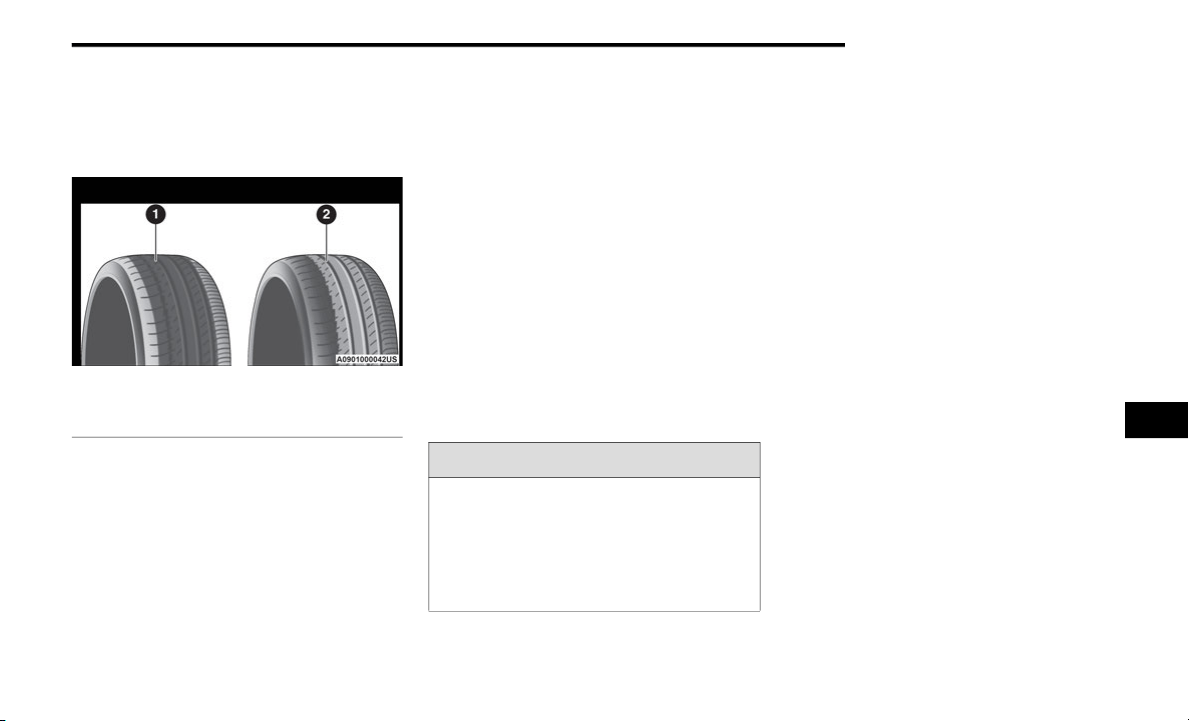
SERVICING AND MAINTENANCE 245
Tread Wear Indicators
Tread wear indicators are in the original
equipment tires to help you in determining
when your tires should be replaced.
Tire Tread
These indicators are molded into the bottom of
the tread grooves. They will appear as bands
when the tread depth becomes a 1/16 of an
inch (1.6
mm). When the tread is worn to the
tr
ead wear indicators, the tire should be
replaced.
Refer to “Replacement Tires” in this section for
fu
rther information.
Life Of Tire
The service life of a tire is dependent upon
varying factors including, but not limited to:
Driving style.
Tire pressure - Improper cold tire inflation pres-
sures can cause uneven wear patterns to
de
velop across the tire tread. These abnormal
wear patterns will reduce tread life, resulting in
the need for earlier tire replacement.
Distance driven.
Performance tires, tires with a speed rating of
V or higher, and Summer tires typically have
a reduced tread life. Rotation of these tires
per the vehicle scheduled maintenance is
highly recommended.
NOTE:
Wheel valve stem must be replaced as well
wh
en installing new tires due to wear and tear
in existing tires.
Keep dismounted tires in a cool, dry place with
as
little exposure to light as possible. Protect
tires from contact with oil, grease, and gasoline.
Replacement Tires
The tires on your new vehicle provide a balance of
many characteristics. They should be inspected
regularly for wear and correct cold tire inflation
pressures. The manufacturer strongly
recommends that you use tires equivalent to the
originals in size, quality and performance when
replacement is needed. Refer to the paragraph
on “Tread Wear Indicators” in this section.
Refer to the Tire and Loading Information placard
or
the Vehicle Certification Label for the size
designation of your tire. The Load Index and
Speed Symbol for your tire will be found on the
original equipment tire sidewall.
See the Tire Sizing Chart example found in the
“T
ire Safety Information” section of this manual
for more information relating to the Load Index
and Speed Symbol of a tire.
1 — Worn Tire
2 — New Tire
WARNING!
Tires and the spare tire should be replaced
after six years, regardless of the remaining
tread. Failure to follow this warning can result
in sudden tire failure. You could lose control
and have a collision resulting in serious injury
or death.
7
246 SERVICING AND MAINTENANCE
(Continued)
It is recommended to replace the two front tires
or two rear tires as a pair. Replacing just one tire
can seriously affect your vehicle’s handling.
If you ever replace a wheel, make sure that the
wh
eel’s specifications match those of the
original wheels.
It is recommended you contact an authorized
ti
re dealer or original equipment dealer with any
questions you may have on tire specifications
or capability. Failure to use equivalent
re
placement tires may adversely affect the
safety, handling, and ride of your vehicle.
TIRE TYPES
All Season Tires — If Equipped
All Season tires provide traction for all seasons
(Spring, Summer, Autumn, and Winter). Traction
levels may vary between different all season
tires. All season tires can be identified by the
M+S, M&S, M/S or MS designation on the tire
sidewall. Use all season tires only in sets of four;
failure to do so may adversely affect the safety
and handling of your vehicle.
Summer Or Three Season Tires — If
Equipped
Summer tires provide traction in both wet and
dry conditions, and are not intended to be
driven in snow or on ice. If your vehicle is
equipped with Summer tires, be aware these
tires are not designed for Winter or cold driving
conditions. Install Winter tires on your vehicle
when ambient temperatures are less than 40°F
(5°C) or if roads are covered with ice or snow.
For more information, contact an authorized
dealer.
Summer tires do not contain the all season
de
signation or mountain/snowflake symbol on
the tire sidewall. Use Summer tires only in sets
of four; failure to do so may adversely affect the
safety and handling of your vehicle.
WARNING!
Do not use a tire, wheel size, load rating, or
speed rating other than that specified for your
vehicle. Some combinations of unapproved
tires and wheels may change suspension
dimensions and performance characteristics,
resulting in changes to steering, handling, and
braking of your vehicle. This can cause unpre
-
dictable handling and stress to steering and
su
spension components. You could lose
control and have a collision resulting in serious
injury or death. Use only the tire and wheel
sizes with load ratings approved for your
vehicle.
Never use a tire with a smaller load index or
capacity, other than what was originally
equipped on your vehicle. Using a tire with
a smaller load index could result in tire
overloading and failure. You could lose
control and have a collision.
Failure to equip your vehicle with tires
having adequate speed capability can
result in sudden tire failure and loss of
vehicle control.
CAUTION!
Replacing original tires with tires of a
different size may result in false speedometer
and odometer readings.
WARNING! (Continued)
WARNING!
Do not use Summer tires in snow/ice
conditions. You could lose vehicle control,
resulting in severe injury or death. Driving too
fast for conditions also creates the possibility
of loss of vehicle control.
SERVICING AND MAINTENANCE 247
Snow Tires
Some areas of the country require the use of
snow tires during the Winter. Snow tires can be
identified by a “mountain/snowflake” symbol
on the tire sidewall.
If you need snow tires, select tires
equivalent in size and type to the
or
iginal equipment tires. Use snow
tires only in sets of four; failure to do
so may adversely affect the safety and handling
of your vehicle.
Snow tires generally have lower speed ratings
th
an what was originally equipped with your
vehicle and should not be operated at
sustained speeds over 75
mph (120 km/h).
For speeds above 75 mph (120 km/h) refer to
or
iginal equipment or an authorized tire dealer
for recommended safe operating speeds,
loading and cold tire inflation pressures.
While studded tires improve performance on
ic
e, skid and traction capability on wet or
dry surfaces may be poorer than that of
n
o
n-studded tires. Some states prohibit
studded tires; therefore, local laws should be
checked before using these tire types.
SPARE TIRES — IF EQUIPPED
Refer to the “Towing Requirements - Tires” in
“Starting And Operating” for restrictions when
towing with a spare tire designated for
temporary emergency use.
Spare Tire Matching Original Equipped Tire
And Wheel — If Equipped
Your vehicle may be equipped with a spare tire
and wheel equivalent in look and function to the
original equipment tire and wheel found on the
front or rear axle of your vehicle. This spare tire
may be used in the tire rotation for your vehicle.
If your vehicle has this option, refer to an
authorized tire dealer for the recommended tire
rotation pattern.
Compact Spare Tire — If Equipped
The compact spare is for temporary emergency
use only. You can identify if your vehicle is
equipped with a compact spare by looking at
the spare tire description on the Tire and
Loading Information Placard located on the
driver’s side door opening or on the sidewall of
the tire. Compact spare tire descriptions begin
with the letter “T” or “S” preceding the size
designation. Example: T145/80D18 103M.
T, S = Temporary Spare Tire
Since this tire has limited tread life, the original
eq
uipment tire should be repaired (or replaced)
and reinstalled on your vehicle at the first
opportunity.
Do not install a wheel cover or attempt to mount
a
conventional tire on the compact spare wheel,
since the wheel is designed specifically for the
compact spare tire. Do not install more than
one compact spare tire and wheel on the
vehicle at any given time.
CAUTION!
Because of the reduced ground clearance, do
not take your vehicle through an automatic
car wash with a compact or limited use
temporary spare installed. Damage to the
vehicle may result.
7
248 SERVICING AND MAINTENANCE
Collapsible Spare Tire — If Equipped
The collapsible spare is for temporary
emergency use only. You can identify if your
vehicle is equipped with a collapsible spare by
looking at the spare tire description on the Tire
and Loading Information Placard located on the
driver’s side door opening or on the sidewall of
the tire.
Collapsible spare tire description example:
16
5/80-17 101P.
Since this tire has limited tread life, the original
eq
uipment tire should be repaired (or replaced)
and reinstalled on your vehicle at the first
opportunity.
Inflate collapsible tire only after the wheel is
pr
operly installed to the vehicle. Inflate the
collapsible tire using the electric air pump
before lowering the vehicle.
Do not install a wheel cover or attempt to mount
a
conventional tire on the collapsible spare
wheel, since the wheel is designed specifically
for the collapsible spare tire.
Full Size Spare — If Equipped
The full size spare is for temporary emergency
use only. This tire may look like the originally
equipped tire on the front or rear axle of your
vehicle, but it is not. This spare tire may have
limited tread life. When the tread is worn to the
tread wear indicators, the temporary use full
size spare tire needs to be replaced. Since it is
not the same as your original equipment tire,
replace (or repair) the original equipment tire
and reinstall on the vehicle at the first
opportunity.
Limited Use Spare — If Equipped
The limited use spare tire is for temporary
emergency use only. This tire is identified by a
label located on the limited use spare wheel.
This label contains the driving limitations for
this spare. This tire may look like the original
equipped tire on the front or rear axle of your
vehicle, but it is not. Installation of this limited
use spare tire affects vehicle handling. Since it
is not the same as your original equipment tire,
replace (or repair) the original equipment tire
and reinstall on the vehicle at the first
opportunity.
WARNING!
Compact and collapsible spares are for
temporary emergency use only. With these
spares, do not drive more than 50
mph
(8
0 km/h). Temporary use spares have
li
mited tread life. When the tread is worn to
the tread wear indicators, the temporary use
spare tire needs to be replaced. Be sure to
follow the warnings, which apply to your
spare. Failure to do so could result in spare
tire failure and loss of vehicle control.
WARNING!
Compact and Collapsible spares are for
temporary emergency use only. With these
spares, do not drive more than 50
mph
(8
0 km/h). Temporary use spares have
li
mited tread life. When the tread is worn to
the tread wear indicators, the temporary use
spare tire needs to be replaced. Be sure to
follow the warnings, which apply to your
spare. Failure to do so could result in spare
tire failure and loss of vehicle control.

SERVICING AND MAINTENANCE 249
WHEEL AND WHEEL TRIM CARE
All wheels and wheel trim, especially aluminum
and chrome plated wheels, should be cleaned
regularly using mild (neutral Ph) soap and water
to maintain their luster and to prevent
corrosion. Wash wheels with the same soap
solution recommended for the body of the
vehicle and remember to always wash when the
surfaces are not hot to the touch.
Your wheels are susceptible to deterioration
ca
used by salt, sodium chloride, magnesium
chloride, calcium chloride, etc., and other road
chemicals used to melt ice or control dust on
dirt roads. Use a soft cloth or sponge and mild
soap to wipe away promptly. Do not use harsh
chemicals or a stiff brush. They can damage the
wheel’s protective coating that helps keep them
from corroding and tarnishing.
When cleaning extremely dirty wheels including
ex
cessive brake dust, care must be taken in the
selection of tire and wheel cleaning chemicals
and equipment to prevent damage to the
wheels. Mopar Wheel Treatment or Mopar
Chrome Cleaner or their equivalent is
recommended or select a non-abrasive,
non-acidic cleaner for aluminum or chrome
wheels.
NOTE:
If you intend parking or storing your vehicle for
a
n
extended period after cleaning the wheels
with wheel cleaner, drive your vehicle and apply
the brakes to remove the water droplets from
the brake components. This activity will remove
the red rust on the brake rotors and prevent
vehicle vibration when braking.
WARNING!
Limited use spares are for emergency use
only. Installation of this limited use spare tire
affects vehicle handling. With this tire, do not
drive more than the speed listed on the
limited use spare wheel. Keep inflated to the
cold tire inflation pressures listed on your Tire
and Loading Information Placard located on
the driver’s side B-pillar or the rear edge of
the driver’s side door. Replace (or repair) the
original equipment tire at the first opportunity
and reinstall it on your vehicle. Failure to do
so could result in loss of vehicle control.
CAUTION!
Avoid products or automatic car washes that
use acidic solutions or strong alkaline additives
or harsh brushes. Many aftermarket wheel
cleaners and automatic car washes may
damage the wheel's protective finish. Such
damage is not covered by the New Vehicle
Limited Warranty. Only car wash soap, Mopar
Wheel Cleaner or equivalent is recommended.
CAUTION!
Do not use scouring pads, steel wool, a bristle
brush, metal polishes or oven cleaner. These
products may damage the wheel's protective
finish. Such damage is not covered by the
New Vehicle Limited Warranty. Only car wash
soap, Mopar Wheel Cleaner or equivalent is
recommended.
7
250 SERVICING AND MAINTENANCE
(Continued)
Dark Vapor Chrome, Black Satin Chrome, or
Low Gloss Clear Coat Wheels
TIRE CHAINS AND TRACTION DEVICES
Use of traction devices require sufficient tire-to-body
clearance. Due to limited clearance, the following
traction devices are recommended. Follow these
recommendations to guard against damage.
Traction device must be of proper size for the
tire, as recommended by the traction device
manufacturer.
No other tire sizes are recommended for use
with a tire chain or traction device.
Install on front tires only.
For a 225/65R17 tire, use of a Peerless
Super Z6 low profile snow traction device or
equivalent is recommended.
CAUTION!
If your vehicle is equipped with these
specialty wheels, DO NOT USE wheel
cleaners, abrasives, or polishing compounds.
They will permanently damage this finish and
such damage is not covered by the New
Vehicle Limited Warranty. HAND WASH ONLY
USING MILD SOAP AND WATER WITH A SOFT
CLOTH. Used on a regular basis; this is all that
is required to maintain this finish.
WARNING!
Using tires of different size and type (M+S,
Snow) between front and rear axles can
cause unpredictable handling. You could lose
control and have a collision.
CAUTION!
To avoid damage to your vehicle or tires,
observe the following precautions:
Because of restricted traction device clear-
ance between tires and other suspension
co
mponents, it is important that only trac-
tion devices in good condition are used.
Br
oken devices can cause serious damage.
Stop the vehicle immediately if noise
occurs that could indicate device breakage.
Remove the damaged parts of the device
before further use.
Install device as tightly as possible and
then retighten after driving about ½ mile
(0.8 km). Autosock traction devices do not
re
quire retightening.
Do not exceed 30 mph (48 km/h).
Drive cautiously and avoid severe turns and
large bumps, especially with a loaded
vehicle.
Do not drive for a prolonged period on dry
pavement.
Observe the traction device manufacturer’s
instructions on the method of installation,
operating speed, and conditions for use.
Always use the suggested operating speed
of the device manufacturer’s if it is less
than 30
mph (48 km/h).
Do not use traction devices on a compact
spare tire.
CAUTION! (Continued)

SERVICING AND MAINTENANCE 251
TIRE ROTATION RECOMMENDATIONS
The tires on the front and rear of your vehicle
operate at different loads and perform different
steering, handling, and braking functions.
For these reasons, they wear at unequal rates.
These effects can be reduced by timely rotation
of
tires. The benefits of rotation are especially
worthwhile with aggressive tread designs such
as those on all season type tires. Rotation will
increase tread life, help to maintain mud, snow
and wet traction levels, and contribute to a
smooth, quiet ride.
Refer to the “Maintenance Plan” for the proper
ma
intenance intervals. The reasons for any
rapid or unusual wear should be corrected prior
to rotation being performed.
The suggested Front Wheel Drive (FWD) rotation
me
thod is the “forward cross” shown in the
following diagram. This rotation pattern does
not apply to some directional tires that must not
be reversed.
Tire Rotation (Forward Cross)
DEPARTMENT OF TRANSPORTATION
UNIFORM TIRE QUALITY GRADES
The following tire grading categories
were established by the National
Highway Traffic Safety Administration.
The specific grade rating assigned by the
tire's manufacturer in each category is
shown on the sidewall of the tires on
your vehicle.
All passenger vehicle tires must conform
to
Federal safety requirements in
addition to these grades.
TREADWEAR
The Treadwear grade is a comparative
rating, based on the wear rate of the tire
when tested under controlled conditions
on a specified government test course.
For example, a tire graded 150 would wear
on
e and one-half times as well on the
government course as a tire graded 100.
The relative performance of tires depends
upon the actual conditions of their use,
however, and may depart significantly from
the norm due to variations in driving habits,
service practices, and differences in road
characteristics and climate.
TRACTION GRADES
The Traction grades, from highest to
lowest, are AA, A, B, and C. These grades
represent the tire's ability to stop on
wet pavement, as measured under
co
ntrolled conditions on specified
government test surfaces of asphalt and
concrete. A tire marked C may have poor
traction performance.
7
252 SERVICING AND MAINTENANCE
TEMPERATURE GRADES
The Temperature grades are A (the
highest), B, and C, representing the tire's
resistance to the generation of heat and
its ability to dissipate heat, when tested
under controlled conditions on a
specified indoor laboratory test wheel.
Sustained high temperature can cause
th
e material of the tire to degenerate
and reduce tire life, and excessive
temperature can lead to sudden tire
failure. The grade C corresponds to a
level of performance, which all
passenger vehicle tires must meet
under the Federal Motor Vehicle Safety
Standard No. 109. Grades B and A
represent higher levels of performance
on the laboratory test wheel, than the
minimum required by law.
BODYWORK
PROTECTION FROM ATMOSPHERIC
A
GENTS
Vehicle body care requirements vary according
to geographic locations and usage. Chemicals
that make roads passable in snow and ice and
those that are sprayed on trees and road
surfaces during other seasons are highly
corrosive to the metal in your vehicle. Outside
parking, which exposes your vehicle to airborne
contaminants, road surfaces on which the
vehicle is operated, extreme hot or cold weather
and other extreme conditions will have an
adverse effect on paint, metal trim, and
underbody protection.
The following maintenance recommendations
wi
ll enable you to obtain maximum benefit from
the corrosion resistance built into your vehicle.
What Causes Corrosion?
Corrosion is the result of deterioration or
removal of paint and protective coatings from
your vehicle.
The most common causes are:
Road salt, dirt and moisture accumulation
Stone and gravel impact
Insects, tree sap and tar
Salt in the air near seacoast localities
Atmospheric fallout/industrial pollutants
WARNING!
The traction grade assigned to this tire is
based on straight-ahead braking traction
tests, and does not include acceleration,
cornering, hydroplaning, or peak traction
characteristics.
WARNING!
The temperature grade for this tire is
established for a tire that is properly inflated
and not overloaded. Excessive speed,
under-inflation, or excessive loading, either
separately or in combination, can cause heat
buildup and possible tire failure.
SERVICING AND MAINTENANCE 253
BODY AND UNDERBODY MAINTENANCE
Cleaning Headlights
Your vehicle is equipped with plastic headlights
and fog lights that are lighter and less
susceptible to stone breakage than glass
headlights.
Plastic is not as scratch resistant as glass and
th
erefore different lens cleaning procedures
must be followed.
To minimize the possibility of scratching the
le
nses and reducing light output, avoid wiping
with a dry cloth. To remove road dirt, wash with
a mild soap solution followed by rinsing.
Do not use abrasive cleaning components,
so
lvents, steel wool or other aggressive
material to clean the lenses.
PRESERVING THE BODYWORK
Washing
Wash your vehicle regularly. Always wash
your vehicle in the shade using Mopar Car
Wash, or a mild car wash soap, and rinse the
panels completely with clear water.
If insects, tar, or other similar deposits have
accumulated on your vehicle, use Mopar
Super Kleen Bug and Tar Remover to
remove.
Use a high quality cleaner wax, such as
Mopar Cleaner Wax to remove road film,
stains and to protect your paint finish.
Take care never to scratch the paint.
Avoid using abrasive compounds and power
buffing that may diminish the gloss or thin
out the paint finish.
Special Care
If you drive on salted or dusty roads or if you
drive near the ocean, hose off the undercar-
riage at least once a month.
It is important that the drain holes in the
lower edges of the doors, rocker panels, and
trunk be kept clear and open.
If you detect any stone chips or scratches in
the paint, touch them up immediately. The
cost of such repairs is considered the respon-
sibility of the owner.
If your vehicle is damaged due to a collision
or similar cause that destroys the paint and
protective coating, have your vehicle repaired
as soon as possible. The cost of such repairs
is considered the responsibility of the owner.
If you carry special cargo such as chemicals,
fertilizers, de-icer salt, etc., be sure that such
materials are well packaged and sealed.
If a lot of driving is done on gravel roads, consider
mud or stone shields behind each wheel.
Use Mopar Touch Up Paint on scratches as
soon as possible. An authorized dealer has
touch up paint to match the color of your
vehicle.
CAUTION!
Do not use abrasive or strong cleaning
materials such as steel wool or scouring
powder that will scratch metal and painted
surfaces.
Use of power washers exceeding 1,200 psi
(8,274 kPa) can result in damage or
removal of paint and decals.
7
254 SERVICING AND MAINTENANCE
INTERIORS
SEATS AND FABRIC PARTS
Use Mopar Total Clean to clean fabric
upholstery and carpeting.
Seat Belt Maintenance
Do not bleach, dye, or clean the belts with
chemical solvents or abrasive cleaners. This will
weaken the fabric. Sun damage can also
weaken the fabric.
If the belts need cleaning, use Mopar Total
Cle
an, a mild soap solution, or lukewarm water.
Do not remove the belts from the vehicle to
wash them. Dry with a soft cloth.
Replace the belts if they appear frayed or worn
or
if the buckles do not work properly.
PLASTIC AND COATED PARTS
Use Mopar Total Clean to clean vinyl upholstery.
Cleaning Plastic Instrument Cluster
Lenses
The lenses in front of the instruments in this
vehicle are molded in clear plastic. When
cleaning the lenses, care must be taken to
avoid scratching the plastic.
1. Clean with a wet soft cloth. A mild soap
s
olution may be used, but do not use high
alcohol content or abrasive cleaners. If
soap is used, wipe clean with a clean damp
cloth.
2. Dry with a soft cloth.
WARNING!
Do not use volatile solvents for cleaning
purposes. Many are potentially flammable,
and if used in closed areas they may cause
respiratory harm.
WARNING!
A frayed or torn belt could rip apart in a
collision and leave you with no protection.
Inspect the belt system periodically, checking
for cuts, frays, or loose parts. Damaged parts
must be replaced immediately. Do not
disassemble or modify the system. Seat belt
assemblies must be replaced after a collision
if they have been damaged (i.e., bent
retractor, torn webbing, etc.).
CAUTION!
Direct contact of air fresheners, insect
repellents, suntan lotions, or hand sani-
tizers to the plastic, painted, or decorated
su
rfaces of the interior may cause perma-
nent damage. Wipe away immediately.
Damage caused by these type of products
may not be covered by your New Vehicle
Limited Warranty.
SERVICING AND MAINTENANCE 255
LEATHER PARTS
Mopar Total Clean is specifically recommended
for leather upholstery.
Your leather upholstery can be best preserved by
re
gular cleaning with a damp soft cloth. Small
particles of dirt can act as an abrasive and
damage the leather upholstery and should be
removed promptly with a damp cloth. Stubborn
soils can be removed easily with a soft cloth and
Mopar Total Clean. Care should be taken to avoid
soaking your leather upholstery with any liquid.
Please do not use polishes, oils, cleaning fluids,
solvents, detergents, or ammonia-based
cleaners to clean your leather upholstery.
Application of a leather conditioner is not
required to maintain the original condition.
NOTE:
If equipped with light colored leather, it tends to
sh
ow any foreign material, dirt, and fabric dye
transfer more so than darker colors. The leather
is designed for easy cleaning, and FCA recom
-
mends Mopar total care leather cleaner applied
on
a cloth to clean the leather seats as needed.
GLASS SURFACES
All glass surfaces should be cleaned on a
regular basis with Mopar Glass Cleaner, or any
commercial household-type glass cleaner.
Never use an abrasive type cleaner. Use caution
when cleaning the inside rear window equipped
with electric defrosters or windows equipped
with radio antennas. Do not use scrapers or
other sharp instruments that may scratch the
elements.
When cleaning the rear view mirror, spray
cle
aner on the towel or cloth that you are using.
Do not spray cleaner directly on the mirror.
CLEANING THE CUPHOLDERS
Clean with a damp cloth or towel using a mild
detergent.
CAUTION!
Do not use Alcohol and Alcohol-based and/or
Ketone based cleaning products to clean
leather upholstery, as damage to the
upholstery may result.
7
256
TECHNICAL SPECIFICATIONS
IDENTIFICATION DATA
VEHICLE IDENTIFICATION NUMBER
The Vehicle Identification Number (VIN) is on
the left front corner of the instrument panel and
is visible from outside of the vehicle through the
windshield.
Windshield VIN Location
NOTE:
It is illegal to remove or alter the VIN.
BRAKE SYSTEM
Your vehicle is equipped with dual
hydraulic brake systems. If either of
th
e two hydraulic systems loses
normal capability, the remaining
system will still function. However, there will
be some loss of overall braking effectiveness.
Th
is will be evident by increased pedal travel
during application and greater pedal force
required to slow or stop the vehicle. In addition,
if the malfunction is caused by a leak in the
hydraulic system, the “Brake Warning Light” will
turn on as the brake fluid level drops in the
master cylinder.
In the event power assist is lost for any reason
(i
.e., repeated brake applications with the
engine off) the brakes will still function.
However, the effort required to brake the
vehicle will be much greater than that required
with the power system operating.
WARNING!
Riding the brakes can lead to brake failure
and possibly a collision. Driving with your
foot resting or riding on the brake pedal can
result in abnormally high brake tempera-
tures, excessive lining wear, and possible
br
ake damage. You would not have your full
braking capacity in an emergency.
Driving a vehicle with the “Brake Warning
Light” on is dangerous. A significant
decrease in braking performance or vehicle
stability during braking may occur. It will
take you longer to stop the vehicle or will
make your vehicle harder to control. You
could have a collision. Have the vehicle
checked immediately.

TECHNICAL SPECIFICATIONS 257
WHEEL AND TIRE TORQUE SPECIFICATIONS
Proper lug nut/bolt torque is very important to
ensure that the wheel is properly mounted to
the vehicle. Any time a wheel has been removed
and reinstalled on the vehicle, the lug nuts/
bolts should be torqued using a properly
calibrated torque wrench using a high quality six
sided (hex) deep wall socket.
TORQUE SPECIFICATIONS
**Use only authorized dealer recommended
lug nuts/bolts and clean or remove any dirt or
oil before tightening.
Inspect the wheel mounting surface prior to
mo
unting the tire and remove any corrosion or
loose particles.
Wheel Mounting Surface
Tighten the lug nuts/bolts in a star pattern until
ea
ch nut/bolt has been tightened twice. Ensure
that the socket is fully engaged on the lug nut/
bolt (do not insert it halfway).
Torque Patterns
After 25 miles (40 km), check the lug nut/bolt
to
rque to be sure that all the lug nuts/bolts are
properly seated against the wheel.
FUEL REQUIREMENTS
This engine is designed to meet all
emissions regulations and provide
op
timum fuel economy and
performance when using high quality
unleaded “Regular” gasoline having a posted
octane number of 87 as specified by the (R+M)/
2
method. The use of higher octane “Premium”
ga
soline is not required, as it will not provide
any benefit over “Regular” gasoline in these
engines.
Lug Nut/Bolt
To
rque
**Lug Nut/
Bo lt Size
Lug Nut/Bolt
Socket Size
100 Ft-Lbs
(1
35 N·m)
M12 x 1.5 19 mm
WARNING!
To avoid the risk of forcing the vehicle off the
jack, do not tighten the lug nuts/bolts fully
until the vehicle has been lowered. Failure to
follow this warning may result in personal
injury.
8

258 TECHNICAL SPECIFICATIONS
While operating on gasoline with an octane
number of 87, hearing a light knocking sound
from the engine is not a cause for concern.
However, if the engine is heard making a heavy
knocking sound, see your dealer immediately.
Use of gasoline with an octane number lower
than 87 can cause engine failure and may void
or not be covered by the New Vehicle Limited
Warranty.
Poor quality gasoline can cause problems such
as
hard starting, stalling, and hesitations. If you
experience these symptoms, try another brand
of gasoline before considering service for the
vehicle.
REFORMULATED GASOLINE
Many areas of the country require the use of
cleaner burning gasoline referred to as
“Reformulated Gasoline”. Reformulated
gasoline contains oxygenates and are
specifically blended to reduce vehicle
emissions and improve air quality.
The use of reformulated gasoline is
re
commended. Properly blended reformulated
gasoline will provide improved performance
and durability of engine and fuel system
components.
MATERIALS ADDED TO FUEL
Besides using unleaded gasoline with the
proper octane rating, gasolines that contain
detergents, corrosion and stability additives are
recommended. Using gasolines that have these
additives will help improve fuel economy,
reduce emissions, and maintain vehicle
performance.
Designated TOP TIER Detergent
Gasoline contains a higher level of
de
tergents to further aide in
minimizing engine and fuel system
deposits. When available, the usage of TOP
TIER Detergent Gasoline is recommended. Visit
www.toptiergas.com for a list of TOP TIER
Detergent Gasoline Retailers.
Indiscriminate use of fuel system cleaning
a
g
ents should be avoided. Many of these
materials intended for gum and varnish
removal may contain active solvents or similar
ingredients. These can harm fuel system gasket
and diaphragm materials.
GASOLINE /OXYGENATE BLENDS
Some fuel suppliers blend unleaded gasoline
with oxygenates such as ethanol.
Problems that result from using gasoline
co
ntaining more than 15% ethanol (E-15) or
gasoline containing methanol are not the
responsibility of the manufacturer and may void
or not be covered under New Vehicle Limited
Warranty.
CAUTION!
DO NOT use E-85, gasoline containing
methanol, or gasoline containing more than
15% ethanol (E-15). Use of these blends may
result in starting and driveability problems,
damage critical fuel system components,
cause emissions to exceed the applicable
standard, and/or cause the Malfunction
Indicator Light to illuminate. Please observe
pump labels as they should clearly
communicate if a fuel contains greater than
15% ethanol (E-15).

TECHNICAL SPECIFICATIONS 259
(Continued)
DO NOT USE E-85 IN NON-FLEX FUEL
V
EHICLES
Non-Flex Fuel Vehicles (FFV) are compatible
with gasoline containing up to 15% ethanol
(E-15). Use of gasoline with higher ethanol
content may void the New Vehicle Limited
Warranty.
If a Non-FFV vehicle is inadvertently fueled with
E-
85 fuel, the engine will have some or all of
these symptoms:
Operate in a lean mode.
OBD II Malfunction Indicator Light on.
Poor engine performance.
Poor cold start and cold driveability.
Increased risk for fuel system component
corrosion.
CNG AND LP FUEL SYSTEM
M
ODIFICATIONS
Modifications that allow the engine to run on
Compressed Natural Gas (CNG) or Liquid
Propane (LP) may result in damage to the
engine, emissions, and fuel system
components. Problems that result from running
CNG or LP are not the responsibility of the
manufacturer and may void or not be covered
under the New Vehicle Limited Warranty.
MMT IN GASOLINE
Methylcyclopentadienyl Manganese Tricarbonyl
(MMT) is a manganese-containing metallic
additive that is blended into some gasoline to
increase octane. Gasoline blended with MMT
provides no performance advantage beyond
gasoline of the same octane number without
MMT. Gasoline blended with MMT reduces
spark plug life and reduces emissions system
performance in some vehicles. The
manufacturer recommends that gasoline
without MMT be used in your vehicle. The MMT
content of gasoline may not be indicated on the
gasoline pump; therefore, you should ask your
gasoline retailer whether the gasoline contains
MMT. MMT is prohibited in Federal and
California reformulated gasoline.
FUEL SYSTEM CAUTIONS
CAUTION!
Follow these guidelines to maintain your
vehicle’s performance:
The use of leaded gasoline is prohibited by
Federal law. Using leaded gasoline can
impair engine performance and damage
the emissions control system.
An out-of-tune engine or certain fuel or igni-
tion malfunctions can cause the catalytic
co
nverter to overheat. If you notice a
pungent burning odor or some light smoke,
your engine may be out of tune or malfunc-
tioning and may require immediate service.
Co
ntact an authorized dealer for service
assistance.
8
260 TECHNICAL SPECIFICATIONS
(Continued)
NOTE:
Intentional tampering with the emissions
co
ntrol system can result in civil penalties being
assessed against you.
CARBON MONOXIDE WARNINGS
The use of fuel additives, which are now
being sold as octane enhancers, is not
recommended. Most of these products
contain high concentrations of methanol.
Fuel system damage or vehicle perfor-
mance problems resulting from the use of
s
u
ch fuels or additives is not the responsi-
bility of the manufacturer and may void or
no
t be covered under the New Vehicle
Limited Warranty.
CAUTION! (Continued)
WARNING!
Carbon monoxide (CO) in exhaust gases is
deadly. Follow the precautions below to
prevent carbon monoxide poisoning:
Do not inhale exhaust gases. They contain
carbon monoxide, a colorless and odorless
gas, which can kill. Never run the engine in
a closed area, such as a garage, and never
sit in a parked vehicle with the engine
running for an extended period. If the
vehicle is stopped in an open area with the
engine running for more than a short
period, adjust the ventilation system to
force fresh, outside air into the vehicle.
Guard against carbon monoxide with
proper maintenance. Have the exhaust
system inspected every time the vehicle is
raised. Have any abnormal conditions
repaired promptly. Until repaired, drive with
all side windows fully open.
WARNING! (Continued)
TECHNICAL SPECIFICATIONS 261
FLUID CAPACITIES
US Metric
Fuel (Approximate)
Front Wheel Drive (FWD) Models 20.5 Gallons 77.6 Liters
Engine Oil With Filter
2.4L Engine (SAE 5W-20, API Certified) 4.5 Quarts 4.26 Liters
Cooling System*
2.4L Engine and Single or Dual-Zone Climate Control System Mopar Antifreeze/Engine
C
o
olant 10 Year/150,000 Mile (240,000 km) Formula
8 Quarts 7.5 Liters
2.4L Engine and Three-Zone Climate Control System Mopar Antifreeze/Engine Coolant
10 Year/150,000 Mile (240,000 km) Formula
10 Quarts 9.5 Liters
* Includes heater and coolant recovery bottle filled to MAX level.
8
262 TECHNICAL SPECIFICATIONS
FLUIDS AND LUBRICANTS
ENGINE
Component Fluid, Lubricant, or Genuine Part
Engine Coolant
We recommend you use Mopar Antifreeze/Coolant 10 Year/150,000 Mile (240,000 km) Organic Additive
Te
chnology (OAT) Formula.
Engine Oil
We recommend you use API Certified SAE 5W-20 Engine Oil, meeting the requirements of FCA Material Standard
M
S
-6395 such as Mopar, Pennzoil, and Shell Helix. Refer to your engine oil filler cap for correct SAE grade.
Engine Oil Filter We recommend you use Mopar Engine Oil Filter.
Spark Plugs We recommend you use Mopar Spark Plugs.
Fuel Selection 87 Octane (R+M)/2, 0-15% Ethanol.
TECHNICAL SPECIFICATIONS 263
(Continued)
CAUTION!
Mixing of engine coolant (antifreeze) other
than specified Organic Additive Technology
(OAT) engine coolant (antifreeze), may
result in engine damage and may decrease
corrosion protection. OAT engine coolant is
different and should not be mixed with
Hybrid Organic Additive Technology (HOAT)
engine coolant (antifreeze) or any “globally
compatible” coolant (antifreeze). If a
non-OAT engine coolant (antifreeze) is
introduced into the cooling system in an
emergency, the cooling system will need to
be drained, flushed, and refilled with fresh
OAT coolant (conforming to MS.90032), by
an authorized dealer as soon as possible.
Do not use water alone or alcohol-based
engine coolant (antifreeze) products. Do
not use additional rust inhibitors or antirust
products, as they may not be compatible
with the radiator engine coolant and may
plug the radiator.
This vehicle has not been designed for use
with propylene glycol-based engine coolant
(antifreeze). Use of propylene glycol-based
engine coolant (antifreeze) is not recom-
mended.
CAUTION! (Continued)
8
264 TECHNICAL SPECIFICATIONS
CHASSIS
Component Fluid, Lubricant, or Genuine Part
Automatic Transmission
Use only ATF+4 Automatic Transmission Fluid.
Failure to use ATF+4 fluid may affect the function or performance of your transmission.
We recommend Mopar ATF+4 fluid.
Brake Master Cylinder We recommend you use Mopar DOT 3, SAE J1703.
Power Steering Reservoir We recommend you use Mopar Power Steering Fluid+4, or Mopar ATF+4 Automatic Transmission Fluid.
265
MULTIMEDIA
CYBERSECURITY
Your vehicle may be a connected vehicle and
may be equipped with both wired and wireless
networks. These networks allow your vehicle to
send and receive information. This information
allows systems and features in your vehicle to
function properly.
Your vehicle may be equipped with certain
se
curity features to reduce the risk of
unauthorized and unlawful access to vehicle
systems and wireless communications. Vehicle
software technology continues to evolve over
time and FCA US LLC, working with its suppliers,
evaluates and takes appropriate steps as
needed. Similar to a computer or other devices,
your vehicle may require software updates to
improve the usability and performance of your
systems or to reduce the potential risk of
unauthorized and unlawful access to your
vehicle systems.
The risk of unauthorized and unlawful access to
yo
ur vehicle systems may still exist, even if the
most recent version of vehicle software (such as
Uconnect software) is installed.
NOTE:
FCA US LLC or your dealer may contact you
directly regarding software updates.
To help further improve vehicle security and
minimize the potential risk of a security
breach, vehicle owners should:
Routinely check
www.driveuconnect.com/
support/software-update.html
(US Resi-
dents) or
www.driveuconnect.ca
(Canadian
Residents) to learn about available Uconnect
s
o
ftware updates.
Only connect and use trusted media
devices (e.g. personal mobile phones,
USBs, CDs).
Privacy of any wireless and wired
co
mmunications cannot be assured.
Third parties may unlawfully intercept
i
n
formation and private communications
without your consent. For further information,
refer to “Onboard Diagnostic System (OBD II)
Cybersecurity” in “Getting To Know Your
Instrument Panel”.
WARNING!
It is not possible to know or to predict all of
the possible outcomes if your vehicle’s
systems are breached. It may be possible
that vehicle systems, including safety
related systems, could be impaired or a
loss of vehicle control could occur that may
result in an accident involving serious injury
or death.
ONLY insert media (e.g., USB, SD card, or
CD) into your vehicle if it came from a
trusted source. Media of unknown origin
could possibly contain malicious software,
and if installed in your vehicle, it may
increase the possibility for vehicle systems
to be breached.
As always, if you experience unusual
vehicle behavior, take your vehicle to your
nearest authorized dealer immediately.
9

266 MULTIMEDIA
UCONNECT SETTINGS
The Uconnect system uses a combination of
buttons on the touchscreen and buttons on
the faceplate located on the center of the
i
n
strument panel that allows you to access and
change the Customer Programmable Features.
CUSTOMER PROGRAMMABLE
F
EATURES — RADIO 4.3 SETTINGS
In this mode the Uconnect system allows you to
access programmable features that may be
equipped such as Display, Clock, Safety &
Driving Assistance, Lights, Doors & Locks,
Auto-On Comfort & Remote Start, Engine Off
Options, Audio, Phone/Bluetooth®, and
SiriusXM® Setup through buttons on the
faceplate and touchscreen.
NOTE:
Only one touchscreen area may be selected at
a
time.
Radio 4.3 Buttons On The Faceplate and Touchscreen
Push the SETTINGS button on the faceplate to
ac
cess the Settings screen, use the Page Up or
Page Down buttons on the touchscreen to scroll
through the following settings. Press the
desired setting button on the touchscreen to
change the setting using the description shown
on the following pages for each setting.
1 — Uconnect Buttons On The Faceplate
2 — Uconnect Buttons On The Touchscreen
MULTIMEDIA 267
Display
After pressing the Display button on the touchscreen, the following settings will be available:
Clock
After pressing the Clock button on the touchscreen, the following settings will be available:
Setting Name Selectable Options
Brightness + –
NOTE:
The “Brightness” setting can also be adjusted by selecting any point on the scale between the + and – buttons on the touchscreen.
Mode Day Night Auto
Language English Français Español
NOTE:
When in the “Language” feature, you may select one of three languages for all display nomenclature.
Units US Metric
Voice Response Brief Long
Touchscreen Beep On Off
Setting Name Selectable Options
Set Time and Format
12 hr 24 hr
AM PM
NOTE:
Within the “Set Time and Format” setting, press the corresponding Arrow buttons on the touchscreen to adjust to the correct time.
9
268 MULTIMEDIA
Safety & Driving Assistance
After pressing the Safety & Driving Assistance button on the touchscreen, the following settings will be available:
Show Time Status — If Equipped On Off
Sync Time — If Equipped On Off
Setting Name Selectable Options
Setting Name Selectable Options
Rear Park Assist — If Equipped Off Sound Only Sound & Display
NOTE:
The Rear Park Assist system scans for and alerts the driver of objects behind the vehicle when the transmission gear selector is in REVERSE and the
v
e
hicle speed is less than 11 mph (18 km/h).
ParkView Backup Camera On Off
NOTE:
Your vehicle may be equipped with the ParkView Back Up Camera that allows you to see an on-screen image of the rear surroundings of your vehicle
w
h
enever the gear selector is put into REVERSE. The image will be displayed on the radio touchscreen display along with a caution note to “check
entire surroundings” across the top of the screen. After five seconds, this note will disappear. The ParkView camera is located on the rear of the
vehicle above the rear license plate.
Hill Start Assist — If Equipped On Off

MULTIMEDIA 269
Lights
After pressing the Lights button on the touchscreen, the following settings will be available:
Setting Name Selectable Options
Headlight Off Delay — If Equipped
0 sec 30 sec
60 sec 90 sec
NOTE:
When the “Headlight Off Delay” feature is selected, it allows the adjustment of the amount of time the headlights remain on after the engine is shut off.
Headlights With Wipers — If Equipped On Off
Headlight Illuminated Approach
0 sec 30 sec
60 sec 90 sec
NOTE:
When this feature is selected, it allows the adjustment of the amount of time the headlights remain on after the doors are unlocked with the key fob.
Auto High Beams — If Equipped On Off
NOTE:
When the “Automatic High Beams” is selected, the high beam headlights will activate/deactivate automatically under certain conditions.
Daytime Running Lights On Off
NOTE:
When the “Daytime Running Lights” feature is selected, the daytime running lights can be turned On or Off. This feature is only available if allowed by
l
a
w in the country of the vehicle purchase.
Steering Directed Lights — If Equipped On Off
NOTE:
When the “Steering Directed Lights” feature is selected, the headlights will turn relative to a change in direction of the steering wheel.
Flash Lights With Lock On Off
9
270 MULTIMEDIA
Doors & Locks
After pressing the Doors & Locks button on the touchscreen, the following settings will be available:
Setting Name Selectable Options
Auto Door Locks On Off
NOTE:
The “Auto Door Locks” feature locks all doors automatically when the vehicle reaches a speed of 15 mph (24 km/h).
Auto Unlock On Exit On Off
NOTE:
When the “Auto Unlock On Exit” feature is selected, all doors will unlock when the vehicle is stopped and the transmission is in the PARK or NEUTRAL
p
o
sition and the driver's door is opened.
Flash Lights With Lock On Off
Sound Horn With Lock On Off
Sound Horn With Remote Start On Off
Passive Entry (Keyless Enter-N-Go) — If
Eq
uipped
On Off
Remote Door Unlock Order Driver All
NOTE:
When “Driver” is programmed, only the driver's door will unlock on the first push of the key fob unlock button. You must push the key fob unlock button
tw
ice to unlock the passengers’ doors. When “All” is programmed, all of the doors will unlock on the first press of the key fob unlock button. If “All” is
programmed, all doors will unlock no matter which Passive Entry equipped door handle is grasped. If “Driver” is programmed, only the driver’s door
will unlock when the driver’s door is grasped. Touching the handle more than once will only result in the driver’s door opening once. If the driver’s
door is opened, the interior door lock/unlock switch can be used to unlock all doors (or use the key fob).
MULTIMEDIA 271
Auto-On Comfort & Remote Start
After pressing the Auto-On Comfort & Remote Start button on the touchscreen, the following setting will be available:
Engine Off Options
After pressing the Engine Off Options button on the touchscreen, the following settings will be available:
Setting Name Selectable Options
Auto-On Driver Heated Seat & Steering Wheel
With Vehicle Start — If Equipped
On Off
NOTE:
When this feature is selected, the driver’s heated seat and heated steering wheel (if equipped) will automatically turn on when temperatures are
be
low 40°F (4.4°C).
Setting Name Selectable Options
Engine Off Power Delay
0 sec 45 sec
5 min 10 min
NOTE:
When the “Engine Off Power Delay” feature is selected, the power window switches, radio, Uconnect phone system (if equipped), DVD video system
(
i
f equipped), power sunroof (if equipped), and power outlets will remain active for up to 10 minutes after the ignition is cycled to OFF. Opening either
fr
ont door will cancel this feature.
Headlight Off Delay
0 sec 30 sec
60 sec 90 sec
NOTE:
When the “Headlight Off Delay” feature is selected, it allows the adjustment of the amount of time the headlights remain on after the engine is shut off.
9
272 MULTIMEDIA
Audio
After pressing the Audio button on the touchscreen, the following setting will be available:
Setting Name Selectable Options
Equalizer Bass Mid Treble
NOTE:
When in this display you may adjust the “Bass”, “Mid”, and “Treble” settings. Adjust the settings with the + and – setting buttons on the touchscreen
o
r
by selecting any point on the scale between the + and – buttons on the touchscreen. Bass/Mid/Treble also allow you to simply slide your finger up
or down to change the setting as well as press directly on the desired setting.
Balance/Fade
Up Arrow
B
u
tton
Down Arrow
Bu tton
Left Arrow
Bu tton
Right Arrow
Bu tton
Center C Button
NOTE:
When in this display you may adjust the “Balance/Fade” of the audio by using the Arrow button on the touchscreen to adjust the sound level from the
fr
ont and rear or right and left side speakers. Press the Center C Button on the touchscreen to reset the balance and fade to the factory setting.
Speed Adjusted Volume Off 1 2 3
Music Info Cleanup On Off
NOTE:
The “Music Info Cleanup” feature helps organize music files for optimized music navigation.
Surround Sound — If Equipped On Off
MULTIMEDIA 273
Phone/Bluetooth®
After pressing the Phone/Bluetooth® button on the touchscreen, the following settings will be available:
SiriusXM® Setup
After pressing the SiriusXM® Setup button on the touchscreen, the following settings will be available:
Setting Name Selectable Options
Paired Phones List of Paired Phones
NOTE:
This feature shows which phones are paired to the Phone/Bluetooth® system. For further information, refer to the Uconnect Owner’s Manual Supplement.
Setting Name Selectable Options
Channel Skip List of Channels
NOTE:
SiriusXM® can be programmed to designate a group of channels that are the most desirable to listen to or to exclude undesirable channels while
s
c
anning. This feature allows you to select the channels you would like to skip.
Subscription Info Sirius ID
NOTE:
New vehicle purchasers or lessees will receive a free limited time subscription to SiriusXM® Satellite Radio with your radio. Following the expiration
of
the free services, it will be necessary to access the information on the Subscription Information screen to re-subscribe.
1. Press the Subscription Info button on the touchscreen to access the Subscription Information screen.
2
. Write down the Sirius ID numbers for your receiver. To reactivate your service, either call the number listed on the screen or visit the provider online.
9

274 MULTIMEDIA
CUSTOMER P ROGRAMMABLE F EATURES —
U
CONNECT 3/3 NAV S ETTINGS
Uconnect 3/3 NAV Buttons On The Touchscreen
Press the More button on the touchscreen, then
pr
ess the Settings button on the touchscreen to
display the menu setting screen. In this mode
the Uconnect system allows you to access
programmable features that may be equipped
such as Display, Accessibility (if equipped),
Clock, Safety & Driving Assistance, Lights,
Doors & Locks, Auto-On Comfort & Remote
Start, Engine Off Options, Audio, Phone/
Bluetooth®, and SiriusXM® Setup.
NOTE:
Only one touchscreen area may be selected at
a
time.
When making a selection, press the button on
th
e touchscreen to enter the desired mode.
Once in the desired mode, press and release
the preferred setting until a check mark
appears next to the setting, showing that setting
has been selected.
Once the setting is complete press the Back
Ar
row button on the touchscreen to return to
the previous menu or press the X button on the
touchscreen to close out of the settings screen.
Pressing the Up or Down Arrow buttons on the
touchscreen on the right side of the screen will
allow you to toggle up or down through the
available settings.
1 - Buttons On The Touchscreen
MULTIMEDIA 275
Display
After pressing the Display button on the touchscreen, the following settings will be available:
Setting Name Selectable Options
Display Mode Day Night Auto
Display Brightness with Headlights ON – +
NOTE:
To make changes to the "Display Brightness with Headlights ON" setting, the headlights must be on and the interior dimmer switch must not be in the
"
p
arty" or "parade" position.
Display Brightness with Headlights OFF – +
NOTE:
To make changes to the "Display Brightness with Headlights OFF" setting, the headlights must be off and the interior dimmer switch must not be in
th
e "party" or "parade" position.
Set Language Selectable Languages
NOTE:
When the “Set Language” feature is selected, you may select one of multiple languages (English / Français / Español) for all display nomenclature,
in
cluding the trip functions and the navigation system (if equipped). Press the Set Language button on the touchscreen, then press the desired
language button on the touchscreen until a check mark appears next to the language, showing that setting has been selected.
Units US Metric
Voice Response Length Brief Detailed
Touchscreen Beep On Off
Control Screen Time-Out — If Equipped On Off
9
276 MULTIMEDIA
Accessibility — If Equipped
After pressing the Accessibility button on the touchscreen, the following settings will be available:
Navigation Turn-by-Turn In Cluster — If Equipped On Off
NOTE:
When the “Navigation Turn-by-Turn In Cluster” feature is selected, the turn-by-turn directions appears in the instrument cluster display as the vehicle
ap
proaches a designated turn within a programmed route.
Fuel Saver Display In Cluster — If Equipped On Off
NOTE:
The “Fuel Saver Display In Cluster” feature turns the “ECO” message on and off in the instrument cluster display.
Setting Name Selectable Options
Setting Name Selectable Options
Read Back Main Cabin On Off
NOTE:
This feature announces a function prior to performing the action selected when using DVD functions, when it is activated. For example, when activated,
a
n
d the Play button is selected, the system will announce “Play button selected”, and then once pressed again the Play button will perform its action.
Read Back Rear Headphones On Off
MULTIMEDIA 277
Clock
After pressing the Clock button on the touchscreen, the following settings will be available.
Safety & Driving Assistance
After pressing the Safety & Assistance button on the touchscreen, the following settings will be available:
Setting Name Selectable Options
Sync Time With GPS — If Equipped On Off
Set Time Hours - +
NOTE:
This feature will allow you to adjust the hours. The Sync Time With GPS button on the touchscreen must be unchecked.
Set Time Minutes - +
NOTE:
This feature will allow you to adjust the minutes. The Sync Time With GPS button on the touchscreen must be unchecked.
Time Format 12 hrs 24 hrs
Show Time In Status Bar — If Equipped On Off
Setting Name Selectable Options
Park Assist — If Equipped Off Sound Only Sounds + Display
NOTE:
The Park Assist system scans for, and then alerts the driver of, objects behind the vehicle when the transmission gear selector is in REVERSE and the
v
e
hicle speed is less than 11 mph (18 km/h).
Park Assist Volume Low Med High
9
278 MULTIMEDIA
Lights
After pressing the Lights button on the touchscreen, the following settings will be available:
ParkView Backup Camera — If Equipped On Off
NOTE:
Your vehicle may be equipped with the ParkView Backup Camera that allows you to see an on-screen image of the rear surroundings of your vehicle
wh
enever the gear selector is put into REVERSE. The image will be displayed on the radio touchscreen display along with a caution note to “check
entire surroundings” across the top of the screen. After five seconds, this note will disappear. The ParkView camera is located on the rear of the vehicle
above the rear license plate.
Hill Start Assist — If Equipped On Off
Setting Name Selectable Options
Setting Name Selectable Options
Headlight Off Delay
0 sec 30 sec
60 sec 90 sec
NOTE:
When the “Headlight Off Delay” feature is selected, it allows the adjustment of the amount of time the headlights remain on after the engine is shut off.
Headlight Illuminated On Approach
0 sec 30 sec
60 sec 90 sec
NOTE:
When the “Headlight Illumination On Approach” feature is selected, it allows the adjustment of the amount of time the headlights remain on after the
d
o
ors are unlocked with the key fob.
Headlights With Wipers — If Equipped On Off
Auto Dim High Beams— If Equipped On Off

MULTIMEDIA 279
Doors & Locks
After pressing the Doors & Locks button on the touchscreen, the following settings will be available:
NOTE:
When the “Auto Dim High Beams” feature is selected, the high beam headlights activate/deactivate automatically under certain conditions.
Daytime Running Lights On Off
NOTE:
When the “Daytime Running Lights” feature is selected, the daytime running lights can be turned On or Off. This feature is only available if allowed by
l
a
w in the country of the vehicle purchase.
Steering Directed Headlights — If Equipped On Off
NOTE:
The “Steering Directed Headlights” feature causes the headlights to turn relative to a change in direction of the steering wheel.
Flash Headlights With Lock On Off
Setting Name Selectable Options
Setting Name Selectable Options
Auto Door Locks — If Equipped On Off
NOTE:
When the “Auto Door Locks” feature is selected, all doors will lock automatically when the vehicle reaches a speed of 12 mph (20 km/h).
Auto Unlock On Exit On Off
NOTE:
When this feature is selected, all doors will unlock when the vehicle is stopped, the transmission is in the PARK or NEUTRAL position and the driver's
d
o
or is opened.
Flash Lamps With Lock On Off
9
280 MULTIMEDIA
Auto-On Comfort & Remote Start
After pressing the Auto-On Comfort & Remote Start button on the touchscreen, the following settings will be available:
Sound Horn With Lock On Off
Sound Horn With Remote Start On Off
1st Press Of Key Fob Unlocks Driver Door All Doors
NOTE:
When "Driver Door" is programmed with 1st Press Of Key Fob Unlocks, only the driver's door will unlock with the first press of the key fob unlock button.
Y
o
u must press the key fob unlock button twice to unlock the passengers’ doors. When "All Doors" is programmed for 1st Press Of Key Fob Unlocks,
all doors will unlock on the first press of the key fob unlock button. If the vehicle is programmed 1st Press Of Key Fob Unlocks “All Doors,” all doors
will unlock no matter which Passive Entry equipped door handle is grasped. If 1st Press Of Key Fob Unlocks “Driver Door” is programmed, only the
driver’s door will unlock when the driver’s door is grasped. With Passive Entry, if 1st Press Of Key Fob Unlocks “Driver Door” is programmed, touching
the handle more than once will result in only the driver’s door opening. If “Driver Door” is selected, once the driver door is opened, the interior door
lock/unlock switch can be used to unlock all doors (or use key fob).
Passive Entry — If Equipped On Off
NOTE:
The “Passive Entry” feature allows you to lock and unlock the vehicle’s door(s) without having to push the key fob lock or unlock buttons.
Setting Name Selectable Options
Setting Name Selectable Options
Sound Horn With Remote Start On Off
Auto-On Driver Heated Seat & Steering Wheel
Wi
th Vehicle Start — If Equipped
On Off
MULTIMEDIA 281
Engine Off Options
After pressing the “Engine Off Options” button on the touchscreen, the following settings will be available:
NOTE:
When this feature is selected the driver’s heated seat and heated steering wheel (if equipped) will automatically turn on when temperatures are below
40
°F (4.4°C).
Setting Name Selectable Options
Setting Name Selectable Options
Engine Off Power Delay
0 sec 45 sec
5 mins 10 mins
NOTE:
When the “Engine Off Power Delay” feature is selected, the power window switches, radio, Uconnect phone system (if equipped), DVD video system
(
i
f equipped), power sunroof (if equipped), and power outlets will remain active for up to 10 minutes after the ignition is cycled to OFF. Opening either
fr
ont door will cancel this feature.
Headlight Off Delay - +
NOTE:
When the “Headlight Off Delay” feature is selected, it allows the adjustment of the amount of time the headlights remain on after the engine is shut
of
f. Press the + or - buttons to transition from 0 seconds to 30, 60, or 90 seconds.
9
282 MULTIMEDIA
Audio
After pressing the Audio button on the touchscreen, the following settings will be available.
Setting Name Selectable Options
Balance/Fade Front Button
Rear Arrow
Bu
tton
Left Arrow
Bu tton
Right Arrow
Bu tton
Center C Button
NOTE:
When in this display you may adjust the “Balance/Fade” of the audio by using the Arrow button on the touchscreen to adjust the sound level from the
fr
ont and rear or right and left side speakers. Press the Center C button on the touchscreen to reset the balance and fade to the factory setting.
Equalizer Bass Mid Treble
NOTE:
When in this display you may adjust the “Bass”, “Mid”, and “Treble” settings. Adjust the settings with the + and – setting buttons on the touchscreen
or
by selecting any point on the scale between the + and – buttons on the touchscreen. Bass/Mid/Treble also allow you to simply slide your finger up
or down to change the setting as well as press directly on the desired setting.
Speed Adjusted Volume Off 1 2 3
Music Info Cleanup On Off
NOTE:
The “Music Info Cleanup” feature helps organize music files for optimized music navigation.
Auto Play On Off
NOTE:
When the “Auto Play” feature is on, music will begin playing music automatically whenever an audio device is connected and recognized.
MULTIMEDIA 283
Phone/Bluetooth®
After pressing the Phone/Bluetooth® button on the touchscreen, the following settings will be available:
Setting Name Selectable Options
Paired Phones List of Paired Phones
NOTE:
This feature shows which phones are paired to the Phone/Bluetooth® system. For further information, refer to the Uconnect Owner’s Manual Supplement.
Paired Audio Sources List Of Paired Audio Sources
NOTE:
This feature shows which audio sources are paired to the Phone/Bluetooth® system. For further information, refer to the Uconnect Owner’s Manual Supplement.
9
284 MULTIMEDIA
SiriusXM® Setup
After pressing the SiriusXM® Setup button on the touchscreen, the following settings will be available:
Setting Name Selectable Options
Channel Skip List Of Channels
NOTE:
SiriusXM® can be programmed to designate a group of channels that are the most desirable to listen to or to exclude undesirable channels while
s
c
anning. This feature allows you to select the channels you would like to skip.
Subscription Info Sirius ID
NOTE:
New vehicle purchasers or lessees will receive a free limited time subscription to SiriusXM® Satellite Radio with your radio. Following the expiration
of
the free services, it will be necessary to access the information on the Subscription Information screen to re-subscribe.
1. Press the Subscription Info button on the touchscreen to access the Subscription Information screen.
2
. Write down the Sirius ID numbers for your receiver. To reactivate your service, either call the number listed on the screen or visit the provider online.
S
iriusXM® Travel Link is a separate subscription.

MULTIMEDIA 285
SAFETY AND GENERAL INFORMATION
SAFETY GUIDELINES
Ensure that all persons read this manual
carefully before using the system. It contains
instructions on how to use the system in a safe
and effective manner.
Do NOT attach any object to the touchscreen.
Do
ing so can result in damage to the
touchscreen.
Please read and follow these safety
pr
ecautions. Failure to do so may result in injury
or property damage.
Glance at the screen only when safe to do so. If
prolonged viewing of the screen is required, park
in a safe location and set the parking brake.
Stop use immediately if a problem occurs.
Failure to do so may cause injury or damage
to the product. Return it to an authorized
dealer for repair.
Ensure the volume level of the system is set
to a level that still allows you to hear outside
traffic and emergency vehicles.
Safe Usage Of The Uconnect System
Read all instructions in this manual carefully
before using your system to ensure proper
usage.
The Uconnect system is a sophisticated elec-
tronic device. Do not let young children use
th
e system.
Permanent hearing loss may occur if you play
your music or the system at loud volumes.
Exercise caution when setting the volume on
the system.
Keep drinks, rain and other sources of mois-
ture away from the system. Besides damage
to
the system, moisture can cause electric
shocks as with any electronic device.
NOTE:
Many features of this system are speed depen-
dent. For your own safety, it is not possible to
us
e some of the touchscreen features while the
vehicle is in motion.
Exposure To Radio Frequency Radiation
The internal wireless radio operates within
gu
idelines found in radio frequency safety
standards and recommendations, which reflect
the consensus of the scientific community.
The radio manufacturer believes the internal
wi
reless radio is safe for use by consumers.
The level of energy emitted is far less than the
e
l
ectromagnetic energy emitted by wireless
devices such as mobile phones. However, the
use of wireless radios may be restricted in some
situations or environments, such as aboard
airplanes. If you are unsure of restrictions, you
are encouraged to ask for authorization before
turning on the wireless radio.
WARNING!
ALWAYS drive safely with your hands on the
steering wheel. You have full responsibility
and assume all risks related to the use of the
Uconnect features and applications in this
vehicle. Only use Uconnect when it is safe to
do so. Failure to do so may result in an
accident involving serious injury or death.
9
286 MULTIMEDIA
Care And Maintenance
Touchscreen
Do not press the touchscreen with any hard
or sharp objects (pen, USB stick, jewelry,
etc.), which could scratch the touchscreen
surface!
Do not spray any liquid or caustic chemicals
directly on the screen! Use a clean and dry
microfiber lens cleaning cloth in order to
clean the touchscreen.
If necessary, use a lint-free cloth dampened
with a cleaning solution, such as isopropyl
alcohol or an isopropyl alcohol and water
solution ratio of 50:50. Be sure to follow the
solvent manufacturer's precautions and
directions.
RADIO 4.3
INTRODUCTION
Radio 4.3 System
Radio 4.3
1 — RADIO
Push the RADIO button, located on the
fa
ceplate, to enter the Radio Mode. The
different tuner modes: AM, FM, and SAT can be
selected by pushing the corresponding buttons
in the Radio Mode.
2 — SETTINGS
Push the SETTINGS button, on the faceplate, to
ac
cess the Settings list. Clock, Display, Audio,
Bluetooth®, and SiriusXM® Settings are
described in this manual. See your vehicle’s
Owner's Manual for more details.
3 — MORE
Push the MORE button, located on the
fa
ceplate, to access additional options. Options
available such as Uconnect Phone (if equipped)
and Compass can be accessed by pushing the
corresponding buttons in the More Menu.
4 — SCREEN OFF
Push the SCREEN OFF button, on the faceplate,
to
turn the touchscreen OFF. To turn the screen
back ON, just press the touchscreen.
WARNING!
ALWAYS drive safely with your hands on the
steering wheel. You have full responsibility
and assume all risks related to the use of the
Uconnect features and applications in this
vehicle. Only use Uconnect when it is safe to
do so. Failure to do so may result in an
accident involving serious injury or death.

MULTIMEDIA 287
5 — CLIMATE
Push the CLIMATE Control button on the
fa
ceplate to access climate controls. Refer to
“Climate Controls” in “Getting To Know Your
Vehicle” for more information.
6 — PLAYER
Push the PLAYER button, located on the
fa
ceplate, to access media sources such as
Disc, USB Device, and AUX as long as the
requested media is present.
RADIO MODE
Overview
The radio is equipped with the following modes:
FM
AM
SAT SiriusXM® Satellite Radio (if equipped)
Press the RADIO button, upper left corner, to
en
ter the Radio Mode. The different tuner
modes; AM, FM, and SAT, can then be selected
by pressing the corresponding buttons on the
touchscreen.
ON/OFF & Volume Control
Push the ON/OFF Volume Control
knob to turn on the radio. Push the
ON
/OFF Volume Control knob a
second time to turn off the radio.
The Volume control turns continuously
(360 degrees) in either direction, without
s
t
opping. Turning the ON/OFF Volume Control
knob clockwise increases the Volume and
counterclockwise decreases it.
When the audio system is turned on, the sound
wi
ll be set at the same Volume level as last
played.
ENTER/BROWSE & TUNE/SCROLL Control
Turn the TUNE/SCROLL control
knob clockwise to increase or
co
unterclockwise to decrease the
radio station frequency. Push the
ENTER/BROWSE button to choose a selection.
Info
Press the Info button to display channel
number/frequency, song title, genre, and artist.
This feature is only available in FM and SAT
modes.
Exit
The Exit button provides a means to close the
Direct Tune Screen.
Go
Press the green GO button on the touchscreen
to allow you to commit an entry, at which time,
the radio will tune to the entered Channel, and
close the Direct Tune Screen. The GO button on
the touchscreen is only for SiriusXM® Satellite
radio mode.
Seek Up
Press and release the Seek Up button on the
touchscreen to tune the radio to the next
li
stenable station or channel.
During a Seek Up function, if the radio reaches
th
e starting station after passing through the
entire band two times, the radio will stop at the
station where it began.
9

288 MULTIMEDIA
Fast Seek Up
Press and hold the Seek Up button on the
touchscreen to advance the radio through the
av
ailable stations or channels at a faster rate,
the radio stops at the next available station or
channel when the button on the touchscreen is
released.
Seek Down
Press and release the Seek Down button on
the touchscreen to tune the radio to the next
li
stenable station or channel.
During a Seek Down function, if the radio
re
aches the starting station after passing
through the entire band two times, the radio will
stop at the station where it began.
Fast Seek Down
Press and hold the Seek Down button on the
touchscreen to advance the radio through the
av
ailable stations or channel at a faster rate,
the radio stops at the next available station or
channel when the button is released.
Direct Tune
Direct Tune
The Direct Tune touchscreen is available in AM,
FM
, and SAT radio modes and can be used to
direct tune the radio to a desired station or
channel. Press the Tune button located at the
bottom of the radio touchscreen.
Press the available numbered button to begin
se
lecting a desired station. Once a number has
been entered, any numbers that are no longer
possible (stations that cannot be reached) will
become deactivated/grayed out.
If you accidentally entered the wrong station
nu
mber, press the X button to clear the radio
station numbers and reenter the correct station
number.
Once the last digit of a station has been
en tered, the Direct Tune screen will close and
the system will automatically tune to that
station.
The selected Station or Channel number is
di
splayed in the Direct Tune text box.
Setting Presets
The Presets are available for all Radio Modes
and are activated by pressing any of the four
Preset buttons located at the top of the
touchscreen.
When you are receiving a station that you wish to
co
mmit into memory press and hold the desired
numbered button for more that two seconds or
until you hear a confirmation beep.
The Radio stores up to 12 presets in each of the
Ra
dio modes. A set of four presets are visible at
the top of the radio touchscreen.
Audio
1. Push the SETTINGS button on the right side
of the unit.
2. Scroll down and press the Audio button to
e
nter the Audio menu.

MULTIMEDIA 289
The Audio Menu shows the following options
for you to customize your audio settings.
Equalizer
Press the Equalizer button to adjust the
Bass, Mid and Treble. Use the + or –
buttons to adjust the equalizer to your
desired settings. Press the Back Arrow
button when done.
Balance/Fade
Press the Balance/Fade button to adjust
the sound from the speakers. Use the
arrow button to adjust the sound level
from the front and rear or right and left
side speakers. Press the Center C button
to reset the balance and fade to the
factory setting. Press the Back Arrow
button when done.
Speed Adjusted Volume
Press the Speed Adjusted Volume button
to select between OFF, 1, 2 or 3. This will
decrease the radio volume relative to a
decrease in vehicle speed. Press the
Back Arrow button when done.
3. Press the Exit button to exit from the Audio
M
enu.
SiriusXM® Satellite Radio Mode — If
Equipped
SiriusXM® services require a subscription, sold
separately after the 12-month trial period
included with the new vehicle purchase. If you
decide to continue your service at the end of
your trial subscription, the plan you choose will
automatically renew and bill at then-current
rates until you call SiriusXM® at
1-866-635-2349 to cancel.
See SiriusXM® Customer Agreement for
co
mplete terms at www.siriusxm.com for US
residents, and www.siriusxm.ca for Canadian
residents. All fees and programming subject to
c
h
ange. Our satellite service is available only to
those at least 18 and older in the 48 contiguous
USA and D.C. Our Sirius satellite service is also
available in PR (with coverage limitations). Our
Internet radio service is available throughout
our satellite service area and in AK and HI.
© 2020 SiriusXM® Radio Inc. SiriusXM® and
al
l related marks and logos are trademarks of
SiriusXM® Radio Inc.
This functionality is only available for radios
eq
uipped with a Satellite receiver. To receive
satellite radio, the vehicle needs to be outside
with a clear view to the sky.
If the screen shows Acquiring Signal, you might
ha
ve to change the vehicle’s position to receive
a signal. In most cases, the satellite radio does
not receive a signal in underground parking
garages or tunnels.
No Subscription
Radios equipped with a Satellite receiver,
re
quire a subscription to the SiriusXM® Service.
When the radio does not have the necessary
subscription, the radio is able to receive the
preview channel only.
Acquiring SiriusXM® Subscription
To activate the SiriusXM® subscription, call the
to
ll free number on the SiriusXM® Settings. You
will need to provide the Sirius ID (ESN) located
on your vehicle's screen.
The satellite mode is activated by pressing the
AM
/SAT button on the touchscreen located
at the bottom of the radio screen. Press the
AM/SAT button on the touchscreen and then
p
r
ess the SAT button on the touchscreen.
9

290 MULTIMEDIA
When in SiriusXM® Satellite mode:
The SiriusXM® Presets are displayed at the
top of the screen.
The SiriusXM® Channel Number is displayed
along with Artist and Song name.
The SiriusXM® function buttons on the
touchscreen are displayed on the bottom.
In addition to the tuning functions common to
al
l radio modes, the browse, info, and more
button on the faceplate functions are available
in SiriusXM® Mode. Pressing the more button
slides over the additional functions that are on
the second level of the bottom bar. This second
level stays for 10 seconds and then returns to
the main top level of the bottom bar. The
second level displays audio, Fav, Gamezone
and Replay buttons.
Browse
Press the Browse button at the bottom left of
t
h
e screen to enter the browse screen.
The Browse screen in SAT mode provides you
th
e ability to browse by All, Favorites or Genres.
You can also access Gamezone, and Traffic and
Weather settings in the Browse screen.
Favorites
Press the More... button and then the Fav
b
u
tton to access the favorites feature.
The favorites feature enables you to set a
fa
vorite artist, or song. The radio then uses this
information to alert you when either the favorite
song, or works by the favorite artist are being
played at any time by any of the SiriusXM®
Channels.
Gamezone
Press the More... button and then the
Ga
mezone button to access the Gamezone
feature. This feature provides you with the
ability to Select teams, edit the selection, and
set Alerts.
Replay
The replay function provides a means to store
an
d replay up to 22 minutes of music audio and
48
minutes of talk radio. Once the channel is
sw
itched, content in replay memory is lost.
Press the Replay button. The Play/Pause,
Re
wind/Forward and Live buttons will display at
the top of the screen, along with the replay time.
You can exit by pressing the Replay button any
ti
me during the Replay mode.
Play/Pause
Press the Pause or Play buttons to pause
pl
aying of the content at any time that the
content is playing live or rewound content.
Play can be resumed again by pressing the
Pa
use/Play button.
Rewind
Press the RW button to rewind the content in
st
eps of five seconds. Pressing the RW button
for more than two seconds rewinds the content.
The Radio begins playing the content when the
RW button is released.
Forward
Each press of the FW button forwards the
co
ntent in steps of five seconds. Forwarding of
the content can only be done when the content
is previously rewound, and therefore, can not be
done for live content. A continuous press of the
FW button also forwards the content. The Radio
begins playing the content when the FW button
is released.
Live
Press the Live button to resume playing Live
co
ntent.
MULTIMEDIA 291
MEDIA MODE
Disc Mode
Overview
Disc Mode is entered by either inserting a Disc
or
by pressing the PLAYER button located left of
the display. Once in Player Mode, press the
Source button and select “Disc.”
A “No Disc” message will be displayed on the
sc
reen in the Disc mode when a Disc is not
present in the Radio.
Inserting Compact Disc
Gently insert one Disc into the Disc player
with the Disc label facing up. The CD will
a
u
tomatically be pulled into the Disc player and
the Disc icon will illuminate on the radio display.
If a Disc does not go into the slot more than
1
inch (2.5 cm), a disc may already be loaded
an
d must be ejected before a new disc can be
loaded.
If you insert a disc with the ignition ON and the
ra
dio ON, the unit will switch to Disc mode and
begin to play the disc. The display will show the
track number, and index time in minutes and
seconds. Play will begin at the start of track 1.
EJECT Button — Ejecting A Disc
Push the EJECT button to eject the
Disc.
If the Disc is not removed, the radio will reinsert
t
h
e Disc but will not play it.
A disc can be ejected with the radio and ignition
OF
F.
Seek Up/Down
Press and release the Seek Up button for the
next selection on the Disc. Press and release
t
h
e Seek Down button to return to the
beginning of the current selection, or return to
th
e beginning of the previous selection if the
Disc is within the first eight seconds of the
current selection.
Fast Seek Up
Press and hold the Seek Up button and the
Disc player will begin to fast forward through the
cu
rrent track until the button is released.
Fast Seek Down
Press and hold the Seek Down button and
the Disc player will begin to rewind through the
c
u
rrent track until the button is released.
Browse
Press the Browse button on the touchscreen to
sc
roll through and select a desired track on the
Disc. Press the Exit button on the touchscreen if
you wish to cancel the browse function.
CAUTION!
This CD player will accept 4-3/4 inch
(12 cm) discs only. The use of other sized discs
ma
y damage the CD player mechanism.
Do not use adhesive labels. These labels can
peel away and jam the player mechanism.
Uconnect is a single CD player. Do not
attempt to insert a second CD if one is
already loaded.
Dual-media disc types (one side is a DVD,
the other side is a CD) should not be used,
and they can cause damage to the player.
9

292 MULTIMEDIA
Source
Press the source button to select the desired
au
dio source: “CD,” “AUX” or “USB”. This screen
will time out after a few seconds and return to
the main radio screen if no selection is made.
Info
Press the Info button to display the current
tr
ack information. Press the X button to cancel
this feature.
Shuffle
Press the More... button on the touchscreen then
t
h
e Shuffle button on the touchscreen to play the
selections on the compact disc in random order
to provide an interesting change of pace. Press
the Shuffle button on the touchscreen a second
time to turn this feature off.
Audio
Refer to “Audio” in “Radio Mode” for further
in
formation on adjusting the audio settings.
USB Mode
Overview
USB/iPod® Mode is entered by either inserting a
US
B Jump Drive or an iPod® cable into the USB port,
or by pushing the PLAYER button located left of the
display. Once in Player Mode, press the Source
button, and select “USB/iPod®.”
Inserting USB Device
Gently insert the USB device into the USB Port.
If
you insert a USB device into the USB port, with
the ignition ON and the radio ON, the unit will
switch to USB mode and begin to play. The
display will show the track number and index
time in minutes and seconds. Play will begin at
the start of track 1.
Seek Up/Down
Press and release the Seek Up button for the
next selection on the USB/iPod® device. Press
an
d release the Seek Down button to return
to the beginning of the current selection, or
re
turn to the beginning of the previous selection
if the USB/iPod® device is within the first eight
seconds of the current selection.
Fast Seek Up
Press and hold the Seek Up button on the
touchscreen and the USB/iPod® device will
be
gin to fast forward through the current track
until the button on the touchscreen is released.
Fast Seek Down
Press and hold the Seek Down button and
the USB/iPod® device will begin to rewind
t
h
rough the current track until the button is
released.
Browse
Press the Browse button on the touchscreen to
s
e
lect Artist, Albums, Genres, Songs, Playlists or
Folders from the USB/iPod® device. Once the
desired selection is made you can chose from
the available media by pressing the button on
the touchscreen. Press the exit button on the
touchscreen if you wish to cancel the browse
function.
Source
Press the source button on the touchscreen to
se
lect the desired audio source, CD, AUX, or
USB/iPod®. This screen will time out after a few
seconds and return to the main radio screen if
no selection is made.

MULTIMEDIA 293
Info
Press the Info button to display the current
tr
ack information. Press the X button to cancel
this feature.
Shuffle
Press the More... button then the Shuffle button
t
o
play the selections on the USB/iPod® device
in random order to provide an interesting
change of pace. Press the Shuffle button a
second time to turn this feature off.
Audio
Refer to “Audio” in “Radio Mode” for further
in
formation on adjusting the audio settings.
AUX Mode
Overview
AUX Mode is entered by inserting a AUX device
us
ing a cable with a 3.5 mm audio jack into the
AU
X port or by pushing the PLAYER button
located left of the display. Once in Player Mode,
press the Source button, and select “AUX.”
Inserting Auxiliary Device
Gently insert the Auxiliary device cable into the
AU
X Port. If you connect an Auxiliary device with
a 3.5
mm stereo cable into the AUX Port, with
th
e ignition ON and the radio ON, the unit will
switch to AUX mode and begin to play.
Controlling The Auxiliary Device
The control of the auxiliary device (e.g.,
s
e
lecting playlists, play, fast forward, etc.)
cannot be provided by the radio; use the device
controls instead. Adjust the volume with the
ON/OFF VOLUME rotary knob, or with the
volume of the attached device.
NOTE:
The vehicle radio unit is acting as the amplifier
fo
r audio output from the Auxiliary device.
Therefore if the volume control on the Auxiliary
device is set too low, there will be insufficient
audio signal for the radio unit to play the music
on the device.
Source
Press the source button to select the desired
au
dio source: “CD,” “AUX” or “USB”. This screen
will time out after a few seconds and return to
the main radio screen if no selection is made.
Audio
Refer to “Audio” in “Radio Mode” for further
in
formation on adjusting the audio settings.
Bluetooth® Mode
Overview
Bluetooth® Streaming Audio (BTSA) or
Bl
uetooth® Mode is entered by pairing a
Bluetooth® device, containing music, to the
Uconnect System.
Before proceeding, the Bluetooth® device
ne
eds to be paired through Uconnect to
communicate with the Uconnect System.
NOTE:
See the pairing procedure in the Owner's
Ma
nual for more details.
Once the Bluetooth® device is paired to the
Uc
onnect System, push the PLAYER button
located on the left side of the display. Once in
Player Mode, press the Source button, and
select “Bluetooth®.”
Seek Up/Down
Press and release the Seek Up button on the
touchscreen for the next selection on the
Bl
uetooth® device. Press and release the Seek
Down button on the touchscreen to return to
the beginning of the current selection, or return
t
o
the beginning of the previous selection if the
9

294 MULTIMEDIA
Bluetooth® device is within the first eight
seconds of the current selection.
Source
Press the Source button on the touchscreen to
se
lect the desired audio source; CD, USB/iPod®,
AUX or Bluetooth®. This screen will time out after
a few seconds and return to the main radio
screen if no selection is made.
Info
Press the Info button to display the current
tr
ack information. Press the Info button a
second time to cancel this feature.
Audio
Refer to “Audio” in “Radio Mode” for further
i
n
formation on adjusting the audio settings.
UCONNECT PHONE (4.3)
Radio 4.3
Uconnect Phone is a voice-activated,
hands-free, in-vehicle communications system.
Uconnect Phone allows you to dial a phone
number with your mobile phone.
Uconnect Phone supports the following
fe
atures:
Voice Activated Features:
Hands-Free dialing via Voice (“Call John
Smith Mobile” or, “Dial 248-555-1212”)
Redialing last dialed numbers (“Redial”)
Calling Back the last incoming call number
(“Call Back”)
Viewing Call logs on screen (“Show Incoming
Calls,” “Show Outgoing Calls,” “Show Missed
Calls,” “Show Recent Calls”)
Searching Contacts phone number (“Search
for John Smith Mobile”)
Screen Activated Features:
Dialing via Keypad using touchscreen
Viewing and Calling contacts from Phone-
books displayed on the touchscreen
Setting Favorite Contact Phone numbers so
they are easily accessible on the Main Phone
screen
Viewing and Calling contacts from Recent
Call logs
Listening to Music on your Bluetooth®
Device via the touchscreen
Pairing up to 10 phones/audio devices for
easy access to connect to them quickly
Your mobile phone’s audio is transmitted
th
rough your vehicle’s audio system; the system
will automatically mute your radio when using
the Uconnect Phone.
For Uconnect Customer Support:
US residents — visit UconnectPhone.com or
call 1-877-855-8400.
Canadian Residents — visit Uconnect-
Phone.com or call, 1-800-465-2001
(English) or 1-800-387-9983 (French).
If your mobile phone only supports the Headset
Pr
ofile you may not be able to use any Uconnect
Phone features. Refer to your mobile service
provider or the phone manufacturer for details.
Uconnect Phone allows you to transfer calls
be
tween the system and your mobile phone as
you enter or exit your vehicle and enables you to
mute the system's microphone for private
conversation.
MULTIMEDIA 295
The Uconnect Phone is driven through your
Bluetooth® “Hands-Free Profile” mobile phone.
Uconnect features Bluetooth® technology — the
global standard that enables different
electronic devices to connect to each other
without wires or a docking station, so Uconnect
Phone works no matter where you stow your
mobile phone (be it your purse, pocket, or
briefcase), as long as your phone is turned on
and has been paired to the vehicle's Uconnect
Phone. The Uconnect Phone allows up to
10
mobile phones or audio devices to be linked
to
the system. Only one linked (or paired) mobile
phone and one audio device can be used with
the system at a time. The system is available in
English, Spanish, or French languages.
Uconnect Phone Button
The Uconnect Phone Button is
used to enter the phone mode and
ma
ke calls, show recent, incoming,
outgoing calls, view phonebook etc.,
When you press the button you will hear a BEEP.
The beep is your signal to give a command.
Uconnect Voice Command Button
The Uconnect Voice Command Button
is only used for “barge in” and when you
ar
e already in a call and you want to send
Tones or make another call.
The Uconnect Phone is fully integrated with the
ve
hicle's audio system. The volume of the
Uconnect Phone can be adjusted either from
the radio volume control knob or from the
steering wheel radio control (right switch), if so
equipped.
Operation
Voice commands can be used to operate the
Uconnect Phone and to navigate through the
Uconnect Phone menu structure. Voice
commands are required after most Uconnect
Phone prompts. There are two general methods
for how Voice Command works:
1. Say compound commands like “Call John
S
mith mobile.”
2. Say the individual commands and allow the
s
ystem to guide you to complete the task.
You will be prompted for a specific command
an
d then guided through the available options.
Prior to giving a voice command, one must
wait for the beep, which follows the “Listen”
prompt or another prompt.
For certain operations, compound
commands can be used. For example,
instead of saying “Call” and then “John
Smith” and then “mobile,” the following
compound command can be said: “Call John
Smith mobile.”
WARNING!
Any voice commanded system should be
used only in safe driving conditions following
all applicable laws, including laws regarding
phone use. Your attention should be focused
on safely operating the vehicle. Failure to do
so may result in a collision causing serious
injury or death.
9

296 MULTIMEDIA
For each feature explanation in this section, only
the compound command form of the voice
command is given. You can also break the
commands into parts and say each part of the
command when you are asked for it. For
example, you can use the compound command
form voice command “Search for John Smith,” or
you can break the compound command form into
two voice commands: “Search Contact” and
when asked “John Smith.” Please remember, the
Uconnect Phone works best when you talk in a
normal conversational tone, as if speaking to
someone sitting a few feet/meters away from
you.
Natural Speech
Your Uconnect Phone Voice system uses a
Na
tural Language Voice Recognition (VR)
engine.
Natural speech allows the user to speak
co
mmands in phrases or complete sentences.
The system filters out certain non-word
utterances and sounds such as “ah” and “eh”.
The system handles fill-in words such as “I would
like to.”
The system handles multiple inputs in the same
ph
rase or sentence such as “make a phone
call” and “to Kelly Smith.” For multiple inputs in
the same phrase or sentence, the system
identifies the topic or context and provides the
associated follow-up prompt such as “Who do
you want to call?” in the case where a phone
call was requested but the specific name was
not recognized.
The system utilizes continuous dialog; when the
sy
stem requires more information from the user
it will ask a question to which the user can
respond without pushing the Voice Command
button on your steering wheel.
Help Command
If you need assistance at any prompt, or if you
wa
nt to know your options at any prompt, say
“Help” following the beep.
To activate the Uconnect Phone from idle,
si
mply push the Phone button (if active) on
your steering wheel and say a command or say
“
h
elp”. All Uconnect Phone sessions begin with
a push of the VR button or the Phone
button
(if active) on the radio control head.
Cancel Command
At any prompt, after the beep, you can say
“C
ancel” and you will be returned to the main
menu.
You can also push the Voice Recognition (VR)
bu
tton or Phone button (if active) on your
steering wheel when the system is listening for
a
command and be returned to the main or
previous menu.
Pair (Link) Uconnect Phone To A Mobile Phone
To begin using your Uconnect Phone, you must
p
a
ir your compatible Bluetooth® enabled
mobile phone.
To complete the pairing process, you will need
to
reference your mobile phone Owner's
Manual. The Uconnect website may also
provide detailed instructions for pairing.
NOTE:
You must have Bluetooth® enabled on your
phone to complete this procedure.
The vehicle must be in PARK.

MULTIMEDIA 297
1. You can do either of the following:
a. Push the Settings button on the faceplate,
p
age down to the Phone/Bluetooth®
button on the touchscreen, press it and
you will see the Paired Phones screen.
If there are no paired phones you will see
<E
mpty> as the first device name.
b. Push the More button on the faceplate,
t
hen press the Phone button on the
touchscreen and you will go to the
Uconnect Phone main screen. Press the
Settings button on the touchscreen.
If there are no phones currently paired a
po
p-up appears. If Yes is selected, the
Paired Phones screen will appear. If No is
selected, the Uconnect Phone Main
Menu screen will appear.
2. At the Paired Phones screen press the Add
D
evice button on the touchscreen and a
pop-up with instructions appears.
3. Search for available devices on your
B
luetooth®-enabled mobile phone.
When prompted on the phone, select the
“
U
connect” device and enter the PIN.
4. When the pairing process has successfully
c
ompleted, the system prompts you to
choose whether or not this is your favorite
phone. Selecting Yes makes this phone
the highest priority. This phone takes
pr
ecedence over other paired phones within
range.
NOTE:
Software updates on your phone or the
Uc
onnect system may interfere with the
Bluetooth® connection. If this happens, simply
r
e
peat the pairing process. However, first, make
sure to delete the device from the list of phones
on your Uconnect system. Next, be sure to
remove Uconnect from the list of devices in your
phone’s Bluetooth® settings.
Pair A Bluetooth® Streaming Audio Device
1. Push the Player button on the faceplate to
b
egin.
2. Press the Source button on the
t
ouchscreen.
3. Change the Source to Bluetooth®.
4
. Press the “Add Device” button on the
t
ouchscreen.
5. Search for available devices on your
B
luetooth®-enabled Audio Device. When
prompted on the device, select the
“Uconnect” device and enter the PIN.
6. Uconnect Phone will display an in process
s
creen while the system is connecting.
7. When the pairing process has successfully
c
ompleted, the system will prompt you to
choose whether or not this is your favorite
device. Selecting Yes will make this device
the highest priority. This device will take
precedence over other paired devices
within range.
NOTE:
If No is selected, device priority is determined by
th
e order in which it was paired. The latest
device paired will have the higher priority.
You can also use the following VR command to
br
ing up a list of paired audio devices.
“Show Paired Audio Devices.”
9

298 MULTIMEDIA
Connecting To A Particular Mobile Phone Or
Audio Device
Uconnect Phone will automatically connect to
th
e highest priority paired phone and/or Audio
Device within range. If you need to choose a
particular Phone or Audio Device follow these
steps:
1. Push the Settings button on the faceplate.
2
. Press the Phone/Bluetooth® button on the
t
ouchscreen.
3. Press to select the particular Phone or the
P
hone/Audio button on the touchscreen
and then an Audio Device.
4. At the Options pop-up screen press the
C
onnect Device button on the touchscreen.
5. Press the X button to exit out of the Settings
s
creen.
Disconnecting A Phone Or Audio Device
1. Push the SETTINGS button on the
f
aceplate.
2. Press the Phone/Bluetooth® button on the
t
ouchscreen.
3. Select the Phone or Audio Device.
4
. A
t the Options pop-up screen press
t
he Disconnect Device button on the
to
uchscreen.
5. Press the X to exit out of the Settings
s
creen.
Deleting A Phone Or Audio Device
1. Push the Settings button on the faceplate.
2
. Press the Phone/Bluetooth® button on the
t
ouchscreen.
3. Select the Phone or Audio Device.
4
. At the Options pop-up screen, press the
D
elete Device button on the touchscreen.
5. Press the X button to exit out of the Settings
s
creen.
Making A Phone Or Audio Device A Favorite
1. Push the Settings button on the faceplate.
2
. Press the Phone/Bluetooth® button on the
t
ouchscreen.
3. Select a different Phone or Audio Device
t
han the currently connected device.
4. At the Options pop-up, screen press the
M
ake Favorite button on the touchscreen;
you will see the chosen device move to the
top of the list.
5. Press the X button to exit out of the Settings
s
creen.
Phonebook Download (Automatic Phonebook
Tr
ansfer From Mobile Phone) — If Equipped
If equipped and specifically supported by your
ph
one, Uconnect Phone automatically
downloads names (text names) and number
entries from the mobile phone’s phonebook.
Specific Bluetooth® Phones with Phone Book
Access Profile may support this feature. See
Uconnect website,
UconnectPhone.com, for
supported phones.
To call a name from a downloaded mobile
phone book, follow the procedure in the
Voice Recognition Quick Reference section.
Automatic download and update of a phone
book, if supported, begins as soon as the
Bluetooth® wireless phone connection is
made to the Uconnect Phone, for example,
after you start the vehicle.

MULTIMEDIA 299
A maximum of 2,000 entries per phone will
be downloaded and updated every time a
phone is connected to the Uconnect Phone.
Depending on the maximum number of entries
downloaded, there may be a short delay
before the latest downloaded names can be
used. Until then, if available, the previously
downloaded phonebook is available for use.
Only the phonebook of the currently
connected mobile phone is accessible.
This downloaded phonebook cannot be
edited or deleted on the Uconnect Phone.
These can only be edited on the mobile
phone. The changes are transferred and
updated to Uconnect Phone on the next
phone connection.
Emergency And Towing Assistance
The 911/Help numbers can only be altered.
Th
ese can not be deleted or the names can not
be changed.
To change the 911/Help number, follow these
st
eps:
1. Press the Phonebook button on the
t
ouchscreen from the Phone main screen.
2. Press the 911/Help button on the
t
ouchscreen. Press the appropriate listing
to alter, Emergency for example.
3. Once Emergency is pressed, the Edit button
o
n the touchscreen appears. Press the Edit
button on the touchscreen and you will be
given the choice to Edit Number or Reset to
Default.
4. Follow the on-screen prompts to complete
t
he task.
Phone Call Features
The following features can be accessed through
the Uconnect Phone if the feature(s) are
available on your mobile service plan.
For example, if your mobile service plan
pr
ovides three-way calling, this feature can
be accessed through the Uconnect Phone.
C
h
eck with your mobile service provider for the
features that you have.
Ways To Initiate A Phone Call
Listed below are all the ways you can initiate a
ph
one call with Uconnect Phone.
Redial
Dial by pressing in the number
Voice Commands (Dial by Saying a Number,
Call by Saying a Phonebook Name, Redial, or
Call Back)
Mobile Phonebook
Recent Call Log
NOTE:
All of the above operations except Redial can be
do
ne with one call or less active.
Dial By Saying A Number
1. Push the Phone
button to begin.
2. After the “Listening” prompt and the
f
ollowing beep, say “Dial 248-555-1212.”
3. The Uconnect Phone will dial
2
48-555-1212.
9

300 MULTIMEDIA
Call By Saying A Phonebook Name
1. Push the VR button on your steering wheel
t
o begin.
2. After the “Listening” prompt and the
f
ollowing beep, say “Call John Doe Mobile.”
3. The Uconnect Phone will dial the number
a
ssociated with John Doe, or if there are
multiple numbers it will ask which number
you want to call for John Doe.
Call Controls
The touchscreen allows you to control the
f
o
llowing call features:
Answer
End
Ignore
Hold/Unhold
Mute/Unmute
Transfer the call to/from the phone
Swap two active calls
Join two active calls together
Touch-Tone Number Entry
1. Press the Phone button on the
t
ouchscreen.
2. Press the Dial button on the touchscreen.
3
. The Touch-Tone screen will be displayed.
4
. Use the numbered buttons on the touchscreen
t
o enter the number and press Call.
To send a touch tone using Voice Recognition
(V
R), push the Voice Command button while
in a call and say “1234#” or you can say “Send
V
o
icemail Password” if Voicemail password is
stored in your mobile phonebook.
Recent Calls
You may browse up to 34 of the most recent of
e
a
ch of the following call types:
Incoming Calls
Outgoing Calls
Missed Calls
All Calls
These can be accessed by touching the recent
ca
lls button on the touchscreen on the Phone
main screen.
You can also push the Phone button and say
“Show my incoming calls” from any screen and
t
h
e Incoming calls will be displayed.
NOTE:
Incoming can also be replaced with “Outgoing”,
“
R
ecent” or “Missed”.
Answer Or Reject An Incoming Call — No Call
Cu
rrently In Progress
When you receive a call on your mobile phone,
th
e Uconnect Phone will interrupt the vehicle
audio system, if on, and will display a pop-up
showing Answer or Ignore. Press the Answer
button on the touchscreen or push the Phone
button on the steering wheel to accept the call.
Answer Or Ignore An Incoming Call — Call
Cu
rrently In Progress
If a call is currently in progress and you have
an
other incoming call, you will hear the same
network tones for call waiting that you normally
hear when using your mobile phone. Push the
Phone
button on the steering wheel, or press

MULTIMEDIA 301
the answer button on the touchscreen, or caller
ID box, to place the current call on hold and
answer the incoming call.
NOTE:
The Uconnect Phone compatible phones in the
ma
rket today do not support rejecting an
incoming call when another call is in progress.
Therefore, the user can only answer an
incoming call or ignore it.
Making A Second Call While Current Call Is In
Pr
ogress
To make a second call while you are currently on
a
call, push the Voice Command button and
say “Dial” or “Call” followed by the phone
n
u
mber or phonebook entry you wish to call.
The first call will be on hold while the second call
is in progress. Or you can place a call on hold by
pressing the Hold button on the touchscreen,
then dial a number from the dial-pad, recent
calls or from the phonebooks. To go back to the
first call, refer to “Toggling Between Calls” in
this section. To combine two calls, refer to “Join
Calls” in this section.
Toggling Between Calls
If two calls are in progress (one active and one
on
hold), push the Phone button until you
hear a single beep, indicating that the active
a
n
d hold status of the two calls have switched.
Only one call can be placed on hold at a time.
Also you can press the Swap button on the
touchscreen, on the Phone main screen.
Join Calls
When two calls are in progress (one active and
on
e on hold), press the Join Calls button on the
Phone main screen to combine all calls into a
Conference Call.
Call Termination
To end a call in progress, momentarily press the
En
d button on the touchscreen or the Phone
button. Only the active call(s) will be terminated
a
n
d if there is a call on hold, it will become the
new active call. If the active call is terminated by
the far end, a call on hold may not become
active automatically. This is cell
phone-dependent.
Redial
1. Press the Redial button on the
t
ouchscreen, or push the Phone button
and after the “Listening” prompt and the
f
o
llowing beep, say “Redial”.
2. The Uconnect Phone will call the last
n
umber that was dialed from your mobile
phone.
Call Continuation
Call continuation is the progression of a phone
ca
ll on the Uconnect Phone after the vehicle
ignition key has been switched to OFF.
After the ignition is switched to OFF, a call
can continue on the Uconnect Phone either
until the call ends, or until the vehicle battery
condition dictates cessation of the call on the
Uconnect Phone and transfer of the call to
the mobile phone.
9
302 MULTIMEDIA
Uconnect Phone Features
Emergency Assistance
If you are in an emergency and the mobile
ph
one is reachable:
Pick up the phone and manually dial the
emergency number for your area.
If the phone is not reachable and the Uconnect
Ph
one is operational, you may reach the
emergency number as follows:
Push the Phone button to begin.
After the “Listening” prompt and the
following beep, say “Emergency” and the
Uconnect Phone will instruct the paired
mobile phone to call the emergency number.
This feature is supported in the US, Canada,
and Mexico.
NOTE:
The emergency number dialed is based on
the country where the vehicle is purchased
(911 for the US and Canada and 060 for
Mexico). The number dialed may not be appli-
cable with the available mobile service and
ar
ea.
The Uconnect Phone slightly lowers your
chances of successfully making a phone call
to the mobile phone directly.
Roadside Assistance/Towing Assistance
If you need roadside/towing assistance:
Push the Phone button to begin.
After the “Listening” prompt and the
following beep, say “Roadside Assistance” or
say “Towing Assistance.”
NOTE:
The roadside/towing assistance number dialed
is
based on the country where the vehicle is
purchased (1-800-521-2779 for U.S.,
1-800-363-4869 for Canada, 55-14-3454 for
Mexico City and 1-800-712-3040 for outside
Mexico City in Mexico). Please refer to the FCA
US LLC 24-Hour “Roadside Assistance”
coverage details in the Warranty Information
Booklet and on the 24-Hour Roadside Assis
-
tance Card.
Voice Mail Calling
To learn how to access your voice mail, refer to
“
W
orking with Automated Systems.”
Working With Automated Systems
This method is used in instances where one
ge
nerally has to push numbers on the mobile
phone keypad while navigating through an
automated telephone system.
You can use your Uconnect Phone to access a
vo
ice mail system or an automated service, such
as a paging service or automated customer
service line. Some services require immediate
response selection. In some instances, that may
be too quick for use of the Uconnect Phone.
When calling a number with your Uconnect
Ph
one that normally requires you to enter in a
touch-tone sequence on your mobile phone
keypad, you can utilize the touchscreen or push
the Voice Command
button and say the word
“Send” then the sequence you wish to enter.
Fo
r example, if required to enter your PIN
followed with a pound, (3 7 4 6 #), you can push
WARNING!
Your phone must be turned on and connected
to the Uconnect Phone to allow use of this
vehicle feature in emergency situations, when
the mobile phone has network coverage and
stays connected
to the Uconnect Phone.

MULTIMEDIA 303
the Voice Command button and say, “Send
3 7 4 6 #.” Saying “Send” followed by a number,
or
sequence of numbers, is also to be used for
navigating through an automated customer
service center menu structure, and to leave a
number on a pager.
You can also send stored mobile phonebook
en
tries as tones for fast and easy access to
voice mail and pager entries. For example, if you
previously created a Phonebook entry and/or
Last Name as “Voice Password,” then if you
push the Voice Command
button and say
“Send Voicemail Password,” the Uconnect
P
h
one will then send the corresponding phone
number associated with the phonebook entry,
as tones over the phone.
NOTE:
The first number encountered for that
contact will be sent. All other numbers
entered for that contact will be ignored.
You may not hear all of the tones due to
mobile phone network configurations.
This is normal.
Some paging and voice mail systems have
system time out settings that are too short
and may not allow the use of this feature.
Pauses, wait or other characters that are
supported by some phones are not
supported over Bluetooth®. These additional
symbols will be ignored when dialing a
numbered sequence.
Barge In — Overriding Prompts
The Voice Command button can be used
when you wish to skip part of a prompt and
is
sue your voice command immediately.
For example, if a prompt is asking “There are
t
w
o numbers with the name John. Say the full
name” you could push the Voice Command
button and say, “John Smith” to select that
op
tion without having to listen to the rest of the
voice prompt.
Voice Response Length
It is possible for you to choose between Brief
a
n
d Detailed Voice Response Length.
1. Push the MORE button on the faceplate,
t
hen press the Settings button on the
touchscreen.
2. Press the Display button on the
t
ouchscreen, then scroll down to Voice
Response Length.
3. Select either “Brief” or “Detailed” by
p
ressing the box next to the selection.
A check-mark will appear to indicate your
s
e
lection.
Phone And Network Status Indicators
Uconnect Phone will provide notification to
in
form you of your phone and network status
when you are attempting to make a phone call
using Uconnect Phone. The status is given for
network signal strength and phone battery
strength.
Dialing Using The Mobile Phone Keypad
You can dial a phone number with your mobile
ph
one keypad and still use the Uconnect Phone
(while dialing via the mobile phone keypad, the
user must exercise caution and take
precautionary safety measures). By dialing a
number with your connected Bluetooth® mobile
phone, the audio will be played through your
vehicle's audio system. The Uconnect Phone will
work the same as if you dial the number using a
voice command.
NOTE:
Certain brands of mobile phones do not send
th
e dial ring to the Uconnect Phone to play it on
the vehicle audio system, so you will not hear it.
9

304 MULTIMEDIA
Under this situation, after successfully dialing a
number the user may feel that the call did not
go through even though the call is in progress.
Once your call is answered, you will hear the
audio.
Mute/Un-Mute (Mute OFF)
When you mute the Uconnect Phone, you will
st
ill be able to hear the conversation coming
from the other party, but the other party will not
be able to hear you. To mute the Uconnect
Phone simply press the Mute button on the
Phone main screen.
Advanced Phone Connectivity
Transfer Call To And From Mobile Phone
The Uconnect Phone allows ongoing calls to be
tr
ansferred from your mobile phone to the
Uconnect Phone without terminating the call.
To transfer an ongoing call from your connected
mo
bile phone to the Uconnect Phone or vice
versa, press the Transfer button on the Phone
main screen.
Connect Or Disconnect Link Between the
Uc
onnect Phone And Mobile Phone
If you would like to connect or disconnect the
Bl
uetooth® connection between a Uconnect
Phone paired mobile phone and the Uconnect
Phone, follow the instructions described in your
mobile phone User's Manual.
Things You Should Know About Your
Uconnect Phone
Voice Command
For best performance:
Adjust the rearview mirror to provide at least
½-inch (1 cm) gap between the overhead
console (if equipped) and the mirror.
Always wait for the beep before speaking.
Speak normally without pausing, just as you
would speak to a person sitting a few feet/
meters away from you.
Make sure that no one other than you is
speaking during a Voice Command period.
Performance is maximized under:
Low-to-medium blower setting
Low-to-medium vehicle speed
Low road noise
Smooth road surface
Fully closed windows
Dry weather conditions
NOTE:
Even though the system is designed for users
speaking in North American English, French,
and Spanish accents, the system may not
always work for some.
When navigating through an automated
system such as voice mail, or when sending
a page, at the end of speaking the digit string,
make sure to say “Send.”
Storing names in the phonebook when the
vehicle is not in motion is recommended.
It is not recommended to store similar
sounding names in the Uconnect Phonebook.

MULTIMEDIA 305
Phonebook (Downloaded and Uconnect
Phone Local) name recognition rate is opti-
mized when the entries are not similar.
Numbers must be spoken in single digits.
“800” must be spoken “eight-zero-zero” not
“eight hundred.”
You can say “O” (letter “O”) for “0” (zero).
Even though international dialing for most
number combinations is supported, some
shortcut dialing number combinations may
not be supported.
Far End Audio Performance
Audio quality is maximized under:
Low-to-medium blower setting
Low-to-medium vehicle speed
Low road noise
Smooth road surface
Fully closed windows
Dry weather conditions
Operation from the driver's seat
Performance, such as audio clarity, echo,
and loudness to a large degree, relies on the
phone and network, and not the Uconnect
Phone
Echo at the phone far end can sometimes be
reduced by lowering the in-vehicle audio
volume
Bluetooth® Communication Link
Mobile phones have been found to lose
co
nnection to the Uconnect Phone. When this
happens, the connection can generally be
reestablished by switching the phone off/on.
Your mobile phone is recommended to remain
in Bluetooth® ON mode.
Power-Up
After switching the ignition key from OFF to
ei
ther the ON/RUN or ACC position, or after a
language change, you must wait at least
15 seconds prior to using the system.
MORE MODE
More Button
Push the MORE button to display the More Main
Menu. The More Main Menu contains the
following options:
Economy — If Equipped
Phone
Outlet — If Equipped
Time
Compass
Clock Setting
1. P
ush the MORE button on the right side of
t
he display, then press the Time button.
Next, press the Set button.
Or,
Push the SETTINGS button on the right side
of
the display, then press the Clock button.
The Time setting screen is displayed and
th
e clock can be adjusted as described in
the following procedure.
9
306 MULTIMEDIA
2. Press the Up or Down Arrow button to adjust
the hours or minutes, next select the AM or
PM button. You can also select 12 hr or 24 hr
format by pressing the desired button.
Setting The Clock
Once the time is set, press the Done button
t
o
exit the time screen.
UCONNECT 3/3 NAV WITH 8.4-INCH
DISPLAY
INTRODUCTION TO THE UCONNECT 3/
3 NAV W
ITH 8.4-INCH DISPLAY
Uconnect 3/3 NAV with 8.4-inch Display System
1 — ON/OFF & VOLUME
Push the ON/OFF button to turn the system on
or
off. Rotate the rotary knob to adjust the
Volume.
NOTE:
If the ignition is switched off with the radio in
st
andby mode, the radio memorizes the
standby mode when the ignition is turned on
again. Push the ON/OFF VOLUME Control to
turn the radio on. It is possible to eject the Disc
and to display the time if the system is off. The
navigation software is always working when the
ignition is switched on, even if the radio is in
standby mode.
2 — CLIMATE CONTROLS (Faceplate Controls)
Refer to “Climate Controls” in “Getting To Know
Yo
ur Vehicle” further more information.
3 — RADIO
Press the Radio button on the touchscreen to
en
ter the Radio Mode. The different tuner
modes, AM, FM, and SAT, can be selected by
pressing the corresponding buttons in the
Radio Mode.
WARNING!
ALWAYS drive safely with your hands on the
steering wheel. You have full responsibility
and assume all risks related to the use of the
Uconnect features and applications in this
vehicle. Only use Uconnect when it is safe to
do so. Failure to do so may result in an
accident involving serious injury or death.

MULTIMEDIA 307
4 — PLAYER
Press the Player button on the touchscreen to
ac
cess media sources such as: Disc, USB
Device, and AUX as long as the requested
media is present.
5 — CONTROLS
Press the Controls button on the touchscreen to
ac
cess the Settings list. Controls such as
Heated Seats, Heated Steering Wheel, Vented
Seats, etc. can be selected or turned on/off by
pressing the corresponding button.
6 — CLIMATE (Touchcreen Controls)
Refer to “Climate Controls” in “Getting To Know
Yo
ur Vehicle” for more information.
7 — NAV (Uconnect 3 NAV Only)
Press the Nav button on the touchscreen to
ac
cess the Navigation feature.
8 — PHONE — If Equipped
Press the Phone button on the touchscreen to
ac
cess the Uconnect Phone feature. Refer to
“Uconnect Phone” in this section for more
information.
9 — MORE
Press the More button on the touchscreen to
a
c
cess additional options. Options available
such as Settings and SiriusXM® Travel Link
(if equipped) can be accessed by pressing the
co
rresponding button in the More Menu.
10 — ENTER/BROWSE & TUNE/SCROLL
Push the ENTER/BROWSE button to accept a
hi
ghlighted selection on the screen. Rotate the
TUNE/SCROLL rotary knob to scroll through a
list or tune a radio station.
11 — SD CARD SLOT
Insert an SD Card containing audio media files
to
play them through the vehicle’s sound
system.
12 — DISC SLOT
When inserting a disc, ensure the label is facing
up
. Push the Eject button to eject the disc.
RADIO MODE
Overview
Radio Mode
The radio is equipped with the following modes:
FM
AM
SAT SiriusXM® Satellite Radio (if equipped)
Press the Radio button, bottom left corner, to
en
ter the Radio Mode. The different tuner
modes, AM, FM, and SAT, can be selected by
pressing the corresponding buttons in the
Radio mode.
9

308 MULTIMEDIA
Common Radio Functions
The following operations offer the same
functionality across all Radio Modes, and
further instructions are provided where
differences exist.
ON/OFF & Volume Control
Push the ON/OFF Volume Control
knob to turn on the radio. Push the
ON
/OFF Volume Control knob a
second time to turn off the radio.
The electronic Volume control turns
co
ntinuously (360 degrees) in either direction,
without stopping. Turning the ON/OFF Volume
Control knob clockwise increases the Volume
and counterclockwise decreases it.
When the audio system is turned on, the sound
wi
ll be set at the same Volume level as last
played.
Tune/Scroll Control
Turn the rotary TUNE/SCROLL control
knob clockwise to increase or
c
o
unterclockwise to decrease the
radio station frequency. Push the
ENTER/BROWSE button to choose a selection.
Seek And Direct Tune Functions
The Seek Up and Down functions are activated
by pressing the Double Arrow buttons to the
right and left of the radio station display, or by
pushing the left Steering Wheel Audio Control
(if equipped) up or down.
Seek Up
Press and release the Seek Up button on the
touchscreen to tune the radio to the next
li
stenable station or channel.
During a Seek Up function, if the radio reaches
th
e starting station after passing through the
entire band two times, the radio will stop at the
station where it began.
Fast Seek Up
Press and hold the Seek Up button on the
touchscreen to advance the radio through the
av
ailable stations or channels at a faster rate.
The radio stops at the next available station or
channel when the button on the touchscreen is
released.
Seek Down
Press and release the Seek Down button on
the touchscreen to tune the radio to the next
l
i
stenable station or channel.
During a Seek Down function, if the radio
re
aches the starting station after passing
through the entire band two times, the radio will
stop at the station where it began.
Fast Seek Down
Press and hold the Seek Down button on the
touchscreen to advance the radio through the
av
ailable stations or channel at a faster rate.
The radio stops at the next available station or
channel when the button is released.
Direct Tune
Press the Tune button located at the bottom of
th
e radio screen. The Direct Tune screen is
available in AM, FM, and SAT radio modes and
can be used to direct tune the radio to a desired
station or channel.

MULTIMEDIA 309
Direct Tune
Press the available number button on the
to
uchscreen to begin selecting a desired
station. Once a number has been entered,
any numbers that are no longer possible
(s
tations that cannot be reached) will become
deactivated/grayed out.
Once the last digit of a station has been
en
tered, the Direct Tune screen will close and
the system will automatically tune to that
station.
The selected Station or Channel number is
di
splayed in the Direct Tune text box.
Undo
You can backspace an entry by pressing the
bo
ttom left Undo button.
GO
When pressed, the GO button allows you to
co
mmit an entry, at which time the radio will
tune to the entered station or channel and close
the Direct Tune Screen.
Screen Close
The X button at the top right closes the Direct
Tu
ne Screen. The Direct Tune Screen also
automatically closes if no activity occurs within
10 seconds.
Setting Presets
The Presets are available for all Radio Modes,
and are activated by pressing any of the six
Preset buttons, located at the top of the
touchscreen.
When you are receiving a station that you wish
to
commit into memory, press and hold the
desired numbered button for more than two
seconds or until you hear a confirmation beep.
The Radio stores up to 12 presets in each of the
Ra
dio modes. A set of six presets are visible at
the top of the radio touchscreen.
You can switch between the two radio presets
by
pressing the Arrow button located in the
upper right of the radio screen.
Browse in AM/FM
Browsing In AM And FM
When in either AM or FM, the Browse Screen
pr
ovides a means to edit the Presets List and is
entered by pressing the Browse button on the
touchscreen.
9

310 MULTIMEDIA
Scrolling Preset List
Preset List
Once in the Browse Presets screen, you can
s
c
roll the Preset List by rotation of the Tune
Knob, or by pressing the Up and Down arrow
buttons on the touchscreen, located on the right
of the touchscreen.
Preset Selection From List
A Preset can be selected by pressing the listed
“P
resets”, or by pushing the ENTER/BROWSE
button on the TUNE/SCROLL knob to select the
currently highlighted Preset.
When selected, the radio tunes to the station
st
ored in the Presets and returns to the main
radio screen.
Deleting Presets
A Preset can be deleted in the Presets Browse
sc
reen by pressing the Trash Can icon for the
corresponding Preset.
Return to Main Radio Screen
You can return to the Main Radio Screen, by
p
r
essing the X button on the touchscreen when
in the Browse Presets screen.
SiriusXM® Satellite Radio Mode — If
Equipped
SiriusXM® Radio
SiriusXM® Satellite Radio uses direct
sa
tellite-to-receiver broadcasting technology to
provide clear, coast-to-coast radio content.
SiriusXM® is a subscription based service.
SiriusXM® Premier has over 160 channels. Get
ev
ery channel available on your satellite radio,
and enjoy all you want, all in one place. Hear
commercial-free music plus sports, news, talk
and entertainment.
Get all the premium programming, including
Ho
ward Stern, every NFL® game, Oprah Radio,
every MLB® and NHL® game, every NASCAR®
race, Martha Stewart and more. And get 20+
extra channels, including SiriusXM® Latino,
offering 20 channels of commercial-free music,
news, talk, comedy, sports and more dedicated
to Spanish language programming.
SiriusXM® services require subscriptions, sold
se
parately after the 12-month trial included with the
new vehicle purchase. If you decide to continue your
service at the end of your trial subscription, the plan
you choose will automatically renew and bill at
then-current rates until you call SiriusXM® at
866-635-2349 to cancel. See SiriusXM® Customer
Agreement for complete terms for US residents at
www.siriusxm.com
, and for Canadian residents
at
www.siriusxm.ca
. All fees and programming
subject to change. Our satellite service is available
o
n
ly to those at least 18 and older in the
48 contiguous USA and D.C. Our Sirius satellite
s
e
rvice is also available in PR (with coverage

MULTIMEDIA 311
limitations). Our Internet radio service is available
throughout our satellite service area and in AK and
HI. © 2020 SiriusXM® Radio Inc. Sirius, XM and all
related marks and logos are trademarks of
SiriusXM® Radio Inc.
This functionality is only available for radios
eq
uipped with a Satellite receiver. To receive
satellite radio, the vehicle needs to be outside
with a clear view to the sky.
If the screen shows Acquiring Signal, you might
ha
ve to change the vehicle’s position to receive
a signal. In most cases, the satellite radio does
not receive a signal in underground parking
garages or tunnels.
No Subscription
Radios equipped with a Satellite receiver
re
quire a subscription to the SiriusXM® Service.
When the Radio does not have the necessary
subscription, the Radio is able to receive the
Preview channel only.
Acquiring SiriusXM® Subscription
To activate the SiriusXM® Satellite Radio
su
bscription, call 800-643-2112 (USA
residents) or 888-534-7474 (Canadian
Residents). You will need to provide the Sirius ID
(ESN) located at the bottom of the Channel 0
screen.
The SiriusXM® Satellite Mode is activated by a
pr
ess of the SAT button on the touchscreen.
When in SiriusXM® Satellite mode:
The SAT button is highlighted.
The SiriusXM® Presets are displayed at the
top of the screen.
The Genre is displayed below the Presets
Bar.
The SiriusXM® Channel Number is displayed
in the center.
The Program Information is displayed at the
bottom of the Channel Number.
The SiriusXM® function buttons are
displayed below the Program Information.
Tuning is done by operating the Tune Knob or by
Di
rect Tune, similar to other Radio Bands, see
Presets, browse, Tune Knob, and Direct Tune.
In addition to the tuning Operation functions
co
mmon to all Radio modes, the replay, Traffic/
Weather Jump, and Fav button functions are
available in SiriusXM® Mode.
Replay
The replay function provides a means to store
a
n
d replay up to 22 minutes of music audio and
48
minutes of talk radio. Once the channel is
sw
itched, content in replay memory is lost.
Press the Replay button. The Play/Pause,
Re
wind/Forward and Live buttons will display at
the top of the screen, along with the replay time.
You can exit by pressing the Replay button any
ti
me during the Replay mode.
Play/Pause
Press the Pause/Play buttons to pause playing
of
the content at any time that the content is
playing live or rewound content. Play can be
resumed again by pressing the Pause/Play
button.
Rewind
Press the RW button to rewind the content in
st
eps of five seconds. Pressing the RW button
for more than two seconds rewinds the content.
The Radio begins playing the content when the
RW button is released.
9

312 MULTIMEDIA
Forward
Each press of the FW button forwards the
co
ntent in steps of five seconds. Forwarding of
the content can only be done when the content
is previously rewound, and therefore, can not be
done for live content. A continuous press of the
FW button also forwards the content. The Radio
begins playing the content when the FW button
is released.
Live
Press the Live button to resume playing Live
co
ntent.
Favorites
Press the Fav button to activate the favorites
me
nu, which will time out in five seconds in
absence of user interaction.
You can exit the Favorites Menu by a press of
th
e “X” in the top right corner.
The favorites feature enables you to set a
fa
vorite artist, or song that is currently playing.
The Radio then uses this information to alert
you when either the favorite song, or favorite
artist are being played at any time by any of the
SiriusXM® Channels.
The maximum number of favorites that can be
st
ored in the Radio is 50.
Fav. Artist
While the song is playing, to set a Favorite Artist,
pr
ess the Fav button and then the Fav Artist
button.
Fav. Song
While the song is playing, to set a Favorite Song,
pr
ess the Fav button and then the Fav Song
button.
Traffic & Weather
Press the Traffic & Weather button to tune to a
S
i
riusXM® Traffic & Weather channel. To set a
Traffic & Weather alert for any one of the cities
in the Browse list, see Browse in SAT.
When the Traffic & Weather button is pressed,
th
e Jump Traffic & Weather channel is tuned.
If the Traffic & Weather alert City is not set, you
ar
e presented with a pop-up to allow you to
select the favorite city using the Browse Screen.
Browse In Sat
Press the Browse button to edit Presets,
Favorites, Game Zone, and Jump settings, along
with providing the SiriusXM® Channel List.
This Screen contains many submenus. You can
ex
it a submenu to get back to a parent menu by
a press of the Back Arrow.
All
Press the All button on the touchscreen at the
l
e
ft of the Browse Screen.
Channel List
P
ress the Channel List to display all the
Si
riusXM® Channel Numbers along with the
corresponding Genre. You can scroll the
Channel list by pressing the Up and Down
Arrows, located on the right side of the screen.
Scrolling can also be done by operating the
Tune/Scroll Knob.
Genre
Press the Genre button to display a list of
G
e
nres. You can select any desired Genre by
pressing the Genre list, at which point, the
Radio tunes to a channel with the content in the
selected Genre.

MULTIMEDIA 313
Presets
Press the Presets button located at the left of
th
e Browse screen.
You can scroll the Presets list pressing the Up
an
d Down Arrows, located at the right side of
the screen. Scrolling can also be done by
operating the TUNE/SCROLL knob.
Preset Selection
A Preset can be selected by pressing any of the
li
sted Presets, or by pushing the ENTER/BROWSE
button on the TUNE/SCROLL knob to select the
currently highlighted Preset. When selected, the
Radio tunes to the station stored in the Preset,
and returns to the main Radio screen.
Deleting a Preset
A Preset can be deleted in the Presets Browse
sc
reen by pressing the Trash Can icon for the
corresponding Preset.
Favorites
Press the Favorites button, located at the left of
t
h
e Browse screen.
The Favorites menu provides a means to Edit the
Fa
vorites list and to configure the Alert Settings,
along with providing a list of Channels currently
airing any of the items in the Favorites list.
You can scroll the Favorites list pressing the Up
an
d Down Arrows, located at the right side of
the screen. Scrolling can also be done by
operating the TUNE/SCROLL knob.
Remove Favorites
Press the Remove Favorites tab at the top of the
sc
reen. Press the Delete All button to delete all
of the Favorites or press the Trash Can icon next
to the Favorite to be deleted.
Alert Settings
Press the Alert Setting tab at the top of the
sc
reen. The Alert Settings menu allows you to
choose from a Visual alert or Audible and Visual
alert when one of your favorites is airing on any
of the SiriusXM® channels.
Game Zone
Press the Game Zone button on the
to
uchscreen, located at the left of the Browse
screen. This feature provides you with the ability
to select teams, edit the selection, and set
alerts.
On Air
Press the On-Air tab at the top of the screen. The
On
-Air list provides a list of Channels currently
airing any of the items in the Selections list, and
pressing any of the items in the list tunes the
radio to that channel.
Select Teams
Press the Select Teams button on the
to
uchscreen to activate the League Scroll list.
Press the chosen league and a scroll list of all
teams within the league will appear, then you can
select a team by pressing the corresponding box.
A check mark appears for all teams that are
chosen.
Remove Selection
Press the Remove Selection tab at the top of the
s
c
reen. Press the Delete All button on the
touchscreen to delete all of the Selections or
press the Trash Can icon next to the Selection to
be deleted.
Alert Settings
Press the Alert Setting tab at the top of the
sc
reen. The Alert Settings menu allows you to
choose from “Alert me to on-air games upon
start” or “Alert upon score update” or both when
one or more of your selections is airing on any
of the SiriusXM® channels.
9

314 MULTIMEDIA
Traffic & Weather
Press the Traffic & Weather button to tune to a
Si
riusXM® Traffic & Weather channel.
Press the Up and Down Arrows to the right side
of
the list to view all the available cities. This
operation can also be done with operation of
the TUNE/SCROLL knob.
Press the check box next to the desired City. A
ch
eck mark appears besides the selected City.
Audio
Press the Audio button to activate the Audio
settings screen to adjust Balance/Fade,
Equalizer and Speed Adjusted Volume.
You can return to the Radio screen by pressing
th
e X button located at the top right.
Balance/Fade
Press the Balance/Fade button to Balance
au
dio between the front speakers or fade the
audio between the rear and front speakers.
Balance/Fade
Press the Front, Rear, Left, or Right button or
pr
ess and drag the blue Speaker icon to adjust
the Balance/Fade.
Equalizer
Press the Equalizer button to activate the
Eq
ualizer screen.
Equalizer
Press the + or – button, or by pressing and
dr
agging over the level bar for each of the
equalizer bands. The level value, which spans
between ±9, is displayed at the bottom of each
of the Bands.

MULTIMEDIA 315
Speed Adjusted Volume
Speed Adjusted Volume
Press the Speed Adjusted Volume button to
a
c
tivate the Speed Adjusted Volume screen.
Press the Speed Adjusted Volume button to
se
lect between “OFF,” “1,” “2”, or “3.” This will
decrease the radio volume relative to a
decrease in vehicle speed.
Music Info Cleanup
Music Info Cleanup
Press the On button to activate the Music Info
C
le
anup. Press “Off” to deactivate this feature.
When Music Info Cleanup is on, the radio uses
th
e Gracenotes database to display standard
normalized information for song title, artist,
album, etc.
Surround Sound — If Equipped
Surround Sound
Press the On button to activate Surround
S
o
und. Press “Off” to deactivate this feature.
When Surround Sound is on, you can hear audio
co
ming from every direction as in a movie
theatre or home theatre system.
9
316 MULTIMEDIA
MEDIA MODE
Disc Mode
Overview
Disc Mode is entered by either inserting a Disc
or
by pressing the Player button located on the
bottom of the display. Once in Player Mode,
press the Source button and select Disc.
Media Mode
A “No Disc” message will be displayed on the
s
c
reen in the Disc mode when a Disc is not
present in the Radio.
Inserting Compact Disc
Gently insert one Disc into the Disc player
with the Disc label facing up. The Disc will
au
tomatically be pulled into the player and the
Disc icon will illuminate on the radio display. If a
Disc does not go into the slot more than 1
inch
(2
.5 cm), a disc may already be loaded and
must be ejected before a new disc can be
loaded.
If you insert a disc with the ignition ON/RUN and
th
e radio On, the unit will switch to Disc Mode
and begin to play when you insert the disc. The
display will show the track number, and index
time in minutes and seconds. Play will begin at
the start of track One.
Eject Button — Ejecting A Disc
Press the EJECT button to eject the
Disc.
If you push EJECT and do not remove the disk
w
i
thin 10 seconds, it will be reloaded. If the Disc
is not removed, the radio will reinsert the Disc
but will not play it.
A disc can be ejected with the radio Off and
ig
nition in Accessories (ACC) mode.
Seek Up/Down
Press and release the Right Arrow button for the
ne
xt selection on the Disc. Press and release
the Left Arrow button to return to the beginning
of the current selection, or return to the
beginning of the previous selection if the Disc is
within the first second of the current selection.
Fast Seek Up
Press and hold the Right Arrow button and the
Di
sc player will begin to fast forward through the
current track until the button is released.
CAUTION!
This CD Player will accept 4-3/4 inch
(12 cm) discs only. The use of other sized discs
ma
y damage the CD player mechanism.
Do not use adhesive labels. These labels can
peel away and jam the player mechanism.
Uconnect 3/3 NAV is a single Disc player.
Do not attempt to insert a second Disc if
one is already loaded.

MULTIMEDIA 317
Fast Seek Down
Press and hold the Left Arrow button and the
Di
sc player will begin to rewind through the
current track until the button is released.
Browse
Press the Browse button to display the browse
w
i
ndow. The left side of the browse window
displays a list of ways you can browse through
the contents of the Disc. If supported by the
device, you can browse by Folders, Artists,
Playlists, Albums, Songs, etc. Press the desired
button on the left side of the screen. The center
of the browse window shows items and it’s
sub-functions, which can be scrolled by
pressing the Up and Down buttons to the right.
The TUNE/SCROLL knob can also be used to
scroll.
Source
Press the Source button on the touchscreen to
se
lect the desired audio source: Disc/USB/SD
Card/AUX/Bluetooth®. This screen will time out
after a few seconds and return to the main radio
screen if no selection is made.
Repeat
Press the Repeat button to toggle the repeat
fu
nctionality. The Repeat button is highlighted
when active. The radio will continue to play the
current track, repeatedly, as long as the repeat
is active.
Shuffle
Press the Shuffle button to play the selections
on
the compact disc in random order to provide
an interesting change of pace. Press the Shuffle
button a second time to turn this feature off.
Info
Press the Info button to display the current
tr
ack information. Press the Info button a
second time to cancel this feature.
Tracks
Press the Trks button to display a pop-up with
t
h
e Song List. The currently playing song is
indicated by an arrow and lines above and
below the song title.
Tracks
Pressing the Trks button while the pop-up is
di
splayed will close the pop-up.
Audio
Refer to “Audio” in “Radio Mode” for further
in
formation on adjusting the audio settings.
9

318 MULTIMEDIA
USB Operation
Overview
USB Mode is entered by inserting a USB device
an
d cable into the USB Port or by pressing the
Player button located on the bottom of the
display. Once in Player Mode, press the Source
button and select USB.
USB Operation
Inserting USB Device
Gently insert the USB device into the USB Port.
I
f
you insert a USB device into the USB port, with
the ignition ON/RUN and the radio on, the unit
will switch to USB mode and begin to play. The
display will show the track number and index
time in minutes and seconds. Play will begin at
the start of track one.
Seek Up/Down
Press and release the Right Arrow button on the
to
uchscreen for the next selection on the USB
device. Press and release the Left Arrow button
on the touchscreen to return to the beginning of
the current selection, or return to the beginning
of the previous selection if the USB device is
within the first second of the current selection.
Fast Seek Up
Press and hold the Right Arrow button and the
U
S
B device will begin to fast forward through
the current track until the button is released.
Fast Seek Down
Press and hold the Left Arrow button on the
to
uchscreen and the USB device will begin to
rewind through the current track until the
button on the touchscreen is released.
Browse
Press the Browse button to display the browse
wi
ndow. The left side of the browse window
displays a list of ways you can browse through
the contents of the USB device. If supported by
the device, you can browse by Folders, Artists,
Playlists, Albums, Songs, etc. Press the desired
button on the left side of the screen. The center
of the browse window shows items and its
sub-functions, which can be scrolled by
pressing the Up and Down buttons to the right.
The TUNE/SCROLL knob can also be used to
scroll.
ABC Jump — If Equipped
Press the ABC Jump button tab at the top of the
sc
reen to search an alpha numeric keypad used
to search by letter/number for a certain Folder,
Artist, Song, Album, or Genre. Press one letter to
select all contents that start with that letter.
Press the 123 button to display all contents that
start with numbers. Press the 123 button again
to return to letters. Press the X button to exit the
ABC Jump feature.

MULTIMEDIA 319
NOTE:
Many features of this system are speed depen-
dent. For your own safety these features may be
g
r
ayed out and not accessible while the vehicle
is in motion. Pull over at a safe location to
complete your task.
ABC Jump
Search
Press the Search tab at the top of the screen to
d
i
splay the Keyboard. This allows you to enter a
folder or file name to be searched.
Up Arrow
Press the Up Arrow button to toggle between
Up
per Case and Lower Case keys.
ABC, ÅØÜ and 1234!&#@
Press the ABC key to activate a keyboard with
Al
phabetic characters, or press the ÅØÜ to
activate a keyboard with accented characters or
press the 1234!&#@ key to activate a keyboard
with Numeric plus Special characters.
Folders — If Equipped
Press the Folders button on the left side of
the screen to display the Folders scroll menu.
Th
e Folders list consists of folders and files
sorted alphanumerically, followed by a list of
files sorted similarly. You can browse the
contents of a subfolder by pressing the Folder
Name in the list. Press the Back Arrow button to
return or back up to a previous folder level.
Artist
Press the Artist button on the left side of the
s
c
reen to display the Artists list in which you can
Scroll, Search, and Jump to operations.
Playlists — If Equipped
Press the Playlists button on the left side of the
sc
reen to display the current playlist
information.
Songs
Press the Songs button on the left side of the
sc
reen to display the Songs list in which the
user can Scroll, Search and Jump to operations.
The currently playing song is displayed with a
bla
ck background and lines both above and
below the title.
Albums
Press the Albums button on the left side of the
sc
reen to display the Albums list in which you
can Scroll, Search, and Jump to operations.
Genres
Press the Genres button to display the Genres
li
st in which you can Scroll, Search, and Jump to
operations.
Source
Press the Source button on the touchscreen to
s
e
lect the desired audio source, Disc/USB/SD
Card/AUX/ or Bluetooth®. This screen will time
out after a few seconds and return to the main
radio screen if no selection is made.
9
320 MULTIMEDIA
Repeat
Press the Repeat button to toggle the repeat
fu
nctionality. The Repeat button is highlighted
when active. The Radio will continue to play the
current track, repeatedly, as long as the repeat
is active.
Shuffle
Press the Shuffle button to play the selections on
th
e USB device in random order. Press the Shuffle
button a second time to turn this feature off.
Info
Press the Info button to display the current
t
r
ack information. Press the Info button a
second time to cancel this feature.
Tracks
Press the Trks button to display a pop-up with
t
h
e Song List. The currently playing song is
indicated by an arrow with lines above and
below the song title. When in the Tracks List
screen you can rotate the TUNE/SCROLL knob
to highlight a track (indicated by the line above
and below the track name) and then push the
ENTER/BROWSE knob to start playing that
track.
Tracks
Pressing the Trks button while the pop-up is
d
i
splayed will close the pop-up.
Audio
Refer to “Audio” in “Radio Mode” for further
in
formation on adjusting the audio settings.
AUX Mode
Overview
AUX Mode is entered by inserting an AUX device
us
ing a cable with a 3.5 mm audio jack into the
AU
X port or by pressing the Player button
located at the bottom of the display. Once in
Player Mode, press the Source button and
select AUX.
Aux Mode
Inserting Auxiliary Device
Gently insert the Auxiliary device cable into the
AU
X Port. If you insert an Auxiliary device with
the ignition ON/RUN and the radio on, the unit
will switch to AUX mode and begin to play when
you insert the device cable.
Controlling The Auxiliary Device
The control of the auxiliary device (e.g.,
se
lecting playlists, play, fast forward, etc.)
cannot be provided by the radio; use the device
controls instead. Adjust the volume with the
ON/OFF VOLUME rotary knob, or with the
volume of the attached device.

MULTIMEDIA 321
NOTE:
The vehicle radio unit is acting as the amplifier
fo
r audio output from the Auxiliary device.
Therefore if the volume control on the Auxiliary
device is set too low, there will be insufficient
audio signal for the radio unit to play the music
on the device.
Source
Press the Source button on the touchscreen to
se
lect the desired audio source, Disc/USB/SD
Card/AUX/ or Bluetooth®. This screen will time
out after a few seconds and return to the main
radio screen if no selection is made.
Audio
Refer to “Audio” in “Radio Mode” for further
in
formation on adjusting the audio settings.
SD Card Mode
Overview
SD Card Mode is entered by inserting a SD Card
co
ntaining music into the SD Card slot above
the Disc slot on the Instrument Panel or by
pressing the Player button located at the
bottom of the display. Once in Player Mode,
press the Source button and select SD Card.
SD Card Mode
Inserting SD Card
Gently insert the SD Card into the SD Card slot.
I
f
you insert a SD Card with the ignition ON/RUN
and the radio on, the unit will switch to SD Card
mode and begin to play when you insert the
card. The display will show the track number,
and index time in minutes and seconds.
Play will begin at the start of track one.
Seek Up/Down
Press and release the Seek Up button for the
next selection on the SD Card. Press and
r
e
lease the Seek Down button to return to
the beginning of the current selection, or return
to
the beginning of the previous selection if the
SD Card is within the first second of the current
selection.
Fast Seek Up
Press and hold the Right Arrow button and the
SD
Card will begin to fast forward through the
current track until the button is released.
Fast Seek Down
Press and hold the Left Arrow button and the SD
Ca
rd begins to rewind through the current track
until the button is released.
Browse
Press the Browse button to display the browse
w
i
ndow. The left side of the browse window
displays a list of ways you can browse through the
contents of the SD Card. If equipped, you can
browse by Folders, Artists, Playlists, Albums,
Songs, etc. Press the desired button on the left
side of the screen. The center of the browse
window shows items and its sub-functions, which
can be scrolled by pressing the Up and Down
buttons to the right. The TUNE/SCROLL knob can
also be used to scroll.
9

322 MULTIMEDIA
ABC Jump — If Equipped
Press the ABC Jump button tab at the top of the
sc
reen to display a alpha numeric keypad used
to search by letter/number for a certain Folder,
Artist, Song, Album or Genre. Press one letter to
select all contents that start with that letter.
Press the 123 button to search all contents that
start with numbers. Press the 123 button to
return to letters. Press the X button to exit the
ABC Jump feature.
NOTE:
Many features of this system are speed depen-
dent. For your own safety these features may be
g
r
ayed out and not accessible while the vehicle
is in motion. Pull over at a safe location to
complete your task.
ABC Jump
Search
Press the Search tab at the top of the screen to
di
splay the Keyboard. This allows you to enter a
folder or file name to be searched.
Up Arrow
Press the Up Arrow button to toggle between
Up
per Case and Lower Case keys.
ABC, ÅØÜ and 1234!&#@
Press the ABC key to activate a keyboard with
Al
phabetic characters, or press the ÅØÜ to
activate a keyboard with accented characters or
press the 1234!&#@ key to activate a keyboard
with Numeric plus Special characters.
Folders — If Equipped
Press the Folders button on the left side of the
sc
reen to display the Folders scroll menu. The
Folders list consists of folders, and files sorted
alphanumerical, followed by a list of files sorted
similarly. You can browse the contents of a
sub-folder by pressing the “Folder Name” in the
list. Press the Back Arrow button to return or
back up to a previous folder level.
Artist
Press the Artist button on the left side of the
sc
reen to display the Artists list in which you can
Scroll, Search, and Jump to operations.
Playlists — If Equipped
Press the Playlists button on the left side of the
sc
reen to display the current playlist information.
Songs
Press the Songs button on the left side of the
sc
reen to display the Songs list in which the
user can Scroll, Search, and Jump to
operations.
The currently playing song is displayed with a
bla
ck background and blue lines both above
and below the title.
Albums
Press the Albums button on the left side of the
sc
reen to display the Albums list in which you
can Scroll, Search, and Jump to operations.
Genres
Press the Genres button to display the Genres
li
st in which you can Scroll, Search, and Jump to
operations.

MULTIMEDIA 323
Source
Press the Source button on the touchscreen to
se
lect the desired audio source, Disc/USB/SD
Card/AUX/ or Bluetooth®. This screen will time
out after a few seconds and return to the main
radio screen if no selection is made.
Repeat
Press the Repeat button to toggle the repeat
fu
nctionality. The Repeat button is highlighted
when active. The Radio will continue to play the
current track, repeatedly, as long as the repeat
is active.
Shuffle
Press the Shuffle button to play the selections
on
the Auxiliary device in random order to
provide an interesting change of pace. Press
the Shuffle button a second time to turn this
feature off.
Info
Press the Info button to display the current
tr
ack information. Press the Info button a
second time to cancel this feature.
Tracks
Press the Trks button to display a pop-up with the
So
ng List. The currently playing song is indicated
by an arrow with lines above and below the song
title. When in the Tracks List screen you can
rotate the TUNE/SCROLL knob to highlight a
track (indicated by the line above and below the
track name) and then push the ENTER/BROWSE
knob to start playing that track.
Tracks
Pressing the Trks button while the pop-up is
di
splayed will close the pop-up.
Audio
Refer to “Audio” in “Radio Mode” for further
in
formation on adjusting the audio settings.
Bluetooth® Mode
Overview
Bluetooth® Streaming Audio (BTSA) or
Bl
uetooth® Mode is entered by pairing a
Bluetooth® device, containing music, to the
Uconnect system.
Before proceeding, the Bluetooth® device
ne
eds to be paired through Uconnect Phone in
order to communicate with the Uconnect
System.
Once the Bluetooth® device is paired to the
Uc
onnect System, press the Player button
located on the bottom of the display. Once in
Player Mode, press the Source button and
select “Bluetooth®.”
Seek Up/Down
Press and release the Seek Up button on the
touchscreen for the next selection on the
Bl
uetooth® device. Press and release the Seek
Down button on the touchscreen to return to
the beginning of the current selection, or return
t
o
the beginning of the previous selection if the
Bluetooth® device is within the first eight
seconds of the current selection.
9

324 MULTIMEDIA
Fast Seek Up
Press and hold the Seek Up button and the
Bluetooth® device will begin to fast forward
th
rough the current track until the button is
released.
Fast Seek Down
Press and hold the Seek Down button and
the Bluetooth® device will begin to rewind
t
h
rough the current track until the button is
released.
Source
Press the Source button on the touchscreen to
s
e
lect the desired audio source, Disc/USB/SD
Card/AUX/ or Bluetooth®. This screen will time
out after a few seconds and return to the main
radio screen if no selection is made.
Repeat
Press the Repeat button to toggle the repeat
fu
nctionality. The Repeat button is highlighted
when active. The Radio will continue to play the
current track, repeatedly, as long as the repeat
is active.
Info
Press the Info button to display the current
tr
ack information. Press the Info button a
second time to cancel this feature.
Audio
Refer to “Audio” in “Radio Mode” for further
i
n
formation on adjusting the audio settings.
UCONNECT PHONE
Uconnect Phone is a voice-activated,
hands-free, in-vehicle communications system.
Uconnect Phone allows you to dial a phone
number with your mobile phone.
Uconnect Phone supports the following
fe
atures:
Voice Activated Features:
Hands-Free dialing via Voice (“Call John
Smith Mobile” or, “Dial 248 555 1212”).
Hands-Free text-to-speech listening of your
incoming SMS messages.
Hands-Free text messaging (“Send a
message to John Smith Mobile”).
Redialing last dialed numbers (“Redial”).
Calling Back the last incoming call number
(“Call Back”).
Viewing Call logs on screen (“Show Incoming
Calls,” “Show Outgoing Calls,” “Show Missed
Calls,” “Show Recent Calls”).
Searching Contacts phone number (“Search
for John Smith Mobile”).
Screen Activated Features
Dialing via Keypad using touchscreen.
Viewing and Calling contacts from Phone-
books displayed on the touchscreen.
Setting Favorite Contact Phone numbers so
they are easily accessible on the Main Phone
screen.
Viewing and Calling contacts from Recent
Call logs.
Reviewing your recent Incoming SMS.
Sending a text message via the touchscreen.
MULTIMEDIA 325
Listening to Music on your Bluetooth®
Device via the touchscreen.
Pairing up to 10 phones/audio devices for
easy access to connect to them quickly.
NOTE:
Your phone must be capable of SMS messaging
vi
a Bluetooth® for messaging features to work
properly. Your mobile phone’s audio is trans
-
mitted through your vehicles audio system; the
sy
stem will automatically mute your radio when
using the Uconnect Phone. For Uconnect
customer support, visit the following website:
US residents — visit UconnectPhone.com or
call 1-877-855-8400.
Canadian residents — visit Uconnect-
Phone.com or call 1-800-465-2001 (English)
or 1-800-387-9983 (French).
Uconnect Phone allows you to transfer calls
be
tween the system and your mobile phone as
you enter or exit your vehicle and enables you to
mute the system's microphone for private
conversation.
The Uconnect Phone is driven through your
Bl
uetooth® “Hands-Free Profile” mobile phone.
Uconnect features Bluetooth® technology — the
global standard that enables different
electronic devices to connect to each other
without wires or a docking station, so Uconnect
Phone works no matter where you stow your
mobile phone (be it your purse, pocket, or
briefcase), as long as your phone is turned on
and has been paired to the vehicle's Uconnect
Phone.
The Uconnect Phone allows up to 10 mobile
ph
ones or audio devices to be linked to the
system. Only one linked (or paired) mobile
phone and one audio device can be used with
the system at a time. The system is available in
English, Spanish, or French languages.
Uconnect Phone Button
The Uconnect Phone button is used to enter
the phone mode and make calls, show recent
in
coming and outgoing calls, view phonebook
along with other features. When you push the
button you will hear a BEEP. The beep is your
signal to give a command.
Uconnect Voice Command Button
The Voice Recognition button is only used for
“barge in” and when you are already in a call and
yo
u want to send Tones or make another call.
The Voice Recognition button is also used to
access the Voice Commands for the Uconnect
Vo
ice Command features if your vehicle is
equipped. Please see the Uconnect Voice
Command section for direction on how to use
the Voice Command
button.
The Uconnect Phone is fully integrated with the
vehicle’s audio system. The volume of the
Uconnect Phone can be adjusted either from the
radio volume control knob or from the steering
wheel radio control (right switch), if so equipped.
WARNING!
Any voice commanded system should be
used only in safe driving conditions following
all applicable laws, including laws regarding
phone use. Your attention should be focused
on safely operating the vehicle. Failure to do
so may result in an accident causing serious
injury or death.
9

326 MULTIMEDIA
Operation
Voice commands can be used to operate the
Uconnect Phone and to navigate through the
Uconnect Phone menu structure. Voice
commands are required after most Uconnect
Phone prompts. There are two general methods
for how Voice Command works:
1. Say compound commands like “Call John
S
mith Mobile.”
2. Say the individual commands and allow the
s
ystem to guide you to complete the task.
You will be prompted for a specific command
an
d then guided through the available options.
Prior to giving a voice command, one must
wait for the beep, which follows the “Listen”
prompt or another prompt.
For certain operations, compound
commands can be used. For example,
instead of saying “Call” and then “John
Smith” and then “mobile”, the following
compound command can be said: “Call John
Smith mobile.”
For each feature explanation in this section, only
the compound command form of the voice
command is given. You can also break the
commands into parts and say each part of
the command when you are asked for it.
For example, you can use the compound
c
o
mmand form voice command “Search for
John Smith,” or you can break the compound
co
mmand form into two voice commands:
“Search Contact” and when asked “John Smith.”
Please remember, the Uconnect Phone works
best when you talk in a normal conversational
tone, as if speaking to someone sitting a few
feet/meters away from you.
Natural Speech
Your Uconnect Phone Voice system uses a
Na
tural Language Voice Recognition (VR)
engine.
Natural speech allows the user to speak
co
mmands in phrases or complete sentences.
The system filters out certain non-word
utterances and sounds such as “ah” and “eh.”
The system handles fill-in words such as “I would
like to.”
The system handles multiple inputs in the same
ph
rase or sentence such as “make a phone
call” and “to Kelly Smith.” For multiple inputs in
the same phrase or sentence, the system
identifies the topic or context and provides the
associated follow-up prompt such as “Who do
you want to call?” in the case where a phone
call was requested but the specific name was
not recognized.
The system utilizes continuous dialog; when the
sy
stem requires more information from the user
it will ask a question to which the user can
respond without pushing the Voice Recognition
button
on your steering wheel.
Help Command
If you need assistance at any prompt, or if you
wa
nt to know your options at any prompt, say
“Help” following the beep.
To activate the Uconnect Phone from idle,
si
mply push the Phone button (if active) on
your steering wheel and say a command or say
“
H
elp.” All Uconnect Phone sessions begin with
a push of the VR button or the Phone
button
(if active) on the radio control head.

MULTIMEDIA 327
Cancel Command
At any prompt, after the beep, you can say
“C
ancel” and you will be returned to the main
menu.
You can also push the VR button or
Phone button (if active) on your steering
wheel when the system is listening for a
c
o
mmand and be returned to the main or
previous menu.
Pair (Link) Uconnect Phone To A Mobile Phone
To begin using your Uconnect Phone, you must
p
a
ir your compatible Bluetooth® enabled
mobile phone.
NOTE:
You must have Bluetooth® enabled on your
mobile phone to complete this procedure.
The vehicle must be in PARK.
To complete the pairing process, you will need
to
reference your mobile phone Owner's
Manual. The Uconnect website may also
provide detailed instructions for pairing.
1. Press the Phone button on the
t
ouchscreen to begin.
2. If there is no phone currently connected
w
ith the system, a pop-up will appear.
Mobile Phone Pairing
3. Select “Yes” to begin the pairing process.
T
hen, search for available devices on your
Bluetooth®-enabled mobile phone. When
prompted on the phone, enter the name
and PIN shown on the Uconnect screen.
If “No” is selected, press the Settings
button from the Uconnect Phone main
screen.
Press the Add Device button on the
touchscreen.
Search for available devices on your
Bluetooth®-enabled mobile phone.
When prompted on the phone, enter the
name and PIN shown on the Uconnect
screen.
4. Uconnect Phone displays an in progress
s
creen while the system is connecting.
Mobile Phone Pairing Progress
5. When the pairing process has successfully
c
ompleted, the system prompts you to choose
whether or not this is your favorite phone.
Selecting “Yes” makes this phone the highest
priority. This phone takes precedence over
other paired phones within range.
9

328 MULTIMEDIA
NOTE:
Software updates on your phone or the
Uc
onnect system may interfere with the
Bluetooth® connection. If this happens, simply
r
e
peat the pairing process. However, first, make
sure to delete the device from the list of phones
on your Uconnect system. Next, be sure to
remove Uconnect from the list of devices in your
phone’s Bluetooth® settings.
Pair Additional Mobile Phones
1. Press the Settings button from the Phone
m
ain screen.
2. Press the Add Device button on the
t
ouchscreen.
3. Search for available devices on your
B
luetooth®-enabled mobile phone. When
prompted on the phone, enter the name
and PIN shown on the Uconnect screen.
4. Uconnect Phone will display an in-process
s
creen while the system is connecting.
5. When the pairing process has successfully been
c
ompleted, the system will prompt you to choose
whether or not this is your favorite phone.
Selecting “Yes” will make this phone the highest
priority. This phone will take precedence over
other paired phones within range.
NOTE:
For phones which are not made a favorite, the
ph
one priority is determined by the order in
which it was paired. The latest phone paired will
have the higher priority.
You can also use the following VR commands to
br
ing up the Paired Phone screen from any
screen on the radio:
“Show Paired Phones”
“Connect My Phone”
Pair A Bluetooth® Streaming Audio Device
1. P
ress the Player button on the touchscreen
t
o begin.
2. Change the Source to Bluetooth®.
3
. Press the Bluetooth® button on the
t
ouchscreen to display the Paired Audio
Devices screen.
4. Press the Add Device button on the
t
ouchscreen.
NOTE:
If there is no device currently connected with
t
h
e system, a pop-up will appear.
5. Search for available devices on your
B
luetooth®-enabled audio device. When
prompted on the device, enter the PIN
shown on the Uconnect screen.
6. Uconnect Phone will display an in-process
s
creen while the system is connecting.
7. When the pairing process has successfully
b
een completed, the system will prompt you
to choose whether or not this is your favorite
device. Selecting “Yes” will make this device
the highest priority. This device will take
precedence over other paired devices
within range.
NOTE:
For devices which are not made a favorite, the
de
vice priority is determined by the order in
which it was paired. The latest device paired will
have the higher priority.

MULTIMEDIA 329
You can also use the following VR command to
bring up a list of paired audio devices:
“Show Paired Phones”
“Connect My Phone”
Connecting To A Particular Mobile Phone Or
Au
dio Device After Pairing
Uconnect Phone will automatically connect to
th
e highest priority paired phone and/or Audio
Device within range. If you need to choose a
particular phone or Audio Device follow these
steps:
1. Press the Settings button on the
t
ouchscreen.
2. Press the Paired Phones or Paired Audio
S
ources button on the touchscreen.
3. Press to select the particular Phone or the
p
articular Audio Device.
4. Press the “X” to exit out of the Settings
s
creen.
Disconnecting A Phone Or Audio Device
1. P
ress the Settings button on the
t
ouchscreen.
2. Press the Paired Phones or Paired Audio
D
evices button on the touchscreen.
3. Press the Settings icon button located to
t
he right of the device name.
4. The options pop-up will be displayed.
5
. Press the Disconnect Device button on the
t
ouchscreen.
6. Press the “X” to exit out of the Settings
s
creen.
Deleting A Phone Or Audio Device
1. Press the Settings button on the
t
ouchscreen.
2. Press the Pair Phones or Paired Audio
D
evices button on the touchscreen.
3. Press the Settings icon button located to
t
he right of the device name for a different
Phone or Audio Device than the currently
connected device.
4. The options pop-up will be displayed.
5
. Press the Delete Device button on the
t
ouchscreen.
6. Press the “X” to exit out of the Settings
s
creen.
Making A Phone Or Audio Device A Favorite
1. Press the Settings button on the
t
ouchscreen.
2. Press the Paired Phones or Paired Audio
D
evices button on the touchscreen.
3. Press the Settings icon button located to
t
he right of the device name.
4. The options pop-up will be displayed.
5
. Press the Make Favorite button on the
t
ouchscreen; you will see the chosen device
move to the top of the list.
6. Press the “X” to exit out of the Settings
s
creen.
9

330 MULTIMEDIA
Phonebook Download (Automatic Phonebook
Transfer From Mobile Phone) — If Equipped
If equipped and specifically supported by your
ph
one, Uconnect Phone automatically
downloads names (text names) and number
entries from the mobile phone’s phonebook.
Specific Bluetooth® Phones with Phone Book
Access Profile may support this feature.
See Uconnect website, UconnectPhone.com,
for supported phones.
To call a name from a downloaded mobile
phone book, follow the procedure in the
Voice Recognition Quick Reference section.
Automatic download and update of a phone
book, if supported, begins as soon as the
Bluetooth® wireless phone connection is
made to the Uconnect Phone, for example,
after you start the vehicle.
A maximum of 2,000 entries per phone will
be downloaded and updated every time a
phone is connected to the Uconnect Phone.
Depending on the maximum number of entries
downloaded, there ma\y be a short delay
before the latest downloaded names can be
used. Until then, if available, the previously
downloaded phonebook is available for use.
Only the phonebook of the currently
connected mobile phone is accessible.
This downloaded phonebook cannot be
edited or deleted on the Uconnect Phone.
These can only be edited on the mobile
phone. The changes are transferred and
updated to Uconnect Phone on the next
phone connection.
Managing Your Favorite Phonebook
There are three ways you can add an entry to
yo
ur Favorite Phonebook.
1. During an active call of a number to make
a
favorite, press and hold a favorite button
on the top of the phone main screen.
2. After loading the mobile phonebook, select
P
honebook from the Phone main screen,
then select the appropriate number. Press
the “+” next to the selected number to
display the options pop-up. In the pop-up,
select “Add to Favorites.”
Phonebook Favorites
NOTE:
If the Favorites list is full, you will be asked to
r
e
move an existing favorite.

MULTIMEDIA 331
3. From the Phone main screen, select
Phonebook. From the Phonebook screen,
select the Favorites button on the
touchscreen and then select the + button
on the touchscreen located to the right of
the phonebook record. Select an empty
entry and press the “+” on that selected
entry. When the Options pop-up appears,
press “Add from Mobile.” You will then be
asked which contact and number to choose
from your mobile phonebook. When
complete, the new favorite will be shown.
Add From Mobile
To Remove A Favorite
1. To remove a Favorite, select Phonebook
f
rom the Phone main screen.
2. Next select Favorites on the left side of the
s
creen and then press the + Options button
on the touchscreen.
3. Press the “+” next to the Favorite you would
l
ike to remove.
Remove From Favorites
4. The Options pop-up will display, press
“
Remove from Favs.”
Emergency And Towing Assistance
The Emergency and Towing Assistance Favorite
n
u
mbers can only be altered. These cannot be
deleted and the names cannot be changed.
To change the Emergency or Towing Assistance
nu
mbers follow these steps.
1. Press the Phonebook button from the
P
hone main screen.
2. Press the Favorites button on the
t
ouchscreen. Scroll to the bottom of the list
to locate the Emergency and Towing
Assistance Favorites.
3. Press the + Options button on the
t
ouchscreen.
9

332 MULTIMEDIA
4. Press the + next to appropriate Favorite that
is to be altered.
Emergency And Breakdown Assistance
5. The Options pop-up will appear and you can
c
hoose between editing the number or
resetting the number to default.
Phone Call Features
The following features can be accessed through
the Uconnect Phone if the feature(s) are
available and supported by Bluetooth® on your
mobile service plan. For example, if your mobile
service plan provides three-way calling, this
feature can be accessed through the Uconnect
Phone. Check with your mobile service provider
for the features that you have.
Ways To Initiate A Phone Call
Listed below are all the ways you can initiate a
ph
one call with Uconnect Phone.
Redial
Dial by pressing in the number
Voice Commands (Dial by Saying a Name,
Call by Saying a Phonebook Name, Redial or
Call Back)
Favorites
Mobile Phonebook
Recent Call Log
SMS Message Viewer
Dial By Saying A Number
1. P
ush the Phone
button to begin.
2. After the “Listening” prompt and the
f
ollowing beep, say “Dial 248-555-1212.”
3. The Uconnect Phone will dial the number
2
48-555-1212.
Call By Saying A Phonebook Name
1. Push the VR button on your steering wheel
t
o begin.
2. After the “Listening” prompt and the
f
ollowing beep, say “Call John Doe Mobile.”
3. The Uconnect Phone will dial the number
a
ssociated with John Doe, or if there are
multiple numbers it will ask which number
you want to call for John Doe.
Call Controls
The touchscreen allows you to control the
f
o
llowing call features:
Answer
End
Ignore
Hold/unhold
Mute/unmute
Transfer the call to/from the phone
Swap two active calls
Join two active calls together

MULTIMEDIA 333
Touch-Tone Number Entry
1. Press the Phone button on the
t
ouchscreen.
2. Press the Dial button on the touchscreen.
3
. The Touch-Tone screen will be displayed.
4
. Use the numbered buttons on the
t
ouchscreen to enter the number and press
“Call.”
To send a touch-tone using Voice Recognition
(V
R), push the Voice Command button on
your steering wheel while in a call and say
“
S
end 1234#” or you can say “Send Voicemail
Password” if Voicemail password is stored in
your mobile phonebook.
Recent Calls
You may browse up to 34 of the most recent of
ea
ch of the following call types:
Incoming Calls
Outgoing Calls
Missed Calls
All Calls
These can be accessed by pressing the Recent
Ca
lls button on the touchscreen on the Phone
main screen.
You can also push the Phone button and say
“Show my incoming calls” from any screen and
t
h
e Incoming calls will be displayed.
You can also push the Phone button and say
“Show my recent calls” from any screen and the
Al
l Calls screen will be displayed.
NOTE:
Incoming can also be replaced with “Outgoing,”
“
R
ecent”, or “Missed.”
Answer Or Ignore An Incoming Call — No Call
Cu
rrently In Progress
When you receive a call on your mobile phone,
th
e Uconnect Phone will interrupt the vehicle
audio system. Push the Phone button
on the
steering wheel to accept the call. You can also
pr
ess the Answer button on the touchscreen, or
press the caller ID box.
Answer Or Ignore An Incoming Call — Call
Cu
rrently In Progress
If a call is currently in progress and you have
an
other incoming call, you will hear the same
network tones for call waiting that you normally
hear when using your mobile phone. Push the
Phone button
on the steering wheel, or press
the Answer button on the touchscreen, or caller
ID
box, to place the current call on hold and
answer the incoming call.
NOTE:
The Uconnect Phone-compatible phones in
the market today do not support rejecting an
in
coming call when another call is in progress.
Therefore, the user can only answer an
incoming call or ignore it.
Making A Second Call While Current Call Is In
Pr
ogress
You can place a call on hold by pressing the
Ho
ld button on the Phone main screen, then
dial a number from the dialpad, recent calls,
SMS Inbox or from the phonebooks. To go back
to the first call, refer to “Toggling Between Calls”
in this section. To combine two calls, refer to
“Join Calls” in this section.
9

334 MULTIMEDIA
Place/Retrieve A Call From Hold
During an active call, press the Hold button on
th
e Phone main screen.
Toggling Between Calls
If two calls are in progress (one active and one
on
hold), press the Swap button on the Phone
main screen. Only one call can be placed on
hold at a time.
You can also push the Phone button to
toggle between the active and held phone call.
Join Calls
When two calls are in progress (one active and
on
e on hold), press the Join Calls button on the
Phone main screen to combine all calls into a
Conference Call.
Call Termination
To end an in-progress call, momentarily push
th
e Phone button or press the End button on
the touchscreen. Only the active call(s) will be
t
e
rminated and if there is a call on hold, it will
become the new active call.
Redial
Press the Redial button on the touchscreen, or
pu
sh the VR button and after the “Listening”
prompt and the following beep, say “Redial.”
The Uconnect Phone will call the last number
th
at was dialed from your mobile phone.
Call Continuation
Call continuation is the progression of a phone
ca
ll on the Uconnect Phone after the vehicle
ignition has been switched to Off.
NOTE:
The call will remain within the vehicle audio
sy
stem until the phone becomes out of range
for the Bluetooth® connection. It is recom
-
mended to press the Transfer button on the
to
uchscreen when leaving the vehicle.
Uconnect Phone Features
Emergency Assistance
If you are in an emergency and the mobile
ph
one is reachable:
Pick up the phone and manually dial the
emergency number for your area.
If the phone is not reachable and the Uconnect
Ph
one is operational, you may reach the
emergency number as follows:
1. Push the Phone
button to begin.
2. After the “Listening” prompt and the
f
ollowing beep, say “Dial Emergency” and
the Uconnect Phone will instruct the paired
mobile phone to call the emergency
number. This feature is supported in the US,
Canada, and Mexico.
NOTE:
The Emergency call may also be initiated by
using the touchscreen.
The emergency number dialed is based on the
country where the vehicle is purchased (911
for the US and Canada and 060 for Mexico).
The number dialed may not be applicable with
the available mobile service and area.
The Uconnect Phone does slightly lower your
chances of successfully making a phone call
as to that for the mobile phone directly.

MULTIMEDIA 335
Roadside Assistance/Towing Assistance
If you need roadside/towing assistance:
1. Push the Phone
button to begin.
2. After the “Listening” prompt and the
f
ollowing beep, say “Roadside Assistance”
or say “Towing Assistance.”
NOTE:
The roadside/towing assistance number dialed
is
based on the country where the vehicle is
purchased (1-800-521-2779 for the U.S.,
1-800-363-4869 for Canada, 55-14-3454 for
Mexico City, and 1-800-712-3040 for outside
Mexico City in Mexico). Please refer to the FCA
US LLC 24-Hour “Roadside Assistance”
coverage details in the Warranty Information
Booklet.
Working With Automated Systems
This method is used in instances where one
ge
nerally has to push numbers on the mobile
phone keypad while navigating through an
automated telephone system.
You can use your Uconnect Phone to access a
vo
ice mail system or an automated service,
such as a paging service or automated
customer service line. Some services require
immediate response selection. In some
instances, that may be too quick for use of the
Uconnect Phone.
When calling a number with your Uconnect
Ph
one that normally requires you to enter in a
touch-tone sequence on your mobile phone
keypad, you can utilize the touchscreen or push
the Voice Command
button and say the word
“Send” then the sequence you wish to enter.
Fo
r example, if required to enter your PIN
followed with a pound, (3 7 4 6 #), you can push
the Voice Command
button and say, “Send
3 7 4 6 #.” Saying “Send” followed by a number,
or
sequence of numbers, is also to be used for
navigating through an automated customer
service center menu structure, and to leave a
number on a pager.
You can also send stored mobile phonebook
en
tries as tones for fast and easy access to voice
mail and pager entries. For example, if you
previously created a Phonebook entry with First
and/or Last Name as “Voicemail Password”, then
if you push the Voice Command
button and
say “Send Voicemail Password” the Uconnect
P
h
one will then send the corresponding phone
number associated with the phonebook entry, as
tones over the phone.
NOTE:
The first number encountered for that
contact will be sent. All other numbers
entered for that contact will be ignored.
You may not hear all of the tones due to
mobile phone network configurations.
This is normal.
Some paging and voice mail systems have
system time-out settings that are too short
and may not allow the use of this feature.
Pauses, wait or other characters that are
supported by some phones are not
supported over Bluetooth®. These additional
symbols will be ignored in the dialing a
numbered sequence.
WARNING!
Your phone must be turned on and connected
to the Uconnect Phone to allow use of this
vehicle feature in emergency situations, when
the mobile phone has network coverage and
stays connected to the Uconnect Phone.
9

336 MULTIMEDIA
Barge In — Overriding Prompts
The Voice Recognition button can be used
when you wish to skip part of a prompt and
is
sue your voice command immediately.
For example, if a prompt is asking “There are
t
w
o numbers with the name John. Say the full
name” you could push the Voice Recognition
button
and say, “John Smith” to select that
option without having to listen to the rest of the
vo
ice prompt.
Voice Response Length
It is possible for you to choose between Brief
an
d Detailed Voice Response Length.
1. Press the Settings button on the
t
ouchscreen.
2. Press the Voice button on the touchscreen,
t
hen scroll down to Voice Response Length.
3. Select either “Brief” or “Detailed” by
p
ressing the box next to the selection.
A check mark will appear to indicate your
s
e
lection.
Phone And Network Status Indicators
Uconnect Phone will provide notification to
in
form you of your phone and network status
when you are attempting to make a phone call
using Uconnect Phone. The status is given for
network signal strength and phone battery
strength.
Dialing Using The Mobile Phone Keypad
You can dial a phone number with your mobile
p
h
one keypad and still use the Uconnect Phone
(while dialing via the mobile phone keypad,
the user must exercise caution and take
pr
ecautionary safety measures). By dialing a
number with your connected Bluetooth® mobile
phone, the audio will be played through your
vehicle's audio system. The Uconnect Phone will
work the same as if you dial the number using a
voice command.
NOTE:
Certain brands of mobile phones do not send the
di
al ring to the Uconnect Phone to play it on the
vehicle audio system, so you will not hear it.
Under this situation, after successfully dialing a
number the user may feel that the call did not go
through even though the call is in progress. Once
your call is answered, you will hear the audio.
Mute/Un-Mute (Mute ON/OFF)
When you mute the Uconnect Phone, you will
st
ill be able to hear the conversation coming
from the other party, but the other party will not
be able to hear you. To mute the Uconnect
Phone simply, press the Mute button on the
Phone main screen.
Advanced Phone Connectivity
Transfer Call To And From Mobile Phone
The Uconnect Phone allows ongoing calls to be
tr
ansferred from your mobile phone to the
Uconnect Phone without terminating the call.
To transfer an ongoing call from your connected
mo
bile phone to the Uconnect Phone or vice
versa, press the Transfer button on the Phone
main screen.
Connect Or Disconnect Link Between The
Uc
onnect Phone And Mobile Phone
If you would like to connect or disconnect the
Bl
uetooth® connection between a Uconnect
Phone paired mobile phone and the Uconnect
system, follow the instructions described in your
mobile phone User's Manual.
MULTIMEDIA 337
Things You Should Know About Your
Uconnect Phone
Voice Command
For the best performance:
Adjust the rearview mirror to provide at least
½-inch (1 cm) gap between the overhead
console (if equipped) and the mirror.
Always wait for the beep before speaking.
Speak normally, without pausing, just as you
would speak to a person sitting a few feet/
meters away from you.
Ensure that no one other than you is
speaking during a voice command period.
Performance is maximized under:
Low-To-Medium Blower Setting
Low-To-Medium Vehicle Speed
Low Road Noise
Smooth Road Surface
Fully Closed Windows
Dry Weather Condition
Even though the system is designed for many
la
nguages and accents, the system may not
always work for some.
NOTE:
It is recommended that you do not store names
in
your favorites phonebook while the vehicle is
in motion.
Phonebook (Mobile and Favorites) name
re
cognition rate is optimized when the entries
are not similar. You can say “O” (letter “O”) for
“0” (zero).
Even though international dialing for most
nu
mber combinations is supported, some
shortcut dialing number combinations may not
be supported.
Far End Audio Performance
Audio quality is maximized under:
Low-To-Medium Blower Setting
Low-To-Medium Vehicle Speed
Low Road Noise
Smooth Road Surface
Fully Closed Windows
Dry Weather Conditions
Operation From The Driver's Seat
Performance such as audio clarity, echo, and
lo
udness to a large degree relies on the phone
and network, and not the Uconnect Phone.
Echo at the far end can sometimes be reduced
by
lowering the in-vehicle audio volume.
In a convertible vehicle, system performance
ma
y be compromised with the convertible top
down.
WARNING!
ALWAYS drive safely with your hands on the
steering wheel. You have full responsibility
and assume all risks related to the use of the
Uconnect features and applications in this
vehicle. Only use Uconnect when it is safe to
do so. Failure to do so may result in an acci
-
dent involving serious injury or death.
ALWAYS follow the law! Failure to follow
traffic laws may result in serious injury or
death.
9

338 MULTIMEDIA
Voice Text Reply
Uconnect Phone can read or send new
me
ssages on your phone.
Your phone must support SMS over Bluetooth®
to
use this feature. If the Uconnect Phone
determines your phone is not compatible
with SMS messaging over Bluetooth®, the
Me
ssaging button will be grayed out and the
feature will not be available for use.
NOTE:
Uconnect Phone SMS is only available when the
ve
hicle is not moving.
Read Messages:
If you receive a new text message while your
ph
one is connected to Uconnect Phone, an
announcement will be made to notify you that
you have a new text message.
Once a message is received and viewed or
li
stened to, you will have the following options:
Send a Reply
Forward
Call
Send Messages Using Buttons On The Touchscreen:
You can send messages using Uconnect Phone.
To
send a new message:
1. Press the Phone button on the
t
ouchscreen.
2. Press the Messaging button on the
t
ouchscreen then “New Message.”
3. Press one of the 18 preset messages and the
p
erson you wish to send the message to.
4. If multiple numbers are available for the
c
ontact, select which number you would like
to have the message sent.
5. Press “Send” or “Cancel.”
S
end Messages Using Voice Commands:
1. P
ush the Phone
button.
2. After the “Listening” prompt and the
f
ollowing beep, say “Send message to John
Smith mobile.”
3. After the system prompts you for what
m
essage you want to send, say the
message you wish to send or say “List.”
There are 18 preset messages.
While the list of defined messages are being
re
ad, you can interrupt the system by pushing
the Voice Command
button and saying the
message you want to send.
After the system confirms that you want to send
yo
ur message to John Smith, your message will
be sent.
List of Preset Messages:
1. Y
es.
2
. No.
3
. Okay.
4
. I can't talk right now.
5
. Call me.
6
. I'll call you later.
7
. I'm on my way.
8
. Thanks.
9
. I'll be late.
1
0. I will be <number> minutes late.
1
1. See you in <number> minutes.
1
2. Stuck in traffic.
MULTIMEDIA 339
13. Start without me.
14. Where are you?
1
5. Are you there yet?
1
6. I need directions.
1
7. I'm lost.
1
8. See you later.
B
luetooth® Communication Link
Mobile phones have been found to lose
c
o
nnection to the Uconnect Phone. When this
happens, the connection can generally be
re-established by switching the mobile phone
OFF/ON. Your mobile phone is recommended to
remain in Bluetooth® On mode.
NAVIGATION MODE — IF EQUIPPED
Safety Precautions And Important
Information
Warning
Read this information carefully before starting
to
operate the navigation system and follow the
instructions in this manual. Neither the FCA US
LLC nor Garmin® shall be liable for problems or
accidents resulting from failure to observe the
instructions in this manual.
Failure to avoid the following potentially
ha
zardous situations could result in an accident
or collision resulting in death or serious injury.
Always drive safely. Only use the navigation
features in this vehicle when it is safe to do
so. You accept full responsibility for the use
of the features in this vehicle.
When navigating, carefully compare informa-
tion displayed on the navigation system to all
av
ailable navigation sources, including road
signs, road closures, road conditions, traffic
congestion, weather conditions, and other
factors that may affect safety while driving.
For safety, always resolve any discrepancies
before continuing navigation, and defer to
posted road signs and road conditions.
The navigation system is designed to provide
route suggestions. It is not a replacement for
driver attentiveness and good judgment.
Do not follow route suggestions if they suggest
an
unsafe or illegal maneuver or would place the
vehicle in an unsafe situation.
WARNING!
ALWAYS drive safely with your hands on the
steering wheel. You have full responsibility
and assume all risks related to the use of the
Uconnect features and applications in this
vehicle. Only use Uconnect when it is safe to
do so. Failure to do so may result in an acci
-
dent involving serious injury or death.
ALWAYS follow the law! Failure to follow
traffic laws may result in serious injury or
death.
9

340 MULTIMEDIA
Be careful of the ambient temperature. Using
the navigation system at extreme tempera-
tures can lead to malfunction or damage.
Als
o note that the unit can be damaged by
strong vibration, metal objects, or by water
getting inside the unit.
Notice
This navigation system can be used when the
ig
nition key is turned to ON/RUN or ACC.
To preserve the battery, however, it should
be used with the engine running whenever
p
o
ssible. Using the navigation system for a long
time with the engine switched off can cause the
battery to run down.
Map Data Information
Garmin® uses a combination of governmental
an
d private data sources. Virtually all data
sources contain some inaccurate or incomplete
data. In some countries, complete and accurate
map information is either not available or is
prohibitively expensive.
Getting Started
To access the Navigation system, press the Nav
button on bottom of the screen.
Setting Up Your System
When using your navigation system for the first
ti
me, complete the following tasks:
1. Acquire satellites.
2
. Understand the main menu.
A
cquiring Satellites
The bars indicate satellite strength.
Go to an open area, away from tall buildings and
tr
ees.
Acquiring satellite signals can take a few
mi
nutes.
Main Menu
Navigation Main Menu
CAUTION!
The navigation system is designed to provide
you with route suggestions. It does not reflect
road closures or road conditions, weather
conditions, or other factors that may affect
safety or timing while driving.
Use the navigation system only as a
na
vigational aid. Do not attempt to use the
navigation system for any purpose requiring
precise measurement of direction, distance,
location, or topography.
The Global Positioning System (GPS) is
op
erated by the United States government,
which is solely responsible for its accuracy
and maintenance. The government system is
subject to changes that could affect the
accuracy and performance of all GPS
equipment, including the navigation system.
1 — Press To Find A Destination
2 — Press To View The Map
3 — Press To Stop A Route
4 — Press To Detour A Route
5 — Press To Open The Menu Of Tools
6 — Press To Open The Menu Of Settings
MULTIMEDIA 341
Using The On-Screen Buttons
Press and hold to quickly return to the
main menu.
Press and to see more choices.
Press and hold and to scroll faster.
Finding A Point Of Interest
The detailed maps loaded in your navigation
s
y
stem contain points of interest, such as
restaurants, hotels and auto services.
1. From the main menu, press
W
here To? >
Points of Interest
.
2. Select a category.
3
. If necessary, select a subcategory.
4
. Select a destination.
5
. Press Go!
F
inding A Location By Spelling The Name
1. Fr
om the main menu, press
W
here To? >
Points of Interest > Spell Name
.
2. Enter all or part of the name.
3
. Press Done.
4
. Select a destination.
5
. Press Go!
U
sing The On-screen Keyboard
Press a character on the keyboard to enter a
letter or number.
Press “Space” to add a space.
Press to delete a character.
Press and hold to erase the entire entry.
Press to select the keyboard language
mode.
Press to enter special characters, such as
punctuation marks.
Adding Points To The Active Route
1. While navigating a route, press
to return
to the main menu.
2. From the main menu, press W
here To?
3. Select a category.
4
. If necessary, select a subcategory.
5
. Select a destination.
6
. Press Go!
7
. Press Add as a Via Point.
C
hanging The Destination Of The Active Route
Before you can change destinations you must
b
e
navigating a route.
1. Press
to return to the main menu.
2. Press Where To?
3
. Search for the location.
4
. Press Go!
5
. Press Set as a New Destination.
T
aking A Detour
While navigating a route, you can use detours to
a
v
oid obstacles ahead of you, such as
construction zones.
NOTE:
If the route you are currently taking is the only
re
asonable option, the navigation system might
not calculate a detour.
1. While navigating a route, press .
2
. From the main menu, press D
etour.
9
342 MULTIMEDIA
Stopping The Route
1. While navigating a route, press .
2
. From the main menu, press S
top.
Finding Locations
The Where To? menu provides several different
categories you can use to search for locations.
To perform a simple search, see the “Getting
Started” section.
Finding An Address
NOTE:
Depending on the version of the built-in map
da
ta on your navigation system, the button
names and the order of steps could be different
than the steps below.
1. From the main menu, press
W
here To? >
Address
.
2. If necessary, change the state, the country,
o
r the province.
3. Press Spell City.
4
. Enter the city/postal code.
N
OTE:
If you are unsure of the city/postal code, press
Se
arch All.
5. Press Done.
6
. If necessary, select the city/postal code.
N
OTE:
Not all map data provides postal code
se
arching.
7. Enter the number of the address.
8
. Press Done.
9
. Enter the street name.
1
0. Press Done.
1
1. If necessary, select the street.
1
2. If necessary, select the address.
U
sing The Go! Page
The Go! page opens when you select a location
t
o
navigate to.
Using Go!
1. Press to call the selected location when
y
our device is connected to phone, or to
save the location to your favorites.
2. Press to switch between 2D and 3D view.
3
. Press to rotate the view.
4
. Press to view more information for the
l
ocation.
5. Press to zoom in and out.

MULTIMEDIA 343
6. Press to return to the previous page. Press
and hold to return to the main menu.
7. Press to create a turn-by-turn route to this
l
ocation.
Setting A Home Location
You can set your home location for the location
yo
u return to most often.
1. From the main menu, press
W
here
To? > Go Home
.
2. Select Enter M
y Address, Use My Current
Location or Recently Found.
Going Home
Before you can navigate to home you must set
a
home location.
From the main menu, press Where To? > Go
Home.
Resetting Your Home Location
1. From the main menu, press
W
here To? > > Set Home Location
.
2. Select an option to change your address.
E
diting Your Home Location Information
1. From the main menu, press
W
here
To? > Favorites > Home
.
2. Press
> Edit.
3. Enter your changes.
4
. Press Done.
V
iewing A List Of Recently Found Locations
Your navigation system stores the last
50 locations you have found.
From the main menu, press Where
To? > Recently Found.
Clearing The List Of Recently Found Locations
From the main menu, press W
h
ere To? >
Recently Found > > Clear > Yes.
About Favorites
You can save locations in your Favorites so you
ca
n quickly find them and create routes to
them. Your home location is also stored in
Favorites.
Saving Your Current Location To Favorites
1. From the map, press the vehicle icon.
2
. Press Save.
3
. Enter a name.
4
. Press Done.
T
he location is saved in Fa
vorites.
Saving Locations To Favorites
1. Search for the location.
2
. From the Go! page, press
> Save > OK.
Finding Favorites
1. Fr
om the main menu, press
W
here
To? > Favorites
.
2. If necessary, select a category.
3
. Select a saved location.
E
diting Favorites
1. Fr
om the main menu, press
W
here
To? > Favorites
.
2. Select a category.
9
344 MULTIMEDIA
3. Select a favorite.
4. Press the information box.
5
. Press
> Edit.
6. Select an option:
Name
Phone Number
Categories
Change Map Symbol
7. Edit the information.
8
. Press Done.
P
lanning A Trip
You can use Trip Planner to create and save a
t
r
ip with multiple destinations.
1. From the main menu, press
W
here
To? > Trip Planner
.
2. Press .
3
. Press Select Start Location.
4
. Search for a location.
5
. Press Select.
6
. Press
to add an additional location.
7. Press Select.
8
. Repeat steps 4-6 to add additional
l
ocations to your trip.
9. Press Next.
1
0. Enter a name.
1
1. Press Done.
N
avigating To A Saved Trip
1. Fr
om the main menu, press
W
here
To? > Trip Planner
.
2. Select a saved trip.
3
. Press Go!
E
diting A Saved Trip
1. Fr
om the main menu, press
W
here
To? > Trip Planner
.
2. Select a saved trip.
3
. Press
4
. Select an option:
Press Rename Trip to edit the trip name.
Press Edit Destinations to add or delete
locations.
Press Delete Trip to delete the entire trip.
Press Optimize Order to arrange your trip
locations in the most efficient order.
Using The Map Buttons
1. From the main menu, press
W
here
To? > Browse Map
.
2. Press anywhere on the map.
Press and to zoom in and out.
Press to switch between 2D and 3D
views.
Press to rotate the view.

MULTIMEDIA 345
Browsing The Map By Pressing The
Touchscreen
Press an area on the map to select a location.
An information box appears next to the location.
Press and drag the map to view different
parts of the map.
Press the map twice to zoom in and center on
a location.
Finding A Location Using The Map
1. From the main menu, press
W
here
To? > Browse Map
.
2. Press a location.
A
n information box appears next to the location.
3. Press the information box.
4
. Select an option:
Press > Save.
5. Press Go!
S
etting A Simulated Location
You can use the GPS simulator to select another
lo
cation, near which you can search for and
save points of interest. This may be helpful
when planning trips.
1. From the main menu, press
T
ools >
Settings > System > GPS Simulator > On
.
2. From the main menu, press W
here
To? > Browse Map.
3. Press an area on the map.
4
. Press
> Set Location.
Entering Coordinates
If you know the geographic coordinates of your
d
e
stination, you can use your navigation system
to navigate to the destination using the latitude
and longitude coordinates.
1. From the main menu, press
W
here
To? > Coordinates
.
2. Press a field to enter the latitude and
l
ongitude data.
3. Press View on Map.
4
. Press Go!
C
hanging The Map Coordinate Format
1. From the Home Screen, press
W
here
To? > Coordinates > > Format
.
2. Select a format.
Speaking Commands
About Voice Commands
NOTE:
The voice command feature is not available for
al
l languages or regions.
The voice commands allow you to use your
na
vigation system by speaking the words you
see on the screen or by speaking certain
commands.
Activating Voice Command
Press the Voice Recognition button.
The navigation system enters voice
command.
9
346 MULTIMEDIA
About Icons And Tones
The navigation system sounds two tones
when it enters and exits voice recognition
mode.
A red icon appears in the upper-right
corner of the screen when the navigation
sy
stem is not ready for your command.
Wait until the icon is green to speak your
command.
Tips for Using Voice Commands
Speak in a normal voice directed at the navi-
gation system.
Speak commands as they appear on the
screen.
Respond to voice prompts from the naviga-
tion system as needed.
Speak “Exit” to exit voice command.
Navigating To A Popular Location Using Voice
Co
mmands
You can speak the names of very popular,
we
ll-known locations.
1. Press the voice command button.
2
. Speak “Find by Name.”
3
. Listen for the voice prompt and speak the
n
ame of the location.
A list of locations appears.
Navigating To A Popular Place With Voice Commands
4. Speak the line number.
“
Line 1”
5. Speak an option:
Speak “Go!” to navigate to the location.
Speak “Call” to call the location when
connected to a compatible mobile phone.
Speaking An Address
1. Speak “Voice Command.”
2
. Speak “Find Address.”
3
. Follow the on-screen prompts.

MULTIMEDIA 347
About The Map Pages
Viewing The Map While Navigating
NOTICE
In no event shall Garmin® be liable for any
in
cidental, special, indirect, or consequential
damages, including, without limitation,
damages for any traffic fines or citations,
whether resulting from the use, misuse, or
inability to use the product or from defects in
the product. Some states do not allow the
exclusion of incidental or consequential
damages, so the above limitations may not
apply to you.
Your route is marked with a magenta line.
A checkered flag marks your destination.
As you travel, your navigation system guides you
t
o
your destination with voice prompts, arrows
on the map, and directions at the top of the
map. If you depart from the original route, your
navigation system recalculates the route and
provides new directions.
A speed limit icon displaying the current speed
li
mit may appear as you travel on major
roadways.
Using The Navigation Map
Navigation Map
1. Press to view the next turn.
T
he turn indicator also tells you which lane
yo
u should be in to prepare for your next
maneuver, when available.
2. Press to view the turn list.
3
. Press to zoom in and zoom out.
4
. Press to return to the main menu.
5
. Press to display a different data field.
6
. Press to view information for the location.
7
. Press to view trip information.
A
bout myTrends
When the myTrends feature is enabled, your
es
timated time of arrival and traffic information
for your frequent destinations, like your
workplace, automatically appear in the
navigation bar at the top of the map.
When myTrends information appears in the
na
vigation bar, you can press the navigation
bar to view route options for the suggested
d
e
stination.
Enabling myTrends
From the main menu press Se
ttings >
Navigation > myTrends > Enabled.
9
348 MULTIMEDIA
Viewing Trip Information
The trip information page displays your present
sp
eed and provides statistics about your trip.
NOTE:
If you make frequent stops, leave the navigation
s
y
stem turned on so it can accurately measure
elapsed time during the trip.
From the map, press the Sp
eed field.
Trip Information
Resetting Trip Information
1. Fr
om the map, press the
S
peed
field.
2. Press .
3
. Select an option:
Press Reset Trip Mileage to reset the
information on the trip computer.
Press Reset Max. Speed to reset the
maximum speed.
Viewing The Turn List
When you are navigating a route, you can view
al
l of the turns for your entire route and the
distance between turns.
1. From the map, press the text bar on the top
o
f the map.
Upcoming Turn List
2. S
elect an option:
Select a turn on the list to view the next
turn.
Press > Map to view the entire route
on the map.
Viewing The Next Turn
Before you can view the next turn you must be
n
a
vigating a route.
The next turn shows the turn on the map and
th
e distance and time left before you reach the
turn.
Press the turn indicator in the top left corner of
th
e map.
Next Turn

MULTIMEDIA 349
Viewing The Junction View
Before you can view the junction view, you must
be
navigating a route.
The junction view displays a view of some
up
coming junctions and in which lane you
should be driving.
Junction View
Using The Tools
Viewing Current Location Information
Use the Where Am I? page to view information
ab
out your current location. This feature is
helpful if you need to tell emergency personnel
your location.
From the main menu, press Tools > Where
Am I?
Finding Nearby Services
1. From the main menu, press
T
ools > Where
Am I?
2. Press Hospitals, Police Stations
or Fuel to
view the nearest locations in that category.
Using Help
From the main menu, press To
ols > Help to view
information about using your navigation system.
Searching Help Topics — If Equipped
From the main menu, press To
ols > Help.
Using The World Clock
1. From the main menu, press
T
ools > World
Clock
.
2. Press a city name.
3
. Enter a new city name.
4
. Press Done.
5
. If necessary, select a city.
V
iewing The World Map
From the main menu, press Tools > World
Clock > .
Nighttime hours appear in the shaded area.
Using The Calculator
From the main menu press T
o
ols > Calculator.
Using The Unit Converter
1. From the main menu, press
T
ools > Unit
Converter
.
2. Press the box with a unit of measurement
l
isted.
3. Select a unit of measurement.
4
. Press Save.
T
wo units of measurement are listed.
5. Press a unit of measurement to change.
6
. Select a unit of measurement.
7
. Press Done.
9
350 MULTIMEDIA
8. Repeat steps 5 and 6, if necessary.
9. Enter a value.
1
0. Press Done.
S
etting Currency Conversion Rates Manually
You can update the currency conversion rates
ma
nually so that you are always using the most
current rates.
1. From the main menu press
T
ools > Unit
Converter
.
2. Press the box with a currency listed.
3
. Select C
urrency.
4. Press Save.
5
. Press a currency box.
6
. Select the currency you want to update.
7
. Repeat steps 3-6 to select a currency to
c
onvert to, if necessary.
8. Press a box under a currency.
9
. Enter a new value for the currency.
1
0. Press Done.
1
1. Repeat steps 8 and 9, if necessary.
Traffic
Notice
Garmin® is not responsible for the accuracy or
ti
meliness of the traffic information. Your
navigation system may receive traffic content
via Satellite Radio service in North America or
via FM broadcast in other regions.
About The Traffic Icon
When you are receiving traffic information, a
tr
affic icon appears on the map. The traffic icon
changes color to indicate the severity of traffic
conditions.
Traffic On Your Route
When calculating your route, the navigation
sy
stem examines the current traffic and
automatically optimizes the route for the
shortest time. If a severe traffic delay occurs
on your route while you are navigating, the
na
vigation system automatically recalculates
the route.
You might still be routed through traffic if no
be
tter alternative routes exist.
Manually Avoiding Traffic On Your Route
1. From the map press the .
2
. Press Traffic On Route.
3
. If necessary, press the arrows to view other
t
raffic delays on your route.
4. Press Avoid.
V
iewing The Traffic Map
The traffic map shows color-coded traffic flow
a
n
d delays on nearby roads.
1. From the map press .
2
. Press Traffic Map
to view the traffic
incidents on a map.
Color
Description
Meaning
Green Low severity Traffic is flowing freely.
Yellow
Medium
s
e
verity
Traffic is moving but
th
ere is a delay. There
is moderate traffic
congestion.
Red High severity
Traffic is not moving or
mo
ving very slowly.
There is a severe
delay.
Gray No data
Traffic information is
no
t available.

MULTIMEDIA 351
Searching For Traffic Delays
1. From the map page press .
2
. Press Traffic Search to view a list of roads
w
ith traffic delays.
3. Press an item in the list to view delays on
t
he road.
4. If there is more than one delay, press the
a
rrows to view additional delays.
Customizing The Navigation System
1. From the main menu, press “Settings.”
Customizing The Navigation System
2. Press a setting category.
3
. Press the setting to change it.
S
ystem Settings
From the main menu press Se
ttings > System.
GPS Simulator — stops the navigation system
from receiving a GPS signal, and saves
battery power.
About — displays the software version
number, the unit ID number and information
on several other software features.
NOTE:
You need this information when you update the
sy
stem software or purchase additional map data.
Restoring The System Settings
From the main menu, press Se
ttings > System >
> Restore.
Changing The Map Settings
From the main menu press Se
ttings > Map.
Map Detail — sets the level of detail on the
map. More detail may result in slower map
drawing.
Map View — sets the perspective on the Map
page.
Map Theme — changes the color of the map
data.
Map Data Layout — changes the amount of
data visible on the map.
Vehicle — changes the icon to represent your
position on the map.
Trip Log
Show on Map — displays the path of your
travels on the map.
Clear Trip Log
9

352 MULTIMEDIA
Changing The Map Perspective
1. From the main menu press
S
ettings > Map
> Map View
.
2. Select an option:
Press Track Up to display the map in two
dimensions (2-D), with your direction of
travel at the top.
Press North Up to display the map in 2-D
with North at the top.
Press 3D to display the map in three
dimensions.
Route Preferences
From the main menu, press Se
ttings >
Navigation > Route Preference.
The route calculation is based on road speeds
an
d vehicle acceleration data for a given route.
Faster Time — Calculates routes that are
faster to drive but can be longer in distance.
Shorter Distance — Calculates routes that are
shorter in distance but can take more time to
drive.
Prompted — Select the faster time and
shorter distance for your route.
Avoiding Road Features
1. From the main menu press
S
ettings >
Navigation > Avoidances
.
2. Select the road features to avoid on your
r
outes.
3. Press “Save.”
A
bout trafficTrends
When the trafficTrends feature is enabled,
your navigation system uses historic traffic
i
n
formation to calculate more-efficient routes.
Different routes may be calculated based on
traffic trends for the day of the week or based
on the time of day.
Enabling trafficTrends
1. From the main menu press
S
ettings >
Navigation > trafficTrends
.
2. Select E
nabled.
Restoring The Original Navigation Settings
From the main menu press Se
ttings >
Navigation > > Restore.
Language Settings
From the main menu press S
e
ttings >
Language.
Voice Personality — sets the language for
voice prompts.
Keyboard — sets the language for your
keyboard.
Keyboard Layout — sets the keyboard layout.
Restoring The Original Language Settings
From the main menu press Settings >
Language > > Restore.
Restoring Original Traffic Settings
From the main menu, press Se
ttings > Traffic >
> Restore.
Restoring All Original Settings
From the main menu, press Se
ttings > >
Restore > Yes.

MULTIMEDIA 353
Appendix
About GPS Satellite Signals
The navigation system must acquire satellite
si
gnals in order to navigate.
When the navigation system has acquired
sa
tellite signals, the signal strength bars on the
main menu are full . When it loses satellite
signals, the bars are clear .
For more information about GPS, go to
www.garmin.com/aboutGPS.
Updating The Software
To update the navigation system software, you
m
u
st have a USB mass storage device and an
Internet connection.
1. Go to
a
uto-update.garmin.com
.
2. Find your model and select S
oftware
Updates > Download.
3. Read and accept the terms of the Software
Li
cense Agreement.
4. Follow the instructions on the Web site to
c
omplete the installation of the software
update.
Updating The Map Data
To update the navigation system map, you must
ha
ve a USB mass storage device and an
Internet connection, or visit your local dealer for
assistance. A map update can be purchased
once a year.
1. Go to
a
uto-update.garmin.com
.
2. Select your vehicle from the drop-down lists.
3
. Select O
rder Map Updates for your unit.
4. Follow the Web site instructions to update
y
our map.
CAUTION!
Garmin® and FCA US LLC are not responsible
for the accuracy of, or the consequences of
using, a safety camera database.
Safety camera information is available in some
lo
cations. Go to
http://www.garmin.com
for
availability. For these locations, the navigation
s
y
stem includes the locations of hundreds of
safety cameras. Your navigation system alerts you
when you are approaching a safety camera and
can warn you if you are driving too fast. The data
is updated at least weekly, so you always have
access to the most up-to-date information.
You can purchase a new region or extend an
ex
isting subscription at any time. Each region
that you purchase has an expiration date.
9
354 MULTIMEDIA
Custom Points of Interest (POIs)
NOTE:
Custom POI files must be named “poi.gpi”. and
lo
cated on the USB storage device in a folder
named “POI” within a folder named “Garmin®”
(Garmin®/POI/).
You can manually load custom POI databases,
av
ailable from various companies on the
Internet. Some custom POI databases contain
alert information for points such as safety
cameras and school zones. The navigation
system can notify you when you approach one
of these points. You are responsible for
ensuring that your use of safety camera
information is lawful in your area.
NOTE:
Each time you load custom POIs to the naviga-
tion system, any other custom POIs already
s
a
ved in the system will be overwritten.
Finding Custom POIs
You can view a list of the custom POIs loaded in
yo
ur navigation system.
Press Where To? > Extras > Custom POIs.
Deleting Custom POIs
1. Press
T
ools > My Data > Delete Custom
POI(s)
.
2. Press Yes
to confirm.
NOTE:
All custom POIs will be deleted from your navi-
gation system.
Saving Trip Logs
Trip logs are recorded while you navigate a
r
o
ute.
SiriusXM® Travel Link (US Market Only)
Now, in addition to delivering over 130 channels
of the best sports, entertainment, talk and
commercial-free music, SiriusXM® now offers
premium infotainment services that work in
conjunction with compatible navigation systems.
To access SiriusXM® Travel Link, press the
ME
NU button then press the Travel Link button.
CAUTION!
Garmin® and FCA US LLC are not responsible
for the consequences of using custom POI
databases, or for the accuracy of custom POI
databases.
After downloading your POI database, use the
Ga
rmin® POI Loader to install the POIs onto a
USB mass storage device. Use the USB mass
storage device to load the POIs. The POI
Loader is available at
garmin.com/products/
poiloader
. Refer to the POI Loader Help file for
more information; click H
e
lp to open the Help
file. The file name can only be POI.gpi. No other
file name or extension should be used.
MULTIMEDIA 355
SiriusXM® Travel Link brings a wealth of useful
information into your vehicle and right to your
fingertips:
Fuel Prices
Check detailed price information for fuel
stations near your current location.
Sort the list of closest fuel stations by price,
distance or alphabetically.
Route to selected fuel station.
Store a favorite fuel station for quick access
to pricing.
Movie Listings
Check which movies are playing at theaters
near your current location.
Sort the list of theaters by distance or alpha-
betically.
Show movie titles, start times, ratings, run
length, and summaries.
Store a favorite theater for quick access to
schedules.
Ski Info
View ski and snowboarding conditions at ski
resorts.
Store a favorite location for quick access to
snow conditions.
Sports Scores
View scores and upcoming events for all
major sports.
Store your favorite teams for quick access to
the scores and schedules.
NOTE:
SiriusXM® Travel Link data services subscrip-
tion is separate from your SiriusXM® Satellite
Ra
dio (audio) subscription.
SiriusXM® services require subscriptions, sold
se
parately after the 12-month trial included
with the new vehicle purchase. If you decide to
continue your service at the end of your trial
subscription, the plan you choose will
automatically renew and bill at then-current
rates until you call SiriusXM at 866-635-2349
to cancel.
See SiriusXM® Customer Agreement for
co
mplete terms for U.S. residents at
www.siriusxm.com, and Canadian residents at
www.siriusxm.ca. All fees and programming
subject to change. Our satellite service is
av
ailable only to those at least 18 and older in
the 48 contiguous USA and D.C. Our Sirius
satellite service is also available in PR (with
coverage limitations). Our Internet radio service
is available throughout our satellite service area
and in AK and HI. © 2020 Sirius XM Radio Inc.
Sirius, XM and all related marks and logos are
trademarks of SiriusXM® Radio Inc.
Weather
View detailed current conditions at your
current location.
Check extended 12-hour and 5-day fore-
casts.
Store a favorite location for quick access to
weather conditions and forecasts.
CAUTION!
Neither SiriusXM nor FCA US LLC is
responsible for any errors in accuracies in the
SiriusXM data services or its use in vehicles.
9

356 MULTIMEDIA
End-User License Agreement
Software License Agreement
BY USING THE NAVIGATION SYSTEM, YOU
AG
REE TO BE BOUND BY THE TERMS AND
CONDITIONS OF THE FOLLOWING SOFTWARE
LICENSE AGREEMENT. PLEASE READ THIS
AGREEMENT CAREFULLY.
Garmin® Ltd. and its subsidiaries (“Garmin®”)
gr
ant you a limited license to use the software
embedded in this device (the “Software”) in
binary executable form in the normal operation
of the product. Title, ownership rights, and
intellectual property rights in and to the
Software remain in Garmin® and/or its
third-party providers.
You acknowledge that the Software is the
pr
operty of Garmin® and/or its third-party
providers and is protected under the United
States of America copyright laws and
international copyright treaties. You further
acknowledge that the structure, organization,
and code of the Software, for which source code
is not provided, are valuable trade secrets of
Garmin® and/or its third-party providers and that
the Software in source code form remains a
valuable trade secret of Garmin® and/or its
third-party providers. You agree not to decompile,
disassemble, modify, reverse assemble, reverse
engineer, or reduce to human readable form the
Software or any part thereof or create any
derivative works based on the Software. You
agree not to export or re-export the Software to
any country in violation of the export control laws
of the United States of America or the export
control laws of any other applicable country.
The Garmin® device you have purchased
(“
Device”), or the download that you are making
(the “Download”), may contain an application,
content, or both. If a Device, the software
embedded in it (the “Software”), or if a Download,
the application, including its embedded software
(collectively, the “Application”) is owned by
Garmin® Ltd. or its subsidiaries (collectively,
“Garmin®”). The map data that may be
embedded in your Device, the Application or
downloaded separately (the “Map Data”) is either
owned by Garmin®, or by HERE North America
LLC and/or its affiliates (“HERE”) or another third
party and is licensed to Garmin®. Garmin® also
owns, or licenses from third party providers,
information, traffic data, text, images, graphics,
photographs, audio, video, images and other
applications and data that may be embedded
in the Device or Application, or downloaded
se
parately (“Other Content”). The Map Data and
Other Content are collectively the “Content”. The
Software, Application and Content (collectively,
the “Garmin® Products”) are protected under
copyright laws and international copyright
treaties. The Garmin® Products are licensed, not
sold. The structure, organization and code of the
Software and Application are valuable trade
secrets of Garmin® and/or its third-party
providers. The Garmin® Products are each
provided under this License Agreement and are
subject to the following terms and conditions
which are agreed to by End User (“you” or “your”),
on the one hand, and Garmin® and its licensors
and affiliated companies of Garmin® and its
licensor, on the other hand. Garmin’s® licensors,
including the licensors, service providers,
channel partners, suppliers and affiliated
companies of Garmin® and its licensors, are
each a direct and intended third party beneficiary
of this Agreement and may enforce their rights
directly against you in the event of your breach of
this Agreement.
IMPORTANT: C
AREFULLY READ THIS ENTIRE
LICENSE AGREEMENT BEFORE PURCHASING
OR USING YOUR DEVICE OR DOWNLOADED
APPLICATION OR CONTENT. PURCHASING,
INSTALLING, COPYING, OR OTHERWISE USING
YOUR DEVICE OR DOWNLOADED APPLICATION

MULTIMEDIA 357
OR CONTENT INDICATES YOUR
ACKNOWLEDGMENT THAT YOU HAVE READ
THIS LICENSE AGREEMENT AND AGREE TO ITS
TERMS AND CONDITIONS. IF YOU DO NOT
AGREE TO THESE TERMS AND CONDITIONS
FOR YOUR PRODUCT, RETURN THE COMPLETE
DEVICE WITHIN 7 DAYS OF THE DATE YOU
ACQUIRED IT (IF PURCHASED NEW) FOR A FULL
REFUND TO THE DEALER FROM WHICH YOU
PURCHASED THIS DEVICE. IF YOU DO NOT
AGREE TO THESE TERMS AND CONDITIONS
FOR YOUR DOWNLOAD, DO NOT PURCHASE,
INSTALL OR USE THE DOWNLOAD.
License Terms and Conditions
Garmin® (“we” or “us”) provides you with the
s
t
orage media containing the Software and the
Content embedded therein, including any
“online” or electronic documentation and printed
materials in the case of a Device, or in the case
of a Download, the Application and the
embedded or accompanying Content, including
any “online” or electronic documentation and
printed materials. Garmin® grants you a limited,
non-exclusive license to use the applicable
Garmin® Product in accordance with the terms
of this Agreement. You agree to use the
applicable Garmin® Product for solely personal
use, or if applicable, for use in your business’
internal operations, and not for service bureau,
time-sharing, resale or other similar purposes.
Accordingly, but subject to the restrictions set
forth in the following paragraphs, you may copy
the applicable Garmin® Product only as
necessary for your use to (i) view it, and (ii) save
it, provided that you do not remove any copyright
notices that appear and do not modify the
Garmin® Product in any way. Your use of the
Application must not violate any usage rules of
the Application Vendor or any other third party
service provider you use to enable the
Application. You agree not to otherwise
reproduce, archive, copy, modify, decompile,
disassemble, reverse engineer or create
derivative works of any portion of the Garmin®
Products, and may not transfer or distribute it in
any form, for any purpose, except to the extent
permitted by mandatory laws. Garmin® also
reserves the right to discontinue offering any
Content supplied by any third party supplier if
such supplier ceases to supply such content or
Garmin’s® contract with such supplier
terminates for any reason.
Restrictions
Except where you have been specifically
l
i
censed to do so by Garmin®, and without
limiting the preceding paragraphs, you may not
use the Garmin® Products with any products,
systems, or applications installed or otherwise
connected to or in communication with
vehicles, and which are capable of dispatch,
fleet management or similar applications where
the Content is used by a central control center
in dispatching a fleet of vehicles. In addition,
you are prohibited from renting or leasing the
Garmin® Products to any other person or third
party. Only those rental car companies that are
specifically authorized by Garmin® in writing to
rent Garmin® products containing the Content
to their rental customers are permitted to rent
out such products.
You agree to be fully responsible for your own
co
nduct and content while using the Software
and for any consequences thereof. You agree to
use the Software only for purposes that are
legal, proper and in accordance with this
9

358 MULTIMEDIA
Agreement and any applicable policies or
guidelines. By way of example, and not as a
limitation, you agree that when using the
Software, You will not:
upload, post, email or transmit or otherwise
make available content that infringes any
patent, trademark, copyright, trade secret or
other proprietary right of any party, unless
you are the owner of the rights or have the
permission of the owner to post such
Content;
use the Software or other content for any
illegal or unauthorized purpose; or
transmit any viruses, worms, defects, Trojan
horses, or any items of a destructive nature.
In the event that you are located outside of the
Un
ited States, you agree to comply with any
laws, rules or regulations in your locale or in the
location of your web server regarding online
conduct and acceptable content, including laws
regulating the export of data to the United
States or your country of residence.
Data Transfer
Certain services in connection with the Application
ma
y result in a transfer of data from your device. In
that case, additional charges for data transfer may
arise, depending on your device data plan. Please
contact your data provider for details about any
additional charges.
No Warranty
The Garmin® Products are provided to you “as is,”
a
n
d you agree to use them at your own risk.
Garmin® and its licensors including the licensors,
service providers, channel partners and suppliers,
and affiliated companies of Garmin® and its
licensors, make no guarantees, representations or
warranties of any kind, express or implied, arising by
law or otherwise, including but not limited to,
content, quality, accuracy, completeness,
effectiveness, reliability, merchantability, fitness for
a particular purpose, usefulness, use or results to
be obtained from the Garmin® Products, or that the
Content or server will be uninterrupted or error-free.
The Garmin® Products are intended to be used only
as supplementary travel aids and must not be used
for any purpose requiring precise measurement of
direction, distance, location or topography. GARMIN
MAKES NO WARRANTY AS TO THE ACCURACY OR
COMPLETENESS OF THE MAP DATA OR OTHER
CONTENT.
Disclaimer of Warranty
GARMIN AND ITS LICENSORS, INCLUDING THE
LI
CENSORS, SERVICE PROVIDERS, CHANNEL
PARTNERS, SUPPLIERS AND AFFILIATED
COMPANIES OF GARMIN AND ITS LICENSORS,
DISCLAIM ANY WARRANTIES, EXPRESS OR IMPLIED,
OF QUALITY, PERFORMANCE, MERCHANTABILITY,
FITNESS FOR A PARTICULAR PURPOSE OR NON
INFRINGEMENT OF THE GARMIN PRODUCTS.
NO ORAL OR WRITTEN ADVICE OR INFORMATION
PR
OVIDED BY GARMIN OR ITS SUPPLIERS AND
LICENSORS SHALL CREATE A WARRANTY, AND
YOU ARE NOT ENTITLED TO RELY ON ANY SUCH
AD
VICE OR INFORMATION. THIS DISCLAIMER OF
WARRANTIES IS AN ESSENTIAL CONDITION OF THIS
AGREEMENT. Some States, Territories and
Countries do not allow certain warranty exclusions,
so to that extent the above exclusion may not apply
to you.
Disclaimer of Liability
GARMIN AND ITS LICENSORS, INCLUDING THE
LI
CENSORS, SERVICE PROVIDERS, CHANNEL
PARTNERS, SUPPLIERS AND AFFILIATED
COMPANIES OF GARMIN AND ITS LICENSORS,
SHALL NOT BE LIABLE TO YOU: IN RESPECT
OF ANY CLAIM, DEMAND OR ACTION, IRRESPECTIVE
OF
THE NATURE OF THE CAUSE OF THE CLAIM,
DEMAND OR ACTION ALLEGING ANY LOSS, INJURY

MULTIMEDIA 359
OR DAMAGES, DIRECT OR INDIRECT, WHICH MAY
RESULT FROM THE USE OR POSSESSION OF THE
GARMIN PRODUCTS; OR FOR ANY LOSS OF PROFIT,
REVENUE, CONTRACTS OR SAVINGS, OR ANY
OTHER DIRECT, INDIRECT, INCIDENTAL, SPECIAL
OR CONSEQUENTIAL DAMAGES ARISING OUT OF
YOUR USE OF OR INABILITY TO USE THE GARMIN
PRODUCTS, ANY DEFECT IN THE CONTENT OR
INFORMATION, OR THE BREACH OF THESE TERMS
OR CONDITIONS, WHETHER IN AN ACTION IN
CONTRACT OR TORT OR BASED ON A WARRANTY
AND WHETHER RESULTING FROM THE USE,
MISUSE, OR INABILITY TO USE THE GARMIN
PRODUCTS OR FROM DEFECTS OR ERRORS IN THE
APPLICATION, EVEN IF GARMIN OR ITS LICENSORS
HAVE BEEN ADVISED OF THE POSSIBILITY OF SUCH
DAMAGES. GARMIN’S AND ITS LICENSORS’ TOTAL
AGGREGATE LIABILITY WITH RESPECT TO ITS
OBLIGATIONS UNDER THIS LICENSE AGREEMENT
OR OTHERWISE WITH RESPECT TO THE
APPLICATION OR THE CONTENT SHALL NOT EXCEED
$1.00. Some States, Territories and Countries do
not allow certain liability exclusions or damages
limitations, so to that extent the above may not
apply to you. If you purchased your Application from
a third party application vendor, THE SOLE AND
MAXIMUM RESPONSIBILITY OF THE APPLICATION
VENDOR IN THE EVENT OF A WARRANTY FAILURE IS
A REFUND OF THE APPLICATION PURCHASE PRICE.
ANY CONTENT OR MATERIAL DOWNLOADED OR
UP
LOADED OR OTHERWISE OBTAINED
THROUGH THE SOFTWARE IS DONE AT YOUR
OWN DISCRETION AND RISK. YOU WILL BE
SOLELY RESPONSIBLE FOR ANY DAMAGE TO
YOUR ELECTRONIC COMMUNICATION DEVICE
OR ANY LOSS OF DATA THAT MAY RESULT
FROM THE DOWNLOAD OR UPLOAD OF ANY
SUCH CONTENT OR MATERIAL OR THE USE OF
THE SOFTWARE.
Predictive Routing
Your device may have a “predictive routing”
f
e
ature called myTrends that identifies your
driving routines. If it does have this feature,
when your device predicts a route, it will display
your estimated time to destination and relevant
traffic information regarding the predicted
route. Information related to your driving
routines would be accessible to any other
person who uses your device. If you do not want
your device to predict your routes or display
information related to predicted routes, you
may turn off myTrends by accessing your
device’s Settings menu.
Collection of Information
We may collect information relating to how
of
ten you use the Garmin® Product or the
frequency with which certain applications and
features of the Garmin® Product are used.
This information would be collected
an
onymously, in a way that does not personally
identify you. We may use this information to
detect broad user trends and to otherwise
enhance our products or applications. The use
of location-based services on the Garmin®
Product, which may include weather, movie
times, traffic information, fuel prices, or
information regarding local events, will cause
the physical location of your device to be
collected in order to provide you with such
location-based services. This location data is
collected anonymously in a form that does not
personally identify you. If you provide your
consent then Garmin® will collect and upload
information such as your location, speed, and
direction (known as “traffic probe data” or
“floating car data”) in order to enhance the
quality of the traffic data and other content
provided by Garmin® or other Content
providers. If you provide your consent, then
Garmin® may also share this data with or sell
this data to third parties. This data is shared
9

360 MULTIMEDIA
and sold anonymously in a form that does not
personally identify you. The collection and use
of this location information are described in
more detail in the privacy statement for the
Garmin® Product.
Disclaimer of Endorsement; Change of Content
Pr
oviders
Reference to any products, services, processes,
h
y
pertext links to third parties or other Content
by trade name, trademark, manufacturer,
supplier or otherwise does not necessarily
constitute or imply its endorsement,
sponsorship or recommendation by Garmin® or
its licensors. Product and service information
are the sole responsibility of each individual
vendor. The HERE name and logo, the HERE
and HERE ON BOARD trademarks and logos,
and other trademarks and trade names owned
by HERE North America LLC may not be used in
any commercial manner without the prior
written consent of HERE. Content providers may
be changed by Garmin® during the term of this
Agreement, and your experience with the
Content provided by a new provider may not
duplicate your experience with the previous
Content supplier.
Export Control
You agree not to export from anywhere any part
o
f
the Content or any direct product thereof
except in compliance with and with all licenses
and approvals required under, applicable
export laws, rules and regulations.
Legal Compliance
You represent and warrant that (i) you are not
lo
cated in a country that is subject to a U.S.
Government embargo, or has been designated by
the U.S. Government as a “terrorist supporting”
country, and (ii) you are not listed on any U.S.
Government list of prohibited or restricted parties.
Indemnity
You agree to indemnify, defend and hold
G
a
rmin® and its licensors, including the
respective licensors, service providers, channel
partners, suppliers, assignees, subsidiaries,
affiliated companies, and the respective
officers, directors, employees, shareholders,
agents and representatives of Garmin® and its
licensors, free and harmless from and against
any liability, loss, injury (including injuries
resulting in death), demand, action, cost,
expense, or claim of any kind or character,
including but not limited to attorney’s fees,
arising out of or in connection with any use or
possession by you of the Garmin® Products.
Map Data
Use of the Map Data is subject to certain
re
strictions and/or requirements imposed by
third party suppliers and/or governmental or
regulatory authorities as further set forth at
legal.here.com/en-gb/terms
Term
This Agreement is effective until such time as (i)
if
applicable, your subscription term is either
terminated (by you or by Garmin®) or expires, or
(ii) Garmin® terminates this Agreement for any
reason, including, but not limited to, if Garmin®
finds that you have violated any of the terms of
this Agreement. In addition, this Agreement shall
terminate immediately upon the termination of
an agreement between Garmin® and any third
party from whom Garmin® (a) obtains services or
distribution necessary to support the Garmin®
Products, or (b) licenses Content. You agree,
upon termination, to destroy all copies of the
Content. The Disclaimers of Warranty and
Liability set out above shall continue in force
even after any termination.

MULTIMEDIA 361
Entire Agreement
These terms and conditions constitute the
en
tire agreement between Garmin® and its
licensors, including the licensors, service
providers, channel partners, suppliers and
affiliated companies of Garmin® and its
licensors, and you pertaining to the subject
matter hereof, and supersedes in their entirety
any and all written or oral agreements
previously existing between us with respect to
such subject matter.
Governing Law
(a) For European Union HERE Data
The above terms and conditions shall be
go
verned by the laws of the Netherlands,
without giving effect to (i) its conflict of laws
provisions, or (ii) the United Nations Convention
for Contracts for the International Sale of
Goods, which is explicitly excluded. You agree to
submit to the jurisdiction of the Netherlands for
any and all disputes, claims and actions arising
from or in connection with the HERE Data
provided to you hereunder.
(b) For North American HERE Data and other
no
n-European Union HERE Data
The above terms and conditions shall be
go
verned by the laws of Illinois, without giving
effect to (i) its conflict of laws provisions, or (ii)
the United Nations Convention for Contracts
for the International Sale of Goods, which is
ex
plicitly excluded. You agree to submit to the
jurisdiction of Illinois for any and all disputes,
claims and actions arising from or in connection
with the HERE Data provided to you hereunder.
(c) For disputes, claims and actions not related
to
the HERE Data
The above terms and conditions shall be
go
verned by the laws of Kansas, without giving
effect to (i) its conflict of laws provisions, or (ii)
the United Nations Convention for Contracts for
the International Sale of Goods, which is explicitly
excluded. You agree to submit to the jurisdiction
of Kansas for any and all disputes, claims and
actions arising from or in connection with the
Application or Content. Any translation of this
Agreement from English is provided as a
convenience only. If this Agreement is translated
into a language other than English and there is a
conflict of terms between the English version and
the other language version, the English version
will control.
Government End Users
If End User is an agency, department, or other
en
tity of the United States Government, or
funded in whole or in part by the U.S.
Government, then use, duplication, reproduction,
release, modification, disclosure or transfer
of the Application and accompanying
do
cumentation is subject to restrictions as set
forth in DFARS 252.227-7014(a)(1) (JUN 1995)
(DOD commercial computer software definition),
DFARS 27.7202-1 (DOD policy on commercial
computer software), FAR 52.227-19 (JUN 1987)
(commercial computer software clause for
civilian agencies), DFARS 252.227-7015 (NOV
1995) (DOD technical data – commercial items
clause); FAR 52.227-14 Alternates I, II, and III
(JUN 1987) (civilian agency technical data and
noncommercial computer software clause); and/
or FAR 12.211 and FAR 12.212 (commercial
item acquisitions), as applicable. In case of
conflict between any of the FAR and DFARS
provisions listed herein and this License
Agreement, the construction that provides
greater limitations on the Government’s rights
shall control. The contractor/manufacturer is
Garmin® International, Inc., 1200 East 151st
Street, Olathe, Kansas 66062, USA and HERE
North America LLC, 425 West Randolph Street,
Chicago, Illinois 60606 USA.
9

362 MULTIMEDIA
Garmin® is a trademark of Garmin® Ltd. or its
subsidiaries, registered in the USA and other
countries. These trademarks may not be used
without the express permission of Garmin®.
HERE is a trademark in the U.S. and other
co
untries. All other company names and
trademarks mentioned or referenced in this
documentation are the properties of their
respective owners. All rights reserved.
Additional Terms and Privacy Policy for Location
Pl
atform Services
If your Application is provided access to
Lo
c
ation Platform Services, by accessing such
Location Platform Services you agree to
application of the Nokia Terms of Service at
legal.here.com/en-gb/terms and the Nokia
Privacy Policy at www.nokia.com/en_us/
phones/all-phones
Traffic Service End User Agreement
The Traffic Service Provider holds the rights to the
tr
affic incident data (the “Traffic Service Data”)
and, if you receive RDS/TMC traffic, the RDS/
TMC network through which it is delivered. You
may not modify, copy, scan, or use any other
method to reproduce, duplicate, republish,
transmit, or distribute in any way any portion of
Traffic Service Data. You agree to indemnify,
defend, and hold harmless the Traffic Service
Provider (and its affiliates) and Garmin® Ltd.
(and its subsidiaries) (collectively, “Garmin®”)
against any and all claims, damages, costs, or
other expenses that arise directly or indirectly out
of (a) your unauthorized use of the Traffic Service
Data or the RDS/TMC network, (b) your violation
of this Traffic Service End User Subscriber
Agreement and/or (c) any unauthorized or
unlawful activities by you in connection herewith.
The Traffic Service Data is informational only.
Yo
u assume all risk of use. The Traffic Service
Provider, Garmin®, and their suppliers make no
representations about content, traffic and road
conditions, route usability, or speed.
Garmin® and its Traffic Service Provider(s) make
no
warranty of fitness or compatibility of the
Traffic Service Data with the Garmin® software
application you have chosen to download to your
device and no warranty that the Traffic Service
Data will operate properly as integrated and
interfaced with your device. In addition, Garmin®
and its Traffic Service Provider(s) make no
warranty with regard to the reliability, accuracy,
exhaustiveness and completeness of the Traffic
Service Data, which may contain inaccuracies
and/or errors from time to time. To the maximum
extent permitted by applicable law, any and all
warranties of any kind whatsoever with regard to
the Traffic Service Data are hereby expressly
waived and excluded, including, but not limited
to, those of merchantability, fitness for a
particular purpose, accuracy or completeness of
the Traffic Service Data, and/or a lack of viruses.
Garmin® and its Traffic Service Provider(s)
di
sclaim all liability for any loss, injury, or
damage resulting from use of or inability to
use the Traffic Service Data as a result of
we
ather difficulties, the destruction of
transmitters and/or other broadcasting
infrastructures, a natural disaster, and/or a
lack of reliability, completeness or accuracy of
the Traffic Service Data. In no event shall
Garmin® or its Traffic Service Provider(s)
be liable to you or any other party for any
co
mpensatory, indirect, incidental, special, or
consequential damages (including, without
limitation, indirect, direct, special, punitive, or
exemplary damages for loss of business, loss of
profits, business interruption, or loss of
business information) arising out of the use of
or inability to use the Traffic Service Data, even
if Garmin® has been advised of the possibility
of such damages.

MULTIMEDIA 363
Garmin® is a trademark of Garmin® Ltd. or its
subsidiaries, registered in the USA and other
countries. This trademark may not be used
without the express permission of Garmin®.
All other company names and trademarks
me
ntioned or referenced in this documentation
are the properties of their respective owners. All
rights reserved.
MORE MODE
“More” Main Menu
The More Main Menu consists of the following
options:
Settings
SiriusXM® Travel Link (if equipped)
Refer to the “Navigation Mode” in this
se
ction for more information.
Settings Main Menu
Radio Settings Main Menu
Press the Settings button to display the list of
av
ailable settings.
Refer to “Uconnect Settings” in this section for
fu
rther information.
Accessibility
Accessibility is a feature of the DVD system that
an
nounces a function prior to performing the
action. The first time a button is pressed the
system will identify the button, and will enact
the function of the button the second time it is
pressed. For further information, refer to
“Uconnect Settings” in “Multimedia.”
STEERING WHEEL AUDIO CONTROLS — IF
EQUIPPED
The remote sound system controls are located
on the rear surface of the steering wheel. Reach
behind the wheel to access the switches.
Steering Wheel Audio Controls (Back View Of Steering
W
h
eel)
The right-hand control is a rocker-type switch
wi
th a push button in the center and controls
the volume and mode of the sound system.
Pushing the top of the rocker switch increases
the volume, and pushing the bottom of the
rocker switch decreases the volume.
Pushing the center button makes the radio
sw
itch between the various modes available
(AM/FM/SXM or Media etc.)
9
364 MULTIMEDIA
The left-hand control is a rocker-type switch with
a push button in the center. The function of the
left-hand control is different depending on
which mode you are in.
The following describes the left-hand control
op
eration in each mode:
RADIO OPERATION
Pushing the top of the switch will “Seek” up for
the next listenable station and pushing the
bottom of the switch will “Seek” down for the
next listenable station.
The button located in the center of the left-hand
co
ntrol will tune to the next preset station that
you have programmed in the radio preset
button.
MEDIA MODE
Pushing the top of the switch once goes to the
next track on the selected media (AUX/USB/
Bluetooth®). Pushing the bottom of the switch
once goes to the beginning of the current track,
or to the beginning of the previous track if it is
within eight seconds after the current track
begins to play.
IPOD®/USB/MP3 CONTROL
The front media hub is located on the
instrument panel in the storage console next to
the power outlet.
Instrument Panel Media Hub
Your vehicle may also be equipped with another
media hub located in the center console.
Center Console Media Hub
This feature allows an iPod® or external USB
de
vice to be plugged into the USB port.
iPod® control supports Mini, 4G, Photo, iPod
na
no®, 5G iPod® and iPhone® devices. Some
iPod® software versions may not fully support
the iPod® control features. Please visit
Apple’s® website for software updates.
For further information, refer to the Uconnect
Ow
ner’s Manual Supplement.
1 — AUX Port
2 — USB Port
1 — AUX Port
2 — USB Port

MULTIMEDIA 365
UCONNECT MULTIMEDIA — VIDEO
ENTERTAINMENT SYSTEM (VES)
(IF EQUIPPED)
Your rear seat Video Entertainment System
(VES) is designed to give your family years of
enjoyment. You can play your favorite CDs or
DVDs, listen to audio over the wireless
headphones, or plug and play a variety of
standard video games or audio devices. Please
review this Owner's Manual to become familiar
with its features and operation.
NOTE:
The screen is located in the 2nd row overhead
co
nsole.
GETTING STARTED
Screen located in the overhead console:
Unfold the overhead LCD screen by pushing
the button on the overhead console behind
the screen.
Overhead Video Screen
With the ignition switch in the ON/RUN or
ACC position, turn the radio on by pushing the
ON/OFF Volume Control knob.
When the Video Screen is open and a DVD is
inserted into the radio, the screen turns on
automatically, the headphone transmitters
turn on and playback begins.
SINGLE VIDEO SCREEN
NOTE:
Typically there are two different ways to operate
th
e features of the Video Entertainment System
(VES).
The Remote Control
The Touchscreen Radio (if equipped)
PLAY VIDEO GAMES
Connect the video game console to the Auxiliary
RCA input jacks located on the back of the
center console.
Auxiliary RCA Input Jacks
Audio/Video RCA Jacks (AUX Jacks) on the rear
of
the center console enable the monitor to
display video directly from a video camera,
connect video games for display on the screen,
or play music directly from an MP3 player.
1. Video in (yellow).
2
. Left audio in (white).
3
. Right audio in (red).
9

366 MULTIMEDIA
When connecting an external source to the AUX
input, be sure to follow the standard color
coding for the VES jacks:
NOTE:
Certain high-end video games consoles will
ex
ceed the power limit of the vehicle's power
inverter. Refer to the Power Inverter section
within “Internal Equipment” in “Getting To Know
Your Vehicle”.
Ensure the remote control channel selector
sw
itch and headphone switch (IR channel) are
the same number.
Using The Remote Control
1. Push the MODE button on the Remote
Control.
2. While looking at the video screen, highlight
V
ES AUX 2, by either pushing Up/Down/
Left/Right buttons or by repeatedly pushing
the MODE button, then push ENTER on the
Remote Control.
Using The Touchscreen Radio Controls
1. Press the MORE button on the
touchscreen.
2. Press the Rear Entertainment button on the
t
ouchscreen to display the Rear
Entertainment Controls.
3. If the Rear Entertainment is turned off,
p
ress the Power button on the touchscreen.
4. Press the 1 or 2 button on the touchscreen
f
or the channel desired and press the
Source button on the touchscreen to select
the desired mode.
LISTEN TO AN AUDIO SOURCE ON
C
HANNEL 2 WHILE A VIDEO IS PLAYING
O
N CHANNEL 1
Ensure the Remote Control and Headphone
switch is on Channel 2.
Using The Remote Control
1. Push the MODE button on the Remote
Control and the Mode Select Screen will
display, unless a video is playing, then only
a small banner will appear on the bottom
of the screen.
2. While looking at the video screen, either
p
ress Up/Down/Left/Right on the Remote
Control to highlight the desired audio
source or repeatedly push the MODE button
on the remote until the desired audio
source appears on the screen.
Using The Touchscreen Radio Controls
1. Press the MORE button on the
touchscreen.
2. Press the Rear Entertainment button on
t
he touchscreen to display the Rear
En
tertainment Controls.
3. If the Rear Entertainment is turned off,
p
ress the Power button on the touchscreen.
4. Press the 1 or 2 button on the touchscreen
f
or the channel desired and press the
Source button on the touchscreen to select
the desired mode.

MULTIMEDIA 367
PLAY A DVD USING THE TOUCHSCREEN
R
ADIO
Insert the DVD with the label facing up.
The radio automatically selects the appropriate
mo
de after the disc is recognized and displays
the menu screen or starts playing the first track.
Using The Remote Control
1. Push the MODE button on the Remote
Control.
2. While looking at the Video Screen, highlight
D
ISC by either pushing Up/Down/Left/Right
buttons or by repeatedly pushing the MODE
button, then push ENTER.
NOTE:
The VES system will retain the last setting
when turned off.
Viewing a DVD on the Touchscreen radio
screen is not available in some regions or
locations, the vehicle must be stopped, and
the gear selector must be in the PARK posi-
tion. Refer to local and state laws.
Using The Touchscreen Radio Controls
1. Press the MORE button on the
touchscreen.
2. Press the Rear Entertainment button on the
t
ouchscreen to display the Rear
Entertainment Controls.
3. If the Rear Entertainment is turned off,
p
ress the Power button on the touchscreen.
4. Press the 1 or 2 button on the touchscreen
f
or the channel desired and press the
Source button on the touchscreen to select
the desired mode.
VES REMOTE CONTROL — IF EQUIPPED
VES Remote Control
Controls And Indicators
1. Power – Turns the screen and wireless
headphone transmitter for the selected
Channel on or off. To hear audio while the
screen is closed, push the Power button to
turn the headphone transmitter on.
2. Channel Selector Indicators – When a
b
utton is pushed, the currently affected
channel or channel button is illuminated
momentarily.
3. Light – Turns the remote control
b
acklighting on or off. The remote
backlighting turns off automatically after
five seconds.
4. Channel/Screen Selector Switch – Indicates
w
hich channel is being controlled by the
remote control. When the selector switch is in
the Channel 1 position, the remote controls
the functionality of headphone Channel 1
(right side of the screen). When the selector
switch is in the Channel 2 position, the
remote controls the functionality of
headphone Channel 2 (left side of the
screen).
9

368 MULTIMEDIA
5. ▸▸ – In radio modes, push to seek the
next tunable station. In disc modes, push
and hold to fast forward through the current
audio track or video chapter. In menu
modes use to navigate in the menu.
6.
▾ / Prev – In radio modes, push to select to
the previous station. In disc modes, push
to advance to the start of the current or
pr
evious audio track or video chapter.
In menu modes, use to navigate in the menu.
7. M
ENU – Push to return to the main menu of
a
DVD disc, to select an audio or video
channel from the Station list, or select
playback modes (SCAN/RANDOM for a CD).
8.
▸ / ‖ (Play/Pause) – Begin/resume or
pause disc play.
9. (Stop) – Stops disc play.
10. PROG Up/Down – When listening to a radio
m
ode, pushing PROG Up selects the next
preset and pushing PROG Down selects the
previous preset stored in the radio.
11. Mute – Push to mute the headphone audio
o
utput for the selected channel.
12. SLOW – Push to slow playback of a DVD
d
isc. Push play (
▸) to resume normal play.
13. STATUS – Push to display the current
s
tatus.
14. MODE – Push to change the mode of the
s
elected channel. See the Mode Selection
section of this manual for details on
changing modes.
15. BACK – When navigating in menu mode,
p
ush to return to the previous screen. When
navigating a DVDs disc menu, the operation
depends on the disc’s contents.
16. SETUP – When in a video mode, push the
S
ETUP button to access the display settings
(see the display settings section) to access
the DVD setup menu, select the menu
button on the radio. When a disc is loaded
in the DVD player (if equipped) and the VES
mode is selected and the disc is stopped,
push the SETUP button to access the DVD
Setup menu.
17.
◂◂ – In radio modes, push to seek to the
previous tunable station. In disc modes,
push and hold to fast rewind through the
current audio track or video chapter. In
menu modes, use to navigate in the menu.
18. ENTER – Push to select the highlighted
o
ption in a menu.
19.
▴ / NEXT – In radio modes, push to select
to the next station. In disc modes, push to
advance to the next audio track or video
chapter. In menu modes, use to navigate in
the menu.

MULTIMEDIA 369
REMOTE CONTROL STORAGE
The video screen comes with a built-in storage
compartment for the remote control which is
accessible when the screen is opened. To
remove the remote, use your index finger to pull
and rotate the remote towards you. Do not try to
pull the remote straight down as it will be very
difficult to remove. To return the remote back
into its storage area, insert one long edge of the
remote into the two retaining clips first, and
then rotate the remote back up into the other
two retaining clips until it snaps back into
position.
VES Remote Control Storage
LOCKING THE REMOTE CONTROL
All remote control functionality can be disabled
as a parental control feature.
1. Press the MORE button on the
t
ouchscreen.
2. Press the Rear Entertainment button
o
n the touchscreen to display the Rear
En
tertainment Controls.
3. Press the Lock-out button on the
t
ouchscreen to lock the remote control.
Pressing the Lock-out button on the
touchscreen a second time will unlock
the remote control.
NOTE:
Remote control lock-out will only apply to the current
i
g
nition cycle. The VES will automatically remove the
lock-out if the ignition is cycled to OFF.
REPLACING THE REMOTE CONTROL
B
ATTERIES
The remote control requires two AAA batteries
for operation. To replace the batteries:
1. Locate the battery compartment on the
b
ack of the remote, then slide the battery
cover downward.
2. Replace the batteries, making sure to orient
t
hem according to the polarity diagram
shown.
3. Replace the battery compartment cover.
IMPORTANT NOTES FOR SINGLE VIDEO
S
CREEN SYSTEM
VES is able to transmit two channels of
stereo audio simultaneously.
In split-screen mode the left side equates to
Channel 1 and right side equates to Channel 2.
9

370 MULTIMEDIA
If a video source is selected on Channel 1,
then Channel 2 is for audio only.
When selecting a video source on Channel 1,
the video will display on the screen and the
audio will be heard on Channel 1 in the head-
phones.
Audio can be heard through the headphones
even when the Video Screen is closed.
UCONNECT HEADPHONES OPERATION
The headphones receive two separate channels
of audio using an infrared transmitter from the
video screen.
If no audio is heard after increasing the volume
co
ntrol, verify that the screen is turned on and
in the down position, and the channel is not
muted and the headphone channel selector
switch is on the desired channel. If audio is still
not heard, check that fully charged batteries are
installed in the headphones.
Uconnect Headphones
CONTROLS
The headphone power indicator and controls
are located on the right ear cup.
NOTE:
The rear video system must be turned on before
s
o
und can be heard from the headphones.
To conserve battery life, the headphones
will automatically turn off approximately
three minutes after the rear video system is
t
u
rned off.
Changing The Audio Mode For Headphones
1. Ensure the Remote Control channel/
s
creen selector switch is in the same
position as the headphone selector switch.
NOTE:
When both switches are on Channel 1, the
Remote is controlling Channel 1 and the
headphones are tuned to the audio of the
VES Channel 1.
When both switches are on Channel 2, the
Remote is controlling Channel 2 and the
headphones are tuned to the audio of the
VES Channel 2.
2. Push the MODE button on the remote
c
ontrol.
3. If the video screen is displaying a video
s
ource (such as a DVD Video), pushing
STATUS shows the status on a popup
banner at the bottom of the screen. Pushing
the MODE button will advance to the next
mode. When the mode is in an audio only
source (such as FM), the Mode Selection
menu appears on screen.
1 — Power ON/OFF Button
2 — Volume Control Wheel
3 — Channel Selector Button

MULTIMEDIA 371
4. When the Mode Selection menu appears on
screen, use the cursor buttons on the
remote control to navigate to the available
modes and push the ENTER button to select
the new mode.
5. To cancel out of the Mode Selection menu,
p
ush the BACK button on the remote
control.
REPLACING THE HEADPHONE
B
ATTERIES
Each set of headphones requires two AAA
batteries for operation. To replace the batteries:
1. Locate the battery compartment on the left
e
ar cup of the headphones, and then slide
the battery cover downward.
2. Replace the batteries, making sure to orient
t
hem according to the polarity diagram
shown.
3. Replace the battery compartment cover.
ACCESSIBILITY
Accessibility is a feature of the DVD system that
announces a function prior to performing the
action. The first time a button is pressed the
system will identify the button, and will enact
the function of the button the second time it
is pressed. For further information, refer to
“U
connect Settings” in “Multimedia.”
STEREO HEADPHONE LIFETIME LIMITED
W
ARRANTY
Who Does This Warranty Cover?
This warranty covers the initial user or
pu
rchaser ("you" or "your") of this particular
Aptiv PLC (“Aptiv”) wireless headphone
("Product"). The warranty is not transferable.
How Long Does the Coverage Last?
This warranty lasts as long as you own the
Pr
oduct.
What Does This Warranty Cover?
Except as specified below, this warranty covers
an
y Product that in normal use is defective in
workmanship or materials.
What Does This Warranty Not Cover?
This warranty does not cover any damage or
d
e
fect that results from misuse, abuse or
modification of the Product other than by Aptiv.
Foam earpieces, which will wear over time
through normal use, are specifically not covered
(replacement foam is available for a nominal
charge). APTIV IS NOT LIABLE FOR ANY
INJURIES OR DAMAGES TO PERSONS OR
PROPERTY RESULTING FROM THE USE OF, OR
ANY FAILURE OR DEFECT IN, THE PRODUCT,
NOR IS APTIV LIABLE FOR ANY GENERAL,
SPECIAL, DIRECT, INDIRECT, INCIDENTAL,
CONSEQUENTIAL, EXEMPLARY, PUNITIVE OR
OTHER DAMAGES OF ANY KIND OR NATURE
WHATSOEVER. Some states and jurisdictions
may not allow the exclusion or limitation of
incidental or consequential damages, so
the above limitation may not apply to you.
This warranty gives you specific legal rights.
You may also have other rights, which vary from
ju
risdiction to jurisdiction.
9

372 MULTIMEDIA
What Will Aptiv Do?
Aptiv, at its option, will repair or replace any
de
fective Product. Aptiv reserves the right to replace
any discontinued Product with a comparable model.
THIS WARRANTY IS THE SOLE WARRANTY FOR THIS
PRODUCT, SETS FORTH YOUR EXCLUSIVE REMEDY
REGARDING DEFECTIVE PRODUCTS, AND IS IN LIEU
OF ALL OTHER WARRANTIES (EXPRESS OR
IMPLIED), INCLUDING ANY WARRANTY FOR
MERCHANTABILITY OR FITNESS FOR A PARTICULAR
PURPOSE.
If you have any questions or comments
re
garding your Aptiv wireless headphones,
please email hpser[email protected] or phone:
888-293-3332
SYSTEM INFORMATION
Shared Modes
This allows the VES to output radio sources to the
headphones and the radio to output VES sources
to the vehicle speakers. When the radio and VES
channel 1 or 2 are in the same (shared) mode, a
VES icon will be visible on the radio’s display for
that channel, and the shared icon will be visible
on the VES screen. When in shared mode, the
same audio source is heard in the shared
headphone channel 1 or channel 2.
If the radio functions (FM, AM, or SAT) are in the
sh
ared mode with the VES, only the radio is able
to control the radio functions. In this case, VES
can share the radio mode, but not change
stations until the radio mode is changed to a
mode that is different from the VES selected
radio mode. When shared, the radio has priority
for all radio modes (FM, AM). The VES has the
ability to switch tuner (AM/FM), SEEK, TUNE,
and recall presets in radio modes as long as it is
not in shared mode.
When in shared disc, both the radio and the VES
ha
ve control of the video functions. The VES has
the ability to control the following video modes:
NOTE:
CD: Ability to Fast Forward, Rewind, and
Track Up/Down.
The VES can even control radio modes or video
mo
des while the radio is turned off. The VES can
access the radio modes or disc modes by
navigating to those modes on the VES and
activating a radio mode or disc mode.
Information Mode Display
Information Mode Display
When information mode is active, the current
mo
de setting for both audio channels is
displayed. In addition to the items called out by
number, the remaining information displays the
current status of the source (such as station
frequency, name, preset or track number, song
title, artist name, album name, etc.).
1. Channel 1 Mode — Displays the current
s
ource for Channel 1.
2. Channel 1 Audio Only/Mute — Audio: The
A
udio Only icon is not used on Channel 1, in
a single screen system. Mute: when the
Mute icon is displayed, the audio for
Channel 1 has been muted using the
remote control’s MUTE button.

MULTIMEDIA 373
3. Channel 2 Audio Only/Mute — Audio: Only in
a single screen system: The Audio Only icon
is displayed on Channel 2 when Channel 1
is in a video mode. Mute: when the Mute
icon is displayed, the audio for Channel 2
has been muted using the remote control’s
MUTE button.
4. Channel 2 Mode — Displays the current
s
ource for Channel 2.
5. Remote Locked Out — When the icon is
d
isplayed, the remote control functions are
disabled.
6. Clock — Displays the time.
7
. Channel 1 Shared Status — When the icon is
d
isplayed, the audio for Channel 1 is also
shared with the radio and playing through
the cabin speakers.
Numeric Keypad Menu
Numeric Keypad Menu
When the display for either Channel 1 or
Ch
annel 2 shows DIRECT TUNE, pushing the
remote control’s ENTER button activates a
numeric keypad menu. This screen makes it
easy to enter a specific tuner frequency or track
number. To enter the desired digit:
1. Push the remote control’s navigation
b
uttons (
▴, ▾, ▸, ◂) to navigate to the
desired digit.
2. When the digit is highlighted, push the
r
emote control’s ENTER button to select the
digit. Repeat these steps until all digits are
entered.
3. To delete the last digit, navigate to the Del
b
utton and push the remote control’s
ENTER button.
4. After all of the digits are entered, navigate
t
o the Go button and push the remote
control’s ENTER button.
Station List Menu
When listening to an audio channel, pushing the
remote control’s MENU button displays a list of
all available channels. Navigate this list using
the remote control’s navigation buttons to find
the desired station, push the remote control’s
ENTER button to tune to that station. To jump
through the list more quickly, navigate to the
Page Up and Page Down icons on the screen.
Disc Menu
When listening to a CD Audio or CD Data disc,
pushing the remote control’s MENU button
displays a list of all commands which control
playback of the disc. Using the options you can
activate or cancel Random play.
9

374 MULTIMEDIA
Options Menu
When watching a video source (DVD Video with
the disc in Play mode, Aux Video, etc.), pressing
the Options button on the touchscreen activates
the Options Settings menu. From this menu you
can adjust Audio, Subtitles, Angle and Title.
Display Settings
When watching a video source (DVD Video with
the disc in Play mode, Aux Video, etc.), pushing
the remote control’s SETUP button activates the
Display Settings menu. These settings control
the appearance of the video on the screen.
The factory default settings are already set for
op
timum viewing, so there is no need to change
these settings under normal circumstances.
To change the settings, push the remote
co
ntrol’s navigation buttons to select an item,
then push the remote control’s navigation
buttons to change the value for the currently
selected item. To reset all values back to the
original settings, select the Default Settings
menu option and push the remote control’s
ENTER button.
Display Settings Menu
Listening To Audio With The Screen Closed
To listen to only the audio portion of the channel
with the screen closed:
1. Set the audio to the desired source and
c
hannel.
2. Close the video screen.
3
. To change the current audio mode, push
t
he remote control’s MODE button. This will
automatically select the next available
audio mode without using the MODE/
SOURCE Select menu.
If the screen is closed and there is no audio
he
ard, verify that the headphones are turned
on (the ON indicator is illuminated) and the
h
e
adphone selector switch is on the desired
channel. If the headphones are turned on, push
the remote control’s power button to turn audio
on. If audio is still not heard, check that fully
charged batteries are installed in the
headphones.
Disc Formats
The DVD player is capable of playing the
following types of discs 3 in (8 cm) or 4 in
(12 cm) diameter:
DVD-Video discs (MPEG-2 video compres-
sion) (see notes about DVD Region Codes)
Audio Compact Discs (CDs)
CD Data discs with MP3 and WMA
compressed audio format files
Video CDs (MPEG-1 video compression)
DVD Region Codes
The DVD player and many DVD discs are coded
by
geographic region. These region codes must
match in order for the disc to play. If the region
code for the DVD disc does not match the region
code for the player, the disc will stop playing
and a warning will be displayed.

MULTIMEDIA 375
DVD Audio Support
When a DVD-Audio disc is inserted in the DVD
pl
ayer, the DVD-Audio title on the disc is played
by default (most DVD-Audio discs also have a
Video title, but the Video title is ignored). All
multi-channel program material is automatically
mixed down to two channels, which may result
in a lowered apparent volume level. If you
increase the volume level to account for this
change in level, remember to lower the volume
before changing the disc or to another mode.
Recorded Discs
The DVD player will play CD-R and CD-RW discs
re
corded in CD-Audio or Video-CD format, or as a
CD-ROM containing MP3 or WMA files. The player
will also play DVD-Video content recorded to a
DVD-R, DVD-RW and DVD-ROM discs.
If you record a disc using a personal computer,
th
ere may be cases where the DVD player may
not be able to play some or the entire disc, even
if it is recorded in a compatible format and is
playable on other players. To help avoid
playback problems, use the following guidelines
when recording discs.
Open sessions are ignored. Only sessions
that are closed are playable.
For multi-session CDs that contain only
multiple CD-Audio sessions, the player will
renumber the tracks so each track number is
unique.
For CD Data (or CD-ROM) discs, always use
the ISO-9660 (Level 1 or Level 2), Joliet, or
UDF format. CD-DA may also be used for PCM
Audio contained on CD-Based Data.
The player recognizes a maximum of 512
files and 99 folders per CD-R and CD-RW
disc.
Mixed media recordable DVD formats will
only play the Video_TS portion of the disc.
If you are still having trouble writing a disc that
is
playable in the DVD player, check with the
disc recording software publisher for more
information about burning playable discs.
The recommended method for labeling
re
cordable discs (CD-R, CD-RW, DVD-R and
DVD-RW) is with a permanent marker. Do not
use adhesive labels as they may separate from
the disc, become stuck, and cause permanent
damage to the DVD player.
Compressed Audio Files (MP3, WMA And ACC)
The DVD player is capable of playing MP3
(M
PEG-1 Audio Layer 3 with data bitrates from
32 to 320 kbit/s, including variable bit rates),
WMA (All Standard 8.x, 9.x Windows Media
Audio) and ACC (MPEG-4 audio; sampling
frequencies 8 to 48 kHz; mono and stereo)
audio files with the from CD Data disc (usually a
CD-R or CD-RW).
The DVD player always uses the file extension
to determine the audio format, so MP3 files
must always end with the extension ".mp3" or
".MP3", WMA files must always end with the
extension ".wma" or "WMA", and ACC files must
end with the extensions “.acc” or “.m4a”. To
prevent incorrect playback, do not use these
extensions for any other types of files.
For MP3 files, ID3 tag data v1, v1.1, v2 and
v2.4 (such as artist name, track title, album,
etc.) are supported.
Any file that is copy protected (such as those
downloaded from many online music stores)
will not play. The DVD player will automati-
cally skip the file and begin playing the next
av
ailable file.
9

376 MULTIMEDIA
Other compression formats such as AAC,
MP3 Pro, Ogg Vorbis, and ATRAC3 will not
play. The DVD player will automatically skip
the file and begin playing the next available
file.
If you are creating your own files, the recom-
mended fixed bit rate for MP3 files is between 96
an
d 192Kbps and the recommended fixed bit
rate for WMA files is between 64 and 192Kbps.
Variable bit rates are also supported. For both
formats, the recommended sample rate is either
44.1kHz or 48kHz.
To change the current file, use the remote
control’s or DVD player’s Play button to
advance to the next file, or the Menu button
to return to the start of the current or
previous file.
To change the current directory, use the
remote control’s PROG UP and Down buttons
or Rewind/skip back and fast fwd/skip
forward.
Disc Errors
If the DVD player is unable to read the disc, a
"D
isc Error" message is displayed on the Radio
display and the disc is automatically ejected.
A dirty, damaged, or incompatible disc format
a
r
e all potential causes for a "Disc Error"
message.
If a disc has a damaged track which results in
au
dible or visible errors that persists for 2
seconds, the DVD player will attempt to continue
playing the disc by skipping forward 1 to 3
seconds at a time. If the end of the disc is
reached, the DVD player will return to the
beginning of the disc and attempt to play the
start of the first track.
The DVD player may shut down during extremely
ho
t conditions, such as when the vehicle’s
interior temperature is above 120°F (49°C).
When this occurs, the DVD player will display
"High Temp" and will shut off the display until a
safe temperature is reached. This shutdown is
necessary to protect the optics of the DVD player.
Product Agreement
This product incorporates copyright protection
technology that is protected by US patents and
other intellectual property rights. Use of this
copyright protection technology must be
authorized by Macrovision, and is intended for
home or other limited viewing uses otherwise
authorized by Macrovision. Reverse
engineering or disassembly is prohibited.
Dolby Digital and MLP Lossless
Manufactured under license from
Do
lby Laboratories. "Dolby," "MLP
Lossless," and the double-D symbol are
trademarks of Dolby Laboratories. Confidential
unpublished works. Copyright 1992-1997
Dolby Laboratories. All rights reserved.
RADIO OPERATION AND MOBILE PHONES
Under certain conditions, the mobile phone
being on in your vehicle can cause erratic or
noisy performance from your radio. This
condition may be lessened or eliminated by
relocating the mobile phone antenna. This
condition is not harmful to the radio. If your
radio performance does not satisfactorily
“clear” by the repositioning of the antenna, it is
recommended that the radio volume be turned
down or off during mobile phone operation
when not using Uconnect (if equipped).

MULTIMEDIA 377
REGULATORY AND SAFETY
I
NFORMATION
USA/CANADA
Exposure to Radio Frequency Radiation
The radiated output power of the internal
wi
reless radio is far below the FCC and IC radio
frequency exposure limits. Nevertheless, the
wireless radio will be used in such a manner
that the radio is 8
in (20 cm) or further from the
hu
man body.
The internal wireless radio operates within
gu
idelines found in radio frequency safety
standards and recommendations, which reflect
the consensus of the scientific community.
The radio manufacturer believes the internal
wi
reless radio is safe for use by consumers.
The level of energy emitted is far less than the
e
l
ectromagnetic energy emitted by wireless
devices such as mobile phones. However, the
use of wireless radios may be restricted in some
situations or environments, such as aboard
airplanes. If you are unsure of restrictions, you
are encouraged to ask for authorization before
turning on the wireless radio.
The following regulatory statement applies to all
Ra
dio Frequency (RF) devices equipped in this
vehicle:
This device complies with Part 15 of the FCC
Ru
les and with Innovation, Science and
Economic Development Canada license-exempt
RSS standard(s). Operation is subject to the
following two conditions:
1. This device may not cause harmful
i
nterference, and
2. This device must accept any interference
r
eceived, including interference that may
cause undesired operation.
Le présent appareil est conforme aux CNR
d`
Innovation, Science and Economic
Development applicables aux appareils radio
exempts de licence. L'exploitation est autorisée
aux deux conditions suivantes:
1. l'appareil ne doit pas produire de
b
rouillage, et
2. l'utilisateur de l'appareil doit accepter tout
b
rouillage radioélectrique subi, même si le
brouillage est susceptible d'en compro
-
mettre le fonctionnement.
La operación de este equipo está sujeta a las
si
guientes dos condiciones:
1. es posible que este equipo o dispositivo no
c
ause interferencia perjudicial y
2. este equipo o dispositivo debe aceptar
c
ualquier interferencia, incluyendo la que
pueda causar su operación no deseada.
NOTE:
Changes or modifications not expressly
ap
proved by the party responsible for compli-
ance could void the user’s authority to operate
t
h
e equipment.
NOTE:
This equipment has been tested and found to
comply with the limits for a Class B digital device,
pursuant to Part 15 of the FCC Rules. These
limits are designed to provide reasonable protec-
tion against harmful interference in a residential
in
stallation. This equipment generates, uses and
can radiate radio frequency energy and, if not
installed and used in accordance with the
instructions, may cause harmful interference to
radio communications. However, there is no
guarantee that interference will not occur in a
particular installation.
9
378 MULTIMEDIA
If this equipment does cause harmful inter-
ference to radio or television reception,
wh
ich can be determined by turning the
equipment off and on, the user is encour-
aged to try to correct the interference by one
or
more of the following measures:
a. Increase the separation between the
e
quipment and receiver.
b. Consult an authorized dealer or an expe-
r
ienced radio technician for help.
VOICE COMMAND (UCONNECT 3/3 NAV)
UCONNECT 3/3 NAV
The Uconnect Voice Command
system allows you to control your AM,
FM
radio, satellite radio, disc player,
SD Card, USB/iPod® and SiriusXM®
Travel Link.
NOTE:
Take care to speak into the Voice Command
sy
stem as calmly and normally as possible.
The ability of the Voice Command system to
r
e
cognize user voice commands may be nega-
tively affected by rapid speaking or a raised
v
o
ice level.
When you push the Uconnect Voice Command
button, you hear a beep. The beep is your
signal to give a command.
If no command is spoken the system says one
of
two responses:
I didn't understand
I didn't get that
If a command is not spoken a second time, the
sy
stem will respond with an error and give some
direction as what can be said based on the
context you are in. After three consecutive
failures of a spoken command the VR session
will end.
Pushing the Uconnect Voice Command
button while the system is speaking is known as
“b
arging in.” The system will be interrupted, and
after the beep, you can say a command. This
becomes helpful once you start to learn the
options.
NOTE:
At any time, you can say the words “Cancel” or
“
H
elp.”
These commands are universal and can be
us
ed from any menu. All other commands can
be used depending upon the active application.
When using this system, you should speak
cle
arly and at a normal speaking volume.
The system best recognizes your speech if
the windows are closed, and the heater/air
co
nditioning fan is set to low.
At any point, if the system does not recognize
on
e of your commands, you will be prompted to
repeat it.
To hear available commands, push the
Uc
onnect Voice Command button and say
“Help.” You hear available commands for the
s
c
reen displayed.
WARNING!
Any voice commanded system should be
used only in safe driving conditions following
all applicable laws, including laws regarding
phone use. Your attention should be focused
on safely operating the vehicle. Failure to do
so may result in a collision causing serious
injury or death.

MULTIMEDIA 379
Natural Speech
Natural speech allows the user to speak
commands in phrases or complete sentences.
The system filters out certain non-word
utterances and sounds such as “ah” and “eh.”
The system handles fill-in words such as “I would
like to.”
The system handles multiple inputs in the same
ph
rase or sentence such as “make a phone
call” and “to Kelly Smith.” For multiple inputs in
the same phrase or sentence, the system
identifies the topic or context and provides the
associated follow-up prompt such as “Who do
you want to call?” in the case where a phone
call was requested but the specific name was
not recognized.
The system utilizes continuous dialog; when the
sy
stem requires more information from the user
it will ask a question to which the user can
respond without pressing the Uconnect Voice
Command
button.
UCONNECT VOICE COMMANDS
The Uconnect Voice Command system
understands two types of commands. Universal
commands are available at all times. Local
commands are available if the supported radio
mode is active.
Start a dialogue by pushing the Uconnect Voice
Co
mmand button.
Changing The Volume
1. Start a dialogue by pushing the Voice
Command button.
2. Say a command (e.g., “Help”).
3
. Use the ON/OFF VOLUME rotary knob to
a
djust the volume to a comfortable level
while the Voice Command system is
speaking. Please note the volume setting
for Voice Command is different than the
audio system.
Starting Voice Recognition (VR) Session In
Radio/Player Modes
In this mode, you can say a command.
NOTE:
The commands can be said on any screen when
a
call is not active after pushing the Uconnect
Voice Command
button.
Source
To switch to the audio source, say “Change
source to Disc” for example. This command can
be given in any mode or screen:
“Track” (#) (to change the track)
9

380
CUSTOMER ASSISTANCE
SUGGESTIONS FOR OBTAINING SERVICE
FOR YOUR VEHICLE
PREPARE FOR THE APPOINTMENT
If you are having warranty work done, be sure to
have the right papers with you. Take your
warranty folder. All work to be performed may
not be covered by the warranty. Discuss
additional charges with the service manager.
Keep a maintenance log of your vehicle's
service history. This can often provide a clue to
the current problem.
PREPARE A LIST
Make a written list of your vehicle's problems or
the specific work you want done. If you've had
an accident or work done that is not on your
maintenance log, let the service advisor know.
BE REASONABLE WITH REQUESTS
If you list a number of items and you must have
your vehicle by the end of the day, discuss the
situation with the service advisor and list the
items in order of priority. At many authorized
dealers, you may obtain a rental vehicle at a
minimal daily charge. If you need a rental, it is
advisable to make these arrangements when
you call for an appointment.
IF YOU NEED ASSISTANCE
The manufacturer and its authorized dealers are
vitally interested in your satisfaction. We want you to
be happy with our products and services.
Warranty service must be done by an
au
thorized dealer. We strongly recommend that
you take the vehicle to an authorized dealer.
They know your vehicle the best, and are most
concerned that you get prompt and high quality
service. The manufacturer's authorized dealers
have the facilities, factory-trained technicians,
special tools, and the latest information to
ensure the vehicle is fixed correctly and in a
timely manner.
This is why you should always talk to an
au
thorized dealer service manager first. Most
matters can be resolved with this process.
If for some reason you are still not satisfied,
talk to the general manager or owner of the
authorized dealer. They want to know if you
need assistance.
If an authorized dealer is unable to resolve
the concern, you may contact the manufac-
turer's customer center.
Any communication to the manufacturer's
cu
stomer center should include the following
information:
Owner's name and address
Owner's telephone number (home, mobile,
and office)
Authorized dealer name
Vehicle Identification Number (VIN)
Vehicle delivery date and mileage

CUSTOMER ASSISTANCE 381
FCA US LLC C USTOMER CENTER
P.O. Box 21–8004
Auburn Hills, MI 48321–8004
Phone: (800) 423-6343
FCA C ANADA INC. CUSTOMER CENTER
P.O. Box 1621
Windsor, Ontario N9A 4H6
Phone: (800) 465-2001 English / (800)
38
7-9983 French
IN MEXICO CONTACT
Av. Prolongacion Paseo de la Reforma, 1240
Sante Fe C.P. 05109
Mexico, D. F.
In Mexico City: 800-505-1300
Outside Mexico City: +(52)55 50817568
PUERTO RICO AND US VIRGIN ISLANDS
FCA Caribbean LLC
P.O. Box 191857
San Juan 00919-1857
Phone: (800) 423-6343
Fax: (787) 782-3345
CUSTOMER ASSISTANCE FOR THE
H
EARING OR SPEECH IMPAIRED
(TDD/TTY)
To assist customers who have hearing
difficulties, the manufacturer has installed
special TDD (Telecommunication Devices for
the Deaf) equipment at its customer center.
Any hearing or speech impaired customer,
who has access to a TDD or a conventional
te
letypewriter (TTY) in the United States, can
communicate with the manufacturer by dialing
1-800-380-CHRY.
Canadian residents with hearing difficulties that
re
quire assistance can use the special needs
relay service offered by Bell Canada. For TTY
teletypewriter users, dial 711 and for Voice
callers, dial 1-800-855-0511 to connect with a
Bell Relay Service operator.
SERVICE CONTRACT
You may have purchased a service contract for
a vehicle to help protect you from the high cost
of unexpected repairs after the manufacturer's
New Vehicle Limited Warranty expires.
The manufacturer stands behind only the
ma
nufacturer's service contracts. If you
purchased a manufacturer's service contract,
you will receive Plan Provisions and an Owner
Identification Card in the mail within three
weeks of the vehicle delivery date. If you have
any questions about the service contract, call
the manufacturer's Service Contract National
Customer Hotline at 1-800-521-9922
(Canadian residents, call (800) 465-2001
English / (800) 387-9983 French).
The manufacturer will not stand behind any
se
rvice contract that is not the manufacturer's
service contract. It is not responsible for any
service contract other than the manufacturer's
service contract. If you purchased a service
contract that is not a manufacturer's service
contract, and you require service after the
manufacturer's New Vehicle Limited Warranty
expires, please refer to the contract documents,
and contact the person listed in those
documents.
10

382 CUSTOMER ASSISTANCE
We appreciate that you have made a major
investment when you purchased the vehicle.
An authorized dealer has also made a major
i
n
vestment in facilities, tools, and training to
assure that you are absolutely delighted with
the ownership experience. You will be pleased
with their sincere efforts to resolve any warranty
issues or related concerns.
WARRANTY INFORMATION
See the Warranty Information for the terms and
provisions of FCA US LLC warranties applicable
to this vehicle and market. Refer to
www.mopar.com/om for further information.
MOPAR PARTS
Mopar original equipment parts & accessories
and factory filled fluids are available from an
authorized dealer. They are recommended for
your vehicle to keep it operating at its best and
maintain its original condition.
REPORTING SAFETY DEFECTS
IN THE 50 UNITED STATES AND
W
ASHINGTON , D.C.
If you believe that your vehicle has a
defect that could cause a crash or cause
injury or death, you should immediately
inform the National Highway Traffic
Safety Administration (NHTSA) in
addition to notifying FCA US LLC.
If NHTSA receives similar complaints, it
ma
y open an investigation, and if it finds
that a safety defect exists in a group of
vehicles, it may order a recall and
remedy campaign. However, NHTSA
cannot become involved in individual
problems between you, an authorized
dealer or FCA US LLC.
To contact NHTSA, you may call the
Ve
hicle Safety Hotline toll free at
1-888-327-4236 (TTY: 1-800-424-9153);
or go to
http://www.safercar.gov
; or write to:
Administrator, NHTSA, 1200 New Jersey
Avenue, SE., West Building, Washington,
D.C. 20590. You can also obtain other
information about motor vehicle safety
from
http://www.safercar.gov
.
WARNING!
Engine exhaust (internal combustion engines
only), some of its constituents, and certain
vehicle components contain, or emit,
chemicals known to the State of California to
cause cancer and birth defects, or other
reproductive harm. In addition, certain fluids
contained in vehicles and certain products of
component wear contain, or emit, chemicals
known to the State of California to cause
cancer and birth defects, or other
reproductive harm.

CUSTOMER ASSISTANCE 383
IN CANADA
If you believe that your vehicle has a safety
defect, you should contact the Customer
Service Department immediately. Canadian
customers who wish to report a safety
defect to the Canadian government should
contact Transport Canada, Motor Vehicle
Defect Investigations and Recalls at
1-800-333-0510 or go to
wwwapps.tc.gc.ca/
Saf-Sec-Sur/7/PCDB-BDPP
.
PUBLICATION ORDER FORMS
To order the following manuals, you may use
either the website or the phone numbers listed
below.
Service Manuals
These comprehensive Service Manuals provide
a
complete working knowledge of the vehicle,
system, and/or components and is written in
straightforward language with illustrations,
diagrams, and charts.
Diagnostic Procedure Manuals
Diagnostic Procedure Manuals are filled with
di
agrams, charts and detailed illustrations.
These manuals make it easy to find and fix
problems on computer-controlled vehicle
systems and features. They show exactly how to
find and correct problems, using step-by-step
troubleshooting and drivability procedures,
proven diagnostic tests and a complete list of all
tools and equipment.
Owner's Manuals
These Owner's Manuals have been prepared
wi
th the assistance of service and engineering
specialists to acquaint you with specific FCA US
LLC vehicles.
To access your Owner's Information online, visit
www.mopar.com/om
To order a hard copy of your Owner’s
In
formation, visit:
www.techauthority.com (US)
Or
Call Tech Authority toll free at:
1-800-890-4038 (US)
1-800-387-1143 (Canada)
10

384
INDEX
A
About Your Brakes
............................... 160, 256
Adding Engine Coolant (Antifreeze) ...............229
Adding Fuel.................................................... 176
Adding Washing Fluid .................................... 221
Additives, Fuel ............................................... 258
Adjust
Down ........................................................... 30
Forward ....................................................... 30
Rearward..................................................... 30
Up................................................................ 30
Air Bag ........................................................... 131
Air Bag Operation ...................................... 133
Air Bag Warning Light ................................ 131
Driver Knee Air Bag ................................... 133
Enhanced Accident Response ......... 137, 215
Event Data Recorder (EDR) ....................... 215
If Deployment Occurs ................................ 136
Knee Impact Bolsters ................................ 133
Maintaining Your Air Bag System ..............138
Maintenance ............................................. 138
Side Air Bags ............................................. 134
Transporting Pets ...................................... 154
Air Bag Light ............................... 100, 131, 155
Air Cleaner, Engine (Engine Air Cleaner
Filter) ............................................................. 224
Air Conditioner Maintenance ........................ 224
Air Conditioner Refrigerant .................. 224, 225
Air Conditioner System ................................. 224
Air Conditioning................................................ 70
Rear............................................................. 53
Air Conditioning Filter ....................................... 72
Air Conditioning, Operating Tips ....................... 71
Air Filter ........................................................ 224
Air Pressure
Tires ......................................................... 243
Alarm
Panic
........................................................... 11
Security Alarm .................................... 18, 101
Alterations/Modifications
Vehicle........................................................... 8
Antifreeze (Engine Coolant) ................. 229, 261
Disposal ................................................... 230
Anti-Lock Brake System (ABS) ...................... 109
Anti-Lock Warning Light ................................ 105
Assist, Hill Start ............................................. 114
Auto Down Power Windows ............................. 73
Automatic Climate Controls ............................. 58
Automatic Dimming Mirror ............................... 37
Automatic Door Locks ...................................... 20
Automatic Headlights ....................................... 41
Automatic Temperature Control (ATC) .......58, 70
Automatic Transmission ....................... 161, 234
Adding Fluid ............................ 233, 234, 264
Fluid And Filter Change ............................. 234
Fluid Change............................................. 234
Fluid Level Check ...................................... 233
Fluid Type ................................................. 264
Special Additives ...................................... 233
Autostick ....................................................... 166
Auxiliary Electrical Outlet (Power Outlet) ..........87
B
Back-Up Lights
.............................................. 192
Battery ................................................. 102, 221
Charging System Light .............................. 102
Keyless Key Fob Replacement ....................11
Location.................................................... 221
Belts, Seat .................................................... 155
Bluetooth
Phone .................. 296, 297, 327, 328, 336
Body Mechanism Lubrication ........................ 226
B-Pillar Location ............................................ 239
Brake Assist System ..................................... 110
Brake Control System, Electronic .................. 110
Brake Fluid.................................................... 264

385
Brake System ...................................... 232, 256
Fluid Check ..................................... 232, 264
Master Cylinder ......................................... 232
Parking ...................................................... 160
Warning Light ............................................ 100
Brake, Parking ............................................... 160
Brake/Transmission Interlock ....................... 162
Brakes ........................................................... 256
Brightness, Interior Lights ................................ 43
Bulb Replacement ......................................... 189
Bulbs, Light.......................................... 156, 189
C
Camera, Rear
................................................ 175
Capacities, Fluid ............................................ 261
Caps, Filler
Oil (Engine) ...................................... 220, 223
Power Steering .......................................... 168
Radiator (Coolant Pressure) ...................... 230
Car Washes ................................................... 253
Carbon Monoxide Warning .................. 154, 260
Cargo
Vehicle Loading
.................................. 78, 177
Cargo Area Cover ............................................. 78
Cargo Compartment ........................................ 78
Luggage Carrier ........................................... 91
Cargo Load Floor ............................................. 78
Cargo Management System ............................ 78
Rollaway Tonneau Cover ............................. 78
Tri-Fold Load Floor ....................................... 78
Cargo Tie-Downs .............................................. 79
Cellular Phone .............................................. 376
Certification Label ......................................... 177
Chains, Tire ................................................... 250
Changing A Flat Tire ...................................... 234
Chart, Tire Sizing ........................................... 236
Check Engine Light (Malfunction Indicator
Light)
............................................................. 108
Checking Your Vehicle For Safety ................. 154
Checks, Safety .............................................. 154
Child Restraint .............................................. 139
Child Restraints
Booster Seats
........................................... 142
Child Seat Installation .............................. 151
How To Stow An unused ALR Seat Belt .... 148
Infant And Child Restraints ....................... 141
Locating The LATCH Anchorages .............. 146
Lower Anchors And Tethers For Children .. 144
Older Children And Child Restraints ......... 141
Seating Positions ...................................... 143
Using The Top Tether Anchorage .............. 153
Clean Air Gasoline ......................................... 258
Cleaning
Wheels
..................................................... 249
Climate Control ................................................ 47
Automatic .................................................... 58
Manual ........................................................ 47
Rear...................................................... 53, 64
Coin Holder ...................................................... 85
Cold Weather Operation ............................... 159
Compact Spare Tire ...................................... 247
Console
Floor
............................................................ 85
Contract, Service ........................................... 381
Cooling Pressure Cap (Radiator Cap) ............ 230
Cooling System ............................................. 228
Adding Coolant (Antifreeze) ...................... 229
Coolant Level ................................... 228, 231
Cooling Capacity ....................................... 261
Disposal Of Used Coolant ......................... 230
Drain, Flush, And Refill ............................. 229
Inspection ................................................. 231
Points To Remember ................................ 231
Pressure Cap ............................................ 230
Selection Of Coolant
(Antifreeze) ......................... 229, 261, 262
Corrosion Protection ..................................... 252
Cruise Light ................................................... 106
Cupholders............................................. 86, 255
Customer Assistance .................................... 380
Customer Programmable Features ............... 266
Cybersecurity ................................................ 265
D
Daytime Brightness, Interior Lights ..................43
Daytime Running Lights ................................... 41
Dealer Service ............................................... 222
Defroster, Windshield ................................... 155
Delay (Intermittent) Wipers .............................. 45
Diagnostic System, Onboard ......................... 107
11

386
Dimmer Switch
Headlight
.............................................. 40, 41
Dipsticks
Automatic Transmission ............................ 233
Oil (Engine) ................................................ 221
Power Steering .......................................... 168
Disabled Vehicle Towing ................................ 212
Disposal
Antifreeze (Engine Coolant) ....................... 230
Door Ajar........................................................ 103
Door Ajar Light ............................................... 103
Door Locks
Automatic
.................................................... 20
Doors ............................................................... 19
Driver’s Seat Back Tilt ..................................... 25
Driving
Through Flowing, Rising, Or Shallow
Standing Water
..................................... 187
DVD Player (Video Entertainment System) ....365
E
Electric Brake Control System
Anti-Lock Brake System
............................. 109
Electronic Roll Mitigation ........................... 115
Electric Remote Mirrors ................................... 38
Electronic Brake Control System ...................110
Electronic Stability Control (ESC) ...................111
Electronic Throttle Control Warning Light ......102
Emergency, In Case Of
Freeing Vehicle When Stuck
..................... 211
Hazard Warning Flasher ........................... 189
Jacking ............................................ 199, 234
Jump Starting ........................................... 206
Towing ...................................................... 212
Emission Control System Maintenance ........ 108
Engine........................................................... 220
Air Cleaner ................................................ 224
Block Heater ............................................. 159
Break-In Recommendations ..................... 160
Checking Oil Level .................................... 221
Compartment ........................................... 220
Coolant (Antifreeze) ......................... 228, 262
Cooling ..................................................... 228
Exhaust Gas Caution ....................... 154, 260
Fails To Start ............................................ 159
Flooded, Starting ...................................... 159
Fuel Requirements ................................... 257
Jump Starting ........................................... 206
Oil ........................................... 223, 261, 262
Oil Filler Cap .................................... 220, 223
Oil Filter .................................................... 224
Oil Reset ...................................................... 96
Oil Selection .................................... 223, 261
Oil Synthetic ............................................. 223
Overheating .............................................. 209
Starting............................................ 157, 158
Engine Oil Viscosity ....................................... 223
Enhanced Accident Response
Feature
................................................ 137, 215
Ethanol.......................................................... 258
Exhaust Gas Cautions .......................... 154, 260
Exhaust System ................................... 154, 227
Exterior Lights ........................................ 40, 156
F
Filters
Air Cleaner
................................................ 224
Air Conditioning ........................................... 72
Engine Oil ........................................ 224, 262
Engine Oil Disposal ................................... 224
Flashers ........................................................ 189
Hazard Warning ........................................ 189
Turn Signals .............................. 42, 106, 156
Flash-To-Pass ................................................... 41
Flooded Engine Starting ................................ 159
Floor Console ................................................... 85
Fluid Capacities ............................................ 261
Fluid Leaks.................................................... 156
Fluid Level Checks
Automatic Transmission
........................... 233
Brake ............................................... 232, 264
Cooling System ......................................... 228
Engine Oil ................................................. 221
Power Steering ................................ 168, 264
Fluid, Brake ................................................... 264
Fluids And Lubricants .................................... 262
Fog Lights .............................................. 42, 192

387
Fog Lights, Service ......................................... 192
Fold-Flat Seats ................................................. 25
Folding Rear Seats ................................... 26, 29
Four-Way Hazard Flasher ............................... 189
Freeing A Stuck Vehicle ................................. 211
Fuel ............................................................... 257
Additives ................................................... 258
Clean Air .................................................... 258
Ethanol...................................................... 258
Gasoline .................................................... 257
Materials Added ........................................ 258
Methanol ................................................... 258
Octane Rating ................................. 257, 262
Requirements ........................................... 257
Specifications ............................................ 262
Tank Capacity ............................................ 261
Fueling........................................................... 176
Fuses............................................................. 193
G
Garage Door Opener (HomeLink)
.................... 80
Gasoline, Clean Air ........................................ 258
Gasoline, Reformulated ................................. 258
Gear Ranges .................................................. 163
Gear Selector Override .................................. 210
Glass Cleaning ............................................... 255
Gross Axle Weight Rating ..................... 178, 179
Gross Vehicle Weight Rating .......................... 178
GVWR ............................................................ 178
H
Hazard
Driving Through Flowing, Rising, Or Shallow
St
anding Water .................................... 187
Hazard Warning Flashers .............................. 189
Head Restraints ............................................... 32
Headlights
Automatic
.................................................... 41
Bulb Replacement .................................... 191
Cleaning ................................................... 253
Delay ........................................................... 41
High Beam ................................................ 191
High Beam/Low Beam Select Switch .......... 41
Lights On Reminder ..................................... 42
On With Wipers ............................................ 41
Passing........................................................ 41
Switch.......................................................... 40
Time Delay................................................... 41
Heated Mirrors ................................................. 39
Heated Seats ................................................... 31
Heater, Engine Block .................................... 159
High Beam/Low Beam Select (Dimmer) Switch ...... 41
Hill Start Assist.............................................. 114
Hitches
Trailer Towing
........................................... 180
Holder, Coin ..................................................... 85
Holder, Cup ...................................................... 86
HomeLink (Garage Door Opener) ..................... 80
Hood Prop ........................................................ 76
Hood Release .................................................. 76
I
Ignition
............................................................. 12
Switch .......................................................... 12
Immobilizer (Sentry Key) .................................. 16
Inside Rearview Mirror .............................. 36, 37
Instrument Cluster ........................................... 94
Descriptions.............................................. 106
Display .................................................. 95, 96
Engine Oil Reset .......................................... 96
Instrument Panel Lens Cleaning ................... 254
Interior Appearance Care .............................. 254
Interior Fuses ................................................ 193
Interior Lights ................................................... 43
Intermittent Wipers (Delay Wipers) ..................45
Introduction ....................................................... 7
Inverter
Power
........................................................... 89
iPod/USB/MP3 Control ................................. 364
J
Jack Location
................................................ 199
Jack Operation ..................................... 201, 234
Jacking Instructions ...................................... 201
Jump Starting ................................................ 206
11

388
K
Key Fob
Panic Alarm
................................................. 11
Programming Additional Key Fobs ....... 12, 17
Key Fob Battery Service (Remote Keyless
Entry) ............................................................... 11
Key Fob Programming (Remote Keyless
Entry)
............................................................... 12
Key-In Reminder .............................................. 14
Keyless Enter-N-Go ................................. 21, 158
Passive Entry ............................................... 21
Passive Entry Programming ......................... 21
Keys................................................................... 9
Replacement ............................................... 17
Sentry (Immobilizer) .................................... 16
L
Lane Change And Turn Signals
........................ 42
Lane Change Assist ......................................... 42
Lap/Shoulder Belts ....................................... 122
Latches.......................................................... 156
Hood ........................................................... 76
Lead Free Gasoline ........................................ 257
Leaks, Fluid ................................................... 156
Life Of Tires ................................................... 245
Liftgate ............................................................ 77
Liftgate Window Wiper/Washer ....................... 46
Light Bulbs........................................... 156, 189
Lights ...................................................... 43, 156
Air Bag .................................... 100, 131, 155
Automatic Headlights .................................. 41
Back-Up .................................................... 192
Brake Assist Warning ............................... 113
Brake Warning .......................................... 100
Bulb Replacement .................................... 189
Cruise ....................................................... 106
Daytime Running ......................................... 41
Dimmer Switch, Headlight ........................... 41
Exterior ............................................... 40, 156
Fog ..................................................... 42, 192
Hazard Warning Flasher ........................... 189
Headlight Switch .......................................... 40
Headlights .......................................... 40, 191
Headlights On With Wipers .......................... 41
High Beam .......................................... 41, 191
High Beam/Low Beam Select ...................... 41
Instrument Cluster ....................................... 40
Intensity Control .......................................... 43
Interior......................................................... 43
License ..................................................... 192
Lights On Reminder ..................................... 42
Malfunction Indicator (Check Engine) ....... 103
Parade Mode (Daytime Brightness) ............. 43
Park................................................. 106, 191
Passing........................................................ 41
Rear Servicing .......................................... 192
Rear Tail Lamps ........................................ 192
Seat Belt Reminder .................................. 100
Security Alarm .......................................... 101
Service...................................................... 189
Side Marker .............................................. 191
Tire Pressure Monitoring (TPMS) .............. 116
Traction Control ........................................ 113
Turn Signals .....40, 42, 106, 156, 191, 192
Vanity Mirror ................................................ 40
Warning Instrument Cluster
Descriptions ................................ 101, 106
Load Floor, Cargo ............................................. 78
Load Shed Battery Saver Mode ........................ 99
Load Shed Battery Saver On ............................ 99
Load Shed Electrical Load Reduction ..............99
Load Shed Intelligent Battery Sensor ...............99
Loading Vehicle .................................... 177, 178
Capacities ................................................. 178
Tires.......................................................... 239
Locks
Auto Unlock ................................................. 20
Automatic Door ............................................ 20
Child Protection ........................................... 23
Power Door .................................................. 20
Low Tire Pressure System ............................. 116
Lubrication, Body .......................................... 226
Lug Nuts/Bolts .............................................. 257
Luggage Carrier ................................................ 91

389
M
Maintenance
................................................... 75
Maintenance Free Battery ............................. 221
Making A Phone Call ............................ 300, 332
Malfunction Indicator Light (Check
Engine) ................................................ 103, 108
Manual
Service
...................................................... 383
Marker Lights, Side ....................................... 191
Master Cylinder
Brakes ....................................................... 232
Methanol ....................................................... 258
Mirrors ...................................................... 36, 38
Automatic Dimming ..................................... 37
Electric Powered ......................................... 38
Electric Remote ........................................... 38
Exterior Folding ........................................... 38
Heated ........................................................ 39
Outside........................................................ 38
Rearview .............................................. 36, 37
Vanity .......................................................... 40
Modifications/Alterations
Vehicle .......................................................... 8
Monitor, Tire Pressure System ....................... 116
Mopar Parts ................................................... 382
MP3 Control .................................................. 364
Multi-Function Control Lever ............................ 40
N
New Vehicle Break-In Period .......................... 160
O
Occupant Restraints
..................................... 120
Octane Rating, Gasoline (Fuel) ............ 257, 262
Oil Filter, Change .......................................... 224
Oil Filter, Selection ........................................ 224
Oil Pressure Light .......................................... 102
Oil Reset .......................................................... 96
Oil, Engine............................................ 223, 262
Capacity.................................................... 261
Change Interval ........................................ 223
Checking................................................... 221
Dipstick .................................................... 221
Disposal ................................................... 224
Filter ................................................ 224, 262
Filter Disposal........................................... 224
Identification Logo .................................... 223
Materials Added To .................................. 223
Pressure Warning Light ............................ 102
Recommendation ............................ 223, 261
Synthetic .................................................. 223
Viscosity .......................................... 223, 261
Onboard Diagnostic System .......................... 107
Operating Precautions .................................. 107
Operator Manual
Owner's Manual
.................................... 8, 383
Outlet
Power
.......................................................... 87
Outside Rearview Mirrors ................................ 38
Overheating, Engine ...................................... 209
Owner’s Manual (Operator Manual) ................... 8
P
Paint Care
..................................................... 252
Panic Alarm ...................................................... 11
Parking Brake ............................................... 160
ParkSense System, Rear ............................... 171
Passenger Seat
Easy Entry
.................................................... 28
Passive Entry.................................................... 21
Pets............................................................... 154
Phone
Bluetooth ......................................... 296, 297
Pairing ............................................. 296, 327
Phone (Uconnect) ......................................... 294
Phonebook ........................ 298, 300, 330, 332
Placard, Tire And Loading Information .......... 239
Power
Brakes
...................................................... 256
Distribution Center (Fuses) ....................... 196
Door Locks................................................... 20
Inverter ........................................................ 89
Mirrors ......................................................... 38
Outlet (Auxiliary Electrical Outlet) .................87
Seats ........................................................... 30
Steering .................................................... 168
Sunroof ........................................................ 74
Transfer Unit ............................................. 264
Windows ...................................................... 72
11

390
Power Seats
Down
........................................................... 30
Forward ....................................................... 30
Rearward..................................................... 30
Up................................................................ 30
Power Steering Fluid ...................................... 264
Pregnant Women And Seat Belts ...................127
Preparation For Jacking ................................. 201
Pretensioners
Seat Belts
.................................................. 127
R
Radial Ply Tires
.............................................. 243
Radiator Cap (Coolant Pressure Cap) ............230
Radio Operation ............................................ 376
Radio Remote Controls .................................. 363
Rear Air Conditioning ................................ 53, 64
Rear Camera ................................................. 175
Rear Cupholders .............................................. 86
Rear ParkSense System ................................ 171
Rear Seats, Folding .................................. 26, 29
Rear Wiper/Washer ......................................... 46
Reclining Front Seats ...................................... 26
Reclining Rear Seats ....................................... 27
Recreational Towing ...................................... 186
Reformulated Gasoline .................................. 258
Refrigerant .................................................... 225
Release, Hood ................................................. 76
Reminder, Lights On ........................................ 42
Reminder, Seat Belt ...................................... 122
Remote Keyless Entry ...................................... 10
Panic Alarm ................................................. 11
Programming Additional Key Fobs ........12, 17
Remote Sound System (Radio) Control ......... 363
Remote Starting
Exit Remote Start Mode .............................. 15
Uconnect Settings ....................................... 16
Replacement Bulbs ...................................... 189
Replacement Keys ........................................... 17
Replacement Tires ........................................ 245
Reporting Safety Defects .............................. 382
Restraints, Child ........................................... 139
Restraints, Head .............................................. 32
Retractable Cargo Area Cover .......................... 78
Reverse Lights .............................................. 192
Rocking Vehicle When Stuck ........................ 211
Roof Luggage Rack .......................................... 91
Rotation, Tires .............................................. 251
S
Safety Checks Inside Vehicle
........................ 155
Safety Checks Outside Vehicle ..................... 156
Safety Defects, Reporting ............................. 382
Safety Information, Tire ................................ 234
Safety Tips .................................................... 154
Safety, Exhaust Gas ...................................... 154
Seat Belt
Adjustable Upper Shoulder Belt
Anchorage
............................................ 125
Seat Belt Reminder ....................................... 100
Seat Belts ............................................ 121, 155
Adjustable Shoulder Belt .......................... 125
Adjustable Upper Shoulder Anchorage ..... 125
Child Restraints ........................................ 139
Extender ................................................... 126
Front Seat ............................... 121, 122, 124
Inspection ................................................. 155
Lap/Shoulder Belt Operation .................... 124
Lap/Shoulder Belt Untwisting ................... 125
Lap/Shoulder Belts ................................... 122
Operating Instructions .............................. 124
Pregnant Women ...................................... 127
Pretensioners ........................................... 127
Rear Seat.................................................. 122
Reminder .................................................. 122
Seat Belt Extender .................................... 126
Seat Belt Pretensioner .............................. 127
Untwisting Procedure ................................ 125
Seat Belts Maintenance ................................ 254
Seats......................................................... 25, 30
Adjustment .................................... 25, 26, 30
Heated ......................................................... 31
Height Adjustment ................................ 26, 30
Power........................................................... 30
Rear Folding .................................. 25, 26, 29
Reclining ...................................................... 26
Reclining Rear ............................................. 27
Seatback Release .......................... 25, 26, 29
Tilting .................................................... 25, 30
Security Alarm ........................................ 18, 101

391
Selection Of Coolant (Antifreeze) ...................262
Sentry Key
Key Programming
........................................ 17
Sentry Key (Immobilizer) .................................. 16
Sentry Key Replacement ................................. 17
Service Assistance ......................................... 380
Service Contract ............................................ 381
Service Manuals ............................................ 383
Settings
Personal
.................................................... 266
Shift Lever Override ....................................... 210
Shoulder Belts ............................................... 122
Signals, Turn ........................ 42, 106, 156, 192
Snow Chains (Tire Chains) ............................. 250
Snow Tires ..................................................... 247
Spare Tires ................................. 200, 247, 248
Spark Plugs ................................................... 262
Specifications
Fuel (Gasoline)
.......................................... 262
Oil.............................................................. 262
Speed Control
Cancel
....................................................... 171
Resume ..................................................... 170
Speed Control (Cruise Control) ...................... 168
Starting................................................ 157, 158
Automatic Transmission ............................ 157
Button ......................................................... 12
Cold Weather ............................................ 159
Engine Fails To Start ................................. 159
Starting And Operating ........................ 157, 158
Starting Procedures ............................. 157, 158
Steering ........................................................... 35
Column Controls .......................................... 40
Power ....................................................... 168
Tilt Column .................................................. 35
Wheel, Heated ............................................. 35
Wheel, Tilt.................................................... 35
Steering Wheel Audio Controls ..................... 363
Steering Wheel Mounted Sound System
Controls
........................................................ 363
Storage ............................................................ 84
Storage, Vehicle ............................................... 71
Stuck, Freeing ............................................... 211
Sun Roof ................................................... 74, 75
Sun Visor Extension ......................................... 40
Sunglasses Storage ......................................... 90
Supplemental Restraint System – Air Bag .... 131
Sway Control, Trailer ..................................... 179
Synthetic Engine Oil ...................................... 223
T
Taillights ....................................................... 192
Telescoping Steering Column .......................... 35
Tie Down Hooks, Cargo .................................... 79
Tilt Steering Column ........................................ 35
Time Delay
Headlight ..................................................... 41
Tire And Loading Information Placard ........... 239
Tire Markings ................................................ 235
Tire Safety Information ................................. 234
Tires .................................. 156, 242, 247, 251
Aging (Life Of Tires) ................................... 245
Air Pressure .............................................. 242
Chains ...................................................... 250
Changing ......................................... 199, 234
Compact Spare ......................................... 247
General Information ........................ 242, 247
High Speed ............................................... 243
Inflation Pressure ..................................... 243
Jacking...................................................... 234
Life Of Tires .............................................. 245
Load Capacity ........................................... 239
Pressure Monitoring System
(TPMS)......................................... 104, 116
Quality Grading ......................................... 251
Radial ....................................................... 243
Replacement ............................................ 245
Rotation .................................................... 251
Safety .............................................. 234, 242
Sizes ......................................................... 236
Snow Tires ................................................ 247
Spare Tires ............................. 200, 247, 248
Spinning ................................................... 244
Trailer Towing ........................................... 183
Tread Wear Indicators .............................. 245
Wheel Nut Torque ..................................... 257
To Open Hood .................................................. 76
Tongue Weight/Trailer Weight ...................... 181
11

392
Towing ........................................................... 178
Disabled Vehicle ........................................ 212
Guide......................................................... 181
Recreational .............................................. 186
Weight ....................................................... 181
Towing Behind A Motorhome ......................... 186
Towing Eyes ................................................... 213
Traction ......................................................... 187
Traction Control ............................................. 115
Trailer Towing ................................................ 178
Cooling System Tips .................................. 185
Hitches ...................................................... 180
Minimum Requirements ............................ 182
Tips ........................................................... 184
Trailer And Tongue Weight ........................ 181
Wiring ........................................................ 184
Trailer Towing Guide ...................................... 181
Trailer Weight ................................................ 181
Transaxle
Autostick
................................................... 166
Transmission
Automatic
........................................ 161, 233
Fluid .......................................................... 233
Maintenance ............................................. 233
Transporting Pets .......................................... 154
Tread Wear Indicators ................................... 245
Trip Computer .................................................. 97
Turn Signals................................... 42, 106, 192
U
Uconnect
Advanced Phone Connectivity
.................. 304
Phone Call Features ........................ 299, 302
Uconnect Settings ....................... 10, 16, 266
Uconnect (Hands-Free Phone)
Making A Phone Call
........................ 300, 332
Uconnect Phone ........................................... 294
Making A Call ............................................ 332
Pairing ...................................................... 327
Receiving A Call ........................................ 333
Uconnect Voice Command ............................ 378
Underhood Fuses .......................................... 196
Uniform Tire Quality Grades .......................... 251
Unleaded Gasoline ....................................... 257
Untwisting Procedure, Seat Belt ................... 125
USB............................................................... 364
V
Vanity Mirrors .................................................. 40
Vehicle Certification Label ............................ 177
Vehicle Identification Number (VIN) .............. 256
Vehicle Loading .......................... 177, 178, 239
Vehicle Modifications/Alterations ...................... 8
Vehicle Storage ................................................ 71
Video Entertainment System ........................ 365
Viscosity, Engine Oil ...................................... 223
Voice Command ................................... 337, 378
W
Warning Flashers, Hazard
............................. 189
Warning Lights (Instrument Cluster
Descriptions) ................................................. 104
Warnings And Cautions ...................................... 8
Warranty Information .................................... 382
Washer
Adding Fluid
.............................................. 221
Washers, Windshield ...................... 44, 45, 221
Washing Vehicle ............................................ 253
Water
Driving Through
........................................ 187
Wheel And Wheel Tire Care ........................... 249
Wheel And Wheel Tire Trim ........................... 249
Wind Buffeting .......................................... 74, 75
Window Fogging ............................................... 71
Windows .......................................................... 72
Power........................................................... 72
Reset Auto-Up .............................................. 73
Windshield Defroster .................................... 155
Windshield Washers ................................. 44, 45
Fluid.......................................................... 221
Windshield Wiper Blades .............................. 226
Windshield Wipers ........................................... 44
Wipers Blade Replacement ........................... 226
Wipers, Intermittent ......................................... 45
Wipers, Rear .................................................... 46
Wrecker Towing ............................................. 212

WARNING: Operating, servicing and maintaining a passenger vehicle or off-highway motor vehicle can expose you to
chemicals including engine exhaust, carbon monoxide, phthalates, and lead, which are known to the State of California to
cause cancer and birth defects or other reproductive harm. To minimize exposure, avoid breathing exhaust, do not idle the
engine except as necessary, service your vehicle in a well-ventilated area and wear gloves or wash your hands frequently
when servicing your vehicle. For more information go to www.P65Warnings.ca.gov/passenger-vehicle.
This Owner’s Manual illustrates and describes the operation of features and equipment that are either standard or optional on this vehicle. This manual may also include
a description of features and equipment that are no longer available or were not ordered on this vehicle. Please disregard any features and equipment described in this
manual that are not on this vehicle. FCA US LLC reserves the right to make changes in design and specications, and/or make additions to or improvements to its
products without imposing any obligation upon itself to install them on products previously manufactured.
With respect to any vehicles sold in Canada, the name FCA US LLC shall be deemed to be deleted and the name FCA Canada Inc. used in substitution therefore.
If you are the rst registered retail owner of your vehicle, you may obtain a complimentary printed copy of the Warranty Booklet by calling 1-800-423-6343 (U.S.) or
1-800-387-1143 (Canada) or by contacting your dealer.
This Owner’s Manual is intended to familiarize you with the important features of your vehicle. Your most up-to-date Owner’s Manual, Navigation/Uconnect manuals and
Warranty Booklet can be found by visiting the website on the back cover. U.S. residents can purchase replacement kits by visiting www.techauthority.com and Canadian
residents can purchase replacement kits by calling 1-800-387-1143.
The driver’s primary responsibility is the safe operation of the vehicle. Driving while distracted can result in loss of vehicle control, resulting in an accident and
personal injury. FCA US LLC strongly recommends that the driver use extreme caution when using any device or feature that may take their attention off the road.
Use of any electrical devices, such as cellular telephones, computers, portable radios, vehicle navigation or other devices, by the driver while the vehicle is moving
is dangerous and could lead to a serious accident. Texting while driving is also dangerous and should never be done while the vehicle is moving. If you nd yourself
unable to devote your full attention to vehicle operation, pull off the road to a safe location and stop your vehicle. Some states or provinces prohibit the use of
cellular telephones or texting while driving. It is always the driver’s responsibility to comply with all local laws.
This Owner’s Manual has been prepared to help you get acquainted with your new Dodge brand vehicle and to provide a convenient reference source
for common questions.
Not all features shown in this manual may apply to your vehicle. For additional information, visit www.mopar.com (U.S.), www.mopar.ca (Canada) or your local
Dodge brand dealer.
Drunk driving is one of the most frequent causes of accidents. Your driving ability can be seriously impaired with blood alcohol levels
far below the legal minimum. If you are drinking, don’t drive. Ride with a designated non-drinking driver, call a cab, a friend or use
public transportation.
DRIVING AND ALCOHOL
Driving after drinking can lead to an accident. Your perceptions are less sharp, your reexes are slower and your judgment is impaired
when you have been drinking. Never drink and then drive.
WARNING
20_JC_OM_EN_USC
FIRST EDITION V2
2020 DODGE JOURNEY OWNER’S MANUAL
2020 DODGE JOURNEY
©2020 FCA US LLC. ALL RIGHTS RESERVED. TOUS DROITS RÉSERVÉS.
DODGE IS A REGISTERED TRADEMARK OF FCA US LLC OR FCA CANADA INC., USED UNDER LICENSE. DODGE EST UNE MARQUE DÉPOSÉE DE FCA US LLC OU FCA CANADA INC., UTILISÉE SOUS LE PERMIS.
APP STORE IS A REGISTERED TRADEMARK OF APPLE INC. GOOGLE PLAY STORE IS A REGISTERED TRADEMARK OF GOOGLE.
Whether it’s providing information about specic product features, taking a tour through your vehicle’s heritage, knowing what steps to take following an
accident or scheduling your next appointment, we know you’ll nd the app an important extension of your Dodge brand vehicle.
Simply download the app, select your make and model and enjoy the ride. To get this app, go directly to the App Store
®
or Google Play
®
Store and enter the search
keyword “Dodge” (U.S. residents only).
mopar.com/om owners.mopar.ca
DOWNLOAD A FREE ELECTRONIC COPY OF THE MOST UP-TO-DATE
OWNER’S MANUAL, UCONNECT AND WARRANTY BOOKLETS
U. S. Canada