Personal MiniDisc
System
Operating Instructions
3-861-445-11(1)
1998 by Sony Corporation
ZS-M7
Introduction2
Warning
To prevent fire or shock hazard, do
not expose the player to rain or
moisture.
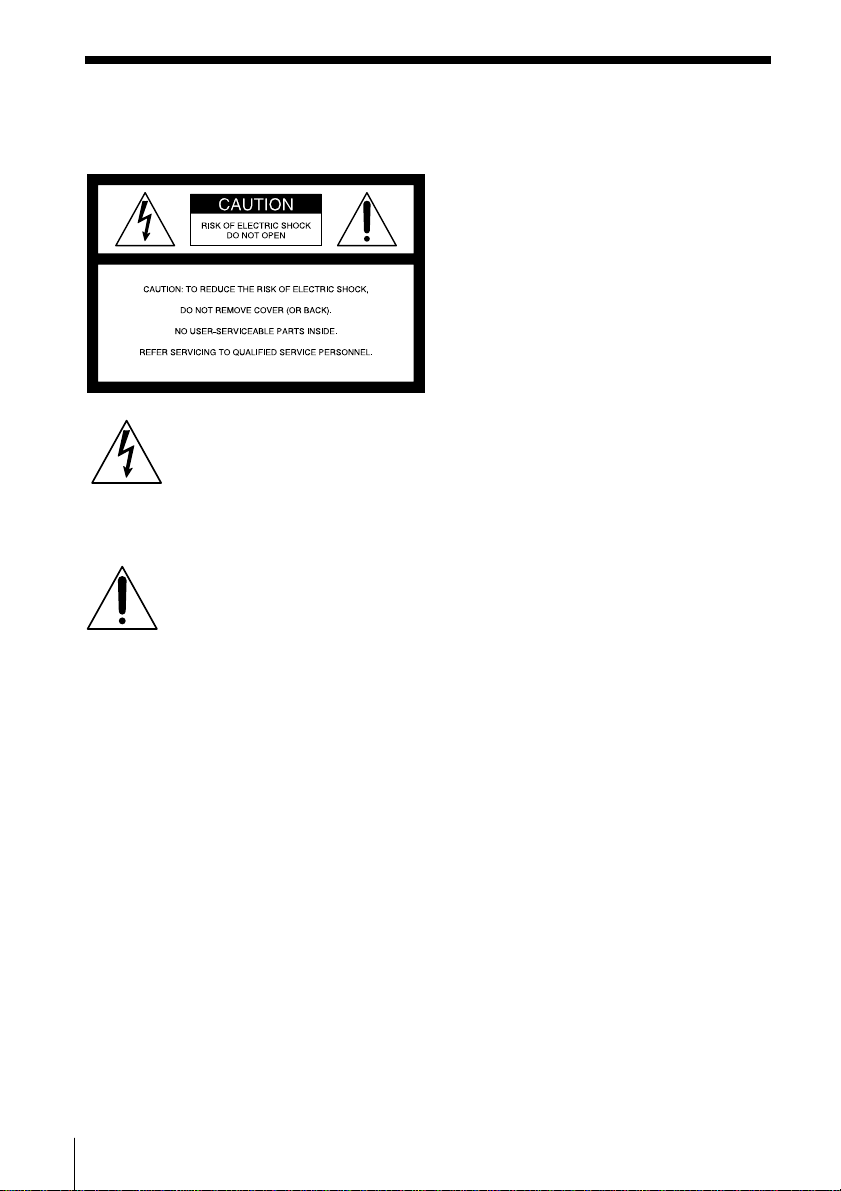
This symbol is intended to alert
the user to the presence of
uninsulated “dangerous voltage”
within the product's enclosure
that may be of sufficient
magnitude to constitute a risk of
electric shock to persons.
This symbol is intended to alert
the user to the presence of
important operating and
maintenance (servicing)
instructions in the literature
accompanying the appliance.
CAUTION
The use of optical instruments with this
product will increase eye hazard.
WARNING
Do not install the appliance in a confined
space, such as a bookcase or built-in cabinet.
Information
For customers in the United States
This equipment has been tested and found to
comply with the limits for a Class B digital
device, pursuant to Part 15 of the FCC Rules.
These limits are designed to provide
reasonable protection against harmful
interference in a residential installation. This
equipment generates, uses and can radiate
radio frequency energy and, if not installed
and used in accordance with the instructions,
may cause harmful interference to radio
communications. However, there is no
guarantee that interference will not occur in a
particular installation. If this equipment does
cause harmful interference to radio or
television reception, which can be determined
by turning the equipment off and on, the user
is encouraged to try to correct the interference
by one or more of the following measures:
—Reorient or relocate the receiving antenna.
—Increase the separation between the
equipment and receiver.
—Connect the equipment into an outlet on a
circuit different from that to which the
receiver is connected.
—Consult the dealer or an experienced
radio/TV technician for help.
You are cautioned that any changes or
modifications not expressly approved in this
manual could void your authority to operate
this equipment.
Owner's Record
The model and serial numbers are located at
the rear.
Record the serial number in the space
provided below. Refer to these numbers
whenever you call upon your Sony dealer
regarding this product.
Model No. ZS-M7
Serial No. ________________________
CAUTION
When you use this player for the first
time, or when you have not used it
for a long time, leave it connected to
a wall outlet for about one hour to
charge the built-in backup battery for
the clock, timer, preset radio stations,
etc. You can use the player during
charging.
When you disconnect the AC power
cord after charging, be sure to turn
off the power of the player first. Once
fully charged, the back up battery will
last for about 30 minutes without
being connected to the AC power
source.
If the stored data are erased, reenter
them when you use the player again.

Basic Operations
3Introduction
Table of contents
Basic Operations
4 Playing a CD
6 Recording a whole CD (Synchronized recording)
8 Playing an MD
10 Listening to the radio
The CD Player•The MD
Player
12 Using the display
15 Locating a specific track
16 Playing tracks repeatedly
(Repeat Play)
17 Creating your own program
(Program Play)
19 Playing tracks in random order
(Shuffle Play)
The Radio
20 Presetting radio stations
22 Playing preset radio stations
Recording
23 Recording the track you are
listening to
(Synchronized recording of a
single track – REC IT Function)
24 Recording the tracks you
programmed
(Synchronized recording of the
tracks you programmed)
26 Recording from the radio or a CD
28 Recording on a recorded MD
Editing recorded tracks on
the MD
29 Before editing
31 Erasing recordings
(Erase Function)
34 Dividing recorded tracks
(Divide Function)
36 Combining recorded tracks
(Combine Function)
38 Moving recorded tracks
(Move Function)
39 Labeling recordings
(Name Function)
The Timer
42 Setting the clock
44 Waking up to music
46 Timer-recording radio programs
48 Falling asleep to music
Setting Up
49 Preparing the system
52 Connecting optional components
54 Adjusting the audio emphasis
Additional Information
55 Precautions
57 System limitations of the MD
59 Getting to know the MD
61 Troubleshooting
64 Error messages
65 Specifications
66 Index
Basic Operations4
Playing a CD
Basic Operations
Connect the AC power cord (see page 49).
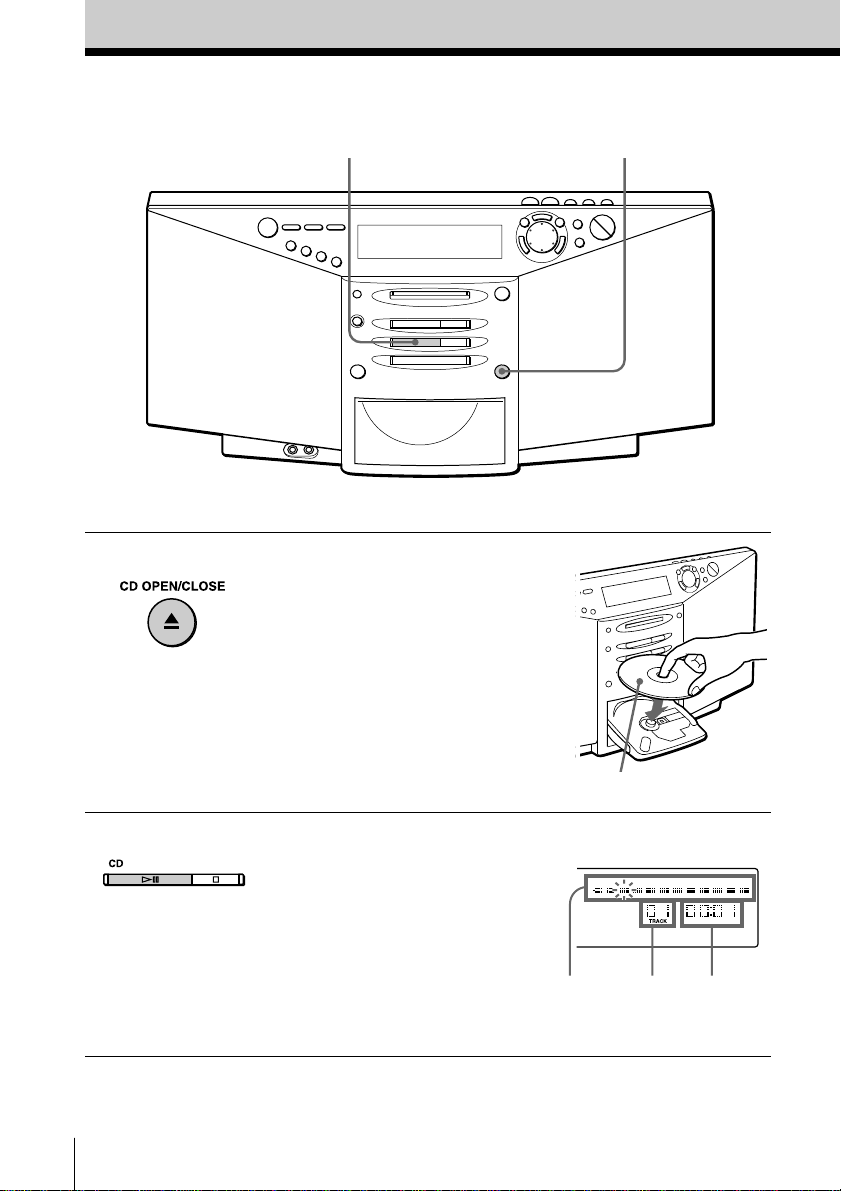
1 Press 6 CD OPEN/CLOSE
(direct power-on) and place the
CD on the CD tray until it clicks
into place.
2 Press CD ^.
The CD tray closes and the player
plays all the tracks once.
With the label side up
Display
Playing
time
Track
number
12
Position
pointer
Basic Operations
Basic Operations
5
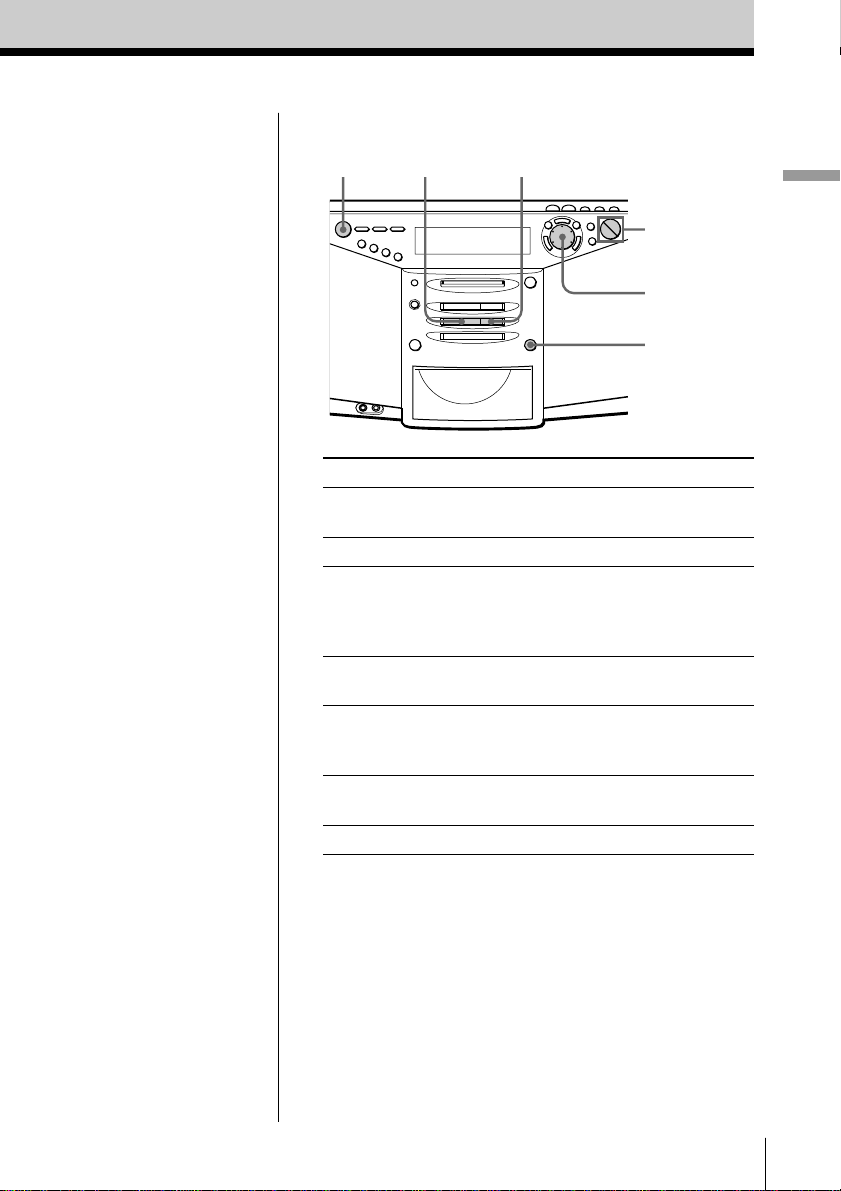
Use these buttons for additional operations
To Do this
adjust the volume Press VOLUME +, –
(VOL +, – on the remote).
stop playback Press CD p.
pause playback Press CD ^ (CD P on the
remote).
Press the button again to
resume play after pause.
go to the next track Turn the jog dial clockwise.
(On the remote, press +.)
go back to the previous track Turn the jog dial
counterclockwise.
(On the remote, press =.)
remove the CD Press 6 CD OPEN/
CLOSE.
turn on/off the player Press POWER.
Tips
• Next time you want to
listen to a CD, just press
CD ^. The player
turns on automatically
and starts playing the
CD.
• What is the position
pointer in the display?
It shows about where on
the CD track the player
is playing.
VOLUME –, +
CD ^
Jog dial
6 CD OPEN/
CLOSE
CD p
POWER
Basic Operations6
Recording a whole CD
(Synchronized recording)
Display
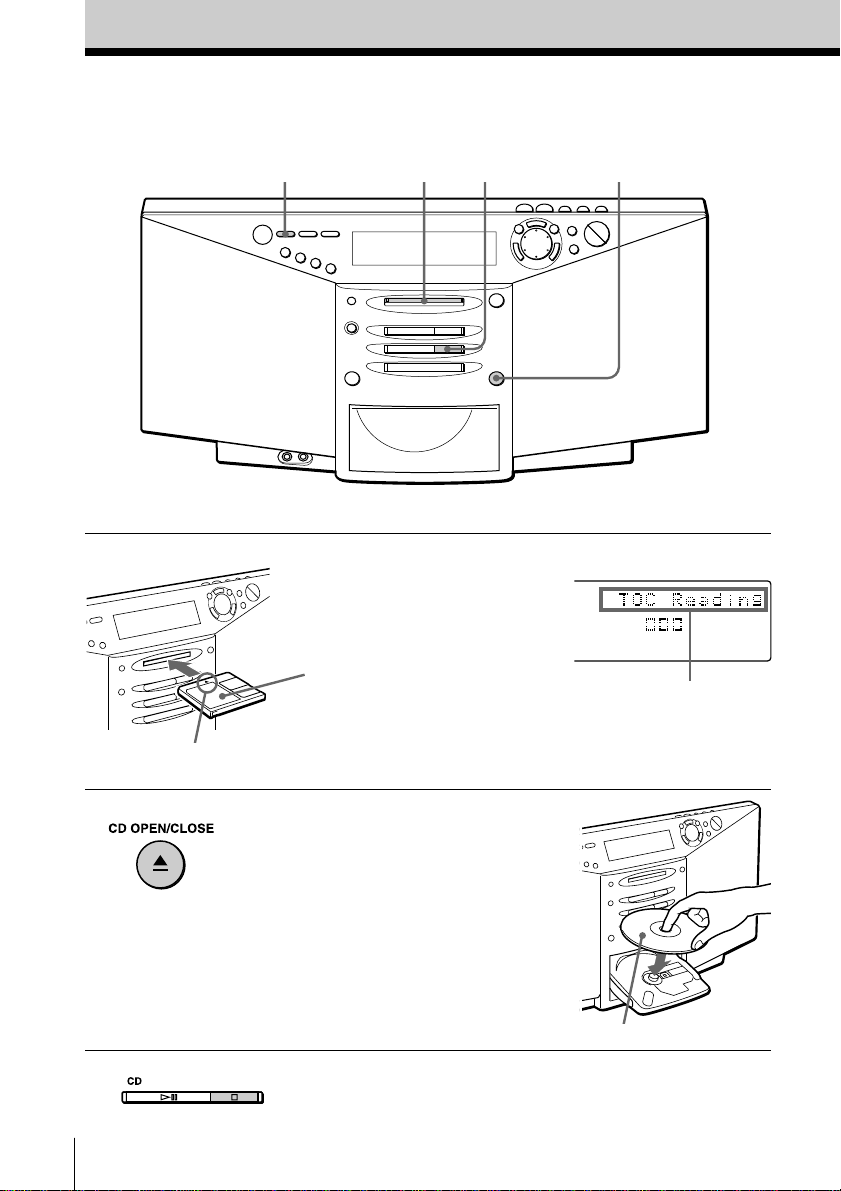
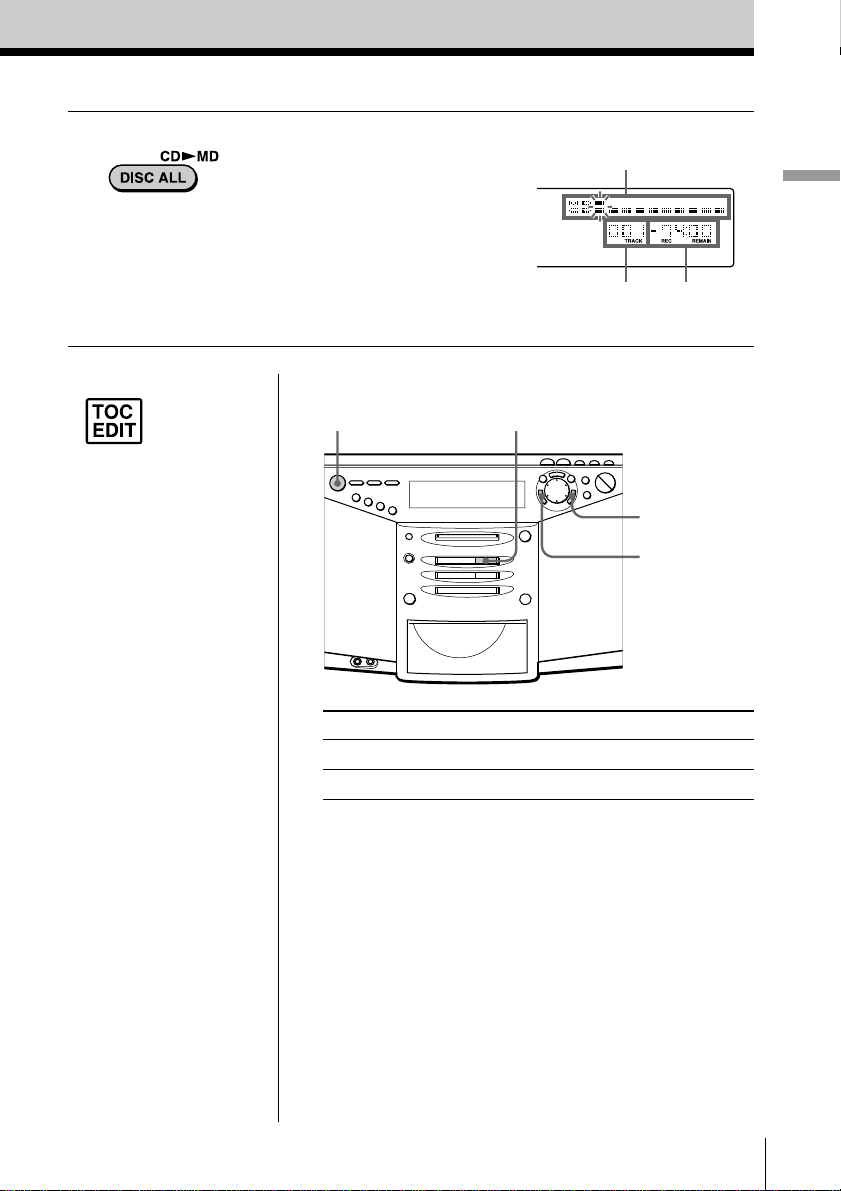
341 2
Insert in the direction of
the arrow
Connect the AC power cord (see page 49).
1 Insert a recordable MD (direct
power-on).
2 Press 6 CD OPEN/CLOSE and
place the CD on the CD tray until
it clicks into place.
Press 6 CD OPEN/CLOSE again
to close the CD tray.
3 Press CD p.
With the label side up
With the label
side up
After “TOC Reading” is
displayed, the disc name
will be displayed if it is
labeled.
Basic Operations
Basic Operations
7
Notes
• After you
stop
recording, do
not disconnect the AC
power cord or move
the player while “TOC
EDIT” is flashing in the
display. If you do so,
recording may not be
done properly.
• When you record a
whole CD, you cannot
pause recording.
Tips
• Adjusting the volume or
the audio emphasis
(page 54) will not affect
the recording level.
Keep the volume at a
moderate level so as to
prevent the sound from
skipping.
• To record over the
previous recording, see
page 28.
• Once the clock is set, the
recording date and time
are stamped
automatically (page 42).
To Press
stop recording MD p or CD p
turn on/off the player POWER
If “CD>MD OK?” alternates with time dislay
There is not enough space on the MD to record the whole
CD.
If it is all right to record as much as possible and cancel
recording of some tracks, press ENTER•YES. To stop
recording, press CANCEL•NO.
If any other messages are displayed, see page 64.
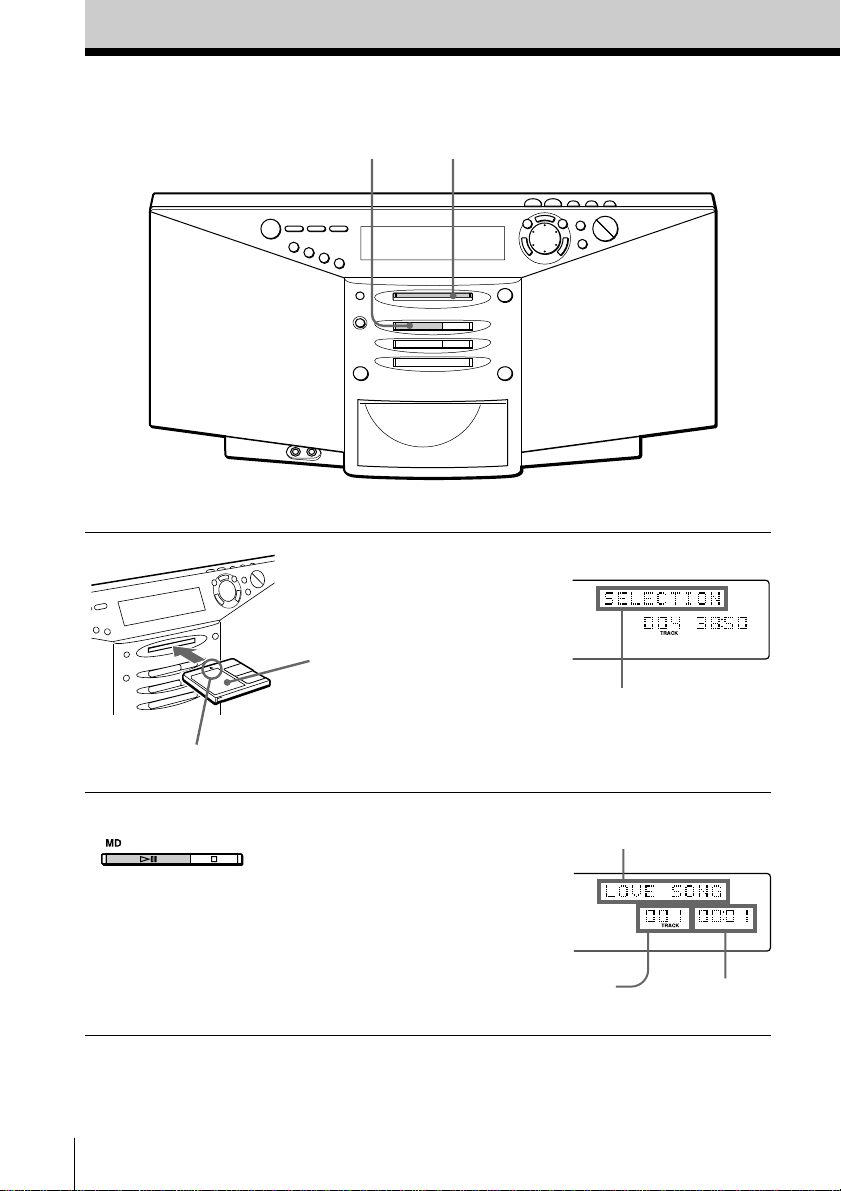
MD p
Track number
of MD
Position pointer (showing
playing position on the CD and
recording position on the MD)
ENTER•YES
CANCEL•NO
4 Press DISC ALL.
The player starts recording
automatically.
If the MD has any previous
recording, recording will be made
from the last recorded position.
Remaining
recording time
of MD
Use these buttons for additional operations
POWER
Basic Operations8
Playing an MD
Connect the AC power cord (see page 49).
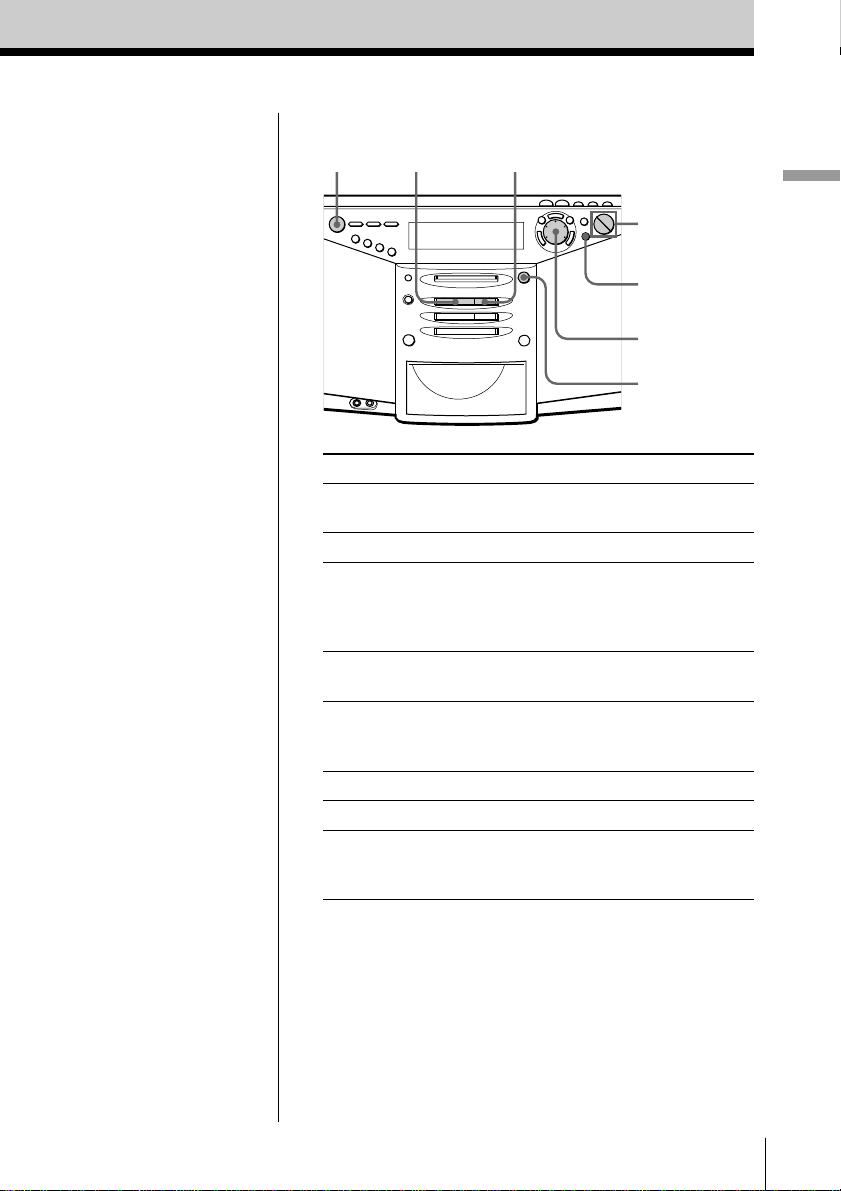
1 Insert the MD (direct power-on).
2 Press MD ^.
The player plays all the tracks
once.
With the label
side up
Display
Playing time
Track number
12
Insert in the direction of
the arrow
After “TOC Reading” is
displayed, the disc name
will be displayed if it is
labeled.
Track name is displayed
if it is labeled.
Basic Operations
Basic Operations
9
Use these buttons for additional operations
To Do this
adjust the volume Press VOLUME +, –
(VOL +, – on the remote).
stop playback Press MD p.
pause playback Press MD ^ (MD P on the
remote).
Press the button again to
resume play after pause.
go to the next track Turn the jog dial clockwise.
(On the remote, press +.)
go back to the previous track Turn the jog dial
counterclockwise.
(On the remote, press =.)
remove the MD Press 6 MD EJECT.
turn on/off the player Press POWER.
check the playing position Press DISPLAY.
in the display using the
position pointer
Tip
Next time you want to
listen to a MD, just press
MD ^. The player
turns on automatically
and starts playing the
MD.
VOLUME –, +
Jog dial
6 MD EJECT
MD p
POWER
MD ^
DISPLAY
Basic Operations10
Listening to the radio
Connect the AC power cord (see page 49).
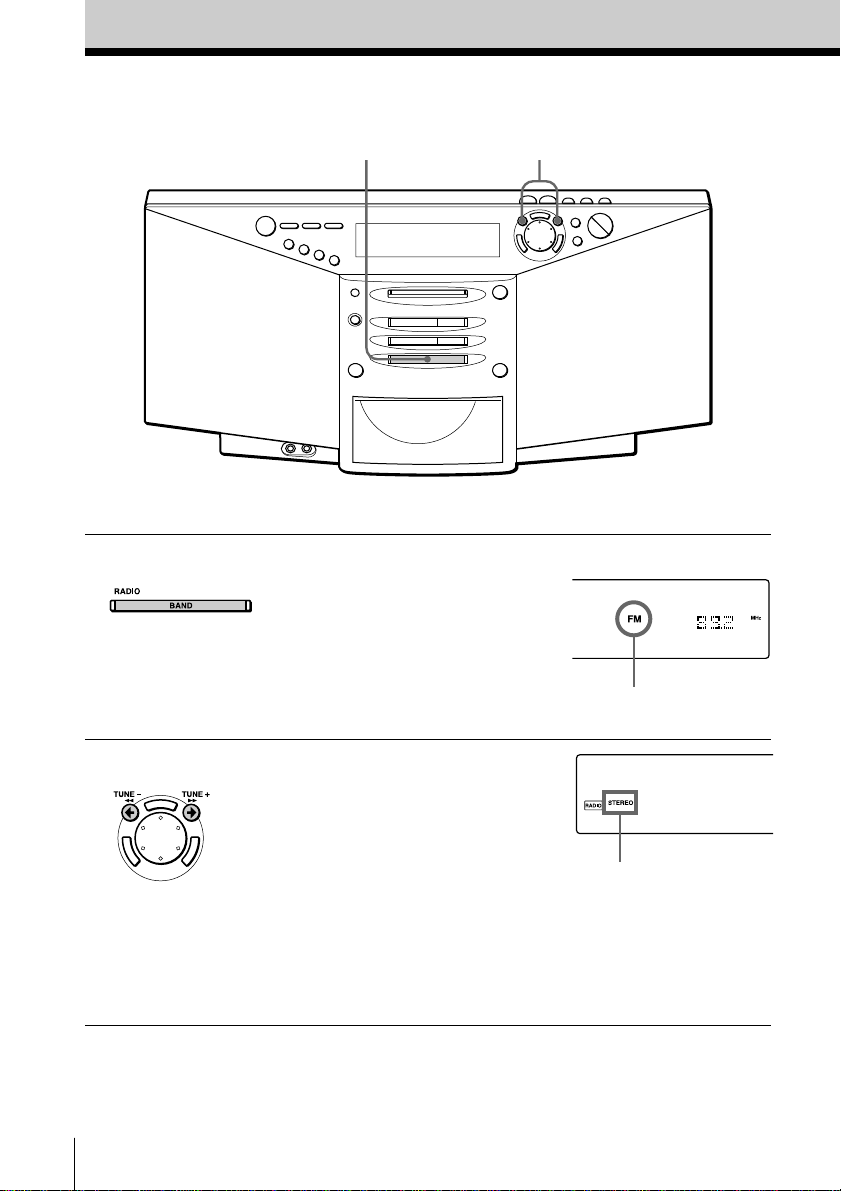
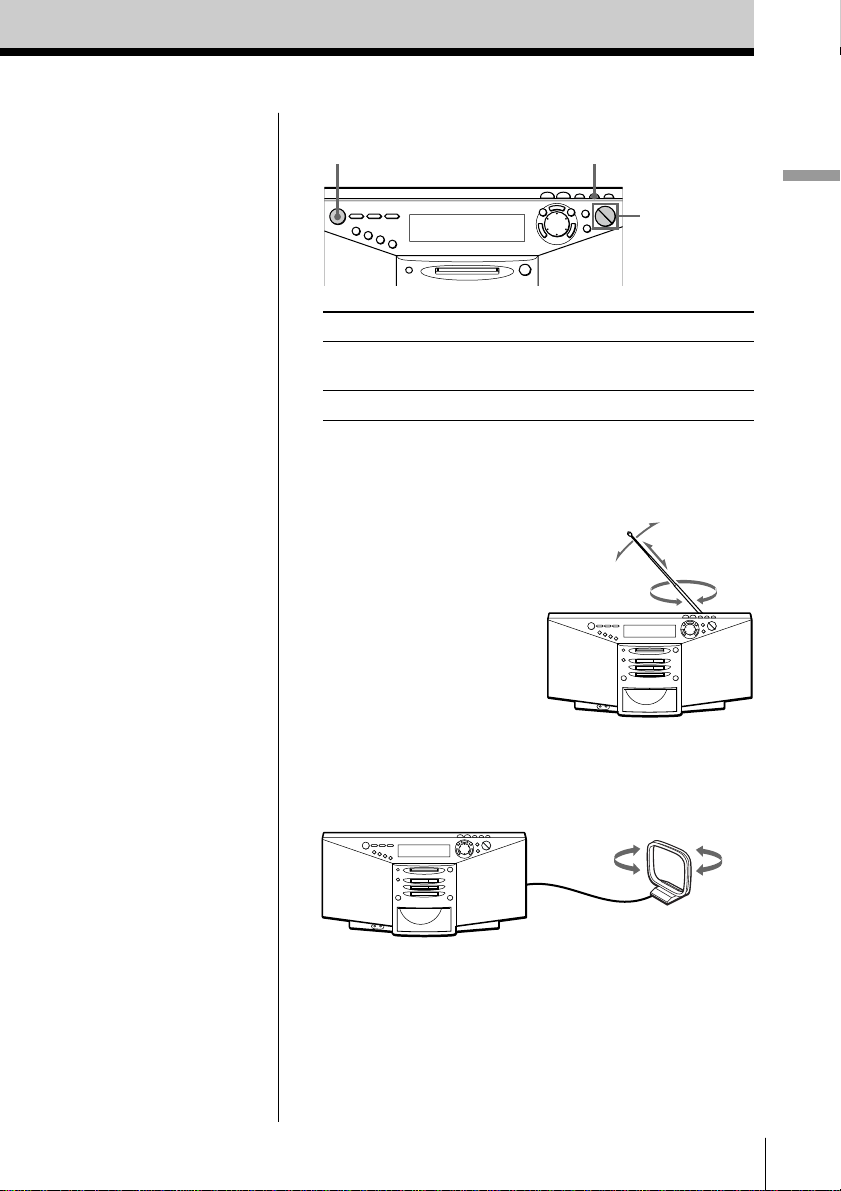
1 Press BAND until the band you
want appears in the display
(direct power-on).
2 Hold down TUNE + or TUNE –
until the frequency digits begin to
change in the display.
The player automatically scans
the radio frequencies and stops
when it finds a clear station.
If you can’t tune in a station,
press TUNE + or TUNE –
repeatedly until you tune in the
station you want.
12
Display
“FM” or “AM” appears
Indicates an FM stereo
broadcast
Basic Operations
Basic Operations
11
Use these buttons for additional operations
Tips
• If the FM broadcast is
noisy, press MONO/ST
(MODE on the remote)
until “MONO” appears
in the display and radio
will play in monaural.
• Next time you want to
listen to the radio, just
press BAND. The player
turns on automatically
and starts playing the
previous station.
To Press
adjust the volume VOLUME +, –
(VOL +, – on the remote)
turn on/off the radio POWER
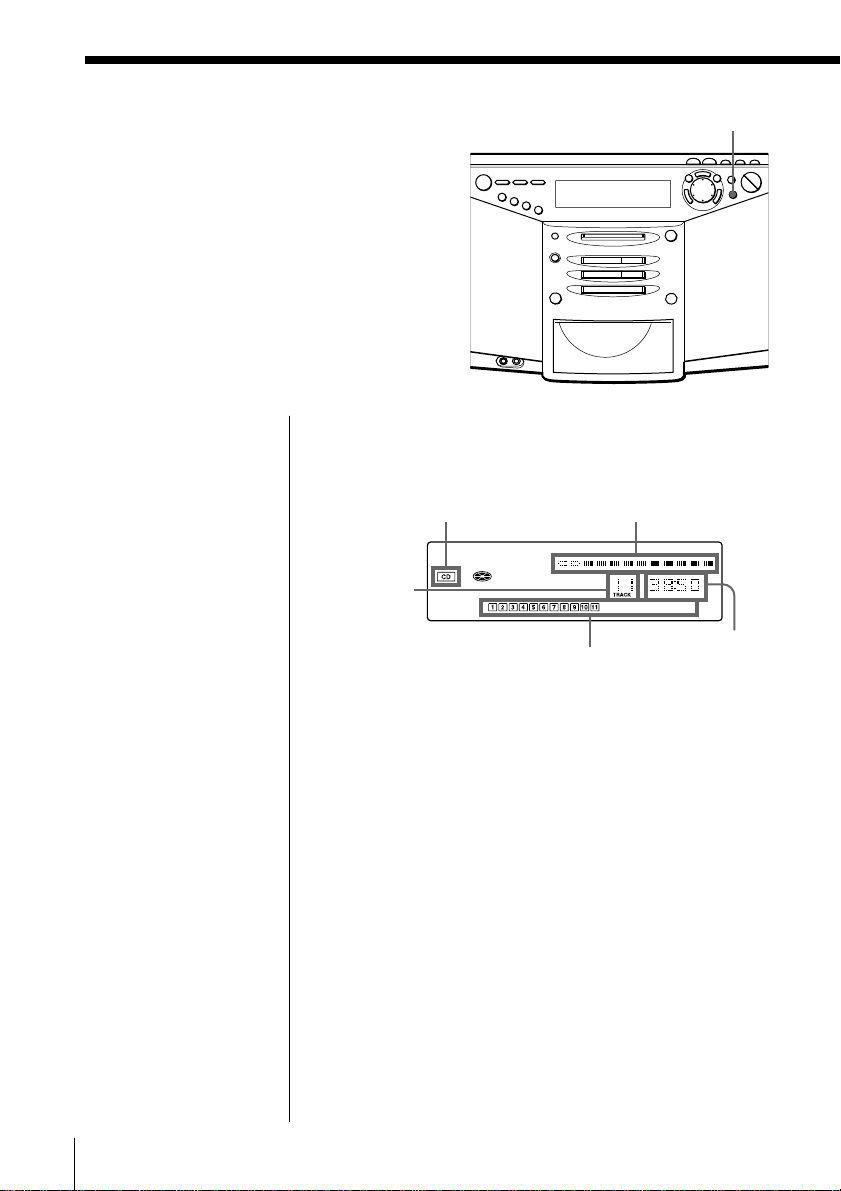
To improve broadcast reception
FM:
Reorient the aerial for FM.
AM:
Keep the AM loop aerial as far as possible from the
player and reorient it.
If the broad cast is still noisy, connect the external
aerial (page 50).
VOLUME –, +
MONO/STPOWER
The CD Player•The MD Player12
Using the display
You can check information about the CD
and MD using the display.
The CD Player•The MD Player
DISPLAY
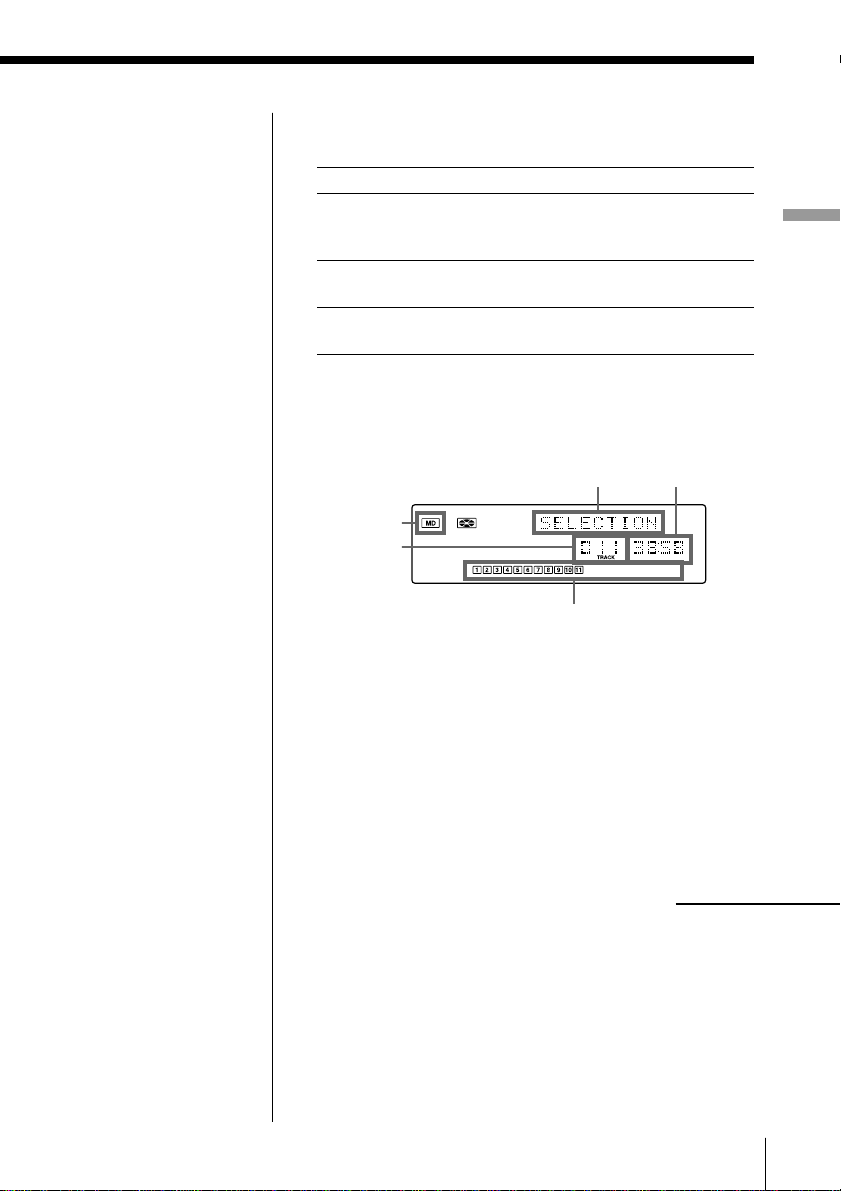
During stop (CD)
The total track number and playing time are
displayed.
If the CD has more than 20 tracks, “OVER 20” appears
in the display.
During play (CD)
The current track number and playing time are
displayed. The track numbers in the music calendar
disappear after they are played.
Total playing time
Music calendar
Total track
number
CD indication
Position pointer
The CD Player•The MD Player 13
The CD Player•The MD Player
Note
During repeat play
(page 16), program
play (page 17) and
shuffle play (page 19),
the number of tracks
left and remaining time
on the CD will not be
displayed.
To check the remaining time
Press DISPLAY.
To display
Press DISPLAY
the current track number and once
remaining time on the current
track
the number of tracks left and twice
remaining time on the CD
the current track number three times
and playing time
During stop (MD)
The total track number and playing time are
displayed.
If the MD has more than 20 tracks, “OVER 20”
appears in the display.
To check the remaining recording time on the MD
Press DISPLAY.
The position pointer also appears in the display.
Total playing time
Music calendar
Total track
number
MD
indication
Disc name
Tip
The disc name is
displayed only with the
MDs that have been
electronically labeled.
continued

The CD Player•The MD Player14
Using the display (continued)
Note
During repeat play
(page 16), program play
(page 17) and shuffle
play (page 19), the
number of tracks left
and remaining time on
the MD will not be
displayed.
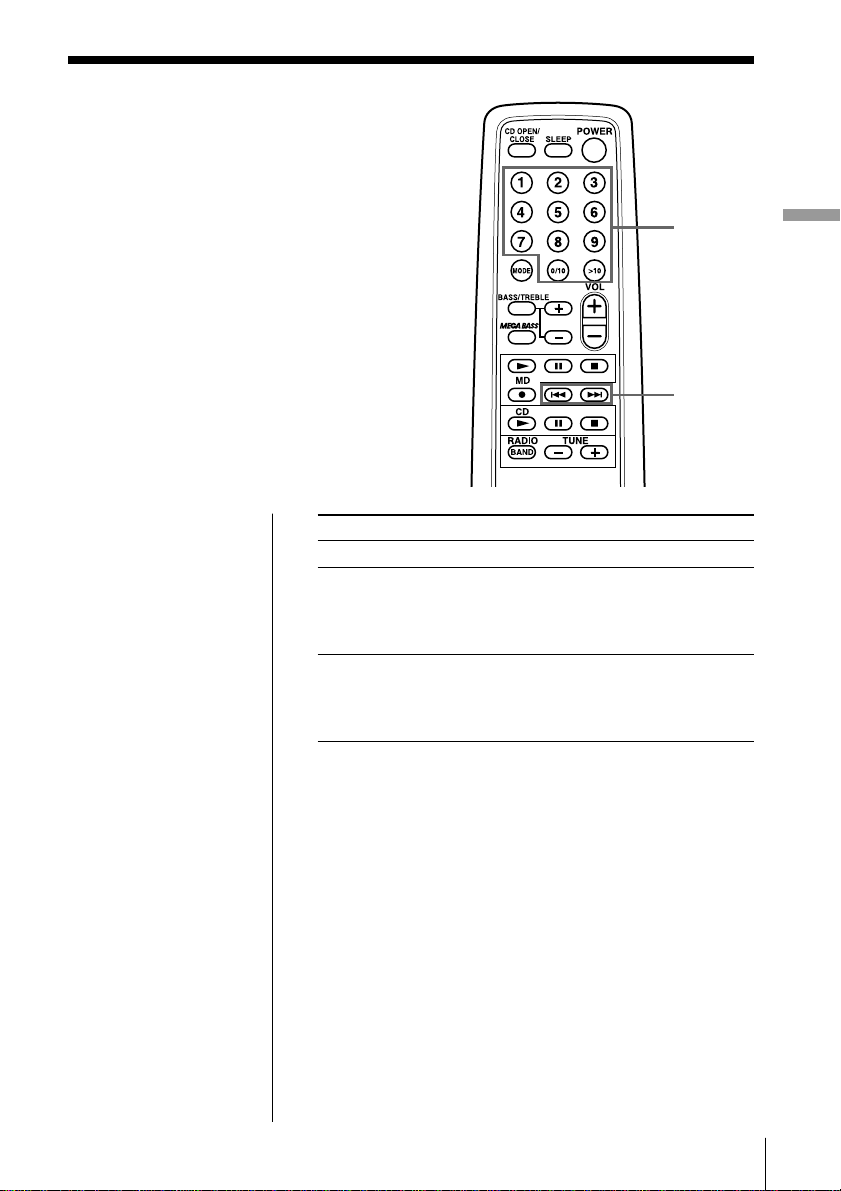
During play (MD)
The current track number, playing time and the track
name are displayed. The track numbers in the music
calendar disappear after they are played.
To check the remaining time, recording date and
time, etc.
Press DISPLAY.
To display
Press DISPLAY
the current track number, once
remaining time on the current
track and position pointer
the number of tracks left, twice
remaining time on the MD
and the disc name
recording date and time* three times
the current track number, four times
playing time and the track
name
* Once the clock is set, the recording date and time are
stamped automatically (page 42).
The CD Player•The MD Player 15
The CD Player•The MD Player
Locating a specific
track
You can quickly locate any track on a CD
or an MD using the number buttons. You
can also find a specific point in a track
while playing a CD or an MD.
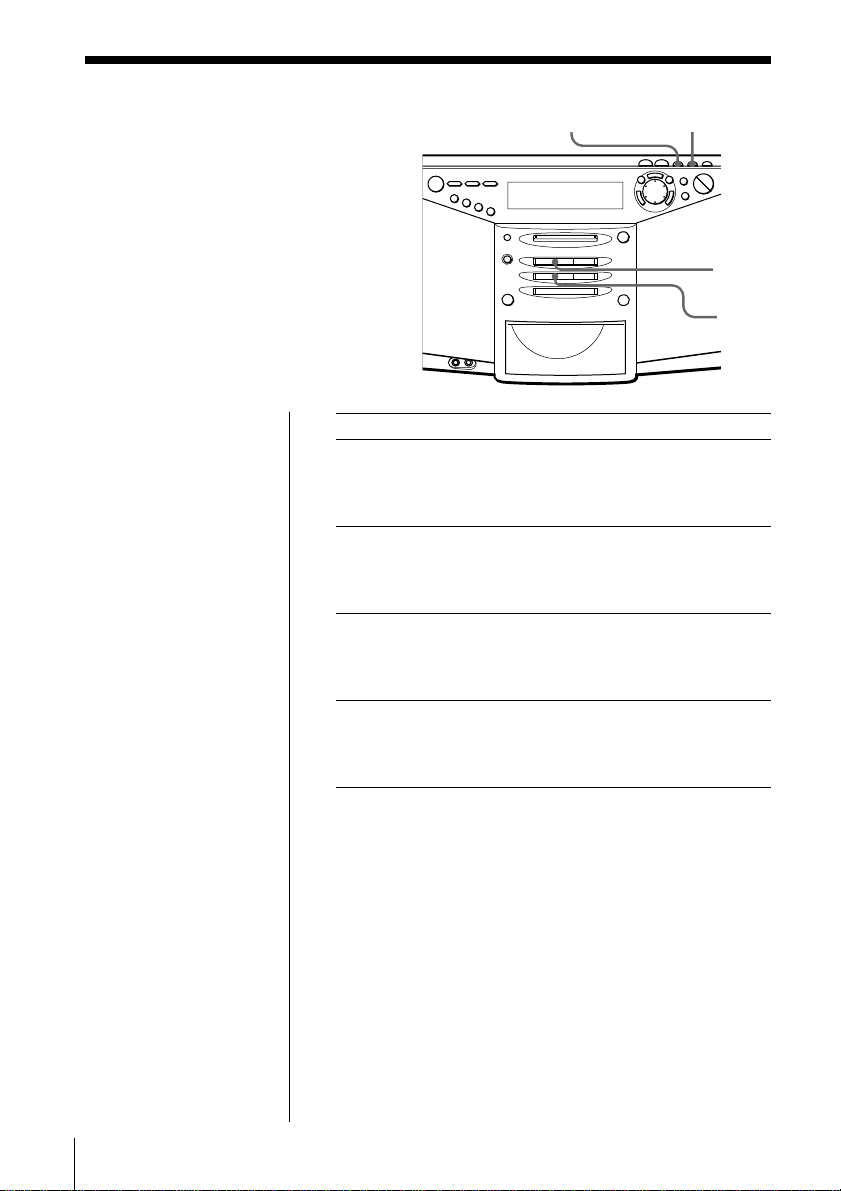
Number
buttons
=, +
To locate Press
a specific track directly the number button of the track.
a point while listening to + (forward) or = (backward)
the sound while playing and hold down
until you find the point.
(On the player, use ) or 0.)
a point while observing + (forward) or = (backward)
the display in pause and hold down until
you find the point.
(On the player, use ) or 0.)
Note
You cannot locate a
specific track if
“REPEAT PGM”,
“REPEAT SHUFFLE”,
“PGM” or “SHUFFLE”
is lit in the display.
Turn off the indication
by pressing p.
Tips
• To locate a track
numbered over 10,
press >10 first, then the
corresponding number
buttons.
Example:
To play the track
number 23, press >10
first, then 2 and 3.
To play the track
number 10, you can use
the 0/10 button as well
as >10, 1 and 0.
• To select a track on an
MD numbered 100 or
more, press >10 twice,
then the corresponding
number buttons.
The CD Player•The MD Player16
Playing tracks
repeatedly
(Repeat Play)
You can play tracks repeatedly in
normal, shuffle or program play
modes (page 17).
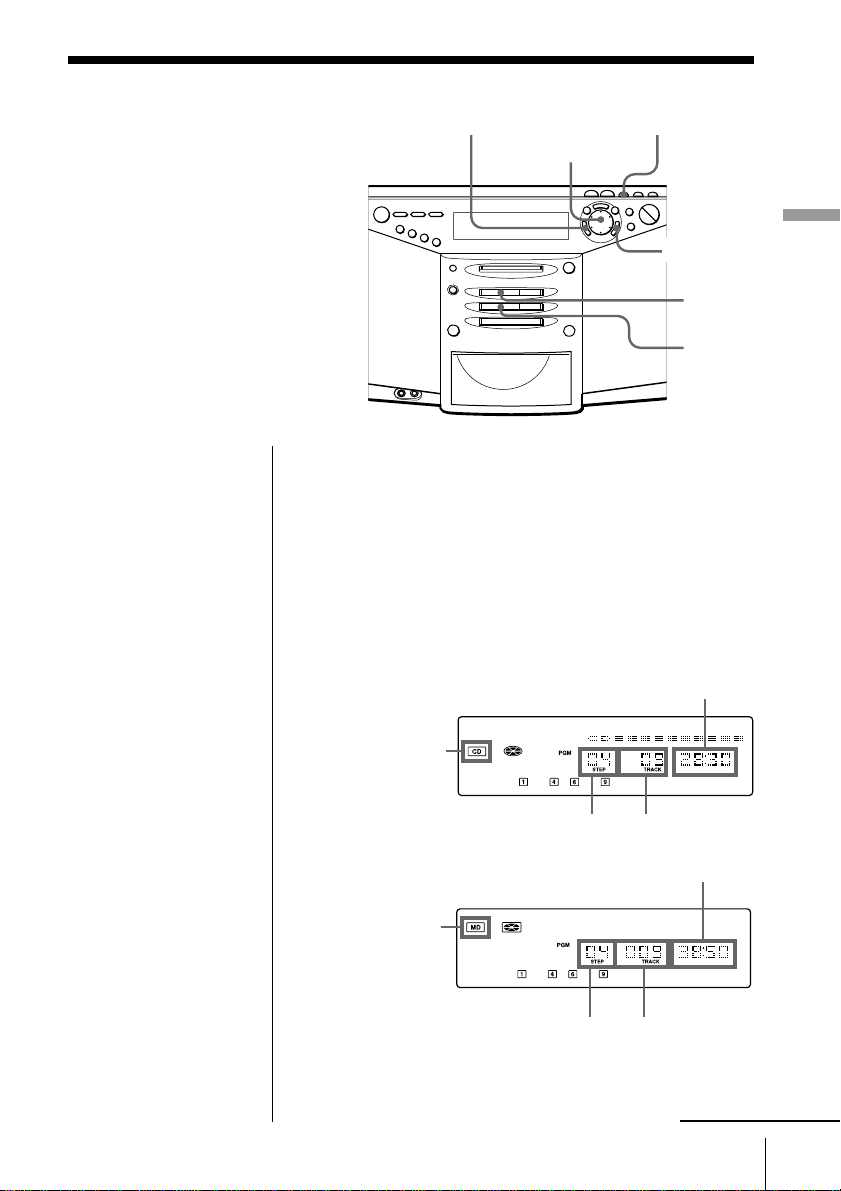
To repeat Do this
a single track 1 Play the track you want.
2 Press REPEAT repeatedly until
“REPEAT 1” appears in the
display.
all the tracks 1 Start normal play.
2 Press REPEAT repeatedly until
“REPEAT” appears in the
display.
tracks in random 1 Start shuffle play (page 19).
order 2 Press REPEAT repeatedly until
“REPEAT SHUFFLE” appears in
the display.
programed tracks 1 Start program play (page 17).
2 Press REPEAT repeatedly until
“REPEAT PGM” appears in the
display.
To cancel Repeat Play
Stop play first. Then, press REPEAT until “REPEAT”
disappears from the display.
On the remote
• During play, press
MODE repeatedly until
“REPEAT 1” or
“REPEAT” appears in
the display. During
play, you cannot select
“REPEAT SHUFFLE” or
“REPEAT PGM”.
• You can also select the
repeat play during stop.
Press MODE repeatedly
until “REPEAT 1”,
“REPEAT”, “REPEAT
SHUFFLE” or “REPEAT
PGM” appears in the
display. Then, play the
CD or the MD.
SHUF/PGM REPEAT
MD ^
CD ^
The CD Player•The MD Player 17
The CD Player•The MD Player
Creating your
own program
(Program Play)
You can arrange the playing order
of up to 20 tracks on a CD or an MD.
On the remote
Press MODE until
“PGM” appears in the
display, then press the
number button to select
the track.
Tip
If you made a mistake,
press CANCEL•NO
and re-enter the track
number by turning the
jog dial and press
ENTER•YES.
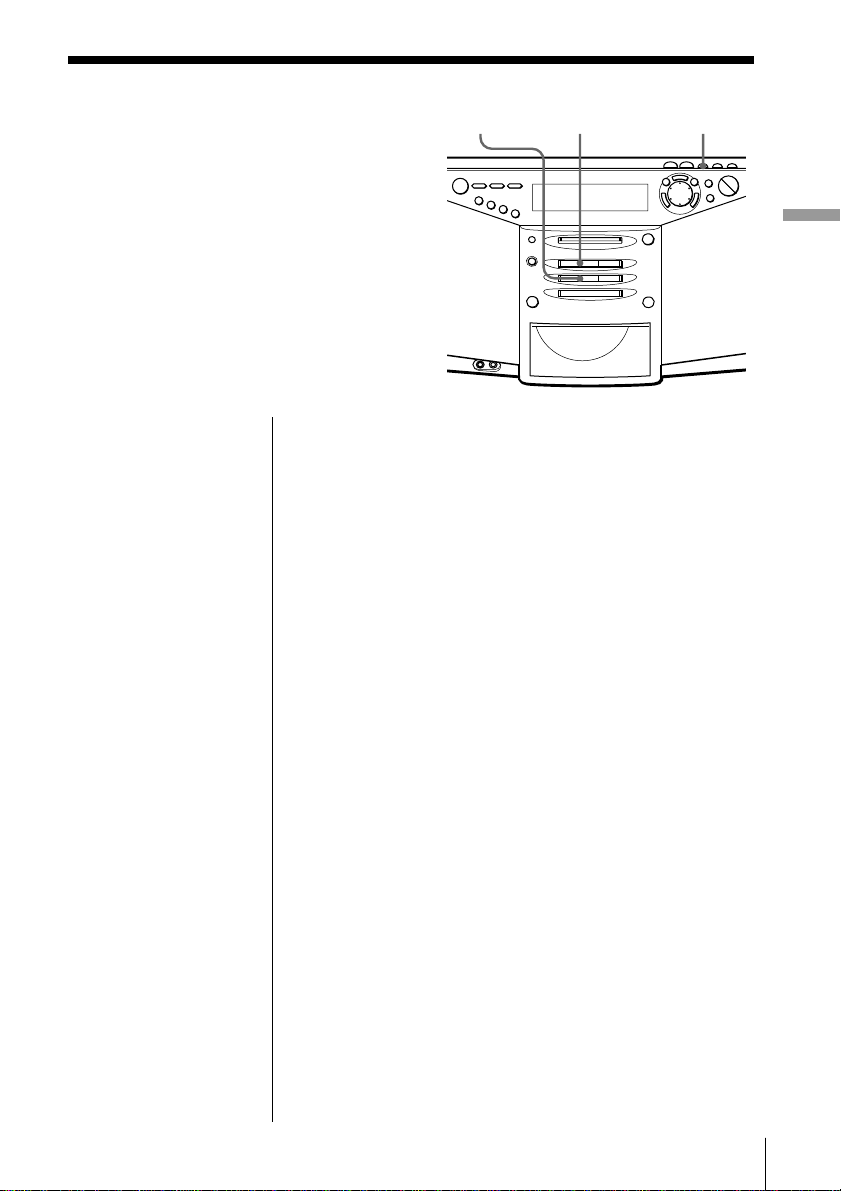
CANCEL•NO SHUF/PGM
MD ^
CD ^
Jog dial
ENTER•YES
Total programed time
Track numberPlaying order
CD
indication
Track number
Playing order
Total programed time
MD
indication
Before you begin, make sure that the CD or MD player
is in stop mode.
1 Press SHUF/PGM until “PGM” appears in the
display.
2 Turn the jog dial to select the track you want to
program, and press ENTER•YES.
Repeat this step.
Programed tracks appear in the music calendar.
(In case of CD)
(In case of MD)
3 Press CD ^ ( or MD ^) to start program play.
continued

The CD Player•The MD Player18
Tips
• If the program play is
finished, the program
is saved. You can play
the same program
again by pressing ^.
• If you open the CD
tray, the program is
erased.
• If you take out the MD,
the program is erased.
• During play, total
programed time cannot
be displayed.
To cancel Program Play
Stop play first. Then, press SHUF/PGM until “PGM”
disappears from the display.
To check the order of tracks before play
Before starting the program play, press ENTER•YES.
“PGM Check” appears in the display. Every time you
press ENTER•YES, the track number appears in the
programed order.
To change the current program
Change before starting the program play.
To Do this
erase the last track in 1 Press CANCEL•NO.
the program The track programed last is erased.
2 Re-enter the track numbers by
turning the jog dial and pressing
ENTER•YES.
change the whole 1 Press p to erase the whole
program completely program.
2 Create a new program
following the programing
procedure.
Creating your own program (Program Play) (continued)
The CD Player•The MD Player 19
The CD Player•The MD Player
Playing tracks
in random
order
(Shuffle Play)
You can play tracks in random
order.
Tip
During shuffle play,
you cannot select the
previous track by
turning the jog dial (or
by pressing = on the
remote).
On the remote
Press MODE until
“SHUFFLE” appears in
the display.
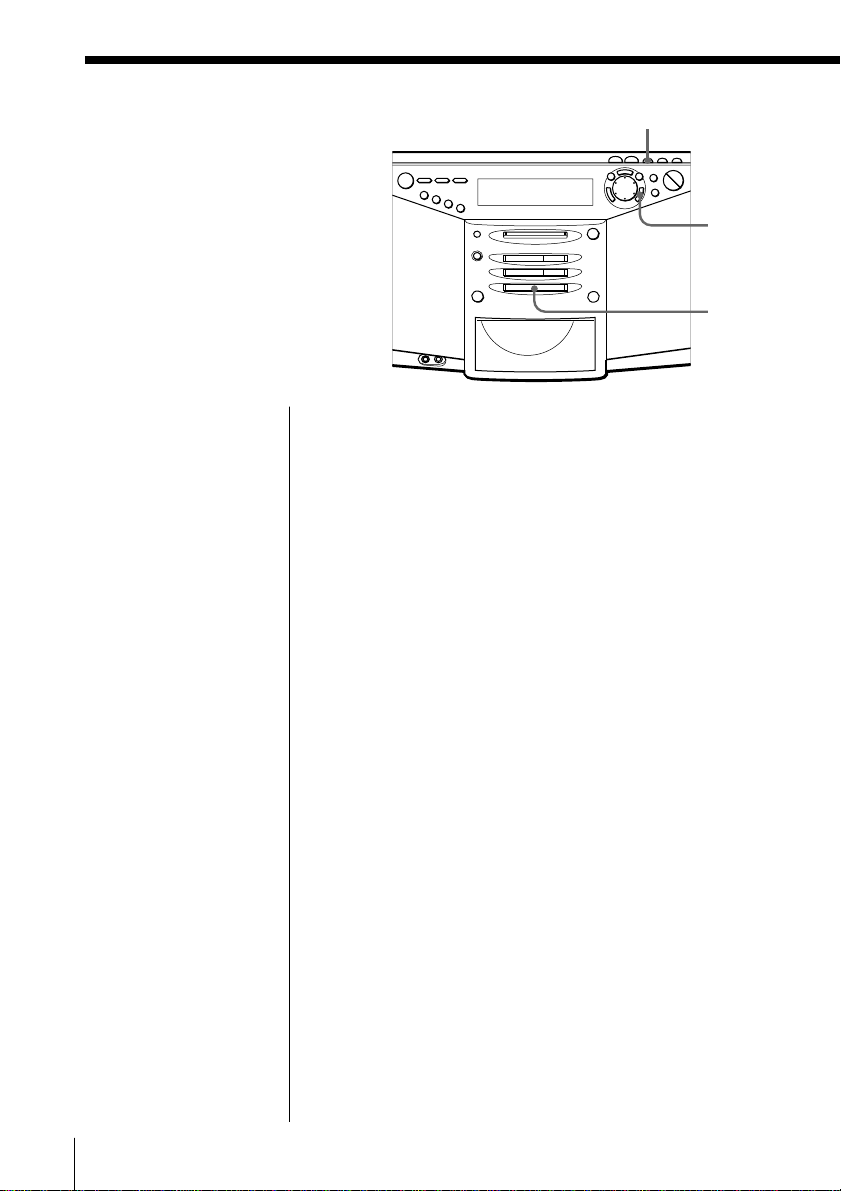
SHUF/PGMMD ^CD ^
Before you begin, make sure that the CD or MD player
is in stop mode.
1 Press SHUF/PGM until “SHUFFLE” appears in
the display.
2 Press CD ^ (or MD ^) to start shuffle play.
To cancel Shuffle Play
Stop play first. Then, press SHUF/PGM until
“SHUFFLE” disappears from the display.
The Radio20
Presetting radio
stations
You can store radio stations into the
player’s memory. You can preset
up to 24 stations, 12 for each band in
any order.
The Radio
AUTO PRESET
ENTER•
YES
BAND
1 Press BAND until the band you want appears in
the display.
2 Hold down AUTO PRESET until “AUTO PRESET”
flashes in the display.
The stations are stored in memory from the lower
frequencies (from the preset number 1, in
numerical order) as long as the station has a signal
strong enough.
When you’ve done presetting, the station stored in
the preset number 1 will be tuned in automatically.
If a station cannot be preset automatically
You need to preset a station with a weak signal
manually. Also, when you want to replace preset
stations with a new one, proceed as follows:
1 Press BAND until the band you want appears in
the display.
2 Press TUNE + or – repeatedly until you tune in the
station you want, and then, hold down
ENTER•YES for 2 seconds.
3 Select the preset number you want to preset the
new station on by turning the jog dial.
4 Press ENTER•YES.
The new station replaces the old one.
On the remote
1 Press BAND until the
band you want
appears in the
display.
2 Press TUNE + or –
until you tune in the
station you want.
3 Hold down the
number button that
you want to preset
the new station on
for 2 seconds.
To select the preset
number 11 or 12,
press >10 first, then
press 1 or 2.

The Radio 21
The Radio
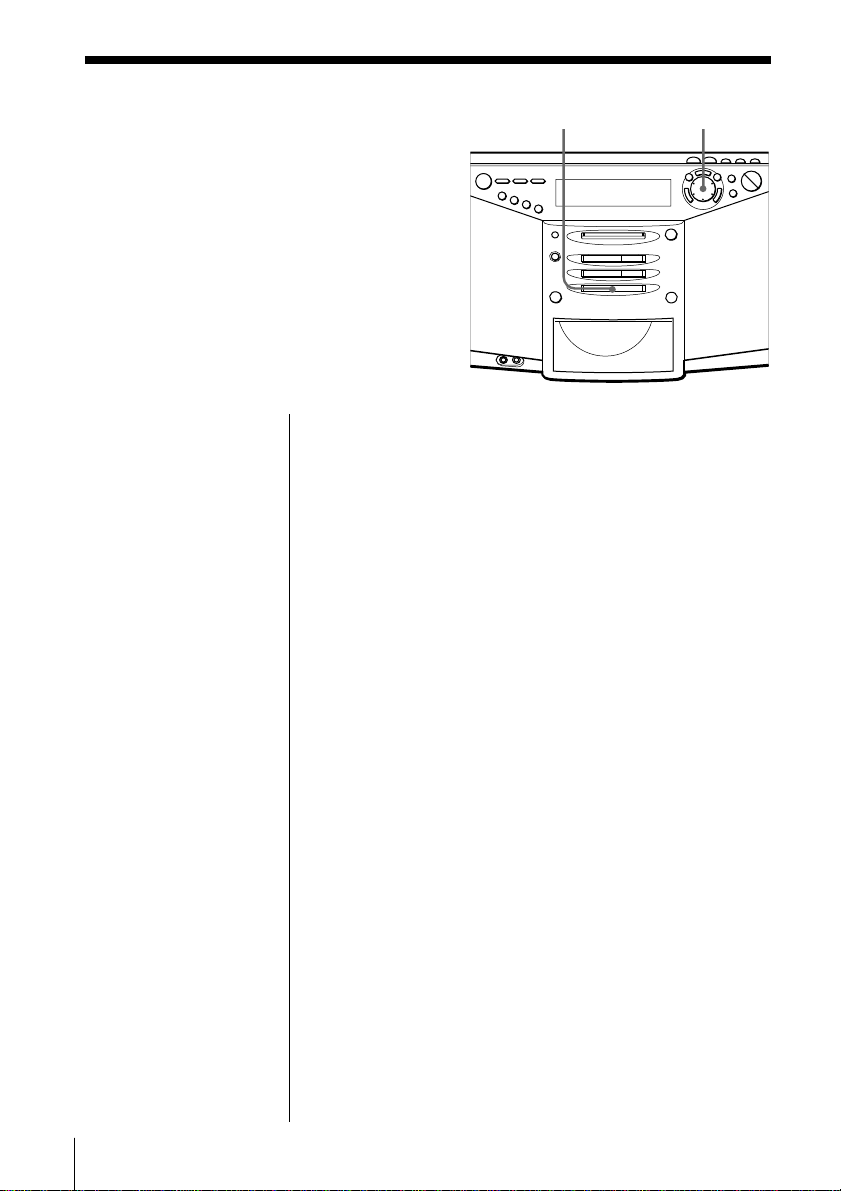
To label the station
1 According to the procedure on page 22, tune in the
station you want to label.
2 Press EDIT for 2 seconds.
3 Input the name of the station (up to 12 characters).
For details , see steps 4 - 8 on pages 39 and 40.
To Do this
move the cursor Press ¿ or ÷.
select the characters Turn the jog dial.
erase the characters Press DELETE.
insert the characters Use INSERT.
4 Press ENTER•YES.
The Radio22
Playing preset
radio stations
Once you’ve preset the stations, use the
jog dial on the player or the number
buttons on the remote to tune in your
favorite stations.
Jog dialBAND
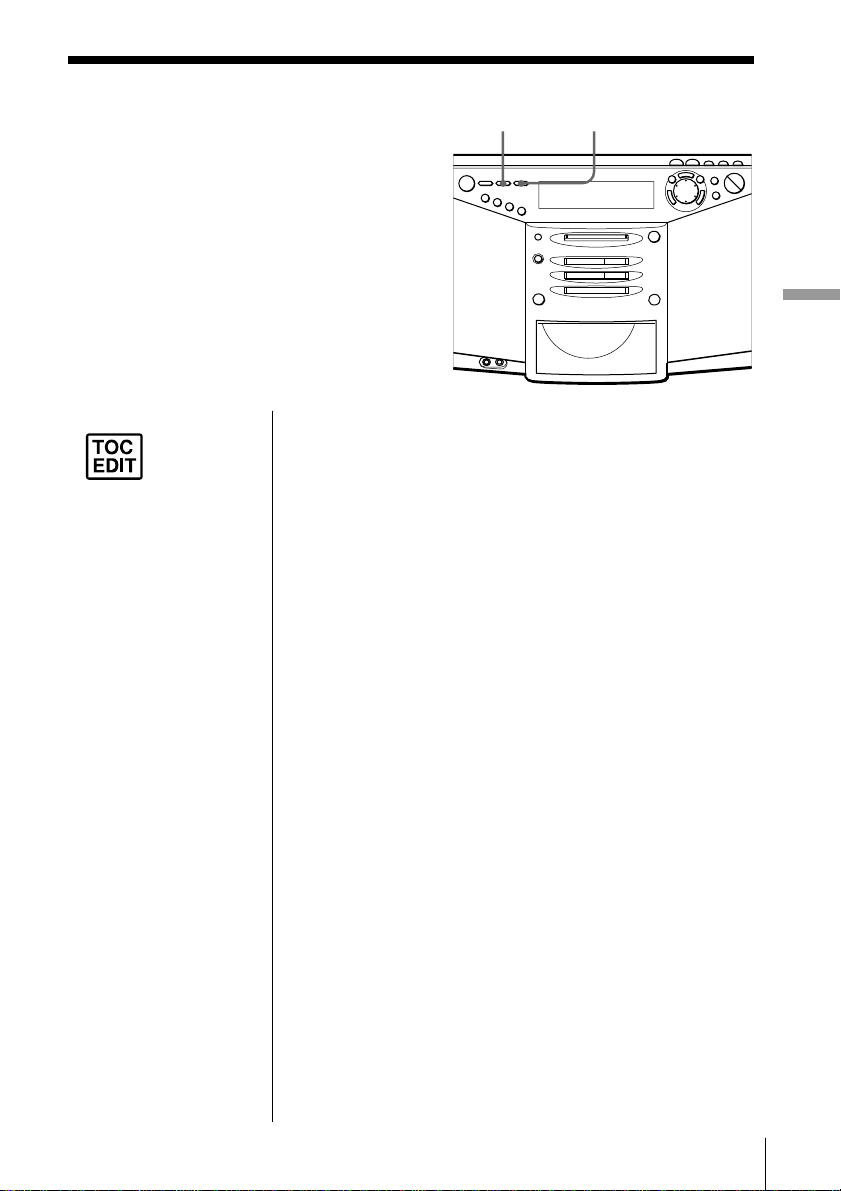
1 Press BAND until the band you want appears in
the display.
2 Turn the jog dial to display the preset number of
the station you want.
On the remote
To display the preset
number you want in
step 2, use the number
buttons.
To select the preset
number 10:
Press 0/10.
To select the preset
number 11 or 12:
Press >10 first, then
press 1 or 2.
Recording 23
Recording
Recording the
track you are
listening to
(Synchronized recording of a
single track – REC IT Function)
You can record the track you are
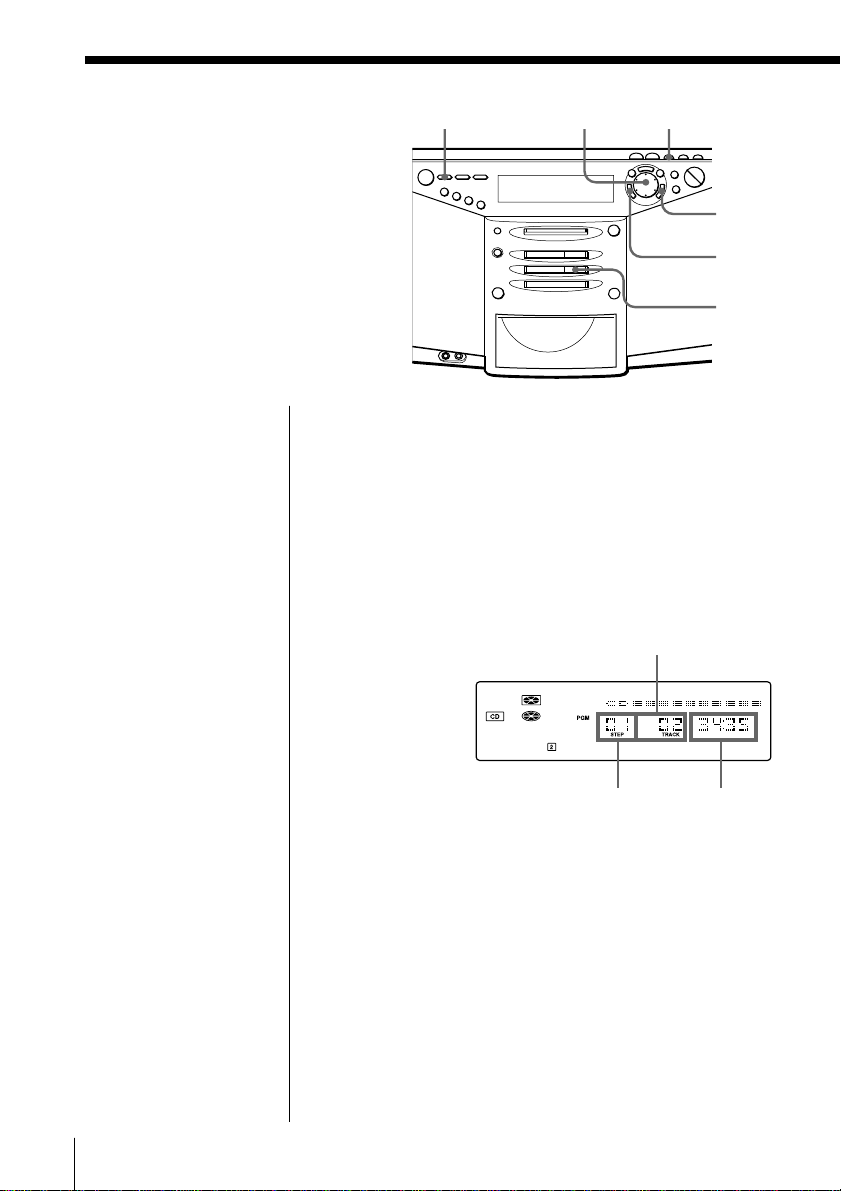
listening to from its beginning using the
TO TOP or TO END button.
Recording
TO TOP TO END
1 Insert a recordable MD.
2 Insert the CD and play the track you want to
record.
3 Press TO TOP or TO END.
The player goes back to the beginning of the track
you are listening to, and starts recording.
When you use a recorded MD:
To record before the previous recording, press
TO TOP.
To record after the previous recording, press
TO END.
When you use a new MD:
Press either TO TOP or TO END.
When recording is finished, MD player will stop
operation automatically but CD player will
continue play.
You can label the track during recording
1 Press EDIT.
2 Press DISPLAY repeatedly to select the type of
characters.
3 Turn the jog dial to display the character you want
and press ÷.
4 Repeat steps 2 and 3 to complete the entire name.
5 Press ENTER•YES.
For details, see pages 39 - 41.
Notes
• After you
stop
recording,
do not disconnect the
AC power cord or
move the player while
“TOC EDIT” is flashing
in the display. If you
do so, recording may
not be done properly.
• If you turn up the
volume too high, sound
skipping may occur.
Tips
• To record over the
previous recording, see
page 28.
• Once the clock is set,
the recording date and
time are stamped
automatically (page 42).
Recording24
Recording the
tracks you
programmed
(Synchronized recording of
the tracks you programmed)
You can record the tracks you
programmed.
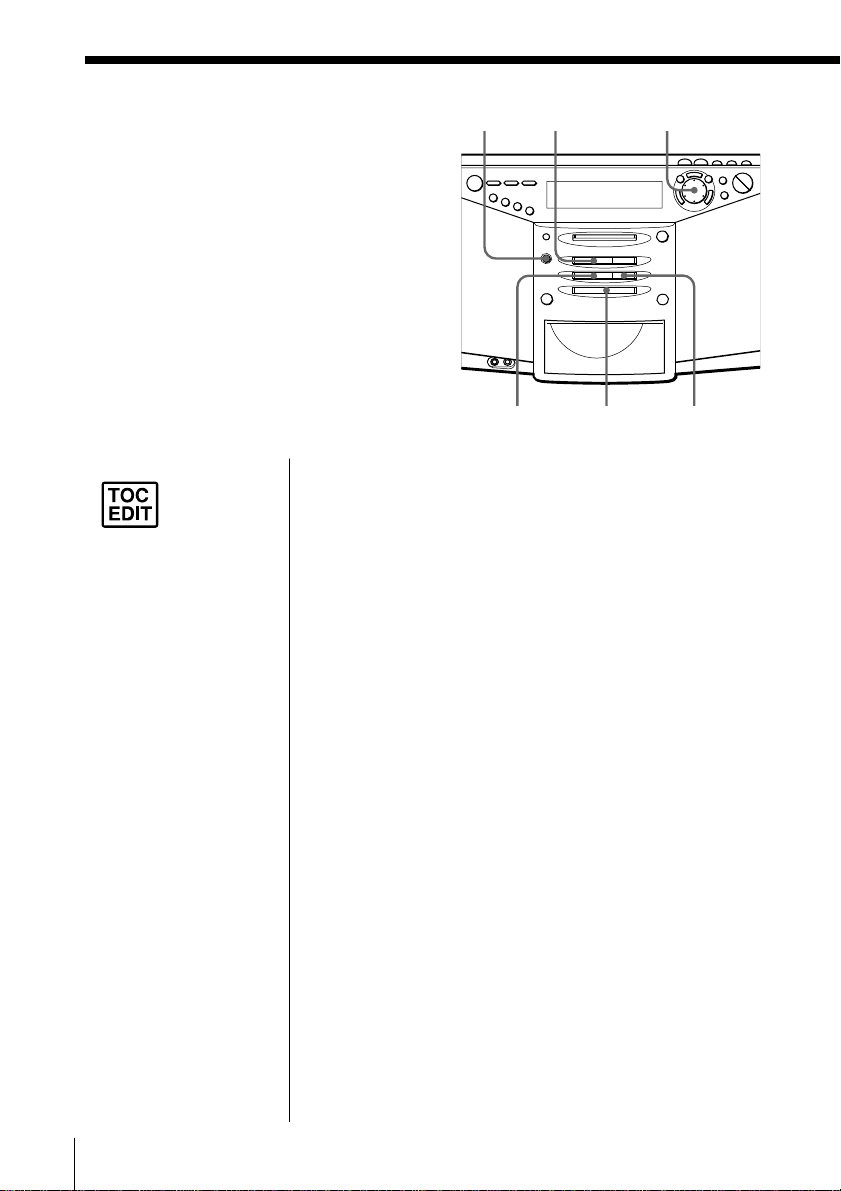
Jog dial SHUF/PGM
1 Insert a recordable MD.
2 Insert the CD you want to record and press CD p.
3 Press SHUF/PGM until “PGM” appears in the
display.
4 Turn the jog dial to select the track you want to
program, and press ENTER•YES.
Repeat this step.
Programmed tracks appear in the music calendar.
5 Press DISC ALL.
The player starts recording automatically.
If the MD has any previous recording, recording
will be made from the last recorded position.
Tip
If you made a mistake,
press CANCEL•NO
and re-enter the track
number using the jog
dial and ENTER•YES.
DISC ALL
ENTER•
YES
CANCEL•
NO
CD p
Programed track
Playing
order
Total programmed
time

Recording 25
Recording
Notes
• After you
stop
recording,
do not disconnect the
AC power cord or
move the player
while “TOC EDIT” is
flashing in the
display. If you do so,
recording may not be
done properly.
• If you turn up the
volume too high,
sound skipping may
occur.
Tips
• To record over the
previous recording, see
page 28.
• Once the clock is set,
the recording date and
time are stamped
automatically (page
42).
If “CD>MD OK?” alternates with time dislay
There is not enough space on the MD to record the
whole program.
If it is all right to record as much as possible and
cancel recording of some tracks, press ENTER•YES.
To stop recording, press CANCEL•NO.
If any other messages are displayed, see page 64.
Recording26
Recording from
the radio or a CD
You can record from the radio or a CD
to an MD using the REC button. You can
start or stop recording at any point you
want. You can also pause recording.
Jog dial
BAND
Recording from the radio
When receiving conditions are good, track marks are
added on the MD automatically:
– when there is no sound input during recording for
more than 2 seconds.
– when a soft sound like pianissimo continues during
recording.
– when you pause recording.
If unnecessary track marks are added, erase them after
recording (see “Combining recorded tracks” on page
36).
1 Tune in the station you want to record from.
2 Insert a recordable MD.
3 Press REC (r on the remote).
Recording does not start (recording standby
mode).
4 Press MD ^ (MD ( or MD P on the remote).
Recording will be made from the last recorded
position.
To stop recording
Press MD p.
REC
CD p
Notes
• After you
stop
recording,
do not disconnect the
AC power cord or
move the player
while “TOC EDIT” is
flashing in the
display. If you do so,
recording may not be
done properly.
• While recording from
radio, you cannot
change the station.
• If you turn up the
volume too high,
sound skipping may
occur.
Tips
• To add track marks
during recording, press
REC where you want to
add track marks.
• To record over the
previous recording, see
page 28.
• To add track marks
after recording, see
“Dividing recorded
tracks” on page 34.
MD ^
CD ^
Recording 27
Recording
To pause recording
Press MD ^. Press the button again to resume
recording. (On the remote, use MD P instead of MD
^.)
Recording from a CD
Track marks on the source CD are recorded on the
same positions on the MD. Track marks are also added
automatically on the MD when you pause recording.
If unnecessary track marks are added, erase them after
recording (see ”Combining recorded tracks” on page
36).
1 Insert a CD.
2 Press CD p to activate the CD player.
3 Insert a recordable MD.
4 Press REC (r on the remote).
Recording does not start (recording standby
mode).
5 Press MD ^ (MD ( or MD P on the remote).
Recording will be made from the last recorded
position.
6 Press CD ^.
To stop recording
Press MD p.
To pause recording
Press MD ^. Press the button again to resume
recording. (On the remote, use MD P instead of MD
^.)
Tip
When you record a
program of a station
whose name is labeled
on this player, the
station name is
recorded automatically
as the track name (page
21).
Notes
• After you
stop
recording,
do not disconnect the
AC power cord or
move the player
while “TOC EDIT” is
flashing in the
display. If you do so,
recording may not be
done properly.
• If you turn up the
volume too high,
sound skipping may
occur.
Tips
• To add track marks
during recording, press
REC where you want
to add track marks.
• To record over the
previous recording, see
page 28.
• To add track marks
after recording, see
“Dividing recorded
tracks” on page 34.

Recording28
There are two ways of recording on a
recorded MD.
• To add to the previous recording.
The previous recording will remain.
• To record over the previous
recording. The previous recording
will be erased.
Adding recording (the previous
recording will remain)
Insert a recorded MD, and start
recording (pages 6, 26 and 27).
Recording will be made from the last
recorded position.
If there is not enough space on the
MD to record
When recording a whole CD, “CD>MD
OK?” appears in the display (page 7).
When recording from the radio or a
CD, press DISPLAY to check the
recording remaining time on the MD.
Recording over the previous
recording (the previous recording
will be erased)
To record over from the beginning of
the MD after erasing all tracks on the
MD
First, erase all tracks on an MD (page
32). You can use the MD the same as a
new one. Then, record on the MD as
usual.
To record over from a specific point
on the MD
1 Play the MD and press MD ^ to
pause play at the point you want to
start recording.
2 Press REC to make the player in
standby mode.
3 Play the sound source.
4 Press MD ^ to start recording.
Note
When recording over from a specific point
on the MD:
If the new recording is shorter than the
previous recording, a part of the previous
recording will remain after the recording.
As you repeat this type of recording,
many fragments of recording will remain
on the MD. We recommend that you erase
all tracks on the MD (page 32) if you no
longer need to keep the recording. Then,
start recording on the blank MD.
Recording on a recorded MD

Editing recorded tracks on the MD 29
Editing recorded tracks on the MD
Before editing
On the MD, track marks are inserted
between the tracks. You can find the
beginning of the tracks quickly using
the track marks. You can change the
positions of the track marks. For
instance, you can divide a certain track
into several tracks by adding track
marks. You can also combine some
tracks into a new longer track by
erasing some track marks.
The position of the track marks to
be added are different depending
on the type of recording or
recording conditions
The type of The position of the
recording track marks to be
added
Recording The same positions on
a whole CD the source CD
(page 6)
Recording •The same positions on
from a CD the source CD
using REC •The position where
button you pause recording
(page 27) •The position where
you press REC
Recording •When there is no
from the radio sound input or a soft
or other sound continues
equipment during recording for
connected to more than two
the player seconds
(pages 26 and •The positions where
52) you pause recording
•The positions where
you press REC
Editing recorded tracks on the MD
You can add or erase track marks after
recording. When you record, for
instance, from a radio or other
equipment connected to the player,
track marks may be added to the
positions you do not want. If that
happens, change the positions of the
track marks to those you want.
Change the track marks correctly
• To erase a track mark n
“Combining recorded tracks
(Combine Function)” (page 36): You
can combine two tracks into a single
one by erasing the track mark
betrween the two tracks.
• To add a track mark n “Dividing
recorded tracks (Divide Function)”
(page 34): You can divide one track
into two tracks by adding a track
mark.
continued
Editing recorded tracks on the MD30
You can also use the following
functions
• Erasing a single track n “Erasing
recordings (Erase Function)” (page
31)
• Erasing all tracks on an MD n
“Erasing recordings (Erase
Function)” (page 32)
• Changing the order of the tracks n
“Moving recorded tracks (Move
Function)” (page 38)
• Locating any point in the track
quickly n “Dividing recorded
tracks (Divide Function)” (page 34)
• Combining several independently
recorded portions into a single track
n “Erasing recordings (Erase
Function)” (page 31) and
“Combining recorded tracks
(Combine Function)” (page 36)
Note
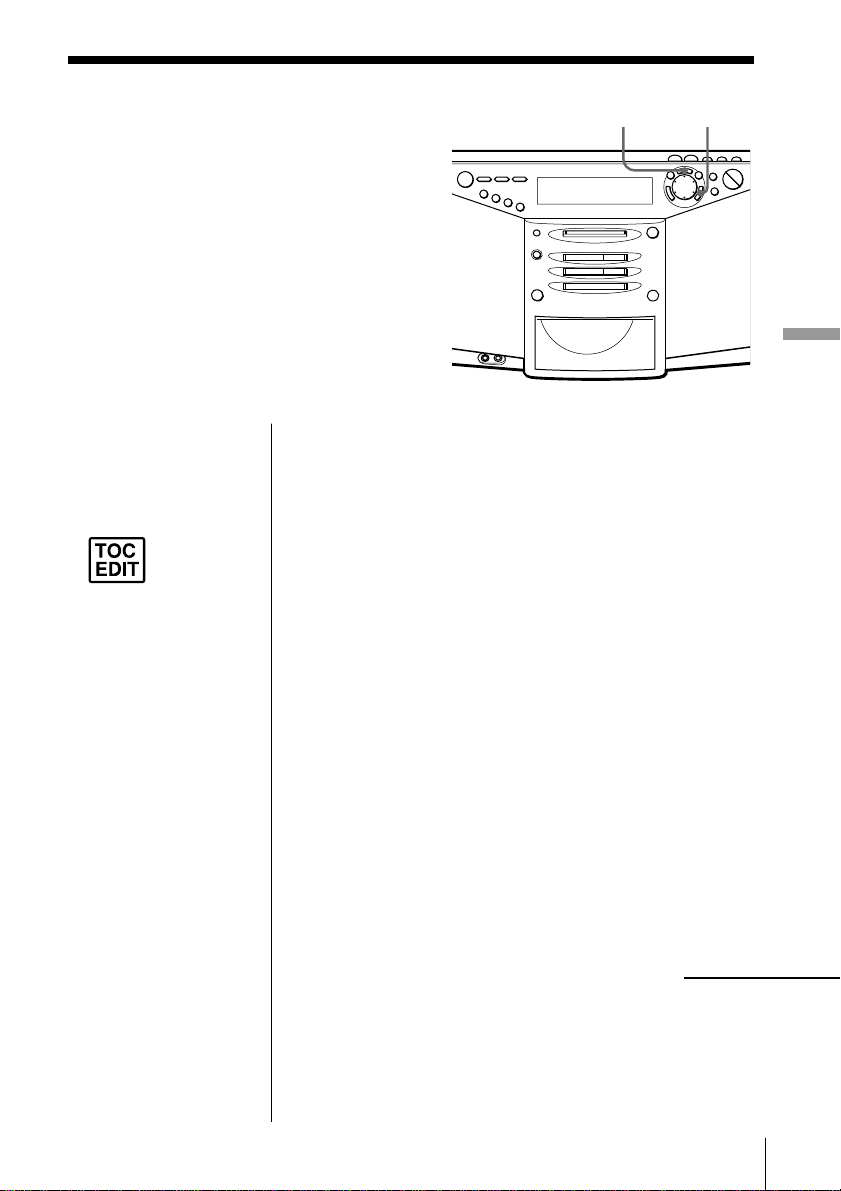
After you stop recording, do
not disconnect the AC power
cord or move the player
while “TOC EDIT” is flashing in the
display. If you do so, recording may not
be done properly.
Before editing (continued)
Editing recorded tracks on the MD 31
Editing recorded tracks on the MD
Erasing recordings
(Erase Function)
You can quickly erase the recorded tracks
or unnecessary portion in the track. Unlike
a cassette-corder, blank portion will not
remain after erasure.
Here are three options to erase recordings:
• Erasing a single track
• Erasing all tracks on an MD
• Erasing a portion of a track
EDIT ENTER•YES
Erasing a single track
You can erase a whole track quickly. When you erase
a track, the total number of tracks on the MD
decreases by one and all tracks following the erased
one are renumbered.
1 Play the track you want to erase.
2 Press EDIT repeatedly until “Track Erase” appears
in the display.
3 Press ENTER•YES.
“Erase OK?” appears in the display, and one-track
repeat play starts. Once you have erased a track,
you cannot recover it. Be sure to check the contents
of the track you are trying to erase.
If you want to cancel the erase function at this
point:
Press CANCEL•NO or MD p.
4 Press ENTER•YES.
“Complete” appears in the display for a few
seconds, and the current track will be erased.
Notes
• If “Protected” appears
in the display, the tab
on the MD is in the
record-protect position
(page 56).
• After you
stop
recording,
do not disconnect the
AC power cord or
move the player
while “TOC EDIT” is
flashing in the
display. If you do so,
recording may not be
done properly.
continued

Editing recorded tracks on the MD
32
Erasing recordings (Erase Function) (continued)
Note
After you
stop
recording,
do not disconnect the
AC power cord or
move the player
while “TOC EDIT” is
flashing in the
display. If you do so,
recording may not be
done properly.
Erasing all tracks on an MD
You can erase the disc name, all recorded tracks and
their names at the same time. After you have erased
all tracks on the MD, you can use it as a new MD.
1 While the player is stopped, press EDIT repeatedly
until “All Erase” appears in the display.
2 Press ENTER•YES.
“Erase OK?” appears in the display. Once you
have erased a track, you cannot recover it. Be sure
to check the contents of the track you are trying to
erase.
If you want to cancel the erase function at this
point:
Press CANCEL•NO or MD p.
3 Press ENTER•YES.
After “TOC EDIT” disappears from the display,
“Blank Disc” appears in the display, and all
contents on the MD are erased.
Editing recorded tracks on the MD 33
Editing recorded tracks on the MD
Erasing a portion of a track
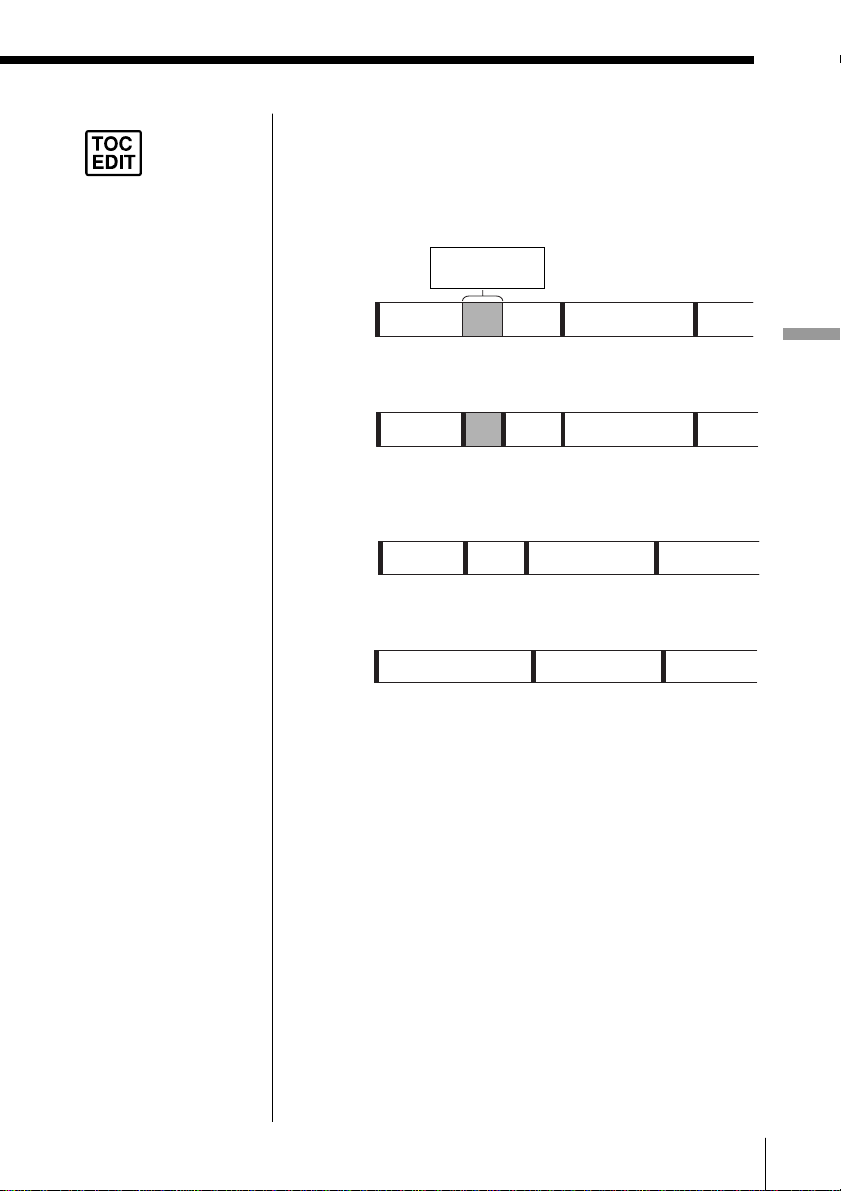
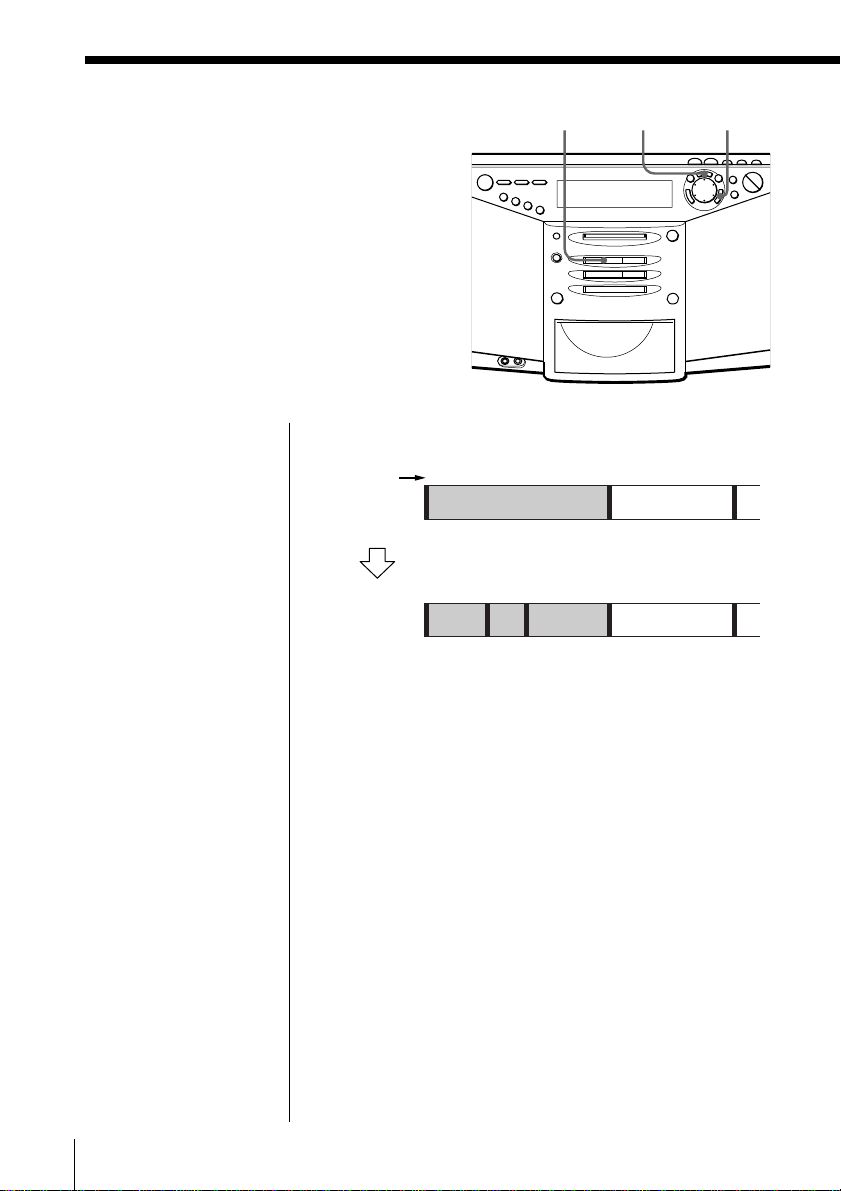
By using the Divide (page 34), Erase (page 31) and
Combine (page 36) functions, you can erase specific
portions of a track.
Example: Erasing a portion of track A
1 Divide A into three parts (page 34).
2 Erase A#2 (page 31).
3 Combine A#1 and A#3 (page 36).
Note
After you
stop
recording,
do not disconnect the
AC power cord or
move the player
while “TOC EDIT” is
flashing in the
display. If you do so,
recording may not be
done properly.
A#1
A#3 B C
A(#1+#3) B C
4321
3
2
1
Portion to be
erased
A
BC
Track
numbern
A#1
B
C
A#2
A#3
3
2
1
54
3
2
1
Editing recorded tracks on the MD
34
Dividing recorded
tracks
(Divide Function)
When recording from the radio, etc.,
track marks may not be added correctly.
A number of tracks may be included in a
single track. You can divide these tracks
into separate tracks, and add a new
track mark to each track. All tracks
following the divided tracks are
renumbered.
EDIT ENTER•YESMD ^
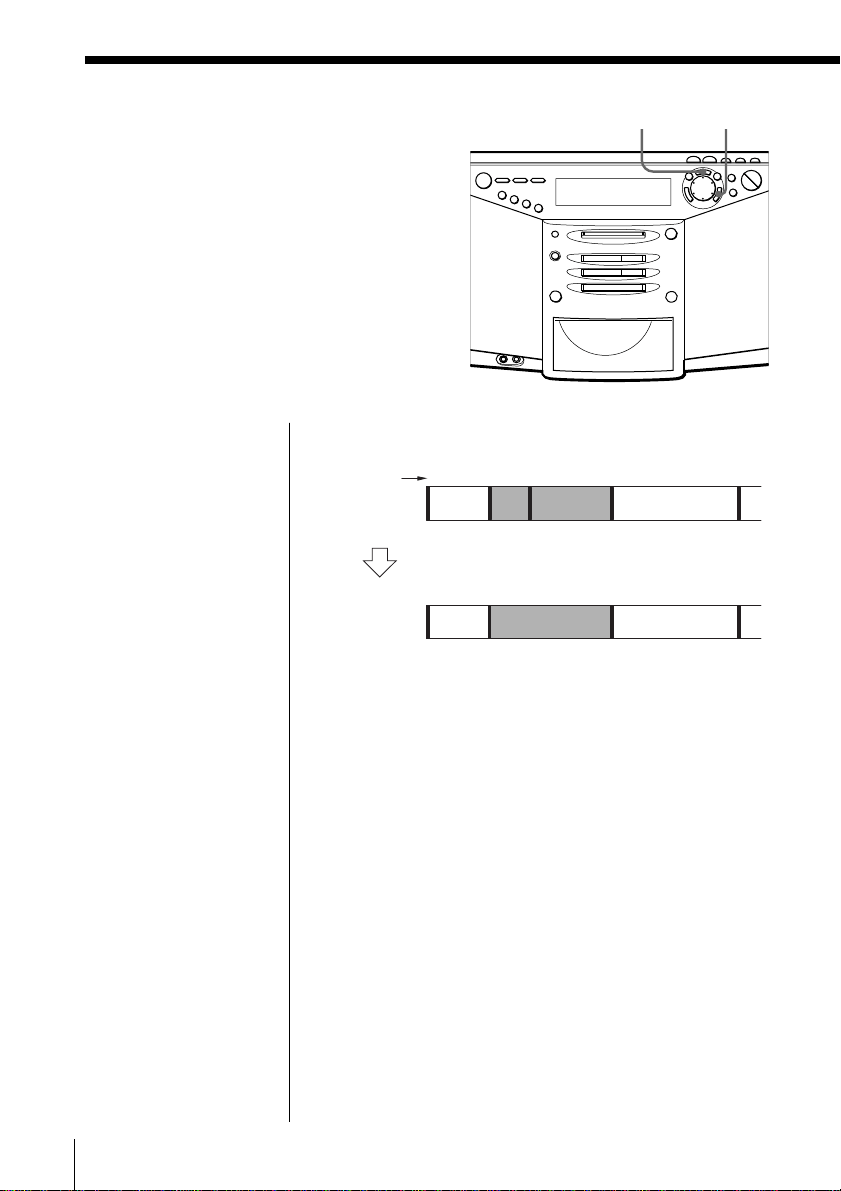
Example: Dividing track 1 into three tracks
1 While playing the MD, press MD ^ at the point
where you want to create a new track.
The player pauses.
2 Press EDIT repeatedly until “Divide” appears in
the display.
3 Press ENTER•YES.
“Divide OK?” appears in the display.
If you want to cancel the divide function at this
point:
Press CANCEL•NO or MD p.
Tips
• To put the divided
tracks together, see
“Combining recorded
tracks” on page 36.
• To divide a track
during recording, press
REC at the point where
you want to add the
track mark.
Note
If “Sorry” appears in
the display, you cannot
divide the track.
If you repeat editing on
the MD, you may not
be able to divide a
track. This is due to the
system limitations of
the MD (page 57), but
not caused by mal-
function.
Track
number
1
2
123
4
ABC D
A
B
C
D
Dividing
Track 1 is divided, and the track marks 2 and
3 are added.

Editing recorded tracks on the MD 35
Editing recorded tracks on the MD
4 Press ENTER•YES.
“Complete” appears in the display for a few
seconds after the track is divided. The original
track only has the track name, while the new track
has no name (this happens only when the track
you divided had its track name). One track is
added to the music calendar.
Note
After you
stop
recording,
do not disconnect the
AC power cord or
move the player
while “TOC EDIT” is
flashing in the
display. If you do so,
recording may not be
done properly.
Editing recorded tracks on the MD
36
Combining
recorded tracks
(Combine Function)
You can combine two adjacent tracks
into a single one. Using the combine
function, you can combine a number of
fragmented recordings or delete the
unnecessary track marks. All tracks
following the combined track are
renumbered.
EDIT ENTER•YES
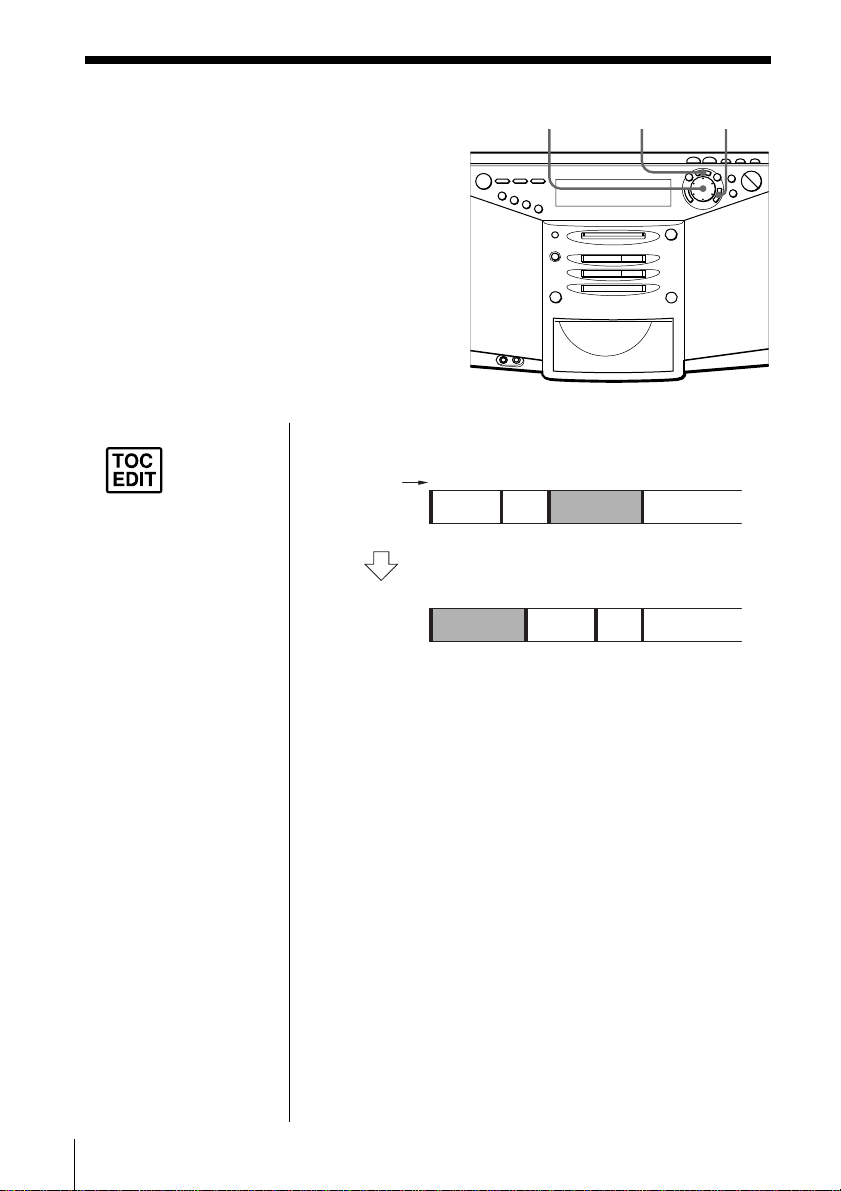
Example: Combine the tracks B and C
1 Play the track you want to combine.
Example: To combine tracks B and C, play the
track C.
2 Press EDIT repeatedly until “Combine” appears in
the display.
3 Press ENTER•YES.
“Combine OK?” appears in the display; the player
enters the playback pause mode.
If you want to cancel the combine function at
this point:
Press CANCEL•NO or MD p.
Notes
• If “Sorry” appears in
the display, you cannot
combine the tracks.
If you repeat editing on
the MD, you may not
be able to combine the
tracks. This is due to
the system limitations
of the MD (page 57),
but not caused by mal-
function.
• If “Cannot Edit”
appears in the display,
you may be trying to
combine the tracks on
the first track. You
cannot use the combine
function on the first
track.
Track
number
1
2
12
3
3
A
D
AD
Combining
B and C are combined into one track.
B
C
B
C
4

Editing recorded tracks on the MD 37
Editing recorded tracks on the MD
4 Press ENTER•YES.
“Complete” appears in the display for a few
seconds after the tracks are combined. If both of
the combined tracks had track names, the name of
the latter track is erased. The total number of tracks
in the music calendar decreases by one.
Note
After you
stop
recording,
do not disconnect the
AC power cord or
move the player
while “TOC EDIT” is
flashing in the
display. If you do so,
recording may not be
done properly.
Editing recorded tracks on the MD
38
Moving recorded
tracks
(Move Function)
You can change the order of the tracks.
After you move the track, the track
numbers are renumbered automatically.
EDIT ENTER•YES
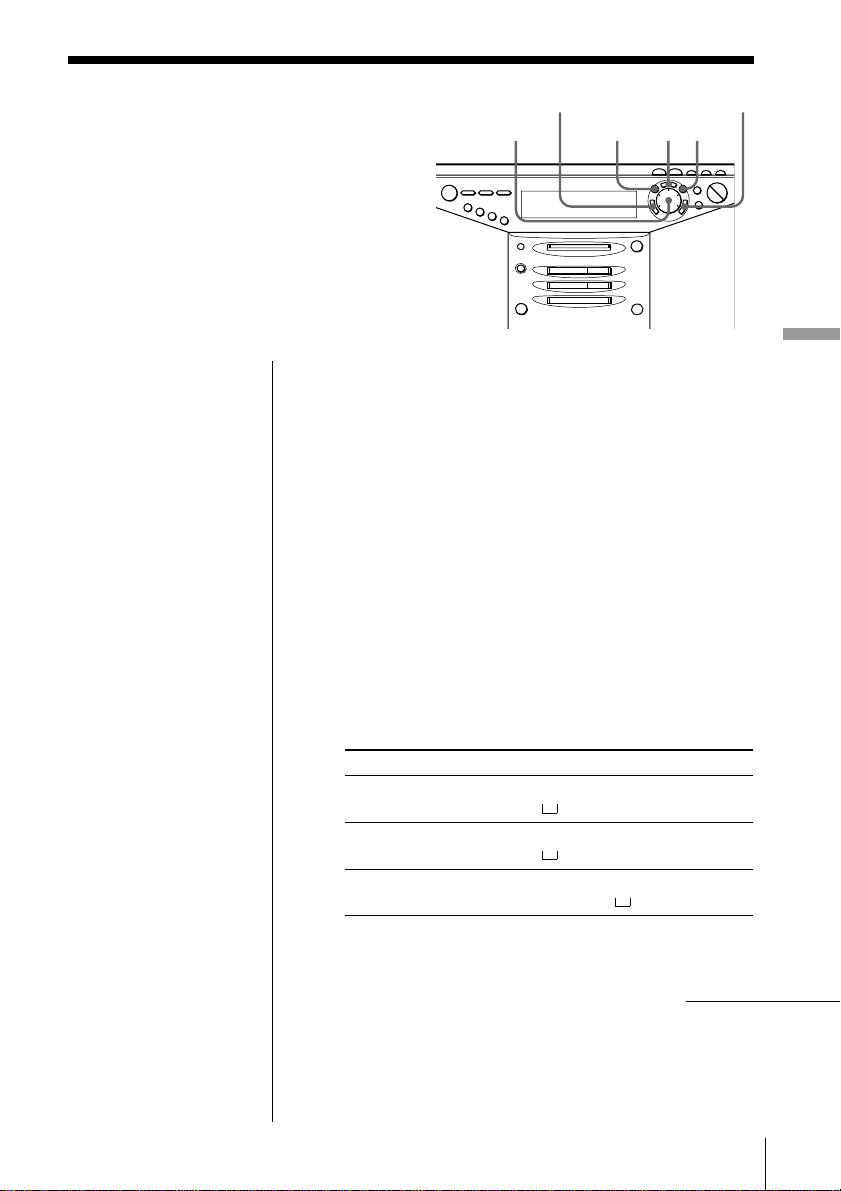
Example: Moving C to the position of track 1
1 Play the track you want to move.
2 Press EDIT repeatedly until “Track Move” appears
in the display.
3 Press ENTER•YES.
“nTrack 003?” appears in the display, and one-
track repeat play starts.
4 Turn the jog dial to select the new track position.
If you want to cancel the move function at this
point:
Press CANCEL•NO or MD p.
5 Press ENTER•YES.
“Complete” appears in the display for a few
seconds after the track is moved.
Note
After you
stop
recording,
do not disconnect the
AC power cord or
move the player
while “TOC EDIT” is
flashing in the
display. If you do so,
recording may not be
done properly.
Track
number
1
2
1
2
3
4
AD
D
Moving
Track number of the C changes to 1
B
C
BA
3
4
C
Jog dial
Editing recorded tracks on the MD 39
Editing recorded tracks on the MD
Labeling
recordings
(Name Function)
You can label the MDs and the tracks
you have recorded with letters, numbers
and symbols. Each label can be made up
of up to 100 characters. You can input up
to about 1,700 characters into each MD.
EDIT
ENTER•YES
Labeling an MD
1 Insert the MD you want to label, and stop the MD
play.
2 Press EDIT repeatedly until “Disc Name” appears
in the display.
3 Press ENTER•YES.
If the disc name has been already labeled, the disc
name appears in the display.
4 Press DISPLAY repeatedly to select the type of
characters.
Each time you press DISPLAY, the character
changes as follows: Uppercase letters n
Lowercase letters n Numbers and symbols.
You can use the following characters:
The type of characters Characters (symbols)
Uppercase letters ABCD.....WXYZ’,/:
(space)
Lowercase letters abcd.....wxyz’,/:
(space)
Numbers and symbols 0123456789!"#$%&()
*
.;<=>?
@_`+ –’,/: (space)
Jog dial
CANCEL•NO
¿
÷
continued
Editing recorded tracks on the MD
40
Note
After you
stop
recording,
do not disconnect the
AC power cord or
move the player
while “TOC EDIT” is
flashing in the
display. If you do so,
recording may not be
done properly.
5 Turn the jog dial counterclockwise or clockwise to
select the characters.
6 Press ÷.
The cursor shifts
rightward and waits for
the input of the next
character.
7 Repeat steps 4 through 6 to complete the entire
name.
8 Press ENTER•YES.
The name has been labeled on the MD.
Labeling a track
1 Play the track you want to label.
2 Press EDIT repeatedly until “Track Name”
appears in the display.
3 Press ENTER•YES.
One-track repeat play starts. If the track name has
been already labeled, the track name appears in
the display.
4 Input the characters according to steps 4 through 8
of “Labeling an MD.”
The name has been labeled on the track.
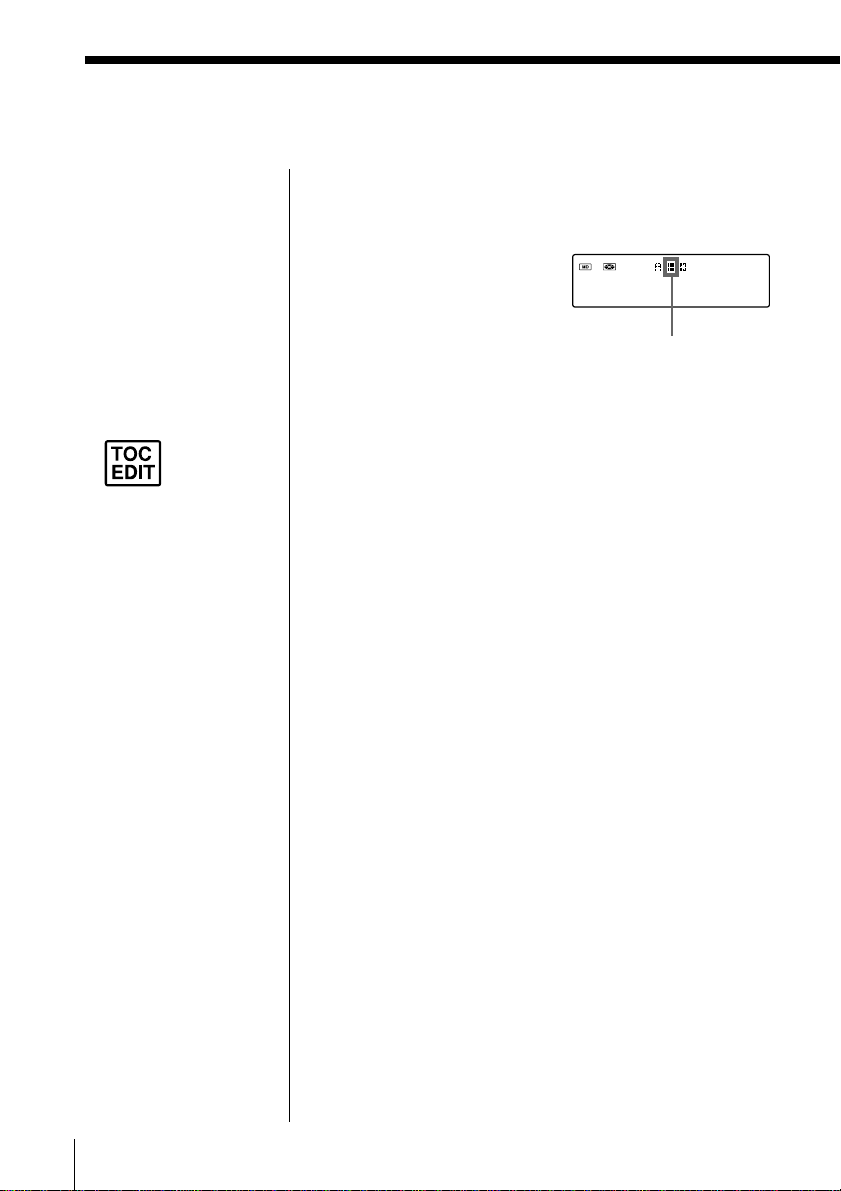
Display
Cursor
Labeling recordings (Name function) (continued)

Editing recorded tracks on the MD 41
Editing recorded tracks on the MD
To change the characters
• To add characters after the existing characters
1 Move the cursor to the right of the last character
using ÷.
2 Turn the jog dial to select the character.
3 Press ENTER•YES.
• To change the characters
1 Move the cursor to the character you want to
change using ÷.
2 Turn the jog dial to select the character.
3 Press ENTER•YES.
• To delete the character
1 Move the cursor to the character you want to
delete using ÷.
2 Press DELETE. If you press DELETE repeatedly,
the characters will be deleted one after another.
3 Press ENTER•YES.
• To insert a character
1 Move the cursor to the place you want to add a
character using ÷.
2 Press INSERT to make a space between the
characters.
3 Turn the jog dial to select the character.
4 Press ENTER•YES.
The Timer42
Setting the clock
“- -y - -m - -d” and “- -:- -” indications
appear in the display until you set the
clock.
Once the clock is set, the recording date
and time are stamped automatically
(pages 7, 23 and 25).
The Timer
Tips
• The time display
system of this player is
the 12-hour system.
• You can set the clock of
this player any time, no
matter whether power
is on or off.
CLOCK
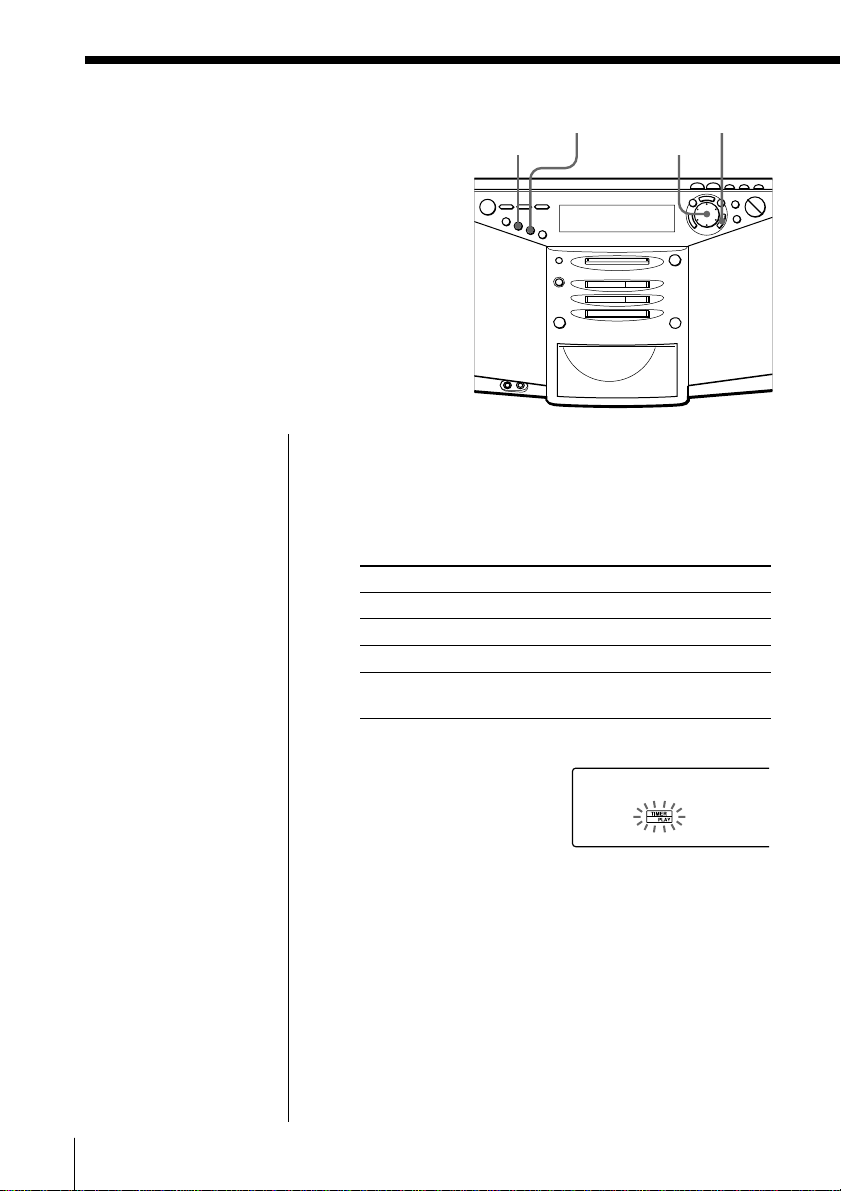
1 Press and hold CLOCK
until the year digits flash.
2 Set the date.
1 Turn the jog dial to set
the year and press
ENTER•YES.
2 Turn the jog dial to set
the month and press
ENTER•YES.
3 Turn the jog dial to set
the day and press
ENTER•YES.
3 Set the time.
1 Turn the jog dial to set the hour and press
ENTER•YES.
2 Turn the jog dial to set the minutes and press
ENTER•YES.
ENTER•YESJog dial
.
.

The Timer 43
The Timer
4 Press ENTER•YES.
The clock starts from 00
seconds.
To display the time
Press CLOCK. To go back to the previous display,
press CLOCK again. As long as the power is turned
off, the time indication is displayed.
The Timer44
STANDBY
Before you begin, make sure “TIMER PLAY” or
“TIMER REC” is not displayed. If either one is
displayed, press STANDBY.
1 Prepare the music source you want to play.
Source Do this
CD Insert a CD.
MD Insert an MD.
RADIO Tune in the station.
LINE Turn on the equipment connected to
LINE IN.
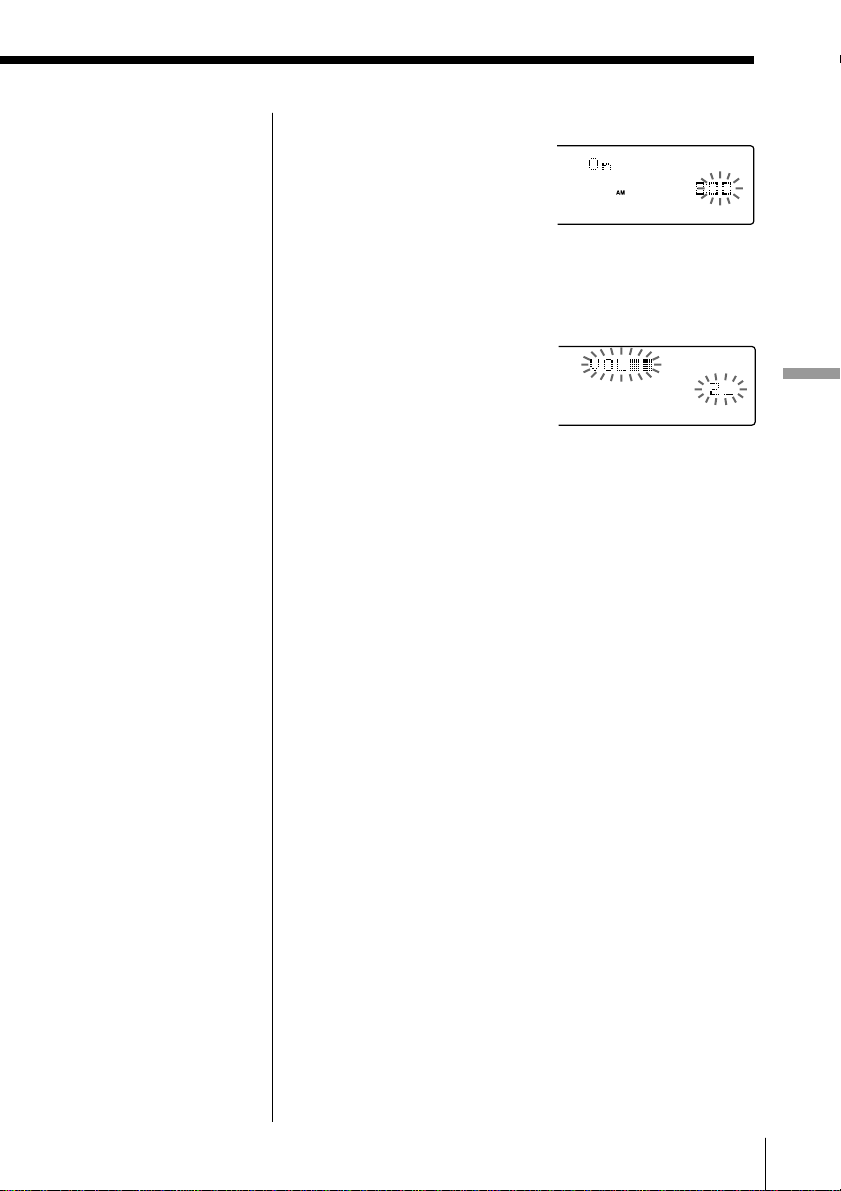
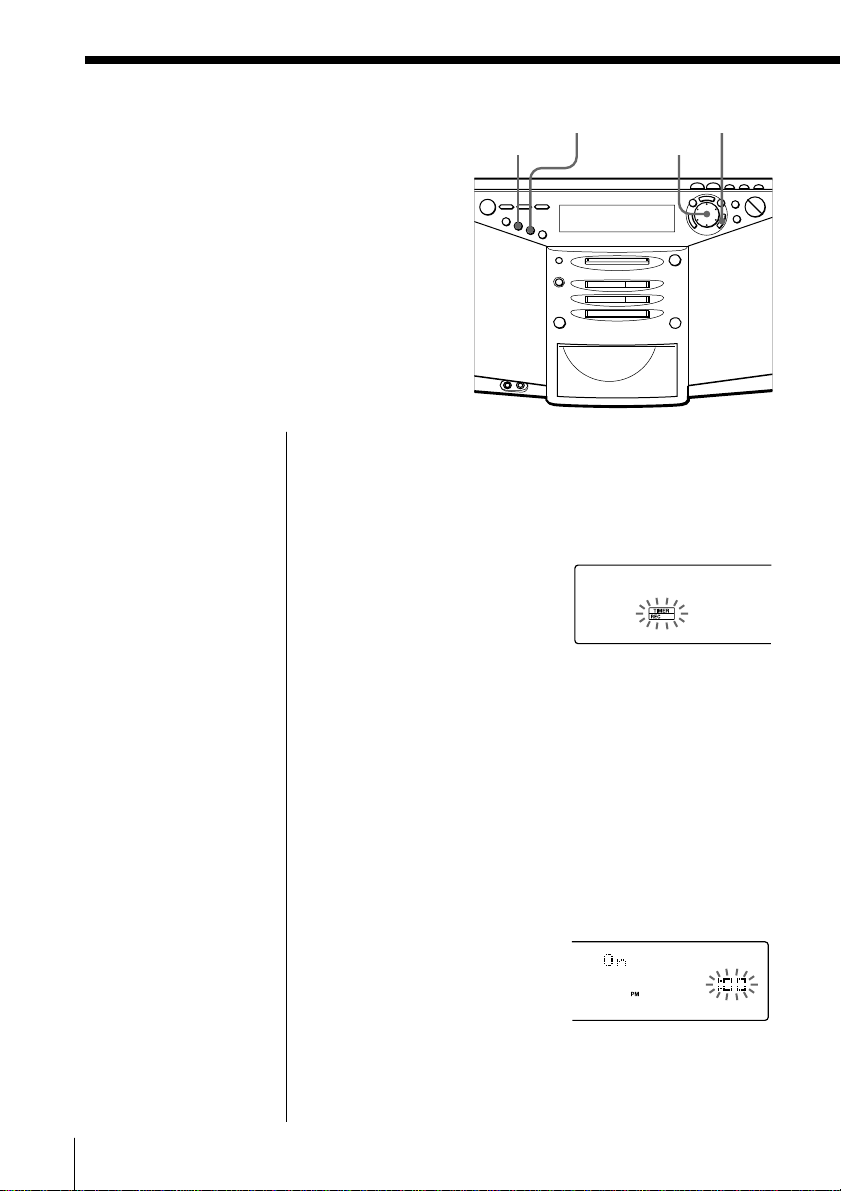
2 Press TIMER.
“TIMER PLAY” or
“TIMER REC” flashes in
the display.
Make the following settings by checking the
indications in the display.
3 Turn the jog dial until “TIMER PLAY” flashes in
the display, and press ENTER•YES.
“MD”, “CD”, “RADIO” or “LINE” flashes in the
display.
4 Turn the jog dial until the music source you want
to play (“MD”, “CD”, “RADIO” or “LINE”)
appears in the display, and press ENTER•YES.
Waking up to
music
You can wake up to music or a radio
program at a preset time.
Make sure you have set the clock (see
“Setting the clock” on page 42).
ENTER•YES
Jog dial
TIMER
Note
You cannot preset
waking up timer and
recording timer (page
46) at the same time.
The Timer 45
The Timer
Tip
If you made a mistake,
press CANCEL•NO.
The setting entered last
will be cleared. Re-
enter it.
5 Set the timer to the hour and the minutes you want
the music to go on.
1 Turn the jog dial to
set the hour and
press ENTER•YES.
2 Turn the jog dial to set the minutes and press
ENTER•YES.
6 Set the timer to the hour and the minutes you want
the music to go off (Do as step 5.).
7 Turn the jog dial to set
the volume you want,
and press ENTER•YES.
8 Press STANDBY.
“TIMER PLAY” lights up; the player enters the
standby mode.
At the preset time, the power will go on and music
will play. Then the power will go off at the preset
time, and the player will enter the standby mode
again.
To check/change the waking up timer settings
Press TIMER, then press ENTER•YES. Each time you
press ENTER•YES, a stored setting is displayed in the
set order. To change the setting, display the setting
you want to change and re-enter it.
To use the player before a timer playback starts
If you turn on the player, you can use it as usual ( in
case of the radio, if you listen to the station which is
different from the one you tuned in step 1 on page 44,
you will hear that station at the preset time.) Turn off
the player before the preset time.
To stop play
Turn off the power.
Tips
• To exit the standby
mode, press STANDBY
to make either “TIMER
PLAY” or ”TIMER
REC” disappear from
the display.
• The preset settings
remain until you reset
them.
• As long as the t
indication appears in
the display, the player
is in timer mode.
The Timer46
Timer-recording
radio programs
You can set timer to record the radio at a
certain time. You can also record from
the component connected to the LINE
IN jack of the player.
Make sure you have set the clock (see
“Setting the clock” on page 42).
Before you begin, make sure “TIMER PLAY” or
“TIMER REC” is not displayed. If either one is
displayed, press STANDBY.
1 Tune in the radio station and insert an MD.
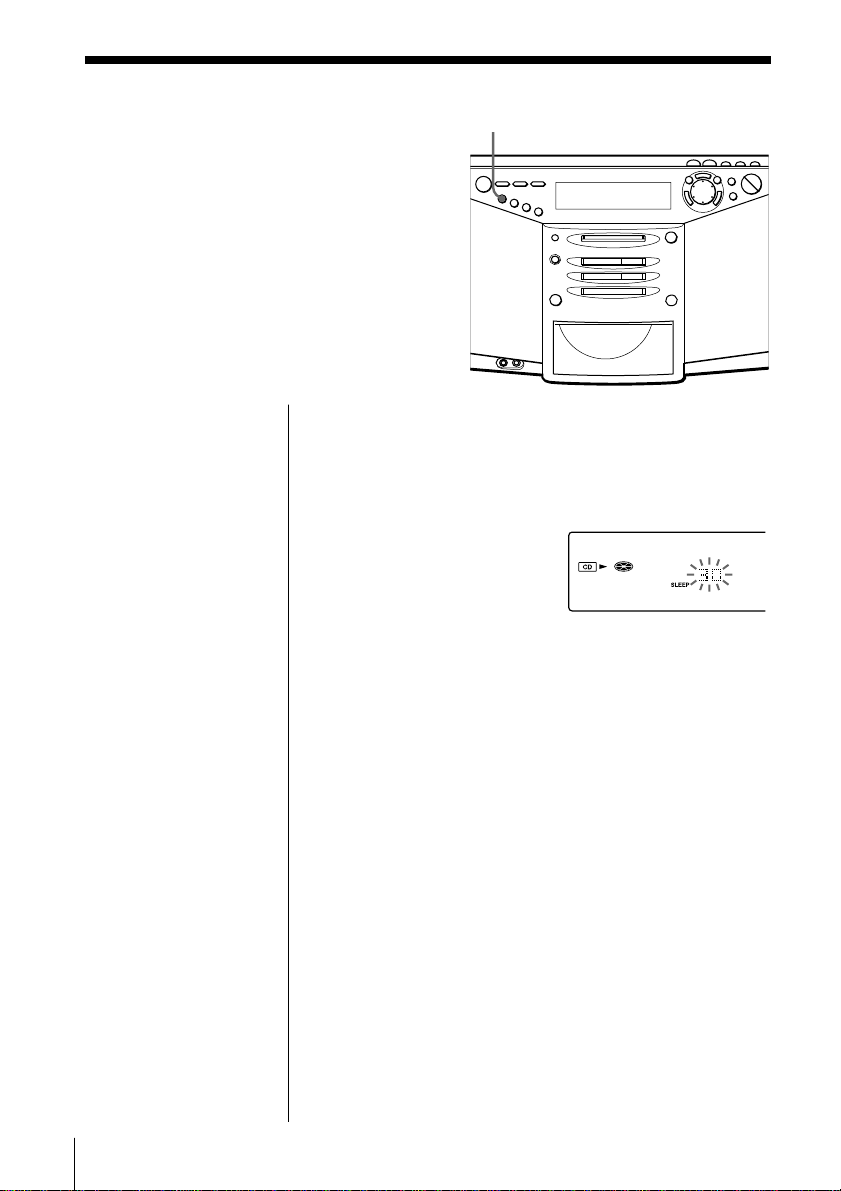
2 Press TIMER.
“TIMER PLAY” or
“TIMER REC” flashes in
the display.
Make the following settings by checking the
indications in the display.
3 Turn the jog dial until “TIMER REC” flashes in the
display, and press ENTER•YES.
4 Turn the jog dial until “RADIO” flashes in the
display, and press ENTER•YES.
When recording from the component connected to
the LINE IN jack of the player, turn the jog dial
until “LINE” flashes in the display, and press
ENTER•YES.
5 Set the timer to the hour and the minutes you want
to start recording.
1 Turn the jog dial to
set the hour and
press ENTER•YES.
2 Turn the jog dial to set the minutes, and press
ENTER•YES.
Notes
• You cannot preset
recording timer and
waking up timer (page
44) at the same time.
• When recording from
the component
connected to the LINE
IN jack of the player,
refer to the operating
instructions of the
component.
Tip
If you made a mistake,
press CANCEL•NO.
The setting entered last
will be cleared. Re-
enter it.
STANDBY
ENTER•YES
Jog dial
TIMER

The Timer 47
The Timer
6 Set the timer to the hour and the minutes you want
to stop recording. (Do as step 5.)
7 Turn the jog dial to set
the volume you want,
and press ENTER•YES.
8 Press STANDBY.
“TIMER REC” is displayed, and the player enters
the standby mode.
At the preset time, the power will go on and the
recording will start. Then the power will go off at
the preset time, and the player will enter the
standby mode again.
To check/change the recording timer settings
Press TIMER, then press ENTER•YES. Each time you
press ENTER•YES, a stored setting is displayed in the
set order. To change the setting, display the setting
you want to change and re-enter it.
To use the player before a timer-recording starts
If you turn on the player, you can use it as usual ( in
case of the radio, if you listen to the station which is
different from the one you tuned in step 1 on page 46,
you will hear that station at the preset time.) Turn off
the player before the preset time.
To stop timer-recording
Turn off the power.
Tips
• To exit the standby
mode, press STANDBY
to make either “TIMER
REC” or ”TIMER
PLAY” disappear from
the display.
• The preset settings
remain until you reset
them.
• As long as the t
indication appears in
the display, the player
is in timer mode.
The Timer48
Falling asleep to
music
You can set the player to turn off
automatically after 10, 20, 30, 60, 90 and
120 minutes, allowing you to fall asleep
while listening to music.
SLEEP
1 Play the music source you want.
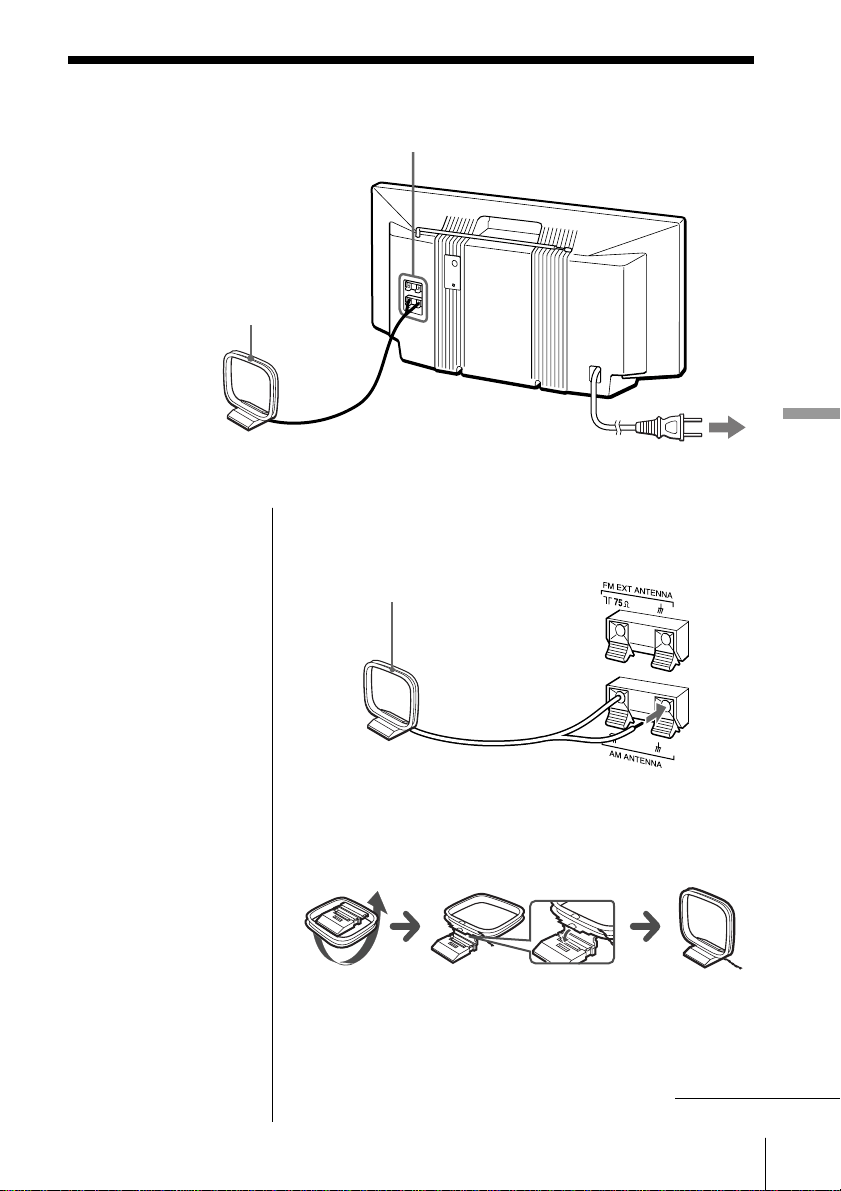
2 Press SLEEP until “SLEEP” appears in the display.
3 Press SLEEP to select the minutes for the sleeping
timer.
Each time you press
the button, the
indication changes as
follows: “10” n “20”
n “30” n “60” n
“90” n “120” n no
indication.
If 4 seconds have passed after you pressed SLEEP,
the minutes in the display are entered.
The preset time has passed, the player goes off
automatically.
To cancel the sleep function
Press SLEEP to make “SLEEP” disappear from the
display.
To change the preset time
Do the steps 2 and 3 again.
On the remote
Press SLEEP
repeatedly to select the
minutes for the
sleeping timer.
Tips
• You can combine the
waking up timer with
the sleeping timer. Set
the waking up timer
first (page 44), turn on
the player, and then set
the sleeping timer.
• You can prepare the
different music for the
waking up timer and
the sleeping timer.
However, you cannot
store different radio
stations.
• You can set different
volume for the waking
up timer and the
sleeping timer. For
instance, you can sleep
at lower volume and
wake up at higher
volume.
Setting Up 49
Setting Up
Setting Up
Preparing the
system
According to the illustrations,
connect the cords firmly.
Wrong connections cause mal-
functions. Connect the mains
lead last.
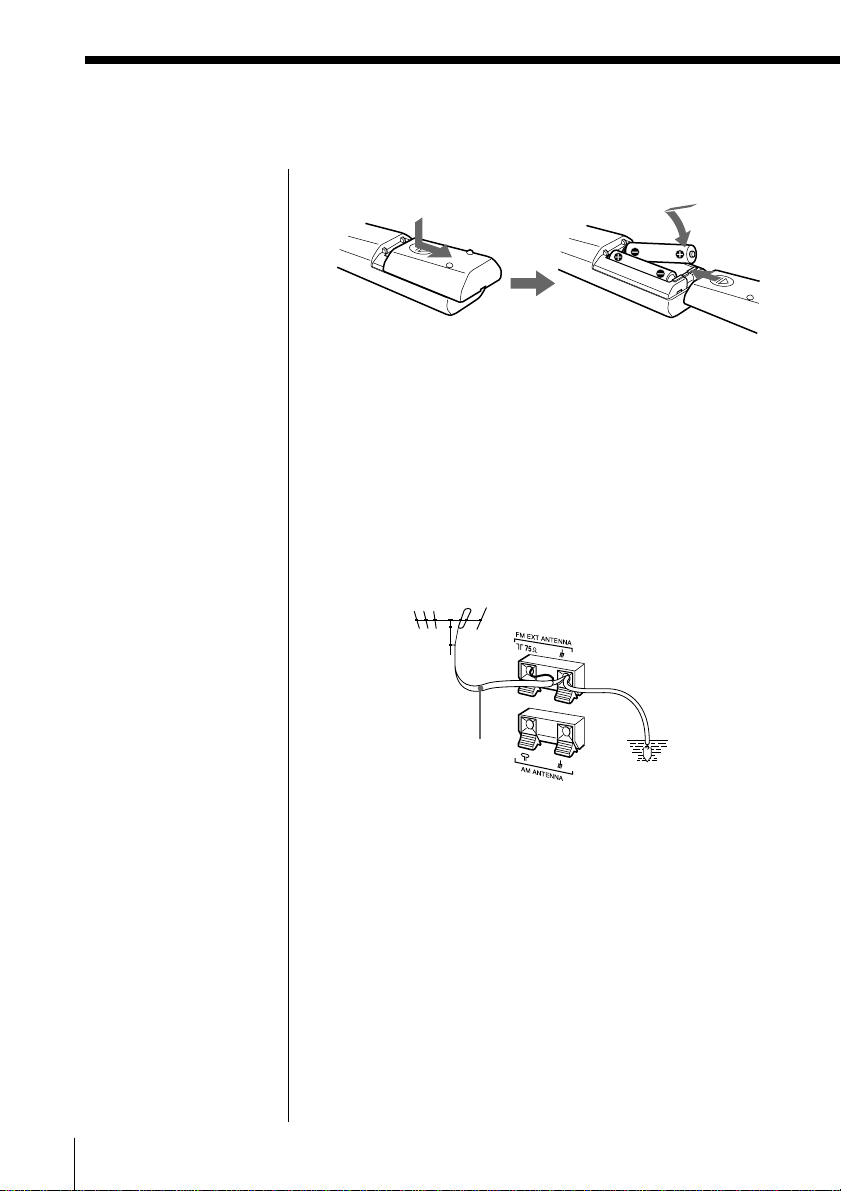
AM loop aerial
1 Aerial terminals
1 Hooking up the aerial
Setting up the AM loop aerial
2 Connecting the AC power cord
Connect the AC power cord to the wall outlet.
Note
Keep the AM loop
aerial away as far as
possible from the
player. If you do not,
noise may be heard.
*Reorient the aerial to improve broadcast reception
2 to a wall outlet
continued
AM loop aerial*
(supplied)
Setting Up50
3 Inserting batteries into the remote
Insert two size AA (R6) batteries (not supplied)
Replacing batteries
With normal use, the batteries should last for about six
months. When the remote no longer operates the
player, replace all the batteries with new ones.
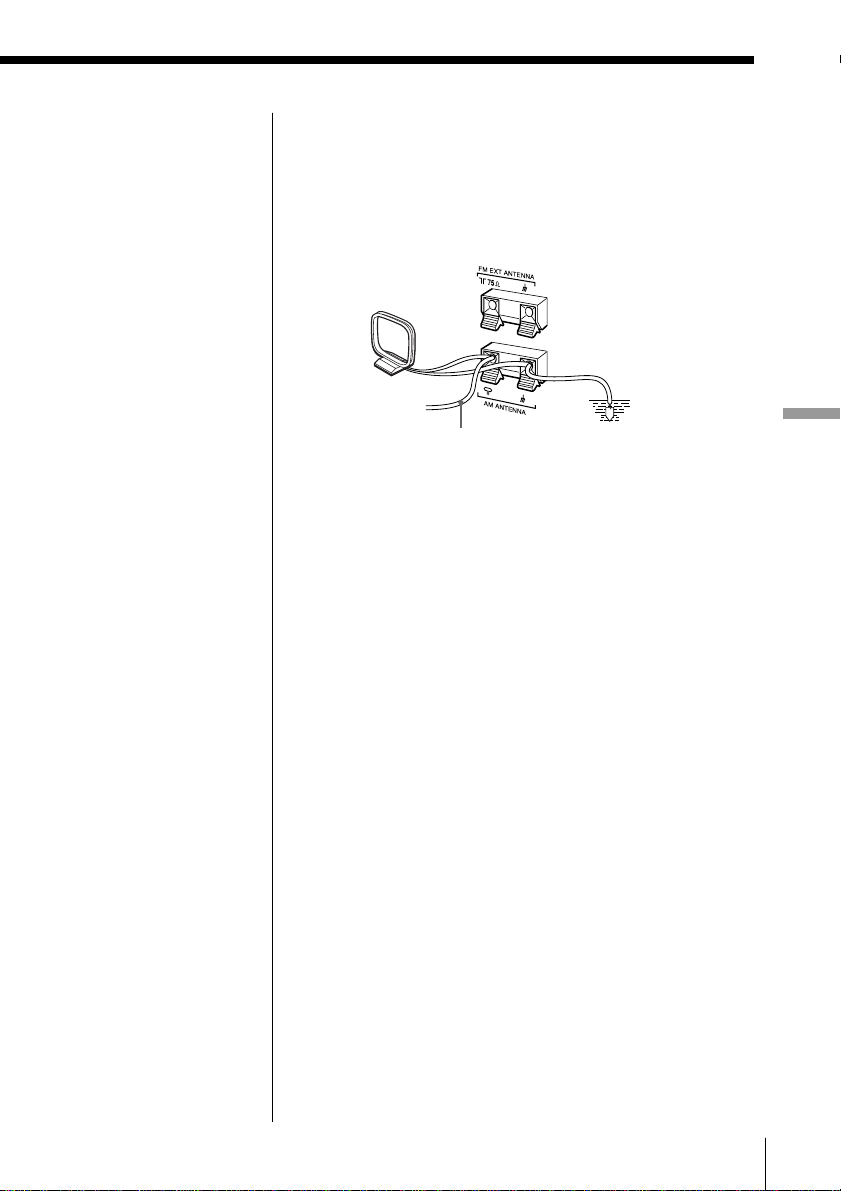
To improve the FM reception
Connect the FM outdoor aerial (not supplied). If you
use a distributor, you can also use the TV aerial.
Tips
• This player has two 2
(headphones) jacks so
that two persons listen
to the same music
together.
When using the 2 jack
marked with ••, you
can also listen to the
sound through the
speakers. You can
enjoy the surround
sound using optional
cordless stereo
headphones system
such as MDR-IF520RK
and transmitter.
• The sound quality may
be changed depending
on the polarity of the
plug. Change the
direction of inserting
the plug and check the
sound quality.
Preparing the system (continued)
FM outdoor aerial
(not supplied)
Earth
Setting Up 51
Setting Up
Insulated wire
(not supplied)
Earth
Important
When you use an
outdoor aerial, be sure
to connect the y
terminal to earth
against lightning. To
prevent a gas
explosion, do not
connect the ground
wire to a gas pipe.
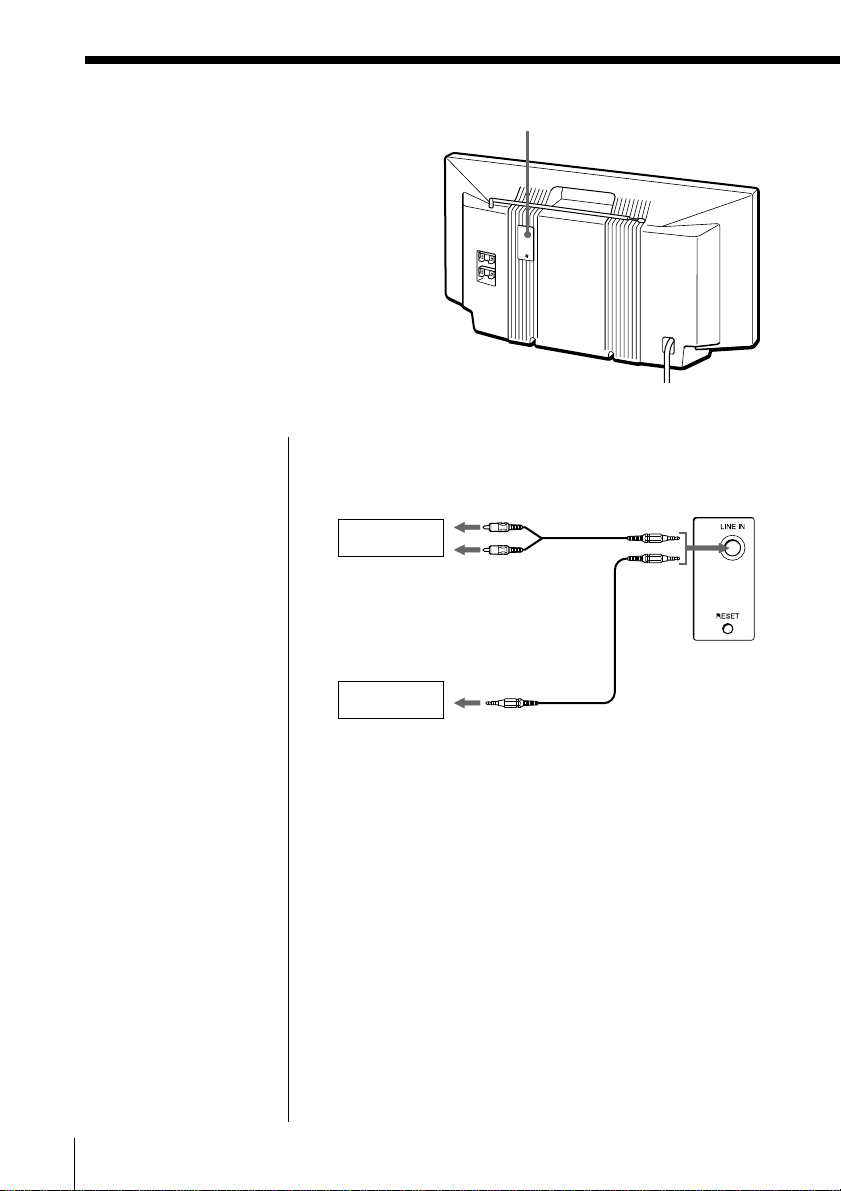
To improve the AM reception
Connect a 6- to 15-meter (20- to 50 feet) (not supplied)
insulated wire to the AM ANTENNA terminal. Keep
the wire as horizontal as possible near the window or
outdoor. You do not need to disconnect the supplied
AM loop aerial.
Setting Up52
Connecting
optional
components
You can enjoy the sound from a TV or
VCR through the speakers of this player.
Be sure to turn off the power of each
component before making connections.
For details, refer to the instructions of the
component to be connected.
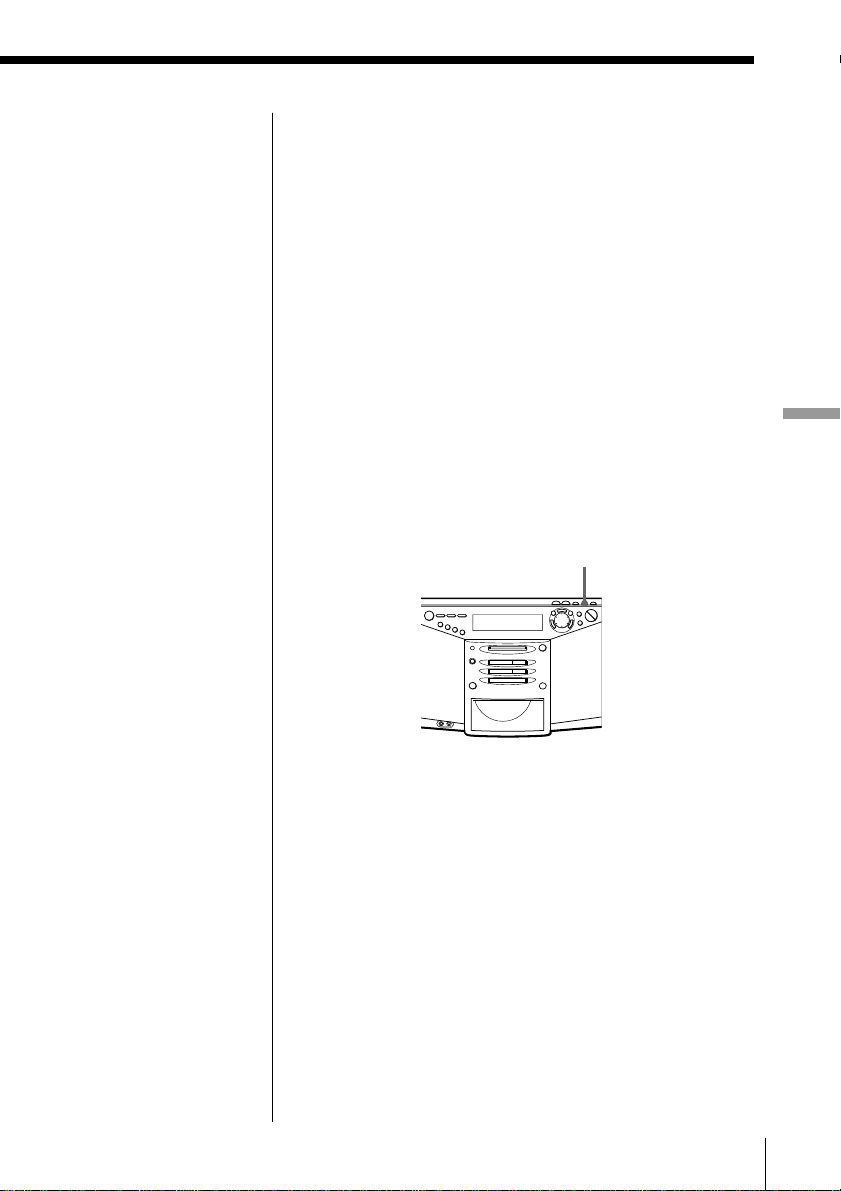
Connecting a TV or a VCR
After finishing the connections, turn on the player,
and press LINE on the front panel to display
“LINE”.
Rear panel of this
player
to headphones jack
RK-G129 (not
supplied), etc.
TV, VCR, etc.
LINE IN
(rear)
TV, VCR, etc.
to line out jack
to LINE
IN
RK-G136 (not
supplied), etc.
Note
Connect the cords
firmly to avoid any
malfunction.
Setting Up 53
Setting Up
Recording the sound from the connected
components
1 Insert a recordable MD.
2 Press LINE on the front panel to display “LINE”.
3 Press REC.
Recording does not start (recording standby
mode).
4 Press MD ^.
5 Play the optional component connected to the
LINE IN jack of the player.
If the volume of the component connected to the
LINE IN jack is too high
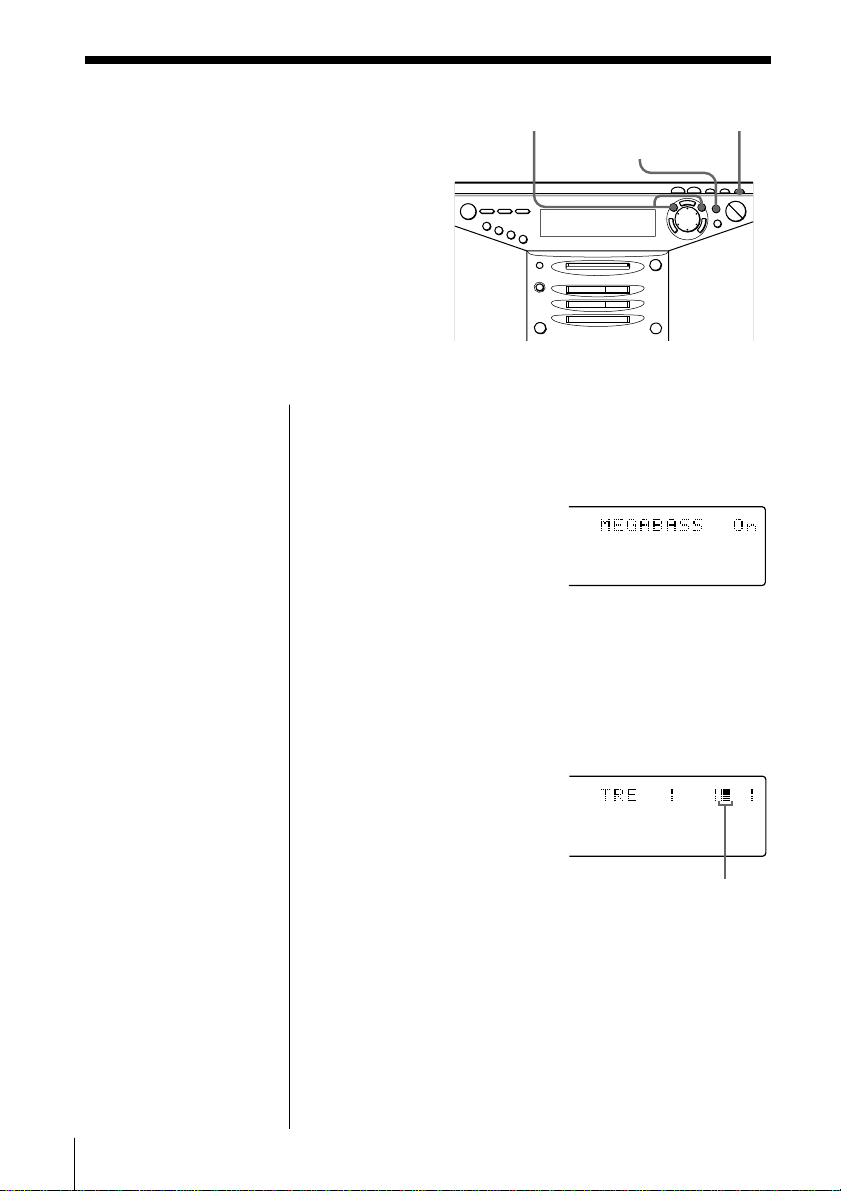
Press LINE LEVEL to display “Level: High” or reduce
the volume of the connected component.
LINE LEVEL
Tip
If there is no sound
input for more than 2
seconds during
recording, a track mark
is stamped
automatically.
Setting Up54
Adjusting the
audio emphasis
You can adjust the audio emphasis of the
bass sound or the bass/treble sound you
are listening to.
Reinforcing the bass sound
Press MEGA BASS until “MEGABASS On” appears in
the display.
Adjusting the bass/treble sound
1 Press BASS/TREBLE to select “BASS” or “TRE”
(treble).
2 Adjust the bass or treble sound using ¿ or ÷.À
Note
When the volume is
too high, the sound
adjustments may not
be effective.
¿, ÷À MEGA BASS
BASS/TREBLE
Display
Each time you press ¿ or ÷,
the cursor moves left or right.
As the cursor moves rightward,
the level will be turned up. As
the cursor moves leftward, the
level will be turned down.

55Additional Information
Precautions
On safety
• As the laser beam used in the CD and
MD player section is harmful to the
eyes, do not attempt to disassemble
the casing. Refer servicing to qualified
personnel only.
• Should any solid object or liquid fall
into the player, unplug the player, and
have it checked by qualified personnel
before operating it any further.
On power sources
• The player is not disconnected from
the AC power source (mains) as long
as it is connected to the wall outlet,
even if the player itself has been
turned off.
• Unplug the player from the wall outlet
when it is not to be used for an
extended period of time.
• When the batteries are not to be used,
remove them to avoid damage that
can be caused by battery leakage or
corrosion.
• The nameplate indicating operating
voltage, power consumption, etc. is
located at the rear.
On placement
• Do not leave the player in a location
near heat sources, or in a place subject
to direct sunlight, excessive dust or
mechanical shock.
• Do not place anything within 10 mm
of the side of the cabinet. The
ventilation holes must be
unobstructed for the player to operate
properly and prolong the life of its
components.
• If the player is left in a car parked in
the sun, be sure to choose a location in
the car where the player will not be
subjected to the direct rays of the sun.
• Since a strong magnet is used for the
speakers, keep personal credit cards
using magnetic coding or spring-
wound watches away from the player
to prevent possible damage from the
magnet.
On operation
• If the player is brought directly from a
cold to a warm location, or is placed in
a very damp room, moisture may
condense on the lenses inside the CD
and MD player section. Should this
occur, the player will not operate
properly. In this case, remove the CD
or MD and wait about an hour for the
moisture to evaporate.
If you have any questions or problems
concerning your player, please consult
your nearest Sony dealer.
Additional Information
continued
Additional Information56
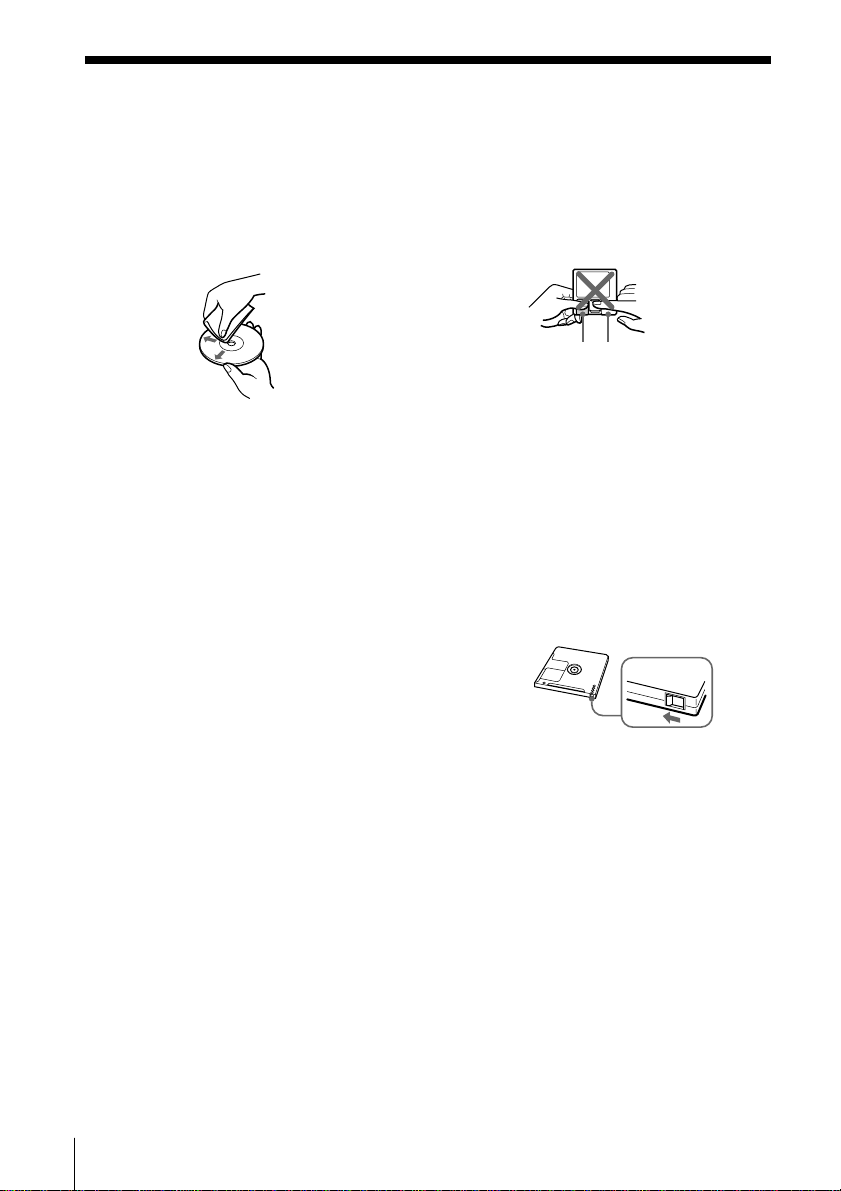
Notes on CDs
• Before playing, clean the CD with a
cleaning cloth. Wipe the CD from the
centre out.
• Do not use solvents such as benzine,
thinner, commercially available
cleaners or anti-static spray intended
for vinyl LPs.
• Do not expose the CD to direct
sunlight or heat sources such as hot
air ducts, nor leave it in a car parked
in direct sunlight as there can be a
considerable rise in temperature
inside the car.
• After playing, store the CD in its case.
If there is a scratch, dirt or fingerprints
on the CD, it may cause tracking error.
Cleaning the cabinet
Clean the cabinet, panel and controls
with a soft cloth slightly moistened with
a mild detergent solution. Do not use
any type of abrasive pad, scouring
powder, or solvent, such as alcohol or
benzene.
Slide open the tab
Notes on MDs
• Do not open the shutter to expose the
MD. Close the shutter immediately if
the shutter opens.
• Wipe the disc cartridge with a dry
cloth to remove dirt.
Protecting a recorded MD
To record-protect an MD, slide open the
tab at the side of the MD (so the tab is
concealed).
In this position, the MD cannot be
recorded. To record on the MD, slide
close the tab.
Shutter
Cartridge
Precautions (continued)

57Additional Information
Some tracks cannot be combined
with others
Track combination may become
impossible when tracks are under 12
seconds long.
The total recorded time and the
remaining time on the MD may not
reach the maximum recording time
(60 or 74 minutes)
Recording is done in minimum units of
2 seconds each, no matter how short the
material. The contents recorded may
thus be shorter than the maximum
recording capacity. Disc space may also
be further reduced by scratches.
The sound may dropout while fast-
fowarding or rewinding the edited
tracks.
Tracks created through editing may
exhibit sound dropout during fast-
forwarding or rewinding because high-
speed playback takes time to search for
the position on the disc when the tracks
are scattered on the disc.
System limitations of the MD
The recording system in your MiniDisc
recorder is radically different from those
used in cassette and DAT decks and the
system has limitations described below.
Note, however, that these limitations are
due to the inherent nature of the MD
recording system itself and not to
mechanical causes.
”Disc Full” appears in the display even
before the MD has reached the
maximum recording time (60 or 74
minutes)
When 254 tracks have been recorded on
the MD, ”Disc Full” appears regardless
of the total recorded time. More than
254 tracks cannot be recorded on the
MD. To continue recording, erase
unnecessary tracks.
”Disc Full” appears in the display
even before the MD has reached the
maximum track number or recording
time.
Repeated recording and erasing may
cause fragmentation and scattering of
data. Although those scattered data can
be read, each fragment is counted as a
track. In this case, the number of tracks
may reach 254 and further recording is
not possible. To continue recording,
erase unnecessary tracks.
The remaining recording time does
not increase even after erasing
numerous short tracks
Tracks under 12 seconds long are not
counted, so erasing them may not
increase the recording time.
continued

Additional Information58
System limitations of the MD (continued)
Guide to the serial copy
management system
Digital audio equipment such as CDs,
MDs, DATs, etc., copy music easily with
high quality, for these products process
music as a digital signal. The Serial
Copy Management System allows you
to make only a single copy of a recorded
digital source through digital-to-digital
connections because music programmes
may be copyrighted.
This system is applied to this player.
You can make only a first-
generation copy* through a
digital-to-digital connection.
That is :
1 You can make a copy of a digital
sound programme on the market such
as CDs, MDs, etc., but you cannot
make a second copy from the first-
generation copy.
2 You can make a copy of a digital
signal from a digitally-recorded
analog sound programme on the
market such as an analog record,
music cassette tape, etc., or from
digital satellite broadcasts, but you
cannot make a second copy.
Note
No restrictions apply when a digital signal is
recorded as an analog signal (that is, when a
digital signal is recorded throgh analog-to-
analog connection.)
* A first-generation copy is a digital
recording of a digital signal made on
digital audio equipment through a digital-
to-digital connection.
During recording, “DIGITAL REC”
appears in the display on this player.
59Additional Information
Disc variation
MDs come in two types: pre-mastered
(pre-recorded) and recordable (blank).
Pre-mastered MDs cannot be recorded
on or over like cassette tapes. To record,
you must use a “recordable MD.”
Pre-mastered MDs
Pre-mastered MDs are recorded and
played like regular CDs. A laser beam
focus on the pits on the surface of the
MD and reflects the information back to
the lens in the recorder. The recorder
then decodes the signals and plays them
back as music.
Recordable MDs
Recordable MDs, which use magneto-
optical (MO) technology, can be
recorded again and again. The laser
inside the recorder applies heat to the
MD, demagnetizing the magnetic layer
of the MD. The recorder then applies a
magnetic field to the layer. This
magnetic field corresponds exactly to
the audio signals generated by the
connected source. (The north and south
polarities equate to digital “1” and “0.”)
The demagnetised MD adopts the
polarity of the magnetic field, resulting
in a recorded MD.
Getting to know the MD
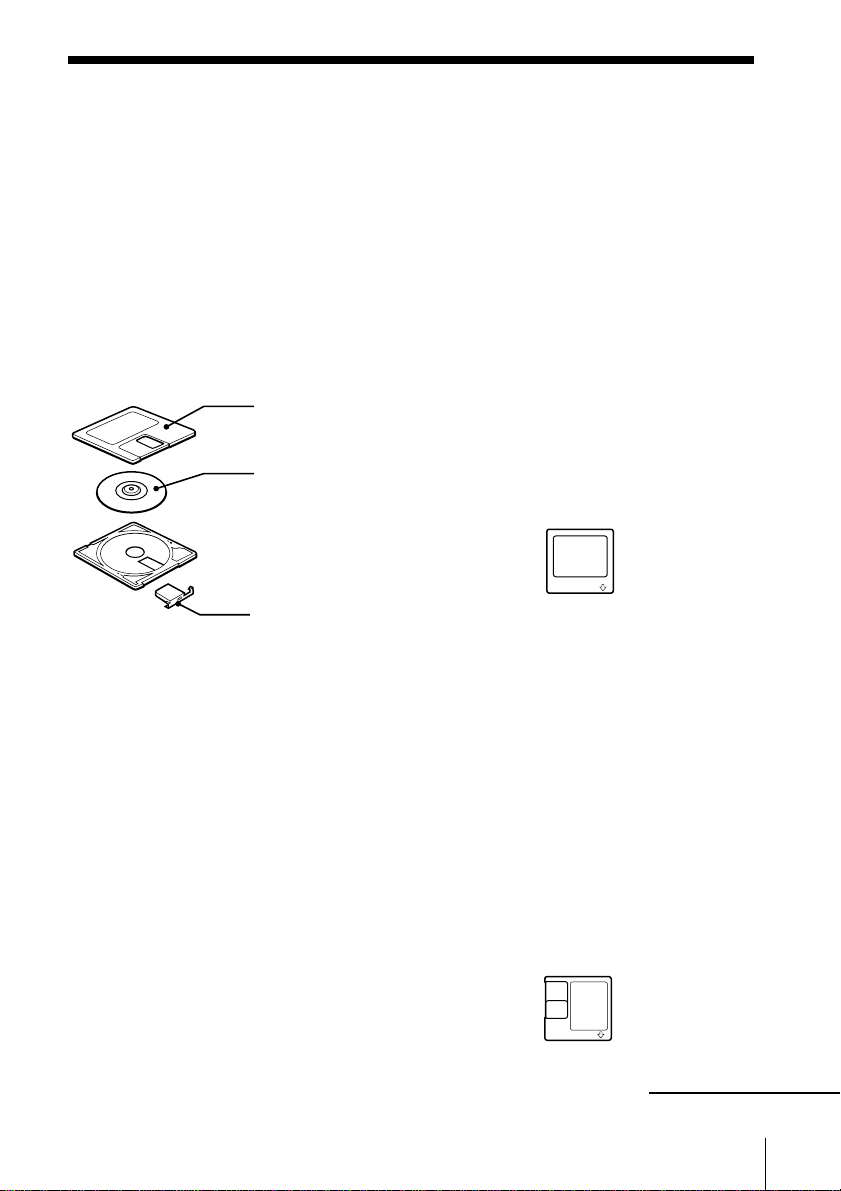
Structure
The 2.5-inch MiniDisc (MD) is compact
and easy to handle requiring less care as
it is encased in a plastic cartridge that
looks like a 3.5-inch diskette (see
illustrations below).
Parts making up a MiniDisc
Plastic cartridge
Disc
Shutter
continued

Additional Information60
Features
Long recording
The MD uses a new digital audio
compression technology called Adaptive
TRansform Acoustic Coding (ATRAC).
To store more sound in less space,
ATRAC extracts and encodes only those
frequency components actually audible
to the human ear.
Quick random access
Like CDs, MDs offer instantaneous
random access to the beginning of any
music track. Pre-mastered MDs are
recorded with location addresses
corresponding to each music track.
Shock-resistant memory
One major drawback of optical read
systems is that they skip or mute the
sound when subject to vibration. The
MD system resolves this problem by
using a buffer memory that stores audio
data.
Getting to know the MD (continued)

61Additional Information
Troubleshooting
Remedy
• Press POWER to turn on the player.
• Connect the mains lead securely.
• Adjust the volume.
• Unplug the headphones from the 2 jack
marked with • when listening through
speakers.
• Wait until “TOC Reading” disappears from the
display.
• Move the player away from the TV.
• Make sure that the CD tray is closed.
• Place the CD with the label surface up.
• Clean the CD.
• Take out the CD and leave the CD tray open for
about an hour to dry moisture condensation.
• Reduce the volume.
• Clean the CD, or replace it if the CD is badly
damaged.
• Place the player in a location free from
vibration.
• The MD player’s self-lock system has gripped
the MD. Insert the MD completely, then press
6 MD EJECT.
• Take the MD out and insert it again. If "Disc
Error" remains, replace the MD. Try erasing all
tracks on the MD (page 32).
• Take out the MD and leave the player in a warm
place for several hours until the moisture
evaporates.
• The MD is inserted in the wrong direction.
Slide the MD into the disc compartment with
the label side up and the arrow pointing
towards the opening until the player grips it.
• The MD may be blank (the music calendar does
not appear). Replace the disc with one that has
been recorded.
CD Player
General
MD Player
Symptom
There is no audio.
The picture of your TV becomes
unstable.
The CD does not play/“No Disc“
lights in the display even when a
CD is in place.
The sound drops out.
An incompletely inserted MD
cannot be pulled out.
"Disc Error" lights in the display
and the player does not operate.
The MD does not play.
continued

Additional Information62
Troubleshooting (continued)
Symptom
The MD does not record.
The recorded sound drops out.
A stereo program cannot be
received in stereo.
The audio is weak or has poor
quality.
The timer does not operate.
Remedy
• The MD is record-protected ("Protected"
appears). Close the record-protect slot.
• The track has been protected using another MD
recorder ("Trk Protect" appears). Release the
track-protect on the same MD recorder that
protected the track.
• The player is not connected properly to the
sound source. Make connections properly to
the sound source.
• A pre-mastered MD is inserted. Replace it with
a recordable MD.
• There is not enough space left on the MD.
Replace it with another recordable MD with
enough space, or erase unnecessary tracks.
• There has been a power failure or the mains
lead has been disconnected. Data recorded to
that point may be lost. Repeat the recording
procedure.
• The sound was recorded at high volume.
Record again at lower volume.
• Press MONO/ST until "STEREO" appears in the
display (page 11).
• The FM stereo broadcast may be noisy (page
11).
• Move the player away from the TV.
• If you are using the remote while listening to an
AM radio, noise may be heard. This is
unavoidable.
• Move the AM loop aerial away from the player.
• Make sure the time on the clock is correct.
• Check to see if the AC power had been cut off.
• Make sure "TIMER REC" or "TIMER PLAY"
appears in the display.
• Check and change the preset start/stop time if
both times are set to the same time.
Timer
Radio
MD Player
63Additional Information
Operation may become unstable depending on the power supply or other causes because this
player employs a microcomputer to link each operation. If other troubles not described above
occur, disconnect the AC power cord from the wall outlet, then connect it again after
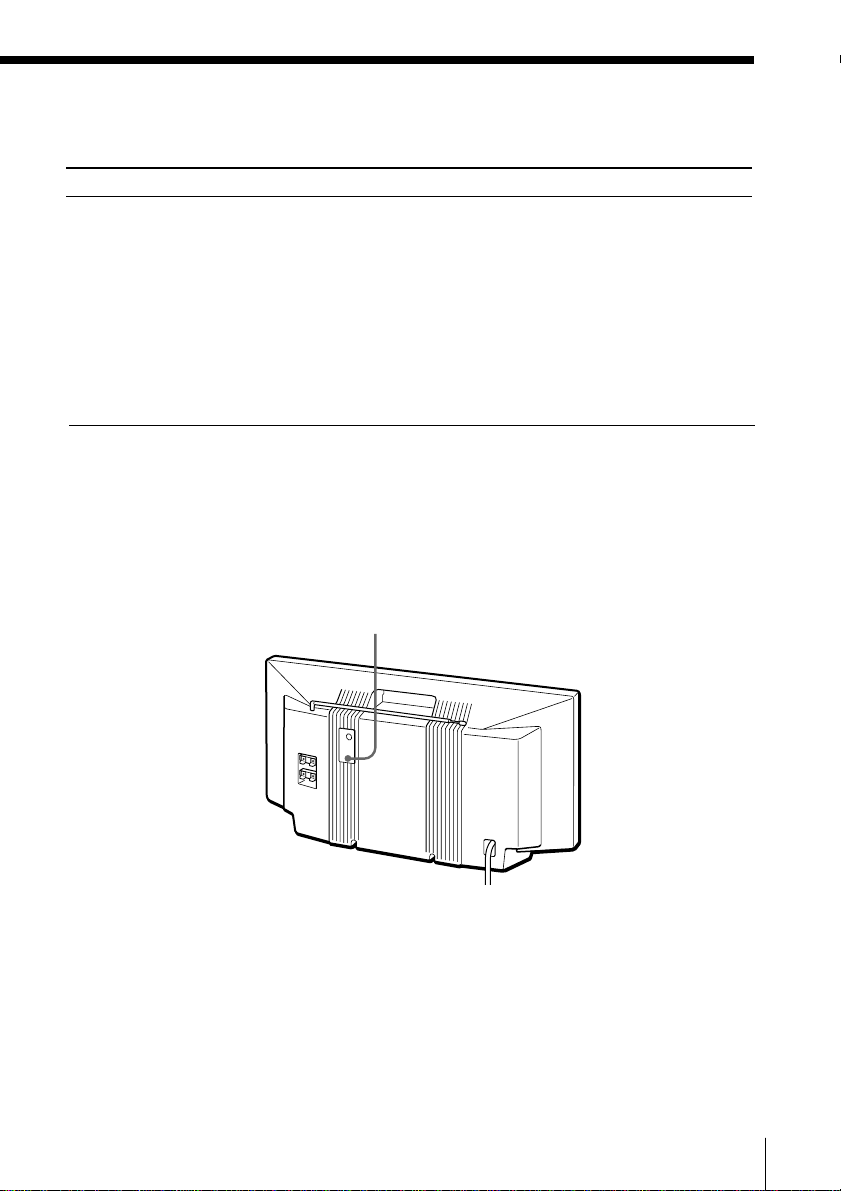
about 20 seconds. If the problem still occurs, press the RESET button at the rear of the
player with a pointed object (in this case, clock set, timer or preset radio stations are reset to
the initial settings. Set these items again if you need). If the problem persists, please consult
your nearest Sony dealer.
RESET
Symptom
The remote does not function.
Remedy
• Replace all the batteries in the remote with new
ones if they are weak (page 50).
• Make sure that you are pointing the remote at
the remote sensor on the player.
• Remove any obstacles in the path of the remote
and the player.
• Make sure the remote sensor is not exposed to
strong light such as direct sunlight or
fluorescent lamp light.
• Move closer to the player when using the
remote.
Remote
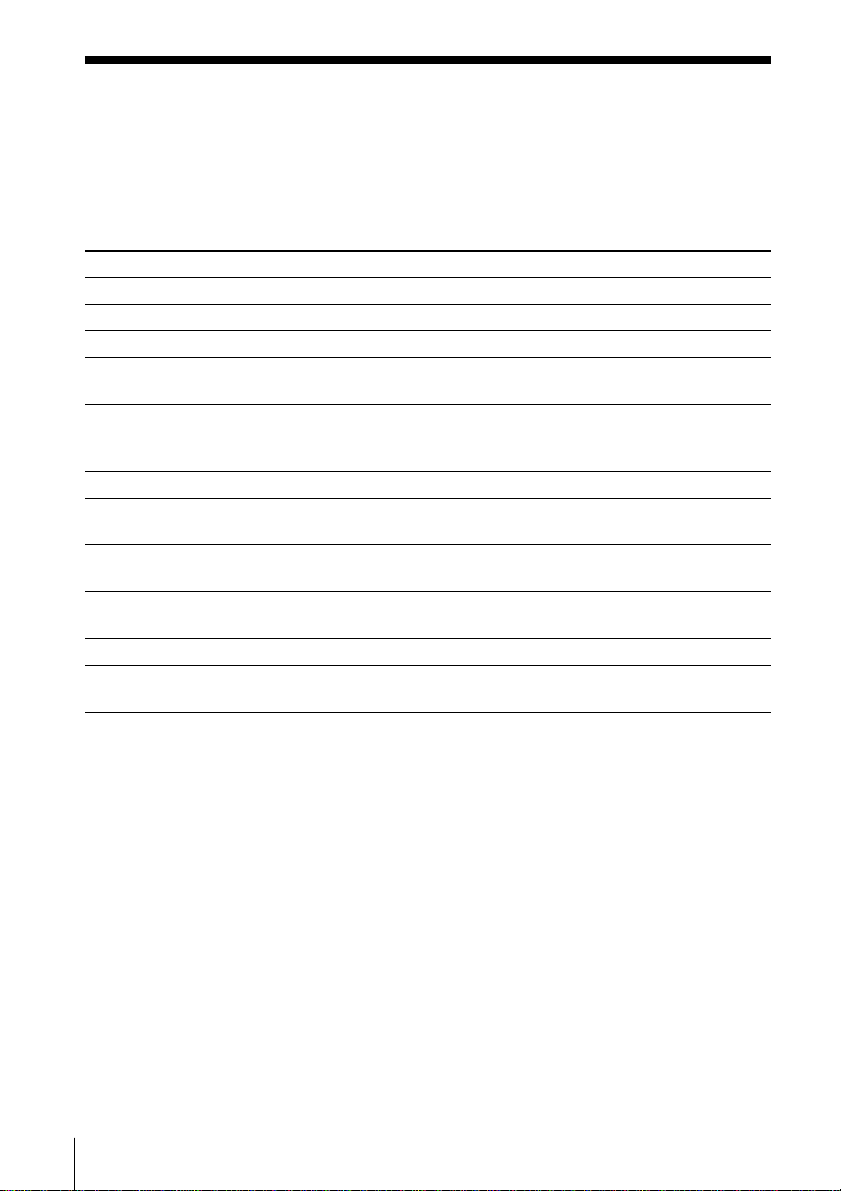
Additional Information64
If the player cannot perform an MD or a CD operation, one of the following error
messages may flash in the display window.
This message will flash If
Blank Disc you try to play an MD with no recording on it.
Cannot Edit you try to use the combine function on the first track of the MD.
Disc Error the player cannot read the MD (it is scratched or dirty).
Disc Full there is no more space for recording or editing on the MD. (See
“System limitations of the MD” on page 57.)
Name Full the labeling capacity of the MD has reached its limit. Each label
can be made up of up to 100 characters. You can input up to
about, 1,700 characters into each MD.
No Disc you try to play or record with no CD or MD in the player.
No MD you try to play or record with no MD in the player (in case of
synchronized recording, etc.)
PB Disc you try to record or edit on a pre-mastered MD (PB means
playback).
Protected you try to record or edit on an MD with the tab in the record-
protect position.
Sorry you try to edit, ignoring the system limitations of the MD.
Trk Protect you try to record or edit a track that has been already protected
using other MD recorders
Error messages

65Additional Information
Specifications
Error correction
Advanced Cross Interleave Reed Solomon Code
(ACIRC)
Sampling frequency
44.1 kHz
Coding
Adaptive TRansform Acoustic Coding (ATRAC)
Modulation system
EFM (Eight-to-Fourteen Modulation)
Number of programme positions
2 stereo programme positions
Frequency response
20 - 20,000 Hz +1/–2 dB
Signal-to-noise ratio
Over 80 dB (during playback)
Wow and flutter
Below measurable limit
General
Speaker
Full-range : 8 cm (3 in.) dia., 4 ohms cone type (2)
Inputs
LINE IN (stereo minijack): Sensitivity 436 mV/
691 mV
Outputs
Headphones jack (stereo minijack) (2):
For 32 ohms impedance headphones
Power output
7 W + 7 W
Power requirements
For personal minidisc system:
120 V AC, 60 Hz
For remote commander:
3 V DC, 2 size AA (R6) batteries
Power consumption
30 W
Dimensions (incl.projecting parts)
approx. 528 × 275 × 139 mm (w/h/d)
(20
7
⁄8
×
10
7
⁄8
×
5
1
⁄2
inches
)
Mass
approx. 6.4 kg (14 lb. 2 oz)
Supplied accessories
Remote commander (1)
AM loop aerial (1)
Optional accessories
Sony MDR headphone series
U.S. and foreign patents licensed from Dolby
Laboratories Licensing Corporation.
Design and specifications are subject to change without
notice.
AUDIO POWER SPECIFICATIONS
POWER OUTPUT AND TOTAL
HARMONIC DISTORTION
With 3.2-ohm loads, both channels driven
from 250 - 10,000 Hz; rated 3.3 W per
channel-minimum RMS power, with no more
than 10 % total harmonic distortion in AC
operation.
Other Specifications
CD player section
System
Compact disc digital audio system
Laser diode properties
Material: GaAlAs
Wave length: 785 nm
Emission duration: Continuous
Laser output: Less than 44.6µW
(This output is the value measured at a distance of
about 200 mm from the objetive lens surface on the
optical pick-up block with 7 mm aperture.)
Spindle speed
200 r/min (rpm) to 500 r/min (rpm) (CLV)
Number of programme positions
2
Frequency response
20 - 20,000 Hz +1/–2 dB
Wow and flutter
Below measurable limit
Radio section
Frequency range
FM: 87.6 - 108 MHz
AM: 530 - 1,710 kHz
Aerials
FM: Telescopic aerial
External aerial terminal
AM: External aerial terminals
MD player section
System
Minidisc digital audio system
Disc
MiniDisc
Laser diode properties
Material: GaAlAs
Wave length: 785 nm
Emission duration: Continuous
Laser output: Less than 44.6µW
(This output is the value measured at a distance of
about 200 mm from the objetive lens surface on the
optical pick-up block with 7 mm aperture.)
Recording/playback time
Maximum 74 minutes (with MDW-74)
Revolutions
400 rpm to 900 rpm (CLV)

Additional Information66
Index
A
Adjusting
bass 54
treble 54
volume 5, 9, 11
ATRAC 59
AUTO PRESET 20
B
Batteries
for the remote
commander 50
C
CD player 12
Checking playing time
a CD 12
an MD 13
Cleaning 56
Clock 42
Combine function 36
Connection
aerial 50, 51
mains lead 49
optional components 52
Creating your own
program 17
D
Display 12-14
Divide function 34
E, F
Editing 29
Erase function 31
Error message 64
G
Getting to know the MD 59
H
Hookups. See Connection
I, J, K
Improving broadcast
reception 11
L
Listening to the radio 10
Locating a specific point on
a track 15
Locating a specific track
15
M
MD player 12
MEGA BASS 54
Move function 38
N, O
Name function 39
P, Q
Playing
a CD 4
an MD 8
preset radio stations 22
tracks repeatedly 16
Power sources 49
Presetting radio stations
20
Program Play 17
R
Radio stations
playing 10
presetting 20
Recording
a CD 6, 27
on an MD 6, 27, 28
Repeat Play 16
S
Serial copy management
system 58
Setting up 49
Shuffle play 19
System limitations 57
T
Timer
playback 44
recording 46
Troubleshooting 61
U, V, W, X, Y, Z
Using
the display 12-14

67Additional Information

Additional Information68
Sony Corporation Printed in Malaysia