3-230-616-11 (1)
IC Recorder
2001 by Sony Corporation
ICD-B10/B15
Operating Instructions

2
GB
For the customers in the United States
Owner’s Record
The model number is located at the rear and the serial
number is located inside the battery compartment.
Record these numbers in the spaces provided below.
Refer to these numbers whenever you call upon your
Sony dealer regarding this product.
Model No. Serial No.
INFORMATION
This equipment has been tested and found to comply with the limits for a Class
B digital device, pursuant to Part 15 of the FCC Rules. These limits are designed
to provide reasonable protection against harmful interference in a residential
installation. This equipment generates, uses, and can radiate radio frequency
energy and, if not installed and used in accordance with the instructions, may
cause harmful interference to radio communications.
However, there is no guarantee that interference will not occur in a particular
installation. If this equipment does cause harmful interference to radio or
television reception, which can be determined by turning the equipment off and
on, the user is encouraged to try to correct the interference by one or more of the
following measures:
– Reorient or relocate the receiving antenna.
– Increase the separation between the equipment and receiver.
– Connect the equipment into an outlet on a circuit different from that to which
the receiver is connected.
– Consult the dealer or an experienced radio/TV technician for help.
This device complies with Part 15 of the FCC Rules. Operation is subject to the
following two conditions: (1) This device may not cause harmful interference,
and (2) this device must accept any interference received, including interference
that may cause undesired operation.
You are cautioned that any changes or modifications not expressly approved in
this manual could void your authority to operate this equipment.

3
GB
Table of Contents
Before You Begin
What is an IC recorder? ................................................................................ 4
Features .......................................................................................................... 5
Getting Started
Step 1: Installing the Batteries ..................................................................... 6
Step 2: Setting the Clock............................................................................... 8
Basic Operations
Recording Messages ................................................................................... 10
Playing Back Messages............................................................................... 14
Playing Back the Specified Section Repeatedly — A-B Repeat ............ 18
Erasing Messages ........................................................................................ 19
Editing Messages
Adding a Recording ................................................................................... 21
Dividing a Message into Two/Combining Messages
— Index Function ................................................................................ 23
Moving Messages to a Different Folder
— Move Function ................................................................................ 26
Other Functions
Starting Recording at a Desired Time
— Timer Recording ............................................................................. 27
Playing Back a Message at a Desired Time with an Alarm ................... 30
Preventing Accidental Operation — HOLD function ........................... 33
Selecting the Display Mode ....................................................................... 34
Menu map .................................................................................................... 35
Changing the Settings ................................................................................ 36
Additional Information
Precautions ................................................................................................... 37
Troubleshooting .......................................................................................... 38
Index to Parts and Controls ....................................................................... 42
Specifications ............................................................................................... 45
Index ............................................................................................................. 46
4
GB
BBefore You Begin
What is an IC recorder?
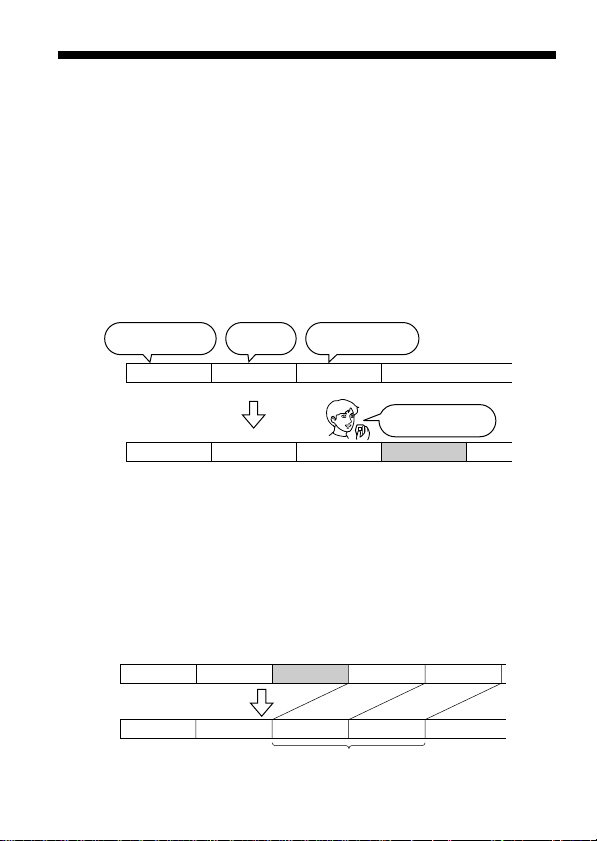
This IC recorder enables you to record and play back oral messages in the
built-in IC memory.
z Recording
When a new message is recorded, it is automatically added after the last
recorded messages.
Unlike with tape recorders, you do not need to worry about recording
over previously recorded messages by mistake.
Since you do not need to search for the end of the last recording, you can
start recording quickly whenever you wish.
z Playback
With this IC recorder, you can quickly locate the message you want to play
back.
Reviewing the current recording is also very easy.
z Erasing
You can quickly erase unwanted messages with an easy operation. When a
message is erased, the next message automatically advances, leaving no
blank space.
Meet Mr. Brown at
2 p.m. tomorrow.
11:30, November 1
12:00, November 1 10:00, November 2
Don’t forget
to call Mary
Make remittance
at ABC bank
9:00, November 4
Send a card to
Miss Smith
Message 1 Message 2 Message 3
Message 1 Message 2 Message 3 Message 4
Message 4
Before
Erase Message 3
After
Remaining messages
are renumbered.
Message 1 Message 2 Message 5
Message 4Message 1 Message 2 Message 3
Message 3

5
GB
Features
• Maximum recording time ICD-B10: 63 min. (SP)/168 min. (LP)
ICD-B15: 127 min. (SP)/339 min. (LP)
This unit is suitable for recording long meetings or lectures.
• Possible of recording up to 99 messages in each of 3 folders (ICD-
B10)/5 folders (ICD-B15)
• Alarm function (page 30)
You can start playing back a desired message with an alarm on a desired
date and time.
• Timer recording function (page 27)
You can start recording automatically on a desired date and time.
• Index function (page 23)
You can add an index at the desired point during recording or playback
to divide a message into two.
You can also combine messages by erasing the index.
• Repeat play function (page 16, 18)
This unit can play back one message or the selected section repeatedly.
• Easy search function (page 17)
You can quickly search for the point (10 seconds ahead or 3 seconds
back) and start playback.
• Playback speed control (page 16)
You can play back messages rapidly or slowly . This is useful when
playing back a long recording such as a meeting.
• Advanced VOR function (page 13)
• Overwrite and additional recording functions (page 21)
You can overwrite after the desired point on a recorded message or add a
new recording to a previously recorded message.
• External microphone jack (page 13)
Before You Begin
6
GB
BGetting Started
Step 1: Installing the Batteries
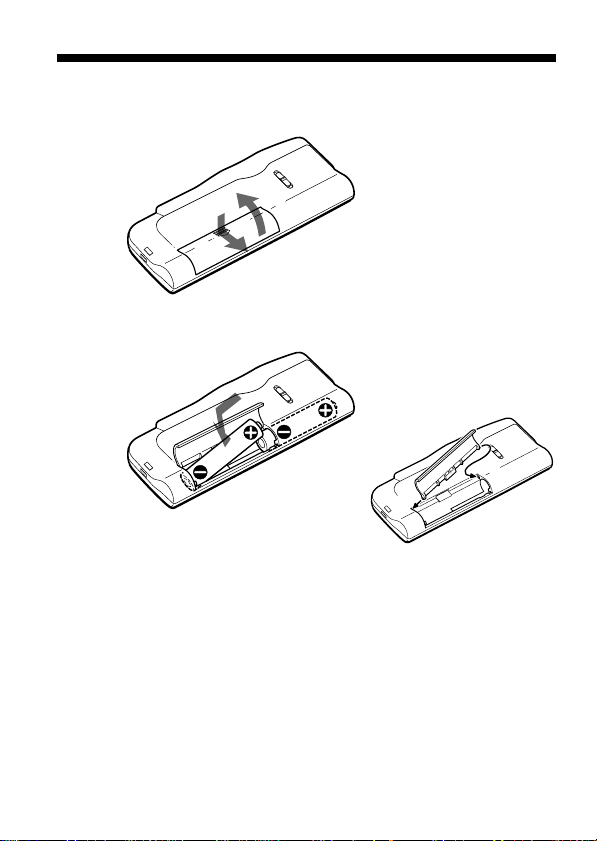
1 Slide and lift the battery compartment lid.
2 Insert two LR03 (size AAA) alkaline batteries with correct
polarity, and close the lid.
If the battery compartment lid is
accidentally detached, attach it
as illustrated.
Clock setting display appears when you insert batteries for the first time,
or when you insert batteries after the unit has been without batteries for a
certain period of time. Please refer to Steps 2 to 4 in “Step 2: Setting the
Clock” on pages 8 and 9 to set the date and time.
2
1
2
1
2

7
GB
Replacing the batteries
The battery indicator on the display window shows the battery condition.
When flashes, replace the batteries with new ones.
When flashes, the batteries are exhausted and the unit will stop
operation.
Battery life*
With continuous use, approx. 7.5 hours (SP)/15 hours (LP) of recording or
approx. 6 hours (SP)/8 hours (LP) of playback is possible.
* Using Sony alkaline batteries LR03 (SG)
* When playing back through the internal speaker with VOL control at around 4
The battery life may shorten depending on the operation of the unit.
Notes
• Do not use manganese batteries for this unit.
• When you replace the batteries, insert the new ones within 3 minutes after you
removed the exhausted ones. Otherwise, the display may show the clock
setting display or incorrect date and time when you re-insert the batteries. In
this case, set the date and time again.
The recorded messages and alarm setting, however, will remain.
• When replacing the batteries, be sure to replace both batteries with new ones.
• Do not charge dry batteries.
• When you are not going to use the unit for a long time, remove the batteries to
prevent damage from battery leakage and corrosion.
Note on the “ACCESS” message
When you insert the batteries, “ACCESS” may appear on the display window.
Do not remove the batteries while this message is displayed.
If the unit is required to process excessive amount of data, “ACCESS” may be
displayed for an extended period of time. This is not a malfunction of the unit.
Wait until the message disappears before starting operation.
Getting Started
8
GB
You need to set the clock to use the alarm or timer setting function.
Clock setting display appears when you insert batteries for the first time,
or when you insert batteries after the unit has been without batteries for a
certain period of time. In this case, proceed from step 2.
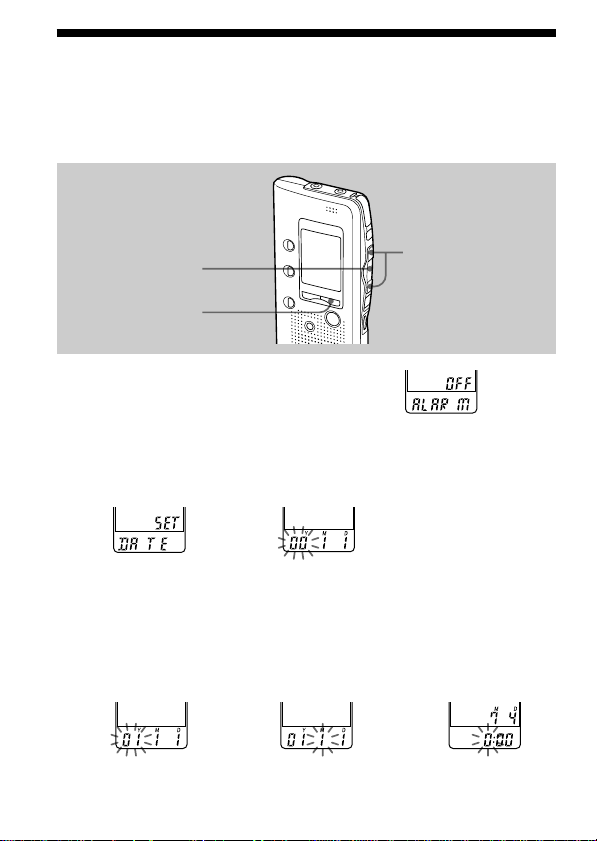
1 Press MENU to enter the menu mode.
2 Display the clock setting display.
Step 2: Setting the Clock
NxPLAY/STOP
MENU
./>
1 Press .once to
display “SET
DATE”.
2 Press NxPLAY/
STOP.
The year digits
will flash.
3 Set the date.
1 Press . or >
to select the
digits of the year.
2 Press NxPLAY/
STOP.
The month digits
will flash.
3 Set the month and
day in sequence,
then press
NxPLAY/STOP.
The hour digits will
flash.
9
GB
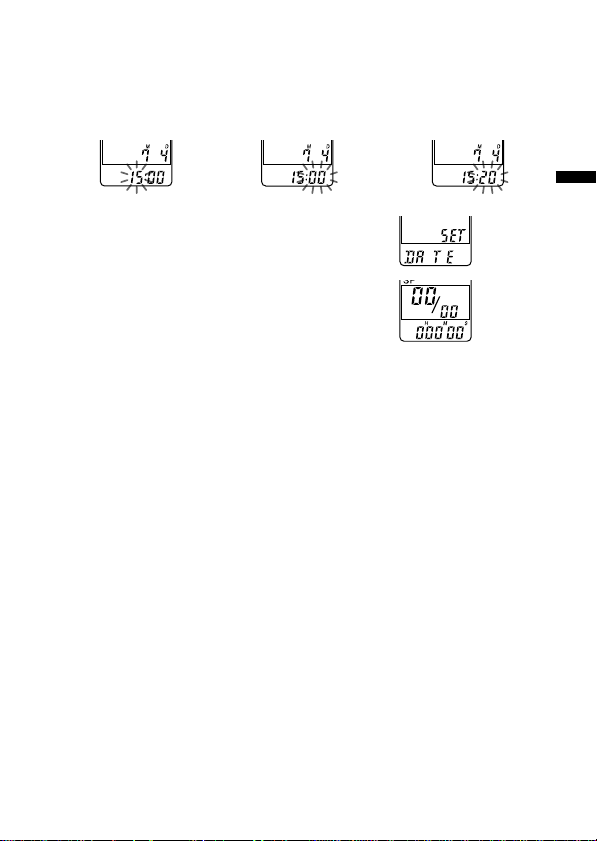
4 Set the time.
1 Press . or >
to select the
digits of the hour.
2 Press NxPLAY/
STOP.
The minute digits
will flash.
3 Set the minute.
5 Press NxPLAY/STOP at the time signal.
The display will return to “SET DATE”.
6 Press MENU to exit the menu mode.
1 Tip
This unit does not have a power on/off switch. The display is shown at all
times.
Getting Started
10
GB
BBasic Operations
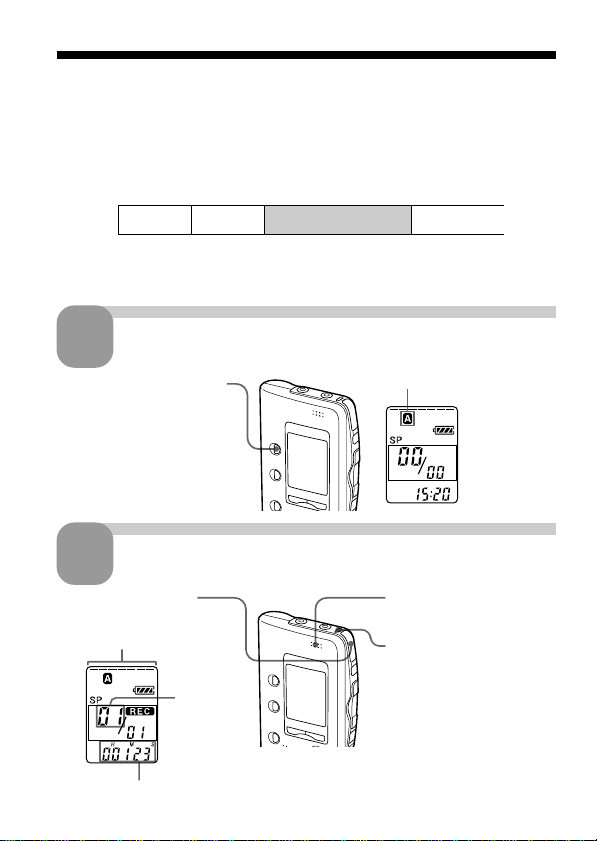
Recording Messages
You can record up to 99 messages in each of three folders (A, B, or C) for
ICD-B10 or five folders (A, B, C, D or E) for ICD-B15. Since a newly
recorded message is automatically added behind the last recorded
message, you can start recording quickly without searching for the end of
the last recording.
Note
Before making a long recording, be sure to insert new batteries and check the
battery indicator (page 7).
Select the folder.
e.g. Message 1
Message 2
Blank space
Newly recorded message
1
Press FOLDER repeatedly
to display the folder in
which you wish to record
messages.
Current folder
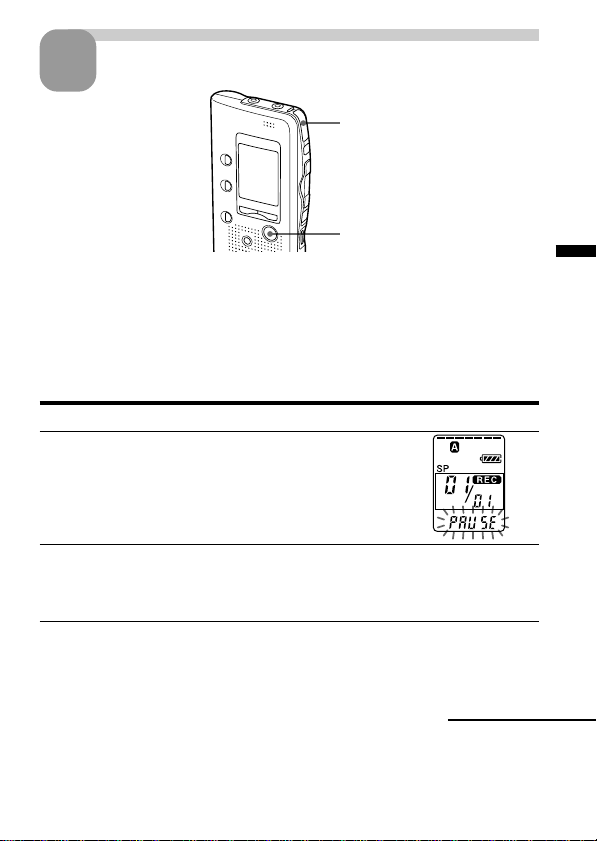
2 Speak to the built-in
microphone.
Start recording.
2
OPR indicator
(lights in red during
recording.)
Remaining memory
indicator
Current
message
number
Counter display*
You do not need to keep
pressing zREC/STOP
while recording.
* The display selected with the DISPLAY button
(page 34) appears.
1 Press zREC/STOP.
Basic Operations
11
GB
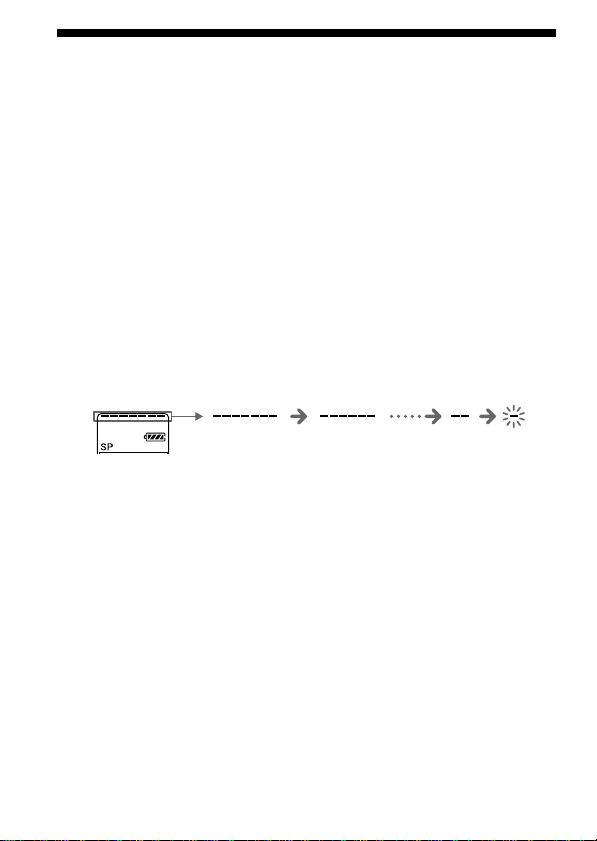
Stop recording.
Press zREC/STOP again.
The unit stops at the beginning
of the current recording.
xSTOP
If you do not change the folder after you stop recording, the next time you
record you will record in the same folder.
To stop recording
You can also stop recording by pressing xSTOP instead of zREC/STOP.
To pause recording
To Do this
pause recording* Press XPAUSE.
During recording pause,
the OPR indicator flashes
in red and “PAUSE”
flashes in the display
window.
release pause and Press XPAUSE or zREC/STOP.
resume recording Recording resumes from that point.
(To stop recording after pausing
recording, press xSTOP.)
* 15 minutes after you pause recording, recording pause is automatically
released and the unit goes into the stop mode.
Continued
3
12
GB
Recording Messages (continued)
Recording Messages (continued)
To select the microphone sensitivity
See page 36.
Maximum recording time
With the ICD-B10, you can record for up to 63 minutes in SP (standard
play) mode and 168 minutes in LP (long play) mode. If you record
messages in a mixture of SP and LP modes, the recordable time varies
from 63 to 168 minutes.
With the ICD-B15, you can record for up to 127 minutes in SP (standard
play) mode and 339 minutes in LP (long play) mode. If you record
messages in a mixture of SP and LP modes, the recordable time varies
from 127 to 339 minutes.
The unit is factory-set to SP mode. To change the recording mode, see page 36.
You can check the remaining amount of recording time by selecting the
remaining recording time display mode. See page 34.
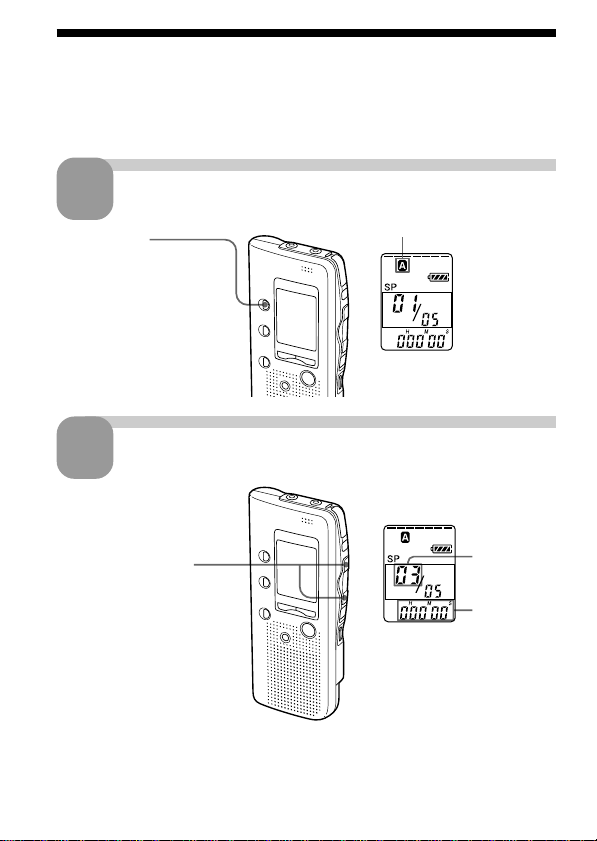
Remaining memory indication
During recording, the remaining memory indicator decreases one by one.
When the remaining time of recording reaches 5 minutes, the last one of
the indication flashes. When the remaining time of recording reaches 1
minute, the selected display mode (page 34) and “REMAIN” will flash one
after the other in the display window. When the memory is full, recording
automatically stops and “FULL” will flash in the display window with an
alarm sound. To continue recording, first erase some of the messages (page
19).
flashing

Basic Operations
13
GB
Various Ways of Recording
Starting recording automatically in response to the sound
— Advanced VOR function
When the VOR (voice operated recording) function is set to ON (page 36),
recording starts when the recorder detects sound and stops when no
sound is heard.
Note
VOR function is affected by the sound around you. Set the microphone
sensitivity (SENS) to either HI (high) or LO (low) (see page 36). If recording is
not satisfactory after you have changed the microphone sensitivity, or for
important recording, set VOR to OFF.
Recording with an external microphone or from other
equipment
Connect a plug-in-power type microphone or other equipment to the MIC
(PLUG IN POWER) jack.
When you connect an external microphone, the built-in microphone is
automatically cut off. When a plug-in-power type microphone is
connected, power is automatically supplied to the microphone from the IC
recorder.
Adding a recording
To add a recording to a previously recorded message or to add an
overwrite recording during playback, see pages 21 and 22.
14
GB
* The display selected with the DISPLAY button (page 34) appears.
Playing Back Messages
Playing Back Messages
When playing back a previously recorded message, start from Step 1.
When playing back a message you have just finished recording, start from
Step 3.
Select the folder.
Select the message number.
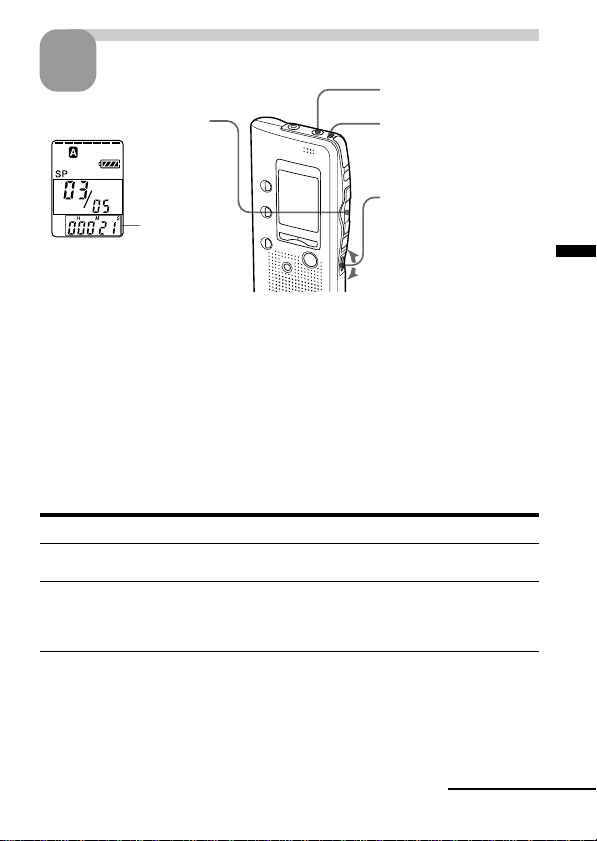
1
2
Press . or > to
display the desired
message number.
>: for larger
message number
.: for smaller
message number
Selected
message
number
Current folder
Counter
display*
Press FOLDER
repeatedly to display
the folder you wish to
play back.
Basic Operations
15
GB
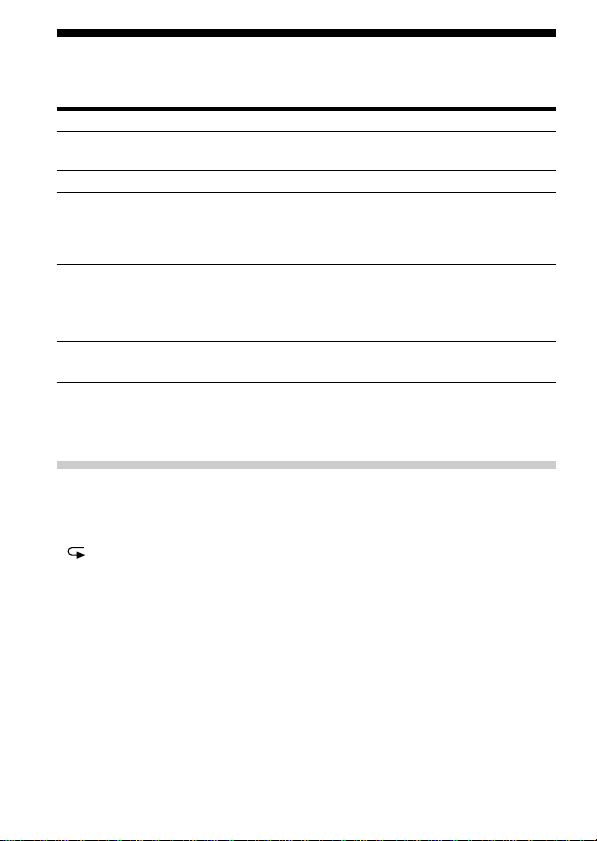
Start playback.
After playing back one message, the unit stops at the beginning of the next
message.
When the last message on a folder has been played back, the unit stops at
the beginning of the last message.
For private listening
Connect an earphone or headphones (not supplied) to the EAR jack. The built-
in speaker will be automatically disconnected. If you plug in headphones, you
will get monaural output from both left and right channels.
To stop playback
To Do this
stop at the beginning of Press xSTOP.
the current message
stop at the current position Press NxPLAY/STOP.
(Playback Pause function)*
To resume playback from that point,
press NxPLAY/STOP again.
* You can also pause playback by pressing XPAUSE instead of NxPLAY/
STOP. The OPR indicator will flash in green. After an hour, the unit goes
into the stop mode at the current position.
Playing back all messages in a folder continuously
— Continuous Play
See page 36.
3
OPR indicator
(lights in green
during playback.)
EAR jack
Counter
display (or
the selected
display
mode)
2 Turn VOL to adjust
the volume.
1 Press NxPLAY/STOP.
Continued
16
GB
Playing Back Messages (continued)
Playing Back Messages (continued)
Other operations
To Do this
go back to the beginning Press . once.***
of the current message**
skip to the next message** Press > once.***
go back to previous Press . or > repeatedly.***
messages/skip to (During stop mode, keep the button
succeeding messages pressed to skip the messages
continuously.)
play back rapidly or Set PLAY SPEED to FAST or SLOW.
slowly The messages will be played back
about 30% faster or 15% slower than
normal.
play messages with Set PLAY SPEED to NORMAL.
normal speed
** If you have set a bookmark on the message, the unit stops at the bookmark.
*** These operations are for when EASY-S is set to OFF. For operations when
EASY-S is set to ON, see page 17.
Various Ways of Playback
Playing back a message repeatedly — Repeat Play
During playback, press NxPLAY/STOP for more than one second.
“ “ will be displayed and the selected message will be played back
repeatedly.
To resume normal playback, press NxPLAY/STOP again. To stop
playback, press xSTOP.
Playing the beginning of each message — Scanning Play
During stop mode, press NxPLAY/STOP for more than one second.
“SCAN” will be displayed in the display window and the first 5 seconds of
each message in the selected folder will be played back.
When you find the desired message, press NxPLAY/STOP. The message
will be played back until the end.

Basic Operations
17
GB
Searching forward/backward during playback (Cue/Review)
To search forward, keep > pressed during playback and release the
button at the point you wish to resume playback.
To search backward, keep . pressed during playback and release the
button at the point you wish to resume playback.
The unit searches at slow speed (unit of 4 seconds) with playback sound. It
is useful when checking one word forward or behind.
If you keep > or .pressed, the unit starts searching at higher speed.
Between messages the unit pauses for 2 seconds.
During cue/review, the counter will be displayed, regardless of the
display mode setting (page 34).
You can cue or review during playback pause. The unit goes back into
playback pause at the point you release > or ..
1 Tip
When fast playback is done to the end of the last message, “END” flashes
for 5 seconds and the OPR indicator lights up in green. (You cannot hear
the playback sound.) If you keep . pressed while “END” is flashing,
the messages are played back rapidly, and normal playback will start at
the point you release the button.
When “END” stops flashing and the OPR indicator goes off, the unit will
stop at the beginning of the last message.
If the last message is long and you wish to start playback at a later part of
the message, keep > pressed to play back the message to the end and
then press . while “END” is flashing to go back to the desired point .
(For messages other than the last one, go to the beginning of the next
message and play backward to the desired point.)
Locating quickly the point you wish to start playback (Easy
Search)
When EASY-S is set to ON (page 36), you can quickly locate the point you
wish to start playback by pressing > or . repeatedly during playback
or playback pause.
You can go back approx. 3 seconds by pressing . once, or advance
approx 10 seconds by pressing > once. This function is useful when
locating a desired point in a long recording.
18
GB
Playing Back the Specified Section
Repeatedly — A-B Repeat
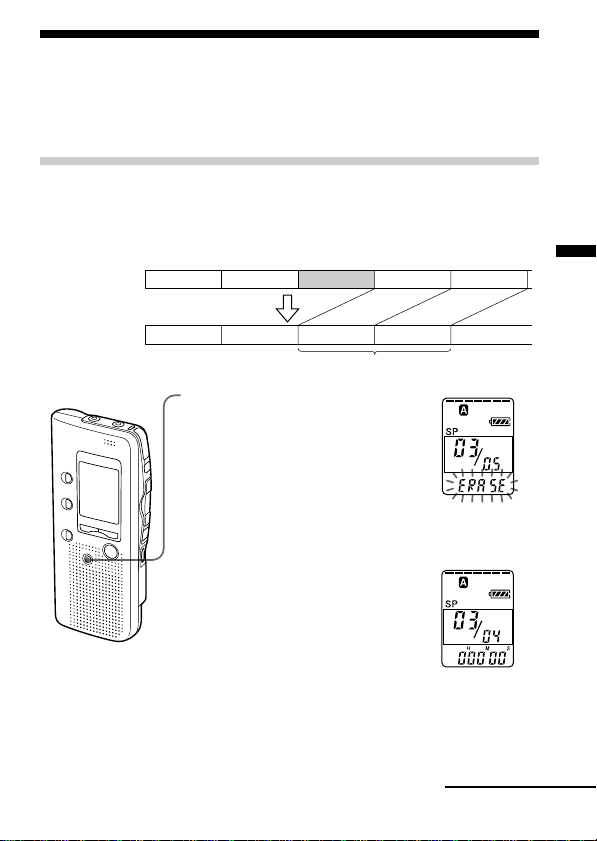
While playing back a message, you can set the start (A) and end (B) points
for a section you wish to play repeatedly.
1 During playback, press A-B REPEAT briefly.
The starting point (A) of the section you wish to play
repeatedly is set. “A-B B” flashes.
2 During playback, press A-B REPEAT briefly.
The finishing point (B) of the section is set.
“A-B” is displayed and the specified section is played
back repeatedly.
To resume normal playback
Press NxPLAY/STOP.
To stop A-B Repeat playback
Press xSTOP.
Notes
• You cannot set A-B Repeat for a section that overlaps two or more messages.
• If you do not set the finishing point (B), the finishing point is automatically set
at the end (or the beginning) of the message.
A-B REPEAT
Basic Operations
19
GB
Erasing Messages
You can erase the recorded messages one by one or all messages in a folder
at a time.
Note that once a recording has been erased, you cannot retrieve it.
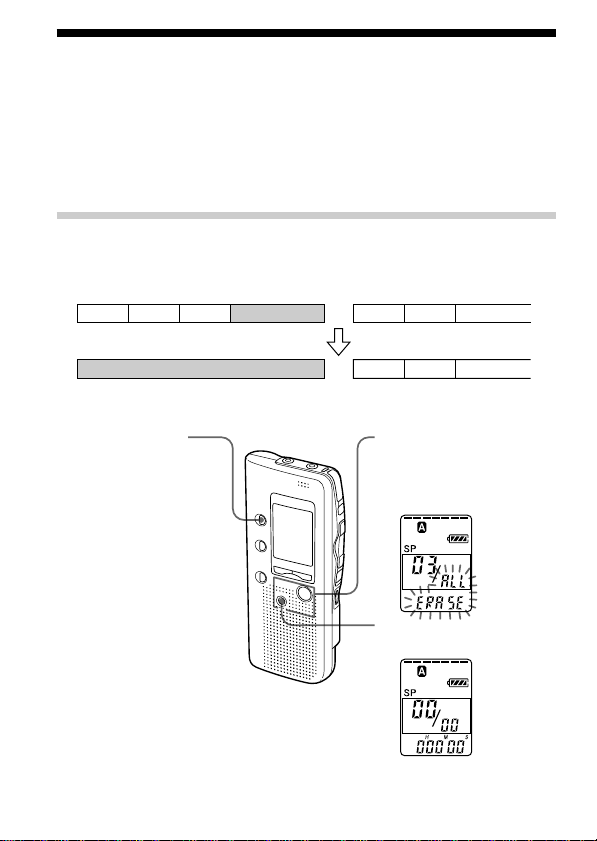
Erasing messages one by one
When a message is erased, the remaining messages will advance and
renumbered so that there will be no space between messages.
To cancel erasing
Press xSTOP before step 2.
1 Press ERASE while playing back
the message you want to erase
or press ERASE for more than 1
second during stop mode.
A beep will sound and the message
number and “ERASE” will flash
while the first and last 5 seconds of
the message are played back 10
times.
2 Press ERASE while the message is
being played back.
The message is erased and the
remaining messages will be
renumbered. (For example, if you
erase Message 3, Message 4 will be
renumbered as Message 3. When
erasing is completed, the unit will
stop at the beginning of the
following message.)
Erase Message 3
Message 1
Message 2 Message 3 Message 4
Before erasing
After erasing
Remaining messages are renumbered.
Message 1
Message 4 Message 5Message 2
Message 3
Continued
20
GB
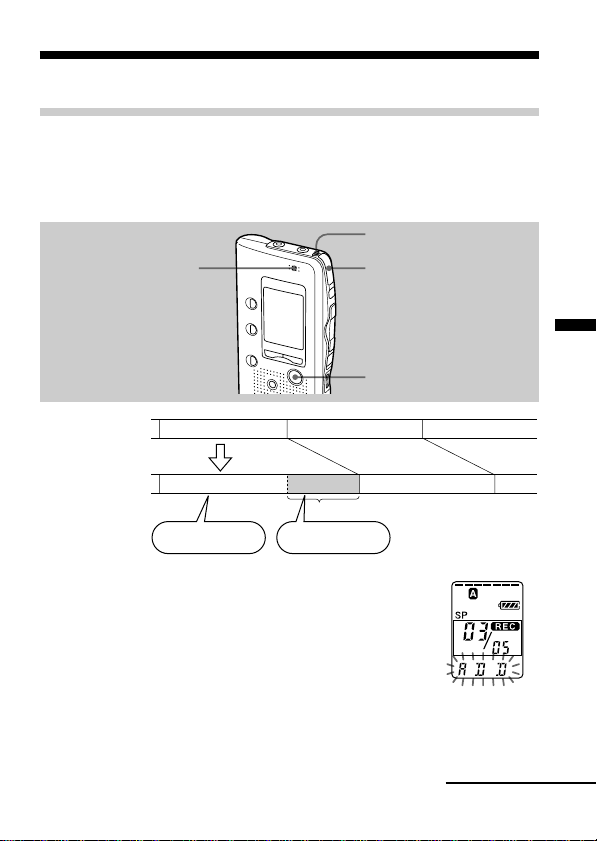
Erasing all messages in a folder
2 While pressing xSTOP,
press ERASE for more
than 1 second.
“ALL ERASE” will flash
for 10 seconds.
To cancel erasing
Press xSTOP before step 3.
Erasing Messages (continued)
To erase other messages
Repeat steps 1 and 2.
To erase a message partially
First divide the message by adding an index (see page 23) and then follow
the steps on page 19 to erase the message.
e.g.
Folder A
Folder B
Message 1 Message 2 Message 3
Blank space
Blank space
Message 1 Message 2 Message 3
Message 1 Message 2 Message 3
3 While the display is
flashing, press ERASE.
1 Press FOLDER to
select the folder you
want to erase.
Editing Messages
21
GB
BEditing Messages
Adding a Recording
Adding a Recording to a Previously Recorded Message
You can add a recording to the message being played back.
The added recording will be placed after the current message and counted
as a part of the message.
1 During playback, press zREC/STOP for more
than 1 second.
The REC indicator appears and “ADD” flashes three
times on the display window.
The OPR indicator will turn red.
The new recording will be added at the end of the
current message.
2 Press zREC/STOP or xSTOP to stop the
recording.
During playback
of Message 3
After adding
a recording
Message 3
Message 4
Meeting at 2 o’clock
on December 1.
at Conference
room A
Added recording
Message 3
Message 4
xSTOP
zREC/STOP
Built-in microphone
OPR indicator
Continued

22
GB
Adding a Recording (continued)
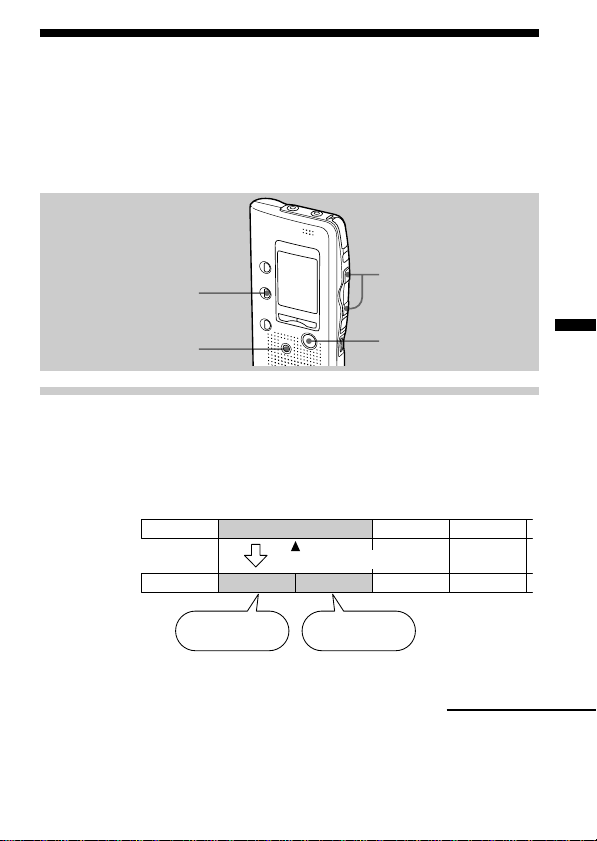
Adding an Overwrite Recording during Playback
You can add an overwrite recording after the selected point in a recorded
message. The part of the message after the selected point is deleted.
1 During playback, press zREC/STOP briefly.
“OVER” flashes on the display window and the OPR
indicator flashes in red.
2 Press zREC/STOP to start recording.
“REC” is displayed and the OPR indicator turns red.
3 Press xSTOP to stop the recording.
Notes
• The added message will be recorded in the same recording mode (SP or LP;
see page 36) as the original message, regardless of the current recording mode
setting.
• You cannot overwrite if the remaining memory of the IC recorder is not
enough. For details, see “Troubleshooting” on page 38.
The deleted part of
Message 2
Added overwrite recording in Message 2
Message 3
Message 2
Message 3
Message 4
Message 4
The starting point of an overwrite recording
Message 2
Editing Messages
23
GB
Dividing a Message into Two/
Combining Messages — Index Function
You can divide a message by adding an index, or combine messages by
erasing the index.
While recording/playing back messages, you can add an index (see
below). In stop mode, you can erase the index (see page 25).
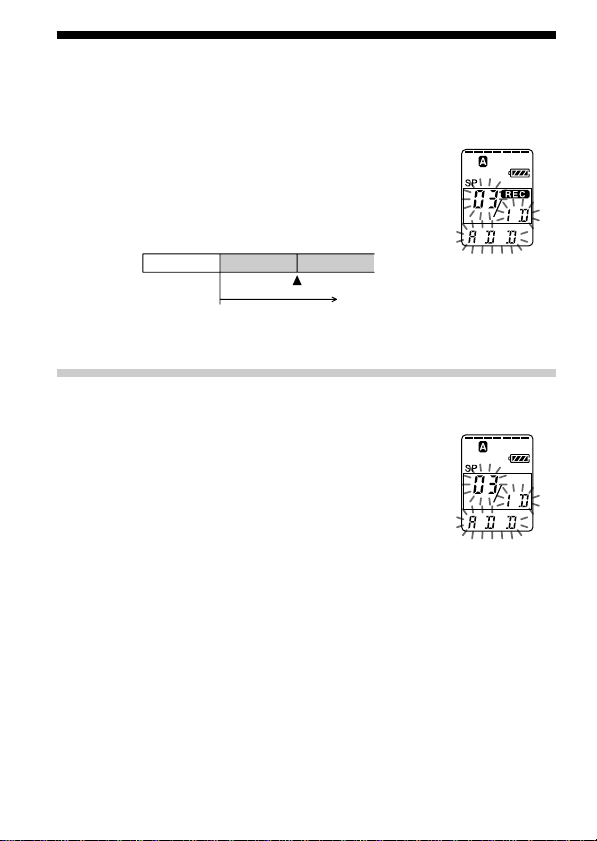
Dividing a Message by Adding an Index
You can add an index to a message during recording or playback.
By dividing a message, you can easily find the point you want to play back
when you make a long recording such as a meeting.
When you add an index, the message numbers will increase as follows.
xSTOP
INDEX
./>
ERASE
Message 1
Message 2 Message 3 Message 4
Before adding
an index
After adding
an index
Message 1
Message 3 Message 4Message 2
Message 5
The message
numbers increase.
The first item on
the agenda is...
We will now
proceed to the
next subject.
An index is added.
Continued
24
GB
Message 1 Message 3Message 2
An index is added.
Recording continues.
Dividing a Message into Two/Combining
Messages — Index Function (continued)
To mark an index during recording
While recording a message, press INDEX at the point you want to
divide.
The new message number flashes three times at the
point you pressed INDEX. The message will be
divided in two messages; however, the messages will
be recorded without a break.
1 Tip
You can add an index during recording pause (page 13).
To add an index during playback
While playing back a message, press INDEX at the point you want
to divide.
The message is divided in two and the new message
number flashes three times.
An index mark is added and the following index
numbers will increase by one.
1 Tip
You can add an index after you have paused playback with XPAUSE (page 15).
To play the message you marked with an index
Press . or > to display the message number as the divided messages
each have message numbers.
To play the divided messages continuously
Select “ON” for “CONT” as described in “Changing the Settings” on page
36.
Editing Messages
25
GB
Combining messages by erasing the index
You can combine two messages into one by erasing the index.
In stop mode, follow the steps below:
1 Press . or > to display the number of the
second of the two messages you want to combine.
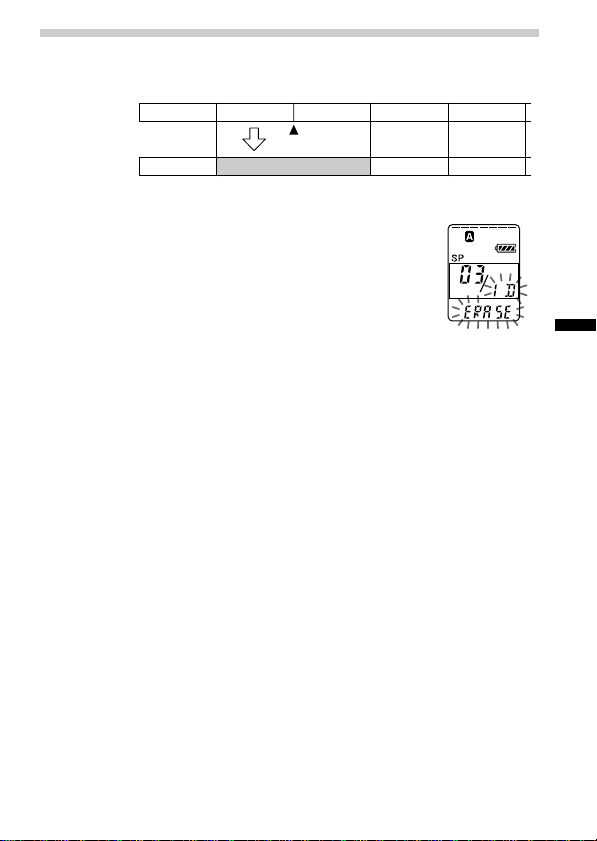
2 While pressing INDEX, press ERASE for more than 1
second.
“ID ERASE” will flash for 10 seconds.
3 Press ERASE while the display is flashing.
The two messages are combined into one and the
messages will be renumbered as in the illustration
above.
To cancel erasing
Press xSTOP before step 3.
Notes
• After combining messages by erasing an index, the latter message’s alarm
setting will be deleted.
•Due to the recording system of an IC recorder, you may not be able to add or
delete an index in some cases (page 41).
Message 1 Message 2 Message 3 Message 4 Message 5
Message 1 Message 2
Message 3
Message 4
The message numbers decrease.
An index
is erased.
26
GB
Moving Messages to a Different Folder
— Move Function
You can move the recorded messages to another folder.
Example: Moving Message 3 in Folder A to Folder C
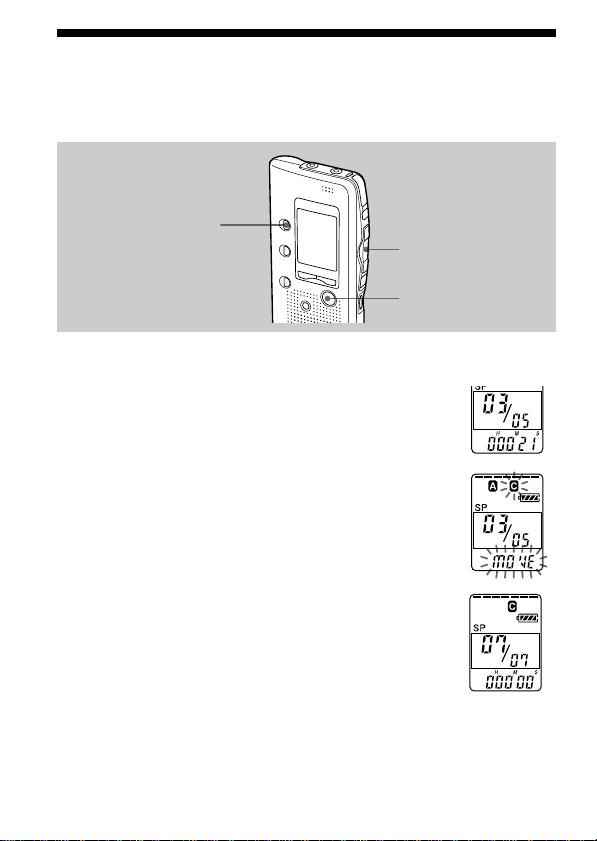
1 Play back the message you want to
move.
2 While playing back the message, press
FOLDER to flash the indication of the
folder to which you want to move the
message (C in this case).
The first and last 5 seconds of the message
will be played back 10 times, while the folder
indication and “MOVE” flash.
3 Press NxPLAY/STOP.
To cancel moving the message(s)
Press xSTOP before step 3.
Note
The move function does not duplicate a message in another folder. When you
move a message to another folder, the one in the previous folder will be deleted.
xSTOP
FOLDER
NxPLAY/STOP
(Example: when Folder
C had 6 messages)
Other Functions
27
GB
BOther Functions
Starting Recording at a Desired Time
— Timer Recording
You can start recording at a desired time.
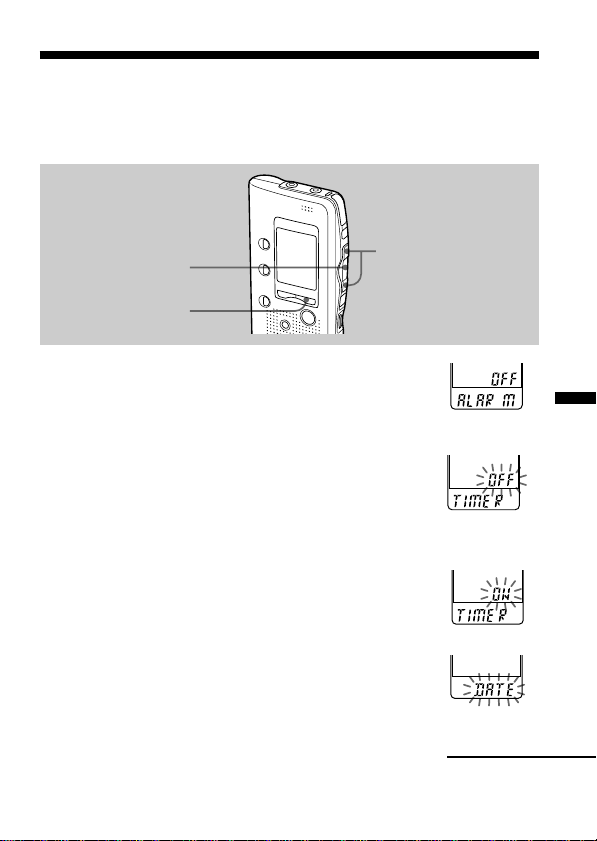
1 Display the timer setting display.
1 Press MENU.
The unit enters the menu mode and
“ALARM” will be displayed.
2 Press . or > repeatedly to display “TIMER”
and press NxPLAY/STOP.
“OFF” starts to flash.
Note
The timer cannot be set if the clock has not been set .
3 Press . or > to flash “ON”.
4 Press NxPLAY/STOP.
“START” is displayed for one second, and then
“DATE” will flash in the display window.
MENU
NxPLAY/STOP
./>
Continued
28
GB
Starting Recording at a Desired Time
— Timer Recording (continued)
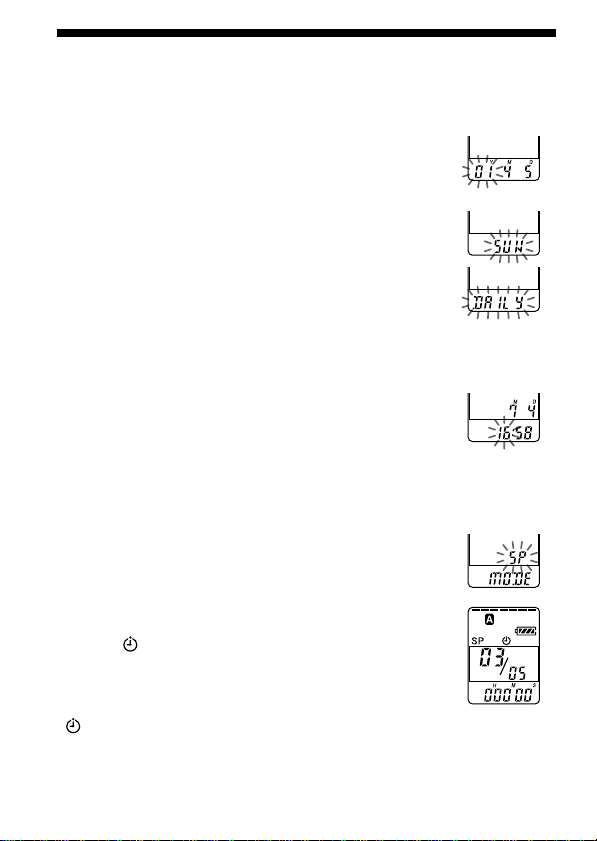
2 Set the recording start date.
• to start recording on a desired date
1 Press NxPLAY/STOP while “DATE” is flashing.
2 Press . or > to select the year digits and
press NxPLAY/STOP.
3 Select the month and day digits in the same way.
• to record once a week
Press . or > to select the day of the week.
• to record at the same time every day
Press . or > to select “DAILY” and press
NxPLAY/STOP.
3 Set the recording start time.
1 Press . or > to select the hour digits and
press NxPLAY/STOP.
2 Press . or > to select the minute digits and
press NxPLAY/STOP.
“END” is displayed for one second, and then the
hour digits of the recording end will flash in the
display window.
4 Repeat Step 3 to set the recording end time.
5 Select the recording mode.
Press . or > to select “SP” or “LP” and press
NxPLAY/STOP.
6 Press MENU to exit the menu mode.
The display will return to normal display
and “ ” is displayed.
At the set time, recording starts automatically.
“ ” flashes on the display window during recording.
When the recording ends, the unit will stop automatically at the beginning
of the newly recorded message.

Other Functions
29
GB
To stop the timer recording
Press xSTOP.
To change the timer setting
Press . or > in Step 2, 3 or 4 on page 28 to change the year, month,
day or time and press NxPLAY/STOP.
To cancel the timer recording setting
Select “OFF” in Steps 1-3 on page 27 and press NxPLAY/STOP.
Notes
• You cannot set the timer to record more than one message.
• When the timer recording starts, the recording mode selected in Step 5 is
automatically selected. When the recording ends, the recording mode is reset
to the initial setting.
• Make sure that the remaining recording time is long enough for the timer
recording. You cannot set the timer if the length of the timer recording exceeds
the remaining recording time. However, in the case of recording once a week
or everyday, you can set the timer if the remaining recording time is longer
than the first recording and for the second or later recording, timer recording
stops when there is no more remaining time on the IC recorder.
• If 99 messages have been recorded in the selected folder or the memory is full,
timer recording will not start.
• If the timer is set to start recording before 23:59 and to end recording after
0:00, the recording will stop the next day.
• If the timer start time comes during alarm playback, playback will stop and
the timer recording starts.
• When the timer recording start time comes during operation other than
recording, the operation stops and the timer recording starts.
When the timer recording start time comes during recording, the recording
continues and the timer recording will not start.
30
GB
Playing Back a Message at a Desired
Time with an Alarm
You can sound an alarm and start playback of a selected message at a
desired time. You can have the message played back at a desired date,
once every week, or the same time everyday.
You can also sound the alarm without playing back a message.
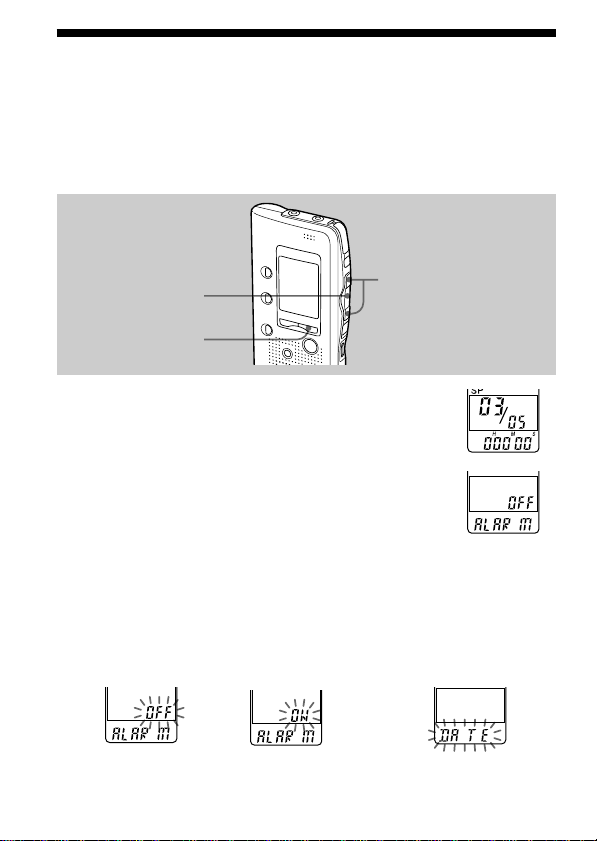
1 Select the message you wish to play
back.
(See Steps 1 and 2 on page 14.)
2 Press MENU.
“ALARM OFF” will be displayed.
(If “ALARM ON” is displayed, the alarm has been set. )
Note
The alarm cannot be set if the clock has not been set
or no message has been recorded in the selected
folder.
3 Set the alarm setting to ON.
1 Press Nx.
MENU
NxPLAY/STOP
./>
2 Press . or > to
flash “ON”.
3 Press Nx.
Other Functions
31
GB
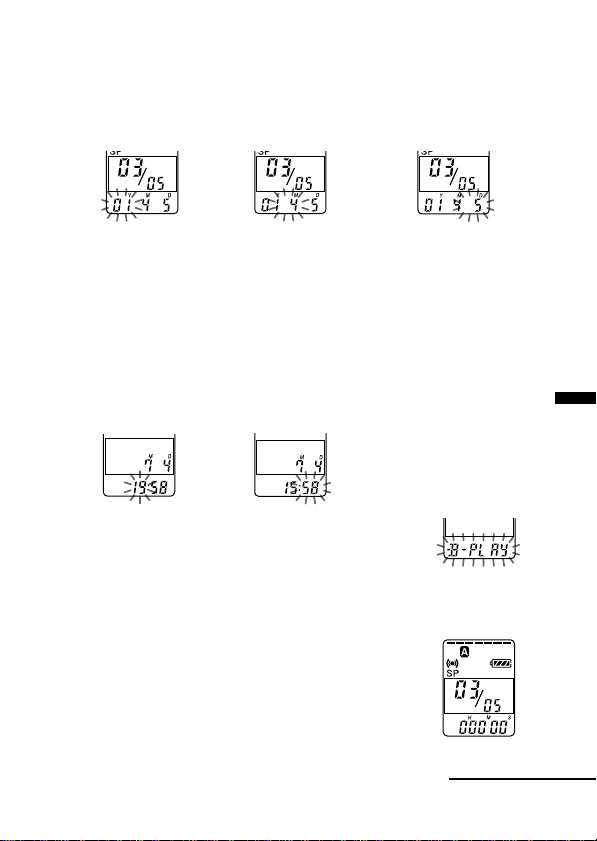
4 Set the alarm date.
• to play back on a desired date
1 Press Nx while
“DATE” is flashing.
2 Press . or >
to select the year
digits and press
Nx.
3 Select the month
and day digits in
the same way.
• to play back once a week
Press . or > to select the day of the
week and press Nx.
• to play back at the same time every day
Press . or > to select “DAILY” and press Nx.
5 Set the alarm time.
1 Press . or
> to select
the hour digits
and press Nx.
2 Select the minute
digits and press
Nx.
6 Press . or > to select “B-PLAY”
(playback will start with an alarm) or
“B-ONLY” (only an alarm will sound).
7 Press Nx PLAY/STOP.
The setting has been completed.
8 Press MENU to exit the menu mode.
The display returns to the normal display.
“,” is displayed when the number of the
message with alarm setting is selected.
Continued

32
GB
Playing Back a Message at a Desired Time with an
Alarm (continued)
At the set time, the alarm will sound for about 10 seconds and the selected
message will be played back. ( If “B-ONLY” was selected in Step 6, only
the alarm will sound.)
When the playback ends, the unit will stop automatically at the beginning
of that message.
To listen to the same message again
Press NxPLAY/STOP. The same message will be played back from the
beginning.
To stop the alarm before the playback starts
Press xSTOP while the alarm sound is heard. You can stop even when the
HOLD function is activated.
To cancel the alarm setting
Press . or > to flash “OFF” in Step 3 on page 30 and press
NxPLAY/STOP.
To change the alarm date and time
Follow Steps 1 to 3 on page 30. When the alarm date is displayed, follow
Steps 4 to 7 on page 31 to change the alarm date and time.
Notes
• If you try to set the alarm to play back a message at a previously set time on
another message, “PRE SET” will be displayed, preventing new settings.
• If the alarm time comes while another message is being played back with an
alarm, the playback stops and the new message will be played back.
• If the timer recording start time comes during alarm playback, the playback
stops and the timer recording will start.
• If the alarm time comes during recording, alarm will sound after the
recording is finished and “,” will flash.
• If more than one alarm time comes during recording, only the first message
will be played back.
• When the alarm time comes when the unit is in the menu mode, alarm will
sound and the menu mode will be cancelled.
• If you erase the message you set the alarm to play back, the alarm setting will
be cancelled.
• If you add an index to the message you set the alarm to play back, playback
will stop at the index.
• If you erase the index on the message you set the alarm to play back, the alarm
setting will be cancelled.
• You can adjust the playback volume with the VOL control.
• If the alarm time comes during erasing, alarm will sound for 10 seconds after
the erasing is finished and playback begins.
• Alarm setting will not be cancelled when the alarm playback finishes. To
cancel alarm setting, see above.
Other Functions
33
GB
Preventing Accidental Operation —
HOLD function
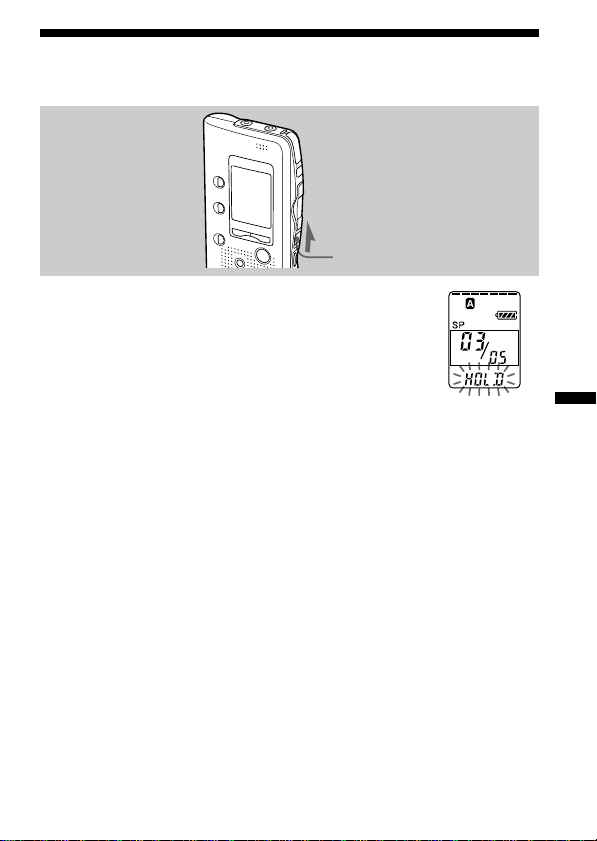
Slide the HOLD switch in the direction of the
arrow. “HOLD” will flash three times, indicating
that all the functions of the buttons are locked.
To cancel the HOLD function, simply slide the
HOLD switch in the opposite direction.
Note
When the HOLD function is activated during recording, cancel the HOLD
function first to stop recording.
1 Tip
Even if the HOLD function is activated, you can stop the alarm playback. To
stop the alarm or playback, press xSTOP.
HOLD switch
34
GB
Selecting the Display Mode
You can select the display mode for the stop, recording and playback
modes. (If the unit is left unoperated for more than 3 seconds in the stop
mode, the display will show the current time, regardless of the display
mode setting.)
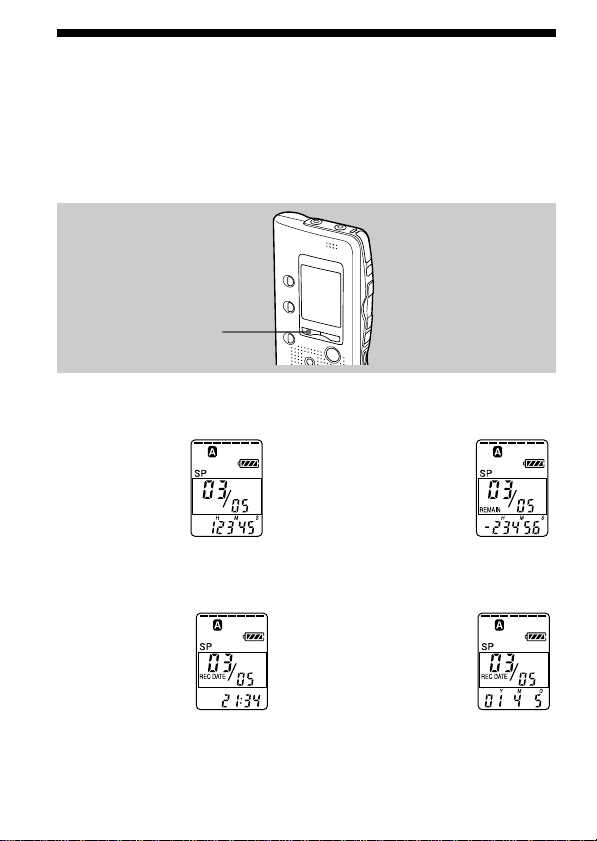
Each time you press DISPLAY, the display mode will change as shown
below:
DISPLAY
Counter:
Elapsed playback/
recording
time in one
message
,
Remaining recording time:
The remaining recording
time is displayed
during recording or in
stop mode.
During playback, the
remaining time of the
message is displayed.
m
Recorded date:
The date the current
message was recorded.
(If the clock has not
been set,
“- -Y- -M- -D” will be
displayed.)
<
M
Recorded time:
The date and
time the current
message was
recorded.
(If the clock has
not been set,
“- -:- -” will be
displayed.)
Other Functions
35
GB
ALARM OFF
ON
DATE
SUN
MON
TUE
WED
THU
FRI
SAT
DAILY
DATE
SUN
MON
TUE
WED
THU
FRI
SAT
DAILY
MODE
OFF
ON
TIMER
SP
LP
BEEP ON
OFF
CONT OFF
ON
SENS HI
LO
VOR OFF
ON
EASY-S OFF
ON
SET DATE
B-PLAY
B-ONLY
SP
LP
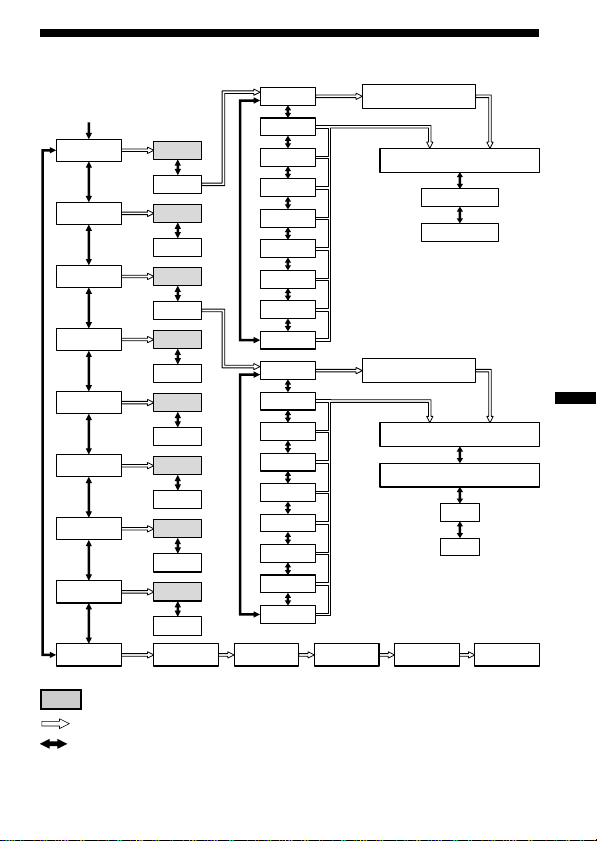
Menu map
Press MENU to enter
the menu mode.
Year
Month
Day
Hour
Minute
: Initial setting
: Press NxPLAY/STOP to go to the next step.
: Press . or > to select.
Set date
Set time
Set start time
Set end time
Set date

36
GB
Changing the Settings
Follow the menu map on page 35.
1 Press MENU to enter the menu mode.
2 Press . or > to select the item and press Nx PLAY/STOP.
3 Press . or > to select the mode and press Nx PLAY/STOP to fix
the setting.
z Alarm setting (ALARM)
See page 30.
z Timer recording (TIMER)
See page 27.
z Recording mode (MODE)
SP: You can record for up to 63 minutes (ICD-B10)/127 minutes (ICD-
B15) with better sound.
LP: You can record for up to 168 minutes (ICD-B10)/339 minutes (ICD-
B15).
z Beep sound (BEEP)
BEEP ON: A beep will sound to indicate that operation has been
accepted.
BEEP OFF: No beep sound will be heard except for the alarm and timer.
zContinuous Play (CONT)
CONT ON: You can play back all messages in a folder continuously.
CONT OFF: Playback stops at the end of each message.
zMicrophone sensitivity (SENS)
HI (high): To record at a meeting or in a quiet and/or spacious place.
LO (low): To record for dictation or in a noisy place.
z VOR (Voice Operated Recording) (VOR)
VOR ON: Recording starts when the recorder detects sound and stops
when no sound is heard.
VOR OFF: The recorder keeps recording whether sound is heard or
not.
z Easy search (EASY-S)
EASY-S ON: You can go back for approx. 3 seconds with a press of the
. button, or advance for approx. 10 seconds with a
press of the > button.
EASY-S OFF: You can go back to the beginning of the current message
with a press of the . button , or advance to the
beginning of the next message with a press of the >
button.
z Clock setting (SET DATE)
See page 8.

Additional Information
37
GB
BAdditional Information
Precautions
On power
• Operate the unit only on 3 V DC. Use two LR03 (size AAA) alkaline
batteries.
On safety
• Do not operate the unit while driving, cycling or operating any
motorized vehicle.
On handling
• Do not leave the unit in a location near heat sources, or in a place subject
to direct sunlight, excessive dust or mechanical shock.
• Should any solid object or liquid fall into the unit, remove the batteries
and have the unit checked by qualified personnel before operating it any
further.
On noise
• Noise may be heard when the unit is placed near an AC power source, a
fluorescent lamp or a mobile phone during recording or playback.
• Noise may be recorded when an object, such as your finger, etc., rubs or
scratches the unit during recording.
On maintenance
• To clean the exterior, use a soft cloth slightly moistened in water. Do not
use alcohol, benzine or thinner.
Keep personal credit cards using magnetic coding or spring-wound
watches, etc., away from the unit to prevent possible damage from the
magnet used in the speaker.
If you have any questions or problems concerning your unit, please
consult your nearest Sony dealer.
Backup recommendations
To avoid potential risk of data loss caused by accidental operation or
malfunction of the IC recorder, we recommend that you save a backup
copy of your recorded messages on a tape recorder or to a computer,
etc.

38
GB
Troubleshooting
Before taking the unit for repair, check the following sections. Should any
problem persist after you have made these checks, consult your nearest
Sony dealer.
Symptom
The unit does not
operate.
No sound comes
from the speaker.
“FULL” is displayed
and you cannot start
recording.
You cannot
overwrite.
Noise is heard.
Remedy
•The batteries have been inserted with incorrect
polarity.
•The batteries are weak.
•The buttons are locked with the HOLD switch.
(If you press any button, “HOLD” will flash
three times.)
•The earphone or headphones are plugged in.
•The volume is turned down completely.
•The memory is full. Erase some of the
messages. See page 19.
•99 messages have been recorded in the selected
file. Select another file or erase some of the
messages. See page 19.
•The remaining memory is too short. The
overwritten part will be deleted after the
overwriting part finishes recording. Therefore,
you can only overwrite within the remaining
recording time.
•An object, such as your finger, etc., accidentally
rubbed or scratched the unit during recording
so that noise was recorded.
•The unit was placed near an AC power source,
a fluorescent lamp or a mobile phone during
recording or playback.
•Plug of the connected microphone was dirty
when recording. Clean the plug.
•Earphone/headphones plug is dirty. Clean the
plug.

Additional Information
39
GB
Remedy
•“LO”is selected in the SENS mode. Select “HI”
(see page 36).
•The advanced VOR function (page 13) is
activated. Select “OFF” in the VOR mode.
•This unit is designed to automatically adjust
the recording level when recording meetings,
etc., and is not suitable for music recording.
•Set the PLAY SPEED selector to “NORMAL.”
See page 16.
•You have not set the clock (see page 8).
•The date of recording will not be displayed if
you recorded the message when the clock was
not set.
•You cannot set the alarm or timer at a date and
time previously set on another message.
•The effect of the back light of the display
window may be reduced in a bright location.
•The battery life may shorten depending on the
operation of the unit.
•Take out the batteries and insert them again.
Continued
Symptom
Recording level is
low.
Recording is
interrupted.
Recording level is
unstable (when
recording music, etc.)
Playback speed is too
fast or too slow.
“--:--” is displayed.
“--Y--M--D” or ” --:--”
is displayed on the
REC DATE display.
“PRE SET” is
displayed and you
cannot set the alarm
or timer.
The back light of the
display window does
not illuminate (ICD-
B15 only).
The battery life is
short.
The unit does not
operate correctly.
Please note that recorded messages may be erased during service or repair
work.

40
GB
Troubleshooting (continued)
Error messages
Error message
“PRE SET”
“BACK-D”
“NO ERASE”
“NO DATA”
“SET DATE”
“ID FULL”
“FULL”
“ACCESS”
Cause/Remedy
•You set the alarm to play back a message or set
the timer to start recording at a date and time
previously set on another message. Change the
alarm or timer recording setting.
•You set the alarm or time recording when the
time is already past. Check it and set the
appropriate date and time.
•You cannot erase an index to combine
messages of different modes.
•The selected folder does not have any
messages. You cannot set the alarm, etc.
because of this.
•If you do not set date and time, you cannot
make alarm or time recording setting. To set
date and time, see page 8.
•When there are already 99 messages in the
selected folder or the remaining memory of the
IC recorder is short, you cannot add an index.
Erase some messages before adding an index.
•The remaining memory of the IC recorder is
too short. Erase some messages before
recording.
•You inserted the batteries. Wait until the
message disappears before starting operation.

Additional Information
41
GB
System limitations
There are some system limitations of the IC recorder. Troubles as
mentioned below are not malfunctions of the unit.
Symptom
You cannot record
messages up to the
maximum recording
time.
You cannot add an
index.
You cannot erase the
indexes.
Cause/Remedy
•If you record messages in a mixture of SP and
LP modes, the recordable time varies from the
maximum SP mode recording time to the
maximum LP recording time.
•If there are a number of messages shorter than
the minimum recording unit (Approx. 16
seconds in SP mode and approx. 42 seconds in
LP mode), they are still counted as 16 seconds
or 42 seconds, so the remaining recording time
may decrease by more than the actual length of
the messages.
•Even when each message is longer than the
minimum recording unit, if the length of each
message cannot be divided by the minimum
recording unit, the remaining recording time
may decrease by more than the total length of
the messages.
•The sum of the number on the counter (elapsed
recording time) and the remaining recording
time may be less than the unit’s maximum
recording time (page 12).
•You cannot add an index in a folder which has
99 messages.
•If you add or erase indexes frequently, the unit
may become unable to add indexes.
•You cannot erase an index to combine different
recording mode (SP/LP) messages.
•If you add or erase indexes frequently, the unit
may become unable to erase indexes.
42
GB
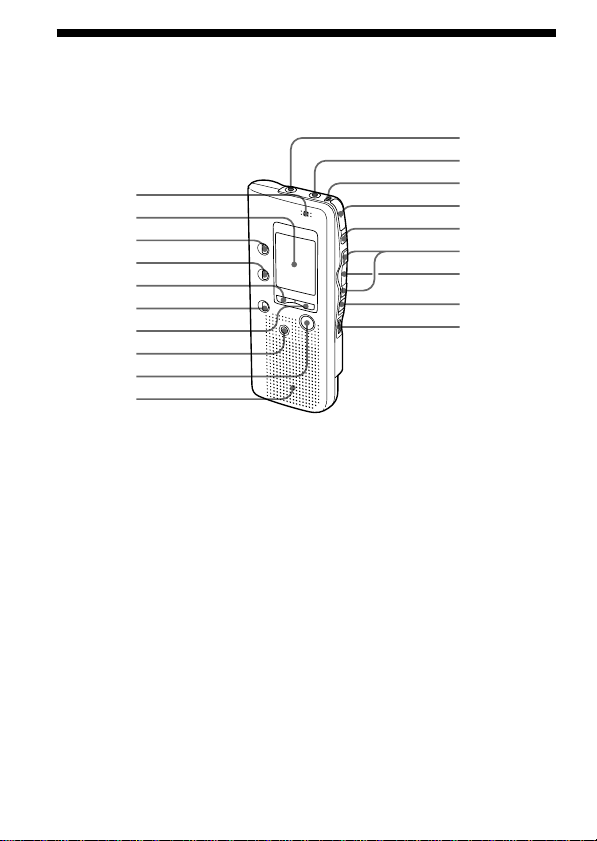
1 MIC (built-in microphone)
(10)
2 Display window (44)
3 FOLDER button (10, 14)
4 INDEX button (23)
5 DISPLAY button (34)
6 A-B REPEAT button (18)
7 MENU button (8, 27, 30, 35,
36)
8 ERASE button (19)
9 xSTOP button (11, 15)
q; Speaker
qa MIC (PLUG IN POWER)
jack (13)
qs EAR (earphone) jack (15)
qd OPR (operation) indicator
(10, 15)
Index to Parts and Controls
qf zREC (record) /STOP
button (10, 21)
qg X PAUSE button (11, 15)
qh .REVIEW/>CUE (fast
backward, review/fast
forward, cue•selection of
menu mode) button (8, 14,
16, 17, 23, 25, 27, 30, 35, 36)
qj NxPLAY/STOP
•EXECUTE (play/
stop•enter) button (8, 15, 16,
18, 26, 27, 30, 35, 36)
qk HOLD switch (33)
ql VOL (volume) control (15)
qa
qs
qd
qf
qg
qh
qj
qk
ql
q;
9
8
7
6
5
4
3
2
1
Refer to the pages indicated in parentheses for details.
Main unit
Additional Information
43
GB
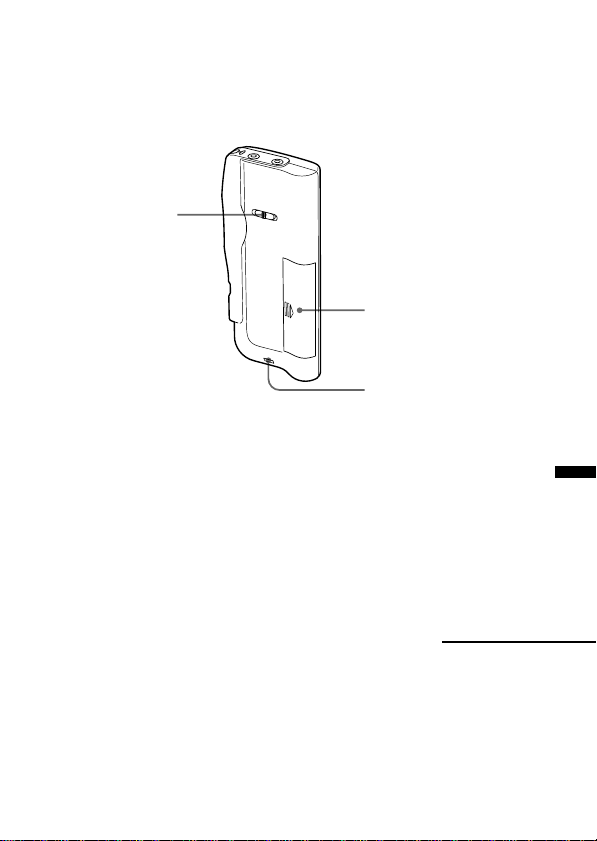
Rear
ws
wa
w;
w; PLAY SPEED selector (16)
wa Battery compartment (6)
ws Hook for handstrap (not
supplied)
Continued
44
GB
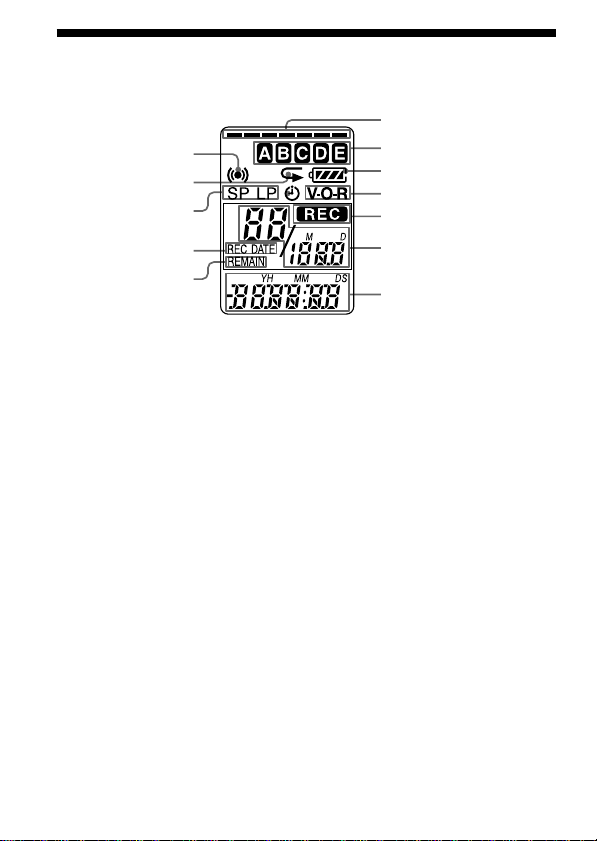
Display window
1 Alarm indicator (32)
2 Repeat play indicator (16)
3
Recording mode indication (36)
4 REC DATE (recorded date)
indication (34)
5 REMAIN indicator (34)
6 Remaining memory
indicator (12)
7
Folder indication (10, 14)
(For ICD-B10, folders D and
E do not appear.)
8
Remaining battery indicator (7)
9
VOR (voice operated
recording) indicator (13)
q;
REC (recording) indicator (10)
6
7
8
9
q;
qa
qs
1
2
3
4
5
qa Selected message number
(10, 14)/Mode indication of
the menu (ON, OFF, etc.) (8,
20, 24, 27, 30, 35)
qs Counter /Remaining time
indication /Recording date
and time indication /
Current time indication
(15:30, etc.) (34)/Menu
indication /Messages
(ERASE, HOLD, etc.)
Note
The effect of the back light of the
display window may be reduced
in a bright location (ICD-B15 only).
Index to Parts and Controls (continued)

Additional Information
45
GB
Specifications
Recording media Built-in flash memory, Monaural recording
Recording time ICD-B10: 63 minutes (SP)/168 minutes (LP)
ICD-B15: 127 minutes (SP)/339 minutes (LP)
Frequency response SP: 250 Hz - 7,300 Hz
LP: 300 Hz - 3,500 Hz
Speaker approx. 3.2 cm (1
5
/
16
in.) dia.
Power output 300 mW
Input/Output • Earphone jack (minijack) for 16 - 300 ohms
earphone/headphones
• Microphone jack (minijack, monaural)
Plug in power
Minimum input level 0.6 mV
3 kilohms or lower impedance microphone
Playback speed control FAST +30%, SLOW –15%
Power requirements Two LR03 (size AAA) alkaline batteries: 3 V DC
Dimensions (w/h/d)
(not incl. projecting parts and controls)
44.5 × 105.3 × 14.0 mm (1
13
/
16
× 4
1
/
4
×
9
/
16
in.)
Mass (incl. batteries) 68 g (2.4 oz)
Optional accessories Electret Condenser Microphone ECM-Z60, ECM-
T115
Earphone MDR-ED228LP, MDR-E818LP
Connecting cord RK-G64
Your dealer may not handle some of the above listed optional accessories. Please
ask the dealer for detailed information.
Design and specifications are subject to change without notice.

46
GB
Index
A
A-B repeat ...................................... 18
Accidental operation .................... 33
Add, index ..................................... 23
Add, recording .............................. 21
Advanced VOR ............................. 13
Alarm.............................................. 30
B
Battery .............................................. 6
Beep ................................................ 36
Built-in microphone ..................... 10
C
Clock setting .................................... 8
Connecting external microphone 13
Connecting other equipment ...... 13
Continuous playback ................... 36
Counter display ............................ 34
Cue .................................................. 17
D
Display window ........................... 44
Display mode ................................ 34
E
Easy search .................................... 17
Erase, index ................................... 25
Erase, messages ............................. 19
Error messages .............................. 40
External microphone .................... 13
F, G
Folder ....................................... 10, 14
H
Hold ................................................ 33
I, J, K
IC memory ....................................... 4
Index ...............................................23
L
LP mode ......................................... 36
M, N
Menu......................... 8, 27, 30, 35, 36
Menu map...................................... 35
Message, erasing ........................... 19
Message, move .............................. 26
Message, playing back ................. 14
Message, recording....................... 10
Message number ............... 10, 14, 23
Microphone, built-in .................... 10
Microphone, external ................... 13
Microphone, connecting .............. 13
Microphone sensitivity .......... 12, 36
Move ...............................................26
O
Overwrite recording..................... 22
P, Q
Play back continuously ................ 36
Playback ......................................... 14
Playback Pause function .............. 15
Playback speed.............................. 16
Plug in power ................................13

Additional Information
47
GB
R
Recorded date ............................... 34
Recording ....................................... 10
Recording mode ............................ 36
Remaining memory ................ 10, 12
Remaining recording time ........... 34
Repeat play .................................... 16
Review ............................................ 17
S
Scanning play ................................ 16
Search backward ........................... 17
Search forward .............................. 17
SP mode. ........................................ 36
T, U
Timer recording ............................ 27
V, W, X, Y, Z
Volume control ............................. 15
VOR .......................................... 13, 36

48
GB
Sony Corporation Printed in Japan