2
Contents
Front Panel≫ Rear Panel≫ Remote≫
Contents
≫
Connections
≫
Playback
≫
Setup
≫
Table of contents
What’s in the box 5
Additional Function (Firmware Update) 6
Update Information of the rmware 6
Operation of added new functions 6
Firmware Update Procedure 7
Part Names 10
Front Panel 10
Display 12
Rear Panel 13
Remote Controller 15
Connections
Connecting speakers 17
Speaker Installation 18
Speaker Connections and "Speaker Setup" Settings 45
Connecting a Power Amplier 62
Speaker combinations 63
Connecting the TV 64
To ARC/eARC TV 65
To Non-ARC TV 66
Connecting Playback Devices 67
Connecting an AV Component with HDMI Jack
Mounted 67
Connecting an AV Component without HDMI Jack
Mounted 68
Connecting an Audio Component 69
Connecting a Video Camera, etc. 70
Connecting an AV Component in a Separate Room
(Multi-zone Connection) 71
Connecting a TV (ZONE 2) 71
Connecting a Pre-main Amplier (ZONE 2) 72
Connecting a Pre-main Amplier (ZONE 3) 73
Connecting ZONE B 74
Connecting a Pre-main Amplier, etc. (ZONE B) 74
Connecting Antennas 75
Network Connection 76
Connecting External Control Devices 77
IR IN port 77
12V TRIGGER OUT jack 78
Connecting the Power Cord 79
Playback
AV Component Playback 81
Basic Operations 81
BLUETOOTH
®
Playback 82
Basic Operations 82
3
Front Panel≫ Rear Panel≫ Remote≫
Contents
≫
Connections
≫
Playback
≫
Setup
≫
Internet Radio 83
Playing Back 83
Spotify 85
AirPlay
®
86
Playing Back on This Unit 86
Playing Back on multiple devices (AirPlay2) 87
DTS Play-Fi
®
88
Playing Back 88
FlareConnect
TM
89
Playing Back 89
USB Storage Device 90
Basic Operations 90
Device and Supported Format 92
Playing back les on a PC and NAS (Music Server) 93
Windows Media
®
Player settings 93
Playing Back 94
Supported Audio Formats 97
Play Queue 98
Initial Setup 98
Adding Play Queue Information 98
Sort and Delete 99
Playing Back 99
Amazon Music 100
Registering This Unit with Amazon Music 100
Playing Amazon Music 100
Connecting the Sonos System for Playback 101
Necessary Equipment 101
How to Connect This Unit and Sonos Connect 101
Setting Up 101
Playing Sonos on This Unit 102
Listening To the AM/FM Radio 103
Tuning into a Radio Station 103
Presetting a Radio Station 105
Using RDS (Australian and Asian models) 107
Multi-zone 108
Playing Back (ZONE 2) 109
Playing Back (ZONE 3) 111
ZONE B Playback 113
Playing Back 113
Convenience functions 114
Displaying Your Favorite Video on TV While Playing
Music 114
Adjusting the tone 115
Sleep Timer 116
4
Front Panel≫ Rear Panel≫ Remote≫
Contents
≫
Connections
≫
Playback
≫
Setup
≫
Listening Mode 117
Selecting a Listening mode 117
Speaker Layouts and Selectable Listening Modes 119
Listening Mode Effects 122
Input Formats and Selectable Listening Modes 128
Inputting Characters 143
Setup
Setup Menu 144
Menu list 144
Menu operations 147
1. Input/Output Assign 148
2. Speaker 152
3. Audio Adjust 159
4. Source 161
5. Listening Mode Preset 162
6. Hardware 163
7. Multi Zone 179
8. Miscellaneous 180
Quick Menu 182
Menu operations 182
Web Setup 184
Menu operations 184
Initial Setup with Auto Start-up Wizard 185
Operations 185
Troubleshooting
When the unit is operating erratically 189
Troubleshooting 191
Appendix
Reducing the Power Consumption in Standby State 200
About HDMI 201
General Specications 203
5
Front Panel≫ Rear Panel≫ Remote≫
Contents
≫
Connections
≫
Playback
≫
Setup
≫
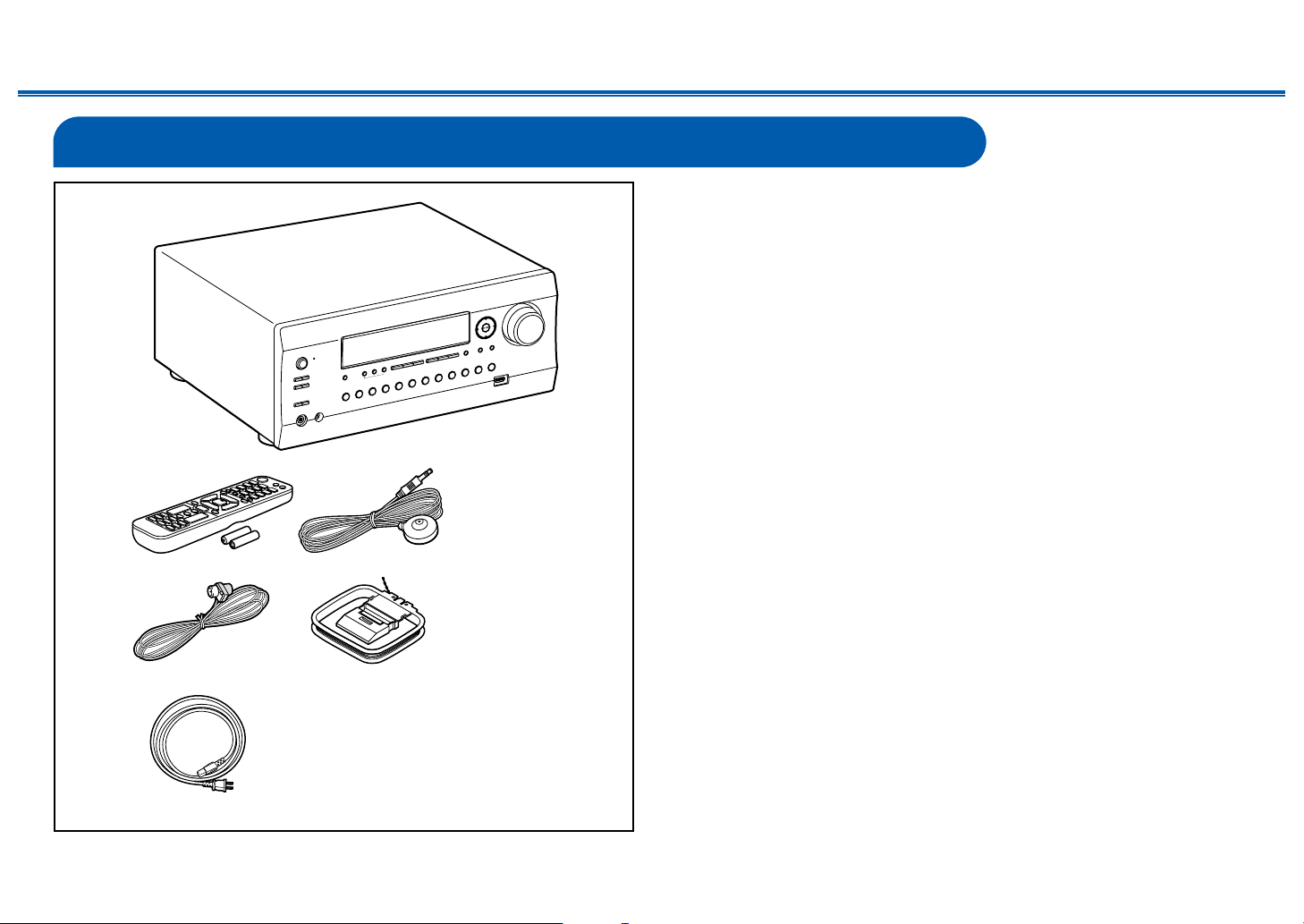
What’s in the box
1. Main unit (1)
2. Remote controller (RC-973R) (1), Batteries (AAA/R03) (2)
3. Speaker setup microphone (1)
• Used during Initial Setup.
4. Indoor FM antenna (1)
5. AM loop antenna (1)
6. Power cord (1)
• Quick Start Guide (1)
*This is an online user manual. This is not supplied with the product.
• Connect speakers with an impedance of 4 Ω to 16 Ω.
• The power cord must be connected only after all other connections are
completed.
• We will not accept any responsibility for damage arising from the connection
with equipment manufactured by other companies.
• Network services and content that can be used may no longer be available
if new functions are added by updating rmware or the service providers
terminate their services. Also, available services may differ depending on your
area.
• Details on the rmware update will be posted on our website and through
other means at a later date.
• Specications and appearance are subject to change without prior notice.
1
32
54
6
6
Front Panel≫ Rear Panel≫ Remote≫
Contents
≫
Connections
≫
Playback
≫
Setup
≫
Additional Function (Firmware Update)
This unit is equipped with a function to update the rmware via network or USB port when the rmware update is announced after purchase. This enables various
functions to be added and operations to be improved.
Depending on the manufacturing timing of the product, the rmware may be switched to the updated one. In such a case, new functions may be added from the start.
For how to conrm the latest rmware contents and the rmware version of your product, see the following section.
Update Information of the rmware
For the latest rmware contents and the rmware version, visit our company's website. If the rmware version of your product differs from the latest one, it is
recommended to update the rmware.
To conrm the rmware version of your product, press the button on the remote controller, and refer to "8. Miscellaneous" - "Firmware Update" - "Version" ( p180).
Operation of added new functions
If functions are added or changed from contents described in the Instruction Manual, see the following reference.
Supplementary Information ≫
❏ Firmware Update Procedure ( p7)
7
Front Panel≫ Rear Panel≫ Remote≫
Contents
≫
Connections
≫
Playback
≫
Setup
≫
Firmware Update Procedure
The update may take approx. 20 minutes to complete via network or via USB
port. Existing settings are guaranteed in either updating method.
When this unit is connected to the network, notications of rmware updates
may be displayed. To update the rmware, select "Update Now" with the cursor
buttons of the remote controller and press Enter. The unit automatically enters
standby mode after "Completed!" is displayed, and the update is completed.
Disclaimer: The program and accompanying online documentation are furnished
to you for use at your own risk.
Our company will not be liable and you will have no remedy for damages for
any claim of any kind whatsoever concerning your use of the program or the
accompanying online documentation, regardless of legal theory, and whether
arising in tort or contract.
In no event will our company be liable to you or any third party for any special,
indirect, incidental, or consequential damages of any kind, including, but not
limited to, compensation, reimbursement or damages on account of the loss of
present or prospective prots, loss of data, or for any other reason whatsoever.
Updating the Firmware via Network
• While updating the rmware, do not do the following:
– Disconnecting and reconnecting cables, USB storage device, speaker
setup microphone or headphones, or performing operations on the unit
such as turning the power off
– Accessing this unit from a PC or smartphone using their applications
• Check that the unit is turned on, and the connection to the Internet is secured.
• Turn off control devices (PC etc.) connected to the network.
• Stop an Internet radio, USB storage device, or server content being played.
• If the multi-zone function is active, turn it off.
• If "HDMI CEC" is set to "On", set it to "Off".
– Press . Next, select "6. Hardware" - "HDMI" and press Enter, then select
"HDMI CEC" and select "Off".
* The descriptions may differ from the actual on-screen displays, however, operations
and functions are the same.
Update
1. Press .
The Setup menu is displayed on the TV screen.
Setup
1. Input/Output Assign
2. Speaker
3. Audio Adjust
4. Source
5.
Listening Mode Preset
6. Hardware
7. Multi Zone
8. Miscellaneous
1. TV Out / OSD
2. HDMI Input
3. Video Input
4. Digital Audio Input
5. Analog Audio Input
2. Select "8. Miscellaneous" - "Firmware Update" - "Update via NET" with the
cursors in order, then press Enter.
Setup
1. Input/Output Assign
2. Speaker
3. Audio Adjust
4. Source
5.
Listening Mode Preset
6. Hardware
7. Multi Zone
8. Miscellaneous
1. Tuner
2. Remote ID
3. Firmware Update
4. Initial Setup
5. Lock
6. Factory Reset
• If "Firmware Update" is grayed out and cannot be selected, wait for a while
until it starts up.
• If there is no updatable rmware, "Update via NET" cannot be selected.
3. Press Enter with "Update" selected, and start update.
• During the update, the TV screen may go black depending on the program
to be updated. In such a case, check the progress on the display of the
unit. The TV screen will remain black until the update is completed and the
power is turned on again.
• When "Completed!" is displayed, the update is complete.
8
Front Panel≫ Rear Panel≫ Remote≫
Contents
≫
Connections
≫
Playback
≫
Setup
≫
4. Press On/Standby on the main unit to turn the unit into standby mode. The
process is completed, and your rmware is updated to the latest version.
• Do not use on the remote controller.
If an Error Message is Displayed
If an error occurs, "- Error!" is displayed on the display of the unit. (""
represents an alphanumeric character.) Refer to the following descriptions and
check.
Error Code
• -01, -10:
LAN cable not found. Connect the LAN cable properly.
• -02, -03, -04, -05, -06, -11, -13, -14, -16, -17, -18, -20,
-21:
Internet connection error. Check the following:
– Whether the router is turned on
– Whether this unit and the router are connected via the network
Unplug and plug the power cords of this unit and the router. This may solve
the problem. If you are still unable to connect to the Internet, the DNS server
or proxy server may be temporarily down. Check the server operation status
with your Internet service provider.
• Others:
After removing the power plug once, insert it to the outlet, and then start the
operation from the beginning.
Updating via USB
• While updating the rmware, do not do the following:
– Disconnecting and reconnecting cables, USB storage device, speaker
setup microphone or headphones, or performing operations on the unit
such as turning the power off
– Accessing this unit from a PC or smartphone using their applications
• Prepare a 256 MB or larger USB storage device. The format of USB storage
devices supports FAT16 or FAT32 le system format.
– Media inserted into a USB card reader may not be used for this function.
– USB storage devices equipped with the security function are not supported.
– USB hubs and USB devices equipped with the hub function are not
supported. Do not connect these devices to the unit.
• Delete any data stored on the USB storage device.
• Turn off control devices (PC etc.) connected to the network.
• Stop an Internet radio, USB storage device, or server content being played
• If the multi-zone function is active, turn it off.
• If "HDMI CEC" is set to "On", set it to "Off".
– Press
. Next, select "6. Hardware" - "HDMI" and press Enter, then select
"HDMI CEC" and select "Off".
* Depending on the USB storage device or its content, long time may be required
for loading, the content may not be loaded correctly, or power may not be supplied
correctly.
* Our company will not be liable whatsoever for any loss or damage of data, or storage
failure arising from the use of the USB storage device. Please note this in advance.
* The descriptions may differ from the actual on-screen displays, however, operations
and functions are the same.
Update
1. Connect the USB storage device to your PC.
2. Download the rmware le from the our company's website to your PC and
unzip.
Firmware les are named as below.
ONKAVR_R.zip
Unzip the le on your PC. The number of unzipped les and folders varies
depending on the model.
3. Copy all unzipped les and folders to the root folder of the USB storage
device.
• Make sure to copy the unzipped les.
4. Connect the USB storage device to the USB port of this unit.
• If an AC adapter is supplied with the USB storage device, connect the AC
adapter, and use it with a household outlet.
• If the USB storage device has been partitioned, each section will be treated
as an independent device.
9
Front Panel≫ Rear Panel≫ Remote≫
Contents
≫
Connections
≫
Playback
≫
Setup
≫
5. Press .
The Setup menu is displayed on the TV screen.
Setup
1. Input/Output Assign
2. Speaker
3. Audio Adjust
4. Source
5.
Listening Mode Preset
6. Hardware
7. Multi Zone
8. Miscellaneous
1. TV Out / OSD
2. HDMI Input
3. Video Input
4. Digital Audio Input
5. Analog Audio Input
6. Select "8. Miscellaneous" - "Firmware Update" - "Update via USB" with the
cursors in order, then press Enter.
Setup
1. Input/Output Assign
2. Speaker
3. Audio Adjust
4. Source
5.
Listening Mode Preset
6. Hardware
7. Multi Zone
8. Miscellaneous
1. Tuner
2. Remote ID
3. Firmware Update
4. Initial Setup
5. Lock
6. Factory Reset
• If "Firmware Update" is grayed out and cannot be selected, wait for a while
until it starts up.
• If there is no updatable rmware, "Update via USB" cannot be selected.
7. Press Enter with "Update" selected, and start update.
• During the update, the TV screen may go black depending on the program
to be updated. In such a case, check the progress on the display of the
unit. The TV screen will remain black until the update is completed and the
power is turned on again.
• During the update, do not turn the power off, or disconnect or reconnect the
USB storage device.
• When "Completed!" is displayed, the update is complete.
8. Disconnect the USB storage device from the unit.
9. Press
On/Standby on the main unit to turn the unit into standby mode. The
process is completed, and your rmware is updated to the latest version.
• Do not use on the remote controller.
If an Error Message is Displayed
If an error occurs, "- Error!" is displayed on the display of the unit. (""
represents an alphanumeric character.) Refer to the following descriptions and
check.
Error Code
• -01, -10:
The USB storage device cannot be recognized. Check if the USB storage
device or USB cable is securely inserted to the USB port of the unit.
Connect the USB storage device to an external power source if it has its own
power supply.
• -05, -13, -20, -21:
The rmware le is not present in the root folder of the USB storage device, or
the rmware le is for another model. Retry from the download of the rmware
le.
• Others:
After removing the power plug once, insert it to the outlet, and then start the
operation from the beginning.

11
Contents
≫
Connections
≫
Playback
≫
Setup
≫
Front Panel≫ Rear Panel≫ Remote≫
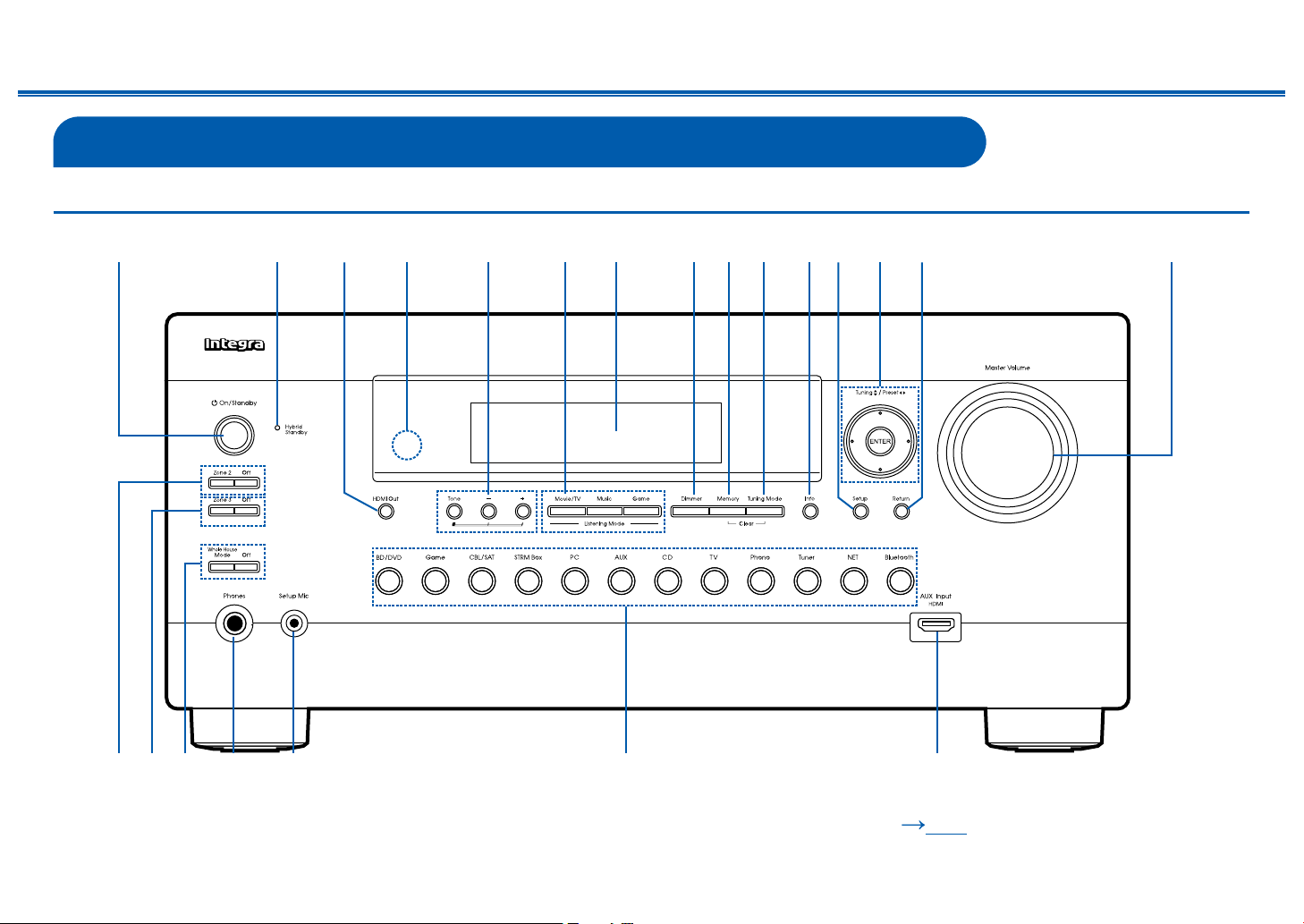
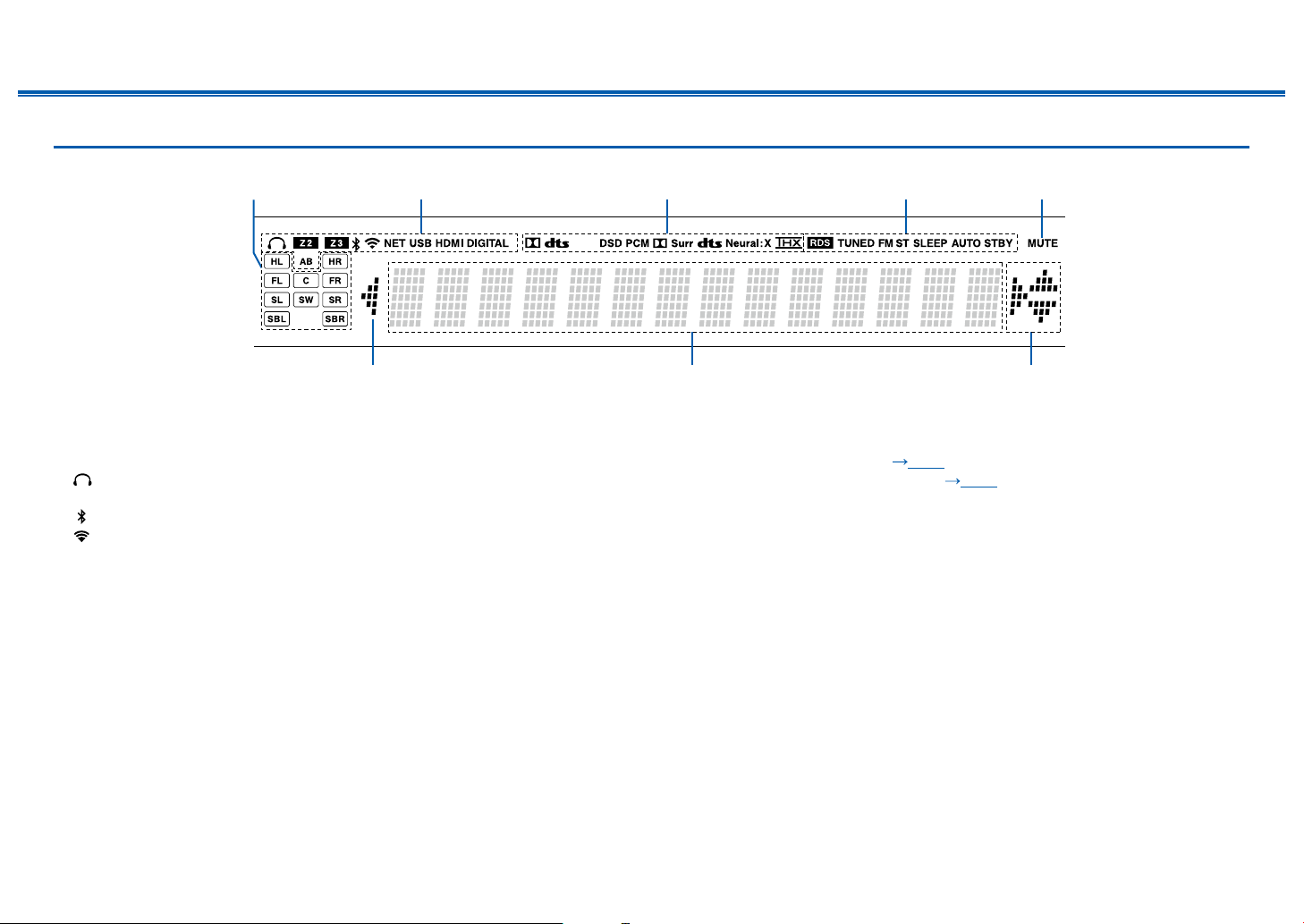
1. On/Standby button
2. Hybrid Standby indicator: Lights up when any of the following functions is
working or enabled in standby state of this unit. When this indicator is lighting,
the power consumption in standby state increases, however, the increase in
power consumption is minimized by entering the Hybrid Standby mode where
only the essential circuits operate.
– HDMI CEC ( p163)
– HDMI Standby Through ( p163)
– USB Power Out at Standby ( p168)
– Network Standby ( p168)
– Bluetooth Wakeup ( p168)
3. HDMI Out button: Allows you to select the HDMI OUT jack to output video
signals from "MAIN", "SUB", and "MAIN+SUB". ( p148)
4. Remote control sensor: Receives signals from the remote controller.
• The reception range of the remote controller is within a distance of approx.
16´/5 m, and an angle of 20° in vertical direction and 30° to right and left.
5. Adjusts the sound quality. Press the Tone button to select an item to adjust
from "Bass", "Vocal" and "Treble", and press + and - to adjust. ( p115)
6. Listening Mode button: Press "Movie/TV", "Music" or "Game" button to change
the listening mode. ( p117)
7. Display ( p12)
8. Dimmer button: Switches the brightness of the display with three levels. It
cannot be turned off completely.
9. Memory button: Used to register AM/FM radio stations. ( p105)
10.
Tuning Mode button: Switches the tuning mode. ( p103)
11.
Info button: Switches the information on the display. ( p118)
12.
Setup button: You can display advanced setting items on the TV and the
display to have a more enjoyable experience with this unit. ( p144)
13.
Cursor buttons ( / / / ) and Enter button: Select an item with the
cursors, and press Enter to conrm your selection. When using Tuner, use
them to tune in to stations. ( p103)
14.
Return button: Returns the display to the previous state while setting.
15.
Master Volume
16.
Zone 2 button: Controls the multi-zone function. ( p109)
Off button: Switches the multi-zone function off
17.
Zone 3 button: Controls the multi-zone function. ( p109)
Off button: Switches the multi-zone function off
18.
Whole House Mode button: Enables the WHOLE HOUSE MODE function to
play the same source in all the multi-zone connected rooms. ( p110, 112)
Off button: Switches the WHOLE HOUSE MODE function off.
19.
Phones jack: Connect headphones with a standard plug (ø1/4"/6.3 mm).
20.
Setup Mic jack: Connect the supplied speaker setup microphone. ( p186)
21.
Input selector buttons: Switches the input to be played.
22.
AUX Input HDMI jack: Connect a video camera, etc. using an HDMI cable.
( p70)
12
Front Panel≫ Rear Panel≫ Remote≫
Contents
≫
Connections
≫
Playback
≫
Setup
≫
Display
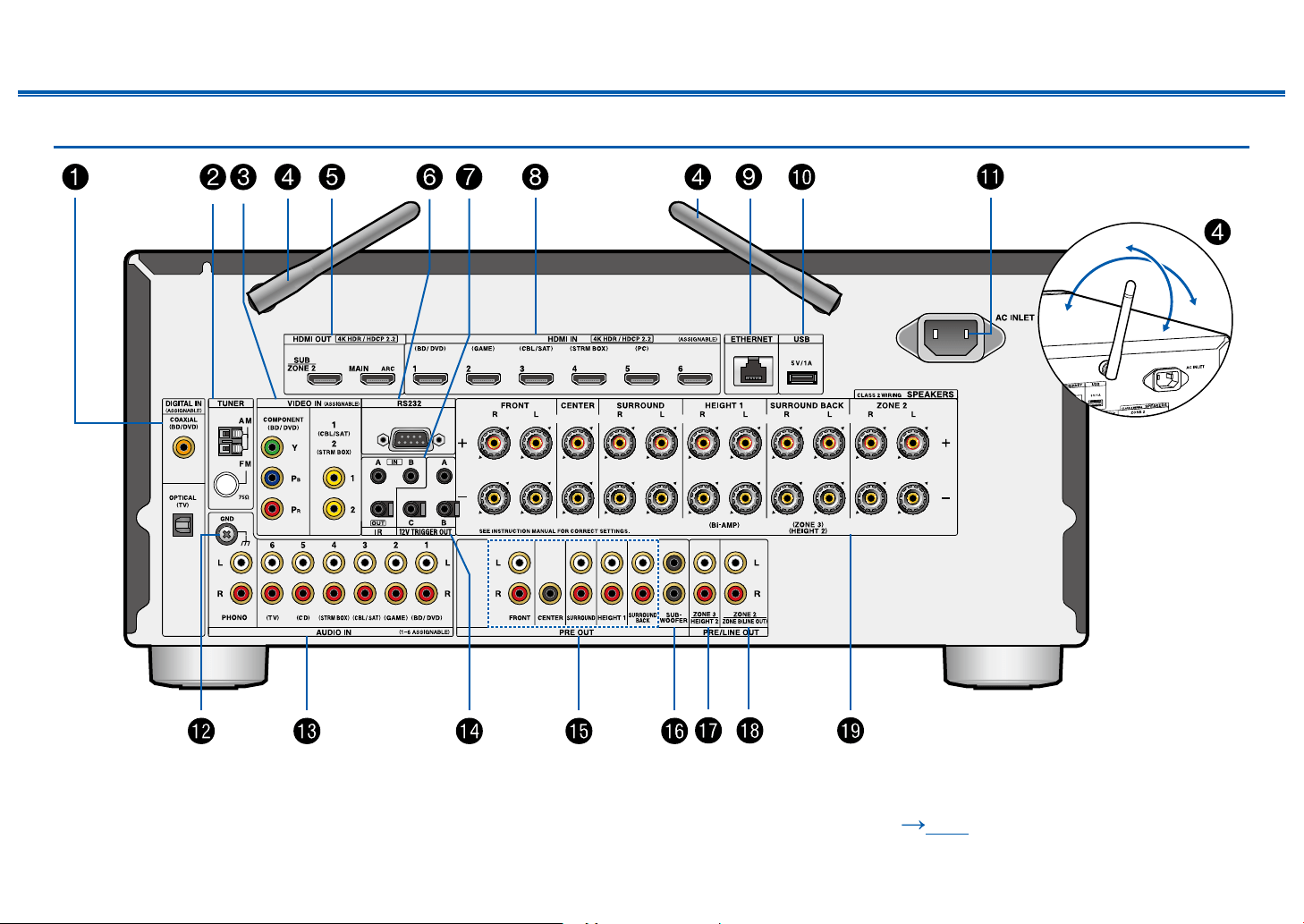
1. Speaker/Channel display: Displays the output channel that corresponds to the
selected listening mode.
2. Lights in the following conditions.
: Headphones are connected.
Z2/Z3: ZONE 2/ZONE 3 is on.
: Connected by BLUETOOTH.
: Connected by Wi-Fi.
NET: Lights when connected to the network with the "NET" input selector. It
will blink if incorrectly connected to the network.
USB: Lights when the "NET" input selector is selected, a USB device is
connected and the USB input is selected. It will blink if the USB device is not
properly connected.
HDMI: HDMI signals are input and the HDMI input is selected.
DIGITAL: Digital signals are input and the digital input is selected.
A: Audio in output only to ZONE A.
B: Audio is output only to ZONE B.
AB: Audio is output to both ZONE A and ZONE B.
3. Lights according to the type of input digital audio signal and the listening
mode.
4. Lights in the following conditions.
RDS (Australian and Asian models): Receiving RDS broadcasting.
TUNED: Receiving AM/FM radio.
FM ST: Receiving FM stereo.
SLEEP: Sleep timer is set. ( p167)
AUTO STBY: Auto Standby is set. ( p167)
5. Blinks when muting is on.
6. Displays various information of the input signals.
• "DialogNorm: X dB" ("X" is a numerical value) may be displayed when
software recorded in Dolby lineage or DTS lineage audio formats is played.
For example, if "DialogNorm: +4 dB" is displayed, the source being played
is recorded with 4 dB plus the THX standard level. If you play it with the
THX standard level, lower the volume by 4 dB.
7. This may light when operating with the "NET" input selector.
2
776
543
1

14
Contents
≫
Connections
≫
Playback
≫
Setup
≫
Front Panel≫ Rear Panel≫ Remote≫
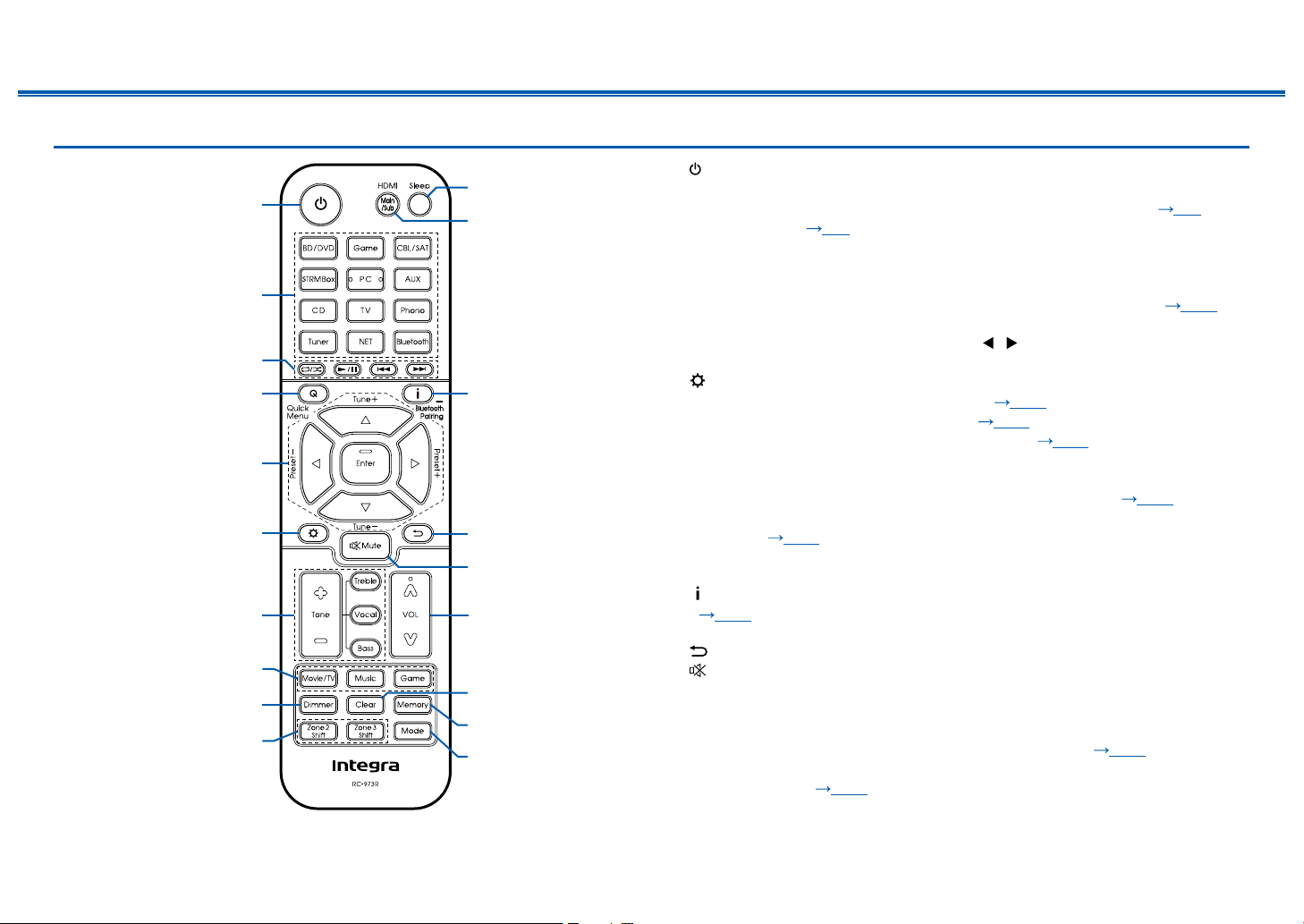
1. DIGITAL IN OPTICAL/COAXIAL jacks: Input TV or AV component digital audio
signals with a digital optical cable or digital coaxial cable.
2. TUNER AM/FM terminal: Connect the supplied antennas.
3. COMPONENT VIDEO IN jacks: Input AV component video signals with a
component video cable. (Compatible only with 480i or 576i resolution.)
VIDEO IN jacks: Input AV component video signals with an analog video cable.
4. Wireless antenna: Used for WI-Fi connection or when using a BLUETOOTH-
enabled device. Adjust the angles according to the connection status.
5. HDMI OUT jacks: Transmit video signals and audio signals with an HDMI
cable connected to a monitor such as a TV or projector.
6. RS-232 port: Connect a home control system equipped with an RS-232 port.
For adopting a home control system, contact the specialized stores.
7. IR IN A/B, IR OUT port: Connect a remote control receiver unit. ( p77)
8. HDMI IN jacks: Transmit video signals and audio signals with an HDMI cable
connected to an AV component.
9. ETHERNET port: Connect to the network with a LAN cable.
10.
USB port: Connect a USB storage device to play music les. ( p90) You
can also supply power (5 V/1 A) to USB devices with a USB cable.
11.
AC INLET: Connect the supplied power cord.
12.
GND terminal: Connect the ground wire of the turntable.
13.
AUDIO IN jacks: Input AV component audio signals with an analog audio
cable.
14.
12V TRIGGER OUT A/B/C jack: Connect a device equipped with a 12V trigger
input jack to enable power link operation between the device and this unit.
( p78)
15.
PRE OUT jacks: Connect to a power amplier. ( p62)
16.
SUBWOOFER PRE OUT jacks: Connect a powered subwoofer with a
subwoofer cable. Up to two powered subwoofers can be connected. The same
signal is output from each SUBWOOFER PRE OUT jack.
17.
ZONE 3 PRE/LINE OUT jacks: Output audio signals with an analog audio
cable connected to a pre-main amplier or a power amplier in a separate
room (ZONE 3).
HEIGHT 2 PRE OUT jacks: Connect a power amplier. ( p62)
18.
ZONE 2 PRE/LINE OUT jacks: Output audio signals with an analog audio
cable connected to a pre-main amplier or a power amplier in a separate
room (ZONE 2).
ZONE B LINE OUT jacks: Connect to a pre-main amplier with an analog
audio cable, and simultaneously output audio of the same source as that of
the speakers (ZONE A) connected to this unit.
19.
SPEAKERS terminals: Connect speakers with speaker cables. (North
American models support banana plugs. Use a plug 4 mm in diameter. Y plug
connection is not supported.)
15
Contents
≫
Connections
≫
Playback
≫
Setup
≫
Front Panel≫ Rear Panel≫ Remote≫
Remote Controller
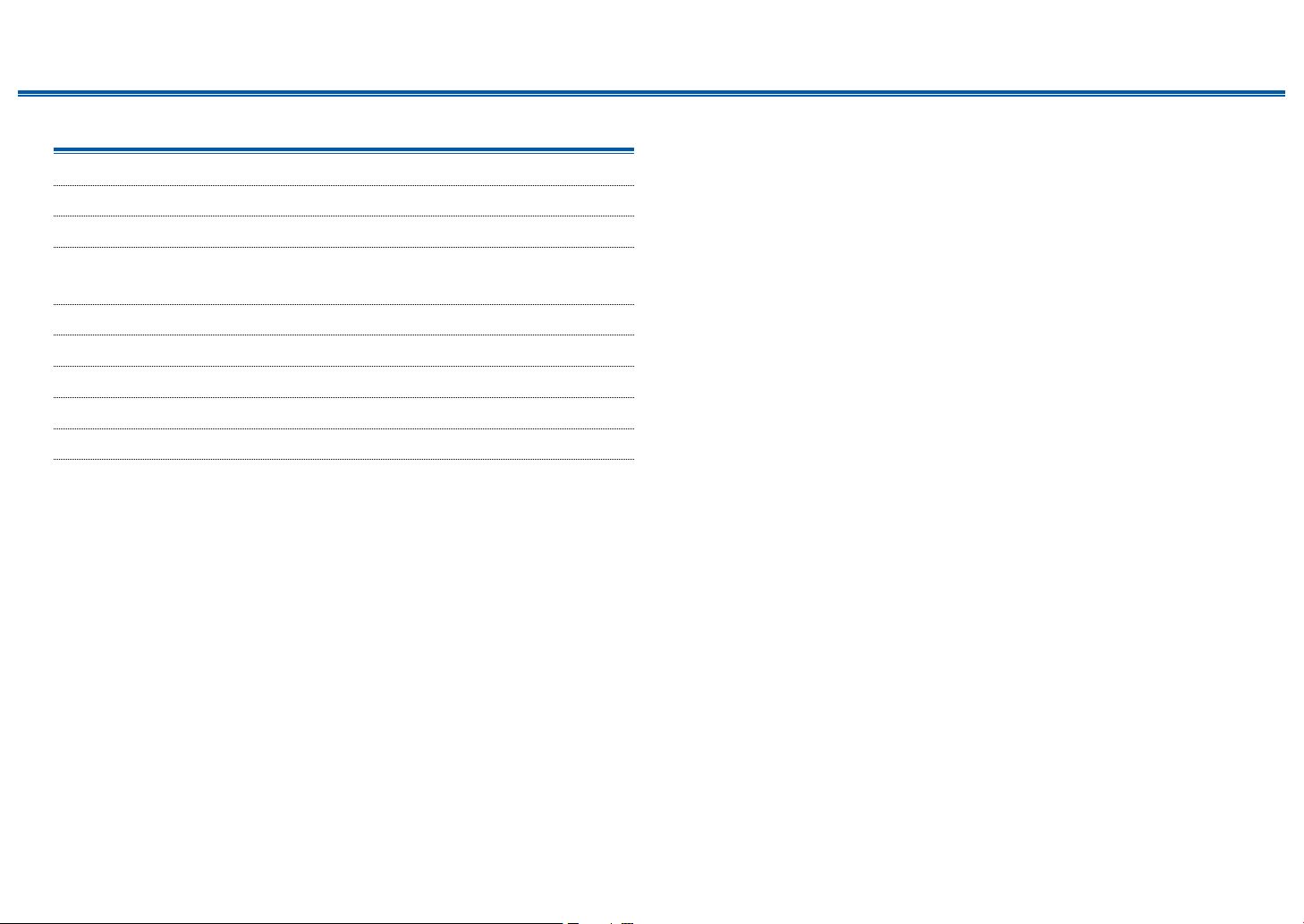
1. On/Standby button
2. Input selector buttons: Switches the input to be played.
3. Play buttons: Used for playback operations for the Music Server ( p93)
or USB device ( p90). If the unit is switched to "CEC MODE" using
"19. Mode button" , an HDMI CEC function-enabled AV component can be
operated. (Depending on the device, operation may not be possible.)
4.
Q (Quick Menu) button: Pressing this button during playback can make settings
such as "HDMI" and "Audio" quickly on the TV screen while playing. ( p
182
)
5. Cursor buttons and Enter button: Select an item with the cursors, and press
Enter to conrm your selection. Pressing / can switch the screen when a
music folder list or le list is not displayed on one screen on the TV.
6. button: Display advanced setting items on the TV or the display to have a
more enjoyable experience with this unit. ( p144)
7. Tone button: Adjusts the sound quality. ( p115)
8. Listening Mode button: Select a listening mode ( p117).
9. Dimmer button: Switches the brightness of the display with three levels. It
cannot be turned off completely.
10.
Zone 2/Zone 3 Shift button: Control the multi-zone function ( p108).
11.
Sleep button: Set the sleep timer. Select the time from "30 min", "60 min" and
"90 min". ( p116)
12.
HDMI Main/Sub button: Select the HDMI OUT jack to output video signals
from "MAIN", "SUB", and "MAIN+SUB".
13.
button: Switches the information on the display and is used to operate RDS
( p107). Also, when the "BLUETOOTH" input selector is selected, pressing
and holding this button for 5 seconds or more will switch to the pairing mode.
14.
button: Returns the display to the previous state while setting.
15.
button: Temporarily mutes audio. Press the button again to cancel muting.
16.
VOLUME buttons
17.
Clear button: Deletes all characters you have entered when entering text on
the TV screen.
18.
Memory button: Used to register AM/FM radio stations. ( p105)
19.
Mode button: Switches between automatic tuning and manual tuning for
AM/FM stations ( p103). Also, when an HDMI CEC function-enabled AV
component is connected to this unit, you can switch "3. Play buttons" between
"CEC MODE" and "RCV MODE" (normal mode).
16
Connections
Front Panel≫ Rear Panel≫ Remote≫
Contents
≫
Connections
≫
Playback
≫
Setup
≫
Connections
Connecting speakers 17
Connecting the TV 64
Connecting Playback Devices 67
Connecting an AV Component in a Separate Room
(Multi-zone Connection) 71
Connecting ZONE B 74
Connecting Antennas 75
Network Connection 76
Connecting External Control Devices 77
Connecting the Power Cord 79
17
Front Panel≫ Rear Panel≫ Remote≫
Contents
≫
Connections
≫
Playback
≫
Setup
≫
- Connecting
Speakers
Connecting speakers
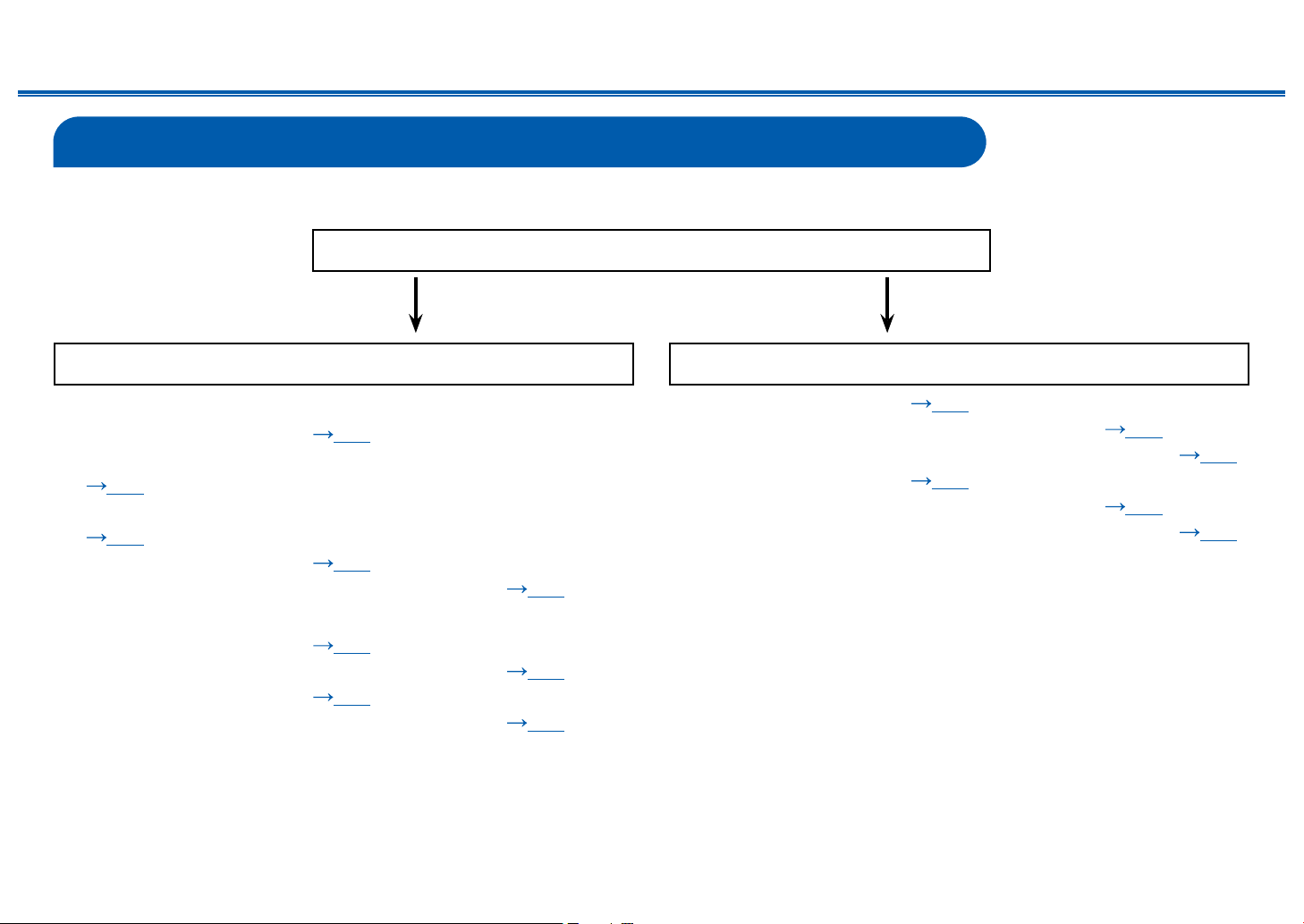
You can select the layout of speakers to be installed from various patterns when using this unit. Use the following ow chart to select the speaker layout that suits your
speakers and usage environment. You can check the connection method and default settings.
Yes No
Use height speakers?
When using 1 set of Height Speakers
• 5.1.2 Channel System (
p53)
• 5.1.2 Channel System + ZONE SPEAKER
(
p54)
• 5.1.2 Channel System (Bi-Amping the Speakers)
(
p55)
• 7.1.2 Channel System ( p56)
• 7.1.2 Channel System + ZONE SPEAKER ( p57)
When using 2 sets of Height Speakers
• 5.1.4 Channel System (
p58)
• 5.1.4 Channel System + ZONE SPEAKER ( p59)
• 7.1.4 Channel System ( p60)
• 7.1.4 Channel System + ZONE SPEAKER ( p61)
• 5.1 Channel System ( p47)
• 5.1 Channel System + ZONE SPEAKER ( p48)
• 5.1 Channel System (Bi-Amping the Speakers) ( p49)
• 7.1 Channel System ( p50)
• 7.1 Channel System + ZONE SPEAKER ( p51)
• 7.1 Channel System (Bi-Amping the Speakers) ( p52)
18
Front Panel≫ Rear Panel≫ Remote≫
Contents
≫
Connections
≫
Playback
≫
Setup
≫
Speaker Installation
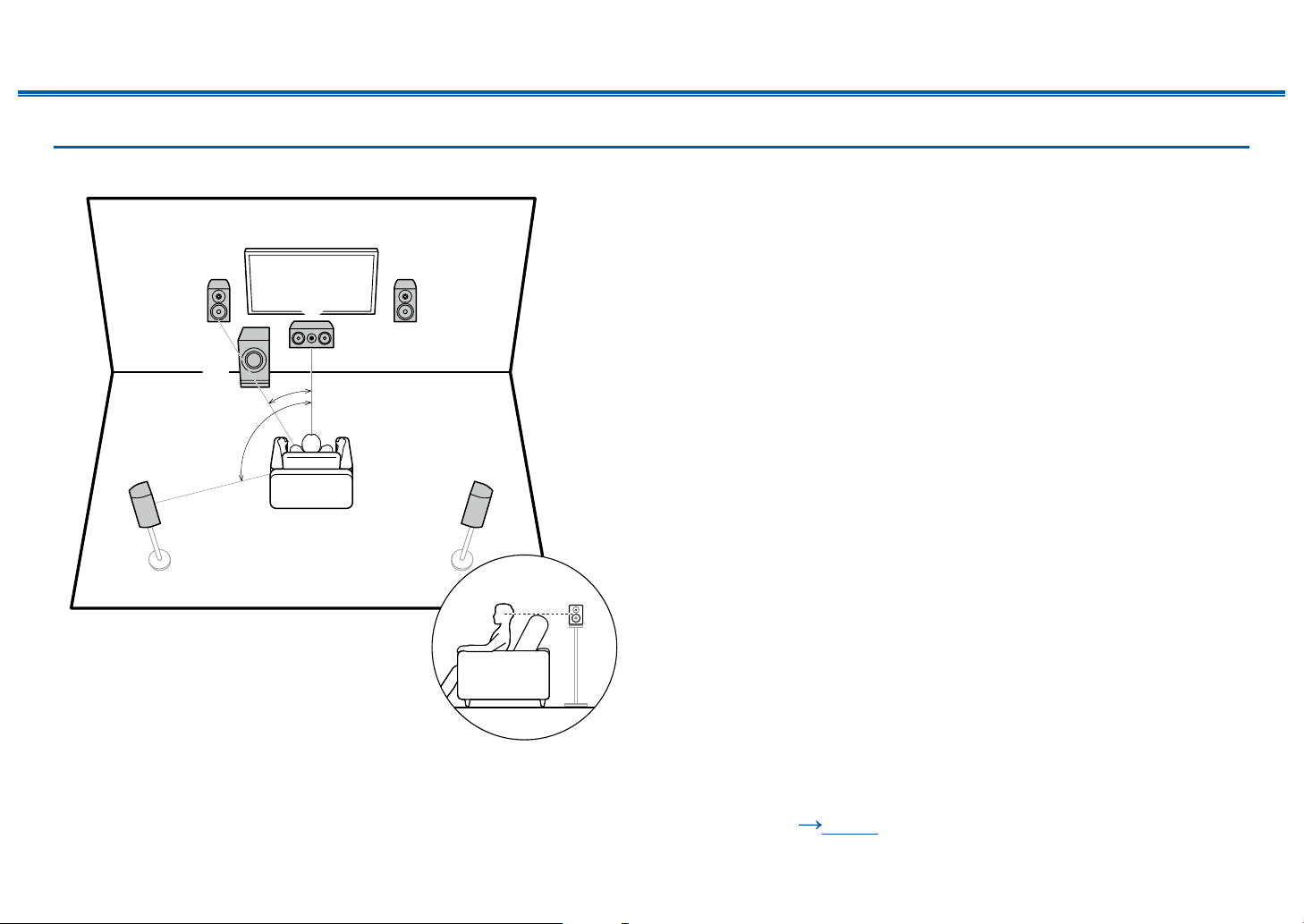
5.1 Channel System
a
b
12
45
3
6
a: 22° to 30°, b: 120°
This is a basic 5.1 Channel System. Front speakers output the front stereo
sound, and a center speaker outputs the sound of the center of the screen, such
as dialogs and vocals. Surround speakers create the back sound eld. Powered
subwoofer reproduces the bass sound, and creates the rich sound eld.
The front speakers should be positioned at ear height while the surround
speakers should be positioned just above ear height. The center speaker
should be set up facing the listening position at an angle. Placing the powered
subwoofer between the center speaker and the front speaker gives you a natural
sound even when playing music sources.
1,2 Front Speakers
3 Center Speaker
4,5 Surround Speakers
6 Powered Subwoofer
❏ Speaker Layouts and Selectable Listening
Modes ( p119)
19
Front Panel≫ Rear Panel≫ Remote≫
Contents
≫
Connections
≫
Playback
≫
Setup
≫
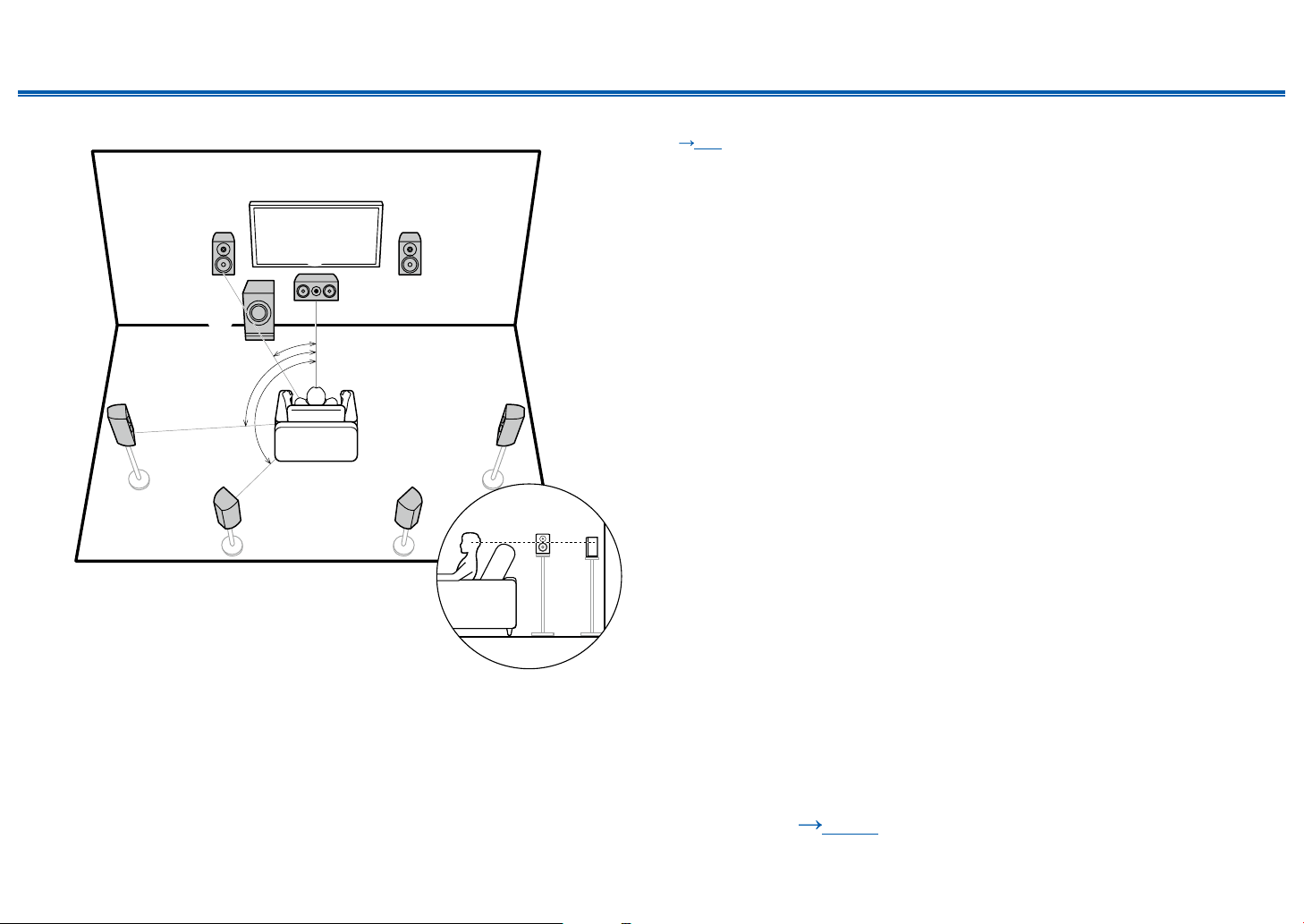
7.1 Channel System
a
b
c
12
54
87
3
6
a: 22° to 30°, b: 90° to 110°, c: 135° to 150°
This is a 7.1 Channel System that consists of the basic 5.1 Channel System
( p18) and added surround back speakers. Front speakers output the
front stereo sound, and a center speaker outputs the sound of the center of the
screen, such as dialogs and vocals. Surround speakers create the back sound
eld. Powered subwoofer reproduces the bass sound, and creates the rich
sound eld. Surround back speakers improves the sense of envelopment and
connectivity of sound in the back sound eld, and provides a more real sound
eld.
The front speakers should be positioned at ear height while the surround
speakers should be positioned just above ear height. The center speaker
should be set up facing the listening position at an angle. Placing the powered
subwoofer between the center speaker and the front speaker gives you a natural
sound even when playing music sources. The surround back speakers should be
positioned at ear height.
• If surround back speakers are installed, be sure to install surround speakers
as well.
1,2 Front Speakers
3 Center Speaker
4,5 Surround Speakers
6 Powered Subwoofer
7,8 Surround Back Speakers
❏ Speaker Layouts and Selectable Listening
Modes ( p119)

20
Front Panel≫ Rear Panel≫ Remote≫
Contents
≫
Connections
≫
Playback
≫
Setup
≫
5.1.2 Channel System
A 5.1.2 Channel System is a speaker layout consisting of the basic 5.1 Channel System ( p18) and added height speakers. Select the height speakers that suit
your speakers and usage environment from the following three types.
❏ Front High Speakers/Rear High Speakers
Installation Example (
p21)
❏ Ceiling Speakers Installation Example
(
p22)
❏ Dolby Enabled Speakers (Dolby Speakers)
Installation Example (
p23)
21
Front Panel≫ Rear Panel≫ Remote≫
Contents
≫
Connections
≫
Playback
≫
Setup
≫
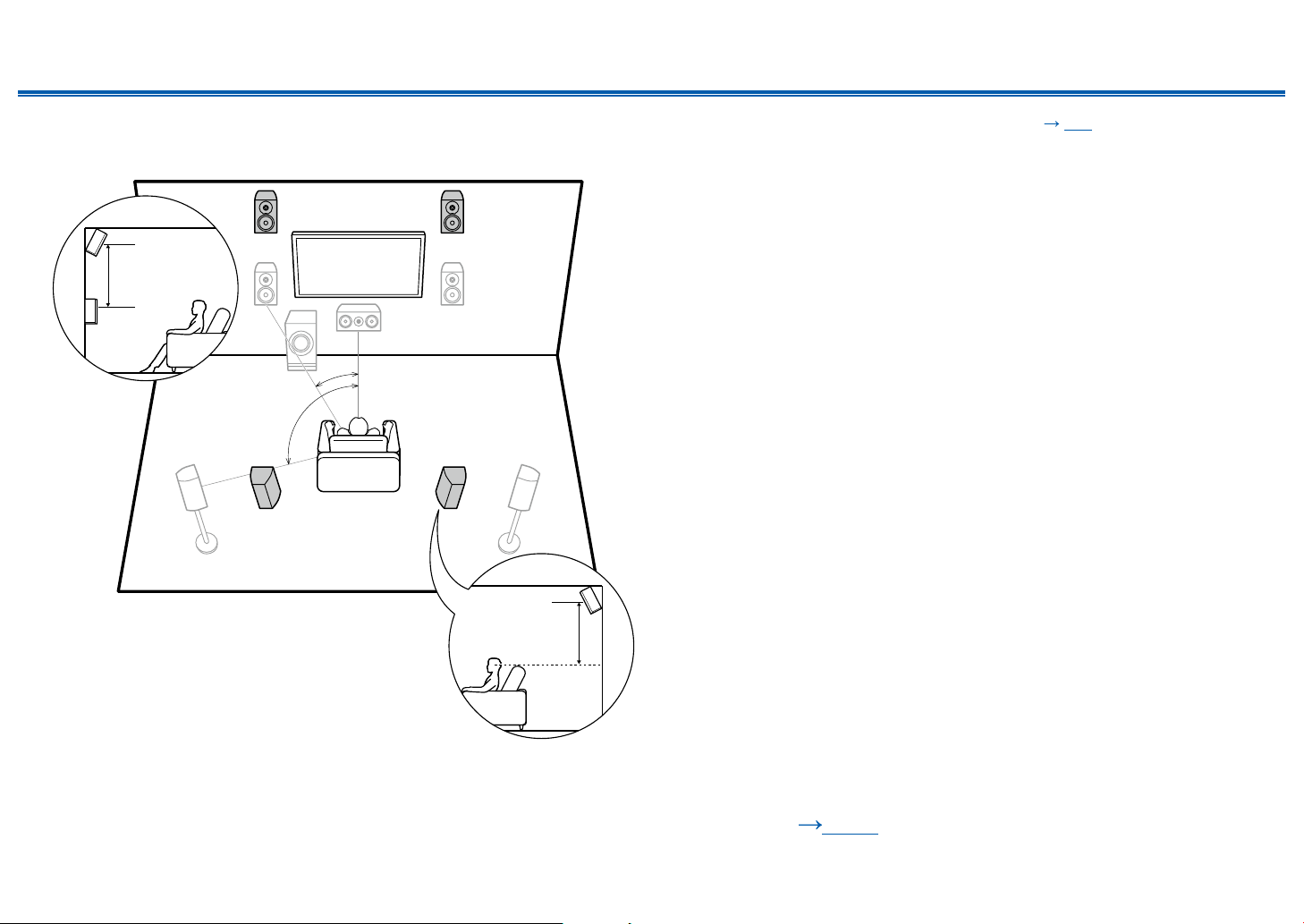
❏ Front High Speakers/Rear High Speakers
Installation Example
a
b
78
78
a: 22° to 30°, b: 120°
3´ (0.9 m)
or more
3´ (0.9 m)
or more
This is a system with the basic 5.1 channel system ( p18) consisting of
front speakers, a center speaker, surround speakers and a powered subwoofer,
and added front high speakers or rear high speakers combined. Installing the
height speakers will enrich the sound eld feeling in the upper space. Front high
speakers or rear high speakers should be installed at least 3´/0.9 m higher than
the front speakers.
Front high speakers should be installed directly above the front speakers, and the
distance between the rear high speakers should match the distance between the
front speakers. In both cases, the speakers should be set up facing the listening
position at an angle.
7,8 Height Speakers
Choose one of the following:
• Front High Speakers
• Rear High Speakers
❏ Speaker Layouts and Selectable Listening
Modes ( p119)
22
Front Panel≫ Rear Panel≫ Remote≫
Contents
≫
Connections
≫
Playback
≫
Setup
≫
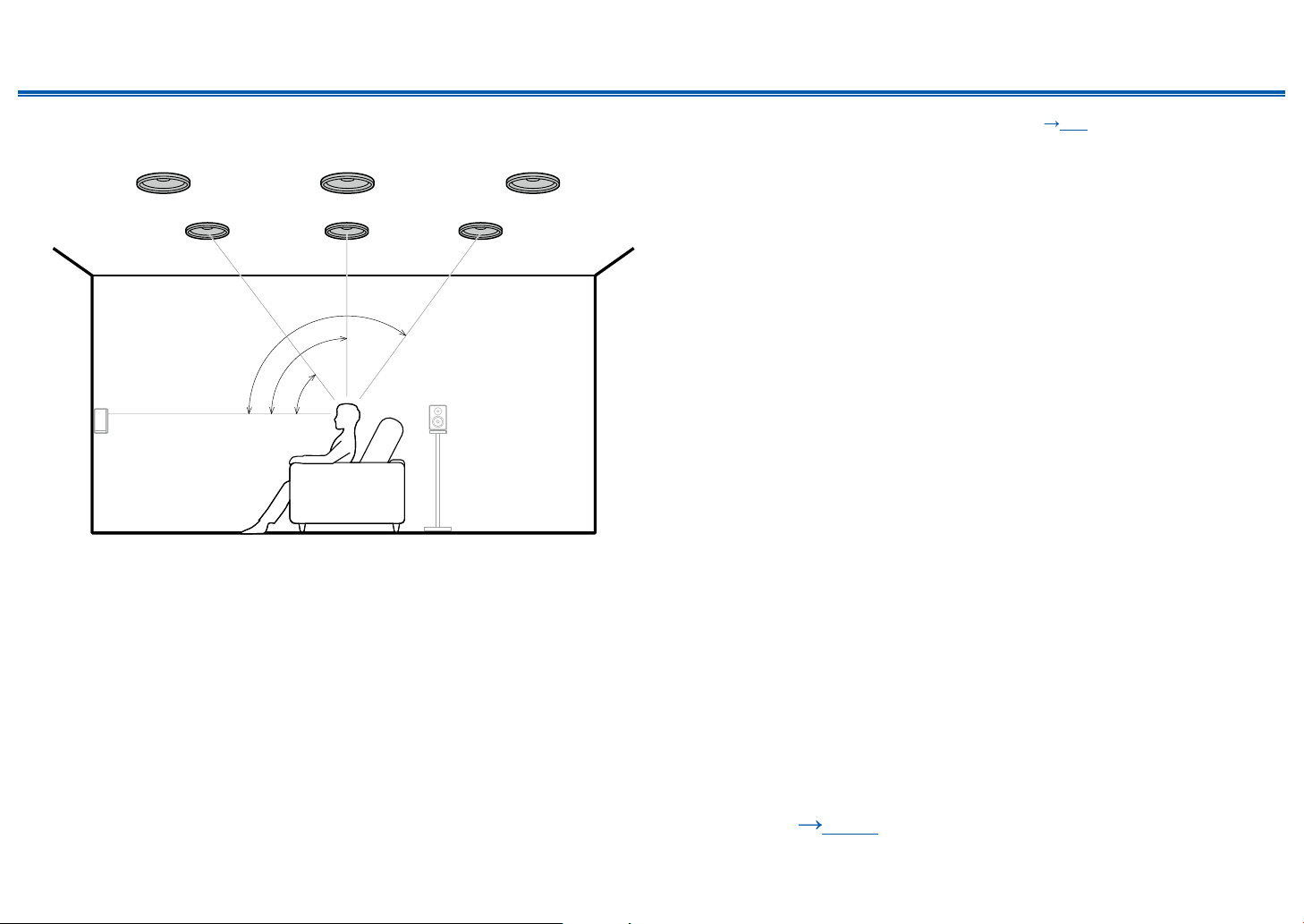
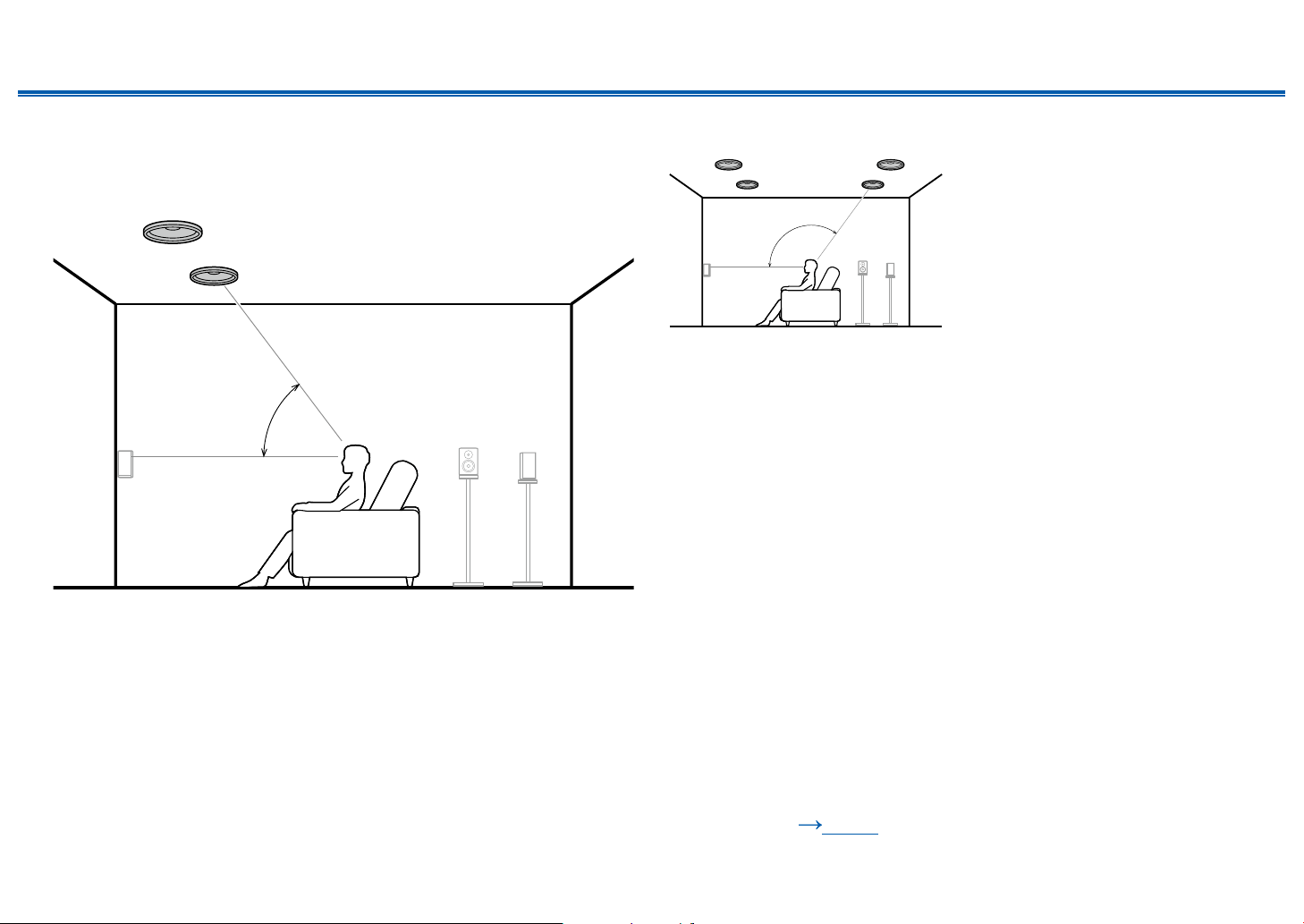
❏ Ceiling Speakers Installation Example
a
b
c
7
888
77
a: 30° to 55°, b: 65° to 100°, c: 125° to 150°
This is a system with the basic 5.1 channel system ( p18) consisting of front
speakers, a center speaker, surround speakers and a powered subwoofer, and
added top front speakers or top middle speakers or top rear speakers combined.
Installing the height speakers will enrich the sound eld feeling in the upper
space. Install the top front speakers on the ceiling anterior to the seating position,
top middle speakers on the ceiling directly above the seating position, and top
rear speakers on the ceiling posterior to the seating position. The distance
between each pair should match the distance between the front speakers.
• Dolby Laboratories recommends the setups of these types of height speakers
to obtain the best Dolby Atmos effect.
7,8 Height Speakers
Choose one of the following:
• Top Front Speakers
• Top Middle Speakers
• Top Rear Speakers
❏ Speaker Layouts and Selectable Listening
Modes ( p119)
23
Front Panel≫ Rear Panel≫ Remote≫
Contents
≫
Connections
≫
Playback
≫
Setup
≫
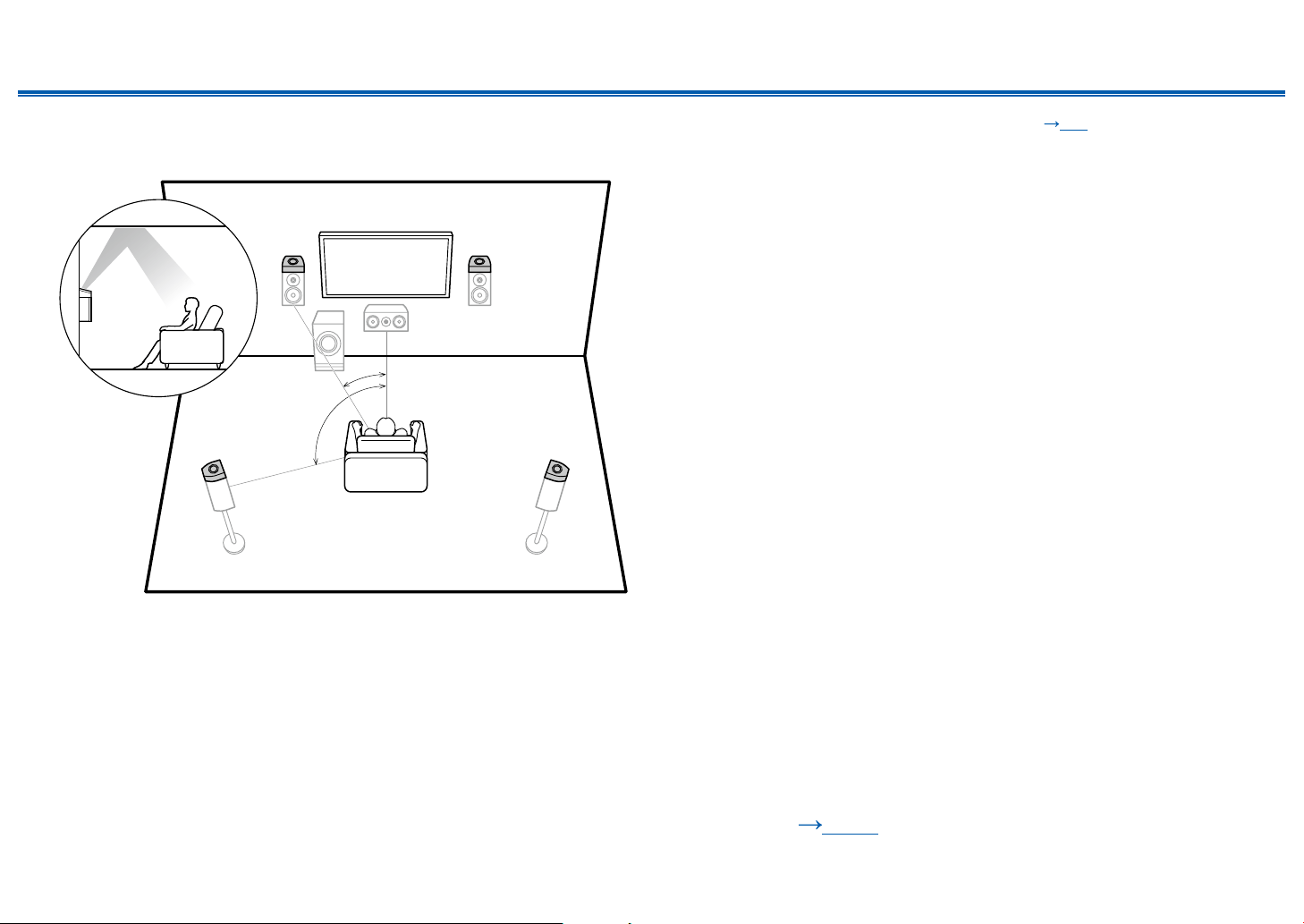
❏ Dolby Enabled Speakers (Dolby Speakers)
Installation Example
a
b
78
78
a: 22° to 30°, b: 120°
This is a system with the basic 5.1 channel system ( p18) consisting of front
speakers, a center speaker, surround speakers and a powered subwoofer, and
added Dolby enabled speakers (front) or Dolby enabled speakers (surround)
combined. Dolby enabled speakers are special speakers designed to face the
ceiling, so that the sound is heard from overhead by bouncing the sound off the
ceiling. Installing the height speakers will enrich the sound eld feeling in the
upper space.
Install them either on the front speakers or on the surround speakers.
7,8 Height Speakers
Choose one of the following:
• Dolby Enabled Speakers (Front)
• Dolby Enabled Speakers (Surround)
❏ Speaker Layouts and Selectable Listening
Modes ( p119)

24
Front Panel≫ Rear Panel≫ Remote≫
Contents
≫
Connections
≫
Playback
≫
Setup
≫
7.1.2 Channel System
A 7.1.2 Channel System is a speaker layout consisting of the 7.1 Channel System ( p19) and added height speakers. Select the height speakers that suit your
speakers and usage environment from the following three types.
❏ Front High Speakers/Rear High Speakers
Installation Example (
p25)
❏ Ceiling Speakers Installation Example
(
p26)
❏ Dolby Enabled Speakers (Dolby Speakers)
Installation Example (
p27)
25
Front Panel≫ Rear Panel≫ Remote≫
Contents
≫
Connections
≫
Playback
≫
Setup
≫
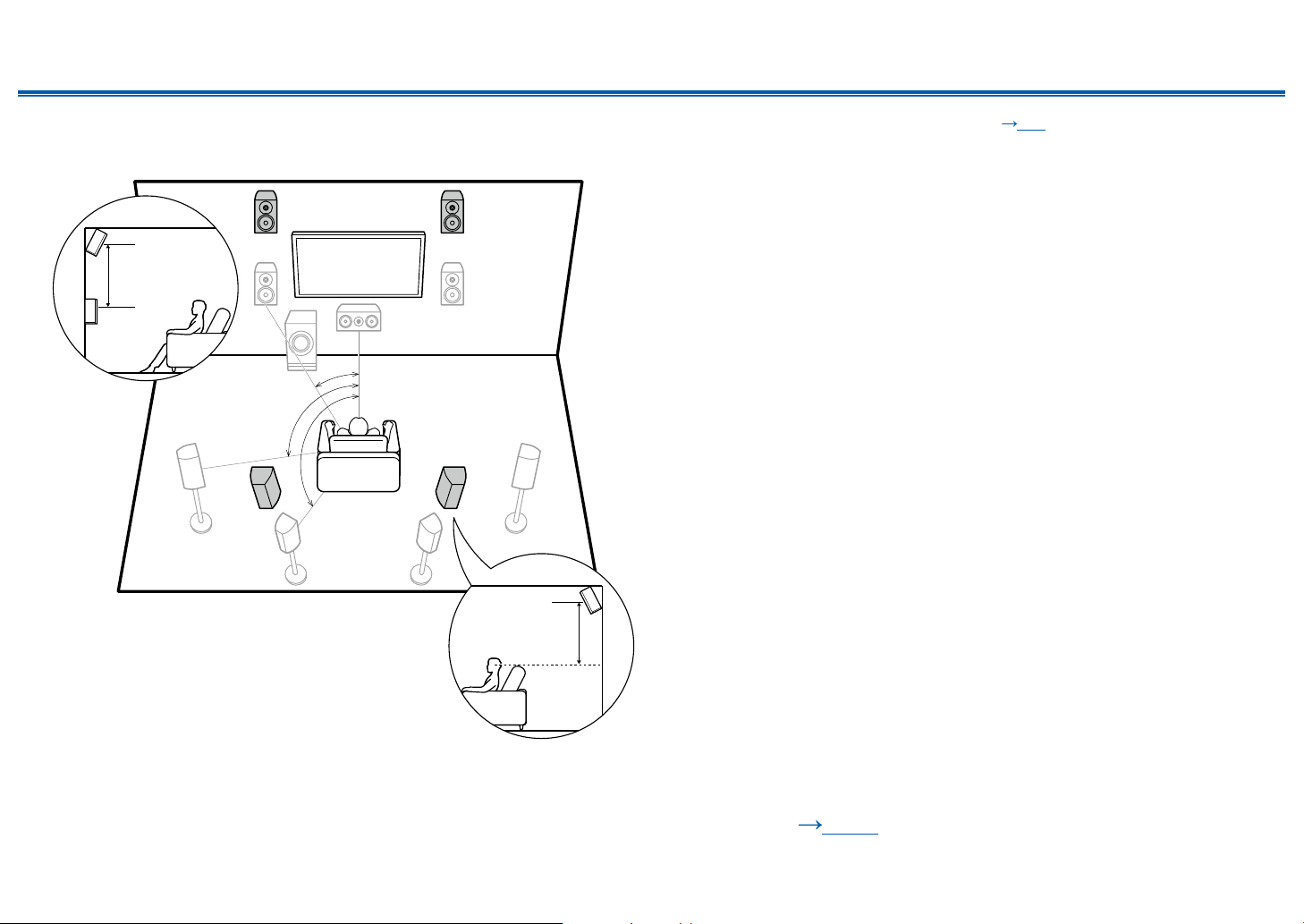
❏ Front High Speakers/Rear High Speakers
Installation Example
a
b
c
9bk
9bk
a: 22° to 30°, b: 90° to 110°, c: 135° to 150°
3´ (0.9 m)
or more
3´ (0.9 m)
or more
This is a system with the 7.1 channel system ( p19) consisting of front
speakers, a center speaker, surround speakers, surround back speakers and
a powered subwoofer, and added front high speakers or rear high speakers
combined. Installing the height speakers will enrich the sound eld feeling in the
upper space. Front high speakers or rear high speakers should be installed at
least 3´/0.9 m higher than the front speakers.
Front high speakers should be installed directly above the front speakers, and the
distance between the rear high speakers should match the distance between the
front speakers. In both cases, the speakers should be set up facing the listening
position at an angle.
9,10 Height Speakers
Choose one of the following:
• Front High Speakers
• Rear High Speakers
❏ Speaker Layouts and Selectable Listening
Modes ( p119)
26
Front Panel≫ Rear Panel≫ Remote≫
Contents
≫
Connections
≫
Playback
≫
Setup
≫
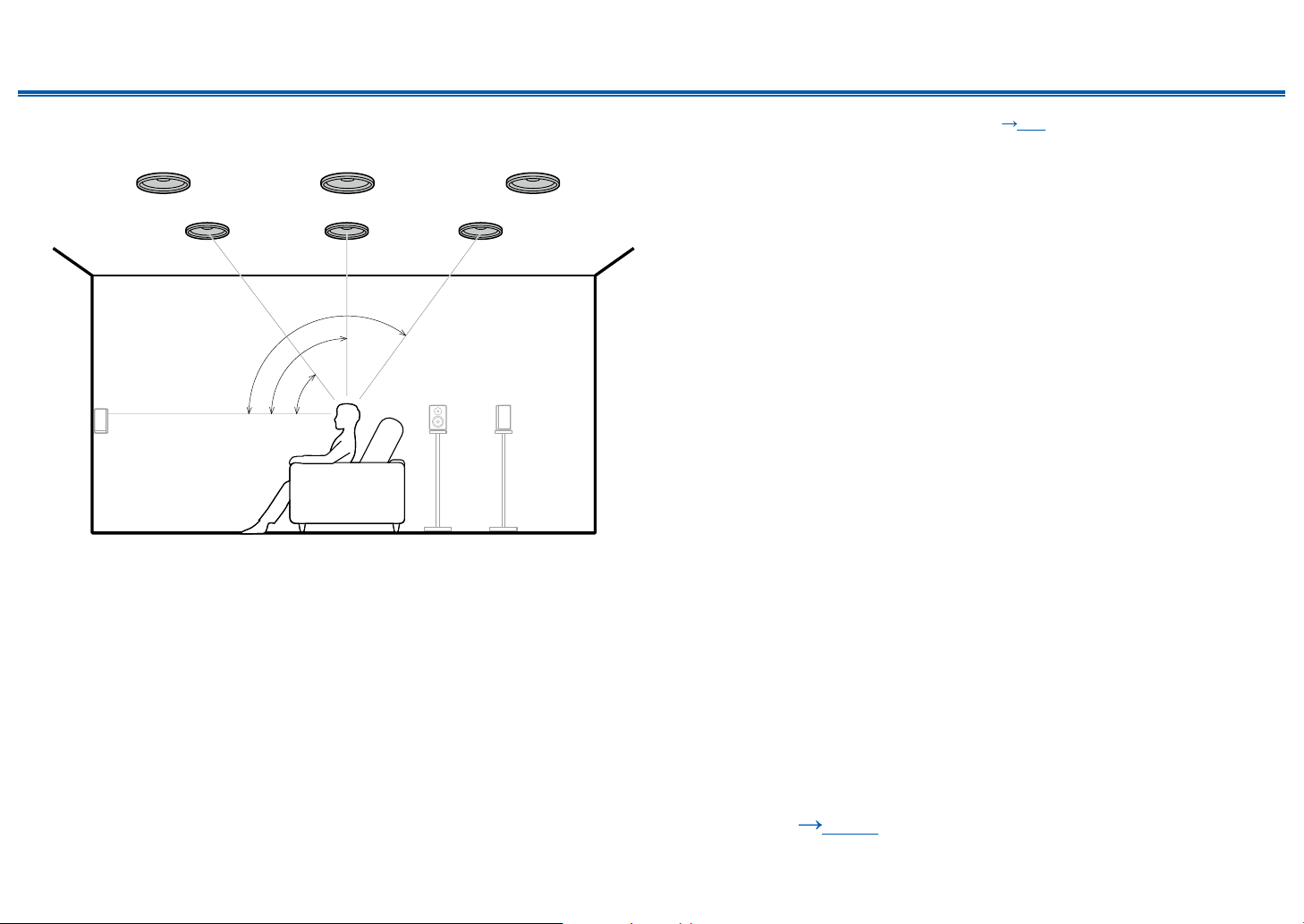
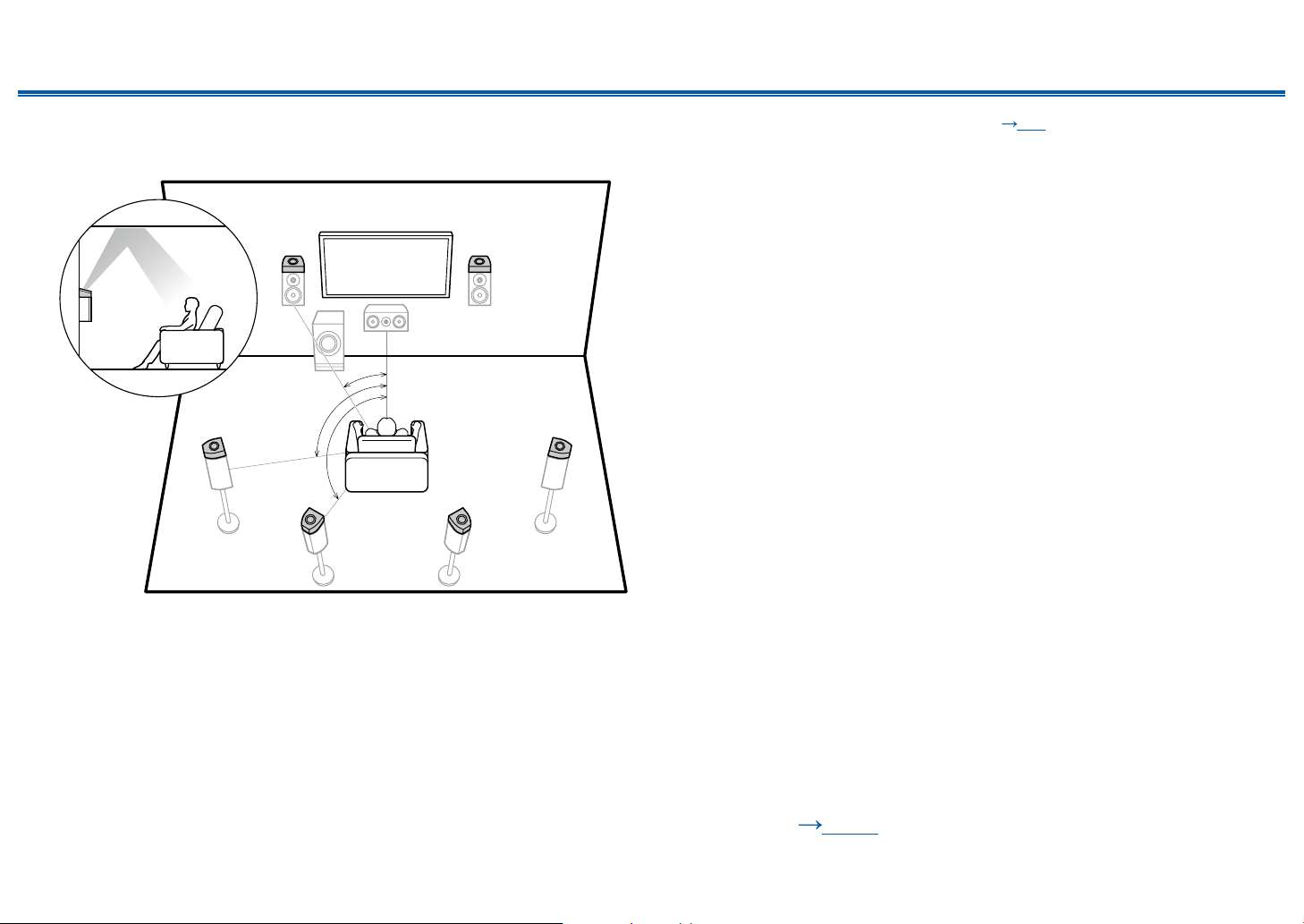
❏ Ceiling Speakers Installation Example
a
b
c
9
bk bk bk
99
a: 30° to 55°, b: 65° to 100°, c: 125° to 150°
This is a system with the 7.1 channel system ( p19) consisting of front
speakers, a center speaker, surround speakers, surround back speakers and a
powered subwoofer, and added top front speakers or top middle speakers or top
rear speakers combined. Installing the height speakers will enrich the sound eld
feeling in the upper space. Install the top front speakers on the ceiling anterior to
the seating position, top middle speakers on the ceiling directly above the seating
position, and top rear speakers on the ceiling posterior to the seating position.
The distance between each pair should match the distance between the front
speakers.
• Dolby Laboratories recommends the setups of these types of height speakers
to obtain the best Dolby Atmos effect.
9,10 Height Speakers
Choose one of the following:
• Top Front Speakers
• Top Middle Speakers
• Top Rear Speakers
❏ Speaker Layouts and Selectable Listening
Modes ( p119)
27
Front Panel≫ Rear Panel≫ Remote≫
Contents
≫
Connections
≫
Playback
≫
Setup
≫
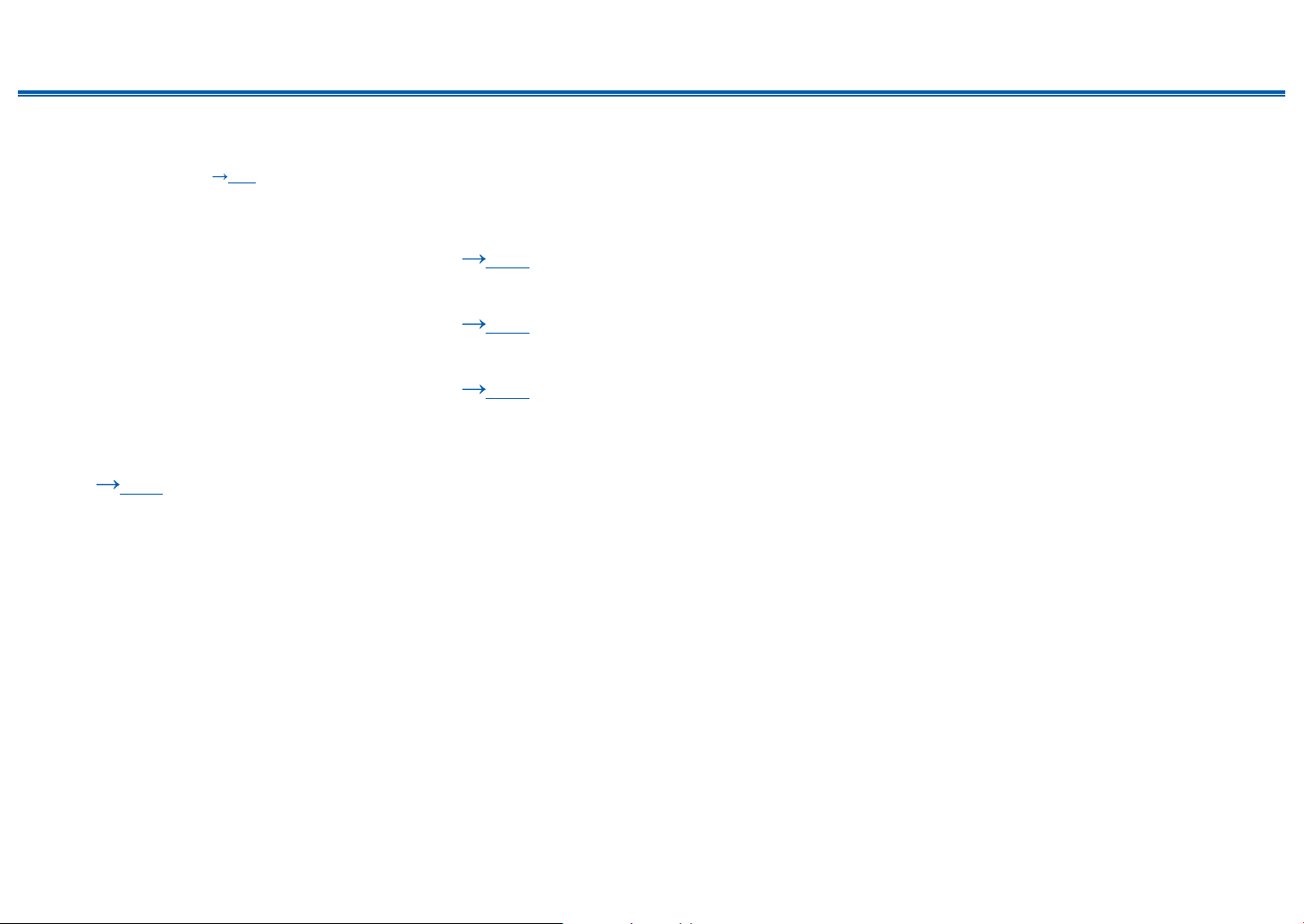
❏ Dolby Enabled Speakers (Dolby Speakers)
Installation Example
c
a
b
9bk
9
9bk
bk
a: 22° to 30°, b: 90° to 110°, c: 135° to 150°
This is a system with the 7.1 channel system ( p19) consisting of front
speakers, a center speaker, surround speakers, surround back speakers and a
powered subwoofer, and added Dolby enabled speakers (front), Dolby enabled
speakers (surround) or Dolby enabled speakers (surround back) combined.
Dolby enabled speakers are special speakers designed to face the ceiling, so
that the sound is heard from overhead by bouncing the sound off the ceiling.
Installing the height speakers will enrich the sound eld feeling in the upper
space.
Install them either on the front speakers, on the surround speakers or on the
surround back speakers.
9,10 Height Speakers
Choose one of the following:
• Dolby Enabled Speakers (Front)
• Dolby Enabled Speakers (Surround)
• Dolby Enabled Speakers (Surround Back)
❏ Speaker Layouts and Selectable Listening
Modes ( p119)
28
Front Panel≫ Rear Panel≫ Remote≫
Contents
≫
Connections
≫
Playback
≫
Setup
≫
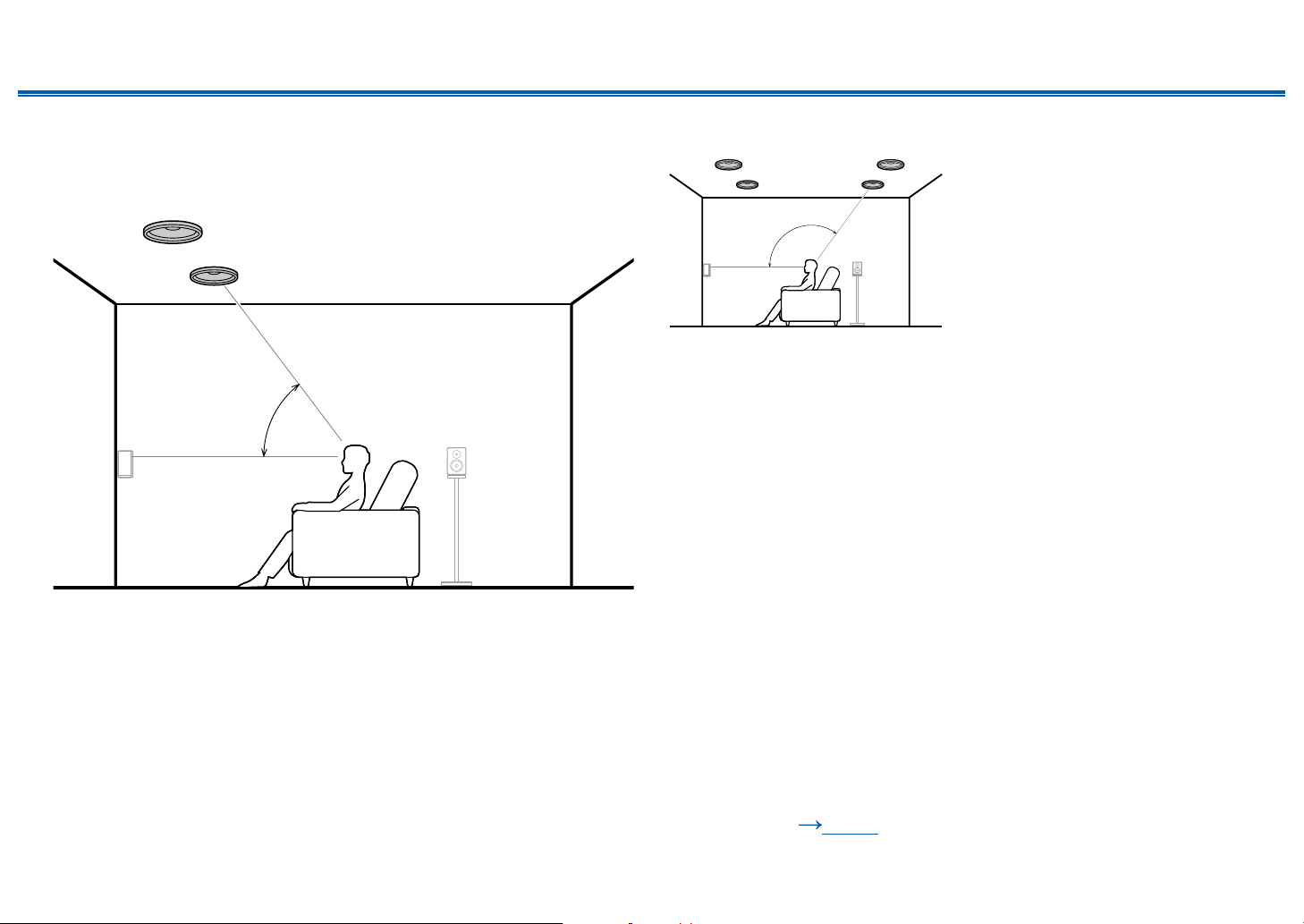
5.1.4 Channel System
A 5.1.4 Channel System is a speaker layout combining 2 sets of the height speakers, 1 set of left and right at the front and 1 set of left and right at the rear, to the basic
5.1 Channel System ( p18). Installing the height speakers will enrich the sound eld feeling in the upper space. Combination of 2 height speakers can be selected
from following.
❏ Combination example when Top Front
Speakers are used at the front (
p29)
❏ Combination example when Top Middle
Speakers are used at the front (
p31)
❏ Combination example when Front High
Speakers are used at the front (
p32)
❏ Combination example when Dolby Enabled
Speakers (Front) are used at the front
(
p34)
29
Front Panel≫ Rear Panel≫ Remote≫
Contents
≫
Connections
≫
Playback
≫
Setup
≫
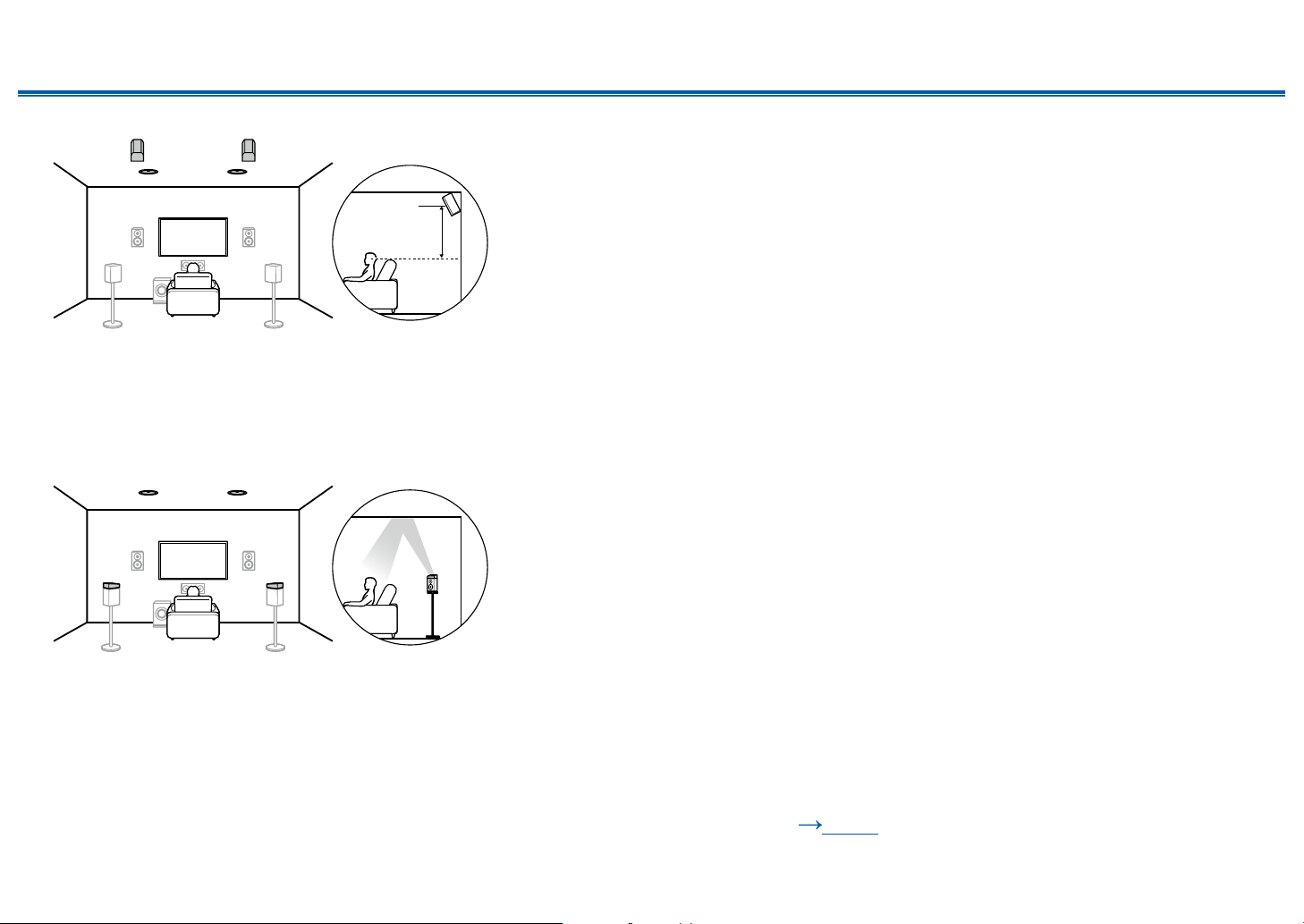
❏ Combination example when Top Front
Speakers are used at the front
About the top front speakers
a
7
8
a: 30° to 55°
The top front speakers are installed on the ceiling at front of the listening
position, and the width between the left and right speakers is optimal to match
the one for the front speakers. When the top front speakers are used in front, the
combination of the height speakers at the rear can be selected from the following
3 examples shown at the right.
7,8 Top Front Speakers
(Example 1) Use top rear speakers at the rear
b
7
8
9
bk
b: 125° to 150°
The top rear speakers are installed on the ceiling at rear of the listening position,
and the width between the left and right speakers is optimal to match the one for
the front speakers.
9,10 Top Rear Speakers
❏ Speaker Layouts and Selectable Listening
Modes ( p119)
30
Front Panel≫ Rear Panel≫ Remote≫
Contents
≫
Connections
≫
Playback
≫
Setup
≫
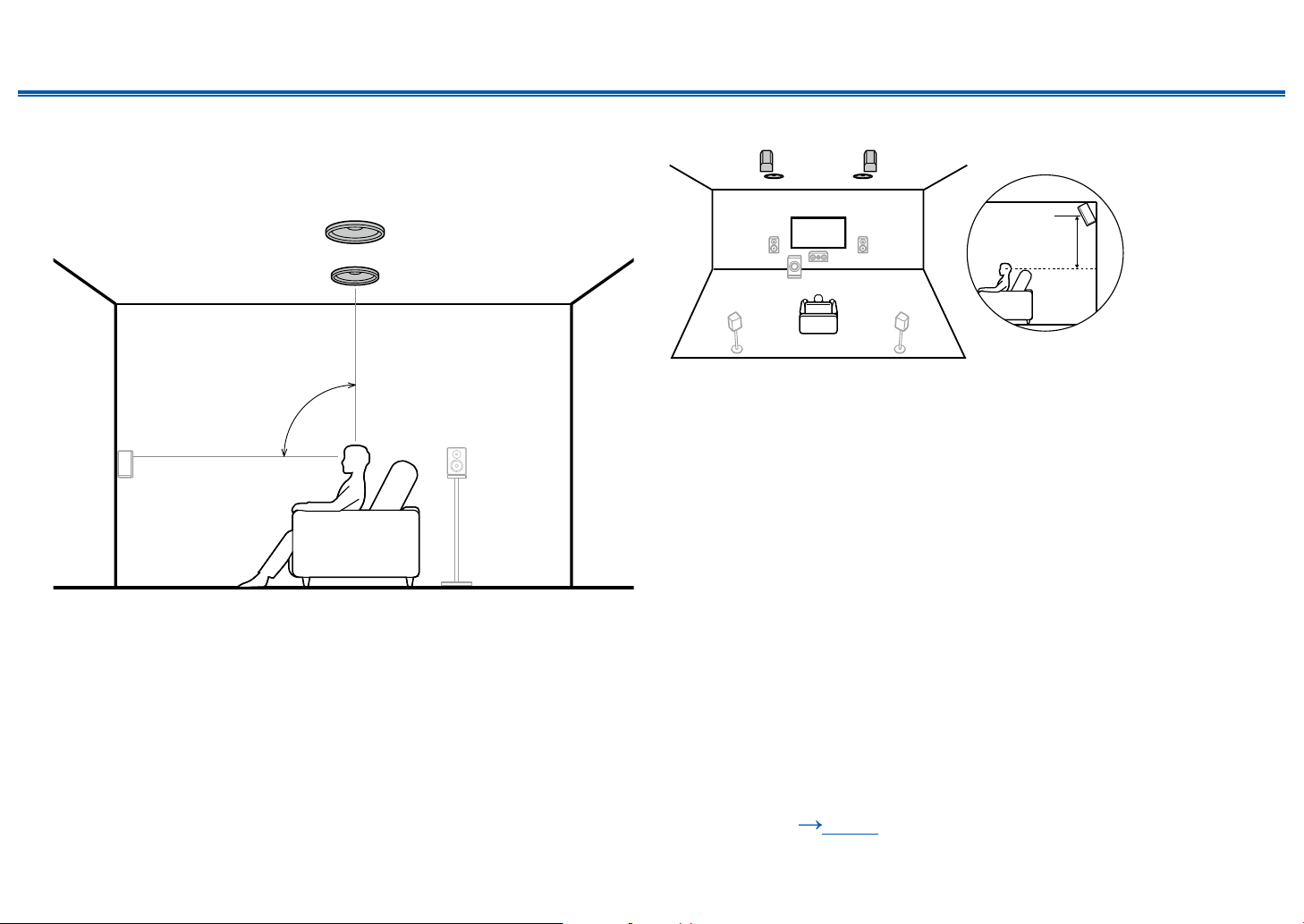
(Example 2) Use rear high speakers at the rear
78
bk 9
3´ (0.9 m)
or more
The width between the rear high speakers should match the one for the front
speakers, and they should be installed minimum of 3’/0.9 m higher than the front
speakers, and tilted so they will point toward the listener.
9,10 Rear High Speakers
(Example 3) Use Dolby Enabled Speakers (Surround) at the rear
78
bk 9
The Dolby enabled speakers are the special speaker that the sound is emitted
toward the ceiling, and have the effect the sound to come from above by
reecting the sound on the ceiling.
The Dolby enabled speakers (surround) are installed on top of the surround
speakers.
9,10 Dolby Enabled Speakers (Surround)
❏ Speaker Layouts and Selectable Listening
Modes ( p119)
31
Front Panel≫ Rear Panel≫ Remote≫
Contents
≫
Connections
≫
Playback
≫
Setup
≫
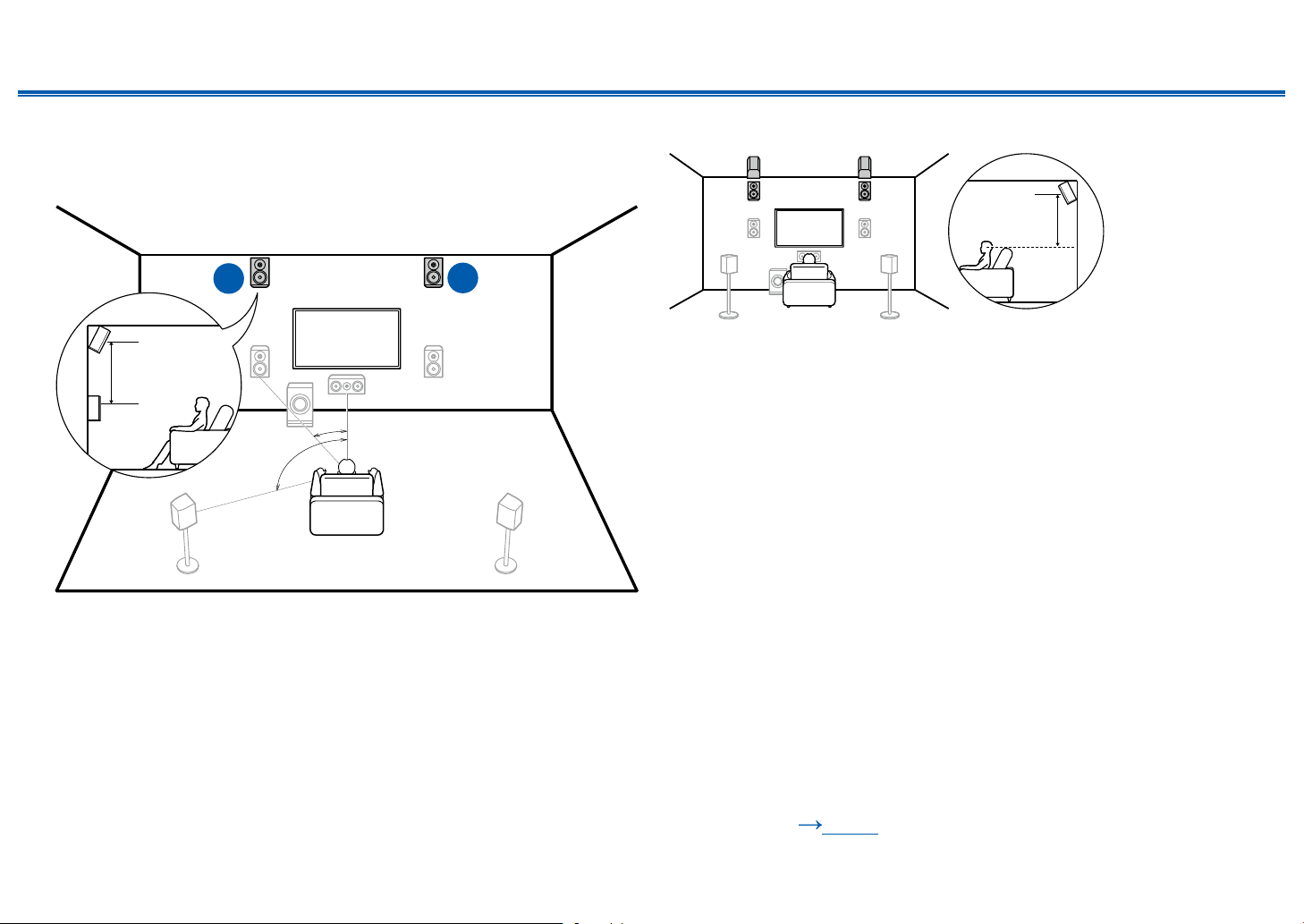
❏ Combination example when Top Middle
Speakers are used at the front
About the top middle speakers
a
7
8
a: 65° to 100°
The top middle speakers are installed on the ceiling immediately above the
listening position, and the width between the left and right speakers is optimal to
match the one for the front speakers. When the top middle speakers are used in
front, the rear high speakers in the gure at the right can be used at the rear.
7,8 Top Middle Speakers
Use rear high speakers at the rear
78
bk 9
3´ (0.9 m)
or more
The width between the rear high speakers should match the one for the front
speakers, and they should be installed minimum of 3’/0.9 m higher than the front
speakers, and tilted so they will point toward the listener.
9,10 Rear High Speakers
❏ Speaker Layouts and Selectable Listening
Modes ( p119)
32
Front Panel≫ Rear Panel≫ Remote≫
Contents
≫
Connections
≫
Playback
≫
Setup
≫
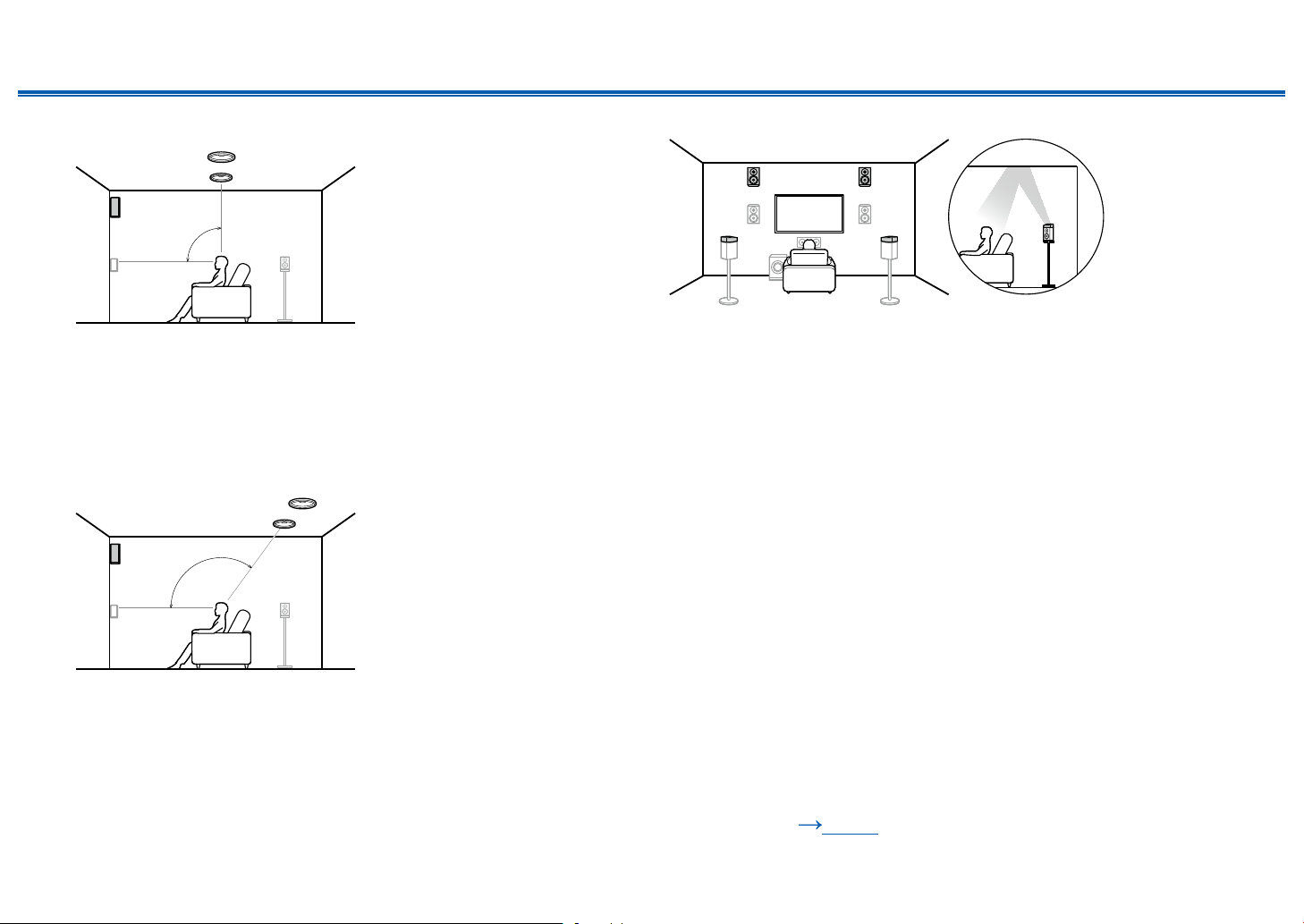
❏ Combination example when Front High
Speakers are used at the front
About the front high speakers
b
a
7
8
a: 22° to 30°, b: 120°
3´ (0.9 m)
or more
Install the front high speakers immediately above the front speakers minimum of
3’/0.9 m higher, and tilted so they will point toward the listener. When the front
high speakers are used in front, the combination of the height speakers at the
rear can be selected from the following 4 examples shown at the right.
7,8 Front High Speakers
(Example 1) Use rear high speakers at the rear
3´ (0.9 m)
or more
The width between the rear high speakers should match the one for the front
speakers, and they should be installed minimum of 3’/0.9 m higher than the front
speakers, and tilted so they will point toward the listener.
9,10 Rear High Speakers
❏ Speaker Layouts and Selectable Listening
Modes ( p119)
33
Front Panel≫ Rear Panel≫ Remote≫
Contents
≫
Connections
≫
Playback
≫
Setup
≫
(Example 2) Use top middle speakers at the rear
c
c: 65° to 100°
The top middle speakers are installed on the ceiling immediately above the
listening position, and the width between the left and right speakers is optimal to
match the one for the front speakers.
9,10 Top Middle Speakers
(Example 3) Use top rear speakers at the rear
d
d: 125° to 150°
The top rear speakers are installed on the ceiling at rear of the listening position,
and the width between the left and right speakers is optimal to match the one for
the front speakers.
9,10 Top Rear Speakers
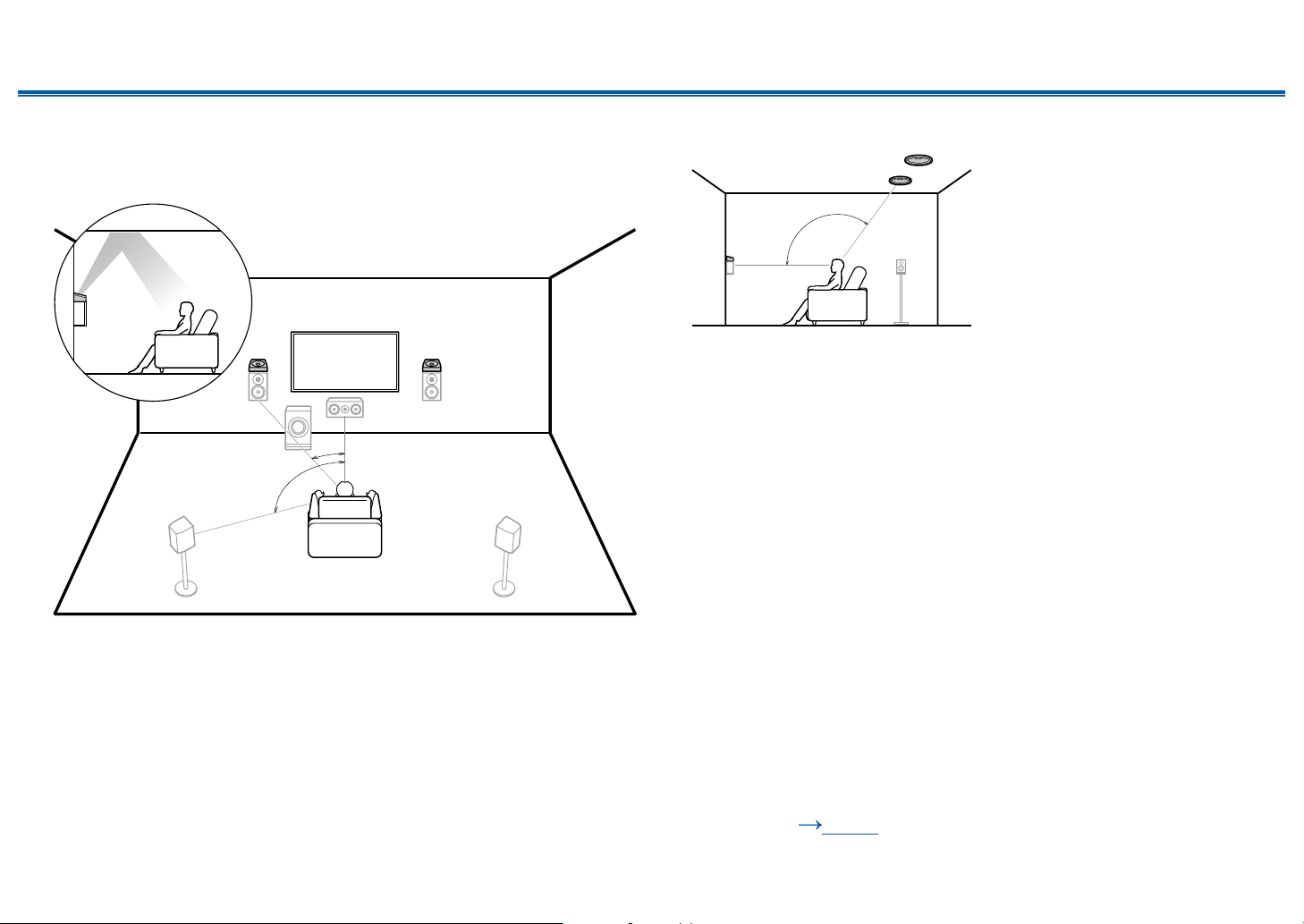
(Example 4) Use Dolby Enabled Speakers (Surround) at the rear
The Dolby enabled speakers are the special speaker that the sound is emitted
toward the ceiling, and have the effect the sound to come from above by
reecting the sound on the ceiling.
The Dolby enabled speakers (surround) are installed on top of the surround
speakers.
9,10 Dolby Enabled Speakers (Surround)
❏ Speaker Layouts and Selectable Listening
Modes ( p119)
34
Front Panel≫ Rear Panel≫ Remote≫
Contents
≫
Connections
≫
Playback
≫
Setup
≫
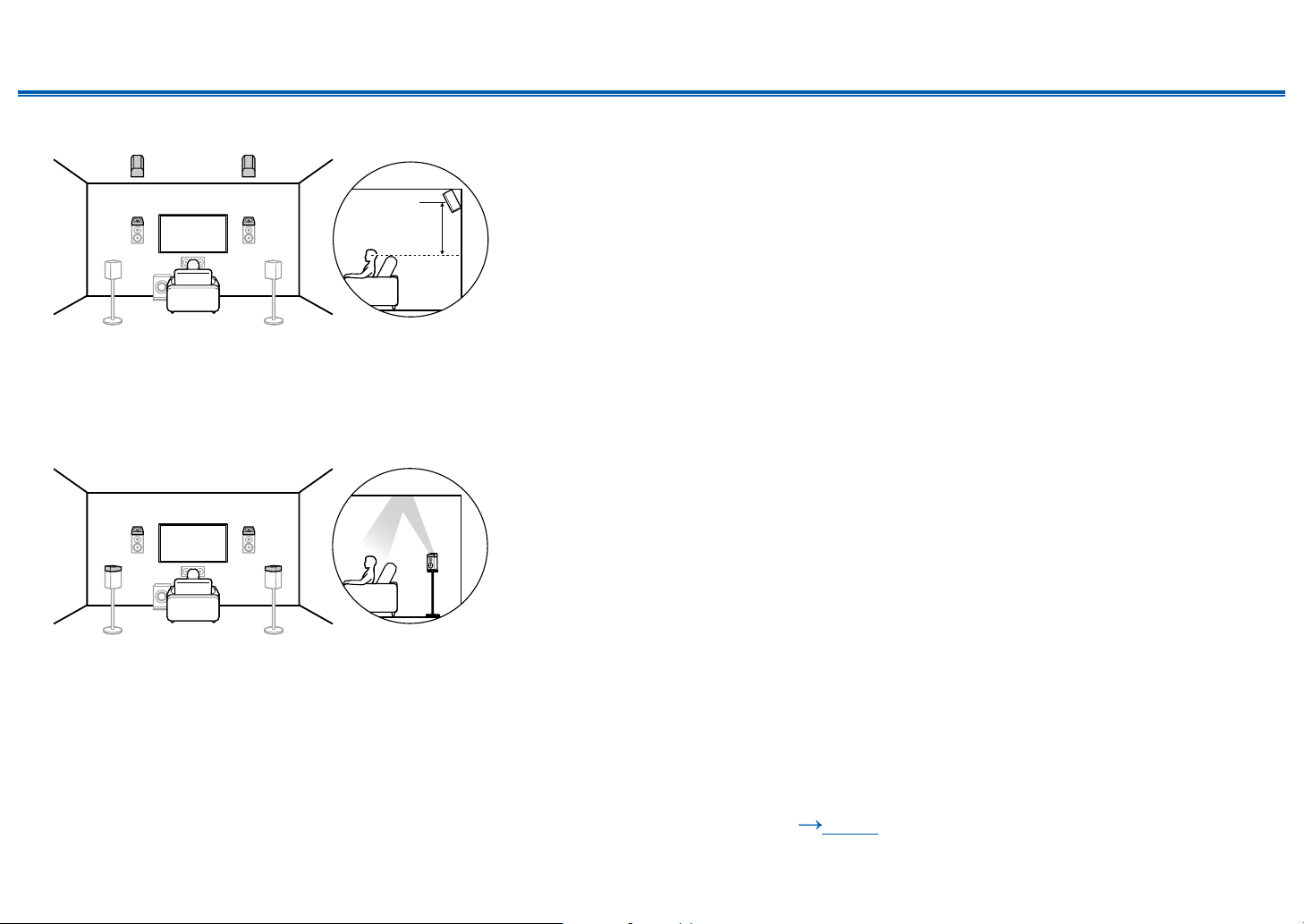
❏ Combination example when Dolby Enabled
Speakers (Front) are used at the front
About the Dolby enabled speakers (front)
b
a
87
a: 22° to 30°, b: 120°
The Dolby enabled speakers are the special speaker that the sound is emitted
toward the ceiling, and have the effect the sound to come from above by
reecting the sound on the ceiling.
The Dolby enabled speakers (front) are installed on top of the front speakers.
When the Dolby enabled speakers (front) are used in front, the combination of
the height speakers at the rear can be selected from the following 3 examples
shown at the right.
7,8 Dolby Enabled Speakers (Front)
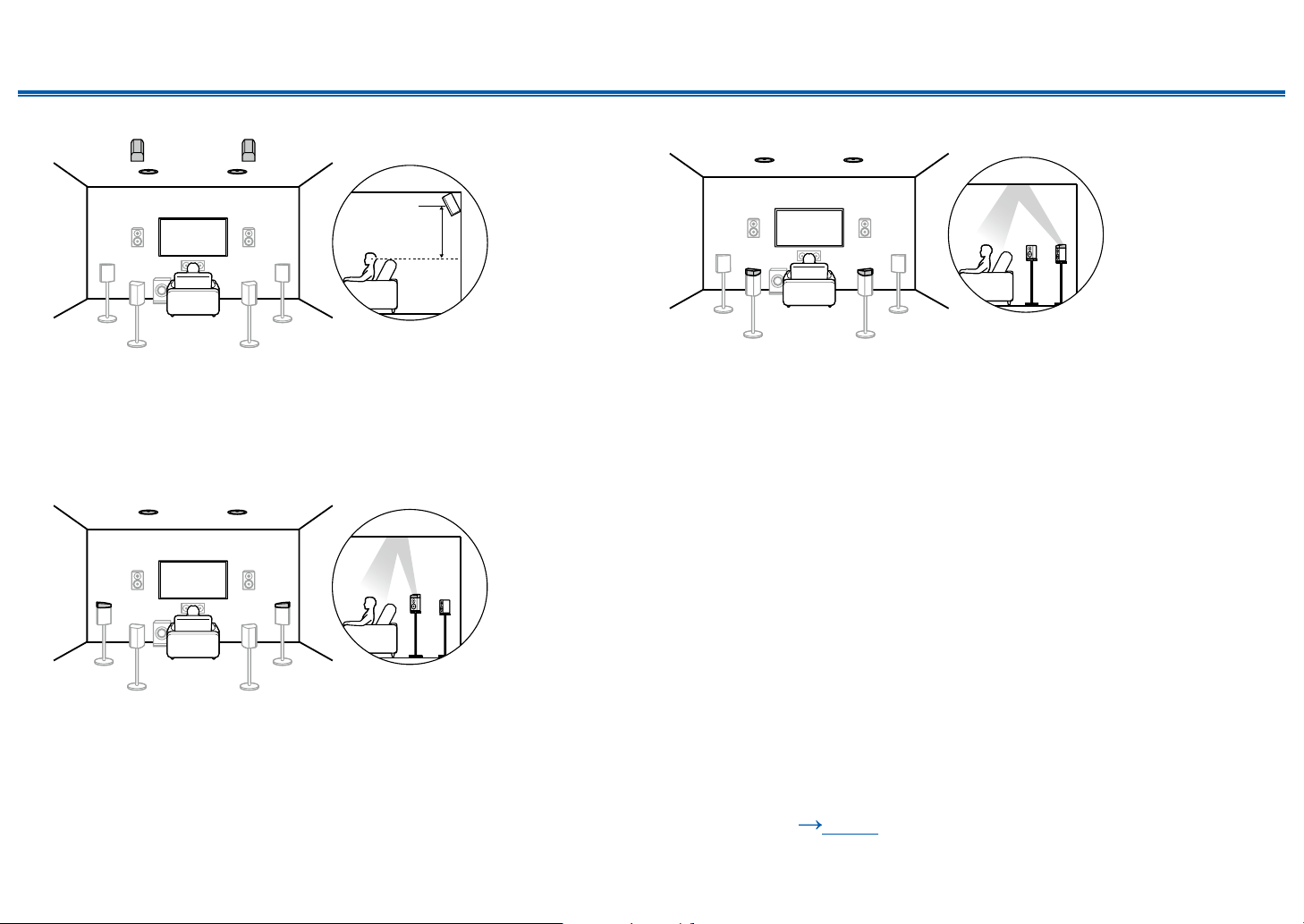
(Example 1) Use top rear speakers at the rear
c
bk
9
78
c: 125° to 150°
The top rear speakers are installed on the ceiling at rear of the listening position,
and the width between the left and right speakers is optimal to match the one for
the front speakers.
9,10 Top Rear Speakers
❏ Speaker Layouts and Selectable Listening
Modes ( p119)
35
Front Panel≫ Rear Panel≫ Remote≫
Contents
≫
Connections
≫
Playback
≫
Setup
≫
(Example 2) Use rear high speakers at the rear
87
bk 9
3´ (0.9 m)
or more
The width between the rear high speakers should match the one for the front
speakers, and they should be installed minimum of 3’/0.9 m higher than the front
speakers, and tilted so they will point toward the listener.
9,10 Rear High Speakers
(Example 3) Use Dolby Enabled Speakers (Surround) at the rear
bk 9
87
The Dolby enabled speakers are the special speaker that the sound is emitted
toward the ceiling, and have the effect the sound to come from above by
reecting the sound on the ceiling.
The Dolby enabled speakers (surround) are installed on top of the surround
speakers.
9,10 Dolby Enabled Speakers (Surround)
❏ Speaker Layouts and Selectable Listening
Modes ( p119)
36
Front Panel≫ Rear Panel≫ Remote≫
Contents
≫
Connections
≫
Playback
≫
Setup
≫
7.1.4 Channel System
A 7.1.4 Channel System is a speaker layout combining 2 sets of the height speakers, 1 set of left and right at the front and 1 set of left and right at the rear, to the basic
7.1 Channel System ( p19). Installing the height speakers will enrich the sound eld feeling in the upper space. Combination of 2 height speakers can be selected
from following.
❏ Combination example when Top Front
Speakers are used at the front (
p37)
❏ Combination example when Top Middle
Speakers are used at the front (
p39)
❏ Combination example when Front High
Speakers are used at the front (
p40)
❏ Combination example when Dolby Enabled
Speakers (Front) are used at the front
(
p43)
37
Front Panel≫ Rear Panel≫ Remote≫
Contents
≫
Connections
≫
Playback
≫
Setup
≫
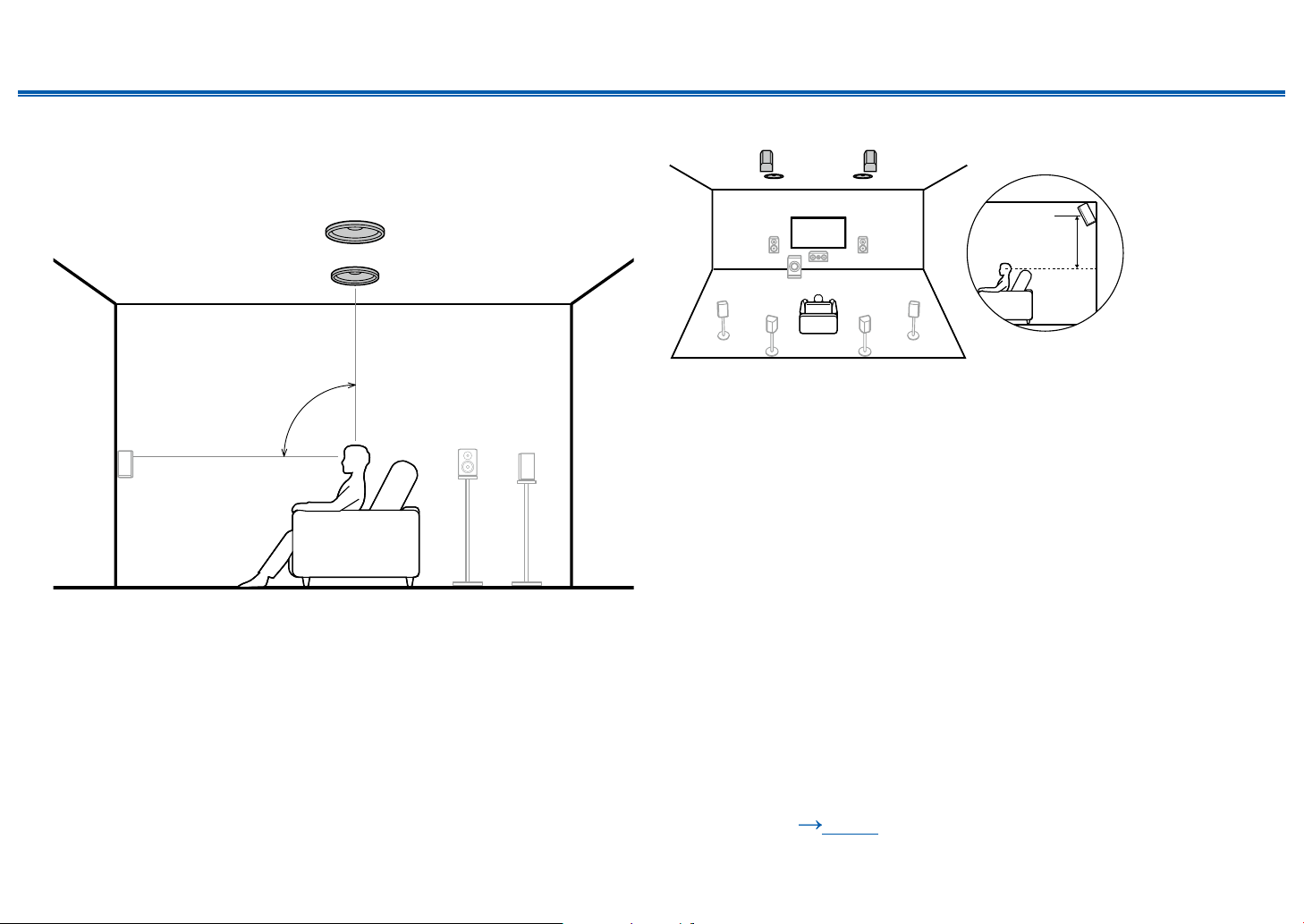
❏ Combination example when Top Front
Speakers are used at the front
About the top front speakers
a
9
bk
a: 30° to 55°
The top front speakers are installed on the ceiling at front of the listening
position, and the width between the left and right speakers is optimal to match
the one for the front speakers. When the top front speakers are used in front, the
combination of the height speakers at the rear can be selected from the following
4 examples shown at the right.
9,10 Top Front Speakers
(Example 1) Use top rear speakers at the rear
b
9
bk
bl
bm
b: 125° to 150°
The top rear speakers are installed on the ceiling at rear of the listening position,
and the width between the left and right speakers is optimal to match the one for
the front speakers.
11,12 Top Rear Speakers
❏ Speaker Layouts and Selectable Listening
Modes ( p119)
38
Front Panel≫ Rear Panel≫ Remote≫
Contents
≫
Connections
≫
Playback
≫
Setup
≫
(Example 2) Use rear high speakers at the rear
9bk
bm bl
3´ (0.9 m)
or more
The width between the rear high speakers should match the one for the front
speakers, and they should be installed minimum of 3’/0.9 m higher than the front
speakers, and tilted so they will point toward the listener.
11,12 Rear High Speakers
(Example 3) Use Dolby Enabled Speakers (Surround) at the rear
9bk
bm bl
The Dolby enabled speakers are the special speaker that the sound is emitted
toward the ceiling, and have the effect the sound to come from above by
reecting the sound on the ceiling.
The Dolby enabled speakers (surround) are installed on top of the surround speakers.
11,12 Dolby Enabled Speakers (Surround)
(Example 4) Use Dolby Enabled Speakers (Surround Back) at the rear
9bk
bm
bl
The Dolby enabled speakers are the special speaker that the sound is emitted
toward the ceiling, and have the effect the sound to come from above by
reecting the sound on the ceiling.
The Dolby enabled speakers (surround back) are installed on top of the surround
back speakers.
11,12 Dolby Enabled Speakers (Surround Back)
❏ Speaker Layouts and Selectable Listening
Modes ( p119)
39
Front Panel≫ Rear Panel≫ Remote≫
Contents
≫
Connections
≫
Playback
≫
Setup
≫
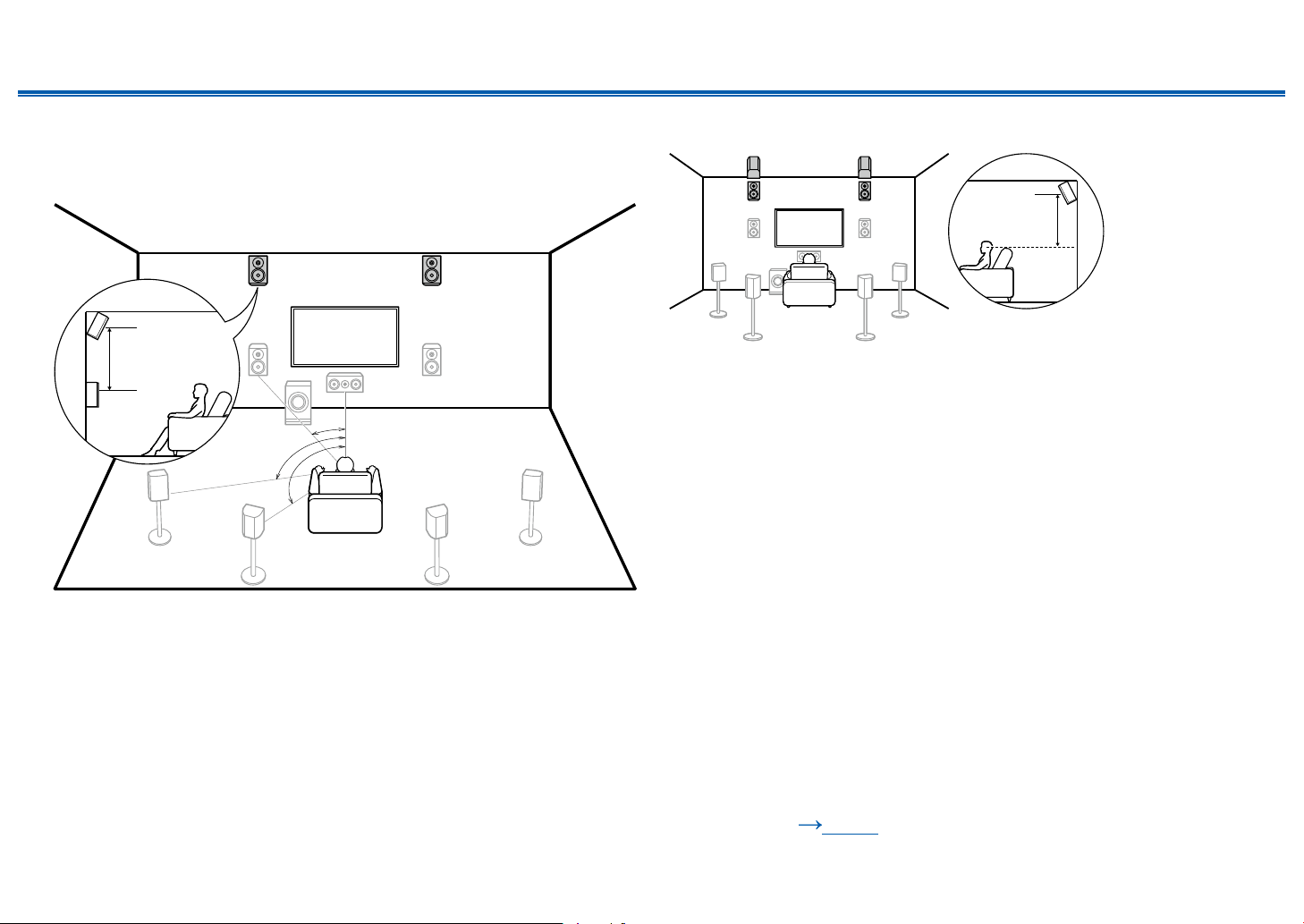
❏ Combination example when Top Middle
Speakers are used at the front
About the top middle speakers
a
9
bk
a: 65° to 100°
The top middle speakers are installed on the ceiling immediately above the
listening position, and the width between the left and right speakers is optimal to
match the one for the front speakers. When the top middle speakers are used in
front, the rear high speakers in the gure at the right can be used at the rear.
9,10 Top Middle Speakers
Use rear high speakers at the rear
9bk
bm bl
3´ (0.9 m)
or more
The width between the rear high speakers should match the one for the front
speakers, and they should be installed minimum of 3’/0.9 m higher than the front
speakers, and tilted so they will point toward the listener.
11,12 Rear High Speakers
❏ Speaker Layouts and Selectable Listening
Modes ( p119)
40
Front Panel≫ Rear Panel≫ Remote≫
Contents
≫
Connections
≫
Playback
≫
Setup
≫
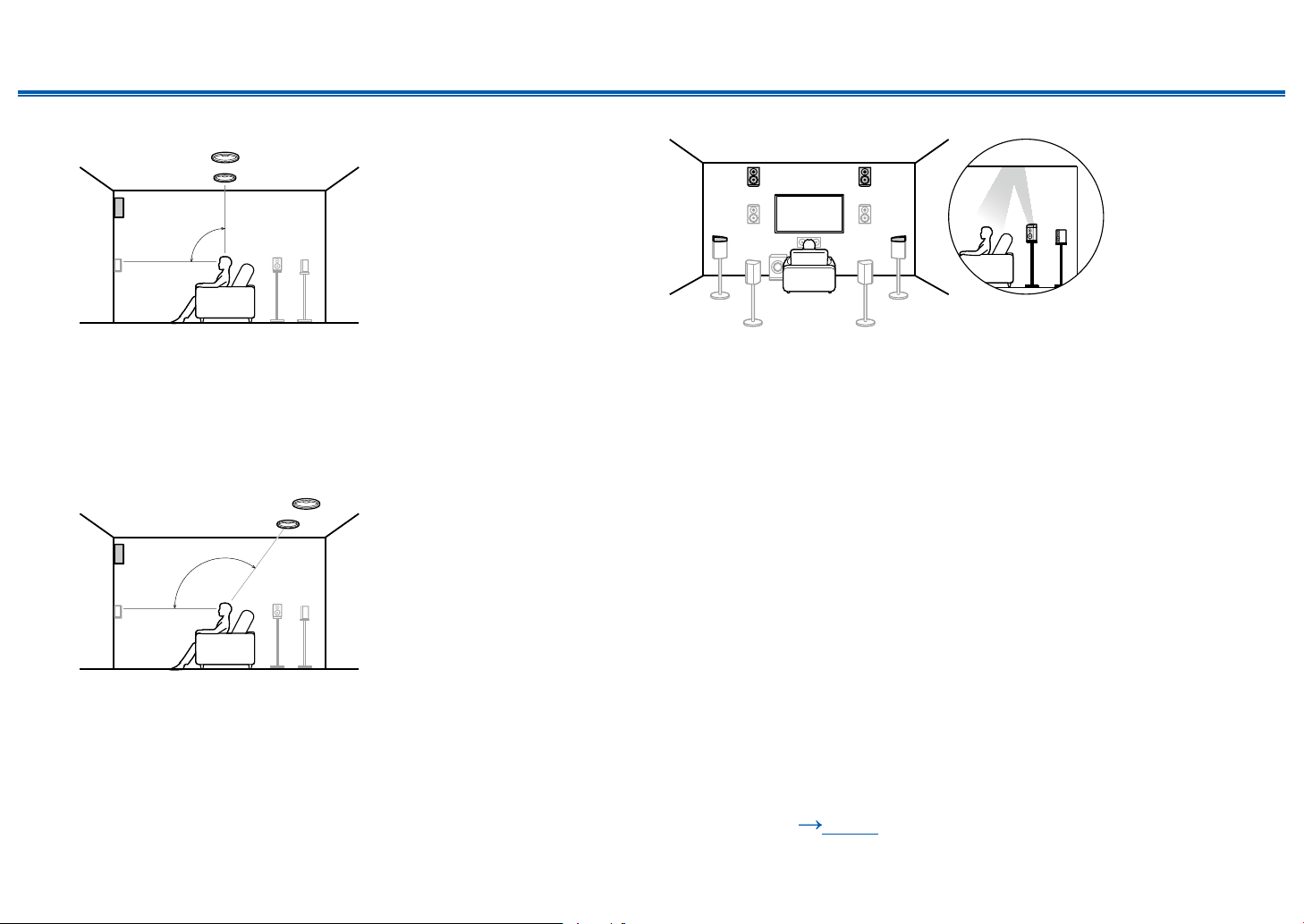
❏ Combination example when Front High
Speakers are used at the front
About the front high speakers
b
a
c
a: 22° to 30°, b: 90° to 110°, c: 135° to 150°
3´ (0.9 m)
or more
Install the front high speakers immediately above the front speakers minimum of
3’/0.9 m higher, and tilted so they will point toward the listener. When the front
high speakers are used in front, the combination of the height speakers at the
rear can be selected from the following 5 examples shown at the right.
9,10 Front High Speakers
(Example 1) Use rear high speakers at the rear
3´ (0.9 m)
or more
The width between the rear high speakers should match the one for the front
speakers, and they should be installed minimum of 3’/0.9 m higher than the front
speakers, and tilted so they will point toward the listener.
11,12 Rear High Speakers
❏ Speaker Layouts and Selectable Listening
Modes ( p119)
41
Front Panel≫ Rear Panel≫ Remote≫
Contents
≫
Connections
≫
Playback
≫
Setup
≫
(Example 2) Use top middle speakers at the rear
d
d: 65° to 100°
The top middle speakers are installed on the ceiling immediately above the
listening position, and the width between the left and right speakers is optimal to
match the one for the front speakers.
11,12 Top Middle Speakers
(Example 3) Use top rear speakers at the rear
e
e: 125° to 150°
The top rear speakers are installed on the ceiling at rear of the listening position,
and the width between the left and right speakers is optimal to match the one for
the front speakers.
11,12 Top Rear Speakers
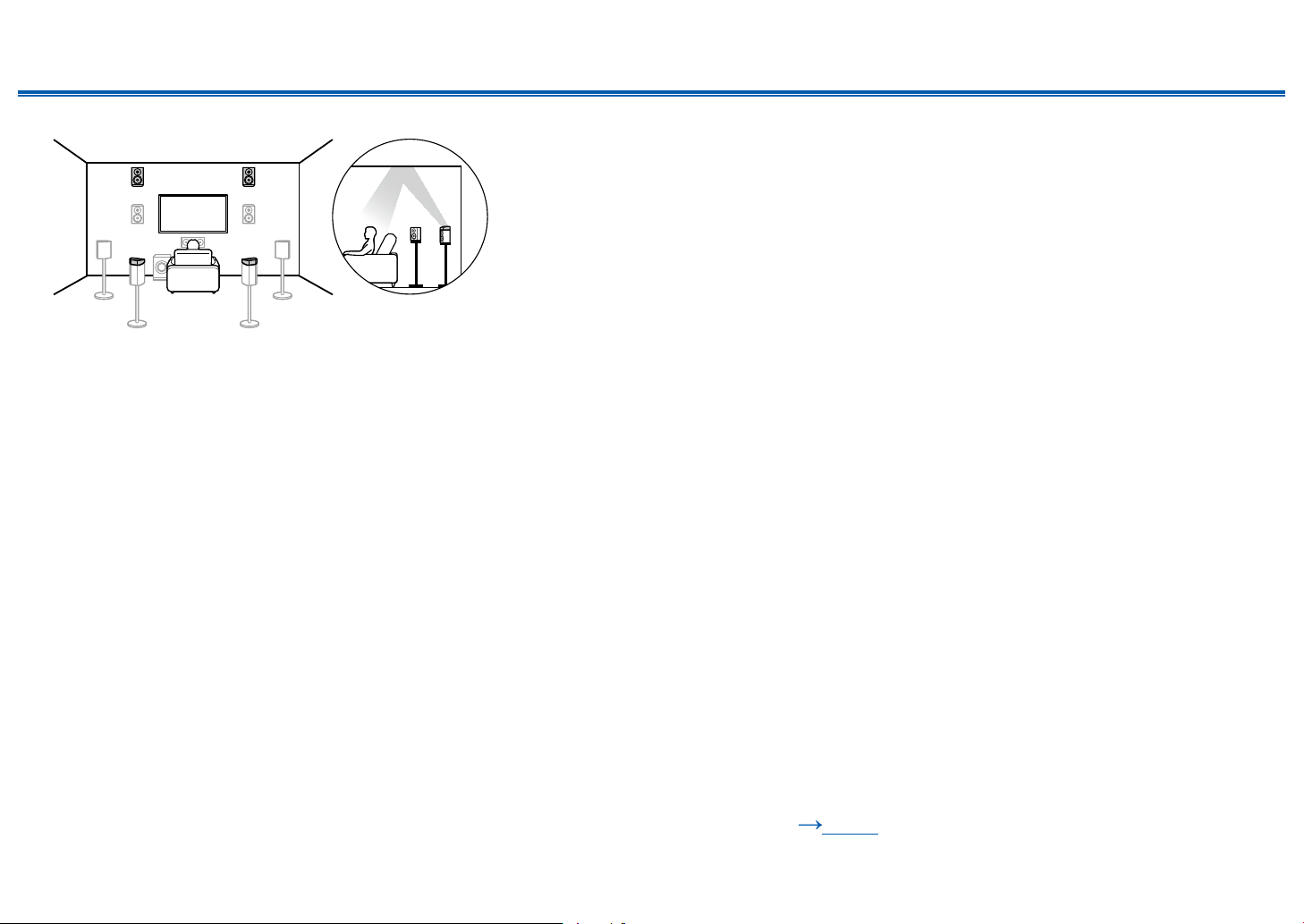
(Example 4) Use Dolby Enabled Speakers (Surround) at the rear
The Dolby enabled speakers are the special speaker that the sound is emitted
toward the ceiling, and have the effect the sound to come from above by
reecting the sound on the ceiling.
The Dolby enabled speakers (surround) are installed on top of the surround
speakers.
11,12 Dolby Enabled Speakers (Surround)
❏ Speaker Layouts and Selectable Listening
Modes ( p119)
42
Front Panel≫ Rear Panel≫ Remote≫
Contents
≫
Connections
≫
Playback
≫
Setup
≫
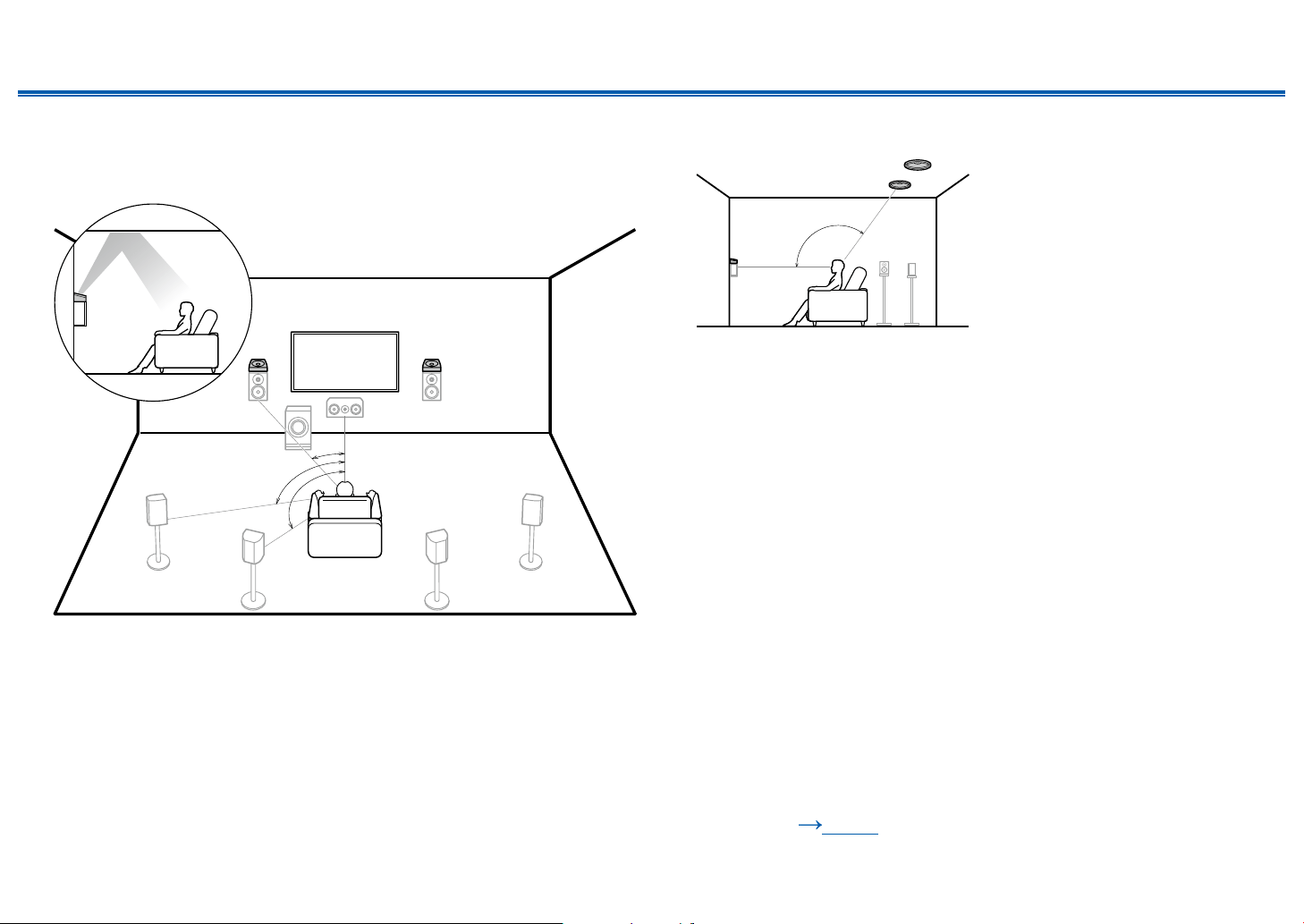
(Example 5) Use Dolby Enabled Speakers (Surround Back) at the rear
The Dolby enabled speakers are the special speaker that the sound is emitted
toward the ceiling, and have the effect the sound to come from above by
reecting the sound on the ceiling.
The Dolby enabled speakers (surround back) are installed on top of the surround
back speakers.
11,12 Dolby Enabled Speakers (Surround Back)
❏ Speaker Layouts and Selectable Listening
Modes ( p119)
43
Front Panel≫ Rear Panel≫ Remote≫
Contents
≫
Connections
≫
Playback
≫
Setup
≫
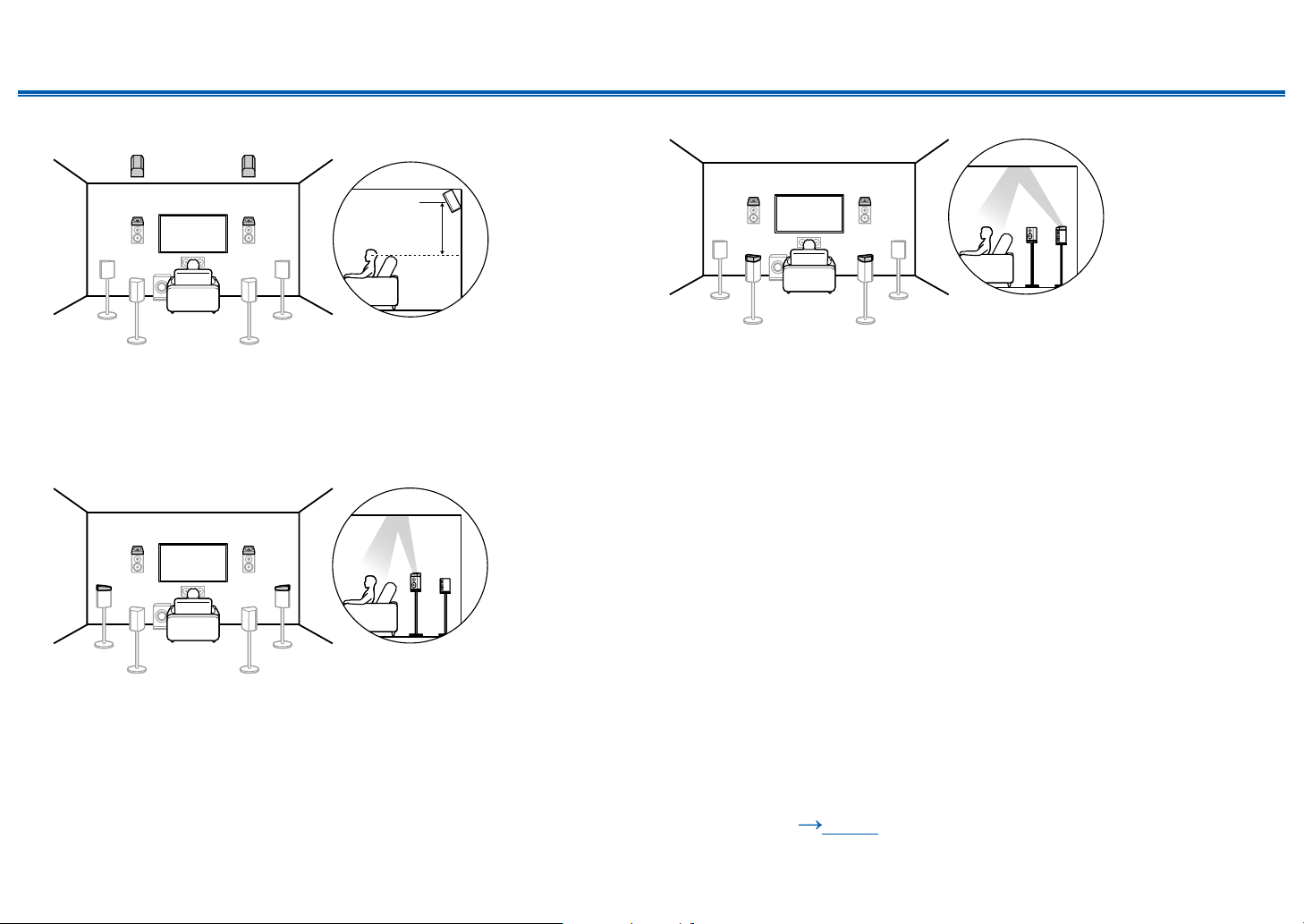
❏ Combination example when Dolby Enabled
Speakers (Front) are used at the front
About the Dolby enabled speakers (front)
b
c
a
bk 9
a: 22° to 30°, b: 90° to 110°, c: 135° to 150°
The Dolby enabled speakers are the special speaker that the sound is emitted
toward the ceiling, and have the effect the sound to come from above by
reecting the sound on the ceiling.
The Dolby enabled speakers (front) are installed on top of the front speakers.
When the Dolby enabled speakers (front) are used in front, the combination of
the height speakers at the rear can be selected from the following 4 examples
shown at the right.
9,10 Dolby Enabled Speakers (Front)
(Example 1) Use top rear speakers at the rear
d
bl
bm
9b
k
d: 125° to 150°
The top rear speakers are installed on the ceiling at rear of the listening position,
and the width between the left and right speakers is optimal to match the one for
the front speakers.
11,12 Top Rear Speakers
❏ Speaker Layouts and Selectable Listening
Modes ( p119)
44
Front Panel≫ Rear Panel≫ Remote≫
Contents
≫
Connections
≫
Playback
≫
Setup
≫
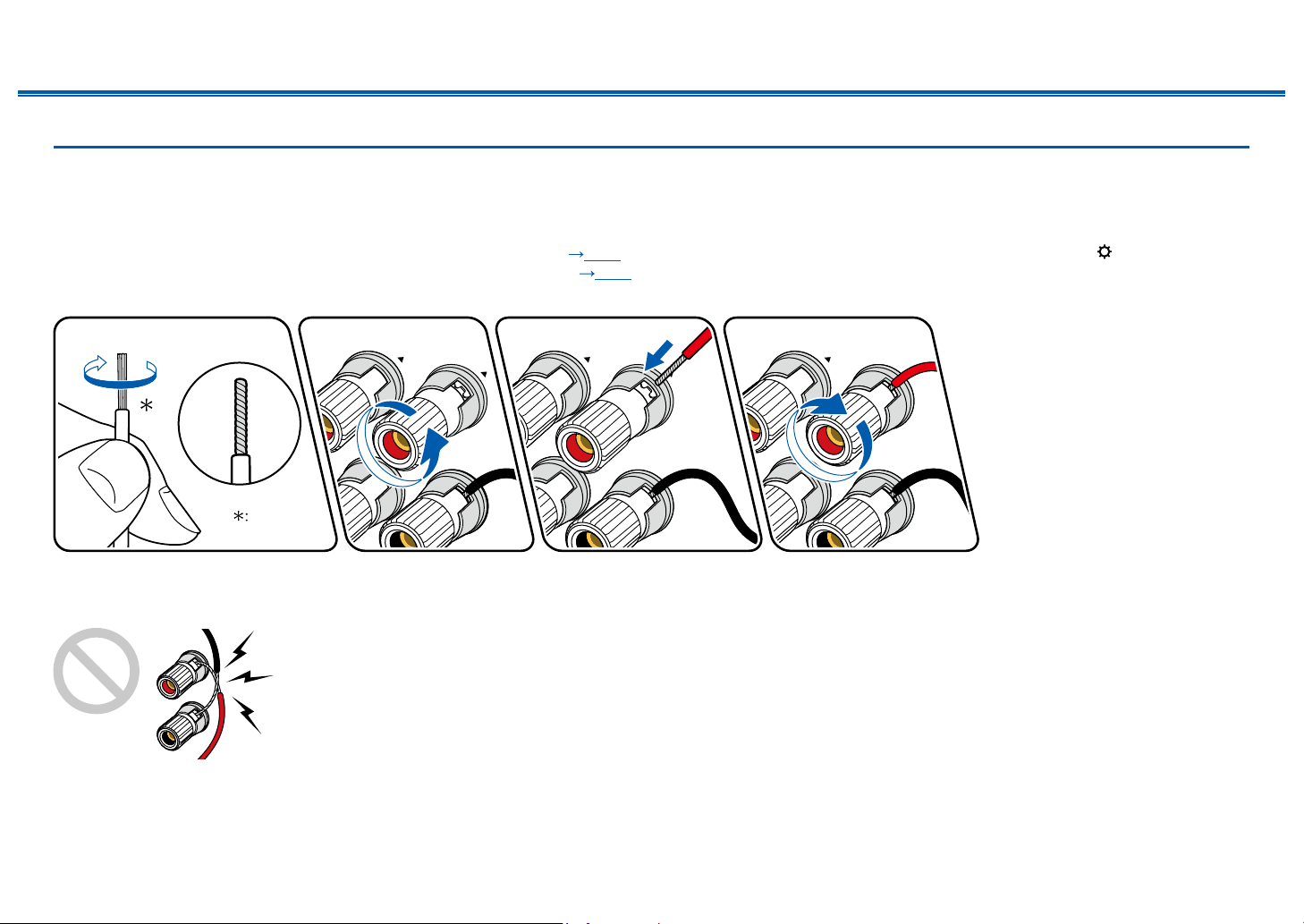
(Example 2) Use rear high speakers at the rear
bk 9
bm bl
3´ (0.9 m)
or more
The width between the rear high speakers should match the one for the front
speakers, and they should be installed minimum of 3’/0.9 m higher than the front
speakers, and tilted so they will point toward the listener.
11,12 Rear High Speakers
(Example 3) Use Dolby Enabled Speakers (Surround) at the rear
bm bl
bk 9
The Dolby enabled speakers are the special speaker that the sound is emitted
toward the ceiling, and have the effect the sound to come from above by
reecting the sound on the ceiling.
The Dolby enabled speakers (surround) are installed on top of the surround
speakers.
11,12 Dolby Enabled Speakers (Surround)
(Example 4) Use Dolby Enabled Speakers (Surround Back) at the rear
bm bl
bk 9
The Dolby enabled speakers are the special speaker that the sound is emitted
toward the ceiling, and have the effect the sound to come from above by
reecting the sound on the ceiling.
The Dolby enabled speakers (surround back) are installed on top of the surround
back speakers.
11,12 Dolby Enabled Speakers (Surround Back)
❏ Speaker Layouts and Selectable Listening
Modes ( p119)
45
Front Panel≫ Rear Panel≫ Remote≫
Contents
≫
Connections
≫
Playback
≫
Setup
≫
Speaker Connections and "Speaker Setup" Settings
Connections
(Note) Speaker Impedance
Connect speakers with an impedance of 4 Ω to 16 Ω. If any of the speakers to be connected has an impedance of 4 Ω or more and less than 6 Ω, set "Speaker
Impedance" to "4ohms" for "Speaker Setup" in the Initial Setup section ( p185). When setting "Speaker Impedance" from the Setup menu, press on the remote
controller, and set "2. Speaker" - "Conguration" - "Speaker Impedance" ( p153) to "4ohms".
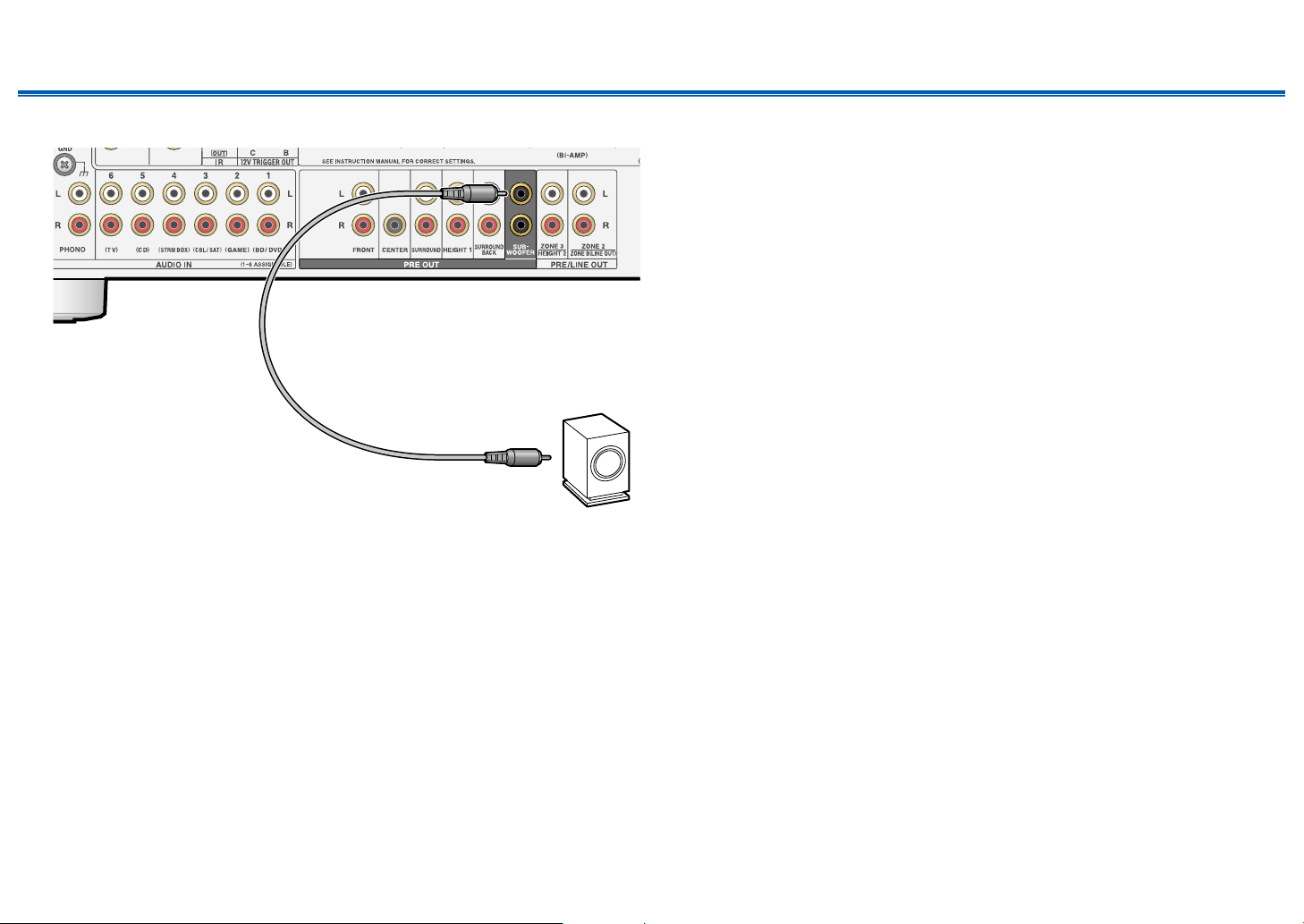
Connect the Speaker Cables
12 mm
Make correct connection between the unit's jacks and speaker's jacks (+ side to + side, and - side to - side) for each channel. If the connection is wrong, a bass sound
will not be reproduced properly due to reverse phase. Twist the wires exposed from the tip of the speaker cable so that the wires do not stick out of the speaker terminal
when connecting. If the exposed wires touch the rear panel, or the + side and – side wires touch each other, a malfunction may occur.
47
Front Panel≫ Rear Panel≫ Remote≫
Contents
≫
Connections
≫
Playback
≫
Setup
≫
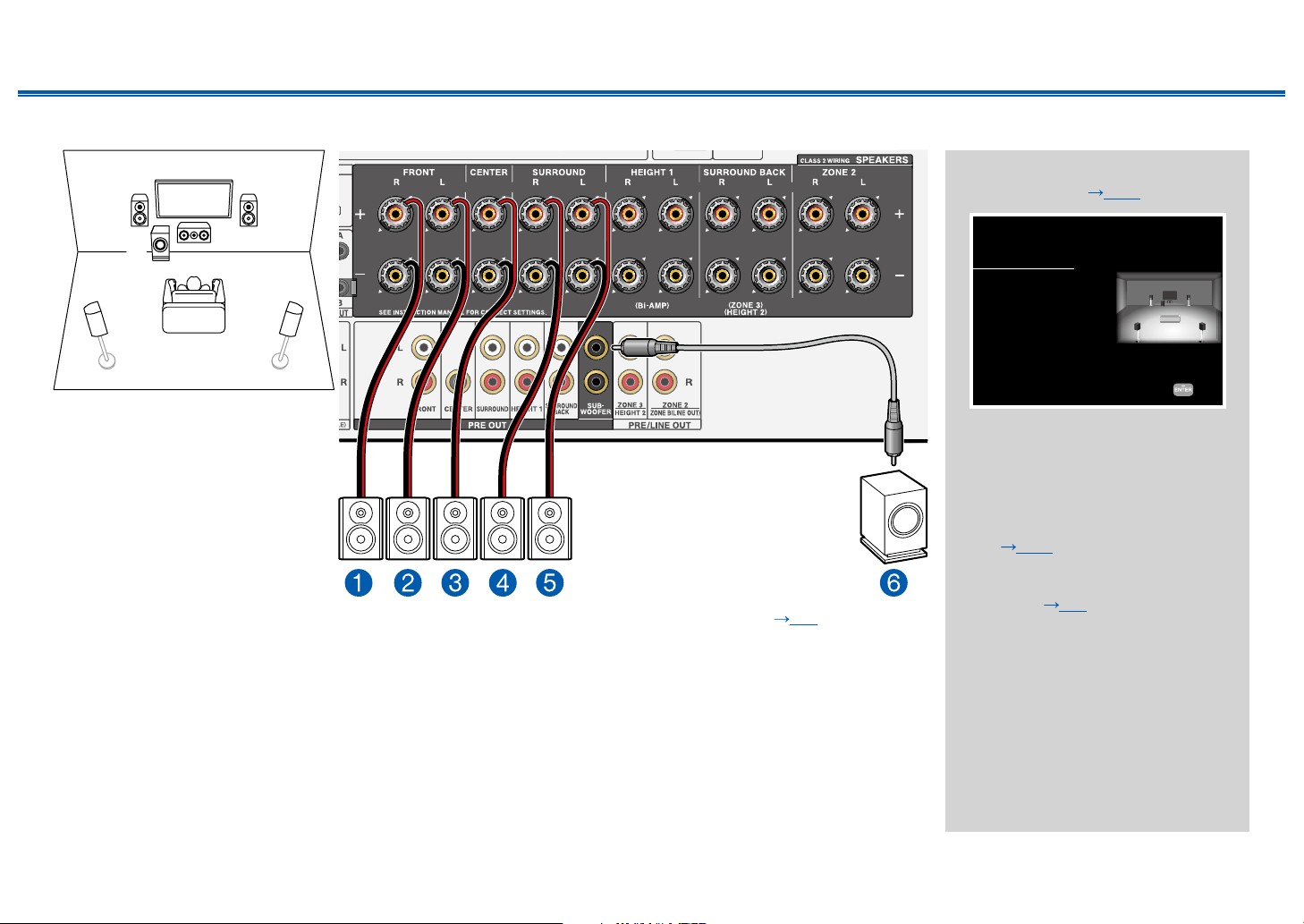
5.1 Channel System
12
45
3
6
This is a basic 5.1 Channel System. For details of the speaker layout, refer to "Speaker Installation" ( p18).
"Speaker Setup" settings during
Initial Setup ( p186)
Speaker Setup
Select how many speakers you have.
Next
Speaker Channels
Subwoofer
Height 1 Speaker
Height 1 Speaker
Zone Speaker
Zone 2 Preout
Bi-Amp
Speaker Impedance
5.1 ch
< >
Yes
---
---
No
Zone 2
No
6ohms or above
• Speaker Channels: 5.1 ch
• Subwoofer: Yes
• Height 1 Speaker: ---
• Height 2 Speaker: ---
• Zone Speaker: No
• Zone 2 Preout: Set any value
( p153)
• Bi-Amp: No
• Speaker Impedance: Set any
value ( p45)
48
Front Panel≫ Rear Panel≫ Remote≫
Contents
≫
Connections
≫
Playback
≫
Setup
≫
5.1 Channel System + ZONE SPEAKER
ZONE 2
78
MAIN ROOM
12
45
3
6
MAIN ROOM: This is a basic 5.1 Channel System. For details of the speaker layout, refer to "Speaker Installation"
( p18).
ZONE 2/ZONE 3: You can enjoy 2-ch audio in the separate room (ZONE 2/ZONE 3) while performing 5.1-ch playback in
the main room (where this unit is located). The same source can be played back in the main room and ZONE 2/ZONE 3
simultaneously. Also, different sources can be played back in both rooms.
To output audio from an externally connected AV component to ZONE 3, use an analog audio cable for connection. Note
that ZONE 3 output is not possible with the connection using a HDMI cable, digital coaxial cable, or digital optical cable.
"Speaker Setup" settings during
Initial Setup ( p186)
Speaker Setup
Select how many speakers you have.
Next
Speaker Channels
Subwoofer
Height 1 Speaker
Height 2 Speaker
Zone Speaker
Zone 2 Preout
Bi-Amp
Speaker Impedance
5.1 ch
< >
Yes
---
---
Zone 2
Zone 2
No
6ohms or above
• Speaker Channels: 5.1 ch
• Subwoofer: Yes
• Height 1 Speaker: ---
• Height 2 Speaker: ---
• Zone Speaker: Zone 2 or
Zone 2/Zone 3
• Zone 2 Preout: Zone 2
• Bi-Amp: No
• Speaker Impedance: Set any
value ( p45)
Setup
When video and audio via HDMI
input are output to ZONE 2, set
"1. Input/ Output Assign" - "TV Out /
OSD" - "Zone 2 HDMI" ( p148)
to "Use" on the Setup menu.
ZONE 3
9bk
49
Front Panel≫ Rear Panel≫ Remote≫
Contents
≫
Connections
≫
Playback
≫
Setup
≫
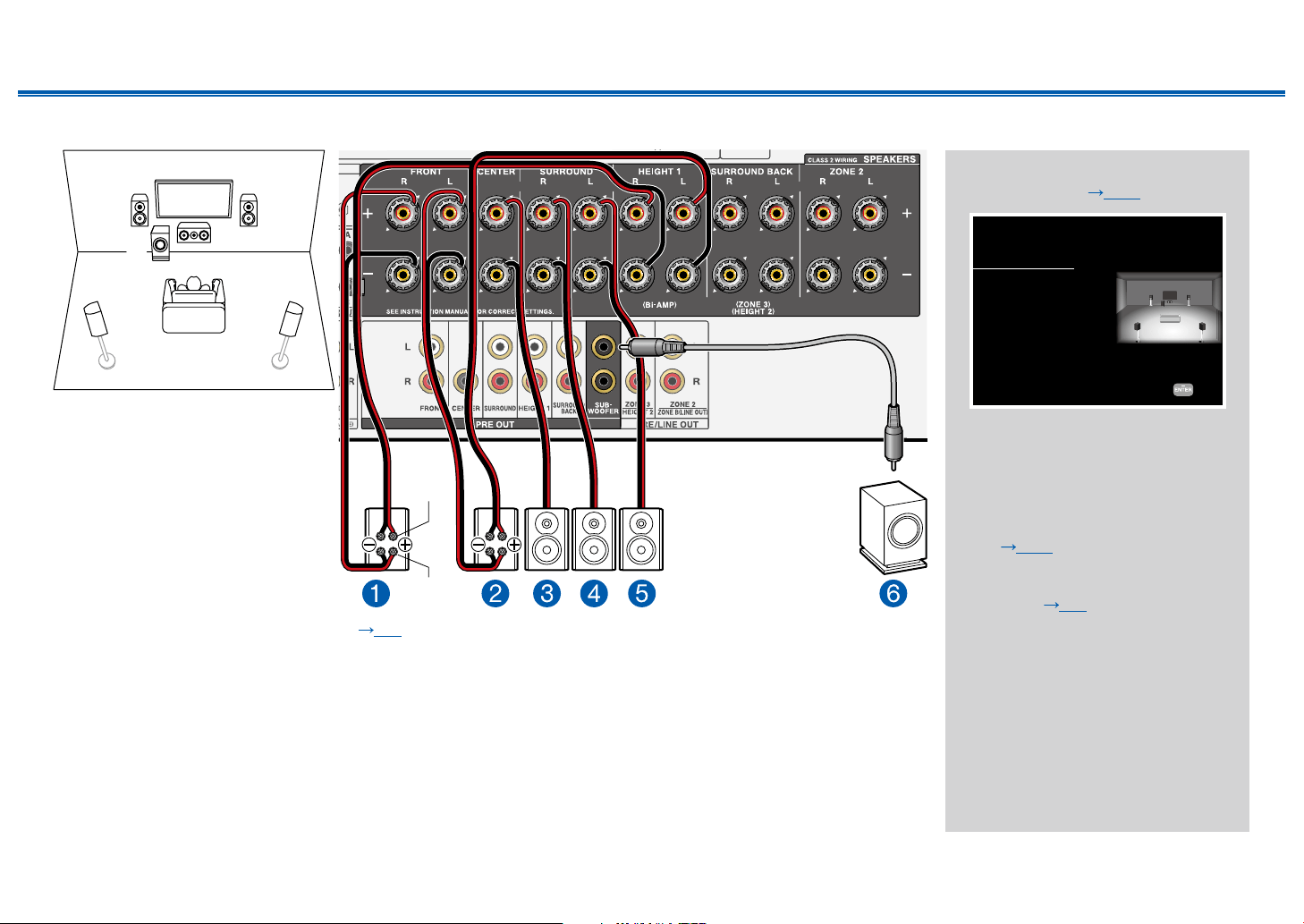
5.1 Channel System (Bi-Amping the Speakers)
12
45
3
6
For high-
frequency
For low-
frequency
You can congure a 5.1 Channel System ( p18) by connecting front speakers that support Bi-Amping connection.
The Bi-Amping connection can improve the quality of the low and high pitched ranges. Be sure to remove the jumper bar
connecting between the woofer jacks and tweeter jacks of the Bi-Amping supported speakers. Refer to the instruction
manual of your speakers as well.
"Speaker Setup" settings during
Initial Setup ( p186)
Speaker Setup
Select how many speakers you have.
Next
Speaker Channels
Subwoofer
Height 1 Speaker
Height 2 Speaker
Zone Speaker
Zone 2 Preout
Bi-Amp
Speaker Impedance
5.1 ch
< >
Yes
---
---
No
Zone 2
Yes
6ohms or above
• Speaker Channels: 5.1 ch
• Subwoofer: Yes
• Height 1 Speaker: ---
• Height 2 Speaker: ---
• Zone Speaker: No
• Zone 2 Preout: Set any value
( p153)
• Bi-Amp: Yes
• Speaker Impedance: Set any
value ( p45)
50
Front Panel≫ Rear Panel≫ Remote≫
Contents
≫
Connections
≫
Playback
≫
Setup
≫
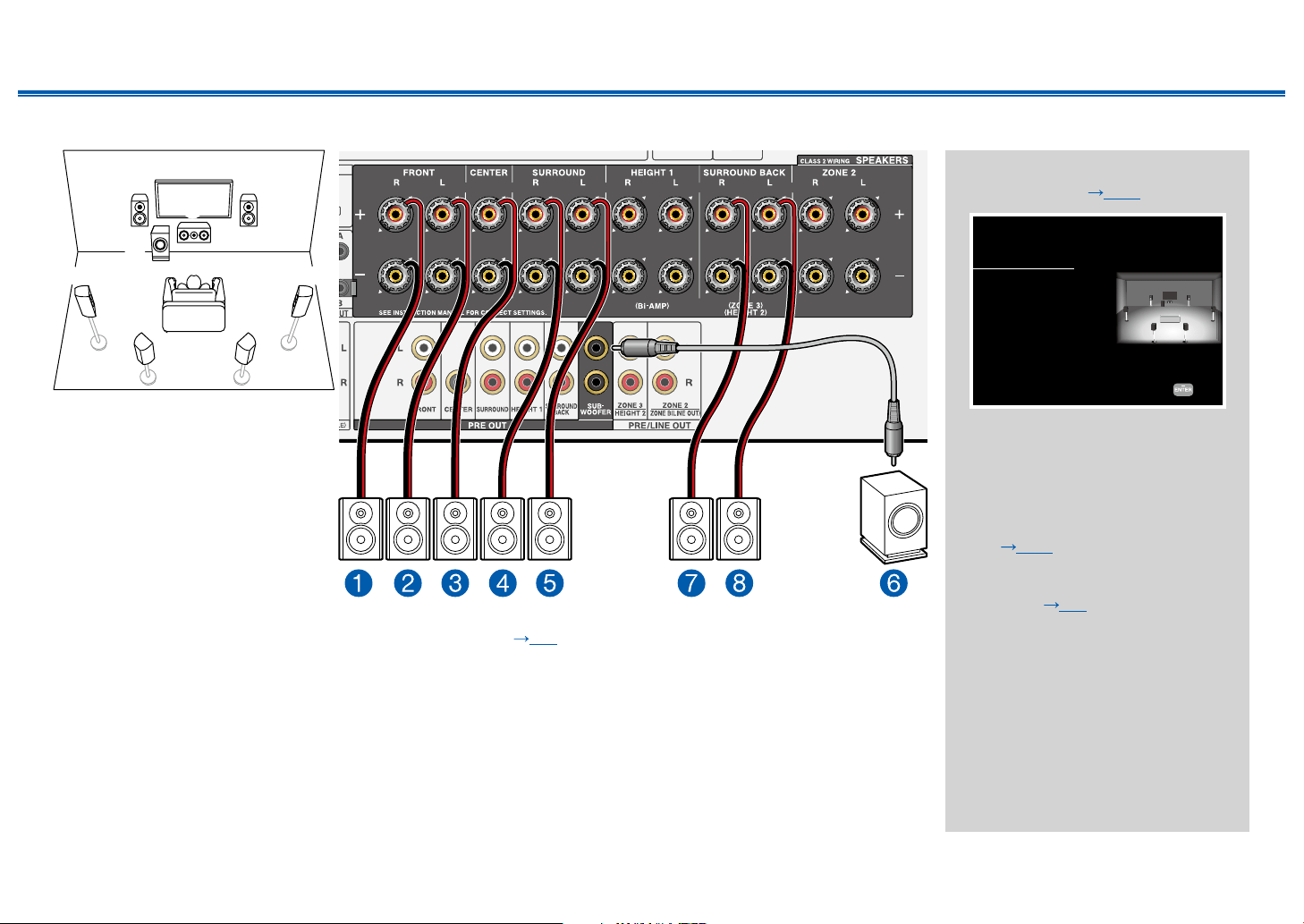
7.1 Channel System
12
5 4
87
3
6
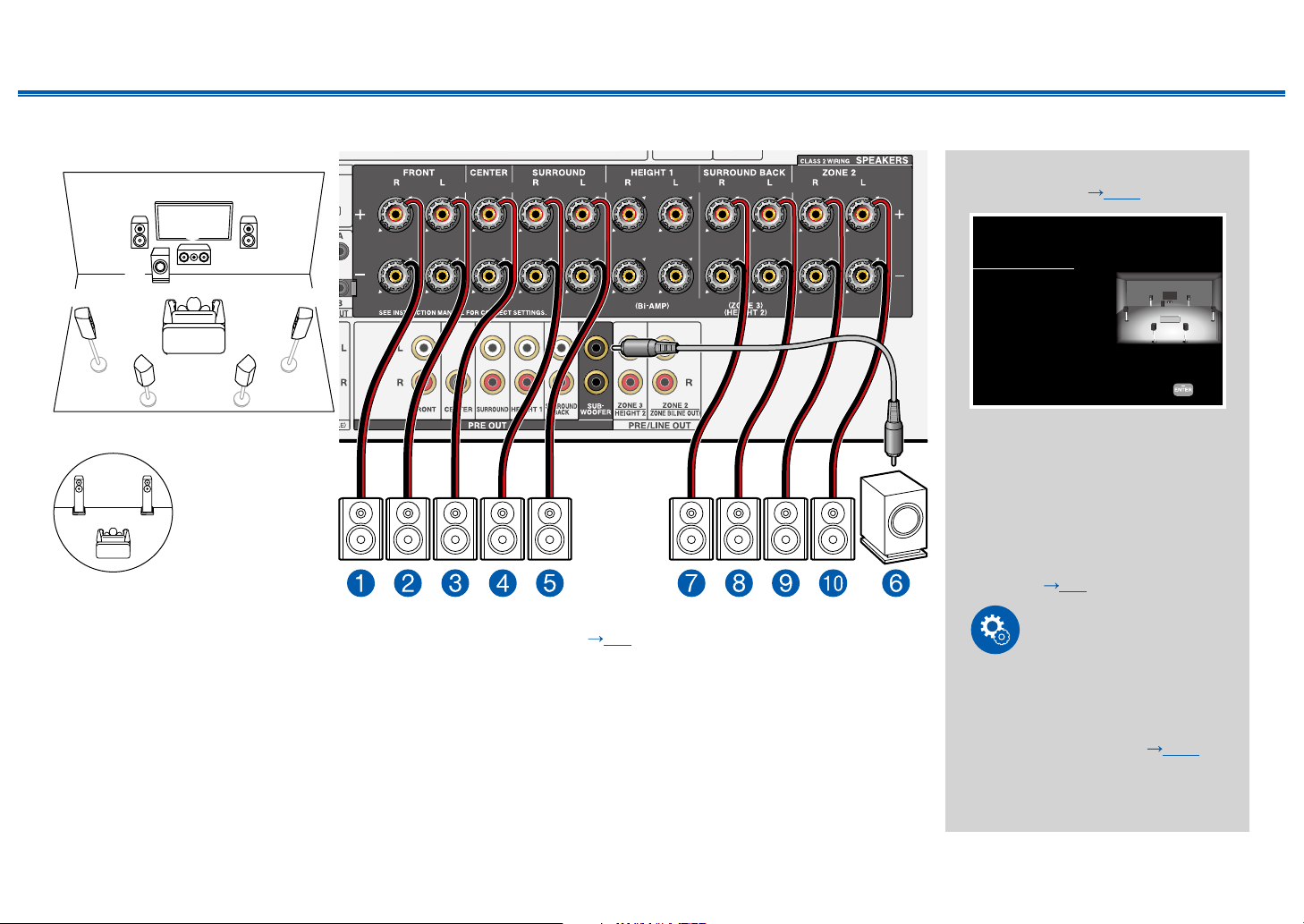
This is a 7.1 Channel System that consists of the basic 5.1 Channel System and added surround back speakers.
For details of the speaker layout, refer to "Speaker Installation" ( p19).
"Speaker Setup" settings during
Initial Setup ( p186)
Speaker Setup
Select how many speakers you have.
Next
Speaker Channels
Subwoofer
Height 1 Speaker
Height 2 Speaker
Zone Speaker
Zone 2 Preout
Bi-Amp
Speaker Impedance
7.1 ch
< >
Yes
---
---
No
Zone 2
No
6ohms or above
• Speaker Channels: 7.1 ch
• Subwoofer: Yes
• Height 1 Speaker: ---
• Height 2 Speaker: ---
• Zone Speaker: No
• Zone 2 Preout: Set any value
( p153)
• Bi-Amp: No
• Speaker Impedance: Set any
value ( p45)
51
Front Panel≫ Rear Panel≫ Remote≫
Contents
≫
Connections
≫
Playback
≫
Setup
≫
7.1 Channel System + ZONE SPEAKER
ZONE 2
bk 9
MAIN ROOM
12
5 4
87
3
6
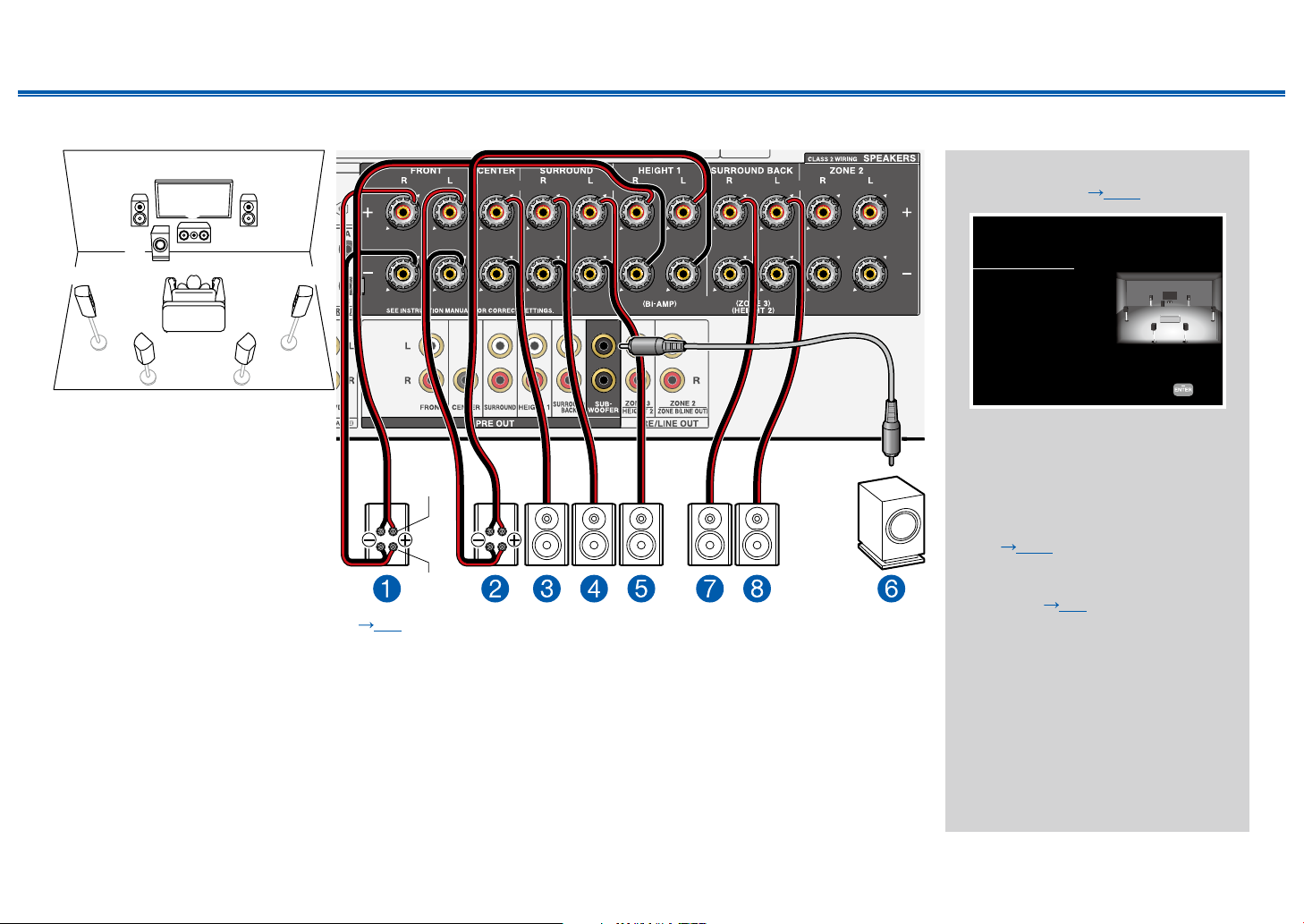
MAIN ROOM: This is a 7.1 Channel System that consists of the basic 5.1 Channel System and added surround back
speakers. For details of the speaker layout, refer to "Speaker Installation" ( p19).
ZONE 2: You can enjoy 2-ch audio in the separate room (ZONE 2) while performing playback in the main room (where
this unit is located). The same source can be played back in the main room and ZONE 2 simultaneously. Also, different
sources can be played back in both rooms.
"Speaker Setup" settings during
Initial Setup ( p186)
Speaker Setup
Select how many speakers you have.
Next
Speaker Channels
Subwoofer
Height 1 Speaker
Height 2 Speaker
Zone Speaker
Zone 2 Preout
Bi-Amp
Speaker Impedance
7.1 ch
< >
Yes
---
---
Zone 2
Zone 2
No
6ohms or above
• Speaker Channels: 7.1 ch
• Subwoofer: Yes
• Height 1 Speaker: ---
• Height 2 Speaker: ---
• Zone Speaker: Zone 2
• Zone 2 Preout: Zone 2
• Bi-Amp: No
• Speaker Impedance: Set any
value ( p45)
Setup
When video and audio via HDMI
input are output to ZONE 2, set
"1. Input/ Output Assign" - "TV Out /
OSD" - "Zone 2 HDMI" ( p148)
to "Use" on the Setup menu.
52
Front Panel≫ Rear Panel≫ Remote≫
Contents
≫
Connections
≫
Playback
≫
Setup
≫
7.1 Channel System (Bi-Amping the Speakers)
12
5 4
87
3
6
For high-
frequency
For low-
frequency
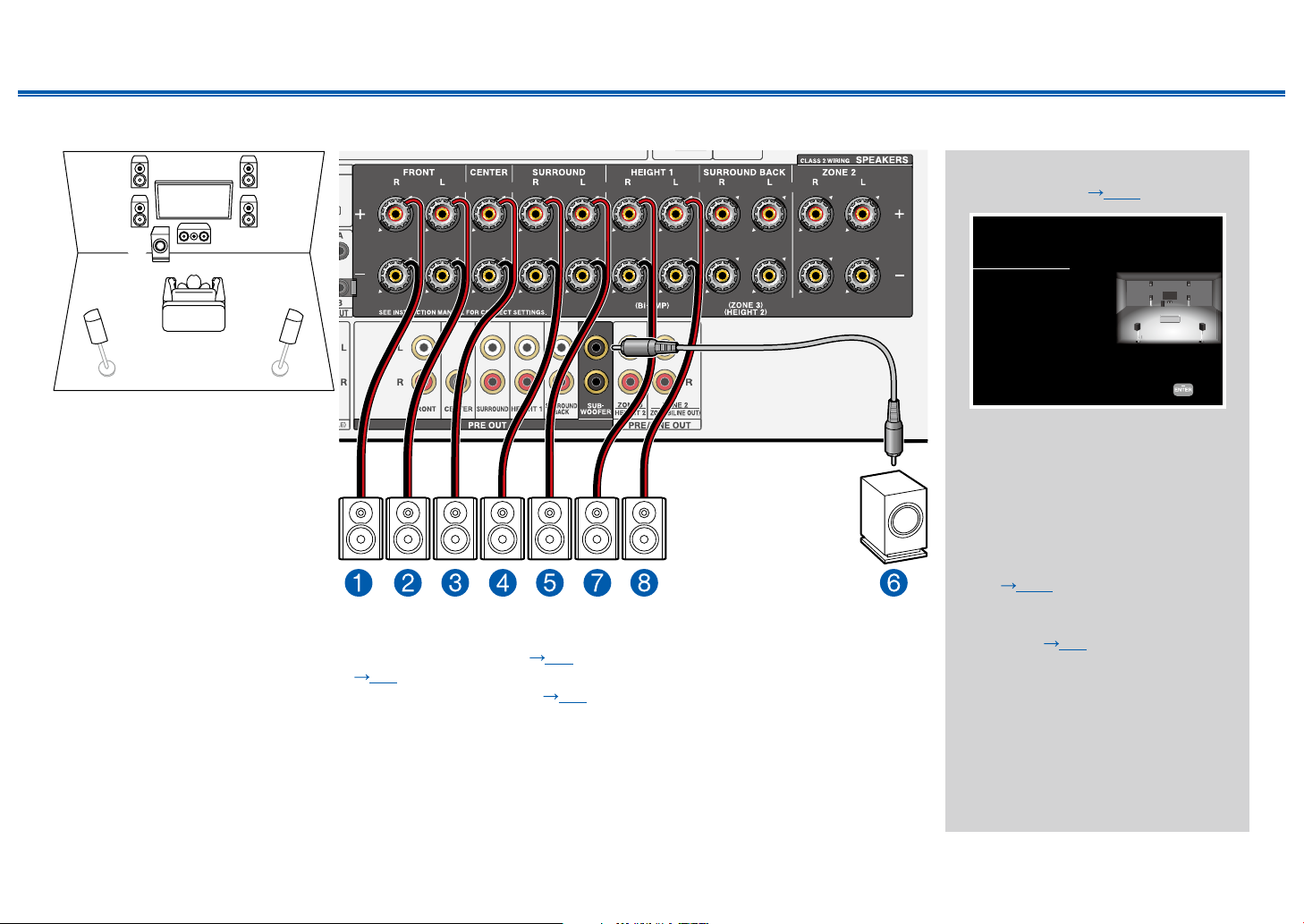
You can congure a 7.1 Channel System ( p19) by connecting front speakers that support Bi-Amping connection.
The Bi-Amping connection can improve the quality of the low and high pitched ranges. Be sure to remove the jumper bar
connecting between the woofer jacks and tweeter jacks of the Bi-Amping supported speakers. Refer to the instruction
manual of your speakers as well.
"Speaker Setup" settings during
Initial Setup ( p186)
Speaker Setup
Select how many speakers you have.
Next
Speaker Channels
Subwoofer
Height 1 Speaker
Height 2 Speaker
Zone Speaker
Zone 2 Preout
Bi-Amp
Speaker Impedance
7.1 ch
< >
Yes
---
---
No
Zone 2
Yes
6ohms or above
• Speaker Channels: 7.1 ch
• Subwoofer: Yes
• Height 1 Speaker: ---
• Height 2 Speaker: ---
• Zone Speaker: No
• Zone 2 Preout: Set any value
( p153)
• Bi-Amp: Yes
• Speaker Impedance: Set any
value ( p45)
53
Front Panel≫ Rear Panel≫ Remote≫
Contents
≫
Connections
≫
Playback
≫
Setup
≫
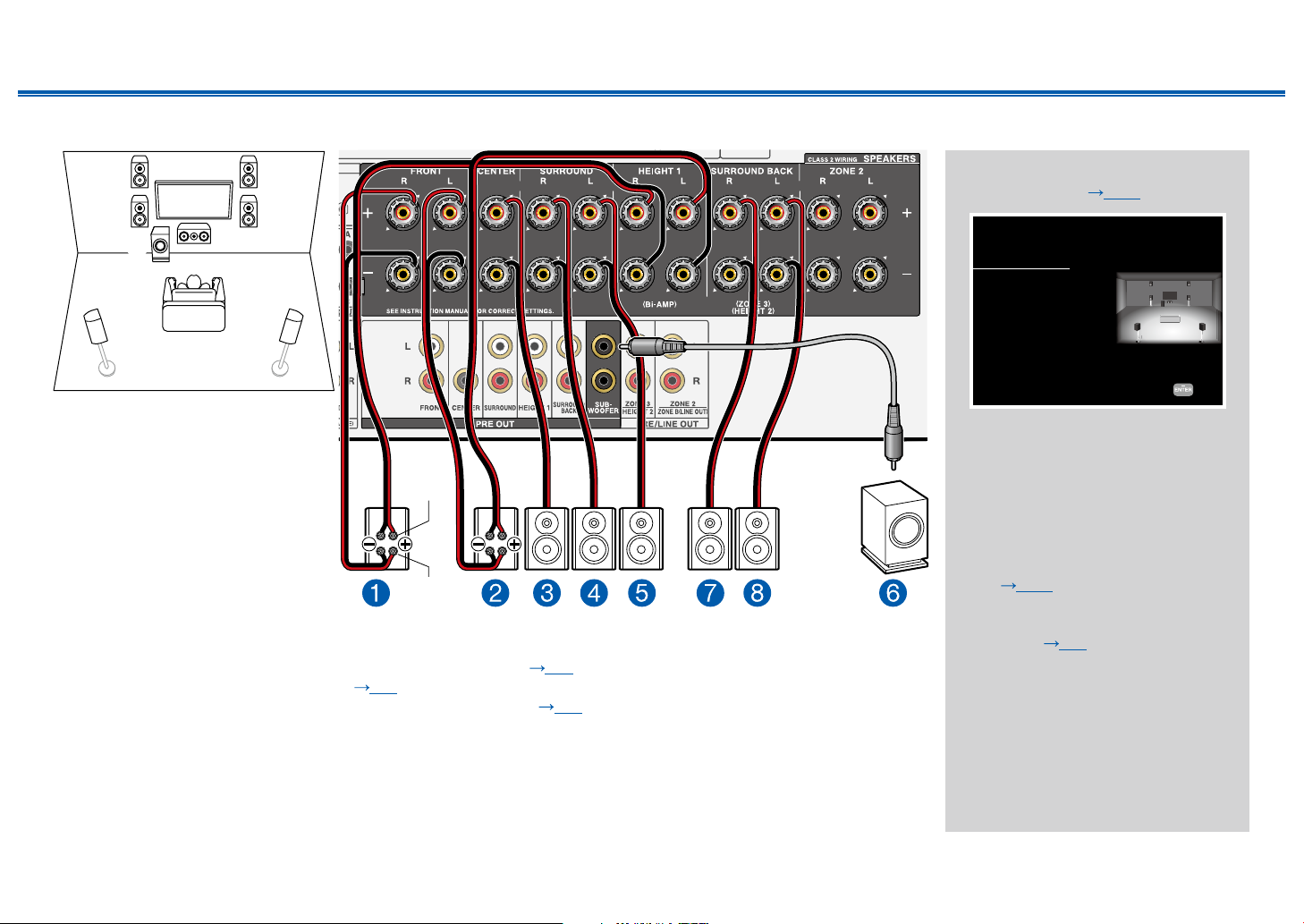
5.1.2 Channel System
78
1
3
2
45
6
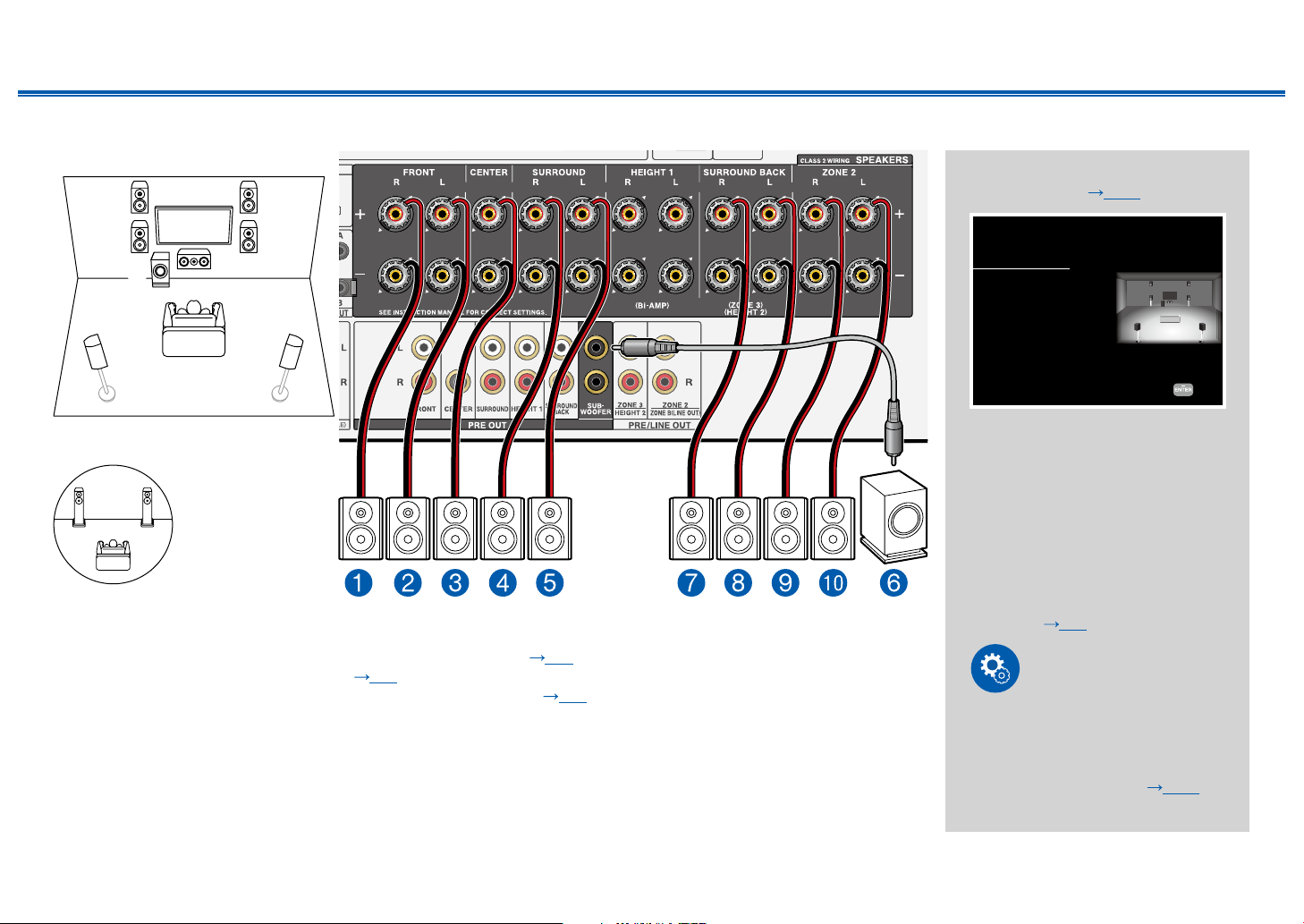
This is a combination of the 5.1 Channel System and front high speakers. A front high speaker is a type of height speaker.
You can select only one set of height speakers from the following three types for connection.
❏ Front High Speakers/Rear High Speakers Installation Example ( p21)
❏ Ceiling Speakers Installation Example ( p22)
❏ Dolby Enabled Speakers (Dolby Speakers) Installation Example ( p23)
"Speaker Setup" settings during
Initial Setup ( p186)
Speaker Setup
Speaker Channels
Subwoofer
Height 1 Speaker
Height 2 Speaker
Zone Speaker
Zone 2 Preout
Bi-Amp
Speaker Impedance
Select how many speakers you have.
Next
5.1.2 ch
< >
Yes
Front High
---
No
Zone 2
No
6ohms or above
• Speaker Channels: 5.1.2 ch
• Subwoofer: Yes
• Height 1 Speaker: Select the
type of height speaker actually
installed.
• Height 2 Speaker: ---
• Zone Speaker: No
• Zone 2 Preout: Set any value
( p153)
• Bi-Amp: No
• Speaker Impedance: Set any
value ( p45)
54
Front Panel≫ Rear Panel≫ Remote≫
Contents
≫
Connections
≫
Playback
≫
Setup
≫
5.1.2 Channel System + ZONE SPEAKER
ZONE 2
bk 9
78
1
3
2
45
6
MAIN ROOM
MAIN ROOM: This is a combination of the 5.1 Channel System and front high speakers. A front high speaker is a type of
height speaker. You can select only one set of height speakers from the following three types for connection.
❏ Front High Speakers/Rear High Speakers Installation Example (
p21)
❏ Ceiling Speakers Installation Example ( p22)
❏ Dolby Enabled Speakers (Dolby Speakers) Installation Example ( p23)
ZONE 2: You can enjoy 2-ch audio in the separate room (ZONE 2) while performing playback in the main room (where
this unit is located). The same source can be played back in the main room and ZONE 2 simultaneously. Also, different
sources can be played back in both rooms.
"Speaker Setup" settings during
Initial Setup ( p186)
Speaker Setup
Select how many speakers you have.
Next
Speaker Channels
Subwoofer
Height 1 Speaker
Height 2 Speaker
Zone Speaker
Zone 2 Preout
Bi-Amp
Speaker Impedance
5.1.2 ch
< >
Yes
---
Front High
Zone 2
Zone 2
No
6ohms or above
• Speaker Channels: 5.1.2 ch
• Subwoofer: Yes
• Height 1 Speaker: ---
• Height 2 Speaker: Select the
type of height speaker actually
installed.
• Zone Speaker: Zone 2
• Zone 2 Preout: Zone 2
• Bi-Amp: No
• Speaker Impedance: Set any
value ( p45)
Setup
When video and audio via HDMI
input are output to ZONE 2, set
"1. Input/ Output Assign" - "TV Out /
OSD" - "Zone 2 HDMI" ( p148)
to "Use" on the Setup menu.
55
Front Panel≫ Rear Panel≫ Remote≫
Contents
≫
Connections
≫
Playback
≫
Setup
≫
5.1.2 Channel System (Bi-Amping the Speakers)
78
1
3
2
45
6
For high-
frequency
For low-
frequency
This is a combination of the 5.1 Channel System and front high speakers. A front high speaker is a type of height speaker.
You can select only one set of height speakers from the following three types for connection.
❏ Front High Speakers/Rear High Speakers Installation Example ( p21)
❏ Ceiling Speakers Installation Example ( p22)
❏ Dolby Enabled Speakers (Dolby Speakers) Installation Example ( p23)
You can congure a 5.1.2 Channel System by connecting front speakers that support Bi-Amping connection. The Bi-
Amping connection can improve the quality of the low and high pitched ranges. Be sure to remove the jumper bar
connecting between the woofer jacks and tweeter jacks of the Bi-Amping supported speakers. Refer to the instruction
manual of your speakers as well.
"Speaker Setup" settings during
Initial Setup ( p186)
Speaker Setup
Speaker Channels
Subwoofer
Height 1 Speaker
Height 2 Speaker
Zone Speaker
Zone 2 Preout
Bi-Amp
Speaker Impedance
Select how many speakers you have.
Next
5.1.2 ch
< >
Yes
---
Front High
No
Zone 2
Yes
6ohms or above
• Speaker Channels: 5.1.2 ch
• Subwoofer: Yes
• Height 1 Speaker: ---
• Height 2 Speaker: Select the
type of height speaker actually
installed.
• Zone Speaker: No
• Zone 2 Preout: Set any value
( p153)
• Bi-Amp: Yes
• Speaker Impedance: Set any
value ( p45)
56
Front Panel≫ Rear Panel≫ Remote≫
Contents
≫
Connections
≫
Playback
≫
Setup
≫
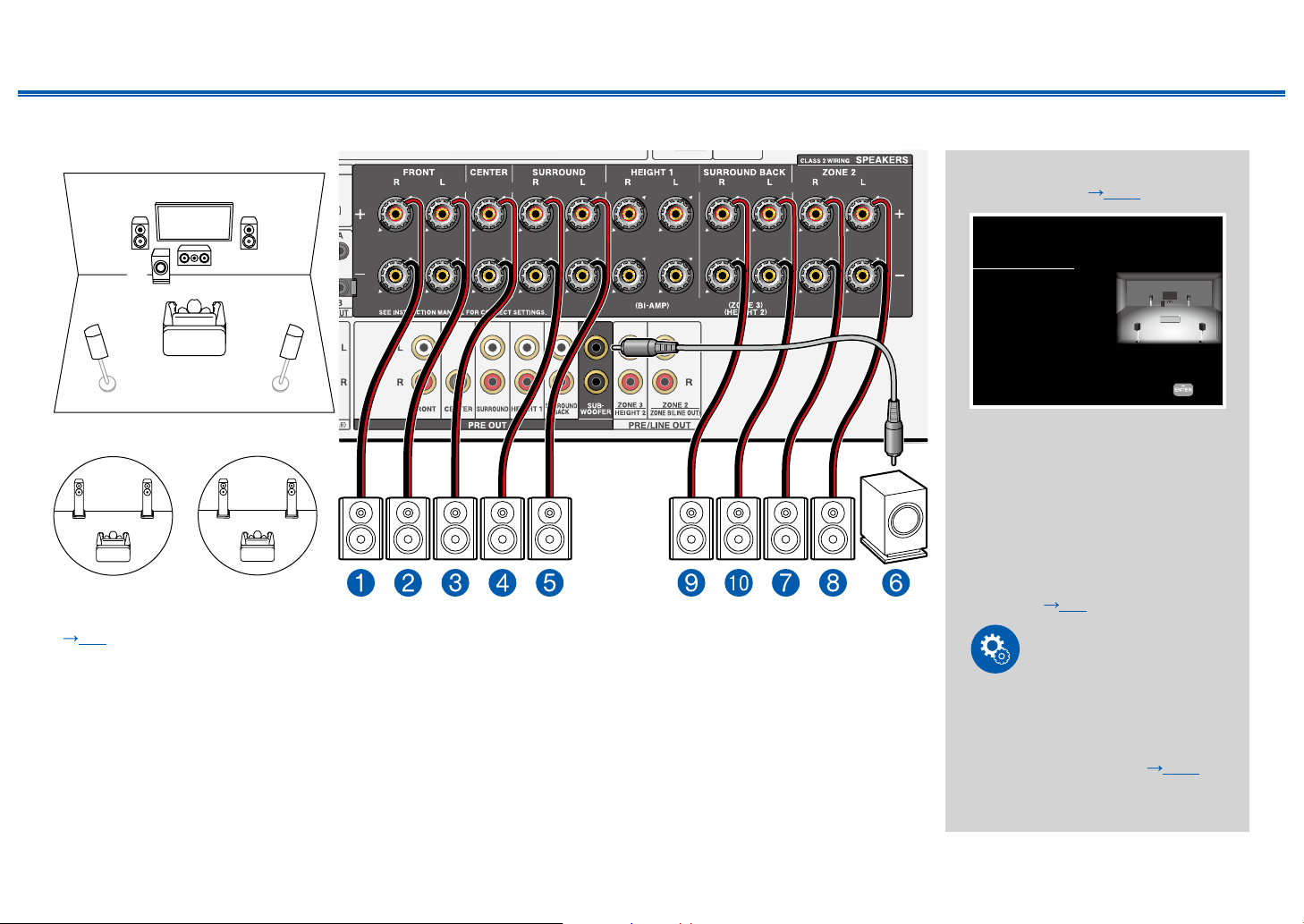
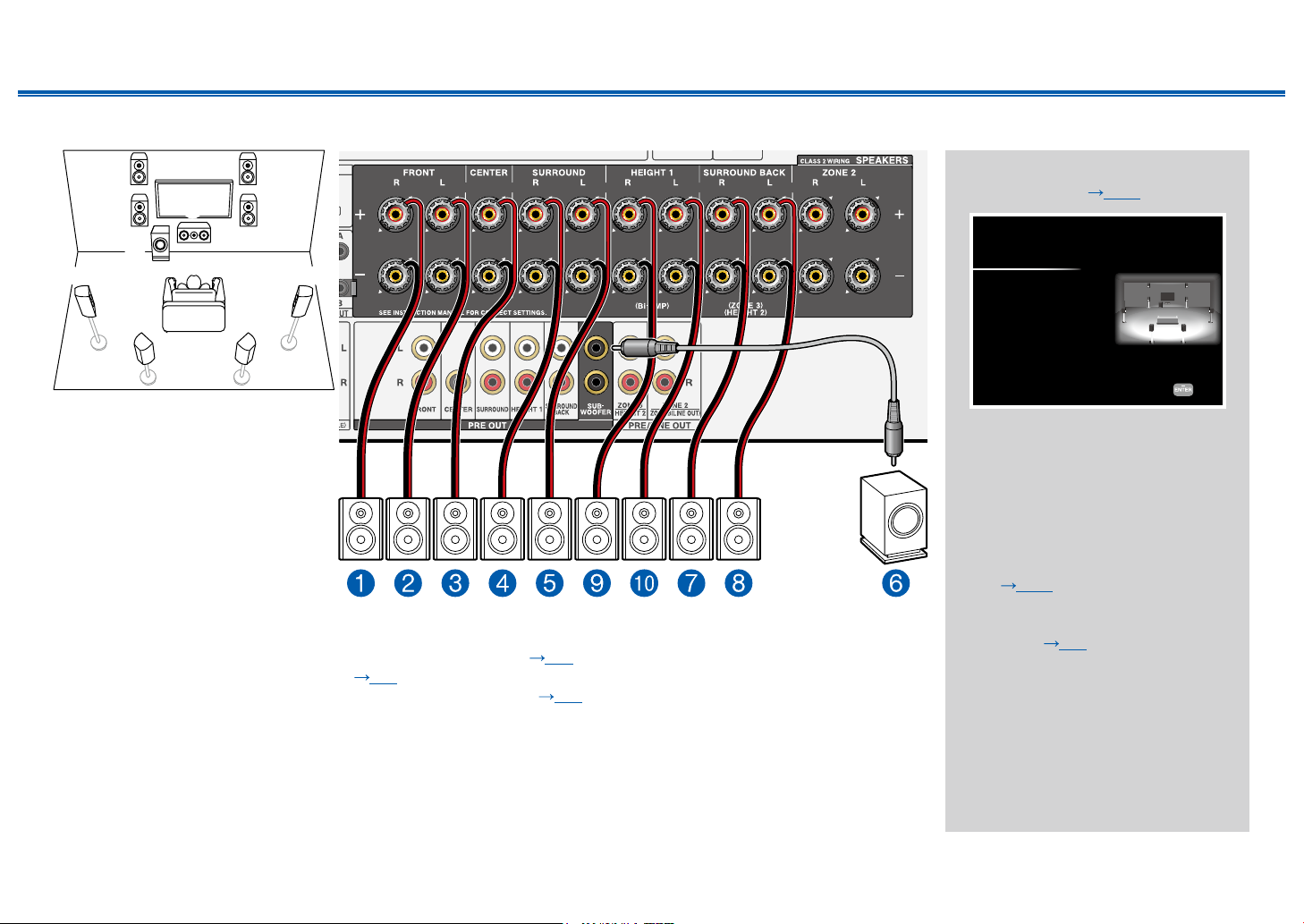
7.1.2 Channel System
12
9bk
5 4
87
3
6
This is a combination of the 7.1 Channel System and front high speakers. A front high speaker is a type of height speaker.
You can select only one set of height speakers from the following three types for connection.
❏ Front High Speakers/Rear High Speakers Installation Example ( p25)
❏ Ceiling Speakers Installation Example ( p26)
❏ Dolby Enabled Speakers (Dolby Speakers) Installation Example ( p27)
"Speaker Setup" settings during
Initial Setup ( p186)
Speaker Setup
Next
Speaker Channels
Subwoofer
Height 1 Speaker
Height 2 Speaker
Zone Speaker
Zone 2 Preout
Bi-Amp
Speaker Impedance
Select how many speakers you have.
7.1.2 ch
< >
Yes
Front High
---
No
Zone 2
No
6ohms or above
• Speaker Channels: 7.1.2 ch
• Subwoofer: Yes
• Height 1 Speaker: Select the
type of height speaker actually
installed.
• Height 2 Speaker: ---
• Zone Speaker: No
• Zone 2 Preout: Set any value
( p153)
• Bi-Amp: No
• Speaker Impedance: Set any
value ( p45)
57
Front Panel≫ Rear Panel≫ Remote≫
Contents
≫
Connections
≫
Playback
≫
Setup
≫
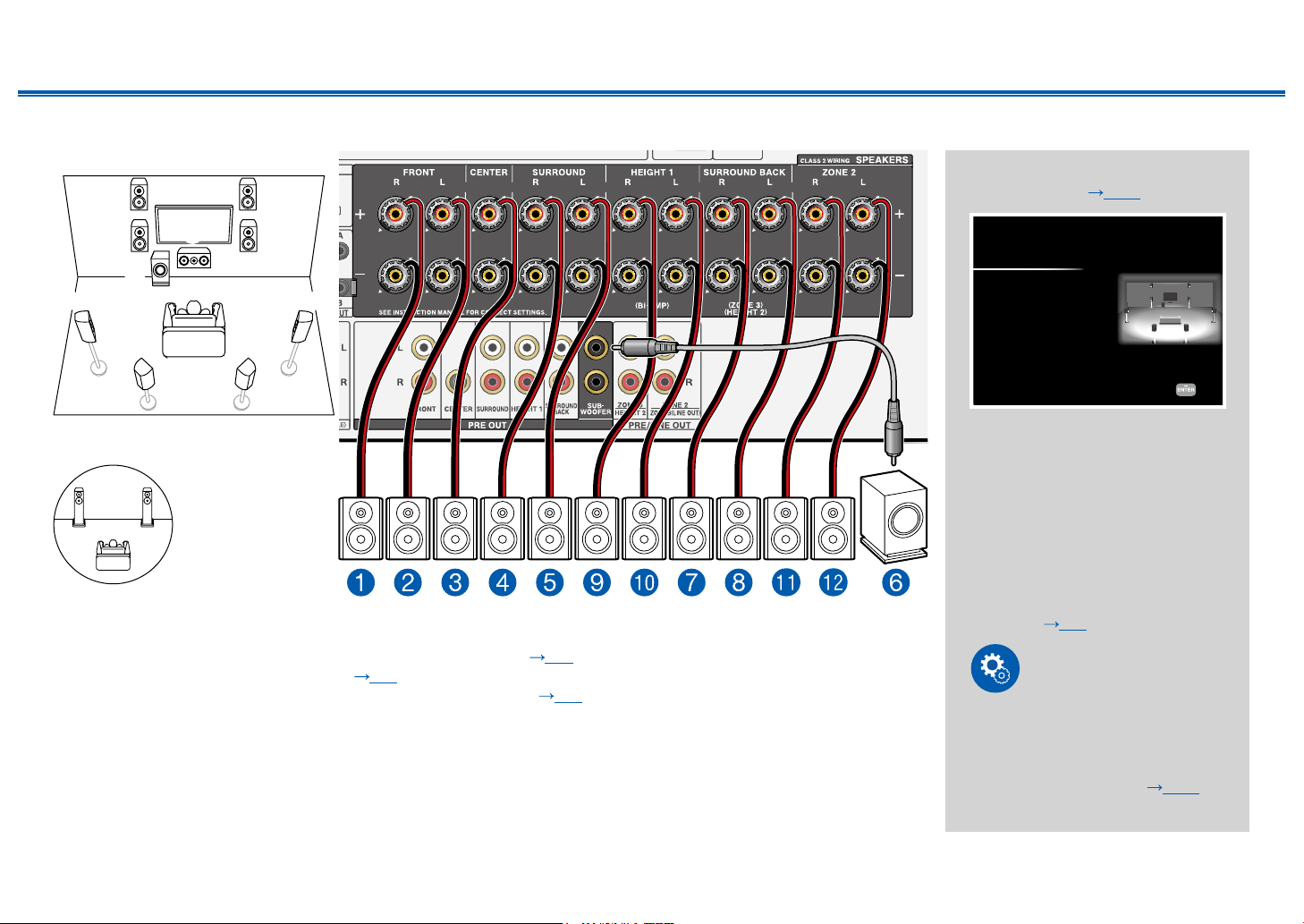
7.1.2 Channel System + ZONE SPEAKER
ZONE 2
bm bl
12
9bk
5 4
87
3
6
MAIN ROOM
MAIN ROOM: This is a combination of the 7.1 Channel System and front high speakers. A front high speaker is a type of
height speaker. You can select only one set of height speakers from the following three types for connection.
❏ Front High Speakers/Rear High Speakers Installation Example (
p25)
❏ Ceiling Speakers Installation Example ( p26)
❏ Dolby Enabled Speakers (Dolby Speakers) Installation Example ( p27)
ZONE 2: You can enjoy 2-ch audio in the separate room (ZONE 2) while performing playback in the main room (where
this unit is located). The same source can be played back in the main room and ZONE 2 simultaneously. Also, different
sources can be played back in both rooms.
• While ZONE 2 playback is being performed, Height 1 speakers installed in the main room cannot play audio.
"Speaker Setup" settings during
Initial Setup ( p186)
Speaker Setup
Next
Speaker Channels
Subwoofer
Height 1 Speaker
Height 2 Speaker
Zone Speaker
Zone 2 Preout
Bi-Amp
Speaker Impedance
Select how many speakers you have.
7.1.2 ch
< >
Yes
Front High
---
Zone 2
Zone 2
No
6ohms or above
• Speaker Channels: 7.1.2 ch
• Subwoofer: Yes
• Height 1 Speaker: Select the
type of height speaker actually
installed.
• Height 2 Speaker: ---
• Zone Speaker: Zone 2
• Zone 2 Preout: Zone 2
• Bi-Amp: No
• Speaker Impedance: Set any
value ( p45)
Setup
When video and audio via HDMI
input are output to ZONE 2, set
"1. Input/ Output Assign" - "TV Out /
OSD" - "Zone 2 HDMI" ( p148)
to "Use" on the Setup menu.
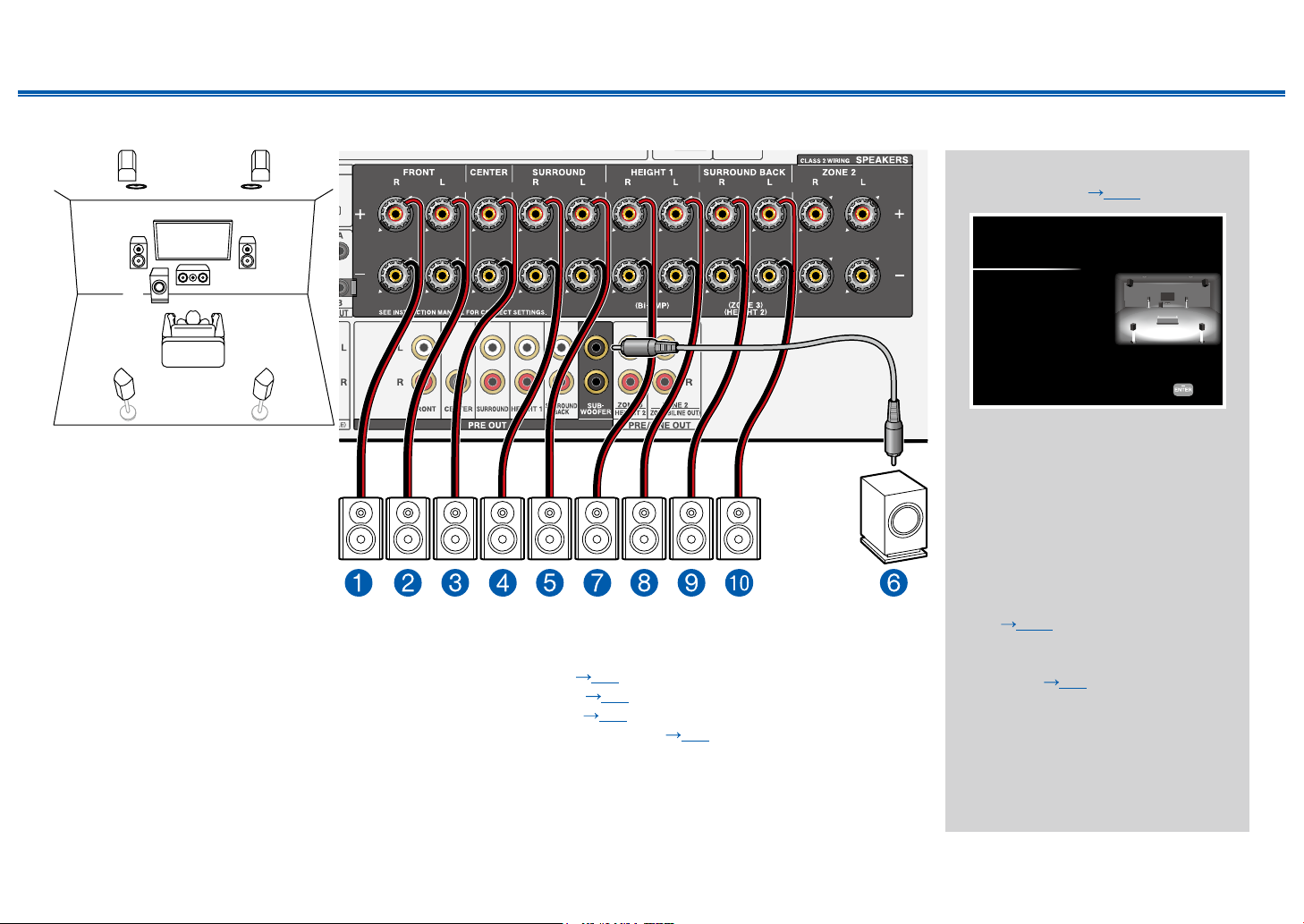
58
Front Panel≫ Rear Panel≫ Remote≫
Contents
≫
Connections
≫
Playback
≫
Setup
≫
5.1.4 Channel System
2 1
78
9bk
54
6
3
This is an example of combining the top middle speakers at the front and the rear high speakers at the rear to the 5.1
Channel System. The height speakers in front can be selected from following 4 types. The height speakers that can be
combined at the rear differ depending on the height speakers used at the front.
❏ Combination example when Top Front Speakers are used at the front ( p29)
❏ Combination example when Top Middle Speakers are used at the front ( p31)
❏ Combination example when Front High Speakers are used at the front ( p32)
❏ Combination example when Dolby Enabled Speakers (Front) are used at the front ( p34)
"Speaker Setup" settings during
Initial Setup ( p186)
Speaker Setup
Next
Speaker Channels
Subwoofer
Height 1 Speaker
Height 2 Speaker
Zone Speaker
Zone 2 Preout
Bi-Amp
Speaker Impedance
Select how many speakers you have.
5.1.4 ch
< >
Yes
Top Middle
Rear High
No
Zone 2
No
6ohms or above
• Speaker Channels: 5.1.4 ch
• Subwoofer: Yes
• Height 1 Speaker: Select the
type of height speaker actually
installed.
• Height 2 Speaker: Select the
type of height speaker actually
installed.
• Zone Speaker: No
• Zone 2 Preout: Set any value
( p153)
• Bi-Amp: No
• Speaker Impedance: Set any
value ( p45)
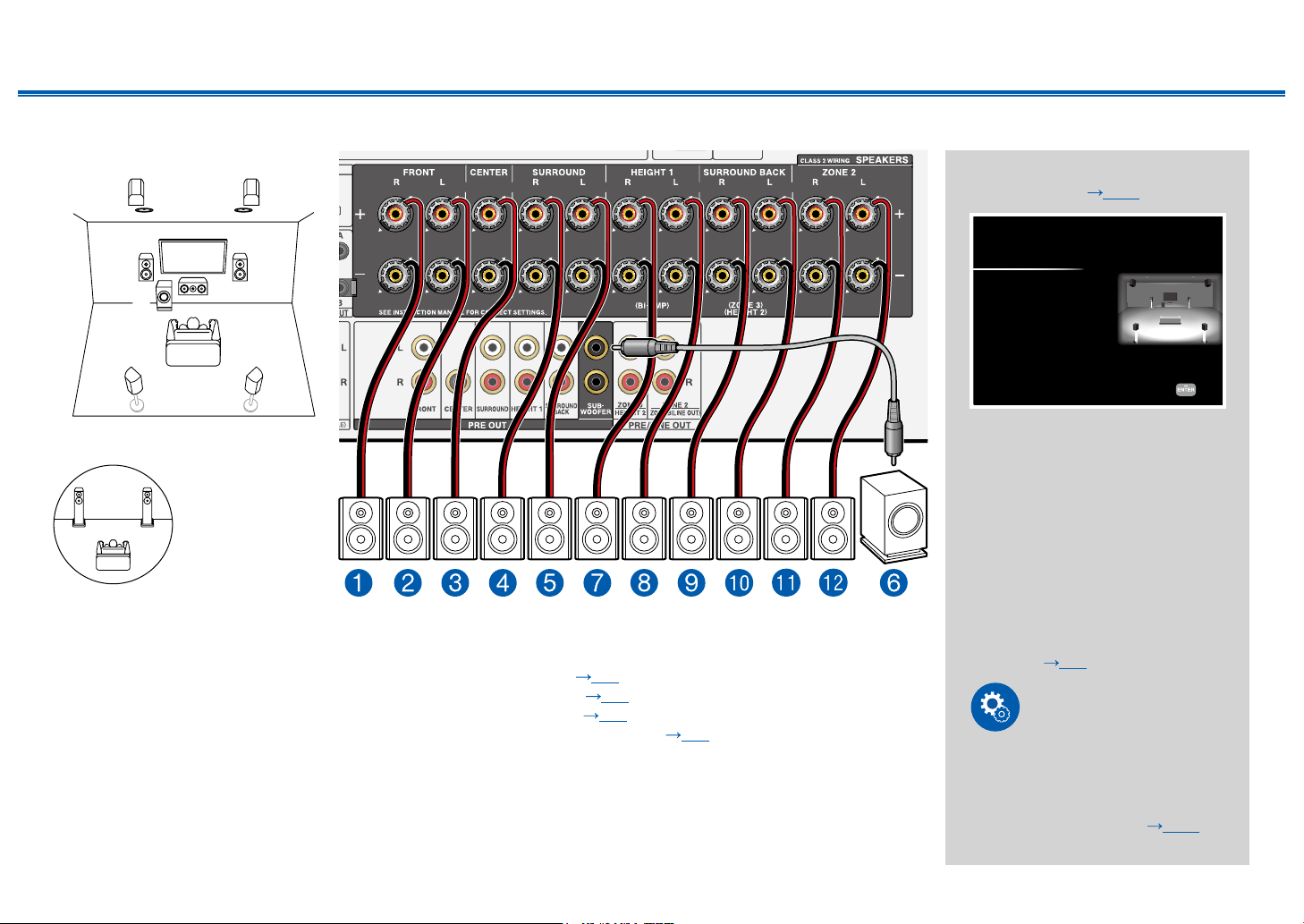
59
Front Panel≫ Rear Panel≫ Remote≫
Contents
≫
Connections
≫
Playback
≫
Setup
≫
5.1.4 Channel System + ZONE SPEAKER
ZONE 2
bm bl
2 1
78
9bk
54
6
3
MAIN ROOM
MAIN ROOM: This is an example of combining the top middle speakers at the front and the rear high speakers at the rear
to the 5.1 Channel System. The height speakers in front can be selected from following 4 types. The height speakers that
can be combined at the rear differ depending on the height speakers used at the front.
❏ Combination example when Top Front Speakers are used at the front (
p29)
❏ Combination example when Top Middle Speakers are used at the front ( p31)
❏ Combination example when Front High Speakers are used at the front ( p32)
❏ Combination example when Dolby Enabled Speakers (Front) are used at the front ( p34)
ZONE 2: You can enjoy 2-ch audio in the separate room (ZONE 2) while performing playback in the main room (where
this unit is located). The same source can be played back in the main room and ZONE 2 simultaneously. Also, different
sources can be played back in both rooms.
• While ZONE 2 playback is being performed, Height 1 speakers installed in the main room cannot play audio.
"Speaker Setup" settings during
Initial Setup
( p
186
)
Speaker Setup
Next
Speaker Channels
Subwoofer
Height 1 Speaker
Height 2 Speaker
Zone Speaker
Zone 2 Preout
Bi-Amp
Speaker Impedance
Select how many speakers you have.
5.1.4 ch
< >
Yes
Top Middle
Rear High
Zone 2
Zone 2
No
6ohms or above
• Speaker Channels: 5.1.4 ch
• Subwoofer: Yes
• Height 1 Speaker: Select the
type of height speaker actually
installed.
• Height 2 Speaker: Select the
type of height speaker actually
installed.
• Zone Speaker: Zone 2
• Zone 2 Preout: Zone 2
• Bi-Amp: No
• Speaker Impedance: Set any
value ( p45)
Setup
When video and audio via HDMI
input are output to ZONE 2, set
"1. Input/ Output Assign" - "TV Out /
OSD" - "Zone 2 HDMI" ( p148)
to "Use" on the Setup menu.
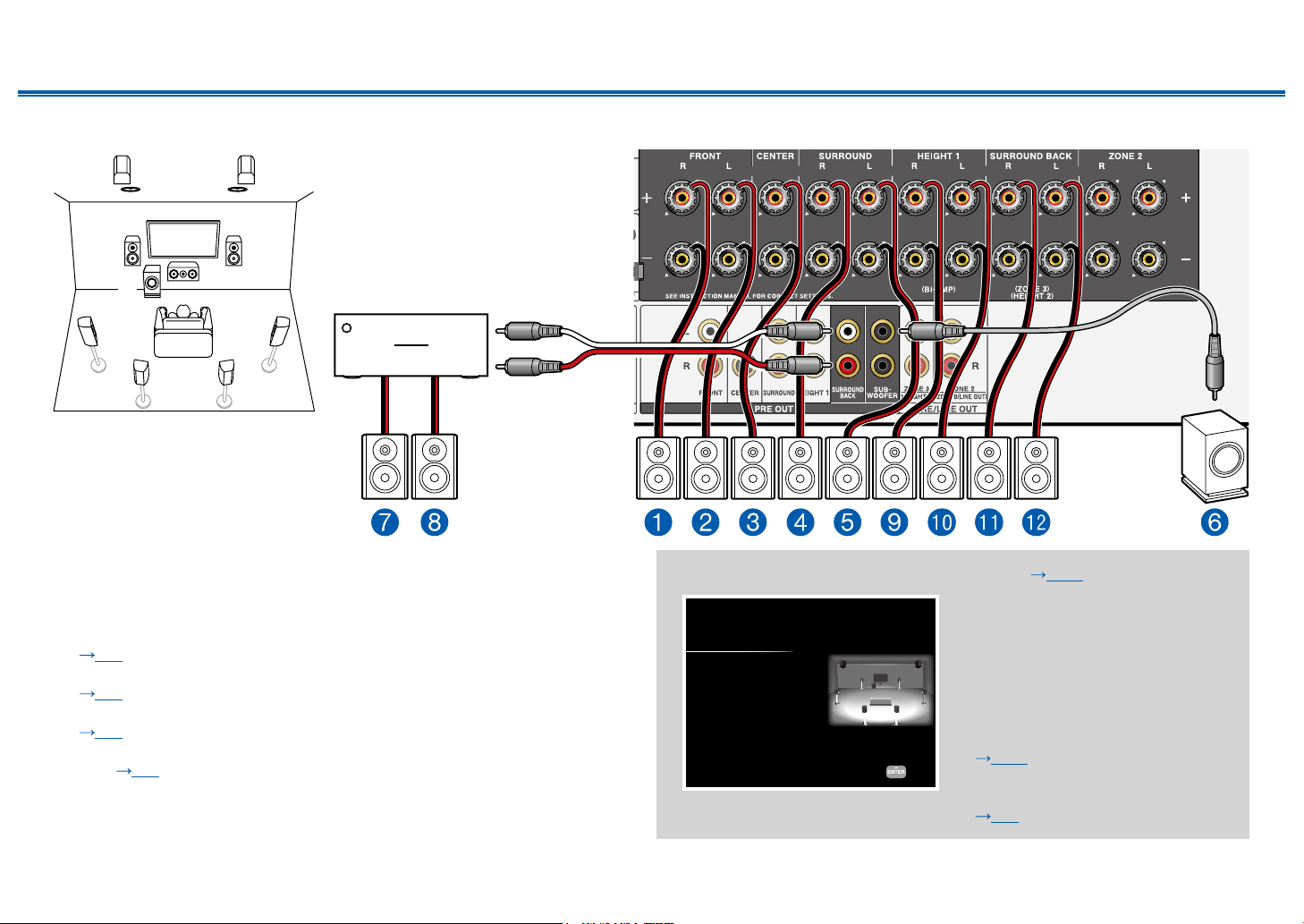
60
Front Panel≫ Rear Panel≫ Remote≫
Contents
≫
Connections
≫
Playback
≫
Setup
≫
7.1.4 Channel System
2
9bk
blbm
87
5
4
6
3
1
Power amplier
This is an example of combining the top middle speakers at the front and the
rear high speakers at the rear to the 7.1 Channel System. The height speakers
in front can be selected from following 4 types. The height speakers that can be
combined at the rear differ depending on the height speakers used at the front.
❏ Combination example when Top Front Speakers are used at the front
(
p37)
❏ Combination example when Top Middle Speakers are used at the front
(
p39)
❏ Combination example when Front High Speakers are used at the front
( p40)
❏ Combination example when Dolby Enabled Speakers (Front) are used at the
front ( p43)
"Speaker Setup" settings during Initial Setup ( p186)
Speaker Setup
Next
Speaker Channels
Subwoofer
Height 1 Speaker
Height 2 Speaker
Zone Speaker
Zone 2 Preout
Bi-Amp
Speaker Impedance
Select how many speakers you have.
7.1.4 ch
< >
Yes
Top Middle
Rear High
No
Zone 2
No
6ohms or above
• Speaker Channels: 7.1.4 ch
• Subwoofer: Yes
• Height 1 Speaker: Select the type of
height speaker actually installed.
• Height 2 Speaker: Select the type of
height speaker actually installed.
• Zone Speaker: No
• Zone 2 Preout: Set any value
( p153)
• Bi-Amp: No
• Speaker Impedance: Set any value
( p45)
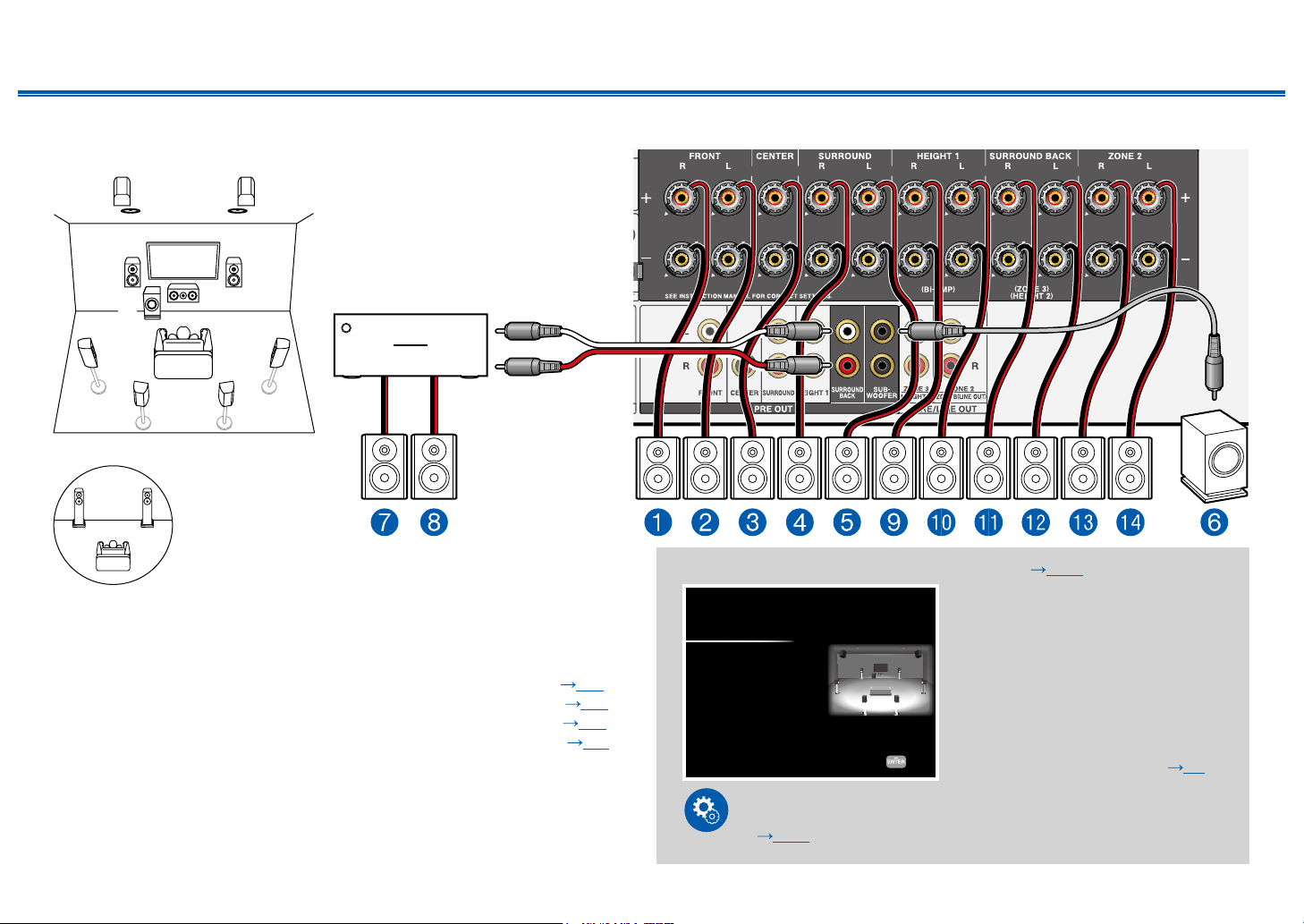
61
Front Panel≫ Rear Panel≫ Remote≫
Contents
≫
Connections
≫
Playback
≫
Setup
≫
7.1.4 Channel System + ZONE SPEAKER
MAIN ROOM
2
9bk
blbm
87
5
4
6
3
1
ZONE 2
bo bn
Power amplier
MAIN ROOM:
This is an example of combining the top middle speakers at the
front and the rear high speakers at the rear to the 7.1 Channel System. The height
speakers in front can be selected from following 4 types. The height speakers that can
be combined at the rear differ depending on the height speakers used at the front.
❏
Combination example when Top Front Speakers are used at the front
( p37)
❏
Combination example when Top Middle Speakers are used at the front
( p39)
❏
Combination example when Front High Speakers are used at the front
( p40)
❏
Combination example when Dolby Enabled Speakers (Front) are used at the front
( p43)
ZONE 2: You can enjoy 2-ch audio in the separate room (ZONE 2) while
performing playback in the main room (where this unit is located). The same
source can be played back in the main room and ZONE 2 simultaneously. Also,
different sources can be played back in both rooms.
• While ZONE 2 playback is being performed, Height 1 speakers installed in the
main room cannot play audio.
"Speaker Setup" settings during Initial Setup ( p186)
Speaker Setup
Next
Speaker Channels
Subwoofer
Height 1 Speaker
Height 2 Speaker
Zone Speaker
Zone 2 Preout
Bi-Amp
Speaker Impedance
Select how many speakers you have.
7.1.4 ch
< >
Yes
Top Middle
Rear High
Zone 2
Zone 2
No
6ohms or above
• Speaker Channels: 7.1.4 ch
• Subwoofer: Yes
• Height 1 Speaker: Select the type of
height speaker actually installed.
• Height 2 Speaker: Select the type of
height speaker actually installed.
• Zone Speaker: Zone 2
• Zone 2 Preout: Zone 2
• Bi-Amp: No
•
Speaker Impedance: Set any value ( p45)
Setup
When video and audio via HDMI input are output to ZONE 2, set
"1. Input/ Output Assign" - "TV Out / OSD" - "Zone 2 HDMI"
( p148) to "Use" on the Setup menu.
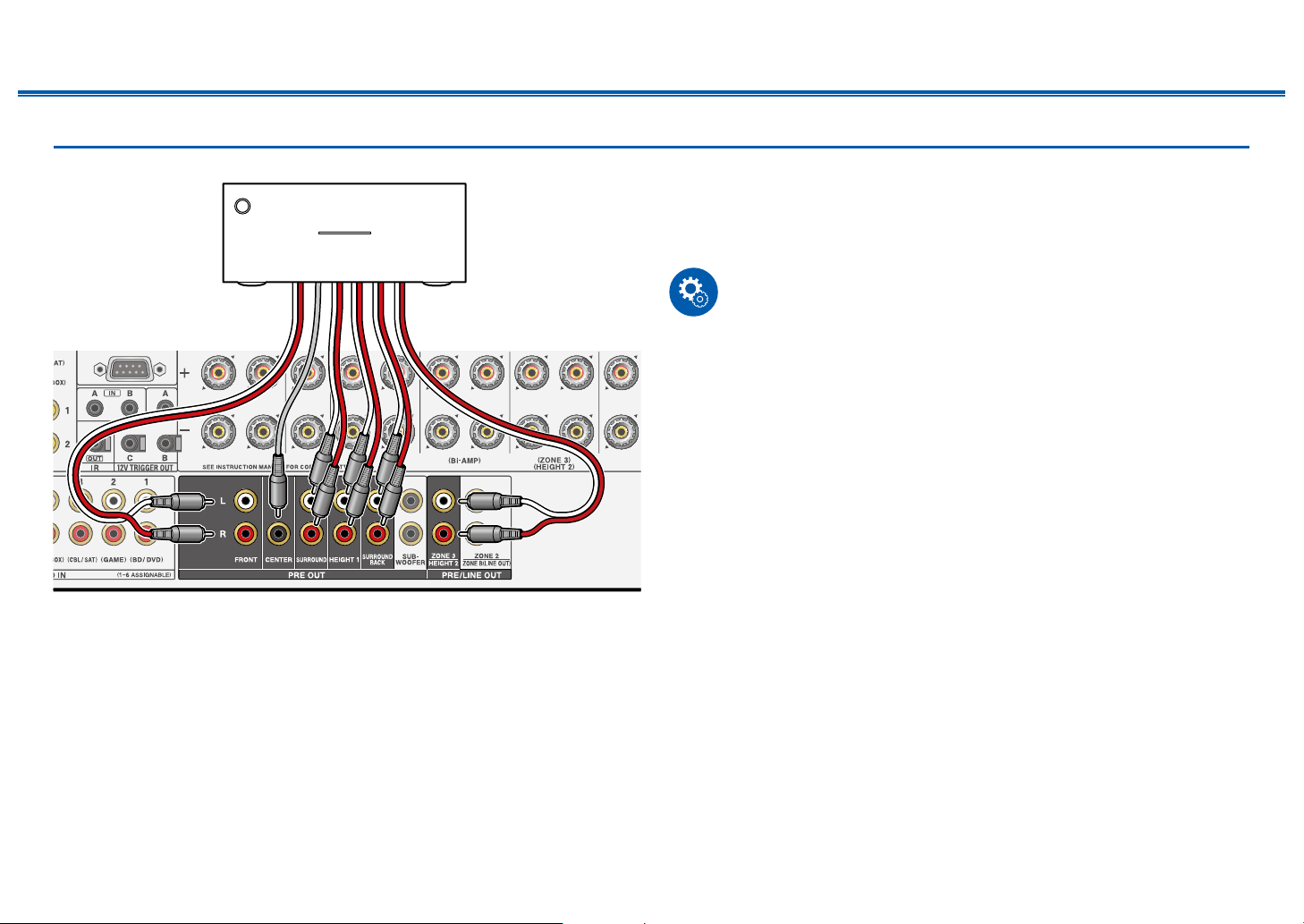
62
Front Panel≫ Rear Panel≫ Remote≫
Contents
≫
Connections
≫
Playback
≫
Setup
≫
Connecting a Power Amplier
You can connect a power amplier to the unit and use the unit as a pre-amplier
in order to produce a large volume that cannot be output with the unit only.
Connect the speakers to the power amplier. For details, refer to the power
amplier's instruction manual.
• Use the PRE OUT jacks for connection as show on the left.
Setup
• Set "2. Speaker" - "Conguration" - "Speaker Channels" according to the
number of channels of the connected speakers.
a Analog audio cable
a
Power amplier
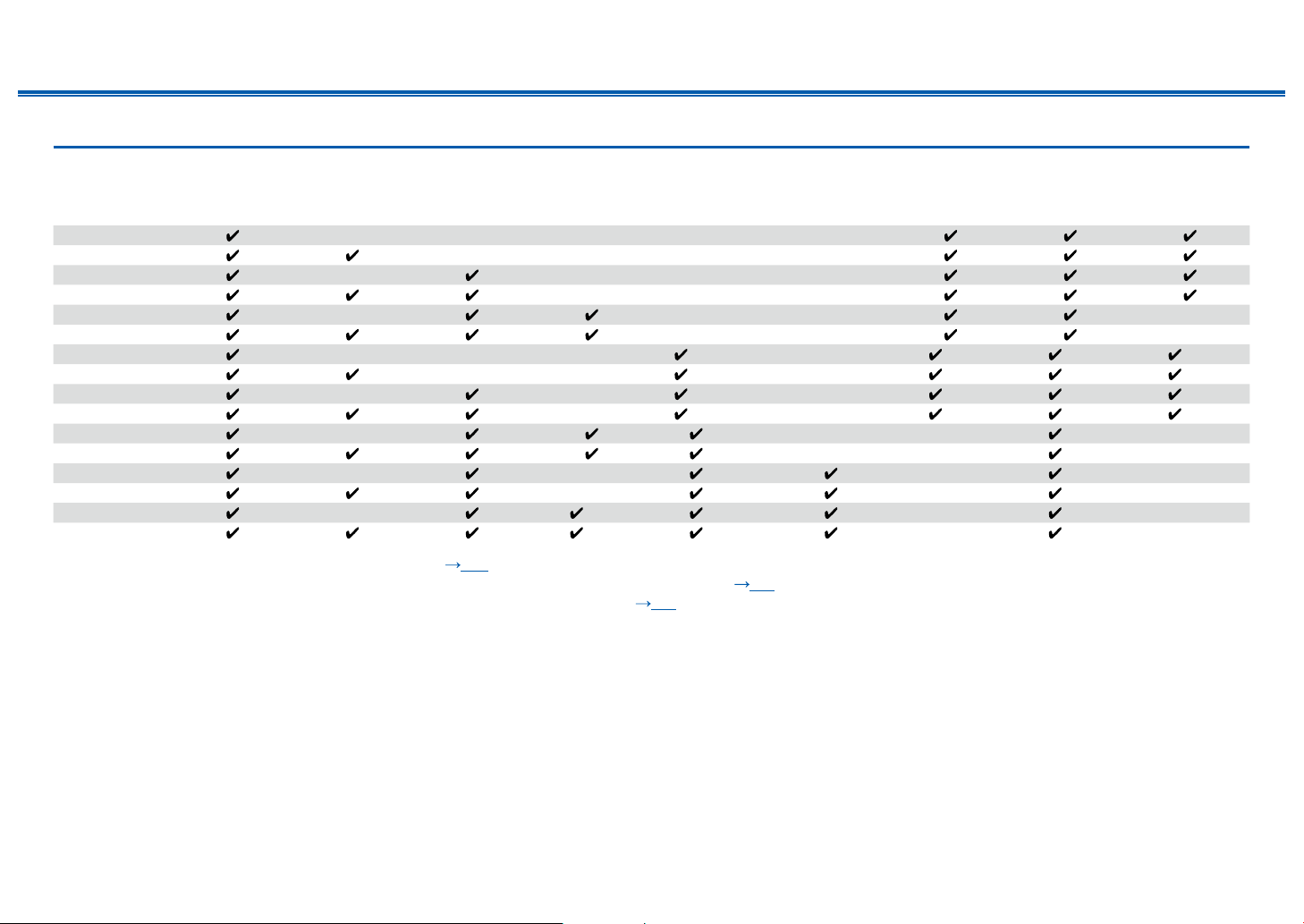
63
Front Panel≫ Rear Panel≫ Remote≫
Contents
≫
Connections
≫
Playback
≫
Setup
≫
Speaker combinations
• Up to two powered subwoofers can be connected in either combination.
Speaker
Channels
FRONT CENTER SURROUND
SURROUND
BACK
HEIGHT 1 HEIGHT 2 Bi-AMP (*3)
ZONE 2 (*3)
(ZONE SPEAKER)
ZONE 3 (*3)
(ZONE SPEAKER)
2.1 ch
3.1 ch
4.1 ch
5.1 ch
6.1 ch (*1)
7.1 ch (*1)
2.1.2 ch (*2)
(*4) (*5) (*5) (*4) (*4)
3.1.2 ch (*2)
(*4) (*5) (*5) (*4) (*4)
4.1.2 ch (*2)
(*4) (*5) (*5) (*4) (*4)
5.1.2 ch (*2)
(*4) (*5) (*5) (*4) (*4)
6.1.2 ch (*1)
(*6) (*6)
7.1.2 ch (*1)
(*6) (*6)
4.1.4 ch (*1)
(*6) (*6)
5.1.4 ch (*1)
(*6) (*6)
6.1.4 ch (*1)
(*7) (*6) (*6)
7.1.4 ch (*1)
(*7) (*6) (*6)
(*1) The "Connecting a Pre-main Amplier (ZONE 3)" (
p73) function cannot be used.
(*2)
When using Bi-AMP or ZONE 2 (ZONE SPEAKER), the "Connecting a Pre-main Amplier (ZONE 3)" ( p73) function cannot be used. However, if a power amplier is connected to
the ZONE 3 PRE/LINE OUT jacks in the "Connecting a Pre-main Amplier (ZONE 3)" ( p73) function, ZONE 2 (ZONE SPEAKER) and ZONE 3 (ZONE SPEAKER) can be used.
(*3) The Bi-AMP and ZONE speakers cannot be used simultaneously.
(*4) When using the ZONE 2 speakers (except when the ZONE 3 is used), it is necessary to connect the height speakers to the SURROUND BACK terminal. When
using both the ZONE 2 speakers and the ZONE 3 speakers, the Height 1 speakers cannot be used simultaneously with the ZONE speakers.
(*5)
When using the Bi-AMP speakers, it is necessary to connect the Bi-AMP speakers to the HEIGHT 1 terminals, and the height speaker to the SURROUND BACK terminals.
(*6) Height 1 speakers cannot be used simultaneously with the ZONE speakers.
(*7)
Use an analog audio cable to connect the power amplier to the PRE OUT SURROUND BACK jacks, then connect the surround back speakers to the power amplier.
About the HEIGHT 1/HEIGHT 2
When connecting 2 sets of the height speakers, the combination of the height speakers that can be selected is as follows.
– Height 1 Speaker: Top Middle, Height 2 Speaker: Rear High
–
Height 1 Speaker: Front High; Height 2 Speaker: One of Rear High/Top Middle/Top Rear/Dolby Enabled Speaker (Surround)/Dolby Enabled Speaker (Surround Back)
–
Height 1 Speaker: Top Front or Dolby Enabled Speaker (Front), Height 2 Speaker: One of Rear High/Top Rear/Dolby Enabled Speaker (Surround)/Dolby Enabled Speaker (Surround Back)
When only 1 set of the height speakers is connected, 1 from the height speakers types can be selected.
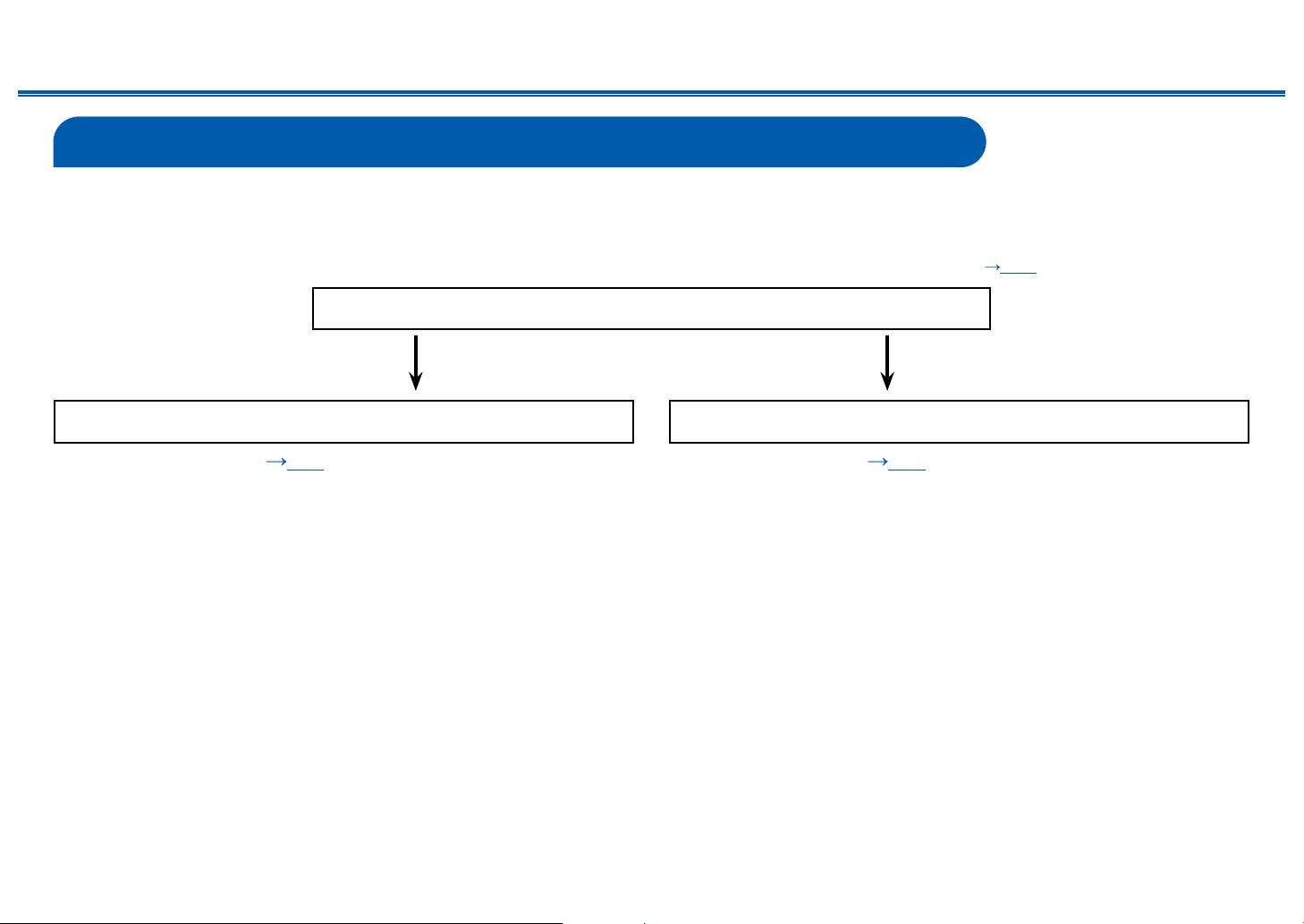
64
Front Panel≫ Rear Panel≫ Remote≫
Contents
≫
Connections
≫
Playback
≫
Setup
≫
Connecting the TV
Connection with the TV differs depending on whether the TV supports the ARC (Audio Return Channel) function or eARC (Enhanced Audio Return Channel) function.
The ARC function and eARC function transmit the audio signals of the TV via an HDMI cable, and plays the audio of the TV on this unit. To check if the TV supports the
ARC function and eARC function, refer to the instruction manual of the TV, etc.
• The eARC function is a newly added function for HDMI 2.1. This is an expanded function from the existing ARC function, and is able to send audio formats such as
Dolby TrueHD and DTS-HD Master Audio that cannot be sent with the ARC function, from an eARC-compatible TV to this unit. ( p201)
Yes No
Does your TV support the ARC function?
• To ARC/eARC TV ( p65) • To Non-ARC TV ( p66)
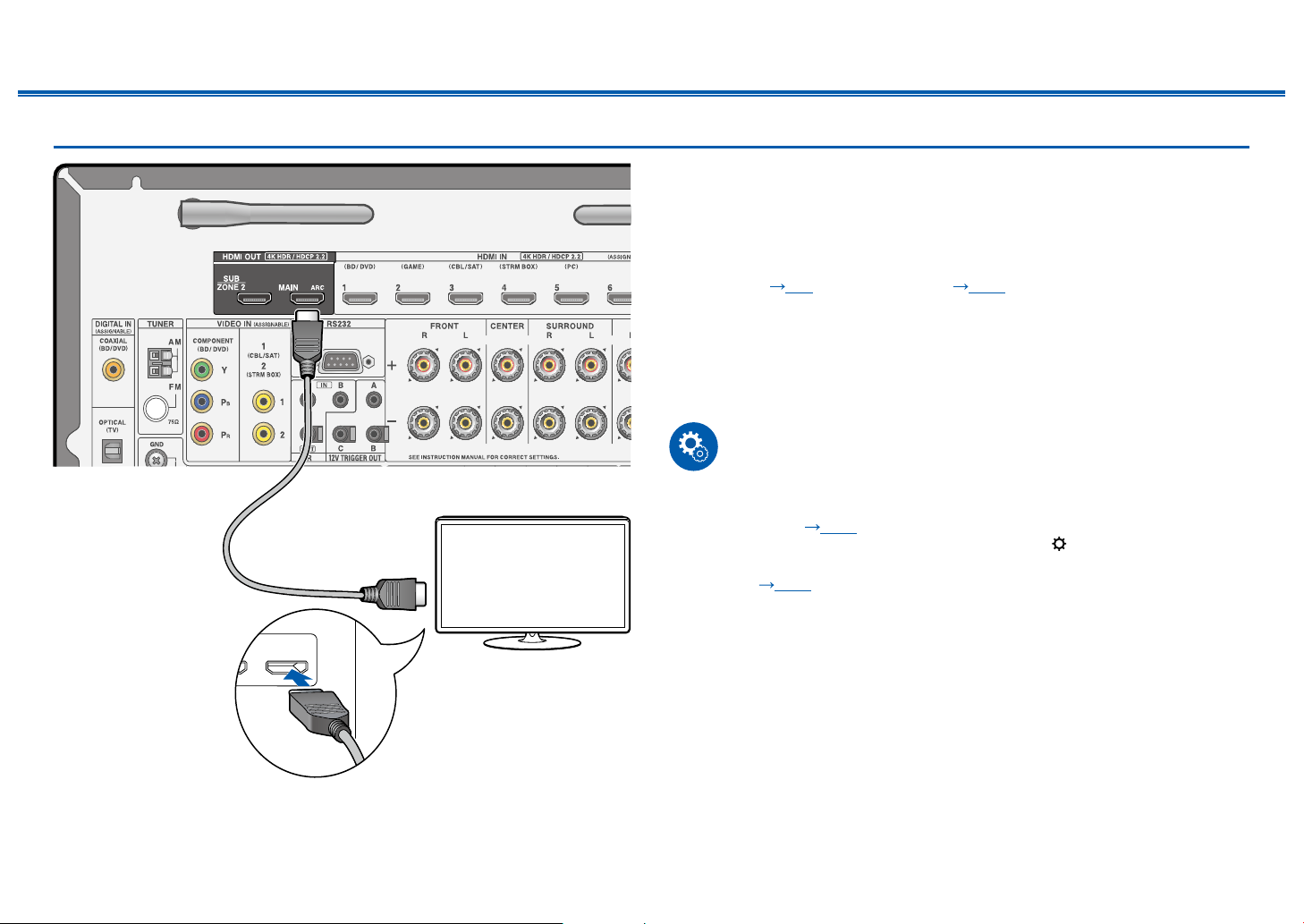
65
Front Panel≫ Rear Panel≫ Remote≫
Contents
≫
Connections
≫
Playback
≫
Setup
≫
To ARC/eARC TV
If the TV supports the ARC (Audio Return Channel) function (*), use only the
HDMI cable to connect with the TV. Use the ARC-compatible HDMI IN jack of the
TV for connection. You connect the HDMI cable to the port labeled OUT on the
receiver side.
• Another TV or projector can be connected to the HDMI OUT SUB jack. Switch
between MAIN and SUB using the HDMI Main/Sub button on the remote
controller ( p15) or "Quick Menu" ( p182). Note that this jack is not
ARC-compatible.
• If devices with different resolutions are connected to HDMI OUT MAIN jack
and SUB jack, images are output with the lower resolution.
• If a 4K high-quality video is played, use a Premium High Speed HDMI Cable
or Premium High Speed HDMI Cable with Ethernet whose package has a
"PREMIUM Certied Cable" label.
Setup
• Settings are required to use the ARC function. Select "Yes" for "4. ARC Setup"
in Initial Setup ( p185). If "No, Skip" is selected, settings are required in the
Setup menu after Initial Setup is completed. Press
on the remote controller,
and set "6. Hardware" - "HDMI" - "Audio Return Channel (eARC supported)"
to "On". (
p164)
• For detailed settings for TV connection, CEC function and audio output, refer
to the instruction manual of the TV.
(*) ARC function: Transmits the audio signals of the TV via an HDMI cable, and
plays the audio of the TV on this unit. Connection to an ARC-compatible TV is
complete with one HDMI cable. To check if the TV supports the ARC function,
refer to the instruction manual of the TV, etc.
a HDMI cable
IN(ARC)
a
TV
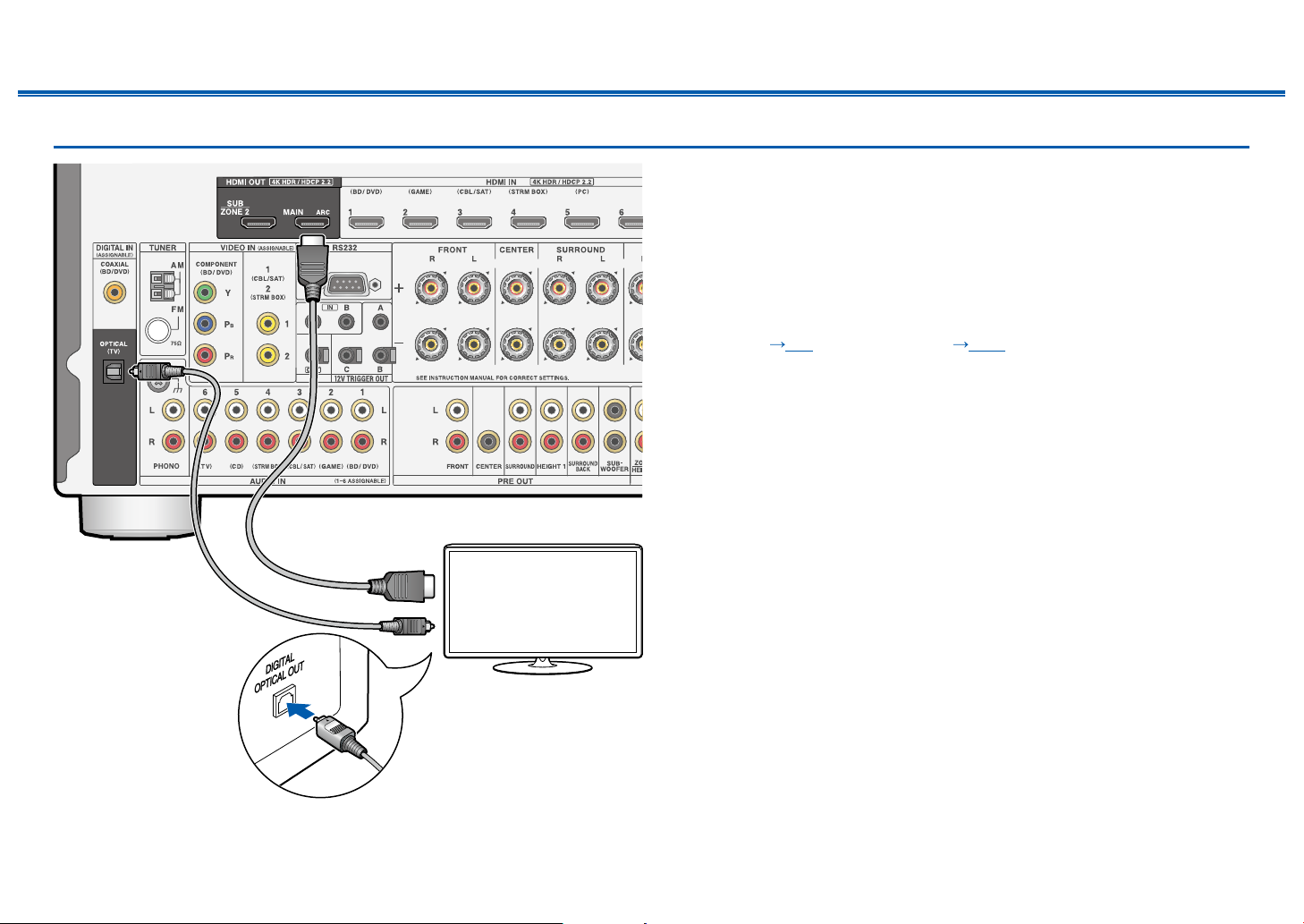
66
Front Panel≫ Rear Panel≫ Remote≫
Contents
≫
Connections
≫
Playback
≫
Setup
≫
To Non-ARC TV
If the TV does not support the ARC (Audio Return Channel) function (*), connect
an HDMI cable and digital optical cable. If the TV does not have a DIGITAL
OPTICAL OUT jack, you can use an analog audio cable to connect with the
AUDIO IN TV jack.
• If you use a cable set-top box, etc. connected to the input jack of this unit to
watch TV (without using a TV’s built-in tuner), connection with a digital optical
cable or analog audio cable is not required.
• Another TV or projector can be connected to the HDMI OUT SUB jack. Switch
between MAIN and SUB using the HDMI Main/Sub button on the remote
controller ( p15) or "Quick Menu" ( p182). Note that this jack is not
ARC-compatible.
• If devices with different resolutions are connected to HDMI OUT MAIN jack
and SUB jack, images are output with the lower resolution.
• If a 4K high-quality video is played, use a Premium High Speed HDMI Cable
or Premium High Speed HDMI Cable with Ethernet whose package has a
"PREMIUM Certied Cable" label.
(*) ARC function: Transmits the audio signals of the TV via an HDMI cable, and
plays the audio of the TV on this unit. Connection to an ARC-compatible TV is
complete with one HDMI cable. To check if the TV supports the ARC function,
refer to the instruction manual of the TV, etc.
a HDMI cable, b Digital optical cable
a
b
TV
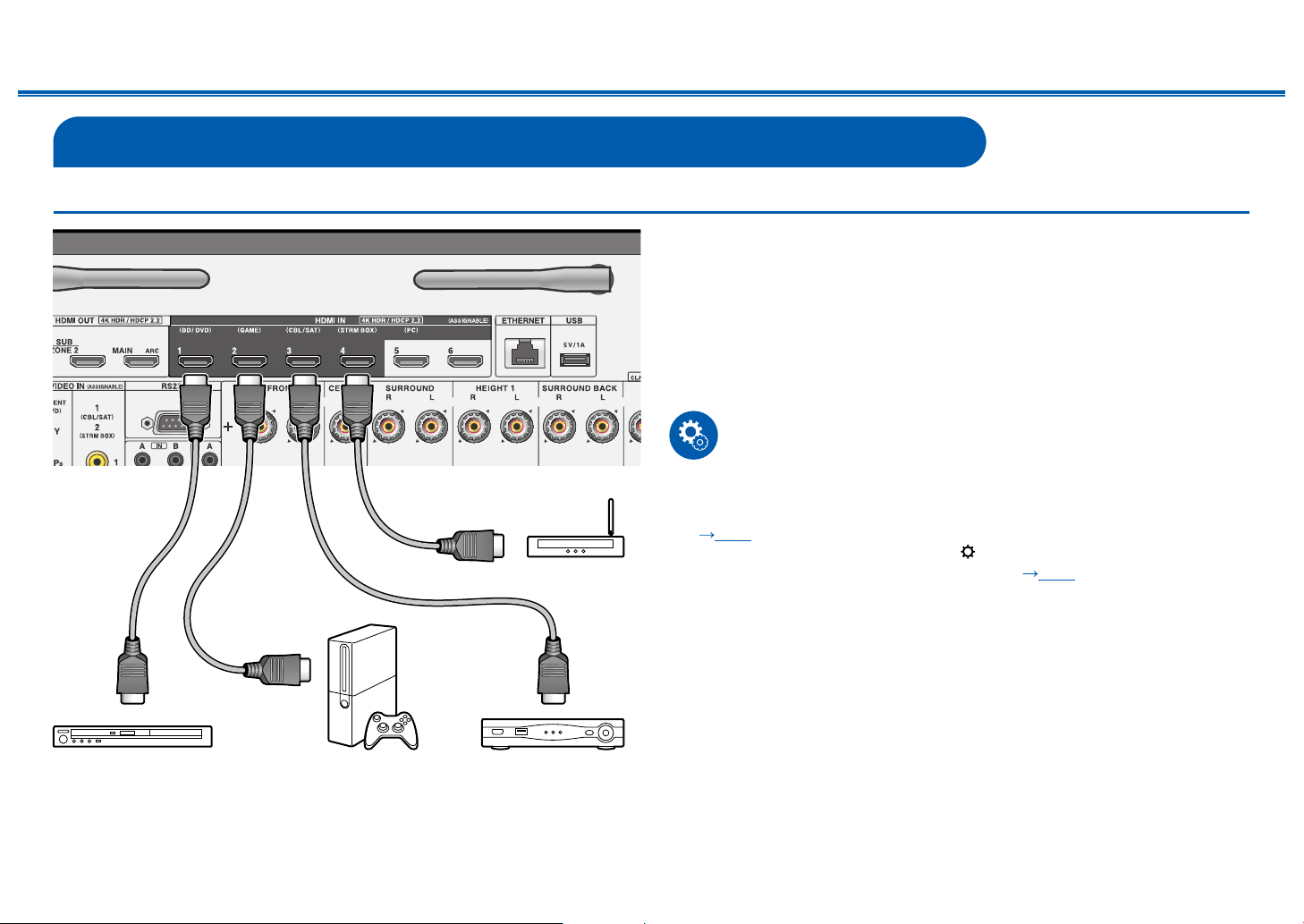
67
Front Panel≫ Rear Panel≫ Remote≫
Contents
≫
Connections
≫
Playback
≫
Setup
≫
Connecting Playback Devices
Connecting an AV Component with HDMI Jack Mounted
This is a connection example of an AV component equipped with an HDMI jack.
When connecting with an AV component that conforms to the CEC (Consumer
Electronics Control) standard, you can use the HDMI CEC function (*) that
enables linking with input selectors, etc. and the HDMI Standby Through function
that can transmit video and audio signals of the AV component to the TV even if
this unit is in standby mode.
• If a 4K high-quality video is played, use a Premium High Speed HDMI Cable
or Premium High Speed HDMI Cable with Ethernet whose package has a
"PREMIUM Certied Cable" label.
Setup
• The HDMI CEC function and HDMI Standby Through function are
automatically enabled if you select "Yes" for "4. ARC Setup" in Initial Setup
( p185). If "No, Skip" is selected, settings are required in the Setup menu
after Initial Setup is completed. Press on the remote controller, and select
"6. Hardware" - "HDMI" to make the settings. ( p163)
• To enjoy digital surround sound including Dolby Digital, set the audio output of
the connected Blu-ray Disc player etc. to the Bitstream output.
(*) The HDMI CEC function: This function enables various linking operations
with CEC-compliant devices, such as switching input selectors interlocking with
a CEC-compliant player, switching audio output between TV and this unit or
adjusting the volume using the remote controller of a CEC-compliant TV, and
automatically switching this unit to standby when the TV is turned off.
a HDMI cable
a
Streaming media
player
GAMEBD/DVD Cable/Satellite
set-top box
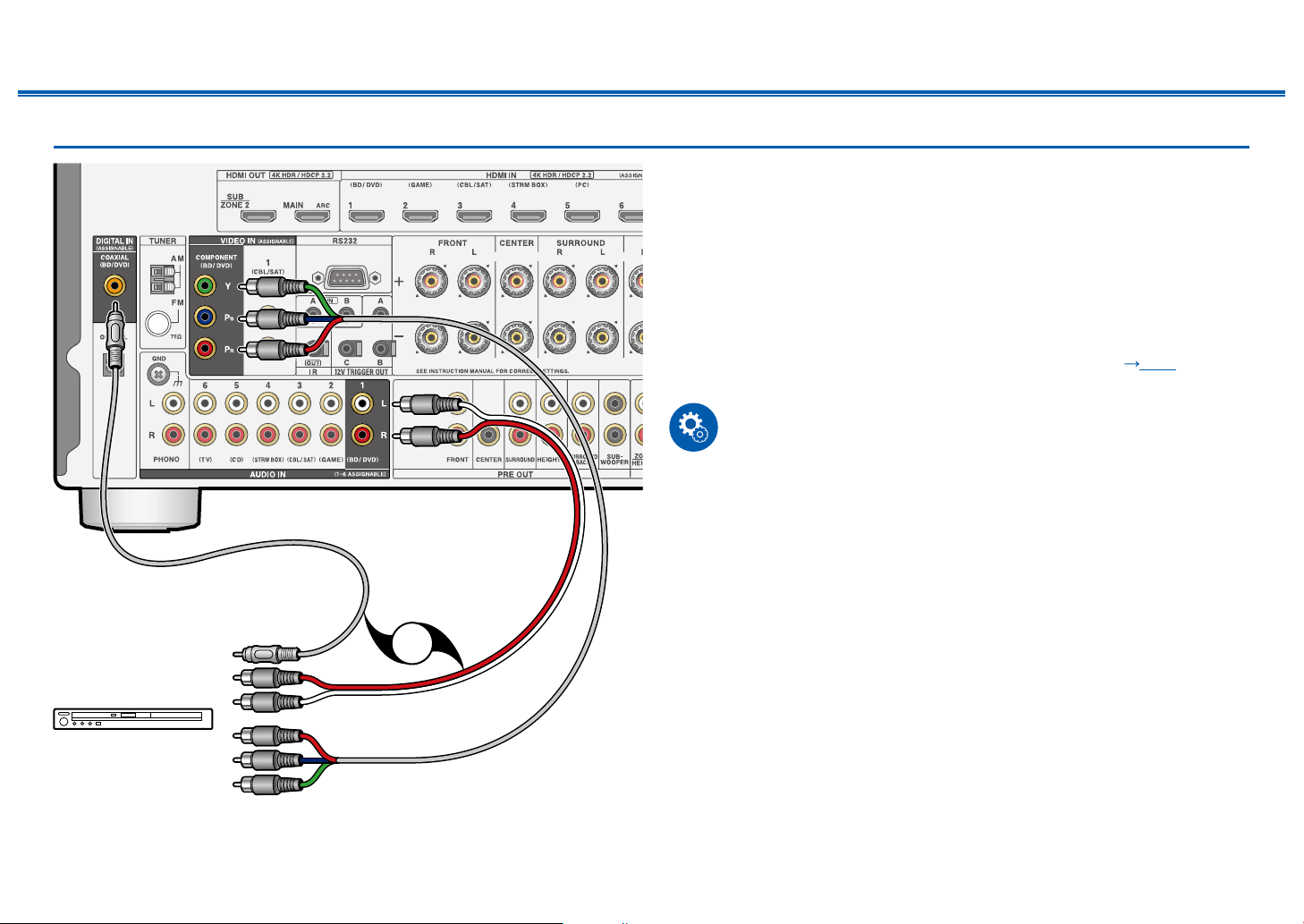
68
Front Panel≫ Rear Panel≫ Remote≫
Contents
≫
Connections
≫
Playback
≫
Setup
≫
Connecting an AV Component without HDMI Jack Mounted
This is a connection example of an AV component unequipped with an HDMI
jack. Select cables that match the jacks of the AV component for connection. For
example, when video input is connected to the BD/DVD jack, connect the audio
input to BD/DVD jack, too. Thus, video input jacks and audio input jacks should
have the same name for connection. Note that video signals input to the VIDEO
IN jack or the COMPONENT VIDEO IN jack are converted to HDMI video signals,
and then output from the HDMI OUT jack.
• To enjoy digital surround playback in formats such as Dolby Digital, you need
to make a connection for audio signals with a digital coaxial cable or a digital
optical cable.
• According to the illustration, changing the input assignment ( p150)
enables connection to jacks other than the BD/DVD jack.
Setup
• The COMPONENT VIDEO IN jacks are compatible only with 480i or 576i
resolution. When connecting to the COMPONENT VIDEO IN jacks, set the
output resolution of the player to 480i or 576i. If there is no option such as
480i, select interlace. If your player does not support 480i or 576i output, use
the VIDEO IN jack.
• To enjoy digital surround sound including Dolby Digital, set the audio output of
the connected Blu-ray Disc player etc. to the Bitstream output.
a Digital coaxial cable, b Analog audio cable, c Component video cable
a b c
OR
BD/DVD
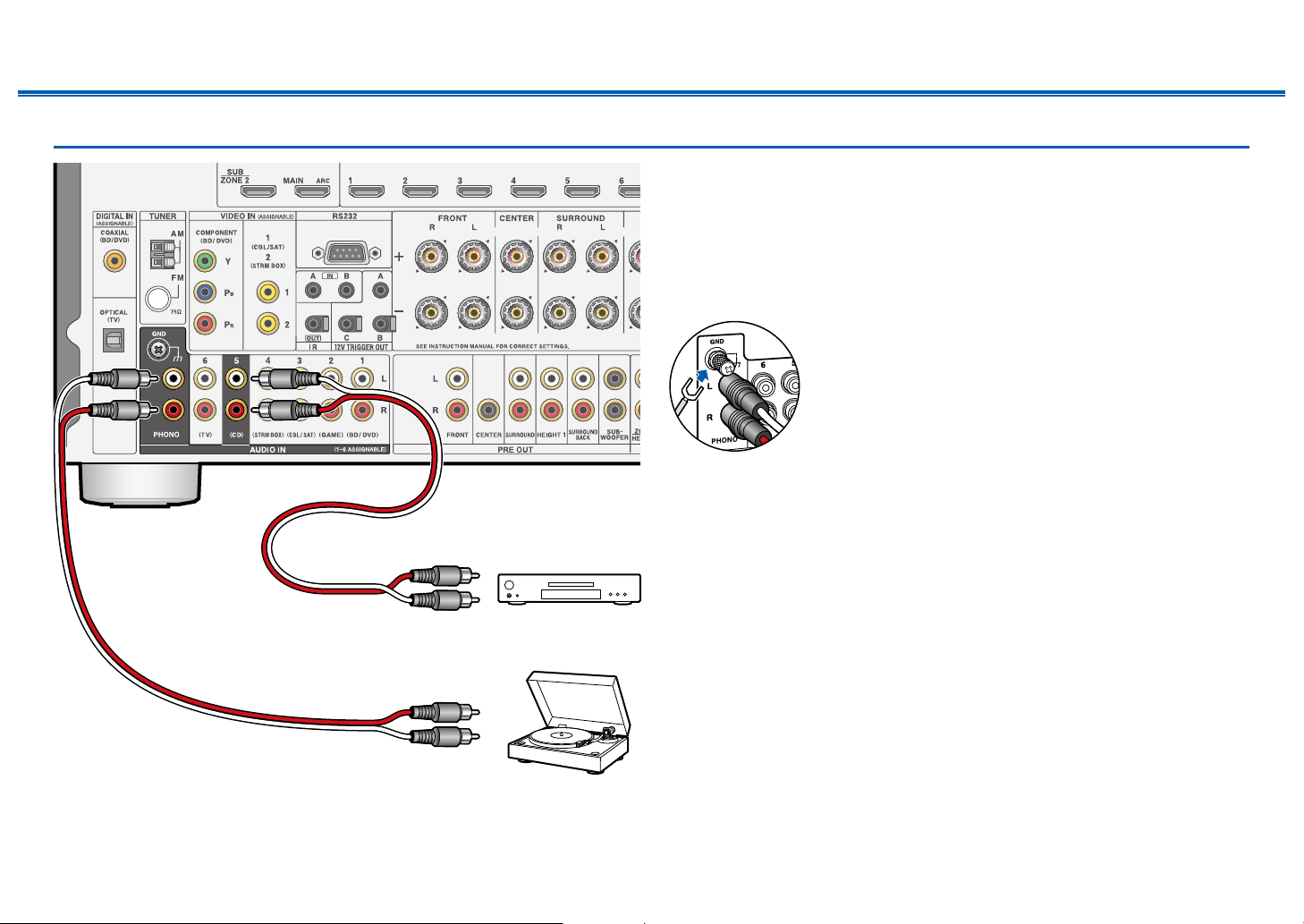
69
Front Panel≫ Rear Panel≫ Remote≫
Contents
≫
Connections
≫
Playback
≫
Setup
≫
Connecting an Audio Component
This is a connection example of an audio component. Connect a CD player using
an analog audio cable. You can also connect a turntable that has an MM-type
cartridge to the PHONO jack.
• If the turntable has a built-in phono equalizer, connect it to any of the AUDIO
IN jacks other than the PHONO jack. Further, if the turntable uses an MC type
cartridge, install a phono equalizer compatible with the MC type cartridge
between the unit and the turntable, and then connect it to any of the AUDIO IN
jacks other than the PHONO jack.
If the turntable has a ground wire, connect it to the GND
terminal of this unit.
a Analog audio cable
a a
Turntable
CD

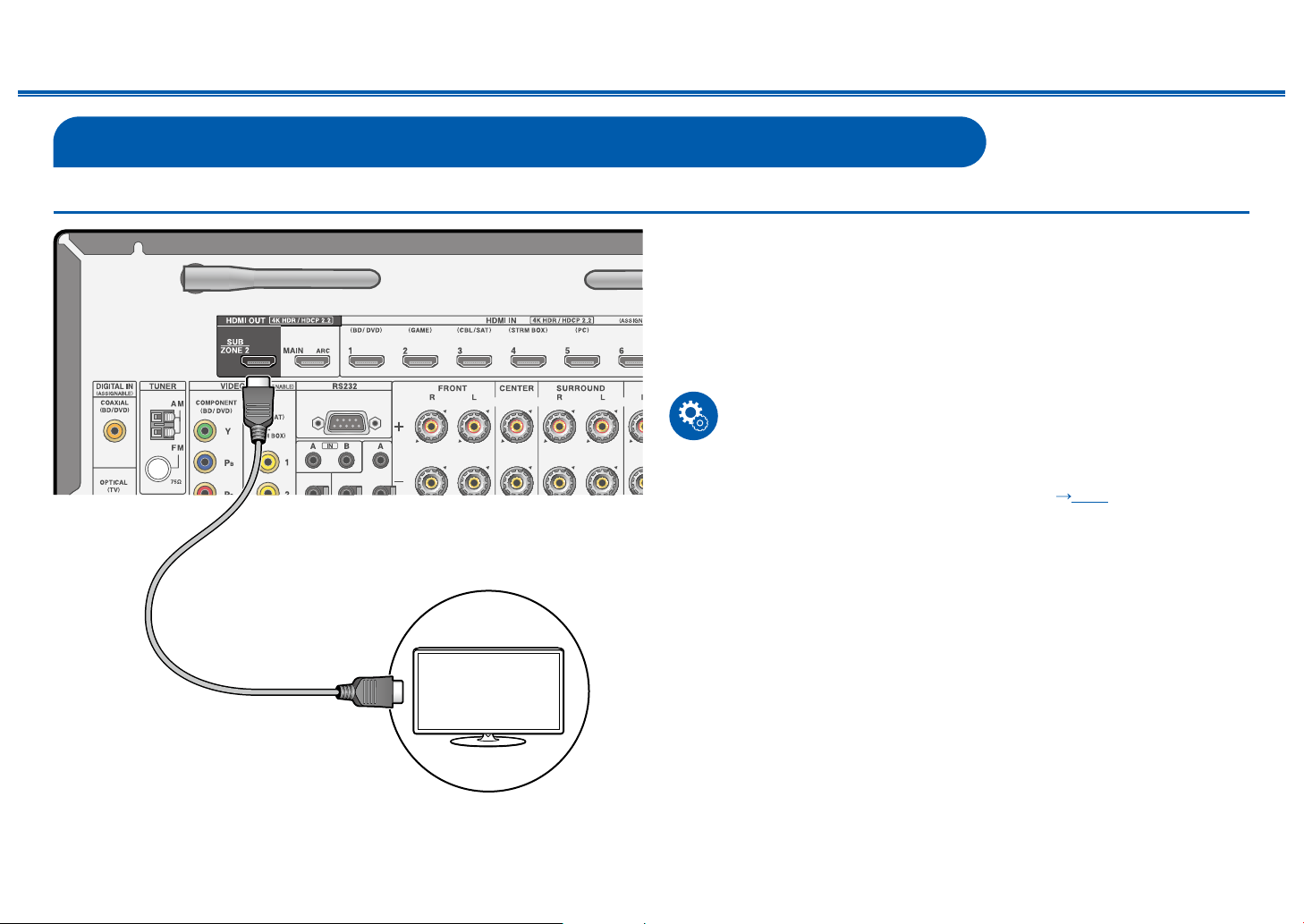
71
Front Panel≫ Rear Panel≫ Remote≫
Contents
≫
Connections
≫
Playback
≫
Setup
≫
Connecting an AV Component in a Separate Room (Multi-zone Connection)
Connecting a TV (ZONE 2)
While a disc is played on a Blu-ray Disc player in the main room (where this unit
is located), you can play the video and audio of the same Blu-ray Disc player or
another AV component on the TV equipped with an HDMI IN jack in a separate
room (ZONE 2). The TV in the separate room can play only the video of devices
connected to the HDMI IN1 to IN3 jacks of this unit.
• Audio from an externally connected AV component can be output only when
the audio is 2ch PCM audio signal. Also, the audio output of the AV component
may need to be changed to the PCM output.
Setup
• When video and audio via HDMI input are output to ZONE 2, set "1. Input/
Output Assign" - "TV Out / OSD" - "Zone 2 HDMI" ( p148) to "Use" on the
Setup menu.
a HDMI cable
a
TV
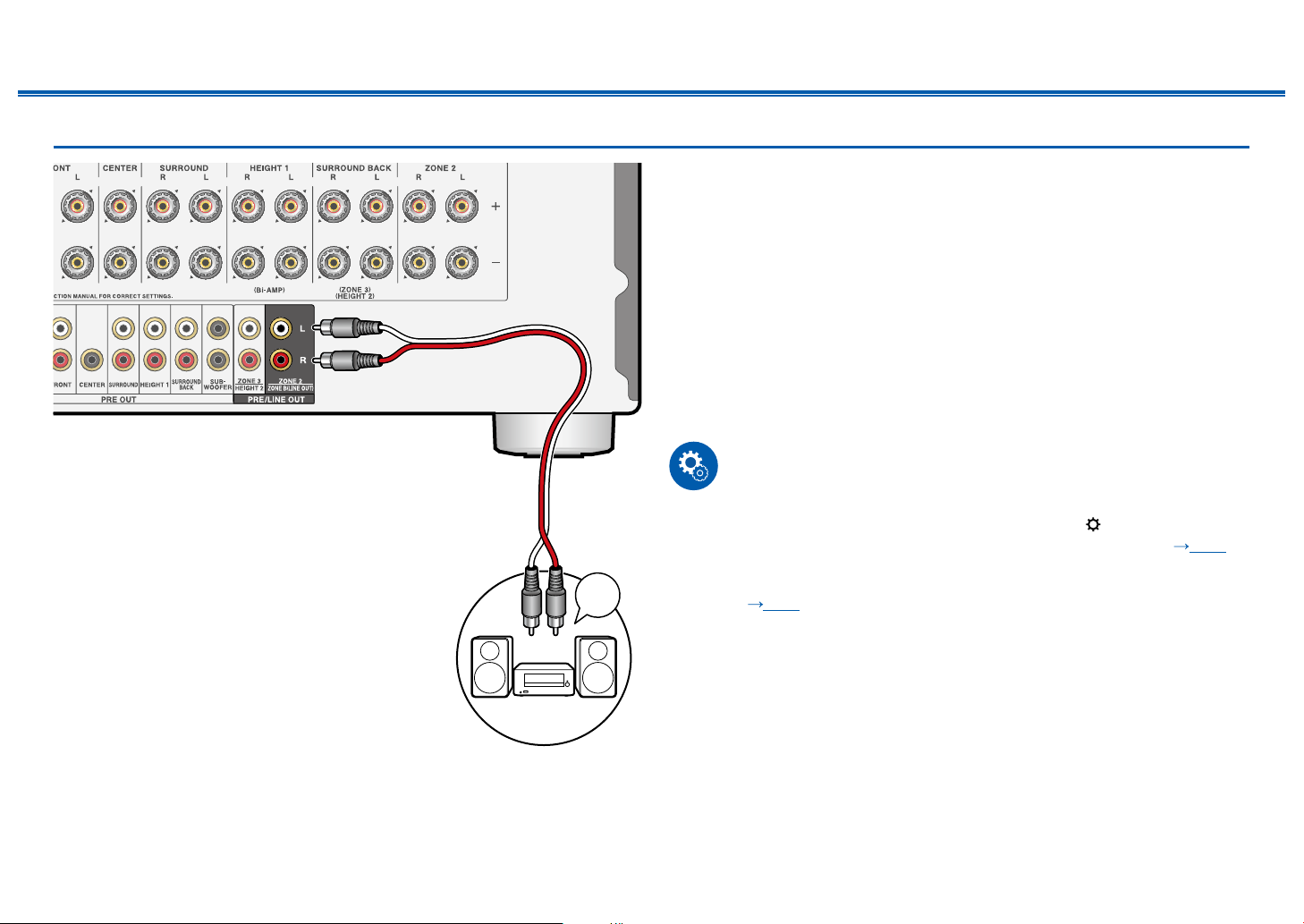
72
Front Panel≫ Rear Panel≫ Remote≫
Contents
≫
Connections
≫
Playback
≫
Setup
≫
Connecting a Pre-main Amplier (ZONE 2)
You can enjoy 2-ch audio in the separate room (ZONE 2) while performing
playback in the main room (where this unit is located). Use an analog cable to
connect the ZONE 2 PRE/LINE OUT jack of this unit and the LINE IN jack of the
pre-main amplier in the separate room. The same source can be played back in
the main room and ZONE 2 simultaneously. Also, different sources can be played
back in both rooms.
• To output audio from an externally connected AV component to ZONE 2,
connect it to any of HDMI IN1 to IN3 jacks. If the AV component is not
equipped with an HDMI jack, use a digital coaxial cable, digital optical cable or
analog audio cable. Also, the audio from externally connected AV components
can be output to ZONE 2 only when the audio is analog or 2ch PCM signal.
When the AV component is connected to this unit with a digital coaxial cable or
digital optical cable, change the audio output of the AV component to the PCM
output.
Setup
• Settings are required to output audio to ZONE 2. Press on the remote
controller, and set "2. Speaker" - "Conguration" - "Zone 2 Preout" (
p153)
to "Zone 2".
• When connecting the power amplier, set "7. Multi Zone" - "Zone 2" - "Output
Level" ( p179) to "Variable" on the Setup menu. If it is not set, a large
volume is output and the power amplier, speakers, etc. may be damaged.
a Analog audio cable
a
LINE
IN
Premain Amp.
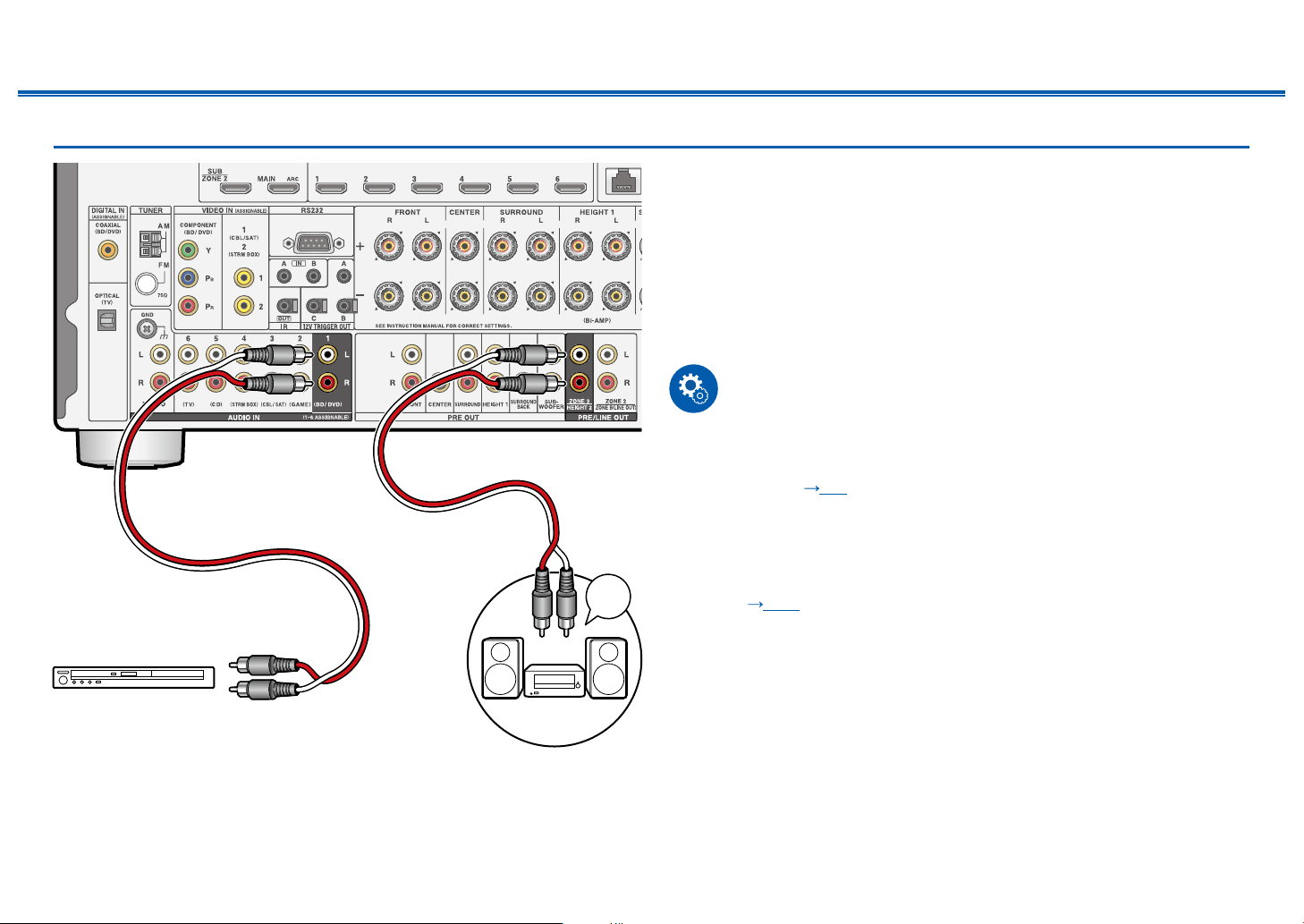
73
Front Panel≫ Rear Panel≫ Remote≫
Contents
≫
Connections
≫
Playback
≫
Setup
≫
Connecting a Pre-main Amplier (ZONE 3)
You can enjoy 2-ch audio in the separate room (ZONE 3) while performing
playback in the main room (where this unit is located). Use an analog cable to
connect the ZONE 3 PRE/LINE OUT jack of this unit and the LINE IN jack of the
pre-main amplier or power amplier in the separate room. The same source
can be played back in the main room and ZONE 3 simultaneously. Also, different
sources can be played back in both rooms.
• To output audio from an externally connected AV component to ZONE 3, use
an analog audio cable for connection. Note that ZONE 3 output is not possible
with the connection using a HDMI cable, digital coaxial cable, or digital optical
cable.
Setup
• This function can be used when any of the combinations among 2.1 ch,
3.1 ch, 4.1 ch, 5.1 ch, 2.1.2 ch*, 3.1.2 ch*, 4.1.2 ch* and 5.1.2 ch* in "Speaker
combinations" ( p63) is used.
Note this function cannot be used if Bi-AMP or ZONE 2 (ZONE SPEAKER) is
used in speaker combinations with "*" mark. Note that if a power amplier is
connected to the ZONE 3 PRE/LINE OUT jacks, ZONE 2 (ZONE SPEAKER)
and ZONE 3 (ZONE SPEAKER) can be used.
• When connecting the power amplier, set "7. Multi Zone" - "Zone 3" - "Output
Level" (
p179) to "Variable" on the Setup menu. If it is not set, a large
volume is output and the power amplier, speakers, etc. may be damaged.
a Analog audio cable
a
LINE
IN
a
BD/DVD
Premain Amp.
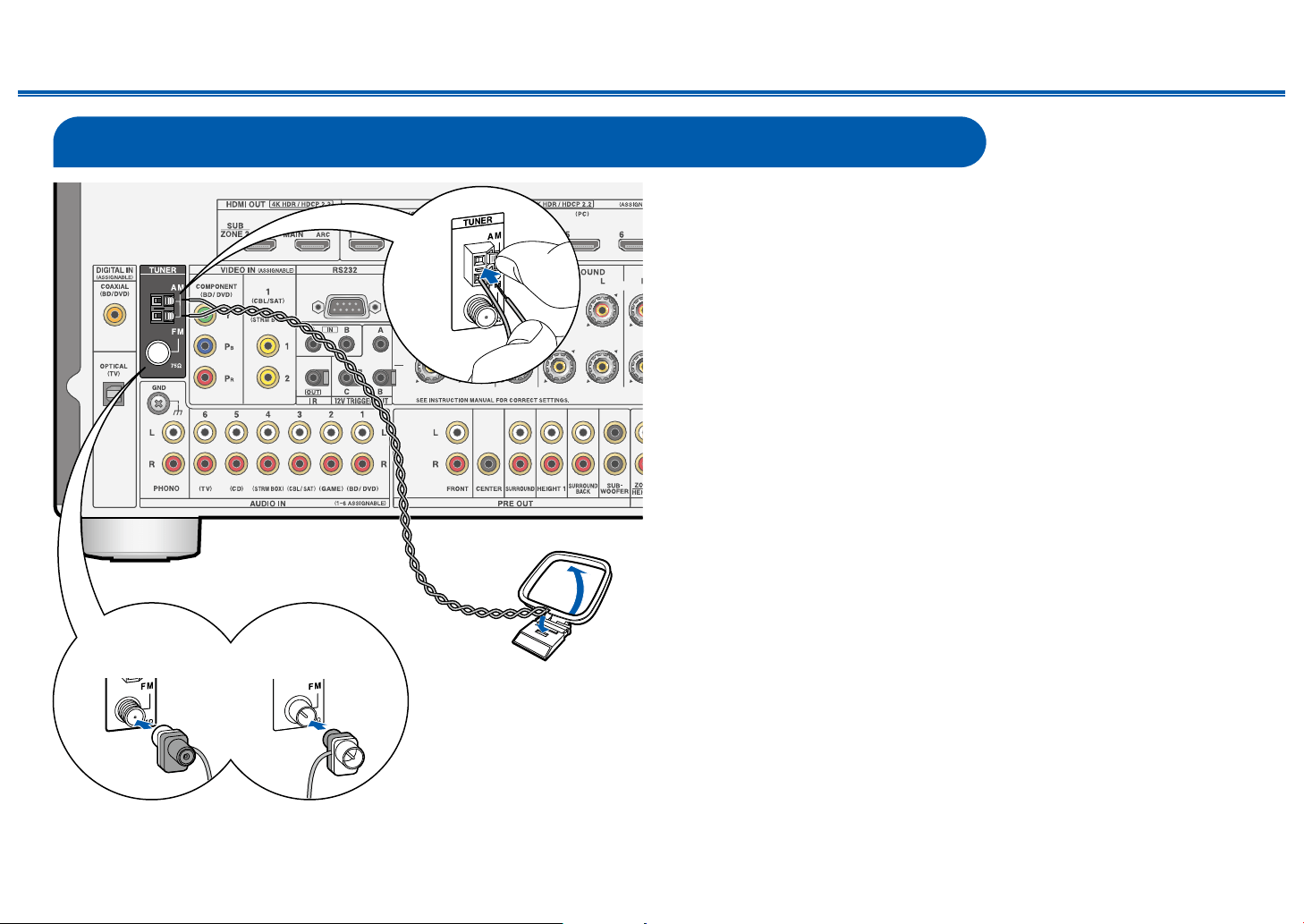
75
Front Panel≫ Rear Panel≫ Remote≫
Contents
≫
Connections
≫
Playback
≫
Setup
≫
Connecting Antennas
Connect the antenna to this unit, and set up the antenna at the best position for
listening while receiving radio signals. Attach the indoor FM antenna to the wall
using push pins or adhesive tape.
a Indoor FM antenna, b AM loop antenna
b
b
a
a
(North American
models)
(Australian and
Asian models)
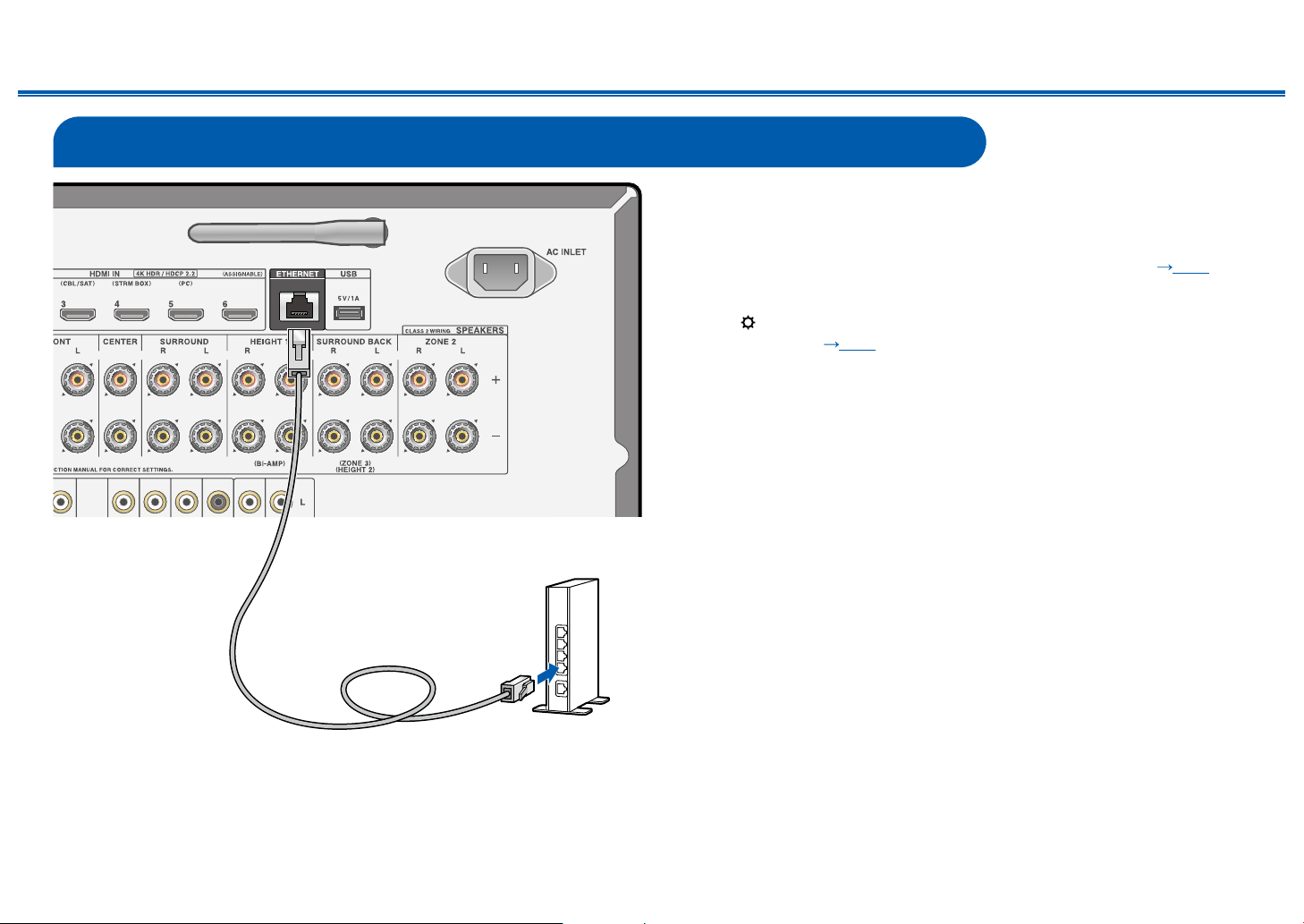
76
Front Panel≫ Rear Panel≫ Remote≫
Contents
≫
Connections
≫
Playback
≫
Setup
≫
Network Connection
This unit can be connected to the network using a wired LAN or Wi-Fi (wireless
LAN). You can enjoy network functions such as Internet radio by network
connection. If connection is made by the wired LAN, connect the router and the
ETHERNET jack with the LAN cable as shown in the illustration. To connect by
Wi-Fi, select "Wireless" for "5. Network Connection" in Initial Setup ( p187),
select your desired setting method, and then follow the on-screen instructions.
To congure the setting on the Setup menu after the completion of Initial Setup,
press the button on the remote controller, and select "6. Hardware" - "Network"
to make the setting. ( p164) For the Wi-Fi connection, stand the wireless
antenna for use.
a LAN cable
a
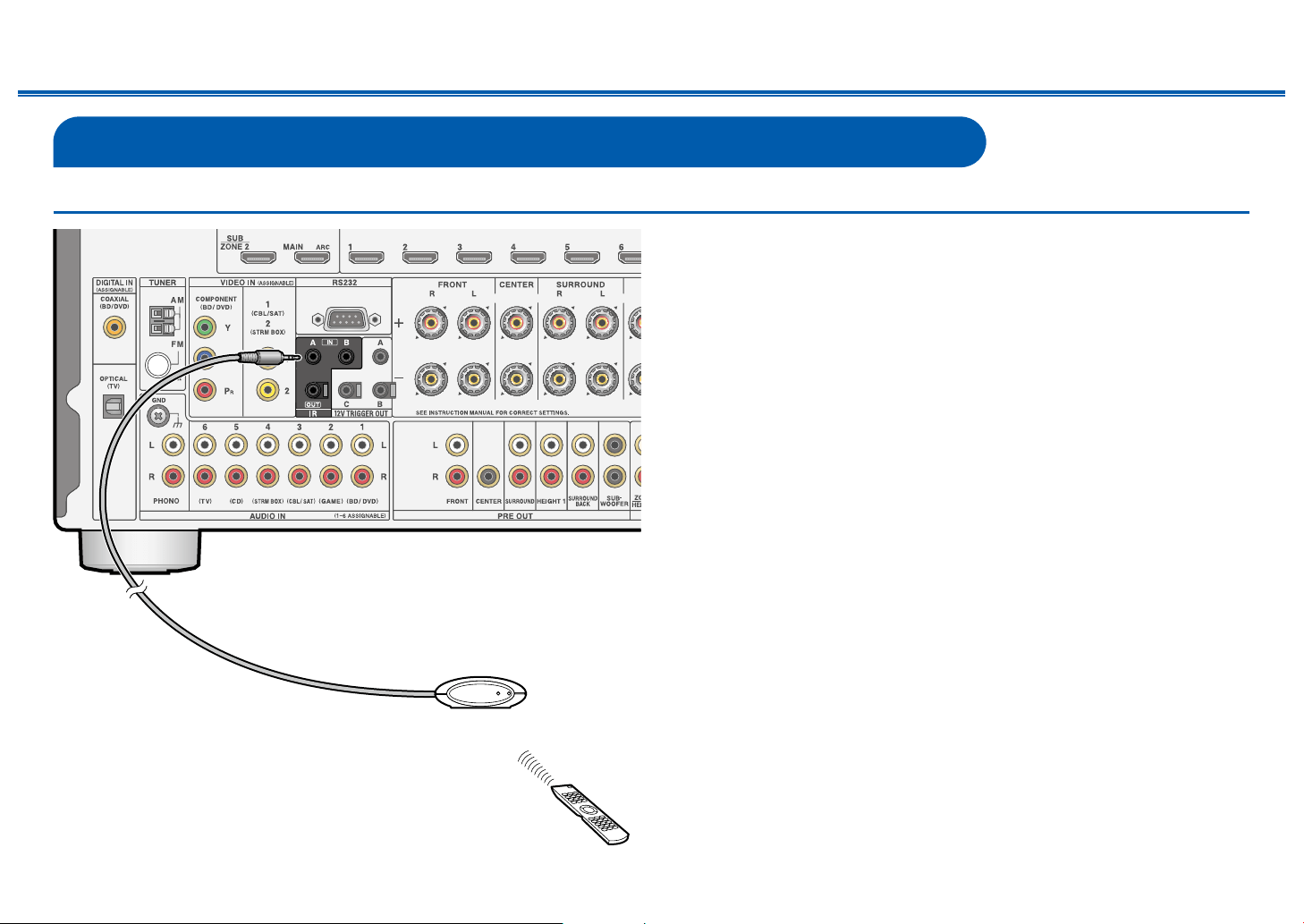
77
Front Panel≫ Rear Panel≫ Remote≫
Contents
≫
Connections
≫
Playback
≫
Setup
≫
Connecting External Control Devices
IR IN port
When connecting a remote control receiver unit consisting of an IR Receiver, etc.
to this unit, operation using the remote controller is possible even if the remote
control signal is difcult to reach (due to installation in the cabinet, etc.). It is also
possible to operate this unit from other room such as ZONE 2 with a remote
controller, or operate other devices with the remote controller by connecting
other devices to this unit. For adopting a remote control receiver unit, contact the
specialized stores.
• For the type of cable required for connection, refer to the operation manual,
etc. of the remote control receiver unit.
IR Receiver
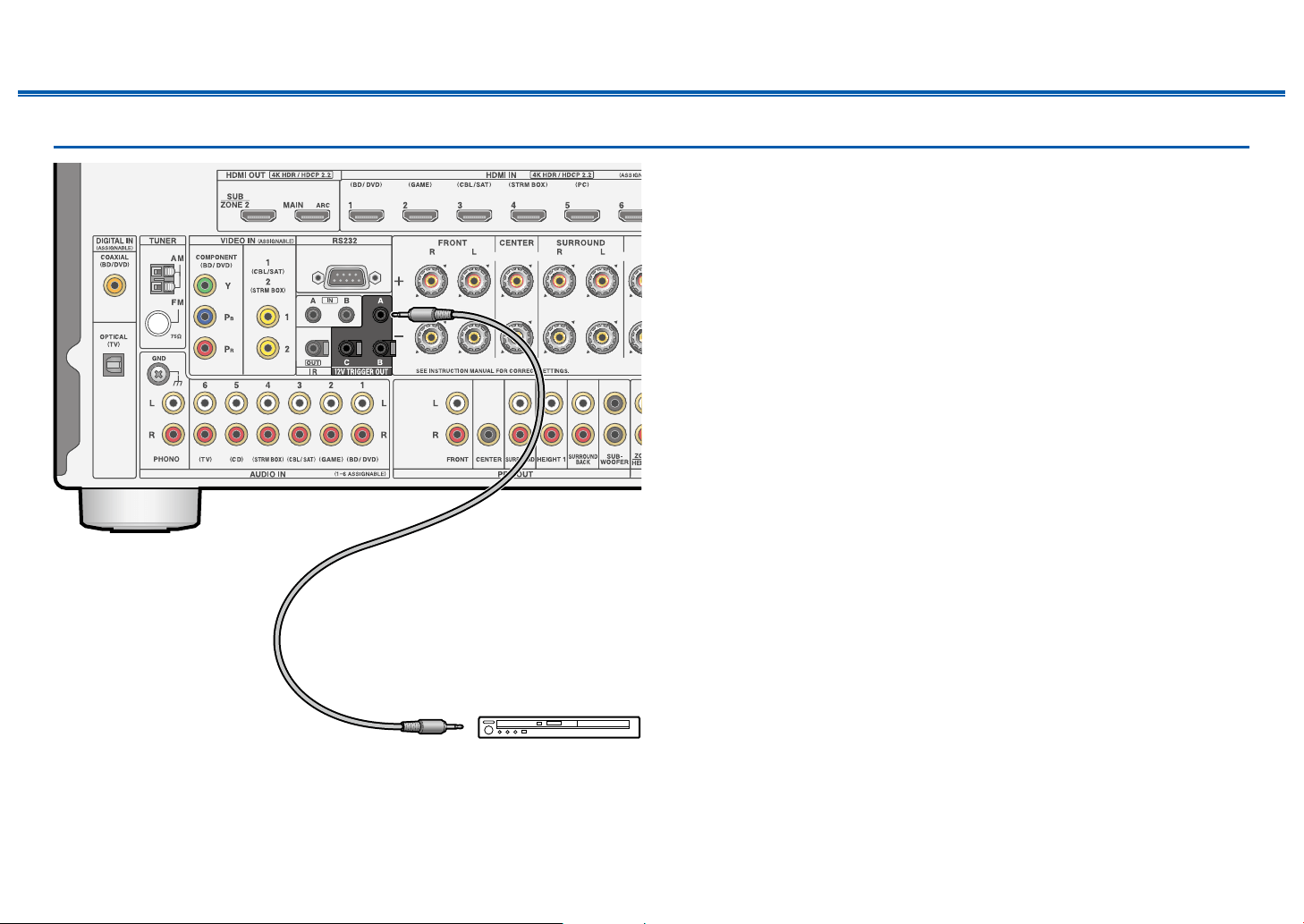
78
Front Panel≫ Rear Panel≫ Remote≫
Contents
≫
Connections
≫
Playback
≫
Setup
≫
12V TRIGGER OUT jack
When connecting a device equipped with a TRIGGER IN jack such as a BD/DVD
player to this unit, the device can be turned on or set to standby by interlocking
the operation on this unit. When the desired input is selected on the unit, power
link operation will be activated with a control signal of maximum 12 V/100 mA
from the 12V TRIGGER OUT A jack or maximum 12 V/25 mA when using the
12V TRIGGER OUT B or C jack. You can select the zone to output the control
signal by setting each of the inputs.
• For connection, use a monaural mini plug cable (ø1/8″/3.5 mm) without
resistance. Do not use a stereo mini plug cable.
a Monaural mini plug cable (ø1/8″/3.5 mm)
a
BD/DVD
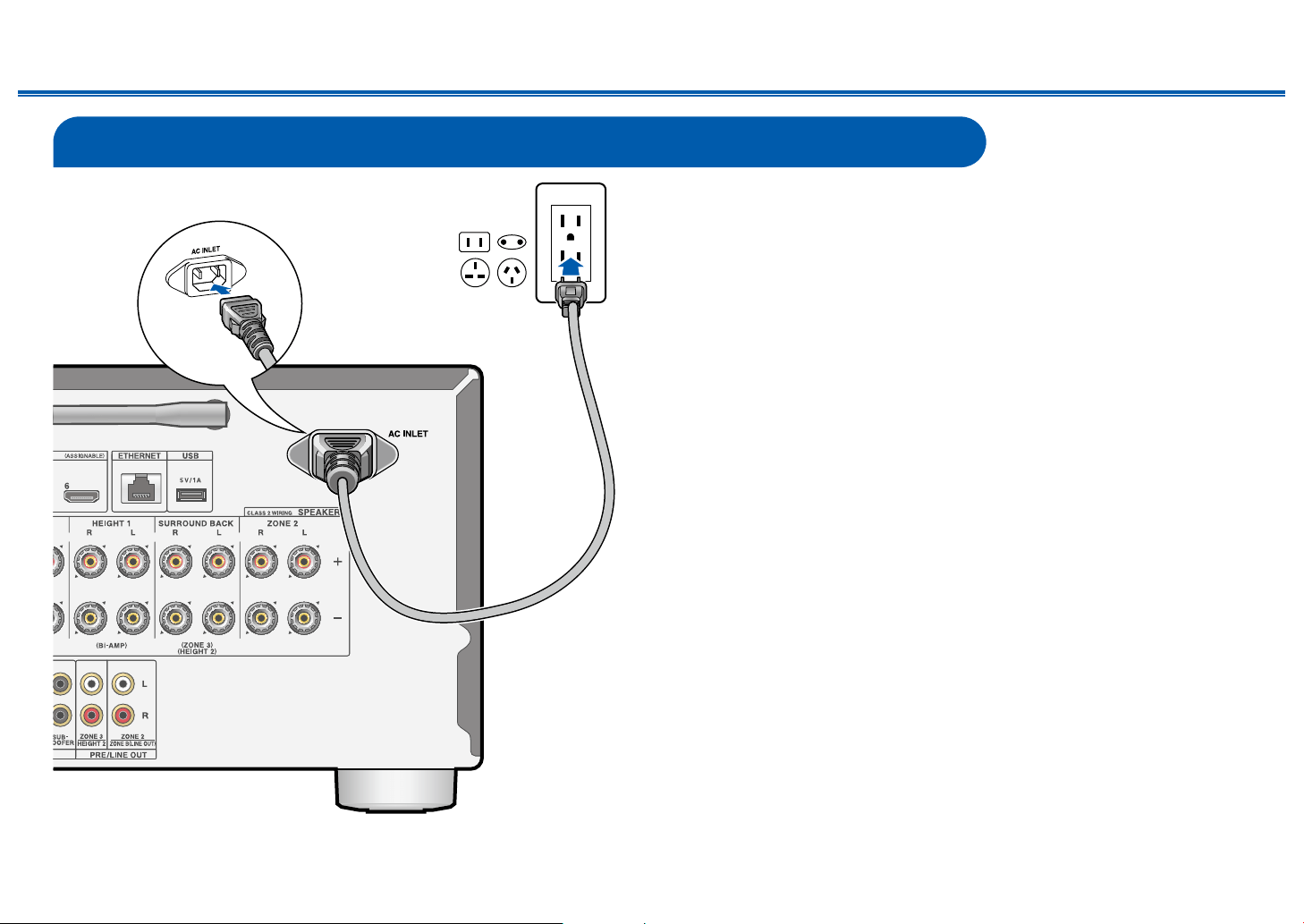
79
Front Panel≫ Rear Panel≫ Remote≫
Contents
≫
Connections
≫
Playback
≫
Setup
≫
Connecting the Power Cord
Connect the power cord after all the connections are completed.
• This model includes a removable power cord. Be sure to connect the power
cord to the AC INLET of the unit rst, and then connect it to the outlet. Always
disconnect the outlet side rst when disconnecting the power cord.
a Power cord
a
80
Playback
Front Panel≫ Rear Panel≫ Remote≫
Contents
≫
Connections
≫
Playback
≫
Setup
≫
Playback
AV Component Playback 81
BLUETOOTH
®
Playback 82
Internet Radio 83
Spotify 85
AirPlay
®
86
DTS Play-Fi
®
88
FlareConnect
TM
89
USB Storage Device 90
Playing back les on a PC and NAS (Music Server) 93
Play Queue 98
Amazon Music 100
Connecting the Sonos System for Playback 101
Listening To the AM/FM Radio 103
Multi-zone 108
ZONE B Playback 113
Convenience functions 114
Listening Mode 117
Inputting Characters 143
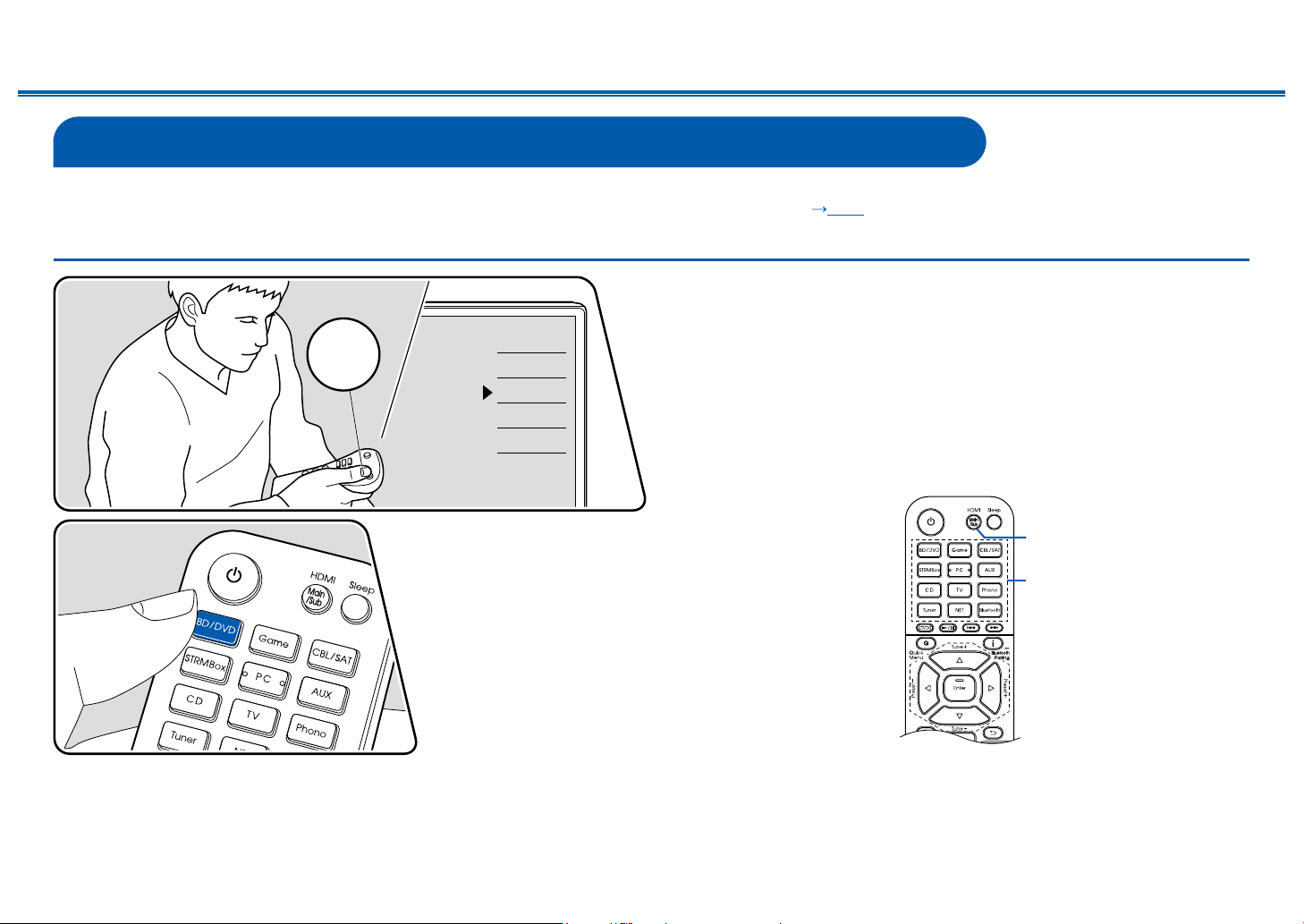
81
Front Panel≫ Rear Panel≫ Remote≫
Contents
≫
Connections
≫
Playback
≫
Setup
≫
AV Component Playback
You can play the audio from AV components, such as Blu-ray disc players through this unit.
• When a TV is connected to the HDMI OUT SUB jack, use the HDMI Main/Sub button or "Quick Menu" ( p182) to switch between MAIN and SUB.
Basic Operations
Perform the following procedure when this unit is on.
1. Switch the input on the TV to the input connected to the unit.
2. Press the input selector whose name is the same as that of the jack to which
the player is connected.
For example, press BD/DVD to play the player connected to the BD/DVD jack.
Press TV to listen to the sound of the TV. Also, to play a device connected to
the AUX input HDMI jack on the front panel, press AUX.
• When the CEC link function works, the input switches automatically
when a CEC compliant TV or player is connected to this unit using HDMI
connection.
3. Start play on the AV component.
Input selector
HDMI Main/Sub
Inputs
TV
HDMI 1
HDMI 2
HDMI 3
TV
INPUT
TV’s REMOTE
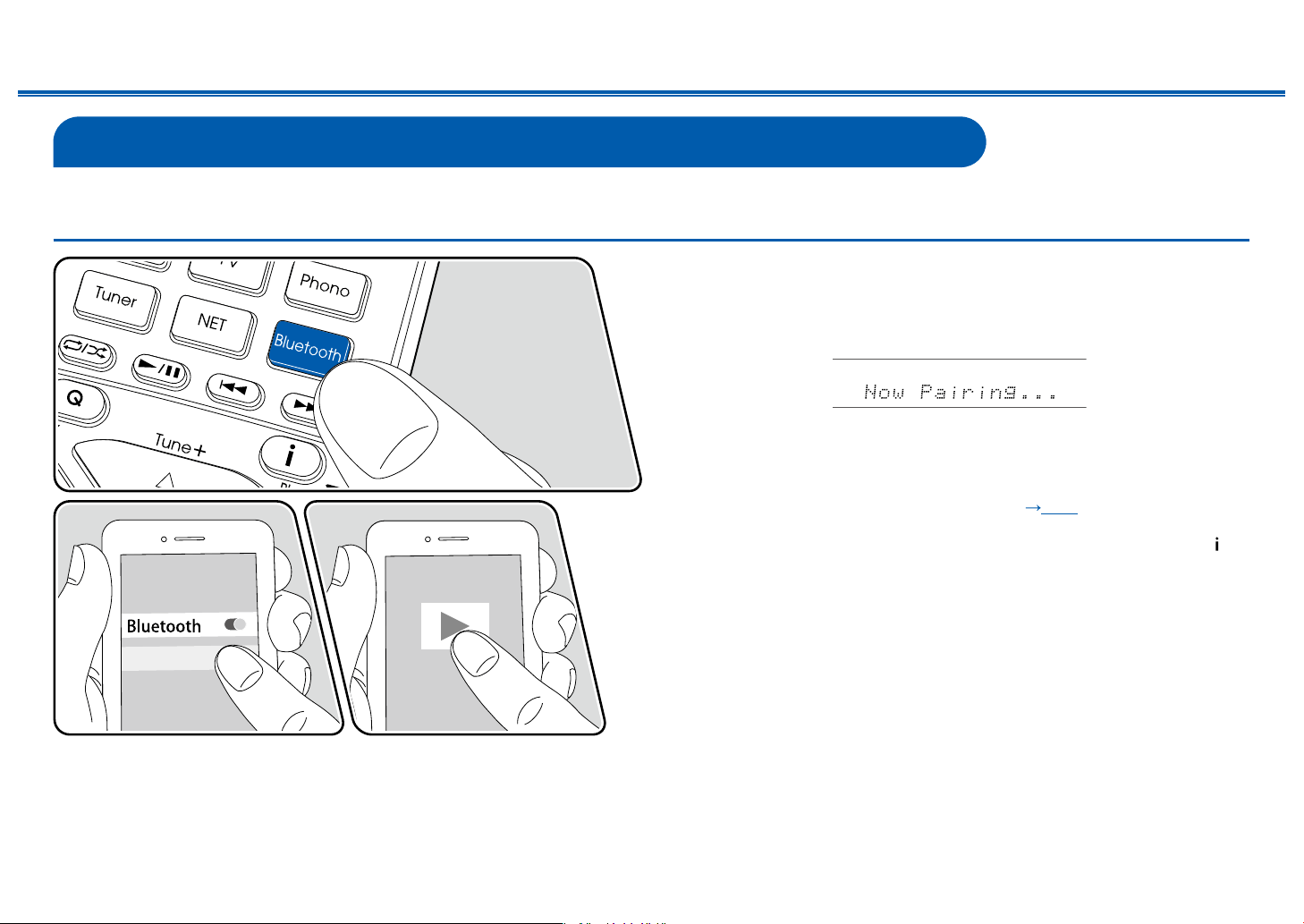
82
Front Panel≫ Rear Panel≫ Remote≫
Contents
≫
Connections
≫
Playback
≫
Setup
≫
BLUETOOTH
®
Playback
You can wirelessly play the audio on a BLUETOOTH-enabled device, such as a smartphone.
Basic Operations
Perform the following procedure when this unit is on.
Pairing
1. When you press the Bluetooth button, "Now Pairing..." appears on the display,
and the pairing mode is enabled.
2. Enable (turn on) the BLUETOOTH function of the BLUETOOTH-enabled
device, and then select this unit from among the devices displayed. If a
password is requested, enter "0000".
• This unit is displayed as "Integra DRX-5.3 XXXXXX". This display can be
changed using the Friendly Name function ( p165) or Integra Control
Pro (available on iOS or Android™).
• To connect another BLUETOOTH-enabled device, press and hold the
button at least 5 seconds, and then perform step 2. This unit can store the
pairing information of up to 8 paired devices.
• The coverage area is approx. 48´/15 m. Note that connection is not always
guaranteed with all BLUETOOTH-enabled devices.
Playing Back
1. Perform the connection procedure on the BLUETOOTH-enabled device.
2. Playing the music le.
The input on this unit automatically switches to "BLUETOOTH".
Turn up the volume of the BLUETOOTH-enabled device to an appropriate
level.
• Due to the characteristics of BLUETOOTH wireless technology, the sound
produced on this unit may slightly be behind the sound played on the
BLUETOOTH-enabled device.
Integra DRX-5.3 XXX
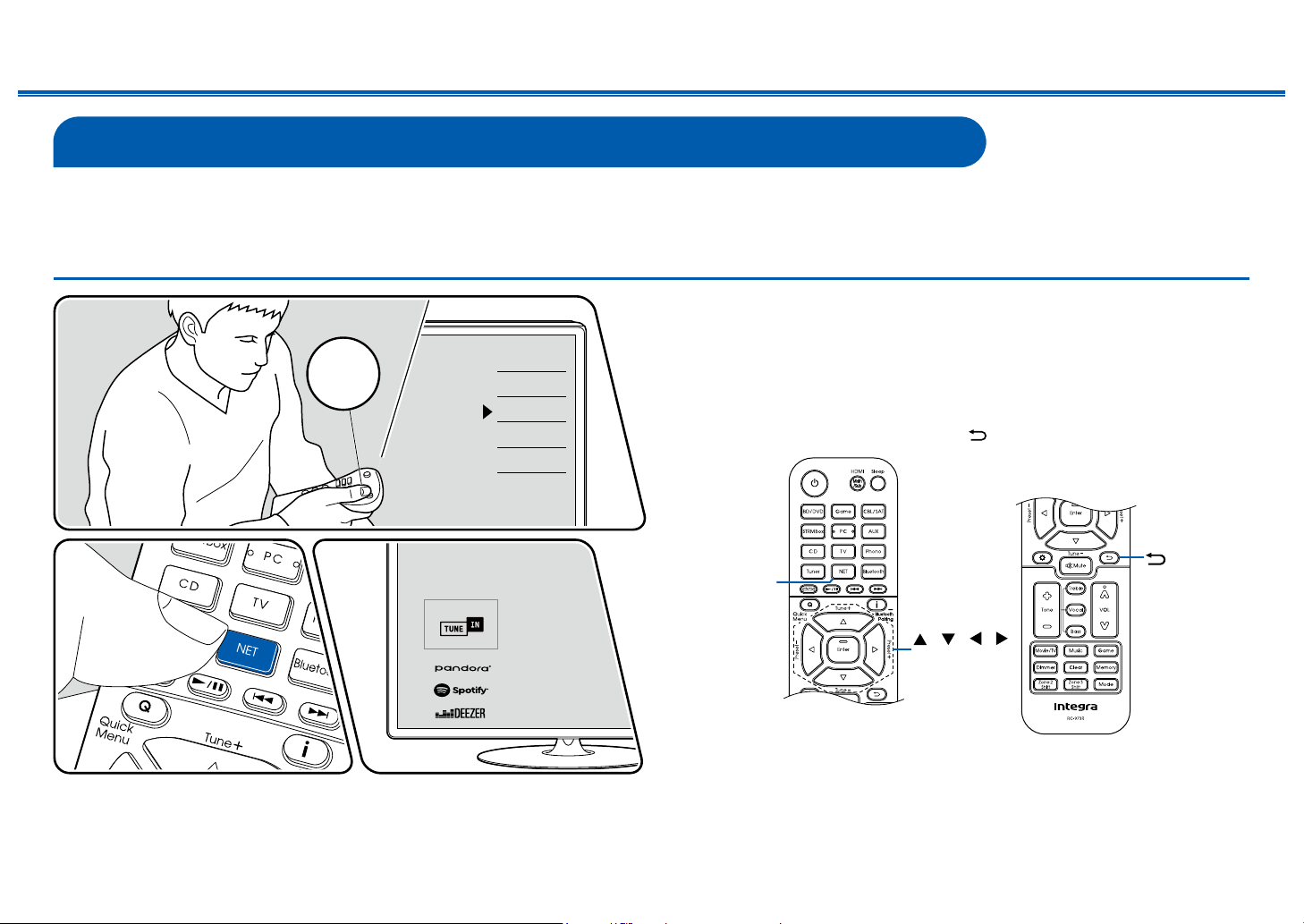
83
Front Panel≫ Rear Panel≫ Remote≫
Contents
≫
Connections
≫
Playback
≫
Setup
≫
Internet Radio
By connecting this unit to an Internet-connected network, you can enjoy Internet radio services such as TuneIn Radio.
• To play Internet radio services, the network needs to be connected to the Internet.
• Depending on the Internet radio service, a user registration may be required on your PC beforehand. For details of each service, visit the website of each service.
Playing Back
Perform the following procedure when this unit is on.
1. Switch the input on the TV to the input connected to the unit.
2. Pressing NET will display the Network Functions list screen on the TV.
3. Select your preferred Internet radio service using cursor, and press Enter to
conrm the selection.
4. Following the on-screen instructions, select a radio station and program using
cursor, and then press Enter to play.
• To return to the previous screen, press
.
/ / /
Enter
NET
Inputs
TV
HDMI 1
HDMI 2
HDMI 3
TV
INPUT
TV’s REMOTE
The illustration shows an image.
84
Front Panel≫ Rear Panel≫ Remote≫
Contents
≫
Connections
≫
Playback
≫
Setup
≫
Internet Radio Service Menu
You can bookmark specic stations, or delete stations that have been
bookmarked. The displayed menu varies according to the service being selected.
The menu icon is displayed while a station is being played. When only this
icon is displayed, pressing Enter will display the menu on the screen. When
multiple icons are displayed, select the icon with the cursor, and press Enter.
Regarding the TuneIn Radio Account
If you create an account on the TuneIn Radio website (tunein.com), and log in it
from this unit, your favorite radio stations or programs you have followed on the
website are automatically added to your "My Presets" on this unit. "My Presets"
is displayed on the next level in the hierarchical structure of TuneIn Radio. To
display a radio station added to "My Presets", you need log into TuneIn Radio
from the unit. To log in, select "Login" - "I have a TuneIn account" in the "TuneIn
Radio" top list on the unit, and then enter your user name and password.
• If you select "Login" on this unit, a registration code is displayed. By using
this code, you can associate the device on the My Page section of the TuneIn
Radio website so that you can log in from "Login" - "Login with a registration
code" without entering the user name and password.
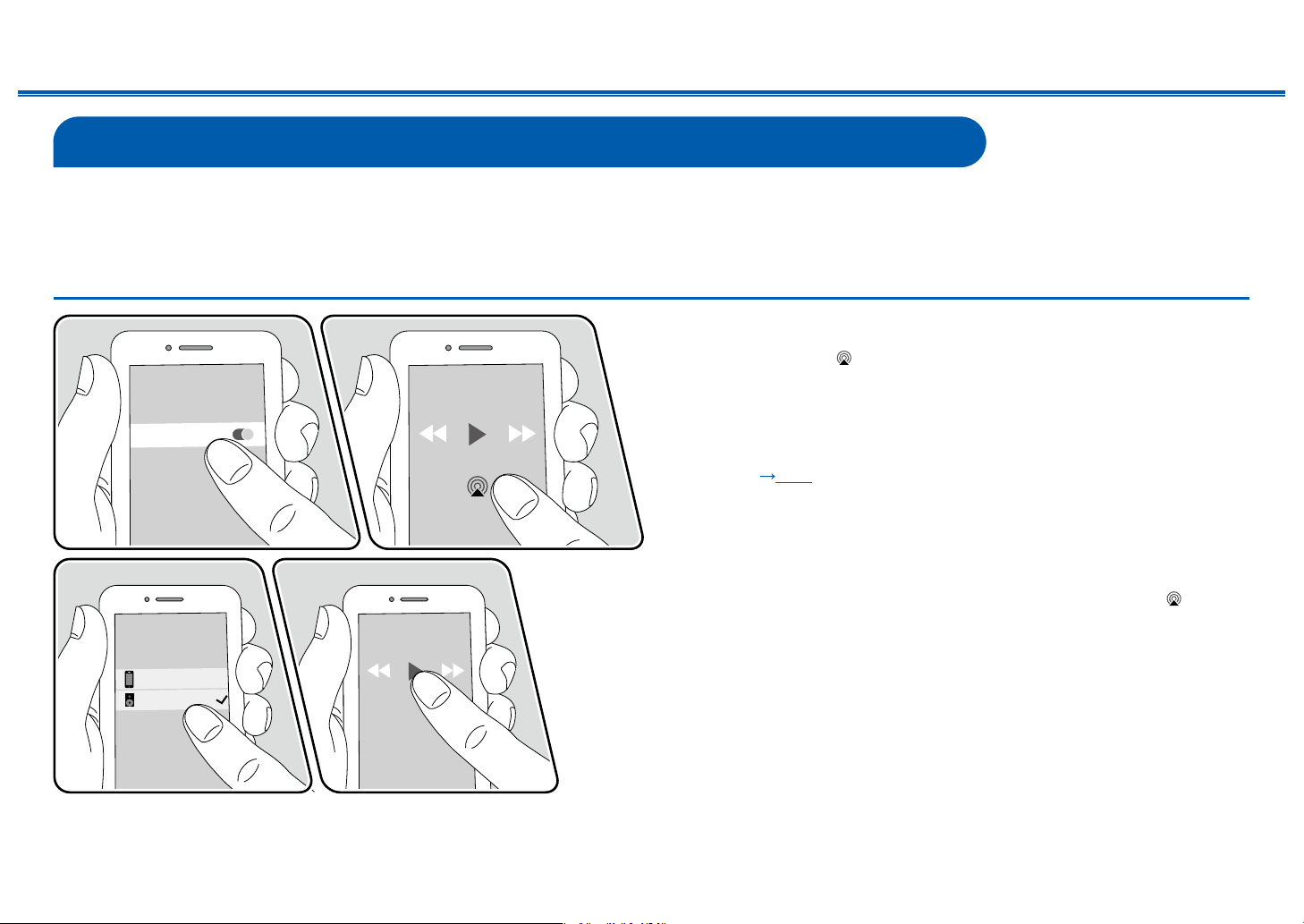
86
Front Panel≫ Rear Panel≫ Remote≫
Contents
≫
Connections
≫
Playback
≫
Setup
≫
AirPlay
®
By connecting this unit to the same network as that of iOS devices such as iPhone
®
, iPod touch
®
and iPad
®
, you can enjoy music les on iOS devices wirelessly.
• Update the OS version on your iOS device to the latest version.
• Depending on the iOS version, operation screens or operation procedures on the iOS device may be different. For details, refer to the operating instructions for the
iOS device.
Playing Back on This Unit
1. Connect the iOS device to the access point where this unit is connected via
network.
2. Tap the AirPlay icon on the play screen of the music play application on the
iOS device, and select this unit from the displayed devices.
3. Play the music le on the iOS device.
• When "6. Hardware" - "Power Management" - "Network Standby" is set to
"Off" in the Setup menu, turn this unit on manually, and press the NET button
on the remote controller. In the factory default setting, the Network Standby
function ( p168) is set to On.
• Due to the characteristics of AirPlay wireless technology, the sound produced
on this unit may slightly be behind the sound played on the AirPlay-enabled
device.
You can also play the music les on a PC with iTunes (Vere. 10.2 or later)
equipped. Conrm that this unit and the PC are connected to the same network
beforehand. Then, press NET on this unit. Next, click the AirPlay icon
in
iTunes, select this unit from the displayed devices, and start play of a music le.
Integra DRX-5.3 XXXXXX
iPhone
Wi-Fi
e.g., iOS 10
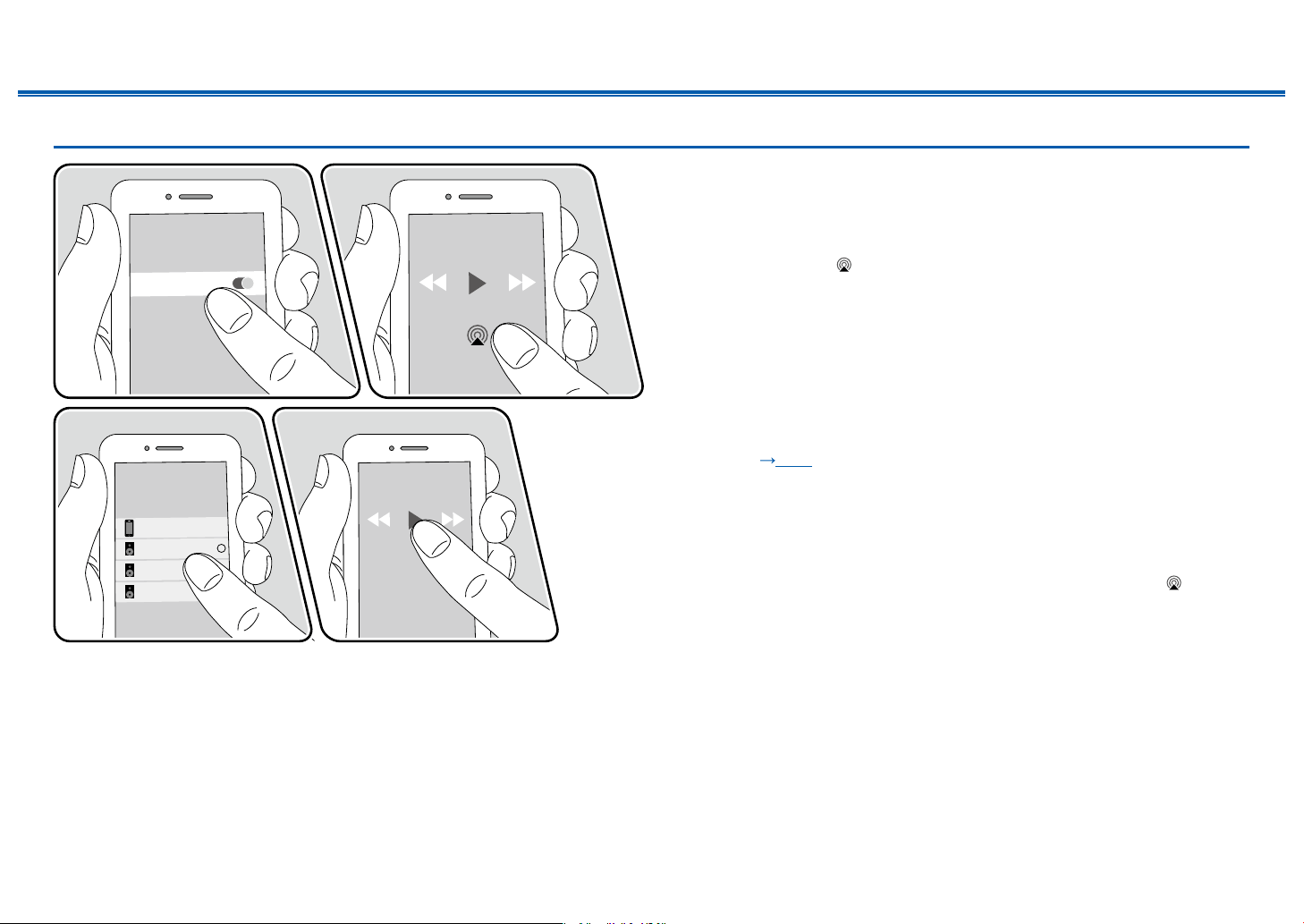
87
Front Panel≫ Rear Panel≫ Remote≫
Contents
≫
Connections
≫
Playback
≫
Setup
≫
Playing Back on multiple devices (AirPlay2)
This unit supports AirPlay2. If the version of the iOS device is iOS11.4 or later,
you can play the music of the iOS device on this unit and other devices that
support AirPlay2.
1. Connect the iOS device to the access point where this unit is connected via
network.
2. Tap the AirPlay icon on the play screen of the music play application on the
iOS device, and select this unit and AirPlay2-supported devices to play from
the displayed devices.
• AirPlay2-supported devices are displayed with white circle on the right side.
• Multiple AirPlay2-supported devices can be selected.
• The volume can be adjusted on individual devices.
3. Play the music le on the iOS device.
• When "6. Hardware" - "Power Management" - "Network Standby" is set to
"Off" in the Setup menu, turn this unit on manually, and press the NET button
on the remote controller. In the factory default setting, the Network Standby
function ( p168) is set to On.
• Due to the characteristics of AirPlay wireless technology, the sound produced
on this unit may slightly be behind the sound played on the AirPlay-enabled
device.
You can also play the music les on a PC with iTunes (Vere. 12.8 or later)
equipped. Conrm that this unit and the PC are connected to the same network
beforehand. Then, press NET on this unit. Next, click the AirPlay icon
in
iTunes, select this unit and AirPlay2-supported devices to play from the displayed
devices, and start play of a music le.
Integra DRX-5.3 XXXXXX
iPhone
Integra XXXXXXXX
Integra XXXXXXXX
Wi-Fi
e.g., iOS 11.4
88
Front Panel≫ Rear Panel≫ Remote≫
Contents
≫
Connections
≫
Playback
≫
Setup
≫
DTS Play-Fi
®
https://play-.com/
When connecting this unit to the same network as mobile devices, such as
a smartphone and tablet, you can enjoy music played on the mobile device
wirelessly. Music from a streaming distribution service or music in the music
library on a mobile device can be played. This function also supports a playlist on
iTunes. Also, connecting multiple speakers supporting DTS Play-Fi on the same
network will enable "Group playback" that plays the same music in separate
rooms at home. To enjoy this function, download Integra Music Control App
(available on iOS or Android™).
Playing Back
1. Download Integra Music Control App using your mobile device.
http://integrahometheater.jp/play/app_i.html
2. Connect the mobile device to the network where this unit is connected.
3. Starting up Integra Music Control App will automatically display compatible
devices.
4. Select this device from the compatible devices. Then, a list of applications
such as a music streaming distribution service is displayed. Select the content
to play, and perform operation according to the on-screen instructions.
• When "6. Hardware" - "Power Management" - "Network Standby" is set to
"Off" in the Setup menu, turn this unit on manually, and press the NET button
on the remote controller. In the factory default setting, the Network Standby
function (
p168) is set to On.
• For detailed operation and FAQ, visit the following URL.
http://integrahometheater.jp/play/info_i.html
• To use a music streaming distribution service, user registration may be
required.
• This unit does not support the following DTS Play-Fi functions.
– Spotify
– Wireless Surround Sound
– Line In Rebroadcast
– Internet Radio
– Critical Listening
– L/R Stereo Speaker Pairing
• Some of the settings in the "Setup menu" cannot be changed on this unit. To
change those settings, cancel the connection of this unit from the application.
• Listening modes cannot be selected during playback.
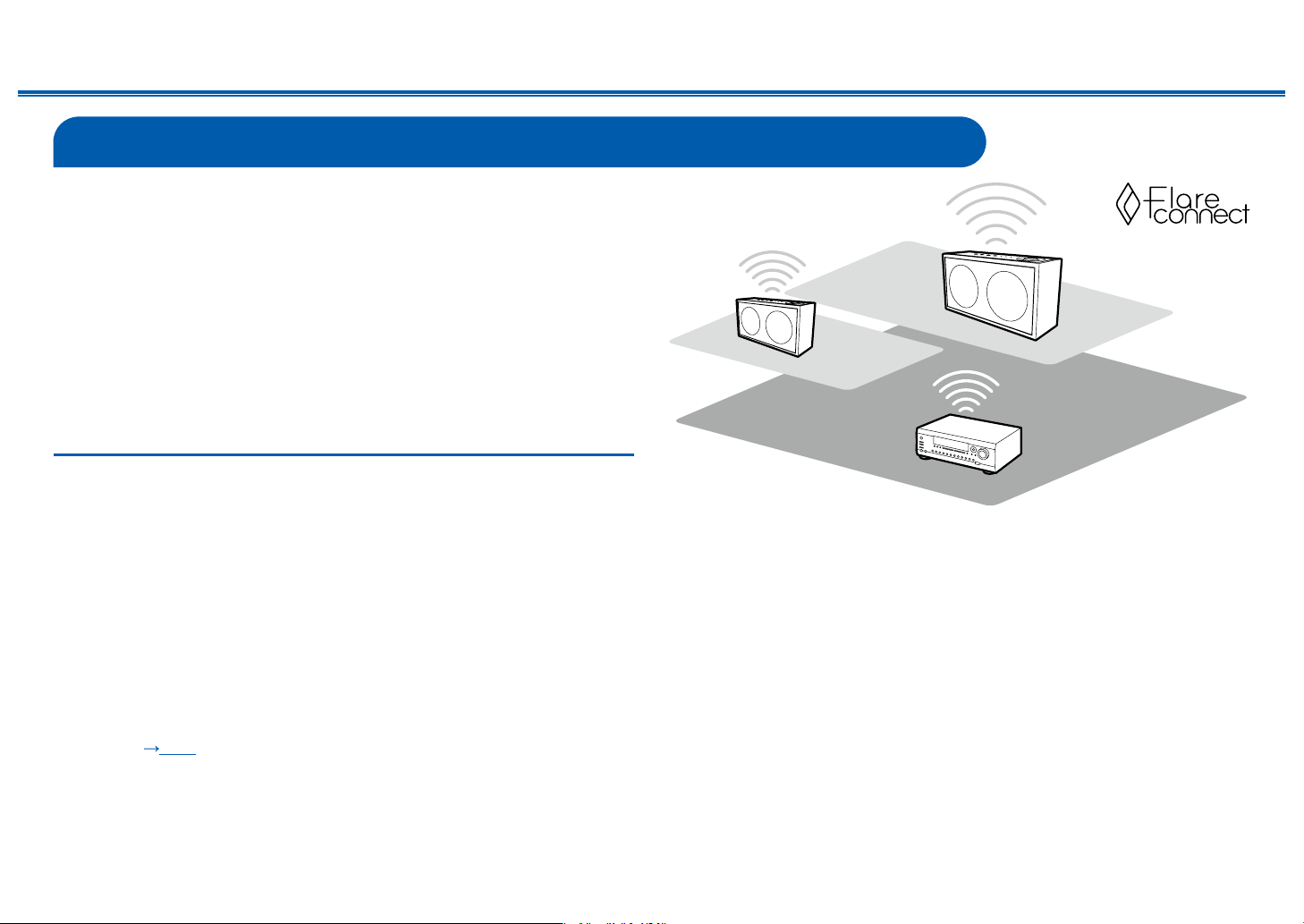
89
Front Panel≫ Rear Panel≫ Remote≫
Contents
≫
Connections
≫
Playback
≫
Setup
≫
FlareConnect
TM
When downloading Integra Control Pro (available on iOS or Android™) to mobile
devices, such as a smartphone and tablet, you can enjoy the group playback that
plays the same music on multiple audio products supporting the FlareConnect
function. You can play audio from external playback devices connected to each
product, music from an Internet radio or network audio service such as a music
streaming distribution service, and music in the music library on a mobile device.
Playing Back
1. Connect this unit and other devices supporting FlareConnect to the same
network.
2. Download Integra Control Pro from App Store or Google Play
TM
Store.
3. Connect the mobile device to the network where this unit is connected.
4. Starting up Integra Control Pro will automatically recognize compatible
devices.
5. Select the screen of the compatible device to operate, and tap the Group icon
at the bottom of the screen.
6. Add a check mark for the audio product on which you want to play the same
music.
7. Select the content to play, and operate according to the on-screen instructions.
• When "6. Hardware" - "Power Management" - "Network Standby" is set to
"Off" in the Setup menu, turn this unit on manually, and press the NET button
on the remote controller. In the factory default setting, the Network Standby
function ( p168) is set to On. For other devices, check their respective
instruction manuals.
The illustration shows an image.
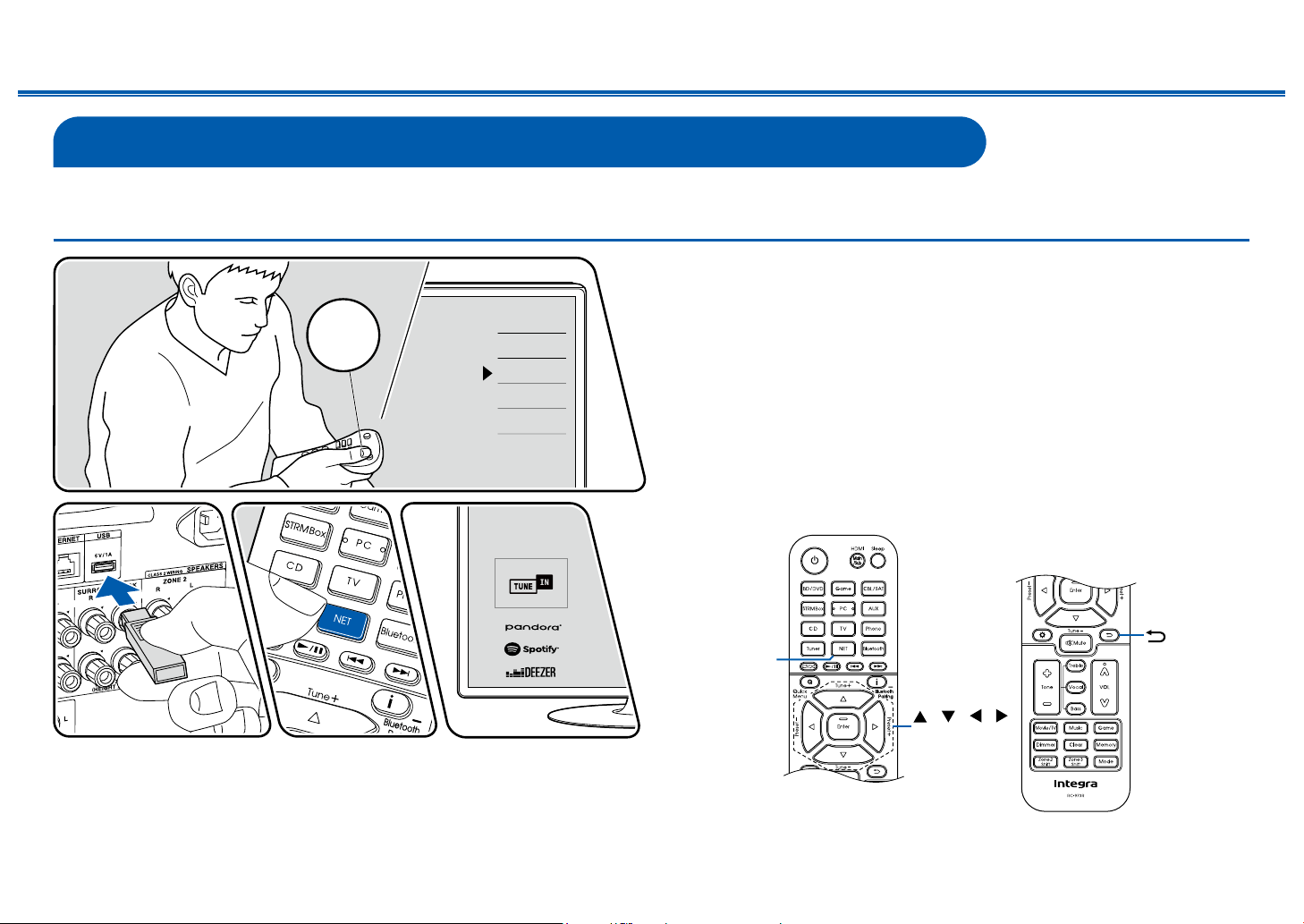
90
Front Panel≫ Rear Panel≫ Remote≫
Contents
≫
Connections
≫
Playback
≫
Setup
≫
USB Storage Device
You can play music les stored on a USB storage device.
Basic Operations
Perform the following procedure when this unit is on.
1. Switch the input on the TV to the input connected to the unit.
2. Plug your USB storage device containing music les into the USB port of this
unit’s rear panel.
3. Press NET to display the network service list screen.
4. Select "USB" with the cursors, and then press Enter.
• If the "USB" indicator blinks on the display, check whether the USB storage
device is plugged in properly.
• Do not unplug the USB storage device while "Connecting..." is being
displayed on the display. This may cause data corruption or malfunction.
5. Press Enter on the next screen again. The list of folders and music les on the
USB storage device is displayed. Select the folder with the cursors, and press
Enter to conrm your selection.
6. Select the music le with the cursors, and then press Enter to start playback.
/ / /
Enter
NET
Inputs
TV
HDMI 1
HDMI 2
HDMI 3
TV
INPUT
TV’s REMOTE
The illustration shows an image.
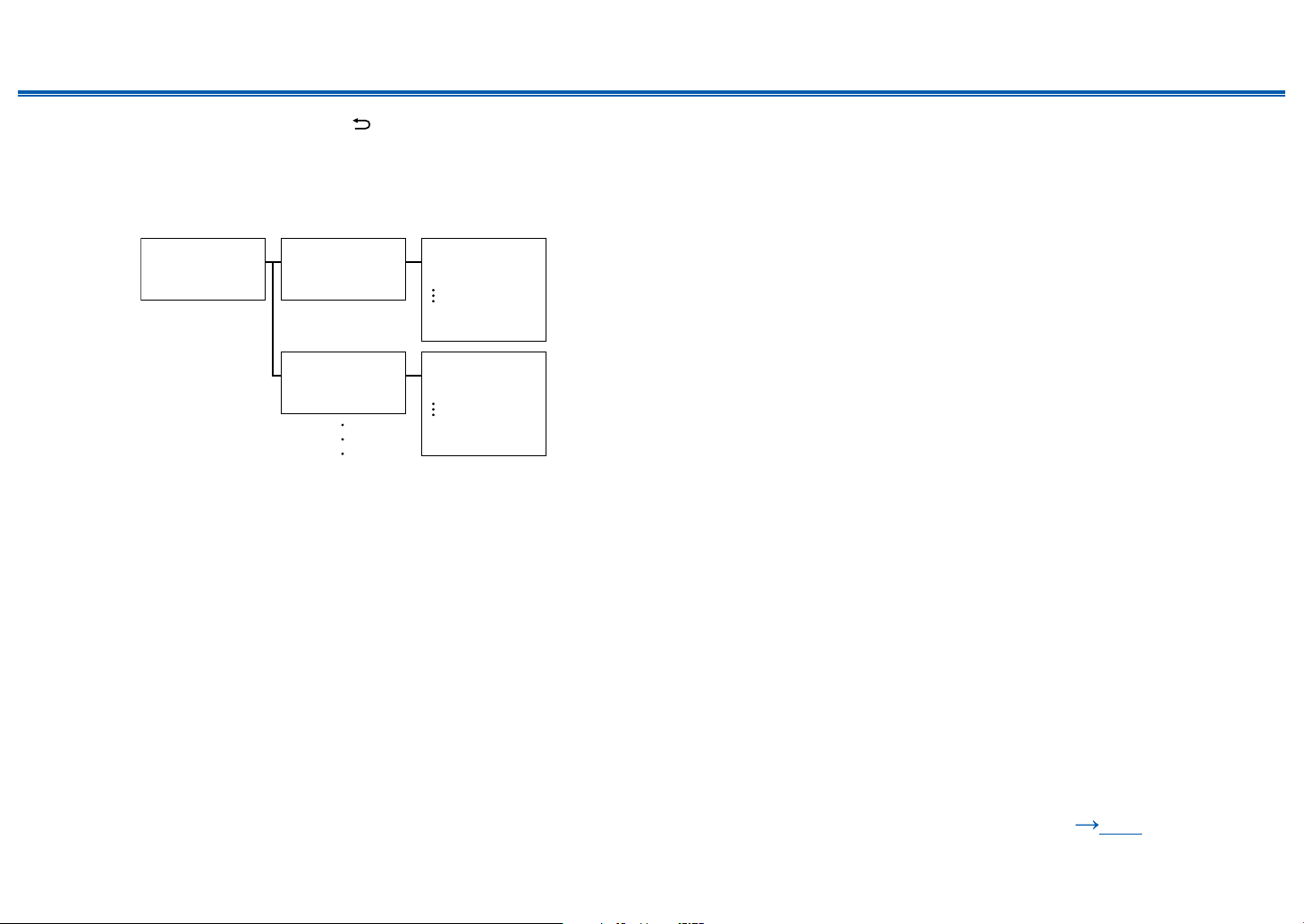
91
Front Panel≫ Rear Panel≫ Remote≫
Contents
≫
Connections
≫
Playback
≫
Setup
≫
• To return to the previous screen, press .
• To display an album title, artist name and album art of a le in WAV format,
make the folder structure and le names as shown below when saving music
les. The album art can be displayed by saving a .jpg le to display on the
screen in the folder of bottom level. Note that a large volume of .jpg le may
take time to be displayed, or may not be displayed.
Folder 1
Artist name
Folder 1-1
Album name
file 1-1
file 2-1
file 3-1
Folder 1-2
Album name
file 1-2
file 2-2
file 3-2
.jpg file
.jpg file
• Characters that cannot be displayed on this unit appear with ""
• The USB port of this unit complies with the USB 2.0 standard. The transfer
speed may be insufcient for some content you play, and sound interruptions,
etc. may occur.
• Note that operation is not always guaranteed for all USB storage devices.
• This unit can use USB storage devices that comply with the USB mass
storage class standard. Also the format of USB storage devices supports
FAT16 or FAT32 le system format.
❏ Device and Supported Format ( p92)
92
Front Panel≫ Rear Panel≫ Remote≫
Contents
≫
Connections
≫
Playback
≫
Setup
≫
Device and Supported Format
USB Storage Device Requirements
• This unit can use USB storage devices that comply with the USB mass
storage class standard.
• The format of USB storage devices supports FAT16 or FAT32 le system
format.
• If the USB storage device has been partitioned, each section will be treated as
an independent device.
• Up to 20,000 tracks per folder are supported, and folders can be nested up to
16 levels deep.
• USB hubs and USB storage devices with hub functions are not supported. Do
not connect these devices to the unit.
• USB storage devices with security functions are not supported on this unit.
• If an AC adapter is supplied with the USB storage device, connect the AC
adapter, and use it with a household outlet.
• Media inserted to the USB card reader may not be available in this function.
Furthermore, depending on the USB storage device, proper reading of the
contents may not be possible.
• In use of a USB storage device, our company accepts no responsibility
whatsoever for the loss or modication of data stored on a USB storage
device, or malfunction of the USB storage device. We recommend that you
back up the data stored on a USB storage device before using it with this unit.
Supported Audio Formats
This unit supports the following music le formats. Note that sound les that are
protected by copyright cannot be played on this unit.
MP3 (.mp3/.MP3):
• Supported formats: MPEG-1/MPEG-2 Audio Layer 3
• Supported sampling rates: 44.1 kHz, 48 kHz
• Supported bitrates: Between 8 kbps and 320 kbps, and VBR
WMA (.wma/.WMA):
• Supported sampling rates: 44.1 kHz, 48 kHz
• Supported bitrates: Between 5 kbps and 320 kbps, and VBR
• WMA Pro/Voice/WMA Lossless formats are not supported.
WAV (.wav/.WAV):
WAV les contain uncompressed PCM digital audio.
• Supported sampling rates: 44.1 kHz, 48 kHz, 88.2 kHz, 96 kHz, 176.4 kHz,
192 kHz
• Quantization bit: 8 bit, 16 bit, 24 bit
AIFF (.aiff/.aif/.AIFF/.AIF):
AIFF les contain uncompressed PCM digital audio.
• Supported sampling rates: 44.1 kHz, 48 kHz, 88.2 kHz, 96 kHz, 176.4 kHz,
192 kHz
• Quantization bit: 8 bit, 16 bit, 24 bit
AAC (.aac/.m4a/.mp4/.3gp/.3g2/.AAC/.M4A/.MP4/.3GP/.3G2):
• Supported formats: MPEG-2/MPEG-4 Audio
• Supported sampling rates: 44.1 kHz, 48 kHz, 88.2 kHz, 96 kHz
• Supported bitrates: Between 8 kbps and 320 kbps, and VBR
FLAC (.ac/.FLAC):
• Supported sampling rates: 44.1 kHz, 48 kHz, 88.2 kHz, 96 kHz, 176.4 kHz,
192 kHz
• Quantization bit: 8 bit, 16 bit, 24 bit
Apple Lossless (.m4a/.mp4/.M4A/.MP4):
• Supported sampling rates: 44.1 kHz, 48 kHz, 88.2 kHz, 96 kHz, 176.4 kHz,
192 kHz
• Quantization bit: 16 bit, 24 bit
DSD (.dsf/.dff/.DSF/.DFF):
• Supported formats: DSF/DSDIFF
• Supported sampling rates: 2.8 MHz, 5.6 MHz, 11.2 MHz
• When playing les recorded with VBR (Variable bit-rate), the playback time
may not be displayed correctly.
• This unit supports the gapless playback of the USB storage device in the
following conditions.
When continuously playing WAV, FLAC and Apple Lossless les with the same
format, sampling frequency, the number of channels and quantization bit rate.
93
Front Panel≫ Rear Panel≫ Remote≫
Contents
≫
Connections
≫
Playback
≫
Setup
≫
Playing back les on a PC and NAS (Music Server)
Streaming play of music les stored on PCs or NAS devices connected to the same network as this unit is supported.
• The network servers supported by this unit are PCs that incorporate players equipped with the server functions such as Windows Media
®
Player 11 or 12, or NASes
supporting the home network function. When using Windows Media
®
Player 11 or 12, you need to make the settings beforehand. Note that with PCs, only music les
registered in the library of Windows Media
®
Player can be played.
Windows Media
®
Player settings
On Windows Media
®
Player11
1. Turn on your PC, and start Windows Media
®
Player 11.
2. In the "Library" menu, select "Media Sharing" to display a dialog box.
3. Select the "Share my media" check box, and then click "OK" to display the
compatible devices.
4. Select this unit, and then click "Allow".
• When it is clicked, the corresponding icon is checked.
5. Click "OK" to close the dialog.
• Depending on the version of Windows Media
®
Player, the names of items to
select may differ from the above description.
On Windows Media
®
Player12
1. Turn on your PC, and start Windows Media
®
Player 12.
2. In the "Stream" menu, select "Turn on media streaming" to display a dialog
box.
• If the media streaming is already turned on, select "More streaming
options..." in the "Stream" menu to display the list of playback devices in the
network, and then go to step 4.
3. Click "Turn on media streaming" to display the list of playback devices in the
network.
4. Select this unit in "Media streaming options" and check that it is set to "Allow".
5. Click "OK" to close the dialog.
• Depending on the version of Windows Media
®
Player, the names of items to
select may differ from the above description.
❏ Playing Back ( p94)
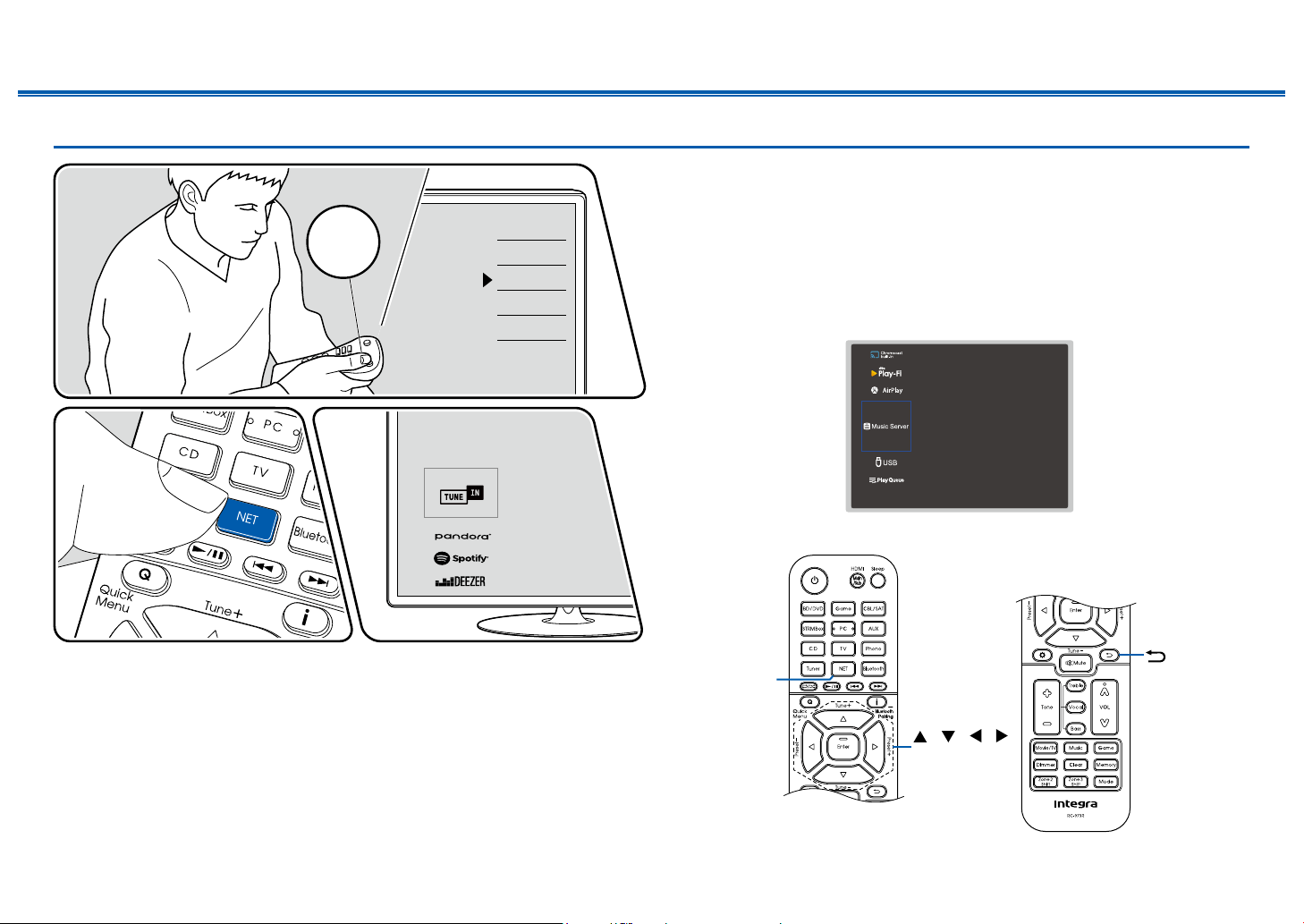
94
Front Panel≫ Rear Panel≫ Remote≫
Contents
≫
Connections
≫
Playback
≫
Setup
≫
Playing Back
Perform the following procedure when this unit is on.
1. Switch the input on the TV to the input connected to the unit.
2. Start the server (Windows Media
®
Player 11, Windows Media
®
Player 12, or
NAS device) containing the music les to play.
3. Make sure that the PC or NAS is properly connected to the same network as
this unit.
4. Press NET to display the network service list screen.
• If the "NET" indicator on the display blinks, the unit is not properly
connected to the network. Check the connection.
5. With the cursors, select "Music Server", and then press Enter.
/ / /
Enter
NET
Inputs
TV
HDMI 1
HDMI 2
HDMI 3
TV
INPUT
TV’s REMOTE
The illustration shows an image.
95
Front Panel≫ Rear Panel≫ Remote≫
Contents
≫
Connections
≫
Playback
≫
Setup
≫
6. Select the target server with the cursors, and press Enter to display the items
list screen.
• This unit cannot access pictures and videos stored on servers.
• Depending on the server sharing settings, contents stored on the server
may not be displayed.
7. With the cursors, select the music le to play, and then press Enter to start
playback.
• If "No Item" is displayed on the screen, check whether the network is
properly connected.
• To return to the previous screen, press
.
• For music les on a server, up to 20,000 tracks per folder are supported, and
folders can be nested up to 16 levels deep.
• Depending on the type of media server, the unit may not recognize it, or may
not be able to play its music les.
Searching music les to select
If the server you use supports search functions, the following search function can
be used.
Perform the following procedure with available servers displayed using Music
Server.
1. With / , select the server containing music les you want to play, and select
Enter.
2. With / , select the Search folder, and press Enter. The Search folder
contains the following three folders.
• "Search by Artist": Select this when searching by artist name.
• "Search by Album": Select this when searching by album title.
• "Search by Track": Select this when searching by track title.
3. With / , select the folder, and press Enter.
4. Input a character string to search for, and press Enter. Then, the search result
is displayed.
5. With / , select the music les to play, and select Enter.
Controlling Remote Playback from a PC
You can use this unit to play music les stored on your PC by operating the PC
in your home network. The unit supports remote playback via Windows Media
®
Player 12. To use the remote playback function of this unit with Windows Media
®
Player 12, it must be congured beforehand.
Setting PC
1. Turn on your PC, and start Windows Media
®
Player 12.
2. In the "Stream" menu, select "Turn on media streaming" to display a dialog
box.
• If the media streaming is already turned on, select "More streaming
options..." in the "Stream" menu to display the list of playback devices in the
network, and then go to step 4.
3. Click "Turn on media streaming" to display the list of playback devices in the
network.
4. Select this unit in "Media streaming options" and check that it is set to "Allow".
5. Click "OK" to close the dialog box.
6. Open the "Stream" menu and conrm that "Allow remote control of my
Player..." is checked.
• Depending on the version of Windows Media
®
Player, the names of items to
select may differ from the above description.
Remote playback
1. Turn on the power of the unit.
2. Turn on your PC, and start Windows Media
®
Player 12.
3. Select and right-click the music le to play with Windows Media
®
Player 12.
• To remotely play a music le on another server, open the target server from
"Other Libraries", and select the music le to play.
4. Select this unit in "Play to" to open the "Play to" window of Windows Media
®
Player 12, and start playback on this unit.
• If your PC is running on Windows
®
8.1, click "Play to", and select this unit.
If your PC is running on Windows
®
10, click "Cast to Device", and select
this unit. Operations during remote playback are possible from the "Play
to" window on the PC. The playback screen is displayed on the HDMI-
connected TV.
5. Adjust the volume using the volume bar on the "Play to" window.
• Sometimes, the volume displayed on the remote playback window may
differ from the volume displayed on the display of this unit.
• When the volume is changed on this unit, the value is not reected in the
"Play to" window.
• This unit cannot play music les remotely in the following conditions.
– It is using a network service.
– It is playing a music le on a USB storage device.

97
Front Panel≫ Rear Panel≫ Remote≫
Contents
≫
Connections
≫
Playback
≫
Setup
≫
Supported Audio Formats
This unit supports the following music le formats. Remote play of FLAC and
DSD is not supported.
MP3 (.mp3/.MP3):
• Supported formats: MPEG-1/MPEG-2 Audio Layer 3
• Supported sampling rates: 44.1 kHz, 48 kHz
• Supported bitrates: Between 8 kbps and 320 kbps, and VBR
WMA (.wma/.WMA):
• Supported sampling rates: 44.1 kHz, 48 kHz
• Supported bitrates: Between 5 kbps and 320 kbps, and VBR
• WMA Pro/Voice/WMA Lossless formats are not supported.
WAV (.wav/.WAV):
WAV les contain uncompressed PCM digital audio.
• Supported sampling rates: 44.1 kHz, 48 kHz, 88.2 kHz, 96 kHz, 176.4 kHz,
192 kHz
• Quantization bit: 8 bit, 16 bit, 24 bit
AIFF (.aiff/.aif/.AIFF/.AIF):
AIFF les contain uncompressed PCM digital audio.
• Supported sampling rates: 44.1 kHz, 48 kHz, 88.2 kHz, 96 kHz, 176.4 kHz,
192 kHz
• Quantization bit: 8 bit, 16 bit, 24 bit
AAC (.aac/.m4a/.mp4/.3gp/.3g2/.AAC/.M4A/.MP4/.3GP/.3G2):
• Supported formats: MPEG-2/MPEG-4 Audio
• Supported sampling rates: 44.1 kHz, 48 kHz, 88.2 kHz, 96 kHz
• Supported bitrates: Between 8 kbps and 320 kbps, and VBR
FLAC (.ac/.FLAC):
• Supported sampling rates: 44.1 kHz, 48 kHz, 88.2 kHz, 96 kHz, 176.4 kHz,
192 kHz
• Quantization bit: 8 bit, 16 bit, 24 bit
LPCM (Linear PCM):
• Supported sampling rates: 44.1 kHz, 48 kHz
• Quantization bit: 16 bit
Apple Lossless (.m4a/.mp4/.M4A/.MP4):
• Supported sampling rates: 44.1 kHz, 48 kHz, 88.2 kHz, 96 kHz
• Quantization bit: 16 bit, 24 bit
DSD (.dsf/.dff/.DSF/.DFF):
• Supported formats: DSF/DSDIFF
• Supported sampling rates: 2.8 MHz, 5.6 MHz, 11.2 MHz
• When playing les recorded with VBR (Variable bit-rate), the playback time
may not be displayed correctly.
• Remote playback does not support the gapless playback.

98
Front Panel≫ Rear Panel≫ Remote≫
Contents
≫
Connections
≫
Playback
≫
Setup
≫
Play Queue
When downloading Integra Control Pro (available on iOS or Android™) to mobile
devices, such as a smartphone and tablet, you can save your favorite playlist
(Play Queue information) among music les stored in the USB storage device
connected to this unit and music les stored in PC or NAS connected to the same
network as this unit, and you can play the music on the playlist. The Play Queue
information is effective until the power cord of this unit is removed from the outlet.
Initial Setup
1. Connect this unit to your home network by the network settings on this unit.
2. Download Integra Control Pro from App Store or Google Play
TM
Store.
3. Connect the mobile device to the network where this unit is connected.
4. Start up Integra Control Pro, and select this unit.
Adding Play Queue Information
1. Select the "INPUT" input on the application screen, and tap the "USB" icon.
Or, select the "NET" input, and tap the "USB" icon or "Music Server" icon.
(Depending on the model, the icon names may be different.)
2. Tapping the "+" icon of the track you wan to add will open the pop-up to add
the Play Queue information.
3. Touch the "Play Now ", "Play Next " or "Play Last " icon to add the
track to Play Queue.
99
Front Panel≫ Rear Panel≫ Remote≫
Contents
≫
Connections
≫
Playback
≫
Setup
≫
• If there are no tracks on the Play Queue list, only "Play Now " is
displayed.
Sort and Delete
1. Select the "NET" input, tap the "Play Queue" icon, and enter the Play Queue
service screen.
2. Tap the " " icon of the track to sort, and drag the icon to the destination.
3. To delete a track, slide the track to the left until the trash icon changes to " ".
If the device is on iOS, slide the " " icon to the left. Releasing your nger will
delete the track from Play Queue.
Playing Back
Playback starts when you select "Play Now " for Play Queue addition, or select
the track in the Play Queue service screen.
100
Front Panel≫ Rear Panel≫ Remote≫
Contents
≫
Connections
≫
Playback
≫
Setup
≫
Amazon Music
Registering this unit with Amazon Music allows you to enjoy the music distribution
service provided by Amazon. You can register this unit on the screen of Integra
Control Pro by downloading Integra Control Pro (available on iOS or Android™)
to mobile devices such as a smartphone and tablet.
• To play Amazon Music, you need to have your Amazon account and sign up
for Amazon Prime or Amazon Music Unlimited. For more information, see the
Amazon website.
Amazon Music is now available in several countries. If Amazon Music is not
available in your country, please visit https://music.amazon.com/ for more info.
Registering This Unit with Amazon Music
• You can register this unit with Amazon Music using Integra Control Pro. The
registration cannot be performed by operation of this unit.
1. Connect this unit to your home network by the network settings on this unit.
2. Download Integra Control Pro using your mobile device.
3. Connect the mobile device to the network where this unit is connected.
4. Start up Integra Control Pro to automatically display this unit. Tap and select
this unit displayed.
5. Tap "NET" or "NETWORK" on the upper part of the Integra Control Pro’s
screen to switch to the network menu. Then tap the "Amazon Music" icon to
display the login screen of Amazon Music. (Depending on the model, the icon
names may be different.)
• If the login screen is not displayed but an update or installation screen is
displayed instead, perform the update or installation according to the on-
screen instructions.
Available services may differ depending on your area.
6. Enter the Amazon account information such as email address and password to
log in to Amazon. When the login is successful and this unit is registered, the
Amazon Music menu is displayed.
For playback, proceed to step 3 in the next section.
Playing Amazon Music
1. Start up Integra Control Pro. This unit is automatically displayed after startup.
Then, tap and select this unit displayed.
2. Tap "NET" or "NETWORK" on the upper part of the screen to switch to the
network screen. Then tap the "Amazon Music" icon.
3. Select the content to play from the menu screen of Amazon Music to start
playback.
• To play Amazon Music using the remote controller, operate the input
selector on the remote controller to display the network menu, and select
"Amazon Music" from the menu.
101
Front Panel≫ Rear Panel≫ Remote≫
Contents
≫
Connections
≫
Playback
≫
Setup
≫
Connecting the Sonos System for Playback
Connecting this unit and Sonos Connect allows you to send the music or music
sources on the Sonos App to this unit. Through Sonos Connect, you can play
this unit with the same group of another Sonos device on the network or can
play only on this unit. Also, if you start to play music from Sonos App, this unit is
automatically turned on and the link function to switch input works.
• When "6. Hardware" - "Power Management" - "Network Standby" is set to
"Off" in the Setup menu, turn this unit on manually, and press the NET button
on the remote controller. In the factory default setting, the Network Standby
function ( p168) is set to On.
Necessary Equipment
• Sonos Connect
• RCA audio cable (supplied with Sonos Connect)
How to Connect This Unit and Sonos
Connect
1. Connect the Sonos Connect to the AUDIO IN jack of this unit with the RCA
audio cable supplied with the Sonos Connect. Any input jacks other than the
PHONO jack can be used.
• A digital cable can also be connected. For details, refer to the instruction
manual of Sonos.
• You can change the name of the input selector displayed on this unit to
easier-to-understand name. For example, the input connected to Sonos
Connect can be changed from "CD" (or another input selector) to "SONOS".
Press the button on the remote controller, select "4. Source" - "Name
Edit" and then change the name.
Setting Up
A setup is required to play Sonos on this unit. Make the setting according to the
following procedure.
1. Press the button on the remote controller, select "6. Hardware" - "Works
with SONOS", and press the Enter button.
2. Select the following items with the cursors / and set each item.
Input Selector:
Enable the interlocking function with the Sonos Connect. With the cursors /
, select the input selector to which the Sonos Connect is connected.
Connected Device:
Press the Enter button to display Sonos devices connected to the same
network as the network of this unit. Select the Sonos Connect connected to
the unit and press the Enter button.
• Products (e.g. Play:3 unequipped with an output terminal) other than the
Sonos Connect are also displayed in the device list and selectable. In
that case, when playback on the Sonos side starts, the input is switched,
however, audio is not output. Select the room name of the connected
Sonos Connect.
• Up to 32 devices can be displayed on the Sonos product list screen. If you
cannot nd the Sonos Connect to be interlocked, return to the previous
screen, turn off the product you want to interlock, and try again.

102
Front Panel≫ Rear Panel≫ Remote≫
Contents
≫
Connections
≫
Playback
≫
Setup
≫
Output Zone:
With the cursors / , select the ZONE where you want to listen to the music.
"MAIN": Outputs audio only to the main room (where this unit is located).
"Zone 2": Outputs audio only to the separate room (ZONE 2).
"Main/Zone 2": Outputs audio to both the main room and separate room
(ZONE 2).
"Zone 3": Outputs audio only to the separate room (ZONE 3).
"Main/Zone 3": Outputs audio to both the main room and separate room
(ZONE 3).
"Zone 2/Zone 3": Outputs audio to both the separate rooms (ZONE 2 and
ZONE 3).
“Main/Zone 2/Zone 3”: Outputs audio to the main room and both separate
rooms (ZONE 2 and ZONE 3).
Playing Sonos on This Unit
1. Select desired tracks using Sonos App and send the tracks to the room where
this unit is located (or to the group). It is recommended to give an easy-to-
remember name to the combination of this unit and Sonos Connect, such as
TV Room or Living Room where this unit is located.
• If the input selector of this unit is not automatically switched even after the
start of music playback, stop the playback once and start again.
• You can set the volume beforehand for playing back the Sonos Connect.
Press the button on the remote controller, and select "6. Hardware" -
"Works with SONOS" - "Preset Volume" ( p178) to make the setting.
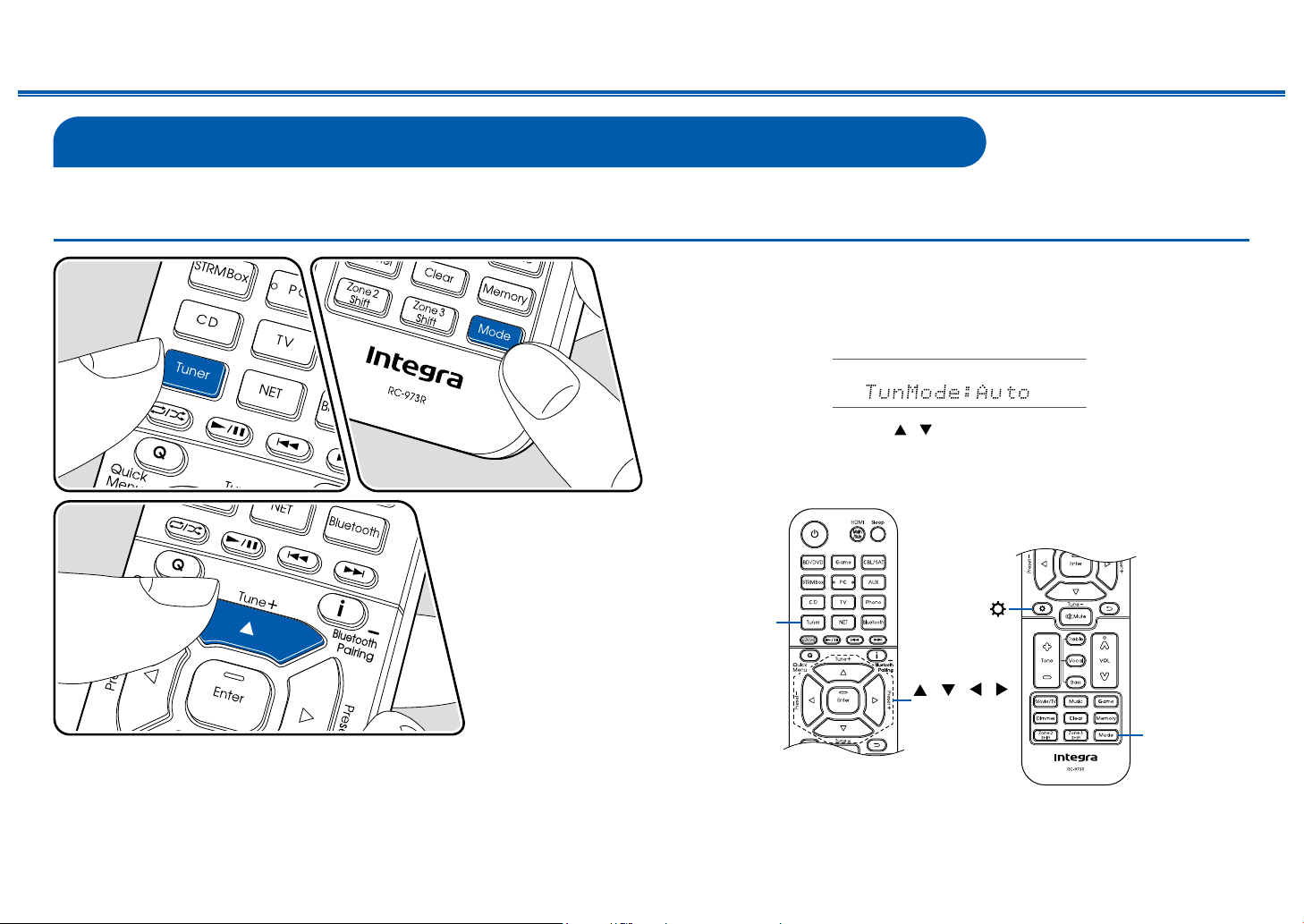
103
Front Panel≫ Rear Panel≫ Remote≫
Contents
≫
Connections
≫
Playback
≫
Setup
≫
Listening To the AM/FM Radio
You can receive AM and FM radio stations on this unit with the built-in tuner.
Tuning into a Radio Station
Perform the following procedure when this unit is on.
Tuning Automatically
1. Press Tuner repeatedly to select either "AM" or "FM".
2. Press Mode repeatedly to display "TunMode: Auto" on the display.
3. When you press the cursors / , automatic tuning starts, and searching
stops when a station is found. When tuned in to a radio station, the "TUNED"
indicator on the display lights up. When tuned in to an FM radio station, the
"FM ST" indicator lights up.
/ / /
Enter
Mode
Tuner
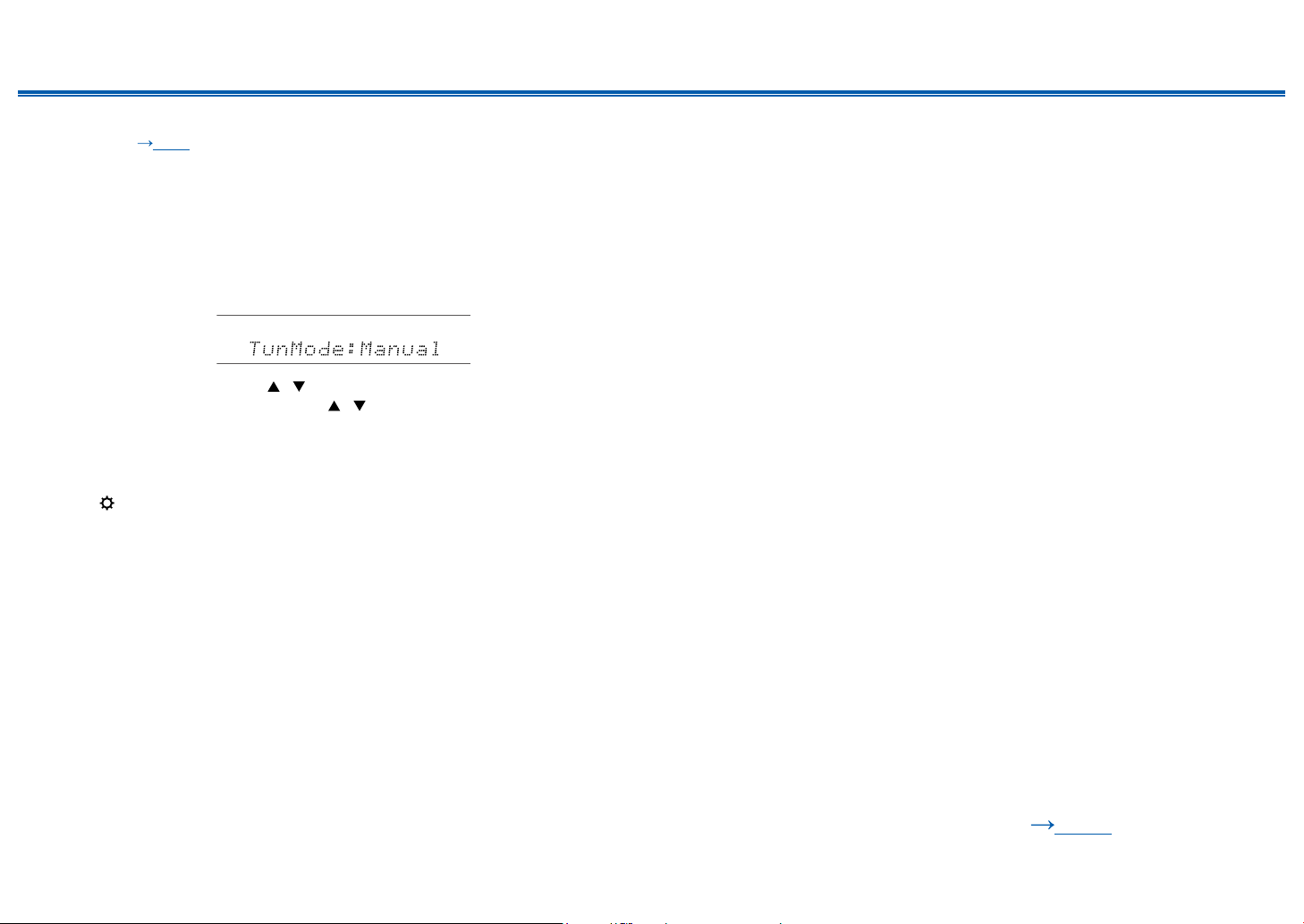
104
Front Panel≫ Rear Panel≫ Remote≫
Contents
≫
Connections
≫
Playback
≫
Setup
≫
When FM broadcasts reception is poor: Perform the procedure for "Tuning
Manually" ( p104). Note that if you tune manually, the reception for FM
broadcasts will be monaural rather than stereo, irrespective of the sensitivity of
the reception.
Tuning Manually
Note that if you tune manually, the reception for FM broadcasts will be monaural
rather than stereo, irrespective of the sensitivity of the reception.
1. Press Tuner repeatedly to select either "AM" or "FM".
2. Press Mode repeatedly to display "TunMode: Manual" on the display.
3. While pressing the cursors / , select the desired radio station.
• Each time you press the cursors / , the frequency changes by 1 step.
If the button is held down, the frequency changes continuously, and if the
button is released, the frequency stops changing.
Frequency step setting
Press , and using the cursors and Enter, select "8. Miscellaneous" - "Tuner" -
"AM/FM Frequency Step" or "AM Frequency Step", and then select the frequency
step for your area. Note that when this setting is changed, all radio presets are
deleted.
❏ Presetting a Radio Station ( p105)
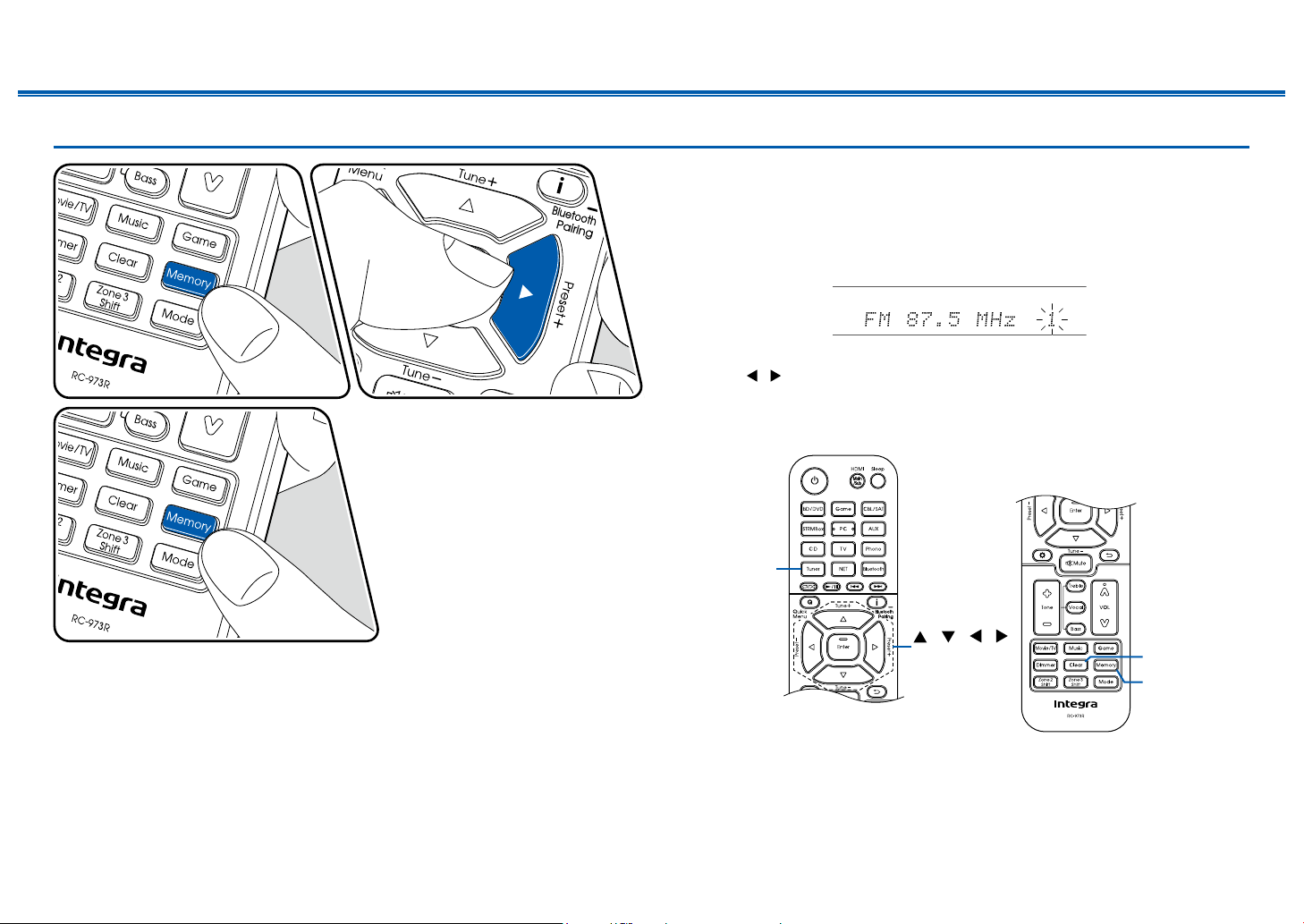
105
Front Panel≫ Rear Panel≫ Remote≫
Contents
≫
Connections
≫
Playback
≫
Setup
≫
Presetting a Radio Station
Registration Procedure
You can preset up to 40 of your favorite AM/FM radio stations.
After tuning in to the AM/FM radio station you want to register, perform the
following procedure.
1. Press Memory so that the preset number on the display blinks.
2. While the preset number is blinking (approx. 8 seconds), repeatedly press the
cursors / to select a number between 1 and 40.
3. Press Memory again to register the station.
When the station is registered, the preset number stops blinking. Repeat this
steps to register your favorite AM/FM radio stations.
/ / /
Enter
Memory
Clear
Tuner

106
Front Panel≫ Rear Panel≫ Remote≫
Contents
≫
Connections
≫
Playback
≫
Setup
≫
Selecting a Preset Radio Station
1. Press Tuner.
2. Press the cursors / to select a preset number.
Deleting a Preset Radio Station
1. Press Tuner.
2. Press the cursors / to select the preset number to delete.
3. After pressing Memory, press Clear while the preset number is blinking,
and delete the preset number. When deleted, the number on the display
disappears.
❏ Using RDS (Australian and Asian models)
( p107)
107
Front Panel≫ Rear Panel≫ Remote≫
Contents
≫
Connections
≫
Playback
≫
Setup
≫
Using RDS (Australian and Asian models)
RDS stands for Radio Data System, and is a method of transmitting data in FM
radio signals. In regions where RDS can be used, when you tune in to a radio
station broadcasting program information, the radio station name is displayed on
the display. When you press the button on the remote controller in this state,
you can use the following functions.
Display Text Information (Radio Text)
1. While the name of the station is being displayed on the display, press the
button on the remote controller once.
The Radio Text (RT), which is text information delivered by the station, is
displayed scrolling across the display. "No Text Data" is displayed when no
text information is delivered.
Search for Stations by Program Type
1. While the name of the station is being displayed on the display, press the
button on the remote controller twice.
• If none of the Program Types are set for the radio station under reception,
"None" is displayed.
2. Press the cursor buttons / on the remote controller to select the Program
Type you want to search for, and then press the Enter button to start the
search.
• The Program Types displayed are as follows: None / News (News reports) /
Affairs (Current affairs) / Info (Information) / Sport / Educate (Education) /
Drama / Culture / Science (Science and technology) / Varied / Pop M (Pop
music) / Rock M (Rock music) / Easy M (Middle of the road music) / Light M
(Light classics) / Classics (Serious classics) / Other M (Other music) /
Weather / Finance / Children (Children's programmes) / Social (Social
affairs) / Religion / Phone In / Travel / Leisure / Jazz (Jazz music) / Country
(Country music) / Nation M (National music) / Oldies (Oldies music) / Folk
M (Folk music) / Document (Documentary)
• The information displayed may not match the content delivered by the
station.
3. When a station is found, the station blinks on the display. Pressing the Enter
button in this state will receive that station. If you don't press the Enter button,
the unit starts to search for another station.
• If no stations are found, the message "Not Found" is displayed.
• Unusual characters may be displayed when the unit receives unsupported
characters. This is not a malfunction. Also, if the signal from a station is weak,
information may not be displayed.

108
Front Panel≫ Rear Panel≫ Remote≫
Contents
≫
Connections
≫
Playback
≫
Setup
≫
Multi-zone
You can enjoy 2-ch audio in the separate room (ZONE 2/ZONE 3) while performing playback in the main room (where this unit is located). The same source can
be played back in the main room and ZONE 2/ZONE 3 simultaneously. Also, different sources can be played back in both rooms. For the "NET" or "BLUETOOTH"
input selector, you can select only the same source for the main room and separate room. If you select "NET" in the main room and then select "BLUETOOTH" in the
separate room, the main room setting switches to "BLUETOOTH". You cannot select different stations of AM/FM broadcasts for the main room and separate room.
Using Integra Control Pro is convenient for operations of multi-zone playback. You can use it on mobile devices, such as a smartphone and tablet to which Integra
Control Pro (available on iOS or Android™) has been downloaded.
❏ Playing Back (ZONE 2) ( p109)
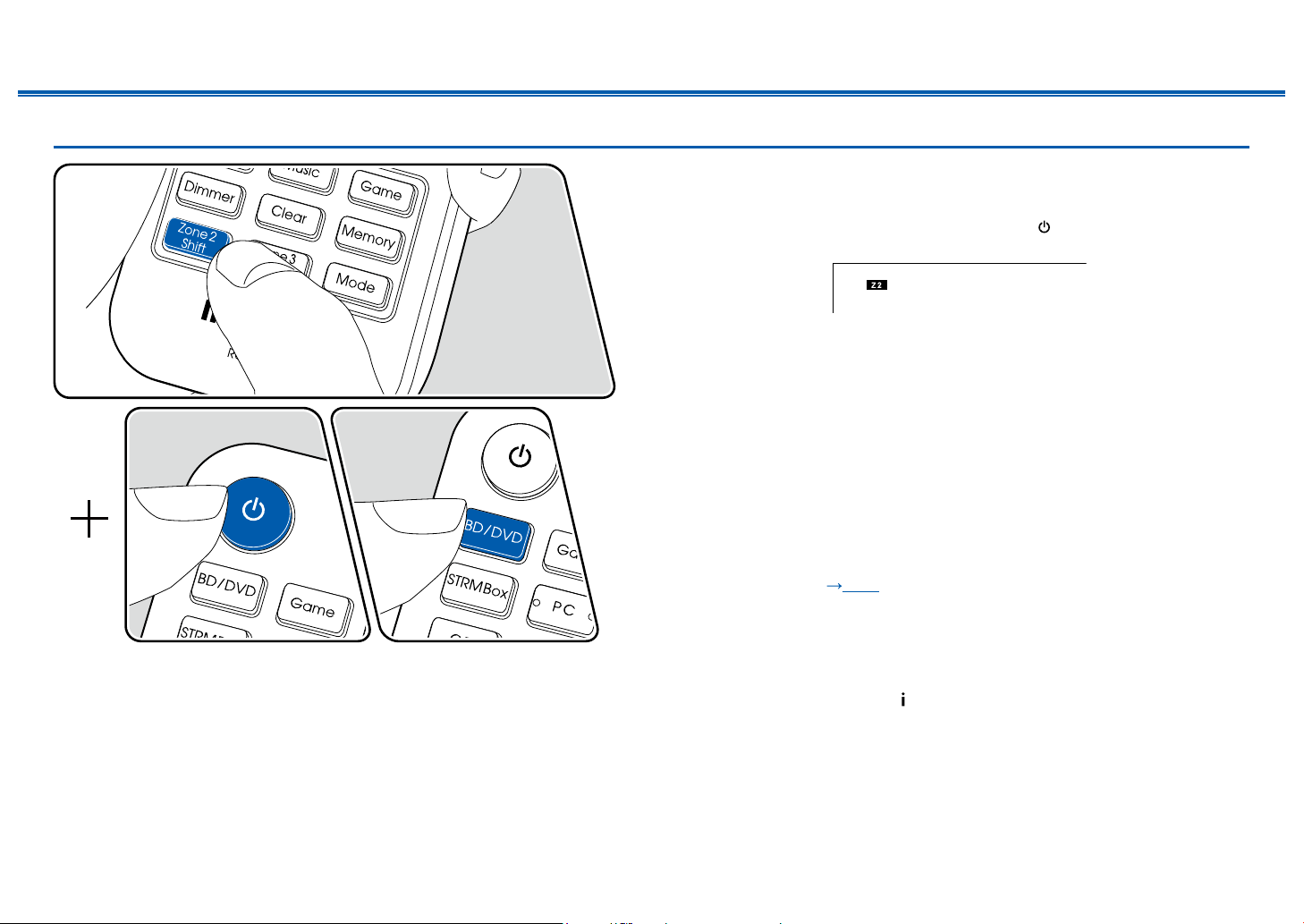
109
Front Panel≫ Rear Panel≫ Remote≫
Contents
≫
Connections
≫
Playback
≫
Setup
≫
Playing Back (ZONE 2)
In remote controller operation, while pressing and holding the Zone 2 Shift button,
press other buttons for operation.
1. While pressing and holding the Zone 2 Shift button on the remote controller,
point the remote controller at this unit and press .
• "Z2" on the display of the main unit lights up.
2. While pressing and holding the Zone 2 Shift button on the remote controller,
press the input selector of the input source you want to play in the separate
room. To control on the main unit, press the Zone 2 button, and then within
8 seconds, press the input selector button of the input to be played in the
separate room. To play the same source in the main room and separate room,
press the Zone 2 button of the main unit twice.
3. If the unit is connected to the pre-main amplier in the separate room, adjust
the volume on the pre-main amplier. If the unit is connected to the power
amplier or ZONE speaker in the separate room, adjust the volume with the
volume button while pressing and holding the Zone 2 Shift button on the
remote controller. To do this on the main unit, press the Zone 2 button, and
then within 8 seconds, adjust the volume using the Master Volume dial.
• When connecting the power amplier set "7. Multi Zone" - "Zone 2" -
"Output Level" ( p179) to "Variable". If it is not set, a large volume is
output and the power amplier, speakers, etc. may be damaged.
• The sound quality of the power amplier connected in the separate room
can also be adjusted. Press the ZONE 2 button of this unit, and then press
the Tone button within 8 seconds. Press + and - button for adjustment.
• Information of a connected device can be displayed on the TV in the
separate room. Press the
button while pressing and holding the Zone 2
Shift button on the remote controller.
• If you turn the unit to standby during multi-zone playback, the Z2 indicator is
dimmed, and the playback mode is switched to playback in a separate room
only. Setting ZONE 2 to on while the unit is in standby also switches the
playback mode to playback in the separate room only.
• The audio from externally connected AV components can be output to ZONE
2 only when the audio is analog or 2ch PCM signal. When the AV component

110
Front Panel≫ Rear Panel≫ Remote≫
Contents
≫
Connections
≫
Playback
≫
Setup
≫
is connected to this unit with an HDMI cable, digital coaxial cable or digital
optical cable, change the audio output of the AV component to the PCM
output.
• When video and audio via HDMI input are output to ZONE 2, set "1. Input/
Output Assign" - "TV Out / OSD" - "Zone 2 HDMI" ( p148) to "Use" on the
Setup menu.
• DSD audio signals cannot be output to ZONE 2 with the "NET" input selector.
• If ZONE 2 is on, power consumption during standby will increase.
To disable the function: While pressing and holding the Zone 2 Shift button on
the remote controller, press . Alternatively, press the Off button on the main unit.
WHOLE HOUSE MODE: When the Whole House Mode button of the main unit
is pressed during playback in the main room, "Z2" and "Z3" on the display light
up at the same time, and the WHOLE HOUSE MODE function is turned on with
which the same source is played back at once in all rooms.
• Sources that can be played in ZONE 2 can be played in all rooms.
• In the following cases, this function cannot be used.
– When headphones are connected
– When audio is output from the speakers of the TV
– When "2. Speaker" - "Conguration" - "Zone 2 Preout" on the Setup menu
is set to "Zone B" ( p153)
• Depending on the setting of "2. Speaker" - "Conguration" ( p152) in the
Setup menu, it may not be able to output to ZONE 3.
❏ Playing Back (ZONE 3) ( p111)
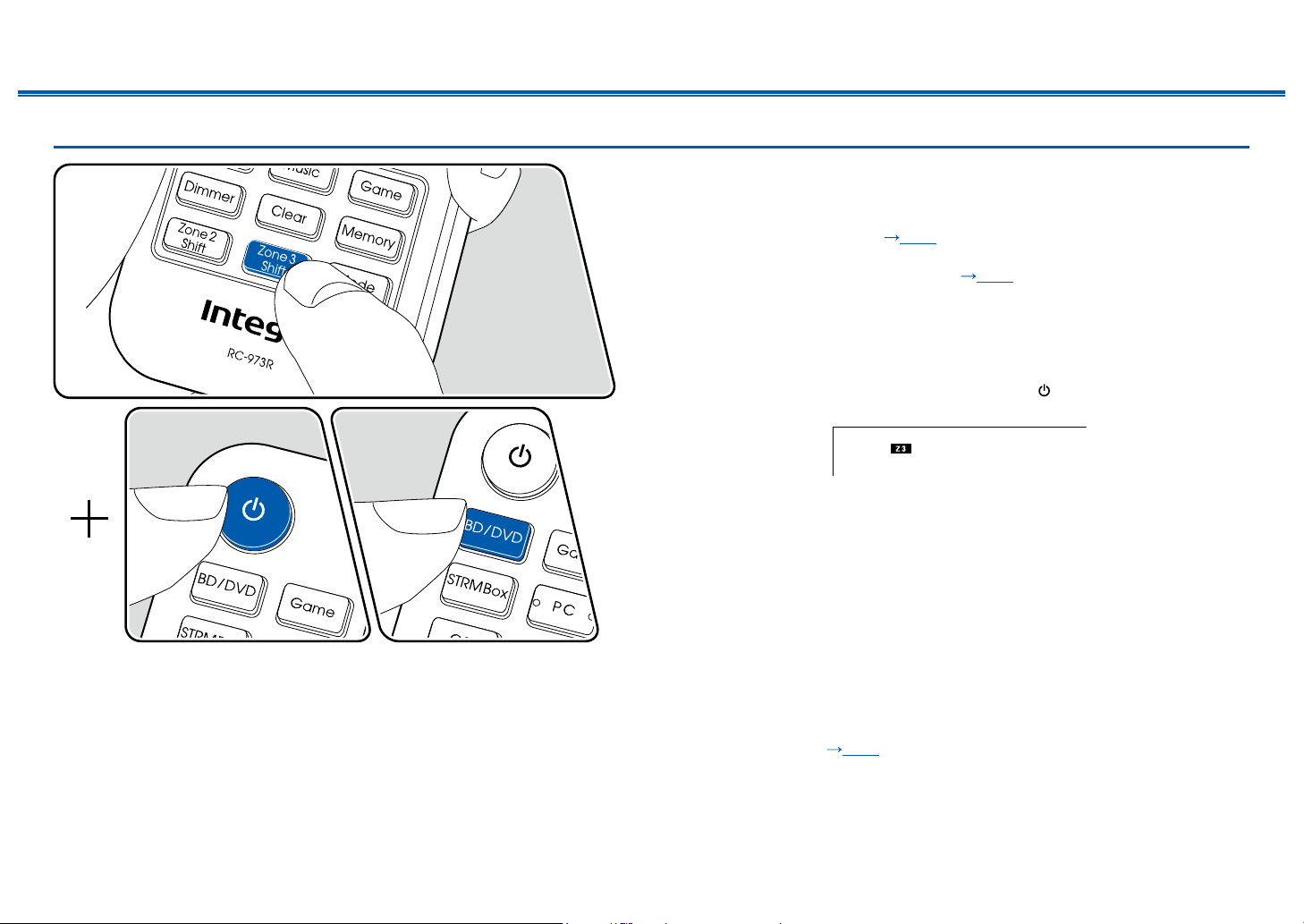
111
Front Panel≫ Rear Panel≫ Remote≫
Contents
≫
Connections
≫
Playback
≫
Setup
≫
Playing Back (ZONE 3)
In remote controller operation, while pressing and holding the Zone 3 Shift button,
press other buttons for operation.
When outputting from the speakers: Set "2. Speaker" - "Conguration" - "Zone
Speaker" in the Setup menu (
p153) to "Zone 2/Zone 3".
When outputting from the pre-main amplier or the power amplier: Set "2.
Speaker" - "Conguration" in the Setup ( p152) to one of the following.
– Set "Speaker Channels" to "2.1 ch", "3.1 ch", "4.1 ch", or "5.1 ch"
– Set "Speaker Channels" to "2.1.2 ch", "3.1.2 ch", "4.1.2 ch", or "5.1.2 ch", and
set "Bi-Amp" and "Zone Speaker" to "No"
1. While pressing and holding the Zone 3 Shift button on the remote controller,
point the remote controller at this unit and press .
• "Z3" on the display of the main unit lights up.
2. While pressing and holding the Zone 3 Shift button on the remote controller,
press the input selector of the input source you want to play in the separate
room. To control on the main unit, press the Zone 3 button, and then within
8 seconds, press the input selector button of the input to be played in the
separate room. To play the same source in the main room and separate room,
press the Zone 3 button of the main unit twice.
3. If the unit is connected to the pre-main amplier in the separate room, adjust
the volume on the pre-main amplier. If the unit is connected to the power
amplier or Zone speaker in the separate room, adjust the volume with the
volume button while pressing and holding the Zone 3 Shift button on the
remote controller. To do this on the main unit, press the Zone 3 button, and
then within 8 seconds, adjust the volume using the Master Volume dial.
• When connecting the power amplier set "7. Multi Zone" - "Zone 3" -
"Output Level" ( p179) to "Variable". If it is not set, a large volume is
output and the power amplier, speakers, etc. may be damaged.
• If you turn the unit to standby during multi-zone playback, the Z3 indicator is
dimmed, and the playback mode is switched to playback in a separate room
only. Setting ZONE 3 to on while the unit is in standby also switches the

112
Front Panel≫ Rear Panel≫ Remote≫
Contents
≫
Connections
≫
Playback
≫
Setup
≫
playback mode to playback in the separate room only.
• For ZONE 3 output, audio from externally connected AV components can be
output only when it is an analog audio signal.
• DSD audio signals cannot be output to ZONE 3 with the "NET" input selector.
• If ZONE 3 is on, power consumption during standby will increase.
To disable the function: While pressing and holding the Zone 3 Shift button on
the remote controller, press . Alternatively, press the Off button on the main unit.
WHOLE HOUSE MODE: When the Whole House Mode button of the main unit
is pressed during playback in the main room, "Z2" and "Z3" on the display light
up at the same time, and the WHOLE HOUSE MODE function is turned on with
which the same source is played back at once in all rooms.
• Sources that can be played in ZONE 2 can be played in all rooms.
• In the following cases, this function cannot be used.
– When headphones are connected
– When audio is output from the speakers of the TV
– When "2. Speaker" - "Conguration" - "Zone 2 Preout" on the Setup menu
is set to "Zone B" ( p153)
• Depending on the setting of "2. Speaker" - "Conguration" ( p152) in the
Setup menu, it may not be able to output to ZONE 3.
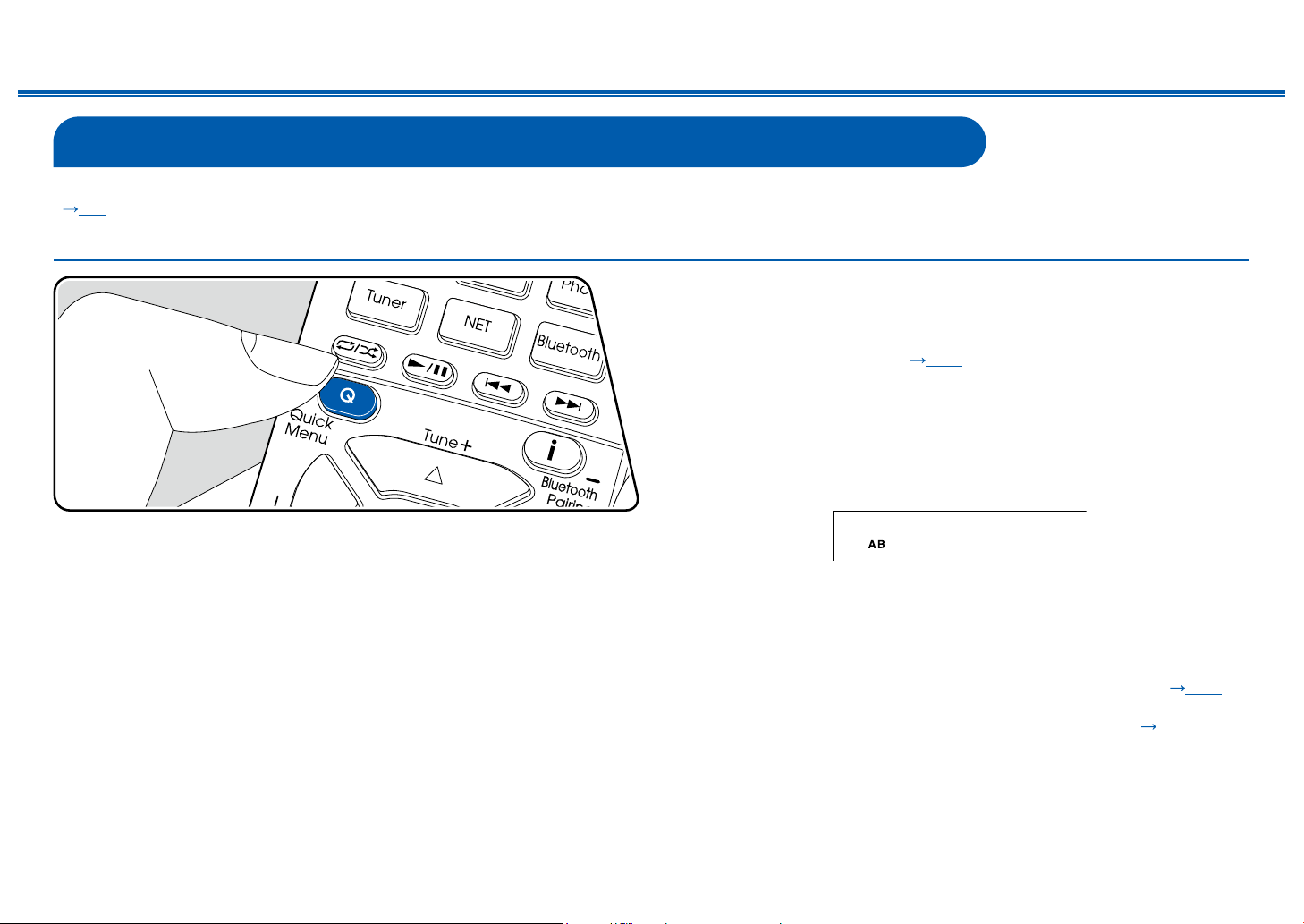
113
Front Panel≫ Rear Panel≫ Remote≫
Contents
≫
Connections
≫
Playback
≫
Setup
≫
ZONE B Playback
While performing playback through speakers (ZONE A) connected to the unit, you can enjoy the audio of the same source with the pre-main amplier, etc. (ZONE B)
( p74) connected to the ZONE B LINE OUT jack at the same time.
Playing Back
1. Press the Q button on the remote controller and select "Audio" - "Zone B".
• In the following cases, "Zone B" cannot be selected.
– When ZONE 2 is On
– When "2. Speaker" - "Conguration" - "Zone 2 Preout" on the Setup
menu is set to "Zone 2" ( p153)
2. Select the audio output destination.
Off: Outputs audio only from ZONE A. "A" on the display of the main unit
lights up.
On(A+B): Outputs audio from both ZONE A and ZONE B. "A"and "B" on the
display of the main unit light up.
On(B): Outputs audio only from ZONE B. "B" on the display of the main unit
lights up.
3. Start play on the AV component.
4. Adjust the sound volume on the pre-main amplier, etc. of ZONE B.
• When "Zone 2 Preout" is set to "Zone B", and "Audio" - "Zone B" on the Quick
Menu is set to "On (A+B)", the ZONE A output is set as below.
– Sound quality cannot be adjusted.
– "2. Speaker" - "Crossover" - "Double Bass" on the Setup menu (
p155)
is xed to "On".
– The effect for "2. Speaker" - "Distance" on the Setup menu ( p155) is
disabled.
• If "On(A+B)" is selected as an audio output destination, you can select only
the "Stereo" listening mode for ZONE A when using the 2.1ch speaker layout.
When using a speaker layout of 3.1ch or more, you can select only the "AllCh
Stereo" listening mode.
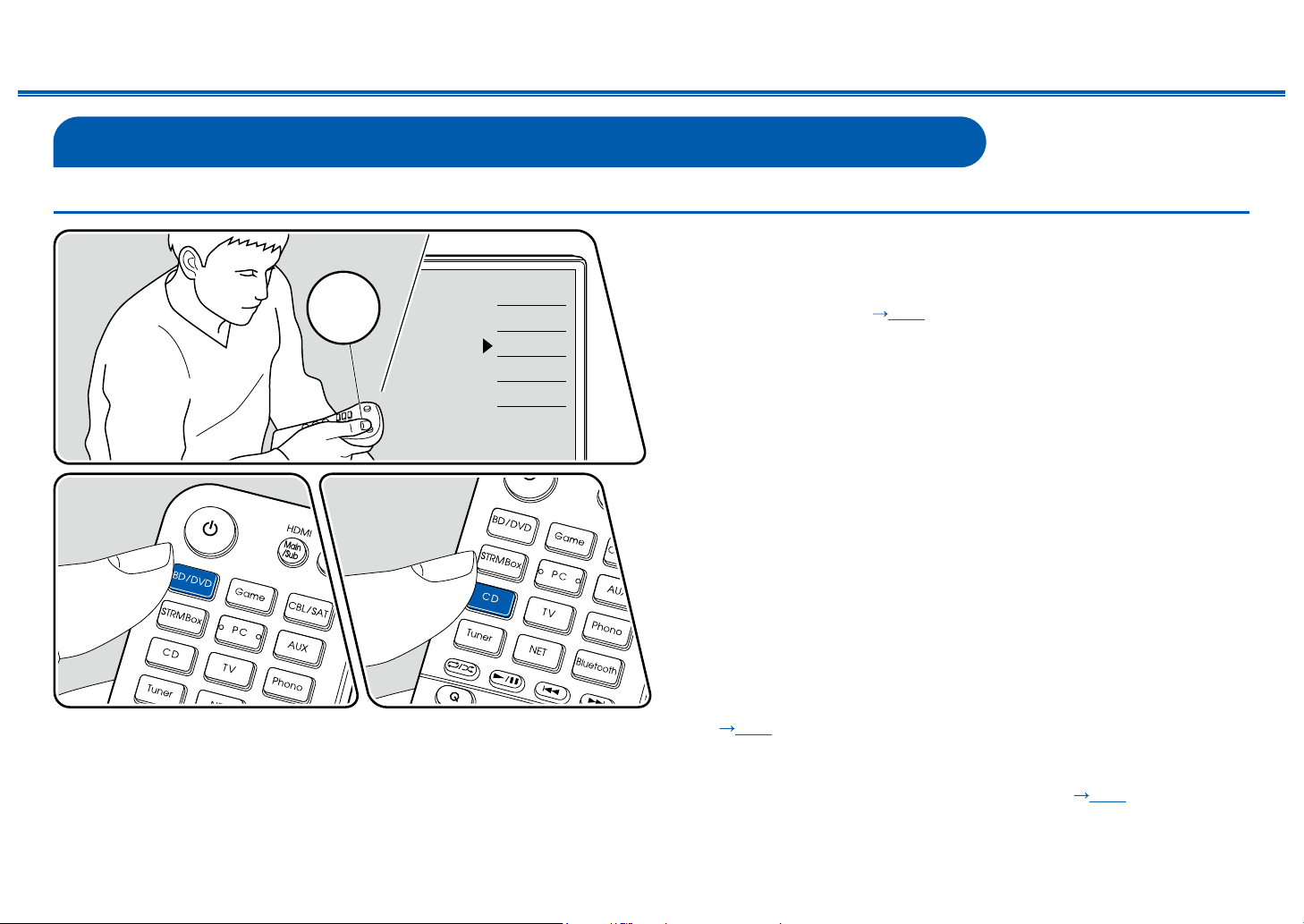
114
Front Panel≫ Rear Panel≫ Remote≫
Contents
≫
Connections
≫
Playback
≫
Setup
≫
Convenience functions
Displaying Your Favorite Video on TV While Playing Music
While listening to the music from a CD or BLUETOOTH-enabled device, you can
display video on TV from an AV component such as a Blu-ray Disc player.
• For audio playback, you can select an input selector to which video input is not
assigned, such as "CD", "Phono", "Tuner", "NET" and "BLUETOOTH".
• When "OSD Language" ( p148) is set to Chinese, the audio from "NET"
and "BLUETOOTH" cannot be played.
Perform the following procedure when this unit is on.
1. Switch the input on the TV to the input connected to the unit.
2. Press an input selector such as BD/DVD button connected to the AV
component of which the video is to be displayed on TV.
• This operation is not necessary if the same input selector has been
selected in the previous operation.
3. Press an input selector of the audio you want to play, such as the CD or
Bluetooth button and perform playback operation.
4. Perform the playback operation of the AV component such as a Blu-ray Disc
player. To play the audio of NET or BLUETOOTH, the following step 5
operation is required.
5. To play the audio of NET or BLUETOOTH, press the Mode button to switch
the TV display from the NET or BLOOTOOTH playback screen to the video of
the AV component. Pressing the Mode button again will return to the NET or
BLOOTOOTH playback screen.
• When the TV display is switched to the video of the AV component, the
playback screen of NET or BLUETOOTH is displayed on the corner of the
screen as Mini Player. The setting for Mini Player can be changed on the
Setup Menu so that it automatically turns off in 30 seconds after displayed.
(
p149 "Mini Player OSD")
Setting the video source to be displayed on TV beforehand: When playing
the audio of "Tuner", "NET" and "BLUETOOTH", you can set the input selector
to be displayed on TV beforehand using "Video Select" (
p162) on the Setup
Menu. If a value other than "Last" is set, step 2 in the operation procedure is not
required.
Inputs
TV
HDMI 1
HDMI 2
HDMI 3
TV
INPUT
TV’s REMOTE
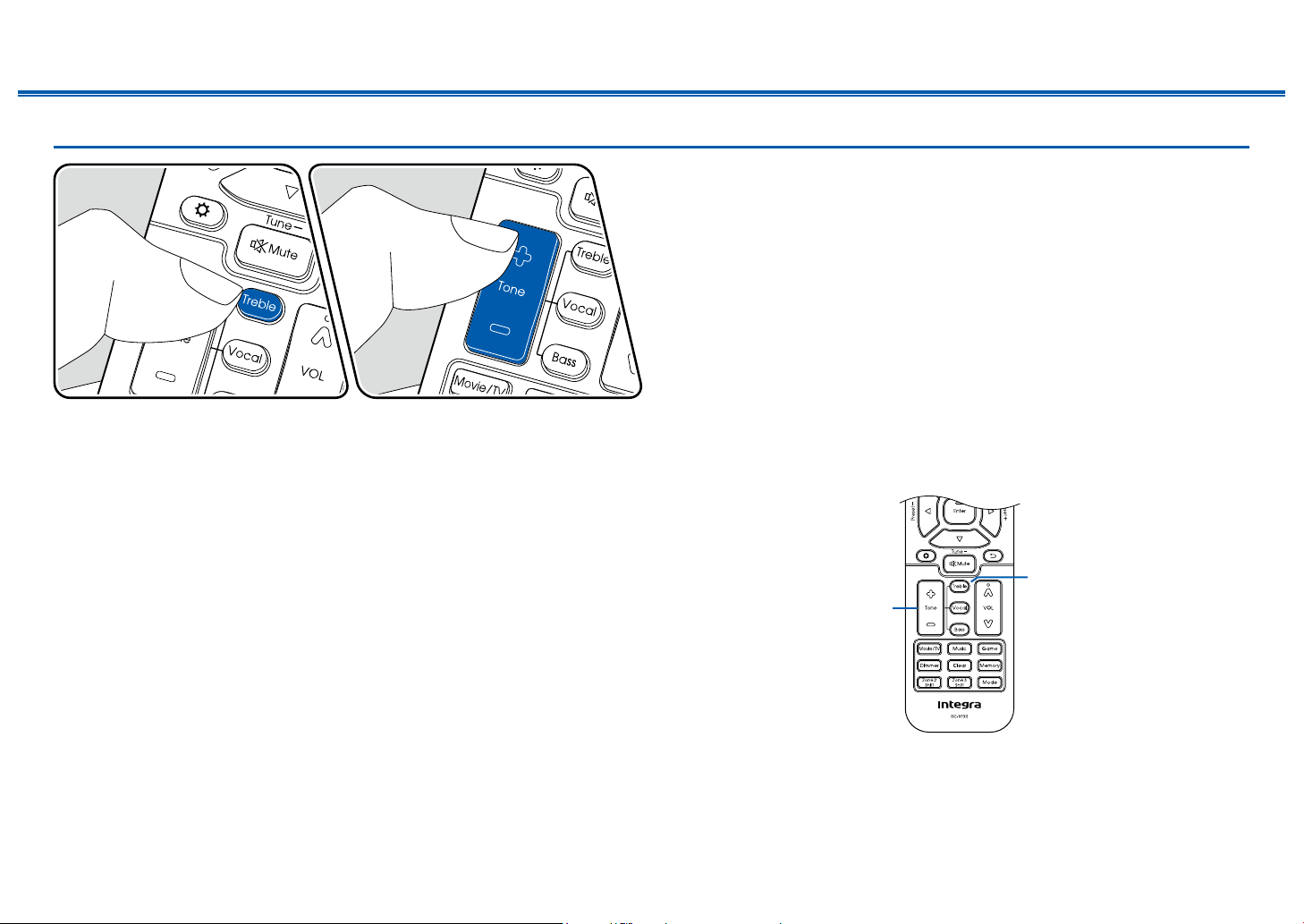
115
Front Panel≫ Rear Panel≫ Remote≫
Contents
≫
Connections
≫
Playback
≫
Setup
≫
Adjusting the tone
Adjusting Treble/Bass
You can adjust the sound quality of the speakers.
1. Press Treble or Bass to select the content to adjust.
Treble: Enhances or moderates the high-tone range of the speakers.
Bass: Enhances or moderates the low-tone range of the speakers.
2. Press + or - to adjust.
Adjusting Vocal
Emphasizes movie lines and music vocals to listen to them more easily. It is
effective to movie lines in particular. Also, it exerts the effect even if the center
speaker is not used. Select a desired level from "1" (low) to "5" (high).
1. Press Vocal.
2. Press + or - to adjust.
• Depending on the input source or listening mode setting, selection is not
possible, or the desired effect may not be achieved.
Treble
Bass
Vocal
+
-
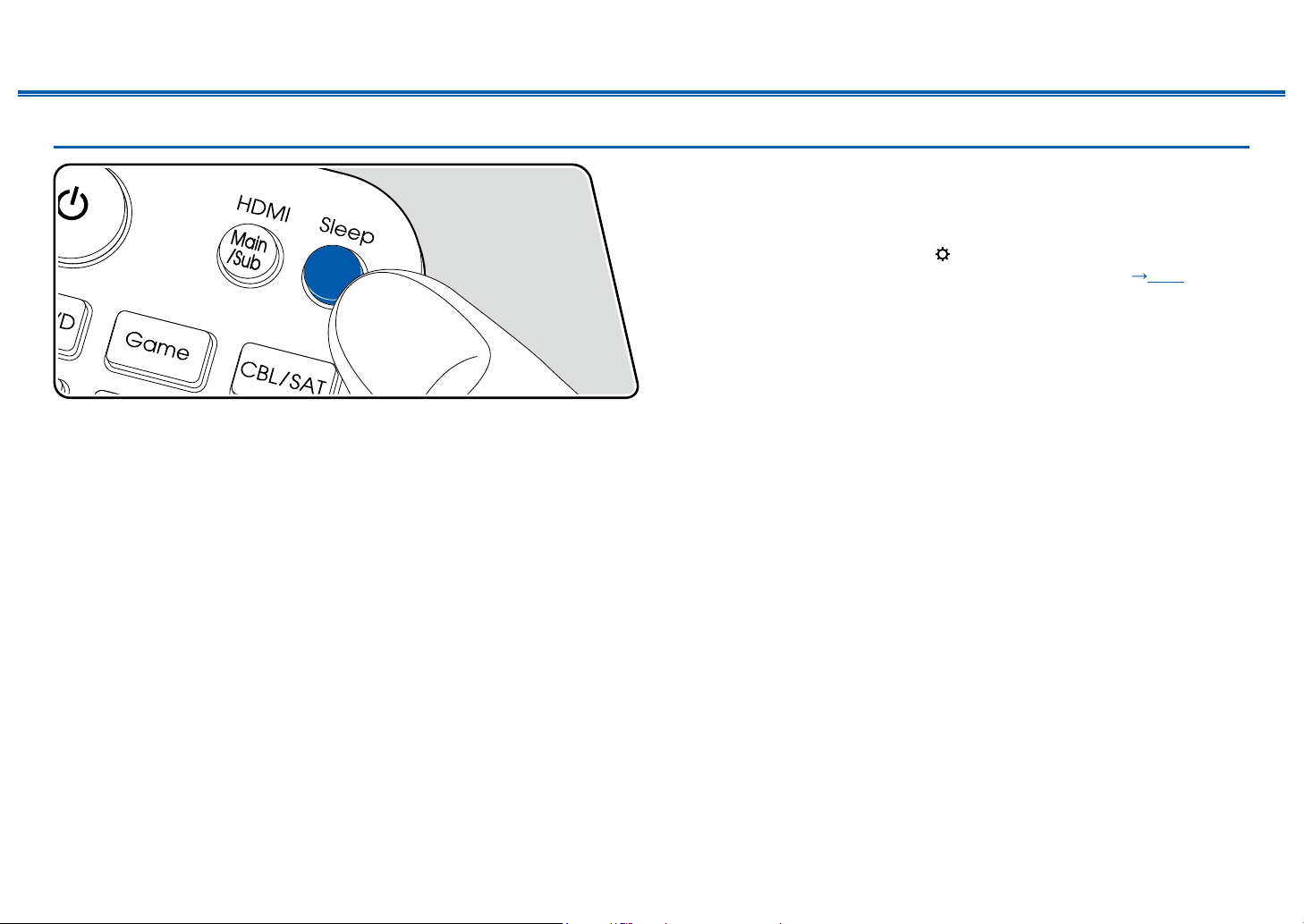
116
Front Panel≫ Rear Panel≫ Remote≫
Contents
≫
Connections
≫
Playback
≫
Setup
≫
Sleep Timer
You can allow the unit to enter standby automatically when the specied time has
elapsed. Press the Sleep button on the remote controller, and select any of "30
min", "60 min" and "90 min".
"Off": The unit does not automatically enter standby mode.
You can also set this by pressing the button on the remote controller and
selecting "6. Hardware" - "Power Management" - "Sleep Timer" ( p167) on the
Setup menu.
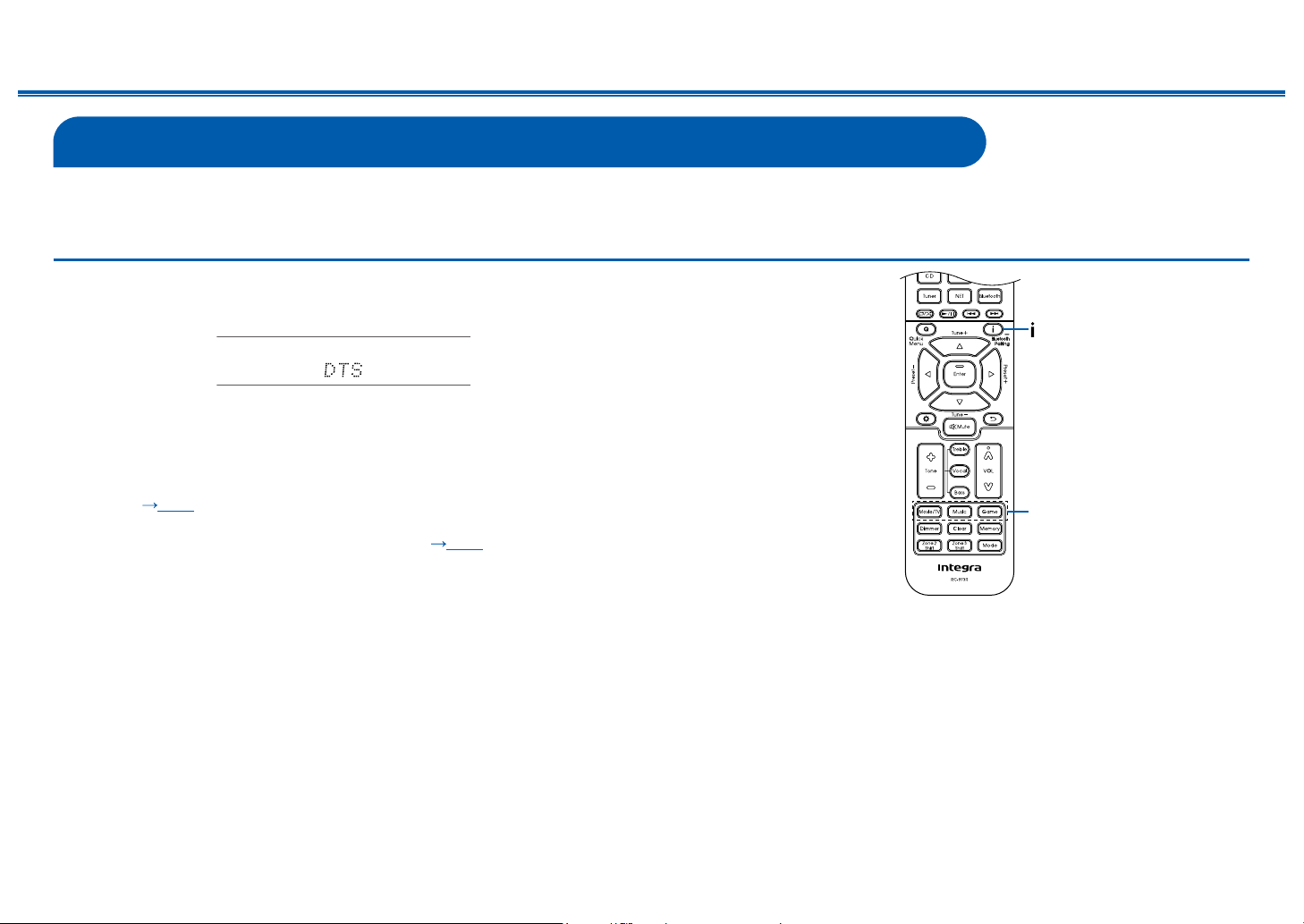
117
Front Panel≫ Rear Panel≫ Remote≫
Contents
≫
Connections
≫
Playback
≫
Setup
≫
Listening Mode
This unit is equipped with a variety of listening modes, and you can select the optimum listening mode for movies, TV, music, and games by pressing Movie/TV, Music,
and Game.
Selecting a Listening mode
1. Press one from among Movie/TV, Music, and Game during playback.
2. Press the selected button repeatedly to switch the modes displayed on the
display of the main unit.
• Each of Movie/TV, Music, and Game buttons stores the listening mode that
was selected last. If content incompatible of the listening mode selected last
is played, the most standard listening mode for the content is automatically
selected.
• For details of the effects of each listening mode, refer to "Listening Mode
Effects" ( p122).
• For listening modes selectable for each audio format of input signals, refer to
"Input Formats and Selectable Listening Modes" ( p128).
Movie/TV
Music
Game
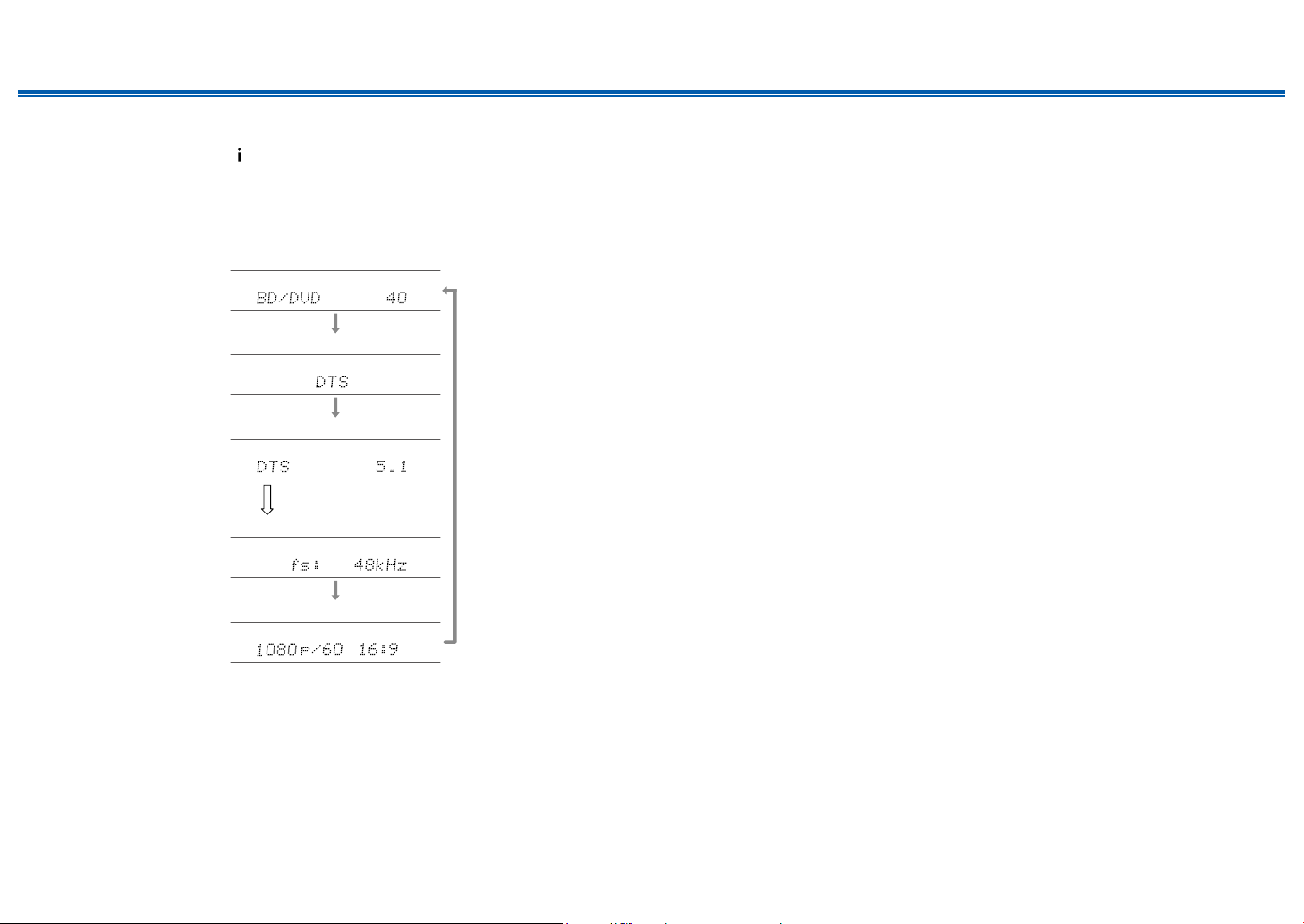
118
Front Panel≫ Rear Panel≫ Remote≫
Contents
≫
Connections
≫
Playback
≫
Setup
≫
Checking the input format and listening mode
Repeatedly pressing the button on the remote controller switches the display
of the main unit in the following order.
• The display content for the BLUETOOH input is different.
• Not all the information is necessarily displayed.
Input source and volume
Listening mode
Input Format
The display is switched in
a few seconds.
Sampling frequency
Input signal resolution
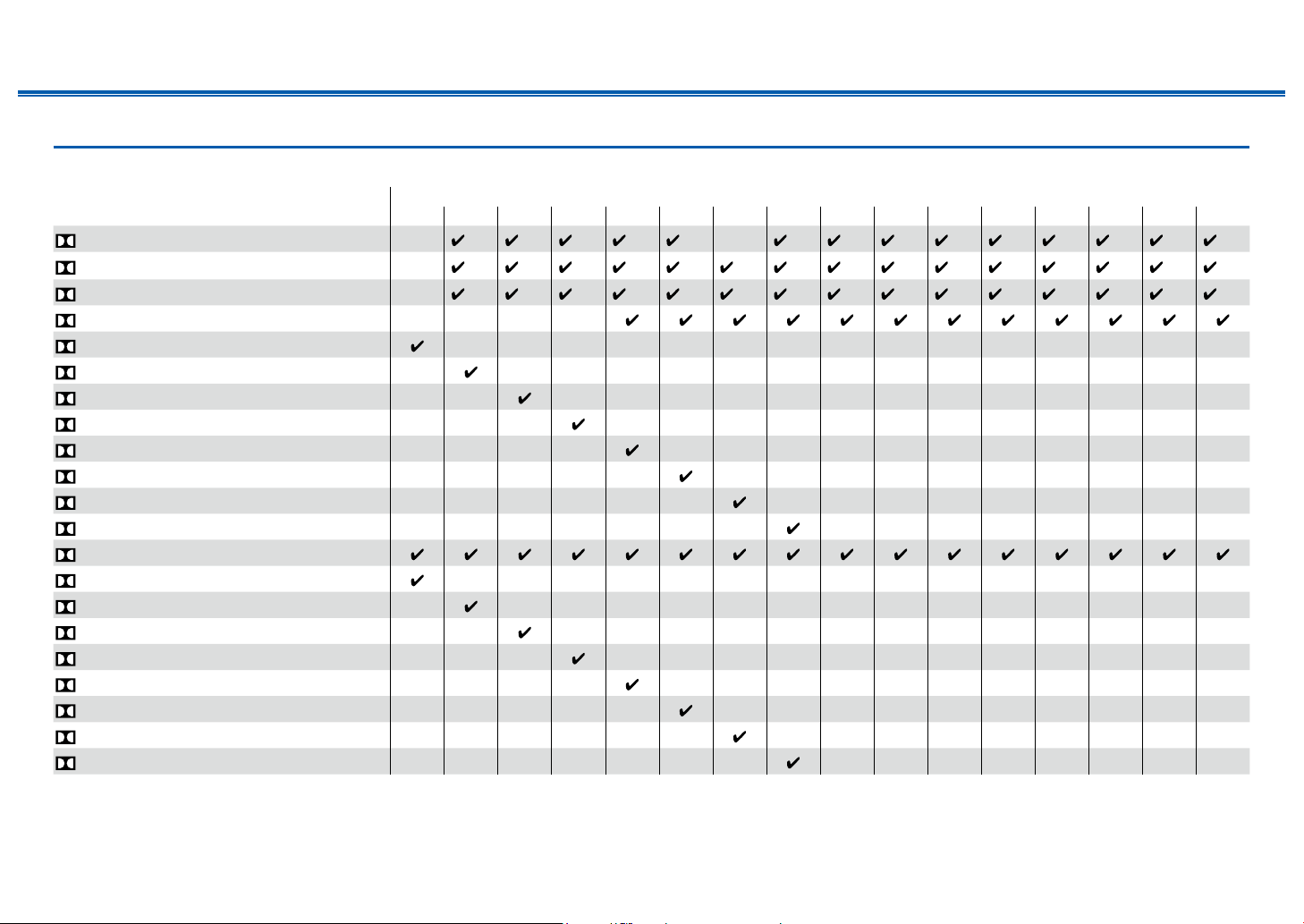
119
Front Panel≫ Rear Panel≫ Remote≫
Contents
≫
Connections
≫
Playback
≫
Setup
≫
Speaker Layouts and Selectable Listening Modes
See the following table for selectable listening modes for each speaker layout.
Speaker layout (ch)
Listening mode 2.1 3.1 4.1 5.1 6.1 7.1 2.1.2 3.1.2 4.1.2 5.1.2 6.1.2 7.1.2 4.1.4 5.1.4 6.1.4 7.1.4
DD (Dolby Audio - DD)
(*1) (*1) (*1) (*2) (*2) (*2) (*2) (*2) (*2) (*2) (*2) (*2) (*2) (*2)
DD+ (Dolby Audio - DD+)
(*1) (*1) (*1) (*1) (*1) (*1) (*1) (*1) (*1) (*1) (*1) (*1) (*1) (*1) (*1)
DTHD (Dolby Audio - TrueHD)
(*1) (*1) (*1) (*1) (*1) (*1) (*1) (*1) (*1) (*1) (*1) (*1) (*1) (*1) (*1)
Atmos
Atmos 2.0/2.1
Atmos 3.0/3.1
Atmos 4.0/4.1
Atmos 5.0/5.1
Atmos 6.0/6.1
Atmos 7.0/7.1
Atmos 2.0.2/2.1.2
Atmos 3.0.2/3.1.2
Dsur (Dolby Audio - Surr)
Dsur 2.0/2.1 (Dolby Audio - Surr)
Dsur 3.0/3.1 (Dolby Audio - Surr)
Dsur 4.0/4.1 (Dolby Audio - Surr)
Dsur 5.0/5.1 (Dolby Audio - Surr)
Dsur 6.0/6.1 (Dolby Audio - Surr)
Dsur 7.0/7.1 (Dolby Audio - Surr)
Dsur 2.0.2/2.1.2 (Dolby Audio - Surr)
Dsur 3.0.2/3.1.2 (Dolby Audio - Surr)
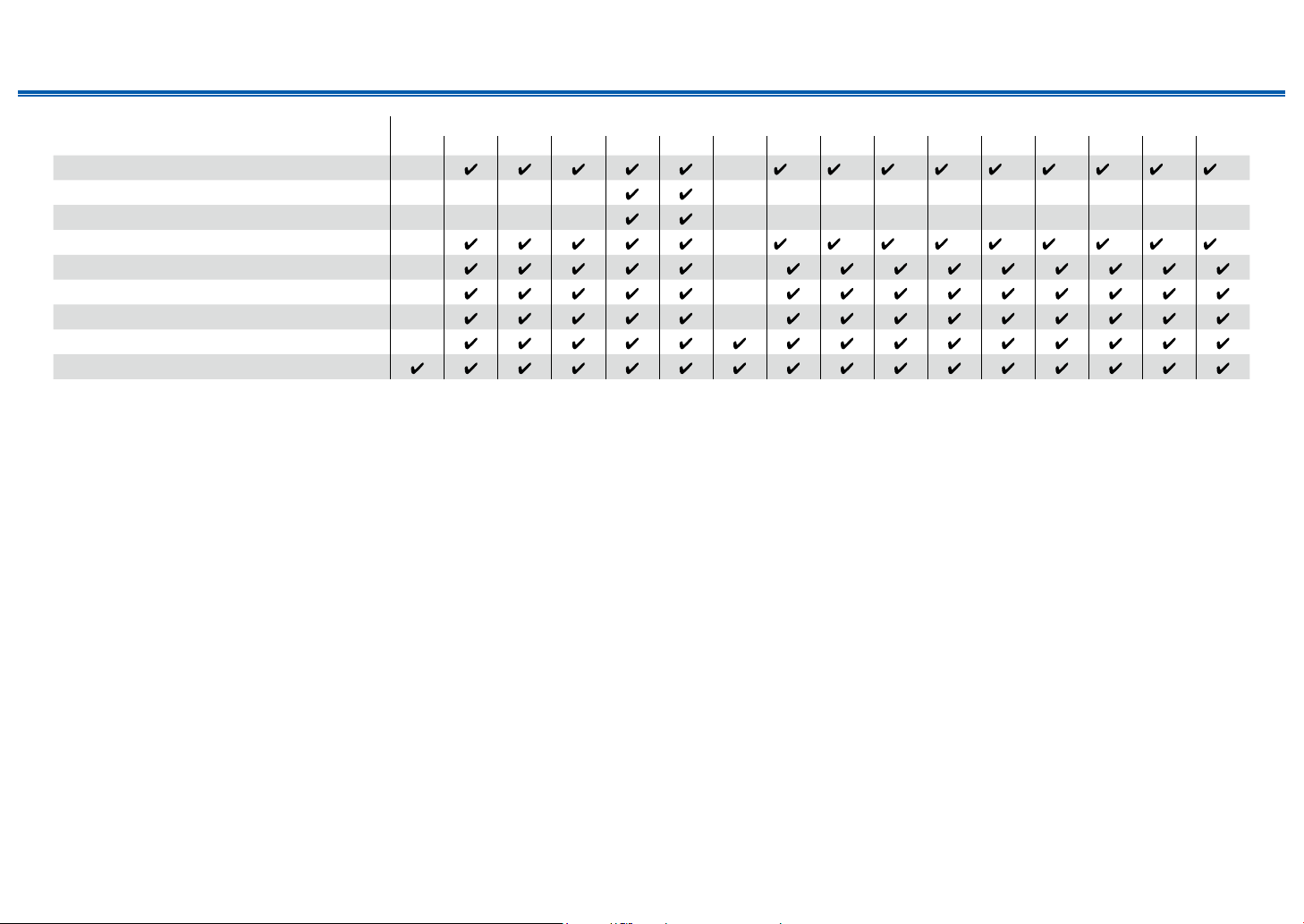
120
Front Panel≫ Rear Panel≫ Remote≫
Contents
≫
Connections
≫
Playback
≫
Setup
≫
Speaker layout (ch)
Listening mode 2.1 3.1 4.1 5.1 6.1 7.1 2.1.2 3.1.2 4.1.2 5.1.2 6.1.2 7.1.2 4.1.4 5.1.4 6.1.4 7.1.4
DTS
(*3) (*3) (*3) (*3) (*3) (*3) (*3) (*3) (*3)
ES Discrete (DTS-ES Discrete)
ES Matrix (DTS-ES Matrix)
DTS 96/24
(*3) (*3) (*3) (*3) (*3) (*3) (*3) (*3) (*3)
DTS-HD HR (DTS-HD High Resolution)
DTS-HD Master (DTS-HD Master Audio)
DTS Express
DTS:X
DTS Neural:X
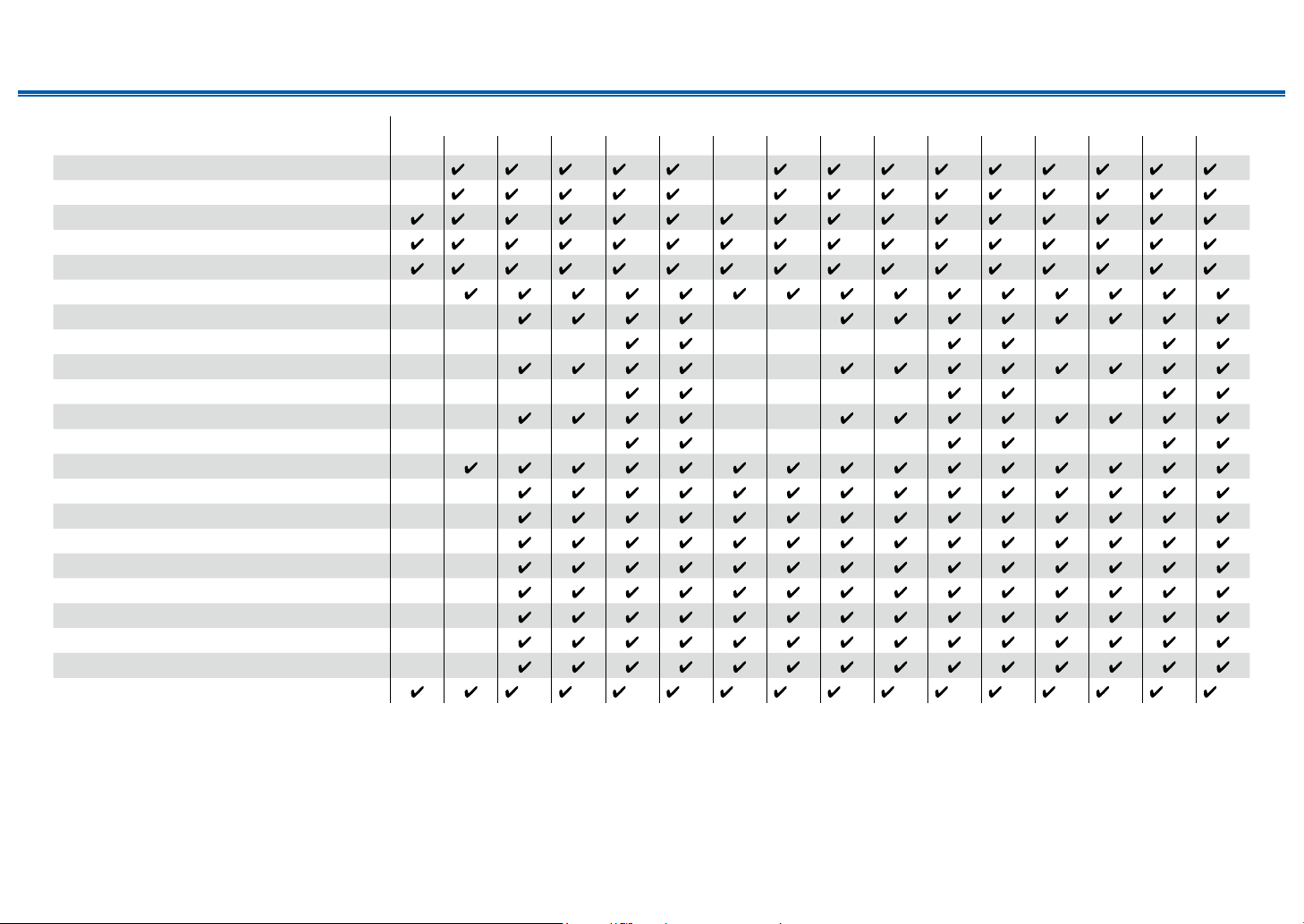
121
Front Panel≫ Rear Panel≫ Remote≫
Contents
≫
Connections
≫
Playback
≫
Setup
≫
Speaker layout (ch)
Listening mode 2.1 3.1 4.1 5.1 6.1 7.1 2.1.2 3.1.2 4.1.2 5.1.2 6.1.2 7.1.2 4.1.4 5.1.4 6.1.4 7.1.4
Multich (Multichannel)
(*1) (*1) (*1) (*1) (*1) (*3) (*3) (*3) (*3) (*3) (*3) (*3) (*3) (*3)
DSD
(*1) (*1) (*1) (*2) (*2) (*2) (*2) (*2) (*2) (*2) (*2) (*2) (*2) (*2)
Direct
(*1) (*1) (*1) (*1) (*1) (*1) (*1) (*1) (*1) (*1) (*1) (*1) (*1) (*1) (*1)
Stereo
(*4) (*4) (*4) (*4) (*4) (*4) (*4) (*4) (*4) (*4) (*4) (*4) (*4) (*4) (*4)
Mono
(*4) (*4) (*4) (*4) (*4) (*4) (*4) (*4) (*4) (*4) (*4) (*4) (*4) (*4) (*4)
Full Mono
THX Cinema
THX Sel Cin
THX Music
THX Sel Mus
THX Games
THX Sel Gam
AllCh Stereo
Orchestra
Studio-Mix
TV Logic
Unplugged
Game-Action
Game-Rock
Game-RPG
Game-Sports
T-D (Theater-Dimensional)
(*4) (*5) (*4) (*5) (*4) (*5) (*4) (*5) (*4) (*5) (*4) (*5) (*4) (*5)
*1: Reproduced with the sound eld according to the number of channels of input signals.
*2: Not output from surround back speakers or height speakers.
*3: Not output from height speakers.
*4: Output only from front speakers.
*5: Output only from front speakers and center speaker.
122
Front Panel≫ Rear Panel≫ Remote≫
Contents
≫
Connections
≫
Playback
≫
Setup
≫
Listening Mode Effects
Updating of listening modes
Listening modes such as Atmos 2.0 and DSur 2.0 are added when the
rmware is updated after purchase or the rmware is switched in the product
production process. For details of rmware update, see "Additional Function
(Firmware Update)" ( p6).
In alphabetical order
AllCh Stereo
This mode is ideal for background music. Stereo sound is played through the
surround speakers as well as the front speakers, creating a stereo image.
Direct
This listening mode can be selected for all input signals. Processing that affects
sound quality is shut down, and sound closer to the original is reproduced. The
sound is reproduced with the sound eld based on the number of channels in the
input signal. For example, a 2ch signal is output only from the front speakers.
Note that the sound adjustment is not available when this mode is selected.
Atmos
(Firmware version before supporting Atmos 2.0, etc.)
Selectable at the time of inputting Dolby Atmos audio format when surround back
speakers or height speakers are connected. This mode faithfully reproduces the
stereophonic sound design recorded in the Dolby Atmos audio format.
Unlike existing surround systems, Dolby Atmos does not rely on channels, but
rather enables the accurate placement of sound objects that have independent
motion in a 3D space with even greater clarity. Dolby Atmos is an optional
audio format for Blu-ray Discs and achieves a more stereophonic sound eld by
introducing a sound eld above the listener.
• To enable transfer of this audio format, connect via an HDMI cable and set the
audio output on the player to Bitstream output.
Atmos
(Firmware version supporting Atmos 2.0, etc.)
Since this mode calculates the positional data of audio recorded in Dolby Atmos
audio in real-time and outputs it from appropriate speakers, you can enjoy the
natural and stereophonic sound eld of Dolby Atmos with any speaker layout
including connection of only front speakers. Also, the Dolby Atmos sound design
can be reproduced more faithfully by connecting surround back speakers or height
speakers. You can select this mode when inputting the Dolby Atmos audio format.
Unlike existing surround systems, Dolby Atmos does not rely on channels, but
rather enables the accurate placement of sound objects that have independent
motion in a 3D space with even greater clarity. Dolby Atmos is an optional
audio format for Blu-ray Discs and achieves a more stereophonic sound eld by
introducing a sound eld above the listener.
According to the speaker layout, the following listening modes are displayed.
– Atmos 2.0/2.1: When only front speakers are installed
– Atmos 3.0/3.1: When front speakers and center speaker are installed
– Atmos 4.0/4.1: When front speakers and surround speakers are installed
– Atmos 5.0/5.1: When front speakers, center speaker and surround
speakers are installed
– Atmos 6.0/6.1: When front speakers, surround speakers and surround
back speakers are installed
– Atmos 7.0/7.1: When front speakers, center speaker, surround speakers
and surround back speakers are installed
– Atmos 2.0.2/2.1.2: When front speakers and height speakers are
installed
– Atmos 3.0.2/3.1.2: When front speakers, center speaker and height
speakers are installed
– Atmos: Selectable in the "4.1.2ch", "5.1.2ch", "6.1.2ch", "7.1.2ch",
"4.1.4ch", "5.1.4ch", "6.1.4ch" or "7.1.4ch" setting with surround speakers
and height speakers installed.
• To enable transfer of this audio format, connect via an HDMI cable and set the
audio output on the player to Bitstream output.
• When "Speaker Virtualizer" (
p158) is set to "Off" (Default: On), modes
123
Front Panel≫ Rear Panel≫ Remote≫
Contents
≫
Connections
≫
Playback
≫
Setup
≫
other than Atmos cannot be selected.
DD (Dolby Audio - DD)
This mode faithfully reproduces the sound design recorded in the Dolby Digital
audio format.
Dolby Digital is a multi-channel digital format developed by Dolby Laboratories,
Inc. and is widely adopted for use in movie production. It is also a standard audio
format for DVD-Video and Blu-ray Discs. It is possible to record a maximum of
5.1 channels on a DVD-Video or Blu-ray Disc; two front channels, one center
channel, two surround channels, and the LFE channel dedicated to the bass
region (sound elements for the subwoofer).
• To enable transfer of this audio format, connect via a digital cable and set the
audio output on the player to Bitstream output.
DD+ (Dolby Audio - DD+)
This mode faithfully reproduces the sound design recorded in the Dolby Digital
Plus audio format.
The Dolby Digital Plus format has been improved based on Dolby Digital,
increasing the number of channels and endeavoring to improve sound quality
by giving more exibility in data bit rates. Dolby Digital Plus is an optional audio
format based on 5.1ch for Blu-ray Discs. It is possible to record a maximum of 7.1
channels with additional channels such as the surround back channel.
• To enable transfer of this audio format, connect via an HDMI cable and set the
audio output on the player to Bitstream output.
DSur (Dolby Audio - Surr)
( Firmware version before supporting DSur 2.0, etc.)
This listening mode expands actual channels to more channels for playback
according to the conguration of the connected speakers by expanding the input
signals from 2ch or 5.1ch to 5.1ch, 7.1ch or 5.1.2ch.
• This mode cannot be selected when DTS signal is input.
DSur (Dolby Audio - Surr)
( Firmware version supporting DSur 2.0, etc.)
This listening mode expands 2ch or 5.1ch input signals to 5.1ch, 7.1ch or 5.1.2ch.
This mode expands actual channels to more channels for playback according to
the conguration of the connected speakers. Also, even if there is no speaker for
expansion, for example when only front speakers are connected, audio of surround
channel or height channel is virtually created for expansion playback.
• This mode cannot be selected when DTS signal is input.
According to the speaker layout, the following listening modes are displayed.
–
DSur 2.0/2.1: When only front speakers are installed
–
DSur 3.0/3.1: When front speakers and center speaker are installed
–
DSur 4.0/4.1: When front speakers and surround speakers are installed
–
DSur 5.0/5.1: When front speakers, center speaker and surround
speakers are installed
–
DSur 6.0/6.1: When front speakers, surround speakers and surround back
speakers are installed
–
DSur 7.0/7.1: When front speakers, center speaker, surround speakers
and surround back speakers are installed
–
DSur 2.0.2/2.1.2: When front speakers and height speakers are installed
–
DSur 3.0.2/3.1.2When front speakers, center speaker and height speakers
are installed
–
DSur: Selectable in the
"4.1.2ch", "5.1.2ch", "6.1.2ch", "7.1.2ch",
"4.1.4ch", "5.1.4ch", "6.1.4ch" or "7.1.4ch"
setting with surround speakers
and height speakers installed.
• When "Speaker Virtualizer" ( p158) is set to "Off" (Default: On), modes
other than DSur cannot be selected.
DTHD (Dolby Audio - TrueHD)
This mode faithfully reproduces the sound design recorded in the Dolby TrueHD
audio format.
The Dolby TrueHD audio format is a "lossless" format expanded based on the
lossless compression technology referred to as MLP, and it faithfully reproduces
the master audio recorded in the studio. Dolby TrueHD is an optional audio
format based on 5.1ch for Blu-ray Discs. It is possible to record a maximum of 7.1
channels with additional channels such as the surround back channel. 7.1ch is
recorded at 96 kHz/24 bit, and 5.1ch is recorded at 192 kHz/24 bit.
• To enable transfer of this audio format, connect via an HDMI cable and set the
audio output on the player to Bitstream output.

124
Front Panel≫ Rear Panel≫ Remote≫
Contents
≫
Connections
≫
Playback
≫
Setup
≫
DSD
This mode is suitable for playing sources recorded in DSD.
• This unit supports the DSD signal input from the HDMI input terminal.
However, depending on the connected player, better sound may be obtained
by setting the output on the player side to the PCM output.
• This listening mode cannot be selected if the output setting on your Blu-ray
Disc/DVD player is not set to DSD.
DTS
This mode faithfully reproduces the sound design recorded in the DTS audio
format.
The DTS audio format is a multi-channel digital format developed by DTS, Inc.
This format is an optional audio format for DVD-Video and a standard format for
Blu-ray Discs.It enables recording of 5.1 channels; two front channels, one center
channel, two surround channels, and the LFE channel dedicated to the bass
region (sound elements for the subwoofer). The content is recorded with a rich
volume of data, with a maximum sampling rate of 48 kHz, at a resolution of 24
bits and a bit rate of 1.5 Mbps.
• To enable transfer of this audio format, connect via a digital cable and set the
audio output on the player to Bitstream output.
DTS 96/24
This mode faithfully reproduces the sound design recorded in the DTS 96/24
audio format.
The DTS 96/24 format is an optional audio format for DVD-Video and Blu-ray
Discs. It enables recording of 5.1 channels; two front channels, one center
channel, two surround channels, and the LFE channel dedicated to the bass
region (sound elements for the subwoofer). Detailed reproduction is achieved by
recording the content at a sampling rate of 96 kHz and at a resolution of 24 bits.
• To enable transfer of this audio format, connect via a digital cable and set the
audio output on the player to Bitstream output.
DTS Express
This mode faithfully reproduces the sound design recorded in the DTS Express
audio format.
DTS Express is an optional audio format based on 5.1ch for Blu-ray Discs. It is
possible to record a maximum of 7.1 channels with additional channels such as
the surround back channel. It also supports low bit rates.
• To enable transfer of this audio format, connect via an HDMI cable and set the
audio output on the player to Bitstream output.
DTS-HD HR (DTS-HD High Resolution)
This mode faithfully reproduces the sound design recorded in the DTS-HD High
Resolution Audio audio format.
DTS-HD High Resolution Audio is an optional audio format based on 5.1ch for
Blu-ray Discs. It is possible to record a maximum of 7.1 channels with additional
channels such as the surround back channel at a sampling rate of 96 kHz and at
a resolution of 24 bits.
• To enable transfer of this audio format, connect via an HDMI cable and set the
audio output on the player to Bitstream output.
DTS-HD MSTR (DTS-HD Master Audio)
This mode faithfully reproduces the sound design recorded in the DTS-HD
Master Audio audio format.
DTS-HD Master Audio is an optional audio format based on 5.1ch for Blu-
ray Discs. It is possible to record a maximum of 7.1 channels with additional
channels such as the surround back channel using the lossless audio
reproduction technology. 96 kHz/24 bit is supported for 7.1ch, and 192 kHz/24 bit
is supported for 5.1ch.
• To enable transfer of this audio format, connect via an HDMI cable and set the
audio output on the player to Bitstream output.
DTS Neural:X
This listening mode expands actual channels to more channels for playback to
suit the conguration of the connected speakers by expanding the input signals
from 2 channels or 5.1 channels to 5.1 channels or 7.1 channels respectively.
• This mode cannot be selected when Dolby signal is input.
DTS:X
This mode faithfully reproduces the sound design recorded in the DTS:X audio
format.
The DTS:X audio format is a combination of the mixing method based on

125
Front Panel≫ Rear Panel≫ Remote≫
Contents
≫
Connections
≫
Playback
≫
Setup
≫
traditional channel based formats (5.1ch and 7.1ch) and object based dynamic
audio mixing, and it is characterized by the precise positioning of sounds and the
ability to express sound movement.
• To enable transfer of this audio format, connect via an HDMI cable and set the
audio output on the player to Bitstream output.
ES Discrete (DTS-ES Discrete)
This mode faithfully reproduces the sound design recorded in the DTS-ES
Discrete audio format.
DTS-ES Discrete is an optional audio format based on 5.1ch for DVD-Video and
Blu-ray Discs. It is possible to record a maximum of 6.1 channels with a monaural
surround back channel added.
• To enable transfer of this audio format, connect via a digital cable and set the
audio output on the player to Bitstream output.
ES Matrix (DTS-ES Matrix)
This mode faithfully reproduces the sound design recorded in the DTS-ES Matrix
audio format.
DTS-ES Matrix is an optional audio format based on 5.1ch for DVD-Video and
Blu-ray Discs. A monaural surround back channel is inserted to this format by
matrix encoding. During playback, 6.1 channel-playback is achieved by the matrix
decoder on this unit.
• To enable transfer of this audio format, connect via a digital cable and set the
audio output on the player to Bitstream output.
Full Mono
In this mode, all speakers output the same sound in mono, so the sound you hear
is the same regardless of where you are within the listening room.
Game-Action
This mode is suitable for games with a lot of action.
Game-Rock
This mode is suitable for games with rock content.
Game-RPG
This mode is suitable for role-playing games.
Game-Sports
This mode is suitable for sports games.
Mono
In this mode, monaural audio is played from the center speaker at the time of
inputting an analog signal or PCM signal. If there is no center speaker connected,
monaural audio is played from the front speakers.
Multich (Multichannel)
This mode is suitable to play sources recorded in multichannel PCM.
Orchestra
This mode is suitable for classical or operatic music. This mode emphasizes the
surround channels in order to widen the sound image, and simulates the natural
reverberation of a large hall.
Stereo
In this mode, sound is output from the right and left front speakers and
subwoofer.
Studio-Mix
This mode is suitable for rock or pop music. This mode creates a lively sound
eld with a powerful acoustic image as if you are at a club or rock concert.
T-D (Theater-Dimensional)
In this mode, you can enjoy a virtual playback of multichannel surround sound
even with only two or three speakers. This works by controlling how sounds
reach the listener’s left and right ears.
• This mode cannot be selected when "Speaker Virtualizer" ( p158) is set to
"Off" (Default: On).

126
Front Panel≫ Rear Panel≫ Remote≫
Contents
≫
Connections
≫
Playback
≫
Setup
≫
THX
THX is a series of specications for the accurate reproduction of movies
propounded by the lm director George Lucas. THX listening modes include
the THX Cinema mode, etc. Using technology such as THX Loudness Plus and
Timbre Matching, the sound of a movie theater is reproduced accurately.
THX technology:
A movie soundtrack is mixed in a large-scale theater specially made for mixing
that is called a dubbing stage on the assumption that the soundtrack is played
in such theaters with similar equipment and conditions. These soundtracks
are recorded as is, even when recording to a DVD-Video, for example, without
making any modications to suit a home theater environment. THX technology
is able to reproduce the movie theater sound accurately in a home theater
environment by minimizing acoustic and spatial deviation.
• THX Loudness Plus
THX Loudness Plus is a new volume control technology mounted on THX Ultra
and THX Select-certied AV receivers. With THX Loudness Plus, home theater
audience can experience the rich details of surround sound at any volume level.
If the volume is turned down below the reference level, elements of sound in a
certain range are lost, or the sound is perceived differently by audience. THX
Loudness Plus compensates for the tonal and spatial shifts that occur when the
volume is reduced, by intelligently adjusting ambient surround channel levels and
frequency response.
• Re-EQ
The speakers for the front channel in a movie theater are installed behind the
screen. For this reason the high range is enhanced in the sound track of the front
channel in view of acoustic characteristics such as the necessity to penetrate the
screen. Re-EQ adjusts the soundtrack with the enhanced high range to make it
suitable for a home theater.
• Timbre Matching
The perception of human ears differs depending on the sound direction. Movie
theaters have many surround speakers installed, so they are excellent at
surrounding the viewers with natural sound, but home theaters have only two
surround speakers installed. The Timbre Matching function lters the signals sent
to the surround speakers, and adjusts the tonal characteristics of front speakers
and surround speakers to create smooth sound movement from front speakers to
surround speakers.
• Adaptive Decorrelation
While movie theaters have many surround speakers to enable the experience
where viewers are surrounded with sound, home theaters normally have only two
surround speakers. Such two surround speakers give a headphone-like sound,
not a broad and embracing surround sound. If a listener moves away from the
middle position between the surround speakers, the sound from the surround
speakers is absorbed into the sound from the nearby speakers, and cannot be
distinguished any more. Adaptive Decorrelation changes the time axis and phase
between the surround channels so that you can enjoy the same spatial sound
with two surround speakers as in a movie theater .
• ASA (Advanced Speaker Array)
ASA is a technology patented by THX to provide a broad surround sound
experience by adjusting the sounds of two surround speakers on the sides and
two surround speakers at the back. When installing the surround back speakers,
be sure to select the distance between the two surround back speakers in the
THX Audio settings. This setting optimizes the surround sound environment.
THX listening modes:
– THX Cinema: Use this mode in a home theater environment to play the
soundtrack that was recorded on the assumption that it is played in a movie
theater or similar large area. In this mode, THX Loudness Plus is set to the
theater level, and Re-EQ, Timbre Matching and Adaptive Decorrelation are all
enabled.
– THX Games: Use this mode for high-delity spatial reproduction of game
sound. THX Loudness Plus is set to a level suited to the audio level of the
game, and Timbre Matching is enabled.
– THX Music: This mode mainly adjusts the playback of music sources that are
mastered to a much higher quality obviously than movie audio. In this mode,
THX Loudness Plus is set to a level suited to the playback of music, and
Timbre Matching is enabled.
– THX Sel Cin (THX Select Cinema): The THX Select Cinema mode provides a
high-quality surround sound experience by expanding movie sources recorded
in 5.1ch for 7.1ch playback. In this mode, the THX ASA processing technology
gives smooth transition between side and back surround sounds, creating the

127
Front Panel≫ Rear Panel≫ Remote≫
Contents
≫
Connections
≫
Playback
≫
Setup
≫
best atmosphere and directional sense of surround sound.
– THX Sel Gam (THX Select Games): Select the THX Select Games mode
to play game sound recorded in a multichannel format. In this mode, the
THX ASA processing technology enables the playback of game sound in a
360-degree sound eld which was recorded in PCM, DTS, Dolby Digital and
other 5.1ch formats.
– THX Sel Mus (THX Select Music): Select THX Select Music to play music
sources recorded in a multichannel format. In this mode, the THX ASA
processing technology creates a broad and stable back sound eld when
playing music sources recorded in 5.1ch, such as DTS, Dolby Digital, and
DVD-Audio.
TV Logic
Suitable for TV shows produced in a TV studio. This mode gives clarity to voices
by enhancing the entire surround sounds, and creates a realistic acoustic image.
Unplugged
Suitable for acoustic instruments, vocals and jazz. This mode emphasizes the
front sound eld image, giving the impression of being in front of the stage.
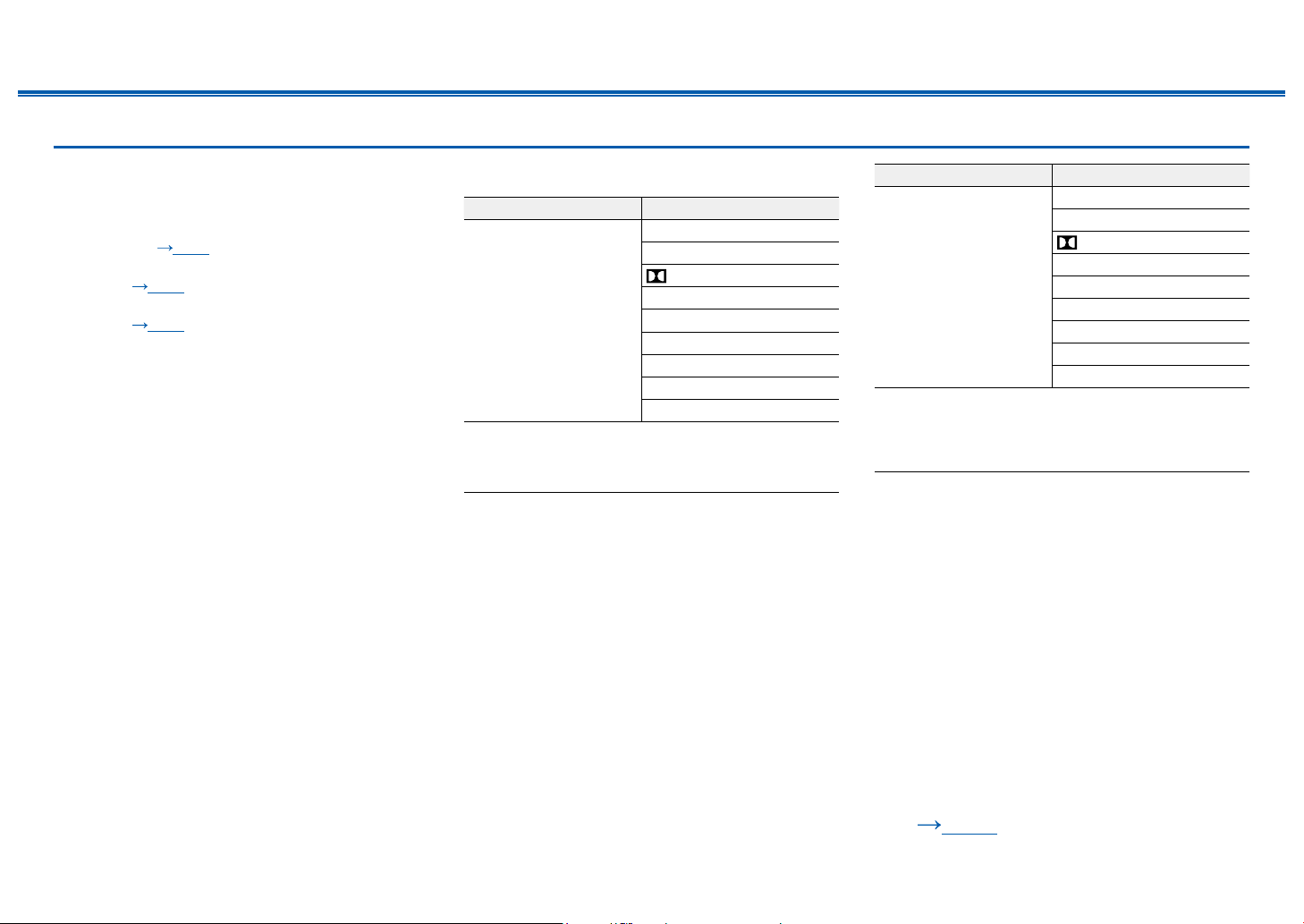
128
Front Panel≫ Rear Panel≫ Remote≫
Contents
≫
Connections
≫
Playback
≫
Setup
≫
Input Formats and Selectable Listening Modes
You can select a variety of listening modes
according to the audio format of the signal to be
input.
• List of listening modes selectable with the Movie/
TV button ( p128)
• List of listening modes selectable with the Music
button ( p132)
• List of listening modes selectable with the Game
button ( p137)
• Selectable listening modes when headphones
are connected are Mono, Direct, and Stereo only.
Movie/TV button
Input Format Listening Mode
Analog Direct
Mono
DSur
DTS Neural:X
THX Cinema
*1
TV Logic
*2
AllCh Stereo
*3
Full Mono
*3
T-D
*4
*1
Surround speakers need to be installed.
*2
Surround speakers or height speakers need to be installed.
*3
A center speaker, surround speakers, or height speakers need to be
installed.
*4
Cannot be selected if "Speaker Virtualizer" is set to "Off".
Input Format Listening Mode
PCM
Music les (except DSD)
Direct
Mono
DSur
DTS Neural:X
*1
THX Cinema
*2
TV Logic
*3
AllCh Stereo
*4
Full Mono
*4
T-D
*5
*1
Cannot be selected when the input format is monaural.
*2
Surround speakers need to be installed.
*3
Surround speakers or height speakers need to be installed.
*4
A center speaker, surround speakers, or height speakers need to be
installed.
*5
Cannot be selected if "Speaker Virtualizer" is set to "Off".
❏ Speaker Layouts and
Selectable Listening Modes
( p119)
129
Front Panel≫ Rear Panel≫ Remote≫
Contents
≫
Connections
≫
Playback
≫
Setup
≫
Input Format Listening Mode
Multich PCM Direct
Multich
*1
DSur
DTS Neural:X
THX Cinema
*2
THX Sel Cin
*3
TV Logic
*4
AllCh Stereo
*5
Full Mono
*5
T-D
*6
*1
A center speaker or surround speakers need to be installed.
*2
Surround speakers need to be installed.
*3
Surround back speakers need to be installed. Can be selected when the
input format is 5.1 ch.
*4
Surround speakers or height speakers need to be installed.
*5
A center speaker, surround speakers, or height speakers need to be
installed.
*6
Cannot be selected if "Speaker Virtualizer" is set to "Off".
Input Format Listening Mode
DSD
• You cannot select any
mode other than Direct,
AllCh Stereo and Full
Mono if the sampling
rate is 5.6/11.2 MHz.
Direct
DSD
*1 *2
DSur
DTS Neural:X
THX Cinema
*3
THX Sel Cin
*4
TV Logic
*5
AllCh Stereo
*6
Full Mono
*6
T-D
*7
*1
Cannot be selected when the input format is monaural or 2 ch.
*2
A center speaker or surround speakers need to be installed.
*3
Surround speakers need to be installed.
*4
Surround back speakers need to be installed. Can be selected when the
input format is 5.1 ch.
*5
Surround speakers or height speakers need to be installed.
*6
A center speaker, surround speakers, or height speakers need to be
installed.
*7
Cannot be selected if "Speaker Virtualizer" is set to "Off".
Input Format Listening Mode
Atmos
*1
Direct
Atmos
TV Logic
AllCh Stereo
Full Mono
T-D
*2
*1
With the rmware version before supporting Atmos 2.0, etc., you can
select the DD+ or DTHD listening mode when surround back
speakers or height speakers are not connected.
*2
Cannot be selected if "Speaker Virtualizer" is set to "Off".
Input Format Listening Mode
DD Direct
DD
*1 *2
DSur
THX Cinema
*3
THX Sel Cin
*4
TV Logic
*5
AllCh Stereo
*6
Full Mono
*6
T-D
*7
*1
Cannot be selected when the input format is 2 ch.
*2
A center speaker or surround speakers need to be installed.
*3
Surround speakers need to be installed.
*4
Surround back speakers need to be installed. Can be selected when the
input format is 5.1 ch.
*5
Surround speakers or height speakers need to be installed.
*6
A center speaker, surround speakers, or height speakers need to be
installed.
*7
Cannot be selected if "Speaker Virtualizer" is set to "Off".
❏ Speaker Layouts and
Selectable Listening Modes
( p119)
130
Front Panel≫ Rear Panel≫ Remote≫
Contents
≫
Connections
≫
Playback
≫
Setup
≫
Input Format Listening Mode
DD+ Direct
DD+
*1 *2 *3
DSur
THX Cinema
*4
THX Sel Cin
*5
TV Logic
*6
AllCh Stereo
*7
Full Mono
*7
T-D
*8
*1
Cannot be selected when the input format is 2 ch.
*2
A center speaker or surround speakers need to be installed.
*3
If the input source is Blu-ray Disc and the speaker layout is 5.1 ch or less,
DD+ cannot be selected. Instead, the listening mode for DD can
be selected.
*4
Surround speakers need to be installed.
*5
Surround back speakers need to be installed. Can be selected when the
input format is 5.1 ch.
*6
Surround speakers or height speakers need to be installed.
*7
A center speaker, surround speakers, or height speakers need to be
installed.
*8
Cannot be selected if "Speaker Virtualizer" is set to "Off".
Input Format Listening Mode
DTHD Direct
DTHD
*1 *2
DSur
THX Cinema
*3
THX Sel Cin
*4
TV Logic
*5
AllCh Stereo
*6
Full Mono
*6
T-D
*7
*1
Cannot be selected when the input format is 2 ch.
*2
A center speaker or surround speakers need to be installed.
*3
Surround speakers need to be installed.
*4
Surround back speakers need to be installed. Can be selected when the
input format is 5.1 ch.
*5
Surround speakers or height speakers need to be installed.
*6
A center speaker, surround speakers, or height speakers need to be
installed.
*7
Cannot be selected if "Speaker Virtualizer" is set to "Off".
Input Format Listening Mode
DTS Direct
DTS
*1 *2
DTS Neural:X
*3
THX Cinema
*4
THX Sel Cin
*5
TV Logic
*6
AllCh Stereo
*7
Full Mono
*7
T-D
*8
*1
Cannot be selected when the input format is 2 ch.
*2
A center speaker or surround speakers need to be installed.
*3
Cannot be selected when the input format is monaural.
*4
Surround speakers need to be installed.
*5
Surround back speakers need to be installed. Can be selected when the
input format is 5.1 ch.
*6
Surround speakers or height speakers need to be installed.
*7
A center speaker, surround speakers, or height speakers need to be
installed.
*8
Cannot be selected if "Speaker Virtualizer" is set to "Off".
❏ Speaker Layouts and
Selectable Listening Modes
( p119)
131
Front Panel≫ Rear Panel≫ Remote≫
Contents
≫
Connections
≫
Playback
≫
Setup
≫
Input Format Listening Mode
DTS 96/24 Direct
DTS 96/24
*1 *2
DTS Neural:X
*3
THX Cinema
*4
THX Sel Cin
*5
TV Logic
*6
AllCh Stereo
*7
Full Mono
*7
T-D
*8
*1
Cannot be selected when the input format is 2 ch.
*2
A center speaker or surround speakers need to be installed.
*3
Cannot be selected when the input format is monaural.
*4
Surround speakers need to be installed.
*5
Surround back speakers need to be installed. Can be selected when the
input format is 5.1 ch.
*6
Surround speakers or height speakers need to be installed.
*7
A center speaker, surround speakers, or height speakers need to be
installed.
*8
Cannot be selected if "Speaker Virtualizer" is set to "Off".
Input Format Listening Mode
DTS Express Direct
DTS Express
*1 *2
DTS Neural:X
*3
THX Cinema
*4
THX Sel Cin
*5
TV Logic
*6
AllCh Stereo
*7
Full Mono
*7
T-D
*8
*1
Cannot be selected when the input format is 2 ch.
*2
A center speaker or surround speakers need to be installed.
*3
Cannot be selected when the input format is monaural.
*4
Surround speakers need to be installed.
*5
Surround back speakers need to be installed. Can be selected when the
input format is 5.1 ch.
*6
Surround speakers or height speakers need to be installed.
*7
A center speaker, surround speakers, or height speakers need to be
installed.
*8
Cannot be selected if "Speaker Virtualizer" is set to "Off".
Input Format Listening Mode
DTS-HD HR Direct
DTS-HD HR
*1 *2
DTS Neural:X
*3
THX Cinema
*4
THX Sel Cin
*5
TV Logic
*6
AllCh Stereo
*7
Full Mono
*7
T-D
*8
*1
Cannot be selected when the input format is 2 ch.
*2
A center speaker or surround speakers need to be installed.
*3
Cannot be selected when the input format is monaural.
*4
Surround speakers need to be installed.
*5
Surround back speakers need to be installed. Can be selected when the
input format is 5.1 ch.
*6
Surround speakers or height speakers need to be installed.
*7
A center speaker, surround speakers, or height speakers need to be
installed.
*8
Cannot be selected if "Speaker Virtualizer" is set to "Off".
❏ Speaker Layouts and
Selectable Listening Modes
( p119)
132
Front Panel≫ Rear Panel≫ Remote≫
Contents
≫
Connections
≫
Playback
≫
Setup
≫
Input Format Listening Mode
DTS-HD MSTR Direct
DTS-HD MSTR
*1 *2
DTS Neural:X
*3
THX Cinema
*4
THX Sel Cin
*5
TV Logic
*6
AllCh Stereo
*7
Full Mono
*7
T-D
*8
*1
Cannot be selected when the input format is 2 ch.
*2
A center speaker or surround speakers need to be installed.
*3
Cannot be selected when the input format is monaural.
*4
Surround speakers need to be installed.
*5
Surround back speakers need to be installed. Can be selected when the
input format is 5.1 ch.
*6
Surround speakers or height speakers need to be installed.
*7
A center speaker, surround speakers, or height speakers need to be
installed.
*8
Cannot be selected if "Speaker Virtualizer" is set to "Off".
Input Format Listening Mode
DTS-ES Direct
DTS
*1
ES Matrix
*2
ES Discrete
*2
DTS Neural:X
THX Cinema
*3
TV Logic
*4
AllCh Stereo
*5
Full Mono
*5
T-D
*6
*1
This can only be selected when no surround back speaker is connected.
*2
Surround back speakers need to be installed.
*3
Surround speakers need to be installed.
*4
Surround speakers or height speakers need to be installed.
*5
A center speaker, surround speakers, or height speakers need to be
installed.
*6
Cannot be selected if "Speaker Virtualizer" is set to "Off".
Input Format Listening Mode
DTS:X Direct
DTS:X
TV Logic
*1
AllCh Stereo
*2
Full Mono
*2
T-D
*3
*1
Surround speakers or height speakers need to be installed.
*2
A center speaker, surround speakers, or height speakers need to be
installed.
*3
Cannot be selected if "Speaker Virtualizer" is set to "Off".
Music button
Input Format Listening Mode
Analog Direct
Stereo
DSur
DTS Neural:X
THX Music
*1
Orchestra
*2
Unplugged
*2
Studio-Mix
*2
AllCh Stereo
*3
Full Mono
*3
*1
Surround speakers need to be installed.
*2
Surround speakers or height speakers need to be installed.
*3
A center speaker, surround speakers, or height speakers need to be
installed.
❏ Speaker Layouts and
Selectable Listening Modes
( p119)
133
Front Panel≫ Rear Panel≫ Remote≫
Contents
≫
Connections
≫
Playback
≫
Setup
≫
Input Format Listening Mode
PCM
Music les (except DSD)
Direct
Stereo
DSur
DTS Neural:X
*1
THX Music
*2
Orchestra
*3
Unplugged
*3
Studio-Mix
*3
AllCh Stereo
*4
Full Mono
*4
*1
Cannot be selected when the input format is monaural.
*2
Surround speakers need to be installed.
*3
Surround speakers or height speakers need to be installed.
*4
A center speaker, surround speakers, or height speakers need to be
installed.
Input Format Listening Mode
Multich PCM Direct
Stereo
Multich
*1
DSur
DTS Neural:X
THX Music
*2
THX Sel Mus
*3
Orchestra
*4
Unplugged
*4
Studio-Mix
*4
AllCh Stereo
*5
Full Mono
*5
*1
A center speaker or surround speakers need to be installed.
*2
Surround speakers need to be installed.
*3
Surround back speakers need to be installed. Can be selected when the
input format is 5.1 ch.
*4
Surround speakers or height speakers need to be installed.
*5
A center speaker, surround speakers, or height speakers need to be
installed.
Input Format Listening Mode
DSD
• You cannot select
any mode other than
Direct, Stereo, AllCh
Stereo and Full Mono
if the sampling rate is
5.6/11.2 MHz.
Direct
Stereo
DSD
*1 *2
DSur
DTS Neural:X
THX Music
*3
THX Sel Mus
*4
Orchestra
*5
Unplugged
*5
Studio-Mix
*5
AllCh Stereo
*6
Full Mono
*6
*1
Cannot be selected when the input format is monaural or 2 ch.
*2
A center speaker or surround speakers need to be installed.
*3
Surround speakers need to be installed.
*4
Surround back speakers need to be installed. Can be selected when the
input format is 5.1 ch.
*5
Surround speakers or height speakers need to be installed.
*6
A center speaker, surround speakers, or height speakers need to be
installed.
❏ Speaker Layouts and
Selectable Listening Modes
( p119)
134
Front Panel≫ Rear Panel≫ Remote≫
Contents
≫
Connections
≫
Playback
≫
Setup
≫
Input Format Listening Mode
Atmos
*1
Direct
Stereo
Atmos
Orchestra
Unplugged
Studio-Mix
AllCh Stereo
Full Mono
*1
With the rmware version before supporting Atmos 2.0, etc., you can
select the DD+ or DTHD listening mode when surround back
speakers or height speakers are not connected.
Input Format Listening Mode
DD Direct
Stereo
DD
*1 *2
DSur
THX Music
*3
THX Sel Mus
*4
Orchestra
*5
Unplugged
*5
Studio-Mix
*5
AllCh Stereo
*6
Full Mono
*6
*1
Cannot be selected when the input format is 2 ch.
*2
A center speaker or surround speakers need to be installed.
*3
Surround speakers need to be installed.
*4
Surround back speakers need to be installed. Can be selected when the
input format is 5.1 ch.
*5
Surround speakers or height speakers need to be installed.
*6
A center speaker, surround speakers, or height speakers need to be
installed.
Input Format Listening Mode
DD+ Direct
Stereo
DD+
*1 *2 *3
DSur
THX Music
*4
THX Sel Mus
*5
Orchestra
*6
Unplugged
*6
Studio-Mix
*6
AllCh Stereo
*7
Full Mono
*7
*1
Cannot be selected when the input format is 2 ch.
*2
A center speaker or surround speakers need to be installed.
*3
If the input source is Blu-ray Disc and the speaker layout is 5.1 ch or less,
DD+ cannot be selected. Instead, the listening mode for DD can
be selected.
*4
Surround speakers need to be installed.
*5
Surround back speakers need to be installed. Can be selected when the
input format is 5.1 ch.
*6
Surround speakers or height speakers need to be installed.
*7
A center speaker, surround speakers, or height speakers need to be
installed.
Input Format Listening Mode
DTHD Direct
Stereo
DTHD
*1 *2
DSur
THX Music
*3
THX Sel Mus
*4
Orchestra
*5
Unplugged
*5
Studio-Mix
*5
AllCh Stereo
*6
Full Mono
*6
*1
Cannot be selected when the input format is 2 ch.
*2
A center speaker or surround speakers need to be installed.
*3
Surround speakers need to be installed.
*4
Surround back speakers need to be installed. Can be selected when the
input format is 5.1 ch.
*5
Surround speakers or height speakers need to be installed.
*6
A center speaker, surround speakers, or height speakers need to be
installed.
❏ Speaker Layouts and
Selectable Listening Modes
( p119)
135
Front Panel≫ Rear Panel≫ Remote≫
Contents
≫
Connections
≫
Playback
≫
Setup
≫
Input Format Listening Mode
DTS Direct
Stereo
DTS
*1 *2
DTS Neural:X
*3
THX Music
*4
THX Sel Mus
*5
Orchestra
*6
Unplugged
*6
Studio-Mix
*6
AllCh Stereo
*7
Full Mono
*7
*1
Cannot be selected when the input format is 2 ch.
*2
A center speaker or surround speakers need to be installed.
*3
Cannot be selected when the input format is monaural.
*4
Surround speakers need to be installed.
*5
Surround back speakers need to be installed. Can be selected when the
input format is 5.1 ch.
*6
Surround speakers or height speakers need to be installed.
*7
A center speaker, surround speakers, or height speakers need to be
installed.
Input Format Listening Mode
DTS 96/24 Direct
Stereo
DTS 96/24
*1 *2
DTS Neural:X
*3
THX Music
*4
THX Sel Mus
*5
Orchestra
*6
Unplugged
*6
Studio-Mix
*6
AllCh Stereo
*7
Full Mono
*7
*1
Cannot be selected when the input format is 2 ch.
*2
A center speaker or surround speakers need to be installed.
*3
Cannot be selected when the input format is monaural.
*4
Surround speakers need to be installed.
*5
Surround back speakers need to be installed. Can be selected when the
input format is 5.1 ch.
*6
Surround speakers or height speakers need to be installed.
*7
A center speaker, surround speakers, or height speakers need to be
installed.
Input Format Listening Mode
DTS Express Direct
Stereo
DTS Express
*1 *2
DTS Neural:X
*3
THX Music
*4
THX Sel Mus
*5
Orchestra
*6
Unplugged
*6
Studio-Mix
*6
AllCh Stereo
*7
Full Mono
*7
*1
Cannot be selected when the input format is 2 ch.
*2
A center speaker or surround speakers need to be installed.
*3
Cannot be selected when the input format is monaural.
*4
Surround speakers need to be installed.
*5
Surround back speakers need to be installed. Can be selected when the
input format is 5.1 ch.
*6
Surround speakers or height speakers need to be installed.
*7
A center speaker, surround speakers, or height speakers need to be
installed.
❏ Speaker Layouts and
Selectable Listening Modes
( p119)
136
Front Panel≫ Rear Panel≫ Remote≫
Contents
≫
Connections
≫
Playback
≫
Setup
≫
Input Format Listening Mode
DTS-HD HR Direct
Stereo
DTS-HD HR
*1 *2
DTS Neural:X
*3
THX Music
*4
THX Sel Mus
*5
Orchestra
*6
Unplugged
*6
Studio-Mix
*6
AllCh Stereo
*7
Full Mono
*7
*1
Cannot be selected when the input format is 2 ch.
*2
A center speaker or surround speakers need to be installed.
*3
Cannot be selected when the input format is monaural.
*4
Surround speakers need to be installed.
*5
Surround back speakers need to be installed. Can be selected when the
input format is 5.1 ch.
*6
Surround speakers or height speakers need to be installed.
*7
A center speaker, surround speakers, or height speakers need to be
installed.
Input Format Listening Mode
DTS-HD MSTR Direct
Stereo
DTS-HD MSTR
*1 *2
DTS Neural:X
*3
THX Music
*4
THX Sel Mus
*5
Orchestra
*6
Unplugged
*6
Studio-Mix
*6
AllCh Stereo
*7
Full Mono
*7
*1
Cannot be selected when the input format is 2 ch.
*2
A center speaker or surround speakers need to be installed.
*3
Cannot be selected when the input format is monaural.
*4
Surround speakers need to be installed.
*5
Surround back speakers need to be installed. Can be selected when the
input format is 5.1 ch.
*6
Surround speakers or height speakers need to be installed.
*7
A center speaker, surround speakers, or height speakers need to be
installed.
Input Format Listening Mode
DTS-ES Direct
Stereo
DTS
*1
ES Matrix
*2
ES Discrete
*2
DTS Neural:X
THX Music
*3
Orchestra
*4
Unplugged
*4
Studio-Mix
*4
AllCh Stereo
*5
Full Mono
*5
*1
This can only be selected when no surround back speaker is connected.
*2
Surround back speakers need to be installed.
*3
Surround speakers need to be installed.
*4
Surround speakers or height speakers need to be installed.
*5
A center speaker, surround speakers, or height speakers need to be
installed.
❏ Speaker Layouts and
Selectable Listening Modes
( p119)
137
Front Panel≫ Rear Panel≫ Remote≫
Contents
≫
Connections
≫
Playback
≫
Setup
≫
Input Format Listening Mode
DTS:X Direct
Stereo
DTS:X
Orchestra
*1
Unplugged
*1
Studio-Mix
*1
AllCh Stereo
*2
Full Mono
*2
*1
Surround speakers or height speakers need to be installed.
*2
A center speaker, surround speakers, or height speakers need to be
installed.
Game button
Input Format Listening Mode
Analog Direct
DSur
DTS Neural:X
THX Games
*1
Game-RPG
*2
Game-Action
*2
Game-Rock
*2
Game-Sports
*2
AllCh Stereo
*3
Full Mono
*3
T-D
*4
*1
Surround speakers need to be installed.
*2
Surround speakers or height speakers need to be installed.
*3
A center speaker, surround speakers, or height speakers need to be
installed.
*4
Cannot be selected if "Speaker Virtualizer" is set to "Off".
Input Format Listening Mode
PCM
Music les (except DSD)
Direct
DSur
DTS Neural:X
*1
THX Games
*2
Game-RPG
*3
Game-Action
*3
Game-Rock
*3
Game-Sports
*3
AllCh Stereo
*4
Full Mono
*4
T-D
*5
*1
Cannot be selected when the input format is monaural.
*2
Surround speakers need to be installed.
*3
Surround speakers or height speakers need to be installed.
*4
A center speaker, surround speakers, or height speakers need to be
installed.
*5
Cannot be selected if "Speaker Virtualizer" is set to "Off".
❏ Speaker Layouts and
Selectable Listening Modes
( p119)
138
Front Panel≫ Rear Panel≫ Remote≫
Contents
≫
Connections
≫
Playback
≫
Setup
≫
Input Format Listening Mode
Multich PCM Direct
Multich
*1
DSur
DTS Neural:X
THX Games
*2
THX Sel Gam
*3
Game-RPG
*4
Game-Action
*4
Game-Rock
*4
Game-Sports
*4
AllCh Stereo
*5
Full Mono
*5
T-D
*6
*1
A center speaker or surround speakers need to be installed.
*2
Surround speakers need to be installed.
*3
Surround back speakers need to be installed. Can be selected when the
input format is 5.1 ch.
*4
Surround speakers or height speakers need to be installed.
*5
A center speaker, surround speakers, or height speakers need to be
installed.
*6
Cannot be selected if "Speaker Virtualizer" is set to "Off".
Input Format Listening Mode
DSD
• You cannot select any
mode other than Direct,
AllCh Stereo and Full
Mono if the sampling
rate is 5.6/11.2 MHz.
Direct
DSD
*1 *2
DSur
DTS Neural:X
THX Games
*3
THX Sel Gam
*4
Game-RPG
*5
Game-Action
*5
Game-Rock
*5
Game-Sports
*5
AllCh Stereo
*6
Full Mono
*6
T-D
*7
*1
Cannot be selected when the input format is monaural or 2 ch.
*2
A center speaker or surround speakers need to be installed.
*3
Surround speakers need to be installed.
*4
Surround back speakers need to be installed. Can be selected when the
input format is 5.1 ch.
*5
Surround speakers or height speakers need to be installed.
*6
A center speaker, surround speakers, or height speakers need to be
installed.
*7
Cannot be selected if "Speaker Virtualizer" is set to "Off".
Input Format Listening Mode
Atmos
*1
Direct
Atmos
Game-RPG
Game-Action
Game-Rock
Game-Sports
AllCh Stereo
Full Mono
T-D
*2
*1
With the rmware version before supporting Atmos 2.0, etc., you can
select the DD+ or DTHD listening mode when surround back
speakers or height speakers are not connected.
*2
Cannot be selected if "Speaker Virtualizer" is set to "Off".
❏ Speaker Layouts and
Selectable Listening Modes
( p119)
139
Front Panel≫ Rear Panel≫ Remote≫
Contents
≫
Connections
≫
Playback
≫
Setup
≫
Input Format Listening Mode
DD Direct
DD
*1 *2
DSur
THX Games
*3
THX Sel Gam
*4
Game-RPG
*5
Game-Action
*5
Game-Rock
*5
Game-Sports
*5
AllCh Stereo
*6
Full Mono
*6
T-D
*7
*1
Cannot be selected when the input format is 2 ch.
*2
A center speaker or surround speakers need to be installed.
*3
Surround speakers need to be installed.
*4
Surround back speakers need to be installed. Can be selected when the
input format is 5.1 ch.
*5
Surround speakers or height speakers need to be installed.
*6
A center speaker, surround speakers, or height speakers need to be
installed.
*7
Cannot be selected if "Speaker Virtualizer" is set to "Off".
Input Format Listening Mode
DD+ Direct
DD+
*1 *2 *3
DSur
THX Games
*4
THX Sel Gam
*5
Game-RPG
*6
Game-Action
*6
Game-Rock
*6
Game-Sports
*6
AllCh Stereo
*7
Full Mono
*7
T-D
*8
*1
Cannot be selected when the input format is 2 ch.
*2
A center speaker or surround speakers need to be installed.
*3
If the input source is Blu-ray Disc and the speaker layout is 5.1 ch or less,
DD+ cannot be selected. Instead, the listening mode for DD can
be selected.
*4
Surround speakers need to be installed.
*5
Surround back speakers need to be installed. Can be selected when the
input format is 5.1 ch.
*6
Surround speakers or height speakers need to be installed.
*7
A center speaker, surround speakers, or height speakers need to be
installed.
*8
Cannot be selected if "Speaker Virtualizer" is set to "Off".
Input Format Listening Mode
DTHD Direct
DTHD
*1 *2
DSur
THX Games
*3
THX Sel Gam
*4
Game-RPG
*5
Game-Action
*5
Game-Rock
*5
Game-Sports
*5
AllCh Stereo
*6
Full Mono
*6
T-D
*7
*1
Cannot be selected when the input format is 2 ch.
*2
A center speaker or surround speakers need to be installed.
*3
Surround speakers need to be installed.
*4
Surround back speakers need to be installed. Can be selected when the
input format is 5.1 ch.
*5
Surround speakers or height speakers need to be installed.
*6
A center speaker, surround speakers, or height speakers need to be
installed.
*7
Cannot be selected if "Speaker Virtualizer" is set to "Off".
❏ Speaker Layouts and
Selectable Listening Modes
( p119)
140
Front Panel≫ Rear Panel≫ Remote≫
Contents
≫
Connections
≫
Playback
≫
Setup
≫
Input Format Listening Mode
DTS Direct
DTS
*1 *2
DTS Neural:X
*3
THX Games
*4
THX Sel Gam
*5
Game-RPG
*6
Game-Action
*6
Game-Rock
*6
Game-Sports
*6
AllCh Stereo
*7
Full Mono
*7
T-D
*8
*1
Cannot be selected when the input format is 2 ch.
*2
A center speaker or surround speakers need to be installed.
*3
Cannot be selected when the input format is monaural.
*4
Surround speakers need to be installed.
*5
Surround back speakers need to be installed. Can be selected when the
input format is 5.1 ch.
*6
Surround speakers or height speakers need to be installed.
*7
A center speaker, surround speakers, or height speakers need to be
installed.
*8
Cannot be selected if "Speaker Virtualizer" is set to "Off".
Input Format Listening Mode
DTS 96/24 Direct
DTS 96/24
*1 *2
DTS Neural:X
*3
THX Games
*4
THX Sel Gam
*5
Game-RPG
*6
Game-Action
*6
Game-Rock
*6
Game-Sports
*6
AllCh Stereo
*7
Full Mono
*7
T-D
*8
*1
Cannot be selected when the input format is 2 ch.
*2
A center speaker or surround speakers need to be installed.
*3
Cannot be selected when the input format is monaural.
*4
Surround speakers need to be installed.
*5
Surround back speakers need to be installed. Can be selected when the
input format is 5.1 ch.
*6
Surround speakers or height speakers need to be installed.
*7
A center speaker, surround speakers, or height speakers need to be
installed.
*8
Cannot be selected if "Speaker Virtualizer" is set to "Off".
Input Format Listening Mode
DTS Express Direct
DTS Express
*1 *2
DTS Neural:X
*3
THX Games
*4
THX Sel Gam
*5
Game-RPG
*6
Game-Action
*6
Game-Rock
*6
Game-Sports
*6
AllCh Stereo
*7
Full Mono
*7
T-D
*8
*1
Cannot be selected when the input format is 2 ch.
*2
A center speaker or surround speakers need to be installed.
*3
Cannot be selected when the input format is monaural.
*4
Surround speakers need to be installed.
*5
Surround back speakers need to be installed. Can be selected when the
input format is 5.1 ch.
*6
Surround speakers or height speakers need to be installed.
*7
A center speaker, surround speakers, or height speakers need to be
installed.
*8
Cannot be selected if "Speaker Virtualizer" is set to "Off".
❏ Speaker Layouts and
Selectable Listening Modes
( p119)
141
Front Panel≫ Rear Panel≫ Remote≫
Contents
≫
Connections
≫
Playback
≫
Setup
≫
Input Format Listening Mode
DTS-HD HR Direct
DTS-HD HR
*1 *2
DTS Neural:X
*3
THX Games
*4
THX Sel Gam
*5
Game-RPG
*6
Game-Action
*6
Game-Rock
*6
Game-Sports
*6
AllCh Stereo
*7
Full Mono
*7
T-D
*8
*1
Cannot be selected when the input format is 2 ch.
*2
A center speaker or surround speakers need to be installed.
*3
Cannot be selected when the input format is monaural.
*4
Surround speakers need to be installed.
*5
Surround back speakers need to be installed. Can be selected when the
input format is 5.1 ch.
*6
Surround speakers or height speakers need to be installed.
*7
A center speaker, surround speakers, or height speakers need to be
installed.
*8
Cannot be selected if "Speaker Virtualizer" is set to "Off".
Input Format Listening Mode
DTS-HD MSTR Direct
DTS-HD MSTR
*1 *2
DTS Neural:X
*3
THX Games
*4
THX Sel Gam
*5
Game-RPG
*6
Game-Action
*6
Game-Rock
*6
Game-Sports
*6
AllCh Stereo
*7
Full Mono
*7
T-D
*8
*1
Cannot be selected when the input format is 2 ch.
*2
A center speaker or surround speakers need to be installed.
*3
Cannot be selected when the input format is monaural.
*4
Surround speakers need to be installed.
*5
Surround back speakers need to be installed. Can be selected when the
input format is 5.1 ch.
*6
Surround speakers or height speakers need to be installed.
*7
A center speaker, surround speakers, or height speakers need to be
installed.
*8
Cannot be selected if "Speaker Virtualizer" is set to "Off".
Input Format Listening Mode
DTS-ES Direct
DTS
*1
ES Matrix
*2
ES Discrete
*2
DTS Neural:X
THX Games
*3
Game-RPG
*4
Game-Action
*4
Game-Rock
*4
Game-Sports
*4
AllCh Stereo
*5
Full Mono
*5
T-D
*6
*1
This can only be selected when no surround back speaker is connected.
*2
Surround back speakers need to be installed.
*3
Surround speakers need to be installed.
*4
Surround speakers or height speakers need to be installed.
*5
A center speaker, surround speakers, or height speakers need to be
installed.
*6
Cannot be selected if "Speaker Virtualizer" is set to "Off".
❏ Speaker Layouts and
Selectable Listening Modes
( p119)
142
Front Panel≫ Rear Panel≫ Remote≫
Contents
≫
Connections
≫
Playback
≫
Setup
≫
Input Format Listening Mode
DTS:X Direct
DTS:X
Game-RPG
*1
Game-Action
*1
Game-Rock
*1
Game-Sports
*1
AllCh Stereo
*2
Full Mono
*2
T-D
*3
*1
Surround speakers or height speakers need to be installed.
*2
A center speaker, surround speakers, or height speakers need to be
installed.
*3
Cannot be selected if "Speaker Virtualizer" is set to "Off".
❏ Speaker Layouts and
Selectable Listening Modes
( p119)
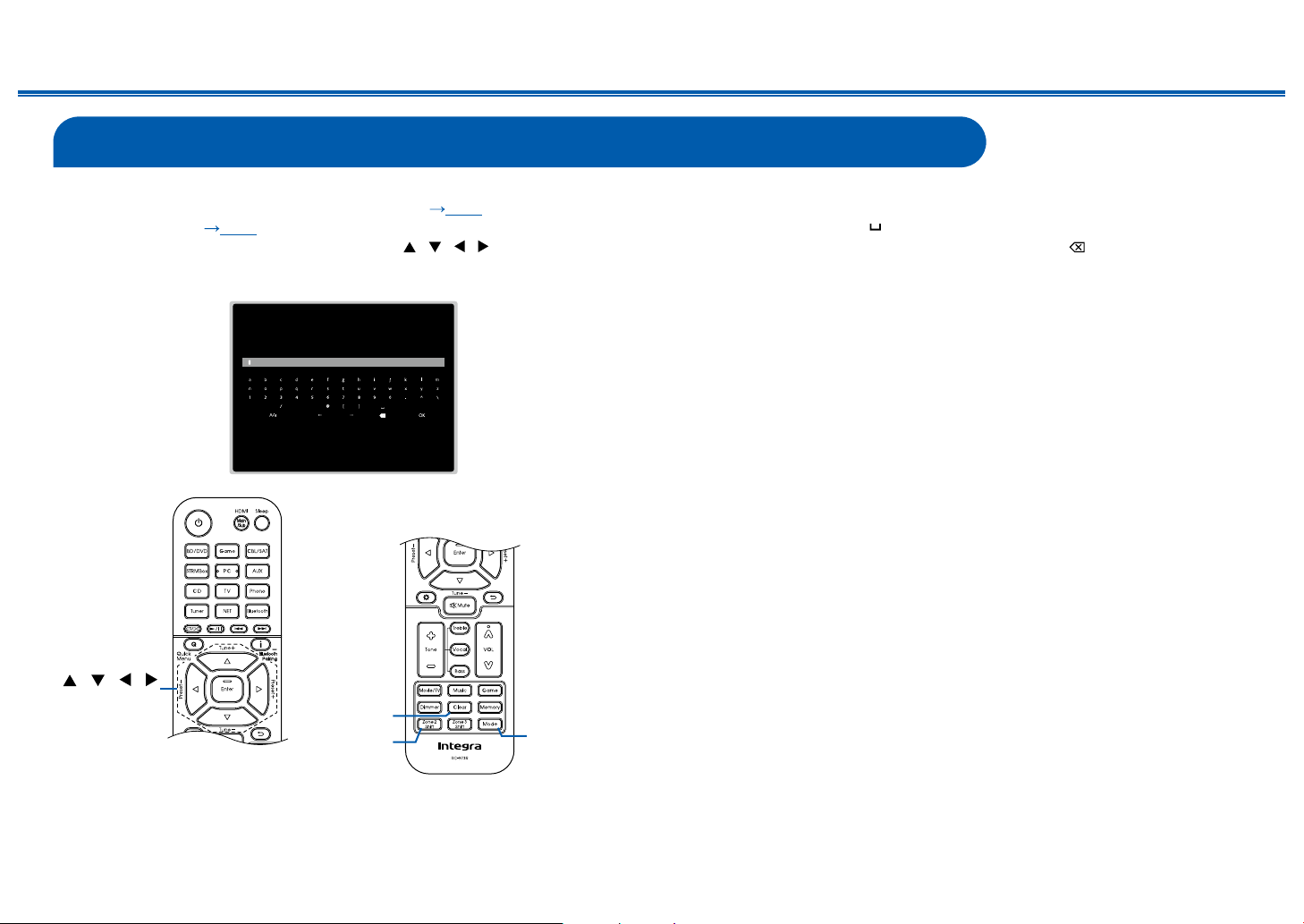
143
Front Panel≫ Rear Panel≫ Remote≫
Contents
≫
Connections
≫
Playback
≫
Setup
≫
Inputting Characters
You can input characters or symbols on the keyboard displayed on the TV screen
such as when inputting a password for Wi-Fi Setup ( p164) or naming a
preset radio station ( p161).
1. Select a character or symbol with the cursors / / / on the remote
controller and press the Enter button.
2. When saving characters after input, select "OK" and press the Enter button.
, . ;/ : ], . ; :
Clear
Zone 2
Shift
Mode
/ / /
Enter
• Select "A/a" to switch between upper and lower cases. (Can also be switched
with the Mode button on the remote controller.)
• To enter a space, select " ".
• To delete a character on the left of the cursor, select " ".
• To delete all the input characters, press the Clear button on the remote control.
• On the ZONE 2 playback screen, operate the remote controller while pressing
and holding the Zone 2 Shift button. To delete all the input characters, only
press the Clear button without pressing the Zone 2 Shift button.
144
Setup
Front Panel≫ Rear Panel≫ Remote≫
Contents
≫
Connections
≫
Playback
≫
Setup
≫
Setup Menu
Menu list
You can congure advanced settings to have a more enjoyable experience with this unit. For operation details, refer to "Menu operations" ( p147).
1. Input/Output
Assign
1. TV Out / OSD Make settings for TV output and On-Screen Displays (OSD) that appear on the TV. p148
2. HDMI Input Change input assignment between the input selectors and HDMI IN jacks.
p149
3. Video Input Change input assignment between the input selectors and COMPONENT VIDEO IN jacks and the
VIDEO IN jacks.
p150
4. Digital Audio Input Change input assignment between the input selectors and DIGITAL IN COAXIAL/OPTICAL jacks.
p151
5. Analog Audio Input Change input assignment between the input selectors and AUDIO IN jacks.
p151
2. Speaker 1. Conguration Change the settings of connection environment of the speakers.
p152
2. Crossover Change the settings of crossover frequencies.
p154
3. Distance Set the distance from each speaker to the listening position.
p155
4. Level Calibration Adjust the volume level of each speaker.
p156
5. Dolby Enabled
Speaker
Change the settings of Dolby Enabled Speakers.
p157
6. Equalizer Settings You can adjust the output volume of the range for each connected speaker.
p157
7. THX Audio Change the THX Audio settings.
p158
8. Speaker Virtualizer The Speaker Virtualizer function can be switched between On and Off.
p158
3. Audio Adjust 1. Multiplex/Mono Change the settings of multiplex audio playback.
p159
2. Dolby Change the setting of when Dolby signals are input.
p159
3. DTS Change the setting of when DTS signals are input.
p160
4. LFE Level Set the low-frequency effect (LFE) level for Dolby Digital series, DTS series, Multichannel PCM,
and DSD signals.
p160
5. Volume Change the Volume settings.
p160
145
Front Panel≫ Rear Panel≫ Remote≫
Contents
≫
Connections
≫
Playback
≫
Setup
≫
4. Source 1. My Input Volume Set a volume value for each input selector. p161
2. Name Edit Set an easy name for each input.
p161
Audio Select Select the prioritized input terminal when multiple audio sources are connected to one input
selector.
p161
Video Select When "TUNER", "NET", or "BLUETOOTH" input is selected, you can set the input from which
video is displayed on the TV.
p162
5. Listening Mode
Preset
1. BD/DVD Preset the favorite listening mode when "BD/DVD" input is selected.
p162
2. GAME Preset the favorite listening mode when "GAME" input is selected.
p162
3. CBL/SAT Preset the favorite listening mode when "CBL/SAT" input is selected.
p162
4. STRM BOX Preset the favorite listening mode when "STRM BOX" input is selected.
p162
5. PC Preset the favorite listening mode when "PC" input is selected.
p162
6. AUX Preset the favorite listening mode when "AUX" input is selected.
p162
7. CD Preset the favorite listening mode when "CD" input is selected.
p162
8. TV Preset the favorite listening mode when "TV" input is selected.
p162
9. PHONO Preset the favorite listening mode when "PHONO" input is selected.
p162
10. TUNER Preset the favorite listening mode when "TUNER" input is selected.
p162
11. NET Preset the favorite listening mode when "NET" input is selected.
p162
12. BLUETOOTH Preset the favorite listening mode when "BLUETOOTH" input is selected.
p162
6. Hardware 1. HDMI Change the settings for the HDMI functions.
p163
2. Network Change the settings for the Network functions.
p164
3. Bluetooth Change the settings for the Bluetooth function.
p166
4. Power Management Change the settings for the power-save function.
p167
5. 12V Trigger A Change the settings for 12V Trigger A OUT jack.
p169
6. 12V Trigger B Change the settings for 12V Trigger B OUT jack.
p172
7. 12V Trigger C Change the settings for 12V Trigger C OUT jack.
p175
8. Works with SONOS Change the settings to connect with the Sonos Connect.
p178
7. Multi Zone 1. Zone 2 Change the settings for Zone 2.
p179
2. Zone 3 Change the settings for Zone 3.
p179
3. Remote Play Zone Change the settings for remote play.
p179
146
Front Panel≫ Rear Panel≫ Remote≫
Contents
≫
Connections
≫
Playback
≫
Setup
≫
8. Miscellaneous 1. Tuner Change the frequency step for the tuner. p180
2. Remote ID Change the remote controller ID.
p180
3. Firmware Update Change the settings for Firmware Update.
p180
4. Initial Setup Make the initial setup from the setup menu.
p180
5. Lock Lock the Setup menu so that the settings cannot be changed.
p180
6. Factory Reset All the settings are restored to factory defaults.
p181
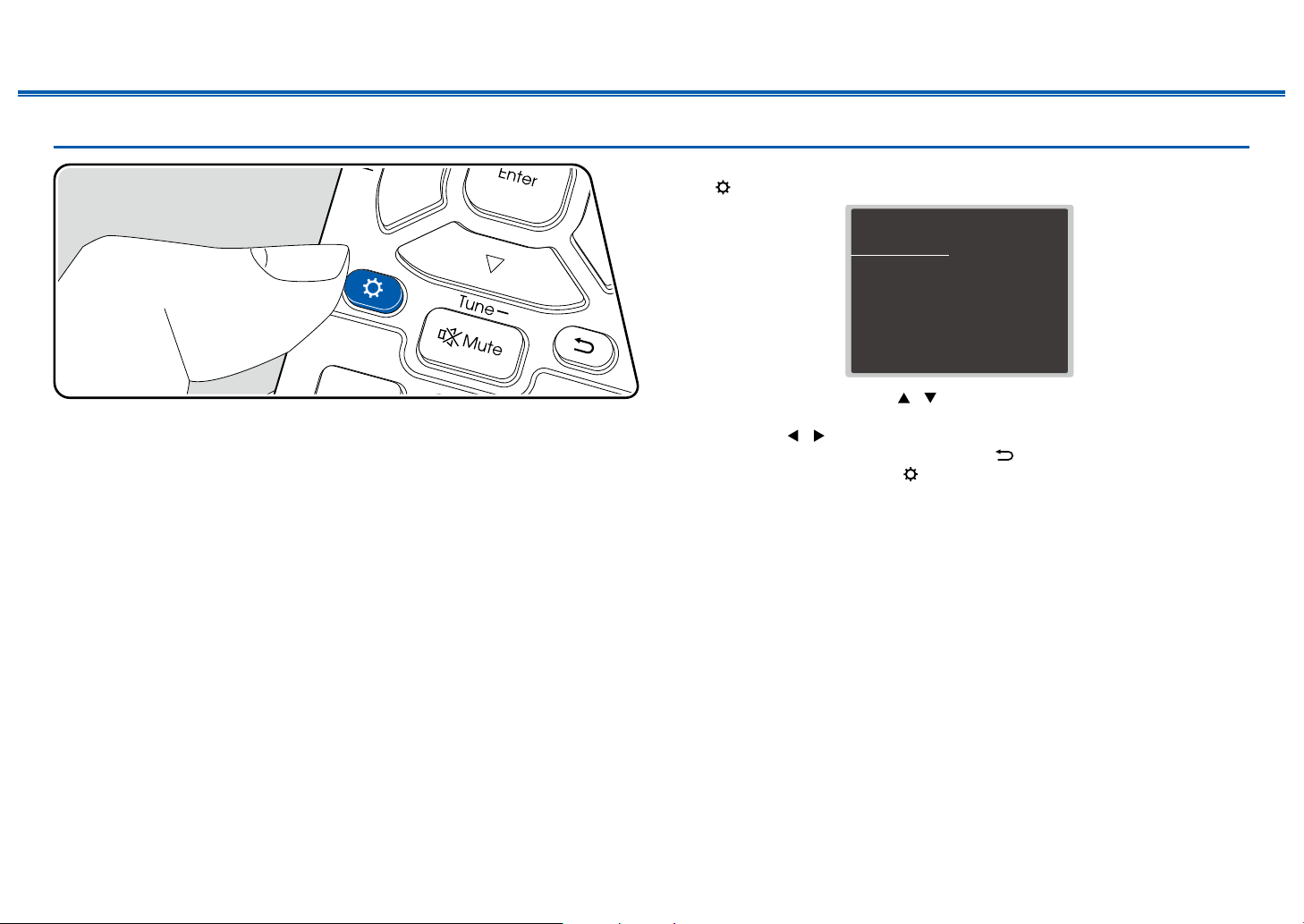
147
Front Panel≫ Rear Panel≫ Remote≫
Contents
≫
Connections
≫
Playback
≫
Setup
≫
Menu operations
Use the on-screen displays (OSD) that appear on the TV to make the settings.
Press on the remote controller to display the Setup menu.
Setup
1. Input/Output Assign
2. Speaker
3. Audio Adjust
4. Source
5.
Listening Mode Preset
6. Hardware
7. Multi Zone
8. Miscellaneous
1. TV Out / OSD
2. HDMI Input
3. Video Input
4. Digital Audio Input
5. Analog Audio Input
Select the item with the cursors / of the remote controller, and press the
Enter button to conrm your selection.
Use the cursors
/ to change the default values.
• To return to the previous screen, press the button.
• To exit the settings, press the button.
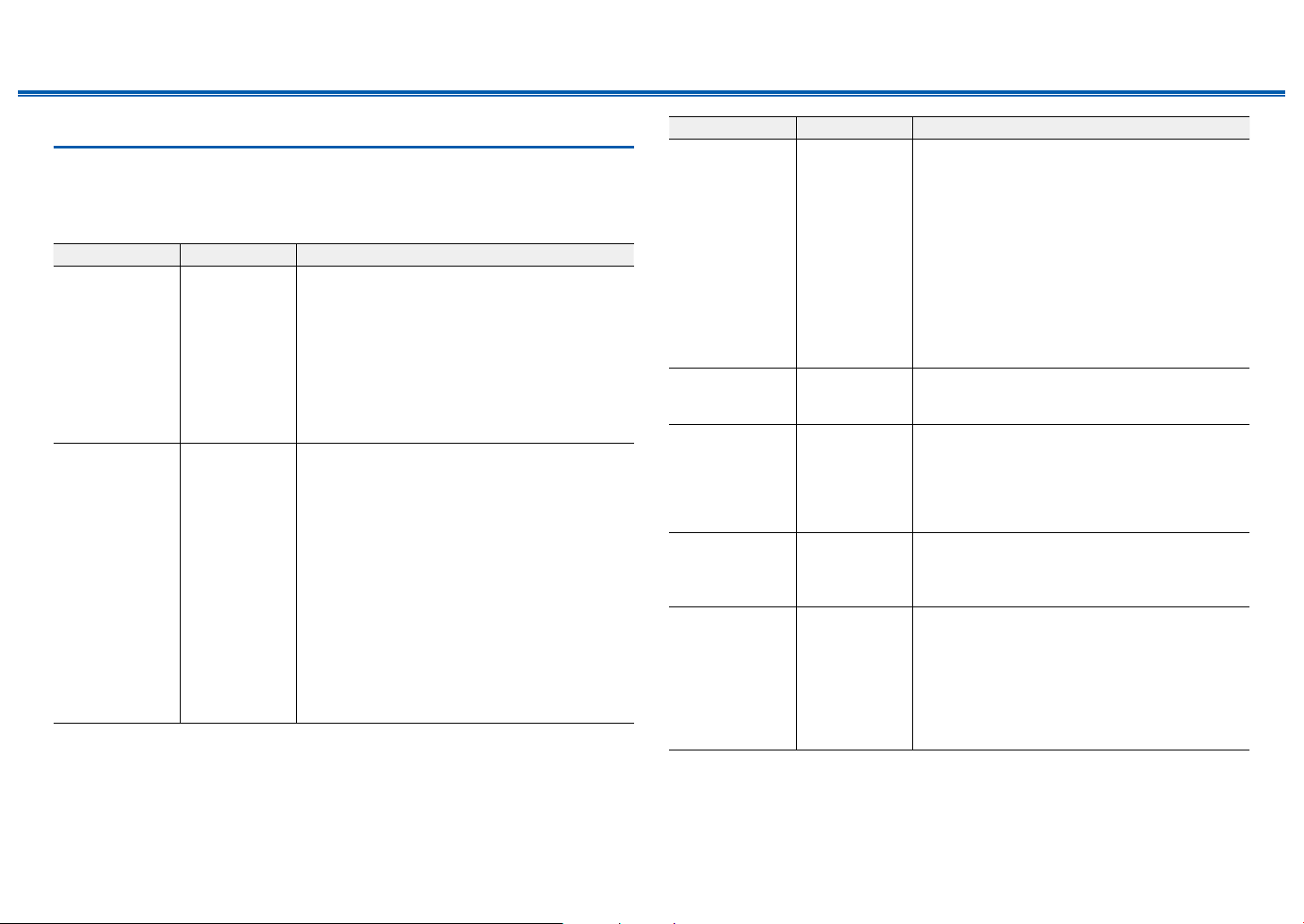
148
Front Panel≫ Rear Panel≫ Remote≫
Contents
≫
Connections
≫
Playback
≫
Setup
≫
1. Input/Output Assign
1. TV Out / OSD
Make settings for TV output and On-Screen Displays (OSD) that appear on the
TV.
Setting Item Default Value Setting Details
HDMI Out MAIN Select the HDMI jack to be connected with the TV.
"MAIN": When connecting the TV to the HDMI OUT
MAIN jack
"SUB": When connecting the TV to the HDMI OUT
SUB jack
"MAIN+SUB": When connecting to both the MAIN
and SUB jacks
• If devices with different resolutions are
connected to HDMI OUT MAIN jack and SUB
jack, images are output with the lower resolution.
Dolby Vision MAIN To output Dolby Vision video from the player to
a TV that supports Dolby Vision, select either
the HDMI OUT MAIN jack or HDMI OUT SUB
jack to which the Dolby Vision-supported TV is
connected. This setting is only necessary if you
have set "HDMI Out" to "MAIN+SUB" and you have
connected a TV to both the MAIN and SUB jacks.
"MAIN": To output Dolby Vision video to a Dolby
Vision-supported TV connected to the HDMI OUT
MAIN jack.
"SUB": To output Dolby Vision video to a Dolby
Vision-supported TV connected to the HDMI OUT
SUB jack.
• After selecting "MAIN" or "SUB", if the video
on the TV does not appear correctly, set this to
"Off".
Setting Item Default Value Setting Details
1080p ->
4K Upscaling
Off When a TV supporting 4K is used, video signals
input with 1080p can be automatically output with
4K.
"Off": When this function is not used
"Auto": When this function is used
If your TV does not support 4K, set it to "Off".
• If the TV does not support the 4K resolution
with the same frequency as the frequency of
HDMI input video signals, upscaling to 4K is not
correctly performed. Check the frequency of 4K
resolution supported by the TV, and change the
resolution of the video signals input from the AV
component.
Super Resolution 2 When "1080p -> 4K Upscaling" is set to "Auto",
select the correction level of the input video signals
from "Off" and "1" (weak) to "3" (strong).
Zone 2 HDMI Not Use Make the setting when you output to the Zone 2 TV
connected to the HDMI OUT ZONE 2/SUB jack.
"Use": Enable this function
"Not Use": Disable this function
• When video and audio via HDMI input are output
to ZONE 2, set it to "Use".
OSD Language English Select the on-screen display language from the
following.
English, German, French, Spanish, Italian, Dutch,
Swedish, Russian, Chinese
Impose OSD On Set whether or not to display information such as
volume adjustment or switching of input on the TV
screen.
"On": OSD is displayed on the TV.
"Off": OSD is not displayed on the TV.
• OSD may not be displayed depending on the
input signal even if "On" is selected. In this case,
change the resolution of the connected device.
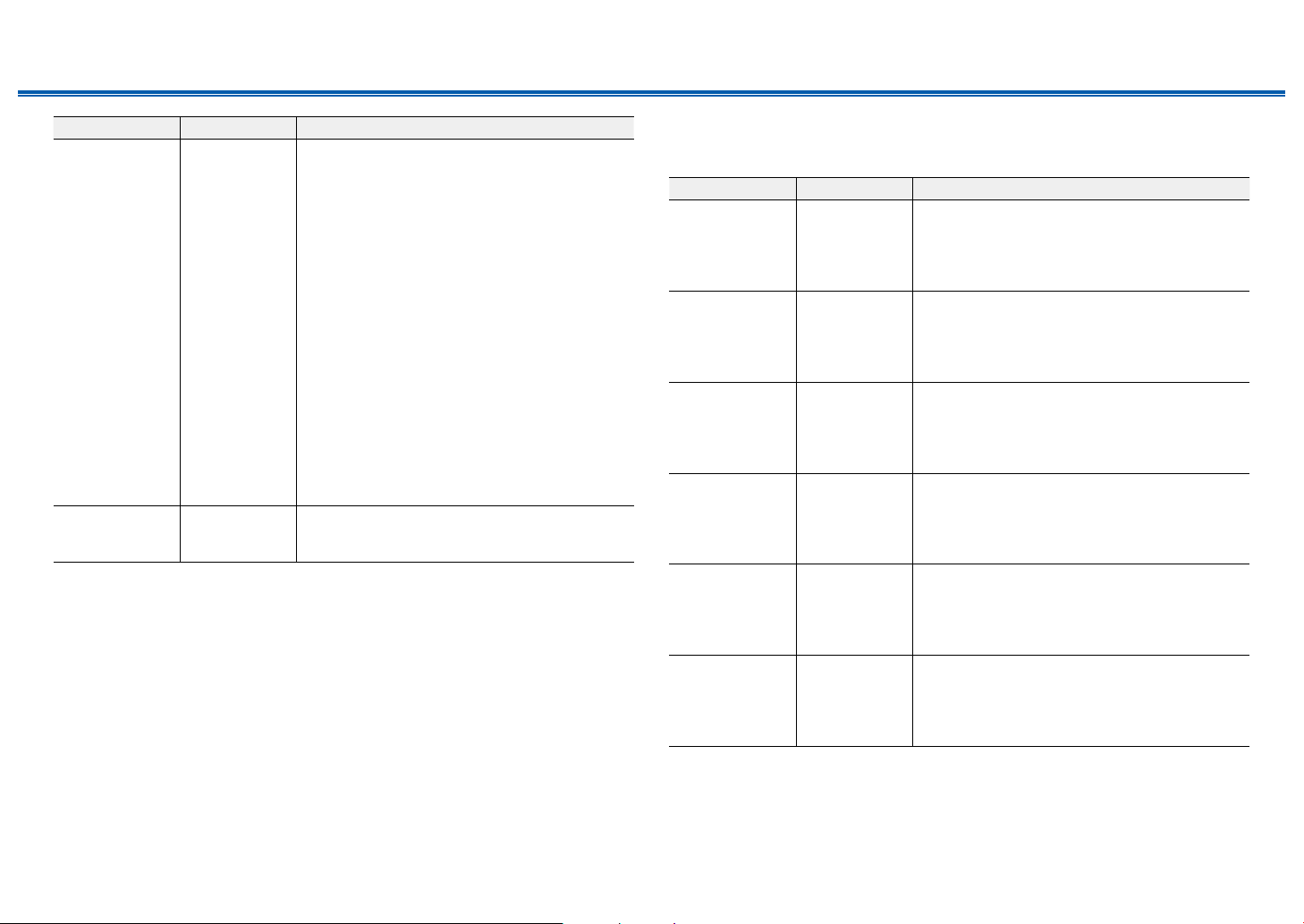
149
Front Panel≫ Rear Panel≫ Remote≫
Contents
≫
Connections
≫
Playback
≫
Setup
≫
Setting Item Default Value Setting Details
Mini Player OSD Always On You can display on the TV the images from another
input selected last while playing the audio from
NET or BLUETOOTH input. After switching the
input to NET or BLUETOOTH, play the images
and audio. And then when you press Mode on
the remote controller, the image is displayed in
full-screen mode, and the audio information (Mini
Player) for NET or BLUETOOTH is displayed in
the corner of the screen. You can set whether to
always display this Mini Player on the screen.
"Always On": The Mini Player is always displayed.
"Auto Off": The Mini Player turns off automatically
in 30 seconds after displayed. If operation such as
changing the volume is performed, it is displayed
again for 30 seconds.
• Each time the Mode button is pressed, the image
display/non-display can be switched.
• This setting cannot be selected if "Impose OSD"
is set to "Off".
• This function cannot be used when "OSD
Language" is set to Chinese.
Screen Saver 3 minutes Set the time to start the screen saver.
Select a value from "3 minutes", "5 minutes",
"10 minutes" and "Off".
2. HDMI Input
Change input assignment between the input selectors and HDMI IN jacks.
Setting Item Default Value Setting Details
BD/DVD HDMI 1 (HDCP
2.2)
"HDMI 1 (HDCP 2.2)" to "HDMI 6 (HDCP 2.2)":
Assign a desired HDMI IN jack to the BD/DVD
button. If you do not assign a jack, select "---". To
select an HDMI IN jack already assigned to another
input selector, change its setting to "---" rst.
GAME HDMI 2 (HDCP
2.2)
"HDMI 1 (HDCP 2.2)" to "HDMI 6 (HDCP 2.2)":
Assign a desired HDMI IN jack to the Game button.
If you do not assign a jack, select "---". To select
an HDMI IN jack already assigned to another input
selector, change its setting to "---" rst.
CBL/SAT HDMI 3 (HDCP
2.2)
"HDMI 1 (HDCP 2.2)" to "HDMI 6 (HDCP 2.2)":
Assign a desired HDMI IN jack to the CBL/SAT
button. If you do not assign a jack, select "---". To
select an HDMI IN jack already assigned to another
input selector, change its setting to "---" rst.
STRM BOX HDMI 4 (HDCP
2.2)
"HDMI 1 (HDCP 2.2)" to "HDMI 6 (HDCP 2.2)":
Assign a desired HDMI IN jack to the STRM Box
button. If you do not assign a jack, select "---". To
select an HDMI IN jack already assigned to another
input selector, change its setting to "---" rst.
PC HDMI 5 (HDCP
2.2)
"HDMI 1 (HDCP 2.2)" to "HDMI 6 (HDCP 2.2)":
Assign a desired HDMI IN jack to the PC button. If
you do not assign a jack, select "---". To select an
HDMI IN jack already assigned to another input
selector, change its setting to "---" rst.
CD --- "HDMI 1 (HDCP 2.2)" to "HDMI 6 (HDCP 2.2)":
Assign a desired HDMI IN jack to the CD button.
If you do not assign a jack, select "---". To select
an HDMI IN jack already assigned to another input
selector, change its setting to "---" rst.
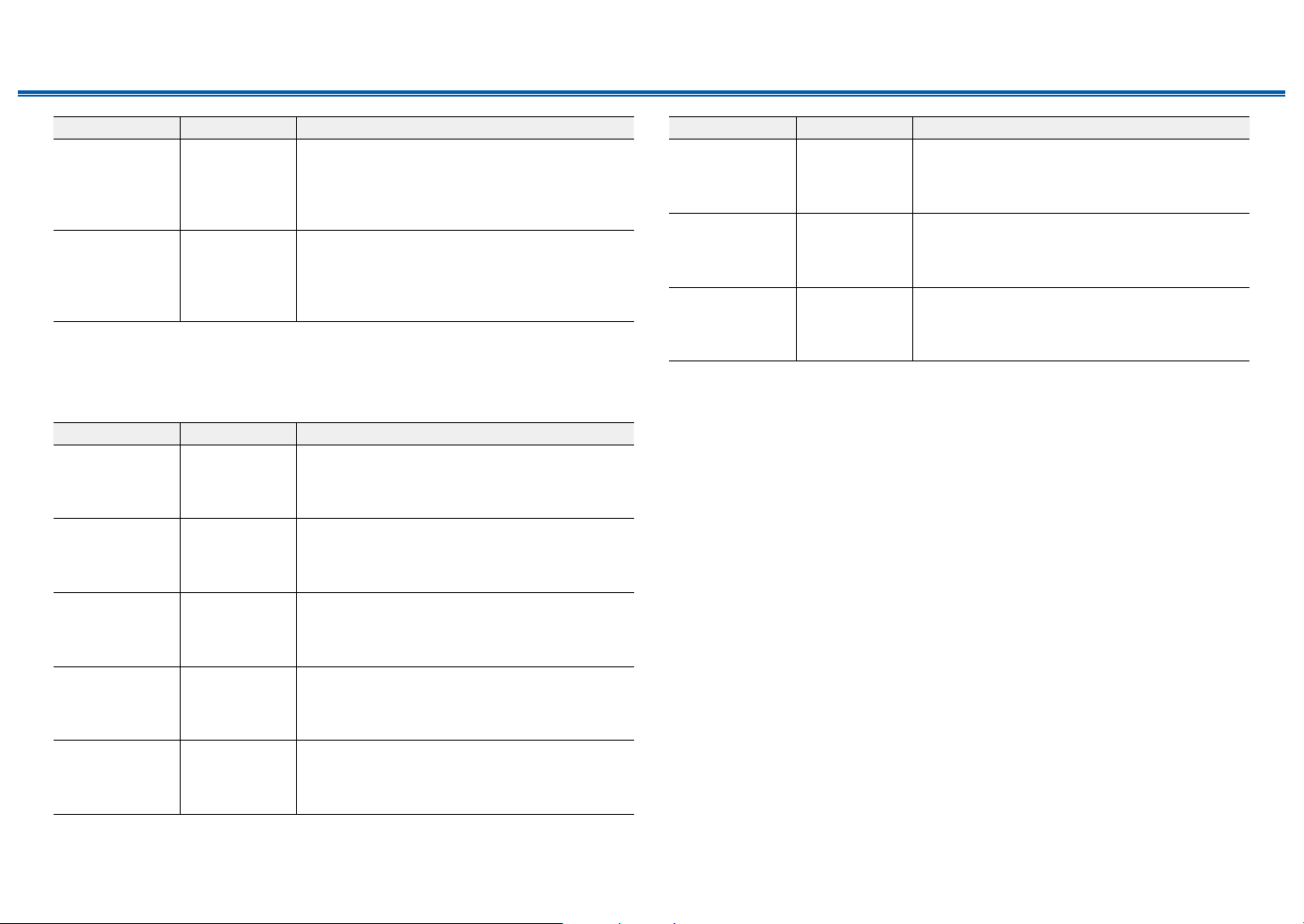
150
Front Panel≫ Rear Panel≫ Remote≫
Contents
≫
Connections
≫
Playback
≫
Setup
≫
Setting Item Default Value Setting Details
TV --- "HDMI 1 (HDCP 2.2)" to "HDMI 6 (HDCP 2.2)":
Assign a desired HDMI IN jack to the TV button. If
you do not assign a jack, select "---". To select an
HDMI IN jack already assigned to another input
selector, change its setting to "---" rst.
PHONO --- "HDMI 1 (HDCP 2.2)" to "HDMI 6 (HDCP 2.2)":
Assign a desired HDMI IN jack to the Phono button.
If you do not assign a jack, select "---". To select
an HDMI IN jack already assigned to another input
selector, change its setting to "---" rst.
3. Video Input
Change input assignment between the input selectors and COMPONENT VIDEO
IN jacks and the VIDEO IN jacks. If you do not assign a jack, select "---".
Setting Item Default Value Setting Details
BD/DVD COMPONENT "COMPONENT": Assign the COMPONENT VIDEO
IN jacks to the BD/DVD button.
"VIDEO 1", "VIDEO 2": Assign a desired VIDEO IN
jack to the BD/DVD button.
GAME --- "COMPONENT": Assign the COMPONENT VIDEO
IN jacks to the Game button.
"VIDEO 1", "VIDEO 2": Assign a desired VIDEO IN
jack to the Game button.
CBL/SAT VIDEO 1 "COMPONENT": Assign the COMPONENT VIDEO
IN jacks to the CBL/SAT button.
"VIDEO 1", "VIDEO 2": Assign a desired VIDEO IN
jack to the CBL/SAT button.
STRM BOX VIDEO 2 "COMPONENT": Assign the COMPONENT VIDEO
IN jacks to the STRM Box button.
"VIDEO 1", "VIDEO 2": Assign a desired VIDEO IN
jack to the STRM Box button.
PC --- "COMPONENT": Assign the COMPONENT VIDEO
IN jacks to the PC button.
"VIDEO 1", "VIDEO 2": Assign a desired VIDEO IN
jack to the PC button.
Setting Item Default Value Setting Details
CD --- "COMPONENT": Assign the COMPONENT VIDEO
IN jacks to the CD button.
"VIDEO 1", "VIDEO 2": Assign a desired VIDEO IN
jack to the CD button.
TV --- "COMPONENT": Assign the COMPONENT VIDEO
IN jacks to the TV button.
"VIDEO 1", "VIDEO 2": Assign a desired VIDEO IN
jack to the TV button.
PHONO --- "COMPONENT": Assign the COMPONENT VIDEO
IN jacks to the Phono button.
"VIDEO 1", "VIDEO 2": Assign a desired VIDEO IN
jack to the Phono button.
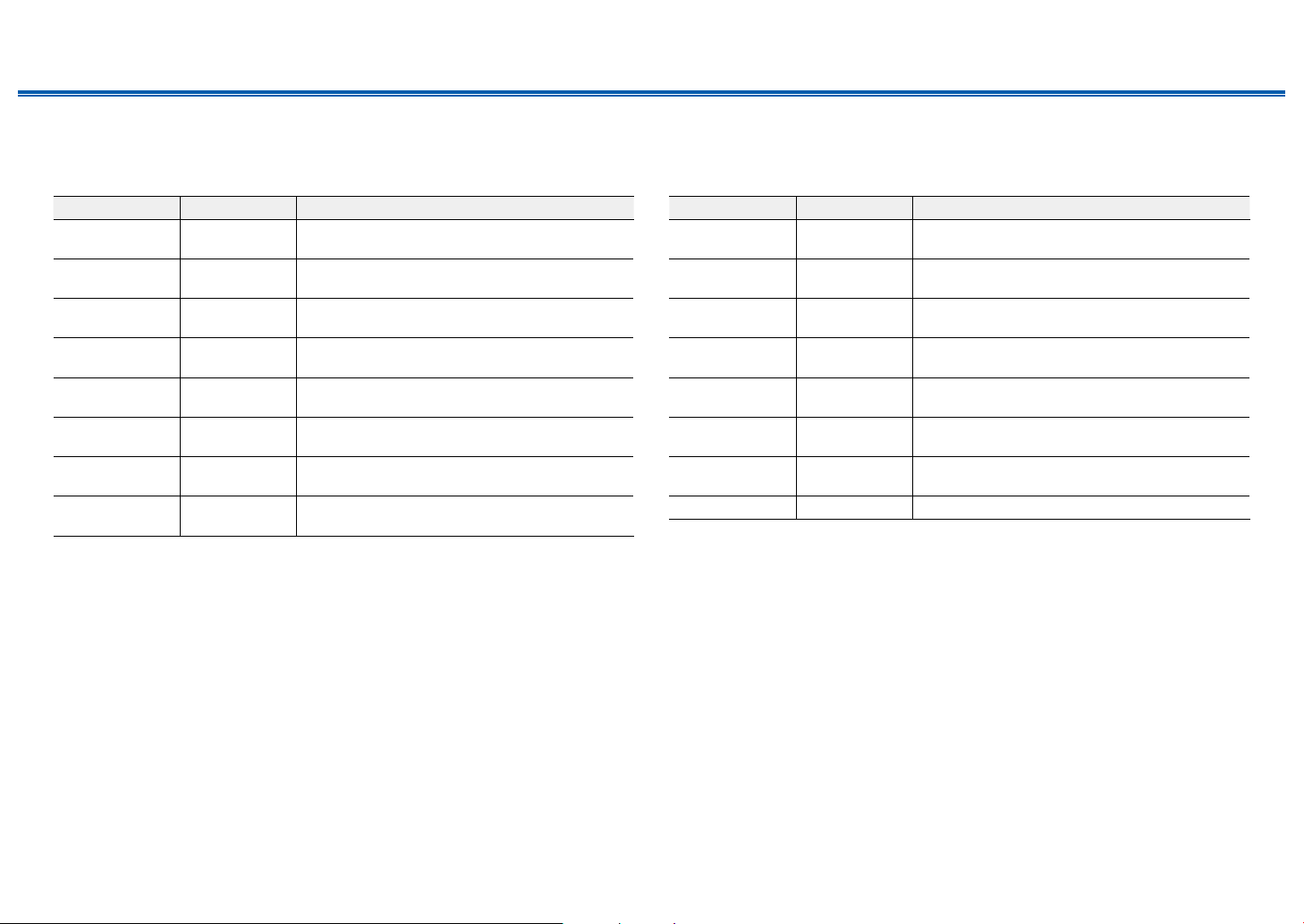
151
Front Panel≫ Rear Panel≫ Remote≫
Contents
≫
Connections
≫
Playback
≫
Setup
≫
4. Digital Audio Input
Change input assignment between the input selectors and DIGITAL IN COAXIAL/
OPTICAL jacks. If you do not assign a jack, select "---".
Setting Item Default Value Setting Details
BD/DVD COAXIAL "COAXIAL", "OPTICAL": Assign a desired DIGITAL
IN jack to the BD/DVD button.
GAME --- "COAXIAL", "OPTICAL": Assign a desired DIGITAL
IN jack to the Game button.
CBL/SAT --- "COAXIAL", "OPTICAL": Assign a desired DIGITAL
IN jack to the CBL/SAT button.
STRM BOX --- "COAXIAL", "OPTICAL": Assign a desired DIGITAL
IN jack to the STRM Box button.
PC --- "COAXIAL", "OPTICAL": Assign a desired DIGITAL
IN jack to the PC button.
CD --- "COAXIAL", "OPTICAL": Assign a desired DIGITAL
IN jack to the CD button.
TV OPTICAL "COAXIAL", "OPTICAL": Assign a desired DIGITAL
IN jack to the TV button.
PHONO --- "COAXIAL", "OPTICAL": Assign a desired DIGITAL
IN jack to the Phono button.
• Supported sampling rates for PCM signals (stereo, mono) from a digital input are 32 kHz,
44.1 kHz, 48 kHz, 88.2 kHz, 96 kHz/16bit, 20bit, and 24bit.
5. Analog Audio Input
CChange input assignment between the input selectors and AUDIO IN jacks. If
you do not assign a jack, select "---".
Setting Item Default Value Setting Details
BD/DVD AUDIO 1 "AUDIO 1" to "AUDIO 6": Assign a desired AUDIO
IN jack to the BD/DVD button.
GAME AUDIO 2 "AUDIO 1" to "AUDIO 6": Assign a desired AUDIO
IN jack to the Game button.
CBL/SAT AUDIO 3 "AUDIO 1" to "AUDIO 6": Assign a desired AUDIO
IN jack to the CBL/SAT button.
STRM BOX AUDIO 4 "AUDIO 1" to "AUDIO 6": Assign a desired AUDIO
IN jack to the STRM Box button.
PC --- "AUDIO 1" to "AUDIO 6": Assign a desired AUDIO
IN jack to the PC button.
CD AUDIO 5 "AUDIO 1" to "AUDIO 6": Assign a desired AUDIO
IN jack to the CD button.
TV AUDIO 6 "AUDIO 1" to "AUDIO 6": Assign a desired AUDIO
IN jack to the TV button.
PHONO PHONO The setting cannot be changed.
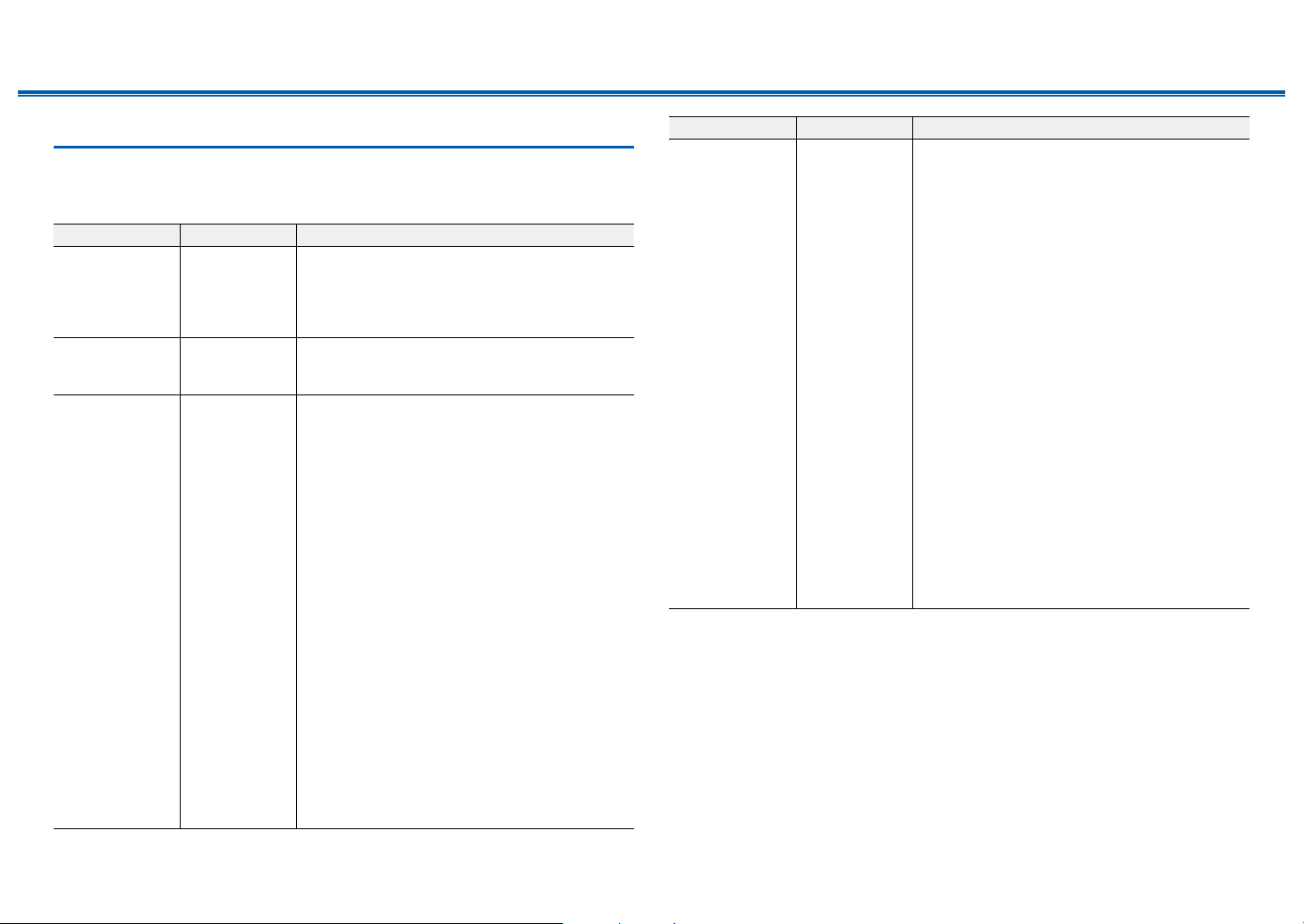
152
Front Panel≫ Rear Panel≫ Remote≫
Contents
≫
Connections
≫
Playback
≫
Setup
≫
2. Speaker
1. Conguration
Change the settings of connection environment of the speakers.
Setting Item Default Value Setting Details
Speaker
Channels
7.1.2 ch Select "2.1 ch", "3.1 ch", "4.1 ch", "5.1 ch", "6.1 ch",
"7.1 ch", "2.1.2 ch", "3.1.2 ch", "4.1.2 ch",
"5.1.2 ch", "6.1.2 ch", "7.1.2 ch", "4.1.4 ch",
"5.1.4 ch", "6.1.4 ch" or "7.1.4 ch" to suit the
number of speaker channels connected.
Subwoofer Yes Set whether a subwoofer is connected or not.
"Yes": When a subwoofer is connected
"No": When a subwoofer is not connected
Height 1 Speaker Top Middle Set the speaker type if height speakers are
connected to the HEIGHT 1 terminals. Select "Top
Middle", "Top Rear", "Rear High", "Dolby Speaker
(Front)", "Dolby Speaker (Surr)", "Dolby Speaker
(Back)", "Front High" or "Top Front" according to
the type and layout of the connected speakers.
• This setting cannot be selected under any of
following conditions. Set the height speakers
type to "Height 2 Speaker".
– "Bi-Amp" is set to "Yes"
– When "Speaker Channels" is set to "2.1.2 ch",
"3.1.2 ch", "4.1.2 ch " or "5.1.2 ch", and "Zone
Speaker" is set to "Zone 2"
•
When two sets of height speakers are being used,
"Top Rear", "Rear High", "Dolby Speaker (Surr)",
and "Dolby Speaker (Back)" cannot be selected.
•
"Dolby Speaker (Surr)" and "Dolby Speaker (Back)"
can only be selected when surround speakers
or surround back speakers are being used,
respectively. You can check speakers that you are
using on the gure displayed in "Speaker Channels".
• If an item cannot be selected even though
connection is correct, check that the settings
in "Speaker Channels" matches the number of
connected channels.
Setting Item Default Value Setting Details
Height 2 Speaker Rear High Set the speaker type if height speakers are
connected to the HEIGHT 2 terminals. Select
"Front High", "Top Front", "Top Middle", "Top
Rear", "Rear High", "Dolby Speaker (Front)",
"Dolby Speaker (Surr)" or "Dolby Speaker (Back)"
according to the type and layout of the connected
speakers. However, the options selectable for the
"Height 1 Speaker" the are as follows.
If "Height 1 Speaker" is set to "Front High": Select
from "Top Middle", "Top Rear", "Rear High", "Dolby
Speaker (Surr)" or "Dolby Speaker (Back)".
If "Height 1 Speaker" is set to "Top Front" or "Dolby
Speaker (Front)": Select from "Top Rear", "Rear
High", "Dolby Speaker (Surr)" or "Dolby Speaker
(Back)".
If "Height 1 Speaker" is set to "Top Middle": Fixed
to "Rear High".
• "Dolby Speaker (Surr)" and "Dolby Speaker
(Back)" can only be selected when surround
speakers or surround back speakers are being
used, respectively. You can check speakers that
you are using on the gure displayed in "Speaker
Channels".
• If an item cannot be selected even though
connection is correct, check that the settings
in "Speaker Channels" matches the number of
connected channels.
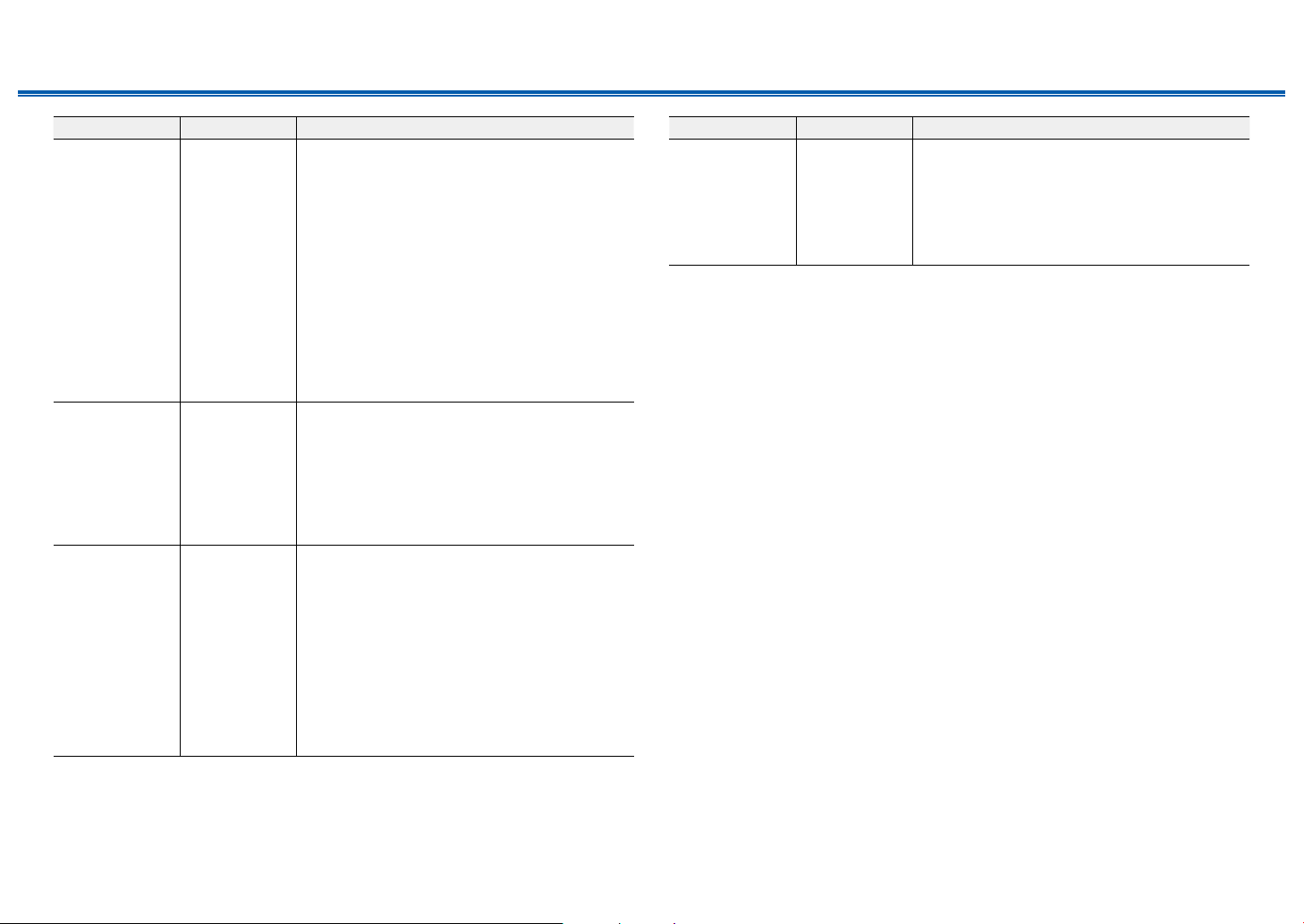
153
Front Panel≫ Rear Panel≫ Remote≫
Contents
≫
Connections
≫
Playback
≫
Setup
≫
Setting Item Default Value Setting Details
Zone Speaker No Set whether speakers are connected to Zone 2 or
Zone 3 speaker terminals.
"Zone 2": When speakers are connected to Zone 2
speaker terminals
"Zone 2/Zone 3": When connecting speaker to both
ZONE 2 speaker terminal and ZONE 3 speaker
terminals.
• This setting cannot be selected under any of
following conditions.
– When the surround back speakers are used
– When 2 sets of height speakers are used
"No": When speakers are not connected to Zone 2
speaker terminals
• This setting cannot be selected when "Zone 2
Preout" is set to "Zone B".
Zone 2 Preout Zone 2 Set an output destination of the audio output from
ZONE 2 PRE/LINE OUT/ZONE B LINE OUT jack.
"Zone 2": When connecting a pre-main amplier in
a separate room (ZONE 2)
"Zone B": When connecting a pre-main amplier,
transmitter of wireless headphones, etc. to ZONE B
• This setting is xed to "Zone 2" when "Zone
Speaker" is set to "Zone 2" or "Zone 2/Zone 3".
Bi-Amp No Set whether the front speakers are bi-amp
connected.
"No": When front speakers are not bi-amp
connected
"Yes": When front speakers are bi-amp connected
• This setting will be set to "No" in either of
following cases.
– When 2 sets of height speakers are used
– When surround back speakers and height
speakers are being used at the same time.
– When "Zone Speaker" is set to "Zone 2" or
"Zone 2/Zone 3"
Setting Item Default Value Setting Details
Speaker
Impedance
6 ohms or above Set the impedance (Ω) of the connected speakers.
"4ohms": When any of the connected speakers
have 4 Ω or more to less than 6 Ω impedance
"6 ohms or above": When all the connected
speakers have an impedance of 6 Ω or more
• For impedance, check the indications on the
back of the speakers or their instruction manual.
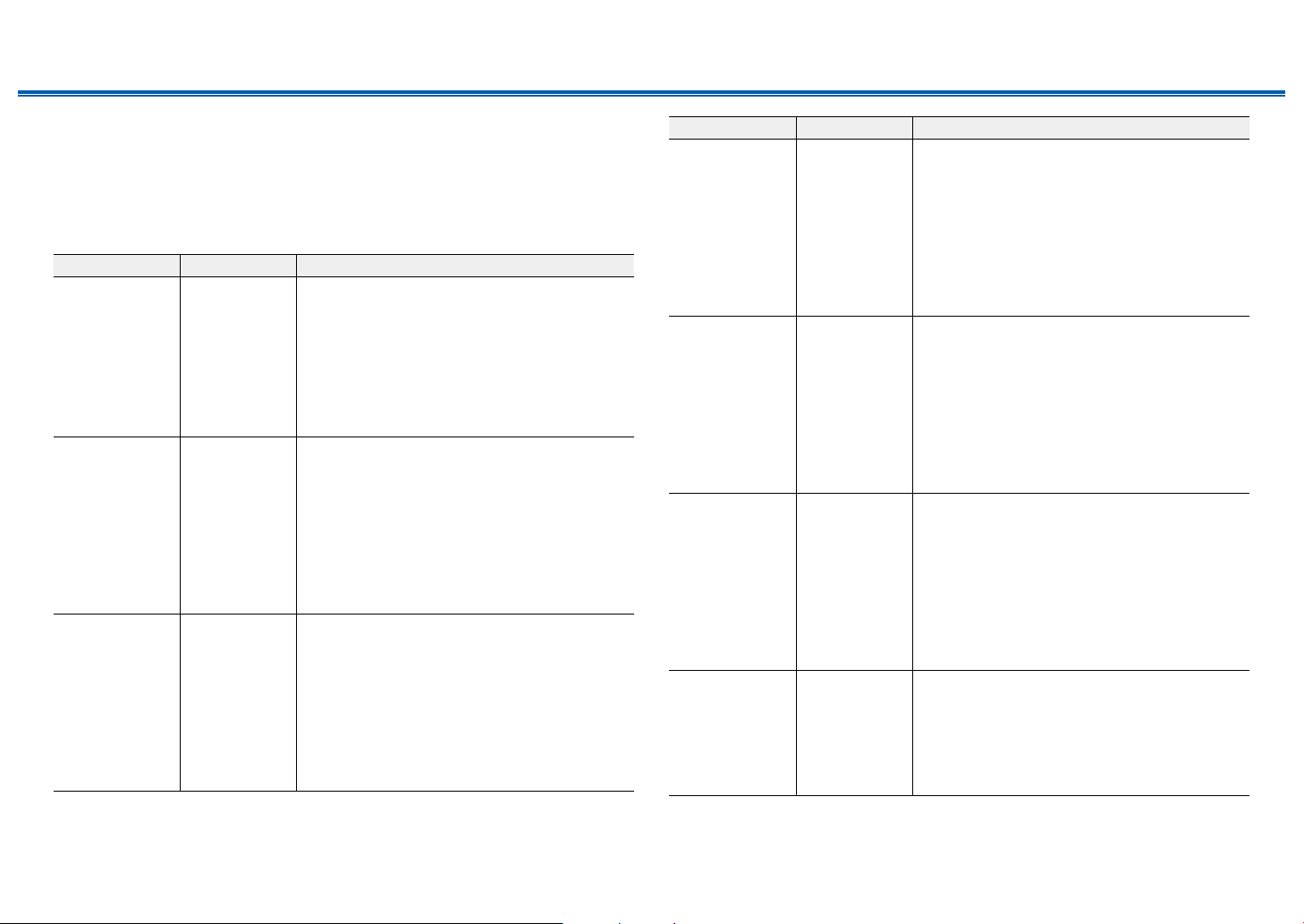
154
Front Panel≫ Rear Panel≫ Remote≫
Contents
≫
Connections
≫
Playback
≫
Setup
≫
2. Crossover
Change the settings of crossover frequencies.
• As for the THX-certied speakers, the following settings are recommended.
– Crossover frequency → "80 Hz(THX)"
– "LPF of LFE" → "80 Hz"
– "Double Bass" → "Off"
Setting Item Default Value Setting Details
Front 80 Hz (THX) Select the crossover frequency from "40 Hz" to
"200 Hz" to start outputting frequencies for each
channel.
"Full Band": Full band will be output.
• If "Conguration" - "Subwoofer" is set to "No",
"Front" is xed to "Full Band", and the low
pitched range of the other channels is output
from the front speakers. Refer to the instruction
manual of your speakers to make the setting.
Center 80 Hz (THX) Select the crossover frequency from "40 Hz" to
"200 Hz" to start outputting frequencies for each
channel.
"Full Band": Full band will be output.
• "Full Band" can be selected only when "Front" is
set to "Full Band".
• If the item cannot be selected even though
connection is correct, check if the setting in
"Conguration" - "Speaker Channels" matches
the number of connected channels.
Height 1 80Hz (THX) Select the crossover frequency from "40 Hz" to
"200 Hz" to start outputting frequencies for each
channel.
"Full Band": Full band will be output.
• "Full Band" can be selected only when "Front" is
set to "Full Band".
• If the item cannot be selected even though
connection is correct, check if the setting in
"Conguration" - "Speaker Channels" matches
the number of connected channels.
Setting Item Default Value Setting Details
Height 2 80 Hz (THX) Select the crossover frequency from "40 Hz" to
"200 Hz" to start outputting frequencies for each
channel.
"Full Band": Full band will be output.
• "Full Band" can be selected only when "Front" is
set to "Full Band".
• If the item cannot be selected even though
connection is correct, check if the setting in
"Conguration" - "Speaker Channels" matches
the number of connected channels.
Surround 80 Hz (THX) Select the crossover frequency from "40 Hz" to
"200 Hz" to start outputting frequencies for each
channel.
"Full Band": Full band will be output.
• "Full Band" can be selected only when "Front" is
set to "Full Band".
• If the item cannot be selected even though
connection is correct, check if the setting in
"Conguration" - "Speaker Channels" matches
the number of connected channels.
Surround Back 80 Hz (THX) Select the crossover frequency from "40 Hz" to
"200 Hz" to start outputting frequencies for each
channel.
"Full Band": Full band will be output.
• "Full Band" can be selected only when
"Surround" is set to "Full Band".
• If the item cannot be selected even though
connection is correct, check if the setting in
"Conguration" - "Speaker Channels" matches
the number of connected channels.
LPF of LFE 120 Hz Set the low-pass lter for LFE (low-frequency
effect) signals in order to pass only the lower
frequency signals than the set value, and thus
cancel unwanted noises. The low-pass lter is
effective only on sources with LFE channel.
The value from "80 Hz" to "120 Hz" can be set.
"Off": When this function is not used
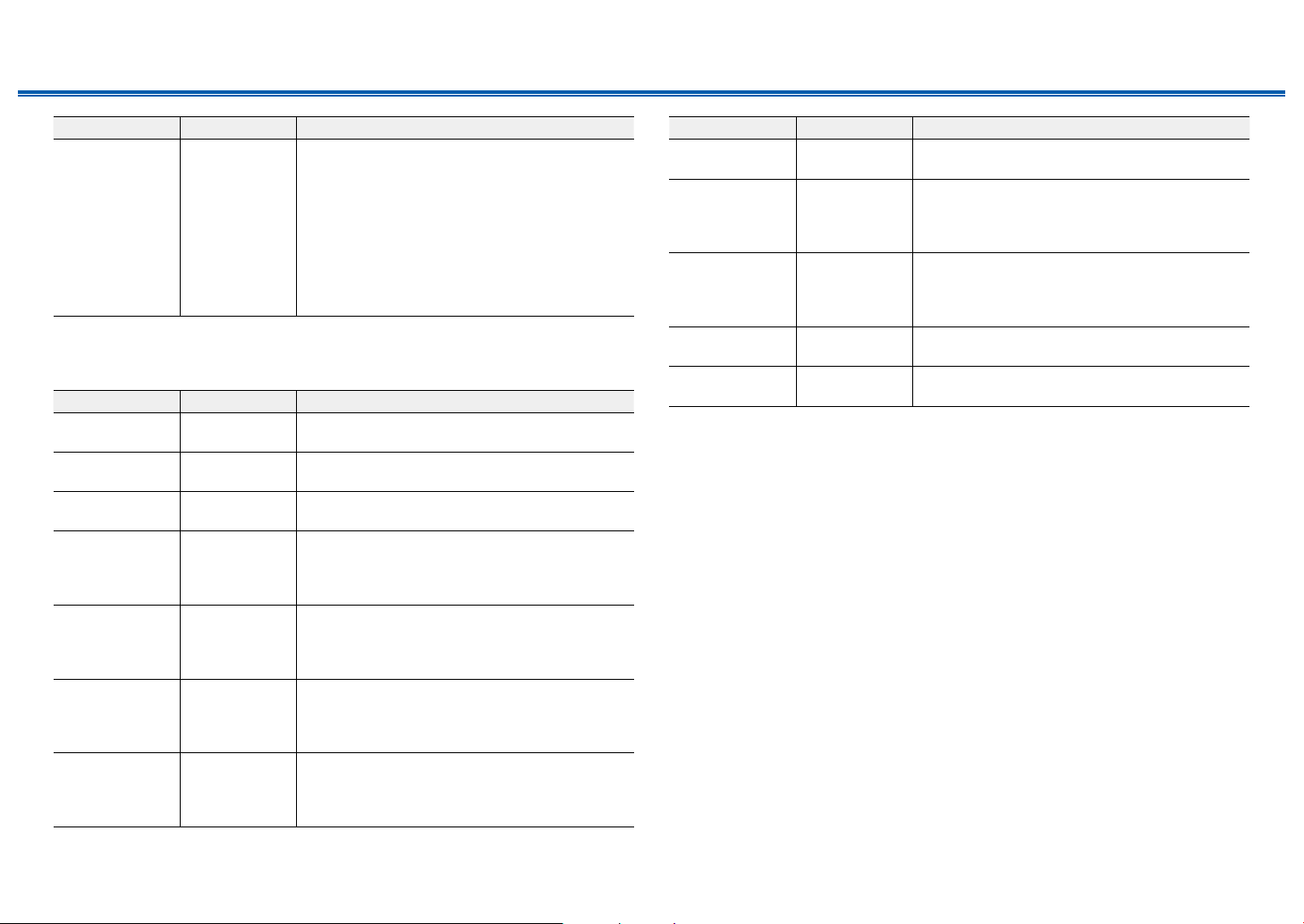
155
Front Panel≫ Rear Panel≫ Remote≫
Contents
≫
Connections
≫
Playback
≫
Setup
≫
Setting Item Default Value Setting Details
Double Bass On This can be selected only when "Conguration"
- "Subwoofer" is set to "Yes" and "Front" is set to
"Full Band".
Bass output is boosted by feeding bass sounds
from the front right and left, and center speakers to
the subwoofer.
"On": Bass output is boosted.
"Off": Bass output is not boosted.
• This function is not automatically set even if
AccuEQ Room Calibration is performed.
3. Distance
Set the distance from each speaker to the listening position.
Setting Item Default Value Setting Details
Front Left 12.0 ft/3.60 m Specify the distance between each speaker and
the listening position.
Center 12.0 ft/3.60 m Specify the distance between each speaker and
the listening position.
Front Right 12.0 ft/3.60 m Specify the distance between each speaker and
the listening position.
Height 1 Left 9.0 ft/2.70 m Specify the distance between each speaker and
the listening position.
• Depending on the use of the ZONE speakers, it
may not be possible to select this setting.
Height 1 Right 9.0 ft/2.70 m Specify the distance between each speaker and
the listening position.
• Depending on the use of the ZONE speakers, it
may not be possible to select this setting.
Height 2 Left 9.0 ft/2.70 m Specify the distance between each speaker and
the listening position.
• Depending on the use of the ZONE speakers, it
may not be possible to select this setting.
Height 2 Right 9.0 ft/2.70 m Specify the distance between each speaker and
the listening position.
• Depending on the use of the ZONE speakers, it
may not be possible to select this setting.
Setting Item Default Value Setting Details
Surround Right 7.0 ft/2.10 m Specify the distance between each speaker and
the listening position.
Surr Back Right 7.0 ft/2.10 m Specify the distance between each speaker and
the listening position.
• Depending on the use of the ZONE speakers, it
may not be possible to select this setting.
Surr Back Left 7.0 ft/2.10 m Specify the distance between each speaker and
the listening position.
• Depending on the use of the ZONE speakers, it
may not be possible to select this setting.
Surround Left 7.0 ft/2.10 m Specify the distance between each speaker and
the listening position.
Subwoofer 12.0 ft/3.60 m Specify the distance between each speaker and
the listening position.
• Default values vary depending on the regions.
• The unit of distance can be changed by pressing the Mode button on the remote
controller. When using the unit "feet", the setting is available in increments of 0.1 ft from
0.1 ft to 30.0 ft. When using the unit "meter", the setting is available in increments of
0.03 m from 0.03 m to 9.00 m.
156
Front Panel≫ Rear Panel≫ Remote≫
Contents
≫
Connections
≫
Playback
≫
Setup
≫
4. Level Calibration
Adjust the volume level of each speaker.
Setting Item Default Value Setting Details
Front Left 0.0 dB Select a value between "-12.0 dB" and "+12.0 dB"
(in 0.5 dB increments). A test tone will be output
each time you change the value. Select the desired
level.
Center 0.0 dB Select a value between "-12.0 dB" and "+12.0 dB"
(in 0.5 dB increments). A test tone will be output
each time you change the value. Select the desired
level.
Front Right 0.0 dB Select a value between "-12.0 dB" and "+12.0 dB"
(in 0.5 dB increments). A test tone will be output
each time you change the value. Select the desired
level.
Height 1 Left 0.0 dB Select a value between "-12.0 dB" and "+12.0 dB"
(in 0.5 dB increments). A test tone will be output
each time you change the value. Select the desired
level.
• Depending on the use of the ZONE speakers, it
may not be possible to select this setting.
Height 1 Right 0.0 dB Select a value between "-12.0 dB" and "+12.0 dB"
(in 0.5 dB increments). A test tone will be output
each time you change the value. Select the desired
level.
• Depending on the use of the ZONE speakers, it
may not be possible to select this setting.
Height 2 Left 0.0 dB Select a value between "-12.0 dB" and "+12.0 dB"
(in 0.5 dB increments). A test tone will be output
each time you change the value. Select the desired
level.
• Depending on the use of the ZONE speakers, it
may not be possible to select this setting.
Setting Item Default Value Setting Details
Height 2 Right 0.0 dB Select a value between "-12.0 dB" and "+12.0 dB"
(in 0.5 dB increments). A test tone will be output
each time you change the value. Select the desired
level.
• Depending on the use of the ZONE speakers, it
may not be possible to select this setting.
Surround Right 0.0 dB Select a value between "-12.0 dB" and "+12.0 dB"
(in 0.5 dB increments). A test tone will be output
each time you change the value. Select the desired
level.
Surr Back Right 0.0 dB Select a value between "-12.0 dB" and "+12.0 dB"
(in 0.5 dB increments). A test tone will be output
each time you change the value. Select the desired
level.
• Depending on the use of the ZONE speakers, it
may not be possible to select this setting.
Surr Back Left 0.0 dB Select a value between "-12.0 dB" and "+12.0 dB"
(in 0.5 dB increments). A test tone will be output
each time you change the value. Select the desired
level.
• Depending on the use of the ZONE speakers, it
may not be possible to select this setting.
Surround Left 0.0 dB Select a value between "-12.0 dB" and "+12.0 dB"
(in 0.5 dB increments). A test tone will be output
each time you change the value. Select the desired
level.
Subwoofer 0.0 dB Select a value between "-15.0 dB" and "+12.0 dB"
(in 0.5 dB increments). A test tone will be output
each time you change the value. Select the desired
level.
157
Front Panel≫ Rear Panel≫ Remote≫
Contents
≫
Connections
≫
Playback
≫
Setup
≫
5. Dolby Enabled Speaker
Change the settings of Dolby Enabled Speakers.
Setting Item Default Value Setting Details
Dolby Enabled
Speaker to Ceiling
6.0 ft/1.80 m Set the distance between the Dolby Enabled
Speaker and the ceiling. Select between
"0.1 ft/0.03 m" and "15.0 ft/4.50 m" (0.1 ft/0.03 m
units).
• The unit of distance (ft/m) is displayed using the
unit selected for the "Distance" setting.
AccuReex Off You can enhance the reection effect of Dolby
Enabled Speakers from the ceiling.
"Off": When this function is not used
"On": When this function is used
• This setting can be selected when "Conguration" - "Height 1 Speaker"/"Height 2
Speaker" is set to "Dolby Speaker".
6. Equalizer Settings
You can adjust the output volume of the range for each connected speaker.
Adjust the volume of different sound ranges for each speaker. You can set three
different equalizers in Preset 1 to 3. The number of frequencies that can be
selected for the Subwoofer is up to ve.
Setting Item Default Value Setting Details
Front 0.0 dB
After selecting the speaker frequency between
"25 Hz" and "16 kHz" with the cursors / , adjust
the volume of that frequency between "-6.0 dB" and
"+6.0 dB" with / .
Center 0.0 dB
After selecting the speaker frequency between
"25 Hz" and "16 kHz" with the cursors / , adjust
the volume of that frequency between "-6.0 dB" and
"+6.0 dB" with / .
Setting Item Default Value Setting Details
Height 1 0.0 dB
After selecting the speaker frequency between
"25 Hz" and "16 kHz" with the cursors / , adjust
the volume of that frequency between "-6.0 dB" and
"+6.0 dB" with / .
• Depending on the use of the ZONE speakers, it
may not be possible to select this setting.
Height 2 0.0 dB
After selecting the speaker frequency between
"25 Hz" and "16 kHz" with the cursors / , adjust
the volume of that frequency between "-6.0 dB" and
"+6.0 dB" with / .
• Depending on the use of the ZONE speakers, it
may not be possible to select this setting.
Surround 0.0 dB
After selecting the speaker frequency between
"25 Hz" and "16 kHz" with the cursors / , adjust
the volume of that frequency between "-6.0 dB" and
"+6.0 dB" with / .
Surround Back 0.0 dB
After selecting the speaker frequency between
"25 Hz" and "16 kHz" with the cursors / , adjust
the volume of that frequency between "-6.0 dB" and
"+6.0 dB" with / .
• Depending on the use of the ZONE speakers, it
may not be possible to select this setting.
Subwoofer 0.0 dB
After selecting the speaker frequency between
"25 Hz" and "160 Hz" with the cursors / , adjust
the volume of that frequency between "-6.0 dB" and
"+6.0 dB" with / .
• This cannot be selected if "Conguration" -
"Subwoofer" is set to "No".
• Depending on the input source or listening mode setting, the desired effect may not be
achieved.
158
Front Panel≫ Rear Panel≫ Remote≫
Contents
≫
Connections
≫
Playback
≫
Setup
≫
7. THX Audio
Change the THX Audio settings.
Setting Item Default Value Setting Details
Back Speaker
Spacing
>4.0 ft/>1.2 m Select the distance between the surround back
speakers from "<1.0 ft/<0.3 m", "1.0 - 4.0 ft/0.3 -
1.2 m", and ">4.0 ft/>1.2 m".
• The unit of distance (ft/m) is displayed using the
unit selected for the "Distance" setting.
• The setting cannot be changed if "Conguration"
- "Zone Speaker" is set to a selection item other
than "No" and Zone 2 is on.
• If the item cannot be selected even though
connection is correct, check if the setting in
"Conguration" - "Speaker Channels" matches
the number of connected channels.
THX Ultra / Select
Subwoofer
No Set whether a THX-certied subwoofer is
connected or not.
"Yes": When a THX-certied subwoofer is
connected
"No": When a THX-certied subwoofer is not
connected
• The setting cannot be changed if "Conguration"
- "Subwoofer" is set to "No"
BGC Off Correct an emphasized bass sound when listening
to music near the wall or boundary of the room due
to layout limitation of the listening room. The THX
Select receivers can adjust the balance of bass
sound.
"On": When this function is used
"Off": When this function is not used
• In the following cases, the setting cannot be
changed:
– "Conguration" - "Subwoofer" is set to "No".
– "THX Ultra / Select Subwoofer" is set to "No".
Setting Item Default Value Setting Details
Loudness Plus On When this is set to "On", you can enjoy even subtle
nuances of audio expression at low volume. This
is only available when the THX listening mode is
selected.
THX Loudness Plus
THX Loudness Plus is a new volume control
technology mounted on THX Ultra and THX Select-
certied receivers.
With THX Loudness Plus, home theater audience
can experience the rich details of surround sound
at any volume level.
If the volume is turned down below the reference
level, elements of sound in a certain range are lost
or the sound is perceived differently by the listener.
THX Loudness Plus compensates for the tonal and
spatial shifts that occur when the volume level is
reduced, by intelligently adjusting the levels of the
surround channels and their frequency response in
the environment.
This enables users to experience the true impact
of soundtracks regardless of the volume setting.
THX Loudness Plus is automatically applied when
listening in any THX listening mode. In the newly
developed THX Cinema, THX Music and THX
Games modes, the optimum THX Loudness Plus
setting is applied according to the type of content.
8. Speaker Virtualizer
The Speaker Virtualizer function can be switched between On and Off.
Setting Item Default Value Setting Details
Speaker
Virtualizer
On "On": Listening modes such as T-D that have virtual
speaker effects can be selected.
"Off": Listening modes such as T-D that have virtual
speaker effects cannot be selected.
159
Front Panel≫ Rear Panel≫ Remote≫
Contents
≫
Connections
≫
Playback
≫
Setup
≫
3. Audio Adjust
1. Multiplex/Mono
Change the settings of multiplex audio playback.
Setting Item Default Value Setting Details
Multiplex Input
Channel
Main Set the audio channel or language to be output
when playing multiplex audio or multilingual
broadcasts, etc.
"Main": Main channel only
"Sub": Sub channel only
"Main/Sub": Main and sub channels are output at
the same time.
• For multiplex audio broadcasts, pressing the
button on the remote controller will display "1+1"
on the main unit’s display.
Mono Input
Channel
Left + Right Set the input channel when playing in Mono
listening mode digital signals such as Dolby Digital
or analog/PCM signals recorded in 2 channels.
"Left": Left channel only
"Right": Right channel only
"Left + Right": Left and right channels
Mono Output
Speaker
Center Set the speaker to output monaural audio in the
Mono listening mode.
"Center": Audio is output from the center speaker.
"Left/Right": Audio is output from the front L/R
speakers.
• If the item cannot be selected even though
connection is correct, check if the setting in
"2. Speaker" - "Conguration" - "Speaker
Channels" matches the number of connected
channels.
2. Dolby
Change the setting of when Dolby signals are input.
Setting Item Default Value Setting Details
Loudness
Management
On When playing Dolby TrueHD, enable the dialog
normalization function which keeps the volume of
dialog at a certain level. Note that when this setting
is Off, the Late Night function that allows you to
enjoy surround at low volumes is xed to off when
playing Dolby Digital Plus/Dolby TrueHD.
"On": When this function is used
"Off": When this function is not used
Center Spread* Off Adjust the width of the sound eld of the front
channel when playing in Dolby Audio - Surr
listening mode.
"On": The sound eld is spread to left and right.
"Off": The sound eld is centralized.
• Depending on the speaker settings, "Off" is
applied.
* This function will not be selectable if the rmware is updated after purchase or the
rmware is switched in the product production process. For details of rmware update,
see "Additional Function (Firmware Update)" (
p6).
160
Front Panel≫ Rear Panel≫ Remote≫
Contents
≫
Connections
≫
Playback
≫
Setup
≫
3. DTS
Change the setting of when DTS signals are input.
Setting Item Default Value Setting Details
DTS Auto
Surround
On When inputting DTS signals that include extended
channel information, the optimum listening mode is
automatically selected according to the extended
information contained in the input signal and the
speaker conguration of this unit when playing in
the straight decoding listening mode.
"On": When this function is used
"Off": Audio is played using the same number
of channels in the input signal according to the
speaker conguration of this unit.
• If this function is set to "Off", the ES Matrix and
ES Discrete listening modes cannot be selected.
Dialog Control 0 dB You can increase the volume of dialog portion of
the audio up to 6 dB by 1 dB step so that you can
hear the dialog easily in noisy atmosphere.
• This cannot be set for content other than DTS:X.
• Depending on the content, this function may not
be selected.
4. LFE Level
Set the low-frequency effect (LFE) level for Dolby Digital series, DTS series,
Multichannel PCM, and DSD signals.
Setting Item Default Value Setting Details
LFE Level 0 dB Select the low-frequency effect (LFE) level of each
signal from "0 dB" to "-∞ dB". If the low-frequency
effect sound is too strong, select "-20 dB" or
"-∞ dB".
5. Volume
Change the Volume settings.
Setting Item Default Value Setting Details
Volume Display Absolute Switch the volume display between the absolute
value and relative value. The absolute value 82.0 is
equivalent to the relative value 0.0dB.
"Absolute": Absolute value such as "0.5" and "99.5"
"Relative": Relative value such as "-81.5dB" and
"+18.0dB"
• If the absolute value is set to 82.0, "82.0Ref"
appears on the display.
Mute Level -∞dB Set the volume lowered from the listening volume
when muting is on. Select a value from "-∞dB",
"-40dB" and "-20dB".
Maximum Volume Off Set the maximum value to prevent the volume
from becoming too loud. Select a value from "Off",
and "50" to "99". (When "Volume Display" is set to
"Absolute")
Power On Volume Last Set the volume level of when the power is turned
on. Select a value from "Last" (Volume level before
entering standby mode), "Min", "0.5" to "99.5"
and "Max". (When "Volume Display" is set to
"Absolute")
• You cannot set a higher value than that of
"Maximum Volume".
Headphone Level 0.0 dB Adjust the output level of headphones. Select a
value between "-12.0 dB" and "+12.0 dB".
161
Front Panel≫ Rear Panel≫ Remote≫
Contents
≫
Connections
≫
Playback
≫
Setup
≫
4. Source
1. My Input Volume
Set a volume value for each input selector.
Setting Item Default Value Setting Details
My Input Volume Last Select a value from "Last", "Min", "0.5" to "49.5" and
"Max". (When "Volume Display" is set to "Absolute")
• The volume level when the power is turned on is
the value set for "Power On Volume".
• To set the volume to the current volume, press
the button of the input selector you wish to set for
approx. 3 seconds.
2. Name Edit
Set an easy name for each input. The set name appears on the main unit’s
display. Select the input selector to make the setting.
Setting Item Default Value Setting Details
Name Edit Input name 1. Select a character or symbol with the cursors,
and press Enter.
Repeat this operation to input up to 10 characters.
"A/a": Switches between upper and lower cases.
(Pressing Mode on the remote controller also
toggles between upper and lower cases)
"←" "→": Moves the cursor in the arrow direction.
"
":
Removes a character on the left of the cursor.
" ": Enters a space.
• Pressing Clear on the remote controller will
remove all the input characters.
2. After inputting, select "OK" with the cursors, and
press Enter.
The input name will be saved.
To restore the name to the default value, press Clear on
the remote controller on the input screen. Then while
nothing is entered, select "OK", and press Enter.
• To name a preset radio station, press Tuner on the remote controller, select AM/FM, and
select the preset number.
• This cannot be set if the "NET" or "BLUETOOTH" input is selected.
Audio Select
Select the priority for input selection when multiple audio sources are connected
to one input selector, for example, connections to both the "BD/DVD" HDMI IN
jack and the "BD/DVD" AUDIO IN jack. The setting can be made for each input
selector button. Select the input selector to make the setting. Note that some of
the default values cannot be changed.
Setting Item Default Value Setting Details
Audio Select BD/DVD:
HDMI
GAME:
HDMI
CBL/SAT:
HDMI
STRM BOX:
HDMI
PC:
HDMI
AUX:
HDMI
CD:
Analog
PHONO:
Analog
TV:
OPTICAL
ARC: When giving priority to the input signal from
ARC-compatible TV.
• This item can be selected only when "6.
Hardware" - "HDMI" - "Audio Return Channel
(eARC supported)" is set to "On" and also the
"TV" input is selected.
"HDMI": When giving priority to the input signal
from HDMI IN jacks
• This item can be selected only when the input
to be set is assigned to the HDMI jack in the
"1. Input/Output Assign" - "HDMI Input" setting.
"COAXIAL": When giving priority to the input signal
from DIGITAL IN COAXIAL jacks
• This item can be selected only when the input
to be set is assigned to the COAXIAL jack in the
"1. Input/Output Assign" - "Digital Audio Input"
setting.
"OPTICAL": When giving priority to the input signal
from DIGITAL IN OPTICAL jacks
• This item can be selected only when the input
to be set is assigned to the OPTICAL jack in the
"1. Input/Output Assign" - "Digital Audio Input"
setting.
"Analog": When giving priority to the input signal
from AUDIO IN jacks
• This item can be selected only when the input
to be set is assigned to the AUDIO IN jack in the
"1. Input/Output Assign" - "Analog Audio Input"
setting.
162
Front Panel≫ Rear Panel≫ Remote≫
Contents
≫
Connections
≫
Playback
≫
Setup
≫
Setting Item Default Value Setting Details
PCM Fixed Mode Off Select whether to x input signals to PCM (except
multi-channel PCM) when you select "HDMI",
"COAXIAL", or "OPTICAL" in the "Audio Select"
setting. Set this item to "On" if noise is produced or
truncation occurs at the beginning of a track when
playing PCM sources. Select "Off" normally.
• Each time the "Audio Select" setting is changed,
the setting is restored to "Off".
• The setting cannot be changed when "TUNER", "NET", or "BLUETOOTH" input is
selected.
Video Select
When "TUNER", "NET", or "BLUETOOTH" input is selected, you can set the input
from which video is displayed on the TV.
Setting Item Default Value Setting Details
Video Select Last "Last": Select the video input played last
"BD/DVD", "GAME", "CBL/SAT", "STRM BOX",
"PC", "AUX", "CD", "TV", "PHONO": Play the video
of each input.
• This setting is effective for an input selector
assigned in "1. Input/Output Assign" - "HDMI
Input".
• If the OSD language is set to Chinese, you can select this setting only when "TUNER" is
selected as input. (Australian and Asian models)
5. Listening Mode Preset
You can preset your favorite listening mode to each input. (For example, you can
always apply straight decode to the Dolby TrueHD source of Blu-ray Disc to play
it in unchanged sound eld.)
When the list of input sources is displayed, set the signal type and listening
mode.
Although it is possible to select the listening mode during playback, the selected
mode will be reset when the unit enters standby mode.
Setting Item Default Value Setting Details
Analog/PCM All Ch Stereo Set the listening mode for playing PCM signals of
CD and analog signals of record and cassette tape.
Dolby Dolby Audio -
Surr
Set the listening mode for playing Dolby Digital,
Dolby Digital Plus and Dolby TrueHD signals.
• Input signals are played as they are input if you
select "Straight Decode".
DTS DTS Neural:X Set the listening mode for playing digital audio
signals in DTS and DTS-HD High Resolution
formats. Select the listening mode specied for Blu-
ray or such other DTS-HD Master Audio source.
• Input signals are played as they are input if you
select "Straight Decode".
Other Dolby Audio -
Surr
Set the listening mode for playing audio such as
DVD-audio and DSD signals.
• Input signals are played as they are input if you
select "Straight Decode".
• Available listening modes vary depending on speaker conguration and the input signal.
• Setting "Last Valid" will always select the last selected mode.
• Only "Analog" can be set to the "TUNER" input.
• "Digital" and "DSD" can be set to the "NET" input.
• Only "Digital" can be set to the "BLUETOOTH" input.
163
Front Panel≫ Rear Panel≫ Remote≫
Contents
≫
Connections
≫
Playback
≫
Setup
≫
6. Hardware
1. HDMI
Change the settings of the HDMI function.
Setting Item Default Value Setting Details
HDMI CEC Off Setting this to "On" enables the input selection link
and other link functions with HDMI-connected CEC-
compatible device.
"On": When this function is used
"Off": When this function is not used
When this setting is changed, turn off and then on
again the power of all connected devices.
• Depending on the TV to use, a link setting may
be required on the TV.
• This function is effective only when the device is
connected to the HDMI OUT MAIN terminal.
• Setting this to "On" and closing the operation
screen will display the name of the connected
CEC-compatible device and "CEC On" on the
main unit’s display.
• When this function is set to "On", the power
consumption in standby state increases,
however, the increase in power consumption is
minimized by automatically entering the Hybrid
Standby mode where only the essential circuits
operate.
• If you operate the Master Volume dial on the
main unit when this setting is "On" and audio is
output from the TV speakers, audio will be output
also from the speakers connected to this unit. To
output audio from only either of them, change the
setting of this unit or TV, or reduce the volume of
this unit.
• If abnormal behavior is observed when this is set
to "On", set it to "Off".
• If a connected device is not CEC-compatible, or
if you are not sure whether it is compatible, set
it to "Off".
Setting Item Default Value Setting Details
HDMI Standby
Through
Off When this is set to anything other than "Off",
you can play the video and audio of an HDMI-
connected player on the TV even if the unit is in
standby mode. Also, only "Auto" and "Auto(Eco)"
can be selected if "HDMI CEC" is set to "On". If you
select anything else, set "HDMI CEC" to "Off".
• When this function is set to a value other than
"Off", the power consumption in standby state
increases, however, the increase in power
consumption is minimized by automatically
entering the Hybrid Standby mode where only
the essential circuits operate.
"BD/DVD", "GAME", "CBL/SAT", "STRM BOX",
"PC", "AUX", "CD", "TV", "PHONO": For example,
if you select "BD/DVD", you can play the device
connected to the "BD/DVD" jack on the TV even
if the unit is in standby mode. Select this setting
if you have decided which player to use with this
function.
"Last": You can play on the TV the video and audio
of the input selected immediately before the unit is
switched to standby. When "Last" is selected, you
can switch the input of the unit using the remote
controller or the Integra Control Pro even in the
standby mode.
"Auto", "Auto (Eco)": Select either of the settings
if the connected player conforms to the CEC
standard. You can play the video and audio of
the player on the TV using the CEC link function,
irrespective of what input is selected immediately
before the unit is switched to standby.
• To play a non-CEC compliant player on the TV,
turn the unit on and switch the input.
• When using a CEC-compliant TV, you can
reduce the power consumption in standby mode
by selecting "Auto (Eco)".
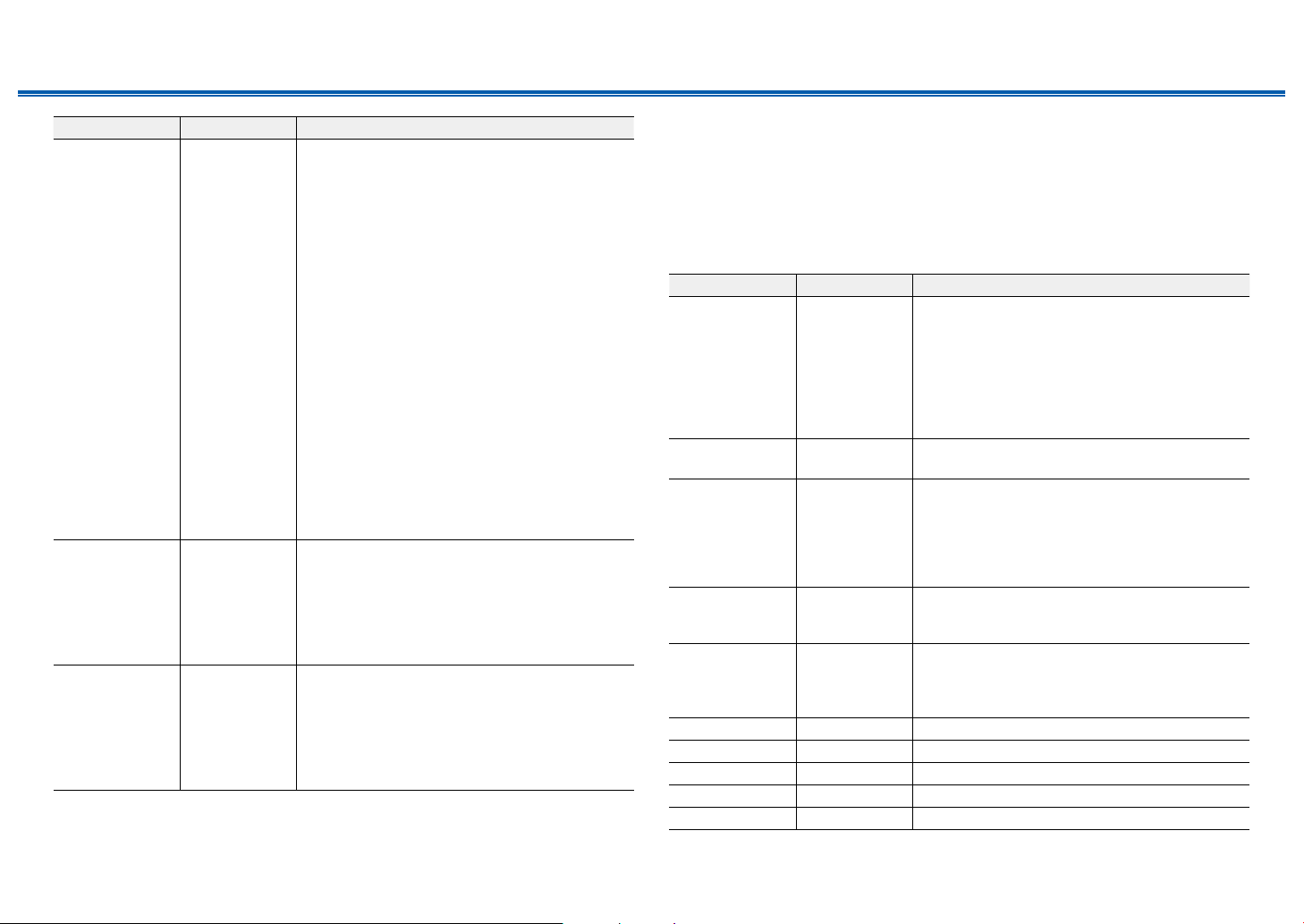
164
Front Panel≫ Rear Panel≫ Remote≫
Contents
≫
Connections
≫
Playback
≫
Setup
≫
Setting Item Default Value Setting Details
Audio TV Out Off You can enjoy audio through the speakers of the
TV while this unit is on.
"On": When this function is used
"Off": When this function is not used
• This setting is xed to "Auto" if you set "1. Input/
Output Assign" - "TV Out/OSD" - "HDMI Out"
or "HDMI" - "HDMI Out" in the "Quick Menu" to
"MAIN" or "MAIN+SUB" and set "HDMI CEC" to
"On". If you change this setting, set "HDMI CEC"
to "Off".
• Listening mode cannot be changed while "Audio
TV Out" is set to "On" and audio is being output
from the TV.
• Depending on your TV or input signal of the
connected device, audio may not be output from
the TV even if this is set to "On". In such a case,
audio is output from the speakers of the unit.
• Audio is output from this unit if you operate the
Master Volume dial on this unit when audio
that is input to this unit is output from your TV
speakers. If you do not want to output audio,
change the setting of this unit or TV, or reduce
the volume of this unit.
Audio Return
Channel (eARC
supported)
Off You can enjoy the sound of an HDMI-connected
ARC-compatible TV or eARC-compatible TV
through the speakers connected to the unit.
"On": When enjoying the TV sound through the
speakers of this unit
"Off": When the ARC function or eARC function is
not used
Auto Lip Sync On Automatically corrects desynchronization between
the video and audio signals based on the
information from the HDMI Lip-Sync-compatible TV.
"On": When enabling the automatic correction
function
"Off": When not using the automatic correction
function
2. Network
Change the settings of the Network function.
• When LAN is congured with a DHCP, set "DHCP" to "Enable" to congure the
setting automatically. ("Enable" is set by default) To assign xed IP addresses
to each components, you must set "DHCP" to "Disable", assign an address to
this unit in the "IP Address" setting, and set information related to your LAN,
such as Subnet Mask and Gateway.
Setting Item Default Value Setting Details
Wi-Fi Off(Wired) Connect the unit to the network via a wireless LAN
router.
"On": Wireless LAN connection
"Off(Wired)": Wired LAN connection
• When switching between "On" and "Off(Wired)",
stop the Network service. Also, when group
playback is in process, cancel the group
playback once, and then switch the setting.
Wi-Fi Setup - Congure wireless LAN settings by pressing Enter
with "Start" displayed.
Wi-Fi Status - The information of the connected access point is
displayed.
"SSID": SSID of the connected access point.
"Signal": Signal strength of the connected access
point.
"Status": Status of the connected access point.
MAC Address - Check the MAC address of this unit.
This value is specic to the component and cannot be
changed.
DHCP Enable "Enable": Auto conguration by DHCP
"Disable": Manual conguration without DHCP
• If you select "Disable", set "IP Address", "Subnet
Mask", "Gateway", and "DNS Server" manually.
IP Address 0.0.0.0 Displays/Sets the IP address.
Subnet Mask 0.0.0.0 Displays/Sets the subnet mask.
Gateway 0.0.0.0 Displays/Sets the gateway.
DNS Server 0.0.0.0 Displays/Sets the primary DNS server.
Proxy URL - Displays/Sets the proxy server URL.
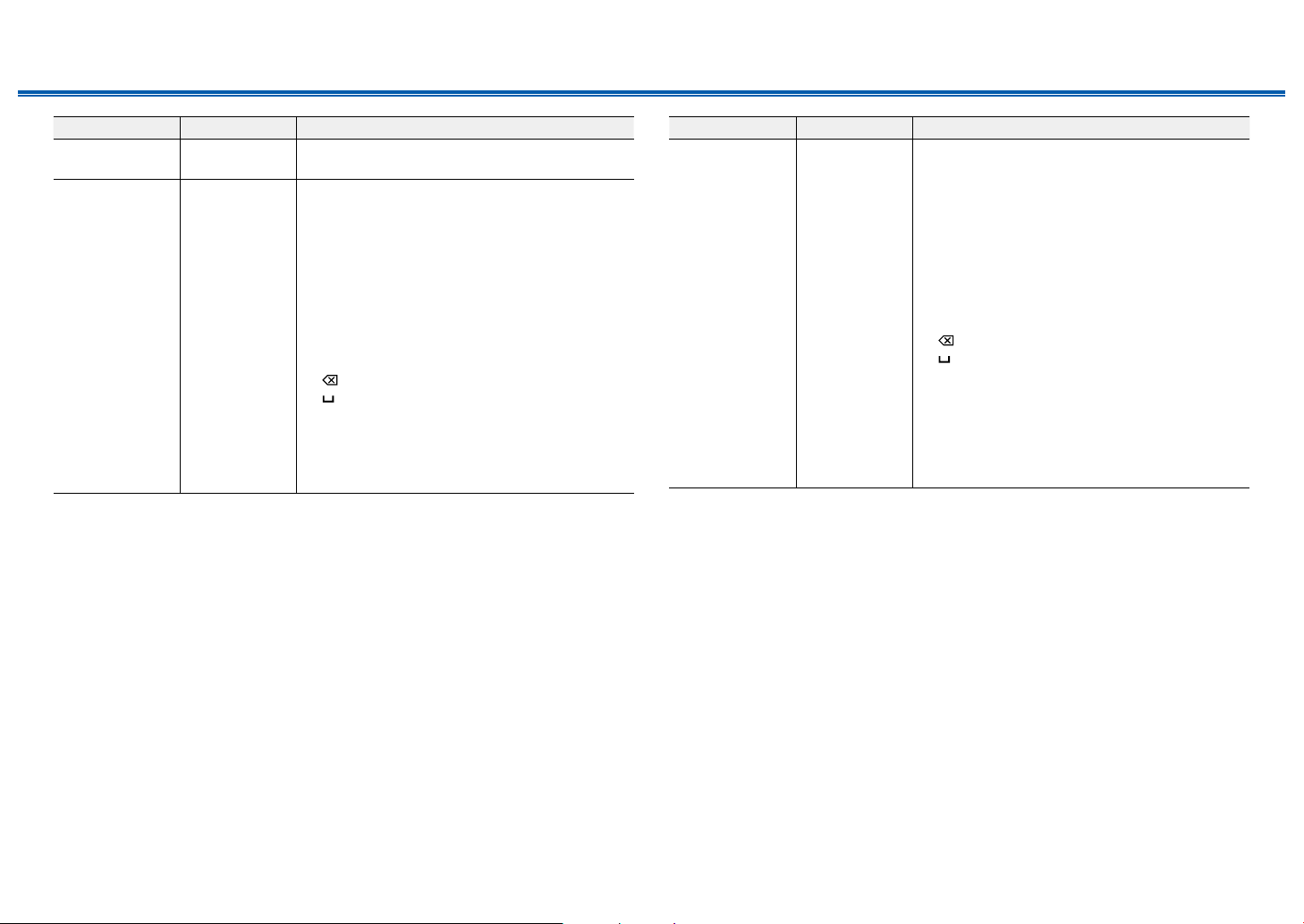
165
Front Panel≫ Rear Panel≫ Remote≫
Contents
≫
Connections
≫
Playback
≫
Setup
≫
Setting Item Default Value Setting Details
Proxy Port 8080 Displays/Sets the proxy server port number when
you input "Proxy URL".
Friendly Name Integra DRX-5.3
XXXXXX
Change the model name of this unit which is
displayed on the device connected to the network
to an easily recognized name.
1.
Press Enter to display the Edit screen.
2. Select a character or symbol with the cursors,
and press Enter.
Repeat this operation to input up to 31 characters.
"A/a": Switches between upper and lower cases.
(Pressing Mode on the remote controller also
toggles between upper and lower cases)
"←" "→": Moves the cursor in the arrow direction.
" ": Removes a character on the left of the cursor.
" ": Enters a space.
• Pressing Clear on the remote controller will
remove all the input characters.
3. After inputting, select "OK" with the cursors, and
press Enter.
The input name will be saved.
Setting Item Default Value Setting Details
AirPlay Device
Name
Integra DRX-5.3
XXXXXX
Change the model name of this unit which is
displayed on the AirPlay-connected device to an
easily recognized name.
1.
Press Enter to display the Edit screen.
2. Select a character or symbol with the cursors,
and press Enter.
Repeat this operation to input up to 31 characters.
"A/a": Switches between upper and lower cases.
(Pressing Mode on the remote controller also
toggles between upper and lower cases)
"←" "→": Moves the cursor in the arrow direction.
" ": Removes a character on the left of the cursor.
"
": Enters a space.
• Pressing Clear on the remote controller will
remove all the input characters.
3. After inputting, select "OK" with the cursors, and
press Enter.
The input name will be saved.
• This function cannot be used when registering
this unit to Home App.
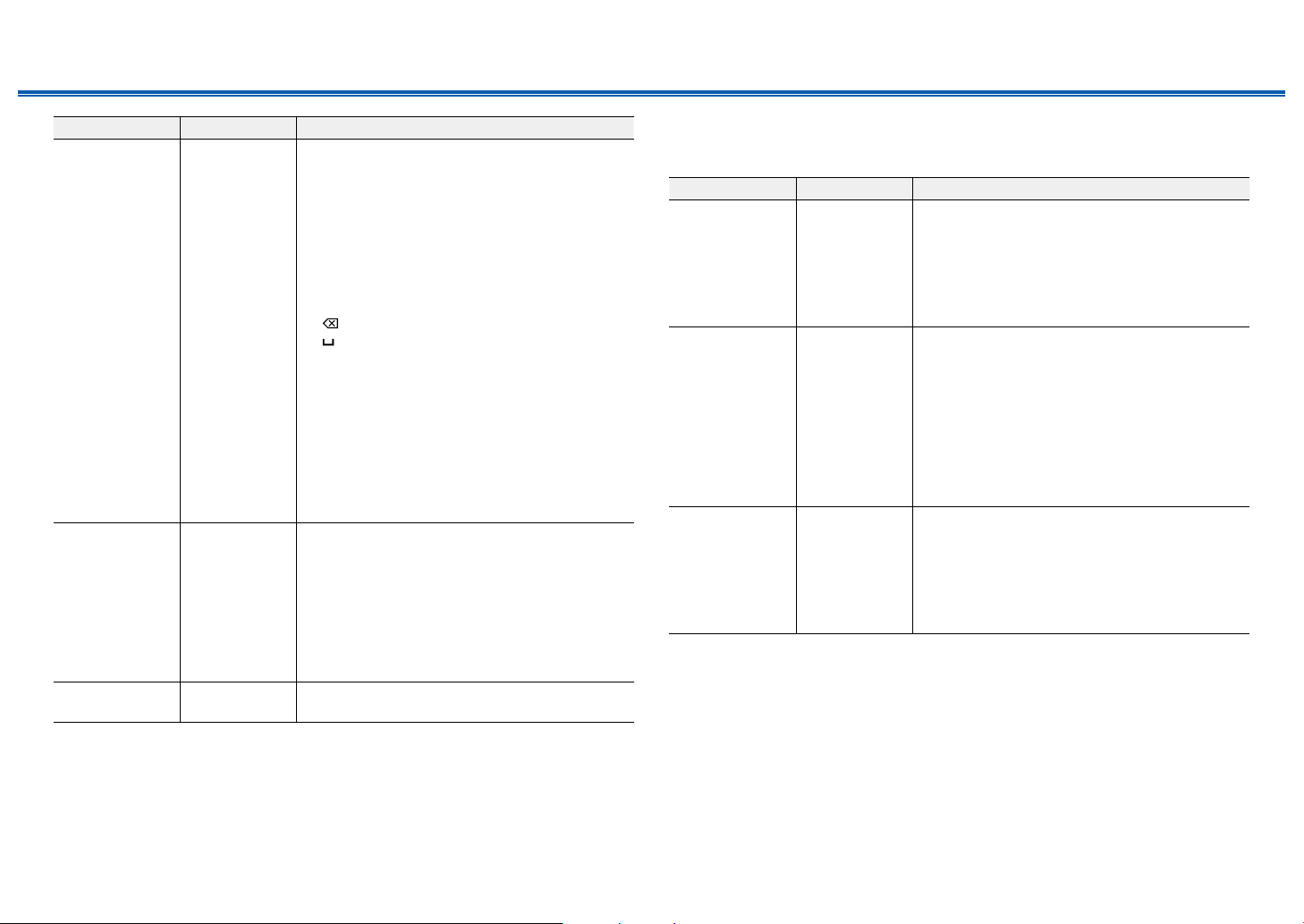
166
Front Panel≫ Rear Panel≫ Remote≫
Contents
≫
Connections
≫
Playback
≫
Setup
≫
Setting Item Default Value Setting Details
AirPlay Password
You can set a password of up to 31 digits so that
only users that have input can use AirPlay
®
.
1.
Press Enter to display the Edit screen.
2. Select a character or symbol with the cursors,
and press Enter.
Repeat this operation to input up to 31 characters.
"A/a": Switches between upper and lower cases.
(Pressing Mode on the remote controller also
toggles between upper and lower cases)
"←" "→": Moves the cursor in the arrow direction.
" ":
Removes a character on the left of the cursor.
" ": Enters a space.
• To select whether to mask the password with
"" or display it in plain text, press Memory on
the remote controller.
• Pressing Clear on the remote controller will
remove all the input characters.
3. After inputting, select "OK" with the cursors, and
press Enter.
The input password will be saved.
• This function cannot be used when registering
this unit to Home App.
Privacy Statement Not Accepted When using a network service that requires a login
name, email address, password, etc., you need to
agree to the Privacy Statement of our company.
• This setting can be made after conrming the
Privacy Statement. When you select "Privacy
Statement" and press Enter, the Privacy
Statement is displayed.
• When “Not Accepted” is selected, you will log out
from the network service you have logged in.
Network Check - You can check the network connection.
Press Enter when "Start" is displayed.
• Wait for a while if "Network" cannot be selected. It can be selected when the network
function is activated.
3. Bluetooth
Change the settings for the Bluetooth function.
Setting Item Default Value Setting Details
Bluetooth On Select whether or not to use the BLUETOOTH
function.
"On": Enables connection with a BLUETOOTH-
enabled device by using the BLUETOOTH
function. Select "On" also when making various
BLUETOOTH settings.
"Off": When not using the BLUETOOTH function
Auto Input
Change
On When a BLUETOOTH-enabled device is played
while it is connected to the unit, the input
of the unit can be automatically switched to
"BLUETOOTH".
"On": The input is automatically set to
"BLUETOOTH" responding to the playback
operation of the BLUETOOTH-enabled device.
"Off": The function is disabled.
• If the input is not switched automatically, set this
to "Off", and change the input manually.
Auto Reconnect On This function automatically reconnects to the
BLUETOOTH-enabled device connected last
when you change the input to "BLUETOOTH".
"On": When this function is used
"Off": When this function is not used
• This may not work with some BLUETOOTH-
enabled devices.
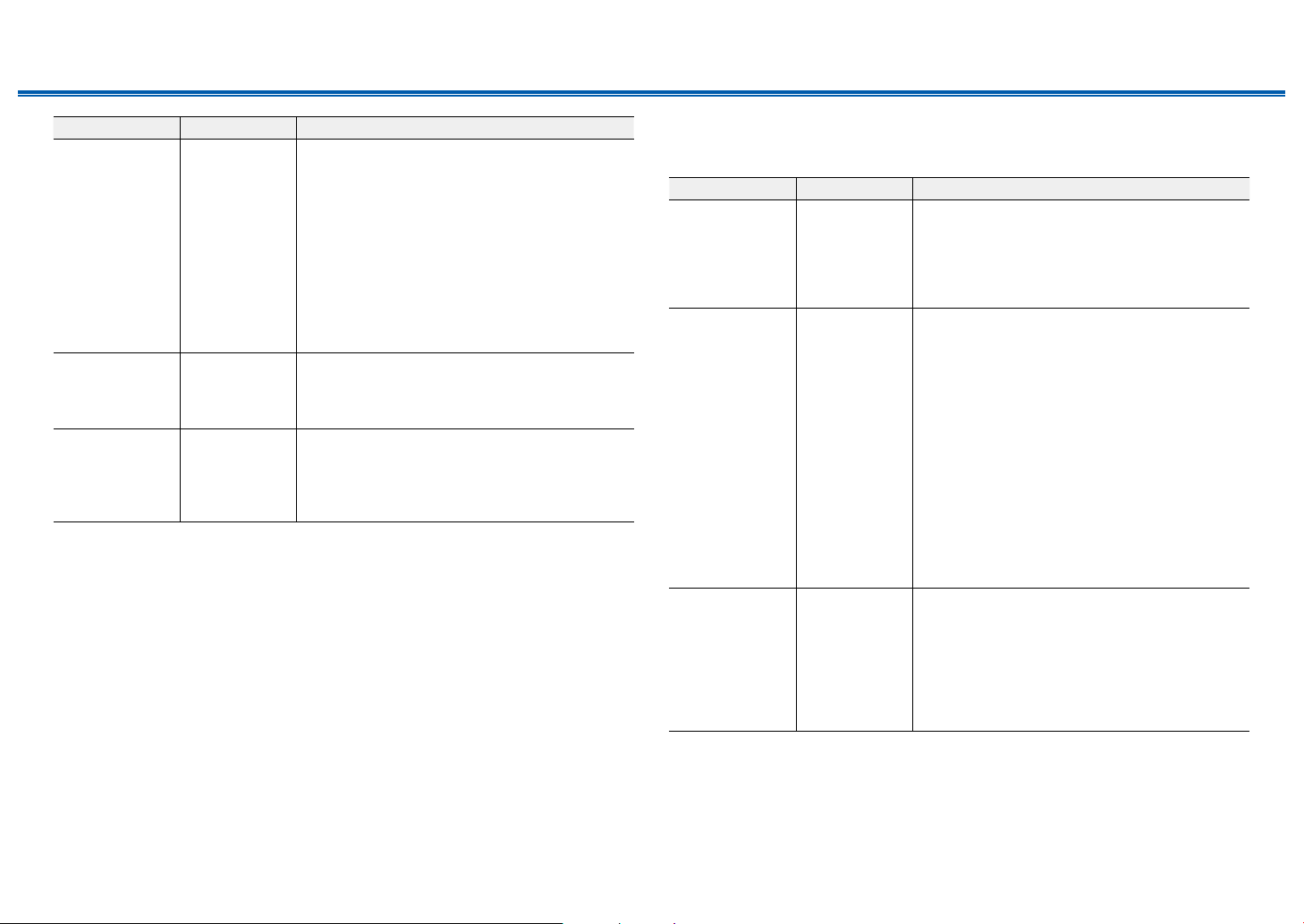
167
Front Panel≫ Rear Panel≫ Remote≫
Contents
≫
Connections
≫
Playback
≫
Setup
≫
Setting Item Default Value Setting Details
Pairing
Information
- You can initialize the pairing information stored on
this unit.
Pressing Enter when "Clear" is displayed initializes
the pairing information stored on this unit.
• This function does not initialize the pairing
information on the BLUETOOTH-enabled
device. When pairing the unit again with the
device, be sure to clear the pairing information
on the BLUETOOTH-enabled device
beforehand. For information on how to clear
the pairing information, refer to the instruction
manual of the BLUETOOTH-enabled device.
Device - Displays the name of the BLUETOOTH-enabled
device connected to the unit.
• The name is not displayed when "Status" is
"Ready" and "Pairing".
Status - Displays the status of the BLUETOOTH-enabled
device connected to the unit.
"Ready": Not paired
"Pairing": Paired
"Connected": Successfully connected
• Wait for a while if "Bluetooth" cannot be selected. It can be selected when the
BLUETOOTH function is activated.
4. Power Management
Change the settings for the power-save function.
Setting Item Default Value Setting Details
Sleep Timer Off You can allow the unit to enter standby
automatically when the specied time has elapsed.
Select a value from "30 minutes", "60 minutes" and
"90 minutes".
"Off": The unit does not automatically enter standby
mode.
Auto Standby On/Off This setting allows the unit to enter standby mode
automatically after 20 minutes of inactivity without
any video or audio input. (When "USB Power Out
at Standby" or "Network Standby" is enabled,
the unit enters the Hybrid Standby mode which
minimizes the increase in power consumption.)
"On": The unit automatically enters standby mode
("AUTO STBY" lights up).
"Off": The unit does not automatically enter standby
mode.
• "Auto Standby" is displayed on the main unit’s
display and TV screen 30 seconds before
entering standby mode.
• "Auto Standby" does not work when ZONE 2/
ZONE 3 is active.
• Default values vary depending on the regions.
Auto Standby in
HDMI Standby
Through
On/Off Enable or disable "Auto Standby" while "HDMI
Standby Through" is on.
"On": The setting is enabled.
"Off": The setting is disabled.
• This setting cannot be set to "On" if "Auto
Standby" and "HDMI Standby Through" are set
to "Off".
• Default values vary depending on the regions.
168
Front Panel≫ Rear Panel≫ Remote≫
Contents
≫
Connections
≫
Playback
≫
Setup
≫
Setting Item Default Value Setting Details
USB Power Out
at Standby
Off When this function is set to "On", electricity can be
supplied to the device connected to the USB port
even if this unit is in standby mode .
• When this function is set to "On", the power
consumption in standby state increases,
however, the increase in power consumption is
minimized by automatically entering the Hybrid
Standby mode where only the essential circuits
operate.
Network Standby On
When this function is set to "On", the network
function works even in standby state, and you can
turn on the power of the unit via network using an
application such as Integra Control Pro that can
control this unit.
• When this function is set to "On", the power
consumption in standby state increases,
however, the increase in power consumption is
minimized by automatically entering the Hybrid
Standby mode where only the essential circuits
operate. Note that even if this function is set to
"Off", when any of the HDMI CEC ( p163),
HDMI Standby Through ( p163), USB Power
Out at Standby ( p168) and Bluetooth
Wakeup ( p168) functions is enabled, this
function will be in "On" state regardless of the
setting.
• When connection to the network is lost, "Network
Standby" may be disabled to reduce power
consumption. In such a case, turn the unit on by
using the power button on the remote controller
or main unit.
Setting Item Default Value Setting Details
Bluetooth Wakeup Off
This function wakes up the unit on standby by
connecting a BLUETOOTH-enabled device.
"On": When this function is used
"Off": When this function is not used
• When this function is set to "On", the power
consumption in standby state increases,
however, the increase in power consumption is
minimized by automatically entering the Hybrid
Standby mode where only the essential circuits
operate.
• This setting is xed to "Off" if "Bluetooth" - "Auto
Input Change" is set to "Off".
• Wait for a while if "Network Standby" and "Bluetooth Wakeup" cannot be selected. It can
be selected when the network function is activated.
169
Front Panel≫ Rear Panel≫ Remote≫
Contents
≫
Connections
≫
Playback
≫
Setup
≫
5. 12V Trigger A
Set when outputting the control signal (maximum 12 V/100 mA) through the 12V
TRIGGER OUT A jack. Different settings can be set for each input selector. You
can enable power link operation when you connect the unit and the external
devices equipped with 12V trigger input jack.
Setting Item Default Value Setting Details
Delay 0 sec Set after how many seconds the 12V trigger output
will occur in response to the unit's operation. As
some devices cause a large current when they turn
on, delay the output if such devices are connected.
Select a value between "0 sec" to "3 sec".
BD/DVD Main Set the 12V trigger output setting to each input.
"Off": No output
"Main": Output when "BD/DVD" is selected as input
for main room.
"Zone 2": Output when "BD/DVD" is selected as
input for ZONE2.
"Main/Zone 2": Output when "BD/DVD" is selected
as input for main room or ZONE2.
"Zone 3": Output when "BD/DVD" is selected as
input for ZONE3.
"Main/Zone 3": Output when "BD/DVD" is selected
as input for main room or ZONE3.
"Zone 2/Zone 3": Output when "BD/DVD" is
selected as input for ZONE2 or ZONE3.
"Main/Zone 2/Zone 3": Output when "BD/DVD"
is selected as input for main room, ZONE2 or
ZONE3.
Setting Item Default Value Setting Details
GAME Main Set the 12V trigger output setting to each input.
"Off": No output
"Main": Output when "GAME" is selected as input
for main room.
"Zone 2": Output when "GAME" is selected as input
for ZONE2.
"Main/Zone 2": Output when "GAME" is selected as
input for main room or ZONE2.
"Zone 3": Output when "GAME" is selected as input
for ZONE3.
"Main/Zone 3": Output when "GAME" is selected as
input for main room or ZONE3.
"Zone 2/Zone 3": Output when "GAME" is selected
as input for ZONE2 or ZONE3.
"Main/Zone 2/Zone 3": Output when "GAME"
is selected as input for main room, ZONE2 or
ZONE3.
CBL/SAT Main Set the 12V trigger output setting to each input.
"Off": No output
"Main": Output when "CBL/SAT" is selected as
input for main room.
"Zone 2": Output when "CBL/SAT" is selected as
input for ZONE2.
"Main/Zone 2": Output when "CBL/SAT" is selected
as input for main room or ZONE2.
"Zone 3": Output when "CBL/SAT" is selected as
input for ZONE3.
"Main/Zone 3": Output when "CBL/SAT" is selected
as input for main room or ZONE3.
"Zone 2/Zone 3": Output when "CBL/SAT" is
selected as input for ZONE2 or ZONE3.
"Main/Zone 2/Zone 3": Output when "CBL/SAT"
is selected as input for main room, ZONE2 or
ZONE3.
170
Front Panel≫ Rear Panel≫ Remote≫
Contents
≫
Connections
≫
Playback
≫
Setup
≫
Setting Item Default Value Setting Details
STRM BOX Main Set the 12V trigger output setting to each input.
"Off": No output
"Main": Output when "STRM BOX" is selected as
input for main room.
"Zone 2": Output when "STRM BOX" is selected as
input for ZONE2.
"Main/Zone 2": Output when "STRM BOX" is
selected as input for main room or ZONE2.
"Zone 3": Output when "STRM BOX" is selected as
input for ZONE3.
"Main/Zone 3": Output when "STRM BOX" is
selected as input for main room or ZONE3.
"Zone 2/Zone 3": Output when "STRM BOX" is
selected as input for ZONE2 or ZONE3.
"Main/Zone 2/Zone 3": Output when "STRM BOX"
is selected as input for main room, ZONE2 or
ZONE3.
PC Main Set the 12V trigger output setting to each input.
"Off": No output
"Main": Output when "PC" is selected as input for
main room.
"Zone 2": Output when "PC" is selected as input for
ZONE2.
"Main/Zone 2": Output when "PC" is selected as
input for main room or ZONE2.
"Zone 3": Output when "PC" is selected as input for
ZONE3.
"Main/Zone 3": Output when "PC" is selected as
input for main room or ZONE3.
"Zone 2/Zone 3": Output when "PC" is selected as
input for ZONE2 or ZONE3.
"Main/Zone 2/Zone 3": Output when "PC" is
selected as input for main room, ZONE2 or ZONE3.
AUX Main Set the 12V trigger output setting to each input.
"Off": No output
"Main": Output when "AUX" is selected as input for
main room.
Setting Item Default Value Setting Details
CD Main Set the 12V trigger output setting to each input.
"Off": No output
"Main": Output when "CD" is selected as input for
main room.
"Zone 2": Output when "CD" is selected as input for
ZONE2.
"Main/Zone 2": Output when "CD" is selected as
input for main room or ZONE2.
"Zone 3": Output when "CD" is selected as input for
ZONE3.
"Main/Zone 3": Output when "CD" is selected as
input for main room or ZONE3.
"Zone 2/Zone 3": Output when "CD" is selected as
input for ZONE2 or ZONE3.
"Main/Zone 2/Zone 3": Output when "CD" is
selected as input for main room, ZONE2 or ZONE3.
TV Main Set the 12V trigger output setting to each input.
"Off": No output
"Main": Output when "TV" is selected as input for
main room.
"Zone 2": Output when "TV" is selected as input for
ZONE2.
"Main/Zone 2": Output when "TV" is selected as
input for main room or ZONE2.
"Zone 3": Output when "TV" is selected as input for
ZONE3.
"Main/Zone 3": Output when "TV" is selected as
input for main room or ZONE3.
"Zone 2/Zone 3": Output when "TV" is selected as
input for ZONE2 or ZONE3.
"Main/Zone 2/Zone 3": Output when "TV" is
selected as input for main room, ZONE2 or ZONE3.
171
Front Panel≫ Rear Panel≫ Remote≫
Contents
≫
Connections
≫
Playback
≫
Setup
≫
Setting Item Default Value Setting Details
PHONO Main Set the 12V trigger output setting to each input.
"Off": No output
"Main": Output when "PHONO" is selected as input
for main room.
"Zone 2": Output when "PHONO" is selected as
input for ZONE2.
"Main/Zone 2": Output when "PHONO" is selected
as input for main room or ZONE2.
"Zone 3": Output when "PHONO" is selected as
input for ZONE3.
"Main/Zone 3": Output when "PHONO" is selected
as input for main room or ZONE3.
"Zone 2/Zone 3": Output when "PHONO" is
selected as input for ZONE2 or ZONE3.
"Main/Zone 2/Zone 3": Output when "PHONO"
is selected as input for main room, ZONE2 or
ZONE3.
TUNER Main Set the 12V trigger output setting to each input.
"Off": No output
"Main": Output when "TUNER" is selected as input
for main room.
"Zone 2": Output when "TUNER" is selected as
input for ZONE2.
"Main/Zone 2": Output when "TUNER" is selected
as input for main room or ZONE2.
"Zone 3": Output when "TUNER" is selected as
input for ZONE3.
"Main/Zone 3": Output when "TUNER" is selected
as input for main room or ZONE3.
"Zone 2/Zone 3": Output when "TUNER" is selected
as input for ZONE2 or ZONE3.
"Main/Zone 2/Zone 3": Output when "TUNER"
is selected as input for main room, ZONE2 or
ZONE3.
Setting Item Default Value Setting Details
NET Main Set the 12V trigger output setting to each input.
"Off": No output
"Main": Output when "NET" is selected as input for
main room.
"Zone 2": Output when "NET" is selected as input
for ZONE2.
"Main/Zone 2": Output when "NET" is selected as
input for main room or ZONE2.
"Zone 3": Output when "NET" is selected as input
for ZONE3.
"Main/Zone 3": Output when "NET" is selected as
input for main room or ZONE3.
"Zone 2/Zone 3": Output when "NET" is selected as
input for ZONE2 or ZONE3.
"Main/Zone 2/Zone 3": Output when "NET" is
selected as input for main room, ZONE2 or ZONE3.
BLUETOOTH Main Set the 12V trigger output setting to each input.
"Off": No output
"Main": Output when "BLUETOOTH" is selected as
input for main room.
"Zone 2": Output when "BLUETOOTH" is selected
as input for ZONE2.
"Main/Zone 2": Output when "BLUETOOTH" is
selected as input for main room or ZONE2.
"Zone 3": Output when "BLUETOOTH" is selected
as input for ZONE3.
"Main/Zone 3": Output when "BLUETOOTH" is
selected as input for main room or ZONE3.
"Zone 2/Zone 3": Output when "BLUETOOTH" is
selected as input for ZONE2 or ZONE3.
"Main/Zone 2/Zone 3": Output when
"BLUETOOTH" is selected as input for main room,
ZONE2 or ZONE3.
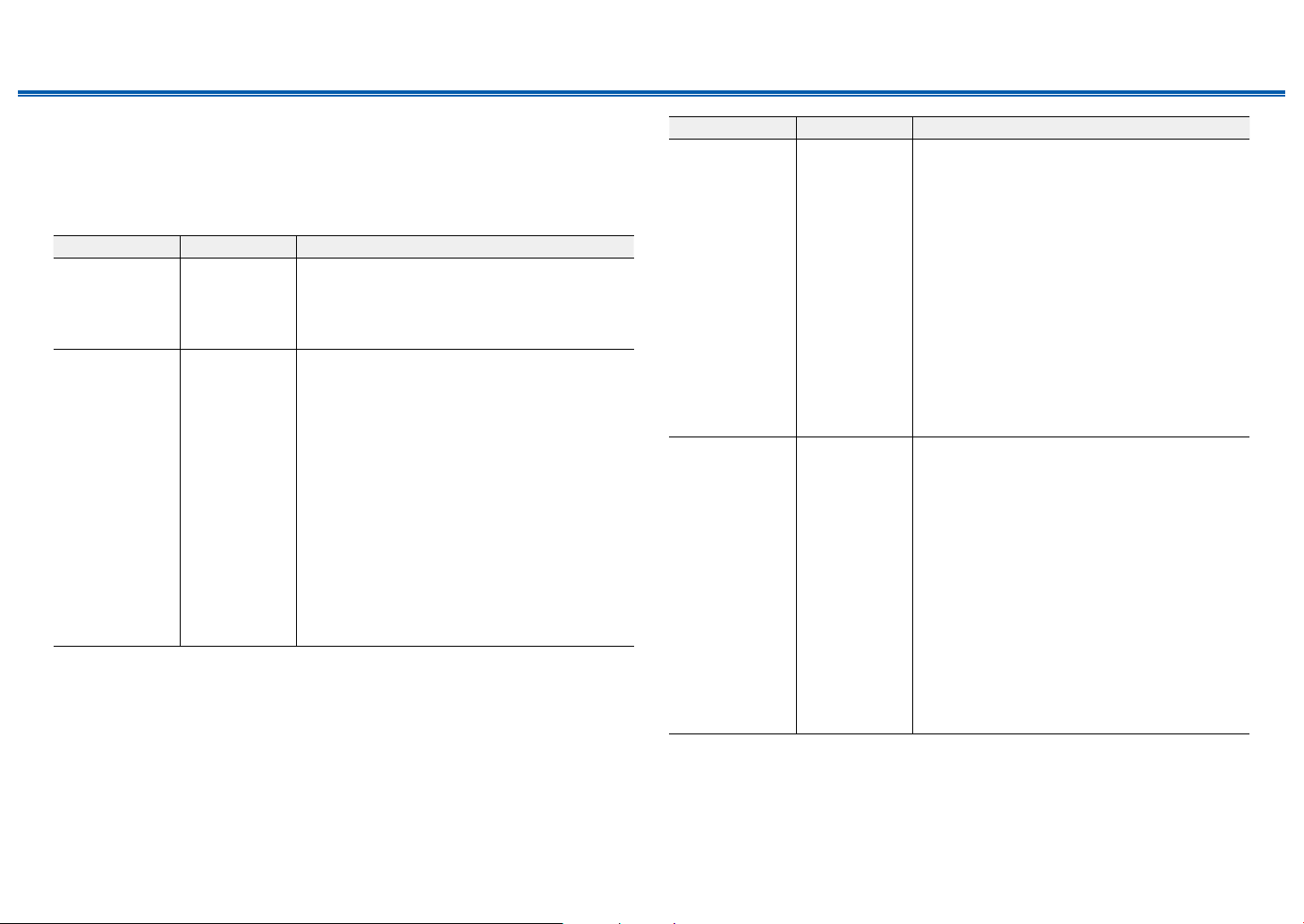
172
Front Panel≫ Rear Panel≫ Remote≫
Contents
≫
Connections
≫
Playback
≫
Setup
≫
6. 12V Trigger B
Set when outputting the control signal (maximum 12 V/25 mA) through the 12V
TRIGGER OUT B jack. Different settings can be set for each input selector. You
can enable power link operation when you connect the unit and the external
devices equipped with 12V trigger input jack.
Setting Item Default Value Setting Details
Delay 1 sec Set after how many seconds the 12V trigger output
will occur in response to the unit's operation. As
some devices cause a large current when they turn
on, delay the output if such devices are connected.
Select a value between "0 sec" to "3 sec".
BD/DVD Zone 2 Set the 12V trigger output setting to each input.
"Off": No output
"Main": Output when "BD/DVD" is selected as input
for main room.
"Zone 2": Output when "BD/DVD" is selected as
input for ZONE2.
"Main/Zone 2": Output when "BD/DVD" is selected
as input for main room or ZONE2.
"Zone 3": Output when "BD/DVD" is selected as
input for ZONE3.
"Main/Zone 3": Output when "BD/DVD" is selected
as input for main room or ZONE3.
"Zone 2/Zone 3": Output when "BD/DVD" is
selected as input for ZONE2 or ZONE3.
"Main/Zone 2/Zone 3": Output when "BD/DVD"
is selected as input for main room, ZONE2 or
ZONE3.
Setting Item Default Value Setting Details
GAME Zone 2 Set the 12V trigger output setting to each input.
"Off": No output
"Main": Output when "GAME" is selected as input
for main room.
"Zone 2": Output when "GAME" is selected as input
for ZONE2.
"Main/Zone 2": Output when "GAME" is selected as
input for main room or ZONE2.
"Zone 3": Output when "GAME" is selected as input
for ZONE3.
"Main/Zone 3": Output when "GAME" is selected as
input for main room or ZONE3.
"Zone 2/Zone 3": Output when "GAME" is selected
as input for ZONE2 or ZONE3.
"Main/Zone 2/Zone 3": Output when "GAME"
is selected as input for main room, ZONE2 or
ZONE3.
CBL/SAT Zone 2 Set the 12V trigger output setting to each input.
"Off": No output
"Main": Output when "CBL/SAT" is selected as
input for main room.
"Zone 2": Output when "CBL/SAT" is selected as
input for ZONE2.
"Main/Zone 2": Output when "CBL/SAT" is selected
as input for main room or ZONE2.
"Zone 3": Output when "CBL/SAT" is selected as
input for ZONE3.
"Main/Zone 3": Output when "CBL/SAT" is selected
as input for main room or ZONE3.
"Zone 2/Zone 3": Output when "CBL/SAT" is
selected as input for ZONE2 or ZONE3.
"Main/Zone 2/Zone 3": Output when "CBL/SAT"
is selected as input for main room, ZONE2 or
ZONE3.
173
Front Panel≫ Rear Panel≫ Remote≫
Contents
≫
Connections
≫
Playback
≫
Setup
≫
Setting Item Default Value Setting Details
STRM BOX Zone 2 Set the 12V trigger output setting to each input.
"Off": No output
"Main": Output when "STRM BOX" is selected as
input for main room.
"Zone 2": Output when "STRM BOX" is selected as
input for ZONE2.
"Main/Zone 2": Output when "STRM BOX" is
selected as input for main room or ZONE2.
"Zone 3": Output when "STRM BOX" is selected as
input for ZONE3.
"Main/Zone 3": Output when "STRM BOX" is
selected as input for main room or ZONE3.
"Zone 2/Zone 3": Output when "STRM BOX" is
selected as input for ZONE2 or ZONE3.
"Main/Zone 2/Zone 3": Output when "STRM BOX"
is selected as input for main room, ZONE2 or
ZONE3.
PC Zone 2 Set the 12V trigger output setting to each input.
"Off": No output
"Main": Output when "PC" is selected as input for
main room.
"Zone 2": Output when "PC" is selected as input for
ZONE2.
"Main/Zone 2": Output when "PC" is selected as
input for main room or ZONE2.
"Zone 3": Output when "PC" is selected as input for
ZONE3.
"Main/Zone 3": Output when "PC" is selected as
input for main room or ZONE3.
"Zone 2/Zone 3": Output when "PC" is selected as
input for ZONE2 or ZONE3.
"Main/Zone 2/Zone 3": Output when "PC" is
selected as input for main room, ZONE2 or ZONE3.
AUX Off Set the 12V trigger output setting to each input.
"Off": No output
"Main": Output when "AUX" is selected as input for
main room.
Setting Item Default Value Setting Details
CD Zone 2 Set the 12V trigger output setting to each input.
"Off": No output
"Main": Output when "CD" is selected as input for
main room.
"Zone 2": Output when "CD" is selected as input for
ZONE2.
"Main/Zone 2": Output when "CD" is selected as
input for main room or ZONE2.
"Zone 3": Output when "CD" is selected as input for
ZONE3.
"Main/Zone 3": Output when "CD" is selected as
input for main room or ZONE3.
"Zone 2/Zone 3": Output when "CD" is selected as
input for ZONE2 or ZONE3.
"Main/Zone 2/Zone 3": Output when "CD" is
selected as input for main room, ZONE2 or ZONE3.
TV Zone 2 Set the 12V trigger output setting to each input.
"Off": No output
"Main": Output when "TV" is selected as input for
main room.
"Zone 2": Output when "TV" is selected as input for
ZONE2.
"Main/Zone 2": Output when "TV" is selected as
input for main room or ZONE2.
"Zone 3": Output when "TV" is selected as input for
ZONE3.
"Main/Zone 3": Output when "TV" is selected as
input for main room or ZONE3.
"Zone 2/Zone 3": Output when "TV" is selected as
input for ZONE2 or ZONE3.
"Main/Zone 2/Zone 3": Output when "TV" is
selected as input for main room, ZONE2 or ZONE3.
174
Front Panel≫ Rear Panel≫ Remote≫
Contents
≫
Connections
≫
Playback
≫
Setup
≫
Setting Item Default Value Setting Details
PHONO Zone 2 Set the 12V trigger output setting to each input.
"Off": No output
"Main": Output when "PHONO" is selected as input
for main room.
"Zone 2": Output when "PHONO" is selected as
input for ZONE2.
"Main/Zone 2": Output when "PHONO" is selected
as input for main room or ZONE2.
"Zone 3": Output when "PHONO" is selected as
input for ZONE3.
"Main/Zone 3": Output when "PHONO" is selected
as input for main room or ZONE3.
"Zone 2/Zone 3": Output when "PHONO" is
selected as input for ZONE2 or ZONE3.
"Main/Zone 2/Zone 3": Output when "PHONO"
is selected as input for main room, ZONE2 or
ZONE3.
TUNER Zone 2 Set the 12V trigger output setting to each input.
"Off": No output
"Main": Output when "TUNER" is selected as input
for main room.
"Zone 2": Output when "TUNER" is selected as
input for ZONE2.
"Main/Zone 2": Output when "TUNER" is selected
as input for main room or ZONE2.
"Zone 3": Output when "TUNER" is selected as
input for ZONE3.
"Main/Zone 3": Output when "TUNER" is selected
as input for main room or ZONE3.
"Zone 2/Zone 3": Output when "TUNER" is selected
as input for ZONE2 or ZONE3.
"Main/Zone 2/Zone 3": Output when "TUNER"
is selected as input for main room, ZONE2 or
ZONE3.
Setting Item Default Value Setting Details
NET Zone 2 Set the 12V trigger output setting to each input.
"Off": No output
"Main": Output when "NET" is selected as input for
main room.
"Zone 2": Output when "NET" is selected as input
for ZONE2.
"Main/Zone 2": Output when "NET" is selected as
input for main room or ZONE2.
"Zone 3": Output when "NET" is selected as input
for ZONE3.
"Main/Zone 3": Output when "NET" is selected as
input for main room or ZONE3.
"Zone 2/Zone 3": Output when "NET" is selected as
input for ZONE2 or ZONE3.
"Main/Zone 2/Zone 3": Output when "NET" is
selected as input for main room, ZONE2 or ZONE3.
BLUETOOTH Zone 2 Set the 12V trigger output setting to each input.
"Off": No output
"Main": Output when "BLUETOOTH" is selected as
input for main room.
"Zone 2": Output when "BLUETOOTH" is selected
as input for ZONE2.
"Main/Zone 2": Output when "BLUETOOTH" is
selected as input for main room or ZONE2.
"Zone 3": Output when "BLUETOOTH" is selected
as input for ZONE3.
"Main/Zone 3": Output when "BLUETOOTH" is
selected as input for main room or ZONE3.
"Zone 2/Zone 3": Output when "BLUETOOTH" is
selected as input for ZONE2 or ZONE3.
"Main/Zone 2/Zone 3": Output when
"BLUETOOTH" is selected as input for main room,
ZONE2 or ZONE3.
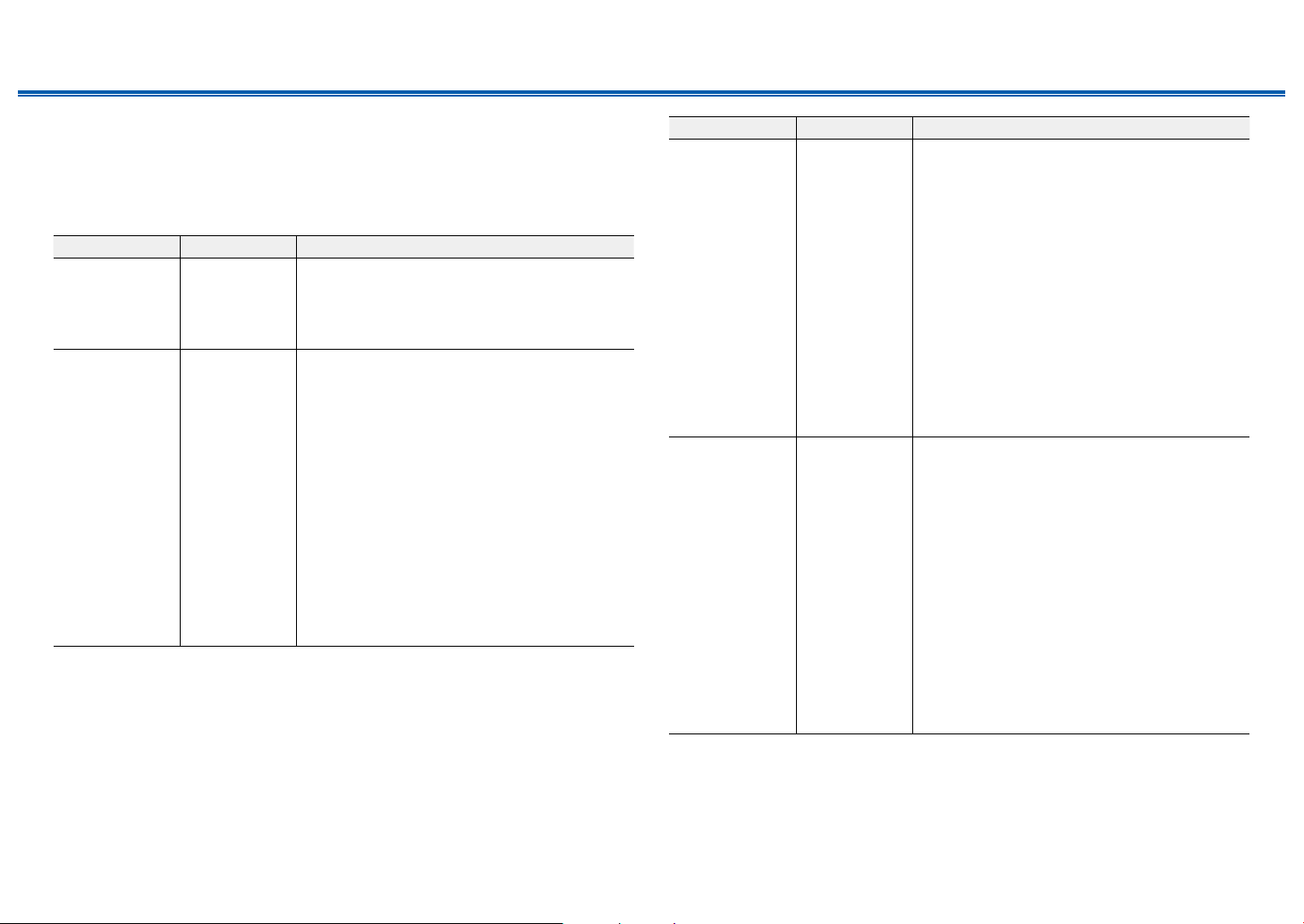
175
Front Panel≫ Rear Panel≫ Remote≫
Contents
≫
Connections
≫
Playback
≫
Setup
≫
7. 12V Trigger C
Set when outputting the control signal (maximum 12 V/25 mA) through the 12V
TRIGGER OUT C jack. Different settings can be set for each input selector. You
can enable power link operation when you connect the unit and the external
devices equipped with 12V trigger input jack.
Setting Item Default Value Setting Details
Delay 2 sec Set after how many seconds the 12V trigger output
will occur in response to the unit's operation. As
some devices cause a large current when they turn
on, delay the output if such devices are connected.
Select a value between "0 sec" to "3 sec".
BD/DVD Main/Zone 2/
Zone 3
Set the 12V trigger output setting to each input.
"Off": No output
"Main": Output when "BD/DVD" is selected as input
for main room.
"Zone 2": Output when "BD/DVD" is selected as
input for ZONE2.
"Main/Zone 2": Output when "BD/DVD" is selected
as input for main room or ZONE2.
"Zone 3": Output when "BD/DVD" is selected as
input for ZONE3.
"Main/Zone 3": Output when "BD/DVD" is selected
as input for main room or ZONE3.
"Zone 2/Zone 3": Output when "BD/DVD" is
selected as input for ZONE2 or ZONE3.
"Main/Zone 2/Zone 3": Output when "BD/DVD"
is selected as input for main room, ZONE2 or
ZONE3.
Setting Item Default Value Setting Details
GAME Main/Zone 2/
Zone 3
Set the 12V trigger output setting to each input.
"Off": No output
"Main": Output when "GAME" is selected as input
for main room.
"Zone 2": Output when "GAME" is selected as input
for ZONE2.
"Main/Zone 2": Output when "GAME" is selected as
input for main room or ZONE2.
"Zone 3": Output when "GAME" is selected as input
for ZONE3.
"Main/Zone 3": Output when "GAME" is selected as
input for main room or ZONE3.
"Zone 2/Zone 3": Output when "GAME" is selected
as input for ZONE2 or ZONE3.
"Main/Zone 2/Zone 3": Output when "GAME"
is selected as input for main room, ZONE2 or
ZONE3.
CBL/SAT Main/Zone 2/
Zone 3
Set the 12V trigger output setting to each input.
"Off": No output
"Main": Output when "CBL/SAT" is selected as
input for main room.
"Zone 2": Output when "CBL/SAT" is selected as
input for ZONE2.
"Main/Zone 2": Output when "CBL/SAT" is selected
as input for main room or ZONE2.
"Zone 3": Output when "CBL/SAT" is selected as
input for ZONE3.
"Main/Zone 3": Output when "CBL/SAT" is selected
as input for main room or ZONE3.
"Zone 2/Zone 3": Output when "CBL/SAT" is
selected as input for ZONE2 or ZONE3.
"Main/Zone 2/Zone 3": Output when "CBL/SAT"
is selected as input for main room, ZONE2 or
ZONE3.
176
Front Panel≫ Rear Panel≫ Remote≫
Contents
≫
Connections
≫
Playback
≫
Setup
≫
Setting Item Default Value Setting Details
STRM BOX Main/Zone 2/
Zone 3
Set the 12V trigger output setting to each input.
"Off": No output
"Main": Output when "STRM BOX" is selected as
input for main room.
"Zone 2": Output when "STRM BOX" is selected as
input for ZONE2.
"Main/Zone 2": Output when "STRM BOX" is
selected as input for main room or ZONE2.
"Zone 3": Output when "STRM BOX" is selected as
input for ZONE3.
"Main/Zone 3": Output when "STRM BOX" is
selected as input for main room or ZONE3.
"Zone 2/Zone 3": Output when "STRM BOX" is
selected as input for ZONE2 or ZONE3.
"Main/Zone 2/Zone 3": Output when "STRM BOX"
is selected as input for main room, ZONE2 or
ZONE3.
PC Main/Zone 2/
Zone 3
Set the 12V trigger output setting to each input.
"Off": No output
"Main": Output when "PC" is selected as input for
main room.
"Zone 2": Output when "PC" is selected as input for
ZONE2.
"Main/Zone 2": Output when "PC" is selected as
input for main room or ZONE2.
"Zone 3": Output when "PC" is selected as input for
ZONE3.
"Main/Zone 3": Output when "PC" is selected as
input for main room or ZONE3.
"Zone 2/Zone 3": Output when "PC" is selected as
input for ZONE2 or ZONE3.
"Main/Zone 2/Zone 3": Output when "PC" is
selected as input for main room, ZONE2 or ZONE3.
AUX Main Set the 12V trigger output setting to each input.
"Off": No output
"Main": Output when "AUX" is selected as input for
main room.
Setting Item Default Value Setting Details
CD Main/Zone 2/
Zone 3
Set the 12V trigger output setting to each input.
"Off": No output
"Main": Output when "CD" is selected as input for
main room.
"Zone 2": Output when "CD" is selected as input for
ZONE2.
"Main/Zone 2": Output when "CD" is selected as
input for main room or ZONE2.
"Zone 3": Output when "CD" is selected as input for
ZONE3.
"Main/Zone 3": Output when "CD" is selected as
input for main room or ZONE3.
"Zone 2/Zone 3": Output when "CD" is selected as
input for ZONE2 or ZONE3.
"Main/Zone 2/Zone 3": Output when "CD" is
selected as input for main room, ZONE2 or ZONE3.
TV Main/Zone 2/
Zone 3
Set the 12V trigger output setting to each input.
"Off": No output
"Main": Output when "TV" is selected as input for
main room.
"Zone 2": Output when "TV" is selected as input for
ZONE2.
"Main/Zone 2": Output when "TV" is selected as
input for main room or ZONE2.
"Zone 3": Output when "TV" is selected as input for
ZONE3.
"Main/Zone 3": Output when "TV" is selected as
input for main room or ZONE3.
"Zone 2/Zone 3": Output when "TV" is selected as
input for ZONE2 or ZONE3.
"Main/Zone 2/Zone 3": Output when "TV" is
selected as input for main room, ZONE2 or ZONE3.
177
Front Panel≫ Rear Panel≫ Remote≫
Contents
≫
Connections
≫
Playback
≫
Setup
≫
Setting Item Default Value Setting Details
PHONO Main/Zone 2/
Zone 3
Set the 12V trigger output setting to each input.
"Off": No output
"Main": Output when "PHONO" is selected as input
for main room.
"Zone 2": Output when "PHONO" is selected as
input for ZONE2.
"Main/Zone 2": Output when "PHONO" is selected
as input for main room or ZONE2.
"Zone 3": Output when "PHONO" is selected as
input for ZONE3.
"Main/Zone 3": Output when "PHONO" is selected
as input for main room or ZONE3.
"Zone 2/Zone 3": Output when "PHONO" is
selected as input for ZONE2 or ZONE3.
"Main/Zone 2/Zone 3": Output when "PHONO"
is selected as input for main room, ZONE2 or
ZONE3.
TUNER Main/Zone 2/
Zone 3
Set the 12V trigger output setting to each input.
"Off": No output
"Main": Output when "TUNER" is selected as input
for main room.
"Zone 2": Output when "TUNER" is selected as
input for ZONE2.
"Main/Zone 2": Output when "TUNER" is selected
as input for main room or ZONE2.
"Zone 3": Output when "TUNER" is selected as
input for ZONE3.
"Main/Zone 3": Output when "TUNER" is selected
as input for main room or ZONE3.
"Zone 2/Zone 3": Output when "TUNER" is selected
as input for ZONE2 or ZONE3.
"Main/Zone 2/Zone 3": Output when "TUNER"
is selected as input for main room, ZONE2 or
ZONE3.
Setting Item Default Value Setting Details
NET Main/Zone 2/
Zone 3
Set the 12V trigger output setting to each input.
"Off": No output
"Main": Output when "NET" is selected as input for
main room.
"Zone 2": Output when "NET" is selected as input
for ZONE2.
"Main/Zone 2": Output when "NET" is selected as
input for main room or ZONE2.
"Zone 3": Output when "NET" is selected as input
for ZONE3.
"Main/Zone 3": Output when "NET" is selected as
input for main room or ZONE3.
"Zone 2/Zone 3": Output when "NET" is selected as
input for ZONE2 or ZONE3.
"Main/Zone 2/Zone 3": Output when "NET" is
selected as input for main room, ZONE2 or ZONE3.
BLUETOOTH Main/Zone 2/
Zone 3
Set the 12V trigger output setting to each input.
"Off": No output
"Main": Output when "BLUETOOTH" is selected as
input for main room.
"Zone 2": Output when "BLUETOOTH" is selected
as input for ZONE2.
"Main/Zone 2": Output when "BLUETOOTH" is
selected as input for main room or ZONE2.
"Zone 3": Output when "BLUETOOTH" is selected
as input for ZONE3.
"Main/Zone 3": Output when "BLUETOOTH" is
selected as input for main room or ZONE3.
"Zone 2/Zone 3": Output when "BLUETOOTH" is
selected as input for ZONE2 or ZONE3.
"Main/Zone 2/Zone 3": Output when
"BLUETOOTH" is selected as input for main room,
ZONE2 or ZONE3.
178
Front Panel≫ Rear Panel≫ Remote≫
Contents
≫
Connections
≫
Playback
≫
Setup
≫
8. Works with SONOS
Change the settings to connect with the Sonos Connect.
Setting Item Default Value Setting Details
Input Selector Off Select the input selector to which the Sonos
Connect is connected.
• Selecting "Off" disables the interlock function
with Sonos.
Connected Device - Displays the Sonos Connect connected to the
same network as the network of this unit. Press
the Enter button to select the connected Sonos
Connect.
• Products (e.g. Play:3 unequipped with an output
terminal) other than the Sonos Connect are also
displayed in the device list and selectable. In that
case, when playback on the Sonos side starts,
the input is switched, however, audio is not
output. Select the room name of the connected
Sonos Connect.
• Up to 32 devices can be displayed on the Sonos
product list screen. If you cannot nd the Sonos
Connect to be interlocked, return to the previous
screen, turn off the product you want to interlock,
and try again.
• To use this function, set "Input Selector"
beforehand.
Setting Item Default Value Setting Details
Output Zone Main Select the zone where you want to listen to the
music.
"Main": Outputs audio only to the main room
(where this unit is located).
"Zone 2": Outputs audio only to the separate room
(ZONE 2).
"Main/Zone 2": Outputs audio to both the main
room and separate room.
"Zone 3": Outputs audio only to the separate room
(ZONE 3).
"Main/Zone 3": Outputs audio to both the main
room and separate room (ZONE 3).
"Zone 2/Zone 3": Outputs audio to both the
separate rooms (ZONE 2 and ZONE 3).
“Main/Zone 2/Zone 3”: Outputs audio to the main
room and both separate rooms (ZONE 2 and
ZONE 3).
• To use this function, set "Input Selector"
beforehand.
Preset Volume Main:
Last
Zone 2:
Last
Zone 3:
Last
You can set the volume beforehand for playing
back the Sonos Connect. You can set volumes
for the main room (where this unit is located) and
separate room (ZONE 2 or ZONE 3) respectively.
Select a value from "Last" (Volume level before
entering standby mode), "Min", "0.5" to "99.5" and
"Max".
• To use this function, set "Input Selector"
beforehand.
179
Front Panel≫ Rear Panel≫ Remote≫
Contents
≫
Connections
≫
Playback
≫
Setup
≫
7. Multi Zone
1. Zone 2
Change the settings for Zone 2.
Setting Item Default Value Setting Details
Output Level Fixed Select whether to adjust the volume on the premain
amplier in the separate room or on this unit when
outputting to Zone 2.
"Fixed": Adjust on the pre-main amplier in the
separate room
"Variable": Adjust on this unit
Maximum Volume Off Set the maximum value for Zone 2 to prevent the
volume from becoming too loud. Select a value
from "Off", and "50" to "99".
(When "3. Audio Adjust" - "Volume" - "Volume
Display" is set to "Absolute")
Power On Volume Last Set the Zone 2 volume level of when the unit is
turned on. Select a value from "Last" (Volume level
when the unit was turned off), "Min", "0.5" to "99.5"
and "Max". (When "3. Audio Adjust" - "Volume" -
"Volume Display" is set to "Absolute")
• You cannot set a higher value than that of
"Maximum Volume".
2. Zone 3
Change the settings for Zone 3.
Setting Item Default Value Setting Details
Output Level Fixed Select whether to adjust the volume on the premain
amplier in the separate room or on this unit when
outputting to Zone 3.
"Fixed": Adjust on the pre-main amplier in the
separate room
"Variable": Adjust on this unit
• When "2. Speaker" - "Conguration" - "Zone
Speaker" is set to "Zone 2/Zone 3", this setting is
xed to "Variable".
Setting Item Default Value Setting Details
Maximum Volume Off Set the maximum value for Zone 3 to prevent the
volume from becoming too loud. Select a value
from "Off", and "50" to "99".
(When "3. Audio Adjust" - "Volume" - "Volume
Display" is set to "Absolute")
Power On Volume Last Set the Zone 3 volume level of when the unit is
turned on. Select a value from "Last" (Volume level
when the unit was turned off), "Min", "0.5" to "99.5"
and "Max". (When "3. Audio Adjust" - "Volume" -
"Volume Display" is set to "Absolute")
• You cannot set a higher value than that of
"Maximum Volume".
3. Remote Play Zone
Change the settings for remote play.
Setting Item Default Value Setting Details
Remote Play
Zone
Auto When playing with AirPlay or Spotify Connect,
or when using the Music Server function to play
remotely from your PC, you can set whether to play
in the main room (where this unit is located) or in a
separate room (ZONE 2/ZONE 3).
"Auto": When the main room input is NET, music
is played in the main room. When the separate
room input is NET and the main room input is other
than NET, then the music is played in the separate
room.
"Main", "Zone 2", "Zone 3": Select when limiting the
play zone to a particular room. For example, when
playing only in the separate room, select "Zone 2"
or "Zone 3".
• This function may not work if playback is already
proceeding with the same network function.
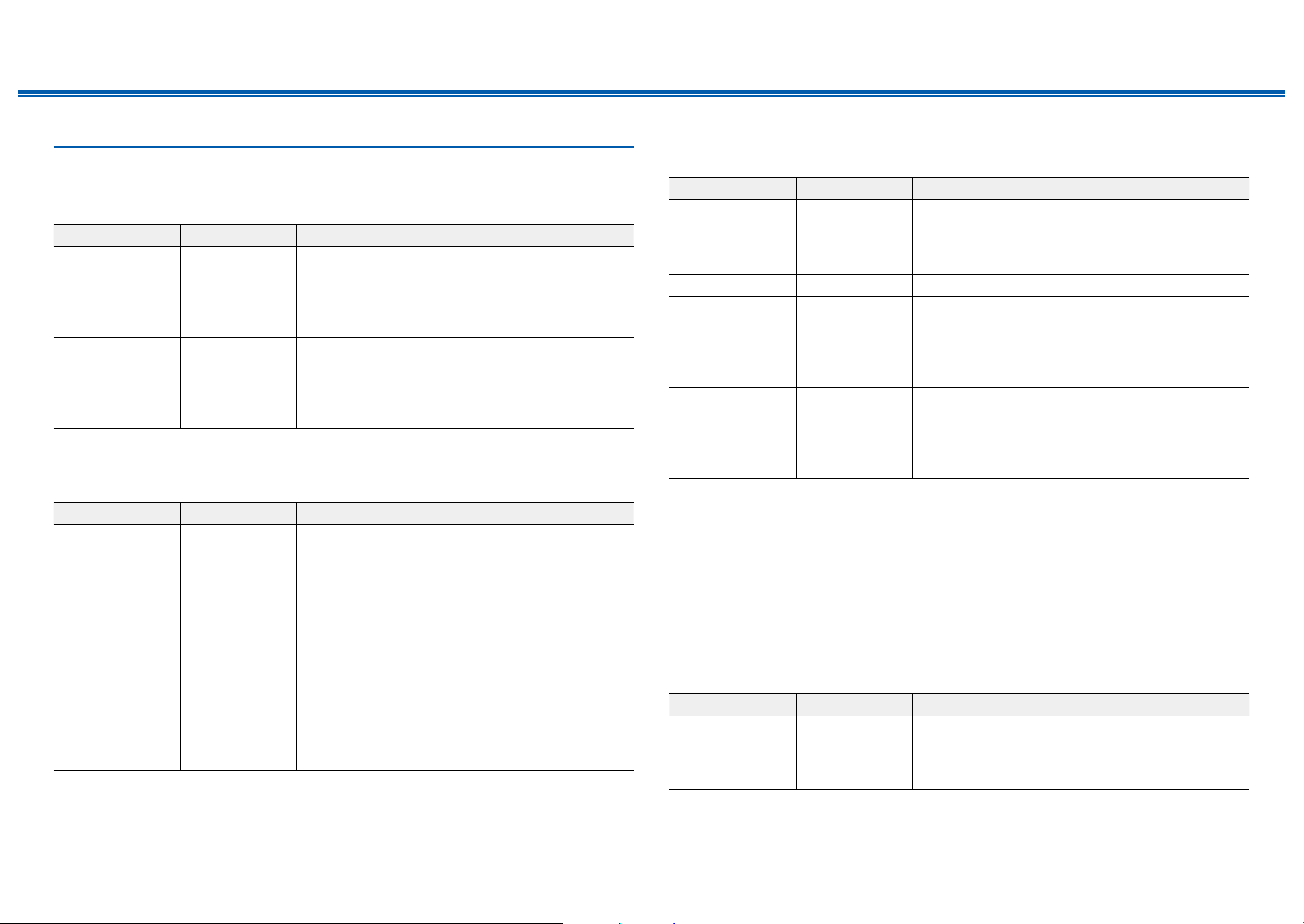
180
Front Panel≫ Rear Panel≫ Remote≫
Contents
≫
Connections
≫
Playback
≫
Setup
≫
8. Miscellaneous
1. Tuner
Change the frequency step for the tuner.
Setting Item Default Value Setting Details
AM/FM
Frequency Step
(North American
models)
10 kHz/0.2 MHz Select a frequency step to suit your residential
area.
Select "10 kHz/0.2 MHz" or "9 kHz/0.05 MHz".
• When this setting is changed, all radio presets
are deleted.
AM Frequency
Step (Australian
and Asian
models)
9 kHz Select a frequency step to suit your residential
area.
Select "10 kHz" or "9 kHz".
• When this setting is changed, all radio presets
are deleted.
2. Remote ID
Change the remote controller ID.
Setting Item Default Value Setting Details
Remote ID 1 If multiple Integra/ONKYO products are installed in
the same room, select the ID for the remote control
used with this unit from "1", "2" and "3" to prevent
interference between the unit and other Integra/
ONKYO products. After changing the ID on the
main unit, set the same ID on the remote controller
as the main unit with the following procedure.
While pressing and holding the Mode button, press
the following buttons for approx. 3 seconds.
• To change the remote controller ID to "1": Movie/
TV
• To change the remote controller ID to "2": Music
• To change the remote controller ID to "3": Game
3. Firmware Update
Change the settings for Firmware Update.
Setting Item Default Value Setting Details
Update Notice Enable Availability of a rmware update is notied via
network.
"Enable": Notify updates
"Disable": Do not notify updates
Version - The current rmware version is displayed.
Update via
NET
- Press Enter to select when updating the rmware
via network.
• This setting cannot be selected if you do not
have Internet access or there is no updatable
rmware.
Update via
USB
- Press Enter to select when updating the rmware
via USB.
• This setting cannot be selected if a USB storage
device is not connected or there is no updatable
rmware in the USB storage device.
• Wait for a while if "Firmware Update" cannot be selected. It can be selected when the
network function is activated.
4. Initial Setup
Make the initial setup from the setup menu.
• Wait for a while if "Initial Setup" cannot be selected. It can be selected when
the network function is activated.
5. Lock
Lock the Setup menu so that the settings cannot be changed.
Setting Item Default Value Setting Details
Setup Parameter Unlocked Lock the Setup menu so that the settings cannot be
changed.
"Locked": The menu is locked.
"Unlocked": The menu is unlocked.
181
Front Panel≫ Rear Panel≫ Remote≫
Contents
≫
Connections
≫
Playback
≫
Setup
≫
6. Factory Reset
All the settings are restored to factory defaults.
Setting Item Default Value Setting Details
Factory Reset - All the settings are restored to factory defaults.
Select "Start" and press Enter.
• If "Factory Reset" is performed, your settings are
restored to the default values. Be sure to note
down your setting contents beforehand.
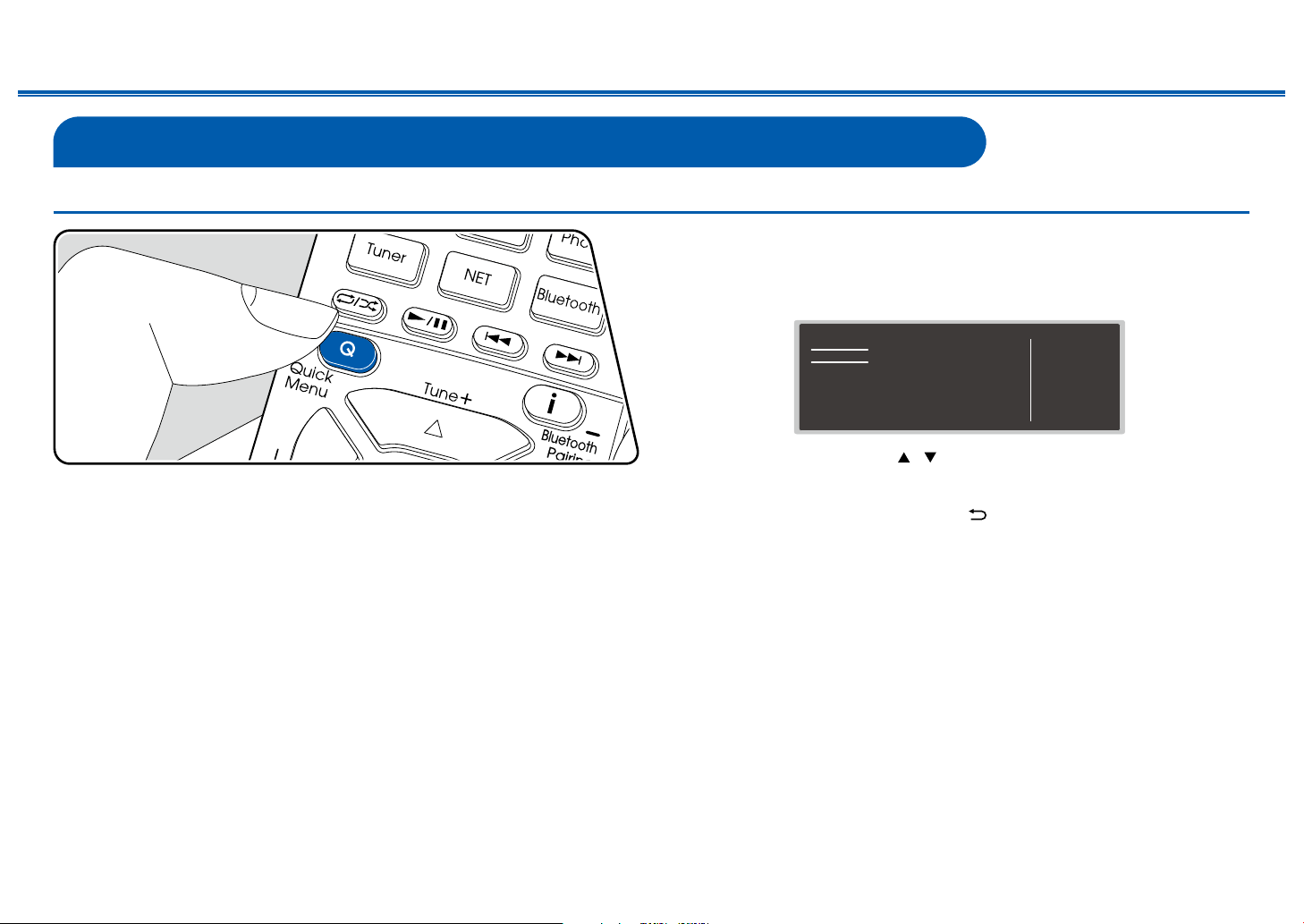
182
Front Panel≫ Rear Panel≫ Remote≫
Contents
≫
Connections
≫
Playback
≫
Setup
≫
Quick Menu
Menu operations
You can quickly adjust the settings you frequently use, such as tone adjustments,
etc.
You can make the settings on the TV screen during playback. Press Q on the
remote controller to display the Quick Menu.
Quick Menu
HDMI
Audio
AccuEQ
Level
HDMI Out
A/V Sync
Audio Return Channel
BD/DVD
Select the item with the cursors / of the remote controller, and press the
Enter button to conrm your selection.
Use the cursors to change the settings.
• To return to the previous screen, press .
• To exit the settings, press Q.
HDMI
HDMI Out: Select the HDMI OUT jack to output video signals from "MAIN",
"SUB", and "MAIN+SUB".
A/V Sync: If the video is behind the audio, you can delay the audio to offset the
gap. The setting can be set for each input.
It cannot be set if the listening mode is Direct.
Audio Return Channel: You can enjoy the sound of the HDMI-connected ARC-
compatible TV through the speakers connected to the unit. Select "On" when
listening to the audio of TV using the speakers of this unit. Select "Off" when the
ARC function is not used.
Audio
Music Optimizer: Improve the quality of the compressed audio. Playback sound

183
Front Panel≫ Rear Panel≫ Remote≫
Contents
≫
Connections
≫
Playback
≫
Setup
≫
of lossy compressed les such as MP3 will be improved. The setting can be set
for each input. This works in signals whose sampling frequencies are 48 kHz or
less. The setting is not effective in the bitstream signals.
• It cannot be set if the listening mode is Direct.
Late Night: Enable small sounds to be easily heard in detail. It is useful when
you need to reduce the volume while watching a movie late night. You can enjoy
the effect only when playing the Dolby series and DTS series input signals.
• This function cannot be used in the following cases.
– When playing Dolby Digital Plus or Dolby TrueHD with "Loudness
Management" set to "Off"
– When the input signal is DTS:X, and "Dialog Control" is not 0 dB
Stereo Assign: When the listening mode is set to "Stereo", the audio output
destination can be set to "Surround", "Surround Back", "Height 1" or "Height 2" in
addition to the normal right and left channels ("Front") of front speakers.
• This function cannot be used if the listening mode is set to modes other than
"Stereo".
• You cannot select speakers that are not set with "2. Speaker" - "Conguration"
on the Setup menu.
Zone B: Select a method of outputting audio to ZONE B from among "Off",
"On(A+B)" and "On(B)".
• In the following cases, "Zone B" cannot be selected.
– When ZONE 2 is On
– When "2. Speaker" - "Conguration" - "Zone 2 Preout" on the Setup menu
is set to "Zone 2" (
p153)
AccuEQ
AccuEQ: Enable or disable the equalizer function that corrects for sound
distortion caused by the acoustic environment of the room. To enable this setting,
normally select "On (All Ch)", and to disable only the front speakers, select "On
(ex. L/R)". The setting can be set for each input.
Manual Equalizer: Select "Preset 1" to "Preset 3" congured in "2. Speaker"
- "Equalizer Settings" on the Setup menu. When this is set to "Off", the same
sound eld setting is applied to all ranges.
Re-EQ, Re-EQ(THX): Adjusts the soundtrack with the enhanced high range so
that it suits a home theater.
The following listening modes can be used for Re-EQ: Dolby Audio - DD, Dolby
Audio - DD+, Dolby Audio - Surr, Dolby Audio - TrueHD, Multichannel, DTS, DTS-
ES, DTS 96/24, DTS-HD High Resolution Audio, DTS-HD Master Audio, DTS
Neural:X, DTS Express and DSD
In Re-EQ(THX), the following listening modes can be used: THX Cinema and
THX Select Cinema.
• It cannot be set if the listening mode is Direct.
EQ for Standing Wave : Setting this "On" will control the effect of the standing
wave generated by the sound wave reected by wall or similar interfering with the
original sound wave.
Level
Front: Adjust the speaker level of the front speakers while listening to the sound.
Center : Adjust the speaker level of the center speaker while listening to the
sound.
Subwoofer: Adjust the speaker level of the subwoofer while listening to the
sound.
• If you set the unit to the standby mode, the adjustments you made will be
restored to the previous statuses.
184
Front Panel≫ Rear Panel≫ Remote≫
Contents
≫
Connections
≫
Playback
≫
Setup
≫
Web Setup
Menu operations
You can make the settings for the network function of this unit using an Internet
browser on a PC, smartphone, etc.
1. Press
on the remote controller to display the Setup menu.
2. Select "6. Hardware" - "Network" with the cursors, and then take a note of the
IP address displayed in "IP Address".
3. Start the Internet browser on your PC, smartphone, etc. and enter the IP
address of this unit in the URL eld.
4. Information for the unit (Web Setup screen) is displayed in the Internet
browser.
AirPlay Device Name:
Device Name:
Friendly Name:
AirPlay Password:
5. After changing the settings, select "Save" to save the settings.
Device Information
You can change the Friendly Name or AirPlay Device Name, set an AirPlay
Password, etc.
Control4: Register this unit if you are using a Control4 system.
Firmware Update: Select the rmware le you have downloaded to your PC so
you can update this unit.
Network Setting
Status: You can see information for the network such as the MAC address and IP
address of this unit.
Network Connection: You can select a network connection method. If you select
"Wireless", select an access point from "Wi-Fi Setup" to connect.
DHCP: You can change DHCP settings. If you select "Off", set "IP Address",
"Subnet Mask", "Gateway" and "DNS Server" manually.
Proxy: Display and set the URL for the proxy server.
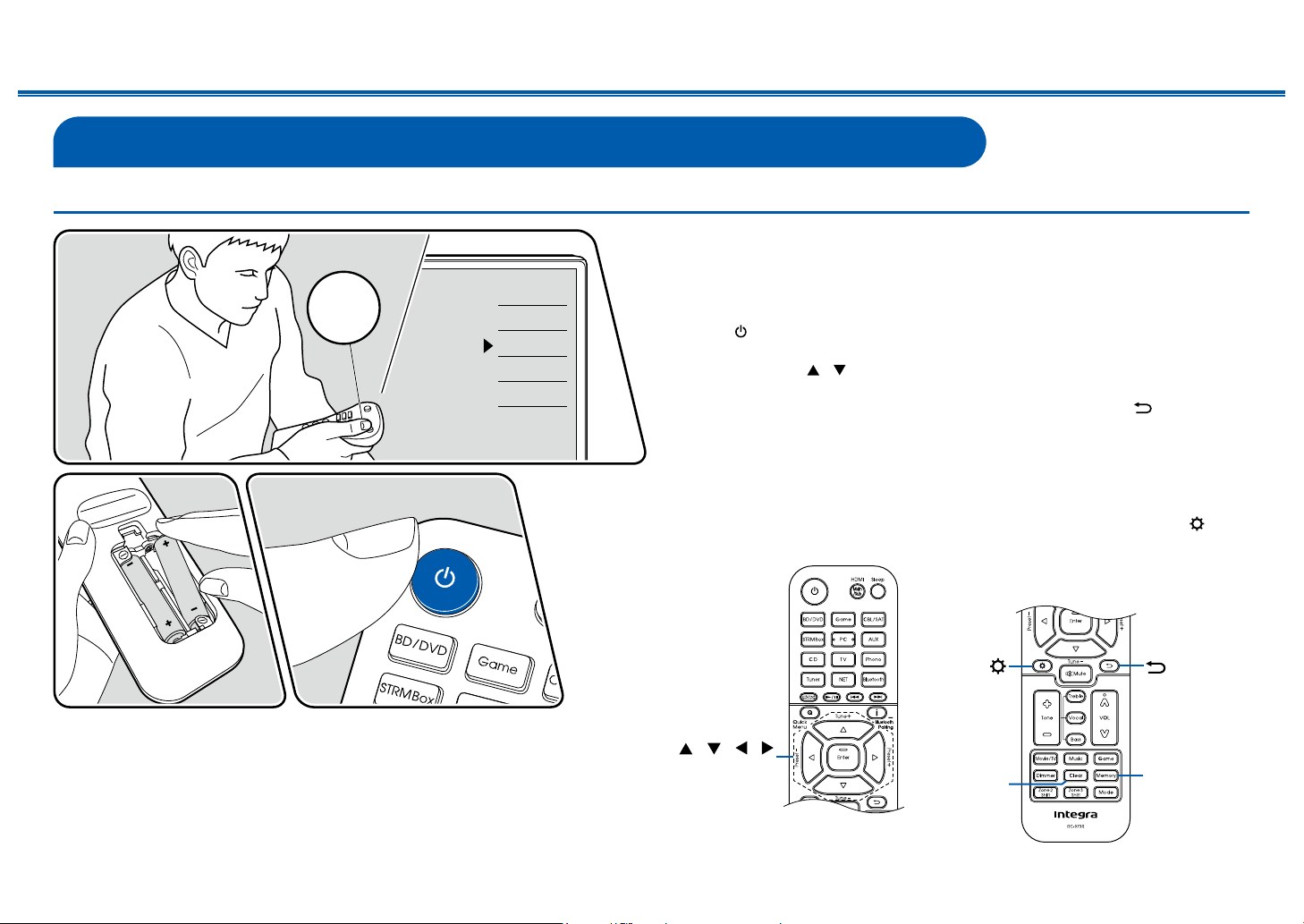
185
Front Panel≫ Rear Panel≫ Remote≫
Contents
≫
Connections
≫
Playback
≫
Setup
≫
Initial Setup with Auto Start-up Wizard
Operations
When you turn the unit on for the rst time after purchase, the Initial Setup screen
is automatically displayed on the TV to allow you to make settings required for
startup using simple operations following on-screen guidance.
1. Switch the input of the TV to the input connected to the unit.
2. Put batteries into the remote controller of this unit.
3. Press on the remote controller to turn the unit on.
4. When the language selection screen is displayed on TV, select the language
with the cursors / and press Enter.
• Select the item with the cursors of the remote controller, and press Enter to
conrm your selection. To return to the previous screen, press .
• If you have terminated the Initial Setup halfway, turn this unit to standby mode
and turn the power on again. Then you can display the Initial Setup again.
The Initial Setup appears on the screen each time the power is turned on
unless the Initial Setup is completed or "Never Show Again" is selected on the
rst screen.
• To perform the Initial Setup again after the setting is completed, press ,
select "8. Miscellaneous" - "Initial Setup", and press Enter.
Clear
Memory
/ / /
Enter
Inputs
TV
HDMI 1
HDMI 2
HDMI 3
TV
INPUT
TV’s REMOTE
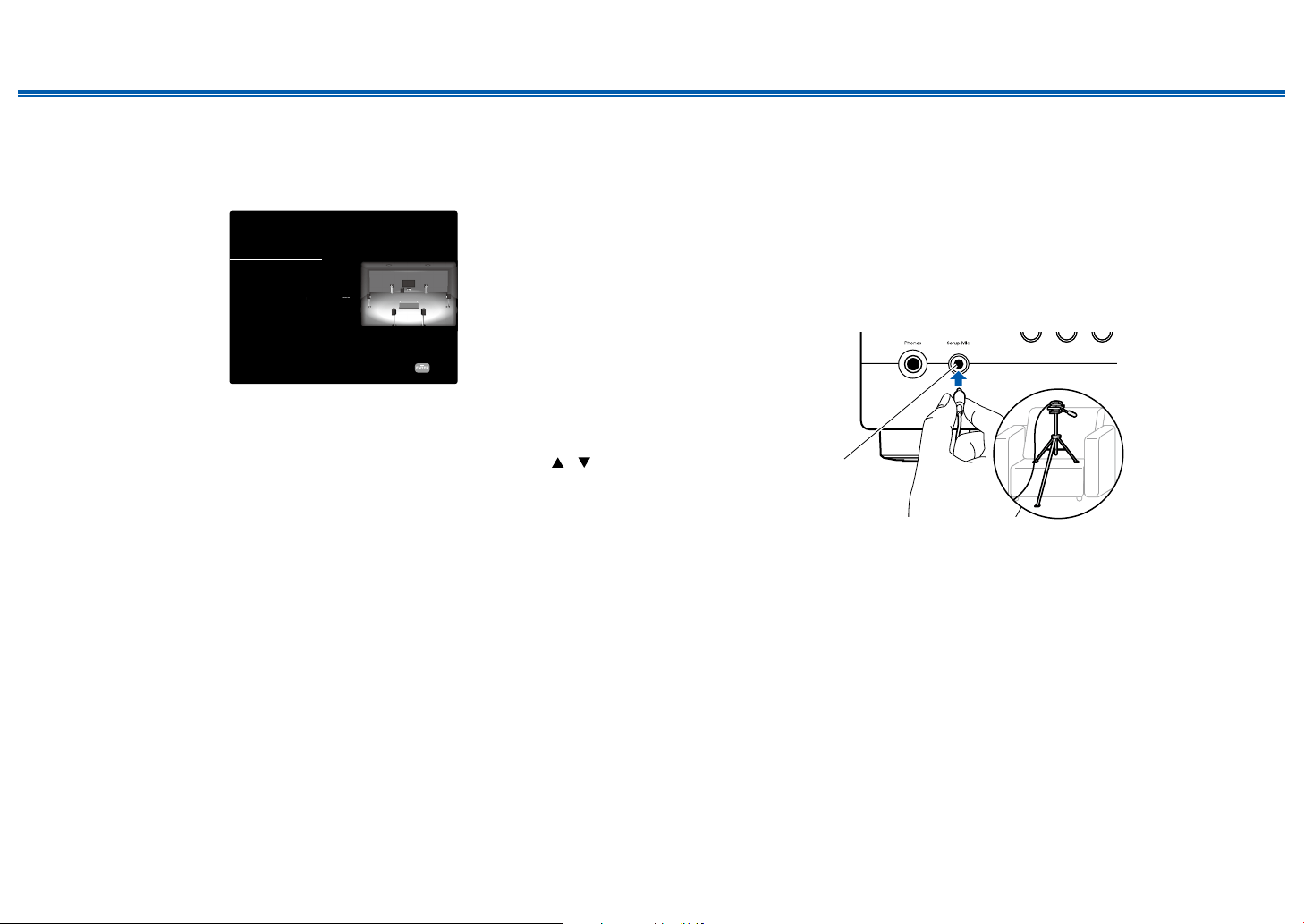
186
Front Panel≫ Rear Panel≫ Remote≫
Contents
≫
Connections
≫
Playback
≫
Setup
≫
1. Speaker Setup
1. Select the connected speaker conguration and press Enter.
Note that the image on the screen changes each time you select the number
of channels in "Speaker Channels".
Speaker Setup
Speaker Channels
Subwoofer
Height 1 Speaker
Height 2 Speaker
Zone Speaker
Zone 2 Preout
Bi-Amp
Speaker Impedance
Select how many speakers you have.
Next
7.1.2 ch
< >
Yes
Top Middle
No
Zone 2
No
6ohms or above
2. The speaker combination selected in step 1 is displayed. "Yes" is displayed for
the selected speakers. If the setting is correct, press Enter.
3. Select "Next" and press Enter. Then a test tone is output from each speaker
to conrm the connection. Selecting each speaker with the cursors / will
output the test tone. Press Enter after conrmation.
4. If there is no problem with the speaker connection, select "Next" and press
Enter. To return to "Speaker Setup", select "Back to Speaker Setup" and press
Enter.
2. AccuEQ Room Calibration
Place the supplied speaker setup microphone at the listening position. The unit
automatically measures the test tones output from each speaker, and sets the
optimum volume level for each speaker, the crossover frequencies, and the
distance from the listening position. This also reduces the effect of the standing
wave in accordance with the viewing environment and automatically adjusts the
equalizers for the speakers, and enables correction of sound distortion caused by
the acoustic environment of the room.
• It takes between 3 and 12 minutes for calibration to be completed. Each
speaker outputs the test tone at high volume during measurement, so be
careful of your surroundings. Also, keep the room as quiet as possible during
measurement.
• If you connect a subwoofer, check the power and volume of the subwoofer.
Set the subwoofer volume to more than half.
• If the power of this unit suddenly turns off, the wires in the speaker cables
have touched the rear panel or other wires, and the protection circuit is
working. Twist the wires again securely, and make sure they do not stick out of
the speaker terminals when connecting.
• When using THX certied speakers, THX recommends that the crossover
frequency is set to "80Hz(THX)". Also, THX recommends that each speaker
setting is manually adjusted according to the specic characteristics of each
room.
1. Place the supplied speaker setup microphone at the listening position, and
connect it to the Setup Mic jack on the main unit.
Setup Mic
When placing the speaker setup microphone on a tripod, refer to the illustration.
2. Conrm a test tone is output from the subwoofer and press Enter.
3. Press Enter to output test tones from each speaker, and the connected
speakers and the noise in the surrounding environment are automatically
measured.
4. The measurement results in step 3 are displayed. If there is no problem in the
detection result of the speaker, select "Next" and press Enter to output the test
tone again to automatically set the settings such as volume level, crossover
frequency, etc., to their optimum. (The test tone is automatically output when
10 seconds has elapsed without any operation.)
• When an error message is displayed or when the connected speakers
cannot be detected, perform re-measurement by selecting "Retry" and
pressing Enter.
• When it cannot be resolved by performing the re-measurement, conrm
if the speakers are connected correctly. If there is any problem with the

187
Front Panel≫ Rear Panel≫ Remote≫
Contents
≫
Connections
≫
Playback
≫
Setup
≫
speaker connection, perform the connection after disconnecting the power
cord.
5. Once the measurement is completed, it is possible to perform the
measurement in 8 additional listening positions. To perform the measurement,
select "Next" and press Enter, then follow the instructions. To not perform the
measurement, select "Finish (Calculate)" and press Enter.
• After each listening position is detected, select “Finish (Calculate)” and
press Enter to complete the detection process.
6. Disconnect the speaker setup microphone.
3. Multi Zone Sound Check
Output test tones to ZONE 2 to enjoy audio in a separate room (ZONE 2) in
addition to the main room.
4. ARC Setup
To connect with an ARC-compatible TV, select "Yes". The ARC setting on this unit
turns on, and you can listen to the TV's audio through this unit.
• Pressing "Yes" turns the HDMI CEC function on, and the power consumption
in standby mode will increase.
5. Network Connection
1. To make the network connection settings, select "Yes" and press Enter.
• A conrmation screen asking you whether to agree to the privacy statement
is displayed during network setting. If you agree, select "Accept" and press
Enter.
2. Select the network connection method and press Enter.
"Wired": Use a wired LAN to connect to a network.
"Wireless": Wi-Fi connection using an access point such as a wireless LAN
router.
• There are two methods for Wi-Fi connection.
"Scan Networks": Search for an access point from this unit. Find out the
SSID of the access point beforehand.
"Use iOS Device (iOS7 or later)": Share the Wi-Fi settings of your iOS
device with this unit.
• If you select "Scan Networks", there are another two types of connection
methods. Check the following.
"Enter Password":Enter the password (or key) of the access point to
connect.
"Push Button": If the access point is equipped with an automatic setting
button, you can connect without entering the password.
• If the SSID of the access point is not displayed, select "Other..." with the
cursor
on the SSID list screen, press Enter, and then follow the on-screen
instructions.
Keyboard Input
To switch between upper and lower cases, select "A/a" on the screen, and press
Enter on the remote controller.
To select whether to mask the password with "" or display it in plain text, press
Memory on the remote controller. Pressing Clear on the remote controller will
delete all the input characters.
188
Troubleshooting
Front Panel≫ Rear Panel≫ Remote≫
Contents
≫
Connections
≫
Playback
≫
Setup
≫
Troubleshooting
Before starting the procedure
Problems may be solved by simply turning the power on/off or disconnecting/
connecting the power cord, which is easier than working on the connection,
setting and operating procedure. Try the simple measures on both the unit and
the connected device. If the problem is that the video or audio is not output or the
HDMI linked operation does not work, disconnecting/connecting the HDMI cable
may solve it. When reconnecting, be careful not to wind the HDMI cable since
if wound the HDMI cable may not t well. After reconnecting, turn off and on the
unit and the connected device.
• The AV receiver contains a microPC for signal processing and control
functions. In very rare situations, severe interference, noise from an external
source, or static electricity may cause it to lockup. In the unlikely event that
this happens, unplug the power cord from the wall outlet, wait at least 5
seconds, and then plug it back in.
• Our company is not responsible for damages (such as CD rental fees) due to
unsuccessful recordings caused by the unit’s malfunction. Before you record
important data, make sure that the material will be recorded correctly.
When the unit is operating erratically 189
Try restarting the unit 189
Resetting the unit
(this resets the unit settings to the default) 190
Troubleshooting 191
Power 191
Audio 191
Listening Modes 193
Video 194
Linked operation 194
Tuner 195
BLUETOOTH function 195
Network function 196
USB storage device 197
Wireless LAN Network 197
ZONE B function 198
Multi-zone function 198
Remote Controller 198
Display 198
Others 199
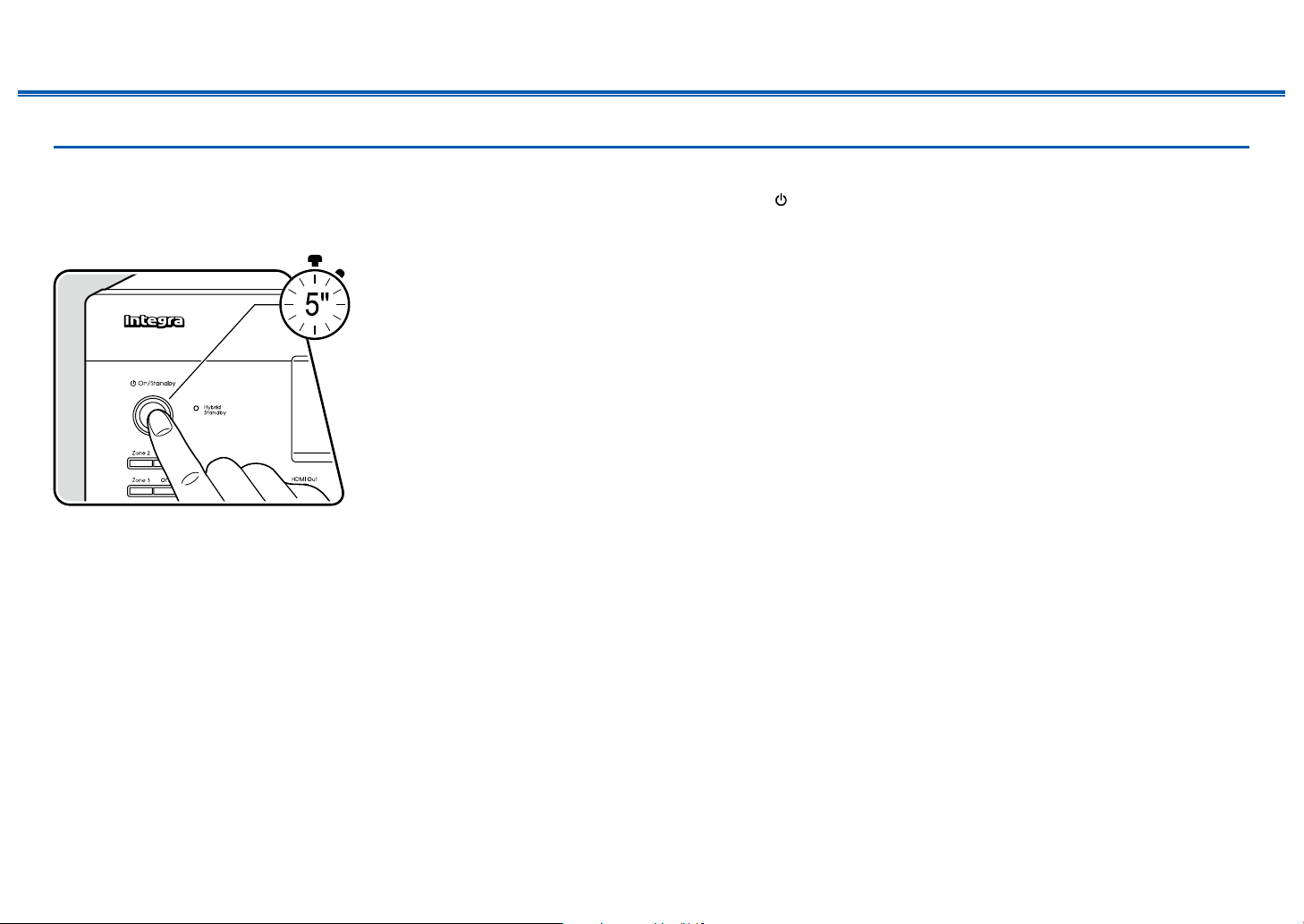
189
Front Panel≫ Rear Panel≫ Remote≫
Contents
≫
Connections
≫
Playback
≫
Setup
≫
When the unit is operating erratically
❏ Try restarting the unit
Restarting this unit may solve the problem. After turning the unit to standby mode, press and hold the On/Standby button of the main unit for at least 5 seconds, and
then restart the unit. (The settings on this unit are kept.) If the problem persists after restarting the unit, unplug and plug the power cords of this unit and connected
devices or HDMI cable .
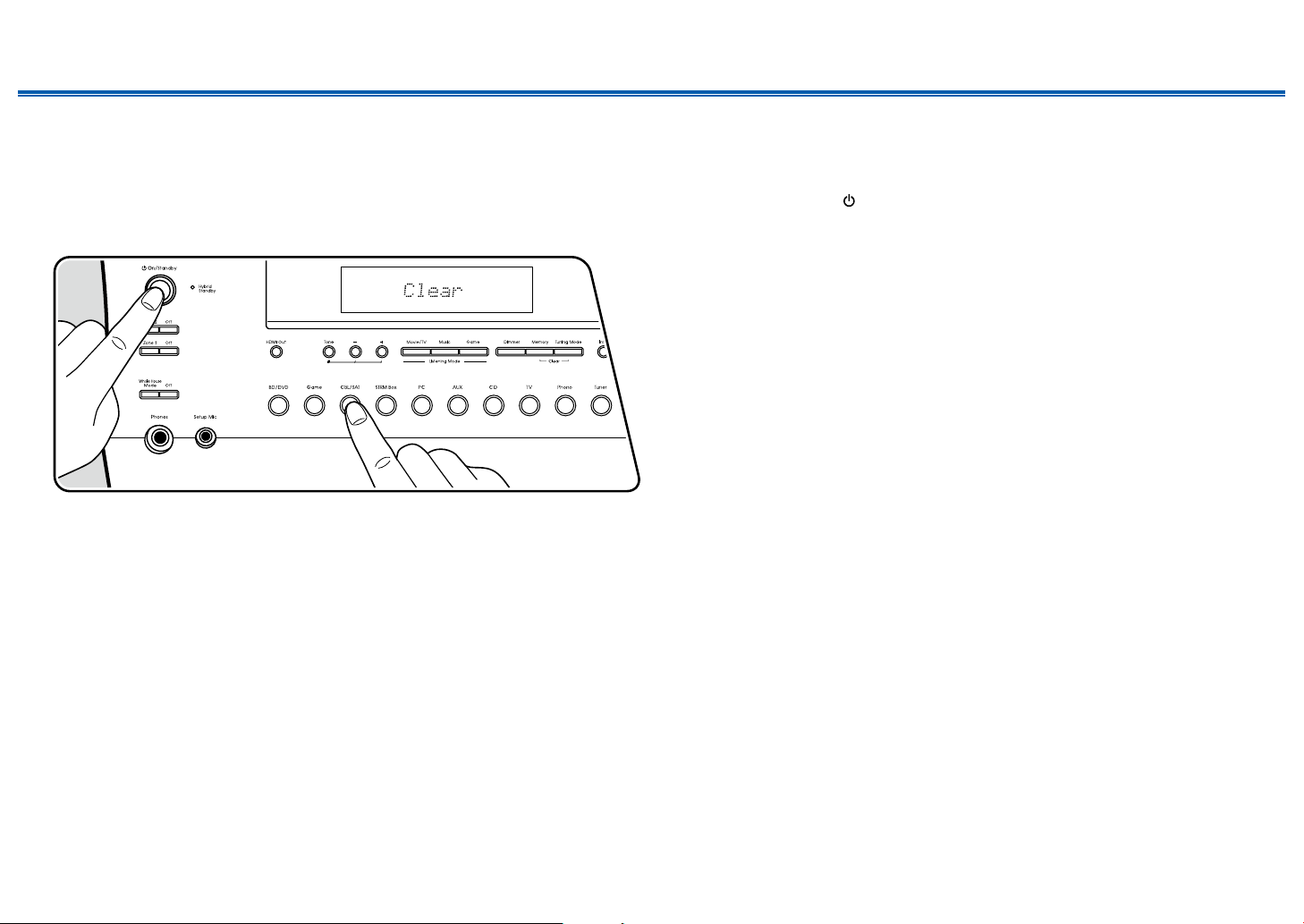
190
Front Panel≫ Rear Panel≫ Remote≫
Contents
≫
Connections
≫
Playback
≫
Setup
≫
❏ Resetting the unit (this resets the unit settings to the default)
If the restart of the unit does not solve the problem, reset the unit, and restore all the settings to the factory default at the time of purchase. This may solve the problem.
If the unit is reset, your settings are restored to the default values. Be sure to note down your setting contents before performing the following operations.
1. While pressing and holding CBL/SAT of the input selector on the main unit with the unit turned on, press the
On/Standby button.
2. "Clear" is displayed on the display, and the unit returns to the standby state. Do not remove the power cord until "Clear" disappears from the display.
To reset the remote controller, while pressing and holding Mode, press the Clear button at least 3 seconds.
2
1
191
Front Panel≫ Rear Panel≫ Remote≫
Contents
≫
Connections
≫
Playback
≫
Setup
≫
Troubleshooting
Power
❏ When the power is turned on, "AMP Diag Mode" appears on the display of the main unit.
• The protection circuit function may have operated. If the unit suddenly enters the standby state and "AMP Diag Mode" appears on the display
of the main unit when the power is turned on again, this function is diagnosing whether or not the main unit is malfunctioning or there is an
abnormality with the speaker cable connection. When the diagnosis is complete, the following messages are displayed.
CH SP WIRE
If the unit returns to the normal ON state after "CH SP WIRE" appears on the display, the speaker cable may have been short-
circuited. After setting the power of this unit to standby state, connect the speaker cable again. Twist the wires exposed from the tip of
the speaker cable so that the wires do not stick out of the speaker terminal.
NG:
If the operation has stopped with "NG" displayed on the display, set the power of this unit to standby state immediately and remove the
power plug from the outlet. The unit may be malfunctioning. Consult a dealer.
❏ The unit turns off unexpectedly
• If "6. Hardware" - "Power Management" - "Auto Standby" on the Setup menu is activated, the unit automatically enters the standby mode.
• The protection circuit function may have operated due to an abnormal rise in temperature of the unit. In such a case, the power turns off
repeatedly even if the power is turned on each time. Secure sufcient ventilation space around the unit, wait for a while until the temperature of
the unit decreases. Then, turn the power on again.
WARNING: If smoke, smell or abnormal noise is produced by the unit, unplug the power cord from the outlet immediately, and contact the dealer or
our company's support.
( p167)
Audio
• Make sure that the speaker setup microphone is no longer connected.
• Conrm that the connection between the output jack on the connected device and the input jack on this unit is correct.
• Make sure that none of the connecting cables are bent, twisted, or damaged.
• If the MUTE indicator on the display blinks, press on the remote controller to cancel muting.
• While headphones are connected to the Phones jack, no sound is output from the speakers.
• When "4. Source" - "Audio Select" - "PCM Fixed Mode" on the Setup menu is set to "On", audio is not played if signals other than PCM are input.
Change the setting to Off.
Check the following if the problem persists after you have conrmed the above.
❏ No sound from the TV
• Change the input selector on this unit to the position of the terminal to which the TV is connected.
• If the TV does not support the ARC function, along with the connection by an HDMI cable, connect the TV with this unit using a digital optical cable or
analog audio cable.
( p66)

192
Front Panel≫ Rear Panel≫ Remote≫
Contents
≫
Connections
≫
Playback
≫
Setup
≫
❏ No sound from a connected player
• Change the input selector on this unit to the position of the jack to which the player is connected.
• Check the digital audio output setting on the connected device. On some game consoles, such as those supporting DVD, the default setting may
be off.
• For some DVD-Video discs, you need to select an audio output format from a menu.
❏ A speaker produces no sound
• Make sure that the polarity (+/-) of the speaker cables is correct, and that no bare wires are in contact with the metal part of speaker terminals.
• Make sure that the speaker cables are not shorting out.
• Check "Connect the Speaker Cables" ( p45) to see if the speaker connections have been made correctly. Settings for the speaker connection
environment need to be made in "Speaker Setup" in Initial Setup. Check "Initial Setup with Auto Start-up Wizard" ( p185).
• Depending on the input signal and listening mode, not much sound may be output from speakers. Select another listening mode to see if sound is
output.
• If surround back speakers are installed, be sure to install surround speakers as well.
• A maximum of 7.1 ch playback is possible when Bi-Amping connection is used. Be sure to remove the jumper bar on the speakers when using
Bi-Amping connection.
( p45)
❏ The subwoofer produces no sound
If the setting of the front speakers is "Full Band", the low range elements will be output from the front speakers instead of from the subwoofer during
2 ch audio input of TV or music. To output the sound from the subwoofer, make one of the following settings.
1. Change the setting for the front speakers to a setting of crossover frequency value other than "Full Band".
The range below the specied frequency will be output from the subwoofer instead of from the front speakers. If your front speakers have a high
low-range reproduction capability, changing this setting is not recommended.
2. Change "Double Bass" to "On".
The low range elements of the front speakers will be output from both the front speakers and the subwoofer. Due to this, the bass sound may be
emphasized too much. In such a case, do not change the setting, or make the setting with the above option 1.
• For the setting details, refer to "2. Speaker" - "Crossover" on the Setup menu.
• If the input signals do not contain subwoofer audio elements (LFE), the subwoofer may produce no sound.
( p154)
❏ Noise can be heard
• Using cable ties to bundle audio pin cables, power cords, speaker cables, etc. may degrade the audio performance. Do not bundle the cords.
• An audio cable may be picking up interference. Change the position of the cables.
❏ The beginning of audio received by an HDMI IN cannot be heard
• Since it takes longer to identify the format of an HDMI signal than it does for other digital audio signals, audio output may not start immediately.

193
Front Panel≫ Rear Panel≫ Remote≫
Contents
≫
Connections
≫
Playback
≫
Setup
≫
❏ Sound suddenly reduces
• When using the unit for extended periods with the temperature inside the unit exceeding a certain temperature, the volume may be reduced
automatically to protect the circuits.
❏ Sound suddenly changes
• When "My Input Volume" is set, the volume is set for each input selector. Check "4. Source" - "My Input Volume" on the Setup menu ( p161).
Listening Modes
• To enjoy digital surround playback in formats such as Dolby Digital, you need to make a connection for audio signals with an HDMI cable, digital
coaxial cable or digital optical cable. Also, audio output need to be set to Bitstream output on the connected Blu-ray Disc player, etc.
• Press on the remote controller several times to switch the display of the main unit, and you can check the input format.
Check the following if the problem persists after you have conrmed the above.
❏ Cannot select a desired listening mode
• Depending on the connection status of the speaker, some listening modes may not be selected. Check "Speaker Layouts and Selectable
Listening Modes" ( p119) or "Input Formats and Selectable Listening Modes" ( p128) of "Listening Mode".
❏ Cannot listen to the sound in Dolby TrueHD, Dolby Atmos or DTS-HD Master Audio format
• If the audio in Dolby TrueHD, Dolby Atmos or DTS-HD Master Audio format cannot be output correctly in the source format, set "BD video
supplementary sound" (or reencode, secondary sound, video additional audio, etc.) to "Off" in the setting of a connected Blu-ray Disc player, etc.
After changing the setting, switch the listening mode to that for each source, and conrm.
❏ About DTS signals
• With media that switches suddenly from DTS to PCM, PCM playback may not start immediately. In such a case, stop playback on the player side
for approx. 3 seconds or more. Then, resume playback. The playback will be performed normally.
• DTS playback may not be performed normally on some CD and LD players even if the player and this unit are digitally connected. If some
processing (e.g., output level adjustment, sampling frequency conversion, or frequency characteristic conversion) has been executed for the DTS
signal being output, this unit cannot recognize it as a genuine DTS signal, and noise may occur.
• While playing a DTS-compatible disc, if a pause or skip operation is performed on your player, noise may occur for a short period. This is not a
malfunction.

194
Front Panel≫ Rear Panel≫ Remote≫
Contents
≫
Connections
≫
Playback
≫
Setup
≫
Video
• Conrm that the connection between the output jack on the connected device and the input jack on this unit is correct.
• Make sure that none of the connecting cables are bent, twisted, or damaged.
• When the TV image is blurry or unclear, the power cord or connection cables of the unit may have interfered. In such a case, keep distance
between TV antenna cable and cables of the unit.
• Check the switching of the input screen on the monitor side such as a TV.
Check the following if the problem persists after you have conrmed the above.
❏ No image appears
• If a 4K high-quality video is played, use a Premium High Speed HDMI Cable or Premium High Speed HDMI Cable with Ethernet whose package
has a "PREMIUM Certied Cable" label.
• Change the input selector on this unit to the position of the jack to which the player is connected.
❏ No image from a device connected to HDMI IN jack
• To display video from the connected player on the TV while the unit is in standby, you need to enable "6. Hardware" - "HDMI" - "HDMI Standby
Through" on the Setup menu. For details of the HDMI Standby Through function, check "6. Hardware" - "HDMI" on the Setup menu.
• To output video to a TV connected to the HDMI OUT SUB jack, press the Q button on the remote controller to display "Quick Menu" and select
"HDMI" - "HDMI Out", or press the HDMI Main/Sub button on the remote controller and select the HDMI OUT jack.
• Check if "Resolution Error" is displayed on the main unit display when video input via HDMI IN jack is not displayed. In this case, the TV does not
support the resolution of the video input from the player. Change the setting on the player.
• Normal operation with an HDMI-DVI adapter is not guaranteed. In addition, video signals output from a PC are not guaranteed.
( p163)
❏ Images icker
• The output resolution of the player may not be compatible with the resolution of the TV. If the player is connected to this unit with an HDMI cable,
change the output resolution on the player. Also this may be solved by changing the screen mode on the TV.
❏ Video and audio are out of synch
• Depending on the settings on your TV and connection environment, the video may be behind the audio. Press Q on the remote controller to
display "Quick Menu", select "HDMI" - "A/V Sync", and make the adjustment.
( p182)
Linked operation
❏ HDMI linked operation does not work with CEC-compliant devices, such as a TV
• In the Setup menu of the unit, set "6. Hardware" - "HDMI" - "HDMI CEC" to "On".
• It is also necessary to set HDMI linking on the CEC-compliant device. Check the instruction manual.
( p163)

195
Front Panel≫ Rear Panel≫ Remote≫
Contents
≫
Connections
≫
Playback
≫
Setup
≫
Tuner
❏ Poor reception or much noise
• Recheck the antenna connection.
• Move the antenna away from the speaker cord or power cord.
• Move the unit away from your TV or PC.
• Passing cars or airplanes in the vicinity can cause interference.
• If radio waves are blocked by concrete walls, etc., radio reception may be poor.
• Change the reception mode to mono ( p104).
• Operating the remote controller during AM reception may cause noise.
• FM reception may be clearer if you use the antenna jack on the wall used for the TV.
( p75)
BLUETOOTH function
• Unplug and plug the power cord of the unit, or turn off and on the BLUETOOTH-enabled device. Restart of the BLUETOOTH-enabled device may
be effective.
• BLUETOOTH-enabled devices must support the A2DP prole.
• Because a radio wave interference will occur, this unit may not be used near devices such as a microwave oven or cordless phone which use the
radio wave in the 2.4 GHz range.
• A metallic object near the unit can affect on the radio wave, and BLUETOOTH connection may not be possible.
Check the following if the problem persists after you have conrmed the above.
❏ Cannot connect with this unit
• Check if the BLUETOOTH function of the BLUETOOTH-enabled device is enabled. ( p166)
❏ Music playback is unavailable on the unit even after successful BLUETOOTH connection
• When the audio volume of your BLUETOOTH-enabled device is set low, the audio may not be played back. Turn up the volume of the
BLUETOOTH-enabled device.
• Depending on the BLUETOOTH-enabled device, the Send/Receive selector switch may be equipped. Select Send mode.
• Depending on the characteristics or specications of the BLUETOOTH-enabled device, music may not be played back on this unit.
❏ Sound is interrupted
• There may a problem with the BLUETOOTH-enabled device. Check the information on a web page.
❏ The audio quality is poor after connection with a BLUETOOTH-enabled device
• The BLUETOOTH reception is poor. Move the BLUETOOTH-enabled device closer to the unit, or remove any obstacle between the
BLUETOOTH-enabled device and this unit.

196
Front Panel≫ Rear Panel≫ Remote≫
Contents
≫
Connections
≫
Playback
≫
Setup
≫
Network function
• If you cannot select a network service, start up the network function to select it. It may take approx. one minute to start it up.
• When the NET indicator is blinking, this unit is not properly connected to the home network.
• Unplug and plug the power cords of this unit and the router, or restart the router.
• If the desired router is not displayed in the access point list, it may be set to hide SSID, or the ANY connection may be off. Change the setting and
try again.
Check the following if the problem persists after you have conrmed the above.
❏ Cannot access the Internet radio
• In the case the service provider has terminated the service, the network service or contents may not be used on this unit.
• Check if your modem and router are properly connected, and they are both turned on.
• Check if the LAN side port on the router is properly connected to this unit.
• Check if connecting to Internet from other devices is possible. If it is not possible, turn off all devices connected to the network, wait for a while,
and then turn on the devices again.
• Depending on ISP, setting the proxy server is required.
• Check if the router and modem you are using are supported by your ISP.
❏ Cannot access the network server
• This unit needs to be connected to the same router as the network server.
• This unit supports the Windows Media
®
Player 11 or 12 network servers, or NASes that support the home network function.
• Windows Media
®
Player may require some settings. Refer to "Playing back les on a PC and NAS (Music Server)".
• When using a PC, only the music les registered in the library of Windows Media
®
Player can be played.
( p93)
❏ Sound is interrupted when playing music les on the network server
• Check if the network server meets the requirements for operation.
• When the PC is serving as the network server, quit application software other than the server software (Windows Media
®
Player 12, etc.).
• If the PC is downloading or copying large les, the playback sound may be interrupted.

197
Front Panel≫ Rear Panel≫ Remote≫
Contents
≫
Connections
≫
Playback
≫
Setup
≫
USB storage device
❏ USB storage device is not displayed
• Check if the USB storage device or USB cable is securely inserted to the USB port of the unit.
• Disconnect the USB storage device once from the unit, and then reconnect it.
• Performance of the hard disk that receive power from the USB port of the unit is not guaranteed.
• Depending on the type of content, the playback may not be performed normally. Check the types of supported le formats.
• Operations of USB storage devices equipped with security functions are not guaranteed.
( p90)
Wireless LAN Network
• Unplug and plug the power cords of this unit and the wireless LAN router, check the power-on status of the wireless LAN router, or restart the
wireless LAN router.
Check the following if the problem persists after you have conrmed the above.
❏ Cannot access wireless LAN network
• The wireless LAN router setting may be switched to Manual. Restore the setting to Auto.
• Try the manual set-up. The connection may succeed.
• When the wireless LAN router is in stealth mode (mode to hide SSID) or when the ANY connection is off, the SSID is not displayed. Change the
setting and try again.
• Check if the SSID and encryption settings (WEP, etc.) are correct. Match the network settings with the settings of this unit.
• Connection to an SSID that includes multi-byte characters is not supported. Set the SSID of the wireless LAN router using single-byte
alphanumeric characters only, and try again.
❏ Connected to an SSID different from the selected SSID
• Some wireless LAN routers allow you to set multiple SSIDs for one unit. If connecting to such a router using the automatic setting button, you may
end up connecting to an SSID different from the SSID you want to connect to. If this occurs, use the connection method requiring you to enter a
password
❏ Playback sound is interrupted, or communication is not possible
• You may not receive radio waves due to poor radio wave conditions. Shorten the distance from the wireless LAN router, or remove obstacles to
improve visibility, and connect again. Install the unit away from microwave ovens or other access points. It is recommended to install the wireless
LAN router and the unit in the same room.
• If there is a metallic object near the unit, wireless LAN connection may not be possible because the metal affects the radio wave.
• When other wireless LAN devices are used near the unit, other symptoms may occur, such as interrupted playback and impossible
communication. You can avoid those problems by changing the channel of your wireless LAN router. For instructions on changing channels, refer
to the instruction manual supplied with your wireless LAN router.
• There may not be enough bandwidth available in wireless LAN. Use a wired LAN for connection.

198
Front Panel≫ Rear Panel≫ Remote≫
Contents
≫
Connections
≫
Playback
≫
Setup
≫
ZONE B function
❏ Cannot output audio to ZONE B
• To output audio to ZONE B, set the audio output destination for "Audio" - "Zone B" on Quick menu to "On(A+B)" or "On(B)" and also set
"2. Speaker" - "Conguration" - "Zone 2 Preout" on the Setup menu to "Zone B".
( p113)
Multi-zone function
❏ Cannot ZONE-output the audio of externally connected AV components
• To output audio from an externally connected AV component to ZONE 2, connect it to any of HDMI IN1 to IN3 jacks. If the AV component is not
equipped with an HDMI jack, use a digital coaxial cable, digital optical cable or analog audio cable. Also, the audio from externally connected AV
components can be output to ZONE 2 only when the audio is analog or 2ch PCM signal. When the AV component is connected to this unit with an
HDMI cable, digital coaxial cable or digital optical cable, change the audio output of the AV component to the PCM output.
• When video and audio via HDMI input are output to ZONE 2, set "1. Input/Output Assign" - "TV Out / OSD" - "Zone 2 HDMI" ( p148) to "Use"
on the Setup menu.
• To output audio from an externally connected AV component to ZONE 3, use an analog audio cable for connection. Also, audio from externally
connected AV components can be output to ZONE 3 only when it is an analog audio signal.
❏ Others
• If the audio signal is from the NET input selector, the zone output is not possible for DSD audio signals.
Remote Controller
• Make sure that the batteries are inserted with the correct polarity.
• Insert new batteries. Do not mix different types of batteries, or old and new batteries.
• Make sure that the sensor of the main unit is not subjected to direct sunlight or inverter-type uorescent lights. Relocate it if necessary.
• If the main unit is installed in a rack or cabinet with colored-glass doors, or if the doors are closed, the remote controller may not work normally.
Display
❏ The display does not light up
• When the Dimmer function is working, the display may go dim. Press the Dimmer button, and change the brightness level of the display. ( p15)

199
Front Panel≫ Rear Panel≫ Remote≫
Contents
≫
Connections
≫
Playback
≫
Setup
≫
Others
❏ Strange noise can be heard from the unit
• If you have connected another device to the same outlet as this unit, strange noise may occur under the inuence of the device. If the symptom is
remedied by removing the power plug of the other device from the outlet, use different outlets for this unit and the device.
❏ The message "Noise Error" appears during AccuEQ Room Calibration
• This can be caused by a malfunction in your speaker unit. Check the speaker output, etc.
❏ The measurement results of AccuEQ Room Calibration show different distances to the speakers from
the actual ones
• Depending on the speakers you are using, some errors may occur in the measurement results. If this is the case, make the settings in
"2. Speaker" - "Distance" in the Setup menu.
( p155)
❏ The measurement results of AccuEQ Room Calibration show that the volume level of the subwoofer
has been corrected to the lower limit
• The volume level correction of the subwoofer may not have been completed. Lower the volume of the subwoofer before AccuEQ Room
Calibration measurement.
200
Appendix
Front Panel≫ Rear Panel≫ Remote≫
Contents
≫
Connections
≫
Playback
≫
Setup
≫
Reducing the Power Consumption in Standby State
When the following functions are enabled, the power consumption in standby state increases. To reduce the power consumption in standby state, check each setting
and set the functions to "Off".
– HDMI CEC ( p163)
– HDMI Standby Through ( p163)
– USB Power Out at Standby ( p168)
– Network Standby ( p168)
– Bluetooth Wakeup ( p168)
201
Front Panel≫ Rear Panel≫ Remote≫
Contents
≫
Connections
≫
Playback
≫
Setup
≫
About HDMI
Compatible functions
HDMI (High Denition Multimedia Interface) is a digital interface standard for
connecting TVs, projectors, Blu-ray Disc/DVD players, digital tuners, and other
video components. Several separate video and audio cables have been required
to connect AV components so far. With HDMI, a single cable can transmit control
signals, digital video and digital audio (2-channel PCM, multichannel digital audio,
and multichannel PCM).
HDMI CEC function:
By connecting a device that complies with CEC (Consumer Electronics Control)
of the HDMI standard using an HDMI cable, a variety of linked operations
between devices are possible. This function enables various linking operations
with players, such as switching input selectors interlocking with a player,
adjusting the volume of this unit using the remote controller of a TV, and
automatically switching this unit to standby when the TV is turned off.
The unit is designed to link with products that comply with the CEC standard,
however, linked operation is not always guaranteed with all CEC devices.
For linked functions to work properly, do not connect CEC-compliant devices
exceeding the connectable number to the HDMI jack as shown below.
• Blu-ray Disc/DVD players: up to 3 units
• Blu-ray Disc/DVD recorders: up to 3 units
• Cable TV tuner, terrestrial digital tuner, and satellite broadcasting tuner: up to
4 units
We have conrmed the operations of the following devices. (As of January 2019)
Toshiba brand televisions; Sharp brand televisions; Onkyo and Integra brand
RIHD-compatible players; Toshiba brand players and recorders; Sharp brand
players and recorders (when used with a Sharp brand television)
ARC (Audio Return Channel)/eARC (Enhanced Audio Return Channel):
The ARC function and eARC function transmit the audio signals of the TV via an
HDMI cable, and plays the audio of the TV on this unit. By connecting an ARC-
compatible TV or eARC-compatible TV with a single HDMI cable, you can output
the audio and video from this unit to the TV, and also input the audio from the TV
to this unit.
• The eARC function is a newly added function for HDMI 2.1. This is an
expanded function from the existing ARC function, and is able to send audio
formats such as Dolby TrueHD and DTS-HD Master Audio that cannot be sent
with the ARC function, from an eARC-compatible TV to this unit.
– ARC-supported audio formats: PCM, Dolby Digital, Dolby Digital Plus, DTS
(DTS 96/24, DTS-ES, etc.)
– eARC-supported audio formats: PCM, Dolby Digital, Dolby Digital Plus,
DTS (DTS 96/24, DTS-ES, etc.), Dolby TrueHD, Dolby Atmos, DTS-HD
Master Audio, DTS:X, Multichannel PCM
HDMI Standby Through:
Even if this unit is in standby mode, the input signals from AV components can be
transmitted to the TV.
Deep Color:
By connecting devices supporting Deep Color, video signals input from the
devices can be reproduced on the TV with even more colors.
x.v.Color™:
This technology reproduces even more realistic colors by expanding the color
gamut.
3D:
You can transmit 3D video signals from AV components to the TV.
4K:
This unit supports 4K (3840×2160p) and 4K SMPTE (4096×2160p) video signals.
Lip Sync:
Automatically corrects desynchronization between the video and audio signals
based on the information from the HDMI Lip-Sync-compatible TV.
Copyright Protection:
The HDMI jack of this unit conforms to the Revision 1.4 and Revision 2.2
standards of the HDCP (High-bandwidth Digital Content Protection), a copy
protection system for digital video signals. Other devices connected to the unit
must also conform to the HDCP standards.

202
Front Panel≫ Rear Panel≫ Remote≫
Contents
≫
Connections
≫
Playback
≫
Setup
≫
Supported Audio Formats
2 ch linear PCM:
32 kHz, 44.1 kHz, 48 kHz, 88.2 kHz, 96 kHz, 176.4 kHz, 192 kHz, 16/20/24 bit
Multi-channel linear PCM:
Maximum 7.1 channels, 32 kHz, 44.1 kHz, 48 kHz, 88.2 kHz, 96 kHz, 176.4 kHz,
192 kHz, 16/20/24 bit
Bitstream:
Dolby Atmos, Dolby Digital, Dolby Digital Plus, Dolby TrueHD, DTS, DTS:X, DTS-
HD High Resolution Audio, DTS-HD Master Audio, DTS 96/24, DTS-ES, DTS
Express, IMAX DTS, IMAX DTS:X
DSD:
Supported sampling rates: 2.8 MHz
Your Blu-ray Disc/DVD player must also support the HDMI output of the above
audio formats.
Supported resolutions
HDMI IN1 to IN6:
• Copyright protection technology: HDCP1.4/HDCP2.2
• Color space (Color Depth):
– 720×480i 60 Hz, 720×576i 50 Hz, 720×480p 60 Hz, 720×576p 50 Hz,
1920×1080i 50/60 Hz, 1280×720p 24/25/30/50/60 Hz, 1680×720p
24/25/30/50/60 Hz, 1920×1080p 24/25/30/50/60 Hz, 2560×1080p
24/25/30/50/60 Hz, 4K (3840×2160p) 24/25/30 Hz, 4K SMPTE
(4096×2160p) 24/25/30 Hz : RGB/YCbCr4:4:4 (8/10/12 bit), YCbCr4:2:2
(12 bit)
– 4K (3840×2160p) 50/60 Hz, 4K SMPTE (4096×2160p) 50/60 Hz : RGB/
YCbCr4:4:4 (8 bit), YCbCr4:2:2 (12 bit), YCbCr4:2:0 (8/10/12 bit)
AUX INPUT HDMI (front):
• Copyright protection technology: HDCP1.4/HDCP2.2
• Color space (Color Depth):
– 720×480i 60 Hz, 720×576i 50 Hz, 720×480p 60 Hz, 720×576p 50 Hz,
1920×1080i 50/60 Hz, 1280×720p 24/25/30/50/60 Hz, 1680×720p
24/25/30/50/60 Hz, 1920×1080p 24/25/30/50/60 Hz, 2560×1080p
24/25/30/50/60 Hz : RGB/YCbCr4:4:4 (8/10/12 bit), YCbCr4:2:2 (12 bit)
– 4K (3840×2160p) 24/25/30 Hz, 4K SMPTE (4096×2160p) 24/25/30 Hz :
RGB/YCbCr4:4:4 (8 bit), YCbCr4:2:2 (12 bit)
– 4K (3840×2160p) 50/60 Hz, 4K SMPTE (4096×2160p) 50/60 Hz :
YCbCr4:2:0 (8 bit)
203
Front Panel≫ Rear Panel≫ Remote≫
Contents
≫
Connections
≫
Playback
≫
Setup
≫
General Specications
Amplier Section
Rated Output Power (FTC) (North American)
With 8 ohm loads, both channels driven, from 20-20,000 Hz; rated 120
watts per channel minimum RMS power, with no more than 0.08% total
harmonic distortion from 250 milliwatts to rated output.
Rated Output Power (IEC) (Others)
9 ch × 180 W at 6 ohms, 1 kHz, 1 ch driven of 1% THD
Maximum Effective Output Power (North American)
250 W at 6 ohms, 1 kHz, 1 ch driven of 10% THD
Maximum Effective Output Power (JEITA)
9 ch × 215 W at 6 ohms, 1 kHz, 1 ch driven of 10% THD (Australian and
Asian)
Dynamic Power (*)
* IEC60268-Short-term maximum output power
250 W (3 Ω, Front)
220 W (4 Ω, Front)
130 W (8 Ω, Front)
THD+N (Total Harmonic Distortion+Noise)
0.08% (20 Hz - 20,000 Hz, half power)
Input Sensitivity and Impedance
200 mV/47 kΩ (LINE (RCA))
3.5 mV/47 kΩ (PHONO MM)
Rated RCA Output Level and Impedance
1 V/470 Ω (PRE OUT)
1 V/470 Ω (SUBWOOFER PRE OUT)
200 mV/470 Ω (ZONE B/ZONE 2 LINE OUT)
1 V/470 Ω (ZONE 2 PRE OUT)
200 mV/470 Ω (ZONE 3 LINE OUT)
1 V/470 Ω (ZONE 3 PRE OUT)
Phono Maximum Input Signal Voltage
70 mV (MM 1 kHz 0.5%)
Frequency Response
10 Hz - 100 kHz/+1 dB, –3 dB (Direct)
Tone Control Characteristics (MAIN)
±10 dB, 20 Hz (BASS)
±10 dB, 20 kHz (TREBLE)
Tone Control Characteristics (ZONE 2)
±10 dB, 100 Hz (BASS)
±10 dB, 10 kHz (TREBLE)
Signal to Noise Ratio
106 dB (IHF-A, LINE IN, SP OUT)
80 dB (IHF-A, PHONO IN, SP OUT)
Speaker Impedance
4 Ω - 16 Ω (Normal)
4 Ω - 16 Ω (Bi-Wiring)
Headphone Rated Output
85 mW + 85 mW (32 Ω, 1 kHz, 10% THD)
Supported impedance of Headphones
8 Ω - 600 Ω
Headphones Frequency Response
10 Hz - 100 kHz
Video Section
Signal level
1 Vp-p/75 Ω (Composite Video)
1 Vp-p/75 Ω (Component Video Y)
0.7 Vp-p/75 Ω (Component Video Pb/Pr)
Maximum resolution supported by component video
480i/576i

204
Front Panel≫ Rear Panel≫ Remote≫
Contents
≫
Connections
≫
Playback
≫
Setup
≫
Tuner Section
FM Tuning Frequency Range
87.5 MHz - 107.9 MHz (North American)
87.5 MHz - 108.0 MHz, RDS (Others)
50 dB quieting sensitivity (FM MONO)
1.0 μV, 11.2 dBf (IHF, 75 Ω)
AM Tuning Frequency Range
530 kHz - 1710 kHz (North American)
522/530 kHz - 1611/1710 kHz (Others)
Preset Channel
40
Network Section
Ethernet LAN
10BASE-T/100BASE-TX
Wireless LAN
IEEE 802.11 a/b/g/n/ac standard
(Wi-Fi
®
standard)
5 GHz/2.4 GHz band
BLUETOOTH Section
Communication system
BLUETOOTH Specication version 4.2
Frequency band
2.4 GHz band
Modulation method
FHSS (Frequency Hopping Spread Spectrum)
Compatible BLUETOOTH proles
A2DP 1.2
AVRCP 1.3
Supported Codecs
SBC
AAC
Transmission range (A2DP)
20 Hz - 20 kHz (Sampling frequency 44.1 kHz)
Maximum communication range
Line of sight approx. 15 m (*)
* The actual range will vary depending on factors such as obstacles between
devices, magnetic elds around a microwave oven, static electricity,
cordless phone, reception sensitivity, antenna's performance, operating
system, software application, etc.
General
Power Supply
AC 120 V, 60 Hz (North American)
AC 220 - 240 V, 50/60 Hz (Others)
Power Consumption
850 W (North American)
870 W (Others)
0.15 W (Full Standby mode)
1.8 W (Network Standby (wired)) (North American)
2.0 W (Network Standby (wired)) (Others)
2.0 W (Network Standby (wireless))
1.8 W (Bluetooth Wakeup) (North American)
2.0 W (Bluetooth Wakeup) (Others)
0.15 W (HDMI CEC)
* 2.8 W (Equipment with HiNA functionality Standby mode, Network
disconnect and Network Standby ON) (North American)
3.0 W (Equipment with HiNA functionality Standby mode, Network
disconnect and Network Standby ON) (Others)
2.9 W (Standby mode (ALL ON)) (North American)
3.1 W (Standby mode (ALL ON)) (Others)
70 W (No-sound) (North American)
75 W (No-sound) (Others)
6.2 W (HDMI Standby Through) (North American)
6.7 W (HDMI Standby Through) (Others)
* This equipment complies with European Commission Regulation (EC) No
1275/2008 as equipment with HiNA functionality.
If you do not to use the Network function, please set Network Standby
setting to Off. You can reduce power consumption under standby mode.
Dimensions (W × H × D)
435 mm × 198 mm × 388.5 mm
17-1/8" × 7-13/16" × 15-5/16"

205
Front Panel≫ Rear Panel≫ Remote≫
Contents
≫
Connections
≫
Playback
≫
Setup
≫
Weight
14 kg (30.9 lbs.)
HDMI
Input
IN1 (BD/DVD), IN2 (GAME), IN3 (CBL/SAT), IN4 (STRM BOX), IN5 (PC),
IN6, AUX INPUT HDMI (front)
Output
OUT MAIN (ARC), OUT ZONE 2/SUB
Supported
Deep Color, x.v.Color™, Lip Sync, eARC, 3D, 4K 60 Hz, CEC, Extended
Colorimetry (sYCC601, Adobe RGB, Adobe YCC601), Content Type, HDR
(HDR10, BT.2020, HLG), Dolby Vision
Audio Format
Dolby Atmos, Dolby TrueHD, Dolby Digital, Dolby Digital Plus, DTS, DTS:X,
DTS-HD Master Audio, DTS-HD High Resolution Audio, DTS 96/24, DTS-
ES, DTS Express, IMAX DTS, IMAX DTS:X, DSD, PCM
HDCP version
2.2
Maximum Video Resolution
4K 60 Hz (YCbCr 4:4:4)
Video Inputs
Component
BD/DVD
Composite
IN1 (CBL/SAT), IN2 (STRM BOX)
Supported input resolutions
HDMI input
4K, 1080p/24, 1080p, 1080i, 720p, 480p/576p
Component input
480i/576i
Composite input
480i/576i
• Signals are output from the HDMI OUT jack of this unit to the TV with the
same resolution as the input resolution. When a TV supporting 4K is used,
HDMI video signals with 1080p can be output with 4K.
Audio Inputs
Digital
OPTICAL (TV)
COAXIAL (BD/DVD)
Analog
BD/DVD, GAME, CBL/SAT, STRM BOX, CD, TV, PHONO
Audio Outputs
Analog
PRE OUT (FRONT L/R, CENTER, SURROUND L/R, HEIGHT 1 L/R,
SURROUND BACK L/R, HEIGHT 2 L/R or ZONE 3 L/R, 2 SUBWOOFER)
ZONE B LINE OUT or ZONE 2 PRE/LINE OUT
HEIGHT 2 PREOUT or ZONE 3 PRE/LINE OUT
Speaker Outputs
FRONT L/R, CENTER, SURROUND L/R, HEIGHT 1 L/R, HEIGHT 2 L/R
or SURROUND BACK L/R or ZONE 3 L/R, ZONE 2 L/R (North American
models are compatible with banana plugs.)
Phones
PHONES (Front, ø 6.3 mm, 1/4")
Others
Setup Mic : 1 (Front)
USB : 1 (Ver. 2.0, 5 V/1.0 A)
Ethernet : 1
RS232 : 1
IR IN : 2 (A/B)
IR OUT : 1
12V TRIGGER OUT : 3 (A:100 mA, B:25 mA, C:25 mA)
Specications and features are subject to change without notice.
❏ License and Trademark