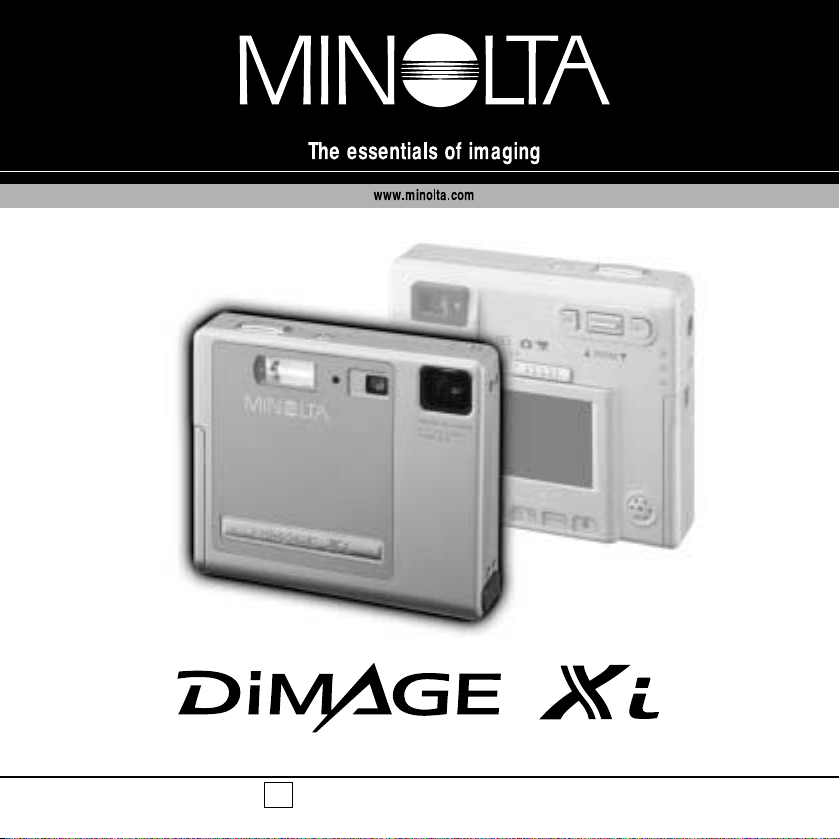
INSTRUCTION MANUAL
E

2 3
BEFORE YOU BEGIN
Thank you for purchasing this Minolta product. Please take the time to read through
this instruction manual so you can enjoy all the features of your new digital camera.
This manual contains information regarding products introduced before October, 2002.
To obtain compatibility information for products released after this date, contact a
Minolta Service Facility listed on the back cover of this manual.
Check the packing list before using this product. If any items are missing, immediately
contact your camera dealer.
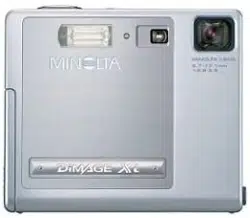
Minolta DiMAGE Xi digital camera
Lithium-ion battery NP-200
Lithium-ion battery charger BC-200
Hand strap HS-DG100
16MB SD Memory Card
AV cable AVC-200
USB cable USB-500
DiMAGE software CD-ROM
DiMAGE Viewer manual
Camera manual
Warranty card
FOR PROPER AND SAFE USE
DANGER
NP-200 Lithium-ion batteries
The DiMAGE Xi operates on a small, but powerful lithium-ion battery. Misuse or abuse
of the lithium-ion battery can cause damage or injury through fire, electric shock, or
chemical leakage.
Read and understand all warnings before using the battery.
(Continued on the next page.)
Apple, the Apple logo, Macintosh, Power Macintosh, Mac OS, and the Mac OS logo are registered
trademarks of Apple Computer Inc. Microsoft and Windows are registered trademarks of the
Microsoft Corporation. The official name of Windows is Microsoft Windows Operating System.
Pentium is a registered trademark of the Intel Corporation. Power PC is a trademark of the
International Business Machines Corporation. QuickTime is a trademark used under license. All other
trademarks are the property of their respective owners.
• Do not short, disassemble, damage, or modify the battery.
• Do not expose the battery to fire or high temperatures over 60°C (140°F).
• Do not expose the battery to water, or moisture. Water can corrode or damage the
internal battery safety devices and cause the battery to overheat, ignite, rupture, or
leak.
• Do not drop or subject the battery to strong impacts. Impacts can damage the internal
battery safety devices and cause the battery to overheat, ignite, rupture, or leak.
• Do not store the battery near or in metallic products.
• Do not use the battery with any other products.
• Only use the specified charger within the voltage range specified on the charger unit.
An inappropriate charger or current may cause damage or injury through fire or elec-
tric shock.
• Do not use a leaking battery. If fluid from the battery enters your eye, immediately
rinse the eye with plenty of fresh water and contact a doctor. If fluid from the battery
makes contact with your skin or clothing, wash the area thoroughly with water.
• Only use or charge the battery in an environment with ambient temperatures between
0° and 40°C (32° and 104°F). Only store the battery in an environment with ambient
temperatures between –20° and 30°C (–4° and 86°F) and a humidity of 45% to 85%
RH
.
4 5
FOR PROPER AND SAFE USE
WARNING
General warnings and cautions for product use.
WARNING
• Tape over the lithium-ion battery contacts to avoid short-circuiting during disposal;
always follow local regulations for battery disposal.
• If charging is not completed after the specified period elapses, unplug the charger and
discontinue charging immediately
.
• Only use the battery specified in this manual.
• Only use the specified AC adapter within the voltage range indicated on the adapter
unit. An inappropriate adapter or current may cause damage or injury through fire or
electric shock.
• Do not disassemble the camera or charger. Electric shock may cause injury if a high
voltage circuit inside the product is touched.
• Immediately remove the battery or unplug the AC adapter and discontinue use if the
camera is dropped or subjected to an impact in which the interior, especially the flash
unit, is exposed. The flash has a high voltage circuit which may cause an electric
shock resulting in injury. The continued use of a damaged product or part may cause
injuries or fire.
Read and understand the following warnings and cautions for safe use of the digital
camera and its accessories.
• Keep the battery, memory card, or small parts that could be swallowed away from
infants. Contact a doctor immediately if an object is swallowed.
• Store this product out of reach of children. Be careful when around children, not to
harm them with the product or parts.
• Do not fire the flash directly into the eyes. It may damage eyesight.
• Do not fire the flash at vehicle operators. It may cause a distraction or temporary
blindness which may lead to an accident.
• Do not use the monitor while operating a vehicle or walking. It may result in injury or
an accident.
• Do not look directly at the sun or strong light sources through the viewfinder. It may
damage your eyesight or cause blindness.
• Do not look at the sun or strong light sources directly through the viewfinder or lens. It
may damage your eyesight or cause blindness.
• Do not use these products in a humid environment, or operate them with wet hands. If
liquid enters these products, immediately remove the battery or unplug the product,
and discontinue use. The continued use of a product exposed to liquids may cause
damage or injury through fire or electric shock.
• Do not use these products near inflammable gases or liquids such as gasoline, ben-
zine, or paint thinner. Do not use inflammable products such as alcohol, benzine, or
paint thinner to clean these products. The use of inflammable cleaners and solvents
may cause an explosion or fire.
• When unplugging the AC adapter or charger, do not pull on the power cord. Hold the
plug when removing it from an outlet.
• Do not damage, twist, modify, heat, or place heavy objects on the AC adapter or
charger cord. A damaged cord may cause damage or injury through fire or electric
shock.
• If these products emits a strange odor, heat, or smoke, discontinue use. Immediately
remove the battery taking care not to burn yourself as the battery may become hot
with use. The continued use of a damaged product or part may cause injuries or fire.
• Take the product to a Minolta Service Facility when repairs are required .

6 7
FOR PROPER AND SAFE USE
• Do not use or store these products in a hot or humid environment such as the glove
compartment or trunk of a car. It may damage the camera, charger, and battery which
may result in burns or injuries caused by heat, fire, explosion, or leaking battery fluid.
• If the battery is leaking, discontinue use of the product.
• The camera, charger, and battery temperature rises with extended periods of use.
Care should be taken to avoid burns.
• Burns may result if the memory card or battery is removed immediately after extended
periods of use. Turn the camera off and wait for it to cool.
• Do not fire the flash while it is in contact with people or objects. The flash unit dis-
charges a large amount of energy which may cause burns.
• Do not apply pressure to the LCD monitor. A damaged monitor may cause injury, and
the liquid from the monitor may cause inflammation. If liquid from the monitor makes
contact with skin, wash the area with fresh water. If liquid from the monitor comes in
contact with the eyes, immediately rinse the eyes with plenty of water and contact a
doctor.
• When using the AC adapter and charger, insert the plug securely into the electrical
outlet.
• Do not use if the AC adapter or charger cord is damaged.
• Do not cover the AC adapter or charger. A fire may result.
• Do not obstruct access to the AC adapter or charger; this can hinder the unplugging
of the units in emergencies.
• Unplug the AC adapter or charger when cleaning or not in use.
CAUTION
TABLE OF CONTENTS
Names of parts ....................................................................................................................................10
Getting up and running.........................................................................................................................12
Charging the lithium-ion battery ..............................................................................................12
Changing the lithium-ion battery..............................................................................................13
Battery-condition indicator.......................................................................................................14
Auto power off .........................................................................................................................14
AC adapter (sold separately)...................................................................................................15
Attaching the hand strap .........................................................................................................15
Installing and removing a memory card..................................................................................16
About memory cards ...............................................................................................................17
Setting the date and time ........................................................................................................18
Recording mode...................................................................................................................................20
Handling the camera ...............................................................................................................20
Setting the camera to record images......................................................................................20
Using the zoom lens................................................................................................................21
LCD monitor display - recording mode....................................................................................22
Camera-shake warning ...........................................................................................................22
Basic recording operation........................................................................................................23
Focus lock ...............................................................................................................................24
Focus range.............................................................................................................................24
Focus signals...........................................................................................................................25
The getting up and running section covers how to prepare the camera for use. It
contains important information about power supplies and memory cards. The basic
operation of this camera is covered in the recording-mode section between pages 20
and 29, and the playback-mode section between pages 54 and 60. Read the data-
transfer mode section in its entirety before connecting the camera to a computer.
Many of the features of this camera are controlled with menus. The menu navigation
sections concisely describe how to change menu settings. Descriptions of the settings
immediately follow the navigation sections.
The appendix contains a troubleshooting section to help answer questions about the
operation of the camera. Information covering camera care and storage is also
provided. Please store this manual in a safe place.
ABOUT THIS MANUAL

8 9
Special focusing situations......................................................................................................25
Flash modes............................................................................................................................26
Flash range - Automatic operation ..........................................................................................27
Flash signals............................................................................................................................27
Navigating the recording-mode menu.....................................................................................28
Drive modes ............................................................................................................................30
Single-frame advance.................................................................................................30
Continuous advance...................................................................................................31
Self-timer.....................................................................................................................32
Movie recording ..........................................................................................................33
Audio recording...........................................................................................................34
Image size...............................................................................................................................35
Image quality...........................................................................................................................36
The frame counter and memory card capacity........................................................................37
White balance..........................................................................................................................38
Automatic white balance.............................................................................................38
Preset white balance ..................................................................................................39
Auto reset................................................................................................................................40
Digital zoom.............................................................................................................................41
Instant playback.......................................................................................................................42
Voice memo.............................................................................................................................43
Camera sensitivity - ISO..........................................................................................................44
Flash range and camera sensitivity............................................................................43
LCD brightness........................................................................................................................45
Auto-power-off menu settings..................................................................................................45
Audio signals...........................................................................................................................45
Imprinting the date and time....................................................................................................46
Setting the date and time ........................................................................................................47
Setting the date format............................................................................................................47
Exposure compensation..........................................................................................................48
What is an Ev?........................................................................................................................49
Spot AF....................................................................................................................................50
Display button - recording mode .............................................................................................52
A short guide to photography ..................................................................................................53
Playback mode ....................................................................................................................................54
Single-frame playback display.................................................................................................54
Viewing images and playing back audio recordings ...............................................................55
Display button - playback mode..............................................................................................56
TABLE OF CONTENTS
Deleting single images ............................................................................................................55
Enlarged playback...................................................................................................................57
Navigating the playback-mode menu......................................................................................58
Frame-selection screen...........................................................................................................60
Audio captioning......................................................................................................................61
Deleting image and audio files................................................................................................62
Locking image and audio files.................................................................................................63
About DPOF............................................................................................................................64
Creating a DPOF print order ...................................................................................................64
E-mail copy..............................................................................................................................66
Folder name ............................................................................................................................67
File # memory..........................................................................................................................68
Setting the language................................................................................................................69
Formatting memory cards........................................................................................................70
Video output ............................................................................................................................70
Viewing images on a television...............................................................................................71
Data-transfer mode ..............................................................................................................................72
DiMAGE Xi system requirements............................................................................................72
Connecting the camera to a computer....................................................................................73
Connecting to Windows 98 and 98SE.....................................................................................75
Automatic installation..................................................................................................75
Manual installation......................................................................................................76
Connecting to Mac OS 8.6......................................................................................................78
QuickTime system requirements.............................................................................................78
Auto power off - data-transfer mode .......................................................................................78
Changing the memory card - data-transfer mode...................................................................79
Memory card folder organization.............................................................................................80
Disconnecting the camera from the computer ........................................................................82
Windows 98 and 98SE...............................................................................................82
Windows Me, 2000 Professional, and XP..................................................................82
Macintosh....................................................................................................................83
Appendix ....................................................................................................................................84
Troubleshooting.......................................................................................................................84
System accessories (sold separately).....................................................................................89
Care and storage.....................................................................................................................90
Technical specifications...........................................................................................................94
10 11
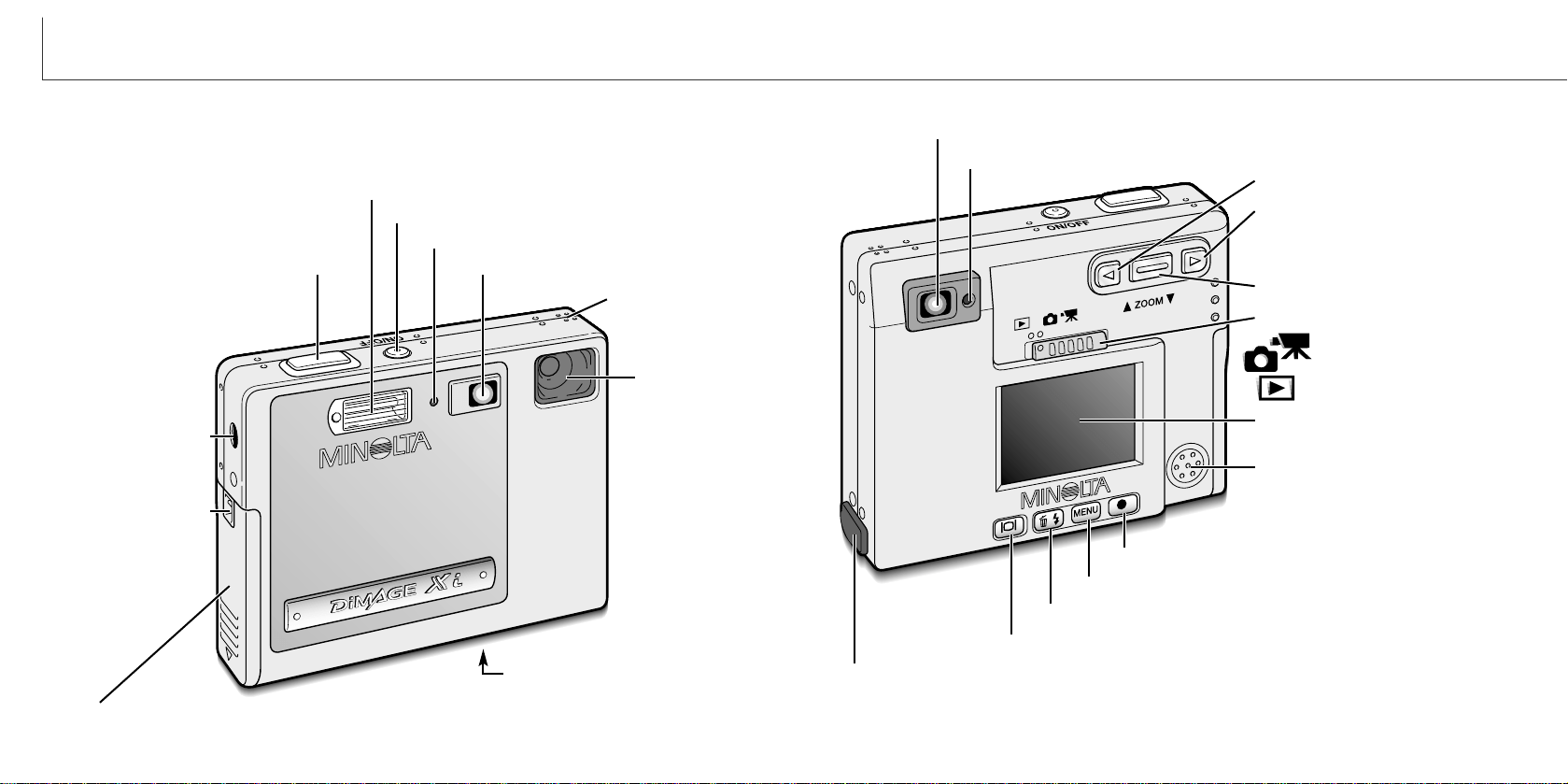
NAMES OF PARTS
* This camera is a sophisticated optical instrument. Care should be taken to keep
these surfaces clean. Please read the care and storage instructions in the back of
this manual (p. 90).
Flash (p. 26)
Self-timer lamp (p. 32)
Lens*
Main switch
Microphone
AV-out-terminal/USB-port cover
Viewfinder*
Indicator lamp (p. 87)
Mode switch
Left key
Right key
Zoom lever (p. 21)
LCD monitor*
Display button (p. 52, 56)
Flash-mode/delete button (p. 26, 55)
Menu button
Enter button
Speaker
Recording mode (p. 20)
Tripod socket
Battery/Card chamber door (p. 13, 16)
DC terminal (p. 15)
Strap eyelet (p. 15)
Shutter-release button
Viewfinder window*
Playback mode (p. 54)
(Located on the bottom of
the body.)
12
GETTING UP AND RUNNING
GETTING UP AND RUNNING
This section covers how to prepare your camera for use. Details on the use and instal-
lation of the battery and memory card are given as well as how to attach the hand strap
and optional AC adapter.
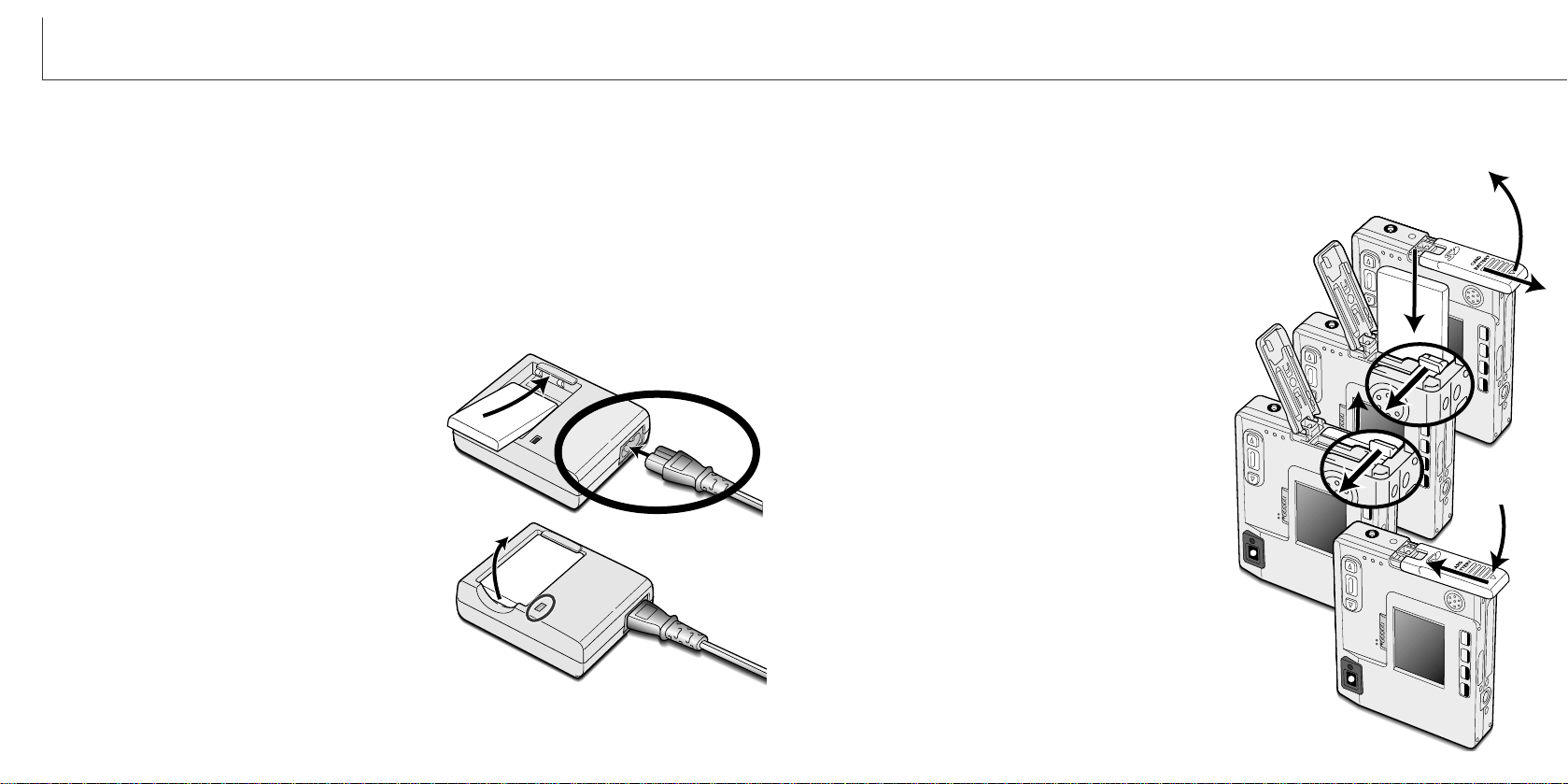
Charging the lithium-ion battery
Before the camera can be used, the lithium-ion battery must be charged. Before charg-
ing the battery, read the safety warnings on pages 3 and 4 of this manual. Only
recharge the battery with the supplied battery charger. The battery should be recharged
before each shooting session. See page 91 for battery care and storage.
Plug the power cord into the charger unit (1).
With the battery terminals toward the front and
the label face up, slide the battery into the
charger (2).
Plug the charger into a live household outlet.
• After a few seconds, the indicator lamp (3) will
glow to show the battery is charging. The lamp will
go out when the battery has been charged.
Charging time is approximately eighty minutes.
Unplug the power cord from the outlet.
Remove the battery from the charger (4).
Changing the lithium-ion battery
To remove the battery, move the latch towards the
back of the camera until the battery is released
(5). Pull the battery out of the chamber (6).
1
2
3
4
This digital camera uses one NP-200 lithium-ion battery. Before using the battery, read
the safety warnings on pages 3 and 4 of this manual. When replacing the battery, the
camera should be turned off.
Close the battery-chamber door (7) and slide it
toward the top of the camera to engage the safe-
ty catch (8).
• After installing the battery, the set-time/date
message may appear on the monitor. The clock and
calendar is set in the setup 1 section of the menu
(p. 18). An internal battery protects the clock,
calender, and memory settings for more than 24
hours if the camera is used for at least 5 minutes
before removing the battery.
13
1
2
4
6
7
8
3
5
Move the battery latch towards the back of the cam-
era to insert the battery (3). Slide the battery into the
battery chamber (4) with the battery terminals first
until it is caught by the latch.
Slide the battery-chamber door toward the bottom of the
camera to release the safety catch (1). Open the door (2).
• The included AC cord is designed for the current of the sales region. Only use the cord in the
region it was purchased. For more on the AC cable, see page 86.
14 15
GETTING UP AND RUNNING
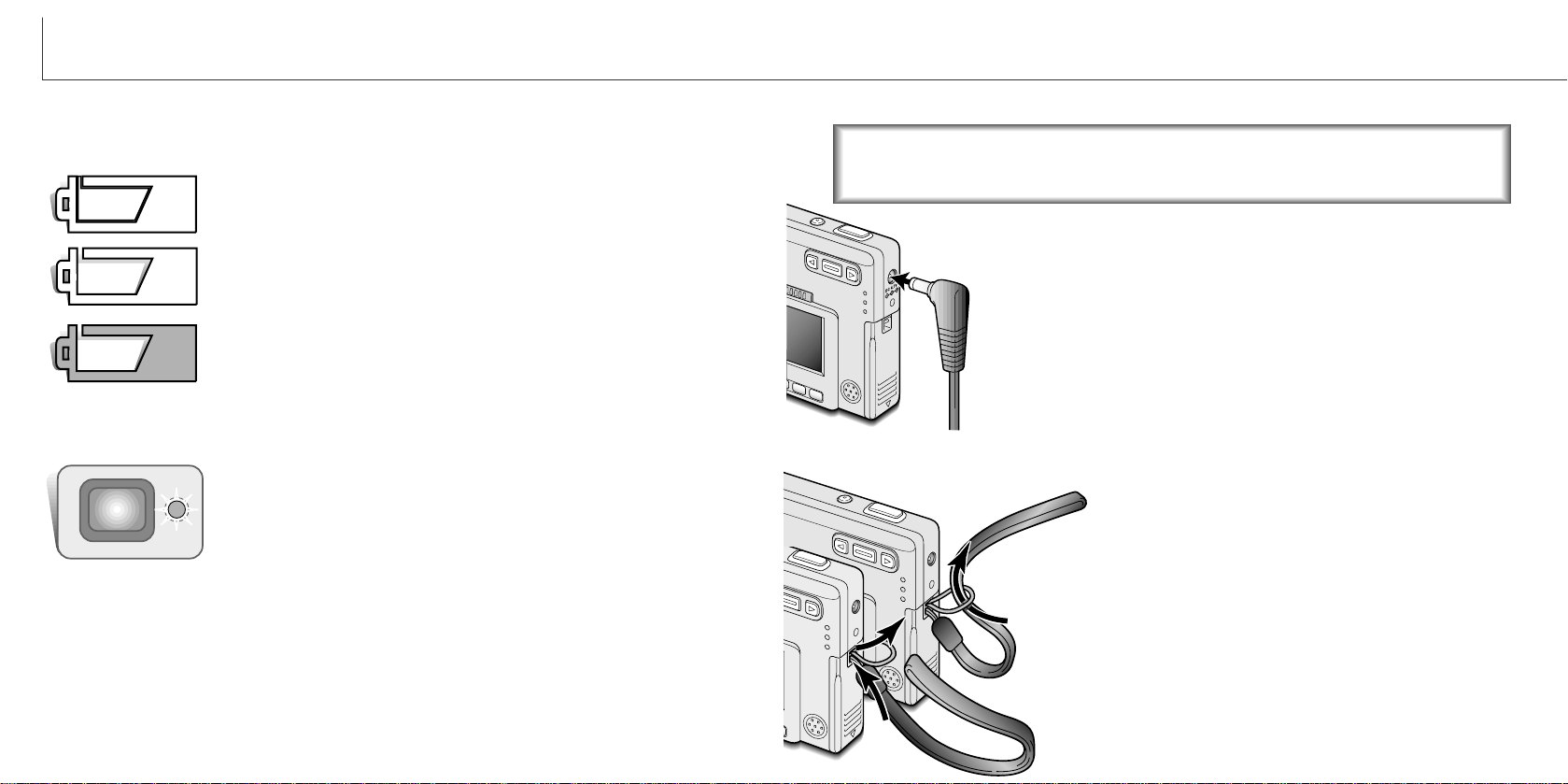
Battery-condition indicator
Full-battery icon - the battery is fully charged. This icon is dis-
played for three seconds when the camera is on or switched
between the recording or playback mode.
If power is insufficient for camera operation, the indicator lamp
next to the viewfinder will turn red and blink for three seconds. The
shutter will not release. The battery must be recharged.
Low-battery warning - battery power is very low. The battery
should be replaced as soon as possible. This warning automatical-
ly appears and remains on the monitor until the battery is
recharged. If the power level falls below this level when the cam-
era is on, the battery-exhausted message will appear just before
the camera shuts down.
Auto power off
To conserve battery power, the camera will shut down if an operation is not made with-
in three minutes. To restore power, press the main switch. The length of the auto-
power-off period can be changed in the setup 1 section of the recording and playback-
mode menu (p. 28, 58). When the camera is connected to a computer, the auto-power-
off period is set to ten minutes and cannot be changed.
This camera is equipped with an automatic battery-condition indicator displayed on the
LCD monitor. The icon will change from white to red when battery power is low.
AC adapter (sold separately)
The AC adapter AC-4 or AC-5 allows the camera to be powered from
a household outlet. The AC adapter is recommended when the
camera is interfaced with a computer or during periods of heavy use.
AC adapter model AC-4 is for use in North America, Japan, and
Taiwan, and AC-5 is for use in all other areas.
Insert the mini plug of the AC adapter into the DC terminal (1).
Insert the AC adapter plug into an electrical outlet.
Do not change the power supply while the camera is on.
Always turn off the camera before changing between power supplies.
Always keep the strap around your wrist in the event
that the camera is accidentally dropped.
1
2
1
Attaching the hand strap
Pass the small loop of the hand strap through the strap
eyelet on the camera body (1).
Pass the other end of the strap through the small loop and
tighten (2).
Half-full-battery icon - the battery is partially charged. This icon is
displayed for three seconds. The LCD monitor will turn off when
the flash is charging.
The response time during recording and playback is longer with MultiMediaCards com-
pared with SD Memory Cards. This is not a defect, but rather due to the specifications
of the cards. When using large capacity cards, some operations like deletion may take
longer.
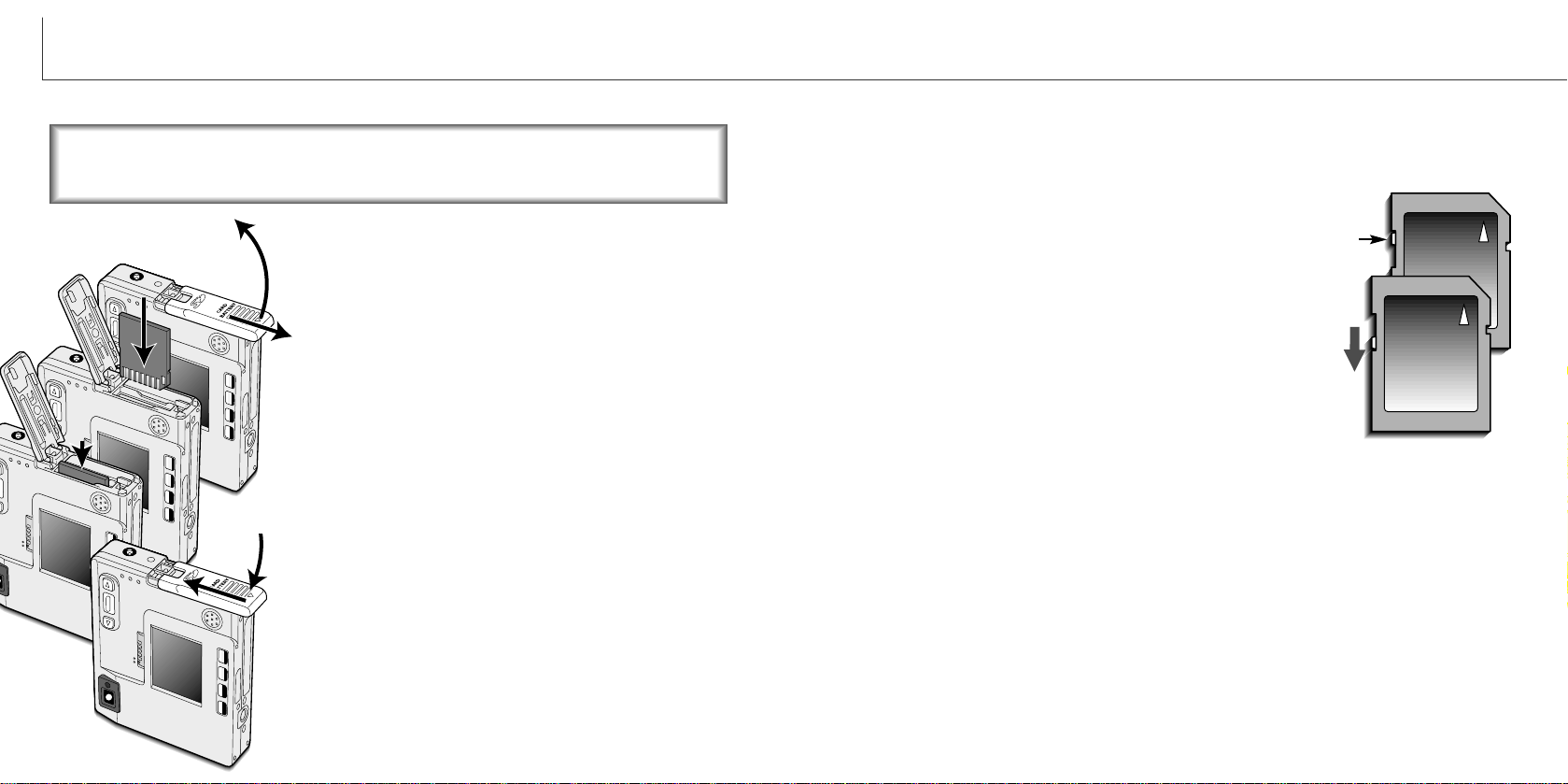
The SD Memory Card has a write-protect switch to pre-
vent image data from being deleted. By sliding the switch
to the bottom of the card, the data will be protected.
However, when the card is protected, images cannot be
recorded. If an attempt is made to record or delete an
image with the camera, the card-locked message will
appear and the LED lamps near the viewfinder will turn
red and blink quickly. For memory card care and store
see page 90.
If the unable-to-use-card message appears, the inserted
card in the camera may need to be formatted. A card used in another camera may
also have to be formatted before being used. A card can be formatted in the setup 2
section of the playback menu (p. 58). When a card is formatted, all the data on the
card is permanently erased.
16 17
GETTING UP AND RUNNING
Write-
protect
switch
Lock
position
Installing and removing a memory card About memory cards
Insert the memory card all the way into the card slot and
then release (3). The card should catch in the slot.
• Insert the card so the face is toward the front of the camera.
Always push the card in straight, never at an angle. Never
force the card. If the card does not fit, check that it is
orientated correctly.
• If a MultiMediaCard is inserted incorrectly, it will lock, but the
card chamber door will not close.
To eject a memory card, press the card into the slot and
release (4). The card can now be pulled out.
Close the battery-chamber door (5) and slide it toward
the top of the camera to engage the safety catch (6).
Slide the battery-chamber door toward the bottom of
the camera to release the safety catch (1). Open the
door (2).
An SD (Secure Digital) Memory card or MultiMediaCard
must be inserted for the camera to operate. If a card has
not been inserted, a no-card warning will appear on the
LCD monitor; the shutter can still be released.
Always turn off the camera and confirm the indicator lamp is not orange
and blinking before changing the memory card, otherwise the card may be
damaged, and data lost.
1
2
4
6
3
5
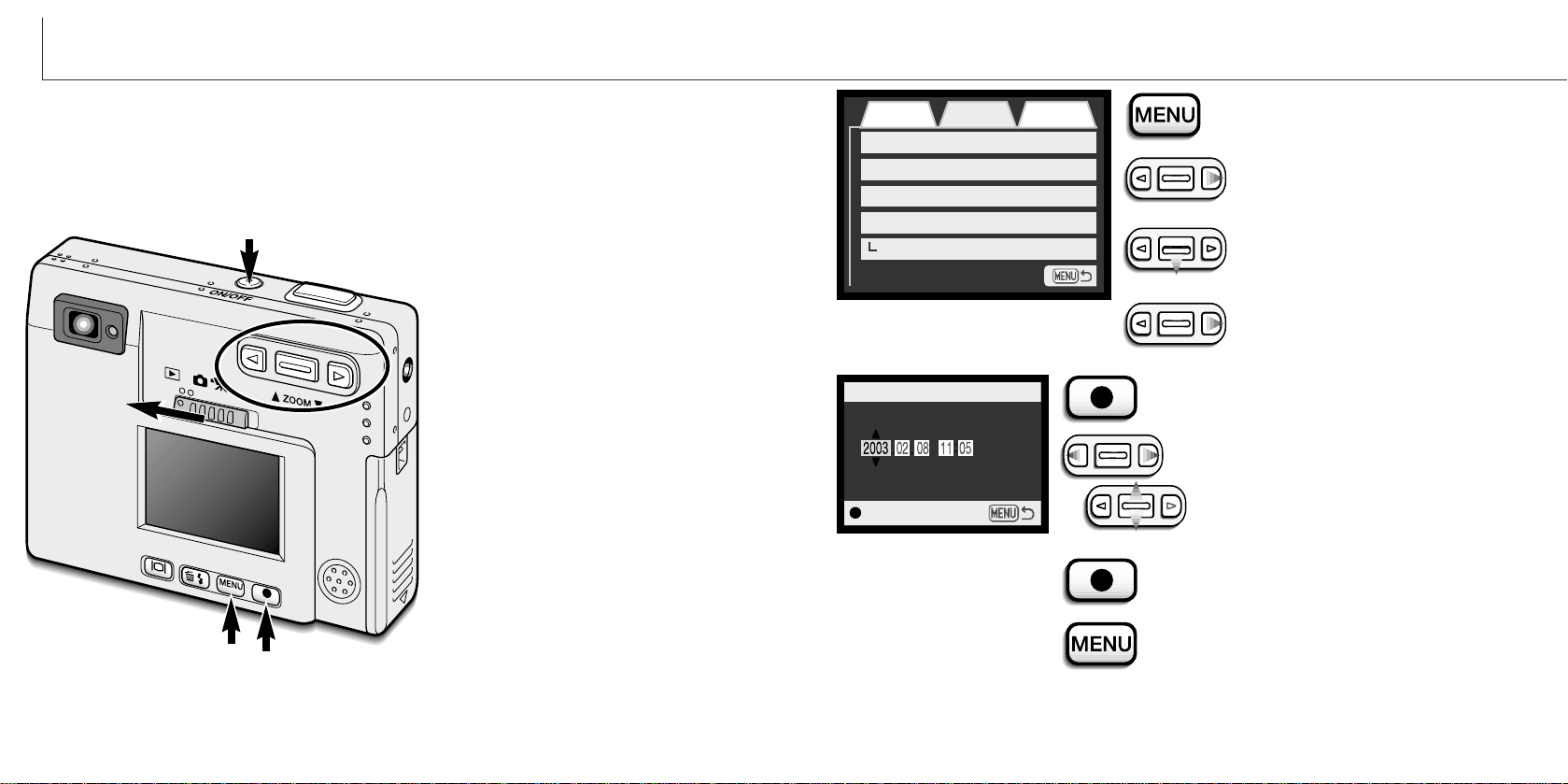
Press the menu button to active the
playback menu.
Use the right key to highlight the
setup 1 tab at the top of the menu.
Use the zoom lever to highlight the
date/time-set menu option.
Press the enter button to display the date/time
setting screen.
Use the left and right keys to select the
item to be changed. Use the zoom lever
to adjust the item.
Press the enter button to set the clock and cal-
endar. The playback menu will be displayed.
Press the menu button to close the playback
menu.
Enter
Date/Time set
1918
GETTING UP AND RUNNING
Setting the date and time
After initially inserting a memory card and charging the battery, the camera’s clock and
calendar must be set. When images are recorded, the image data is saved with the
date and time of recording. Depending on the region, the menu language may also
have to be set. To change the language, refer to page 69.
Turn the camera on by pressing the
main switch near the shutter-release
button (1).
Slide the mode switch to the playback
position (2).
2
3
5
4
The date and time can be set on the
playback menu. Navigating the menu
is simple. The menu button (3) turns
the menu on and off. The zoom lever
and left and right keys (4) control the
cursor and change settings on the
menu. The enter button (5) selects
menu options and sets adjustments.
1
Setup 1Basic
LCD brightness
Power off
Audio signals
Date/Time set
-
3 min.
On
-
Setup 2
Date format YYYY/MM/DD
Press the right key. “Enter” will
appear on the right side of the
menu.
Playback menu: setup 1 section
Date/Time setting screen
20 21
RECORDING MODE
RECORDING MODE
This section covers the basic recording operation as well as advanced recording func-
tions. To start using the camera, read pages 20 through 29. Many of the recording
functions are controlled with menus. The menu navigation sections concisely describe
how to change menu settings. Descriptions of the settings immediately follow the navi-
gation section.
Handling the camera
While using the viewfinder or LCD monitor, grip the camera
firmly with your right hand while supporting the camera body
with your left. Keep your elbows at your side and your feet
shoulder-width apart to hold the camera steadily.
When taking vertical pictures, hold the camera so that the
flash is above the lens with the shutter-release button to the
top. Take care not to cover the lens with your fingers or the
strap.
Using the zoom lens
This camera is equipped with a unique 5.7 - 17.1mm zoom lens. This is equivalent to a
37 to 111mm lens on a 35mm camera. The lens is controlled by the zoom lever at the
back of the camera.
In 35mm photography, focal lengths below 50mm are referred to as wide-angle; the
angle of view is larger than that of the human eye. Above 50mm is referred to as tele-
photo and makes distant objects appear closer. The effect of the optical zoom is visible
in both the viewfinder and LCD monitor.
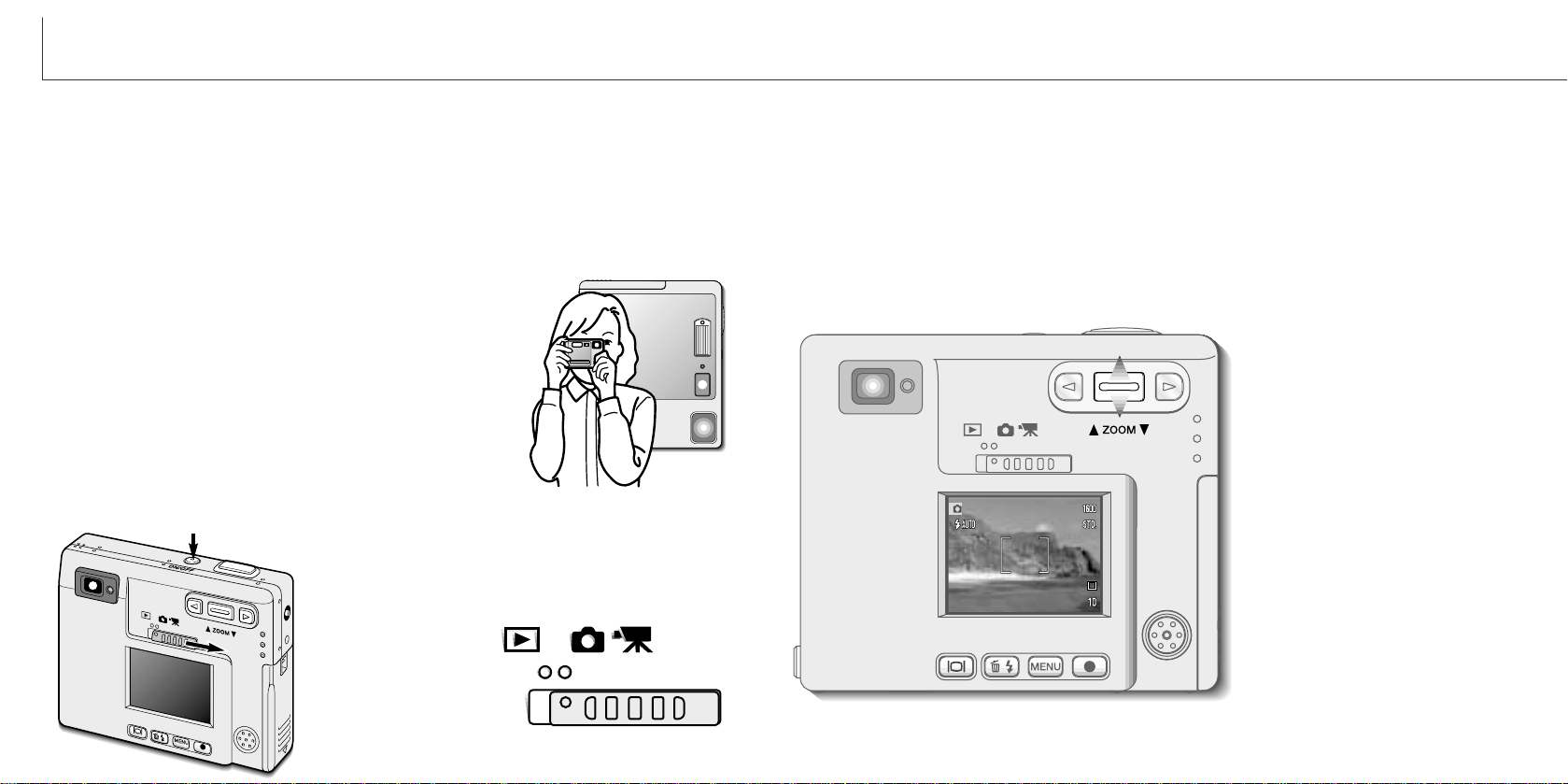
To zoom in on the subject, push
the zoom lever up.
To zoom out, push the zoom lever
down.
The digital-zoom function can dou-
ble the power of the lens. The digi-
tal zoom is activated in the custom
section of the recording-mode
menu (p. 28).
Setting the camera to record images
Turn the camera on by pressing the main switch (1).
Slide the mode switch to the recording position (2).
2
1
2
22
RECORDING MODE
Basic recording operation
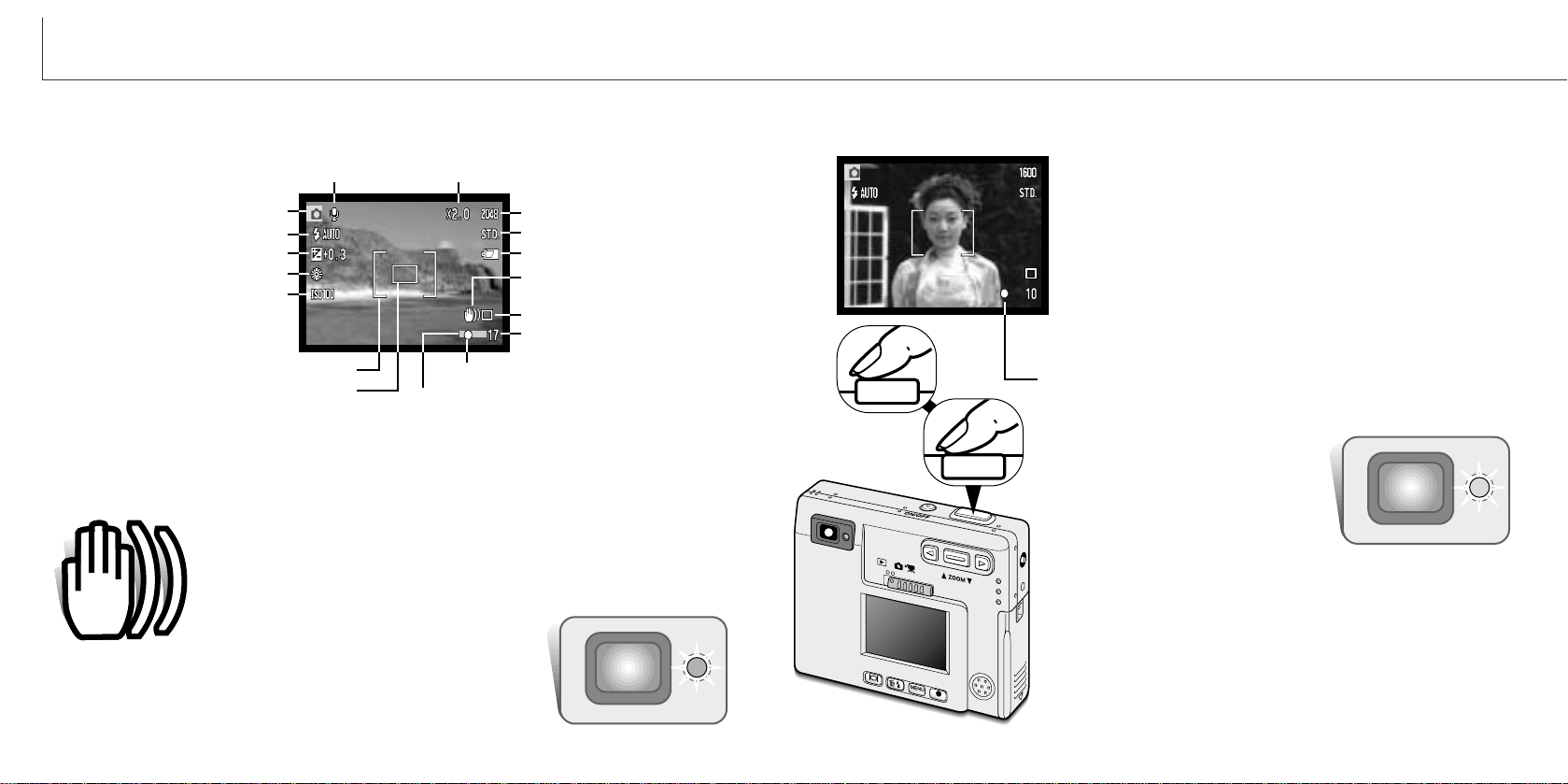
Press the shutter-release button partway down (1) to lock the
focus and exposure.
• The focus signals (p. 25) on the monitor and the indicator lamp
next to the viewfinder will confirm that the image is in focus. If
the monitor focus signal is red or the
indicator lamp is green and blinks
quickly, the camera was unable to
focus on the subject. Repeat the
previous steps until the focus signal is
white and the lamp glows steadily.
Press the shutter-release button all the way down (2) to take
the picture.
• After the shutter releases, the indicator lamp next to the
viewfinder will turn orange and blink indicating image data is
being written to the memory card. Never remove a memory card
while data is being transferred.
• The image can be previewed after it is captured by continuing to
hold down the shutter-release button. This function is disabled if
the monitor is off. Instant playback also can be used (p.42).
Turn the camera on and slide the mode switch to the recording position.
1
2
Place the subject within the focus frame on the LCD moni-
tor or center the subject in the viewfinder.
• The focus-lock function (p. 24) can be used with off-center
subjects.
• If the subject is closer than 1m (3ft.) at the zoom lens’ wide-
angle position or 3m (10ft) at the telephoto position, only use
the LCD monitor to frame the subject.
• The spot focus area can be used for focusing; press the enter
button for about 1 second to activate the area (p. 50).
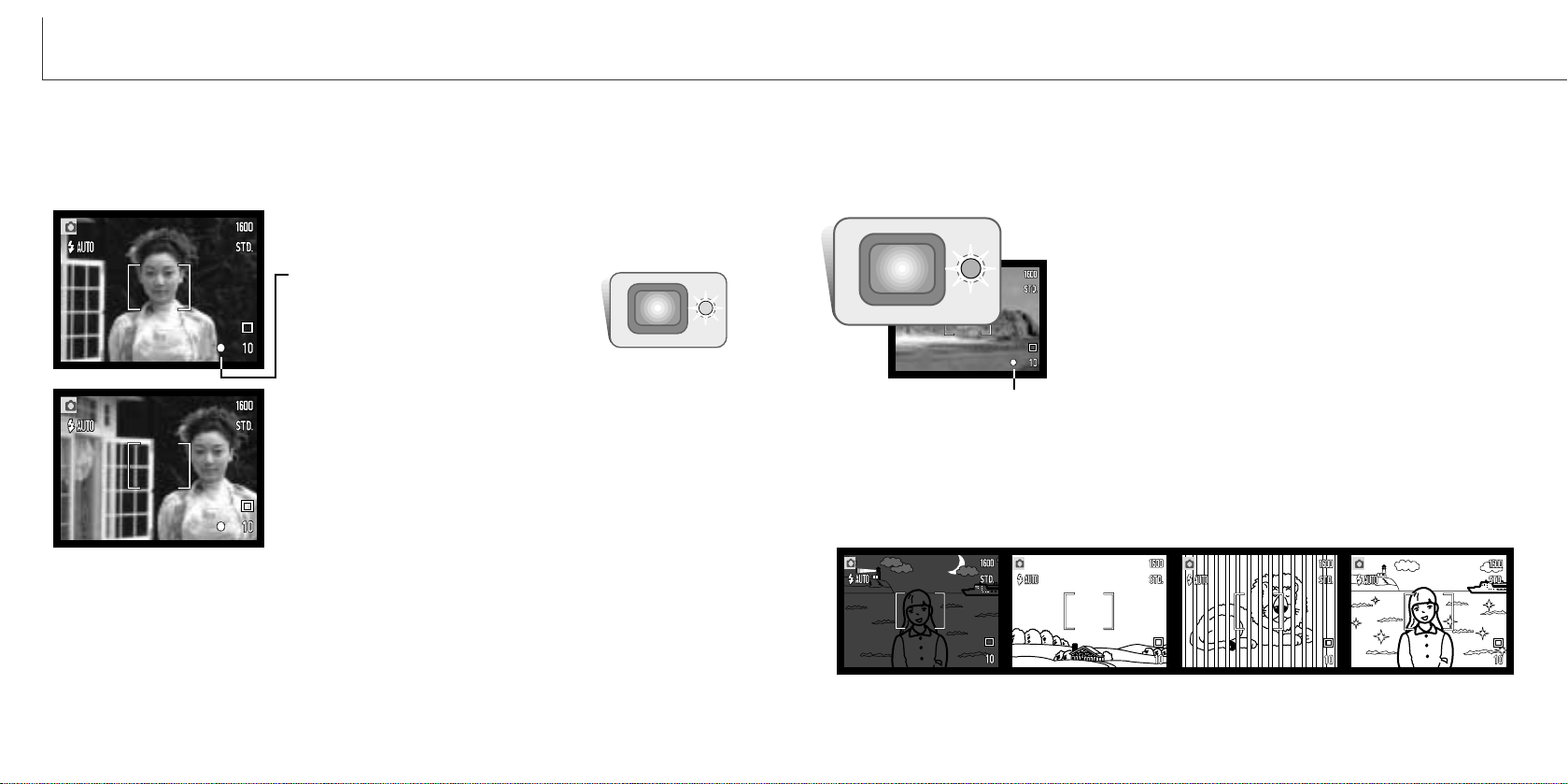
LCD monitor display - recording mode
If the shutter speed falls below the point where the camera can be
hand held safely, the camera-shake warning indicator will appear on
the monitor and the viewfinder indicator lamp will turn green and
blink slowly. Camera shake is slight blurring caused by subtle hand
motion and is more pronounced at the tele-
photo position of the lens than at the wide-
angle position. Although the warning appears, the shutter can
still be released. If the warning appears, place the camera on
a tripod or use the built-in flash.
Camera-shake warning
Microphone indicator
Exposure compensation (p. 48)
White balance (p. 38)
Digital zoom (p. 41)
Image size (p. 35)
Image quality (p. 36)
Battery-condition indicator(p. 14)
Drive mode (p. 30)
Frame counter (p. 37)
Focus signals (p. 27)
Recording mode
Flash modes (p. 26)
Camera-shake warning
Wide focus frame (p. 50)
Spot focus area (p. 50)
Date-imprinting indicator (p. 46)
23
Camera-sensitivity display (p. 44)
24 25
RECORDING MODE
Focus lock
The focus-lock function is used when you want to compose the image with the subject
off-center and outside the focus frame. Focus lock may also be used when a special
focusing situation prevents the camera from focusing on the subject. This function is
controlled with the shutter-release button.
Place the subject within the monitor focus frame or
center the subject in the viewfinder. Press and hold the
shutter-release button partway down to lock the focus.
• The focus signal on the monitor and the
viewfinder indicator lamp will indicate if
the focus is locked.
Without lifting your finger from the shutter-release
button, recompose the subject within the image area.
Press the shutter-release button all the way down to
take the picture.
Focus range
The focus range is 25cm (0.8ft.) to infinity. Both the LCD monitor and viewfinder can be
used to frame the subject. However, because of parallax, only the monitor’s live image
will be accurate with subjects closer than 1m (3ft.) at the zoom lens’ wide-angle posi-
tion or 3m (10ft) at the telephoto position.
Focus signals
Special focusing situations
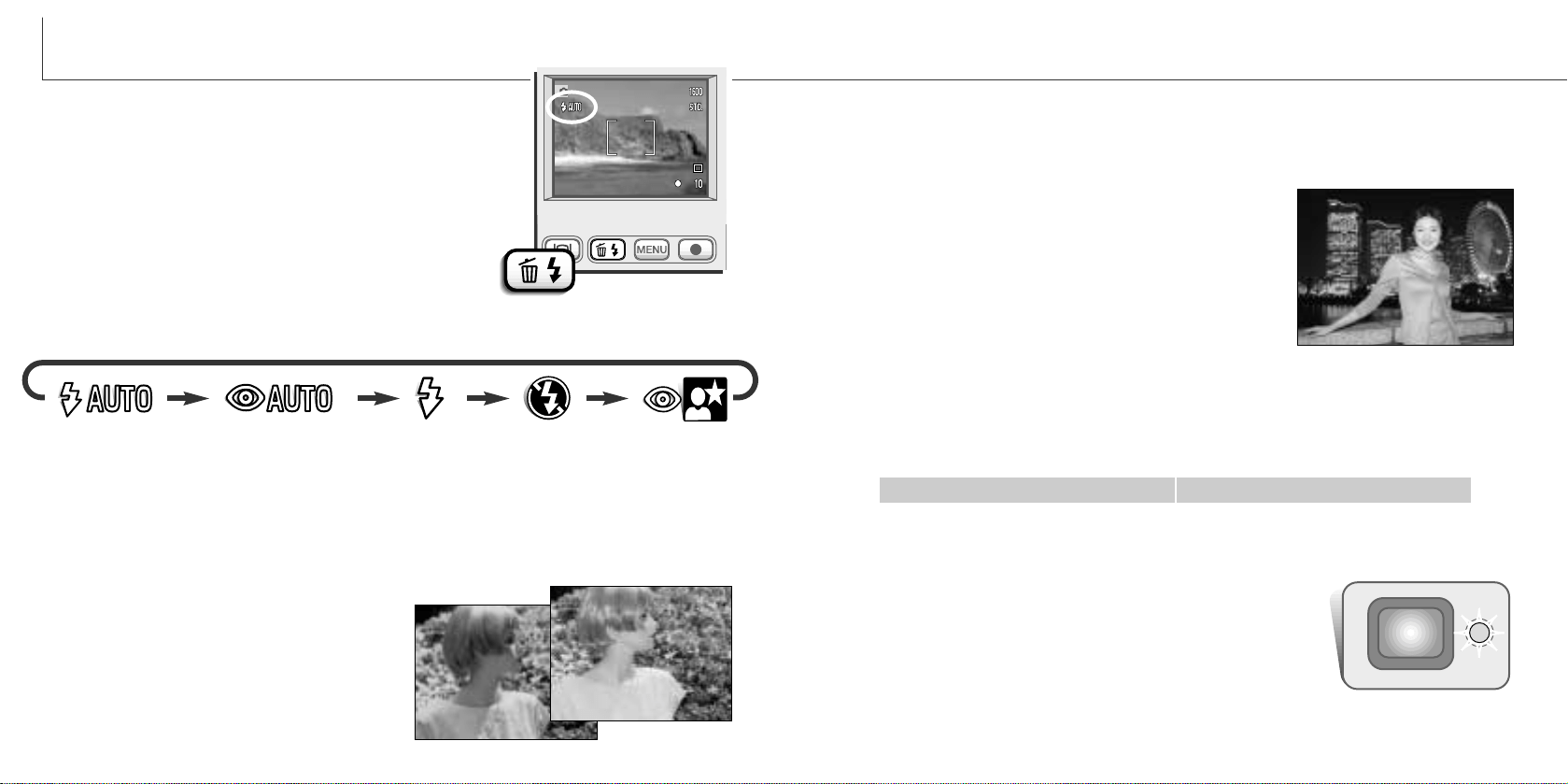
This digital camera has a quick, accurate autofocusing system. The focus icon in the
lower right corner of the LCD monitor and the indicator lamp next to the viewfinder indi-
cate the focus status. The shutter can be released regardless if the camera can focus
on the subject or not.
The camera may not be able to focus in certain situations. In these situations the
focus-lock function (p. 24) can be used to focus on another object at the same distance
as your main subject, and then the image can be recomposed to take the picture.
The subject in the
focus frame is low in
contrast.
The subject is too dark. Two subjects at differ-
ent distances overlap
in the focus frame.
The subject is near a
very bright object or
area.
Focus confirmed - the LCD monitor focus signal is
white and the viewfinder indicator lamp is green and
steady.
Cannot focus - the LCD monitor focus signal is red and
the viewfinder indicator lamp is green and blinking
quickly. When the AF system cannot focus, the focus is
set to 20m (65.6ft) or 2m (6.5ft) when using the flash.
Focus signal
26 27
RECORDING MODE
Flash range - Automatic operation
The camera automatically controls the flash output. For well-exposed images, the
subject must be within the flash range. Because of the optical system, the flash range
is not the same at the lens’ wide-angle position as it is at the telephoto position. The
flash ranged can be changed with camera sensitivity (ISO), see page 44.
Wide-angle position Telephoto position
Autoflash - the flash fires automatically in low-light and backlit conditions.
Red-eye reduction - the flash fires multiple bursts before the main flash burst to
reduce red-eye; an effect caused by light reflected from the retina. Use in low-light con-
ditions when taking photographs of people or animals, the pre-flashes contract the
pupils of the subject’s eyes.
Fill-flash - the flash fires with each exposure
regardless of the amount of ambient light.
Fill-flash can be used to reduce harsh shad-
ows caused by strong direct light or sun-
shine.
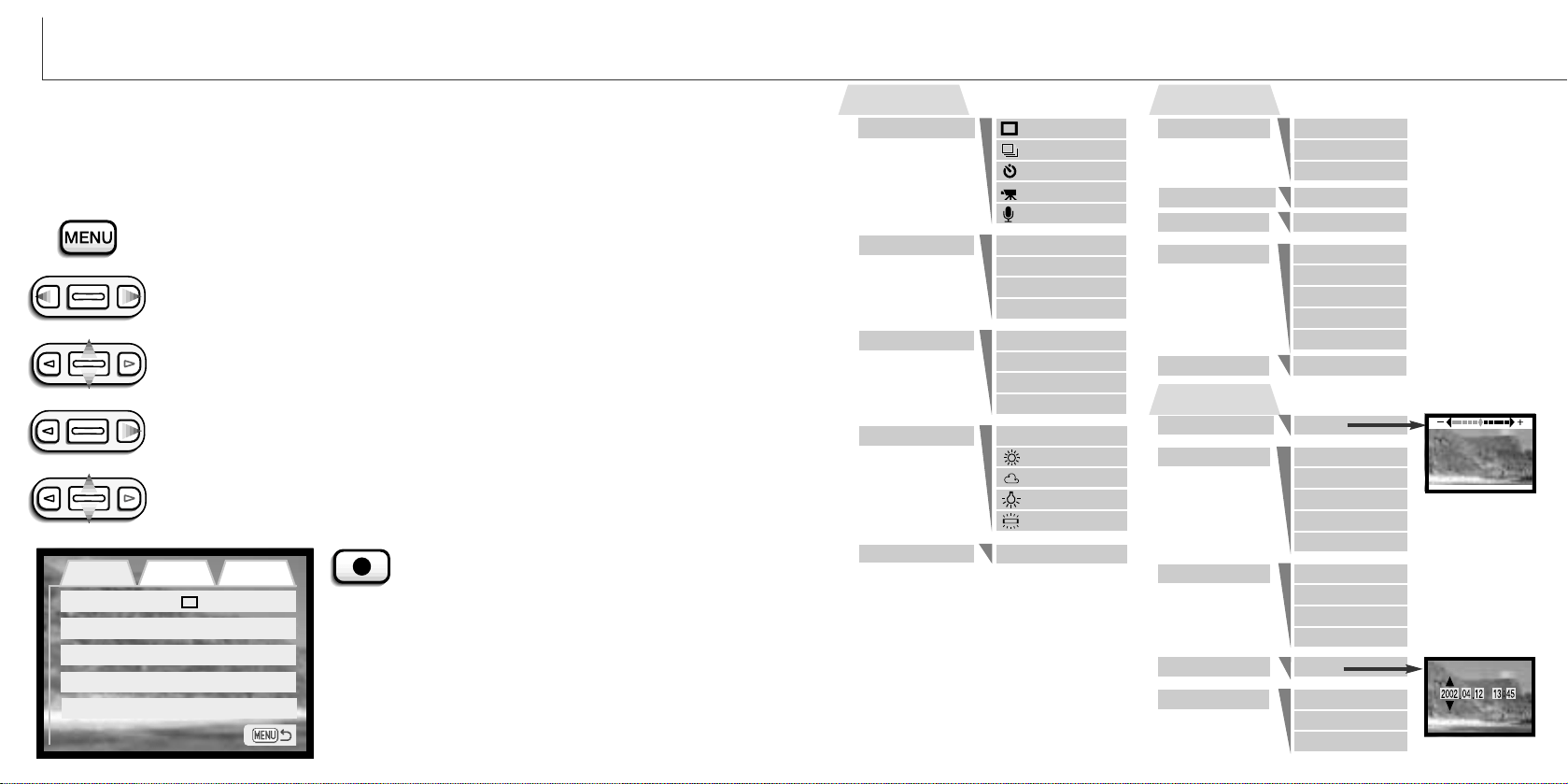
Flash modes
The flash can be used when taking still images. To set the
flash mode, simply press the flash mode/delete button (1)
on the back of the camera until the desired mode is dis-
played. The active flash mode is displayed in the top left
corner of the LCD monitor. When the camera is turned off
and auto reset (p.40) is active, the flash mode is reset to
autoflash with red-eye reduction if this mode was last
set, if not the mode will be reset to autoflash. While the
flash is charging, the shutter cannot be released.
Flash signals
The indicator lamp next to the viewfinder indicates the status
of the flash. When the lamp is red and blinks quickly, the flash
is charging and the shutter will not release. When the lamp
turns green, the flash is charged and ready to fire.
Autoflash
Flash
cancel
Autoflash with
red-eye reduction
Fill-flash
Night
portrait
The flash modes are displayed in the following order:
Flash cancel - the flash will not fire. Use flash cancel when flash photography is pro-
hibited, natural light is desired to illuminate the subject, or the subject is beyond the
flash range. The camera-shake warning may appear when flash cancel is selected (p.
22).
Night portrait - for flash portraits at night. The camera
automatically balances the flash and background expo-
sures. When taking portraits, ask your subject not to move
after the flash burst; the shutter will still be open for the
background exposure. The red-eye reduction function is
used with night portrait.
1
0.25m ~ 2.5m (0.8 ft. ~ 8.2 ft.)0.25m ~ 3.2m (0.8 ft. ~ 10.5 ft.)
Basic Custom Setup 1
Drive mode
Image size
Quality
White balance
Single
2048X1536
Standard
Auto
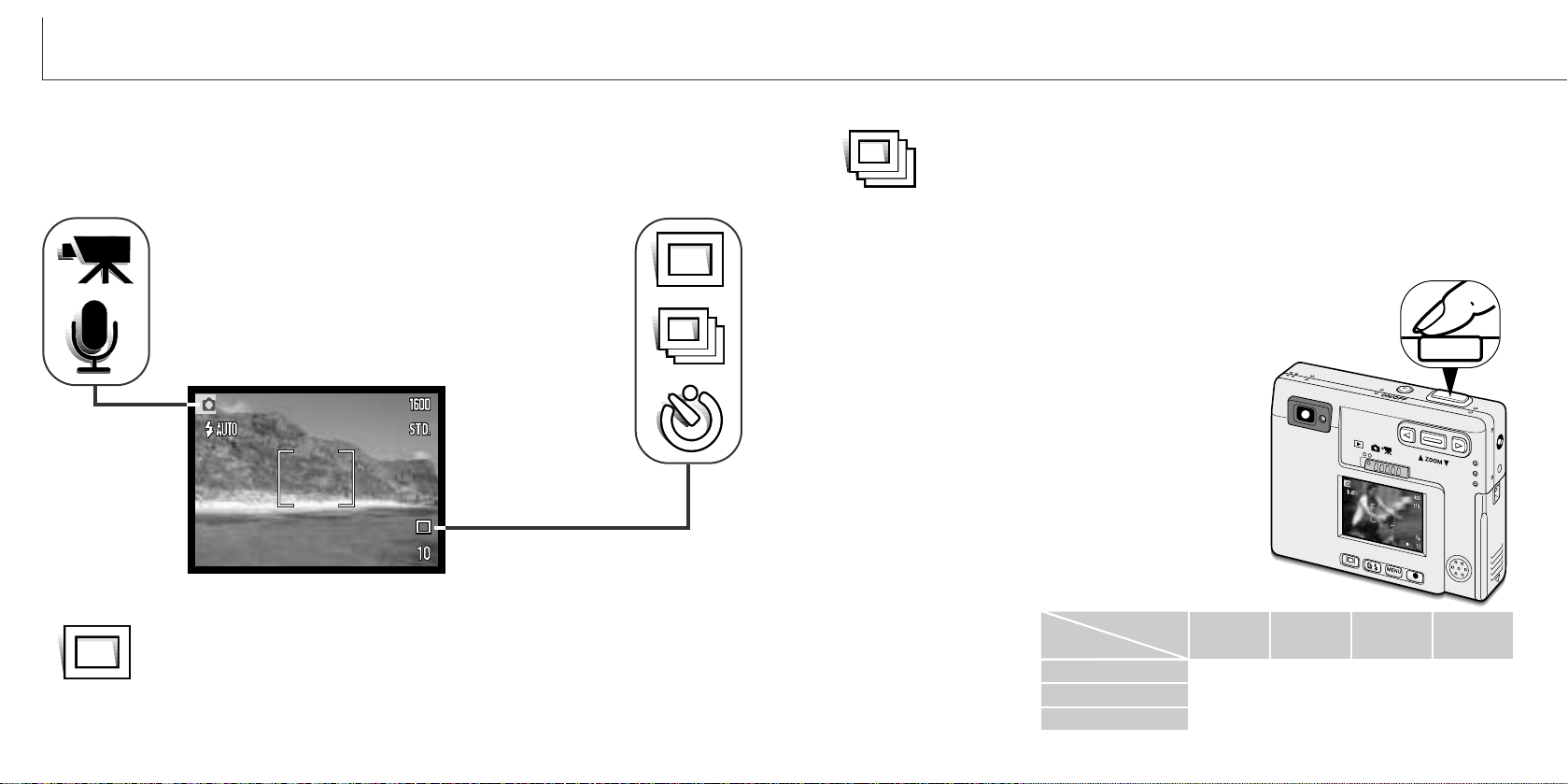
Camera operations and recording functions are controlled on the menu. Navigating the
menu is simple. The menu button turns the menu on and off. The zoom lever and left
and right keys control the cursor and change settings on the menu. The enter button
selects menu options and sets adjustments.
Navigating the recording-mode menu
28
29
RECORDING MODE
To activate the recording-mode menu, press the menu button.
When the desired menu section is displayed, use the zoom lever to scroll through
the menu options. Highlight the option whose setting needs to be changed.
With the menu option to be changed highlighted, press the right key; the settings
will be displayed with the current setting indicated by an arrow.
• To return to the menu options, press the left key.
Press the enter button to select the
highlighted setting.
Once a setting has been selected, the cursor will
return to the menu options and the new setting will
be displayed. Changes can continue to be made. To
return to the recording mode, press the menu
button.
Use the zoom lever to highlight the new setting.
• If “Enter” is displayed, press the enter button to display the setting screen.
The “Basic” tab at the top of the menu will be highlighted. Use the left/right keys
to highlight the appropriate menu tab; the menus will change as the tabs are
highlighted.
Auto reset
On
Date imprint
4X
LCD brightness
Digital zoomSingle
White balance
2048 X 1536
Audio rec.
Drive mode
Refer to the following sections for
details on the menu options and
their settings. The setup 1 section
can be accessed from both the
recording-mode and playback menu
(p.
58).
Image size
Basic
Quality
Auto reset
1600 X 1200
1280 X 960
640 X 480
Super fine
Fine
Standard
Economy
Auto
Fluorescent
Tungsten
Cloudy
Daylight
Custom
Instant playback
Voice memo
On / Off
2X
On / Off
Setup 1
Enter
3 minutes
5 minutes
30 minutes
Enter
YYYY/MM/DD
DD/MM/YYYY
MM/DD/YYYY
10 minutes
1 minute
Date/Time set
Date format
Power off
On / Off
Sensitivity
ISO100
Off
ISO50
ISO200
ISO400
On / Off
Audio signals On
SoundFX only
w/o soundFX
Off
Continuous
Self-timer
Movie
Auto
The continuous-advance drive mode allows a series of images to be cap-
tured while holding down the shutter-release button. The number of images
that can be captured at one time and the rate of capture depend on the
image-quality and image-size setting. With the image-size setting of 2048 X
1536, the maximum rate of capture is 1.6 fps. If the image quality is set to super fine
(p. 36) only one frame can be captured at a time. Continuous advance is selected in
the basic section of the recording-mode menu (p. 28).
Compose the picture as described in the basic recording operation
section (p. 23). Press the shutter-release button partway down to lock
the exposure and focus for the series. Press and hold the shutter-
release button all the way down (1) to begin taking pic-
tures. When the shutter-release button is pressed and
held, the camera will begin recording images until the
maximum number has been taken or the shutter button
is released. The built-in flash can be used, but the rate
of capture is reduced because the flash must recharge
between frames. Date imprinting (p.46) also reduces
the rate of capture. The frame counter is adjusted after
the series has been taken while the images are being
saved.
1
Economy
30 31
RECORDING MODE
The drive modes control the rate and method images are captured. Icons indicating the
selected drive mode appear on the monitor. The drive mode is selected in the basic
section of the recording-mode menu (p. 28). If auto reset (p.40) is active, the drive
mode is reset to single-frame advance when the camera is turned off.
Drive modes
Standard
Fine
Image
Quality
Image
Size
1600 X
1200
9
19
37
Continuous advance
Movie recording (p. 33)
Audio recording (p. 34)
Single-frame advance
Self-timer (p. 32)
Continuous advance (p. 31)
Single-frame advance
Single-frame advance allows only one image to be captured each time the
shutter-release button is pressed. This is the camera’s default setting.
1280 X
960
15
29
56
640 X
480
56
104
178
The chart lists the maxi-
mum number of images
that can be captured
with different image-
quality and image-size
combinations.
2048 X
1536
6
11
23
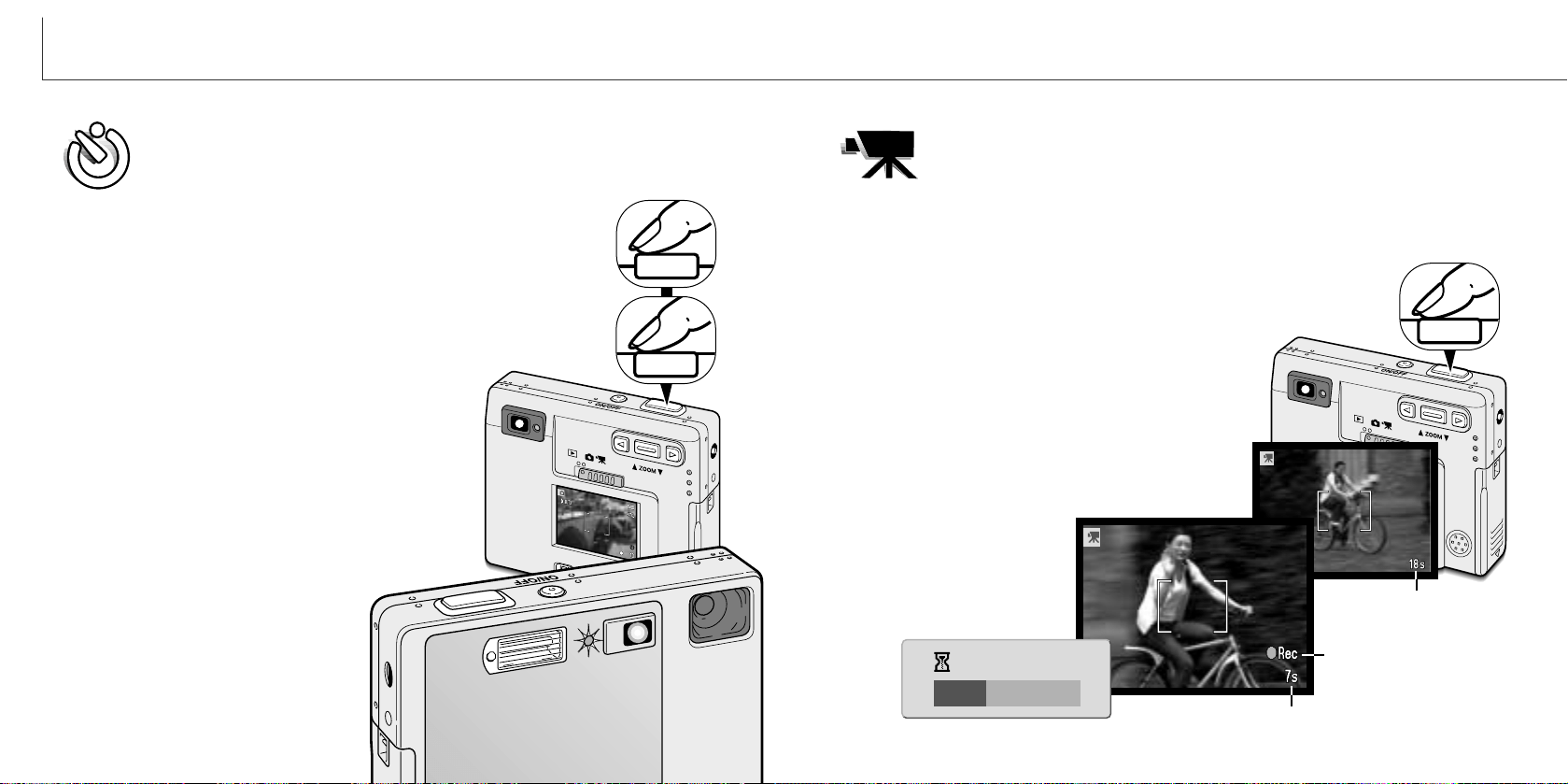
Used for self-portraits, the self-timer will delay the release of the shutter for
approximately ten seconds after the shutter-release button is pressed. The
self-timer drive mode is selected in the basic section of the recording-mode
menu (p. 28).
With the camera on a tripod, compose the picture as described in the
basic recording operation section (p. 23). Focus lock (p.24) can be
used with off-center subjects. Press the shutter-release button partway
down to lock the exposure and focus (1). Press the shutter-release but-
ton all the way down to begin the countdown (2). Because focus and
exposure are determined when the shutter-release button is pressed,
do not stand in front of the camera when taking a self-timer image.
Always confirm the focus with the focus signals
before beginning the countdown (p. 25).
During the countdown, the self-timer lamp on the
front of the camera (3) will start to blink and is
accompanied by an audio signal. A few seconds
before the exposure, the self-timer lamp will blink
rapidly. The lamp will glow steadily just before the
shutter fires. To stop the countdown,
press the zoom lever. To stop the
countdown and cancel the self-timer,
press the main switch. The drive mode
will be reset to single-frame advance
after the exposure. The audio signal
can be turned off in the setup menu.
The movie-recording drive mode is selected in the basic section of the
recording-mode menu (p. 28). Movie clips up to approximately thirty-five
seconds in length with audio can be recorded. The movie image is 320 X
240 pixels (QVGA) and is recorded at a rate of around 340KB/s.
Approximately one 41-second movie clip can be stored on one 16MB memory card.
Shooting digital video is simple. Frame the picture on the LCD monitor. Press and
release the shutter-release button to begin recording (1); “Rec” will be
displayed during recording. The camera will continue to record until the
recording time is used or the shutter-release button is pressed again.
When recording, the frame counter will countdown the
recording time. Take care not to cover the microphone
while recording. During recording, focus is locked and
the optical zoom is disabled. However, a stepless 4X
digital zoom can be used with the zoom lever.
The optical zoom position, exposure
compensation, and white balance must
be set before recording.
After recording, a screen will
appear indicating the movie
clip is being saved to the
memory card. Never remove
the memory card or
disconnect the power supply
while the clip is being saved.
32 33
RECORDING MODE
Self-timer
1
Recording indicator
Remaining recording time
Movie recording
2
1
Saving to card.
Stand-by
Recording
Maximum recording
time for the next clip.
3
Changing image size affects the number of
pixels in each image. The greater the image
size, the larger the file size. Choose image
size based on the final use of the image -
smaller images will be more suitable for web
sites whereas larger sizes will produce higher
quality prints. Image size must be set before
the picture is taken. Image size is set in the
basic section of the recording-mode menu
(p. 28).
Four image sizes are available: 2048 X 1536
(FULL), 1600 X 1200 (UXGA), 1280 X 960
(SXGA), and 640 X 480 (VGA). Image size is
defined by the image’s horizontal and vertical
dimensions in pixels. The selected image-size
setting is displayed on the LCD monitor by the
horizontal dimension only.
If the image size is changed, the frame counter will display the approximate number of
images that can be recorded at that setting on the installed memory card. One memory
card can contain images with differing sizes.
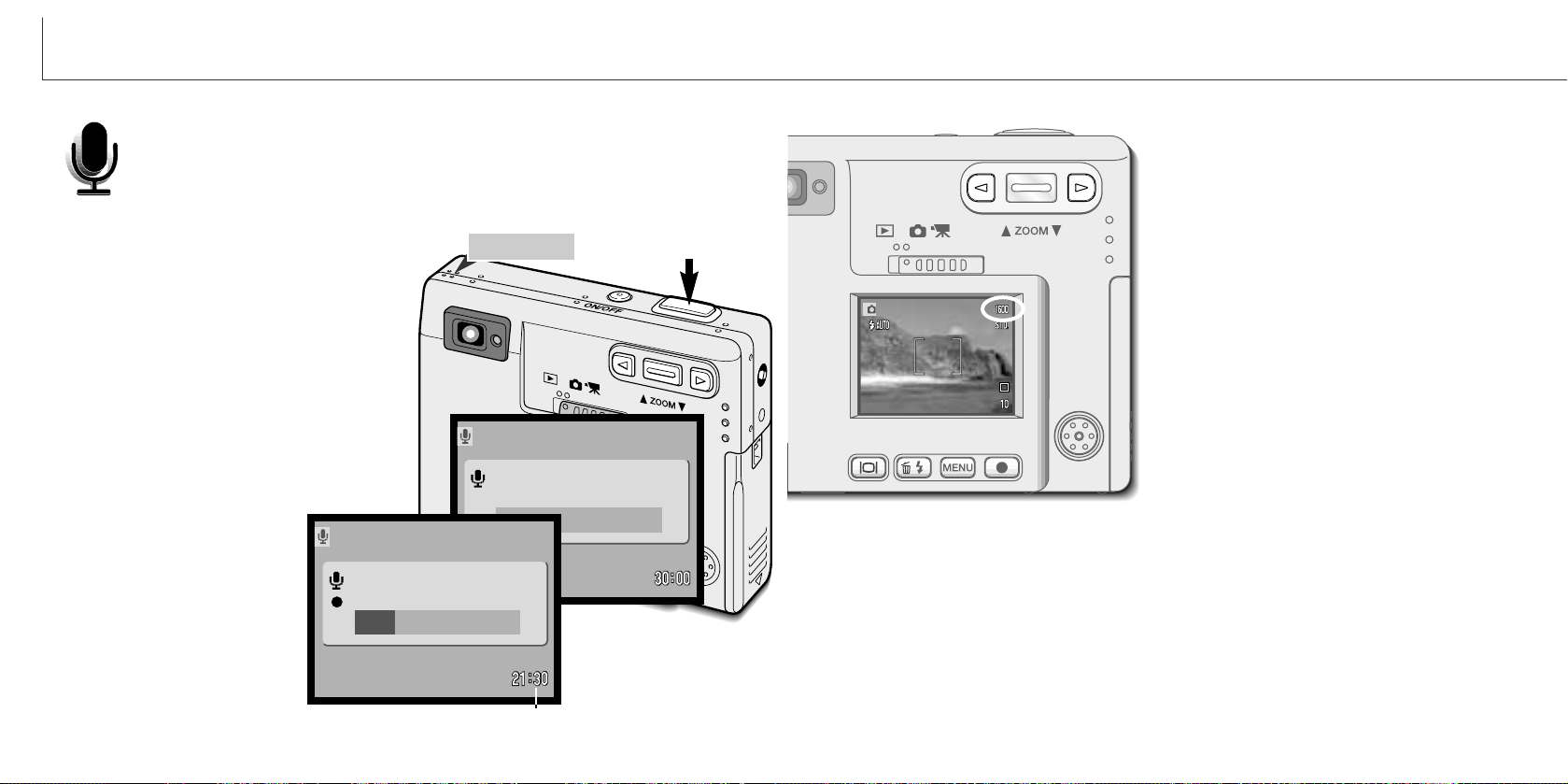
30 minutes of audio can be recorded without an image. The audio-recording
drive mode is selected in the basic section of the recording-mode menu (p.
28). When the function is active, the live view is replaced with a blue
screen.
Approximately 31 minutes of audio can be stored on one 16MB memory card. Audio is
recorded at approximately 8KB/s.
In stand-by, the monitor displays the
approximate recording time available.
To begin recording, press the shutter-release
button (1). A bar graph and the frame
counter (2) will display the amount of record-
ed time. The recording will stop when the
shutter-release button is pressed again or 30
minutes limit has elapsed.
When making audio recordings, be careful
not to touch or cover the microphone. The
quality of the recording is pro-
portional to the subject to
microphone distance. For best
results, hold the camera
approximately 20cm (8in) from
your mouth.
34 35
RECORDING MODE
Audio recording
Image size
PressShutterButtonToRecord.
Recording audio.
1
2
Recording countdown
Stand-by
Recording
Microphone
Stop.
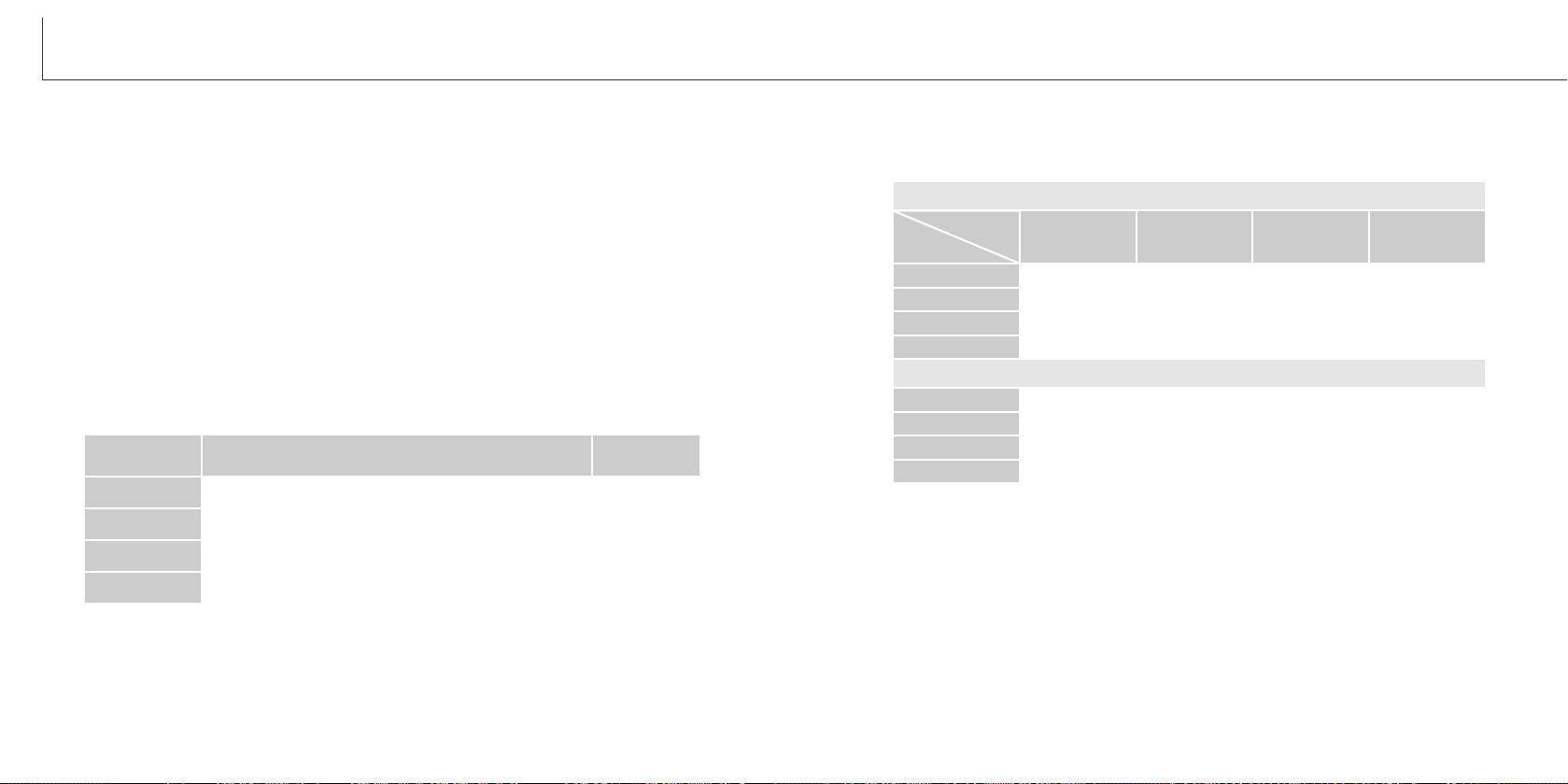
The number of images that can be stored on a memory card is determined by the size
and type of card and the file size of the images. The actual file size is determined by
the scene; some subjects can be compressed further than others.
36 37
RECORDING MODE
Image quality
S. FIN
FINE
STD
ECON
Economy - the smallest file sizes.
LCD monitor
display
Super fine - the highest-quality image.
Fine - high-quality image.
Standard - the default setting.
File type
TIFF
JPEG
JPEG
JPEG
This camera has four image-quality settings: super fine, fine, standard, and economy.
Always select the desired setting before taking the picture. Image quality is set in the
basic section of the recording-mode menu (p. 28).
Image quality controls the rate of compression, but has no effect on the number of
pixels in the image. The higher the image quality, the lower the rate of compression
and the larger the file sizes. If the economical use of the memory card is important, use
the economy mode. Standard image quality is sufficient for normal usage. The super-
fine mode will produce the highest quality image and the largest image files.
File formats vary with the image quality setting. Super fine images are saved as a TIFF
file. Fine, standard, and economy images are formatted as JPEG files.
If the image quality is changed, the LCD monitor will display the approximate number of
images that can be recorded at that setting on the installed memory card. One memory
card can contain images with differing qualities.
The frame counter and memory card capacity
Super fine
Fine
Standard
Economy
2 images 3 images 15 images
15 images 23 images 82 images
29 images
45 images
150 images
56 images
82 images
226 images
Approximate card capacity for an 16MB memory card.
1600 X 1200 1280 X 960 640 X 480
Super fine
Fine
Standard
Economy
5.5MB 3.5MB 0.91MB
0.95MB 0.61MB 0.17MB
0.48MB 0.32MB 0.09MB
0.25MB 0.17MB 0.05MB
Approximate file sizes.
Image
size
Image
quality
2048 X 1536
9.2MB
1.6MB
0.80MB
0.40MB
1 image
9 images
18 images
36 images
The frame counter indicates the approximate number of images that can be stored on
the memory card at the camera’s image quality and size settings. If the settings are
changed, the frame counter adjusts accordingly. Because the calculation is based on
approximate file sizes, the actual image taken may not change the counter or may
decrease it by more than one.
When the frame counter displays three red zeros and card-full message appears, it
indicates no more images at the image size and quality settings can be captured.
Changing the image size or quality settings may allow more images to be captured.
38 39
RECORDING MODE
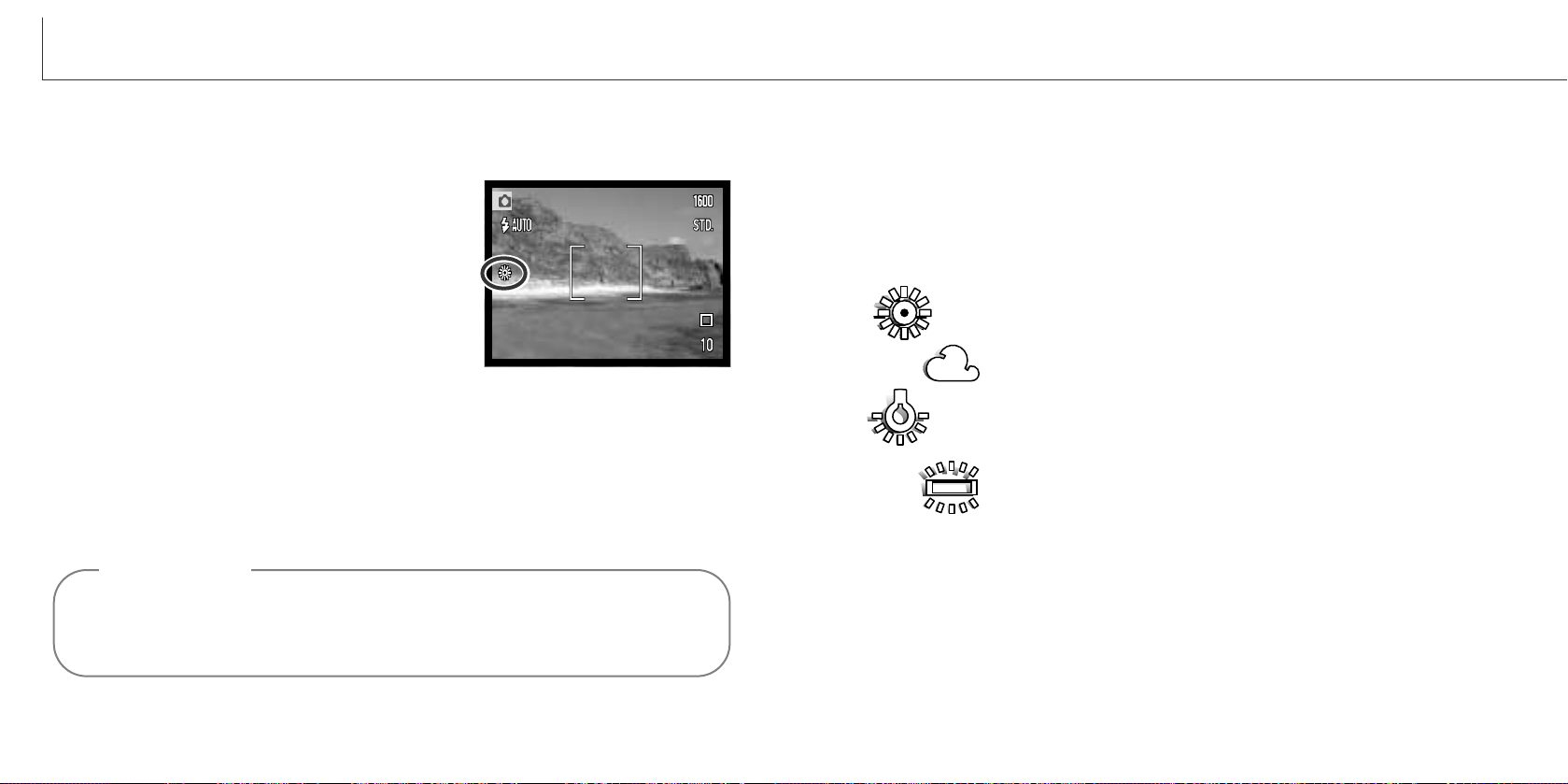
White balance is the camera’s ability to make different types of lighting appear neutral.
The effect is similar to selecting daylight or tungsten film, or using color compensating
filters in conventional photography.
One automatic and four preset white-balance setting
are available with still image and movie recording.
When one of the preset white-balance settings is
selected, an icon will be displayed on the LCD monitor
to indicate the active white-balance setting. White bal-
ance is set in the basic section of the recording-mode
menu (p. 28). When auto reset (p.40) is active, the
white balance will be reset to automatic white balance
when the camera is turned off.
White balance
Automatic white balance
The automatic white balance compensates for the color temperature of a scene. In
most cases, the auto setting will balance the ambient light and create beautiful images,
even under mixed-lighting conditions. When the built-in flash is used, the white balance
is set for the color temperature of the flash.
Preset white balance
Fluorescent - for fluorescent lighting: office ceiling lights.
Cloudy - for overcast outdoor scenes.
Preset white-balance settings must be set before the image is taken. Once set, the
effect is immediately visible on the monitor.
To record the ambient light, set the flash mode to flash cancel (p. 26). The built-in flash
can be used with preset white-balance, but will create a pinkish or blueish cast with the
fluorescent and tungsten settings. The flash is daylight balanced and will produce good
results with the daylight and cloudy settings.
Daylight - for outdoor and sunlit subjects.
Tungsten - for incandescent lighting: household filament light bulbs.
White balance cannot correct high-energy vapor lighting: sodium-vapor (yellow highway lights),
or mercury vapor. For portraits under these lighting conditions, the flash can be used to over-
power the ambient light. With landscapes containing these types of lights, set the white balance
to the preset daylight setting.
Shooting tips
When using the movie-recording drive
mode, the 4X digital zoom is active even
when the 2X zoom is set.
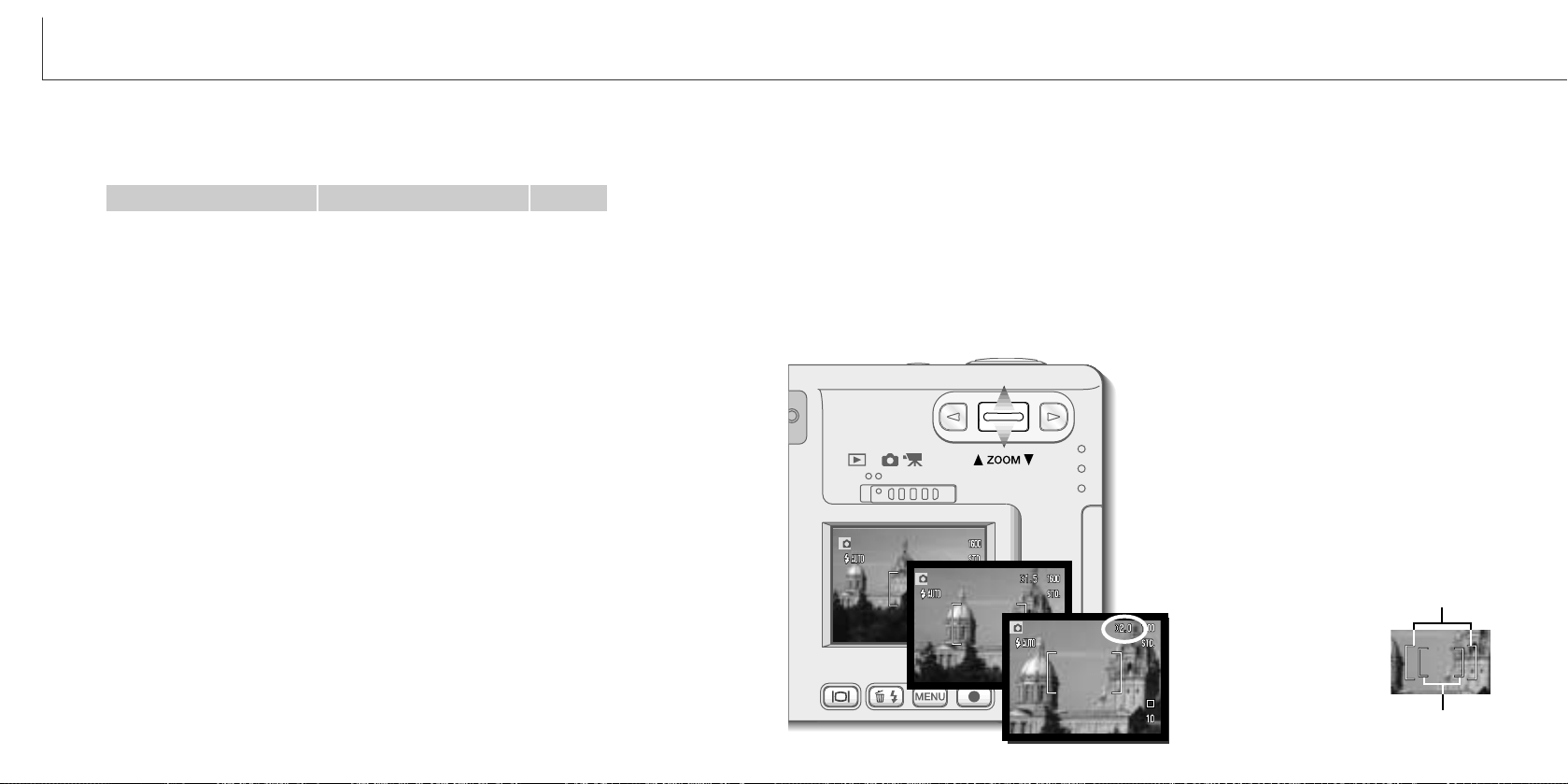
When the digital zoom
is active, the wide
focus frame and spot
focus area (p.50) are
enlarged.
41
40
RECORDING MODE
Auto reset Digital zoom
Assisting the optical zoom is a 2X and 4X digital zoom. The digital zoom is activated in
the custom section of the recording-mode menu (p. 28).
The digital zoom increases the magnification of the greatest telephoto setting of the
optical zoom in 0.2 steps up to 2X or 4X. Although the images recorded with the digital
zoom are interpolated to the set image size, the quality of the images may not be equal
to images taken without the digital zoom; the greater the power of the digital zoom the
lower the image quality. The effect of the digital zoom is visible on the LCD monitor
only. The digital-zoom function is canceled if the LCD monitor is turned off (p. 52).
At the maximum telephoto position, press
the zoom lever up to engage the digital
zoom.
• The zoom magnification will be displayed in
the top right corner of the monitor.
• To zoom out, press the zoom lever down.
Activate the digital zoom in the custom
section of the recording mode menu.
• The digital zoom will remain active until
reset on the menu.
*The flash mode is reset to autoflash with red eye reduction if autoflash with red eye
reduction was last set, if not the mode will be reset to autoflash. See page 26 for
information on flash modes.
Auto reset is initially active. To prevent the camera resetting, this function can be turned
off in the basic section of the menu. However, the camera will reset it the battery is
removed for an extended period. An internal battery will protect the clock, calender, and
camera settings for more than 24 hours if the camera is used for at least 5 minutes
before the battery is removed.
Exposure compensation will be disabled when the auto reset function is active and any
previous exposure-compensation setting is canceled.
Wide focus frame
Spot focus area
Flash mode*
Drive mode
White balance
Camera sensitivity
LCD monitor
Spot focus area
Function
Auto
Single-frame advance
Auto
Auto
Full display
Wide focus frame
Reset to
When auto reset is active, the following functions return to their program setting when
the camera is turned off:
26
30
38
44
52
50
Page
43
RECORDING MODE
Instant playback
After a still image is captured, it can be displayed
on the monitor for two seconds before being
saved. Instant playback shows the last frame in
the series when used with the continuous-
advance drive mode (p. 31). When the LCD
monitor is turned off (p. 52), it will automatically
activate for the instant playback period.
Instant playback can be activated in the custom
section of the recording-mode menu (p. 28).
When used with voice memo, the audio recording
will begin after the image is played back.
42
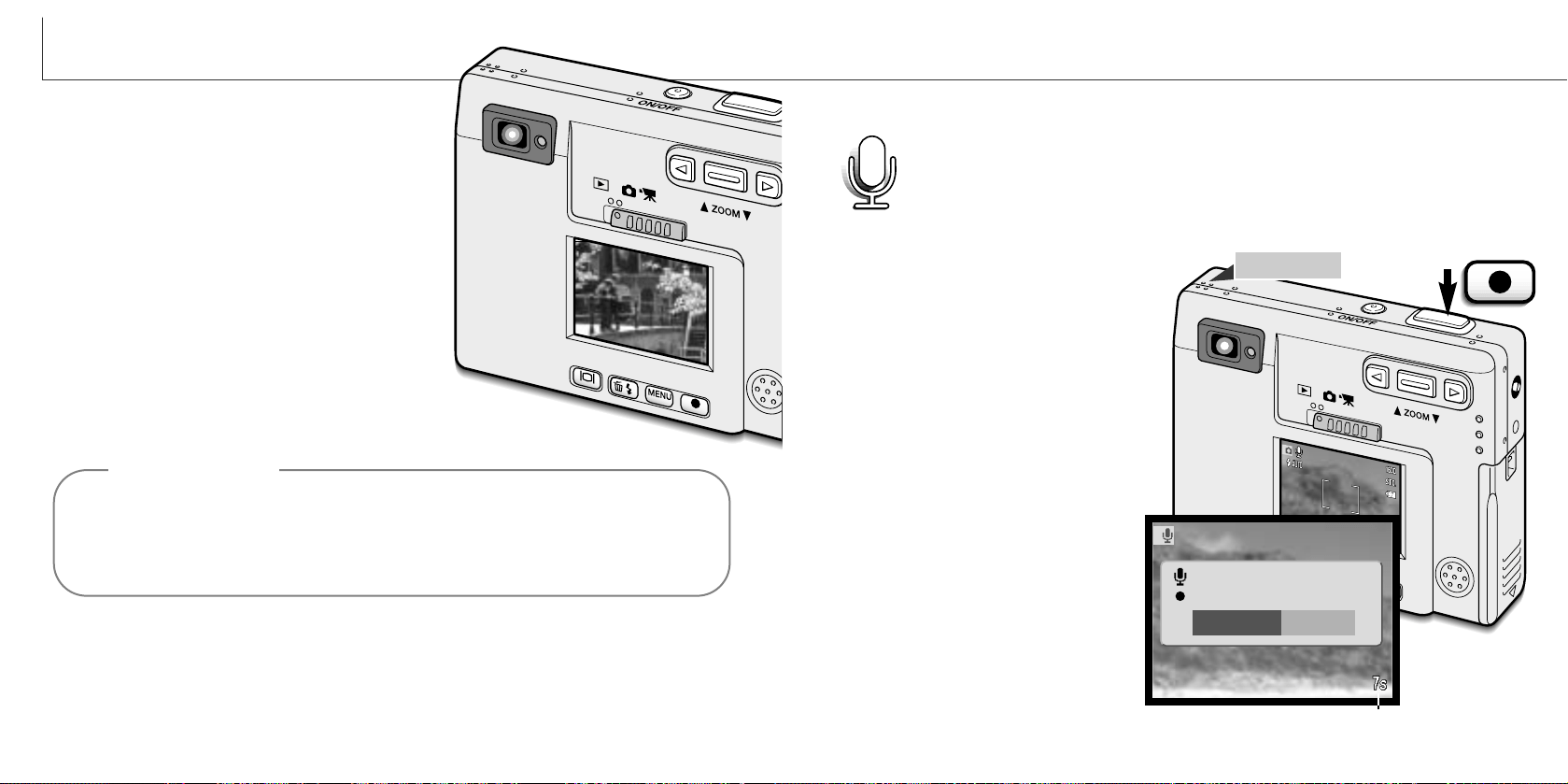
Voice memo allows an audio track up to fifteen second to be recorded with a
still image. The function is activated in the custom section of the recording-
mode menu (p. 28). When the function is active, the white microphone icon is
displayed on the LCD monitor. The voice memo must be set before taking a
picture. It will remain in effect until reset. When the LCD monitor is turned off
(p. 52), it will automatically activate for the voice-memo period.
After an image is captured, a screen will
appear indicating the audio recording has
started. A bar graph (1) will display the
amount of recording time remaining. To
stop the recording, press the shutter-
release button or enter button (2). The
recording will automatically stop when
the fifteen-second limit has elapsed.
Voice memo is attached to the last image
of a continuous-advance series (p. 31).
When played back, images with voice-
memo audio tracks have a note icon
displayed with them (p. 55).
When making audio recordings, be
careful not to touch or cover the micro-
phone. The quality of the recording is
proportional to the subject to micro-
phone distance. For best results, hold
the camera approximately 20cm (8in)
from your mouth.
Voice memo
Recording audio.
Stop
1
Remaining recording time
2
Microphone
Images can be previewed immediately after they have been captured regardless
if instant playback is active or not. Simply continue to hold down the shutter-
release button after taking the picture to display the image on the monitor. Release
the shutter button to end the playback. This function is disabled if the monitor is
turned off or the continuous advance, movie, or the self-timer drive mode is used.
Camera notes
4544
RECORDING MODE
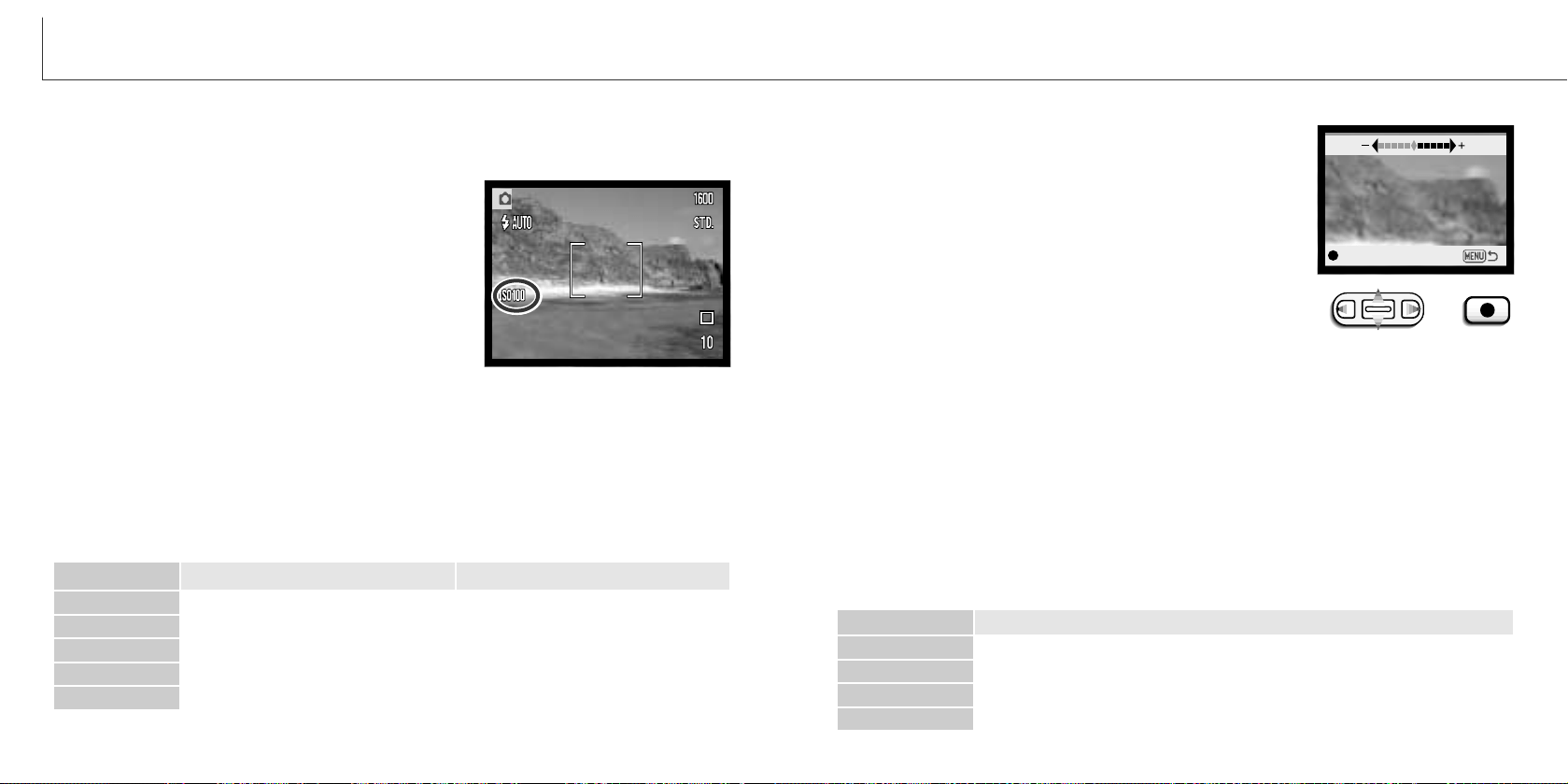
Four camera sensitivity settings can be selected with a still image: Auto, 50, 100, 200,
400; the numerical values are based on an ISO equivalent. ISO is the standard used to
indicate film sensitivity: the higher the number, the
more sensitive the film. Sensitivity can be activated in
the custom section of the recording-mode menu
The auto setting automatically adjusts the camera sen-
sitivity to the light conditions between ISO 50 and ISO
160. When any other setting than auto is used, “ISO”
and the set value will appear on the LCD monitor.
A specific sensitivity setting can be selected. As the
ISO value doubles, the camera sensitivity doubles. Like grain in silver-halide film that
increases with speed, noise increases with the sensitivity in digital imaging ; an ISO
setting of 50 will have the least noise and 400 will have the most.
Camera sensitivity - ISO
Flash range and camera sensitivity
Because of the optical system, the flash range is not the same at the lens’ wide-angle
position as it is at the telephoto position.
AUTO
50
100
200
ISO setting
LCD brightness
The brightness of the LCD monitor can be set in eleven lev-
els. After selecting the LCD brightness option and pressing
the enter button on the menu (p. 28, 58), the LCD brightness
screen will be displayed. Pressing and holding the display
button will also active the LCD brightness screen.
Use the left and right keys (1) to adjust the brightness level;
the monitor image will change accordingly. To set the level,
press the enter button (2); the camera will return to the
recording or playback mode. The LCD brightness level will
affect both modes.
Auto-power-off menu settings
To conserve battery power, the camera will shut down if an operation is not made with-
in a certain period. To restore power, press the main switch. The length of the auto-
power-off period can be changed in the setup 1 section of the recording and playback-
mode menu (p. 28, 58): 1, 3, 5, 10, and 30 minutes. The length of the auto-power-off
period is fixed at 10 minutes when the camera is connected to a computer.
Audio signals
The camera’s audio signals can be turned off and on in the setup 1 section of the
recording and playback-mode menu (p. 28, 58). When on, both tone signals and sound
effects are used. The sound effect simulates a film camera when the shutter is
released. The sound effects and tones can be turned off independently of each other.
Off
SoundFX only
w/o sound FX
On
All audio signals are turned off.
Shutter effect only. No tone signals during operation.
Tone signals only to indicate the camera operations.
Shutter effect and tone signals.
Menu setting
1
2
400
0.25m ~ 2.5m (0.82ft. ~8.2ft)
0.25m ~ 1.4m (0.82ft. ~4.6ft)
0.25m ~ 2.0m (0.82ft. ~6.6ft)
0.25m ~ 2.8m (0.82ft. ~9.2ft)
Flash range ( wide angle)
0.25m ~ 3.2m (0.82ft. ~ 10.5ft)
0.25m ~ 1.8m (0.82ft. ~ 5.9ft)
0.25m ~ 2.5m (0.82 ft. ~8.2 ft)
0.25m ~ 3.6m (0.82 ft. ~11.8 ft)
Flash range ( telephoto )
0.25m ~ 4.0m (0.82ft. ~13.1ft)0.25m ~ 5.1m (0.82 ft. ~16.7 ft)
Low
High
Enter
46 47
RECORDING MODE
Setting the date and time
It is important to accurately set the clock. When a recording is made, the date and time
of the recording are saved with the file and are displayed in playback mode or with the
DiMAGE Viewer software included on the CD-ROM. The date and time are set in the
setup 1 section of the recording and playback-mode menu (p. 28, 58).
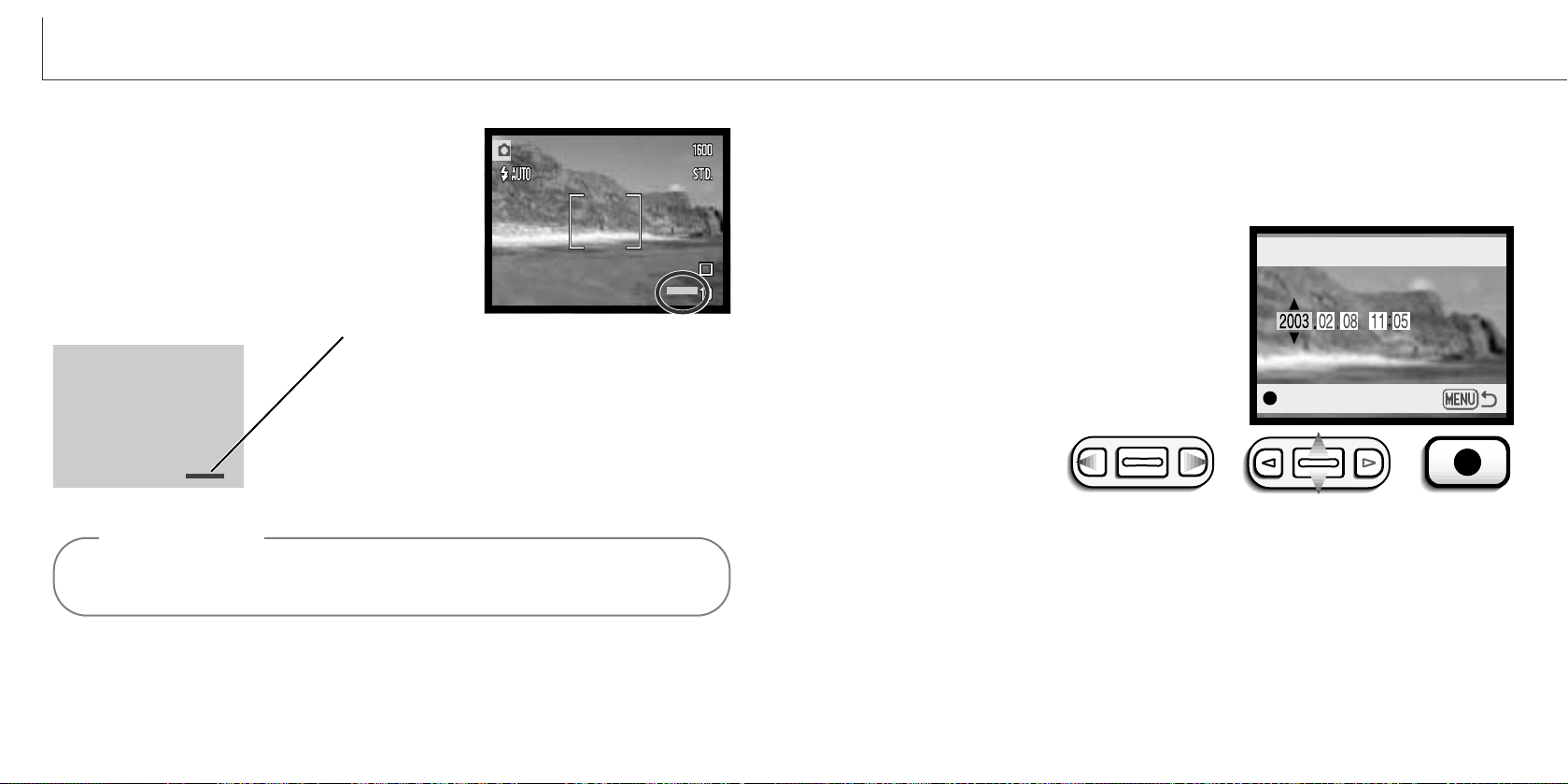
When the Date/Time-set option is selected and
entered, the date/time screen will be displayed. The
left and right keys (1) are used to select the item to
be changed and the zoom lever (2) is used to
change the value. From left to right, the screen
shows the year, month, day, hour, and minute. When
the date and time have been adjusted, set the clock
by pressing the enter button (3). The menu button
cancels the screen without applying any changes.
Setting the date format
The date format that is displayed can be changed: YYYY/MM/DD (year, month, day),
MM/DD/YYYY (month, day, year), DD/MM/YYYY (day, month, year). Simply select the
format and enter it by pressing the enter button; the new format will be displayed on the
menu. The date format does not affect date folder names (p. 67). The date format is
set in the setup 1 section of the recording and playback-mode menu (p. 28, 58).
1
2
3
Enter
Date/Time set
Imprinting the date and time
The date of recording can be printed directly on the
image. The imprinting function must be activated
before the image is taken. Once activated, the date
will continue to be imprinted until the function is
reset: a yellow bar is displayed next the frame
counter on the monitor to indicate the imprinting
function is active. Date imprinting is activated in the
custom section of the recording-mode menu.
Every time a still image is recorded, it is stored with an exif tag that contains the date and time
of recording as well as shooting information. This information can be viewed on a computer
with the DiMAGE Viewer software.
Camera Notes
The date is imprinted in the lower right corner of
the image when viewed horizontally. It is printed
directly on the photograph writing over the image
information. The date can be imprinted in three
formats, see next page.
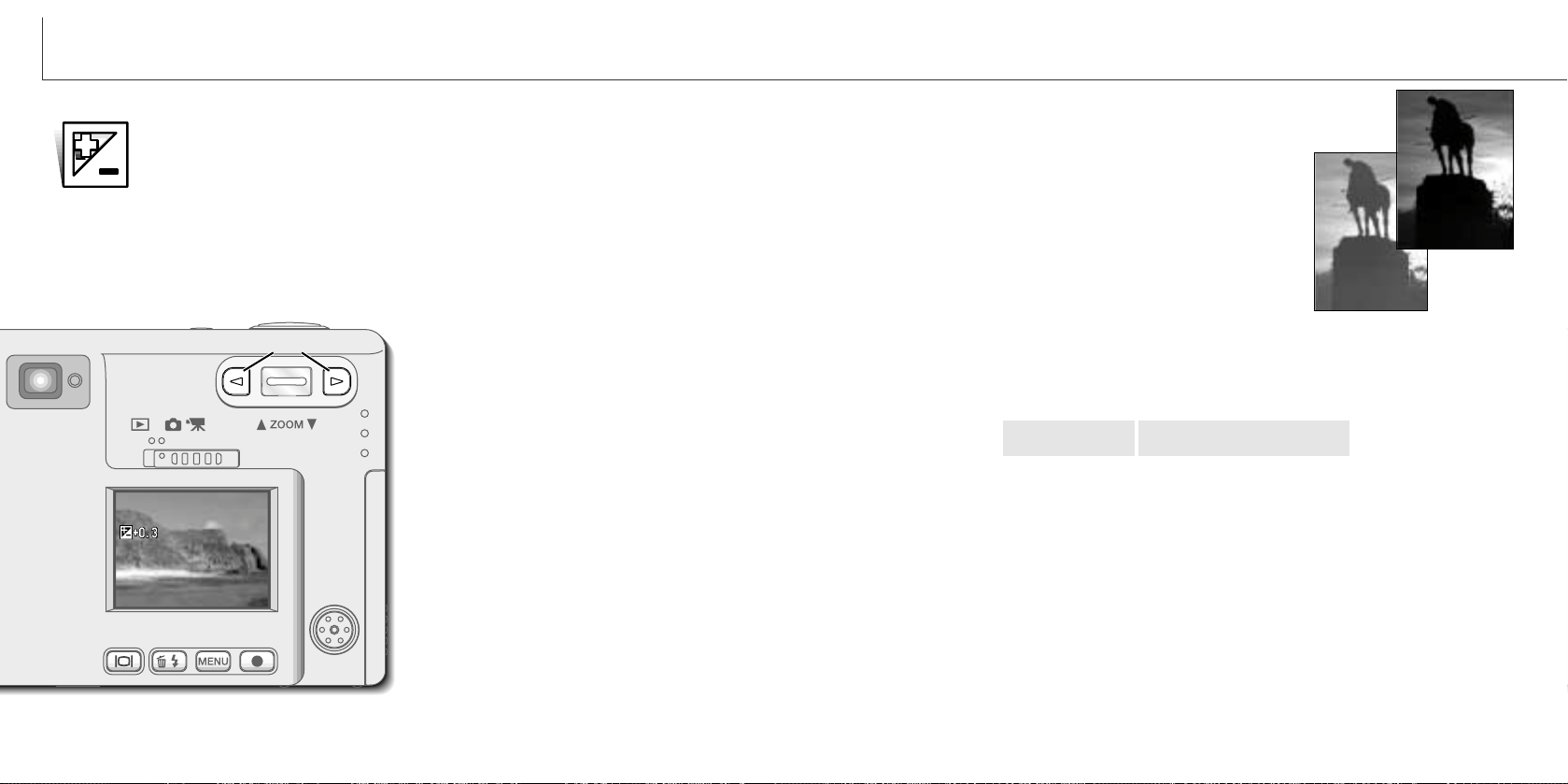
Sometimes the camera’s exposure meter is deceived by certain sub-
jects. Exposure compensation can be used in these situations. For
example, a very bright scene, such as a snowy landscape or
a white sandy beach, can appear too dark in the captured
image. Before taking the picture, adjusting the exposure by
+1 or +2 Ev will result in an image with normal tonal values.
In this example, the dark scene appears bright and washed-
out on the LCD monitor. By decreasing the exposure by
–1.5 Ev, the richness of the sunset is preserved.
Use the left and right keys (1) to adjust
the exposure-compensation value.
• The LCD monitor will display the
exposure-compensation icon and value.
• Change in exposure compensation is
visible in the live image on the monitor.
The adjustment in exposure will be
automatically set after five seconds or
when another camera button is
pressed.
48 49
RECORDING MODE
What is an Ev?
Ev stands for exposure value. A change of one Ev will adjust the exposure calculated
by the camera by a factor of two.
Change in Ev
Adjustment to exposure
+2.0 Ev
+1.0 Ev
0.0 Ev
–1.0 Ev
–2.0 Ev
Calculated exposure
4X as much light
2X as much light
1/2 as much light
1/4 as much light
Exposure compensation
The camera exposure can be adjusted to make the final picture lighter or
darker by as much as ±2Ev in 1/3 increments with still image and movie
recording. The exposure-compensation value will remain in effect until it has
been reset.
The exposure compensation must be set before the image is captured. When setting
the exposure compensation, the amount of compensation is shown next to the
exposure-compensation icon on the monitor. When set to any value other than 0.0, the
icon will remain on the LCD monitor as a warning. To set the exposure compensation,
the monitor must be on.
1
When auto reset is active, exposure
compensation is disabled. Any expo-
sure-compensation value set will also
be canceled when the auto-reset func-
tion is turned on.