51PP9910
55PP9910
HDTV
HDTV
Thank you for choosing Philips.
Need help fast?
Read your User Manual first for quick tips that
make using your Philips product more enjoyable.
If you have read your instructions and still need
assistance you may access our online help at
www.p4c.philips.com
or
call 1-800-531-0039
while with your product.
3135 035 22232
User Manual
ADVANCED INSTRUCTIONS
3/24/04
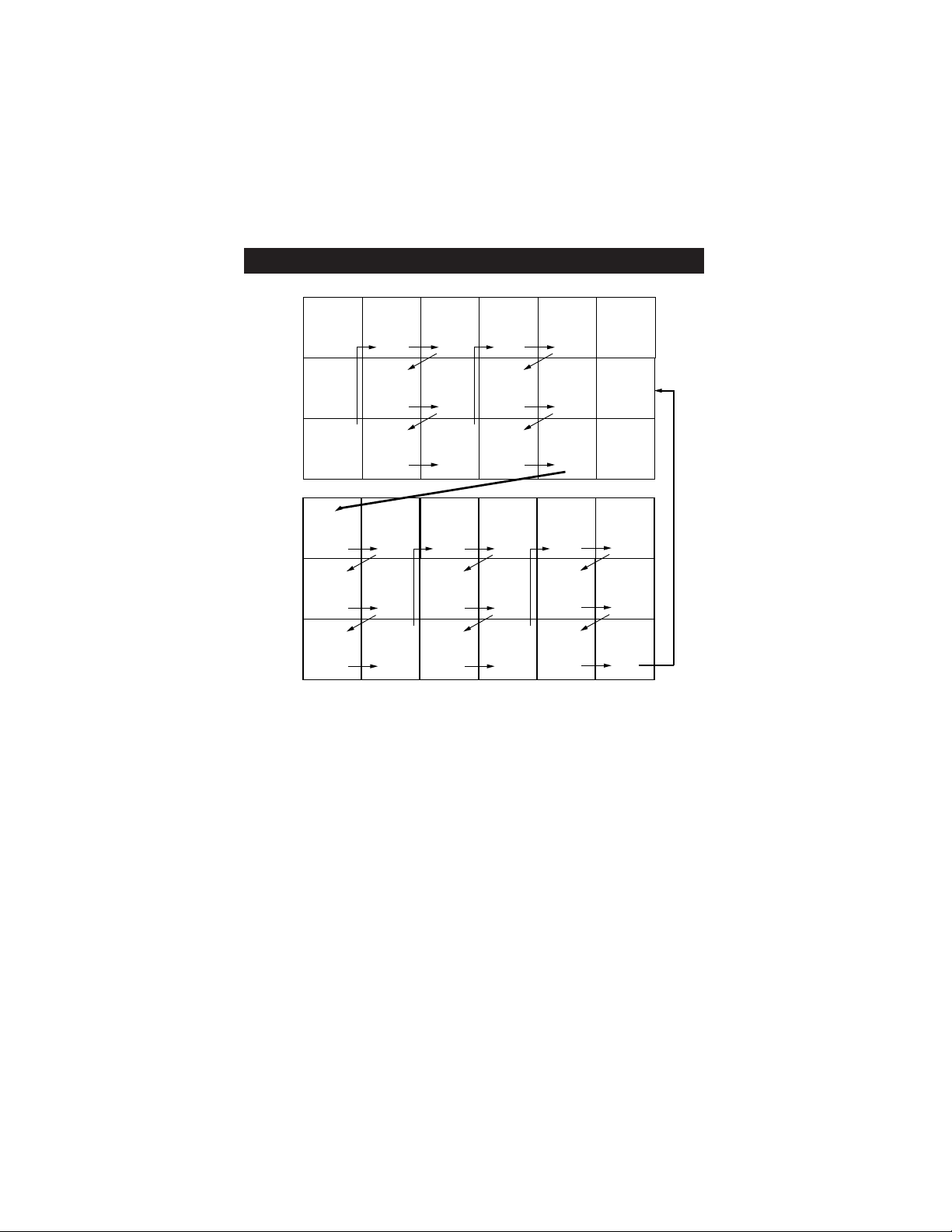
PANEL INDEX
Panel
Sequence
and
Panel Index
COVER
PANEL
1
PANEL
2
PANEL
3
PANEL
4
PANEL
5
PANEL
6
PANEL
7
PANEL
8
PANEL
9
PANEL
10
PANEL
11
PANEL
12
PANEL
13
PANEL
14
PANEL
19
PANEL
20
PANEL
21
PANEL
22
PANEL
23
PANEL
24
PANEL
25
PANEL
26
PANEL
27
PANEL
28
PANEL
29
PANEL
30
PANEL
31
PANEL
32
PANEL
33
PANEL
34
PANEL
15
PANEL
16
PANEL
17
PANEL
18
Side 1
Side 2
Advanced Remote Features
Using the Guide . . . . . . . . . . . . . . .1
Surf . . . . . . . . . . . . . . . . . . . . . . . .2
DSURF . . . . . . . . . . . . . . . . . . . . .3
PIP . . . . . . . . . . . . . . . . . . . . . . . . .4
Picture Format . . . . . . . . . . . . . . .5
Advanced Menu Features
Picture Controls . . . . . . . . . . . . . .6
Convergance . . . . . . . . . . . . . . .7-8
Sound Controls . . . . . . . . . . . . . . .9
Bass Bosst . . . . . . . . . . . . . . . . . .10
AVL . . . . . . . . . . . . . . . . . . . . . . .11
Surround Sound . . . . . . . . . . . . . .12
SAP, Alt Audio . . . . . . . . . . . . . .13
Audio Out,
Speakers Dig Out . . . . . . . . . . . .14
Intellitune, Smart Picture . . . . . . .15
Sleep . . . . . . . . . . . . . . . . . . . . . .16
Timer . . . . . . . . . . . . . . . . . . .17-19
AutoLock . . . . . . . . . . . . . . . .20-23
PIP . . . . . . . . . . . . . . . . . . . . . . . .24
Closed Caption . . . . . . . . . . .25-26
Picture Format . . . . . . . . . . . . . . .27
Channel Edit . . . . . . . . . . . . . . . .28
AutoChron . . . . . . . . . . . . . . .29-30
Weak Digital Signal . . . . . . . . . . .31
Channel and Volume Display . . . .32
Emergency Alert . . . . . . . . . . . . .33
Factory Channel Reset . . . . . . . . .34
SUBJECT Panel # SUBJECT Panel #
SURF
1
SURF
12 > add? ADD?
Here's the Space for the program
info which can run to four lines
Here's the Space for the program
info which can run to four lines
10:00 am - 11:00am
Program name
80 - 1 PBS1DTV
HDTV
Mon 17 Oct
10:00
Here's the Space for the program
info which can run to four lines
Here's the Space for the program
info which can run to four lines
10:00 am - 11:00am
Program name
80 - 1 PBS1DTV
HDTV
Mon 17 Oct 10:15am
80-1
80-2
80-3
80-4
80-5
10:00 1:00
Here's the Space for the program
info which can run to four lines
Here's the Space for the program
info which can run to four lines
10:00 am - 11:00am
Program name
80 - 1 PBS1DTV
HDTV
Mon 17 Oct 10:15am
80-1
80-2
80-3
80-4
80-5
10:00 1:00
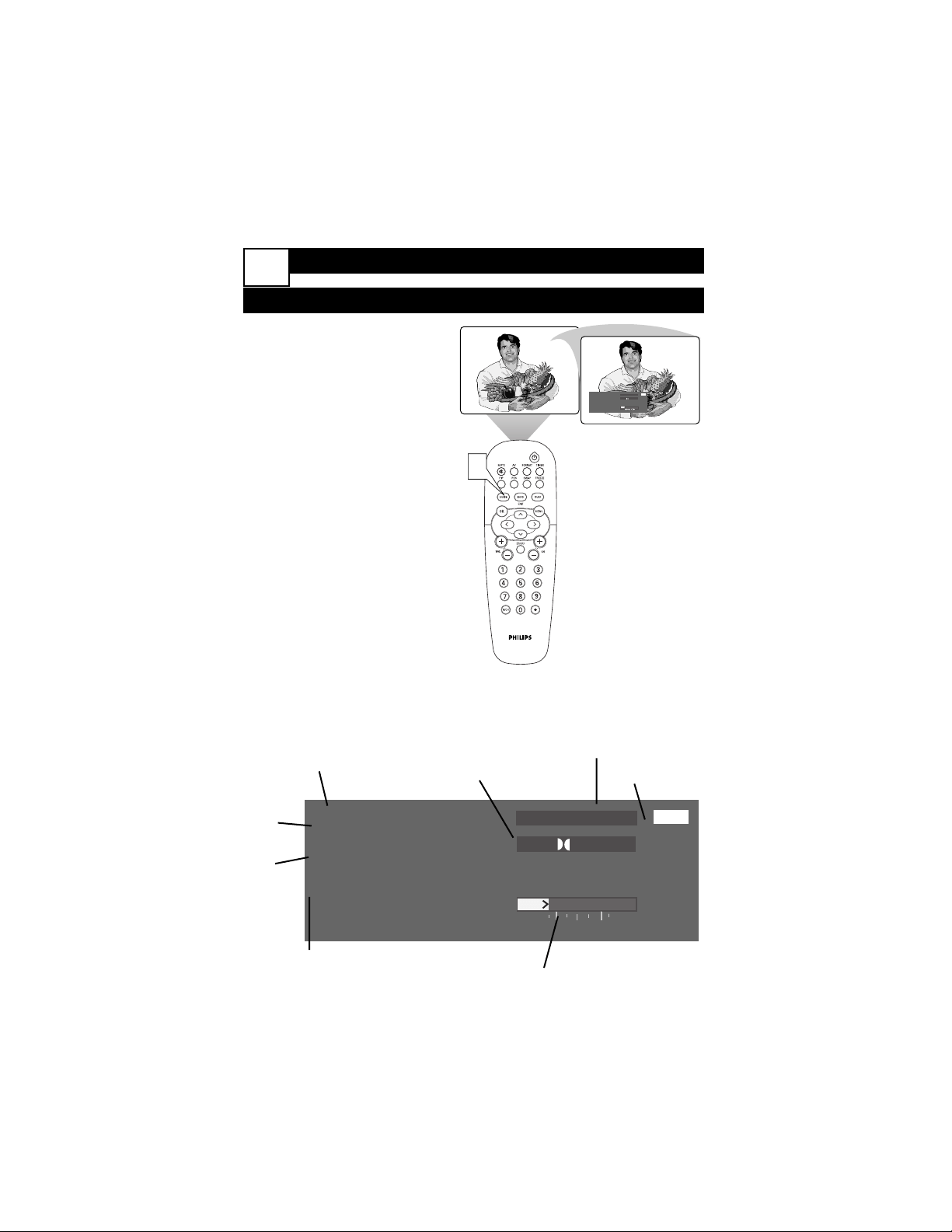
Channel and Name
Current date and time
Program
name
Program
time
TIme Selector
Available
Subchannels
Program information
Signal Type
Guide
ADVANCED REMOTE FEATURES
USING THE GUIDE
T
he guide can provide you with infor-
mation about the current program
as well as upcoming programs. The
content and accuracy of the guide is
entirely dependent on the broadcaster
or cable company.
1
Press the GUIDE button to
open the Guide window. If the
broadcaster or cable company
is providing it, information
about the current program and
programs throughout the day
are displayed.
2
Use the CURSOR LEFT or
RIGHT button to select a time.
The program name, time,
inforamtion, as well as signal
type are displayed.
1
ADVANCED REMOTE FEATURES
USING SURF
A
fter you set up a list of your
favorite signal sources in the SURF
list, you can press the SURF button to
see the list and quickly tune to a
favorite signal source. Place up to 10
signal sources in the SURF list.
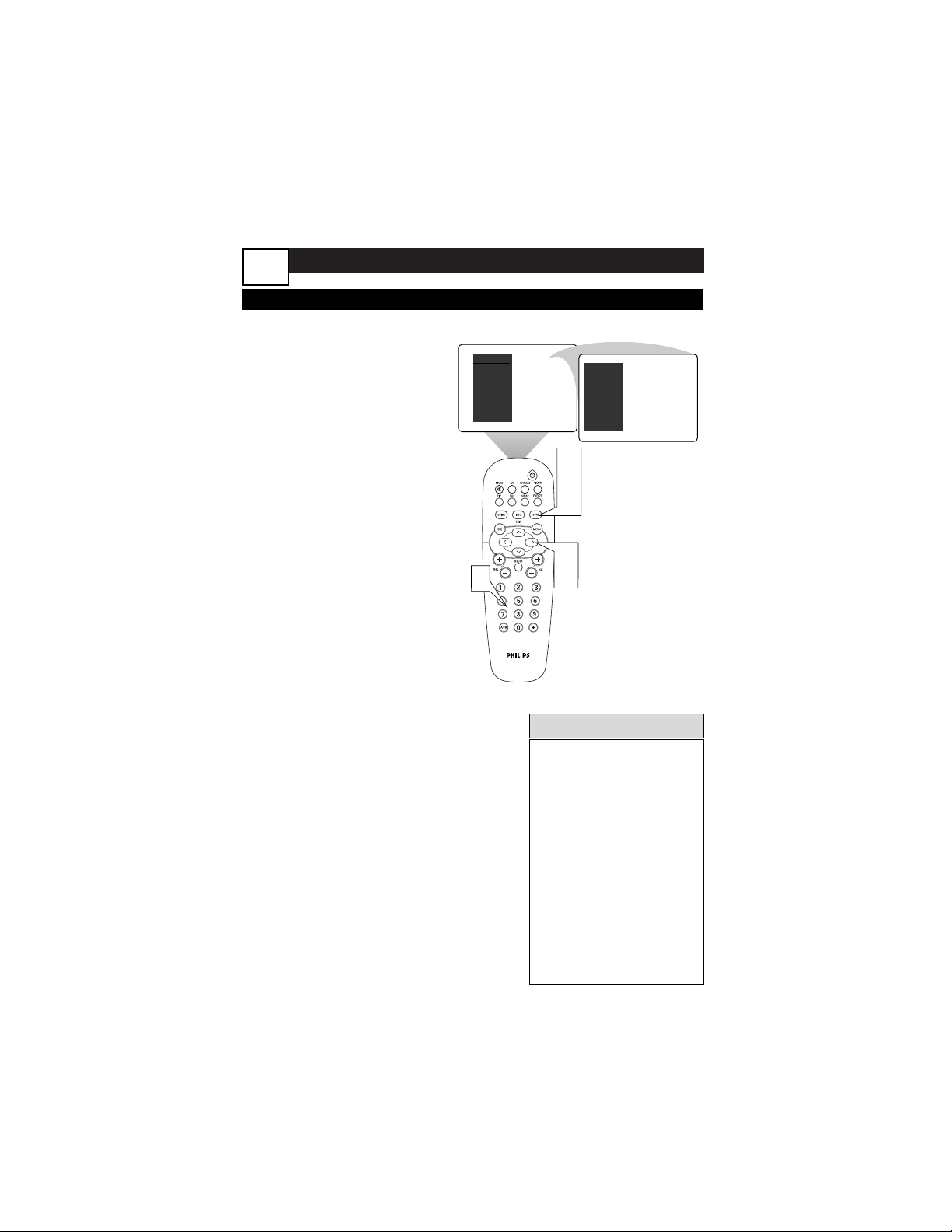
1
Once you are viewing the
channel you want to add to
the surf list, press the SURF
button. The Surf list box
appears. The number of the
current channel is shown with
ADD? to the right. Press the
CURSOR RIGHT button to
add the channel to the Surf
list. The text should switch
from “add?” to “delete?” The
text gives the next available
action, therefore, when it says
“delete?” the channel has been
added.
2
Press the NUMBER but-
tons, CH(annel) +/– but-
tons to select another signal
source to add to the Surf list.
Press the SURF button and
then the CURSOR RIGHT
button to add the channel to
the list.
Repeat this step, filling the list
with up to 10 favorite signal
sources. NOTE: If you exceed
10 channels a warning message
will inform you to delete a
channel before adding another.
3
To tune to a favorite signal
source from the list, press
the SURF button. The Surf
list box appears. Press the
SURF button or the CURSOR
DOWN button or UP as many
times as necessary to tune to
the channel.
SURF
12 > delete? ADD?
1,
2,
3
1,
2
2
SURF
12 > add? ADD?
Channel is deleted.
Channel is added.
HELPFUL HINTS
•
To delete a signal source
from the list, press the
SURF button. The Surf list
box appears. Press the
SURF button or the
CURSOR DOWN button
or UP as many times as
necessary to select the
signal source to be delet-
ed. Then press the CUR-
SOR RIGHT button to
delete the signal source.
The screen will say
“add?” when the channel
has been deleted.
2
ADVANCED REMOTE FEATURES
USING DSURF
D
SURF locks the tuner into a “digi-
tal only” mode. Like a “Caps
Lock” button on a computer keyboard,
DSURF limits channel selection to digi-
tal channels only.
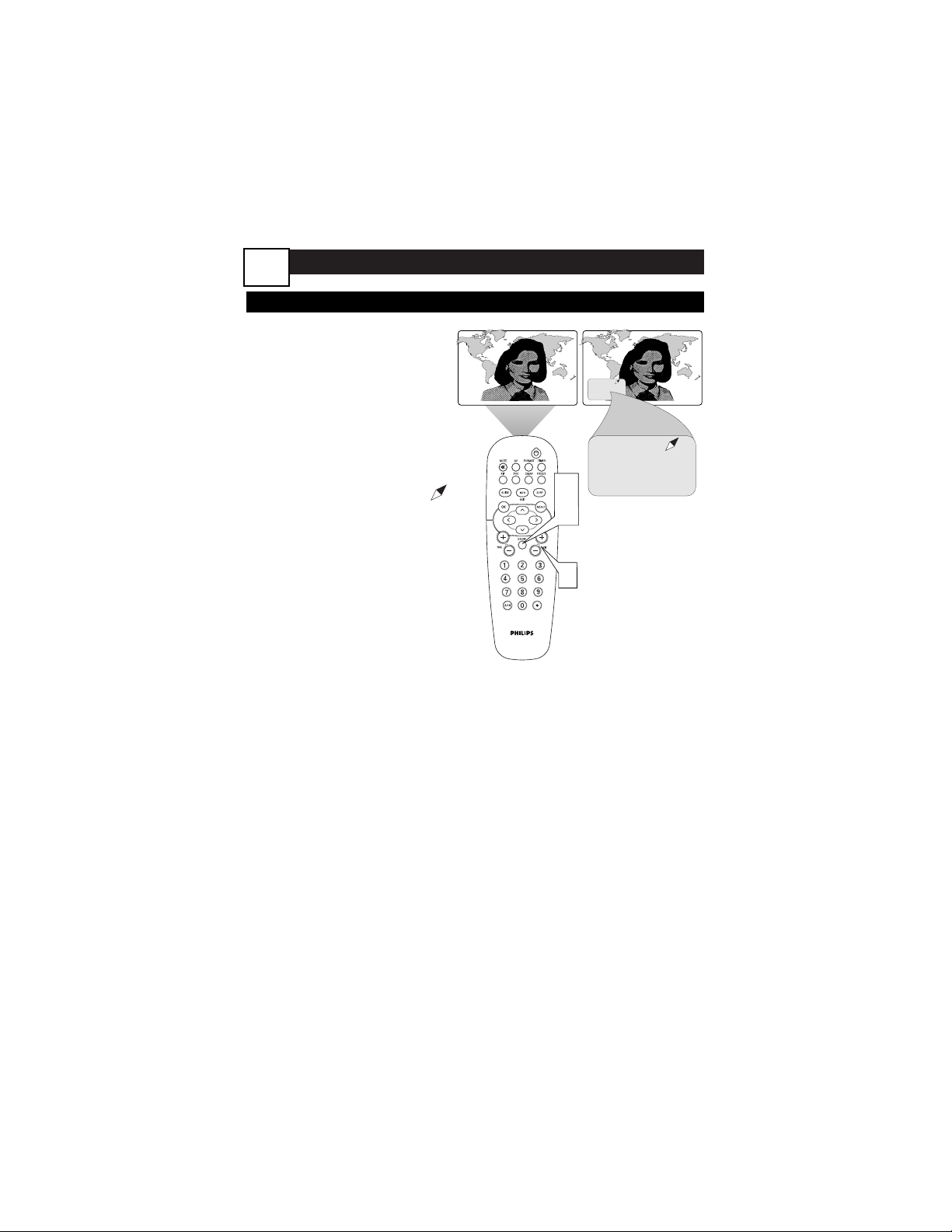
1
Press DSURF.
2
Use Channel + or - to select a
channel. Only digital channels
are available. A small icon,
appears next to the channel to
indicate DSURF is activated.
3
Press DSURF again to return
to normal channel selection
and the DSURF icon disappears
1,
3
2
EVENING WORLD NEWS
TONIGHT'S HEADLINES
EVENING WORLD NEWS
TONIGHT'S HEADLINES
5.1 5.1
WXYZ
(Digital)
5.1 5.1
WXYZ
(Digital)
EVENING WORLD NEWS
TONIGHT'S HEADLINES
EVENING WORLD NEWS
TONIGHT'S HEADLINES
3
ADVANCED REMOTE FEATURES
USING PICTURE-IN-PICTURE (PIP)
T
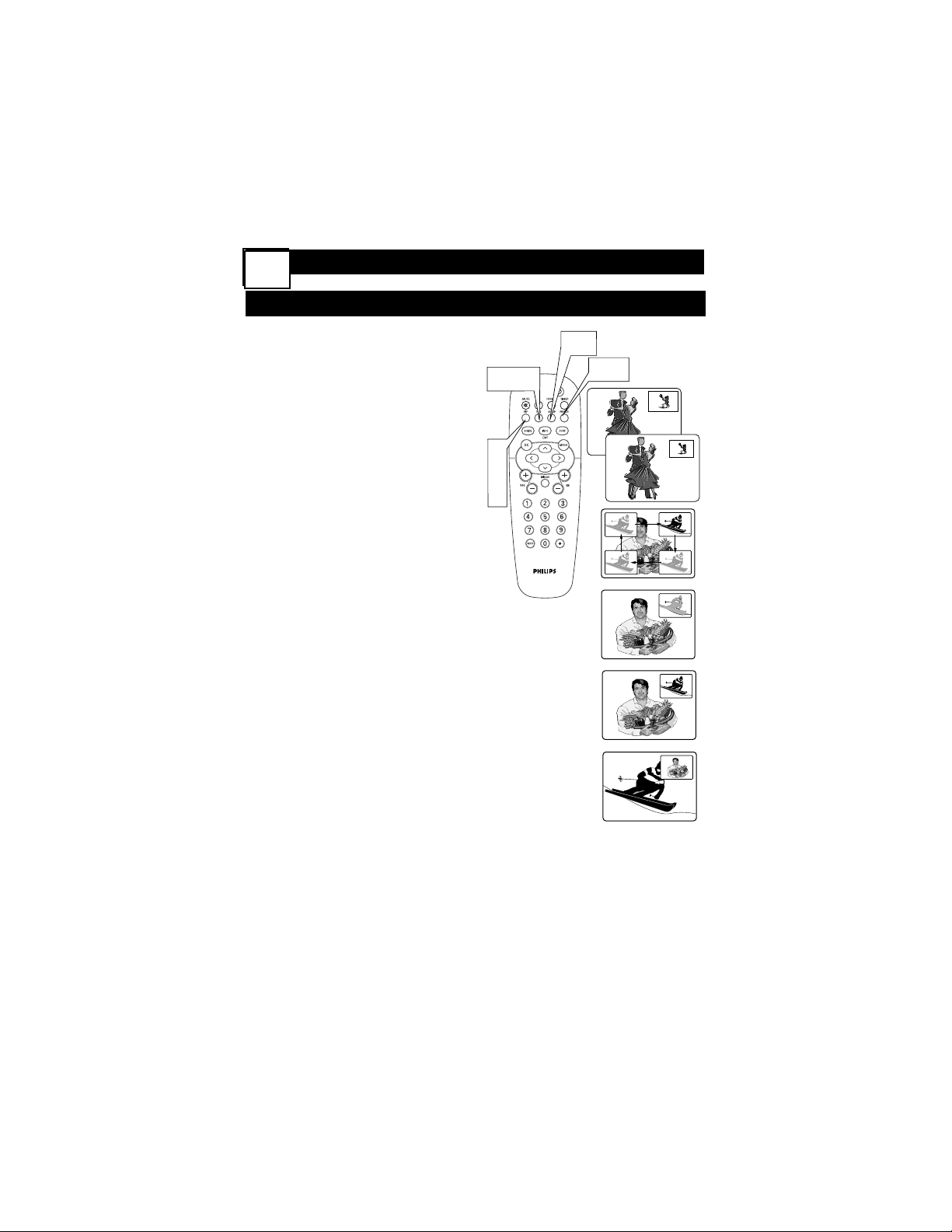
he Picture-In-Picture (PIP) feature
allows you to display a subscreen
within your main screen and watch two
video sources at once. Because your set
has one tuner, you need to use a VCR
as a second tuner for your PIP picture.
Tune to your favorite show on the main
screen while scanning other AV inputs in
the PIP window. See panel 24 to select
the PIP source.
1
Press the PIP button to
turn PIP on.
2
Press the PIP button a sec-
ond time to make the PIP win-
dow smaller.
3
To select a video source to
watch in the PIP window, see
“Selecting a PIP Source” on
panel 24.
4
Press the PIP button a third
time to turn PIP off.
M
OVING THE PIP SCREEN
Press the POS button. Each time
you press this button, the PIP screen
moves to another corner of the main
screen.
F
REEZING THE PIP SCREEN
Press the FREEZE button. The
picture in the PIP screen stands still.
Stopping motion allows you to write
down onscreen phone numbers or
addresses.
S
WITCHING THE MAIN AND PIP
SCREENS
Press the SWAP button. The main
screen and PIP screen change places.
POSITION
SWAP
FREEZE
Ski Vacations
P.O. Box 55512
Anytown, USA 87654
1-800-555-1212
FREEZE
Button
SWAP
Button
POSITION
Button
1
2
4
4
ADVANCED REMOTE FEATURES
USING PICTURE FORMAT CONTROL
Y
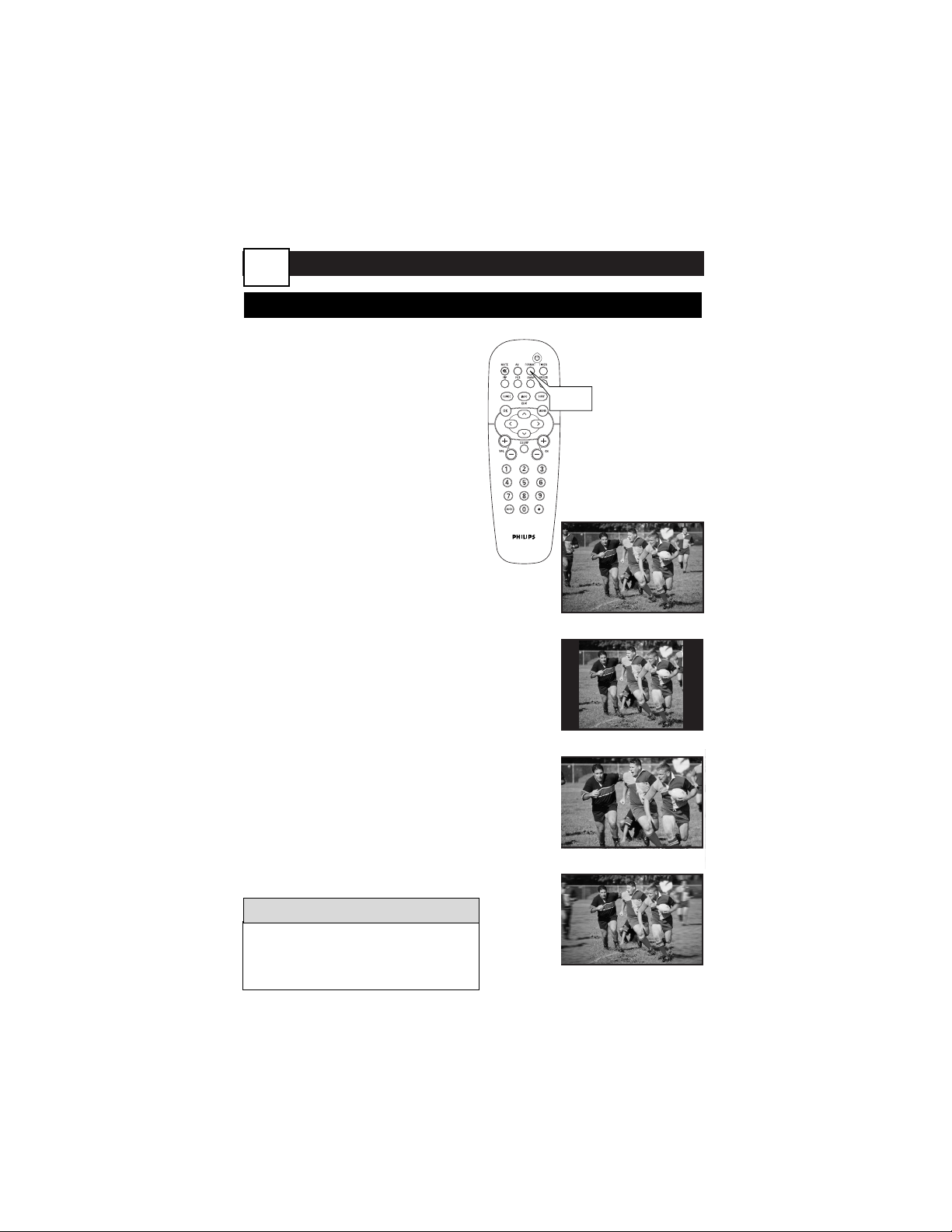
our TV’s wide screen (16:9 aspect ratio)
delivers a home-cinema experience not
possible with a conventional (4:3 aspect
ratio) set. High-definition (HD) programs
originating in 16:9 format and other
widescreen-format video sources appear
more lifelike, dramatic, and theatrical.
Border bars are diminished or eliminated.
Most anamorphic-DVD programs will fill the
wide screen without border bars.
Selecting a Picture Format
Using the Remote Control
Use your TV’s picture-format modes
with video sources you connect to the
ANTENNA, CABLE AV1, AV2, AV3,
AV4, AV5, SIDE inputs on the TV. While
watching a video source—with no
onscreen menu or display present—
press the FORMAT button once to see
the currect mode. Press it again to
change to the next mode.
FORMAT
Button
Picture-format Modes
NATIVE (16:9) is the default for your
DTV because HD programs are broad-
cast in this format. Analog channels are
expanded horizontally.
4:3 shows an analog the picture in its
original, conventional (4:3 aspect ratio)
format.
ZOOM expands, or zooms, the picture
both vertically and horizontally, eliminat-
ing or reducing the size of border bars.
PANORAMIC stretches the outer por-
tions of the picture horizontally.
To prevent uneven picture-tube aging,
do not leave border bars or other sta-
tionary images on screen for extended
periods of time.
WARNING
NATIVE (16:9)
4:3
ZOOM
PANORAMIC
5
ADJUSTING PICTURE CONTROLS
T
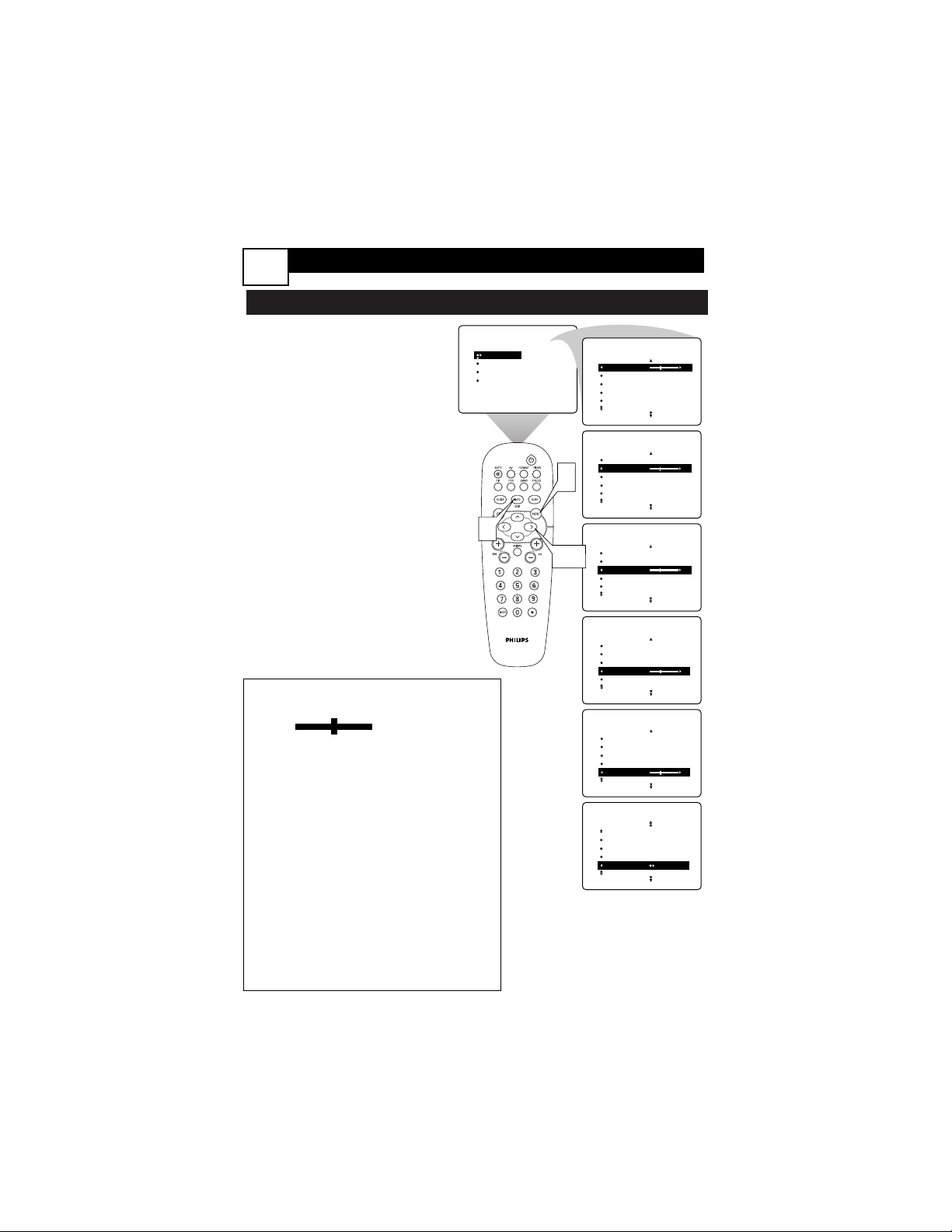
o adjust your TV picture controls,
select a channel and follow these
steps. See descriptions of the picture-
adjustment options below.
1
Press the MENU button on
the remote control to show the
onscreen menu.
2
Press the CURSOR RIGHT
button. BRIGHTNESS will be
highlighted and an adjustment bar
will be shown to the right.
3
Press the CURSOR RIGHT
button or LEFT to adjust the
BRIGHTNESS level of the pic-
ture. Or press the CURSOR
DOWN button to select anoth-
er picture control to adjust.
4
Press the INFO/EXIT button
to exit the menu.
PICTURE
SOUND
FEATURES
INSTALL
BRIGHTNESS
PICTURE
SHARPNESS
COLOR
TINT
BRIGHTNESS
PICTURE
SHARPNESS
COLOR
TINT
PICTURE
BRIGHTNESS
PICTURE
SHARPNESS
COLOR
TINT
PICTURE
BRIGHTNESS
PICTURE
SHARPNESS
COLOR
TINT
PICTURE
BRIGHTNESS
PICTURE
SHARPNESS
COLOR
TINT
PICTURE
BRIGHTNESS
PICTURE
SHARPNESS
COLOR
TINT
PICTURE
PICTURE
SHARPNESS
COLOR
TINT
COLOR TEMP NORMAL
PICTURE
4
2,3
1
ADVANCED MENU FEATURES
6
Picture-adjustment Options
Remember, when the bar scale is cen-
tered , the control settings
are at mid-range levels. Picture adjust-
ments are described as follows:
BRIGHTNESS raises and lowers the
black level of the picture.
PICTURE raises or lowers the intensity
of the picture (also called contrast).
SHARPNESS improves the detail in the
picture.
COLOR adds or eliminates color.
TINT adjusts the picture to obtain natu-
ral skin tones.
COLOR TEMP offers NORMAL,
COOL, or WARM picture preferences.
NORMAL keeps whites white.
WARM makes whites less blue.
COOL makes whites more blue.
ADVANCED MENU FEATURES
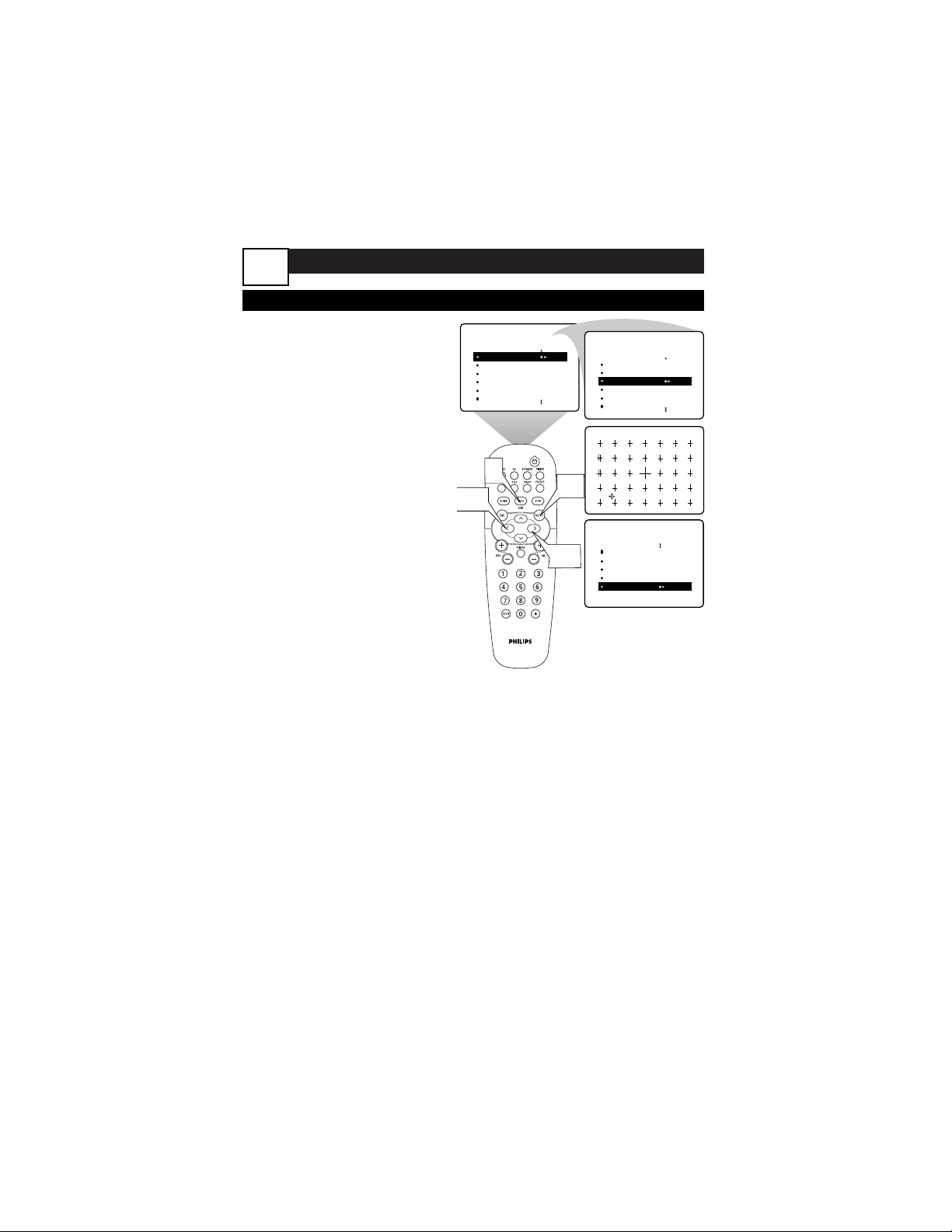
ADJUSTING CONVERGENCE:CONVERGE RED/BLUE
Y
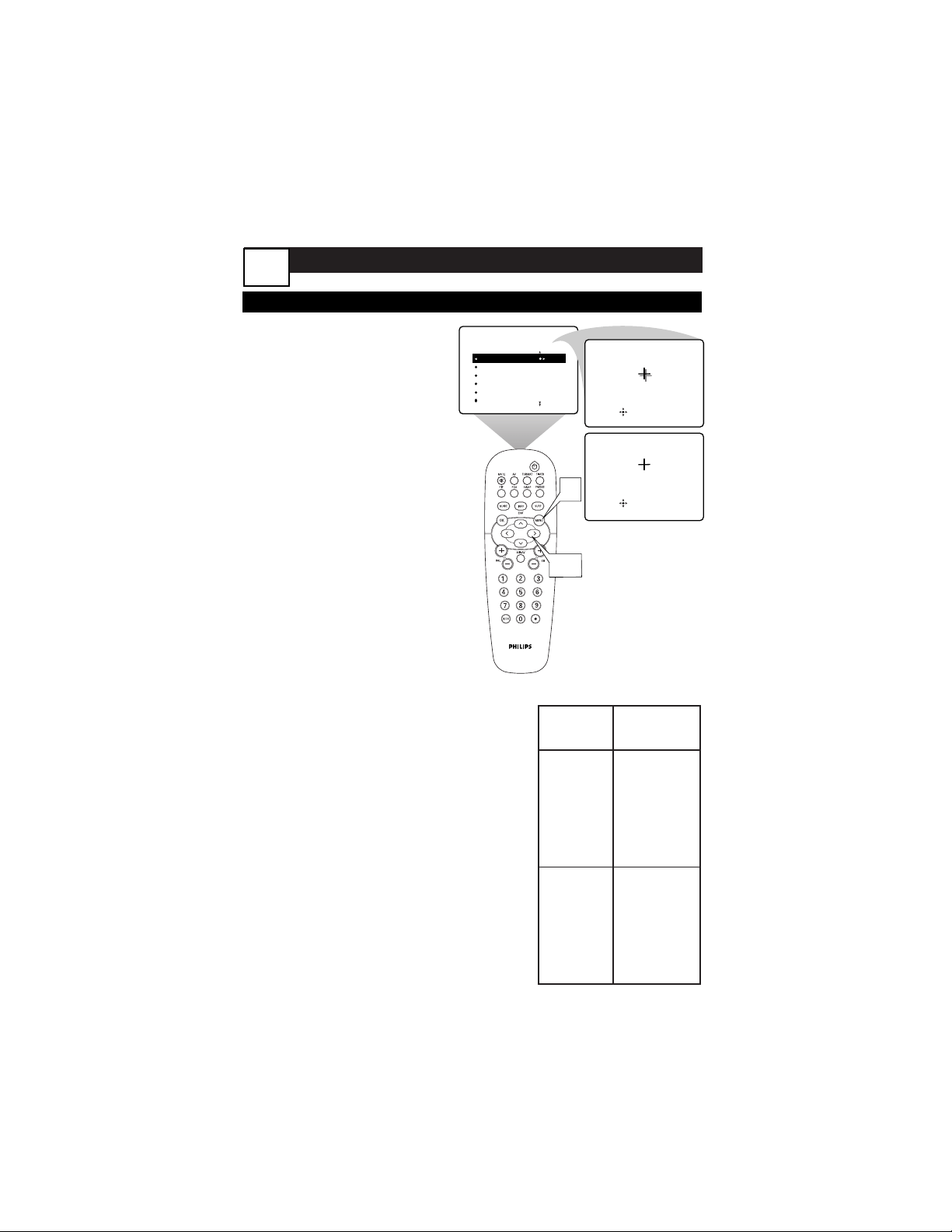
our projection TV has three color pro-
jection tubes: one for red, one for
green, and one for blue. When mixed in
proper proportion, the beams of light
coming from the tubes can produce any
color. To create a clear picture, however,
these color beams must be precisely
aligned. This alignment is called conver-
gence.
NOTE: Allow the TV to warm up for 20
minutes before adjusting convergence.
1
Press the MENU button to
show the onscreen menu. Press
the CURSOR RIGHT button to
enter the PICTURE submenu.
Then press the CURSOR
DOWN button repeatedly until
MANUAL CONVERGE is high-
lighted.
2
Press the CURSOR RIGHT
button to enter the MANUAL
CONVERGE submenu. If you
want to adjust the Red
Convergence, press the CUR-
SOR RIGHT button to enter the
adjust mode. To adjust the Blue
Convergence, press the CUR-
SOR DOWN button to high-
light CONVERGE BLUE, then
press the CURSOR RIGHT but-
ton to enter adjust mode.
3
In adjust mode, press the
CURSOR RIGHT, LEFT,
UP, or DOWN button to
adjust the cross hair until the
color outline around it is gone.
(The adjustment is automatically
saved in the TV’s memory.) To
return to the MANUAL CON-
VERGE menu, press the MENU
button. To exit the onscreen
display, press the INFO/EXIT
button.
CONVERGE RED
CONVERGE BLUE
MULTIPOINT RED
MULTIPOINT BLUE
SAVE MULTIPOINT
PICTURE
MANUAL CONVERGE
Converge Red
Converge Red
1
2,3
neercS
ecnaraeppanoitcA
suoiraV
segami
tuohguorht
eritneeht
evaherutcip
.seniltuoder
ehttsujdA
EGREVNOC
.lortnocDER
derynafinehT
,niamerseniltuo
ehttsujda
TNIOPITLUM
.lortnocDER
suoiraV
segaim
tuohguorht
eritneeht
evaherutcip
.seniltuoeulb
ehttsujdA
EGREVNOC
.lortnocEULB
eulbynafinehT
,niamerseniltuo
ehttsujda
TNIOPITLUM
.lortnocEULB
Determining Which
Manual Converge
Control to Use
7
ADVANCED MENU FEATURES
ADJUSTING CONVERGENCE:MULTIPOINT RED/BLUE
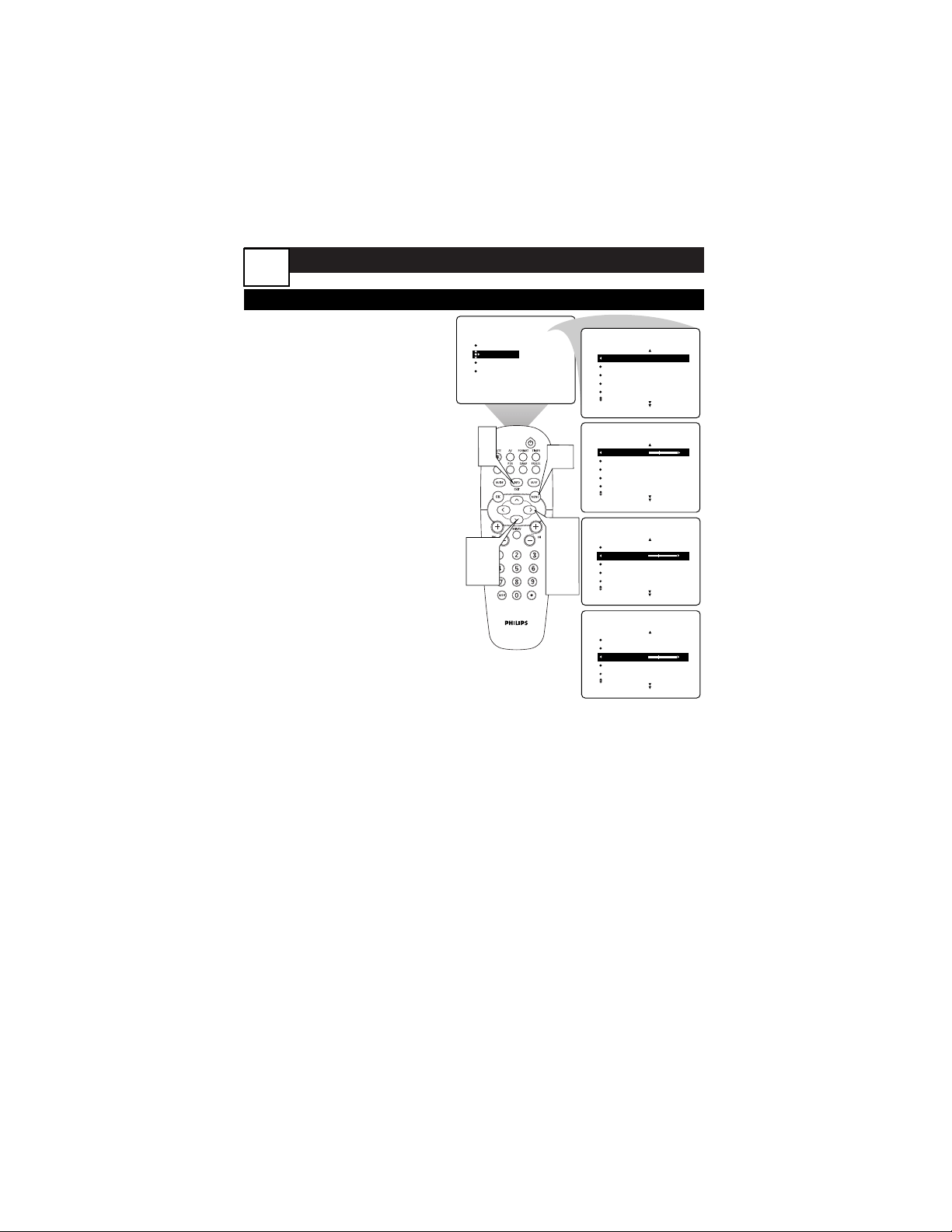
T
he Multipoint Red/Blue Convergence
controls allow you to adjust picture con-
vergence at specific points on the TV
screen.
1
Press the MENU button to
show the onscreen menu. Press
the CURSOR RIGHT button to
enter the PICTURE submenu.
Then press the CURSOR
DOWN button repeatedly until
MANUAL CONVERGE is high-
lighted.
2
Press the CURSOR RIGHT
button to enter the MANUAL
CONVERGE submenu. Press
the CURSOR DOWN button
repeatedly until MULTIPOINT
RED or MULTIPOINT BLUE is
highlighted. Then press the
CURSOR LEFT or RIGHT but-
ton to enter Navigate mode.
3
Press the CURSOR LEFT,
RIGHT, UP, or DOWN but-
ton to move to a cross hair
that has a color outline. Then
press the INFO/EXIT button to
enter adjust mode.
4
Press the CURSOR LEFT,
RIGHT, UP, or DOWN but-
ton to adjust the cross hair
until the color outline is
gone.Then press the INFO/EXIT
button to return to NAVIGATE
mode. Repeat steps 3 and 4
until all misaligned cross hairs
have been adjusted.
5
For your adjustments to be
stored in the TV’s memory,
you must activate SAVE
MULTIPOINT.
To save your multipoint
adjustments, press the MENU
button to return to the MANU-
AL CONVERGE menu. Press the
CONVERGE RED
CONVERGE BLUE
MULTIPOINT RED
MULTIPOINT BLUE
SAVE MULTIPOINT
PICTURE
MANUAL CONVERGE
É
▲
▲
CONVERGE RED
CONVERGE BLUE
MULTIPOINT RED
MULTIPOINT BLUE
SAVE MULTIPOINT
PICTURE
MANUAL CONVERGE
to Navigate Exit to Adjust
▲
MULTIPOINT RED
MULTIPOINT BLUE
SAVE MULTIPOINT
UNDO MULTIPOINT
RESTORE FACTORY
PICTURE
MANUAL CONVERGE
1,5
2,3
6
3,4
CURSOR DOWN button repeat-
edly until SAVE MULTIPOINT is
highlighted. Then press the CUR-
SOR LEFT or RIGHT button to
store your adjustments in the TV’s
memory.
To undo the multipoint adjust-
ments you just made, highlight
UNDO MULTIPOINT and press
the CURSOR LEFT or RIGHT but-
ton.
To restore the TV’s conver-
gence to factory settings, high-
light RESTORE FACTORY and
press the CURSOR LEFT or
RIGHT button.
6
Press the INFO/EXIT button
to exit the menu.
8
ADVANCED MENU FEATURES
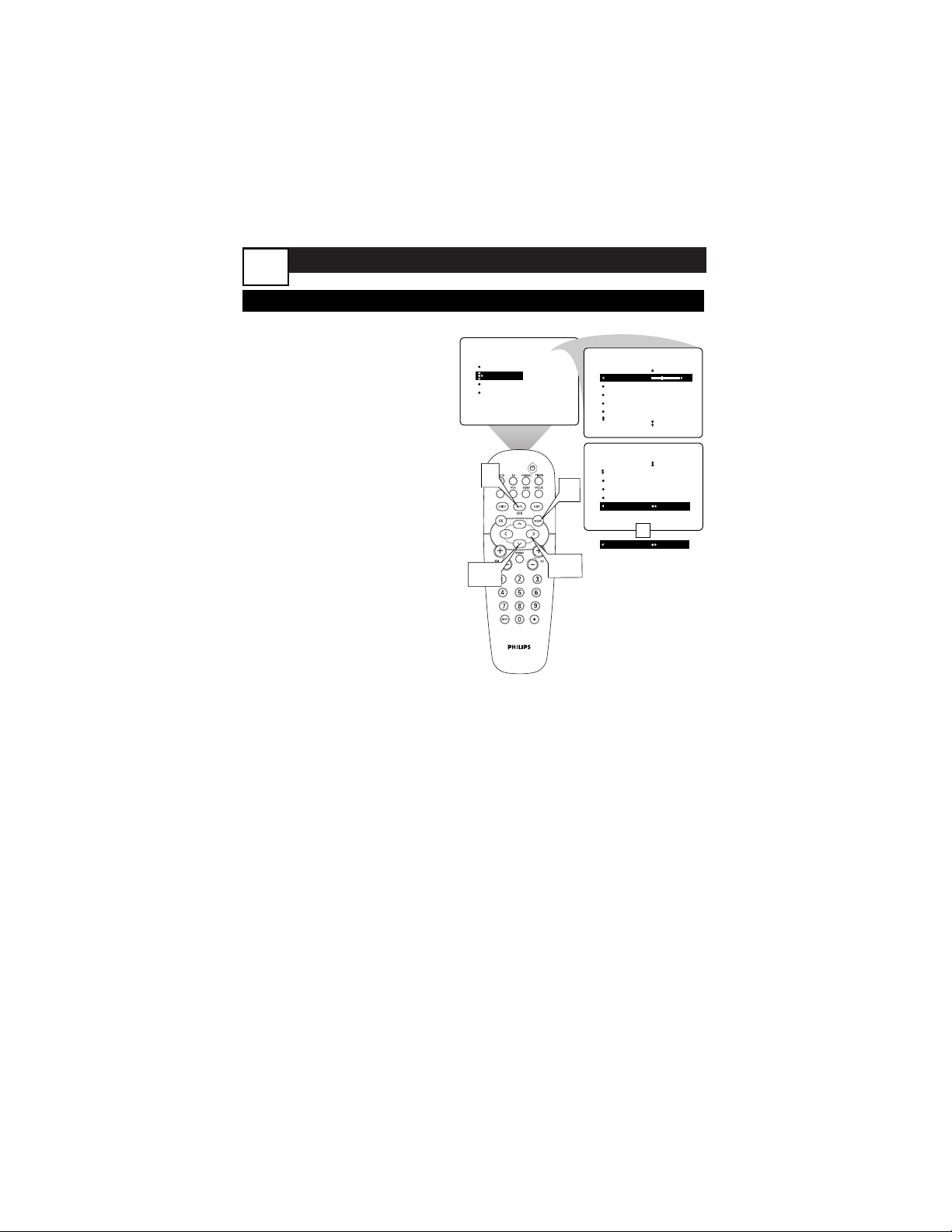
S
mart Sound allows you to choose
preset sound settings.
1
Press the MENU button on
the remote control to show
the onscreen menu.
2
Press the CURSOR
DOWN button once to
highlight SOUND.
3
Press the CURSOR RIGHT
button to enter the SOUND
submenu.
4
Press the CURSOR RIGHT
button to highlight SMART
SOUND.
5
Press the CURSOR RIGHT
button to choose personal
(based on the Settings below),
voice, music, theater.
6
Press the INFO/EXIT but-
ton to exit the menu.
B
esides the normal volume level con-
trol, your TV also has individual
sound-adjustment controls. You can
use TREBLE (high frequency), BASS
(low frequency), and Speaker BAL-
ANCE to further adjust the sound play-
back of TV programs.
1
Press the MENU button on
the remote control to show
the onscreen menu.
2
Press the CURSOR
DOWN button once to
highlight SOUND.
3
Press the CURSOR RIGHT
button to enter the SOUND
submenu.
ADJUSTING THE SOUND CONTROLS, SMART SOUND
TREBLE
BASS 30
BALANCE
AVL
INCR
.
SURROUND
SOUND
TREBLE
BASS
BALANCE 0
AVL
INCR
.
SURROUND
SOUND
PICTURE
SOUND
FEATURES
INSTALL
SMART SOUND
TREBLE
BASS
BALANCE
AVL
TREBLE 30
BASS
BALANCE
AVL
INCR
.
SURROUND
SOUND
SMART SOUND PERSONAL
TREBLE 30
BASS
BALANCE
AVL
SOUND
6
5
2,2
4
3,3
4,4
5
1,1
4
To adjust the TREBLE level
of the television’s sound,
press the CURSOR RIGHT
button or LEFT.
T
o adjust
another sound control,
press the CURSOR
DOWN button until the con-
trol (BASS or BALANCE) is
highlighted. Then press the
CURSOR RIGHT button or
LEFT to adjust the selected
control.
5
Press the INFO/EXIT but-
ton to exit the menu.
9
ADVANCED MENU FEATURES
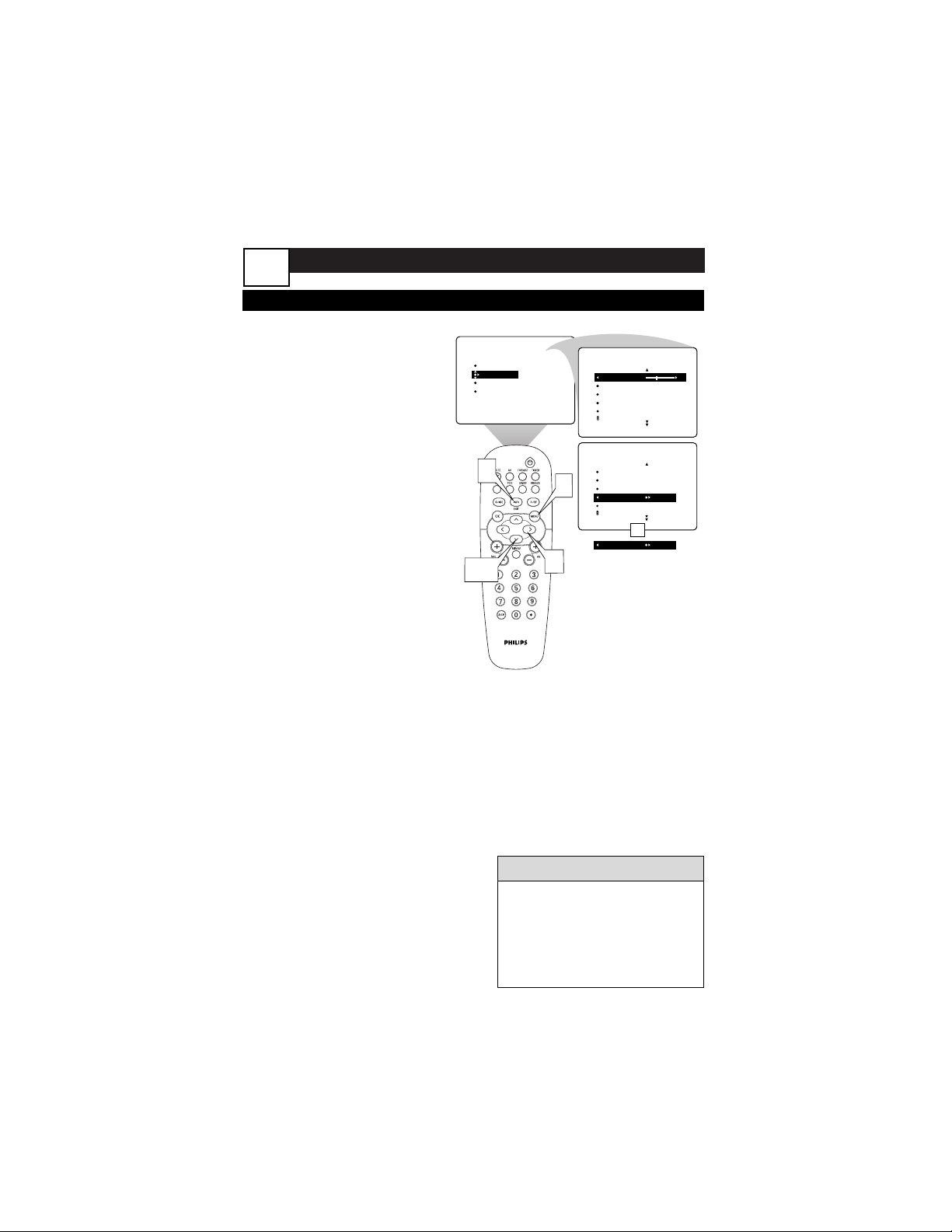
USING BASS BOOST CONTROL
T
he BASS BOOST control allows you
to increase the low-frequency range
of the TV’s sound. This creates a deep-
er, fuller sound. Follow these steps to
turn BASS BOOST ON.
1
Press MENU button on the
remote control to show the
onscreen menu.
2
Press the CURSOR
DOWN button once to high-
light SOUND.
3
Press the CURSOR RIGHT
button to enter the SOUND
submenu.
4
Press the CURSOR
DOWN button repeatedly
until BASS BOOST is highlight-
ed.
5
Press the CURSOR RIGHT
or LEFT button to turn
BASS BOOST ON or OFF.
6
Press the INFO/EXIT but-
ton to exit the menu.
SOUND
STEREO
SAP
AUDIO OUT
SPEAKERS
BASS BOOST ON
BASS BOOST OFF
PICTURE
SOUND
FEATURES
INSTALL
TREBLE
BASS
BALANCE
AVL
INCR
.
SURROUND
TREBLE 30
BASS
BALANCE
AVL
INCR
.
SURROUND
SOUND
OR
1
3,5
2,4
6
10
ADVANCED MENU FEATURES
Y
ou may have noticed the peaks and
valleys of sound that occur between
program changes or at commercial
breaks. The volume levels often vary
considerably. By turning on the AVL
(Audio Volume Leveler) control, you can
make your TV produce a more consis-
tent volume level. Follow these steps to
turn the AVL control on.
1
Press the MENU button on
the remote control to show
the onscreen menu.
2
Press the CURSOR
DOWN button once to high-
light SOUND.
3
Press the CURSOR RIGHT
button to enter the SOUND
submenu.
4
Press the CURSOR
DOWN button repeatedly
until AVL is highlighted. Then
press the CURSOR RIGHT
button or LEFT to turn AVL
ON or OFF.
5
Press the INFO/EXIT but-
ton to exit the menu.
USING THE AVL (AUDIO VOLUME LEVELER)CONTROL
SOUND
TREBLE
BASS
BALANCE
AVL OFF
INCR
.
SURROUND
AVL ON
PICTURE
SOUND
FEATURES
INSTALL
TREBLE
BASS
BALANCE
AVL
INCR
.
SURROUND
TREBLE 30
BASS
BALANCE
AVL
INCR
.
SURROUND
SOUND
OR
1
3
2,4
5
11
• You may notice a difference
between the volume for ana-
log and digital channels. This
is normal, but is not some-
thing the AVL control can fully
address
HELPFUL HINT
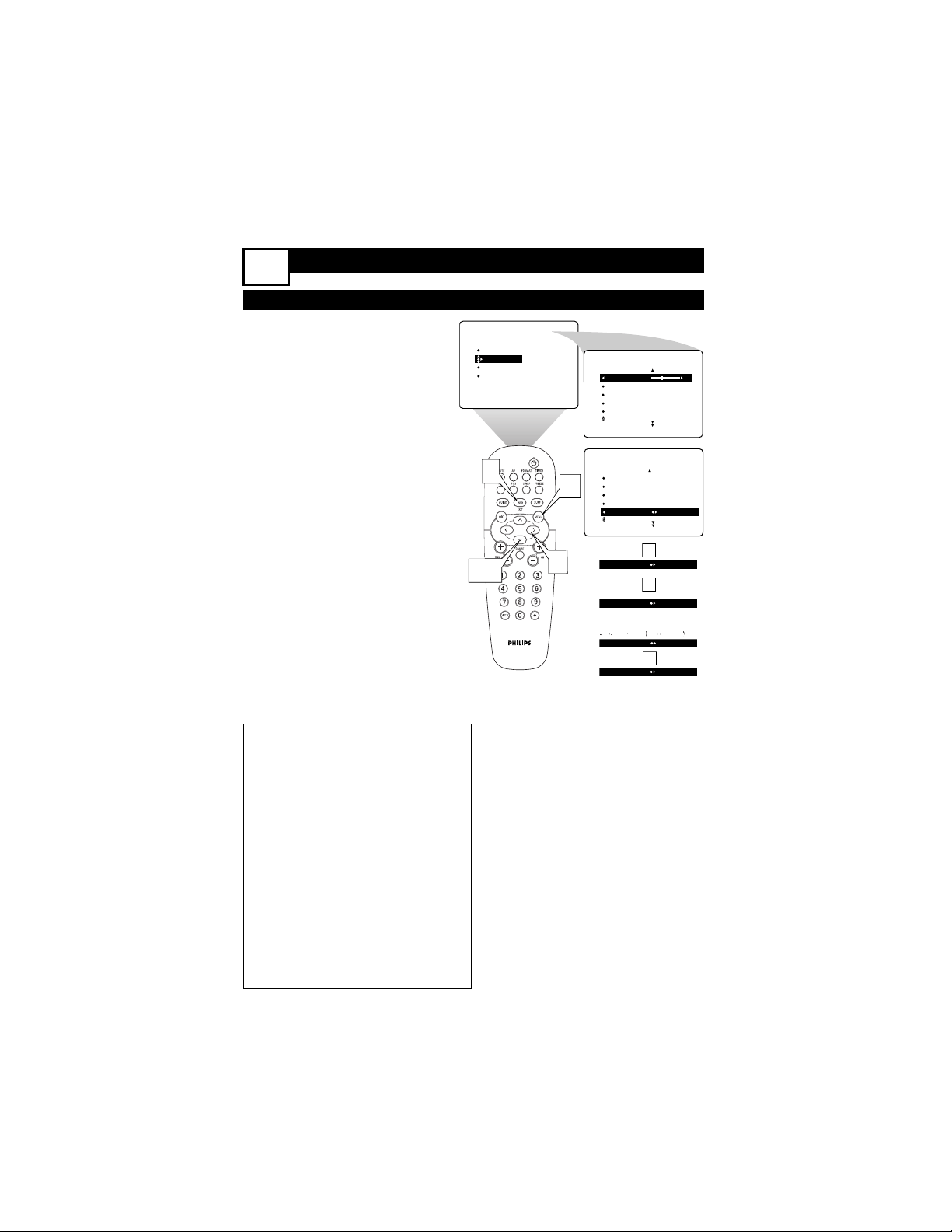
ADVANCED MENU FEATURES
SELECTING THE SURROUND SOUND MODE
B
ased on the signal being received,
you can select various surround-
sound modes: MONO, SPATIAL,
STEREO, INCR. SURROUND, or
DOLBY* VIRTUAL (Virtual Dolby
Surround). See descriptions below.
1
Press the MENU button on
the remote control to show
the onscreen menu.
2
Press the CURSOR
DOWN button once to high-
light SOUND.
3
Press the CURSOR RIGHT
button to enter the SOUND
submenu.
4
Press the CURSOR
DOWN button repeatedly
until INCR. SURROUND is
highlighted. Then press the
CURSOR RIGHT or LEFT but-
ton to select the Surround
mode. (See the box to the left
for details.)
5
Press the INFO/EXIT but-
ton to exit the menu.
FORMAT EXPAND 4:3
When signals are being broad-
cast in mono (nonstereo):
INCR
.
SURROUND MONO
INCR
.
SURROUND SPATIAL
OR
PICTURE
SOUND
FEATURES
INSTALL
TREBLE
BASS
BALANCE
AVL
INCR
.
SURROUND
TREBLE 30
BASS
BALANCE
AVL
INCR
.
SURROUND
SOUND
SOUND
TREBLE
BASS
BALANCE
AVL OFF
INCR
.
SURROUND STEREO
INCR
.
SURROUND DOLBY VIRTUAL
OR
OR
INCR
.
SURROUND INCR
.
SURROUND
1
3
2,4
5
Surround-sound Modes
In stereo: select STEREO,
INCR. SURROUND, or DOLBY
VIRTUAL.
INCR. (Incredible) SURROUND
enhances stereo programs by mak-
ing the sound broader and fuller.
DOLBY VIRTUAL (with Dolby
Surround encoded signals) cre-
ates a virtualized surround-sound
experience from two speakers.
In mono: select MONO or SPA-
TIAL.
SPATIAL enables you to add a
surround effect to mono programs.
Manufactured under license
from Dolby Laboratories.
“Dolby” and the double-D
symbol are trademarks of
Dolby Laboratories.
12
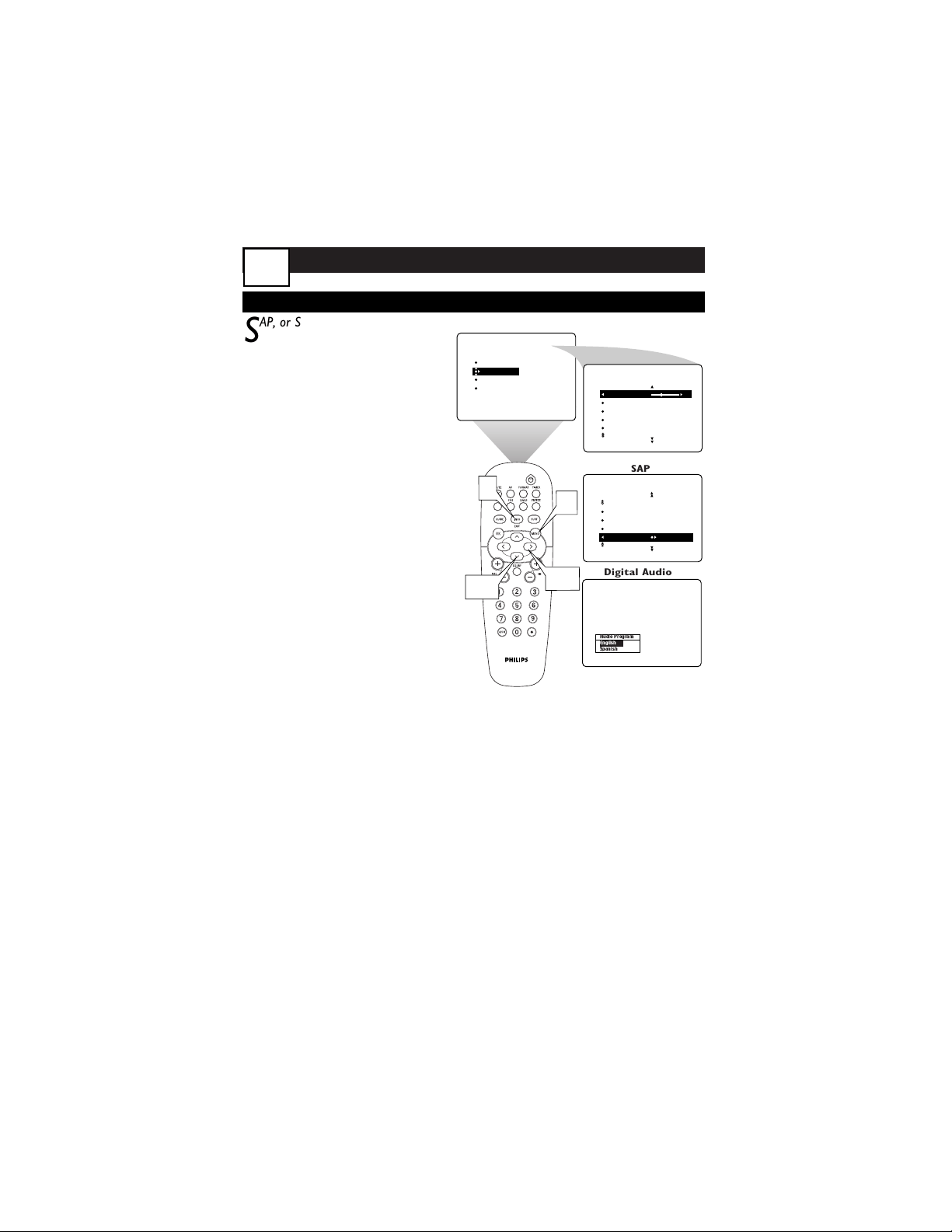
ADVANCED MENU FEATURES
USING SAP, ALT AUDIO PROGRAM
1
Press the MENU button on
the remote control to show
the onscreen menu.
2
Press the CURSOR
DOWN button once to high-
light SOUND.
3
Press the CURSOR RIGHT
button to enter the SOUND
submenu.
4
Press the CURSOR
DOWN button repeatedly
until the SAP control is high-
lighted.
5
Press the CURSOR RIGHT
or LEFT button to select
ON or OFF. When ON has
been selected, the television
will Immediately begin repro-
ducing the secondary audio.
6
Press the INFO/EXIT but-
ton to exit the menu.
PICTURE
SOUND
FEATURES
INSTALL
TREBLE
BASS
BALANCE
AVL
INCR
.
SURROUND
TREBLE 30
BASS
BALANCE
AVL
INCR
.
SURROUND
SOUND
SOUND
BLANCE
AVL
INCR
.
SURROUND
STEREO
SAP OFF
1
3,5
2,4
6
Audio Program
English
Spanish
Digital Audio
SAP
S
AP, or Second Audio Program, is an
additional part of the stereo broad-
cast system. Sent as a third audio chan-
nel, SAP can be heard apart from the
current TV program sound. TV stations
are free to use SAP for any number of
purposes, such as the broadcast of a
second language or other audio infor-
mation.
If an SAP signal is not present with a
selected program, the SAP option can-
not be selected.
Alt Audio Program is the digital equiva-
lent of SAP. It functions in nearly the
same way.
13
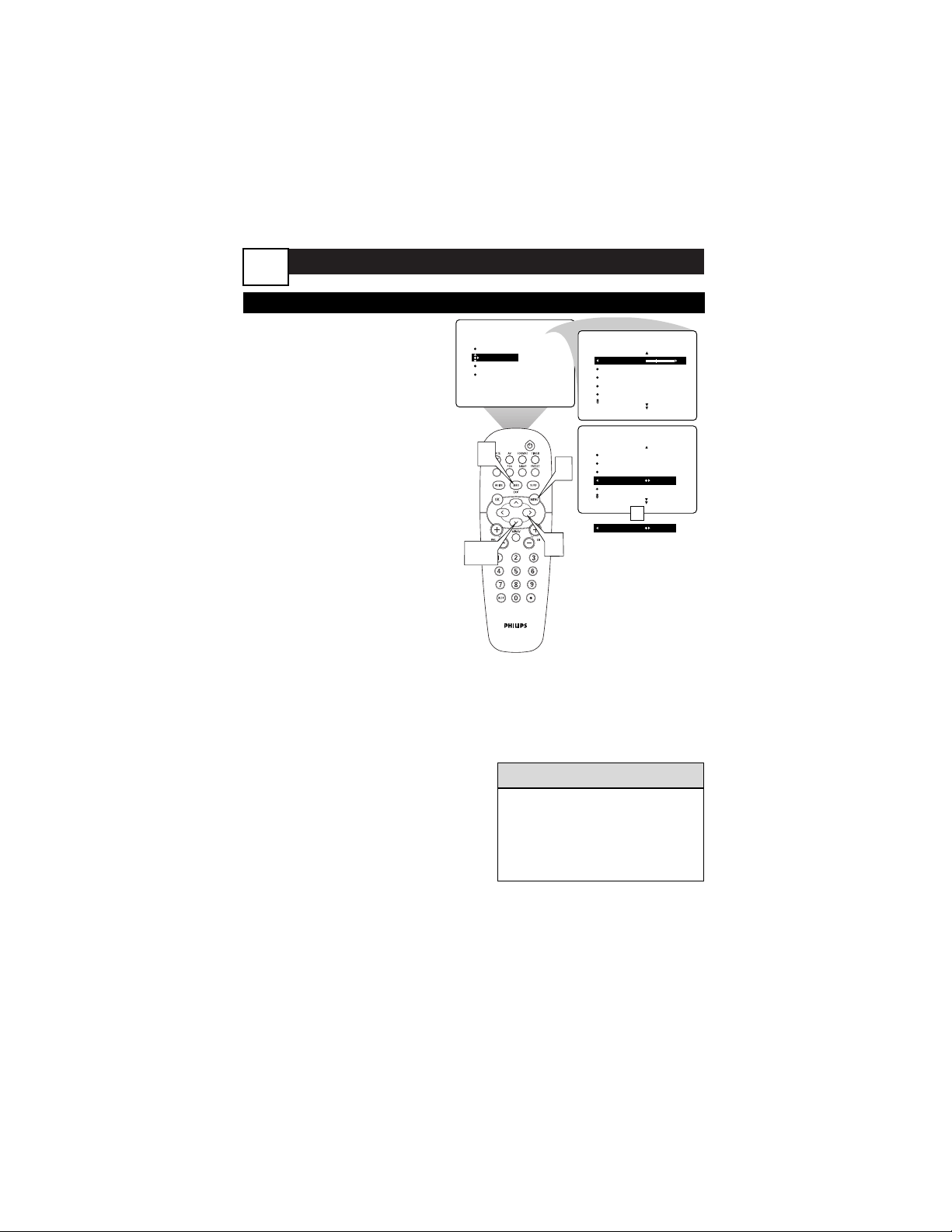
ADVANCED MENU FEATURES
I
f you have connected the TV’s
AUDIO OUTPUT jacks to the AUDIO
INPUT jacks on an external audio sys-
tem, you can turn off the TV Speakers.
Once the TV Speakers are off, you can
adjust the Audio Out to either constant
or variable output.
1
Press the MENU button on
the remote control to show
the onscreen menu.
2
Press the CURSOR
DOWN button once to high-
light SOUND.
3
Press the CURSOR RIGHT
button to enter the SOUND
submenu.
4
Press the CURSOR
DOWN button repeatedly
until AUDIO OUT is highlight-
ed. Then press CURSOR
RIGHT or LEFT Button to
select Fixed or Variable.
5
Press the MENU button to
go back and CURSOR
DOWN button to select
SPEAKERS. Then press CUR-
SOR RIGHT or LEFTbutton to
select ON or OFF.
6
Press the INFO/EXIT but-
ton to exit the menu.
ADJUSTING AUDIO OUT, DIG OUT, SPEAKERS
Manufactured under license from
Dolby Laboratories. “Dolby” and
the double-D symbol are trade-
marks of Dolby Laboratories.
I
f you have digital audio equipment
connected to the TV, select the type
of digital output appropriate for your
device.
1
From the Sound submenu
press the CURSOR
DOWN button to select DIG
AUDIO OUT.
2
Press the CURSOR RIGHT
or LEFT button to select
PCM or DOLBY DIGITAL.
3
Press the INFO/EXIT but-
ton to exit the menu.
SOUND
TREBLE
BASS
BALANCE
AVL OFF
INCR
.
SURROUND
AVL ON
PICTURE
SOUND
FEATURES
INSTALL
TREBLE
BASS
BALANCE
AVL
INCR
.
SURROUND
TREBLE 30
BASS
BALANCE
AVL
INCR
.
SURROUND
SOUND
OR
1
3
2,4
5
• DOLBY DIGITAL can only be
selected as a DIG AUDIO
OUT when digital signals are
broadcasting in Dolby Digital.
HELPFUL HINT
14
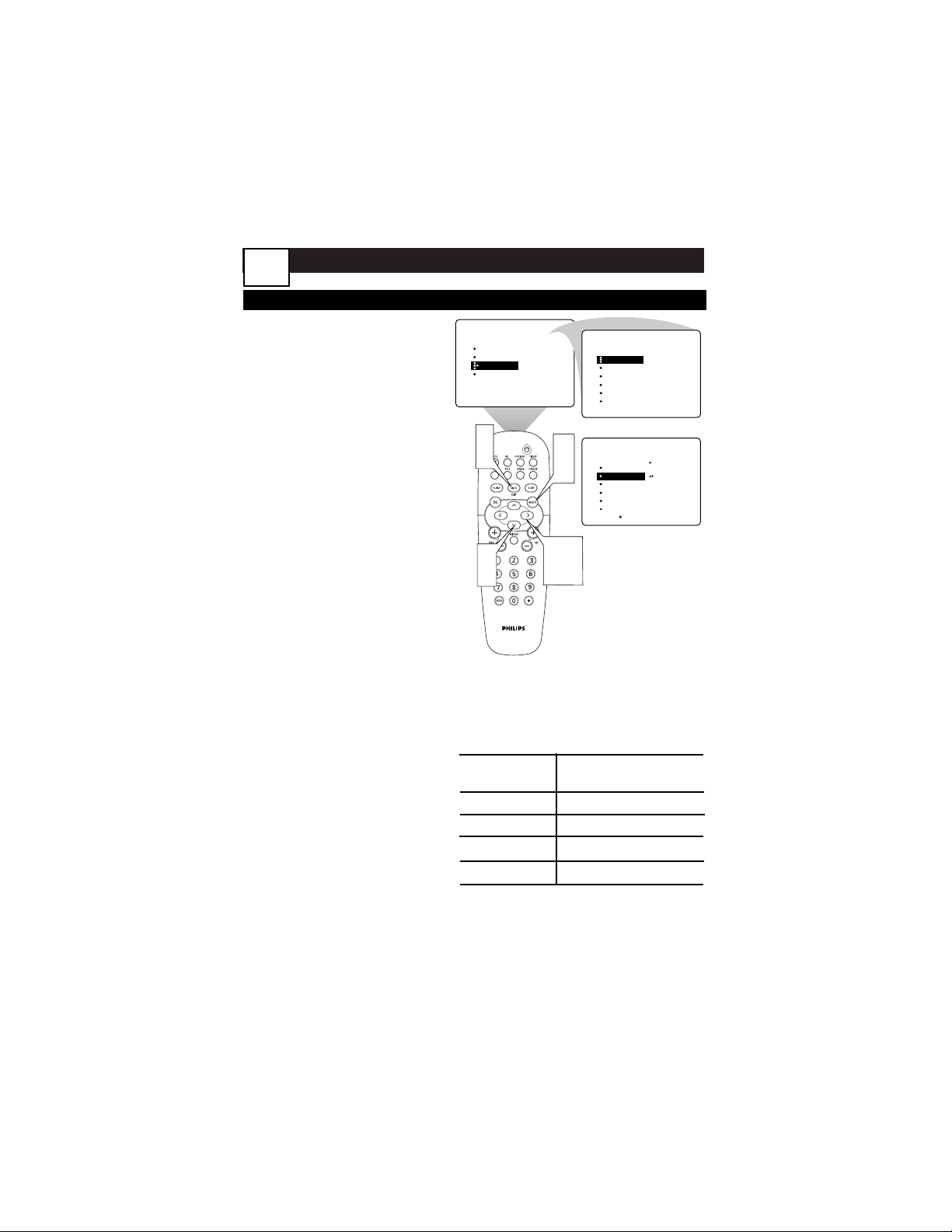
ADVANCED MENU FEATURES
USING INTELLITUNE, SMART PICTURE
B
ecause broadcasters and cable compa-
nies are transitioning to Digital TV they
may broadcast digital channels at certain
times or they may reorganize channels
without notice. To make sure you do not
miss a channel, Philips has developed
Intellitune. When the TV is OFF (standby
mode) it will search for previously unpro-
grammed channels and add them to the
channel list. It does this every three hours.
1
Press the MENU button on
the remote control to show
the onscreen menu.
2
Press the CURSOR
DOWN button twice to
highlight FEATURES.
3
Press the CURSOR RIGHT
button to enter the FEA-
TURES submenu.
4
Press the CURSOR RIGHT
button to turn Intellitune ON
or OFF.
5
Press the INFO/EXIT button
to exit the menu.
PICTURE
SOUND
FEATURES
INSTALL
INTELLITUNE
SMART PICTURE
SLEEP
TIMER
Auto Lock
ON
FEATURES
1
1
2
2
5
4
3,4
2,3
INTELLITUNE
SMART PICTURE
SLEEP
TIMER
Auto Lock
DAY TIME
FEATURES
INTELLITUNE
SMART PICTURE
SLEEP
TIMER
Auto Lock
S
mart Picture allows you to choose a
preset picture setting for each
Antenna, Cable and AV input.
1
Press the MENU button on
the remote control to show
the onscreen menu.
2
Press the CURSOR BUT-
TONS to navigate to
FEATURES then SMART
PICTURE.
3
Press the CURSOR RIGHT
button to select Personal
(based on your Picture menu
settings), Day Time,
Games/Sports, Noisy Signal, or
Night Time.
4
Press the INFO/EXIT button
to exit the menu.
Personal
Day Time
Games/Sports
Noisy Signal
Night Time
Based on Picture settings
Increased brightness
Saturated Colors
Reduced sharpness
Decreased brightness
SETTING PRIMARY DIFFERENCE
15
ADVANCED MENU FEATURES
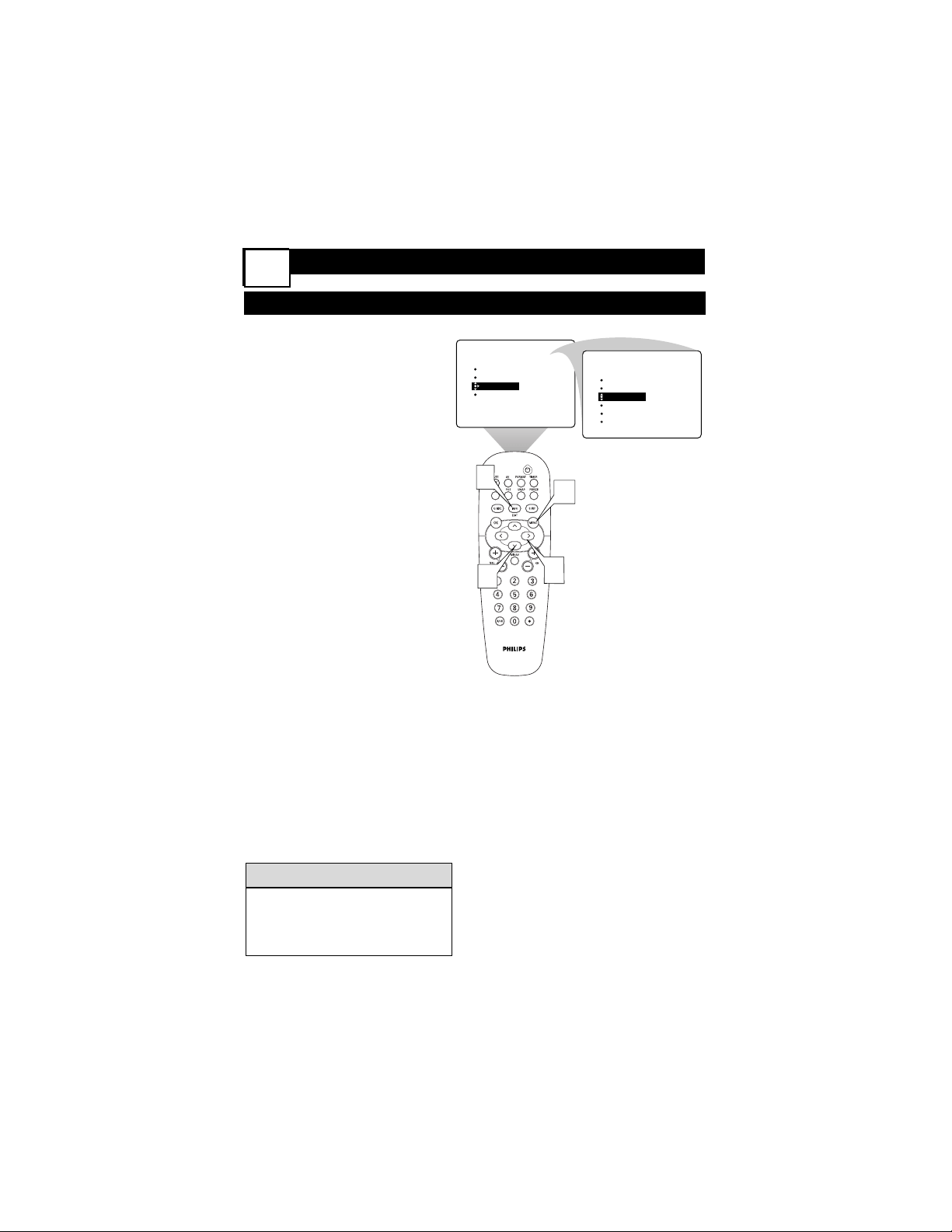
SLEEP TIMER
T
he Sleeptimer feature allows you to
set a timer to automatically switch
the TV off after a period of time that
you choose—15, 30, 45, 60, 90, 120,
180, or 240 minutes.
1
Press the MENU button on
the remote control to show
the onscreen menu.
2
Press the CURSOR
BUTTONS to navigate to
FEATURES then SLEEP.
3
Press the CURSOR RIGHT
button to set the sleep timer.
4
Press the INFO/EXIT button
to exit the menu.
PICTURE
SOUND
FEATURES
INSTALL
INTELLITUNE
SMART PICTURE
SLEEP
TIMER
Auto Lock
15
FEATURES
1
2
4
3
INTELLITUNE
SMART PICTURE
SLEEP
TIMER
Auto Lock
• Press the INFO BUTTON
twice to see the status of the
Sleep timer.
HELPFUL HINT
16
ADVANCED MENU FEATURES
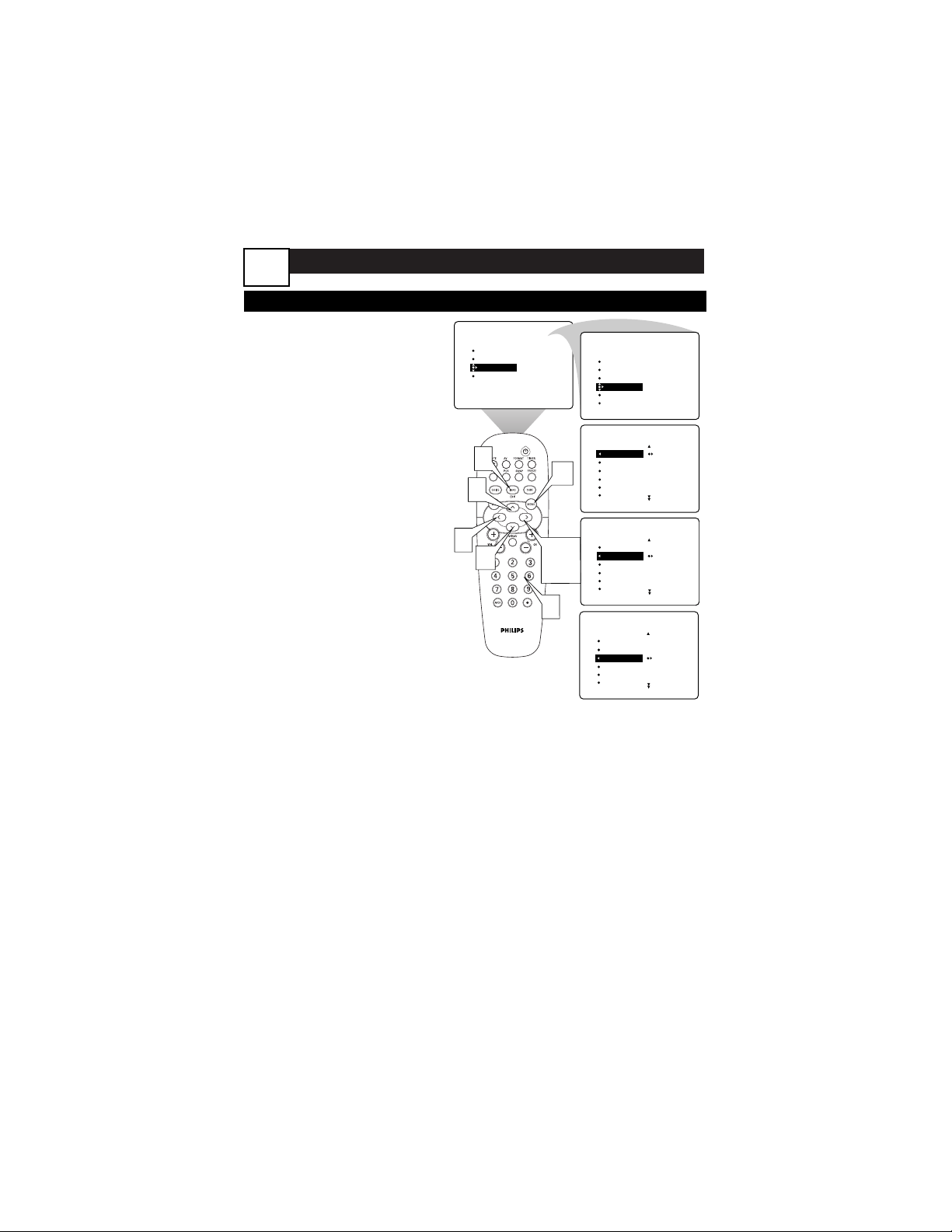
SETTING THE TIMER START/STOP TIME
Y
ou can set the Timer to switch to a
selected channel at a specific time
while you are watching another channel,
or when the TV is in standby mode. You
can also set the TV to turn off at some
time after the TV switches channels.
1
Press the MENU button on
the remote control to show
the onscreen menu.
2
Press the CURSOR
DOWN button twice to
highlight FEATURES.
3
Press the CURSOR RIGHT
button to enter the FEA-
TURES submenu. Then press
the CUROSR DOWN button
until TIMER is highlighted.
4
Press the CURSOR
RIGHT button again. Then
press the CURSOR DOWN
button once to highlight the
START TIME control.
5
Press the CURSOR RIGHT
button to highlight the time
indicator area.
6
Press the NUMBER but-
tons to enter the correct
time. If you make a mistake
entering the time, use the
CURSOR LEFT or RIGHT but-
ton to move among the time
input slots to make correc-
tions.
NOTE: You can also use
the CURSOR BUTTON UP
or DOWN to cycle through
digits to input the time.
7
Press the CURSOR UP or
DOWN button to select AM
or PM.
PICTURE
SOUND
FEATURES
INSTALL
INTELLITUNE
SMART PICTURE
SLEEP
TIMER
Auto Lock
TIME
START TIME
STOP TIME
CHANNEL
ACTIVATE
FEATURES
TIMER
FEATURES
TIME 8:06 PM
START TIME
STOP TIME
CHANNEL
ACTIVATE
TIMER
FEATURES
TIME
START TIME _ _:_ _
STOP TIME
CHANNEL
ACTIVATE
TIMER
FEATURES
TIME
START TIME
STOP TIME _ _:_ _
CHANNEL
ACTIVATE
1
2
6
8
7
9
3,4,
5
INTELLITUNE
SMART PICTURE
SLEEP
TIMER
Auto Lock
8
Press the CURSOR LEFT
button repeatedly until START
TIME is highlighted. Then press
the CURSOR DOWN button
to highlight STOP TIME. If you
want the TV to switch off at
some time after the changing of
channels, follow steps 5–7 above
to set the STOP TIME.
9
Press the INFO/EXIT but-
ton to exit the menu.
See the next two panels for instruc-
tions on selecting the Timer’s channel
and activating the timer.
17
ADVANCED MENU FEATURES
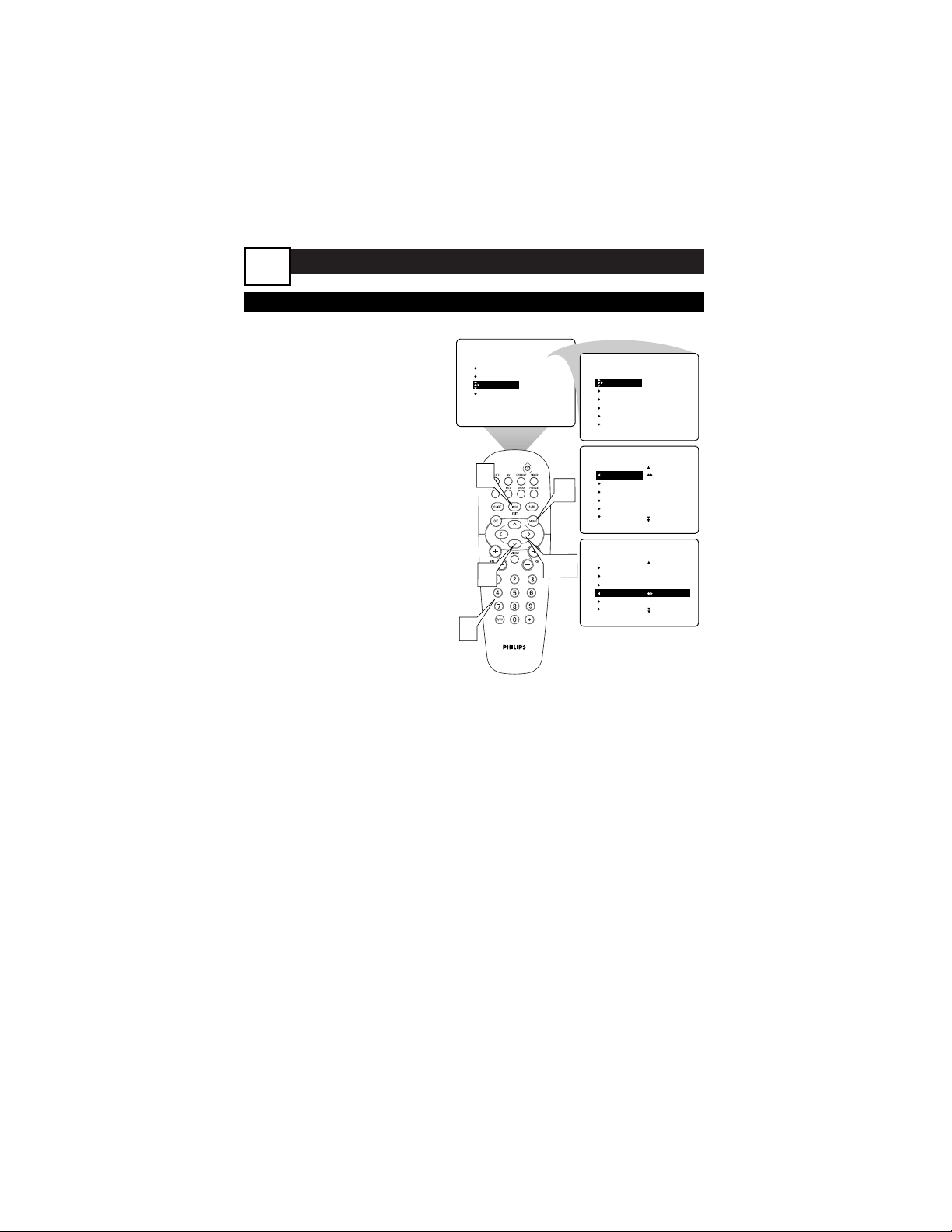
SELECTING THE TIMER CHANNEL
F
ollow these steps to select the chan-
nel to which the Timer will switch
the TV.
1
Press the MENU button on
the remote control to show
the onscreen menu.
2
Press the CURSOR
DOWN button twice to
highlight FEATURES.
3
Press the CURSOR RIGHT
button to enter the FEA-
TURES submenu. Then press
the CUROSR DOWN button
until TIMER is highlighted.
4
Press the CURSOR RIGHT
button. Then press the CUR-
SOR DOWN button repeatedly
until the CHANNEL control is
highlighted.
5
Press the NUMBER but-
tons to enter the desired start-
up channel. Or press the CUR-
SOR RIGHT button repeatedly
to enter the start-up channel
you want.
6
Press the INFO/EXIT but-
ton to exit the menu.
NOTE: Before the Timer will
work, you must activate it. See the
next panel.
PICTURE
SOUND
FEATURES
INSTALL
TIMER
AutoLock
PIP
CLOSED CAP
FORMAT
TIMER
AutoLock
PIP
CLOSED CAP
FORMAT
TIME
START TIME
STOP TIME
CHANNEL
ACTIVATE
FEATURES
TIMER
FEATURES
TIME 8:06 PM
START TIME
STOP TIME
CHANNEL
ACTIVATE
TIMER
FEATURES
TIME
START TIME
STOP TIME
CHANNEL 5
ACTIVATE
1
3,4
2
5
6
18
ADVANCED MENU FEATURES
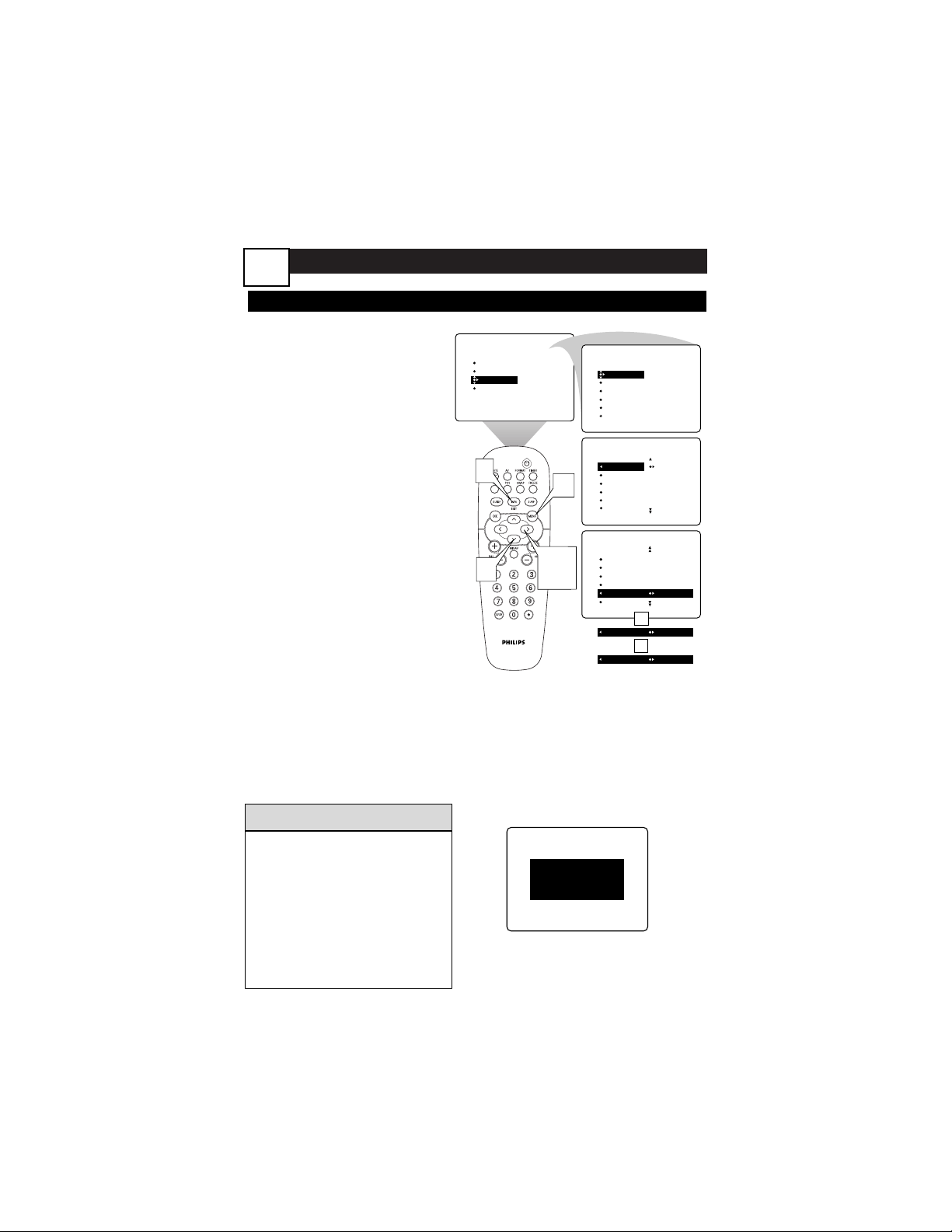
SETTING THE TIMER ACTIVATE CONTROL
A
fter you have set the TIME, START
TIME, STOP TIME, and CHAN-
NEL, you must activate the Timer for it
to operate. Your options are to set the
Timer to work ONCE or DAILY. Set
ACTIVATE to OFF if you don’t want to
use the Timer.
1
Press the MENU button on
the remote control to show
the onscreen menu.
2
Press the CURSOR
DOWN button twice to
highlight FEATURES.
3
Press the CURSOR RIGHT
button to enter the FEA-
TURES submenu.
4
Press the CURSOR RIGHT
button again. Then press the
CURSOR DOWN button
repeatedly until the ACTIVATE
control is highlighted.
5
Press the CURSOR RIGHT
button to cycle through the
options and make your selec-
tion. The options are ONCE,
DAILY, or OFF.
6
Press the INFO/EXIT but-
ton to exit the menu.
PICTURE
SOUND
FEATURES
INSTALL
TIMER
AutoLock
PIP
CLOSED CAP
FORMAT
TIMER
AutoLock
PIP
CLOSED CAP
FORMAT
TIME
START TIME
STOP TIME
CHANNEL
ACTIVATE
FEATURES
TIMER
FEATURES
TIME 8:06 PM
START TIME
STOP TIME
CHANNEL
ACTIVATE
TIMER
FEATURES
TIME
START TIME
STOP TIME
CHANNEL
ACTIVATE ONCE
ACTIVATE DAILY
ACTIVATE OFF
OR
OR
1
2
3,4,
5
6
• Changing the channel or
adjusting the volume during
the last minute of a Timer set-
ting will cancel it and the TV
will not shut off..
• Thirty seconds before the set
changes to the channel you
set, an announcement appears
on screen.
HELPFUL HINT
CHANGING TO
CHANNEL 5
IN 29 SEC
19

ADVANCED MENU FEATURES
UNDERSTANDING AUTOLOCK CONTROLS
T
he AutoLock™ feature is an integrated
circuit that receives and processes data
sent by broadcasters, or other program
providers, that contain program content advi-
sories. When programmed by the viewer, a
TV with AutoLock™ can respond to the con-
tent advisories and block program content
that may be found objectionable (such as
offensive language, violence, sexual situations,
etc.). This is a great feature to censor the
type of viewing children may watch.
AutoLock™ offers various BLOCK-
ING controls from which to
choose:
Access Code - An Access Code must
be set to prevent children from
unblocking questionable or censored
programming set by their parents.
Channel Block - After an access code
has been programmed, you can block
individual channels.
Block All - Allows you to block ALL
channels at one time.
Movie Ratings - Certain blocking
options exist which will block program-
ming based on ratings patterned by the
Motion Pictures Association of America.
TV Ratings - Just like the Movie
Ratings, programs can be blocked from
viewing using standard TV ratings set by
TV broadcasters.
MOVIE
RATINGS
G: General Audience - All ages
admitted. Most parents would find this
program suitable for all ages.
PG: Parental Guidance Suggested -
This programming contains material that
parents may find unsuitable for younger
children.
PG-13: Parents Strongly Cautioned -
This programming contains material that
parents may find unsuitable for children
under the age of 13.
MOVIE RATINGS Continued
R: Restricted - This is programming
specifically designed for adults. Anyone
under the age of 17 should only view this
programming with an accompanying par-
ent or adult guardian.
NC-17: No one under the age of 17
will be admitted. - This type of pro-
gramming should be viewed by adults only.
X: Adults Only - This type of program-
ming contains one or more of the follow-
ing: very graphic violence, very graphic and
explicit or indecent sexual acts, very
coarse and intensely suggestive language.
TV
RATINGS
TV-Y -- Designed for a very young audi-
ence, including children ages 2-6.
TV-Y7 -- It may be appropriate for chil-
dren age 7 and above who have acquired
the development skills needed to distin-
guish between make-believe and reality.
TV-G -- Suitable for most audiences, this
type of programming contains little or no
violence, no strong language, and little or
no sexual dialogue or situations.
TV-PG -- This program contains material
that parents may find unsuitable for
younger children. Could contain Moderate
violence (V), some sexual situations (S),
infrequent coarse language (L), or some
suggestive dialogue (D).
TV-14 -- This program contains some
material that many parents would find
unsuitable for children under 14 years of
age. This type of programming contains
one or more of the following: intense vio-
lence (V), intense sexual situations (S),
strong coarse language (L), or intensely
suggestive dialogue (D).
TV-MA -- This program is specifically
designed to be viewed by adults and
therefore may be unsuitable for children
under 17. This type of programming con-
tains one or more of the following: graphic
violence (V), explicit sexual situations (S),
or crude indecent language (L).
20
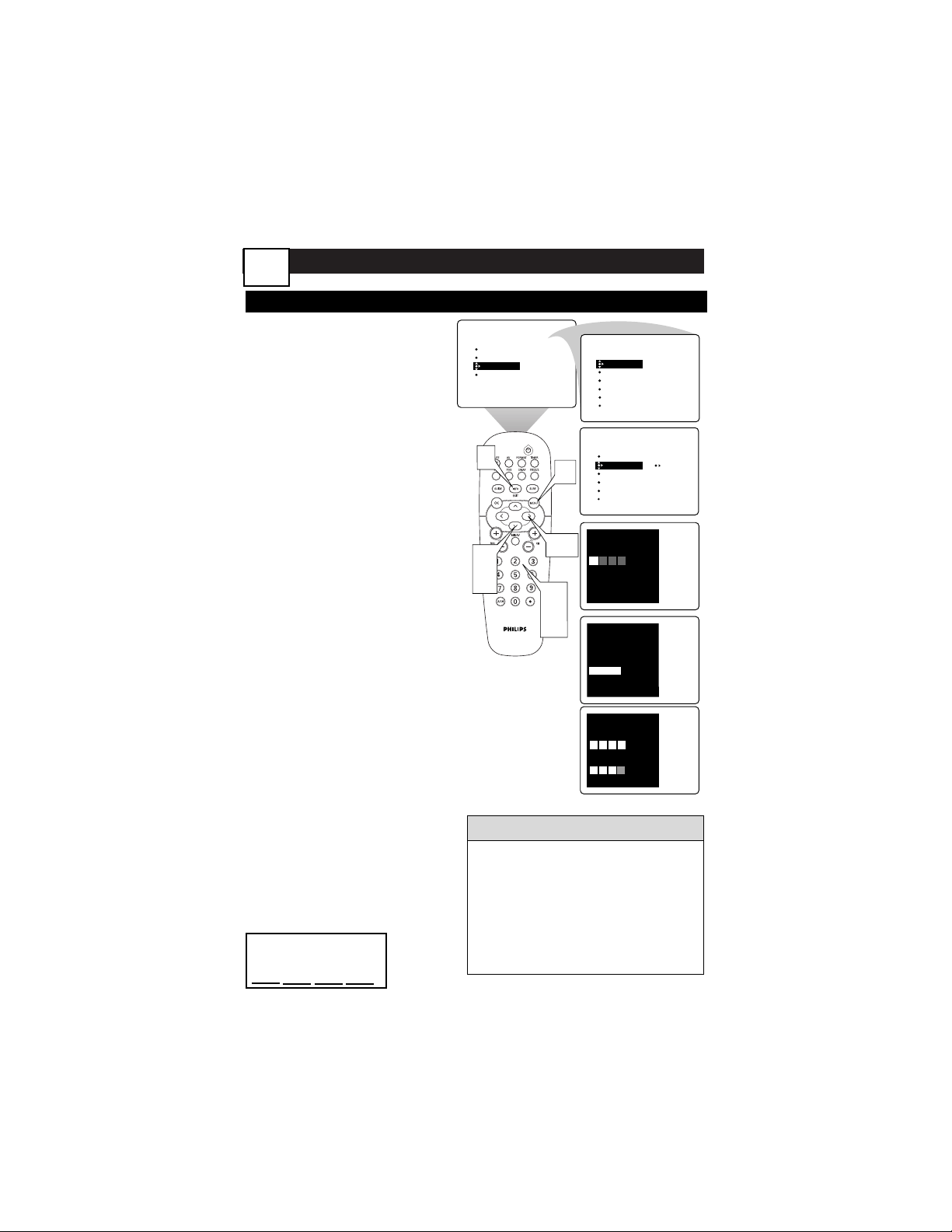
ADVANCED MENU FEATURES
SETTING UP THE AUTOLOCK™ ACCESS CODE
Y
our AutoLock™ access code allows
you to enter the AutoLock™ sub-
menus to set up or turn off blocking.
Your access code is also the “key” that
unlocks programs or channels that are
being blocked by AutoLock™.
1
Press the MENU button on
the remote control to show
the onscreen menu.
2
Press the CURSOR
DOWN button twice to
highlight FEATURES.
3
Press the CURSOR RIGHT
button. Then press the CUR-
SOR DOWN button once to
highlight the AutoLock control.
4
Press the CURSOR RIGHT
button to activate the
AutoLock menu.
5
Press 0,0,0,0 on the remote
control. The AutoLock menu
will appear.
6
Press the CURSOR
DOWN button three
times, then the CURSOR
RIGHT button to open the
New Code screen.
7
Enter your new four-digit
code twice.
8
Press the INFO/EXIT but-
ton exit the menu.
9
Use these steps to reset
your code if you lose it.
Instead of 0000 in step 5,
use 0711. This is the reset
code.
PICTURE
SOUND
FEATURES
INSTALL
TIMER
AutoLock
PIP
CLOSED CAP
FORMAT
TIMER
AutoLock
PIP SOURCE
CLOSED CAP
CAP OPTIONS
TIME
START TIME
STOP TIME
CHANNEL
ACTIVATE
FEATURES
TIMER
AutoLock
PIP
CLOSED CAP
CAP OPTIONS
FEATURES
1
2,
6
3,4
8
Autolock
Enter access code:
Autolock
Set blocking
Block channel
Block by rating
Setup Code
˙
¸
Autolock
Enter new access code:
Please re-enter new access code:
*
**
*
*
**
5,
7
• If you discover that your access
code has been changed, you can
assume that blocked channels may
have been viewed.
• For the AutoLock to work with digital
channels, the AutoChron must be set.
See panel 29.
HELPFUL HINTS
Record your
personal code below:
21
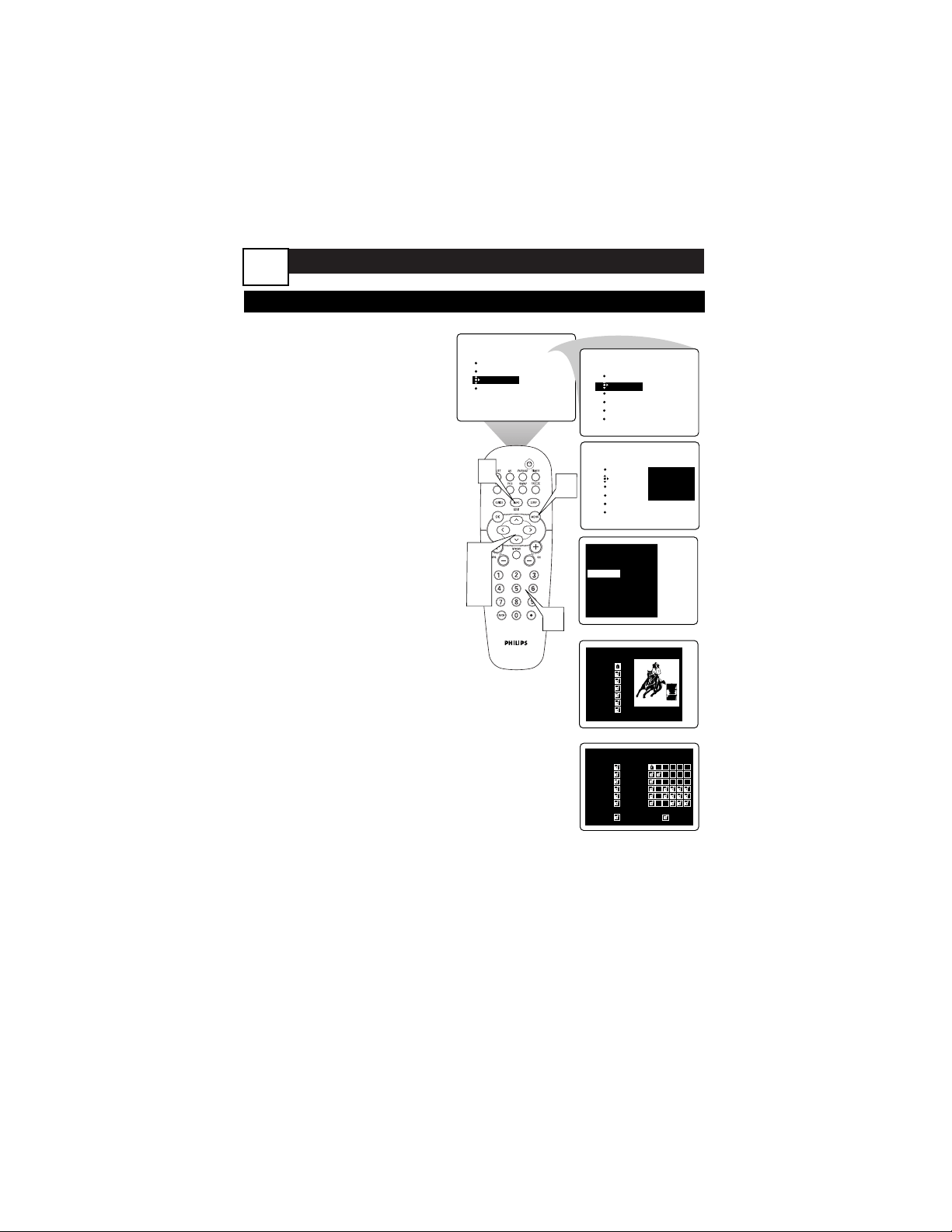
ADVANCED MENU FEATURES
Y
ou can use AutoLock to block pro-
grams based on TV ratings, movie
ratings, as well as programs which
have no rating or are unrated.
1
Press the MENU button on
the remote control to show
the onscreen menu. Then use
the cursor buttons to navigate
to AUTOLOCK in the
FEATURES menu.
2
Enter your four-digit
ACCESS CODE.
3
Press the CURSOR
DOWN button to select
Block Channel or Block by rat-
ing,
4
Block Channel
a)
Press the CURSOR
RIGHT button to enter the
BLOCK CHANNEL submenu.
b)
Press the CURSOR UP
or DOWN button to select
a channel to block. Press OK
to change unlocked to locked,
or locked to unlocked.
5
Block by Rating
a)
Press the CURSOR
DOWN button, then the
CURSOR RIGHT button
to enter the BLOCK BY RAT-
ING submenu.
b)
Press the CURSOR
Buttons to select a rating or
subrating to block. Press OK
to change unlocked to locked,
or locked to unlocked.
6
Press the INFO/EXIT but-
ton to exit the menu.
USING THE AUTOLOCK TO BLOCK PROGRAMS
PICTURE
SOUND
FEATURES
INSTALL
TIMER
AutoLock
PIP
CLOSED CAP
FORMAT
TIMER
AutoLock
PIP
CLOSED CAP
FORMAT
FEATURES
ACCESS CODE
- - - -
TIMER
AutoLock
PIP
CLOSED CAP
FORMAT
FEATURES
ACCESS CODE
X X X X
1
2
3,
4,
5
6
Movie Ratings
G
PG
PG-13
R
NC-17
X
NOT RATED
TV Ratings
All FV D L S V
TV-Y
˝
TV-Y7
TV-G
TV-PG
TV-14
TV-MA
¸
MISSING RATING
Autolock
Set blocking
Block channel
˙ Select
Block by rating
Setup Code
¸
Channel Blocking
˚
15 DTV
16 DTV
17 DTV
18 DTV
19 DTV
20 DTV
21 DTV
¸
Block Channel
Block by Rating
22
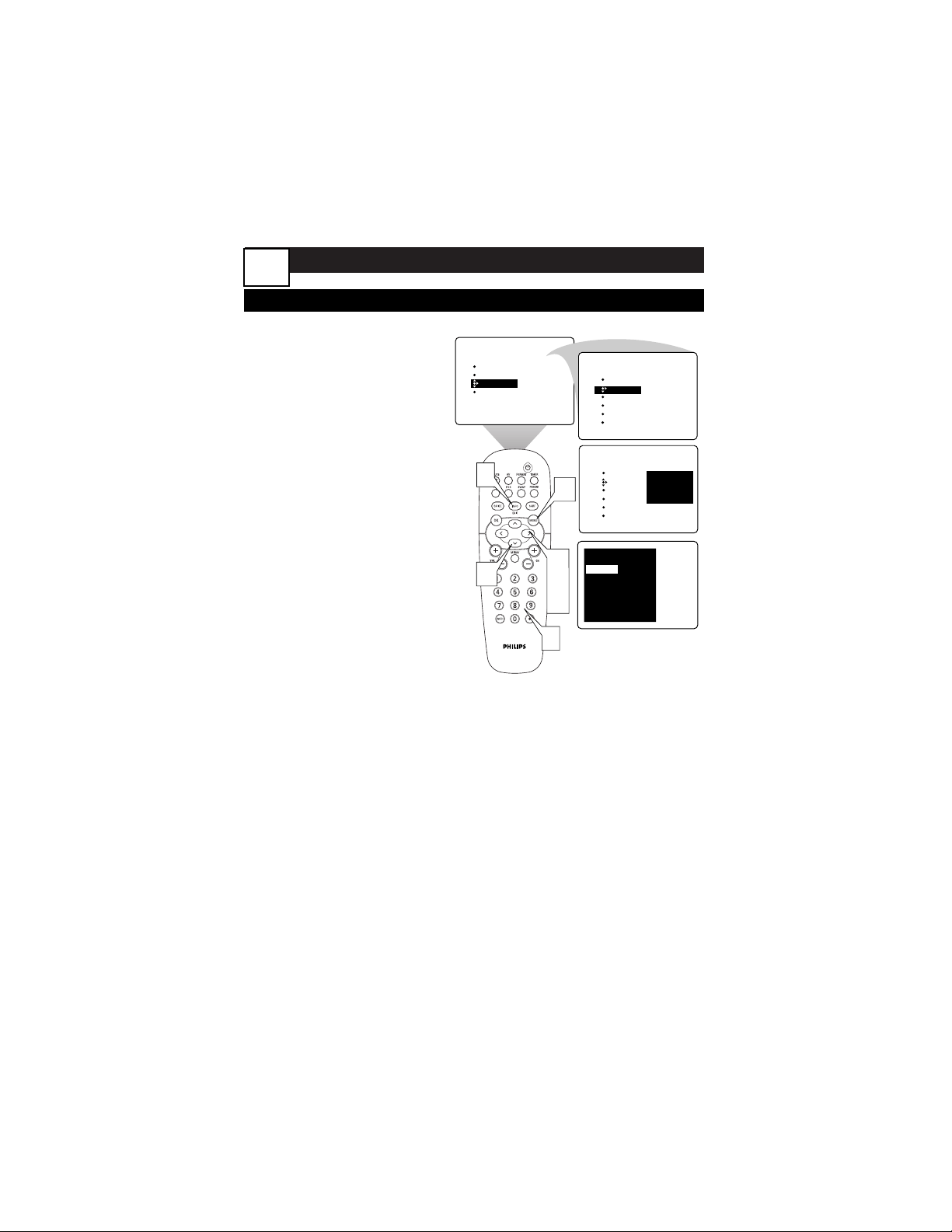
ADVANCED MENU FEATURES
TURNING THE AUTOLOCK BLOCKING ON OR OFF
T
he SET BLOCKING control can be
thought of as the “master switch”
for AutoLock™. Use it to turn ON or
OFF all of the settings (based on rat-
ings). This control does not affect chan-
nel blocks.
1
Press the MENU button on
the remote control to show
the onscreen menu.
2
Press the CURSOR
DOWN button twice to
highlight FEATURES.
3
Press the CURSOR RIGHT
button. Then press the CUR-
SOR DOWN button until the
AutoLock control highlighted.
4
Press the CURSOR RIGHT
button again to highlight
ACCESS CODE.
5
Enter your four-digit
ACCESS CODE.
6
Press the CURSOR RIGHT
button to turn BLOCKING
ON or OFF.
7
Press the INFO/EXIT but-
ton to exit the menu.
PICTURE
SOUND
FEATURES
INSTALL
TIMER
AutoLock
PIP
CLOSED CAP
FORMAT
TIMER
AutoLock
PIP
CLOSED CAP
FORMAT
FEATURES
ACCESS CODE
- - - -
TIMER
AutoLock
PIP
CLOSED CAP
FORMAT
FEATURES
ACCESS CODE
X X X X
1
2
3,
4,
6
5
7
Autolock
Set blocking
˙ Off
Block channel
Block by rating
Setup Code
¸
23
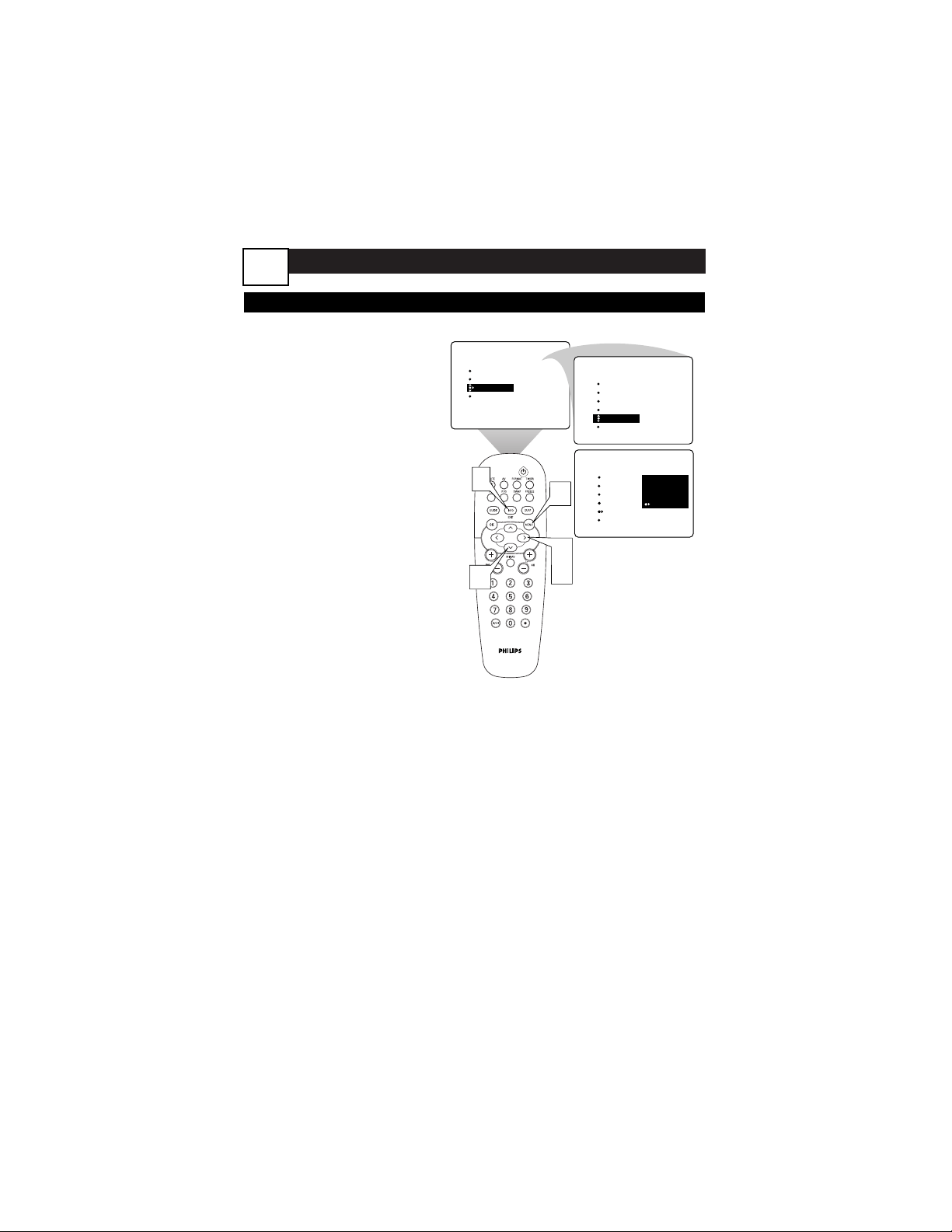
ADVANCED MENU FEATURES
ADJUSTING PIP SOURCE
B
efore using the PIP you need to
select a source for it to display.
1
Press the MENU button
on the remote control to
show the onscreen menu.
2
Press the CURSOR
DOWN button twice to
highlight FEATURES.
3
Press the CURSOR
RIGHT button to enter the
FEATURES submenu.
4
Press the CURSOR
DOWN button repeatedly
until the PIP SOURCE control
is highlighted.
5
Press the CURSOR
RIGHT button to enter the
PIP SOURCE submenu. Then
press the CURSOR UP or
DOWN button to select the
PIP SOURCE.
6
Press the INFO/EXIT but-
ton to exit the menu.
PICTURE
SOUND
FEATURES
INSTALL
FEATURES
FEATURES
AV 5
AV 4
av 3
AV 2
AV 1
1
2
3,
5
6
INTELLITUNE
SMART PICTURE
SLEEP
TIMER
Auto Lock
SMART PICTURE
SLEEP
TIMER
Auto Lock
PIP SOURCE
SMART PICTURE
SLEEP
TIMER
Auto Lock
PIP SOURCE
24
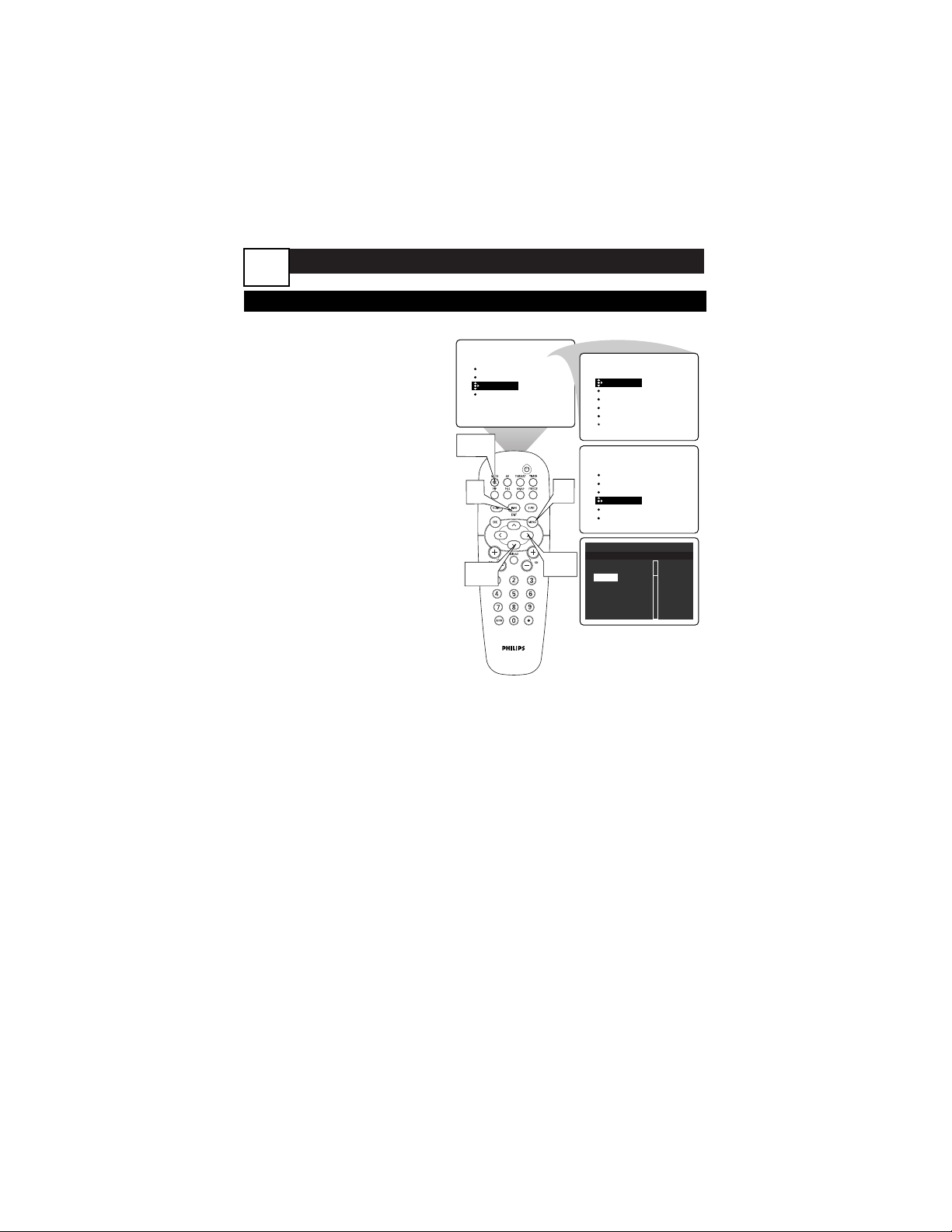
ADVANCED MENU FEATURES
USING CLOSED CAPTIONING
C
losed Captioning (CC) allows you to
read the voice content of television
programs on the TV screen. Closed
Captioning is only available when the
broadcaster supplies it. Even when
the broadcaster supports Closed
Captioning, it will not be available dur-
ing all programs (most commercials
are not closed captioned).
1
Press the MENU button on
the remote control to show
the onscreen menu.
2
Press the CURSOR
DOWN button twice to
highlight FEATURES.
3
Press the CURSOR RIGHT
button to enter the FEA-
TURES submenu.
4
Press the CURSOR
DOWN button repeatedly
until the Closed Caption con-
trol is highlighted.
5
Press the CURSOR RIGHT
button. The CLOSED CAP-
TION menu appears.
6
Press the CURSOR UP or
DOWN button to select a
CAPTION MODE.
Select the Closed Caption set-
ting:
• Off
• Always On
• On when muted
NOTE: The “On When
Muted” option turns the
Closed Captioning on whenev-
er the MUTE button on the
remote control is pushed.
PICTURE
SOUND
FEATURES
INSTALL
TIMER
AutoLock
PIP
CLOSED CAP
FORMAT
TIMER
AutoLock
PIP
CLOSED CAP
FORMAT
TIME
START TIME
STOP TIME
CHANNEL
ACTIVATE
FEATURES
FEATURES
TIMER
AutoLock
PIP
CLOSED CAP
FORMAT
1
6
2,4
3,5
MUTE
Button
Closed caption services-Analog
Display Services
˚
Off CC1
Always On
˙
CC2
On when muted CC3
CC4
TXT1
TXT2
¸
25
7
Press the CURSOR
BUTTONS to select the
Closed Caption service.
8
Press the INFO/EXIT
button to exit the menu.
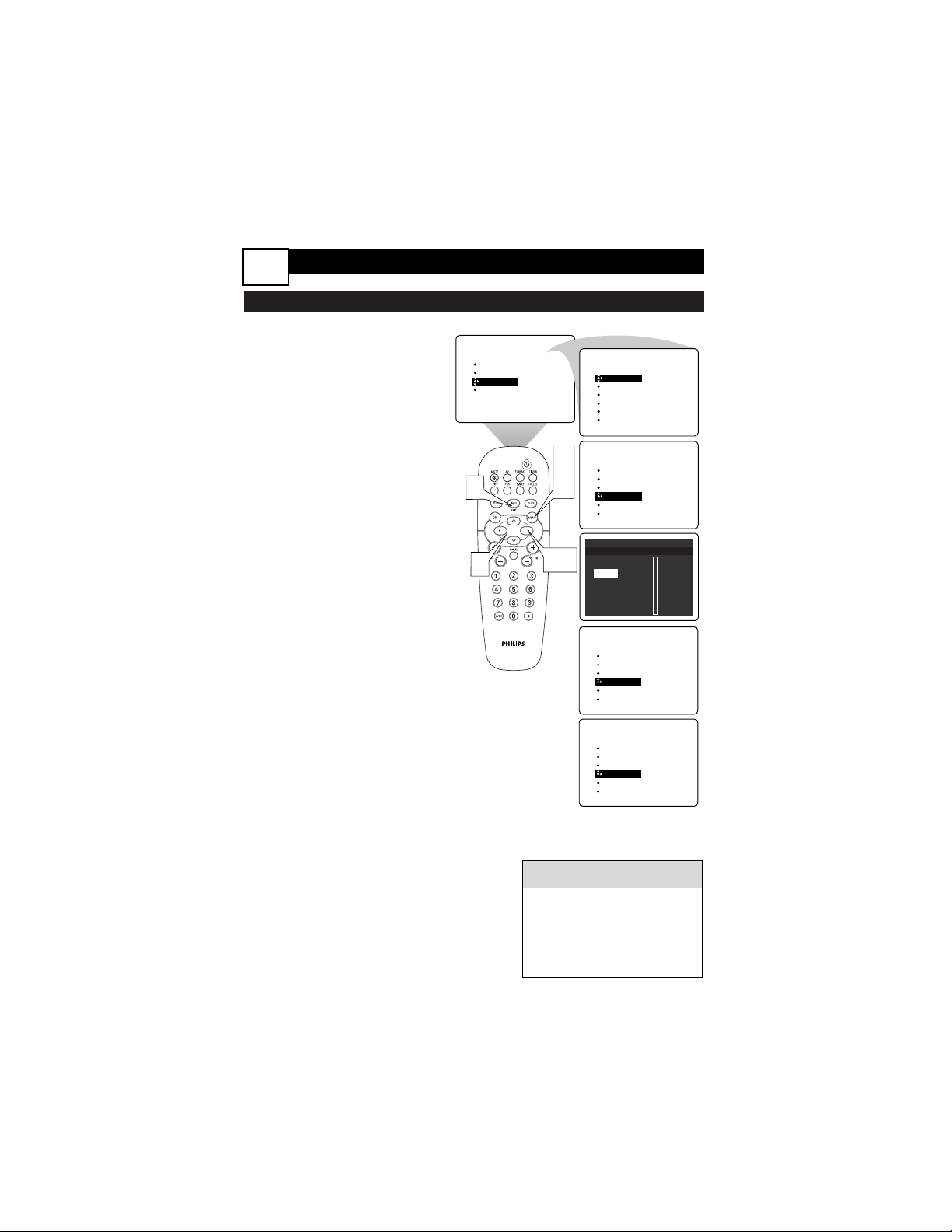
USING DIGITAL CAPTIONING
C
losed Captioning (CC) allows you to
read the voice content of television
programs on the TV screen. Closed
Captioning is only available when the
broadcaster supplies it. Even when the
broadcaster supports Closed
Captioning, it will not be available dur-
ing all programs (most commercials
are not closed captioned).
1
Press the MENU button on
the remote control to show
the onscreen menu.
2
Press the CURSOR BUT-
TONS to navigate to
FEATURES, then CLOSED
CAPTION.
3
Press the CURSOR RIGHT
button. The CLOSED CAP-
TION menu appears. Select
the caption mode and caption
service you would like.
4
Press the MENU Button to
back up and select CAPTION
OPTIONS. To personalize
your captions Press the Cursor
Right button to turn the
options on.
5
In the FEATURES MENU,
the Caption options are
listed below CAPTION
OPTIONS after it has been
turned on.
The options are CAPTION
SIZE, CAPTION STYLE, CAP-
TION COLOR, and CC
BACKGROUND. Use the
Cursor Buttons to make your
selections and follow the on-
screen instructions.
6
Press the INFO/EXIT but-
ton to exit the menu.
PICTURE
SOUND
FEATURES
INSTALL
TIMER
AutoLock
PIP
CLOSED CAP
FORMAT
TIMER
AutoLock
PIP
CLOSED CAP
FORMAT
TIME
START TIME
STOP TIME
CHANNEL
ACTIVATE
FEATURES
FEATURES
TIMER
AutoLock
PIP SOURCE
CLOSED CAP
CAPTION OPTIONS
FEATURES
TIMER
AutoLock
PIP SOURCE
CLOSED CAP
CAPTION OPTIONS
1,
4
6
2
3,5
Closed caption services-DIGITAL
Display Services
˚
Off CC1
Always On
˙
CC2
On when muted CC3
CC4
TXT1
TXT2
¸
FEATURES
CAPTION OPTIONS
CAPTION SIZE
CAPTION STYLE
CAPTION COLOR
CAPTION BACKGROUND
ADVANCED MENU FEATURES
26
HELPFUL HINTS
•
The Digital Captioning
options are only available
on a digital channel carry-
ing the captioning informa-
tion.
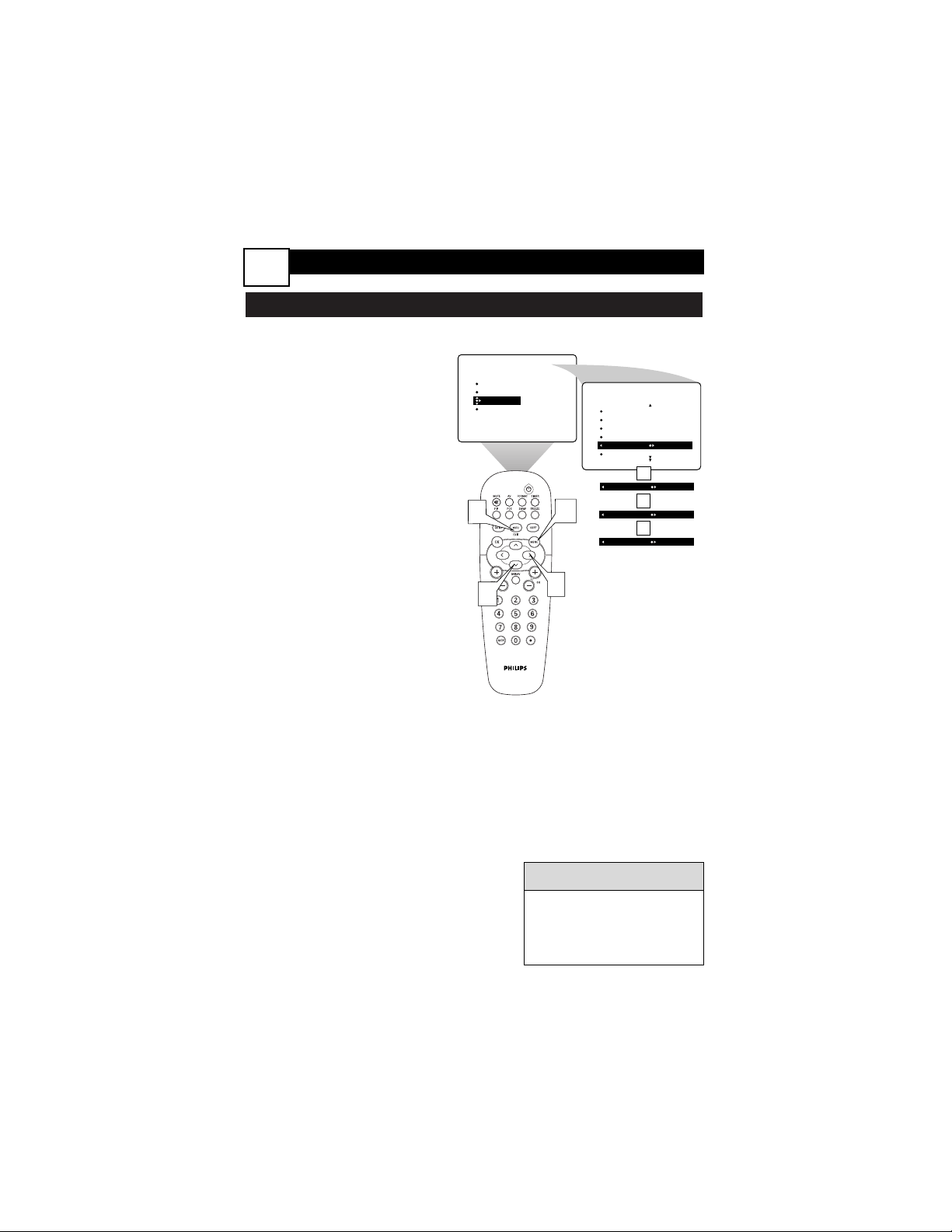
USING THE PICTURE-FORMAT CONTROL
Y
ou can also use the onscreen menu
to access the Picture Format control.
1
Press the MENU button
on the remote control to
show the onscreen menu.
2
Press the CURSOR
BUTTONS to navigate to
FEATURES, then SCREEN
FORMAT.
3
Press the CURSOR
RIGHT button. Then
press the CURSOR RIGHT
or LEFT buttons to select
the PICTURE FORMAT.
4
Press the INFO/EXIT
button to exit the menu.
PICTURE
SOUND
FEATURES
INSTALL
TIMER
AutoLock
PIP
CLOSED CAP
FORMAT
FORMAT ZOOM
OR
FORMAT PANORAMA
OR
FORMAT NATIVE
4
2
3
1
FEATURES
TIMER
AutoLock
PIP
CLOSED CAP
FORMAT 4:3
OR
ADVANCED MENU FEATURES
27
HELPFUL HINTS
•
See panel 5 “USING
PICTURE FORMAT CONTROL”
for more information of
Screen Formats.
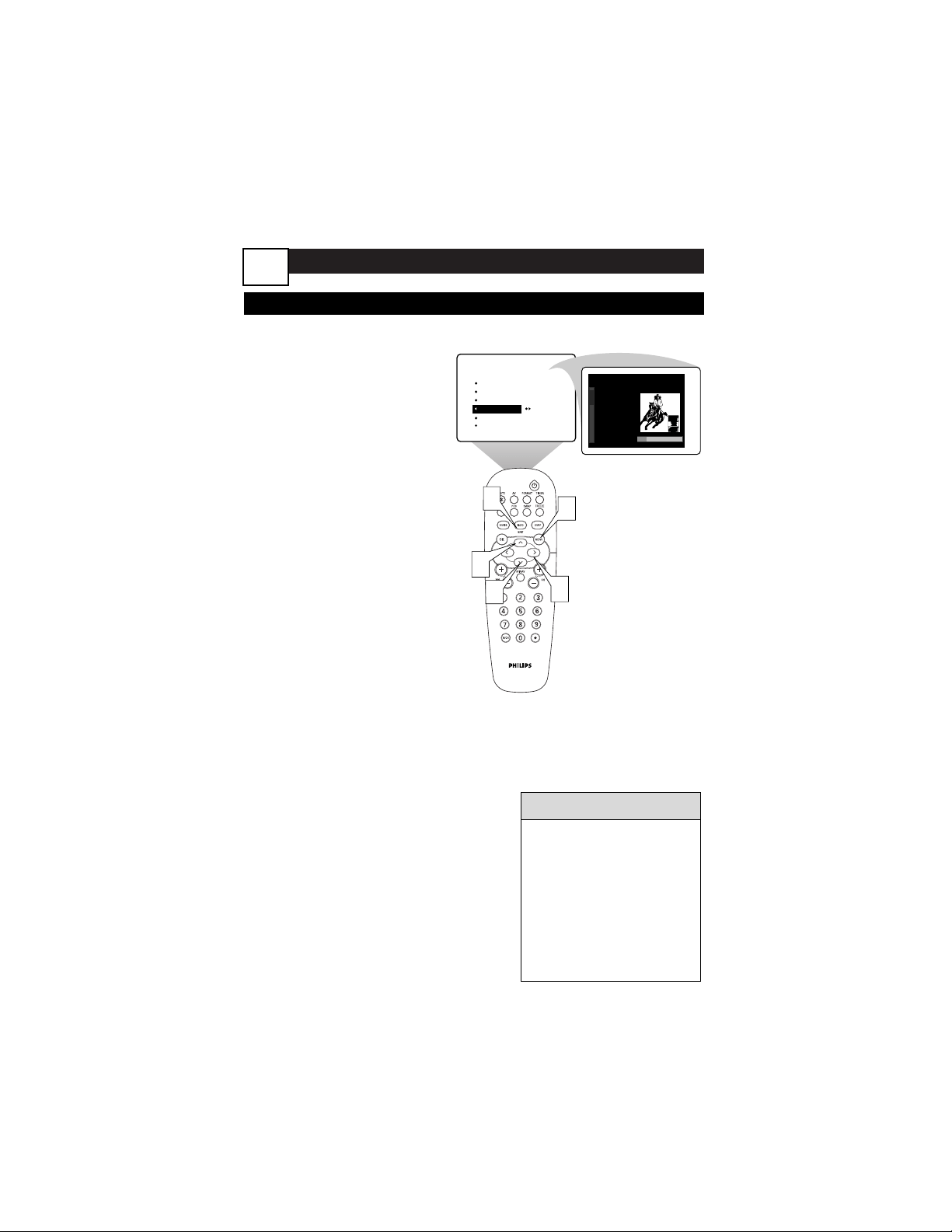
ADVANCED MENU FEATURES
CHANNEL EDIT
T
his feature allows you to edit or skip
channels from the channel list that
have bad or weak signals or channels
you do not want to watch.
1
Press the MENU button.
The onscreen menu appears.
Then press the CURSOR
DOWN button repeatedly
until INSTALL is highlighted.
Press the CURSOR RIGHT
button to enter the INSTALL
submenu.
2
Press the CURSOR
DOWN BUTTON repeat-
edly until CHANNEL EDIT is
highlighted. Then press the
CURSOR RIGHT or LEFT
button to access the CHAN-
NEL EDIT list.
3
Press the CURSOR UP or
DOWN BUTTON to scroll
through the list of channels.
4
With the channel you
want to edit selected,
press the CURSOR RIGHT
button to mark the channel
as SKIPPED. (Channels you
mark SKIPPED will not appear
when you use the CH[annel]
+/– buttons to change chan-
nels while watching TV.)
5
Press the INFO/EXIT but-
ton to exit the menu.
INSTALL
LANGUAGE
TUNER MODE
AUTO PROGRAM
CHANNEL EDIT
AutoChron
4
1
2
3
5
Channel edit
15 DTV
16 DTV
17 DTV
18 DTV
19 DTV
20 DTV
21 DTV
> Skipped
> Added
> Added
> Skipped
> Skipped
> Skipped
> Added
HELPFUL HINTS
•
When you want to add a
channel that has been
marked SKIPPED, press the
CURSOR BUTTON UP or
DOWN to highlight the
channel. Then press the
CURSOR RIGHT button to
change SKIPPED to
ADDED.
28
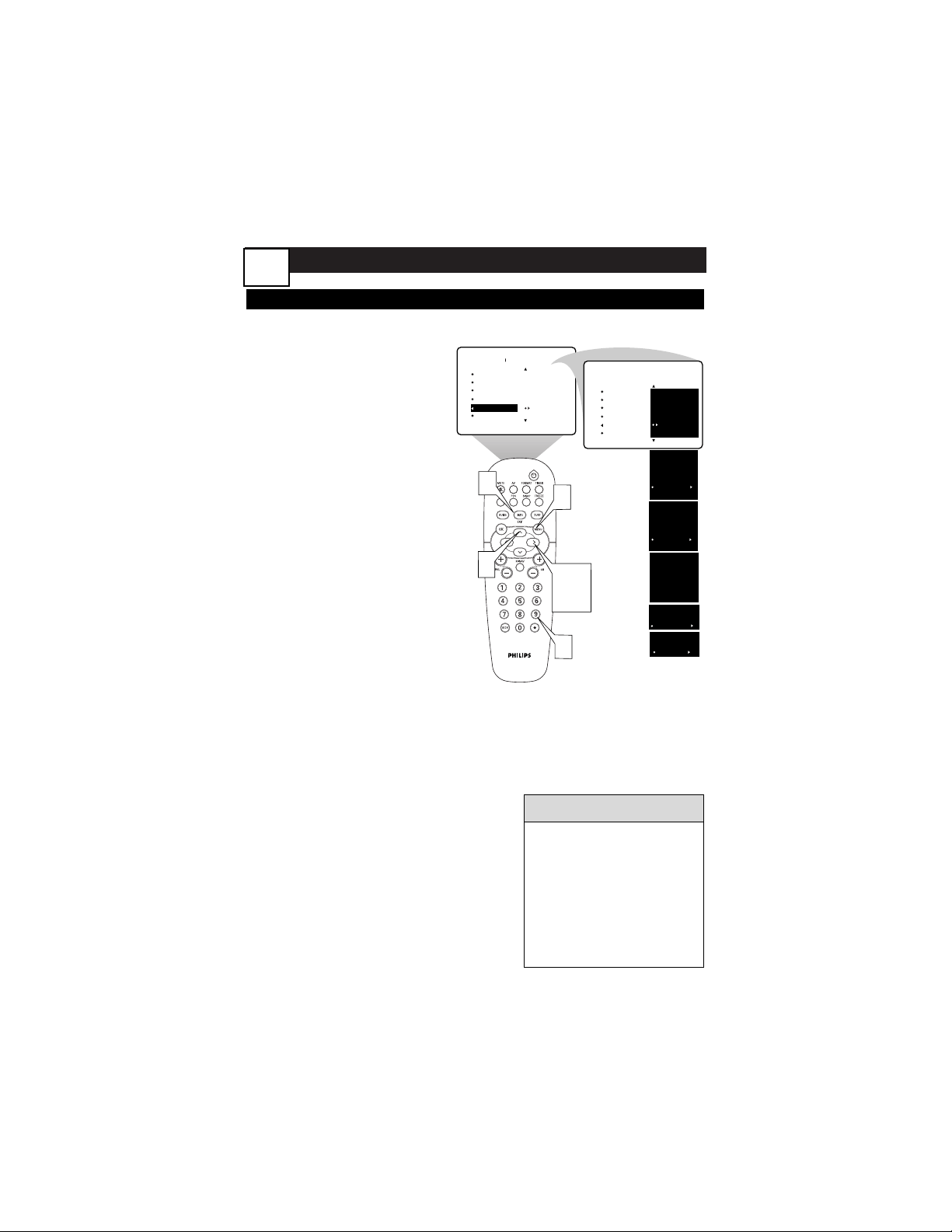
ADVANCED MENU FEATURES
USING AUTOCHRON
F
ollow the steps below to set
AutoChron™ to download the time
from your PBS station to your TV.
After successful setup, AutoChron™
will automatically maintain the correct
time using your PBS station until you
set the time using the AutoChron™
MANUAL option (see panel 30).
1
Press the MENU button.
The onscreen menu appears.
Then press the CURSOR
DOWN button repeatedly
until INSTALL is highlighted.
2
Press the CURSOR
RIGHT button to enter
the INSTALL submenu.
Then press the CURSOR
DOWN button repeatedly
until AutoChron is highlighted.
3
Press the CURSOR
RIGHT button to enter the
AutoChron SET TIME area.
4
Press the CURSOR
RIGHT button again to
select AUTO. Within a few
seconds, a menu containing
the time-zone options appears.
5
Press the CURSOR BUT-
TON UP or DOWN to
highlight your correct time
zone and Daylight Savings
Time option.
6
Press the number buttons
on your remote to enter the
channel number for your PBS
station (02, 15, or 121, for
example). Wait until the TV
completes its search.
7
Press the INFO/EXIT but-
ton to exit the menu.
SET TIME
AUTO
MANUAL
INSTALL
AUTO PROGRAM
CHANNEL EDIT
LANGUAGE
TUNER MODE
AutoChron
AUTO PROGRAM
CHANNEL EDIT
LANGUAGE
TUNER MODE
AutoChron
INSTALL
SET TIME
CENTRAL
MOUNTAIN
PACIFIC
DAYLIGHT
SAVING TIME?
YES
NO
SEARCH FOR
TIME
ENTER CHANNEL
- - PBS
PLEASE WAIT
15
TIME FOUND
END: PRESS STATUS
11:15 AM
AUTO
MANUAL
TIME ZONE?
1
2,3,
4
5
6
7
HELPFUL HINTS
•
If the time was not found,
you will need to locate the
correct channel number
for your PBS station and
input that number.
• AutoChron must be set for
the AutoLock to work on
digital channels.
29
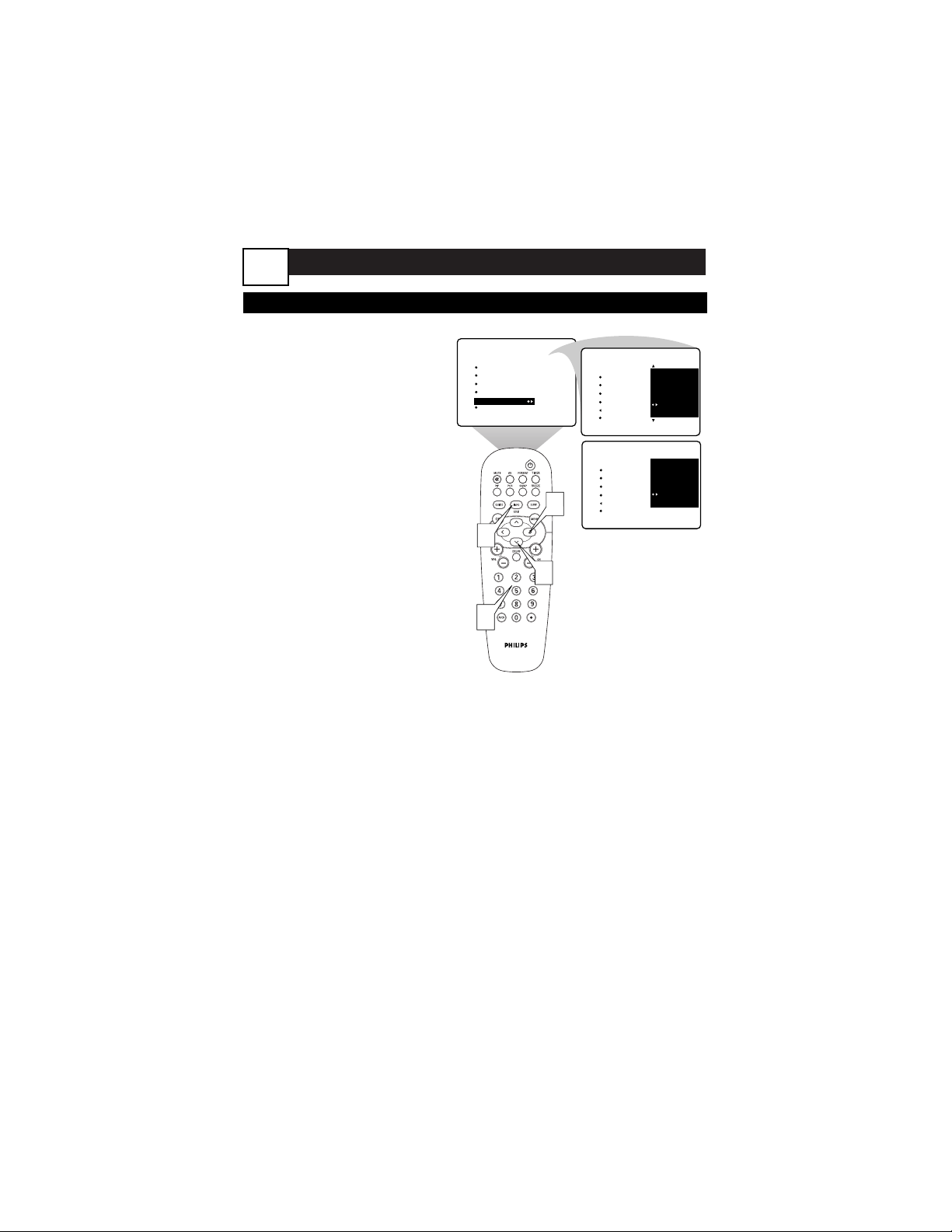
ADVANCED MENU FEATURES
SETTING TIME MANUALLY
I
n addition to using the AUTOCHRON
setting, you can set the time manually.
1
Follow steps 1–3 in the sec-
tion “Setting Time
Automatically” above,
then press the CURSOR
DOWN button to highlight
MANUAL and CURSOR
RIGHT button to enter the
MANUAL time input area.
2
Use the number buttons
on your remote control to
input the first digit for the
time. You can also press the
CURSOR BUTTON UP or
DOWN to select a digit. Press
the CURSOR RIGHT button
to move to the next digit input
slot and input the time.
If you should need to change a
number you have input, you
can press the CURSOR LEFT
or RIGHT button to the digit
input slot to make the correc-
tion.
3
After you have input the
time, press the CURSOR
RIGHT button to enter the
AM/PM area. Then press the
CURSOR UP or DOWN but-
ton to select AM or PM.
4
Press the INFO/EXIT but-
ton to exit the menu.
INSTALL
AUTO PROGRAM
CHANNEL EDIT
LANGUAGE
TUNER MODE
AutoChron
11:00 AM
AUTO PROGRAM
CHANNEL EDIT
LANGUAGE
TUNER MODE
AutoChron
INSTALL
ENTER TIME
1
3
2
4
11:00 AM
AUTO PROGRAM
CHANNEL EDIT
LANGUAGE
TUNER MODE
AutoChron ON
INSTALL
ENTER TIME
SET TIME
AUTO
MANUAL
ENTER TIME
11:35
30
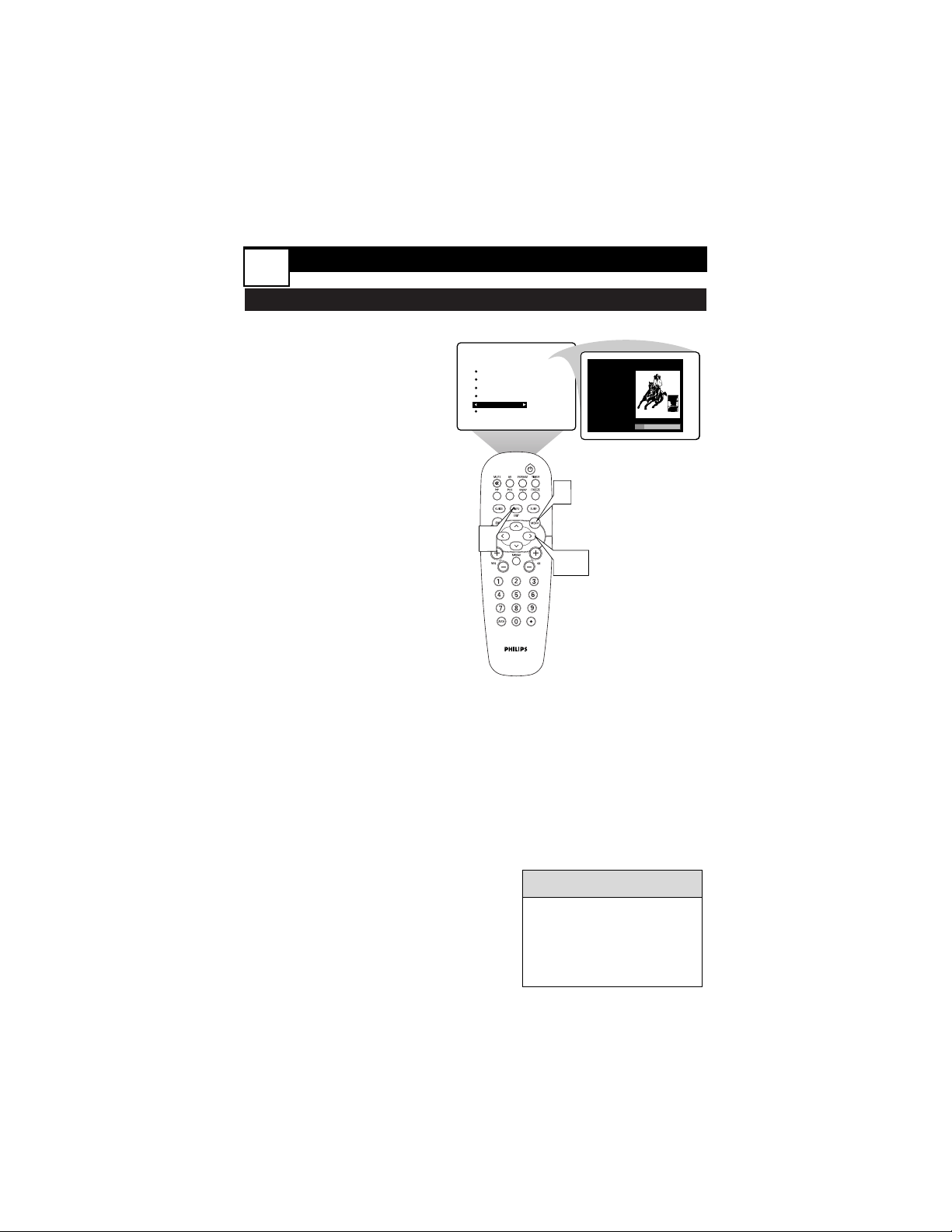
USING WEAK DIG SIGNAL
B
ecause Digital broadcasting is still
new it is not uncommon for a
broadcaster to only send out a digital
signal for part of a day. You could also
be on the limit of the signal strength
and the reception comes and goes. If
you program your channels when the
signal is not being sent or is weak it will
not be saved in your channel set up.
However, using the WEAK DIG SIGNAL
feature you can add those channels
with weak signals to your channel list.
1
Press the MENU button.
The onscreen menu appears.
Then press the CURSOR
DOWN button repeatedly
until INSTALL is highlighted.
2
Press the CURSOR
RIGHT button to enter
the INSTALL submenu.
Then press the CURSOR
DOWN button repeatedly
until WEAK DIG SIG is select-
ed. Press CURSOR RIGHT
button to enter the weak digi-
tal signal menu.
3
Press the CURSOR LEFT,
RIGHT, UP, or DOWN
button
to select a channel
to add or skip.
4
Press the INFO/EXIT but-
ton to exit the menu.
SET TIME
AUTO
MANUAL
CHANNEL EDIT
LANGUAGE
TUNER MODE
AutoChron
WEAK DIG SIG
INSTALL
2-3
4
1
Weak digital Signal
˚
15 DTV
16 DTV
17 DTV
18 DTV
19 DTV
20 DTV
21 DTV
¸
skipped
skipped
skipped
skipped
skipped
skipped
skipped
HELPFUL HINTS
•
For the purposes of tun-
ing, your DTV treats
scrambled digital channels
like weak signals regardless
of actual signal strength.
ADVANCED MENU FEATURES
31
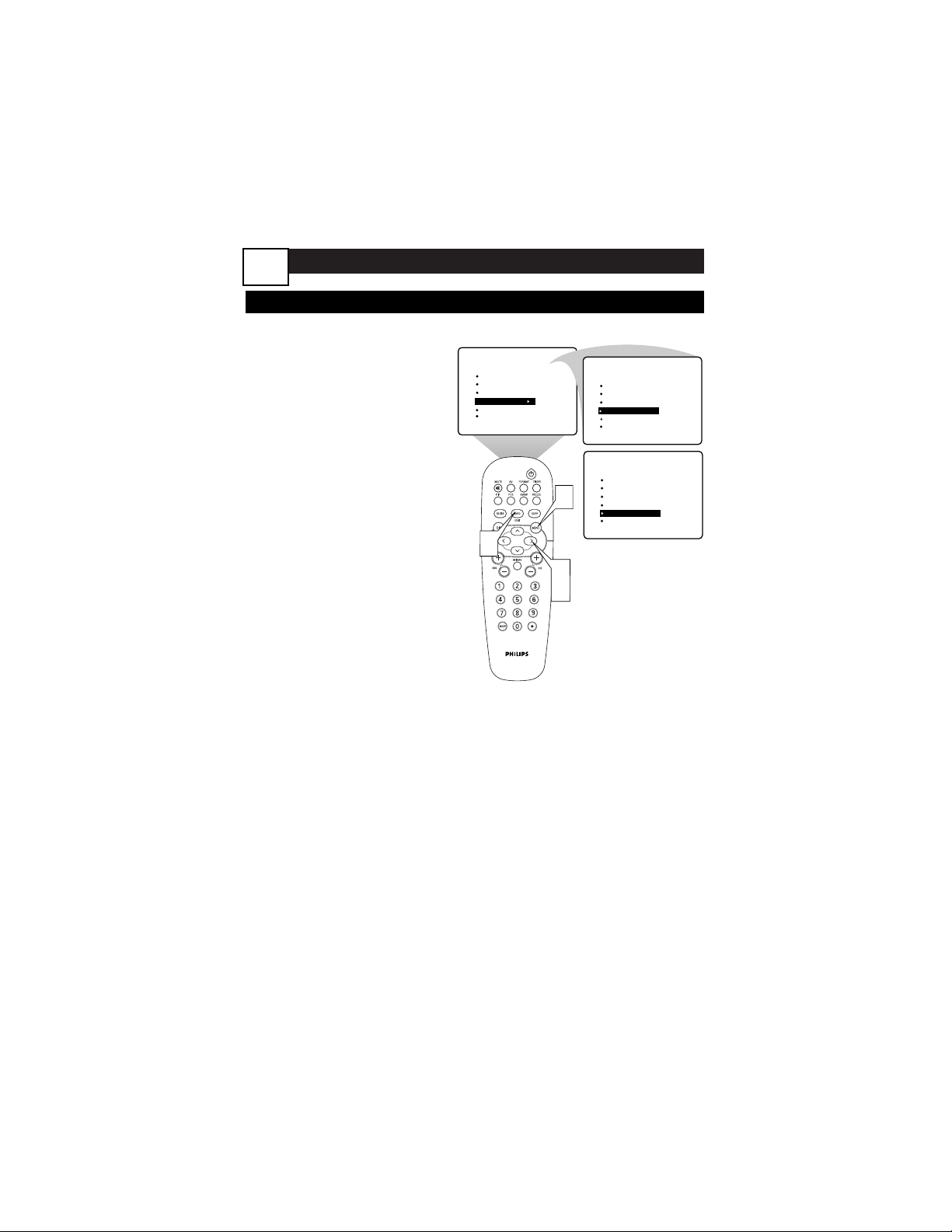
ADVANCED MENU FEATURES
U
se CH BANNER SIZE and VOL-
UME DISPLAY to set the size of
these displays on the screen.
1
Press the MENU button.
The onscreen menu appears.
Then press the CURSOR
DOWN button repeatedly
until INSTALL is highlighted.
2
Press the CURSOR
RIGHT button to enter
the INSTALL submenu.
Then press the CURSOR
DOWN button repeatedly
until CH BANNER SIZE or
VOLUME DISPLAY are select-
ed.
3
Press the CURSOR RIGHT
BUTTON to choose a
BANNER SIZE or turn the
VOLUME DISPLAY on or off.
4
Press the INFO/EXIT but-
ton to exit the menu.
INSTALL
TUNER MODE
AUTOCHRON
WEAK DIG SIG
CH BANNER SIZE
VOLUME DISPLAY
11:00 AM
TUNER MODE
AUTOCHRON
WEAK DIG SIG
CH BANNER SIZE SMALL
VOLUME DISPLAY
INSTALL
ENTER TIME
2
3
4
1
SET TIME
AUTO
MANUAL
11:00 AM
TUNER MODE
AUTOCHRON
WEAK DIG SIG
CH BANNER SIZE
VOLUME DISPLAY ON
INSTALL
ENTER TIME
SET TIME
AUTO
MANUAL
CHANNEL AND VOLUME DISPLAY OPTIONS
32
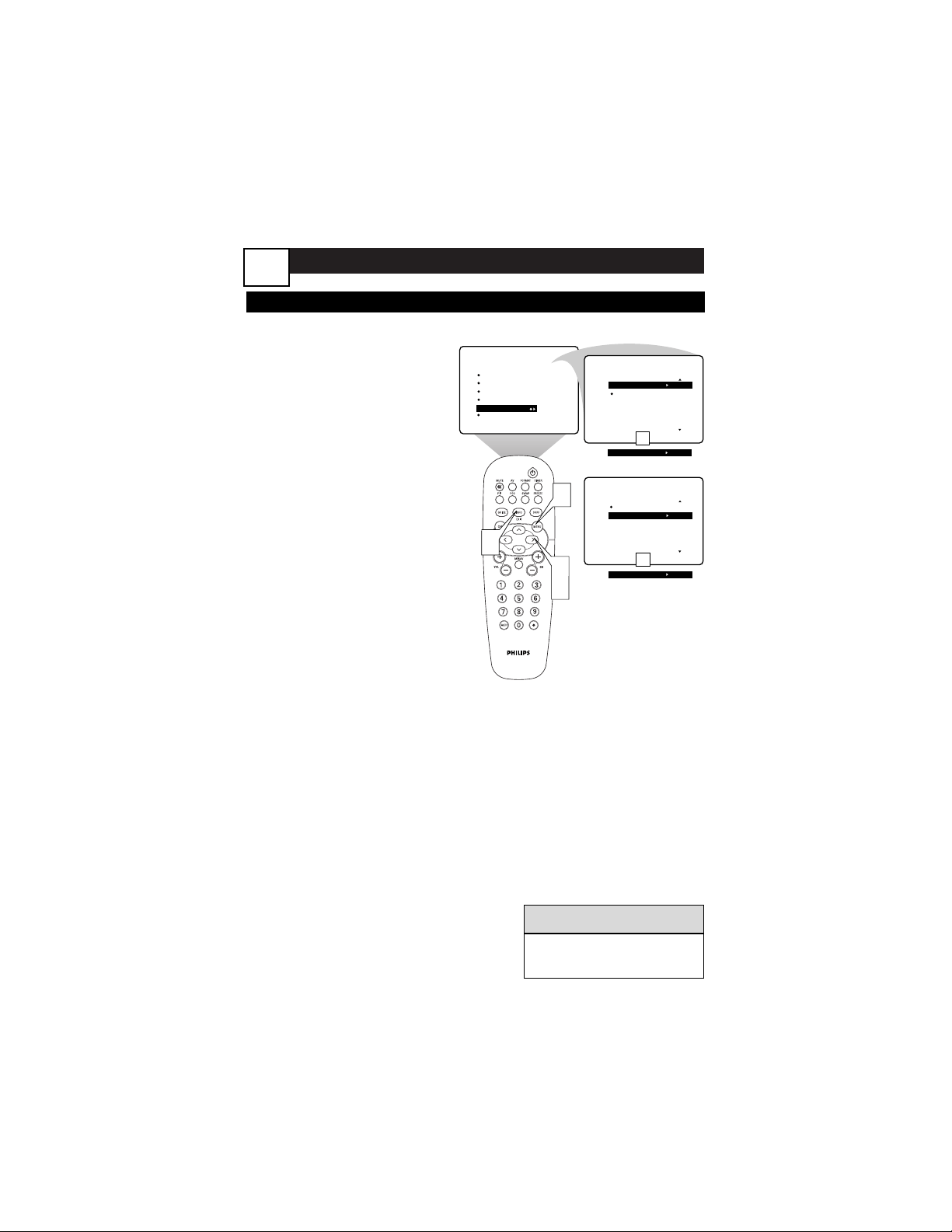
ADVANCED MENU FEATURES
EMERGENCY ALERT SETTING (DIGITAL ONLY)
Y
ou can select the level of Emergency
Alert you would like to see.
1
Press the MENU button.
The onscreen menu appears.
Then press the CURSOR
DOWN button repeatedly
until INSTALL is highlighted.
2
Press the CURSOR
RIGHT button to enter
the INSTALL submenu.
Then press the CURSOR
DOWN button repeatedly
until EMERG ALERT is high-
lighted.
3
Press the CURSOR
RIGHT button to enter the
EMERG ALERT submenu.
Then press the CURSOR
RIGHT button again to enter
the menu. Press the
CURSOR UP or DOWN but-
ton to select the level of alert
you want to have presented
or discarded. Then press the
CURSOR RIGHT button to
select PRESENT or DISCARD.
4
Press the INFO/EXIT but-
ton to exit the menu.
INSTALL
AUTOCHRON
WEAK DIG SIG
CH BANNER SIZE
VOLUME DISPLAY
EMERG ALERT
INSTALL
EMERG ALERT
LOW PRESENT
MEDIUM
11:00 AM
ENTER TIME
1
2
4
3
AUTO
MANUAL
INSTALL
EMERG ALERT
LOW
MEDIUM PRESENT
11:00 AM
AUTO
MANUAL
OR
LOW DISCARD
OR
MEDIUM DISCARD
HELPFUL HINTS
•
High Alert levels are
always presented.
33
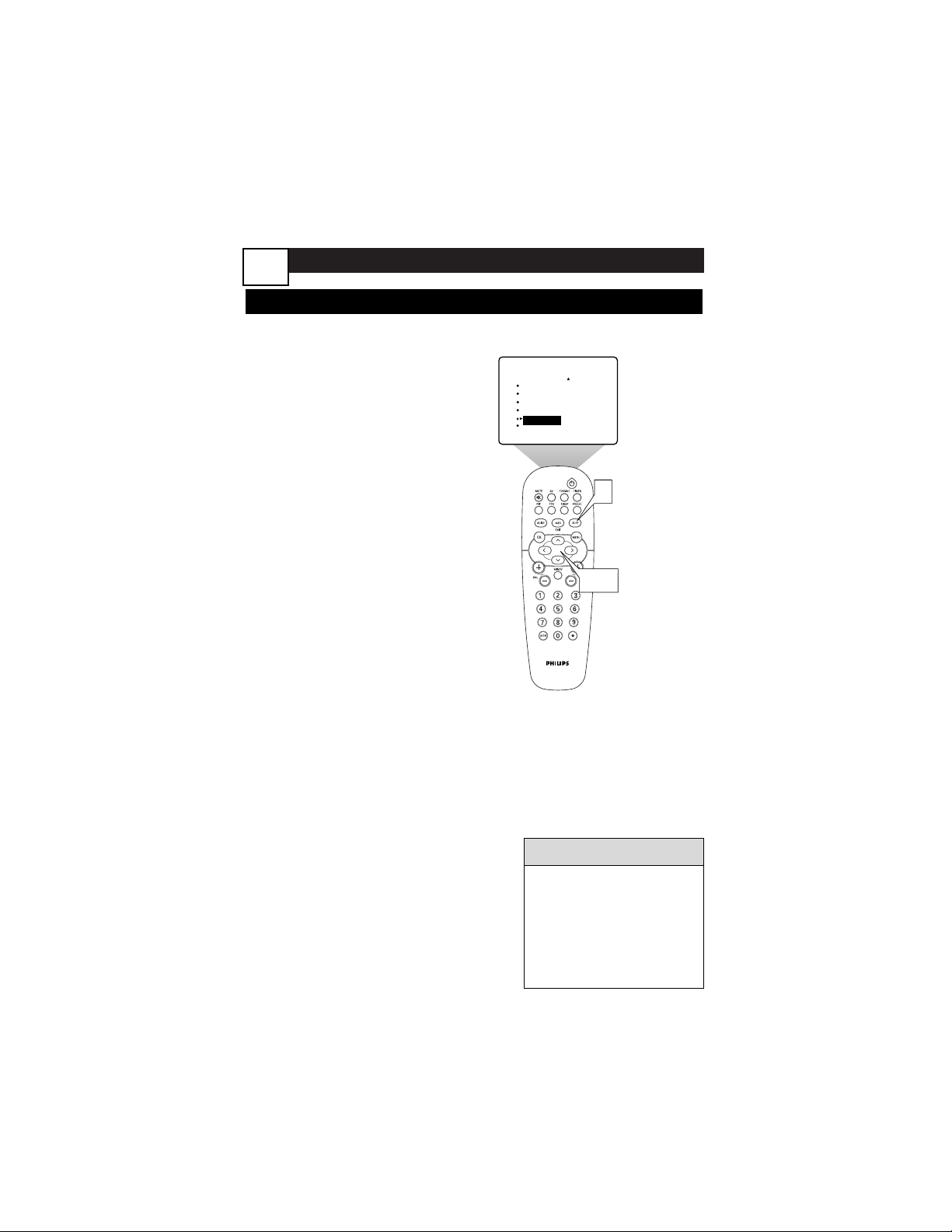
ADVANCED MENU FEATURES
FACT CH RESET
T
he Factory Channel reset option is
available in case you move or
change cable providers and need to
start your channel list all over from
scratch. Only use it if you
absolutely must because you will
lose all of your channel program-
ming.
1
Press the MENU button.
The onscreen menu appears.
Then press the CURSOR
DOWN button repeatedly
until INSTALL is highlighted.
2
Press the CURSOR
RIGHT button to enter
the INSTALL submenu.
Then press the CURSOR
DOWN button repeatedly
until FACT CH RESET is high-
lighted.
3
Press the CURSOR
RIGHT button to enter the
FACT CH RESET Submenu.
Follow the onscreen menu.
Press 1 to continue and 0 to
reset.
2,3
1
WEAK DIG SIG
CH BANNER SIZE
VOLUME DISPLAY
EMERG ALERT
FACT CH RESET
INSTALL
HELPFUL HINTS
•
After you have reset the
channels you will need to
re-autoprogram the TV
before you can watch it.
See page 12 in the Set-up
and Basic Guideto start
autoprogramming.
34