Camera User Guide
ENGLISH
• Make sure you read this guide, including the “Safety
Precautions” section, before using the camera.
• Reading this guide will help you learn to use the camera
properly.
• Store this guide safely so that you can use it in the future.
COPY
2
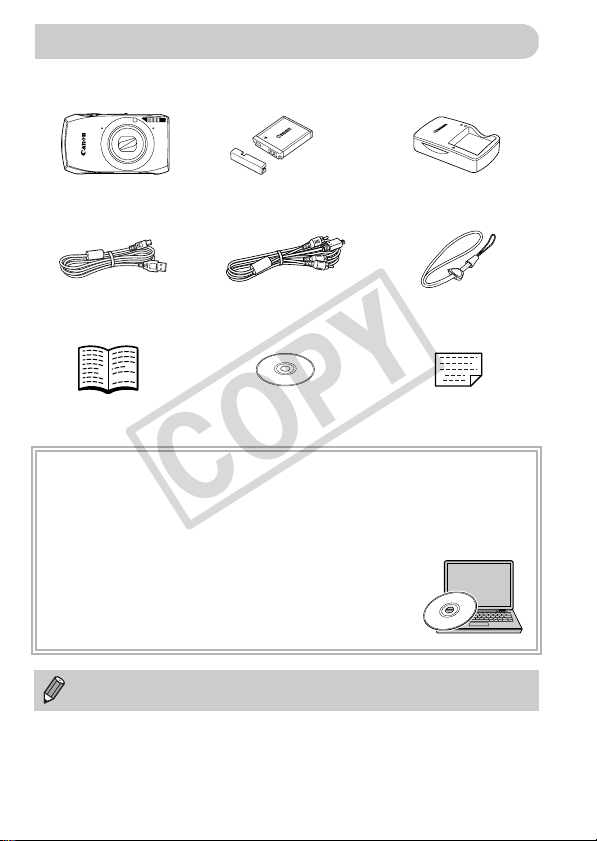
Check if the following items are included in your camera package.
If anything is missing, contact the retailer where you purchased the camera.
Using the PDF Manuals
The following PDF manuals are included in the Readme folder of the CD-ROM:
When the software is installed on your computer, the PDF manuals will be copied to
the computer and you can refer to them by clicking the shortcuts on the desktop.
• Camera User Guide (This Guide)
Once you have mastered the basics, use the camera’s many
features to shoot more challenging photos.
• Software Guide
Read when you want to use the included software.
• A memory card is not included.
• Adobe Reader is required to view the PDF manuals.
Checking the Package Contents
Battery Charger
CB-2LY/CB-2LYE
Camera Battery Pack NB-6L
(with Terminal Cover)
Interface Cable
IFC-400PCU
Wrist Strap
WS-DC10
Stereo AV Cable
AVC-DC400ST
Warranty
Card
Getting Started
DIGITAL CAMERA
Solution Disk
COPY

3
Test Shots and Disclaimer
Take some initial test shots and play them back to make sure the images
were recorded correctly. Please note that Canon Inc., its subsidiaries and
affiliates, and its distributors are not liable for any consequential damages
arising from any malfunction of a camera or accessory, including memory
cards, that results in the failure of an image to be recorded or to be recorded
in a way that is machine readable.
Warning Against Copyright Infringement
The images recorded with this camera are intended for personal use. Do not
record images that infringe upon copyright laws without the prior permission
of the copyright holder. Please be advised that in certain cases the copying
of images from performances, exhibitions, or commercial properties by
means of a camera or other device may contravene copyright or other legal
rights even if the image was shot for personal use.
Warranty Limitations
This camera’s warranty is only effective in the country of sale. If there is a
problem with the camera while abroad, please return it to the country of sale
before proceeding with a warranty claim to a Canon Customer Support Help
Desk. For Canon Customer Support contacts, please see the customer
support list supplied with your camera.
LCD Monitor (Screen)
• The LCD monitor is produced with extremely high-precision manufacturing
techniques. More than 99.99% of the pixels operate to specification, but
occasionally non-performing pixels may appear as bright or dark dots. This
is not a malfunction and has no effect on the recorded image.
• The LCD monitor may be covered with a thin plastic film for protection
against scratches during shipment. If so, remove the film before using the
camera.
Camera Body Temperature
Please take care when operating the camera for an extended period as the
camera body may become warm. This is not a malfunction.
Read This First
COPY
4
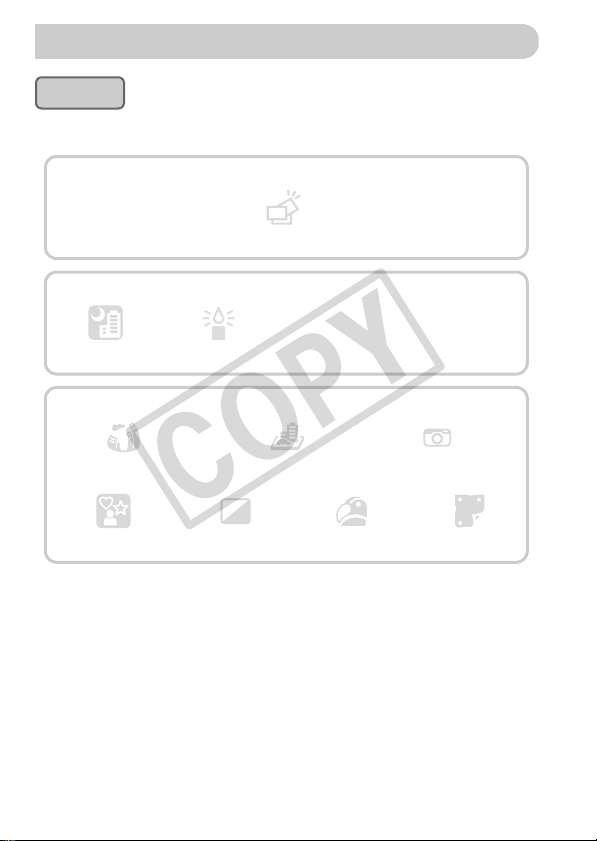
What Do You Want to Do?
4
z Shoot, leaving it to the camera to make settings .........................25
O t
Take good people shots
Shoot various other scenes
Shoot with special effects
I
w
P
V
Portraits
(p. 64)
Facial expressions
(p. 81)
Kids and pets
(p. 65)
At the beach
(p. 65)
Against snow
(p. 66)
Night Scene
(p. 65)
Low Light
(p. 65)
Foliage
(p. 65)
Fireworks
(p. 66)
Fish-eye Effect
(p. 69)
Toy Camera Effect
(p. 75)
Miniature Effect
(p. 70)
Monochrome
(p. 74)
Super vivid colors
(p. 68)
Poster Effect
(p. 68)
Creative Light Effect
(p. 71)
Shoot
z
Focus on faces
..................................................................25, 64, 95
z Shoot in places where I cannot use the flash
(turn off the flash) .........................................................................54
z Take pictures with me in them too (self-timer) .................58, 59, 78
z Insert the date and time into my shots .........................................57
z Take a picture while shooting a movie .........................................67
COPY
What Do You Want to Do?
5
1
z Look at my pictures......................................................................28
z Automatically play back pictures (slideshow).............................124
z Look at my pictures on a TV ......................................................133
z Look at my pictures on a computer. .............................................34
z Quickly search pictures ..............................................................120
z Erase pictures ......................................................................30, 139
View
E
z Shoot movies .......................................................................31, 111
z View movies .................................................................................33
z Shoot fast moving subjects and play them back
in slow motion ............................................................................114
Shoot/View Movies
2
z Easily print pictures ....................................................................152
Print
z Save images to a computer .........................................................34
Save
3
z Turn off sounds ............................................................................49
z Use the camera abroad........................................................16, 169
z Understand what is displayed on the screen .............................187
Other
COPY
6
Chapters 1 – 3 explain the basic operations and frequently used functions of
this camera. Chapters 4 onward explain the advanced functions, letting you
learn more as you read each chapter.
Checking the Package Contents .......2
Read This First ..................................3
What Do You Want to Do? ................4
Table of Contents ..............................6
Conventions Used in This Guide .......9
Safety Precautions...........................10
Using the Touch Panel ....................14
Charging the Battery........................15
Compatible Memory Cards
(Sold Separately)...........................17
Inserting the Battery and
Memory Card.................................17
Setting the Date and Time ...............20
Setting the Display Language..........22
Formatting Memory Cards ...............23
Pressing the Shutter Button.............24
Taking Pictures (Smart Auto)...........25
Viewing Images ...............................28
Active Display ..................................29
Erasing Images................................30
Shooting Movies ..............................31
Viewing Movies................................33
Transferring Images
to a Computer for Viewing .............34
Accessories .....................................38
Separately Sold Accessories ...........39
Components Guide..........................42
Screen Display.................................44
Indicator ...........................................45
FUNC. Menu – Basic Operations.... 46
MENU – Basic Operations .............. 47
Changing the Sound Settings ......... 49
Adjusting the Screen Brightness ..... 50
Returning the Camera to Default
Settings ......................................... 51
Power Saving Function
(Auto Power Down)....................... 52
Turning the Flash Off ...................... 54
Zooming in More Closely on
Subjects (Digital Zoom)................. 55
Inserting the Date and Time............ 57
Using the Self-Timer ....................... 58
Changing the Recording Pixel
Setting (Image Size) ..................... 60
Changing the Compression Ratio
(Image Quality) ............................. 60
Shooting in Various Conditions ....... 64
Making Short Movies Automatically
(Movie Digest)............................... 67
Adding Effects and Shooting........... 68
Detecting a Face and Shooting
(Smart Shutter) ............................. 76
High-Speed Continuous Shooting
(High-speed Burst) ........................ 80
Capturing the Best Facial
Expressions (Best Image
Selection) ...................................... 81
Table of Contents
1 Getting Started................... 13
2 Learning More.................... 41
3 Shooting with Commonly
Used Functions ..................53
4 Adding Effects and Shooting
in Various Conditions........63
COPY
Table of Contents
7
Shooting in Program AE ................. 84
Adjusting the Brightness
(Exposure Compensation) ............ 85
Turning the Flash On ...................... 85
Adjusting the White Balance ........... 86
Changing the ISO Speed................ 88
Correcting the Brightness and
Shooting (i-Contrast)..................... 89
Changing the Aspect Ratio ............. 90
Continuous Shooting....................... 91
Changing the Tone of an Image
(My Colors) ................................... 92
Shooting Close-ups (Macro) ........... 94
Shooting Far Away Subjects
(Infinity) ......................................... 94
Changing the AF Frame Mode........ 95
Magnifying the Focal Point.............. 97
Choosing the Subject to
Focus On (Touch AF) ................... 98
Shooting with the AF Lock .............. 99
Shooting with Servo AF ................ 100
Changing the Metering Method..... 101
Shooting with the AE Lock............ 102
Shooting with the FE Lock ............ 102
Shooting with Slow Synchro ......... 103
Red-Eye Correction ...................... 104
Checking for Shut Eyes ................ 105
Setting the Shutter Speed............. 108
Setting the Aperture Value............ 109
Shooting Various Kinds of
Movies......................................... 112
Shoot Movies That Look Like a
Miniature Model (Miniature
Effect).......................................... 113
Shooting Super Slow Motion
Movies......................................... 114
Changing the Image Quality..........116
Other Shooting Functions.............. 117
Editing ........................................... 117
Quickly Searching Images.............120
Viewing Images in Filtered
Playback...................................... 123
Viewing Slideshows....................... 124
Checking the Focus....................... 126
Magnifying Images ........................ 127
Viewing Each Image in a Group.... 128
Displaying Various Images
(Smart Shuffle) ............................ 130
Changing Image Transitions ......... 131
Easy Operations with Touch
Actions ........................................ 131
Viewing Images on a TV ............... 133
Protecting Images ......................... 137
Erasing All Images ........................139
Tagging Images as Favorites........ 141
Organizing Images by Category
(My Category) .............................143
Rotating Images ............................144
Resizing Images............................ 145
Trimming ....................................... 146
5 Choosing Settings
Yourself...............................83
6 Getting More Out of Your
Camera..............................107
7 Using Various Functions for
Shooting Movies.............. 111
8 Using Various Playback and
Editing Functions ............ 119
COPY

Table of Contents
8
Adding Effects with the My Colors
Function.......................................148
Correcting the Brightness
(i-Contrast)...................................149
Correcting the Red-Eye Effect.......150
Printing Images..............................152
Choosing Images for Printing
(DPOF) ........................................159
Changing Camera Settings............164
Changing Shooting Function
Settings........................................171
Changing Playback Function
Settings........................................176
Using Household Power................ 178
Using an Eye-Fi Card .................... 179
Troubleshooting ............................ 181
List of Messages That Appear
on the Screen.............................. 184
Information Displayed
on the Screen.............................. 187
Handling Precautions .................... 191
Functions Available in Each
Shooting Mode............................ 192
Menus ........................................... 196
Playback Mode FUNC. Menu........ 200
Specifications ................................ 201
Index ............................................. 205
9 Printing ............................. 151
10Customizing Camera
Settings ............................ 163
11Useful Information ...........177
COPY

9
• Icons are used in the text to represent the camera buttons and switches.
• Language that displays on the screen appears inside [ ] (square brackets).
• : Things you should be careful about
• : Troubleshooting tips
• : Hints for getting more out of your camera
• : Supplemental information
• (p. xx): Reference pages (“xx” stands for a page number)
• This guide assumes all functions are at their default settings.
• The various types of memory cards that can be used in this camera are
collectively referred to as memory cards in this guide.
Conventions Used in This Guide
COPY
10
• Before using the product, please ensure that you read the safety precautions described
below. Always ensure that the product is used correctly.
• The safety precautions noted on the following pages are intended to prevent injuries to
yourself and other persons, or damage to the equipment.
• Be sure to also check the guides included with any separately sold accessories you
use.
Warning
Denotes the possibility of serious injury or death.
• Do not trigger the flash in close proximity to people’s eyes.
Exposure to the intense light produced by the flash could damage eyesight. In particular,
remain at least one meter (39 inches) away from infants when using the flash.
• Store this equipment out of the reach of children and infants.
Strap: Putting the strap around a child’s neck could result in asphyxiation.
• Use only recommended power sources.
• Do not attempt to disassemble, alter or apply heat to the product.
• Avoid dropping or subjecting the product to severe impacts.
• To avoid the risk of injury, do not touch the interior of the product if it has been
dropped or otherwise damaged.
• Stop using the product immediately if it emits smoke, a strange smell, or
otherwise behaves abnormally.
• Do not use organic solvents such as alcohol, benzine, or thinner to clean the
equipment.
• Do not let the product come into contact with water (e.g. sea water) or other
liquids.
• Do not allow liquids or foreign objects to enter the camera.
This could result in electrical shock or fire.
If liquids or foreign objects come into contact with the camera interior, immediately turn
the camera power off and remove the battery.
If the battery charger becomes wet, unplug it from the outlet and consult your camera
distributor or a Canon Customer Support Help Desk.
• Use only the recommended battery.
• Do not place the battery near or in direct flame.
• Unplug the power cord periodically, and using a dry cloth, wipe away any dust
and dirt that has collected on the plug, the exterior of the power outlet, and the
surrounding area.
• Do not handle the power cord with wet hands.
• Do not use the equipment in a manner that exceeds the rated capacity of the
electrical outlet or wiring accessories. Do not use if the power cord or plug are
damaged, or not fully plugged into the outlet.
• Do not allow dirt or metal objects (such as pins or keys) to contact the terminals
or plug.
The battery may explode or leak, resulting in electrical shock or fire. This could cause
injury and damage the surroundings. In the event that a battery leaks and the battery acid
contacts eyes, mouth, skin or clothing, immediately flush with water.
Safety Precautions
COPY
Safety Precautions
11
• Turn the camera off in places where camera use is prohibited.
The electromagnetic waves emitted by the camera may interfere with the operation of
electronic instruments and other devices. Exercise adequate caution when using the
camera in places where use of electronic devices is restricted, such as inside airplanes
and medical facilities.
• Do not play the supplied CD-ROM(s) in any CD player that does not support data
CD-ROMs.
It is possible to suffer hearing loss from listening with headphones to the loud sounds of
a CD-ROM played on a music CD player. Additionally, playing the CD-ROM(s) in an audio
CD player (music player) could damage the speakers.
Caution
Denotes the possibility of injury.
• Be careful not to bang the camera or subject it to strong impacts or shocks when
hanging it by the strap.
• Be careful not to bump or push strongly on the lens.
This could lead to injury or damage the camera.
• When using the flash, be careful not to cover it with your fingers or clothing.
This could result in burns or damage to the flash.
• Avoid using, placing or storing the product in the following places:
- Places subject to strong sunlight
- Places subject to temperatures above 40 °C (104 °F)
- Humid or dusty areas
These could cause leakage, overheating or an explosion of the battery, resulting in
electrical shock, fire, burns or other injuries.
High temperatures may cause deformation of the camera or battery charger casing.
• The slideshow transition effects may cause discomfort when viewed for
prolonged periods.
Caution
Denotes the possibility of damage to the equipment.
• Do not aim the camera at bright light sources (such as the sun on a clear day).
Doing so may damage the image sensor.
• When using the camera on a beach or at a windy location, be careful not to allow
dust or sand to enter the camera.
This may cause the product to malfunction.
• In regular use, small amounts of smoke may be emitted from the flash.
This is due to the high intensity of the flash burning dust and foreign materials stuck to the
front of the unit. Please use a cotton swab to remove dirt, dust or other foreign matter from
the flash to prevent heat build-up and damage to the unit.
COPY
Safety Precautions
12
• Remove and store the battery when you are not using the camera.
If the battery is left inside the camera, damage caused by leakage may occur.
• Before you discard the battery, cover the terminals with tape or other insulators.
Contacting other metal materials may lead to fire or explosions.
• Unplug the battery charger from the power outlet after charging is complete, or
when you are not using it.
• Do not place anything, such as cloth on top of the battery charger while it is
charging.
Leaving the unit plugged in for a long period of time may cause it to overheat and distort,
resulting in fire.
• Do not place the battery near pets.
Pets biting the battery could cause leakage, overheating or explosion, resulting in fire or
damage.
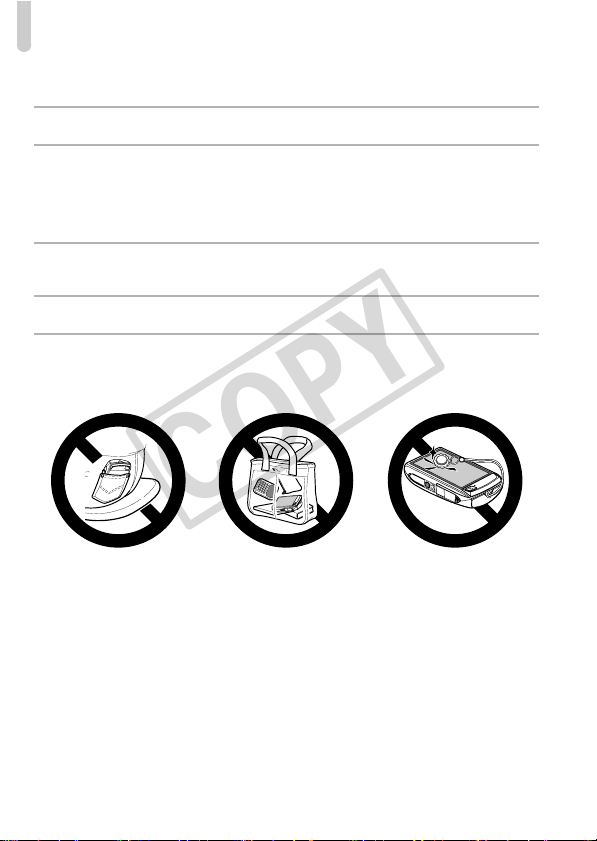
• Do not sit down with the camera in your pocket.
Doing so may cause malfunctions or damage the screen.
• When putting the camera in your bag, ensure that hard objects do not come into
contact with the screen.
• Do not attach any hard objects to the camera.
Doing so may cause malfunctions or damage the screen.
COPY
13
Getting Started
This chapter explains preparations before shooting, how to shoot in
A mode, and then how to view and erase the images you take. The
latter part of this chapter explains how to shoot and view movies and
transfer images to a computer.
Attaching the Strap/Holding the Camera
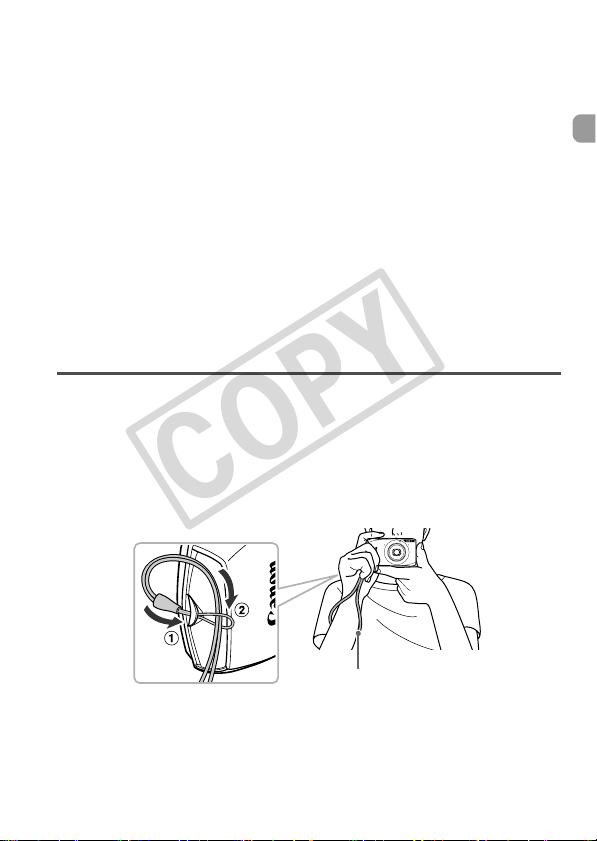
• Attach the included strap and wrap it around your wrist to avoid dropping
the camera during use.
• Keep your arms tight against your body while holding the camera firmly by
the sides when shooting. Be sure that your fingers do not block the flash or
touch the screen.
1
Strap
COPY
14
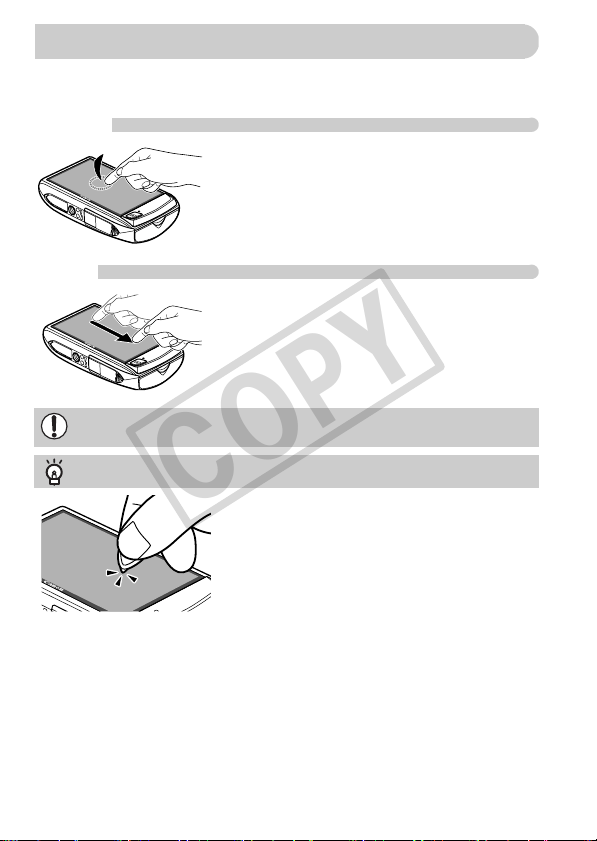
This camera has a touch panel screen that allows you to perform operations
with the touch of your finger.
Touch
Briefly touch the screen with your
finger.
z Used for choosing icons or magnifying
images.
Drag
Touch and drag your finger across
the screen.
z Used for playback operations such as
switching to the next image, or moving the
displayed location of magnified images.
Using the Touch Panel
Since the camera uses a pressure sensitive touch panel, the camera may
not recognize touch operations if you install a screen protector.
What if I cannot perform operations well?
When touching with your finger does not work well,
you can use the toggle attached to the strap to
perform operations. Only use the attached toggle to
perform operations. Do not use other objects, such
as pens or pencils.
You can calibrate the touch panel if you are having
difficulty choosing items or buttons (p. 170).
COPY
15
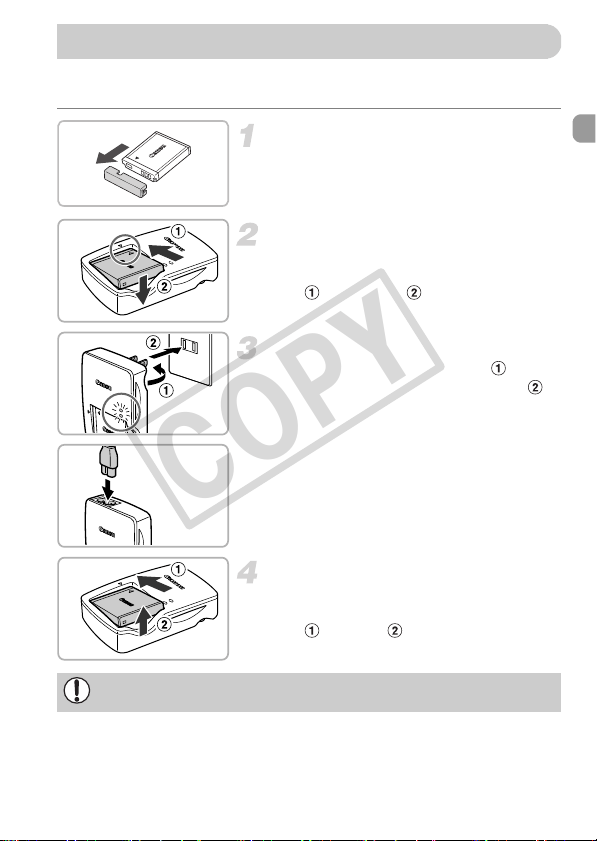
Use the included charger to charge the battery. Be sure to charge the battery
as it is not charged at the time of purchase.
Remove the cover.
Insert the battery.
z Align the o marks on the battery and
charger, then insert the battery by sliding it
in ( ) and down ( ).
Charge the battery.
z For CB-2LY: Flip out the plug ( ) and
plug the charger into a power outlet ( ).
z For CB-2LYE: Plug the power cord into
the charger, then plug the other end into a
power outlet.
X The charge lamp lights red and charging
starts.
X The charge lamp will light green when
charging has finished. Charging takes
approx. 1 hour and 55 minutes.
Remove the battery.
z Unplug the battery charger from the power
outlet, then remove the battery by sliding it
in ( ) and up ( ).
Charging the Battery
CB-2LY
CB-2LYE
To protect the battery and prolong its life, do not charge it for longer than
24 hours continuously.
COPY
Charging the Battery
16
Number of Possible Shots
• The number of shots that can be taken is based on the Camera & Imaging Products
Association (CIPA) measurement standard.
• Under some shooting conditions, the number of shots that can be taken may be less
than mentioned above.
Battery Charge Indicator
An icon or message will appear on the screen indicating the battery’s charge
state.
Number of Shots
Approx. 180
Playback Time
Approx. 4 hours
Display Summary
Sufficient charge.
Slightly depleted, but sufficient.
(Blinking red) Nearly depleted. Charge the battery.
“Change the battery pack.” Depleted. Recharge the battery.
Using the battery and charger effectively
• Charge the battery on the day, or the day before, it will be used.
Charged batteries continue to discharge naturally even if they are not used.
• How to store the battery for long periods:
Deplete and remove the battery from the camera. Attach the terminal cover and
store the battery. Storing a battery for long periods of time (about a year) without
depleting it may shorten its life span or affect its performance.
• The battery charger can also be used when abroad.
The charger can be used in regions that have 100 – 240 V (50/60 Hz) AC power.
If the plug does not fit the outlet, use a commercially available plug adapter. Do
not use electrical transformers for foreign travel as they will cause damage.
• The battery may develop a bulge.
This is a normal characteristic of the battery and does not indicate a problem.
However, if the battery bulges to the point where it will no longer fit into the
camera, please contact a Canon Customer Support Help Desk.
• If the battery is quickly depleted even after charging, it has reached the end of
its life span. Purchase a new battery.
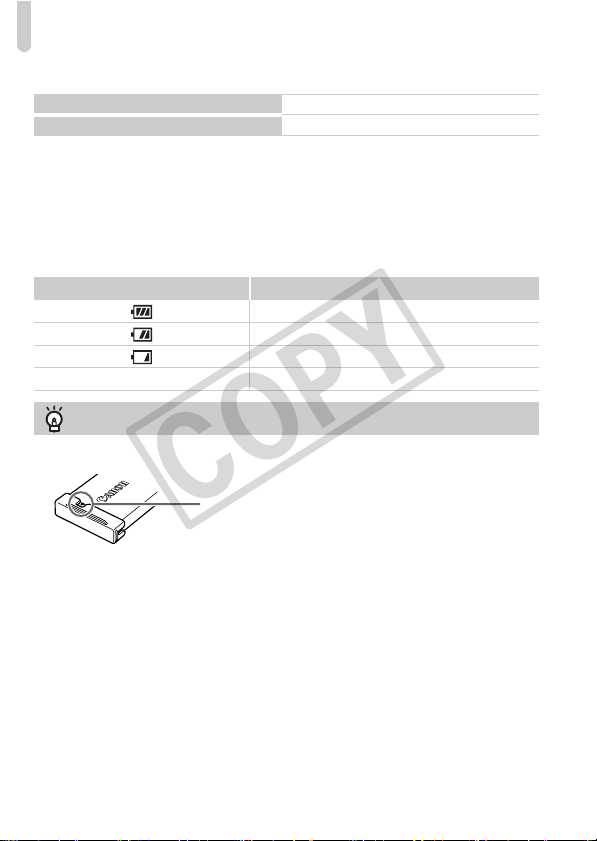
Attach the cover to a charged battery so that
the o mark is visible.
COPY
17
The cards below can be used without restrictions on their capacities.
• SD memory cards*
• SDHC memory cards*
• SDXC memory cards *
• MultiMediaCards
• MMCplus memory cards
• HC MMCplus memory cards
• Eye-Fi Cards
* This memory card complies with the SD standards. Some cards may not operate
properly depending on the brand of card used.
About Eye-Fi Cards
This product is not guaranteed to support Eye-Fi card functions (including
wireless transfer). In case of an issue with an Eye-Fi card, please check with
the card manufacturer.
Also note that an approval is required to use Eye-Fi cards in many countries
or regions. Without approval, use of the card is not permitted. If it is unclear
whether the card has been approved for use in the area, please check with
the card manufacturer.
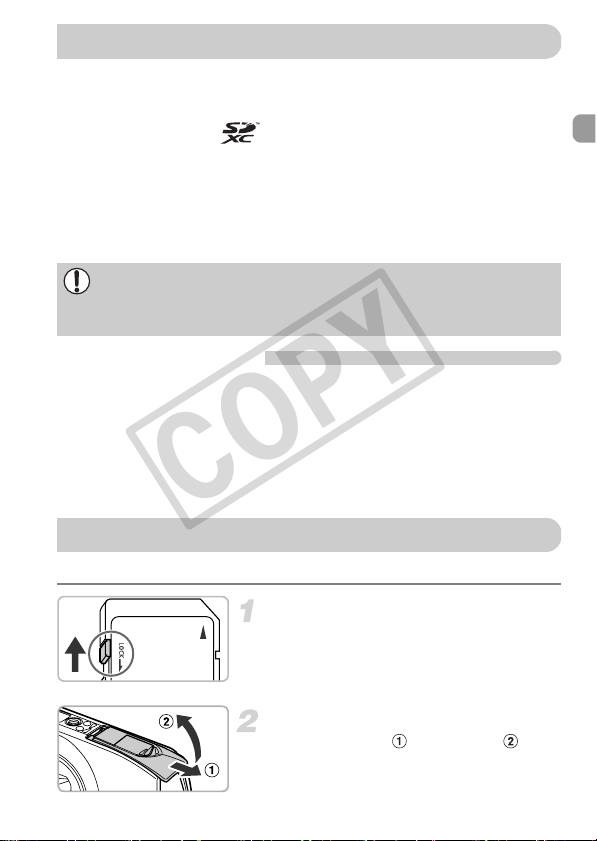
Insert the included battery and a memory card (sold separately).
Check the card’s write-protect tab.
z If the memory card has a write-protect tab,
you will not be able to record images if the
tab is in the locked position. Slide the tab
up until you hear a click.
Open the cover.
z Slide the cover ( ) and open it ( ).
Depending on your computer’s OS version, SDXC memory cards may not
be recognized even when using a commercially available card reader.
Check to make sure that your OS supports SDXC memory cards
beforehand.
Compatible Memory Cards (Sold Separately)
Inserting the Battery and Memory Card
COPY
Inserting the Battery and Memory Card
18
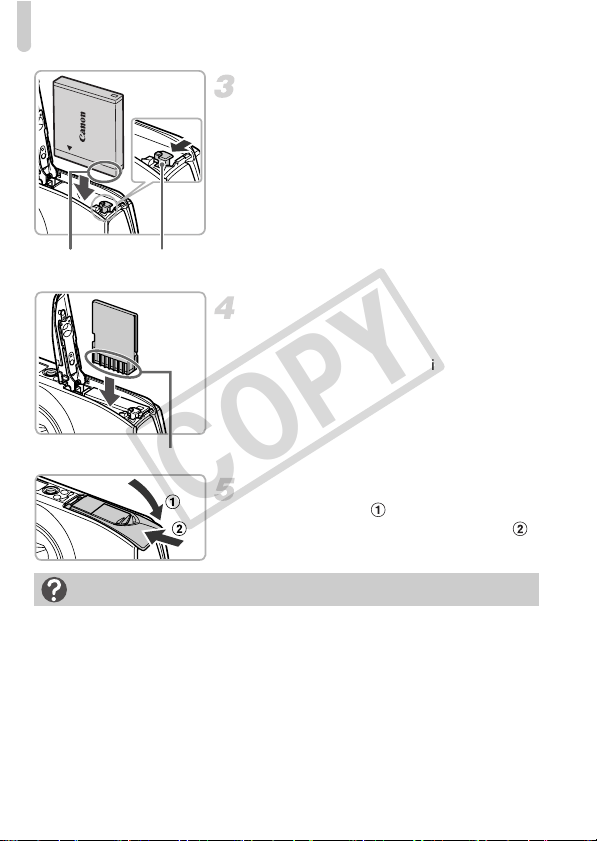
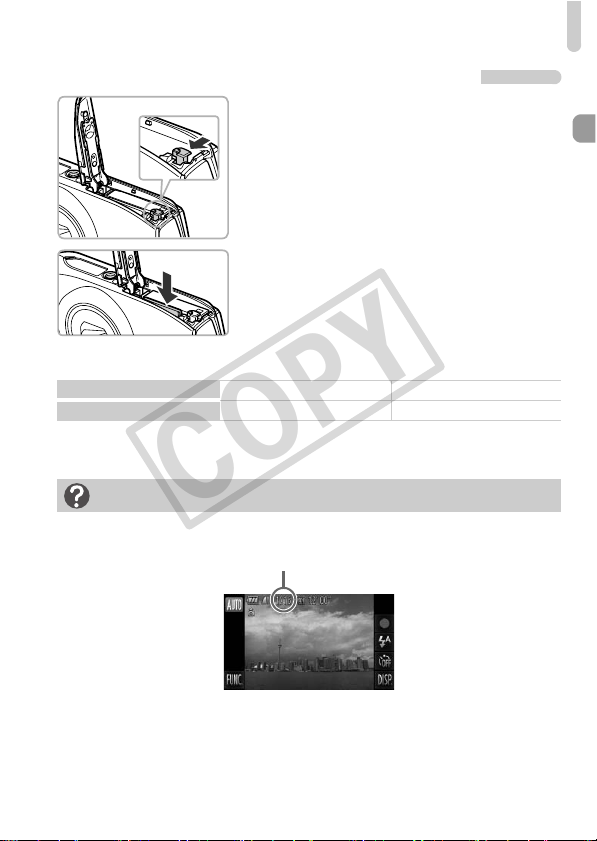
Insert the battery.
z Press the battery lock in the direction of the
arrow, then insert the battery as shown
until it locks into place with a click.
z Be sure to insert the battery in the correct
direction or it will not properly lock into
place.
Insert the memory card.
z Insert the memory card as shown until it
locks into place with a click.
z Be sure the memory card is oriented
correctly. Inserting the memory card in the
wrong direction could damage the camera.
Close the cover.
z Close the cover ( ), and press downward
as you slide it until it clicks into place ( ).
Terminals Battery
lock
Terminals
What if [Memory card locked] appears on the screen?
SD, SDHC, SDXC memory cards, and Eye-Fi cards have a write-protect tab. If
this tab is in the locked position, [Memory card locked] will appear on the screen
and you will not be able to take or erase images.
COPY
Inserting the Battery and Memory Card
19
Removing the Battery and Memory Card
Remove the battery.
z Open the cover and press the battery lock
in the direction of the arrow.
X The battery will pop up.
Remove the memory card.
z Push the memory card in until you hear a
click, then slowly release it.
X The memory card will pop up.
Number of Shots per Memory Card
• Values are based on the default settings.
• The number of shots that can be taken will vary depending on camera settings, the
subject and the memory card used.
Memory Card
4GB 16GB
Number of Shots
Approx. 1231 Approx. 5042
Can you check the number of shots that can be taken?
You can check the number of shots that can be taken when the camera is in a
Shooting mode (p. 25).
Number of shots that can be taken
COPY
20
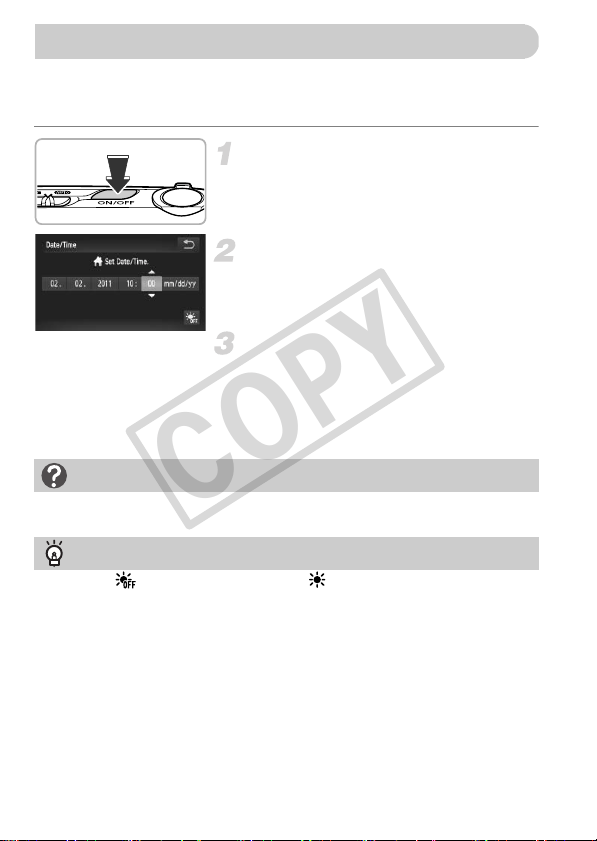
The Date/Time settings screen will appear the first time the camera is turned
on. Since the dates and times recorded into your images are based on these
settings, be sure to set them.
Turn on the camera.
z Press the power button.
X The Date/Time screen will appear.
Set the date and time.
z Touch the option you want to set.
X op will appear.
z Touch op to set a value.
Complete the setting.
z Touch Ú.
X Once the date and time have been set, the
Date/Time screen will close.
z Pressing the power button will turn off the
camera.
Setting the Date and Time
Reappearing Date/Time screen
Set the correct date and time. If you have not set the date and time, the Date/Time
screen will appear each time you turn on the camera.
Daylight saving time settings
If you touch in Step 2 and then choose , you will set the time to daylight
saving (1 hour ahead).
COPY
Setting the Date and Time
21
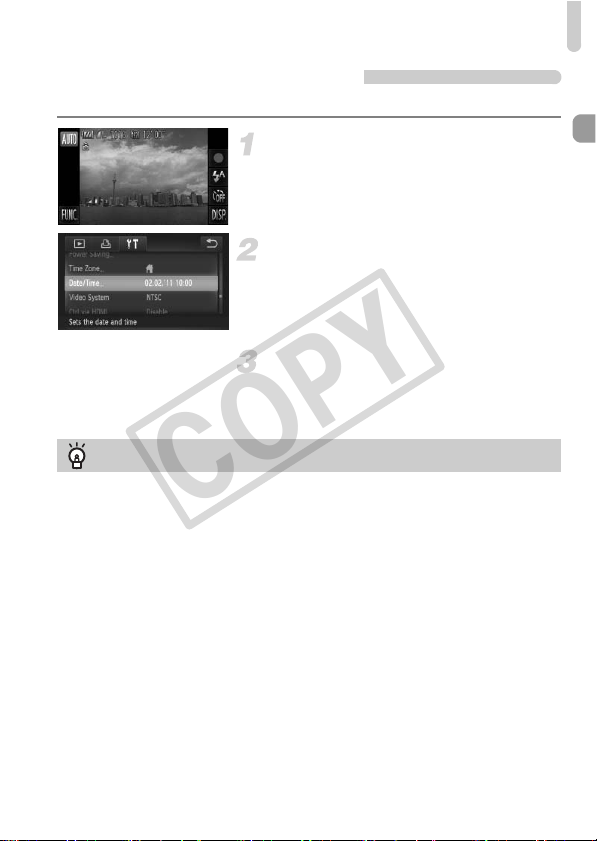
Changing the Date and Time
You can change the current date and time settings.
Display the menu.
z After touching ø, touch n.
Choose [Date/Time].
z Touch the 3 tab.
z Drag up or down the screen to choose
[Date/Time].
z Touch [Date/Time].
Change the date and time.
z Follow Steps 2 and 3 on p. 20 to adjust the
setting.
z Touch Ú twice to close the menu.
Date/Time battery
• The camera has a built-in date/time battery (backup battery) that allows the
date/time settings to be retained for about three weeks after the battery pack
has been removed.
• By inserting a charged battery or connecting an AC adapter kit (sold separately,
p. 39) the date/time battery can be charged in about 4 hours even if the camera
is not turned on.
• If the date/time battery is depleted, the Date/Time screen will appear when you
turn the camera on. Follow the steps on p. 20 to set the date and time.
COPY
22
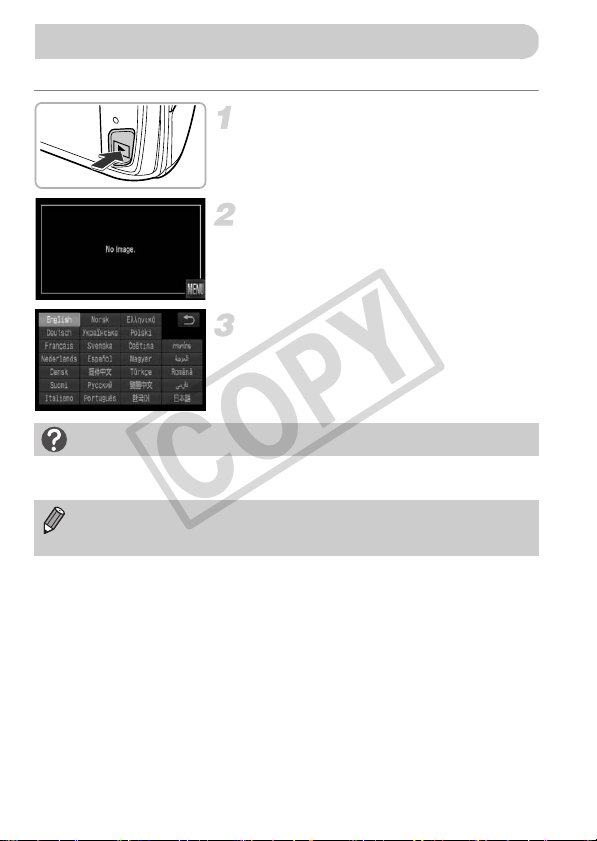
You can change the language that displays on the screen.
Enter Playback mode.
z Press the 1 button.
Display the settings screen.
z Touch and hold n.
X The settings screen will appear.
Set the display language.
z Touch a display language, then touch Ú.
X Once the display language has been set,
the settings screen will close.
Setting the Display Language
What if n does not appear?
When there are images on the memory card, touch ø on the lower left of the
screen to display n.
You can also change the display language by touching ø, then
n. Choose the 3 tab in the screen that appears, then choose the
[Language] menu item.
COPY
23
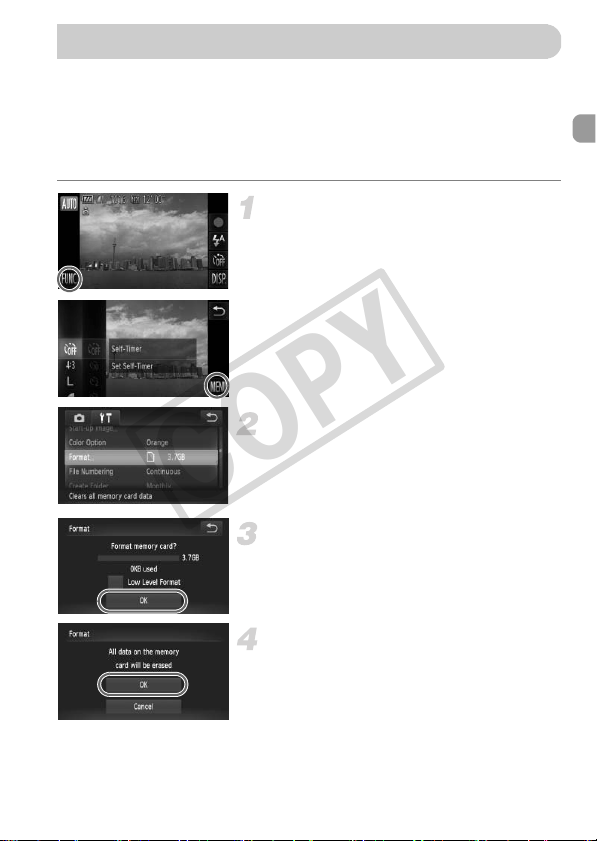
Before you use a new memory card or one that has been formatted in other
devices, you should format the card with this camera. Formatting (initializing) a
memory card erases all data on the memory card. As you cannot retrieve the
erased data, exercise adequate caution before formatting the memory card.
Before formatting an Eye-Fi card (p. 179), be sure to install the software
contained on the card to a computer.
Display the menu.
z Touch ø, then touch n.
Choose [Format].
z Touch the 3 tab.
z Drag up or down the screen to choose
[Format].
z Touch [Format].
Choose [OK].
z Touch [OK].
X A confirmation screen will appear.
Format the memory card.
z Touch [OK].
X The memory card will be formatted.
Formatting Memory Cards
COPY
Pressing the Shutter Button
24
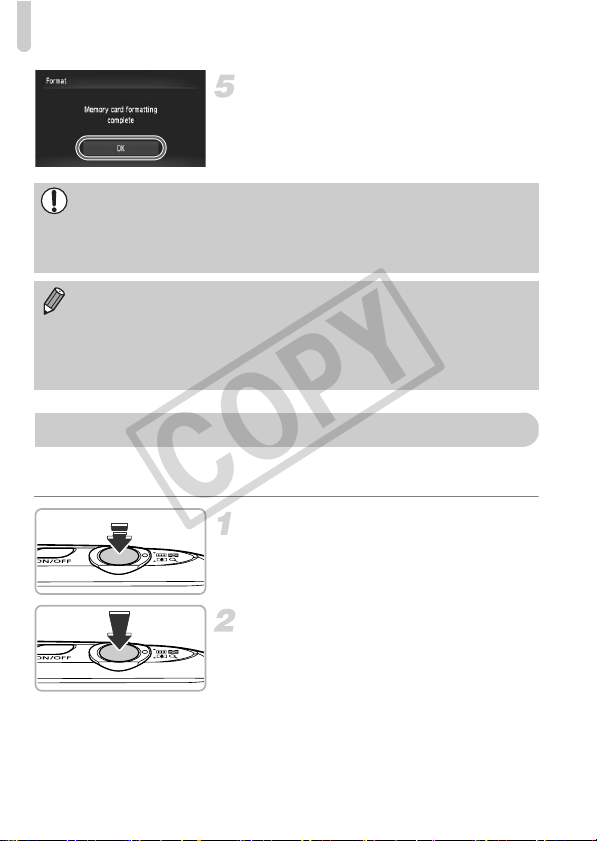
Complete formatting.
X When formatting ends, [Memory card
formatting complete] will appear on the
screen.
z Touch [OK].
To take images that are in focus, be sure to first press the shutter button
lightly (halfway) to focus, then press fully to shoot.
Press halfway (Press lightly to focus).
z Press lightly until the camera beeps twice
and AF frames appear where the camera
focused.
Press fully (Press fully to shoot).
X
The camera plays the shutter sound and
takes the shot.
z Since the shot is being taken while the
shutter sound plays, be careful not to move
the camera.
Formatting or erasing data on a memory card merely changes the file
management information on the card and does not ensure its contents are
completely erased. Be careful when transferring or disposing of a memory
card. When disposing of a memory card, take precautions such as
physically destroying the card to prevent personal information leaks.
• The total capacity of the memory card displayed in the formatting screen
may be less than indicated on the memory card.
• Perform a low-level format (p. 165) of the memory card when the camera
does not operate properly, the recording/reading speed of a memory card
has dropped, when continuous shooting speed slows down, or when
movie recording stops suddenly.
Pressing the Shutter Button
COPY
Taking Pictures (Smart Auto)
25
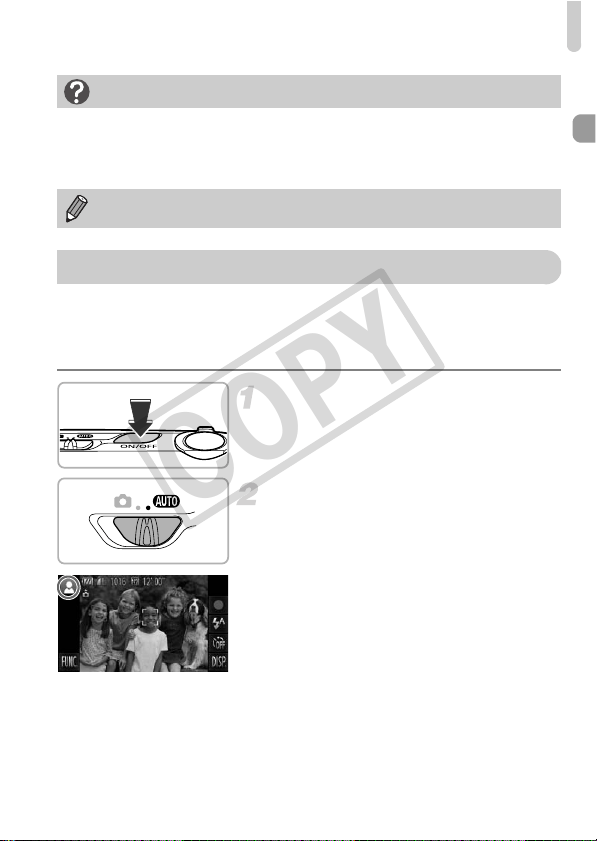
Since the camera can determine the subject and shooting conditions, you can
let it automatically select the best settings for the scene and just shoot. The
camera can also detect and focus on faces, setting the color and brightness
to optimal levels.
Turn on the camera.
z Press the power button.
X The start-up screen will appear.
Enter A mode.
z Set the mode switch to A.
z When you point the camera toward the
subject, the camera will make a slight
noise as it determines the scene.
X The icon for the determined scene will
appear in the upper left of the screen.
X The camera will focus on detected
subjects and display frames on them.
X Black bars will appear on the sides of the
screen. These areas will not be recorded
when shooting.
Does the length of the shutter sound change?
• Since the time required to shoot differs depending on the scene you want to
take, the length of the shutter sound may change.
• If the camera or subject moves while the shutter sound is playing, the recorded
image may be blurry.
If you shoot without pressing the shutter button halfway, the image may not
be in focus.
Taking Pictures (Smart Auto)
COPY
Taking Pictures (Smart Auto)
26
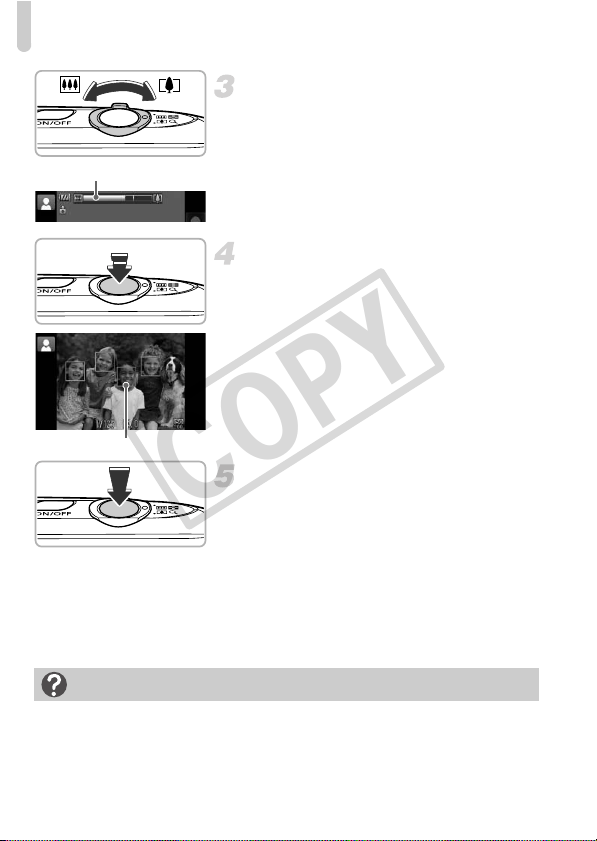
Compose the shot.
z Moving the zoom lever toward i
(telephoto) will zoom in on your subject,
making it appear larger. Moving the lever
toward j (wide angle) will zoom out from
your subject, making it appear smaller.
(The zoom bar showing the zoom position
appears on the screen.)
Focus.
z Press the shutter button halfway to focus.
X When the camera focuses, it will beep
twice and AF frames will appear where the
camera focused.
Several AF frames will appear when the
camera focuses on more than one point.
Shoot.
z Press the shutter button fully to shoot.
X The camera will play the shutter sound and
shoot. The flash will automatically fire in
low light conditions.
X The image will appear on the screen for
approximately two seconds.
z You can take a second picture even while
an image is displayed by pressing the
shutter button again.
Zoom bar
AF Frame
What if...
• What if the color and brightness of the images do not turn out as
expected?
The scene icon (p. 188) that appears on the screen may not match the actual
scene. If this happens, try shooting in G mode (p. 83).
COPY
Taking Pictures (Smart Auto)
27
• What if white and gray frames appear when you point the camera toward
a subject?
A white frame appears on the face or subject that the camera detected as the
main subject, while gray frames appear on other detected faces. The frames will
follow the subjects within a certain range.
If the subject moves, however, the gray frames will disappear, leaving only the
white frame.
• What if a frame does not appear on the subject you want to shoot?
The subject may not be detected, and frames may appear on the background.
If this happens, try shooting in G mode (p. 83).
• What if a blue frame appears when you press the shutter button halfway?
A blue frame appears when a moving subject is detected; the focus and
exposure will continuously adjust (Servo AF).
• What if a flashing appears?
Attach the camera to a tripod so that the camera does not move and blur the
image.
• What if the image comes out dark even if the flash fired when shooting?
The subject is too far away for the flash to reach. The effective flash range is
approximately 50 cm – 5.0 m (1.6 – 16 ft.) at maximum wide angle (j), and
approximately 50 cm – 2.0 m (1.6 – 6.6 ft.) at maximum telephoto (i).
• What if the camera beeps once when the shutter button is pressed halfway?
Your subject may be too close. When the camera is at maximum wide angle
(j), move about 3 cm (1.2 in.) or more away from your subject and shoot.
Move about 40 cm (1.3 ft.) or more away when the camera is at maximum
telephoto (i).
• What if the lamp lights when the shutter button is pressed halfway?
To reduce red-eye and to assist in focusing, the lamp may light when shooting
in dark areas.
• What if the h icon blinks when you try to shoot?
The flash is charging. You can shoot when recharging ends.
• What if appears when the shutter button is pressed halfway?
When you press the shutter button halfway in extremely bright shooting
conditions, will appear and the brightness will automatically adjust to
appropriate levels.
What if an icon appears in the upper left of the screen?
The icon for the determined scene will appear in the upper left of the screen. For
details on the icons that appear, see “Scene Icons” (p. 188).
COPY
Viewing Images
28
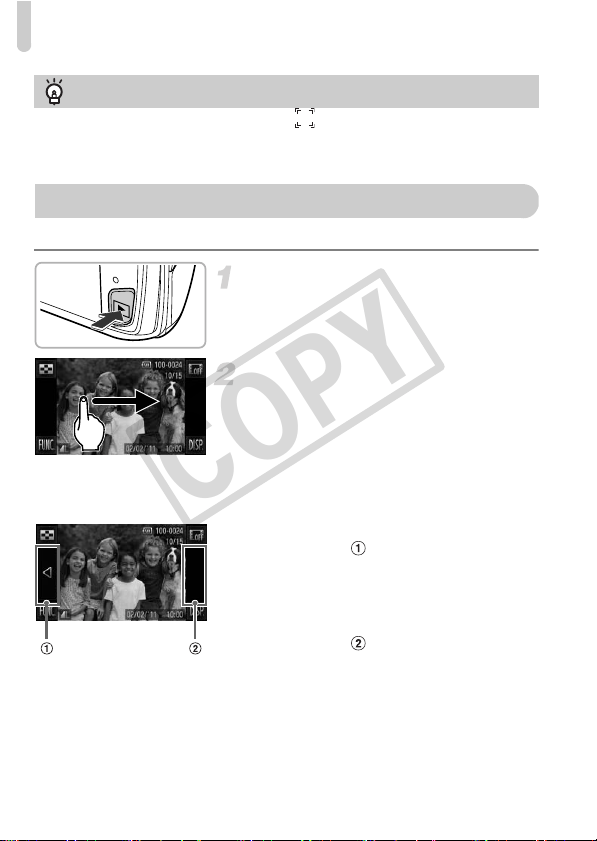
You can view the images you have taken on the screen.
Enter Playback mode.
z Press the 1 button.
X The last image you took will appear.
Choose an image.
z Dragging left to right across the screen will
cycle through the images in the reverse
order they were taken, from the newest
image to the oldest.
z Dragging right to left across the screen will
cycle through images in the order they
were taken, from oldest to newest.
z If you touch the left edge of the screen
(inside frame on the screen at the left),
q will appear and images will display in the
reverse order they were taken, from the
newest image to the oldest.
z If you touch the right edge of the screen
(inside frame on the screen at the left),
r will appear and images will display in the
order they were taken, from oldest to
newest.
z The images change more quickly if you
touch and hold qr.
z The lens will retract after approximately 1
minute elapses.
Choosing the subject to focus on (Touch AF)
After touching the subject and displaying , the focus and exposure will be
maintained where the blue AF frame appears when you press the shutter button
halfway (Servo AF). Press the shutter button fully to shoot.
Viewing Images
COPY
Active Display
29
z Pressing the 1 button again while the
lens is retracted will turn off the power.
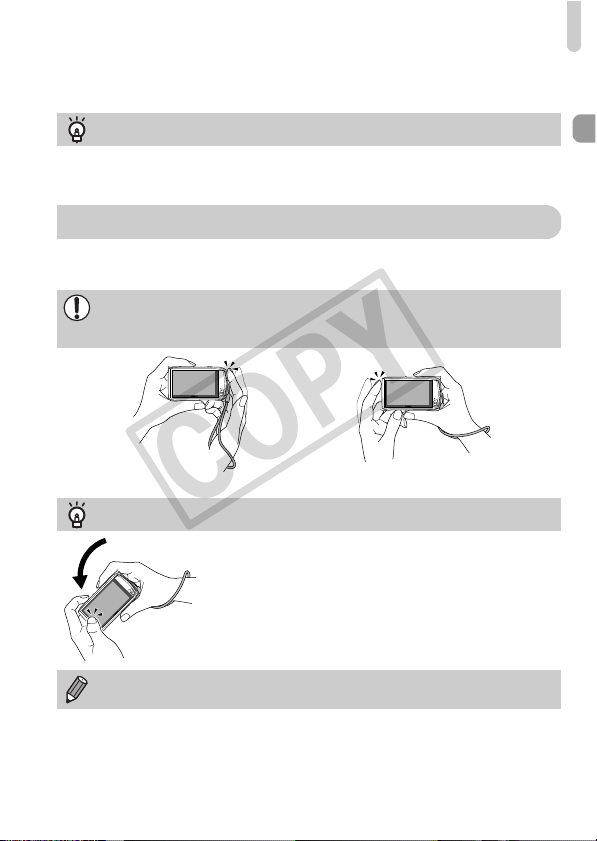
When an image is displayed, lightly tapping the camera as shown below will
switch to the next image.
Switching to Shooting mode
Pressing the shutter button halfway while in Playback mode switches the camera
to Shooting mode.
• Be sure to put the strap around your wrist, and hold the camera firmly to
avoid dropping it.
• Depending on the way you tap the camera, images may not switch.
Active Display
Tilt the camera to switch images
If you touch and hold q on the left of the screen and tilt
the camera as shown while switching through images
(p. 28), the images advance quickly. Tilt the camera in
the opposite direction while holding r.
While dragging an image, if you touch and hold q or r the image will
appear coarse.
Switch to next image Switch to previous image
COPY
30
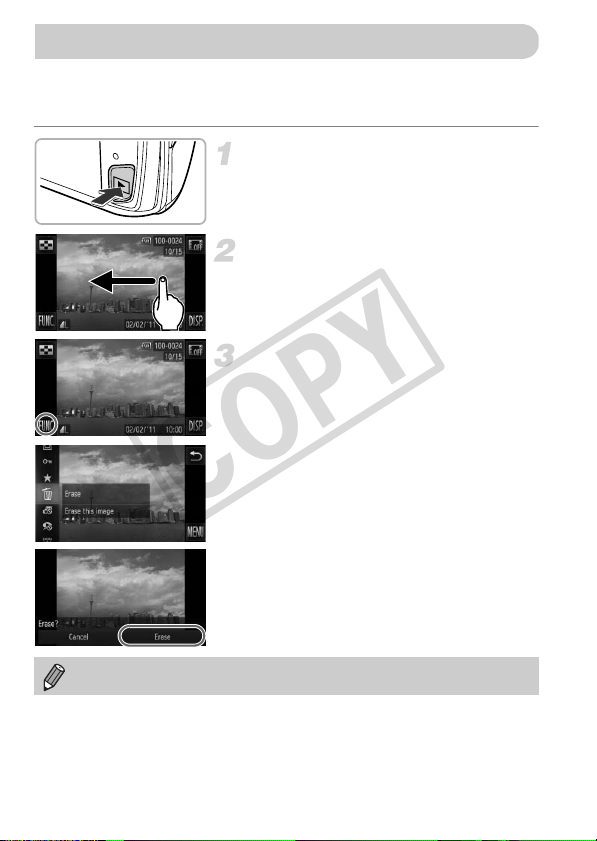
You can choose and erase images one at a time. Please note that erased
images cannot be recovered. Exercise adequate caution before erasing an
image.
Enter Playback mode.
z Press the 1 button.
X The last image you took will appear.
Choose an image to erase.
z Drag across the screen to choose an
image.
Erase the image.
z After touching ø, drag up or down the
screen to choose a, then touch the menu
item again.
X [Erase?] appears on the screen.
z Touch [Erase].
X The displayed image will be erased.
z To exit instead of erasing, touch [Cancel].
Erasing Images
You can also use Touch Actions to erase images (p. 131).
COPY

31
The camera will determine the subject and shooting conditions, and select the
best settings for the scene. The audio will record in stereo.
If you continue shooting for a long time, the camera may become warm. This
is not a malfunction.
Choose A mode.
z Set the mode switch to A.
Compose the shot.
z Moving the zoom lever toward i will
zoom in on your subject, making it appear
larger. Moving the lever toward j will
zoom out from your subject, making it
appear smaller.
Shoot.
z Touch .
X The camera will beep once, recording will
start, and [ Rec] and the elapsed time will
appear on the screen.
z If you change the composition of your shot
during shooting, the focus, brightness and
tone will automatically adjust.
Shooting Movies
Remaining Time
Elapsed Time
COPY
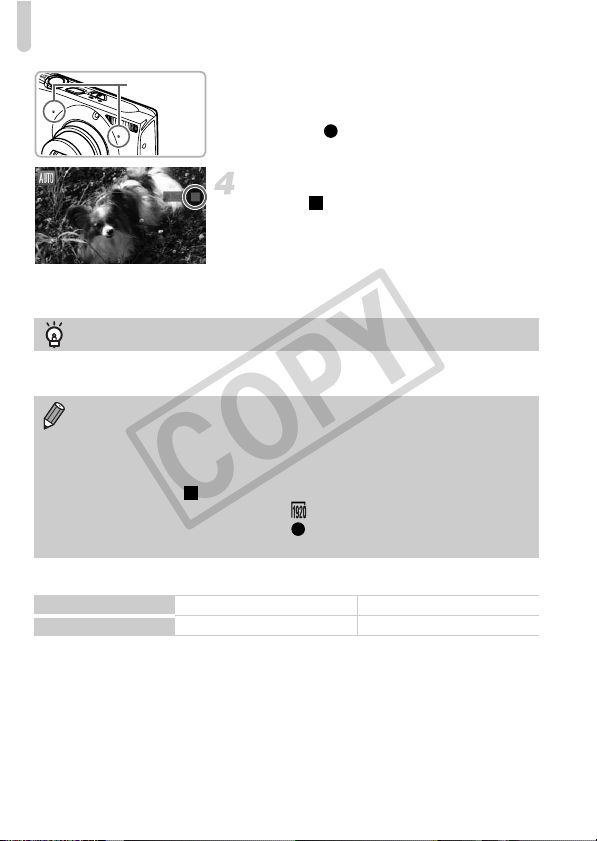
Shooting Movies
32
z Do not touch the microphones while
shooting.
z Do not operate the camera other than
touching while shooting. Operation
sounds will be recorded in the movie.
Stop shooting.
z Touch .
X The camera will beep twice and stop
shooting the movie.
X The movie will record to the memory card.
X Shooting will automatically stop when the
memory card fills.
Shooting Time
• Shooting times are based on default settings.
• Maximum clip length is approx. 10 minutes.
• Recording may stop even if the maximum clip length has not been reached on some
memory cards. SD Speed Class 6 or higher memory cards are recommended.
Microphones
Zooming while shooting
Pressing the zoom lever while shooting will zoom in on or out from the subject.
However, operation sounds will be recorded.
• When the mode switch is set to A, the icon for the determined scene
will appear (p. 188). “When Moving” icons will not appear, however.
Under certain conditions, the icon that appears may not match the actual
scene.
• If you change the composition while shooting and the white balance is not
optimal, touch to stop recording, then start recording again (only
when the image quality is set to (p. 116)).
• Movies can be shot by touching even if the mode switch is set to 4
(p. 111).
Memory Card
4GB 16GB
Shooting Time
Approx. 14 min. 34 sec. Approx. 59 min. 40 sec.
COPY
33
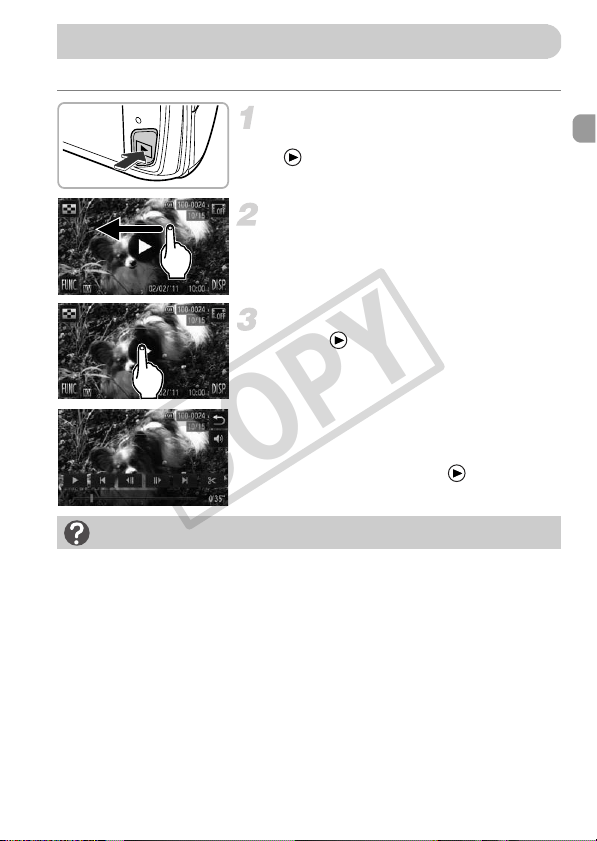
You can view the movies you have shot on the screen.
Enter Playback mode.
z Press the 1 button.
X appears on movies.
Choose a movie.
z Drag across the screen to choose a movie
to play back.
Play the movie.
z Touch .
X The movie will play.
z If you touch the screen during playback,
the movie will stop, and the movie control
panel will appear on the screen.
z Drag up or down the screen during
playback to adjust the volume.
X After the movie finishes, appears.
Viewing Movies
How can I play back movies on a computer?
Install the included software (p. 35).
• When watching a movie on a computer, frames may drop, it may not play
smoothly, and the audio may stop suddenly depending on the computer’s
capabilities.
• If you use the supplied software to copy the movie back onto the memory card,
you can play back the movie smoothly with the camera. For enhanced playback
you can also connect the camera to a TV.
COPY

34
You can use the included software to transfer images you have shot with the
camera to a computer for viewing. If you are already using software included
with another Canon-brand compact digital camera, install the software from
the included CD-ROM, overwriting your current installation.
System Requirements
Windows
* For Windows XP, Microsoft .NET Framework 3.0 or later (max. 500 MB) must be
installed. Installation may take some time depending on your computer’s capabilities.
Macintosh
OS
Windows 7
Windows Vista Service Pack 1 and 2
Windows XP Service Pack 3
Computer model The above OS should be pre-installed on computers with built-in
USB ports.
CPU
Pentium 1.3 GHz or higher (still images), Core2 Duo 2.6 GHz or
higher (movies)
RAM
Windows 7 (64 bit): 2 GB or more
Windows 7 (32 bit), Windows Vista (64 bit, 32 bit): 1 GB or more
(still
images), 2 GB or more (movies)
Windows XP: 512 MB or more (still images), 2 GB or more (movies)
Interface
USB
Free Hard Disk
Space
ZoomBrowser EX: 200 MB or more
CameraWindow: 150 MB or more*
Movie Uploader for YouTube: 30 MB or more
PhotoStitch: 40 MB or more
Display 1,024 x 768 pixels or higher
OS
Mac OS X (v10.5 – v10.6)
Computer model The above OS should be pre-installed on computers with built-in
USB ports.
CPU
Intel Processor (still images), Core 2 Duo 2.6 GHz or higher (movies)
RAM Mac OS X v10.6: 1 GB or more (still images), 2 GB or more (movies)
Mac OS X v10.5: 512 MB or more (still images), 2 GB or more
(movies)
Interface
USB
Free Hard Disk
Space
ImageBrowser: 250 MB or more
CameraWindow: 150 MB or more
Movie Uploader for YouTube: 30 MB or more
PhotoStitch: 50 MB or more
Display 1,024 x 768 pixels or higher
Transferring Images to a Computer for Viewing
COPY
Transferring Images to a Computer for Viewing
35
Preparations
Windows Vista and Mac OS X (v10.5) are used for these explanations.
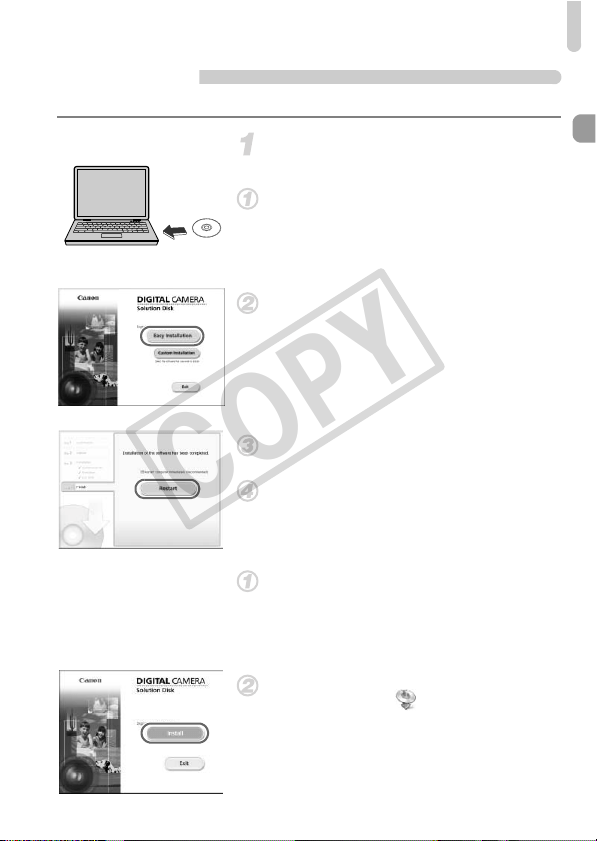
Install the Software.
Windows
Place the CD in the computer’s CD-
ROM drive.
z Place the supplied CD-ROM (DIGITAL
CAMERA Solution Disk) (p. 2) into the
computer’s CD-ROM drive.
Begin installation.
z Click [Easy Installation] and follow the
on-screen instructions to proceed with the
installation.
z If the [User Account Control] window
appears, follow the on-screen instructions
to proceed.
When the installation finishes, click
[Restart] or [Finish].
Remove the CD-ROM.
z Remove the CD-ROM when your desktop
screen appears.
Macintosh
Place the CD in the computer’s CD-
ROM drive.
z Place the supplied CD-ROM (DIGITAL
CAMERA Solution Disk) (p. 2) into the
computer’s CD-ROM drive.
Begin installation.
z Double-click the on the CD.
z Click [Install], and follow the on-screen
instructions to proceed with the
installation.
COPY
Transferring Images to a Computer for Viewing
36
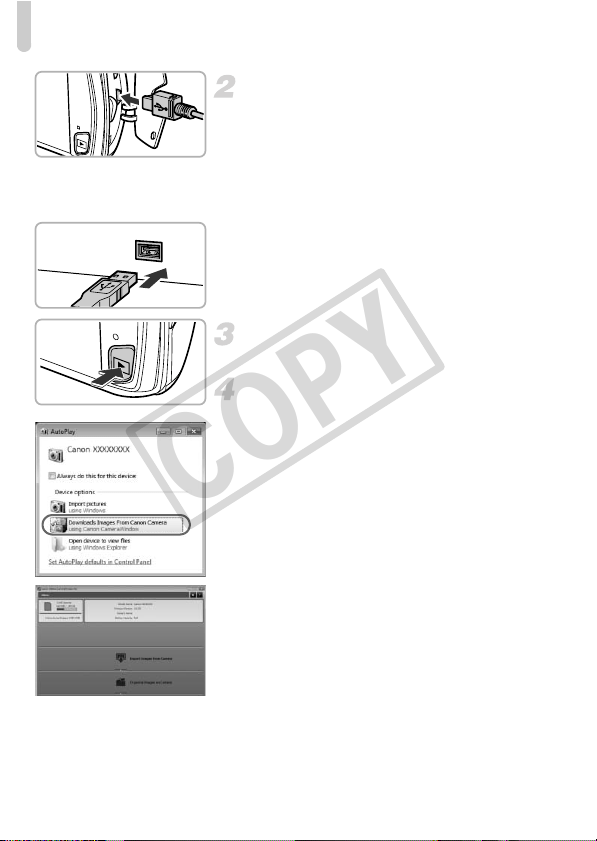
Connect the camera to the
computer.
z Turn off the camera.
z Open the cover and insert the included
interface cable’s smaller plug (p. 2) firmly
into the camera terminal in the direction
shown.
z Insert the interface cable’s larger plug into
the computer. For connection details, refer
to the user guide provided with the
computer.
Turn on the camera.
z Press the 1 button to turn on the camera.
Open CameraWindow.
Windows
z Click [Downloads Images From Canon
Camera using Canon CameraWindow].
X CameraWindow will appear.
z If CameraWindow does not appear, click
the [Start] menu and choose [All
Programs], followed by [Canon Utilities],
[CameraWindow] and [CameraWindow].
Macintosh
X
CameraWindow will appear when you
establish a connection between the
camera and computer.
z If CameraWindow does not appear, click
the CameraWindow icon on the Dock (the
bar which appears at the bottom of the
desktop).
COPY
Transferring Images to a Computer for Viewing
37
Transfer and View Images
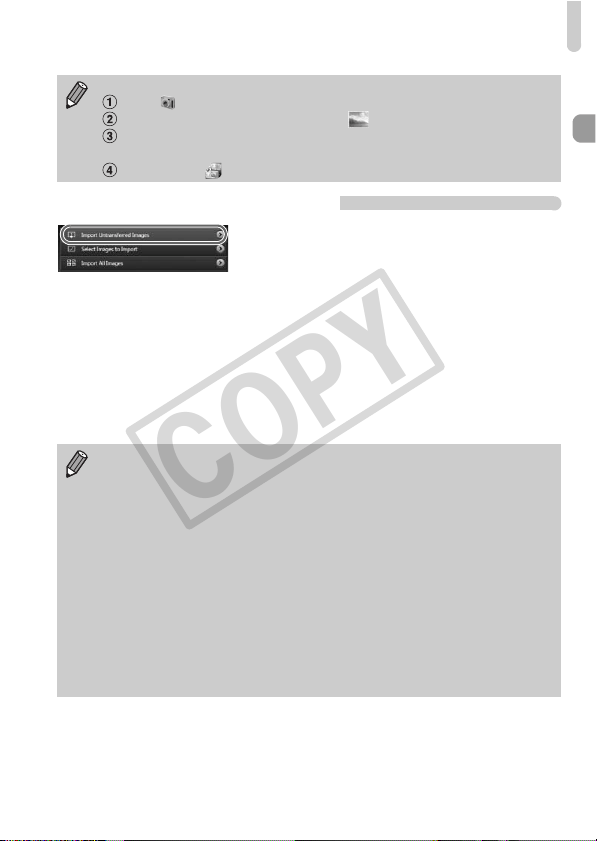
z Click [Import Images from Camera], and
then click [Import Untransferred Images].
X All images not previously transferred will
transfer to the computer. Transferred
images will be sorted by date and saved in
separate folders in the Pictures folder.
z Close CameraWindow when image
transfer is complete.
z Turn off the camera and unplug the cable.
z For details on how to view images using a
computer, refer to the Software Guide.
For Windows 7, use the following steps to display CameraWindow.
Click on the task bar.
In the screen that appears, click the link to modify the program.
Choose [Downloads Images From Canon Camera using Canon
CameraWindow] and click [OK].
Double click .
You can transfer images even without using the image transfer function in
the included software by simply connecting your camera to a computer.
There are, however, the following limitations.
• It may take a few minutes from when you connect the camera to the
computer until you can transfer images.
• Images shot in the vertical orientation may be transferred in the horizontal
orientation.
• Protection settings for images may be lost when transferred to a
computer.
• There may be problems transferring images or image information
correctly depending on the version of the operating system in use, the file
size, or the software in use.
• Some functions in the included software may not be available, such as
editing movies, and transferring images to the camera.
COPY
38
Accessories
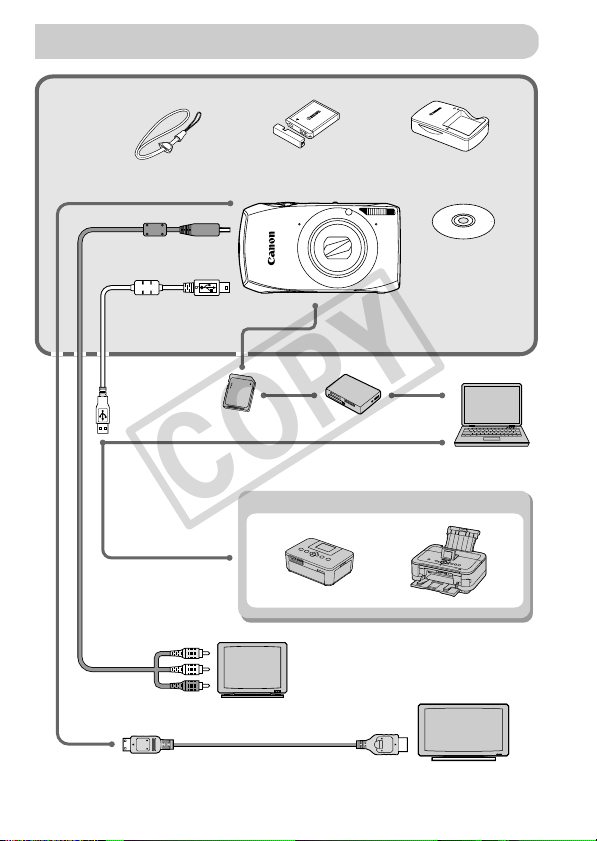
Supplied with Camera
Wrist Strap WS-DC10
Battery Pack NB-6L with
Terminal Cover*
Battery Charger
CB-2LY/CB-2LYE*
DIGITAL CAMERA
Solution Disk
*Also available for purchase separately.
USB card reader
Windows/
Macintosh
Memory Card
Canon-Brand PictBridge Compliant Printers
TV
High-Definition TV
HDMI Cable HTC-100
Interface Cable
IFC-400PCU*
Stereo AV Cable
AVC-DC400ST*
COPY
39
The following camera accessories are sold separately. Some accessories are
not sold in some regions, or may no longer be available.
Power Supplies
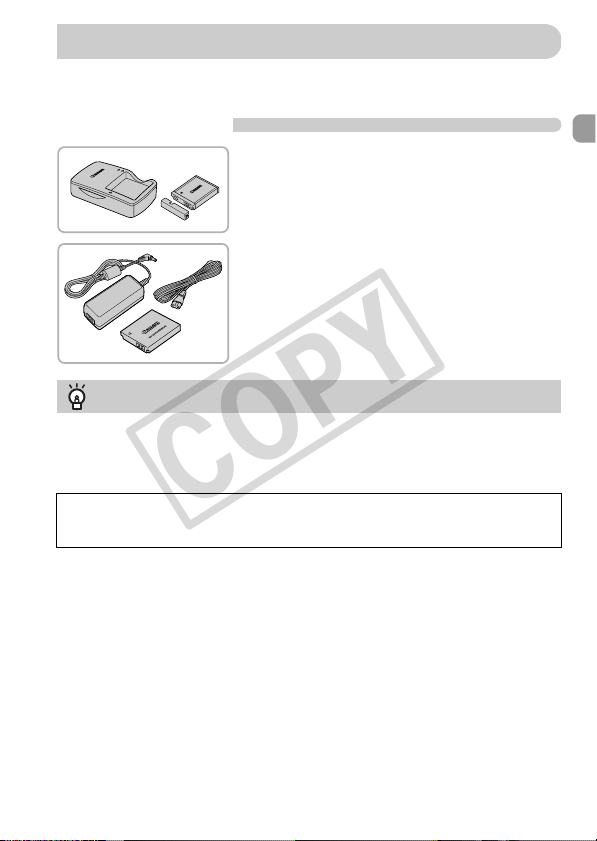
Battery Charger CB-2LY/CB-2LYE
z
A charger for
charging Battery Pack NB-6L.
Battery Pack NB-6L
z Rechargeable lithium-ion battery.
AC Adapter Kit ACK-DC40
z This kit lets you power the camera using
household power. Recommended for
powering the camera for an extended
period of time or when connecting to a
computer or printer. Cannot be used to
charge the camera battery.
Separately Sold Accessories
Using accessories abroad
The battery charger and the AC adapter kit can be used in regions that have 100 –
240 V (50/60 Hz) AC power.
If the plug does not fit the outlet, use a commercially available plug adapter. Do
not use electrical transformers for foreign travel as they will cause damage.
CAUTION
RISK OF EXPLOSION IF BATTERY IS REPLACED BY AN INCORRECT TYPE.
DISPOSE OF USED BATTERIES ACCORDING TO LOCAL REGULATION.
COPY
Separately Sold Accessories
40
Other Accessories
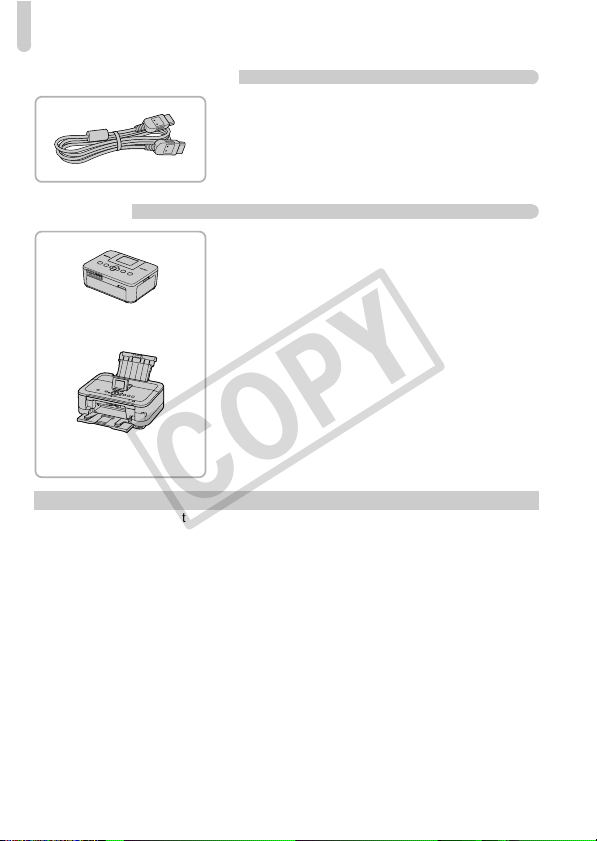
HDMI Cable HTC-100
z Use this cable to connect the camera to
the HDMI™ terminal on a high-definition
TV set.
Printers
Canon-Brand PictBridge Compliant
Printers
z By connecting your camera to a Canon-
brand PictBridge compliant printer, you
can print your images without having to
use a computer.
For more information, visit your nearest
Canon retailer.
SELPHY series
PIXMA series
Use of genuine Canon accessories is recommended.
This product is designed to achieve excellent performance when used with genuine
Canon accessories. Canon shall not be liable for any damage to this product and/or
accidents such as fire, etc., caused by the malfunction of non-genuine Canon
accessories (e.g., a leakage and/or explosion of a battery pack). Please note that this
warranty does not apply to repairs arising out of the malfunction of non-genuine Canon
accessories, although you may request such repairs on a chargeable basis.
COPY
41
Learning More
This chapter explains the parts of the camera and what appears on the
screen, as well as the basic operating instructions.
2
COPY
42
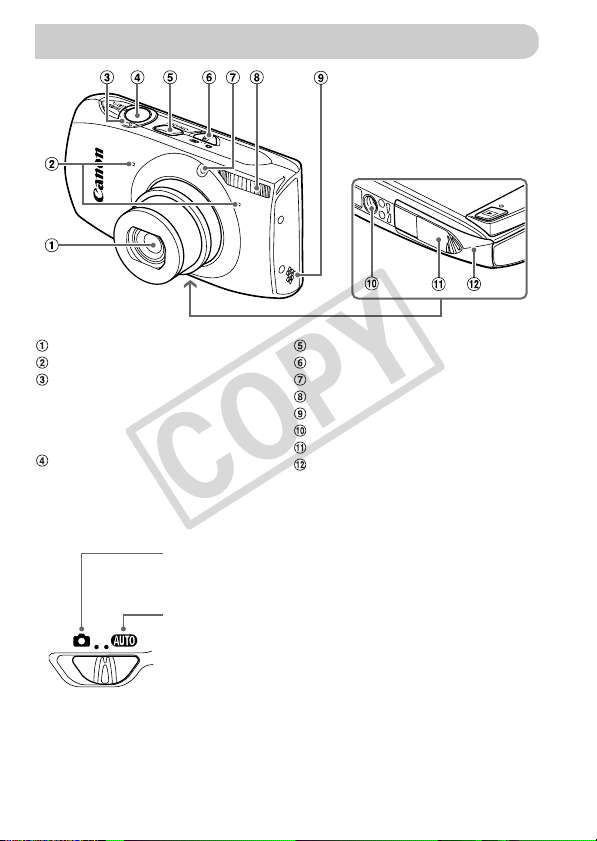
Mode Switch
Use the mode switch to change the Shooting mode.
Components Guide
Lens
Microphones (p. 32)
Zoom Lever
Shooting: i (Telephoto) / j (Wide
Angle) (pp. 26, 31, 55)
Playback: k (Magnify) / g (Index)
(pp. 120, 127)
Shutter Button (p. 24)
Power Button (p. 20)
Mode Switch
Lamp (pp. 58, 78, 171)
Flash (pp. 54, 85)
Speaker
Tripod Socket
DC Coupler Terminal Cover
Memory Card / Battery Cover (p. 17)
You can leave it to the camera to select settings for fully
automatic shooting (p. 25).
You can shoot with the best settings for the scene (p. 64) or
choose settings yourself to take various types of pictures
(pp. 53, 83).
COPY
44
Switching the Display
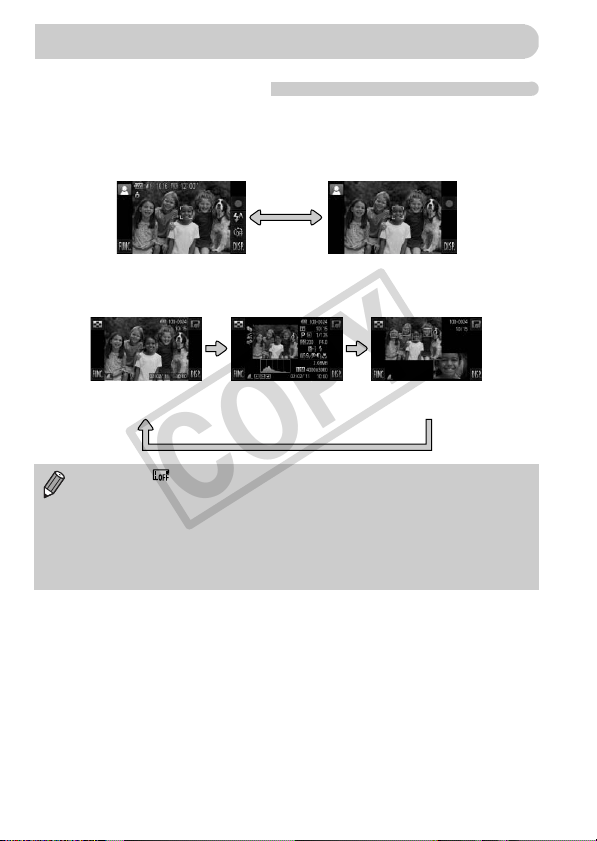
You can change the screen display by touching l. Refer to p. 187 for
details on information that appears on the screen.
Shooting
Playback
Screen Display
No Information DisplayInformation Display
• Touching while in Playback mode will hide all image information and
icons, but you can still switch images (pp. 28, 29). Touch the screen to
restore the original display.
• You can also switch the display by touching l while the image
displays right after shooting. However, Simple Information Display is not
available, and image information will not display. You can change the first
screen that displays by choosing the 4 tab, then [Review Info] (p. 172).
Focus Check
Display (p. 126)
Detailed Information
Display
Simple Information
Display
COPY
Indicator
45
Screen Display in Dark Shooting Conditions
The display automatically brightens when shooting in dark conditions,
allowing you to check the composition (Night Display function). However, the
brightness of the image on the screen, and the brightness of the actual image
recorded may be different. Screen noise may appear and the movement of
the subject may appear somewhat jagged on the screen. This has no effect
on the recorded image.
Overexposure Warning during Playback
In Detailed Information Display (p. 44), overexposed areas of the image flash
on the screen.
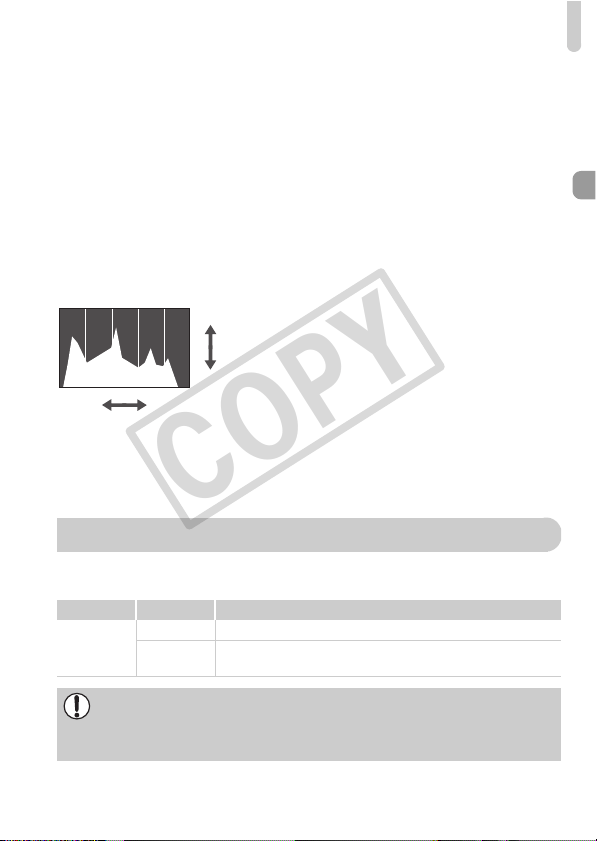
Histogram during Playback
z The graph that appears in Detailed
Information Display (p. 189) is called the
histogram. The histogram shows the
distribution of brightness in an image
horizontally, and the amount of brightness
vertically. When the graph approaches the
right side, the image is bright, but when it
approaches the left side, the image is dark,
and in this way you can judge the
exposure.
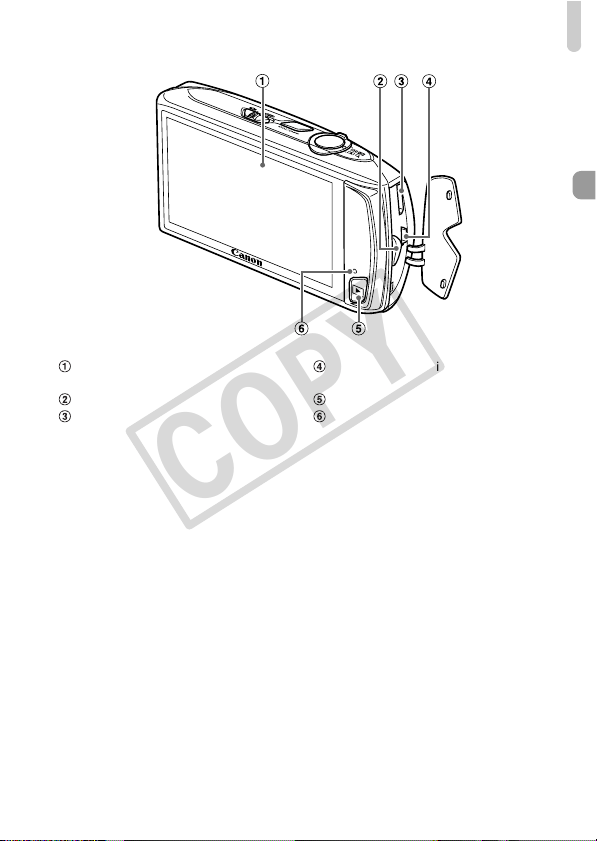
The indicator on the back of the camera (p. 43) will light or blink depending
on the camera’s status.
Bright
Dark
High
Low
Colors Status Operation Status
Green
Lights Connected to a computer (p. 36)/Display off (p. 169)
Blinks
During camera start-up, Recording/Reading/Transmitting
image data
When the indicator blinks green, do not turn off the power, open the
memory card slot/battery cover, shake or jolt the camera. These actions
may corrupt the image data or cause the camera or memory card to
malfunction.
Indicator
COPY
46
Commonly used functions can be set with the FUNC. menu.
The menu items and options differ depending on the Shooting mode (pp. 192
– 195) or Playback mode (p. 200).
Display the FUNC. menu.
z Touch ø.
Choose a menu item.
z Drag up or down the menu on the left, or
touch a menu item to choose it.
z You can also choose menu items by
dragging on the screen outside of the
menu.
z Touch the menu item you chose again, or
touch the menu on the right.
Choose an option.
z Drag up or down the menu on the right, or
touch an item to choose it.
z You can also choose menu items by
dragging on the screen outside of the
menu.
z Touch the menu item you chose again, or
touch Ú.
X The item will be set, and the original
screen will reappear.
z To choose a different item from the menu
on the left, touch the appropriate item.
z In the screen in Step 2, you can also touch
items to choose them in the menu to the
right.
FUNC. Menu – Basic Operations
The options on the right will not appear if you have selected any of the
following items from the FUNC. menu while in Playback mode: \ (p. 144),
c (p. 159), : (p. 137), (p. 141), a (p. 30), (p. 122), (p. 130),
; (p. 143).
COPY
47
Various functions can be set from the menus. The menu items are organized
under tabs, such as for shooting (4) and playback (1). The options differ
depending on the Shooting mode and the Playback mode (pp. 196 – 199).
Display the menu.
z Touch ø, then touch n.
Choose a tab.
z Touch a tab, or move the zoom lever
(p. 42) left or right to choose a tab.
Choose an item.
z Drag up or down the screen, or touch an
item to choose it.
z Some items require you to touch the item
to display a submenu in which you change
the setting.
MENU – Basic Operations
COPY
MENU – Basic Operations
48
Choose an option.
z For items that display qr to the left and
right, touch qr to change settings.
z For items that display a bar, touch the spot
on the bar where you want to make the
setting.
Complete the setting.
z Touch Ú.
X The normal screen will reappear.
COPY
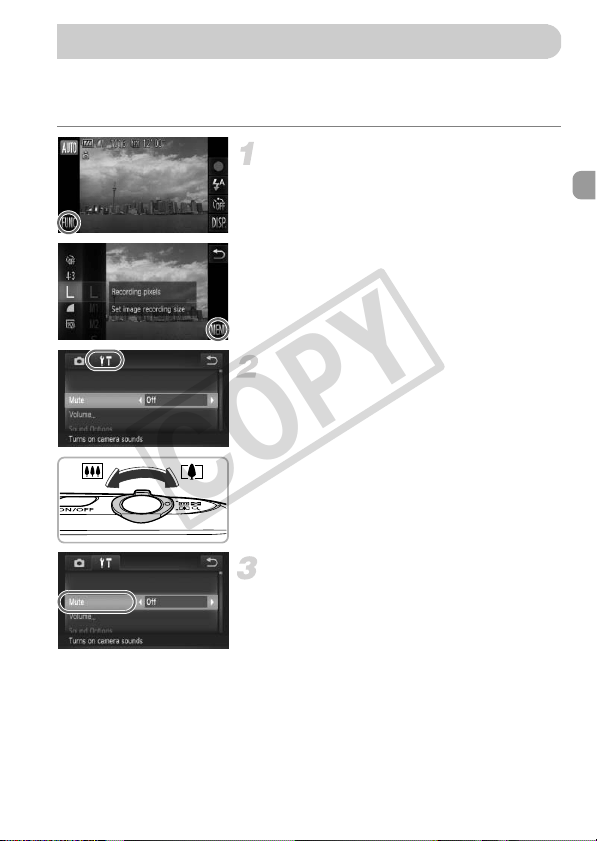
49
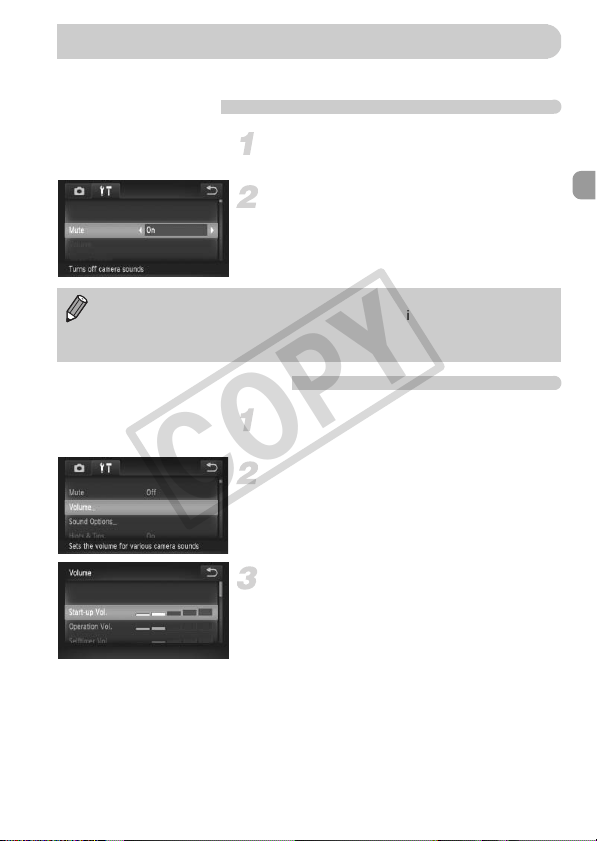
You can silence or adjust the volume of camera sounds.
Muting Sounds
Display the menu.
z Touch ø, then touch n.
Choose [Mute].
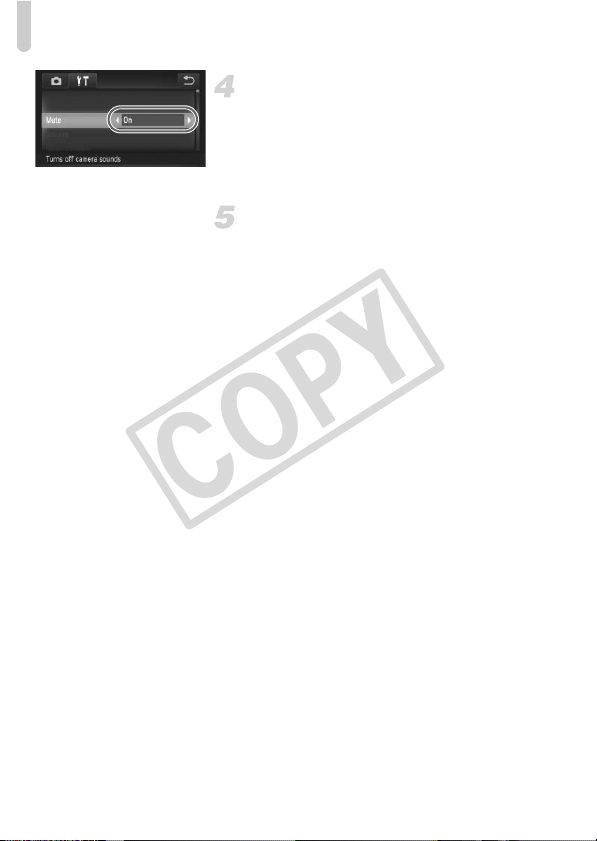
z Touch the 3 tab.
z Drag up or down the screen to choose
[Mute], then touch qr to choose [On].
Adjusting the Volume
Display the menu.
z Touch ø, then touch n.
Choose [Volume].
z Touch the 3 tab.
z Drag up or down the screen to touch
[Volume].
Change the volume.
z Drag up or down the screen to choose an
item, then touch the point on the bar where
you want to change the volume.
Changing the Sound Settings
If you mute camera sounds, the sound will also be muted when playing
back movies (p. 33). If you drag up the screen while viewing a movie, the
sound will turn on. You can then adjust the volume by dragging up or down
the screen.
COPY
50
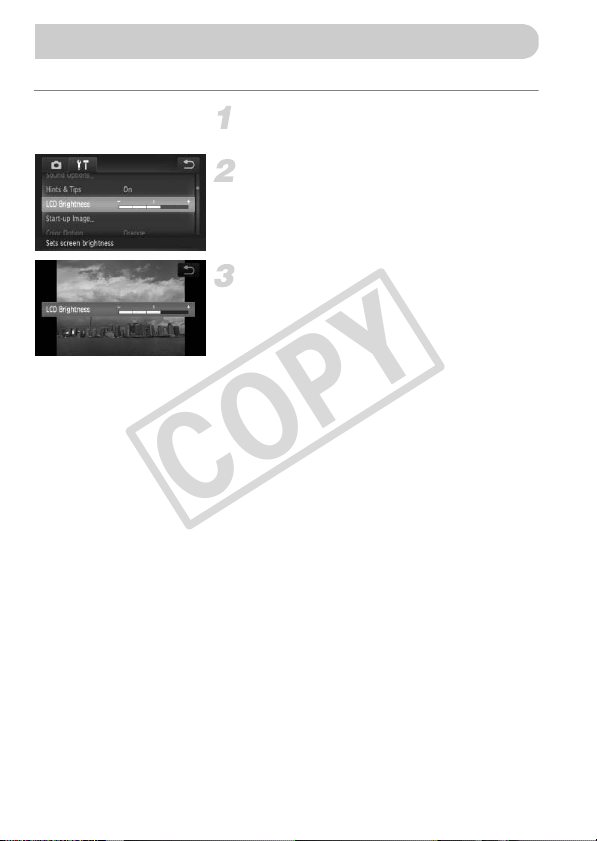
You can adjust the brightness of the screen.
Display the menu.
z Touch ø, then touch n.
Choose [LCD Brightness].
z Touch the 3 tab.
z Drag up or down the screen to choose
[LCD Brightness].
Adjust the brightness.
z Touch the point on the bar where you want
to change the brightness.
Adjusting the Screen Brightness
COPY
51
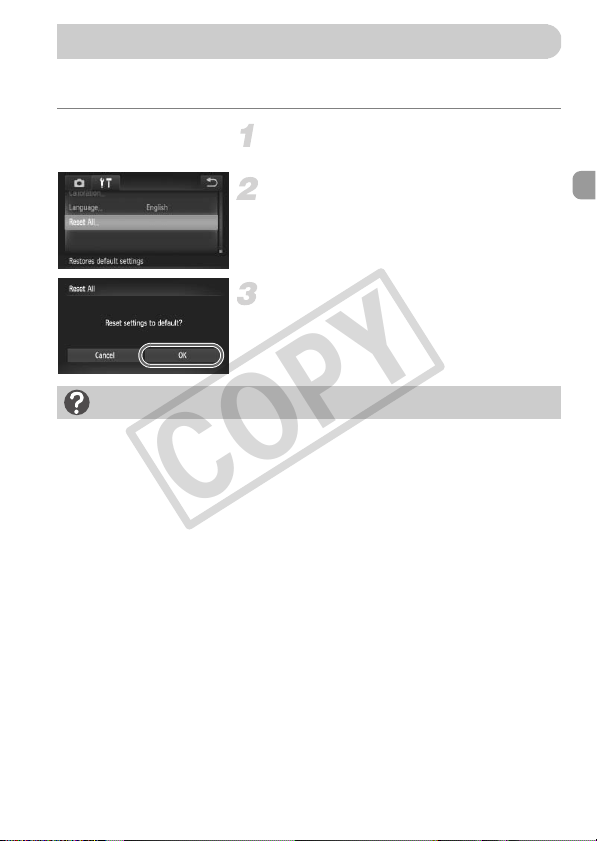
When you have mistakenly changed a setting, you can reset the camera to
the default settings.
Display the menu.
z Touch ø, then touch n.
Choose [Reset All].
z Touch the 3 tab.
z Drag up or down the screen to touch
[Reset All].
Reset the settings.
z Touch [OK].
X The camera will reset to the default
settings.
Returning the Camera to Default Settings
Are there functions that cannot be reset?
• The [Date/Time] (p. 21), [Language] (p. 22), [Video System] (p. 133), [Time
Zone] (p. 169), the image registered in [Start-up Image] (p. 166), and
[Calibration] (p. 170) in the 3 tab.
• The recorded custom white balance data (p. 87).
• Colors that were chosen in Color Accent (p. 72) or Color Swap (p. 73).
• Shooting modes set when the mode switch was set to 4 (pp. 63, 111).
COPY

52
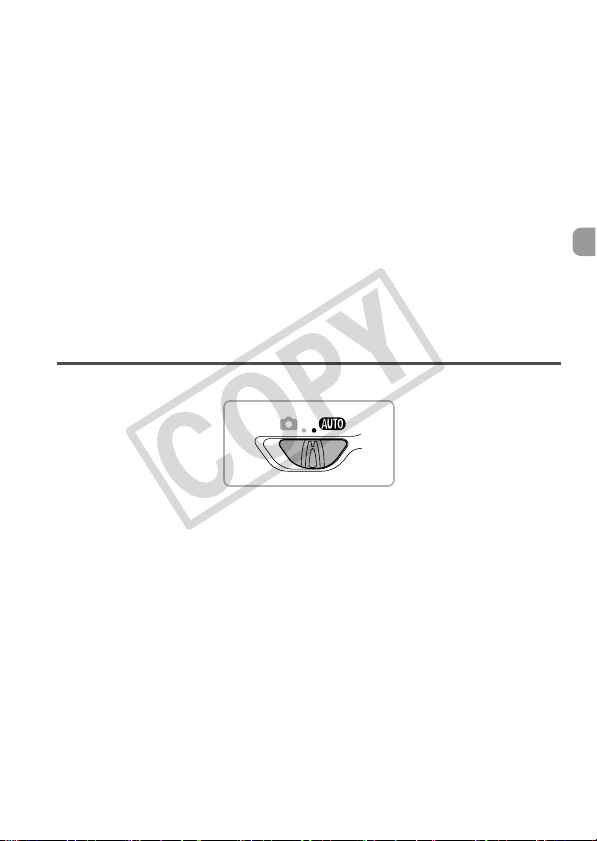
To save battery power, the screen turns off, and the camera shuts down
automatically when it is not operated for a certain time.
Power Saving during Shooting
The screen will turn off approximately 1 minute after you stop operating the
camera. After about 2 more minutes, the lens will retract and the power will
turn off. When the screen has turned off but the lens has not yet retracted,
pressing the shutter button halfway (p. 24) turns on the screen and shooting
can continue.
Power Saving during Playback
The power will turn off approximately 5 minutes after you stop operating the
camera.
• You can turn off the power saving function (p. 168).
• You can adjust the time before the screen turns off (p. 169).
Power Saving Function (Auto Power Down)
COPY
53
Shooting with Commonly
Used Functions
This chapter explains how to use common functions, such as the self-
timer, and how to turn off the flash.
• This chapter assumes that the camera is set to A mode. When shooting
in another mode, check which functions are available in that mode (pp. 192
– 195).
3
COPY
54
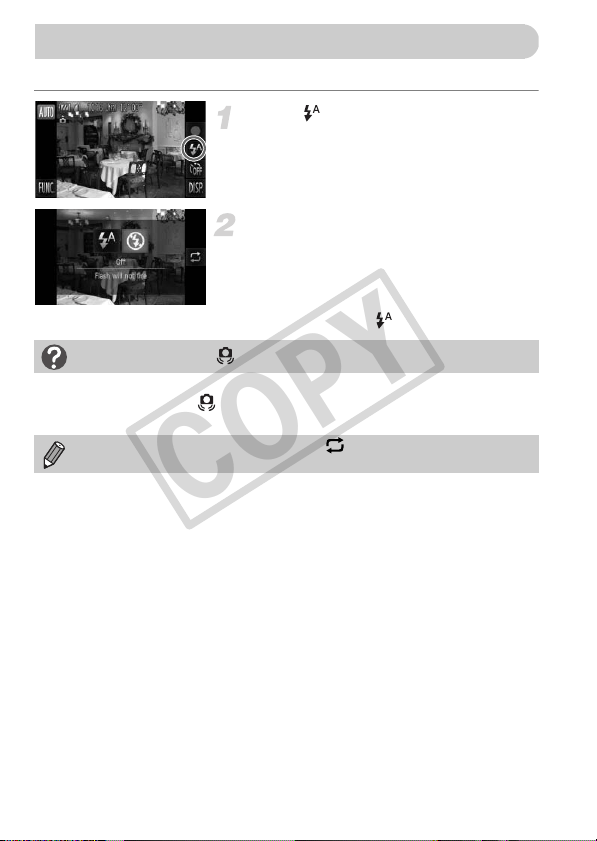
You can shoot with the flash turned off.
Touch .
Choose !.
z Touch !.
z Touch ! again to make the setting.
X Once set, ! will appear on the screen.
z To turn the flash back on, follow the steps
above to choose .
Turning the Flash Off
What if a flashing appears?
When you press the shutter button halfway in low light conditions where camera
shake is likely, a flashing will appear on the screen. Attach the camera to a
tripod to prevent it from moving.
You can also choose items by touching in Step 2.
COPY
55
You can use the digital zoom to zoom up to approximately 18x maximum, and
capture subjects that are too far away for the optical zoom to enlarge.
However, depending on the recording pixel setting (p. 60) and zoom factor,
the images may appear coarse (the zoom factor will appear in blue).
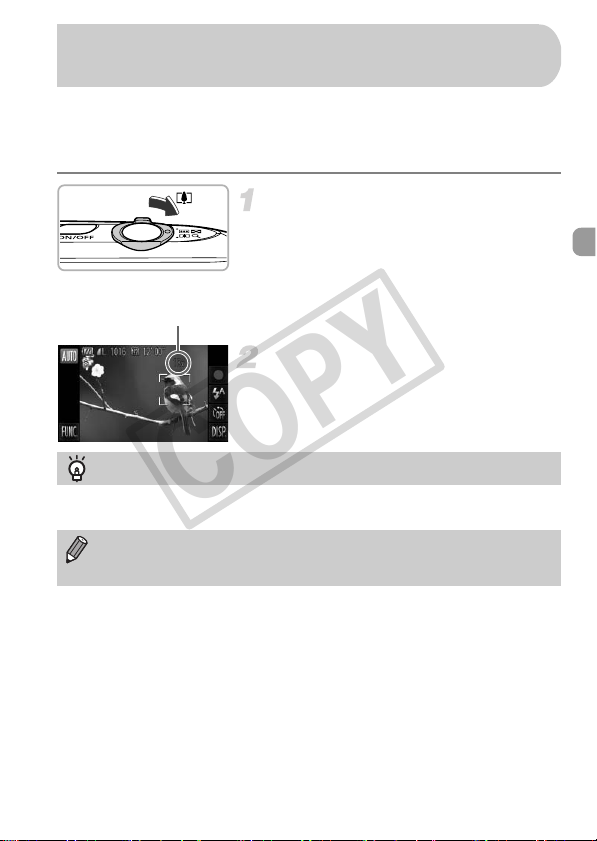
Move the zoom lever toward i.
z Hold the lever until zooming stops.
X Zooming stops at the largest possible
zoom factor without image deterioration.
The zoom factor will appear on the screen
when you release the zoom lever.
Move it toward i again.
X The digital zoom will zoom in even further
on the subject.
Zooming in More Closely on Subjects
(Digital Zoom)
Zoom Factor
Turning off the digital zoom
To turn off the digital zoom, touch ø, then touch n to choose the 4 tab,
and choose [Digital Zoom] and the [Off] option.
The focal length when using the optical zoom and digital zoom together is
approximately 24 – 420 mm, and 24 – 105 mm when using the optical
zoom alone (all focal lengths are 35mm film equivalent).
COPY
Zooming in More Closely on Subjects (Digital Zoom)
56
Digital Tele-Converter
The focal length of the lens can be increased by approximately 1.5x or
approximately 2.0x. This enables a faster shutter speed and less chance of
camera shake than the zoom (including digital zoom) used by itself at the
same zoom factor.
However, a recording pixel setting (p. 60) of or will cause images to
appear coarse (the zoom factor will appear in blue).
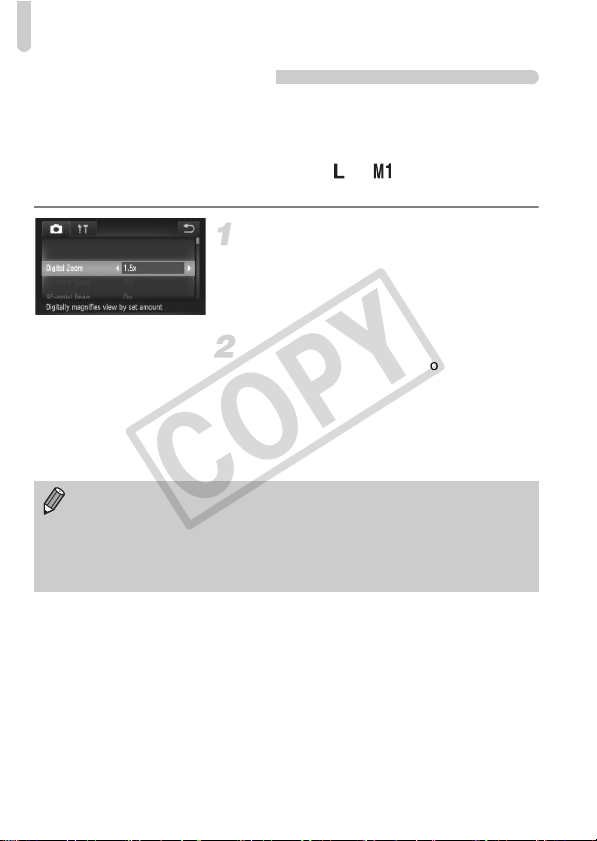
Choose [Digital Zoom].
z Touch ø, then touch n.
z Touch the 4 tab.
z Drag up or down the screen to choose
[Digital Zoom].
Choose the setting.
z Touch qr to choose a zoom factor.
z Touching Ú restores the settings screen.
X The view will be enlarged and the zoom
factor will appear on the screen.
z To return to standard digital zoom, choose
[Digital Zoom] and the [Standard] option.
• The respective focal lengths when using [1.5x] and [2.0x] are
approximately 36.0 – 157.5 mm and approximately 48.0 – 210.0 mm
(35mm film equivalent).
• The digital tele-converter cannot be used together with the digital zoom.
• The shutter speeds may be the same when at maximum telephoto i,
and when zoomed in on the subject using Step 2 on p. 55.
COPY
57
You can insert the shooting date and time in the lower right corner of an
image. Once inserted, however, they cannot be deleted. Be sure to check
beforehand that the date and time are correctly set (p. 20).
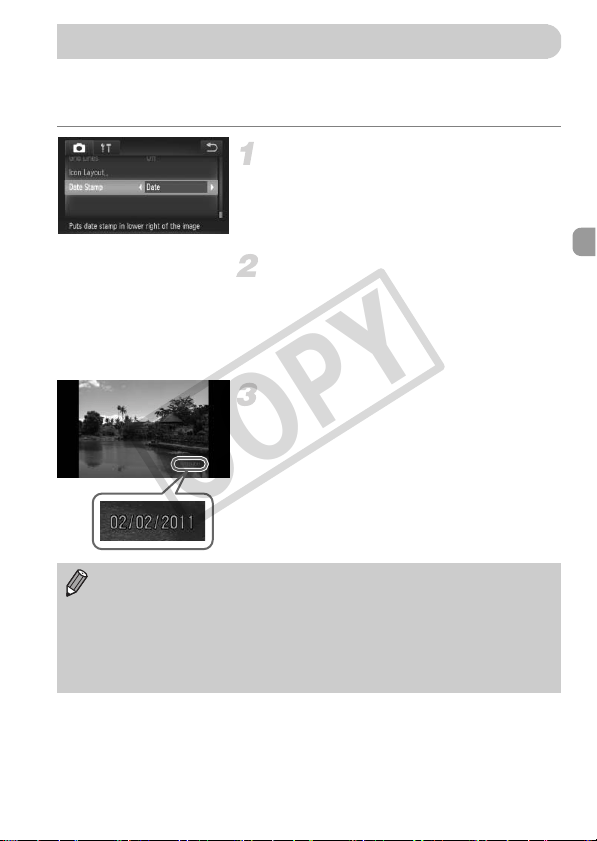
Choose [Date Stamp].
z Touch ø, then touch n.
z Touch the 4 tab.
z Drag up or down the screen to choose
[Date Stamp].
Choose the setting.
z Touch qr to choose [Date] or [Date &
Time].
z Touching Ú restores the settings screen.
X Once set, [DATE] will appear on the
screen.
Shoot.
X The shooting date or time will be recorded
in the image’s lower right corner.
z To restore to the original setting, choose
[Off] in Step 2.
Inserting the Date and Time
You can insert and print the shooting date in images which do not have an
embedded date and time as follows. However, if you do this for images with
an embedded date and time, the date and time may be printed twice.
• Use the DPOF print settings (p. 159) to print.
• Use the included software to print.
Refer to the Software Guide for details.
• Print using printer functions (p. 151).
COPY
58
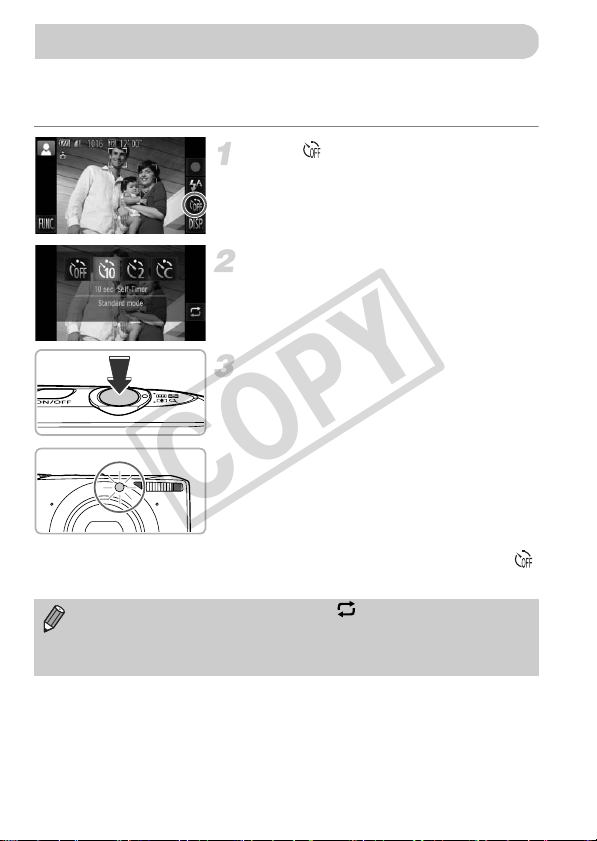
The self-timer can be used to shoot a group photo that includes the
photographer. The camera will shoot approximately 10 seconds after the
shutter button is pressed.
Touch .
Choose Ò.
z Touch Ò.
z Touch Ò again to make the setting.
X Once set, Ò will appear on the screen.
Shoot.
z Press the shutter button halfway to focus
on the subject, then press it fully.
X When the self-timer starts, the lamp blinks
and the self-timer sound plays.
X Two seconds before the shutter releases,
the lamp and sound speed up (the lamp
remains lit when the flash will fire).
z To cancel shooting with the timer after
countdown has started, touch the screen.
z To restore the original setting, choose
in Step 2.
Using the Self-Timer
• You can also choose items by touching in Step 2.
• You can change the delay and number of shots (p. 59).
• You can also make settings in the FUNC. menu that appears when you
touch ø.
COPY
Using the Self-Timer
59
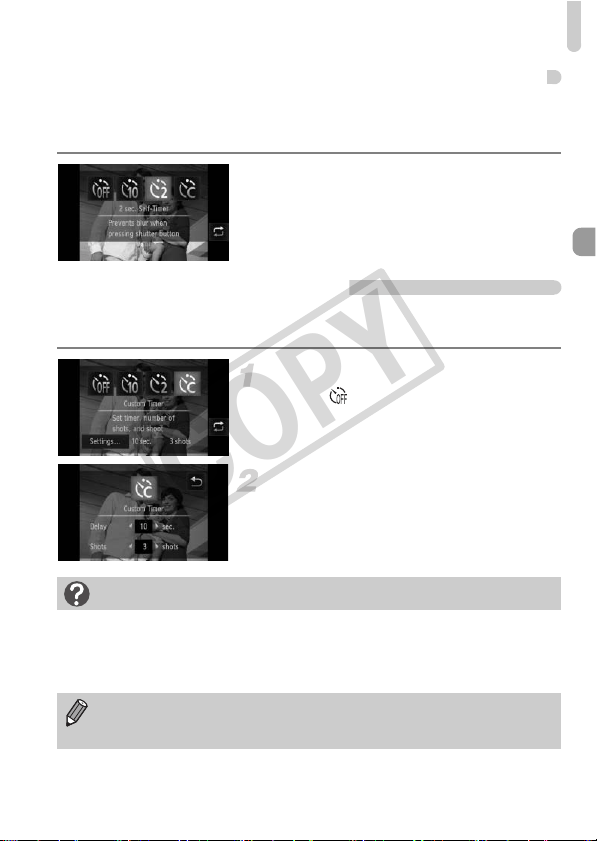
Using the Self-Timer to Prevent Camera Shake
The camera will shoot approximately 2 seconds after the shutter button is
pressed, preventing any camera shake that occurs when pressing the shutter
button.
Choose Î.
z Follow Steps 1 – 2 on p. 58 to choose Î.
X Once set, Î will appear on the screen.
z Follow Step 3 on p. 58 to shoot.
Customizing the Self-Timer
You can set the delay (0 – 30 seconds) and the number of shots (1 – 10
shots).
Choose $.
z Touch and $, then immediately touch
[Settings].
Choose the settings.
z Touch qr to choose a value for the
desired option.
z Touch Ú to make the setting.
z Follow Step 3 on p. 58 to shoot.
What if the number of shots is set to two or more shots?
• Exposure and white balance settings are set with the first shot.
• If the flash fires or you set a high number of shots, the shooting interval may take
longer than usual.
• If the memory card fills, shooting stops automatically.
When you set the delay for more than 2 seconds, the lamp and self-timer
sound speed up 2 seconds before the shutter releases (the lamp remains
lit when the flash will fire).
COPY
60
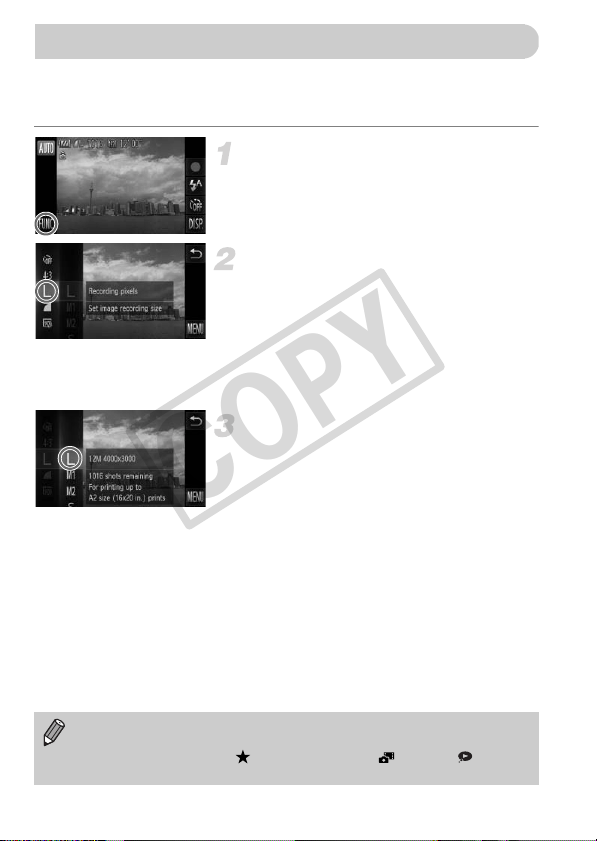
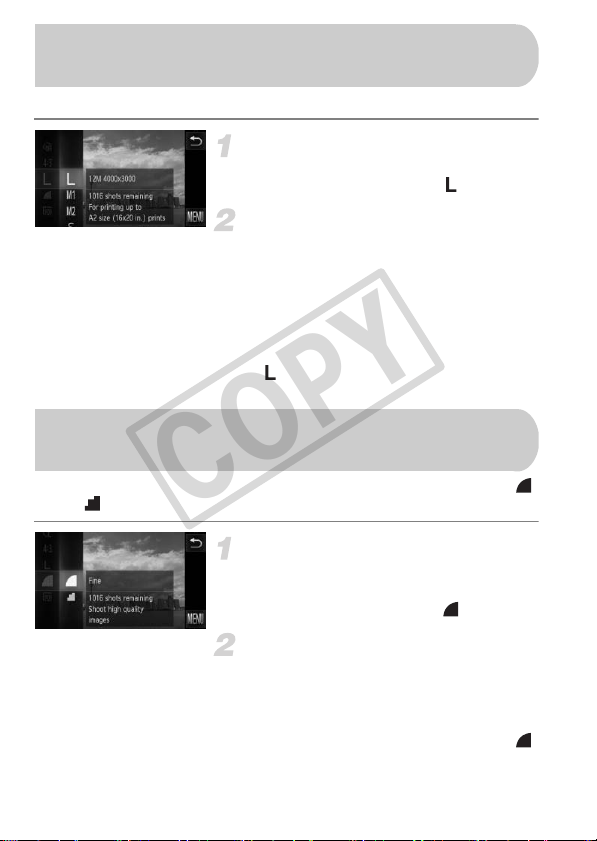
You can choose from 4 recording pixel settings.
Choose the recording pixel setting.
z Touch ø, then drag up or down the
menu on the left to choose .
Choose an option.
z Touch an item you want to set.
z If you drag up or down the menu on the
right, other items will appear.
z Touch the menu item again to complete
the setting.
X The setting will appear on the screen.
z To restore to the original setting, choose
in Steps 1 – 2.
You can choose from the following 2 compression ratios (image quality):
(Fine), (Normal).
Choose the compression ratio
setting.
z Touch ø, then drag up or down the
menu on the left to choose .
Choose an option.
z Touch an item you want to set.
z Touch the menu item again to complete
the setting.
X The setting will appear on the screen.
z To restore the original setting, choose
in Steps 1 – 2.
Changing the Recording Pixel Setting
(Image Size)
Changing the Compression Ratio
(Image Quality)
COPY
Changing the Compression Ratio (Image Quality)
61
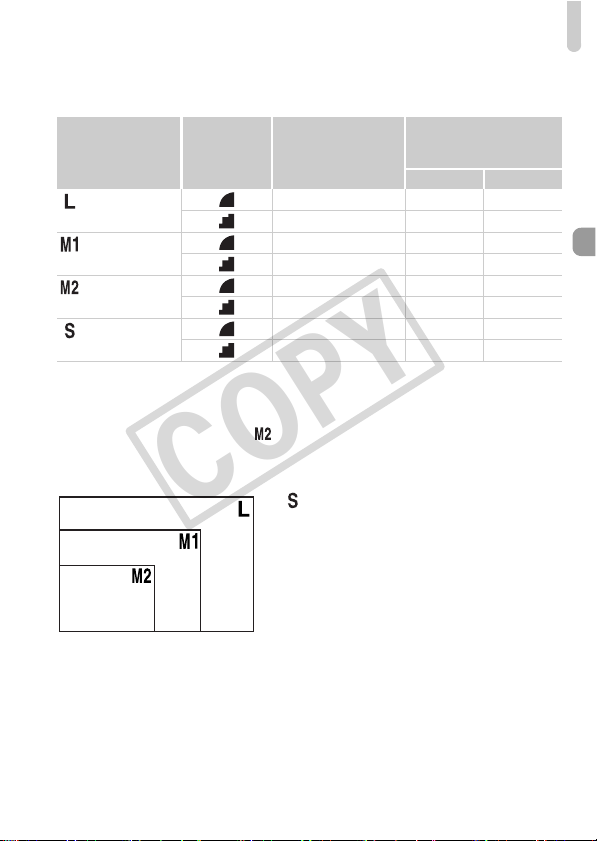
Approximate Values for Recording Pixels and Compression
Ratio (for 4:3 Aspect Ratios)
• The values in the table are measured according to Canon standards and may change
depending on the subject, memory card and camera settings.
• The values in the table are based on 4:3 aspect ratio. If the aspect ratio is changed
(p. 90), more images can be shot because the data size per image will be smaller than
with 4:3 images. However, since 16:9 images have a setting of 1920 x 1080 pixels,
their data size will be larger than 4:3 images.
Approximate Values for Paper Size (for 4:3 Aspect Ratios)
z For sending images as e-mail
attachments.
Recording Pixels
Compression
Ratio
Single Image Data
Size (Approx. KB)
Number of Shots per
Memory Card
(Approx. shots)
4GB 16 GB
(Large)
12M/4000x3000
3084 1231 5042
1474 2514 10295
(Medium 1)
6M/2816x2112
1620 2320 9503
780 4641 19007
(Medium 2)
2M/1600x1200
558 6352 26010
278 12069 49420
(Small)
0.3M/640x480
150 20116 82367
84 30174 123550
A2 (16.5 x 23.4 in.)
A3 – A5 (11.7 x
16.5 – 5.8 x 8.3 in.)
5 x 7 in.
Postcard size
3.5 x 5 in.
COPY

62
COPY
63
Adding Effects and Shooting
in Various Conditions
This chapter explains how to add effects and how to shoot in various
conditions.
4
COPY
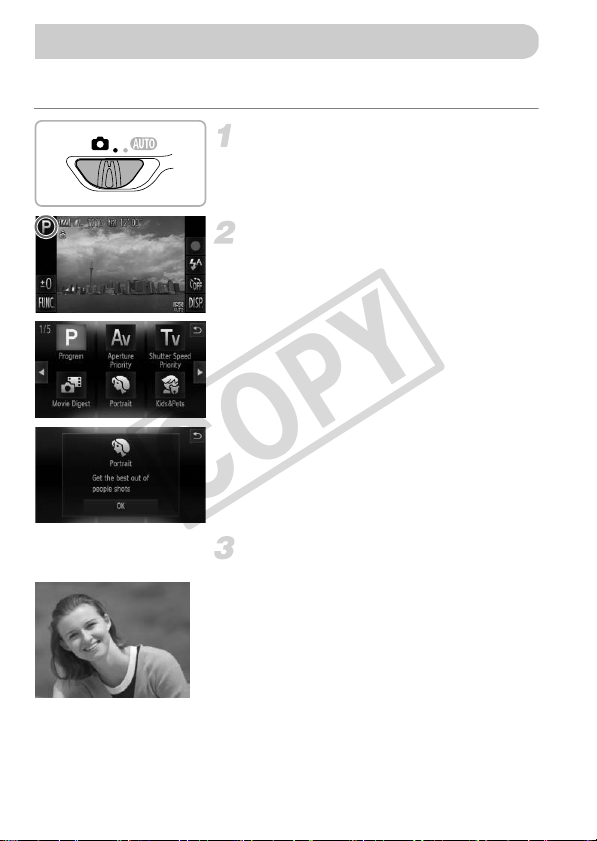
64
The camera will select the necessary settings for the conditions in which you
wish to shoot when you choose the matching mode.
Set the camera to 4 mode.
z Set the mode switch to 4.
Choose a Shooting mode.
z Touch G.
z If you touch qr or quickly drag left or right
across the screen, other Shooting modes
will appear.
z Choose the desired shooting mode.
X An explanation of the chosen Shooting
mode appears on the screen.
z Touch [OK] to complete the setting.
z Touch Ú to restore the Shooting mode
selection screen.
Shoot.
I Take portraits (Portrait)
z Produces a soft effect when
photographing people.
Shooting in Various Conditions
COPY
Shooting in Various Conditions
65
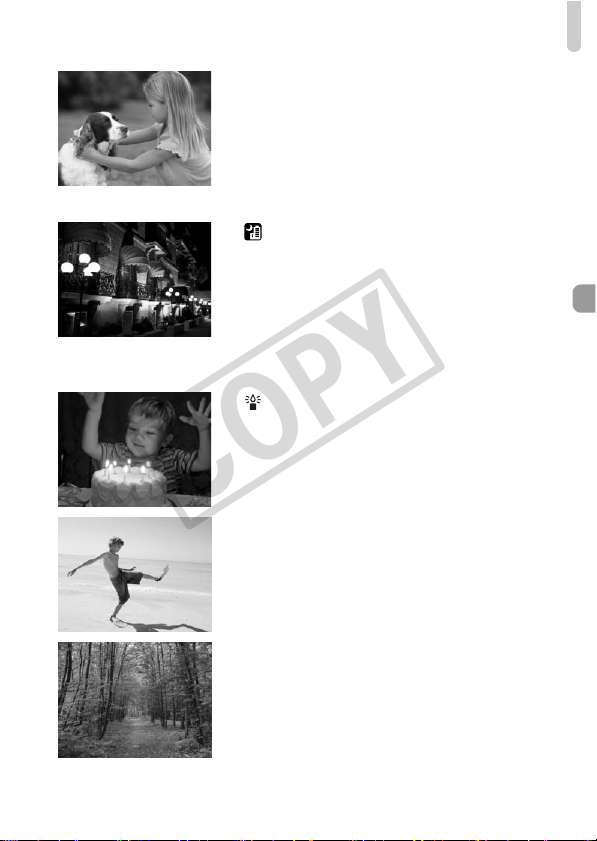
V Take shots of kids and pets
(Kids&Pets)
z Lets you capture subjects that move
around, such as children and pets, without
missing photo opportunities.
z Move approximately 1 m (3.3 ft.) or more
away from your subject and shoot.
Take nightscapes without using a
tripod (Handheld NightScene)
z Lets you take beautiful snapshots of city
nightscenes by combining several
continuous shots to reduce camera shake
and noise.
z When using a tripod, you should shoot in
A mode (p. 25).
Take shots in low light conditions
(Low Light)
z Lets you take shots in dark places with
reduced camera shake and subject blur.
w Take shots of people at the beach
(Beach)
z Lets you take shots of brightly lit people on
sandy beaches where the reflected
sunlight is strong.
OTake shots of foliage (Foliage)
z Lets you shoot trees and leaves, such as
new growth, autumn leaves or blossoms,
in vivid colors.
COPY
Shooting in Various Conditions
66
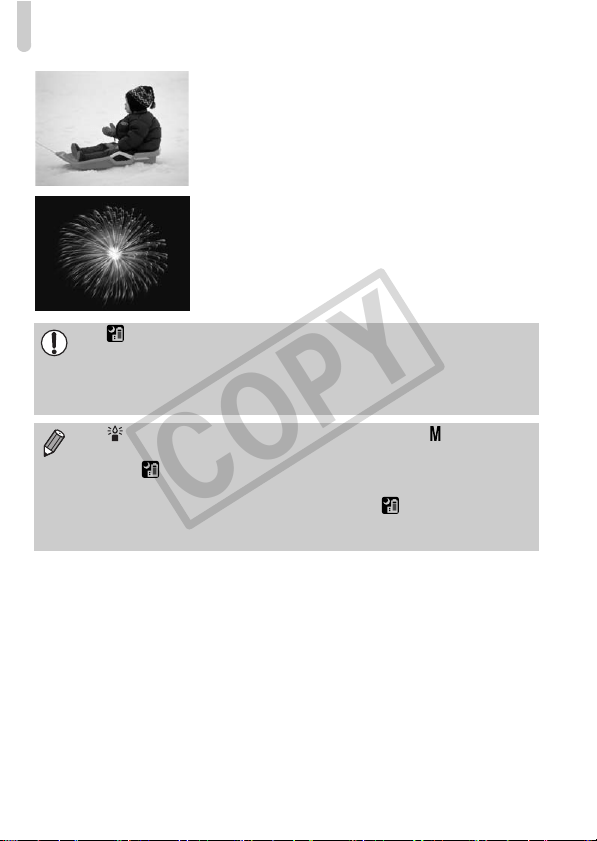
P Take shots of people in snow
(Snow)
z Lets you take bright, natural-colored shots
of people against snowy backgrounds.
t Take shots of fireworks
(Fireworks)
z Lets you take shots of fireworks in vivid
colors.
• In mode, hold the camera firmly while shooting as multiple images
are captured in succession.
• In t mode, attach the camera to a tripod to prevent the camera from
moving and blurring the image. Additionally, you should set [IS Mode] to
[Off] when shooting with a tripod (p. 173).
• In mode, the recording pixel setting will be fixed at (1984 x 1488
pixels).
• In V or mode, images may appear coarse because the ISO speed
(p. 88) is increased to match the shooting conditions.
• If camera shake is too strong while shooting in mode, the camera
may not be able to combine images or you may not obtain the expected
result depending on shooting conditions.
COPY
67
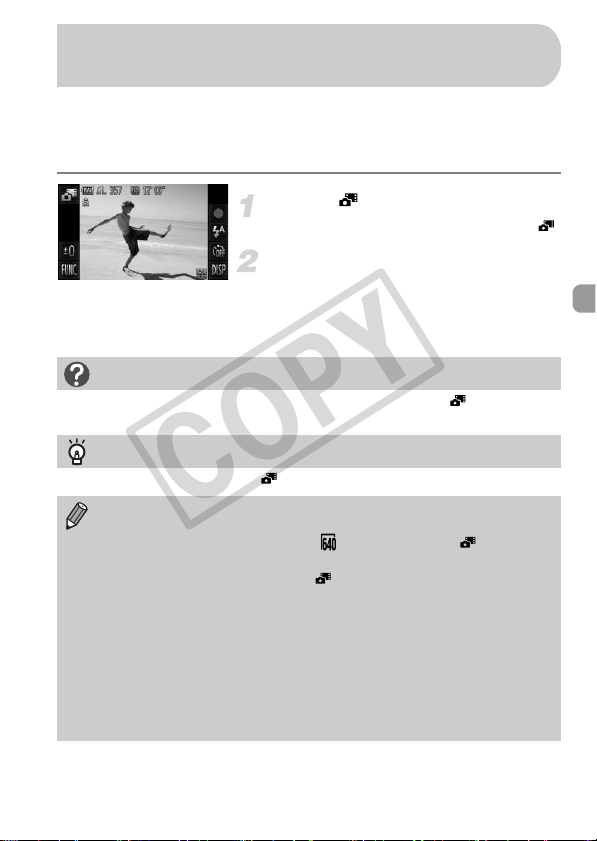
You can make a short movie of a day just by taking still images.
Each time you take a picture, the scene just before taking your shot will be
recorded as a movie. All the movies recorded that day will be saved as a
single file.
Choose .
z Follow Steps 1 – 2 on p. 64 to choose .
Shoot.
z Press the shutter button fully to shoot a still
image.
X A movie of approx. 2 – 4 sec. will be
recorded just before the image is taken.
Making Short Movies Automatically
(Movie Digest)
What if a movie is not recorded?
If you take a picture just after turning on the camera, selecting mode or
otherwise operating the camera, a movie may not be recorded.
Viewing movies made with Movie Digest
You can select movies made in mode by date for viewing (p. 122).
• Since you are also shooting movies when you shoot still images, the
battery will be depleted more quickly than in A.
• The image quality will be fixed at for movies shot in mode.
• In the following cases, movies will be saved as separate files even if they
were shot on the same day with mode.
- If the clip file size reaches 4 GB or the recording time reaches approximately
1 hour
- If the movie is protected (p. 137)
- If the Time Zone setting is changed (p. 169)
- If a new folder is created (p. 168)
• If you operate the camera while shooting a movie, the sounds made will
be recorded in the movie.
• The camera will not play sounds, such as when pressing the shutter
button halfway, using the controls or the self-timer (p. 164).
COPY
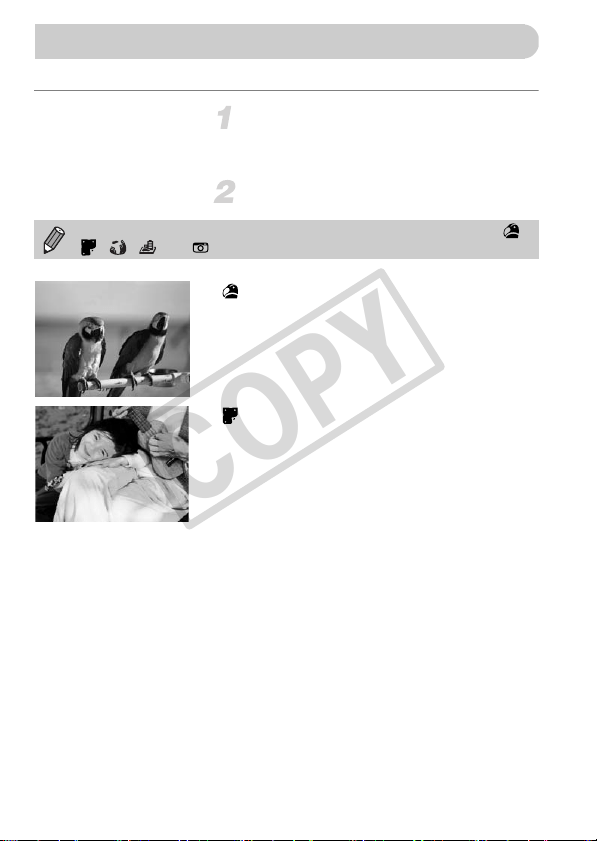
68
You can add various effects to images when shooting.
Choose a Shooting mode.
z Follow Steps 1 – 2 on p. 64 to choose a
Shooting mode.
Shoot.
Shoot images with vivid colors
(Super Vivid)
z Lets you take shots with vivid, intense
colors.
Take posterized shots
(Poster Effect)
z Lets you take shots that look like an old
poster or illustration.
Adding Effects and Shooting
Since you may not achieve the expected results with images shot in ,
, , and modes, try taking some test shots first.
COPY
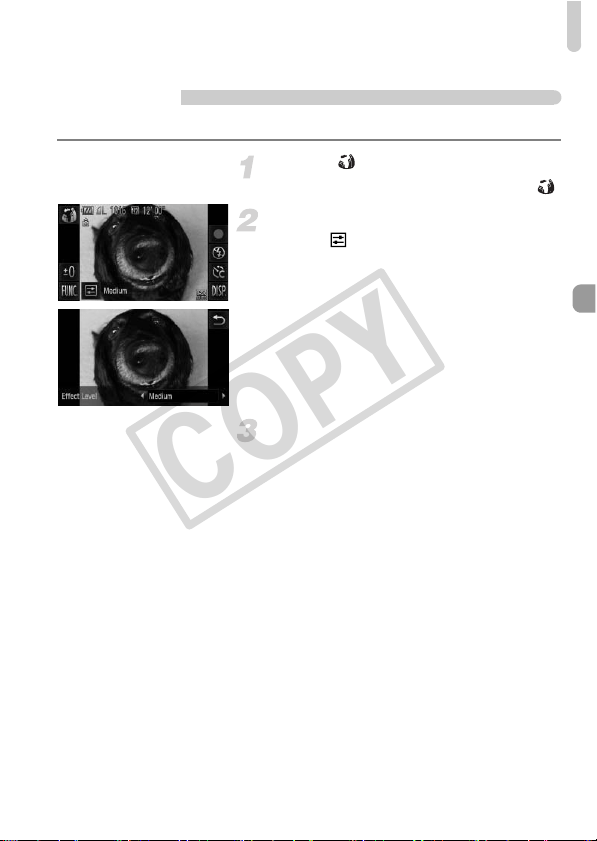
Adding Effects and Shooting
69
Shoot with the Effects of a Fish-Eye Lens (Fish-
eye Effect)
Lets you shoot with the distorting effect of a fish-eye lens.
Choose .
z Follow Steps 1 – 2 on p. 64 to choose .
Choose an effect level.
z Touch .
X [Effect Level] will appear on the screen.
z Touch qr to choose an effect level, then
touch Ú.
X You can check the effect on the screen.
Shoot.
COPY
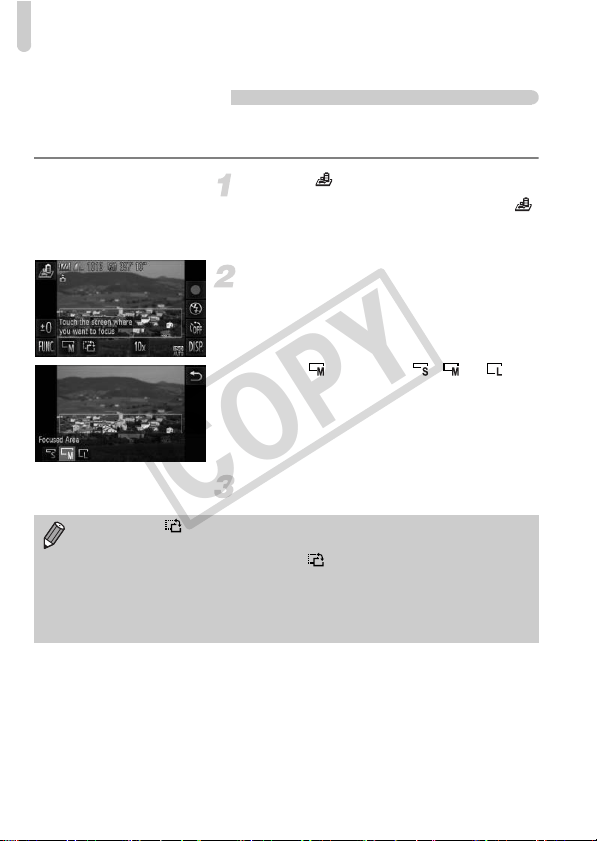
Adding Effects and Shooting
70
Take Shots That Look Like a Miniature Model
(Miniature Effect)
Blurs chosen portions in the top and bottom of an image to produce the effect
of a miniature model.
Choose .
z Follow Steps 1 – 2 on p. 64 to choose .
X A white frame (the area that will not be
blurred) appears on the screen.
Choose the area to keep in focus.
z Touch the screen or drag the white frame
up or down to change the area to keep in
focus.
z Touch , then touch , or to
change the size of the focused area and
touch Ú.
Shoot.
• If you touch in Step 2, the frame will switch to vertical orientation. You
can change the area to keep in focus by touching the screen or dragging
the white frame left or right. Touch again to return the frame
orientation to horizontal.
• Holding the camera vertically will change the orientation of the frame.
• Be sure to set a playback speed before shooting a Miniature Effect movie
(p. 113).
COPY
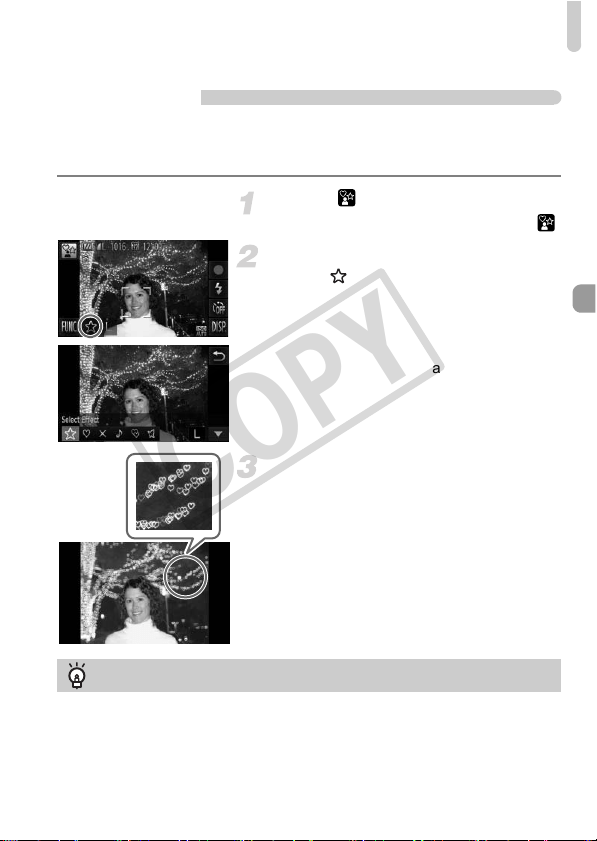
Adding Effects and Shooting
71
Special Effects for Night Backgrounds (Creative
Light Effect)
Light displays and other points of light in the night backgrounds behind your
subject can be changed into 6 different shapes. Be sure to use the flash when
shooting.
Choose .
z Follow Steps 1 – 2 on p. 64 to choose .
Choose a shape and size.
z Touch .
X [Select Effect] will appear on the screen.
z Touch the desired shape.
z Touch op to choose a size, then touch
Ú.
Shoot.
Shooting tips
• Hold the camera firmly and shoot non-moving points of light in as dark a location
as possible.
• Make sure your subject is within the range of the flash (p. 85). Also make sure
the subject is not illuminated by any other light sources.
COPY
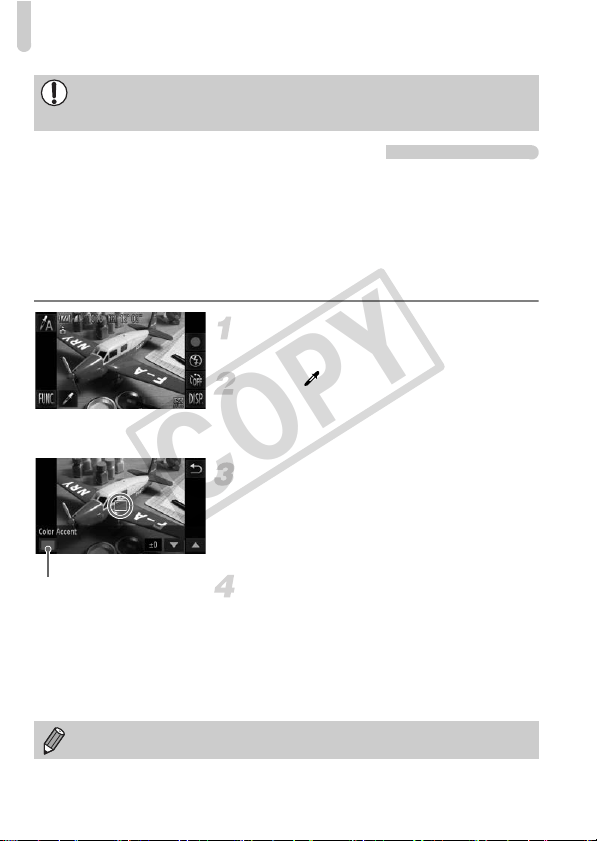
Adding Effects and Shooting
72
Changing the Color and Shooting
You can change the look of an image when shooting. However, depending on
shooting conditions, the image may become coarse, or the colors may not
come out as expected.
Color Accent
You can choose to retain a single color and change the rest to black and white
in a composition.
Choose T.
z Follow Steps 1 – 2 on p. 64 to choose T.
Touch .
X The unchanged image and the Color
Accent image will alternately display.
z The color for default settings is green.
Specify the color.
z Position the center frame so it is filled with
the color you want and touch the frame on
the lower part of the screen.
X The specified color will be recorded.
Specify the range of colors.
z Touch op to change the range of colors
to be retained.
z Choose a negative value to limit the range
of colors. Choose a positive value to
extend the range of colors to similar colors.
z Touching Ú restores the shooting screen.
In some shooting conditions, such as when shooting moving points of light,
the chosen shape may not show, and the brightness may be different than
expected.
Recorded color
Using the flash may cause unexpected results in this mode.
COPY
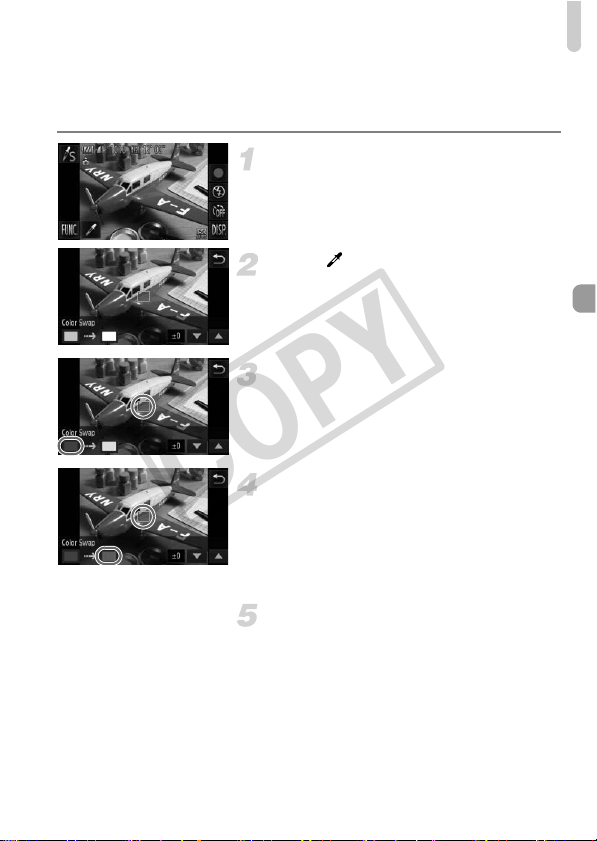
Adding Effects and Shooting
73
Color Swap
You can swap one color in an image for another when recording it. You can
only swap one color.
Choose Y.
z Follow Steps 1 – 2 on p. 64 to choose Y.
Touch .
X The unchanged image and the Color Swap
image will alternately display.
z The default setting is to change green to
gray.
Specify the color to be swapped.
z Position the center frame so it is filled with
the color you want and touch the left frame
that appears in the lower left of the screen.
X The specified color will be recorded.
Specify the target color.
z Position the center frame so it is filled with
the color you want and touch the right
frame that appears in the lower left of the
screen.
X The specified color will be recorded.
Specify the range of colors to be
swapped.
z Touch op to change the range of colors
to be retained.
z Choose a negative value to limit the range
of colors. Choose a positive value to
extend the range of colors to similar colors.
z Touching Ú restores the shooting screen.
COPY
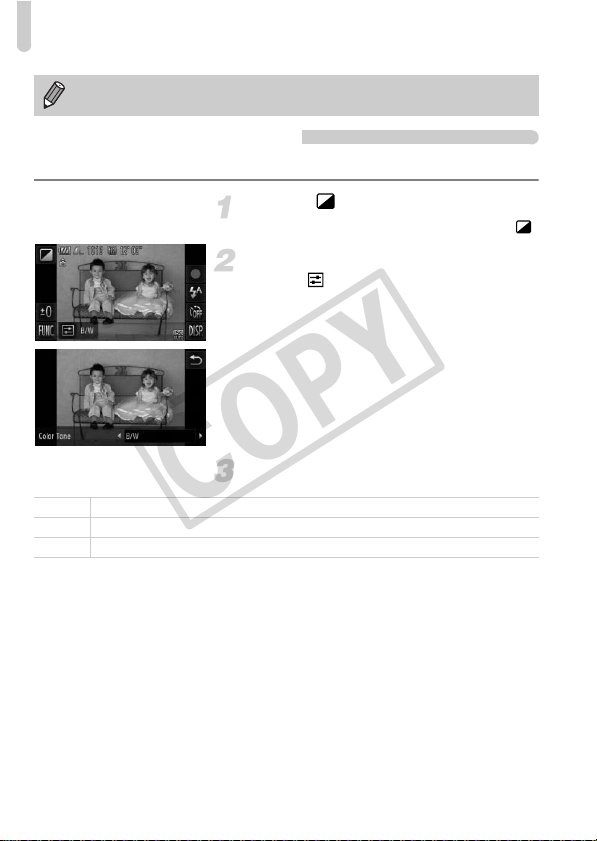
Adding Effects and Shooting
74
Shooting in Monochrome
You can shoot images in black and white, sepia or blue and white.
Choose .
z Follow Steps 1 – 2 on p. 64 to choose .
Choose a color tone.
z Touch .
X [Color Tone] will appear on the screen.
z Touch qr to choose an effect, then touch
Ú.
X You can check the color tone on the
screen.
Shoot.
• Using the flash may cause unexpected results in this mode.
• Under some conditions, the image may appear coarse.
B/W
Shoots in black and white.
Sepia
Shoots with sepia tones.
Blue Shoots in blue and white.
COPY
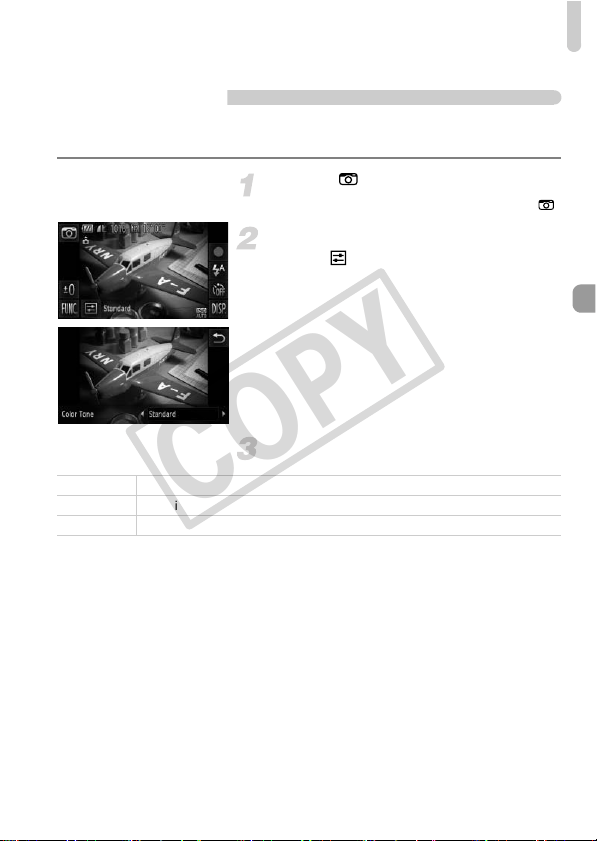
Adding Effects and Shooting
75
Shoot with the Effects of a Toy Camera (Toy
Camera Effect)
This effect darkens and blurs the corners of the image, and changes the
overall color so that it looks like an image shot with a toy camera.
Choose .
z Follow Steps 1 – 2 on p. 64 to choose .
Choose a color tone.
z Touch .
X [Color Tone] will appear on the screen.
z Touch qr to choose an effect, then touch
Ú.
X You can check the color tone on the
screen.
Shoot.
Standard
Images will look like they were shot with a toy camera.
Warm
Gives images a warmer tone than [Standard].
Cool Gives images a cooler tone than [Standard].
COPY
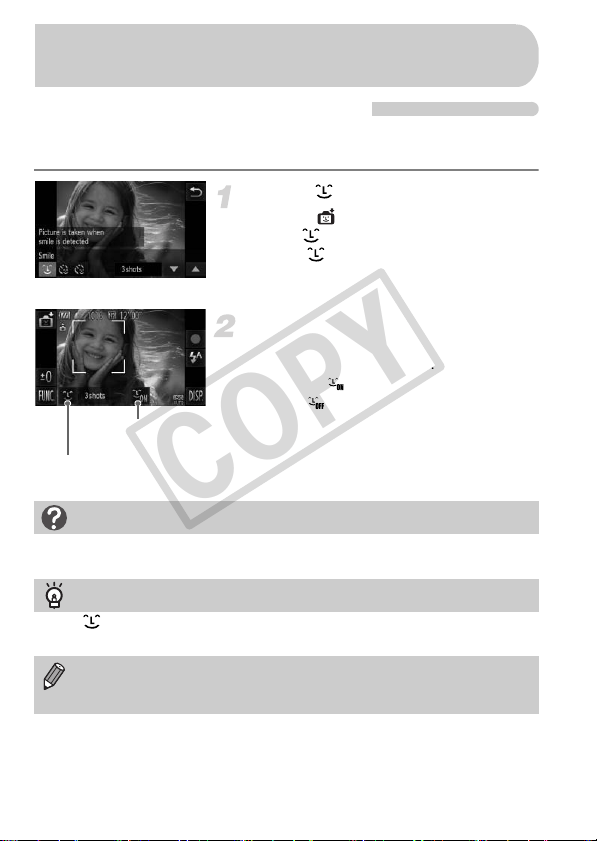
76
Detecting a Smile and Shooting
The camera will shoot, even without pressing the shutter button, when it
detects a smile.
Choose .
z Choose in Steps 1 – 2 on p. 64, then
touch .
z Touch , then touch Ú.
X The camera will enter shooting
preparation.
Point the camera at a person.
z Each time the camera detects a smile it will
shoot after the lamp lights.
z Touching will pause smile detection.
Touch to resume smile detection.
Detecting a Face and Shooting
(Smart Shutter)
Number of shots, switching
modes (pp. 77, 78)
Smile detection:
On/Off
What if a smile is not detected?
Smiles are easier to detect if the subject faces the camera, and opens their mouth
enough to show some teeth when smiling.
Changing the number of shots
Touch , then touch op to choose the number of shots. Touch Ú to change
the setting.
• You should switch to another mode when you finish shooting, or the
camera will continue taking shots each time the camera detects a smile.
• You can also shoot by pressing the shutter button.
COPY
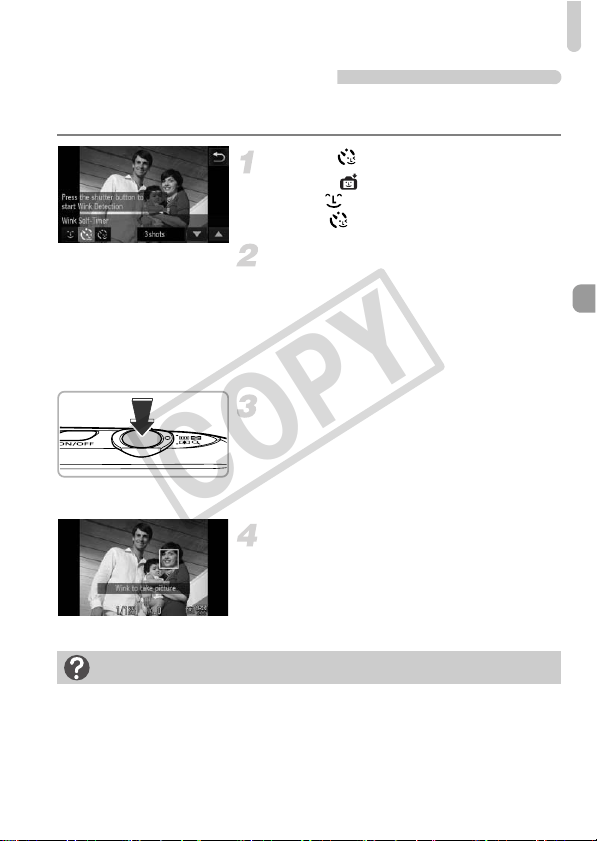
Detecting a Face and Shooting (Smart Shutter)
77
Using the Wink Self-Timer
Point the camera at a person and press the shutter button fully. The camera
will shoot approximately two seconds after it detects a wink.
Choose .
z Choose in Steps 1 – 2 on p. 64, then
touch .
z Touch , then touch Ú.
Compose the shot and press the
shutter button halfway.
z Touch a face displayed on the screen to
choose a person to wink (Touch AF).
z Confirm that a green frame appears
around the face of the person who will
wink.
Press the shutter button fully.
X The camera will enter shooting stand-by,
and [Wink to take picture] will appear on
the screen.
X The lamp will blink and the self-timer
sound will play.
Face the camera and wink.
X The shutter will release approximately 2
seconds after a wink is detected from the
person inside the frame.
z To cancel shooting with the timer after
countdown has started, touch the screen.
What if a wink is not detected?
• Wink a bit slowly.
• A wink may not be detected if eyes are covered by hair or a hat, or when wearing
glasses.
COPY
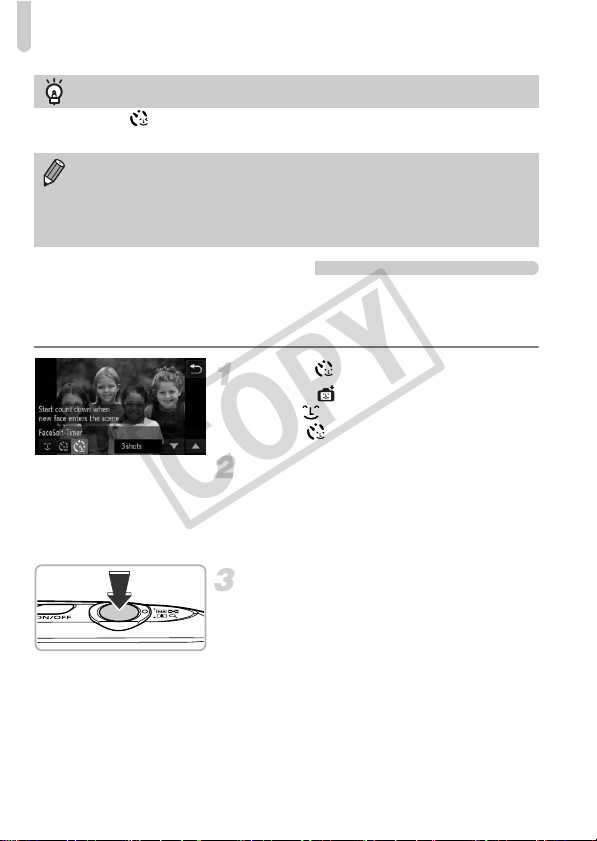
Detecting a Face and Shooting (Smart Shutter)
78
Using the Face Self-Timer
The shutter will release approximately two seconds after the camera detects
a new face (p. 95). You can use this when the photographer wants to be in
the image, such as a group photo.
Choose .
z Choose in Steps 1 – 2 on p. 64, then
touch .
z Touch , then touch Ú.
Compose the shot and press the
shutter button halfway.
z Make sure a green frame appears on the
face focused on and white frames appear
on other faces.
Press the shutter button fully.
X The camera will enter shooting stand-by,
and [Look straight at camera to start count
down] will appear on the screen.
X The lamp will blink and the self-timer
sound will play.
Changing the number of shots
After touching on the screen in Step 1, touch op to change the number of
shots. Touch Ú to complete the setting.
• Shutting both eyes will also be detected as a wink.
• If a wink is not detected, the shutter will release approximately 15
seconds later.
• If there are no people in the shot when the shutter button is pressed fully,
the camera will shoot after a person enters the shot and winks.
COPY
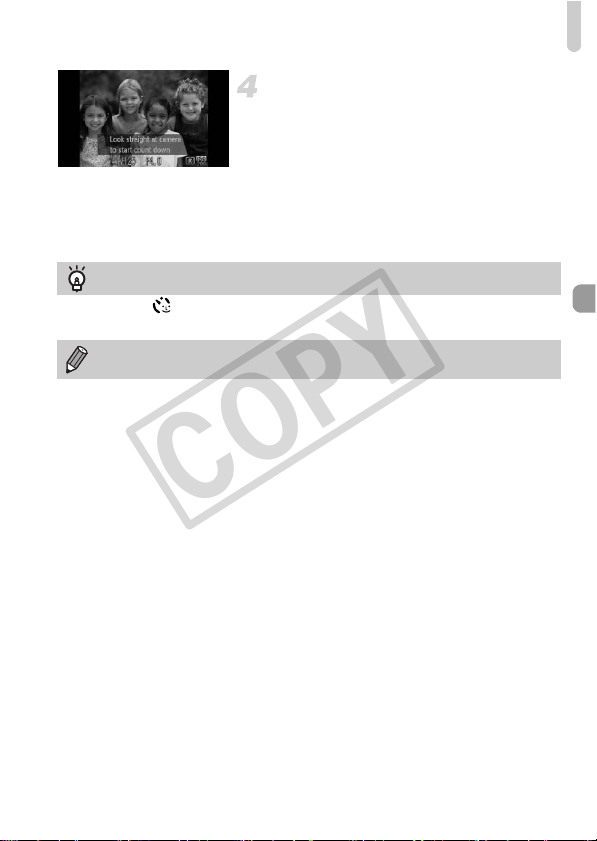
Detecting a Face and Shooting (Smart Shutter)
79
Join the subjects and look at the
camera.
X When the camera detects a new face, the
lamp and self-timer sound will speed up
(the lamp remains lit when the flash will
fire), and two seconds later the shutter will
release.
z To cancel shooting with the timer after
countdown has started, touch the screen.
Changing the number of shots
After touching in the screen in Step 1, touch op to change the number of
shots, then touch Ú to complete the setting.
Even if your face is not detected after joining the subjects, the shutter will
release approximately 15 seconds later.
COPY
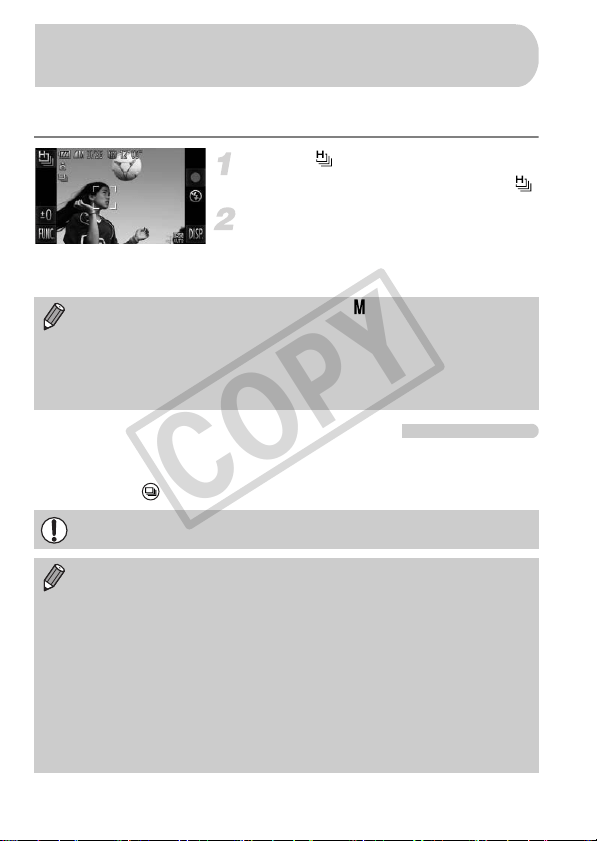
80
You can shoot continuously at a maximum speed of approximately
8.2 images/second while the shutter button is pressed fully and held.
Choose .
z Follow Steps 1 – 2 on p. 64 to choose ,
Shoot.
X As long as you hold the shutter button
down, the camera will shoot successive
images.
Images Displayed During Playback
Since each set of continuous images will become a single group, only the first
image captured in that group will be displayed. To indicate that the image is
part of a group, will appear on the screen.
High-Speed Continuous Shooting
(High-speed Burst)
• The recording pixel setting will be fixed at (1984 x 1488 pixels).
• The focus, brightness and white balance will be set with the first shot.
• Depending on the shooting conditions, camera settings and the zoom
position, the camera may stop shooting momentarily, or the shooting
speed may slow down.
• As the number of images increases, the shooting speed may slow down.
If you erase a grouped image (p. 139), all the images in the group will also
be erased. Be sure to exercise adequate caution.
• If you want to play back images individually (p. 128), grouping can be
canceled (p. 129).
• Protecting (p. 137) a grouped image, will protect all of the images in the
group.
• If you play back grouped images using Filtered Playback (p. 123) or
Smart Shuffle (p. 130), grouping is temporarily canceled and images are
played back individually.
• Grouped images cannot use certain touch actions (p. 131), be tagged as
favorites (p. 141), edited (pp. 144 – 150), categorized (p. 143), printed
(p. 152) or have the number of copies to be printed set (p. 161). Play back
grouped images individually (p. 128), or cancel grouping (p. 129) before
trying the above.
COPY
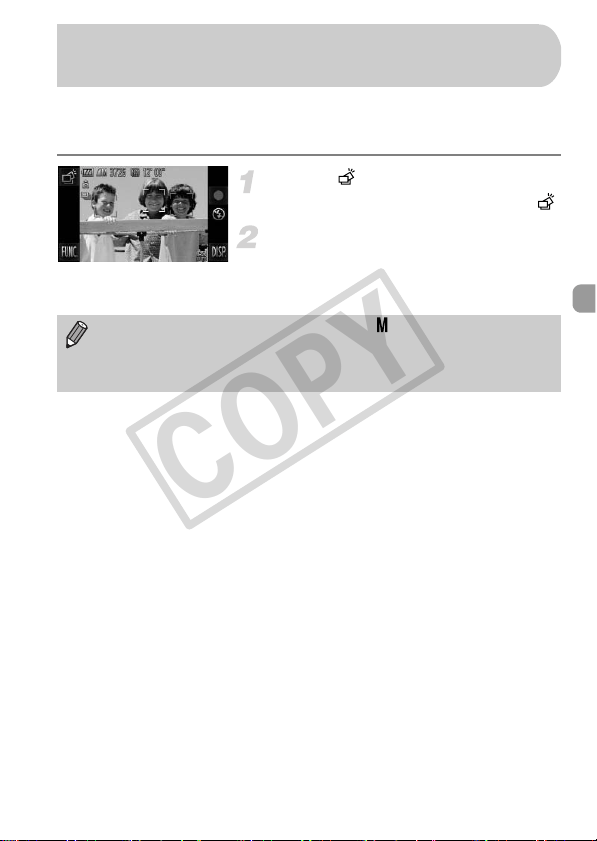
81
The camera takes 5 continuous shots, then detects various aspects of the
shot such as facial expressions, and saves only one picture detected as the
best.
Choose .
z Follow Steps 1 – 2 on p. 64 to choose .
Shoot.
X When the shutter button is pressed fully,
the camera takes five continuous shots,
and saves one picture only.
Capturing the Best Facial Expressions
(Best Image Selection)
• The recording pixel setting will be fixed at (1984 x 1488 pixels).
• The focus, brightness and white balance will be set with the first shot.
• Depending on the shooting conditions, you may not obtain the expected
results.
COPY

82
COPY
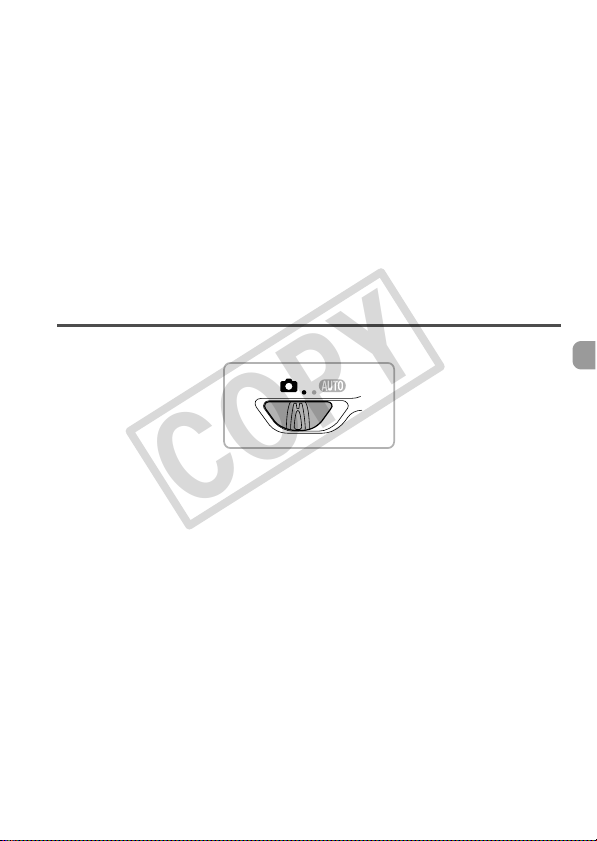
83
Choosing Settings Yourself
In this chapter you will learn how to use the various functions in G
mode to progressively advance your shooting skills.
• This chapter assumes that you have set the mode switch to 4 and the
camera is in G mode.
• G stands for Program AE.
• Before attempting to shoot using a function explained in this chapter in
modes other than G mode, check if the function is available in those modes
(pp. 192 – 197).
5
COPY
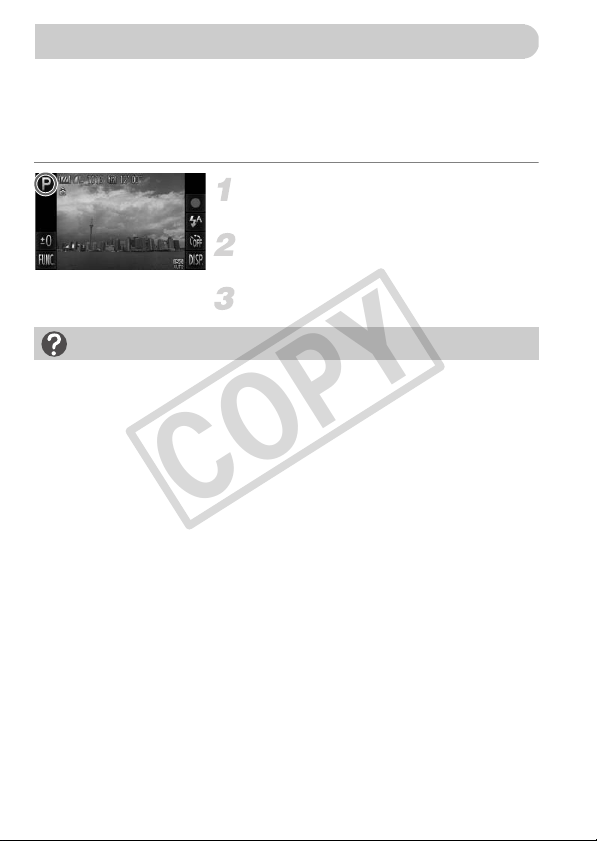
84
You can choose the settings for various functions to suit your preferences.
AE stands for Auto Exposure.
The focusing range is approximately 5 cm (2.0 in.) – infinity at maximum wide
angle (j), and approximately 40 cm (1.3 ft.) – infinity at maximum telephoto
(i).
Enter G mode.
z Follow Steps 1 – 2 on p. 64 to choose G.
Adjust the settings according to
your purposes (pp. 85 – 105).
Shoot.
Shooting in Program AE
What if the shutter speed and aperture value appear in orange?
If a correct exposure cannot be obtained when pressing the shutter button
halfway, the shutter speed and aperture value appear in orange. Try the following
settings to obtain the correct exposure.
• Turn on the flash (p. 85)
• Choose a higher ISO speed (p. 88)
COPY
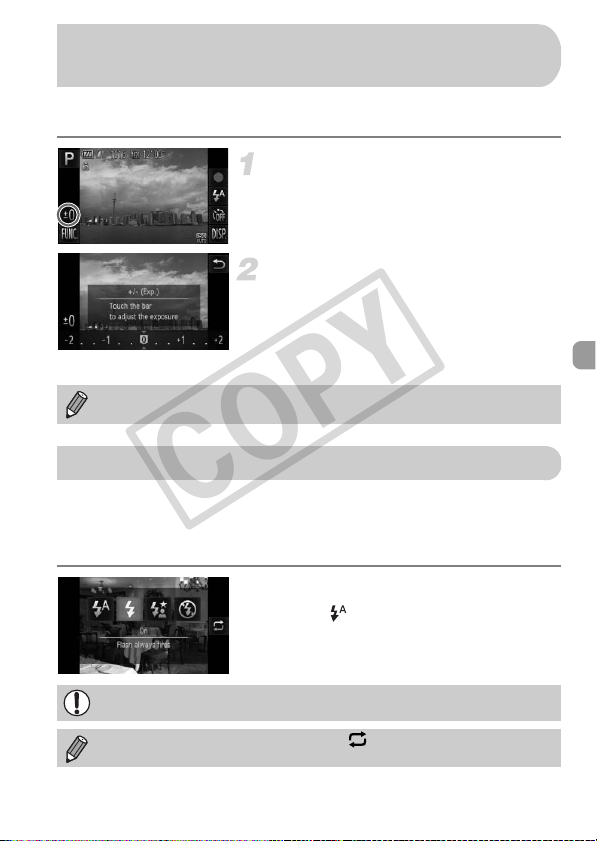
85
You can adjust the standard exposure set by the camera in 1/3-stop
increments in the range of -2 to +2.
Enter Exposure Compensation
mode.
z Touch #.
Adjust the brightness.
z While looking at the screen, touch the bar,
or drag it left or right, to adjust the
brightness, then touch Ú.
X The exposure compensation amount will
appear on the screen.
You can make the flash fire every time you shoot.
The effective flash range is approximately 50 cm – 5.0 m (1.6 – 16 ft.) at
maximum wide angle (j), and approximately 50 cm – 2.0 m (1.6 – 6.6 ft.) at
maximum telephoto (i).
Choose h.
z Touch , then touch h.
z Touch h again to make the setting.
X Once set, h will appear on the screen.
Adjusting the Brightness
(Exposure Compensation)
You can also make settings in the FUNC. menu that appears when you
touch ø.
Turning the Flash On
The edges of the image may darken if the flash fires.
You can also choose items by touching .
COPY
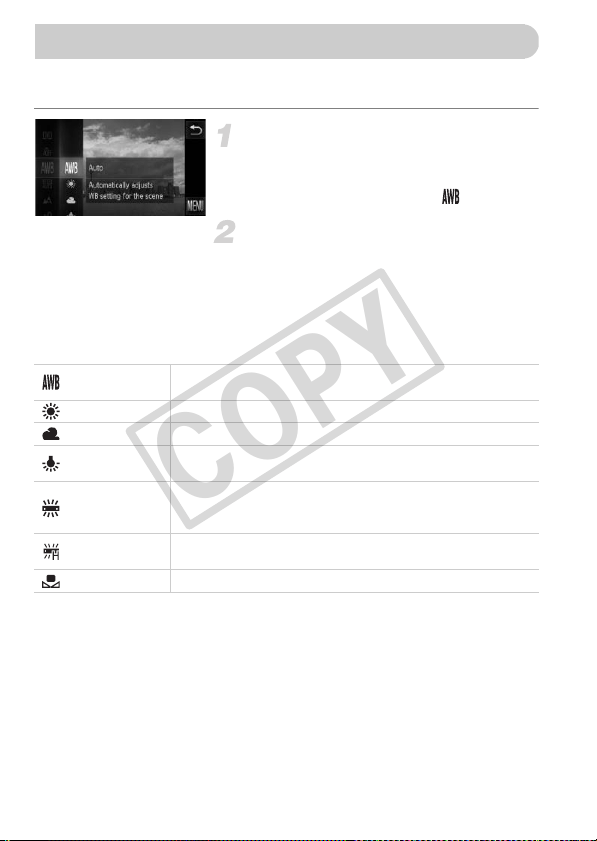
86
The white balance (WB) function sets the optimal white balance for natural
looking colors to match the shooting conditions.
Choose the white balance
function.
z Touch ø, then drag up or down the
menu on the left to choose .
Choose an option.
z Touch an item you want to set.
z If you drag up or down the menu on the
right, other items will appear.
z Touch the menu item again to complete
the setting.
X The setting will appear on the screen.
Adjusting the White Balance
Auto
Automatically sets the optimal white balance for the shooting
conditions.
Day Light For shooting outdoors, in fine weather conditions.
Cloudy For shooting in cloudy, shady or twilight conditions.
Tungsten
For shooting under tungsten and bulb-type (3-wavelength)
fluorescent lighting.
Fluorescent
For shooting under warm-white fluorescent, cool-white
fluorescent and warm-white-type (3-wavelength) fluorescent
lighting.
Fluorescent H
For shooting under daylight fluorescent and daylight-type (3-
wavelength) fluorescent lighting.
Custom For manually setting a custom white balance.
COPY
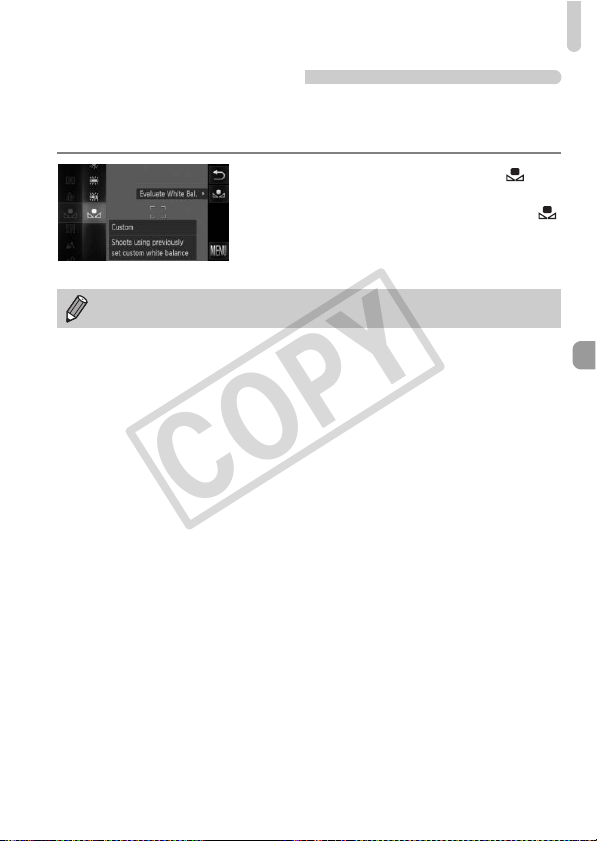
Adjusting the White Balance
87
Custom White Balance
You can adjust the white balance to match the light source at the shooting
location. Make sure that you set the white balance under the light source of
the actual scene you will shoot.
z Follow Step 2 on p. 86 to choose .
z Make sure the entire screen is filled with a
plain, white colored subject, then touch
on the right.
X The tint on the screen will change when
white balance data is set.
If you change camera settings after recording white balance data, the tone
may not turn out properly.
COPY
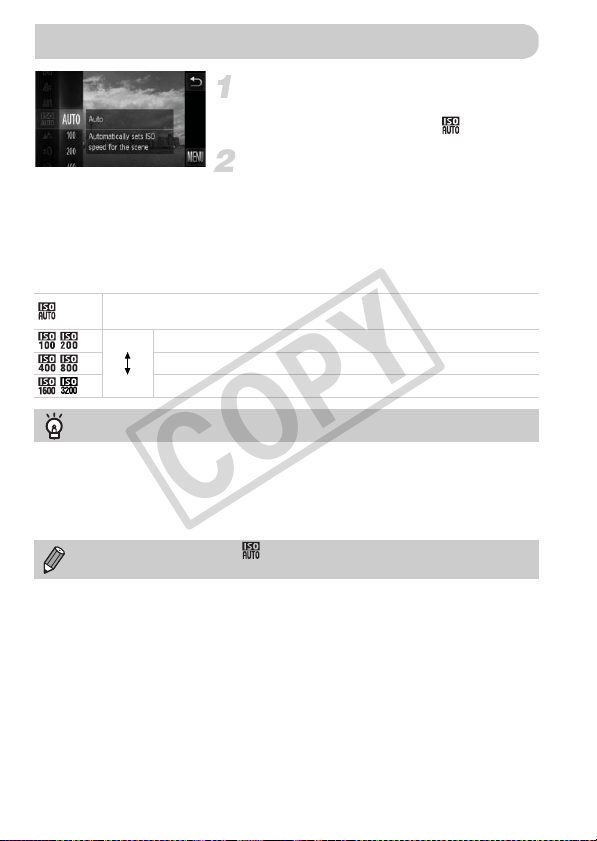
88
Choose the ISO speed.
z Touch ø, then drag up or down the
menu on the left to choose .
Choose an option.
z Touch an item you want to set.
z If you drag up or down the menu on the
right, other items will appear.
z Touch the menu item again to complete
the setting.
X The setting will appear on the screen.
Changing the ISO Speed
Automatically adjusts the ISO speed to the Shooting mode and shooting
conditions.
Low
High
For shooting outdoors, in fine weather conditions.
For shooting in cloudy, or twilight conditions.
For shooting nightscapes, or in dark interiors.
Changing the ISO speed
• Lowering the ISO speed results in sharper images, but there may be an
increased chance of image blurring in certain shooting conditions.
• Raising the ISO speed results in a faster shutter speed, reducing image blurring
and letting the flash reach greater distances to the subject. The images,
however, will appear coarse.
When the camera is set to , you can press the shutter button halfway to
display the automatically set ISO speed.
COPY
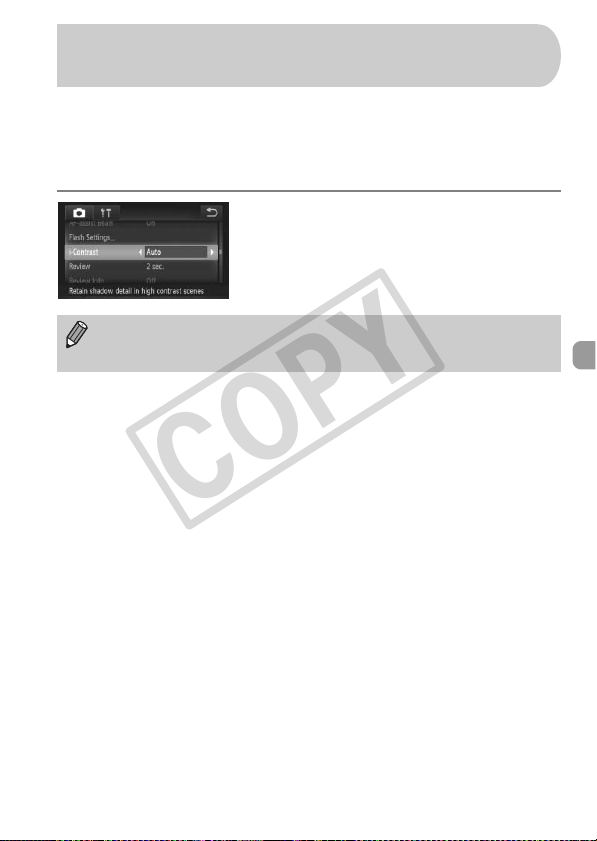
89
The camera can detect areas in the scene, such as faces or backgrounds,
that are too bright or dark and automatically adjust them to the optimum
brightness when shooting. Also, when the overall image is lacking in contrast,
the camera will automatically correct the image for a sharper impression
when shooting.
Choose [i-Contrast].
z Touch ø, then n to choose the
4 tab. Touch [i-Contrast], then touch qr
to choose [Auto].
X Once set, @ will appear on the screen.
Correcting the Brightness and Shooting
(i-Contrast)
• Under some conditions, the image may appear coarse or may not be
corrected properly.
• You can correct recorded images (p. 149).
COPY
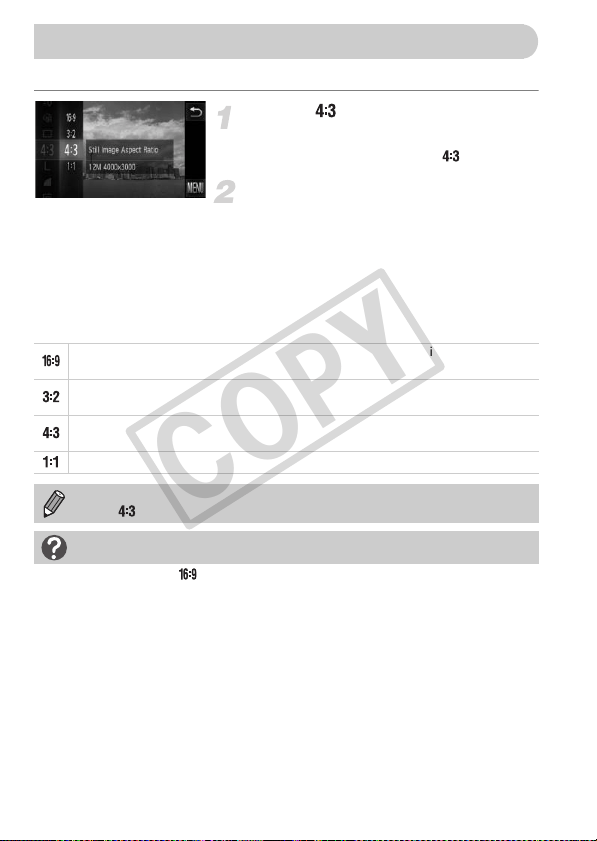
90
You can change the width to height ratio of an image.
Choose .
z Touch ø, then drag up or down the
menu on the left to choose .
Choose an option.
z Touch an item you want to set.
z If you drag up or down the menu on the
right, other items will appear.
z Touch the menu item again to complete
the setting.
X Once set, the aspect ratio of the screen will
change.
Changing the Aspect Ratio
The same aspect ratio as the screen of this camera, used for displaying on wide-
screen HD TVs.
The same aspect ratio as 35mm film, used for printing out 5 x 7 in. or postcard
sized images.
The same aspect ratio as standard televisions, used for printing images on 3.5 x
5 in. to various A-sized papers.
A square-shaped aspect ratio.
The digital zoom (p. 55) and digital tele-converter (p. 56) are only available
in the aspect ratio since [Digital Zoom] is fixed to [Off].
How can I shoot with the display at full screen?
Set the aspect ratio to . However, shooting at a 16:9 aspect ratio will result in
images whose aspect ratio does not match 5 x 7 in., Postcard size, 3.5 x 5 in., or
various A sizes of paper when printing. White margins may be left in the print, and
some portions of the image may not print.
COPY
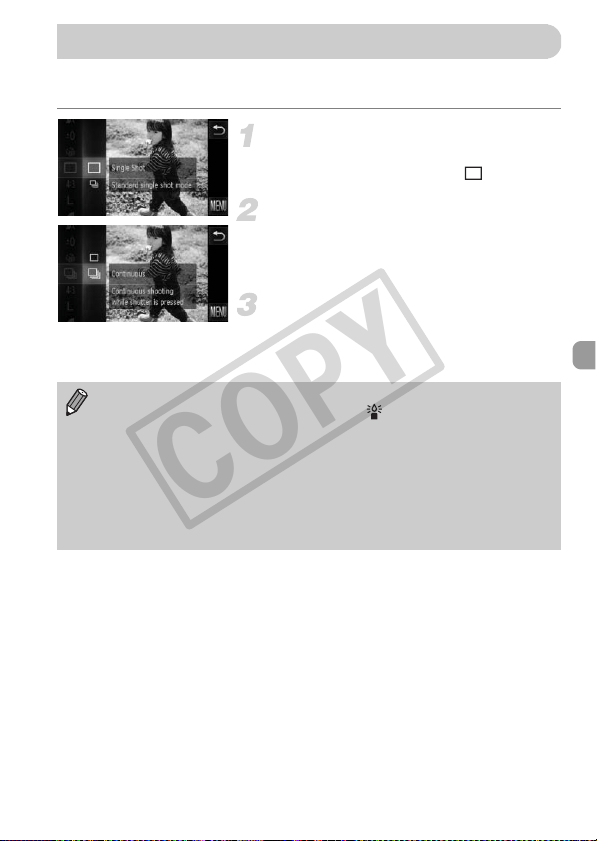
91
You can shoot continuously at a maximum speed of approximately 3.4
images/second while the shutter button is pressed fully and held.
Choose a Drive mode.
z Touch ø, then drag up or down the
menu on the left to choose .
Choose an option.
z Touch W.
z Touch W again to make the setting.
X Once set, W will appear on the screen.
Shoot.
X As long as you hold the shutter button
down, the camera will shoot successive
images.
Continuous Shooting
• Cannot be used with the self-timer (pp. 58, 59).
• Continuous shooting speed increases in mode (p. 65).
• For continuous shooting, the focus and exposure are locked when the
shutter button is pressed halfway.
• Depending on the shooting conditions and the camera settings, the
camera may stop shooting momentarily, or the shooting speed may slow
down.
• As the number of images increases, the shooting speed may slow down.
• If the flash fires, the shooting speed may slow down.
COPY
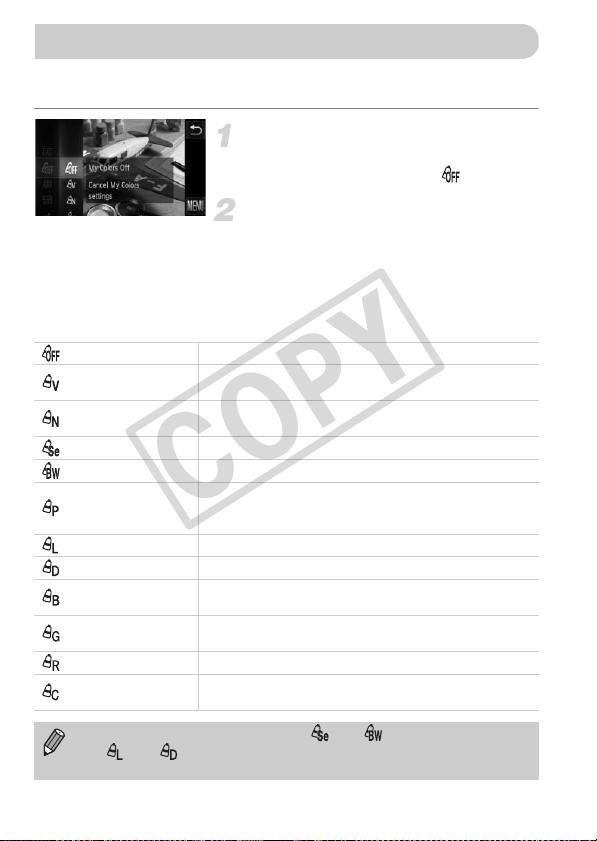
92
You can change the tone of an image, for example to sepia or black and
white, when shooting.
Choose My Colors.
z Touch ø, then drag up or down the
menu on the left to choose .
Choose an option.
z Touch an item you want to set.
z If you drag up or down the menu on the
right, other items will appear.
z Touch the menu item again to complete
the setting.
X The setting will appear on the screen.
Changing the Tone of an Image (My Colors)
My Colors Off —
Vivid
Emphasizes the contrast and color saturation for a vivid
impression.
Neutral
Tones down the contrast and color saturation for neutral
hues.
Sepia Changes the image to sepia tones.
B/W Changes the image to black and white.
Positive Film
Combines the effects of Vivid Red, Vivid Green and Vivid
Blue to produce intense natural appearing colors like those
obtained with positive film.
Lighter Skin Tone Makes skin tones lighter.
Darker Skin Tone Makes skin tones darker.
Vivid Blue
Emphasizes blue tints. Makes the sky, ocean and other
blue subjects more vivid.
Vivid Green
Emphasizes green tints. Makes mountains, foliage and
other green subjects more vivid.
Vivid Red Emphasizes red tints. Makes red subjects more vivid.
Custom Color
You can adjust contrast, sharpness, and color saturation
etc. to your preference (p. 93).
• The white balance cannot be set in and (p. 86).
• In and , colors other than people’s skin color may change. You
may not obtain the expected results with some skin colors.
COPY
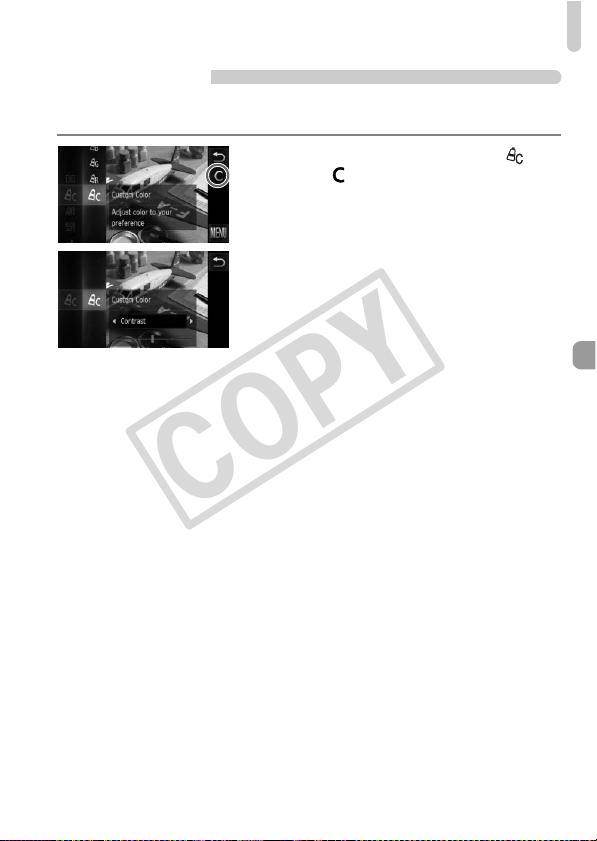
Changing the Tone of an Image (My Colors)
93
Custom Color
The contrast, sharpness, color saturation, red, green, blue, and skin tones in
an image can be chosen and set at 5 different levels.
z Follow Step 2 on p. 92 to choose .
z Touch on the right side of the screen.
z Touch qr to choose an item, then touch
the point on the bar where you want to
make a setting.
z The more to the right, the stronger/darker
(skin tone) the effect gets, the more to the
left, the weaker/lighter (skin tone) the
effect gets.
z Touch Ú to make the setting.
COPY
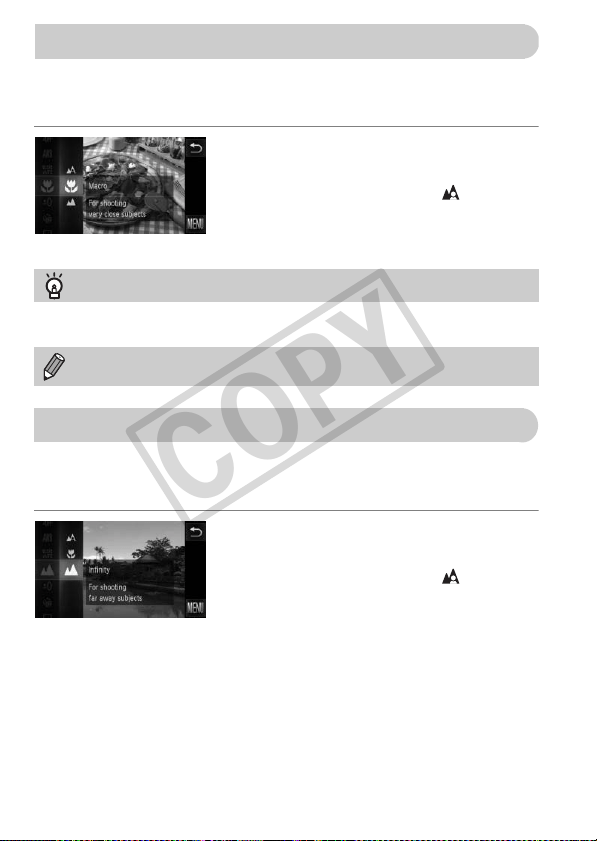
94
You can shoot an object at a close distance or even shoot extreme close-ups
of it. The focusing range is approximately 3 – 50 cm (1.2 in. – 1.6 ft.) from the
end of the lens at maximum wide angle (j).
Choose e.
z Touch ø, then drag up or down the
menu on the left to choose .
z Touch e, then touch e again to complete
the setting.
X Once set, e will appear on the screen.
When it is difficult to focus because your shot contains subjects that are both
near and far, you can change the focusing range to focus more reliably on far
away subjects (approx. 3 m (9.8 ft.) or more from the camera) only.
Choose u.
z Touch ø, then drag up or down the
menu on the left to choose .
z Touch u, then touch u again to
complete the setting.
X Once set, u will appear on the screen.
Shooting Close-ups (Macro)
How can I take better close-ups?
In macro shooting, try attaching the camera to a tripod and shooting in Î to
prevent the camera from moving and blurring the image (p. 59).
e will turn gray in the area that displays in the yellow bar underneath the
zoom bar, and the camera will not focus.
Shooting Far Away Subjects (Infinity)
COPY
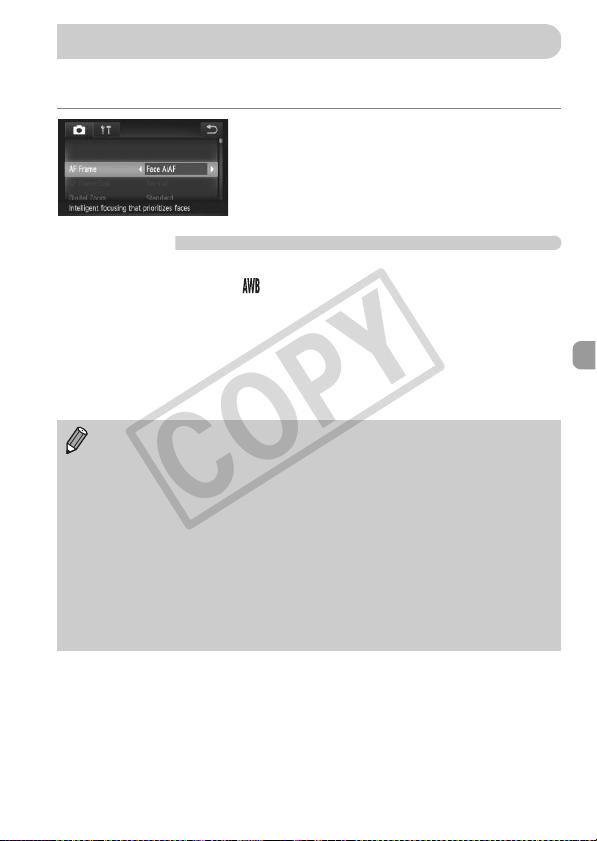
95
You can change the AF (Auto Focus) frame mode to match the scene you
want to shoot.
Choose [AF Frame].
z Touch ø, then n to choose the
4 tab. Touch [AF Frame], then touch qr
to choose an option.
Face AiAF
• Detects people’s faces and sets the focus, exposure (evaluative metering
only) and white balance ( only).
• When the camera is pointed at subjects, a white frame appears on the face
the camera judges to be the main subject, and gray frames (max. 2) will
appear on other faces.
• A frame will follow a moving subject within a certain range.
• When the shutter button is pressed halfway, up to 9 green frames will
appear on faces that the camera focuses on.
Changing the AF Frame Mode
• If a face is not detected and only gray frames (no white frame) appear, up
to 9 green frames will appear on the areas the camera focuses on when
the shutter button is pressed halfway.
• If a face is not detected when Servo AF (p. 100) is set to [On], the AF
frame will appear in the center of the screen when you press the shutter
button halfway.
• Examples of faces that cannot be detected:
- Subjects that are far away or extremely close
- Subjects that are dark or light
- Faces turned to the side or at an angle, or faces with a portion hidden
• The camera may mistakenly identify non-human subjects as a face.
• If the camera cannot focus when you press the shutter button halfway,
the AF frame will not appear.
COPY
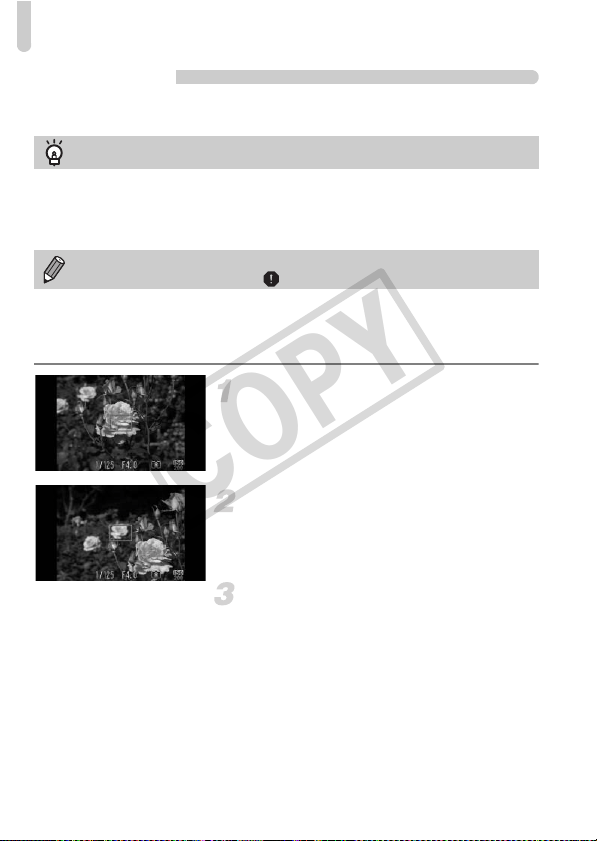
Changing the AF Frame Mode
96
Fixed Frame
A single AF frame will be used. This is effective for focusing on a specific
point.
Changing the Composition with the Focus Lock
While you keep the shutter button pressed halfway, the focus and exposure
are locked. You can now recompose and shoot. This is called Focus Lock.
Focus.
z Center the subject you want in focus, and
press the shutter button halfway.
z Confirm that the AF frame on the subject is
green.
Recompose.
z Keep the shutter button pressed halfway
and move the camera to recompose the
scene.
Shoot.
z Press the shutter button fully.
You can reduce the AF frame size
• Touch ø, then n to choose the 4 tab, then touch [AF Frame Size]
and choose [Small].
• The AF frame is set to [Normal] when using the digital zoom (p. 55) or digital
tele-converter (p. 56).
If the camera cannot focus when you press the shutter button halfway, the
AF frame will turn yellow and will appear.
COPY
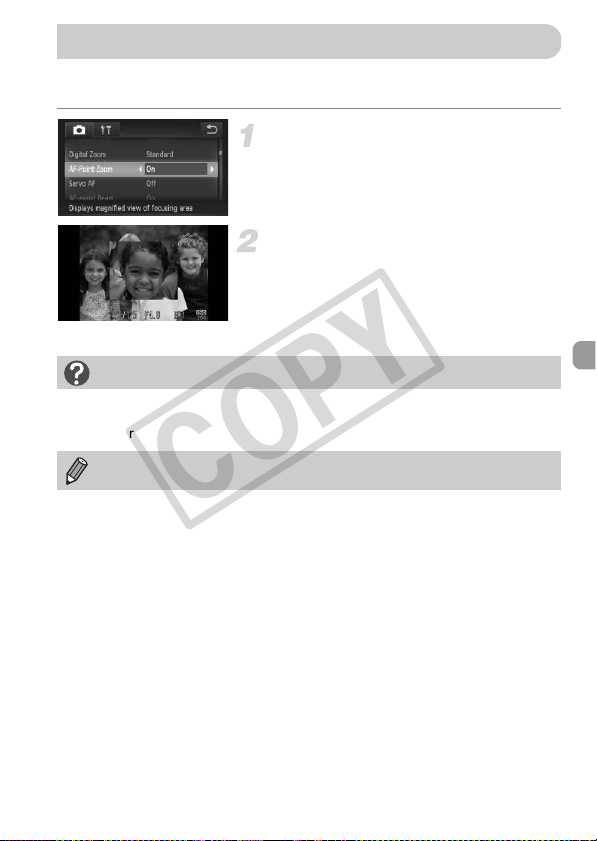
97
If you press the shutter button halfway, the AF frame will magnify and you can
check the focus.
Choose [AF-Point Zoom].
z Touch ø, then n to choose the
4 tab. Touch [AF-Point Zoom], then
touch qr to choose [On].
Check the focus.
z Press the shutter button halfway.
X In [Face AiAF] (p. 95), the face detected as
the main subject will appear magnified.
X In [Fixed frame] (p. 96), the contents of the
AF frame will appear magnified.
Magnifying the Focal Point
What if the display does not magnify?
The display will not appear magnified in [Face AiAF] if a face cannot be detected
or is too big in relation to the screen. In [Fixed frame], it will not appear magnified
if the camera cannot focus.
The magnified display will not appear when using the digital zoom (p. 55),
digital tele-converter (p. 56) or Servo AF (p. 100).
COPY
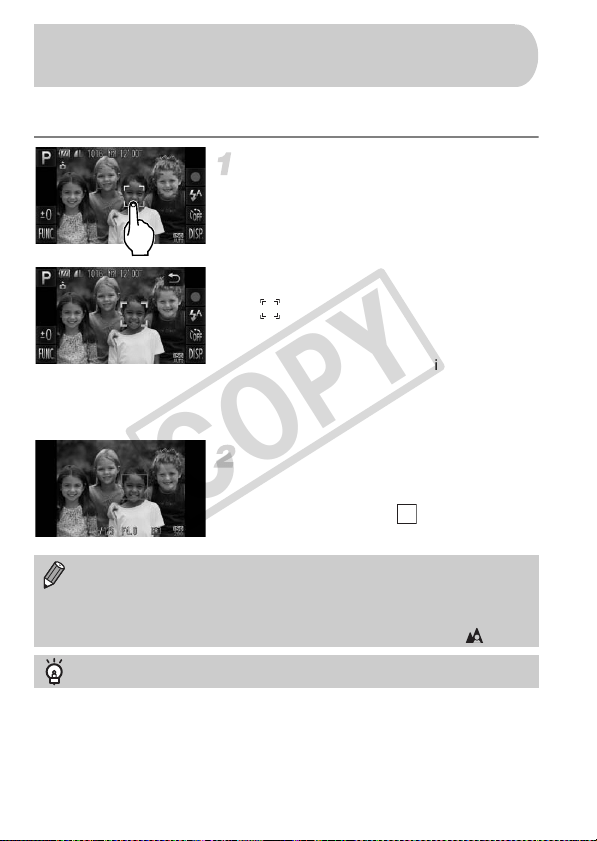
98
You can choose a specific subject or person's face, or a location on the
screen, to focus on and shoot.
Choose the subject, face or
location to focus on.
z Touch the subject or person shown on the
screen.
X When the AF frame mode is set to [Face
AiAF], the camera will beep and display
when it detects the subject. The
camera will continue to focus even if the
subject moves.
X When the AF frame mode is set to [Fixed
frame], an AF frame will appear at the
location where you touch the screen.
z To cancel, touch Ú.
Shot.
z Press the shutter button halfway. The
frame where the camera focused will
change into a green .
z Press the shutter button fully to shoot.
Choosing the Subject to Focus On
(Touch AF)
• The camera may not be able to track the subject if the subject is too small,
moves too quickly or if the contrast between the subject and the
background is too low.
• When shooting in e or u (p. 94) with the AF frame mode set to [Face
AiAF], choosing a location to focus on returns the camera to .
A border appeared around the screen when it was touched
Touch operations on faces or subjects appearing outside the border will not work.
They will work if the face or subject move inside the border.
COPY
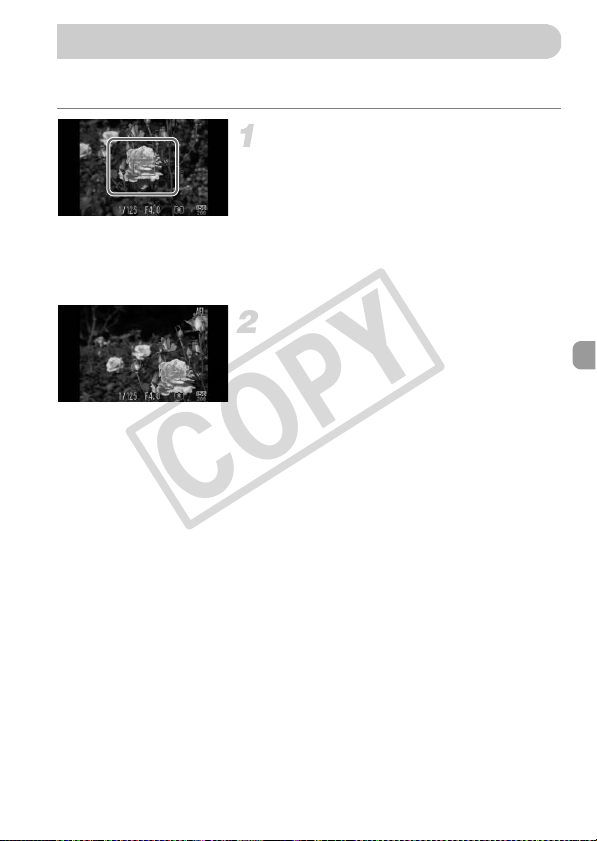
99
The focus can be locked. After locking the focus, the focal distance will not
change even when you release your finger from the shutter button.
Lock the focus.
z Keep the shutter button pressed halfway
and touch inside the frame shown on the
left.
X The focus locks and % appears on the
screen.
z If you release your finger from the shutter
button and touch the screen again, AF lock
will cancel, and % will disappear.
Compose the scene and shoot.
Shooting with the AF Lock
COPY

100
While the shutter button is pressed halfway, the focus and exposure will
continue to adjust, allowing you to take pictures of moving subjects without
missing a shot.
Choose [Servo AF].
z Touch ø, then n and choose the
4 tab and touch [Servo AF], then touch
qr to choose [On].
Focus.
z The focus and exposure will be maintained
where the blue AF frame appears while
you press the shutter button halfway.
Shooting with Servo AF
• The camera may not be able to focus in some conditions.
• In low light conditions, AF frames may not turn blue even after pressing
the shutter button halfway. In this case, you can set the focus and
exposure with the AF frame setting.
• If a correct exposure cannot be obtained, the shutter speed and aperture
value appear in orange. Release your finger from the shutter button, then
press it again halfway.
• You cannot shoot with the AF lock in this mode.
• The [AF-Point Zoom] option in the 4 tab is not available in Servo AF
mode.
• Not available when using the self-timer (pp. 58, 59).
COPY
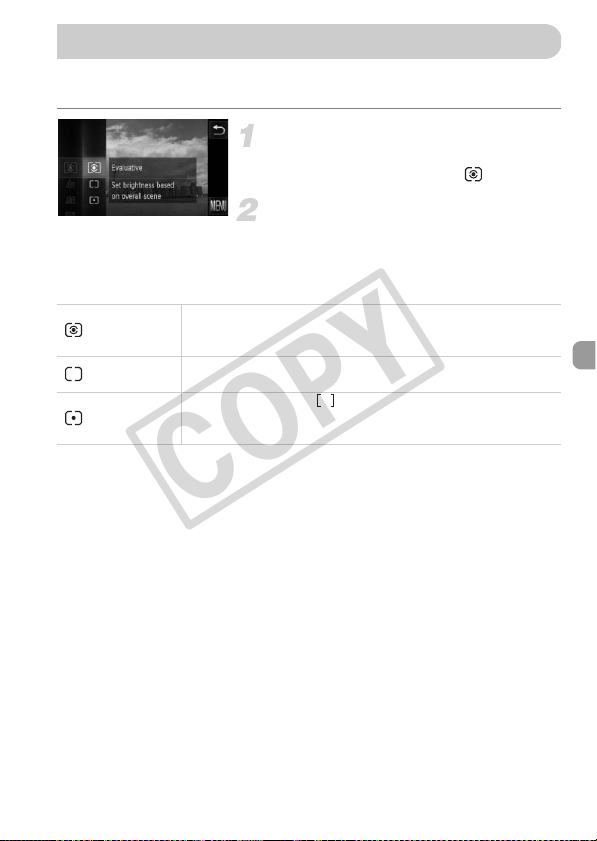
101
You can change the metering method (brightness measuring function) to
match the shooting conditions.
Choose the metering method.
z Touch ø, then drag up or down the
menu on the left to choose .
Choose an option.
z Touch an item you want to set.
z Touch the menu item again to complete
the setting.
X The setting will appear on the screen.
Changing the Metering Method
Evaluative
For standard shooting conditions, including back lit shots.
Automatically adjusts the exposure to match the shooting
conditions.
Center
Weighted Avg.
Averages the light metered from the entire frame, but gives greater
weight to the center.
Spot
Only meters within the (Spot AE Point frame) that appears at
the center of the screen. When the AF frame mode is set to [Fixed
frame], the Spot AE Point frame will be linked to the AF frame.
COPY
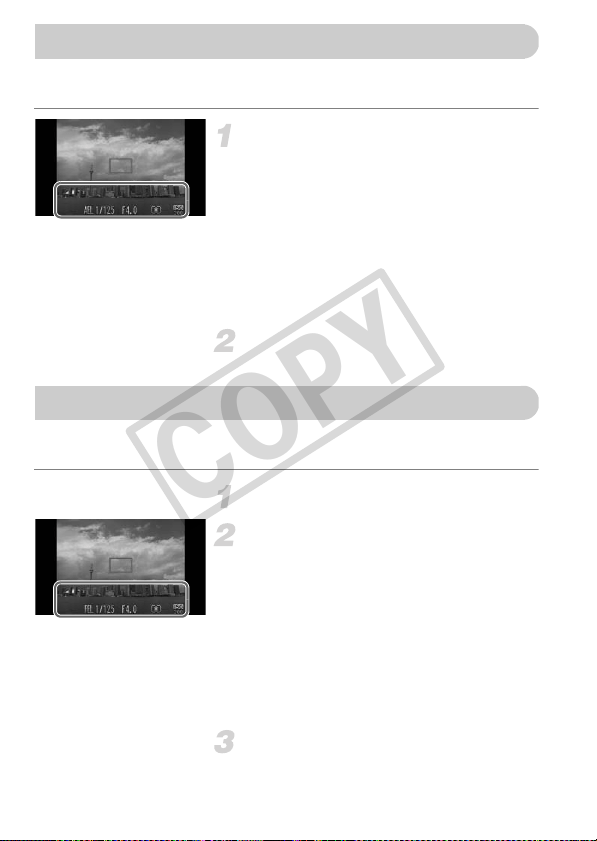
102
You can lock the exposure and shoot, or set the focus and exposure
separately to shoot. AE stands for “Auto Exposure”.
Lock the exposure.
z Point the camera toward the subject and
touch the lower part of the screen (inside
the frame shown on the left) while pressing
the shutter button halfway.
X When & appears, the exposure will be
locked.
z If you release your finger from the shutter
button and touch the screen again, & will
cancel, and & will disappear.
Compose the scene and shoot.
Just as with the AE lock (p. 102), you can lock the exposure for shooting with
the flash. FE stands for “Flash Exposure”.
Choose h (p. 85).
Lock the flash exposure.
z Point the camera toward the subject and
touch the lower part of the screen (inside
the frame shown on the left) while pressing
the shutter button halfway.
X The flash will fire and when ( appears,
the flash output will be retained.
z If you release your finger from the shutter
button and touch the screen again, ( will
disappear.
Compose the scene and shoot.
Shooting with the AE Lock
Shooting with the FE Lock
COPY
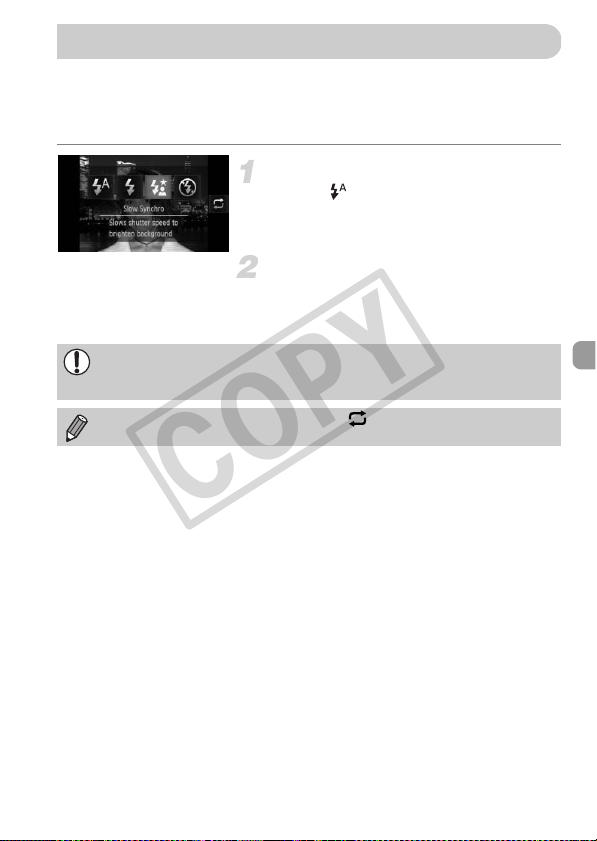
103
You can make the main subject, such as people, appear bright by having the
camera provide the appropriate illumination with the flash. At the same time,
you can use a slow shutter speed to brighten the background that the light
from the flash cannot reach.
Choose ….
z Touch , then touch ….
z Touch … again to make the setting.
X Once set, … will appear on the screen.
Shoot.
z Even if the flash fires, ensure that the main
subject does not move until the shutter
sound ends.
Shooting with Slow Synchro
Attach the camera to a tripod to prevent the camera from moving and
blurring the image. Additionally, you should set the [IS Mode] to [Off] when
shooting with a tripod (p. 173).
You can also choose items by touching .
COPY
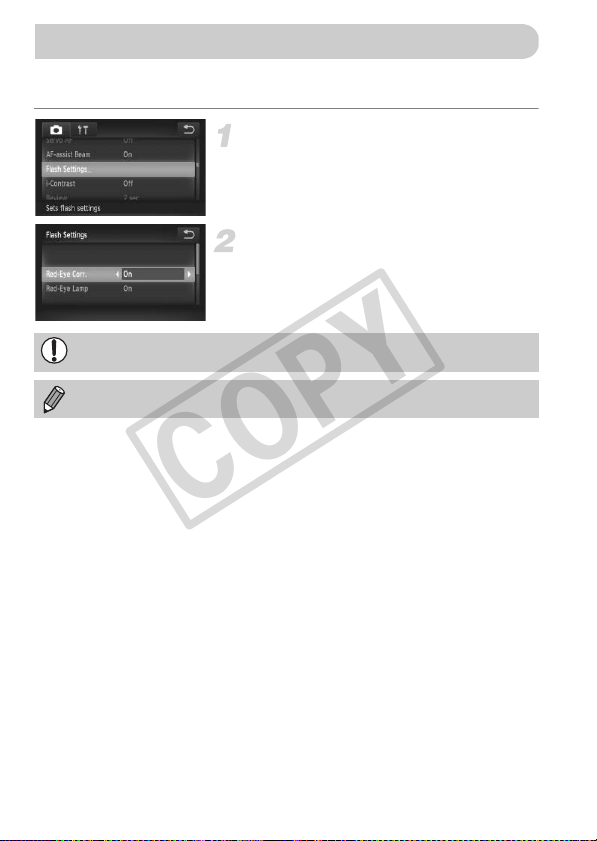
104
You can automatically correct red-eye that occurs in images taken with the
flash.
Choose [Flash Settings].
z Touch ø, then n and choose the
4 tab and touch [Flash Settings].
Choose the setting.
z Touch [Red-Eye Corr.], then touch qr to
choose [On].
X Once set, Πwill appear on the screen.
Red-Eye Correction
Red-eye correction may be applied to areas other than red eyes. For
example, when red make-up has been used around eyes.
You can also correct recorded images (p. 150).
COPY
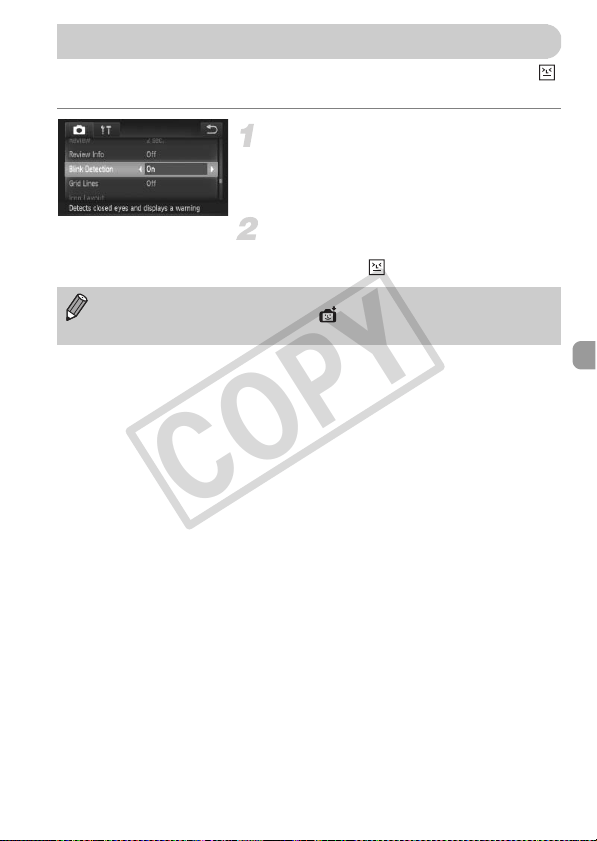
105
When the camera detects the possibility that people have their eyes shut,
appears on the screen.
Choose [Blink Detection].
z Touch ø, then n to choose the
4 tab. Touch [Blink Detection], then touch
qr to choose [On].
Shoot.
X When a person with shut eyes is detected,
a frame and appear on the screen.
Checking for Shut Eyes
• This function is only available for the last image shot when you have set
the camera to 2 or more shots in or $ mode.
• Not available in W mode.
COPY

106
COPY
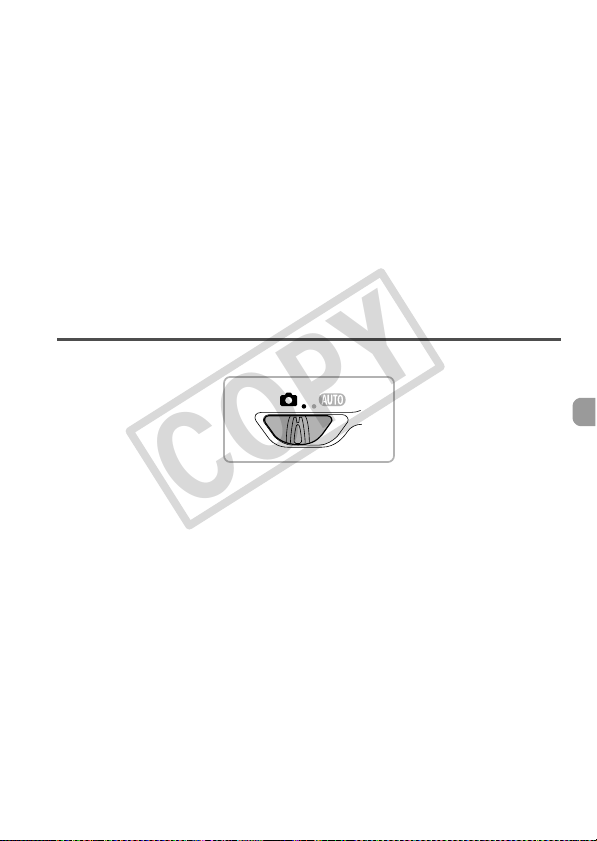
107
Getting More Out of Your
Camera
This chapter explains how to shoot in M and B modes.
6
COPY
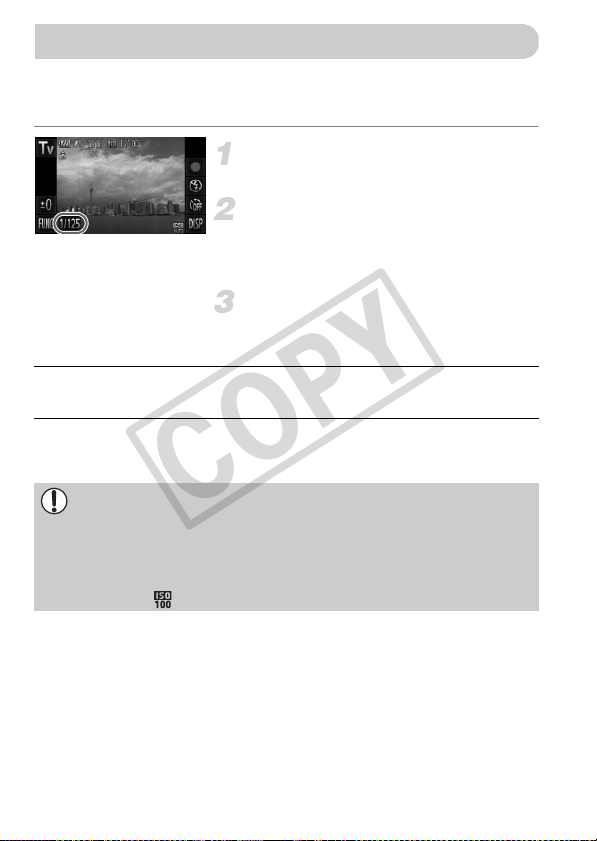
108
You can set the shutter to the speed at which you want to shoot. The camera
will set the appropriate aperture value for the shutter speed you set.
M stands for “Time value”.
Choose a Shooting mode.
z Follow Steps 1 – 2 on p. 64 to choose M.
Adjust the setting.
z Touch the [1/125].
z Touch the bar, or drag it left or right, to
choose a shutter speed, then touch Ú.
Shoot.
Available Shutter Speeds
• 2" indicates 2 seconds, 0"3 indicates 0.3 second and 1/160 indicates 1/160
second.
• Depending on the zoom position, some shutter speeds may not be available.
Setting the Shutter Speed
15", 13", 10", 8", 6", 5", 4", 3"2, 2"5, 2", 1"6, 1"3, 1", 0"8, 0"6, 0"5, 0"4, 0"3, 1/4, 1/5, 1/6,
1/8, 1/10, 1/13, 1/15, 1/20, 1/25, 1/30, 1/40, 1/50, 1/60, 1/80, 1/100, 1/125, 1/160, 1/200,
1/250, 1/320, 1/400, 1/500, 1/640, 1/800, 1/1000, 1/1250
• When shutter speeds of 1.3 seconds or slower are used, images are
processed to eliminate noise after being taken. A certain amount of
processing time may be needed before you can take the next shot.
• You should set the [IS Mode] to [Off] when lowering the shutter speed and
shooting with a tripod (p. 173).
• When shutter speeds of 1.3 seconds or slower are used, the ISO speed
is fixed to .
COPY
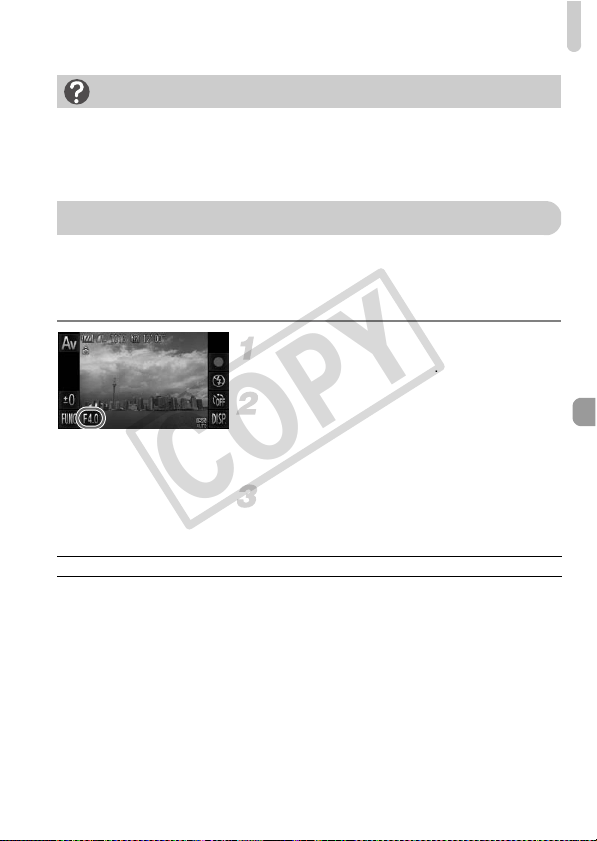
Setting the Aperture Value
109
You can set the aperture to a value at which you want to shoot. The camera
will set the appropriate shutter speed for the aperture value you set.
B stands for “Aperture value”, which refers to the size of the aperture
opening inside the lens.
Choose a Shooting mode.
z Follow Steps 1 – 2 on p. 64 to choose B.
Adjust the setting.
z Touch [F4.0].
z Touch the bar, or drag it left or right, to
choose an aperture value, then touch Ú.
Shoot.
Available Aperture Values
• Depending on the zoom position, some aperture values may not be available.
What if the aperture value appears in orange?
If the aperture value appears in orange when the shutter button is pressed
halfway, the scene has exceeded the correct exposure limits. Adjust the shutter
speed until the aperture value appears in white (Safety shift can also be used
(p. 110)).
Setting the Aperture Value
F2.0, F2.2, F2.5, F2.8, F3.2, F3.5, F4.0, F4.5, F5.0, F5.6, F5.8, F6.3, F7.1, F8.0
COPY

Setting the Aperture Value
110
What if the shutter speed appears in orange?
If the shutter speed appears in orange when the shutter button is pressed halfway,
the scene has exceeded the correct exposure limits. Adjust the aperture value
until the shutter speed appears in white. Safety shift can also be used (see below).
Safety Shift
In M and B, if you touch ø or n side to display the 4 tab, and set
[Safety Shift] to [On], the shutter speed or aperture value is automatically adjusted
for the correct exposure when it cannot otherwise be obtained.
Safety Shift is disabled when the flash is enabled.
COPY
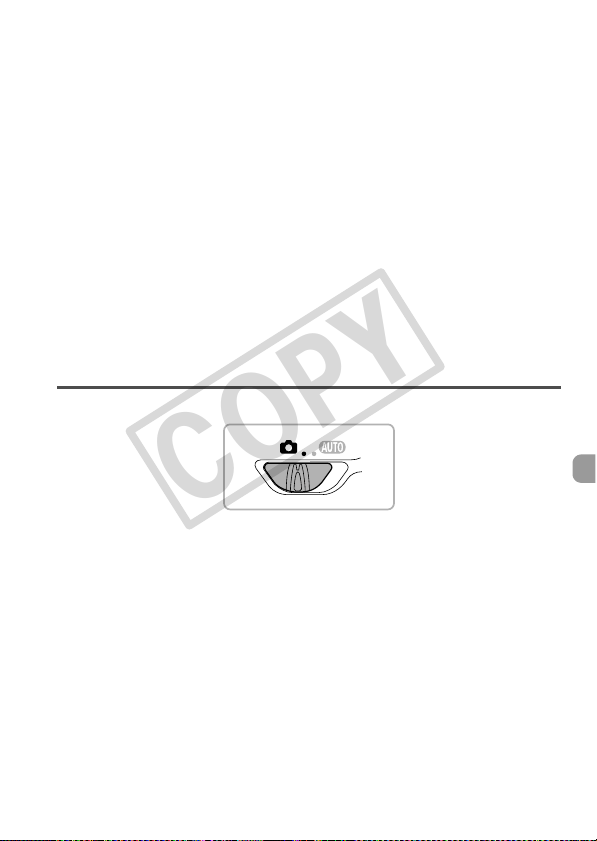
111
Using Various Functions for
Shooting Movies
This chapter serves as a more advanced version of the “Shooting
Movies” and “Viewing Movies” sections in Chapter 1, and explains how
to use various functions for shooting and viewing movies.
• This chapter assumes that you have set the mode switch to 4.
• The latter half of the chapter explaining movie playback and editing
assumes that you have pressed the 1 button to enter Playback mode.
7
COPY
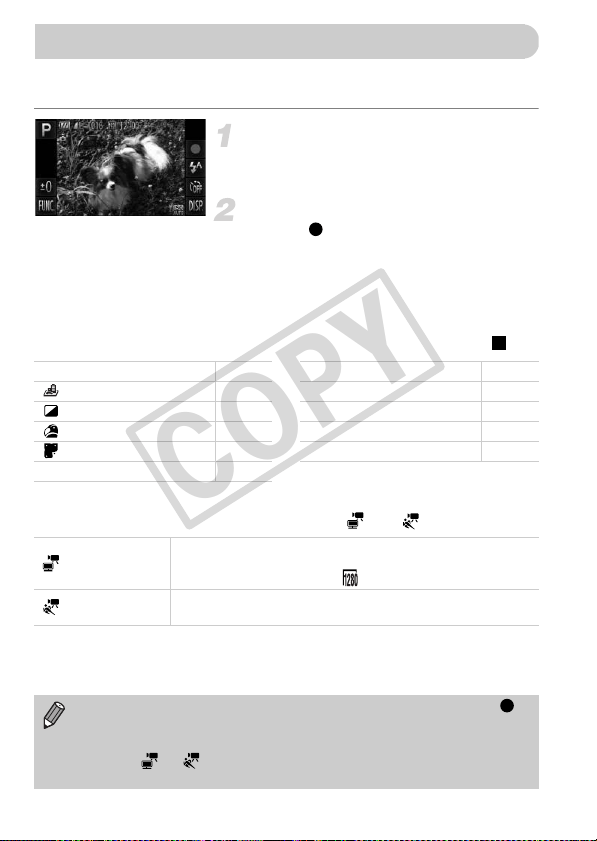
112
Just as with still images, you can let the camera select the best settings for
the scene or add various effects while shooting movies.
Choose a Shooting mode.
z Follow Steps 1 – 2 on p. 64 to choose a
Shooting mode.
Shoot.
z Touch .
X Depending on the Shooting mode or movie
image quality (p. 116) you choose, black
bars may appear on the sides of the
screen. These areas will not be recorded
when shooting.
z To stop shooting the movie, touch .
Other Shooting Modes
You can shoot the following kinds of movies in and modes.
Shooting Various Kinds of Movies
I Portrait p. 64 Y Color Swap p. 73
Miniature Effect p. 113 w Beach p. 65
Monochrome p. 74 O Foliage p. 65
Super Vivid p. 68 P Snow p. 66
Poster Effect p. 68 t Fireworks p. 66
T Color Accent p. 72
iFrame Movie
Shoots movies that can be edited with iFrame
*1
compatible
software
*2
or devices.
Recording pixels are fixed to (p. 116).
Super Slow
Motion Movie
Shoot fast moving subjects and play them back in slow motion
(p. 114).
*1 Video type advocated by Apple.
*2 You can quickly edit and save iFrame movies with version 6.7.2 or later of ZoomBrowser EX or
ImageBrowser. If you are using an earlier version of the software, download the latest version from the
Canon home page. You can check the version of the included software on the top of the CD-ROM (p. 2).
• You can also record movies in other Shooting modes by touching .
• Certain settings made in the FUNC. and Shooting menus will
automatically change to match settings for shooting movies.
• Even in or mode, you can shoot still images when you press the
shutter button. However, this is not possible while shooting a movie.
COPY
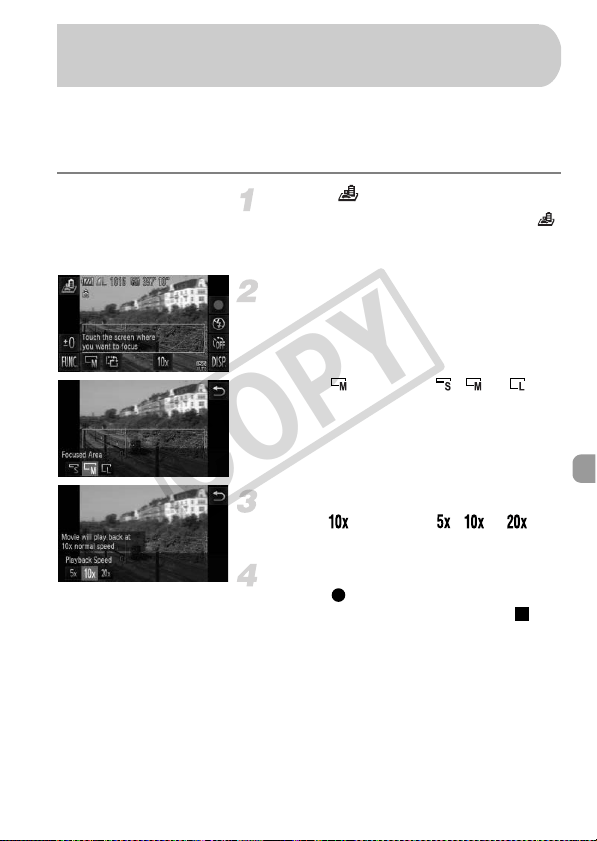
113
You can shoot movies that look like moving miniature models. You create the
miniature model effect by choosing the upper and lower portions of the scene
that will be blurred, and the playback speed, which makes people and objects
in the scene move quickly during playback. Audio will not be recorded.
Choose .
z Follow Steps 1 – 2 on p. 64 to choose .
X A white frame (the area that will not be
blurred) appears on the screen.
Choose the area to keep in focus.
z Touch the screen to change the area to
keep in focus.
z Touch , then touch , or to
change the size of the focused area and
touch Ú.
Choose a playback speed.
z Touch , then touch , or to
choose a playback speed and touch Ú.
Shoot.
z Touch .
z To stop shooting the movie, touch .
Shoot Movies That Look Like a Miniature
Model (Miniature Effect)
COPY
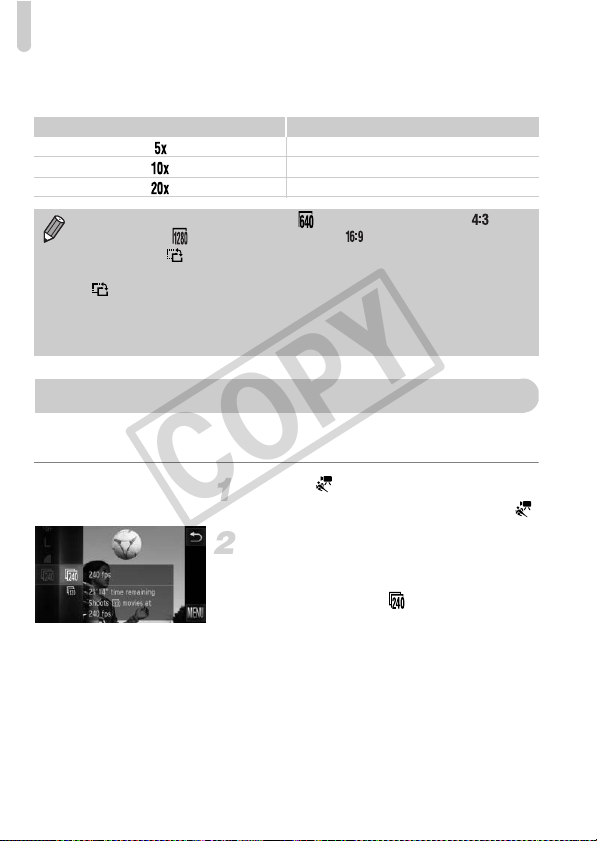
Shooting Super Slow Motion Movies
114
Playback Speeds and Estimated Playback Times (for 1 Min.
Clips)
You can shoot fast moving subjects and play them back in slow motion. Audio
will not be recorded.
Choose .
z Follow Steps 1 – 2 on p. 64 to choose .
Choose a frame rate.
z After touching ø, drag the menu
appearing on the left side of the screen up
or down to choose , then touch the
menu item again.
z Choose a frame rate (the number of
frames per second), then touch the menu
item again.
Speed Playback Time
Approx. 12 sec.
Approx. 6 sec.
Approx. 3 sec.
• The image quality will be fixed at when an aspect ratio of is
chosen, and when an aspect ratio of is chosen (p. 90).
• If you touch in Step 2, the frame will switch to vertical orientation and
you can change the area to keep in focus by touching the screen. Touch
again to return the frame orientation to horizontal.
• Holding the camera vertically will change the orientation of the frame.
• Since you may not achieve the expected results depending on the
shooting conditions, try taking some test shots first.
Shooting Super Slow Motion Movies
COPY
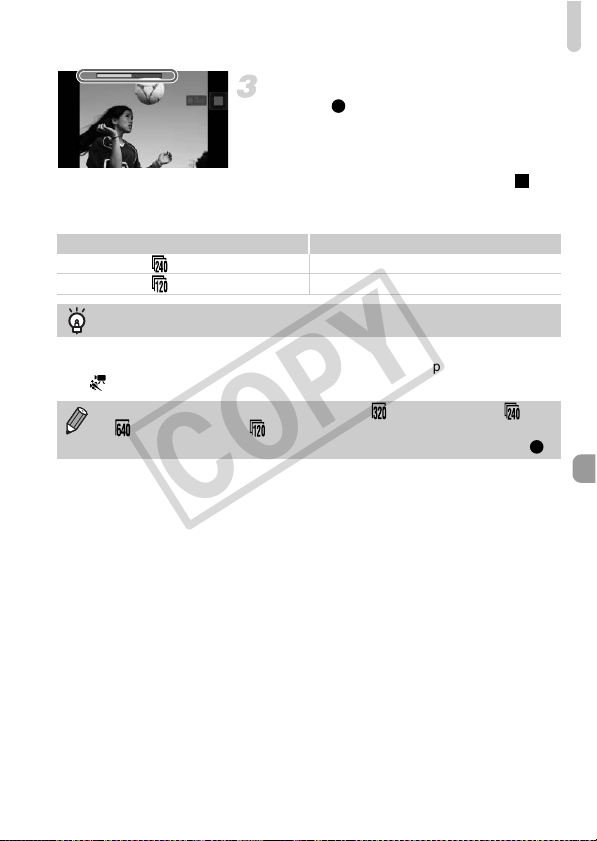
Shooting Super Slow Motion Movies
115
Shoot.
z Touch .
X The bar showing the shooting time will
appear. Maximum clip length is approx.
30 sec.
z To stop shooting the movie, touch .
Frame Rates and Playback Times (for 30 Sec. Clips)
Frame Rate Playback Time
240 fps Approx. 4 min.
120 fps Approx. 2 min.
Viewing super slow motion movies
• The movie will play back in slow motion when you follow Steps 1 – 3 on p. 33.
• You can use the included software to change the playback speed of movies shot
in mode. Refer to the Software Guide for details.
• The recording pixel setting will be fixed at when shooting in , and
when shooting in .
• The focus, exposure and white balance will be set when you touch .
COPY
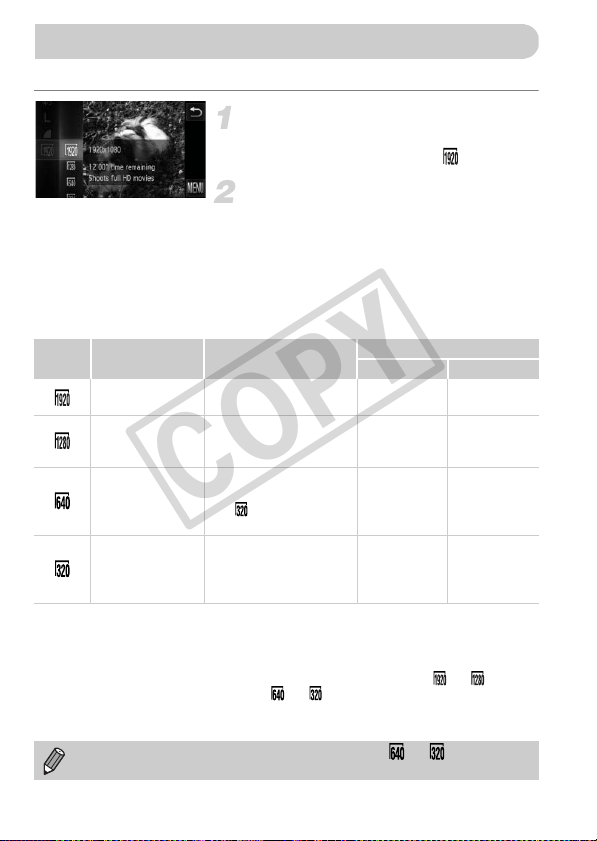
116
You can choose among 4 different image quality settings.
Choose the image quality setting.
z Touch ø, then drag up or down the
menu on the left to choose .
Choose an option.
z Touch an item you want to set.
z Touch the menu item again to complete
the setting.
X The option you set will appear on the
screen.
Image Quality and Shooting Time per Memory Card
• Based on Canon’s testing standards.
• Recording will automatically stop when the clip file size reaches 4 GB, or when the
recording time reaches approximately 10 minutes when shooting in or , and
approximately 1 hour when shooting in or .
• Recording may stop even if the maximum clip length has not been reached on some
memory cards. SD Speed Class 6 or higher memory cards are recommended.
Changing the Image Quality
Image
Quality
Recording Pixels,
Frame Rate
Content
Memory Card Capacity
4GB 16 GB
1920 x 1080 pixels,
24 frames/sec.
For shooting full
high-definition movies.
Approx.
14 min. 34 sec.
Approx.
59 min. 40 sec.
1280 x 720 pixels,
30 frames/sec.
For shooting
high-definition movies.
Approx.
20 min.
43 sec.
*1
Approx.
1 hr. 24 min.
54 sec.
*2
640 x 480 pixels,
30 frames/sec.
The image quality will be
higher when compared
with , but the recording
time will be shorter.
Approx.
43 min. 43 sec.
Approx.
2 hr. 59 min.
3sec.
320 x 240 pixels,
30 frames/sec.
Since the file size is small,
shooting time will
increase, but the image
quality will decrease.
Approx.
1 hr. 58 min.
19 sec.
Approx.
8hr. 4min.
30 sec.
*1 13 min. 35 sec. for iFrame movies (p. 112).
*2 55 min. 38 sec. for iFrame movies (p. 112).
Black bars will appear on the sides of the screen in or . These areas
will not be recorded when shooting.
COPY
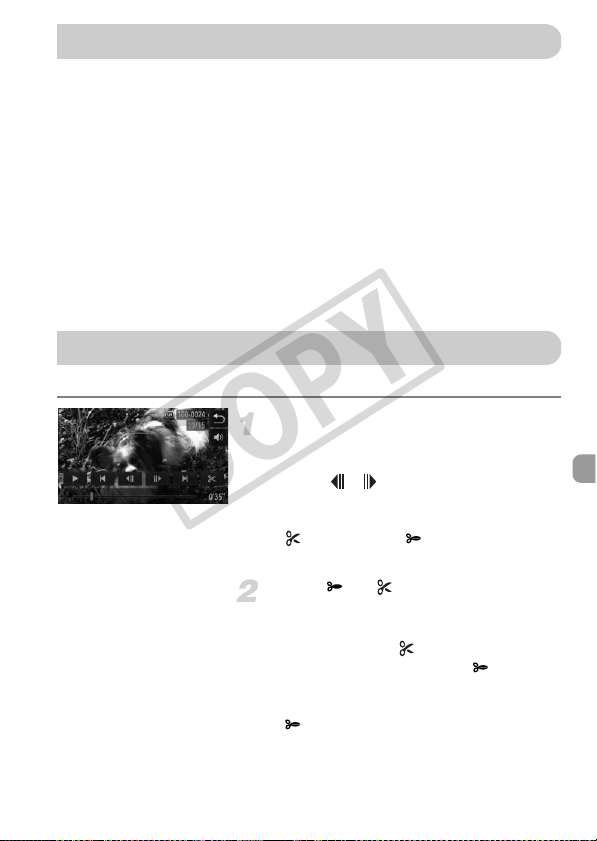
117
The following functions can be used in the same way as for still images. Some
functions, however, may not be available or may not have an effect
depending on the Shooting mode.
• Zooming in More Closely On Subjects
The sound of zoom operations will be recorded.
• Using the Self-Timer (p. 58)
• Using the Self-Timer to Prevent Camera Shake (p. 59)
• Adjusting the White Balance (p. 86)
• Changing the Tone of an Image (My Colors) (p. 92)
• Shooting with the AF Lock (p. 99)
• Turning Off the AF Assist Beam (p. 171)
• Displaying Grid Lines (p. 172)
• Changing the IS-Mode Settings (p. 173)
• Changing Icon Order (Icon Layout) (p. 174)
You can trim the beginnings and ends of recorded movies.
Choose *.
z Touch the screen during movie playback to
display the movie control panel.
z Touch , or the scroll bar to change
the displayed frame (frames are the basic
units that make up a movie).
X will change to at points where you
can edit the movie.
Touch or .
X [Delete section of movie] will appear on the
screen.
z Even if you touch when it appears, only
the portion from the nearest to the left
will be trimmed when [Cut Beginning] is
chosen. Only the portion from the nearest
to the right will be trimmed when [Cut
End] is chosen.
Other Shooting Functions
Editing
COPY
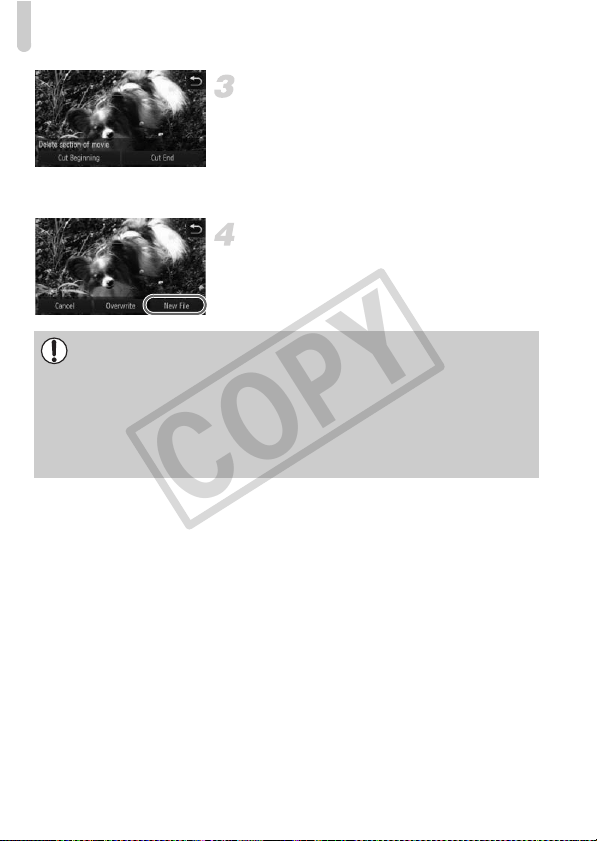
Editing
118
Choose a portion to delete.
z Touch [Cut Beginning] or [Cut End].
z [Cut Beginning] will delete from the
beginning of the movie to the currently
displayed scene.
z [Cut End] will delete from the currently
displayed scene to the end of the movie.
Save the edited movie.
z Touch [New File].
X The movie will be saved as a new file.
z To cancel editing, touch [Cancel].
z To reset the editing range, touch Ú.
• When [Overwrite] is chosen in Step 4, the unedited movie is overwritten
with the edited movie, erasing the original.
• When there is not enough space left on the memory card, only [Overwrite]
can be chosen.
• If the battery is depleted partway through saving, the edited movie clips
may not be saved.
• When editing movies, you should use a fully charged battery, or an AC
adapter kit (sold separately) (p. 39).
COPY
119
Using Various Playback and
Editing Functions
This chapter explains various ways to play back and edit images.
• Press the 1 button to enter Playback mode before operating the camera.
• It may not be possible to play back or edit images that have been edited
on a computer, have had their file names changed, or have been taken
on a different camera.
• The edit function (pp. 145 – 150) cannot be used if the memory card does
not have enough free space available.
8
COPY
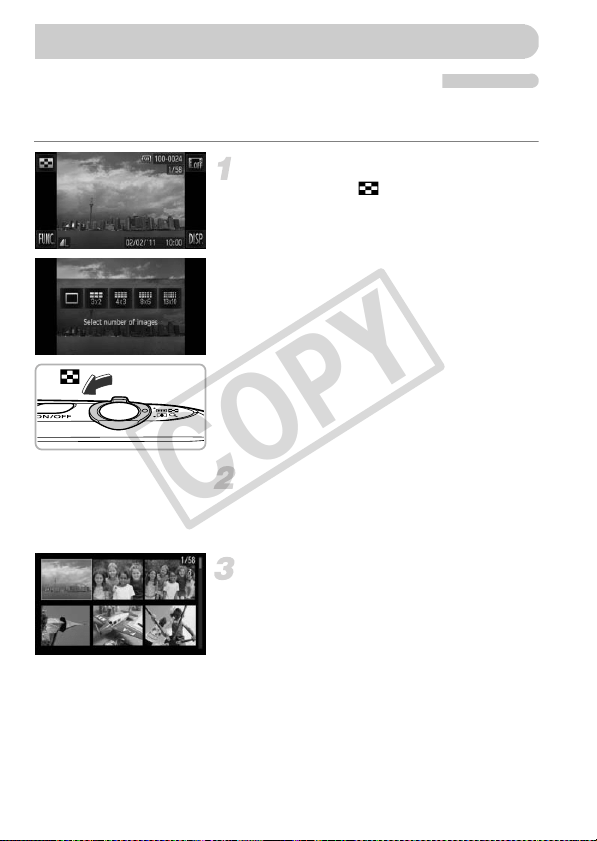
120
Searching Images Using Index Display
Displaying multiple images at the same time lets you quickly find the image
you want.
Display images in an index.
z After touching , touch the number of
images you want to display.
X Images will display in an index.
z You can also move the zoom lever toward
g to display images in an index. Move the
zoom lever toward k to reduce the
number of images.
Switch the displayed images.
z If you drag up or down the screen, images
will switch with the movement of your
finger.
Choose an image.
z Touch an image to chose it, then touch it
again to display it in single image
playback.
z You can also drag across the screen to
move the orange frame, then move the
zoom lever toward k to display an image
by itself.
Quickly Searching Images
COPY
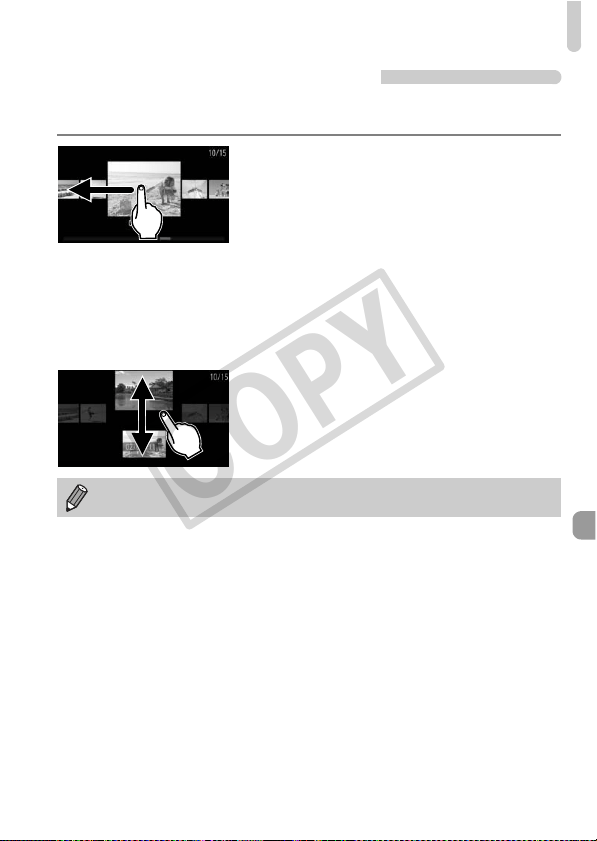
Quickly Searching Images
121
Searching Images by Scrolling
Dragging across the screen will display images in a line letting you quickly
search them. You can also jump by the shooting date (Scroll Display).
Choose an image.
z You can switch between images in single
image playback by dragging across the
screen.
Continuously dragging quickly across the
screen will display the screen on the left
(Scroll Display).
In this display, drag across the screen to
choose images.
z Touching the center image restores single
image playback.
z While in Scroll Display, if you quickly drag
up or down the screen, you can search
images by the shooting date.
To turn off this effect, touch ø and then n. Choose [Scroll
Display] in the 1 tab, then touch qr to choose [Off].
COPY
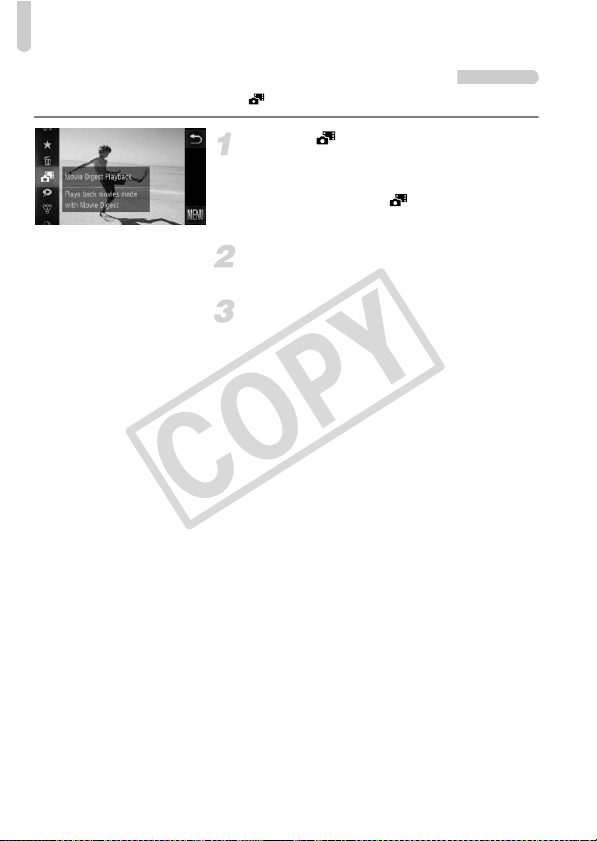
Quickly Searching Images
122
Viewing Movies Made with Movie Digest
You can select movies made in mode (p. 67) by date for viewing.
Choose .
z After touching ø, drag the menu
appearing on the left side of the screen up
or down to choose , then touch the
menu item again.
Choose a movie date.
z Touch a date to choose it.
Play the movie.
z Touch the date chosen in Step 2.
X The movie will play.
COPY

123
When there are many images on the memory card, you can filter and display
them by a specified filter. You can also protect (p. 137) or delete (p. 139) all
images at once while filtered.
Choose ‚.
z Touch ø, then drag up or down the
menu to the left to choose ‚.
Choose a filter.
z Touch an item you want to set.
z If you drag up or down the menu on the
right, other items will appear.
z Touch the item you chose again to
complete the setting.
View the filtered images.
z Touch the desired filter, then touch it again
(except for ).
X Filtered playback starts and a yellow frame
appears.
z If you drag across the screen, only the
chosen target images will display.
z If you choose in Step 2, filtered
playback will be canceled.
Search filters
Viewing Images in Filtered Playback
Favorites Displays the images tagged as favorites (p. 141)
Shot Date Displays the images shot on a specified date
My Category Displays the images of a specified category (p. 143)
Still image/Movie Displays still images, movies or movies made in mode.
What if you cannot choose a filter?
Filters that do not have any corresponding images cannot be chosen.
;
COPY
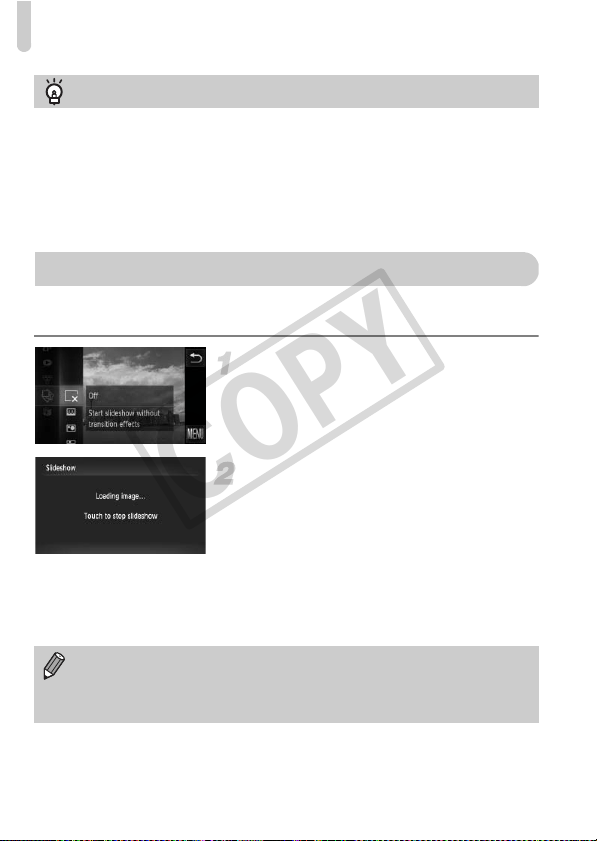
Viewing Slideshows
124
You can automatically play back images recorded to a memory card. Each
image displays for approximately 3 seconds.
Choose ..
z After touching ø, drag the menu
appearing on the left side of the screen up
or down to choose ., then touch the menu
item again.
Choose a transition effect.
z Touch an effect to choose it.
z Touch the menu item again to complete
the setting.
X The slideshow will start a few seconds
after [Loading image...] appears.
z In filtered playback (p. 123), only images
matching a filter play back.
z Touch the screen to stop the slideshow.
Filtered playback
In filtered playback (Step 3), you can view filtered images with “Quickly Searching
Images” (p. 120), “Viewing Slideshows” (p. 124), and “Magnifying Images”
(p. 127). You can process all filtered images at once while performing operations
in “Protecting Images” (p. 137), “Erasing Images” (p. 139), or “Printing from the
Print List (DPOF)” (p. 159), by choosing all of the filtered images.
However, if you change the category (p. 143), or edit an image and save it as a
new image (p. 145), a message will appear, and filtered playback will cancel.
Viewing Slideshows
• You can switch images if you lightly tap the camera (p. 29) during a
slideshow (Active Display).
• The power saving function (p. 52) does not work during slideshows.
• You can also use Touch Actions to start a slideshow (p. 131).
COPY
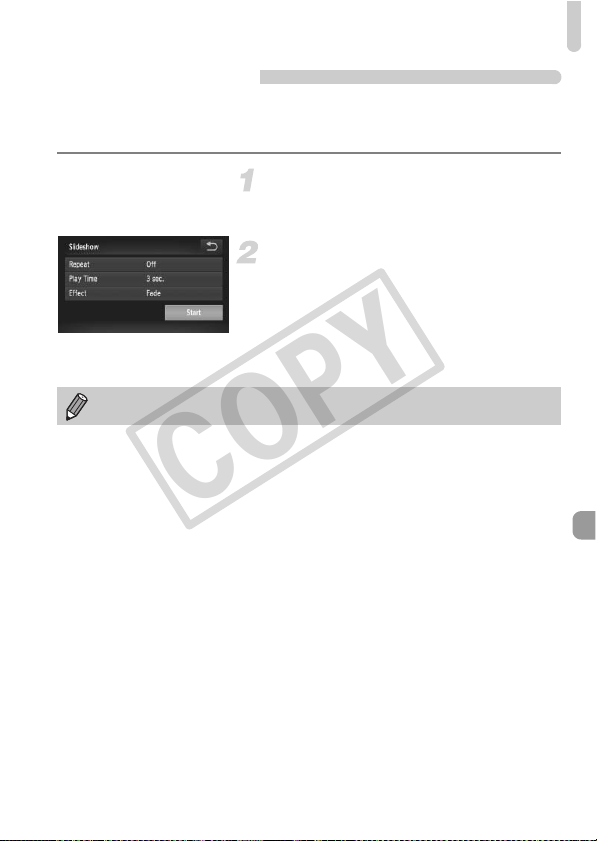
Viewing Slideshows
125
Changing Settings
You can set a slideshow to repeat, or change transition effects and the time
that slideshow images are displayed. You can choose from 6 transition
effects when switching between images.
Choose [Slideshow].
z Touch ø, then n to choose the
1 tab, and touch [Slideshow].
Choose a setting.
z Touch an item, then touch qr to make the
setting.
z If you touch [Start], the slideshow starts
with your settings.
z Touching the screen during playback will
restore the menu screen.
You cannot change [Play Time] if [Bubble] is chosen in [Effect].
COPY
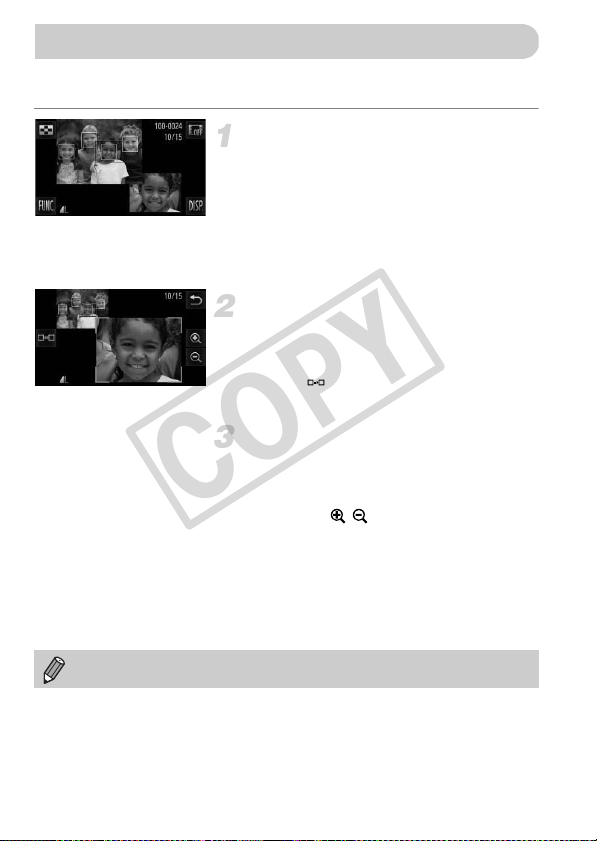
126
You can magnify the area of a recorded image that was inside the AF Frame
to check the focus.
Touch l to switch the focus
check display (p. 44).
X A white frame will appear where the AF
frame was when the focus was set.
X A gray frame will appear on a face
detected during playback.
X The area within the orange frame appears
magnified.
Switch frames.
z Touch the lower right image, or move the
zoom lever toward k once.
X The screen shown on the left will appear.
z Touch to move to a different frame
when multiple frames appear.
Change the magnification level or
location.
z Moving the zoom lever, or touching the
magnified image on the lower right of the
screen, or will change the displayed
magnification rate.
z If you drag across the image on the lower
right, you can move the location of the
displayed area.
z Touching Ú, or the image in the upper left
resets the display to Step 1.
Checking the Focus
The focus check display is not available for movies.
COPY
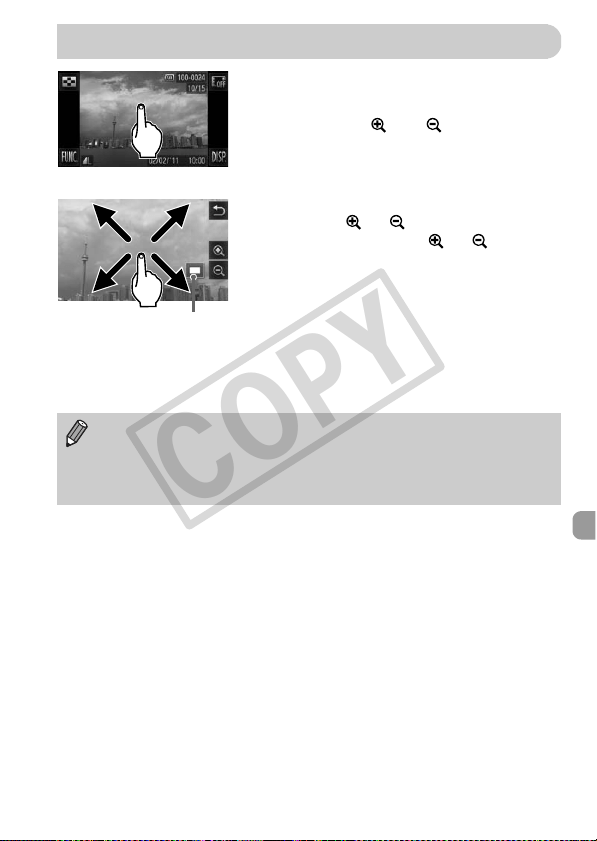
127
Magnify an image.
z When you touch the screen, the image will
magnify and and will appear.
z If you keep your finger on the screen, the
display will continue to zoom on that part of
the image up to a factor of 10x.
z You can also zoom in or out on images by
touching or .
If you touch and hold or , the
display will continue zoom in or out on the
image.
z If you drag across the screen, you can
move the location of the displayed area.
z Touch Ú to restore single image playback.
z You can also tap the side of the camera
gently (p. 29) to switch between images at
the same zoom factor (Active Display).
Magnifying Images
Approximate Location of
Displayed Area
• If you move the zoom lever toward k, the display will zoom in on the
image and, if you continue to hold the zoom lever, it will continue to zoom
in up to a maximum factor of 10x. To zoom out, move the zoom lever
toward g, or continue to hold it to return to single image playback.
• Movies cannot be magnified.
COPY
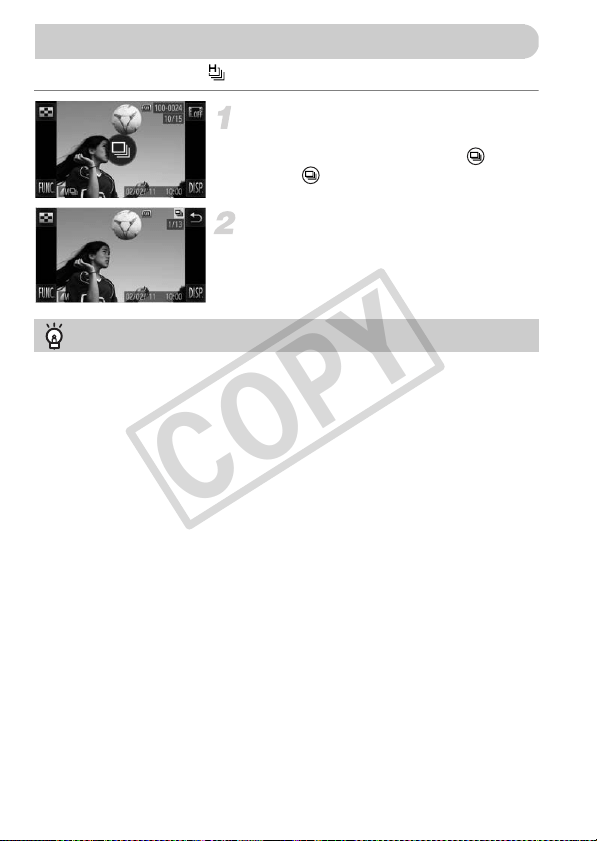
128
Grouped images taken in mode (p. 80) can also be viewed individually.
Choose an image group.
z Drag left or right across the screen to
choose an image that displays , then
touch .
View each image in the group.
z If you drag left or right across the screen
only the images in the group will be
displayed.
z Touch Ú to exit group playback.
Viewing Each Image in a Group
Group playback
In group playback (Step 2 above), you can use the FUNC. menu functions that
appear when you touch ø, as well as search (p. 120) and magnify (p. 127)
images. You can process all the images in a group at once while performing
operations in “Protecting Images” (p. 137), “Erasing All Images” (p. 139), or
“Printing from the Print List (DPOF)” (p. 159), by choosing a set of grouped
images.
COPY
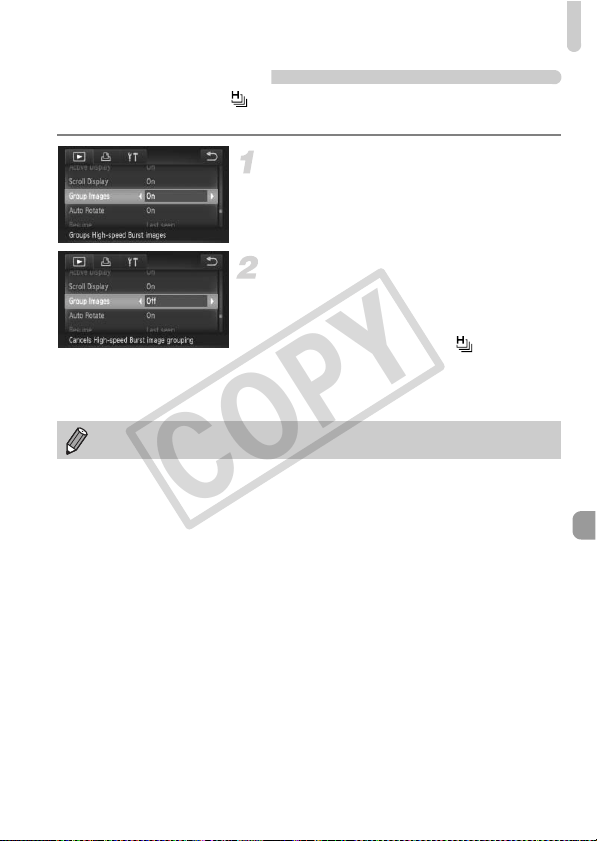
Viewing Each Image in a Group
129
Ungrouping Images
Grouped images taken in mode can be ungrouped and viewed
individually.
Choose [Group Images].
z Touch ø and then n to choose
[Group Images] in the 1 tab.
Choose a setting.
z Touch qr to choose [Off].
z Touch Ú to complete the setting and
restore single image playback.
X Grouped images taken in mode are
ungrouped and appear individually.
z To regroup the images, follow the steps
above and select [On].
Grouping cannot be canceled while viewing images individually (p. 128).
COPY
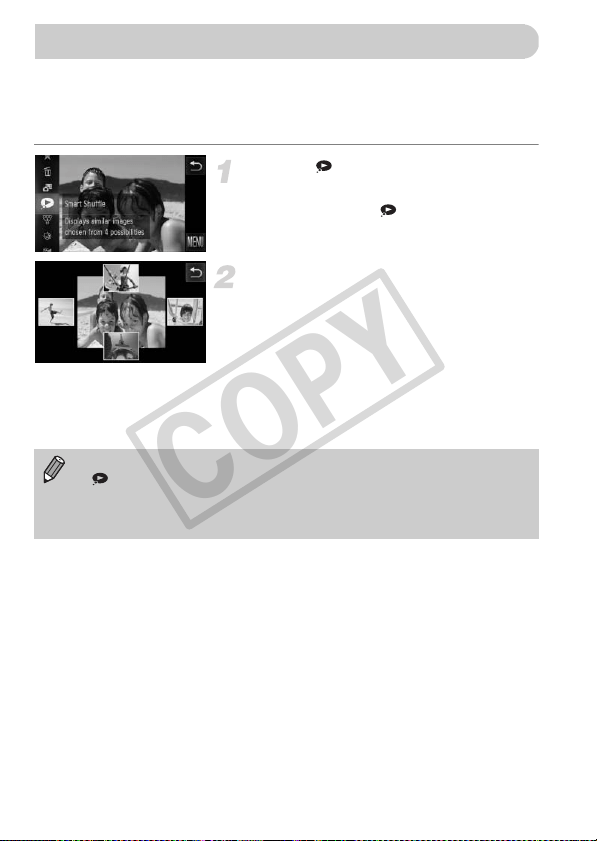
130
The camera will choose four images based on the displayed image.
If you choose one of those images, the camera will select four more images
letting you enjoy playing back images in an unexpected order.
This will work best if you take many shots of various scenes.
Choose .
z Touch ø, then drag up or down the
screen to choose .
X Four images will appear as possibilities.
Choose an image.
z Touch the image you want to view next.
X The chosen image will be displayed in the
middle, and the next four possibilities will
appear.
z If you touch the image in the center of the
screen, it will display full-screen. Touch the
screen to restore the original display.
z Touch Ú to return to single image view.
Displaying Various Images (Smart Shuffle)
• Only still images shot with this camera will play back in Smart Shuffle.
• is not available in the following situations:
- If there are less than 50 images taken with this camera on the memory card
- If you play back images not supported by Smart Shuffle
- During filtered playback
COPY
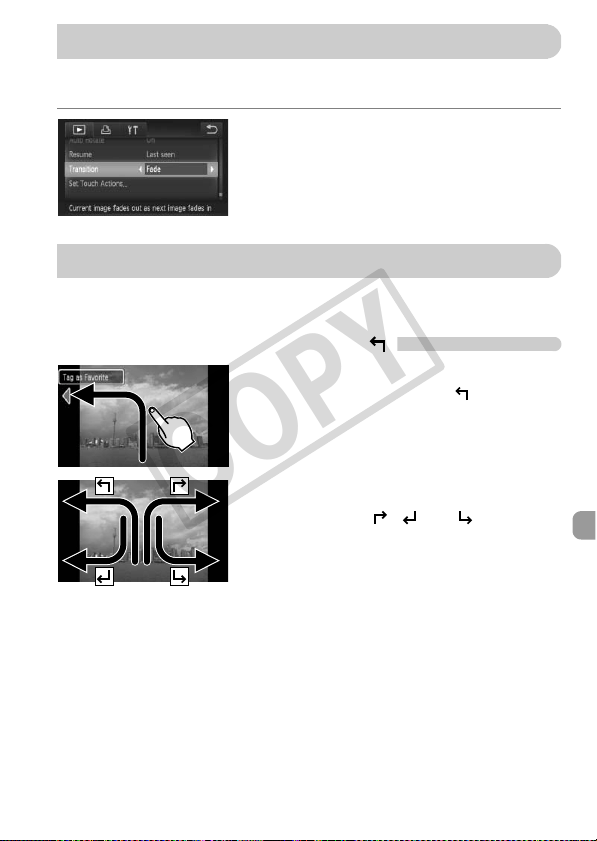
131
You can choose from 3 transition effects when switching between images in
single image playback.
Choose [Transition].
z Touch ø and then n to choose
[Transition] in the 1 tab, then touch qr to
choose an effect.
In single image playback, you can quickly and easily call up functions that
have been registered to each of four set dragging patterns (Touch Actions).
Use a Function Registered to
z Drag across the screen as shown.
X The function registered to will be called
up.
z By dragging across the screen as shown,
you can also call up the functions
registered to , and .
z You can change the functions registered to
Touch Actions.
Changing Image Transitions
Easy Operations with Touch Actions
COPY
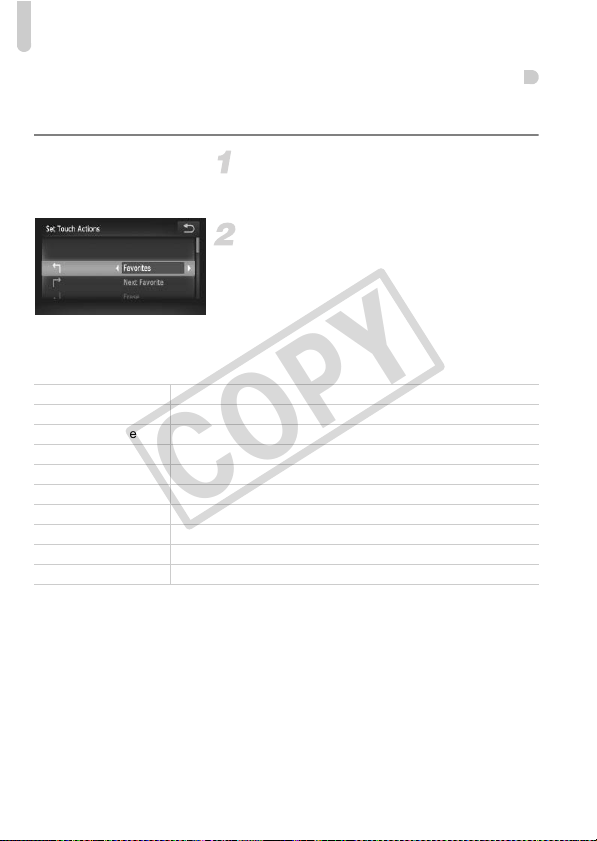
Easy Operations with Touch Actions
132
Changing Touch Actions Registered Functions
You can register the functions you want to use easily to each of the drag
patterns.
Choose [Set Touch Actions].
z Touch ø, then n to choose the
1 tab, and touch [Set Touch Actions].
Register a function to a drag
pattern.
z Drag up or down the screen to choose a
drag pattern.
z Touch qr to choose the function to
register.
Functions that Can be Registered
Favorites Tag or untag images as favorites.
Next Favorite Switch to the next image tagged as a favorite
Previous Favorite Switch to the previous image tagged as a favorite.
Next Date Switch to first image with the next shooting date.
Previous Date Switch to first image with the previous shooting date.
Smart Shuffle Start Smart Shuffle playback.
Slideshow View a slideshow.
Erase Erase an image.
Protect Protect or unlock images.
Rotate Rotate an image.
COPY
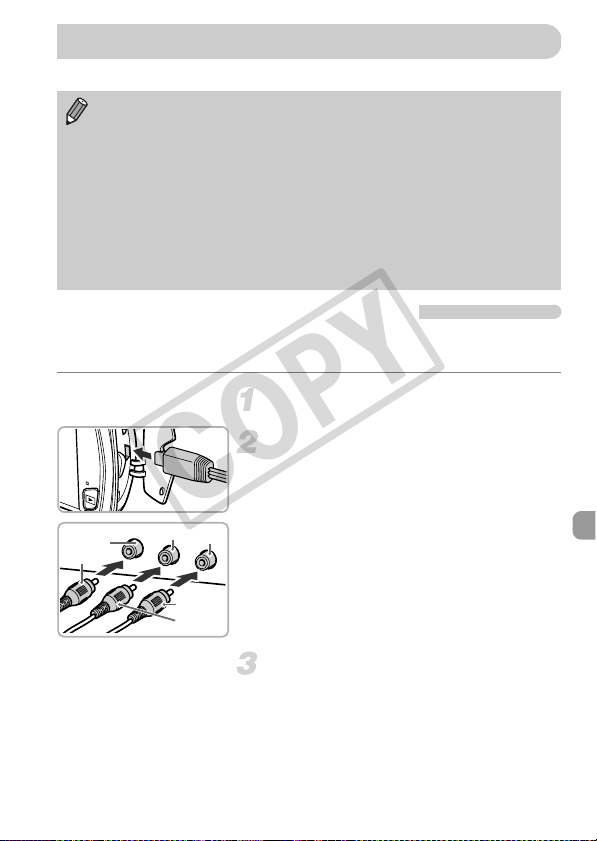
133
You can connect the camera to a TV to view images you have shot.
Viewing Images on a Standard TV
Using the supplied stereo AV cable (p. 2), you can connect the camera to a
TV and control the camera.
Turn off the camera and TV.
Connect the camera to the TV.
z Open the camera’s terminal cover and fully
insert the cable plug into the camera’s
terminal.
z Insert the cable plug fully into the video
input terminals as shown in the illustration.
Turn on the TV and switch it to the
input the cable is connected to.
The following functions are available when you perform operations with the
camera:
• Switching images
Drag across the screen, or tap the camera lightly with your finger (pp. 28, 29).
• Movie playback (p. 33)
• Magnification (p. 127)
Move the zoom lever toward k.
• Group playback (p. 128)
• Touch Actions (p. 131)
Smart Shuffle and image erase cannot be called up.
Since nothing will appear on the camera’s screen, look at the TV while
using the camera screen to perform operations.
Viewing Images on a TV
Yellow
White
White
Yellow
Red
Red
COPY
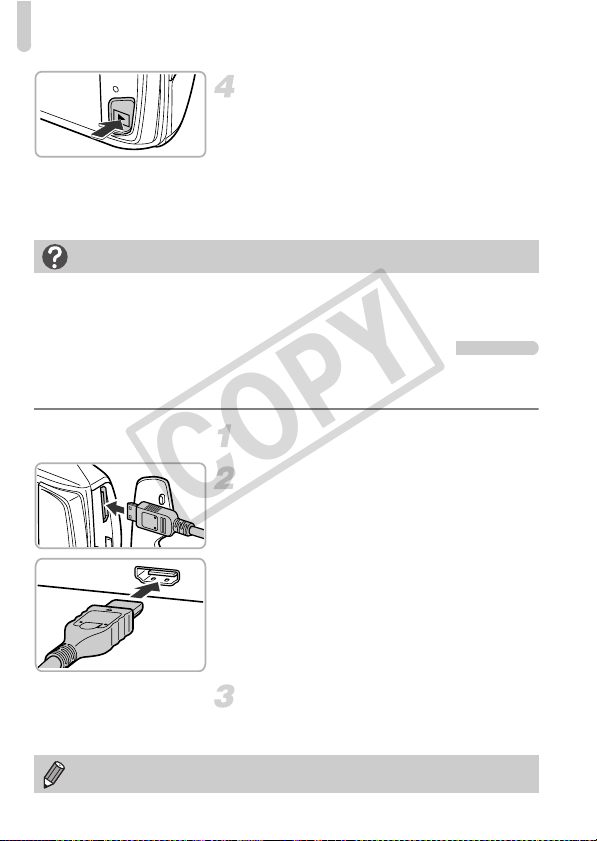
Viewing Images on a TV
134
Turn on the camera.
z Press the 1 button to turn on the camera.
X The image will appear on the TV (nothing
will appear on the screen of the camera).
z Use the camera screen to perform
operations.
z After you finish, turn off the camera and
TV, and unplug the cable.
Viewing Images on a High-Definition TV
Using the separately sold HDMI Cable HTC-100, you can connect the camera
to an HD TV and control the camera.
Turn off the camera and TV.
Connect the camera to the TV.
z Open the camera’s terminal cover and fully
insert the cable plug into the camera’s
terminal.
z Fully insert the cable plug into the TV’s
HDMI input.
Display images.
z Follow Steps 3 and 4 on p. 133 to display
the images.
What if the images don’t display correctly on the TV?
Images will not display correctly if the camera’s video output setting (NTSC/PAL)
does not match the TV system. Touch ø then n to choose the 3 tab,
then choose [Video System] to switch to the correct video system.
Operation sounds will not play when connected to an HD TV.
COPY
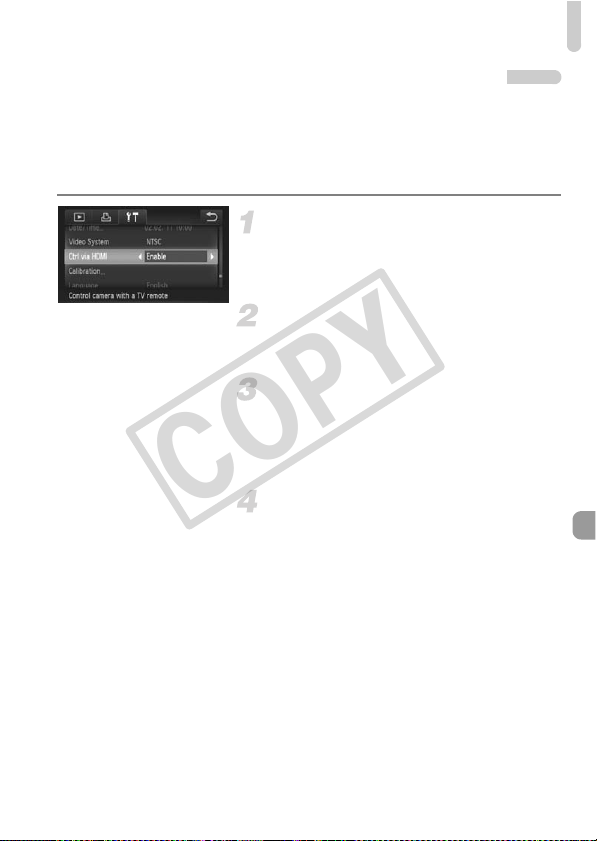
Viewing Images on a TV
135
Using a TV Remote to Control the Camera
When you connect the camera to an HDMI CEC compatible TV, you can use
the TV’s remote control to operate the camera and play back images or view
slideshows.
You may need to make settings on some TVs. For details, refer to the user
guide supplied with the TV.
Choose [Ctrl via HDMI].
z Touch ø and then n to choose
[Ctrl via HDMI] in the 3 tab, then touch
qr to choose [Enable].
Connect the camera to the TV.
z Follow Steps 1 – 2 on p. 134 to connect the
camera to the TV.
Display images.
z Turn on the TV and press the camera’s 1
button.
X The image will appear on the TV (nothing
will appear on the screen of the camera).
Use the TV’s remote control.
z Press the remote control’s qr buttons to
choose an image.
z Press the OK/Select button to display the
camera control panel. Press the qr
buttons to choose an item, then press the
OK/Select button again.
COPY
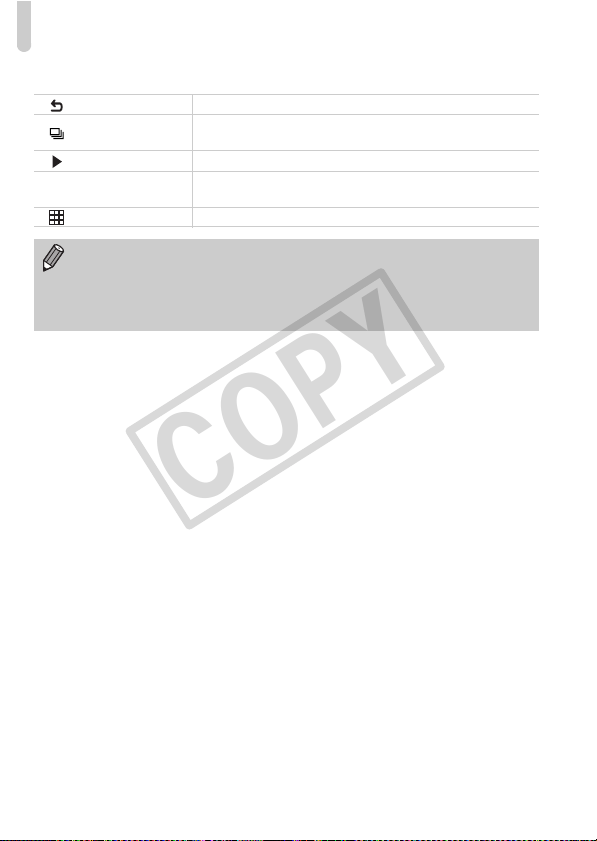
Viewing Images on a TV
136
Summary of the Camera Control Panel Displayed on the TV
Return Closes the menu.
Group playback
Displays groups of High-speed Burst images (only appears
when grouped images are chosen).
Play movie Plays a movie (only appears when a movie is chosen).
.
Slideshow
Plays back images automatically. During playback, you can
press the remote control’s qr buttons to switch images.
Index playback Displays images in an index.
• If you move the zoom lever and change the display, you will not be able
to control the camera with the TV’s remote control unit you return to single
image playback.
• Some TVs may not be able to control the camera properly even though
they are HDMI CEC compatible.
COPY
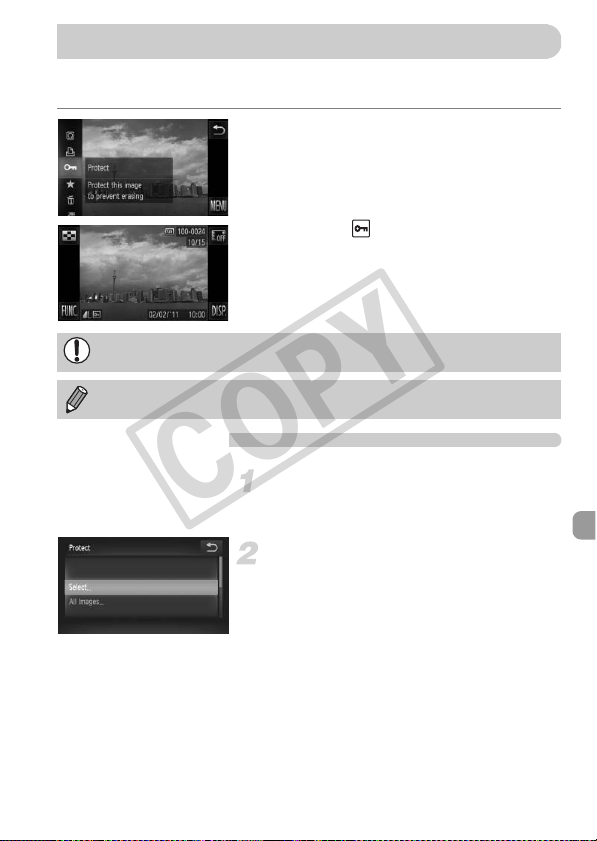
137
You can protect important images so that they cannot be accidentally erased
with the camera (pp. 30, 139).
Protect the image.
z Touch ø, then drag up or down the
menu to the left to choose :.
X Once set, will appear on the screen.
z To unlock an image, touch ø again,
then drag up or down the screen to choose
:.
Using the Menu
Choose [Protect].
z Touch ø, then n to choose the
1 tab, and touch [Protect].
Choose a selection method.
z Touch a selection method.
z Touch Ú to return to the menu screen.
Protecting Images
If you format the memory card (pp. 23, 165), protected images will also be
erased.
Protected images cannot be erased with the camera’s erase function. To
erase an image, cancel protection settings first.
COPY
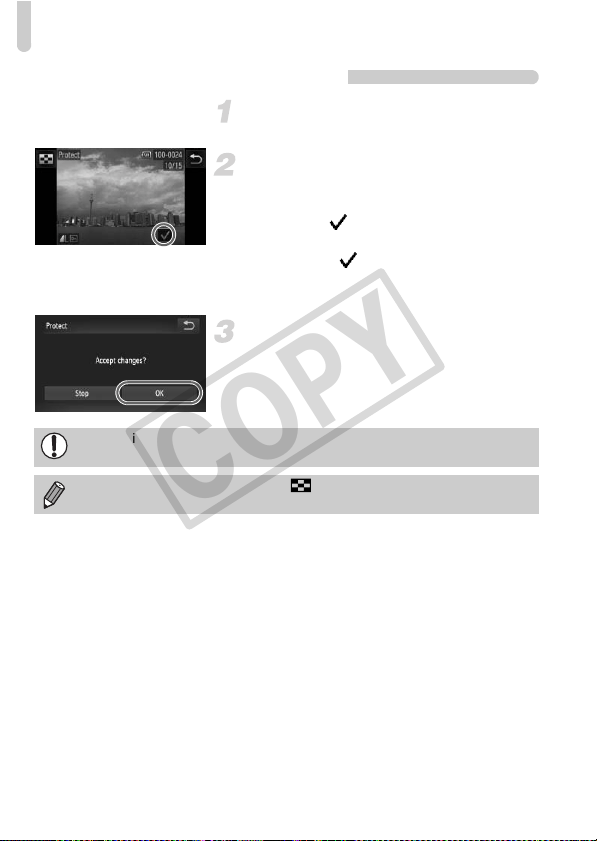
Protecting Images
138
Choosing Images Individually
Choose [Select].
z Follow Step 2 on p. 137 to touch [Select].
Choose images.
z Drag on the screen to choose an image,
then touch the screen.
X Once set, will appear on the screen.
z Touching the screen again deselects the
image, and disappears.
z To choose multiple images, repeat the
above operation.
Protect the image.
z If you touch Ú, a confirmation screen will
appear.
z Touch [OK].
X The images will be protected.
If you switch to Shooting mode or turn off the power before performing the
operations in Step 3, images will not be protected.
To choose multiple images, touch in the upper left of the screen and
touch the images you want.
COPY
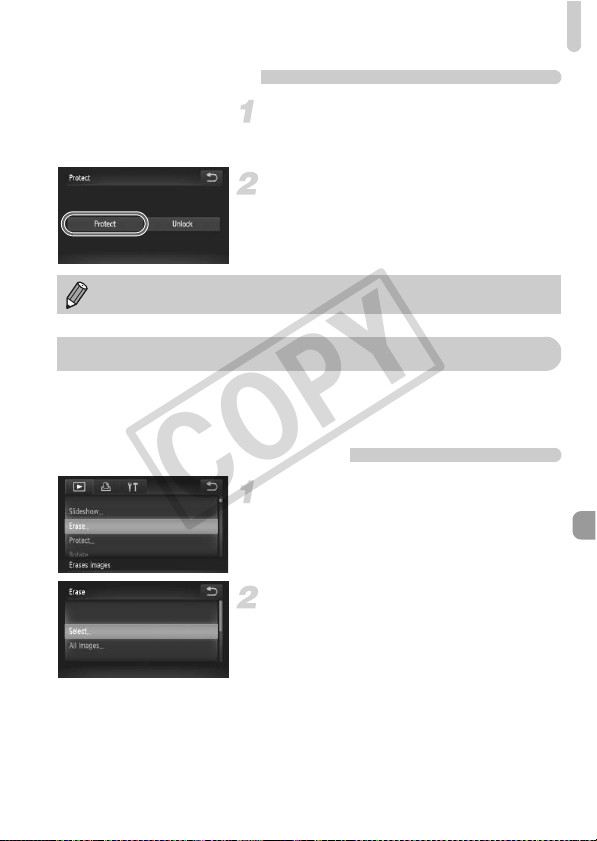
Erasing All Images
139
Choose All Images
Choose [All Images].
z Follow Step 2 on p. 137 to touch [All
Images].
Protect images.
z Touch [Protect].
You can choose images and then erase them in groups. Since erased images
cannot be recovered, exercise adequate caution before erasing. Protected
images (p. 137) cannot be erased.
Choose a Selection Method
Choose [Erase].
z Touch ø, then n to choose the
1 tab, and touch [Erase].
Choose a selection method.
z Touch a selection method.
z Touch Ú to return to the menu screen.
You can unlock groups of protected images if you choose [Unlock] in
Step 2.
Erasing All Images
COPY
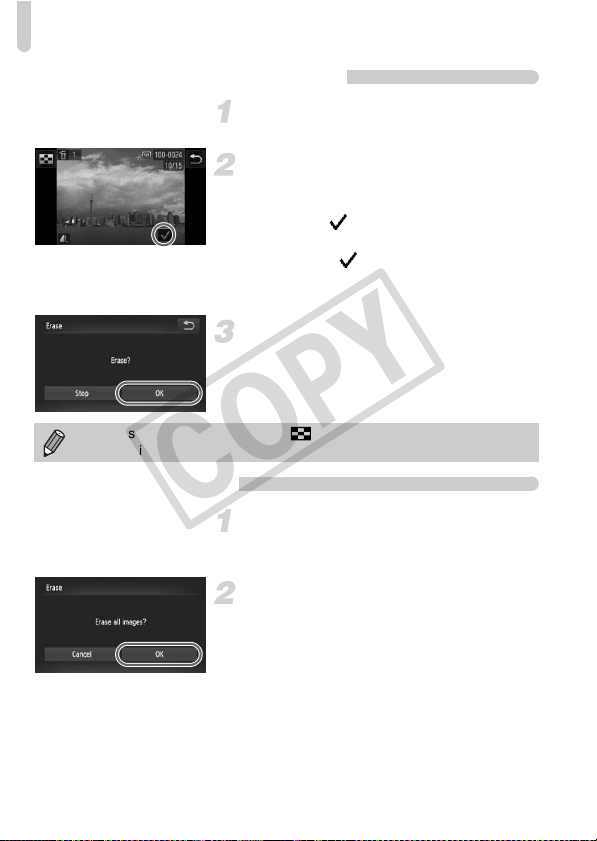
Erasing All Images
140
Choosing Images Individually
Choose [Select].
z Follow Step 2 on p. 139, touch [Select].
Choose an image.
z Drag across the screen to choose an
image, then touch the screen.
X Once set, will appear on the screen.
z Touching the screen again deselects the
image, and disappears.
z To choose multiple images, repeat the
above operation.
Erase.
z If you touch Ú, a confirmation screen will
appear.
z Touch [OK].
Choose All Images
Choose [All Images].
z Follow Step 2 on p. 139, touch [All
Images].
Erase.
z Touch [OK].
To choose multiple images, touch in the upper left of the screen and
touch the images you want.
COPY
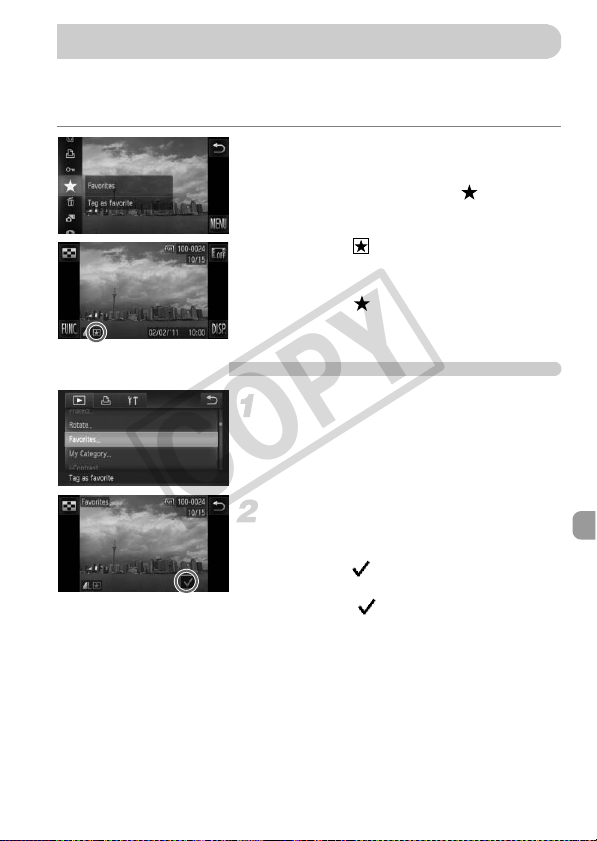
141
When you tag images as favorites, you can easily categorize just those
images. You can also filter out just those images for viewing, protecting or
erasing (p. 123).
Make the setting.
z Touch ø, then drag up or down the
menu to the left to choose .
X Once set, will appear on the screen.
z To unlock an image, touch ø again,
then drag up or down the menu to the left
to choose .
Using the Menu
Choose [Favorites].
z Touch ø, then n to choose the
1 tab, and touch [Favorites].
Choose an image.
z Drag across the screen to choose an
image, then touch the screen.
X Once set, will appear on the screen.
z Touching the screen again deselects the
image and disappears.
z To choose multiple images, repeat the
above operation.
Tagging Images as Favorites
COPY
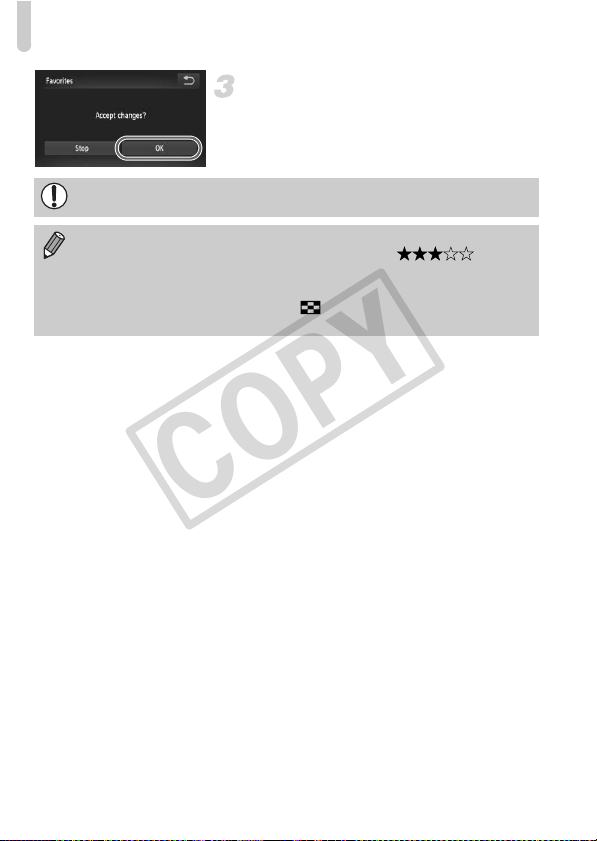
Tagging Images as Favorites
142
Complete the setting.
z If you touch Ú, a confirmation screen will
appear.
z Touch [OK].
If you switch to Shooting mode or turn off the power before completing the
setting in Step 3, images will not be tagged as favorites.
• If you use Windows 7 or Windows Vista and transfer tagged images to
the computer, they will be given a star rating of 3 ( ) (except
for movies).
• You can also use Touch Actions to tag images as favorites (p. 131).
• To choose multiple images, touch in the upper left of the screen and
touch the images you want.
COPY
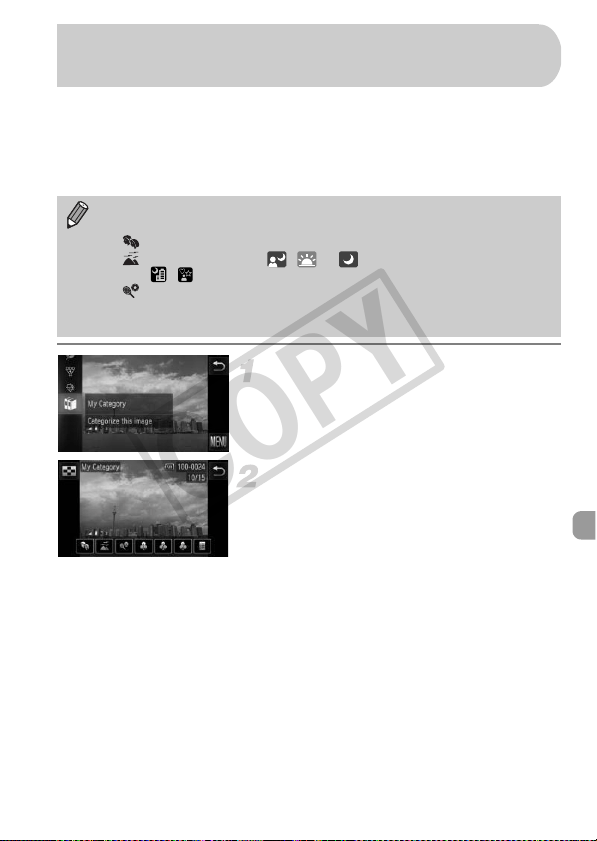
143
You can organize images into categories. You can display the images in a
category in filtered playback (p. 123) and process all images at once by using
the functions below.
• “Viewing Slideshows” (p. 124), “Protecting Images” (p. 137), “Erasing All
Images” (p. 139), “Choosing Images for Printing (DPOF)” (p. 159)
Choose ;.
z Touch ø, then drag up or down the
screen and touch ;.
Choose images.
z Drag left or right across the screen to
choose an image.
z Touch the desired category.
X The chosen category will appear in
orange.
z Touch the category again to cancel, and it
will turn white.
z To choose multiple images, repeat the
above operation.
• Images are automatically categorized by shooting condition as they are
shot.
- : Images with detected faces, or images shot in I or V.
- : Images detected as , or in A mode, or images shot in
, or O.
- : Images shot in w, P, t.
• You can also display categories by touching ø in Step 2, then
choosing the 1 tab, and [My Category].
Organizing Images by Category
(My Category)
COPY
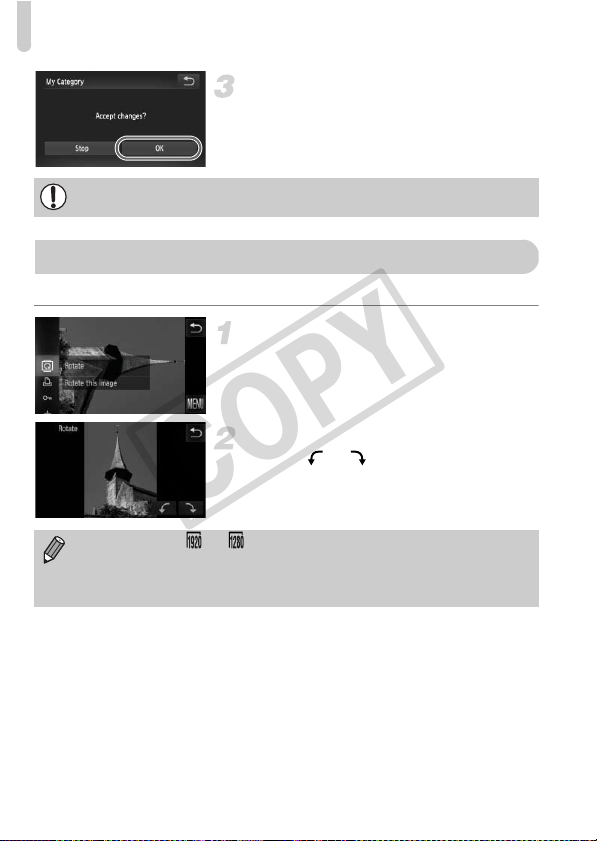
Rotating Images
144
Complete the setting.
z If you touch Ú, a confirmation screen will
appear.
z Touch [OK].
You can change the orientation of an image and save it.
Choose \.
z Touch ø, then drag up or down the
menu to the left to choose \.
Rotate the image.
z Touch or and the image will rotate
in the chosen direction in 90° increments.
z Touch Ú to accept the setting.
If you switch to Shooting mode or turn off the power before completing the
setting in Step 3, images will not be tagged as My Category.
Rotating Images
• Movies shot at or cannot be rotated.
• In the screen in Step 2, if you touch ø then n, you can change
the icon order by choosing the 1 tab and [Rotate].
• Images cannot be rotated (p. 176) if [Auto Rotate] is set to [Off].
COPY
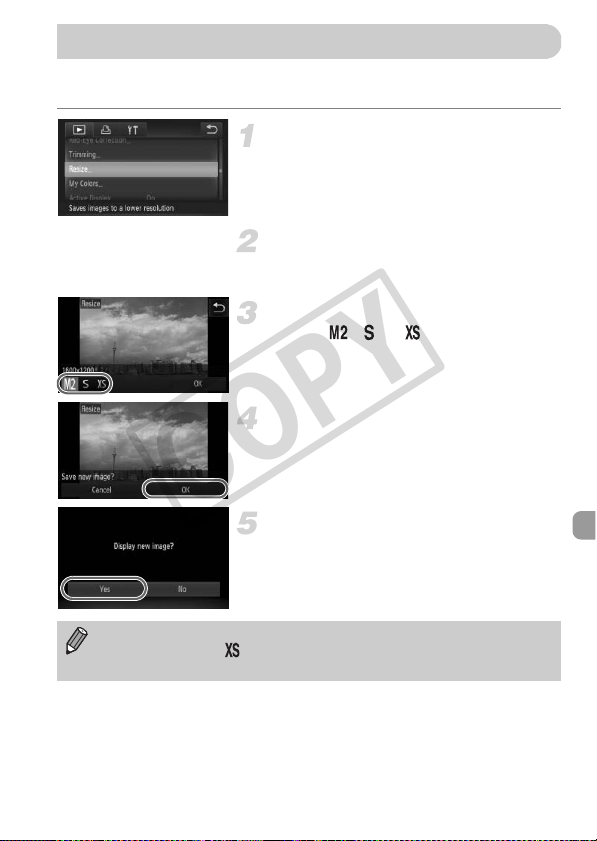
145
You can resize images to a lower pixel setting and save the resized image as
a separate file.
Choose [Resize].
z Touch ø, then n to choose the
1 tab, and touch [Resize].
Choose an image.
z Drag across the screen to choose an
image, then touch [OK].
Choose an image size.
z Touch , or , then touch [OK].
X [Save new image?] will appear on the
screen.
Save the new image.
z Touch [OK].
X The image will be saved as a new file.
Display the new image.
z If you touch Ú, [Display new image?] will
appear.
z Touch [Yes].
X The saved image will be displayed.
Resizing Images
• You cannot resize an image to a larger size.
• Images saved as in Step 3 cannot be edited.
• Movies cannot be edited.
COPY
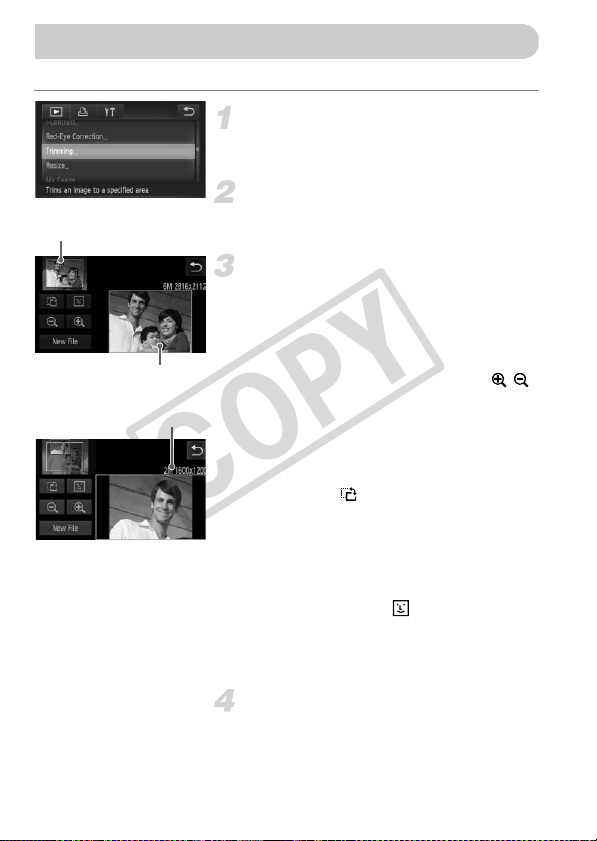
146
You can cut out a portion of a recorded image and save it as a new image file.
Choose [Trimming].
z Touch ø, then n to choose the
1 tab, and touch [Trimming].
Choose an image.
z Drag across the screen to choose an
image, then touch [OK].
Adjust the trimming area.
X A frame will appear around the portion of
the image to be trimmed.
X The original image will display in the upper
left and the trimmed image will display in
the lower right.
z If you move the zoom lever, touch
or the image on the lower right of the
screen, you can change the frame size.
z If you drag on the image at the upper left or
the image on the lower right, you can move
the frame.
z If you touch , you can change the frame
orientation.
z In an image with detected faces, gray
frames appear around the faces located in
the upper left image. The frames can be
used for trimming. You can switch between
frames by touching .
z Touch [New File].
X The [Save new image?] screen will
appear.
Save as a new image and display.
z Follow Steps 4 and 5 on p. 145.
Trimming
Trimming Area
Trimming Area Display
Recorded pixels
after trimming
COPY

Trimming
147
• Images recorded at a pixel setting of (p. 61), or images resized to
(p. 145) cannot be edited.
• Images that can be trimmed will have the same width and height ratio
after trimming.
• The number of recorded pixels in a trimmed image will be smaller than
before trimming.
• Movies cannot be edited.
COPY
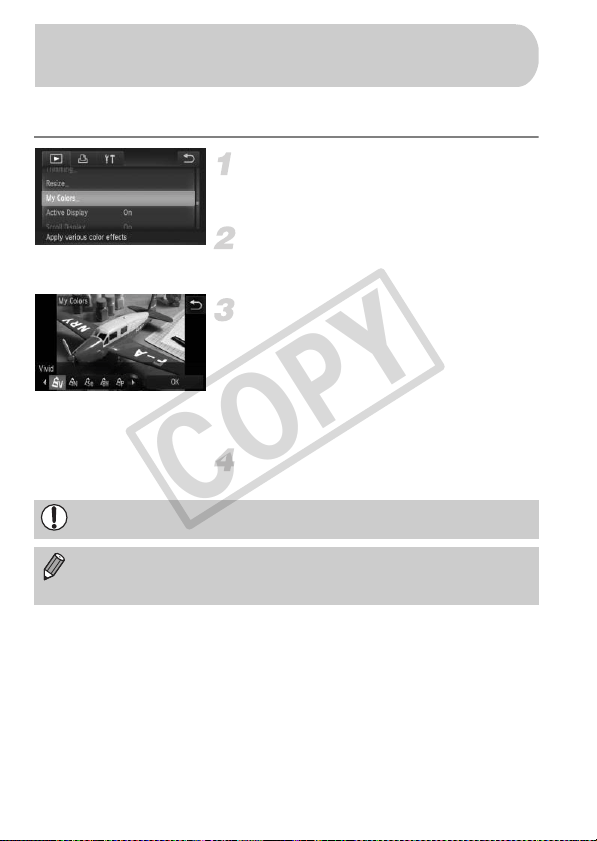
148
You can change the color of an image and save it as a separate image. Refer
to p. 92 for details on each menu item.
Choose [My Colors].
z Touch ø, then n to choose the
1 tab, and touch [My Colors].
Choose an image.
z Drag across the screen to choose an
image, then touch [OK].
Choose an option.
z Touch an option.
z Touch qr to display other available
options.
z Touch [OK].
X The [Save new image?] screen will
appear.
Save as a new image and display.
z Follow Steps 4 and 5 on p. 145.
Adding Effects with the My Colors
Function
If you repeatedly change the color of the same image, the quality will
gradually deteriorate and you may not achieve the expected color.
• The color of images changed with this function may vary from those
recorded with the My Colors function (p. 92).
• My Colors settings cannot be applied to movies.
COPY
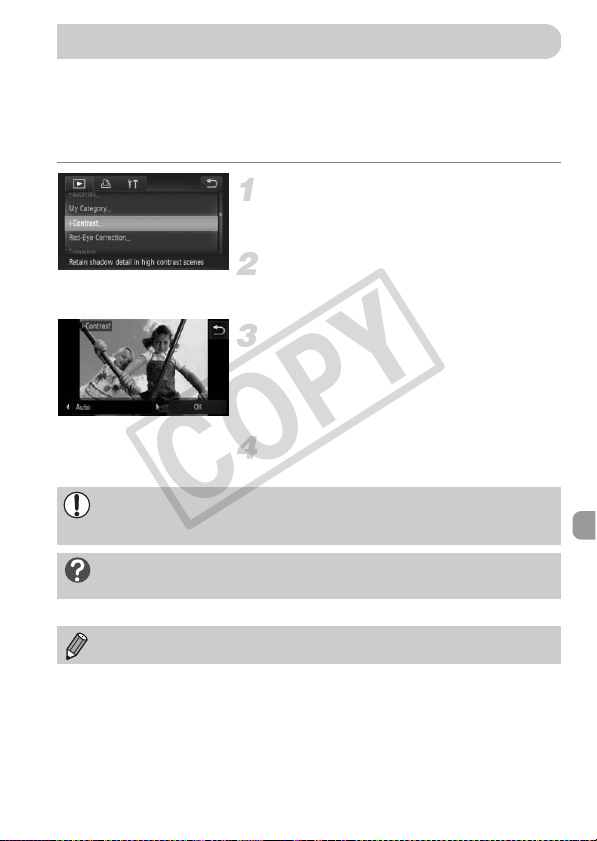
149
The camera can detect areas in an image, such as faces or backgrounds, that
are too dark and automatically adjust them to the optimum brightness. Also,
when the overall image is lacking in contrast, the camera will automatically
correct the image for a sharper impression. You can choose from 4 levels of
correction, and save the image as a new file.
Choose [i-Contrast].
z Touch ø, then n to choose the
1 tab, and touch [i-Contrast].
Choose an image.
z Drag across the screen to choose an
image, then touch [OK].
Choose an option.
z Touch qr to choose an item, and touch
[OK].
X The [Save new image?] screen will
appear.
Save as a new image and display.
z Follow Steps 4 and 5 on p. 145.
Correcting the Brightness (i-Contrast)
• Under some conditions, the image may appear coarse or not be
corrected properly.
• Repeatedly adjusting the same image may cause it to become coarse.
What if the image wasn’t corrected by the [Auto] option as
well as you would like?
Choose [Low], [Medium] or [High] and adjust the image.
Movies cannot be corrected.
COPY
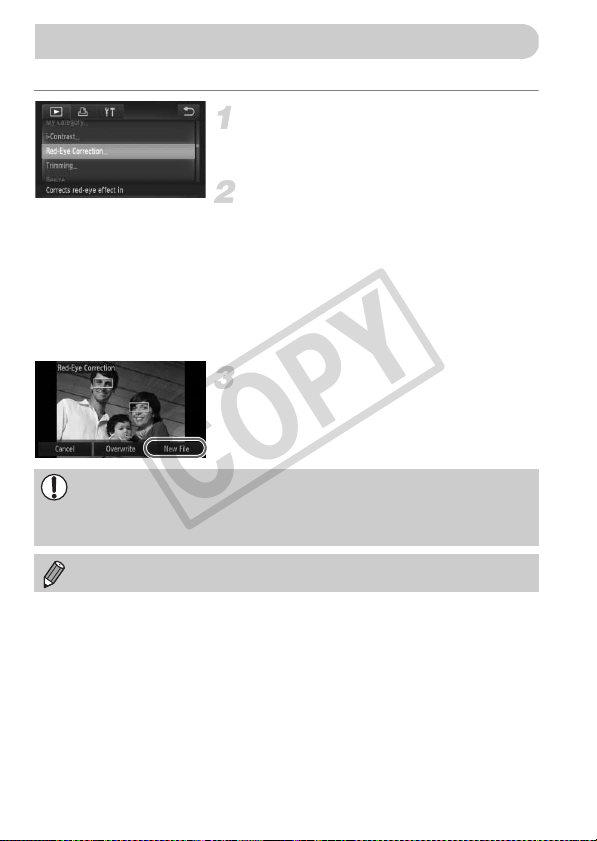
150
You can automatically correct red eyes in images and save them as new files.
Choose [Red-Eye Correction].
z Touch ø, then n to choose the
1 tab, and touch [Red-Eye Correction].
Choose and correct the image.
z Drag across the screen to choose an
image, then touch [OK].
X Red-eye detected by the camera will be
corrected and a frame will appear around
the corrected portion.
z You can magnify or reduce the size of the
image using the procedures in “Magnifying
Images” (p. 127).
Save as a new image and display.
z Touch [New File].
X The image will be saved as a new file.
z Follow Step 5 on p. 145.
Correcting the Red-Eye Effect
• Some images may not be corrected properly.
• When [Overwrite] in Step 3 is chosen, the uncorrected image is
overwritten with the corrected data, erasing the original image.
• Protected images cannot be overwritten.
Movies cannot be corrected.
COPY
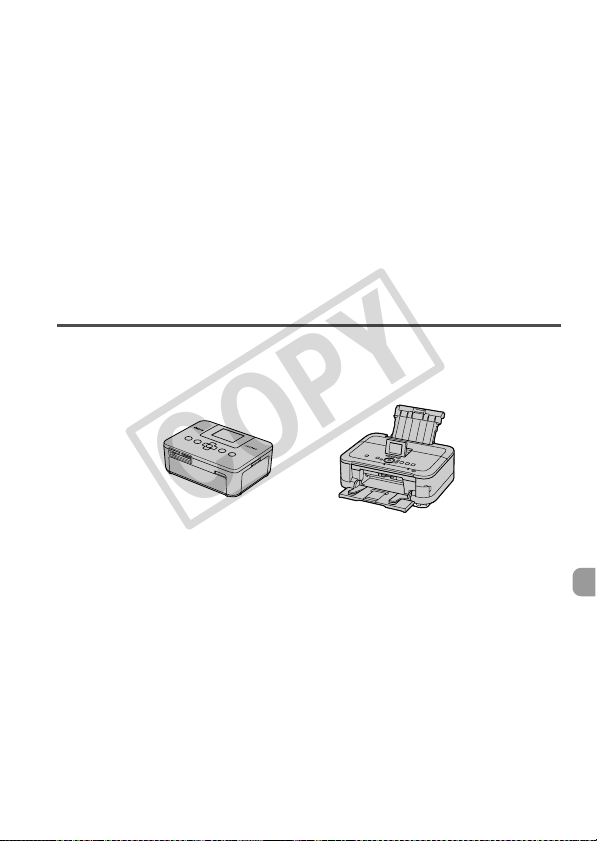
151
Printing
This chapter explains how to choose images for printing, and print
using a Canon-brand PictBridge compliant printer (sold separately).
Canon-Brand PictBridge Compliant Printers
• This chapter uses Canon-brand SELPHY CP series printers in the
explanations. The displayed screens and available functions will differ
depending on the printer. Please also refer to the Printer User Guide.
9
COPY
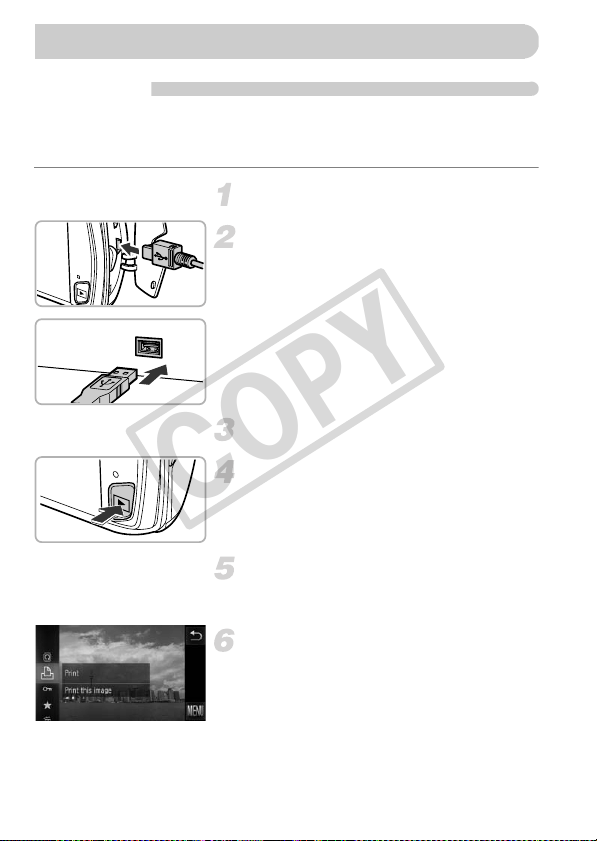
152
Easy Print
You can easily print the pictures you take by connecting the camera to a
PictBridge compliant printer (sold separately) using the supplied interface
cable (p. 2).
Turn off the camera and printer.
Connect the camera to the printer.
z Open the cover and insert the cable’s
small plug firmly into the camera terminal
in the direction shown.
z Insert the cable’s large plug into the
printer. For connection details, refer to the
user guide provided with the printer.
Turn on the printer.
Turn on the camera.
z Press the 1 button to turn on the camera.
Choose an image.
z Drag across the screen to choose an
image.
Choose 2.
z Touch ø, then drag up or down the
menu at the left to choose 2.
Printing Images
COPY
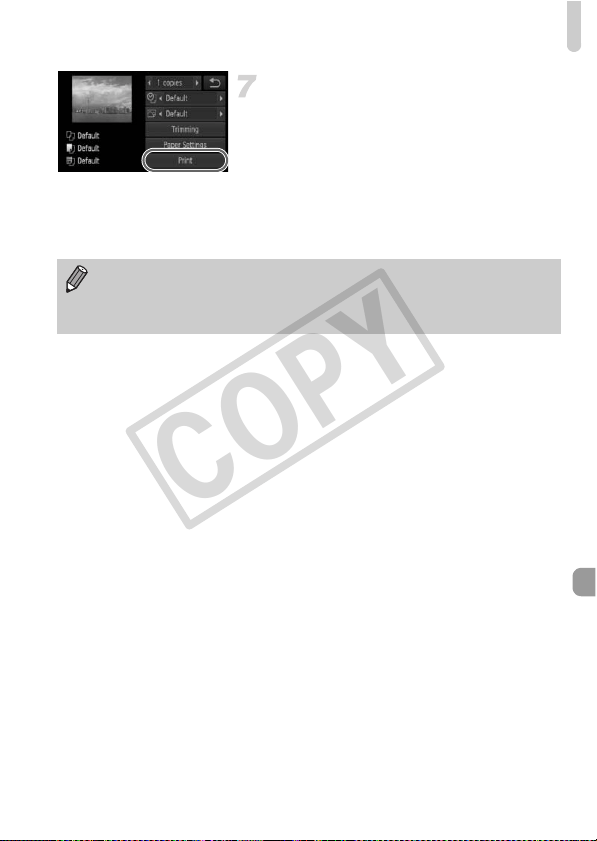
Printing Images
153
Print images.
z Touch [Print].
X Printing will start.
z If you want to print additional images,
repeat Steps 5 and 6 after printing has
completed.
z After printing has completed, turn off the
camera and printer, and unplug the
interface cable.
• Refer to p. 40 for Canon-brand PictBridge compliant printers (sold
separately).
• Index printing is not available on certain Canon-brand PictBridge
compliant printers (sold separately).
COPY
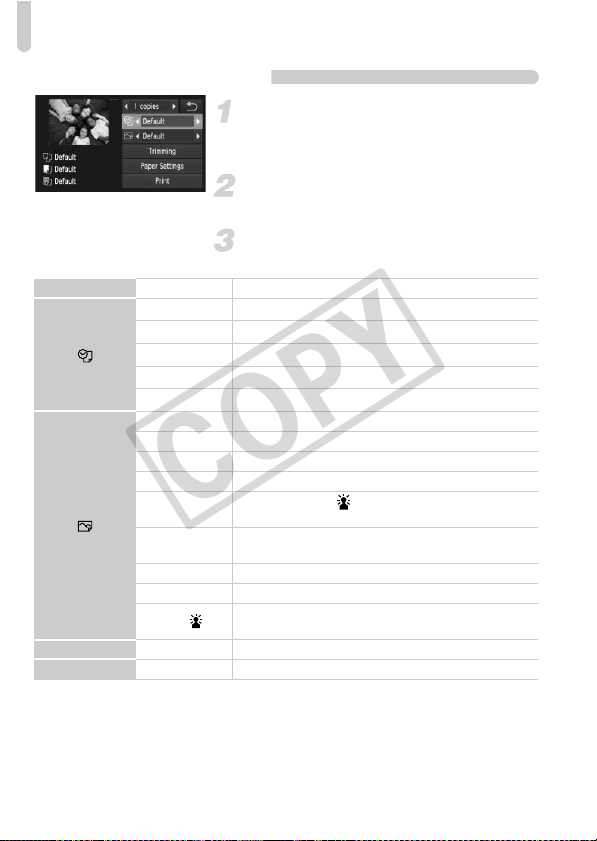
Printing Images
154
Making Print Settings
Connect the camera to the printer.
z Follow Steps 1 – 6 on p. 152 to display the
screen on the left.
Choose a menu option.
z Touch an item to choose it.
Choose the option settings.
z Touch qr to choose the option setting.
* Only appears when connected to a PIXMA series printer.
— No. of Copies Choose the number of copies.
Default Follows the printer’s settings.
Date Prints the date.
File No. Prints the file number.
Both Prints both the date and file number.
Off —
Default Follows the printer’s settings.
Off —
On Uses shooting information to optimize print settings.
Red-Eye1 Corrects red-eye.
Red-Eye2*
Uses [NR], [Face ] and [Red-Eye1] to correct the
image.
Vivid*
Greens in trees, and blues in the sky and ocean are
enhanced to be more vivid.
NR* Reduces image noise.
Vivid+NR* Uses both [Vivid] and [NR] to correct the image.
Face *
Corrects brightness for dark faces, such as in backlit
shots.
Trimming — Choose the area for printing.
Paper Settings — Sets the paper size and layout.
COPY
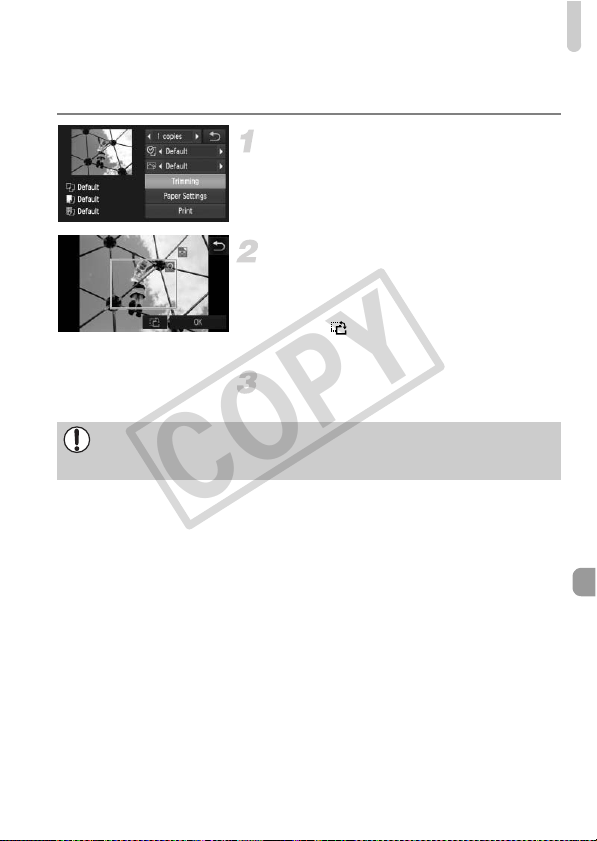
Printing Images
155
Trimming and Printing (Trimming)
You can cut out a portion of an image for printing.
Choose [Trimming].
z Follow Steps 1 – 2 on p. 154 to choose
[Trimming].
X A frame will appear around the portion of
the image to be trimmed.
Choose the trimming area.
z If you move the zoom lever, you can
change the frame size.
z Drag the frame to change its position.
z Touch to rotate the frame.
z Touch [OK] to complete the setting.
Print images.
z Follow Step 7 on p. 153 to print.
• You may not be able to trim images depending on the aspect ratio, or if
they are too small.
• Trimming photos with embedded dates may not show the dates properly.
COPY
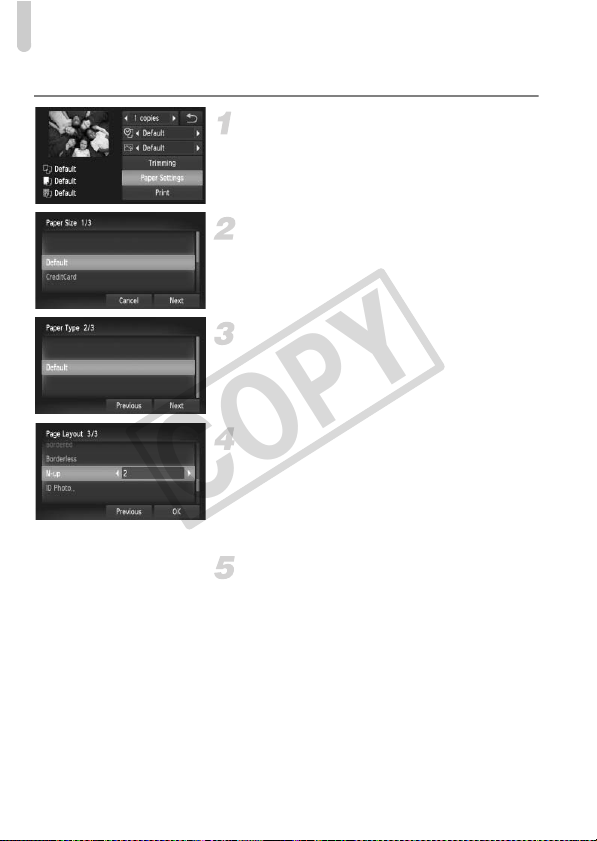
Printing Images
156
Choosing the Paper Size and Layout for Printing
Choose [Paper Settings].
z Follow Steps 1 – 2 on p. 154 to choose
[Paper Settings].
Choose a paper size.
z Touch an option to choose it, then touch
[Next].
Choose the paper type.
z Touch an option to choose it, then touch
[Next].
Choose the layout.
z Drag up or down the screen to choose a
layout.
z Touch qr to set the number of prints when
[N-up] is chosen.
z Touch [OK].
Print images.
COPY
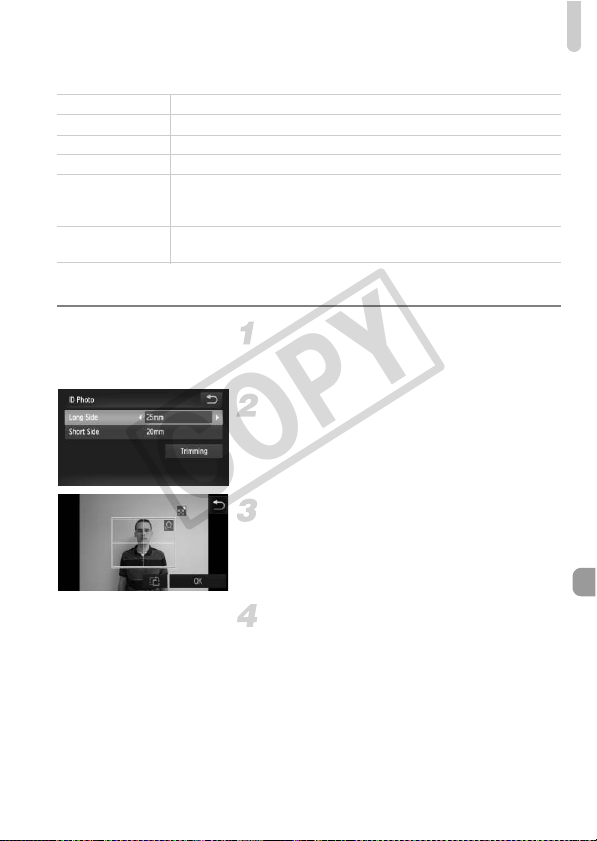
Printing Images
157
Available Layout Options
Printing ID Photos
Choose [ID Photo].
z Follow Steps 1 – 4 on p. 156 to choose [ID
Photo], then touch [Next].
Choose the length and width.
z Touch an item to choose it.
z Touch qr to choose a length, then touch
[Trimming].
Choose the printing area.
z Follow Step 2 on p. 155 to choose the
printing area.
Print images.
Default Follows the printer’s settings.
Bordered Prints with a border.
Borderless Prints without a border.
N-up Selects how many copies of an images are printed on a sheet.
ID Photo
Prints ID photos.
Only images with the same resolution as the camera’s L (Large)
recording pixel setting and a 4:3 aspect ratio can be chosen.
Fixed Size
Choose the print size.
Choose from 3.5 x 5 in., postcard and wide sized prints.
COPY
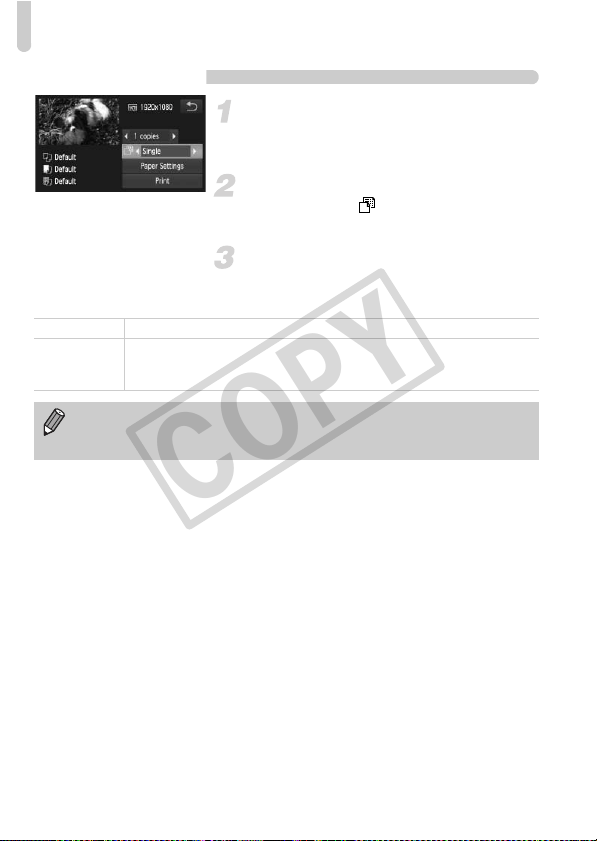
Printing Images
158
Printing Movies
Connect the camera to the printer.
z Follow Steps 1 – 6 on p. 152 to choose a
movie and display the screen on the left.
Choose a printing method.
z After touching , touch qr to choose a
printing method.
Print images.
Printing Methods for Movies
Single Prints currently displayed scene as a still image.
Sequence
Prints a sequence of images from a specified scene on a single sheet of
paper. If [Caption] is set to [On], you can print the folder number, file
number, and the elapsed time for the frame at the same time.
• Touching [Stop] during printing will cancel printing.
• [ID Photo] and [Sequence] cannot be chosen on Canon brand PictBridge
compliant printers from CP720/CP730 and earlier models.
COPY
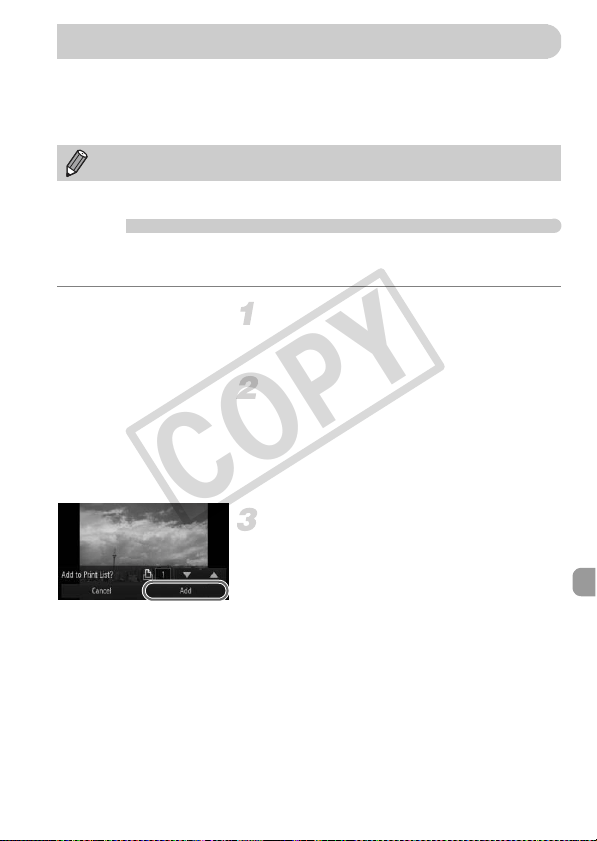
159
You can choose up to 998 images on a memory card for printing and specify
settings such as the number of copies so that they can be printed together
(p. 162) or processed at a photo developer service. These selection methods
comply with the DPOF (Digital Print Order Format) standards.
Adding Images to a Print List with the FUNC.
Menu
You can add images to the print list (DPOF) directly after shooting or during
playback in the FUNC. menu.
Choose an image.
z Drag left or right across the screen to
choose an image.
Choose 2 (movies will be
excluded).
z After touching ø, drag the menu
appearing on the left side of the screen up
or down to choose 2, then touch the
menu item again.
Add images to the print list.
z Touch op to choose the number of
prints, then touch [Add].
Movies cannot be chosen.
Choosing Images for Printing (DPOF)
COPY
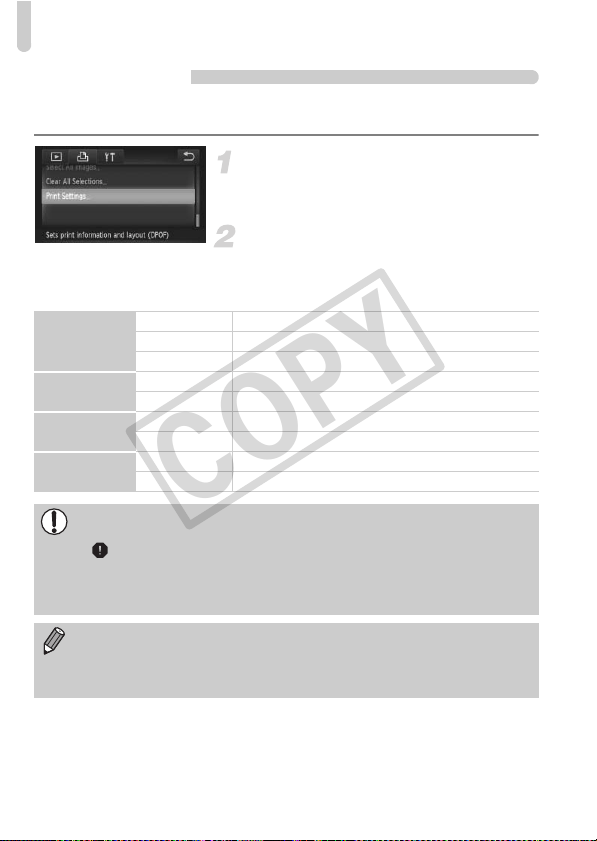
Choosing Images for Printing (DPOF)
160
Print Settings
You can set the print type, date and file number. These settings apply to all
images chosen for printing.
Choose [Print Settings].
z Touch ø, then n to choose the
2 tab, and touch [Print Settings].
Choose a setting.
z Touch op to choose and set an option.
z Once you touch Ú, the settings will be
made, and the menu screen will reappear.
Print Type
Standard Prints 1 image per page.
Index Prints several reduced size images per page.
Both Prints both standard and index formats.
Date
On Prints the shooting date.
Off —
File No.
On Prints the file number.
Off —
Clear DPOF
data
On Removes all print settings after printing.
Off —
• Some printers or photo developer services may not be able to reflect all
of the settings in the prints.
• may appear when using a memory card with print settings set by a
different camera. If you change the settings using this camera, all the
previous settings may be overwritten.
• If [Date] is set to [On], some printers may print the date twice.
• With [Index] chosen, the [Date] and [File No.] options cannot be set to
[On] at the same time.
• The date will be printed in the style set in the [Date/Time] function in the
3 tab (p. 20).
COPY
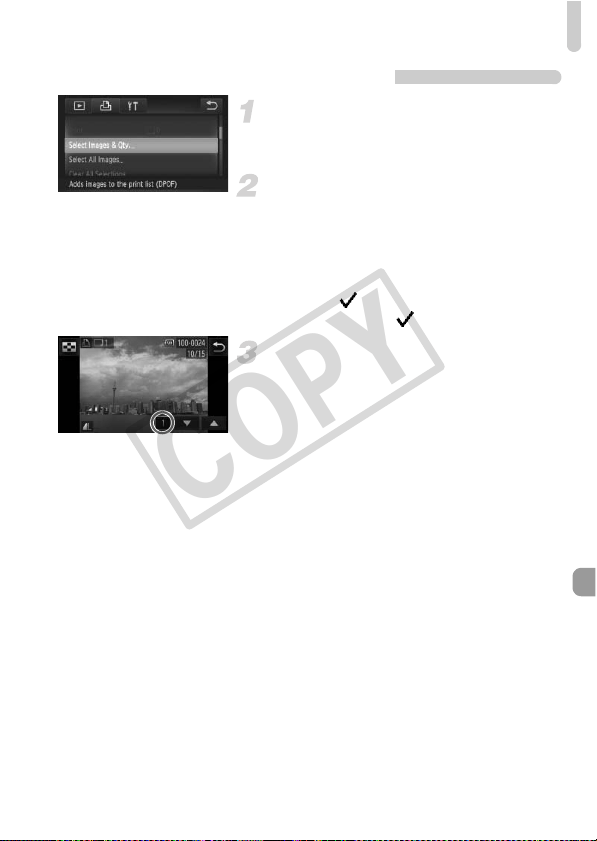
Choosing Images for Printing (DPOF)
161
Choosing the Number of Copies
Choose [Select Images & Qty.].
z Touch ø, then n to choose the
2 tab, and touch [Select Images & Qty.].
Choose an image.
z Drag left or right across the screen to
choose an image.
X You will be able to set the number of print
copies.
z For [Index], touch the screen. Once
chosen, will appear. If you touch inside
the frame again, will disappear.
Set the number of prints.
z Touch op to set the number of prints
(maximum 99).
z Repeat Steps 2 and 3 to choose other
images and the number of prints for each.
z You cannot set the number of copies for
index prints. You can only choose which
images to print (as shown in Step 2).
z Touch Ú to complete the setting and
return to the menu screen.
COPY
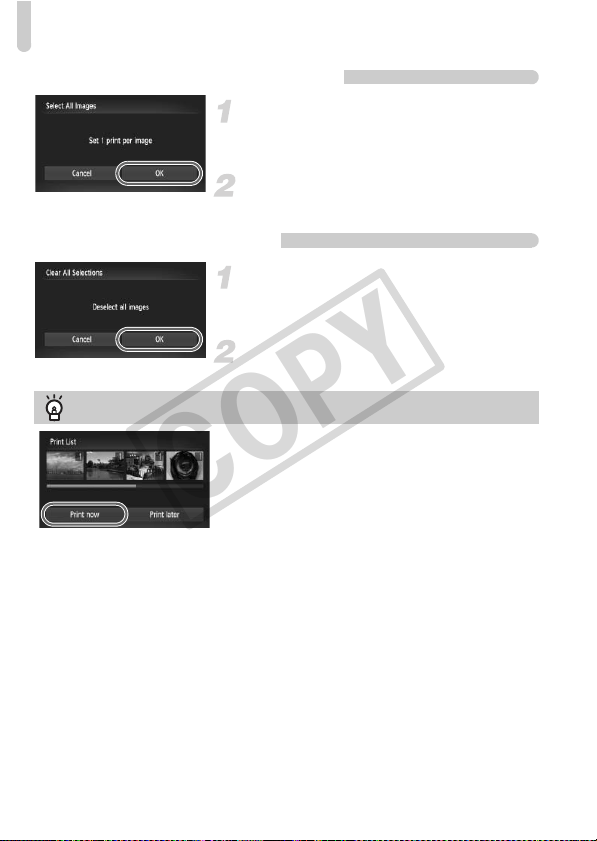
Choosing Images for Printing (DPOF)
162
Set All Images to Print Once
Choose [Select All Images].
z Follow Step 1 on p. 161 to touch [Select All
Images].
Make print settings.
z Touch [OK].
Clearing All Selections
Choose [Clear All Selections].
z Follow Step 1 on p. 161 to touch [Clear All
Selections].
All selections will be cleared.
z Touch [OK].
Printing chosen images (DPOF)
• When there are images added to the print list
(pp. 159 – 162), the screen on the left will appear
when you connect the camera to a PictBridge
compliant printer. Touch [Print now] to easily print
images added to the print list.
• If you stop the printer during printing and start
again, it will start from the next print.
COPY
163
Customizing Camera Settings
You can customize various settings to suit your shooting preferences.
The first part of this chapter explains convenient and commonly used
functions. The latter part explains how to change shooting and
playback settings to suit your purposes.
1
0
COPY
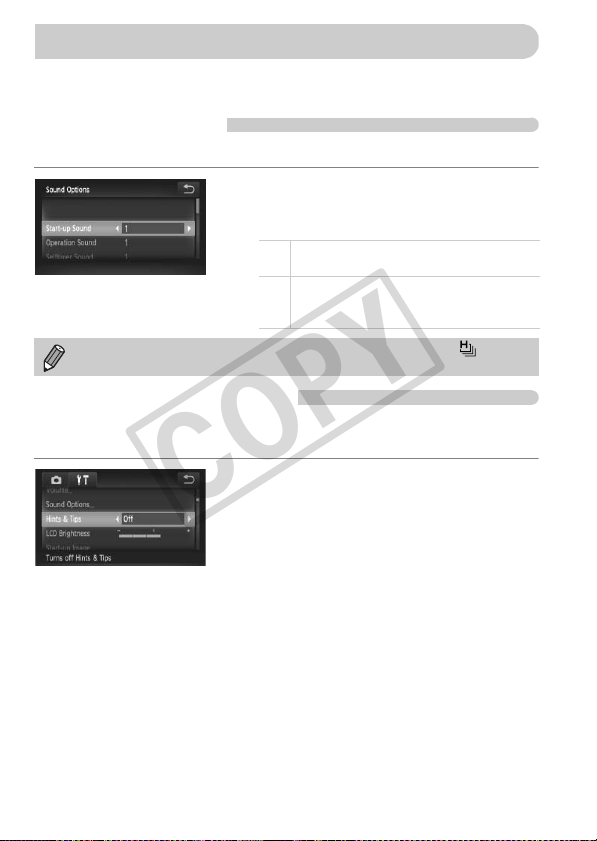
164
You can customize convenient and commonly used functions from the 3 tab
(p. 47).
Changing Sounds
You can change each of the camera’s operation sounds.
z Touch [Sound Options].
z Drag up or down the screen to choose an
option, then touch qr to choose a setting.
Turning Off Hints & Tips
You can turn off this function. However, hints and tips for menus (p. 47) will
always display.
z Choose [Hints & Tips], then touch qr to
choose [Off].
Changing Camera Settings
1
Preset sounds
(cannot be modified)
2
Preset sounds
You can use the included software to
change the sounds (p. 2).
Even if you change the shutter sound, it will have no effect in (p. 80).
COPY
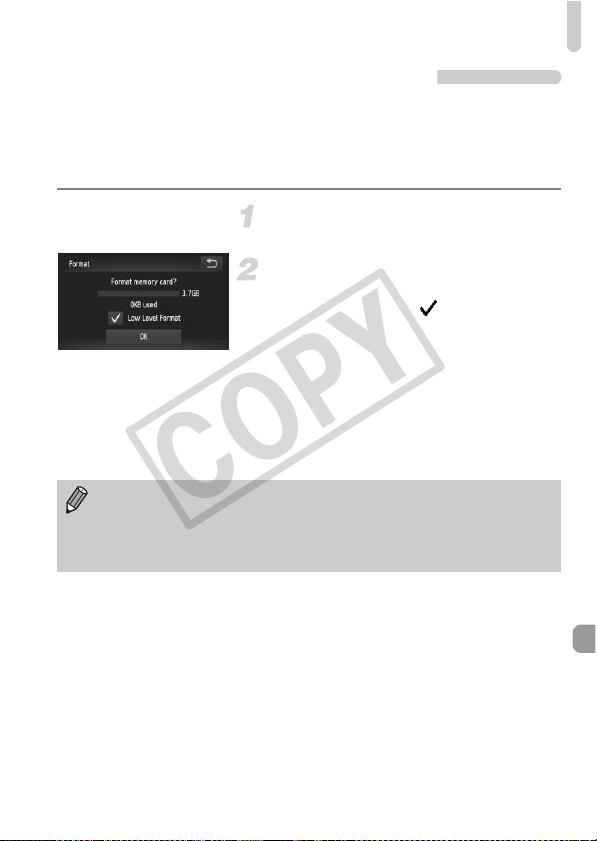
Changing Camera Settings
165
Low Level Memory Card Formatting
Perform low level formatting when [Memory card error] appears, the camera
does not operate properly, you think that the recording/reading speed of a
memory card has dropped, or recording suddenly stops while shooting a
movie. As you cannot retrieve the erased data, exercise adequate caution
before formatting the memory card.
Display the [Format] screen.
z Follow Steps 1 and 2 on p. 23.
Start the low level format.
z Touch the frame to the left of [Low Level
Format] to display a .
z Touch [OK].
X A confirmation screen will appear.
z Touch [OK].
X Low level formatting starts.
X When low level formatting ends, [Memory
card formatting complete] will appear on
the screen.
z Touch [OK].
• Low level formatting may take longer than standard formatting (p. 23),
since all recorded data is erased.
• You can stop a low level format of a memory card by touching [Stop].
When stopping low level formatting, the data will be erased but the
memory card can be used without problem.
COPY
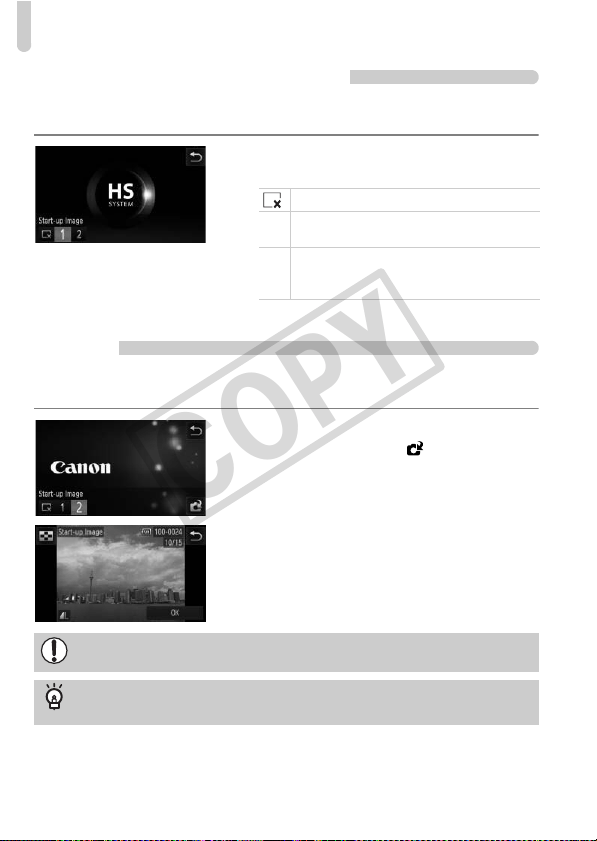
Changing Camera Settings
166
Changing the Start-up Screen
You can change the start-up screen that appears when you turn on the
camera.
z Touch [Start-up Image].
z Touch an option.
Registering Recorded Images as the Start-up
Screen
When you press the 1 button and set the camera to Playback mode, you can
register an image.
z Touch [Start-up Image].
z Touch [2], then touch .
z Drag across the screen to choose an
image, then touch [OK].
X The [Register?] screen will appear.
z Touch [OK].
No start-up image
1
Preset images
(cannot be modified)
2
Preset images
You can set recorded images, and use the
included software to change the images.
Any previously registered start-up image will be overwritten when
registering a new start-up image.
Register the start-up image or sounds with the included
software
The dedicated operation sounds and start-up images on the included software
can be registered to the camera. Refer to the Software Guide for details.
COPY
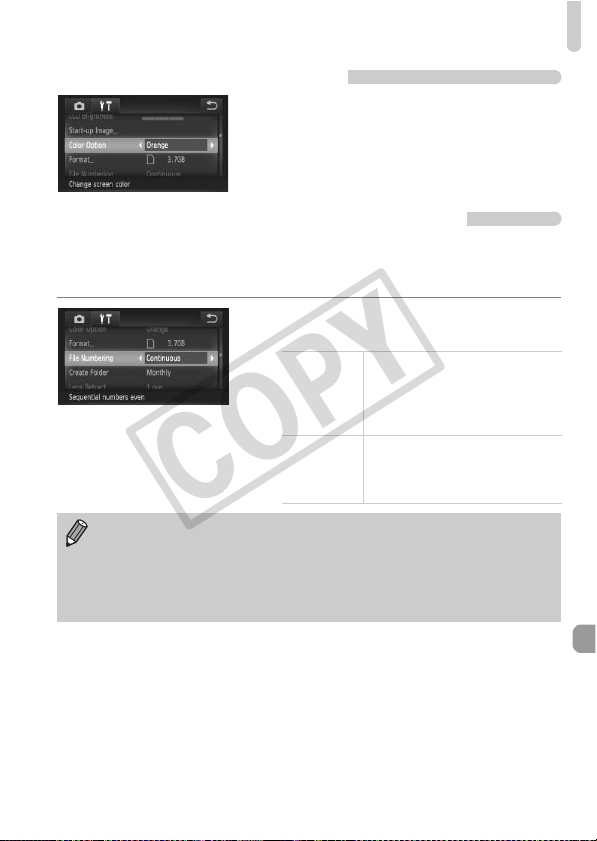
Changing Camera Settings
167
Changing the Screen Color
z Choose [Color Option], then touch qr to
choose an option.
Changing the File Number Assignment
Images you shoot are automatically assigned file numbers in the order they
were taken, from 0001 – 9999, and saved to folders of up to 2,000 images.
You can change the file number assignment.
z Choose [File Numbering], then touch qr
to choose an option.
Continuous
Even if you shoot using a new
memory card, the file numbers are
assigned consecutively until an
image with the number 9999 is
taken/saved.
Auto Reset
If you replace the memory card
with a new one, or a new folder is
created, file numbering begins
with 0001 again.
• If you use a memory card already containing images, the newly assigned
file numbers may continue the existing numbering for both [Continuous]
and [Auto Reset]. If you want to start over with file number 0001, format
the memory card before use (p. 23).
• Refer to the Software Guide for information regarding folder structure or
image types.
COPY
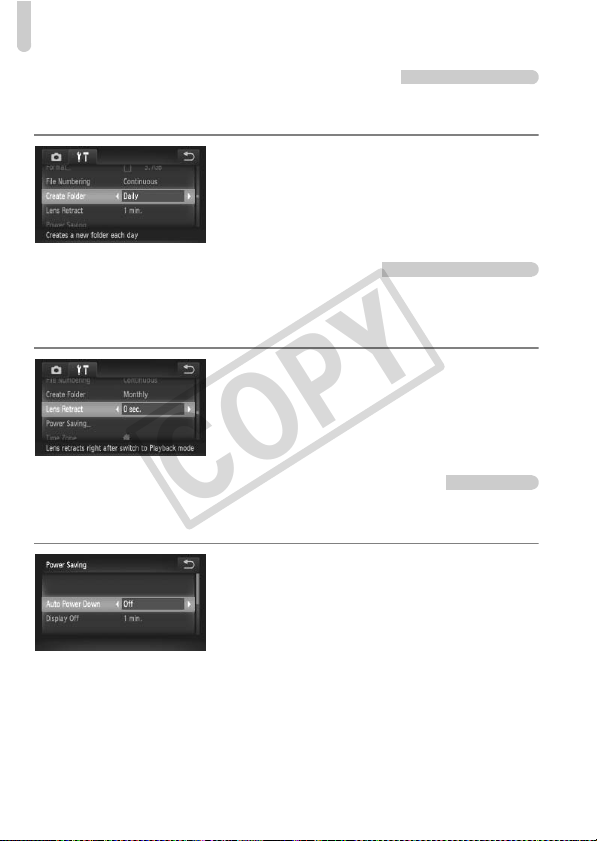
Changing Camera Settings
168
Creating Folders by Shooting Date
Images are saved into folders created each month, however, you can also
create folders by shooting date.
z Choose [Create Folder], then touch qr to
choose [Daily].
z Images will be saved into folders created
on each shooting date.
Changing the Lens Retract Time
For safety reasons, the lens retracts about 1 minute after pressing the 1
button when in a Shooting mode (p. 28). If you want the lens to retract
immediately when you press the 1 button, set the retract time to [0 sec.].
z Choose [Lens Retract], then touch qr to
choose [0 sec.].
Turning Off the Power Saving Function
You can set the power saving function (p. 52) to [Off]. Setting it to [On] is
recommended to save battery power.
z Touch [Power Saving].
z Drag up or down the screen to choose
[Auto Power Down], then touch qr to
choose [Off].
z If you set the power saving function to
[Off], be sure to turn the camera off after
use.
COPY
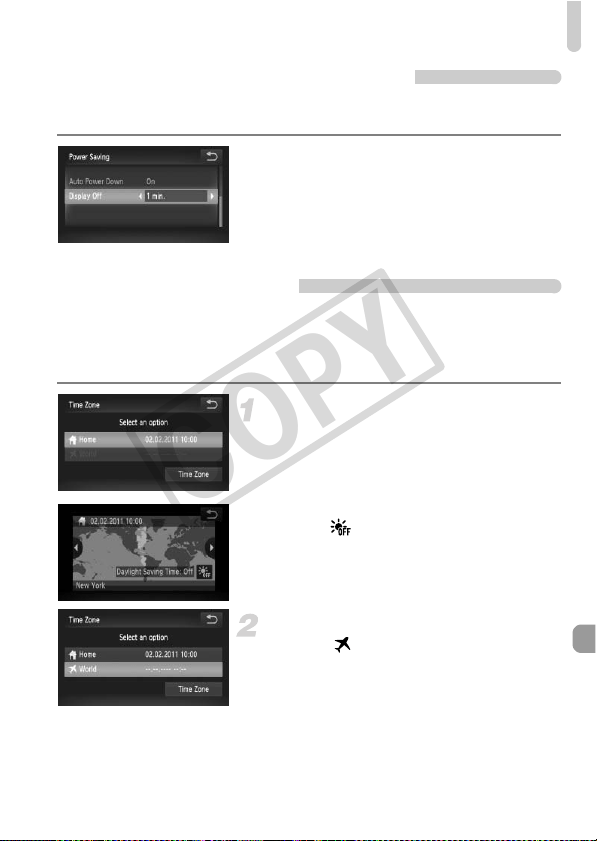
Changing Camera Settings
169
Setting the Screen Shut-Off Time
You can adjust the time the screen takes to shut off automatically (p. 52). This
also works when [Auto Power Down] is set to [Off].
z Touch [Power Saving].
z Drag up or down the screen to choose
[Display Off], then touch qr to choose a
time.
z In order to save battery power, you should
choose less than [1 min.].
Using the World Clock
When traveling abroad, you can record images with local dates and times
simply by switching the time zone setting. If you pre-register the destination
time zones, you can enjoy the convenience of not having to switch the Date/
Time settings.
Set the home time zone.
z Touch [Time Zone].
z When setting this for the first time, check
the information that displays on the screen
on the left, then touch [Time Zone].
z Touch qr to choose the home time zone.
Touch to set daylight saving time
(adds 1 hour).
z Touch Ú.
Set the world time zone.
z Touch [ World], then touch [Time Zone].
z Touch qr to choose the destination time
zone.
z You can also set the daylight saving time
as in Step 1.
z Touch Ú.
COPY
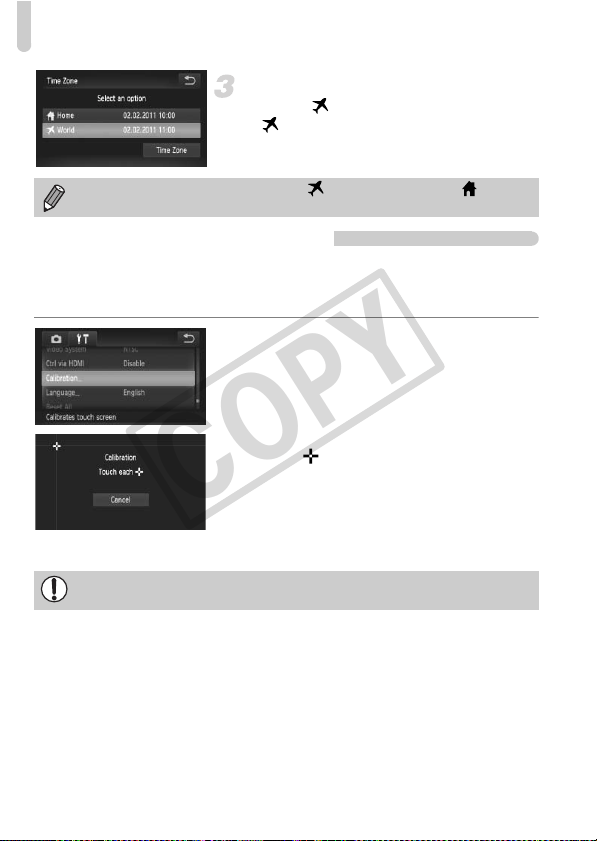
Changing Camera Settings
170
Choose the world time zone.
z Touch [ World], then touch Ú.
X will appear in the [Time Zone] or
shooting screen (p. 187).
Calibrating the Touch Panel
You can calibrate the touch panel if you are having difficulty choosing items
or buttons. Be sure to use the toggle attached to the strap to calibrate the
touch panel accurately.
z Touch [Calibration].
z Use the toggle attached to the strap to
touch that appears on the screen
(p. 14).
z Follow the on-screen instructions and
touch the screen four times in the following
order: in the upper left, lower left, lower
right and upper right parts of the screen.
If you change the date or time in the setting (p. 20), your [ Home]
time and date will automatically change.
Only use the attached toggle to perform operations. Do not use other
objects, such as pens or pencils.
COPY
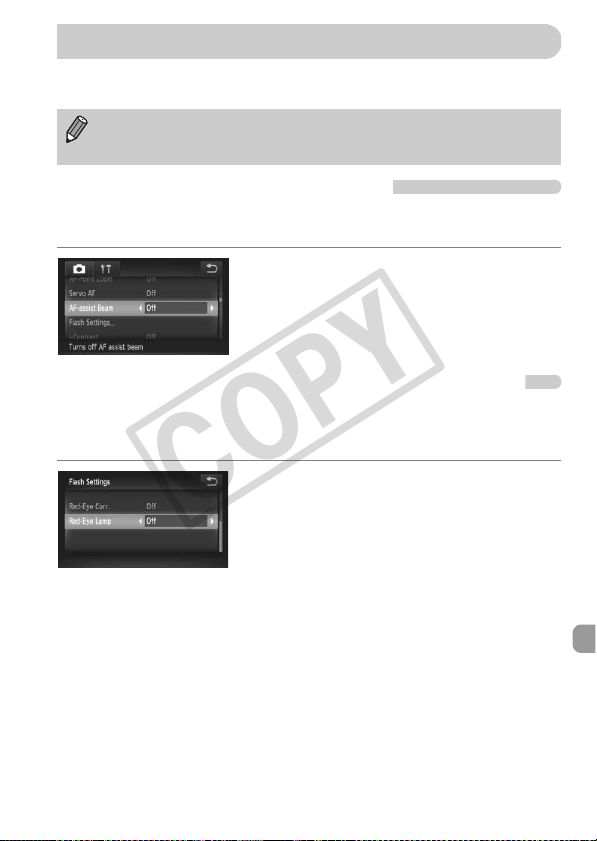
171
If you set the mode switch to 4, and the mode to G, you can change the
settings in the 4 tab (p. 47).
Turning Off the AF Assist Beam
The lamp will automatically light to assist focusing in low light conditions when
you press the shutter button halfway. You can turn off the lamp.
z Choose [AF-assist Beam], then touch qr
to choose [Off].
Turning Off the Red-Eye Reduction Function
The red-eye reduction lamp lights in order to reduce the red-eye effect that
occurs when shooting in dark conditions with the flash. You can turn off this
function.
z Touch [Flash Settings].
z Drag up or down the screen to choose
[Red-Eye Lamp], then touch qr to choose
[Off].
Before attempting to shoot using a function explained in this section in
modes other than G, check if the function is available in those modes
(pp. 196 – 197).
Changing Shooting Function Settings
COPY
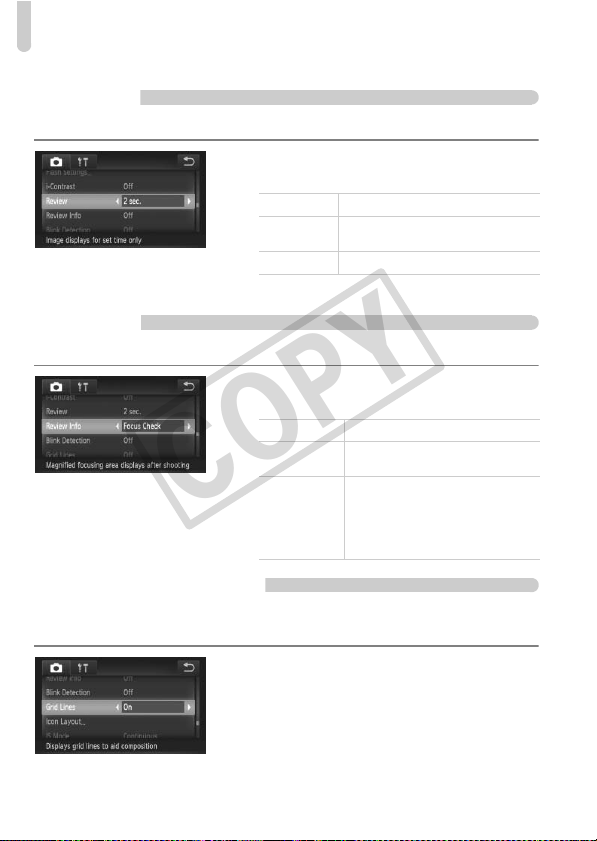
Changing Shooting Function Settings
172
Changing the Image Display Time Right After
Shooting
You can change the length of time the images display right after shooting.
z Choose [Review], then touch qr to
choose an option.
Changing the Way the Image Displays Right After
Shooting
You can change the way the image displays right after shooting.
z Choose [Review Info], then touch qr to
choose an option.
Displaying Grid Lines
You can display grid lines on the screen for vertical and horizontal guidance
while shooting.
z Choose [Grid Lines], then touch qr to
choose [On].
2 – 10 sec. Displays images for the set time.
Hold
The image displays until you press
the shutter button halfway.
Off Images will not display.
Off Displays the image only.
Detailed
Displays detailed information
(p. 189).
Focus Check
The area inside the AF frame is
magnified, allowing you to check
the focus. The procedure is the
same as in “Checking the Focus”
(p. 126).
COPY
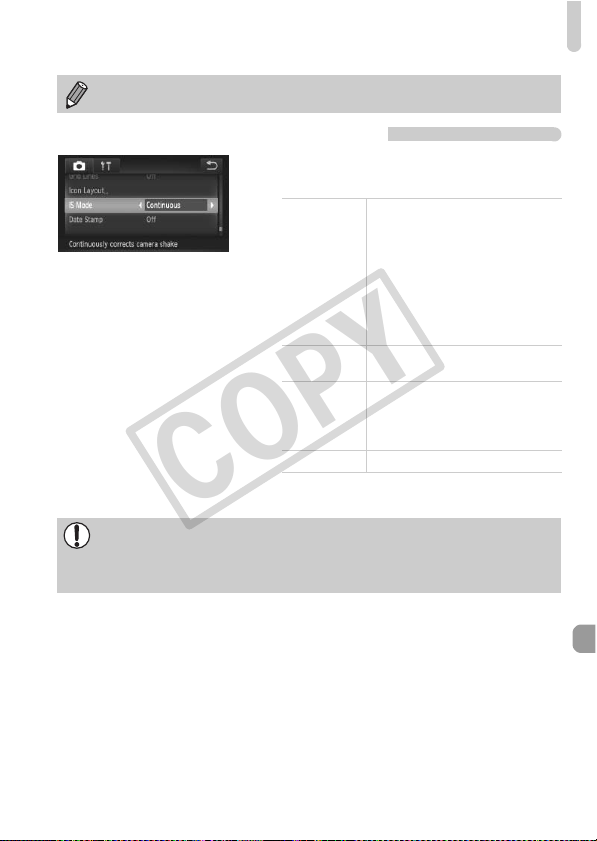
Changing Shooting Function Settings
173
Changing the IS-Mode Settings
z Choose [IS Mode], then touch qr to
choose an option.
Grid lines will not be recorded on the image.
Continuous
Image stabilization is always on.
You can confirm the effects
directly on the display, which
makes it easier to check the
composition or focus.
When shooting movies, the
camera also reduces strong
camera shake, for example when
walking (Dynamic mode).
Shoot Only*
Image stabilization is only active
at the moment of shooting.
Panning*
Image stabilization only counters
up and down motion. This option
is recommended for shooting
objects moving horizontally.
Off –
* Setting changes to [Continuous] when
shooting movies.
• If camera shake is too strong, attach the camera to a tripod. You should
also set the IS Mode to [Off] when the camera is attached to a tripod.
• When using [Panning], hold the camera horizontally to shoot. Image
stabilization does not work when the camera is held vertically.
COPY
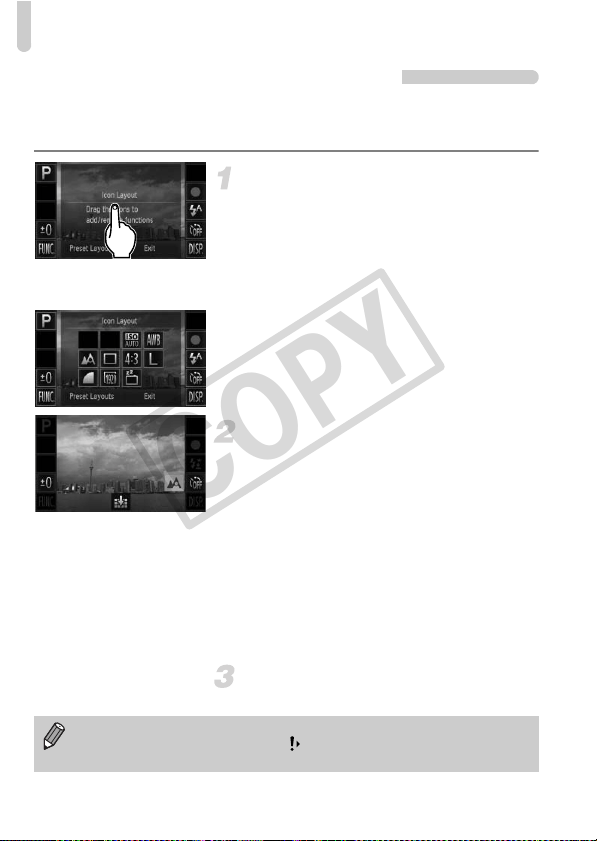
Changing Shooting Function Settings
174
Changing Icon Order (Icon Layout)
You can add icons to the shooting screen, or change their arrangement.
Adding Icons
Display the settings screen.
z In a shooting screen, touch and hold one of
the icons.
z When [Changes which icons appear and
their positions] appears, lift your finger off
the screen once, then touch the center of
the screen.
X The setting screen shown to the left will
appear.
Add an icon.
z Drag the desired icon that appears in the
center of the screen in Step 1 to the
position you want.
z When you drag the icon near a position
where it can be placed, an orange frame
appears. Lift your finger off the screen to
add the icon there. The icon will exchange
places with any existing icon in that
position.
z Positions with grayed out icons are
unavailable.
Complete the setting.
z Touch [Exit].
If you have placed an icon in the upper right corner of the screen and then
touch and hold that icon in Step 1, will appear and the layout screen will
not be displayed. Choose a different icon instead.
COPY
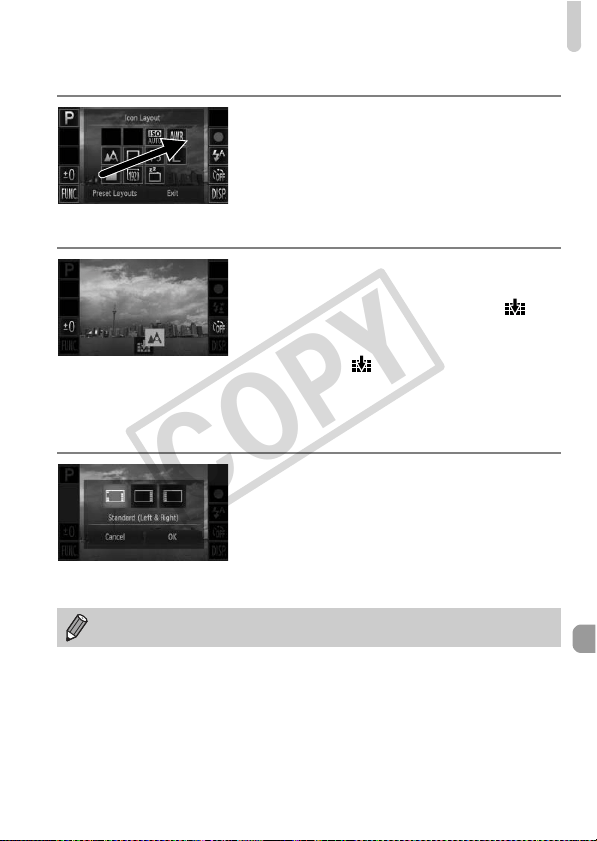
Changing Shooting Function Settings
175
Rearranging Icons
z Drag the desired icon that appears in the
layout screen in Step 1 on p. 174 to the
position you want.
X The icon will exchange places with any
existing icon in that position.
Removing Icons
z When in the layout screen that appears in
Step 1 on p. 174, drag the icon you want to
remove to the center and then to that
will appear on the lower part of the screen.
z If you drag an icon that cannot be
removed, will not appear.
Preset Layouts
You can choose from 3 preset icon layouts. Only default icons will be
displayed. Added icons will not appear.
z Touch [Preset Layouts] in the layout
screen in Step 1 on p. 174.
z Touch the desired icon arrangement, then
touch [OK].
z If you touch [Cancel], the layout will not
change, and the settings screen will
reappear.
You can also display the layout screen if you touch ø then n, and
choose [Icon Layout] from the 4 tab.
COPY
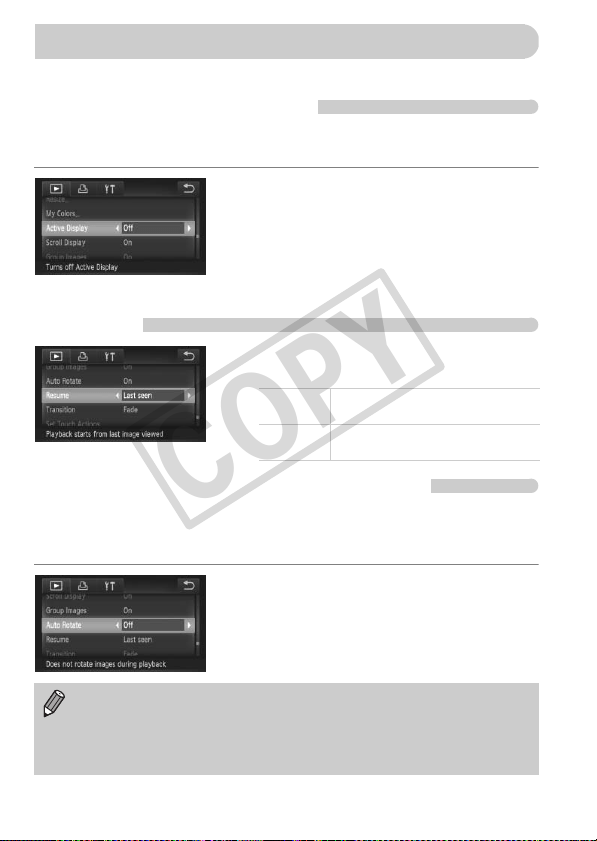
176
You can adjust the settings in the 1 tab by pressing the 1 button (p. 47).
Turning Off Active Display
You can turn off Active Display (pp. 29, 127) so that gently tapping the side
of the camera or tilting the camera does not cause images to switch.
z Choose [Active Display], then touch qr to
choose [Off].
Choosing the Image that First Displays in
Playback
z Choose [Resume], then touch qr to
choose an option.
Turning Off the Auto Rotate Function
When you play back images on the camera, images shot in vertical
orientation automatically rotate and display vertically. You can turn off this
function.
z Select [Auto Rotate], then touch qr to
select [Off].
Changing Playback Function Settings
Last seen
Resumes with the image last
viewed.
Last shot
Resumes with the most recently
shot image.
• Images cannot be rotated (p. 144) if you have set [Auto Rotate] to [Off].
Rotated images will also appear in their original orientation.
• In Smart Shuffle (p. 130), even if [Auto Rotate] is set to [Off], images
taken vertically will be displayed vertically, while rotated images will
appear in their rotated orientation.
COPY

177
Useful Information
This chapter introduces how to use the AC adapter kit and Eye-Fi card
(both sold separately), troubleshooting tips, and contains lists of
functions and items that appear on the screen.
11
COPY
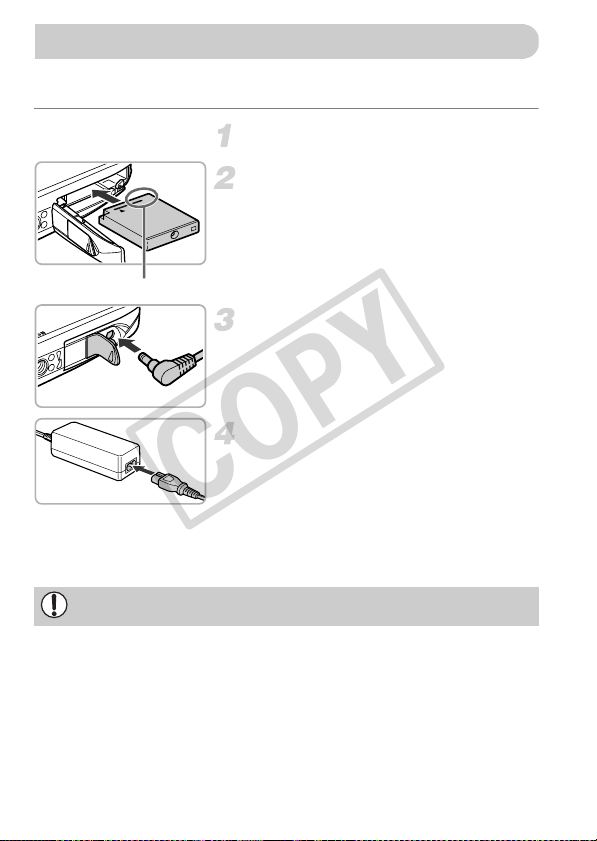
178
If you use AC Adapter Kit ACK-DC40 (sold separately), you can use the
camera without worrying about how much charge is left in the battery.
Turn off the camera.
Insert the coupler.
z Follow Step 2 on p. 17 to open the cover,
then insert the coupler as shown until it
locks into place with a click.
z Follow Step 5 on p. 18 to close the cover.
Plug the cord into the coupler.
z Open the cover and fully insert the plug
into the coupler.
Connect the power cord.
z Connect the power cord to the compact
power adapter, then plug the other end into
a power outlet.
z Turn the camera on to use it.
z After you finish, turn off the camera and
unplug the power cord from the power
outlet.
Using Household Power
Terminal
Do not unplug the plug or power cord with the camera turned on. This could
erase images you have taken or damage the camera.
COPY
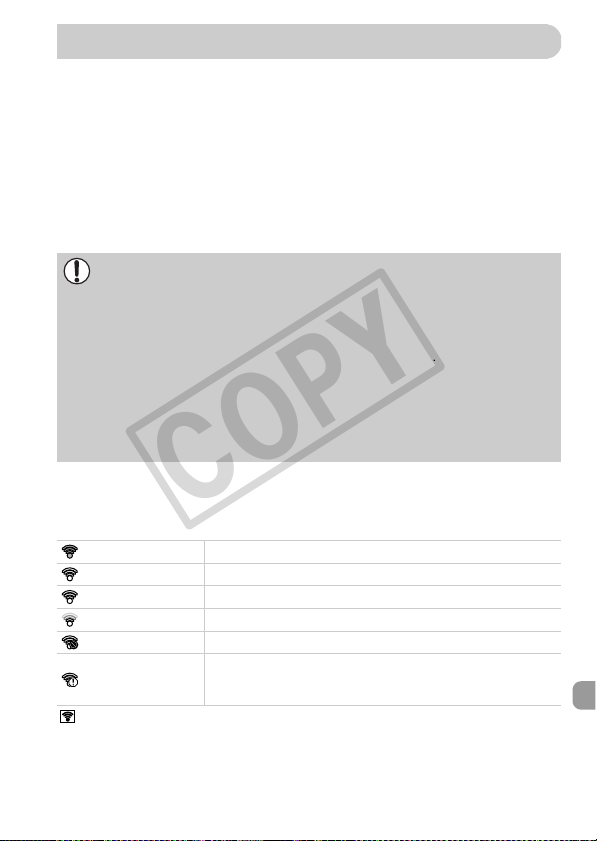
179
Before using an Eye-Fi card, be sure to check whether Eye-Fi card use is
authorized in the country or territory of use (p. 17).
When you put a prepared Eye-Fi card into the camera, you can automatically
transfer your images wirelessly to a computer, or upload them to a web
service.
Image transfer is a function of the Eye-Fi card. For details on how to setup
and use the card, and concerning problems transferring images, please refer
to the Eye-Fi card user guide, or contact the manufacturer.
If you put an Eye-Fi card into the camera, the connection status can be
checked in the shooting screen (information display) and playback screen
(simple information display).
will appear on transferred images.
Please keep the following things in mind when using an Eye-Fi card.
• Even if you set [Eye-Fi trans.] to [Disable] (p. 180), the Eye-Fi card may transmit
radio waves. Be sure to remove the Eye-Fi card from the camera before
entering areas that prevent unauthorized transmission of radio waves, such as
hospitals and airplanes.
• If you have trouble transferring images, check the card or computer settings.
For details, refer to the user guide supplied with the card.
• Depending on the connection status of the wireless network, it may take time to
transfer images, or image transfer may be interrupted.
• Due to its transfer function, the Eye-Fi card may become hot.
• Battery consumption will be quicker than in normal use.
• Camera operations will be slower than in normal use. This may be resolved by
setting [Eye-Fi trans.] to [Disable].
(Gray) Not connected
(Flashing white) Connecting
(White) Transfer standby
(Animated) Transferring
Interrupted
Error retrieving Eye-Fi card info (Turn the camera off and on
again. If this continues to appear, there may be a problem with
the card.)
Using an Eye-Fi Card
COPY
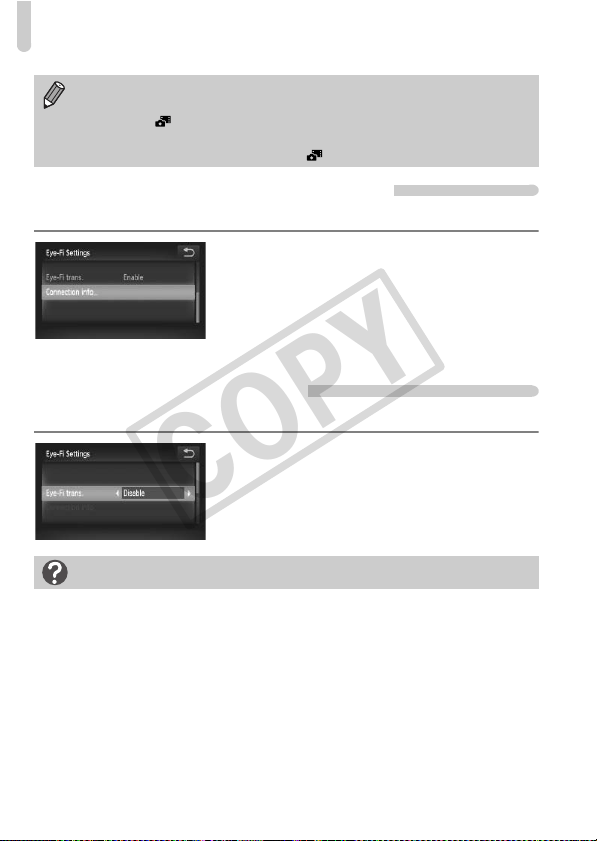
Using an Eye-Fi Card
180
Checking Connection Information
You can check the Eye-Fi card’s access point SSID, or connection status.
Choose [Connection info].
z Touch ø, then n to choose the
3 tab, and touch [Eye-Fi Settings].
z Touch [Connection info], then touch
[Connection info] again.
X The connection info screen will appear.
Disabling Eye-Fi Transfer
You can set the card to disable Eye-Fi transfer.
Choose [Disable] in [Eye-Fi trans.].
z Touch ø, then n to choose the
3 tab, and touch [Eye-Fi Settings].
z Choose [Eye-Fi trans.], then touch qr to
choose [Disable].
• The power saving function does not work while transferring images
(p. 52).
• Choosing will interrupt the Eye-Fi connection. Choosing another
Shooting mode or entering Playback mode will reopen the Eye-Fi
connection, but movies made with may be transferred again.
What if [Eye-Fi Settings] does not appear?
[Eye-Fi Settings] will not appear when an Eye-Fi card is not inserted in the
camera, and when an Eye-Fi card’s write-protect tab is in the locked position. For
this reason, settings cannot be changed for Eye-Fi cards equipped with a write-
protect tab when the tab is in the locked position.
COPY

181
If you think there is a problem with the camera, first check the following. If the
items below do not solve your problem, contact a Canon Customer Support
Help Desk as listed on the included customer support list.
Power
You pressed the power button, but nothing happened.
• Confirm that the battery is the correct type, and is not depleted (p. 16).
• Confirm that the battery is properly inserted (p. 18).
• Confirm that the memory card/battery cover is securely closed (p. 18).
• If the battery terminals are dirty, battery performance will decrease. Clean the terminals
with a cotton swab and re-insert the battery several times.
Battery is consumed quickly.
• Battery performance decreases at low temperatures. Warm the battery, for example, by
placing it in your pocket with the terminal cover on.
Lens will not retract.
• Do not open the memory card/battery cover while the power is on. After closing the
memory card/battery cover, turn the power on then back off (p. 18).
TV Output
Image is distorted or not showing on TV (p. 134).
Shooting
Cannot shoot.
• When in Playback mode (p. 22), press the shutter button halfway (p. 24).
Screen does not display properly in dark places (p. 45).
Screen does not display properly while shooting.
Please note, the following will not be recorded in still images, but will be recorded in
movies.
• When shooting under fluorescent or LED lighting, the screen may flicker, and a
horizontal bar may appear.
A flashing h appears on the screen and the shot cannot be taken even
though the shutter button was pressed fully (p. 27).
appears when the shutter button is pressed halfway (p. 54).
• Set the [IS mode] to [Continuous] (p. 173).
• Set the flash to h (p. 85).
• Increase the ISO speed (p. 88).
• Attach the camera to a tripod. Additionally, you should set the [IS Mode] to [Off] when
shooting with a tripod (p. 173).
Troubleshooting
COPY

Troubleshooting
182
Image is blurred.
• Press the shutter button halfway to focus on the subject, then press fully to shoot
(p. 24).
• Shoot the subject within the focusing distance (p. 201).
• Set the [AF-assist Beam] to [On] (p. 171).
• Confirm that functions which you do not intend to use (macro, etc.) are not set.
• Shoot using the focus lock or AF lock (pp. 96, 99).
Even when you press the shutter button halfway, the AF frame does not
appear, and the camera does not focus.
• If you center on the light and dark contrasting area of the subject and push the shutter
button halfway, or repeatedly push the shutter button halfway, the AF frame will appear
and the camera will focus.
Subject is too dark.
• Set the flash to h (p. 85).
• Correct the brightness with exposure compensation (p. 85).
• Adjust the image with i-Contrast (pp. 89, 149).
• Use spot metering or AE Lock to shoot (pp. 101, 102).
Subject is too bright (overexposed).
• Set the flash to ! (p. 54).
• Correct the brightness with exposure compensation (p. 85).
• Use spot metering or AE Lock to shoot (pp. 101, 102).
• Reduce the light illuminating the subject.
Image is dark even though the flash fired (p. 27).
• Shoot within an appropriate distance for flash photography (p. 85).
• Increase the ISO speed (p. 88).
Image taken using the flash is too bright (overexposed).
• Shoot within an appropriate distance for flash photography (p. 85).
• Set the flash to ! (p. 54).
White dots appear on the image when shooting with the flash.
• Light from the flash has reflected off dust particles or other objects in the air.
Image appears rough or grainy.
• Shoot with the ISO speed on a lower setting (p. 88).
• Depending on the Shooting mode, when shooting in a high ISO speed the image may
appear rough or grainy (pp. 65, 66).
Eyes appear red (p. 104).
• Set the [Red-Eye Lamp] to [On] (p. 171). When shooting with the flash, the lamp (on the
front of the camera) lights (p. 42), and for approximately 1 second while the camera is
reducing red-eye, it is not possible to shoot. It is more effective if the subject is looking
directly at the lamp. Even better results can be obtained by increasing the lighting in
indoor settings or approaching closer to the subject.
• Correct images with red-eye correction (p. 150).
COPY

Troubleshooting
183
Recording images to the memory card takes a long time, or continuous
shooting slows down.
• Perform a low-level format of the memory card in the camera (p. 165).
Cannot make settings for shooting functions or FUNC. menu.
• The items in which settings can be made differ depending on the shooting mode. Refer
to “Functions Available in Each Shooting Mode” and “Shooting Menu” (pp. 192 – 197).
Shooting Movies
Correct shooting time does not display, or stops.
• Format the memory card in the camera, or use a memory card capable of recording at
high speeds. Even when the shooting time does not display properly, the recorded
video will be the length that it was actually shot (pp. 23, 32).
appeared on the screen and shooting ended automatically.
The camera’s internal memory was insufficient. Try one of the following:
• Perform a low-level format of the memory card in the camera (p. 165).
• Change the image quality setting (p. 116).
• Use a memory card capable of recording at high speeds (p. 116).
Subject appears distorted.
• The subject may appear distorted if it passes quickly in front of the camera while
shooting.
Playback
Cannot play back images or movies.
• If the file name or folder structure is changed on a computer, you may not be able to
play back images or movies. Refer to the Software Guide for information regarding
folder structure or file names.
Playback stops, or audio cuts out.
• Use a memory card that has had a low-level format performed on it with this camera
(p. 165).
• If you copy a movie to a memory card that reads slowly, playback may interrupt
momentarily.
• Depending on its capabilities, when playing movies on a computer, frames may drop or
the audio may cut out.
Screen
Touch operations do not work as expected.
• Since the camera uses a pressure sensitive touch panel, try touching the screen slightly
harder or use the toggle attached to the strap (p. 14).
• Calibrate the touch panel (p. 170).
appears on the upper right of the screen.
• You are touching the upper right part of the screen. Take your finger off the screen.
COPY

List of Messages That Appear on the Screen
184
Computer
Cannot transfer images to a computer.
It may be possible to solve the problem when the camera is connected to a computer via
cable by reducing the transfer speed.
• Turn off the camera. Keep the shutter button pressed fully and move the zoom lever
toward i, then press the 1 button. Now move the zoom lever toward j. Touch [B]
in the screen that appears, then touch it again.
Eye-Fi Card
Cannot transfer images (p. 179).
If error messages appear on the screen, try one of the following solutions.
No memory card
• The memory card is not installed in the correct direction. Install the memory card in the
correct direction (p. 18).
Memory card locked
• The SD memory card, SDHC memory card, SDXC memory card or Eye-Fi card’s write
protect tab is set to “LOCK”. Unlock the write protect tab (p. 17).
Cannot record!
• You attempted to shoot an image without a memory card. Install the memory card in the
correct direction to shoot (p. 18).
Memory card error (p. 165)
• If the same message appears even when a formatted memory card is installed in the
correct direction, contact a Canon Customer Support Help Desk (p. 18).
Insufficient space on card
• There is not enough free space on the memory card to shoot (pp. 25, 31, 53, 83, 111)
or edit images (pp. 145 – 150). Erase the images (pp. 30, 139) to open space for new
images, or insert an empty memory card (p. 17).
Touch AF unavailable
• Touch AF cannot be used in your current Shooting mode (p. 192).
• You are touching the upper right part of the screen (p. 13). Only touch the location
where you want to use Touch AF.
Touch AF canceled
• The camera could no longer recognize the subject you selected using Touch AF (p. 98).
List of Messages That Appear on the
Screen
COPY

List of Messages That Appear on the Screen
185
Change the battery pack. (p. 17)
No Image.
• There are no images recorded on the memory card that can be displayed.
Protected! (p. 137)
Unidentified Image/Incompatible JPEG/Image too large./Cannot play back
AVI/RAW
• Unsupported images, or images with corrupted data cannot be displayed.
• Images manipulated on a computer, that have had their file name changed, or have
been taken with a different camera may not display.
Cannot magnify!/Cannot play back this content in Smart Shuffle/Cannot
rotate/Cannot modify image/Cannot register this image!/Cannot modify/
Cannot assign to category/Unselectable image.
• Incompatible images cannot be magnified (p. 127), played back in Smart Shuffle
(p. 130), tagged as favorites (p. 141), rotated (p. 144), edited (pp. 145 – 150),
registered to the start-up screen (p. 166), categorized (p. 143), or added to a print list
(p. 159).
• Grouped images cannot be processed (p. 80).
• Images manipulated on a computer, that have had their file name changed, or have
been taken with a different camera may not be magnified, played back in Smart Shuffle,
tagged as favorites, rotated, edited, registered to the start-up screen, categorized, or
added to a print list.
• Movies cannot be magnified (p. 127), played back in Smart Shuffle (p. 130), edited
(pp. 145 – 150), added to a print list (p. 159), or registered to the start-up screen
(p. 166).
Exceeded selection limit
• You chose more than 998 images in print settings. Choose less than 998 images
(p. 161).
• Print settings could not be saved correctly. Reduce the number of selected images and
try again (p. 161).
• You chose 501 or more images in Protect (p. 137), Erase (p. 139), Favorites (p. 141),
My Category (p. 143) or Print Settings (p. 159).
Communication error
• Images could not be transferred to the computer or printed due to the large amount of
images (approx. 1000) stored on the memory card. Use a commercially available USB
card reader to transfer the images. Insert the memory card into the printer’s card slot to
print.
Naming error!
• The folder or image could not be created because there is an image with the same file
name as the folder or image that the camera is attempting to create, or the highest
possible file number has already been reached. In the 3 menu, change [File
Numbering] to [Auto Reset] (p. 167) or format the memory card (p. 23).
COPY

List of Messages That Appear on the Screen
186
Lens Error
• This error can occur if you hold the lens while it is in motion or when using it in a location
with excessive dust or sand in the air.
• If this error message continues to appear, contact a Canon Customer Support Help
Desk as there may be a problem with the lens.
A camera error was detected (Error number)
• If an error code appears directly after taking a picture, the shot may not have been
recorded. Check the image in Playback mode.
• If this error code reappears, note the Error number (Exx) and contact a Canon
Customer Support Help Desk as there may be a problem with the camera.
File Error
• Photos from other cameras or images that have been altered using computer software
may not be printable.
Print error
• Check the paper size settings. If this message appears when the settings are correct,
turn the printer off and back on, then make the settings again.
Ink absorber full
• Contact a Canon Customer Support Help Desk for an ink absorber replacement.
COPY
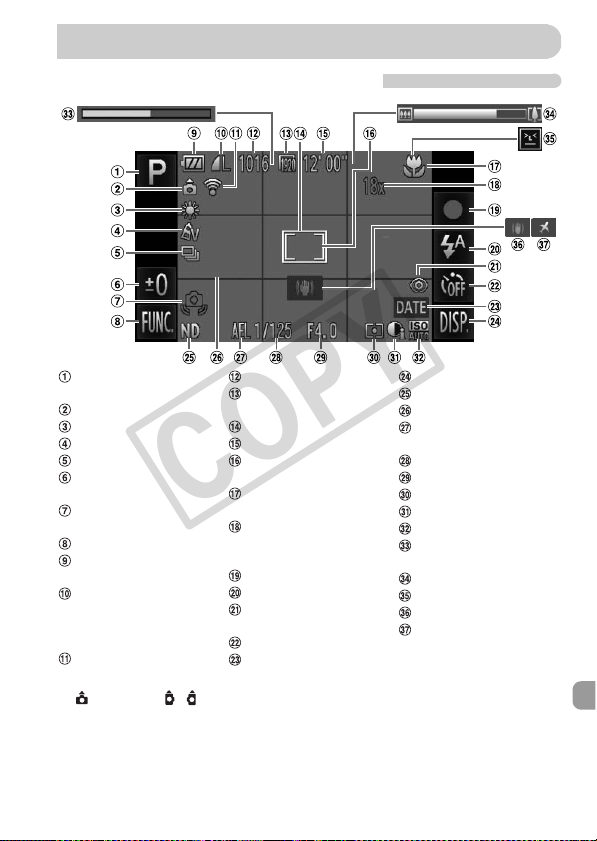
187
Shooting (Information Display)
* : Standard, : Held vertically
When shooting, the camera detects if it is held vertically or horizontally, and adjusts
settings accordingly for the best shot. It also detects orientation during playback, so you
can hold the camera in either orientation and it will automatically rotate images for correct
viewing.
This function may not operate correctly when the camera is pointed straight up or down.
Information Displayed on the Screen
Shooting Mode (p. 192),
Scene Icon (p. 188)
Camera Orientation*
White Balance (p. 86)
My Colors (p. 92)
Drive Mode (p. 91)
Exposure Compensation
Amount (p. 85)
Camera Shake Warning
(p. 26)
FUNC. (Function) (p. 46)
Battery Charge Indicator
(p. 16)
Compression (Image
Quality) (p. 60) /
Recording Pixels (pp. 60,
116)
Eye-Fi Connection
Status (p. 179)
Recordable Shots (p. 61)
Image Quality (Movies)
(p. 116)
AF Frame (p. 95)
Remaining Time (p. 116)
Spot AE Point Frame
(p. 101)
Focusing Range (p. 94),
AF Lock (p. 99)
Digital Zoom Magnification
(p. 55) / Digital Tele-
converter (p. 56)
Shooting Movies (p. 31)
Flash Mode (pp. 54, 85)
Red-Eye Correction
(p. 150)
Self-Timer (pp. 58, 59)
Date Stamp (p. 57)
DISP. (Display) (p. 44)
ND Filter (p. 27)
Grid Lines (p. 172)
AE Lock (p. 102), FE
Lock (p. 102)
Shutter Speed (p. 108)
Aperture Value (p. 109)
Metering Method (p. 101)
i-Contrast (p. 89)
ISO Speed (p. 88)
Super Slow Motion Movie
Shooting Time (p. 114)
Zoom Bar (p. 26)
Blink Detection (p. 105)
Image Stabilizer (p. 173)
Time Zone (p. 169)
COPY
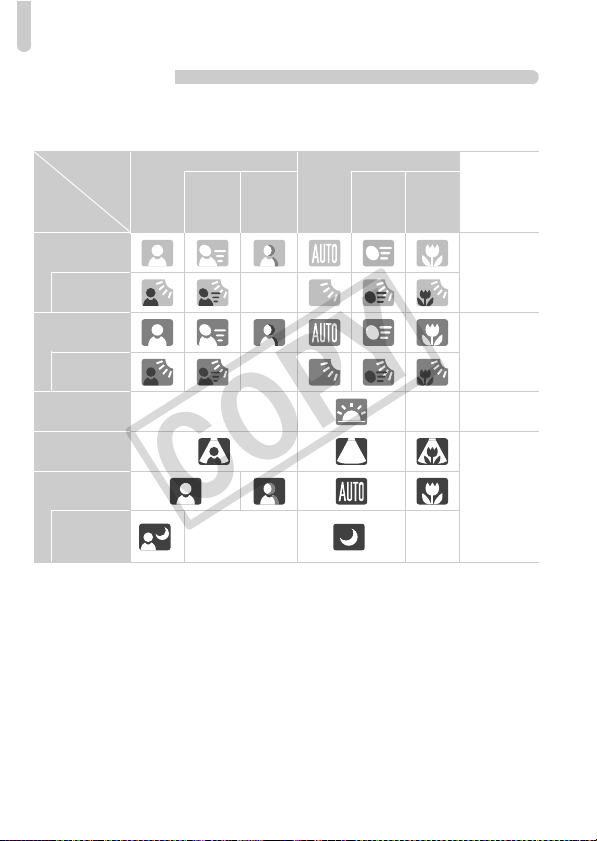
Information Displayed on the Screen
188
Scene Icons
In A mode, the camera displays an icon for the scene it has determined
and then automatically focuses and selects the optimum settings for subject
brightness and color.
* Appears when the scene is dark and the camera is attached to a tripod.
Subject People Non-Human Subjects
Icon
Background
Color
Background
When
Moving
With
Strong
Facial
Shadows
When
Moving
When
Close
Bright
Gray
Backlit —
Including
Blue Skies
Light Blue
Backlit —
Sunsets — — Orange
Spotlights
Dark Blue
Dark
When
Using
Tripod
*— *—
COPY
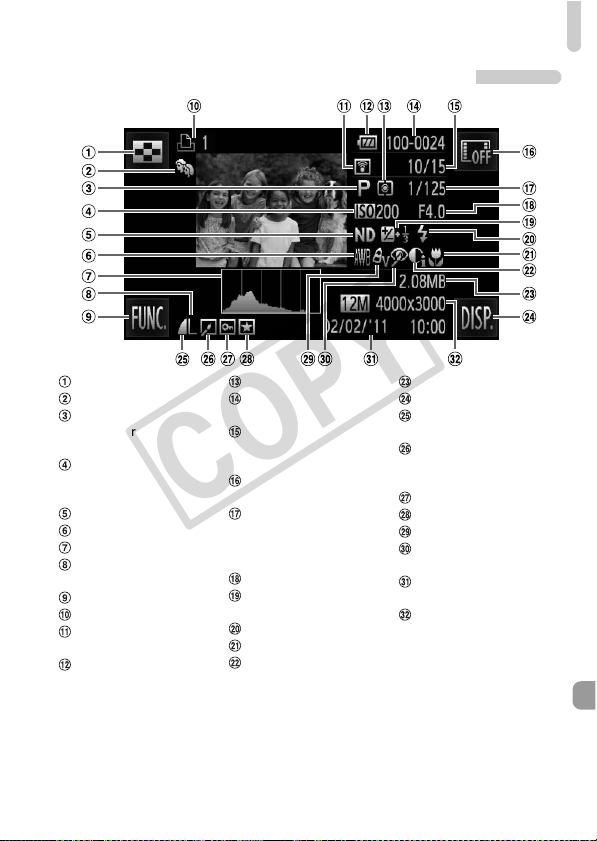
Information Displayed on the Screen
189
Playback (Detailed Information Display)
Index Display (p. 120)
My Category (p. 143)
Movies (p. 33), High-
speed Burst (p. 80),
Shooting Mode (p. 192)
ISO Speed (p. 88),
Playback Speed
(Movies) (p. 114)
ND Filter (p. 27)
White Balance (p. 86)
Histogram (p. 45)
Recording Pixels (pp. 60,
116), MOV (Movies)
FUNC. (Function) (p. 46)
Print List (p. 159)
Eye-Fi Transfer
Complete (p. 179)
Battery Charge Indicator
(p. 16)
Metering Method (p. 101)
Folder Number – File
Number (p. 167)
Displayed image
number / Total number of
images
No Information Display
(p. 44)
Shutter Speed (Still
Images) (p. 108), Image
Quality / Frame Rate
(Movies) (p. 116)
Aperture Value (p. 109)
Exposure Compensation
Amount (p. 85)
Flash (p. 85)
Focusing Range (p. 94)
i-Contrast (pp. 89, 149)
File Size (pp. 61, 116)
DISP. (Display) (p. 44)
Compression (Image
Quality) (p. 60)
Group Playback (p. 128),
Image Editing (pp. 145 –
150)
Protect (p. 137)
Favorites (p. 141)
My Colors (pp. 92, 148)
Red-Eye Correction
(p. 150)
Shooting Date and Time
(p. 20)
Still Images: Recording
Pixels (p. 60)
Movies: Movie Length
(p. 116)
COPY
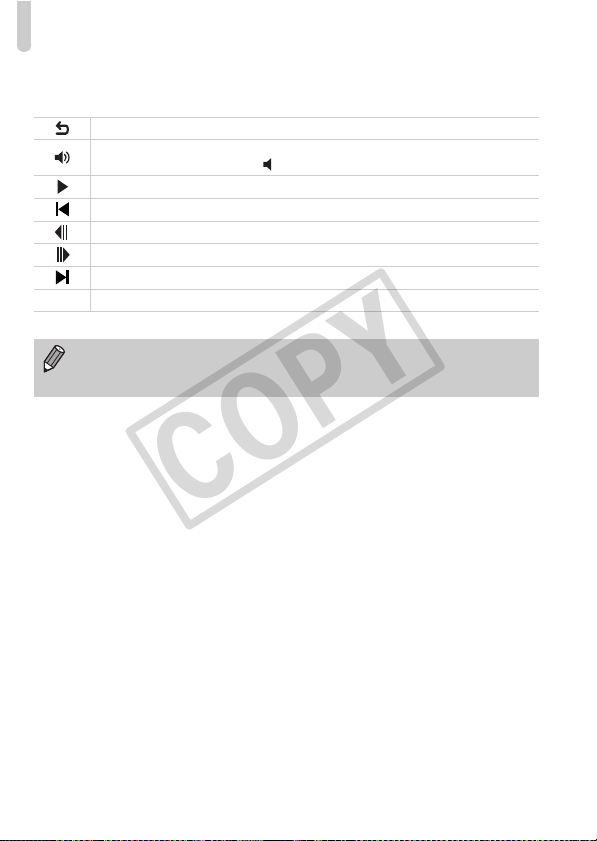
Information Displayed on the Screen
190
Summary of Movie Control Panel in “Viewing Movies”
(p. 33)
* Displays the frame approx. 4 sec. before or after the current frame.
Exit
Touch to display the volume panel, then touch op to adjust the volume.
When the volume is set to 0, will appear.
Playback
Skip backward* (Continues to skip backward if you keep touching the screen.)
Previous frame (Slow rewind if you touch and hold the icon.)
Next frame (Slow advance if you touch and hold the icon.)
Skip forward* (Continues to skip forward if you keep touching the screen.)
Edit (p. 117)
• You can skip forward or backward if you lightly tap the camera (p. 29)
while viewing a movie (Active Display).
• Touch the scroll bar, or drag it left or right to change the displayed frame.
*
COPY

191
• This camera is a high-precision electronic device. Do not drop it or subject
it to strong impacts.
• Never place the camera close to magnets, motors or other devices that
generate strong electromagnetic fields. Exposure to strong magnetic fields
may cause malfunctions or corrupt image data.
• If water droplets or dirt become stuck on the camera or screen, wipe with
a dry soft cloth or eyeglass wiper. Do not rub or apply force.
• Never use cleaners containing organic solvents to wipe the camera or
screen.
• Use a commercially available blower brush to remove dust from the lens.
For stubborn dirt contact a Canon Customer Support Help Desk as listed
on the customer support leaflet supplied with your camera.
• When you move the camera rapidly from cold to hot temperatures,
condensation may form on the internal or external surfaces of the camera.
To avoid condensation, put the camera in an airtight, resealable plastic bag
and let it adjust to temperature changes slowly before removing it from the
bag.
• If condensation has formed on the camera, stop using it immediately, as
continued use may damage the camera. Remove the battery and memory
card, and wait until the moisture has completely evaporated before
resuming use.
Handling Precautions
COPY
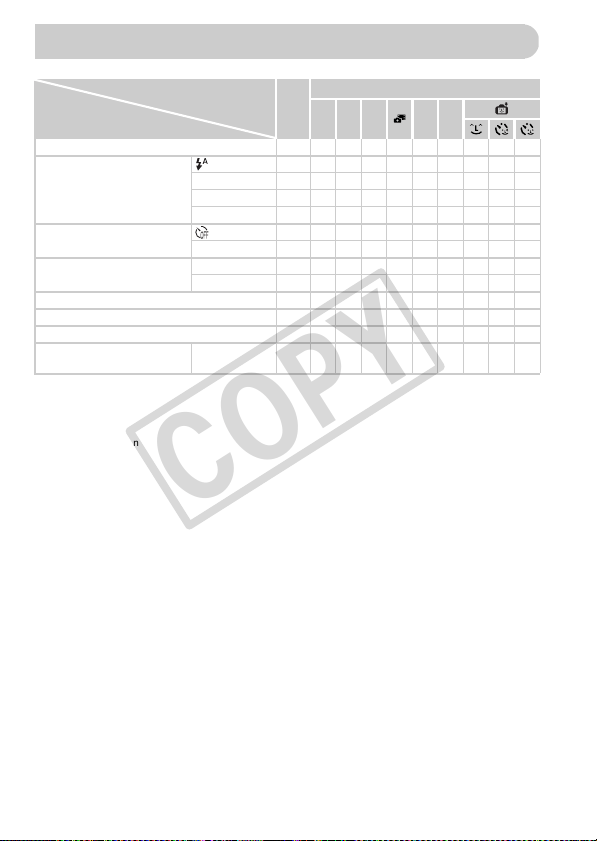
192
Functions Available in Each Shooting
Shooting Modes
A
4
G B M I V
Function
Exposure Compensation (p. 85) — {{{{{{{{{
Flash (pp. 54, 85)
{{——{{{{{{
— {{{{{{{{{
*1 {{— { —————
{ {{{{{{{{{
Self-Timer (pp. 58, 59)
{ {{{{{{{{{
{ {{{{{{———
Self-Timer Settings (p. 59)
Delay
*3
{ {{{{{{———
Shots
*4
{{{{— {{———
AE Lock/FE Lock
*5
(p. 102) — {{{{—————
AF Lock (p. 99) — {{{{—————
Touch AF (p. 98) {{{{— {{*6 *6 *6
Screen Display (p. 44)
Information/
No Information
{ {{{{{{{{{
*1 Not selectable but switches to … depending on the circumstances.
*2 Not selectable but switches to … when the flash fires.
*3 Cannot be set to 0 seconds when in modes where the number of shots cannot be set.
*4 Fixed to 1 shot when in modes where the number of shots cannot be set.
*5 FE Lock not available when set to !.
*6 Only available when a face is detected.
h
…
!
ÒÎ$
COPY
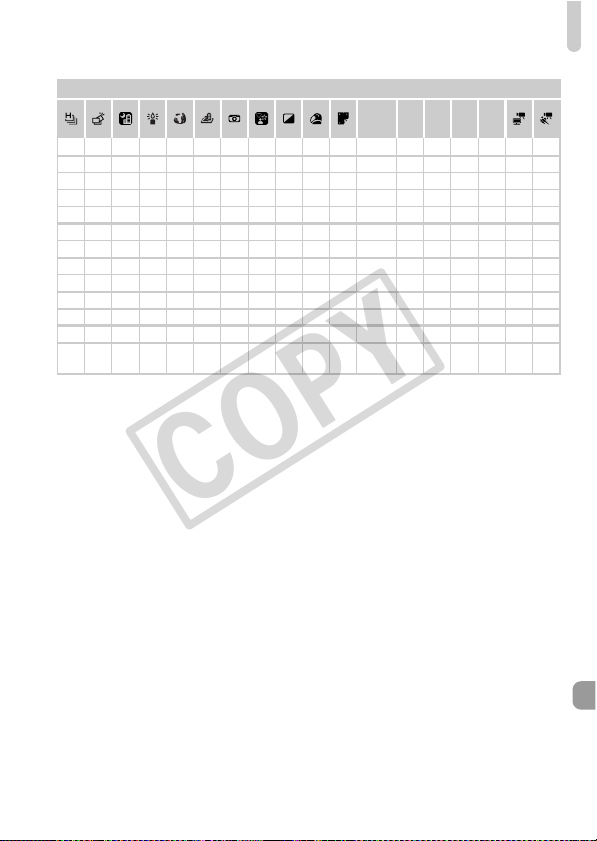
Functions Available in Each Shooting Mode
193
4
T Y w O P t
{ — {{{{{— {{——{{{{——
———{{{{— {{{ { {{{———
————{{{{{{{ { {{{———
———————*2——— — ——————
{{{{{{{{{{{ { {{{{——
{{{{{{{{{{{ { {{{{{{
——{{{{{{{{{ { {{{{{{
——{{{{{{{{{ { {{{{{{
——{{{{{{{{{ { {{{{——
——————————— — ——————
——————————— — ——————
{ ——{ ———{{{{ { {{{———
{{{{{{{{{{{ { {{{{{{
{ Selectable, or set automatically. – Not selectable.
COPY
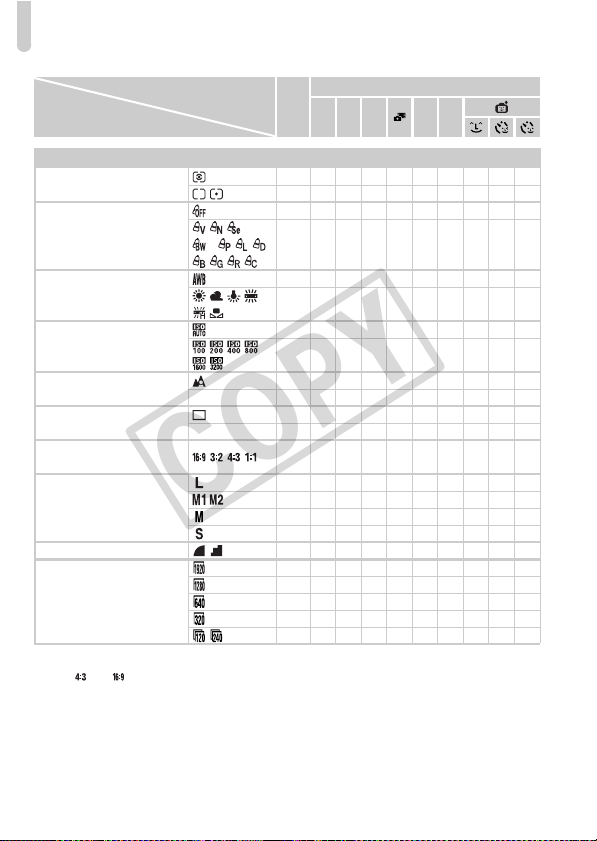
Functions Available in Each Shooting Mode
194
Shooting Modes
A
4
G B M I V
Function
FUNC. Menu
Metering Method (p. 101)
{ {{{{{{{{{
— {{{{—————
My Colors (p. 92)
{ {{{{{{{{{
*1
*1
*2
— {{{{——{{{
White Balance (p. 86)
{ {{{{{{{{{
— {{{{——{{{
ISO Speed (p. 88)
{ {{{{{{{{{
— {{{{—————
Focusing Range (p. 94)
{ {{{{{{{{{
— {{{{{————
Drive Mode (p. 91)
{ {{{{{{{{{
— {{{— {{———
Aspect Ratio (Still Images)
(p. 90)
{{{{— {{{{{
Recording Pixels (p. 60)
{ {{{{{{{{{
{ {{{{{{{{{
— —————————
{ {{{{{{{{{
Compression Ratio (p. 60) { {{{{{{{{{
Image Quality (Movies)
(pp. 114, 116)
{ {{{{{{{{{
{ {{{{{{{{{
{ {{{{{{{{{
{ {{{{{{{{{
— —————————
*1 White balance is not selectable.
*2 Contrast, sharpness, color saturation, red, green, blue, and skin tone can be set in 5 levels.
*3 Only and are available.
eu
W
COPY
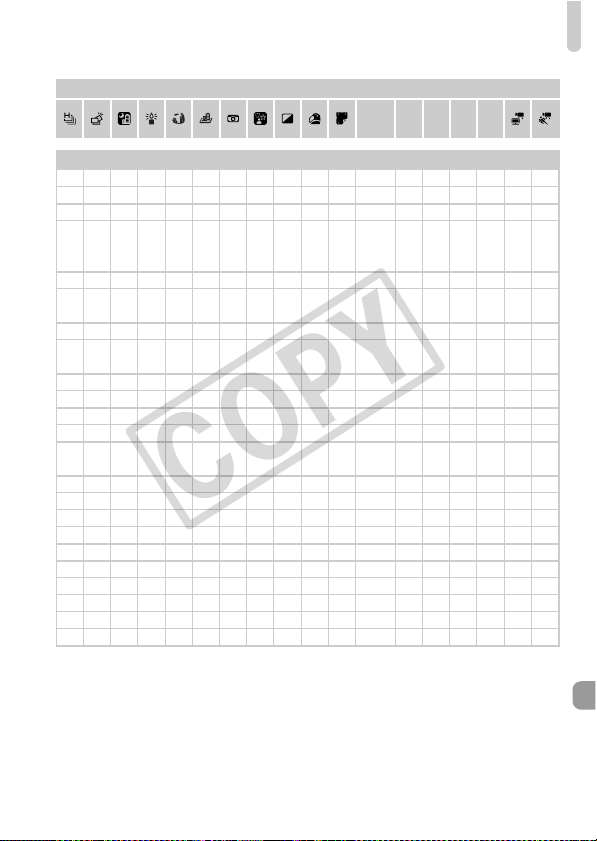
Functions Available in Each Shooting Mode
195
4
T Y w O P t
FUNC. Menu
{{{{{{{{{{{ { {{{{{{
——————————— — ——————
{{{{{{{{{{{ { {{{{{{
——————————— — ————{ —
{{{{{{{{{{{ { {{{{{{
{{— { ——————— — ————{ —
{{{{{{{{{{{ { {{{{{{
——————————— — ——————
{{{{{{{{{{{ { {{{{{{
{{{{{{{{{{{ { {{{— {{
——{{{{{{{{{ { {{{{{{
{{— {{{{{{{{ { {{{{——
—————*3—{{{{ { {{{{——
——{ — {{{{{{{ { {{{{{{
———————{{{{ { {{{{{{
{{— { ——————— — ——————
———————{{{{ { {{{{{{
{{{{{{{{{{{ { {{{{{{
{{{{{— {{{{{ { {{{{——
{{{{{{{{{{{ { {{{{{—
{{{{{{{{{{{ { {{{{——
{{{{{— {{{{{ { {{{{——
——————————— — —————{
{ Selectable, or set automatically. – Not selectable.
COPY
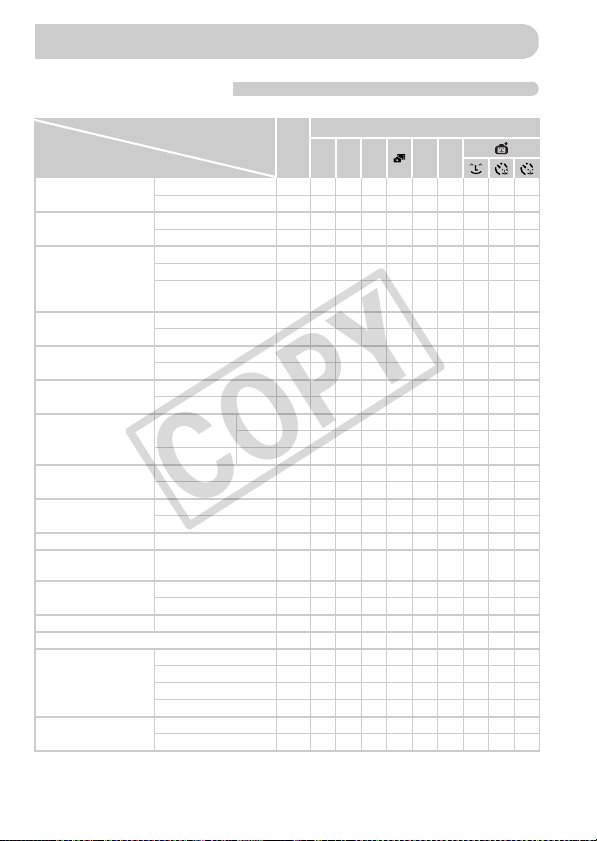
196
4 Shooting Menu
Menus
Shooting Modes
A
4
G B M I V
Function
AF Frame (p. 95)
Face AiAF*
1
{ {{{{{{{{{
Fixed frame — {{{{{{———
AF Frame Size*
2
(p. 96)
Normal — {{{{{{———
Small — {{{{{{———
Digital Zoom (p. 55)
Standard { {{{{{{{{{
Off { {{{{{{{{{
Digital Tele-converter
(1.5x/2.0x)
{ {{{{{{{{{
AF-Point Zoom (p. 97)
On {{{{— { — {{{
Off { {{{{{{{{{
Servo AF (p. 100)
On — {{{— {{———
Off*
3
{ {{{{{— {{{
AF-assist Beam
(p. 171)
On { {{{{{{{{{
Off { {{{{{{— {{
Flash Settings
(pp. 104, 171)
Red-Eye Corr.
On { {{{{{{{{{
Off { {{{{{{{{{
Red-Eye Lamp On/Off { {{{{{{{{{
i-Contrast (p. 89)
Auto {{{{{—————
Off — {{{{{{{{{
Safety Shift (p. 110)
On — — {{——————
Off { {{{{{{{{{
Review (p. 172) Off/2 – 10 sec./Hold { {{{{{{{{{
Review Info (p. 172)
Off/Detailed/Focus
Check
{ {{{{{{{{{
Blink Detection
(p. 105)
On { {{{{{{{{{
Off { {{{{{{{{{
Grid Lines (p. 172) On/Off { {{{{{{{{{
Icon Layout (p. 174) { {{{{{{{{{
IS Mode (p. 173)
Off — {{{{{{{{{
Continuous { {{{{{{{{{
Shoot Only — {{{{{{{{{
Panning — {{{{{{{{{
Date Stamp (p. 57)
Off { {{{{{{{{{
Date/Date & Time { {{{{{{{{{
*1 Operation differs depending on the shooting mode when faces are not detected.
*2 Available when the AF frame is set to [Fixed frame]. *3 [On] when moving people are detected in A.
COPY
Menus
197
4
T Y w O P t
{{{{——{{{{{ { {{{— {{
{ ——{{— {{{{{ { {{{{{{
{ ——{{— {{{{{ { {{{{{{
{ ——{ ——{{{{{ { {{{— {{
———————{{{{ — {{{{{—
{{{{{{{{{{{ { {{{{{{
———————{{{{ — {{{{——
{{— { ———{{{{ { {{{———
{{{{{{{{{{{ { {{{{{{
———{ ———{{{{ { {{{———
{{{{{{{{{{{ { {{{{——
{{{{{{{{{{{ { {{{— {{
{{{{{{{{{{{ { {{{{{{
———{ ———{ ——— — {{{———
———{{{{{{{{ { {{{———
———{{{{{{{{ { {{{———
{{— { ——————— — ——————
——{ — {{{{{{{ { {{{{——
——————————— — ——————
{{{{{{{{{{{ { {{{{{{
{{{{{{{{{{{ { {{{{——
{{{{{{{{{{{ { {{{{——
———{ ———{ — {{{{{{———
{{{{{{{{{{{ { {{{{{{
{{{{{{{{{{{ { {{{{{{
{{{{{{{{{{{ { {{{{{{
{{— {{{{— {{{ { {{{{{{
{{{{{{{— {{{ { {{{{{{
{{— {{{{{{{{ { {{{{——
{{
— {
{{{— {{{{{
{{{——
{{{{{{{{{{{ { {{{{{{
——————————— — {{{{——
{ Selectable, or set automatically. – Not selectable.
COPY

Menus
198
3 Set up Menu
Item Content Ref. Page
Mute On/Off* p. 49
Volume Set all operation sounds (5 levels). p. 49
Sound Options Set the sounds for each camera operation. p. 164
Hints & Tips On*/Off p. 164
LCD Brightness Sets screen brightness (5 levels). p. 50
Start-up Image Add an image as a start-up image. p. 166
Color Option Orange*/Blue Gray/Khaki/Pink p. 167
Format Formats memory card, erasing all data pp. 23, 165
File Numbering Continuous*/Auto Reset p. 167
Create Folder Monthly*/Daily p. 168
Lens Retract 1 min.*/0 sec. p. 168
Power Saving Auto Power Down: On*/Off
Display Off: 10, 20 or 30 sec./1*, 2 or 3 min.
pp. 52, 168,
169
Time Zone Home*/World p. 169
Date/Time Date and time settings p. 21
Video System NTSC/PAL p. 134
Ctrl via HDMI Enable/Disable* p. 135
Calibration Calibrates the touch panel. p. 170
Eye-Fi Settings Eye-Fi connection settings (only appears when
Eye-Fi card is inserted)
p. 179
Language Choose display language. p. 22
Reset All Returns camera to default settings. p. 51
* Default setting
COPY

Menus
199
1 Playback Menu
2 Print Menu
Item Content Ref. Page
Slideshow Plays back images automatically. p. 124
Erase Erases images (Select, All Images). p. 139
Protect Protects images (Select, All Images). p. 137
Rotate Rotates images. p. 144
Favorites Tags or untags images as favorites. p. 141
My Category Categorizes images. p. 143
i-Contrast Corrects dark portions and contrast in still
images.
p. 149
Red-Eye Correction Corrects red eyes in still images. p. 150
Trimming Trims portions of still images. p. 146
Resize Resizes and saves still images. p. 145
My Colors Adjusts colors in still images. p. 148
Active Display On*/Off p. 176
Scroll Display On*/Off p. 121
Group Images On*/Off p. 129
Auto Rotate On*/Off p. 176
Resume Last seen*/Last shot p. 176
Transition Fade*/Scroll/Slide/Off p. 131
Set Touch Actions Register a playback function to a drag pattern. p. 132
* Default setting
Item Content Ref. Page
Print Displays printing screen (When connected to a
printer).
—
Select Images & Qty. Chooses individual images for printing. p. 161
Select All Images Chooses all images for printing. p. 162
Clear All Selections Cancels all settings for printing. p. 162
Print Settings Sets the printing style. p. 160
COPY

200
Item Content Ref. Page
Rotate Rotates displayed image. p. 144
Print List Selects or clears settings for printing displayed
image ([Print] appears when the camera is
connected to the printer).
p. 159
Protect Protects/unlocks displayed image. p. 137
Favorites Tags/untags displayed image as favorites. p. 141
Erase Erases displayed image. p. 139
Movie Digest Playback Plays back movies made in the Movie Digest
mode.
p. 122
Smart Shuffle Starts Smart Shuffle. p. 130
Filtered Playback Filters/cancels filter for displayed image. p. 123
Slideshow Plays back images automatically. p. 124
My Category Categorizes images. p. 143
Playback Mode FUNC. Menu
COPY

201
Image Sensor
Camera Effective Pixels ..................Approx. 12.1 million pixels
Lens
Focal Length ...................................4.4x zoom: 4.3 (W) – 18.8 (T) mm
(35mm film equivalent: 24 (W) – 105 (T) mm)
Focusing Range..............................3 cm (1.2 in.) – infinity (W), 40 cm (1.3 ft.) – infinity (T)
• Macro 3 – 50 cm (W) (1.2 in. – 1.6 ft. (W))
Image Stabilizer System......................Lens-shift type
Imaging Processor ..............................DIGIC 4
LCD Monitor
Type ................................................TFT color (wide viewing angle type)
Size .................................................3.2 type
Effective Pixels................................Approx. 461,000 dots
Aspect Ratio....................................16:9
Features ..........................................Touch panel
Brightness adjustment (5 levels)
Focus
Control System................................Autofocus: Single (Continuous in Auto mode), Servo AF/
Servo AE, Touch AF
AF Frame ........................................Face AiAF, Fixed frame
Metering System..................................Evaluative, Center-weighted average, Spot
Exposure Compensation
(Still Images) /
Exposure Shift (Movies) ......................±2 stops in 1/3-stop increments
ISO Speed
(Standard Output Sensitivity,
Recommended Exposure Index).........Auto, ISO 100/200/400/800/1600/3200
White Balance .....................................Auto, Day Light, Cloudy, Tungsten, Fluorescent,
Fluorescent H, Custom
Shutter Speed......................................1 – 1/1600 sec.
15 – 1/1600 sec. (Total shutter speed range)
Aperture
Type ................................................Iris (Used together with ND filter)
f/number ..........................................f/2.0 – f/8.0 (W), f/5.8 – f/8.0 (T)
Flash
Modes .............................................Auto, on, Slow Synchro, off
Range..............................................50 cm – 5.0 m (W), 50 cm – 2.0 m (T)
(1.6 – 16 ft. (W), 1.6 – 6.6 ft. (T))
Specifications
COPY

Specifications
202
Shooting Modes ..................................Auto
*1
, P, Av, Tv, Movie Digest, Portrait, Kids&Pets,
Smart Shutter
*2
, High-speed Burst, Best Image
Selection, Handheld Night Scene, Low Light, Fish-eye
Effect, Miniature Effect, Toy Camera Effect, Creative
Light Effect, Monochrome, Super Vivid, Poster Effect,
Color Accent, Color Swap, Beach, Foliage, Snow,
Fireworks, iFrame Movie, Super Slow Motion Movie
• Movies are recorded by pressing the movie button.
*1 Smart Auto also available for movies
*2 Smile, Wink Self-timer, Face Self-timer
Digital Zoom ........................................Still images/Movies: Approx. 4.0x
(up to approx. 18x in combination with the optical zoom)
Safety Zoom, Digital tele-converter
Continuous Shooting
Mode ...............................................Normal
Speed (Normal)...............................Approx. 3.4 shots/sec. (In P mode)
Approx. 8.2 shots/sec. (In High-speed Burst mode)
Number of Shots (Approximate)
(CIPA compliant) .................................Approx. 180
Recording Media .................................SD memory card, SDHC memory card, SDXC memory
card, MultiMediaCard, MMCplus card, HC MMCplus card
File Format ..........................................Design rule for Camera File system, DPOF (Version 1.1)
compliant
Data Type
Still Images .....................................Exif 2.3 (JPEG)
Movies............................................. Movies: MOV (Image data: H.264; Audio data: Linear
PCM (stereo))
Number of Recording Pixels
Still Images .....................................16:9
Large: 4000 x 2248, Medium 1: 2816 x 1584, Medium 2:
1920 x 1080, Small: 640 x 360
3:2
Large: 4000 x 2664, Medium 1: 2816 x 1880, Medium 2:
1600 x 1064, Small: 640 x 424
4:3
Large: 4000 x 3000, Medium 1: 2816 x 2112, Medium 2:
1600 x 1200, Small: 640 x 480
1:1
Large: 2992 x 2992, Medium 1: 2112 x 2112, Medium 2:
1200 x 1200, Small: 480 x 480
COPY

Specifications
203
Movies.............................................Super Slow Motion Movie:
640 x 480 (120 fps
*1
when shooting, 30 fps
*2
during
playback), 320 x 240 (240 fps
*3
when shooting, 30 fps
*2
during playback)
Miniature Effect:
1280 x 720
*4
, 640 x 480
*4
iFrame Movie: 1280 x 720 (30 fps
*2
)
Movies other than the above: 1920 x 1080 pixels
(24 fps
*5
), 1280 x 720 (30 fps
*2
), 640 x 480 (30 fps
*2
),
320 x 240 (30 fps
*2
)
*1 Actual frame rate is 119.88 fps.
*2 Actual frame rate is 29.97 fps.
*3 Actual frame rate is 239.76 fps.
*4 Shooting: 6 fps/3 fps/1.5 fps, Playback: 30 fps
*2
*5 Actual frame rate is 23.976 fps.
Interface...............................................Hi-Speed USB
HDMI output
Analog audio output (stereo)
Analog video output (NTSC/PAL)
Direct Print Standard ...........................PictBridge
Power Source......................................Battery Pack NB-6L
Compact Power Adapter CA-DC10 (when used with
DC Coupler DR-40)
Dimensions (CIPA compliant)..............100.6 x 55.4 x 25.0 mm (3.96 x 2.18 x 0.98 in.)
Weight (CIPA compliant) .....................Approx. 185 g (6.53 oz.) (Including the battery and
memory card)
Approx. 165 g (5.82 oz.) (camera body only)
COPY

Specifications
204
Battery Pack NB-6L
Format................................................. Rechargeable Lithium-ion Battery Pack
Nominal Voltage..................................3.7 V DC
Nominal Capacity ................................1000 mAh
Charging Cycles.................................. Approx. 300 times
Operating Temperatures .....................0 – 40 °C (32 – 104 °F)
Dimensions..........................................34.4 x 41.8 x 6.9 mm (1.35 x 1.65 x 0.27 in.)
Weight .................................................Approx. 21 g (Approx. 0.74 oz.)
Battery Charger CB-2LY/CB-2LYE
Rated Input..........................................100 V – 240 V AC (50/60 Hz), 0.085 A (100 V) – 0.05 A
(240 V)
Rated Output.......................................4.2 V DC, 0.7 A
Charge Time........................................Approx. 1 hour 55 min. (when using NB-6L)
Operating Temperatures .....................0 – 40 °C (32 – 104 °F)
Dimensions..........................................58.6 x 86.4 x 24.1 mm (2.31 x 3.40 x 0.95 in.)
Weight .................................................Approx. 70 g (Approx. 2.47 oz.) (CB-2LY)
Approx. 61 g (Approx. 2.15 oz.) (CB-2LYE) (excluding
power cord)
• All data is based on tests by Canon.
• Camera specifications or appearance are subject to change without notice.
COPY

205
A
AC Adapter Kit...................................39, 178
Accessories ...............................................39
Active Display....................................29, 176
AE Lock ................................................... 102
AF Frames........................................... 26, 95
AF J Focus
AF Lock ............................................. 99, 187
AF-Point Zoom .......................................... 97
Aspect Ratio .............................................. 90
AUTO Mode (Shooting Mode)...................25
Av (Shooting Mode).................................109
B
Battery
Charge Indicator ................................. 16
Power Saving...................... 52, 168, 169
Recharge ............................................ 15
Battery Charger .....................................2, 39
Beach (Shooting Mode).............................65
Best Image Selection (Shooting Mode)..... 81
Black and White Images............................ 92
Blink Detection.........................................105
C
Calibration ............................................... 170
Camera
Default Settings .................................. 51
Holding the Camera............................ 13
Camera Shake............................. 27, 54, 173
Color Accent (Shooting Mode) ..................72
Color Swap (Shooting Mode) .................... 73
Components Guide....................................42
Compression (Image Quality)....................60
Continuous Shooting .................................91
Best Image Selection.......................... 81
High-speed Burst................................ 80
Creative Light Effect (Shooting Mode)....... 71
Custom White Balance..............................87
D
Date and Time J Date/Time
Date/Time
Adding to Image..................................57
Changing ............................................21
Setting................................................. 20
World Clock ......................................169
Default Settings .........................................51
DIGITAL CAMERA Solution Disk ................2
Digital Tele-Converter................................56
Digital Zoom ..............................................55
Display Language......................................22
DPOF....................................................... 159
Drag........................................................... 14
Drive Mode ................................................ 91
Dynamic Mode......................................... 173
E
Editing
i-Contrast .......................................... 149
My Colors..........................................148
Red-Eye Correction ..........................150
Resizing (Making Images Smaller) ... 145
Trimming...........................................146
Erasing All Images................................... 140
Erasing Images..................................30, 139
Error Messages .......................................184
Exposure
AE Lock ............................................102
Correction ...........................................85
FE Lock.............................................102
Eye-Fi Card .......................................17, 179
F
Face AiAF (AF Frame Mode) ....................95
Face Self-Timer (Shooting Mode) .............78
Factory Settings J Default Settings
FE Lock ...........................................102, 187
File Numbering ........................................167
Fireworks (Shooting Mode) .......................66
Fish-eye Effect (Shooting Mode) ...............69
Fixed Frame (AF Frame Mode) .................96
Flash
Off .......................................................54
On .......................................................85
Slow Synchro....................................103
Focus
AF Frames....................................26, 95
Index
COPY

Index
206
AF Lock .............................................. 99
AF-Point Zoom ................................... 97
Servo AF........................................... 100
Touch AF............................................ 98
Focus Check ........................................... 126
Focus Lock................................................ 96
Focusing Range
Infinity ................................................. 94
Macro.................................................. 94
Foliage (Shooting Mode) ........................... 65
Format J Memory Cards, Formatting
Formatting (Memory Card) ................ 23, 165
FUNC. Menu
Basic Operations ................................ 46
List............................................ 192, 200
G
Grid Lines........................................ 172, 187
H
Handheld NightScene
(Shooting Mode)........................................ 65
High-speed Burst (Shooting Mode)........... 80
Household Power.................................... 178
I
Icon Layout.............................................. 174
i-Contrast........................................... 89, 149
iFrame Movie (Shooting Mode)............... 112
Image Quality J Compression Ratio
Images
Display Time..................................... 172
Editing J Editing
Erasing Images........................... 30, 139
Playback J Viewing
Protect .............................................. 137
Included Items J Accessories
Indicator............................................... 43, 45
Infinity (Focus Mode)................................. 94
Interface Cable.............................. 2, 36, 152
ISO Speed......................................... 88, 187
K
Kids&Pets (Shooting Mode) ...................... 65
L
Lamp ................................................. 42, 171
LCD Monitor J Screen
Low Light (Shooting Mode) ....................... 65
M
Macro (Focus Mode) ................................. 94
Magnified Display .................................... 127
Memory Cards........................................... 17
Available Shots............................. 19, 61
Formatting ..................................23, 165
Shooting Time .................................... 32
Menu
Basic Operations ................................47
List .................................................... 196
Metering Method ..................................... 101
Miniature Effect (Shooting Mode)...... 70, 113
Monochrome (Shooting Mode).................. 74
Movie Digest (Shooting Mode) .................. 67
Movies
Editing...............................................117
Image Quality (Recording Pixels/
Frame Rate) ..................................... 116
Shooting Time ............................ 32, 116
Viewing (Playback) ............................. 33
MultiMediaCard/MMCplus/HC MMCplus J
Memory Cards
My Category............................................143
My Colors (Playback) ..............................148
My Colors (Shooting)................................. 92
P
P (Shooting Mode) .................................... 84
PictBridge.......................................... 40, 152
Playback J Viewing
Playback With Transition Effects............. 131
Portrait (Shooting Mode) ........................... 64
Poster Effect (Shooting Mode) .................. 68
Power J Battery, AC Adapter Kit
Power Saving ............................ 52, 168, 169
Printing .................................................... 152
Program AE............................................... 84
Protect..................................................... 137
COPY

Index
207
R
Recording Pixels (Image Size) ..................60
Red-Eye Correction.........................104, 150
Resizing (Making Images Smaller)..........145
Rotate...................................................... 144
S
Safety Shift ..............................................110
Screen
Display Language...............................22
Information Display...................187, 189
Menu J FUNC. Menu, Menu
Switching the Display..........................44
Scroll Display........................................... 121
SD/SDHC/SDXC Memory Card J Memory
Cards
Self-Timer
10 Second Self-Timer......................... 58
Changing Delay and Number of
Shots ..................................................59
Face Self-Timer (Shooting Mode).......78
Two Second Self-Timer ......................59
Wink Self-Timer (Shooting Mode).......77
Sepia Tones ..............................................92
Servo AF.................................................. 100
Shooting
Number of Shots.....................16, 19, 61
Shooting Date and Time J Date/Time
Shooting Info ....................................187
Shooting Time..................................... 32
Slideshow ................................................124
Smart Shuffle...........................................130
Smile (Shooting Mode) ..............................76
Snow (Shooting Mode)..............................66
Software
DIGITAL CAMERA Solution Disk ......... 2
Installation........................................... 35
Software Guide.....................................2
Transferring Images to a Computer
for Viewing..........................................34
Sound Settings ..........................................49
Stereo AV Cable..................................2, 133
Strap................................................2, 13, 14
Super Slow Motion (Shooting Mode)....... 114
Super Vivid (Shooting Mode).....................68
T
Tag Images as Favorites .........................141
Terminal.....................36, 133, 134, 152, 178
Toggle........................................................ 14
Touch......................................................... 14
Touch Actions..................................131, 132
Touch AF .............................................28, 98
Touch Panel ..............................................14
Toy Camera Effect (Shooting Mode).........75
Travel Abroad..............................16, 39, 169
Trimming..................................................146
Troubleshooting.......................................181
Tv (Shooting Mode).................................108
V
Video J Movies
Viewing
Filtered Playback ..............................123
Images on a TV ................................133
Index Display ....................................120
Magnified Display ............................. 127
Scroll Display .................................... 121
Single Image Playback .......................28
Slideshow ......................................... 124
Smart Shuffle....................................130
Viewing Images on a TV.......................... 133
W
White Balance ...........................................86
Wink Self-Timer (Shooting Mode) .............77
World Clock ............................................. 169
Wrist Strap J Strap
Z
Zoom .............................................26, 31, 55
COPY

208
MEMO
COPY

209
MEMO
COPY

210
MEMO
COPY

211
MEMO
COPY

CDP-E107-030 © CANON INC. 2011
Disclaimer
• Reprinting, transmitting, or storing in a retrieval system any part of this
guide without the permission of Canon is prohibited.
• Canon reserves the right to change the contents of this guide at any
time without prior notice.
• Illustrations and screenshots in this guide may differ slightly from the
actual equipment.
• The above items notwithstanding, Canon accepts no liability for
damages due to mistaken operation of the products.
• The iFrame logo and the iFrame symbol are trademarks of Apple Inc.
COPY

