
Sony Corporation Printed in China
3-862-071-11(1)
1997 by Sony Corporation
Operating Instructions
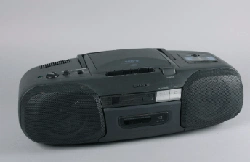
CD Radio
Cassette-Corder
CFD-575
CFD-577
Introduction2
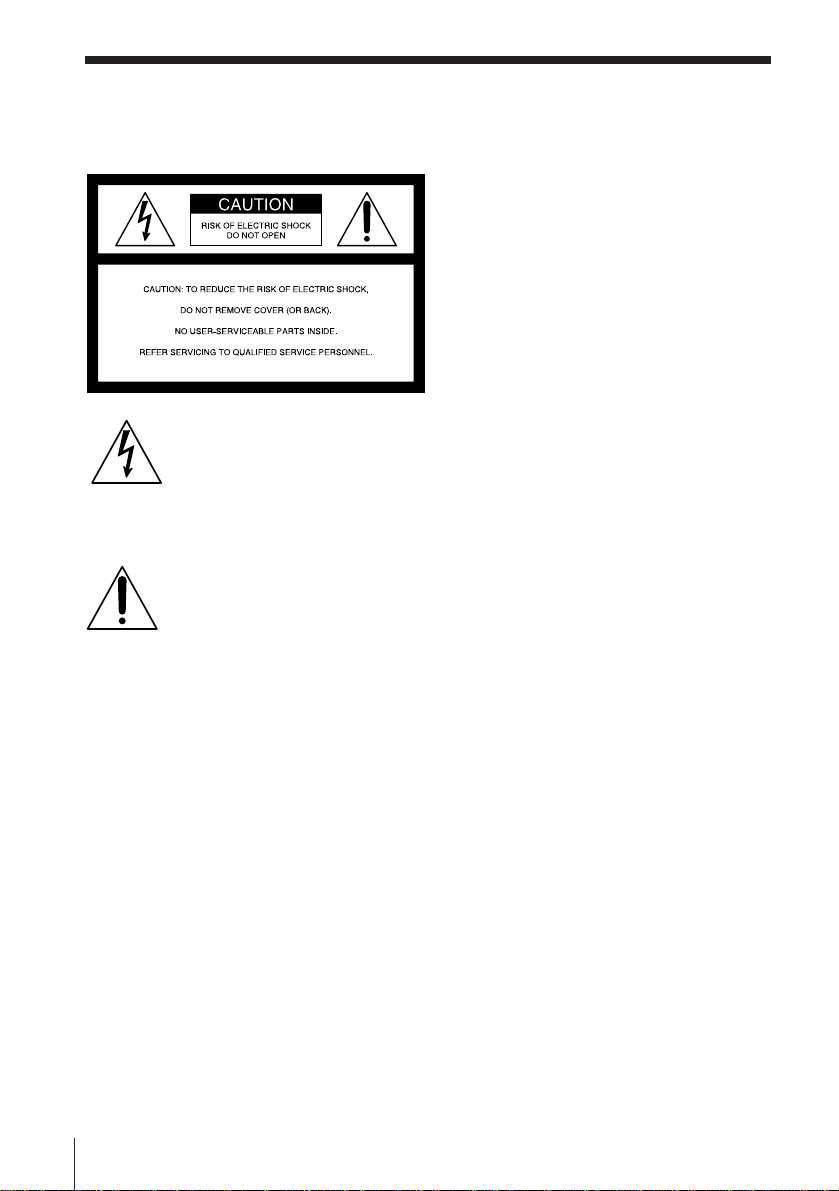
Warning
To prevent fire or shock hazard, do
not expose the player to rain or
moisture.
This symbol is intended to alert
the user to the presence of
uninsulated “dangerous voltage”
within the product's enclosure
that may be of sufficient
magnitude to constitute a risk of
electric shock to persons.
This symbol is intended to alert
the user to the presence of
important operating and
maintenance (servicing)
instructions in the literature
accompanying the appliance.
CAUTION
The use of optical instruments with this
product will increase eye hazard.
Warning
Do not install the appliance in a confined
space, such as a bookcase or built-in cabinet.
For customers in Canada
To prevent electric shock, match wide blade
of plug to wide slot, fully insert.
Information
For customers in the United States
This equipment has been tested and found to
comply with the limits for a Class B digital
device, pursuant to Part 15 of the FCC Rules.
These limits are designed to provide
reasonable protection against harmful
interference in a residential installation. This
equipment generates, uses and can radiate
radio frequency energy and, if not installed
and used in accordance with the instructions,
may cause harmful interference to radio
communications. However, there is no
guarantee that interference will not occur in a
particular installation. If this equipment does
cause harmful interference to radio or
television reception, which can be determined
by turning the equipment off and on, the user
is encouraged to try to correct the interference
by one or more of the following measures:
—Reorient or relocate the receiving antenna.
—Increase the separation between the
equipment and receiver.
—Connect the equipment into an outlet on a
circuit different from that to which the
receiver is connected.
—Consult the dealer or an experienced
radio/TV technician for help.
You are cautioned that any changes or
modifications not expressly approved in this
manual could void your authority to operate
this equipment.
Owner's Record
The model and serial numbers are located at
the rear of the CD radio cassette-corder.
Record these numbers in the spaces provided
below. Refer to these numbers whenever you
call upon your Sony dealer regarding this
product.
Model No. _______________________
Serial No. ________________________
About This Manual
The instructions in this manual are for
the CFD-575 and CFD-577. Before you
start reading, check your model number.
The CFD-575 is the model used for
illustration purposes.

Basic Operations
3Introduction
Table of contents
Basic Operations
4 Playing a CD
6 Listening to the radio
8 Playing a tape
10 Recording on a tape
The CD Player
12 Using the display
13 Locating a specific track
14 Playing tracks repeatedly
(Repeat Play)
15 Creating your own program
(Program Play)
The Radio
17 Presetting radio stations
18 Playing preset radio stations
The Tape Player
19 Recording through a
microphone/Using as a PA
system
The Timer
20 Setting the clock
21 Waking up to music
23 Falling asleep to music
Setting Up
24 Hooking up the system
27 Adjusting the audio emphasis
(MEGA BASS/ROTARY
EQUALIZER/SURROUND)
Additional Information
29 Precautions
31 Troubleshooting
33 Maintenance
34 Specifications
35 Index
Basic Operations4
Playing a CD
Basic Operations
For hookup instructions, see pages 24 – 26.
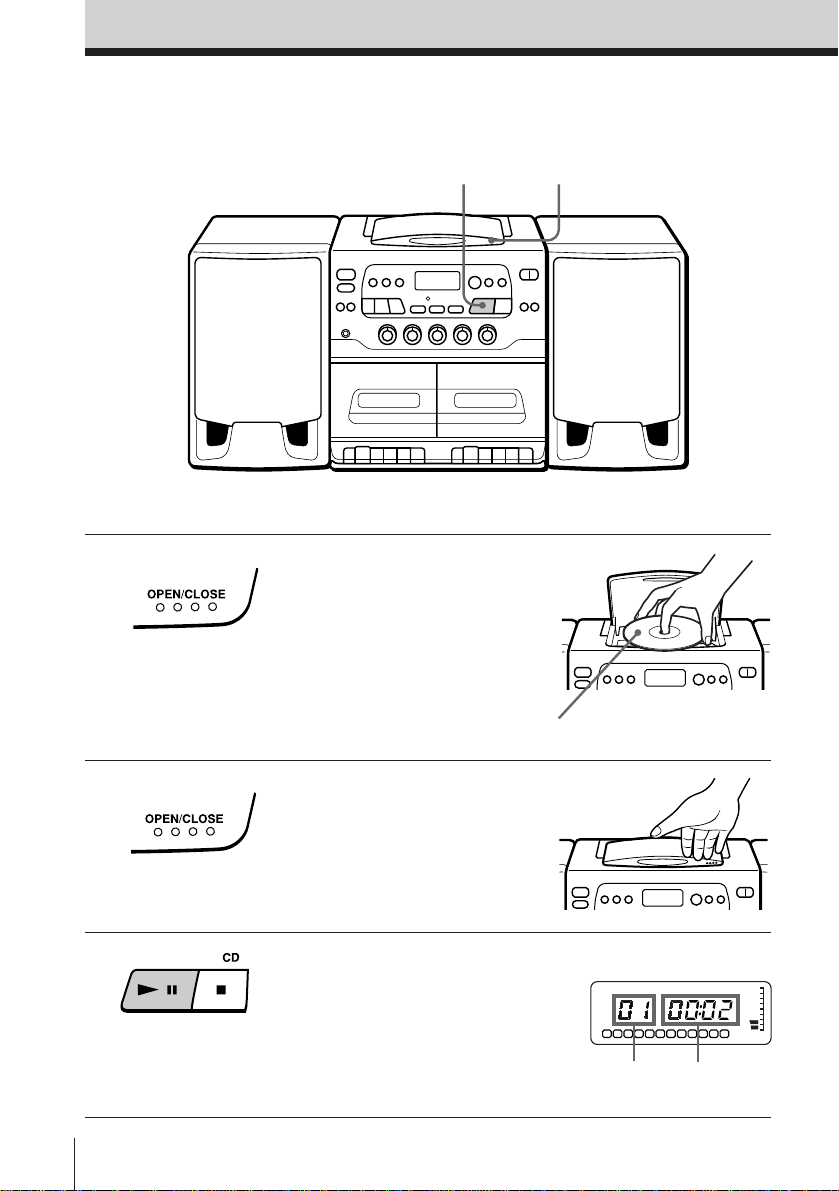
1 Press OPEN/CLOSE down to
open the CD compartment and
place the CD on the CD
compartment.
2 Close the lid of the CD
compartment.
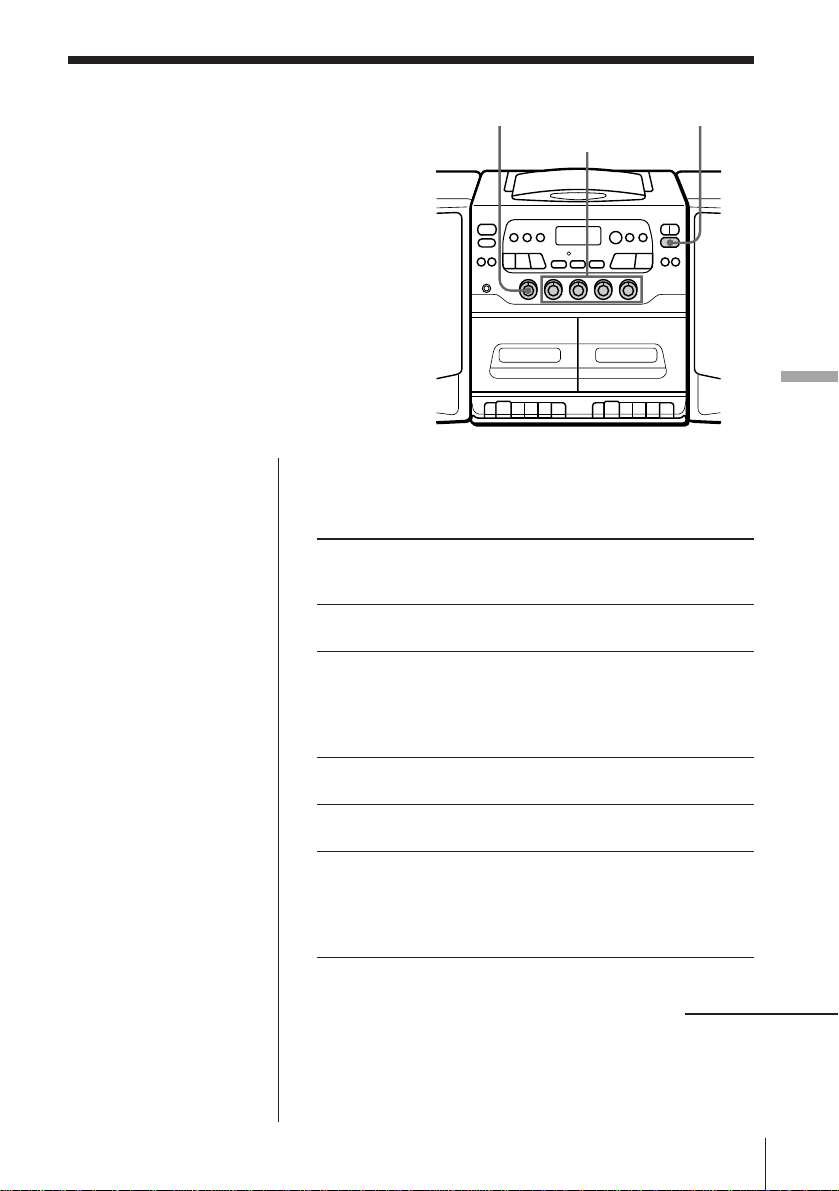
3 Press ^ (direct power-on).
The player plays all the tracks
once.
Display
Track number Playing time
21 3 4 5 6 7 8 9 10 11 12
VOL
With the label side up
3
1,2
Basic Operations
Basic Operations
5
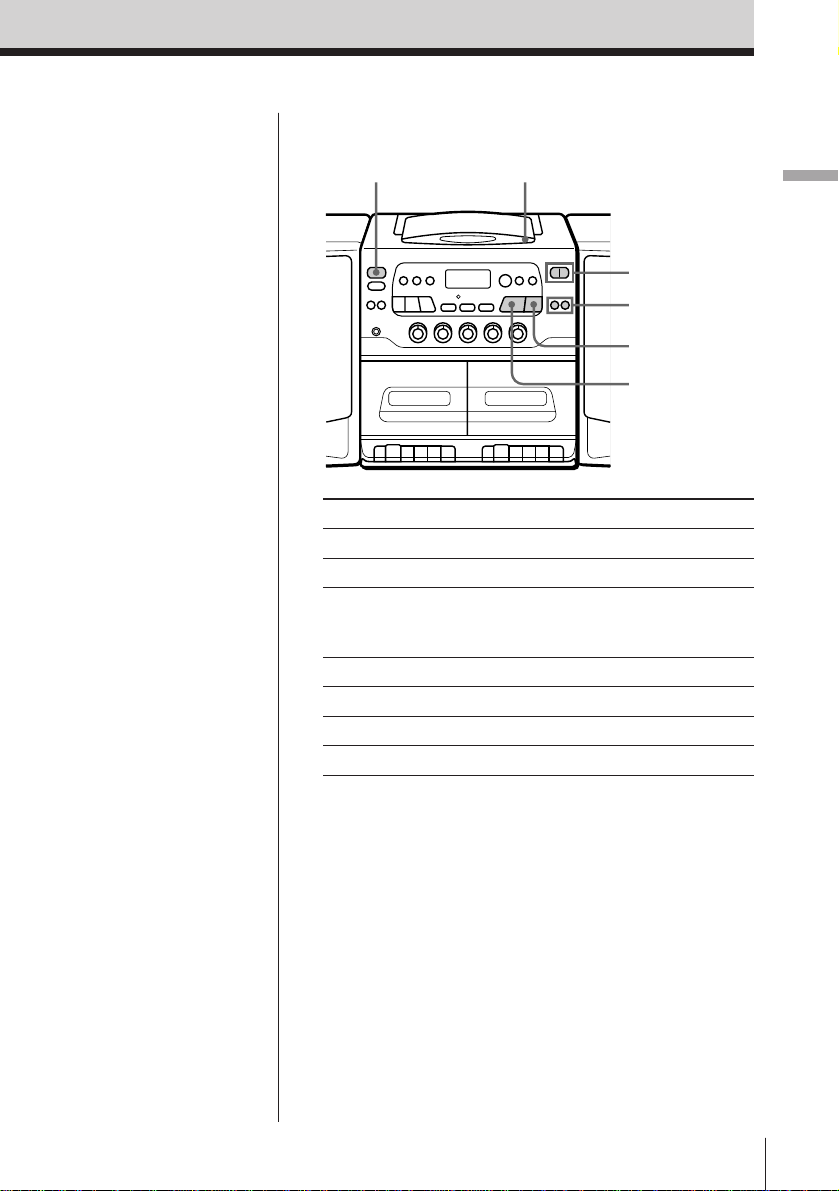
Use these buttons for additional operations
Tip
Next time you want to
listen to a CD, just press
^ . The player turns on
automatically and starts
playing the CD.
To Press
Adjust the volume VOLUME +/–
Stop playback p
Pause playback ^
Press again to resume play
after pause.
Go to the next track AMS/SEARCH+
Go back to the previous track AMS/SEARCH=
Remove the CD OPEN/CLOSE
Turn on/off the player POWER
POWER
OPEN/CLOSE
^
p
AMS/SEARCH
= /+
VOLUME +/–
Basic Operations6
Listening to the radio
For hookup instructions, see pages 24 – 26.
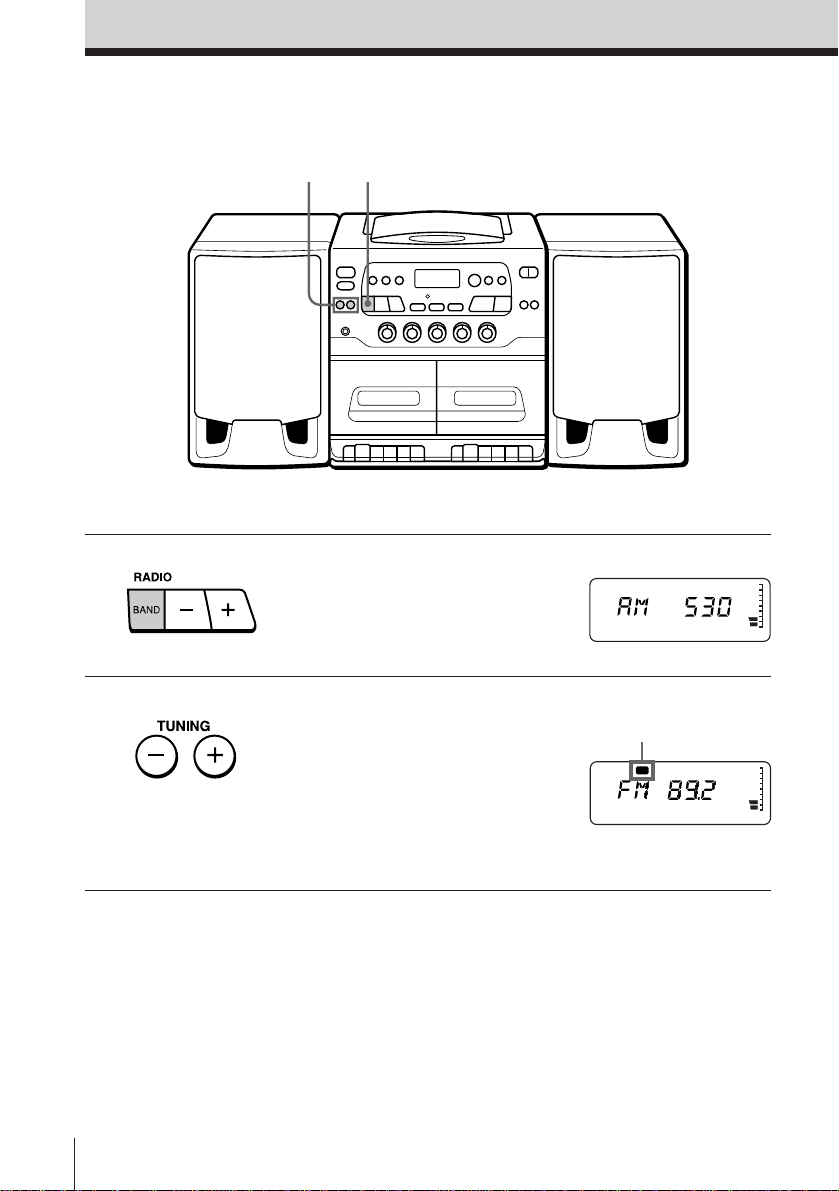
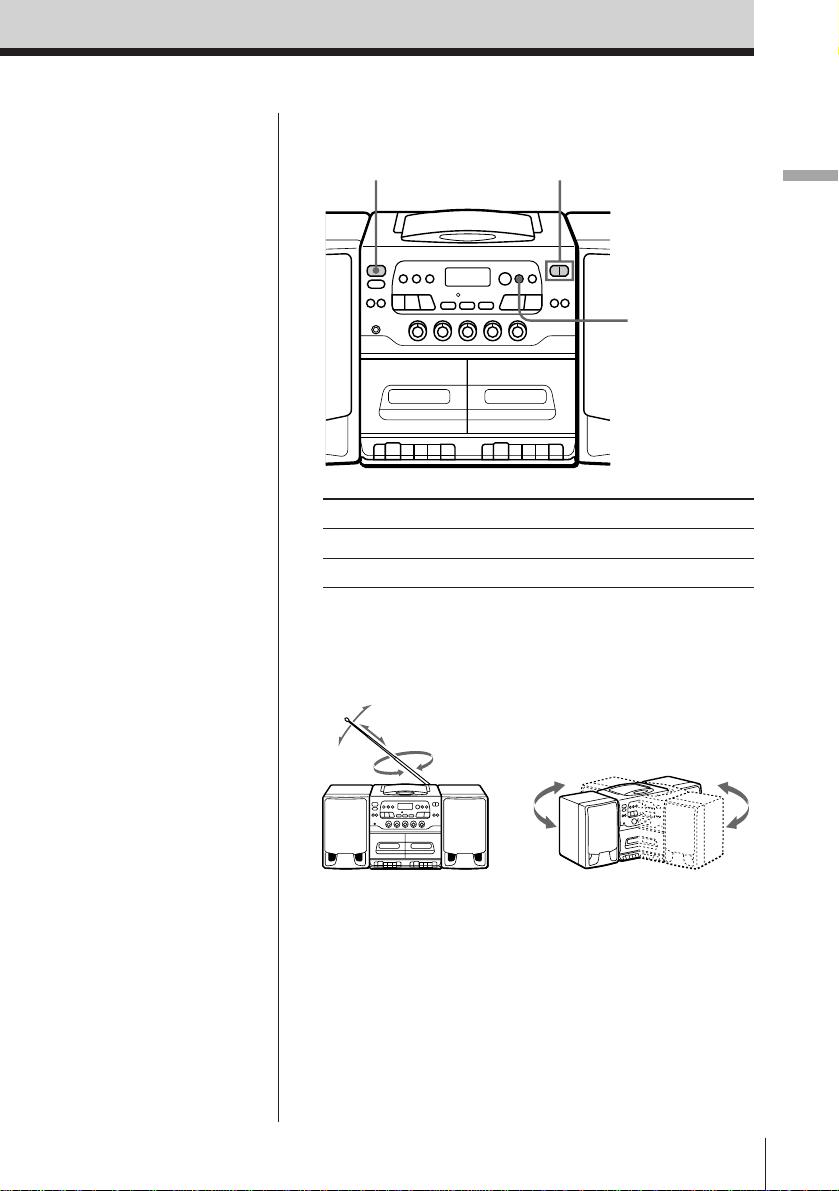
1 Press BAND until the band you
want appears in the display
(direct power-on).
2 Hold down TUNING +/– until
the frequency digits begin to
change in the display.
The player automatically scans
the radio frequencies and stops
when it finds a clear station.
If you can't tune in a station,
press the button once at a time.
Display
VOL
Indicates an FM stereo
broadcast.
ST
VOL
2
1
Basic Operations
Basic Operations
7
Use these buttons for additional operations
Tips
• If the FM broadcast is
noisy, press PLAY
MODE/MONO/ST
until “Mono” appears in
the display and the
radio will play in
monaural.
• Next time you want to
listen to the radio, just
press the BAND button.
The player turns on
automatically and starts
playing the previous
station.
To Press
Adjust the volume VOLUME +/–
Turn on/off the radio POWER
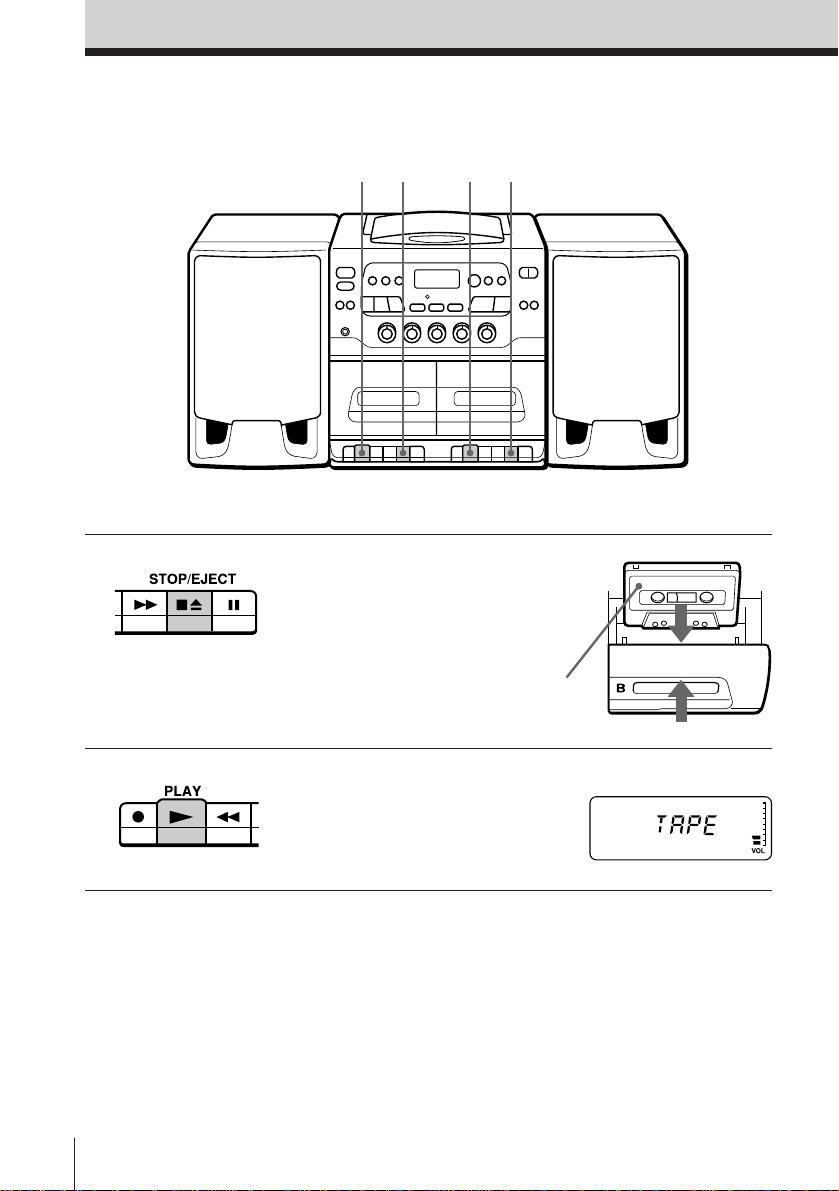
To improve broadcast reception
Reorient the antenna for FM. Reorient the player itself
for AM.
POWER
VOLUME +/–
PLAY MODE/
MONO/ST
for FM
for AM
Basic Operations8
Playing a tape
For hookup instructions, see pages 24 – 26.
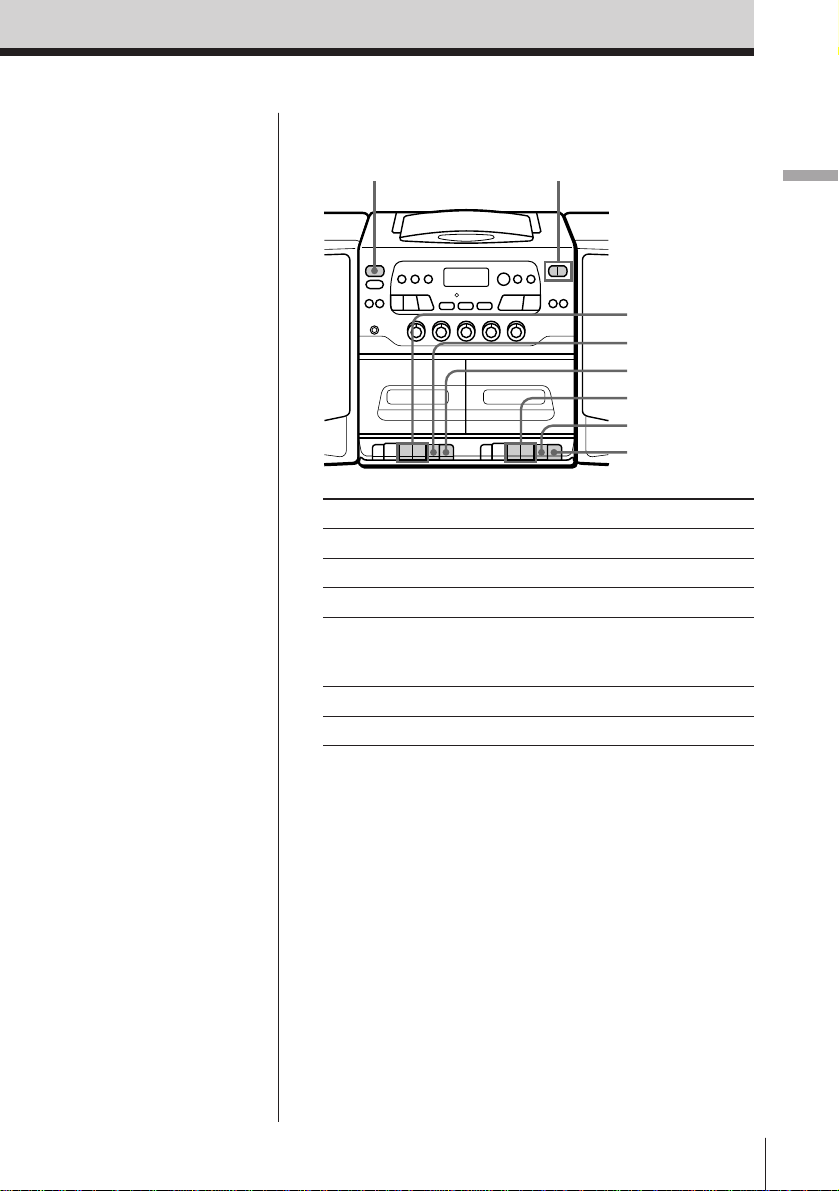
1 Press p6 to open the tape
compartment and insert a
recorded tape. Close the
compartment.
2 Press ( .
The player turns on (direct
power-on) and starts playing.
Display
2
121
With the side you want
to play facing forward
Basic Operations
Basic Operations
9
Use these buttons for additional operations
To Press
Adjust the volume VOLUME +/–
Stop playback p6
Fast-forward or rewind the tape ) or 0
Pause playback P
Press the button again to
resume play after pause.
Eject the cassette p6
Turn on/off the player POWER
Note
During playback, do not
press buttons on the
other deck. Otherwise
the playback speed may
change.
Tips
• Next time you want to
listen to a tape, just
press ( . The player
turns on automatically
and starts playing the
tape.
• For the best results, use
TYPE I (normal) tape.
0/)
p6
P
0/)
p6
P
POWER
VOLUME +/–
Basic Operations10
Recording on a tape
For hookup instructions, see pages 24 – 26.
1 Press p6 to open the tape
compartment on deck B and
insert a blank tape.
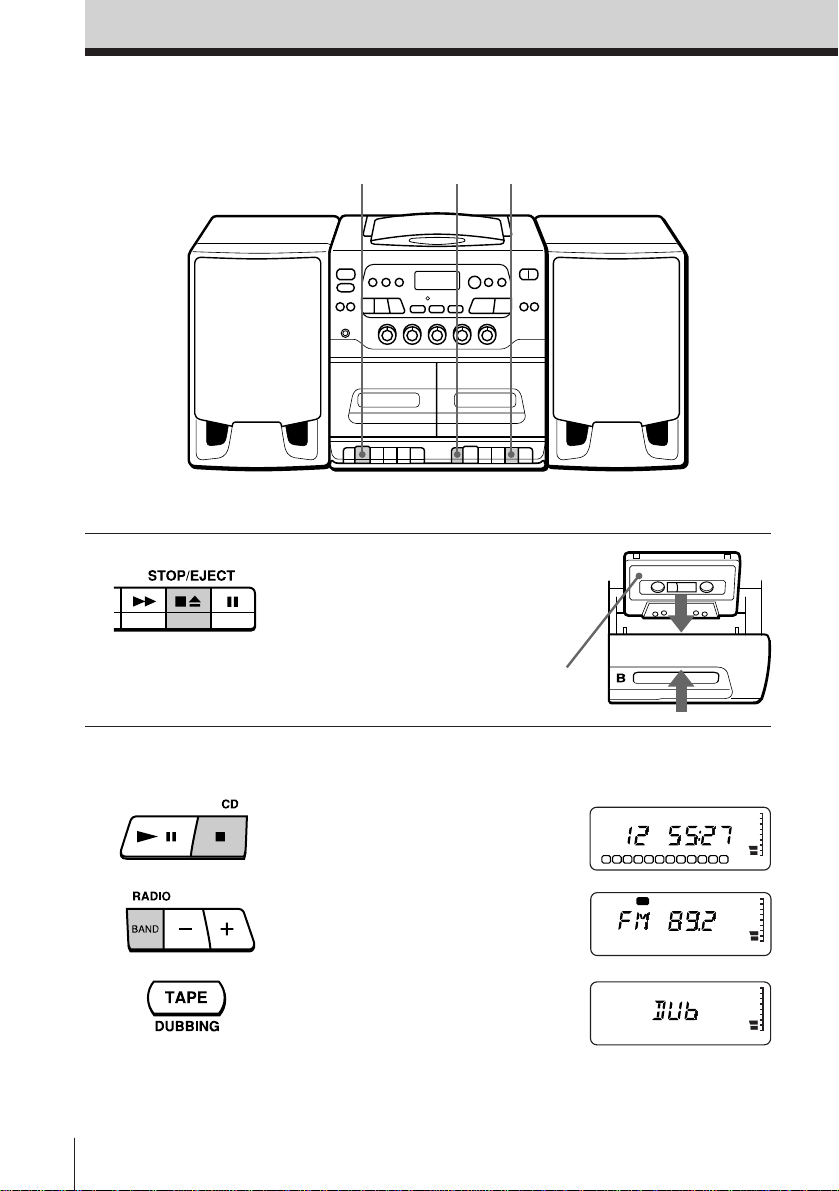
2 Select the program source you
want to record.
To record from the CD player,
insert a CD (see page 4) and press
p on the CD section.
To record from the radio, press
BAND and tune in the station
you want (see page 6.)
To record from the tape, insert a
recorded tape into deck A.
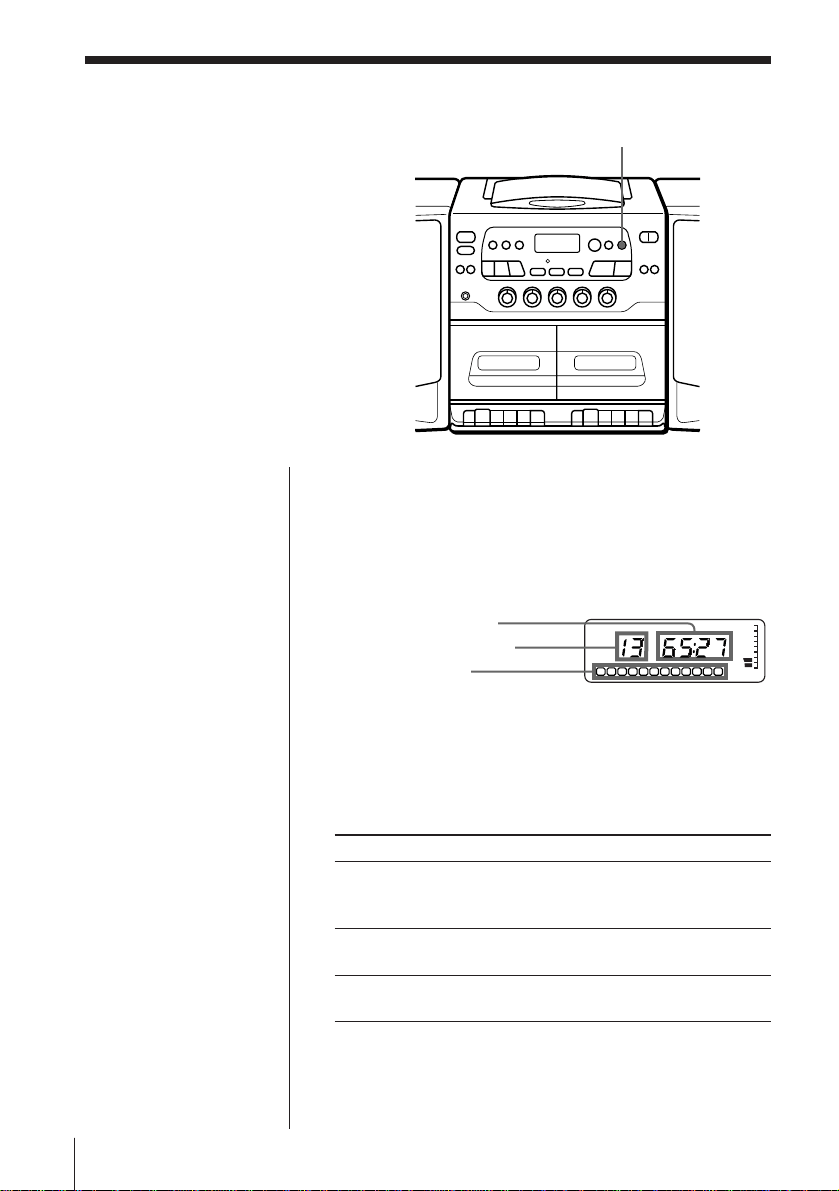
Then press TAPE/DUBBING
until “DUb” appears in the
display window.
331
With the side you want to
record on facing forward
Display
21 3 4 5 6 7 8 9 10 11 12
VOL
ST
VOL
VOL
Basic Operations
Basic Operations
11
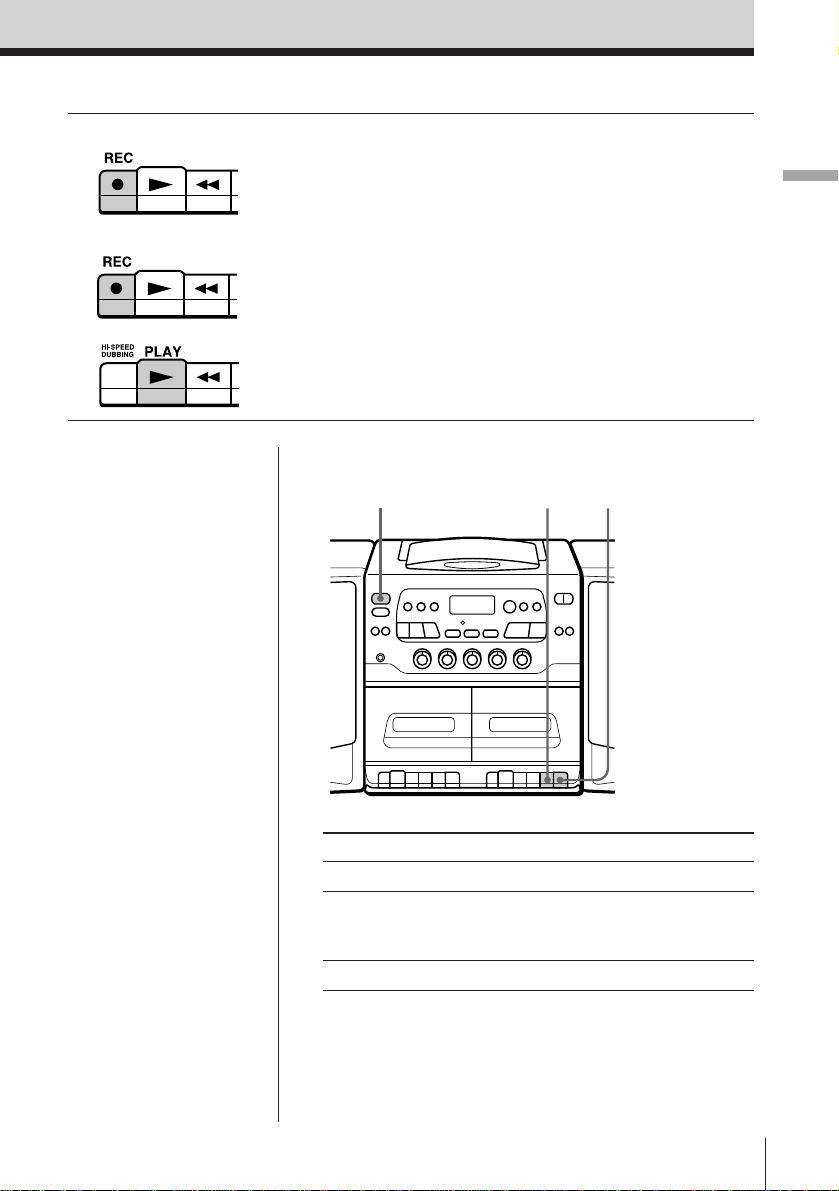
3 Start recording.
To record from the CD player
and the radio, press r on deck B
(( is depressed automatically).
To record from the tape, press r
on deck B (( is depressed
automatically), and then press (
on deck A. (For high speed
dubbing, press HI-SPEED
DUBBING instead.)
Deck B
Deck B
Deck A
To Press
Stop recording p6 on deck B
Pause recording P on deck B
Press the button again to
resume recording.
Turn on/off the player POWER
Use these buttons for additional operations
Tips
• Adjusting the volume or
the audio emphasis (see
page 27) will not affect
the recording level.
• If the AM program
makes a whistling
sound after you've
pressed r in step 3, set
the ISS (Interference
Suppress Switch) at the
rear to the position that
most decreases the
noise. Normally set the
switch to “2”.
• For the best results, use
the AC power as a
power source and use
TYPE I(normal) tape for
recording.
• To erase a recording,
proceed as follows:
1 Disconnect the
microphone if
connected to the MIX
MIC jack.
2 Press TAPE until
“TAPE” appears in
the display window.
3 Press r .
POWER
P
p6
The CD Player12
DISPLAY/
ENTER/MEM
Using the display
You can check information about the CD
using the display.
The CD Player
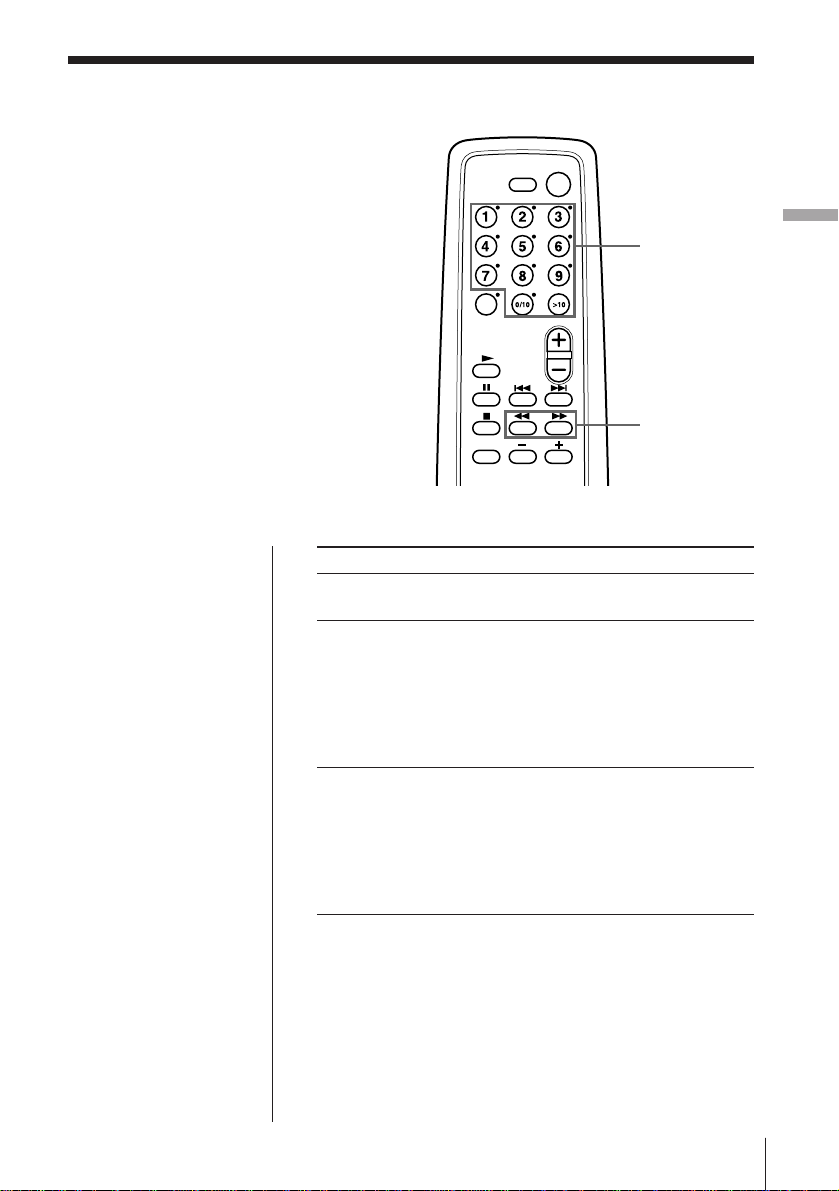
Checking the remaining time
Press DISPLAY/ENTER/MEM while playing a CD.
The track numbers in the music calendar disappear
after they are played.
To display
Press DISPLAY/ENTER/MEM
The current track number Once
and the remaining time
on the current track*
Remaining time on the CD Twice
and the number of tracks left
The current track number Three times
and playing time
Checking the total track numbers and playing
time
Press DISPLAY/ENTER/MEM in stop mode.
If the CD has more than 12 tracks, “OVER 12” appears
in the display.
21 3 4 5 6 7 8 9 10 11 12
VOL
OVER12
Music calendar
Total track numbers
Total playing time
* For a track whose number is more than 20 the remaining
time appears as “– –:– –”.
The CD Player
The CD Player 13
Locating a specific
track
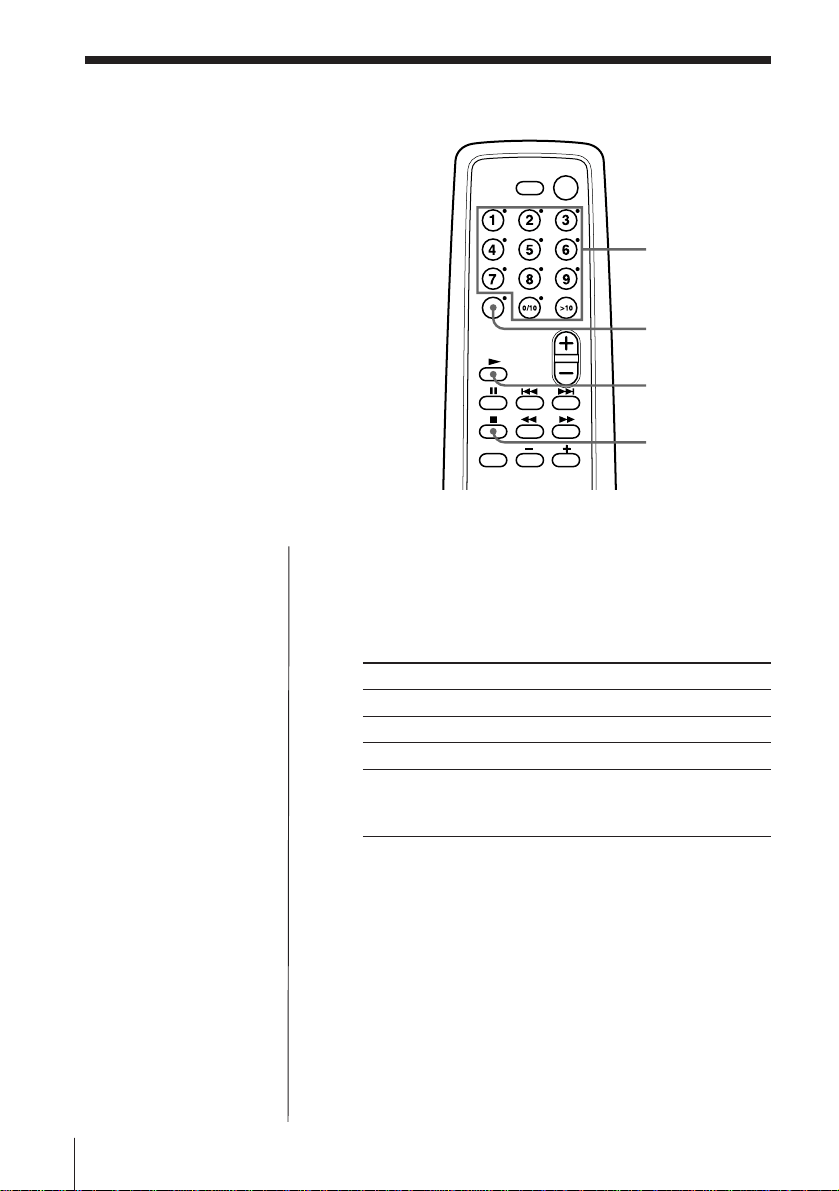
You can quickly locate any track using
the number buttons. You can also find a
specific point in a track while playing a
CD.
To locate Press
a specific track directly number button of the
track.
a point while listening to ) (forward) or 0
the sound (backward) while playing
and hold down until you
find the point.
When you use the buttons
on the player, use AMS/
SEARCH =/+ .
a point while observing ) (forward) or 0
the display (backward) in pause and
hold down until you find
the point.
When you use the buttons
on the player, use AMS/
SEARCH =/+ .
Note
You cannot locate a
specific track if “SHUF
REP” or “PGM” is lit in
the display. Turn off
the indication by
pressing p .
Tip
When you locate a
track numbered over
10, press >10 first, then
the corresponding
number buttons.
Example:
To play track number
23, press >10 first, then
2 and 3.
0 / )
FUNCTION
MODE
VOL
TUNEBAND
CD/RADIO
(AC ONLY)
POWER
Number
buttons
The CD Player14
Playing tracks
repeatedly
(Repeat Play)
You can play tracks repeatedly in
normal, shuffle or program play modes
(see pages 15 and 16).
1 Press p .
“CD” appears in the display.
2 Press MODE until the repeat mode you want
appears in the display.
To repeat Select
a single track REP 1
all the tracks REP ALL
tracks in random order SHUF REP
programed tracks PGM REP and then progam
tracks (see step 3 on page
15).
3 Do either of the following to start repeat play:
• When you’ve selected REP1, select the track by
pressing the number button.
• When you’ve selected REP ALL, SHUF REP or
PGM REP, press ( .
Number
buttons
MODE
(
p
FUNCTION
MODE
VOL
TUNEBAND
CD/RADIO
(AC ONLY)
POWER
The CD Player
The CD Player 15
Creating your
own program
(Program Play)
You can make a program of up to 20
tracks in the order you want them to be
played.
1 Press p .
“CD” appears in the display.
2 Press MODE until “PGM” appears in the display.
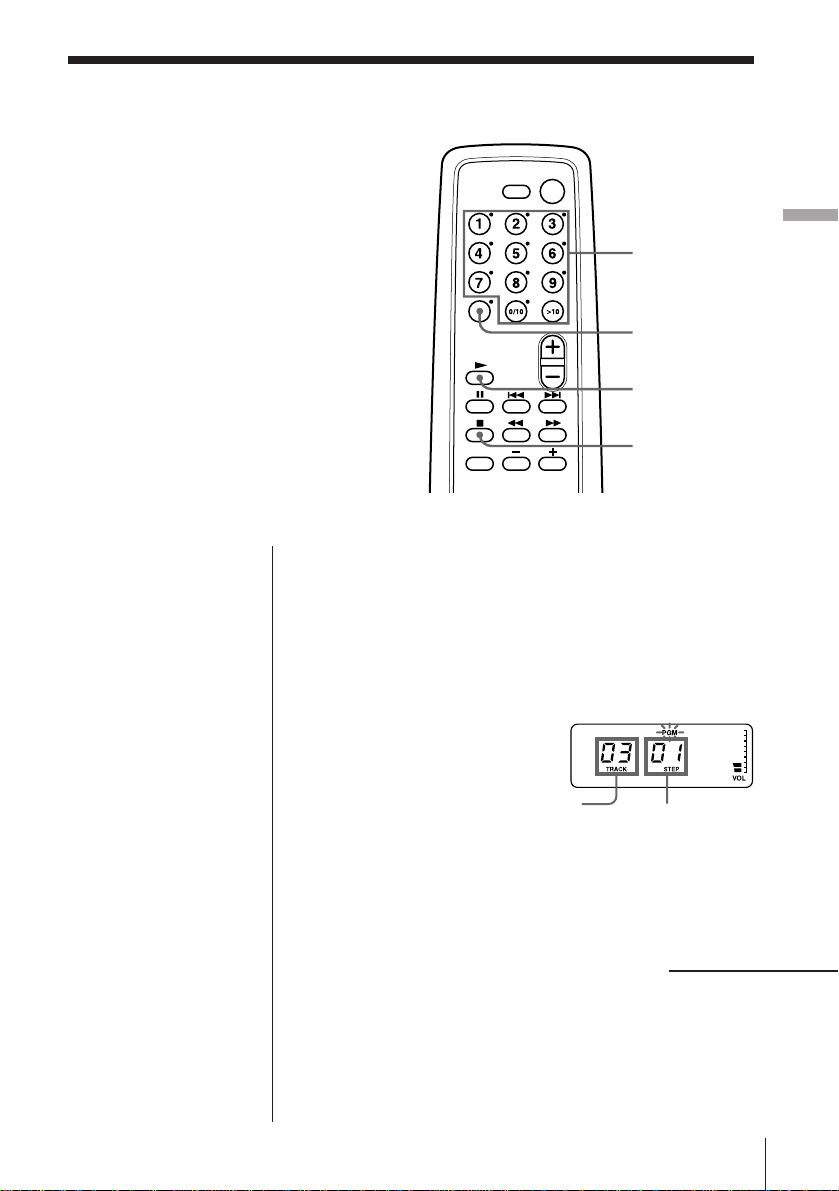
3 Press the number buttons for the tracks you want
to program in the order you want. You can
program up to 20 tracks.
4 Press ( to start program play.
Tips
• You can select the track
on the player. Press
AMS/SEARCH = /
+ then press
DISPLAY/ENTER/
MEM instead of the
number buttons.
• You can play the same
program again, since
the program is saved
until you open the disc
compartment.
• You can record your
own program. After
you’ve created the
program, insert a blank
tape into deck B and
press r on deck B to
start recording.
continued
Playing order
Programed track
Number
buttons
MODE
(
p
FUNCTION
MODE
VOL
TUNEBAND
CD/RADIO
(AC ONLY)
POWER

The CD Player16
To cancel Program Play
Press MODE until no indication appears in the
display.
To check the order of tracks before play
Press DISPLAY/ENTER/MEM on the player.
Every time you press the button, the track number
appears in the programed order.
To change the current program
Press p once if the CD is stopped and twice if the CD
is playing. The current program will be erased. Then
create a new program following the programing
procedure.
Creating your own program (Program Play) (continued)
The Radio
The Radio
17
The Radio
Presetting radio
stations
You can store radio stations into the
player's memory. You can preset up to
20 radio stations, 10 for each FM or AM
in any order.
1 Press BAND until the band you want appears in
the display.
2 Tune in a station you want.
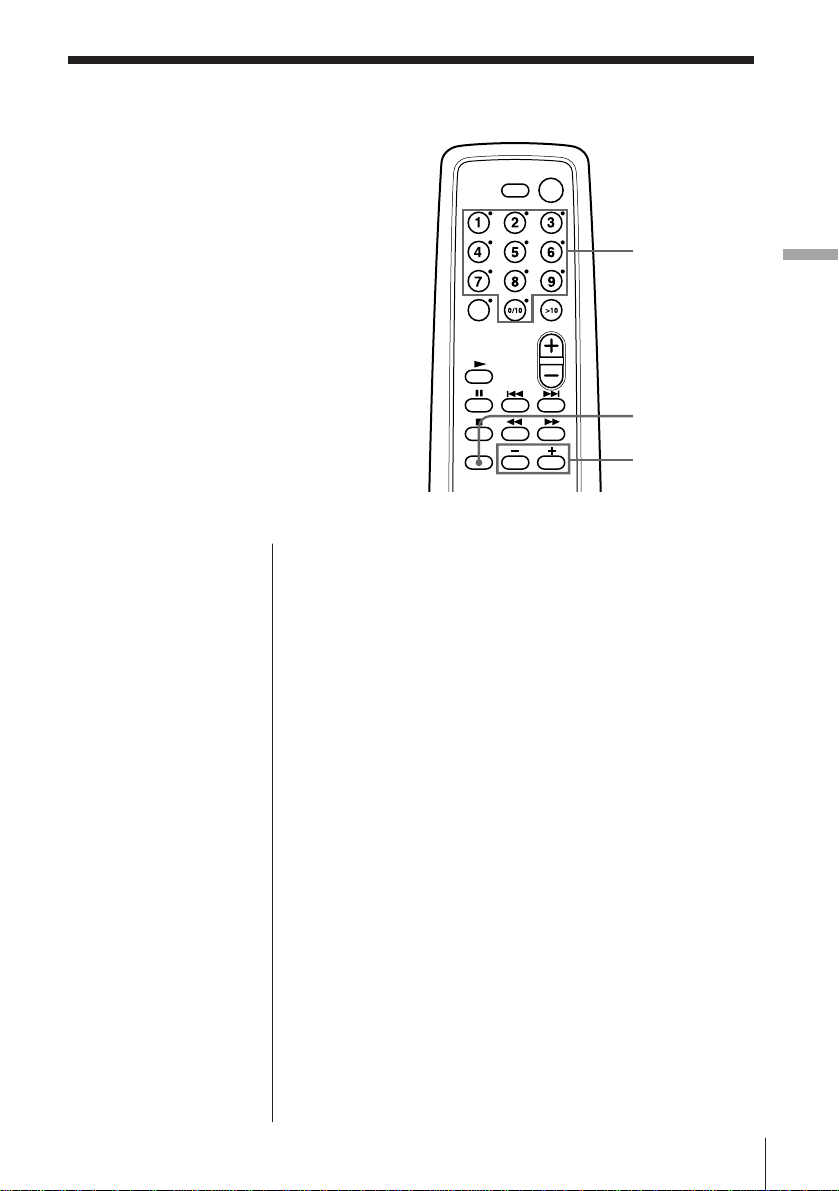
3 Hold down the number buttons that you want to
preset the new station for about 2 seconds.
The new station replaces the old one.
Tip
To preset radio stations
on the player, proceed
as follows:
1 Select the band and
tune in a station you
want.
2 Hold down
DISPLAY/ENTER/
MEM for about 2
seconds.
A preset number
flashes in the music
calendar.
3 Decide on a preset
number for the
station (1 to 10) by
pressing PRESET
+/–.
4 Press DISPLAY/
ENTER/MEM.
TUNE +/–
Number
buttons
BAND
FUNCTION
MODE
VOL
TUNEBAND
CD/RADIO
(AC ONLY)
POWER
The Radio18
Playing preset
radio stations
Once you've preset the stations, use the
number buttons to tune in your favorite
stations.
Tip
You can tune in a
preset station with the
player. Use PRESET
+/– instead of the
number buttons.
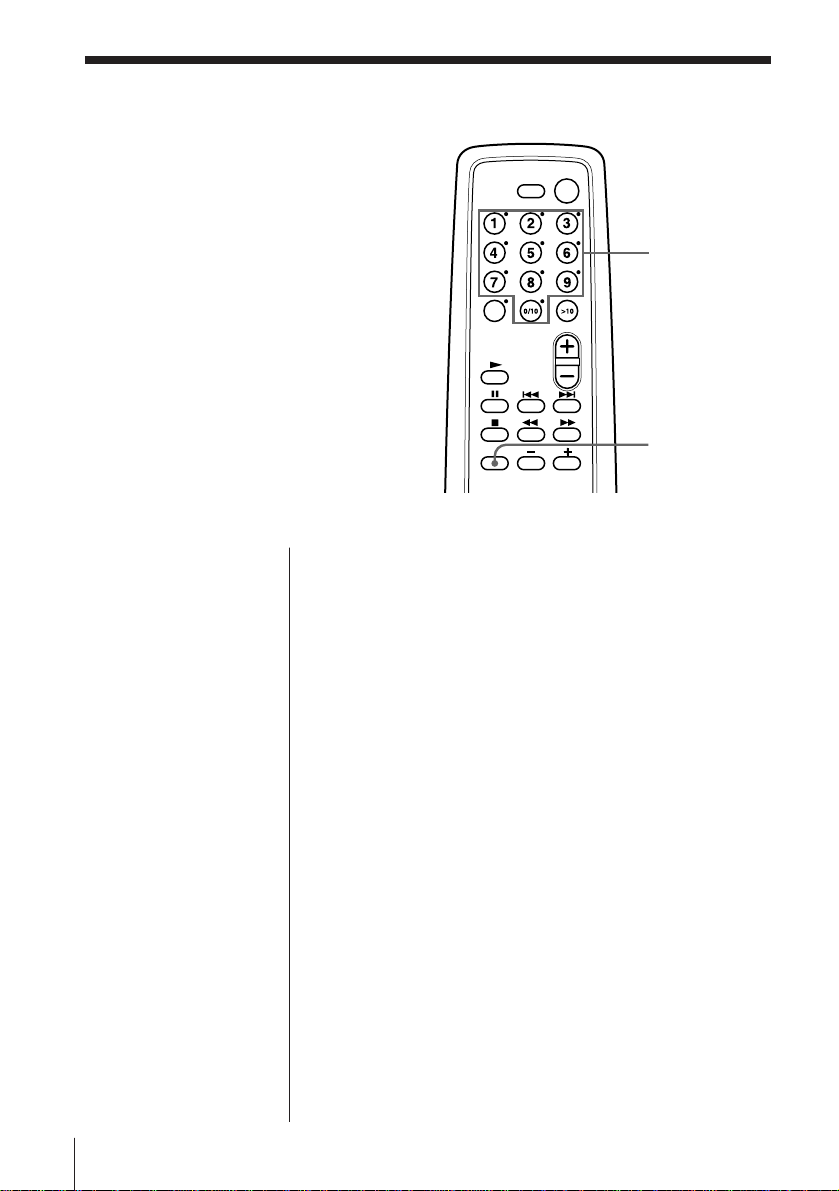
1 Press BAND to select the band.
2 Press the number buttons to tune in a stored
station.
Number
buttons
BAND
FUNCTION
MODE
VOL
TUNEBAND
CD/RADIO
(AC ONLY)
POWER
The Tape Player
The Tape Player
19
Recording
through a
microphone/Using
as a PA system
You can record sound using a
microphone (not supplied) or use the
player as a public address (PA) system.
The Tape Player
FUNCTION
Recording through a microphone
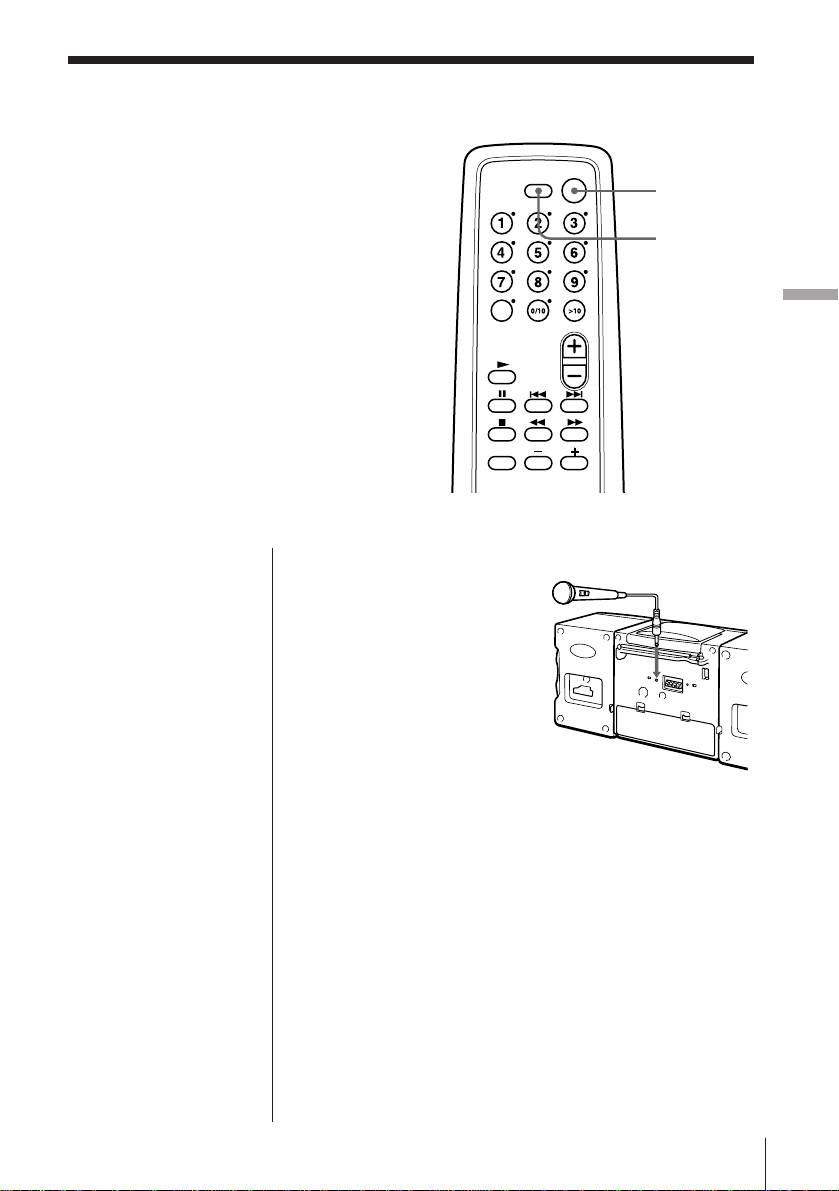
1 Plug the microphone
into the MIX MIC jack
and turn on the
microphone if it has a
power switch.
2 Turn on the power.
3 Press FUNCTION until “TAPE” appears in the
display.
4 Insert a cassette for recording into deck B and
press r to start recording.
Using as a PA system
1 Do steps 1 and 2 above.
2 Sing or speak into the microphone and adjust the
volume.
Tip
You can mix CD or
radio sounds and
record them by adding
your voice or other
audio through the
microphone.
Notes
• Acoustic feedback
(howling) tends to
occur when you use a
microphone with echo
function.
• If acoustic feedback
(howling) occurs, turn
down the volume or
move the microphone
away from the speaker.
FUNCTION
MODE
VOL
TUNEBAND
CD/RADIO
(AC ONLY)
POWER
POWER
The Timer20
Setting the clock
Before you set the clock, insert four size
AA (R6) batteries and connect the AC
power cord (see page 24 and 25.)
As long as the clock goes, “:” flashes.
The Timer
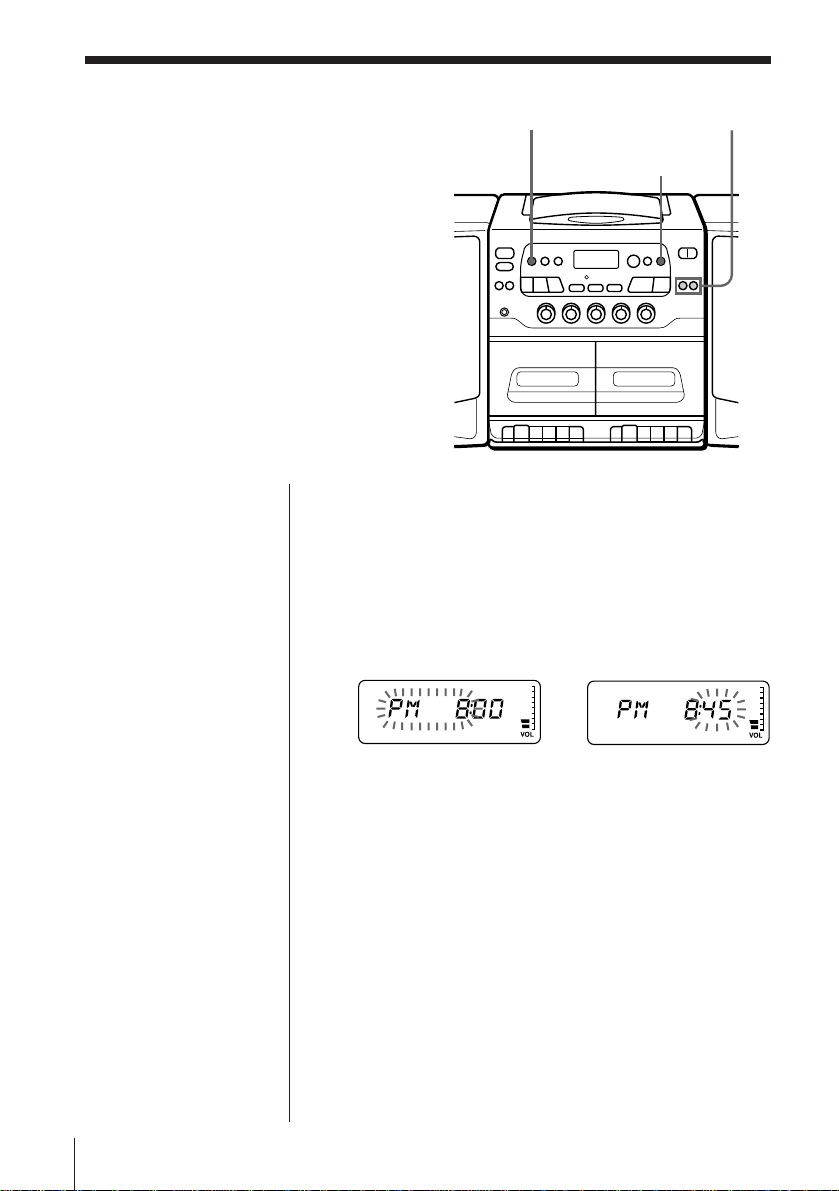
1 Press and hold CLOCK for about two seconds
until “AM” or “PM” and the hour digit flash.
2 Press TIME SET +/– until you set the current hour.
Then press DISPLAY/ENTER/MEM.
The minute digits flash. Set the minutes by
pressing TIMER SET +/– until the current minute
is displayed.
3 Press DISPLAY/ENTER/MEM.
The clock starts from 00 seconds.
/
CLOCK
TIME SET +/–
DISPLAY/
ENTER/MEM
Tip
The time display
system of this player is
the 12-hour system:
AM12:00 = midnight
PM12:00 = noon
The Timer 21
The Timer
Waking up to
music
You can wake up to music at a preset
time. Make sure you have set the clock
(“Setting the clock” on page 20).
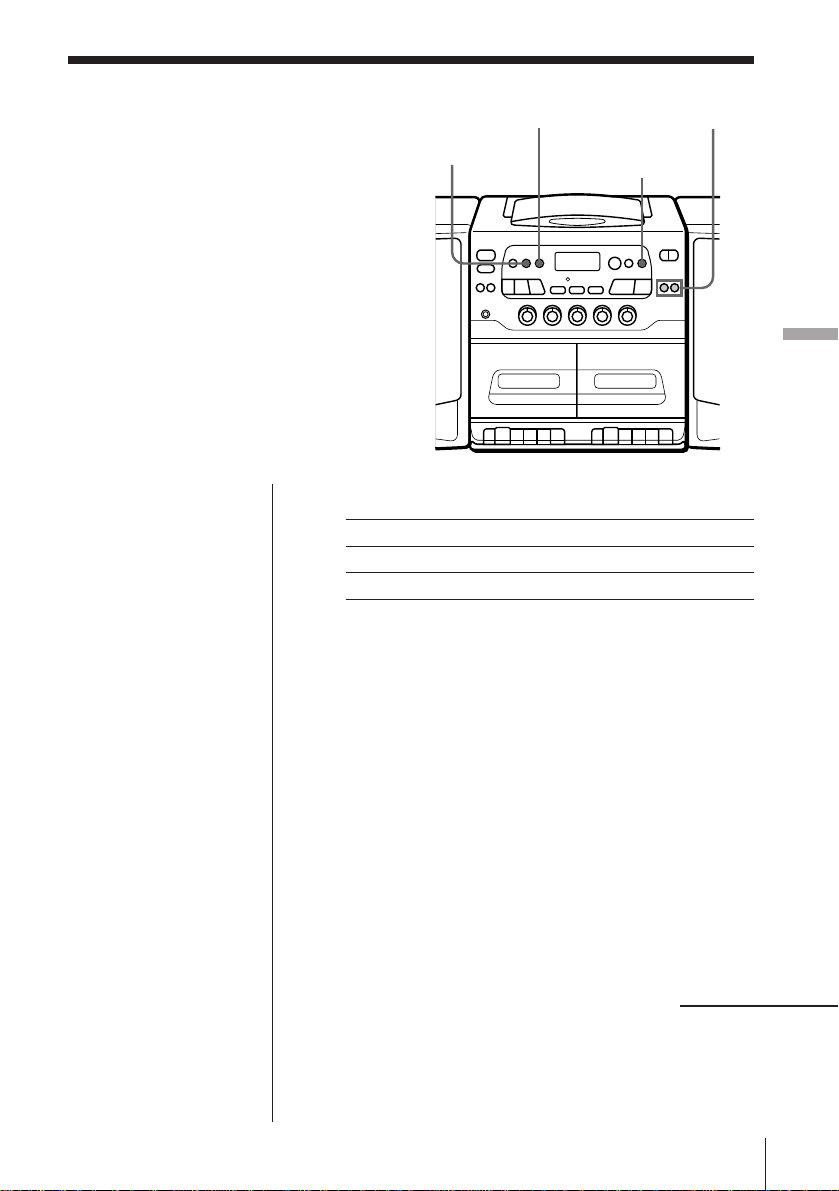
1 Prepare the music source you want to play.
To play Do this
the radio Tune in a station
a CD Insert a CD.
2 Press TIMER.
The t (clock) and the music source (“CD” or
“RADIO”) flash.
3 Select the music source (“CD” or “RADIO”) by
pressing TIME SET +/–, then DISPLAY/ENTER/
MEM.
4 Set the timer to the hour you want the music to
start by pressing TIME SET +/– then DISPLAY/
ENTER/MEM. Set the minutes, then press
DISPLAY/ENTER/MEM.
5 Set the timer to the hour you want the music to go
off by pressing TIME SET +/– then DISPLAY/
ENTER/MEM. Set the minutes, then press
DISPLAY/ENTER/MEM.
TIMER
DISPLAY/
ENTER/MEM
STANDBY TIME SET+/–
continued
The Timer22
Waking up to music (continued)
Tips
• The display window
dims while the waking
up timer is on.
• You can have the
player go on the next
day at the same time.
Just press STANDBY
until the t indication
appears in the display.
The preset settings
remain until you reset
them.
Note
The timer mode is
canceled:
– when you press
TAPE or ( PLAY
while music plays in
the timer mode.
– when you select
“TAPE” using
FUNCTION on the
remote.
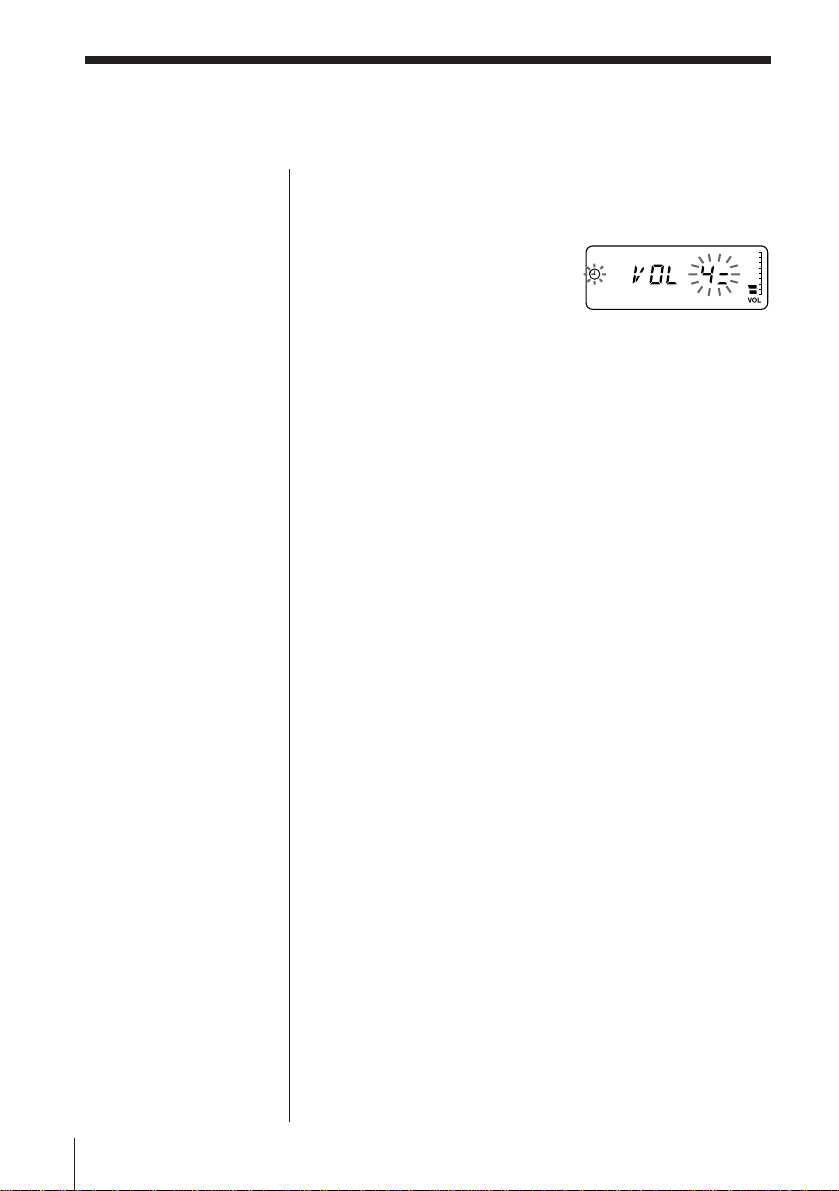
6 Press TIME SET +/– to set the volume, then
DISPLAY/ENTER/MEM.
7 Press STANDBY.
The t indication lights up and the power goes off.
At the preset time, the power will go on and music
will play.
To check/change when the playback will start
Press TIMER, then DISPLAY/ENTER/MEM. Each
time you press DISPLAY/ENTER/MEM, a stored
setting lights up. Change the setting if you need to
when the setting lights up. when you finish checking,
press TIMER again.
To use the player before a timer playback starts
Just turn on the player, and then you can use it.
If you turn off the player before the preset time, timer
playback will start at the preset time.
In case of the radio, however, if you listen to the
station which is different from the one you tuned in
in step 1 on page 21, you will hear that station at the
preset time. Make sure to tune in the station you want
to listen to before you turn off the player.
To stop play
Press POWER.
The Timer 23
The Timer
Falling asleep to
music
You can set the player to turn off
automatically after about 2 hours,
allowing you to fall asleep while
listening to music.
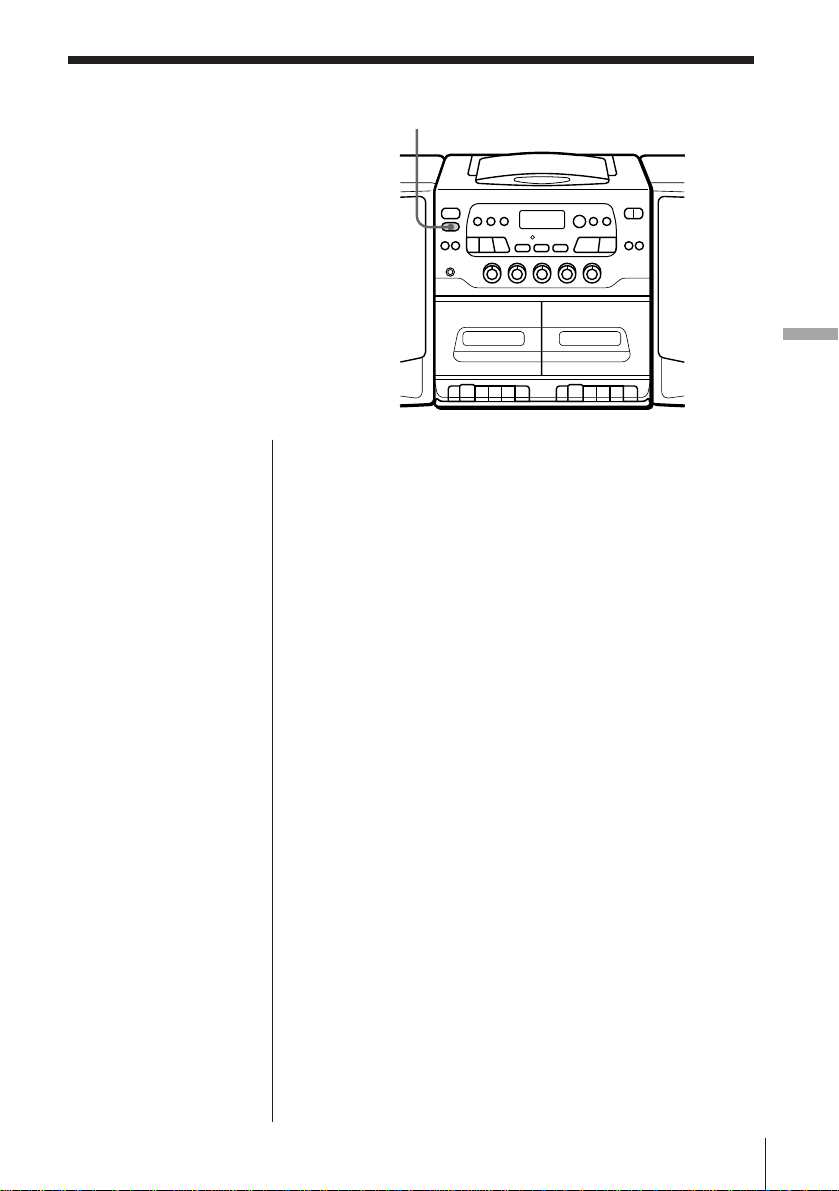
1 Play the music source you want.
2 Press SLEEP.
“SLEEP” appears in the display. The player shuts
off automatically after about 2 hours.
To cancel the sleep function
Press SLEEP again to turn off the power.
SLEEP
Tip
The display window
dims while the sleep
timer is on.
Setting Up24
Setting Up
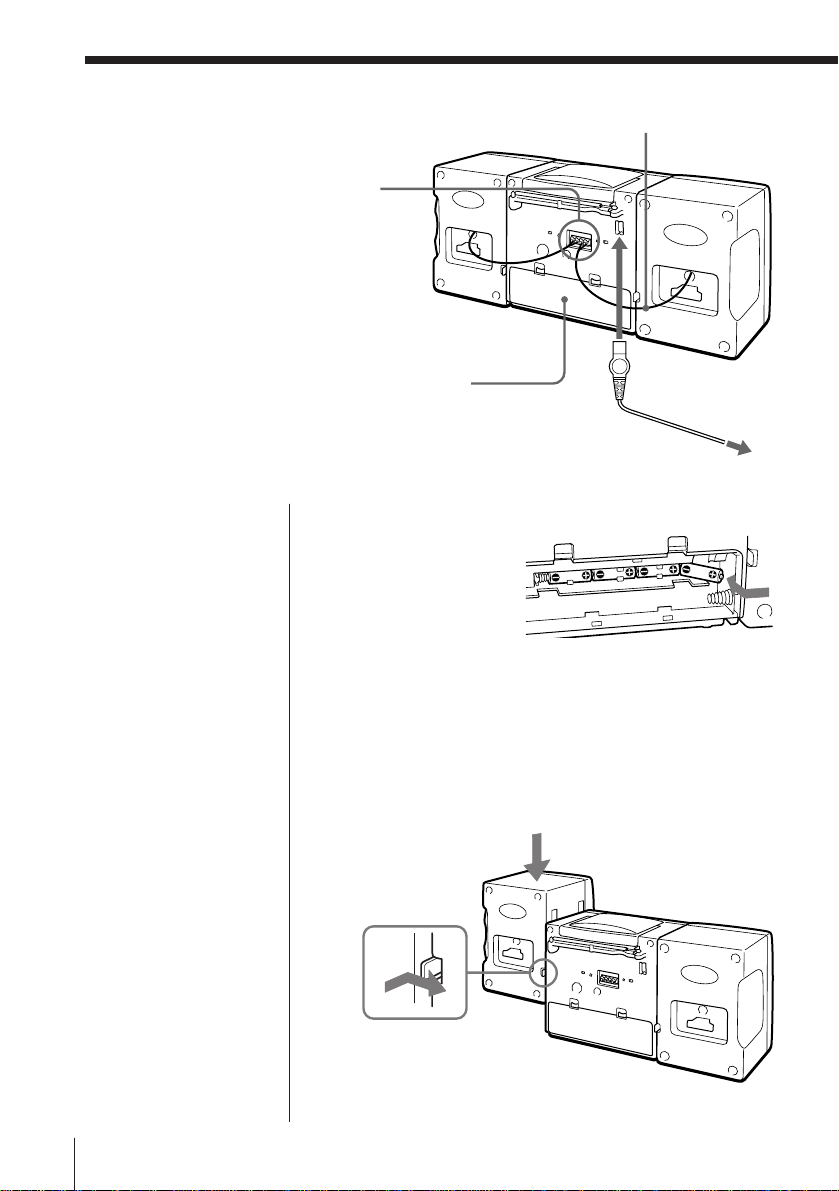
1 Inserting the back-up batteries
Insert four size AA
(R6) batteries (not
supplied) into the
battery compartment.
These batteries work
to save the memory
data.
2 Hooking up the speakers
1 Align the grooves and slide the speaker box down
until it snaps into place A.
Hooking up the
system
Make sure you turn off the
power before making any
connections.
2
Speaker
terminals
Right speaker
Left speaker
Battery
compartment
5
1
To a wall outlet
3
Speaker cords
Tips
• To detach the speakers,
unlock speaker (see B
on the diagram) and
slide the speaker box all
the way up and away
from the player.
• Connect the speakers
for this unit only to the
speaker terminals of
this unit. If you connect
any other speakers or
equipment,
malfunction may occur.
A
B
Setting Up 25
Setting Up
Notes
• When you operate the
player with the
batteries, you cannot
turn on the player
using the remote.
• When you operate the
player with batteries,
the backlight does not
work even if the player
is on.
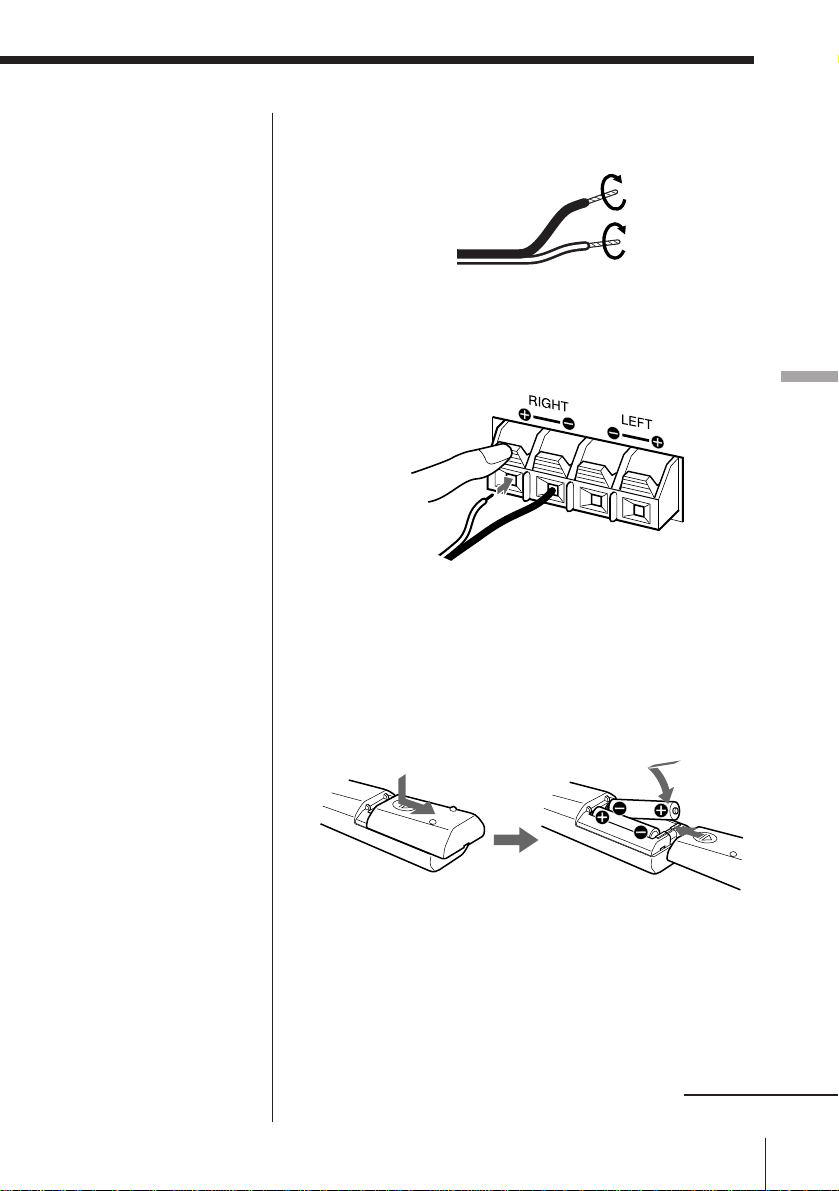
2 Twist the speaker cable coating and strip it from
the end of the cable.
3 Connect the black wires to (–) minus and the red
wires to (+) plus terminals; the right speaker wires
to the R and the left speaker wires to the L
terminals.
3 Connecting the AC power cord
Insert one end of the supplied AC power cord to the
AC IN socket located at the rear of the player, and the
other end to the wall outlet.
4 Inserting batteries into the remote
Insert two size AA (R6) batteries (not supplied)
Replacing batteries
With normal use, the batteries should last for about six
months. When the remote no longer operates the
player, replace all the batteries with new ones.
continued
Setting Up26
Tip
Replace the batteries
when the OPR/BATT
indicator dims or when
the player stops
operating. Replace all
the batteries with new
ones. Before you
replace the batteries, be
sure to take out the CD
from the player.
Hooking up the system (continued)
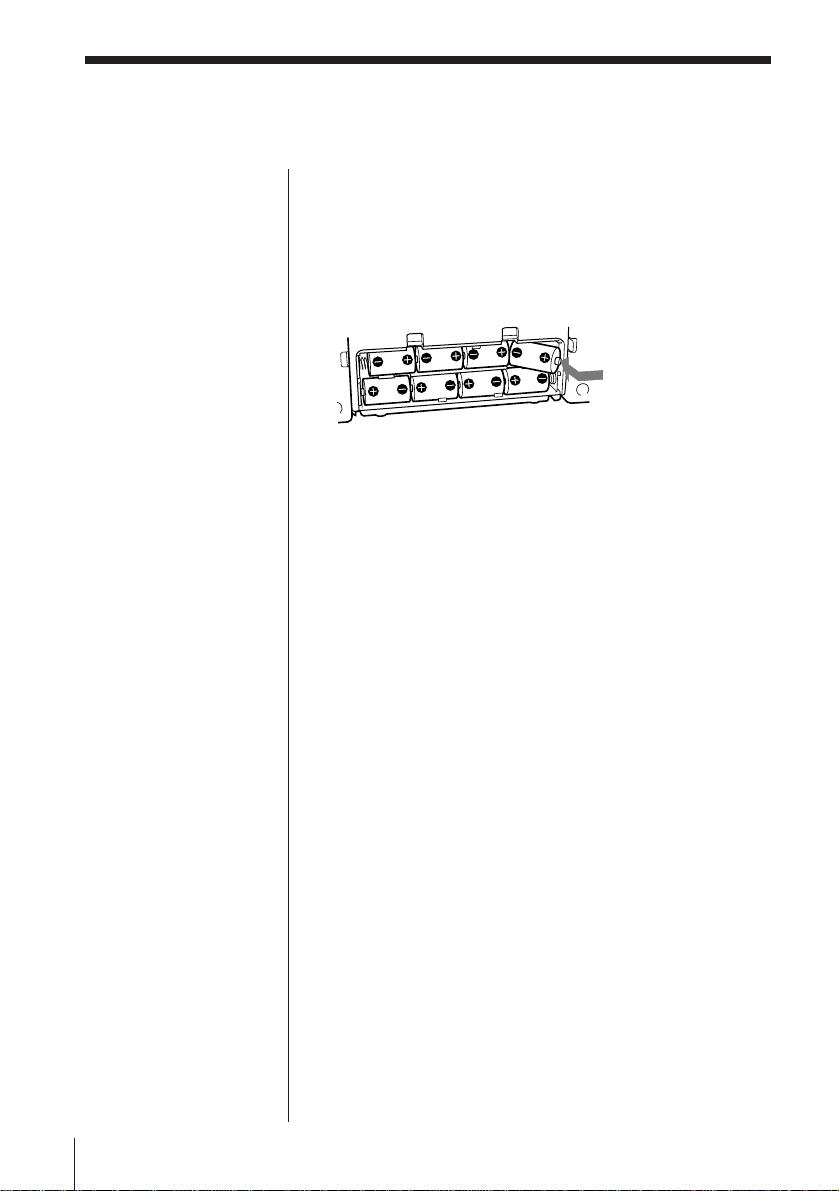
5 Using the player on batteries
Insert eight size D (R20) batteries (not supplied) into
the battery compartment.
To use the player on batteries, disconnect the AC
power cord from the player.
Setting Up 27
Setting Up
Adjusting the
audio emphasis
(MEGA BASS/ROTARY
EQUALIZER/SURROUND)
You can adjust the audio emphasis of the
sound you are listening to.
Selecting the sound characteristic
Turn MEGA BASS/ROTARY EQUALIZER to select
the audio emphasis you want.
Frequency Turn the control Turn the control
coverage clockwise counterclockwise
(to +10) (to –10)
MEGA BASS to increase heavy to decrease heavy
100 Hz bass sounds bass sounds
400 Hz to emphasize to de-emphasize
speaking voice, speaking voice,
middle frequencies middle frequencies
of instrumental of instrumental
music music
1 kHz to provide more to provide less
presence of vocals presence of vocals
4 kHz to heighten overall to lessen overall
brightness of sound brightness of sound
10 kHz to increase high to decrease high
treble sounds treble sounds or
reduce high
frequency noise/tape
hiss
continued
ROTARY EQUALIZER
MEGA BASS SURROUND
CFD-577

Setting Up28
Getting the surround effect (CFD-577 only)
Press SURROUND.
The “SURROUND” indication appears in the display.
You can get the surround effect without connecting
surround speakers.
Adjusting the audio emphasis (MEGA BASS/ROTARY EQUALIZER/
SURROUND (continued)

Additional Information 29
Precautions
Additional Information
On placement
• Do not leave the player in a location
near heat sources, or in a place subject
to direct sunlight, excessive dust or
mechanical shock.
• Do not place the player on an inclined
or unstable place.
• Do not place anything within 10 mm
of the side of the cabinet. The
ventilation holes must be
unobstructed for the player to operate
properly and prolong the life of its
components.
• If the player is left in a car parked in
the sun, be sure to choose a location in
the car where the player will not be
subjected to the direct rays of the sun.
• Since a strong magnet is used for the
speakers, keep personal credit cards
using magnetic coding or spring-
wound watches away from the player
to prevent possible damage from the
magnet.
On operation
• If the player is brought directly from a
cold to a warm location, or is placed in
a very damp room, moisture may
condense on the lens inside the CD
player section. Should this occur, the
player will not operate properly. In
this case, remove the CD and wait
about an hour for the moisture to
evaporate.
• If the player has not been used for a
long time, set it in the playback mode
to warm it up for a few minutes before
inserting a cassette.
If you have any questions or problems
concerning your player, please consult
your nearest Sony dealer.
On safety
• As the laser beam used in the CD
player section is harmful to the eyes,
do not attempt to disassemble the
casing. Refer servicing to qualified
personnel only.
• Should any solid object or liquid fall
into the player, unplug the player, and
have it checked by qualified personnel
before operating it any further.
On power sources
• For AC operation use the supplied AC
power cord; do not use any other type.
• The player is not disconnected from
the AC power source (mains) as long
as it is connected to the wall outlet,
even if the player itself has been
turned off.
• Unplug the player from the wall outlet
when it is not to be used for an
extended period of time.
• For battery operation, use eight size D
(R20) batteries.
• When the batteries are not to be used,
remove them to avoid damage that
can be caused by battery leakage or
corrosion.
• The nameplate indicating operating
voltage, power consumption, etc. is
located at the rear.
continued
Additional Information30
Notes on CDs
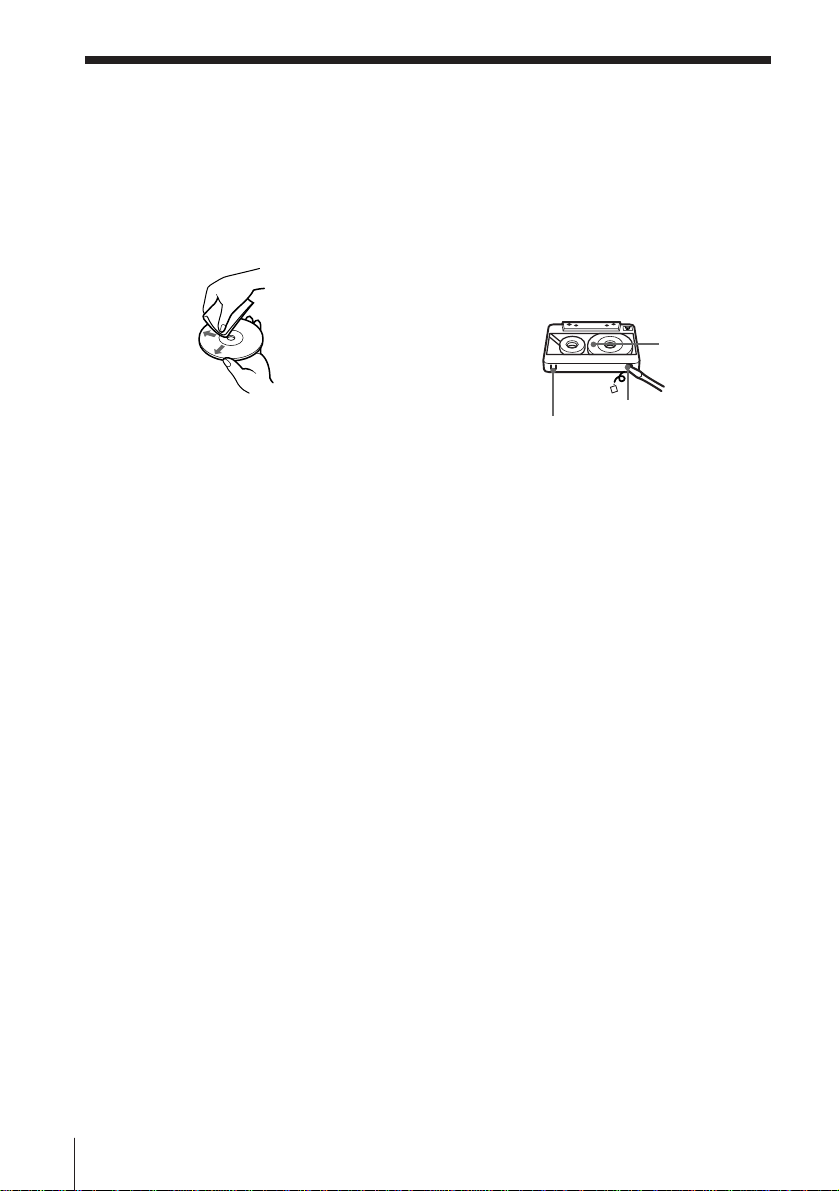
• Before playing, clean the CD with a
cleaning cloth. Wipe the CD from the
center out.
• Do not use solvents such as benzine,
thinner, commercially available
cleaners or anti-static spray intended
for vinyl LPs.
• Do not expose the CD to direct
sunlight or heat sources such as hot
air ducts, nor leave it in a car parked
in direct sunlight as there can be a
considerable rise in temperature
inside the car.
• Do not stick paper or sticker on the
CD, nor scratch the surface of the CD.
• After playing, store the CD in its case.
If there is a scratch, dirt or fingerprints
on the CD, it may cause tracking error.
Notes on cassettes
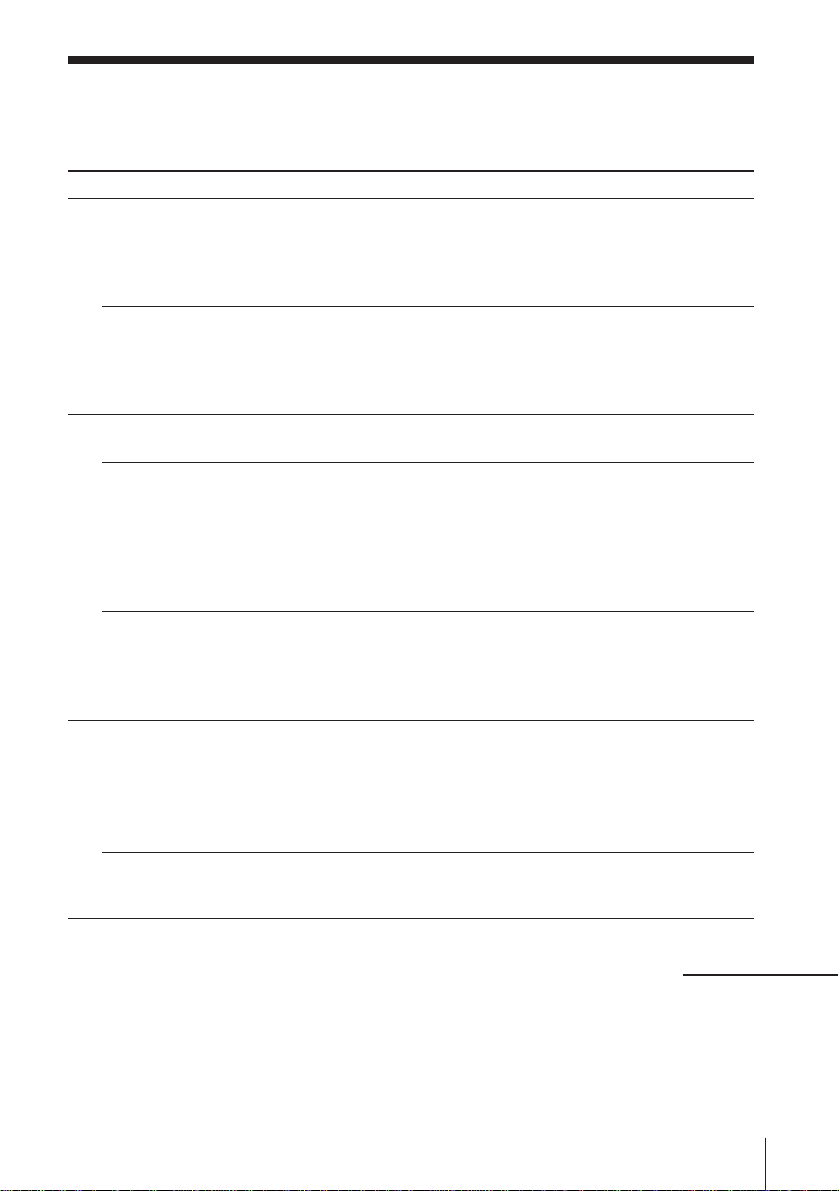
• Break off the cassette tab from side A
or B to prevent accidental recording. If
you want to reuse the tape for
recording, cover the broken tab with
adhesive tape.
• The use of a cassette with more than
90 minutes of play time is not
recommended except for long,
continuous recording or playback.
Side A
Tab for side A
Tab for side B
Precautions (continued)
Additional Information 31
Troubleshooting
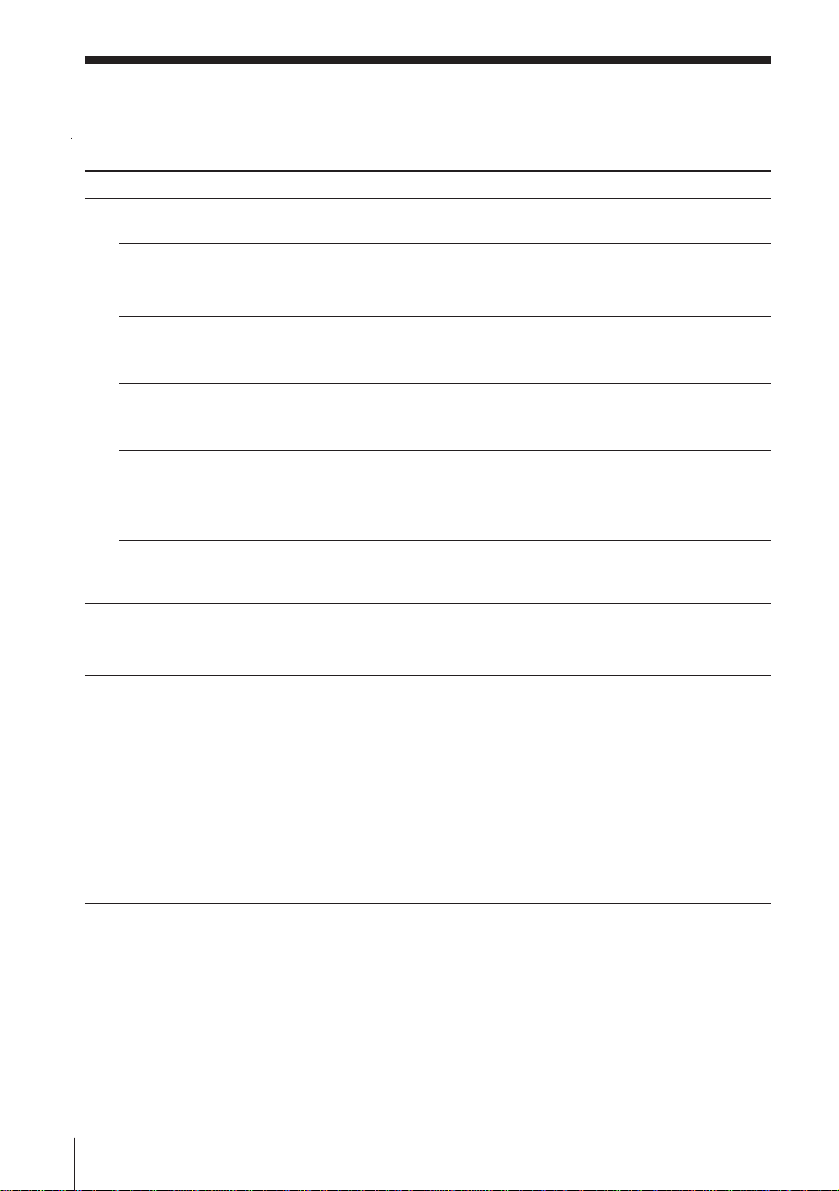
Remedy
• Connect the AC power cord to a wall outlet
securely.
• Make sure the batteries are inserted correctly.
• You cannot turn on the player with the remote
when you operate the player on batteries.
• Make sure the function you want to use appears
in the display window.
• Adjust the volume.
• Unplug the headphones when listening through
speakers.
• Insert the CD with the label surface up.
• Make sure that the CD compartment is closed.
• Place the CD with the label surface up.
• Clean the CD.
• Take out the CD and leave the CD compartment
open for about an hour to dry moisture
condensation.
• Make sure “CD” appears in the display.
• Reduce the volume.
• Clean the CD, or replace it if the CD is badly
damaged
• Place the player in a location free from
vibration.
• Replace all the batteries with new ones if they
are weak.
• Move the player away from the TV.
• If you are using the remote while listening to
AM radio, noise may be heard. This is
unavoidable.
• If you are listening to an FM program near the
TV with an indoor antenna, move the player
away from the TV.
General
CD Player
Symptom
The power is not on.
There is no audio.
“no disc“ lights in the display even
when a CD is in place.
The CD does not play.
The sound drops out.
The audio is weak or has poor
quality.
The picture of your TV becomes
unstable.
Radio
continued
Additional Information32
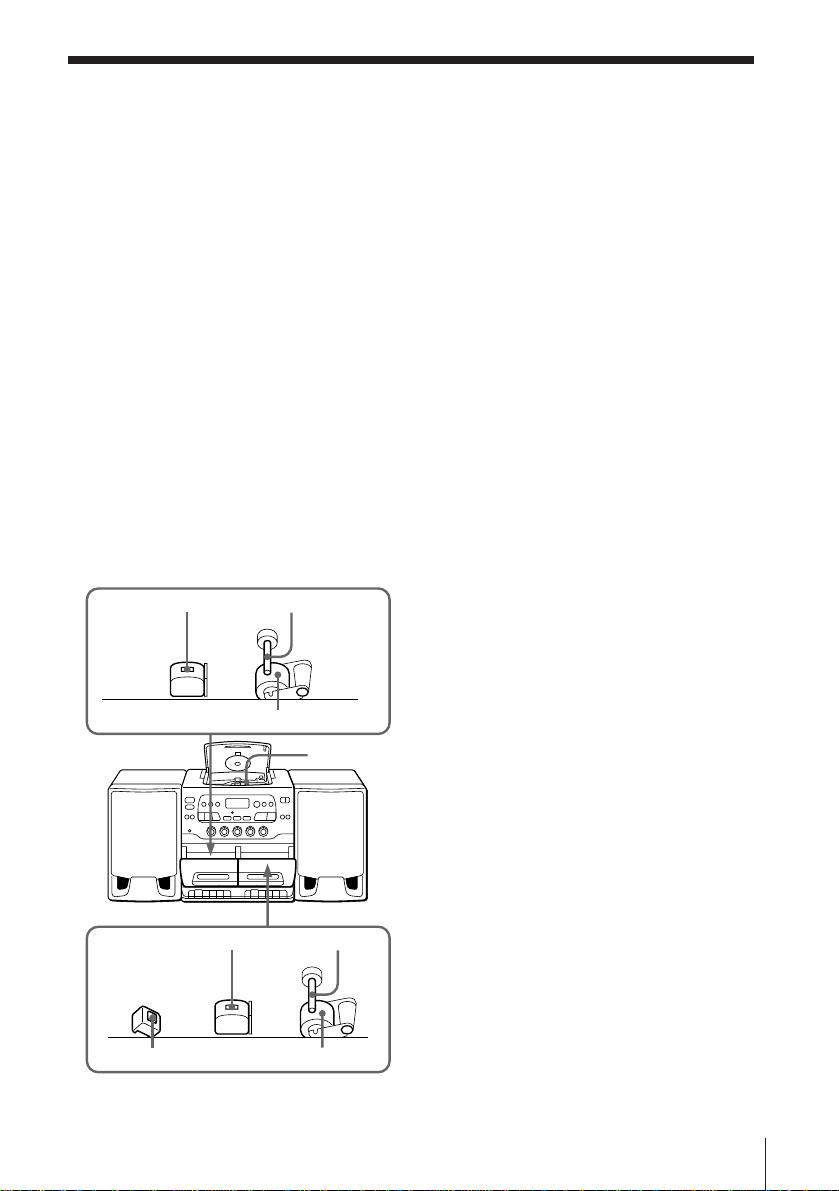
Remedy
• Close the cassette compartment securely.
• Make sure the safety tab on the cassette is in
place.
• Make sure “TAPE” appears in the display.
• Clean the erasing head (see page 33.)
• Replace all the batteries with new ones if they
are weak.
• Make sure the tape is inserted properly.
• Make sure the safety tab of the cassette is in
place.
• Clean the heads, pinch rollers and capstans (See
page 33).
• Demagnetize the heads using a demagnetizer
(see page 33).
• The TYPE II (high position) or TYPE IV (metal)
tape is being used. Use TYPE I (normal) tape
only.
• Make sure the time on the clock is correct.
• Check to see if the AC power had been cut off.
• Make sure the t (clock) indication is displayed.
• Replace all the batteries in the remote with new
ones if they are weak.
• Make sure that you are pointing the remote at
the remote sensor on the player.
• Remove any obstacles in the path of the remote
and the player.
• Make sure the remote sensor is not exposed to
strong light such as direct sunlight or
fluorescent lamp light.
• Move closer to the player when using the
remote.
Tape Player
Troubleshooting (continued)
Symptom
The tape does not move when you
press an operation button.
The REC r button does not
function/The tape does not play.
The tape does not erase completely.
The tape does not record.
The audio is weak/The audio
quality is poor.
The sound is distorted.
The timer does not operate.
The remote does not function.
Timer
Remote
After trying the above remedies, if the player still does not function properly, unplug the AC
power cord and remove all the batteries. After all the indications in the display disappear, plug
the power cord and insert the batteries again. If the problem persists, please consult your nearest
Sony dealer.
Additional Information 33
Maintenance
Demagnetizing the tape heads
After 20 to 30 hours of use, enough
residual magnetism will have built up
on the tape heads to begin to cause loss
of high frequency sound and hiss. At
this time, you should demagnetize the
heads and all metal parts in the tape
path with a commercially available tape
head demagnetizer.
Cleaning the cabinet
Clean the cabinet, panel and controls
with a soft cloth slightly moistened with
a mild detergent solution. Do not use
any type of abrasive pad, scouring
powder, or solvent, such as alcohol or
benzine.
Cleaning the lens
If the lens becomes dirty, it may cause a
skipping of sound during CD operation.
Clean with a commercially available
blower.
Cleaning the tape heads and tape
path
Wipe the heads, the pinch rollers and
the capstans with a cleaning swab
slightly moistened with cleaning fluid or
alcohol after every 10 hours of operation
for optimum playback and recording
quality. To make the best possible
recording, however, we recommend that
you clean all surfaces over which tape
travels before each recording.
After cleaning, insert a tape when the
areas cleaned are completely dry.
Lens
Pinch roller
Playback head Capstan
deck A
deck B
Capstan
Erase head
Pinch roller
Record/playback head
Additional Information34
Specifications
AUDIO POWER SPECIFICATIONS
POWER OUTPUT AND TOTAL
HARMONIC DISTORTION
With 3.2-ohm loads, both channel driven
from 150 - 15,000 Hz; rated 3.5 W per
channel-minimum RMS power, with no more
than 10 % total harmonic distortion in AC
operation.
Other Specifications
CD player section
System
Compact disc digital audio system
Laser diode properties
Material: GaAlAs
Wave length: 780 nm
Emission duration: Continuous
Laser output: Less than 44.6 µW
(This output is the value measured at a distance of
about 200 mm from the objective lens surface on
the optical pick-up block with 7 mm aperture.)
Spindle speed
200 r/min (rpm) to 500 r/min (rpm) (CLV)
Number of channels
2
Frequency response
20 - 20,000 Hz +0/-1 dB
Wow and flutter
Below measurable limit
Radio section
Frequency range
FM: 87.6 - 108 MHz
AM: 530 - 1,710 kHz
Aerials
FM: Telescopic aerial
AM: Built-in ferrite bar aerial
Cassette-corder section
Recording system
4-track 2 channel stereo
Fast winding time
Approx. 120 s (sec.) with Sony cassette C-60
Frequency response
TYPE I (normal): 80 - 12,000 Hz
General
Speaker
Full range: 12 cm (4
3
⁄4 in.) dia.,
3.2 ohms, cone type (2)
Tweeter: 2 cm (
13
⁄16 in.) dia. (2)
Inputs
Mixing microphone input jack (minijack):
Sensitivity 2.45 mV
For low impedance microphone
Outputs
Headphones jack (stereo minijack)
For 16 - 68 ohms impedance headphones
Power output (excluding US model)
4.3 W + 4.3 W (at 3.2 ohm, 10 % harmonic
distortion)
Power requirements
For CD radio cassette-corder:
120 V AC, 60 Hz
12 V DC, 8 size D (R20) batteries
For memory back-up:
6 V DC, 4 size AA (R6) batteries
For remote:
3 V DC, 2 size AA (R6) batteries
Power consumption
AC 28 W
Battery life
For CD radio cassette-corder:
FM recording
Sony R20P: approx. 11 h
Sony alkaline LR20: approx. 16 h
Tape playback
Sony R20P: approx. 6 h
Sony alkaline LR20: approx. 10 h
CD playback
Sony R20P: approx. 4 h
Sony alkaline LR20: approx. 6 h
Dimensions
Approx. 653 × 267 × 207 mm (w/h/d)
(25
3
⁄4
×
10
5
⁄8
×
8
1
⁄4
inches)
(incl. projecting parts)
Mass
Approx. 11.3 kg (24 lb. 15 oz) (incl. batteries)
Supplied accessory
AC power cord (1)
Remote controller (1)
Design and specifications are subject to change without
notice.
Optional accessories
Sony MDR headphone series

Additional Information 35
Index
A
Audio emphasis 27
B
Batteries
for player 26
f
or memory back-up 24
for remote 25
C
CD player 12
Cleaning
cabinet 33
tape heads and tape
path 33
Connecting
AC power cord 25
Creating your own
program 15
D, E, F, G, H
Demagnetizing the tape
heads 33
Display 12
I, J, K
Improving broadcast
reception 7
L
Listening to the radio 6
Locating a specific track
13
M, N, O
MEGA BASS 27
Microphone 19
P, Q
PA system 19
Playing
a CD 4
a tape 8
preset radio stations 18
tracks repeatedly 14
Presetting radio stations
17
Program Play 15
Public address system.
See PA system
R
Radio stations
playing 18
presetting 17
Recording
on a tape 10
through a microphone
19
Repeat Play 14
ROTARY EQUALIZER
27
S
Selecting
audio emphasis 27
tracks 13
Setting the clock 20
Setting up 24
SURROUND 28
T
Tape player 19
Timer
Falling asleep to music
23
Waking up to music 21
Troubleshooting 31
U, V, W, X, Y, Z
Using
as a PA system 19
the display 12