E
n
Thank you for purchasing an Onkyo Stereo Receiver.
Please read this manual thoroughly before making
connections and plugging in the unit.
Following the instructions in this manual will enable
you to obtain optimum performance and listening
enjoyment from your new Stereo Receiver.
Please retain this manual for future reference.
Contents
Introduction..................................En-2
Connections
.............................. En-11
Enjoying Audio Sources
...... En-19
Appendix
Troubleshooting
..................... En-32
Specifications
......................... En-34
En-2
Important Safety Instructions
1. Read these instructions.
2. Keep these instructions.
3. Heed all warnings.
4. Follow all instructions.
5. Do not use this apparatus near water.
6. Clean only with dry cloth.
7. Do not block any ventilation openings. Install in
accordance with the manufacturer’s instructions.
8. Do not install near any heat sources such as radia-
tors, heat registers, stoves, or other apparatus
(including amplifiers) that produce heat.
9. Do not defeat the safety purpose of the polarized or
grounding-type plug. A polarized plug has two
blades with one wider than the other. A grounding
type plug has two blades and a third grounding
prong. The wide blade or the third prong are pro-
vided for your safety. If the provided plug does not
fit into your outlet, consult an electrician for
replacement of the obsolete outlet.
10. Protect the power cord from being walked on or
pinched particularly at plugs, convenience recepta-
cles, and the point where they exit from the appara-
tus.
11. Only use attachments/accessories specified by the
manufacturer.
12.
Use only with the cart, stand,
tripod, bracket, or table spec-
ified by the manufacturer, or
sold with the apparatus.
When a cart is used, use cau-
tion when moving the cart/
apparatus combination to
avoid injury from tip-over.
13. Unplug this apparatus during lightning storms or
when unused for long periods of time.
14. Refer all servicing to qualified service personnel.
Servicing is required when the apparatus has been
damaged in any way, such as power-supply cord or
plug is damaged, liquid has been spilled or objects
have fallen into the apparatus, the apparatus has
been exposed to rain or moisture, does not operate
normally, or has been dropped.
15. Damage Requiring Service
Unplug the apparatus from the wall outlet and refer
servicing to qualified service personnel under the
following conditions:
A. When the power-supply cord or plug is damaged,
B. If liquid has been spilled, or objects have fallen
into the apparatus,
C. If the apparatus has been exposed to rain or
water,
D. If the apparatus does not operate normally by
following the operating instructions. Adjust only
those controls that are covered by the operating
instructions as an improper adjustment of other
controls may result in damage and will often
require extensive work by a qualified technician
to restore the apparatus to its normal operation,
E. If the apparatus has been dropped or damaged in
any way, and
F. When the apparatus exhibits a distinct change in
performance this indicates a need for service.
16. Object and Liquid Entry
Never push objects of any kind into the apparatus
through openings as they may touch dangerous volt-
age points or short-out parts that could result in a
fire or electric shock.
The apparatus shall not be exposed to dripping or
splashing and no objects filled with liquids, such as
vases shall be placed on the apparatus.
Don’t put candles or other burning objects on top of
this unit.
17. Batteries
Always consider the environmental issues and fol-
low local regulations when disposing of batteries.
18. If you install the apparatus in a built-in installation,
such as a bookcase or rack, ensure that there is ade-
quate ventilation.
Leave 20 cm (8") of free space at the top and sides
and 10 cm (4") at the rear. The rear edge of the shelf
or board above the apparatus shall be set 10 cm (4")
away from the rear panel or wall, creating a flue-
like gap for warm air to escape.
WARNING:
TO REDUCE THE RISK OF FIRE OR ELECTRIC
SHOCK, DO NOT EXPOSE THIS APPARATUS
TO RAIN OR MOISTURE.
CAUTION:
TO REDUCE THE RISK OF ELECTRIC SHOCK,
DO NOT REMOVE COVER (OR BACK). NO
USER-SERVICEABLE PARTS INSIDE. REFER
SERVICING TO QUALIFIED SERVICE
PERSONNEL.
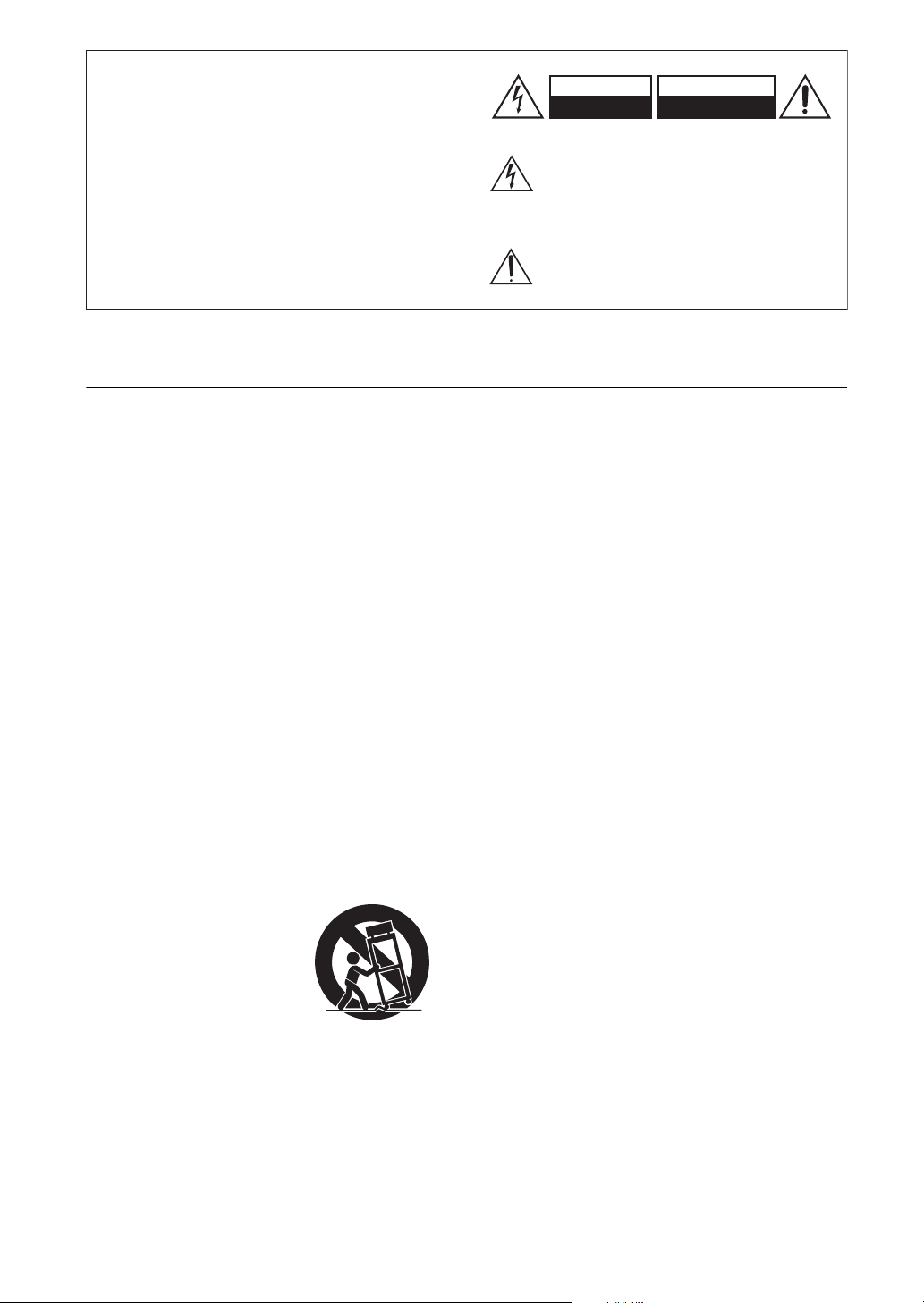
The lightning flash with arrowhead symbol, within an
equilateral triangle, is intended to alert the user to the
presence of uninsulated “dangerous voltage” within
the product’s enclosure that may be of sufficient
magnitude to constitute a risk of electric shock to
persons.
The exclamation point within an equilateral triangle is
intended to alert the user to the presence of important
operating and maintenance (servicing) instructions in
the literature accompanying the appliance.
WARNING
RISK OF ELECTRIC SHOCK
DO NOT OPEN
RISQUE DE CHOC ELECTRIQUE
NE PAS OUVRIR
AVIS
PORTABLE CART WARNING
S3125A

En-3
Precautions
1. Recording Copyright—Unless it’s for personal use
only, recording copyrighted material is illegal with-
out the permission of the copyright holder.
2. AC Fuse—The AC fuse inside the unit is not user-
serviceable. If you cannot turn on the unit, contact
your Onkyo dealer.
3. Care—Occasionally you should dust the unit all
over with a soft cloth. For stubborn stains, use a soft
cloth dampened with a weak solution of mild
detergent and water. Dry the unit immediately
afterwards with a clean cloth. Don’t use abrasive
cloths, thinners, alcohol, or other chemical solvents,
because they may damage the finish or remove the
panel lettering.
4. Power
WARNING
BEFORE PLUGGING IN THE UNIT FOR THE
FIRST TIME, READ THE FOLLOWING SEC-
TION CAREFULLY.
AC outlet voltages vary from country to country.
Make sure that the voltage in your area meets the
voltage requirements printed on the unit’s rear panel
(e.g., AC 230 V, 50 Hz or AC 120 V, 60 Hz).
The power cord plug is used to disconnect this unit
from the AC power source. Make sure that the plug
is readily operable (easily accessible) at all times.
For models with [POWER] button, or with both
[POWER] and [ON/STANDBY] buttons:
Pressing the [POWER] button to select OFF mode
does not fully disconnect from the mains. If you do
not intend to use the unit for an extended period,
remove the power cord from the AC outlet.
For models with [ON/STANDBY] button only:
Pressing the [ON/STANDBY] button to select
Standby mode does not fully disconnect from the
mains. If you do not intend to use the unit for an
extended period, remove the power cord from the
AC outlet.
5. Preventing Hearing Loss
Caution
Excessive sound pressure from earphones and head-
phones can cause hearing loss.
6. Batteries and Heat Exposure
Warning
Batteries (battery pack or batteries installed) shall
not be exposed to excessive heat as sunshine, fire or
the like.
7. Never Touch this Unit with Wet Hands—Never
handle this unit or its power cord while your hands
are wet or damp. If water or any other liquid gets
inside this unit, have it checked by your Onkyo
dealer.
8. Handling Notes
• If you need to transport this unit, use the original
packaging to pack it how it was when you origi-
nally bought it.
• Do not leave rubber or plastic items on this unit
for a long time, because they may leave marks on
the case.
• This unit’s top and rear panels may get warm
after prolonged use. This is normal.
• If you do not use this unit for a long time, it may
not work properly the next time you turn it on, so
be sure to use it occasionally.
For U.S. models
FCC Information for User
CAUTION:
The user changes or modifications not expressly
approved by the party responsible for compliance could
void the user’s authority to operate the equipment.
NOTE:
This equipment has been tested and found to comply
with the limits for a Class B digital device, pursuant to
Part 15 of the FCC Rules. These limits are designed to
provide reasonable protection against harmful interfer-
ence in a residential installation.
This equipment generates, uses and can radiate radio
frequency energy and, if not installed and used in accor-
dance with the instructions, may cause harmful interfer-
ence to radio communications. However, there is no
guarantee that interference will not occur in a particular
installation. If this equipment does cause harmful inter-
ference to radio or television reception, which can be
determined by turning the equipment off and on, the
user is encouraged to try to correct the interference by
one or more of the following measures:
• Reorient or relocate the receiving antenna.
• Increase the separation between the equipment and
receiver.
• Connect the equipment into an outlet on a circuit dif-
ferent from that to which the receiver is connected.
• Consult the dealer or an experienced radio/TV tech-
nician for help.
En-4
Precautions—Continued
For Canadian Models
NOTE: THIS CLASS B DIGITAL APPARATUS
COMPLIES WITH CANADIAN ICES-003.
For models having a power cord with a polarized plug:
CAUTION: TO PREVENT ELECTRIC SHOCK,
MATCH WIDE BLADE OF PLUG TO WIDE SLOT,
FULLY INSERT.
Modèle pour les Canadien
REMARQUE: CET APPAREIL NUMÉRIQUE DE
LA CLASSE B EST CONFORME À LA NORME
NMB-003 DU CANADA.
Sur les modèles dont la fiche est polarisée:
ATTENTION: POUR ÉVITER LES CHOCS ÉLEC-
TRIQUES, INTRODUIRE LA LAME LA PLUS
LARGE DE LA FICHE DANS LA BORNE CORRE-
SPONDANTE DE LA PRISE ET POUSSER
JUSQU’AU FOND.
For British models
Replacement and mounting of an AC plug on the power
supply cord of this unit should be performed only by
qualified service personnel.
IMPORTANT
The wires in the mains lead are coloured in accordance
with the following code:
Blue: Neutral
Brown: Live
As the colours of the wires in the mains lead of this
apparatus may not correspond with the coloured mark-
ings identifying the terminals in your plug, proceed as
follows:
The wire which is coloured blue must be connected to
the terminal which is marked with the letter N or
coloured black.
The wire which is coloured brown must be connected to
the terminal which is marked with the letter L or
coloured red.
IMPORTANT
The plug is fitted with an appropriate fuse. If the fuse
needs to be replaced, the replacement fuse must
approved by ASTA or BSI to BS1362 and have the
same ampere rating as that indicated on the plug. Check
for the ASTA mark or the BSI mark on the body of the
fuse.
If the power cord’s plug is not suitable for your socket
outlets, cut it off and fit a suitable plug. Fit a suitable
fuse in the plug.
For European Models
Declaration of Conformity
We declare, under our sole
responsibility, that this product
complies with the standards:
–Safety
–Limits and methods of
measurement of radio disturbance characteristics
–Limits for harmonic current emissions
–Limitation of voltage changes, voltage fluctuations
and flicker
–RoHS Directive, 2011/65/EU

En-5
Contents
Important Safety Instructions............................ 2
Precautions......................................................... 3
Features ............................................................. 6
Supplied Accessories ....................................... 6
Installing the Batteries...............................................6
Aiming the Remote Controller.................................. 6
Getting to Know the Receiver ........................... 7
Front Panel ................................................................7
Rear Panel .................................................................8
Display ...................................................................... 9
Remote Controller...................................................10
Connecting the Receiver ................................. 11
Speaker Connection Precautions.............................11
Connecting the Speaker Cables...............................11
Connecting a Powered Subwoofer..........................12
Configuring the Speaker Impedance.......................13
Connecting Antennas ...................................... 14
Connecting Your Components........................ 15
About Connections..................................................15
Connecting Onkyo Components....................... 17
Connecting a Recording Component ...................... 18
Connecting the Power Cord ....................................18
Turning On the Receiver.................................. 19
Turning On and Standby.........................................19
Auto Standby........................................................... 19
Enjoying Audio Sources.................................. 20
Selecting the Speaker Set ........................................20
Muting the Receiver
(remote controller only)........................................ 20
Using Headphones ..................................................20
Setting the Display Brightness ................................21
Using the Sleep Timer
(remote controller only)........................................ 21
Using the Tone and Balance Controls.....................21
Displaying the Tone Level ...................................... 21
Setting the DIRECT Function.................................22
Setting the Digital Audio Input
(for European model)............................................22
Recording ..........................................................23
Recording the Input Source.....................................23
Listening to the Radio ......................................24
Radio Frequency Setup............................................24
Listening to AM/FM Stations..................................25
Using RDS (European model only).........................28
iPod/iPhone Playback via Onkyo Dock ..........30
Using the Onkyo Dock............................................30
Controlling Your iPod/iPhone.................................31
Troubleshooting ...............................................32
Power.......................................................................32
Audio .......................................................................32
Tuner........................................................................32
Remote Controller ...................................................32
Recording ................................................................33
Others ......................................................................33
Specifications ...................................................34
En-6
Features
❑ 50 Watts/Channel @ 8 Ω (FTC)
(For North American Model)
❑ 90 Watts/Channel @ 6
Ω (IEC)
(For European Model)
❑ WRAT (Wide Range Amplifier Technology)
❑ Discrete Amplifier Output Stage Circuitry
❑ Massive EI Transformer
❑ High-Current, Low-Impedance Drive
❑ Direct Mode
❑ 5 Analog Audio Inputs and 1 Output
❑ 3 Digital Audio Inputs (1 Optical, 2 Coaxial)
(European Model only)
❑ Phono Input for Turntable Connection
❑ Independent Bass, Treble, and Balance
Controls
❑ Subwoofer Pre-Out
❑ Speaker A/B Terminals
❑ Remote Interactive (RI) Input for Integrated
Control of Compatible Onkyo Components
❑ Headphone Jack
❑ 40 FM/AM Random Presets
❑ Preset Station Naming (Up to 8 Characters)
❑ RDS (PS/PTY/RT) (European Model only)
❑ 3-Mode Display Dimmer (Normal/Dim/
Dimmer)
❑ Sleep Timer (via Remote)
❑ Battery-Free Memory Back-up
❑ Full-Sized, Full-Function RI Remote Control
Supplied Accessories
Make sure you have the following accessories:
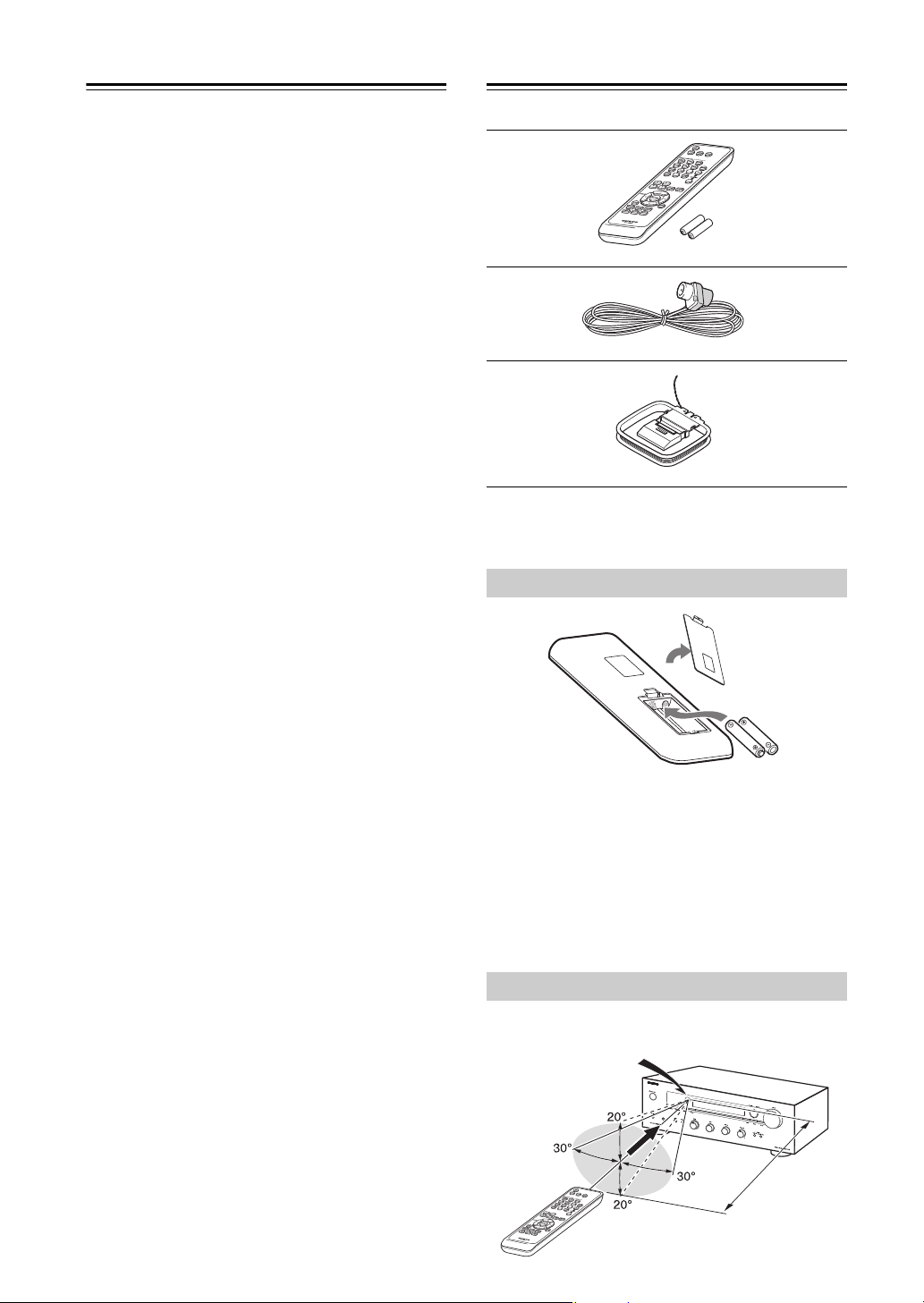
Remote controller and two batteries (AAA/R03)
Indoor FM antenna
AM loop antenna
* In catalogs and on packaging, the letter at the end of the
product name indicates the color. Specifications and
operation are the same regardless of color.
Notes:
• If the remote controller doesn’t work reliably, try
replacing the batteries.
• Don’t mix new and old batteries or different types of
batteries.
• If you intend not to use the remote controller for a long
time, remove the batteries to prevent damage from
leakage or corrosion.
• Expired batteries should be removed as soon as
possible to prevent damage from leakage or corrosion.
When using the remote controller, point it toward the
receiver’s remote control sensor, as shown below.
Installing the Batteries
Aiming the Remote Controller
Remote control sensor
Approx.
5 m (16 ft.)
TX-8020
En-7
Getting to Know the Receiver
For detailed information, see the pages in parentheses.
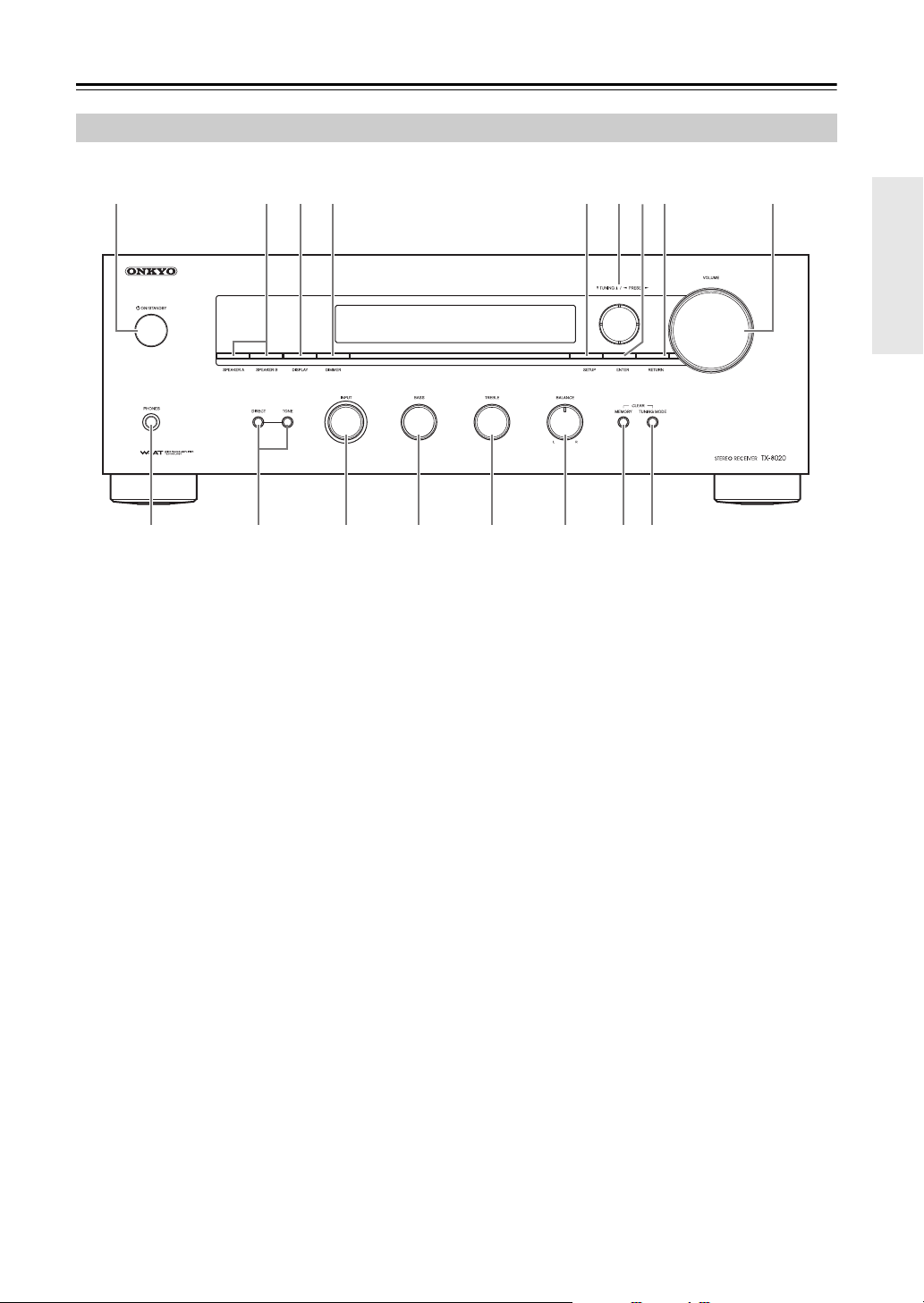
a ON/STANDBY button (19, 30, 32)
b SPEAKERS A and B buttons (20)
c DISPLAY button (27, 29)
d DIMMER button (21)
e SETUP button (13, 19, 22, 24, 27)
f TUNING /, PRESET /buttons (25, 26,
29)
g ENTER button (29)
h RETURN button (13, 19, 22, 24, 27)
i VOLUME control (20)
j PHONES jack (20)
k DIRECT, TONE buttons (21, 22)
l INPUT selector (20, 23, 24, 25)
m BASS control (21)
n TREBLE control (21)
o BALANCE control (21)
p MEMORY button (26)
q TUNING MODE button (25, 26, 32)
Front Panel
a 93 4 5 8726
j l m n o p qk
En-8
Getting to Know the Receiver—Continued
For detailed information, see the pages in parentheses.
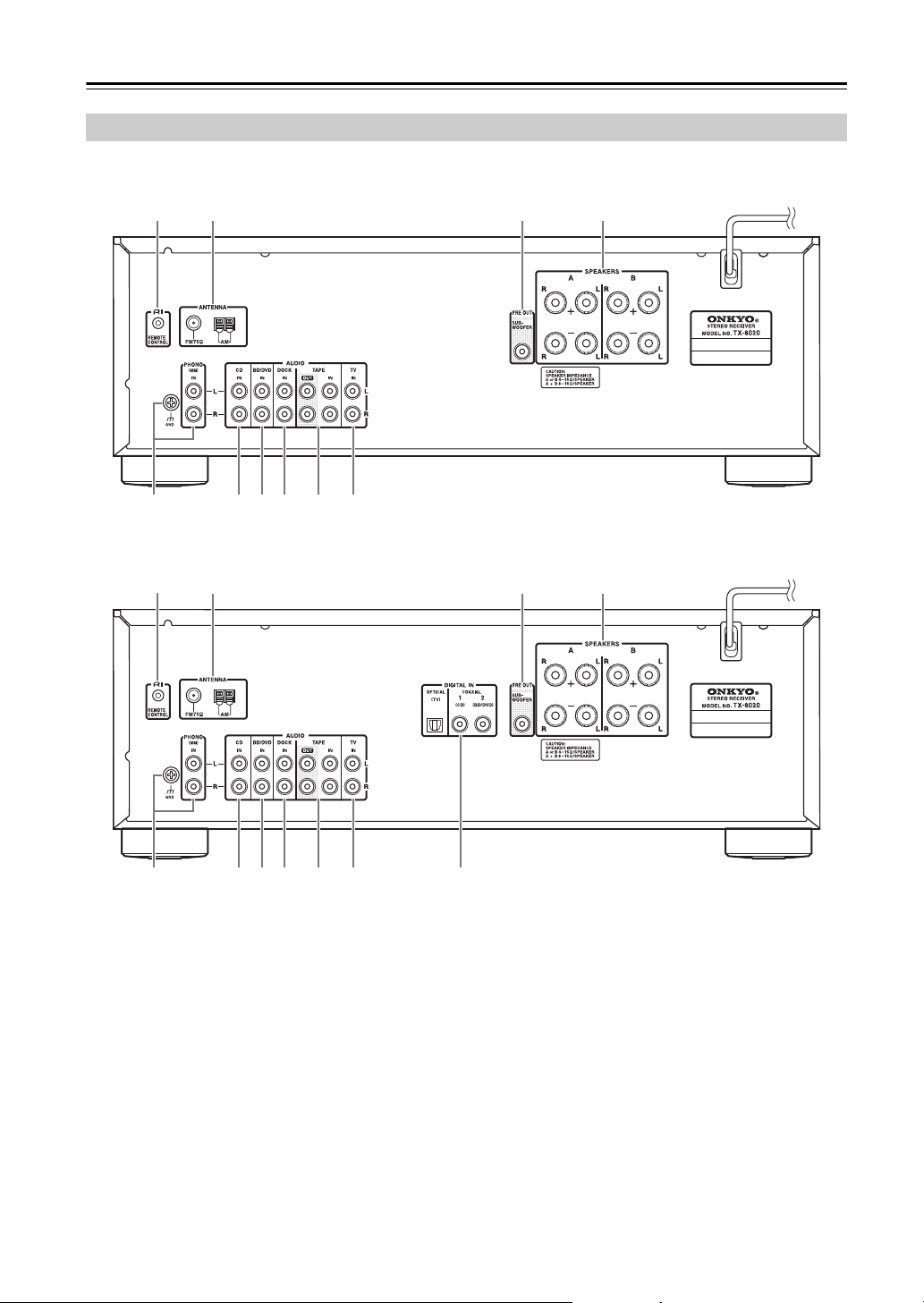
a REMOTE CONTROL jack (17)
b FM ANTENNA jack and AM ANTENNA
terminal (14)
c SUBWOOFER PRE OUT jack (12)
d SPEAKERS A and B terminals (11)
e PHONO IN (MM) jacks and GND terminal (16)
f CD IN jacks (16)
g BD/DVD IN jacks (16)
h DOCK IN jacks (16)
i TAPE IN/OUT jacks (16, 18)
j TV IN jacks (16)
k DIGITAL IN (OPTICAL, COAXIAL) jacks
(European model only) (16)
See “Connecting the Receiver” for connection
( pages 11 to 18).
Rear Panel
a b 3 4
6
78 9 j5
North American model
a b 3 4
6
78 9 j k5
European model

En-9
Getting to Know the Receiver—Continued
For detailed information, see the pages in parentheses.
a A/B speaker indicators (20)
b Headphone indicator
c Message area
d Tuning indicators
• RDS indicator (European model) (28)
• AUTO indicator (25)
• TUNED indicator (25)
• FM STEREO indicator (25, 32)
e MUTING indicator (32)
f SLEEP indicator (21)
g ASb (Auto Standby) indicator (19)
h Digital input indicator (European model)
i ch indicator
j Hz indicator
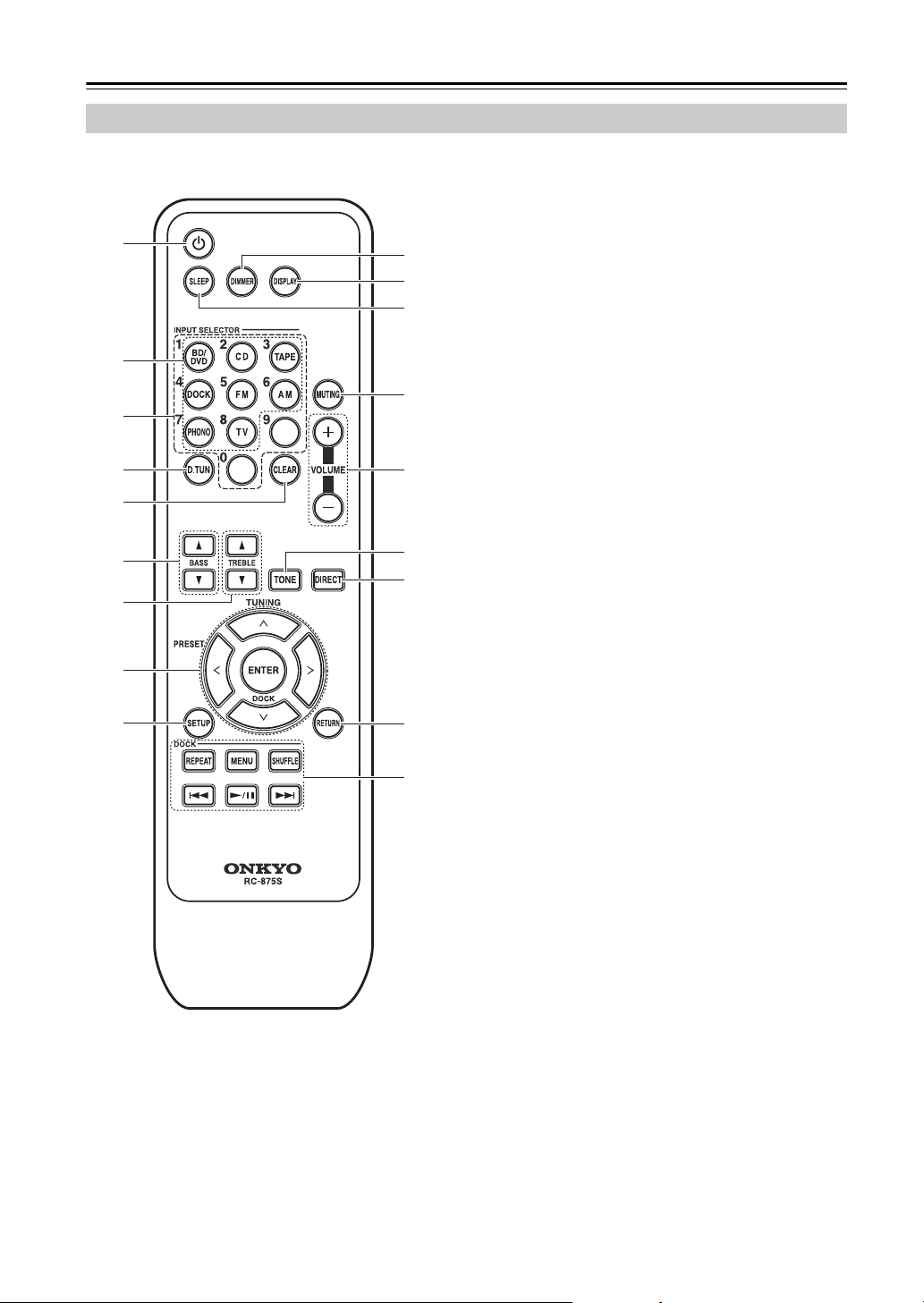
Display
1
8
2 4 5 6
j9
73
En-10
Getting to Know the Receiver—Continued
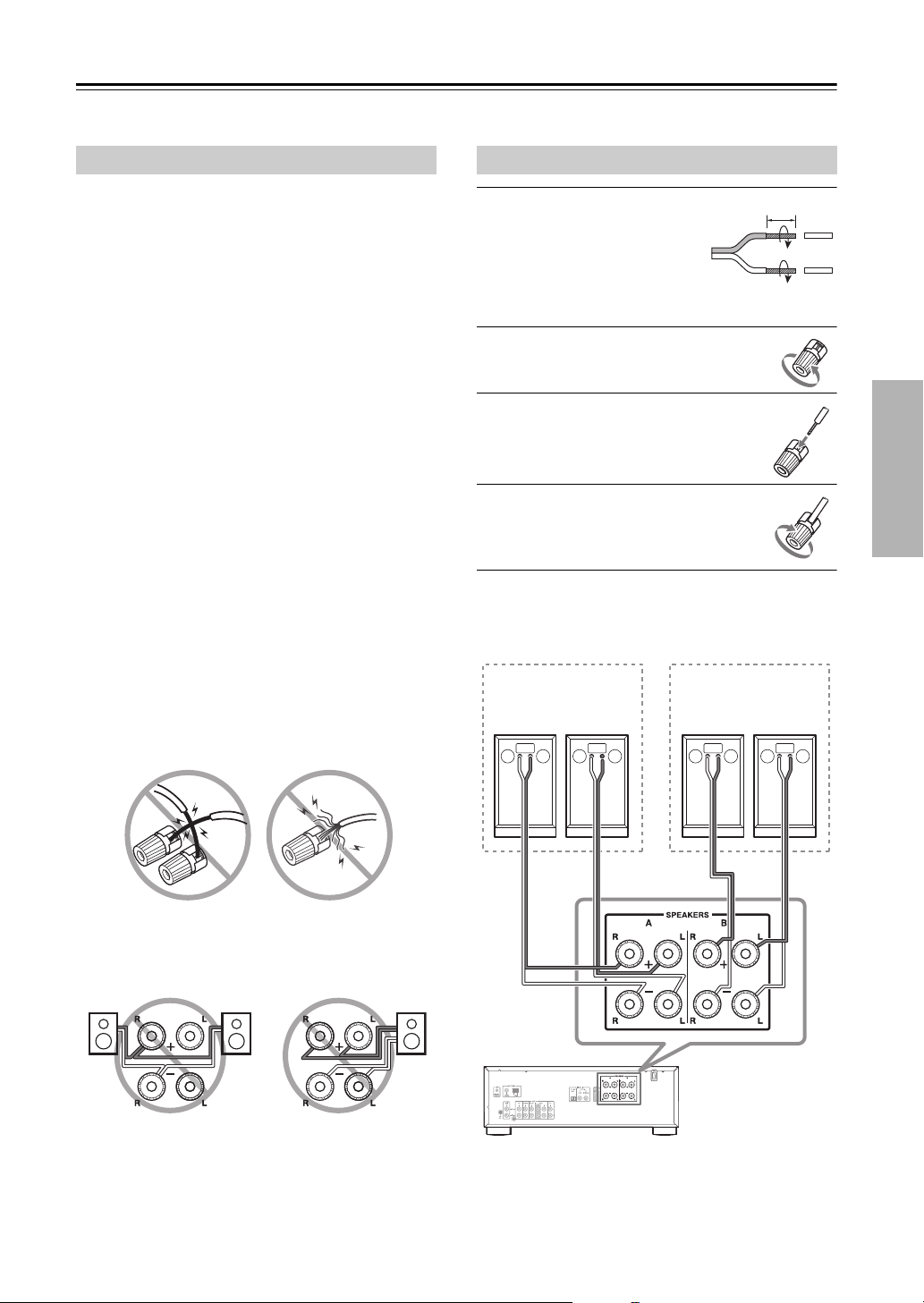
For detailed information, see the pages in parentheses.
a button (13, 19, 22)
b INPUT SELECTOR buttons (20, 23, 25, 31)
c Number buttons (25, 26)
d D.TUN button (25, 26)
e CLEAR button (27)
f BASS / buttons (21)
g TREBLE / buttons (21)
h Arrow []/[]/[]/[] and ENTER buttons
(13, 19, 22, 24, 26, 27, 31)
i SETUP button (13, 19, 22, 24, 27)
j DIMMER button (21)
k DISPLAY button (27, 28, 29)
l SLEEP button (21)
m MUTING button (20)
n VOLUME + /– buttons (20)
o TONE button (21)
p DIRECT button (22)
q RETURN button (13, 19, 22, 24, 27, 31)
r DOCK Control buttons (31)
Remote Controller
a
3
4
6
8
9
7
5
b
j
k
m
n
p
q
r
o
l
En-11
Connecting the Receiver
Disconnect the power cord from the electrical outlet before making any connections.
The receiver allows you to connect two sets of speakers.
When two sets of speakers are connected, you can select
which speaker set outputs sound or use both sets to
output sound simultaneously. ( page 20 about
“Speakers A” and “Speakers B”)
• When you connect one set of speakers to either
SPEAKERS A or SPEAKERS B terminal posts, or
when you connect two sets of speakers to both speaker
terminal posts and output sound only from either
speaker set, use speakers whose impedance is 4 to
16 Ω, and set the speaker impedance setting on the
receiver to 4 or 6 Ω ( page 13). When the impedance
of the speaker to be used is less than 6 Ω, set the
speaker impedance to 4 Ω.
• When you connect speakers to both SPEAKERS A
and SPEAKERS B terminal posts and output sound
from both speaker sets simultaneously, use speakers
whose impedance is 8 to 16 Ω. Set the speaker
impedance setting on the receiver to 4 Ω.
• Read the instructions supplied with your speakers.
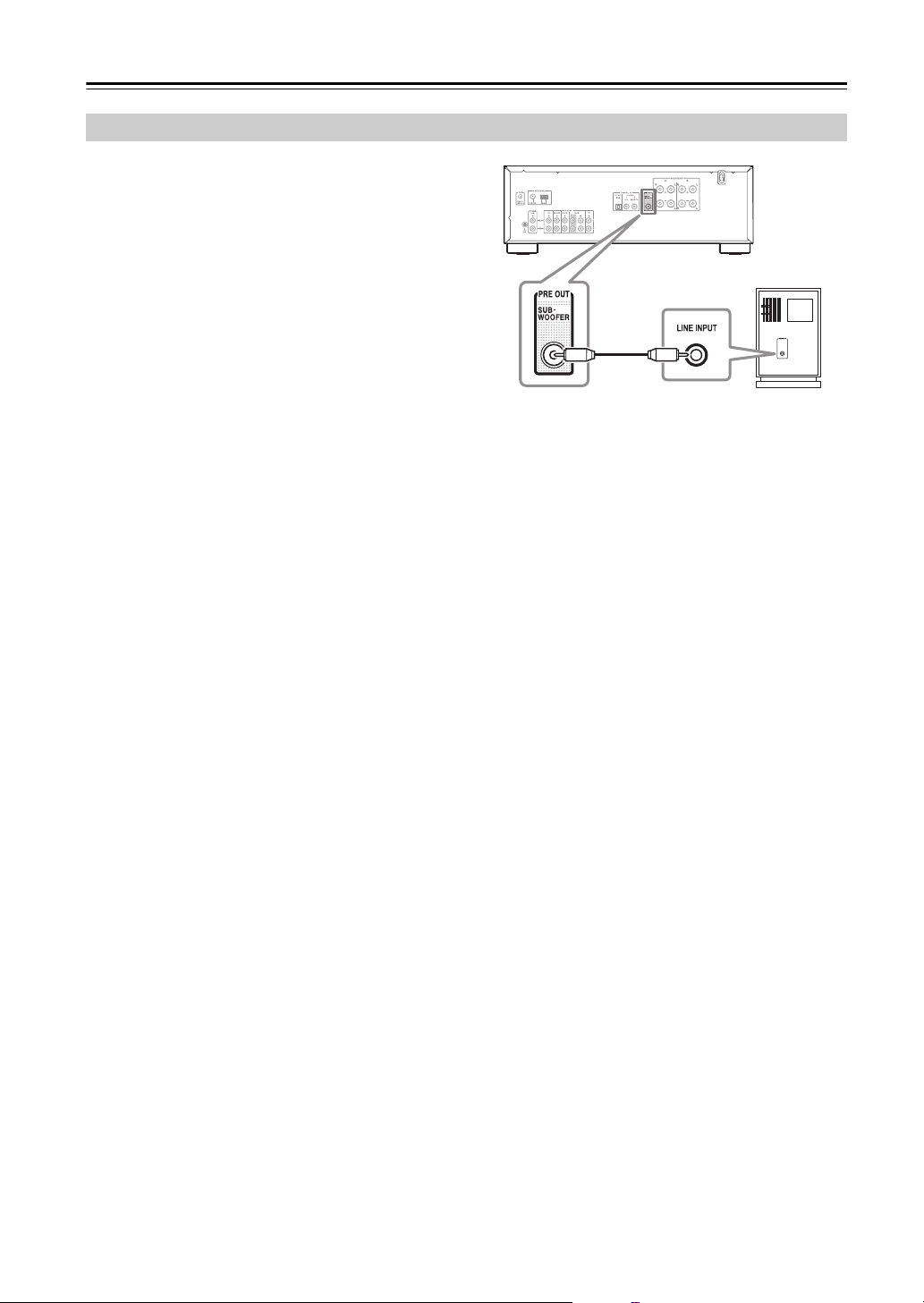
• Pay close attention to speaker wiring polarity. In other
words, connect positive (+) terminals only to positive (+)
terminals, and negative (–) terminals only to negative (–)
terminals. If you get them the wrong way around, the
sound will be out of phase and will sound unnatural.
• Unnecessarily long or very thin speaker cables may
affect the sound quality and should be avoided.
• Be careful not to short the positive and negative wires.
Doing so may damage the receiver.
• Don’t connect more than one cable to each speaker
terminal. Doing so may damage the receiver.
• Don’t connect a speaker to more than one pair of
speaker terminals.
Note:
If you make an incorrect setting for the speakers or the
impedance values, the built-in protection circuit may be
activated resulting in no sound output from speakers.
1
Strip about 5/8" (15 mm)
of insulation from the
ends of the speaker
cables, and twist the
bare wires tightly, as
shown.
2
Unscrew the terminal.
3
Fully insert the bare wire.
4
Screw the terminal tight.
The following illustration shows which speaker should
be connected to each pair of terminals.
Speaker Connection Precautions Connecting the Speaker Cables
5/8" (15 mm)
+–+– +–+–
Receiver
Right
speaker
Left
speaker
Speaker set BSpeaker set A
Right
speaker
Left
speaker
En-12
Connecting the Receiver—Continued
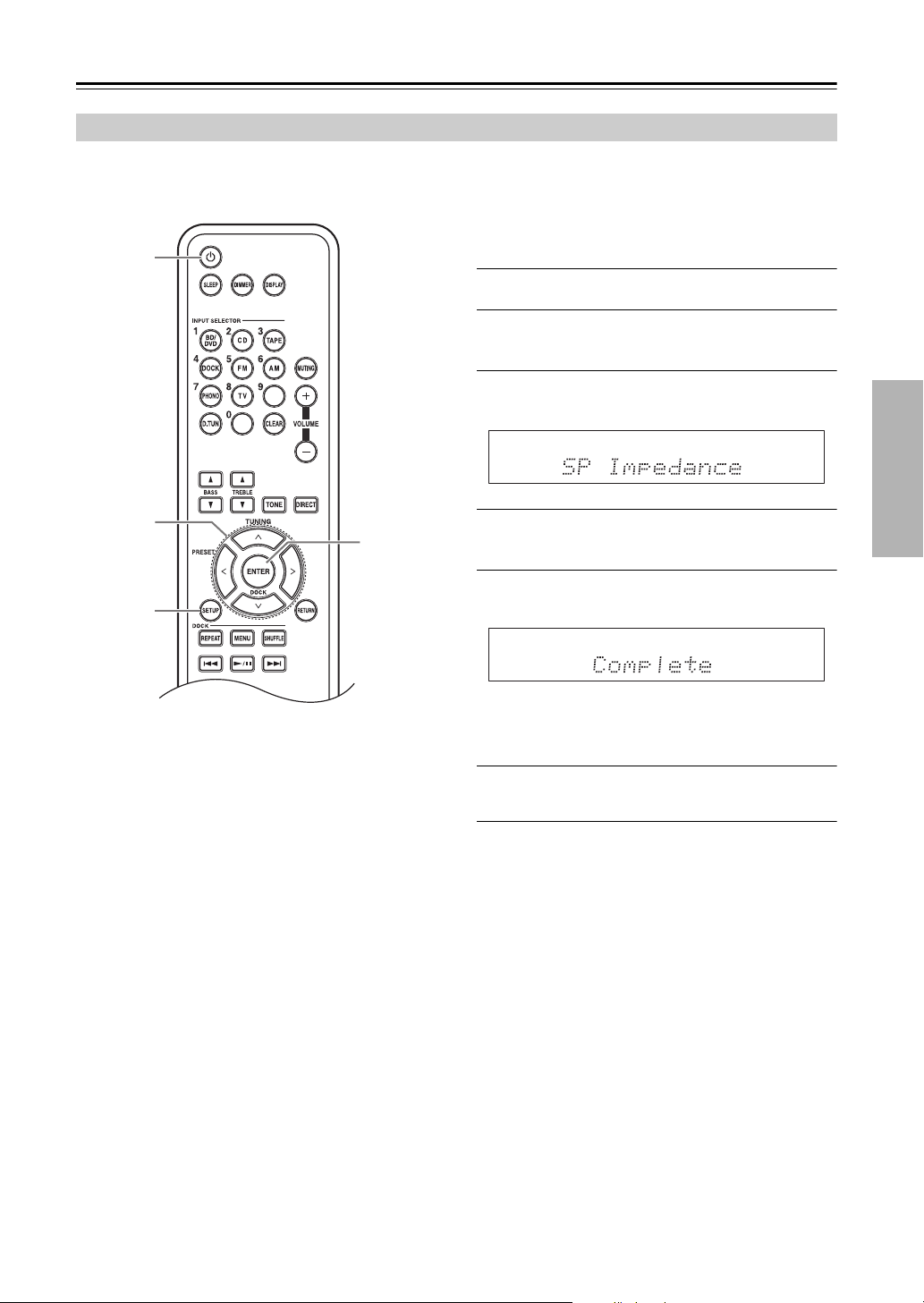
Using a suitable cable, connect the receiver’s
SUBWOOFER PRE OUT to the input on your powered
subwoofer. If your subwoofer is unpowered and you’re
using an external amplifier, connect the SUBWOOFER
PRE OUT to the amp’s input.
Note:
SUBWOOFER PRE OUT is linked to SPEAKER A’s
On/Off. When SPEAKER A is selected, the audio signal
will output from the SUBWOOFER PRE OUT.
Connecting a Powered Subwoofer
Powered
subwoofer
En-13
Connecting the Receiver—Continued
On the receiver, the factory default for speaker impedance is “6 Ω”. If you need to change the speaker impedance setting,
read “Speaker Connection Precautions” on page 11 carefully before performing the procedure below.
Note:
Be sure to minimize the volume level on the receiver
before configuring the speaker impedance.
1
Press the [] button to turn on the power.
2
Press the [SETUP] button on the remote
controller.
3
Use the arrow []/[] buttons to select
“SP Impedance,” and then press [ENTER].
4
Change the impedance value to “4 Ω” using
the arrow []/[] buttons.
5
Press the [ENTER] button to confirm the
setting.
If you want to change the impedance setting back
to the factory default setting of 6 Ω, follow the
same procedure described above.
6
Press the [SETUP] button on the remote
controller to complete the setting.
Notes:
• This procedure can also be performed on the receiver
by using [SETUP], TUNING []/[], PRESET
[]/[], and [ENTER].
• Press [RETURN] to return to the previous menu.
• This procedure will be cancelled if the [SETUP]
button is pressed before step 5.
Setting example:
If you’re using only one of the speaker sets connected to
SPEAKERS A or B, choose the 4 Ω setting if each
speaker’s impedance is 4 Ω to less than 6 Ω, or choose
the 6 Ω setting if each speaker’s impedance is 6 Ω or
more.
If you’re using both of the speaker sets connected to
SPEAKERS A and B, choose the 4 Ω setting if each
speaker’s impedance is 8 to 16 Ω.
Configuring the Speaker Impedance
SETUP
ENTER
En-14
Connecting Antennas
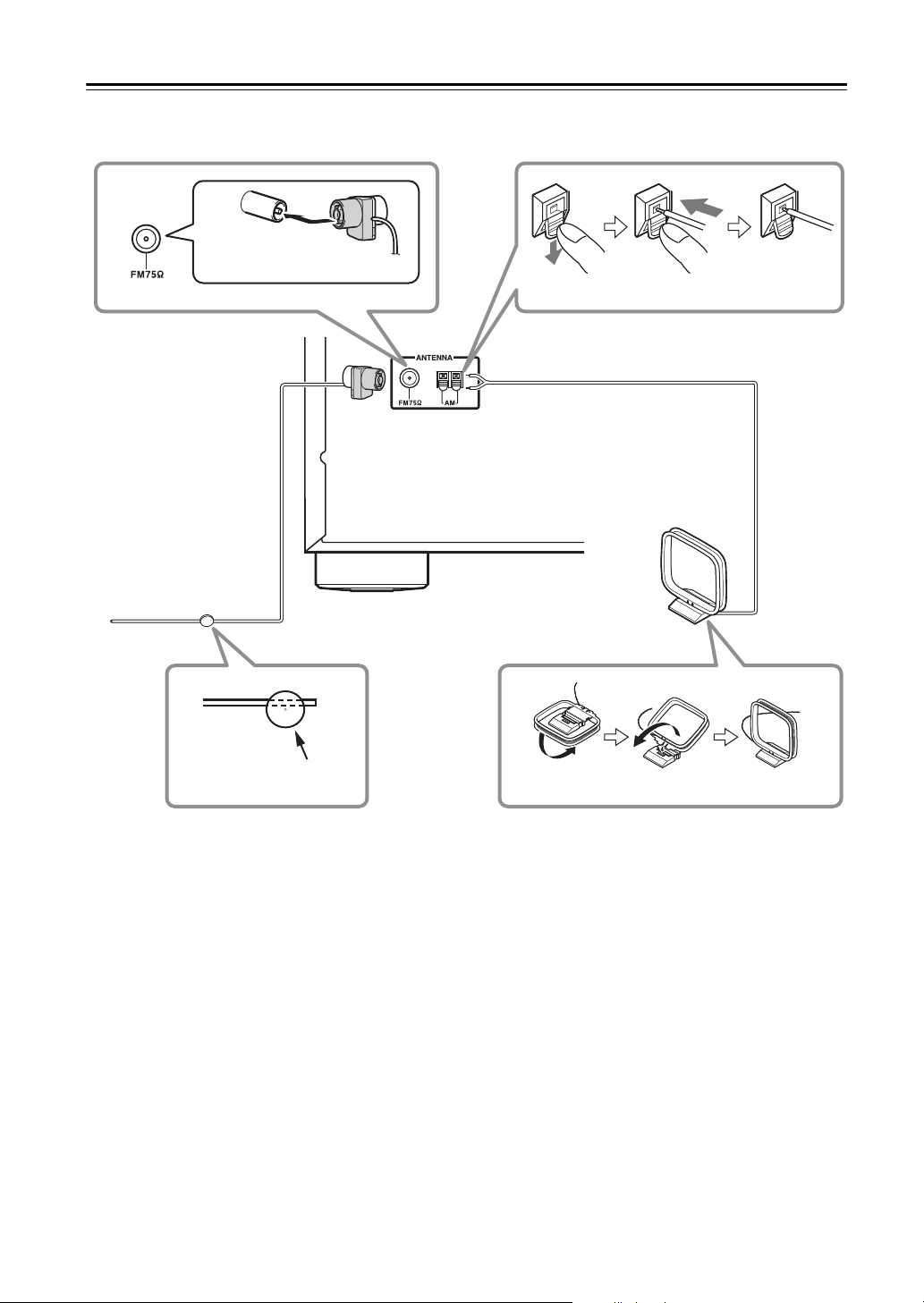
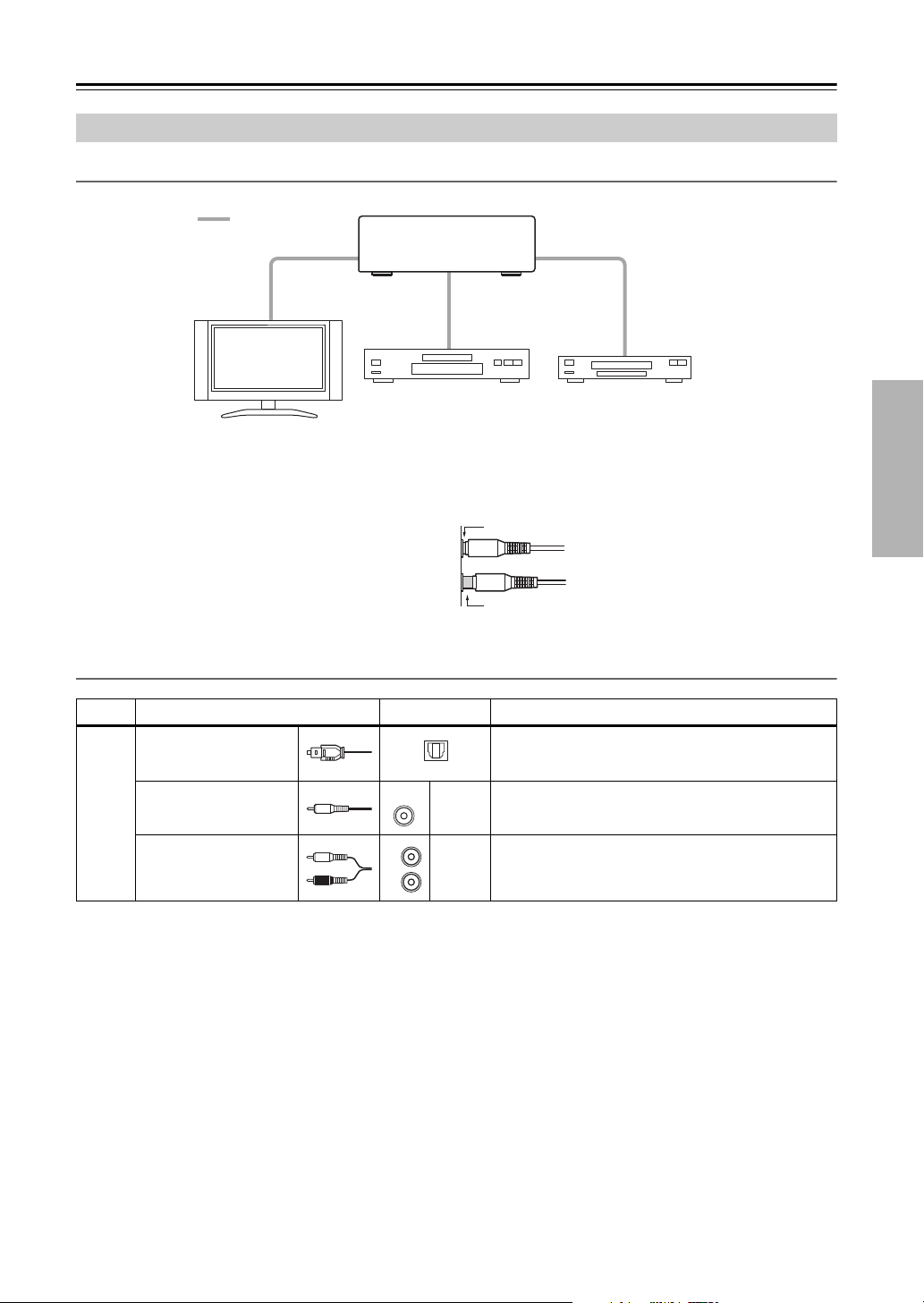
This section explains how to connect the supplied indoor FM antenna and AM loop antenna.
The receiver won’t pick up any radio signals if no antenna is connected, so you must connect the antenna to use the tuner.
Notes:
• Once your receiver is ready for use, you’ll need to tune into a radio station and position the antenna to achieve the
best possible reception.
• Keep the AM loop antenna as far away as possible from your receiver, TV, speaker cables, and power cords.
• Refer to “Radio Frequency Setup” on page 24 for more information on switching the frequency setup.
Tips:
• If you cannot achieve good reception with the supplied indoor FM antenna, try a commercially available outdoor FM
antenna instead.
• If you cannot achieve good reception with the supplied indoor AM loop antenna, try using it with a commercially
available outdoor AM antenna.
AM loop antenna
(supplied)
Assembling the AM loop antenna
Insert wire Release
Thumbtacks, etc.
Insert the plug fully
into the jack.
Indoor FM antenna
(supplied)
Caution:
Be careful that you don’t injure yourself
when using thumbtacks.
Push
En-15
Connecting Your Components
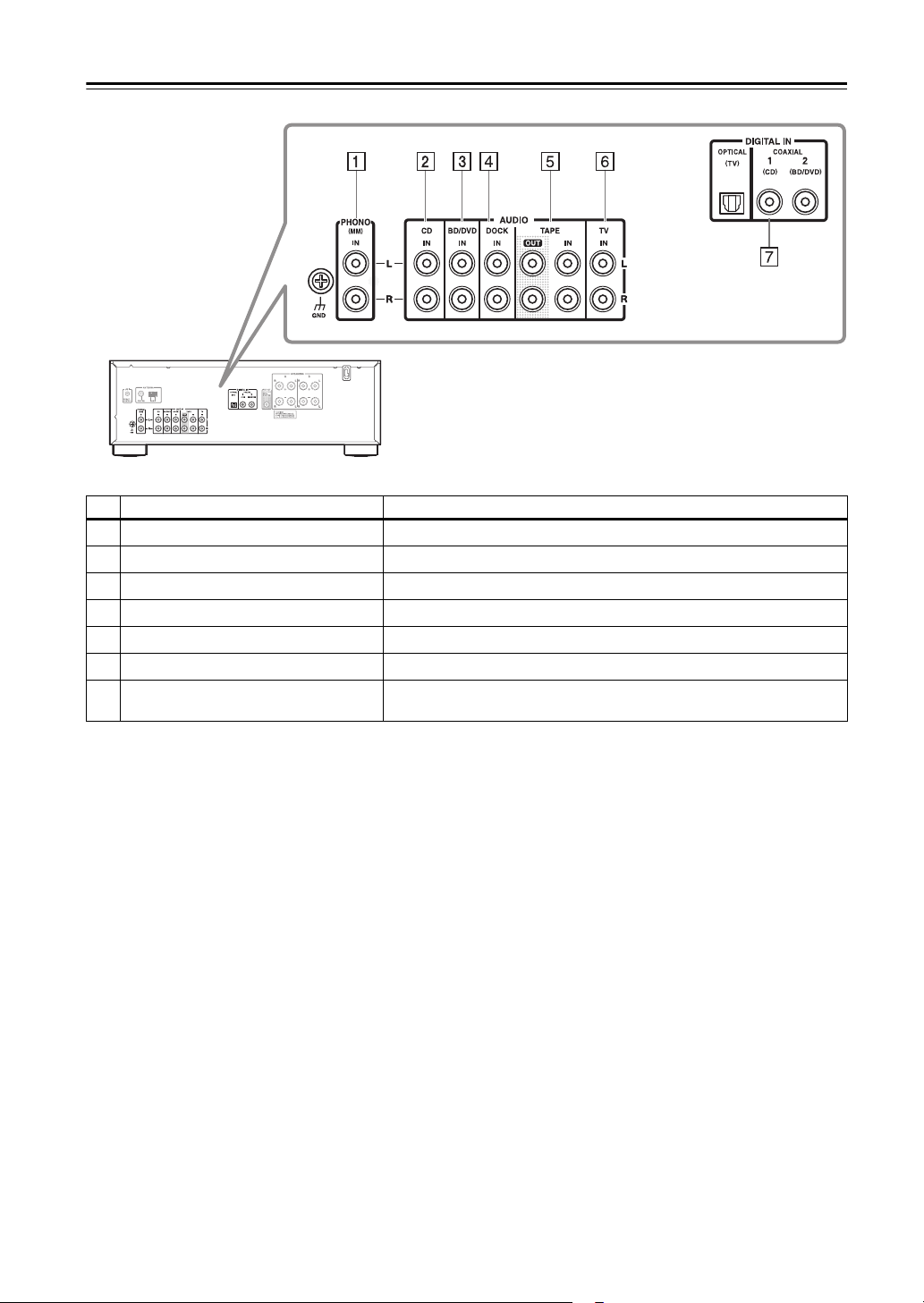
Connecting components
• Before making any connections, read the manuals supplied with your components.
• Don’t connect the power cord until you’ve completed and double-checked all connections.
• Push plugs in all the way to make good connections
(loose connections can cause noise or malfunctions).
• To prevent interference, keep audio cable away from power cords and speaker cables.
Cables and Jacks
Notes:
• The receiver does not support multichannel audio input. The PCM signal can be input only to digital input terminals.
Make sure that PCM is selected on the playback component.
• The receiver’s optical digital jacks have shutter-type covers that open when an optical plug is inserted and close when
it’s removed. Push plugs in all the way.
Caution:
To prevent shutter damage, hold the optical plug straight when inserting and removing.
About Connections
Signal Cable Jack Description
Audio
Optical digital audio
(European model only)
Optical digital connections allow you to enjoy digital
sound. The audio quality is the same as coaxial.
Coaxial digital audio
(European model only)
Orange
Coaxial digital connections allow you to enjoy digital
sound. The audio quality is the same as optical.
Analog audio (RCA)
White
Red
Analog audio connections (RCA) carry analog audio.
Receiver
TV, projector, etc.
Blu-ray Disc/
DVD player
CD player
: Audio
Right!
Wrong!
OPTICAL
COAXIAL
L
R
En-16
Connecting Your Components—Continued
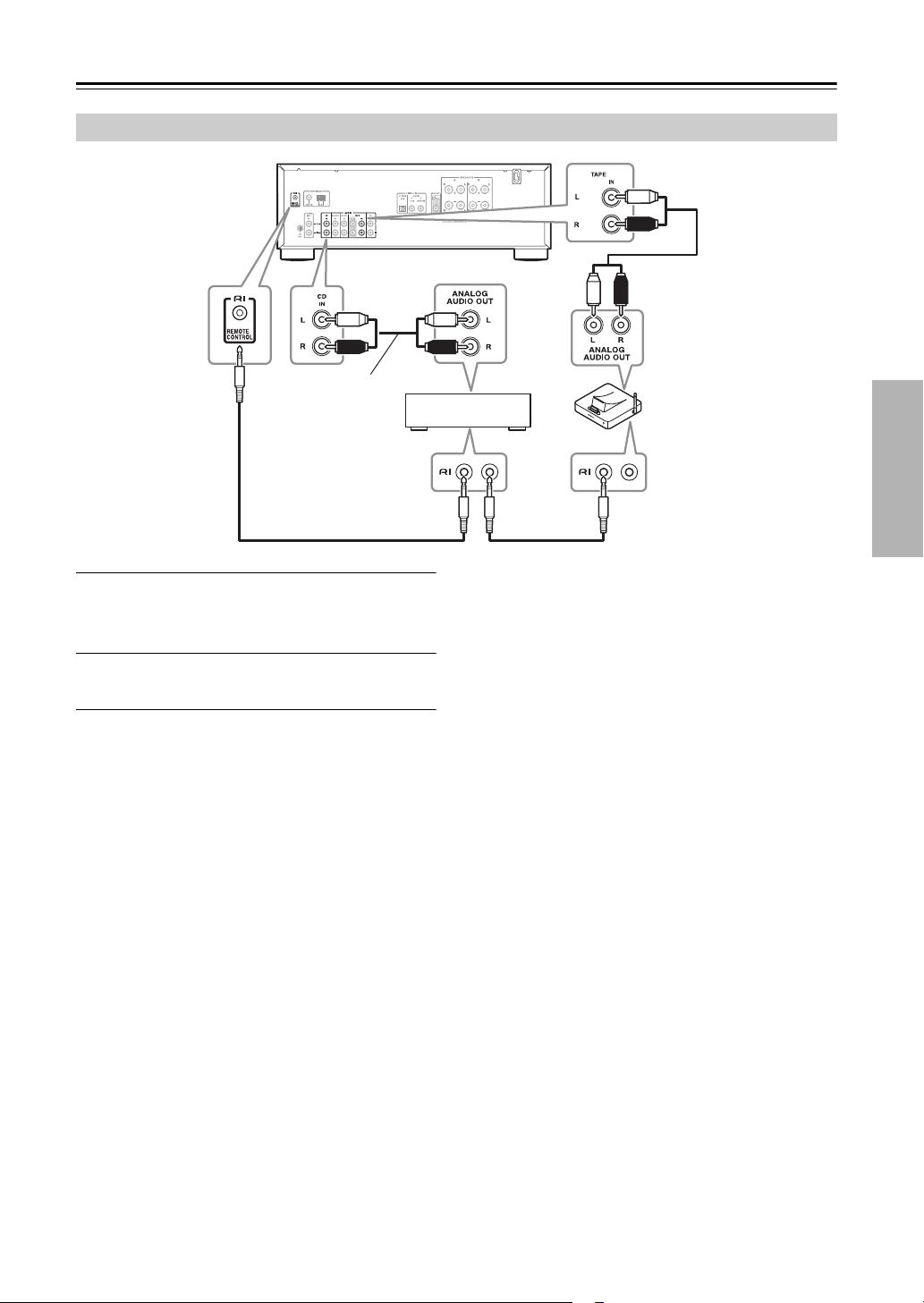
.
Notes:
• Refer to the connected component’s instruction manual for details.
• Connect a turntable (MM) that has a built-in phono preamp to CD IN, or connect it to PHONO IN with the phono
preamp turned off. If your turntable (MM) doesn’t have a phono preamp, connect it to PHONO IN. If your turntable
has a moving coil (MC) type cartridge, you’ll need a commercially available MC head amp or MC transformer to
connect to PHONO IN. See your turntable’s manual for details. If your turntable has a ground wire, connect it to the
GND screw. With some turntables, connecting the ground wire may produce an audible hum. If this happens,
disconnect it.
• If your Blu-ray Disc/DVD player has both main stereo and multichannel outputs, be sure to connect the main stereo
output using connection
3.
Illustration below shows
European model
No. Jack Connectable components
1
PHONO IN Turntable
2
CD IN CD player, Turntable
3
BD/DVD IN Blu-ray Disc/DVD player
4
DOCK IN RI dock
5
TAPE IN Cassette tape deck
6
TV IN TV
7
DIGITAL IN (OPTICAL, COAXIAL)
(European model only)
OPTICAL: TV
COAXIAL: CD, BD/DVD
En-17
Connecting Your Components—Continued
1
Make sure that each Onkyo component is
connected with an analog audio cable
( page 16).
2
Make the connection (see the
illustration).
With (Remote Interactive), you can use the
following special functions:
■ System On/Auto Power On
When you start playback on a component connected via
, while the receiver is on Standby, the receiver will
automatically turn on and select that component as the
input source.
■ Direct Change
When playback is started on a component connected via
, the receiver automatically selects that component as
the input source.
■ Remote Control
You can use the receiver’s remote controller to control
your other Dock, pointing the remote controller at
the receiver’s remote control sensor instead of the
component.
Notes:
•Use only cables for connections. cables
are supplied with Onkyo players (CD, etc.).
• Some components have two jacks. You can
connect either one to the receiver. The other jack is for
connecting additional -capable components.
• Connect only Onkyo components to jacks.
Connecting other manufacturer’s components may
cause a malfunction.
• Some components may not support all functions.
Refer to the manuals supplied with your Onkyo
components.
Connecting Onkyo Components
e.g., CD player
Dock
cable
Analog
audio cable
Analog
audio cable
cable
En-18
Connecting Your Components—Continued
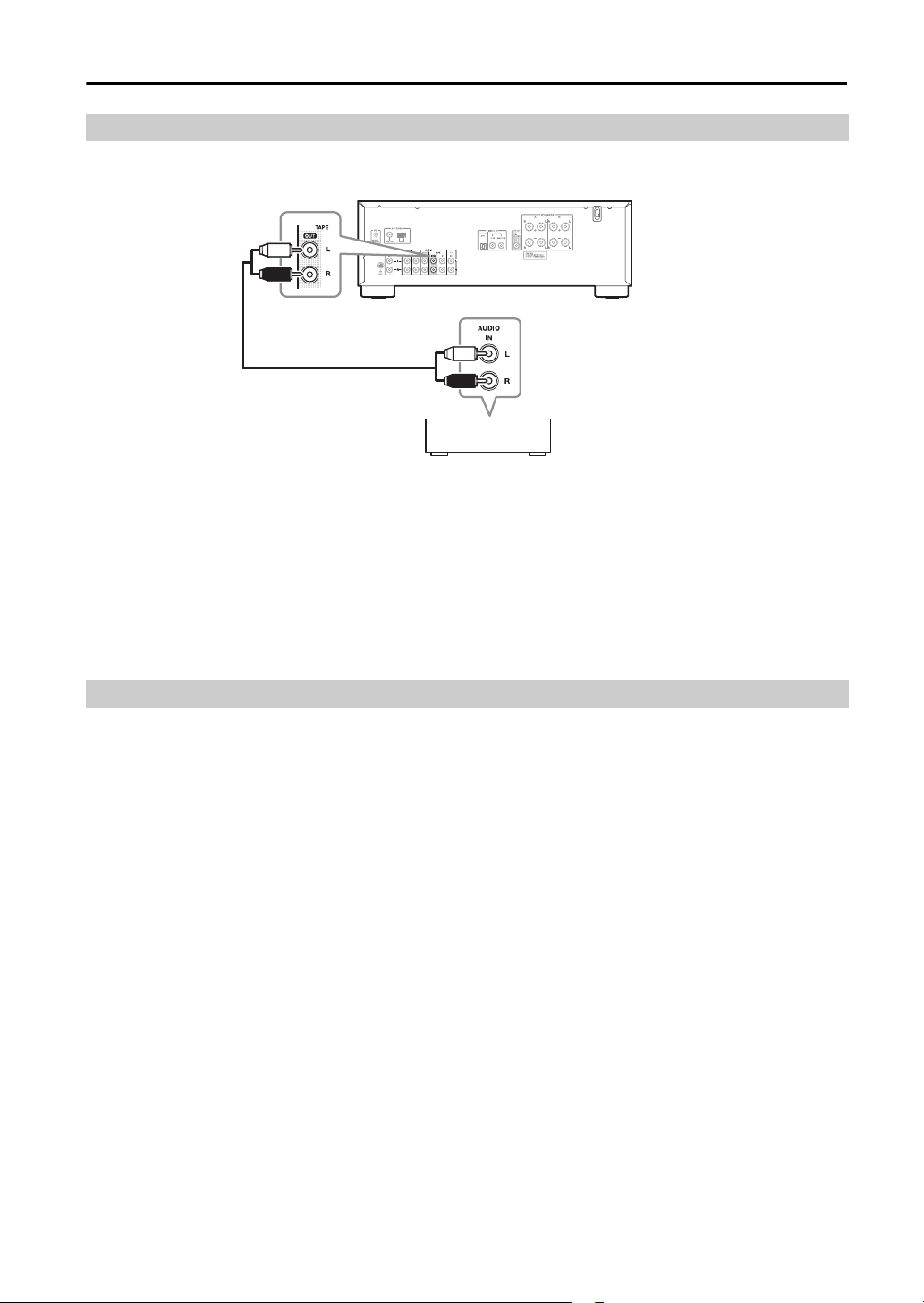
See “Recording” for an explanation of recording ( page 23).
Notes:
• The receiver must be turned on for recording. Recording is not possible while it’s in Standby mode.
• For European model, sources connected to a digital input cannot be recorded. Only analog inputs can be recorded.
• DTS signals will be recorded as noise, so don’t attempt analog recording of DTS CDs or LDs.
Connect the receiver’s power cord to a suitable wall outlet.
Notes:
• Before connecting the power cord, connect all of your speakers and components.
• Turning on the receiver may cause a momentary power surge that might interfere with other electrical equipment on
the same circuit. If this is a problem, plug the receiver into a different branch circuit.
Connecting a Recording Component
Cassette tape deck, CDR, etc.
Analog audio cable
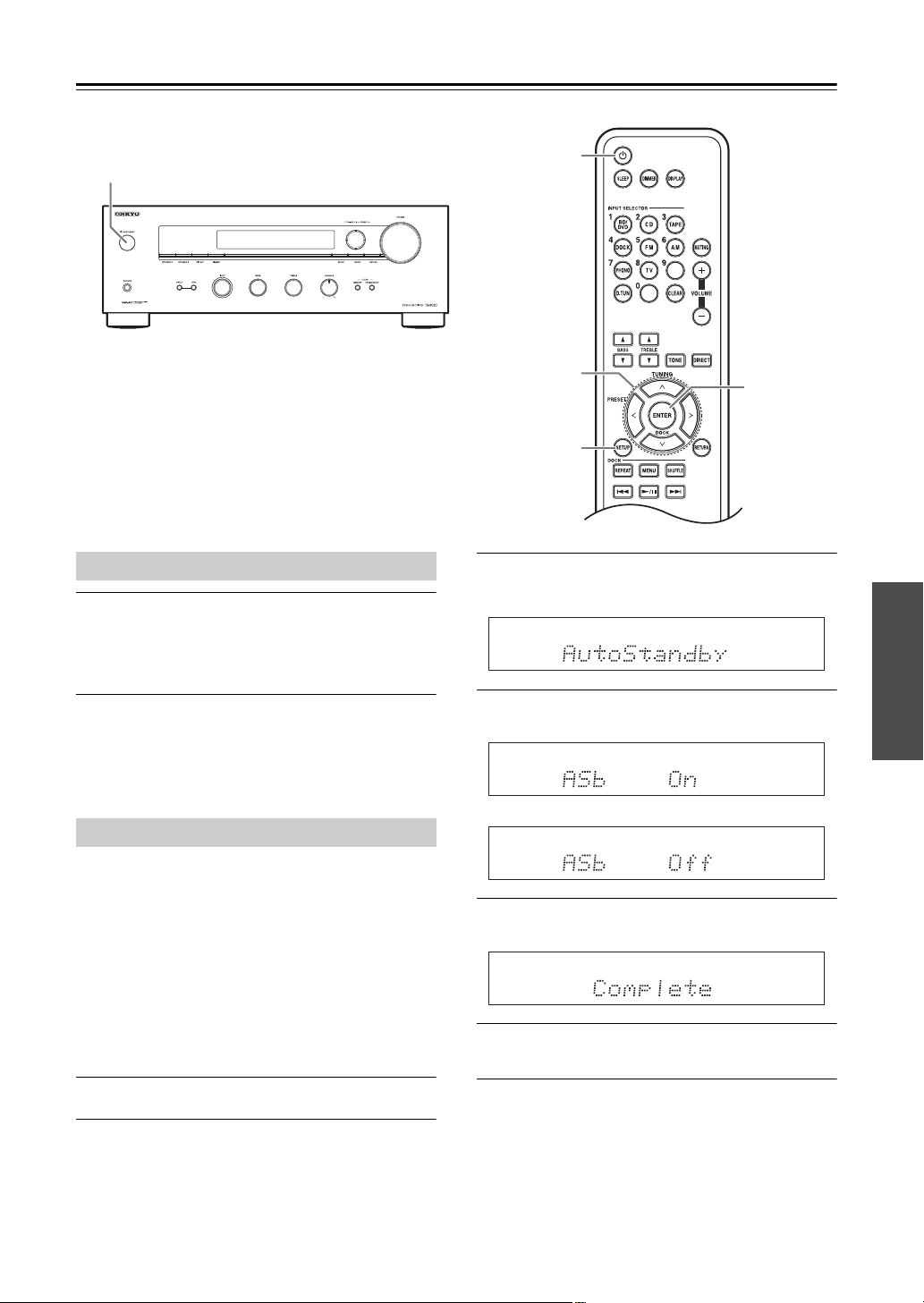
Connecting the Power Cord
En-19
Turning On the Receiver
Press the [ON/STANDBY] button.
Alternatively, press the remote controller’s []
button.
The receiver comes on, and the display lights up.
To turn the receiver off, press the [ON/STANDBY]
button, or press the remote controller’s [] button. The
receiver will enter Standby mode. To prevent any loud
surprises when you next turn on the receiver, always turn
down the volume before you turn it off.
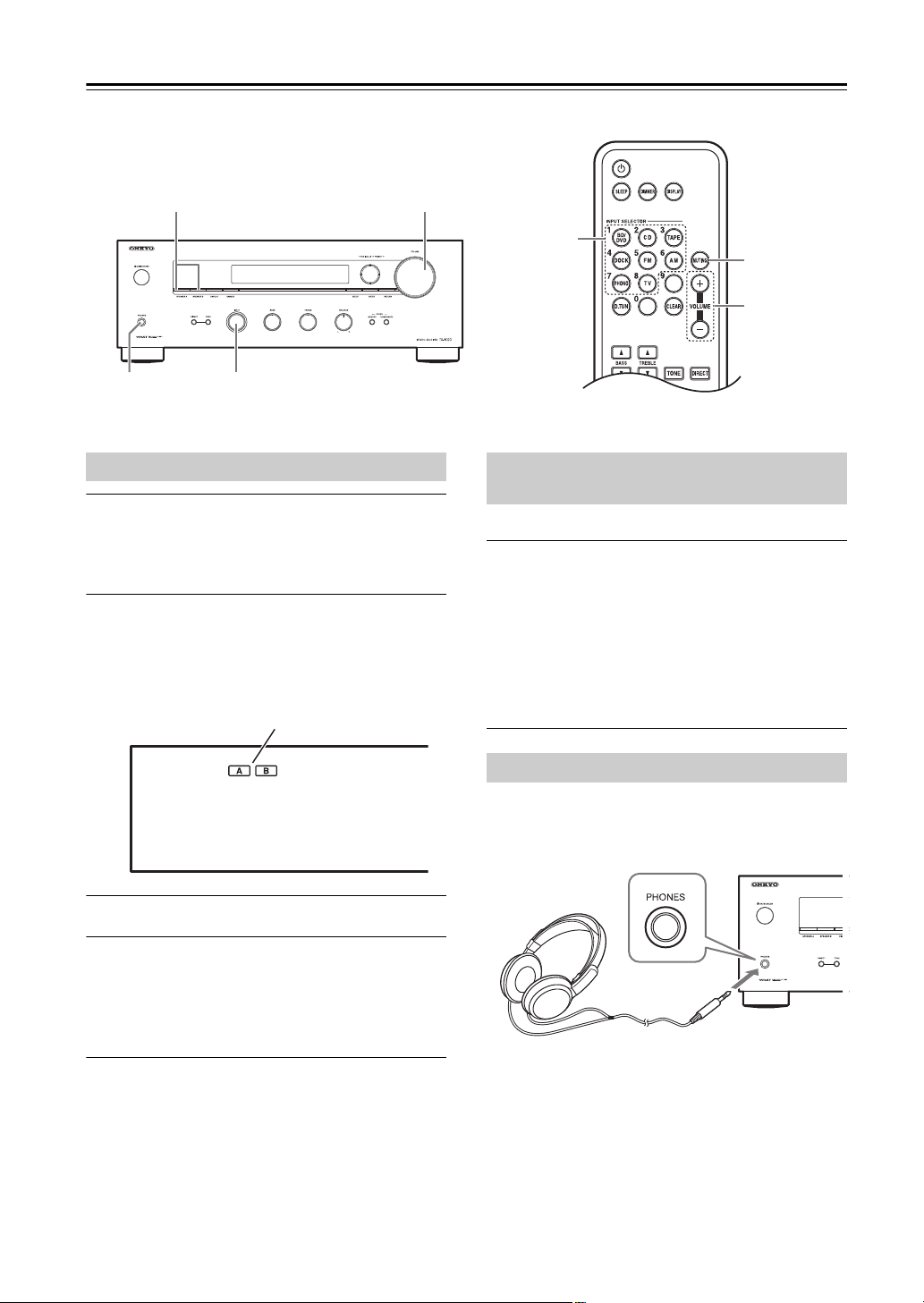
When “Auto Standby” is set to “On,” the receiver will
automatically enter Standby mode if there is no
operation for 30 minutes with no audio signal input.
Default setting: Off (North American model)
On (European model)
Notes:
• If you’re listening at a low volume, the Auto Standby
function may detect this as silence.
• With some sources, the Auto Standby function may
activate itself during playback.
1
Press the [] button to turn on the power.
2
Press the [SETUP] button on the remote
controller.
3
Use the arrow []/[] buttons to select
“Auto Standby,” and then press [ENTER].
4
Switch the ASb On/ASb Off using the arrow
[]/[] buttons.
5
Press the [ENTER] button to confirm the
setting.
6
Press the [SETUP] button on the remote
controller to complete the setting.
Notes:
• This procedure can also be performed on the receiver
by using [SETUP], TUNING []/[], PRESET []/
[], and ENTER.
• Press [RETURN] to return to the previous menu.
• This procedure will be cancelled if the [SETUP]
button is pressed before step 5.
MON/STANDBY
M
SETUP
&(#5
ENTER
Turning On and Standby
Auto Standby
or
En-20
Enjoying Audio Sources
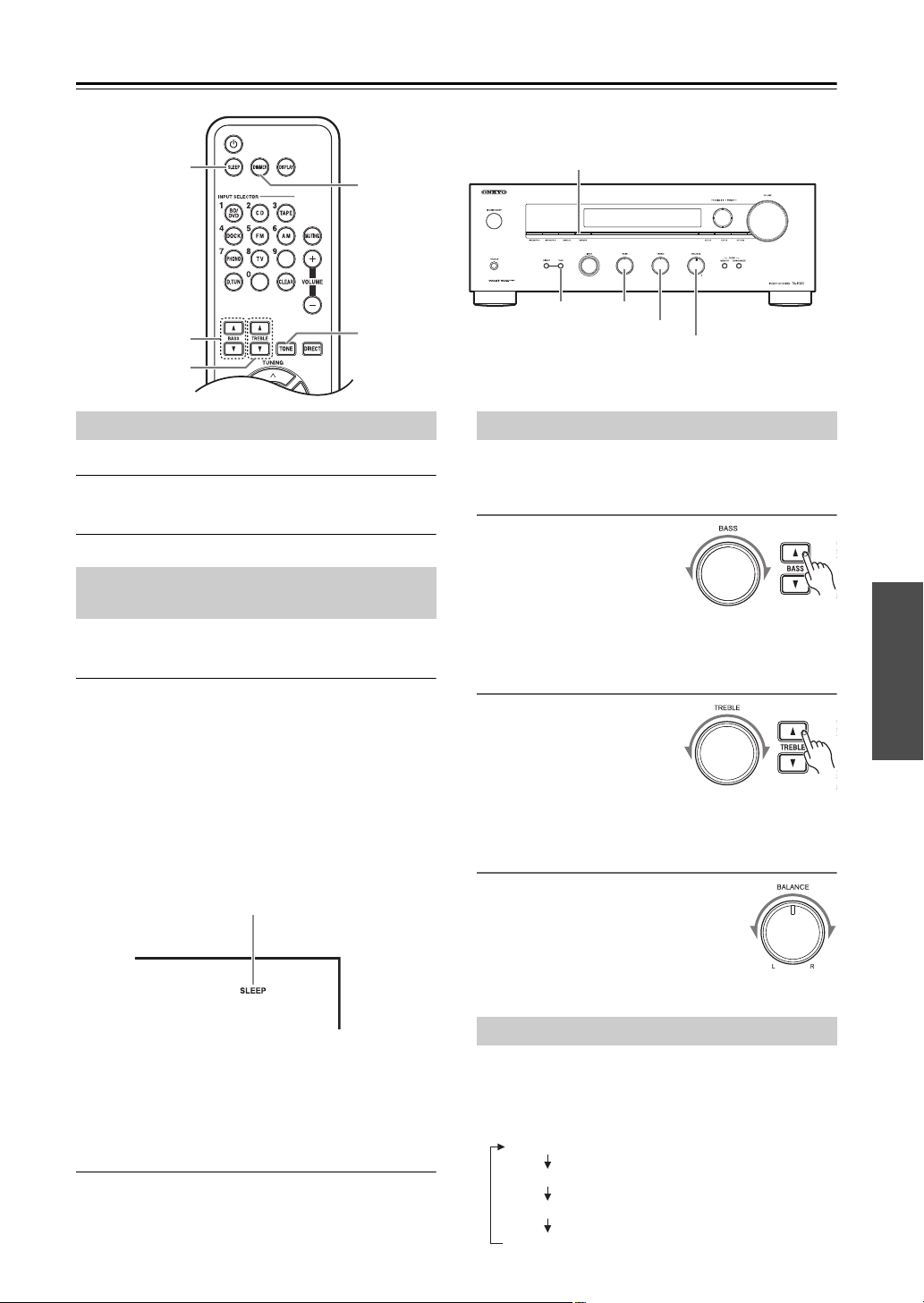
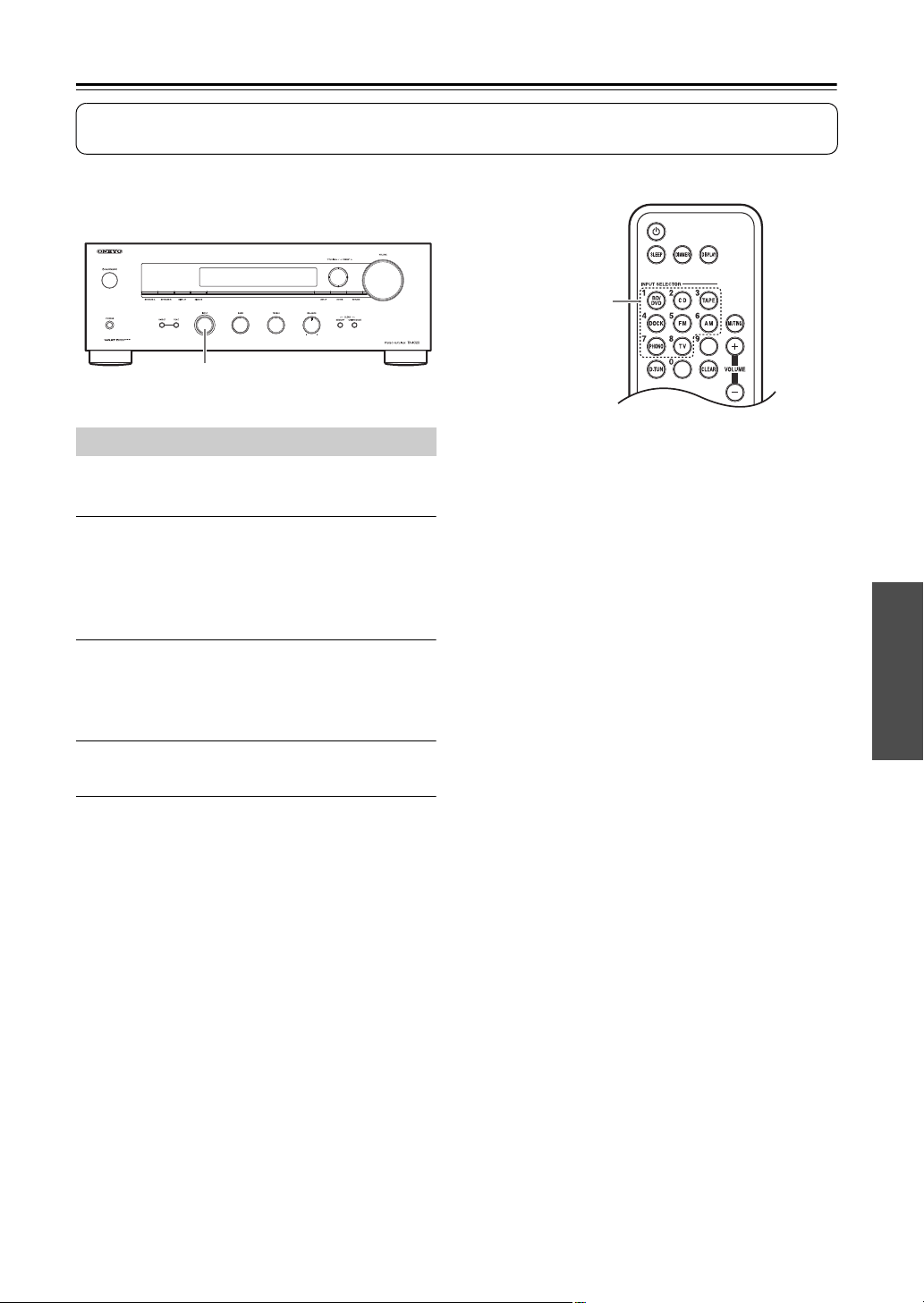
1
Rotate the receiver’s [INPUT] selector, or
press the remote controller’s INPUT
SELECTOR buttons to select the source
you want to hear.
2
Use the [SPEAKERS A] and [SPEAKERS B]
buttons on the receiver to select the
speaker set that you want to use.
The A and B speaker indicators show whether each
speaker set is on or off.
3
Start playback on the selected component.
4
To adjust the volume, use the receiver’s
[VOLUME] control, or the remote
controller’s VOLUME [+]/[–] buttons.
Turn the control clockwise to turn up the volume or
counterclockwise to turn down the volume.
You can temporarily mute the output of the receiver.
Press the remote controller’s [MUTING] button.
The receiver is muted.
To unmute the receiver, press the [MUTING]
button again.
Note:
The Mute function will be cancelled if the remote
controller’s VOLUME [+]/[–] buttons are pressed or the
receiver is set to Standby.
You can connect a pair of stereo headphones (1/4-inch
phone plug) to the receiver’s PHONES jack for private
listening.
Notes:
• Always turn down the volume before connecting your
headphones.
• While the headphones plug is inserted in the PHONES
jack, the speakers are turned off.
VOLUME
INPUT
PHONES
INPUT
SELECTOR
VOLUME + / –
MUTING
SPEAKERS A, B
Selecting the Speaker Set
A,B Indicators
Muting the Receiver
(remote controller only)
Using Headphones
PHONES jack
En-21
Enjoying Audio Sources—Continued
You can adjust the brightness of the display.
Press the [DIMMER] button repeatedly to select:
dim, dimmer, or normal brightness.
With the sleep timer, you can set the receiver so that it
turns off automatically after a specified period.
Press the remote controller’s [SLEEP] button
repeatedly to select the required sleep time.
You can set the sleep time from 90 to 10 minutes in 10
minute steps. At this time, by using the remote
controller’s []/[] buttons, you can set the time in
1 minute steps.
The SLEEP indicator appears on the display when the
sleep timer has been set, as shown. The specified sleep
time appears on the display for about 5 seconds; then the
previous display reappears.
To cancel the sleep timer, press the [SLEEP] button
repeatedly until the SLEEP indicator disappears.
To check the remaining sleep time, press the [SLEEP]
button. Note that if you press the [SLEEP] button while
the sleep time is being displayed, you’ll shorten the sleep
time by 10 minutes.
This section explains the following functions that can be
used with any input source.
Adjusting the Bass
You can adjust the Bass sounds
by rotating the [BASS] control
on the receiver or pressing the
remote controller’s BASS []/
[] buttons. You can set the
level from –6 to +6. Set it higher to make them louder.
Set it lower to make them quieter.
Adjusting the Treble
You can adjust the Treble
sounds by rotating the
[TREBLE] control on the
receiver or pressing the remote
controller’s TREBLE []/[]
buttons. You can set the level from –6 to +6. Set it higher
to make them louder. Set it lower to make them quieter.
Adjusting the Balance
The [BALANCE] control is used to
control the relative volume level of the
left and right speaker systems.
Note:
If headphones are connected, the
BALANCE control has no effect.
You can check the tone level by pressing the [TONE]
button repeatedly.
The display will change as follows each time you press
the [TONE] button.
SLEEP
BASS [
F
]/[
H
]
TREBLE [
F
]/[
H
]
DIMMER
TONE
BASSTONE
DIMMER
TREBLE
BALANCE
Setting the Display Brightness
Using the Sleep Timer
(remote controller only)
SLEEP Indicator
Using the Tone and Balance Controls
Displaying the Tone Level
Current input source
“TONE MODE” display
Bass tone level
Treble tone level
En-22
Enjoying Audio Sources—Continued
Press the [DIRECT] button. The message
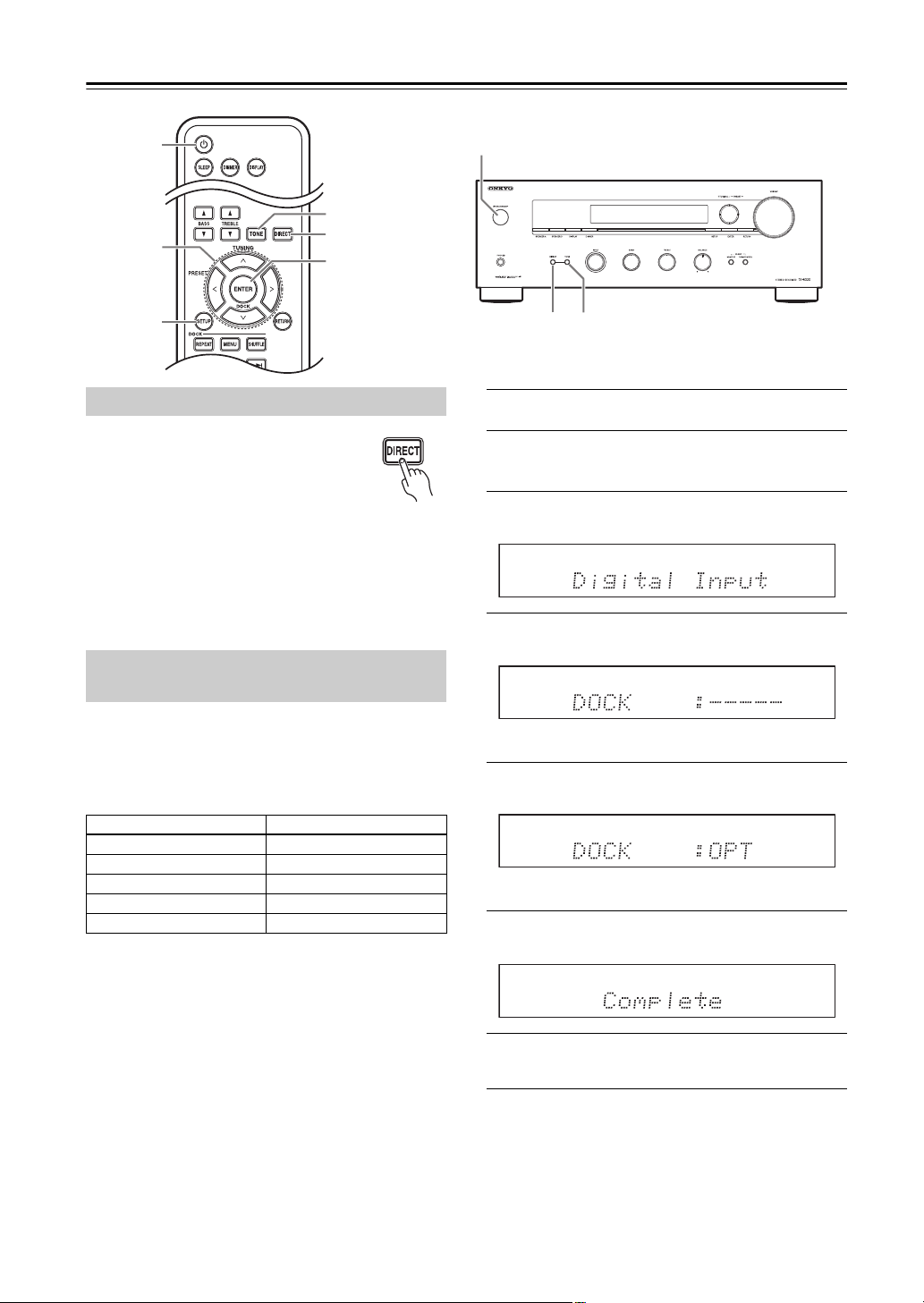
“DIRECT MODE” appears.
When the DIRECT function is on, the
tone controls are bypassed, so you can
enjoy pure sound.
To cancel the DIRECT function, press the [TONE]
button again, and the message “TONE MODE” appears.
The tone controls can be used to adjust the sound.
You can configure whether the DIRECT function is
applied or not for input sources individually.
If you connect a component to a digital audio input, you
must assign that input to an input selector. For example,
if you connect your RI Dock to the OPTICAL, you must
assign “OPT” to the “DOCK” input selector.
Here are the default assignments.
COAX1, COAX2, OPT:
Select the corresponding digital audio input, to which
the component has been connected.
–––––:
Select if the component is connected to an analog audio
input.
Note:
The maximum sampling rate for PCM signals from a
digital input (optical and coaxial) is 96 kHz/24 bit.
1
Press the [] button to turn on the power.
2
Press the [SETUP] button on the remote
controller.
3
Use the arrow []/[] buttons to select
“Digital Input,” and then press [ENTER].
4
Press the arrow [
]/[
] buttons to select the
input that you want to change the assignment.
For example, select “DOCK” to assign to “OPT”.
5
Press the arrow []/[] buttons to select an
input terminal.
For example, select “OPT”.
6
Press the [ENTER] button to confirm the
setting.
7
Press the [SETUP] button on the remote
controller to complete the setting.
Notes:
• This procedure can also be performed on the receiver
by using [SETUP], TUNING []/[], PRESET []/
[], and [ENTER].
• Press [RETURN] to return to the previous menu.
• This procedure will be cancelled if the [SETUP]
button is pressed before step 6.
DIRECT
M
SETUP
&(#5
ENTER
TONE
DIRECT TONE
MON/STANDBY
Setting the DIRECT Function
Setting the Digital Audio Input
(for European model)
Input selector Default assignment
BD/DVD COAX2
TV OPT
TAPE –––––
DOCK –––––
CD COAX1
En-23
Recording
Unless you have the full consent of the copyright holder, copyright laws prohibit using your
recordings for anything other than personal enjoyment!
This section explains how to record the selected input source to a component with recording capability, and how to
record audio from different sources.
Audio sources can be recorded to a recorder (e.g.,
cassette tape deck, CDR).
1
Prepare the recorder:
• Set the recorder so that it’s ready for recording.
• If necessary, adjust the recording level on the
recorder.
• See the recorder’s manual for more information.
2
Use the receiver’s [INPUT] selector, or the
remote controller’s INPUT SELECTOR
buttons to select the component that you
want to record from.
3
Start playback on the component selected
in step 1.
Notes:
• If you select another input source during recording,
the newly selected input source will be recorded.
• The volume, balance, mute and tone controls have no
effect on the signal being recorded.
INPUT
INPUT
SELECTOR
Recording the Input Source
En-24
Listening to the Radio
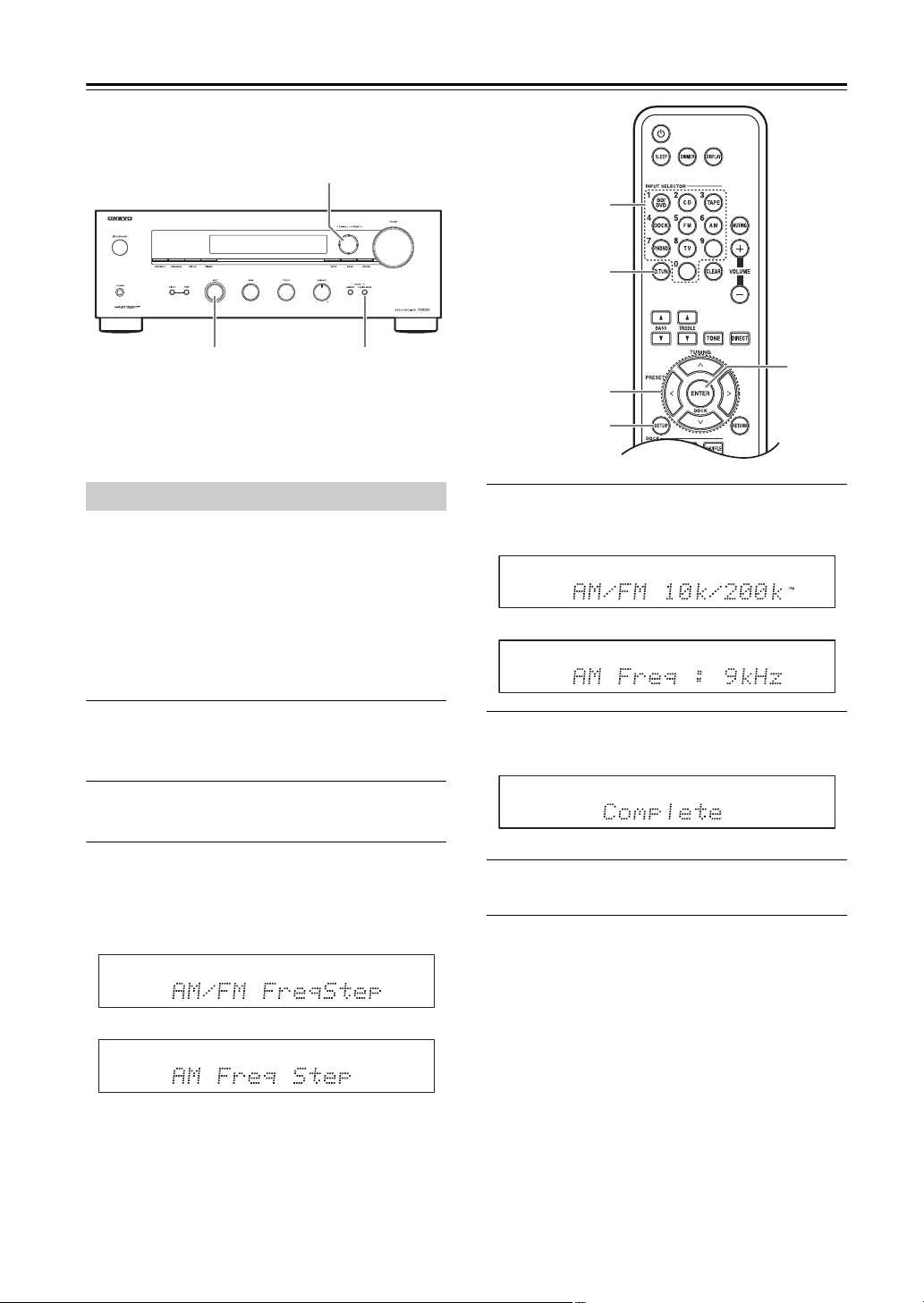
For radio tuning to work properly, you must specify the
radio frequency step used in your area.
Note that when this setting is changed, all radio presets
are deleted.
North American model (AM/FM):
10 kHz/200 kHz (default setting) or 9 kHz/ 50 kHz
European model (AM):
9 kHz (default setting) or 10 kHz
1
Use the receiver’s [INPUT] selector, or the
remote controller’s INPUT SELECTOR
buttons to select AM or FM.
2
Press the [SETUP] button on the remote
controller.
3
Use the arrow []/[] buttons to select
“AM/FM FreqStep” (North American model)
or “AM Freq Step” (European model), and
then press [ENTER].
4
Use the arrow []/[] buttons to specify the
frequency.
5
Press the [ENTER] button to confirm the
setting.
6
Press the [SETUP] button on the remote
controller to complete the setting.
Notes:
• This procedure can also be performed on the receiver
by using [SETUP], TUNING []/[], PRESET []/
[], and [ENTER].
• Press [RETURN] to return to the previous menu.
• This procedure will be cancelled if the [SETUP]
button is pressed before step 5.
TUNING F/H
TUNING MODEINPUT
D.TUN
SETUP
&/ ( / # / 5 /
ENTER
ENTER
Number
buttons
Radio Frequency Setup
North American model
European model
North American model
European model
En-25
Listening to the Radio—Continued
With the built-in tuner, you can enjoy AM and FM radio
stations.
1
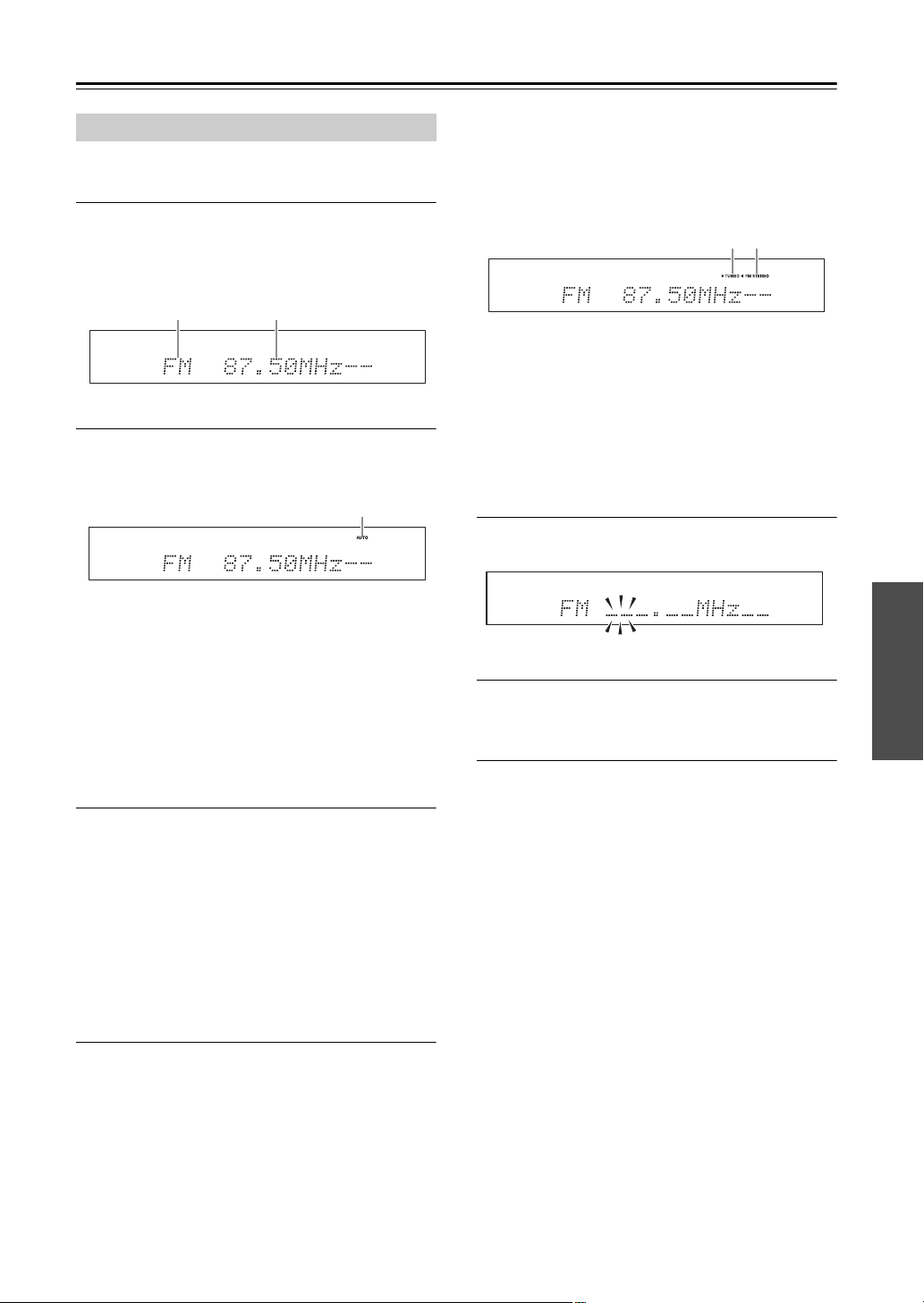
Use the receiver’s [INPUT] selector, or the
remote controller’s INPUT SELECTOR
buttons to select AM or FM.
In this example, FM has been selected.
(Actual display depends on the country.)
2
Press the [TUNING MODE] button so that
the AUTO indicator appears or disappears
from the display.
Auto Tuning
To activate this mode, press the [TUNING MODE]
button to turn on the “AUTO” indicator. In this
mode, you will receive the broadcast in stereo
sound.
Manual Tuning
To activate this mode, press the [TUNING MODE]
button to turn off the “AUTO” indicator. In this
mode, you will receive the broadcast in monaural
sound.
3
Press the TUNING [] or [] button.
You can also use the remote controller’s arrow
[]/[] buttons to tune the radio.
Auto Tuning
Searching stops when a station is found.
Manual Tuning
The frequency stops changing when you release the
button.
Press the buttons repeatedly to change the
frequency one step at a time.
The frequency changes in 0.05 MHz steps (or 0.05 MHz
to 0.2 MHz for North American model) for FM, and
9 kHz (or 10 kHz) steps for AM.
When tuned to a station, the TUNED indicator appears.
When tuned to a stereo FM station, the FM STEREO
indicator also appears.
Tuning to Weak FM Stereo Stations
If the signal from a stereo FM station is weak, it may be
impossible to get good reception. In this case, switch to
Manual Tuning mode and listen to the station in mono.
■ Tuning into Stations by Frequency
You can tune to AM and FM stations directly by entering
the appropriate frequency.
1
Press the remote controller’s [D.TUN] button
twice.
(Actual display depends on the country.)
2
Within 8 seconds, use the number buttons
to enter the frequency of the radio station.
For example, to tune to 87.50 (FM), press 8, 7, 5, 0.
Listening to AM/FM Stations
Band Frequency
AUTO indicator
TUNED FM STEREO
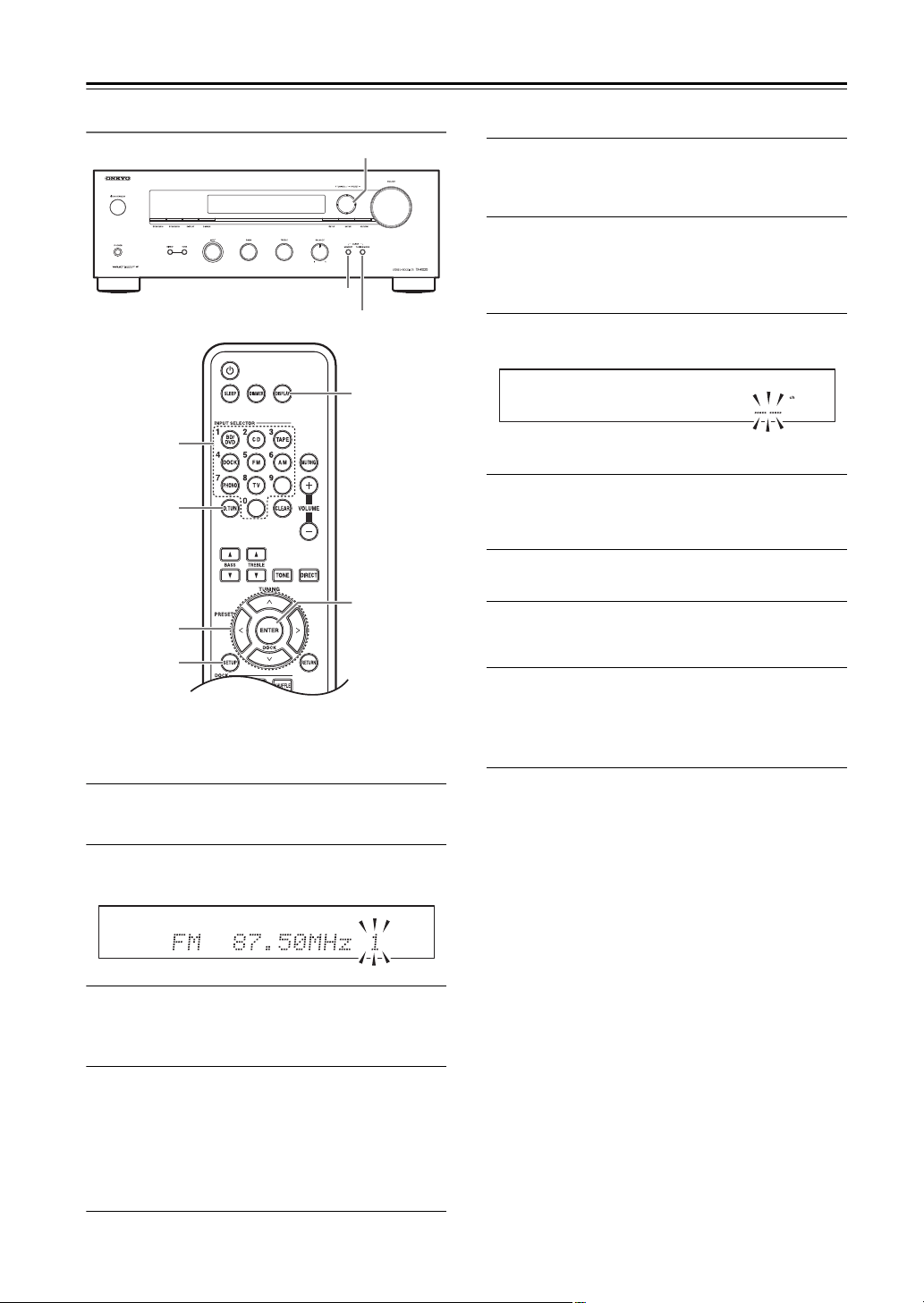
En-26
Listening to the Radio—Continued
Presetting AM/FM Stations
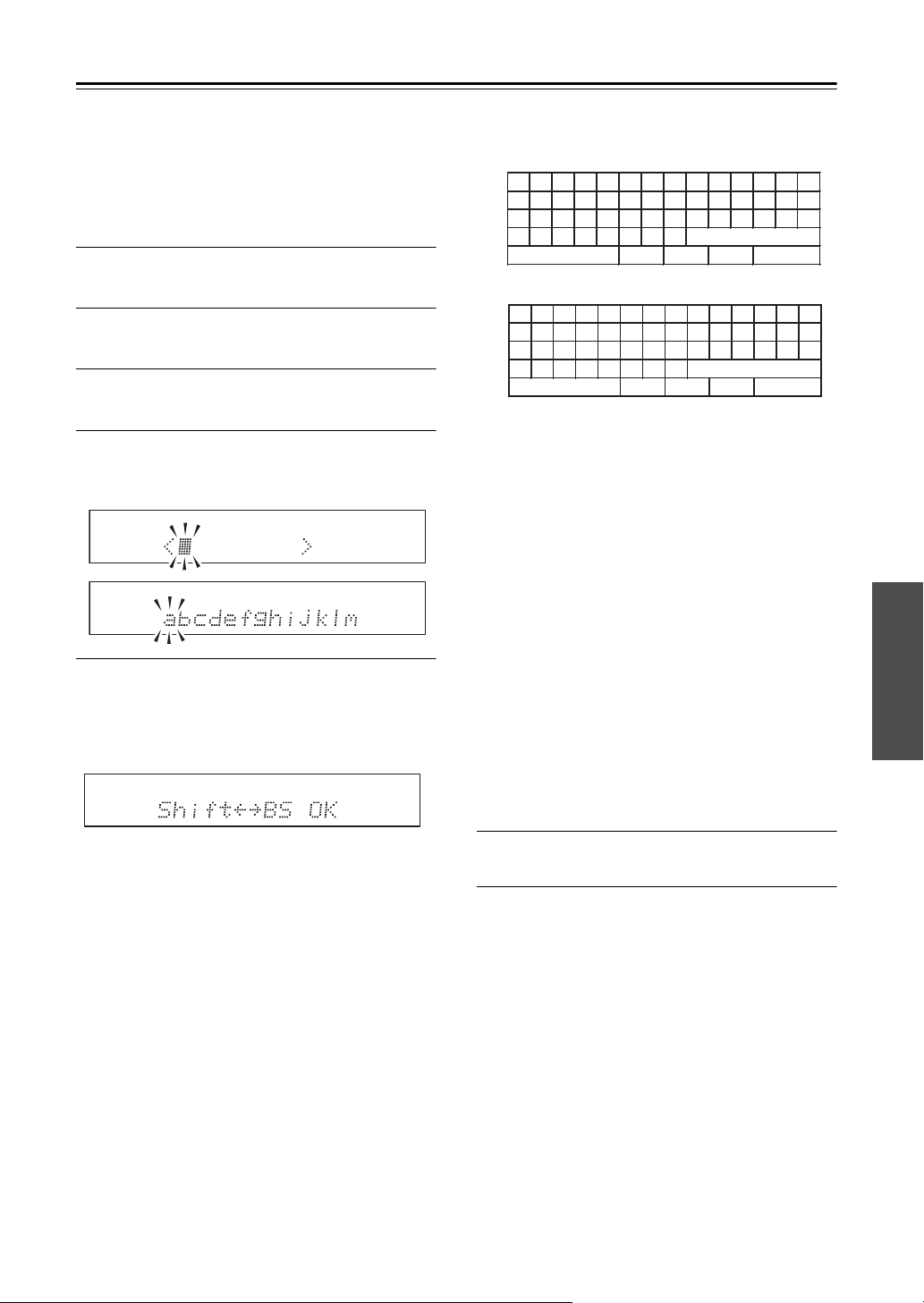
You can store up to 40 of your favorite AM/FM radio
stations as presets.
Presetting FM/AM stations is performed by the receiver.
1
Tune to the AM/FM station that you want to
store as a preset.
2
Press the [MEMORY] button.
The preset number flashes.
3
While the preset number flashes (about 8
seconds), use the PRESET []/[] buttons
to select a preset from 1 through 40.
4
Press the [MEMORY] button again to store
the station or channel.
The station or channel is stored and the preset
number stops flashing.
Repeat this procedure for all of your favorite AM/
FM radio stations.
■ Selecting Presets
To select a preset, use the remote controller’s
arrow []/[] buttons or the receiver’s PRESET
[]/[] buttons.
■ Selecting Preset by entering Preset number
You can tune to AM and FM stations directly by entering
the appropriate preset number.
1
Press the remote controller’s [D.TUN]
button.
(Actual display depends on the country.)
2
Within 8 seconds, use the number buttons
to enter the preset number of the radio
station.
■ Deleting Presets
1
Select the preset that you want to delete.
See the previous section.
2
While holding down the [MEMORY] button,
press the [TUNING MODE] button.
The preset is deleted and its number disappears
from the display.
SETUP
D.TUN
&/ ( / # / 5
ENTER
DISPLAY
MEMORY
PRESET
C
/
U
TUNING MODE
Number
buttons
En-27
Listening to the Radio—Continued
■ Name Edit
You can enter a custom name for radio preset for easy
identification. When entered, the custom name will
appear on the display.
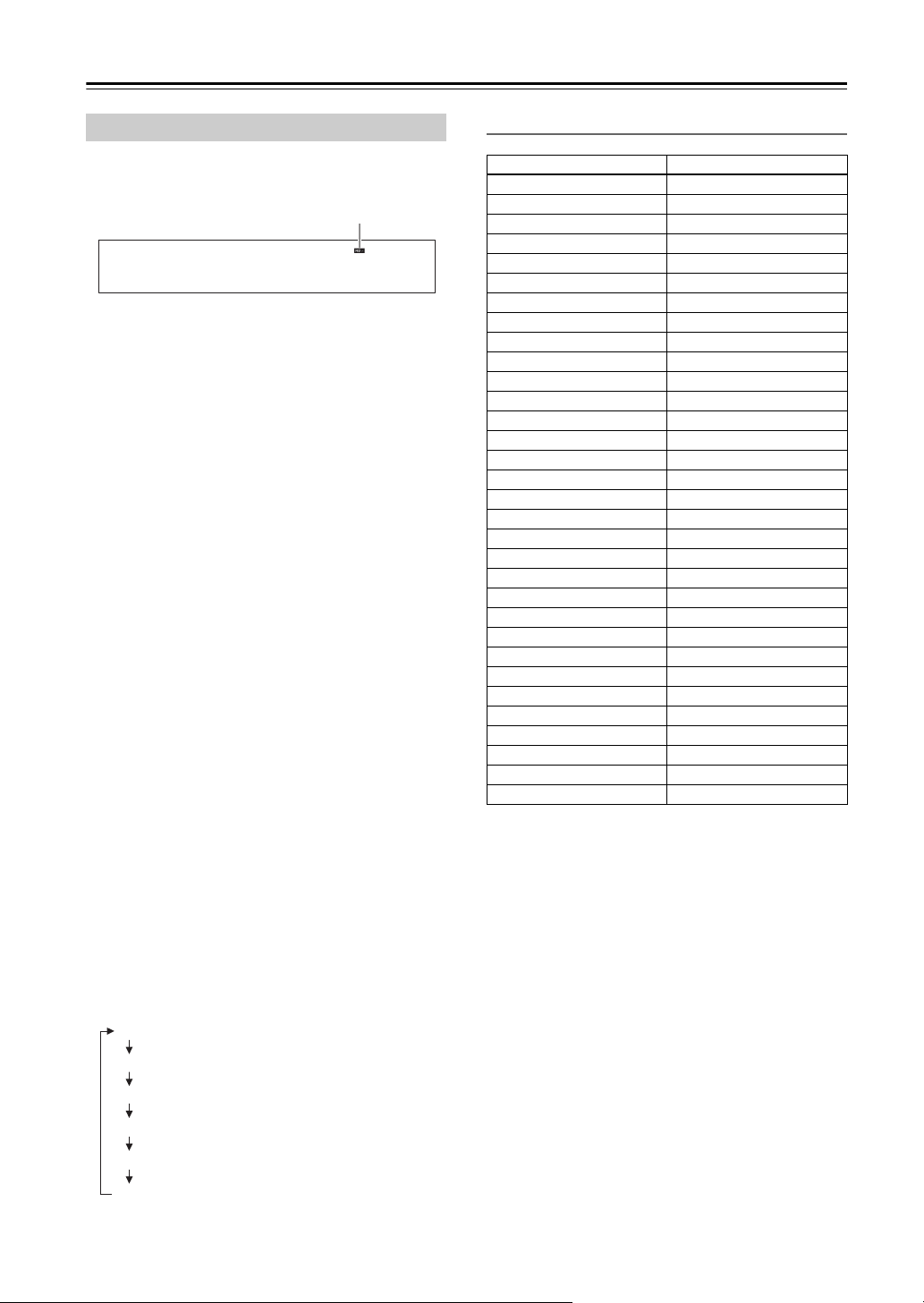
The custom name is edited using the character input
screen.
1
Select the preset that you want to edit the
name.
2
Press the [SETUP] button on the remote
controller.
3
Use the arrow []/[] button to select
“Name Edit,” and then press [ENTER].
4
Use the arrow []/[]/[]/[] button to
select a character, and then press [ENTER].
Repeat this step to enter up to 8 characters.
5
When you’ve finished editing the name and
want to store it, be sure to use the arrow
[]/[]/[]/[] button to select “OK” and
then press [ENTER]. If you fail to do this,
the name won’t be saved.
See the following table for information about the
character strings that can be input.
There are two patterns of character string: pattern
1
containing mainly lowercase characters, and pattern
2
containing mainly uppercase characters.
You can use the
/
buttons to select character
strings within each pattern. Use the
/
buttons to
select the character that you want to input, and press
the ENTER button. If the displayed character string
pattern does not contain the character you want to
input, use the
/
buttons to display the [Shift
BS OK] character string, use the
/
buttons to
select “Shift,” and press the ENTER button to make
the other character string pattern appear.
Shift
*1
:
Switches the displayed character.
(Left)/(Right):
Select these to move the cursor within the Name
input area.
Space:
Enters a space character.
BS (Back Space)
*2
:
“Back Space” moves the cursor backward one
character space. In addition, “Back Space”
deletes the character to the left of the cursor.
OK:
Specifies that the entry is complete.
Tips:
*1 You can also perform this on the remote
controller by using [D.TUN].
*2 By pressing [CLEAR] on the remote controller,
you can delete all characters in the input.
6
Press the [SETUP] button on the remote
controller to complete the setting.
Notes:
• This procedure can also be performed on the receiver
by using [SETUP], TUNING []/[], PRESET []/
[], and [ENTER].
• Press [RETURN] to return to the previous menu.
• This procedure will be cancelled if the [SETUP]
button is pressed before step 5.
■ Switching the Display
When receiving AM or FM, you can press the remote
controller’s [DISPLAY] button to switch the display
between the name you specified in Name Edit and the
frequency that’s being received.
1
2
㼍㼎㼏㼐㼑㼒㼓㼔㼕 㼖 㼗 㼘㼙
㼚㼛㼜㼝㼞㼟 㼠㼡㼢㼣㼤㼥㼦
㻝㻞㻟㻠㻡㻢㻣㻤㻥㻜㻙㻩䠼
㼧㼩㻂㻦㻎㻨㻪㻫㻿㼜㼍㼏㼑
㻿㼔 㼕 㼒 㼠㻨㻙㻙㻪㻮㻿 㻻㻷
㻭㻮㻯㻰㻱㻲㻳㻴 㻵 㻶㻷 㻸㻹
㻺㻻㻼㻽㻾㻿 㼀 㼁㼂㼃㼄 㼅 㼆
㻍㻬㻏㻐㻑
䠺
㻒㻖㻔 㻕 㼋 㻗䡚
㼇㼉䠸㻧 㻘
䇻
㻚㻛㻿㼜㼍㼏㼑
㻿㼔 㼕 㼒 㼠 㻨㻙㻙㻪㻮㻿 㻻㻷
En-28
Listening to the Radio—Continued
RDS only works in areas where RDS broadcasts are
available. When tuned into an RDS station, the RDS
indicator appears.
■ What is RDS?
RDS stands for Radio Data System and is a method of
transmitting data embedded in FM radio signals. It was
developed by the European Broadcasting Union (EBU)
and is available in most European countries. Many FM
stations use it these days. In addition to displaying text
information, RDS can also help you find radio stations
by type (e.g., news, sport, rock, etc.).
The receiver supports three types of RDS information:
PS (Program Service)
When tuned to an RDS station that’s broadcasting PS
information, the station’s name will be displayed.
RT (Radio Text)
When tuned to an RDS station that’s broadcasting text
information, the text will be shown on the display
( page 29).
PTY (Program Type)
This allows you to search for RDS radio stations by type
( page 29).
Notes:
• In some cases, the text characters displayed on the
receiver may not be identical to those broadcast by the
radio station. Also, unexpected characters may be
displayed when unsupported characters are received.
This is not a malfunction.
• If the signal from an RDS station is weak, RDS data
may be displayed intermittently or not at all.
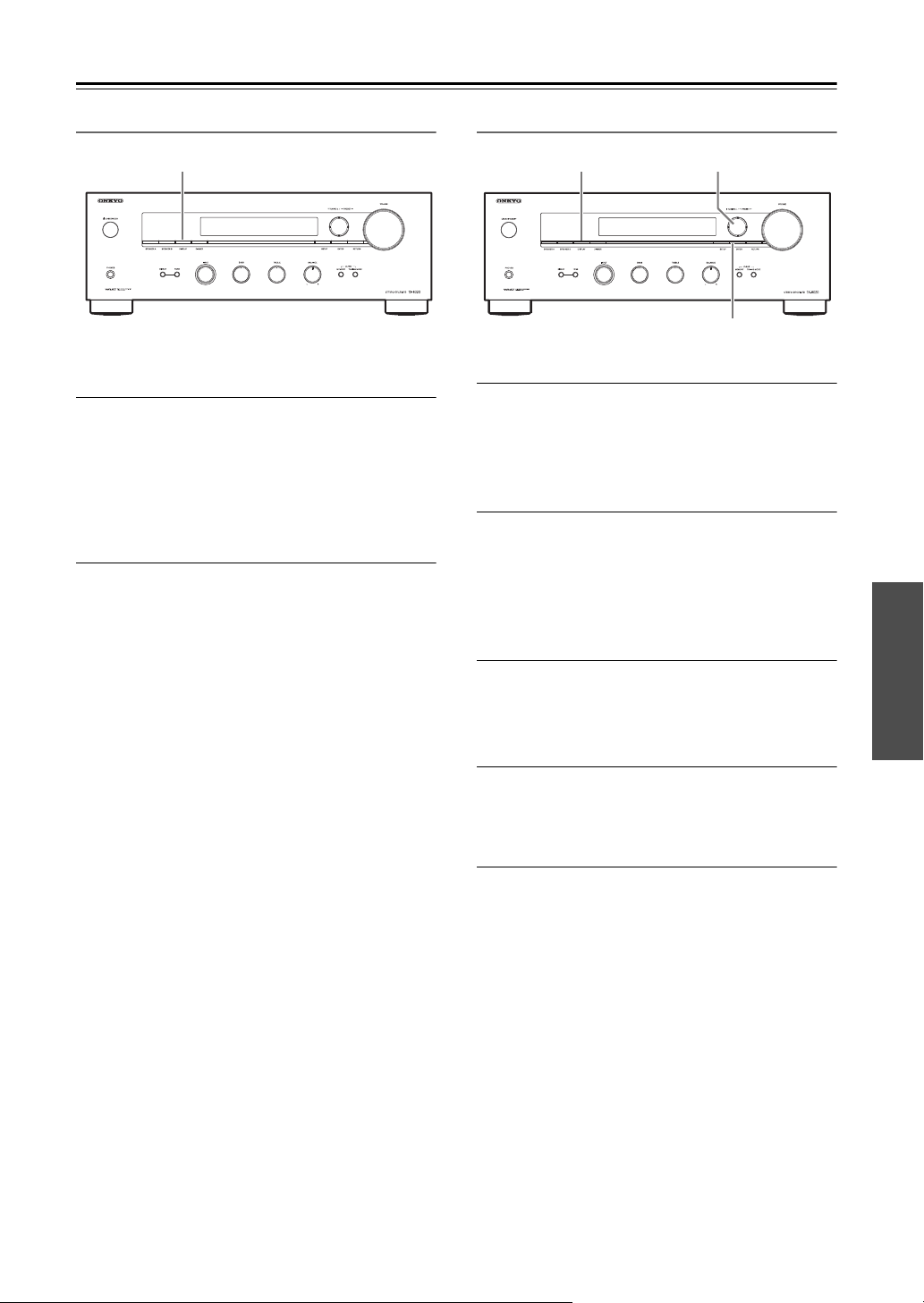
■ Switching the Display
When tuned to RDS stations, you can press the remote
controller’s [DISPLAY] button to switch the information
shown in the display.
The display will change as follows each time you press
the [DISPLAY] button.
RDS Program Types (PTY)
Using RDS (European model only)
RDS indicator
PS
Preset name (if you edited)
Frequency
RT
PTY*
TONE/DIRECT display*
* If you don’t press the [DISPLAY] button for 3 seconds,
the display will change to PS.
Type Display
None NONE
News reports NEWS
Current affairs AFFAIRS
Information INFO
Sport SPORT
Education EDUCATE
Drama DRAMA
Culture CULTURE
Science and technology SCIENCE
Varied VARIED
Pop music POP M
Rock music ROCK M
Middle of the road music EASY M
Light classics LIGHT M
Serious classics CLASSICS
Other music OTHER M
Weather WEATHER
Finance FINANCE
Children’s programmes CHILDREN
Social affairs SOCIAL
Religion RELIGION
Phone in PHONE IN
Travel TRAVEL
Leisure LEISURE
Jazz music JAZZ
Country music COUNTRY
National music NATION M
Oldies music OLDIES
Folk music FOLK M
Documentary DOCUMENT
Alarm test TEST
Alarm ALARM
En-29
Listening to the Radio—Continued
Displaying Radio Text (RT)
When tuned to an RDS station that’s broadcasting text
information, the text can be displayed.
Use the [DISPLAY] button to display RT.
The RT information scrolls across the display.
Notes:
• The message “Waiting” may appear while the receiver
waits for the RT information.
• If the message “No Text Data” appears on the display,
no RT information is available.
Finding Stations by Type (PTY)
You can search for radio stations by type.
1
Use the [DISPLAY] button to display PTY.
The current program type appears on the display.
Note:
If you tuned to another station than RDS, “Not
RDS” will appear.
2
Use the PRESET []/[] buttons to select
the type of program you want.
See the table on page 28.
Note:
If you don’t press the buttons for 3 seconds, the
display will return to the previous display.
3
To start the search, press [ENTER].
The receiver searches until it finds a station of the
type you specified, at which point it stops briefly
before continuing with the search.
4
When a station you want to listen to is
found, press [ENTER].
If no stations are found, the message “Not Found”
appears.
DISPLAY
PRESET
C
/
U
ENTER
DISPLAY
En-30
iPod/iPhone Playback via Onkyo Dock
RI Dock
With the RI Dock, you can easily play the music stored
on your Apple iPod/iPhone through the receiver and
enjoy great sound. You can even use the receiver’s
remote controller to operate your iPod/iPhone.
Notes:
• Connect the RI Dock to the receiver with an cable
(
page 17).
• Set the RI Dock’s RI MODE switch to “HDD” or
“HDD/DOCK”.
■ System Function
System On
When you turn on the receiver, the RI Dock and your
iPod/iPhone turn on automatically. In addition, when
the RI Dock and iPod/iPhone are on, the receiver can
be turned on by pressing [ON/STANDBY].
Auto Power On
If you start iPod/iPhone playback while the receiver
is on Standby, the receiver will automatically turn on
and select your iPod/iPhone as the input source.
Direct Change
If you start iPod/iPhone playback while listening to
another input source, the receiver will automatically
switch to the input to which the RI Dock is
connected.
Other Remote Controllers
You can use the remote controller that came with the
receiver to control other iPod/iPhone functions. The
available functionality depends on the receiver.
iPod/iPhone Alarm
If you use the Alarm function on your iPod/iPhone
to start playback, the receiver will turn on at the
specified time and select your iPod/iPhone as the
input source automatically.
Notes:
• Linked operations do not work with video playback or
when the alarm is set to play a sound.
• If you use your iPod/iPhone with any other
accessories, iPod/iPhone playback detection may not
work.
Note:
On the iPod with video and iPod nano (1st generation),
the click wheel is disabled during playback.
Using the Onkyo Dock
Dock is sold separately. Models sold are different
depending on the region.
For the latest information on Onkyo Dock
components, see the Onkyo web site at:
http://www.onkyo.com
Before using an Onkyo Dock, update your iPod/
iPhone with the latest software, available from the
Apple web site.
For supported iPod/iPhone models, see the instruction
manual of the Onkyo Dock.
Operating Notes
• Use the receiver’s volume control to adjust the
playback volume.
• While your iPod/iPhone is inserted in the RI Dock,
its volume control has no effect.
• If you do adjust the volume control on your iPod/
iPhone while it’s inserted in the RI Dock, be careful
that it’s not set too loud before you reconnect your
earphones.
En-31
iPod/iPhone Playback via Onkyo Dock—Continued
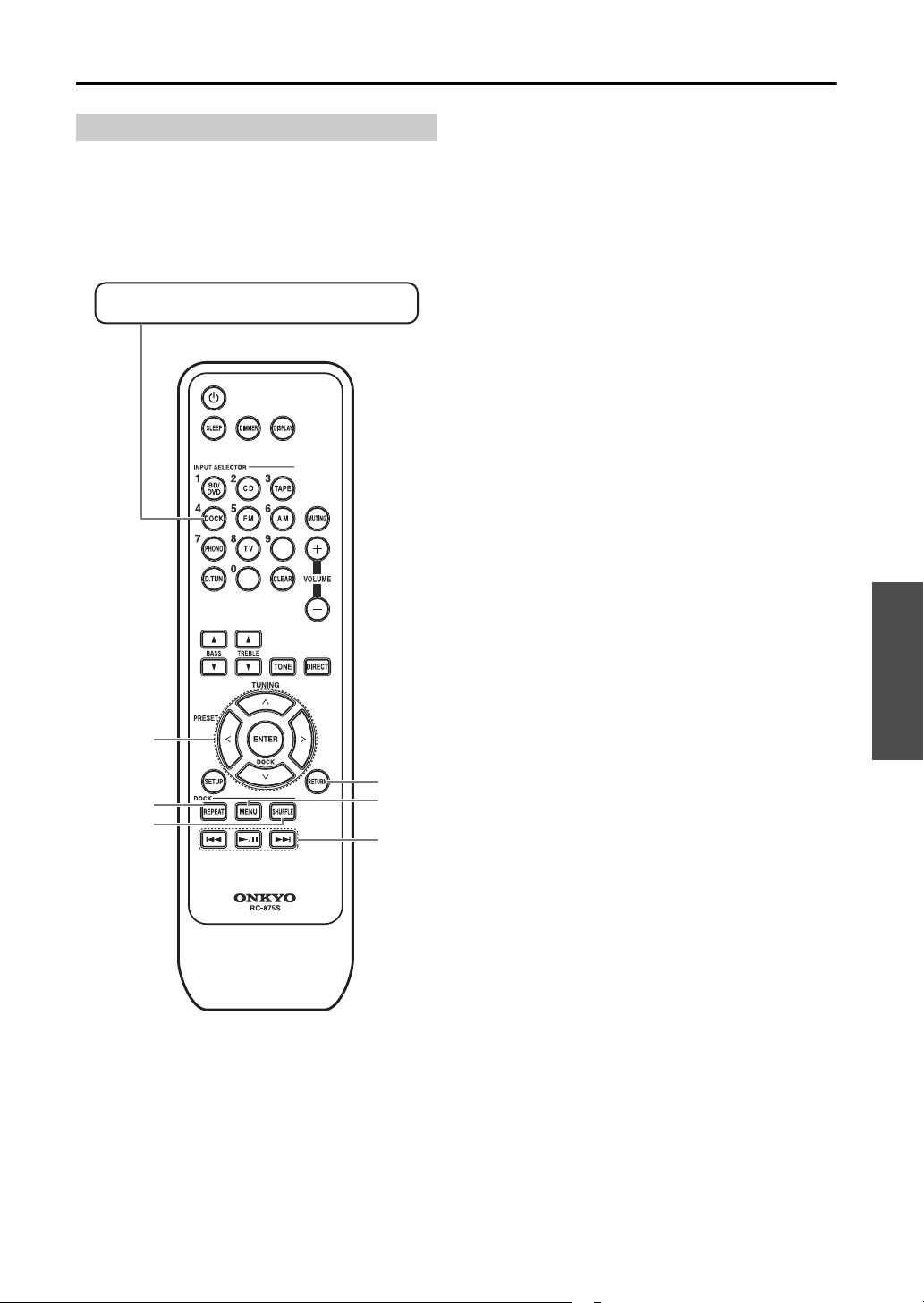
See the Dock’s instruction manual for more information.
• Set the RI Dock’s RI MODE switch to “HDD” or
“HDD/DOCK”.
• You can control your iPod/iPhone when “DOCK” is
selected as the input source.
Notes:
• With some iPod/iPhone models or generations, or
some RI Docks, certain buttons may not work as
expected.
• For details on operating your iPod/iPhone, please refer
to the instruction manual of the RI Dock
Available buttons:
1 /, ENTER
2 REPEAT
3 SHUFFLE
4 RETURN
5 MENU
6 /, ,
Note:
Some buttons may not be available depending on your
RI Dock.
Controlling Your iPod/iPhone
1
2
3
4
6
5
Press the DOCK button first.
En-32
Troubleshooting
If you have any trouble using the receiver, look for a
solution in this section.
Can’t turn on the receiver
• Make sure that the power cord is plugged into the
electric outlet properly.
• Unplug the power cord from the electric outlet, wait
5 seconds or more, then plug it in again.
There’s no sound or it’s very quiet
• Make sure the speaker set A or B is on (
page 20).
• Make sure that all audio connecting plugs are pushed
in all the way (
page 15-18).
• Make sure that the polarity of the speaker cables is
correct, and that the bare wire is in contact with the
metal part of each speaker terminal (
page 11).
• Make sure that the speaker cables are not shorting.
• Make sure that the inputs and outputs of all
components are connected properly.
• Make sure that the correct input source is selected
(
page 20).
• If the MUTING indicator is shown on the display,
press the remote controller’s [MUTING] button to
unmute the receiver ( page 20).
• If your turntable uses an MC cartridge, you must
connect an MC head amp, or an MC transformer and
a phono preamp.
• While a pair of headphones is connected to the
PHONES jack, no sound is output from the speakers.
( page 20).
Noise can be heard
• Using cable ties to bundle audio cables with power
cords, speaker cables, and so on may degrade the
audio performance; do not bundle audio cables
together with power cords or speaker cables.
• An audio cable may be picking up interference. Try
repositioning your cables.
The tone controls have no effect
• If the DIRECT is turned on, the tone controls have no
effect. Press the [TONE] button to turn the function
off.
Reception is noisy, stereo FM reception suffers
from hiss, or the FM STEREO indicator doesn’t
appear
• Relocate your antenna.
• Move the receiver away from your TV or computer.
• Listen to the station in mono (
page 24).
• When listening to an AM station, operating the remote
controller may cause noise.
• Passing cars and airplanes can cause interference.
• Concrete walls weaken radio signals.
• If nothing improves the reception, install an outdoor
antenna.
The remote controller doesn’t work
• Make sure that the batteries are installed with the
correct polarity (
page 6).
• Install new batteries. Don’t mix different types of
batteries or old and new batteries (
page 6).
• Make sure that the remote controller is not too far
away from the receiver, and that there’s no obstruction
between the remote controller and the receiver’s
remote control sensor ( page 6).
• Make sure that the receiver is not subjected to direct
sunshine or inverter-type florescent lights. Relocate if
necessary ( page 6).
Can’t control other components
• If it is an Onkyo component, make sure that the
cable and analog audio cable are connected properly.
Connecting only an
cable won’t work (
page 17).
• With some components, certain buttons may not work
as expected, and some may not work at all.
• To control an Onkyo component that’s connected via
, point the remote controller at the receiver.
Power
Audio
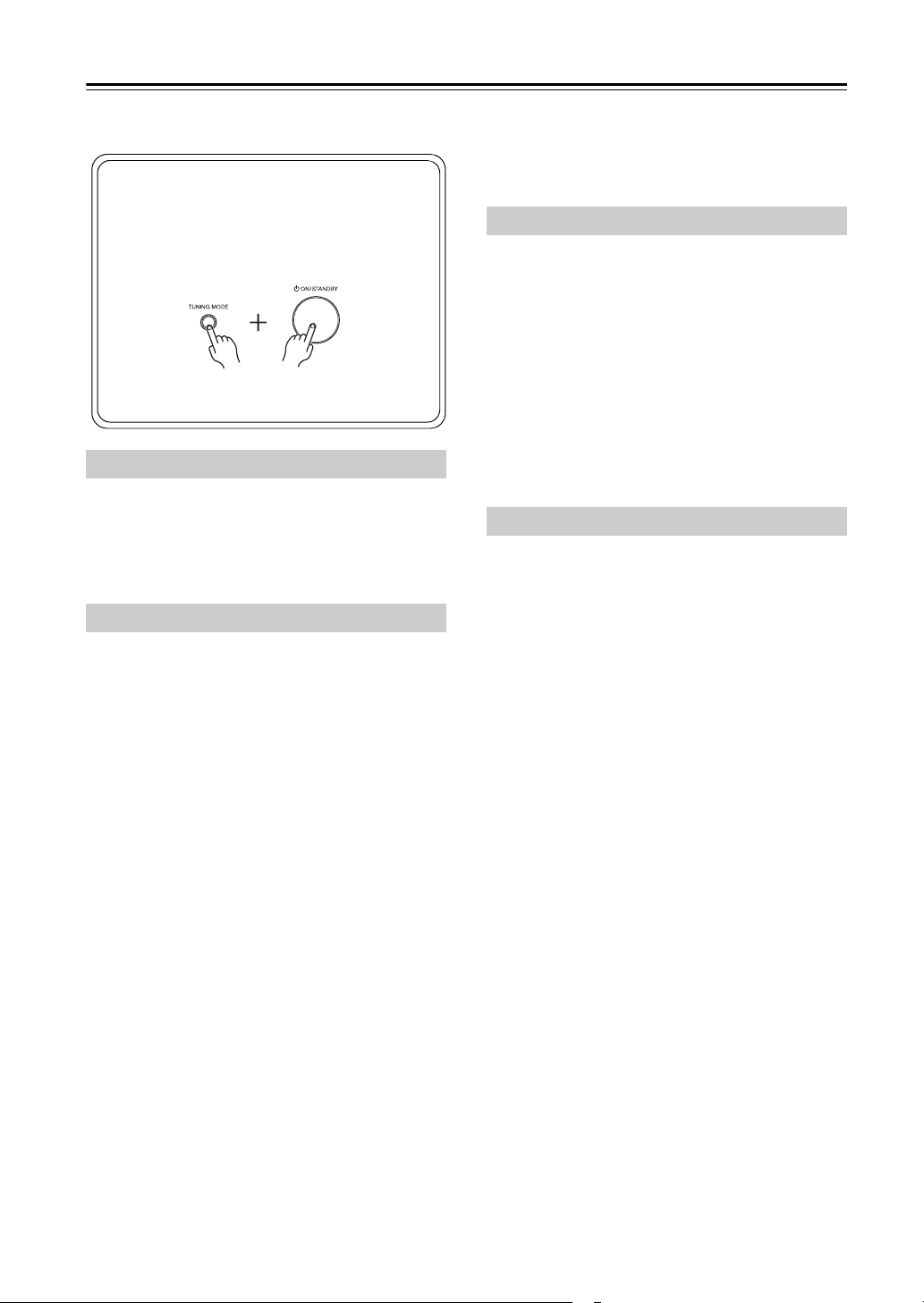
If you can’t resolve the issue yourself, try resetting
the receiver before contacting your Onkyo dealer.
To reset the receiver to its factory defaults, turn
it on and, while holding down the [TUNING
MODE] button, press the [ON/STANDBY]
button.
Note that resetting the receiver will delete your
radio presets and custom settings.
Tuner
Remote Controller
En-33
Troubleshooting—Continued
Can’t record
• On your recorder, make sure the correct input is
selected.
• To prevent signal loops and damage to the receiver,
input signals are not fed through to outputs with the
same name (e.g., TAPE IN to TAPE OUT).
The functions don’t work
• To use , you must make an connection and an
analog audio connection (RCA) between the
component and receiver, even if they are connected
digitally ( page 17).
Recording
Others
The receiver contains a microcomputer for signal
processing and control functions. In very rare
situations, severe interference, noise from an external
source, or static electricity may cause it to lockup. In
the unlikely event that this happens, unplug the power
cord from the wall outlet, wait at least five seconds,
and then plug it back in again.
Onkyo is not responsible for damages (such as CD
rental fees) due to unsuccessful recordings caused by
the unit’s malfunction. Before you record important
data, make sure that the material will be recorded
correctly.
Before disconnecting the power cord from the wall
outlet, set the receiver to Standby.

En-34
Specifications
Amplifier Section
Tuner Section
■ FM
■ AM
General
■ Audio Inputs
■ Audio Outputs
■ Others
Specifications and features are subject to change without
notice.
Rated Output Power (North American)
50 watts minimum continuous power
per channel, 8
Ω
loads, 2 channels
driven from 20 Hz to 20 kHz with a
maximum total harmonic distortion
of 0.08 % (FTC)
(European)
2 ch × 90 W at 6 Ω, 1 kHz,
1 ch driven of 1 % (IEC)
Dynamic Power 180 W (3 Ω, Front)
160 W (4 Ω, Front)
100 W (8 Ω, Front)
THD +N
(Total Harmonic
Distortion +Noise)
0.03 % (20 Hz
–
20 kHz, half power)
Damping Factor 60 (1 kHz, 8 Ω)
Input Sensitivity and
Impedance (Un balance)
200 mV/ 47 kΩ (LINE)
2.5 mV/ 47 kΩ (PHONO MM)
Rated RCA Output Level
and Impedance
200 mV/ 2.2 kΩ (REC OUT)
Maximum RCA Output
Level and Impedance
2 V/2.2 kΩ (REC OUT)
Phono Overload 70 mV (MM, 1 kHz, 0.5%)
Frequency Response 10 Hz–100 kHz/ +1 dB–3 dB (CD)
Tone Control
Characteristics
±11 dB, 100 Hz (BASS)
±11 dB, 10 kHz (TREBLE)
Signal to Noise Ratio 100 dB (CD, IHF-A)
80 dB (PHONO MM, IHF-A)
Speaker Impedance 4 Ω–16 Ω
Tuning Frequency Range (North American)
87.5 MHz–107.9 MHz
(European)
87.5 MHz–108.0 MHz, RDS
Tuning Frequency Range (North American)
530 kHz–1710 kHz
(European)
522/530 kHz–1611/1710 kHz
Preset Channel 40
Power Supply (North American)
AC 120 V, 60 Hz
(European)
AC 230 V, 50 Hz
Power Consumption (North American)
180 W
(European)
170 W
No-sound Power
Consumption
(North American)
30 W
(European)
35 W
Stand-by Power
Consumption
(North American)
0.15 W
(European)
0.25 W
Dimensions (W
× H × D) 435 × 150 × 328.5 mm
(17-1/8" × 5-7/8" × 12-15/16")
Weight 7.3 kg (16.1 lbs.)
Analog Inputs PHONO, CD, DOCK, TAPE, TV,
BD/DVD
Digital Inputs
(European model only)
OPTICAL: TV
COAXIAL: CD, BD/DVD
Analog Outputs TAPE
Pre Outputs SUBWOOFER
Speaker Outputs SPEAKERS A
SPEAKERS B
Phones 1 (6.3 ø)
1

Memo
SN 29401517
(C) Copyright 2013 Onkyo Corporation Japan. All rights reserved.
I1306-1
* 2 9 4 0 1 5 1 7 *
2-1, Nisshin-cho, Neyagawa-shi, OSAKA 572-8540, JAPAN
http://www.onkyo.com/
18 Park Way, Upper Saddle River, N.J. 07458, U.S.A.
For Dealer, Service, Order and all other Business Inquiries:
Tel: 201-785-2600 Fax: 201-785-2650
http://www.us.onkyo.com/
For Product Support Team Only:
1-800-229-1687
http://www.us.onkyo.com/
Liegnitzerstrasse 6, 82194 Groebenzell, GERMANY
Tel: +49-8142-4401-0 Fax: +49-8142-4208-213
http://www.eu.onkyo.com/
Meridien House, Ground floor, 69 - 71 Clarendon Road, Watford, Hertfordshire, WD17 1DS, United Kingdom
Tel: +44 (0)8712-00-19-96 Fax: +44 (0)8712-00-19-95
Unit 1033, 10/F, Star House, No 3, Salisbury Road, Tsim Sha Tsui Kowloon, Hong Kong.
Tel:
852-2429-3118 Fax: 852-2428-9039
http://www.hk.onkyo.com/
1301, 555 Tower, No.555 West NanJing Road, Jing’an District, Shanghai, China 200041,
Tel: 86-21-52131366 Fax: 86-21-52130396
http://www.cn.onkyo.com/
The Americas
China
Europe
Asia, Oceania, Middle East, Africa
Please contact an Onkyo distributor referring to Onkyo SUPPORT site.
http://www.intl.onkyo.com/support/
The above-mentioned information is subject to change without prior notice.
Visit the Onkyo web site for the latest update.
(Mainland)
(Hong Kong)