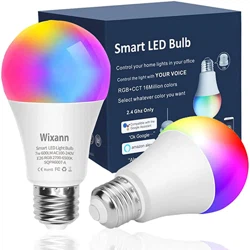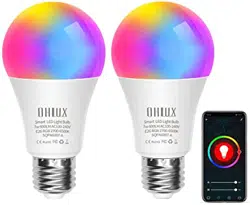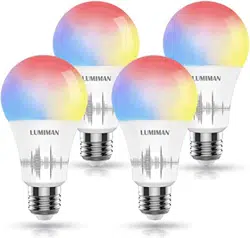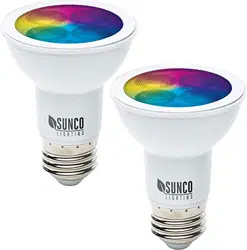

SMART BULB
USER MANUAL
STEP 1
Install Smart Life APP
Download and install the Smart Life APP via iOS App
store or Google Play Store.
Search for “Smart Life - Smart Living.”
STEP 2
Register an Account
-
password for your account and press next.
STEP 3
Create Families
Add a family name and location. Select rooms where smart bulbs will be located.
STEP 4
Adding Bulbs
Pairing with EZ Mode
Follow the next steps to enter EZ Mode Pairing. You will need to turn power to
the bulb off and on three times within 30 seconds. Allow the light to turn on
before turning back off each time.
i.e off-on-off-on-off-on
Follow a simple 5-step process:
(1) Plug in and ensure the light turns on
(2) Open the Smart Life APP and click
“Add a device” or the “+” in the top
right corner.
(3) Select “Lighting” and then “Lighting”
from the list of devices.
(4)
light is rapidly blinking.
(5) Select your Wi-Fi network and enter
the Wi-Fi network password and
select “OK.”
You can rename the bulb and share it with family members registered to the
Smart Life App using the mobile number they registered with, so they can
control the bulb from their phone.
Note – You will need to enter their number exactly as they typed it for
registration.
(3)
In the process of connecting, the
flashing light will change from
flashing to steady. Once the light
has connected, “Device added
successfully” will appear on the
-
ured successfully. If you are adding
more than one bulb at the same
time, please wait as the other
bulbs will appear as successfully
added after a few seconds.
(5) Select your Wi-Fi network and
enter the Wi-Fi network password
and select “OK.”
For best functionality maintain a
strong Wi-Fi signal, please keep
device and router within range.
(4) Once flashing select
Pairing with EZ Mode (continued)

STEP 5
Control Your Lighting
Click on the bulb you want to control to change the color, adjust brightness,
choose a scene, or set a schedule. Alternatively, you can create a group of bulbs
to change settings for more than one bulb at a time. See “Create Groups.”
Select the bulb and click the settings in the top right to check the network status,
add it to a group of bulbs to control together, or share it with other members of
the household.
Color Temperature
You can change the light bulb from a soft white to a bright daylight white. Change
your lighting from warm to cool white within seconds.
Choose from over 16 million colors
Choose from any hue in the rainbow and change the color of your bulbs within
seconds. Adjust the brightness and coolness to suit your mood.
Set the Scene
Choose from a variety of scenes or create your own. You can create a scene for
movie night, a party scene with colorful light, or even a candlelit scene with warm,
low lighting.
Create Schedules
Set schedules based on your preferences and daily needs. Choose individual
actions for each bulb, set the same schedule for more than one day, and create a
schedule for a group of bulbs. Schedules are a great way to have your lights work
around your life.
Music Sync
Choose Music Sync to match color changes to the beat of the music playing on
your speakers.
Create Groups
(1)
Click on the bulb you would like to add to a group. Select settings
by clicking the three dots in the top right of your screen.
(2)
Select Create Group.
(3)
Select the smart bulbs you would like to be part of a group.
(4)
Click Save and select a name for the group.
You can then control these bulbs together including changing color, changing a
scene or setting a schedule. For example, you can switch all your downstairs
lights on as soon as it gets dark by creating a schedule.
Bulb Settings
Click on the three dots in the top right to control settings for each bulb. From here
you can change the device name, check the Wi-Fi network status, share the bulb
with other household members, create a group and more.
Please note: If the bulb has been shared you will not be able to control any of the
settings.
Please connect to the bulb directly using the quick connection to access all the
settings.
Choose a Color
Set a Scene
Temperature
Music Sync
Voice Control Using the Smart Life APP
Use the App to control your bulbs using your voice. Click on the microphone
icon and use the following commands to control your bulb using your voice:
Please see below examples of commands you can use after pressing the
microphone icon (replace bulb name with the name of your bulb)
“Turn on bulb name”
“Turn off bulb name”
Change color
“Change bulb name to blue”
Change brightness
“Change bulb name brightness to 90%”
share
your bulbs with other devices and more.
Google Home Setup
Voice Control using Google Home
(1)
Tap “Home Control” in the hamburger menu on the Google
Home APP’s home page, then tap “+.”
(2)
Find “Smart Life” on the list. In the new window, select your
Smart Life account’s region, type your Smart Life account and
password, then tap
“
Link Now.” After you assign rooms for
devices, your devices will be listed in the Home Control page.
(3)
Control your smart devices through Google Home Now you can
control your smart devices through Google Home. Take bedroom
light as an example. The supported voice commands are as
below:
“Ok Google, turn on/off bedroom light.”
“Ok Google, set bedroom light to 50 percent.”
“Ok Google, brighten bedroom light.”
“Ok Google, dim bedroom light.”
”Ok Google, set bedroom light to red.”
Amazon Alexa Setup
Choose “Skills” in the options bar, and then search “Smart Life “ in the input box.
Select Smart life in the search results, and then click “Enable To Use.” Then
input the user name and password that you used previously to register.
Control Smart Bulb by Voice
After the above operation is successful, you can control the bulb via Echo.
Discover Devices
Say to Echo: “Echo(or Alexa), Discover my devices.”
APP.
It will take about 20 seconds, and then it will tell you the result.
You can also click “Discover devices” in Alexa APP, and it will show the devices
that it found successfully.
Control Devices by Voice
You can control the bulbs by instructions like these:
“Echo(or Alexa), turn on bedroom light
“Echo(or Alexa), turn off bedroom light
“Echo(or Alexa), set bedroom light to 50 percent
“Echo(or Alexa), increase bedroom light to 50 percent
“Echo(or Alexa), decrease bedroom light to 50 percent
Disposal:
Do not dispose of this product as unsorted municipal waste.
Collection of such waste must be handled separately as special treatment is
necessary. Recycling facilities are now available for all customers at which you
can deposit your old electrical products.
Support
For further support with setup and if you require any help to make the most of
your smart bulb, please contact our customer services support team.
support@suncolighting.com
(844) 334-9938