Read the safety instructions first before you use the TV.
To read the safety instructions, go to Safety and Care section on this Help manual for the information.
TV Stand and Wall Mounting
TV Stand
You can find the instructions for mounting the TV stand in the Quick Start Guide that came with the TV. In case you lost this guide.
Use the model number of the TV to look for the Quick Start Guide to download.
Wall Mounting
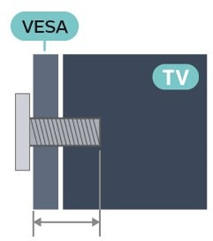
Your TV is also prepared for a VESA-compliant wall mount bracket (sold separately).
Use the following VESA code when purchasing the wall mount . . .
•43PUS79x6
VESA MIS-F 100x200, M6 (Min.: 10mm, Max.: 12mm)
•50PUS79x6
VESA MIS-F 200x300, M6 (Min.: 10mm, Max.: 16mm)
•55PUS79x6
VESA MIS-F 200x300, M6 (Min.: 10mm, Max.: 16mm)
•65PUS79x6
VESA MIS-F 300x300, M6 (Min.: 12mm, Max.: 20mm)
•70PUS79x6
VESA MIS-F 300x300, M8 (Min.: 12mm, Max.: 25mm)
•75PUS79x6
VESA MIS-F 300x300, M8 (Min.: 12mm, Max.: 25mm)
Caution
Wall mounting the TV requires special skills and should only be performed by qualified personnel. The TV wall mounting should meet safety standards according to the TVs weight. Also read the safety precautions before positioning the TV. TP Vision Europe B.V. bears no responsibility for improper mounting or any mounting that results in accident or injury.
Tips on Placement
•Position the TV where light does not shine directly on the screen.
•Dim lighting conditions in the room for best Ambilight effect.
•The ideal distance to watch TV is 2 to 5 times its diagonal screen size. When seated, your eyes should be level with the centre of the screen.
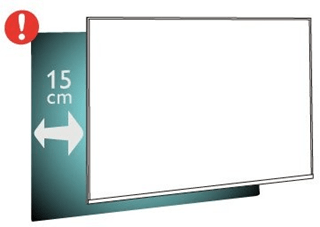
•When wall mounted, position the TV up to 15 cm away from the wall.
Note:
Please keep the TV away from dust-producing sources such as stoves. It is suggested to clean the dust regularly to avoid getting dust into the TV.
Power Cable
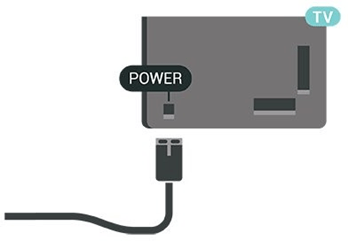
•Insert the power cable into the POWER connector on the back of the TV.
•Make sure the power cable is securely inserted in the connector.
•Make sure that the power plug, in the wall socket, is accessible at all times.
•When you unplug the power cable, always pull the plug, never pull the cable.
Although this TV has a very low standby power consumption, unplug the power cable to save energy if you do not use the TV for a long period of time.
Antenna Cable
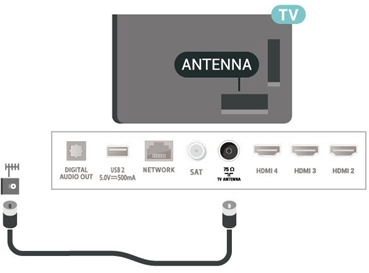
Insert the antenna plug firmly into the Antenna socket at the back of the TV.
You can connect your own antenna or an antenna signal from an antenna distribution system. Use an IEC Coax 75 Ohm RF antenna connector.
Use this antenna connection for antenna digital or analogue input signals.
Satellite Dish
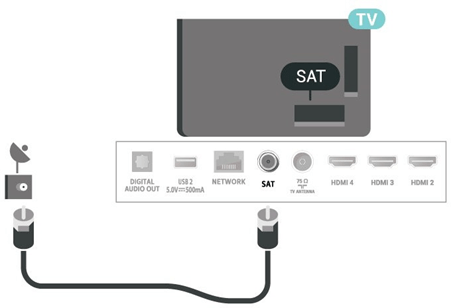
Attach the satellite F-type connector to the satellite connection SAT at the back of the TV.
Remote Control
Key Overview
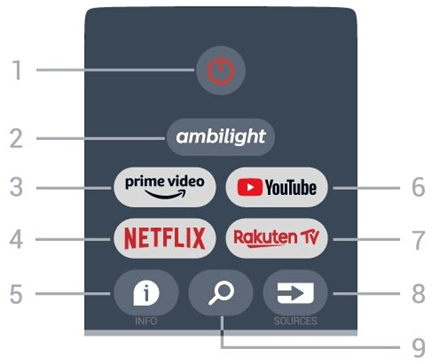
Top
1- Power (Standby / On)
To switch the TV on or back to Standby.
2- Ambilight
To select one of the Ambilight style.
3- Amazon Prime Video
To launch the Amazon Prime Video App.
4- NETFLIX
To launch the Netflix App with the TV switched on or from standby.
•If you have a Netflix membership subscription, you can enjoy Netflix on this TV. Your TV must be connected to the Internet.
•To open Netflix, press the NETFLIX key to open the Netflix App. You can open Netflix immediately from a TV in standby.
5- INFO
Press to open the programme information screen. Press once to show brief channel information, press again to show expanded screen with programme title and more information, press again to show full programme information. Keep pressing the key can switch to different views of the information.
6- YouTube
To launch the YouTube App.
7- Rakuten TV
To launch the Rakuten TV App.
* Note: The Rakuten TV App is not available in all countries.
8 - SOURCES
To open or close the Sources menu.
9 - SEARCH
To invoke the search by typing.
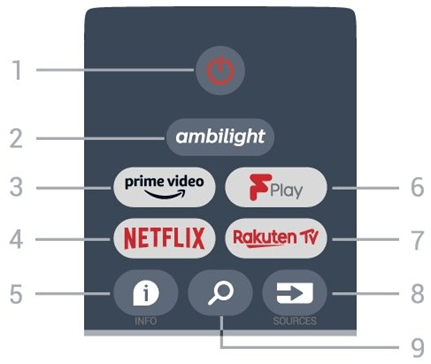
Top (for UK models)
1- Power (Standby / On)
To switch the TV on or back to Standby.
2- Ambilight
To select one of the Ambilight style.
3- Amazon Prime Video
To launch the Amazon Prime Video App.
4- NETFLIX
To launch the Netflix App with the TV switched on or from standby.
•If you have a Netflix membership subscription, you can enjoy Netflix on this TV. Your TV must be connected to the Internet.
•To open Netflix, press the NETFLIX key to open the Netflix App. You can open Netflix immediately from a TV in standby.
5- INFO
Press to open the programme information screen. Press once to show brief channel information, press again to show expanded screen with programme title and more information, press again to show full programme information. Keep pressing the key can switch to different views of the information.
6- Freeview Play
To launch the Freeview Play.
7- Rakuten TV
To launch the Rakuten TV App.
8- SOURCES
To open or close the Sources menu.
9- SEARCH
To invoke the search by typing.
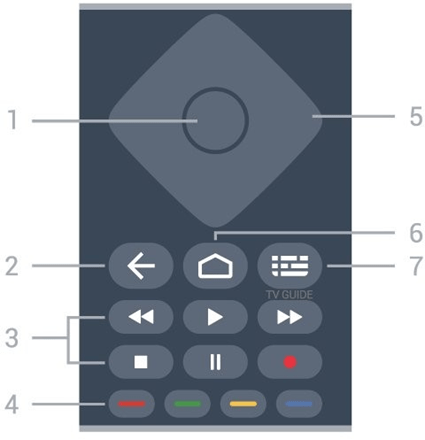
Middle
1- OK key
To confirm a selection or setting. To open the channel list while watching TV.
2- Back
•To return to previous menu or TV source.
•To go back to the previous App.
3 - Playback and Record
•Play, to playback.
•Pause, to pause playback
•Stop, to stop playback
•Rewind, to rewind
•Fast forward, to go fast forward
•Record, this function is not supported.
4- Colour keys
Follow the on-screen instructions to select more options or operations.
Press Blue key on Home screen to open the Help.
5- Navigation keys
To navigate up, down, left or right.
6- Home
To open the Home menu.
7- TV GUIDE
To open or close the TV Guide.
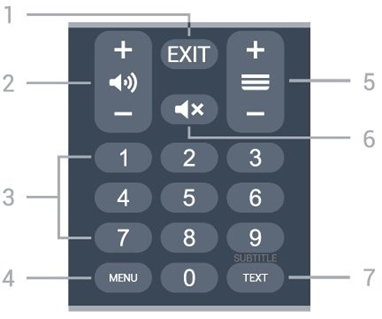
Bottom
1- EXIT
To leave from current menu or App.
2- Volume
Press + or - to adjust the volume level.
3- Number keys
To select a channel directly.
4- MENU
To open the TV Menu with typical TV functions.
5- Channel
Press + or - to switch to the next or previous channel in the channel list. To open the next or previous page in Text/Teletext.
6- Mute
Press to mute the sound or to restore it.
7- TEXT / SUBTITLE
To open or close Text/Teletext. Long press to open th Subtitle page.
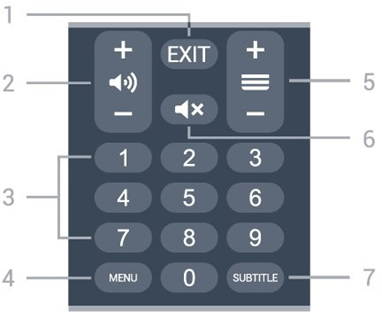
Bottom (for UK models)
1- EXIT
To leave from current menu or App.
2- Volume
Press + or - to adjust the volume level.
3- Number keys
To select a channel directly.
4- MENU
To open the TV Menu with typical TV functions.
5- Channel
Press + or - to switch to the next or previous channel in the channel list. To open the next or previous page in Text/Teletext.
6- Mute
Press to mute the sound or to restore it.
7- SUBTITLE
To open Subtitle page.
IR Sensor
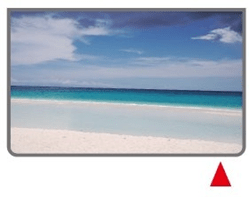
The TV can receive commands from a remote control that uses IR (infrared) to send commands. If you use such a remote control, always make sure you point the remote control at the infrared sensor on the front of the TV.
Warning
Do not put any objects in front of IR sensor of the TV, it may block the IR signal.
Batteries
If the TV does not react on a key press on the remote control, the batteries might be empty.
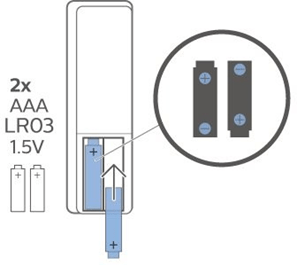
To replace the batteries, open the battery compartment on the back-bottom of the remote control.
1- Slide the battery door in the direction shown by the arrow.
2- Replace the old batteries with 2 type AAA-1.5V batteries. Make sure the + and the - ends of the batteries line up correctly.
3- Reposition the battery door and slide it back until it clicks.
Remove the batteries if you are not using the remote control for a long time.
Safely dispose of your old batteries according to the end of use directions.
For more information, in Help, select Keywords and look up End of use.
Cleaning
Your remote control is treated with a scratch-resistant coating.
To clean the remote control, use a soft damp cloth. Never use substances such as alcohol, chemicals or household cleaners on the remote control.
Switching On and Off
Make sure the TV is connected to the mains AC power. The indicator light at the bottom of the TV lights up.
Switch on
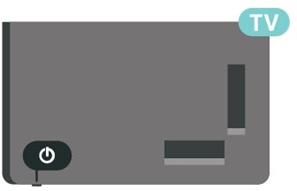
Press Power on the remote control to switch the TV on. You can also press the small joystick key on the bottom of the TV to switch the TV on in case you can't find the remote control or its batteries are empty.
Switch to standby
To switch the TV to standby, press Power on the remote control. You can also press the small joystick key on the bottom of the TV.
In standby mode, the TV is still connected to the mains power but consumes very little energy.
To switch off the TV completely, disconnect the power plug.
When disconnecting the power plug, always pull the power plug, never the cord. Ensure that you have full access to the power plug, power cord and outlet socket at all times.
Help and Support
Register your TV
Register your TV and enjoy a range of benefits including full support (including downloads), privileged access to information about new products, exclusive offers and discounts, the chance to win prizes and even participate in special surveys about new releases.
Troubleshooting
Switch On and Remote Control
The TV does not switch on
•Disconnect the power cable from the power outlet. Wait for one minute then reconnect it.
•Make sure that the power cable is securely connected.
Creaking sound at startup or switch off
When you are switching the TV on, off or to standby, you hear a creaking sound from the TV chassis. The creaking sound is due to the normal expansion and contraction of the TV as it cools and warms up. This does not affect performance.
TV does not respond to the remote control
The TV requires some time to start up. During this time, the TV does not respond to the remote control or TV controls. This is normal behaviour.
If the TV continues to be unresponsive to the remote control, you can check if the remote control is working by means of a mobile phone camera. Put the phone in camera mode and point the remote control to the camera lens. If you press any key on the remote control and you notice the infra red LED flicker through the camera, the remote control is working. The TV needs to be checked.
If you do not notice the flickering, the remote control might be broken or its batteries are low.
This method of checking the remote control is not possible with remote controls which are wirelessly paired with the TV.
The TV goes back to standby after showing the Philips startup screen
When the TV is in standby, a Philips startup screen is displayed, then the TV returns to standby mode. This is normal behaviour. When the TV is disconnected and reconnected to the power supply, the startup screen is displayed at the next startup. To switch on the TV from standby, press power key on the remote control or on the TV.
The standby light keeps on blinking
Disconnect the power cable from the power outlet. Wait 5 minutes before you reconnect the power cable. If the blinking reoccurs, contact Philips TV Consumer Care.
Channels
No digital channels found during the installation
See the technical specifications to make sure that your TV supports digital channels in your country. Make sure that all cables are properly connected and that the correct network is selected.
Previously installed channels are not in the channel list
Make sure that the correct channel list is selected.
Picture
No picture / distorted picture
•Make sure that the antenna is properly connected to the TV.
•Make sure that the correct device is selected as the display source.
•Make sure that the external device or source is properly connected.
Sound but no picture
•Change to other video sources and then change back to current source, then do picture style restore in Picture settings or do Factory reset in General settings option.
Poor antenna reception
•Make sure that the antenna is properly connected to the TV.
•Loud speakers, unearthed audio devices, neon lights, high buildings and other large objects can influence reception quality. If possible, try to improve the reception quality by changing the antenna direction or moving devices away from the TV.
•If reception on only one channel is poor, fine-tune this channel with Manual Installation.
Poor picture from a device
•Make sure that the device is connected properly. Make sure the device's output video setting is the highest possible resolution if applicable.
•Restore picture style or change to other picture styles.
Picture settings change after a while
Make sure that Retail mode is set to Off . You can change and save settings in this mode.
A commercial banner appears
Make sure that Retail mode is set to Off . Press Home > Settings > Device Preferences > Retail mode and press OK
Picture does not fit the screen
•Change to a different picture format.
•Change Display mode to Automatic.
Picture position is incorrect
•Picture signals from some devices may not fit the screen correctly. Check the signal output of the connected device.
•Change Display mode to Automatic.
Computer picture is not stable
•Make sure that your PC uses the supported resolution and refresh rate.
•Make sure HDMI video source is not supported HDR content.
Sound
No sound or poor sound quality
If no audio signal is detected, the TV automatically switches the audio output off — this does not indicate malfunction.
•Make sure that the sound settings are correctly set.
•Make sure that all cables are properly connected.
•Make sure that the volume is not muted or set to zero.
•Make sure that the TV audio output is connected to the audio input on the Home Theatre System. Sound should be heard from the HTS speakers.
•Some devices may require you to manually enable HDMI audio output. If HDMI audio is already enabled, but you still do not hear audio, try changing the digital audio format of the device to PCM (Pulse Code Modulation). Refer to the documentation accompanying your device for instructions.
HDMI and USB
HDMI
•Note that HDCP (High-bandwidth Digital Content Protection) support can delay the time taken for a TV to display content from an HDMI device.
•If the TV does not recognise the HDMI device and no picture is displayed, switch the source from one device to another and back again.
•If the picture and sound of a device connected to HDMI is distorted, connect the device to another HDMI port on TV and power reboot your source device.
•If there are intermittent sound disruptions, make sure that output settings from the HDMI device are correct.
•If you use an HDMI-to-DVI adapter or HDMI-to-DVI cable, make sure that an additional audio cable is connected to AUDIO IN (mini-jack only), if available.
HDMI EasyLink does not work
•Make sure that your HDMI devices are HDMI-CEC compatible. EasyLink features only work with devices that are HDMI-CEC compatible.
No volume icon shown
•When an HDMI-CEC audio device is connected and you use the TV Remote Control to adjust the volume level from the device, this behaviour is normal. Photos, videos and music from a USB device do not show
•Make sure that the USB storage device is set to Mass Storage Class compliant, as described in the storage device's documentation.
•Make sure that the USB storage device is compatible with the TV.
•Make sure that the audio and picture file formats are supported by the TV.
Choppy playback of USB files
•The transfer performance of the USB storage device may limit the data transfer rate to the TV which causes poor playback.
Network
Wi-Fi network not found or distorted
•Microwave ovens, DECT phones or other Wi-Fi 802.11b/g/n devices in your proximity might disturb the wireless network.
•Make sure that the firewalls in your network allow access to the TV's wireless connection.
•If the wireless network does not work properly in your home, try the wired network installation.
Internet does not work
•If the connection to the router is OK, check the router connection to the Internet.
The PC and Internet connection are slow
•Look in your wireless router's user manual for information on indoor range, transfer rate and other factors of signal quality.
•Use a high-speed (broadband) Internet connection for your router.
DHCP
•If the connection fails, you can check the DHCP (Dynamic Host Configuration Protocol) setting of the router. DHCP should be switched on.
Bluetooth
Unable to pair
•Make sure the device is in pairing mode. Read the user manual of the device.
•Keep the wireless speaker as close to the TV as possible.
•Trying to pair several devices with the TV at the same time, may not work.
Bluetooth lost connection
•Always position the wireless speaker within a range of 5 meters from the TV.
Bluetooth Audio and Video synchronisation
•Before you purchase a wireless Bluetooth speaker, inform yourself about its quality of Audio to Video synchronisation, commonly called 'lip sync'. Not all Bluetooth devices perform correctly. Ask your dealer for advice.
Wrong Menu Language
Change the language back to your language
1- Press Home to go to Home screen.
2- Press MENU.
3- Press Navigation key - down for 4 times and press OK.
4- Press Navigation key - down for 4 times and press OK.
5- Select your language and press OK.
6- Press Back or EXIT repeatedly to close the menu.
Online Help
To solve any Philips TV related problem, you can consult our online support. You can select your language and enter your product model number.
On the support site you can find your country's telephone number to contact us as well as answers to frequently asked questions (FAQs). In some countries, you can chat with one of our collaborators and ask your question directly or send a question by email.
You can download new TV software or the manual to read on your computer.
Support and Repair
For support and repair, call the Consumer Care hotline in your country. Our service engineers will take care of a repair, if necessary.
Find the telephone number in the printed documentation that came with the TV.
TV model number and serial number
You might be asked to provide the TV product model number and serial number. Find these numbers on the packaging label or on the type label on the back or bottom of the TV.
Warning
Do not attempt to repair the TV yourself. This may cause severe injury, irreparable damage to your TV or void your warranty.
Safety and Care
Safety
Important
Read and understand all safety instructions before you use the TV. If damage is caused by failure to follow instructions, the warranty does not apply.
Risk of Electric Shock or Fire
•Never expose the TV to rain or water. Never place liquid containers, such as vases, near the TV. If liquids are spilt on or into the TV, disconnect the TV from the power outlet immediately.
Contact Philips TV Consumer Care to have the TV checked before use.
•Never expose the TV, remote control or batteries to excessive heat. Never place them near burning candles, naked flames or other heat sources, including direct sunlight.
•Never insert objects into the ventilation slots or other openings on the TV.
•Never place heavy objects on the power cord.
•Avoid force coming onto power plugs. Loose power plugs can cause arcing or fire. Ensure that no strain is exerted on the power cord when you swivel the TV screen.
•To disconnect the TV from the mains power, the power plug of the TV must be disconnected. When disconnecting the power, always pull the power plug, never the cord. Ensure that you have full access to the power plug, power cord and outlet socket at all times.
Risk of Injury or Damage to the TV
•Two people are required to lift and carry a TV that weighs more than 25 kg or 55 lbs.
•If you mount the TV on a stand, only use the supplied stand. Secure the stand to the TV tightly. Place the TV on a flat, level surface that can support the weight of the TV and the stand.
•When wall mounted, ensure that the wall mount can safely bear the weight of the TV set. TP Vision bears no responsibility for improper wall mounting that results in accident, injury or damage.
•Parts of this product are made of glass. Handle with care to avoid injury or damage.
Risk of damage to the TV !
Before you connect the TV to the power outlet, ensure that the power voltage matches the value printed on the back of the TV. Never connect the TV to the power outlet if the voltage is different.
Stability Hazards
A television set may fall, causing serious personal injury or death. Many injuries, particularly to children, can be avoided by taking simple precautions such as:
•ALWAYS ensure the television set is not overhanging the edge of the supporting furniture.
•ALWAYS use cabinets or stands or mounting methods recommended by the manufacturer of the television set.
•ALWAYS use furniture that can safely support the television set.
•ALWAYS educate children about the dangers of climbing on furniture to reach the television set or its controls.
•ALWAYS route cords and cables connected to your television so they cannot be tripped over, pulled or grabbed.
•NEVER place a television set in an unstable location.
•NEVER place the television set on tall furniture (for example, cupboards or bookcases) without anchoring both the furniture and the television set to a suitable support.
•NEVER place the television set on cloth or other materials that may be located between the television set and supporting furniture.
•NEVER place items that might tempt children to climb, such as toys and remote controls, on the top of the television or furniture on which the television is placed.
If the existing television set is going to be retained and relocated, the same considerations as above should be applied.
Risk of Batteries
•Do not ingest the battery. Chemical burn hazard.
•The remote control may contains a coin/button cell battery. If the coin/button cell battery is swallowed, it can cause severe internal burns in just 2 hours and can lead to death.
•Keep new and used batteries away from children.
•If the battery compartment does not close securely, stop using the product and keep it away from children.
•If you think batteries might have been swallowed or placed inside any part of the body, seek immediate medical attention.
•Risk of fire or explosion if the battery is replaced by an incorrect type.
•Replacement of a battery with an incorrect type that can defeat a safeguard (for example, in the case of some lithium battery types).
•Disposal of a battery into fire or a hot oven, or mechanically crushing or cutting of a battery, that can result in an explosion.
•Leaving a battery in an extremely high temperature surrounding environment that can result in an explosion or the leakage of flammable liquid or gas.
•A battery subjected to extremely low air pressure that may result in an explosion or the leakage of flammable liquid or gas.
Risk of Overheating
Never install the TV in a confined space. Always leave a space of at least 10 cm or 4 inches around the TV for ventilation. Ensure curtains or other objects never cover the ventilation slots on the TV.
Lightning Storms
Disconnect the TV from the power outlet and antenna before lightning storms.
During lightning storms, never touch any part of the TV, power cord or antenna cable.
Risk of Hearing Damage
Avoid using earphones or headphones at high volumes or for prolonged periods of time.
Low Temperatures
If the TV is transported in temperatures below 5°C or 41°F, unpack the TV and wait until the TV temperature reaches room temperature before connecting the TV to the power outlet.
Humidity
In rare occasions, depending on temperature and humidity, minor condensation can occur on the inside of the TV glass front (on some models). To prevent this, do not expose the TV to direct sunlight, heat or extreme humidity. If condensation occurs, it will disappear spontaneously while the TV is playing for a few hours.
The condensation moisture will not harm the TV or cause malfunction.
Screen Care
•Never touch, push, rub or strike the screen with any object.
•Unplug the TV before cleaning.
•Clean the TV and frame with a soft damp cloth and wipe gently. Avoid touching the Ambilight* LEDs on the backside of the TV. Never use substances such as alcohol, chemicals or household cleaners on the TV.
•To avoid deformations and colour fading, wipe off water drops as quickly as possible.
•Avoid stationary images as much as possible. Stationary images are images that remain onscreen for extended periods of time. Stationary images include onscreen menus, black bars, time displays, etc. If you must use stationary images, reduce screen contrast and brightness to avoid screen damage.
* Ambilight LED is only for models which support Ambilight function.