Digital 4K Video Camera Recorder/Digital HD Video Camera Recorder
FDR-
X3000/HDR-AS300/HDR-AS50
Read This First
Identifying the parts
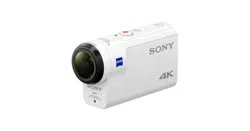
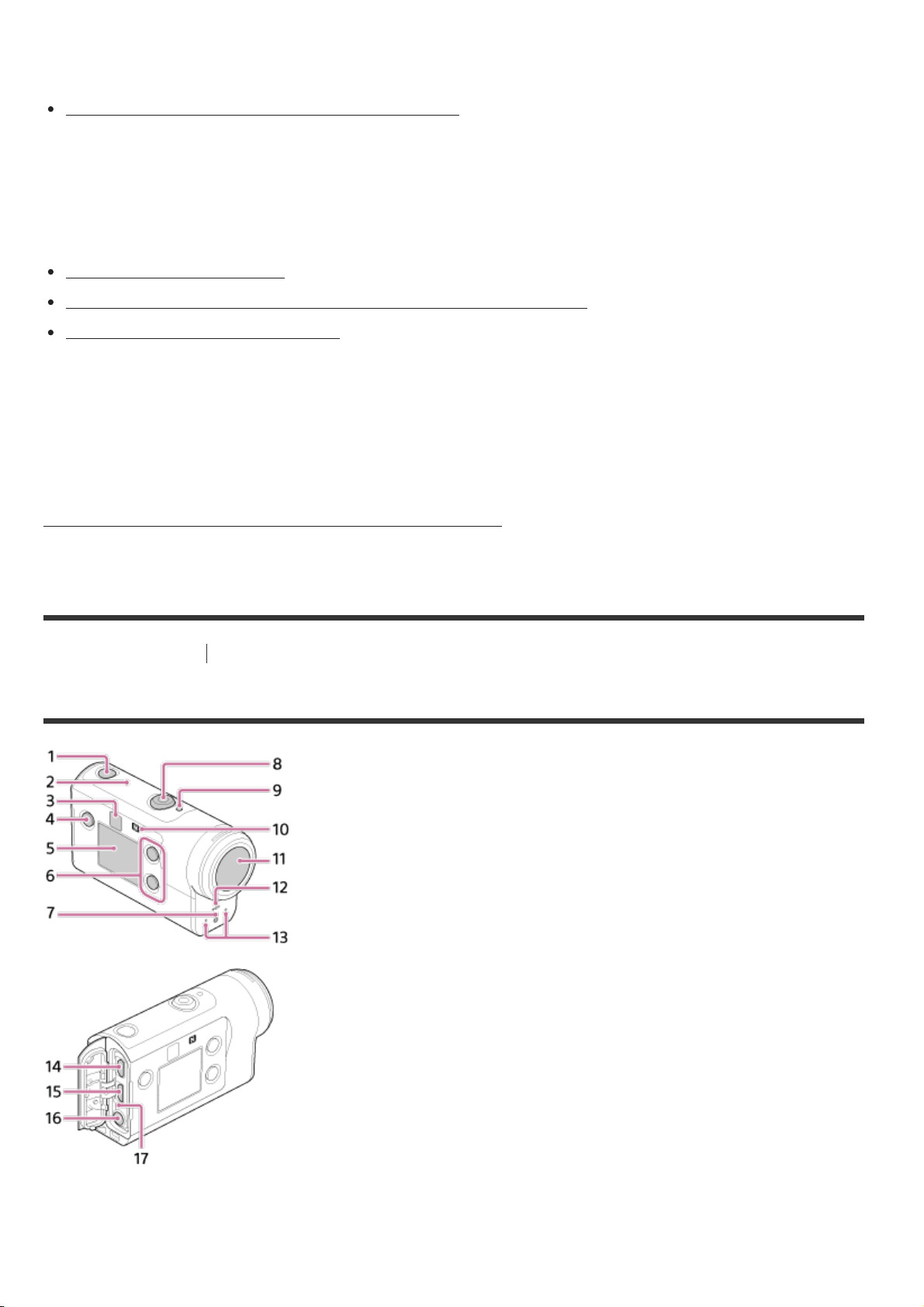
Identifying the parts (FDR-X3000/HDR-AS300) [1]
Identifying the parts (HDR-AS50) [2]
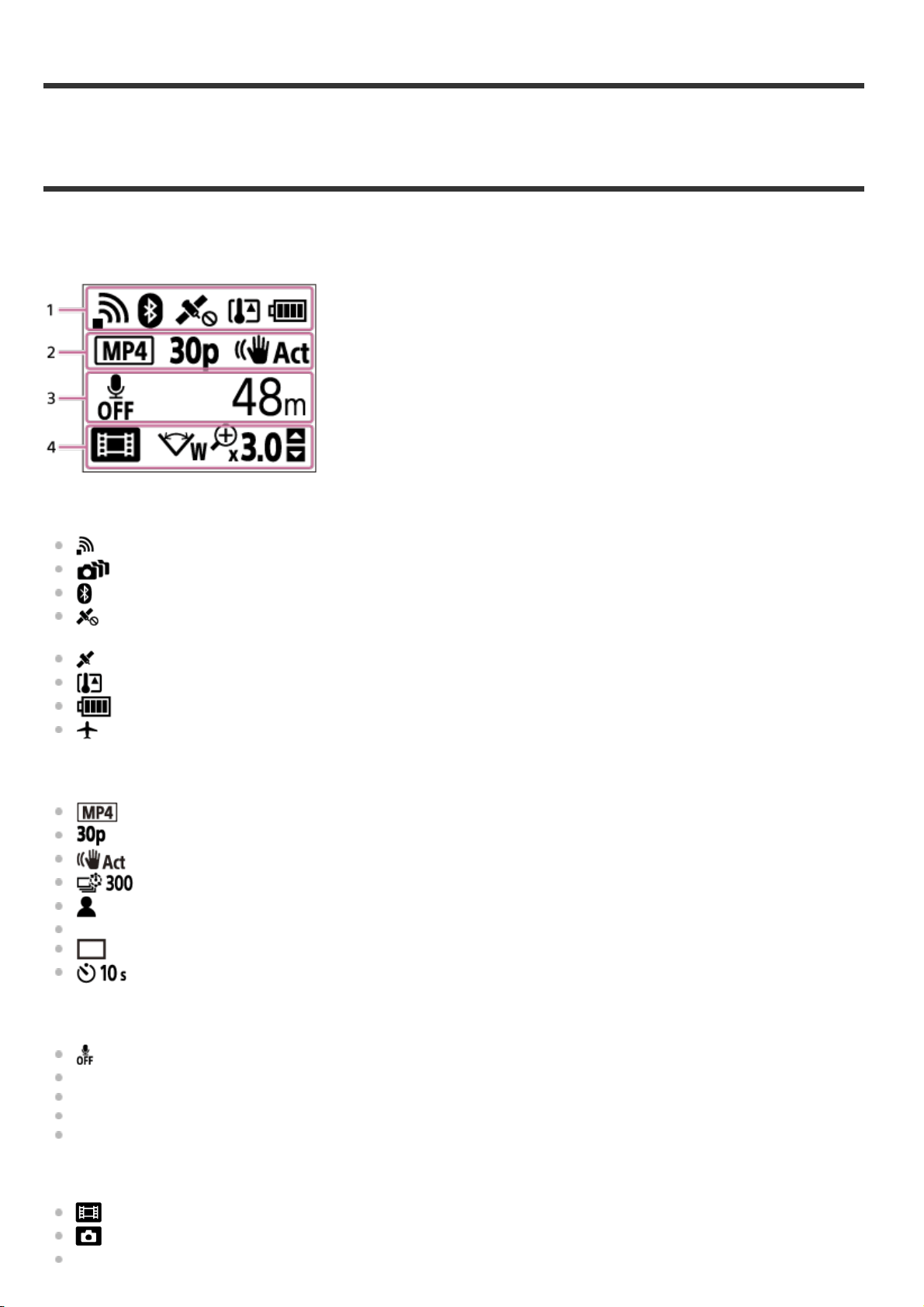
Screen display [3]
Getting Started
Checking the bundled items [4]
Inserting the battery pack [5]
Charging the battery pack [6]
Inserting a memory card
Inserting a memory card [7]
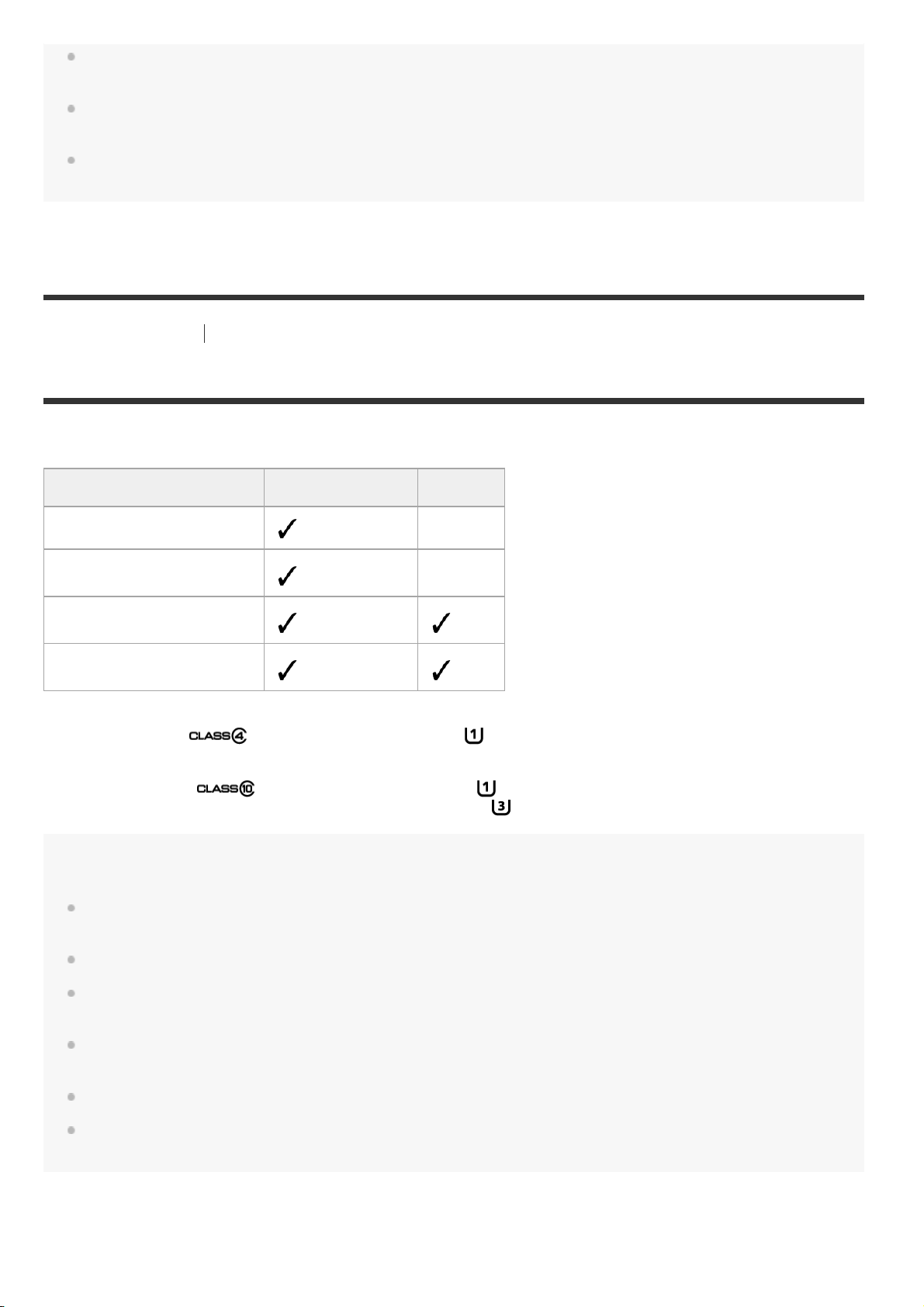
The memory cards that can be used with the camera [8]
Setting the date and time [9]
Using the Underwater Housing
Identifying the parts (Underwater Housing) [10]

Using the Underwater Housing [11]
On waterproof performance of the Underwater Housing [12]
Notes on use for the Underwater Housing [13]
Water leakage [14]
Waterproof packing [15]
How to check for water leaks [16]
Maintenance [17]
Using accessories
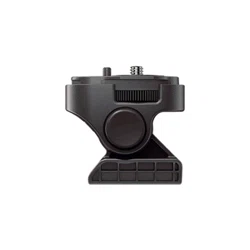
Using the attachment buckle [18]
Notes on using the adhesive mount (sold separately) [19]
Shooting
Shooting movies and still images
Shooting movies (Movie mode) [20]
Shooting still images (Photo mode) [21]
Time-lapse capture mode [22]
Loop recording mode [23]
Using the zoom [24]
Notes on long-time recording [25]
Changing the Settings
List of setting items
List of setting items [26]
How to set the setting items [27]
Shooting settings

Image quality setting [28]
Movie format [29]
Time-lapse capture image size [30]
Loop recording time [31]
Still image mode switching [32]
Still image shooting interval [33]
Self-timer [34]
Time-lapse shooting interval [35]
Time-lapse shot number [36]
SteadyShot (Movie) [37]
SteadyShot (Still) (FDR-X3000/HDR-AS300) [38]
Angle setting [39]
Zoom setting [40]
Flip [41]
AE shift [42]
Time-lapse AE mode [43]
Scene [44]
White balance [45]
Color mode [46]
Audio recording setting [47]
Wind noise reduction [48]
Camera settings
Airplane mode [49]
Wi-Fi connection setting [50]
Wi-Fi Hi power setting [51]
Bluetooth setting [52]
Bluetooth remote controller power setting [53]
GPS log (FDR-X3000/HDR-AS300) [54]
Format [55]
Time code/user bit (FDR-X3000) [56]
IR remote (FDR-X3000) [57]
HDMI settings (FDR-X3000/HDR-AS300) [58]
USB power supply [59]
Beep [60]
Beep volume [61]
Lamp setting [62]

One touch recording [63]
Auto power off [64]
Switching NTSC/PAL [65]
Date & time setting [66]
Area setting [67]
Daylight saving time (summer time) setting [68]
Version [69]
Resetting the settings [70]
Viewing
Viewing images on a TV (FDR-X3000/HDR-AS300) [71]
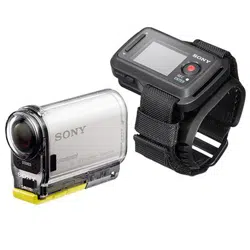
Viewing using the Live-View Remote [72]
Delete [73]
Create your movie
Highlight Movie Maker
Creating the highlight movie [74]
Importing the BGM [75]
Stream real-time movie to a movie streaming site
Live Streaming with your camera (Real time movie streaming)
Live Streaming [76]
Preparing for Live Streaming [77]
Performing Live Streaming [78]
Restrictions [79]

Using the camera connected to other devices via Wi-Fi
Connecting to your smartphone
Preparation for connecting to your smartphone [80]
Sample smartphone screen display [81]
Using One-touch Functions to Connect to an NFC-enabled Android Smartphone (FDR-X3000/HDR-
AS300) [82]
Connecting a smartphone to Wi-Fi via QR Code (Android device) [83]
Performing the Wi-Fi setting on a smartphone via QR Code (iPhone/iPad) [84]
Connecting to a smartphone using ID/password (Android device) [85]
Connecting to a smartphone using ID/password (iPhone/iPad) [86]
Connecting to the Live-View Remote
Connecting a single camera to Live-View Remote (Single connection) [87]
Connecting multiple cameras to Live-View Remote (Multi connection) [88]
Connecting to Handycam
Connecting a single camera to Handycam (Single connection) [89]
Connecting multiple cameras to Handycam (Multi connection) [90]
Editing images imported to your computer
Using the Action Cam Movie Creator
Useful functions of Action Cam Movie Creator [91]
Installing Action Cam Movie Creator on your computer [92]

Editing images imported to your smartphone/tablet
Using the Action Cam App
Useful functions of Action Cam App [93]
Installing Action Cam App [94]
Information
Recordable time
Estimated duration of recording and playback for supplied battery pack [95]
Estimated recording time of movies [96]
Estimated number of recordable still images [97]
Battery pack
On charging the battery pack [98]
Effective use of the battery pack [99]
About the remaining battery charge [100]
How to store the battery pack [101]
On battery pack life [102]
To reduce the battery consumption [103]
Using the camera abroad
On TV color systems (FDR-X3000/HDR-AS300) [104]
Countries and regions where NTSC TV is used [105]
Countries and regions where PAL TV is used [106]
The list of time differences for world capitals [107]
Precautions

Do not use/store the camera in the following places [108]
On carrying [109]
Care and storage of the lens [110]
On cleaning [111]
On operating temperatures [112]
On moisture condensation [113]
Notes on optional accessories [114]
On using the camera in close proximity to vibrating motors and engines (FDR-X3000/HDR-AS300)
[115]
Note on disposal/transfer of the memory card [116]
On GPS (FDR-X3000/HDR-AS300) [117]
On GPS errors (FDR-X3000/HDR-AS300) [118]
On GPS use restriction (FDR-X3000/HDR-AS300) [119]
Specifications [120]
Trademarks [121]
Notes on License
On GNU GPL/LGPL applied software [122]
List of Default Setting [123]
Troubleshooting
Troubleshooting [124]
Battery pack and power
Cannot turn on the camera. [125]
The power turns off suddenly. [126]
Battery life is short. [127]
Cannot charge the camera. [128]

The remaining charge indicator is incorrect. [129]
Memory card
Operations using the memory card cannot be performed. [130]
Shooting images
Cannot record images. [131]
Cannot insert dates on images. [132]
Viewing images
Cannot playback images. [133]
The image does not appear on the TV. (FDR-X3000/HDR-AS300) [134]
GPS
The camera is not receiving a GPS signal. (FDR-X3000/HDR-AS300) [135]
Excessive error in location information. (FDR-X3000/HDR-AS300) [136]
It takes time to triangulate although the GPS assist data is taken in. (FDR-X3000/HDR-AS300)
[137]
The location information has not been recorded. (FDR-X3000/HDR-AS300) [138]
Computers
Your computer does not recognize the camera. [139]
Cannot import images. [140]
Action Cam Movie Creator cannot be installed. [141]
Action Cam Movie Creator does not work correctly. [142]
Cannot play back images on your computer. [143]
Wi-Fi
It takes too much time to transfer an image. [144]
Others
The lens gets fogged. [145]
The camera becomes warm when you use it for a long time. [146]
The date or time is incorrect. [147]
Warning indicators and messages
Warning indicators and error messages [148]
[1] Read This First
Identifying the parts
Identifying the parts (FDR-X3000/HDR-AS300)
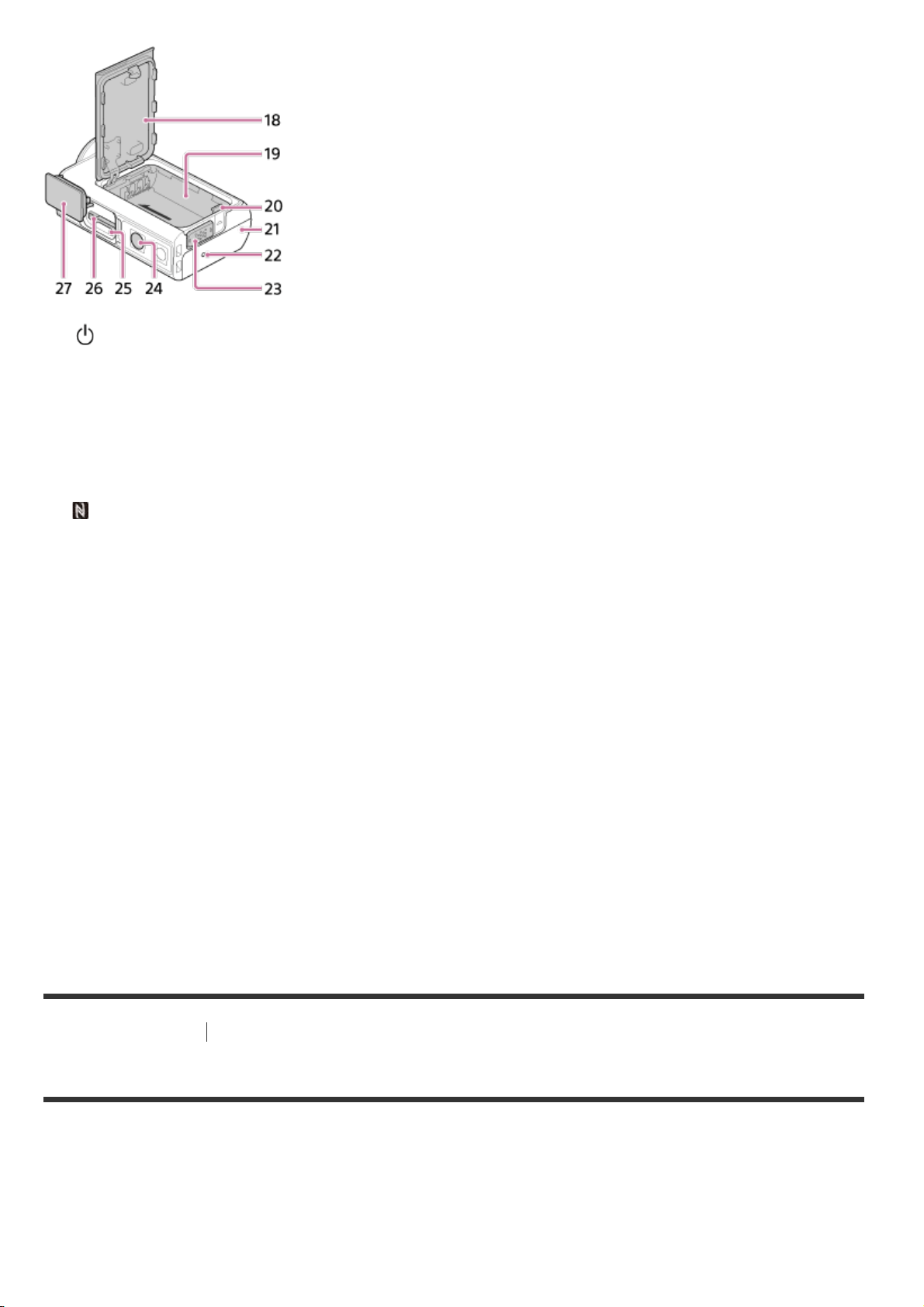
[2] Read This First
Identifying the parts
Identifying the parts (HDR-AS50)
(on/standby) button
1.
GPS sensor
2.
IR remote receiver (FDR-X3000)
3.
MENU button
4.
Display panel
5.
UP button/DOWN button
6.
REC lamp
7.
REC (Movie/still image) button/ENTER (Menu execute) button
8.
REC/LIVE lamp
9.
(N Mark)
10
.
Lens
11
.
Speaker
12
.
Microphones
13
.
HDMI OUT jack
14
.
Multi/Micro USB terminal
15
.
Mic jack
*1
16
.
CHG (Charge) lamp
17
.
Battery cover
18
.
Battery housing
19
.
Battery ejection lever
20
.
Connector cover (HDMI OUT jack, Multi/Micro USB Terminal/Mic jack)
21
.
REC lamp
22
.
Lock lever
23
.
Screw hole for tripod
*2
24
.
Access lamp
25
.
Memory card insertion slot
26
.
Memory card cover
27
.
When an external microphone (sold separately) is connected, audio cannot be recorded through the built-in microphone.
*1
The length of the corresponding tripod screw should be less than 5.5 mm (7/32 in.).
*2
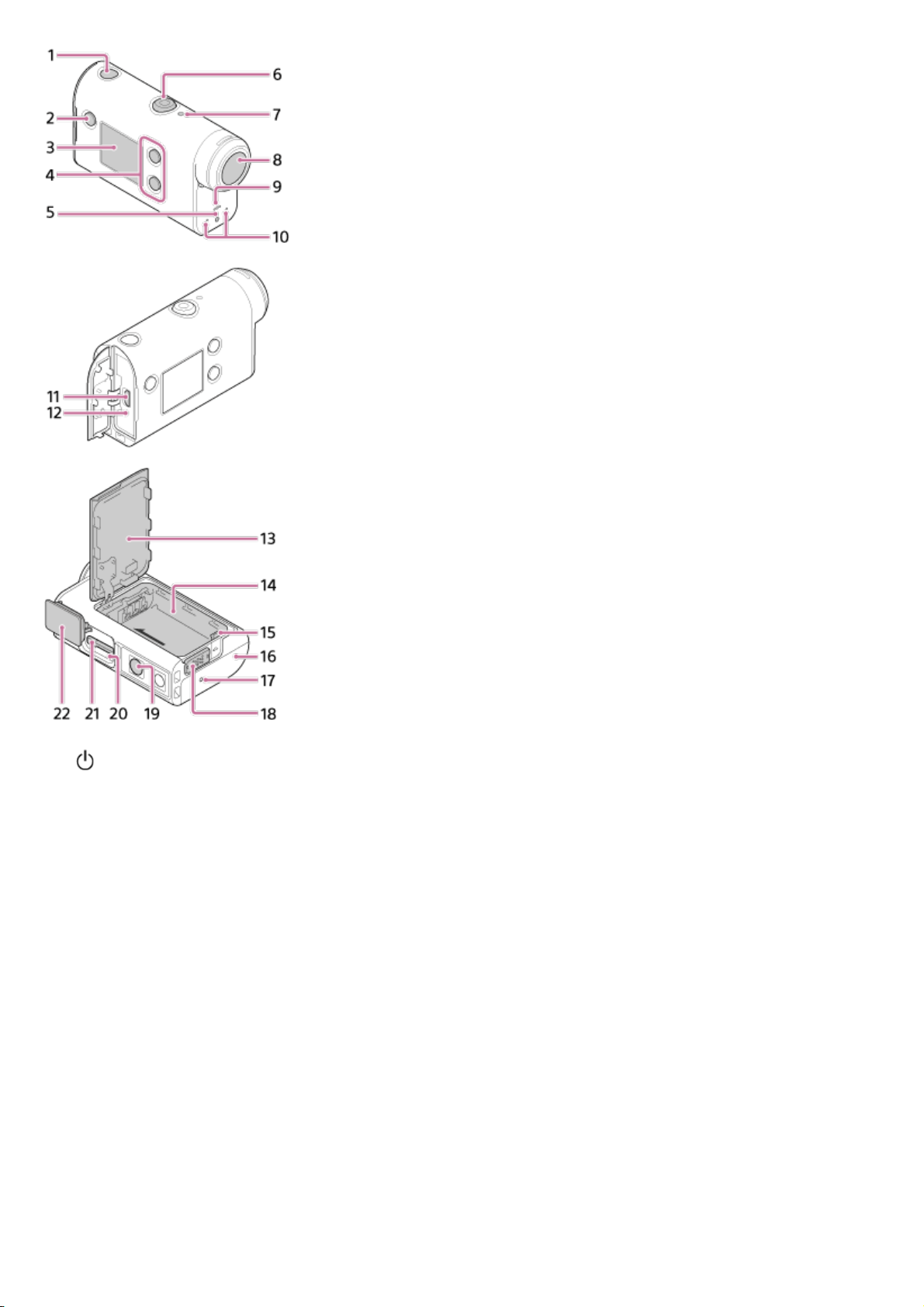
(on/standby) button
1.
MENU button
2.
Display panel
3.
UP button/DOWN button
4.
REC lamp
5.
REC (Movie/still image) button/ENTER (Menu execute) button
6.
REC/LIVE lamp
7.
Lens
8.
Speaker
9.
Microphones
10
.
Multi/Micro USB terminal
11
.
CHG (Charge) lamp
12
.
Battery cover
13
.
Battery housing
14
.
Battery ejection lever
15
.
Connector cover (Multi/Micro USB terminal)
16
.
REC lamp
17
.
Lock lever
18
.
Screw hole for tripod
*
19
.
Access lamp
20
.
Memory card insertion slot
21
.
Memory card cover
22
.
The length of the corresponding tripod screw should be less than 5.5 mm (7/32 in.).
*
[3] Read This First
Screen display
The indicators described below are displayed on the camera. This screen display is an example of
when shooting movies.
Display icons at 1
: Wi-Fi connection setting (single connection)
: Wi-Fi connection setting (multi connection)
: Bluetooth is connected
: Searching for GPS satellites to receive GPS signals. Location information cannot be received.
(FDR-X3000/HDR-AS300)
: Recording location information available by triangulating (FDR-X3000/HDR-AS300)
: Temperature of the camera is increased
: Battery level indicator of camera
: Airplane mode enabled
Display icons and value at 2
: Movie format
: Frame rate during movie shooting
: SteadyShot
: Time-lapse shot number
: Streaming viewers
Numbers of streaming viewers
: Still image mode
: Self-timer
Display items at 3
: Audio recording is set to OFF
Recordable time, recording time, loop recording time
Number of recordable still images, time-lapse shot number
ON AIR: Streaming start
Warning/Error message
Display icons at 4
: Movie mode
: Photo mode
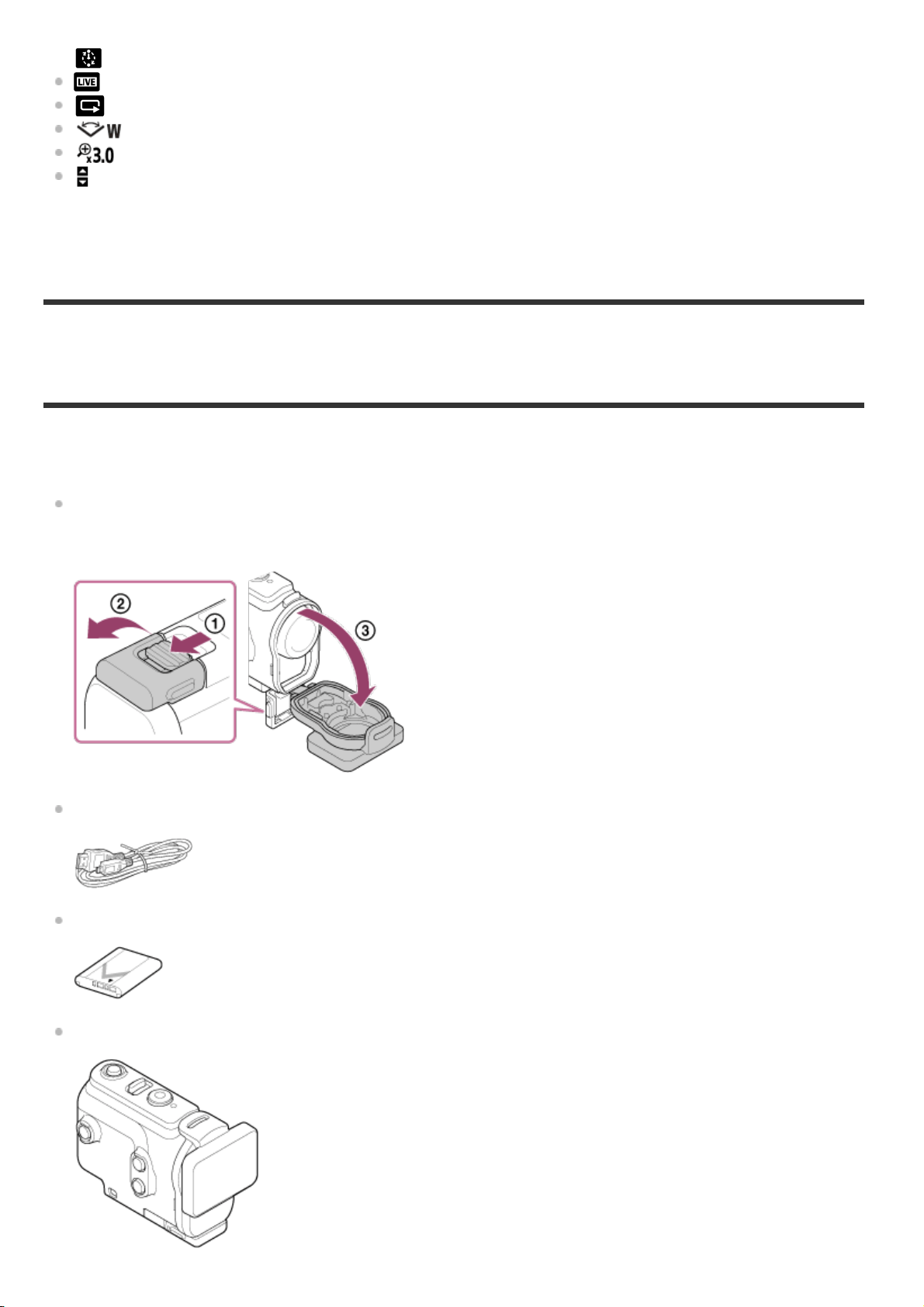
: Time-lapse capture mode
: Live streaming mode
: Loop recording mode
: Angle setting
: Zoom ratio
: UP button/DOWN button operation guide (zoom switching, shooting mode switching, invalid
operation)
[4] Getting Started
Checking the bundled items
Make sure that you have following bundled items.
The number in parentheses indicates the quantity of that item bundled.
Camera (1)
The camera is set in the Underwater Housing. Open the cover of the case as illustrated below.
Micro USB cable (1)
Rechargeable battery pack (NP-BX1) (1)
Underwater Housing (1)
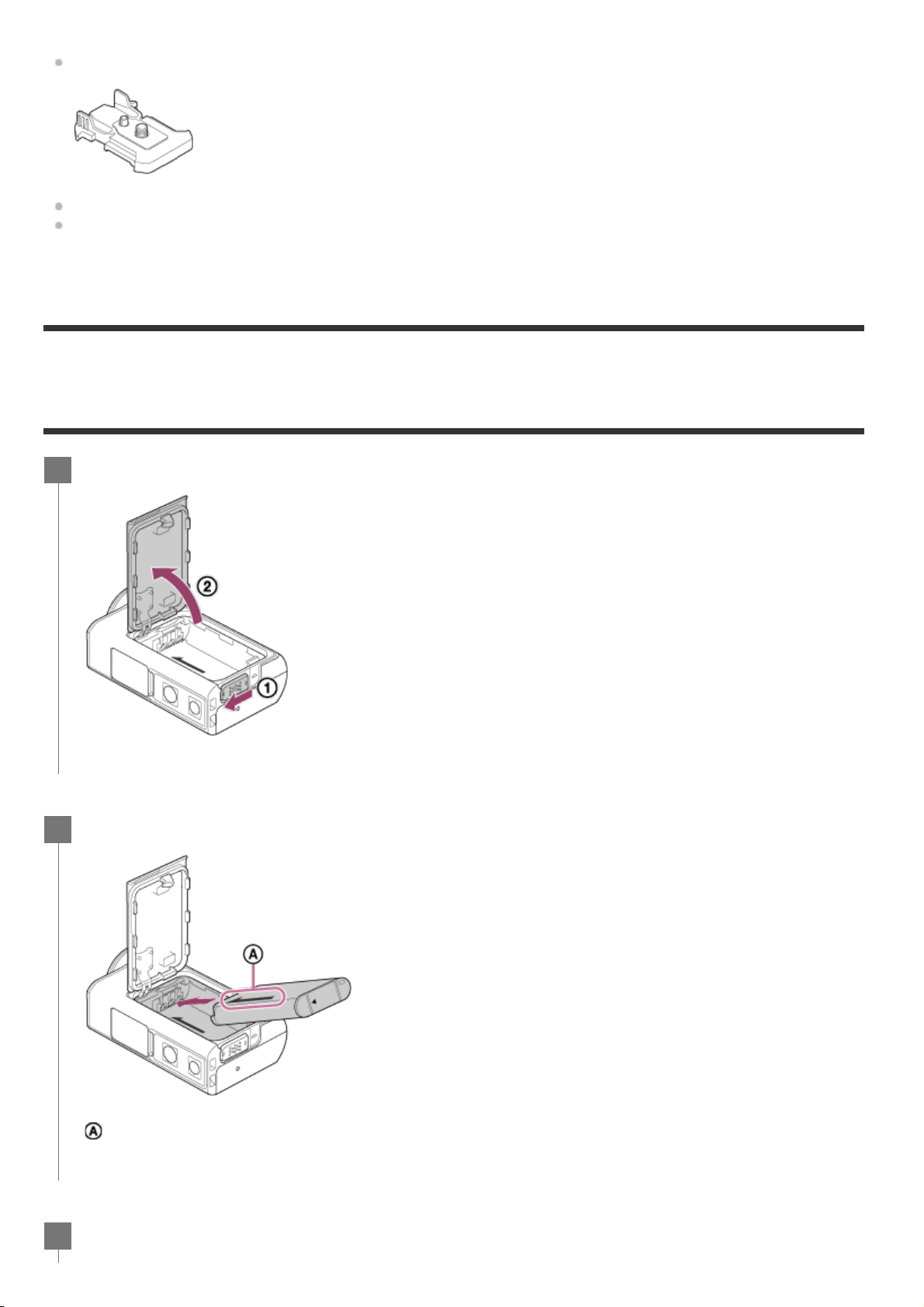
Attachment Buckle (1)
Startup Guide (1)
Reference Guide (1)
[5] Getting Started
Inserting the battery pack
Slide down the lock lever to open the battery cover.
1
Insert the battery pack.
:Align the direction of the arrow on the camera and the battery pack.
2
Close the battery cover and slide the lock lever up to lock.
3
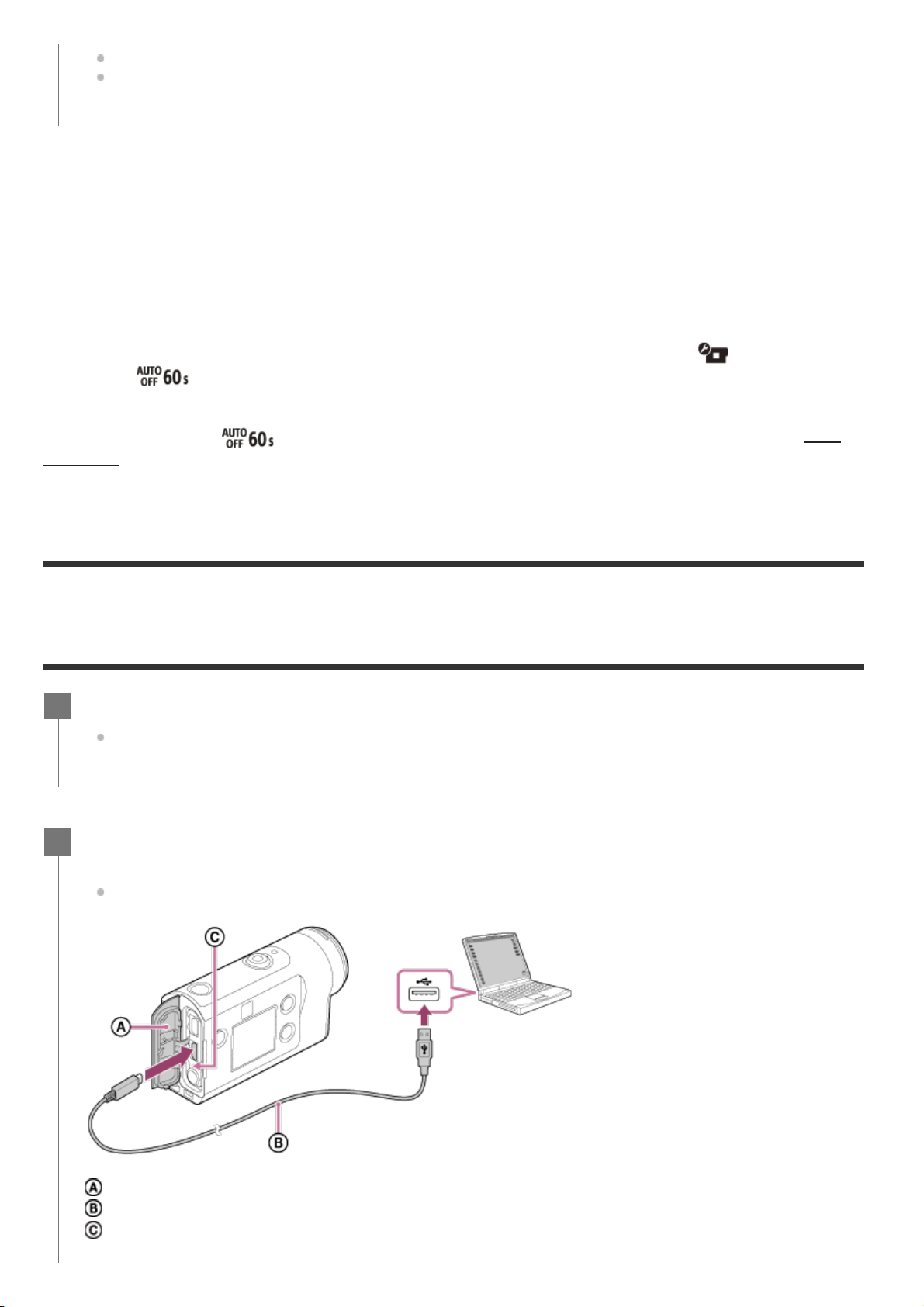
To remove the battery pack
Open the cover and slide the battery ejection lever, then remove the battery pack.
To set auto power off function
It is recommended that you set the camera to turn off automatically, in order to decrease the battery
consumption.
Press the
MENU button, then press the UP button or DOWN button to select the (Camera
Settings) -
(Auto power off) - time until the power is turned off, then press the REC/ENTER
button.
The default setting is
(60 seconds). Change the setting as necessary. For details, see “Auto
power off
”.
[6] Getting Started
Charging the battery pack
Confirm that the yellow mark on the lock lever is not visible.
Close the battery cover securely. Not doing so may cause a water leakage.
Turn off the power of the camera.
Charging is not possible when the camera is turned on.
1
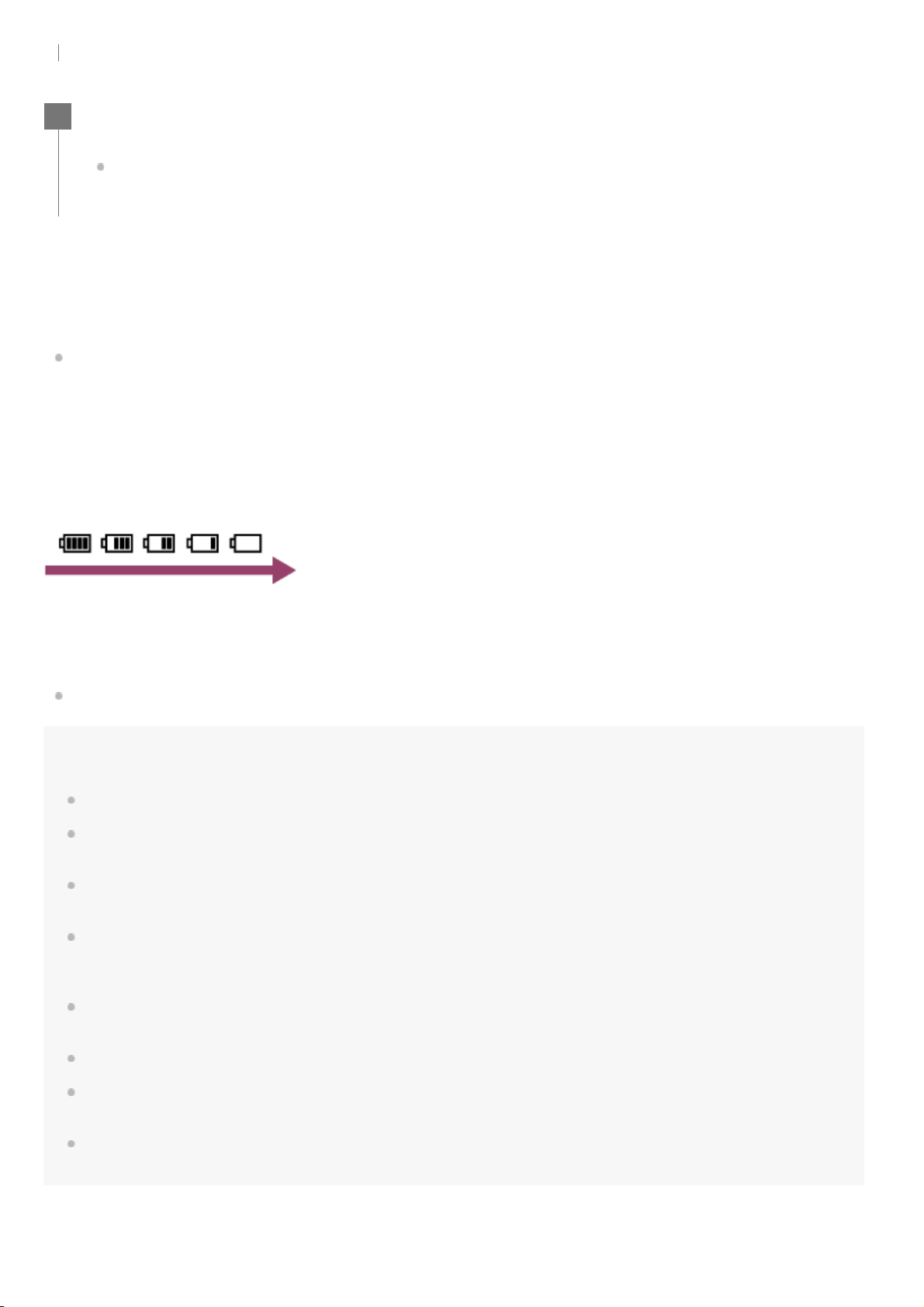
Open the connector cover, connect the camera to an activated computer with the
micro USB cable (supplied).
The CHG (Charge) lamp lights in amber.
: Connector cover
: Micro USB cable
: CHG (Charge) lamp
2
The time takes for charging
Supplied battery pack (NP-BX1)
Via a computer: Approx. 265 minutes
Checking the remaining battery charge
A remaining charge indicator appears on the upper right of the display panel.
The displayed remaining charge indicator may not be correct under certain circumstances.
It takes about one minute until the correct remaining charge indicator appears.
Note
You can use only type X battery with this camera.
Turn off the camera while charging the battery. The charging stops when you turn on the camera while
charging.
Do not apply force to the camera when you connect the camera to a computer. This may cause damage to
the camera or the computer.
When you connect the camera to a notebook computer that is not connected to an AC power source, the
battery of the notebook computer may be depleted rapidly. Do not leave the camera connected to the
computer for a long time.
Charging the battery pack or the connection with customized or hand-built computers is not guaranteed.
Depending on the type of USB device used, charging may not function properly.
Operation with all computers is not assured.
If you do not intend to use the camera for an extended period, charge the camera once every 6 to 12
months or remove the battery pack from the camera to maintain battery performance.
Rapid charging is possible by using the AC adaptor (sold separately). To connect the AC adaptor, use the
micro USB cable (supplied).
When charging is finished, disconnect the micro USB cable between the camera and
the computer.
Charging is complete when the CHG (Charge) lamp turns off (full charge).
3
Time required to charge a fully depleted battery pack at a temperature of 25°C (77°F). Charging may take longer under
certain circumstances or conditions.
*
[7] Getting Started
Inserting a memory card
Inserting a memory card
To eject the memory card
Open the cover, then lightly push the memory card once.
Note
Insert the memory card properly, confirming each side is facing the correct direction.
Confirm the direction of the memory card. If you forcibly insert the memory card in the wrong direction, the
memory card, memory card slot, or image data may be damaged.
Format the memory card in the camera before use.
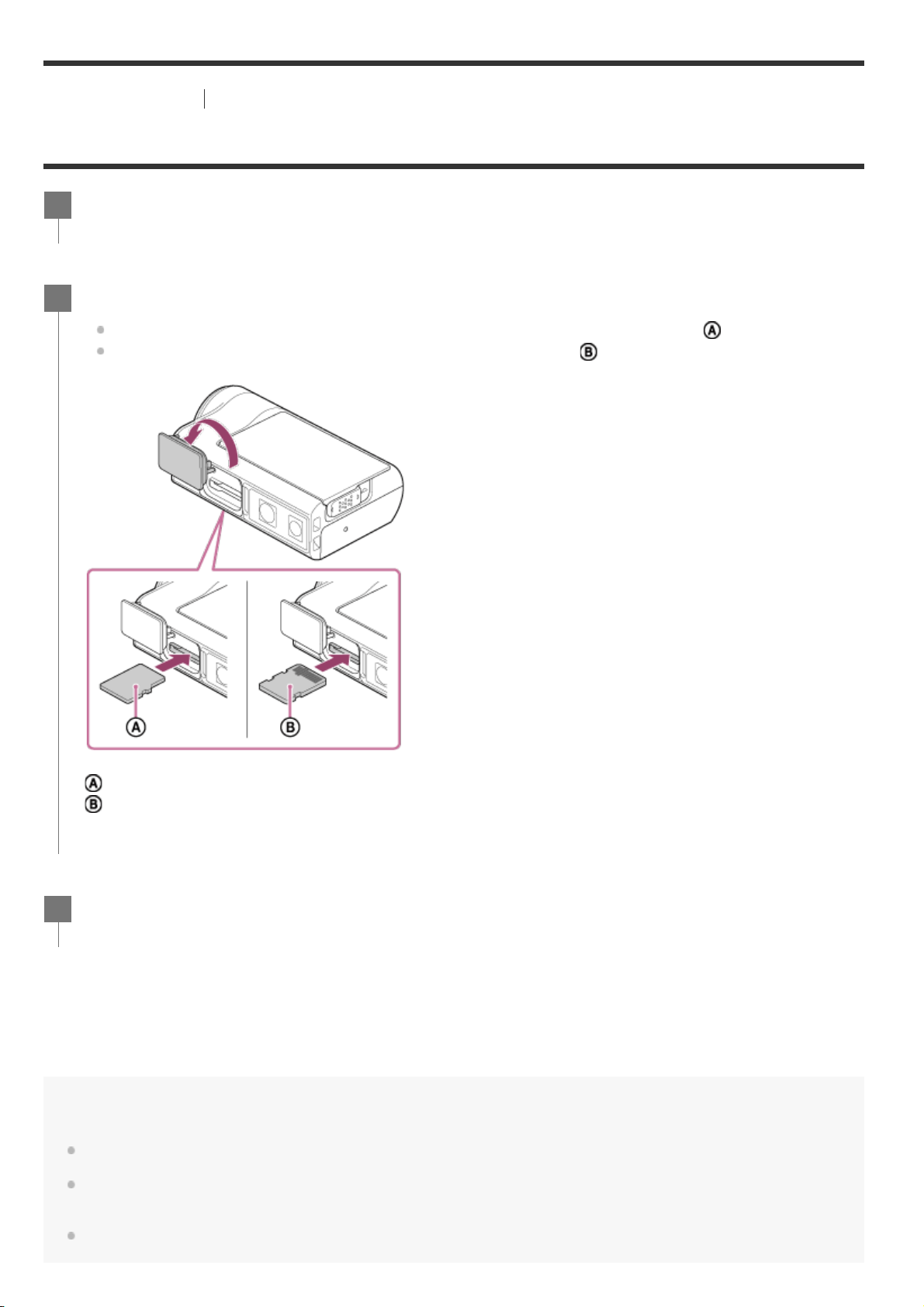
Open the memory card cover.
1
Insert the memory card until it clicks.
microSD card/microSDHC card/microSDXC card: Insert in the direction of
.
Memory Stick Micro (M2) media: Insert in the direction of
.
: Printed side
: Terminal side
2
Close the memory card cover.
3
Save important data on the memory card on other media such as a computer, before formatting the memory
card.
Do not insert anything other than the compliant size of memory card into the memory card slot. Otherwise,
a malfunction may result.
When inserting or ejecting the memory card, be careful to prevent the memory card from popping out and
dropping.
[8] Getting Started
Inserting a memory card
The memory cards that can be used with the camera
The memory cards that can be used with the camera are listed below.
Note
When you shoot long time with XAVC S or MP4 to the SDHC memory card, the file will be divided into 4 GB
files. By using the Action Cam Movie Creator, you can unify the data and treat as 1 file.
To playback the divided files with the camera, it will be played back continuously. (FDR-X3000/HDR-AS300)
Operation with all memory cards is not assured. For details about memory cards other than cards
manufactured by Sony, contact the individual makers.
Confirm the direction of the memory card. If you forcibly insert the memory card in the wrong direction, the
memory card, memory card slot, or image data maybe damaged.
Format the memory card with the camera before use.
Confirm that the connector cover and the battery pack/memory card cover are securely closed and any
foreign matter is not stuck in the cover before use. Otherwise, it may result in water immersion.
Memory card MP4 XAVC S
Memory stick micro (M2)
(Mark2 only)
—
microSD memory card
*1
—
microSDHC memory card
*1 *2
microSDXC memory card
*1 *2
SD speed class4:
or faster, or UHS speed class1: or faster.
*1
Memory card that satisfies all the conditions below.
4 GB or more capacity.
SD speed class10:
or faster, or UHS speed class1 : or faster.
If you want to record more than 100 Mbps, UHS speed class 3:
is necessary. (FDR-X3000)
*2
[9] Getting Started
Setting the date and time
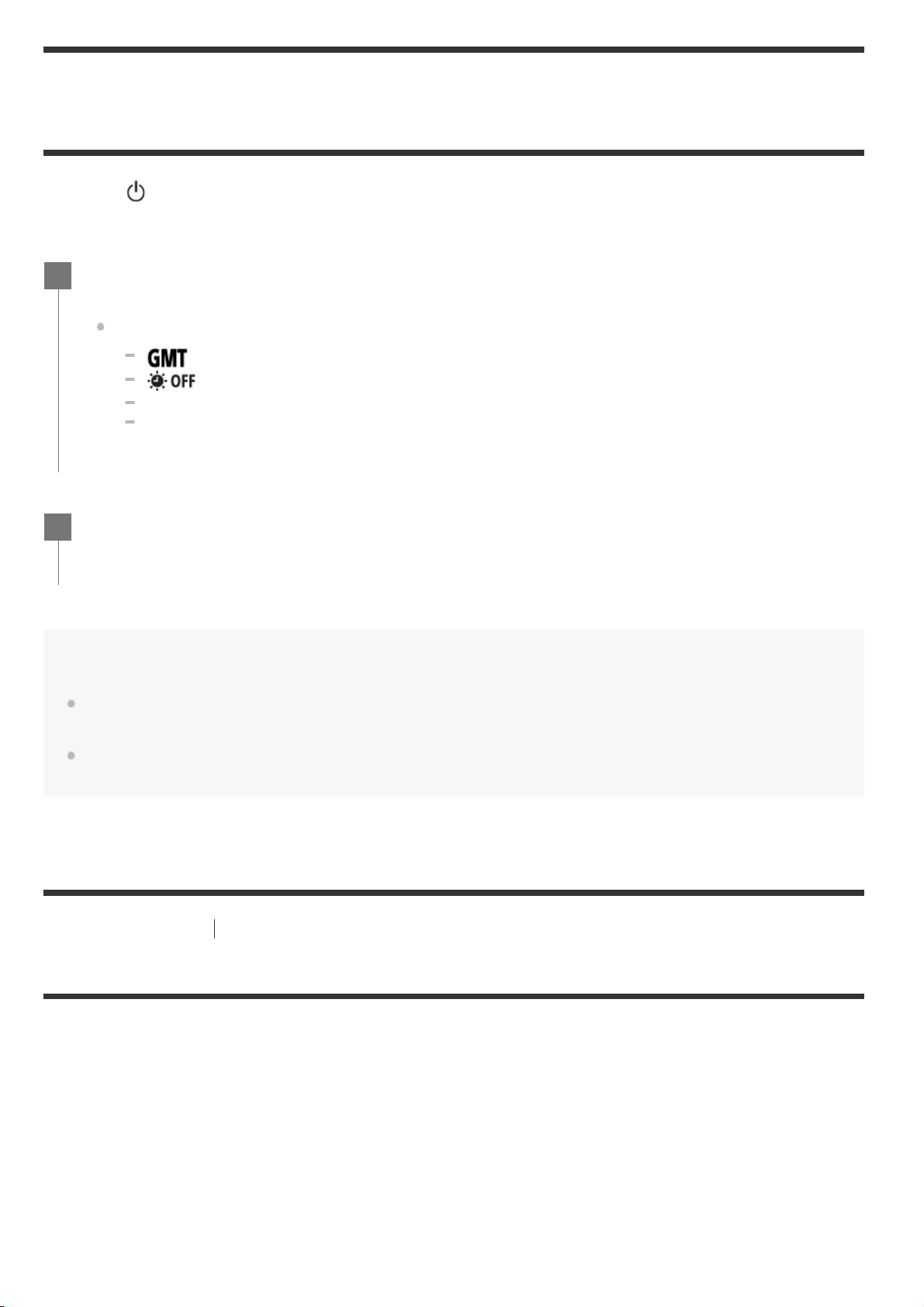
Press the
(on/standby) button to turn on the camera for the first time, the setting for
area/summer time/date and time will be displayed on the screen. Use the camera after setting the
date and time.
Hint
The area is determined by the time difference in your area and Greenwich Mean Time (GMT). For the time
difference, see “The list of time differences for world capitals”.
These settings can be performed on the camera settings. See “Date & time setting”, “Area setting” and
“Daylight saving time (summer time) setting”.
[10] Getting Started
Using the Underwater Housing
Identifying the parts (Underwater Housing)
Press the UP button or DOWN button to select the setting, then press the
REC/ENTER button.
The following items are displayed on the screen in order.
: Area setting
: Daylight saving time (summer time) setting
Year/Month/Day
Time setting
1
When the date and time/area confirmation screen is displayed, press the REC/ENTER
button.
2
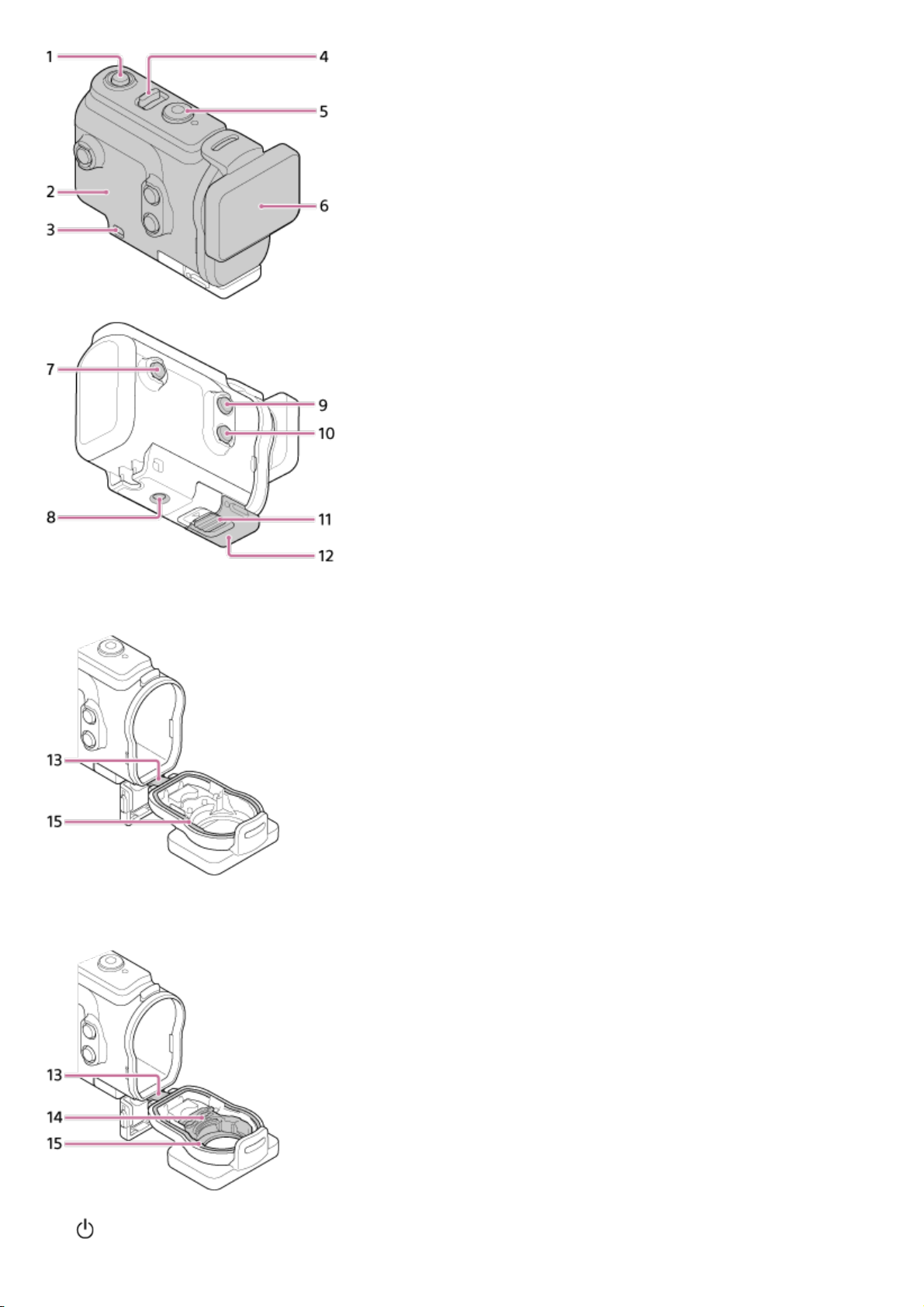
FDR-X3000/HDR-AS300
HDR-AS50
(on/standby) button
1.
Case body
2.
[11] Getting Started
Using the Underwater Housing
Using the Underwater Housing
By inserting the camera in the Underwater Housing, you can shoot images underwater up to a depth
of 60 m (197 feet) for 30 minutes continuously.
Leash attachment hole
3.
(on/standby)/REC HOLD switch
4.
REC (movie/still image) button/ENTER (menu execute) button
5.
Case cover
6.
MENU button
7.
Tripod screw hole
8.
UP button
9.
DOWN button
10
.
Buckle lock
11
.
Buckle
12
.
Lead
13
.
Adaptor (HDR-AS50)
14
.
Waterproof packing
15
.
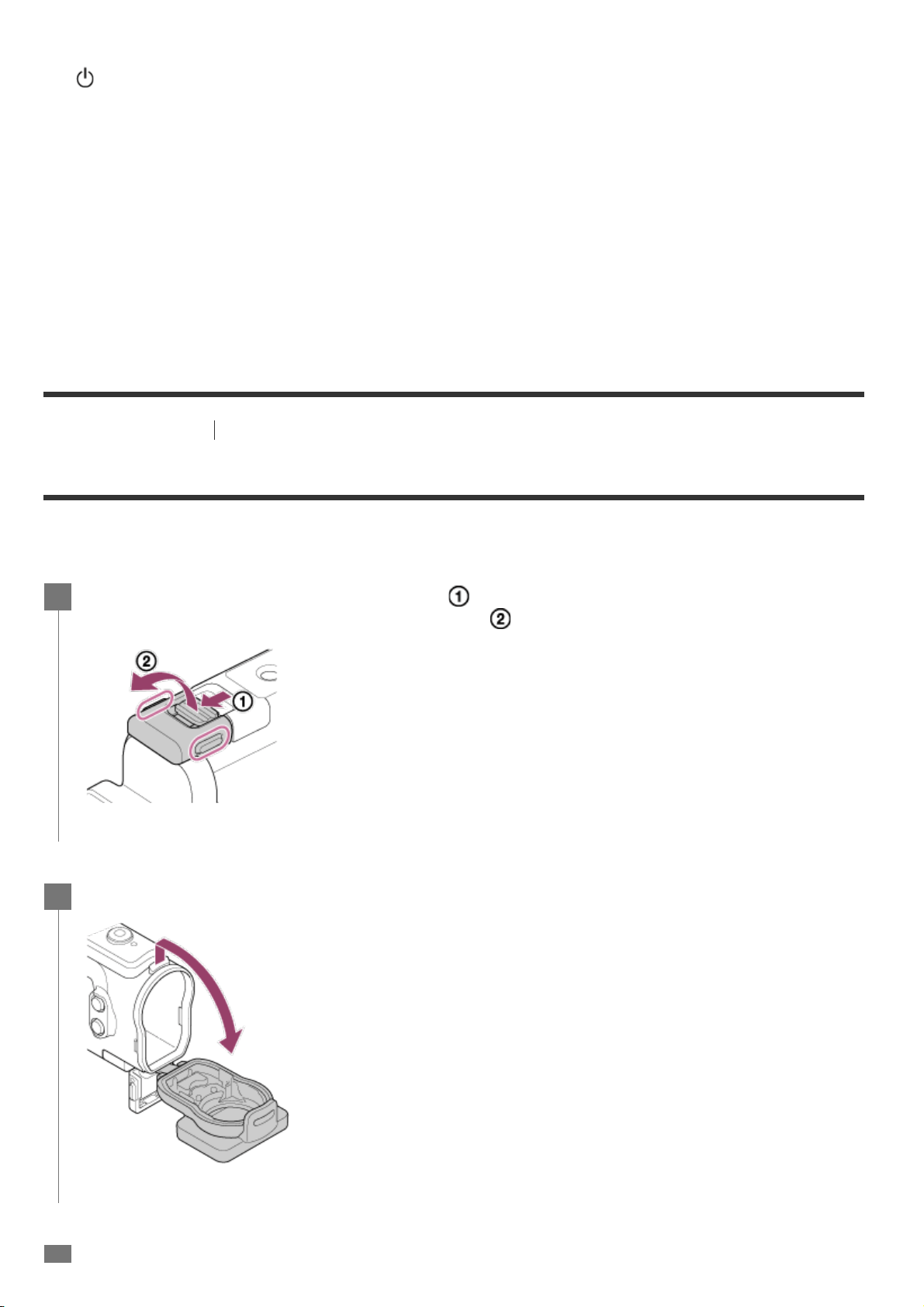
Slide the buckle lock in the direction of and hold it, then hold the circled parts
and swing out the buckle in the direction of
.
1
Open the case cover.
2
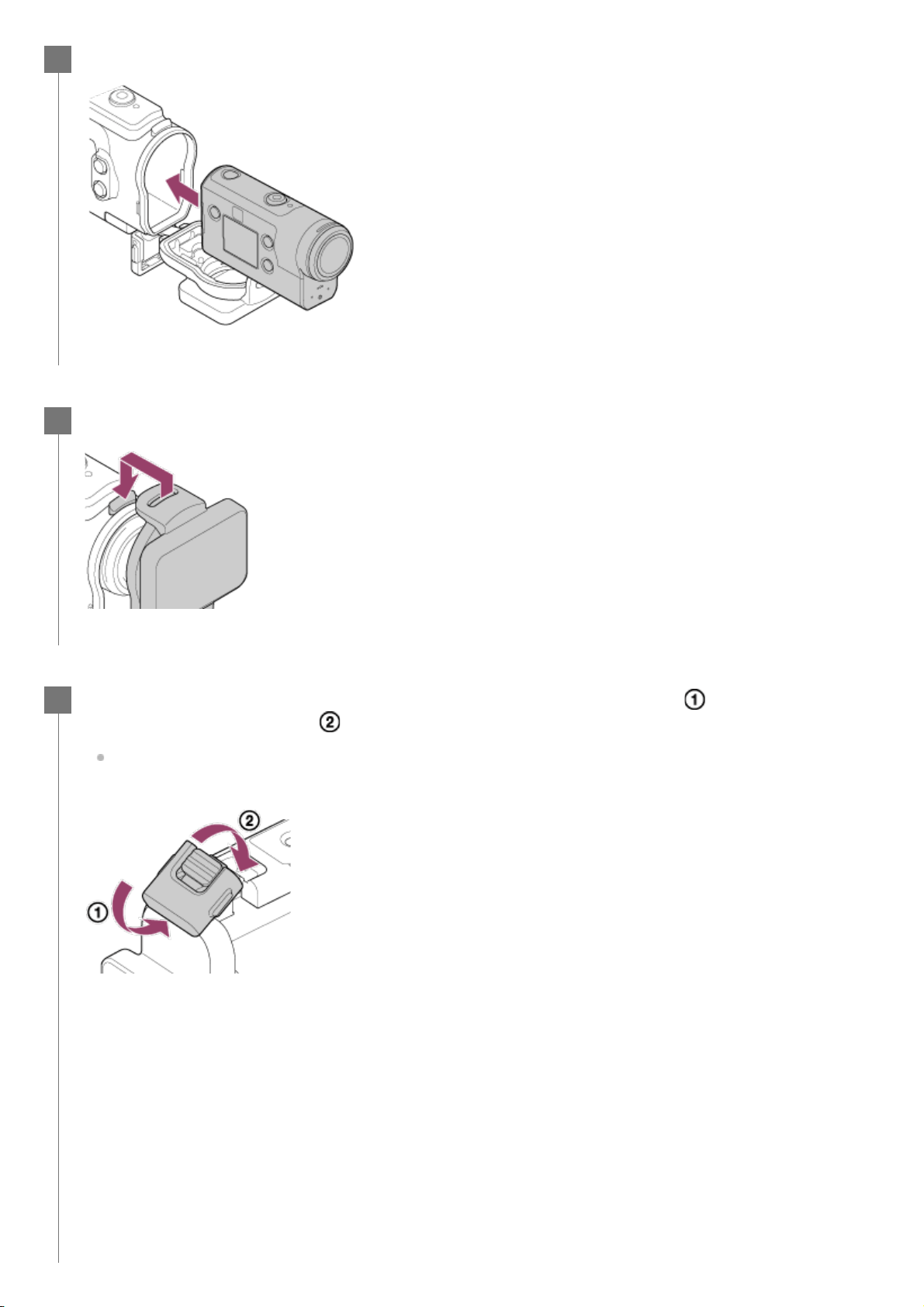
Insert the camera in the case body.
3
Insert the tab of the case body into the slot of the case cover.
4
Hook the buckle over the tab on the lower part of the case cover , then close the
buckle in the direction of
.
Make sure the buckle and buckle lock are firmly locked. (If you do not lock it securely, water
may leak, or the camera may fall out.)
5
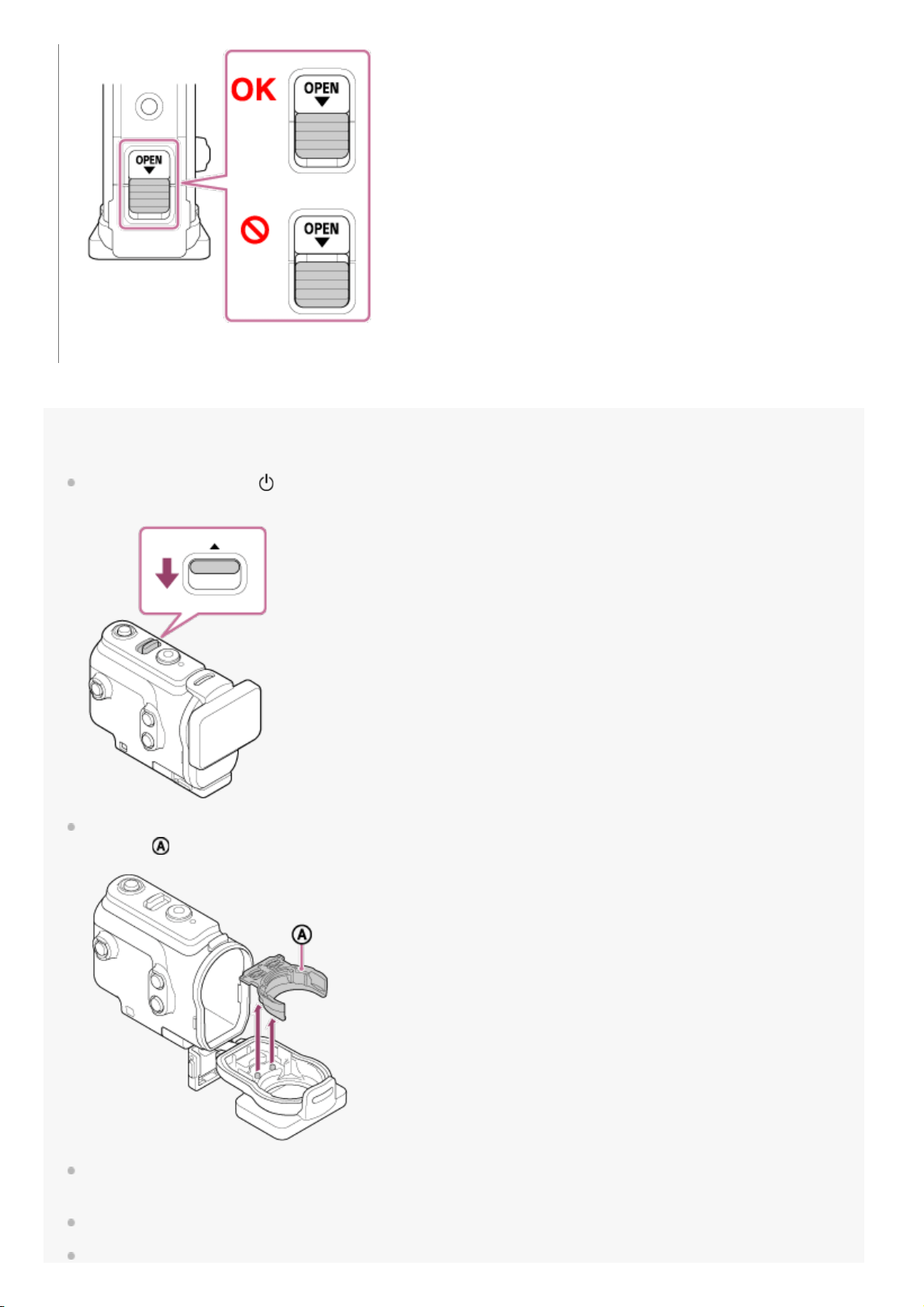
Note
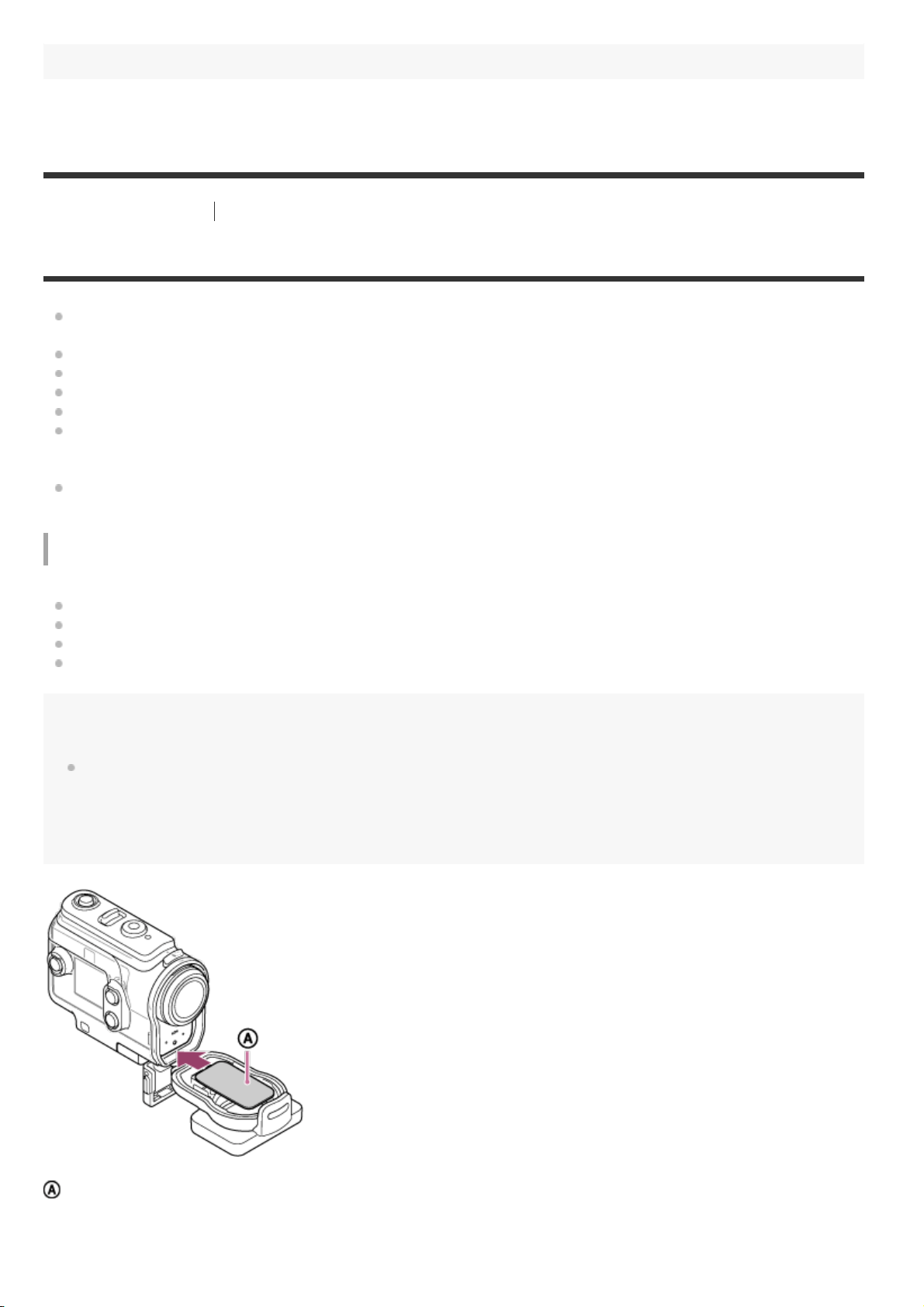
You cannot operate the (on/standby) button and REC/ENTER button when the REC HOLD switch is set to
the lock position. Release the lock in the direction of the arrow below, before operation.
When using FDR-X3000/HDR-AS300 with the Underwater Housing supplied with HDR-AS50, detach the
adaptor (
) from the Underwater Housing.
When using HDR-AS50, be sure that the adaptor is attached to the Underwater Housing. If the adaptor is
not attached, the images that you shoot may be affected.
You can record audio while the camera is in the Underwater Housing, but the sound level is reduced.
Thread a suitable cord through the leash attachment hole of the Underwater Housing, then attach the cord
to an item you intend to use with the camera.
[12] Getting Started
Using the Underwater Housing
On waterproof performance of the Underwater Housing
When the camera is inserted in the supplied Underwater Housing, the camera can shoot up to a
water depth of 60 m (197 feet) for 30 minutes continuously.
The waterproof performance is based on the testing standards of our company.
Do not subject the Underwater Housing to pressurized water, such as from a tap.
Do not use the Underwater Housing in hot springs.
Use the Underwater Housing in water that is less than 40°C (194°F).
Sometimes waterproof performance is lost if the Underwater Housing is subjected to a strong
shock such as from being dropped. We recommend the Underwater Housing be inspected at an
authorized repair shop (chargeable).
Waterproof performance in all situations is not guaranteed.
Anti-fog sheet (AKA-AF1 (sold separately))
Insert the anti-fog sheet indoors with low humidity.
Insert the anti-fog sheet in the camera a couple of hours before shooting.
If you do not use the anti-fog sheet, place it in a bag and keep the top sealed.
By drying the anti-fog sheet sufficiently, you can use it approximately 200 times repeatedly.
Note
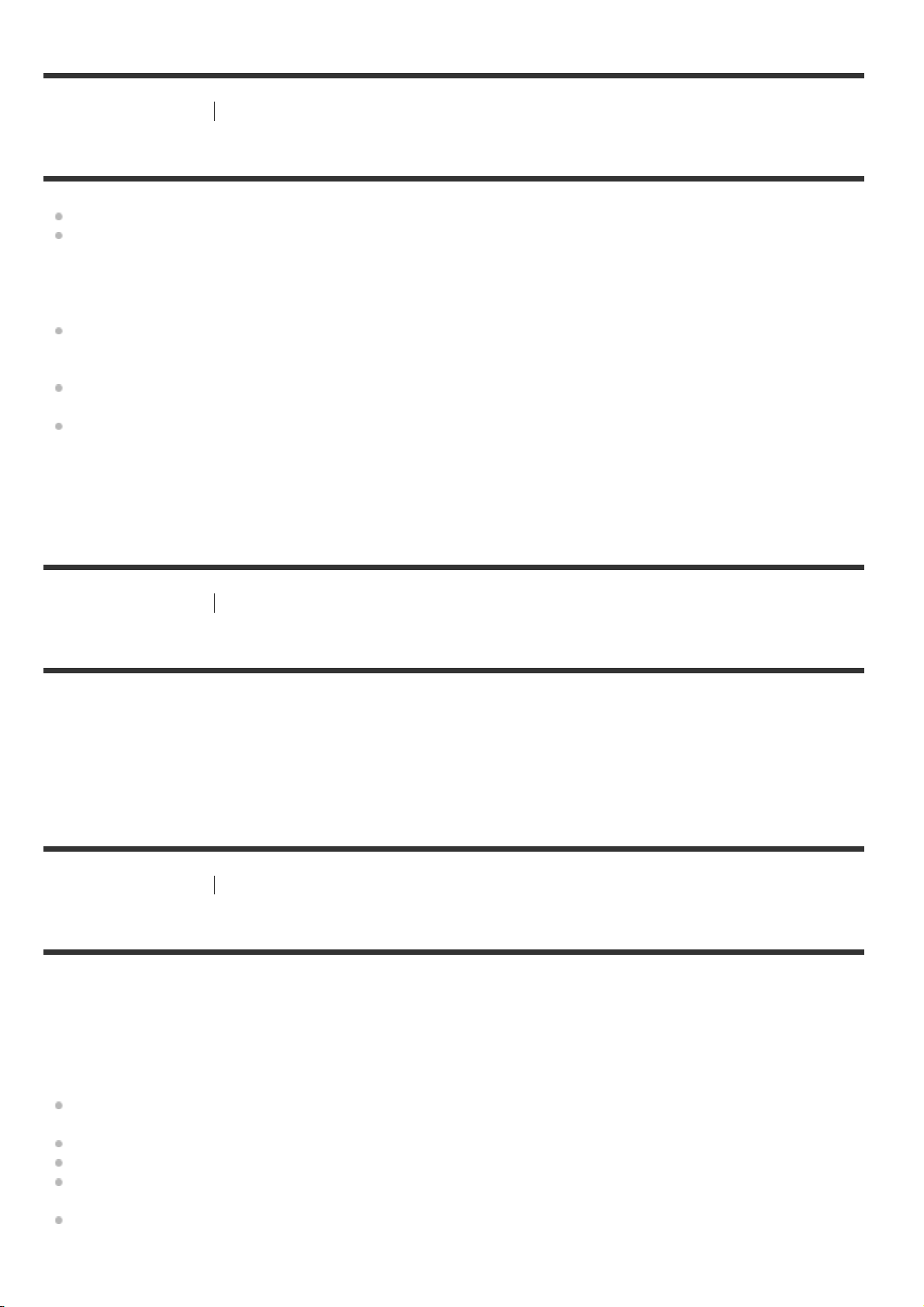
When inserting the anti-fog sheet (AKA-AF1), place the camera into the Underwater Housing, then place the
anti-fog sheet in the gap on the bottom of the camera and the Underwater Housing.
If you place the anti-fog sheet before placing the camera, the anti-fog sheet may be sandwiched and make
it difficult to take out the camera.
: Anti-fog sheet
[13] Getting Started
Using the Underwater Housing
Notes on use for the Underwater Housing
Do not throw the Underwater Housing into the water.
Avoid using the Underwater Housing under the following situations. In these situations moisture
condensation or water leakage may occur and damage the camera.
In a very hot or humid place
In water hotter than +40°C (104°F)
At temperatures lower than –10°C (14°F)
Do not leave the Underwater Housing under direct sunlight or in a very hot and humid place for a
long period of time. If you cannot avoid leaving the Underwater Housing under direct sunlight, be
sure to cover the Underwater Housing with a towel or other protection.
When the camera overheats, it may be automatically turned off or recording may malfunction. To
use the camera again, leave it in the cool place for a while to cool down.
If sun oil is on the Underwater Housing, be sure to wash it off thoroughly using lukewarm water.
If the Underwater Housing is left with sun oil on its body, the surface of the Underwater Housing
may become discolored or damaged (such as cracks on the surface).
[14] Getting Started
Using the Underwater Housing
Water leakage
In the unlikely event that a malfunction of the Underwater Housing causes damage due to water
leakage, Sony does not guarantee against damages to the equipment contained in it (camera, battery
pack, etc.) and the recorded contents, nor expenses entailed in the photography.
[15] Getting Started
Using the Underwater Housing
Waterproof packing
The camera uses an waterproof packing to maintain its water resistance. The waterproof packing
maintenance is very important. Failure to do waterproof packing maintenance according to the
instructions may lead to water leaks and cause the camera to sink.
Inspecting the waterproof packing
Carefully check that there is any dirt, sand, hair, dust, salt, threads, etc., on the waterproof
packing. If found, be sure to wipe off with a soft cloth.
Lightly run your fingertip around the waterproof packing to check for any invisible dirt.
Be careful not to leave any cloth fibers on the waterproof packing after wiping it.
Check the waterproof packing for cracks, skewing, distortion, fine splitting, scratches, embedded
sand, etc.
Inspect the waterproof packing contact surface on the case body in the same way.
[16] Getting Started
Using the Underwater Housing
How to check for water leaks
Before installing the camera, always close the Underwater Housing and immerse it in water to make
sure no water leaks in.
When finding a malfunction of Underwater Housing
If a malfunction is found by inspection of the waterproof packing or check for water leaks, stop using
the camera immediately and take it to the nearest Sony dealer.
[17] Getting Started
Using the Underwater Housing
Maintenance
After recording in a location with a sea breeze, wash the camera thoroughly in fresh water with
the buckle fastened to remove salt and sand, then wipe with a soft dry cloth. It is recommended
that you submerge the Underwater Housing in fresh water for about 30 minutes. If it is left with
salt on it, metal portions may be damaged or rust may form and cause water leakage.
If sun oil is on the Underwater Housing, be sure to wash it off thoroughly using lukewarm water.
Wipe the inside of the Underwater Housing with a soft dry cloth. Do not wash it with water.
Be sure to perform the above maintenance each time you use the Underwater Housing. Do not use
any type of solvent such as alcohol, benzine or thinner for cleaning, as this might damage the surface
finish of the Underwater Housing.
When storing the Underwater Housing
To prevent deterioration of the waterproof packing, store the Underwater Housing in a cool, well-
ventilated location. Do not fasten the buckle.
Prevent dust from collecting on the waterproof packing.
Avoid storing the Underwater Housing in a cold, very hot or humid place, or together with
naphthalene or camphor, as these conditions might damage the Underwater Housing.
[18] Getting Started
Using accessories
Using the attachment buckle
The attachment buckle is used for fixing the camera or Underwater Housing to an optional accessory
you intend to use.
The procedure for fixing the attachment buckle to the Underwater Housing is explained here.
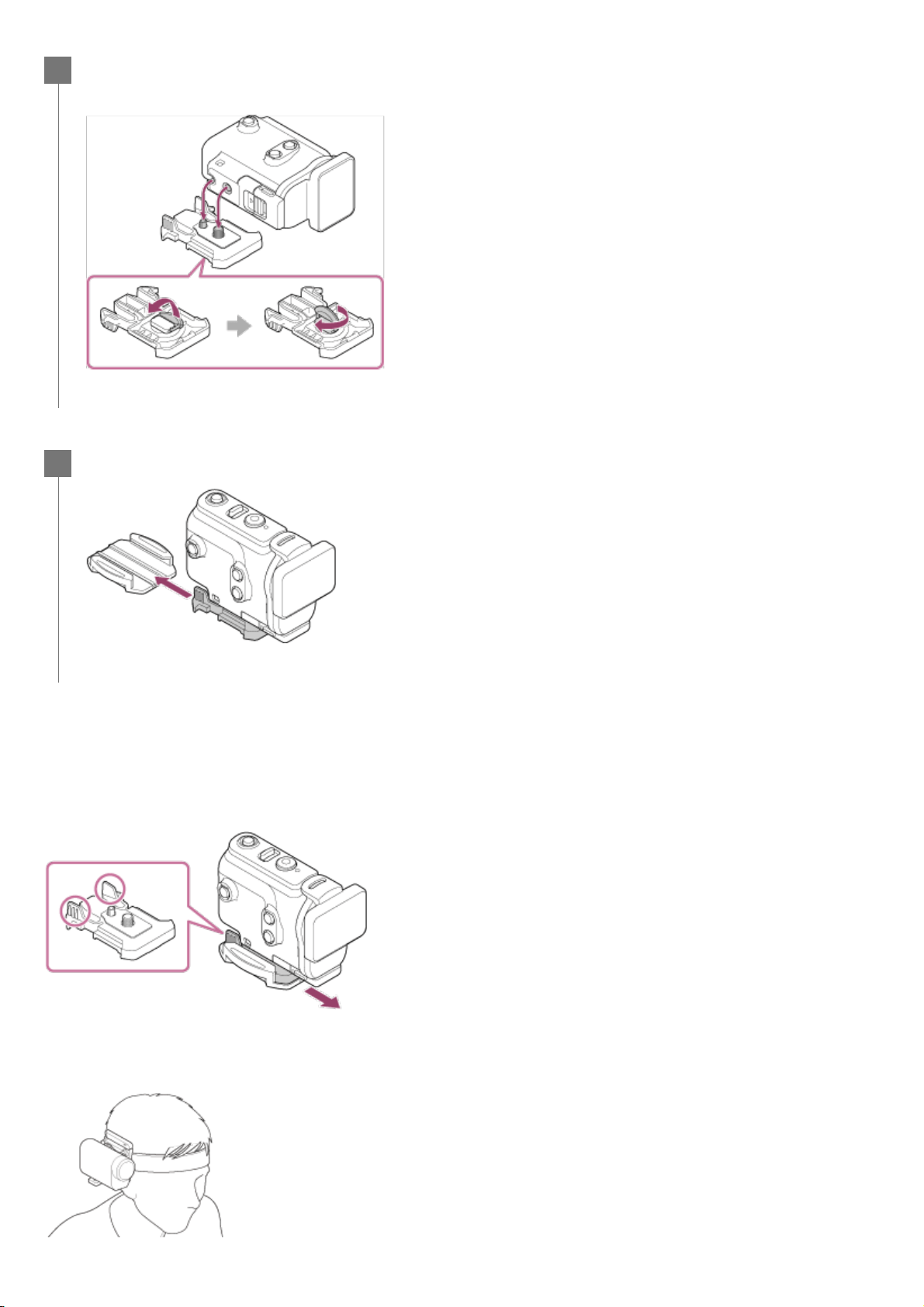
To detach the attachment buckle from the accessory
Press and hold the circled parts of the attachment buckle to unlock, then slide it in the opposite
direction of step 2.
Example of optional accessory attachment
Align the tripod screw hole in the bottom of the Underwater Housing with the tripod
screw of the attachment buckle, and fix firmly with the tripod screw.
1
Attach the attachment buckle to the accessory by sliding it until it clicks into place.
2
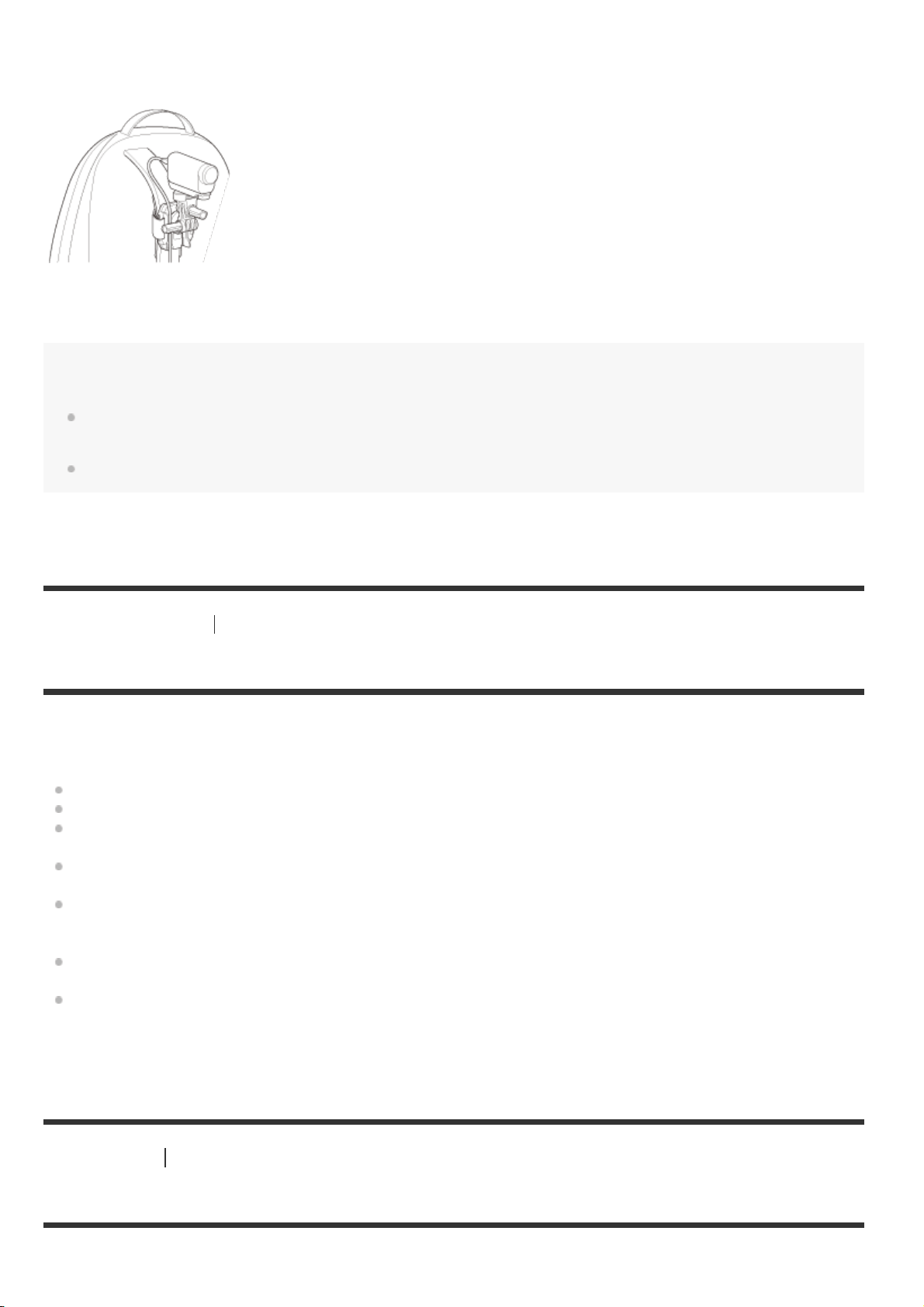
Universal head mount kit
BLT-UHM1
Backpack Mount
VCT-BPM1
Note
Thread a suitable leash through the leash attachment hole of the Underwater Housing, then attach the leash
to an item you intend to use with the camera.
Before use, confirm that the screw on the attachment buckle is not loose.
[19] Getting Started
Using accessories
Notes on using the adhesive mount (sold separately)
The adhesive mount is used for fixing the camera to an item you intend to use. The adhesive mount
is general term for the attachment buckle, flat adhesive mount, and curved adhesive mount.
Press firmly on the adhesive portion.
The adhesive strength is greatest 24 hours after the item has been attached.
The flat adhesive mount and curved adhesive mount cannot be used again once they are
detached from the location surface.
When detaching, peel off slowly. If peeled off forcibly, the surface on which the mount is fixed
might be damaged.
Before attaching, check the surface of the item to be used. If it is dirty, or dust, moisture or oily
substances are attached, adhesive strength may be impaired and the item could detach with slight
impact.
Use the appropriate adhesive mount (flat or curved) for the surface where the camera will be
located. If the mount is not suitable for the surface, it may detach by slight impact.
Before use, confirm that the screw hole on the attachment buckle is not loose, and the flat or
curved adhesive mount is securely attached to the surface.
[20] Shooting
Shooting movies and still images
Shooting movies (Movie mode)
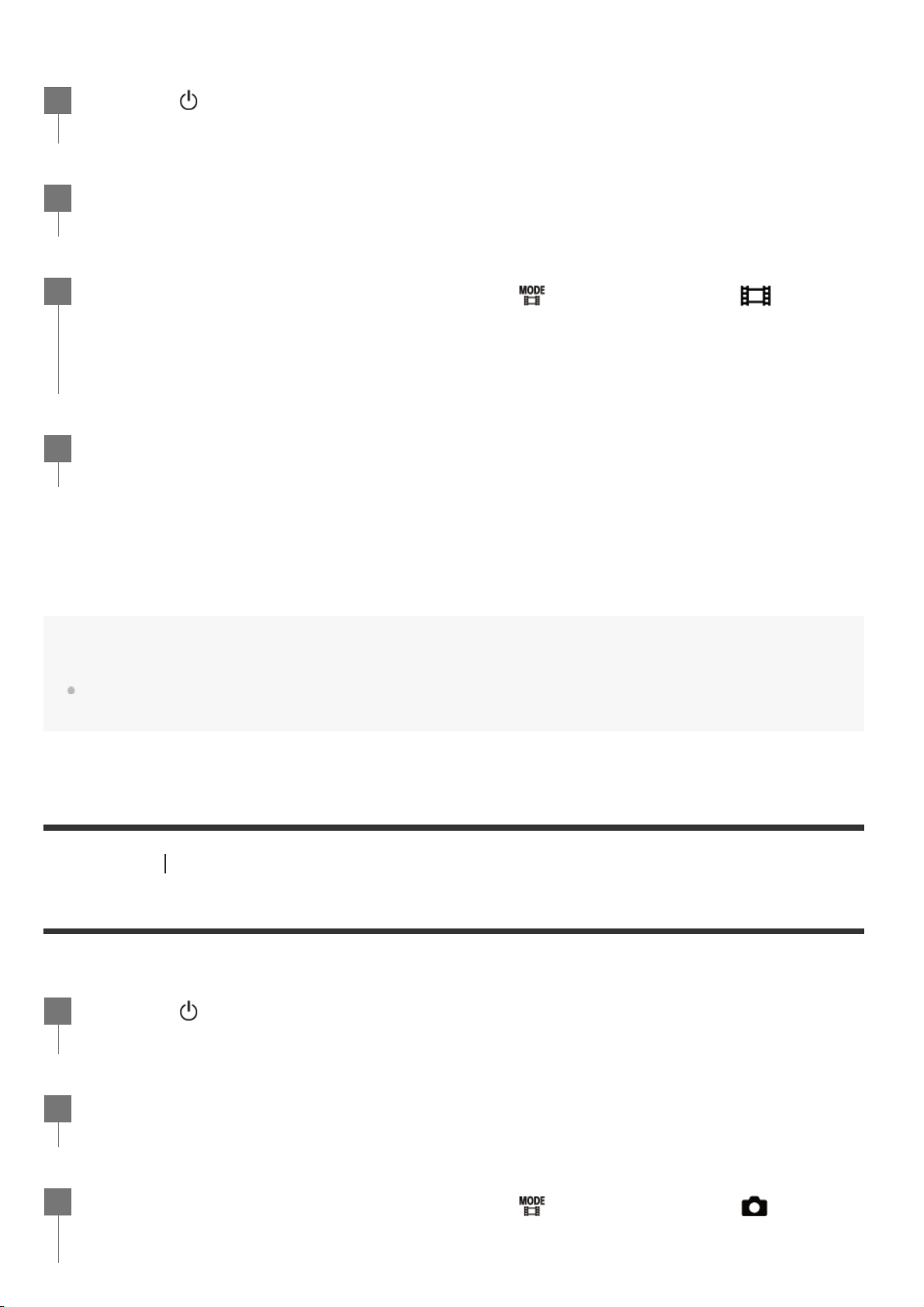
Record movies.
To stop shooting
Press the
REC/ENTER button during shooting.
Hint
While the one touch recording is set to ON, if you press the REC/ENTER button when the power is turned
off, shooting starts in the previously selected shooting mode.
[21] Shooting
Shooting movies and still images
Shooting still images (Photo mode)
Record still images.
Press the (on/standby) button to turn on the power.
1
Press the MENU button.
2
Press the UP button or DOWN button to select
*
(shooting mode) - (Movie
mode), then press the REC/ENTER button.
3
The icon of the current selected shooting mode is displayed.
*
Press the REC/ENTER button to start shooting.
4
Press the
(on/standby) button to turn on the power.
1
Press the MENU button.
2
Press the UP button or DOWN button to select
*
(shooting mode) - (Photo
mode), then press the REC/ENTER button.
3
[22] Shooting
Shooting movies and still images
Time-lapse capture mode
The camera records still images at regular intervals and stops shooting when it reaches the set
number.
To stop shooting
Shooting stops when the number set in the “Time-lapse shot number” has finished.
If you select
in the “Time-lapse shot number”, press the REC/ENTER button during
shooting.
Hint
To change the image size, see “Time-lapse capture image size.”
To change the shooting interval, see “Time-lapse shooting interval.”
To change the shot number, see “Time-lapse shot number.”
When the Time-lapse shot number is set to
, the shooting continues until you press REC/ENTER
button to stop shooting.
The icon of the current selected shooting mode is displayed.
*
Press the REC/ENTER button to shoot.
4
Press the
(on/standby) button to turn on the power.
1
Press the MENU button.
2
Press the UP button or DOWN button to select
*
(shooting mode) - (Time-
lapse capture mode), then press the REC/ENTER button.
3
The icon of the current selected shooting mode is displayed.
*
Press the REC/ENTER button to start shooting.
4
The still pictures you shot can be downloaded to the computer using “Action Cam Movie Creator” and you
can create a time-lapse movie. You can also create a time-lapse movie by downloading the still pictures to a
smartphone, etc., using the smartphone/tablet application “Action Cam App”.
[23] Shooting
Shooting movies and still images
Loop recording mode
The loop recording mode keeps recording according to the set time. The camera continuously keeps
shooting in the shooting time set by the loop recording time.
To stop shooting
Press the
REC/ENTER button during shooting.
Hint
The movies and still images shot before starting loop recording cannot be deleted.
On the recording media life and the write time
If you keep long time recording at a high bit rate in the loop recording mode, the memory card life may
be shorter significantly.
If you lower the recording bit rate in long recording, you may minimize bad effects on the memory card
life.
If you record movies for a long time in the loop recording mode, data fragmentation may occar in the
memory card. The camera may take time to write data and automatically stop recording.
Formatting a memory card may improve the recording conditions.
Also, you may minimize bad effects of the data fragmentation by formatting a memory card in advance to
increase the free space of memory.
Loop recording cannot be started if the free space of the media could not secured. In that case, a warning
[05-04] appears on the screen.
Press the (on/standby) button to turn on the power.
1
Press the MENU button.
2
Press the UP button or DOWN button to select
*
(shooting mode) - (Loop
recording mode), then press the REC/ENTER button.
3
The icon of the current selected shooting mode is displayed.
*
Press the REC/ENTER button to start shooting.
4
[24] Shooting
Shooting movies and still images
Using the zoom
When the digital zoom is set to ON, the camera can zoom up to 3 times for shooting. Regardless the
angle setting, you can always enlarge up to 3 times. The image quality will deteriorate due to digital
processing.
The zoom cannot be operated with the camera during movie shooting, loop recording, live
streaming, or time-lapse capture.
Operate the zoom from a smartphone connected to the camera or the Live-View Remote.
Note
When the camera is multi connected to the Live-View Remote, pressing the UP button or DOWN button
controls the following operations.
Operation with the camera
When
, changes the zoom magnification
When
, switches the shooting mode
Operation with the Live-View Remote
Switches the live view screen of the connected camera
When zoom is used, the angle of view will be changed.
Before shooting, check the angle of view on PlayMemories Mobile, then start shooting.
[25] Shooting
Shooting movies and still images
Notes on long-time recording
Be sure that is displayed on the screen and the digital zoom is set to ON.
If
is not displayed, check “Zoom setting”.
1
Press the UP button or DOWN button to change the zoom magnification.
UP button: Telephoto
DOWN button: Wide angle
A beep will be heard if it is set to ON.
2
Describes long-time recording.
When you continue to shoot for a long time, the temperature of the camera rises. If the
temperature reaches above a certain level, shooting stops automatically.
Leave the camera for 10 minutes or longer to allow the temperature inside the camera to
decrease to a safe level.
Under high ambient temperatures, the temperature of the camera rises quickly.
When the temperature of the camera rises, the image quality may deteriorate. It is recommended
that you wait until the temperature of the camera drops before continuing to shoot.
Camera body may get warm with use - this is normal.
[26] Changing the Settings
List of setting items
List of setting items
The items that can be set differ depending on the shooting mode.
Items you can set in
* (Shooting modes)
: Movie mode
: Photo mode
: Time-lapse capture mode
: Live streaming mode
: Loop recording mode
Items you can set in
/ / / / (Shooting settings)
The icon of current selected shooting mode is displayed.
*
Setting items
– – –
Image quality setting
– – –
Movie format
– – – –
Time-lapse capture image size
– – – –
Loop recording time
– – – –
Still image mode switching
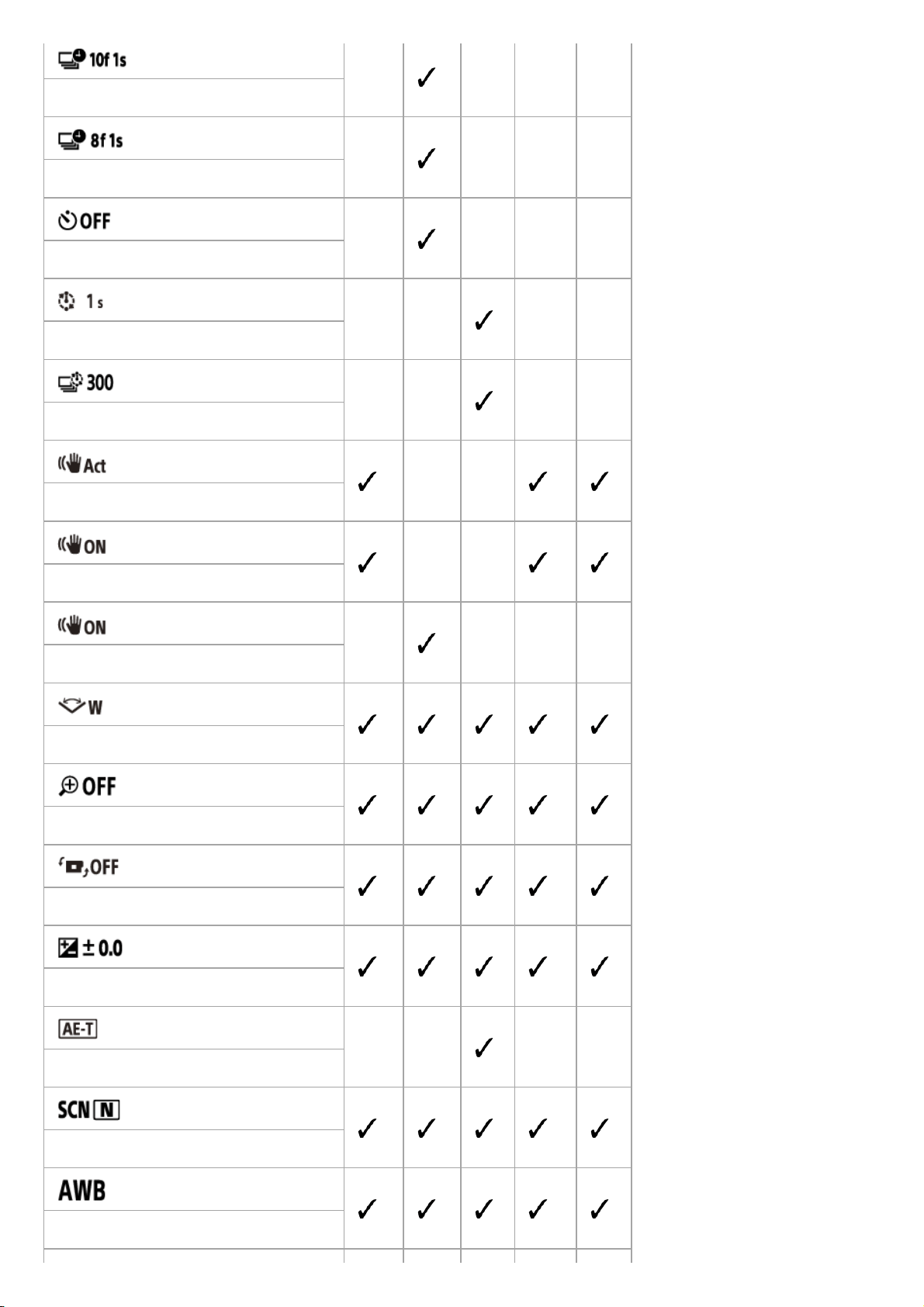
(FDR-X3000/HDR-AS300)
– – – –
Still image shooting interval
(HDR-AS50)
–
– – –
Still image shooting interval
– – – –
Self-timer
– – – –
Time-lapse shooting interval
– – – –
Time-lapse shot number
(FDR-X3000/HDR-AS300)
– –
SteadyShot (Movie)
(HDR-AS50)
– –
SteadyShot (Movie)
(FDR-X3000/HDR-AS300)
–
– – –
SteadyShot (Still)
Angle setting
Zoom setting
Flip
AE shift
– – – –
Time-lapse AE mode
Scene
White balance
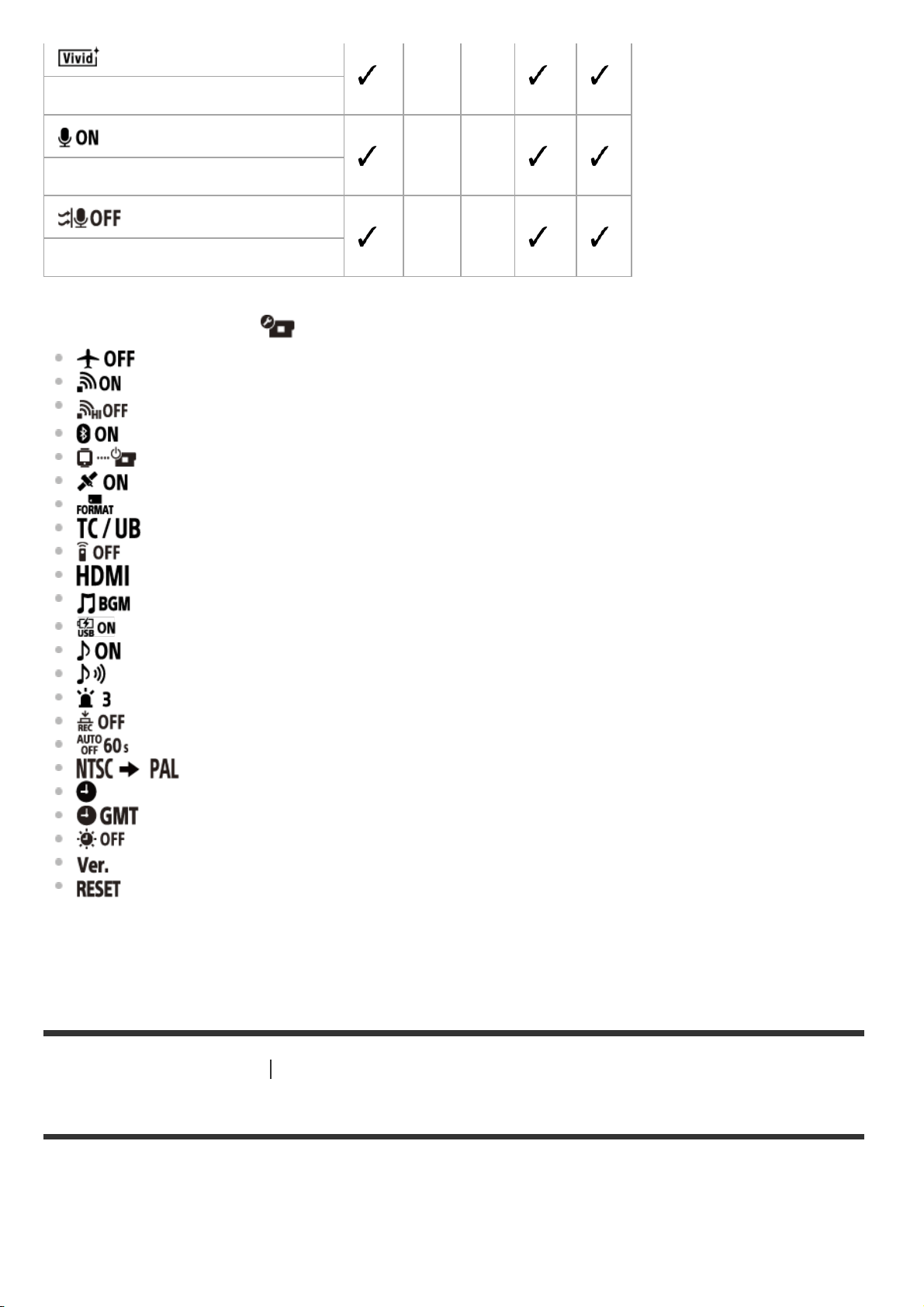
Items you can set in
(Camera Settings)
: Airplane mode
: Wi-Fi connection setting
: Wi-Fi Hi power setting
*
: Bluetooth setting
: Bluetooth remote controller power setting
: GPS log (FDR-X3000/HDR-AS300)
: Format
: Time code/user bit (FDR-X3000)
: IR remote (FDR-X3000)
: HDMI settings (FDR-X3000/HDR-AS300)
: Back ground music
*
: USB power supply
: Beep
: Beep volume
: Lamp setting
: One touch recording
: Auto power off
: Switching NTSC/PAL
: Date & time setting
: Area setting
: Daylight saving time (summer time) setting
: Version
: Resetting the settings
[27] Changing the Settings
List of setting items
How to set the setting items
You can set items using the following 4 buttons on the camera.
– –
Color mode
– –
Audio recording setting
– –
Wind noise reduction
This setting is only available in some countries and regions.
*
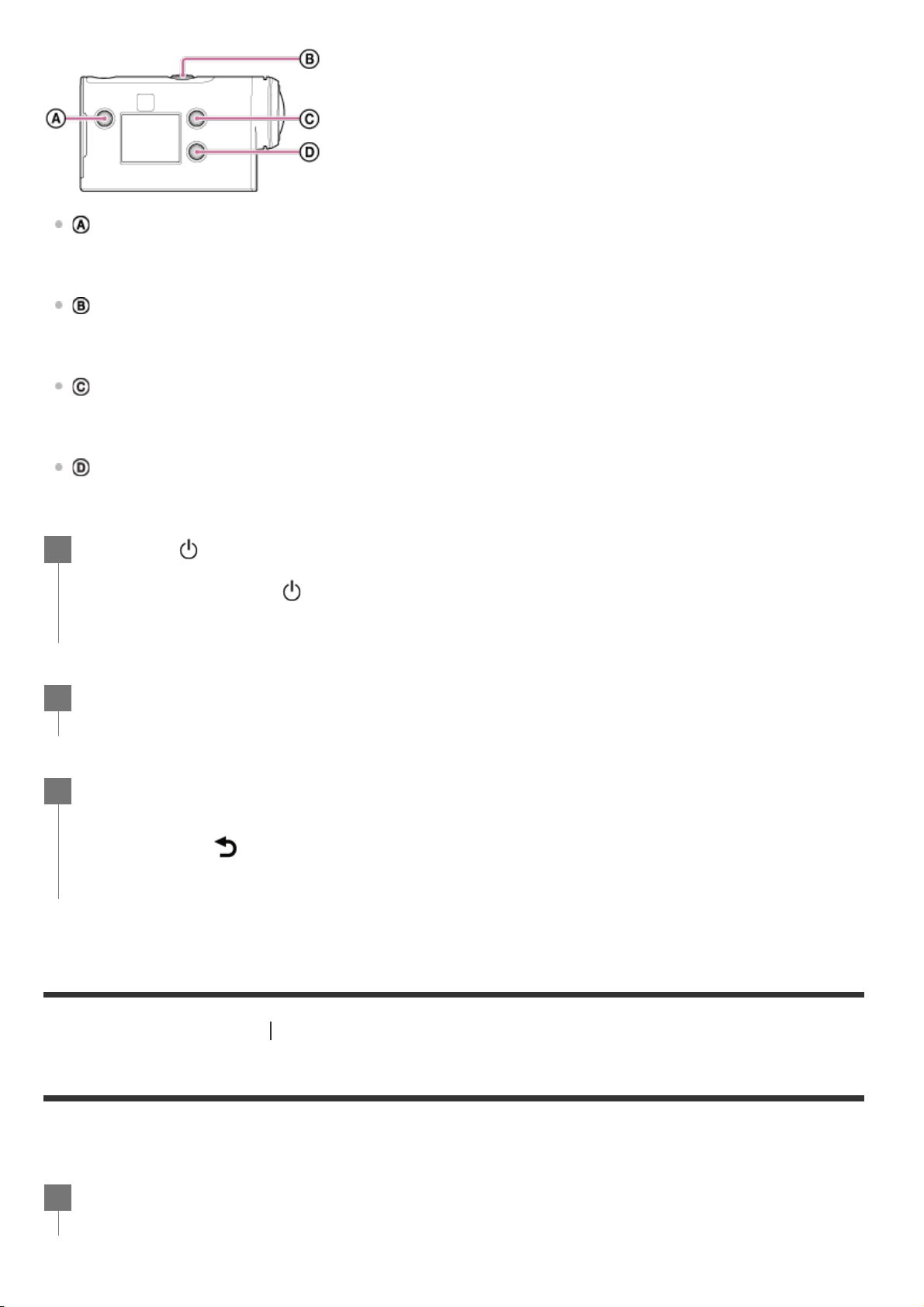
: MENU button
Displays the menu
: REC/ENTER button
Executes the menu
: UP button
Goes to the previous menu
: DOWN button
Goes to the next menu
[28] Changing the Settings
Shooting settings
Image quality setting
You can set the image resolution and frame rate for shooting movies and loop recording. Image
qualities that can be set depend on the “Movie format” setting.
Press the (on/standby) button to turn on the power.
To power off, press the
(on/standby) button again.
1
Press the MENU button.
2
Press the UP button or DOWN button to select the icon of the item, then press the
REC/ENTER button.
To retry, press
, then press the REC/ENTER button.
3
Press the MENU button.
1
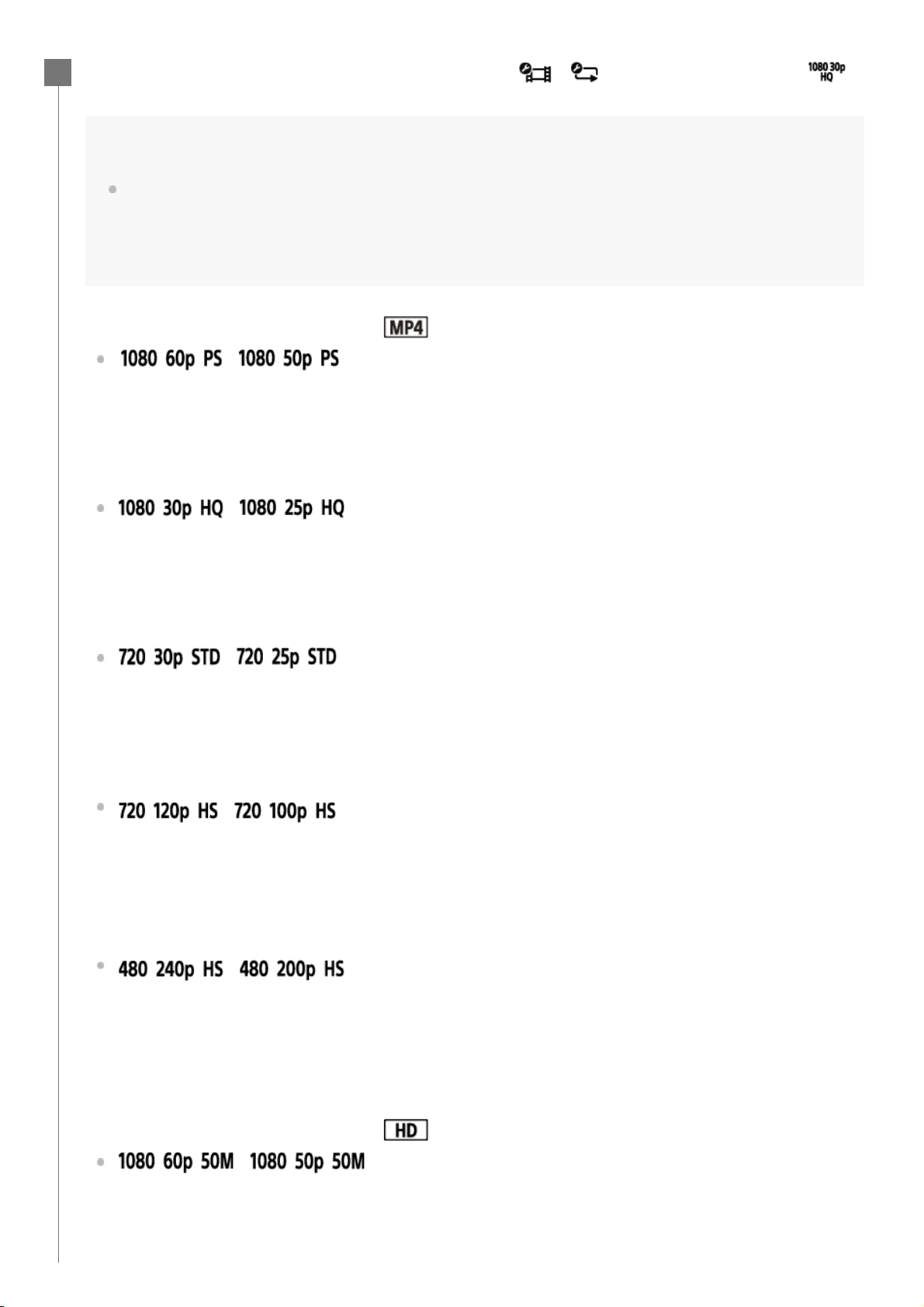
Press the UP button or DOWN button to select / (Shooting settings) -
(Image quality setting) - setting value, then press the REC/ENTER button.
Hint
Setting value
The display changes according to NTSC/PAL switching setting.
When NTSC is selected, left side of / is displayed. When PAL is selected, right side of / is displayed.
(Example) 1080 60p PS (NTSC)/1080 50p PS (PAL)
When movie format is set to (recording in MP4)
/
Recorded image: Highest resolution (smooth image recorded at 2× frame rate)
Resolution: 1920×1080
Imaging frame rate
*1
: 60p/50p
Playback frame rate
*1
: 60p/50p
/
Recorded image: Highest resolution
Resolution: 1920×1080
Imaging frame rate
*1
: 30p/25p
Playback frame rate
*1
: 30p/25p
/
Recorded image: High resolution
Resolution: 1280×720
Imaging frame rate
*1
: 30p/25p
Playback frame rate
*1
: 30p/25p
/
*2,*4
Recorded image: High speed recording (smooth image recorded at 4× frame rate)
*3
Resolution: 1280×720
Imaging frame rate
*1
: 120p/100p
Playback frame rate
*1
: 120p/100p
*5
/
*4
(FDR-X3000/HDR-AS300)
Recorded image: High speed recording (smooth image recorded at 8× frame rate)
*3
Resolution: 800×480
Imaging frame rate
*1
: 240p/200p
Playback frame rate
*1
: 240p/200p
*5
When movie format is set to (recording in XAVC S)
/
Recorded image: XAVC S 50 Mbps
Resolution: 1920×1080
Imaging frame rate
*1
: 60p/50p
2
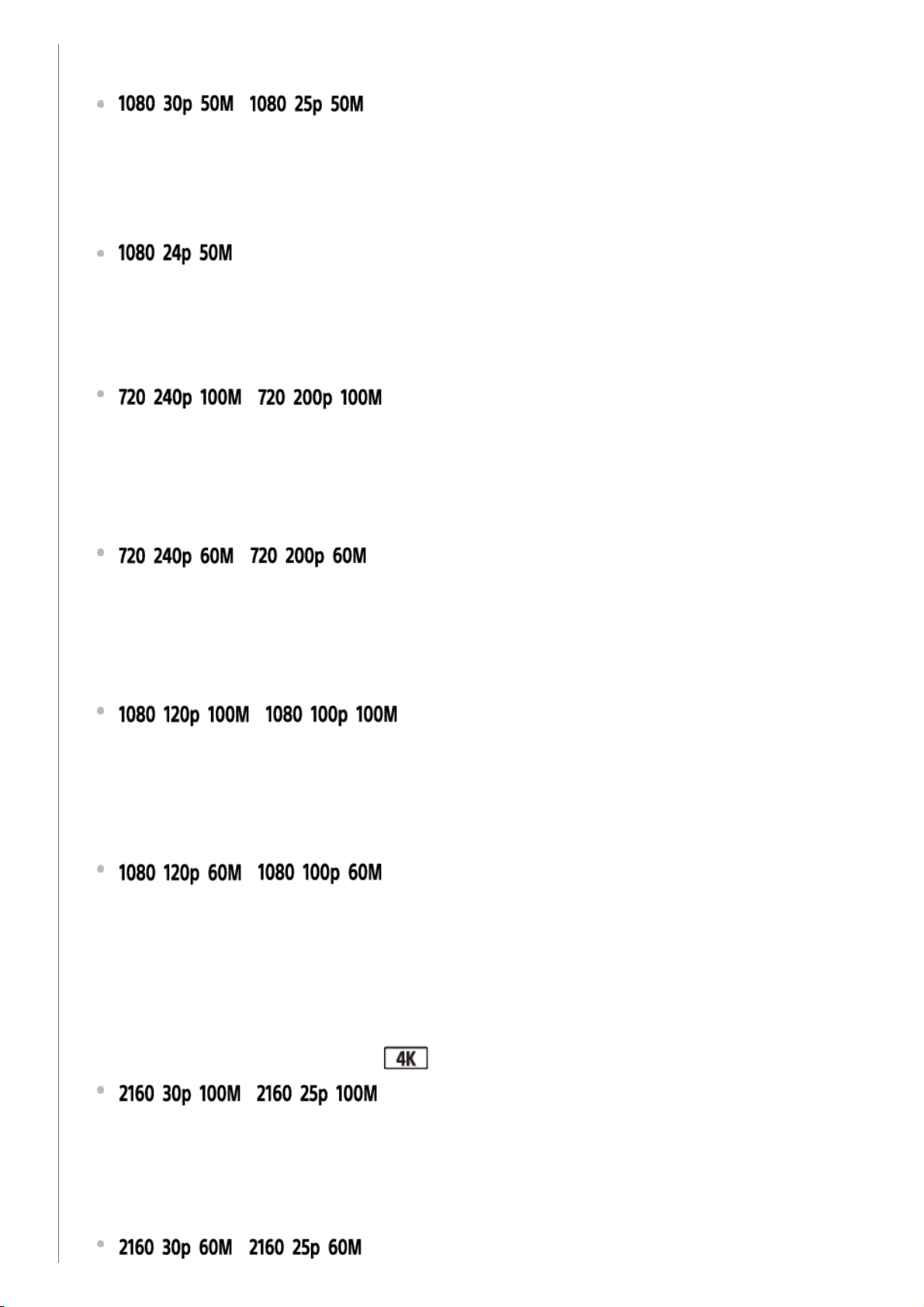
Playback frame rate
*1
: 60p/50p
/
Recorded image: XAVC S 50 Mbps
Resolution: 1920×1080
Imaging frame rate
*1
: 30p/25p
Playback frame rate
*1
: 30p/25p
(only when switching NTSC/PAL is set to NTSC)
Recorded image: XAVC S 50 Mbps
Resolution: 1920×1080
Imaging frame rate: 24p
Playback frame rate: 24p
/
*4
(FDR-X3000)
Recorded image: XAVC S 100 Mbps High speed recording
*3
Resolution: 1280×720
Imaging frame rate
*1
: 240p/200p
Playback frame rate
*1
: 240p/200p
*5
/
*4
(FDR-X3000)
Recorded image: XAVC S 60 Mbps High speed recording
*3
Resolution: 1280×720
Imaging frame rate
*1
: 240p/200p
Playback frame rate
*1
: 240p/200p
*5
/
*4
(FDR-X3000)
Recorded image: XAVC S 100 Mbps High speed recording
*3
Resolution: 1920×1080
Imaging frame rate
*1
: 120p/100p
Playback frame rate
*1
: 120p/100p
*5
/
*4
(FDR-X3000)
Recorded image: XAVC S 60 Mbps High speed recording
*3
Resolution: 1920×1080
Imaging frame rate
*1
: 120p/100p
Playback frame rate
*1
: 120p/100p
*5
When movie format is set to (recording in XAVC S) (FDR-X3000)
/
*4
Recorded image: XAVC S 100 Mbps
Resolution: 3840×2160
Imaging frame rate
*1
: 30p/25p
Playback frame rate
*1
: 30p/25p
/
*4
Note
Continuous movie shooting time is approximately 13 hours.
When you play images recorded in high speed, the frame rate will be 60p/50p, and playback will be standard
speed.
[29] Changing the Settings
Shooting settings
Movie format
Select the movie format for shooting movies or loop recording.
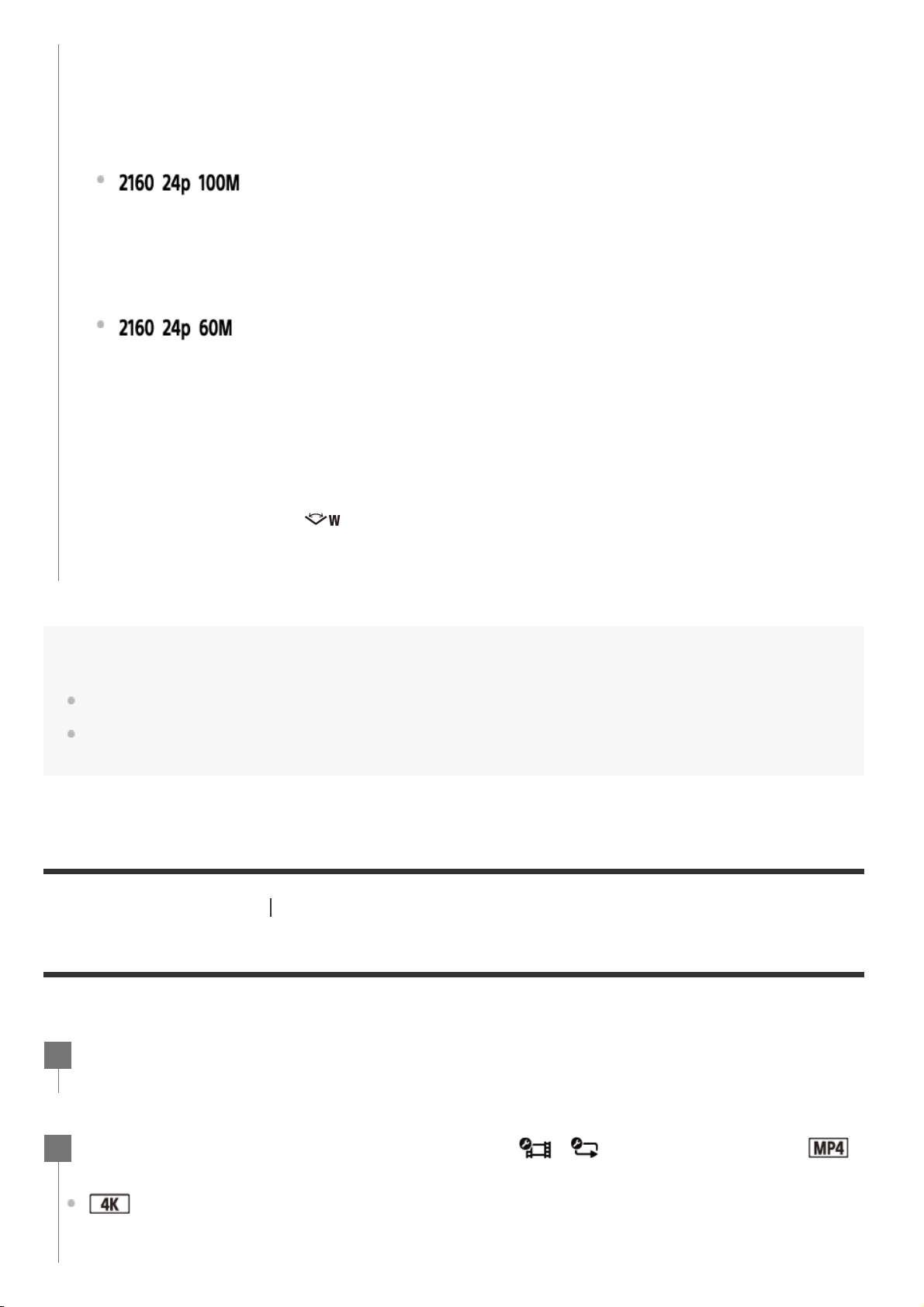
Recorded image: XAVC S 60 Mbps
Resolution: 3840×2160
Imaging frame rate
*1
: 30p/25p
Playback frame rate
*1
: 30p/25p
*4
(only when switching NTSC/PAL is set to NTSC)
Recorded image: XAVC S 100 Mbps
Resolution: 3840×2160
Imaging frame rate: 24p
Playback frame rate: 24p
*4
(only when switching NTSC/PAL is set to NTSC)
Recorded image: XAVC S 60 Mbps
Resolution: 3840×2160
Imaging frame rate: 24p
Playback frame rate: 24p
Frame rate depends on the NTSC/PAL setting.
*1
SteadyShot is disabled. (HDR-AS50)
*2
Action Cam Movie Creator allows you to specify the smooth slow-motion playback section for editing.
*3
The angle of view is fixed to .
*4
Depending on your device and software, images will play at the standard speed of 60p/50p.
*5
Press the MENU button.
1
Press the UP button or DOWN button to select / (Shooting settings) -
(Movie format) - setting value, then press the REC/ENTER button.
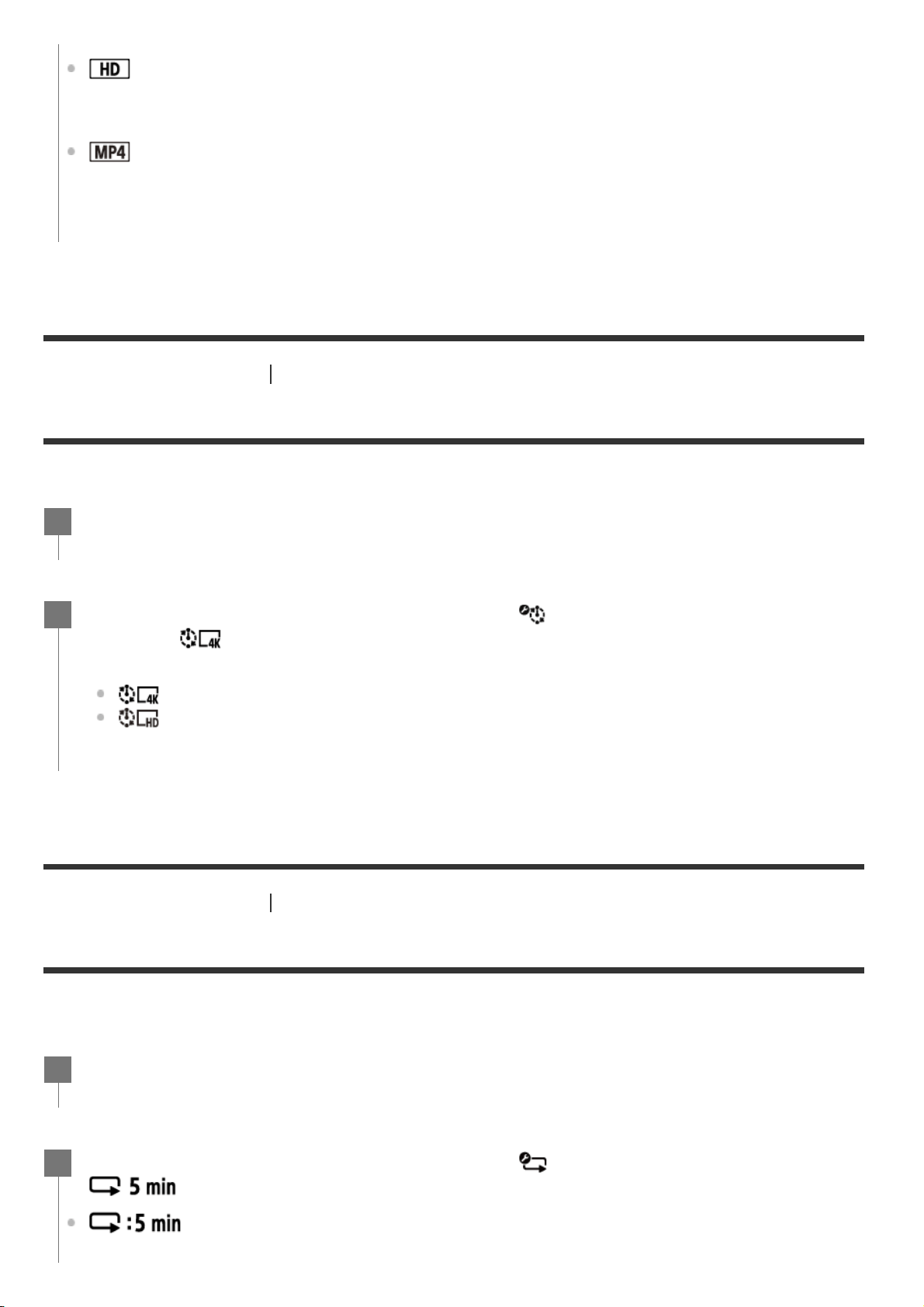
: Records a 4K (XAVC S) movie (FDR-X3000).
Select the desired image quality from the image quality setting.
2
[30] Changing the Settings
Shooting settings
Time-lapse capture image size
You can set the image size of still images shot during time-lapse capture.
[31] Changing the Settings
Shooting settings
Loop recording time
Set the time range (media area) for loop recording. The range can be set after setting the camera to
the loop recording mode.
: Records a HD (XAVC S) movie.
Select the desired image quality from the image quality setting.
: Records an MP4 movie.
Select this format if you want to transfer to your smartphone or upload to a website.
Press the MENU button.
1
Press the UP button or DOWN button to select (Time-lapse capture mode
setting) -
(Time-lapse capture image size) - setting value, then press the
REC/ENTER button.
(Shoots still images in 4K (3840 x 2160) (image size 8.3 M))
(Shoots still images in HD (1920 x 1080) (image size 2.1 M))
2
Press the MENU button.
1
Press the UP button or DOWN button to select (Loop recording mode setting) -
(Loop recording time) - setting value, then press the REC/ENTER button.
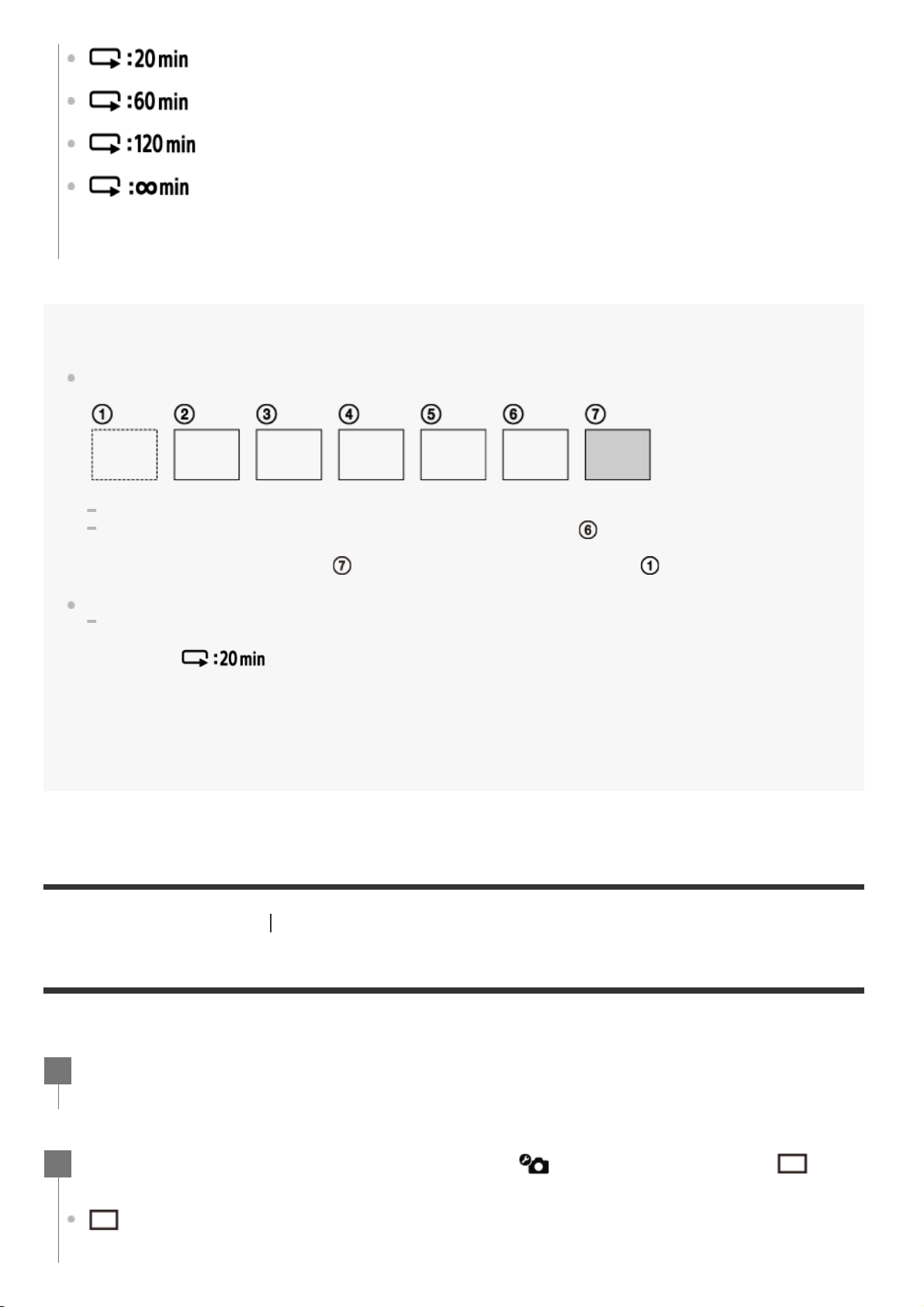
(Sets the loop recording time to 5 minutes. The size of created movie is 1 minute
per file.)
2
Hint
When loop recording time is set to 5 minutes
The movie files of one minute per file are created in order.
When the recording time exceeds five minutes, the sixth movie file (
) is created.
Before creating the seventh file (
), the camera deletes the first movie file ( ) and keeps recording.
Estimated shooting time necessary for loop recording (free space of a memory)
Addition to the set loop recording time, you need estimated shooting time (free space of a memory) for 2
files.
(Example)
is set
20 min. + 5 min. + 5 min. = 30 min. or more is needed.
[32] Changing the Settings
Shooting settings
Still image mode switching
You can set the mode for still image recording.
(Sets the loop recording time to 20 minutes. The size of created movie is 5
minutes per file.)
(Sets the loop recording time to 60 minutes. The size of created movie is 15
minutes per file.)
(Sets the loop recording time to 120 minutes. The size of created movie is 15
minutes per file.)
(Keeps recording continuously up to the limit of free space of a memory. The size
of created movie is 15 minutes per file.)
You can check the estimated shooting time by setting the shooting mode to “Movie mode.”
*
Even you have a free space of a memory card according above estimated time, a warning [05-04] may display on the screen due to image
quality setting or movie format setting.
In this case, increase more free space of a memory card or change the image quality setting or movie format setting.
*
Press the MENU button.
1
Press the UP button or DOWN button to select (Photo mode setting) - (Still
image mode switching) - setting value, then press the REC/ENTER button.
(Single shooting. Shoots a single still image.)
Image size
2
To shoot successfully in Motion Shot LE mode
Try the following shooting methods.
Stabilize the camera to prevent camera shake.
Use the remote control function with a smartphone or Live-View Remote, or the self-timer
function to prevent camera shake for better results.
Make sure that the moving objects are not too large or too many.
Shoot in a bright location and avoid changes in brightness.
To shoot successfully in burst shooting mode
Try the following shooting methods.
Stabilize the camera to prevent camera shake.
Use the remote control function with a smartphone or Live-View Remote, or the self-timer
function to prevent camera shake for better results.
Note
If automatic generation in Motion Shot LE mode fails, [05-06] is displayed on the display panel. Depending
on the display timing of [05-06], the image may not be saved.
After shooting with Burst Shooting or Motion Shot LE mode, there is a processing time during which the next
operation cannot be operated.
Only one still image can be transferred to the smartphone.
(In burst shooting mode, the last still image can be transferred. In Motion Shot LE mode, the generated
image can be transferred.)
[33] Changing the Settings
Shooting settings
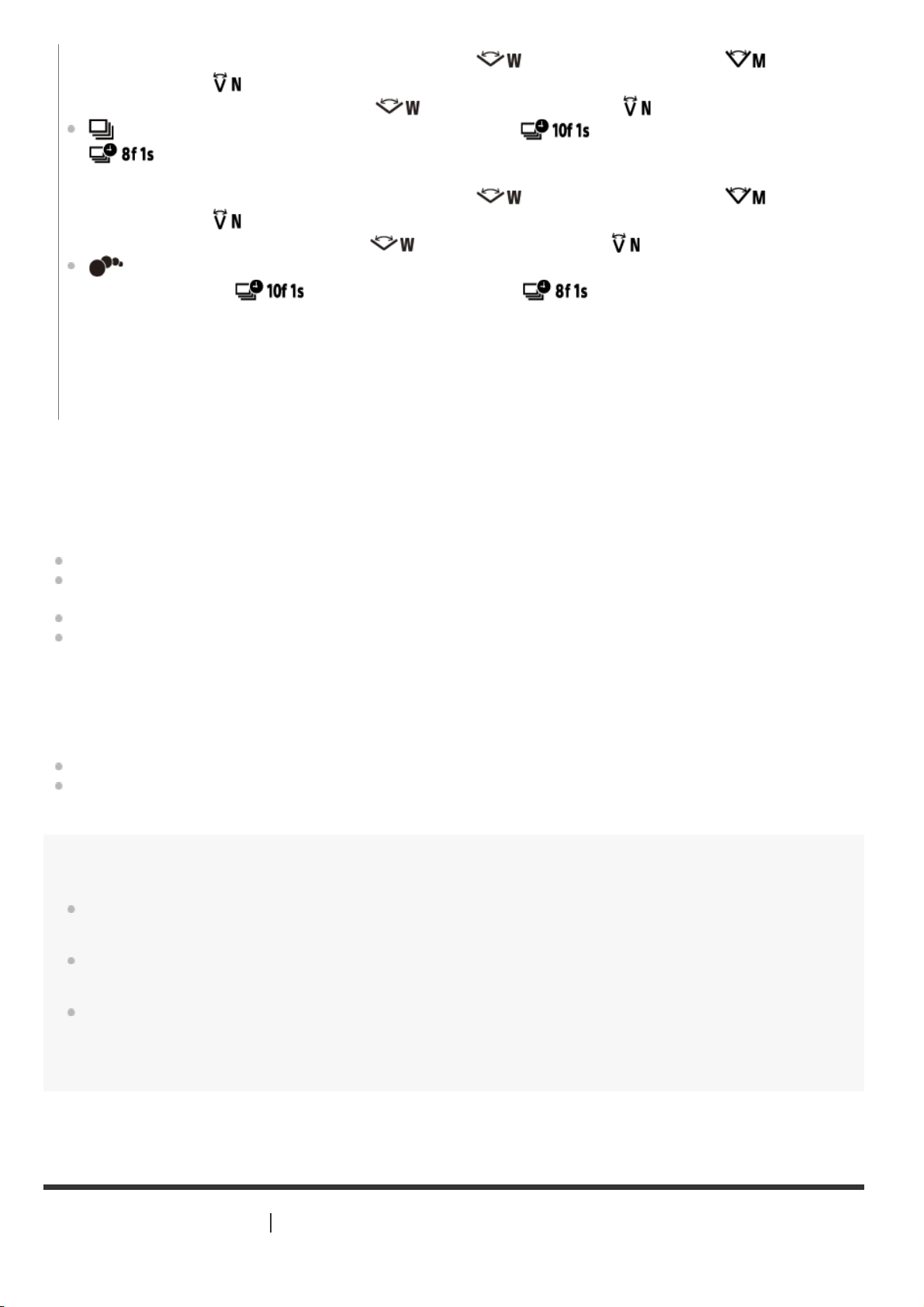
FDR-X3000/HDR-AS300: 12.0 M (Angle setting: ) /6.1 M (Angle setting: ) /3. 0 M
(Angle setting: )
HDR-AS50: 11. 9 M (Angle setting:
)/7. 0 M (Angle setting: )
(Burst shooting. Shoots at the interval set in the (FDR-X3000/HDR-AS300)/
(HDR-AS50) (Still image shooting interval).)
Image size
FDR-X3000/HDR-AS300: 12.0 M (Angle setting:
) /6.1 M (Angle setting: ) /3.0 M
(Angle setting:
)
HDR-AS50: 11.9 M (Angle setting:
)/7.0 M (Angle setting: )
(Motion Shot LE. Generates a still image from the still images continuously shot at the
interval set in the
(FDR-X3000/HDR-AS300)/ (HDR-AS50) (Still image shooting
interval).)
Image size
FDR-X3000/HDR-AS300: 2.1 M
HDR-AS50: 3.0 M
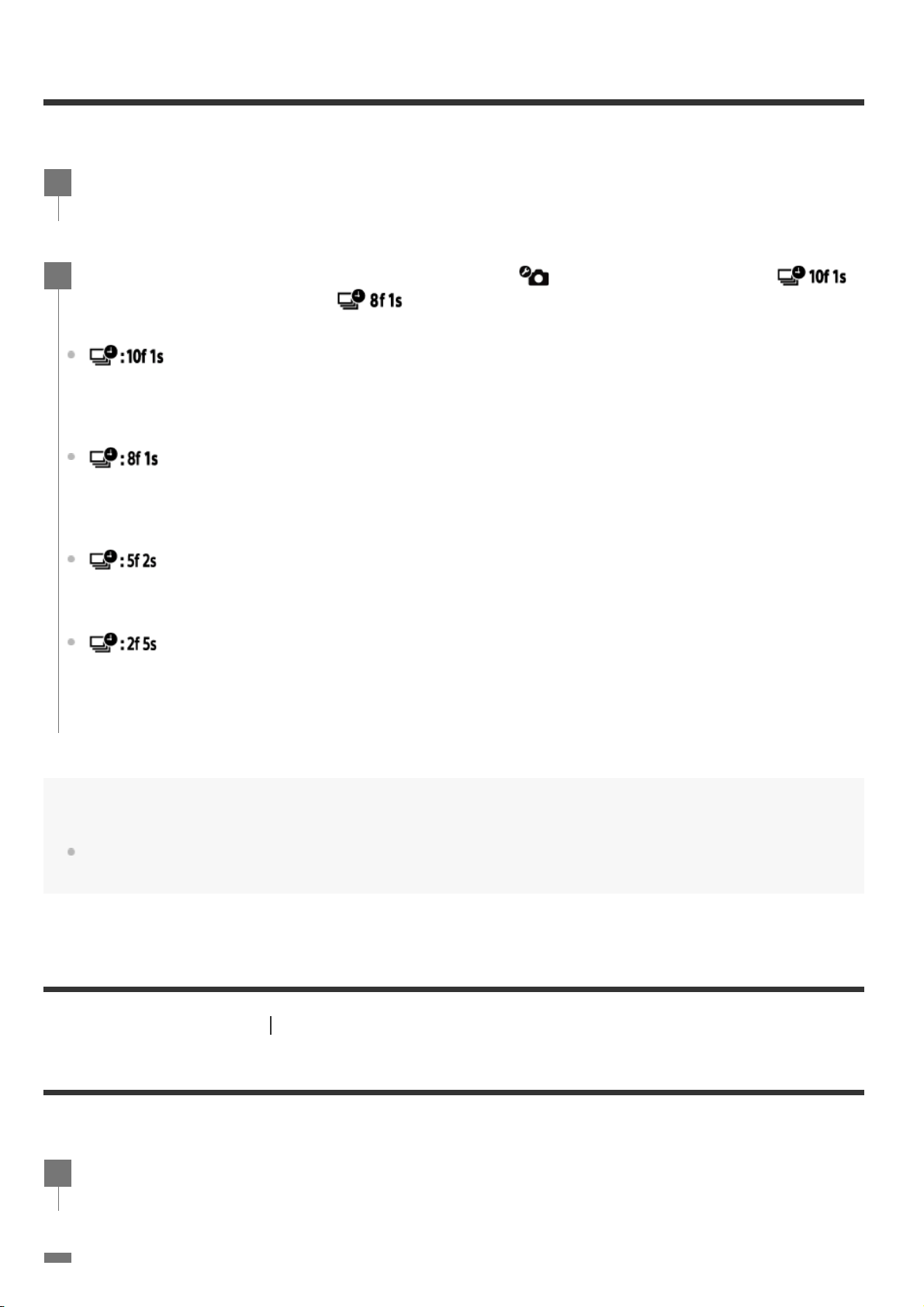
Still image shooting interval
You can select the continuous shooting setting for using burst shooting or Motion Shot LE.
Note
“10f1s” (FDR-X3000/HDR-AS300), “8f1s” (HDR-AS50), “5f2s”, and “2f5s” are estimates of the maximum
speed. The maximum speed may not be reached depending on the shooting conditions.
[34] Changing the Settings
Shooting settings
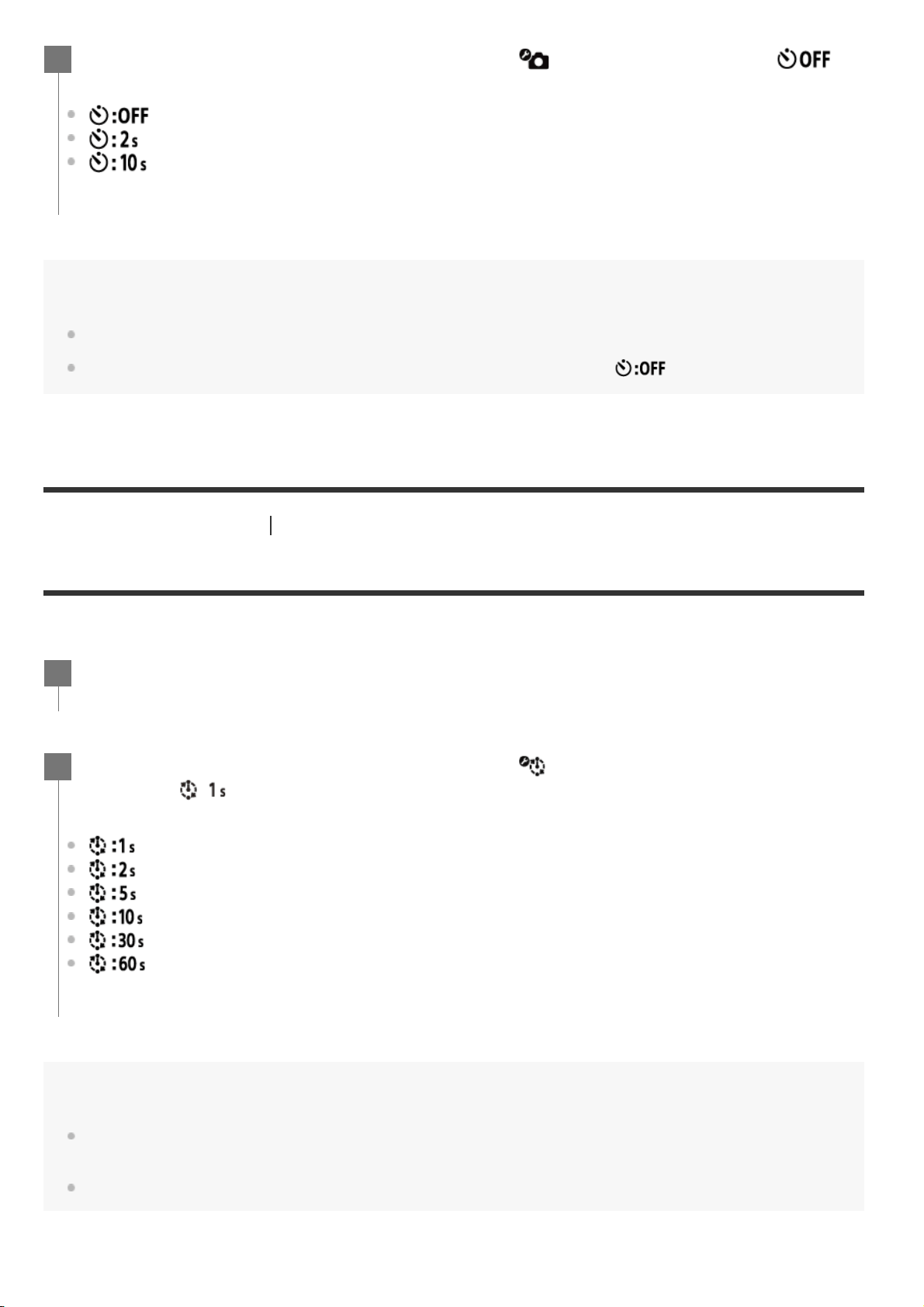
Self-timer
You can use self-timer when shooting still images.
Press the MENU button.
1
Press the UP button or DOWN button to select (Photo mode setting) -
(FDR-X3000/HDR-AS300)/ (HDR-AS50) (Still image shooting interval) -
setting value, then press the REC/ENTER button.
(Records a total of 10 still images in 1 second at a speed of 10 still images per
second) (FDR-X3000/HDR-AS300)
Suitable for shooting fast-moving objects.
(Records a total of 10 still images in 1.25 seconds at a speed of 8 still images per
second) (HDR-AS50)
Suitable for shooting fast-moving objects.
(Records a total of 10 still images in 2 seconds at a speed of 5 still images per second)
Suitable for action shots of objects.
(Records a total of 10 still images in 5 seconds at a speed of 2 still images per second)
Suitable for shooting slow-moving objects.
2
Press the MENU button.
1
Note
You cannot use self-timer when recording movies.
The self-timer function is enabled until it is cancelled. Set the self-timer to
after you finish using it.
[35] Changing the Settings
Shooting settings
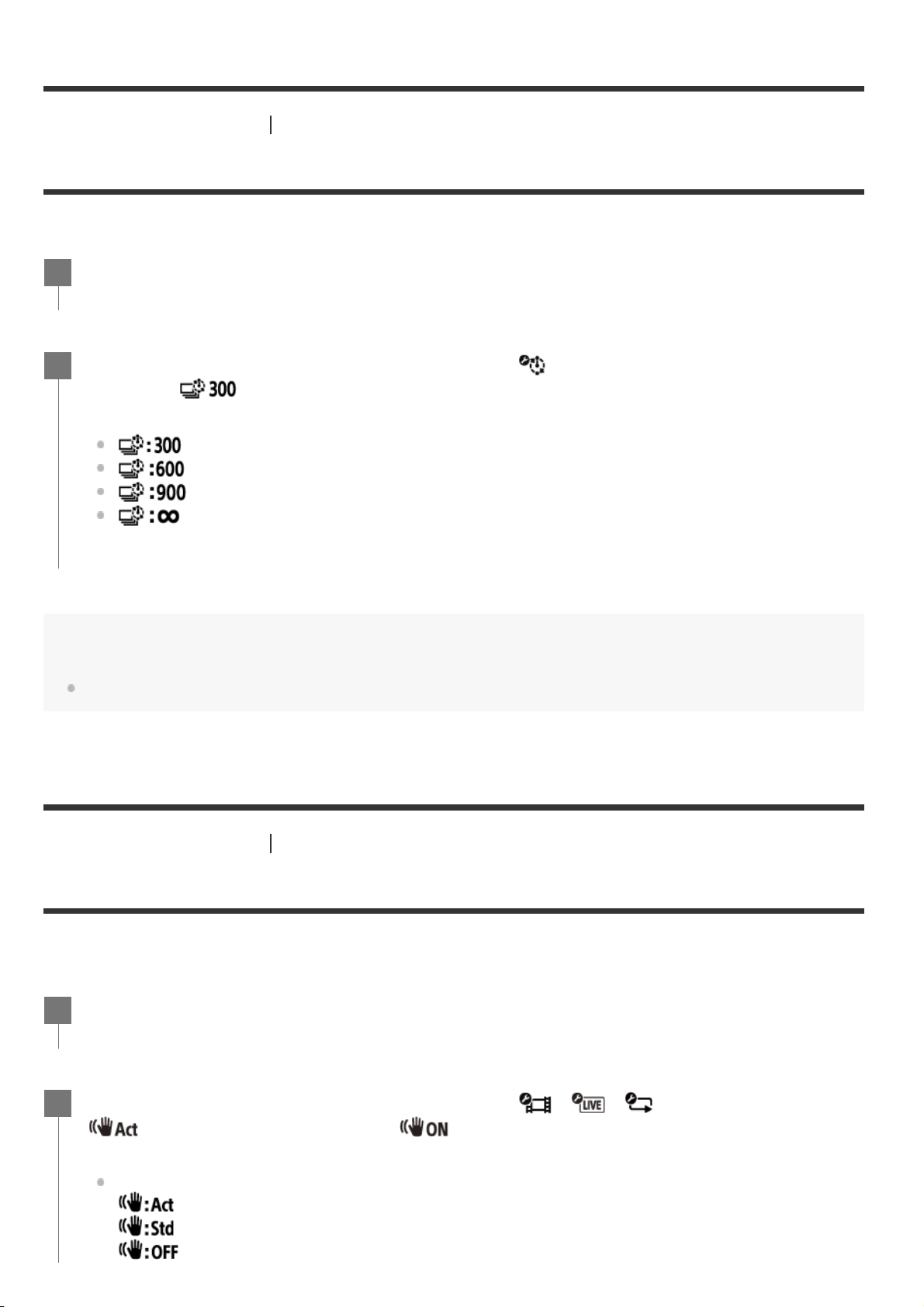
Time-lapse shooting interval
You can set the interval of the time-lapse shooting.
Note
The first photo is recorded immediately when recording starts, without waiting for the completion of the set
interval. The second and subsequent still images are recorded at the set intervals.
Depending on your shooting condition, the speed may not reach the set speed.
Press the UP button or DOWN button to select (Photo mode setting) -
(Self-timer) - setting item, then press the REC/ENTER button.
(Does not use self-timer)
(Sets the self-timer to 2-second)
(Sets the self-timer to 10-second)
2
Press the MENU button.
1
Press the UP button or DOWN button to select (Time-lapse capture mode
setting) -
(Time-lapse shooting interval) - setting value, then press the
REC/ENTER button.
(Continues to record still images at about 1-second intervals)
(Continues to record still images at about 2-second intervals)
(Continues to record still images at about 5-second intervals)
(Continues to record still images at about 10-second intervals)
(Continues to record still images at about 30-second intervals)
(Continues to record still images at about 60-second intervals)
2
[36] Changing the Settings
Shooting settings
Time-lapse shot number
You can set the number of still images shot during time-lapse capture.
Hint
The maximum number of continuous shots is 40,000.
[37] Changing the Settings
Shooting settings
SteadyShot (Movie)
You can activate the camera-shake reduction when shooting movies. This function is available in
Movie mode, Live streaming mode, and Loop recording mode.
Press the MENU button.
1
Press the UP button or DOWN button to select (Time-lapse capture mode
setting) -
(Time-lapse shot number) - setting value, then press the
REC/ENTER button.
(Shoots 300 still images)
(Shoots 600 still images)
(Shoots 900 still images)
(Continue to shoot still images until you stop shooting)
2
Press the MENU button.
1
Press the UP button or DOWN button to select / / (Shooting settings) -
(FDR-X3000/HDR-AS300)/ (HDR-AS50) (SteadyShot (Movie)) - setting
value, then press the REC/ENTER button.
FDR-X3000/HDR-AS300
(Uses all-encompassing SteadyShot function when shooting movies)
(Uses SteadyShot function when shooting movies)
(Does not use SteadyShot function when shooting movies)
2
Note
This function is not available when the image quality setting mode is set to the high speed recording quality
(frame rate is more than 120p) (HDR-AS50) .
[38] Changing the Settings
Shooting settings
SteadyShot (Still) (FDR-X3000/HDR-AS300)
You can activate the camera-shake reduction while shooting still images. This function is available in
Photo mode.
[39] Changing the Settings
Shooting settings
Angle setting
You can configure the angle of view of the camera for shooting.
HDR-AS50
(Uses SteadyShot function when shooting movies)
(Does not use SteadyShot function when shooting movies)
Press the MENU button.
1
Press the UP button or DOWN button to select (Photo mode setting) -
(SteadyShot (Still)) - setting value, then press the REC/ENTER button.
(Uses SteadyShot function when shooting still images.)
(Does not use SteadyShot function when shooting still images.)
2
Press the MENU button.
1
Press the UP button or DOWN button to select
/ / / / (Shooting
settings) -
(Angle setting) - setting value, then press the REC/ENTER button.
2
Note
When shooting with high speed (frame rate is more than 120p), the angle of view is fixed to .
When Time-lapse capture image size is
, the angle of view is fixed to .
When SteadyShot (Movie) is
, the angle of view is fixed to . (HDR-AS50)
When the movie format is
, the angle of view is fixed to . (FDR-X3000)
[40] Changing the Settings
Shooting settings
Zoom setting
You can set whether to use the digital zoom.
[41] Changing the Settings
Shooting settings
Flip
You can record the image upside down. This function is useful when the camera is attached upside
down.
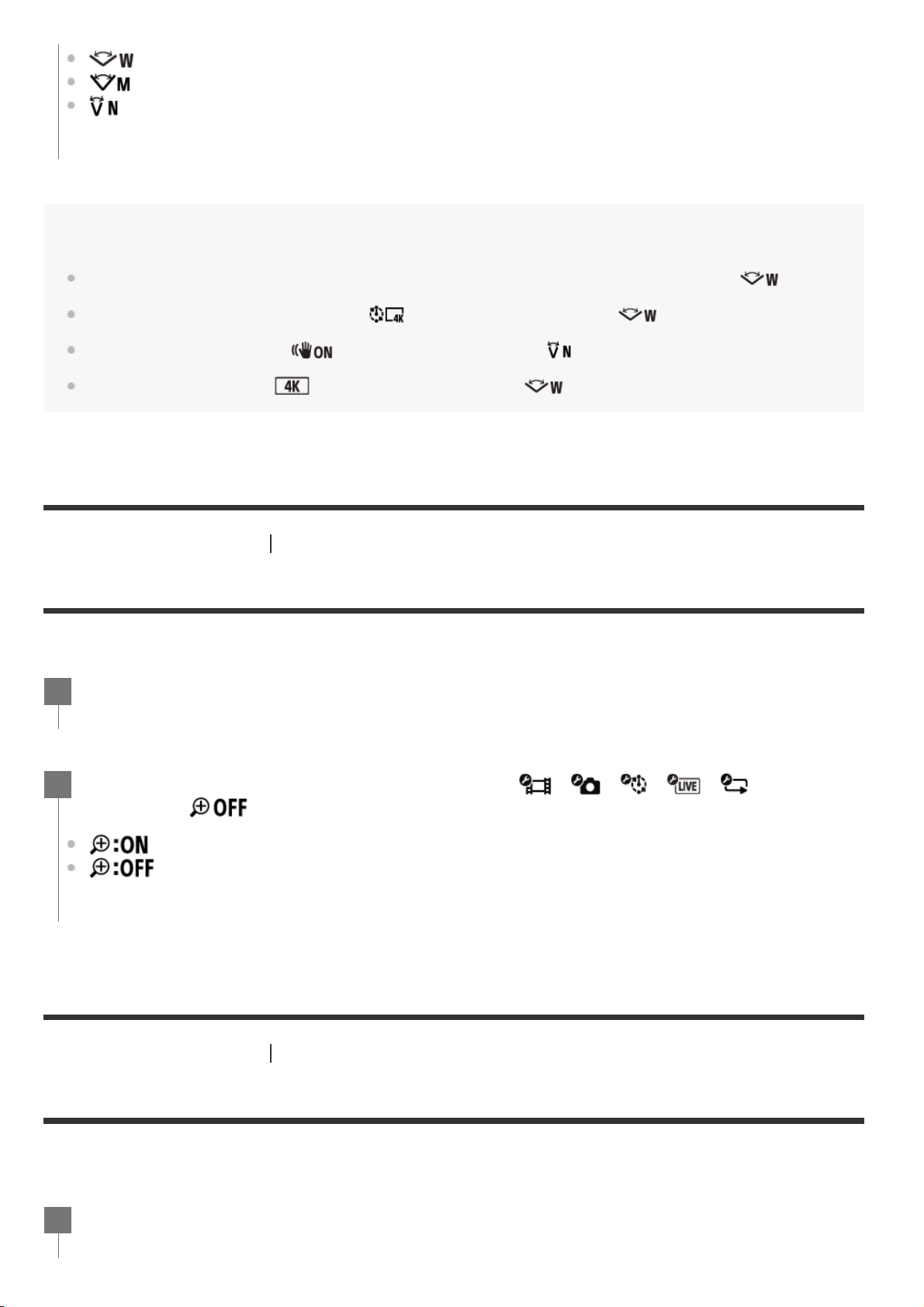
: Wide (Records with a wide angle of view)
: Medium (Records with a standard angle of view (FDR-X3000/HDR-AS300))
: Narrow (Records with a narrow angle of view)
Press the MENU button.
1
Press the UP button or DOWN button to select / / / / (Shooting
settings) -
(Zoom setting) - setting value, then press the REC/ENTER button.
(Uses the digital zoom function)
(Do not use the digital zoom function)
2
Press the MENU button.
1
[42] Changing the Settings
Shooting settings
AE shift
You can adjust the exposure according to your preference.
[43] Changing the Settings
Shooting settings
Time-lapse AE mode
Set the adjustment method of automatic exposure (AE) during time-lapse capture.
Press the UP button or DOWN button to select / / / / (Shooting
settings) -
(Flip) - setting value, then press the REC/ENTER button.
(Flips the image vertically and swaps the left and right sound channels)
(Does not flip the image)
2
Press the MENU button.
1
Press the UP button or DOWN button to select / / / / (Shooting
settings) -
(AE shift) - setting value, then press the REC/ENTER button.
(Does not use the AE shift)
(Uses the AE shift (Set +0.3EV for example))
2
Press the MENU button.
1
Press the UP button or DOWN button to select (Time-lapse capture mode
setting) -
(Time-lapse AE mode) - setting value, then press the REC/ENTER
button.
(Adjusts the exposure for each shot. Smoothly follows changes in brightness)
(Sets a fixed exposure when shooting starts)
2
[44] Changing the Settings
Shooting settings
Scene
You can select suitable image quality according to the shooting scene.
Note
If you select , you cannot set the white balance.
Use the supplied Underwater Housing for underwater shooting.
[45] Changing the Settings
Shooting settings
White balance
You can adjust the color balance to the recording environment.
Press the MENU button.
1
Press the UP button or DOWN button to select / / / / (Shooting
settings) -
(Scene) - setting value, then press the REC/ENTER button.
(Shoots images in the standard quality)
(Shoots images in an image quality suitable for underwater shooting)
2
Press the MENU button.
1
Press the UP button or DOWN button to select / / / / (Shooting
settings) -
(White balance) - setting value, then press the REC/ENTER button.
(Adjusts the white balance automatically so that the colors appear natural)
(Adjusts for the color temperature of the light source (from 2500K to 9900K))
(Uses the setting acquired from )
(Acquires the base white color for shooting under the light source)
*
2
Note
If scene is set to , you cannot set the white balance.
[46] Changing the Settings
Shooting settings
Color mode
You can change the image color tone for movie shooting/loop recording/Live streaming.
Note
If you shoot with , the image contrast may appear low. This is not a malfunction.
[47] Changing the Settings
Shooting settings
Audio recording setting
You can turn the audio recording setting ON/OFF.
Place a white reference object under the same lighting conditions as the subject and press the REC/ENTER button.
*
Press the MENU button.
1
Press the UP button or DOWN button to select / / (Shooting settings) -
(Color mode) - setting value, then press the REC/ENTER button.
(Records in natural colors)
(Records in vivid colors)
2
Press the MENU button.
1
[48] Changing the Settings
Shooting settings
Wind noise reduction
This function automatically cuts low-range wind noise while recording audio using the built-in
microphone.
Note
This function does not activate while an external microphone is connected to the camera (FDR-X3000/HDR-
AS300).
[49] Changing the Settings
Camera settings
Airplane mode
When you are in an airplane or other restricted areas, you can set the camera to temporarily disable
all functions related to the wireless applications such as Wi-Fi/Bluetooth GPS, etc. If you set airplane
mode to ON, an airplane mark will be displayed on the display panel.
Press the UP button or DOWN button to select / / (Shooting settings) -
(Audio recording setting) - setting value, then press the REC/ENTER button.
(Records sound when shooting a movie)
(Does not record sound when shooting a movie)
2
Press the MENU button.
1
Press the UP button or DOWN button to select / / (Shooting settings) -
(Wind noise reduction) - setting value, then press the REC/ENTER button.
(Cuts low-range to reduce wind noise)
(Does not reduce wind noise)
2
Press the MENU button.
1
[50] Changing the Settings
Camera settings
Wi-Fi connection setting
You can operate the camera by using compatible devices (Live-View Remote, smartphone, etc.)
connected to the camera via Wi-Fi.
Note
Battery consumption is quicker when you operate the camera with the compatible device.
Press the UP button or DOWN button to select (Camera Settings) -
(Airplane mode) - setting value, then press the REC/ENTER button.
(The Wi-Fi/Bluetooth/GPS function* is disabled. Select this when you are on board an
airplane)
(The Wi-Fi/Bluetooth/GPS function* is enabled)
2
The GPS function is only for FDR-X3000/HDR-AS300.
*
Press the MENU button.
1
Press the UP button or DOWN button to select (Camera Settings) - (Wi-Fi
connection setting) - setting value, then press the REC/ENTER button.
(Operates a single camera with the compatible device)
(Does not operate a camera with the compatible device)
(Operates multiple cameras with the compatible device)
2
Select a shooting mode (
/ / / ).
3
Connect the camera to the compatible device via Wi-Fi.
4
Operate the camera with the compatible device.
5
The camera should only be connected to the devices described in “Using the camera connected to other
devices via Wi-Fi” via Wi-Fi, and should not be connected to other Wi-Fi access points. If you choose to
connect the camera to other Wi-Fi access points, you do so at your own risk. In such cases, the camera may
be subject to unauthorized access, and any communication could be intercepted.
[51] Changing the Settings
Camera settings
Wi-Fi Hi power setting
When you switch the Wi-Fi power setting, the communication distance between the camera and a
Live-View Remote
*
connected via Wi-Fi can be extended by about two times, so you can operate the
camera with the Live-View Remote from a distance.
This setting is only available in some countries and regions.
Note
When set to ON, depending on the physical environment and the distance between the camera and the Live-
View Remote, you may not be able to use the Live-View Remote to turn the camera on/off. In such cases,
operate the Live-View Remote closer to the camera until
on the screen changes to .
Depending on the physical environment and connected device, the communication distance will be changed.
When the Wi-Fi Hi power setting is set to ON, the battery is consumed faster than when set to OFF.
The Wi-Fi icon may not be displayed on the screen immediately after switching the Wi-Fi Hi power setting,
but the icon of the switched setting will be displayed after a moment.
This function cannot be used when the Wi-Fi setting is OFF or when airplane mode is ON.
[52] Changing the Settings
Camera settings
Bluetooth setting
When using RM-LVR3.
*
Press the MENU button.
1
Press the UP button or DOWN button to select (Camera Settings) - (Wi-
Fi Hi power setting) - setting value, then press the REC/ENTER button.
(High power mode. The communication distance is longer than in standard mode)
(Standard mode)
2

When the camera and corresponding devices have Wi-Fi connections, the camera can communicate
with the corresponding devices via Bluetooth. The mutual registration process that allows the devices
(the camera and corresponding device) to communicate with each other via Bluetooth is called
“pairing.” Once pairing is complete, these devices can automatically communicate via Bluetooth when
they are connected again.
Pairing with the smartphone
Perform the following operations with the camera and a smartphone that is connected via Wi-Fi.
For connecting the camera to your smartphone, see “Connecting to your smartphone”.
After pairing is complete, a sound is heard.
Hint
The default Bluetooth setting for the camera is ON. When the Live-View Remote (RM-LVR3) is connected to
Wi-Fi for the first time, Bluetooth pairing with the camera is automatically completed, and the
icon
displayed on the camera screen switches to
.
Note
When Airplane mode is ON, the Bluetooth icon does not appear on the screen, and Bluetooth
communications are disabled, even if the Bluetooth setting is ON.
The camera can be paired with up to 15 Bluetooth devices. If a 16th device is paired with the camera, the
pairing information of the first registered device is deleted.
When the camera is communicating via Bluetooth, another device cannot be paired.
When the camera is initialized, the pairing information is also reset. To pair again, the pairing information of
the connected compatible device should also be deleted.
When pairing is performed while shooting with the camera, a sound will not be heard.
Press the MENU button.
1
Press the UP button or DOWN button to select (Camera Settings) -
(Bluetooth setting) - setting value, then press the REC/ENTER button.
(Bluetooth communication enabled. or is displayed on the screen.)
(No Bluetooth communication. Bluetooth icon does not appear on the screen.)
2
Turn on the Bluetooth setting on the smartphone.
1.
Start PlayMemories Mobile application on the smartphone.
2.
Use the application to turn on the remote power function of the camera.
3.
Use the application to select the camera to be connected.
4.
On the application screen that appears, allow pairing for the selected camera.
5.
Check the screen to be displayed and the sound prompting the pairing setting permission of the
selected camera, then press the REC/ENTER button on the camera.
6.
[53] Changing the Settings
Camera settings
Bluetooth remote controller power setting
A device that has already been paired with the camera is able to turn the camera on and off.
To enable this function, it is necessary to turn on the above setting and the Bluetooth setting of both
the camera and the corresponding device in advance.
For setting and operating the Live-View Remote (RM-LVR3), refer to “Bluetooth remote controller
power setting” in the help guide of the Live-View Remote.
http://rd1.sony.net/help/cam/1650/h_zz/
For setting up and operating a smartphone, see below. Also, check the latest information and function
information of the PlayMemories Mobile as well.
http://www.sony.net/pmm/
Bluetooth remote controller power setting for smartphones
Perform the following operations with the camera and a smartphone that is connected via Wi-Fi.
For connecting the camera to your smartphone, see “Connecting to your smartphone”.
After pairing complete a sound is heard and power operation of the camera is enabled.
Operating the power of the camera with a smartphone
To turn the camera on/off, start PlayMemories Mobile and tap [Camera Remote Power ON/OFF].
Hint
If the camera and Live-View Remote “RM-LVR3” are connected, the power of the camera is turned on when
the power of the Live-View Remote is turned on. When the camera has a multi connection with a Live-View
Remote “RM-LVR3”, up to five cameras can be turned on simultaneously when the Live-View Remote is
turned on.
Press the MENU button.
1
Press the UP button or DOWN button to select (Camera Settings) -
(Bluetooth remote controller power setting) - setting value, then press the
REC/ENTER button.
(Ability to turn the camera on/off with a corresponding device is enabled.)
(Ability to turn the camera on/off with a corresponding device is disabled.)
2
Turn on the Bluetooth setting on the smartphone.
1.
Start PlayMemories Mobile application on the smartphone.
2.
Use the application to turn on the remote power function of the camera.
3.
Use the application to select the camera to be connected.
4.
On the application screen that appears, allow pairing for the selected camera.
5.
Check the screen to be displayed and the sound prompting the pairing setting permission of the
selected camera, then press the REC/ENTER button on the camera.
6.
Note
This function cannot be used when the airplane mode is ON.
Even if camera is turned off, the corresponding device will remain on.
Even if the camera is turned off, battery will consume when this function is turned on. After use, remove the
battery from the camera for storage.
[54] Changing the Settings
Camera settings
GPS log (FDR-X3000/HDR-AS300)
You can record the location information and the movement speed while recording movies using the
camera’s GPS function.
Action Cam Movie Creator allows you to import movies recorded with GPS log to your computer and
view them with a map showing movement speed and tracking actions.
You can also record the location information and show the shooting location on the map when
shooting still images.
Checking triangulating status
The indicator changes according to the strength of GPS signal reception when GPS is activated.
No indicator (The GPS log functions is off): The GPS log is set to OFF or an error occurred.
(Searching/Difficult): Your camera is searching for GPS satellites. (It may take several
minutes to start triangulating.)
(Triangulating): Your camera is receiving a GPS signal. (Your camera can record location
information.)
About GPS assist data
The time for the GPS acquiring location information can be shortened by taking in GPS assist data. If
connection via Internet is made using the software, Action Cam Movie Creator, the GPS assist data
can be updated automatically.
If the Date & time Setting of the camera is not set, or set time is shifted greatly, the time for the
GPS acquiring location information cannot be shortened.
Press the MENU button.
1
Press the UP button or DOWN button to select (Camera Settings) - (GPS
log) - setting value, then press the REC/ENTER button.
(Records movies with the GPS log or still images with location information)
(Does not use the GPS log function)
2
If the term of validity of GPS assist data has run out, the time for the GPS acquiring location
information cannot be shortened.
Using the support tool
You can also update the GPS assist data by inserting a memory card into the computer. Display the
camera setting’s screen of Action Cam Movie Creator, select “
Update GPS Assist Data” - the desired
memory card drive to be installed on your computer, and then update the GPS assist data. If you
insert this memory card into the camera, the GPS assist data will be reflected on the camera.
Note
During takeoff and landing of an airplane, set airplane mode to ON.
Use GPS in accordance with the regulations of the place or situation.
It may take from several tens of seconds to several minutes to record the location information when you use
the GPS for the first time or use it again after long intervals. Triangulating time can be shortened by taking
in GPS assist data.
Do not cover the GPS sensor with your finger when searching for GPS satellites or when triangulating. This
decreases the sensitivity of the GPS sensor and triangulation may fail.
Sony does not collect location information and routing information.
To display location information and routing information as a map on a computer, Sony provides data of
location information and routing information to Google Inc.
Although the camera does not have the function to delete log files, you can delete them by formatting the
media.
The maximum number of log files that can be recorded is 256/day. When the maximum number of recorded
log files is reached, you can continue to shoot images, but cannot record log files.
[55] Changing the Settings
Camera settings
Format
Formatting is the process of deleting all images in the memory card, and restoring the memory card
to its initial state.
Press the MENU button.
1
Press the UP button or DOWN button to select
(Camera Settings) -
(Format), then press the REC/ENTER button.
Formatting starts when you select
, then press the REC/ENTER button. The progress bar
appears.
Formatting cancels when you select
, then press the REC/ENTER button.
The formatting completes when a screen with check mark is displayed. Press the REC/ENTER
button to return to the previous MENU.
2
Note
Save important images before formatting. The protected data is also initialized.
Do not perform any of the following operations while formatting.
Press a button.
Eject the memory card.
Connect/disconnect a cable.
Insert/remove the battery pack.
[56] Changing the Settings
Camera settings
Time code/user bit (FDR-X3000)
About time code
Time code is a useful function for advanced image editing, which records
hours/minutes/seconds/frames on the image data.
About user bit
User bit is a function that can record information (8-digit hexadecimal numbers) such as
date/time/scene number. This function is useful for editing movies created using two or more
cameras.
Note
When the image quality setting is MP4, the time code/user bit is not available.
Press the MENU button.
1
Press the UP button or DOWN button to select (Camera Settings) -
(Time code/user bit) - setting item, then press the REC/ENTER button.
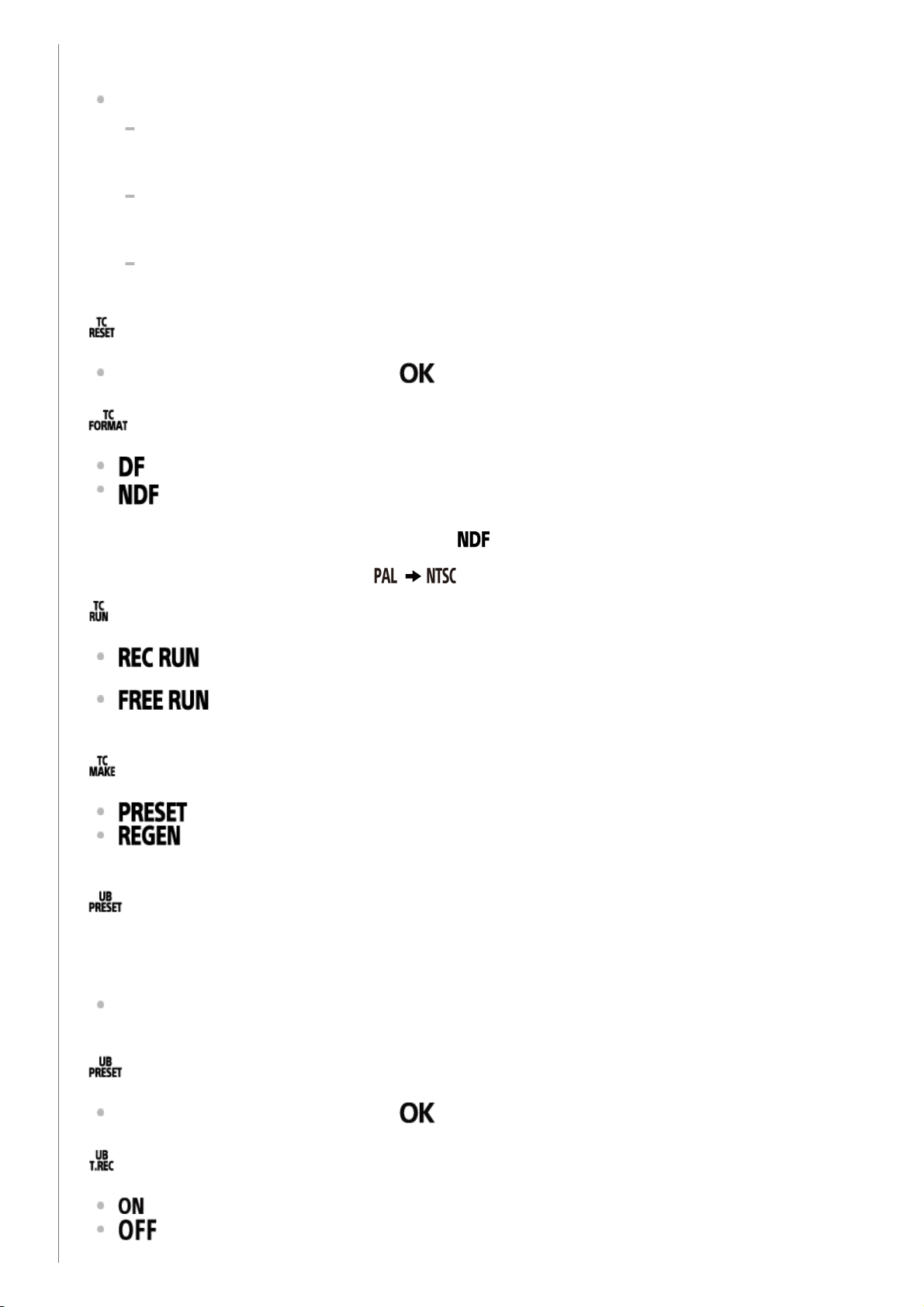
The set items and details are as follows.
(Displays the time code/user bit)
: Displays the time code.
: Displays the user bit.
: Does not display the time code/user bit.
(Sets the time code)
1. Press the UP button or DOWN button to select 2-digit numbers, then press the REC/ENTER
button.
2
2. Repeat step 1 until you set four 2-digit numbers, then return to the previous MENU.
The time code can be selected within the following range.
When selecting 30p or 60p
00:00:00:00 - 23:59:59:29
When selecting 25p or 50p
00:00:00:00 - 23:59:59:24
When selecting 24p, you can set the last 2 time code digits of the frames in multiples of
4, between 0 and 23.
(Resets the time code)
Reset is executed when you select
, then press REC/ENTER button.
(Selects the time code recording method)
: Records the time code in drop frame.
: Records the time code in non-drop frame.
*
(Sets the time code count up format)
: The time code advances only while recording XAVC S movies. It is recorded
sequentially from the time code on the image recorded last time.
: The time code advances sequentially, regardless of the operation of the
camera.
(Sets the time code to be recorded)
: The newly set-up time code is recorded on recording media.
: The last time code of the previous recording is read out from the recording media
and the new time code is recorded sequentially from the last time code.
(Sets the user bit)
1. Press the UP button or DOWN button to select 2-digit numbers, then press the REC/ENTER
button.
2. Repeat step 1 until you set four 2-digit numbers, then return to the previous MENU.
The user bit can be selected within the following range.
00 00 00 00 - FF FF FF FF
(Initializes the user bit)
Reset is executed when you select
, then press REC/ENTER button.
(Sets the recording time of the user bit)
: Records the time as a user bit.
: Does not record the time as a user bit.
In the following situations, the time code is fixed to .
When the image quality is set to 24p.
When the NTSC/PAL switching is set to
.
*
[57] Changing the Settings
Camera settings
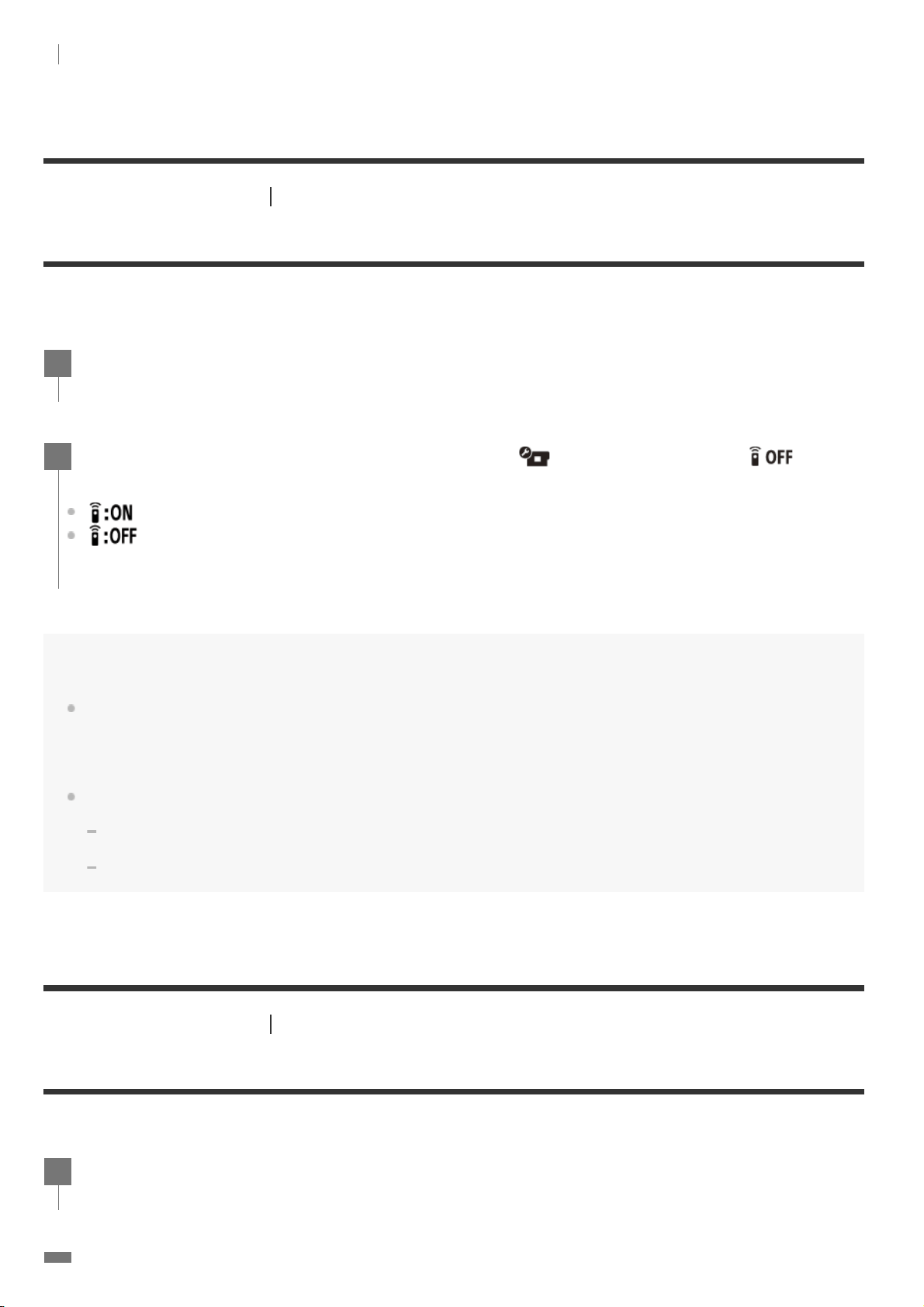
IR remote (FDR-X3000)
You can start/stop recording and initialize the time code using the infrared remote control (sold
separately).
Note
The remote commander & IR receiver kit RMT-VP1K and RMT-845 (sold separately) are required to use this
function.
Purchase a RMT-845 at a Sony service center.
You can operate only the following settings using the RMT-845 (sold separately). Other settings are
inoperable.
Initialize the time code.
When initializing the setting, the REC lamp blinks in blue for about 5 seconds.
Start/stop recording.
[58] Changing the Settings
Camera settings
HDMI settings (FDR-X3000/HDR-AS300)
Set the HDMI output signal.
Press the MENU button.
1
Press the UP button or DOWN button to select (Camera Settings) - (IR
remote) - setting value, then press the REC/ENTER button.
(Allows you to operate the camera using the infrared remote control)
(Prevents operation of the camera using the infrared remote control)
2
Press the MENU button.
1
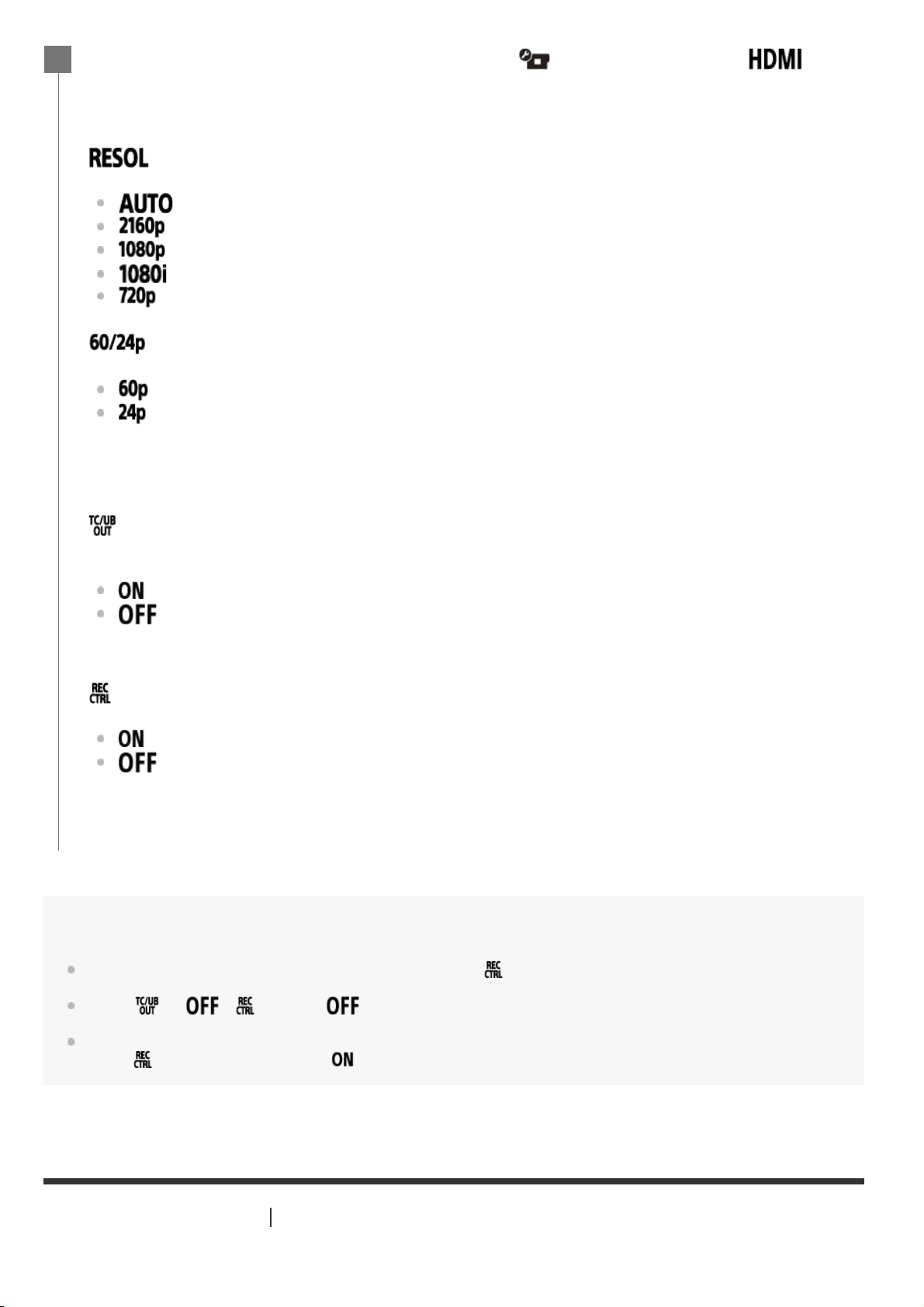
Note
Available for external recorders/players compatible with .
When
is , is set to .
Depending on the settings and the condition of an external recorder/player, it may not work properly, even
when
for the camera is set to . Confirm that it works before using it with the camera.
[59] Changing the Settings
Camera settings
USB power supply
Press the UP button or DOWN button to select (Camera Settings) -
(HDMI settings) - setting item, then press the REC/ENTER button.
The set items and details are as follows.
: Sets the output resolution of the HDMI signal.
: Sets the HDMI resolution signal automatically.
(FDR-X3000): Sets the HDMI resolution signal to 2160p.
: Sets the HDMI resolution signal to 1080p.
: Sets the HDMI resolution signal to 1080i.
: Sets the HDMI resolution signal to 720p.
: Sets the output HDMI signal frame rate.
: Output HDMI signal is 60p.
: Output HDMI signal is 24p.
: Sends the time code or the user bit information to a device connected with HDMI (FDR-
X3000).
: Sends the time code or user bit information.
: Does not send the time code or user bit information.
: Controls the recording on a device connected with HDMI (FDR-X3000).
: Controls the recording on the device.
: Does not control the recording on the device.
2
Available only when in movie mode (not available when playback).
*
This setting is disabled when image quality setting is set to a setting other than 1080 24p.
*
This setting is disabled when the HDMI resolution is set to a setting other than 1080.
*
Unavailable when movie format is set to MP4.
*
Unavailable when movie format is set to MP4.
*
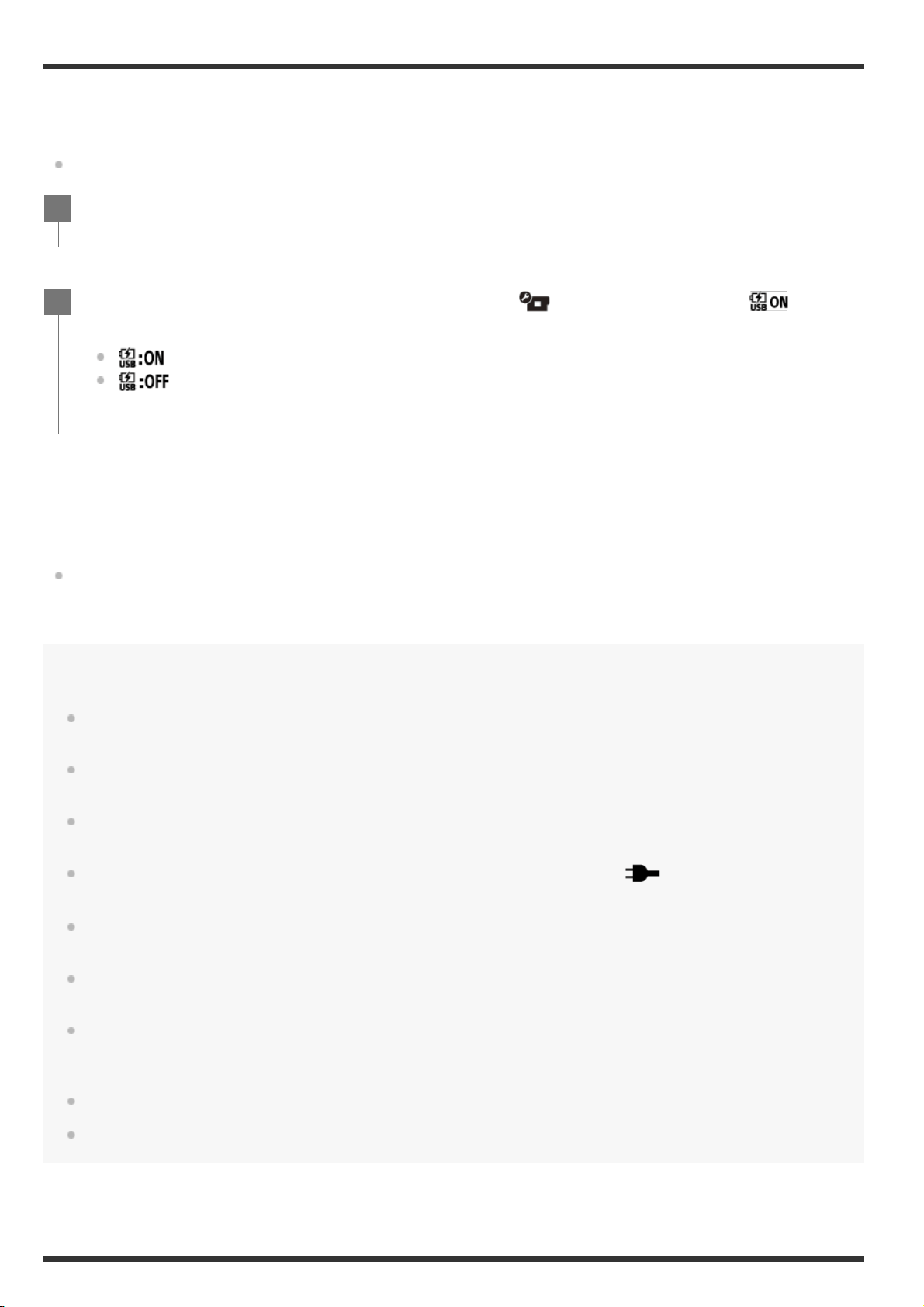
When connecting the camera to a computer or USB device with the micro USB cable (supplied), the
camera receives power from the connected device.
The USB power supply can be available by selecting ON from the following operation.
Using the camera with an external power supply
The camera is compatible with the following external power supply.
External power supply of 1.5 A
FDR-X3000/HDR-AS300: Battery power consumption is lessened during shooting/playback
HDR-AS50: Receives USB power from the connected device
Note
If you change the USB power supply setting while the micro USB cable is connected, disconnect the cable,
then reconnect.
If you turn on the camera while charging the battery pack, charging stops and power is supplied to the
camera from the device connected via USB.
You can shoot and play back images using a USB power supply. However, the battery pack is not charged
simultaneously.
When using the camera with an external power supply, check that the icon (
) indicating that USB
power is being supplied is displayed on the screen.
While USB power is being supplied, the continuous movie shooting time may be shortened due to the
camera heating up.
Even if the AC adaptor is connected to the camera, the battery will not be charged if the camera is turned
on.
Do not remove the battery while the access lamp is lit. The data in the memory card might be corrupted.
FDR-X3000/HDR-AS300
To shoot/play back while receiving external power, insert the charged battery into the camera.
Do not remove the battery from the camera when using the camera while receiving external power.
Press the MENU button.
1
Press the UP button or DOWN button to select (Camera Settings) - (USB
power supply) - setting value, then press the REC/ENTER button.
(Power received when connected by the micro USB cable)
(No power received when connected by the micro USB cable)
2
[60] Changing the Settings
Camera settings
Beep
You can set the audible notification of operations ON/OFF.
[61] Changing the Settings
Camera settings
Beep volume
You can set the beep volume when operating the camera.
Hint
Press the MENU button.
1
Press the UP button or DOWN button to select (Camera Settings) -
(Beep) - setting value, then press the REC/ENTER button.
(All operation sounds are enabled)
(Operation sounds are emitted for the following operations only)
Power turned on
Recording started
Recording stopped
Shutter pressed
A disabled operation was selected or an error occurred
Established Wi-Fi connection
Power turned off (FDR-X3000/HDR-AS300)
(All operation sounds are disabled)
2
Press the MENU button.
1
Press the UP button or DOWN button to set (Camera Settings) - (Beep
volume) - setting value, then press the REC/ENTER button.
(Loud beep volume)
(Soft beep volume)
2
When Beep is set to OFF, this function cannot be set.
[62] Changing the Settings
Camera settings
Lamp setting
To prevent the lamp light from reflecting off of the subject, you can limit the number of REC lamps
that turn on when recording.
[63] Changing the Settings
Camera settings
One touch recording
Press the
REC/ENTER button of the camera while the camera is turned off, and the camera will turn
on and start recording.
This function is available when the shooting mode is movie, time-lapse capture, loop recording, or live
streaming.
Press the MENU button.
1
Press the UP button or DOWN button to set (Camera Settings) - (Lamp
setting) - setting value, then press the REC/ENTER button.
(All of the REC lamps light up)
(Only the REC lamp of connector cover lights up)
(The REC lamps do not light up)
Hint
Change the lamp setting for the camera if objects such as glass may be reflected on the shooting
direction.
2
Press the MENU button.
1
Press the UP button or DOWN button to set (Camera Settings) - (One
touch recording) - setting value, then press the REC/ENTER button.
(One touch recording enabled)
2
Note
With One touch recording, the recording will start in the shooting mode that was set immediately before the
power was turned off.
[64] Changing the Settings
Camera settings
Auto power off
You can change the setting of the auto power off function.
Note
Auto power off is not available in the following situations.
When recording data to media
When shooting movies, or shooting in time-lapse capture mode
During movie playback
When Wi-Fi connection is being established, Wi-Fi remote control is connected, an image is being
uploaded to a smartphone, or live streaming
HDMI connection is being made. (FDR-X3000/HDR-AS300)
Supplying power from a connected USB device
Connecting a mass storage device
IR remote is set to ON. (FDR-X3000)
In the following cases, even if you have selected
or in the auto power off function, the
time that elapses before the power turns off will be extended.
While adjusting the menus.
While playing back still images
(One touch recording disabled)
Press the MENU button.
1
Press the UP button or DOWN button to select (Camera Settings) - (Auto
power off) - setting value, then press the REC/ENTER button.
(Turns the power off after about 20 seconds)
(Turns the power off after about 60 seconds)
(Does not turn off automatically)
2
[65] Changing the Settings
Camera settings
Switching NTSC/PAL
You can select the NTSC/PAL setting, depending on the TV system of the country or region where you
use the camera.
[66] Changing the Settings
Camera settings
Date & time setting
You can set the year/month/day.
Press the MENU button.
1
Press the UP button or DOWN button to select (Camera Settings) -
/ (Switching NTSC/PAL), then press the REC/ENTER button.
(Switches the camera from NTSC to PAL)
(Switches the camera from PAL to NTSC)
When you try to change the current setting, the confirmation screen appears. Go to step 3.
2
Press the UP button or DOWN button to select , then press the REC/ENTER
button.
When the setting change is completed, the camera restarts automatically.
3
Press the MENU button.
1
Press the UP button or DOWN button to select (Camera Settings) - (Date &
time setting), then press the REC/ENTER button.
The year/month/day setting screen will be displayed.
2
Set the year/month/day.
3
Note
Select 0:00 for midnight, 12:00 for noon.
When the GPS log is set to ON, the camera automatically adjusts the date and time during shooting mode.
(FDR-X3000/HDR-AS300)
The display order of year/month/day cannot be changed.
[67] Changing the Settings
Camera settings
Area setting
You can adjust the clock on the camera to match the time in your area without stopping the clock.
The area is determined by the time difference from Greenwich Mean Time (GMT). See “The list of
time differences for world capitals”.
Press the UP button or DOWN button to set the year, then press the REC/ENTER button. The
cursor moves to month so, repeat the same operation to set the month and day.
The time setting screen appears.
Set the time by repeating the same procedure as step 3.
4
Press the REC/ENTER button.
The time is set and the display returns to the previous menu.
5
Press the MENU button.
1
Press the UP button or DOWN button to set
(Camera Settings) - (Area
setting) - time difference, then press the REC/ENTER button.
2
Confirm the time on the displayed screen, then press the REC/ENTER button.
3
Hint
When the GPS log is set to ON, the camera automatically adjusts the area setting during shooting mode.
(FDR-X3000/HDR-AS300)
[68] Changing the Settings
Camera settings
Daylight saving time (summer time) setting
Sets whether to reflect daylight saving time (summer time) in the date and time settings.
[69] Changing the Settings
Camera settings
Version
The software version of the camera can be displayed.
[70] Changing the Settings
Camera settings
Press the MENU button.
1
Press the UP button or DOWN button to select (Camera Settings) -
(Daylight saving time (summer time) setting) - setting value, then press the
REC/ENTER button.
(Sets the Daylight Saving Time (summer time))
(Does not set the Daylight Saving Time (summer time))
2
Press the MENU button.
1
Press the UP button or DOWN button to select
(Camera Settings) -
(Version), then press the REC/ENTER button.
2
Resetting the settings
You can reset the settings to their defaults.
Note
When you reset the settings, the Bluetooth pairing information will also be reset. To reconnect, delete the
pairing information on the connected device before connecting.
[71] Viewing
Viewing images on a TV (FDR-X3000/HDR-AS300)
Connect the camera to a TV which has an HDMI terminal using a micro HDMI cable (sold separately).
Refer also to the instruction manuals of the TV.
Press the MENU button.
1
Press the UP button or DOWN button to select
(Camera Settings) -
(Resetting the settings), then press the REC/ENTER button.
2
Select , then press the REC/ENTER button.
To cancel resetting, select
, then press the REC/ENTER button.
The camera automatically restarts when resetting is complete.
3
Turn off both the camera and the TV.
1
Open the connector cover and connect the camera to the TV with the micro HDMI
cable (sold separately).
2
Turn on the TV and set the input of the TV to [HDMI input].
3
To control a content being played back
Fast-rewind/fast-forward (movies only): Press the UP button or DOWN button. During the fast-
rewind/fast-forward, each time you press the button, the speed changes in 4 levels.
Pause (movies only): Press the REC/ENTER button.
If you press the UP button or DOWN button during pause, rewind or forward can be performed. If
you press and hold the UP button or DOWN button during pause, slow rewind or slow forward
can be performed.
Starting a slideshow (still images only): Press the REC/ENTER button.
Ending playback: Press the MENU button, then select
*
(shooting mode) to switch to the
shooting mode.
To adjust the volume
1. Press the
MENU button during the playback or pause.
2. Press the UP button or DOWN button to select
- , then press the REC/ENTER button to
display the volume controller.
3. Press the UP button or DOWN button to increase or decrease the volume.
Notes on playing back on other devices
Movies recorded using the camera may not play back normally on devices other than the camera.
Press the
(on/standby) button on the camera to turn on.
4
Press the MENU button.
5
Press the UP button or DOWN button to select (playback on TV) - desired
format of movie/image to view.
Select the settings below.
: MP4 movies
: Still images
: XAVC S 4K (30p) movie ( is displayed when NTSC is selected and is
displayed when PAL is selected.) (FDR-X3000)
: XAVC S 4K (24p) movie ( is only displayed when NTSC is selected.) (FDR-
X3000)
: XAVC S HD movie
6
Press the REC/ENTER button.
Playback starts.
Playback pauses when you press the REC/ENTER button again.
7
The icon of the current selected shooting mode is displayed.
*
Also, movies recorded on other devices may not play back properly on the camera.
[72] Viewing
Viewing using the Live-View Remote
Play back images recorded with the camera using the Live-View Remote.
The procedure below explains how to play back movies using the Live-View Remote “RM-LVR3”. The
display differs depending on the Live-View Remote you are using.
Returning to the shooting mode
To return to shooting mode, perform either operation.
Press the MENU button on the Live-View Remote to select (shooting mode), then press the
REC/ENTER button of the remote control.
Press the REC/ENTER button on the camera.
Note
Audio cannot be played back.
The image frame rate displayed on the LCD screen when using the remote control for playback will change
according to the Wi-Fi communication status of the camera and remote control. This frame rate is different
from the one used when shooting.
Hint
You can fast-forward by pressing the UP button of the remote control and fast-rewind by pressing the
Press the MENU button on the remote control while the camera is in shooting mode.
1
Press the UP button or DOWN button on the remote control to select
(playback using the remote control), then press the REC/ENTER button of the
remote control.
2
Select the desired image by pressing the UP button or DOWN button.
3
Press the REC/ENTER button of the remote control to start playback.
Press the REC/ENTER button again to pause playback.
4
DOWN button.
[73] Viewing
Delete
Unwanted images in the memory card are deleted by using a smartphone installed with PlayMemories
Mobile or the Live-View Remote.
Refer to the instruction manual on the website for how to operate PlayMemories Mobile or the Live-
View Remote.
Note
If you want to delete all images in the memory card, format the memory card in the camera.
[74] Create your movie
Highlight Movie Maker
Creating the highlight movie
The camera detects characteristic scenes from the movies shot with the camera and creates the
movie composed of them (highlight movie) automatically. You can copy highlight movies with your
smartphone. By operating your smartphone, you can start the highlight movie creation and make the
creation settings.
Open the PlayMemories Mobile of your smartphone and connect to the camera via
Wi-Fi.
Refer to “Connecting to your smartphone” to connect the camera to your smartphone.
1
Select “Highlight Movie Maker” in “In-Camera Application Setting” from the
“Settings” of the PlayMemories Mobile.
2
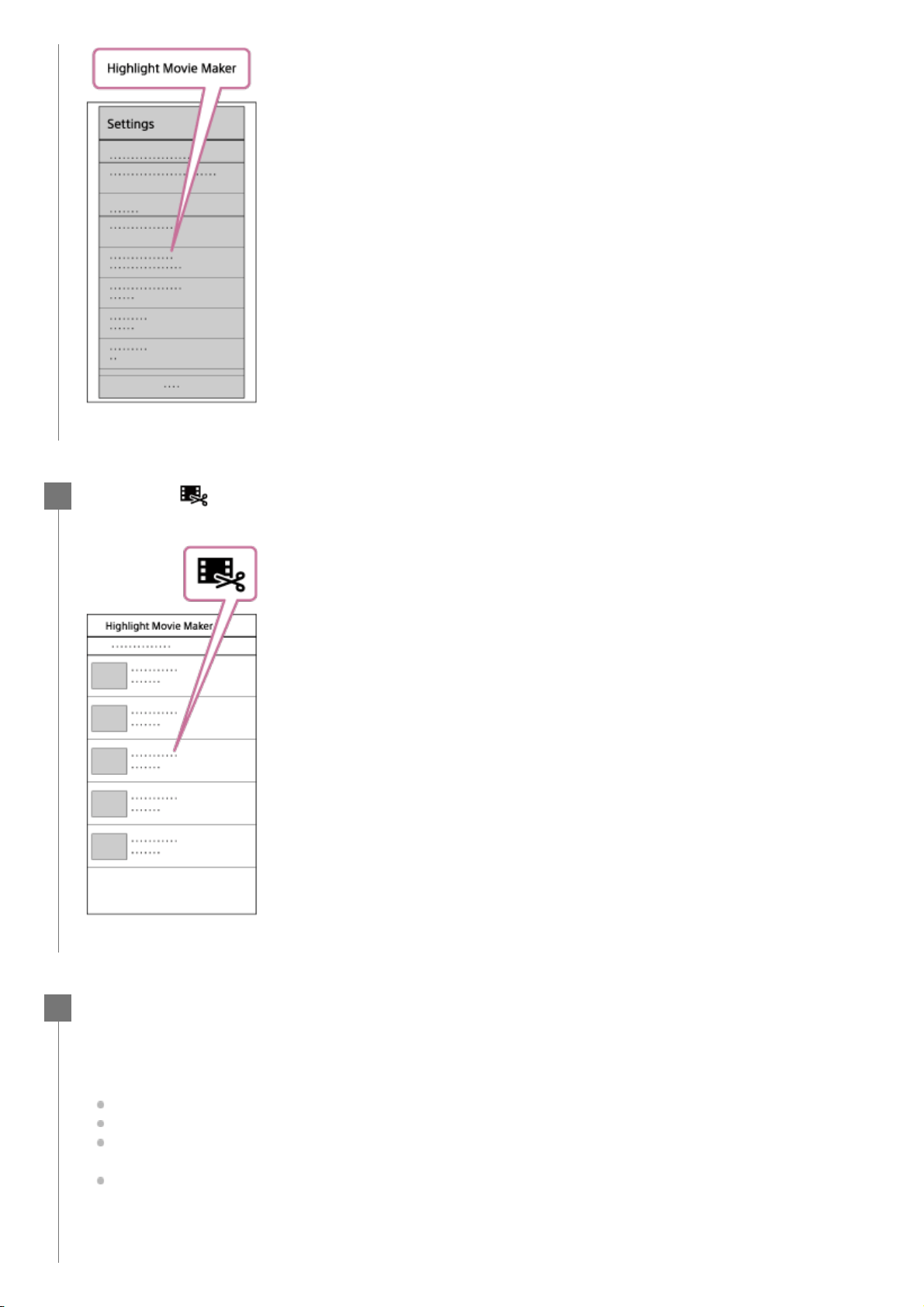
Press the icon to select a content format that you want to add in a highlight
movie.
3
Select a movie that you want to add in a highlight movie from the date or the
content list, then press the “Next” button.
The highlight movie creation starts.
You cannot select MP4 and XAVC S contents at the same time.
You can select up to 100 movies by date or file.
If you disconnect Wi-Fi connection of the camera and your smartphone while creating the
highlight movie, the camera continues to create movie.
Press the REC/ENTER button of the camera to finish creating the highlight movie.
4
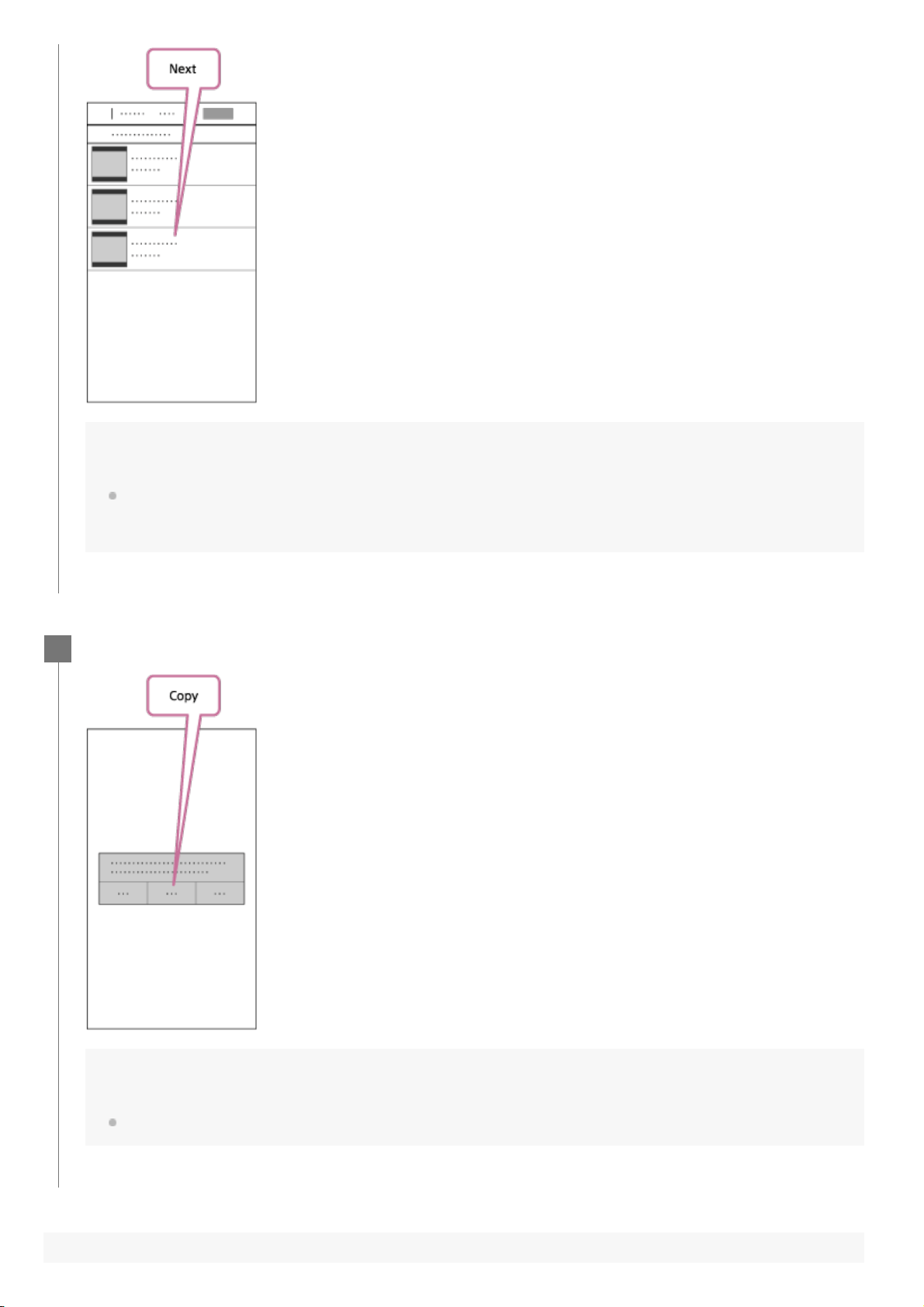
Hint
Use the “Settings” menu in advance to change the movie length, BGM
*
and the audio mix.
This setting is only available in some countries and regions.
*
After creating the highlight movie, you can “Copy” it to your smartphone.
Hint
Use the movie player application of a smartphone to play the copied highlight movie.
5
Note
Update PlayMemories Mobile to the latest firmware version in advance.
The created highlight movie’s format is MP4.
The following contents are not compatible with the highlight movie.
XAVC S 4K (FDR-X3000)
XAVC S HD 24p
High speed recording
The operation methods and display screens for the application are subject to change without notice by
future.
See more details about “PlayMemories Mobile” from the following website.
(
http://www.sony.net/pmm/)
Background music preinstalled on this product have officially been contracted between Sony and licensors.
Movies containing the said background music are allowed for private use, duplication, distribution, or public
transmission only when the said movies are intended for nonprofit purposes and without receiving any kind
of consideration from the person to whom the said movies are presented to.
[75] Create your movie
Highlight Movie Maker
Importing the BGM
By default, the camera includes eight songs that you can use as background music while playing back
a highlight movie.
When you use the Action Cam Movie Creator connecting the camera with your computer, you can
replace the background music of the camera with the music of your computer.
Install the Action Cam Movie Creator to your computer in advance.
To preview the BGM
Press the MENU button.
1
Press the UP button or DOWN button to select the
(Camera Settings) -
(Back ground music) - , then press the REC/ENTER button.
2
Connect the camera to the computer with the supplied micro USB cable.
The Music Transfer of Action Cam Movie Creator starts automatically.
3
Use the Music Transfer of Action Cam Movie Creator to replace the BGM.
4
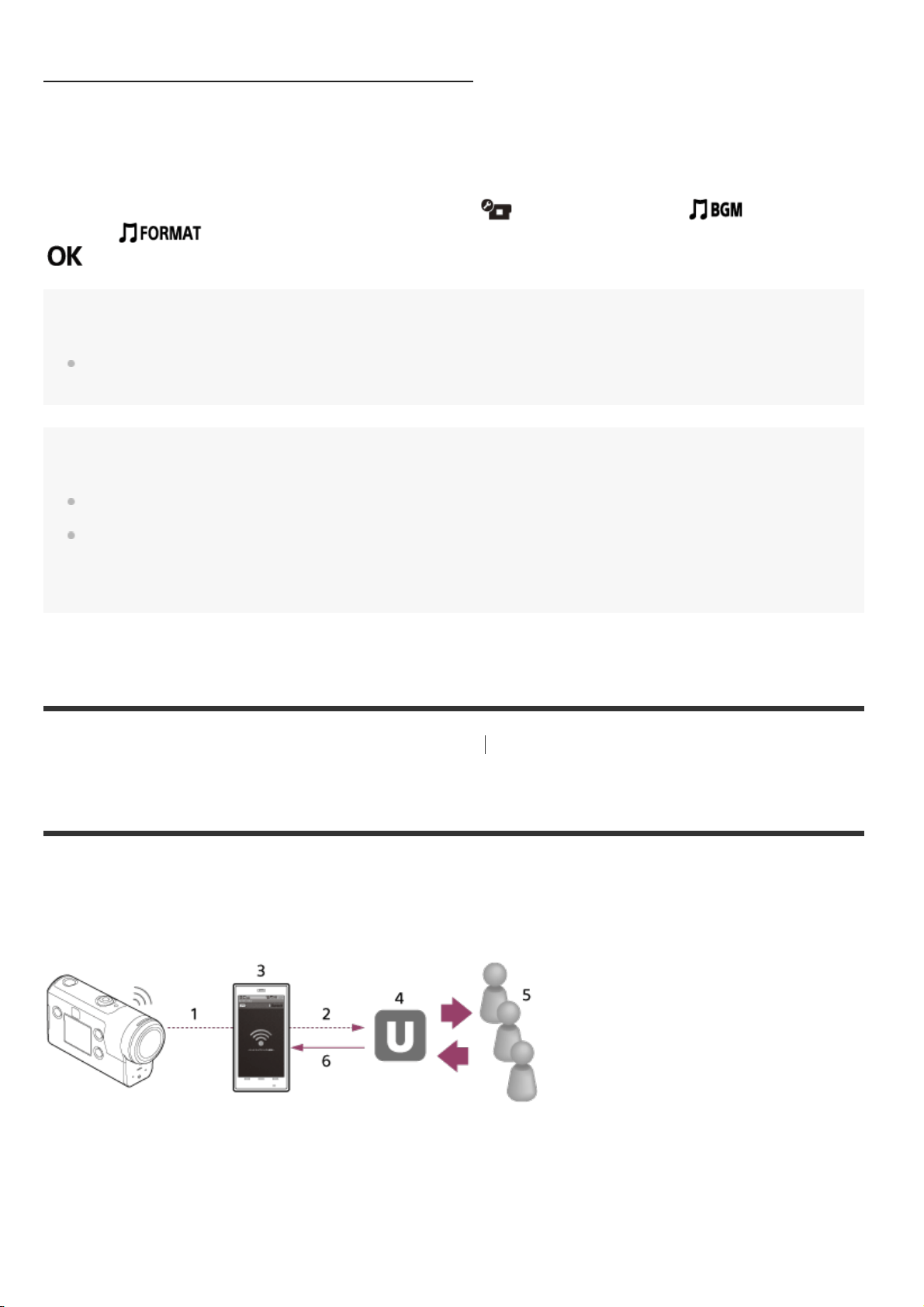
Refer to the following website for how to preview the pre-installed background music in the camera.
http://guide.d-imaging.sony.co.jp/mt_bgm/index.html
To delete all BGM
1. Press the
MENU button.
2. Press the UP button or DOWN button to select the
(Camera Settings) - (Back ground
music) -
(format), then press the REC/ENTER button.
appears when delete finishes.
Hint
If the camera and the Action Cam Movie Creator cannot be connected, execute the procedure in “To delete
all BGM.”
Note
This setting is only available in some countries and regions.
Background music preinstalled on this product have officially been contracted between Sony and licensors.
Movies containing the said background music are allowed for private use, duplication, distribution, or public
transmission only when the said movies are intended for nonprofit purposes and without receiving any kind
of consideration from the person to whom the said movies are presented to.
[76] Stream real-time movie to a movie streaming site
Live Streaming with your camera (Real time
movie streaming)
Live Streaming
You can deliver movies in real-time via video sharing websites such as Ustream by using a Wi-Fi
router or smartphone that can tether the camera. You can also send messages to your registered SNS
to announce that you have started Live Streaming of video
*
.
Registration to a video streaming site or SNS is required.
*
Wi-Fi
1.
3G/LTE
2.
Tethering mode
3.
Ustream
4.
Viewers
5.
Comments from viewers
6.
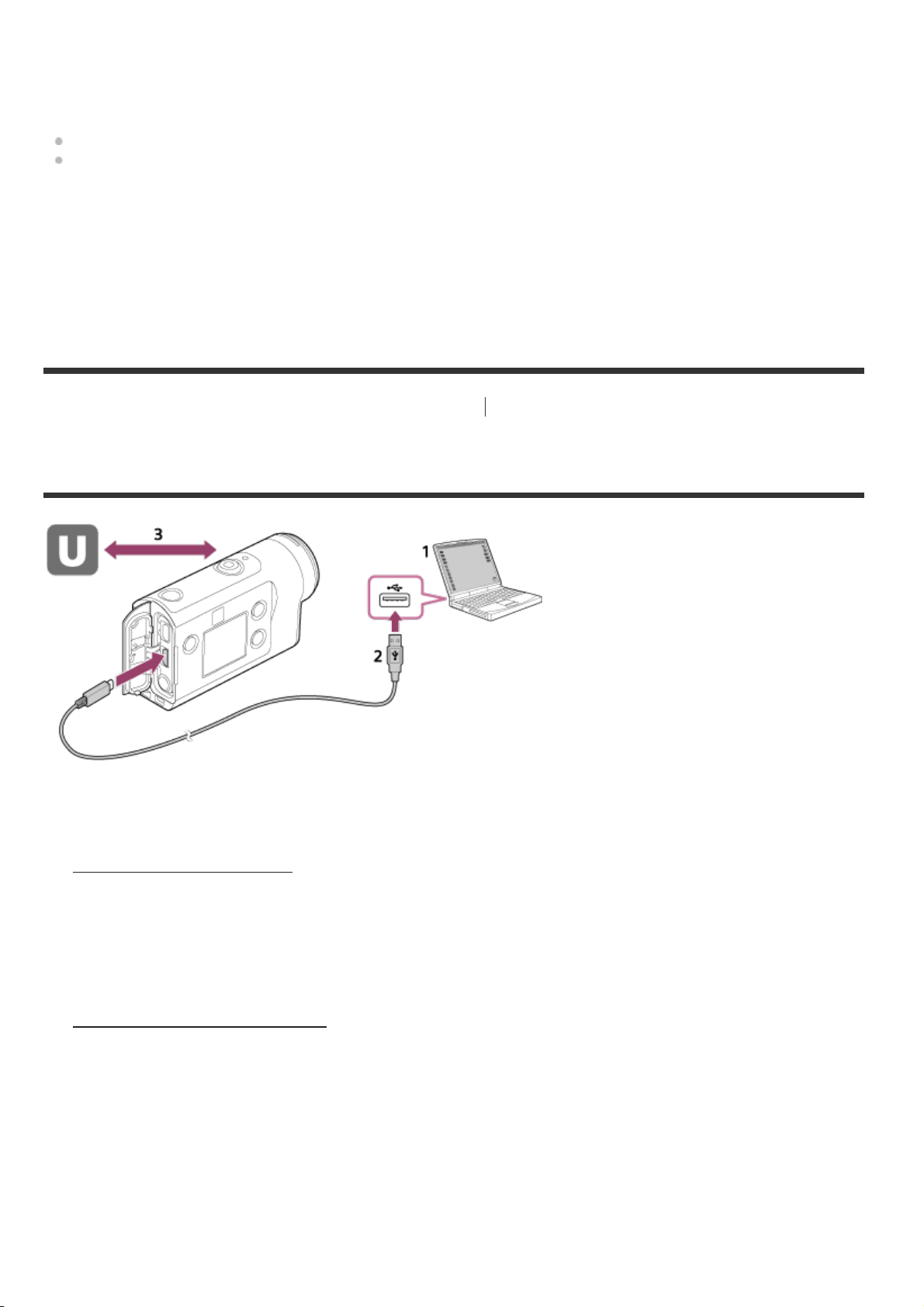
The following settings must be configured for live streaming.
Set the following distribution settings in the live streaming settings of the camera:
User registration to Ustream
A smartphone (capable of tethering) or a Wi-Fi network environment
[77] Stream real-time movie to a movie streaming site
Live Streaming with your camera (Real time
movie streaming)
Preparing for Live Streaming
What you can set on Camera Settings for Live Streaming
Network settings
You can set the Wi-Fi network to which your camera connects to.
Network SSID, password, security mode
Streaming settings
You can set the streaming method.
Streaming site, channel, image quality and the saving settings of the streaming site
For more information about smartphone tethering settings or Wi-Fi network settings, refer to the operating instructions
supplied with the smartphone or network service. For further details about the network environment, contact your
network service provider.
Live Streaming feature is dependent upon the Third Party Internet Provider’s service and terms in your region. The
feature may not be available due to your region’s broadband and internet service restriction.
*
Before you start live streaming, get Ustream account and install the computer-exclusive
application, “Action Cam Movie Creator.”
Download “Action Cam Movie Creator” from the following website.
http://www.sony.net/acmc/
1.
Connect the camera to your computer with supplied micro USB cable.
2.
Configure the network settings, register an account at a video distribution site and configure the
SNS settings on “Camera Settings for Live Streaming” of the Action Cam Movie Creator’s camera
settings.
Refer to the following website for how to operate the Action Cam Movie Creator.
http://www.sony.net/guide/nst/
3.
Title and description of streaming video
SNS settings
By configuring this setting, you can post a comment through social network services when
starting streaming video.
Connection settings for network services
Comments you post
About Ustream
Ustream is a video sharing site through which you can stream and view videos with the Live
Streaming function of the camera. For details of Ustream, see the following site.
http://www.ustream.tv/
Note
Your personal information (information required when logging in to the SNS) is set in the camera.
If you dispose or give away the camera, press the MENU button, then press the UP button or DOWN button
to select
(Camera Settings) - (Resetting the settings) - and delete the settings.
[78] Stream real-time movie to a movie streaming site
Live Streaming with your camera (Real time
movie streaming)
Performing Live Streaming
You can start Live Streaming after the preparation is complete. When Live Streaming for the first
time, it is recommended that you rehearse streaming in a prepared environment after setting up with
a computer in advance.
Hint
When is set to ON, the time code and user bit will be embedded to the video streaming. (FDR-X3000)
Press the MENU button.
1
Press the UP button or DOWN button to select the
*
(shooting mode) -
(Live streaming mode), then press the REC/ENTER button.
2
The icon of the current selected shooting mode is displayed.
*
Press the REC/ENTER button to start streaming.
The REC lamp of the top of the camera lights up in blue.
3
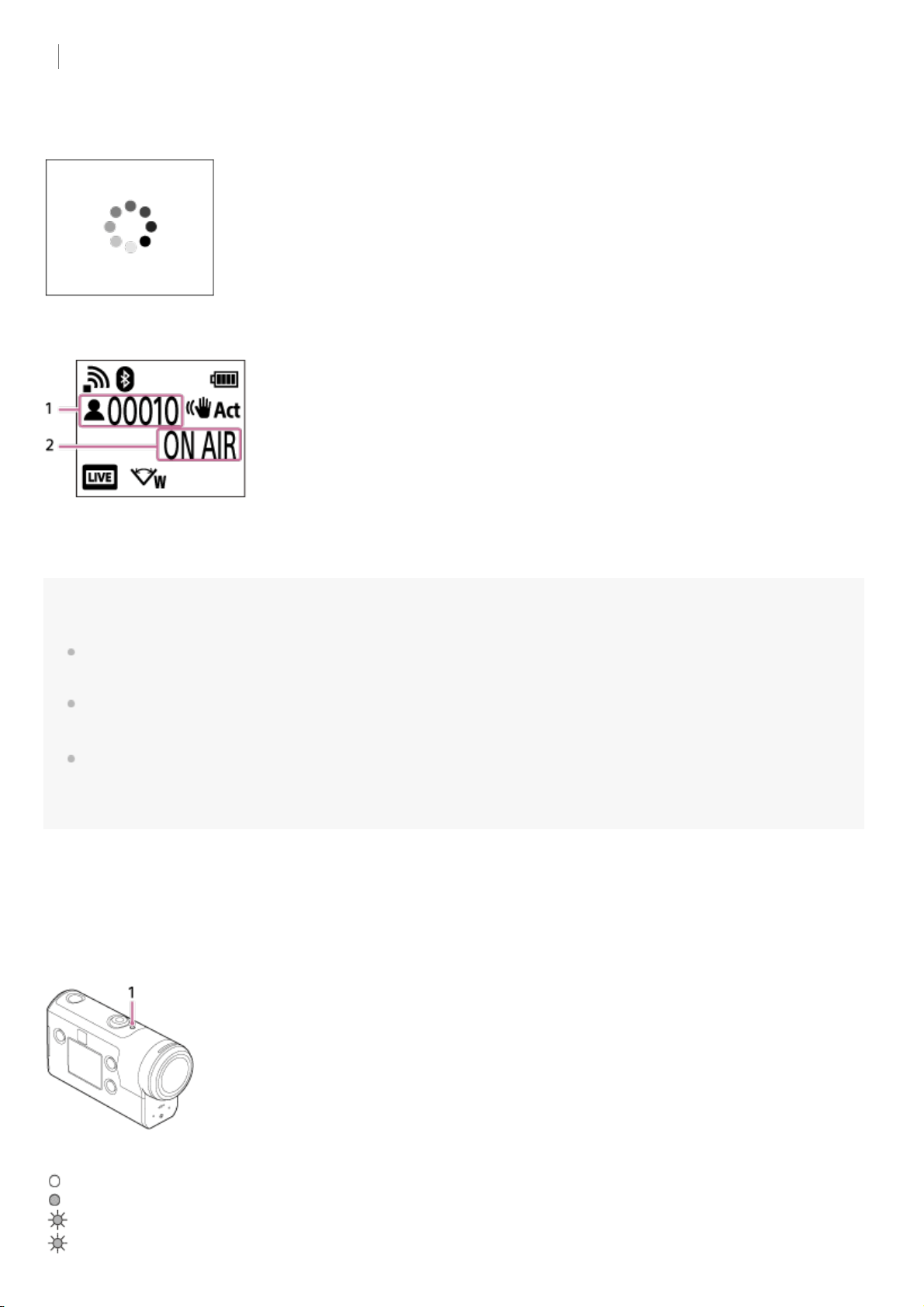
Display during Live Streaming
Preparing to connect to the network distribution site
1 There is an audience. The number displayed is viewers.
2 Starts streaming
Note
There may be time lag of 10 - 20 seconds between the start of Live Streaming on your camera and video
streaming on the video streaming site.
You can record movies that are being live distributed in the memory card of the camera. When the memory
card is already inserted, movies are recorded at the same time as the distribution
*
.
When the capacity of the memory card is full, only the movie recording will stop without stopping the
distribution. Only movie distributions will be performed when no memory card is inserted.
REC/LIVE lamp indicator during Live Streaming
If you select Live Streaming mode, you can see the streaming status for Live Streaming with the
REC/LIVE lamp on the camera.
1:
REC/LIVE lamp
OFF: Before distribution
Lights up in blue: Distributing
Blinks in blue: Distributing (There is an audience)
Blinks in red: Distribution error
Simultaneously recorded movies are processed on MP4/HQ mode.
*

To stop the live distribution
Press the
REC/ENTER button again.
[79] Stream real-time movie to a movie streaming site
Live Streaming with your camera (Real time
movie streaming)
Restrictions
Notification of the restriction when using live streaming.
Restrictions for Ustream
There are some restrictions for video streaming on Ustream. For details, see the Ustream site.
GPS and Wi-Fi functions during Live Streaming
The GPS function is disabled automatically during Live Streaming (FDR-X3000/HDR-AS300).
You cannot monitor images using a smartphone or the Live-View Remote during Live Streaming.
Network connection
Use a smartphone capable of tethering or Wi-Fi router for Live Streaming. However, proper
operation with all smartphones or Wi-Fi routers is not guaranteed. Public wireless LANs cannot be
used as connections for Live Streaming.
Simultaneous Live Streaming with multiple cameras
You cannot live stream videos simultaneously using the same account on more than one camera.
You need to connect using another account.
Effects due to wireless communication conditions
When connected using the tethering function of a smartphone or via a Wi-Fi router, images and
sounds may be interrupted, or the communication may be cut off due to wireless communication
conditions.
Connection for Live Streaming
The communication time you can use for Live Streaming is limited according to the contract of
your smartphone or Wi-Fi router. Confirm it in advance.
Continuous streaming time
Continuous Live Streaming using the camera is limited to about 13 hours.
Restrictions of network connections
In some countries or regions, you cannot connect to Live Streaming sites. Use this function in
accordance with the laws of that country or region.
[80] Using the camera connected to other devices via Wi-Fi
Connecting to your smartphone
Preparation for connecting to your smartphone
Installing the application on your smartphone
Install the PlayMemories Mobile on your smartphone. Update PlayMemories Mobile to the latest
version if you have already installed it on your smartphone.
For the latest information details about the functions of PlayMemories Mobile, refer to the website
below.
http://www.sony.net/pmm/
Search for PlayMemories Mobile on Google Play, then install it.
Search for PlayMemories Mobile on App Store, then install it.
If the password is lost
1. Connect the camera to a computer with the micro USB cable (supplied).
2. Turn on the camera.
3. Display [Compute] - [PMHOME] - [INFO] - [WIFI_INF.TXT] on your computer, then check the user
ID and password.
Note
Google play may not be supported depending on country or region. In this case, search for “PlayMemories
Mobile” on the internet then install it.
An NFC-enabled smartphone or tablet is required for using One-touch functions (NFC) (FDR-X3000/HDR-
AS300).
The Wi-Fi and Bluetooth functions described here are not guaranteed to work with all smartphones and
tablets.
[81] Using the camera connected to other devices via Wi-Fi
Connecting to your smartphone
Sample smartphone screen display
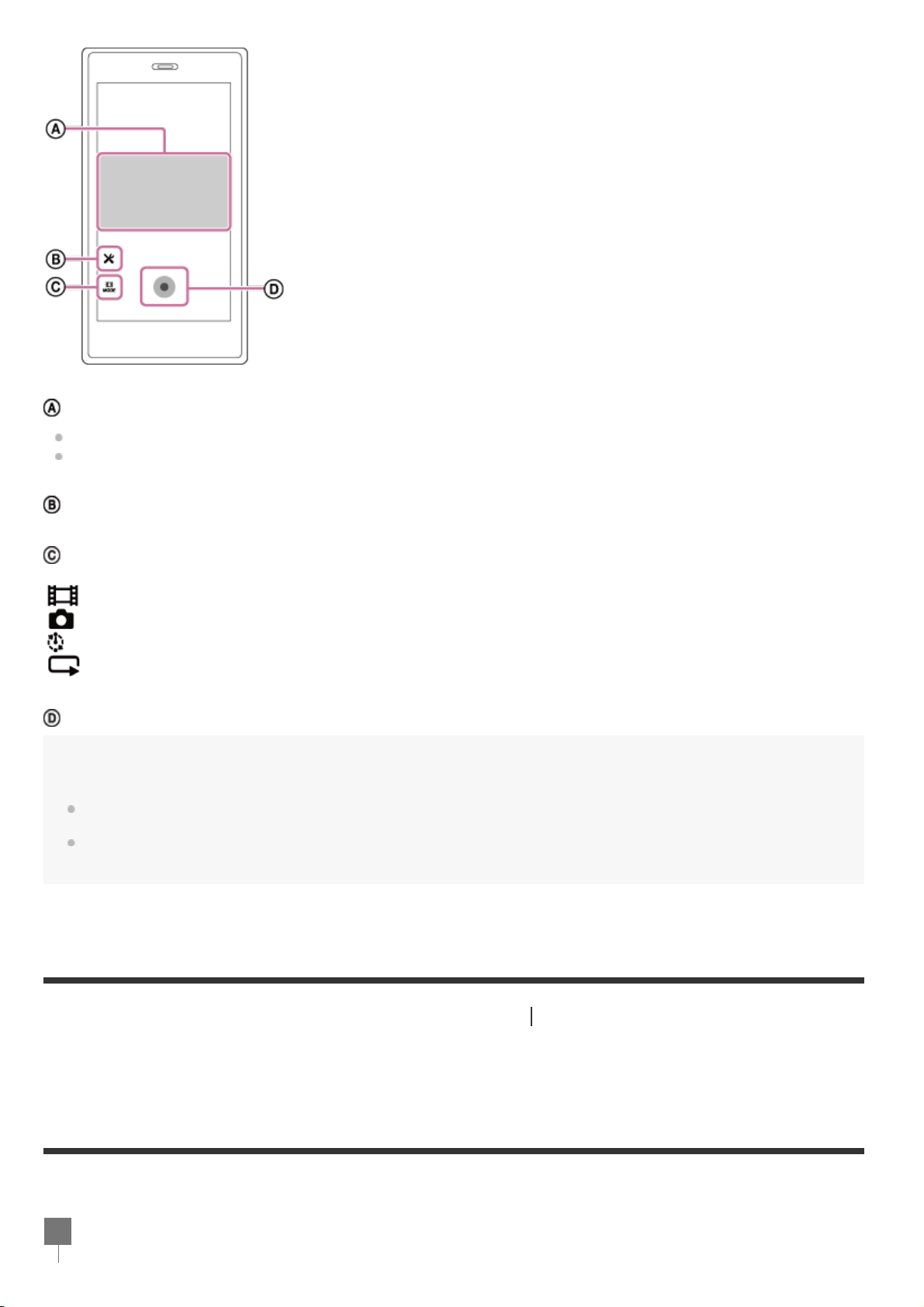
: Features of the Wi-Fi remote control function
To check the field of view before and while recording
To monitor images while recording
: Various settings
: Shooting mode settings
[Movie mode]
[Photo mode]
[Time-lapse capture mode]
[Loop recording mode]
: Start/stop recording
Note
When Airplane mode is set to ON, the Wi-Fi and Bluetooth functions are not available.
Depending on local electrical interference or the smartphone’s capabilities, the live view images may not be
displayed smoothly.
[82] Using the camera connected to other devices via Wi-Fi
Connecting to your smartphone
Using One-touch Functions to Connect to an NFC-
enabled Android Smartphone (FDR-X3000/HDR-
AS300)
Perform preparation for connecting to your smartphone before connecting.
Set the camera's Wi-Fi connection setting to ON.
1
About NFC
NFC is a technology for short-range wireless communication between various devices, such as a
mobile phones and IC tags. Data communication is achieved simply by touching devices together at a
specific point.
NFC (Near Field Communication) is an international standard of the short-range wireless
communication technology.
Note
When Airplane mode is set to ON, the Wi-Fi and Bluetooth functions are not available.
Depending on local electrical interference or the smartphone’s capabilities, the live view images may not be
displayed smoothly.
When operating multiple cameras with a connected device, the NFC One-touch function is not available.
[83] Using the camera connected to other devices via Wi-Fi
Connecting to your smartphone
Connecting a smartphone to Wi-Fi via QR Code
(Android device)
Perform preparation for connecting to your smartphone before connecting.
Touch the (N mark) on the smartphone to the (N mark) on the camera.
Cancel the sleep and screen lock function of the smartphone beforehand.
Continue touching without moving until PlayMemories Mobile starts (1-2 seconds).
Touch the
(N Mark) of the smartphone to the (N Mark) of the camera. If there is no
(N Mark) on the smartphone, refer to the instruction manual of the smartphone for the touch
area.
If the camera and the smartphone cannot be connected by NFC, see “
Connecting a
smartphone to Wi-Fi via QR Code (Android device)” and connect them.
2
Press the MENU button on the camera.
1
Press the UP button or DOWN button to select
(Camera Settings) - (Wi-Fi
connection setting) -
, then press the REC/ENTER button.
2
Select the shooting mode (
/ / / ).
3
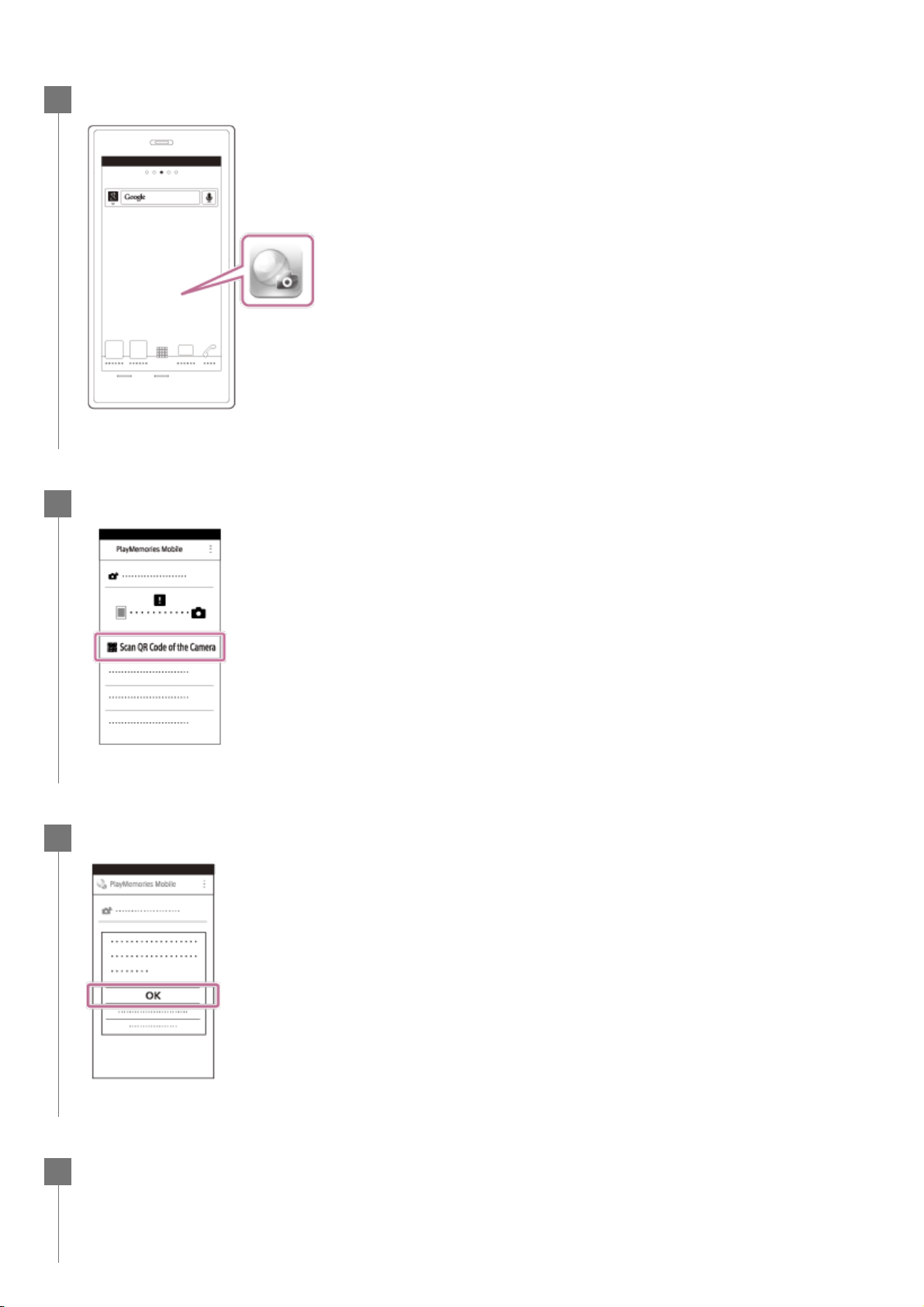
Start PlayMemories Mobile on the smartphone.
4
Select [Scan QR Code of the Camera] on the PlayMemories Mobile.
5
Select [OK] (Select [OK] again when a message is displayed.)
6
Scan the QR Code that is printed on a sticker attached to the rear of the camera's
battery cover.
7
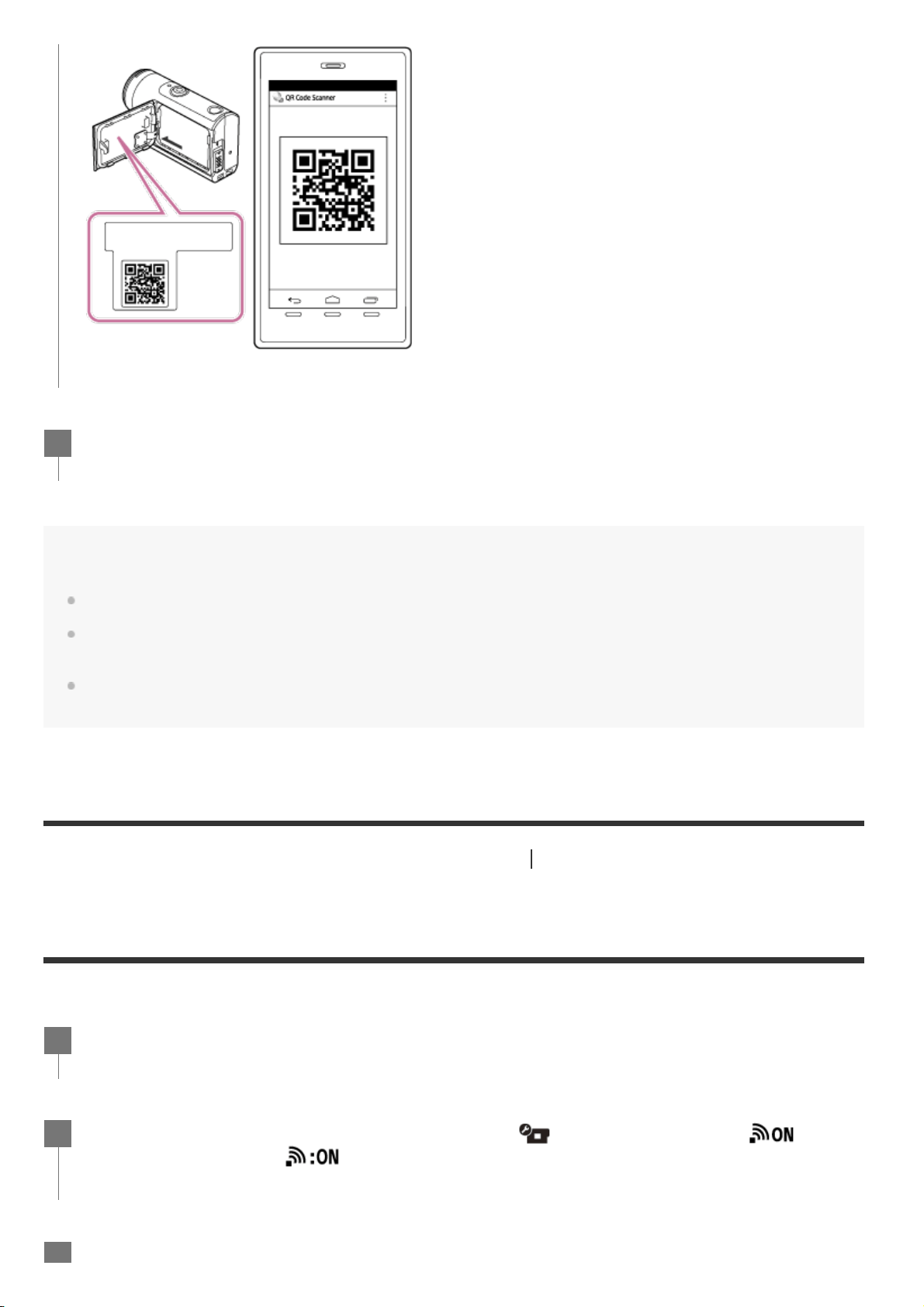
Note
When Airplane mode is set to ON, the Wi-Fi function is not available.
Depending on local electrical interference or the smartphone’s capabilities, the live view images may not be
displayed smoothly.
When operating multiple cameras with a connected device, you cannot connect a smartphone to Wi-Fi via
QR Code.
[84] Using the camera connected to other devices via Wi-Fi
Connecting to your smartphone
Performing the Wi-Fi setting on a smartphone via QR
Code (iPhone/iPad)
Perform preparation for connecting to your smartphone before connecting.
When [Connect with the camera?] is displayed on the smartphone, select [OK].
8
Press the MENU button on the camera.
1
Press the UP button or DOWN button to select
(Camera Settings) - (Wi-Fi
connection setting) -
, then press the REC/ENTER button.
2
Select the shooting mode ( / / / ).
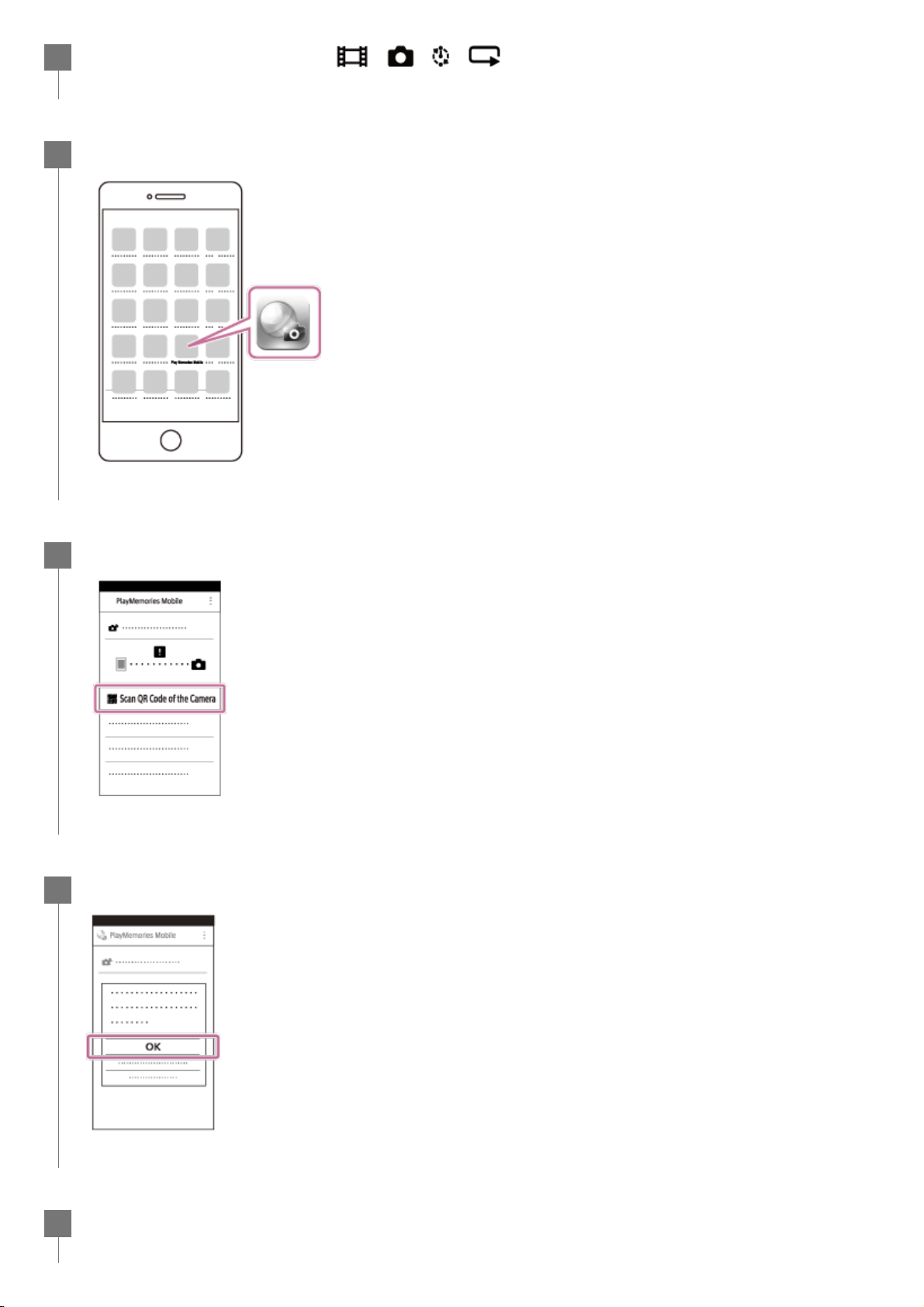
3
Start PlayMemories Mobile on the smartphone.
4
Select [Scan QR Code of the Camera] on the PlayMemories Mobile.
5
Select [OK] (Select [OK] again when a message is displayed.)
6
Scan the QR Code that is printed on a sticker attached to the rear of the camera's
battery cover.
7
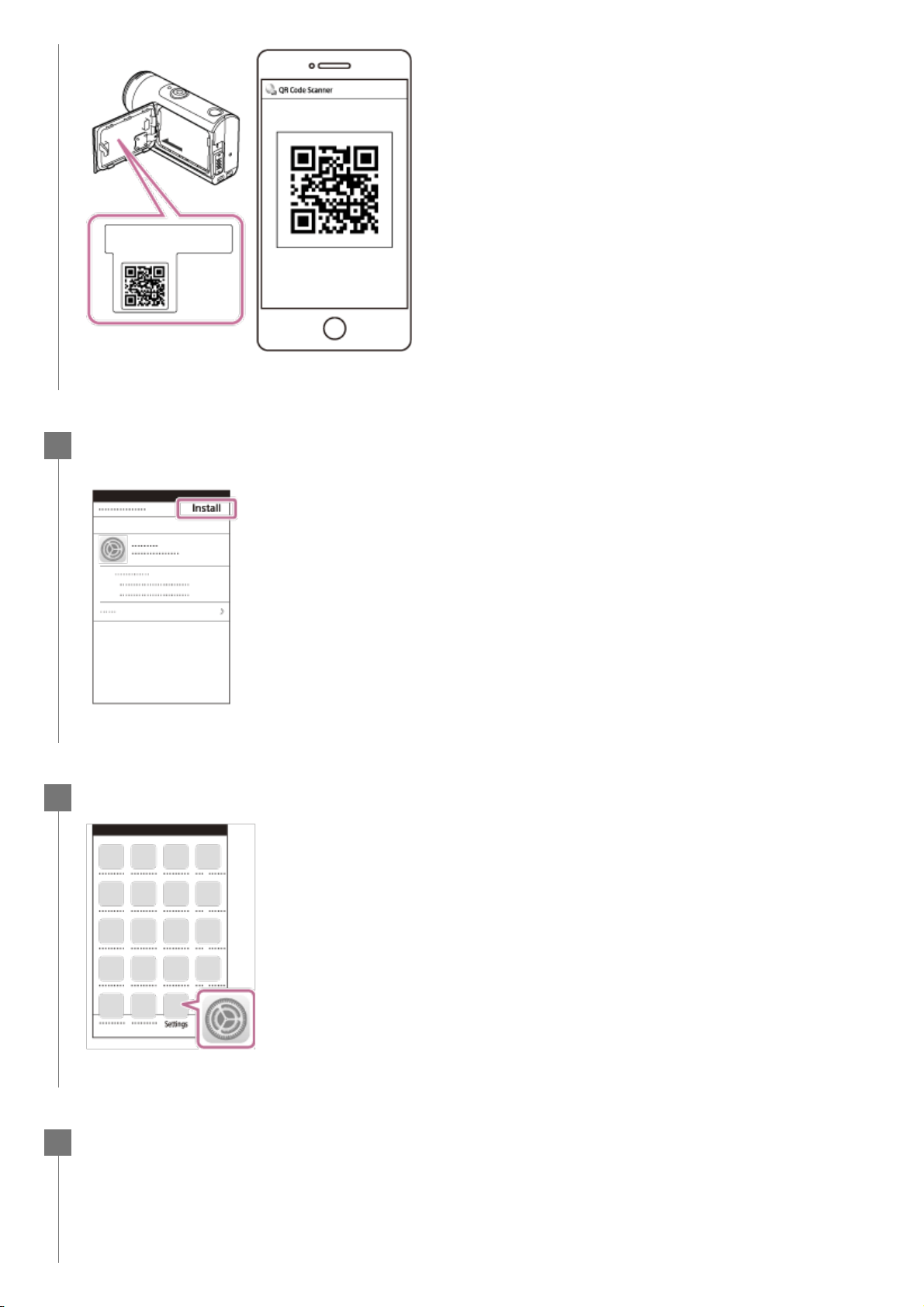
According to the instruction on the screen, complete the installation of profile
(setting information).
8
On the Home screen, select the [Settings] - [Wi-Fi].
9
Select the SSID that is printed on a sticker attached to the rear of the camera's
battery cover.
10
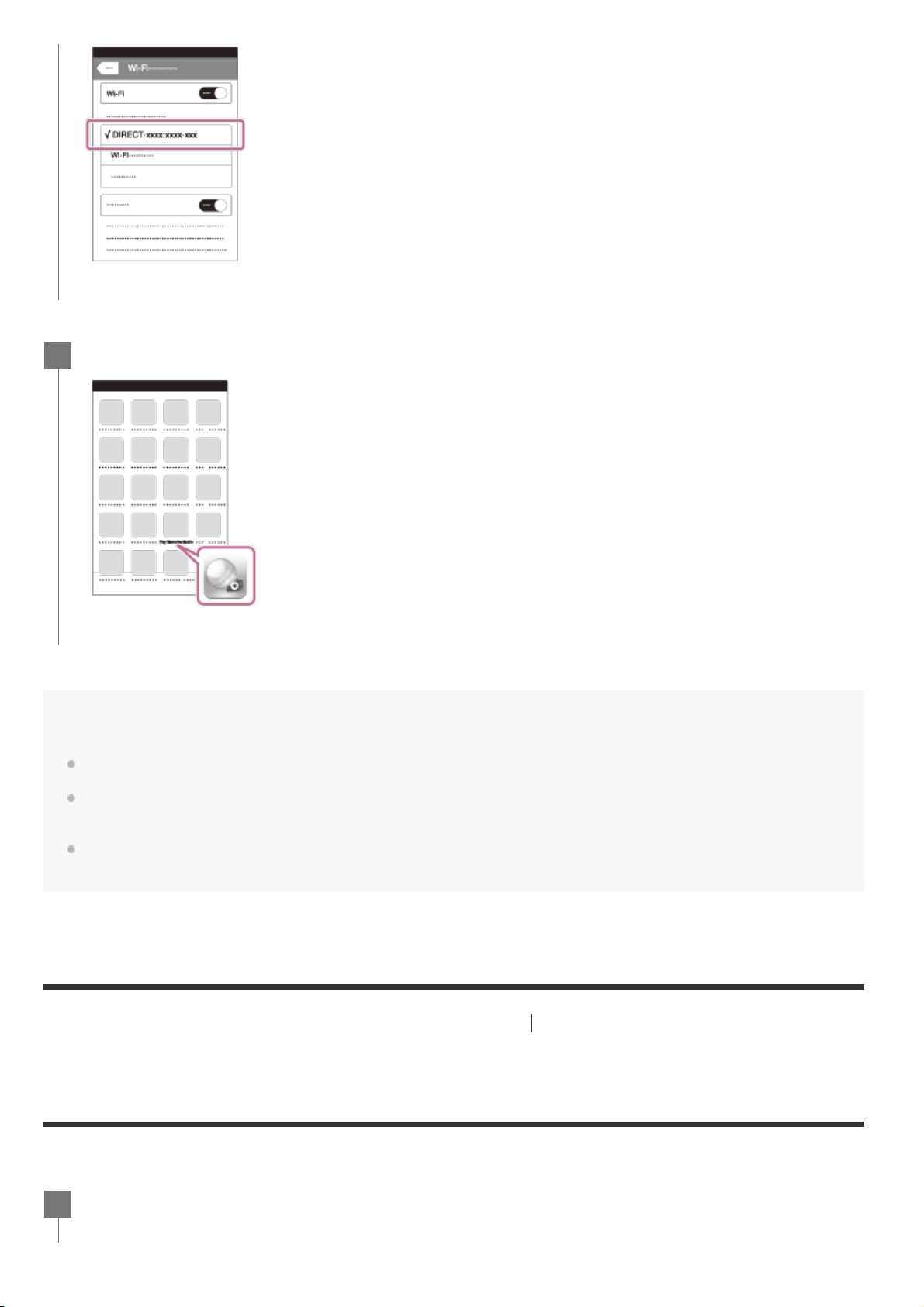
Note
When Airplane mode is set to ON, the Wi-Fi function is not available.
Depending on local electrical interference or the smartphone’s capabilities, the live view images may not be
displayed smoothly.
When operating multiple cameras with a connected device, you cannot set the Wi-Fi on a smartphone via
QR Code.
[85] Using the camera connected to other devices via Wi-Fi
Connecting to your smartphone
Connecting to a smartphone using ID/password
(Android device)
Perform preparation for connecting to your smartphone before connecting.
Return to the Home screen, then start PlayMemories Mobile.
11
Press the MENU button on the camera.
1
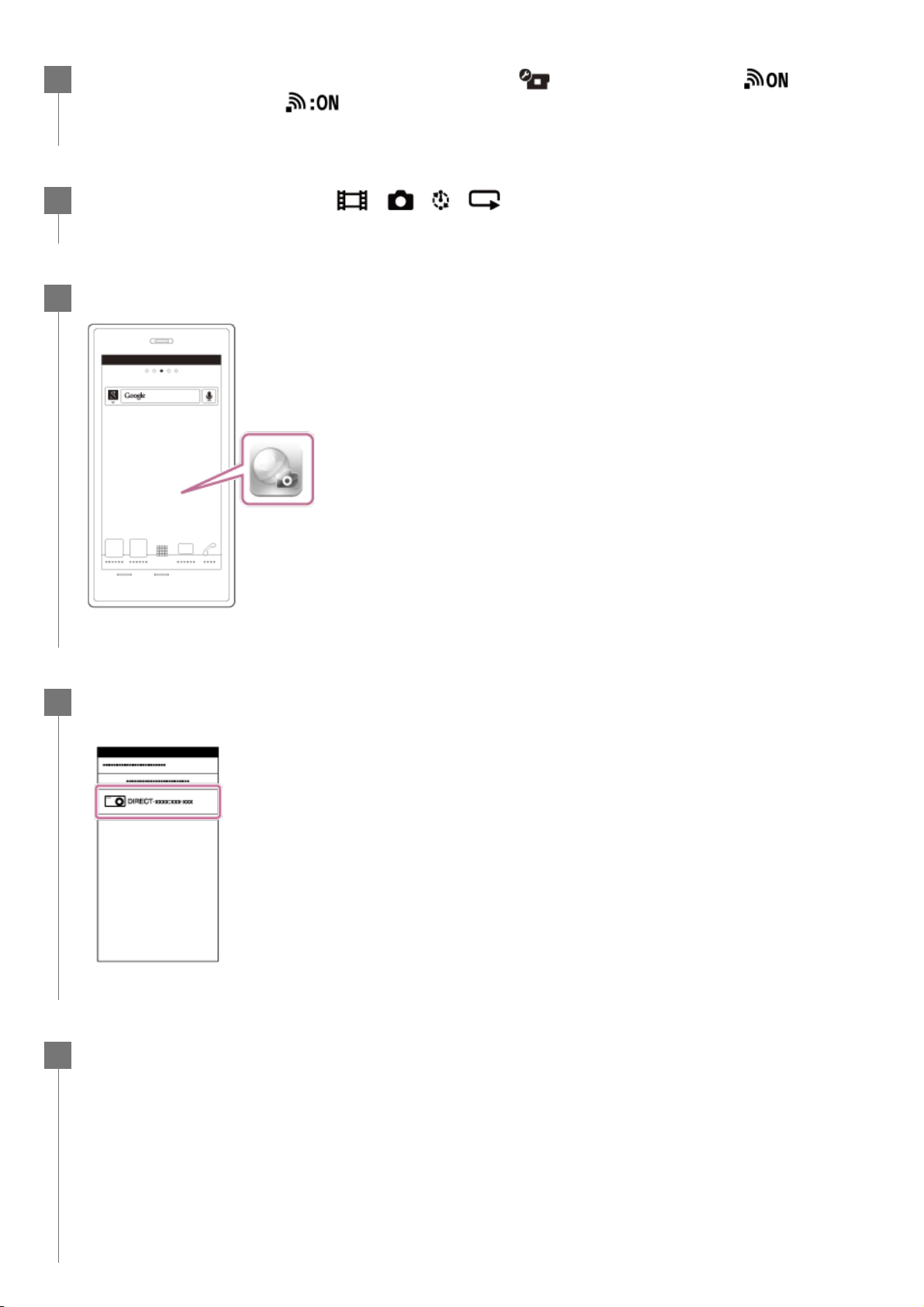
Press the UP button or DOWN button to select (Camera Settings) - (Wi-Fi
connection setting) -
, then press the REC/ENTER button.
2
Select the shooting mode (
/ / / ).
3
Start PlayMemories Mobile on the smartphone.
4
Select the SSID that is printed on a sticker attached to the rear of the camera's
battery cover.
5
Enter the password printed on the sticker attached to the rear of the camera's
battery cover (only for the first time).
6
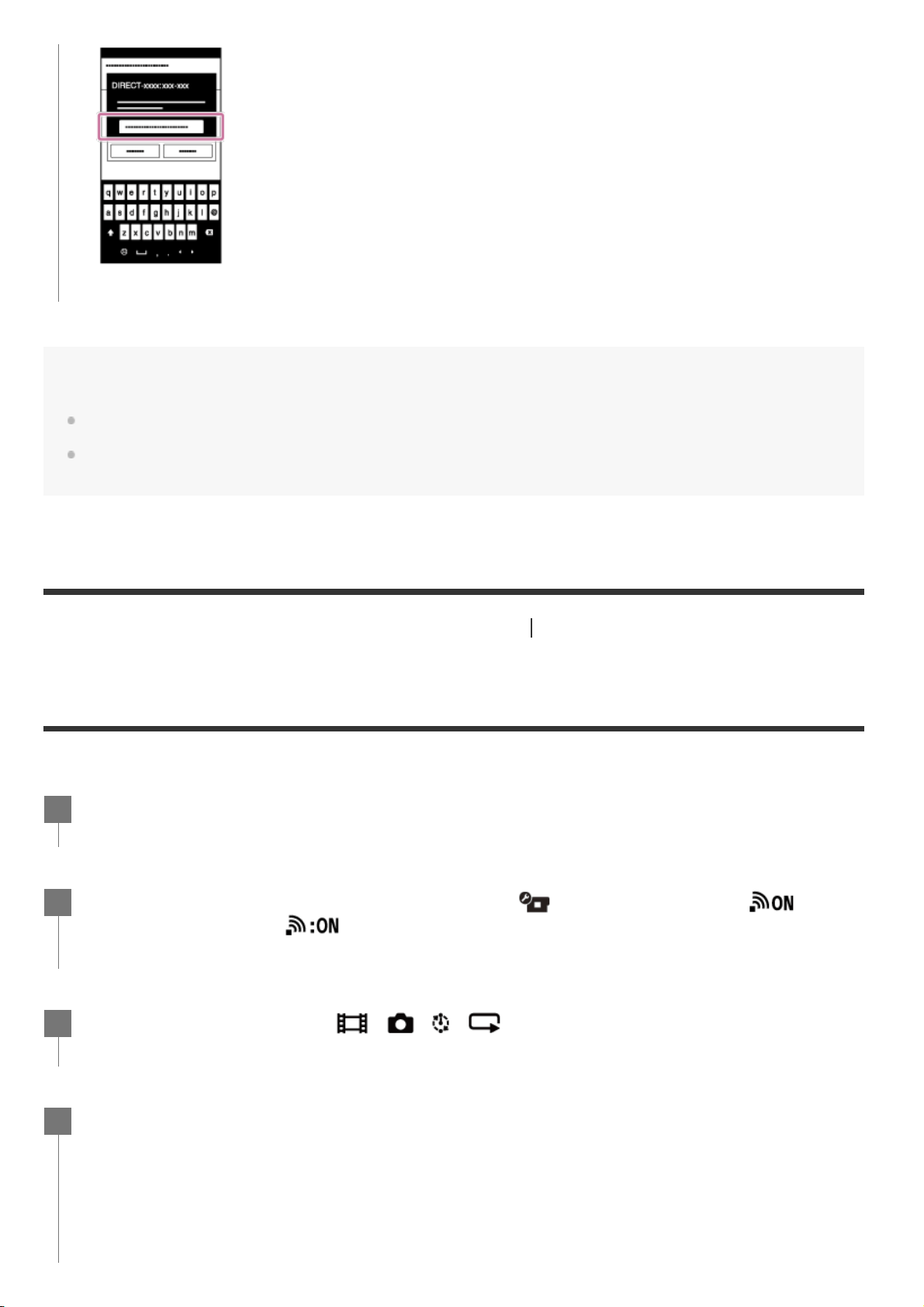
Note
When Airplane mode is set to ON, the Wi-Fi function is not available.
Depending on local electrical interference or the smartphone’s capabilities, the live view images may not be
displayed smoothly.
[86] Using the camera connected to other devices via Wi-Fi
Connecting to your smartphone
Connecting to a smartphone using ID/password
(iPhone/iPad)
Perform preparation for connecting to your smartphone before connecting.
Press the MENU button on the camera.
1
Press the UP button or DOWN button to select
(Camera Settings) - (Wi-Fi
connection setting) -
, then press the REC/ENTER button.
2
Select the shooting mode (
/ / / ).
3
In the Home screen on the smartphone, select [Settings] – [Wi-Fi].
4
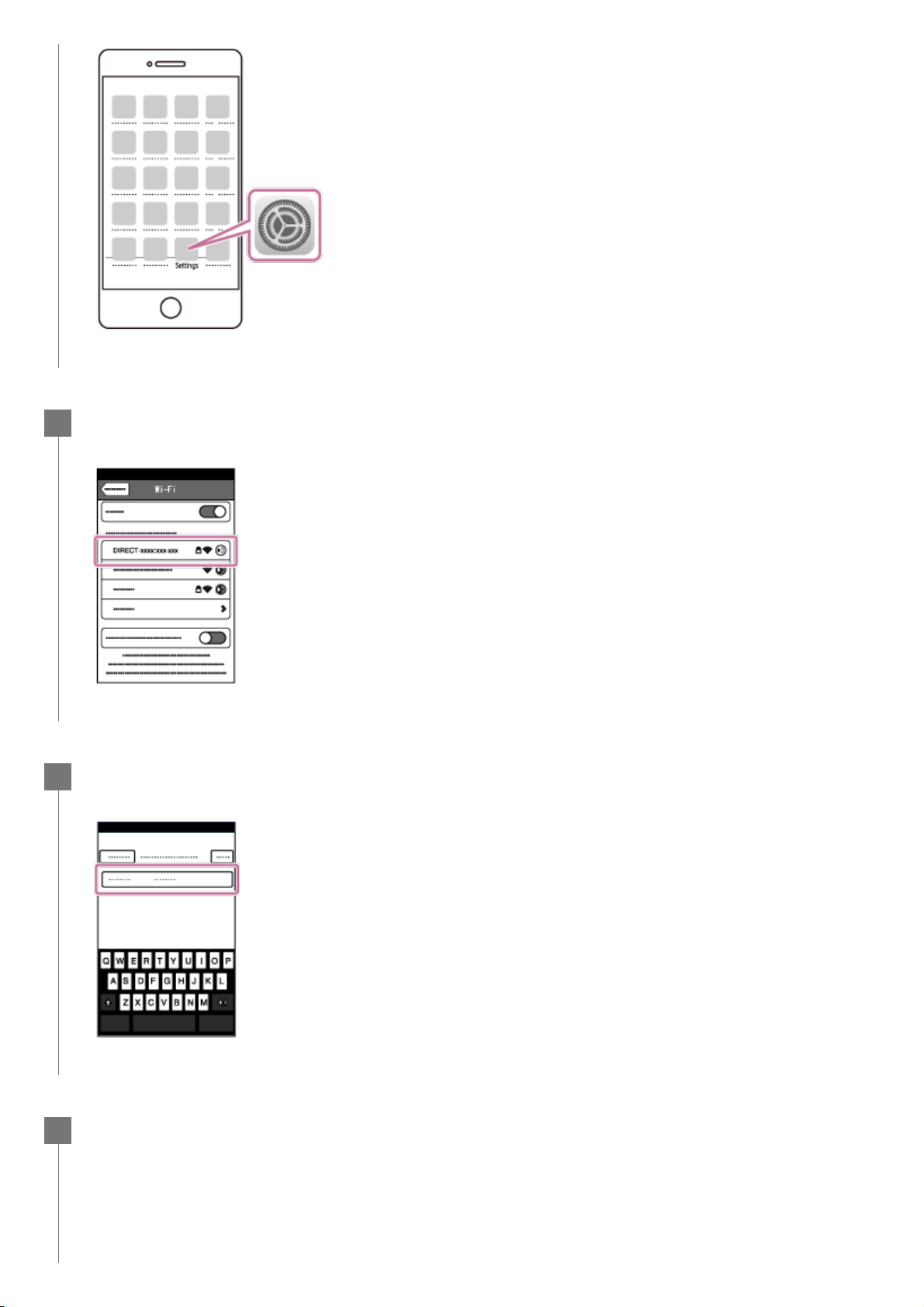
Select the SSID that is printed on a sticker attached to the rear of the camera's
battery cover.
5
Enter the password printed on the sticker attached to the rear of the camera's
battery cover (only for the first time).
6
Confirm that the SSID that is printed on a sticker attached to the rear of the
camera’s battery cover is connected.
7
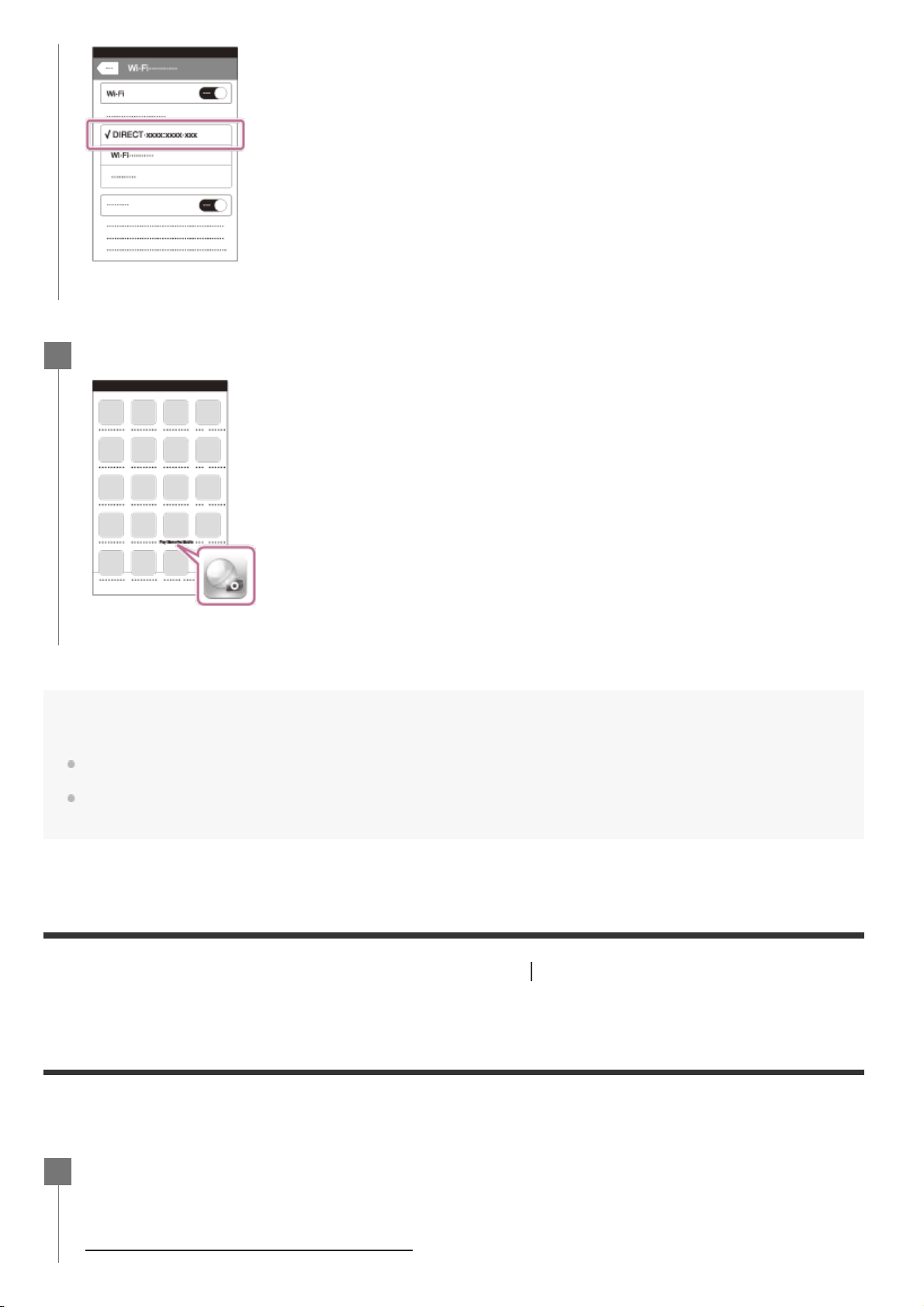
Note
When Airplane mode is set to ON, the Wi-Fi function is not available.
Depending on local electrical interference or the smartphone’s capabilities, the live view images may not be
displayed smoothly.
[87] Using the camera connected to other devices via Wi-Fi
Connecting to the Live-View Remote
Connecting a single camera to Live-View Remote
(Single connection)
This section explains how to connect to Live-View Remote “RM-LVR3”. If you are using other Live-
View Remote, see Help Guide of the relevant remote control.
Return to the Home screen, then start PlayMemories Mobile.
8
Turn on the Live-View Remote.
For details, refer to “Connecting the remote control to a single camera via Wi-Fi” in the Help
Guide of the Live-View Remote (RM-LVR3).
http://rd1.sony.net/help/cam/1650/h_zz/
1
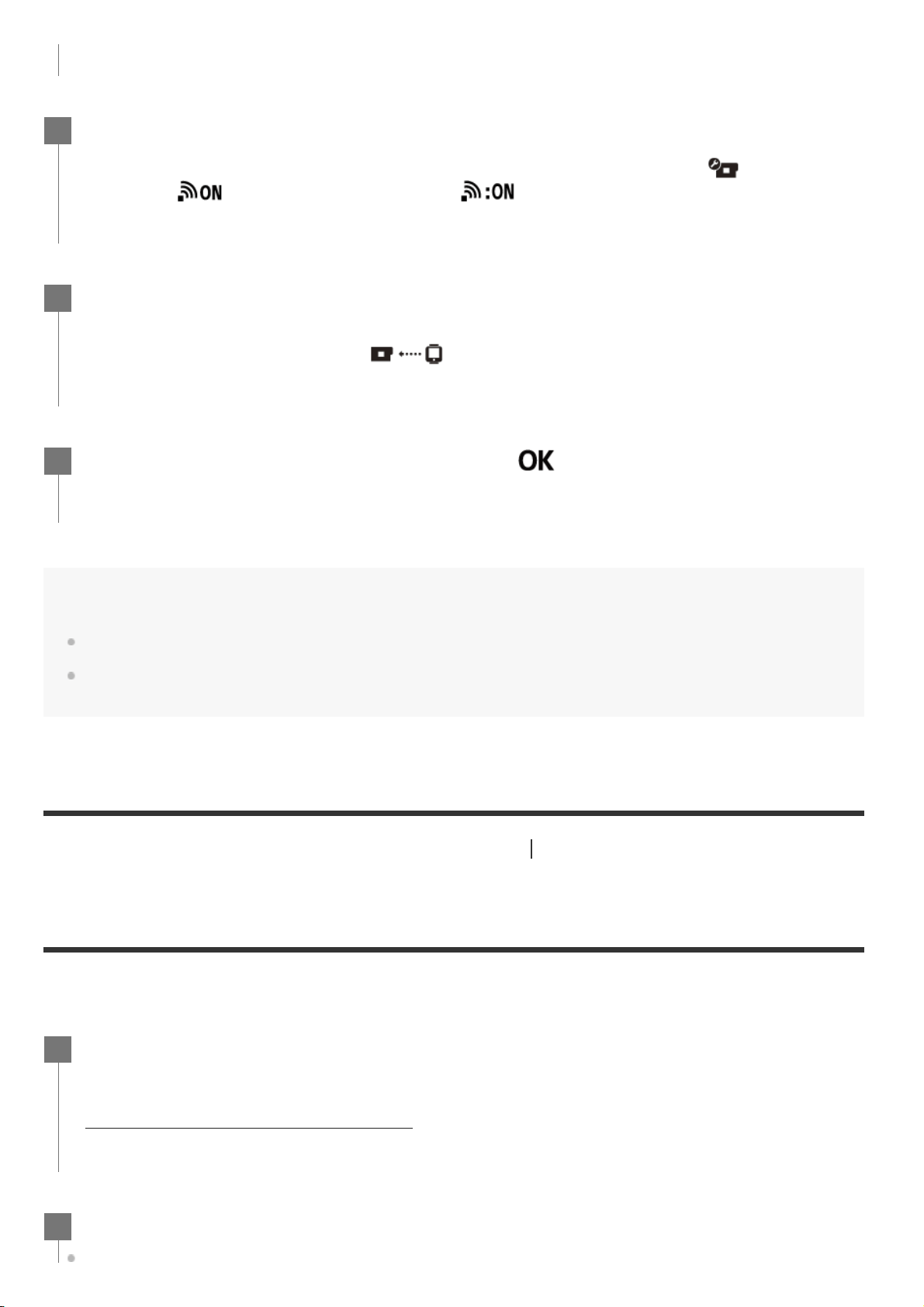
Note
When Beep is set to OFF, the connection beep does not sound.
If the connection does not complete, congestion of the radio wave might be the cause. Retry the connection
by changing the place.
[88] Using the camera connected to other devices via Wi-Fi
Connecting to the Live-View Remote
Connecting multiple cameras to Live-View Remote
(Multi connection)
This section explains how to connect to Live-View Remote “RM-LVR3”. If you are using other Live-
View Remote, see Help Guide of the relevant remote control.
Set the connection mode of the camera.
Press the MENU button, then press the UP button or DOWN button to select
(Camera
Settings) -
(Wi-Fi connection setting) - , then press the REC/ENTER button.
2
Select the SSID that is printed on the sticker attached to the rear of the camera's
battery cover with the Live-View Remote.
The connection beep sounds, then
is displayed on the display panel.
3
Press the UP button or DOWN button to select
, then press the REC/ENTER
button.
4
Turn on the Live-View Remote.
For details, refer to “Connecting the remote control to multiple cameras via Wi-Fi” in the Help
Guide of the Live-View Remote (RM-LVR3).
http://rd1.sony.net/help/cam/1650/h_zz/
1
Set the camera.
2
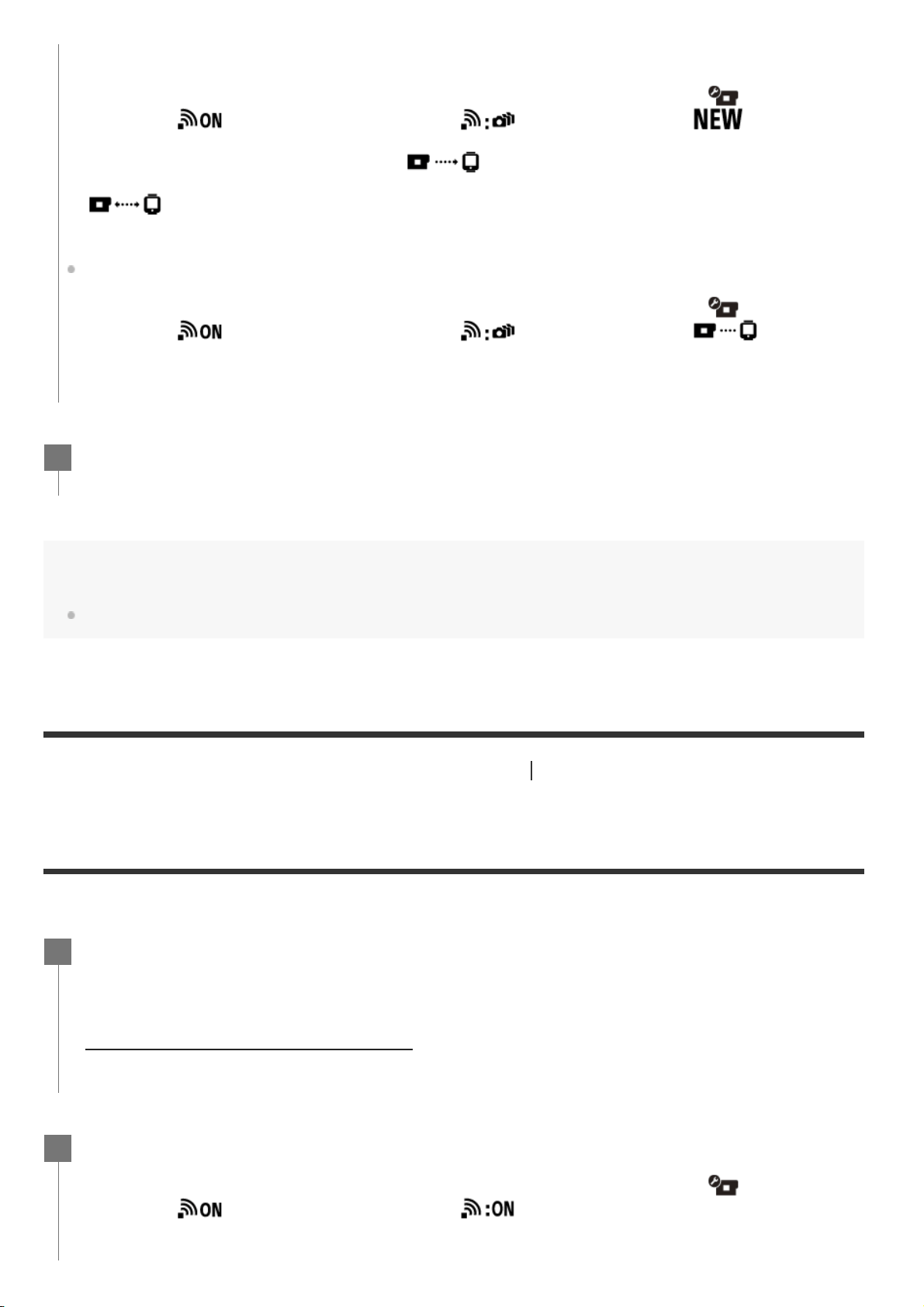
Note
When Beep is set to OFF, the connection beep does not sound.
[89] Using the camera connected to other devices via Wi-Fi
Connecting to Handycam
Connecting a single camera to Handycam (Single
connection)
You can operate the camera using a Handycam that supports the multi camera control function.
When you connect the camera to Live-View Remote for the first time
Press the MENU button, then press the UP button or DOWN button to select (Camera
Settings) -
(Wi-Fi connection setting) - (multi connection) - , then press
the REC/ENTER button.
When the connection beep sounds and
is displayed on the display panel, register the
camera using the Live-View Remote.
appears on the display panel of the camera when connecting finishes. Press the
REC/ENTER button.
When you connect the camera to Live-View Remote since second time
Press the MENU button, then press the UP button or DOWN button to select
(Camera
Settings) -
(Wi-Fi connection setting) - (multi connection) - , then press
the REC/ENTER button.
If you will continue to connect multiple cameras, repeat from step 2.
3
Turn on the Handycam.
For details, refer to “Connecting this product to one camera with Multi Camera Control (Single
Connection)” in the Help Guide of the Handycam.
Example: Help Guide of FDR-AX40/AX53/AX55/AXP55
http://rd1.sony.net/help/cam/1630/h_zz/
1
Set the connection mode of the camera.
Press the MENU button, then press the UP button or DOWN button to select
(Camera
Settings) -
(Wi-Fi connection setting) - , then press the REC/ENTER button.
2
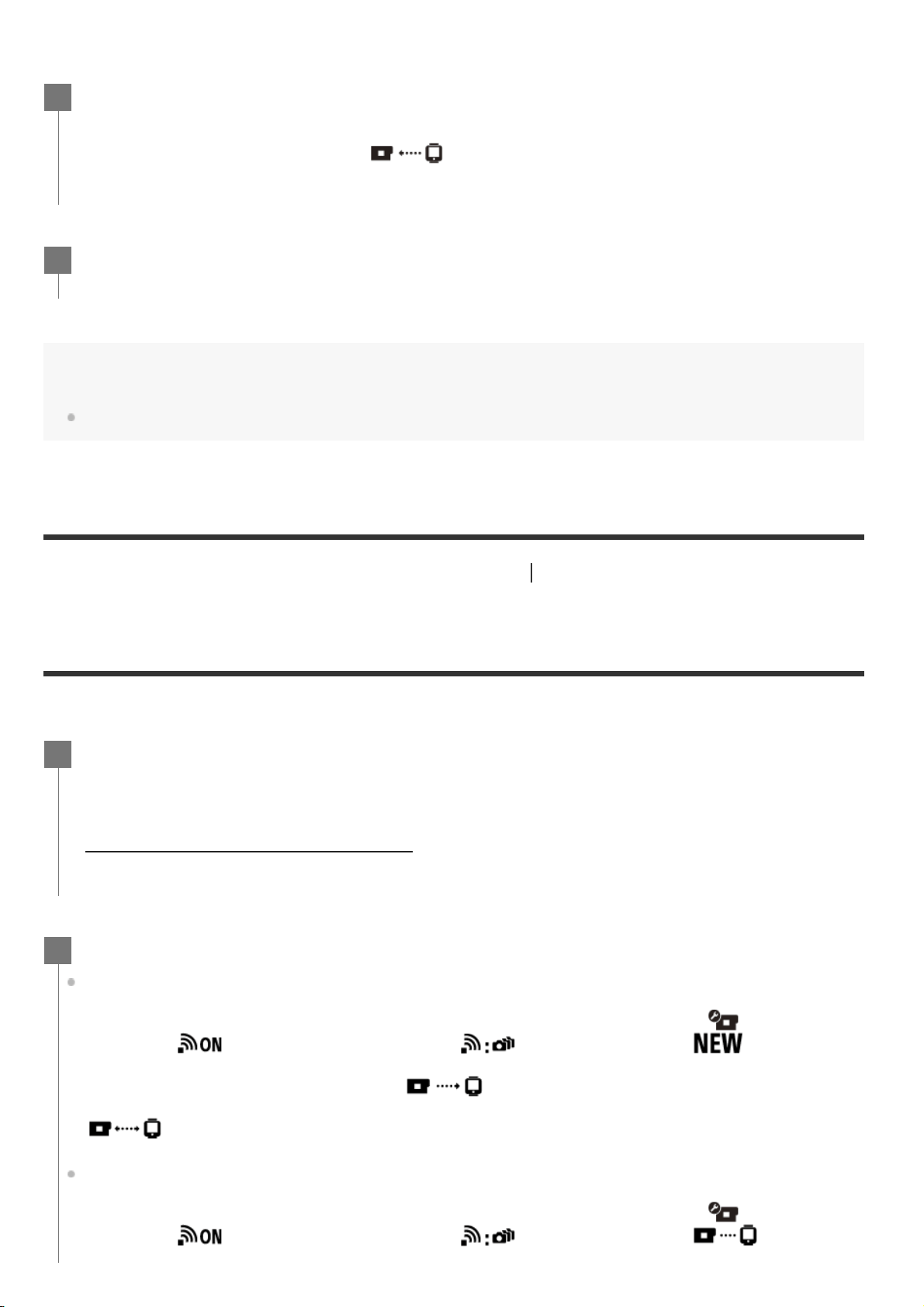
Note
When Beep is set to OFF, the connection beep does not sound.
[90] Using the camera connected to other devices via Wi-Fi
Connecting to Handycam
Connecting multiple cameras to Handycam (Multi
connection)
You can operate the camera using a Handycam that supports the multi camera control function.
Select the SSID that is printed on the sticker attached to the rear of the camera's
battery cover with the Handycam.
The connection beep sounds, then
is displayed on the display panel.
3
Press the REC/ENTER button.
4
Turn on the Handycam.
For details, refer to “Connecting this product to more than one camera with Multi Camera
Control (Multi Connection)” in the Help Guide of the Handycam.
Example: Help Guide of FDR-AX40/AX53/AX55/AXP55
http://rd1.sony.net/help/cam/1630/h_zz/
1
Set the connection mode of the camera.
When you connect the camera to Handycam for the first time
Press the MENU button, then press the UP button or DOWN button to select
(Camera
Settings) -
(Wi-Fi connection setting) - (multi connection) - , then press
the REC/ENTER button.
When the connection beep sounds and
is displayed on the display panel of the
camera, register the camera using the Handycam.
appears on the display panel of the camera when connecting finishes.
When you connect the camera to Handycam since second time
Press the MENU button, then press the UP button or DOWN button to select
(Camera
Settings) -
(Wi-Fi connection setting) - (multi connection) - , then press
2
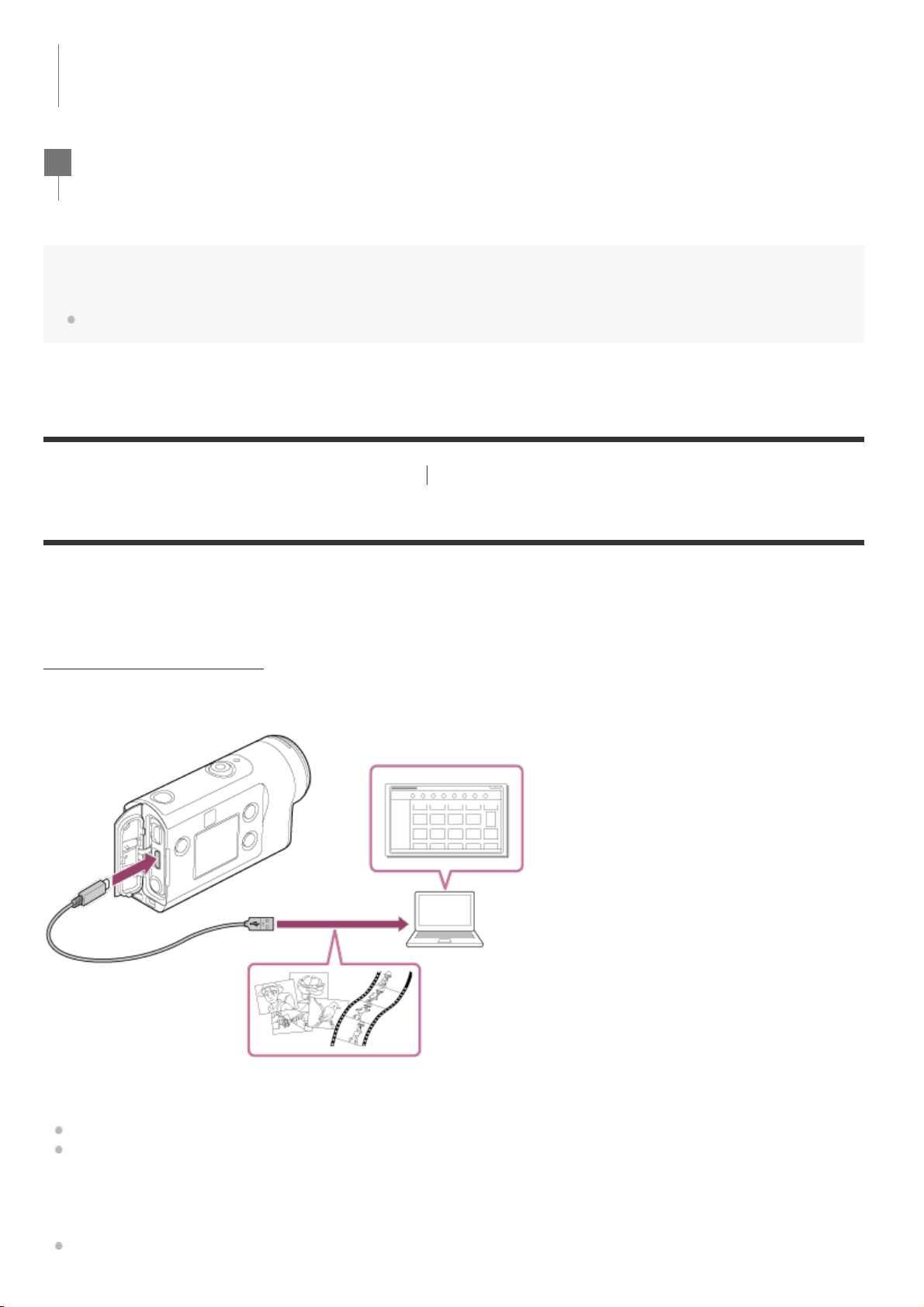
Note
When Beep is set to OFF, the connection beep does not sound.
[91] Editing images imported to your computer
Using the Action Cam Movie Creator
Useful functions of Action Cam Movie Creator
Action Cam Movie Creator
TM
allows you to import movies to your computer and edit images, to use
them in various ways.
Visit the following URL to install the software.
http://www.sony.net/acmc/
Action Cam Movie Creator, which can import movies and edit movies and PlayMemories Home, which
can playback, will be installed simultaneously.
Useful functions of Action Cam Movie Creator
Importing movies and still images
Editing movies (for FDR-X3000/HDR-AS300 movies, tracking information and movement speed are
displayed)
Useful functions of PlayMemories Home
Playing back movies and still images
the REC/ENTER button.
If you will continue to connect multiple cameras, repeat from step 2.
3
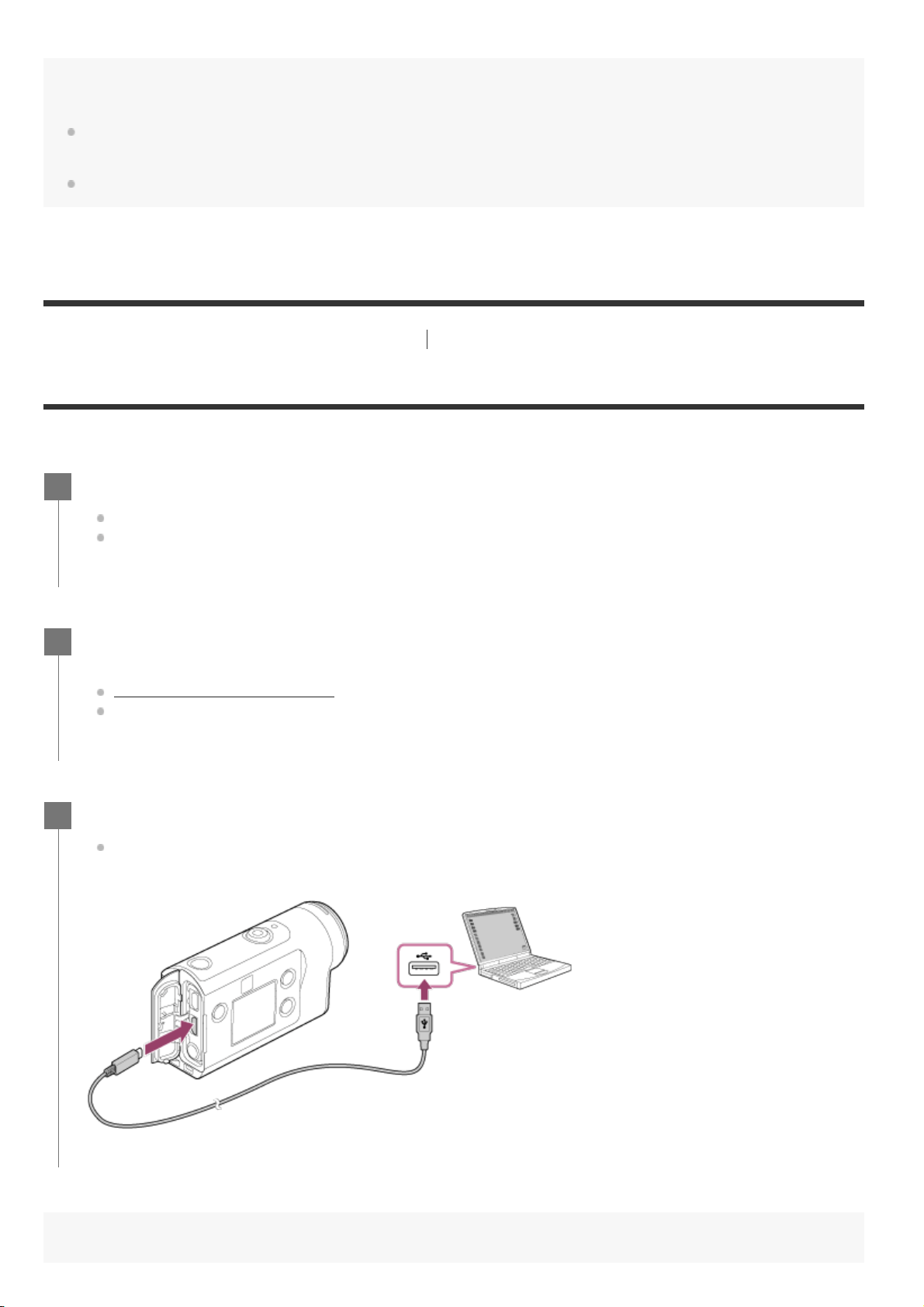
Note
When you import movies to your computer, use Action Cam Movie Creator. If you import using another
method, GPS information is not imported from FDR-X3000/HDR-AS300.
Use the micro USB cable (supplied) when connecting the camera to your computer.
[92] Editing images imported to your computer
Using the Action Cam Movie Creator
Installing Action Cam Movie Creator on your computer
Install Action Cam Movie Creator on your computer. Follow the steps below.
Turn on the computer.
Log on as an Administrator.
Close all applications running on the computer before installing the software.
1
Visit the following URL with the Internet browser of the computer and install Action
Cam Movie Creator.
http://www.sony.net/acmc/
When installation is complete, Action Cam Movie Creator starts up.
2
Connect the camera to the computer with the supplied micro USB cable.
New function may be added to Action Cam Movie Creator. Even if Action Cam Movie Creator
is already installed on your computer, connect the camera to your computer.
3
Note
Do not disconnect the micro USB cable (supplied) from the camera while the computer screen indicates that
the camera is being operated or accessed. Doing so may cause data corruption.
To disconnect the computer from the camera, click
on the task tray then click (Icon to remove). If you
are using Windows Vista, click
on the task tray.
[93] Editing images imported to your smartphone/tablet
Using the Action Cam App
Useful functions of Action Cam App
With Action Cam App for smartphone/tablet, you can capture the movie taken with your smartphone,
and you can edit the movie with a simple operation.
You can also add effects such as multi-view and variable speed playback, you can also create a time-
lapse movie.
For the latest information details about the functions of Action Cam App, see the website below.
http://www.sony.net/acap/
[94] Editing images imported to your smartphone/tablet
Using the Action Cam App
Installing Action Cam App
Install Action Cam App compatible to your smartphone/tablet.
For latest information and function information on Action Cam App, see the following website.
http://www.sony.net/acap/
Search for Action Cam App on Google play, then install it.
Google play may not be supported depending on country or region.
Search for Action Cam App on App Store, then install it.
[95] Information
Recordable time
Estimated duration of recording and playback for
supplied battery pack
Approximate time available when you use a fully charged battery pack.
Recording time
FDR-X3000
Image quality: 4K 30p
Continuous recording time: 50 minutes (60 minutes)
Typical recording time: 40 minutes (45 minutes)
Image quality: HQ
Continuous recording time: 125 minutes (135 minutes)
Typical recording time: 80 minutes (85 minutes)
HDR-AS300
Image quality: HQ
Continuous recording time: 125 minutes (135 minutes)
Typical recording time: 80 minutes (85 minutes)
HDR-AS50
Image quality: HQ
Continuous recording time: 165 minutes (195 minutes)
Typical recording time: 110 minutes (130 minutes)
Playing time
FDR-X3000
Image quality is 4K 30p: 90 minutes (100 minutes)
Image quality is HQ: 170 minutes (195 minutes)
HDR-AS300
Image quality is HQ: 170 minutes (195 minutes)
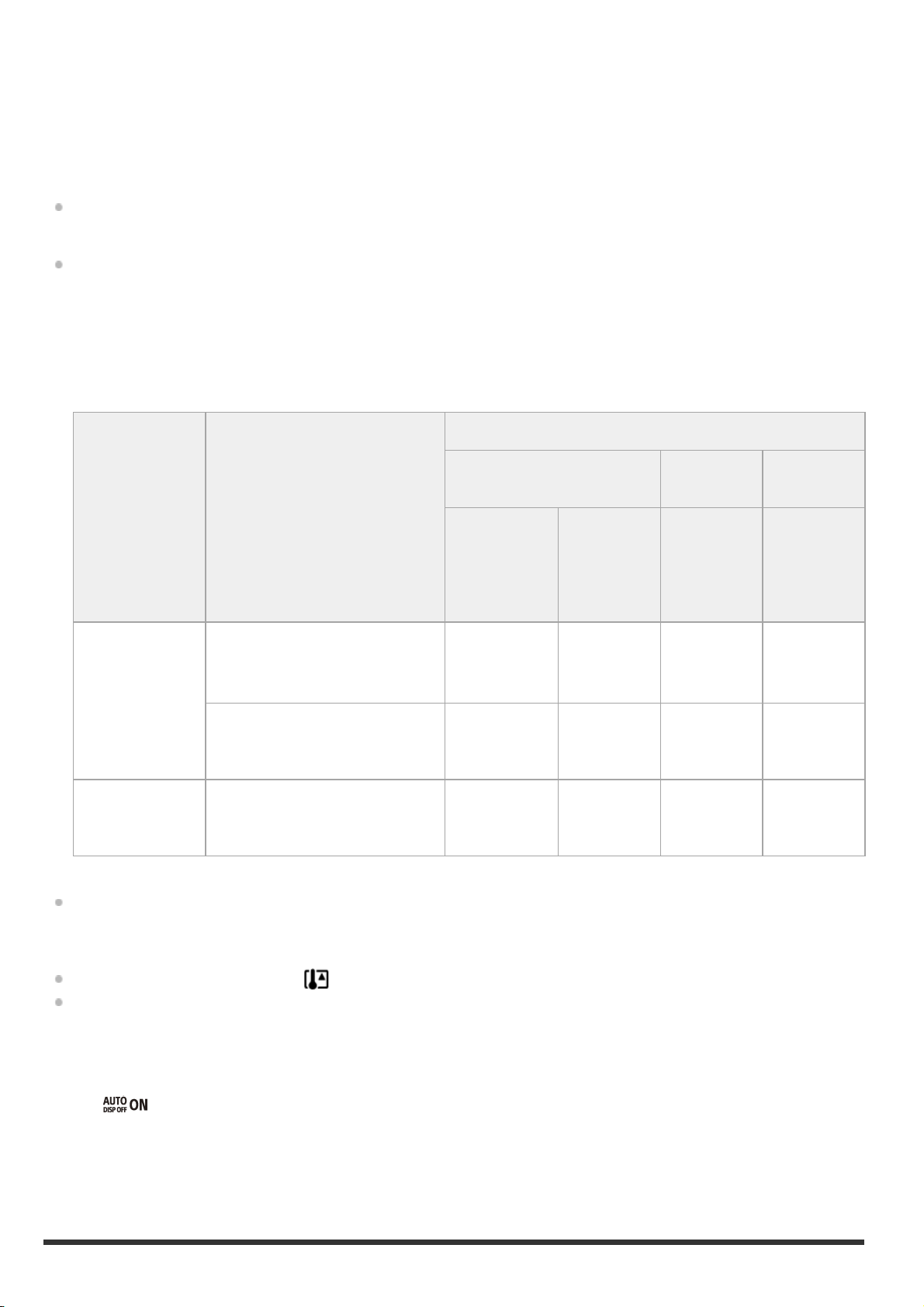
The time measured when using one fully charged battery pack
( ) indicates the recording duration when the Wi-Fi remote control is set to off, and for playing time,
when the camera is connected to a TV by an HDMI cable (sold separately).
The recording time may be shorter, depending on the recording conditions.
The recording time may be longer when you set the Wi-Fi or GPS
*
setting to OFF.
Shooting 4K movies and connecting to the Wi-Fi network requires a lot of electric power, so
continuous movie shooting may cause overheating of the camera. To protect the camera, the
power turns off automatically when overheating occurs.
When you start shooting a movie after leaving the camera turned off for a while, the continuous
movie shooting time (the time from the start to the end of shooting) shown below is available.
The recordable time may be shorter, especially when you shoot 4K movies in a high temperature
environment.
Continuous movie shooting time
(*1)
The continuous movie shooting time varies depending on the file format, image quality setting,
network environment of Wi-Fi, and how the camera was used before recording. When you check
the composition repeatedly with the camera powered on, overheating will occur and the
recordable time will become shorter.
Stop shooting movies when
is displayed on the screen.
When the movie shooting is stopped because of overheating, leave the camera turned off to cool
down for a while. You can start shooting after the camera temperature becomes lower.
GPS is only for FDR-X3000/HDR-AS300
*
Wi-Fi
connection
setting
Connection to Live-
View
Remote/smartphone
Movie format
FDR-X3000
HDR-
AS300
HDR-
AS50
XAVC S
4K
2160
30p/25p
60M
MP4
1080
30p/25p
HQ
MP4
1080
30p/25p
HQ
MP4
1080
30p/25p
HQ
ON
Connected
Approx. 25
minutes
(*2)
Approx.
115
minutes
Approx.
115
minutes
Approx.
150
minutes
Disconnected
Approx. 50
minutes
Approx.
125
minutes
Approx.
125
minutes
Approx.
165
minutes
OFF -
Approx. 60
minutes
Approx.
135
minutes
Approx.
135
minutes
Approx.
195
minutes
The time measured when using a fully charged battery pack, at a temperature of 25° (77°F) (without Underwater
Housing.)
*1
When the camera overheats, it turns off automatically even if the battery is not worn out. If you have selected
(Auto monitor off while shooting) on the Live-View Remote (RM-LVR3) and you do not operate the remote
control for a certain period of time, the camera's Wi-Fi function turns OFF automatically (Bluetooth is still connected)
to reduce battery consumption.
*2
[96] Information
Recordable time
Estimated recording time of movies
XAVC S 4K (FDR-X3000)
XAVC S HD (FDR-X3000)
XAVC S HD (HDR-AS300/HDR-AS50)
MP4 (FDR-X3000/HDR-AS300)
Bit rate Memory card Average recording time
100 Mbps
64 GB 75 minutes
128 GB 155 minutes
60 Mbps
64 GB 125 minutes
128 GB 255 minutes
Bit rate Memory card Average recording time
100 Mbps
64 GB 75 minutes
128 GB 155 minutes
60 Mbps
64 GB 125 minutes
128 GB 255 minutes
50 Mbps
64 GB 155 minutes
128 GB 310 minutes
Bit rate Memory card Average recording time
50 Mbps
64 GB 155 minutes
128 GB 310 minutes
Image quality Memory card Average recording time
PS
8 GB 35 minutes
16 GB 75 minutes
32 GB 155 minutes

MP4 (HDR-AS50)
64 GB 320 minutes
128 GB 640 minutes
HQ
8 GB 60 minutes
16 GB 120 minutes
32 GB 250 minutes
64 GB 505 minutes
128 GB 1015 minutes
STD
8 GB 155 minutes
16 GB 320 minutes
32 GB 655 minutes
64 GB 1320 minutes
128 GB 2650 minutes
HS120/HS100*
8 GB 35 minutes
16 GB 75 minutes
32 GB 155 minutes
64 GB 320 minutes
128 GB 640 minutes
HS240/HS200*
8 GB 35 minutes
16 GB 75 minutes
32 GB 155 minutes
64 GB 320 minutes
128 GB 640 minutes
A frame rate will be changed according to NTSC/PAL switching.
*
Image quality Memory card Average recording time
PS
8 GB 35 minutes
16 GB 75 minutes
32 GB 155 minutes
64 GB 320 minutes
128 GB 640 minutes
When using a Sony memory card.
Note
The recordable time may vary depending on the recording conditions, subjects, and the image quality
setting.
Continuous movie shooting time is approximately 13 hours.
[97] Information
Recordable time
Estimated number of recordable still images
FDR-X3000/HDR-AS300
Number of pixels: 8.3M (Time-lapse capture) (16:9)
When using 8GB memory card: 2500 images
When using 16GB memory card: 5000 images
HQ
8 GB 60 minutes
16 GB 120 minutes
32 GB 250 minutes
64 GB 505 minutes
128 GB 1015 minutes
STD
8 GB 155 minutes
16 GB 320 minutes
32 GB 655 minutes
64 GB 1320 minutes
128 GB 2650 minutes
HS120/HS100*
8 GB 35 minutes
16 GB 75 minutes
32 GB 155 minutes
64 GB 320 minutes
128 GB 640 minutes
A frame rate will be changed according to NTSC/PAL switching.
*
When using 32GB memory card: 10000 images
When using 64GB memory card: 20000 images
When using 128GB memory card: 40000 images
Number of pixels: 12.0M (Still images)
When using 8GB memory card: 1250 images
When using 16GB memory card: 2500 images
When using 32GB memory card: 5000 images
When using 64GB memory card: 9900 images
When using 128GB memory card: 20000 images
HDR-AS50
Number of pixels: 8.3M (Time-lapse capture) (16:9)
When using 8GB memory card: 2500 images
When using 16GB memory card: 5000 images
When using 32GB memory card: 10000 images
When using 64GB memory card: 20000 images
When using 128GB memory card: 40000 images
Number of pixels: 11.9M (Still images)
When using 8GB memory card: 1250 images
When using 16GB memory card: 2500 images
When using 32GB memory card: 5100 images
When using 64GB memory card: 10000 images
When using 128GB memory card: 20000 images
[98] Information
Battery pack
On charging the battery pack
Charge the battery pack before using the camera for the first time.
We recommend charging the battery pack in an ambient temperature of between 10°C to 30°C
(50°F to 86°F) until the CHG (Charge) lamp turns off. The battery pack may not be effectively
charged in temperatures outside this range.
The CHG (Charge) lamp may blink during charging in the following situation:
Battery pack is not attached correctly.
Battery pack is damaged.
When the battery pack temperature is high or low.
[99] Information
Battery pack
Effective use of the battery pack
Battery pack performance decreases in low temperature surroundings (less than 10°C (50°F)). So
in cold places, the operational time of the battery pack is shorter. We recommend the following to
ensure longer battery pack use: Put the battery pack in a pocket close to your body to warm it
up, and insert it in the camera immediately before you start shooting.
The battery pack will run out quickly if you use the playback, fast-forward, and fast-rewind
frequently.
Turn off the camera every time you do not operate the camera. Battery pack is wearing out when
the shooting is in standby.
We recommend having spare battery packs handy for two times or three times the expected
shooting time, and making trial shots before taking the actual shots.
You may not be able to turn on the camera or the battery pack may not be effectively charged if
the terminal section of the battery pack is dirty. In this case, wipe any dust with a soft cloth
lightly to clean the battery pack.
Do not expose the battery pack to water. The battery pack is not water-resistant.
Even the power is turned off, battery will be consumed. Remove the battery before storing.
[100] Information
Battery pack
About the remaining battery charge
If the battery pack runs out so fast although the remaining charge indicator is high, fully charge the
battery pack again. Remaining charge indicator will be displayed correctly. Note that it may not be
displayed correctly in the following situations:
Using the camera for a long time in high temperature
Leaving the camera with fully charged battery pack
Using a heavily used battery pack
[101] Information
Battery pack
How to store the battery pack
To maintain the battery pack’s function, fully charge the battery pack and then fully discharge it
on the camera at least once a year while storing. Remove the battery pack from the camera and
store it in a cool, dry place.
To prevent staining the terminal, short-circuiting, etc., be sure to use a plastic bag to keep away
from metal materials when carrying or storing.
[102] Information
Battery pack
On battery pack life
The battery pack life is limited. Battery capacity decreases over time and through repeated use. If
decreased usage time between charges becomes significant, it is probably time to replace it with a
new one.
The battery pack life varies according to how the battery pack is stored or used.
[103] Information
Battery pack
To reduce the battery consumption
If the setting of the camera is as follows, you can reduce the consumption of the battery by about
20% to 30% during use, compared to use with the camera's initial settings.
Wi-Fi connection setting:
Movie format:
Image quality setting: /
Lamp setting:
Turn off the power of camera frequently while in shooting standby mode. This enables further
reduction of battery consumption of the camera.
If you have selected
(Auto monitor off while shooting) on the Live-View Remote (RM-LVR3)
and you do not operate the remote control for a certain period of time, the camera's Wi-Fi function
turns OFF automatically (Bluetooth is still connected) to reduce battery consumption.
[104] Information
Using the camera abroad
On TV color systems (FDR-X3000/HDR-AS300)
To view images shot by the camera on a TV, you need a TV (or monitor) with an HDMI jack and a
micro HDMI cable (sold separately).
Depending on the TV system of the country and region where you will view recordings, be sure to set
NTSC/PAL before shooting.
[105] Information
Using the camera abroad
Countries and regions where NTSC TV is used
Barbados, Bermuda, Bolivia, Canada, Chile, Columbia, Costa Rica, Cuba, Dominica, Ecuador, El
Salvador, Guam, Guatemala, Guyana, Haiti, Honduras, Japan, Mexico, Micronesia, Myanmar,
Nicaragua, Panama, Peru, Philippines, Puerto Rico, Republic of Korea, Saint Lucia, Samoa, Suriname,
Taiwan, Trinidad and Tobago, United States of America, Venezuela etc.
[106] Information
Using the camera abroad
Countries and regions where PAL TV is used
Australia, Austria, Argentina, Belgium, Bulgaria, Brazil, China, Croatia, Czech Republic, Denmark,
Finland, France, French Guiana, Germany, Greece, Hong Kong, Hungary, Indonesia, Iran, Iraq, Italy,
Kuwait, Malaysia, Monaco, Netherlands, New Zealand, Norway, Paraguay, Poland, Portugal, Romania,
Russia, Singapore, Slovakia, Spain, Sweden, Switzerland, Thailand, Turkey, Ukraine, United Kingdom,
Uruguay, Vietnam etc.
[107] Information
Using the camera abroad
The list of time differences for world capitals
Time differences with the standard times of world cities (as of 2016).
City Time difference
Lisbon
GMT
London
Berlin
+01:00
Paris
Helsinki
+02:00Cairo
Istanbul
Moscow
+03:00
Nairobi
Tehran +03:30
Abu Dhabi
+04:00
Baku
Kabul +04:30
Karachi
+05:00
Islamabad
Kolkata
+05:30

New Delhi
Almaty
+06:00
Dhaka
Yangon +06:30
Bangkok
+07:00
Jakarta
Hong Kong
+08:00Singapore
Beijing
Tokyo
+09:00
Seoul
Adelaide
+09:30
Darwin
Melbourne
+10:00
Sydney
New Caledonia +11:00
Fiji
+12:00
Wellington
Midway -11:00
Hawaii -10:00
Alaska -09:00
San Francisco
-08:00
Tijuana
Denver
-07:00
Arizona
Chicago
-06:00
Mexico City
New York
-05:00
Bogota
Santiago -04:00
St.John's -03:30
Brasilia
[108] Information
Precautions
Do not use/store the camera in the following places
In an extremely hot, cold or humid place
In places such as in a car parked under the sun, the camera body may become deformed and this
may cause a malfunction.
Under direct sunlight or near a heater are not suitable places for storage.
The camera body may become discolored or deformed, and this may cause a malfunction.
In a location subject to strong vibration
Near strong magnetic fields
In sandy or dusty places
Be careful not to let sand or dust get into the camera. This may cause the camera to malfunction,
and in some cases may be irreparable.
[109] Information
Precautions
On carrying
Do not sit down in a chair or other place with the camera in the back pocket of your trousers or skirt,
as this may cause malfunction or damage the camera.
[110] Information
Precautions
Care and storage of the lens
Wipe the surface of the lens clean with a soft cloth in the following instances:
When there are fingerprints on the lens surface.
-03:00
Montevideo
Fernando de Noronha -02:00
Azores
-01:00
Cape Verde Is.
In hot or humid locations
When the lens is exposed to salty air such as at the seaside.
Store in a well-ventilated location subject to little dirt or dust.
To prevent mold, periodically clean the lens as described above.
[111] Information
Precautions
On cleaning
Clean the camera surface with a soft cloth slightly moistened with water, then wipe the surface with a
dry cloth. Do not use any of the following as they may damage the finish or the casing.
Chemical products such as thinner, benzine, alcohol, disposable cloths, insect repellent, sunscreen
or insecticide, etc.
Do not touch the camera with any of the above on your hand.
Do not leave the camera in contact with rubber or vinyl for a long time.
[112] Information
Precautions
On operating temperatures
The camera is designed for use in temperatures between –10°C and +40°C (14°F and 104°F).
Shooting in extremely cold or hot places that exceed this range is not recommended.
[113] Information
Precautions
On moisture condensation
If the camera is brought directly from a cold to a warm location, moisture may condense inside or
outside the camera. This moisture condensation may cause a malfunction of the camera.
If moisture condensation occurs
Turn off the camera and wait about 1 hour for the moisture to evaporate.
Note on moisture condensation
Moisture may condense when you bring the camera from a cold place into a warm place (or vice
versa) or when you use the camera in a humid place as shown below.
When you bring the camera from a ski slope into a warm place.
When you bring the camera from an air conditioned car or room into a hot place outside.
When you use the camera after a squall or a shower.
When you use the camera in a hot and humid place.
How to avoid moisture condensation
When you bring the camera from a cold place into a warm place, put the camera in a plastic bag and
seal it tightly. Remove the bag when the air temperature inside the plastic bag has reached the
ambient temperature (after about 1 hour).
[114] Information
Precautions
Notes on optional accessories
Genuine Sony accessories may not be available in some countries/regions.
[115] Information
Precautions
On using the camera in close proximity to vibrating
motors and engines (FDR-X3000/HDR-AS300)
Distortion in image quality or out-of-focus may occur when used in close proximity to vibrating
motors and engines.
In this case, Motor Vibration Absorber for X3000/AS300 “AKA-MVA” (accessory sold separately,
available in autumn 2016) helps minimize distortion or out-of-focus.
[116] Information
Precautions
Note on disposal/transfer of the memory card
Even if you delete data in the memory card or format the memory card on the camera or a computer,
you may not delete data from the memory card completely. When you give the memory card to
somebody, it is recommended that you delete data completely using data deletion software on a
computer. Also, when you dispose of the memory card, it is recommended that you destroy the actual
body of the memory card.

[117] Information Precautions
On GPS (FDR-X3000/HDR-AS300)
As the positions of GPS satellites vary constantly, it may take longer to determine the location or
the receiver may not be able to determine the location at all, depending on the location and time
you use the camera.
GPS is a system that determines your position by receiving signals from satellites. Avoid using the
GPS feature on the camera in places where radio signals are blocked or reflected, such as a
shadowy place surrounded by buildings or trees, etc. Use the camera in open sky environments.
You may not be able to record location information at locations or in situations where radio signals
from the GPS satellites do not reach the camera as follows.
In tunnels, indoors or under the shade of buildings
Between tall buildings or at narrow streets surrounded by buildings
In underground locations, locations surrounded by dense trees, under an elevated bridge, or in
locations where magnetic fields are generated, such as near high voltage cables.
Near devices that generate radio signals of the same frequency band as the camera: near 1.5 GHz
band mobile telephones, etc.
If you shoot images while the GPS log is set to ON and upload those images to the Internet, the
shooting location may be visible to third parties. To prevent this, set the GPS log to OFF before
shooting.
[118] Information
Precautions
On GPS errors (FDR-X3000/HDR-AS300)
If you move to another location right after turning the camera on, it may take a longer time for
the camera to start triangulating, compared to when you stay in the same place.
Error caused by the position of GPS satellites
The camera automatically triangulates your current location when the camera receives radio
signals from 3 or more GPS satellites. The triangulating error allowed by the GPS satellites is
about 10 m (33 feet). Depending on the environment of the location, the triangulating error can
be greater. In this case, your actual location may not match the location on the map based on the
GPS information. Meanwhile, the GPS satellites are controlled by the United States Department of
Defense, and the degree of accuracy may be changed intentionally.
Error during the triangulating process
The camera acquires location information periodically during triangulating. There is a slight time
lag between when the location information is acquired and when the location information is
recorded on an image, therefore, the actual recording location may not match the exact location
on the map based on the GPS information.
[119] Information
Precautions
On GPS use restriction (FDR-X3000/HDR-AS300)
Use GPS in accordance with the situation and regulations of the countries/regions where you use the
camera.
[120] Information
Specifications
FDR-X3000
[System]
Video signal:
UHDTV
HDTV
NTSC color, EIA standards
PAL color, CCIR standards
Image sensor:
1/2.5 type (7.20 mm) Exmor R CMOS sensor
Pixel Gross: Approx. 8.57 megapixels
Effective pixels (movie): Approx. 8.18 megapixels (16:9) (SteadyShot is OFF and Angle setting is “
: wide”)
Effective pixels (still): Approx. 8.18 megapixels (16:9) (SteadyShot is OFF and Angle setting is “
: wide”)
Still image max pixels: Approx. 12.0 megapixels (16:9) (SteadyShot is OFF and Angle setting is “
: wide”)
Time-lapse capture mode pixels: Approx. 2.07 megapixels (16:9) HD (1920 × 1080), approx. 8.29
megapixels (16:9) 4K (3840 × 2160)
Lens:
ZEISS Tessar Lens
Aperture: F2.8
Focal distance: f = 2.6 mm
Focal length (35mm equivalent): f = 17 mm (Angle setting is “
: wide”), f = 23 mm (Angle
setting is “
: medium”), f = 32 mm (Angle setting is “ : narrow”) (SteadyShot is OFF)
Camera:
Exposure control: Automatic exposure
Minimum illumination: 6 lx (lux)
Image stabilization: Optical and electronic SteadyShot image stabilization
Minimum shooting distance: Approx. 50 cm (19 3/4 in.)
File format:
Movies: MP4: MPEG-4 AVC/H.264, XAVC S: MPEG-4 AVC/H.264
Audio: MPEG-4 AAC-LC 2ch (When recording MP4 movies), LPCM 2ch (When recording XAVC S
movies)

Still images: JPEG (DCF Ver. 2.0, Exif Ver. 2.3, MPF Baseline) compliant
Recording media:
When recording MP4 movies:
Memory Stick Micro (Mark2) media
microSD/SDHC/SDXC card (Class4 or faster)
When recording XAVC S (50 Mbps/60 Mbps) movies:
microSDHC/SDXC card (Class10 or faster)
When recording XAVC S (100 Mbps) movies:
microSDHC/SDXC card (UHS-I U3 or faster)
[Input and Output connectors]
Multi/Micro USB Terminal
*
: micro-B/USB2.0 Hi-Speed
(Supports Micro USB compatible devices.)
[Power]
Power requirements:
Battery terminal input: 3.6 V (NP-BX1 (supplied))
Multi/Micro USB Terminal: 5.0 V
Charging method:
USB charging: DC 5.0 V, 500 mA/800 mA
Charging time:
Via a computer
NP-BX1 (supplied): Approx. 4 h 25 min.
Power supply method:
USB power supply (1.5 A or more is recommended)
Power consumption:
Approx. 2.0 W (when the image quality is “MP4 HQ 1920 × 1080 30p”)
Battery:
Rechargeable battery pack: NP-BX1 (supplied)
Maximum output voltage: DC 4.2 V
Output voltage: DC 3.6 V
Maximum charge voltage: DC 4.2 V
Maximum charge current: 1.89 A
Capacity: 4.5 Wh (1240 mAh)
Type: Li-ion
USB connection is only for output. (For customers in some countries/regions)
*

[General]
Waterproof performance: Depth of water 60 m (197 feet), 30 minutes continuously (In use with
the supplied Underwater Housing (MPK-UWH1))
Splashproof performance: Equivalent to IPX4
*
Operating temperature: -10 °C to +40 °C (14 °F to 104 °F)
Storage temperature: -20 °C to +60 °C (-4 °F to +140 °F)
Dimensions: Approx. 29.4 mm × 47.0 mm × 83.0 mm (1 3/16 in. × 1 7/8 in. × 3 3/8 in.)
(W/H/D, including protrusions and excluding the supplied Underwater Housing)
Mass: Approx. 89 g (3.2 oz) (camera only)
Mass (when shooting): Approx. 114 g (4.1 oz) (including NP-BX1 (supplied), excluding the
supplied Underwater Housing)
Microphone: Stereo
Speaker: Monaural
[Wireless LAN]
Corresponding standard: IEEE 802.11b/g/n
Frequency: 2.4 GHz
Supported security protocols: WPA-PSK/WPA2-PSK
Configuration method: WPS (Wi-Fi Protected Setup)
Access method: Infrastructure Mode
NFC: NFC Forum Type 3 Tag compliant
[Bluetooth communication]
Bluetooth standards Ver. 4.1 (Bluetooth
®
Smart device)
Use frequency band: 2.4 GHz
HDR-AS300
[System]
Video signal:
HDTV
NTSC color, EIA standards
PAL color, CCIR standards
Image sensor:
1/2.5 type (7.20 mm) Exmor R CMOS sensor
Pixel Gross: Approx. 8.57 megapixels
Effective pixels (movie): Approx. 8.18 megapixels (16:9) (SteadyShot is OFF and Angle setting is “
: wide”)
Effective pixels (still): Approx. 8.18 megapixels (16:9) (SteadyShot is OFF and Angle setting is “
: wide”)
Still image max pixels: Approx. 12.0 megapixels (16:9) (SteadyShot is OFF and Angle setting is “
: wide”)
Time-lapse capture mode pixels: Approx. 2.07 megapixels (16:9) HD (1920 × 1080), approx. 8.29
megapixels (16:9) 4K (3840 × 2160)
Lens:
ZEISS Tessar Lens
Aperture: F2.8
Splashproof performance is based on standard testing by Sony.
*
Focal distance: f = 2.6 mm
Focal length (35mm equivalent): f = 17 mm (Angle setting is “ : wide”), f = 23 mm (Angle
setting is “
: medium”), f = 32 mm (Angle setting is “ : narrow”) (SteadyShot is set to
OFF)
Camera:
Exposure control: Automatic exposure
Minimum illumination: 6 lx (lux)
Image stabilization: Optical and electronic SteadyShot image stabilization
Minimum shooting distance: Approx. 50 cm (19 3/4 in.)
File format:
Movies: MP4: MPEG-4 AVC/H.264, XAVC S: MPEG-4 AVC/H.264
Audio: MPEG-4 AAC-LC 2ch (When recording MP4 movies), LPCM 2ch (When recording XAVC S
movies)
Still images: JPEG (DCF Ver. 2.0, Exif Ver. 2.3, MPF Baseline) compliant
Recording media:
When recording MP4 movies:
Memory Stick Micro (Mark2) media
microSD/SDHC/SDXC card (Class4 or faster)
When recording XAVC S (50 Mbps) movies:
microSDHC/SDXC card (Class10 or faster)
[Input and Output connectors]
Multi/Micro USB Terminal
*
: micro-B/USB2.0 Hi-Speed
(Supports Micro USB compatible devices.)
[Power]
Power requirements:
Battery terminal input: 3.6 V (NP-BX1 (supplied))
Multi/Micro USB Terminal: 5.0 V
Charging method:
USB charging: DC 5.0 V, 500 mA/800 mA
Charging time:
Via a computer
NP-BX1 (supplied): Approx. 4 h 25 min.
Power supply method:
USB power supply (1.5 A or more is recommended)
USB connection is only for output. (For customers in some countries/regions)
*

Power consumption:
Approx. 2.0 W (when the image quality is “MP4 HQ 1920 × 1080 30p”)
Battery:
Rechargeable battery pack: NP-BX1 (supplied)
Maximum output voltage: DC 4.2 V
Output voltage: DC 3.6 V
Maximum charge voltage: DC 4.2 V
Maximum charge current: 1.89 A
Capacity: 4.5 Wh (1240 mAh)
Type: Li-ion
[General]
Waterproof performance: Depth of water 60 m (197 feet), 30 minutes continuously (In use with
the supplied Underwater Housing (MPK-UWH1))
Splashproof performance: Equivalent to IPX4
*
Operating temperature: -10 °C to +40 °C (14 °F to 104 °F)
Storage temperature: -20 °C to +60 °C (-4 °F to +140 °F)
Dimensions: Approx. 29.4 mm × 47.0 mm × 83.0 mm (1 3/16 in. × 1 7/8 in. × 3 3/8 in.)
(W/H/D, including protrusions and excluding the supplied Underwater Housing)
Mass: Approx. 84 g (3.0 oz) (camera only)
Mass (when shooting): Approx. 109 g (3.9 oz) (including NP-BX1 (supplied), excluding the
supplied Underwater Housing)
Microphone: Stereo
Speaker: Monaural
[Wireless LAN]
Corresponding standard: IEEE 802.11b/g/n
Frequency: 2.4 GHz
Supported security protocols: WPA-PSK/WPA2-PSK
Configuration method: WPS (Wi-Fi Protected Setup)
Access method: Infrastructure Mode
NFC: NFC Forum Type 3 Tag compliant
[Bluetooth communication]
Bluetooth standards Ver. 4.1 (Bluetooth
®
Smart device)
Use frequency band: 2.4 GHz
HDR-AS50
[System]
Video signal
HDTV
NTSC color, EIA standards
PAL color, CCIR standards
Image sensor:
1/2.3 type (7.77 mm) Exmor R CMOS sensor
Splashproof performance is based on standard testing by Sony.
*

Pixel Gross: Approx. 16.8 megapixels
Effective pixels (movie): Approx. 11.1 megapixels (16:9) (SteadyShot is OFF and Angle setting is “
: wide”)
Effective pixels (still): Approx. 11.1 megapixels (16:9) (Angle setting is “
: wide”)
Still image max pixels: Approx. 11.9 megapixels (16:9) (Angle setting is “
: wide”)
Time-lapse capture mode pixels: Approx. 2.07 megapixels (16:9) HD (1920 × 1080), Approx. 8.29
megapixels (16:9) 4K (3840 × 2160)
Lens:
ZEISS Tessar Lens
Aperture: F2.8
Focal distance: f = 2.8 mm
Focal length (35mm equivalent): f = 18.4 mm (Angle setting is “
: wide”), f = 21.8 mm
(Angle setting is “
: narrow”)
Camera
Exposure control: Automatic exposure
Minimum illumination: 6 lx (lux)
Image stabilization: Electronic SteadyShot image stabilization
Minimum shooting distance: Approx. 30 cm (11 7/8 in.)
File format:
Movies: MP4: MPEG-4 AVC/H.264, XAVC S: MPEG-4 AVC/H.264
Audio: MPEG-4 AAC-LC 2ch (When recording MP4 movies), LPCM 2ch (When recording XAVC S
movies)
Still images: JPEG (DCF Ver. 2.0, Exif Ver. 2.3, MPF Baseline) compliant
Recording media:
When recording MP4 movies:
Memory Stick Micro (Mark2) media
microSD/SDHC/SDXC card (Class4 or faster)
When recording XAVC S (50 Mbps) movies:
microSDHC/SDXC card (Class10 or faster)
[Input and Output connectors]
Multi/Micro USB Terminal
*
: micro-B/USB2.0 Hi-Speed
(Supports Micro USB compatible devices.)
[Power]
Power requirements:
Battery terminal input: 3.6 V (NP-BX1 (supplied))
Multi/Micro USB Terminal: 5.0 V
Charging method:
USB charging: DC 5.0 V, 500 mA/800 mA
USB connection is only for output. (For customers in some countries/regions)
*
Charging time:
Via a computer
NP-BX1 (supplied): Approx. 4 h 25 min.
Power supply method:
USB power supply (1.5 A or more is recommended)
Power consumption:
Approx. 1.6 W (when the image quality is “MP4 HQ 1920 × 1080 30p”)
Battery:
Rechargeable battery pack: NP-BX1 (supplied)
Maximum output voltage: DC 4.2 V
Output voltage: DC 3.6 V
Maximum charge voltage: DC 4.2 V
Maximum charge current: 1.89 A
Capacity: 4.5 Wh (1240 mAh)
Type: Li-ion
[General]
Waterproof performance: Depth of water 60 m (197 feet), 30 minutes continuously (In use with
the supplied Underwater Housing (MPK-UWH1)
Operating temperature: -10°C to +40°C (14°F to 104°F)
Storage temperature: -20°C to +60°C (-4°F to +140°F)
Dimensions: Approx. 24.2 mm × 47.0 mm × 83.0 mm (31/32 in. × 1 7/8 in. × 3 3/8 in) (W/H/D,
including protrusions and excluding the supplied Underwater Housing)
Mass: Approx. 58 g (2.0 oz) (camera only)
Mass (when shooting): Approx.83 g (2.9 oz) (including NP-BX1 (supplied), excluding the supplied
Underwater Housing)
Microphone: Stereo
Speaker: Monaural
[Wireless LAN]
Corresponding standard: IEEE 802.11b/g/n
Frequency: 2.4 GHz
Supported security protocols: WPA-PSK/WPA2-PSK
Configuration method: WPS (Wi-Fi Protected Setup)
Access method: Infrastructure Mode
[Bluetooth communication]
Bluetooth standards Ver. 4.1 (Bluetooth
®
Smart device)
Use frequency band: 2.4 GHz
Accessories
Underwater Housing (MPK-UWH1)
Dimensions: Approx. 46.1 mm × 69.2 mm × 89.1 mm (1 7/8 in. × 2 3/4 in. × 3 5/8 in.) (W/H/D,
including protrusions)
Mass: Approx. 81 g (2.8 oz) (FDR-X3000/HDR-AS300), Approx. 82 g (2.9 oz) (HDR-AS50, 81 g
(2.8 oz.) when adaptor is not attached)
Pressure-resistance: Shooting underwater at a depth of 60 m (197 feet) for 30 continuous minutes
is possible.
*
Attachment Buckle:
Dimensions: Approx. 47.0 mm × 14.0 mm × 58.5 mm (1 7/8 in. × 9/16 in. × 2 3/8 in.) (W/H/D,
including protrusions)
Mass: Approx. 15 g (0.5 oz)
Design and specifications are subject to change without notice.
[121] Information
Trademarks
Memory Stick and are trademarks or registered trademarks of Sony Corporation.
The terms HDMI and HDMI High-Definition Multimedia Interface, and the HDMI logo are
trademarks or registered trademarks of HDMI Licensing LLC in the United States and other
countries.
Microsoft, Windows and Windows Vista are either registered trademarks or trademarks of
Microsoft Corporation in the United States and/or other countries.
Mac is a registered trademark of Apple Inc. in the United States and other countries.
Intel, Pentium and Intel Core are trademarks of Intel Corporation in the U.S. and/or other
countries.
Adobe, the Adobe logo, and Adobe Acrobat are either registered trademarks or trademarks of
Adobe Systems Incorporated in the United States and/or other countries.
microSDXC logo is a trademark of SD-3C, LLC.
The N Mark is a trademark or registered trademark of NFC Forum, Inc. in the United States and in
other countries.
iPad are trademarks of Apple Inc., registered in the U.S. and other countries.
Android and Google Play are trademarks of Google Inc.
Wi-Fi, the Wi-Fi logo and Wi-Fi PROTECTED SET-UP are registered trademarks of the Wi-Fi
Alliance.
“
” and “PlayStation” are registered trademarks of Sony Computer Entertainment Inc.
The Bluetooth® word mark and logos are registered trademarks owned by Bluetooth SIG, Inc.
and any use of such marks by Sony Corporation is under license. Other trademarks and trade
names are those of their respective owners.
QR Code is a registered trademark of DENSO WAVE INCORPORATED.
In addition, system and product names used in this manual are, in general, trademarks or
registered trademarks of their respective developers or manufacturers. However, the ™ or ®
marks may not be described in this manual.
When the camera is inserted.
*
[122] Information
Notes on License
On GNU GPL/LGPL applied software
The software that is eligible for the following GNU General Public License (hereinafter referred to as
“GPL”) or GNU Lesser General Public License (hereinafter referred to as “LGPL”) are included in the
camera.
This informs you that you have a right to have access to, modify, and redistribute source code for
these software programs under the conditions of the supplied GPL/LGPL.
Source code is provided on the web. Use the following URL to download it.
http://oss.sony.net/Products/Linux
We would prefer you do not contact us about the contents of source code.
Copies of the licenses (in English) are stored in the internal memory of your camera.
Establish a USB cable connection between the camera and a computer, and read the files in the
“LICENSE” folder in “PMHOME.”
[123] Information
List of Default Setting
The default setting of every setting item is as follows.
Image quality setting
Movie format is MP4:
/
Movie format is HD: /
Movie format is 4K: / (FDR-X3000)
Movie format:
Time-lapse capture image size:
Loop recording time:
Still image mode switching:
Still image shooting interval: (FDR-X3000/HDR-AS300)/ (HDR-AS50)
Self-timer:
Time-lapse shooting interval:
Time-lapse shot number:
SteadyShot (Movie): (FDR-X3000/HDR-AS300)/ (HDR-AS50)
SteadyShot (Still):
(FDR-X3000/HDR-AS300)
Angle setting:
Zoom setting:
Flip:
AE shift:
Time-lapse AE mode:
Scene:
White balance:
Color mode:
Audio recording setting:
Wind noise reduction:
Airplane mode:
Wi-Fi connection setting:
Wi-Fi Hi power setting:
Bluetooth setting:
Bluetooth remote controller power setting:
GPS log : (FDR-X3000/HDR-AS300)
Time code/user bit (FDR-X3000)
(Display):
(Display format):
(Time code count up format):
(Time code setting):
(User bit recording time setting):
IR remote : (FDR-X3000)
HDMI settings (FDR-X3000/HDR-AS300)
(HDMI resolution):
(Frame rate):
(Transmission of information to the connected device): (FDR-X3000)
(Recording control of the connected device): (FDR-X3000)
USB power supply:
Beep:
Beep volume:
Lamp setting:
One touch recording:
Auto power off:
Switching NTSC/PAL: NTSC (depending on the regions)
Daylight saving time (summer time) setting:
[124] Troubleshooting
Troubleshooting
If you experience trouble with the camera, try the following solutions.
Check the items of troubleshooting and inspect the camera.
1
Turn the power off the camera and then on again one minute later.
2
[125] Troubleshooting
Battery pack and power
Cannot turn on the camera.
Attach a charged battery pack.
Make sure that the battery pack is inserted correctly.
[126] Troubleshooting
Battery pack and power
The power turns off suddenly.
Depending on the camera and battery temperature, the power may turn off automatically to
protect the camera. In this case, a message is displayed on the display panel before the power
turns off.
If you do not operate the camera for a certain period of time while the power is on, the camera
turns off automatically to prevent wearing down the battery pack. Turn the camera on again.
If you have selected
in the auto power off function, the power does not turn off
automatically.
[127] Troubleshooting
Battery pack and power
Battery life is short.
You are using the camera in an extremely hot or cold location, or the charging is insufficient. This
is not a malfunction.
If you have not used the camera for a prolonged period, the efficiency of the battery will be
improved by repeatedly charging and discharging it.
When usable battery life becomes half the usual time, even after charging the battery pack fully,
the battery pack may need to be replaced. Consult your nearest Sony dealer.
Consult your Sony dealer or local authorized Sony service facility by phone.
3
[128] Troubleshooting Battery pack and power
Cannot charge the camera.
Turn off the camera and make the USB connection.
Disconnect the micro USB cable (supplied), and then reconnect it.
Use the micro USB cable (supplied).
Charge the battery pack in an ambient temperature of 10°C to 30°C (50°F to 86°F).
Turn on the computer and connect the camera.
Release the computer from sleep or hibernation status.
Connect the camera directly to a computer using the micro USB cable (supplied).
Connect the camera to a computer with the operating system that is supported by the camera.
[129] Troubleshooting
Battery pack and power
The remaining charge indicator is incorrect.
This phenomenon occurs when you use the camera in an extremely hot or cold location.
A discrepancy arose between the remaining charge indicator and the actual remaining battery
charge. Fully discharge the battery pack once, then charge it to correct the indication.
Fully charge the battery pack again. If the problem persists, the battery pack is worn out. Replace
the battery pack with a new one.
[130] Troubleshooting
Memory card
Operations using the memory card cannot be
performed.
If you use a memory card formatted on a computer, format it again on the camera.
[131] Troubleshooting
Shooting images
Cannot record images.
Check the free capacity of the memory card.

[132] Troubleshooting Shooting images
Cannot insert dates on images.
The camera does not have a feature for superimposing dates on images.
[133] Troubleshooting
Viewing images
Cannot playback images.
The folder/file name of the camera has been changed by connecting to your computer.
Connect a micro HDMI cable (sold separately). (FDR-X3000/HDR-AS300)
[134] Troubleshooting
Viewing images
The image does not appear on the TV. (FDR-
X3000/HDR-AS300)
Check whether the connection is correct.
[135] Troubleshooting
GPS
The camera is not receiving a GPS signal. (FDR-
X3000/HDR-AS300)
Turn theGPS log to ON.
The camera may not be able to receive radio signals from GPS satellites because of obstructions.
To triangulate the location information correctly, bring the camera to an open area.
[136] Troubleshooting
GPS
Excessive error in location information. (FDR-
X3000/HDR-AS300)
The margin of error can be up to several-hundred meters depending on surrounding buildings,
weak GPS signals, etc.
[137] Troubleshooting
GPS
It takes time to triangulate although the GPS assist
data is taken in. (FDR-X3000/HDR-AS300)
Date & time setting is not set, or set time is shifted greatly. Set the date and time correctly.
The term of validity of GPS assist data has expired. Update GPS assist data.
As the positions of GPS satellites vary constantly, it may take longer to determine the location or
the receiver may not be able to determine the location at all, depending on the location and time
you use the camera.
GPS is a system for determining geographic location by triangulating radio signals from GPS
satellites. Avoid using the camera in places where radio signals are blocked or reflected, such as a
shadowy place surrounded by buildings or trees, etc. Use the camera in open sky environments.
[138] Troubleshooting
GPS
The location information has not been recorded. (FDR-
X3000/HDR-AS300)
Use Action Cam Movie Creator to import the movies with GPS location information to your
computer.
[139] Troubleshooting
Computers
Your computer does not recognize the camera.
When the battery level is low, charge the camera.
Turn on the camera and connect to a computer.
Use the micro USB cable (supplied).
Disconnect the micro USB cable (supplied) from both the computer and the camera, and connect
it again firmly.
Disconnect all equipment other than the camera, the keyboard and the mouse from the USB
connectors of your computer.
Connect the camera directly to your computer without passing through a USB hub or other device.
[140] Troubleshooting
Computers
Cannot import images.
Connect the camera and your computer correctly making a USB connection.
[141] Troubleshooting
Computers
Action Cam Movie Creator cannot be installed.
Check the computer environment or installation procedure required to install Action Cam Movie
Creator.
[142] Troubleshooting
Computers
Action Cam Movie Creator does not work correctly.
Quit Action Cam Movie Creator and restart your computer.
[143] Troubleshooting
Computers
Cannot play back images on your computer.
Consult the computer or software manufacturer.
[144] Troubleshooting
Wi-Fi
It takes too much time to transfer an image.
Microwave ovens or other Bluetooth-enabled devices use the 2.4 GHz wavelength and could
hinder the communication. If such devices are in the vicinity, move the camera away from those
devices or shut those devices down.
[145] Troubleshooting
Others
The lens gets fogged.
Moisture condensation has occurred. Turn off the camera and wait about an hour for the moisture
to evaporate.
[146] Troubleshooting
Others
The camera becomes warm when you use it for a long
time.
This is normal.
[147] Troubleshooting
Others
The date or time is incorrect.
Set the date and time again.
[148] Warning indicators and messages
Warning indicators and error messages
Battery indicator (Remaining battery is low)
When the battery level is low, is displayed. Charge the battery pack immediately.
05-05
The battery necessary for shooting is not inserted.
Insert the charged battery.
05-06

Failed in to synthesize the motion shot LE.
05-07
Failed to shoot images.
06-01
Failed to format the recording media.
06-02
The memory card does not support XAVC S 100 Mbps movie recording.
Use an microSDHC/SDXC memory card of Class10 or faster when shooting in XAVC S format.
06-04 (FDR-X3000)
The memory card does not support XAVC S 100 Mbps movie recording.
Use the memory card that supports UHS-I U3 standard when you are shooting in XAVC S 100
Mbps.
06-05
Failed to recover the memory card.
06-06
The memory card is not inserted properly
The memory card is damaged.
06-09
There is no memory card inserted.
07-02
Failed to play.
There is an abnormality in the recording media.
08-01
Set the necessary settings for Ustream using “Camera Settings for Live Streaming” of the Action
Cam Movie Creator’s camera settings.
08-03
The channel set by “Camera Settings for Live Streaming” of the Action Cam Movie Creator’s
camera settings is incorrect.
This message also displays if other media starts streaming on the same channel while streaming
from the camera is performed.
Set the channel again.
08-04
The total time of saved video on Ustream has reached the limit. Stop streaming video.
08-05
The saving settings of video cannot be saved to Ustream because an error has occurred on the
network.
Some other network error has occurred.
Confirm the setting of the access point or the security of the access point using “Camera Settings
for Live Streaming” of the Action Cam Movie Creator’s camera settings.
08-06
Access point has been found but is not connected. Check the password of the access point and
connect again.
08-07
Access point cannot be found. Confirm the setting of the access point using “Camera Settings for
Live Streaming” of the Action Cam Movie Creator’s camera settings.
08-08
Set the date and time again on your camera.
08-09
An unknown error has occurred on Ustream, when using the Live Streaming function. Wait a
moment and then try confirming the connection again.
10-02
Turn the power off and then on again.
10-03
The battery pack is delivering current exceeding the maximum discharge current (the proper
operation of the camera is assured even when an external microphone, etc., is connected).
A different battery pack is detected when the camera is powered on.
Battery pack deterioration is detected.
Battery charge is insufficient for operation.
10-04
Unable to record images because the camera temperature has risen.
The memory card does not contain playable images.
Recovering the memory card.
There is no remaining battery charge.
The camera temperature has risen. The power may turn off automatically, or you may be unable
to record images.
Leave the camera in a cool location until the temperature goes down.
If you record images for an extended period, the camera temperature rises. In this case, stop
recording images.
Remaining capacity of the memory card is insufficient for recording.
The maximum number of files that can be recorded has been reached.
There is no memory card inserted.
The memory card is not inserted properly.
The memory card is damaged.
(FDR-X3000/HDR-AS300)
The camera is not connected to a TV when playback is started.
Twitter post error has occurred.
Check the network or log in to Twitter again.
Facebook post error has occurred.
Check the network or log in to Facebook again.