1
Before Use
Basic Guide
Advanced Guide
Camera Basics
Auto Mode / Hybrid
Auto Mode
Other Shooting
Modes
P Mode
Tv, Av, and M Mode
Playback Mode
Wi-Fi Functions
Setting Menu
Accessories
Appendix
Index
Camera User Guide
ENGLISH
© CANON INC. 2014 CEL-SV3KA211
• Click the buttons in the lower right to access other pages.
: Next page
: Previous page
: Page before you clicked a link
• To jump to the beginning of a chapter, click the chapter
title at right.
From chapter title pages, you can access topics by
clicking their titles.
• Make sure you read this guide, including the “Safety
Precautions” (=
8) section, before using the camera.
• Reading this guide will help you learn to use the camera
properly.
• Store this guide safely so that you can use it in the future.
Before Use
Basic Guide
Advanced Guide
Camera Basics
Auto Mode / Hybrid
Auto Mode
Other Shooting
Modes
P Mode
Tv, Av, and M Mode
Playback Mode
Wi-Fi Functions
Setting Menu
Accessories
Appendix
Index
2
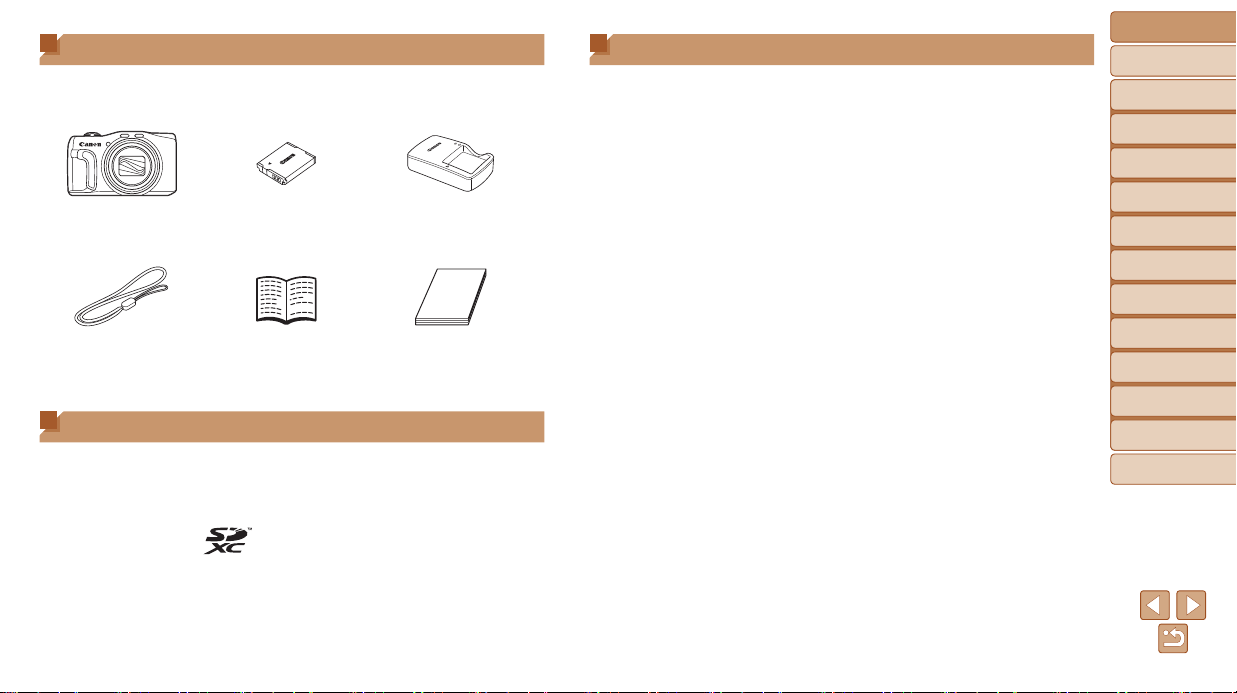
Package Contents
Before use, make sure the following items are included in the package.
If anything is missing, contact your camera retailer.
Camera
Battery Pack
NB-6LH
Battery Charger
CB-2LY/CB-2LYE
Wrist Strap Getting Started Warranty System Booklet
•A memory card is not included (=
2).
Compatible Memory Cards
The following memory cards (sold separately) can be used, regardless of
capacity.
• SD memory cards*
• SDHC memory cards*
• SDXC memory cards*
* Cards conforming to SD standards. However, not all memory cards have been
veried to work with the camera.
Preliminary Notes and Legal Information
• Take and review some test shots initially to make sure the images were
recorded correctly. Please note that Canon Inc., its subsidiaries and
afliates, and its distributors are not liable for any consequential damages
arising from any malfunction of a camera or accessory, including memory
cards, that result in the failure of an image to be recorded or to be
recorded in a way that is machine readable.
• Images recorded by the camera shall be for personal use. Refrain from
unauthorized recording that infringes on copyright law, and note that
even for personal use, photography may contravene copyright or other
legal rights at some performances or exhibitions, or in some commercial
settings.
• For information on your camera’s warranty, please refer to the warranty
information provided with your camera. For Canon Customer Support,
please refer to the warranty information for contact information.
• Although the LCD monitor is produced under extremely high-precision
manufacturing conditions and more than 99.99% of the pixels meet
design specications, in rare cases some pixels may be defective or may
appear as red or black dots. This does not indicate camera damage or
affect recorded images.
• The LCD monitor may be covered with a thin plastic lm for protection
against scratches during shipment. If covered, remove the lm before
using the camera.
• When the camera is used over an extended period, it may become warm.
This does not indicate damage.
Before Use
Basic Guide
Advanced Guide
Camera Basics
Auto Mode / Hybrid
Auto Mode
Other Shooting
Modes
P Mode
Tv, Av, and M Mode
Playback Mode
Wi-Fi Functions
Setting Menu
Accessories
Appendix
Index
3
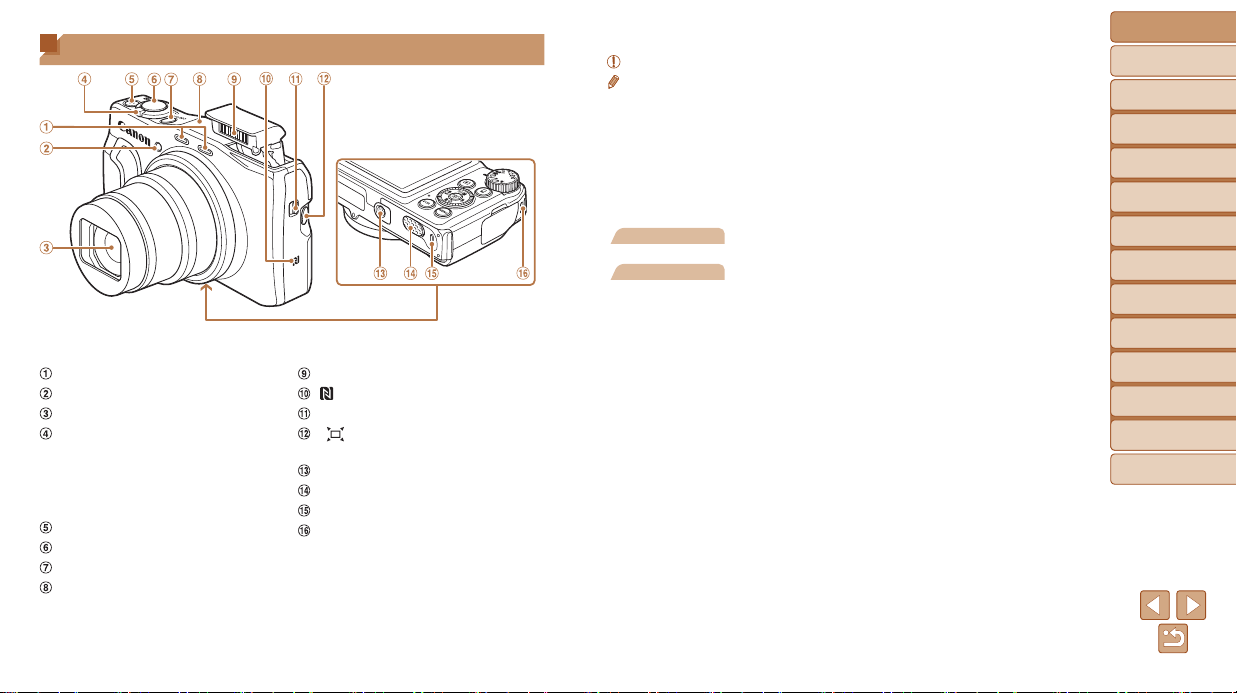
Part Names and Conventions in This Guide
Microphone
Lamp
Lens
Zoom lever
Shooting: <i (telephoto)> /
<j (wide angle)>
Playback: <k (magnify)> /
<g (index)>
Movie button
Shutter button
ON/OFF button
Wi-Fi antenna area
Flash
(
N-Mark
)
*
<h (Flash up)> switch
< (Framing Assist – Seek)>
button
Tripod socket
DC coupler terminal cover
Memory card/battery cover
Strap mount
* Used with NFC features (=
119).
• Shooting modes and on-screen icons and text are indicated in brackets.
•
: Important information you should know
•
: Notes and tips for expert camera use
• =xx: Pages with related information (in this example, “xx” represents a
page number)
• Instructions in this guide apply to the camera under default settings.
• For convenience, all supported memory cards are simply referred to as
the “memory card”.
• The tabs shown above titles indicate whether the function is used for still
images, movies, or both.
Still Images
: Indicates that the function is used when shooting or
viewing still images.
Movies
: Indicates that the function is used when shooting or
viewing movies.
Before Use
Basic Guide
Advanced Guide
Camera Basics
Auto Mode / Hybrid
Auto Mode
Other Shooting
Modes
P Mode
Tv, Av, and M Mode
Playback Mode
Wi-Fi Functions
Setting Menu
Accessories
Appendix
Index
4
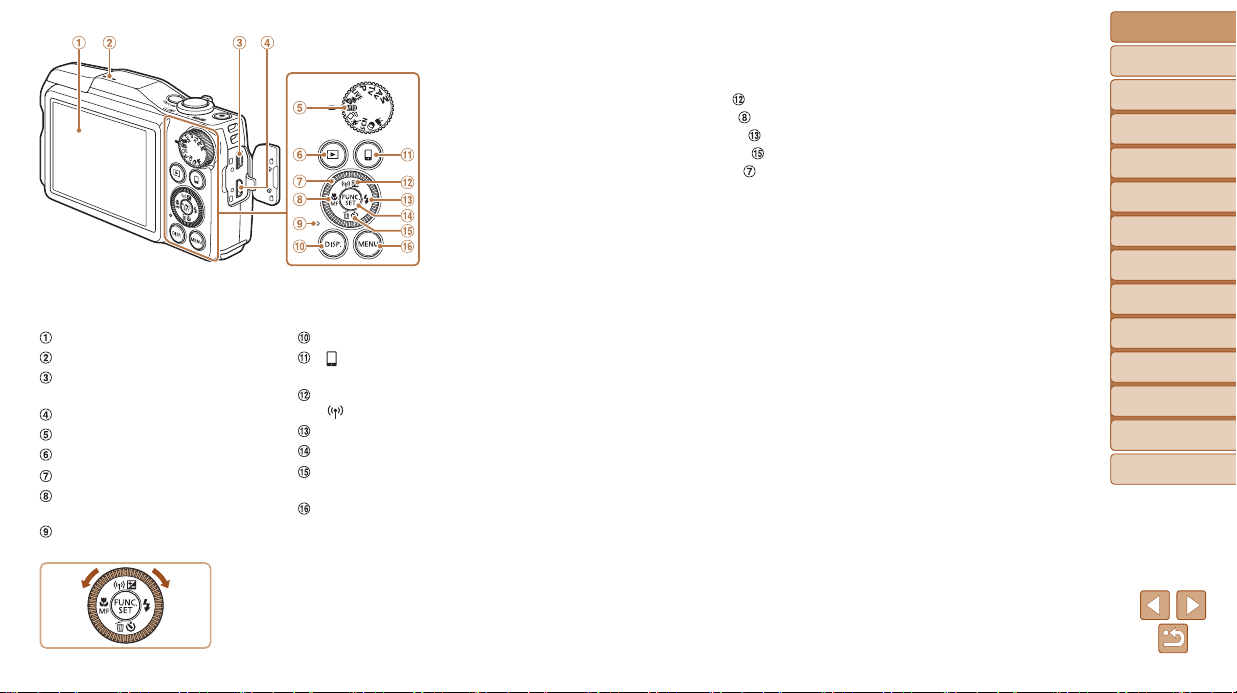
Screen (LCD monitor)
Speaker
AV OUT (Audio/video output) /
DIGITAL terminal
HDMI
TM
terminal
Mode dial
<1 (Playback)> button
Control dial
<e (Macro)> / <f (Manual
focus)> / Left button
Indicator
<l (Display)> button
< (Mobile device connection)>
button
<b (Exposure compensation)> /
<
(Wi-Fi)> / Up button
<h (Flash)> / Right button
FUNC./SET button
<Q (Self-timer)> / <a (Single-
image erase)> / Down button
<n> button
Turning the control dial is one way to
choose setting items, switch images, and
perform other operations. Most of these
operations are also possible with the
<o><p><q><r> buttons.
• In this guide, icons are used to represent the corresponding camera
buttons and dials on which they appear or which they resemble.
• The following camera buttons and controls are represented by icons.
<o> Up button
on back
<q> Left button on back
<r> Right button on back
<p> Down button on back
<5> Control dial on back

Before Use
Basic Guide
Advanced Guide
Camera Basics
Auto Mode / Hybrid
Auto Mode
Other Shooting
Modes
P Mode
Tv, Av, and M Mode
Playback Mode
Wi-Fi Functions
Setting Menu
Accessories
Appendix
Index
5
Tv,Av,andMMode....................84
Specic Shutter Speeds
([Tv] Mode)...................................85
Specic Aperture Values
([Av] Mode) ..................................85
Specic Shutter Speeds and
Aperture Values ([M] Mode) .........86
PlaybackMode...........................88
Viewing ........................................89
Browsing and Filtering Images ....93
Editing Face ID Information .........95
Image Viewing Options ................96
Protecting Images ........................98
Erasing Images ..........................101
Rotating Images ......................... 104
Tagging Images as Favorites ..... 105
Editing Still Images ....................106
Editing Movies............................110
Wi-FiFunctions........................113
What You Can Do with Wi-Fi ..... 114
Registering Web Services ..........116
Installing CameraWindow on
a Smartphone ............................ 119
Preparing to Register
a Computer ................................120
Accessing the Wi-Fi Menu .........123
Connecting via an
Access Point ..............................124
Connecting without an
Access Point ..............................129
Connecting to Another
Camera ......................................132
Sending Images .........................133
Saving Images to a Computer ...136
Using the <
> Button...............137
Sending Images Automatically
(Image Sync)..............................139
Geotagging Images on the
Camera ......................................141
Shooting Remotely ....................141
Editing or Erasing Wi-Fi
Settings ......................................142
SettingMenu............................145
Adjusting Basic Camera
Functions ...................................146
Accessories.............................154
System Map ...............................155
Optional Accessories .................156
Using Optional Accessories .......157
Using the Software ....................160
Printing Images ..........................163
Table of Contents
Package Contents .........................2
Compatible Memory Cards ............2
Preliminary Notes and Legal
Information .....................................2
Part Names and Conventions
in This Guide .................................. 3
Table of Contents ........................... 5
Common Camera Operations ........7
Safety Precautions ......................... 8
Basic Guide .................... 11
Initial Preparations .......................12
Trying the Camera Out ................16
Advanced Guide ............. 20
CameraBasics...........................20
On/Off ..........................................21
Shutter Button ..............................22
Shooting Modes ...........................22
Shooting Display Options ............23
Using the FUNC. Menu ................ 23
Using Menus ................................24
On-Screen Keyboard ...................25
Indicator Display ..........................26
Clock ............................................26
AutoMode/HybridAuto
Mode...........................................27
Shooting with Camera-Determined
Settings ........................................28
Common, Convenient Features ... 34
Using Face ID ..............................40
Image Customization Features ....46
Helpful Shooting Features ...........48
Customizing Camera Operation
...50
OtherShootingModes..............52
Enjoying a Variety of Images from
Each Shot (Creative Shot) ...........53
Brightness / Color Customization
(Live View Control) ....................... 54
Moving Subjects (Sports) ............. 54
Specic Scenes ...........................55
Image Effects (Creative Filters) ...57
Shooting Various Movies .............65
PMode........................................68
Shooting in Program AE
([P] Mode) ....................................69
Image Brightness (Exposure) ......69
Image Colors................................72
Shooting Range and Focusing ....74
Flash ............................................80
Other Settings ..............................82

Before Use
Basic Guide
Advanced Guide
Camera Basics
Auto Mode / Hybrid
Auto Mode
Other Shooting
Modes
P Mode
Tv, Av, and M Mode
Playback Mode
Wi-Fi Functions
Setting Menu
Accessories
Appendix
Index
6
Appendix..................................171
Troubleshooting .........................172
On-Screen Messages ................175
On-Screen Information ..............178
Functions and Menu Tables .......180
Handling Precautions ................. 188
Specications ............................. 189
Index ..........................................192
Wi-Fi (Wireless LAN)
Precautions ................................194
Before Use
Basic Guide
Advanced Guide
Camera Basics
Auto Mode / Hybrid
Auto Mode
Other Shooting
Modes
P Mode
Tv, Av, and M Mode
Playback Mode
Wi-Fi Functions
Setting Menu
Accessories
Appendix
Index
7
Common Camera Operations
4 Shoot
Use camera-determined settings
(Auto Mode, Hybrid Auto Mode) ..................................................... 28, 30
See several effects applied to each shot, using camera-determined
settings (Creative Shot Mode) ............................................................. 53
Shooting people well
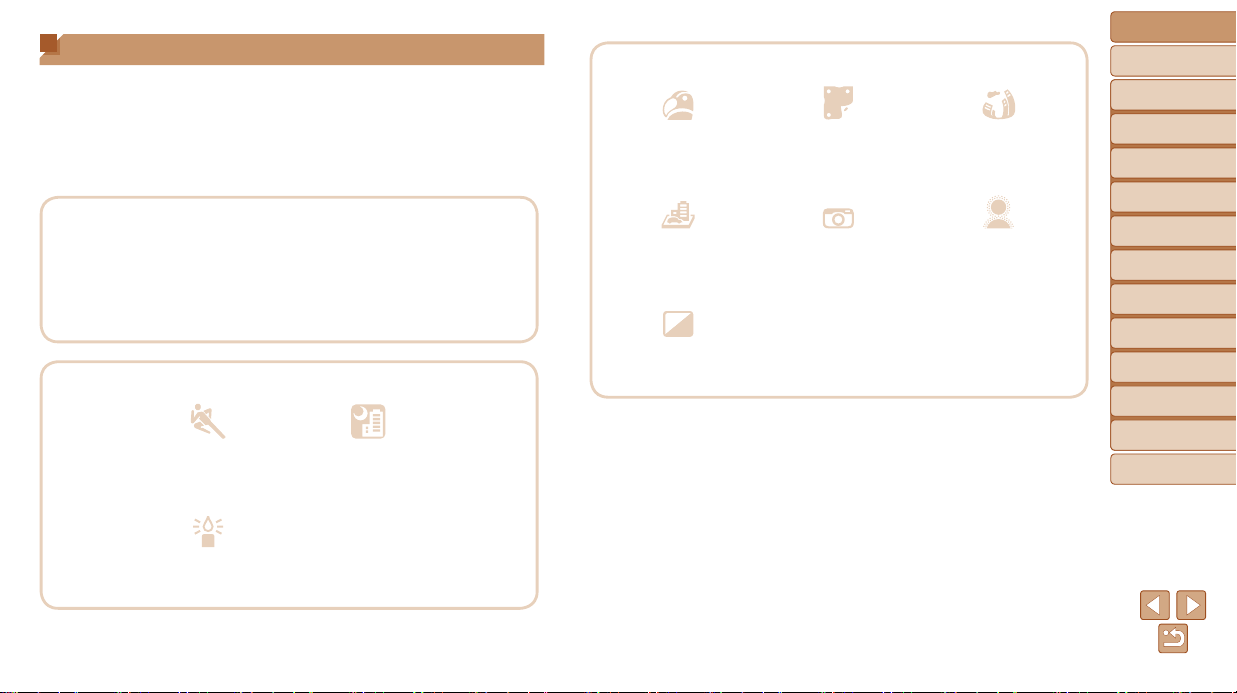
I P
Portraits
(=
55)
Against Snow
(=
56)
Matching specic scenes
Sports
(=
54)
Night Scenes
(=
56)
t
Low Light
(=
56)
Fireworks
(=
56)
Applying special effects
Vivid Colors
(=
57)
Poster Effect
(=
57)
Fish-Eye Effect
(=
58)
Miniature Effect
(=
58)
Toy Camera Effect
(=
59)
Soft Focus
(=
60)
Monochrome
(=
60)
While adjusting image settings (Live View Control) ............................. 54
Focus on faces ......................................................................... 28, 55, 76
Without using the ash (Flash Off) ....................................................... 29
Include yourself in the shot (Self-Timer) ........................................ 37, 63
Add a date stamp ................................................................................. 38
Use Face ID ................................................................................... 40, 92
Movie clips and photos together (Movie Digest) .................................. 30
Before Use
Basic Guide
Advanced Guide
Camera Basics
Auto Mode / Hybrid
Auto Mode
Other Shooting
Modes
P Mode
Tv, Av, and M Mode
Playback Mode
Wi-Fi Functions
Setting Menu
Accessories
Appendix
Index
8
1 View
View images (Playback Mode) ............................................................. 89
Automatic playback (Slideshow) .......................................................... 96
On a TV .............................................................................................. 157
On a computer ................................................................................... 161
Browse through images quickly ........................................................... 93
Erase images ..................................................................................... 101
E Shoot/ViewMovies
Shoot movies ................................................................................. 28, 65
View movies (Playback Mode) ............................................................. 89
Fast-moving subjects, slow-motion playback ....................................... 66
c Print
Print pictures ...................................................................................... 163
Save
Save images to a computer via a cable ............................................. 161
UseWi-FiFunctions
Send images to a smartphone ............................................................115
Share images online ...........................................................................116
Send images to a computer ............................................................... 139
Safety Precautions
• Before using the product, ensure that you read the safety precautions
described below. Always ensure that the product is used correctly.
• The safety precautions noted here are intended to prevent you and other
persons from being injured or incurring property damage.
• Be sure to also check the guides included with any separately sold
accessories you use.
Warning
Denotes the possibility of serious injury or death.
• Donottriggertheashincloseproximitytopeople’seyes.
Exposure to the intense light produced by the ash could damage eyesight.
In particular, remain at least 1 meter (3.3 feet) away from infants when
using the ash.
• Storethisequipmentoutofthereachofchildrenandinfants.
A strap wound around a child’s neck may result in asphyxiation.
If your product uses a power cord, mistakenly winding the cord around a
child’s neck may result in asphyxiation.
• Useonlyrecommendedpowersources.
• Donotdisassemble,alter,orapplyheattotheproduct.
• Avoiddroppingorsubjectingtheproducttosevereimpacts.
• Donottouchtheinterioroftheproductifitisbroken,suchaswhen
dropped.
• Stopusingtheproductimmediatelyifitemitssmokeorastrange
smell,orotherwisebehavesabnormally.
• Donotuseorganicsolventssuchasalcohol,benzine,orthinnerto
cleantheproduct.
• Avoidcontactwithliquid,anddonotallowliquidorforeignobjects
inside.
This could result in electrical shock or re.
If the product gets wet, or if liquid or foreign objects get inside, remove the
battery pack/batteries or unplug immediately.
Before Use
Basic Guide
Advanced Guide
Camera Basics
Auto Mode / Hybrid
Auto Mode
Other Shooting
Modes
P Mode
Tv, Av, and M Mode
Playback Mode
Wi-Fi Functions
Setting Menu
Accessories
Appendix
Index
9
• Donotlookthroughtheviewnder(ifyourmodelhasone)atintense
lightsources,suchasthesunonacleardayoranintensearticial
lightsource.
This could damage your eyesight.
• Donottouchtheproductduringthunderstormsifitispluggedin.
This could result in electrical shock or re. Immediately stop using the
product and distance yourself from it.
• Useonlytherecommendedbatterypack/batteries.
• Donotplacethebatterypack/batteriesnearorindirectame.
This may cause the battery pack/batteries to explode or leak, resulting in
electrical shock, re, or injuries. If leaking battery electrolyte comes into
contact with eyes, mouth, skin, or clothing, immediately ush with water.
• Iftheproductusesabatterycharger,notethefollowingprecautions.
-Removetheplugperiodicallyand,usingadrycloth,wipeaway
anydustanddirtthathascollectedontheplug,theexteriorofthe
poweroutlet,andthesurroundingarea.
-Donotinsertorremovetheplugwithwethands.
-Donotusetheequipmentinamannerthatexceedstherated
capacityoftheelectricaloutletorwiringaccessories.Donotuseif
theplugisdamagedornotfullyinsertedintheoutlet.
-Donotallowdustormetalobjects(suchaspinsorkeys)tocontact
theterminalsorplug.
-Donotcut,damage,alter,orplaceheavyitemsonthepowercord,
ifyourproductusesone.
This could result in electrical shock or re.
• Turnthecameraoffinplaceswherecamerauseisprohibited.
The electromagnetic waves emitted by the camera may interfere with the
operation of electronic instruments and other devices. Exercise adequate
caution when using the product in places where use of electronic devices is
restricted, such as inside airplanes and medical facilities.
• Donotallowthecameratomaintaincontactwithskinforextended
periods.
Even if the camera does not feel hot, this may cause low-temperature
burns, manifested in redness of the skin or blistering. Use a tripod in hot
places, or if you have poor circulation or insensitive skin.
Caution
Denotes the possibility of injury.
• Whencarryingtheproductbythestrap,becarefulnottobangit,
subjectittostrongimpactsorshocks,orletitgetcaughtonother
objects.
• Becarefulnottobumporpushstronglyonthelens.
This could lead to injury or damage the camera.
• Becarefulnottosubjectthescreentostrongimpacts.
If the screen cracks, injury may result from the broken fragments.
• Whenusingtheash,becarefulnottocoveritwithyourngers
orclothing.
This could result in burns or damage to the ash.
• Avoidusing,placing,orstoringtheproductinthefollowingplaces:
-Placessubjecttodirectsunlight
-Placessubjecttotemperaturesabove40°C(104°F)
-Humidordustyplaces
These could cause leakage, overheating, or an explosion of the battery
pack/batteries, resulting in electrical shock, re, burns, or other injuries.
Overheating and damage may result in electrical shock, re, burns,
or other injuries.
• Theslideshowtransitioneffectsmaycausediscomfortwhenviewed
forprolongedperiods.
• Whenusingoptionallenses,lenslters,orlteradapters
(ifapplicable),besuretoattachtheseaccessoriesrmly.
If the lens accessory becomes loose and falls off, it may crack, and the
shards of glass may lead to cuts.
Before Use
Basic Guide
Advanced Guide
Camera Basics
Auto Mode / Hybrid
Auto Mode
Other Shooting
Modes
P Mode
Tv, Av, and M Mode
Playback Mode
Wi-Fi Functions
Setting Menu
Accessories
Appendix
Index
10
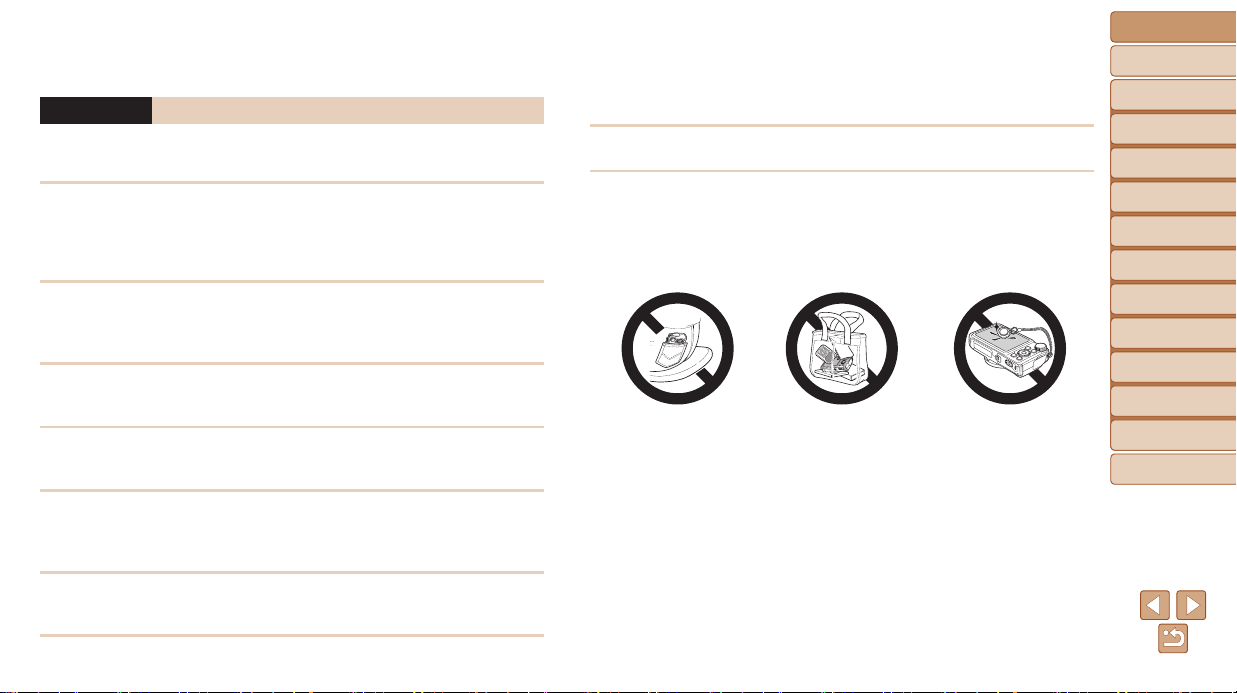
• Onproductsthatraiseandlowertheashautomatically,makesure
toavoidpinchingyourngerswiththeloweringash.
This could result in injury.
Caution
Denotes the possibility of property damage.
• Donotaimthecameraatintenselightsources,suchasthesunon
acleardayoranintensearticiallightsource.
Doing so may damage the image sensor or other internal components.
• Whenusingthecameraonasandybeachoratawindylocation,
becarefulnottoallowdustorsandtoenterthecamera.
• Onproductsthatraiseandlowertheashautomatically,donotpush
theashdownorpryitopen.
This may cause the product to malfunction.
• Wipeoffanydust,grime,orotherforeignmatterontheashwith
acottonswaborcloth.
The heat emitted from the ash may cause foreign matter to smoke or the
product to malfunction.
• Removeandstorethebatterypack/batterieswhenyouarenotusing
theproduct.
Any battery leakage that occurs may cause product damage.
• Beforeyoudiscardthebatterypack/batteries,covertheterminals
withtapeorotherinsulators.
Contacting other metal materials may lead to re or explosions.
• Unpluganybatterychargerusedwiththeproductwhennotinuse.
Donotcoverwithaclothorotherobjectswheninuse.
Leaving the unit plugged in for a long period of time may cause it to
overheat and distort, resulting in re.
• Donotleaveanydedicatedbatterypacksnearpets.
Pets biting the battery pack could cause leakage, overheating, or explosion,
resulting in product damage or re.
• Ifyourproductusesmultiplebatteries,donotusebatteriesthat
havedifferentlevelsofchargetogether,anddonotuseoldand
newbatteriestogether.Donotinsertthebatterieswiththe+and–
terminalsreversed.
This may cause the product to malfunction.
• Donotsitdownwiththecamerainyourpantpocket.
Doing so may cause malfunctions or damage the screen.
• Whenputtingthecamerainyourbag,ensurethathardobjectsdo
notcomeintocontactwiththescreen.Alsoclosethescreen(sothat
itfacesthebody),ifyourproduct’sscreencloses.
• Donotattachanyhardobjectstotheproduct.
Doing so may cause malfunctions or damage the screen.

Before Use
Basic Guide
Advanced Guide
Camera Basics
Auto Mode / Hybrid
Auto Mode
Other Shooting
Modes
P Mode
Tv, Av, and M Mode
Playback Mode
Wi-Fi Functions
Setting Menu
Accessories
Appendix
Index
11
Before Use
Basic Guide
Advanced Guide
Camera Basics
Auto Mode / Hybrid
Auto Mode
Other Shooting
Modes
P Mode
Tv, Av, and M Mode
Playback Mode
Wi-Fi Functions
Setting Menu
Accessories
Appendix
Index
Basic Guide
Basic information and instructions, from initial preparations to shooting and playback
InitialPreparations........................................... 12
Attaching the Strap ................................................12
Holding the Camera .............................................. 12
Charging the Battery Pack .................................... 12
Inserting the Battery Pack and Memory Card ....... 13
Setting the Date and Time ..................................... 14
Display Language ................................................. 16
TryingtheCameraOut..................................... 16
Shooting (Smart Auto) ...........................................16
Viewing ..................................................................18
Before Use
Basic Guide
Advanced Guide
Camera Basics
Auto Mode / Hybrid
Auto Mode
Other Shooting
Modes
P Mode
Tv, Av, and M Mode
Playback Mode
Wi-Fi Functions
Setting Menu
Accessories
Appendix
Index
12
Before Use
Basic Guide
Advanced Guide
Camera Basics
Auto Mode / Hybrid
Auto Mode
Other Shooting
Modes
P Mode
Tv, Av, and M Mode
Playback Mode
Wi-Fi Functions
Setting Menu
Accessories
Appendix
Index
Initial Preparations
Prepare for shooting as follows.
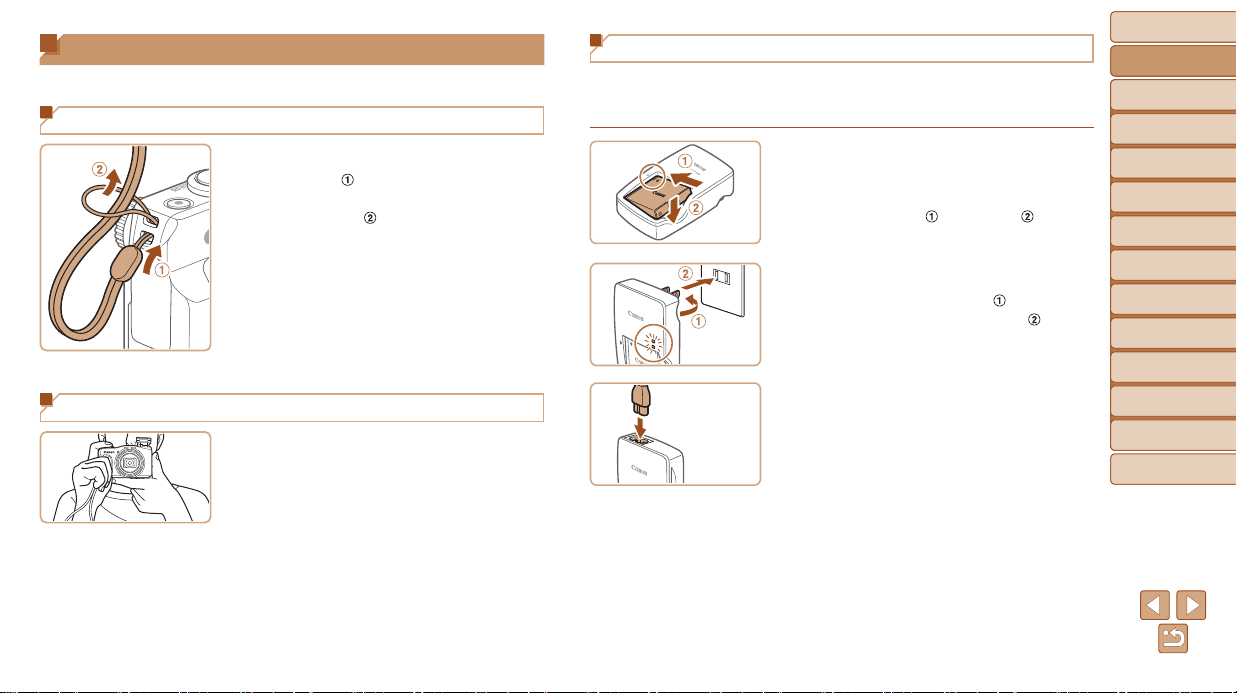
Attaching the Strap
Thread the end of the strap through the
strap hole (
), and then pull the other
end of the strap through the loop on the
threaded end (
).
Holding the Camera
Place the strap around your wrist.
When shooting, keep your arms close to
your body and hold the camera securely
to prevent it from moving. If you have
raised the ash, do not rest your ngers
on it.
Charging the Battery Pack
Before use, charge the battery pack with the included charger. Be sure to
charge the battery pack initially, because the camera is not sold with the
battery pack charged.
1 Insertthebatterypack.
After aligning the marks on the battery
pack and charger, insert the battery pack
by pushing it in (
) and down ( ).
2 Chargethebatterypack.
CB-2LY: Flip out the plug ( ) and plug
the charger into a power outlet (
).
CB-2LYE: Plug the power cord into the
charger, then plug the other end into a
power outlet.
The charging lamp turns orange, and
charging begins.
When charging is nished, the lamp turns
green.
CB-2LY
CB-2LYE
Before Use
Basic Guide
Advanced Guide
Camera Basics
Auto Mode / Hybrid
Auto Mode
Other Shooting
Modes
P Mode
Tv, Av, and M Mode
Playback Mode
Wi-Fi Functions
Setting Menu
Accessories
Appendix
Index
13
Before Use
Basic Guide
Advanced Guide
Camera Basics
Auto Mode / Hybrid
Auto Mode
Other Shooting
Modes
P Mode
Tv, Av, and M Mode
Playback Mode
Wi-Fi Functions
Setting Menu
Accessories
Appendix
Index
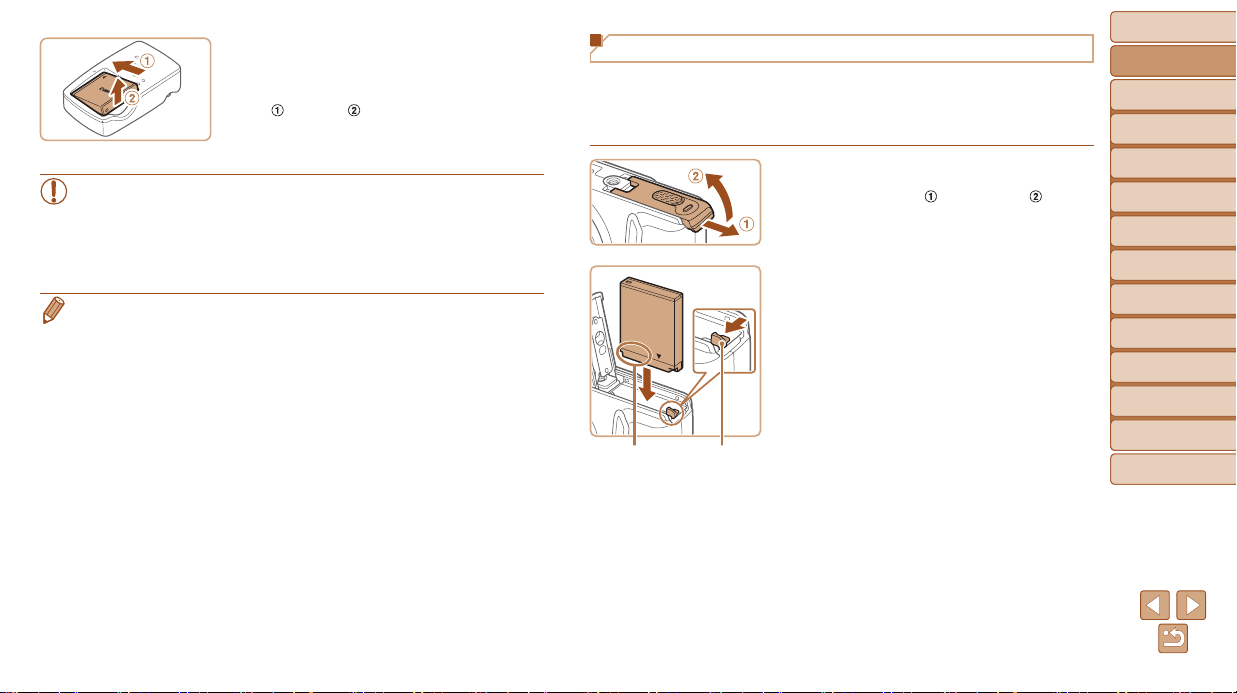
3 Removethebatterypack.
After unplugging the battery charger,
remove the battery pack by pushing it in
(
) and up ( ).
• To protect the battery pack and keep it in optimal condition, do not
charge it continuously for more than 24 hours.
• For battery chargers that use a power cord, do not attach the
charger or cord to other objects. Doing so could result in malfunction
or damage to the product.
• For details on charging time and the number of shots and recording time
possible with a fully charged battery pack, see “Number of Shots/Recording
Time, Playback Time” (=
189).
• Charged battery packs gradually lose their charge, even when they are not
used. Charge the battery pack on (or immediately before) the day of use.
• The charger can be used in areas with 100 – 240 V AC power (50/60 Hz).
For power outlets in a different format, use a commercially available adapter
for the plug. Never use an electrical transformer designed for traveling, which
may damage the battery pack.
Inserting the Battery Pack and Memory Card
Insert the included battery pack and a memory card (sold separately).
Note that before using a new memory card (or a memory card formatted
in another device), you should format the memory card with this camera
(=
149).
1 Openthecover.
Slide the cover ( ) and open it ( ).
2 Insertthebatterypack.
While pressing the battery lock in the
direction of the arrow, insert the battery
pack as shown and push it in until it clicks
into the locked position.
If you insert the battery pack facing the
wrong way, it cannot be locked into the
correct position. Always conrm that the
battery pack is facing the right way and
locks when inserted.
Terminals Battery
Lock
Before Use
Basic Guide
Advanced Guide
Camera Basics
Auto Mode / Hybrid
Auto Mode
Other Shooting
Modes
P Mode
Tv, Av, and M Mode
Playback Mode
Wi-Fi Functions
Setting Menu
Accessories
Appendix
Index
14
Before Use
Basic Guide
Advanced Guide
Camera Basics
Auto Mode / Hybrid
Auto Mode
Other Shooting
Modes
P Mode
Tv, Av, and M Mode
Playback Mode
Wi-Fi Functions
Setting Menu
Accessories
Appendix
Index
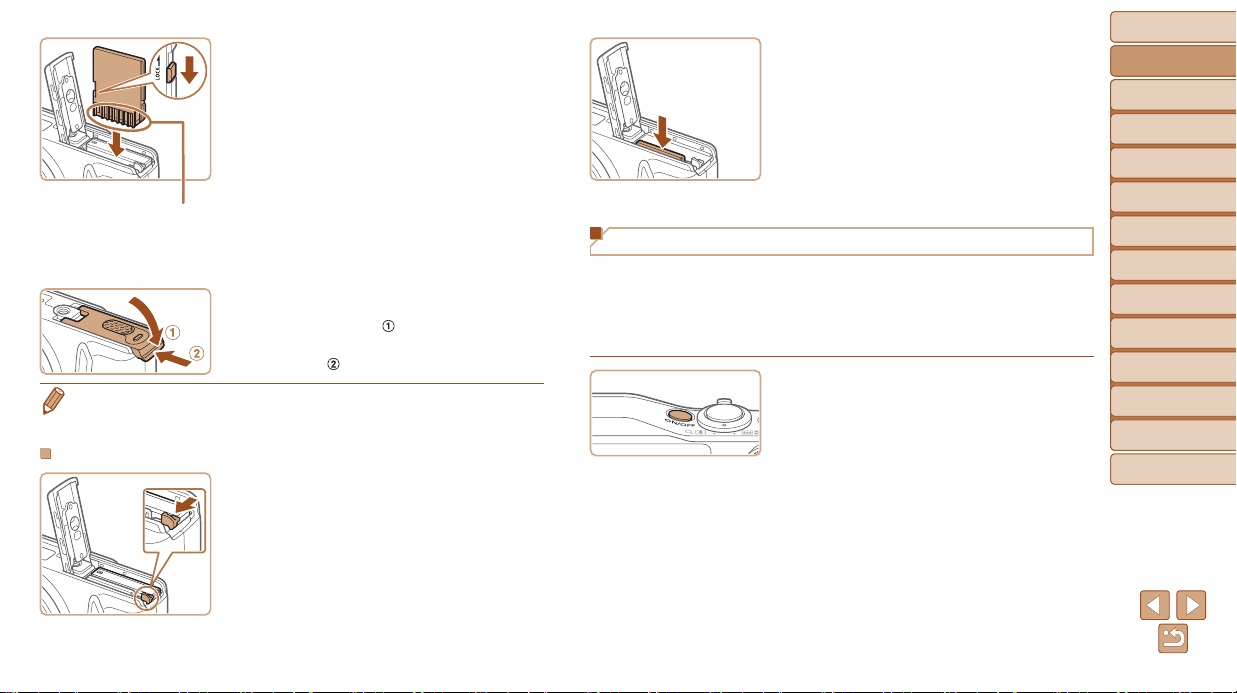
3 Checkthecard’swrite-protect
tabandinsertthememorycard.
Recording is not possible on memory
cards with a write-protect tab when the
tab is in the locked position. Slide the tab
to the unlocked position.
Insert the memory card facing as shown
until it clicks into the locked position.
Make sure the memory card is facing the
right way when you insert it. Inserting
memory cards facing the wrong way may
damage the camera.
4 Closethecover.
Lower the cover ( ) and hold it down as
you slide it, until it clicks into the closed
position (
).
• For guidelines on how many shots or hours of recording can be saved on one
memory card, see “Number of 4:3 Shots per Memory Card” (=
190).
RemovingtheBatteryPackandMemoryCard
Removethebatterypack.
Open the cover and press the battery
lock in the direction of the arrow.
The battery pack will pop up.
Terminals
Removethememorycard.
Push the memory card in until it clicks,
and then slowly release it.
The memory card will pop up.
Setting the Date and Time
Set the current date and time correctly as follows if the [Date/Time] screen
is displayed when you turn the camera on. Information you specify this way
is recorded in image properties when you shoot, and it is used when you
manage images by shooting date or print images showing the date.
You can also add a date stamp to shots, if you wish (=
38).
1 Turnthecameraon.
Press the ON/OFF button.
The [Date/Time] screen is displayed.
Before Use
Basic Guide
Advanced Guide
Camera Basics
Auto Mode / Hybrid
Auto Mode
Other Shooting
Modes
P Mode
Tv, Av, and M Mode
Playback Mode
Wi-Fi Functions
Setting Menu
Accessories
Appendix
Index
15
Before Use
Basic Guide
Advanced Guide
Camera Basics
Auto Mode / Hybrid
Auto Mode
Other Shooting
Modes
P Mode
Tv, Av, and M Mode
Playback Mode
Wi-Fi Functions
Setting Menu
Accessories
Appendix
Index
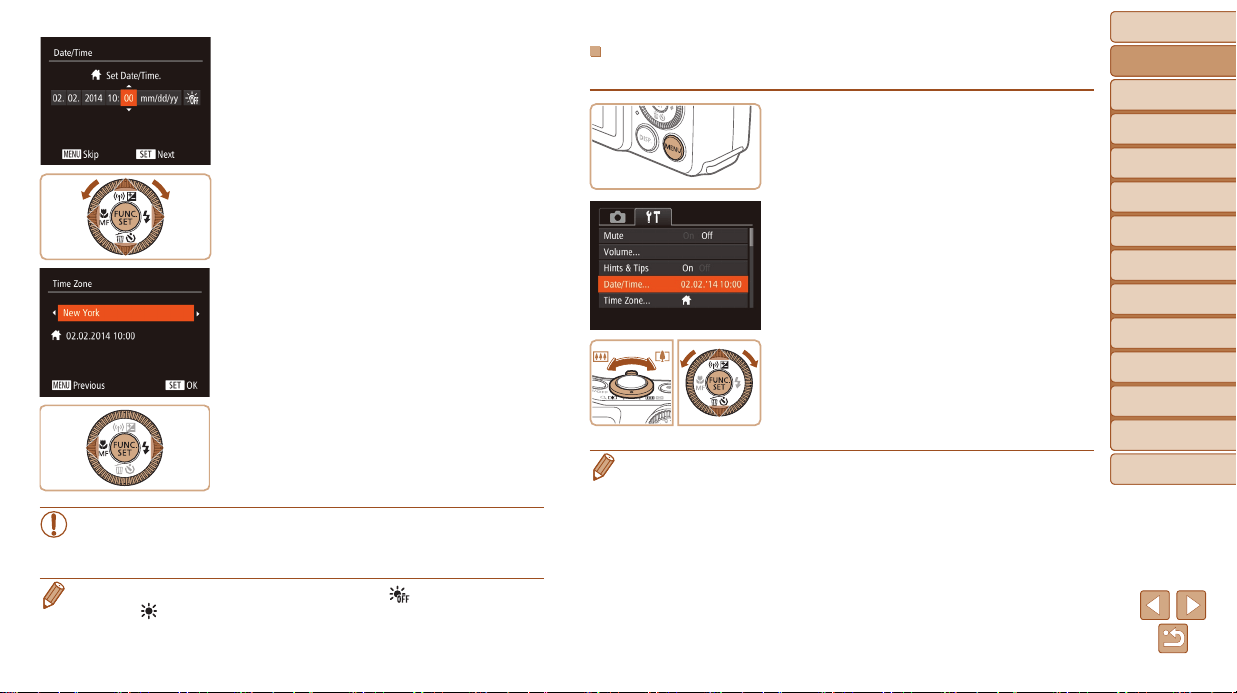
2 Setthedateandtime.
Press the <q><r> buttons to choose an
option.
Press the <o><p> buttons or turn the
<5> dial to specify the date and time.
When nished, press the <m> button.
3 Setthehometimezone.
Press the <q><r> buttons to choose
your home time zone.
4 Finishthesetupprocess.
Press the <m> button when nished.
After a conrmation message, the setting
screen is no longer displayed.
To turn off the camera, press the ON/OFF
button.
• Unless you set the date, time, and home time zone, the [Date/Time]
screen will be displayed each time you turn the camera on.
Specify the correct information.
• To set daylight saving time (1 hour ahead), choose [ ] in step 2 and then
choose [
] by pressing the <o><p> buttons or turning the <5> dial.
ChangingtheDateandTime
Adjust the date and time as follows.
1 Accessthecameramenu.
Press the <n> button.
2 Choose[Date/Time].
Move the zoom lever to choose the [3]
tab.
Press the <o><p> buttons or turn the
<5> dial to choose [Date/Time], and
then press the <m> button.
3 Changethedateandtime.
Follow step 2 in “Setting the Date and
Time” (=
15) to adjust the settings.
Press the <n> button to close the
menu.
• Date/time settings can be retained for about 3 weeks by the camera’s built-in
date/time battery (backup battery) after the battery pack is removed.
• The date/time battery will be charged in about 4 hours once you insert a
charged battery pack or connect the camera to an AC adapter kit (sold
separately, =
156), even if the camera is left off.
• Once the date/time battery is depleted, the [Date/Time] screen will be
displayed when you turn the camera on. Set the correct date and time as
described in “Setting the Date and Time” (=
14).
Before Use
Basic Guide
Advanced Guide
Camera Basics
Auto Mode / Hybrid
Auto Mode
Other Shooting
Modes
P Mode
Tv, Av, and M Mode
Playback Mode
Wi-Fi Functions
Setting Menu
Accessories
Appendix
Index
16
Before Use
Basic Guide
Advanced Guide
Camera Basics
Auto Mode / Hybrid
Auto Mode
Other Shooting
Modes
P Mode
Tv, Av, and M Mode
Playback Mode
Wi-Fi Functions
Setting Menu
Accessories
Appendix
Index
Still Images Movies
Trying the Camera Out
Follow these instructions to turn the camera on, shoot still images or
movies, and then view them.
Shooting (Smart Auto)
For fully automatic selection of the optimal settings for specic scenes,
simply let the camera determine the subject and shooting conditions.
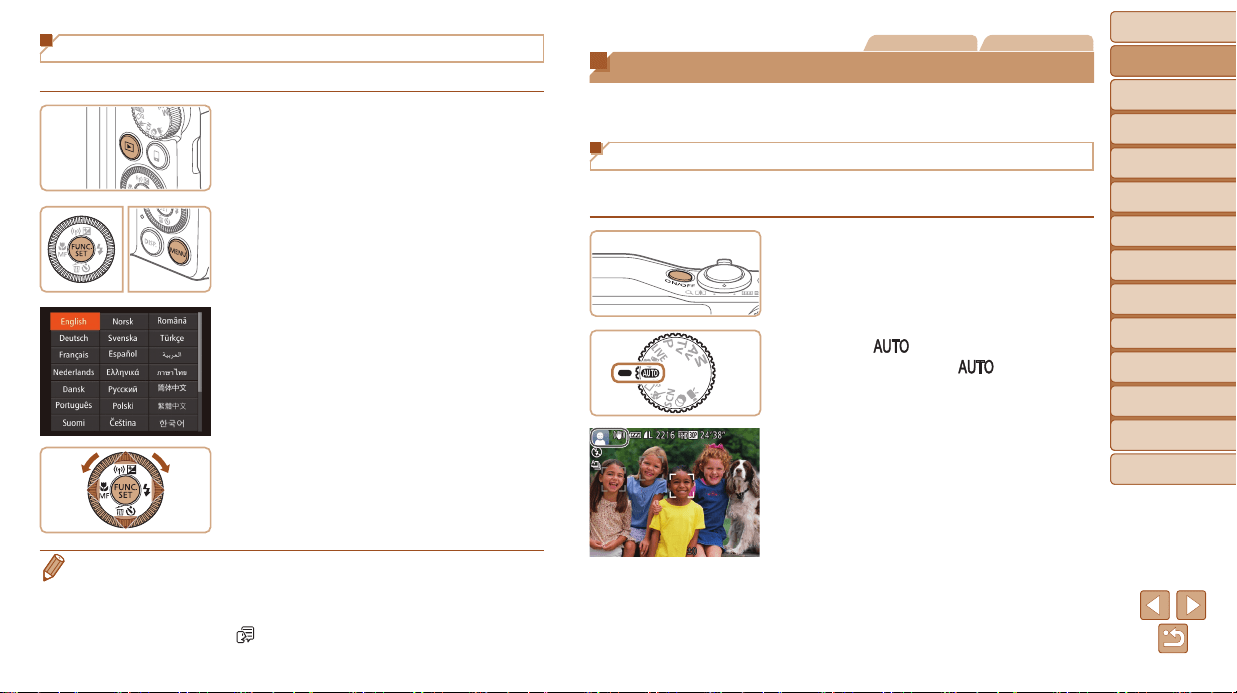
1 Turnthecameraon.
Press the ON/OFF button.
The startup screen is displayed.
2 Enter[ ]mode.
Set the mode dial to [ ].
Aim the camera at the subject.
The camera will make a slight clicking
noise as it determines the scene.
Icons representing the scene and image
stabilization mode are displayed in the
upper left of the screen.
Frames displayed around any detected
subjects indicate that they are in focus.
Display Language
Change the display language as needed.
1 EnterPlaybackmode.
Press the <1> button.
2 Accessthesettingscreen.
Press and hold the <m> button, and
then immediately press the <n>
button.
3 Setthedisplaylanguage.
Press the <o><p><q><r> buttons or
turn the <5> dial to choose a language,
and then press the <m> button.
Once the display language has been set,
the setting screen is no longer displayed.
• The current time is displayed if you wait too long in step 2 after pressing the <m>
button before you press the <n> button. In this case, press the <m> button
to dismiss the time display and repeat step 2.
• You can also change the display language by pressing the <n> button
and choosing [Language
] on the [3] tab.
Before Use
Basic Guide
Advanced Guide
Camera Basics
Auto Mode / Hybrid
Auto Mode
Other Shooting
Modes
P Mode
Tv, Av, and M Mode
Playback Mode
Wi-Fi Functions
Setting Menu
Accessories
Appendix
Index
17
Before Use
Basic Guide
Advanced Guide
Camera Basics
Auto Mode / Hybrid
Auto Mode
Other Shooting
Modes
P Mode
Tv, Av, and M Mode
Playback Mode
Wi-Fi Functions
Setting Menu
Accessories
Appendix
Index
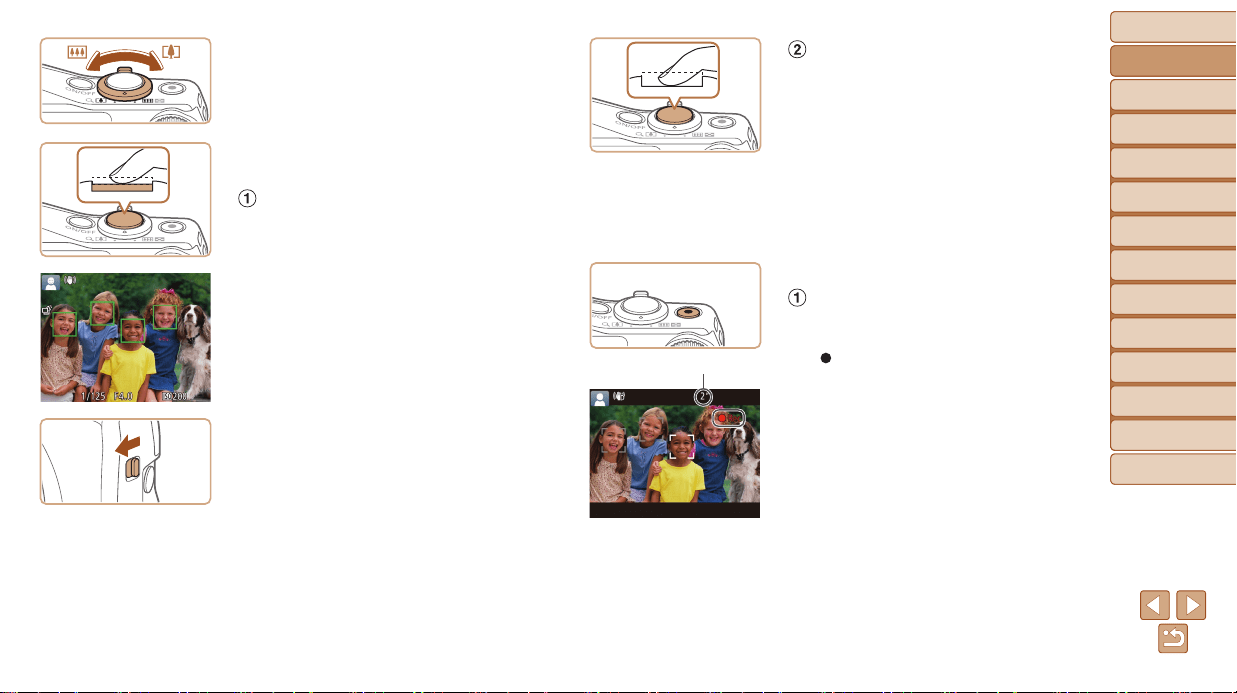
3 Composetheshot.
To zoom in and enlarge the subject, move
the zoom lever toward <i> (telephoto),
and to zoom away from the subject, move
it toward <j> (wide angle).
4 Shoot.
ShootingStillImages
Focus.
Press the shutter button lightly, halfway
down. The camera beeps twice after
focusing, and AF frames are displayed to
indicate image areas in focus.
If [Raise the ash] appears on the screen,
move the <h> switch to raise the ash.
It will re when shooting. If you prefer not
to use the ash, push it down with your
nger, into the camera.
Shoot.
Press the shutter button all the way
down.
As the camera shoots, a shutter sound
is played, and in low-light conditions
when you have raised the ash, it res
automatically.
Keep the camera still until the shutter
sound ends.
After displaying your shot, the camera will
revert to the shooting screen.
ShootingMovies
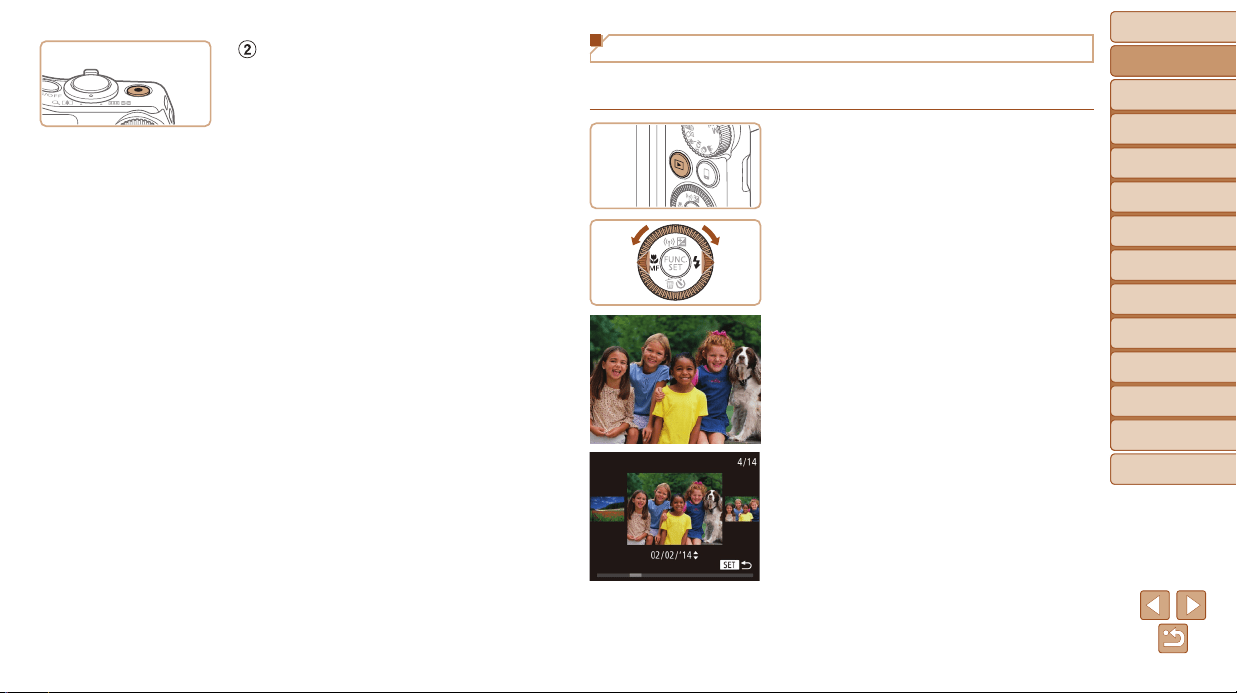
Startshooting.
Press the movie button. The camera
beeps once as recording begins, and
[
Rec] is displayed with the elapsed time.
Black bars are displayed on the top and
bottom edges of the screen, and the
subject is slightly enlarged. The black
bars indicate image areas not recorded.
Frames displayed around any detected
faces indicate that they are in focus.
Once recording begins, take your nger
off the movie button.
Elapsed Time
Before Use
Basic Guide
Advanced Guide
Camera Basics
Auto Mode / Hybrid
Auto Mode
Other Shooting
Modes
P Mode
Tv, Av, and M Mode
Playback Mode
Wi-Fi Functions
Setting Menu
Accessories
Appendix
Index
18
Before Use
Basic Guide
Advanced Guide
Camera Basics
Auto Mode / Hybrid
Auto Mode
Other Shooting
Modes
P Mode
Tv, Av, and M Mode
Playback Mode
Wi-Fi Functions
Setting Menu
Accessories
Appendix
Index
Finishshooting.
Press the movie button again to stop
shooting. The camera beeps twice as
recording stops.
Viewing
After shooting images or movies, you can view them on the screen as
follows.
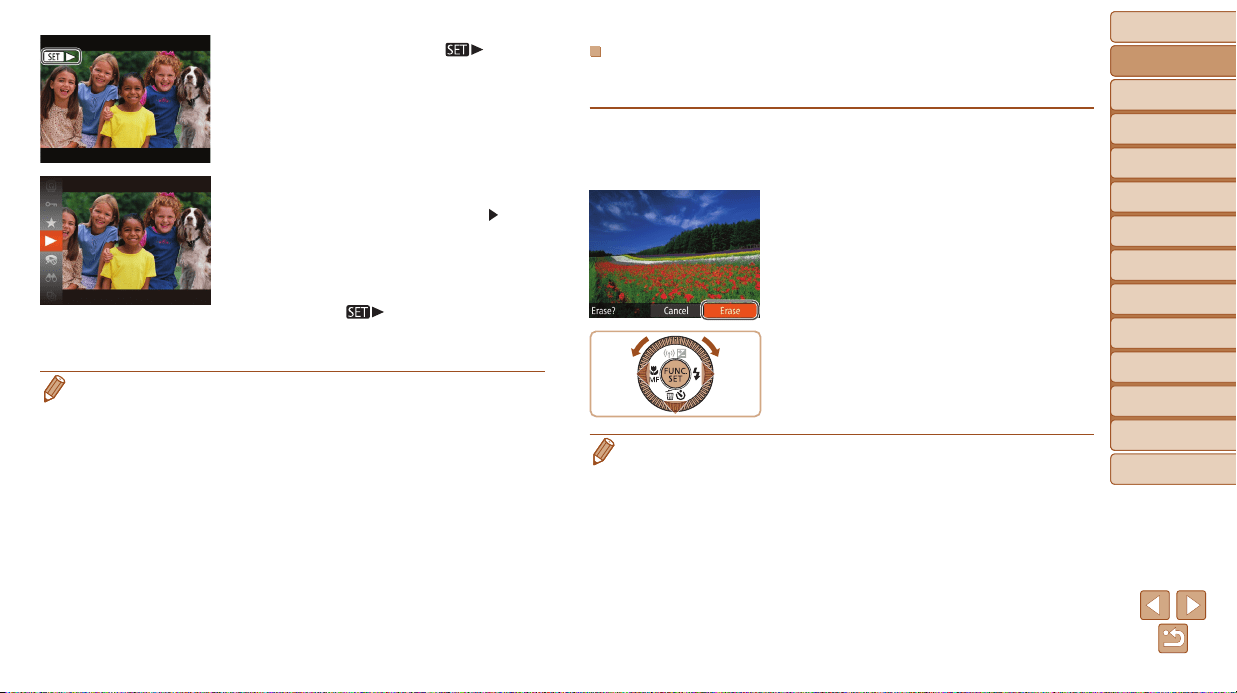
1 EnterPlaybackmode.
Press the <1> button.
Your last shot is displayed.
2 Browsethroughyourimages.
To view the previous image, press
the <q> button or turn the <5> dial
counterclockwise. To view the next
image, press the <r> button or turn the
<5> dial clockwise.
Press and hold the <q><r> buttons to
browse through images quickly.
To access Scroll Display mode, turn the
<
5
> dial rapidly. In this mode, turn the
<
5
> dial to browse through images.
To return to single-image display, press
the <
m
> button.
Before Use
Basic Guide
Advanced Guide
Camera Basics
Auto Mode / Hybrid
Auto Mode
Other Shooting
Modes
P Mode
Tv, Av, and M Mode
Playback Mode
Wi-Fi Functions
Setting Menu
Accessories
Appendix
Index
19
Before Use
Basic Guide
Advanced Guide
Camera Basics
Auto Mode / Hybrid
Auto Mode
Other Shooting
Modes
P Mode
Tv, Av, and M Mode
Playback Mode
Wi-Fi Functions
Setting Menu
Accessories
Appendix
Index
Movies are identied by a [ ] icon.
To play movies, go to step 3.
3 Playmovies.
Press the <m> button, choose [ ]
(either press the <o><p> buttons or
turn the <5> dial), and then press the
<m> button again.
Playback now begins, and after the movie
is nished, [
] is displayed.
To adjust the volume, press the <o><p>
buttons.
• To switch to Shooting mode from Playback mode, press the shutter button
halfway.
ErasingImages
You can choose and erase unneeded images one by one. Be careful when
erasing images, because they cannot be recovered.
1 Chooseanimagetoerase.
Press the <q><r> buttons or turn the
<5> dial to choose an image.
2 Erasetheimage.
Press the <p> button.
After [Erase?] is displayed, press the
<q><r> buttons or turn the <5> dial to
choose [Erase], and then press the <m>
button.
The current image is now erased.
To cancel erasure, press the <q><r>
buttons or turn the <5> dial to choose
[Cancel], and then press the <m>
button.
• You can also erase all images at once (=
102).

Before Use
Basic Guide
Advanced Guide
Camera Basics
Auto Mode / Hybrid
Auto Mode
Other Shooting
Modes
P Mode
Tv, Av, and M Mode
Playback Mode
Wi-Fi Functions
Setting Menu
Accessories
Appendix
Index
20
Before Use
Basic Guide
Advanced Guide
Camera Basics
Auto Mode / Hybrid
Auto Mode
Other Shooting
Modes
P Mode
Tv, Av, and M Mode
Playback Mode
Wi-Fi Functions
Setting Menu
Accessories
Appendix
Index
Advanced Guide
Camera Basics
Other basic operations and more ways to enjoy your camera, including shooting and playback options
On/Off................................................................ 21
Power-Saving Features (Auto Power Down) ........ 21
ShutterButton.................................................. 22
ShootingModes............................................... 22
ShootingDisplayOptions............................... 23
UsingtheFUNC.Menu.................................... 23
UsingMenus..................................................... 24
On-ScreenKeyboard....................................... 25
IndicatorDisplay.............................................. 26
Clock................................................................. 26
Before Use
Basic Guide
Advanced Guide
Camera Basics
Auto Mode / Hybrid
Auto Mode
Other Shooting
Modes
P Mode
Tv, Av, and M Mode
Playback Mode
Wi-Fi Functions
Setting Menu
Accessories
Appendix
Index
21
Before Use
Basic Guide
Advanced Guide
Camera Basics
Auto Mode / Hybrid
Auto Mode
Other Shooting
Modes
P Mode
Tv, Av, and M Mode
Playback Mode
Wi-Fi Functions
Setting Menu
Accessories
Appendix
Index
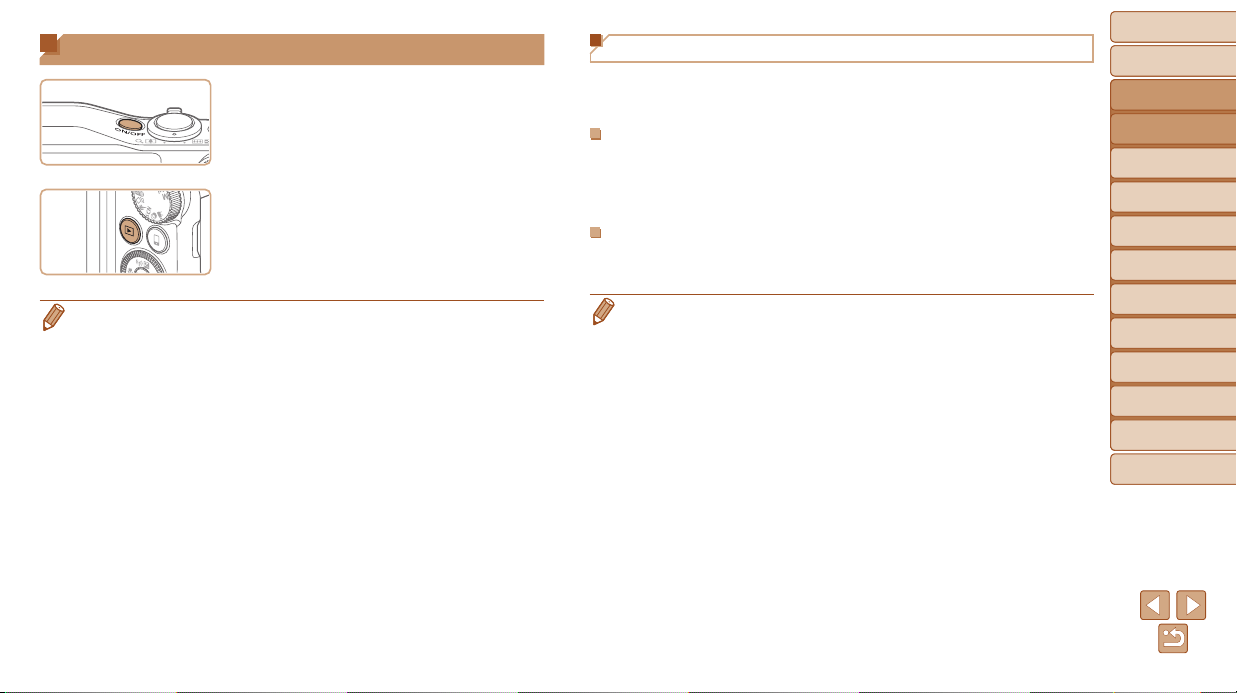
On/Off
ShootingMode
Press the ON/OFF button to turn the
camera on and prepare for shooting.
To turn the camera off, press the ON/OFF
button again.
PlaybackMode
Press the <1> button to turn the camera
on and view your shots.
To turn the camera off, press the <1>
button again.
• To switch to Playback mode from Shooting mode, press the <1> button.
• To switch to Shooting mode from Playback mode, press the shutter button
halfway (=
22).
• The lens will be retracted after about one minute once the camera is in
Playback mode. You can turn the camera off when the lens is retracted by
pressing the <1> button.
Power-Saving Features (Auto Power Down)
As a way to conserve battery power, the camera automatically deactivates
the screen (Display Off) and then turns itself off after a specic period of
inactivity.
PowerSavinginShootingMode
The screen is automatically deactivated after about one minute of inactivity.
In about two more minutes, the lens is retracted and the camera turns itself
off. To activate the screen and prepare for shooting when the screen is off
but the lens is still out, press the shutter button halfway (=
22).
PowerSavinginPlaybackMode
The camera turns itself off automatically after about ve minutes of
inactivity.
• You can deactivate Auto Power Down and adjust the timing of Display Off,
if you prefer (=
148).
• Power saving is not active while the camera is connected to other devices via
Wi-Fi (=
113), or when connected to a computer (=
161).
Before Use
Basic Guide
Advanced Guide
Camera Basics
Auto Mode / Hybrid
Auto Mode
Other Shooting
Modes
P Mode
Tv, Av, and M Mode
Playback Mode
Wi-Fi Functions
Setting Menu
Accessories
Appendix
Index
22
Before Use
Basic Guide
Advanced Guide
Camera Basics
Auto Mode / Hybrid
Auto Mode
Other Shooting
Modes
P Mode
Tv, Av, and M Mode
Playback Mode
Wi-Fi Functions
Setting Menu
Accessories
Appendix
Index
Shutter Button
To ensure your shots are in focus, always begin by holding the shutter
button halfway down, and once the subject is in focus, press the button all
the way down to shoot.
In this manual, shutter button operations are described as pressing the
button halfway or all the way down.
1 Presshalfway.(Presslightlyto
focus.)
Press the shutter button halfway. The
camera beeps twice, and AF frames are
displayed around image areas in focus.
2 Pressallthewaydown.(From
thehalfwayposition,pressfully
toshoot.)
The camera shoots, as a shutter sound
is played.
Keep the camera still until the shutter
sound ends.
• Images may be out of focus if you shoot without initially pressing the
shutter button halfway.
• Length of shutter sound playback varies depending on the time
required for the shot. It may take longer in some shooting scenes,
and images will be blurry if you move the camera (or the subject
moves) before the shutter sound ends.
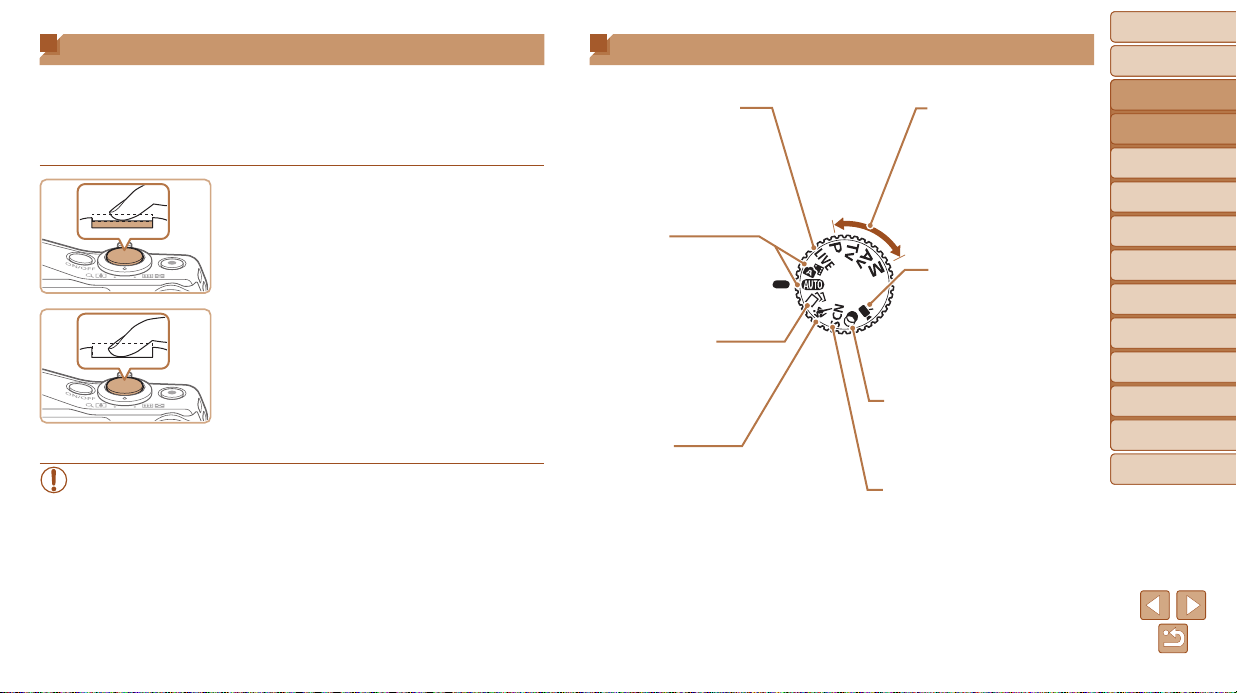
Shooting Modes
Use the mode dial to access each shooting mode.
P,Tv,Av,andMModes
Take a variety of shots using
your preferred settings
(=
68, 84).
MovieMode
For shooting movies
(=
65).
You can also shoot movies
when the mode dial is not
set to Movie mode, simply
by pressing the movie
button.
AutoMode/
HybridAutoMode
Fully automatic shooting, with
camera-determined settings
(=
16, 28, 30).
SportsMode
Shoot continuously as the camera
focuses on moving subjects (=
54).
LiveViewControlMode
Customize image brightness
or colors when shooting
(=
54).
CreativeFiltersMode
Add a variety of effects to images
when shooting (=
57).
SceneMode
Shoot with optimal settings for
specic scenes (=
55).
CreativeShotMode
You can capture multiple still
images with effects using
camera-determined settings
(=
53).
Before Use
Basic Guide
Advanced Guide
Camera Basics
Auto Mode / Hybrid
Auto Mode
Other Shooting
Modes
P Mode
Tv, Av, and M Mode
Playback Mode
Wi-Fi Functions
Setting Menu
Accessories
Appendix
Index
23
Before Use
Basic Guide
Advanced Guide
Camera Basics
Auto Mode / Hybrid
Auto Mode
Other Shooting
Modes
P Mode
Tv, Av, and M Mode
Playback Mode
Wi-Fi Functions
Setting Menu
Accessories
Appendix
Index
Shooting Display Options
Press the <l> button to view other information on the screen, or to hide
the information. For details on the information displayed, see “On-Screen
Information” (=
178).
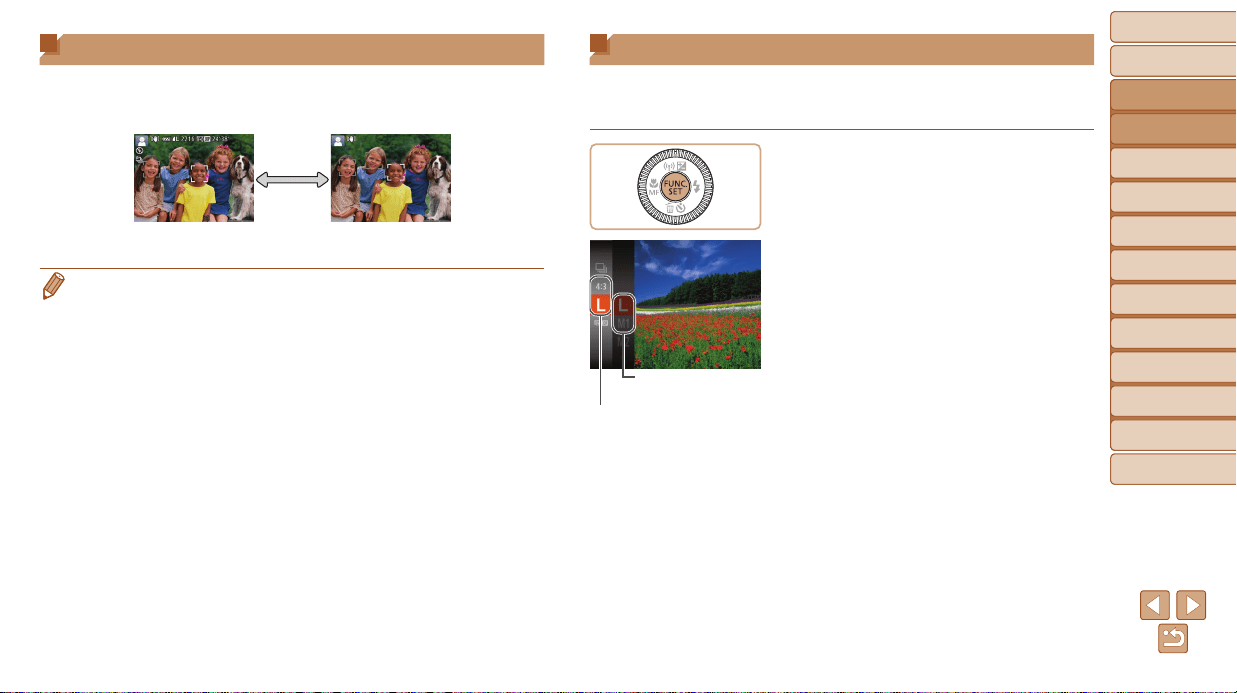
Information is displayed No information is displayed
• Screen brightness is automatically increased by the night view function
when you are shooting under low light, making it easier to check how shots
are composed. However, on-screen image brightness may not match the
brightness of your shots. Note that any on-screen image distortion or jerky
subject motion will not affect recorded images.
• For playback display options, see “Switching Display Modes” (=
90).
Using the FUNC. Menu
Congure commonly used functions through the FUNC. menu as follows.
Note that menu items and options vary depending on the shooting mode
(=
182 – 183) or playback mode (=
188).
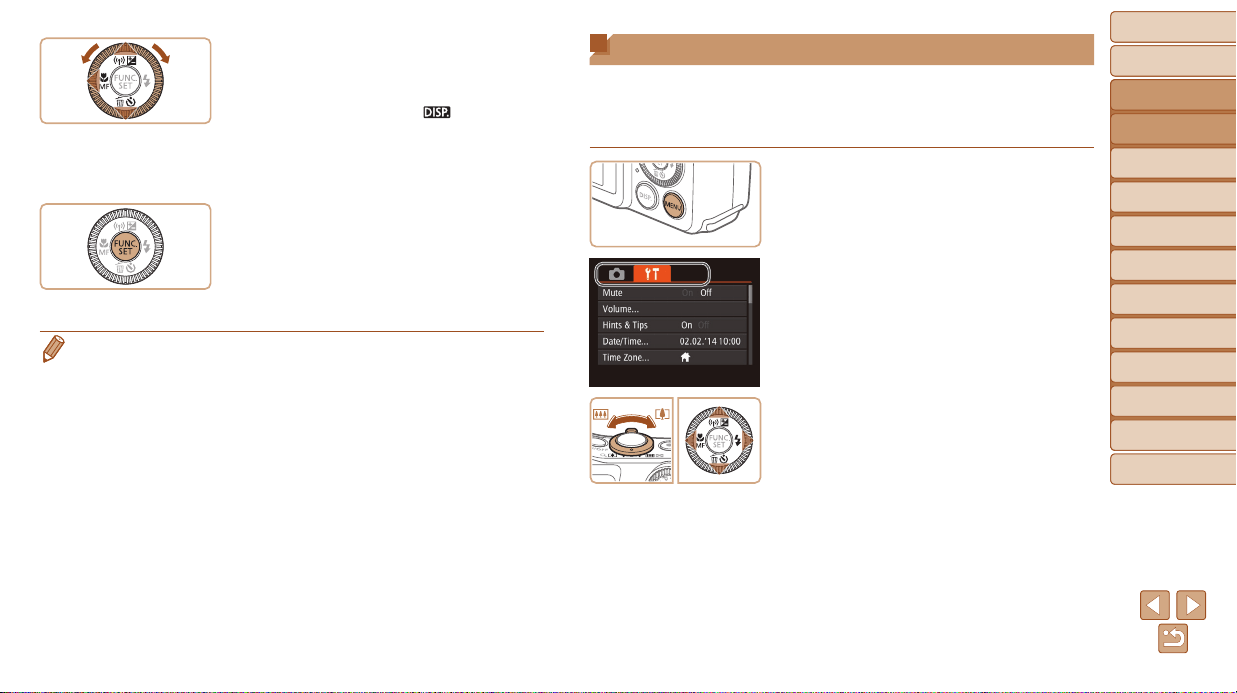
1 AccesstheFUNC.menu.
Press the <m> button.
2 Chooseamenuitem.
Press the <o><p> buttons or turn the
<5> dial to choose a menu item, and
then press the <m> or <r> button.
Depending on the menu item, functions
can be specied simply by pressing the
<m> or <r> button, or another screen is
displayed for conguring the function.
Options
Menu Items
Before Use
Basic Guide
Advanced Guide
Camera Basics
Auto Mode / Hybrid
Auto Mode
Other Shooting
Modes
P Mode
Tv, Av, and M Mode
Playback Mode
Wi-Fi Functions
Setting Menu
Accessories
Appendix
Index
24
Before Use
Basic Guide
Advanced Guide
Camera Basics
Auto Mode / Hybrid
Auto Mode
Other Shooting
Modes
P Mode
Tv, Av, and M Mode
Playback Mode
Wi-Fi Functions
Setting Menu
Accessories
Appendix
Index
3 Chooseanoption.
Press the <o><p> buttons or turn the
<5> dial to choose an option.
Options labeled with a [ ] icon can
be congured by pressing the <l>
button.
To return to the menu items, press the
<q> button.
4 Finishthesetupprocess.
Press the <m> button.
The screen before you pressed the
<m> button in step 1 is displayed again,
showing the option you congured.
• To undo any accidental setting changes, you can restore the camera’s default
settings (=
152).
Using Menus
Congure a variety of camera functions through other menus as follows.
Menu items are grouped by purpose on tabs, such as shooting [4],
playback [1], and so on. Note that available menu items vary depending
on the selected shooting or playback mode (=
184 – 188).
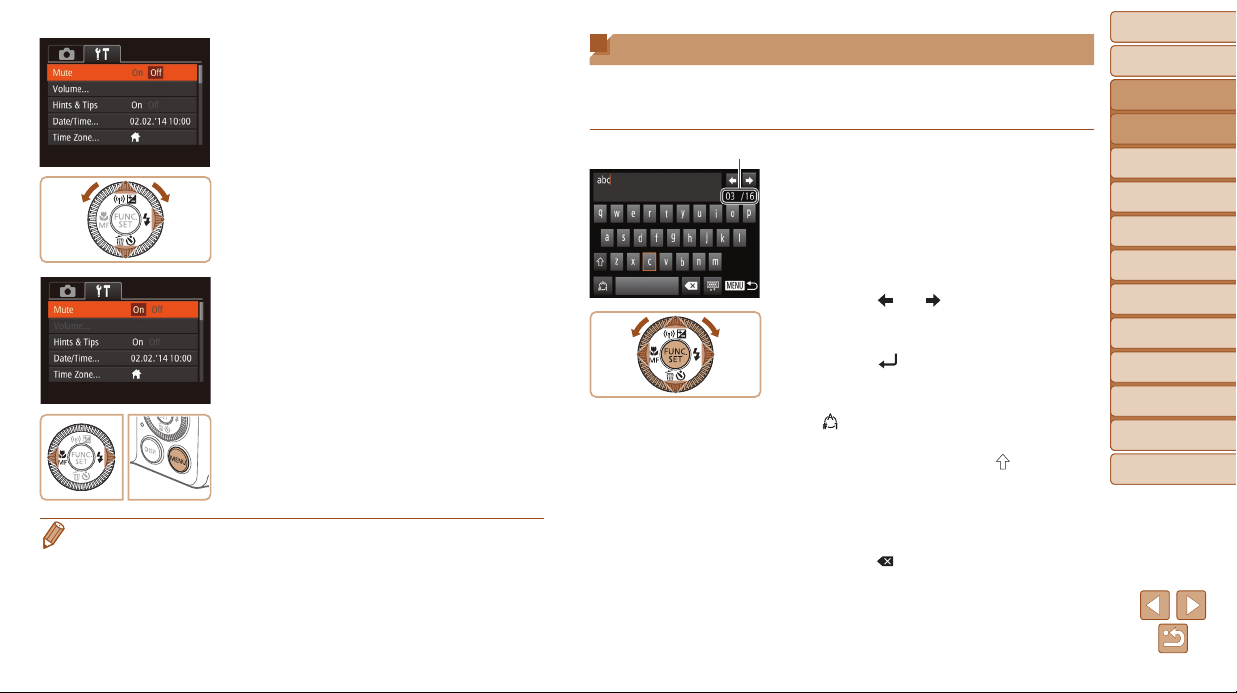
1 Accessthemenu.
Press the <n> button.
2 Chooseatab.
Move the zoom lever to choose a tab.
After you have pressed the <o><p>
buttons or turned the <5> dial to choose
a tab initially, you can switch between
tabs by pressing the <q><r> buttons.
Before Use
Basic Guide
Advanced Guide
Camera Basics
Auto Mode / Hybrid
Auto Mode
Other Shooting
Modes
P Mode
Tv, Av, and M Mode
Playback Mode
Wi-Fi Functions
Setting Menu
Accessories
Appendix
Index
25
Before Use
Basic Guide
Advanced Guide
Camera Basics
Auto Mode / Hybrid
Auto Mode
Other Shooting
Modes
P Mode
Tv, Av, and M Mode
Playback Mode
Wi-Fi Functions
Setting Menu
Accessories
Appendix
Index
3 Chooseamenuitem.
Press the <o><p> buttons or turn the
<5> dial to choose a menu item.
For menu items with options not shown,
rst press the <m> or <r> button to
switch screens, and then either press the
<o><p> buttons or turn the <5> dial
to select the menu item.
To return to the previous screen, press
the <n> button.
4 Chooseanoption.
Press the <q><r> buttons to choose an
option.
5 Finishthesetupprocess.
Press the <n> button to return to the
screen displayed before you pressed the
<n> button in step 1.
• To undo any accidental setting changes, you can restore the camera’s default
settings (=
152).
On-Screen Keyboard
Use the on-screen keyboard to enter information for Face ID (=
41),
Wi-Fi connections (=
123), and so on. Note that the length and type of
information you can enter varies depending on the function you are using.
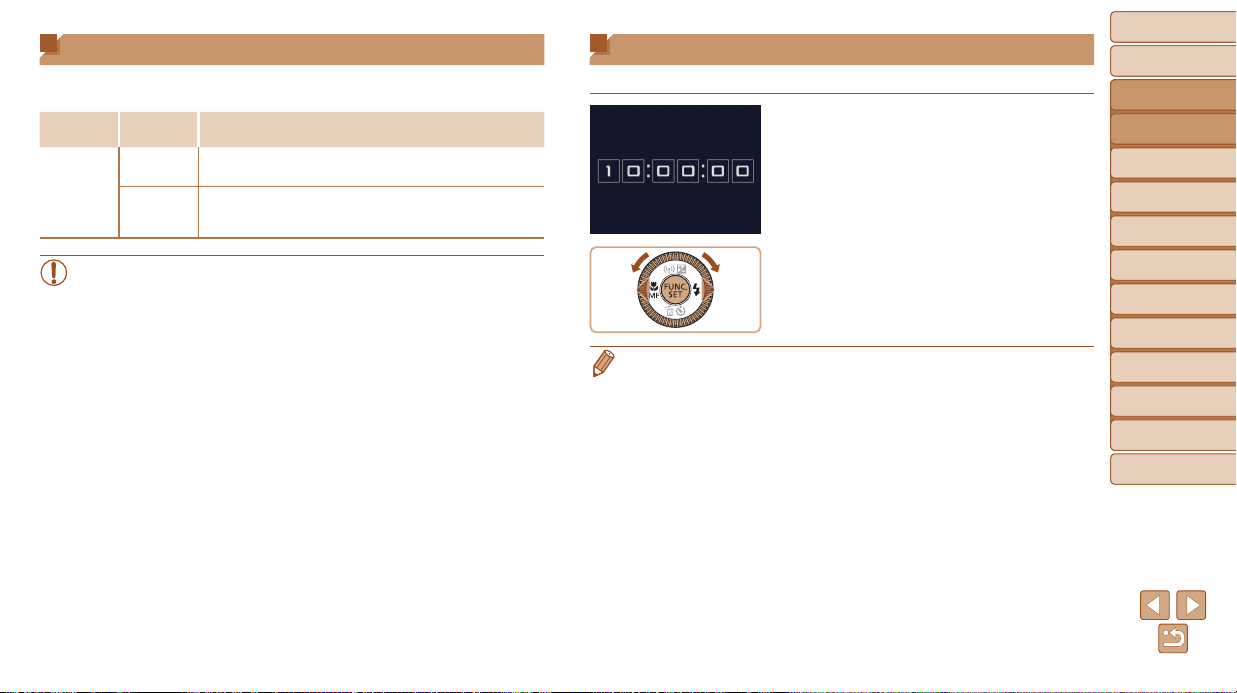
EnteringCharacters
Press the <o><p><q><r> buttons or
turn the <5> dial to choose a character,
and then press the <m> button to enter it.
The amount of information you can enter varies
depending on the function you are using.
MovingtheCursor
Choose [ ] or [ ] and press the <m>
button.
EnteringLineBreaks
Choose [ ] and press the <m> button.
SwitchingInputModes
To switch to numbers or symbols, choose
[
] and press the <m> button.
To switch between uppercase and
lowercase letters, choose [
] and press
the <m> button.
Available input modes vary depending on
the function you are using.
DeletingCharacters
Choose [ ] and press the <m> button.
The previous character will be deleted.
ConrmingInputandReturningto
thePreviousScreen
Press the <n> button.
Number of Available Characters
Before Use
Basic Guide
Advanced Guide
Camera Basics
Auto Mode / Hybrid
Auto Mode
Other Shooting
Modes
P Mode
Tv, Av, and M Mode
Playback Mode
Wi-Fi Functions
Setting Menu
Accessories
Appendix
Index
26
Before Use
Basic Guide
Advanced Guide
Camera Basics
Auto Mode / Hybrid
Auto Mode
Other Shooting
Modes
P Mode
Tv, Av, and M Mode
Playback Mode
Wi-Fi Functions
Setting Menu
Accessories
Appendix
Index
Indicator Display
The indicator on the back of the camera (=
4) lights up or blinks
depending on the camera status.
Color
Indicator
Status
Camera Status
Green
On
Connected to a computer (=
161), or display off
(=
21, 148)
Blinking
Starting up, recording/reading/transmitting images,
shooting long exposures (=
85, 86), or connecting/
transmitting via Wi-Fi
• When the indicator blinks green, never turn the camera off, open the
memory card/battery cover, or shake or jolt the camera, which may
corrupt images or damage the camera or memory card.
Clock
You can check the current time.
Press and hold the <m> button.
The current time appears.
If you hold the camera vertically while
using the clock function, it will switch
to vertical display. Press the <q><r>
buttons or turn the <5> dial to change
the display color.
Press the <m> button again to cancel
the clock display.
•
When the camera is off, press and hold the <m> button, then press the ON/OFF
button to display the clock.

Before Use
Basic Guide
Advanced Guide
Camera Basics
Auto Mode / Hybrid
Auto Mode
Other Shooting
Modes
P Mode
Tv, Av, and M Mode
Playback Mode
Wi-Fi Functions
Setting Menu
Accessories
Appendix
Index
27
Before Use
Basic Guide
Advanced Guide
Camera Basics
Auto Mode / Hybrid
Auto Mode
Other Shooting
Modes
P Mode
Tv, Av, and M Mode
Playback Mode
Wi-Fi Functions
Setting Menu
Accessories
Appendix
Index
Auto Mode / Hybrid Auto Mode
Convenient mode for easy shots with greater control over shooting
ShootingwithCamera-Determined
Settings............................................................ 28
Shooting (Smart Auto) ...........................................28
Shooting in Hybrid Auto Mode ............................... 30
Scene Icons ..........................................................32
Image Stabilization Icons ...................................... 33
On-Screen Frames ................................................34
Common,ConvenientFeatures...................... 34
Zooming In Closer on Subjects (Digital Zoom) ..... 34
Reacquiring Subjects Lost after Zooming
(Framing Assist – Seek) ........................................ 35
Constantly Displaying Faces at the Same Size .... 35
Using the Self-Timer.............................................. 37
Adding a Date Stamp ............................................ 38
Continuous Shooting ............................................. 39
UsingFaceID................................................... 40
Registering Face ID Information ........................... 40
Shooting ................................................................ 42
Checking and Editing Registered Information ....... 43
ImageCustomizationFeatures....................... 46
Changing the Aspect Ratio .................................... 46
Changing Image Resolution (Size) ....................... 46
Red-Eye Correction ............................................... 47
Correcting Greenish Image Areas from
Mercury Lamps .....................................................47
Changing Movie Image Quality ............................. 48
HelpfulShootingFeatures.............................. 48
Displaying Grid Lines ............................................ 48
Magnifying the Area in Focus ................................ 49
Checking for Closed Eyes ..................................... 49
CustomizingCameraOperation..................... 50
Deactivating the AF-Assist Beam .......................... 50
Deactivating the Red-Eye Reduction Lamp .......... 50
Changing the Image Display Style after Shots ...... 51
Before Use
Basic Guide
Advanced Guide
Camera Basics
Auto Mode / Hybrid
Auto Mode
Other Shooting
Modes
P Mode
Tv, Av, and M Mode
Playback Mode
Wi-Fi Functions
Setting Menu
Accessories
Appendix
Index
28
Before Use
Basic Guide
Advanced Guide
Camera Basics
Auto Mode / Hybrid
Auto Mode
Other Shooting
Modes
P Mode
Tv, Av, and M Mode
Playback Mode
Wi-Fi Functions
Setting Menu
Accessories
Appendix
Index
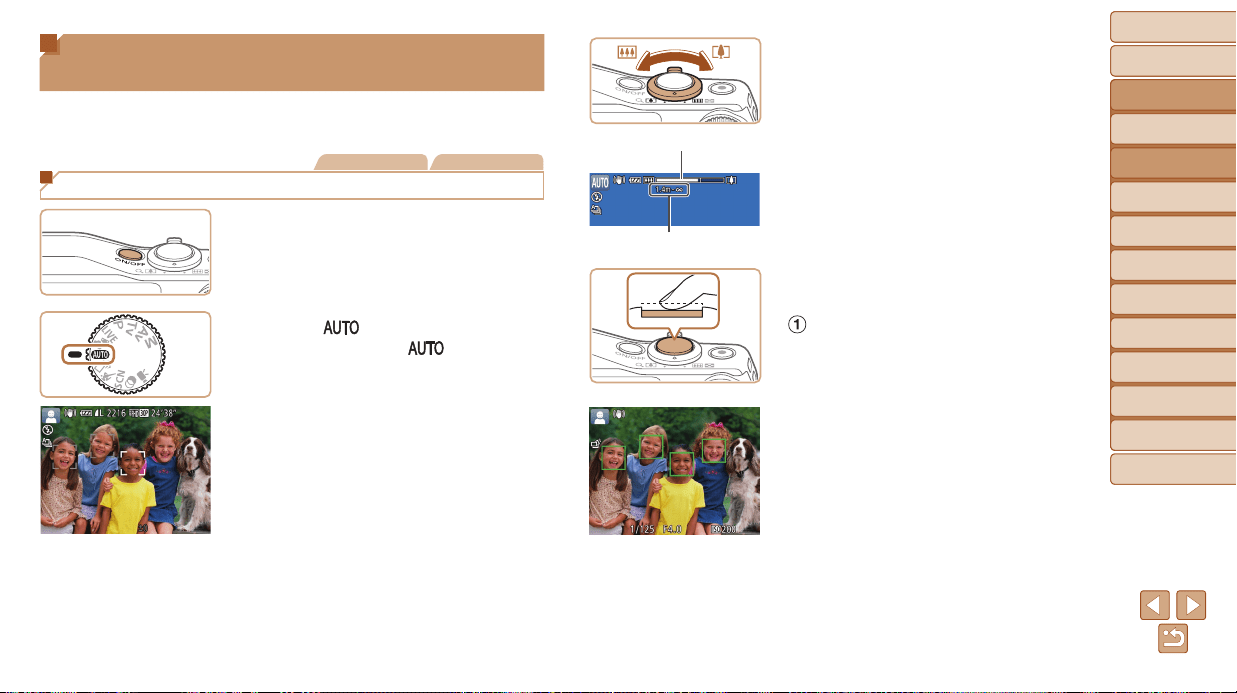
3 Composetheshot.
To zoom in or out quickly, move the zoom
lever all the way toward <i> (telephoto)
or <j> (wide angle), and to zoom in
or out slowly, move it just a little in the
desired direction.
4 Shoot.
ShootingStillImages
Focus.
Press the shutter button halfway.
The camera beeps twice after focusing,
and AF frames are displayed to indicate
image areas in focus.
Several AF frames are displayed when
multiple areas are in focus.
Zoom Bar
Focus Range (approx.)
Shooting with Camera-Determined
Settings
For fully automatic selection of the optimal settings for specic scenes,
simply let the camera determine the subject and shooting conditions.
Still Images Movies
Shooting (Smart Auto)
1 Turnthecameraon.
Press the ON/OFF button.
The startup screen is displayed.
2 Enter[ ]mode.
Set the mode dial to [ ].
Aim the camera at the subject.
The camera will make a slight clicking
noise as it determines the scene.
Icons representing the scene and image
stabilization mode are displayed in the
upper left of the screen (=
32, 33).
Frames displayed around any detected
subjects indicate that they are in focus.
Before Use
Basic Guide
Advanced Guide
Camera Basics
Auto Mode / Hybrid
Auto Mode
Other Shooting
Modes
P Mode
Tv, Av, and M Mode
Playback Mode
Wi-Fi Functions
Setting Menu
Accessories
Appendix
Index
29
Before Use
Basic Guide
Advanced Guide
Camera Basics
Auto Mode / Hybrid
Auto Mode
Other Shooting
Modes
P Mode
Tv, Av, and M Mode
Playback Mode
Wi-Fi Functions
Setting Menu
Accessories
Appendix
Index
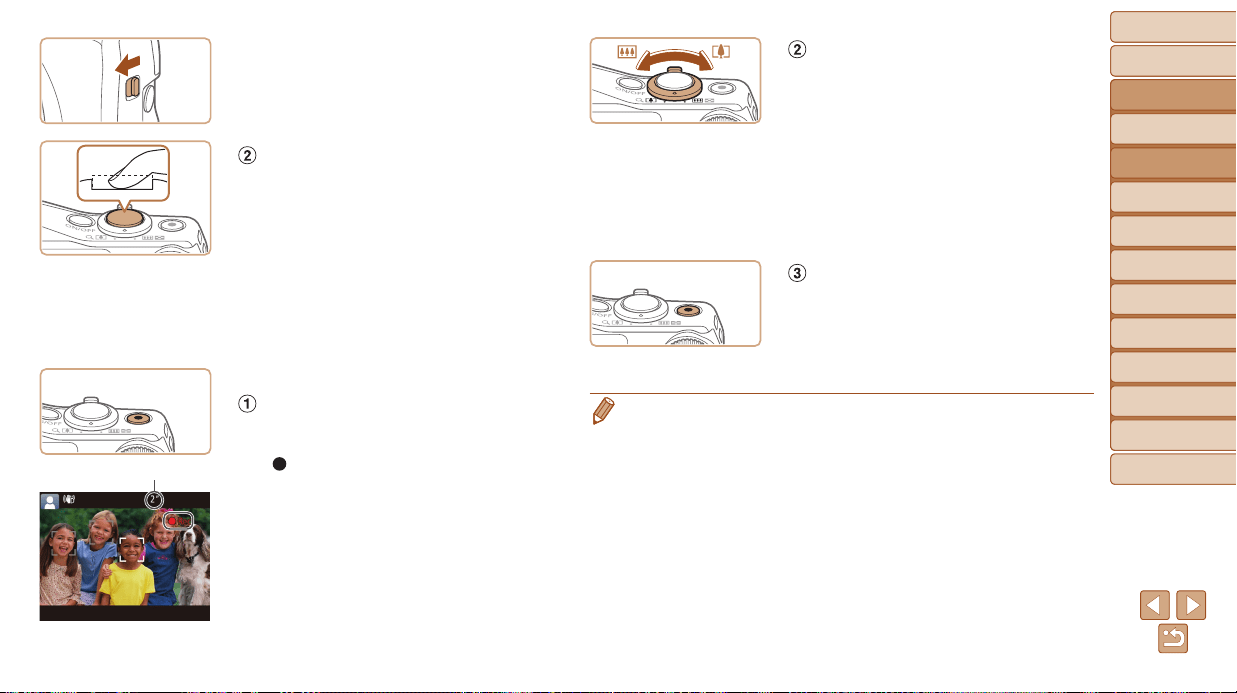
If [Raise the ash] appears on the screen,
move the <h> switch to raise the ash.
It will re when shooting. If you prefer not
to use the ash, push it down with your
nger, into the camera.
Shoot.
Press the shutter button all the way
down.
As the camera shoots, a shutter sound
is played, and in low-light conditions
when you have raised the ash, it res
automatically.
Keep the camera still until the shutter
sound ends.
After displaying your shot, the camera will
revert to the shooting screen.
ShootingMovies
Startshooting.
Press the movie button. The camera
beeps once as recording begins, and
[
Rec] is displayed with the elapsed
time.
Black bars are displayed on the top and
bottom edges of the screen, and the
subject is slightly enlarged. The black
bars indicate image areas not recorded.
Frames displayed around any detected
faces indicate that they are in focus.
Once recording begins, take your nger
off the movie button.
Elapsed Time
Resizethesubjectand
recomposetheshotasneeded.
To resize the subject, repeat the
operations in step 3 (=
28).
However, note that the sound of camera
operations will be recorded, and movies
shot at zoom factors shown in blue will
look grainy.
When you recompose shots, the
focus, brightness, and colors will be
automatically adjusted.
Finishshooting.
Press the movie button again to stop
shooting. The camera beeps twice as
recording stops.
Recording will stop automatically when
the memory card becomes full.
• The ash ring during shots indicates that the camera has automatically
attempted to ensure optimal colors in the main subject and background
(Multi-area White Balance).
Before Use
Basic Guide
Advanced Guide
Camera Basics
Auto Mode / Hybrid
Auto Mode
Other Shooting
Modes
P Mode
Tv, Av, and M Mode
Playback Mode
Wi-Fi Functions
Setting Menu
Accessories
Appendix
Index
30
Before Use
Basic Guide
Advanced Guide
Camera Basics
Auto Mode / Hybrid
Auto Mode
Other Shooting
Modes
P Mode
Tv, Av, and M Mode
Playback Mode
Wi-Fi Functions
Setting Menu
Accessories
Appendix
Index
Still Images Movies
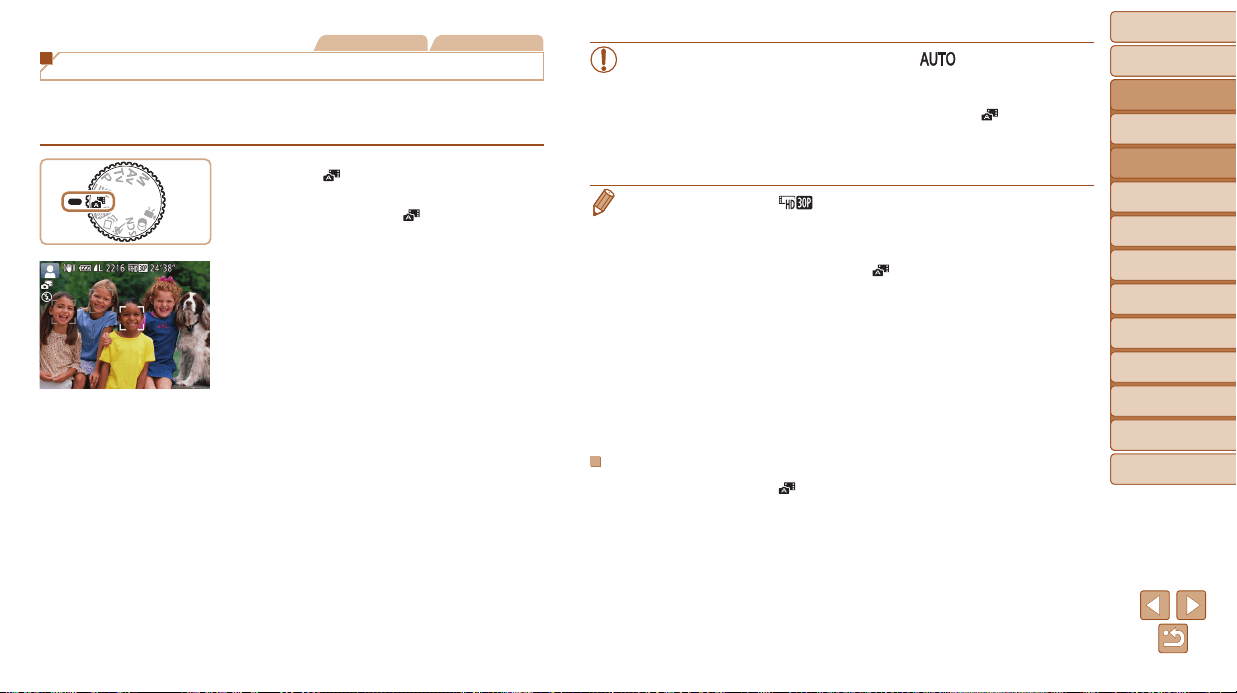
Shooting in Hybrid Auto Mode
You can make a short movie of the day just by shooting still images.
The camera records 2 – 4-second clips of scenes before each shot,
which are later combined in a digest movie.
1 Enter[ ]mode.
Follow step 2 in “Shooting (Smart Auto)”
(=
28) and choose [ ].
2 Composetheshot.
Follow steps 3 – 4 in “Shooting (Smart
Auto)” (=
28) to compose the shot and
focus.
For more impressive digest movies,
aim the camera at subjects about four
seconds before shooting still images.
3 Shoot.
Follow step 4 in “Shooting (Smart Auto)”
(=
28) to shoot a still image.
The camera records both a still image
and movie clip. The clip, which ends with
the still image and a shutter sound, forms
a single chapter in the digest movie.
• Battery life is shorter in this mode than in [ ] mode, because
digest movies are recorded for each shot.
• A digest movie may not be recorded if you shoot a still image
immediately after turning the camera on, choosing [ ] mode,
or operating the camera in other ways.
• Sounds and vibrations from operating the camera will be recorded
in digest movies.
• Digest movie quality is [ ] and cannot be changed.
• Sounds are not played when you press the shutter button halfway or trigger
the self-timer (=
146).
• Digest movies are saved as separate movie les in the following cases even if
they were recorded on the same day in [
] mode.
- The digest movie le size reaches approximately 4 GB, or the total recording
time reaches approximately 13 minutes and 20 seconds.
- The digest movie is protected (=
98).
- Daylight saving time (=
15) or time zone (=
147) settings are changed.
- A new folder is created (=
151).
• Recorded shutter sounds cannot be modied or erased.
• If you prefer to record digest movies without still images, adjust the setting in
advance. Choose MENU (=
24) > [4] tab > [Digest Type] > [No Stills].
• Individual chapters can be edited (=
112).
DigestMoviePlayback
Display a still image shot in [ ] mode to play a digest movie, or specify the
date of the digest movie to play (=
91).
Before Use
Basic Guide
Advanced Guide
Camera Basics
Auto Mode / Hybrid
Auto Mode
Other Shooting
Modes
P Mode
Tv, Av, and M Mode
Playback Mode
Wi-Fi Functions
Setting Menu
Accessories
Appendix
Index
31
Before Use
Basic Guide
Advanced Guide
Camera Basics
Auto Mode / Hybrid
Auto Mode
Other Shooting
Modes
P Mode
Tv, Av, and M Mode
Playback Mode
Wi-Fi Functions
Setting Menu
Accessories
Appendix
Index
StillImages/Movies
• If the camera is turned on while the <l> button is held down,
the camera will no longer sound. To activate sounds again, press
the <n> button and choose [Mute] on the [3] tab, and then
press the <q><r> buttons to choose [Off].
StillImages
• A blinking [ ] icon warns that images are more likely to be blurred
by camera shake. In this case, mount the camera on a tripod or take
other measures to keep it still.
• If your shots are dark despite the ash ring, move closer to the
subject. For details on the ash range, see “Flash Range” (=
190).
• The subject may be too close if the camera only beeps once when
you press the shutter button halfway. For details on the focusing
range (shooting range), see “Shooting Range” (=
190).
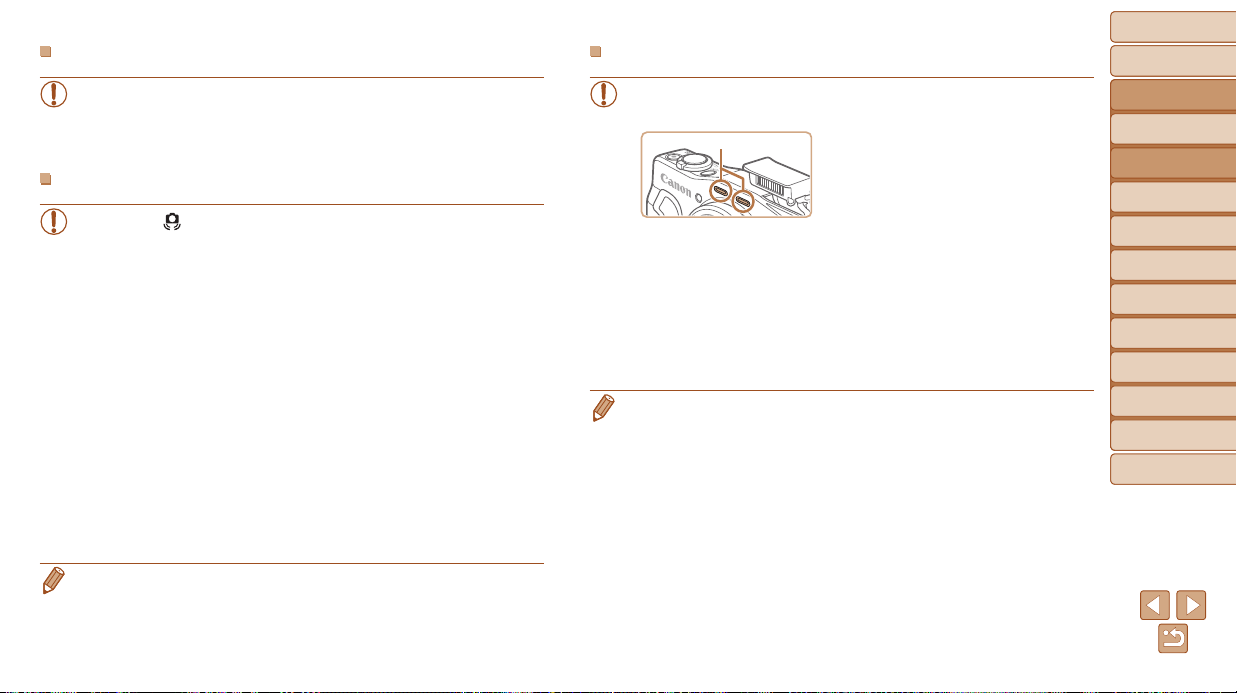
• To reduce red-eye and to assist in focusing, the lamp may be
activated when shooting in low-light conditions.
• A blinking [h] icon displayed when you attempt to shoot indicates that
shooting is not possible until the ash has nished recharging. Shooting
can resume as soon as the ash is ready, so either press the shutter
button all the way down and wait, or release it and press it again.
• The shutter sound will not be played when the Sleeping and Babies
(Sleeping) icons (=
32) are displayed.
• Although you can shoot again before the shooting screen is
displayed, your previous shot may determine the focus, brightness,
and colors used.
• You can change how long images are displayed after shots (=
51).
Movies
• The camera may become warm when shooting movies repeatedly
over an extended period. This does not indicate damage.
• Before shooting a movie, lower the ash
with your nger. Be careful not to touch
the microphone when shooting a movie.
Leaving the ash raised, or blocking
the microphone may prevent audio
from being recorded or may cause the
recording to sound mufed.
• Avoid touching camera controls other than the movie button when
shooting movies, because sounds made by the camera will be
recorded.
• Once movie recording begins, the image display area changes and
subjects are enlarged to allow for correction of signicant camera
shake. To shoot subjects at the same size shown before shooting,
adjust the image stabilization setting (=
83).
• Audio is recorded in stereo.
• Distorted audio caused by recording when the wind is strong can be reduced.
However, the recording may sound unnatural when this option is used when
there is no wind. When the wind is not strong, choose MENU (=
24) >
[4] tab > [Wind Filter] > [Off].
Microphone
Before Use
Basic Guide
Advanced Guide
Camera Basics
Auto Mode / Hybrid
Auto Mode
Other Shooting
Modes
P Mode
Tv, Av, and M Mode
Playback Mode
Wi-Fi Functions
Setting Menu
Accessories
Appendix
Index
32
Before Use
Basic Guide
Advanced Guide
Camera Basics
Auto Mode / Hybrid
Auto Mode
Other Shooting
Modes
P Mode
Tv, Av, and M Mode
Playback Mode
Wi-Fi Functions
Setting Menu
Accessories
Appendix
Index
Still Images Movies
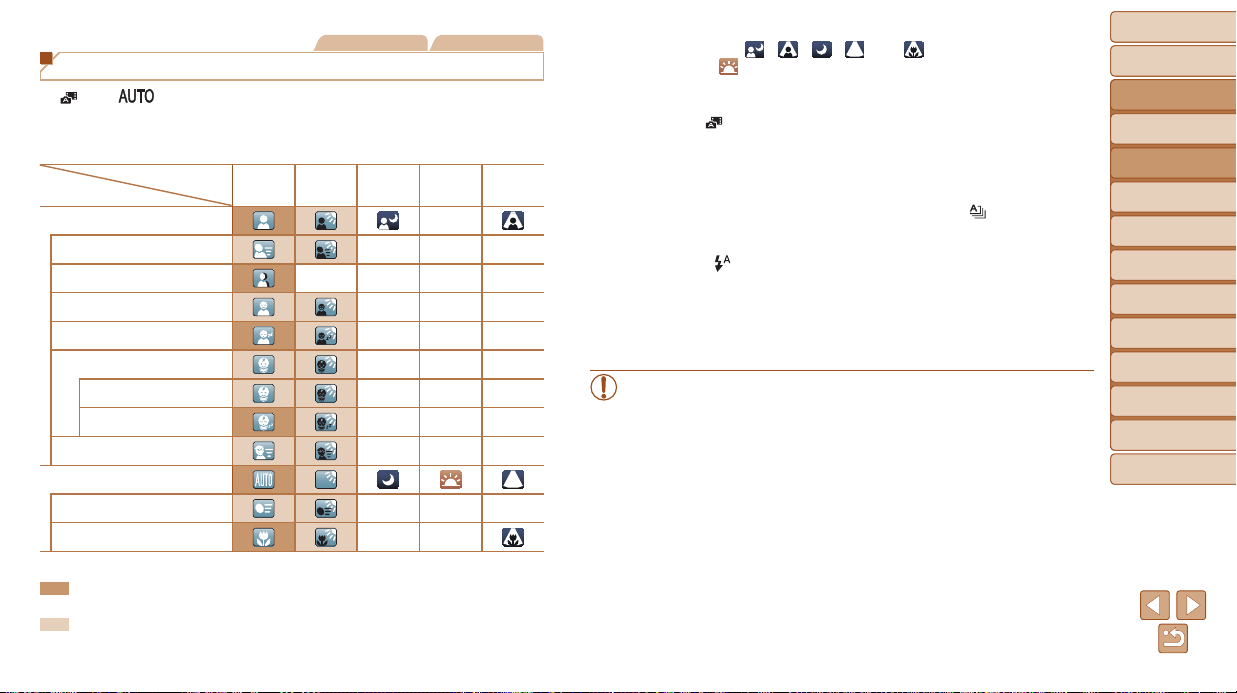
Scene Icons
In [ ] and [ ] modes, shooting scenes determined by the camera
are indicated by the icon displayed, and corresponding settings are
automatically selected for optimal focusing, subject brightness, and color.
Depending on the scene, continuous images may be shot (=
33).
Background
Subject
Normal Backlit Dark* Sunsets
Spotlights
People
–
InMotion
– – –
ShadowsonFace
– – – –
Smiling
– – –
Sleeping
– – –
Babies
– – –
Smiling
– – –
Sleeping
– – –
Children(InMotion)
– – –
OtherSubjects
InMotion
– – –
AtCloseRange
– –
* Tripod Used
The background color of icons is light blue when the background is a blue sky,
dark blue when the background is dark, and gray for all other backgrounds.
The background color of icons is light blue when the background is a blue sky,
and gray for all other backgrounds.
•The background color of [ ], [ ], [ ], [ ], and [ ] is dark blue, and the
background color of [
] is orange.
•When shooting movies, only People, Other Subjects, and At Close Range icons will
be displayed.
•When shooting in [
] mode, only People, Shadows on Face, Other Subjects, and
At Close Range icons will be displayed.
•When shooting with the self-timer, People (In Motion), Smiling, Sleeping, Babies
(Smiling), Babies (Sleeping), Children, Other Subjects (In Motion) icons will not be
displayed.
•The following icons are not displayed in drive modes other than [
] (=
33, 39),
and when [Hg Lamp Corr.] is set to [On] and scenes are automatically corrected
(=
47): Smiling, Sleeping, Babies (Smiling), Babies (Sleeping), and Children.
•If the ash is set to [
], the Backlit icons for Smiling and Children will not be
displayed.
•Babies, Babies (Smiling), Babies (Sleeping), and Children icons will be displayed
when [Face ID] is set to [On], and the face of a registered baby (under two years old)
or child (from two to twelve years old) is detected (=
40). Conrm beforehand that
the date and time are correct (=
14).
• Try shooting in [G] mode (=
68) if the scene icon does not match
actual shooting conditions, or if it is not possible to shoot with your
expected effect, color, or brightness.
Before Use
Basic Guide
Advanced Guide
Camera Basics
Auto Mode / Hybrid
Auto Mode
Other Shooting
Modes
P Mode
Tv, Av, and M Mode
Playback Mode
Wi-Fi Functions
Setting Menu
Accessories
Appendix
Index
33
Before Use
Basic Guide
Advanced Guide
Camera Basics
Auto Mode / Hybrid
Auto Mode
Other Shooting
Modes
P Mode
Tv, Av, and M Mode
Playback Mode
Wi-Fi Functions
Setting Menu
Accessories
Appendix
Index
ContinuousShootingScenes
If you shoot a still image when the following scene icons are displayed,
the camera will shoot continuously. If you press the shutter button halfway
when one of the icons in the table below is displayed, one of the following
icons will be displayed to inform you that the camera will shoot continuous
images: [ ], [ ], or [W].
Smiling (including Babies)
: Consecutive images are captured, and the camera
analyzes details such as facial expressions to save
the image determined to be the best.
Sleeping (including Babies)
: Beautiful shots of sleeping faces, created by
combining consecutive shots to reduce camera
shake and image noise.
The AF-assist beam will not light up, the ash will
not re, and the shutter sound will not be played.
Children
W: So you don’t miss a photo opportunity of children
who move around, the camera will capture three
consecutive images for each shot.
• In some scenes, expected images may not be saved, and images
may not look as expected.
• Focus, image brightness, and color are determined by the rst shot.
• When you want to shoot single images only, press the <m> button, choose
[
] in the menu, and then select [ ].
Still Images Movies
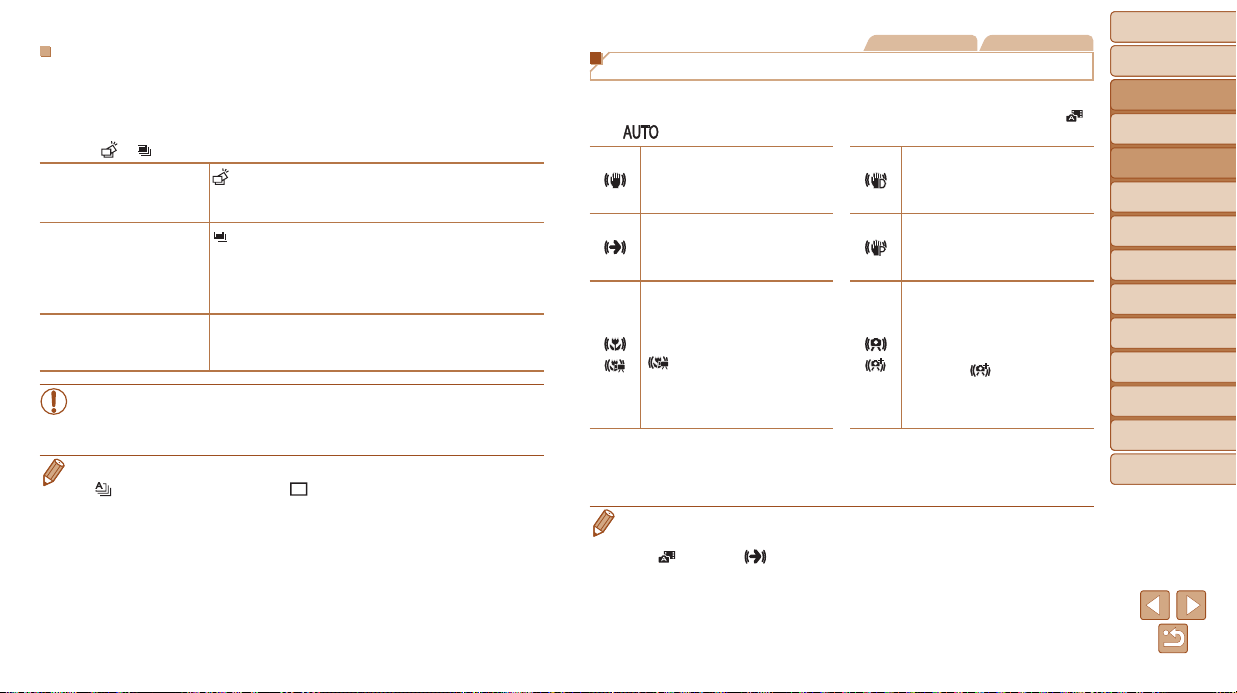
Image Stabilization Icons
Optimal image stabilization for the shooting conditions is automatically
applied (Intelligent IS). Additionally, the following icons are displayed in [ ]
and [ ] modes.
Image stabilization for still
images (Normal)
Image stabilization for movies,
reducing strong camera shake,
as when shooting while walking
(Dynamic)
Image stabilization for still
images when panning
(Panning)*
Image stabilization for slow
camera shake, such as when
shooting movies at telephoto
(Powered)
Image stabilization for macro
shots (Hybrid IS)
During movie recording,
[
] is displayed, and image
stabilization for macro movie
recording is used.
No image stabilization, because
the camera is mounted on
a tripod or held still by other
means.
However, during movie
recording, [
] is displayed,
and image stabilization to
counteract wind or other sources
of vibration is used (Tripod IS).
* Displayed when you pan, following moving subjects with the camera. When you follow
subjects moving horizontally, image stabilization only counteracts vertical camera
shake, and horizontal stabilization stops. Similarly, when you follow subjects moving
vertically, image stabilization only counteracts horizontal camera shake.
• To cancel image stabilization, set [IS Mode] to [Off] (=
82). In this case,
an IS icon is not displayed.
• In [
] mode, no [ ] icon is displayed.
Before Use
Basic Guide
Advanced Guide
Camera Basics
Auto Mode / Hybrid
Auto Mode
Other Shooting
Modes
P Mode
Tv, Av, and M Mode
Playback Mode
Wi-Fi Functions
Setting Menu
Accessories
Appendix
Index
34
Before Use
Basic Guide
Advanced Guide
Camera Basics
Auto Mode / Hybrid
Auto Mode
Other Shooting
Modes
P Mode
Tv, Av, and M Mode
Playback Mode
Wi-Fi Functions
Setting Menu
Accessories
Appendix
Index
Still Images Movies
On-Screen Frames
In [ ] mode, a variety of frames are displayed once the camera detects
subjects you are aiming the camera at.
• A white frame is displayed around the subject (or person’s face)
determined by the camera to be the main subject, and gray frames are
displayed around other detected faces. Frames follow moving subjects
within a certain range to keep them in focus.
However, if the camera detects subject movement, only the white frame
will remain on the screen.
• When you are pressing the shutter button halfway and the camera
detects subject movement, a blue frame is displayed, and the focus and
image brightness are constantly adjusted (Servo AF).
• Try shooting in [G] mode (=
68) if no frames are displayed, if
frames are not displayed around desired subjects, or if frames are
displayed on the background or similar areas.
Common, Convenient Features
Still Images Movies
Zooming In Closer on Subjects (Digital Zoom)
When distant subjects are too far away to enlarge using the optical zoom,
use digital zoom for up to about 120x enlargement.
1
Movethezoomlevertoward
<i>.
Hold the lever until zooming stops.
Zooming stops at the largest possible
zoom factor (before the image becomes
noticeably grainy), which is then indicated
on the screen.
2 Movethezoomlevertoward
<i>again.
The camera zooms in even closer on the
subject.
• Moving the zoom lever will display the zoom bar (which indicates
the zoom position). The color of the zoom bar will change depending
on the zoom range.
-
White range: optical zoom range where the image will not appear grainy.
- Yellow range: digital zoom range where the image is not noticeably
grainy (ZoomPlus).
- Blue range: digital zoom range where the image will appear grainy.
Because the blue range will not be available at some resolution
settings (=
46), the maximum zoom factor can be achieved by
following step 1.
Zoom Factor
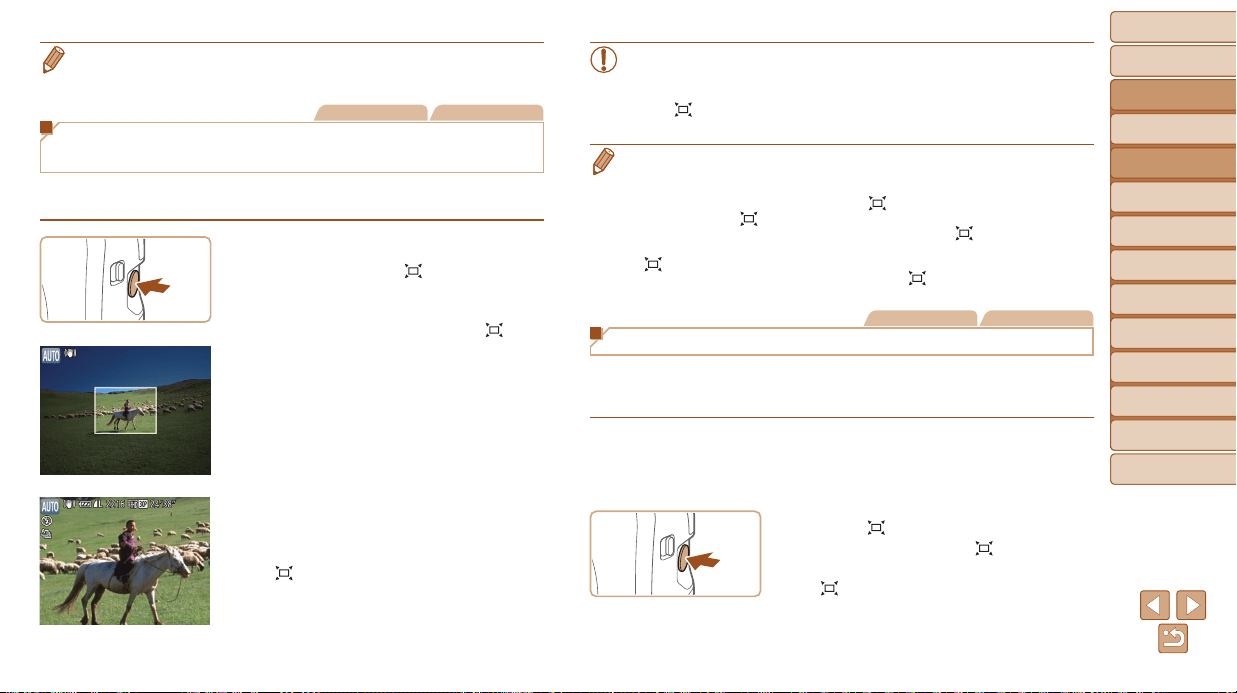
Before Use
Basic Guide
Advanced Guide
Camera Basics
Auto Mode / Hybrid
Auto Mode
Other Shooting
Modes
P Mode
Tv, Av, and M Mode
Playback Mode
Wi-Fi Functions
Setting Menu
Accessories
Appendix
Index
35
Before Use
Basic Guide
Advanced Guide
Camera Basics
Auto Mode / Hybrid
Auto Mode
Other Shooting
Modes
P Mode
Tv, Av, and M Mode
Playback Mode
Wi-Fi Functions
Setting Menu
Accessories
Appendix
Index
• To deactivate digital zoom, choose MENU (=
24) > [4] tab > [Digital
Zoom] > [Off].
Still Images Movies
Reacquiring Subjects Lost after Zooming
(Framing Assist – Seek)
If you lose track of a subject while zooming in, you can nd it more easily by
temporarily zooming out.
1 Lookforthelostsubject.
Press and hold the < > button.
The camera zooms out and displays a
white frame around the area previously
shown (before you pressed the <
>
button).
2 Reacquirethesubject.
Aim the camera so that the subject enters
the white frame, and then release the
<
> button.
The previous magnication is now
restored, so that the area outlined in
white lls the screen again.
• Some shooting information is not displayed while the camera is
zoomed out.
• During movie shooting, the white frame is not displayed if you press
the <
> button. Also note that a changed zoom factor and camera
operating sounds will be recorded.
• If you prefer to shoot at the zoom factor of the screen in step 1, press the
shutter button all the way down.
• You can adjust the zoom factor that the camera will revert to after Zoom
Framing Assist (when you release the <
> button) by moving the zoom lever
as you hold the <
> button to resize the white frame.
• To adjust how much the camera zooms out when the <
> button is pressed,
access MENU (=
24) and choose one of the three levels in [4] tab >
[
Display Area].
• The zoom factor cannot be changed with the <
> button after you press the
shutter button all the way down in self-timer mode (=
37).
Still Images Movies
Constantly Displaying Faces at the Same Size
When a person’s face is detected (=
76), the camera will try to maintain
a constant face size relative to the screen. If the person moves closer, the
camera will automatically zoom out, and vice versa.
1 Determinethedesiredfacesize.
Move the zoom lever as needed until the
face is the desired size, relative to the
screen.
2 Enter Automode.
Press and release the < > button
quickly.
[ Auto: On] is displayed.
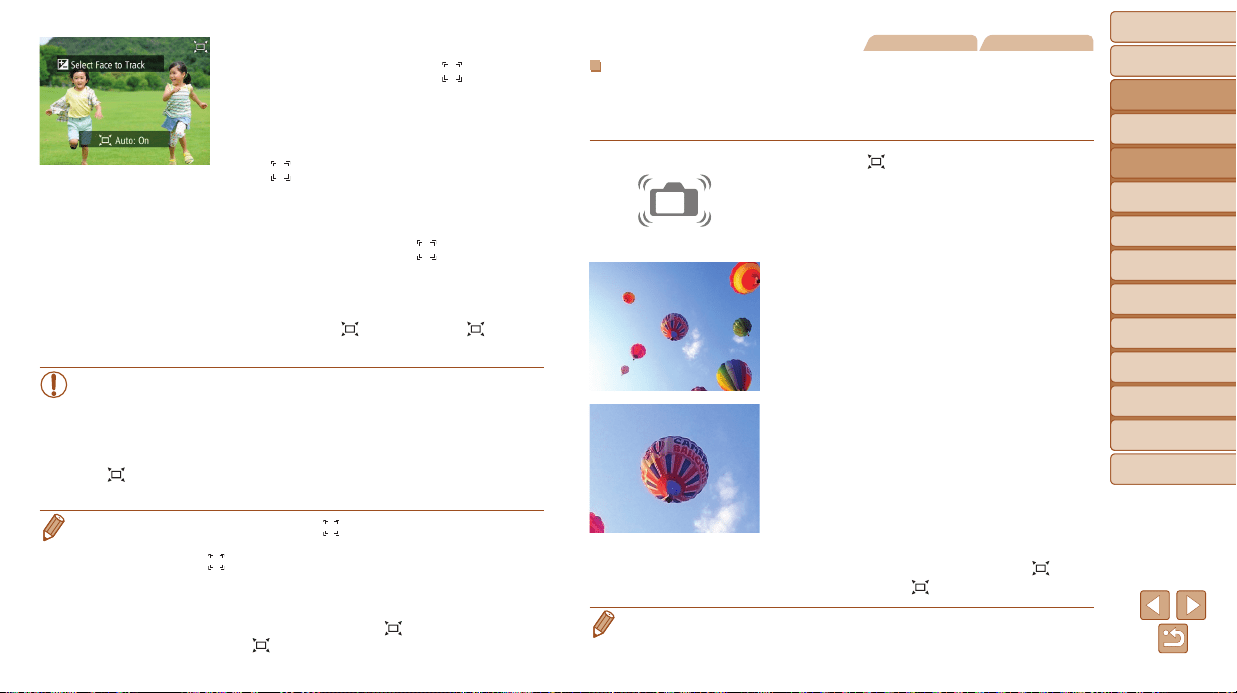
Before Use
Basic Guide
Advanced Guide
Camera Basics
Auto Mode / Hybrid
Auto Mode
Other Shooting
Modes
P Mode
Tv, Av, and M Mode
Playback Mode
Wi-Fi Functions
Setting Menu
Accessories
Appendix
Index
36
Before Use
Basic Guide
Advanced Guide
Camera Basics
Auto Mode / Hybrid
Auto Mode
Other Shooting
Modes
P Mode
Tv, Av, and M Mode
Playback Mode
Wi-Fi Functions
Setting Menu
Accessories
Appendix
Index
3 Choosetheface.
Once faces are detected, [ ] is
displayed.
If multiple faces are detected, press
the <
o> button to switch to the desired
subject.
[ ] is displayed around the face that
the camera will continue to display at the
same size.
4 Shoot.
Even after you shoot, [ ] remains
around the face displayed at a constant
size.
To cancel constant face size display,
press the <
> button again. [ Auto:
Off] is displayed.
• Faces may not be displayed at a constant size at some zoom
factors, or if the subject’s head is tilted or facing the camera
indirectly.
• During movie recording, a changed zoom factor and camera
operating sounds will be recorded.
• In Auto mode, some shooting information is not displayed, and
some shooting settings cannot be congured.
• If the person whose face is framed with [ ] moves toward the edge of the
screen, the camera zooms out to keep the person in view.
• In step 3, switching [
] to another face with the <o> button is not possible
during movie recording.
• The zoom factor will remain the same after you press the shutter button all the
way down in self-timer mode (=
37), even if the relative face size changes.
• This feature is not activated even if you press the <
> button when choosing
MENU (=
24) > [4] tab > [ Auto] > [Off].
Still Images Movies
EasilyReacquiringLostSubjects
If zooming in causes you to lose track of a subject, and you move the
camera to look for them, the camera can automatically zoom out to help you
nd the subject.
1 Enter Automode(=
3 5 ).
2 Lookforthelostsubject.
When you move the camera to look for
the subject, the camera zooms out to
help you nd them.
3 Reacquirethesubject.
Once you nd the subject and stop
moving the camera, the camera zooms
in again.
4 Shoot.
To cancel this mode, press the < >
button again. [
Auto: Off] is displayed.
• Zooming is not possible while the shutter button is pressed halfway.
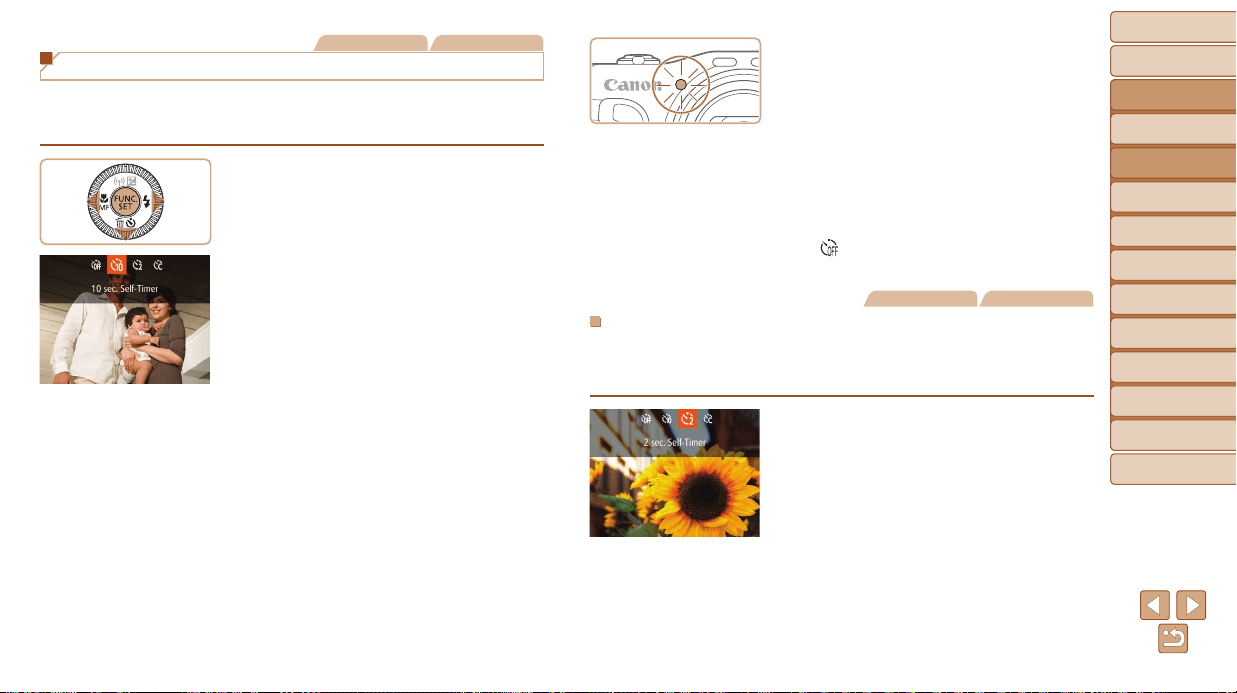
Before Use
Basic Guide
Advanced Guide
Camera Basics
Auto Mode / Hybrid
Auto Mode
Other Shooting
Modes
P Mode
Tv, Av, and M Mode
Playback Mode
Wi-Fi Functions
Setting Menu
Accessories
Appendix
Index
37
Before Use
Basic Guide
Advanced Guide
Camera Basics
Auto Mode / Hybrid
Auto Mode
Other Shooting
Modes
P Mode
Tv, Av, and M Mode
Playback Mode
Wi-Fi Functions
Setting Menu
Accessories
Appendix
Index
Still Images Movies
Using the Self-Timer
With the self-timer, you can include yourself in group photos or other timed
shots. The camera will shoot about 10 seconds after you press the shutter
button.
1 Congurethesetting.
Press the <p> button, choose []] (either
press the <q><r> buttons or turn the
<5> dial), and then press the <m>
button.
Once the setting is complete, []] is
displayed.
2 Shoot.
For Still Images: Press the shutter button
halfway to focus on the subject, and then
press it all the way down.
For Movies: Press the movie button.
Once you start the self-timer, the lamp
will blink and the camera will play a
self-timer sound.
Two seconds before the shot, the blinking
and sound will speed up. (The lamp will
remain lit in case the ash res.)
To cancel shooting after you have
triggered the self-timer, press the
<n> button.
To restore the original setting, choose
[
] in step 1.
Still Images Movies
UsingtheSelf-TimertoAvoidCameraShake
This option delays shutter release until about two seconds after you have
pressed the shutter button. If the camera is unsteady while you are pressing
the shutter button, it will not affect your shot.
Follow step 1 in “Using the Self-Timer”
(=
37) and choose [[].
Once the setting is complete, [[] is
displayed.
Follow step 2 in “Using the Self-Timer”
(=
37) to shoot.
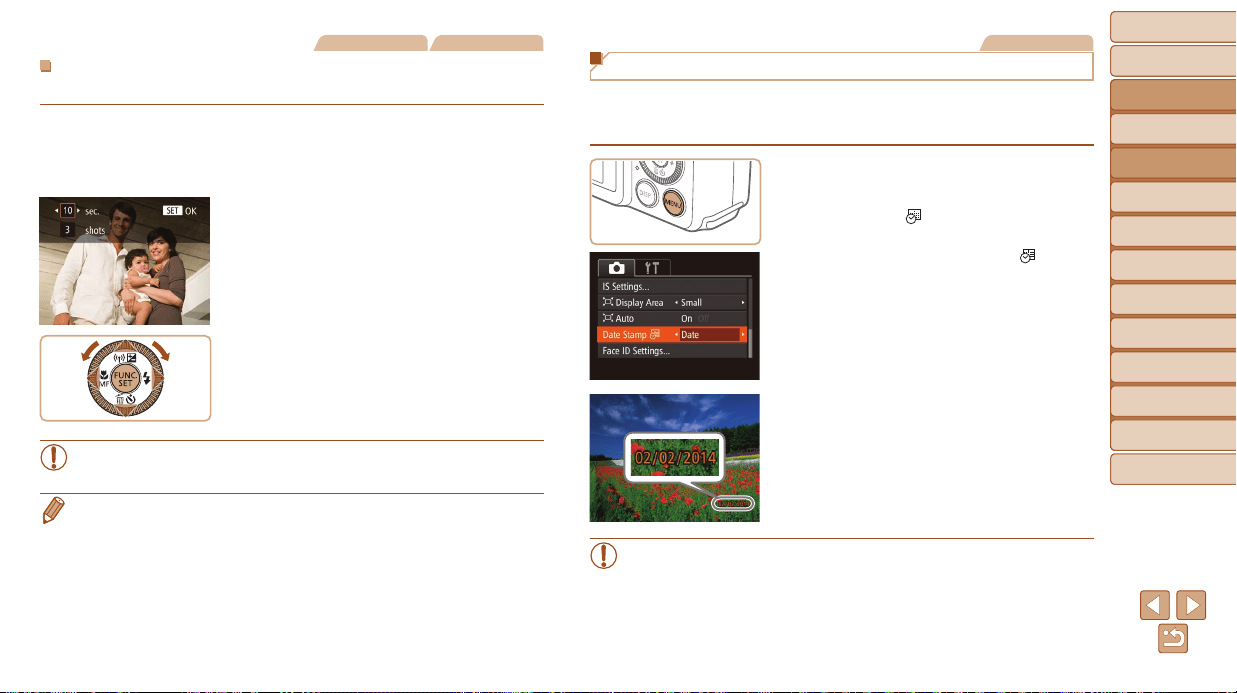
Before Use
Basic Guide
Advanced Guide
Camera Basics
Auto Mode / Hybrid
Auto Mode
Other Shooting
Modes
P Mode
Tv, Av, and M Mode
Playback Mode
Wi-Fi Functions
Setting Menu
Accessories
Appendix
Index
38
Before Use
Basic Guide
Advanced Guide
Camera Basics
Auto Mode / Hybrid
Auto Mode
Other Shooting
Modes
P Mode
Tv, Av, and M Mode
Playback Mode
Wi-Fi Functions
Setting Menu
Accessories
Appendix
Index
Still Images Movies
CustomizingtheSelf-Timer
You can specify the delay (0 – 30 seconds) and number of shots (1 – 10).
1 Choose[$].
Following step 1 in “Using the Self-Timer”
(=
37), choose [$] and press the
<n> button immediately.
2 Congurethesetting.
Press the <o><p> buttons to choose
[Delay] or [Shots].
Press the <q><r> buttons or turn the
<5> dial to choose a value, and then
press the <m> button.
Once the setting is complete, [$] is
displayed.
Follow step 2 in “Using the Self-Timer”
(=
37) to shoot.
• For movies shot using the self-timer, [Delay] represents the delay
before recording begins, but the [Shots] setting has no effect.
• When you specify multiple shots, image brightness and white balance are
determined by the rst shot. More time is required between shots when the
ash res or when you have specied to take many shots. Shooting will stop
automatically when the memory card becomes full.
• When a delay longer than two seconds is specied, two seconds before the
shot, the lamp blinking and self-timer sound will speed up. (The lamp will
remain lit in case the ash res.)
Still Images
Adding a Date Stamp
The camera can add the shooting date to images, in the lower-right corner.
However, note that date stamps cannot be edited or removed, so conrm
beforehand that the date and time are correct (=
14).
1 Congurethesetting.
Press the <n> button, choose
[Date Stamp
] on the [4] tab, and
then choose the desired option (=
24).
Once the setting is complete, [ ] is
displayed.
2 Shoot.
As you take shots, the camera adds the
shooting date or time to the lower-right
corner of images.
To restore the original setting, choose
[Off] in step 1.
• Date stamps cannot be edited or removed.
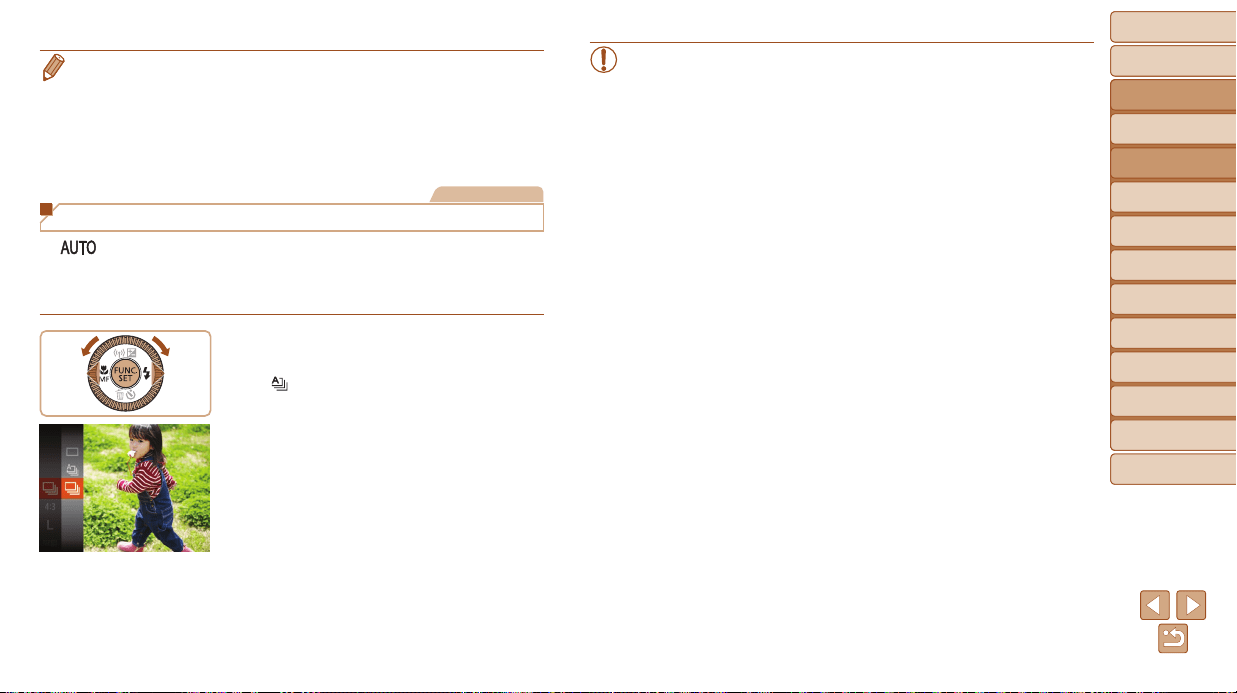
Before Use
Basic Guide
Advanced Guide
Camera Basics
Auto Mode / Hybrid
Auto Mode
Other Shooting
Modes
P Mode
Tv, Av, and M Mode
Playback Mode
Wi-Fi Functions
Setting Menu
Accessories
Appendix
Index
39
Before Use
Basic Guide
Advanced Guide
Camera Basics
Auto Mode / Hybrid
Auto Mode
Other Shooting
Modes
P Mode
Tv, Av, and M Mode
Playback Mode
Wi-Fi Functions
Setting Menu
Accessories
Appendix
Index
• Shots taken without adding a date stamp can be printed with one as follows.
However, adding a date stamp this way to images that already have one may
cause it to be printed twice.
- Print using printer functions (=
163)
- Use camera DPOF print settings (=
167) to print
- Use the software downloaded from the Canon website (=
160) to print
Still Images
Continuous Shooting
In [ ] mode, hold the shutter button all the way down to shoot
continuously.
For details on the continuous shooting speed, see “Continuous Shooting
Speed” (=
190).
1 Congurethesetting.
Press the <m> button, choose
[
] in the menu, and then choose [W]
(=
23).
Once the setting is complete, [W] is
displayed.
2 Shoot.
Hold the shutter button all the way down
to shoot continuously.
• During continuous shooting, focus and exposure are locked at the
position/level determined when you pressed the shutter button
halfway.
• Cannot be used with the self-timer (=
37).
• Shooting may stop momentarily or continuous shooting may slow
down depending on shooting conditions, camera settings, and the
zoom position.
• As more shots are taken, shooting may slow down.
• Shooting may slow down if the ash res.
• Multi-area White Balance (=
29) is not available. Similarly,
[Hg Lamp Corr.] (=
47) is set to [Off] and cannot be changed.
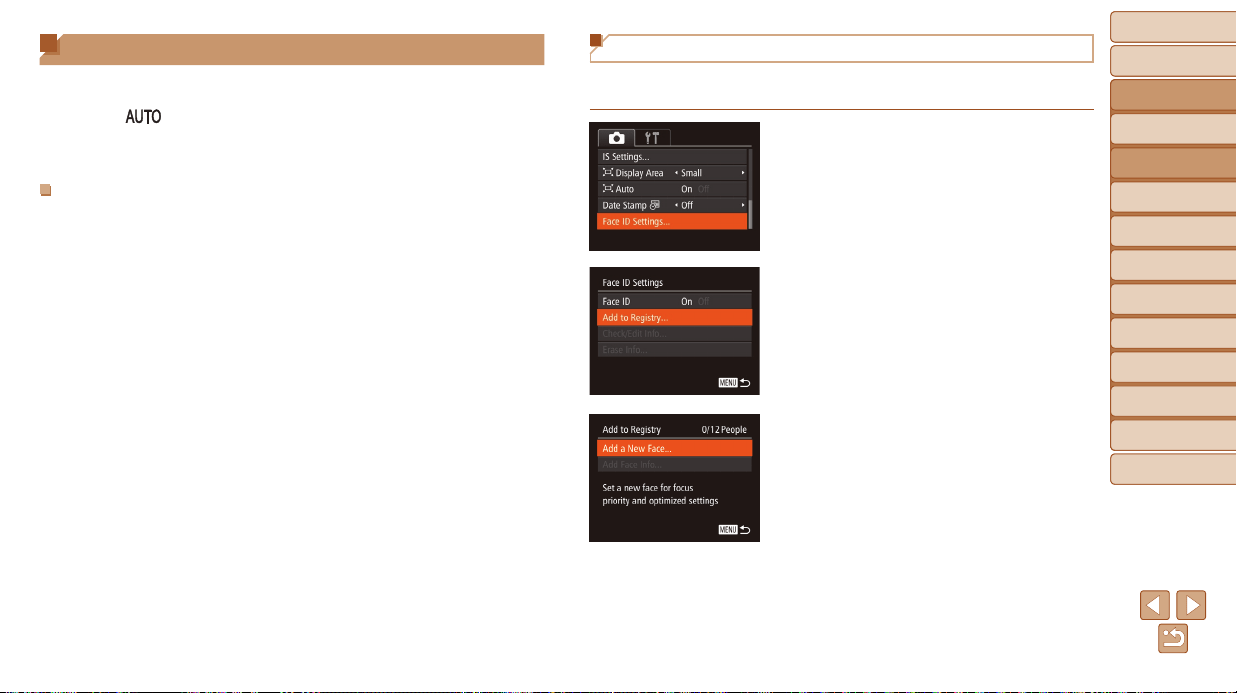
Before Use
Basic Guide
Advanced Guide
Camera Basics
Auto Mode / Hybrid
Auto Mode
Other Shooting
Modes
P Mode
Tv, Av, and M Mode
Playback Mode
Wi-Fi Functions
Setting Menu
Accessories
Appendix
Index
40
Before Use
Basic Guide
Advanced Guide
Camera Basics
Auto Mode / Hybrid
Auto Mode
Other Shooting
Modes
P Mode
Tv, Av, and M Mode
Playback Mode
Wi-Fi Functions
Setting Menu
Accessories
Appendix
Index
Using Face ID
If you register a person ahead of time, the camera will detect that person’s
face, and prioritize focus, brightness, and color for that person when
shooting. In [ ] mode, the camera can detect babies and children based
on registered birthdays and optimize settings for them when shooting.
This function is also useful when searching for a specic registered person
among a large number of images (=
93).
PersonalInformation
• Information such as images of a face (face info) registered with Face ID,
and personal information (name, birthday) will be saved on the camera.
Additionally, when registered people are detected, their names will be
recorded in still images. When using the Face ID function, be careful
when sharing the camera or images with others, and when posting
images online where many others can view them.
• When disposing of a camera or transferring it to another person after
using Face ID, be sure to erase all information (registered faces, names,
and birthdays) from the camera (=
45).
Registering Face ID Information
You can register information (face info, names, birthdays) for up to 12
people to use with Face ID.
1 Accessthesettingscreen.
Press the <n> button, choose [Face
ID Settings] on the [4] tab, and then
press the <m> button (=
24).
Press the <o><p> buttons or turn the
<5> dial to choose [Add to Registry],
and then press the <m> button.
Press the <o><p> buttons or turn the
<5> dial to choose [Add a New Face],
and then press the <m> button.
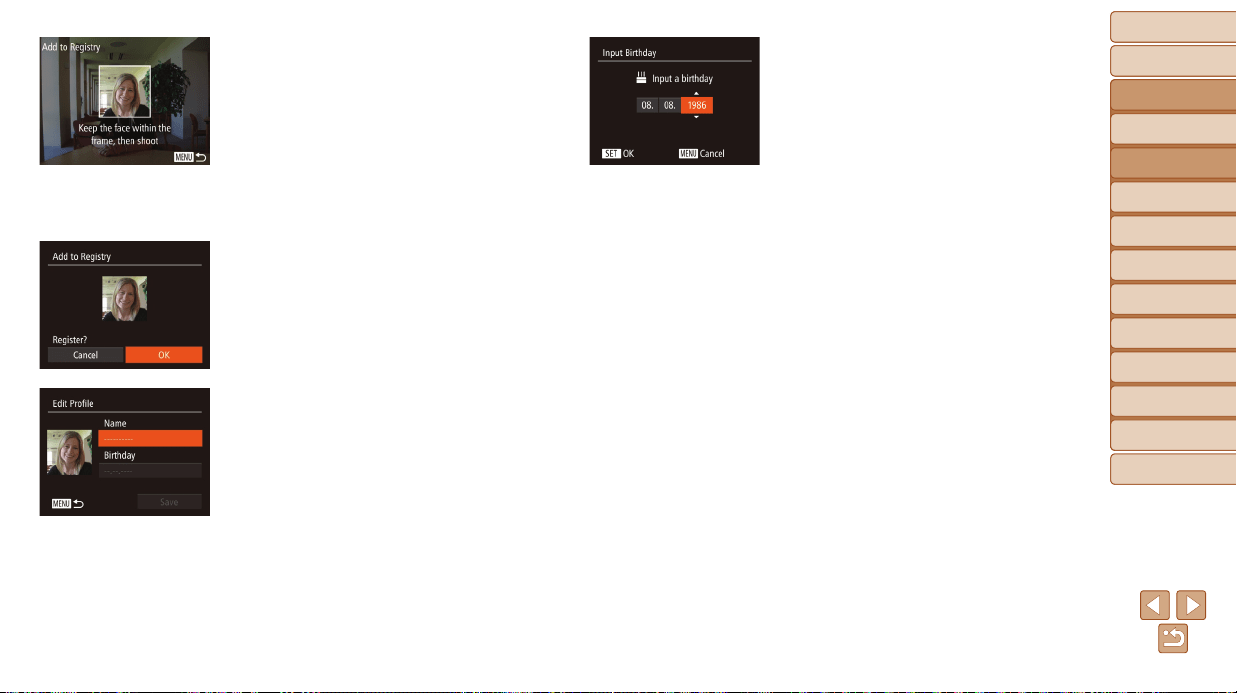
Before Use
Basic Guide
Advanced Guide
Camera Basics
Auto Mode / Hybrid
Auto Mode
Other Shooting
Modes
P Mode
Tv, Av, and M Mode
Playback Mode
Wi-Fi Functions
Setting Menu
Accessories
Appendix
Index
41
Before Use
Basic Guide
Advanced Guide
Camera Basics
Auto Mode / Hybrid
Auto Mode
Other Shooting
Modes
P Mode
Tv, Av, and M Mode
Playback Mode
Wi-Fi Functions
Setting Menu
Accessories
Appendix
Index
2 Registerfaceinformation.
Aim the camera so that the face of the
person you want to register is inside the
gray frame at the center of the screen.
A white frame on the person’s face
indicates that the face is recognized.
Make sure a white frame is displayed on
the face, and then shoot.
If the face is not recognized, you cannot
register face information.
After [Register?] is displayed, press the
<q><r> buttons or turn the <5> dial to
choose [OK], and then press the <m>
button.
The [Edit Prole] screen is displayed.
3 Registertheperson’snameand
birthday.
Press the <m> button to access the
keyboard, and then enter the name
(=
25).
To register a birthday, on the [Edit Prole]
screen, choose [Birthday] (either press
the <o><p> buttons or turn the <5>
dial), and then press the <m> button.
Press the <q><r> buttons to choose an
option.
Press the <o><p> buttons or turn the
<5> dial to specify the date.
When nished, press the <m> button.
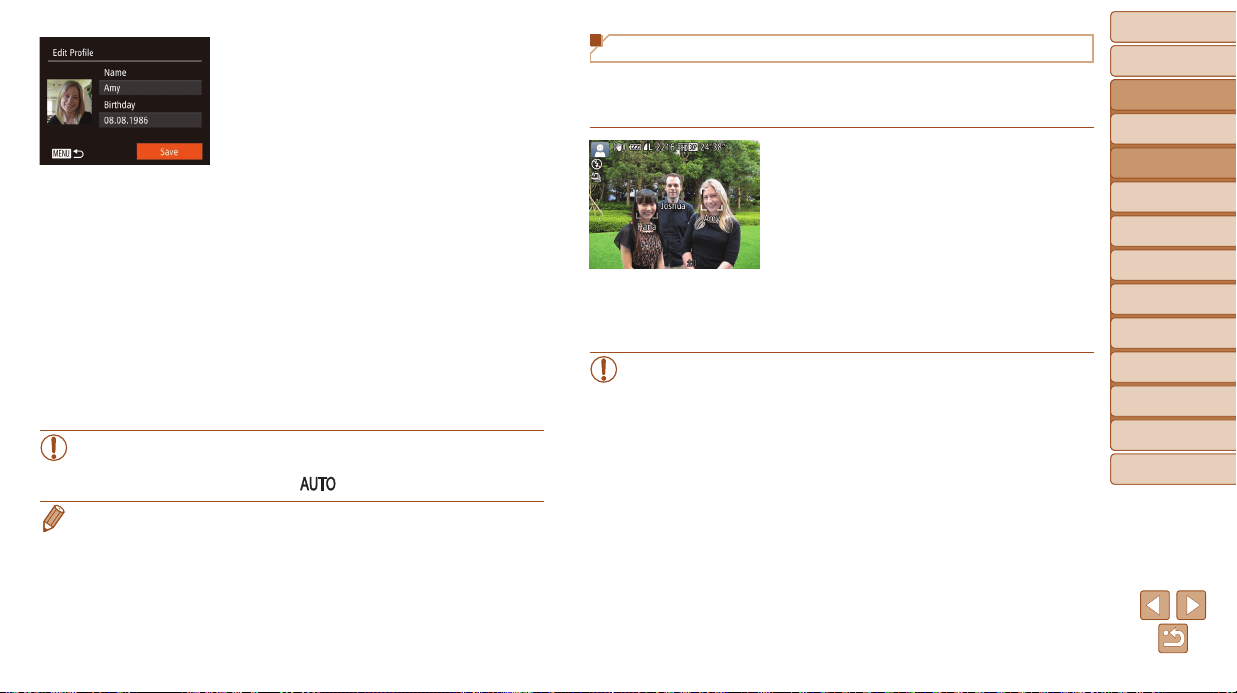
Before Use
Basic Guide
Advanced Guide
Camera Basics
Auto Mode / Hybrid
Auto Mode
Other Shooting
Modes
P Mode
Tv, Av, and M Mode
Playback Mode
Wi-Fi Functions
Setting Menu
Accessories
Appendix
Index
42
Before Use
Basic Guide
Advanced Guide
Camera Basics
Auto Mode / Hybrid
Auto Mode
Other Shooting
Modes
P Mode
Tv, Av, and M Mode
Playback Mode
Wi-Fi Functions
Setting Menu
Accessories
Appendix
Index
4 Savethesettings.
Press the <o><p> buttons or turn the
<5> dial to choose [Save], and then
press the <m> button.
After a message is displayed, press the
<q><r> buttons or turn the <5> dial to
choose [Yes], and then press the <m>
button.
5 Continueregisteringface
information.
To register up to 4 more points of face
information (expressions or angles),
repeat step 2.
Registered faces are more easily
recognized if you add a variety of face
information. In addition to a head-on
angle, add a slight side angle, a shot
when smiling, and shots inside and
outside.
• The ash will not re when following step 2.
• If you do not register a birthday in step 3, Babies or Children icons
(=
32) will not be displayed in [ ] mode.
• You can overwrite registered face info, and add face info later if you have not
lled all 5 face info slots (=
44).
Shooting
If you register a person ahead of time, the camera will prioritize that person
as the main subject, and optimize focus, brightness, and color for that
person when shooting.
When you point the camera toward a
subject, the names of up to 3 registered
people will be displayed when they are
detected.
Shoot.
Displayed names will be recorded in still
images. Even if people are detected, but
their names are not displayed, the names
(up to 5 people) will be recorded in the
image.
• People other than those registered may be mistakenly detected as
the registered person if they share similar facial features.
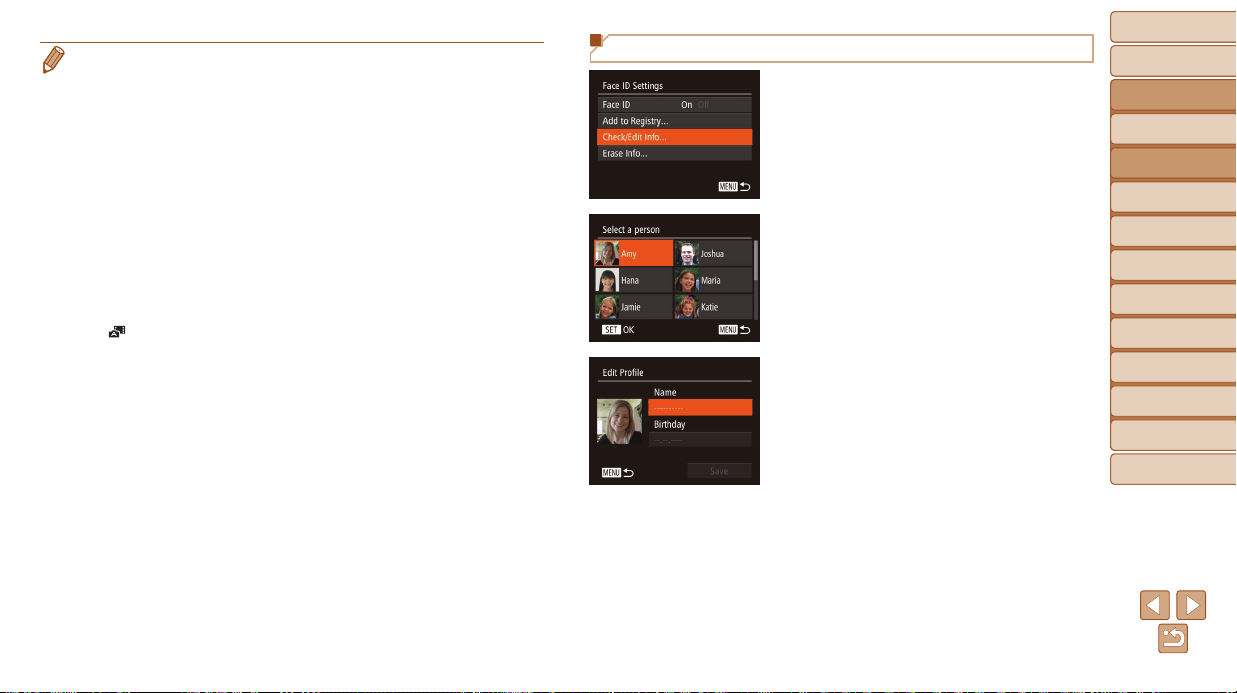
Before Use
Basic Guide
Advanced Guide
Camera Basics
Auto Mode / Hybrid
Auto Mode
Other Shooting
Modes
P Mode
Tv, Av, and M Mode
Playback Mode
Wi-Fi Functions
Setting Menu
Accessories
Appendix
Index
43
Before Use
Basic Guide
Advanced Guide
Camera Basics
Auto Mode / Hybrid
Auto Mode
Other Shooting
Modes
P Mode
Tv, Av, and M Mode
Playback Mode
Wi-Fi Functions
Setting Menu
Accessories
Appendix
Index
• Registered people may not be correctly detected if the captured image or
scene differs drastically from the registered face information.
• If a registered face is not detected, or not easily detected, overwrite registered
information with new face info. Registering face info right before shooting will
allow for easier detection of registered faces.
• If a person is mistakenly detected as another person and you continue
shooting, you can edit or erase the name recorded in the image during
playback (=
95).
• Because faces of babies and children change quickly as they grow, you should
update their face info regularly (=
44).
• When information display is set to off (=
23), names will not display, but will
be recorded in the image.
• If you don’t want names to be recorded in still images, choose [Face ID
Settings] on the [4] tab, choose [Face ID], and then choose [Off].
• You can check names recorded in images in the playback screen (simple
information display) (=
90).
• In [
] mode, names are not displayed on the shooting screen, but they will be
recorded in still images.
• Names recorded in continuous shooting (=
39, =
79) will continue to be
recorded in the same position as for the rst shot, even if subjects move.
Checking and Editing Registered Information
1 Accessthe[Check/EditInfo]
screen.
Following step 1 in “Registering Face ID
Information” (=
40), choose [Check/
Edit Info] and press the <m> button.
2 Chooseapersontocheckor
edit.
Press the <o><p><q><r> buttons or
turn the <5> dial to choose the person
to check or edit, and then press the <m>
button.
3 Checkoredittheinformationas
needed.
To check a name or birthday, choose
[Edit Prole] (either press the <o><p>
buttons or turn the <5> dial), and
then press the <m> button. On the
screen displayed, you can edit names
or birthdays as described in step 3
of “Registering Face ID Information”
(=
41).
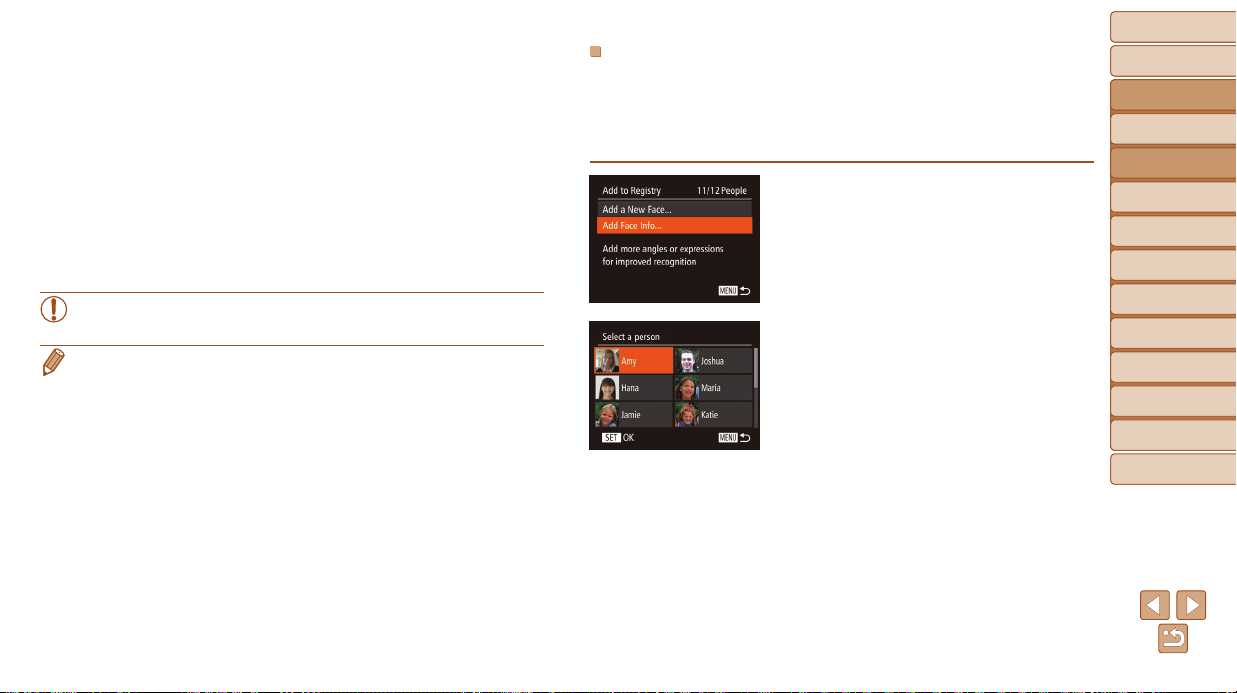
Before Use
Basic Guide
Advanced Guide
Camera Basics
Auto Mode / Hybrid
Auto Mode
Other Shooting
Modes
P Mode
Tv, Av, and M Mode
Playback Mode
Wi-Fi Functions
Setting Menu
Accessories
Appendix
Index
44
Before Use
Basic Guide
Advanced Guide
Camera Basics
Auto Mode / Hybrid
Auto Mode
Other Shooting
Modes
P Mode
Tv, Av, and M Mode
Playback Mode
Wi-Fi Functions
Setting Menu
Accessories
Appendix
Index
To check face information, choose
[Face Info List] (either press the
<o><p> buttons or turn the <5> dial),
and then press the <m> button. Press
the <m> button on the screen displayed,
choose face information to erase by
pressing the <o><p><q><r> buttons
or turning the <5> dial, and then
press the <
m
> button. After [Erase?] is
displayed, choose [OK] (either press the
<q><r> buttons or turn the <5> dial),
and then press the <m> button.
• Even if you change names in [Edit Prole], the names recorded in
previously shot images will remain the same.
• You can use the software (=
160) to edit registered names. Some characters
entered with the software may not display on the camera, but will be correctly
recorded in images.
OverwritingandAddingFaceInformation
You can overwrite existing face information with new face info. You should
update face information regularly, especially with babies and children, as
their faces change quickly as they grow.
You can also add face information when all 5 face info slots have not been
lled.
1 Accessthe[AddFaceInfo]
screen.
Following step 1 in “Registering Face ID
Information” (=
40), choose [Add Face
Info] and press the <m> button.
2 Choosethenameoftheperson
tooverwrite.
Press the <o><p><q><r> buttons or
turn the <5> dial to choose the name
of a person whose face info you want
to overwrite, and then press the <m>
button.
If ve items of face info have already
been registered, a message will be
displayed. Choose [OK] (either press the
<q><r> buttons or turn the <
5
> dial),
and then press the <m> button.
If less than ve items of face info are
registered, go to step 4 to add face
information.
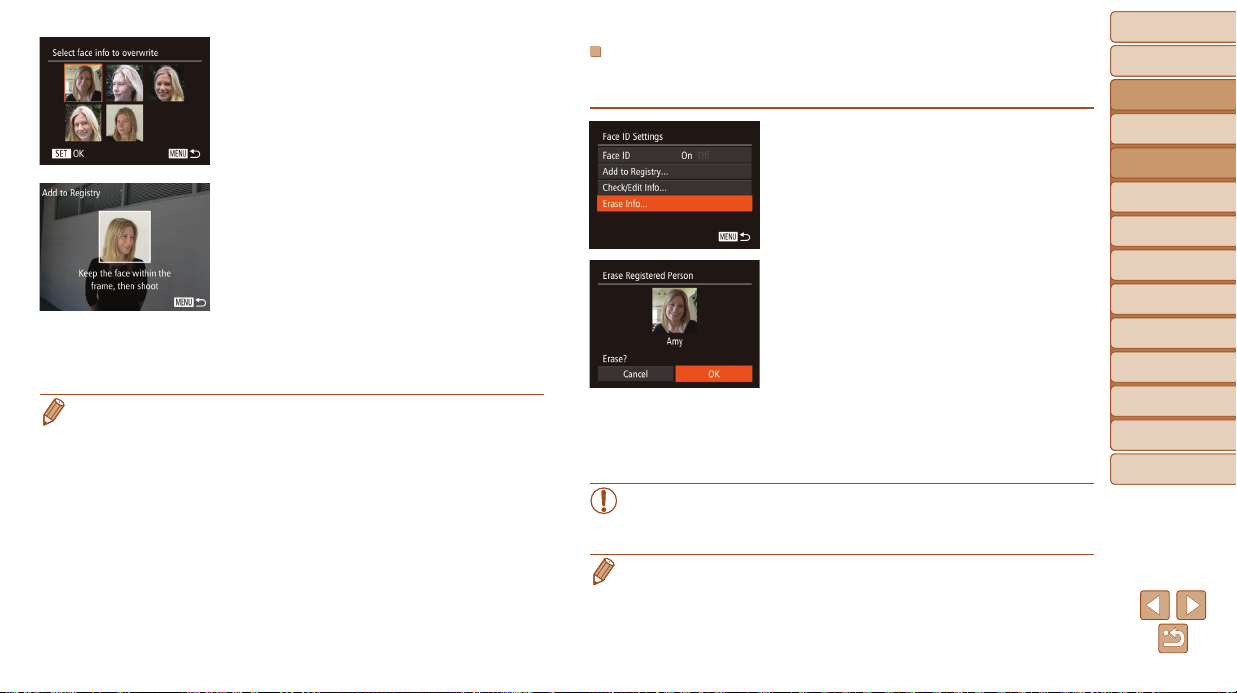
Before Use
Basic Guide
Advanced Guide
Camera Basics
Auto Mode / Hybrid
Auto Mode
Other Shooting
Modes
P Mode
Tv, Av, and M Mode
Playback Mode
Wi-Fi Functions
Setting Menu
Accessories
Appendix
Index
45
Before Use
Basic Guide
Advanced Guide
Camera Basics
Auto Mode / Hybrid
Auto Mode
Other Shooting
Modes
P Mode
Tv, Av, and M Mode
Playback Mode
Wi-Fi Functions
Setting Menu
Accessories
Appendix
Index
3 Choosethefaceinfoto
overwrite.
Press the <o><p><q><r> buttons or
turn the <5> dial to choose the face info
to overwrite, and then press the <m>
button.
4 Registerfaceinformation.
Follow step 2 in “Registering Face ID
Information” (=
41) to shoot, and then
register the new face information.
Registered faces are more easily
recognized if you add a variety of face
information. In addition to a head-on
angle, add a slight side angle, a shot
when smiling, and shots inside and
outside.
• You cannot add face information if all 5 information slots are lled. Follow the
steps above to overwrite face information.
• You can follow the above steps to register new face info when there is at least
one slot open; however, you cannot overwrite any face information. Instead
of overwriting face info, rst erase unwanted existing info (=
43), and then
register new face information (=
40) as needed.
ErasingRegisteredInformation
You can erase information (face info, names, birthdays) registered to Face
ID. However, names recorded in previously shot images will not be erased.
1 Accessthe[EraseInfo]screen.
Follow step 1 in “Registering Face ID
Information” (=
40) and choose
[Erase Info].
2 Choosethenameoftheperson
whoseinfoyouwanttoerase.
Press the <o><p><q><r> buttons or
turn the <5> dial to choose the name
of a person to erase, and then press the
<m> button.
After [Erase?] is displayed, press the
<q><r> buttons or turn the <5> dial to
choose [OK], and then press the <m>
button.
• If you erase a registered person’s info, you will not be able to
display their name (=
92), overwrite their info (=
95), or
search images for them (=
93).
• You can also erase names in image information (=
95).
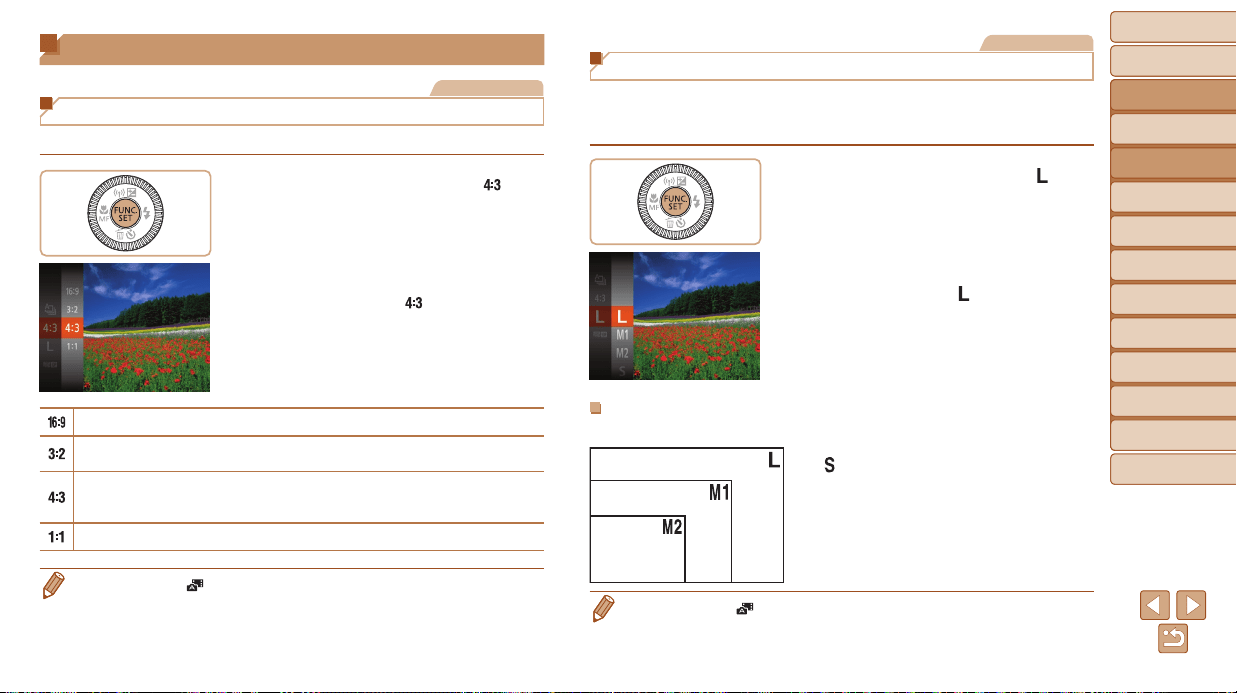
Before Use
Basic Guide
Advanced Guide
Camera Basics
Auto Mode / Hybrid
Auto Mode
Other Shooting
Modes
P Mode
Tv, Av, and M Mode
Playback Mode
Wi-Fi Functions
Setting Menu
Accessories
Appendix
Index
46
Before Use
Basic Guide
Advanced Guide
Camera Basics
Auto Mode / Hybrid
Auto Mode
Other Shooting
Modes
P Mode
Tv, Av, and M Mode
Playback Mode
Wi-Fi Functions
Setting Menu
Accessories
Appendix
Index
Image Customization Features
Still Images
Changing the Aspect Ratio
Change the image aspect ratio (ratio of width to height) as follows.
Press the <m> button, choose [ ] in
the menu, and choose the desired option
(=
23).
Once the setting is complete, the screen
aspect ratio will be updated.
To restore the original setting, repeat this
process but choose [
].
Used for display on widescreen HDTVs or similar display devices.
Same aspect ratio as 35mm lm, used for printing images at 5 x 7-inch or
postcard sizes.
Native aspect ratio of the camera screen, also used for display on standard-
denition televisions or similar display devices, or for printing images at 3.5 x
5-inch or A-series sizes.
Square aspect ratio.
• Not available in [ ] mode.
Still Images
Changing Image Resolution (Size)
Choose from 4 levels of image resolution, as follows. For guidelines on
how many shots at each resolution setting can t on a memory card, see
“Number of 4:3 Shots per Memory Card” (=
190).
Press the <m> button, choose [ ] in
the menu, and choose the desired option
(=
23).
The option you congured is now
displayed.
To restore the original setting, repeat this
process but choose [
].
GuidelinesforChoosingResolutionBasedonPaper
Size(for4:3Images)
[ ]: For e-mailing images.
• Not available in [ ] mode.
A2 (16.5 x 23.4 in.)
A3 – A5 (11.7 x 16.5
– 5.8 x 8.3 in.)
5 x 7 in.
Postcard
3.5 x 5 in.
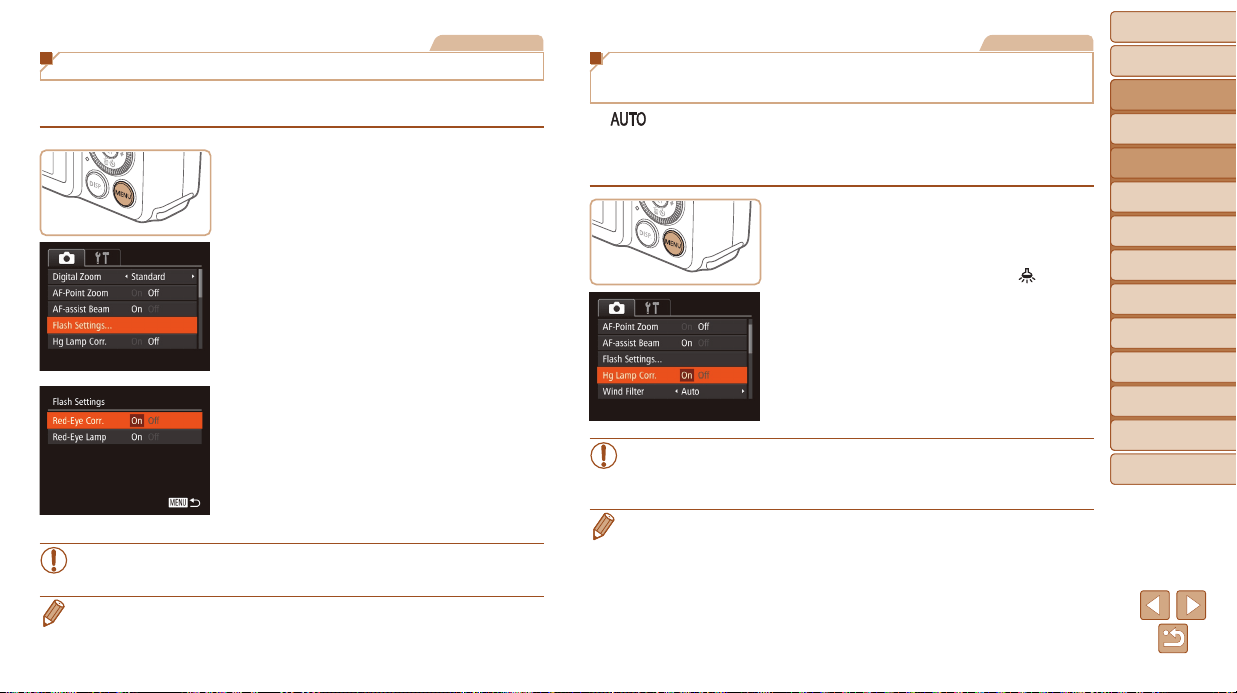
Before Use
Basic Guide
Advanced Guide
Camera Basics
Auto Mode / Hybrid
Auto Mode
Other Shooting
Modes
P Mode
Tv, Av, and M Mode
Playback Mode
Wi-Fi Functions
Setting Menu
Accessories
Appendix
Index
47
Before Use
Basic Guide
Advanced Guide
Camera Basics
Auto Mode / Hybrid
Auto Mode
Other Shooting
Modes
P Mode
Tv, Av, and M Mode
Playback Mode
Wi-Fi Functions
Setting Menu
Accessories
Appendix
Index
Still Images
Red-Eye Correction
Red-eye that occurs in ash photography can be automatically corrected as
follows.
1 Accessthe[FlashSettings]
screen.
Press the <n> button, choose
[Flash Settings] on the [4] tab, and
then press the <
m
> button (=
24).
2 Congurethesetting.
Choose [Red-Eye Corr.], and then
choose [On] (=
25).
Once the setting is complete, [R] is
displayed.
To restore the original setting, repeat this
process but choose [Off].
•
Red-eye correction may be applied to image areas other than eyes
(if the camera misinterprets red eye makeup as red pupils, for example).
• You can also correct existing images (=
109).
• You can also access the screen in step 2 when the ash is up by pressing the
<r> button and immediately pressing the <n> button.
Still Images
Correcting Greenish Image Areas from
Mercury Lamps
In [ ] mode, subjects or background in shots of evening scenes
illuminated by mercury lamps may appear to have a greenish tinge.
This greenish tinge can be corrected automatically when shooting, using
Multi-area White Balance.
Press the <n> button, choose
[Hg Lamp Corr.] on the [4] tab, and
then choose [On] (=
24).
Once the setting is complete, [ ] is
displayed.
To restore the original setting, repeat this
process but choose [Off].
• After you are nished shooting under mercury lamps, you should set
[Hg Lamp Corr.] back to [Off]. Otherwise, green hues not caused by
mercury lamps may be corrected by mistake.
• Try taking some test shots rst to make sure you obtain the desired results.
• In continuous shooting (=
39), this setting is set to [Off] and cannot be
changed.
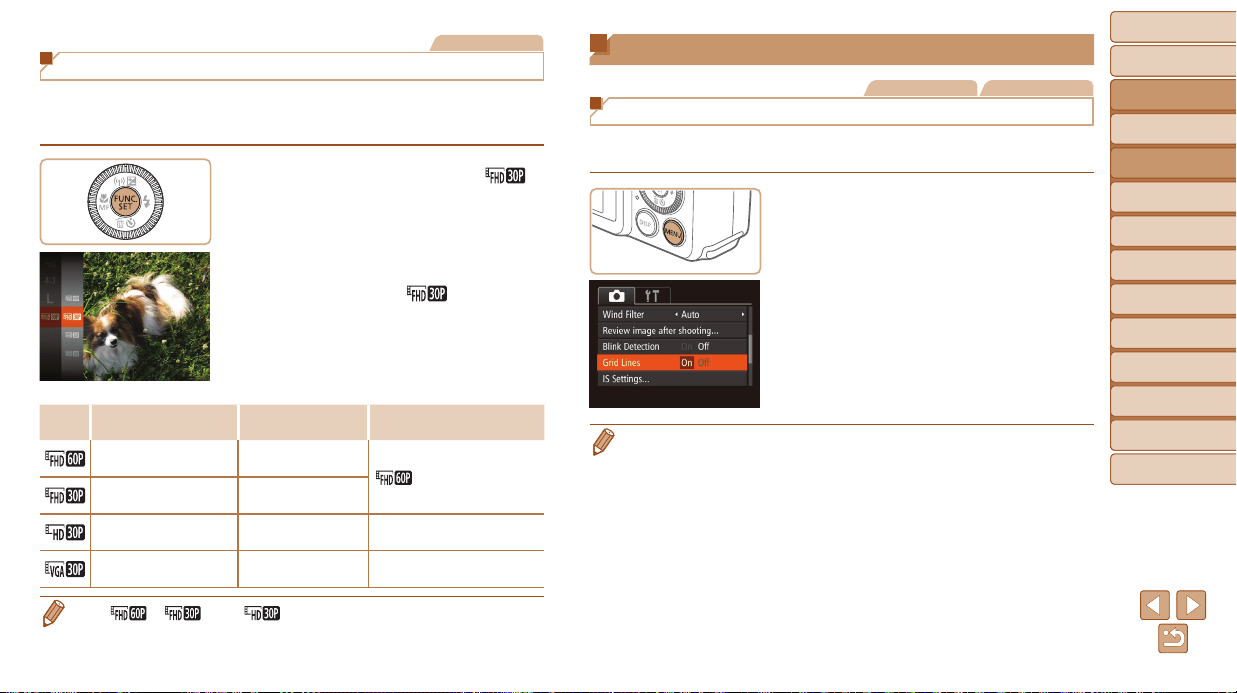
Before Use
Basic Guide
Advanced Guide
Camera Basics
Auto Mode / Hybrid
Auto Mode
Other Shooting
Modes
P Mode
Tv, Av, and M Mode
Playback Mode
Wi-Fi Functions
Setting Menu
Accessories
Appendix
Index
48
Before Use
Basic Guide
Advanced Guide
Camera Basics
Auto Mode / Hybrid
Auto Mode
Other Shooting
Modes
P Mode
Tv, Av, and M Mode
Playback Mode
Wi-Fi Functions
Setting Menu
Accessories
Appendix
Index
Movies
Changing Movie Image Quality
4 image quality settings are available. For guidelines on the maximum
movie length at each level of image quality that will t on a memory card,
see “Recording Time per Memory Card” (=
190).
Press the <m> button, choose [ ]
in the menu, and choose the desired
option (=
23).
The option you congured is now
displayed.
To restore the original setting, repeat this
process but choose [
].
Image
Quality
Resolution FrameRate Details
1920 x 1080 60 fps
For shooting in Full HD.
[
] enables movies with
smoother motion
1920 x 1080 30 fps
1280 x 720 30 fps For shooting in HD
640 x 480 30 fps
For shooting in standard
denition
• In [ ], [ ], and [ ] modes, black bars displayed on the top and
bottom edges of the screen indicate image areas not recorded.
Helpful Shooting Features
Still Images Movies
Displaying Grid Lines
Grid lines can be displayed on the screen for vertical and horizontal
reference while shooting.
Press the <n> button, choose
[Grid Lines] on the [4] tab, and then
choose [On] (=
24).
Once the setting is complete, grid lines
are displayed on the screen.
To restore the original setting, repeat this
process but choose [Off].
• Grid lines are not recorded in your shots.
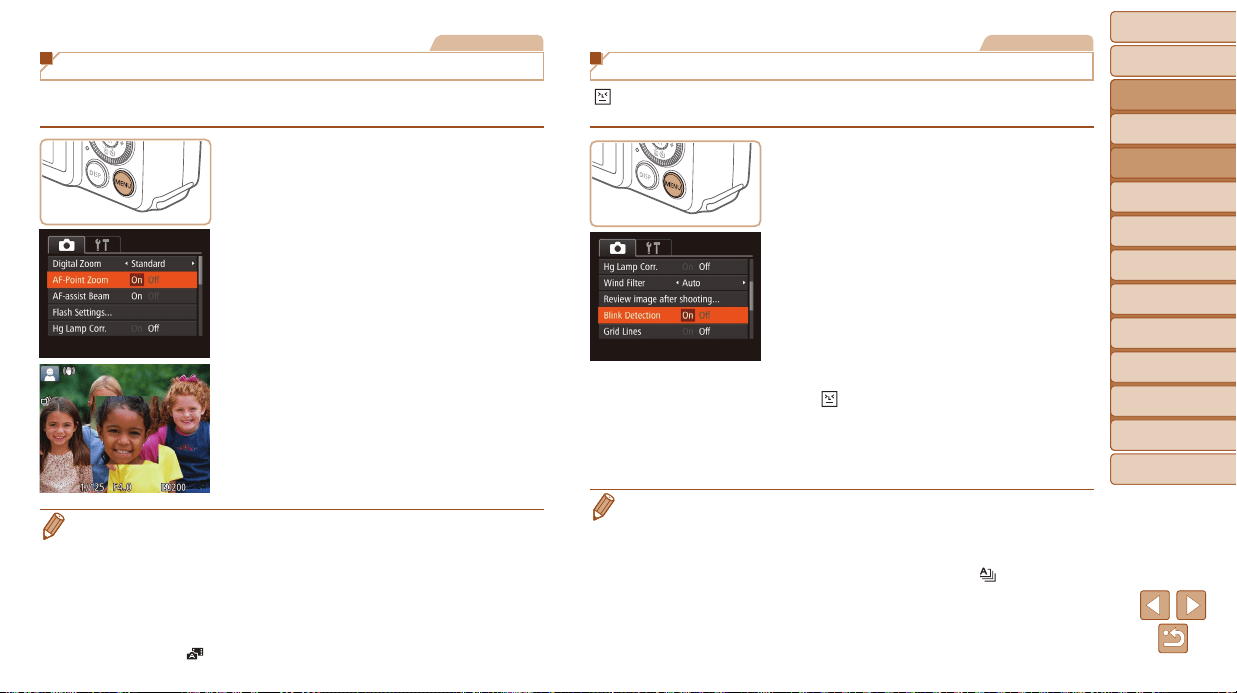
Before Use
Basic Guide
Advanced Guide
Camera Basics
Auto Mode / Hybrid
Auto Mode
Other Shooting
Modes
P Mode
Tv, Av, and M Mode
Playback Mode
Wi-Fi Functions
Setting Menu
Accessories
Appendix
Index
49
Before Use
Basic Guide
Advanced Guide
Camera Basics
Auto Mode / Hybrid
Auto Mode
Other Shooting
Modes
P Mode
Tv, Av, and M Mode
Playback Mode
Wi-Fi Functions
Setting Menu
Accessories
Appendix
Index
Still Images
Magnifying the Area in Focus
You can check the focus by pressing the shutter button halfway, which will
enlarge the portion of the image in focus in the AF frame.
1 Congurethesetting.
Press the <n> button, choose
[AF-Point Zoom] on the [4] tab, and
then choose [On] (=
24).
2 Checkthefocus.
Press the shutter button halfway.
The face detected as the main subject is
now magnied.
To restore the original setting, choose
[Off] in step 1.
• The area in focus is not magnied in the following cases when the shutter
button is pressed halfway.
- If a face was not detected, if the person is too close to the camera and their
face is too large for the screen, or if the camera detects subject movement
- Digital zoom (=
34): Not magnied with this feature
- Tracking AF (=
77): Not magnied with this feature
- When using a TV as a display (=
157)
• Not available in [
] mode.
Still Images
Checking for Closed Eyes
[ ] is displayed when the camera detects that people may have closed
their eyes.
1 Congurethesetting.
Press the <n> button, choose
[Blink Detection] on the [4] tab, and
then choose [On] (=
24).
2 Shoot.
[ ] ashes when the camera detects
a person whose eyes are closed.
To restore the original setting, choose
[Off] in step 1.
• When you have specied multiple shots in [$] mode, this function is only
available for the nal shot.
• A frame is displayed around people whose eyes are closed when you have
selected [2 sec.], [4 sec.], [8 sec.], or [Hold] in [Display Time] (=
51).
• This feature is not available during continuous shooting in [
] mode
(=
33).
• This feature is not available in continuous shooting mode (=
39, 79).
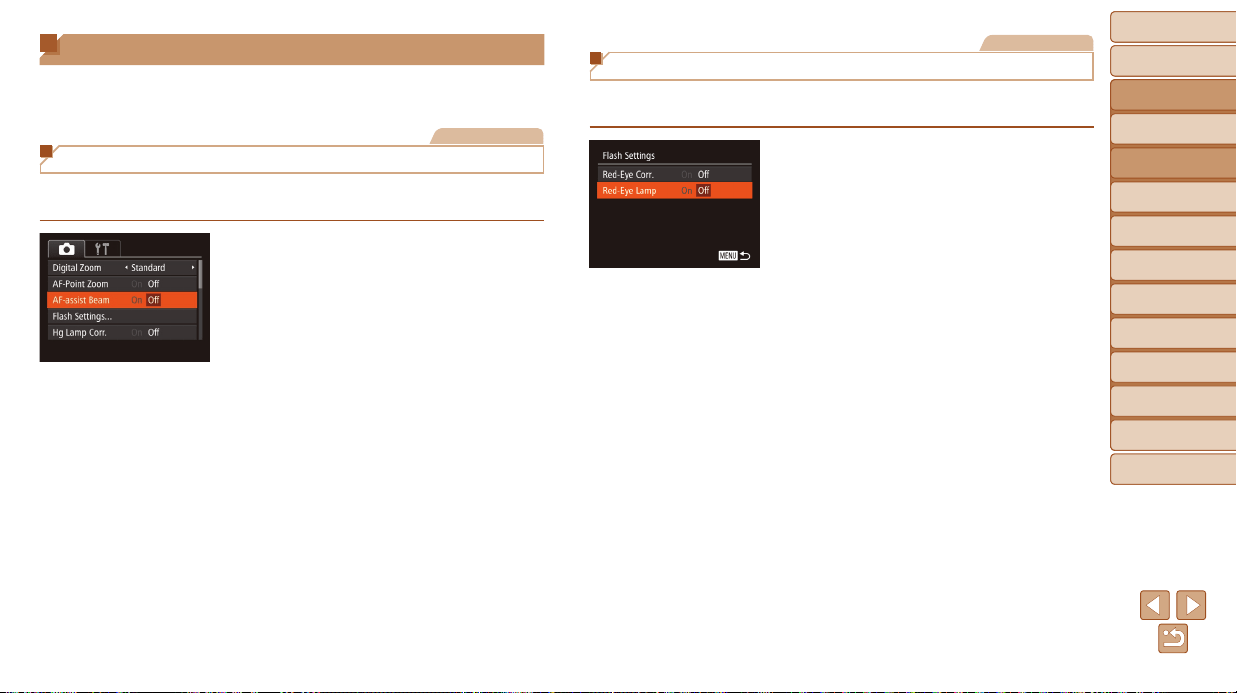
Before Use
Basic Guide
Advanced Guide
Camera Basics
Auto Mode / Hybrid
Auto Mode
Other Shooting
Modes
P Mode
Tv, Av, and M Mode
Playback Mode
Wi-Fi Functions
Setting Menu
Accessories
Appendix
Index
50
Before Use
Basic Guide
Advanced Guide
Camera Basics
Auto Mode / Hybrid
Auto Mode
Other Shooting
Modes
P Mode
Tv, Av, and M Mode
Playback Mode
Wi-Fi Functions
Setting Menu
Accessories
Appendix
Index
Customizing Camera Operation
Customize shooting functions on the MENU [4] tab as follows.
For instructions on menu functions, see “Using Menus” (=
24).
Still Images
Deactivating the AF-Assist Beam
You can deactivate the lamp that normally lights up to help you focus when
you press the shutter button halfway in low-light conditions.
Press the <n> button, choose
[AF-assist Beam] on the [4] tab, and
then choose [Off] (=
24).
To restore the original setting, repeat this
process but choose [On].
Still Images
Deactivating the Red-Eye Reduction Lamp
You can deactivate the red-eye reduction lamp that lights up to reduce
red-eye when the ash is used in low-light shots.
1 Accessthe[FlashSettings]
screen.
Press the <n> button, choose
[Flash Settings] on the [4] tab, and
then press the <m> button (=
24).
2 Congurethesetting.
Choose [Red-Eye Lamp], and then
choose [Off] (=
25).
To restore the original setting, repeat this
process but choose [On].
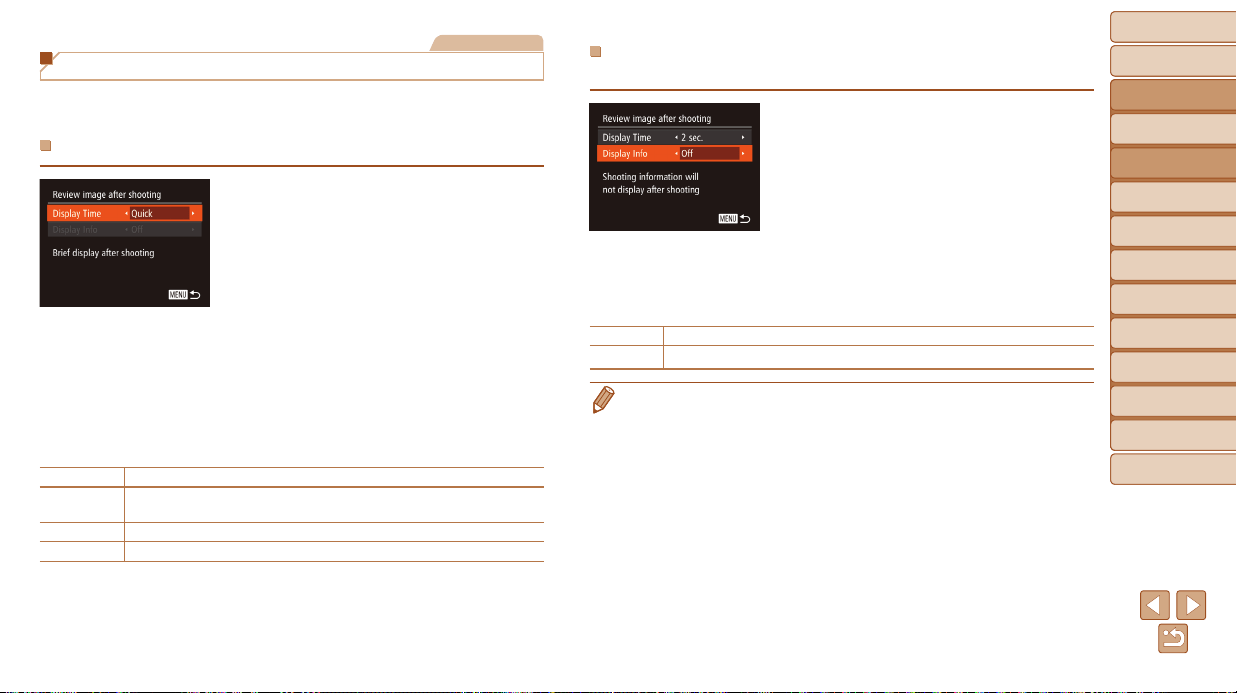
Before Use
Basic Guide
Advanced Guide
Camera Basics
Auto Mode / Hybrid
Auto Mode
Other Shooting
Modes
P Mode
Tv, Av, and M Mode
Playback Mode
Wi-Fi Functions
Setting Menu
Accessories
Appendix
Index
51
Before Use
Basic Guide
Advanced Guide
Camera Basics
Auto Mode / Hybrid
Auto Mode
Other Shooting
Modes
P Mode
Tv, Av, and M Mode
Playback Mode
Wi-Fi Functions
Setting Menu
Accessories
Appendix
Index
Still Images
Changing the Image Display Style after Shots
You can change how long images are displayed and what information is
displayed immediately after shooting.
ChangingtheImageDisplayPeriodafterShots
1 Accessthe[Reviewimageafter
shooting]screen.
Press the <n> button, choose
[Review image after shooting] on the
[4] tab, and then press the <m> button
(=
24).
2 Congurethesetting.
Press the <o><p> buttons or turn the
<5> dial to choose [Display Time].
Press the <q><r> buttons to choose the
desired option.
To restore the original setting, repeat this
process but choose [Quick].
Quick Displays images only until you can shoot again.
2 sec., 4 sec.,
8 sec.
Displays images for the specied time. Even while the shot is displayed,
you can take another shot by pressing the shutter button halfway again.
Hold Displays images until you press the shutter button halfway.
Off No image display after shots.
ChangingtheScreenDisplayedafterShots
Change the way images are displayed after shots as follows.
1 Set[DisplayTime]to[2sec.],
[4sec.],[8sec.],or[Hold]
(=
5 1 ).
2 Congurethesetting.
Press the <o><p> buttons or turn
the <5> dial to choose [Display Info].
Press the <q><r> buttons to choose the
desired option.
To restore the original setting, repeat this
process but choose [Off].
Off Displays only the image.
Detailed
Displays shooting details (=
179).
• When [Display Time] (=
51) is set to [Off] or [Quick], [Display Info] is set to
[Off] and cannot be changed.
• By pressing the <l> button while an image is displayed after shooting,
you can switch the display information. Note that the settings of [Display Info]
are not changed. By pressing the <m> button, you can do the following
operations.
- Protect (=
98)
- Favorites (=
105)
- Erase (=
101)
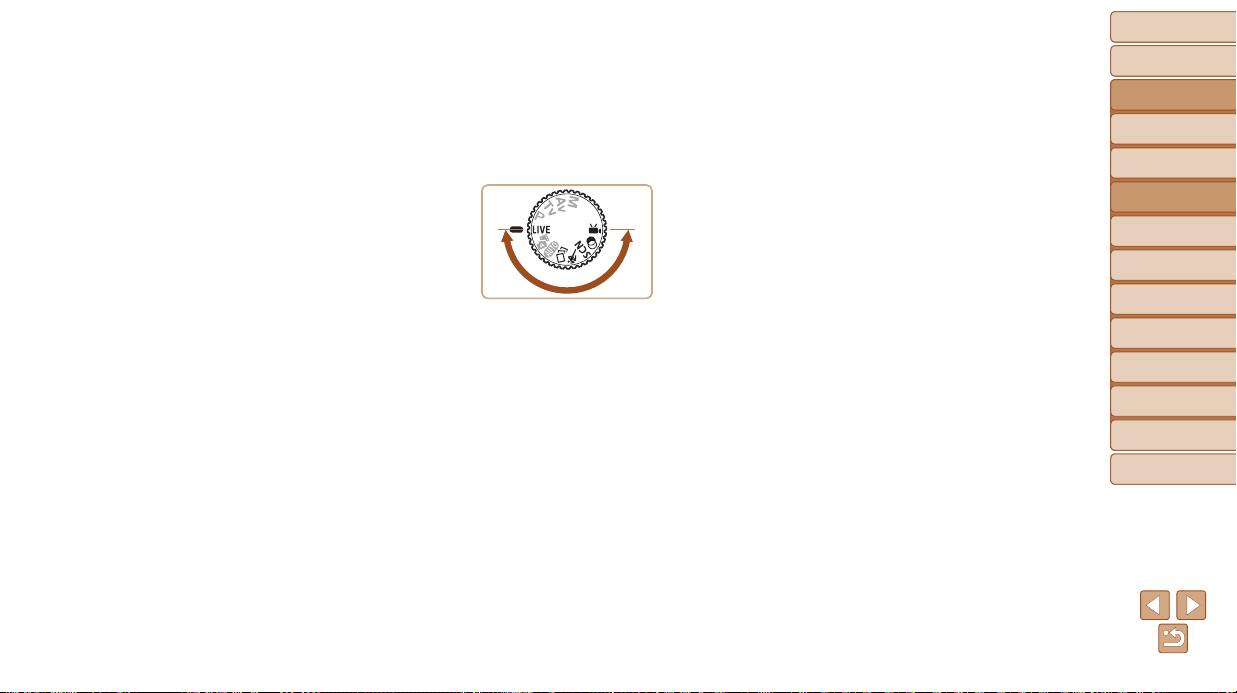
Before Use
Basic Guide
Advanced Guide
Camera Basics
Auto Mode / Hybrid
Auto Mode
Other Shooting
Modes
P Mode
Tv, Av, and M Mode
Playback Mode
Wi-Fi Functions
Setting Menu
Accessories
Appendix
Index
52
Before Use
Basic Guide
Advanced Guide
Camera Basics
Auto Mode / Hybrid
Auto Mode
Other Shooting
Modes
P Mode
Tv, Av, and M Mode
Playback Mode
Wi-Fi Functions
Setting Menu
Accessories
Appendix
Index
Other Shooting Modes
Shoot more effectively in various scenes, and take shots enhanced with unique image effects or captured using special
functions
EnjoyingaVarietyofImages
fromEachShot(CreativeShot)..................... 53
Brightness/ColorCustomization
(LiveViewControl)......................................... 54
MovingSubjects(Sports)................................ 54
SpecicScenes................................................ 55
ImageEffects(CreativeFilters)...................... 57
Shooting with a Fish-Eye Lens Effect
(Fish-Eye Effect) ...................................................58
Shots Resembling Miniature Models
(Miniature Effect) ................................................... 58
Shooting with a Toy Camera Effect
(Toy Camera Effect) ..............................................59
Shooting with a Soft Focus Effect .........................60
Shooting in Monochrome ...................................... 60
Auto Shooting after Face Detection
(Smart Shutter) ......................................................61
High-Speed Continuous Shooting
(High-Speed Burst HQ) ......................................... 64
ShootingVariousMovies................................ 65
Shooting Movies in [E] Mode .............................. 65
Shooting iFrame Movies ....................................... 66
Shooting Super Slow Motion Movies .................... 66
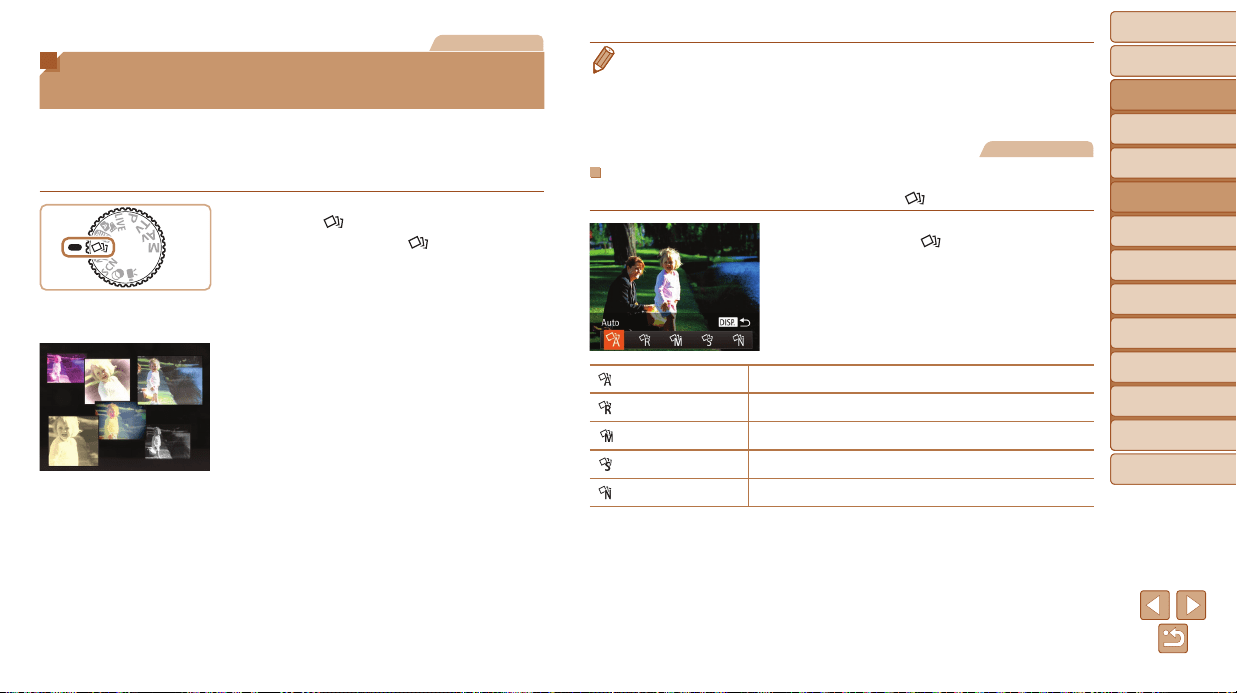
Before Use
Basic Guide
Advanced Guide
Camera Basics
Auto Mode / Hybrid
Auto Mode
Other Shooting
Modes
P Mode
Tv, Av, and M Mode
Playback Mode
Wi-Fi Functions
Setting Menu
Accessories
Appendix
Index
53
Before Use
Basic Guide
Advanced Guide
Camera Basics
Auto Mode / Hybrid
Auto Mode
Other Shooting
Modes
P Mode
Tv, Av, and M Mode
Playback Mode
Wi-Fi Functions
Setting Menu
Accessories
Appendix
Index
Still Images
Enjoying a Variety of Images from
Each Shot (Creative Shot)
The camera determines the subject and shooting conditions, automatically
applying special effects and recomposing the shot to emphasize the
subject. Six still images are recorded for each shot. You can capture
multiple still images with effects using camera-determined settings.
1 Enter[ ]mode.
Set the mode dial to [ ].
2 Shoot.
Press the shutter button all the way
down. As you shoot, the shutter sound is
played three times.
After the six images are displayed
in succession, they are displayed
simultaneously for about two seconds.
To keep the images displayed until
you press the shutter button halfway,
press the <m> button. For full-screen
display in this state, choose an image by
pressing the <o><p><q><r> buttons,
and then press the <m> button.
To return to the original display, press the
<n> button.
• Shooting will take some time when the ash res, but hold the camera steady
until the shutter sound is played three times.
• The six images are managed together as a group (=
55).
• Simultaneous display of the six images as shown in step 2 is only available
immediately after you shoot.
Still Images
ChoosingEffects
You can choose effects for images captured in [ ] mode.
After choosing [ ] mode, press the
<l> button.
Press the <q><r> buttons or turn the
<5> dial to choose the effect, and then
press the <m> button.
Auto All effects
Retro Images resemble old photos
Monochrome Images are generated in one color
Special Bold, distinctive-looking images
Natural Subdued, natural-looking images
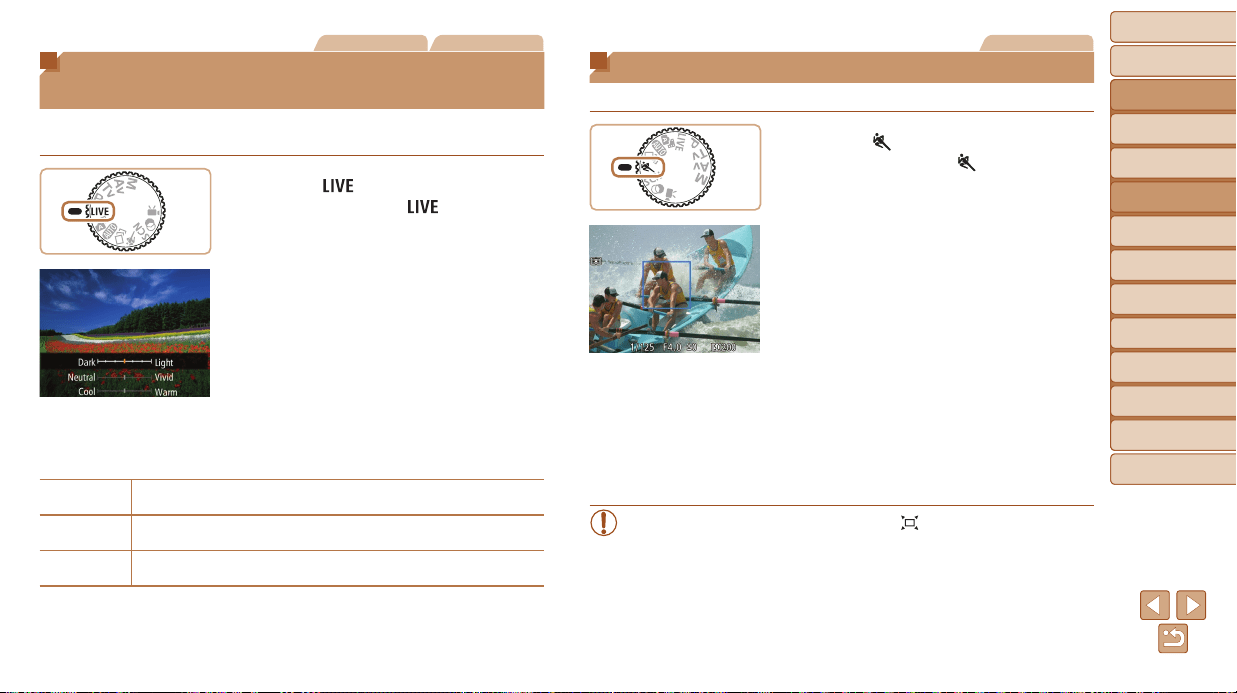
Before Use
Basic Guide
Advanced Guide
Camera Basics
Auto Mode / Hybrid
Auto Mode
Other Shooting
Modes
P Mode
Tv, Av, and M Mode
Playback Mode
Wi-Fi Functions
Setting Menu
Accessories
Appendix
Index
54
Before Use
Basic Guide
Advanced Guide
Camera Basics
Auto Mode / Hybrid
Auto Mode
Other Shooting
Modes
P Mode
Tv, Av, and M Mode
Playback Mode
Wi-Fi Functions
Setting Menu
Accessories
Appendix
Index
Still Images Movies
Brightness / Color Customization
(Live View Control)
Image brightness or colors when shooting can be easily customized as
follows.
1 Enter[ ]mode.
Set the mode dial to [ ].
2 Congurethesetting.
Press the <m> button to access the
setting screen. Press the <o><p>
buttons to choose a setting item, and
then press the <q><r> buttons or turn
the <
5
> dial to adjust the value as you
watch the screen.
Press the <m> button.
3 Shoot.
Brightness
For brighter images, adjust the level to the right, and for darker
images, adjust it to the left.
Color
For more vivid images, adjust the level to the right, and for more
subdued images, adjust it to the left.
Tone
For a warm, reddish tone, adjust the level to the right, and for a cool,
bluish tone, adjust it to the left.
Still Images
Moving Subjects (Sports)
Shoot continuously as the camera focuses on moving subjects.
1 Enter[ ]mode.
Set the mode dial to [ ].
2 Focus.
While you are pressing the shutter button
halfway, the camera will continue to
adjust focus and image brightness where
the blue frame is displayed.
3 Shoot.
Hold the shutter button all the way down
to shoot continuously.
Shooting stops when you release the
shutter button or reach the maximum
number of shots, after which [Busy] is
displayed and the shots are shown in the
order you took them.
• Continuous shooting is not available in Auto mode (=
35).
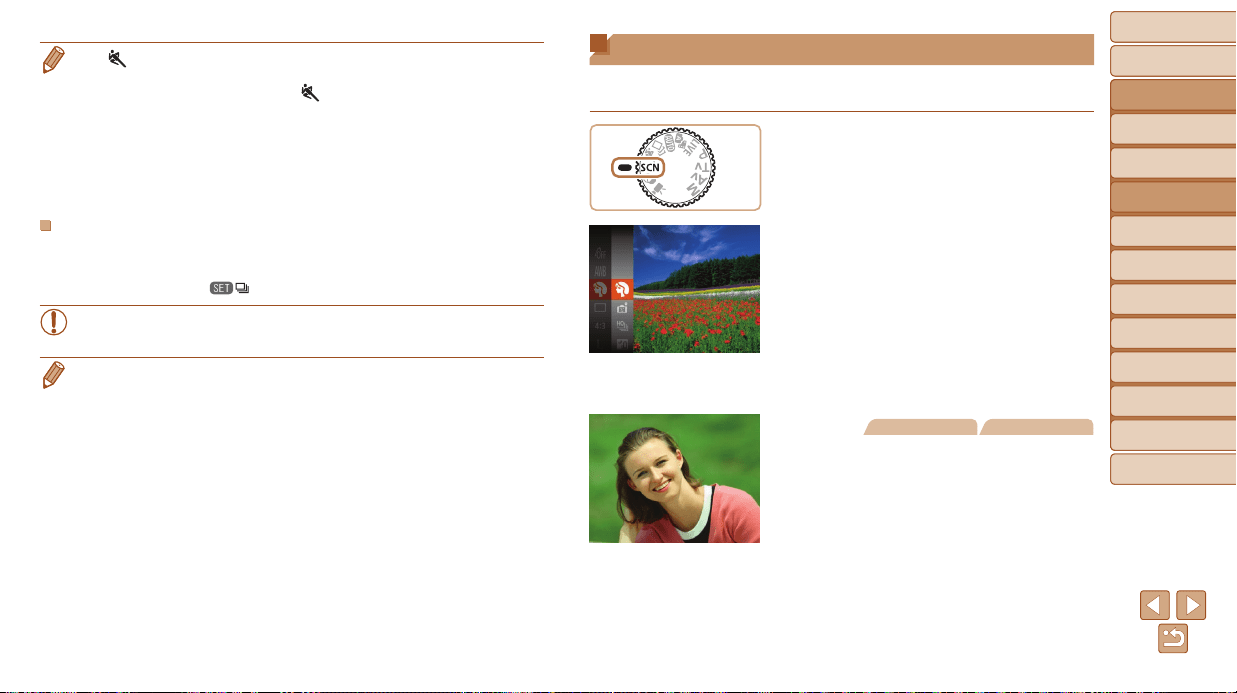
Before Use
Basic Guide
Advanced Guide
Camera Basics
Auto Mode / Hybrid
Auto Mode
Other Shooting
Modes
P Mode
Tv, Av, and M Mode
Playback Mode
Wi-Fi Functions
Setting Menu
Accessories
Appendix
Index
55
Before Use
Basic Guide
Advanced Guide
Camera Basics
Auto Mode / Hybrid
Auto Mode
Other Shooting
Modes
P Mode
Tv, Av, and M Mode
Playback Mode
Wi-Fi Functions
Setting Menu
Accessories
Appendix
Index
• In [ ] mode, shots may look grainy because the ISO speed (=
71) is
increased to suit the shooting conditions.
• For details on the shooting range in [
] mode, see “Shooting Range”
(=
190).
• There may be a delay after continuous shooting before you can shoot again.
Note that some types of memory cards may delay your next shot even longer.
SD Speed Class 6 or higher memory cards are recommended.
• Shooting may slow down depending on shooting conditions, camera settings,
and the zoom position.
ImageDisplayduringPlayback
Each set of images shot continuously is managed as a single group, and
only the rst image in that group will be displayed. To indicate that the
image is part of a group, [ ] is displayed in the upper left of the screen.
• If you erase a grouped image (=
101), all images in the group are
also erased. Be careful when erasing images.
• Grouped images can be played back individually (=
94) and ungrouped
(=
94).
• Protecting (=
98) a grouped image will protect all images in the group.
• Grouped images can be viewed individually when played back using Image
Search (=
93) or Smart Shufe (=
97). In this case, images are
temporarily ungrouped.
• The following actions are not available for grouped images: editing Face
ID information (=
95), magnifying (=
96), rotating (=
104), tagging
as favorites (=
105), editing (=
106 – 110), printing (=
163), adding
to the print list (=
167), or adding to a photobook (=
169). To do these
things, either view grouped images individually (=
94) or cancel grouping
(=
94) rst.
Specic Scenes
Choose a mode matching the shooting scene, and the camera will
automatically congure the settings for optimal shots.
1 Enter[K]mode.
Set the mode dial to [K].
2 Chooseashootingmode.
Press the <m> button, choose [I] in the
menu, and then choose a shooting mode
(=
23).
3 Shoot.
Still Images Movies
IShootportraits(Portrait)
Take shots of people with a softening
effect.
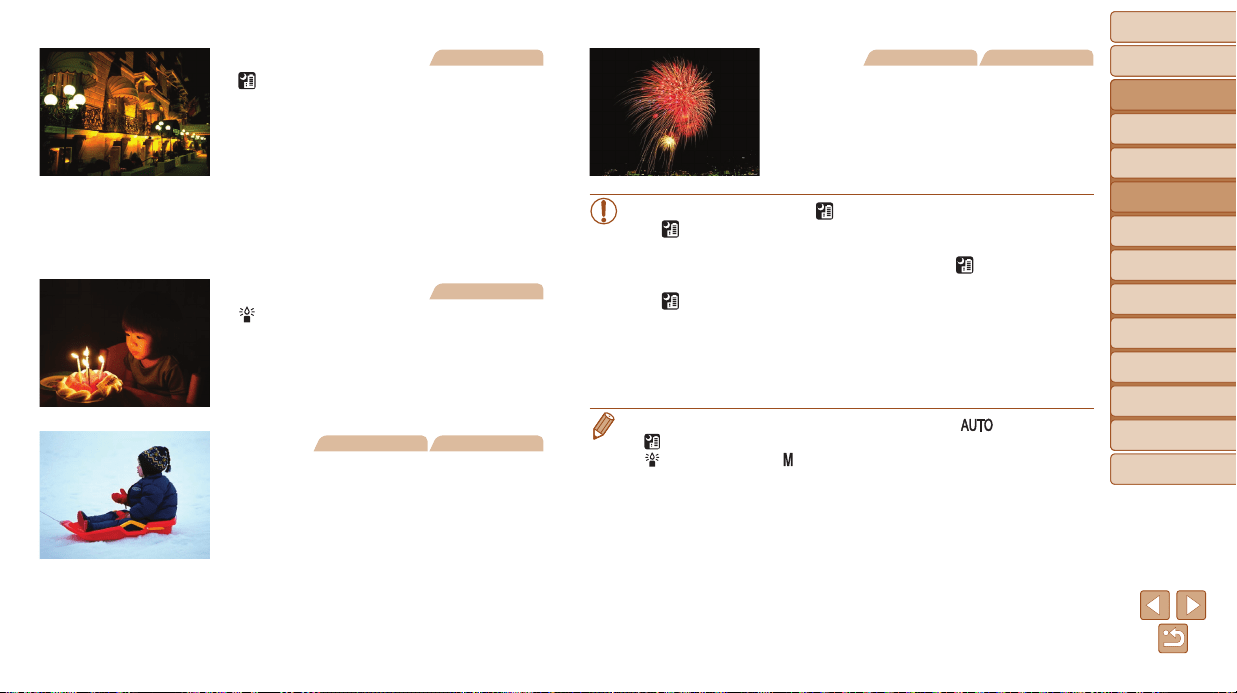
Before Use
Basic Guide
Advanced Guide
Camera Basics
Auto Mode / Hybrid
Auto Mode
Other Shooting
Modes
P Mode
Tv, Av, and M Mode
Playback Mode
Wi-Fi Functions
Setting Menu
Accessories
Appendix
Index
56
Before Use
Basic Guide
Advanced Guide
Camera Basics
Auto Mode / Hybrid
Auto Mode
Other Shooting
Modes
P Mode
Tv, Av, and M Mode
Playback Mode
Wi-Fi Functions
Setting Menu
Accessories
Appendix
Index
Still Images
Shooteveningsceneswithout
usingatripod(Handheld
NightScene)
Beautiful shots of evening scenes or
portraits with evening scenery in the
background, without the need to hold the
camera very still (as with a tripod).
A single image is created by combining
consecutive shots, reducing camera
shake and image noise.
Still Images
Shootunderlowlight(LowLight)
Shoot with minimal camera and subject
shake even in low-light conditions.
Still Images Movies
P Shootwithsnowybackgrounds
(Snow)
Bright, natural-colored shots of people
against snowy backgrounds.
Still Images Movies
tShootreworks(Fireworks)
Vivid shots of reworks.
• Subjects appear larger in [ ] mode compared to other modes.
• In [ ] mode, shots may look grainy because the ISO speed
(=
71) is increased to suit the shooting conditions.
• Because the camera will shoot continuously in [ ] mode, hold it
steady while shooting.
• In [ ] mode, excessive motion blur or certain shooting conditions
may prevent you from obtaining the desired results.
• In [t] mode, mount the camera on a tripod or take other measures
to keep it still and prevent camera shake. Additionally, you should
set [IS Mode] to [Off] when using a tripod or other means to secure
the camera (=
82).
• When you use a tripod for evening scenes, shooting in [ ] mode instead of
[
] mode will give better results (=
28).
• [
] mode resolution is [ ] (2304 x 1728) and cannot be changed.
• In [t] mode, although no frames are displayed when you press the shutter
button halfway, optimal focus is still determined.
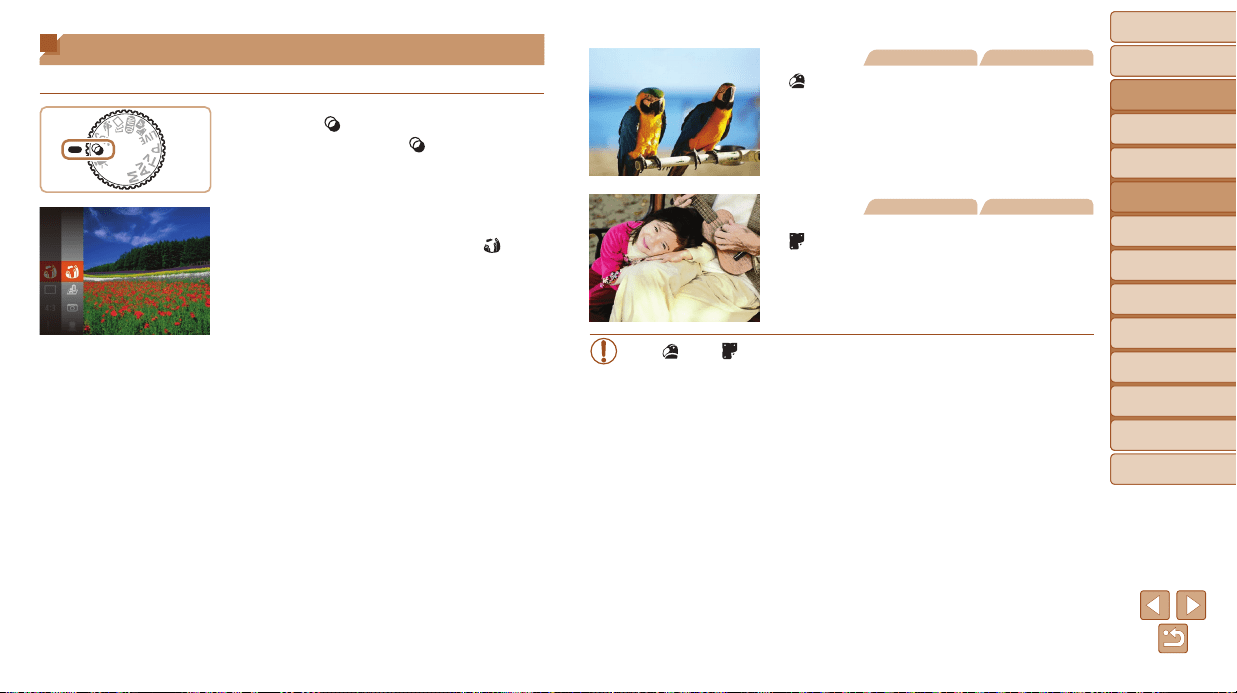
Before Use
Basic Guide
Advanced Guide
Camera Basics
Auto Mode / Hybrid
Auto Mode
Other Shooting
Modes
P Mode
Tv, Av, and M Mode
Playback Mode
Wi-Fi Functions
Setting Menu
Accessories
Appendix
Index
57
Before Use
Basic Guide
Advanced Guide
Camera Basics
Auto Mode / Hybrid
Auto Mode
Other Shooting
Modes
P Mode
Tv, Av, and M Mode
Playback Mode
Wi-Fi Functions
Setting Menu
Accessories
Appendix
Index
Image Effects (Creative Filters)
Add a variety of effects to images when shooting.
1 Enter[ ]mode.
Set the mode dial to [ ].
2 Chooseashootingmode.
Press the <m> button, choose [ ] in
the menu, and then choose a shooting
mode (=
23).
3 Shoot.
Still Images Movies
Shootinvividcolors
(SuperVivid)
Shots in rich, vivid colors.
Still Images Movies
Posterizedshots(PosterEffect)
Shots that resemble an old poster or
illustration.
• In [ ] and [ ] modes, try taking some test shots rst, to make sure
you obtain the desired results.
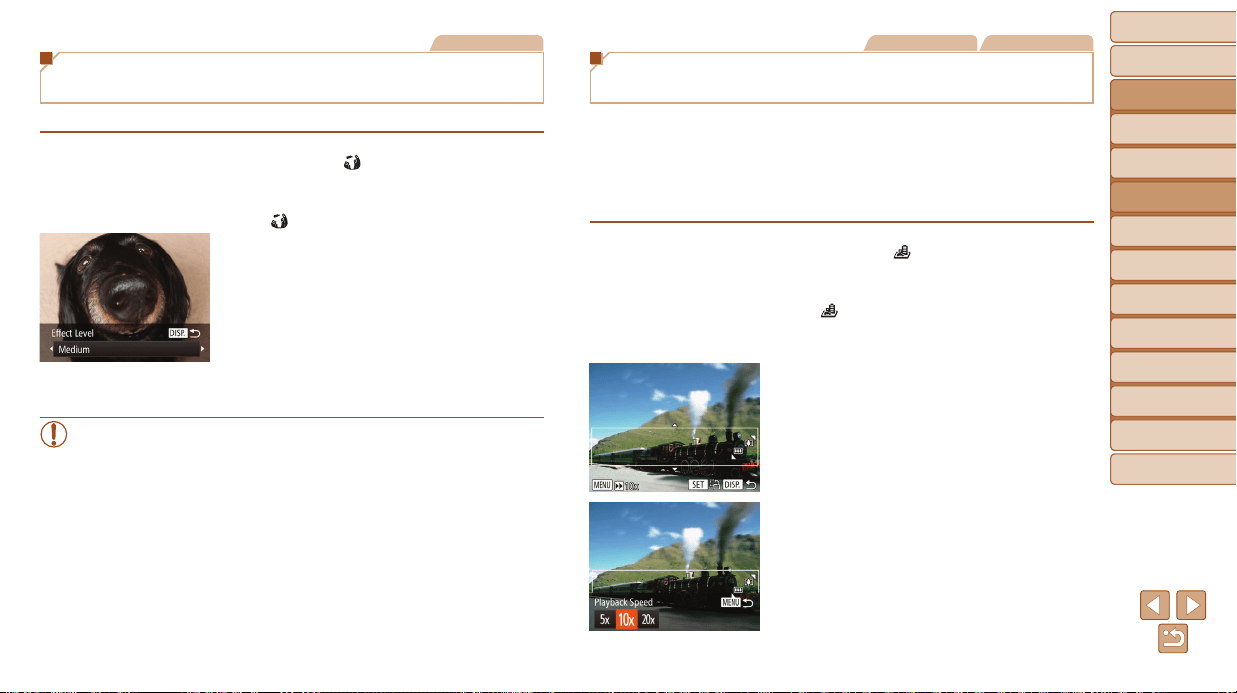
Before Use
Basic Guide
Advanced Guide
Camera Basics
Auto Mode / Hybrid
Auto Mode
Other Shooting
Modes
P Mode
Tv, Av, and M Mode
Playback Mode
Wi-Fi Functions
Setting Menu
Accessories
Appendix
Index
58
Before Use
Basic Guide
Advanced Guide
Camera Basics
Auto Mode / Hybrid
Auto Mode
Other Shooting
Modes
P Mode
Tv, Av, and M Mode
Playback Mode
Wi-Fi Functions
Setting Menu
Accessories
Appendix
Index
Still Images
Shooting with a Fish-Eye Lens Effect
(Fish-Eye Effect)
Shoot with the distorting effect of a sh-eye lens.
1 Choose[ ].
Follow steps 1 – 2 in “Image Effects
(Creative Filters)” (=
57) and choose
[
].
2 Chooseaneffectlevel.
Press the <l> button, choose an
effect level (either press the <q><r>
buttons or turn the <5> dial), and then
press the <l> button again.
A preview is shown of how your shot will
look with the effect applied.
3 Shoot.
• Try taking some test shots rst, to make sure you obtain the desired
results.
Still Images Movies
Shots Resembling Miniature Models
(Miniature Effect)
Creates the effect of a miniature model, by blurring image areas above and
below your selected area.
You can also make movies that look like scenes in miniature models by
choosing the playback speed before the movie is recorded. People and
objects in the scene will move quickly during playback. Note that sound is
not recorded.
1 Choose[ ].
Follow steps 1 – 2 in “Image Effects
(Creative Filters)” (=
57) and choose
[
].
A white frame is displayed, indicating the
image area that will not be blurred.
2 Choosetheareatokeepin
focus.
Press the <l> button.
Move the zoom lever to resize the frame,
and press the <o><p> buttons to
move it.
3 Formovies,choosethemovie
playbackspeed.
Press the <n> button, and then
choose the speed by pressing the
<q><r> buttons or turning the <5>
dial.
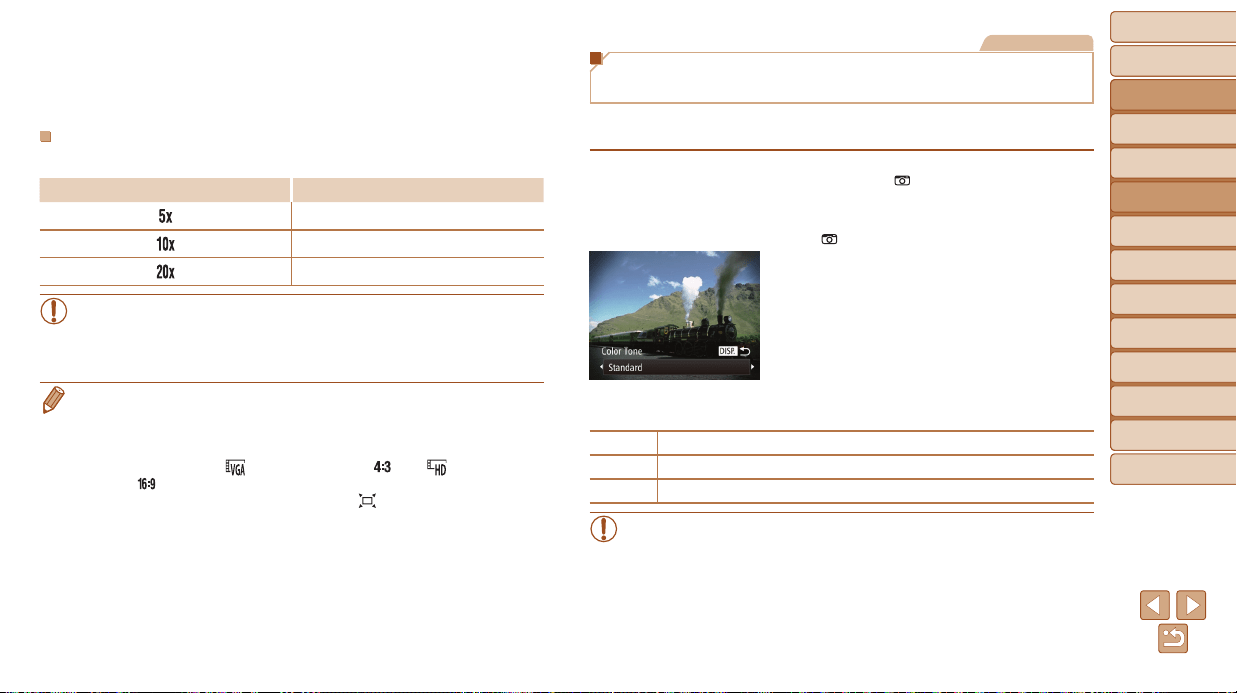
Before Use
Basic Guide
Advanced Guide
Camera Basics
Auto Mode / Hybrid
Auto Mode
Other Shooting
Modes
P Mode
Tv, Av, and M Mode
Playback Mode
Wi-Fi Functions
Setting Menu
Accessories
Appendix
Index
59
Before Use
Basic Guide
Advanced Guide
Camera Basics
Auto Mode / Hybrid
Auto Mode
Other Shooting
Modes
P Mode
Tv, Av, and M Mode
Playback Mode
Wi-Fi Functions
Setting Menu
Accessories
Appendix
Index
4 Returntotheshootingscreen
andshoot.
Press the <n> button to return to the
shooting screen, and then shoot.
PlaybackSpeedandEstimatedPlaybackTime(forOne-
MinuteClips)
Speed PlaybackTime
Approx. 12 sec.
Approx. 6 sec.
Approx. 3 sec.
• The zoom is not available when shooting movies. Be sure to set the
zoom before shooting.
• Try taking some test shots rst, to make sure you obtain the desired
results.
• To switch the orientation of the frame (from horizontal to vertical or vice-versa),
press the <m> button in step 2. You can move the frame in vertical orientation
by pressing the <q><r> buttons.
• Holding the camera vertically will change the orientation of the frame.
• Movie image quality is [
] at an aspect ratio of [ ] and [ ] at an aspect
ratio of [
] (=
46). These quality settings cannot be changed.
• The zoom factor cannot be changed with the <
> button on the screens in
steps 2 and 3, or while shooting movies.
Still Images
Shooting with a Toy Camera Effect
(Toy Camera Effect)
This effect makes images resemble shots from a toy camera by vignetting
(darker, blurred image corners) and changing the overall color.
1 Choose[ ].
Follow steps 1 – 2 in “Image Effects
(Creative Filters)” (=
57) and choose
[
].
2 Chooseacolortone.
Press the <l> button, choose a color
tone (either press the <q><r> buttons or
turn the <5> dial), and then press the
<l> button again.
A preview is shown of how your shot will
look with the effect applied.
3 Shoot.
Standard Shots resemble toy camera images.
Warm Images have a warmer tone than with [Standard].
Cool Images have a cooler tone than with [Standard].
• Try taking some test shots rst, to make sure you obtain the desired
results.
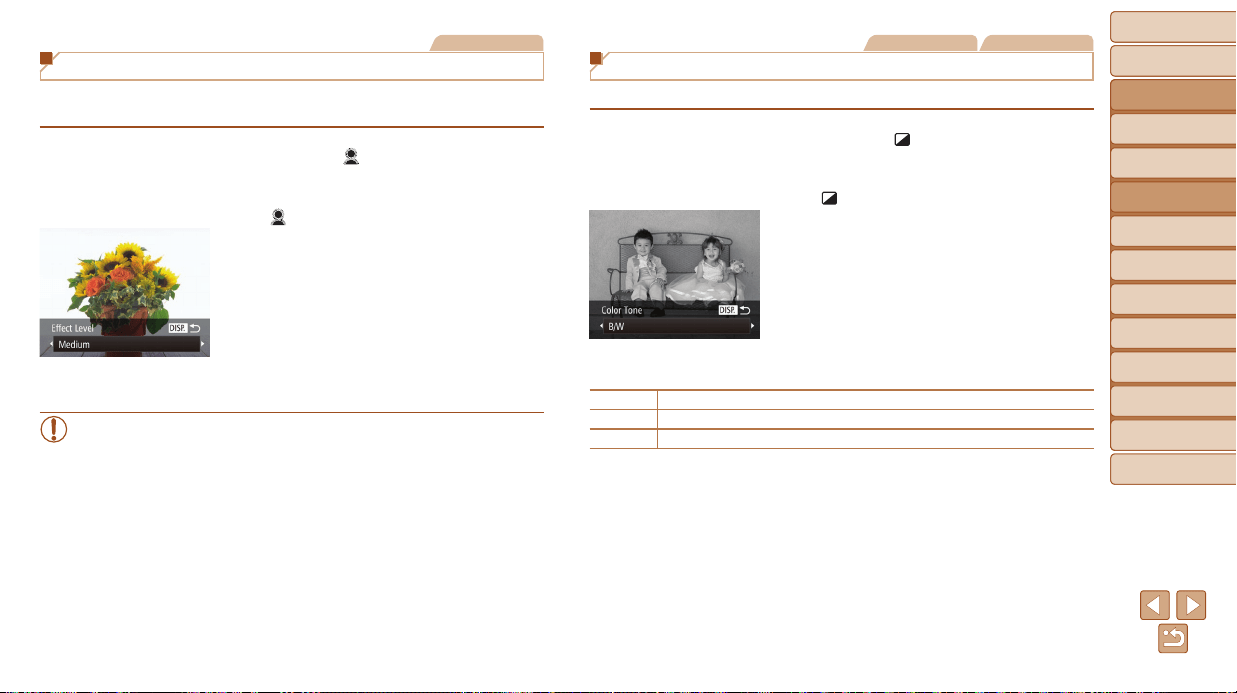
Before Use
Basic Guide
Advanced Guide
Camera Basics
Auto Mode / Hybrid
Auto Mode
Other Shooting
Modes
P Mode
Tv, Av, and M Mode
Playback Mode
Wi-Fi Functions
Setting Menu
Accessories
Appendix
Index
60
Before Use
Basic Guide
Advanced Guide
Camera Basics
Auto Mode / Hybrid
Auto Mode
Other Shooting
Modes
P Mode
Tv, Av, and M Mode
Playback Mode
Wi-Fi Functions
Setting Menu
Accessories
Appendix
Index
Still Images
Shooting with a Soft Focus Effect
This function allows you to shoot images as if a soft focus lter were
attached to the camera. You can adjust the effect level as desired.
1 Choose[ ].
Follow steps 1 – 2 in “Image Effects
(Creative Filters)” (=
57) and choose
[
].
2 Chooseaneffectlevel.
Press the <l> button, choose an
effect level (either press the <q><r>
buttons or turn the <5> dial), and then
press the <l> button again.
A preview is shown of how your shot will
look with the effect applied.
3 Shoot.
• Try taking some test shots rst, to make sure you obtain the desired
results.
Still Images Movies
Shooting in Monochrome
Shoot images in black and white, sepia, or blue and white.
1 Choose[ ].
Follow steps 1 – 2 in “Image Effects
(Creative Filters)” (=
57) and choose
[
].
2 Chooseacolortone.
Press the <l> button, choose a color
tone (either press the <q><r> buttons or
turn the <5> dial), and then press the
<l> button again.
A preview is shown of how your shot will
look with the effect applied.
3 Shoot.
B/W Black and white shots.
Sepia Sepia tone shots.
Blue Blue and white shots.
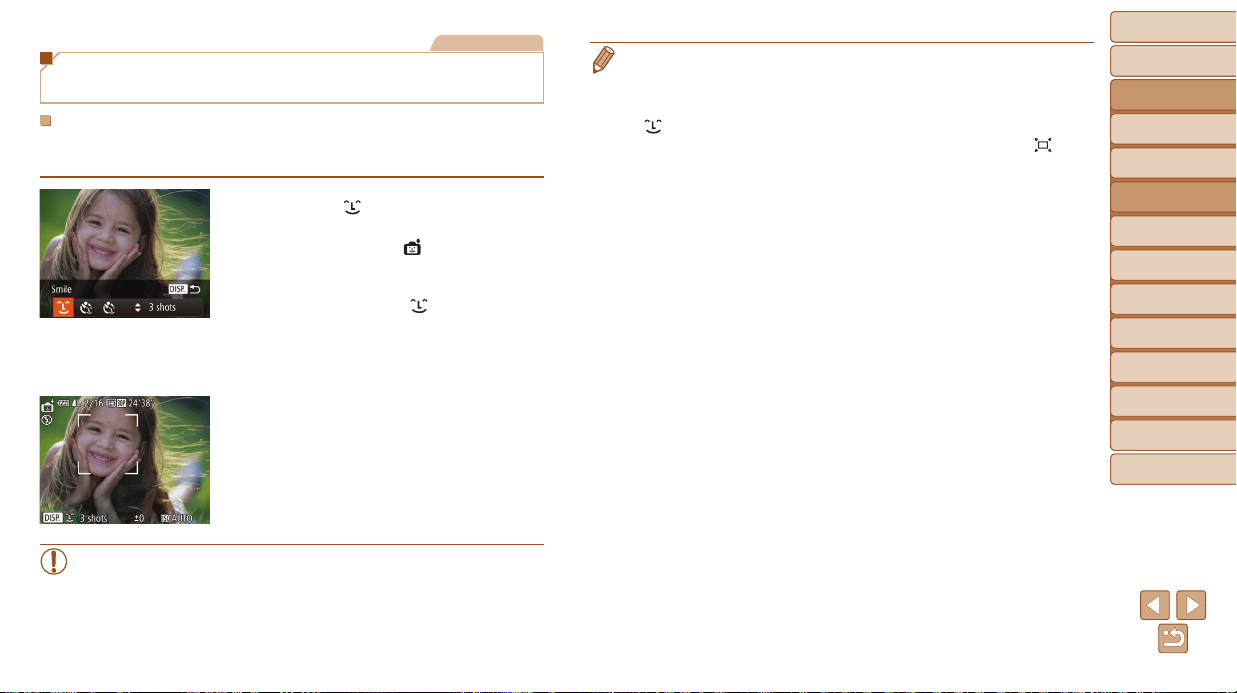
Before Use
Basic Guide
Advanced Guide
Camera Basics
Auto Mode / Hybrid
Auto Mode
Other Shooting
Modes
P Mode
Tv, Av, and M Mode
Playback Mode
Wi-Fi Functions
Setting Menu
Accessories
Appendix
Index
61
Before Use
Basic Guide
Advanced Guide
Camera Basics
Auto Mode / Hybrid
Auto Mode
Other Shooting
Modes
P Mode
Tv, Av, and M Mode
Playback Mode
Wi-Fi Functions
Setting Menu
Accessories
Appendix
Index
Still Images
Auto Shooting after Face Detection
(Smart Shutter)
AutoShootingafterSmileDetection
The camera shoots automatically after detecting a smile, even without you
pressing the shutter button.
1 Choose[ ].
Follow steps 1 – 2 in “Specic Scenes”
(=
55) and choose [ ], and then
press the <l> button.
Press the <q><r> buttons or turn the
<5> dial to choose [
], and then press
the <l> button.
The camera now enters shooting standby
mode, and [Smile Detection on] is
displayed.
2 Aimthecameraataperson.
Each time the camera detects a smile,
it will shoot after the lamp lights up.
To pause smile detection, press the <p>
button. Press the <p> button again to
resume detection.
• Switch to another mode when you nish shooting, or the camera will
continue shooting each time a smile is detected.
• You can also shoot as usual by pressing the shutter button.
• The camera can detect smiles more easily when subjects face the camera and
open their mouth wide enough so that teeth are visible.
• To change the number of shots, press the <o><p> buttons after choosing
[
] in step 1. [Blink Detection] (=
49) is only available for the nal shot.
• Automatic shooting is not available while you are holding down the <
>
button.
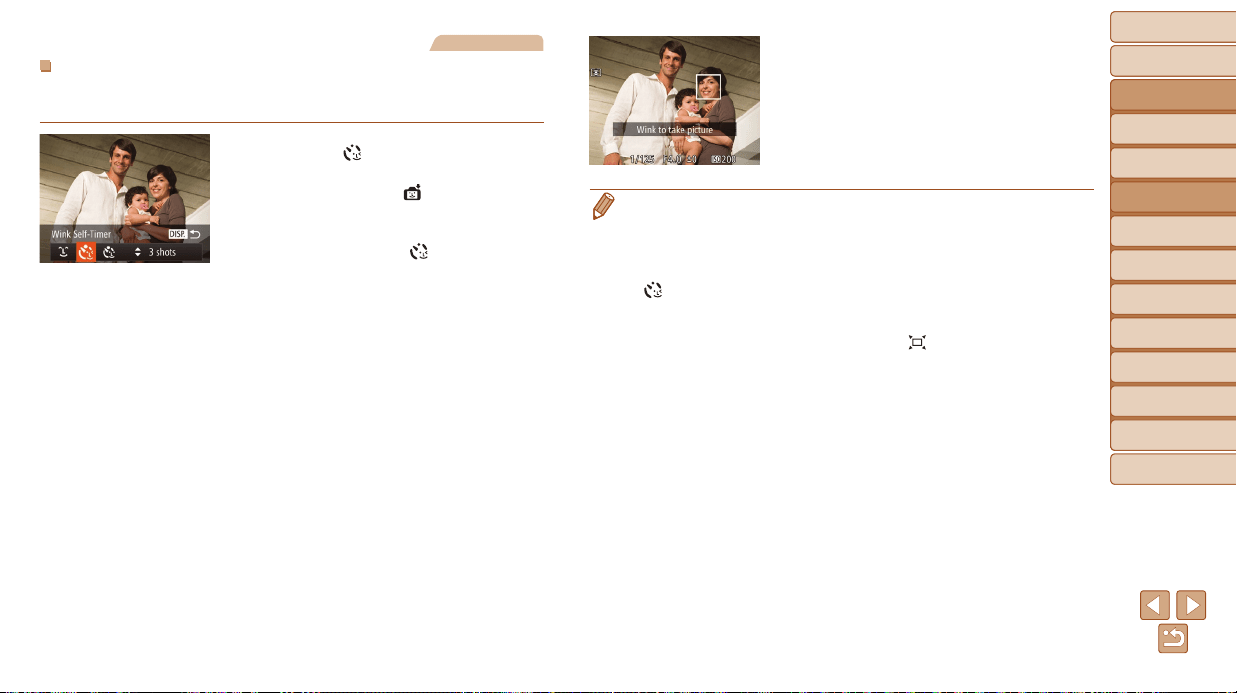
Before Use
Basic Guide
Advanced Guide
Camera Basics
Auto Mode / Hybrid
Auto Mode
Other Shooting
Modes
P Mode
Tv, Av, and M Mode
Playback Mode
Wi-Fi Functions
Setting Menu
Accessories
Appendix
Index
62
Before Use
Basic Guide
Advanced Guide
Camera Basics
Auto Mode / Hybrid
Auto Mode
Other Shooting
Modes
P Mode
Tv, Av, and M Mode
Playback Mode
Wi-Fi Functions
Setting Menu
Accessories
Appendix
Index
Still Images
UsingtheWinkSelf-Timer
Aim the camera at a person and press the shutter button all the way down.
The camera will shoot about two seconds after a wink is detected.
1 Choose[ ].
Follow steps 1 – 2 in “Specic Scenes”
(=
55) and choose [ ], and then
press the <l> button.
Press the <q><r> buttons or turn the
<5> dial to choose [
], and then press
the <l> button.
2 Composetheshotandpress
theshutterbuttonhalfway.
Make sure a green frame is displayed
around the face of the person who will
wink.
3 Presstheshutterbuttonallthe
waydown.
The camera now enters shooting standby
mode, and [Wink to take picture] is
displayed.
The lamp blinks and the self-timer sound
is played.
4 Facethecameraandwink.
The camera will shoot about two seconds
after detecting a wink by the person
whose face is inside the frame.
To cancel shooting after you have
triggered the self-timer, press the
<n> button.
• If the wink is not detected, wink again slowly and deliberately.
• Winking may not be detected if eyes are obscured by hair, a hat, or glasses.
• Closing and opening both eyes at once will also be detected as a wink.
• If winking is not detected, the camera will shoot about 15 seconds later.
• To change the number of shots, press the <o><p> buttons after choosing
[
] in step 1. [Blink Detection] (=
49) is only available for the nal shot.
• If no one is in the shooting area when the shutter button is pressed all the way
down, the camera will shoot after a person enters the shooting area and winks.
• The zoom factor cannot be changed with the <
> button after you press the
shutter button all the way down.
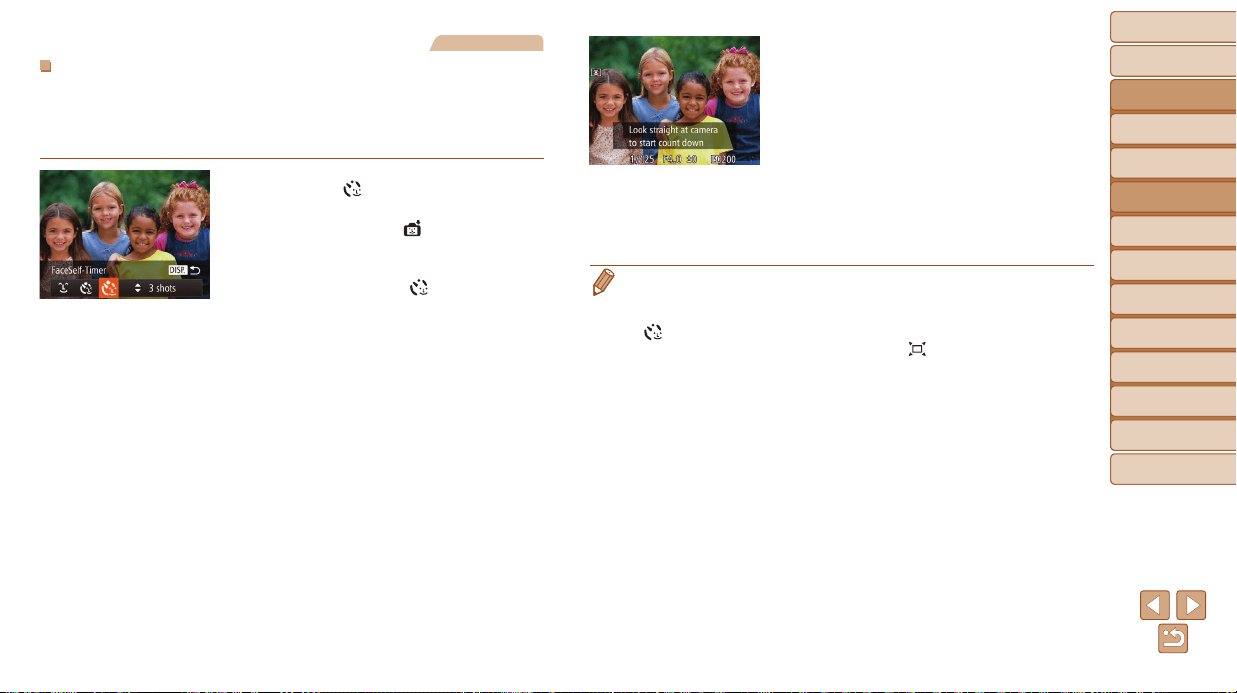
Before Use
Basic Guide
Advanced Guide
Camera Basics
Auto Mode / Hybrid
Auto Mode
Other Shooting
Modes
P Mode
Tv, Av, and M Mode
Playback Mode
Wi-Fi Functions
Setting Menu
Accessories
Appendix
Index
63
Before Use
Basic Guide
Advanced Guide
Camera Basics
Auto Mode / Hybrid
Auto Mode
Other Shooting
Modes
P Mode
Tv, Av, and M Mode
Playback Mode
Wi-Fi Functions
Setting Menu
Accessories
Appendix
Index
Still Images
UsingtheFaceSelf-Timer
The camera will shoot about two seconds after detecting that the face of
another person (such as the photographer) has entered the shooting area
(=
76). This is useful when including yourself in group photos or similar
shots.
1 Choose[ ].
Follow steps 1 – 2 in “Specic Scenes”
(=
55) and choose [ ], and then
press the <l> button.
Press the <q><r> buttons or turn the
<5> dial to choose [
], and then press
the <l> button.
2 Composetheshotandpress
theshutterbuttonhalfway.
Make sure a green frame is displayed
around the face you focus on and white
frames around other faces.
3 Presstheshutterbuttonallthe
waydown.
The camera now enters shooting standby
mode, and [Look straight at camera to
start count down] is displayed.
The lamp blinks and the self-timer sound
is played.
4 Jointhesubjectsinthe
shootingareaandlookatthe
camera.
After the camera detects a new face, the
lamp blinking and self-timer sound will
speed up. (When the ash res, the lamp
will remain lit.) About two seconds later,
the camera will shoot.
To cancel shooting after you have
triggered the self-timer, press the
<n> button.
• Even if your face is not detected after you join the others in the shooting area,
the camera will shoot about 15 seconds later.
• To change the number of shots, press the <o><p> buttons after choosing
[
] in step 1. [Blink Detection] (=
49) is only available for the nal shot.
• The zoom factor cannot be changed with the <
> button after you press the
shutter button all the way down.
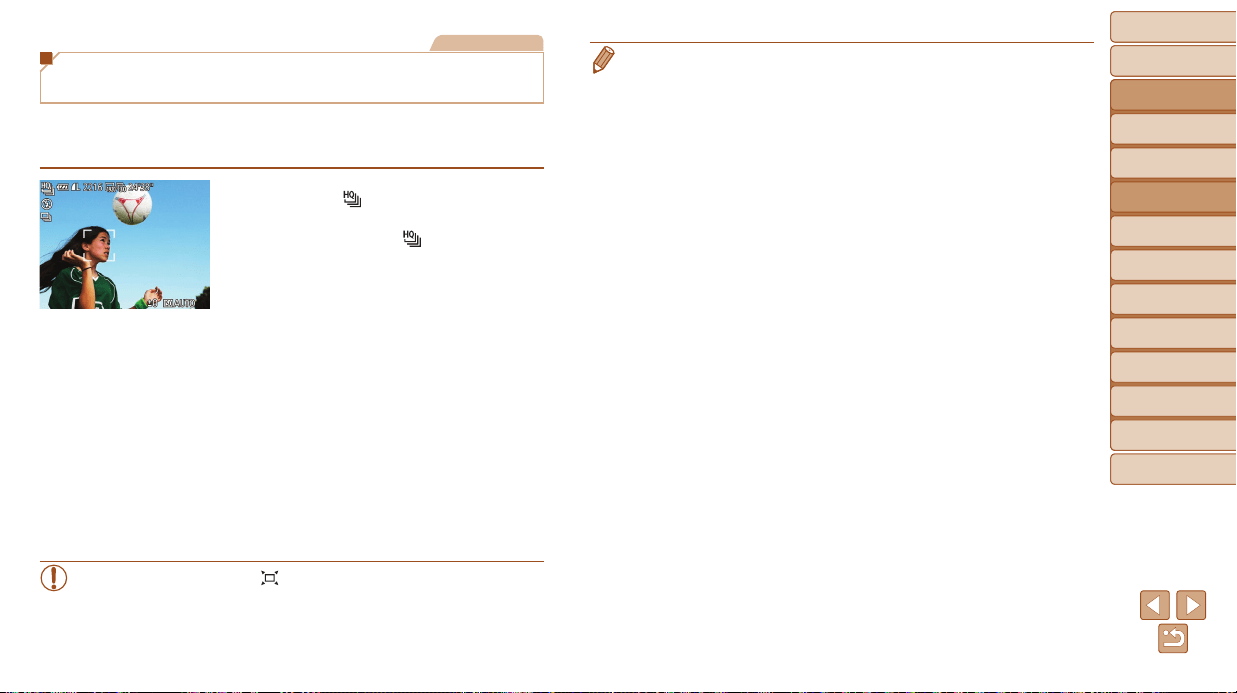
Before Use
Basic Guide
Advanced Guide
Camera Basics
Auto Mode / Hybrid
Auto Mode
Other Shooting
Modes
P Mode
Tv, Av, and M Mode
Playback Mode
Wi-Fi Functions
Setting Menu
Accessories
Appendix
Index
64
Before Use
Basic Guide
Advanced Guide
Camera Basics
Auto Mode / Hybrid
Auto Mode
Other Shooting
Modes
P Mode
Tv, Av, and M Mode
Playback Mode
Wi-Fi Functions
Setting Menu
Accessories
Appendix
Index
Still Images
High-Speed Continuous Shooting
(High-Speed Burst HQ)
You can shoot a series of shots in rapid succession by holding the shutter
button all the way down. For details on the continuous shooting speed, see
“Continuous Shooting Speed” (=
190).
1 Choose[ ].
Follow steps 1 – 2 in “Specic Scenes”
(=
55) and choose [ ].
2 Shoot.
Hold the shutter button all the way down
to shoot continuously.
Shooting stops when you release the
shutter button or reach the maximum
number of shots, after which [Busy] is
displayed and the shots are shown in the
order you took them.
Each set of images shot continuously is
managed as a single group, and only the
rst image in that group will be displayed
(=
55).
• The drive mode is [W] in Auto mode (=
35) and cannot be
changed.
• HQ: High Quality
• Focus, image brightness, and color are determined by the rst shot.
• The screen is blank while you are shooting.
• There may be a delay after continuous shooting before you can shoot again.
Note that some types of memory cards may delay your next shot even longer.
SD Speed Class 6 or higher memory cards are recommended.
• Shooting may slow down depending on shooting conditions, camera settings,
and the zoom position.
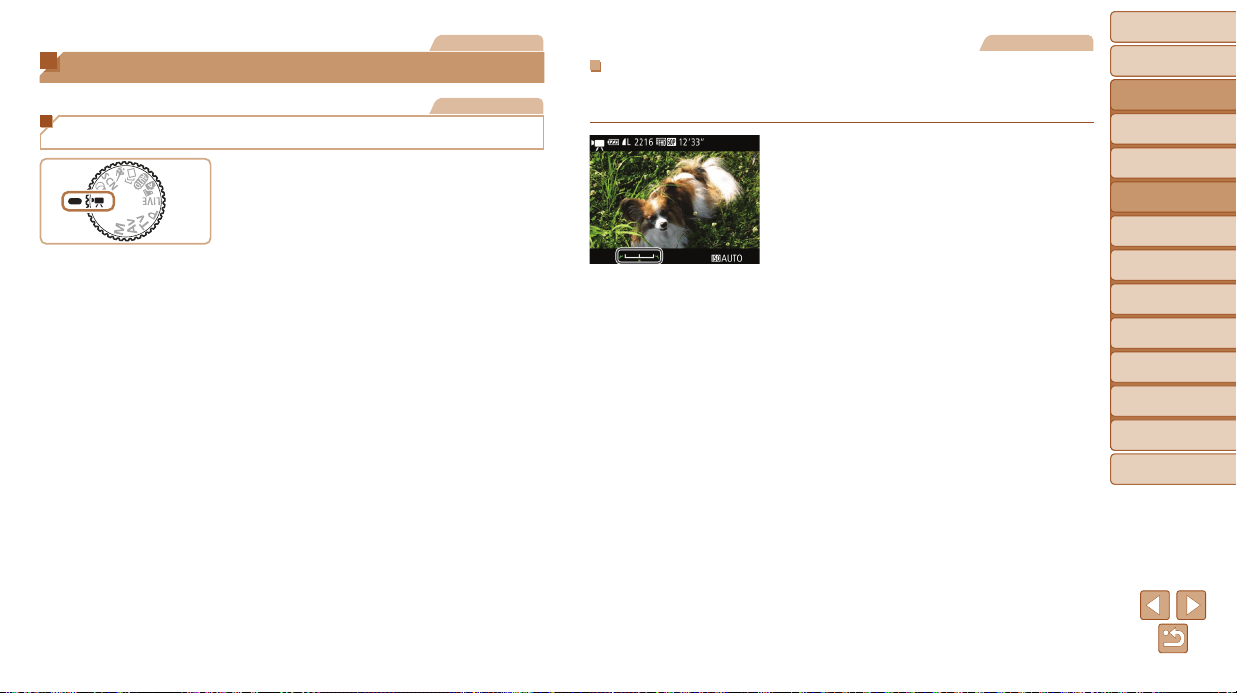
Before Use
Basic Guide
Advanced Guide
Camera Basics
Auto Mode / Hybrid
Auto Mode
Other Shooting
Modes
P Mode
Tv, Av, and M Mode
Playback Mode
Wi-Fi Functions
Setting Menu
Accessories
Appendix
Index
65
Before Use
Basic Guide
Advanced Guide
Camera Basics
Auto Mode / Hybrid
Auto Mode
Other Shooting
Modes
P Mode
Tv, Av, and M Mode
Playback Mode
Wi-Fi Functions
Setting Menu
Accessories
Appendix
Index
Movies
Shooting Various Movies
Movies
Shooting Movies in [E] Mode
1 Enter[E]mode.
Set the mode dial to [E].
Black bars are displayed on the top and
bottom edges of the screen, and the
subject is slightly enlarged. The black
bars indicate image areas not recorded.
2 Congurethesettingstosuit
themovie(=
180–183).
3 Shoot.
Press the movie button.
To stop movie recording, press the movie
button again.
Movies
LockingorChangingImageBrightnessbeforeShooting
Before shooting, you can lock the exposure or change it in 1/3-stop
increments within a range of –2 to +2.
1 Locktheexposure.
Press the <o> button to lock the
exposure. The exposure shift bar is
displayed.
To unlock the exposure, press the <o>
button again.
2 Adjusttheexposure.
Turn the <5> dial to adjust the
exposure, as you watch the screen.
3 Shoot(=
6 5 ).
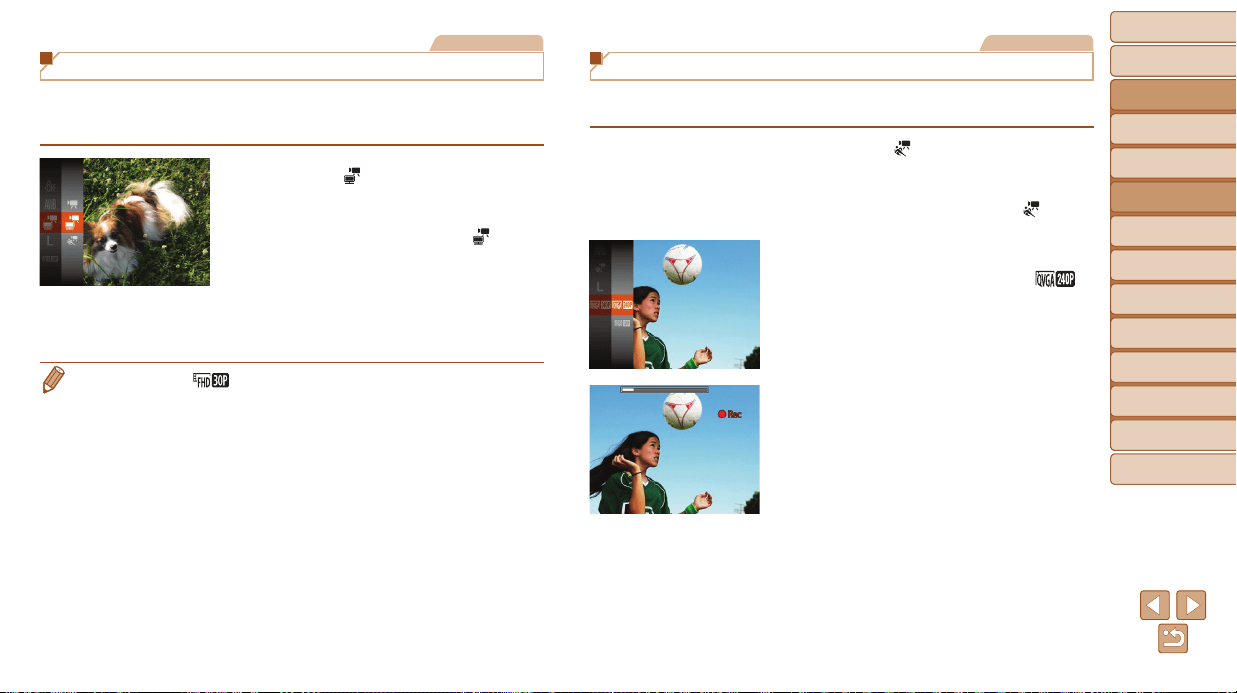
Before Use
Basic Guide
Advanced Guide
Camera Basics
Auto Mode / Hybrid
Auto Mode
Other Shooting
Modes
P Mode
Tv, Av, and M Mode
Playback Mode
Wi-Fi Functions
Setting Menu
Accessories
Appendix
Index
66
Before Use
Basic Guide
Advanced Guide
Camera Basics
Auto Mode / Hybrid
Auto Mode
Other Shooting
Modes
P Mode
Tv, Av, and M Mode
Playback Mode
Wi-Fi Functions
Setting Menu
Accessories
Appendix
Index
Movies
Shooting iFrame Movies
Shoot movies that can be edited with iFrame-compatible software or
devices. You can quickly edit, save, and manage your iFrame movies using
the software (=
160).
1 Choose [ ].
Set the mode dial to <E>.
Press the <m> button, choose [E]
in the menu, and then choose [
]
(=
23).
Black bars displayed on the top and
bottom edges of the screen indicate
image areas not recorded.
2 Shoot (=
65).
• The resolution is [ ] (=
48) and cannot be changed.
• iFrame is a video format developed by Apple Inc.
Movies
Shooting Super Slow Motion Movies
You can shoot fast-moving subjects for playback later in slow motion.
Note that sound is not recorded.
1 Choose [ ].
Set the mode dial to [E].
Press the <m> button, choose [E]
in the menu, and then choose [
]
(=
23).
2 Choose a frame rate.
Press the <m> button, choose [ ]
in the menu, and choose the desired
frame rate (=
23).
The option you congured is now
displayed.
3 Shoot (=
65).
A bar showing the elapsed time is
displayed. Maximum clip length is approx.
30 sec.
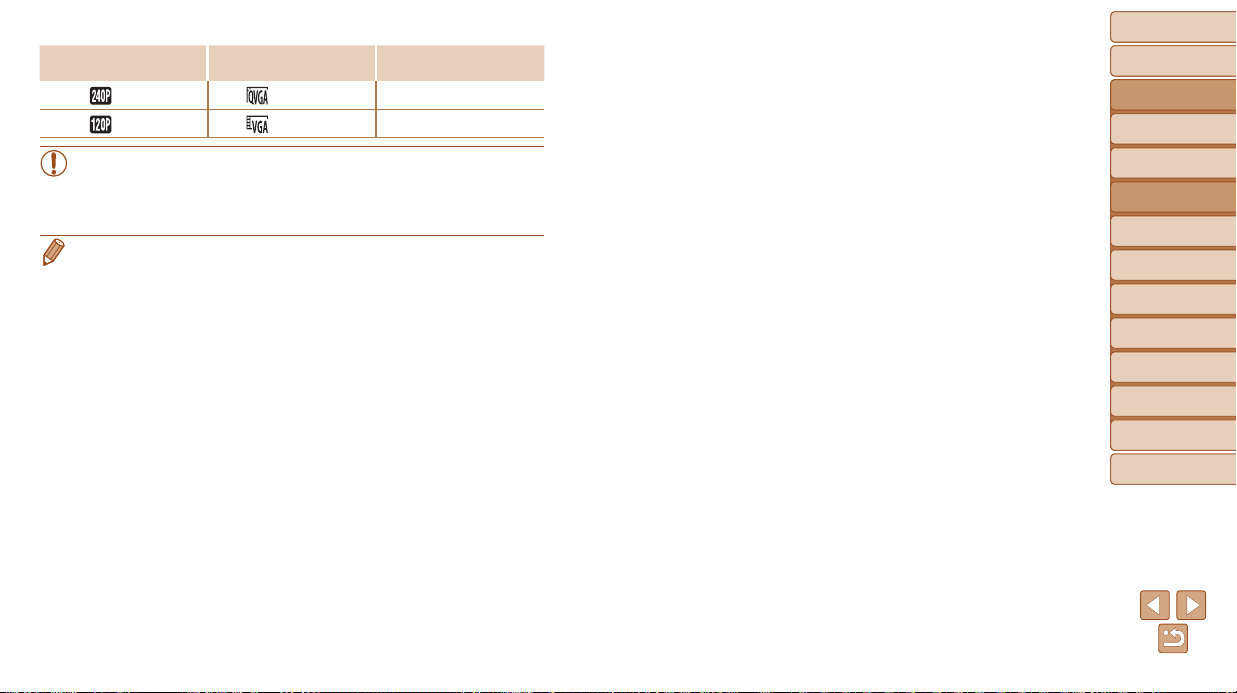
Before Use
Basic Guide
Advanced Guide
Camera Basics
Auto Mode / Hybrid
Auto Mode
Other Shooting
Modes
P Mode
Tv, Av, and M Mode
Playback Mode
Wi-Fi Functions
Setting Menu
Accessories
Appendix
Index
67
Before Use
Basic Guide
Advanced Guide
Camera Basics
Auto Mode / Hybrid
Auto Mode
Other Shooting
Modes
P Mode
Tv, Av, and M Mode
Playback Mode
Wi-Fi Functions
Setting Menu
Accessories
Appendix
Index
FrameRate ImageQuality
PlaybackTime
(Fora30-sec.Clip)
240 fps
(320 x 240)
Approx. 4 min.
120 fps (640 x 480)
Approx. 2 min.
• Zooming is not available during recording, even if you move the
zoom lever.
• Focus, exposure, and color are determined when you press the
movie button.
• When you play the movie (=
89), it will be played back in slow motion.
• You can change the playback speed of movies by using the software
(=
160).
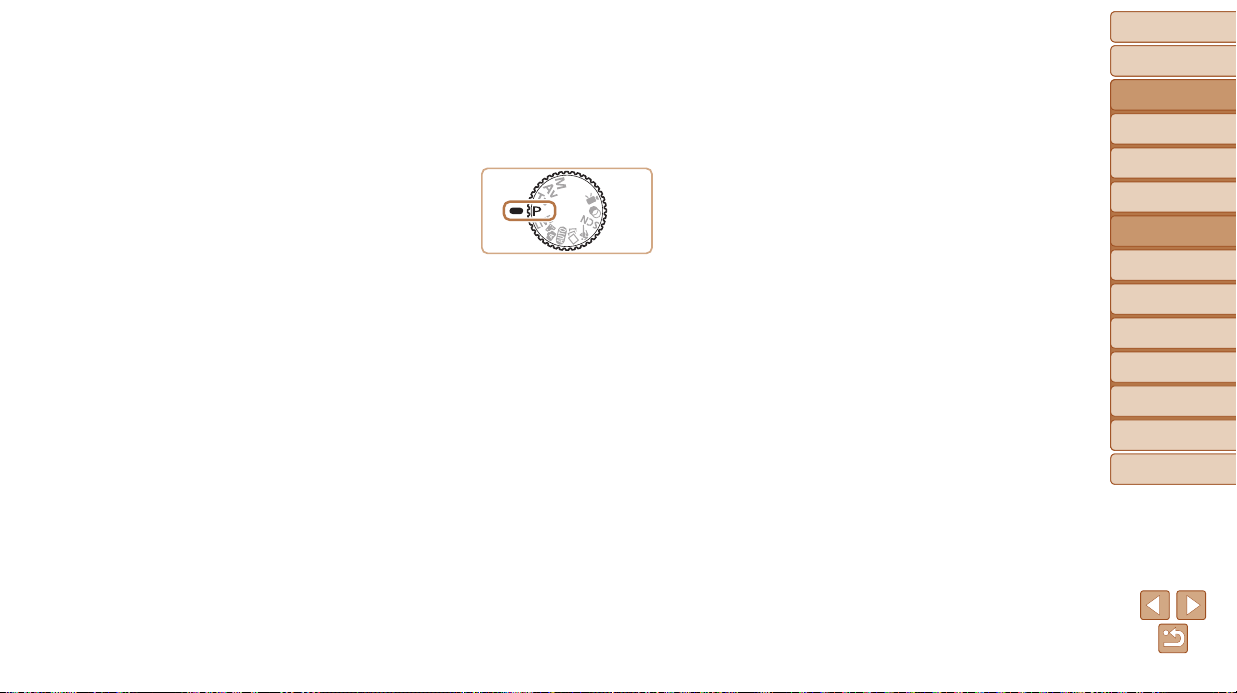
Before Use
Basic Guide
Advanced Guide
Camera Basics
Auto Mode / Hybrid
Auto Mode
Other Shooting
Modes
P Mode
Tv, Av, and M Mode
Playback Mode
Wi-Fi Functions
Setting Menu
Accessories
Appendix
Index
68
Before Use
Basic Guide
Advanced Guide
Camera Basics
Auto Mode / Hybrid
Auto Mode
Other Shooting
Modes
P Mode
Tv, Av, and M Mode
Playback Mode
Wi-Fi Functions
Setting Menu
Accessories
Appendix
Index
P Mode
More discerning shots, in your preferred shooting style
ShootinginProgramAE([P]Mode)............... 69
ImageBrightness(Exposure)......................... 69
Adjusting Image Brightness
(Exposure Compensation) .................................... 69
Locking Image Brightness /
Exposure (AE Lock) ..............................................70
Changing the Metering Method ............................. 70
Changing the ISO Speed ...................................... 71
Correcting Image Brightness (i-Contrast) .............. 71
ImageColors.................................................... 72
Adjusting White Balance ....................................... 72
Changing Image Color Tones (My Colors) ............ 73
ShootingRangeandFocusing....................... 74
Shooting Close-Ups (Macro) ................................. 74
Shooting in Manual Focus Mode ........................... 74
Digital Tele-Converter ............................................ 75
Changing the AF Frame Mode .............................. 76
Changing the Focus Setting .................................. 78
Shooting with the AF Lock ..................................... 79
Shooting Continuously as the Camera Keeps
the Subject in Focus .............................................. 79
Flash.................................................................. 80
Changing the Flash Mode ..................................... 80
Adjusting the Flash Exposure Compensation ....... 81
Shooting with the FE Lock .................................... 81
OtherSettings.................................................. 82
Changing the Compression Ratio
(Image Quality) ......................................................82
Changing the IS Mode Settings ............................ 82
• Instructions in this chapter apply to the camera with the mode dial set to
[G] mode.
• [G]: Program AE; AE: Auto Exposure
• Before using a function introduced in this chapter in modes other than [G],
make sure the function is available in that mode (=
180 – 183).
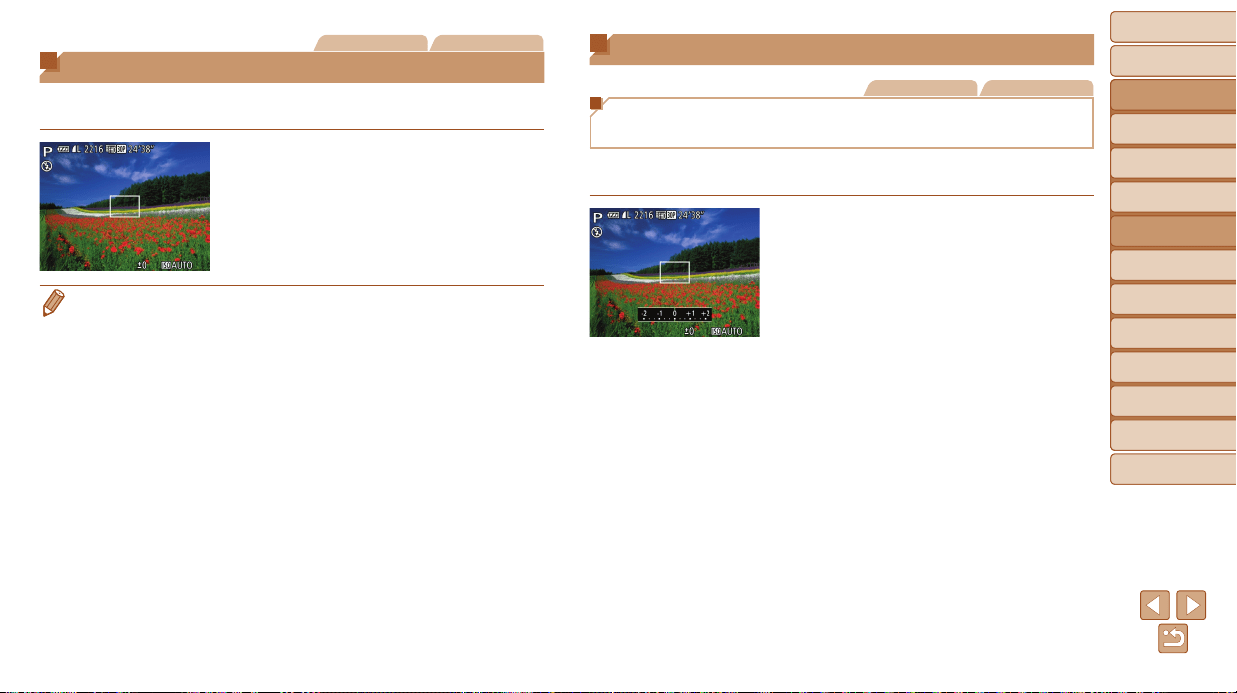
Before Use
Basic Guide
Advanced Guide
Camera Basics
Auto Mode / Hybrid
Auto Mode
Other Shooting
Modes
P Mode
Tv, Av, and M Mode
Playback Mode
Wi-Fi Functions
Setting Menu
Accessories
Appendix
Index
69
Before Use
Basic Guide
Advanced Guide
Camera Basics
Auto Mode / Hybrid
Auto Mode
Other Shooting
Modes
P Mode
Tv, Av, and M Mode
Playback Mode
Wi-Fi Functions
Setting Menu
Accessories
Appendix
Index
Still Images Movies
Shooting in Program AE ([P] Mode)
You can customize many function settings to suit your preferred shooting
style.
1 Enter[G]mode.
Set the mode dial to [G].
2 Customizethesettingsas
desired(=
6 9 –83),and
thenshoot.
• If adequate exposure cannot be obtained when you press the shutter button
halfway, shutter speeds and aperture values are displayed in orange. In this
case, try adjusting the ISO speed (=
71) or activating the ash (if subjects
are dark, =
80), which may enable adequate exposure.
• Movies can be recorded in [G] mode as well, by pressing the movie button.
However, some FUNC. (=
23) and MENU (=
24) settings may be
automatically adjusted for movie recording.
• For details on the shooting range in [G] mode, see “Shooting Range”
(=
190).
Image Brightness (Exposure)
Still Images Movies
Adjusting Image Brightness
(Exposure Compensation)
The standard exposure set by the camera can be adjusted in 1/3-stop
increments, in a range of –2 to +2.
Press the <o> button. As you watch
the screen, turn the <5> dial to adjust
brightness, and then press the <o>
button again when nished.
The correction level you specied is now
displayed.
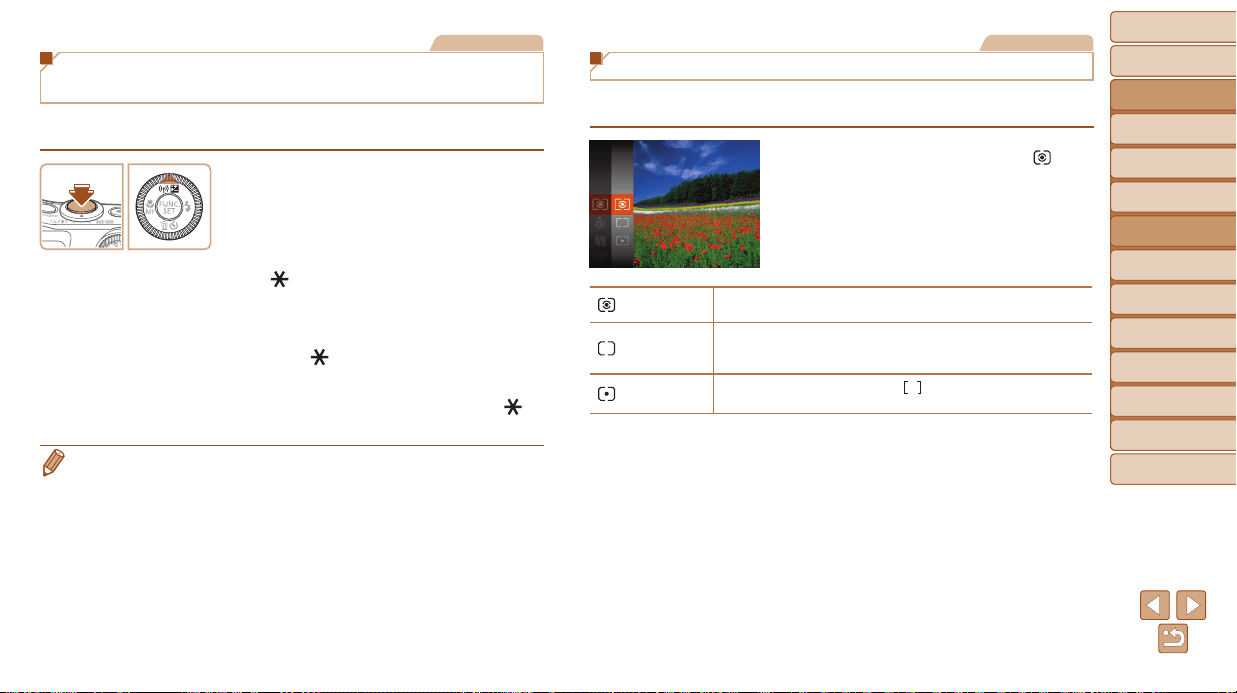
Before Use
Basic Guide
Advanced Guide
Camera Basics
Auto Mode / Hybrid
Auto Mode
Other Shooting
Modes
P Mode
Tv, Av, and M Mode
Playback Mode
Wi-Fi Functions
Setting Menu
Accessories
Appendix
Index
70
Before Use
Basic Guide
Advanced Guide
Camera Basics
Auto Mode / Hybrid
Auto Mode
Other Shooting
Modes
P Mode
Tv, Av, and M Mode
Playback Mode
Wi-Fi Functions
Setting Menu
Accessories
Appendix
Index
Still Images
Locking Image Brightness / Exposure
(AE Lock)
Before shooting, you can lock the exposure, or you can specify focus and
exposure separately.
1 Locktheexposure.
Aim the camera at the subject to shoot
with the exposure locked. With the
shutter button pressed halfway, press the
<o> button.
[ ] is displayed, and the exposure is
locked.
To unlock AE, release the shutter button
and press the <o> button again. In this
case, [
] is no longer displayed.
2 Composetheshotandshoot.
After one shot, AE is unlocked and [ ] is
no longer displayed.
• AE: Auto Exposure
• After the exposure is locked, you can adjust the combination of shutter speed
and aperture value by turning the <5> dial (Program Shift).
Still Images
Changing the Metering Method
Adjust the metering method (how brightness is measured) to suit shooting
conditions as follows.
Press the <m> button, choose [ ] in
the menu, and choose the desired option
(=
23).
The option you congured is now
displayed.
Evaluative
For typical shooting conditions, including backlit shots.
Automatically adjusts exposure to match the shooting conditions.
Center
Weighted Avg.
Determines the average brightness of light across the entire
image area, calculated by treating brightness in the central area
as more important.
Spot
Metering restricted to within the [
] (Spot AE Point frame),
displayed in the center of the screen.
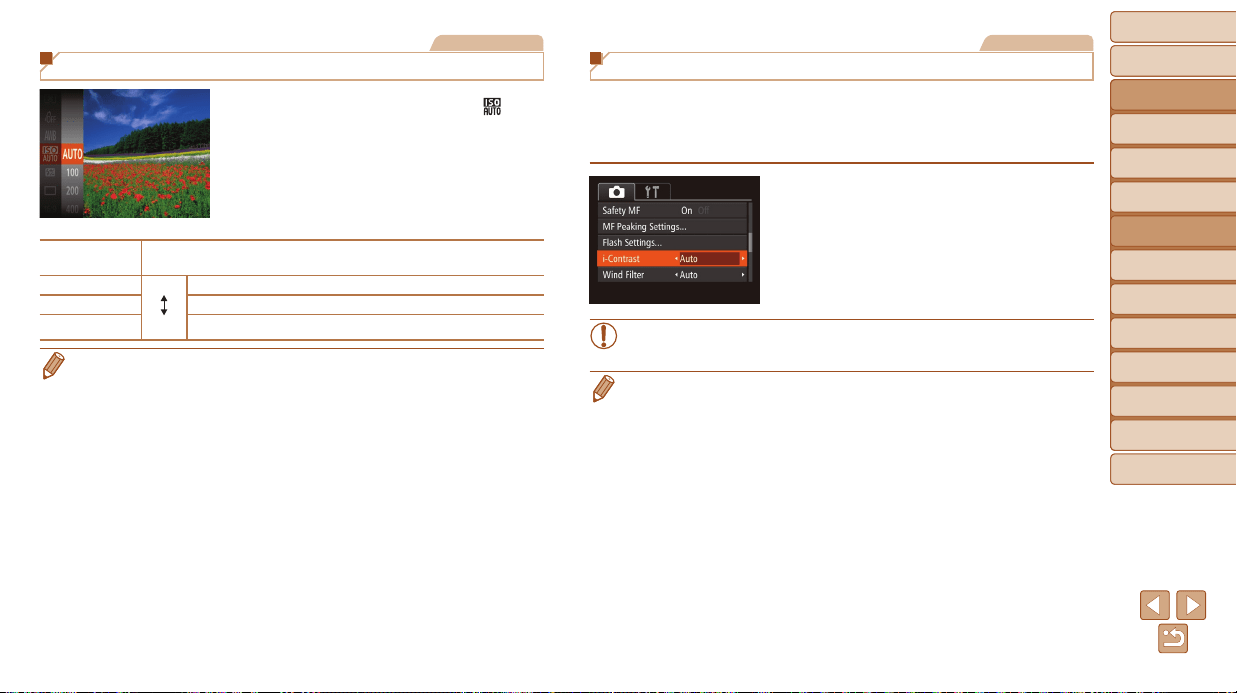
Before Use
Basic Guide
Advanced Guide
Camera Basics
Auto Mode / Hybrid
Auto Mode
Other Shooting
Modes
P Mode
Tv, Av, and M Mode
Playback Mode
Wi-Fi Functions
Setting Menu
Accessories
Appendix
Index
71
Before Use
Basic Guide
Advanced Guide
Camera Basics
Auto Mode / Hybrid
Auto Mode
Other Shooting
Modes
P Mode
Tv, Av, and M Mode
Playback Mode
Wi-Fi Functions
Setting Menu
Accessories
Appendix
Index
Still Images
Changing the ISO Speed
Press the <m> button, choose [ ] in
the menu, and choose the desired option
(=
23).
The option you congured is now
displayed.
AUTO
Automatically adjusts the ISO speed to suit the shooting mode and
conditions.
100, 200 Low
High
For shooting outdoors in fair weather.
400, 800 For shooting in cloudy conditions, or at twilight.
1600, 3200
For shooting night scenes, or in dark rooms.
• To view the automatically determined ISO speed when you have set the ISO
speed to [AUTO], press the shutter button halfway.
• Although choosing a lower ISO speed may reduce image graininess,
there may be a greater risk of subject and camera shake in some shooting
conditions.
• Choosing a higher ISO speed will increase shutter speed, which may reduce
subject and camera shake and increase the ash range. However, shots may
look grainy.
Still Images
Correcting Image Brightness (i-Contrast)
Before shooting, excessively bright or dark image areas (such as faces or
backgrounds) can be detected and automatically adjusted to the optimal
brightness. Insufcient overall image contrast can also be automatically
corrected before shooting to make subjects stand out better.
Press the <n> button, choose
[i-Contrast] on the [4] tab, and then
choose [Auto] (=
24).
Once the setting is complete, [@] is
displayed.
• Under some shooting conditions, correction may be inaccurate or
may cause images to appear grainy.
• You can also correct existing images (=
109).
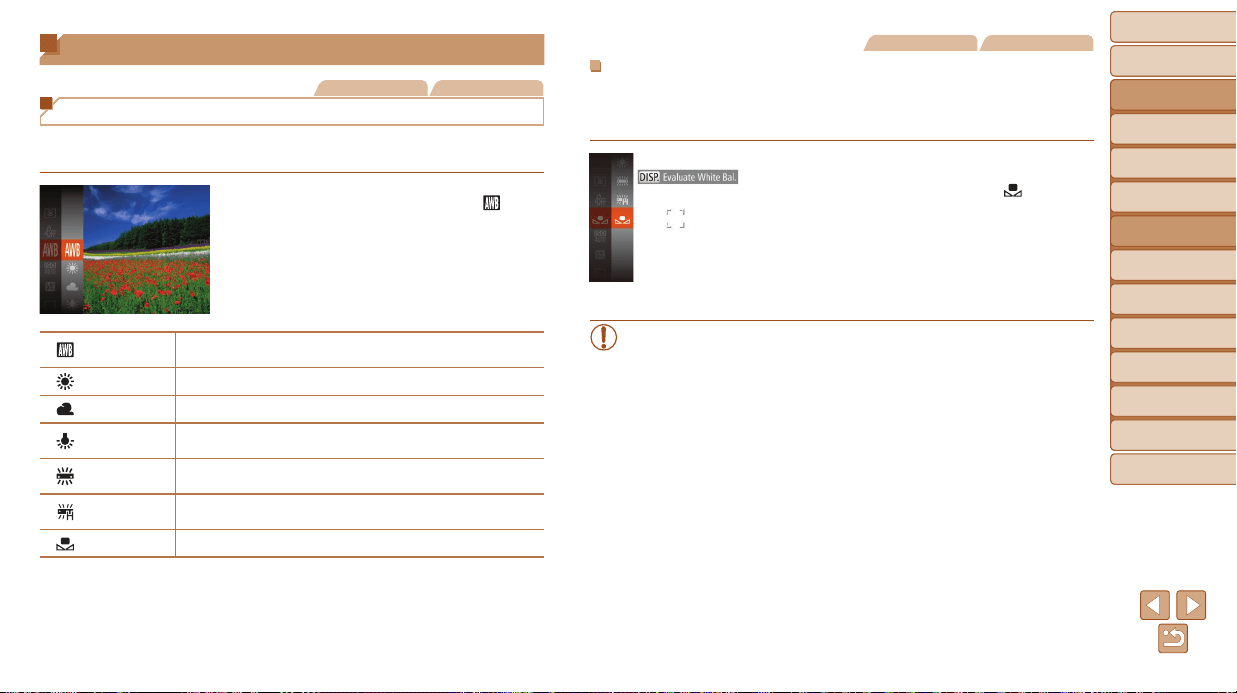
Before Use
Basic Guide
Advanced Guide
Camera Basics
Auto Mode / Hybrid
Auto Mode
Other Shooting
Modes
P Mode
Tv, Av, and M Mode
Playback Mode
Wi-Fi Functions
Setting Menu
Accessories
Appendix
Index
72
Before Use
Basic Guide
Advanced Guide
Camera Basics
Auto Mode / Hybrid
Auto Mode
Other Shooting
Modes
P Mode
Tv, Av, and M Mode
Playback Mode
Wi-Fi Functions
Setting Menu
Accessories
Appendix
Index
Image Colors
Still Images Movies
Adjusting White Balance
By adjusting white balance (WB), you can make image colors look more
natural for the scene you are shooting.
Press the <m> button, choose [ ] in
the menu, and choose the desired option
(=
23).
The option you congured is now
displayed.
Auto
Automatically sets the optimal white balance for the shooting
conditions.
Day Light For shooting outdoors in fair weather.
Cloudy For shooting in cloudy conditions, in the shade, or at twilight.
Tungsten
For shooting under ordinary incandescent (tungsten) lighting
and similarly colored uorescent lighting.
Fluorescent
For shooting under warm-white (or similarly colored) or cool-
white uorescent lighting.
Fluorescent H
For shooting under daylight uorescent and similarly colored
uorescent lighting.
Custom
For manually setting a custom white balance (=
72).
Still Images Movies
CustomWhiteBalance
For image colors that look natural under the light in your shot, adjust white
balance to suit the light source where you are shooting. Set the white
balance under the same light source that will illuminate your shot.
Follow the steps in “Adjusting White
Balance” (=
72) to choose [ ].
Aim the camera at a plain white subject,
so that the entire screen is white.
Press the <l> button.
The tint of the screen changes once the
white balance data has been recorded.
• Colors may look unnatural if you change camera settings after
recording white balance data.
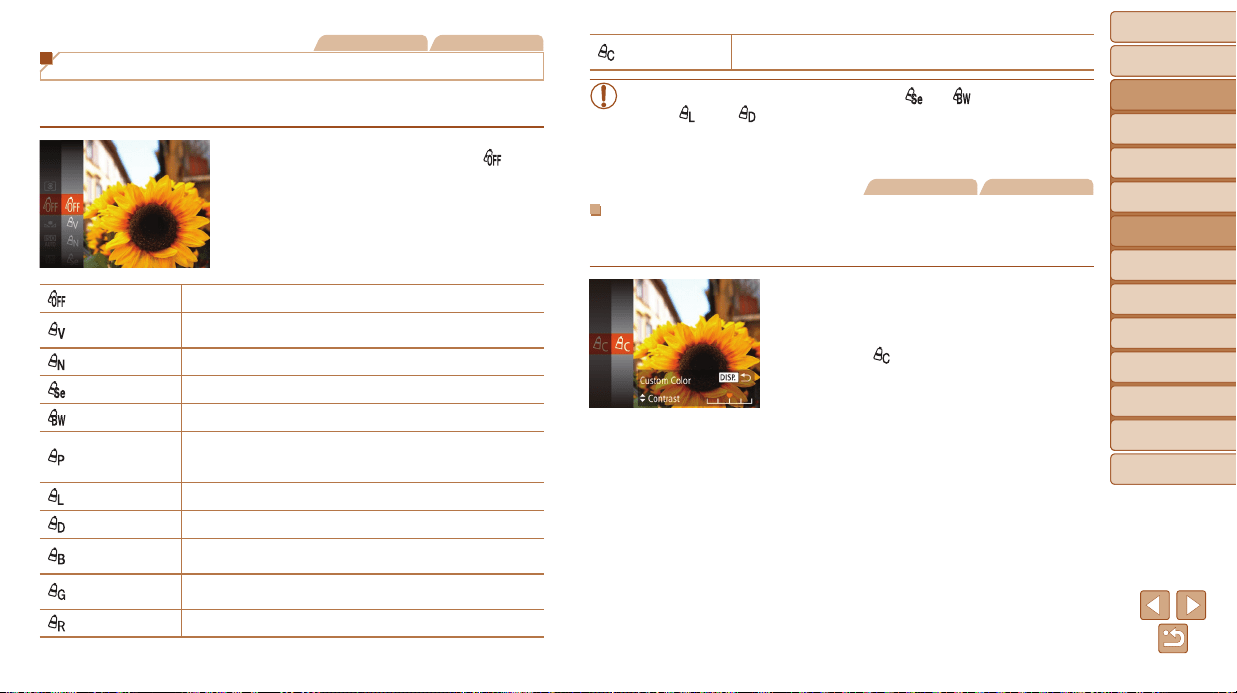
Before Use
Basic Guide
Advanced Guide
Camera Basics
Auto Mode / Hybrid
Auto Mode
Other Shooting
Modes
P Mode
Tv, Av, and M Mode
Playback Mode
Wi-Fi Functions
Setting Menu
Accessories
Appendix
Index
73
Before Use
Basic Guide
Advanced Guide
Camera Basics
Auto Mode / Hybrid
Auto Mode
Other Shooting
Modes
P Mode
Tv, Av, and M Mode
Playback Mode
Wi-Fi Functions
Setting Menu
Accessories
Appendix
Index
Still Images Movies
Changing Image Color Tones (My Colors)
Change image color tones as desired, such as converting images to sepia
or black and white.
Press the <m> button, choose [ ] in
the menu, and choose the desired option
(=
23).
The option you congured is now
displayed.
My Colors Off
–
Vivid
Emphasizes contrast and color saturation, making images
sharper.
Neutral Tones down contrast and color saturation for subdued images.
Sepia Creates sepia tone images.
B/W Creates black and white images.
Positive Film
Combines the effects of Vivid Blue, Vivid Green, and Vivid
Red to produce intense yet natural-looking colors resembling
images on positive lm.
Lighter Skin Tone Lightens skin tones.
Darker Skin Tone Darkens skin tones.
Vivid Blue
Emphasizes blues in images. Makes the sky, ocean, and other
blue subjects more vivid.
Vivid Green
Emphasizes greens in images. Makes mountains, foliage, and
other green subjects more vivid.
Vivid Red Emphasizes reds in images. Makes red subjects more vivid.
Custom Color
Adjust contrast, sharpness, color saturation, and other
qualities as desired (=
73).
• White balance (=
72) cannot be set in [ ] or [ ] modes.
• With [ ] and [ ] modes, colors other than people’s skin tone may
change. These settings may not produce the expected results with
some skin tones.
Still Images Movies
CustomColor
Choose the desired level of image contrast, sharpness, color saturation,
red, green, blue, and skin tones in a range of 1 – 5.
1 Accessthesettingscreen.
Follow the steps in “Changing Image
Color Tones (My Colors)” (=
73) to
choose [
], and then press the <l>
button.
2 Congurethesetting.
Press the <o><p> buttons to choose
an option, and then specify the value by
pressing the <q><r> buttons or turning
the <5> dial.
For stronger/more intense effects (or
darker skin tones), adjust the value to
the right, and for weaker/lighter effects
(or lighter skin tones), adjust the value to
the left.
Press the <l> button to complete the
setting.
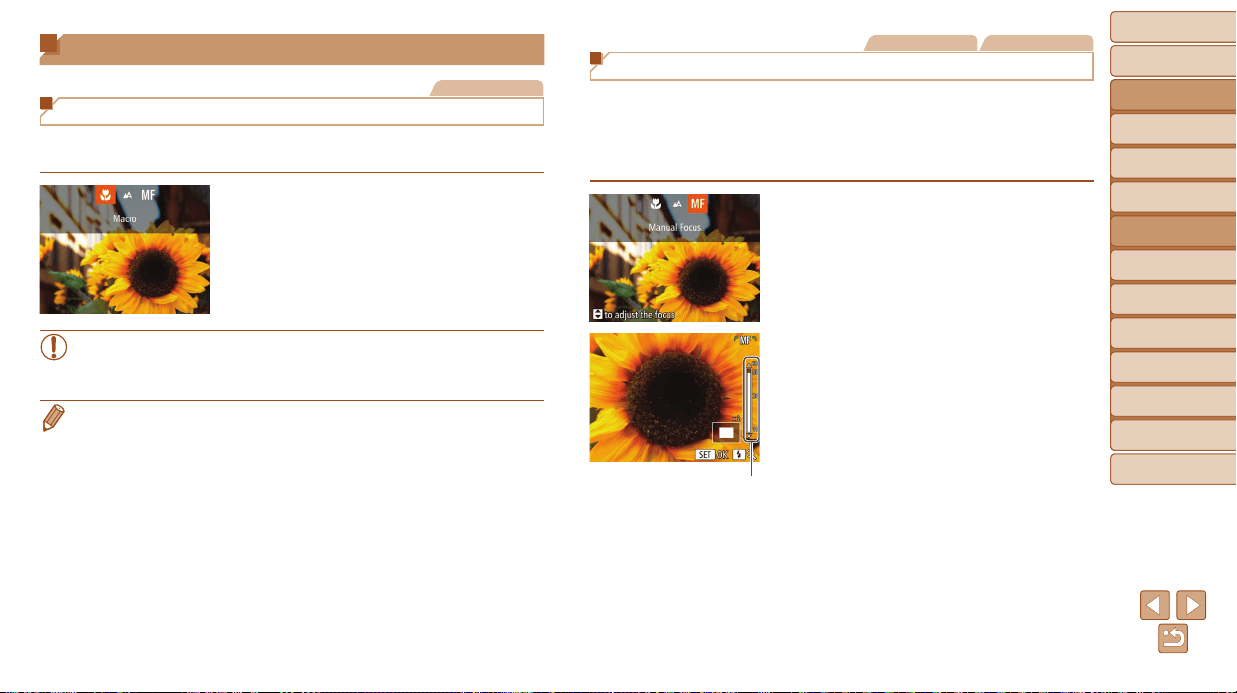
Before Use
Basic Guide
Advanced Guide
Camera Basics
Auto Mode / Hybrid
Auto Mode
Other Shooting
Modes
P Mode
Tv, Av, and M Mode
Playback Mode
Wi-Fi Functions
Setting Menu
Accessories
Appendix
Index
74
Before Use
Basic Guide
Advanced Guide
Camera Basics
Auto Mode / Hybrid
Auto Mode
Other Shooting
Modes
P Mode
Tv, Av, and M Mode
Playback Mode
Wi-Fi Functions
Setting Menu
Accessories
Appendix
Index
Shooting Range and Focusing
Still Images
Shooting Close-Ups (Macro)
To restrict the focus to subjects at close range, set the camera to [e].
For details on the focusing range, see “Shooting Range” (=
190).
Press the <q> button, choose [e] (either
press the <q><r> buttons or turn the
<5> dial), and then press the <m>
button.
Once the setting is complete, [e] is
displayed.
• If the ash res, vignetting may occur.
• In the yellow bar display area below the zoom bar, [e] will turn gray
and the camera will not focus.
• To prevent camera shake, try mounting the camera on a tripod and shooting
with the camera set to [[] (=
37).
Still Images Movies
Shooting in Manual Focus Mode
When focusing is not possible in AF mode, use manual focus. You can
specify the general focal position and then press the shutter button halfway
to have the camera determine the optimal focal position near the position
you specied. For details on the focusing range, see “Shooting Range”
(=
190).
1 Choose[f].
Press the <q> button, choose [f]
(either press the <q><r> buttons or turn
the <5> dial), and then press the <m>
button.
[f] and the MF indicator are displayed.
2 Specifythegeneralfocal
position.
Referring to the on-screen MF indicator
bar (which shows the distance and focal
position) and the magnied display area,
press the <o><p> buttons or turn the
<5> dial to specify the general focal
position, and then press the <m> button.
To adjust the magnication, press the
<r> button.
3 Fine-tunethefocus.
Press the shutter button halfway to have
the camera ne-tune the focal position
(Safety MF).
MF Indicator
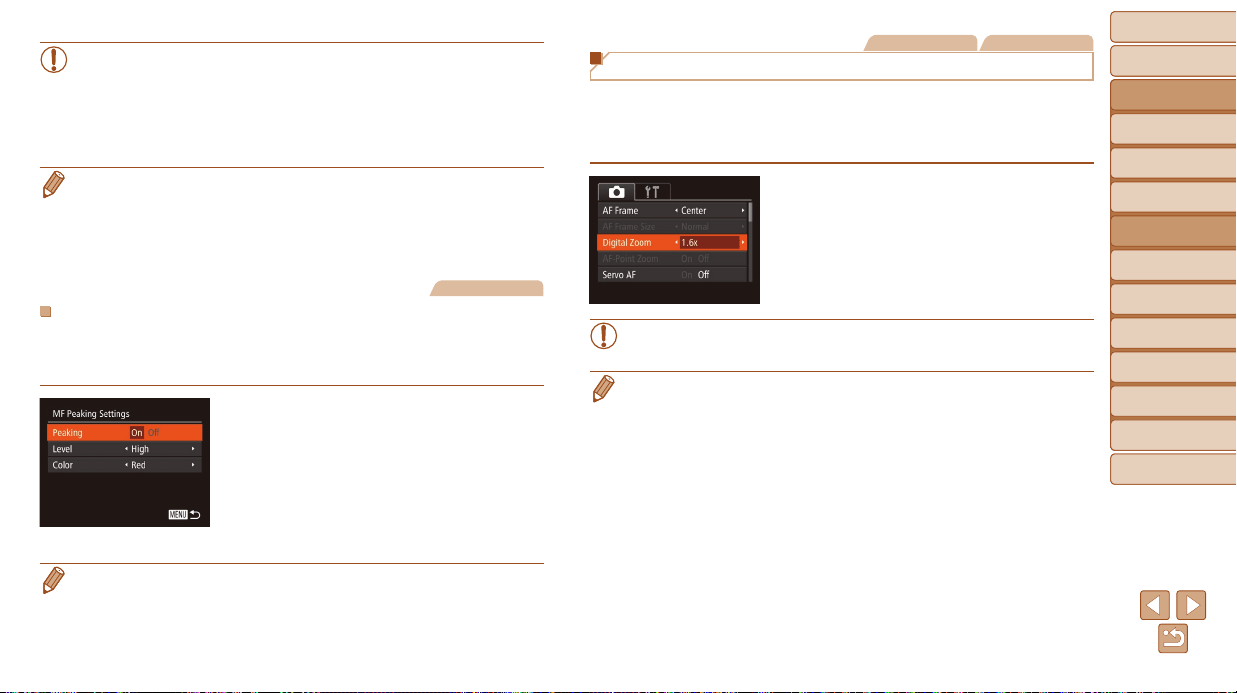
Before Use
Basic Guide
Advanced Guide
Camera Basics
Auto Mode / Hybrid
Auto Mode
Other Shooting
Modes
P Mode
Tv, Av, and M Mode
Playback Mode
Wi-Fi Functions
Setting Menu
Accessories
Appendix
Index
75
Before Use
Basic Guide
Advanced Guide
Camera Basics
Auto Mode / Hybrid
Auto Mode
Other Shooting
Modes
P Mode
Tv, Av, and M Mode
Playback Mode
Wi-Fi Functions
Setting Menu
Accessories
Appendix
Index
• When you focus manually, the AF frame mode (=
76) is [Center]
and AF frame size (=
76) is [Normal], and these settings cannot
be changed.
• Focusing is possible when using the digital zoom (=
34) or digital
tele-converter (=
75), or when using a TV as a display (=
159),
but the magnied display will not appear.
• To focus more accurately, try attaching the camera to a tripod to stabilize it.
• To hide the magnied display area, choose MENU (=
24) > [4] tab >
[MF-Point Zoom] > [Off].
• To deactivate automatic focus ne-tuning when the shutter button is pressed
halfway, choose MENU (=
24) > [4] tab > [Safety MF] > [Off].
Still Images
EasilyIdentifyingtheFocusArea(MFPeaking)
Edges of subjects in focus are displayed in color to make manual focusing
easier. You can adjust the colors and the sensitivity (level) of edge detection
as needed.
1 Accessthesettingscreen.
Press the <n> button, choose
[MF Peaking Settings] on the [4] tab,
and then choose [On] (=
24).
2 Congurethesetting.
Choose a menu item to congure, and
then choose the desired option (=
25).
• Colors displayed for MF peaking are not recorded in your shots.
Still Images Movies
Digital Tele-Converter
The focal length of the lens can be increased by approximately 1.6x or 2.0x.
This can reduce camera shake because the shutter speed is faster than it
would be if you zoomed (including using digital zoom) in to the same zoom
factor.
Press the <n> button, choose
[Digital Zoom] on the [4] tab, and then
choose the desired option (=
24).
The view is enlarged and the zoom factor
is displayed on the screen.
• The digital tele-converter cannot be used with digital zoom
(=
34) or AF-point zoom (=
49).
• The shutter speed may be equivalent when you move the zoom lever all the
way toward <i> for maximum telephoto, and when you zoom in to enlarge
the subject to the same size following step 2 in “Zooming In Closer on Subjects
(Digital Zoom)” (=
34).
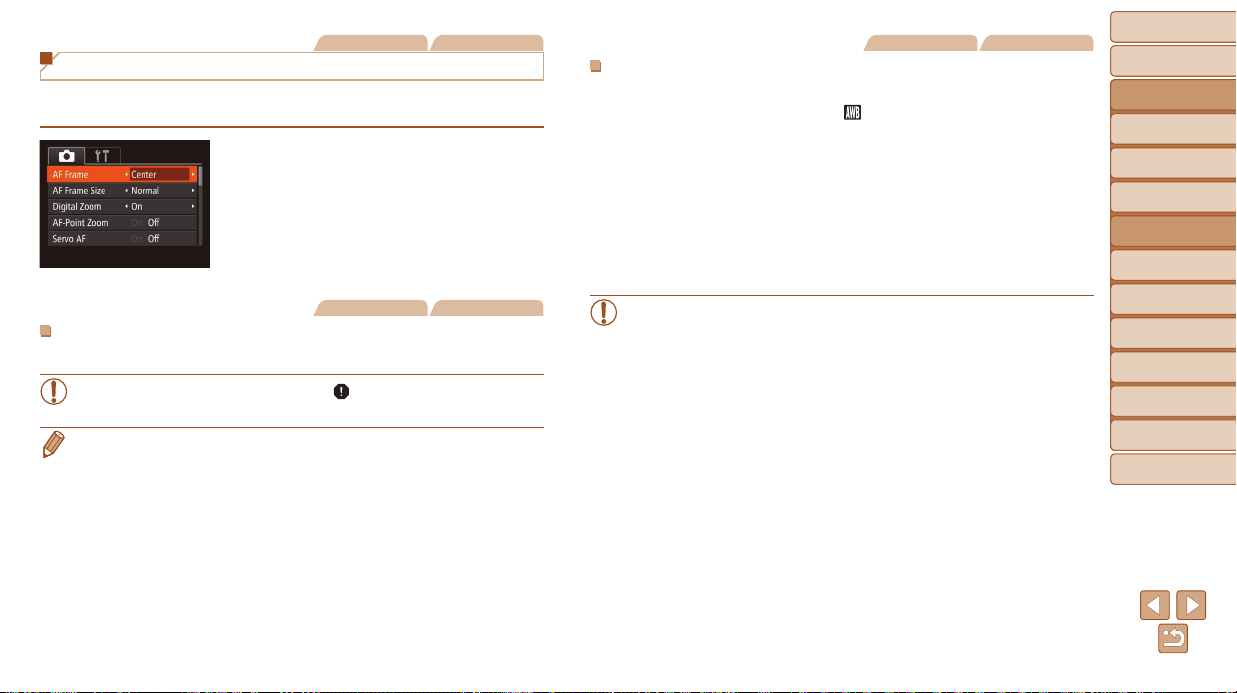
Before Use
Basic Guide
Advanced Guide
Camera Basics
Auto Mode / Hybrid
Auto Mode
Other Shooting
Modes
P Mode
Tv, Av, and M Mode
Playback Mode
Wi-Fi Functions
Setting Menu
Accessories
Appendix
Index
76
Before Use
Basic Guide
Advanced Guide
Camera Basics
Auto Mode / Hybrid
Auto Mode
Other Shooting
Modes
P Mode
Tv, Av, and M Mode
Playback Mode
Wi-Fi Functions
Setting Menu
Accessories
Appendix
Index
Still Images Movies
Changing the AF Frame Mode
Change the AF (auto focus) frame mode to suit the shooting conditions as
follows.
Press the <n> button, choose
[AF Frame] on the [4] tab, and then
choose the desired option (=
24).
Still Images Movies
Center
One AF frame is displayed in the center. Effective for reliable focusing.
• A yellow AF frame is displayed with [ ] if the camera cannot focus
when you press the shutter button halfway.
• To reduce the AF frame size, press the <n> button and set [AF Frame
Size] on the [4] tab to [Small] (=
24).
• The AF frame size is set to [Normal] when you use the digital zoom (=
34)
or digital tele-converter (=
75), and in manual focus mode (=
74).
• To compose shots so that subjects are positioned at the edge or in a corner,
rst aim the camera to capture the subject in an AF frame, and then hold
the shutter button halfway down. As you continue to hold the shutter button
halfway, recompose the shot as desired, and then press the shutter button all
the way down (Focus Lock).
• The AF frame position is enlarged when you press the shutter button halfway
and [AF-Point Zoom] (=
49) is set to [On].
Still Images Movies
FaceAiAF
• Detects people’s faces, and then sets the focus, exposure (evaluative
metering only), and white balance ([ ] only).
• After you aim the camera at the subject, a white frame is displayed
around the person’s face determined by the camera to be the main
subject, and up to two gray frames are displayed around other detected
faces.
• When the camera detects movement, frames will follow moving subjects,
within a certain range.
• After you press the shutter button halfway, up to nine green frames are
displayed around faces in focus.
• If faces are not detected, or when only gray frames are displayed
(without a white frame), up to nine green frames are displayed in the
areas in focus when you press the shutter button halfway.
• If faces are not detected when Servo AF (=
78) is set to [On], the
AF frame is displayed in the center of the screen when you press
the shutter button halfway.
• Examples of faces that cannot be detected:
- Subjects that are distant or extremely close
- Subjects that are dark or light
- Faces in prole, at an angle, or partly hidden
• The camera may misinterpret non-human subjects as faces.
• No AF frames are displayed if the camera cannot focus when you
press the shutter button halfway.
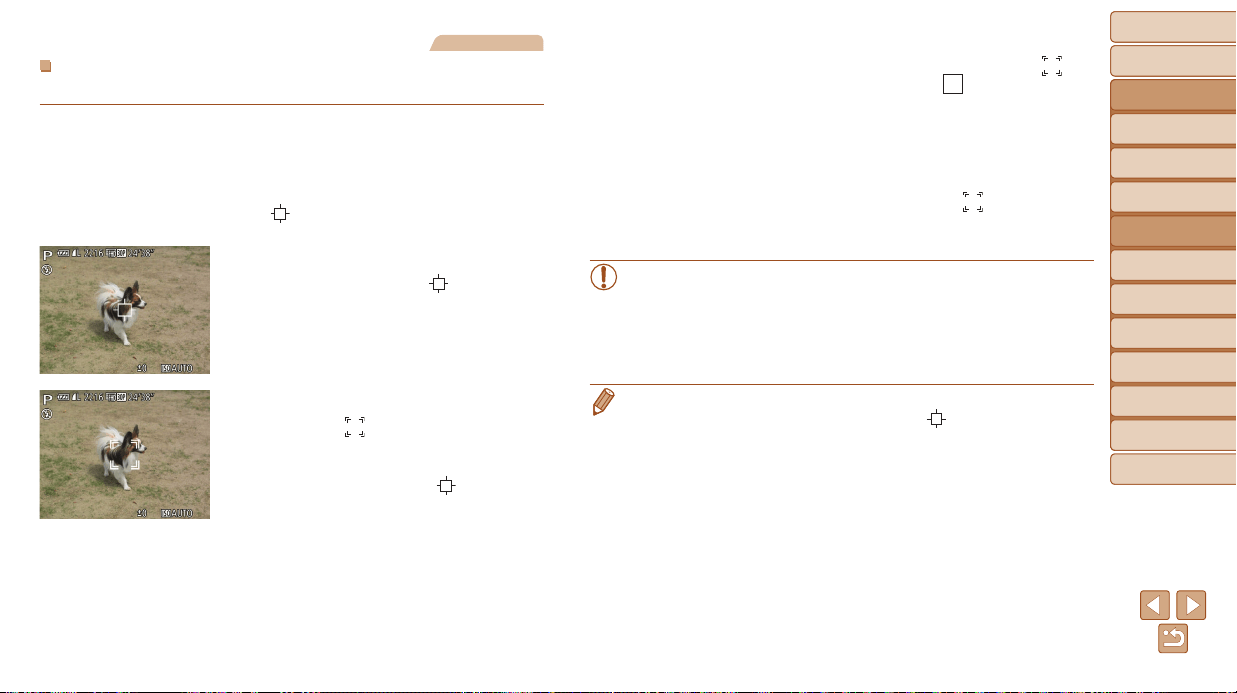
Before Use
Basic Guide
Advanced Guide
Camera Basics
Auto Mode / Hybrid
Auto Mode
Other Shooting
Modes
P Mode
Tv, Av, and M Mode
Playback Mode
Wi-Fi Functions
Setting Menu
Accessories
Appendix
Index
77
Before Use
Basic Guide
Advanced Guide
Camera Basics
Auto Mode / Hybrid
Auto Mode
Other Shooting
Modes
P Mode
Tv, Av, and M Mode
Playback Mode
Wi-Fi Functions
Setting Menu
Accessories
Appendix
Index
Still Images
ChoosingSubjectstoFocusOn(TrackingAF)
Shoot after choosing a subject to focus on as follows.
1 Choose[TrackingAF].
Follow the steps in “Changing the AF
Frame Mode” (=
76) to choose
[Tracking AF].
[ ] is displayed in the center of the
screen.
2 Chooseasubjecttofocuson.
Aim the camera so that [ ] is on the
desired subject, and then press the <q>
button.
When the subject is detected, the camera
beeps and [
] is displayed. Even if the
subject moves, the camera will continue
to track the subject within a certain range.
If no subject is detected, [ ] is
displayed.
To cancel tracking, press the <q> button
again.
3 Shoot.
Press the shutter button halfway. [ ]
changes to a blue [
], which follows
the subject as the camera continues to
adjust the focus and exposure (Servo AF)
(=
78).
Press the shutter button all the way down
to shoot.
Even after your shot, [ ] is still
displayed and the camera continues to
track the subject.
• [Servo AF] (=
78) is set to [On] and cannot be changed.
• Tracking may not be possible when subjects are too small or move
too rapidly, or when subject color or brightness matches that of the
background too closely.
• [AF-Point Zoom] on the [4] tab is not available.
• [e] is not available.
• The camera can detect subjects even if you press the shutter button halfway
without pressing the <q> button. After your shot, [
] is displayed in the
center of the screen.
• When shooting in [f] mode (=
74), press and hold the <q> button for at
least one second.
• If [Face ID] is set to [On], names will not display when registered people
are detected, but the names will be recorded in the still images (=
40).
However, a name will display if the subject chosen to focus on is the same as
a person detected with Face ID.
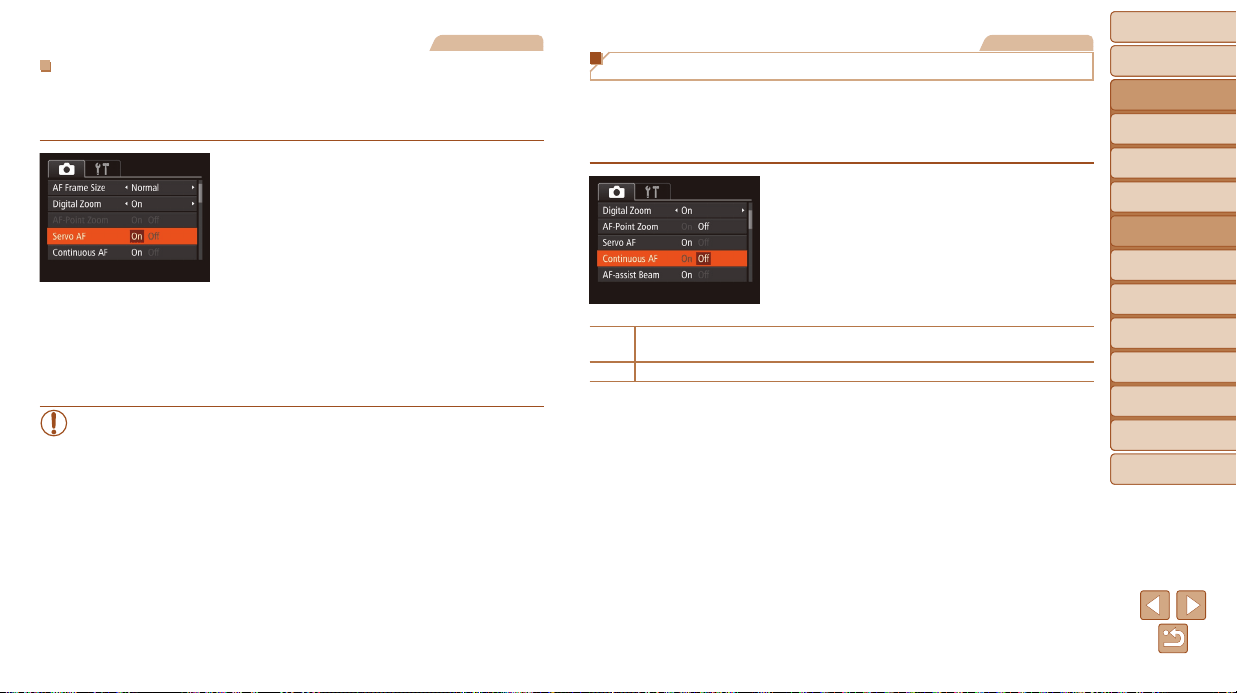
Before Use
Basic Guide
Advanced Guide
Camera Basics
Auto Mode / Hybrid
Auto Mode
Other Shooting
Modes
P Mode
Tv, Av, and M Mode
Playback Mode
Wi-Fi Functions
Setting Menu
Accessories
Appendix
Index
78
Before Use
Basic Guide
Advanced Guide
Camera Basics
Auto Mode / Hybrid
Auto Mode
Other Shooting
Modes
P Mode
Tv, Av, and M Mode
Playback Mode
Wi-Fi Functions
Setting Menu
Accessories
Appendix
Index
Still Images
ShootingwithServoAF
This mode helps avoid missing shots of subjects in motion, because the
camera continues to focus on the subject and adjust the exposure as long
as you press the shutter button halfway.
1 Congurethesetting.
Press the <n> button, choose
[Servo AF] on the [4] tab, and then
choose [On] (=
24).
2 Focus.
The focus and exposure are maintained
where the blue AF frame is displayed
while you are pressing the shutter button
halfway.
• Focusing may not be possible in some shooting conditions.
• In low-light conditions, Servo AF may not be activated (AF frames
may not turn blue) when you press the shutter button halfway. In this
case, the focus and exposure are set according to the specied AF
frame mode.
• If adequate exposure cannot be obtained, shutter speeds and
aperture values are displayed in orange. Release the shutter button,
and then press it halfway again.
• AF lock shooting is not available.
• [AF-Point Zoom] on the [4] tab (=
24) is not available.
• Not available when using the self-timer (=
37).
Still Images
Changing the Focus Setting
You can change default camera operation of constantly focusing on
subjects it is aimed at, even when the shutter button is not pressed.
Instead, you can limit camera focusing to the moment you press the shutter
button halfway.
Press the <n> button, choose
[Continuous AF] on the [4] tab, and then
choose [Off] (=
24).
On
Helps avoid missing sudden photo opportunities, because the camera
constantly focuses on subjects until you press the shutter button halfway.
Off Conserves battery power, because the camera does not focus constantly.
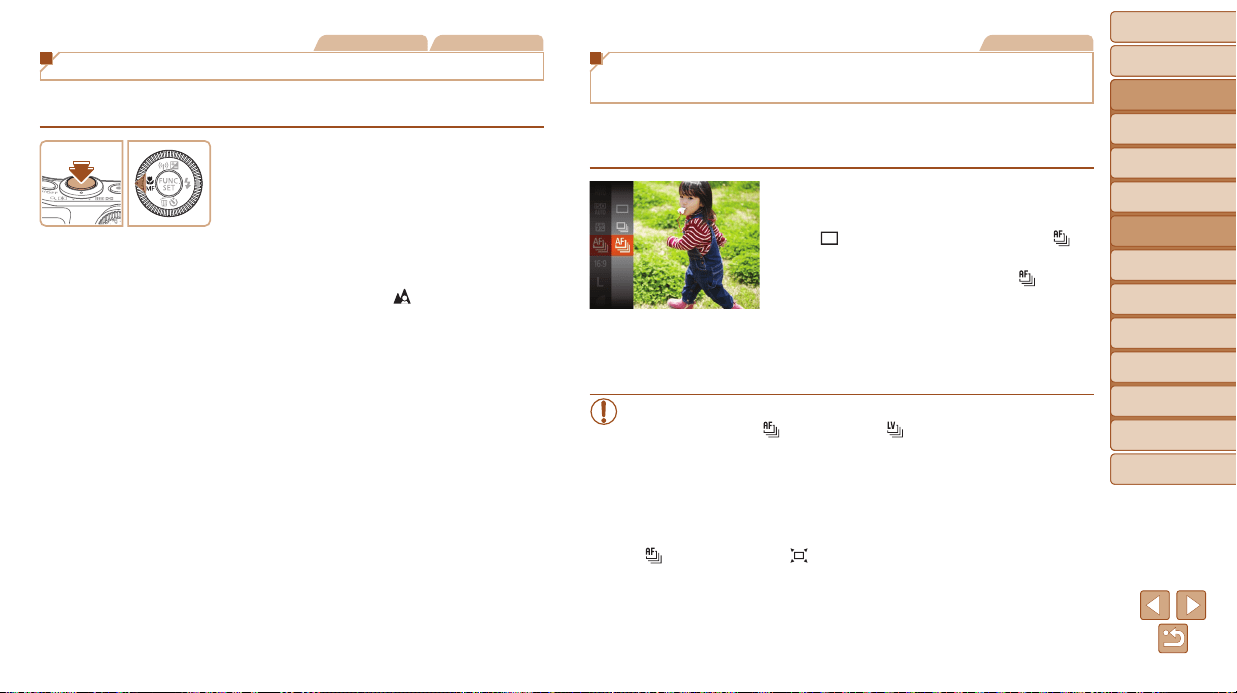
Before Use
Basic Guide
Advanced Guide
Camera Basics
Auto Mode / Hybrid
Auto Mode
Other Shooting
Modes
P Mode
Tv, Av, and M Mode
Playback Mode
Wi-Fi Functions
Setting Menu
Accessories
Appendix
Index
79
Before Use
Basic Guide
Advanced Guide
Camera Basics
Auto Mode / Hybrid
Auto Mode
Other Shooting
Modes
P Mode
Tv, Av, and M Mode
Playback Mode
Wi-Fi Functions
Setting Menu
Accessories
Appendix
Index
Still Images Movies
Shooting with the AF Lock
The focus can be locked. After you lock the focus, the focal position will not
change even when you release your nger from the shutter button.
1 Lockthefocus.
With the shutter button pressed halfway,
press the <q> button.
The focus is now locked, and [f] and
the MF indicator are displayed.
To unlock the focus, after you release
the shutter button, press the <q> button
again and choose [
] (either press the
<q><r> buttons or turn the <5> dial).
2 Composetheshotandshoot.
Still Images
Shooting Continuously as the Camera Keeps
the Subject in Focus
Shoot continuously as the camera keeps the subject in focus. For details
on the continuous shooting speed, see “Continuous Shooting Speed”
(=
190).
1 Congurethesetting.
Press the <m> button, choose
[
] in the menu, and then choose [ ]
(=
23).
Once the setting is complete, [ ] is
displayed.
2 Shoot.
Hold the shutter button all the way down
to shoot continuously.
• In [t] mode (=
56), manual focus mode (=
74), or when AF
is locked (=
79), [ ] is changed to [ ].
• Cannot be used with the self-timer (=
37).
• Shooting may stop momentarily or continuous shooting may slow
down depending on shooting conditions, camera settings, and the
zoom position.
• As more shots are taken, shooting may slow down.
• Shooting may slow down if the ash res.
• [ ] is not available in Auto mode (=
35).
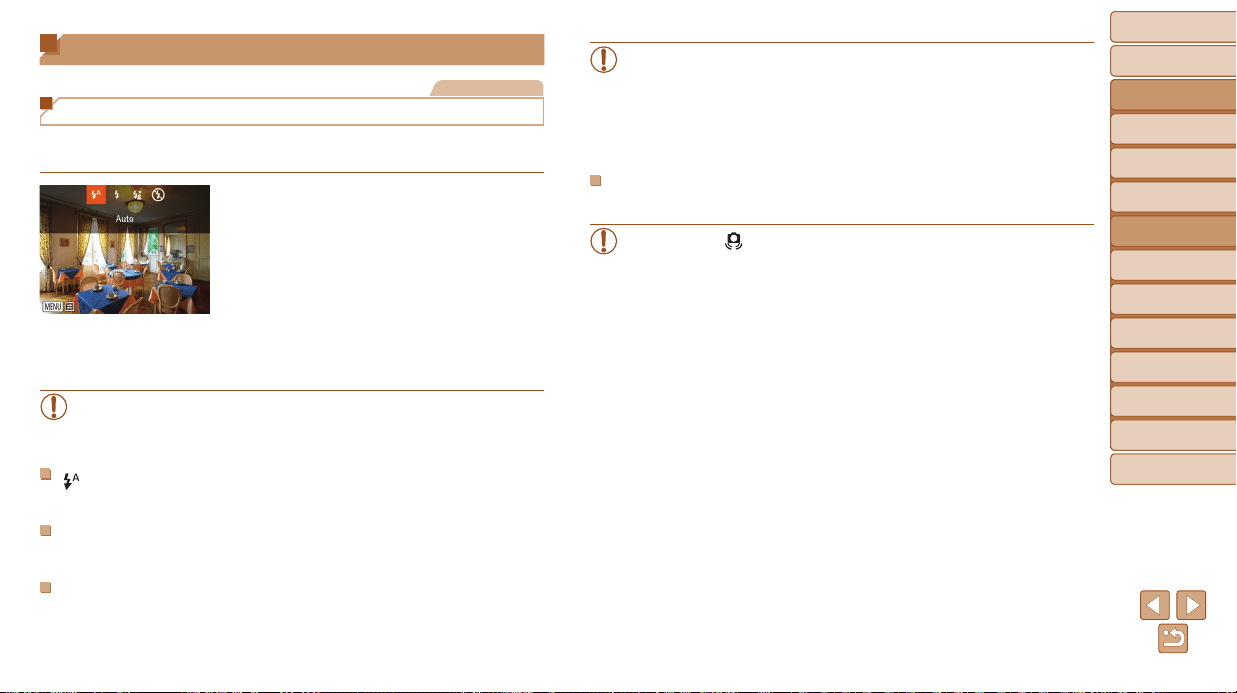
Before Use
Basic Guide
Advanced Guide
Camera Basics
Auto Mode / Hybrid
Auto Mode
Other Shooting
Modes
P Mode
Tv, Av, and M Mode
Playback Mode
Wi-Fi Functions
Setting Menu
Accessories
Appendix
Index
80
Before Use
Basic Guide
Advanced Guide
Camera Basics
Auto Mode / Hybrid
Auto Mode
Other Shooting
Modes
P Mode
Tv, Av, and M Mode
Playback Mode
Wi-Fi Functions
Setting Menu
Accessories
Appendix
Index
Flash
Still Images
Changing the Flash Mode
You can change the ash mode to match the shooting scene. For details on
the ash range, see “Flash Range” (=
190).
1 Raisetheash.
Move the <h> switch.
2 Congurethesetting.
Press the <r> button, choose a ash
mode (either press the <q><r> buttons
or turn the <5> dial), and then press the
<m> button.
The option you congured is now
displayed.
• The setting screen cannot be accessed by pressing the <r> button
when the ash is lowered. Move the <h> switch to raise the ash,
then congure the setting.
[ ]Auto
Fires automatically in low-light conditions.
[h]On
Fires for each shot.
[Z]SlowSynchro
Fires to illuminate the main subject (such as people) while shooting at a
slower shutter speed to illuminate backgrounds out of ash range.
• In [Z] mode, mount the camera on a tripod or take other measures
to keep it still and prevent camera shake. Additionally, you should
set [IS Mode] to [Off] when using a tripod or other means to secure
the camera (=
82).
• In [Z] mode, even after the ash res, ensure that the main subject
does not move until the shutter sound is nished playing.
[!]Off
For shooting without the ash.
• If a blinking [ ] icon is displayed when you press the shutter button
halfway in camera-shake inducing, low-light conditions, mount the
camera on a tripod or take other measures to keep it still.
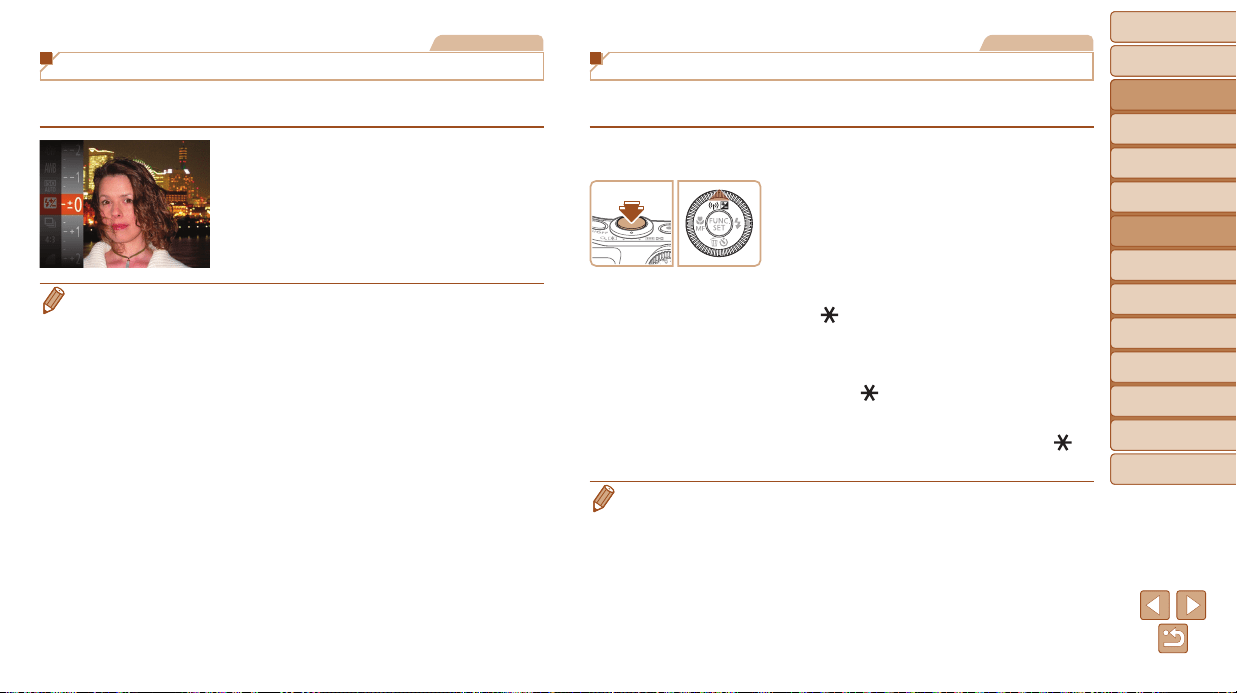
Before Use
Basic Guide
Advanced Guide
Camera Basics
Auto Mode / Hybrid
Auto Mode
Other Shooting
Modes
P Mode
Tv, Av, and M Mode
Playback Mode
Wi-Fi Functions
Setting Menu
Accessories
Appendix
Index
81
Before Use
Basic Guide
Advanced Guide
Camera Basics
Auto Mode / Hybrid
Auto Mode
Other Shooting
Modes
P Mode
Tv, Av, and M Mode
Playback Mode
Wi-Fi Functions
Setting Menu
Accessories
Appendix
Index
Still Images
Adjusting the Flash Exposure Compensation
Just as with regular exposure compensation (=
69), you can adjust the
ash exposure from –2 to +2 stops, in 1/3-stop increments.
Press the <m> button, choose [X] in
the menu, and adjust the setting by either
pressing the <o><p> buttons or turning
the <5> dial (=
23).
The correction level you specied is now
displayed.
• When there is a risk of overexposure, the camera automatically adjusts the
shutter speed or aperture value during the ash shots to reduce washed-
out highlights and shoot at optimal exposure. However, you can deactivate
automatic adjustment of the shutter speed and aperture value by accessing
MENU (=
24) and choosing [4] tab > [Flash Settings] > [Safety FE] > [Off].
• You can also congure the ash exposure compensation by accessing MENU
(=
24) and choosing [4] tab > [Flash Settings] > [Flash Exp. Comp].
• You can also access the [Flash Settings] MENU screen (=
24) when the
ash is up by pressing the <r> button and immediately pressing the <n>
button.
Still Images
Shooting with the FE Lock
Just as with the AE lock (=
70), you can lock the exposure for the ash
shots.
1 Raisetheashandsetitto[h]
(=
8 0 ).
2 Locktheashexposure.
Aim the camera at the subject to shoot
with the exposure locked. With the
shutter button pressed halfway, press the
<o> button.
The ash res, and when
[
] is displayed, the ash output level is
retained.
To unlock FE, release the shutter button
and press the <o> button again. In this
case, [
] is no longer displayed.
3 Composetheshotandshoot.
After one shot, FE is unlocked and [ ] is
no longer displayed.
• FE: Flash Exposure
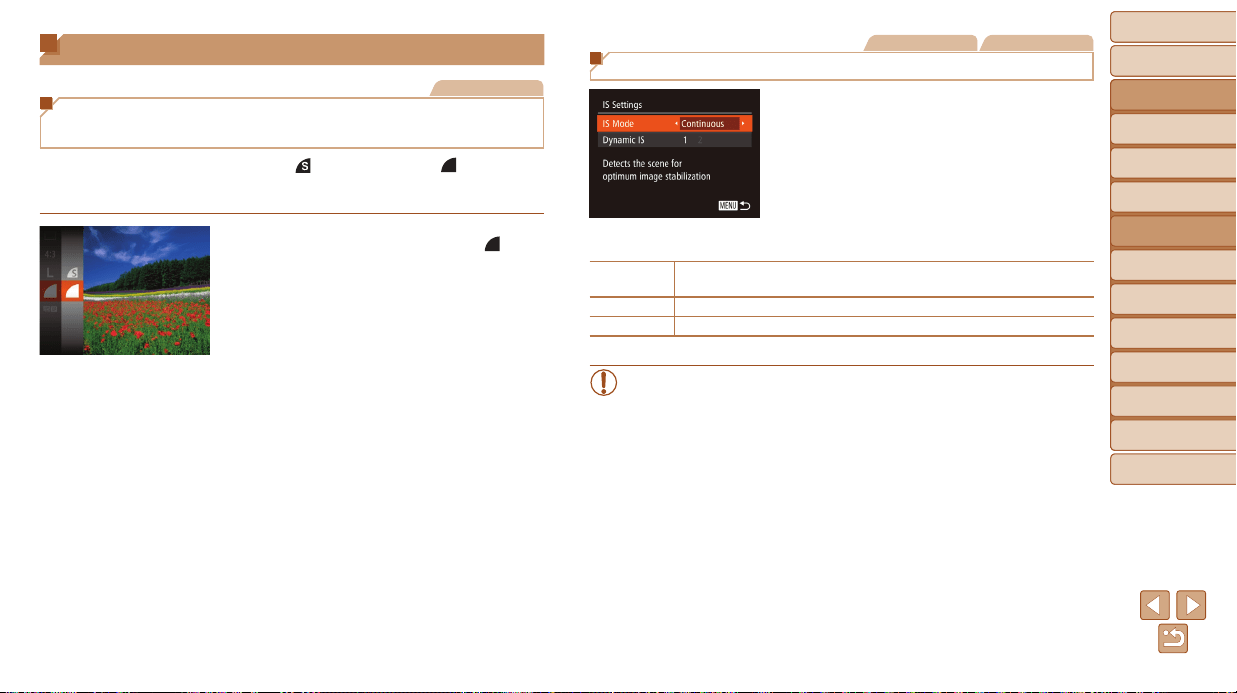
Before Use
Basic Guide
Advanced Guide
Camera Basics
Auto Mode / Hybrid
Auto Mode
Other Shooting
Modes
P Mode
Tv, Av, and M Mode
Playback Mode
Wi-Fi Functions
Setting Menu
Accessories
Appendix
Index
82
Before Use
Basic Guide
Advanced Guide
Camera Basics
Auto Mode / Hybrid
Auto Mode
Other Shooting
Modes
P Mode
Tv, Av, and M Mode
Playback Mode
Wi-Fi Functions
Setting Menu
Accessories
Appendix
Index
Other Settings
Still Images
Changing the Compression Ratio
(Image Quality)
Choose from two compression ratios, [ ] (Super Fine) and [ ] (Fine), as
follows. For guidelines on how many shots at each compression ratio can t
on a memory card, see “Number of 4:3 Shots per Memory Card” (=
190).
Press the <m> button, choose [ ] in
the menu, and choose the desired option
(=
23).
Still Images Movies
Changing the IS Mode Settings
1 Accessthesettingscreen.
Press the <n> button, choose
[IS Settings] on the [4] tab, and then
press the <m> button (=
24).
2 Congurethesetting.
Choose [IS Mode], and then choose the
desired option (=
25).
Continuous
Optimal image stabilization for the shooting conditions is automatically
applied (Intelligent IS) (=
33).
Shoot Only* Image stabilization is active only at the moment of shooting.
Off Deactivates image stabilization.
* The setting is changed to [Continuous] for movie recording.
• If image stabilization cannot prevent camera shake, mount the
camera on a tripod or take other measures to hold it still. In this
case, set [IS Mode] to [Off].
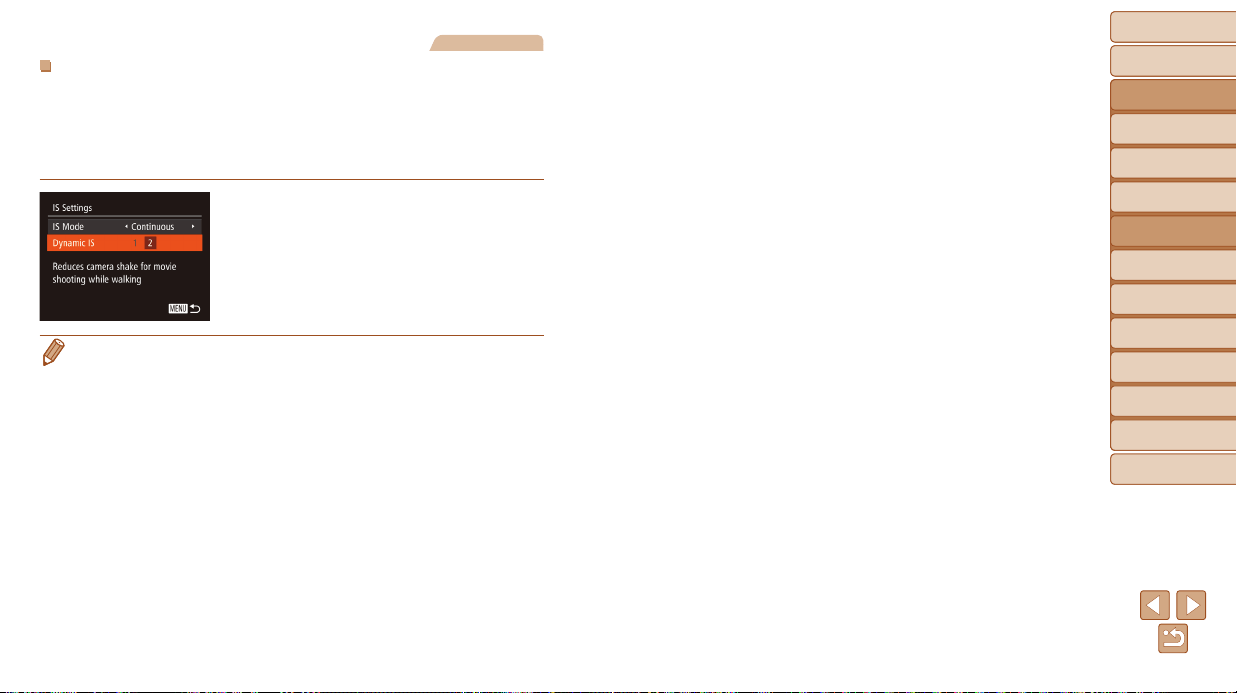
Before Use
Basic Guide
Advanced Guide
Camera Basics
Auto Mode / Hybrid
Auto Mode
Other Shooting
Modes
P Mode
Tv, Av, and M Mode
Playback Mode
Wi-Fi Functions
Setting Menu
Accessories
Appendix
Index
83
Before Use
Basic Guide
Advanced Guide
Camera Basics
Auto Mode / Hybrid
Auto Mode
Other Shooting
Modes
P Mode
Tv, Av, and M Mode
Playback Mode
Wi-Fi Functions
Setting Menu
Accessories
Appendix
Index
Movies
ShootingMovieswithSubjectsattheSameSizeShown
beforeShooting
Normally, once movie recording begins, the image display area changes
and subjects are enlarged to allow for correction of signicant camera
shake. To shoot subjects at the same size shown before shooting, you can
choose not to reduce signicant camera shake.
Follow the steps in “Changing the IS
Mode Settings” (=
82) to access the
[IS Settings] screen.
Choose [Dynamic IS], and then choose
[2] (=
24).
• You can also set [IS Mode] to [Off], so that subjects are recorded at
the same size shown before shooting.
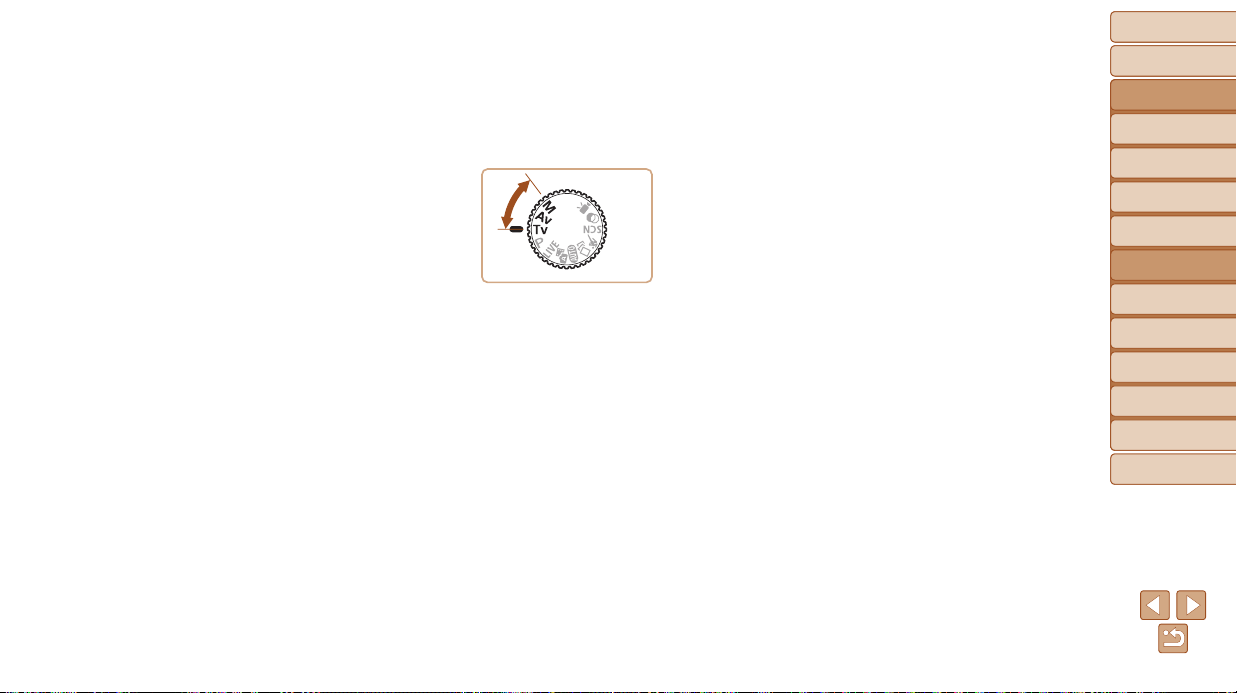
Before Use
Basic Guide
Advanced Guide
Camera Basics
Auto Mode / Hybrid
Auto Mode
Other Shooting
Modes
P Mode
Tv, Av, and M Mode
Playback Mode
Wi-Fi Functions
Setting Menu
Accessories
Appendix
Index
84
Before Use
Basic Guide
Advanced Guide
Camera Basics
Auto Mode / Hybrid
Auto Mode
Other Shooting
Modes
P Mode
Tv, Av, and M Mode
Playback Mode
Wi-Fi Functions
Setting Menu
Accessories
Appendix
Index
Tv, Av, and M Mode
Take smarter, more sophisticated shots
• Instructions in this chapter apply to the camera as set to the respective mode.
SpecicShutterSpeeds([Tv]Mode).............. 85
SpecicApertureValues([Av]Mode)............ 85
SpecicShutterSpeedsandApertureValues
([M]Mode)........................................................ 86
Adjusting the Flash Output .................................... 87
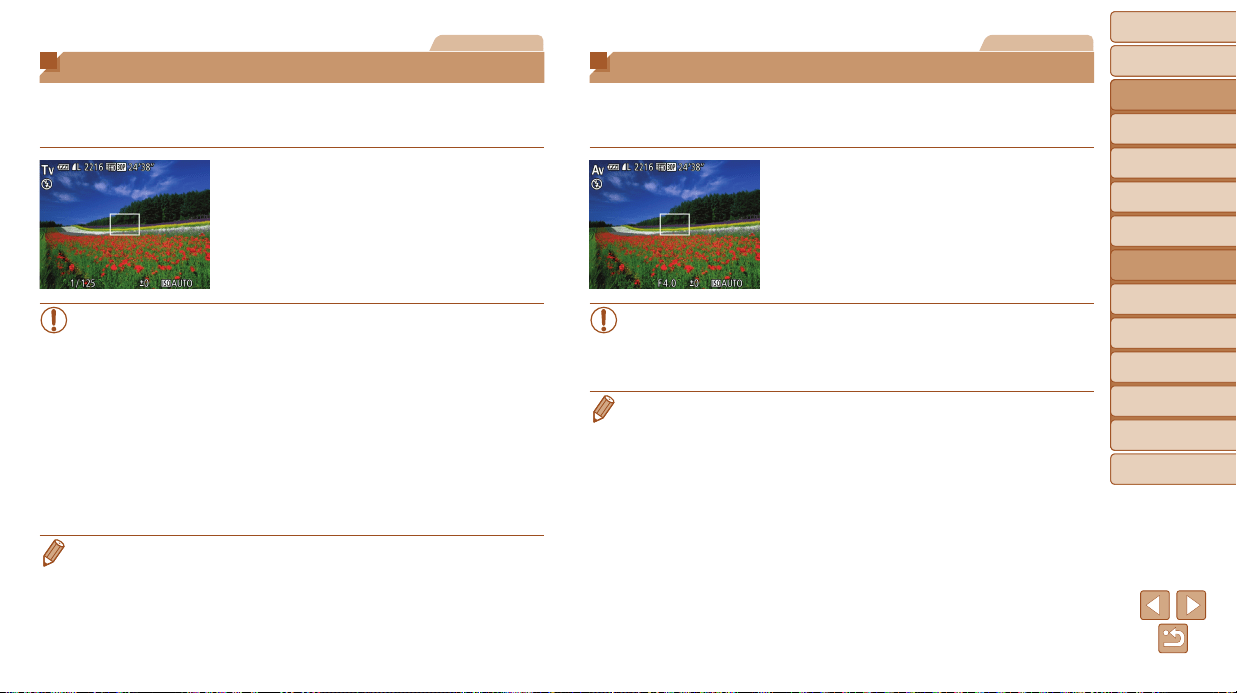
Before Use
Basic Guide
Advanced Guide
Camera Basics
Auto Mode / Hybrid
Auto Mode
Other Shooting
Modes
P Mode
Tv, Av, and M Mode
Playback Mode
Wi-Fi Functions
Setting Menu
Accessories
Appendix
Index
85
Before Use
Basic Guide
Advanced Guide
Camera Basics
Auto Mode / Hybrid
Auto Mode
Other Shooting
Modes
P Mode
Tv, Av, and M Mode
Playback Mode
Wi-Fi Functions
Setting Menu
Accessories
Appendix
Index
Still Images
Specic Shutter Speeds ([Tv] Mode)
Set your preferred shutter speed before shooting as follows. The camera
automatically adjusts the aperture value to suit your shutter speed.
For details on available shutter speeds, see “Shutter Speed” (=
191).
1 Enter[M]mode.
Set the mode dial to [M].
2 Settheshutterspeed.
Turn the <5> dial to set the shutter
speed.
• In shooting conditions requiring slower shutter speeds, there will
be a delay before you can shoot again, as the camera processes
images to reduce noise.
• When shooting at low shutter speeds on a tripod, you should set
[IS Mode] to [Off] (=
82).
• Maximum shutter speed with the ash is 1/2000 second. If you
specify a faster speed, the camera will automatically reset the speed
to 1/2000 second before shooting.
• Orange display of aperture values when you press the shutter
button halfway indicates that the settings deviate from standard
exposure. Adjust the shutter speed until the aperture value is
displayed in white, or use safety shift (=
85).
• [M]: Time value
Still Images
Specic Aperture Values ([Av] Mode)
Set your preferred aperture value before shooting as follows. The camera
automatically adjusts the shutter speed to suit your aperture value.
For details on available aperture values, see “Aperture” (=
191).
1 Enter[B]mode.
Set the mode dial to [B].
2 Settheaperturevalue.
Turn the <5> dial to set the aperture
value.
• Orange display of shutter speeds when you press the shutter button
halfway indicates that the settings deviate from standard exposure.
Adjust the aperture value until the shutter speed is displayed in
white, or use safety shift (see below).
• [B]: Aperture value (size of the opening made by the iris in the lens)
• To avoid exposure problems in [M] and [B] modes, you can have the
camera automatically adjust the shutter speed or aperture value, even when
standard exposure cannot otherwise be obtained. Press the <n> button
and set [Safety Shift] on the [4] tab to [On] (=
24).
However, safety shift is disabled when the ash res.
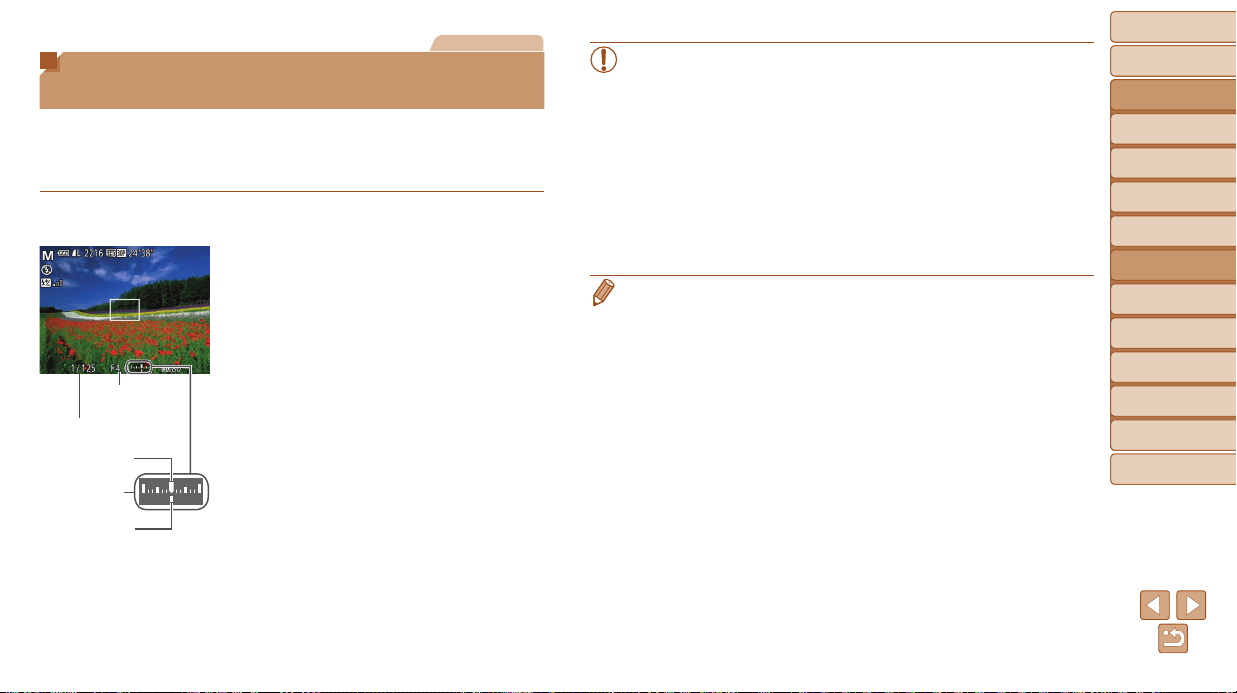
Before Use
Basic Guide
Advanced Guide
Camera Basics
Auto Mode / Hybrid
Auto Mode
Other Shooting
Modes
P Mode
Tv, Av, and M Mode
Playback Mode
Wi-Fi Functions
Setting Menu
Accessories
Appendix
Index
86
Before Use
Basic Guide
Advanced Guide
Camera Basics
Auto Mode / Hybrid
Auto Mode
Other Shooting
Modes
P Mode
Tv, Av, and M Mode
Playback Mode
Wi-Fi Functions
Setting Menu
Accessories
Appendix
Index
Still Images
Specic Shutter Speeds and Aperture
Values ([M] Mode)
Follow these steps before shooting to set your preferred shutter speed and
aperture value to obtain the desired exposure.
For details on available shutter speeds and aperture values, see “Shutter
Speed” (=
191) and “Aperture” (=
191).
1 Enter[D]mode.
Set the mode dial to [D].
2 Congurethesetting.
Press the <o> button, choose
adjustment of shutter speed or aperture
value, and turn the <5> dial to specify
a value.
An exposure level mark based on your
specied value is shown on the exposure
level indicator for comparison to the
standard exposure level.
The exposure level mark is shown in
orange when the difference from standard
exposure exceeds 2 stops.
Aperture Value
Shutter Speed
Standard
Exposure Level
Exposure Level
Mark
Exposure
Level Indicator
• After you set the shutter speed or aperture value, the exposure level
may change if you adjust the zoom or recompose the shot.
• Screen brightness may change depending on your specied shutter
speed or aperture value. However, screen brightness remains the
same when the ash is up and the mode is set to [h].
• To have the setting you did not congure in step 2 (whether shutter
speed or aperture value) automatically adjusted to obtain standard
exposure, hold the shutter button halfway and press the <o>
button. Note that standard exposure may not be possible with some
settings.
• With shutter speeds of 1.3 seconds or slower, ISO speed is [100]
and cannot be changed.
• [D]: Manual
• Calculation of standard exposure is based on the specied metering method
(=
70).
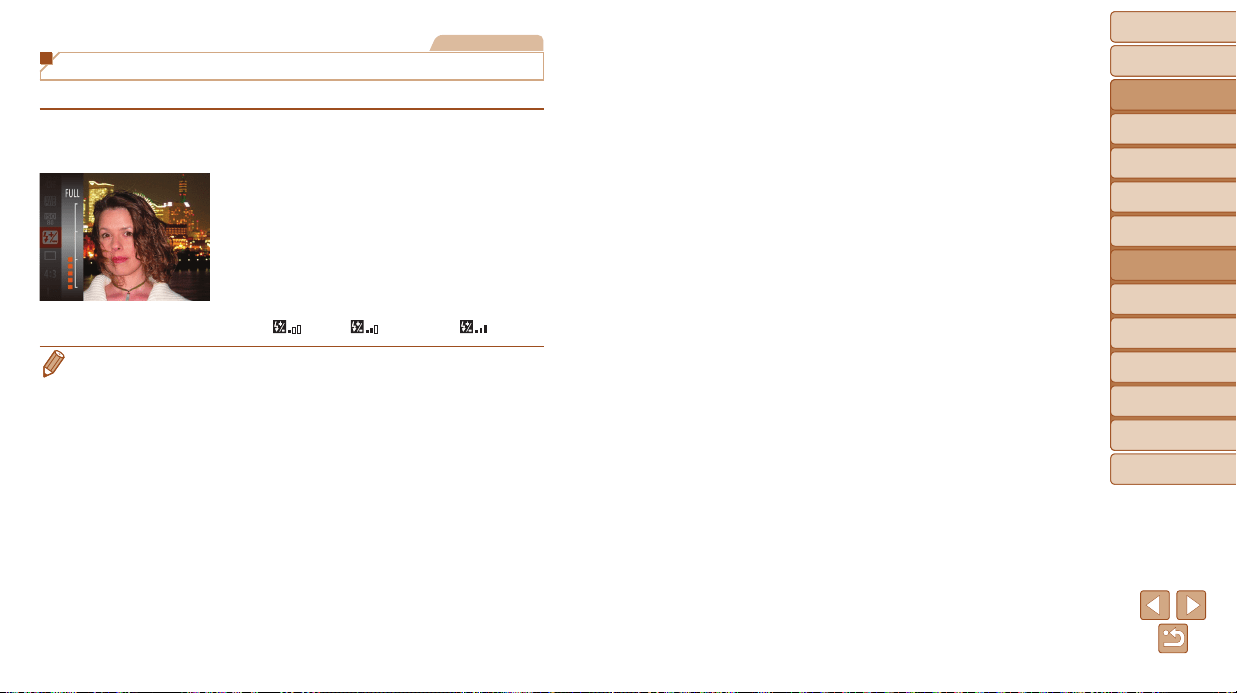
Before Use
Basic Guide
Advanced Guide
Camera Basics
Auto Mode / Hybrid
Auto Mode
Other Shooting
Modes
P Mode
Tv, Av, and M Mode
Playback Mode
Wi-Fi Functions
Setting Menu
Accessories
Appendix
Index
87
Before Use
Basic Guide
Advanced Guide
Camera Basics
Auto Mode / Hybrid
Auto Mode
Other Shooting
Modes
P Mode
Tv, Av, and M Mode
Playback Mode
Wi-Fi Functions
Setting Menu
Accessories
Appendix
Index
Still Images
Adjusting the Flash Output
Choose from the three ash levels in [D] mode.
1 Enter[D]mode.
Set the mode dial to [D].
2 Congurethesetting.
Press the <m> button, choose [X] in
the menu, and adjust the setting by either
pressing the <o><p> buttons or turning
the <
5
> dial (=
23).
Once the setting is complete, the ash
output level is displayed.
[
]: low, [ ]: medium, [ ]: high
• You can also set the ash level by accessing MENU (=
24) and choosing
[4] tab > [Flash Settings] > [Flash Output].
• You can set the ash level in [M] or [B] mode by accessing MENU
(=
24) and choosing [4] tab > [Flash Settings] > [Flash Mode] > [Manual].
• You can also access the [Flash Settings] MENU screen when the ash is up by
pressing the <r> button and immediately pressing the <n> button.

Before Use
Basic Guide
Advanced Guide
Camera Basics
Auto Mode / Hybrid
Auto Mode
Other Shooting
Modes
P Mode
Tv, Av, and M Mode
Playback Mode
Wi-Fi Functions
Setting Menu
Accessories
Appendix
Index
88
Before Use
Basic Guide
Advanced Guide
Camera Basics
Auto Mode / Hybrid
Auto Mode
Other Shooting
Modes
P Mode
Tv, Av, and M Mode
Playback Mode
Wi-Fi Functions
Setting Menu
Accessories
Appendix
Index
Playback Mode
Have fun reviewing your shots, and browse or edit them in many ways
• To prepare the camera for these operations, press the <1> button to enter Playback mode.
• It may not be possible to play back or edit images that were renamed or already edited on a computer, or images from other cameras.
Viewing.............................................................. 89
Switching Display Modes ...................................... 90
Viewing Short Movies Created When Shooting
Still Images (Digest Movies) .................................. 91
Checking People Detected in Face ID .................. 92
BrowsingandFilteringImages....................... 93
Navigating through Images in an Index................. 93
Finding Images Matching Specied Conditions .... 93
Viewing Individual Images in a Group ................... 94
EditingFaceIDInformation............................ 95
ImageViewingOptions.................................... 96
Magnifying Images ................................................ 96
Viewing Slideshows ..............................................96
Auto Playback of Related Images
(Smart Shufe) ...................................................... 97
ProtectingImages............................................ 98
Using the Menu ..................................................... 99
Choosing Images Individually ............................... 99
Selecting a Range ...............................................100
Specifying All Images at Once ............................ 101
ErasingImages............................................... 101
Erasing Multiple Images at Once ........................ 102
RotatingImages............................................. 104
Using the Menu ................................................... 104
Deactivating Auto Rotation ..................................105
TaggingImagesasFavorites........................ 105
EditingStillImages........................................ 106
Resizing Images ..................................................106
Cropping ..............................................................107
Changing Image Color Tones (My Colors) .......... 108
Correcting Image Brightness (i-Contrast) ............ 109
Correcting Red-Eye .............................................109
EditingMovies................................................ 110
Reducing File Sizes ............................................ 112
Editing Digest Movies .......................................... 112
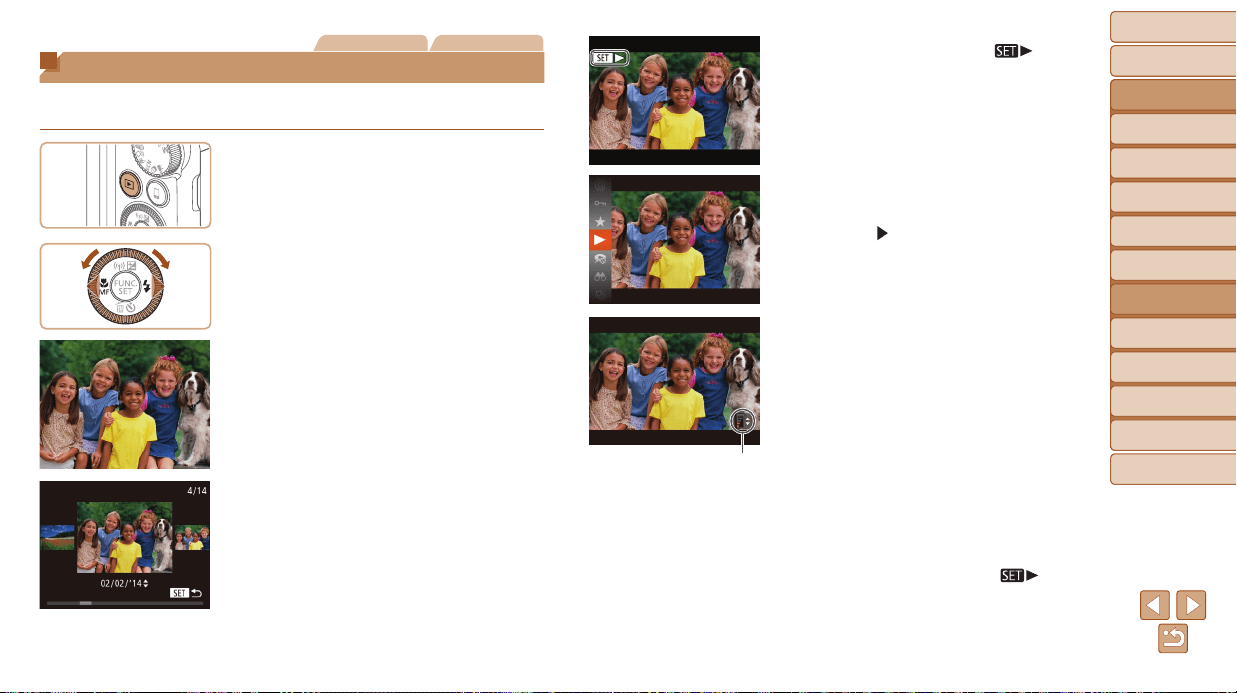
Before Use
Basic Guide
Advanced Guide
Camera Basics
Auto Mode / Hybrid
Auto Mode
Other Shooting
Modes
P Mode
Tv, Av, and M Mode
Playback Mode
Wi-Fi Functions
Setting Menu
Accessories
Appendix
Index
89
Before Use
Basic Guide
Advanced Guide
Camera Basics
Auto Mode / Hybrid
Auto Mode
Other Shooting
Modes
P Mode
Tv, Av, and M Mode
Playback Mode
Wi-Fi Functions
Setting Menu
Accessories
Appendix
Index
Still Images Movies
Viewing
After shooting images or movies, you can view them on the screen as
follows.
1 EnterPlaybackmode.
Press the <1> button.
Your last shot is displayed.
2 Browsethroughyourimages.
To view the previous image, press
the <q> button or turn the <5> dial
counterclockwise. To view the next
image, press the <r> button or turn the
<5> dial clockwise.
Press and hold the <q><r> buttons to
browse through images quickly.
To access Scroll Display mode, turn the
<
5
> dial rapidly. In this mode, turn the
<
5
> dial to browse through images.
To return to single-image display, press
the <
m
> button.
To browse images grouped by shooting
date, press the <o><p> buttons in
Scroll Display mode.
Movies are identied by a [ ] icon.
To play movies, go to step 3.
3 Playmovies.
To start playback, press the <m> button,
choose [
] (either press the <o><p>
buttons or turn the <5> dial), and then
press the <m> button again.
4 Adjustthevolume.
Press the <o><p> buttons to adjust the
volume.
To adjust the volume when the volume
indicator is no longer displayed, press the
<o><p> buttons.
5 Pauseplayback.
To pause or resume playback, press the
<m> button.
After the movie is nished, [ ] is
displayed.
Volume Indicator
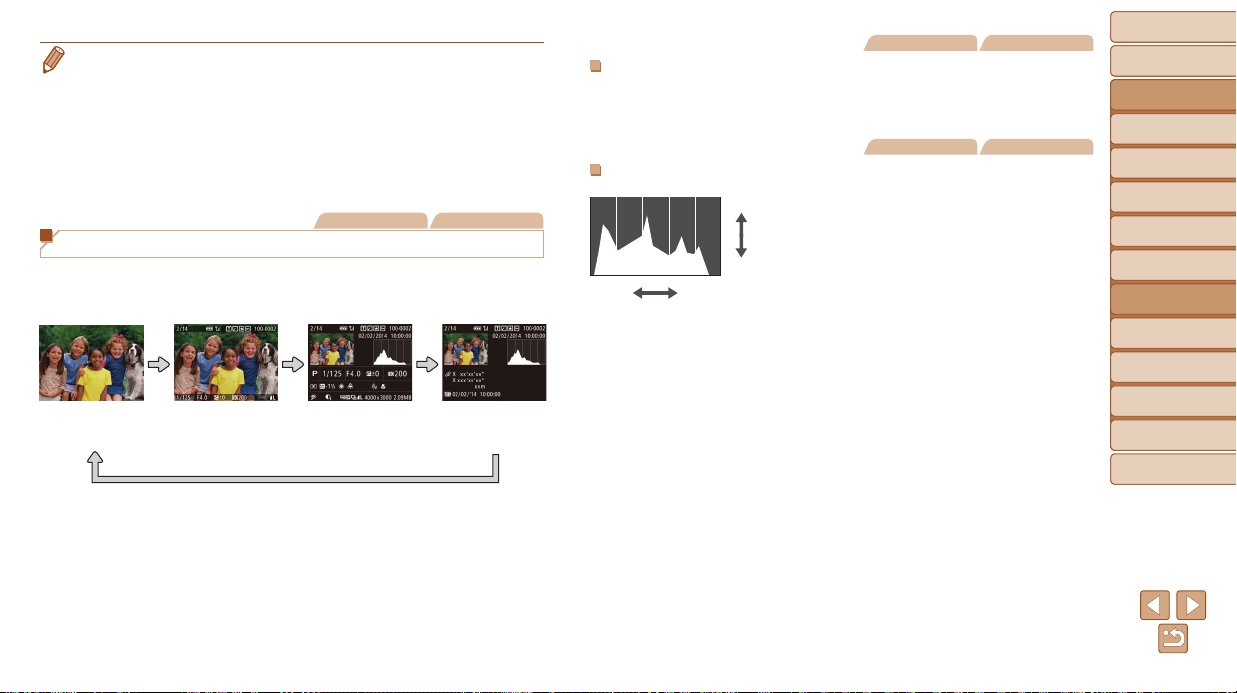
Before Use
Basic Guide
Advanced Guide
Camera Basics
Auto Mode / Hybrid
Auto Mode
Other Shooting
Modes
P Mode
Tv, Av, and M Mode
Playback Mode
Wi-Fi Functions
Setting Menu
Accessories
Appendix
Index
90
Before Use
Basic Guide
Advanced Guide
Camera Basics
Auto Mode / Hybrid
Auto Mode
Other Shooting
Modes
P Mode
Tv, Av, and M Mode
Playback Mode
Wi-Fi Functions
Setting Menu
Accessories
Appendix
Index
• To switch to Shooting mode from Playback mode, press the shutter button
halfway.
• To deactivate Scroll Display, choose MENU (=
24) > [1] tab > [Scroll
Display] > [Off].
• To have the most recent shot displayed when you enter Playback mode,
choose MENU (=
24) > [1] tab > [Resume] > [Last shot].
• To change the transition shown between images, access MENU (=
24) and
choose your desired effect in [1] tab > [Transition Effect].
Still Images Movies
Switching Display Modes
Press the <l> button to view other information on the screen, or to hide
the information. For details on the information displayed, see “Playback
(Detailed Information Display)” (=
179).
No Information
Display
Simple
Information
Display
Detailed
Information
Display
GPS Information
Display
Still Images Movies
OverexposureWarning(forImageHighlights)
Washed-out highlights in the image ash on the screen in detailed
information display (=
90).
Still Images Movies
Histogram
The graph in detailed information display
(=
90) is a histogram showing the
distribution of brightness in the image.
The horizontal axis represents the degree
of brightness, and the vertical axis, how
much of the image is at each level of
brightness. Viewing the histogram is a
way to check exposure.
High
Dark
Low
Bright
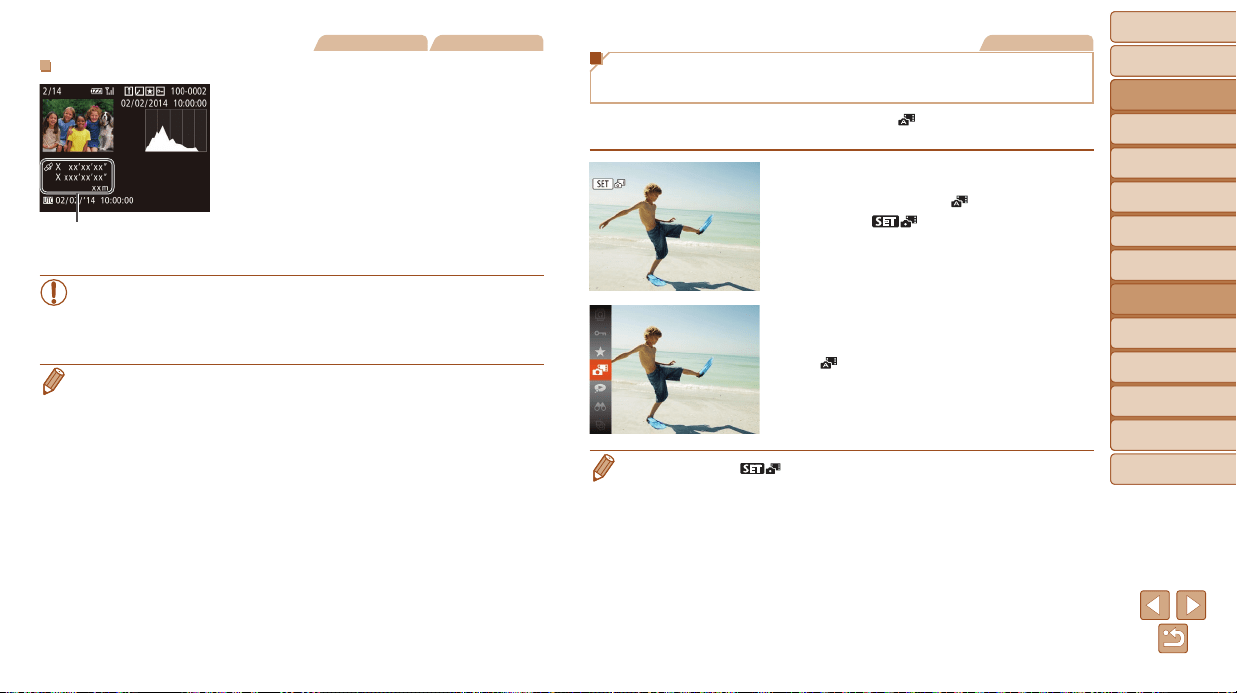
Before Use
Basic Guide
Advanced Guide
Camera Basics
Auto Mode / Hybrid
Auto Mode
Other Shooting
Modes
P Mode
Tv, Av, and M Mode
Playback Mode
Wi-Fi Functions
Setting Menu
Accessories
Appendix
Index
91
Before Use
Basic Guide
Advanced Guide
Camera Basics
Auto Mode / Hybrid
Auto Mode
Other Shooting
Modes
P Mode
Tv, Av, and M Mode
Playback Mode
Wi-Fi Functions
Setting Menu
Accessories
Appendix
Index
Still Images Movies
GPSInformationDisplay
Using a smartphone connected to the
camera via Wi-Fi, you can geotag images
on the camera, adding information such
as latitude, longitude, and elevation
(=
141). You can review this information
in the GPS information display.
Latitude, longitude, elevation, and UTC
(shooting date and time) are listed from
top to bottom.
• GPS information display is not available for images that lack this
information.
• [---] is shown instead of numerical values for items not available on
your smartphone or items not recorded correctly.
• UTC: Coordinated Universal Time, essentially the same as Greenwich Mean
Time
GPS Display
Movies
Viewing Short Movies Created When
Shooting Still Images (Digest Movies)
View digest movies recorded automatically in [ ] mode (=
30) on a day
of still image shooting as follows.
1 Chooseanimage.
Still images shot in [ ] mode are labeled
with an [
] icon.
2 Playthemovie.
Press the <m> button, and then choose
[
] in the menu (=
23).
The movie recorded automatically on the
day of still image shooting is played back,
from the beginning.
• After a moment, [ ] will no longer be displayed when you are using the
camera with information display deactivated (=
90).
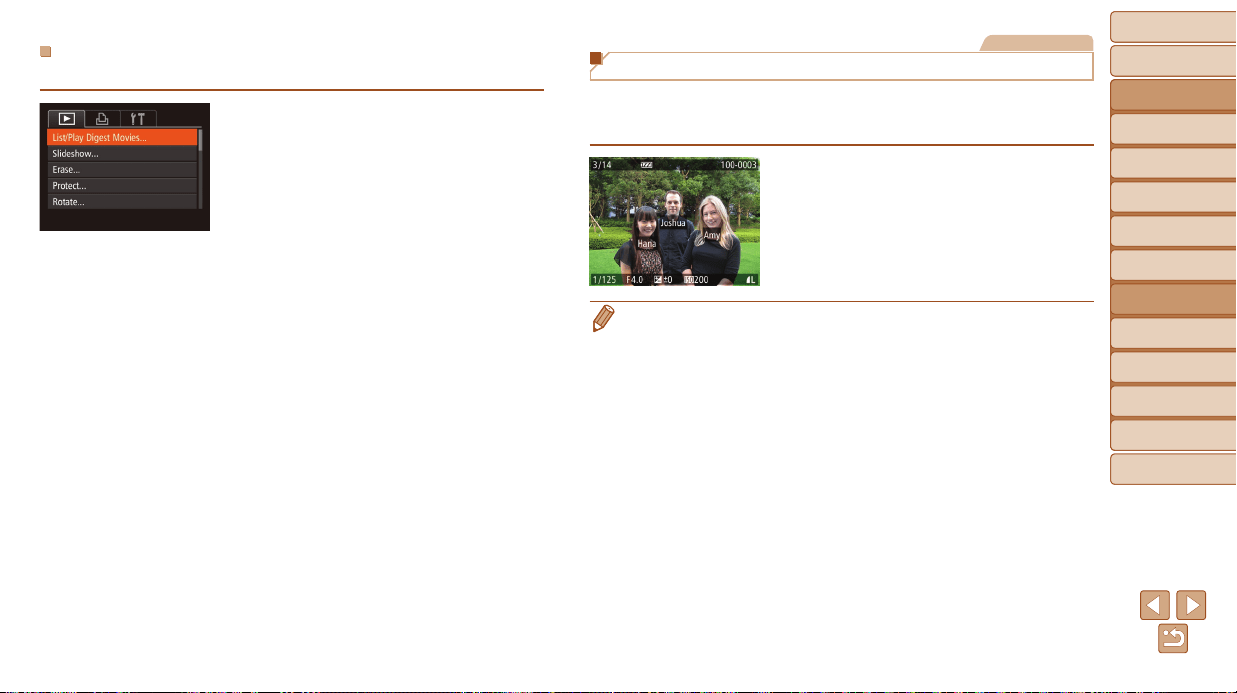
Before Use
Basic Guide
Advanced Guide
Camera Basics
Auto Mode / Hybrid
Auto Mode
Other Shooting
Modes
P Mode
Tv, Av, and M Mode
Playback Mode
Wi-Fi Functions
Setting Menu
Accessories
Appendix
Index
92
Before Use
Basic Guide
Advanced Guide
Camera Basics
Auto Mode / Hybrid
Auto Mode
Other Shooting
Modes
P Mode
Tv, Av, and M Mode
Playback Mode
Wi-Fi Functions
Setting Menu
Accessories
Appendix
Index
Still Images
Checking People Detected in Face ID
If you switch the camera to simple information display mode (=
90), the
names of up to ve detected people registered in Face ID (=
40) will be
displayed.
Press the <l> button several
times until simple information display is
activated, and then press the <q><r>
buttons to choose an image.
Names will be displayed on detected
people.
• If you prefer not to have names displayed on images shot using Face ID,
choose MENU (=
24) > [1] tab > [Face ID Info] > [Name Display] > [Off].
ViewingbyDate
Digest movies can be viewed by date.
1 Chooseamovie.
Press the <n> button, choose
[List/Play Digest Movies] on the [1] tab,
and then choose a date (=
24).
2 Playthemovie.
Press the <m> button to start playback.
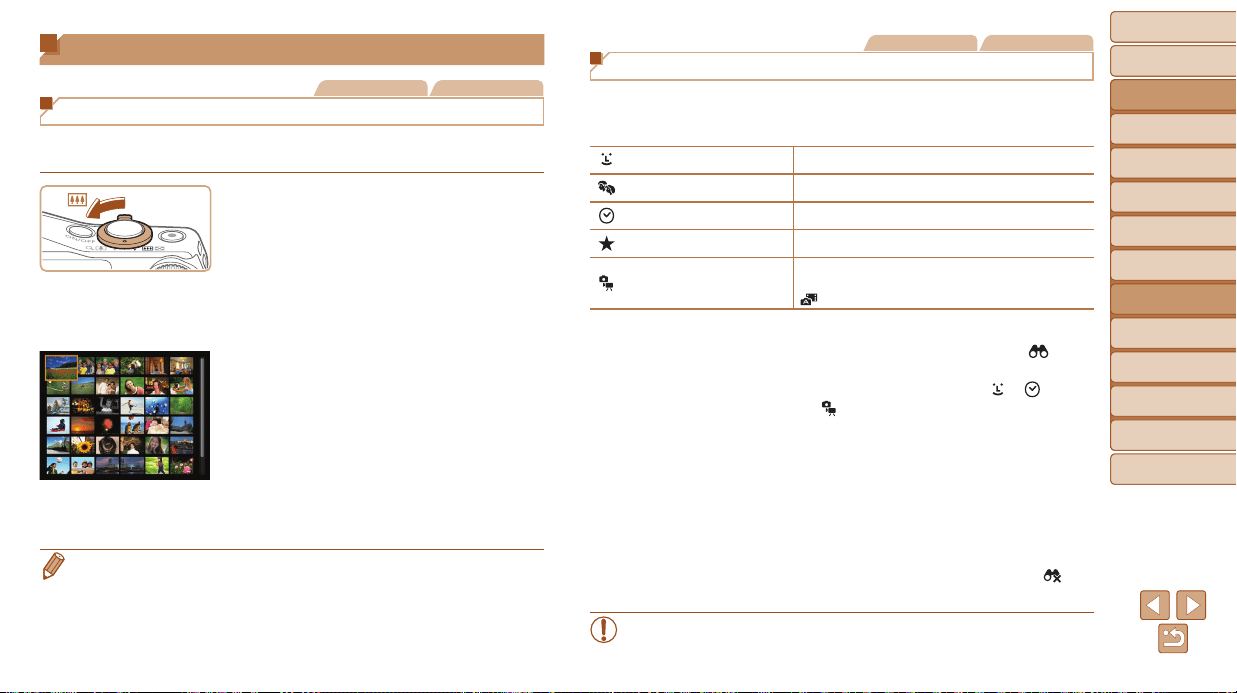
Before Use
Basic Guide
Advanced Guide
Camera Basics
Auto Mode / Hybrid
Auto Mode
Other Shooting
Modes
P Mode
Tv, Av, and M Mode
Playback Mode
Wi-Fi Functions
Setting Menu
Accessories
Appendix
Index
93
Before Use
Basic Guide
Advanced Guide
Camera Basics
Auto Mode / Hybrid
Auto Mode
Other Shooting
Modes
P Mode
Tv, Av, and M Mode
Playback Mode
Wi-Fi Functions
Setting Menu
Accessories
Appendix
Index
Browsing and Filtering Images
Still Images Movies
Navigating through Images in an Index
By displaying multiple images in an index, you can quickly nd the images
you are looking for.
1 Displayimagesinanindex.
Move the zoom lever toward <g> to
display images in an index. Moving the
lever again will increase the number of
images shown.
To display fewer images, move the zoom
lever toward <k>. Fewer images are
shown each time you move the lever.
2 Chooseanimage.
Turn the <5> dial to scroll through the
images.
Press the <o><p><q><r> buttons to
choose an image.
An orange frame is displayed around the
selected image.
Press the <m> button to view the
selected image in single-image display.
• To deactivate the 3D display effect (shown if you hold down the <o><p>
buttons or turn the <5> dial rapidly), choose MENU (=
24) > [1] tab >
[Index Effect] > [Off].
Still Images Movies
Finding Images Matching Specied Conditions
Find desired images quickly on a memory card full of images by ltering
image display according to your specied conditions. You can also protect
(=
98) or delete (=
101) these images all at once.
Name
Displays images of a registered person (=
40).
People Displays images with detected faces.
Shot Date Displays the images shot on a specic date.
Favorites
Displays images tagged as favorites (=
105).
Still image/Movie
Displays only still images or movies.
Displays still images, movies, or movies shot in
[
] mode (=
30).
1 Chooseasearchcondition.
Press the <m> button, choose [ ] in the
menu, and choose a condition (=
23).
When you have selected [ ], [ ], or
[
], choose the condition by pressing
the <o><p><q><r> buttons on the
screen displayed, and then press the
<m> button.
2 Viewthelteredimages.
Images matching your conditions are
displayed in yellow frames. To view only
these images, press the <q><r> buttons.
To cancel ltered display, choose [ ] in
step 1.
• When the camera has found no corresponding images for some
conditions, those conditions will not be available.
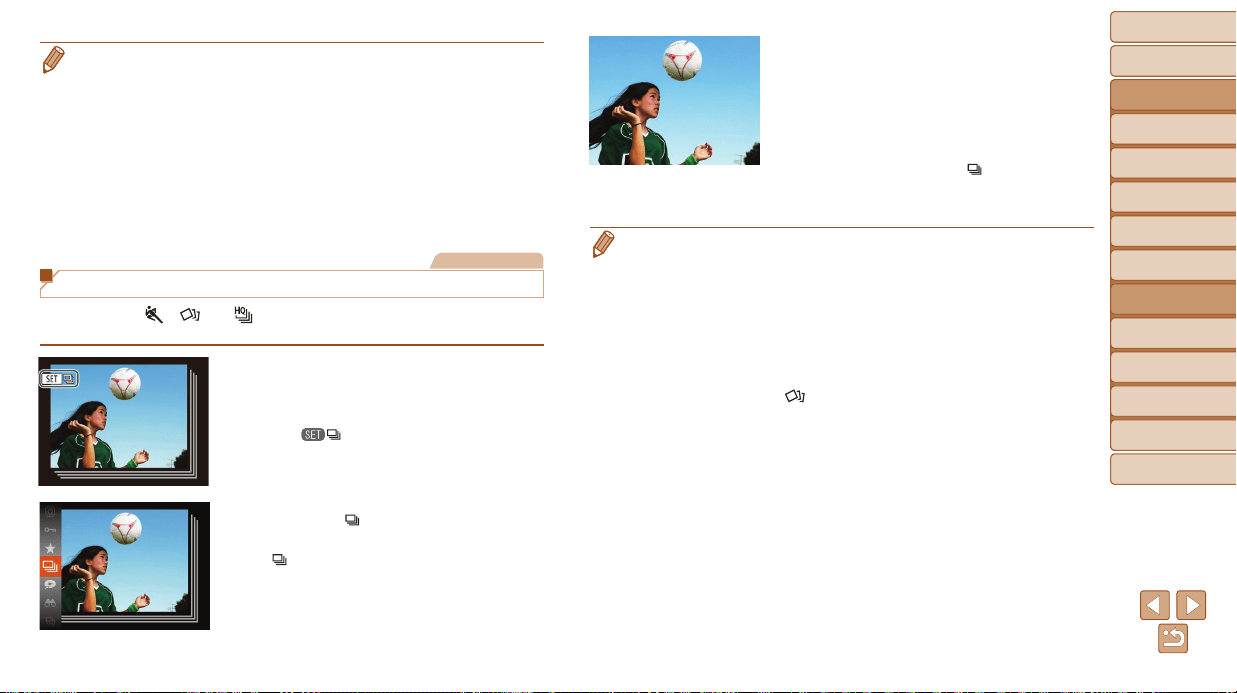
Before Use
Basic Guide
Advanced Guide
Camera Basics
Auto Mode / Hybrid
Auto Mode
Other Shooting
Modes
P Mode
Tv, Av, and M Mode
Playback Mode
Wi-Fi Functions
Setting Menu
Accessories
Appendix
Index
94
Before Use
Basic Guide
Advanced Guide
Camera Basics
Auto Mode / Hybrid
Auto Mode
Other Shooting
Modes
P Mode
Tv, Av, and M Mode
Playback Mode
Wi-Fi Functions
Setting Menu
Accessories
Appendix
Index
• To show or hide information, press the <l> button in step 2.
• Options for viewing the images found (in step 2) include “Navigating through
Images in an Index” (=
93), “Magnifying Images” (=
96), and “Viewing
Slideshows” (=
96). You can protect, erase, or print all images found or add
them to a photobook by choosing [Select All Images in Search] in “Protecting
Images” (=
98), “Erasing Multiple Images at Once” (=
102), “Adding
Images to the Print List (DPOF)” (=
167), or “Adding Images to a Photobook”
(=
169).
• If you edit images and save them as new images (=
106 – 112), a message
is displayed, and the images that were found are no longer shown.
Still Images
Viewing Individual Images in a Group
Images shot in [ ], [ ], or [ ] mode (=
54, 53, 64) are grouped
for display, and these grouped images can be viewed one at a time.
1 Chooseagroupedimage.
Press the <q><r> buttons or turn the
<5> dial to choose an image labeled
with [
].
2 Choose[ ].
Press the <m> button, and then choose
[
] in the menu (=
23).
3 Viewimagesinthegroup
individually.
Pressing the <q><r> buttons or turning
the <5> dial will display only images in
the group.
To cancel group playback, press the
<m> button, choose [
] in the menu,
and press the <m> button again
(=
23).
• During group playback (step 3), you can browse through images quickly
“Navigating through Images in an Index” (=
93) and magnify them
“Magnifying Images” (=
96). By choosing [All Images in Group] for
“Protecting Images” (=
98), “Erasing Multiple Images at Once” (=
102),
“Adding Images to the Print List (DPOF)” (=
167), or “Adding Images to a
Photobook” (=
169), all images in the group can be manipulated at once.
• To ungroup images so that they are displayed only as single still images,
choose MENU (=
24) > [1] tab > [Group Images] > [Off] (=
24).
However, grouped images cannot be ungrouped during individual playback.
• Simultaneous display in [
] mode as described in step 2 of “Enjoying a
Variety of Images from Each Shot (Creative Shot)” (=
53) is only shown
immediately after you shoot.
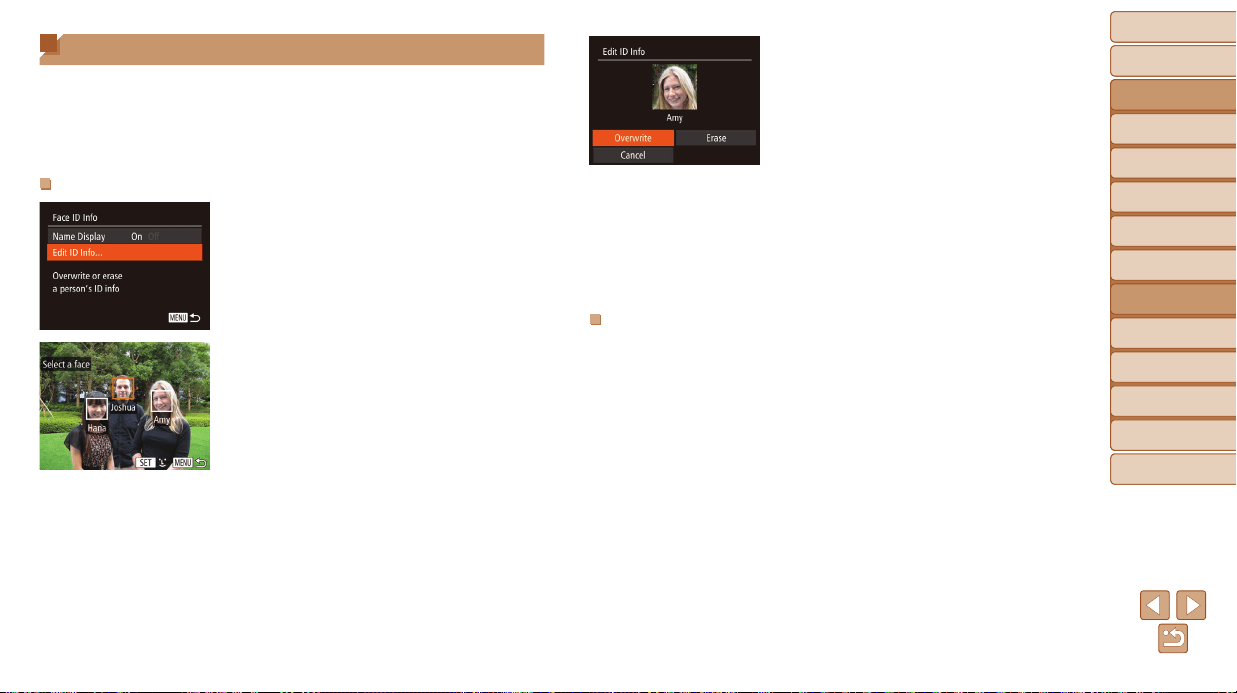
Before Use
Basic Guide
Advanced Guide
Camera Basics
Auto Mode / Hybrid
Auto Mode
Other Shooting
Modes
P Mode
Tv, Av, and M Mode
Playback Mode
Wi-Fi Functions
Setting Menu
Accessories
Appendix
Index
95
Before Use
Basic Guide
Advanced Guide
Camera Basics
Auto Mode / Hybrid
Auto Mode
Other Shooting
Modes
P Mode
Tv, Av, and M Mode
Playback Mode
Wi-Fi Functions
Setting Menu
Accessories
Appendix
Index
Editing Face ID Information
If you notice that a name is incorrect during playback, you can change it or
erase it.
However, you cannot add names for people who are not detected by Face
ID (names are not displayed), and for people whose names have been
erased.
ChangingNames
1 Accessthesettingscreen.
Press the <n> button and choose
[Face ID Info] on the [1] tab (=
24).
Press the <o><p> buttons or turn the
<5> dial to choose [Edit ID Info], and
then press the <m> button.
2 Chooseanimage.
Following the procedure in “Checking
People Detected in Face ID” (=
92),
choose an image and press the <
m
>
button.
An orange frame is displayed around the
selected face. When multiple names are
displayed in an image, press the <q><r>
buttons or turn the <5> dial to choose
the name to change, and then press the
<m> button.
3 Choosetheeditingoption.
Press the <o><p><q><r> buttons or
turn the <5> dial to choose [Overwrite],
and then press the <m> button.
4 Choosethenameoftheperson
tooverwritewith.
Follow step 2 in “Overwriting and Adding
Face Information” (=
44) to choose
the name of the person you want to
overwrite with.
ErasingNames
Following step 3 in “Changing Names”
(=
95), choose [Erase] and press the
<m> button.
After [Erase?] is displayed, press the
<q><r> buttons or turn the <5> dial to
choose [OK], and then press the <m>
button.
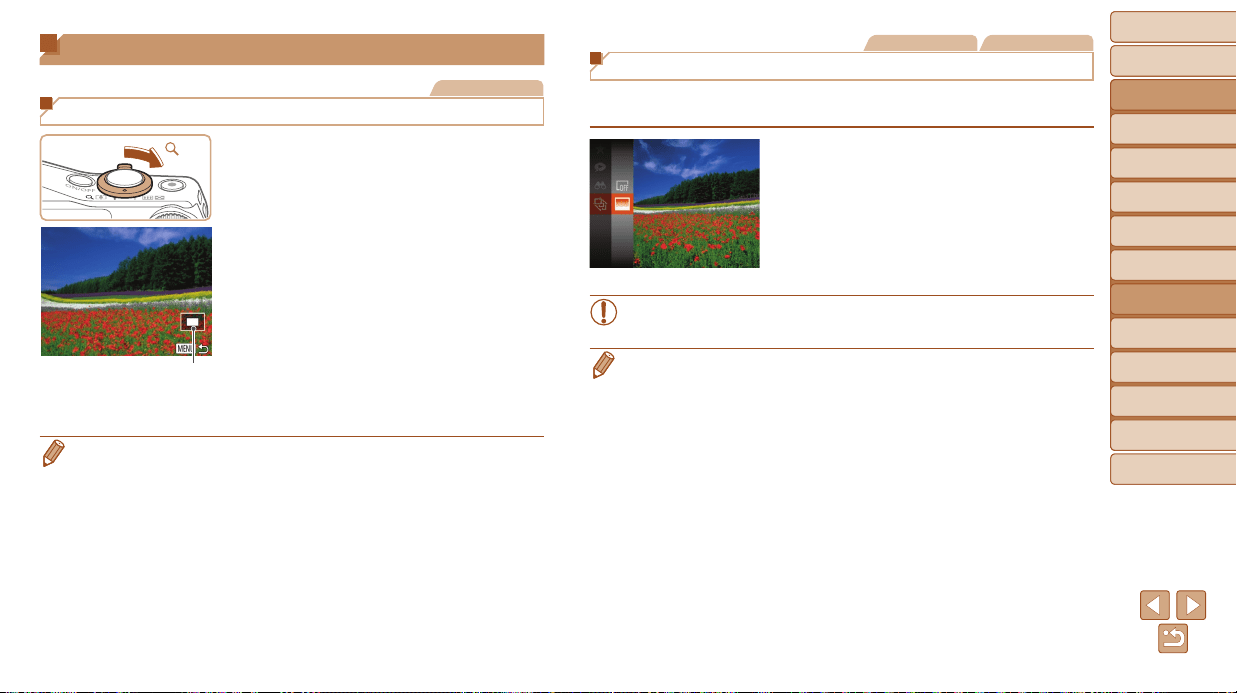
Before Use
Basic Guide
Advanced Guide
Camera Basics
Auto Mode / Hybrid
Auto Mode
Other Shooting
Modes
P Mode
Tv, Av, and M Mode
Playback Mode
Wi-Fi Functions
Setting Menu
Accessories
Appendix
Index
96
Before Use
Basic Guide
Advanced Guide
Camera Basics
Auto Mode / Hybrid
Auto Mode
Other Shooting
Modes
P Mode
Tv, Av, and M Mode
Playback Mode
Wi-Fi Functions
Setting Menu
Accessories
Appendix
Index
Image Viewing Options
Still Images
Magnifying Images
1 Magnifyanimage.
Moving the zoom lever toward <k> will
zoom in and magnify the image. You can
magnify images up to about 10x by
continuing to hold the zoom lever.
To zoom out, move the zoom lever
toward <g>. You can return to single-
image display by continuing to hold it.
2 Movethedisplaypositionand
switchimagesasneeded.
To move the display position, press the
<o><p><q><r> buttons.
To switch to other images while zoomed,
turn the <5> dial.
• You can return to single-image display from magnied display by pressing the
<n> button.
Approximate Position of
Displayed Area
Still Images Movies
Viewing Slideshows
Automatically play back images from a memory card as follows. Each image
is displayed for about three seconds.
Press the <m> button, choose [.] in
the menu, and choose the desired option
(=
23).
The slideshow will start after [Loading
image] is displayed for a few seconds.
Press the <n> button to stop the
slideshow.
• The camera’s power-saving functions (=
21) are deactivated
during slideshows.
• To pause or resume slideshows, press the <m> button.
• You can switch to other images during playback by pressing the <q><r>
buttons or turning the <5> dial. For fast-forward or fast-rewind, hold the
<q><r> buttons down.
• In image search mode (=
93), only images matching search conditions are
played.
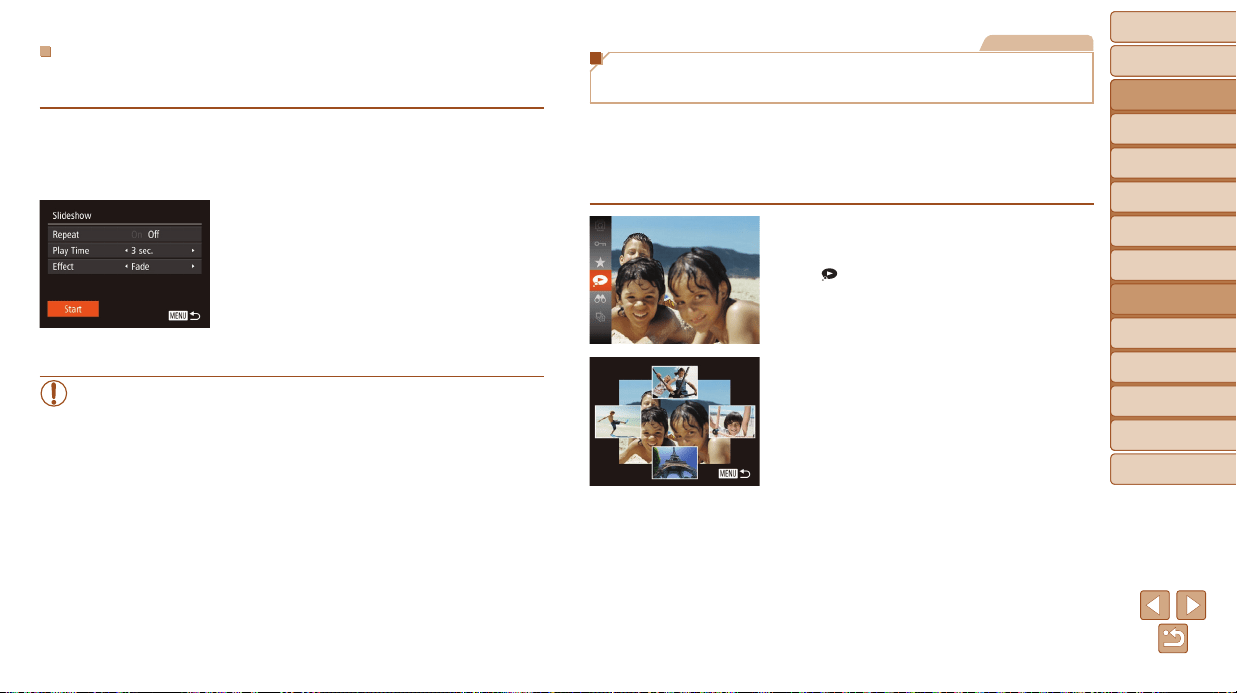
Before Use
Basic Guide
Advanced Guide
Camera Basics
Auto Mode / Hybrid
Auto Mode
Other Shooting
Modes
P Mode
Tv, Av, and M Mode
Playback Mode
Wi-Fi Functions
Setting Menu
Accessories
Appendix
Index
97
Before Use
Basic Guide
Advanced Guide
Camera Basics
Auto Mode / Hybrid
Auto Mode
Other Shooting
Modes
P Mode
Tv, Av, and M Mode
Playback Mode
Wi-Fi Functions
Setting Menu
Accessories
Appendix
Index
ChangingSlideshowSettings
You can set up slideshows to repeat, and you can change the transitions
between images and the display duration of each image.
1 Accessthesettingscreen.
Press the <n> button, and then
choose [Slideshow] on the [1] tab
(=
24).
2 Congurethesettings.
Choose a menu item to congure, and
then choose the desired option (=
25).
To start the slideshow with your settings,
choose [Start] and press the <m>
button.
To return to the menu screen, press the
<n> button.
• [Play Time] cannot be modied when [Bubble] is chosen in [Effect].
Still Images
Auto Playback of Related Images
(Smart Shufe)
Based on the current image, the camera offers four images that you may
wish to view. After you choose to view one of those images, the camera
offers four more images. This is an enjoyable way to play back images in
an unexpected order. Try this feature after you have taken many shots, in
many kinds of scenes.
1 ChooseSmartShufe.
Press the <m> button, and then choose
[
] in the menu (=
23).
Four candidate images are displayed.
2 Chooseanimage.
Press the <o><p><q><r> buttons to
choose the image you want to view next.
Your chosen image is displayed in the
center, surrounded by the next four
candidate images.
For full-screen display of the center
image, press the <m> button. To restore
the original display, press the <m>
button again.
Press the <n> button to restore
single-image display.
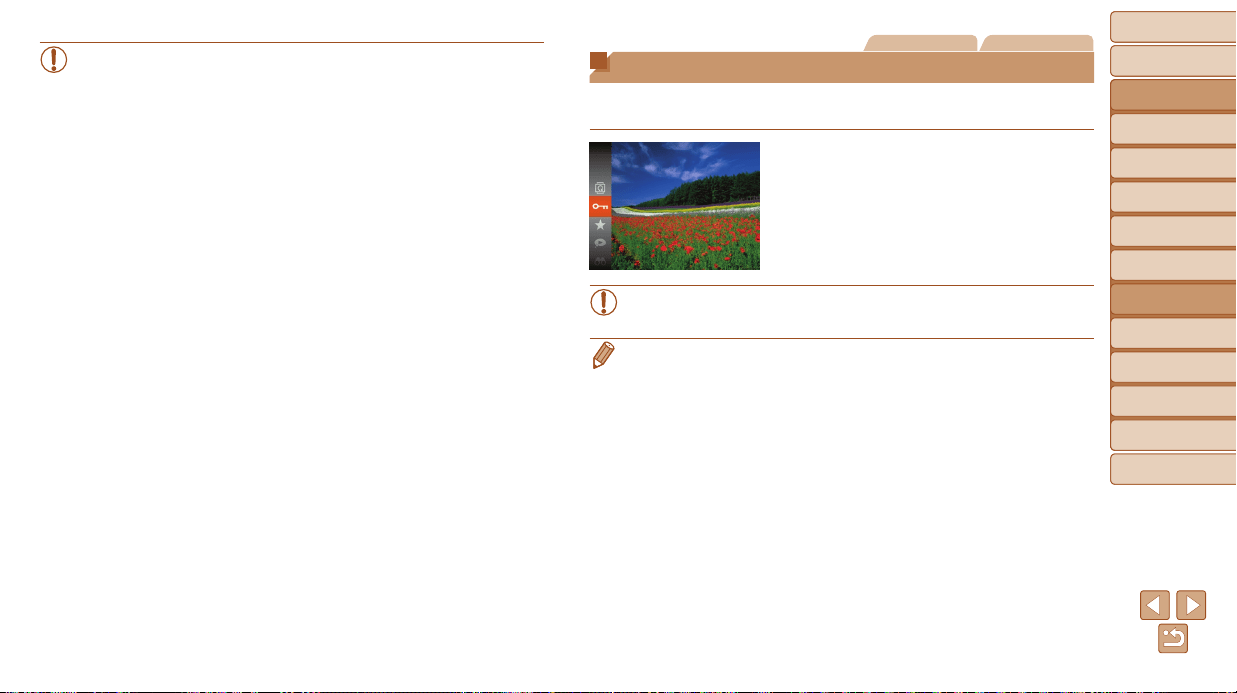
Before Use
Basic Guide
Advanced Guide
Camera Basics
Auto Mode / Hybrid
Auto Mode
Other Shooting
Modes
P Mode
Tv, Av, and M Mode
Playback Mode
Wi-Fi Functions
Setting Menu
Accessories
Appendix
Index
98
Before Use
Basic Guide
Advanced Guide
Camera Basics
Auto Mode / Hybrid
Auto Mode
Other Shooting
Modes
P Mode
Tv, Av, and M Mode
Playback Mode
Wi-Fi Functions
Setting Menu
Accessories
Appendix
Index
• Only still images shot with this camera are played back using
Smart Shufe.
• Smart Shufe is not available in the following cases:
- There are less than 50 shots taken with this camera
- An unsupported image is currently displayed
- Images are shown in ltered display (=
93)
- During group playback (=
94)
Still Images Movies
Protecting Images
Protect important images to prevent accidental erasure by the camera
(=
101).
Press the <m> button, and then choose
[:] in the menu (=
23). [Protected]
is displayed.
To cancel protection, repeat this process
and choose [:] again, and then press
the <m> button.
• Protected images on a memory card will be erased if you format the
card (=
149, 150).
• Protected images cannot be erased using the camera’s erasure function.
To erase them this way, rst cancel protection.
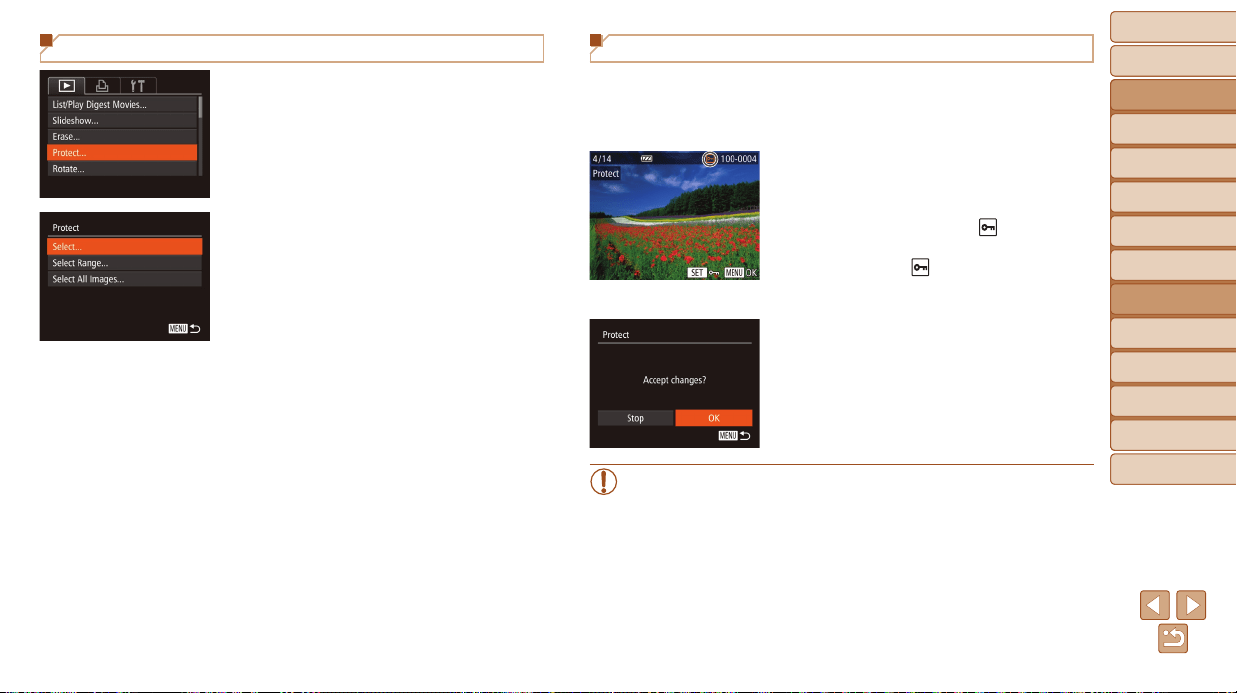
Before Use
Basic Guide
Advanced Guide
Camera Basics
Auto Mode / Hybrid
Auto Mode
Other Shooting
Modes
P Mode
Tv, Av, and M Mode
Playback Mode
Wi-Fi Functions
Setting Menu
Accessories
Appendix
Index
99
Before Use
Basic Guide
Advanced Guide
Camera Basics
Auto Mode / Hybrid
Auto Mode
Other Shooting
Modes
P Mode
Tv, Av, and M Mode
Playback Mode
Wi-Fi Functions
Setting Menu
Accessories
Appendix
Index
Using the Menu
1 Accessthesettingscreen.
Press the <n> button and choose
[Protect] on the [1] tab (=
24).
2 Chooseaselectionmethod.
Choose a menu item and an option as
desired (=
25).
To return to the menu screen, press the
<n> button.
Choosing Images Individually
1 Choose[Select].
Following step 2 in “Using the Menu”
(=
99), choose [Select] and press the
<m> button.
2 Chooseanimage.
Press the <q><r> buttons or turn the
<5> dial to choose an image, and then
press the <m> button. [
] is displayed.
To cancel selection, press the <m>
button again. [
] is no longer displayed.
Repeat this process to specify other
images.
3 Protecttheimage.
Press the <n> button. A conrmation
message is displayed.
Press the <q><r> buttons or turn the
<5> dial to choose [OK], and then press
the <m> button.
• Images will not be protected if you switch to Shooting mode or turn
the camera off before nishing the setup process in step 3.
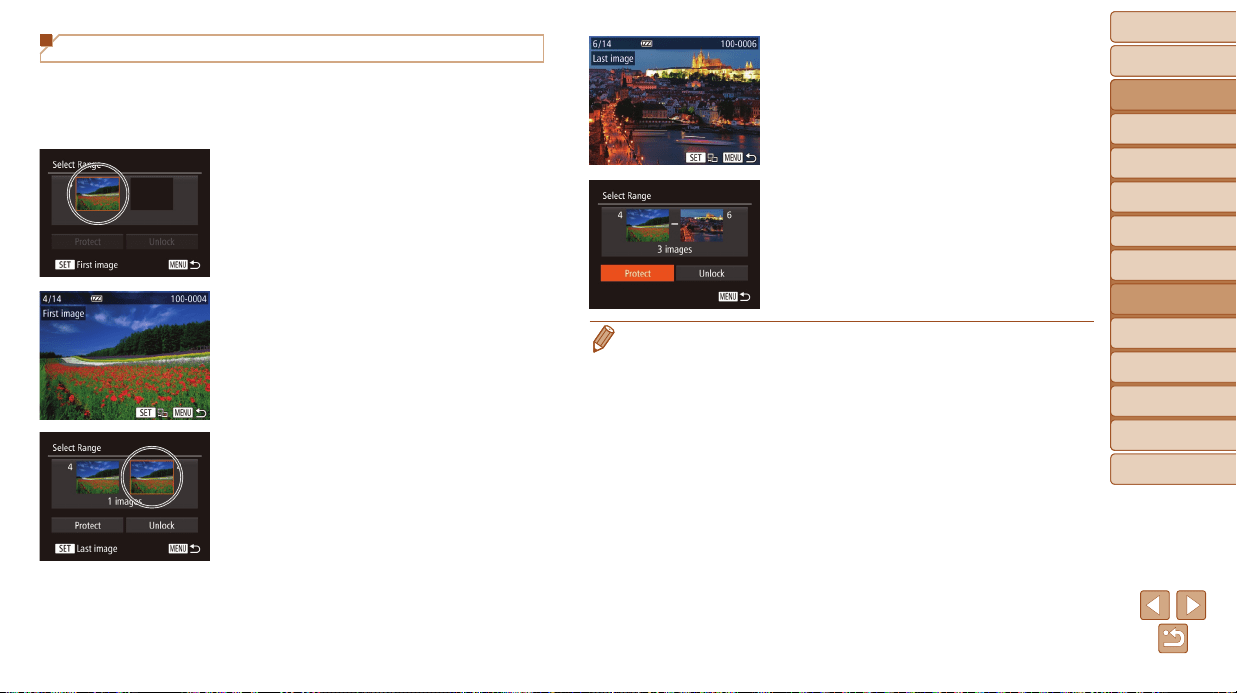
Before Use
Basic Guide
Advanced Guide
Camera Basics
Auto Mode / Hybrid
Auto Mode
Other Shooting
Modes
P Mode
Tv, Av, and M Mode
Playback Mode
Wi-Fi Functions
Setting Menu
Accessories
Appendix
Index
100
Before Use
Basic Guide
Advanced Guide
Camera Basics
Auto Mode / Hybrid
Auto Mode
Other Shooting
Modes
P Mode
Tv, Av, and M Mode
Playback Mode
Wi-Fi Functions
Setting Menu
Accessories
Appendix
Index
Selecting a Range
1 Choose[SelectRange].
Following step 2 in “Using the Menu”
(=
99), choose [Select Range] and
press the <m> button.
2 Chooseastartingimage.
Press the <m> button.
Press the <q><r> buttons or turn the
<5> dial to choose an image, and then
press the <m> button.
3 Chooseanendingimage.
Press the <r> button to choose [Last
image], and then press the <m> button.
Press the <q><r> buttons or turn the
<5> dial to choose an image, and then
press the <m> button.
Images before the rst image cannot be
selected as the last image.
4 Protecttheimages.
Press the <p> button to choose
[Protect], and then press the <m>
button.
• You can also choose the rst or last image by turning the <5> dial when the
top screen in steps 2 and 3 is displayed.
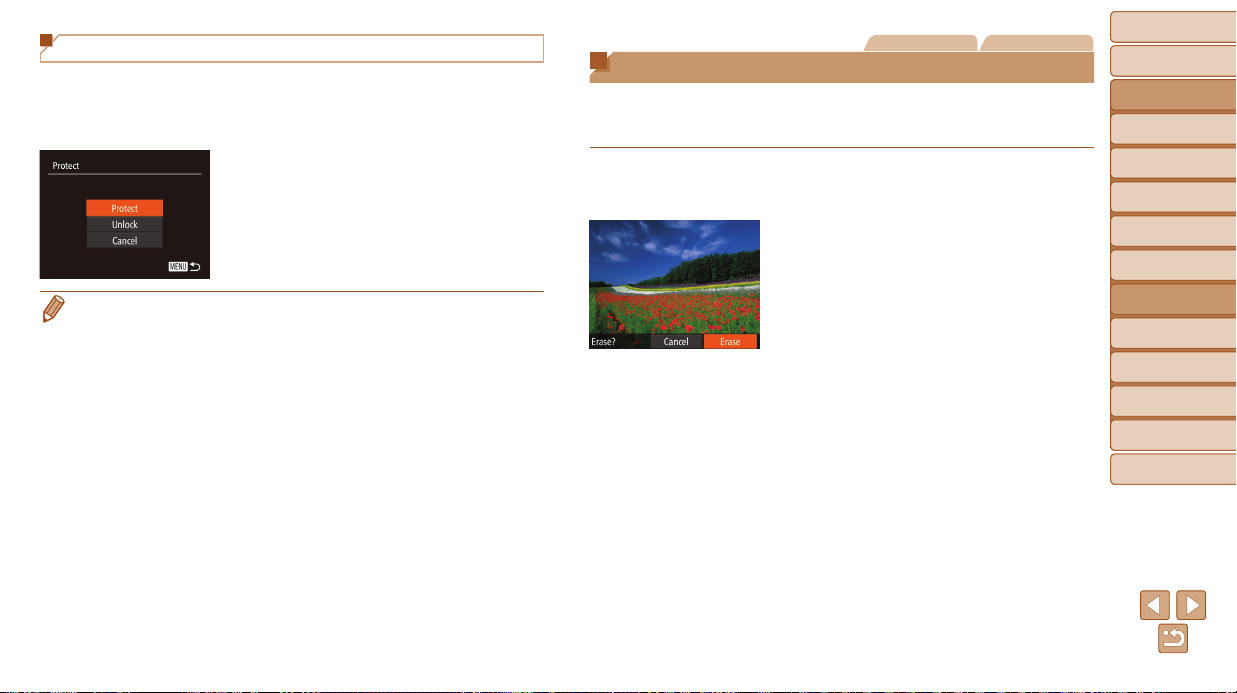
Before Use
Basic Guide
Advanced Guide
Camera Basics
Auto Mode / Hybrid
Auto Mode
Other Shooting
Modes
P Mode
Tv, Av, and M Mode
Playback Mode
Wi-Fi Functions
Setting Menu
Accessories
Appendix
Index
101
Before Use
Basic Guide
Advanced Guide
Camera Basics
Auto Mode / Hybrid
Auto Mode
Other Shooting
Modes
P Mode
Tv, Av, and M Mode
Playback Mode
Wi-Fi Functions
Setting Menu
Accessories
Appendix
Index
Specifying All Images at Once
1 Choose[SelectAllImages].
Following step 2 in “Using the Menu”
(=
99), choose [Select All Images] and
press the <m> button.
2 Protecttheimages.
Press the <o><p> buttons or turn the
<5> dial to choose [Protect], and then
press the <m> button.
• To cancel protection for groups of images, choose [Unlock] in step 4 of
“Selecting a Range” or in step 2 of “Specifying All Images at Once”.
Still Images Movies
Erasing Images
You can choose and erase unneeded images one by one. Be careful when
erasing images, because they cannot be recovered. However, protected
images (=
98) cannot be erased.
1 Chooseanimagetoerase.
Press the <q><r> buttons or turn the
<5> dial to choose an image.
2 Erasetheimage.
Press the <p> button.
After [Erase?] is displayed, press the
<q><r> buttons or turn the <5> dial to
choose [Erase], and then press the <m>
button.
The current image is now erased.
To cancel erasure, press the <q><r>
buttons or turn the <5> dial to choose
[Cancel], and then press the <m>
button.
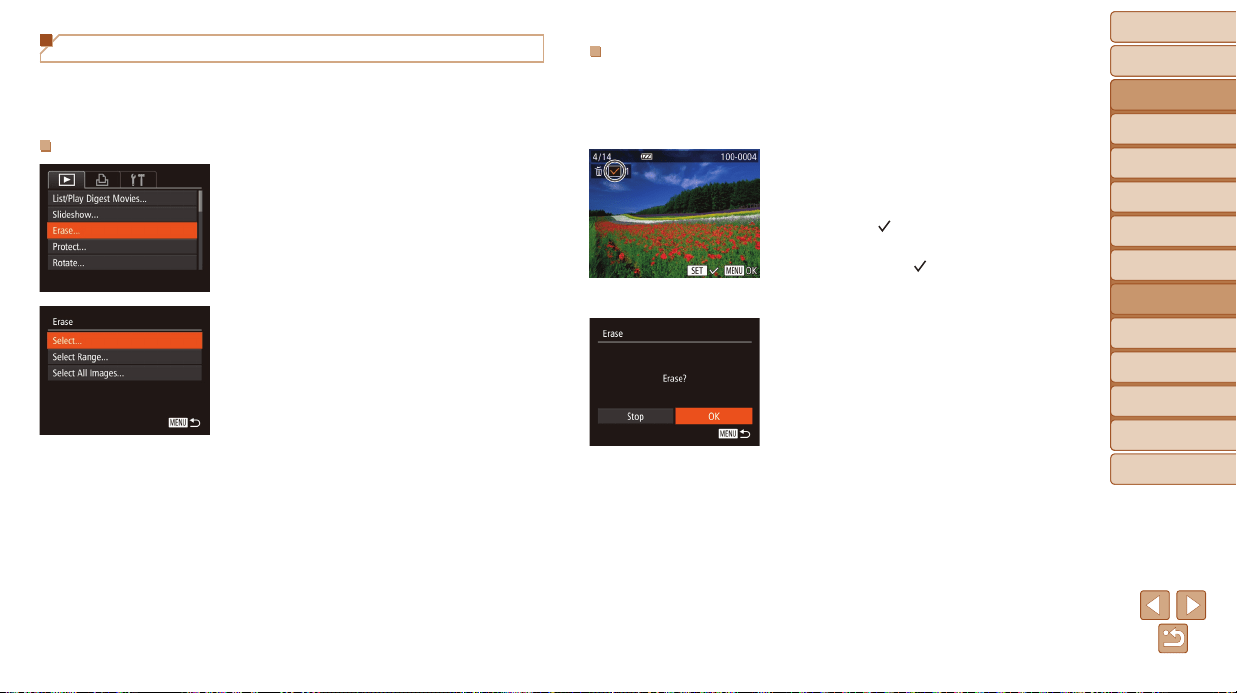
Before Use
Basic Guide
Advanced Guide
Camera Basics
Auto Mode / Hybrid
Auto Mode
Other Shooting
Modes
P Mode
Tv, Av, and M Mode
Playback Mode
Wi-Fi Functions
Setting Menu
Accessories
Appendix
Index
102
Before Use
Basic Guide
Advanced Guide
Camera Basics
Auto Mode / Hybrid
Auto Mode
Other Shooting
Modes
P Mode
Tv, Av, and M Mode
Playback Mode
Wi-Fi Functions
Setting Menu
Accessories
Appendix
Index
Erasing Multiple Images at Once
You can choose multiple images to erase at once. Be careful when erasing
images, because they cannot be recovered. However, protected images
(=
98) cannot be erased.
ChoosingaSelectionMethod
1 Accessthesettingscreen.
Press the <n> button, and then
choose [Erase] on the [1] tab (=
24).
2 Chooseaselectionmethod.
Press the <o><p> buttons or turn the
<5> dial to choose a selection method,
and then press the <m> button.
To return to the menu screen, press the
<n> button.
ChoosingImagesIndividually
1 Choose[Select].
Following step 2 in “Choosing a Selection
Method” (=
102), choose [Select] and
press the <m> button.
2 Chooseanimage.
Once you choose an image following
step 2 in “Choosing Images Individually”
(=
99), [ ] is displayed.
To cancel selection, press the <m>
button again. [
] is no longer displayed.
Repeat this process to specify other
images.
3 Erasetheimage.
Press the <n> button. A conrmation
message is displayed.
Press the <q><r> buttons or turn the
<5> dial to choose [OK], and then press
the <m> button.
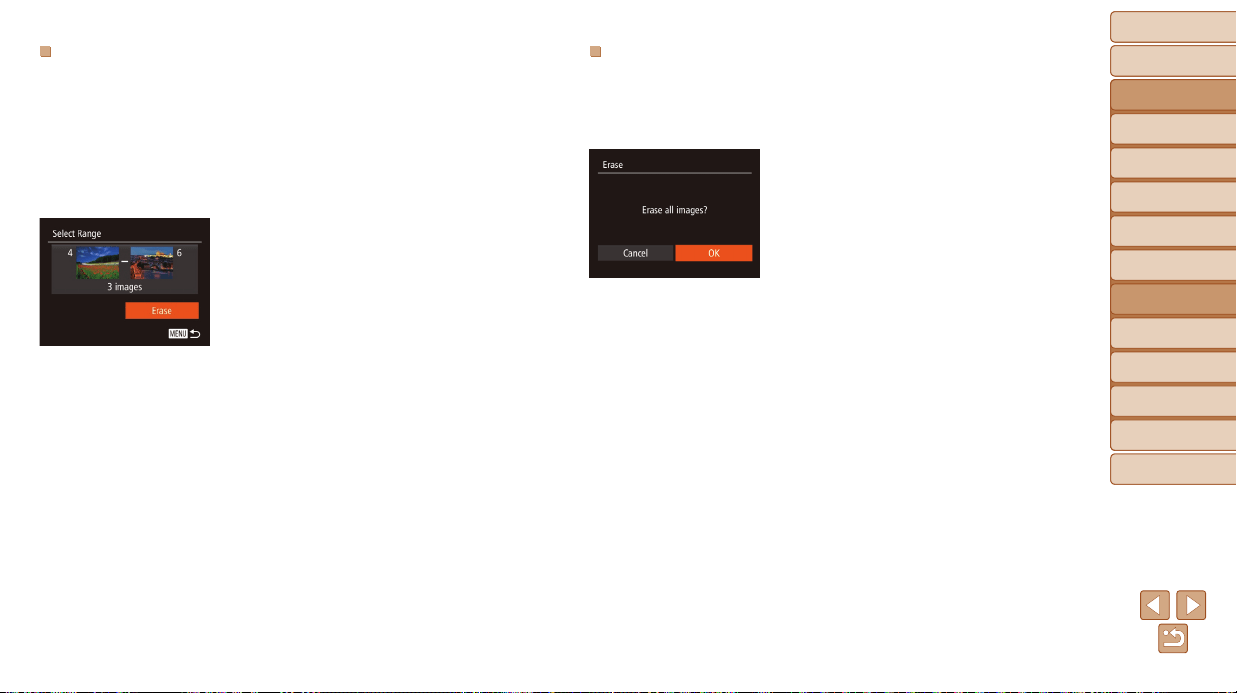
Before Use
Basic Guide
Advanced Guide
Camera Basics
Auto Mode / Hybrid
Auto Mode
Other Shooting
Modes
P Mode
Tv, Av, and M Mode
Playback Mode
Wi-Fi Functions
Setting Menu
Accessories
Appendix
Index
103
Before Use
Basic Guide
Advanced Guide
Camera Basics
Auto Mode / Hybrid
Auto Mode
Other Shooting
Modes
P Mode
Tv, Av, and M Mode
Playback Mode
Wi-Fi Functions
Setting Menu
Accessories
Appendix
Index
SelectingaRange
1 Choose[SelectRange].
Following step 2 in “Choosing a Selection
Method” (=
102), choose [Select
Range] and press the <m> button.
2 Chooseimages.
Follow steps 2 – 3 in “Selecting a Range”
(=
100) to specify images.
3 Erasetheimages.
Press the <p> button to choose [Erase],
and then press the <m> button.
SpecifyingAllImagesatOnce
1 Choose[SelectAllImages].
Following step 2 in “Choosing a Selection
Method” (=
102), choose [Select All
Images] and press the <m> button.
2 Erasetheimages.
Press the <q><r> buttons or turn the
<5> dial to choose [OK], and then press
the <m> button.
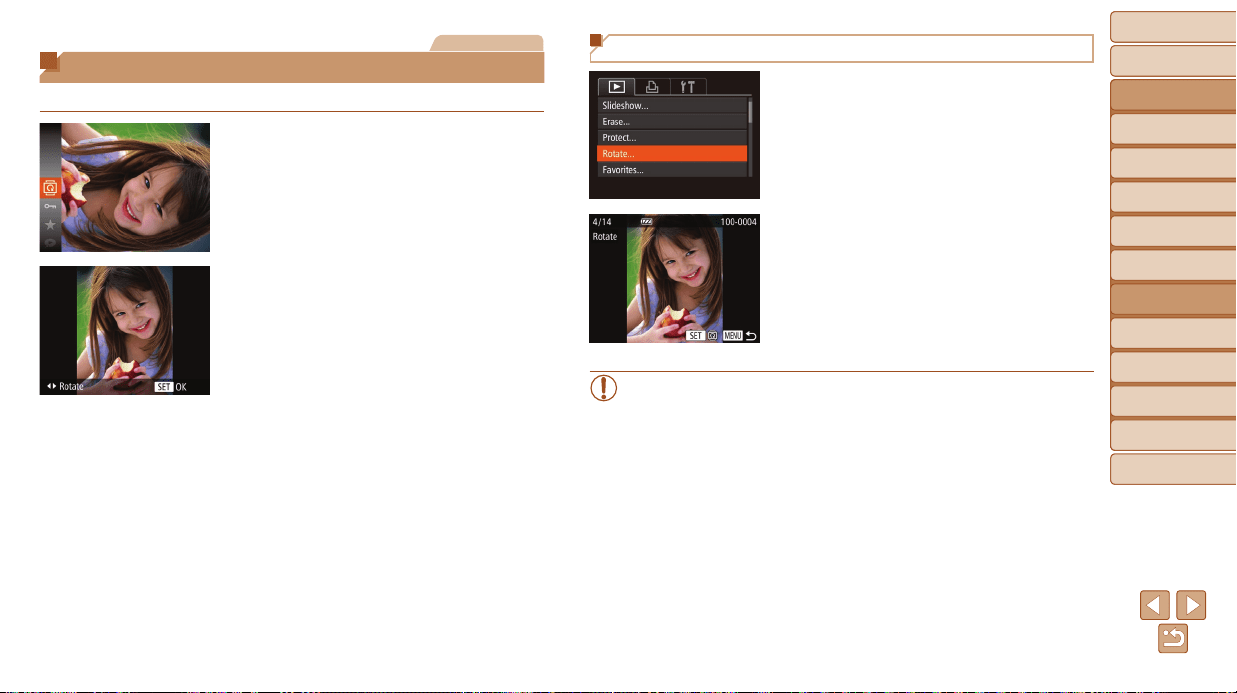
Before Use
Basic Guide
Advanced Guide
Camera Basics
Auto Mode / Hybrid
Auto Mode
Other Shooting
Modes
P Mode
Tv, Av, and M Mode
Playback Mode
Wi-Fi Functions
Setting Menu
Accessories
Appendix
Index
104
Before Use
Basic Guide
Advanced Guide
Camera Basics
Auto Mode / Hybrid
Auto Mode
Other Shooting
Modes
P Mode
Tv, Av, and M Mode
Playback Mode
Wi-Fi Functions
Setting Menu
Accessories
Appendix
Index
Still Images
Rotating Images
Change the orientation of images and save them as follows.
1 Choose[
\
].
Press the <
m
> button, and then choose
[
\
] in the menu (=
23).
2 Rotatetheimage.
Press the <q> or <r> button, depending
on the desired direction. Each time you
press the button, the image is rotated
90°. Press the <m> button to complete
the setting.
Using the Menu
1 Choose[Rotate].
Press the <n> button and choose
[Rotate] on the [1] tab (=
24).
2 Rotatetheimage.
Press the <q><r> buttons or turn the
<5> dial to choose an image.
The image is rotated 90° each time you
press the <m> button.
To return to the menu screen, press the
<n> button.
• Rotation is not possible when [Auto Rotate] is set to [Off] (=
105).
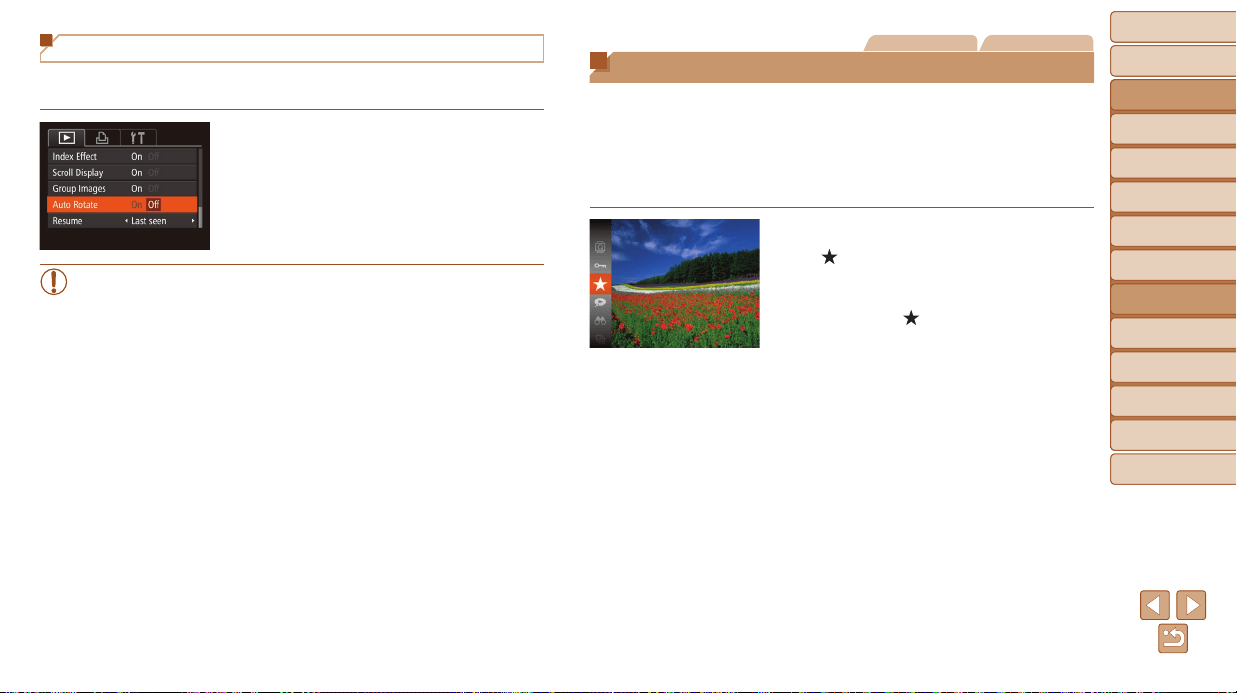
Before Use
Basic Guide
Advanced Guide
Camera Basics
Auto Mode / Hybrid
Auto Mode
Other Shooting
Modes
P Mode
Tv, Av, and M Mode
Playback Mode
Wi-Fi Functions
Setting Menu
Accessories
Appendix
Index
105
Before Use
Basic Guide
Advanced Guide
Camera Basics
Auto Mode / Hybrid
Auto Mode
Other Shooting
Modes
P Mode
Tv, Av, and M Mode
Playback Mode
Wi-Fi Functions
Setting Menu
Accessories
Appendix
Index
Deactivating Auto Rotation
Follow these steps to deactivate automatic image rotation, which rotates
images based on the current camera orientation.
Press the <n> button, choose
[Auto Rotate] on the [1] tab, and then
choose [Off] (=
24).
• Images cannot be rotated (=
104) when you set [Auto Rotate] to
[Off]. Additionally, images already rotated will be displayed in the
original orientation.
• In Smart Shufe (=
97) mode, even if [Auto Rotate] is set to
[Off], images shot vertically will be displayed vertically, and rotated
images will be displayed in the rotated orientation.
Still Images Movies
Tagging Images as Favorites
You can organize images by tagging them as favorites. By choosing a
category in ltered playback, you can restrict the following operations to all
of those images.
• Viewing (=
89), Viewing Slideshows (=
96), Protecting Images
(=
98), Erasing Images (=
101), Adding Images to the Print List
(DPOF) (=
167), Adding Images to a Photobook (=
169)
Press the <m> button, and then choose
[
] in the menu (=
23).
[Tagged as Favorite] is displayed.
To untag the image, repeat this process
and choose [
] again, and then press
the <m> button.
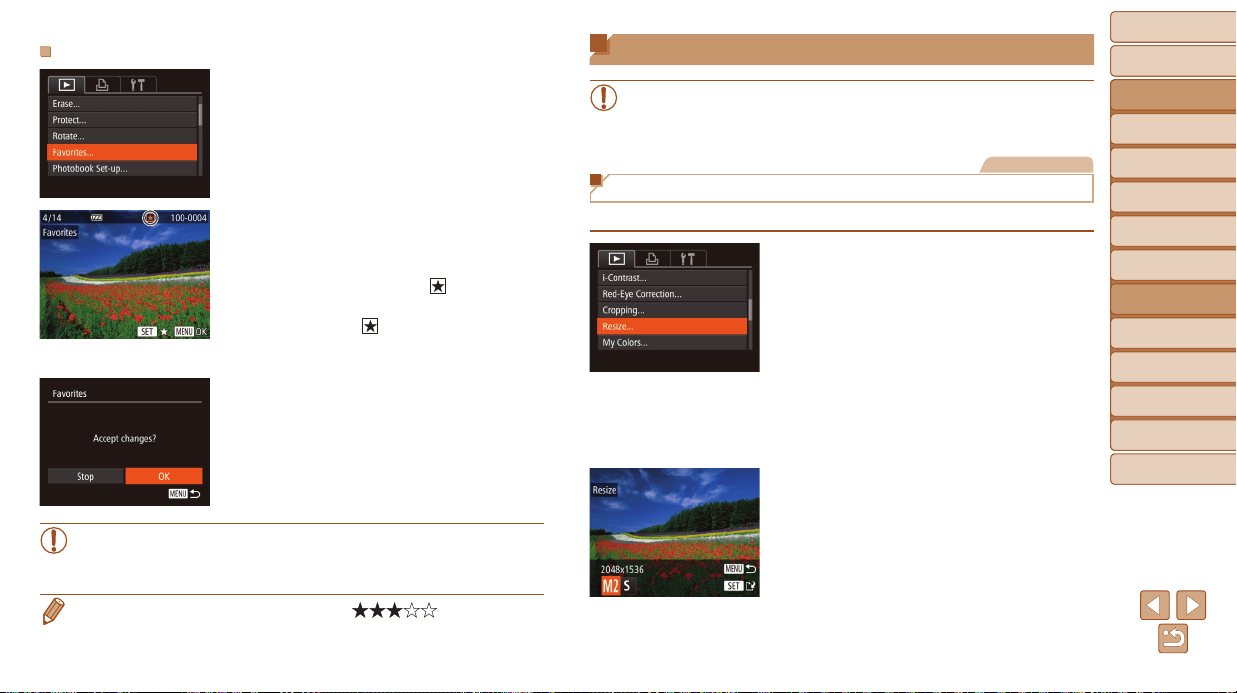
Before Use
Basic Guide
Advanced Guide
Camera Basics
Auto Mode / Hybrid
Auto Mode
Other Shooting
Modes
P Mode
Tv, Av, and M Mode
Playback Mode
Wi-Fi Functions
Setting Menu
Accessories
Appendix
Index
106
Before Use
Basic Guide
Advanced Guide
Camera Basics
Auto Mode / Hybrid
Auto Mode
Other Shooting
Modes
P Mode
Tv, Av, and M Mode
Playback Mode
Wi-Fi Functions
Setting Menu
Accessories
Appendix
Index
UsingtheMenu
1 Choose[Favorites].
Press the <n> button and choose
[Favorites] on the [1] tab (=
24).
2 Chooseanimage.
Press the <q><r> buttons or turn the
<5> dial to choose an image, and then
press the <m> button. [
] is displayed.
To untag the image, press the <m>
button again. [
] is no longer displayed.
Repeat this process to choose additional
images.
3 Finishthesetupprocess.
Press the <n> button. A conrmation
message is displayed.
Press the <q><r> buttons or turn the
<5> dial to choose [OK], and then press
the <m> button.
• Images will not be tagged as favorites if you switch to Shooting
mode or turn the camera off before nishing the setup process in
step 3.
• Favorite images will have a three-star rating ( ) when transferred
to computers running Windows 8, Windows 7, or Windows Vista. (Does not
apply to movies.)
Editing Still Images
• Image editing (=
106 – 110) is only available when the memory
card has sufcient free space.
Still Images
Resizing Images
Save a copy of images at a lower resolution.
1 Choose[Resize].
Press the <n> button and choose
[Resize] on the [1] tab (=
24).
2 Chooseanimage.
Press the <q><r> buttons or turn the
<5> dial to choose an image, and then
press the <m> button.
3 Chooseanimagesize.
Press the <q><r> buttons or turn the
<5> dial to choose the size, and then
press the <m> button.
[Save new image?] is displayed.
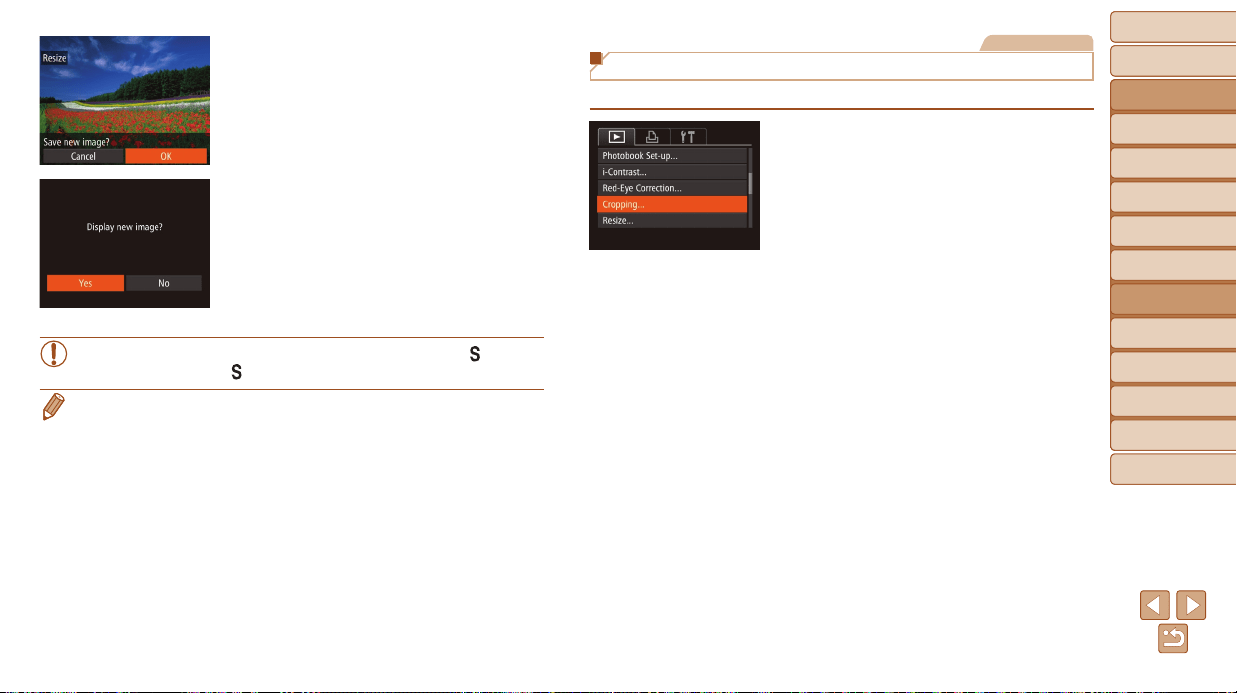
Before Use
Basic Guide
Advanced Guide
Camera Basics
Auto Mode / Hybrid
Auto Mode
Other Shooting
Modes
P Mode
Tv, Av, and M Mode
Playback Mode
Wi-Fi Functions
Setting Menu
Accessories
Appendix
Index
107
Before Use
Basic Guide
Advanced Guide
Camera Basics
Auto Mode / Hybrid
Auto Mode
Other Shooting
Modes
P Mode
Tv, Av, and M Mode
Playback Mode
Wi-Fi Functions
Setting Menu
Accessories
Appendix
Index
4 Savethenewimage.
Press the <q><r> buttons or turn the
<5> dial to choose [OK], and then press
the <m> button.
The image is now saved as a new le.
5 Reviewthenewimage.
Press the <n> button. [Display new
image?] is displayed.
Press the <q><r> buttons or turn the
<5> dial to choose [Yes], and then
press the <m> button.
The saved image is now displayed.
• Editing is not possible for images shot at a resolution of [ ]
(=
46) or saved as [ ] in step 3.
• Images cannot be resized to a higher resolution.
Still Images
Cropping
You can specify a portion of an image to save as a separate image le.
1 Choose[Cropping].
Press the <n> button, and then
choose [Cropping] on the [1] tab
(=
24).
2 Chooseanimage.
Press the <q><r> buttons or turn the
<5> dial to choose an image, and then
press the <m> button.
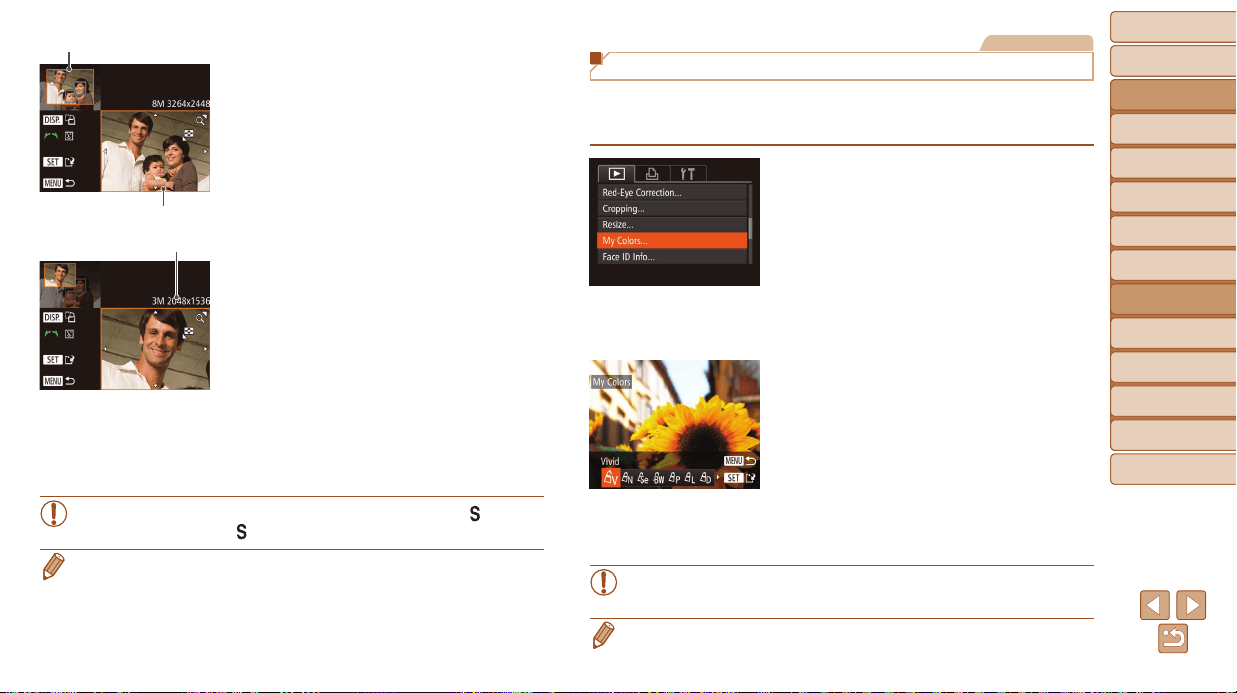
Before Use
Basic Guide
Advanced Guide
Camera Basics
Auto Mode / Hybrid
Auto Mode
Other Shooting
Modes
P Mode
Tv, Av, and M Mode
Playback Mode
Wi-Fi Functions
Setting Menu
Accessories
Appendix
Index
108
Before Use
Basic Guide
Advanced Guide
Camera Basics
Auto Mode / Hybrid
Auto Mode
Other Shooting
Modes
P Mode
Tv, Av, and M Mode
Playback Mode
Wi-Fi Functions
Setting Menu
Accessories
Appendix
Index
3 Adjustthecroppingarea.
A frame is displayed around the portion of
the image to be cropped.
The original image is shown in the upper
left, and a preview of the image as
cropped is shown in the lower right.
To resize the frame, move the zoom
lever.
To move the frame, press the
<o><p><q><r> buttons.
To change the frame orientation, press
the <l> button.
Faces detected in the image are
enclosed in gray frames in the upper-left
image. To crop the image based on this
frame, turn the <5> dial to switch to the
other frame.
Press the <m> button.
4 Saveasanewimageand
review.
Follow steps 4 – 5 in “Resizing Images”
(=
107).
• Editing is not possible for images shot at a resolution of [ ]
(=
46) or resized to [ ] (=
106).
• Images supported for cropping will have the same aspect ratio after cropping.
• Cropped images will have a lower resolution than uncropped images.
• If you crop still images shot using Face ID (=
40), only the names of the
people left in the cropped image will remain.
Resolution After Cropping
Preview of Image After Cropping
Cropping Area
Still Images
Changing Image Color Tones (My Colors)
You can adjust image colors and then save the edited image as a separate
le. For details on each option, see “Changing Image Color Tones
(My Colors)” (=
73).
1 Choose[MyColors].
Press the <n> button, and then choose
[My Colors] on the
[1]
tab
(=
24).
2 Chooseanimage.
Press the <q><r> buttons or turn the
<5> dial to choose an image, and then
press the <m> button.
3 Chooseanoption.
Press the <q><r> buttons or turn the
<5> dial to choose an option, and then
press the <m> button.
4 Saveasanewimageandreview.
Follow steps 4 – 5 in “Resizing Images”
(=
107).
• Image quality of pictures you repeatedly edit this way will be a little
lower each time, and you may not be able to obtain the desired color.
• The color of images edited using this function may vary slightly from the color
of images shot using My Colors (=
73).
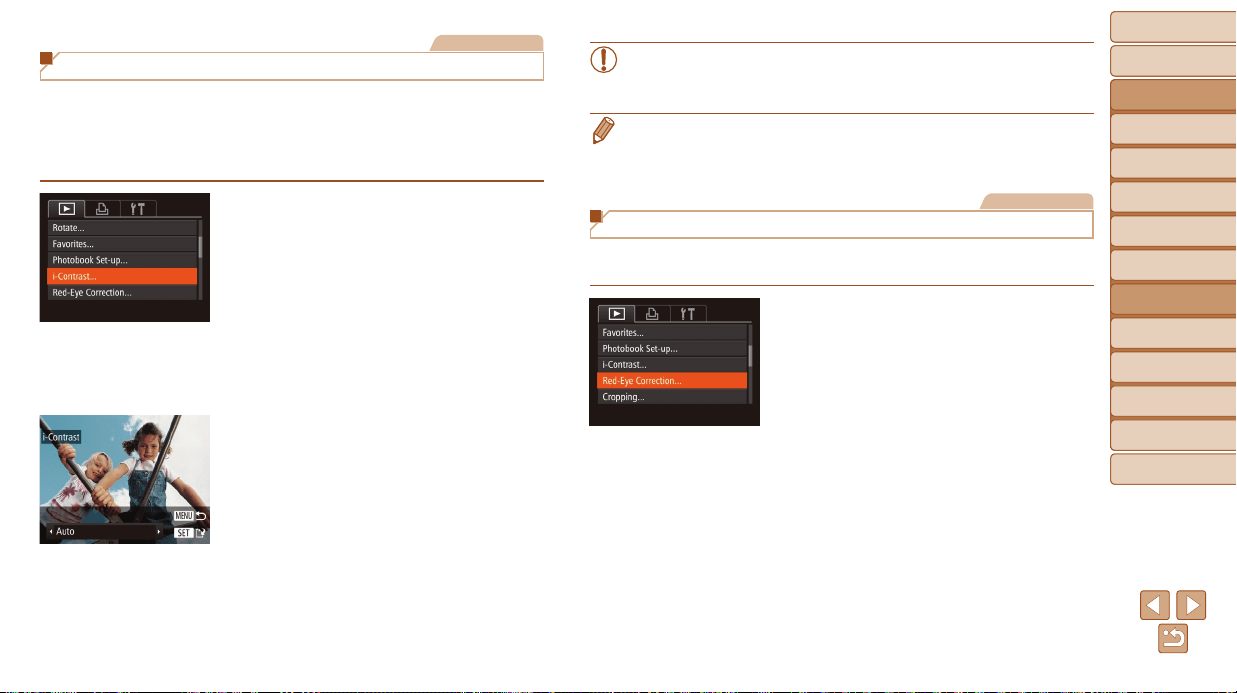
Before Use
Basic Guide
Advanced Guide
Camera Basics
Auto Mode / Hybrid
Auto Mode
Other Shooting
Modes
P Mode
Tv, Av, and M Mode
Playback Mode
Wi-Fi Functions
Setting Menu
Accessories
Appendix
Index
109
Before Use
Basic Guide
Advanced Guide
Camera Basics
Auto Mode / Hybrid
Auto Mode
Other Shooting
Modes
P Mode
Tv, Av, and M Mode
Playback Mode
Wi-Fi Functions
Setting Menu
Accessories
Appendix
Index
Still Images
Correcting Image Brightness (i-Contrast)
Excessively dark image areas (such as faces or backgrounds) can be
detected and automatically adjusted to the optimal brightness. Insufcient
overall image contrast is also automatically corrected, to make subjects
stand out better. Choose from four correction levels, and then save the
image as a separate le.
1 Choose[i-Contrast].
Press the <n> button, and then
choose [i-Contrast] on the [1] tab
(=
24).
2 Chooseanimage.
Press the <q><r> buttons or turn the
<5> dial to choose an image, and then
press the <m> button.
3 Chooseanoption.
Press the <q><r> buttons or turn the
<5> dial to choose an option, and then
press the <m> button.
4 Saveasanewimageand
review.
Follow steps 4 – 5 in “Resizing Images”
(=
107).
• For some images, correction may be inaccurate or may cause
images to appear grainy.
• Images may look grainy after repeated editing using this function.
• If [Auto] does not produce the expected results, try correcting images using
[Low], [Medium], or [High].
Still Images
Correcting Red-Eye
Automatically corrects images affected by red-eye. You can save the
corrected image as a separate le.
1 Choose[Red-EyeCorrection].
Press the <n> button, and then
choose [Red-Eye Correction] on the [1]
tab (=
24).
2 Chooseanimage.
Press the <q><r> buttons or turn the
<5> dial to choose an image.
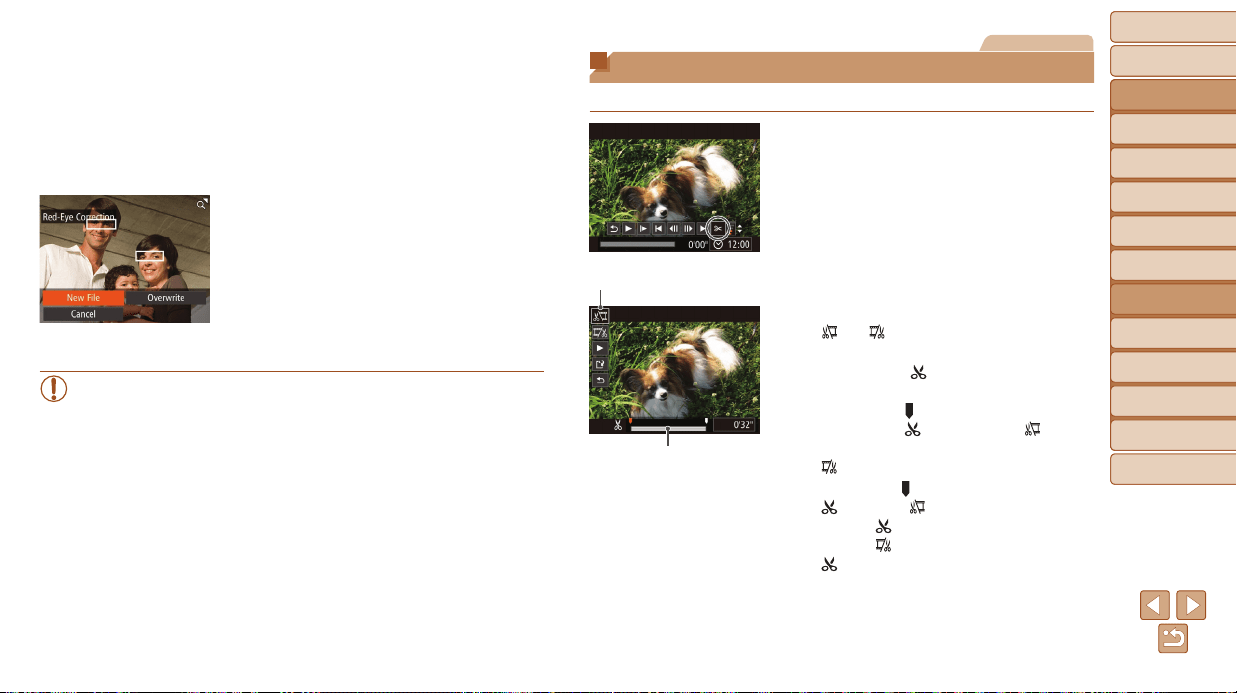
Before Use
Basic Guide
Advanced Guide
Camera Basics
Auto Mode / Hybrid
Auto Mode
Other Shooting
Modes
P Mode
Tv, Av, and M Mode
Playback Mode
Wi-Fi Functions
Setting Menu
Accessories
Appendix
Index
110
Before Use
Basic Guide
Advanced Guide
Camera Basics
Auto Mode / Hybrid
Auto Mode
Other Shooting
Modes
P Mode
Tv, Av, and M Mode
Playback Mode
Wi-Fi Functions
Setting Menu
Accessories
Appendix
Index
3 Correcttheimage.
Press the <m> button.
Red-eye detected by the camera is now
corrected, and frames are displayed
around corrected image areas.
Enlarge or reduce images as needed.
Follow the steps in “Magnifying Images”
(=
96).
4 Saveasanewimageand
review.
Press the <o><p><q><r> buttons or
turn the <5> dial to choose [New File],
and then press the <m> button.
The image is now saved as a new le.
Follow step 5 in “Resizing Images”
(=
107).
• Some images may not be corrected accurately.
• To overwrite the original image with the corrected image, choose
[Overwrite] in step 4. In this case, the original image will be erased.
• Protected images cannot be overwritten.
Movies
Editing Movies
You can cut movies to remove unneeded portions at the beginning or end.
1 Choose[*].
Following steps 1 – 5 in “Viewing”
(=
89), choose [*] and press the
<m> button.
The movie editing panel and editing bar
are now displayed.
2 Specifyportionstocut.
Press the <o><p> buttons to choose
[
] or [ ].
To view the portions you can cut
(identied by [
] on the screen), press
the <q><r> buttons or turn the <5>
dial to move [
]. Cut the beginning of the
movie (from [
]) by choosing [ ], and
cut the end of the movie by choosing
[
].
If you move [ ] to a position other than a
[
] mark, in [ ] the portion before the
nearest [
] mark on the left will be cut,
while in [
] the portion after the nearest
[
] mark on the right will be cut.
Movie Editing Panel
Movie Editing Bar
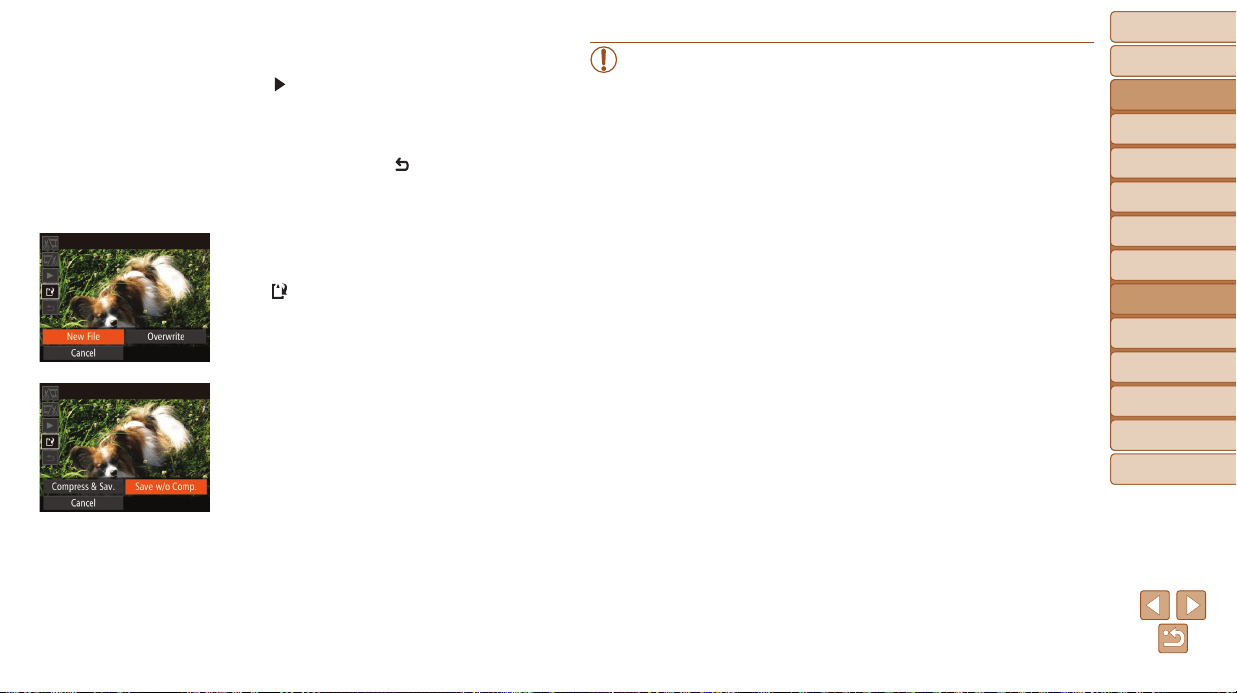
Before Use
Basic Guide
Advanced Guide
Camera Basics
Auto Mode / Hybrid
Auto Mode
Other Shooting
Modes
P Mode
Tv, Av, and M Mode
Playback Mode
Wi-Fi Functions
Setting Menu
Accessories
Appendix
Index
111
Before Use
Basic Guide
Advanced Guide
Camera Basics
Auto Mode / Hybrid
Auto Mode
Other Shooting
Modes
P Mode
Tv, Av, and M Mode
Playback Mode
Wi-Fi Functions
Setting Menu
Accessories
Appendix
Index
3 Reviewtheeditedmovie.
Press the <o><p> buttons to choose
[
], and then press the <m> button.
The edited movie is now played.
To edit the movie again, repeat step 2.
To cancel editing, press the <o><p>
buttons to choose [
]. Press the <m>
button, choose [OK] (either press the
<q><r> buttons or turn the <5> dial),
and then press the <m> button again.
4 Savetheeditedmovie.
Press the <o><p> buttons to choose
[
], and then press the <m> button.
Press the <o><p><q><r> buttons or
turn the <5> dial to choose [New File],
and then press the <m> button.
The movie is now saved as a new le.
Choose [Save w/o Comp.], and then
press the <m> button.
• To overwrite the original movie with the cut one, choose [Overwrite]
in step 4. In this case, the original movie will be erased.
• If the memory card lacks sufcient space, only [Overwrite] will be
available.
• Movies may not be saved if the battery pack runs out while saving
is in progress.
• When editing movies, you should use a fully charged battery pack or
an AC adapter kit (sold separately, =
156).
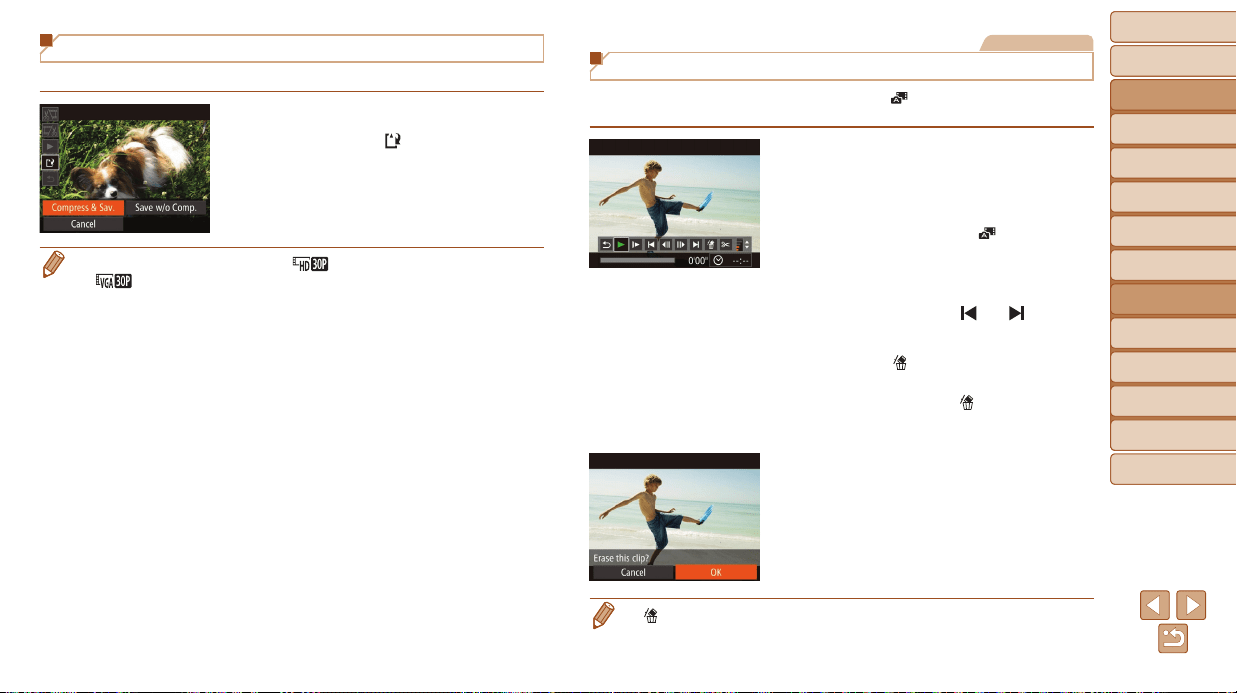
Before Use
Basic Guide
Advanced Guide
Camera Basics
Auto Mode / Hybrid
Auto Mode
Other Shooting
Modes
P Mode
Tv, Av, and M Mode
Playback Mode
Wi-Fi Functions
Setting Menu
Accessories
Appendix
Index
112
Before Use
Basic Guide
Advanced Guide
Camera Basics
Auto Mode / Hybrid
Auto Mode
Other Shooting
Modes
P Mode
Tv, Av, and M Mode
Playback Mode
Wi-Fi Functions
Setting Menu
Accessories
Appendix
Index
Reducing File Sizes
Movie le sizes can be reduced by compressing movies as follows.
On the screen in step 2 of “Editing
Movies”, choose [
]. Choose [New File],
and then press the <m> button.
Choose [Compress & Sav.], and then
press the <m> button.
• Compressed movies are saved in [ ] format.
• [
] movies cannot be compressed.
• Edited movies cannot be saved in compressed format when you choose
[Overwrite].
• However, you can compress and save edited movies as new les by choosing
[Compress & Sav.].
Movies
Editing Digest Movies
Individual chapters (clips) (=
30) recorded in [ ] mode can be erased, as
needed. Be careful when erasing clips, because they cannot be recovered.
1 Selectthecliptoerase.
Follow steps 1 – 2 in “Viewing Short
Movies Created When Shooting Still
Images (Digest Movies)” (=
91) to
play a movie created in [
] mode, and
then press the <m> button to access the
movie control panel.
Press the <q><r> buttons or turn the
<5> dial to choose [
] or [ ], and
then press the <m> button.
2 Choose[ ].
Press the <q><r> buttons or turn the
<5> dial to choose [
], and then press
the <m> button.
The selected clip is played back repeatedly.
3 Conrmerasure.
Press the <q><r> buttons or turn the
<5> dial to choose [OK], and then press
the <m> button.
The clip is erased, and the short movie is
overwritten.
•
[ ] is not displayed if you select a clip when the camera is connected to a printer.
Before Use
Basic Guide
Advanced Guide
Camera Basics
Auto Mode / Hybrid
Auto Mode
Other Shooting
Modes
P Mode
Tv, Av, and M Mode
Playback Mode
Wi-Fi Functions
Setting Menu
Accessories
Appendix
Index
113
Before Use
Basic Guide
Advanced Guide
Camera Basics
Auto Mode / Hybrid
Auto Mode
Other Shooting
Modes
P Mode
Tv, Av, and M Mode
Playback Mode
Wi-Fi Functions
Setting Menu
Accessories
Appendix
Index
Wi-Fi Functions
Send images wirelessly from the camera to a variety of compatible devices, and use the camera with Web services
WhatYouCanDowithWi-Fi......................... 114
Uploading Images to Web Services .................... 114
Sending Images to a Smartphone ....................... 115
Sending Images to a Computer .......................... 115
Printing Images Wirelessly .................................. 116
Sending Images to Another Camera ................... 116
RegisteringWebServices............................. 116
Registering CANON iMAGE GATEWAY ............. 117
Registering Other Web Services ......................... 119
InstallingCameraWindow
onaSmartphone.......................................... 119
PreparingtoRegisteraComputer................ 120
Checking Your Computer Environment ............... 120
Installing the Software ......................................... 121
Conguring the Computer for a Wi-Fi
Connection (Windows Only) ................................ 122
AccessingtheWi-FiMenu............................. 123
Initial Connection via Wi-Fi .................................. 123
After the Initial Wi-Fi Connection ......................... 123
ConnectingviaanAccessPoint................... 124
Conrming Access Point Compatibility ................ 124
Connecting to WPS-Compatible Access
Points ..................................................................125
Connecting to Access Points in the List .............. 128
ConnectingwithoutanAccessPoint........... 129
Previous Access Points .......................................132
ConnectingtoAnotherCamera.................... 132
SendingImages.............................................. 133
Sending Images Individually ............................... 133
Sending Multiple Images ..................................... 135
Adding Comments ...............................................136
SavingImagestoaComputer....................... 136
Usingthe<
>Button................................... 137
Registering a Smartphone to the < > Button ... 137
Registering Image Sync to the <
> Button ....... 138
Clearing Registered Destinations ........................ 139
SendingImagesAutomatically
(ImageSync)................................................. 139
Initial Preparations ..............................................139
Sending Images ..................................................140
GeotaggingImagesontheCamera.............. 141
ShootingRemotely........................................ 141
EditingorErasingWi-FiSettings................. 142
Editing Connection Information ........................... 142
Returning the Wi-Fi Settings to Default ............... 144
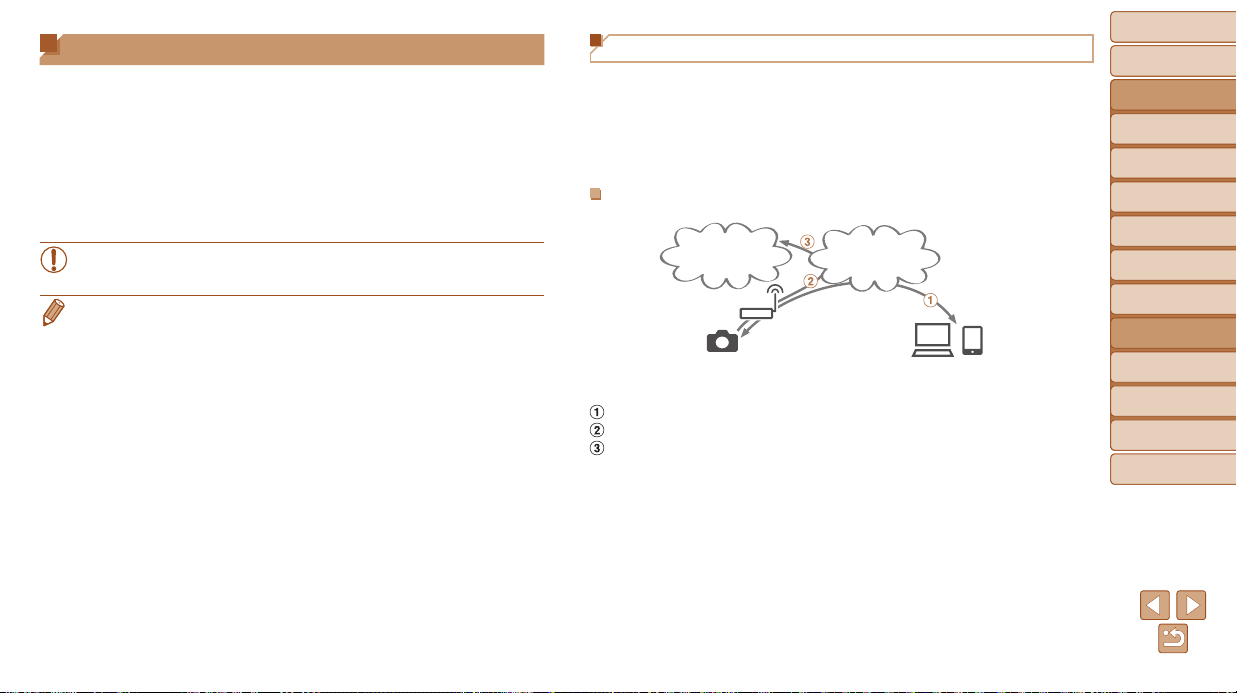
Before Use
Basic Guide
Advanced Guide
Camera Basics
Auto Mode / Hybrid
Auto Mode
Other Shooting
Modes
P Mode
Tv, Av, and M Mode
Playback Mode
Wi-Fi Functions
Setting Menu
Accessories
Appendix
Index
114
Before Use
Basic Guide
Advanced Guide
Camera Basics
Auto Mode / Hybrid
Auto Mode
Other Shooting
Modes
P Mode
Tv, Av, and M Mode
Playback Mode
Wi-Fi Functions
Setting Menu
Accessories
Appendix
Index
Uploading Images to Web Services
Images can be sent to social network services and other Web services
via CANON iMAGE GATEWAY*. Unsent images on the camera can also
be sent automatically to a computer or Web service via CANON iMAGE
GATEWAY.
* CANON iMAGE GATEWAY is an online photo service available to those who have
purchased this product.
Stepsinsendingimages
SNS, video-
sharing sites,
e-mail
Access point
Camera
Computer or smartphone
browsers
CANON iMAGE
GATEWAY
Register Web services (=
116)
Connect via an access point (=
124)
Send images (=
133)*
* You can send images to a computer or Web service.
What You Can Do with Wi-Fi
This camera is an approved Wi-Fi
®
product. You can wirelessly connect to
and send images to the following devices and services.
Note that, in this chapter, wireless LAN functions other than Wi-Fi may be
referred to as Wi-Fi.
Sending images via Wi-Fi requires some initial preparation on the camera
and target devices. Preparations and methods of sending images vary
depending on the destination.
Note that before using Wi-Fi (=
123), you will need to register a camera
nickname on the camera.
• Before using Wi-Fi, be sure to read ”Wi-Fi (Wireless LAN)
Precautions” (=
194) and ”Security Precautions” (=
195).
• Wi-Fi is a brand name that indicates interoperability certication of wireless
LAN devices.
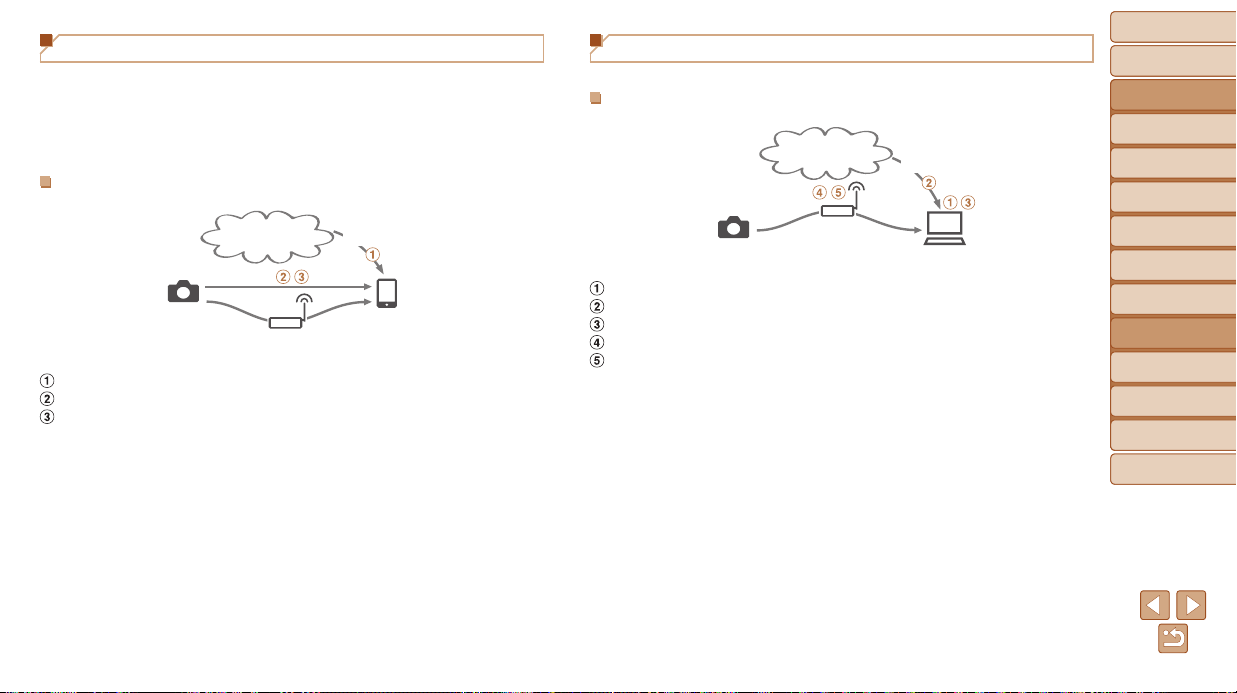
Before Use
Basic Guide
Advanced Guide
Camera Basics
Auto Mode / Hybrid
Auto Mode
Other Shooting
Modes
P Mode
Tv, Av, and M Mode
Playback Mode
Wi-Fi Functions
Setting Menu
Accessories
Appendix
Index
115
Before Use
Basic Guide
Advanced Guide
Camera Basics
Auto Mode / Hybrid
Auto Mode
Other Shooting
Modes
P Mode
Tv, Av, and M Mode
Playback Mode
Wi-Fi Functions
Setting Menu
Accessories
Appendix
Index
Sending Images to a Smartphone
Send images to smartphones and tablet computers that have Wi-Fi
functions. You can also shoot remotely and geotag your shots from a
smartphone or tablet.
For convenience in this manual, smartphones, tablets, and other compatible
devices are collectively referred to as “smartphones”.
Stepsinsendingimages
App Store/Google Play
Smartphone
Tablet computer
Access point
Camera
CameraWindow
Install CameraWindow on a smartphone (=
119)
Connect directly (=
129) or via an access point (=
124)
Send images (=
133)
Sending Images to a Computer
Use the software to wirelessly send images from the camera to a computer.
Stepsinsendingimages
Camera
Computer
Access point
Internet
CameraWindow
Check your computer environment (=
120)
Download and install the software (=
121)
Congure the computer for a Wi-Fi connection (Windows only, =
122)
Connect via an access point (=
124)
Save images to the computer (=
136)
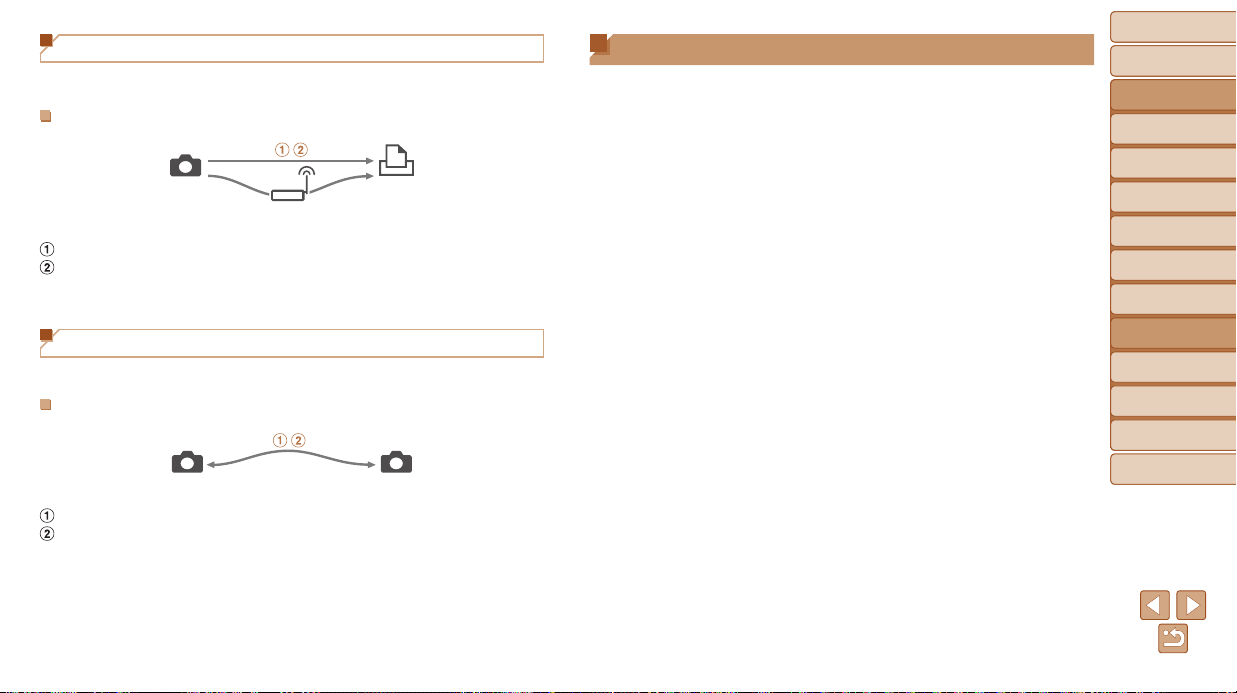
Before Use
Basic Guide
Advanced Guide
Camera Basics
Auto Mode / Hybrid
Auto Mode
Other Shooting
Modes
P Mode
Tv, Av, and M Mode
Playback Mode
Wi-Fi Functions
Setting Menu
Accessories
Appendix
Index
116
Before Use
Basic Guide
Advanced Guide
Camera Basics
Auto Mode / Hybrid
Auto Mode
Other Shooting
Modes
P Mode
Tv, Av, and M Mode
Playback Mode
Wi-Fi Functions
Setting Menu
Accessories
Appendix
Index
Printing Images Wirelessly
Send images wirelessly to a PictBridge-compatible printer (supporting DPS
over IP) to print them.
Stepsinsendingimages
Camera
Printer
Access point
Connect directly (=
129) or via an access point (=
124)
Print images (=
163)
Sending Images to Another Camera
Use the Wi-Fi function to send images between Canon-brand cameras.
Stepsinsendingimages
Camera Camera
Connect to another camera (=
132)
Send images (=
133)
Registering Web Services
Use a smartphone or computer to add to the camera Web services that you
want to use.
• A smartphone or computer with a browser and Internet connection is
required to complete camera settings for CANON iMAGE GATEWAY and
other Web services.
• Check the CANON iMAGE GATEWAY website for details on browser
(Microsoft Internet Explorer, etc.) requirements, including settings and
version information.
•
For information on countries and regions where CANON iMAGE GATEWAY
is available, visit the Canon website (http://www.canon.com/cig/).
• You must have an account with Web services other than CANON iMAGE
GATEWAY if you desire to use them. For further details, check the
websites for each Web service you want to register.
• Separate ISP connection and access point fees may be applicable.
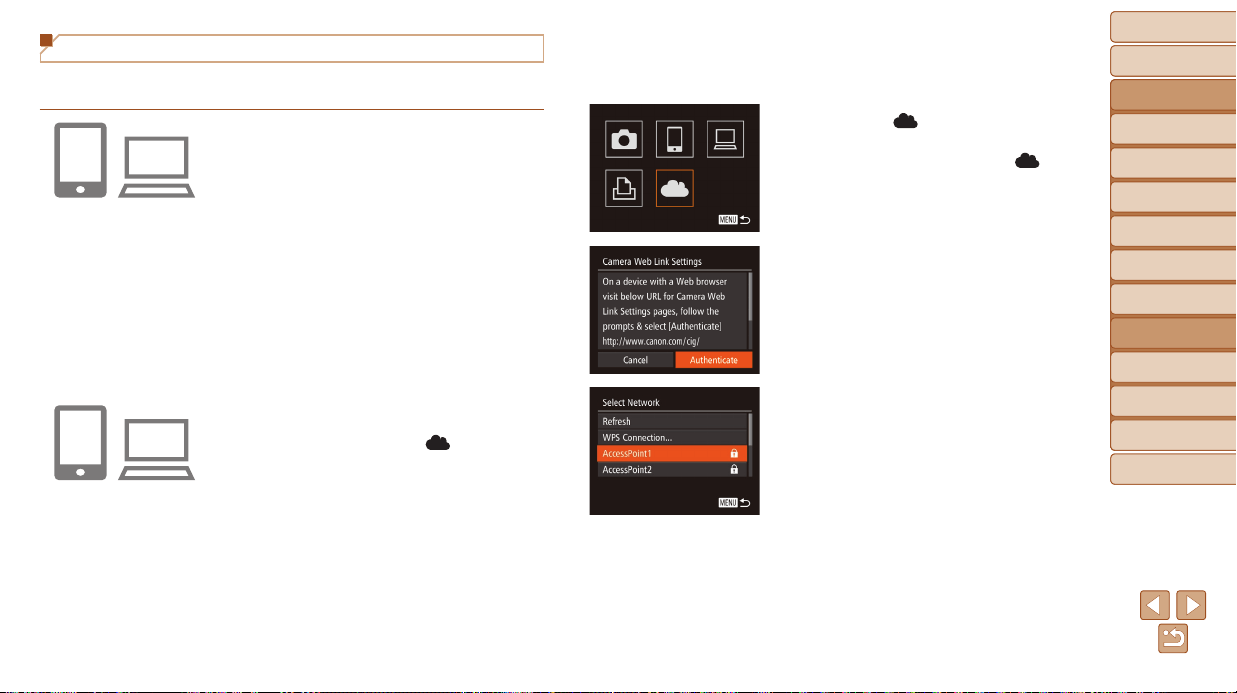
Before Use
Basic Guide
Advanced Guide
Camera Basics
Auto Mode / Hybrid
Auto Mode
Other Shooting
Modes
P Mode
Tv, Av, and M Mode
Playback Mode
Wi-Fi Functions
Setting Menu
Accessories
Appendix
Index
117
Before Use
Basic Guide
Advanced Guide
Camera Basics
Auto Mode / Hybrid
Auto Mode
Other Shooting
Modes
P Mode
Tv, Av, and M Mode
Playback Mode
Wi-Fi Functions
Setting Menu
Accessories
Appendix
Index
3 AccesstheWi-Fimenu.
On the camera, access the Wi-Fi menu
(=
123).
4 Choose[ ].
Press the <o><p><q><r> buttons or
turn the <5> dial to choose [
], and
then press the <m> button.
5 Establishaconnectionwithan
accesspoint.
Press the <q><r> buttons or turn the
<5> dial to choose [Authenticate], and
then press the <m> button.
6 Chooseanaccesspoint.
Press the <o><p> buttons or turn the
<5> dial to choose a network (access
point), and then press the <m> button.
Registering CANON iMAGE GATEWAY
After linking the camera and CANON iMAGE GATEWAY, add CANON
iMAGE GATEWAY as a destination Web service on the camera.
1 LogintoCANONiMAGE
GATEWAYandaccessthe
camerasettingspage.
From a computer or smartphone, access
http://www.canon.com/cig/ and visit the
CANON iMAGE GATEWAY site for your
region.
Once the login screen is displayed,
enter your user name and password
to log in. If you do not have a CANON
iMAGE GATEWAY account, follow
the instructions to complete member
registration (free of charge).
Access the camera settings page.
2 Chooseyourcameramodel.
On this camera model, [ ] is displayed
in the Wi-Fi menu.
Once you choose the model, a page is
displayed for entering the authentication
code. On this page in step 9, you will
enter the authentication code displayed
on the camera after steps 3 – 8.
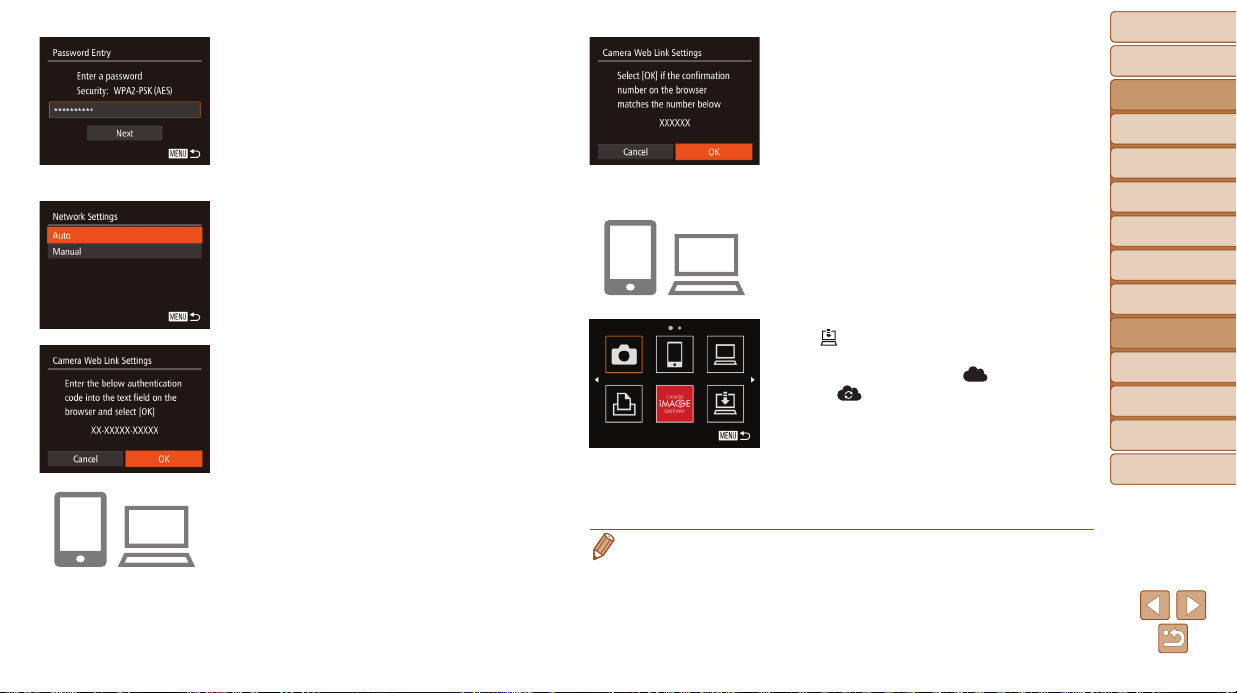
Before Use
Basic Guide
Advanced Guide
Camera Basics
Auto Mode / Hybrid
Auto Mode
Other Shooting
Modes
P Mode
Tv, Av, and M Mode
Playback Mode
Wi-Fi Functions
Setting Menu
Accessories
Appendix
Index
118
Before Use
Basic Guide
Advanced Guide
Camera Basics
Auto Mode / Hybrid
Auto Mode
Other Shooting
Modes
P Mode
Tv, Av, and M Mode
Playback Mode
Wi-Fi Functions
Setting Menu
Accessories
Appendix
Index
7 Entertheaccesspoint
password.
Press the <m> button to access the
keyboard, and then enter the password
(=
124).
Press the <o><p> buttons or turn the
<5> dial to choose [Next], and then
press the <m> button.
8 Choose[Auto]andestablishthe
connection.
Press the <o><p> buttons or turn the
<5> dial to choose [Auto], and then
press the <m> button.
Once the camera is connected to CANON
iMAGE GATEWAY via the access point,
an authentication code is displayed.
9 Entertheauthenticationcode.
On the smartphone or computer, enter
the authentication code displayed on the
camera and go to the next step.
A six-digit conrmation number is
displayed.
10
Checktheconrmation
numbersandcompletethe
setupprocess.
Make sure the conrmation number on
the camera matches the number on the
smartphone or computer.
Press the <q><r> buttons or turn the
<5> dial to choose [OK], and then press
the <m> button.
Complete the setup process on the
smartphone or computer.
[ ] (=
139) and CANON iMAGE
GATEWAY are now added as
destinations, and the [
] icon changes
to [
].
A message is displayed on the
smartphone or computer to indicate that
this process is nished. To add other
Web services, follow the procedure in
“Registering Other Web Services” from
step 2 (=
119).
• You can connect to WPS-compatible access points by choosing [WPS
Connection] in step 6. For details, see steps 5 – 7 in “Connecting to WPS-
Compatible Access Points” (=
125 – 126).
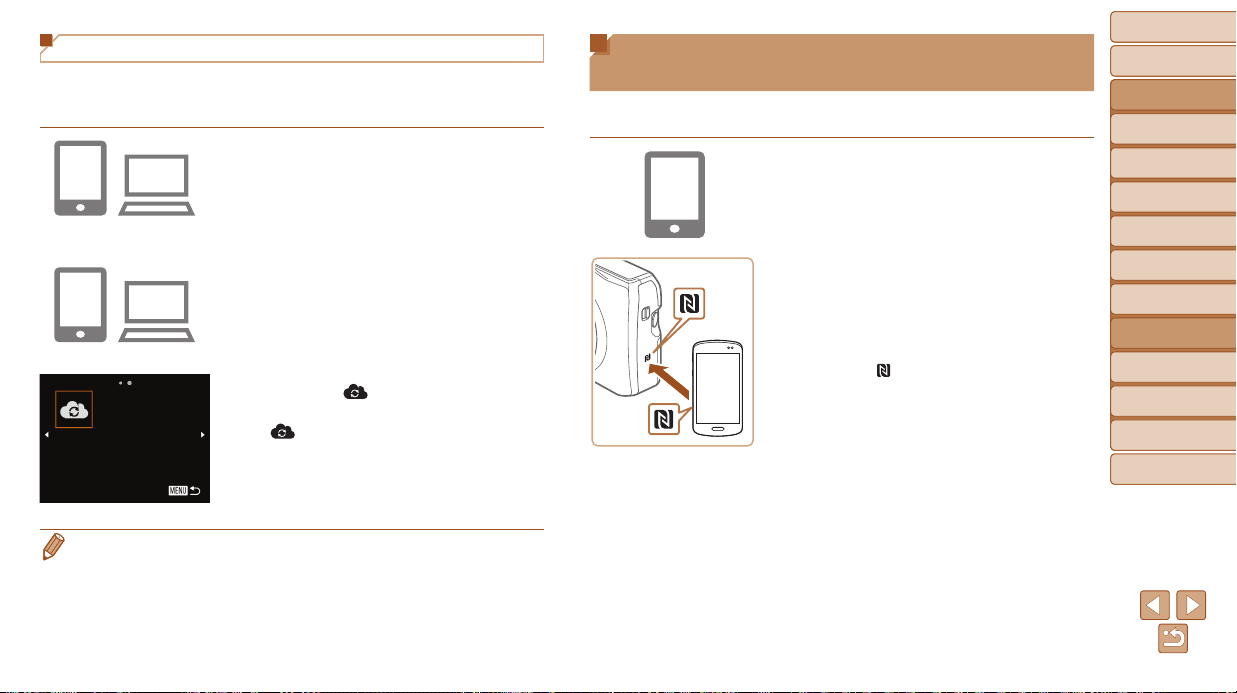
Before Use
Basic Guide
Advanced Guide
Camera Basics
Auto Mode / Hybrid
Auto Mode
Other Shooting
Modes
P Mode
Tv, Av, and M Mode
Playback Mode
Wi-Fi Functions
Setting Menu
Accessories
Appendix
Index
119
Before Use
Basic Guide
Advanced Guide
Camera Basics
Auto Mode / Hybrid
Auto Mode
Other Shooting
Modes
P Mode
Tv, Av, and M Mode
Playback Mode
Wi-Fi Functions
Setting Menu
Accessories
Appendix
Index
Registering Other Web Services
You can also add Web services besides CANON iMAGE GATEWAY to the
camera. Note that CANON iMAGE GATEWAY must be registered on the
camera rst (=
117).
1 AccesstheWebservice
settingsscreen.
Follow step 1 in “Registering CANON
iMAGE GATEWAY” (=
117) to log in
to CANON iMAGE GATEWAY, and then
access the Web service settings screen.
2 ConguretheWebserviceyou
wanttouse.
Follow the instructions displayed on the
smartphone or computer to set up the
Web service.
3 Choose[ ].
Access the Wi-Fi menu (=
123), choose
[
] (either press the <o><p><q><r>
buttons or turn the <5> dial), and then
press the <m> button.
The Web service settings are now
updated.
• If any congured settings change, follow these steps again to update the
camera settings.
Installing CameraWindow on
a Smartphone
Before connecting your camera to a smartphone, rst install the free
dedicated application, CameraWindow, on your smartphone.
1 Connectthesmartphoneto
anetwork.
2 InstallCameraWindow.
For an NFC-compatible Android
smartphone (OS version 4.0 or later),
activating NFC and touching the
smartphone against the camera’s
N-Mark (
) will start Google Play on the
smartphone. Once the CameraWindow
download page is displayed, download
and install the app.
For other Android smartphones, nd
CameraWindow in Google Play and
download and install the app.
For an iPhone, iPad, or iPod touch, nd
CameraWindow in the App Store and
download and install the app.
After installation, use the camera
to establish a connection with the
smartphone (=
124, 129).
Before Use
Basic Guide
Advanced Guide
Camera Basics
Auto Mode / Hybrid
Auto Mode
Other Shooting
Modes
P Mode
Tv, Av, and M Mode
Playback Mode
Wi-Fi Functions
Setting Menu
Accessories
Appendix
Index
120
Before Use
Basic Guide
Advanced Guide
Camera Basics
Auto Mode / Hybrid
Auto Mode
Other Shooting
Modes
P Mode
Tv, Av, and M Mode
Playback Mode
Wi-Fi Functions
Setting Menu
Accessories
Appendix
Index
• When using NFC, keep the following points in mind.
- Avoid strong impact between the camera and smartphone. This may damage
the devices.
- Depending on the smartphone, the devices may not recognize each other
immediately. In this case, try holding the devices together in slightly different
positions.
- Do not place other objects between the camera and smartphone. Also,
note that camera or smartphone covers or similar accessories may block
communication.
• For details on this application (supported smartphones and included functions),
refer to the Canon website.
• Not all NFC-compatible smartphones have an N-Mark (
). For details, refer
to the smartphone user manual.
Preparing to Register a Computer
Prepare to register a computer. To save images to the computer wirelessly,
you must install CameraWindow.
Checking Your Computer Environment
The camera can connect via Wi-Fi to computers running the following
operating systems. For detailed system requirements and compatibility
information, including support in new operating systems, visit the Canon
website.
Operating
System
Windows MacOS
Windows 8/8.1
Windows 7 SP1
Mac OS X 10.9
Mac OS X 10.8.2 or later
Mac OS X 10.7
• Windows 7 Starter and Home Basic editions are not supported.
• Windows 7 N (European version) and KN (South Korean version)
require a separate download and installation of Windows Media
Feature Pack.
For details, check the following website.
http://go.microsoft.com/fwlink/?LinkId=159730
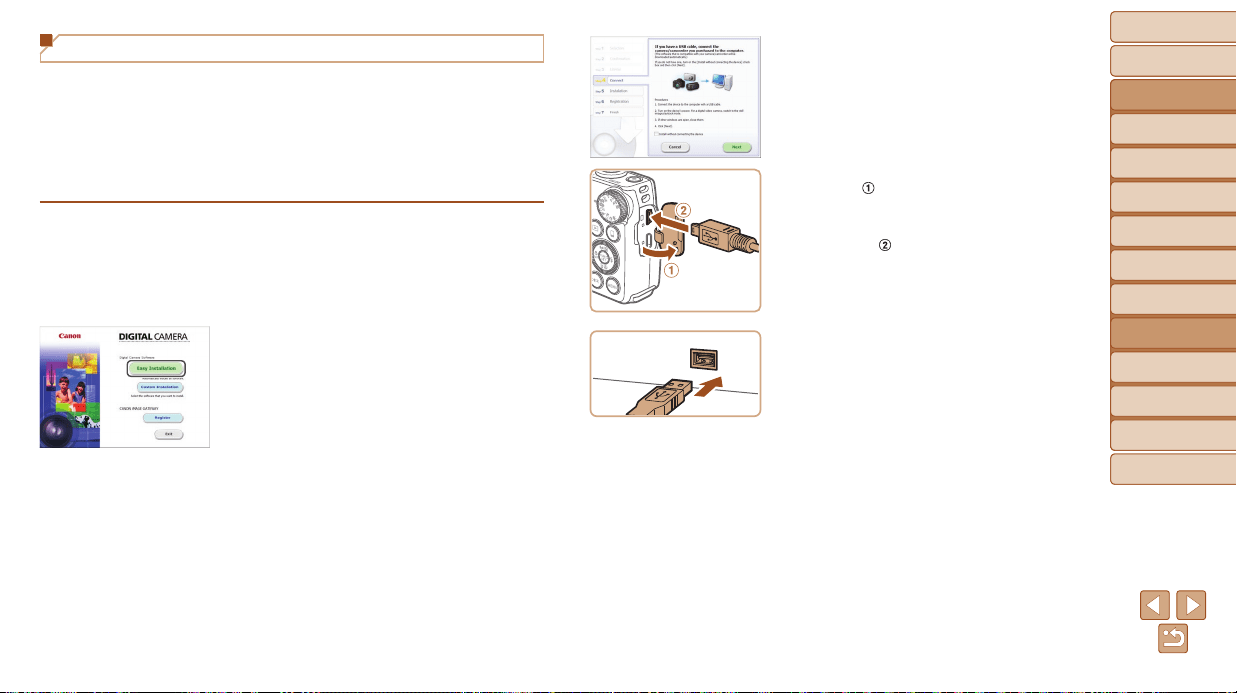
Before Use
Basic Guide
Advanced Guide
Camera Basics
Auto Mode / Hybrid
Auto Mode
Other Shooting
Modes
P Mode
Tv, Av, and M Mode
Playback Mode
Wi-Fi Functions
Setting Menu
Accessories
Appendix
Index
121
Before Use
Basic Guide
Advanced Guide
Camera Basics
Auto Mode / Hybrid
Auto Mode
Other Shooting
Modes
P Mode
Tv, Av, and M Mode
Playback Mode
Wi-Fi Functions
Setting Menu
Accessories
Appendix
Index
Installing the Software
Windows 7 and Mac OS X 10.8 are used here for the sake of illustration.
Whatyouwillneed:
Computer
USB cable (camera end: Mini-B)*
* A USB cable is not included. Although you can install the software without using a
cable, some features will not be added.
1 Downloadthesoftware.
With a computer connected to the Internet,
access http://www.canon.com/icpd/.
Access the site for your country or region.
Download the software.
2 Begintheinstallation.
Click [Easy Installation] and follow the
on-screen instructions to complete the
installation process.
3 Whenamessageisdisplayed
promptingyoutoconnectthe
camera,choosewhetherto
connectornot.
WhenConnectingtheCamerato
theComputer
With the camera turned off, open the
cover (
). With the smaller plug of the
USB cable in the orientation shown,
insert the plug fully into the camera
terminal (
).
Insert the larger plug of the USB cable
in the computer’s USB port. For details
about USB connections on the computer,
refer to the computer user manual.
Turn the camera on, and follow the
on-screen instructions to complete the
installation process.
WithoutConnectingtheCamera
Select [Install without connecting
the device] and follow the on-screen
instructions to complete the installation
process.
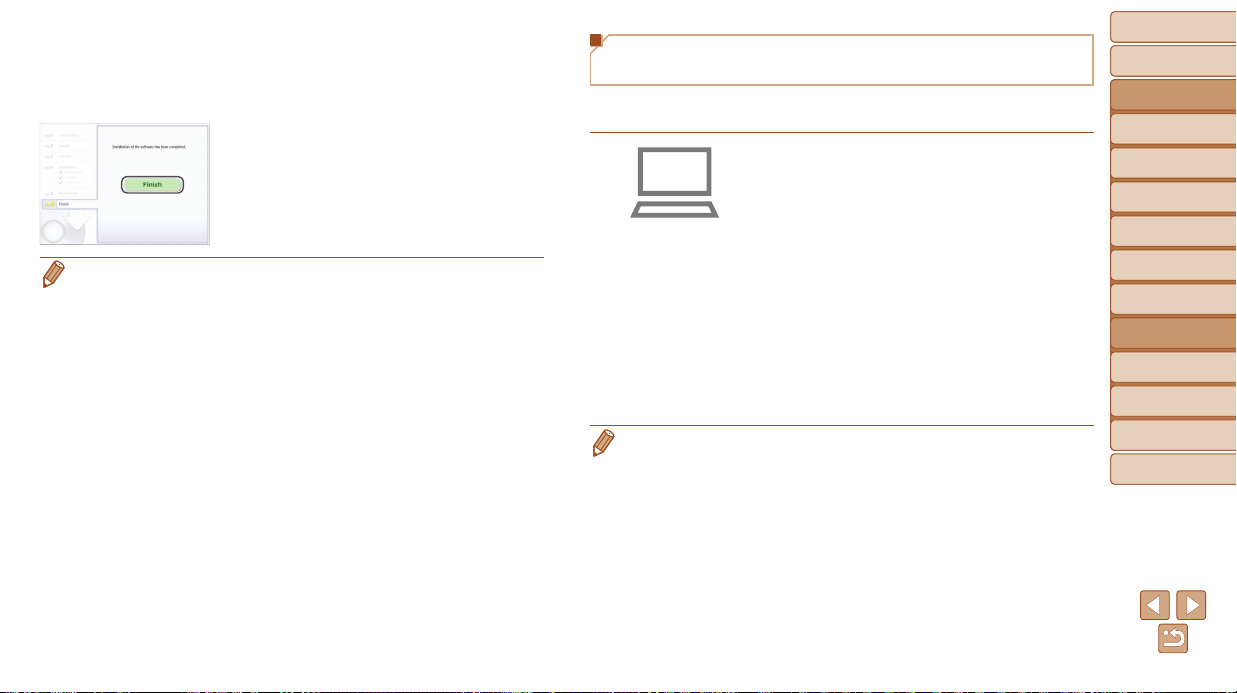
Before Use
Basic Guide
Advanced Guide
Camera Basics
Auto Mode / Hybrid
Auto Mode
Other Shooting
Modes
P Mode
Tv, Av, and M Mode
Playback Mode
Wi-Fi Functions
Setting Menu
Accessories
Appendix
Index
122
Before Use
Basic Guide
Advanced Guide
Camera Basics
Auto Mode / Hybrid
Auto Mode
Other Shooting
Modes
P Mode
Tv, Av, and M Mode
Playback Mode
Wi-Fi Functions
Setting Menu
Accessories
Appendix
Index
4 Installtheles.
Installation may take some time,
depending on computer performance and
the Internet connection.
Click [Finish] or [Restart] on the screen
after installation.
After installation when the camera is
connected to the computer, turn the
camera off before disconnecting the
cable.
• Because the content and functions of software vary according to the camera
model, if you have several cameras, you must use each camera to update to
its latest version of the software.
Conguring the Computer for a Wi-Fi
Connection (Windows Only)
On a computer running Windows, congure the following settings before
connecting the camera to the computer wirelessly.
1 Conrmthatthecomputeris
connectedtoanaccesspoint.
For instructions on checking your network
connection, refer to the computer user
manual.
2 Congurethesetting.
Click in the following order: [Start] menu
► [All Programs] ► [Canon Utilities] ►
[CameraWindow] ► [Wi-Fi connection
setup].
In the application that opens, follow the
on-screen instructions and congure the
setting.
•
The following Windows settings are congured when you run the utility in step 2.
- Turn on media streaming.
This will enable the camera to see (nd) the computer to access via Wi-Fi.
- Turn on network discovery.
This will enable the computer to see (nd) the camera.
- Turn on ICMP (Internet Control Message Protocol).
This allows you to check the network connection status.
- Enable Universal Plug & Play (UPnP).
This will enable network devices to detect each other automatically.
• Some security software may prevent you from completing the settings as
described here. Check the settings of your security software.
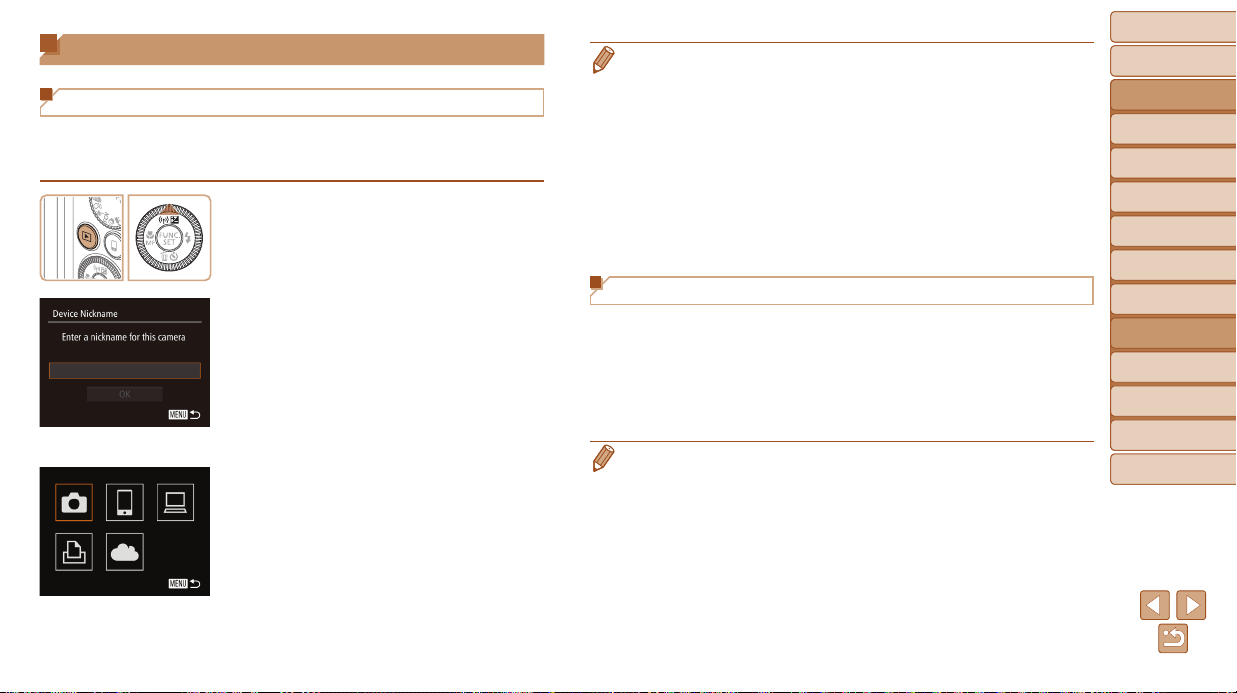
Before Use
Basic Guide
Advanced Guide
Camera Basics
Auto Mode / Hybrid
Auto Mode
Other Shooting
Modes
P Mode
Tv, Av, and M Mode
Playback Mode
Wi-Fi Functions
Setting Menu
Accessories
Appendix
Index
123
Before Use
Basic Guide
Advanced Guide
Camera Basics
Auto Mode / Hybrid
Auto Mode
Other Shooting
Modes
P Mode
Tv, Av, and M Mode
Playback Mode
Wi-Fi Functions
Setting Menu
Accessories
Appendix
Index
Accessing the Wi-Fi Menu
Initial Connection via Wi-Fi
To start with, register a camera nickname.
This nickname will be displayed on the screen of target devices when
connecting to other devices via Wi-Fi.
1 AccesstheWi-Fimenu.
Press the <1> button to turn the camera
on.
Press the <o> button.
2 Enteranickname.
Press the <m> button to access the
keyboard, and then enter a nickname
(=
25).
Up to 16 characters can be used.
Press the <o><p> buttons or turn the
<5> dial to choose [OK], and then press
the <m> button.
The Wi-Fi menu is displayed.
• When connecting wirelessly to any device other than a computer, a memory
card must be inserted in the camera. Additionally, the memory card must
contain images before you can access Web services or connect to a printer
wirelessly.
• To change the camera’s nickname, choose MENU (=
24) > [3] tab > [Wi-Fi
Settings] > [Change Device Nickname].
• If the Wi-Fi menu is not displayed but only the information changes when
you press the <o> button, rst press the <p> button to switch from detailed
information display (=
90).
• A message will be displayed if the nickname you attempt to enter in step 2
begins with a symbol or space. Press the <m> button and enter a different
nickname.
After the Initial Wi-Fi Connection
• Once you have connected to devices via Wi-Fi, recent destinations will
be listed rst when you access the Wi-Fi menu by pressing the <o>
button. You can easily connect again by pressing the <o><p> buttons
to choose the device name and then pressing the <m> button.
• To add a new device, display the device selection screen by pressing the
<q><r> buttons, and then congure the setting.
• If you prefer not to display recent target devices, choose MENU (=
24) >
[3] tab > [Wi-Fi Settings] > [Target History] > [Off].
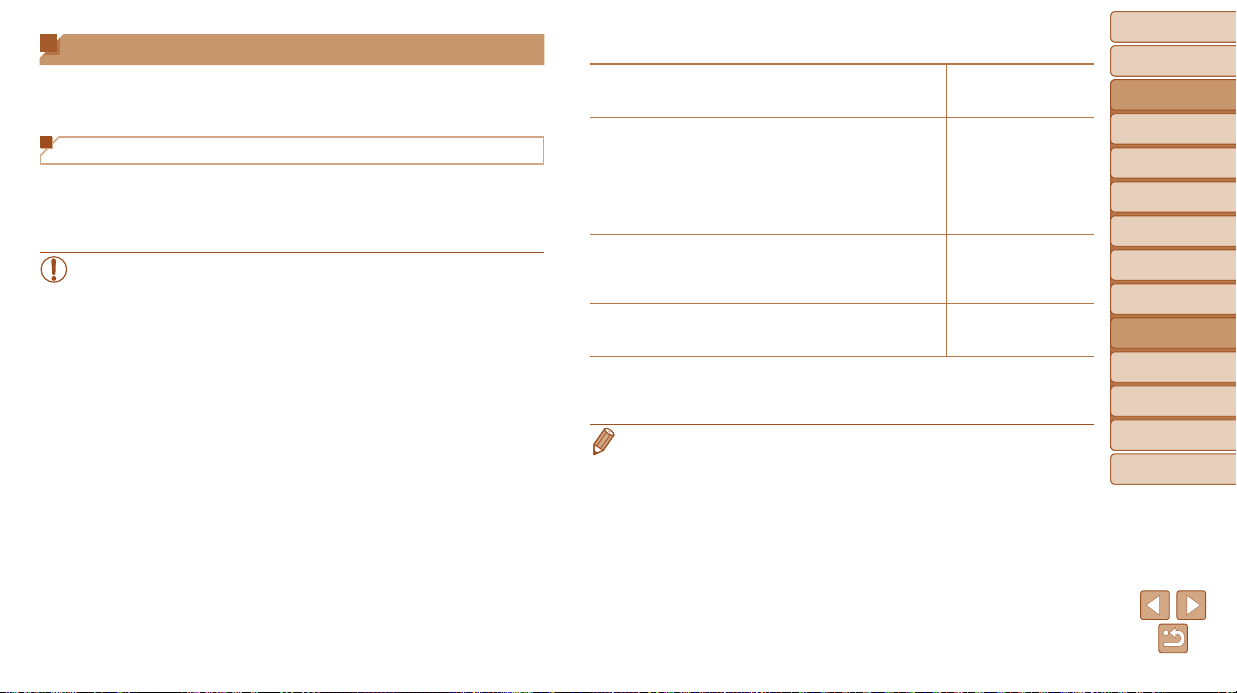
Before Use
Basic Guide
Advanced Guide
Camera Basics
Auto Mode / Hybrid
Auto Mode
Other Shooting
Modes
P Mode
Tv, Av, and M Mode
Playback Mode
Wi-Fi Functions
Setting Menu
Accessories
Appendix
Index
124
Before Use
Basic Guide
Advanced Guide
Camera Basics
Auto Mode / Hybrid
Auto Mode
Other Shooting
Modes
P Mode
Tv, Av, and M Mode
Playback Mode
Wi-Fi Functions
Setting Menu
Accessories
Appendix
Index
Connecting via an Access Point
Connect to your access point via Wi-Fi as follows.
Also refer to the access point user manual.
Conrming Access Point Compatibility
Conrm that the Wi-Fi router or base station conforms to the Wi-Fi
standards in “Wi-Fi” (=
189).
If you are already using Wi-Fi, conrm the following items. For instructions
on checking network settings, refer to the access point user manual.
• If system administrator status is needed to adjust network settings,
contact the system administrator for details.
• These settings are very important for network security. Exercise
adequate caution when changing these settings.
Check sheet
Networkname(SSID/ESSID)
The SSID or ESSID for the access point you use.
Also called the “access point name” or “network name”.
Networkauthentication/dataencryption
(encryptionmethod/encryptionmode)
The method for encrypting data during wireless transmission.
○ None
○ WEP (open system
authentication)
○ WPA-PSK (TKIP)
○ WPA-PSK (AES)
○ WPA2-PSK (TKIP)
○ WPA2-PSK (AES)
Password(encryptionkey/networkkey)
The key used when encrypting data during wireless
transmission. Also called the “encryption key” or
“network key”.
Keyindex(transmitkey)
The key set when WEP is used for network authentication /
data encryption.
○ 1
Connection methods vary depending on whether the access point supports
Wi-Fi Protected Setup (WPS) or not. Refer to the user manual provided with
your access point to check if it supports WPS.
• A router is a device that creates a network (LAN) structure for connecting
multiple computers. A router that contains an internal Wi-Fi function is called a
“Wi-Fi router”.
• This guide refers to all Wi-Fi routers and base stations as “access points”.
• If you use MAC address ltering on your Wi-Fi network, be sure to add the
camera’s MAC address to your access point. You can check your camera’s
MAC address by choosing MENU (=
24) > [3] tab > [Wi-Fi Settings] >
[Check MAC Address].
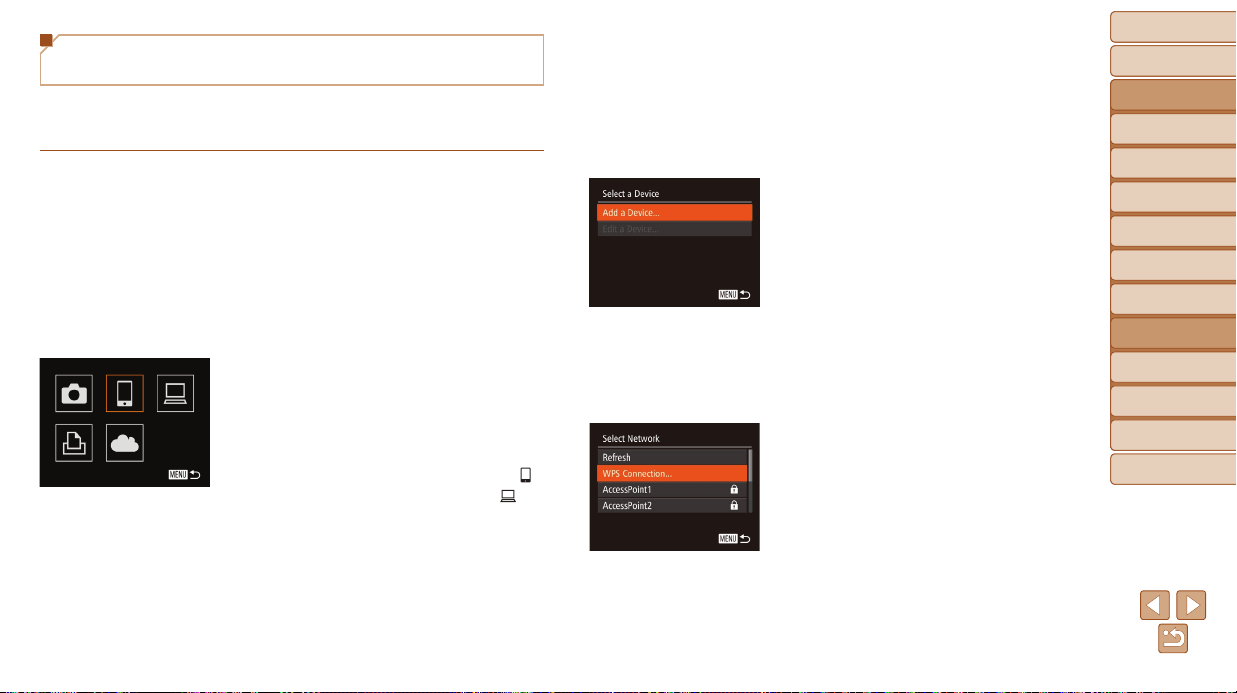
Before Use
Basic Guide
Advanced Guide
Camera Basics
Auto Mode / Hybrid
Auto Mode
Other Shooting
Modes
P Mode
Tv, Av, and M Mode
Playback Mode
Wi-Fi Functions
Setting Menu
Accessories
Appendix
Index
125
Before Use
Basic Guide
Advanced Guide
Camera Basics
Auto Mode / Hybrid
Auto Mode
Other Shooting
Modes
P Mode
Tv, Av, and M Mode
Playback Mode
Wi-Fi Functions
Setting Menu
Accessories
Appendix
Index
Connecting to WPS-Compatible
Access Points
WPS makes it easy to complete settings when connecting devices over
Wi-Fi. You can use either Push Button Conguration Method or PIN Method
for settings on a WPS supported device.
1 Conrmthatthetargetdeviceis
connectedtotheaccesspoint.
This step is not required when connecting
to Web services.
For instructions on checking the
connection, refer to the device and
access point user manuals.
2 AccesstheWi-Fimenu
(=
123).
3 Choosethetargetdevice.
Choose the target device (either press
the <o><p><q><r> buttons or turn
the <5> dial), and then press the <m>
button.
To connect to a smartphone, choose [ ].
To connect to a computer, choose [ ].
To connect to a printer, choose [2].
To connect to a Web service, choose
the service icon. If multiple recipients
or sharing options are used with a Web
service, choose the desired item on the
[Select Recipient] screen (either press
the <o><p> buttons or turn the <5>
dial), and then press the <m> button.
4 Choose[AddaDevice].
Press the <o><p> buttons or turn the
<5> dial to choose [Add a Device], and
then press the <m> button.
To connect to a smartphone or printer,
when the [Waiting to connect] screen
(=
130) is displayed, choose [Switch
Network] (either press the <q><r>
buttons or turn the <5> dial), and then
press the <m> button.
A list of detected access points will be
displayed.
5 Choose[WPSConnection].
Press the <o><p> buttons or turn the
<5> dial to choose [WPS Connection],
and then press the <m> button.
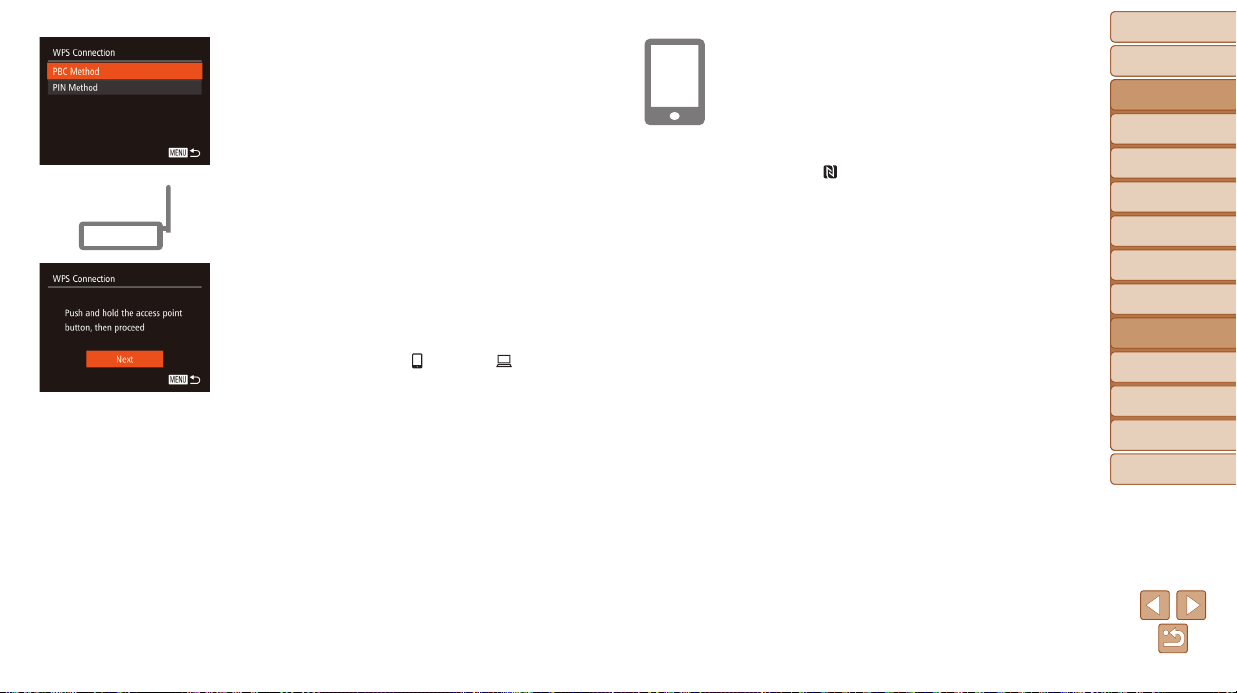
Before Use
Basic Guide
Advanced Guide
Camera Basics
Auto Mode / Hybrid
Auto Mode
Other Shooting
Modes
P Mode
Tv, Av, and M Mode
Playback Mode
Wi-Fi Functions
Setting Menu
Accessories
Appendix
Index
126
Before Use
Basic Guide
Advanced Guide
Camera Basics
Auto Mode / Hybrid
Auto Mode
Other Shooting
Modes
P Mode
Tv, Av, and M Mode
Playback Mode
Wi-Fi Functions
Setting Menu
Accessories
Appendix
Index
6 Choose[PBCMethod].
Press the <o><p> buttons or turn the
<5> dial to choose [PBC Method], and
then press the <m> button.
7 Establishtheconnection.
On the access point, hold down the WPS
connection button for a few seconds.
On the camera, press the <m> button to
go to the next step.
The camera will connect to the access
point.
If you have selected [ ], [2], or [ ] in
step 3, devices connected to the access
point are listed on the [Select a Device]
screen displayed next.
If you have selected a Web service in
step 3, go to step 12.
8 Forasmartphoneconnection:
StartCameraWindow.
For an NFC-compatible Android
smartphone (OS version 4.0 or later),
activating NFC and touching the
smartphone against the camera’s N-Mark
(
, =
119) will start CameraWindow
on the smartphone.
For other smartphones, start
CameraWindow on the smartphone.
The rst time CameraWindow is opened,
register a smartphone nickname to be
displayed on the camera.
Once the smartphone is recognized on
the camera, the device connection screen
will be displayed on the camera.
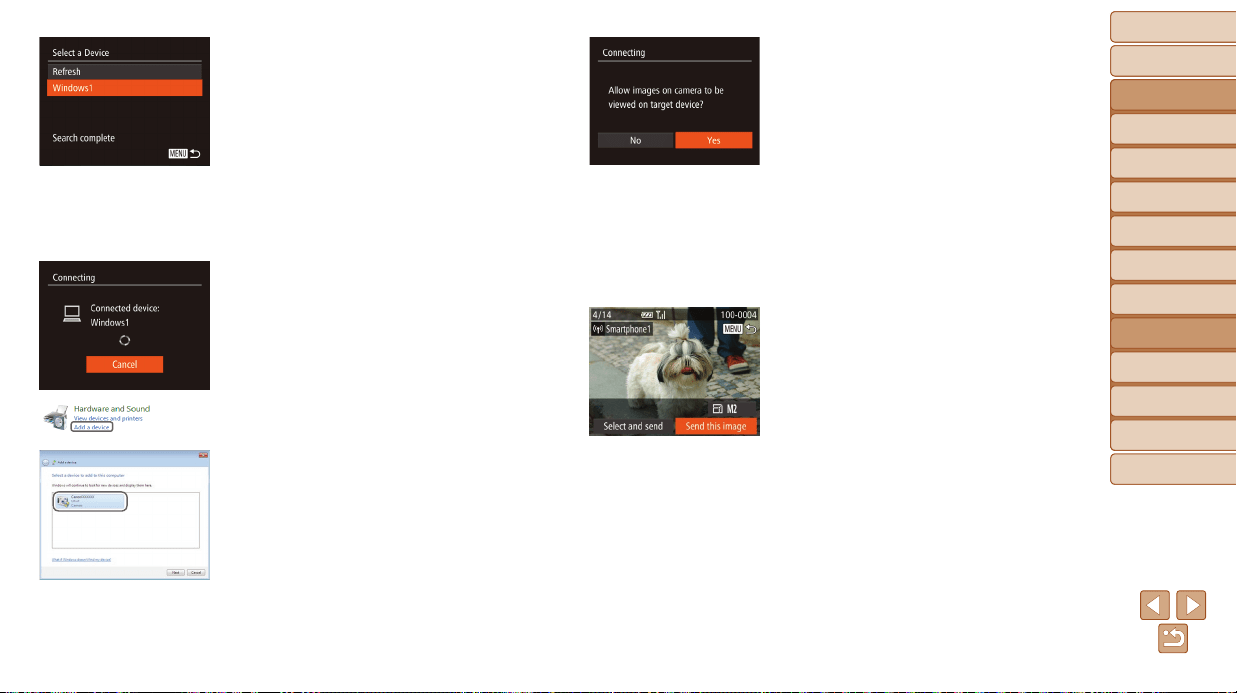
Before Use
Basic Guide
Advanced Guide
Camera Basics
Auto Mode / Hybrid
Auto Mode
Other Shooting
Modes
P Mode
Tv, Av, and M Mode
Playback Mode
Wi-Fi Functions
Setting Menu
Accessories
Appendix
Index
127
Before Use
Basic Guide
Advanced Guide
Camera Basics
Auto Mode / Hybrid
Auto Mode
Other Shooting
Modes
P Mode
Tv, Av, and M Mode
Playback Mode
Wi-Fi Functions
Setting Menu
Accessories
Appendix
Index
9 Toconnecttoasmartphone,
printer,orcomputer:
Choosethetargetdevice.
Choose the target device name (either
press the <o><p> buttons or turn the
<5> dial), and then press the <m>
button.
If you have selected a smartphone, go to
step 11.
If you have selected a printer or
Macintosh computer, go to step 12.
10
Ifyouhaveselectedacomputer
runningWindowsinstep9for
thersttime:
Installadriver.
When the screen at left is displayed on
the camera, click the Start menu on the
computer, click [Control Panel], and then
click [Add a device].
Double-click the connected camera icon.
Driver installation will begin.
After driver installation is complete, and
the camera and computer connection
is enabled, the AutoPlay screen will be
displayed. Nothing will be displayed on
the camera screen.
11
Forasmartphoneconnection:
Adjusttheprivacysetting.
Press the <q><r> buttons or turn the
<5> dial to choose [Yes], and then
press the <m> button.
You can now use the smartphone to
browse, import, or geotag (=
141)
images on the camera or shoot remotely
(=
141).
12
Sendorprinttheimages.
The screen displayed when the devices
are connected varies depending on the
target device.
When the camera is connected to a
smartphone or Web service, an image
transfer screen is displayed.
For instructions on sending images, see
“Sending Images” (=
133).
When the camera is connected to a
computer, the camera screen is blank.
Follow the steps in “Saving Images to a
Computer” (=
136) to save images to
the computer.
When the camera is connected to a
printer, you can print by following the
same steps as for printing via USB. For
details, see “Printing Images” (=
163).
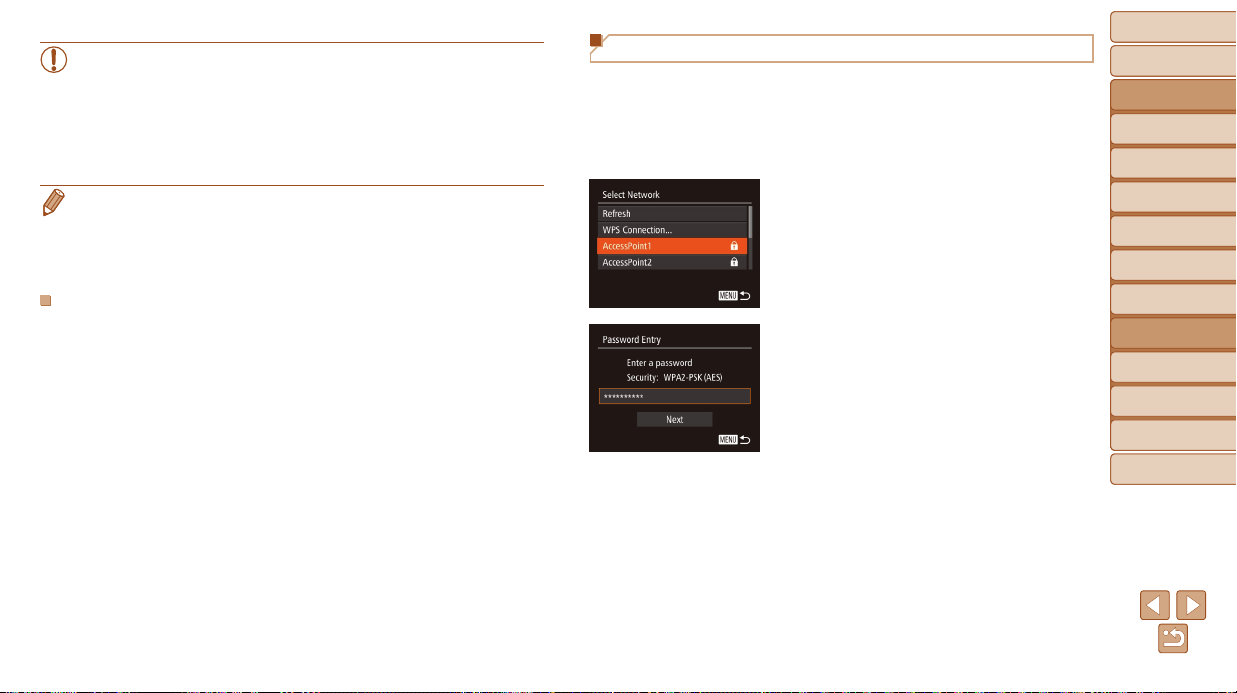
Before Use
Basic Guide
Advanced Guide
Camera Basics
Auto Mode / Hybrid
Auto Mode
Other Shooting
Modes
P Mode
Tv, Av, and M Mode
Playback Mode
Wi-Fi Functions
Setting Menu
Accessories
Appendix
Index
128
Before Use
Basic Guide
Advanced Guide
Camera Basics
Auto Mode / Hybrid
Auto Mode
Other Shooting
Modes
P Mode
Tv, Av, and M Mode
Playback Mode
Wi-Fi Functions
Setting Menu
Accessories
Appendix
Index
• All images in the camera can be viewed from the connected
smartphone when you choose [Yes] in step 11. To keep camera
images private, so that they cannot be viewed from the smartphone,
choose [No] in step 11.
• To change privacy settings for smartphones added to the list,
choose the smartphone whose settings you want to change from
[Edit a Device] in step 4, and then choose [View Settings].
• If you chose [PIN Method] in step 6, a PIN code will be displayed on the
screen. Be sure to set this code in the access point. Choose a device in the
[Select a Device] screen. For further details, refer to the user manual included
with your access point.
• To add multiple destinations, repeat this procedure from the rst step.
PreviousAccessPoints
You can reconnect to any previous access points automatically by following
step 4 in “Connecting to WPS-Compatible Access Points” (=
125).
• To reconnect to the access point, conrm that the target device is already
connected to it, and then follow the procedure from step 9. Note that this
step is not required when connecting to Web services.
• To switch access points, choose [Switch Network] on the screen
displayed when you establish a connection, and then follow the
procedure from step 5.
Connecting to Access Points in the List
1 Viewthelistedaccesspoints.
View the listed networks (access
points) as described in steps 1 – 4 of
“Connecting to WPS-Compatible Access
Points” (=
125).
2 Chooseanaccesspoint.
Press the <o><p> buttons or turn the
<5> dial to choose a network (access
point), and then press the <m> button.
3 Entertheaccesspoint
password.
Press the <m> button to access the
keyboard, and then enter the password
(=
124).
Press the <o><p> buttons or turn the
<5> dial to choose [Next], and then
press the <m> button.
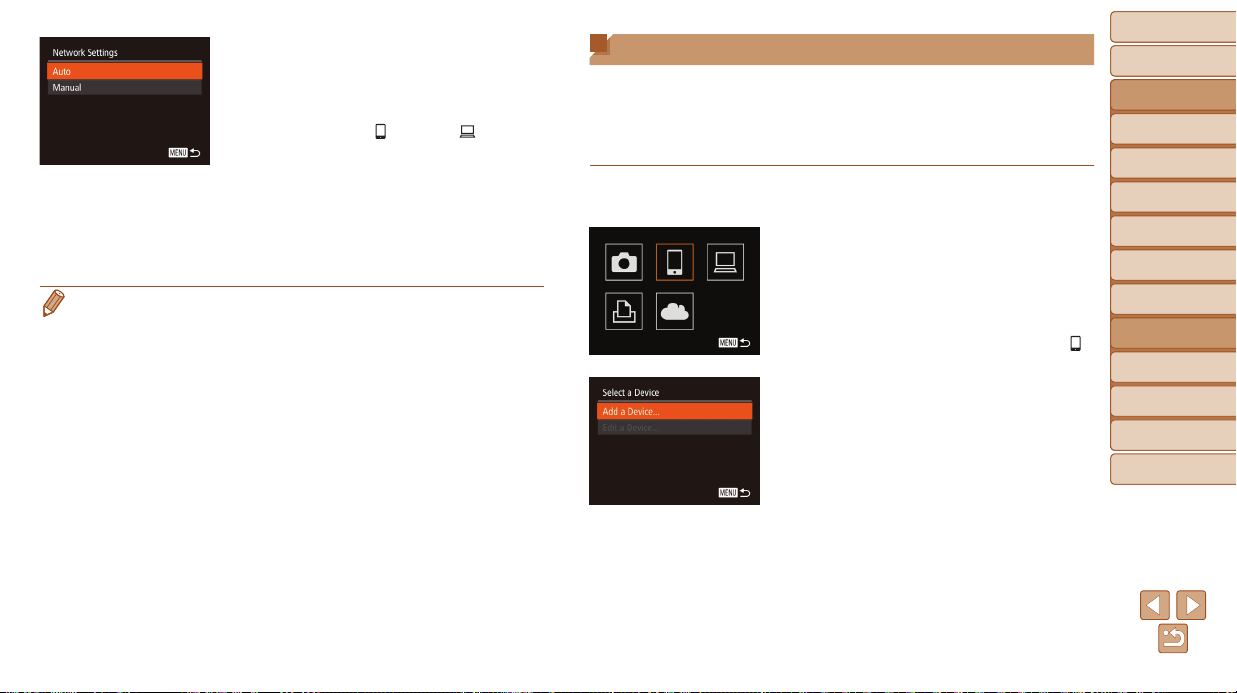
Before Use
Basic Guide
Advanced Guide
Camera Basics
Auto Mode / Hybrid
Auto Mode
Other Shooting
Modes
P Mode
Tv, Av, and M Mode
Playback Mode
Wi-Fi Functions
Setting Menu
Accessories
Appendix
Index
129
Before Use
Basic Guide
Advanced Guide
Camera Basics
Auto Mode / Hybrid
Auto Mode
Other Shooting
Modes
P Mode
Tv, Av, and M Mode
Playback Mode
Wi-Fi Functions
Setting Menu
Accessories
Appendix
Index
4 Choose[Auto].
Press the <o><p> buttons or turn the
<5> dial to choose [Auto], and then
press the <m> button.
If you selected [ ], [2], or [ ] as the
target device, see “Connecting to WPS-
Compatible Access Points”, starting with
step 9 (=
127).
If you selected a Web service as the
destination, see “Connecting to WPS-
Compatible Access Points”, starting with
step 12 (=
127).
• To determine the access point password, check on the access point itself or
refer to the user manual.
• Up to 16 access points will be displayed. If no access points are detected,
choose [Manual Settings] in step 2 to manually set an access point. Follow on-
screen instructions and enter an SSID, security settings, and a password.
• When you use an access point that you have already connected to for
connecting to another device, [*] is displayed for the password in step 3.
To use the same password, choose [Next] (either press the <o><p> buttons
or turn the <5> dial) and press the <m> button.
Connecting without an Access Point
When connecting to a smartphone or printer via Wi-Fi, you can use the
camera as an access point (Camera Access Point mode) instead of using
another access point.
Similarly, no access point is used in camera-to-camera connections
(=
132).
1 AccesstheWi-Fimenu
(=
123).
2 Choosethetargetdevice.
Choose the target device (either press
the <o><p><q><r> buttons or turn
the <5> dial), and then press the <m>
button.
To connect to a smartphone, choose [ ].
To connect to a printer, choose [2].
3 Choose[AddaDevice].
Press the <o><p> buttons or turn the
<5> dial to choose [Add a Device], and
then press the <m> button.
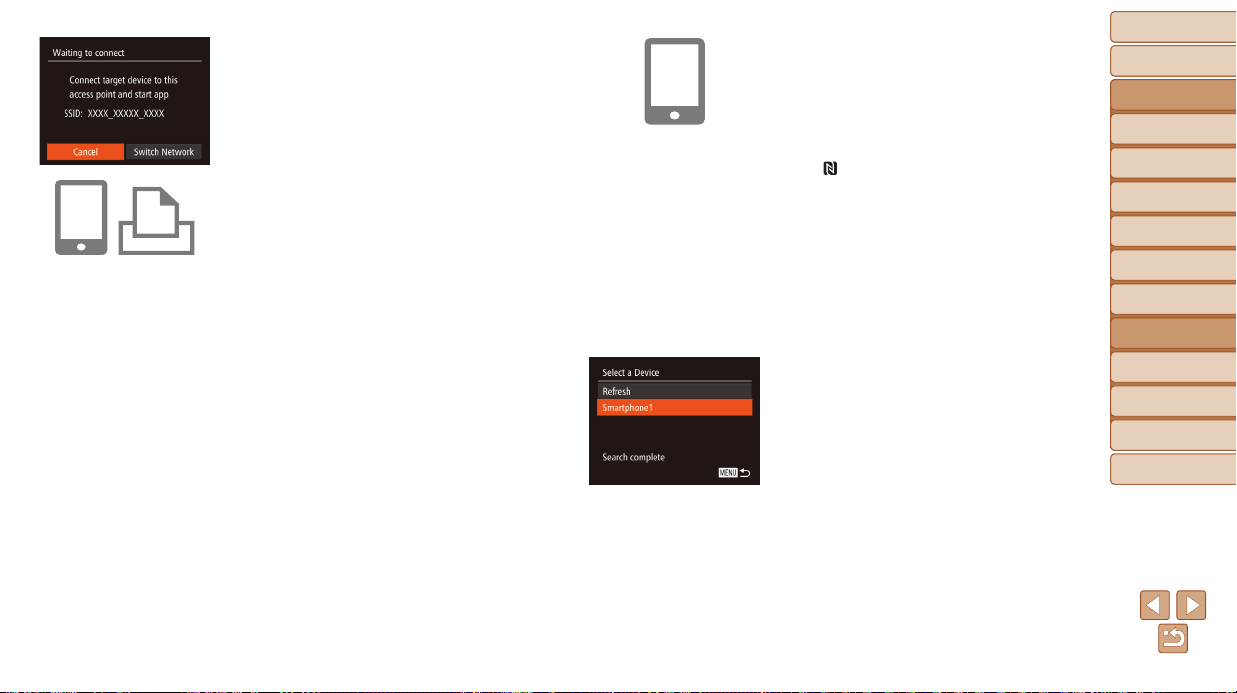
Before Use
Basic Guide
Advanced Guide
Camera Basics
Auto Mode / Hybrid
Auto Mode
Other Shooting
Modes
P Mode
Tv, Av, and M Mode
Playback Mode
Wi-Fi Functions
Setting Menu
Accessories
Appendix
Index
130
Before Use
Basic Guide
Advanced Guide
Camera Basics
Auto Mode / Hybrid
Auto Mode
Other Shooting
Modes
P Mode
Tv, Av, and M Mode
Playback Mode
Wi-Fi Functions
Setting Menu
Accessories
Appendix
Index
The camera’s SSID is displayed.
4 Connectthetargetdevicetothe
network.
In the smartphone or printer’s Wi-Fi
setting menu, choose the SSID (network
name) displayed on the camera to
connect to it.
5 Forasmartphoneconnection:
StartCameraWindow.
For an NFC-compatible Android
smartphone (OS version 4.0 or later),
activating NFC and touching the
smartphone against the camera’s N-Mark
(
, =
119) will start CameraWindow
on the smartphone.
For other smartphones, start
CameraWindow on the smartphone.
The rst time CameraWindow is opened,
register a smartphone nickname to be
displayed on the camera.
Once the smartphone is recognized on
the camera, the device connection screen
will be displayed on the camera.
6 Choosethetargetdevice.
Choose the target device name (either
press the <o><p> buttons or turn the
<5> dial), and then press the <m>
button.
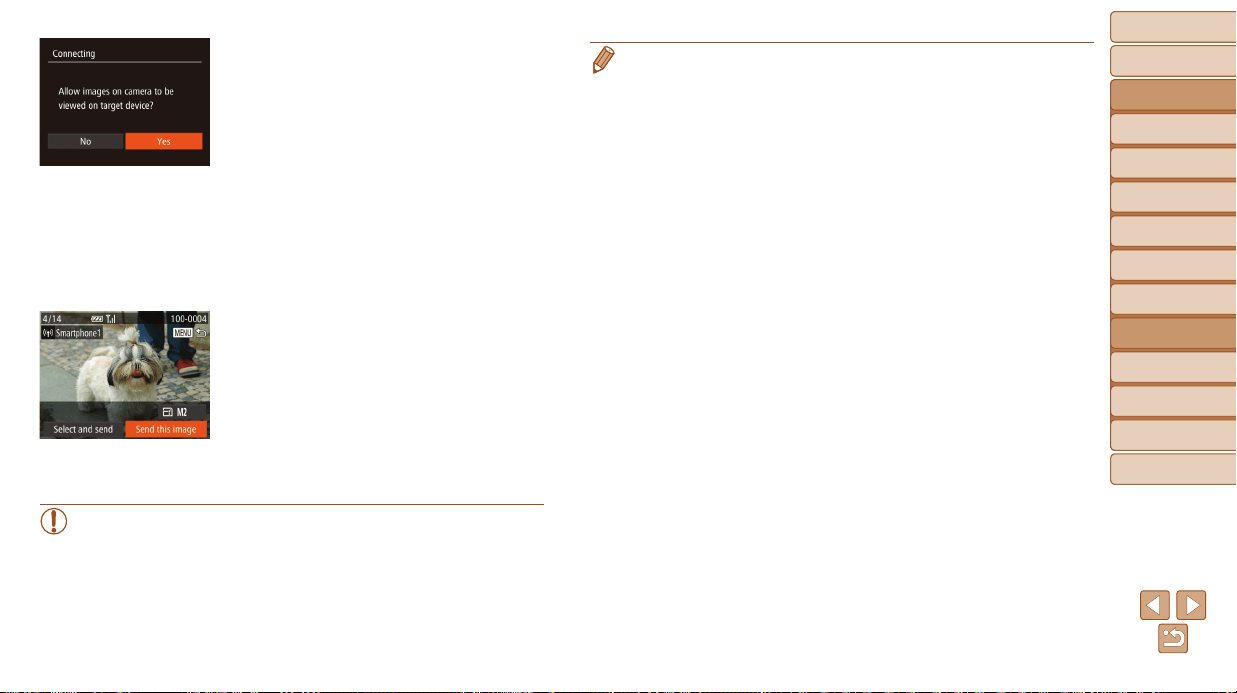
Before Use
Basic Guide
Advanced Guide
Camera Basics
Auto Mode / Hybrid
Auto Mode
Other Shooting
Modes
P Mode
Tv, Av, and M Mode
Playback Mode
Wi-Fi Functions
Setting Menu
Accessories
Appendix
Index
131
Before Use
Basic Guide
Advanced Guide
Camera Basics
Auto Mode / Hybrid
Auto Mode
Other Shooting
Modes
P Mode
Tv, Av, and M Mode
Playback Mode
Wi-Fi Functions
Setting Menu
Accessories
Appendix
Index
7 Forasmartphoneconnection:
Adjusttheprivacysetting.
Press the <q><r> buttons or turn the
<5> dial to choose [Yes], and then
press the <m> button.
You can now use the smartphone to
browse, import, or geotag (=
141)
images on the camera or shoot remotely
(=
141).
8 Sendorprinttheimages.
The screen displayed when the devices
are connected varies depending on the
target device.
When the camera is connected to a
smartphone, an image transfer screen is
displayed.
For instructions on sending images, see
“Sending Images” (=
133).
When the camera is connected to a
printer, you can print by following the
same steps as for printing via USB. For
details, see “Printing Images” (=
163).
• All images in the camera can be viewed from the connected
smartphone when you choose [Yes] in step 7. To keep camera
images private, so that they cannot be viewed from the smartphone,
choose [No] in step 7.
• To change privacy settings for smartphones added to the list,
choose the smartphone whose settings you want to change from
[Edit a Device] in step 3, and then choose [View Settings].
• To add multiple devices, repeat this procedure from the rst step.
• For better security, you can require password input on the screen in step 3
by accessing MENU (=
24) and choosing [3] tab > [Wi-Fi Settings] >
[Password] > [On]. In this case, in the password eld on the device in step 4,
enter the password displayed on the camera.
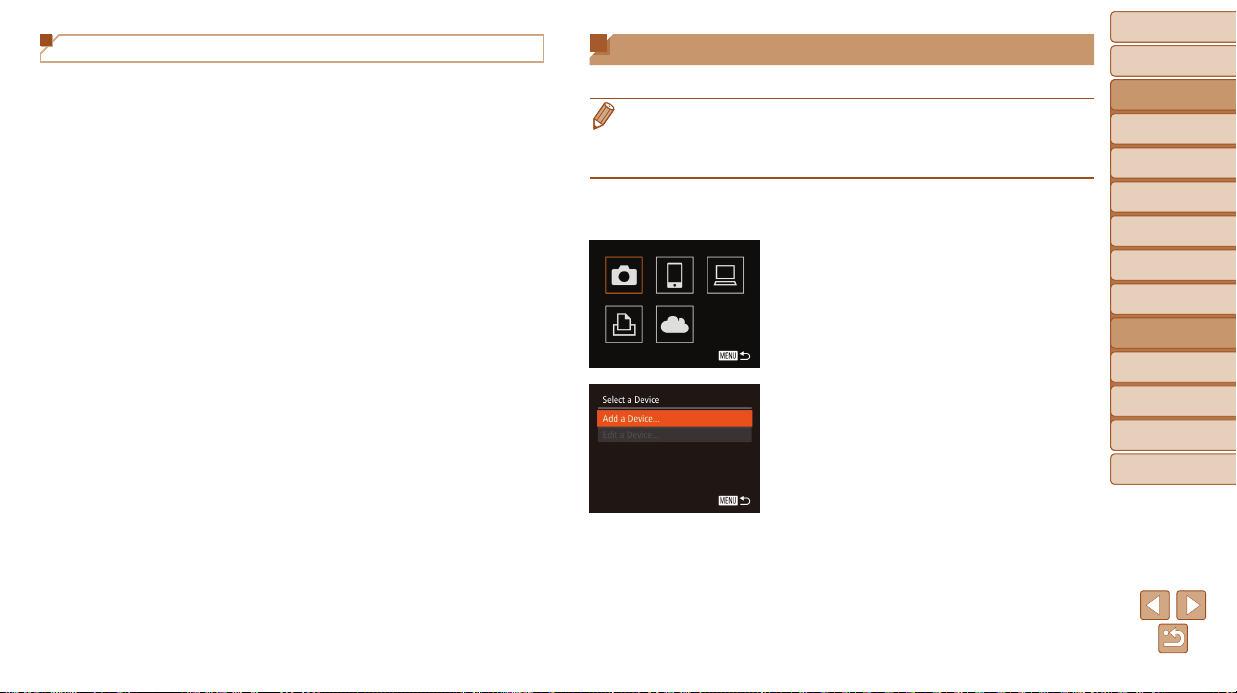
Before Use
Basic Guide
Advanced Guide
Camera Basics
Auto Mode / Hybrid
Auto Mode
Other Shooting
Modes
P Mode
Tv, Av, and M Mode
Playback Mode
Wi-Fi Functions
Setting Menu
Accessories
Appendix
Index
132
Before Use
Basic Guide
Advanced Guide
Camera Basics
Auto Mode / Hybrid
Auto Mode
Other Shooting
Modes
P Mode
Tv, Av, and M Mode
Playback Mode
Wi-Fi Functions
Setting Menu
Accessories
Appendix
Index
Connecting to Another Camera
Connect two cameras via Wi-Fi and send images between them as follows.
• Only Canon-brand cameras equipped with a Wi-Fi function can be connected
to wirelessly. Even Canon-brand cameras that support Eye-Fi cards cannot
be connected to if they do not have a Wi-Fi function. You cannot connect to
DIGITAL IXUS WIRELESS cameras with this camera.
1 AccesstheWi-Fimenu
(=
123).
2 Choosecamera.
Press the <o><p><q><r> buttons or
turn the <5> dial to choose [4], and
then press the <m> button.
3 Choose[AddaDevice].
Press the <o><p> buttons or turn the
<5> dial to choose [Add a Device], and
then press the <m> button.
Follow steps 1 – 3 on the target camera
too.
Camera connection information will be
added when [Start connection on target
camera] is displayed on both camera
screens.
Previous Access Points
You can reconnect to any previous access points automatically by following
step 3 in “Connecting without an Access Point” (=
129).
• To use the camera as an access point, choose [Switch Network] on the
screen displayed when you establish a connection, and then choose
[Camera Access Point Mode].
• When reconnecting via a previous access point, connect the target
device to the access point in step 4.
• To switch access points, choose [Switch Network] on the screen
displayed when you establish a connection, and then follow the
procedure in “Connecting to WPS-Compatible Access Points” from step 5
(=
125).
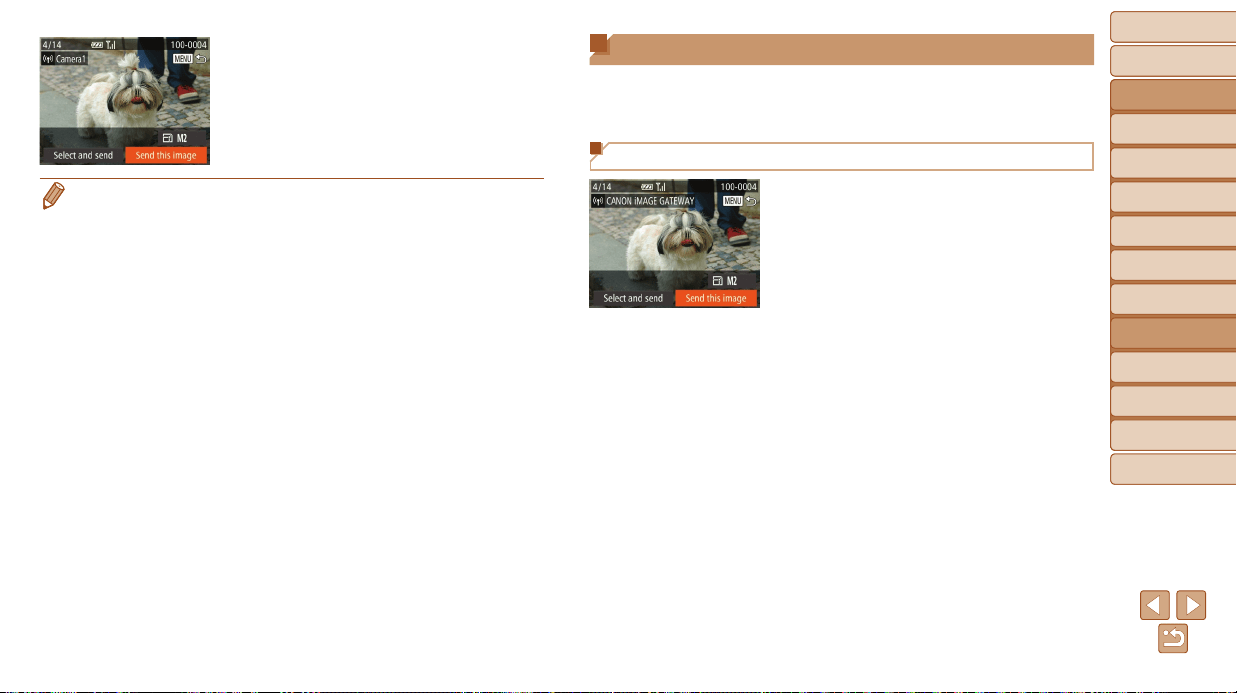
Before Use
Basic Guide
Advanced Guide
Camera Basics
Auto Mode / Hybrid
Auto Mode
Other Shooting
Modes
P Mode
Tv, Av, and M Mode
Playback Mode
Wi-Fi Functions
Setting Menu
Accessories
Appendix
Index
133
Before Use
Basic Guide
Advanced Guide
Camera Basics
Auto Mode / Hybrid
Auto Mode
Other Shooting
Modes
P Mode
Tv, Av, and M Mode
Playback Mode
Wi-Fi Functions
Setting Menu
Accessories
Appendix
Index
Sending Images
Send images wirelessly to destinations registered on the camera as follows.
Note that when images are sent to a computer, the computer is used
instead of the camera (=
136).
Sending Images Individually
1 Chooseanimage.
Turn the <5> dial to choose an image
to send.
When the target camera has been added
successfully, the image transfer screen
will be displayed. Proceed to “Sending
Images” (=
133).
• To add multiple cameras, repeat this procedure from the rst step.
• Once a camera is added, the camera name will be displayed on the screen in
step 3. To connect to a camera again, simply choose the camera name from
the list.
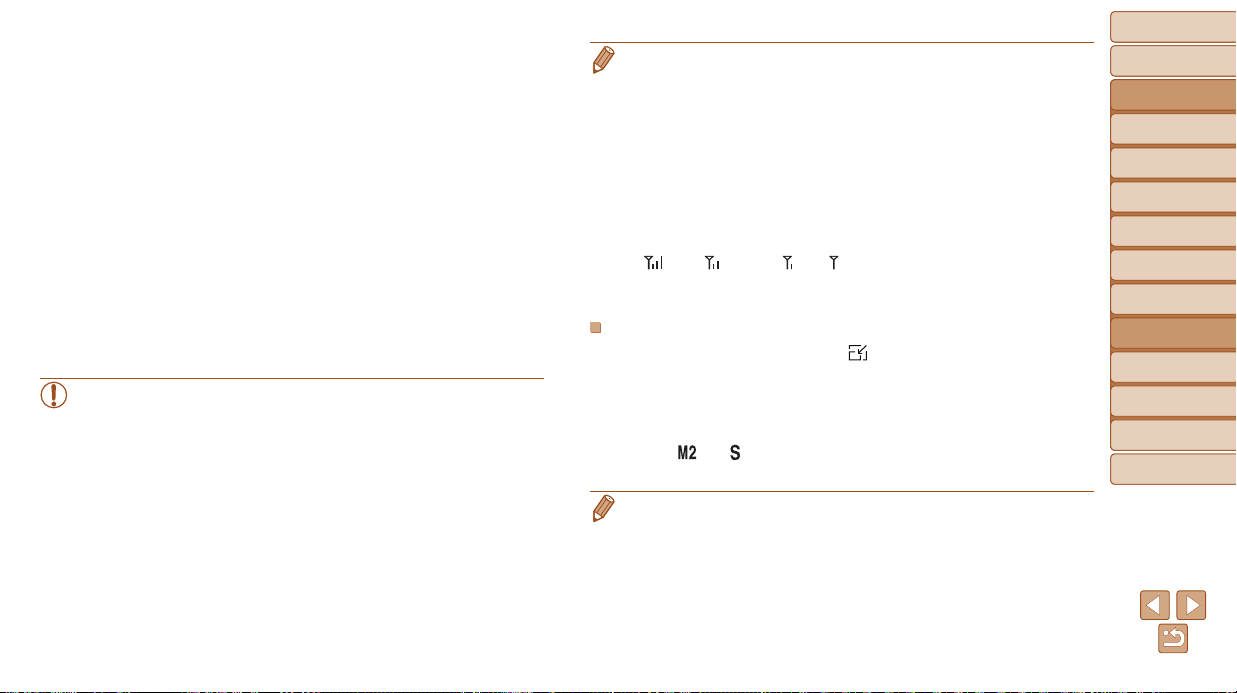
Before Use
Basic Guide
Advanced Guide
Camera Basics
Auto Mode / Hybrid
Auto Mode
Other Shooting
Modes
P Mode
Tv, Av, and M Mode
Playback Mode
Wi-Fi Functions
Setting Menu
Accessories
Appendix
Index
134
Before Use
Basic Guide
Advanced Guide
Camera Basics
Auto Mode / Hybrid
Auto Mode
Other Shooting
Modes
P Mode
Tv, Av, and M Mode
Playback Mode
Wi-Fi Functions
Setting Menu
Accessories
Appendix
Index
• Keep your ngers or other objects off the Wi-Fi antenna area (=
3).
Covering this may decrease the speed of your image transfers.
• Depending on the condition of the network you are using, it may take a long
time to send movies. Be sure to keep an eye on the camera battery level.
• When sending movies to smartphones, note that the supported image quality
varies depending on the smartphone. For details, refer to the smartphone user
manual.
• To disconnect from the camera, press the <n> button, choose [OK] on
the conrmation screen (either press the <q><r> buttons or turn the <5>
dial), and then press the <m> button. You can also use the smartphone to
end the connection.
• On the screen, wireless signal strength is indicated by the following icons.
[
] high, [ ] medium, [ ] low, [ ] weak
• Sending images to Web services will take less time when resending images
you have already sent that are still on the CANON iMAGE GATEWAY server.
ChoosingtheImageResolution(Size)
On the image transfer screen, choose [ ] by pressing the <o><p>
buttons, and then press the <m> button. On the next screen, choose the
resolution by pressing the <o><p> buttons, and then press the <m>
button.
• To send images at original size, select [No] as the resizing option.
• Choosing [ ] or [ ] will resize images that are larger than the selected
size before sending.
• Movies cannot be resized.
2 Sendtheimage.
Press the <q><r> buttons to choose
[Send this image], and then press the
<m> button.
When uploading to YouTube, read the
terms of service, choose [I Agree], and
press the <m> button.
Image transfer will begin. The screen
darkens during image transfer.
After images are uploaded to a Web
service, [OK] is displayed. Press the
<m> button to return to the playback
screen.
After sending images to a camera or
smartphone, [Transfer completed] will be
displayed, and the display will return to
the image transfer screen.
• For movies that you do not compress (=
112), a separate,
compressed le is sent instead of the original le. Note that this
may delay transmission, and the le cannot be sent unless there is
enough space for it on the memory card.
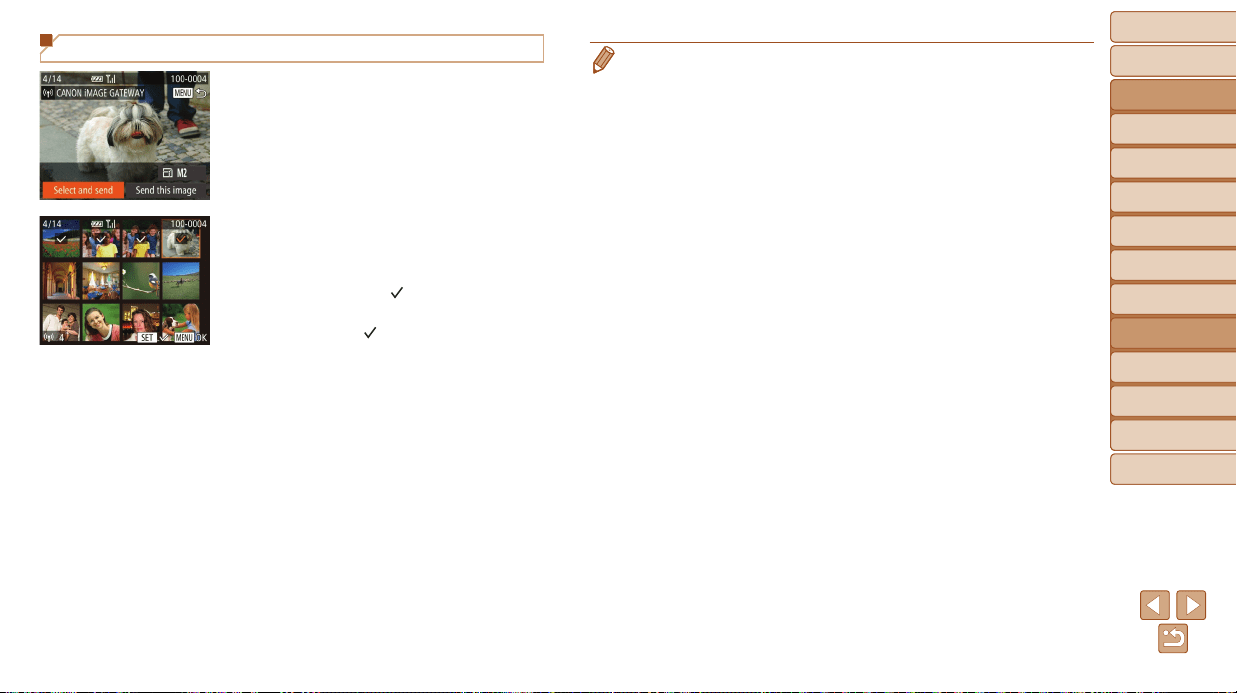
Before Use
Basic Guide
Advanced Guide
Camera Basics
Auto Mode / Hybrid
Auto Mode
Other Shooting
Modes
P Mode
Tv, Av, and M Mode
Playback Mode
Wi-Fi Functions
Setting Menu
Accessories
Appendix
Index
135
Before Use
Basic Guide
Advanced Guide
Camera Basics
Auto Mode / Hybrid
Auto Mode
Other Shooting
Modes
P Mode
Tv, Av, and M Mode
Playback Mode
Wi-Fi Functions
Setting Menu
Accessories
Appendix
Index
• Up to 50 images can be sent together at once. One movie up to ve minutes
(or one digest movie up to 13 minutes) can be sent. However, Web services
may limit the number of images or length of movies you can send. For details,
refer to the Web service you are using.
• You can also choose images in step 2 by moving the zoom lever twice toward
<k> to access single-image display and then pressing the <q><r> buttons or
turning the <5> dial.
• In step 3, you can choose the desired resolution (size) of your images before
sending (=
46).
Sending Multiple Images
1 Choose[Selectandsend].
Press the <q><r> buttons to choose
[Select and send], and then press the
<m> button.
2 Chooseimages.
Press the <o><p><q><r> buttons to
choose an image to send, and then press
the <m> button. [
] is displayed.
To cancel selection, press the <m>
button again. [
] is no longer displayed.
Repeat this process to choose additional
images.
After you nish choosing images, press
the <n> button.
3 Sendtheimages.
Press the <q><r> buttons or turn the
<5> dial to choose [Send], and then
press the <m> button.
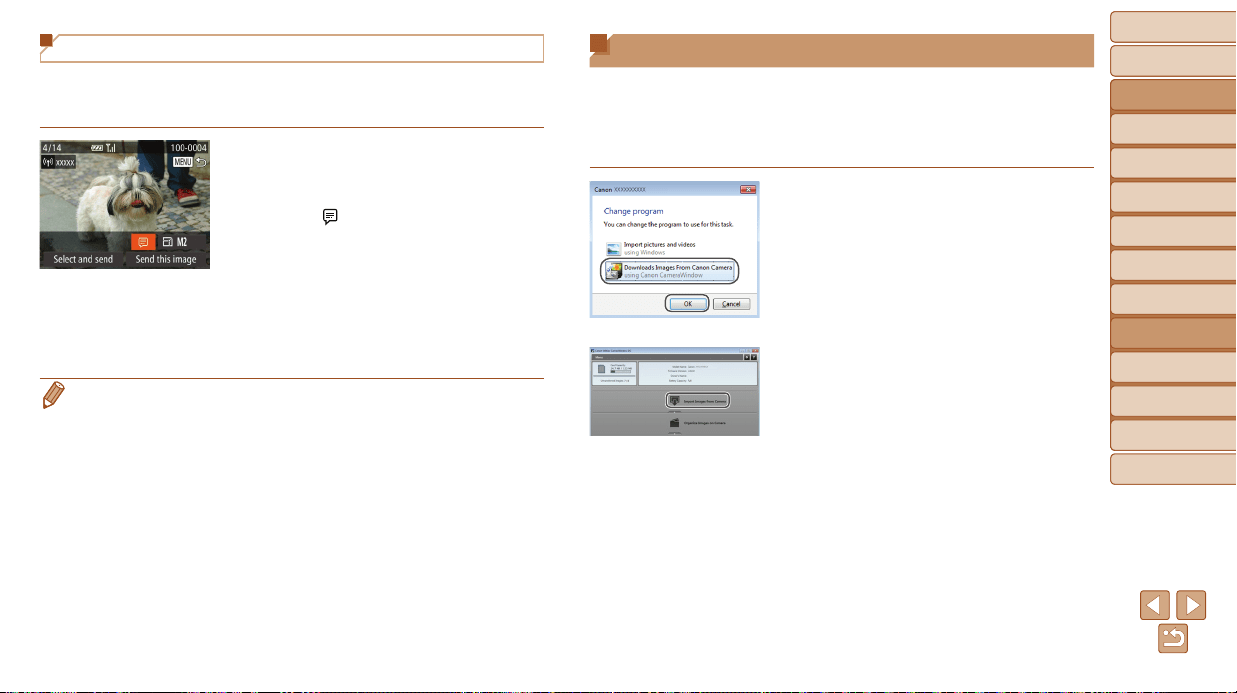
Before Use
Basic Guide
Advanced Guide
Camera Basics
Auto Mode / Hybrid
Auto Mode
Other Shooting
Modes
P Mode
Tv, Av, and M Mode
Playback Mode
Wi-Fi Functions
Setting Menu
Accessories
Appendix
Index
136
Before Use
Basic Guide
Advanced Guide
Camera Basics
Auto Mode / Hybrid
Auto Mode
Other Shooting
Modes
P Mode
Tv, Av, and M Mode
Playback Mode
Wi-Fi Functions
Setting Menu
Accessories
Appendix
Index
Saving Images to a Computer
When sending images to a computer, use the computer instead of the
camera.
Windows 7 and Mac OS X 10.8 are used here for the sake of illustration.
For other functions, refer to the help system of the relevant software (some
software excluded).
1 DisplayCameraWindow.
Windows: Access CameraWindow by
clicking [Downloads Images From Canon
Camera].
Mac OS: CameraWindow is automatically
displayed when a Wi-Fi connection is
established between the camera and
computer.
2 Importimages.
Click [Import Images from Camera], and
then click [Import Untransferred Images].
Images are now saved to the Pictures
folder on the computer, in separate
folders named by date.
Click [OK] in the screen that is displayed
after image import is complete. For
instructions on viewing images on a
computer, refer to “Software Instruction
Manual” (=
160).
Adding Comments
Using the camera, you can add comments to images that you send to
e-mail addresses, social networking services, etc. The number of characters
and symbols that can be entered may differ depending on the Web service.
1 Accessthescreenforadding
comments.
Press the <o><p><q><r> buttons to
choose [
], and then press the <m>
button.
2 Addacomment(=
2 5 ).
3 Sendtheimage.
Follow the steps in “Sending Images
Individually” (=
133) to send the image.
• When a comment is not entered, the comment set in CANON iMAGE
GATEWAY is automatically sent.
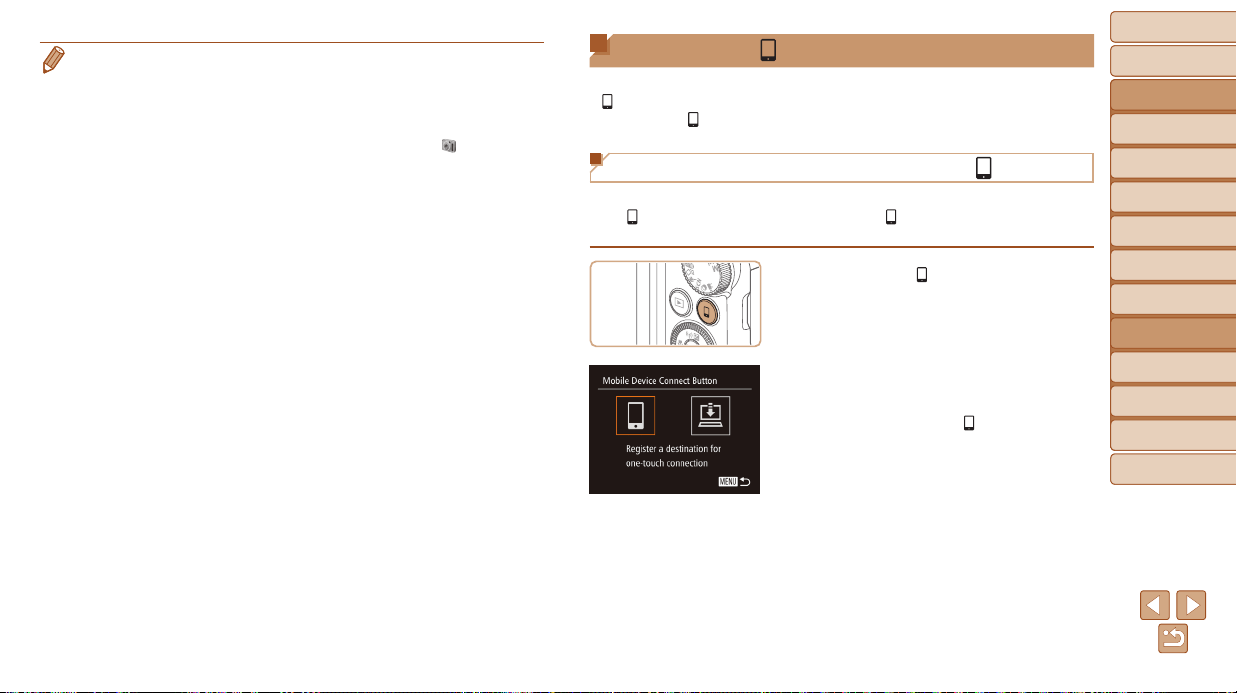
Before Use
Basic Guide
Advanced Guide
Camera Basics
Auto Mode / Hybrid
Auto Mode
Other Shooting
Modes
P Mode
Tv, Av, and M Mode
Playback Mode
Wi-Fi Functions
Setting Menu
Accessories
Appendix
Index
137
Before Use
Basic Guide
Advanced Guide
Camera Basics
Auto Mode / Hybrid
Auto Mode
Other Shooting
Modes
P Mode
Tv, Av, and M Mode
Playback Mode
Wi-Fi Functions
Setting Menu
Accessories
Appendix
Index
Using the < > Button
Once you have registered a smartphone or Image Sync (=
139) to the
< > button, you can connect to the registered destination simply by
pressing the < > button.
Registering a Smartphone to the < > Button
Once you have connected to a smartphone initially via Wi-Fi by pressing
the < > button, you can simply press the < > button after that to connect
again for viewing and saving camera images on connected devices.
1 Pressthe< >button.
2 Choosethedestination.
Press the <q><r> buttons or turn the
<5> dial to choose [
], and then press
the <m> button.
• Movies will take longer to import since the le size is larger than still images.
• To disconnect from the camera, turn off the camera.
• You can also specify to save all images or only selected images to the
computer, and you can change the destination folder. Refer to “Software
Instruction Manual” (=
160) for details.
• Windows 7: If the screen in step 2 is not displayed, click the [
] icon in the
taskbar.
• Mac OS: If CameraWindow is not displayed, click the [CameraWindow] icon
in the Dock.
• Although you can save images to a computer simply by connecting your
camera to the computer without using the software, the following limitations
apply.
- It may take a few minutes after you connect the camera to the computer until
camera images are accessible.
- Images shot in vertical orientation may be saved in horizontal orientation.
- Image protection settings may be cleared from images saved to a computer.
- Some problems may occur when saving images or image information,
depending on the operating system version, the software in use, or image
le sizes.
- Some functions provided by the software may not be available, such as
movie editing.
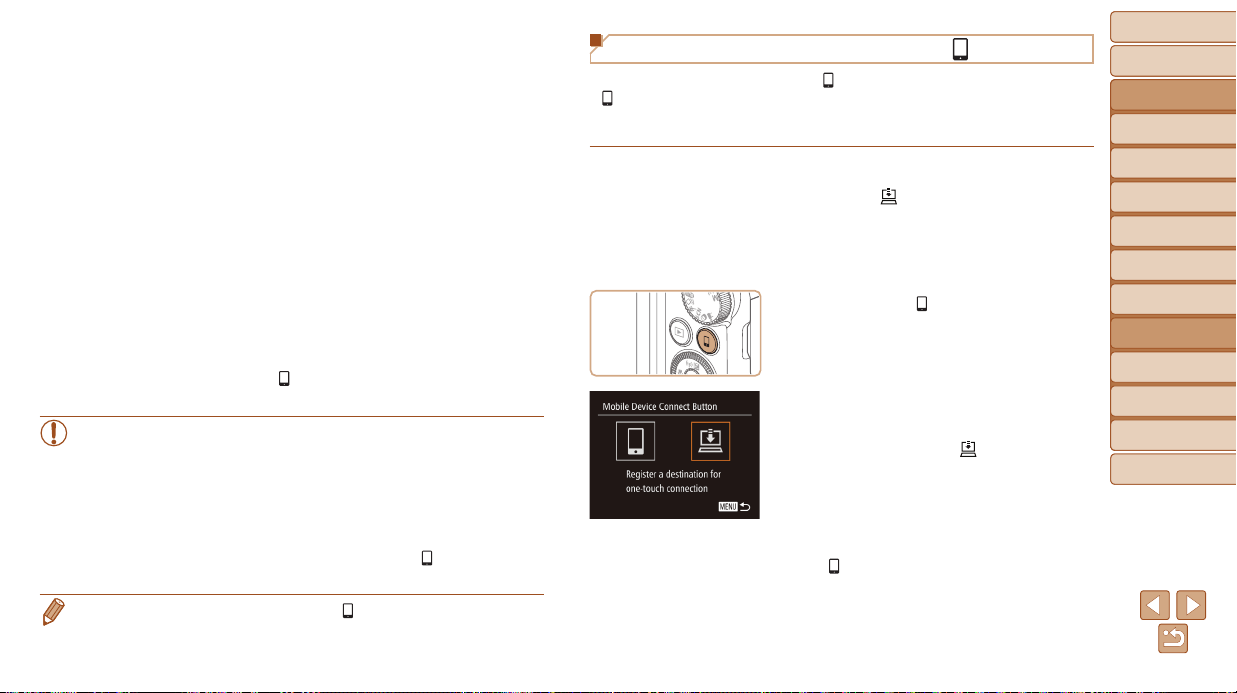
Before Use
Basic Guide
Advanced Guide
Camera Basics
Auto Mode / Hybrid
Auto Mode
Other Shooting
Modes
P Mode
Tv, Av, and M Mode
Playback Mode
Wi-Fi Functions
Setting Menu
Accessories
Appendix
Index
138
Before Use
Basic Guide
Advanced Guide
Camera Basics
Auto Mode / Hybrid
Auto Mode
Other Shooting
Modes
P Mode
Tv, Av, and M Mode
Playback Mode
Wi-Fi Functions
Setting Menu
Accessories
Appendix
Index
Registering Image Sync to the < > Button
By registering Image Sync to the < > button, you can simply press the
< > button to send any unsent images on the memory card to a computer
via CANON iMAGE GATEWAY. For details on Image Sync, see “Sending
Images Automatically (Image Sync)” (=
139).
1 Prepare the camera.
Register [ ] as the destination
(=
117 – 119).
Install the software on the destination
computer, and congure the camera
settings (=
121).
2 Press the < > button.
3 Choose the destination.
Press the <q><r> buttons or turn the
<5> dial to choose [
], and then press
the <m> button.
The camera will automatically reconnect
to any previous access points and send
the images. (=
139)
From now on, you can simply press the
<
> button to send images.
3 Establish the connection.
Connect to the smartphone as described
in steps 5 – 9 in “Connecting to WPS-
Compatible Access Points” (=
125 –
127) or steps 4 – 6 in “Connecting
without an Access Point” (=
130).
After a connection is established with the
smartphone, the smartphone nickname
is displayed on the camera. (This screen
will close in about one minute.)
You can now use the smartphone to
import images from the camera. (The
camera cannot be used to send images
to the smartphone.)
Use the smartphone to end the
connection; the camera will automatically
turn off.
From now on, you can simply press the
< > button to connect to the registered
smartphone.
• When you are in the vicinity of an access point that you have
previously connected to, the camera will automatically connect
to it in step 2. To change access points, select [Switch Network]
from the screen that will be displayed when the connection is
being established, and follow steps 5 – 9 in “Connecting to WPS-
Compatible Access Points” (=
125 – 127).
• All images in the camera can be viewed from the connected
smartphone. Note that if you have assigned the < > button,
[View Settings] (=
143) is not available.
• One smartphone can be registered to the < > button. If you wish to register
a different smartphone, clear the one currently registered (=
139) rst.
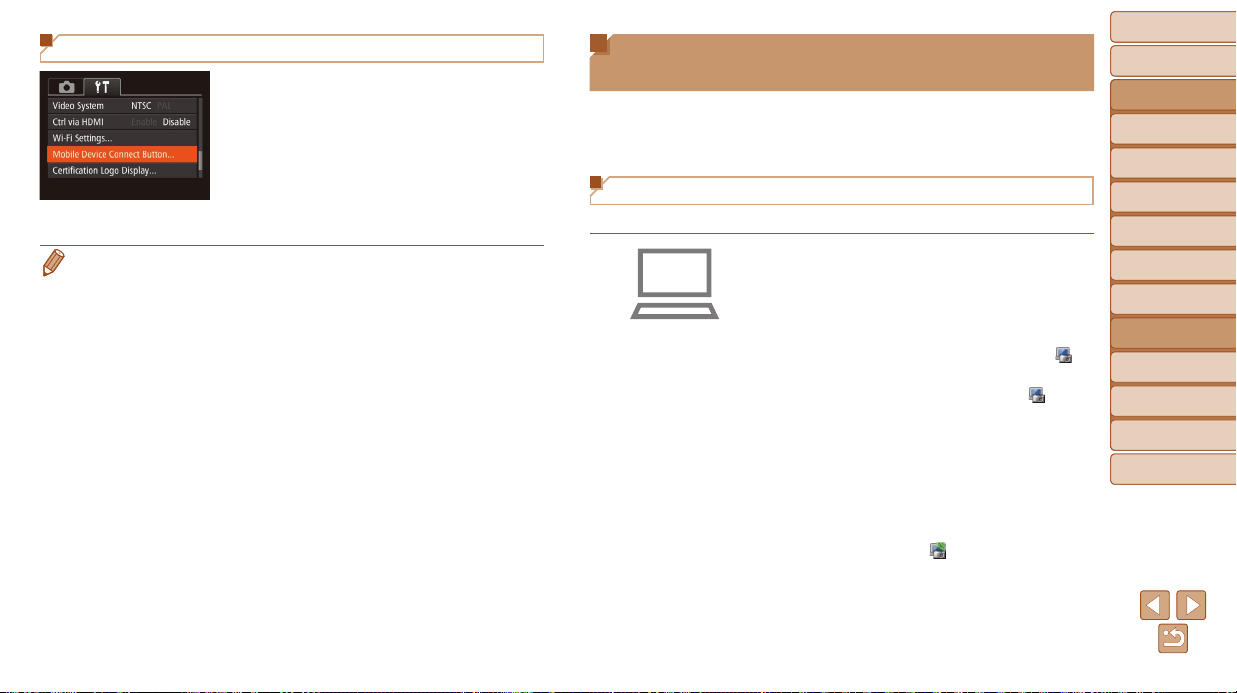
Before Use
Basic Guide
Advanced Guide
Camera Basics
Auto Mode / Hybrid
Auto Mode
Other Shooting
Modes
P Mode
Tv, Av, and M Mode
Playback Mode
Wi-Fi Functions
Setting Menu
Accessories
Appendix
Index
139
Before Use
Basic Guide
Advanced Guide
Camera Basics
Auto Mode / Hybrid
Auto Mode
Other Shooting
Modes
P Mode
Tv, Av, and M Mode
Playback Mode
Wi-Fi Functions
Setting Menu
Accessories
Appendix
Index
Clearing Registered Destinations
Press the <n> button, and then
choose [Mobile Device Connect Button]
on the [3] tab (=
24).
Press the <q><r> buttons or turn the
<5> dial to choose [OK], and then press
the <m> button.
After a conrmation message is
displayed, press the <m> button.
• Registered destinations are also cleared when you reset Wi-Fi settings
(=
144).
Sending Images Automatically
(Image Sync)
Images on the memory card that have not been transferred already can be
sent to a computer or Web services via CANON iMAGE GATEWAY.
Note that images cannot be sent only to Web services.
Initial Preparations
Install and congure the software on the destination computer.
1 Installthesoftware.
Install the software on a computer
connected to the Internet (=
121).
2 Registerthecamera.
Windows: In the taskbar, right-click [ ],
and then click [Add new camera].
Mac OS: In the menu bar, click [ ], and
then click [Add new camera].
A list of cameras linked to CANON
iMAGE GATEWAY (=
117) is displayed.
Choose the camera from which images
are to be sent.
Once the camera is registered and the
computer is ready to receive images, the
icon changes to [
].
Before Use
Basic Guide
Advanced Guide
Camera Basics
Auto Mode / Hybrid
Auto Mode
Other Shooting
Modes
P Mode
Tv, Av, and M Mode
Playback Mode
Wi-Fi Functions
Setting Menu
Accessories
Appendix
Index
140
Before Use
Basic Guide
Advanced Guide
Camera Basics
Auto Mode / Hybrid
Auto Mode
Other Shooting
Modes
P Mode
Tv, Av, and M Mode
Playback Mode
Wi-Fi Functions
Setting Menu
Accessories
Appendix
Index
Sending Images
Images sent from the camera are automatically saved to the computer.
If the computer that you intend to send images to is turned off, the images
will be stored temporarily on the CANON iMAGE GATEWAY server.
Stored images are regularly erased, so make sure to turn on the computer
and save the images.
Follow the steps in “Connecting to WPS-
Compatible Access Points” (=
125) to
choose [
].
Once the connection is established, the
images are sent.
When the images have been sent
successfully to the CANON iMAGE
GATEWAY server, [
] is displayed on
the screen.
Images are automatically saved to the
computer when you turn it on.
Images are automatically sent to Web
services from the CANON iMAGE
GATEWAY server, even if the computer
is off.
• When sending images, you should use a fully charged battery pack
or an AC adapter kit (sold separately, =
156).
• Even if images were imported to the computer through a different method, any
images not sent to the computer via CANON iMAGE GATEWAY will be sent to
the computer.
• Sending is faster when the destination is a computer on the same network as
the camera, because images are sent via the access point instead of CANON
iMAGE GATEWAY. Note that images stored on the computer are sent to
CANON iMAGE GATEWAY, so the computer must be connected to the Internet.
3 Choosethetypeofimages
tosend(onlywhensending
movieswithimages).
Press the <n> button, and then
choose [Wi-Fi Settings] on the [3] tab
(=
24).
Press the <o><p> buttons to choose
[Image Sync], and then press the <q><r>
buttons to choose [Stills/Movies].
• To choose a Web service as the destination, follow the steps in “Registering
Other Web Services” (=
119) to update the camera settings.
Before Use
Basic Guide
Advanced Guide
Camera Basics
Auto Mode / Hybrid
Auto Mode
Other Shooting
Modes
P Mode
Tv, Av, and M Mode
Playback Mode
Wi-Fi Functions
Setting Menu
Accessories
Appendix
Index
141
Before Use
Basic Guide
Advanced Guide
Camera Basics
Auto Mode / Hybrid
Auto Mode
Other Shooting
Modes
P Mode
Tv, Av, and M Mode
Playback Mode
Wi-Fi Functions
Setting Menu
Accessories
Appendix
Index
Shooting Remotely
As you check a shooting screen on your smartphone, you can use it to
shoot remotely.
1 Securethecamera.
Once remote shooting begins, the
camera lens will come out. Lens motion
from zooming may also move the camera
out of position. Keep the camera still by
mounting it on a tripod or taking other
measures.
2 Connectthecameraand
smartphone(=
1 1 5 ).
In the privacy settings (=
127, 131),
choose [Yes].
3 Chooseremoteshooting.
In CameraWindow (=
119) on the
smartphone, choose remote shooting.
The camera lens will come out. Do not
press near the lens, and make sure no
objects will obstruct it.
Once the camera is ready for remote
shooting, a live image from the camera
will be displayed on the smartphone.
At this time, a message is displayed
on the camera, and all operations
except pressing the ON/OFF button are
disabled.
Geotagging Images on the Camera
GPS data recorded on a smartphone using the dedicated CameraWindow
application (=
119) can be added to images on the camera. Images are
tagged with information including the latitude, longitude, and elevation.
• Before shooting, make sure the date and time and your home time
zone are set correctly. (See “Setting the Date and Time” (=
14).)
Additionally, in [Time Zone] (=
147), specify any shooting
destinations that are in other time zones.
• The smartphone you will use for geotagging must be authorized to
view the images on the camera (=
127, 131).
• Others may be able to locate or identify you by using location data
in your geotagged still images or movies. Be careful when sharing
these images with others, as when posting images online where
many others can view them.
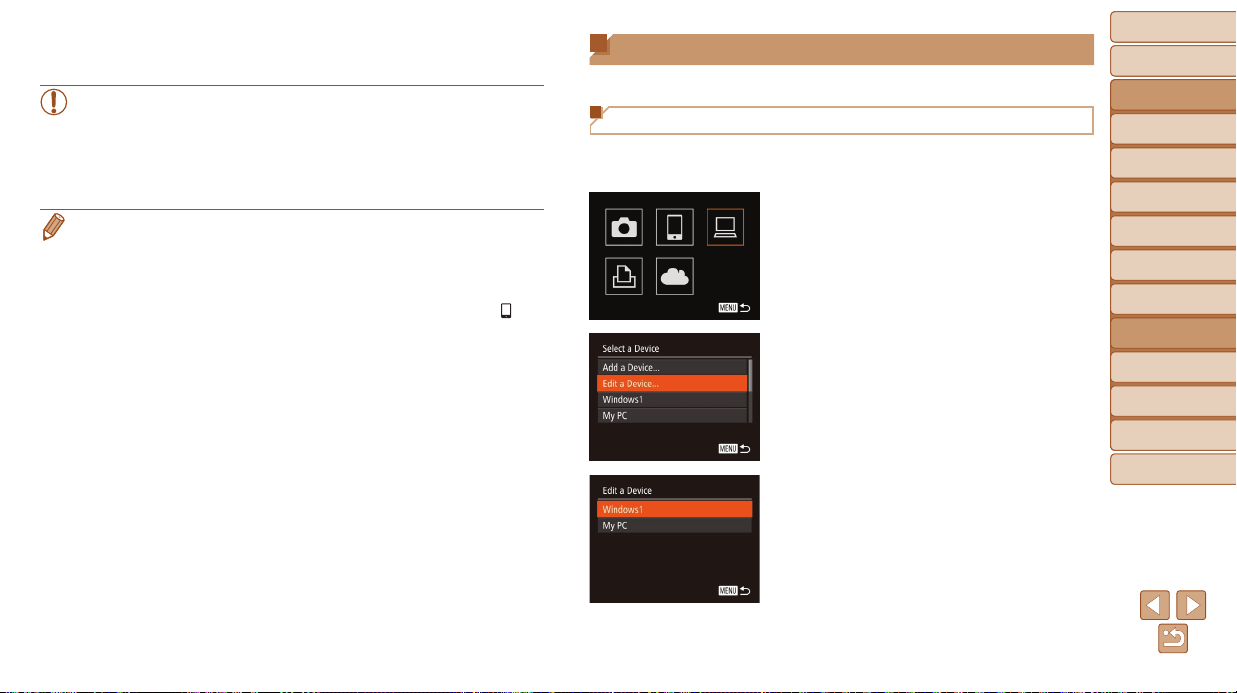
Before Use
Basic Guide
Advanced Guide
Camera Basics
Auto Mode / Hybrid
Auto Mode
Other Shooting
Modes
P Mode
Tv, Av, and M Mode
Playback Mode
Wi-Fi Functions
Setting Menu
Accessories
Appendix
Index
142
Before Use
Basic Guide
Advanced Guide
Camera Basics
Auto Mode / Hybrid
Auto Mode
Other Shooting
Modes
P Mode
Tv, Av, and M Mode
Playback Mode
Wi-Fi Functions
Setting Menu
Accessories
Appendix
Index
Editing or Erasing Wi-Fi Settings
Edit or erase Wi-Fi settings as follows.
Editing Connection Information
1 AccesstheWi-Fimenu
(=
123).
2 Chooseadevicetoedit.
Press the <o><p><q><r> buttons or
turn the <5> dial to choose the icon
of the device to edit, and then press the
<m> button.
3 Choose[EditaDevice].
Press the <o><p> buttons or turn the
<5> dial to choose [Edit a Device], and
then press the <m> button.
4 Chooseadevicetoedit.
Press the <o><p> buttons or turn the
<5> dial to choose the device to edit,
and then press the <m> button.
4 Shoot.
Use the smartphone to shoot.
• The camera works in [G] mode during remote shooting. However,
some FUNC. and MENU settings you have congured in advance
may be changed automatically.
• Movie shooting is not available.
• In camera settings, the smartphone must be allowed to view camera
images (=
127, 131).
• Any jerky subject motion shown on the smartphone due to the connection
environment will not affect recorded images.
• No AF frames are displayed. Capture a test image to check the focus.
• Captured images are not transferred to the smartphone. Use the smartphone
to browse and import images from the camera.
• Remote control is also possible from the smartphone assigned to the <
>
button (=
137).
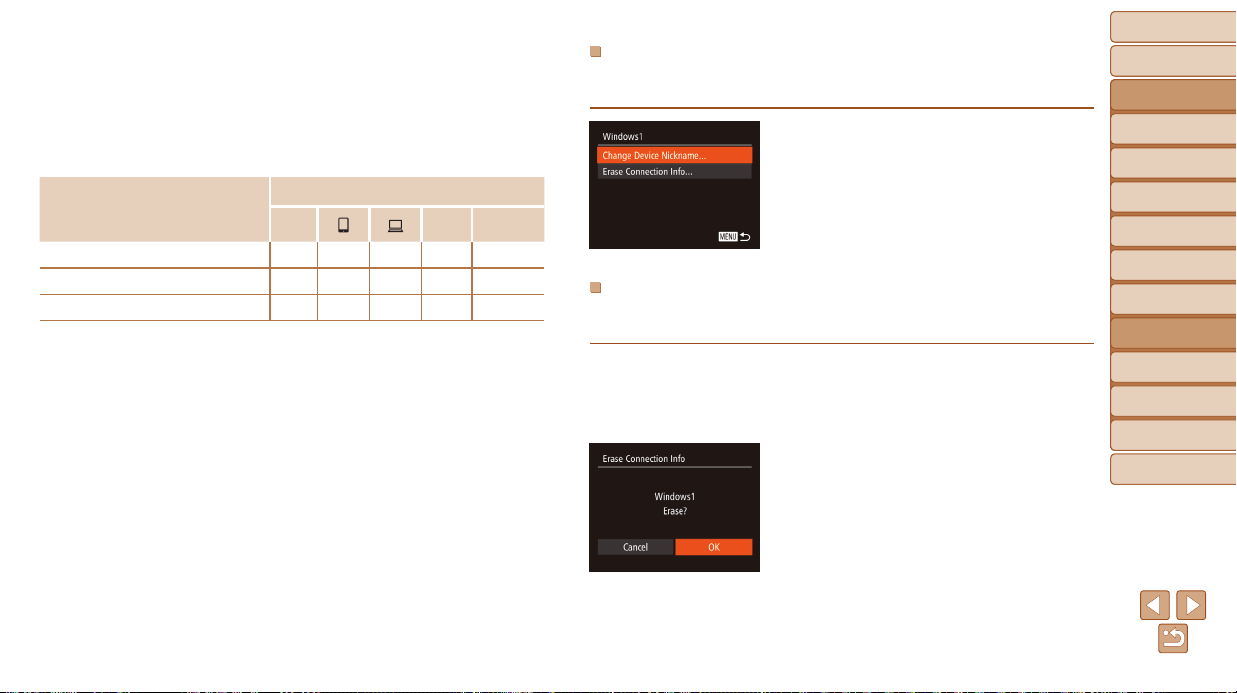
Before Use
Basic Guide
Advanced Guide
Camera Basics
Auto Mode / Hybrid
Auto Mode
Other Shooting
Modes
P Mode
Tv, Av, and M Mode
Playback Mode
Wi-Fi Functions
Setting Menu
Accessories
Appendix
Index
143
Before Use
Basic Guide
Advanced Guide
Camera Basics
Auto Mode / Hybrid
Auto Mode
Other Shooting
Modes
P Mode
Tv, Av, and M Mode
Playback Mode
Wi-Fi Functions
Setting Menu
Accessories
Appendix
Index
ChangingaDeviceNickname
You can change the device nickname (display name) that is displayed on
the camera.
Following step 5 in “Editing Connection
Information” (=
143), choose [Change
Device Nickname] and press the <m>
button.
Select the input eld and press the <m>
button. Use the keyboard displayed to
enter a new nickname (=
25).
ErasingConnectionInformation
Erase connection information (information about devices that you have
connected to) as follows.
Following step 5 in “Editing Connection
Information” (=
143), choose [Erase
Connection Info] and press the <m>
button.
After [Erase?] is displayed, press the
<q><r> buttons or turn the <5> dial to
choose [OK], and then press the <m>
button.
The connection information will be
erased.
5 Chooseanitemtoedit.
Press the <o><p> buttons or turn the
<5> dial to choose an item to edit, and
then press the <m> button.
The items you can change depend on
what device or service the camera will
access.
CongurableItems
Connection
4
c
Web
Services
[Change Device Nickname] (=
143)
O O O O
–
[View Settings] (=
127, 131)
–
O
– – –
[Erase Connection Info] (=
143)
O O O O
–
O
: Congurable
–
: Not congurable
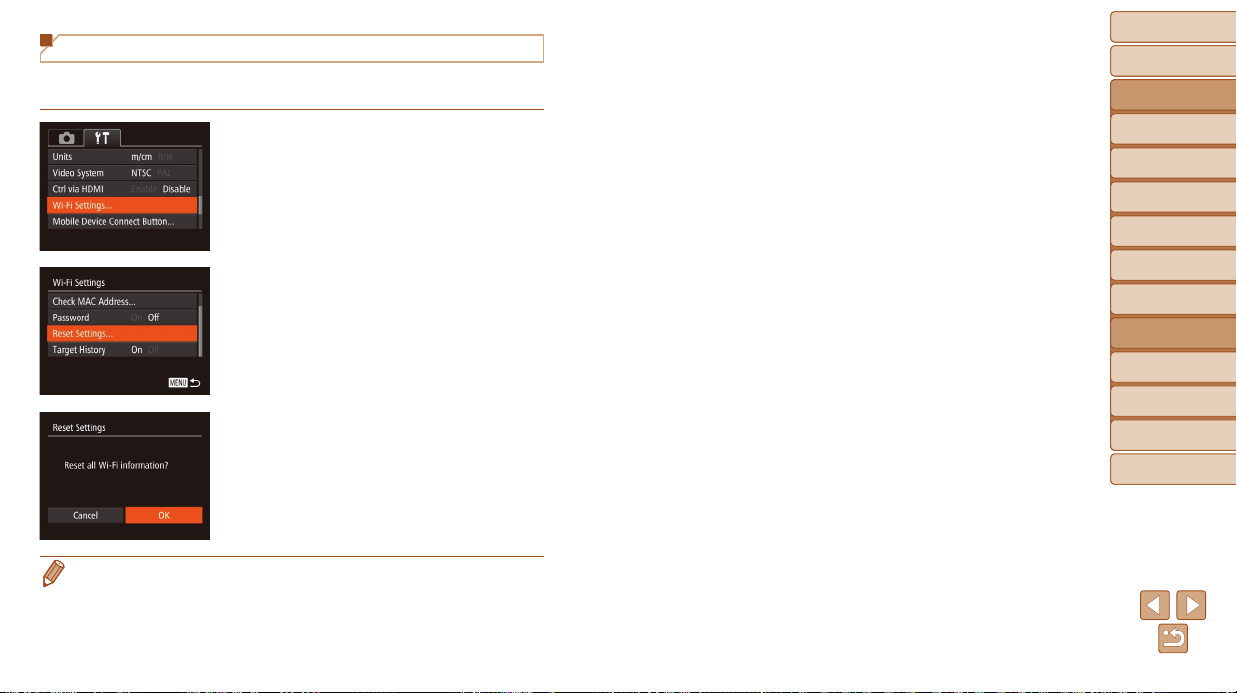
Before Use
Basic Guide
Advanced Guide
Camera Basics
Auto Mode / Hybrid
Auto Mode
Other Shooting
Modes
P Mode
Tv, Av, and M Mode
Playback Mode
Wi-Fi Functions
Setting Menu
Accessories
Appendix
Index
144
Before Use
Basic Guide
Advanced Guide
Camera Basics
Auto Mode / Hybrid
Auto Mode
Other Shooting
Modes
P Mode
Tv, Av, and M Mode
Playback Mode
Wi-Fi Functions
Setting Menu
Accessories
Appendix
Index
Returning the Wi-Fi Settings to Default
Return the Wi-Fi settings to default if you transfer ownership of the camera
to another person, or dispose of it.
1 Choose[Wi-FiSettings].
Press the <n> button, and then
choose [Wi-Fi Settings] on the [3] tab
(=
24).
2 Choose[ResetSettings].
Press the <o><p> buttons or turn the
<5> dial to choose [Reset Settings],
and then press the <m> button.
3 Restorethedefaultsettings.
Press the <q><r> buttons or turn the
<5> dial to choose [OK], and then press
the <m> button.
The Wi-Fi settings are now reset.
• Resetting the Wi-Fi settings will also clear all Web service settings. Be sure
that you want to reset all Wi-Fi settings before using this option.
• To reset other settings (aside from Wi-Fi) to defaults, choose [Reset All] in the
[3] tab (=
152).

Before Use
Basic Guide
Advanced Guide
Camera Basics
Auto Mode / Hybrid
Auto Mode
Other Shooting
Modes
P Mode
Tv, Av, and M Mode
Playback Mode
Wi-Fi Functions
Setting Menu
Accessories
Appendix
Index
145
Before Use
Basic Guide
Advanced Guide
Camera Basics
Auto Mode / Hybrid
Auto Mode
Other Shooting
Modes
P Mode
Tv, Av, and M Mode
Playback Mode
Wi-Fi Functions
Setting Menu
Accessories
Appendix
Index
Setting Menu
Customize or adjust basic camera functions for greater convenience
AdjustingBasicCameraFunctions.............. 146
Silencing Camera Operations ............................. 146
Adjusting the Volume .......................................... 146
Hiding Hints and Tips .......................................... 146
Date and Time .....................................................147
World Clock ......................................................... 147
Lens Retraction Timing .......................................147
Using Eco Mode ..................................................148
Power-Saving Adjustment ................................... 148
Screen Brightness ...............................................149
Hiding the Start-Up Screen ................................. 149
Formatting Memory Cards .................................. 149
File Numbering ....................................................151
Date-Based Image Storage ................................. 151
Metric / Non-Metric Display ................................. 151
Checking Certication Logos .............................. 152
Display Language ............................................... 152
Adjusting Other Settings ..................................... 152
Restoring Defaults ...............................................152
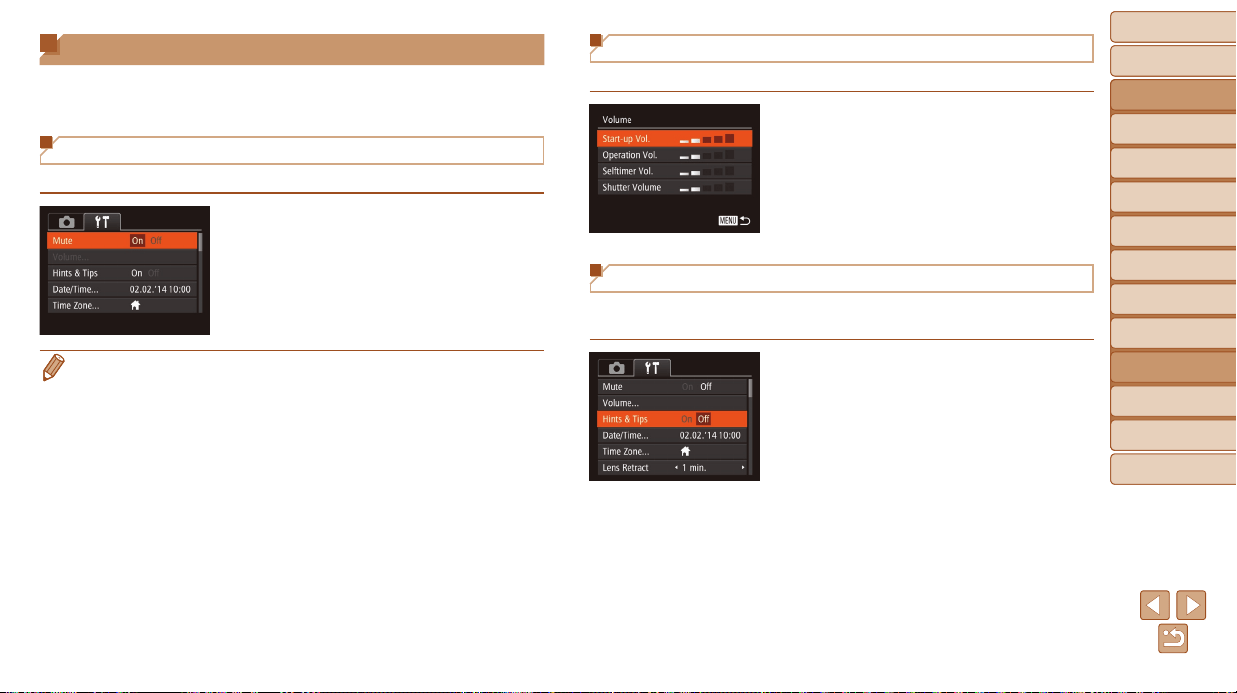
Before Use
Basic Guide
Advanced Guide
Camera Basics
Auto Mode / Hybrid
Auto Mode
Other Shooting
Modes
P Mode
Tv, Av, and M Mode
Playback Mode
Wi-Fi Functions
Setting Menu
Accessories
Appendix
Index
146
Before Use
Basic Guide
Advanced Guide
Camera Basics
Auto Mode / Hybrid
Auto Mode
Other Shooting
Modes
P Mode
Tv, Av, and M Mode
Playback Mode
Wi-Fi Functions
Setting Menu
Accessories
Appendix
Index
Adjusting Basic Camera Functions
MENU (=
24) functions on the [3] tab can be congured. Customize
commonly used functions as desired, for greater convenience.
Silencing Camera Operations
Silence camera sounds and movies as follows.
Choose [Mute], and then choose [On].
• Operation can also be silenced by holding down the <l> button as you
turn the camera on.
• Sound is not played during movies (=
89) if you mute camera sounds.
To restore sound during movies, press the <o> button. Adjust volume with the
<o><p> buttons, as needed.
Adjusting the Volume
Adjust the volume of individual camera sounds as follows.
Choose [Volume], and then press the
<m> button.
Choose an item, and then press the
<q><r> buttons to adjust the volume.
Hiding Hints and Tips
Hints and tips are normally shown when you choose FUNC. (=
23) or
MENU (=
24) items. If you prefer, you can deactivate this information.
Choose [Hints & Tips], and then choose
[Off].
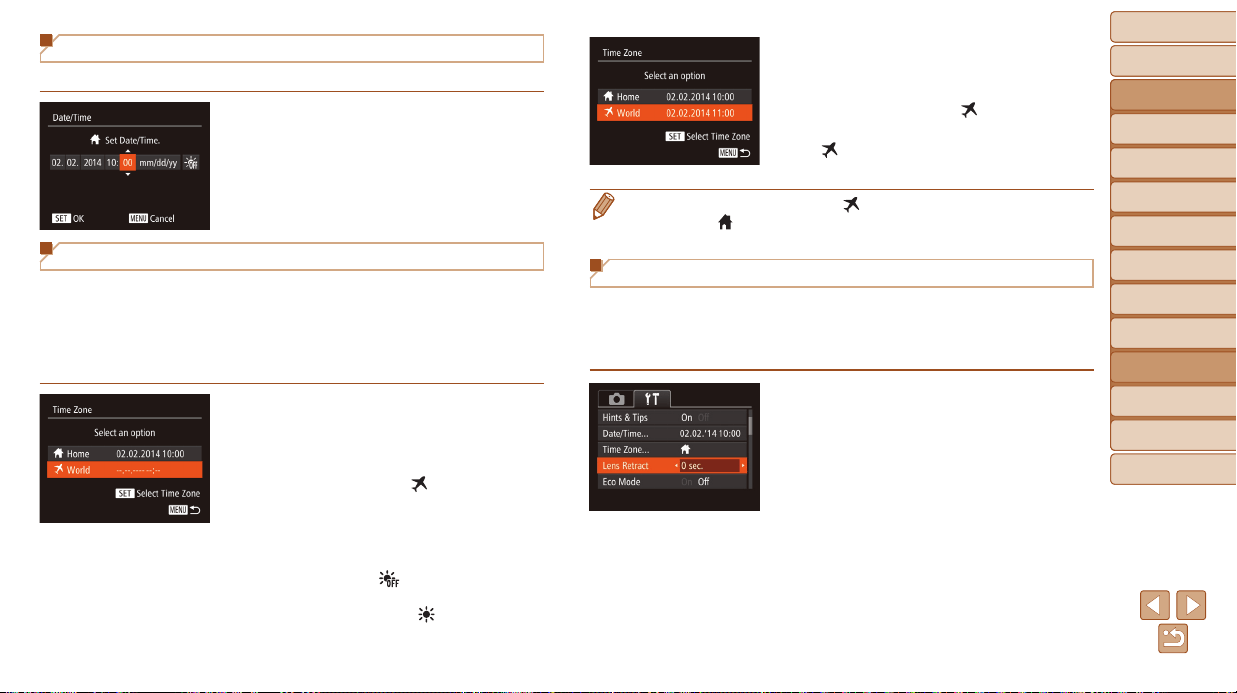
Before Use
Basic Guide
Advanced Guide
Camera Basics
Auto Mode / Hybrid
Auto Mode
Other Shooting
Modes
P Mode
Tv, Av, and M Mode
Playback Mode
Wi-Fi Functions
Setting Menu
Accessories
Appendix
Index
147
Before Use
Basic Guide
Advanced Guide
Camera Basics
Auto Mode / Hybrid
Auto Mode
Other Shooting
Modes
P Mode
Tv, Av, and M Mode
Playback Mode
Wi-Fi Functions
Setting Menu
Accessories
Appendix
Index
Date and Time
Adjust the date and time as follows.
Choose [Date/Time], and then press the
<m> button.
Press the <q><r> buttons to choose an
option, and then adjust the setting, either
by pressing the <o><p> buttons or
turning the <5> dial.
World Clock
To ensure that your shots will have the correct local date and time when you
travel abroad, simply register the destination in advance and switch to that
time zone. This convenient feature eliminates the need to change the
Date/Time setting manually.
Before using the world clock, be sure to set the date and time and your
home time zone, as described in “Setting the Date and Time” (=
14).
1 Specifyyourdestination.
Choose [Time Zone], and then press the
<m> button.
Press the <o><p> buttons or turn the
<5> dial to choose [ World], and then
press the <m> button.
Press the <q><r> buttons to choose the
destination.
To set daylight saving time (1 hour
ahead), choose [ ] by pressing the
<o><p> buttons or turning the <5>
dial, and then choose [ ] by pressing
the <q><r> buttons.
Press the <m> button.
2 Switchtothedestinationtime
zone.
Press the <o><p> buttons or turn the
<5> dial to choose [
World], and then
press the <n> button.
[ ] is now shown on the shooting screen
(=
178).
• Adjusting the date or time while in [ ] mode (=
15) will automatically
update your [
Home] time and date.
Lens Retraction Timing
The lens is normally retracted for safety about one minute after you press
the <1> button in Shooting mode (=
21). To have the lens retracted
immediately after you press the <1> button, set the retraction timing to
[0 sec.].
Choose [Lens Retract], and then choose
[0 sec.].
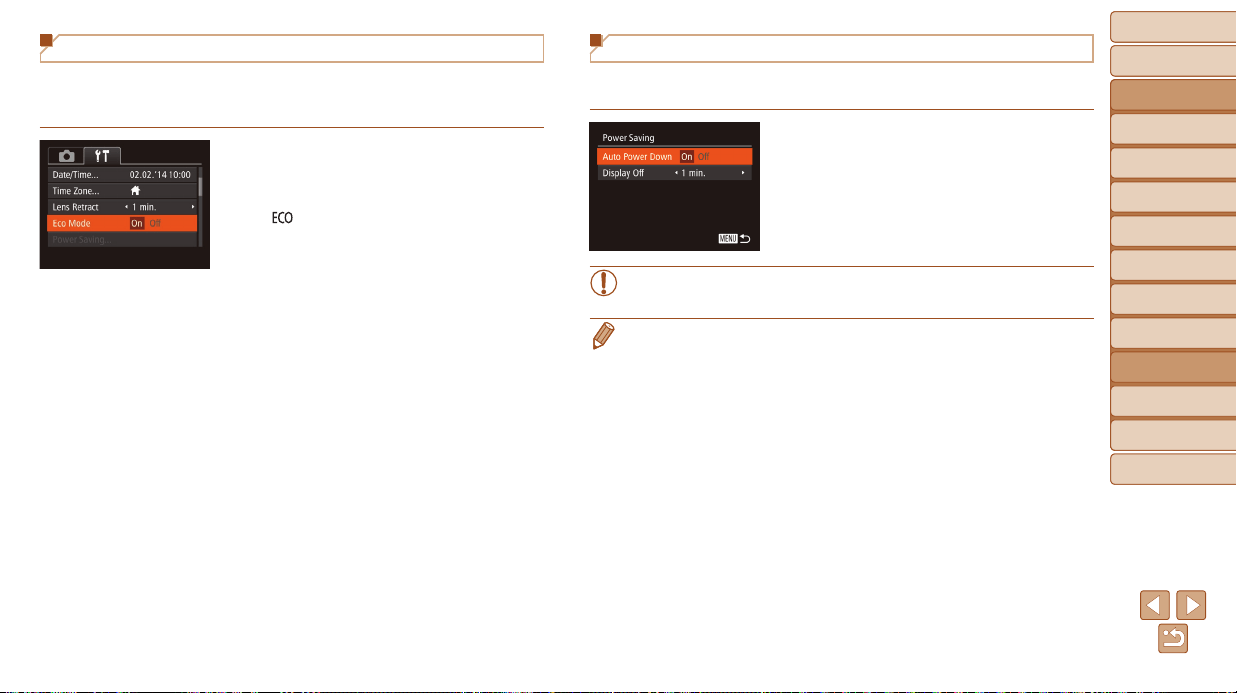
Before Use
Basic Guide
Advanced Guide
Camera Basics
Auto Mode / Hybrid
Auto Mode
Other Shooting
Modes
P Mode
Tv, Av, and M Mode
Playback Mode
Wi-Fi Functions
Setting Menu
Accessories
Appendix
Index
148
Before Use
Basic Guide
Advanced Guide
Camera Basics
Auto Mode / Hybrid
Auto Mode
Other Shooting
Modes
P Mode
Tv, Av, and M Mode
Playback Mode
Wi-Fi Functions
Setting Menu
Accessories
Appendix
Index
Using Eco Mode
This function allows you to conserve battery power in Shooting mode.
When the camera is not in use, the screen quickly darkens to reduce
battery consumption.
1 Congurethesetting.
Choose [Eco Mode], and then choose
[On].
[ ] is now shown on the shooting
screen (=
178).
The screen darkens when the camera
is not used for approximately two
seconds; approximately ten seconds
after darkening, the screen turns off.
The camera turns off after approximately
three minutes of inactivity.
2 Shoot.
To activate the screen and prepare for
shooting when the screen is off but the
lens is still out, press the shutter button
halfway.
Power-Saving Adjustment
Adjust the timing of automatic camera and screen deactivation (Auto Power
Down and Display Off, respectively) as needed (=
21).
Choose [Power Saving], and then press
the <m> button.
After choosing an item, press the
<q><r> buttons to adjust it as needed.
• To conserve battery power, you should normally choose [On] for
[Auto Power Down] and [1 min.] or less for [Display Off].
• The [Display Off] setting is applied even if you set [Auto Power Down] to [Off].
• These power-saving functions are not available when you have set Eco mode
(=
148) to [On].
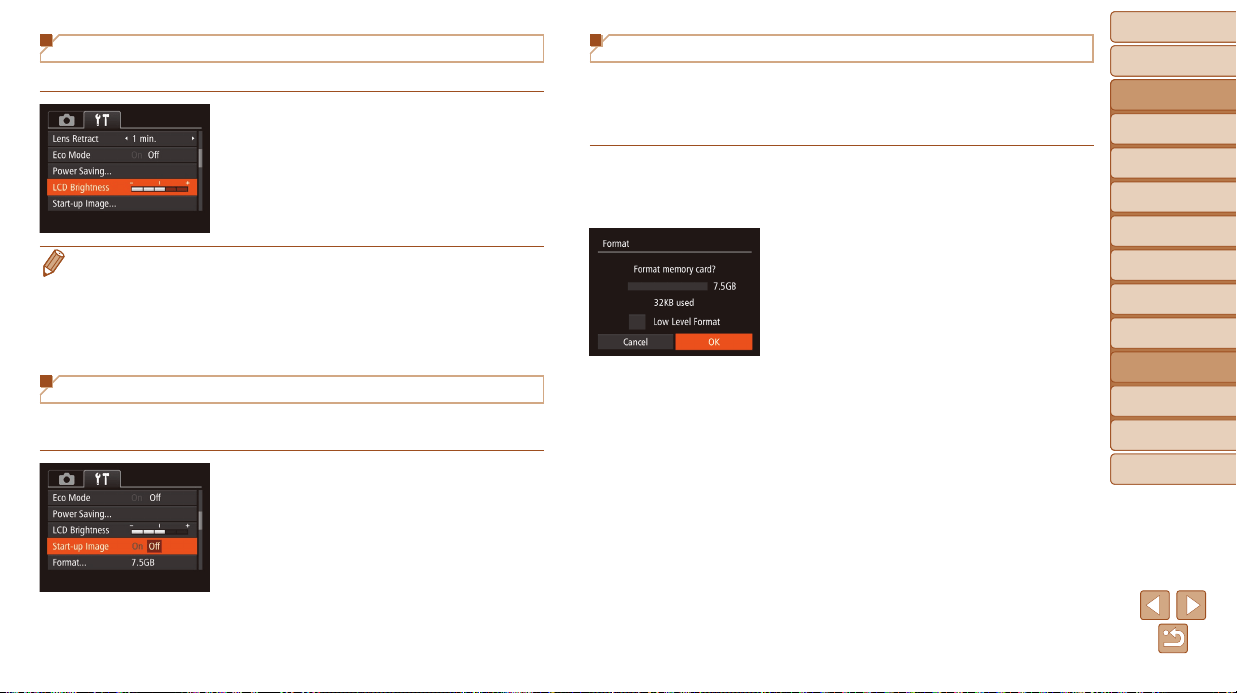
Before Use
Basic Guide
Advanced Guide
Camera Basics
Auto Mode / Hybrid
Auto Mode
Other Shooting
Modes
P Mode
Tv, Av, and M Mode
Playback Mode
Wi-Fi Functions
Setting Menu
Accessories
Appendix
Index
149
Before Use
Basic Guide
Advanced Guide
Camera Basics
Auto Mode / Hybrid
Auto Mode
Other Shooting
Modes
P Mode
Tv, Av, and M Mode
Playback Mode
Wi-Fi Functions
Setting Menu
Accessories
Appendix
Index
Screen Brightness
Adjust screen brightness as follows.
Choose [LCD Brightness], and then
press the <q><r> buttons to adjust the
brightness.
• For maximum brightness, press and hold the <l> button for at least
two seconds when the shooting screen is displayed or when in single-image
display. (This will override the [LCD Brightness] setting on the [3] tab.)
To restore the original brightness, press and hold the <l> button again for
at least two seconds or restart the camera.
Hiding the Start-Up Screen
If you prefer, you can deactivate display of the start-up screen normally
shown when you turn the camera on.
Choose [Start-up Image], and then
choose [Off].
Formatting Memory Cards
Before using a new memory card or a card formatted in another device, you
should format the card with this camera.
Formatting erases all data on a memory card. Before formatting, copy images
on the memory card to a computer, or take other steps to back them up.
1 Accessthe[Format]screen.
Choose [Format], and then press the
<m> button.
2 Choose[OK].
Press the <o><p> buttons to choose
[Cancel], choose [OK] (either press the
<q><r> buttons or turn the <5> dial),
and then press the <m> button.
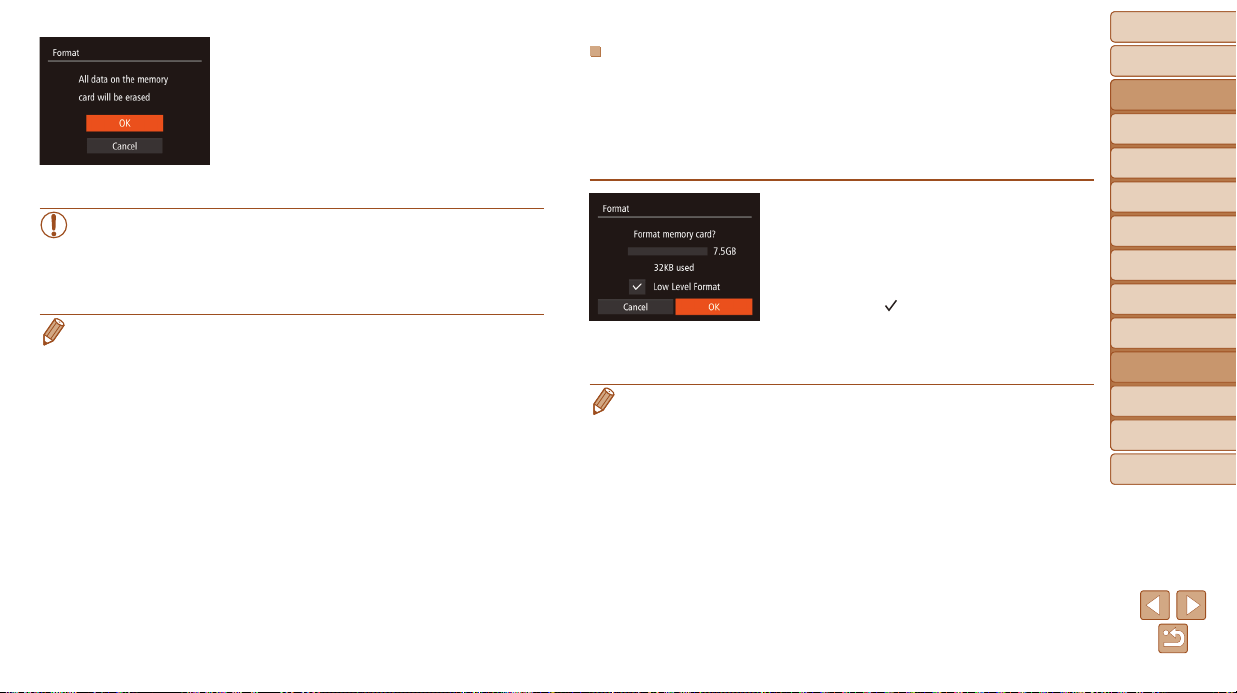
Before Use
Basic Guide
Advanced Guide
Camera Basics
Auto Mode / Hybrid
Auto Mode
Other Shooting
Modes
P Mode
Tv, Av, and M Mode
Playback Mode
Wi-Fi Functions
Setting Menu
Accessories
Appendix
Index
150
Before Use
Basic Guide
Advanced Guide
Camera Basics
Auto Mode / Hybrid
Auto Mode
Other Shooting
Modes
P Mode
Tv, Av, and M Mode
Playback Mode
Wi-Fi Functions
Setting Menu
Accessories
Appendix
Index
3 Formatthememorycard.
To begin the formatting process, press
the <o><p> buttons or turn the <5>
dial to choose [OK], and then press the
<m> button.
When formatting is nished, [Memory
card formatting complete] is displayed.
Press the <m> button.
• Formatting or erasing data on a memory card only changes le
management information on the card and does not erase the data
completely. When transferring or disposing of memory cards, take
steps to protect personal information if necessary, as by physically
destroying cards.
• The total card capacity indicated on the formatting screen may be less than
the advertised capacity.
Low-LevelFormatting
Perform low-level formatting in the following cases: [Memory card error] is
displayed, the camera is not working correctly, card image reading/writing is
slower, continuous shooting is slower, or movie recording suddenly stops.
Low-level formatting erases all data on a memory card. Before low-level
formatting, copy images on the memory card to a computer, or take other
steps to back them up.
On the screen in step 1 of “Formatting
Memory Cards” (=
149), press the
<o><p> buttons or turn the <5> dial
to choose [Low Level Format], and then
press the <q><r> buttons to select this
option. A [
] icon is displayed.
Follow steps 2 – 3 in “Formatting Memory
Cards” (=
149) to continue with the
formatting process.
• Low-level formatting takes longer than “Formatting Memory Cards” (=
149),
because data is erased from all storage regions of the memory card.
• You can cancel low-level formatting in progress by choosing [Stop]. In this
case, all data will be erased, but the memory card can be used normally.
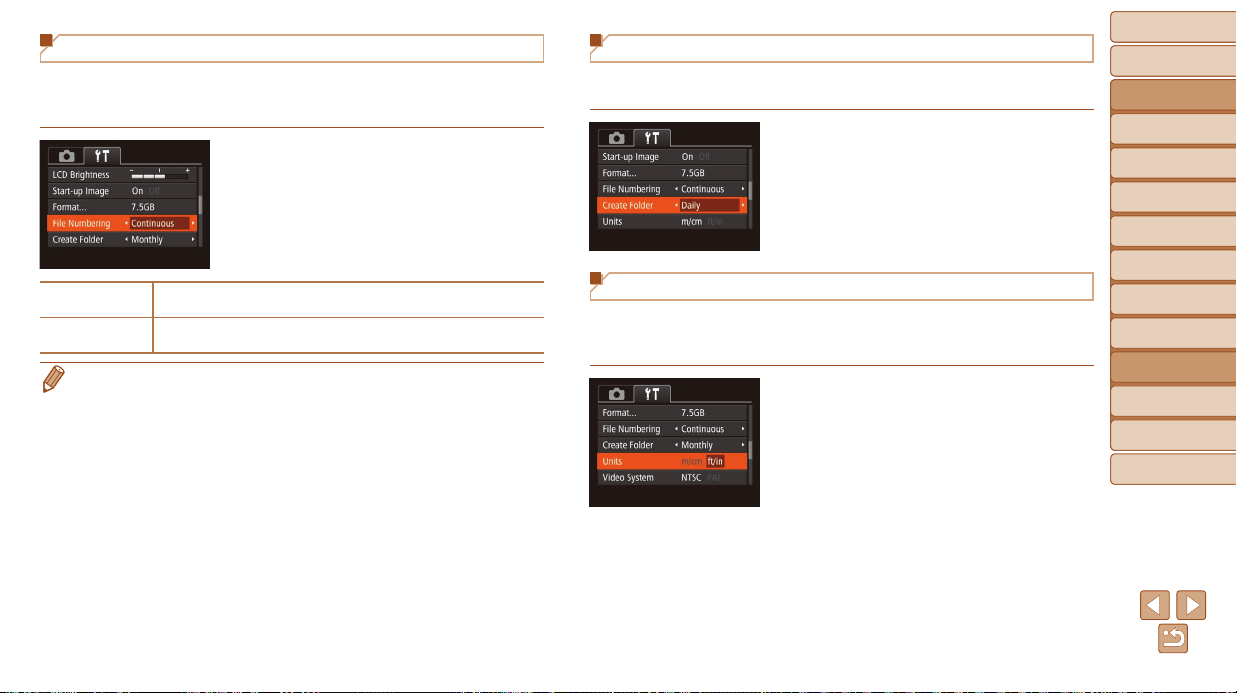
Before Use
Basic Guide
Advanced Guide
Camera Basics
Auto Mode / Hybrid
Auto Mode
Other Shooting
Modes
P Mode
Tv, Av, and M Mode
Playback Mode
Wi-Fi Functions
Setting Menu
Accessories
Appendix
Index
151
Before Use
Basic Guide
Advanced Guide
Camera Basics
Auto Mode / Hybrid
Auto Mode
Other Shooting
Modes
P Mode
Tv, Av, and M Mode
Playback Mode
Wi-Fi Functions
Setting Menu
Accessories
Appendix
Index
File Numbering
Your shots are automatically numbered in sequential order (0001 – 9999)
and saved in folders that store up to 2,000 images each. You can change
how the camera assigns le numbers.
Choose [File Numbering], and then
choose an option.
Continuous
Images are numbered consecutively (until the 9999th shot is taken/
saved) even if you switch memory cards.
Auto Reset
Image numbering is reset to 0001 if you switch memory cards,
or when a new folder is created.
• Regardless of the option selected in this setting, shots may be numbered
consecutively after the last number of existing images on newly inserted
memory cards. To start saving shots from 0001, use an empty (or formatted
(=
149)) memory card.
• Refer to “Software Instruction Manual” (=
160) for information on the card
folder structure and image formats.
Date-Based Image Storage
Instead of saving images in folders created each month, you can have the
camera create folders each day you shoot to store shots taken that day.
Choose [Create Folder], and then choose
[Daily].
Images will now be saved in folders
created on the shooting date.
Metric / Non-Metric Display
Change the unit of measurement shown in GPS elevation information
(=
141), the zoom bar (=
28), the MF indicator (=
74), and
elsewhere from m/cm to ft/in as needed.
Choose [Units], and then choose [ft/in].
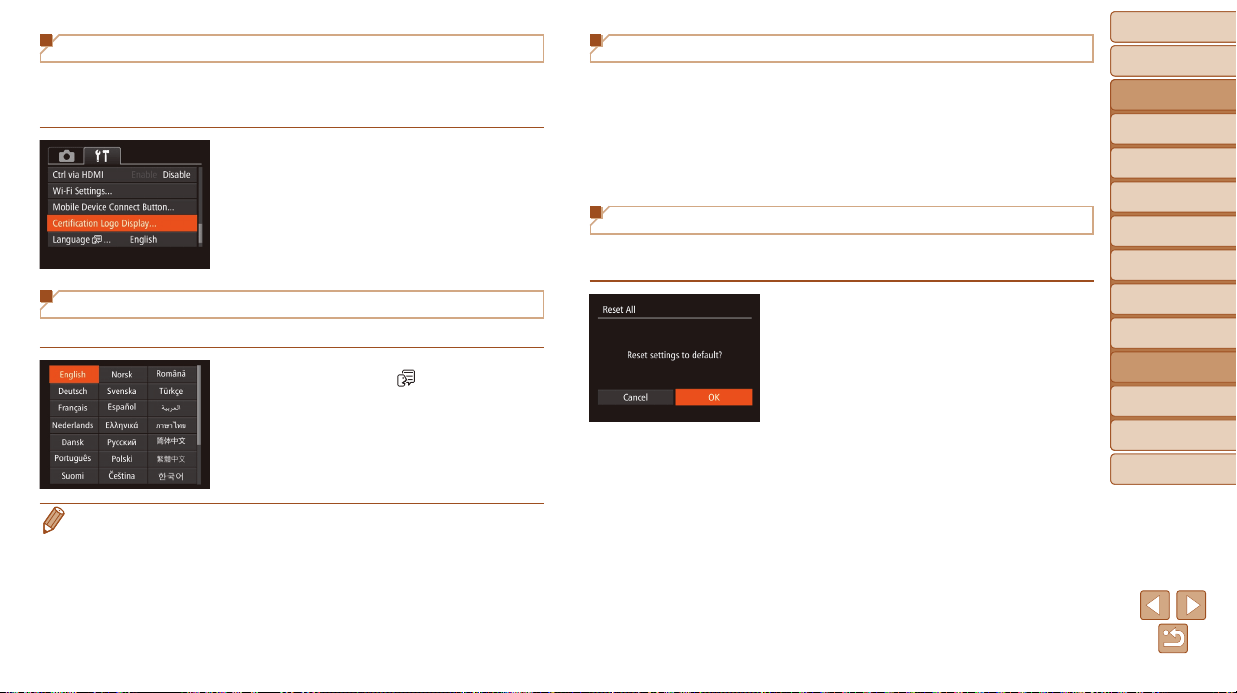
Before Use
Basic Guide
Advanced Guide
Camera Basics
Auto Mode / Hybrid
Auto Mode
Other Shooting
Modes
P Mode
Tv, Av, and M Mode
Playback Mode
Wi-Fi Functions
Setting Menu
Accessories
Appendix
Index
152
Before Use
Basic Guide
Advanced Guide
Camera Basics
Auto Mode / Hybrid
Auto Mode
Other Shooting
Modes
P Mode
Tv, Av, and M Mode
Playback Mode
Wi-Fi Functions
Setting Menu
Accessories
Appendix
Index
Checking Certication Logos
Some logos for certication requirements met by the camera can be viewed
on the screen. Other certication logos are printed in this guide, on the
camera packaging, or on the camera body.
Choose [Certication Logo Display], and
then press the <m> button.
Display Language
Change the display language as needed.
Choose [Language ], and then press
the <m> button.
Press the <o><p><q><r> buttons or
turn the <5> dial to choose a language,
and then press the <m> button.
• You can also access the [Language] screen in Playback mode by pressing and
holding the <m> button and immediately pressing the <n> button.
Adjusting Other Settings
The following settings can also be adjusted on the [3] tab.
• [Video System] (=
159)
• [Ctrl via HDMI] (=
158)
• [Wi-Fi Settings] (=
113)
• [Mobile Device Connect Button] (=
139)
Restoring Defaults
If you accidentally change a setting, you can restore default camera
settings.
1 Accessthe[ResetAll]screen.
Choose [Reset All], and then press the
<m> button.
2 Restoredefaultsettings.
Press the <q><r> buttons or turn the
<5> dial to choose [OK], and then press
the <m> button.
Default settings are now restored.

Before Use
Basic Guide
Advanced Guide
Camera Basics
Auto Mode / Hybrid
Auto Mode
Other Shooting
Modes
P Mode
Tv, Av, and M Mode
Playback Mode
Wi-Fi Functions
Setting Menu
Accessories
Appendix
Index
153
Before Use
Basic Guide
Advanced Guide
Camera Basics
Auto Mode / Hybrid
Auto Mode
Other Shooting
Modes
P Mode
Tv, Av, and M Mode
Playback Mode
Wi-Fi Functions
Setting Menu
Accessories
Appendix
Index
• The following functions are not restored to default settings.
- Information registered using Face ID (=
40)
- [3] tab settings [Date/Time] (=
147), [Time Zone] (=
147),
[Language
] (=
152), and [Video System] (=
159)
- Custom white balance data you have recorded (=
72)
- Shooting mode chosen in [K] (=
55) or [ ] (=
57) mode
- Movie mode (=
65)
- Wi-Fi settings (=
113)

Before Use
Basic Guide
Advanced Guide
Camera Basics
Auto Mode / Hybrid
Auto Mode
Other Shooting
Modes
P Mode
Tv, Av, and M Mode
Playback Mode
Wi-Fi Functions
Setting Menu
Accessories
Appendix
Index
154
Before Use
Basic Guide
Advanced Guide
Camera Basics
Auto Mode / Hybrid
Auto Mode
Other Shooting
Modes
P Mode
Tv, Av, and M Mode
Playback Mode
Wi-Fi Functions
Setting Menu
Accessories
Appendix
Index
Accessories
Enjoy the camera in more ways with optional Canon accessories and other compatible accessories sold separately
SystemMap.................................................... 155
OptionalAccessories..................................... 156
Power Supplies ...................................................156
Other Accessories ............................................... 156
Printers ................................................................156
UsingOptionalAccessories.......................... 157
Playback on a TV ................................................ 157
Powering the Camera with Household Power ..... 159
UsingtheSoftware......................................... 160
Software .............................................................. 160
Computer Connections via a Cable .................... 161
Saving Images to a Computer ............................. 161
PrintingImages.............................................. 163
Easy Print ............................................................163
Conguring Print Settings ................................... 164
Printing Movie Scenes ........................................ 166
Adding Images to the Print List (DPOF) .............. 167
Adding Images to a Photobook ........................... 169
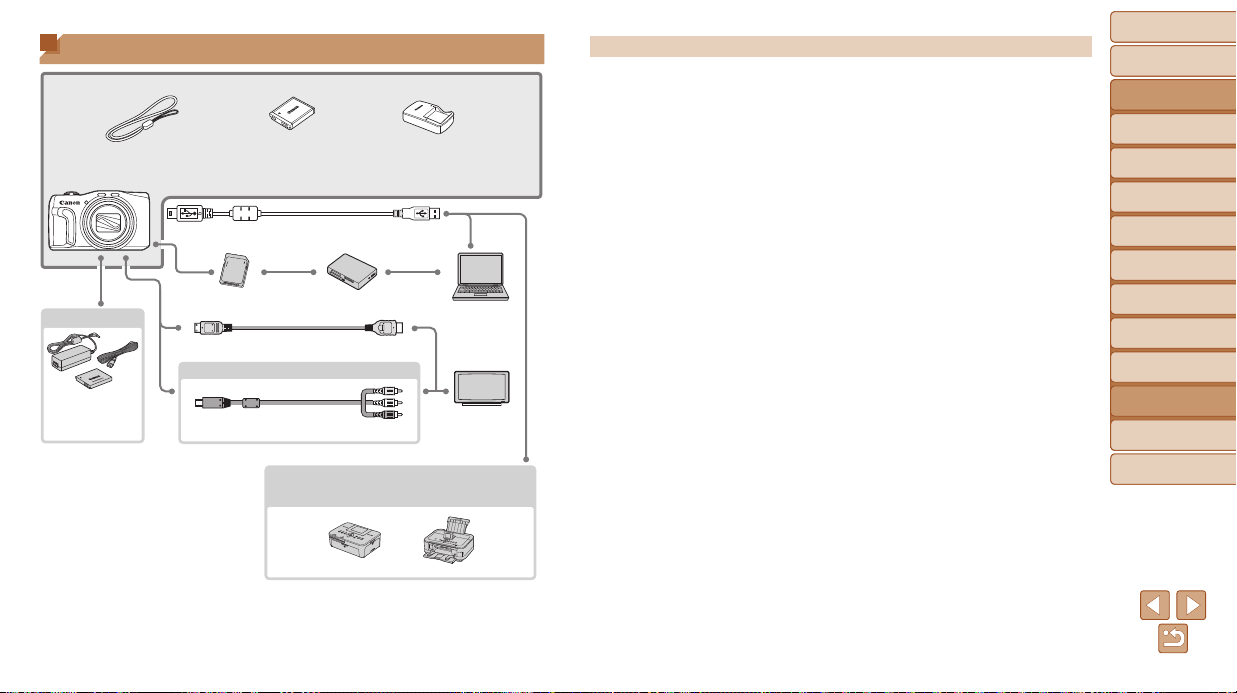
Before Use
Basic Guide
Advanced Guide
Camera Basics
Auto Mode / Hybrid
Auto Mode
Other Shooting
Modes
P Mode
Tv, Av, and M Mode
Playback Mode
Wi-Fi Functions
Setting Menu
Accessories
Appendix
Index
155
Before Use
Basic Guide
Advanced Guide
Camera Basics
Auto Mode / Hybrid
Auto Mode
Other Shooting
Modes
P Mode
Tv, Av, and M Mode
Playback Mode
Wi-Fi Functions
Setting Menu
Accessories
Appendix
Index
UseofgenuineCanonaccessoriesisrecommended.
This product is designed to achieve excellent performance when used with genuine
Canon accessories.
Canon shall not be liable for any damage to this product and/or accidents such as re,
etc., caused by the malfunction of non-genuine Canon accessories (e.g., a leakage
and/or explosion of a battery pack). Please note that this warranty does not apply to
repairs arising out of the malfunction of non-genuine Canon accessories, although you
may request such repairs on a chargeable basis.
Note that availability varies by area, and some accessories may no longer be available.
System Map
Wrist Strap
Battery Pack
NB-6LH*
1
Battery Charger
CB-2LY/CB-2LYE*
1
USB Cable (camera end: Mini-B)*
2
Memory Card Card Reader
Computer
TV/Video
System
AC Adapter Kit
ACK-DC40
IncludedAccessories
Power
Cables
HDMI Cable (camera end: Type D)*
3
Stereo AV Cable AVC-DC400ST
Canon-BrandPictBridge-Compatible
Printers
*1 Also available for purchase separately.
*2 A genuine Canon accessory is also available (Interface Cable IFC-400PCU).
*3 Use a commercially available cable no longer than 2.5 m.
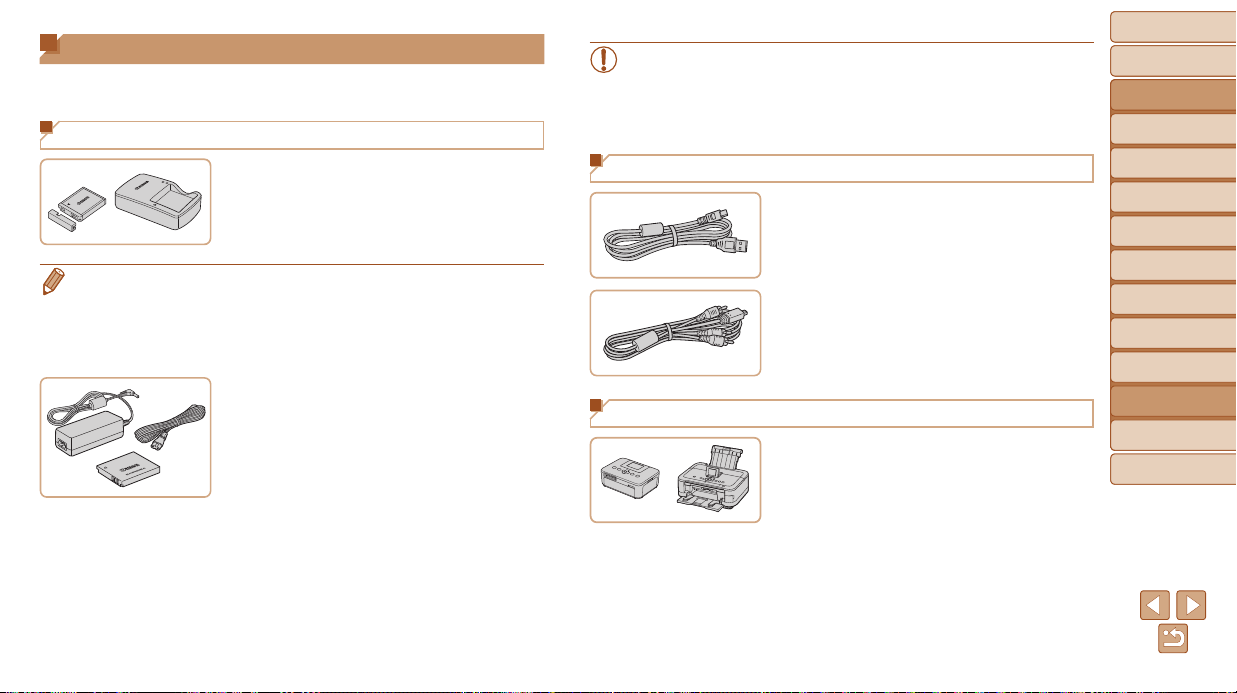
Before Use
Basic Guide
Advanced Guide
Camera Basics
Auto Mode / Hybrid
Auto Mode
Other Shooting
Modes
P Mode
Tv, Av, and M Mode
Playback Mode
Wi-Fi Functions
Setting Menu
Accessories
Appendix
Index
156
Before Use
Basic Guide
Advanced Guide
Camera Basics
Auto Mode / Hybrid
Auto Mode
Other Shooting
Modes
P Mode
Tv, Av, and M Mode
Playback Mode
Wi-Fi Functions
Setting Menu
Accessories
Appendix
Index
Optional Accessories
The following camera accessories are sold separately. Note that availability
varies by area, and some accessories may no longer be available.
Power Supplies
BatteryPackNB-6LH
Rechargeable lithium-ion battery
BatteryChargerCB-2LY/CB-2LYE
Charger for Battery Pack NB-6LH
• The battery pack includes a convenient cover which you can attach to know
the charging status at a glance. Attach the cover so that is visible on a
charged battery pack, and attach it so that is not visible on an uncharged
battery pack.
• Battery Pack NB-6L is also supported.
ACAdapterKitACK-DC40
For powering the camera using
household power. Recommended when
using the camera over extended periods,
or when connecting the camera to a
printer or computer. Cannot be used to
charge the battery pack in the camera.
• The battery charger and AC adapter kit can be used in areas with
100 – 240 V AC power (50/60 Hz).
• For power outlets in a different format, use a commercially available
adapter for the plug. Never use an electrical transformer designed
for traveling, which may damage the battery pack.
Other Accessories
InterfaceCableIFC-400PCU
For connecting the camera to a computer
or printer.
StereoAVCableAVC-DC400ST
Connect the camera to a TV to enjoy
playback on the larger TV screen.
Printers
Canon-BrandPictBridge-
CompatiblePrinters
Printing images without a computer is
possible by connecting the camera to
a Canon-brand PictBridge-compatible
printer.
For details, visit your nearest Canon
retailer.
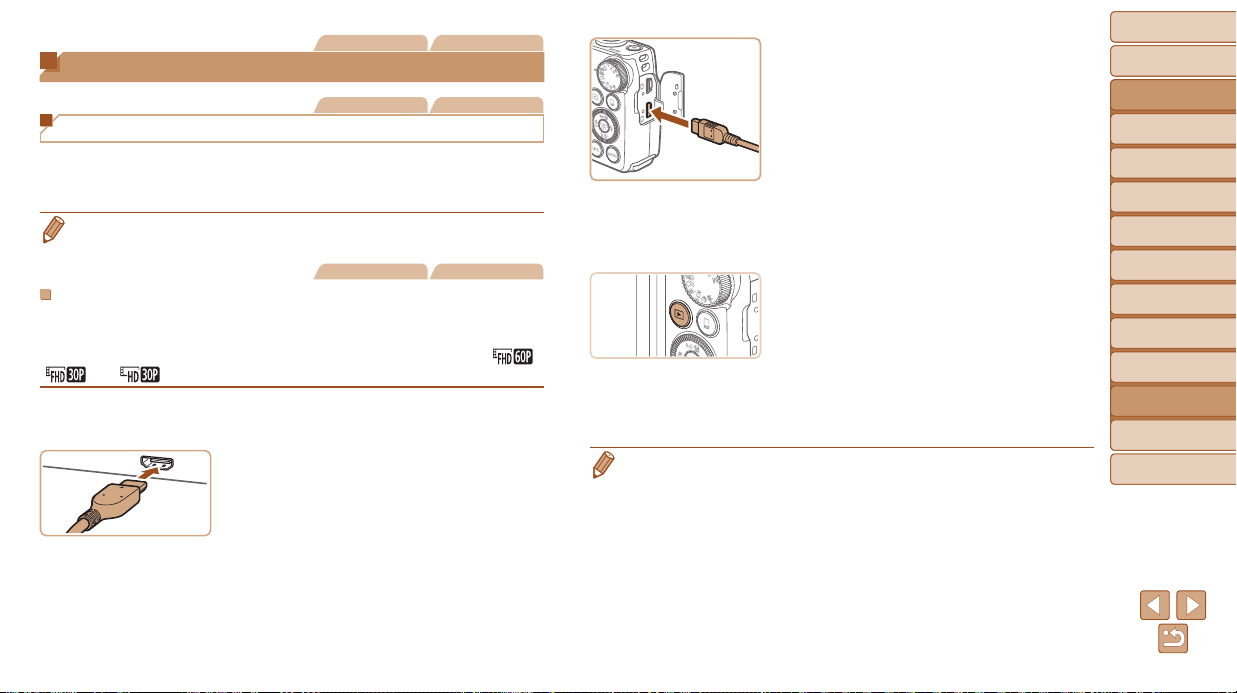
Before Use
Basic Guide
Advanced Guide
Camera Basics
Auto Mode / Hybrid
Auto Mode
Other Shooting
Modes
P Mode
Tv, Av, and M Mode
Playback Mode
Wi-Fi Functions
Setting Menu
Accessories
Appendix
Index
157
Before Use
Basic Guide
Advanced Guide
Camera Basics
Auto Mode / Hybrid
Auto Mode
Other Shooting
Modes
P Mode
Tv, Av, and M Mode
Playback Mode
Wi-Fi Functions
Setting Menu
Accessories
Appendix
Index
Still Images Movies
Using Optional Accessories
Still Images Movies
Playback on a TV
By connecting the camera to a TV, you can view your shots on the larger
screen of the TV.
For details on connection or how to switch inputs, refer to the TV manual.
• Some information may not be displayed on the TV (=
179).
Still Images Movies
PlaybackonaHigh-DenitionTV
You can view your shots on a TV by connecting the camera to an HDTV
with a commercially available HDMI cable (not exceeding 2.5 m, with a
Type D terminal on the camera end). Movies shot at a resolution of [ ],
[ ] or [ ] can be viewed in high denition.
1 MakesurethecameraandTV
areoff.
2 ConnectthecameratotheTV.
On the TV, insert the cable plug fully into
the HDMI input as shown.
On the camera, open the terminal cover
and insert the cable plug fully into the
camera terminal.
3 TurntheTVonandswitchto
videoinput.
Switch the TV input to the video input you
connected the cable to in step 2.
4 Turnthecameraon.
Press the <1> button to turn the camera
on.
Images from the camera are now
displayed on the TV. (Nothing is
displayed on the camera screen.)
When nished, turn off the camera and
TV before disconnecting the cable.
• Camera operating sounds are not played while the camera is connected to an
HDTV.
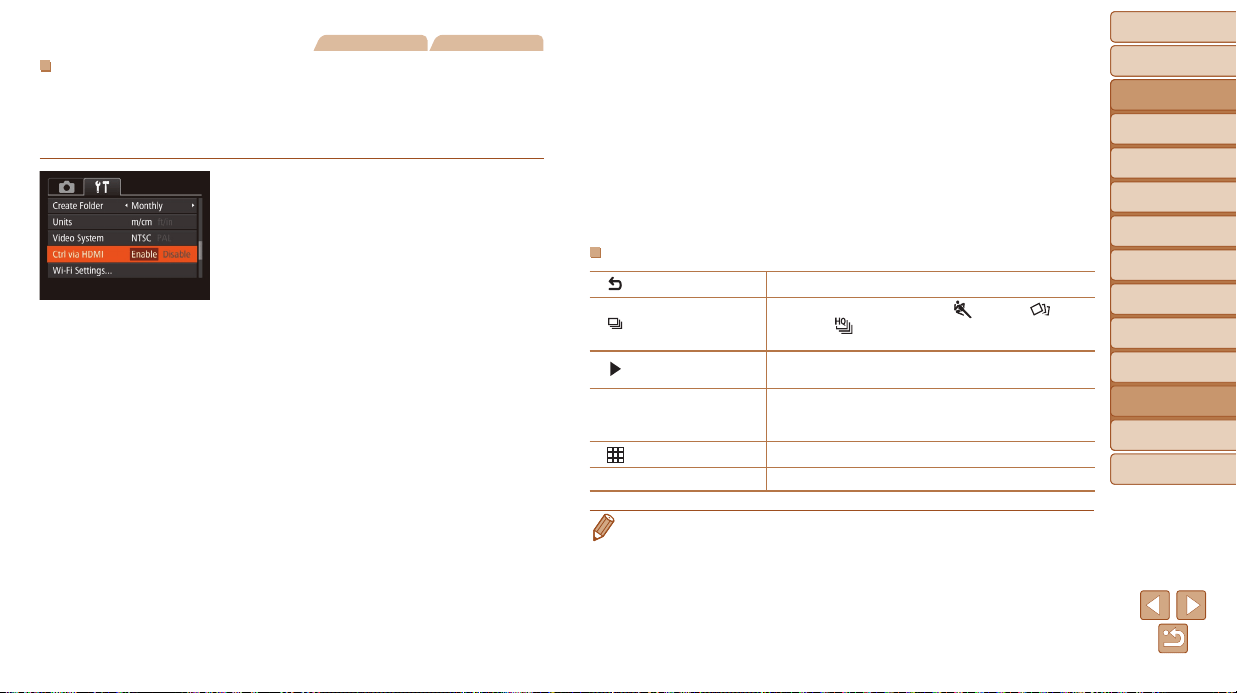
Before Use
Basic Guide
Advanced Guide
Camera Basics
Auto Mode / Hybrid
Auto Mode
Other Shooting
Modes
P Mode
Tv, Av, and M Mode
Playback Mode
Wi-Fi Functions
Setting Menu
Accessories
Appendix
Index
158
Before Use
Basic Guide
Advanced Guide
Camera Basics
Auto Mode / Hybrid
Auto Mode
Other Shooting
Modes
P Mode
Tv, Av, and M Mode
Playback Mode
Wi-Fi Functions
Setting Menu
Accessories
Appendix
Index
Still Images Movies
ControllingtheCamerawithaTVRemote
Connecting the camera to an HDMI CEC-compatible TV enables playback
(including slideshow playback) using the TV remote control.
Depending on the TV, you may need to adjust some TV settings.
For details, refer to the TV manual.
1 Congurethesetting.
Press the <n> button, choose
[Ctrl via HDMI] on the [3] tab, and then
choose [Enable] (=
24).
2 ConnectthecameratotheTV.
Follow steps 1 – 2 in “Playback on a
High-Denition TV” (=
157) to connect
the camera to the TV.
3 Displayimages.
Turn on the TV. On the camera, press the
<1> button.
Images from the camera are now
displayed on the TV. (Nothing is
displayed on the camera screen.)
4 ControlthecamerawiththeTV
remote.
Press the <q><r> buttons on the remote
to browse images.
To display the camera control panel,
press the OK/Select button. Select
control panel options by pressing the
<q><r> buttons to choose an option,
and then pressing the OK/Select button
again.
CameraControlPanelOptionsShownontheTV
Return Closes the menu.
Group Playback
Displays sets of images shot in [
] (=
54), [ ]
(=
53), or [ ] (=
64) mode. (Only displayed
when a grouped image is selected.)
Play Movie
Starts movie playback. (Only displayed when a movie
is selected.)
.
Slideshow
Starts slideshow playback. To switch images during
playback, press the <q><r> buttons on the remote
control.
Index Playback Displays multiple images in an index.
l
Change Display
Switches display modes (=
90).
• Pressing buttons, such as the <n> button, on the camera will switch
control to the camera itself, which will prevent remote control until you return to
single-image display.
• Moving the zoom lever on the camera will switch control to the camera itself,
which will prevent remote control until you return to single-image display.
• The camera may not always respond correctly even if the remote is for an
HDMI CEC-compatible TV.
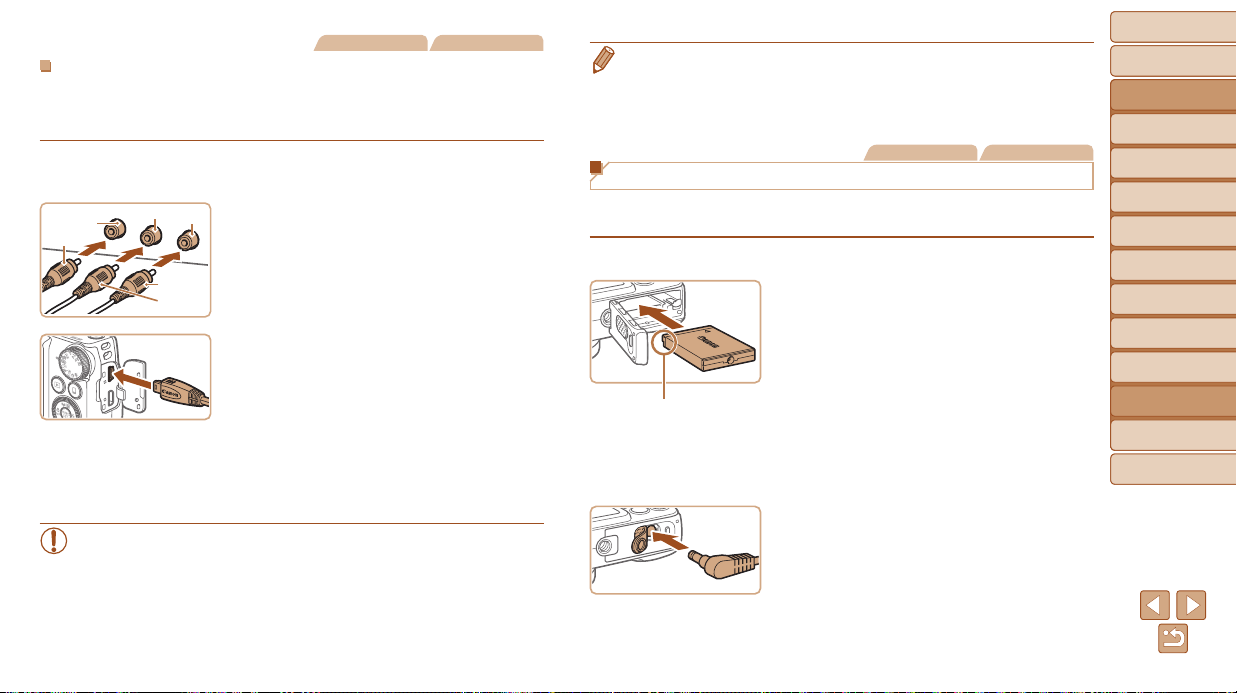
Before Use
Basic Guide
Advanced Guide
Camera Basics
Auto Mode / Hybrid
Auto Mode
Other Shooting
Modes
P Mode
Tv, Av, and M Mode
Playback Mode
Wi-Fi Functions
Setting Menu
Accessories
Appendix
Index
159
Before Use
Basic Guide
Advanced Guide
Camera Basics
Auto Mode / Hybrid
Auto Mode
Other Shooting
Modes
P Mode
Tv, Av, and M Mode
Playback Mode
Wi-Fi Functions
Setting Menu
Accessories
Appendix
Index
Still Images Movies
PlaybackonaStandard-DenitionTV
Connecting the camera to a TV with the Stereo AV Cable AVC-DC400ST
(sold separately) enables you to view your shots on the larger screen of the
TV as you control the camera.
1 MakesurethecameraandTV
areoff.
2 ConnectthecameratotheTV.
On the TV, insert the cable plugs fully into
the video inputs as shown.
On the camera, open the terminal cover
and insert the cable plug fully into the
camera terminal.
3 Displayimages.
Follow steps 3 – 4 in “Playback on a
High-Denition TV” (=
157) to display
images.
• Correct display is not possible unless the camera video output
format (NTSC or PAL) matches the TV format. To change the
video output format, press the <n> button and choose
[Video System] on the [3] tab.
Red
Red
White
Yellow
Yellow
White
• When the camera and TV are connected, you can also shoot while previewing
shots on the larger screen of the TV. To shoot, follow the same steps as when
using the camera screen. However, AF-Point Zoom (=
49), MF-Point Zoom
(=
75) and MF Peaking (=
75) are not available.
Still Images Movies
Powering the Camera with Household Power
Powering the camera with AC Adapter Kit ACK-DC40 (sold separately)
eliminates the need to monitor the remaining battery level.
1 Makesurethecameraisoff.
2 Insertthecoupler.
Follow step 1 in “Inserting the Battery
Pack and Memory Card” (=
13) to
open the cover.
Insert the coupler facing the direction
shown, just as you would a battery pack
(following step 2 in “Inserting the Battery
Pack and Memory Card” (=
13)).
Follow step 4 in “Inserting the Battery
Pack and Memory Card” (=
13) to
close the cover.
3 Connecttheadaptertothe
coupler.
Open the cover and insert the adapter
plug fully into the coupler.
Terminals
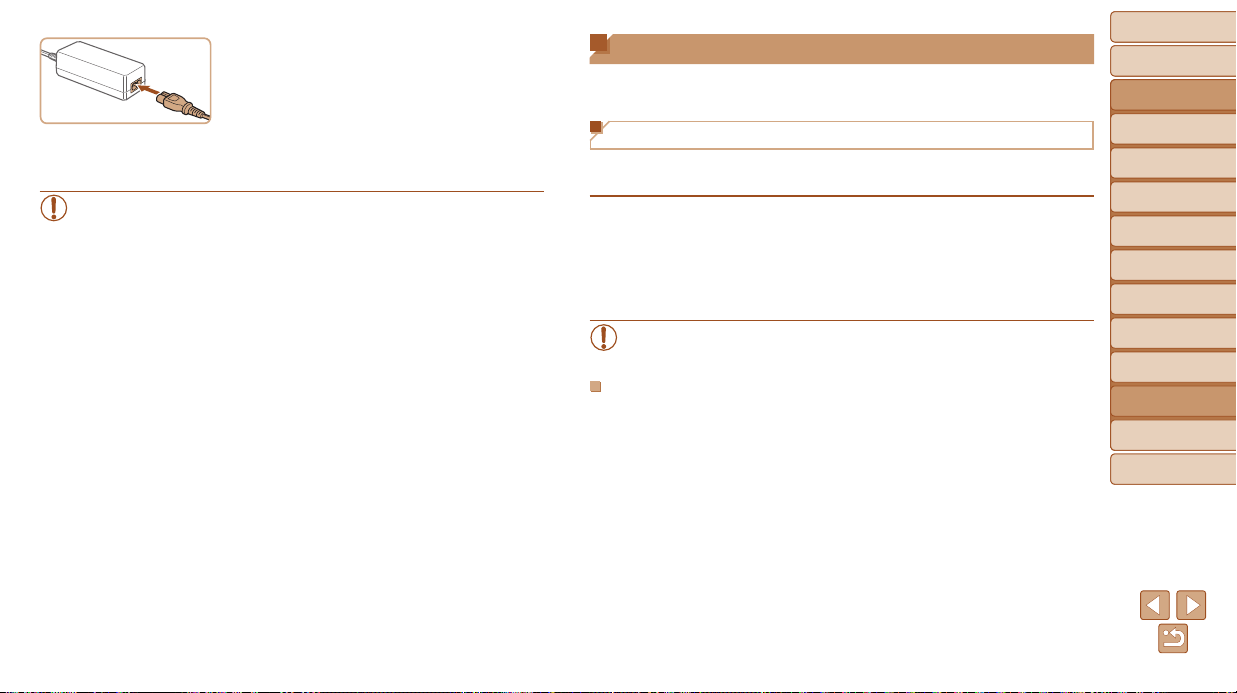
Before Use
Basic Guide
Advanced Guide
Camera Basics
Auto Mode / Hybrid
Auto Mode
Other Shooting
Modes
P Mode
Tv, Av, and M Mode
Playback Mode
Wi-Fi Functions
Setting Menu
Accessories
Appendix
Index
160
Before Use
Basic Guide
Advanced Guide
Camera Basics
Auto Mode / Hybrid
Auto Mode
Other Shooting
Modes
P Mode
Tv, Av, and M Mode
Playback Mode
Wi-Fi Functions
Setting Menu
Accessories
Appendix
Index
4 Connectthepowercord.
Insert one end of the power cord into the
compact power adapter, and then plug
the other end into a power outlet.
Turn the camera on and use it as desired.
When nished, turn the camera off and
unplug the power cord from the outlet.
• Do not disconnect the adapter or unplug the power cord while
the camera is still on. This may erase your shots or damage the
camera.
• Do not attach the adapter or adapter cord to other objects. Doing so
could result in malfunction or damage to the product.
Using the Software
The software available for download from the Canon website is introduced
below, with instructions for installation and saving images to a computer.
Software
After downloading the software from the Canon website and installing it,
you can do the following things on your computer.
CameraWindow
Import images and change camera settings
ImageBrowserEX
Manage images: view, search, and organize
Print and edit images
• Internet access is required, and any ISP account charges and
access fees must be paid separately.
SoftwareInstructionManual
Refer to the instruction manual when using the software. The manual can
be downloaded from the following URL:
http://www.canon.com/icpd/
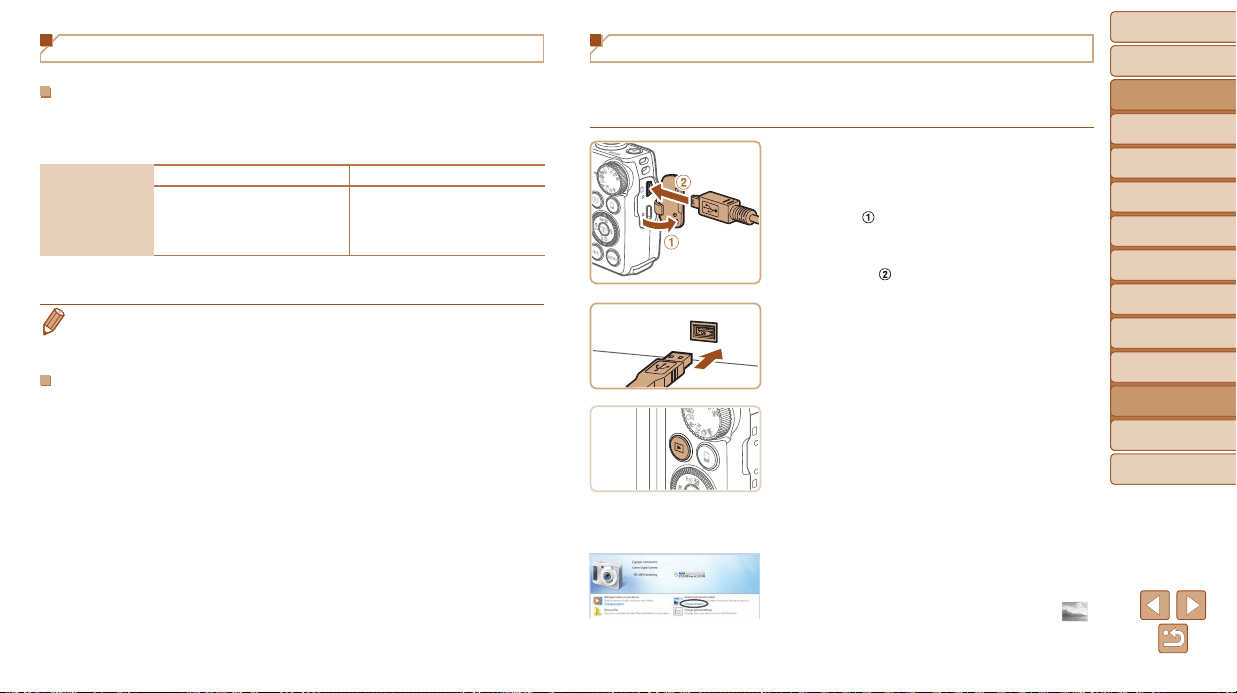
Before Use
Basic Guide
Advanced Guide
Camera Basics
Auto Mode / Hybrid
Auto Mode
Other Shooting
Modes
P Mode
Tv, Av, and M Mode
Playback Mode
Wi-Fi Functions
Setting Menu
Accessories
Appendix
Index
161
Before Use
Basic Guide
Advanced Guide
Camera Basics
Auto Mode / Hybrid
Auto Mode
Other Shooting
Modes
P Mode
Tv, Av, and M Mode
Playback Mode
Wi-Fi Functions
Setting Menu
Accessories
Appendix
Index
Computer Connections via a Cable
CheckingYourComputerEnvironment
The software can be used on the following computers. For detailed system
requirements and compatibility information, including support in new
operating systems, visit the Canon website.
Operating
System*
Windows MacOS
Windows 8/8.1
Windows 7 SP1
Windows Vista SP2
Windows XP SP3
Mac OS X 10.9
Mac OS X 10.8
Mac OS X 10.7
* When sending images to a computer via Wi-Fi, check the system requirements in
“Checking Your Computer Environment” (=
120).
• Check the Canon website for the latest system requirements, including
supported OS versions.
InstallingtheSoftware
For software installation instructions, see “Installing the Software” (=
121).
Saving Images to a Computer
Windows 7 and Mac OS X 10.8 are used here for the sake of illustration.
For other functions, refer to the help system of the relevant software (some
software excluded).
1 Connectthecameratothe
computer.
With the camera turned off, open the
cover (
). With the smaller plug of the
USB cable in the orientation shown,
insert the plug fully into the camera
terminal (
).
Insert the larger plug of the USB cable
in the computer’s USB port. For details
about USB connections on the computer,
refer to the computer user manual.
2 Turnthecameraontoaccess
CameraWindow.
Press the <1> button to turn the camera
on.
Mac OS: CameraWindow is displayed
when a connection is established
between the camera and computer.
Windows: Follow the steps introduced
below.
In the screen that displays, click the [ ]
link to modify the program.
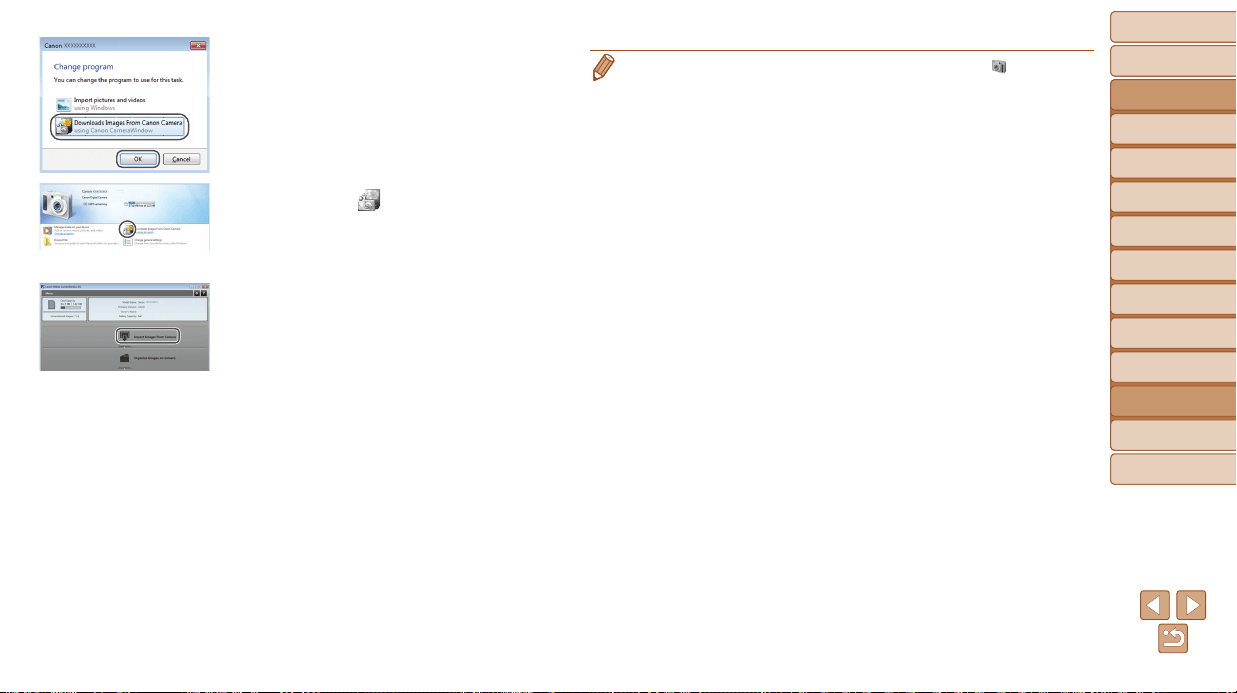
Before Use
Basic Guide
Advanced Guide
Camera Basics
Auto Mode / Hybrid
Auto Mode
Other Shooting
Modes
P Mode
Tv, Av, and M Mode
Playback Mode
Wi-Fi Functions
Setting Menu
Accessories
Appendix
Index
162
Before Use
Basic Guide
Advanced Guide
Camera Basics
Auto Mode / Hybrid
Auto Mode
Other Shooting
Modes
P Mode
Tv, Av, and M Mode
Playback Mode
Wi-Fi Functions
Setting Menu
Accessories
Appendix
Index
Choose [Downloads Images From Canon
Camera] and then click [OK].
Double-click [ ].
3 Savetheimagestothe
computer.
Click [Import Images from Camera], and
then click [Import Untransferred Images].
Images are now saved to the Pictures
folder on the computer, in separate
folders named by date.
After images are saved, close
CameraWindow, press the <1> button
to turn the camera off, and unplug the
cable.
For instructions on viewing images on a
computer, refer to “Software Instruction
Manual” (=
160).
CameraWindow
• Windows 7: If the screen in step 2 is not displayed, click the [ ] icon in the
taskbar.
• Windows Vista or XP: To start CameraWindow, click [Downloads Images From
Canon Camera] on the screen displayed when you turn the camera on in
step 2. If CameraWindow is not displayed, click the [Start] menu and choose
[All Programs] ► [Canon Utilities] ► [CameraWindow] ► [CameraWindow].
• Mac OS: If CameraWindow is not displayed after step 2, click the
[CameraWindow] icon in the Dock.
•
Although you can save images to a computer simply by connecting your camera
to the computer without using the software, the following limitations apply.
- It may take a few minutes after you connect the camera to the computer until
camera images are accessible.
- Images shot in vertical orientation may be saved in horizontal orientation.
- Image protection settings may be cleared from images saved to a computer.
- Some problems may occur when saving images or image information,
depending on the operating system version, the software in use, or image
le sizes.
- Some functions provided by the software may not be available, such as
movie editing.
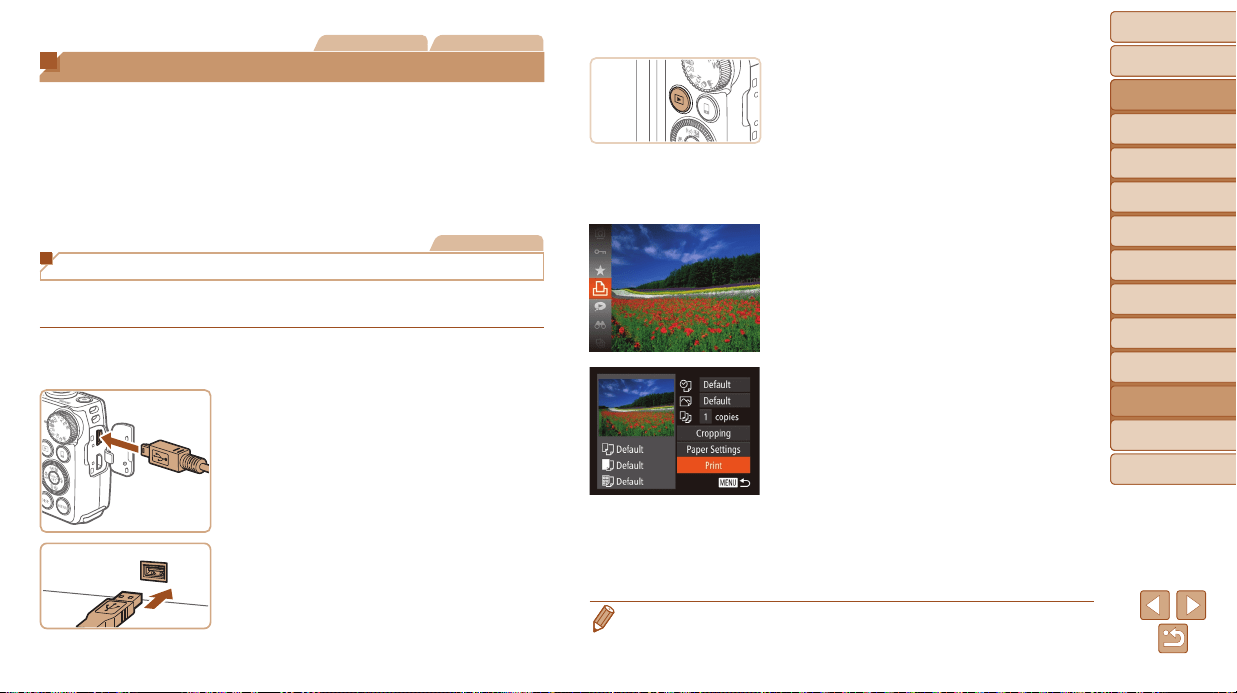
Before Use
Basic Guide
Advanced Guide
Camera Basics
Auto Mode / Hybrid
Auto Mode
Other Shooting
Modes
P Mode
Tv, Av, and M Mode
Playback Mode
Wi-Fi Functions
Setting Menu
Accessories
Appendix
Index
163
Before Use
Basic Guide
Advanced Guide
Camera Basics
Auto Mode / Hybrid
Auto Mode
Other Shooting
Modes
P Mode
Tv, Av, and M Mode
Playback Mode
Wi-Fi Functions
Setting Menu
Accessories
Appendix
Index
Still Images Movies
Printing Images
Your shots can easily be printed by connecting the camera to a printer.
On the camera, you can specify images to set up batch printing, prepare
orders for photo development services, and prepare orders or print images
for photobooks.
A Canon SELPHY CP series compact photo printer is used here for the
sake of illustration. Screens displayed and available functions vary by
printer. Also refer to the printer manual for additional information.
Still Images
Easy Print
Easily print your shots by connecting the camera to a PictBridge-compatible
printer (sold separately) with the USB cable.
1 Makesurethecameraand
printerareoff.
2 Connectthecameratothe
printer.
Open the cover. Holding the smaller
cable plug in the orientation shown, insert
the plug fully into the camera terminal.
Connect the larger cable plug to the
printer. For other connection details, refer
to the printer manual.
3 Turntheprinteron.
4 Turnthecameraon.
Press the <1> button to turn the camera
on.
5 Chooseanimage.
Press the <q><r> buttons or turn the
<5> dial to choose an image.
6 Accesstheprintingscreen.
Press the <
m
> button, choose [c], and
press the <
m
> button again.
7 Printtheimage.
Press the <o><p> buttons or turn the
<5> dial to choose [Print], and then
press the <m> button.
Printing now begins.
To print other images, repeat the above
procedures starting from step 5 after
printing is nished.
When you are nished printing, turn the
camera and printer off and disconnect
the cable.
• For Canon-brand PictBridge-compatible printers (sold separately), see
“Printers” (=
156).
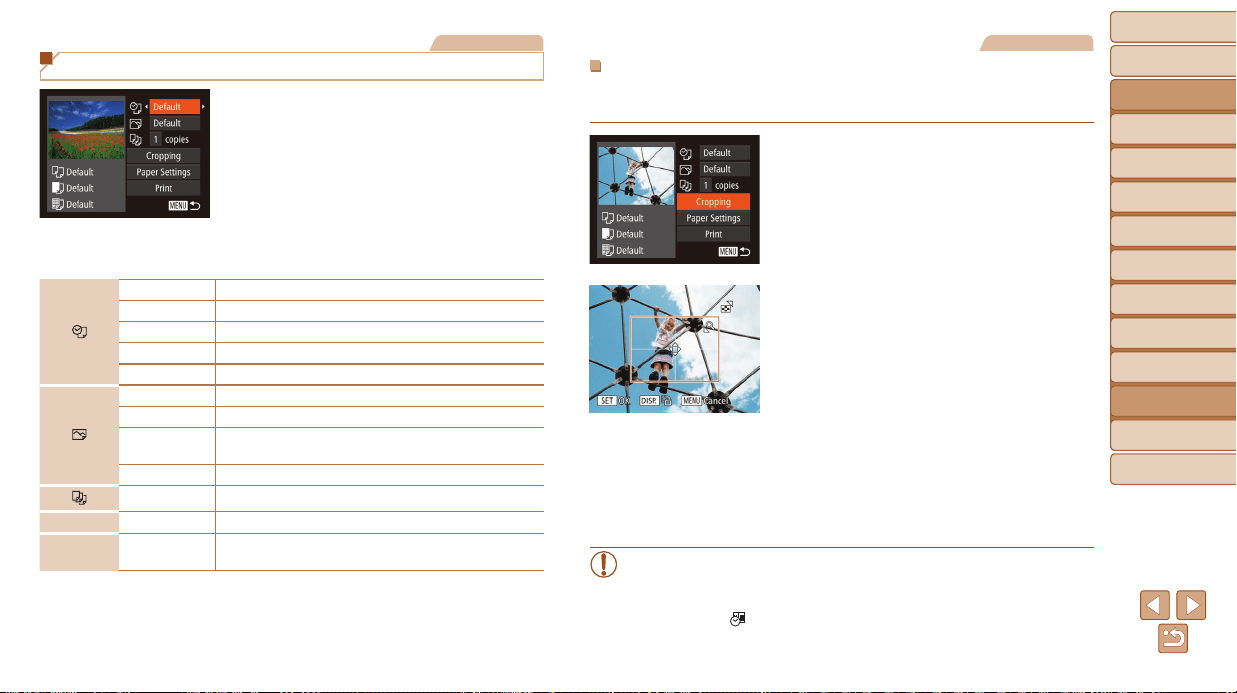
Before Use
Basic Guide
Advanced Guide
Camera Basics
Auto Mode / Hybrid
Auto Mode
Other Shooting
Modes
P Mode
Tv, Av, and M Mode
Playback Mode
Wi-Fi Functions
Setting Menu
Accessories
Appendix
Index
164
Before Use
Basic Guide
Advanced Guide
Camera Basics
Auto Mode / Hybrid
Auto Mode
Other Shooting
Modes
P Mode
Tv, Av, and M Mode
Playback Mode
Wi-Fi Functions
Setting Menu
Accessories
Appendix
Index
Still Images
Conguring Print Settings
1 Accesstheprintingscreen.
Follow steps 1 – 6 in “Easy Print”
(=
163) to access the screen at left.
2 Congurethesettings.
Press the <o><p> buttons or turn
the <5> dial to choose an item, and
then choose an option by pressing the
<q><r> buttons.
Default Matches current printer settings.
Date Prints images with the date added.
File No. Prints images with the le number added.
Both Prints images with both the date and le number added.
Off
–
Default Matches current printer settings.
Off
–
On
Uses information from the time of shooting to print under
optimal settings.
Red-Eye 1 Corrects red-eye.
No. of Copies Choose the number of copies to print.
Cropping
–
Specify a desired image area to print (=
164).
Paper
Settings
–
Specify the paper size, layout, and other details
(=
165).
Still Images
CroppingImagesbeforePrinting
By cropping images before printing, you can print a desired image area
instead of the entire image.
1 Choose[Cropping].
After following step 1 in “Conguring Print
Settings” (=
164) to access the printing
screen, choose [Cropping] and press the
<m> button.
A cropping frame is now displayed,
indicating the image area to print.
2 Adjustthecroppingframeas
needed.
To resize the frame, move the zoom lever
or turn the <5> dial.
To move the frame, press the
<o><p><q><r> buttons.
To rotate the frame, press the <l>
button.
When nished, press the <m> button.
3 Printtheimage.
Follow step 7 in “Easy Print” (=
163)
to print.
• Cropping may not be possible at small image sizes, or at some
aspect ratios.
• Dates may not be printed correctly if you crop images shot with
[Date Stamp ] selected.
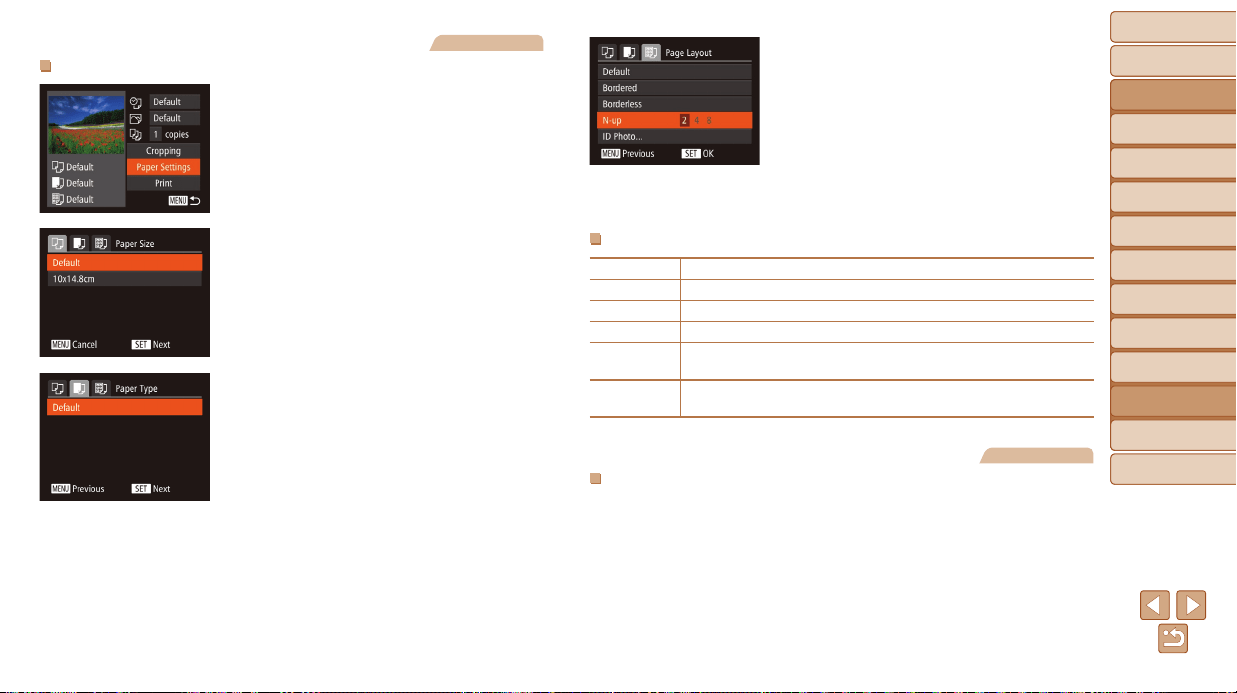
Before Use
Basic Guide
Advanced Guide
Camera Basics
Auto Mode / Hybrid
Auto Mode
Other Shooting
Modes
P Mode
Tv, Av, and M Mode
Playback Mode
Wi-Fi Functions
Setting Menu
Accessories
Appendix
Index
165
Before Use
Basic Guide
Advanced Guide
Camera Basics
Auto Mode / Hybrid
Auto Mode
Other Shooting
Modes
P Mode
Tv, Av, and M Mode
Playback Mode
Wi-Fi Functions
Setting Menu
Accessories
Appendix
Index
Still Images
ChoosingPaperSizeandLayoutbeforePrinting
1 Choose[PaperSettings].
After following step 1 in “Conguring Print
Settings” (=
164) to access the printing
screen, choose [Paper Settings] and
press the <m> button.
2 Chooseapapersize.
Press the <o><p> buttons or turn the
<5> dial to choose an option, and then
press the <m> button.
3 Chooseatypeofpaper.
Press the <o><p> buttons or turn the
<5> dial to choose an option, and then
press the <m> button.
4 Choosealayout.
Press the <o><p> buttons or turn the
<5> dial to choose an option.
When choosing [N-up], press the
<q><r> buttons to specify the number of
images per sheet.
Press the <m> button.
5 Printtheimage.
AvailableLayoutOptions
Default Matches current printer settings.
Bordered Prints with blank space around the image.
Borderless Borderless, edge-to-edge printing.
N-up Choose how many images to print per sheet.
ID Photo
Prints images for identication purposes.
Only available for images with a resolution of L and an aspect ratio of 4:3.
Fixed Size
Choose the print size.
Choose from 3.5 x 5 in., postcard, or wide-format prints.
Still Images
PrintingIDPhotos
1 Choose[IDPhoto].
Following steps 1 – 4 in “Choosing
Paper Size and Layout before Printing”
(=
165 – 165), choose [ID Photo] and
press the <m> button.
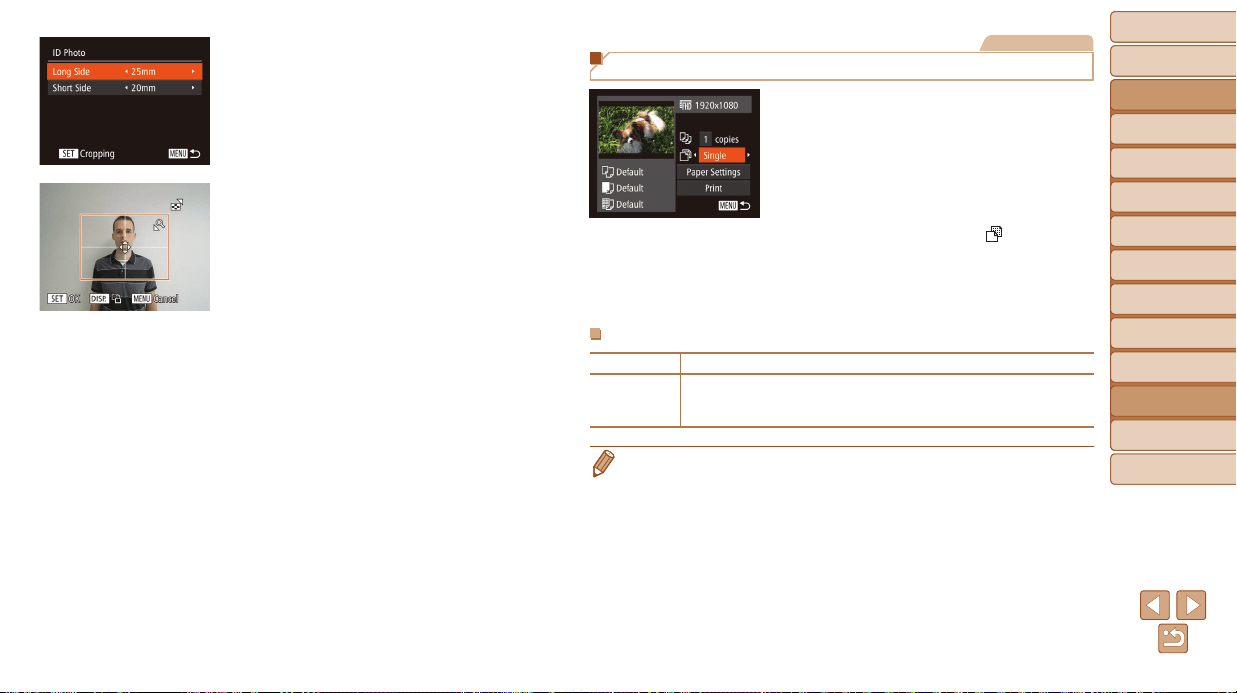
Before Use
Basic Guide
Advanced Guide
Camera Basics
Auto Mode / Hybrid
Auto Mode
Other Shooting
Modes
P Mode
Tv, Av, and M Mode
Playback Mode
Wi-Fi Functions
Setting Menu
Accessories
Appendix
Index
166
Before Use
Basic Guide
Advanced Guide
Camera Basics
Auto Mode / Hybrid
Auto Mode
Other Shooting
Modes
P Mode
Tv, Av, and M Mode
Playback Mode
Wi-Fi Functions
Setting Menu
Accessories
Appendix
Index
2 Choosethelongandshortside
length.
Press the <o><p> buttons or turn the
<5> dial to choose an item. Choose the
length by pressing the <q><r> buttons,
and then press the <m> button.
3 Choosetheprintingarea.
Follow step 2 in “Cropping Images before
Printing” (=
164) to choose the printing
area.
4 Printtheimage.
Movies
Printing Movie Scenes
1 Accesstheprintingscreen.
Follow steps 1 – 6 in “Easy Print”
(=
163) to choose a movie. The screen
at left is displayed.
2 Chooseaprintingmethod.
Press the <o><p> buttons or turn
the <5> dial to choose [
], and then
press the <q><r> buttons to choose the
printing method.
3 Printtheimage.
MoviePrintingOptions
Single Prints the current scene as a still image.
Sequence
Prints a series of scenes, a certain interval apart, on a single sheet of
paper. You can also print the folder number, le number, and elapsed
time for the frame by setting [Caption] to [On].
• To cancel printing in progress, press the <m> button.
• [ID Photo] and [Sequence] cannot be chosen on Canon-brand PictBridge-
compatible printers from CP720/CP730 and earlier models.
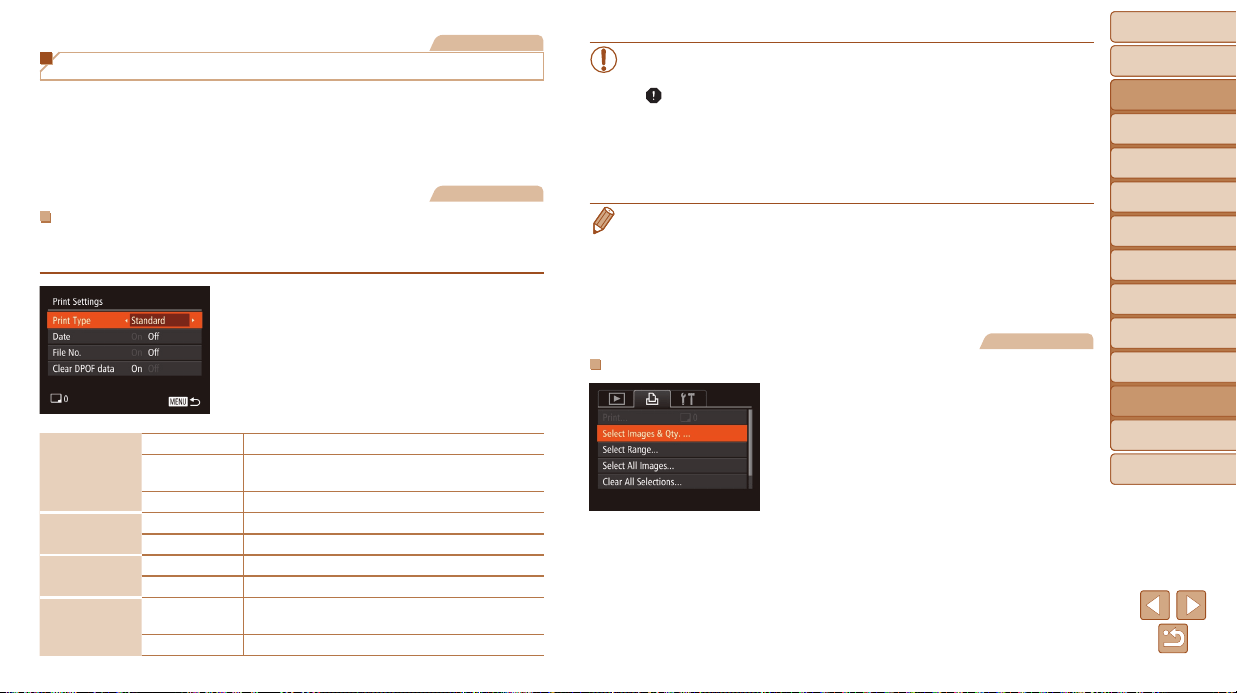
Before Use
Basic Guide
Advanced Guide
Camera Basics
Auto Mode / Hybrid
Auto Mode
Other Shooting
Modes
P Mode
Tv, Av, and M Mode
Playback Mode
Wi-Fi Functions
Setting Menu
Accessories
Appendix
Index
167
Before Use
Basic Guide
Advanced Guide
Camera Basics
Auto Mode / Hybrid
Auto Mode
Other Shooting
Modes
P Mode
Tv, Av, and M Mode
Playback Mode
Wi-Fi Functions
Setting Menu
Accessories
Appendix
Index
Still Images
Adding Images to the Print List (DPOF)
Batch printing (=
169) and ordering prints from a photo development
service can be set up on the camera. Choose up to 998 images on a
memory card and congure relevant settings, such as the number of copies,
as follows. The printing information you prepare this way will conform to
DPOF (Digital Print Order Format) standards.
Still Images
ConguringPrintSettings
Specify the printing format, whether to add the date or le number, and
other settings as follows. These settings apply to all images in the print list.
Press the <n> button, and then
choose [Print Settings] on the [2] tab.
Choose and congure items as desired
(=
24).
PrintType
Standard One image is printed per sheet.
Index
Smaller versions of multiple images are printed
per sheet.
Both Both standard and index formats are printed.
Date
On Images are printed with the shooting date.
Off
–
FileNo.
On Images are printed with the le number.
Off
–
ClearDPOF
data
On
All image print list settings are cleared after
printing.
Off
–
• Not all of your DPOF settings may be applied in printing by the
printer or photo development service, in some cases.
• [ ] may be displayed on the camera to warn you that the memory
card has print settings that were congured on another camera.
Changing the print settings using this camera may overwrite all
previous settings.
• Setting [Date] to [On] may cause some printers to print the date
twice.
• Specifying [Index] will prevent you from choosing [On] for both [Date] and
[File No.] at the same time.
• Index printing is not available on some Canon-brand PictBridge-compatible
printers (sold separately).
• The date is printed in a format matching setting details in [Date/Time] on the
[3] tab (=
14).
Still Images
SettingUpPrintingforIndividualImages
1 Choose[SelectImages&Qty.].
Press the <n> button, choose
[Select Images & Qty.] on the [2] tab,
and then press the <
m
> button.
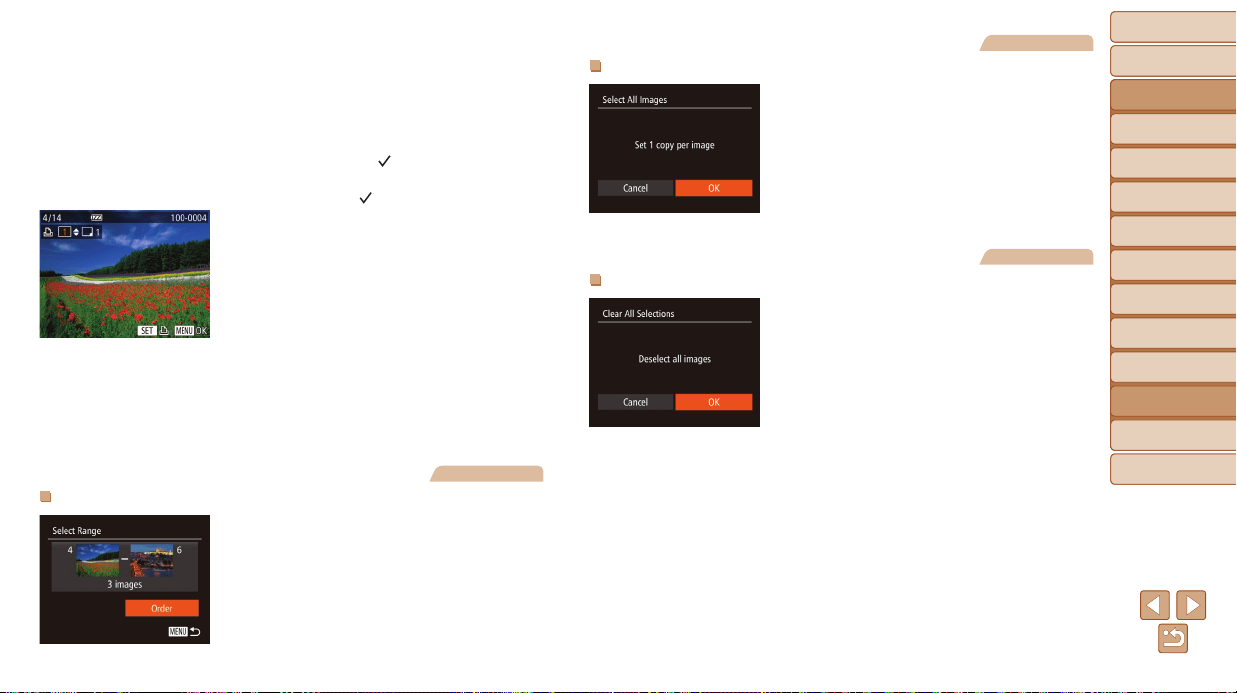
Before Use
Basic Guide
Advanced Guide
Camera Basics
Auto Mode / Hybrid
Auto Mode
Other Shooting
Modes
P Mode
Tv, Av, and M Mode
Playback Mode
Wi-Fi Functions
Setting Menu
Accessories
Appendix
Index
168
Before Use
Basic Guide
Advanced Guide
Camera Basics
Auto Mode / Hybrid
Auto Mode
Other Shooting
Modes
P Mode
Tv, Av, and M Mode
Playback Mode
Wi-Fi Functions
Setting Menu
Accessories
Appendix
Index
2 Chooseanimage.
Press the <q><r> buttons or turn the
<5> dial to choose an image, and then
press the <m> button.
You can now specify the number of copies.
If you specify index printing for the image, it
is labeled with a [
] icon. To cancel index
printing for the image, press the <m>
button again. [
] is no longer displayed.
3 Specifythenumberofprints.
Press the <o><p> buttons or turn the
<5> dial to specify the number of prints
(up to 99).
To set up printing for other images and
specify the number of prints, repeat
steps 2 – 3.
Printing quantity cannot be specied for
index prints. You can only choose which
images to print, by following step 2.
When nished, press the <n> button
to return to the menu screen.
Still Images
SettingUpPrintingforaRangeofImages
Following step 1 in “Setting Up Printing
for Individual Images” (=
167), choose
[Select Range] and press the <m> button.
Follow steps 2 – 3 in “Selecting a Range”
(=
100) to specify images.
Press the <o><p> buttons to choose
[Order], and then press the <m> button.
Still Images
SettingUpPrintingforAllImages
Following step 1 in “Setting Up Printing
for Individual Images” (=
167), choose
[Select All Images] and press the <m>
button.
Press the <q><r> buttons or turn the
<5> dial to choose [OK], and then press
the <m> button.
Still Images
ClearingAllImagesfromthePrintList
Following step 1 in “Setting Up Printing
for Individual Images” (=
167), choose
[Clear All Selections] and press the <m>
button.
Press the <q><r> buttons or turn the
<5> dial to choose [OK], and then press
the <m> button.
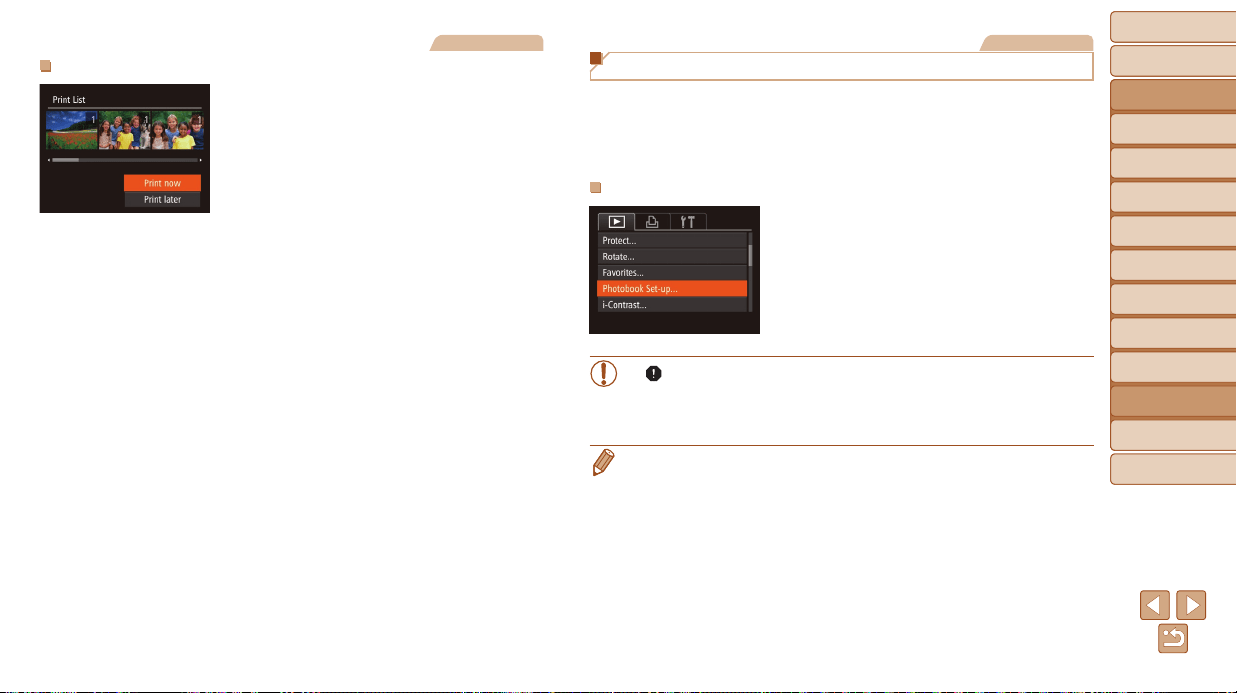
Before Use
Basic Guide
Advanced Guide
Camera Basics
Auto Mode / Hybrid
Auto Mode
Other Shooting
Modes
P Mode
Tv, Av, and M Mode
Playback Mode
Wi-Fi Functions
Setting Menu
Accessories
Appendix
Index
169
Before Use
Basic Guide
Advanced Guide
Camera Basics
Auto Mode / Hybrid
Auto Mode
Other Shooting
Modes
P Mode
Tv, Av, and M Mode
Playback Mode
Wi-Fi Functions
Setting Menu
Accessories
Appendix
Index
Still Images
PrintingImagesAddedtothePrintList(DPOF)
When images have been added to the
print list (=
167 – 168), the screen
at left is displayed after you connect
the camera to a PictBridge-compatible
printer. Press the <o><p> buttons to
choose [Print now], and then simply press
the <m> button to print the images in the
print list.
Any DPOF print job that you temporarily
stop will be resumed from the next image.
Still Images
Adding Images to a Photobook
Photobooks can be set up on the camera by choosing up to 998 images
on a memory card and importing them into the software on your computer,
where they are stored in their own folder. This is convenient when ordering
printed photobooks online or printing photobooks with your own printer.
ChoosingaSelectionMethod
Press the <n> button, choose
[Photobook Set-up] on the [1] tab, and
then choose how you will select images.
• [ ] may be displayed on the camera to warn you that the memory
card has print settings that were congured on another camera.
Changing the print settings using this camera may overwrite all
previous settings.
• After importing images to your computer, also refer to “Software Instruction
Manual” (=
160) and the printer manual for further information.
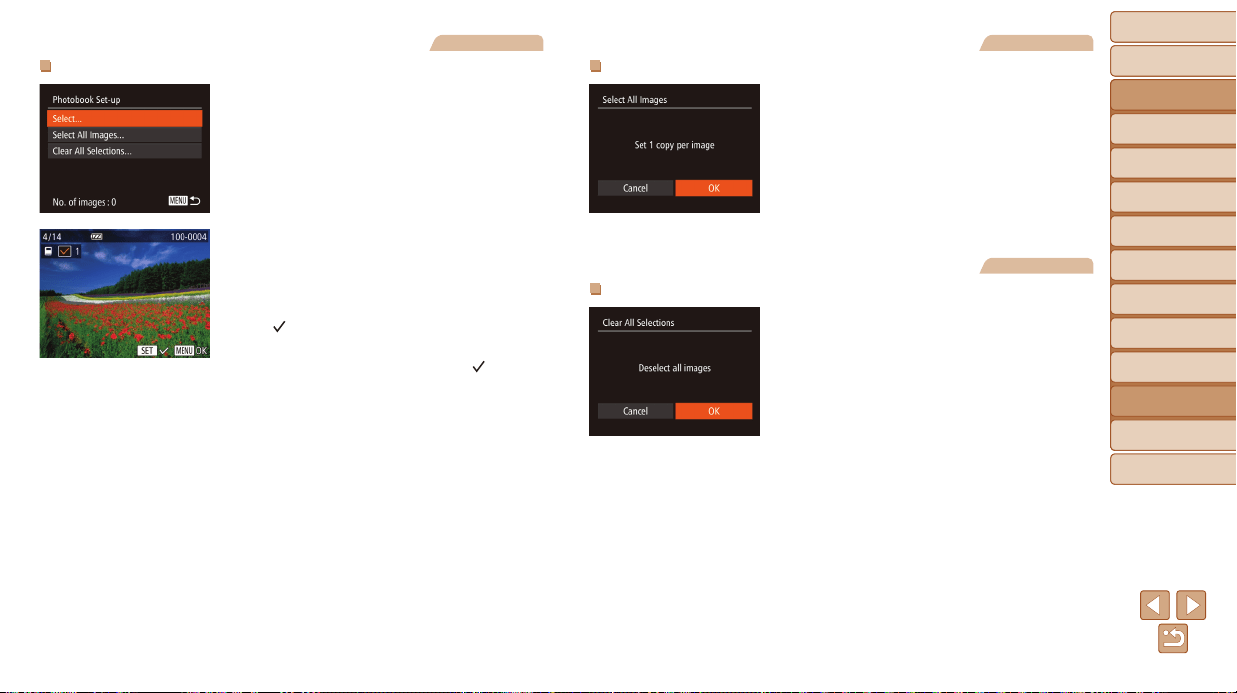
Before Use
Basic Guide
Advanced Guide
Camera Basics
Auto Mode / Hybrid
Auto Mode
Other Shooting
Modes
P Mode
Tv, Av, and M Mode
Playback Mode
Wi-Fi Functions
Setting Menu
Accessories
Appendix
Index
170
Before Use
Basic Guide
Advanced Guide
Camera Basics
Auto Mode / Hybrid
Auto Mode
Other Shooting
Modes
P Mode
Tv, Av, and M Mode
Playback Mode
Wi-Fi Functions
Setting Menu
Accessories
Appendix
Index
Still Images
AddingImagesIndividually
1 Choose[Select].
Following the procedure in “Choosing
a Selection Method” (=
169), choose
[Select] and press the <m> button.
2 Chooseanimage.
Press the <q><r> buttons or turn the
<5> dial to choose an image, and then
press the <m> button.
[ ] is displayed.
To remove the image from the photobook,
press the <m> button again. [
] is no
longer displayed.
Repeat this process to specify other
images.
When nished, press the <n> button
to return to the menu screen.
Still Images
AddingAllImagestoaPhotobook
Following the procedure in “Choosing
a Selection Method” (=
169), choose
[Select All Images] and press the <m>
button.
Press the <q><r> buttons or turn the
<5> dial to choose [OK], and then press
the <m> button.
Still Images
RemovingAllImagesfromaPhotobook
Following the procedure in “Choosing
a Selection Method” (=
169), choose
[Clear All Selections] and press the <m>
button.
Press the <q><r> buttons or turn the
<5> dial to choose [OK], and then press
the <m> button.

Before Use
Basic Guide
Advanced Guide
Camera Basics
Auto Mode / Hybrid
Auto Mode
Other Shooting
Modes
P Mode
Tv, Av, and M Mode
Playback Mode
Wi-Fi Functions
Setting Menu
Accessories
Appendix
Index
171
Before Use
Basic Guide
Advanced Guide
Camera Basics
Auto Mode / Hybrid
Auto Mode
Other Shooting
Modes
P Mode
Tv, Av, and M Mode
Playback Mode
Wi-Fi Functions
Setting Menu
Accessories
Appendix
Index
Appendix
Helpful information when using the camera
Troubleshooting............................................. 172
On-ScreenMessages..................................... 175
On-ScreenInformation.................................. 178
Shooting (Information Display) ............................ 178
Playback (Detailed Information Display) ............. 179
FunctionsandMenuTables.......................... 180
Functions Available in Each Shooting Mode ....... 180
FUNC. Menu .......................................................182
4
Shooting Tab Menu........................................184
3 Set Up Tab Menu ...........................................187
1 Playback Tab Menu .......................................187
2 Print Tab Menu ...............................................187
Playback Mode FUNC. Menu .............................. 188
HandlingPrecautions.................................... 188
Specications................................................. 189
Before Use
Basic Guide
Advanced Guide
Camera Basics
Auto Mode / Hybrid
Auto Mode
Other Shooting
Modes
P Mode
Tv, Av, and M Mode
Playback Mode
Wi-Fi Functions
Setting Menu
Accessories
Appendix
Index
172
Before Use
Basic Guide
Advanced Guide
Camera Basics
Auto Mode / Hybrid
Auto Mode
Other Shooting
Modes
P Mode
Tv, Av, and M Mode
Playback Mode
Wi-Fi Functions
Setting Menu
Accessories
Appendix
Index
Troubleshooting
If you think there is a problem with the camera, rst check the following.
If the items below do not solve your problem, contact a Canon Customer
Support Help Desk.
Power
NothinghappenswhentheON/OFFbuttonispressed.
• Conrm that the battery pack is charged (=
12).
• Conrm that the battery pack is inserted facing the correct way (=
13).
• Conrm that the memory card/battery cover is fully closed (=
14).
• Dirty battery terminals reduce battery performance. Try cleaning the terminals with a
cotton swab and reinserting the battery pack a few times.
Thebatterypackrunsoutofpowerquickly.
• Battery performance decreases at low temperatures. Try warming the battery pack a
little by putting it in your pocket, for example, ensuring that the terminals do not touch
any metal objects.
• If these measures do not help and the battery pack still runs out of power soon after
charging, it has reached the end of its life. Purchase a new battery pack.
• Dirty battery terminals reduce battery performance. Try cleaning the terminals with a
cotton swab and reinserting the battery pack a few times.
Thelensisnotretracted.
• Do not open the memory card/battery cover while the camera is on. Close the cover,
turn the camera on, and then turn it off again (=
14).
Thebatterypackisswollen.
• Battery swelling is normal and does not pose any safety concerns. However, if
battery swelling prevents the battery pack from tting in the camera, contact a Canon
Customer Support Help Desk.
Display on a TV
CameraimageslookdistortedornotdisplayedonaTV(=
159).
Shooting
Cannotshoot.
• In Playback mode (=
88), press the shutter button halfway (=
22).
Strangedisplayonthescreenunderlowlight(=
2 3 ).
Strangedisplayonthescreenwhenshooting.
Note that the following display problems are not recorded in still images but are
recorded in movies.
• The screen may icker and horizontal banding may appear under uorescent or LED
lighting.
Nodatestampisaddedtoimages.
• Congure the [Date Stamp ] setting (=
14). Note that date stamps are not
added to images automatically, merely because you have congured the [Date/Time]
setting (=
38).
• Date stamps are not added in shooting modes (=
186) in which this setting cannot
be congured (=
38).
[h]ashesonthescreenwhentheshutterbuttonispressed,and
shootingisnotpossible(=
3 1 ).
[ ]isdisplayedwhentheshutterbuttonispressedhalfway(=
3 1 ).
• Set [IS Mode] to [Continuous] (=
82).
• Raise the ash and set the ash mode to [h] (=
80).
• Increase the ISO speed (=
71).
• Mount the camera on a tripod or take other measures to keep it still. In this case, you
should set [IS Mode] to [Off] (=
82).
Shotsareoutoffocus.
• Press the shutter button halfway to focus on subjects before pressing it all the way
down to shoot (=
22).
• Make sure subjects are within focusing range (=
190).
• Set [AF-assist Beam] to [On] (=
50).
• Conrm that unneeded functions such as macro are deactivated.
• Try shooting with focus lock or AF lock (=
76, 79).
Before Use
Basic Guide
Advanced Guide
Camera Basics
Auto Mode / Hybrid
Auto Mode
Other Shooting
Modes
P Mode
Tv, Av, and M Mode
Playback Mode
Wi-Fi Functions
Setting Menu
Accessories
Appendix
Index
173
Before Use
Basic Guide
Advanced Guide
Camera Basics
Auto Mode / Hybrid
Auto Mode
Other Shooting
Modes
P Mode
Tv, Av, and M Mode
Playback Mode
Wi-Fi Functions
Setting Menu
Accessories
Appendix
Index
NoAFframesaredisplayedandthecameradoesnotfocuswhenthe
shutterbuttonispressedhalfway.
• To have AF frames displayed and the camera focus correctly, try composing the
shot with higher-contrast subject areas centered before you press the shutter button
halfway. Otherwise, try pressing the shutter button halfway repeatedly.
Subjectsinshotslooktoodark.
• Raise the ash and set the ash mode to [h] (=
80).
• Adjust brightness by using exposure compensation (=
69).
• Adjust contrast by using i-Contrast (=
71, 109).
• Use AE lock or spot metering (=
70).
Subjectslooktoobright,highlightsarewashed-out.
• Lower the ash and set the ash mode to [!] (=
29).
• Adjust brightness by using exposure compensation (=
69).
• Use AE lock or spot metering (=
70).
• Reduce the lighting on subjects.
Shotslooktoodarkdespitetheashring(=
3 1 ).
• Shoot within ash range (=
190).
• Adjust brightness by using ash exposure compensation or changing the ash output
level (=
81, 87).
• Increase the ISO speed (=
71).
Subjectsinashshotslooktoobright,highlightsarewashed-out.
• Shoot within ash range (=
190).
• Lower the ash and set the ash mode to [!] (=
29).
• Adjust brightness by using ash exposure compensation or changing the ash output
level (=
81, 87).
Whitedotsorsimilarimageartifactsappearinashshots.
• This is caused by light from the ash reecting off dust or airborne particles.
Shotslookgrainy.
• Lower the ISO speed (=
71).
• High ISO speeds in some shooting modes may cause grainy images (=
56).
Subjectsareaffectedbyred-eye(=
4 7 ).
• Set [Red-Eye Lamp] to [On] (=
50). The red-eye reduction lamp (=
3) will be
activated in ash shots. For best results, have subjects look at the red-eye reduction
lamp. Also try increasing the lighting in indoor scenes and shooting at closer range.
• Edit images using red-eye correction (=
109).
Recordingtothememorycardtakestoolong,orcontinuousshooting
isslower.
• Use the camera to perform low-level formatting of the memory card (=
150).
ShootingsettingsorFUNC.menusettingsarenotavailable.
• Available setting items vary by shooting mode. Refer to “Functions Available in Each
Shooting Mode”, “FUNC. Menu”, and “Shooting Tab Menu” (=
180 – 186).
TheBabiesorChildrenicondoesnotdisplay.
• The Babies and Children icons will not display if the birthday is not set in face
information (=
40). If the icons still do not display even when you set the birthday,
re-register face information (=
40), or make sure that the date/time are set
correctly (=
147).
Shooting Movies
Theelapsedtimeshownisincorrect,orrecordingisinterrupted.
• Use the camera to format the memory card, or switch to a card that supports high-
speed recording. Note that even if the elapsed time display is incorrect, the length
of movies on the memory card corresponds to the actual recording time (=
149,
190).
[ ]isdisplayedandshootingstopsautomatically.
The camera’s internal memory buffer lled up as the camera could not record to the
memory card quickly enough. Try one of the following measures.
• Use the camera to perform low-level formatting of the memory card (=
150).
• Lower the image quality (=
48).
• Switch to a memory card that supports high-speed recording (=
190).
Zoomingisnotpossible.
• Zooming is not possible when shooting movies in [ ] (=
58) and [ ] (=
66)
modes.
Before Use
Basic Guide
Advanced Guide
Camera Basics
Auto Mode / Hybrid
Auto Mode
Other Shooting
Modes
P Mode
Tv, Av, and M Mode
Playback Mode
Wi-Fi Functions
Setting Menu
Accessories
Appendix
Index
174
Before Use
Basic Guide
Advanced Guide
Camera Basics
Auto Mode / Hybrid
Auto Mode
Other Shooting
Modes
P Mode
Tv, Av, and M Mode
Playback Mode
Wi-Fi Functions
Setting Menu
Accessories
Appendix
Index
Subjects look distorted.
• Subjects that pass in front of the camera quickly may look distorted. This is not a
malfunction.
Playback
Playback is not possible.
• Image or movie playback may not be possible if a computer is used to rename les or
alter the folder structure. Refer to “Software Instruction Manual” (=
160) for details
on folder structure and le names.
Playback stops, or audio skips.
• Switch to a memory card that you have performed low-level formatting on with the
camera (=
150).
• There may be brief interruptions when playing movies copied to memory cards that
have slow read speeds.
• When movies are played on a computer, frames may be dropped and audio may skip
if computer performance is inadequate.
Sound is not played during movies.
• Adjust the volume (=
89) if you have activated [Mute] (=
146) or the sound in
the movie is faint.
• No sound is played for movies shot in [
] (=
58) or [ ] (=
66) mode
because audio is not recorded in these modes.
Memory Card
The memory card is not recognized.
• Restart the camera, with the memory card in it (=
21).
Computer
Cannot transfer images to a computer.
When attempting to transfer images to the computer via a cable, try reducing the
transfer speed as follows.
• Press the <1> button to enter Playback mode. Hold the <n> button down as
you press the <o> and <m> buttons at the same time. On the next screen, press
the <q><r> buttons to choose [B], and then press the <m> button.
Wi-Fi
Cannot access the Wi-Fi menu by pressing the <o> button.
• The Wi-Fi menu is not available in Shooting mode. Switch to Playback mode and try
again.
• In Playback mode, the Wi-Fi menu cannot be accessed during magnied display or
index display. Switch to single-image display and try again. Similarly, the Wi-Fi menu
cannot be accessed during group playback or ltered image display according to
specied conditions. Cancel group or ltered image playback.
• The Wi-Fi menu cannot be accessed while the camera is connected to a printer,
computer, or TV via a cable. Disconnect the cable.
Cannot add a device/destination.
• A total of 20 items of connection information can be added to the camera. Erase
unneeded connection information from the camera rst, and then add new devices/
destinations (=
142).
• Use a computer or smartphone to register Web services (=
116).
• To add a smartphone, rst install the dedicated application CameraWindow on your
smartphone (=
119).
• To add a computer, rst install the software CameraWindow on your computer.
Also check your computer and Wi-Fi environment and settings (=
120, 124).
• Do not use the camera near sources of Wi-Fi signal interference, such as microwave
ovens, Bluetooth devices, or other equipment operating on the 2.4 GHz band.
• Bring the camera closer to the other device you are trying to connect to (such as the
access point), and make sure there are no objects between the devices.
Cannot connect to the access point.
• Conrm that the access point channel is set to a channel supported by the camera
(=
189). Note that instead of auto channel assignment, it is advisable to specify a
supported channel manually.
Before Use
Basic Guide
Advanced Guide
Camera Basics
Auto Mode / Hybrid
Auto Mode
Other Shooting
Modes
P Mode
Tv, Av, and M Mode
Playback Mode
Wi-Fi Functions
Setting Menu
Accessories
Appendix
Index
175
Before Use
Basic Guide
Advanced Guide
Camera Basics
Auto Mode / Hybrid
Auto Mode
Other Shooting
Modes
P Mode
Tv, Av, and M Mode
Playback Mode
Wi-Fi Functions
Setting Menu
Accessories
Appendix
Index
Cannotsendimages.
• The destination device has insufcient storage space. Increase the storage space on
the destination device and resend the images.
• The write-protect tab of the memory card in the destination camera is set to the
locked position. Slide the write-protect tab to the unlocked position.
• Images are not sent to CANON iMAGE GATEWAY or other Web services if you move
or rename image les or folders on the computer that received images sent using
Image Sync via an access point (=
139). Before moving or renaming these image
les or folders on the computer, make sure the images have already been sent to
CANON iMAGE GATEWAY or other Web services.
Cannotresizeimagesforsending.
• Images cannot be resized to be bigger than the resolution setting of their original size.
• Movies cannot be resized.
Imagestakealongtimetosend./Thewirelessconnectionisdisrupted.
• Multiple images may take a long time to send. Try resizing the image to [ ] or [ ]
to reduce sending time (=
134).
• Movies may take a long time to send.
• Do not use the camera near sources of Wi-Fi signal interference, such as microwave
ovens, Bluetooth devices, or other equipment operating on the 2.4 GHz band. Note
that images may take a long time to send even when [
] is displayed.
• Bring the camera closer to the other device you are trying to connect to (such as the
access point), and make sure there are no objects between the devices.
WanttoeraseWi-Ficonnectioninformationbeforedisposingofthe
cameraorgivingittosomeoneelse.
• Reset the Wi-Fi settings (=
144).
On-Screen Messages
If an error message is displayed, respond as follows.
Nomemorycard
• The memory card may be inserted facing the wrong way. Reinsert the memory card
facing the correct way (=
14, 13).
Memorycardlocked
• The write-protect tab of the memory card is set to the locked position. Switch the
write-protect tab to the unlocked position (=
14).
Cannotrecord!
• Shooting was attempted without a memory card in the camera. To shoot, insert a
memory card facing the correct way (=
14).
Memorycarderror(=
150)
• If the same error message is displayed even after you have formatted a supported
memory card (=
2) and have inserted it facing the correct way (=
14), contact
a Canon Customer Support Help Desk.
Insufcientspaceoncard
•
There is not enough free space on the memory card to shoot (=
28, 52, 68, 84)
or edit images (=
106 – 110). Either erase unneeded images (=
101) or insert a
memory card with enough free space (=
13).
Chargethebattery(=
1 2 )
NoImage.
• The memory card does not contain any images that can be displayed.
Protected!(=
9 8 )
UnidentiedImage/IncompatibleJPEG/Imagetoolarge./Cannotplay
backMOV/CannotplaybackMP4
• Unsupported or corrupt images cannot be displayed.
• It may not be possible to display images that were edited or renamed on a computer,
or images shot with another camera.
Before Use
Basic Guide
Advanced Guide
Camera Basics
Auto Mode / Hybrid
Auto Mode
Other Shooting
Modes
P Mode
Tv, Av, and M Mode
Playback Mode
Wi-Fi Functions
Setting Menu
Accessories
Appendix
Index
176
Before Use
Basic Guide
Advanced Guide
Camera Basics
Auto Mode / Hybrid
Auto Mode
Other Shooting
Modes
P Mode
Tv, Av, and M Mode
Playback Mode
Wi-Fi Functions
Setting Menu
Accessories
Appendix
Index
Cannotmagnify!/CannotplaybackthiscontentinSmartShufe/
Cannotrotate/Cannotmodifyimage/Cannotmodify/Cannotassignto
category/Unselectableimage./Noidenticationinformation
• The following functions may be unavailable for images that were renamed or already
edited on a computer, or images shot with another camera. Note that starred (*)
functions are not available for movies.
Edit ID Info* (
=
95), Magnify* (
=
96), Smart Shufe* (
=
97), Rotate* (
=
104),
Favorites (
=
105), Edit* (
=
106 – 110), Print List* (
=
167), and Photobook
Set-up* (
=
169).
• Grouped images cannot be processed (=
55, 53, 64).
Invalidselectionrange
• When specifying a range for image selection (=
100, 103, 168), you attempted to
choose an initial image that was after the nal image, or vice-versa.
Exceededselectionlimit
• More than 998 images were selected for Print List (=
167) or Photobook Set-up
(=
169). Choose 998 images or less.
• Print List (=
167) or Photobook Set-up (=
169) settings could not be saved
correctly. Reduce the number of selected images and try again.
• You attempted to choose more than 500 images in Protect (=
98), Erase
(=
101), Favorites (=
105), Print List (=
167), or Photobook Set-up (=
169).
Namingerror!
• The folder could not be created or images could not be recorded, because the highest
supported folder number (999) for storing images on the card has been reached and
the highest supported image number (9999) for images in folders has been reached.
On the [3] tab, change [File Numbering] to [Auto Reset] (=
151), or format the
memory card (=
149).
LensError
• This error may occur if the lens is held while it is moving, or when the camera is used
in dusty or sandy locations.
• Frequent display of this error message may indicate camera damage. In this case,
contact a Canon Customer Support Help Desk.
Acameraerrorwasdetected(error number)
• If this error message is displayed immediately after a shot, the image may not have
been saved. Switch to Playback mode to check for the image.
• Frequent display of this error message may indicate camera damage. In this case,
write down the error number (Exx) and contact a Canon Customer Support Help
Desk.
FileError
• Correct printing (=
163) may not be possible for photos from other cameras or
images that have been altered using computer software, even if the camera is
connected to the printer.
Printerror
• Check the paper size setting (=
165). If this error message is displayed when the
setting is correct, restart the printer and complete the setting on the camera again.
Inkabsorberfull
• Contact a Canon Customer Support Help Desk to request assistance with ink
absorber replacement.
Before Use
Basic Guide
Advanced Guide
Camera Basics
Auto Mode / Hybrid
Auto Mode
Other Shooting
Modes
P Mode
Tv, Av, and M Mode
Playback Mode
Wi-Fi Functions
Setting Menu
Accessories
Appendix
Index
177
Before Use
Basic Guide
Advanced Guide
Camera Basics
Auto Mode / Hybrid
Auto Mode
Other Shooting
Modes
P Mode
Tv, Av, and M Mode
Playback Mode
Wi-Fi Functions
Setting Menu
Accessories
Appendix
Index
Wi-Fi
Connectionfailed
• No access points were recognized. Check the access point settings (=
124).
• A device could not be found. Turn the camera off and on again, and retry the
connection.
• Check the device you want to connect to and make sure it is ready for connection.
Cannotdetermineaccesspoint
• The WPS buttons on numerous access points were pressed simultaneously.
Try reconnecting again.
Noaccesspointsfound
• Check to make sure that the access point is turned on.
• When connecting to an access point manually, make sure that you entered the
correct SSID.
Incorrectpassword/IncorrectWi-Fisecuritysettings
• Check the access point security settings (=
124).
IPaddressconict
• Reset the IP address so that it does not conict with another.
Disconnected/Receivingfailed/Sendingfailed
• You may be in an environment where Wi-Fi signals are obstructed.
• Avoid using the camera’s Wi-Fi function around microwave ovens, Bluetooth devices,
and other devices that operate on the 2.4 GHz band.
• Bring the camera closer to the other device you are trying to connect to (such as the
access point), and make sure there are no objects between the devices.
• Check the connected device to make sure it is not experiencing errors.
Sendingfailed
Memorycarderror
• If the same error message is displayed even when you have inserted a formatted
memory card facing the correct way, contact a Canon Customer Support Help Desk.
Receivingfailed
Insufcientspaceoncard
• There is not enough free space on the memory card in the target camera to receive
images. Erase images to create space on the memory card, or insert a memory card
with sufcient space.
Receivingfailed
Memorycardlocked
• The write-protect tab of the memory card in the camera to receive the images is set to
the locked position. Slide the write-protect tab to the unlocked position.
Receivingfailed
Namingerror!
• When the highest folder number (999), and the highest image number (9999) have
been reached on the receiving camera, images cannot be received.
Insufcientspaceonserver
• Delete unnecessary images uploaded to CANON iMAGE GATEWAY to create space.
• Save the images sent via Image Sync (=
139) to your computer.
Checknetworksettings
• Check to make sure your computer can connect to the Internet with the current
network settings.
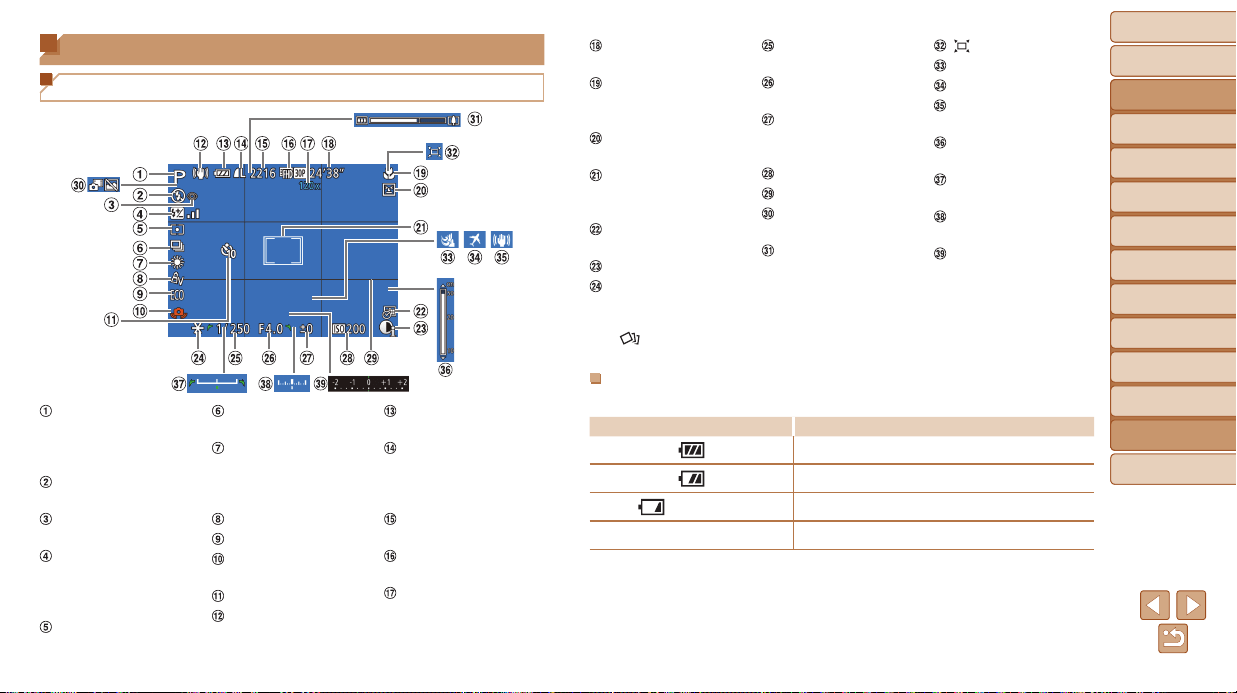
Before Use
Basic Guide
Advanced Guide
Camera Basics
Auto Mode / Hybrid
Auto Mode
Other Shooting
Modes
P Mode
Tv, Av, and M Mode
Playback Mode
Wi-Fi Functions
Setting Menu
Accessories
Appendix
Index
178
Before Use
Basic Guide
Advanced Guide
Camera Basics
Auto Mode / Hybrid
Auto Mode
Other Shooting
Modes
P Mode
Tv, Av, and M Mode
Playback Mode
Wi-Fi Functions
Setting Menu
Accessories
Appendix
Index
On-Screen Information
Shooting (Information Display)
Shooting mode
(=
180),
Scene icon
(=
32)
Flash mode
(=
80)
Red-eye correction
(=
47)
Flash exposure
compensation /
Flash output level
(=
81, 87)
Metering method
(=
70)
Drive mode
(=
39, 79)
Mercury lamp
correction (=
47),
White balance
(=
72)
My Colors (=
73)
Eco mode (=
148)
Camera shake
warning (=
31)
Self-timer (=
37)
IS mode icon
(=
33)
Battery level
(=
178)
Still image
compression
(=
82),
Resolution (=
46)
Recordable shots*
(=
190)
Movie quality
(=
48)
Digital zoom
magnication
(=
34), Digital
tele-converter
(=
75)
Remaining time
(=
190)
Focusing range
(
=
74), AF lock
(
=
79)
Blink detection
(=
49)
AF frame (=
76),
Spot AE point frame
(=
70)
Date stamp
(=
38)
i-Contrast (=
71)
AE lock (=
70),
FE lock (=
81)
Shutter speed
(=
85, 86)
Aperture value
(=
85, 86)
Exposure
compensation level
(=
69)
ISO speed (=
71)
Grid lines (=
48)
Hybrid Auto mode
(=
30)
Zoom bar (=
28)
Auto (=
35)
Wind lter (=
31)
Time zone (=
147)
Image stabilization
(=
82)
MF indicator
(=
74)
Exposure shift bar
(=
65)
Exposure level
(=
86)
Exposure
compensation bar
(=
69)
* In [ ] mode, indicates the number of shots available.
BatteryLevel
An on-screen icon or message indicates the battery charge level.
Display Details
Sufcient charge
Slightly depleted, but sufcient
(Blinking red)
Nearly depleted—charge the battery pack soon
[Charge the battery] Depleted—charge the battery pack immediately
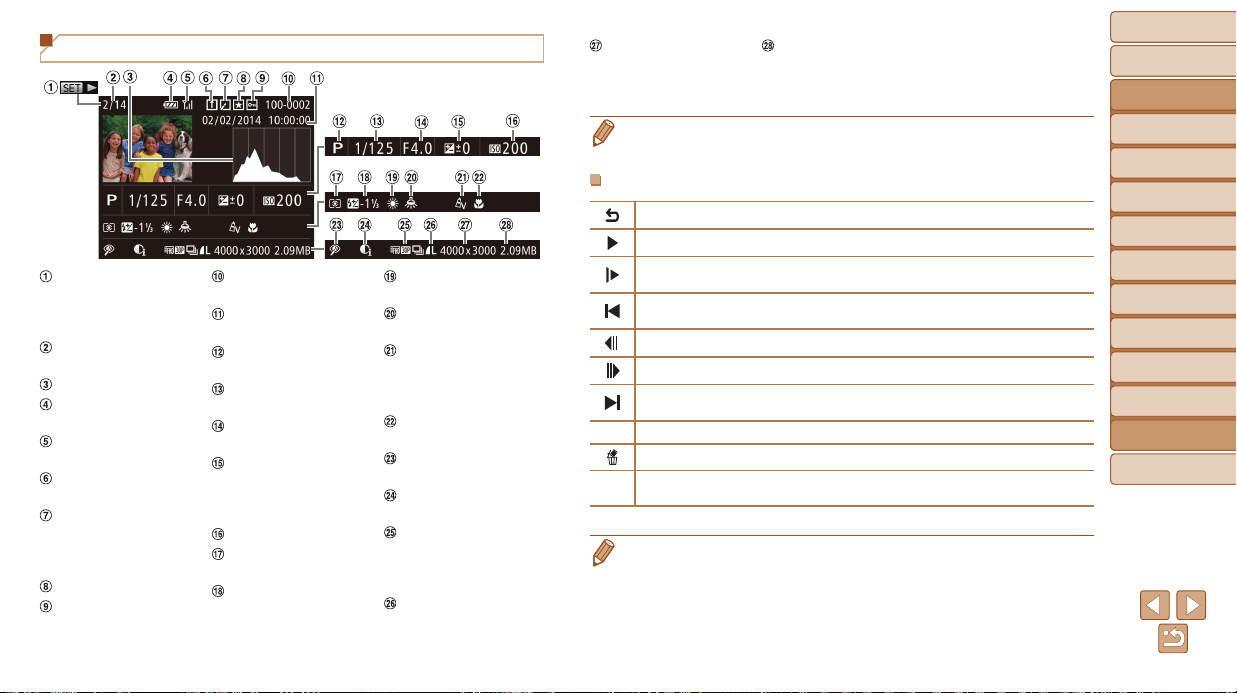
Before Use
Basic Guide
Advanced Guide
Camera Basics
Auto Mode / Hybrid
Auto Mode
Other Shooting
Modes
P Mode
Tv, Av, and M Mode
Playback Mode
Wi-Fi Functions
Setting Menu
Accessories
Appendix
Index
179
Before Use
Basic Guide
Advanced Guide
Camera Basics
Auto Mode / Hybrid
Auto Mode
Other Shooting
Modes
P Mode
Tv, Av, and M Mode
Playback Mode
Wi-Fi Functions
Setting Menu
Accessories
Appendix
Index
Playback (Detailed Information Display)
Movies
(=
28, 89),
High-speed burst
HQ (=
64)
Current image no. /
Total no. of images
Histogram (=
90)
Battery level
(=
178)
Wi-Fi signal strength
(=
134)
Image Sync
(=
139)
Image editing
(=
106 – 110),
Movie compression
(=
112)
Favorites (=
105)
Protection (=
98)
Folder number – File
number (=
151)
Shooting date/time
(
=
14)
Shooting mode
(=
180)
Shutter speed
(=
85, 86)
Aperture value
(=
85, 86)
Exposure
compensation level
(=
69), Exposure
shift level (=
65)
ISO speed (=
71)
Metering method
(=
70)
Flash (=
80),
Flash exposure
compensation
(=
81)
White balance
(=
72)
Mercury lamp
correction (=
47)
My Colors
(=
73, 108),
Creative Shot effect
(=
53)
Focusing range
(=
74)
Red-eye correction
(=
47, 109)
i-Contrast
(=
71, 109)
Digest movies,
Group playback,
Image quality
(movies)
Compression (image
quality) / Resolution,
MP4 (movies)
Still images:
Resolution (=
190)
Movies: Playback
time (=
190)
File size
• Some information may not be displayed when viewing images on a TV
(=
157).
SummaryofMovieControlPanelin“Viewing”(=
8 9 )
Exit
Play
Slow Motion (To adjust the playback speed, press the <q><r> buttons or turn
the <5> dial. No sound is played.)
Skip Backward* or Previous Clip (=
112) (To continue skipping backward,
keep holding down the <m> button.)
Previous Frame (For fast-rewind, keep holding down the <m> button.)
Next Frame (For fast-forward, keep holding down the <m> button.)
Skip Forward* or Next Clip (=
112) (To continue skipping forward, keep
holding down the <m> button.)
* Edit (=
110)
Erase Clip (displayed when a digest movie is selected (=
112))
c
Shown when the camera is connected to a PictBridge-compatible printer
(=
163).
* Displays the frame approx. 4 sec. before or after the current frame.
• During movie playback, you can skip back or forward (or to the previous or
next clip) by pressing the <q><r> buttons.
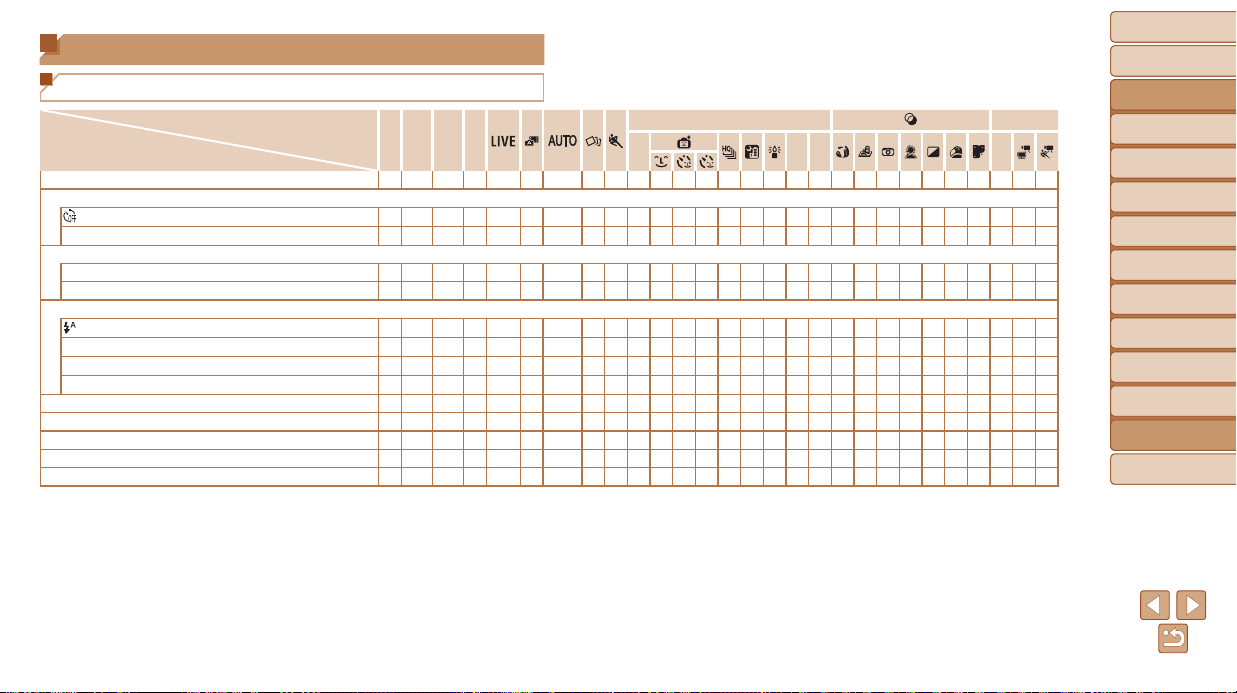
Before Use
Basic Guide
Advanced Guide
Camera Basics
Auto Mode / Hybrid
Auto Mode
Other Shooting
Modes
P Mode
Tv, Av, and M Mode
Playback Mode
Wi-Fi Functions
Setting Menu
Accessories
Appendix
Index
180
Before Use
Basic Guide
Advanced Guide
Camera Basics
Auto Mode / Hybrid
Auto Mode
Other Shooting
Modes
P Mode
Tv, Av, and M Mode
Playback Mode
Wi-Fi Functions
Setting Menu
Accessories
Appendix
Index
Functions and Menu Tables
Functions Available in Each Shooting Mode
ShootingMode
Function
D B M G
K E
I
P t E
Exposure Compensation (=
69)
–
O O O O
– – –
O O O O O O O O O O O O O O O O
– – – –
Self-Timer (=
37)
O O O O O O O O O O O O O O O O O O O O O O O O O O O O
] [ $
O O O O O O O O
–
O
– – – –
O O O O O O O O O O O O O O
Self-Timer Settings (=
38)
Delay*
1
O O O O O O O O
–
O
– – – –
O O O O O O O O O O O O O O
Shots*
2
O O O O O
–
O
– –
O
– – – –
O O O O O O O O O O O
– – –
Flash (=
80)
– – –
O O O O O
–
O O O O
–
O O O
–
O O O O O O O
– – –
h
O O O O O
– – – –
O O O O
–
O
–
O
–
O O O O O O O
– – –
Z
–
O
–
O O
*3 *3
– – – – – – –
*3
– – – – – – – – – – – – –
!
O O O O O O O O O O O O O O O O O O O O O O O O O O O O
Aperture Value (=
85, 86)
O O
– – – – – – – – – – – – – – – – – – – – – – – – – –
Shutter Speed (=
85, 86)
O
–
O
– – – – – – – – – – – – – – – – – – – – – – – – –
Program Shift (=
70)
–
O O O
– – – – – – – – – – – – – – – – – – – – – – – –
AE Lock/FE Lock (=
70, 81)*
4
–
O O O
– – – – – – – – – – – – – – – – – – – – – – – –
AE Lock (Movie)/Exposure Shift (=
65)
– – – – – – – – – – – – – – – – – – – – – – – – –
O O
–
*1 Cannot be set to 0 seconds in modes without selection of the number of shots.
*2 One shot (cannot be modied) in modes without selection of the number of shots.
*3 Not available, but switches to [Z] in some cases.
*4 FE lock not available in [!] ash mode.
O
Available or set automatically.
–
Not available.
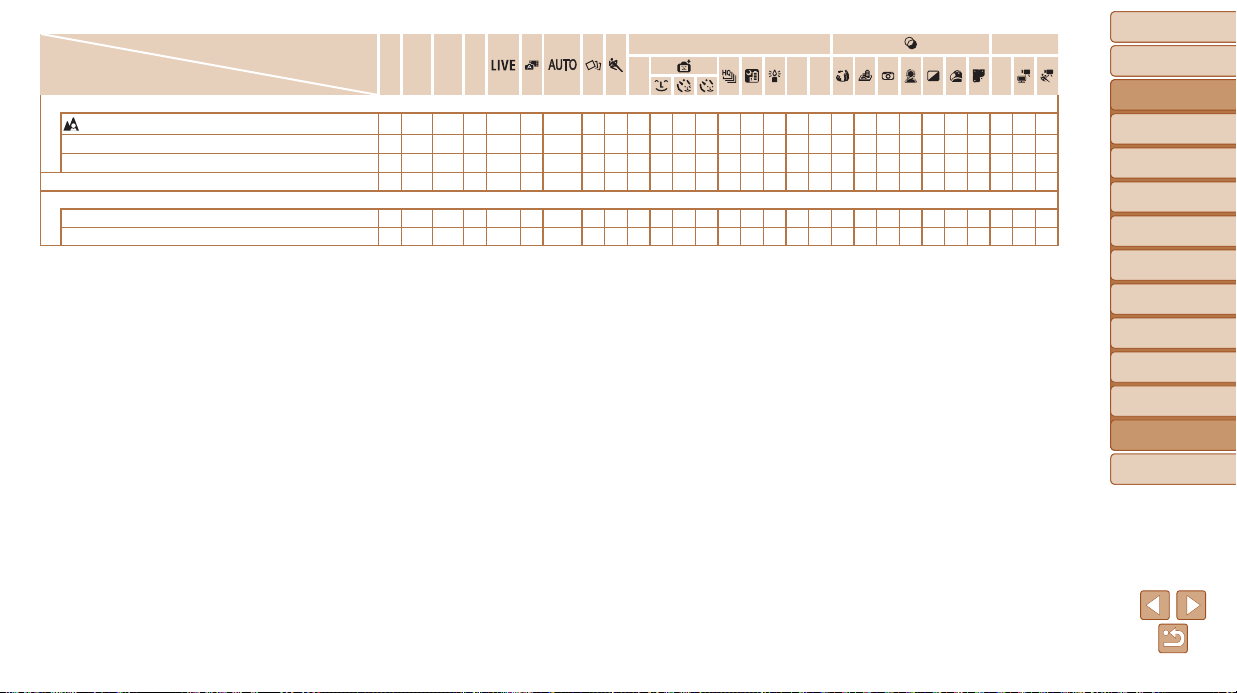
Before Use
Basic Guide
Advanced Guide
Camera Basics
Auto Mode / Hybrid
Auto Mode
Other Shooting
Modes
P Mode
Tv, Av, and M Mode
Playback Mode
Wi-Fi Functions
Setting Menu
Accessories
Appendix
Index
181
Before Use
Basic Guide
Advanced Guide
Camera Basics
Auto Mode / Hybrid
Auto Mode
Other Shooting
Modes
P Mode
Tv, Av, and M Mode
Playback Mode
Wi-Fi Functions
Setting Menu
Accessories
Appendix
Index
ShootingMode
Function
D B M G
K E
I
P t E
Focusing Range (=
74, 79)
O O O O O O O O O O O O O O O O O O O O O O O O O O O O
e
O O O O O
– – – –
O
– – –
O O O O
–
O O O O O O O O O O
f
O O O O O
– – – –
O
– – –
O O O O
–
O O O O O O O O O O
Tracking AF Subject Selection
O O O O O
– – –
O O
– – –
O
–
O O
– – – – –
O O O
– – –
Screen Display (=
23)
No Information Display
O O O O O O O
–
O O
– – –
O O O O O
– – – – –
O O O O O
Information Display
O O O O O O O O O O O O O O O O O O O O O O O O O O O O
O
Available or set automatically.
–
Not available.
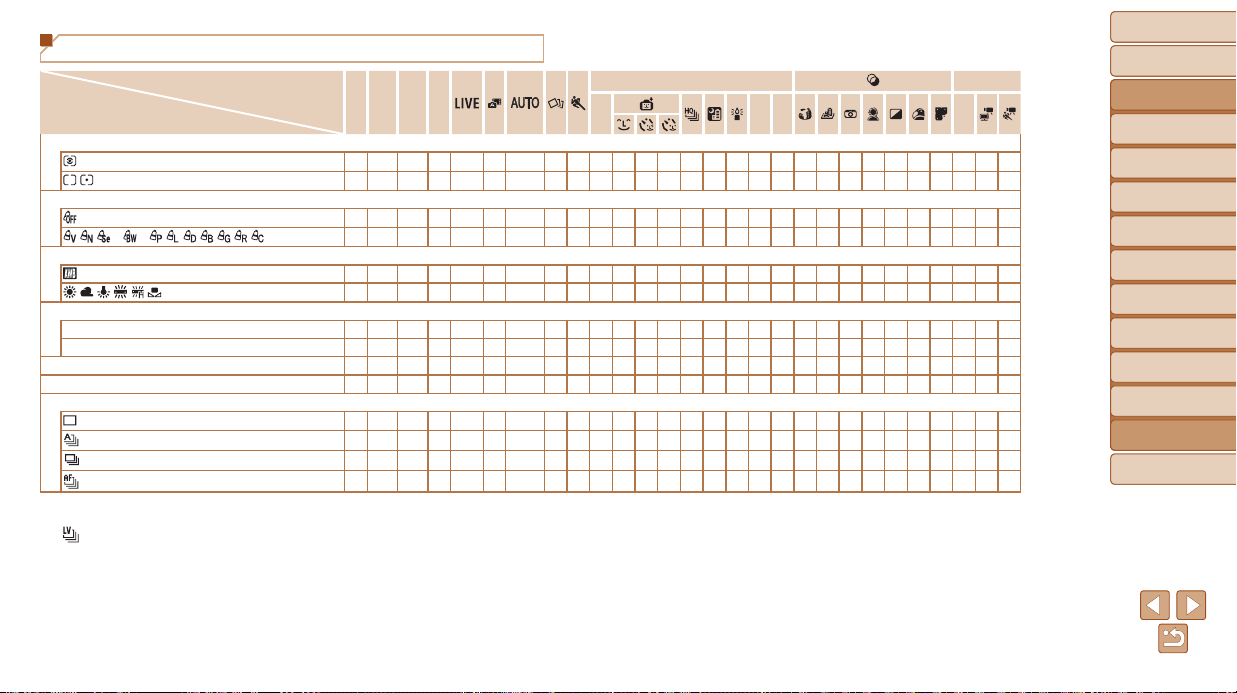
Before Use
Basic Guide
Advanced Guide
Camera Basics
Auto Mode / Hybrid
Auto Mode
Other Shooting
Modes
P Mode
Tv, Av, and M Mode
Playback Mode
Wi-Fi Functions
Setting Menu
Accessories
Appendix
Index
182
Before Use
Basic Guide
Advanced Guide
Camera Basics
Auto Mode / Hybrid
Auto Mode
Other Shooting
Modes
P Mode
Tv, Av, and M Mode
Playback Mode
Wi-Fi Functions
Setting Menu
Accessories
Appendix
Index
FUNC. Menu
ShootingMode
Function
D B M G
K E
I
P t E
Metering Method (=
70)
O O O O O O O O O O O O O O O O O O O O O O O O O O O O
O O O O
– – – – – – – – – – – – – – – – – – – – – – – –
My Colors (=
73)
O O O O O O O O O O O O O O O O O O O O O O O O O O O O
*
1
*
1
*
2
O O O O
– – – – – –
O O O
– – – – – – – – – – – –
O O
–
White Balance (=
72)
O O O O O O O O O O O O O O O O O O O O O O O O O O O O
O O O O
– – – – – –
O O O
– –
O
– – – – – – – – –
O O
–
ISO Speed (=
71)
AUTO
–
O O O O O O O O O O O O O O O O O O O O O O O O O O O
100/200/400/800/1600/3200
O O O O
– – – – – – – – – – – – – – – – – – – – – – – –
Flash Exposure Compensation (=
81)
–
O O O
– – – – – – – – – – – – – – – – – – – – – – – –
Flash Output Level (=
87)
O O O
– – – – – – – – – – – – – – – – – – – – – – – – –
Drive Mode (=
39, =
79)
O O O O O O O O O O O O O
–
O O O O O O O O O O O O O O
– – – – – –
O
– – – – – – – – – – – – – – – – – – – – –
O O O O
– –
O
– –
O
– – –
O
–
O O O O O O O O O O
– – –
*
3
O O O O
– – – –
O
– – – –
O
–
O O O O O O O O O O
– – –
*1 White balance is not available.
*2 Set in a range of 1 – 5: contrast, sharpness, color saturation, red, green, blue, and skin tone.
*3 [
] is set with [f], AF lock, or [t].
O
Available or set automatically.
–
Not available.
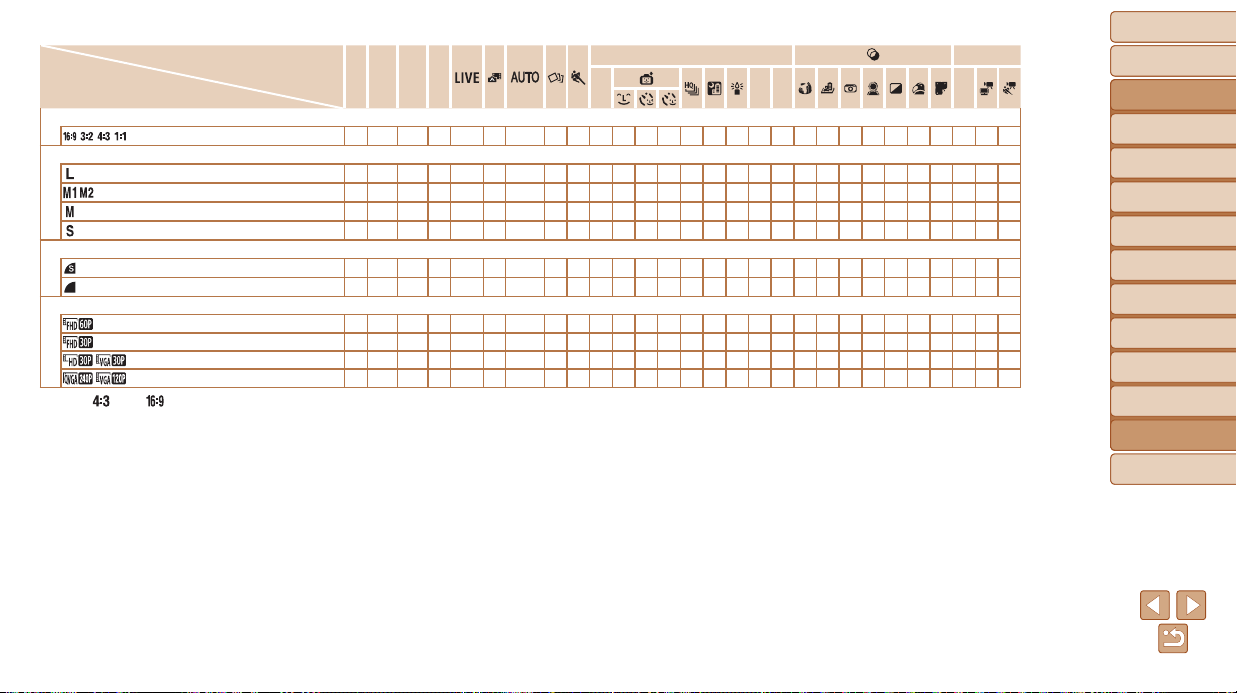
Before Use
Basic Guide
Advanced Guide
Camera Basics
Auto Mode / Hybrid
Auto Mode
Other Shooting
Modes
P Mode
Tv, Av, and M Mode
Playback Mode
Wi-Fi Functions
Setting Menu
Accessories
Appendix
Index
183
Before Use
Basic Guide
Advanced Guide
Camera Basics
Auto Mode / Hybrid
Auto Mode
Other Shooting
Modes
P Mode
Tv, Av, and M Mode
Playback Mode
Wi-Fi Functions
Setting Menu
Accessories
Appendix
Index
Shooting Mode
Function
D B M G
K E
I
P t E
Still Image Aspect Ratio (=
46)
O O O O
– –
O
–
O O O O O
– – –
O O
–
*1
– –
O O O
– – –
Resolution (=
46)
O O O O O O O O O O O O O O O
–
O O O O O O O O O O O O
O O O O
– –
O
–
O O O O O
– – –
O O
– – – – – – –
O O O
– – – – – – – – – – – – – – –
O
– – – – – – – – – – – –
O O O O
– –
O
–
O O O O O
– – –
O O
– – – – – – –
O O O
Compression (=
82)
O O O O
– – – – – – – – – – – – – – – – – – – – – – – –
O O O O O O O O O O O O O O O O O O O O O O O O O O O O
Movie Quality (=
46, 48, 67)
O O O O
–
O O O O O O O O O O O O O O
–
O O O O O O
– –
O O O O O O O O O O O O O O O O O O O
–
O O O O O O O
–
O O O O
–
O O O O O O O O O O O O O O
*2
O O O O O O
– –
– – – – – – – – – – – – – – – – – – – – – – – – – – –
O
*1 Only [ ] and [ ] are available.
*2 Synchronizes with the aspect ratio setting and is automatically set (=
59).
O
Available or set automatically.
–
Not available.
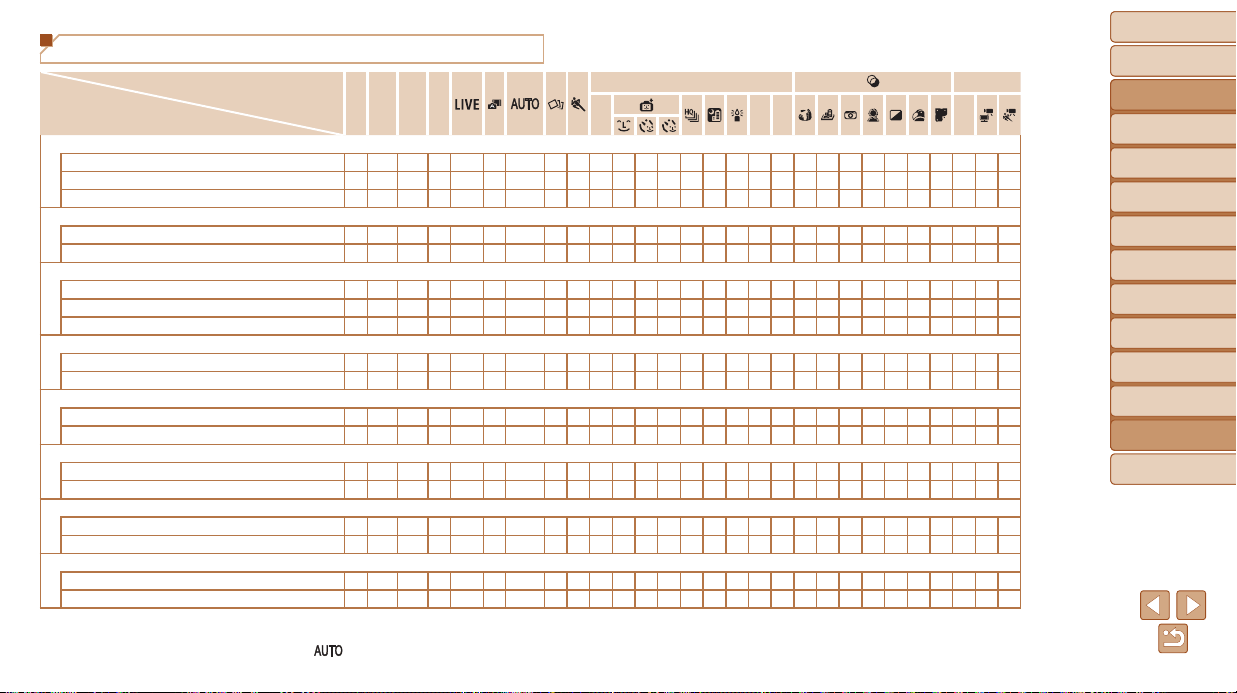
Before Use
Basic Guide
Advanced Guide
Camera Basics
Auto Mode / Hybrid
Auto Mode
Other Shooting
Modes
P Mode
Tv, Av, and M Mode
Playback Mode
Wi-Fi Functions
Setting Menu
Accessories
Appendix
Index
184
Before Use
Basic Guide
Advanced Guide
Camera Basics
Auto Mode / Hybrid
Auto Mode
Other Shooting
Modes
P Mode
Tv, Av, and M Mode
Playback Mode
Wi-Fi Functions
Setting Menu
Accessories
Appendix
Index
4
Shooting Tab Menu
ShootingMode
Function
D B M G
K E
I
P t E
AF Frame (=
76)
Face AiAF*
1
O O O O O O O O
–
O O O O O O O O
– – –
O O O O O O O O
Tracking AF
O O O O O
– – –
O O
– – –
O
–
O O
– – – – –
O O O
– – –
Center
O O O O O
– – –
O O
– – –
O
–
O O O O
–
O O O O O O O O
AF Frame Size (=
76)*
2
Normal
O O O O O
– – – –
O
– – –
O
–
O O
–
O
–
O O O O O O O O
Small
O O O O O
– – – –
O
– – –
O
–
O O
– – –
O O O O O O O O
Digital Zoom (=
34)
Standard
O O O O O O O
–
O O O O O
– – –
O O
– – – – – – –
O O
–
Off
O O O O O O O O O O O O O O O O O O O O O O O O O O O O
1.6x/2.0x
O O O O O
– – – – – – – – – – – – – – – – – – – – – – –
AF-Point Zoom (=
49)
On
O O O O O
–
O O
–
O O O O O
–
O O
– – – – –
O O O
– – –
Off
O O O O O O O O O O O O O O O O O O O O O O O O O O O O
Servo AF (=
78)
On
O O O O O
– – –
O O
– – – – –
O O
– – – – –
O O O
– – –
Off
O O O O O O
*3
O
–
O O O O O O O O O O O O O O O O O O O
Continuous AF (=
78)
On
O O O O O O O O O O O O O O O
–
O
–
O O O O O O O O O O
Off
O O O O O
– – – –
O
– – – –
O O O O O O O O O O O
– – –
AF-assist Beam (=
50)
On
O O O O O O O O
–
O O O O O O O O
–
O O O O O O O O O O
Off
O O O O O O O O O O
–
O O O O O O O O O O O O O O O O O
MF-Point Zoom (=
75)
Off
O O O O O O O O O O O O O O O O O O O O O O O O O O O O
2x/4x
O O O O O
– – – –
O
– – –
O
–
O O
– – – – –
O O O
– – –
*1 Operation when no faces are detected varies by shooting mode.
*2 Available when the AF frame is set to [Center].
*3 [On] when subject movement is detected in [
] mode.
O
Available or set automatically.
–
Not available.
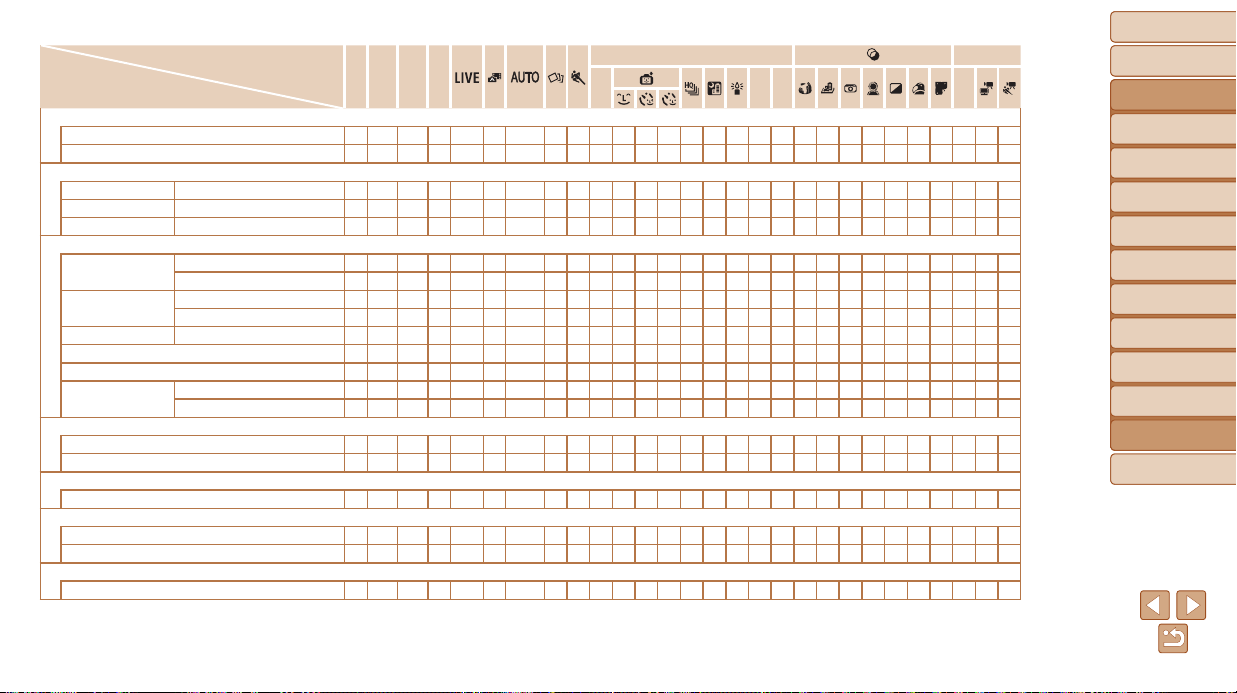
Before Use
Basic Guide
Advanced Guide
Camera Basics
Auto Mode / Hybrid
Auto Mode
Other Shooting
Modes
P Mode
Tv, Av, and M Mode
Playback Mode
Wi-Fi Functions
Setting Menu
Accessories
Appendix
Index
185
Before Use
Basic Guide
Advanced Guide
Camera Basics
Auto Mode / Hybrid
Auto Mode
Other Shooting
Modes
P Mode
Tv, Av, and M Mode
Playback Mode
Wi-Fi Functions
Setting Menu
Accessories
Appendix
Index
ShootingMode
Function
D B M G
K E
I
P t E
Safety MF (=
74)
On
O O O O O
– – – –
O
– – –
O O O O
–
O O O O O O O O O O
Off
O O O O O O O O O O O O O O O O O O O O O O O O O O O O
MF Peaking Settings (=
75)
Peaking On/Off
O O O O O
– – – –
O
– – –
O O O O
–
O O O O O O O O O O
Level Low/High
O O O O O
– – – –
O
– – –
O O O O
–
O O O O O O O O O O
Color Red/Blue/Yellow
O O O O O
– – – –
O
– – –
O O O O
–
O O O O O O O O O O
Flash Settings (=
47, 50, 81, 87)
Flash Mode
Auto
–
O O O O O O O
–
O O O O
–
O O O
–
O O O O O O O
– – –
Manual
–
O O
– – – – – – – – – – – – – – – – – – – – – – – – –
Red-Eye Corr.
On
O O O O
–
O O
– –
O O O O
–
O O O
– – – – – – – – – – –
Off
O O O O O O O O
–
O O O O
–
O O O
–
O O O O O O O
– – –
Red-Eye Lamp On/Off
O O O O O O O O
–
O O O O
–
O O O
–
O O O O O O O
– – –
Flash Exp. Comp
–
O O O
– – – – – – – – – – – – – – – – – – – – – – – –
Flash Output
O O O
– – – – – – – – – – – – – – – – – – – – – – – – –
Safety FE
On
–
O O O O O O O
–
O O O O
–
O O O
–
O O O O O O O
– – –
Off
O O O O O
– – – – – – – – – – – – – – – – – – – – – – –
i-Contrast (=
71)
Auto
O O O O
–
O O
– – – – – – – –
O
– – – – – – – – – – – –
Off
O O O O O
– –
O O O O O O O O
–
O O O O O O O O O O O O
Hg Lamp Corr. (=
47)
On/Off
– – – – – –
O
– – – – – – – – – – – – – – – – – – – – –
Safety Shift (=
85)
On
–
O O
– – – – – – – – – – – – – – – – – – – – – – – – –
Off
O O O O O O O O O O O O O O O O O O O O O O O O O O O O
Wind Filter (=
31)
Auto/Off
O O O O O O O O O O O O O O O O O O O
–
O O O O O O O
–
O
Available or set automatically.
–
Not available.
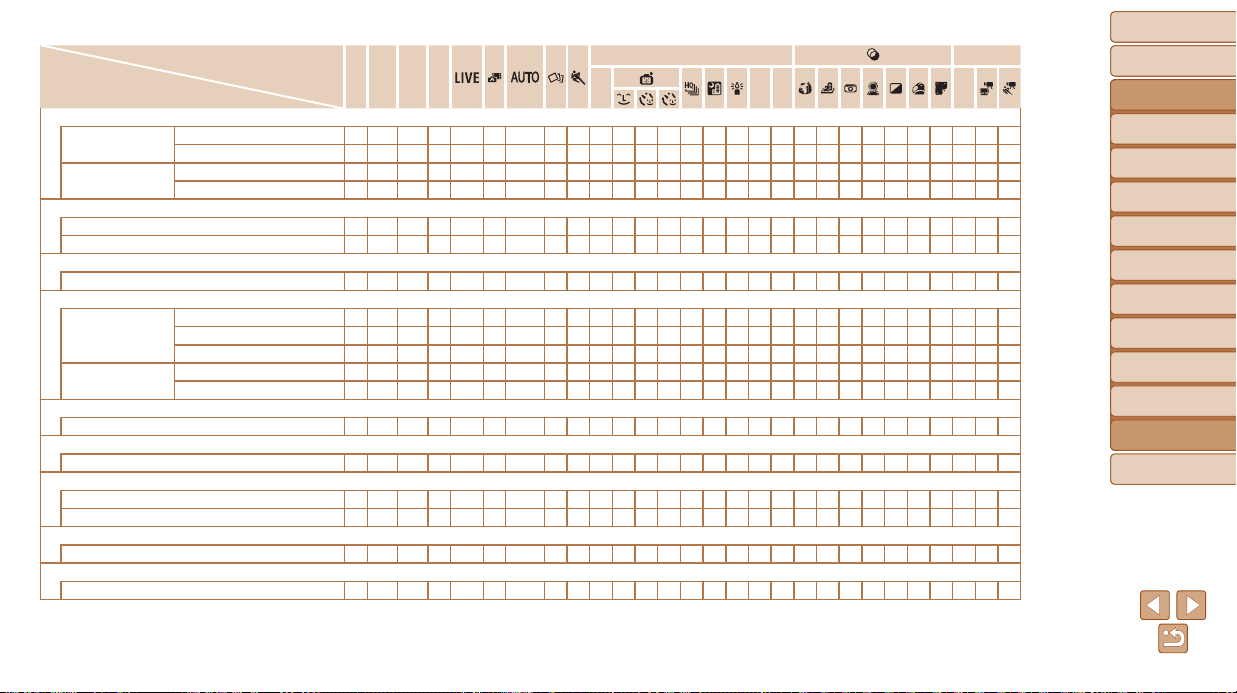
Before Use
Basic Guide
Advanced Guide
Camera Basics
Auto Mode / Hybrid
Auto Mode
Other Shooting
Modes
P Mode
Tv, Av, and M Mode
Playback Mode
Wi-Fi Functions
Setting Menu
Accessories
Appendix
Index
186
Before Use
Basic Guide
Advanced Guide
Camera Basics
Auto Mode / Hybrid
Auto Mode
Other Shooting
Modes
P Mode
Tv, Av, and M Mode
Playback Mode
Wi-Fi Functions
Setting Menu
Accessories
Appendix
Index
ShootingMode
Function
D B M G
K E
I
P t E
Review image after shooting (=
51)
Display Time
Off/Quick
O O O O O O O
–
O O O O O O O O O O O O O O O O O O O O
2 sec./4 sec./8 sec./Hold
O O O O O O O O O O O O O O O O O O O O O O O O O O O O
Display Info
Off
O O O O O O O O O O O O O O O O O O O O O O O O O O O O
Detailed
O O O O O O O
–
O O O O O O O O O O O O O O O O O O O O
Blink Detection (=
49)
On
O O O O O O O
– –
O O O O
– –
O O
– – – – – –
O O
– – –
Off
O O O O O O O O O O O O O O O O O O O O O O O O O O O O
Grid Lines (=
48)
On/Off
O O O O O O O O O O O O O O O O O O O O O O O O O O O O
IS Settings (=
82, 83)
IS Mode
Off
O O O O O O O O O O O O O O
–
O O O O O O O O O O O O O
Continuous
O O O O O O O O O O O O O O O O O O O O O O O O O O O O
Shoot Only
O O O O O
– – –
O O O O O O
–
O O O O O O O O O O
– – –
Dynamic IS
1
O O O O O O O O O O O O O O O O O O O
–
O O O O O O O
–
2
O O O O O O O O O O O O O O
–
O O O O O O O O O O O O O
Framing Assist – Display Area (=
35)
Large/Medium/Small
O O O O O O O O O O O O O O O O O O O O O O O O O O O O
Framing Assist – Auto
On/Off
O O O O O O O O O O O O O O O O O
– – –
O O O O O O O
–
Date Stamp (=
38)
Off
O O O O O O O O O O O O O O O O O O O O O O O O O O O O
Date/Date & Time
O O O O O O O
–
O O O O O
– – –
O O
– – – – – – – – – –
Digest Type (=
30)
Include Stills/No Stills
– – – – –
O
– – – – – – – – – – – – – – – – – – – – – –
Face ID Settings (=
40)
On/Off
O O O O O O O
–
O O O O O O O O O O O O O O O O O O O O
•Names of people in shots taken using Face ID (=
40) may not be displayed in some modes or
with some settings, but they will be recorded in the still images.
O
Available or set automatically.
–
Not available.
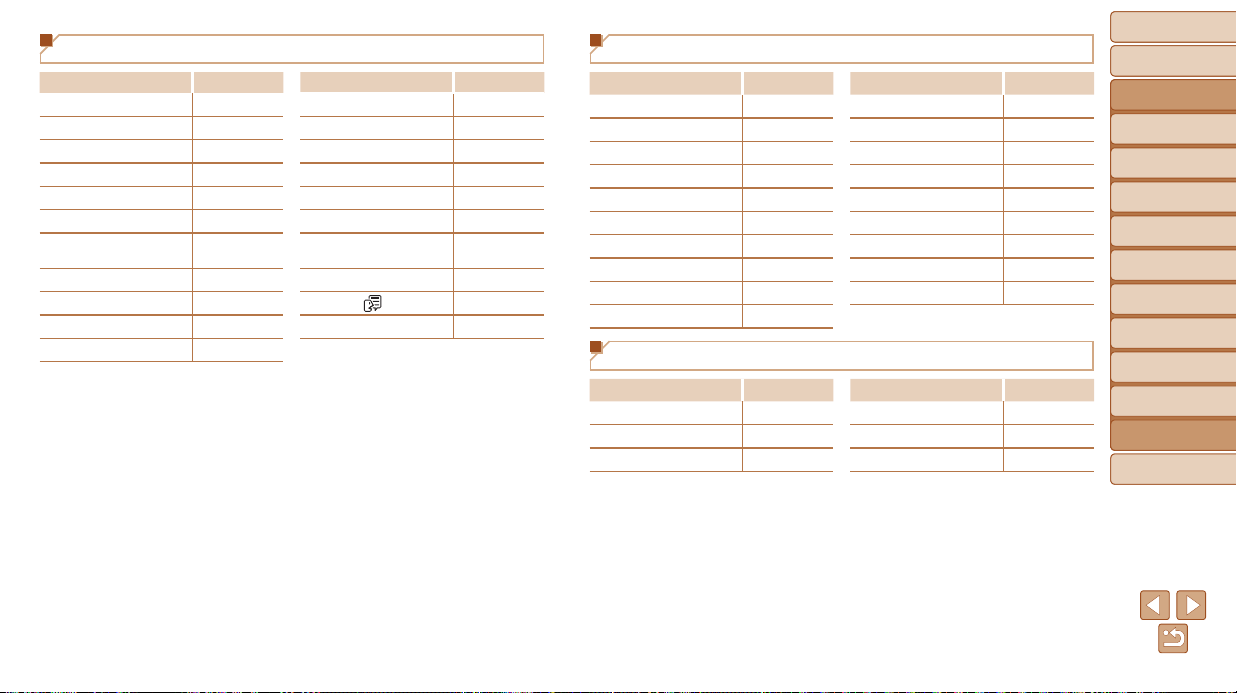
Before Use
Basic Guide
Advanced Guide
Camera Basics
Auto Mode / Hybrid
Auto Mode
Other Shooting
Modes
P Mode
Tv, Av, and M Mode
Playback Mode
Wi-Fi Functions
Setting Menu
Accessories
Appendix
Index
187
Before Use
Basic Guide
Advanced Guide
Camera Basics
Auto Mode / Hybrid
Auto Mode
Other Shooting
Modes
P Mode
Tv, Av, and M Mode
Playback Mode
Wi-Fi Functions
Setting Menu
Accessories
Appendix
Index
3 Set Up Tab Menu
Item Ref.Page
Item Ref.Page
Mute
=
146
File Numbering
=
151
Volume
=
146
Create Folder
=
151
Hints & Tips
=
146
Units
=
151
Date/Time
=
14
Video System
=
159
Time Zone
=
147
Ctrl via HDMI
=
158
Lens Retract
=
147
Wi-Fi Settings
=
113
Eco Mode
=
148
Mobile Device Connect
Button
=
139
Power Saving
=
21, 148
Certication Logo Display
=
152
LCD Brightness
=
149
Language
=
16
Start-up Image
=
149
Reset All
=
152
Format
=
149, 150
1 Playback Tab Menu
Item Ref.Page Item Ref.Page
List/Play Digest Movies
=
92
Resize
=
106
Slideshow
=
96
My Colors
=
108
Erase
=
101
Face ID Info
=
92
Protect
=
98
Transition Effect
=
90
Rotate
=
104
Index Effect
=
93
Favorites
=
105
Scroll Display
=
90
Photobook Set-up
=
169
Group Images
=
94
i-Contrast
=
109
Auto Rotate
=
105
Red-Eye Correction
=
109
Resume
=
90
Cropping
=
107
2 Print Tab Menu
Item Ref.Page Item Ref.Page
Print
–
Select All Images
=
168
Select Images & Qty.
=
167
Clear All Selections
=
168
Select Range
=
168
Print Settings
=
167
Before Use
Basic Guide
Advanced Guide
Camera Basics
Auto Mode / Hybrid
Auto Mode
Other Shooting
Modes
P Mode
Tv, Av, and M Mode
Playback Mode
Wi-Fi Functions
Setting Menu
Accessories
Appendix
Index
188
Before Use
Basic Guide
Advanced Guide
Camera Basics
Auto Mode / Hybrid
Auto Mode
Other Shooting
Modes
P Mode
Tv, Av, and M Mode
Playback Mode
Wi-Fi Functions
Setting Menu
Accessories
Appendix
Index
Playback Mode FUNC. Menu
Item Ref.Page Item Ref.Page
Rotate
=
104
Play Movie
=
89
Protect
=
98
Play Linked Digest Movie
=
91, 92
Favorites
=
105
Smart Shufe
=
97
Print
=
163
Image Search
=
93
Group Playback
=
94
Slideshow
=
96
Handling Precautions
• The camera is a high-precision electronic device. Avoid dropping it or
subjecting it to strong impact.
• Never bring the camera near magnets, motors, or other devices that
generate strong electromagnetic elds, which may cause malfunction or
erase image data.
• If water droplets or dirt adheres to the camera or screen, wipe with a dry
soft cloth, such as an eyeglass cloth. Do not rub hard or apply force.
• Never use cleaners containing organic solvents to clean the camera or
screen.
• Use a blower brush to remove dust from the lens. If cleaning is difcult,
contact a Canon Customer Support Help Desk.
• To prevent condensation from forming on the camera after sudden
temperature changes (when the camera is transferred from cold to warm
environments), put the camera in an airtight, resealable plastic bag and
let it gradually adjust to the temperature before removing it from the bag.
• If condensation does form on the camera, stop using it immediately.
Continuing to use the camera in this state may damage it. Remove
the battery pack and memory card, and wait until the moisture has
evaporated before resuming use.
• Before long-term battery storage, use up the battery pack’s remaining
charge, remove it from the camera, and store it in a plastic bag or similar
container. Storing a partially charged battery pack over extended periods
(about a year) may shorten its life or affect performance.
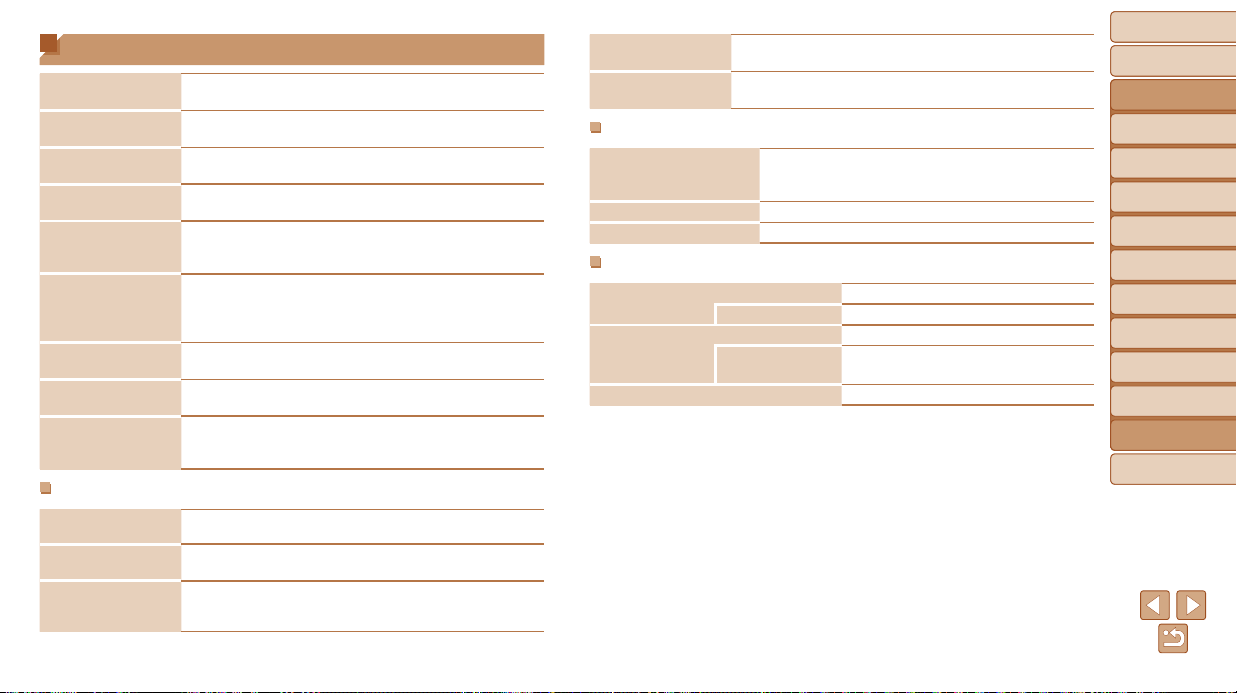
Before Use
Basic Guide
Advanced Guide
Camera Basics
Auto Mode / Hybrid
Auto Mode
Other Shooting
Modes
P Mode
Tv, Av, and M Mode
Playback Mode
Wi-Fi Functions
Setting Menu
Accessories
Appendix
Index
189
Before Use
Basic Guide
Advanced Guide
Camera Basics
Auto Mode / Hybrid
Auto Mode
Other Shooting
Modes
P Mode
Tv, Av, and M Mode
Playback Mode
Wi-Fi Functions
Setting Menu
Accessories
Appendix
Index
Specications
Camera Effective
Pixels (Max.)
Approx. 16.1 million pixels
Lens Focal Length
30x zoom: 4.5 (W) – 135.0 (T) mm
(35mm lm equivalent: 25 (W) – 750 (T) mm)
LCD Monitor
7.5 cm (3.0 in.) color TFT LCD
Effective Pixels: Approx. 922,000 dots
File Format
Design rule for Camera File system, DPOF (version 1.1)
compliant
Data Type
Still Images: Exif 2.3 (JPEG)
Movies: MP4 (Video: MPEG-4 AVC/H.264; Audio: MPEG-4
AAC-LC (stereo))
Interface
Hi-speed USB
HDMI output
Analog audio output (stereo)
Analog video output (NTSC/PAL)
Power Source
Battery Pack NB-6LH
AC Adapter Kit ACK-DC40
Dimensions (Based
on CIPA Guidelines)
112.7 x 65.8 x 34.8 mm (4.44 x 2.59 x 1.37 in.)
Weight (Based on
CIPA Guidelines)
Approx. 269 g (approx. 9.49 oz.; including the battery pack
and memory card)
Approx. 245 g (approx. 8.64 oz.; camera body only)
Wi-Fi
Standards
IEEE 802.11b/g/n*
* 2.4 GHz band only
Transmission
Methods
OFDM modulation (IEEE 802.11g/n)
DSSS modulation (IEEE 802.11b)
Communication
Modes
Infrastructure mode*
1
, Ad hoc mode*
2
*1 Supports Wi-Fi Protected Setup
*2 Wi-Fi Certied IBSS
Supported Channels
1 – 11 (PC2091/PC2093) or 1 – 13 (PC2047)
Model numbers indicated in parentheses (=
194)
Security
WEP, WPA-PSK (AES/TKIP),
WPA2-PSK (AES/TKIP)
Digital Zoom Focal Length (35mm equivalent)
Digital Zoom [Standard] 25 – 3000 mm
(Represents the combined focal length of optical and
digital zoom.)
Digital Tele-Converter 1.6x 40.0 ‒ 1200.0 mm
Digital Tele-Converter 2.0x 50.0 ‒ 1500.0 mm
Number of Shots/Recording Time, Playback Time
Number of Shots Approx. 250
Eco Mode On Approx. 360
Movie Recording Time*
1
Approx. 40 minutes
Continuous
Shooting*
2
Approx. 1 hour, 10 minutes
Playback Time Approx. 4 hours
*1 Time under default camera settings, when normal operations are performed, such as
shooting, pausing, turning the camera on and off, and zooming.
*2 Time available when shooting the maximum movie length (until recording stops
automatically) repeatedly.
•The number of shots that can be taken is based on measurement guidelines of the
Camera & Imaging Products Association (CIPA).
•Under some shooting conditions, the number of shots and recording time may be less
than mentioned above.
•Number of shots/time with a fully charged battery pack.
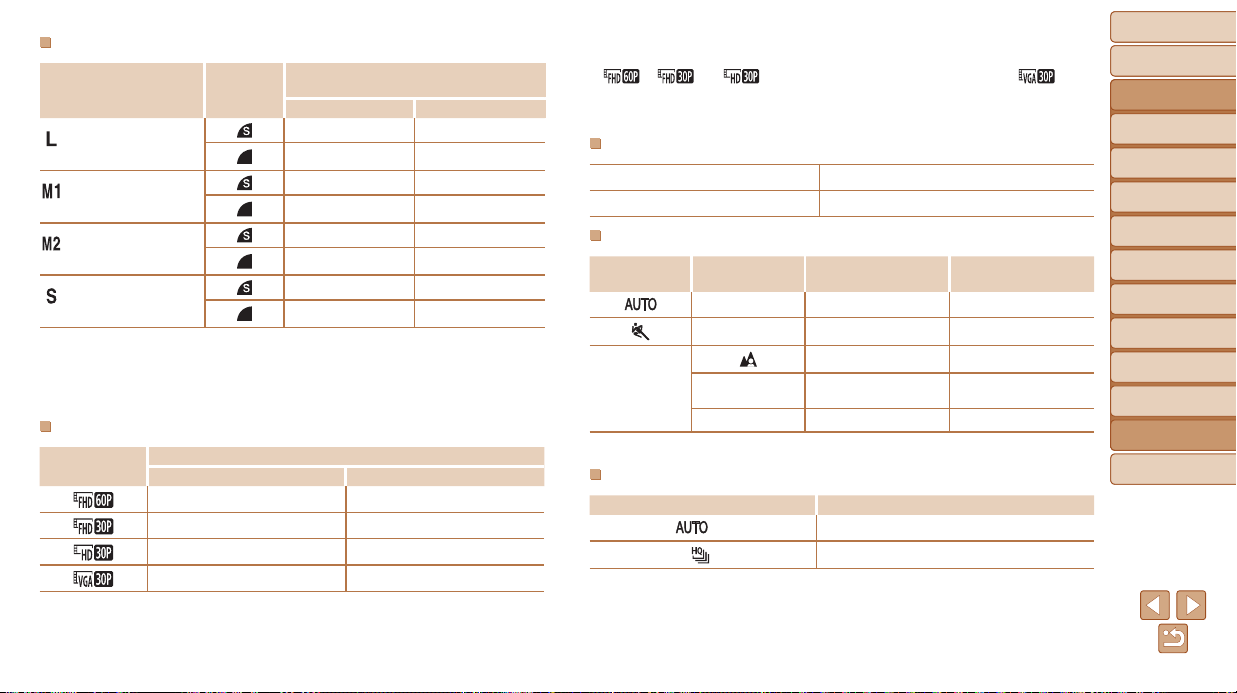
Before Use
Basic Guide
Advanced Guide
Camera Basics
Auto Mode / Hybrid
Auto Mode
Other Shooting
Modes
P Mode
Tv, Av, and M Mode
Playback Mode
Wi-Fi Functions
Setting Menu
Accessories
Appendix
Index
190
Before Use
Basic Guide
Advanced Guide
Camera Basics
Auto Mode / Hybrid
Auto Mode
Other Shooting
Modes
P Mode
Tv, Av, and M Mode
Playback Mode
Wi-Fi Functions
Setting Menu
Accessories
Appendix
Index
Number of 4:3 Shots per Memory Card
Recording Pixels
Compression
Ratio
Number of Shots per Memory Card
(Approx. shots)
8 GB 32 GB
(Large)
16M/4608x3456
1058 4272
1705 6883
(Medium 1)
8M/3264x2448
1996 8059
3069 12391
(Medium 2)
3M/2048x1536
4723 19064
8469 34184
(Small)
0.3M/640x480
27291 110150
40937 165225
•The values in the table are based on Canon measurement conditions and may
change depending on the subject, memory card and camera settings.
•The values in the table are based on 4:3 aspect ratio. The number of shots available
varies by aspect ratio (=
46).
Recording Time per Memory Card
Image Quality
Recording Time per Memory Card
8 GB 32 GB
30 min. 03 sec. 2 hr. 01 min. 27 sec.
43 min. 29 sec.*
1
2 hr. 55 min. 43 sec.*
2
2 hr. 03 min. 55 sec. 8 hr. 20 min. 32 sec.
5 hr. 14 min. 34 sec. 21 hr. 10 min. 38 sec.
*1 26 min. 22 sec. for iFrame movies (=
66).
*2 1 hr. 46 min. 33 sec. for iFrame movies (=
66).
•The values in the table are based on Canon measurement conditions and may
change depending on the subject, memory card and camera settings.
•Recording will automatically stop when the clip le size reaches 4 GB, or when the
recording time reaches approximately 29 minutes and 59 seconds when shooting in
[
], [ ] or [ ], or approximately 1 hour when shooting in [ ].
•Recording may stop even if the maximum clip length has not been reached on some
memory cards. SD Speed Class 6 or higher memory cards are recommended.
Flash Range
Maximum wide angle (j)
50 cm – 3.5 m (1.6 – 11 ft.)
Maximum telephoto (i)
1.0 – 2.0 m (3.3 – 6.6 ft.)
Shooting Range
Shooting Mode Focusing Range
Maximum Wide Angle
(j)
Maximum Telephoto
(i)
–
1 cm (0.4 in.) – innity 1.4 m (4.6 ft.) – innity
–
1 m (3.3 ft.) – innity 8 m (26 ft.) – innity
Other modes
5 cm (2.0 in.) – innity 1.4 m (4.6 ft.) – innity
e*
1 – 50 cm
(0.4 in. – 1.6 ft.)
–
f*
1 cm (0.4 in.) – innity 1.4 m (4.6 ft.) – innity
* Not available in some shooting modes.
Continuous Shooting Speed
Shooting Mode Speed
G
Approx. 3.1 shots/sec.
*
Approx. 8.5 shots/sec.
* Up to four shots at once during continuous shooting
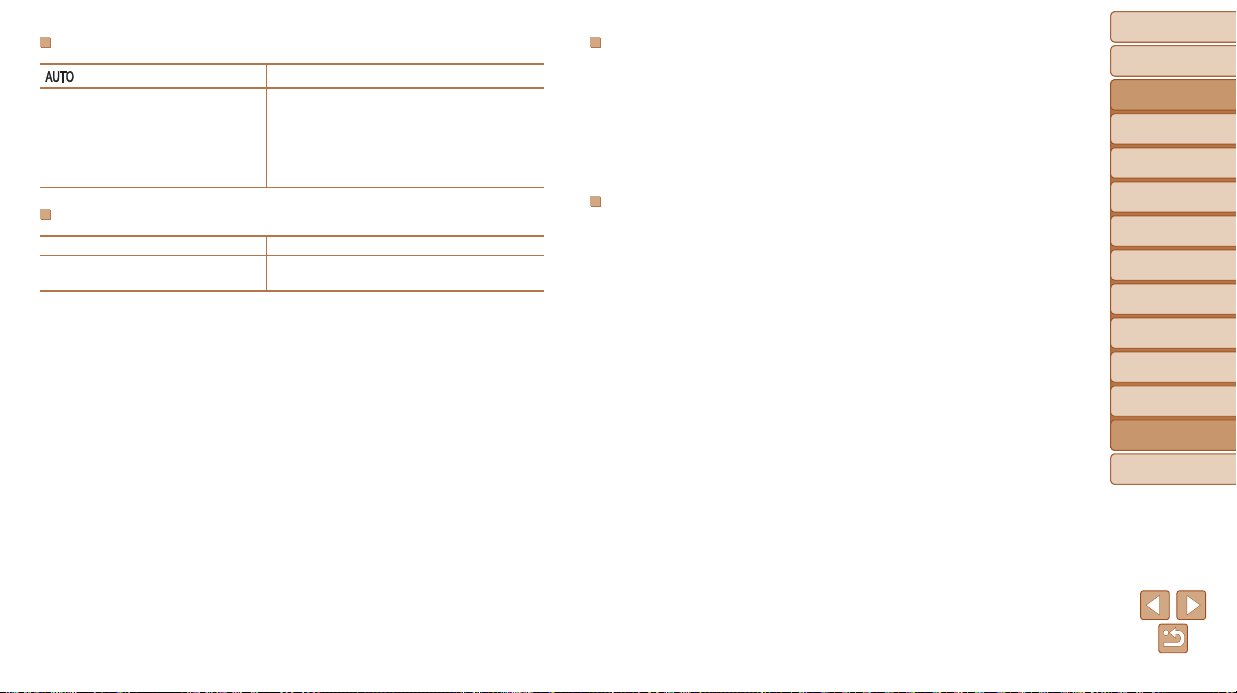
Before Use
Basic Guide
Advanced Guide
Camera Basics
Auto Mode / Hybrid
Auto Mode
Other Shooting
Modes
P Mode
Tv, Av, and M Mode
Playback Mode
Wi-Fi Functions
Setting Menu
Accessories
Appendix
Index
191
Before Use
Basic Guide
Advanced Guide
Camera Basics
Auto Mode / Hybrid
Auto Mode
Other Shooting
Modes
P Mode
Tv, Av, and M Mode
Playback Mode
Wi-Fi Functions
Setting Menu
Accessories
Appendix
Index
ShutterSpeed
[ ] mode, automatically set range
1 – 1/3200 sec.
Available values in [M] mode (sec.)
15, 13, 10, 8, 6, 5, 4, 3.2, 2.5, 2, 1.6, 1.3, 1,
0.8, 0.6, 0.5, 0.4, 0.3, 1/4, 1/5, 1/6, 1/8, 1/10,
1/13, 1/15, 1/20, 1/25, 1/30, 1/40, 1/50, 1/60,
1/80, 1/100, 1/125, 1/160, 1/200, 1/250, 1/320,
1/400, 1/500, 1/640, 1/800, 1/1000, 1/1250,
1/1600, 1/2000, 1/2500, 1/3200
Aperture
f/number f/3.2 – f/8.0 (W), f/6.9 – f/8.0 (T)
Available values in [B] mode*
f/3.2, f/3.5, f/4.0, f/4.5, f/5.0, f/5.6, f/6.3, f/6.9,
f/7.1, f/8.0
* Depending on the zoom position, some aperture values may not be available.
BatteryPackNB-6LH
Type: Rechargeable lithium-ion battery
Nominal Voltage: 3.7 V DC
Nominal Capacity: 1060 mAh
Charging Cycles: Approx. 300 times
Operating Temperatures: 0 – 40 °C (32 – 104 °F)
Dimensions: 34.4 x 41.8 x 6.9 mm (1.35 x 1.65 x 0.27 in.)
Weight: Approx. 22 g (approx. 0.78 oz.)
BatteryChargerCB-2LY/CB-2LYE
Rated Input: 100 – 240 V AC (50/60 Hz), 0.085 A (100 V) – 0.05 A (240 V)
Rated Output: 4.2 V DC, 0.7 A
Charging Time: Approx. 2 hr. (when using NB-6LH)
Charge Indicator: Charging: orange / Fully charged: green
(two-indicator system)
Operating Temperatures: 0 – 40 °C (32 – 104 °F)

Before Use
Basic Guide
Advanced Guide
Camera Basics
Auto Mode / Hybrid
Auto Mode
Other Shooting
Modes
P Mode
Tv, Av, and M Mode
Playback Mode
Wi-Fi Functions
Setting Menu
Accessories
Appendix
Index
192
Before Use
Basic Guide
Advanced Guide
Camera Basics
Auto Mode / Hybrid
Auto Mode
Other Shooting
Modes
P Mode
Tv, Av, and M Mode
Playback Mode
Wi-Fi Functions
Setting Menu
Accessories
Appendix
Index
Servo AF ....................................... 78
Focusing range
Macro ............................................ 74
Manual focus ................................. 74
Focus lock ........................................... 76
FUNC. menu
Basic operations ............................ 23
Table .................................... 182, 188
G
GPS ..................................................... 91
GPS information display ...................... 91
Grid lines ............................................. 48
H
Handheld nightscene
(shooting mode)................................... 56
HDMI cable ........................................ 157
High-speed burst HQ
(shooting mode)................................... 64
Household power............................... 159
Hybrid Auto (shooting mode) ............... 30
I
i-Contrast ..................................... 71, 109
iFrame movies (movie mode) .............. 66
Image quality
→
Compression ratio (image quality)
Images
Display period ............................... 51
Erasing ........................................ 101
Playback
→
Viewing
Protecting ...................................... 98
Image stabilization ............................... 82
A
AC adapter kit ............................ 156, 159
Accessories ....................................... 156
AE lock ................................................ 70
AF frames ............................................ 76
AF lock................................................. 79
Aspect ratio.......................................... 46
Auto mode (shooting mode) .......... 16, 28
AV cable ............................................ 159
Av (shooting mode) ............................. 85
B
Batteries
→
Date/time (date/time battery)
Power saving ................................. 21
Battery charger .............................. 2, 156
Battery pack
Charging ........................................ 12
Eco mode .................................... 148
Level ............................................ 178
Power saving ................................. 21
Black and white images ....................... 73
Blink detection ..................................... 49
C
Camera
Reset all ...................................... 152
Camera access point mode ............... 129
CameraWindow (computer)....... 121, 160
CameraWindow (smartphone)............119
CANON iMAGE GATEWAY ........ 114, 116
Center (AF frame mode)...................... 76
Clock.................................................... 26
Color (white balance)........................... 72
Compression ratio (image quality) ....... 82
Connecting via an access point ......... 124
Connecting without an access point... 129
Continuous shooting ............................ 79
High-speed burst HQ
(shooting mode) ............................ 64
Creative lters (shooting mode)........... 57
Creative Shot (shooting mode) ............ 53
Cropping .................................... 107, 164
Custom white balance ......................... 72
D
Date/time
Adding date stamps ...................... 38
Changing ....................................... 15
Date/time battery ........................... 15
Settings ......................................... 14
World clock .................................. 147
DC coupler......................................... 159
Defaults
→
Reset all
Digital tele-converter............................ 75
Digital zoom ......................................... 34
Display language ................................. 16
DPOF ................................................. 167
Drive mode .......................................... 79
E
Eco mode .......................................... 148
Index
Editing
Cropping ...................................... 107
i-Contrast ..................................... 109
My Colors .................................... 108
Red-eye correction ...................... 109
Resizing images .......................... 106
Editing or erasing connection
information ......................................... 142
Erasing .............................................. 101
Error messages ................................. 175
Exposure
AE lock .......................................... 70
Compensation ............................... 69
FE lock .......................................... 81
Eye-Fi cards .......................................... 2
F
Face AiAF (AF frame mode) ................ 76
Face ID ................................................ 40
Face self-timer (shooting mode) .......... 63
Favorites ............................................ 105
FE lock................................................. 81
File numbering ................................... 151
Fireworks (shooting mode) .................. 56
Fish-eye effect (shooting mode) .......... 58
Flash
Deactivating ash .......................... 80
Flash exposure compensation ...... 81
On ................................................. 80
Slow synchro ................................. 80
Focusing
AF frames ...................................... 76
AF lock .......................................... 79
AF-point zoom ............................... 49
MF peaking ................................... 75

Before Use
Basic Guide
Advanced Guide
Camera Basics
Auto Mode / Hybrid
Auto Mode
Other Shooting
Modes
P Mode
Tv, Av, and M Mode
Playback Mode
Wi-Fi Functions
Setting Menu
Accessories
Appendix
Index
193
Before Use
Basic Guide
Advanced Guide
Camera Basics
Auto Mode / Hybrid
Auto Mode
Other Shooting
Modes
P Mode
Tv, Av, and M Mode
Playback Mode
Wi-Fi Functions
Setting Menu
Accessories
Appendix
Index
T
Terminal ............................. 157, 159, 163
Toy camera effect (shooting mode) ..... 59
Tracking AF ......................................... 77
Traveling with the camera ................. 147
Troubleshooting ................................. 172
TV display .......................................... 157
Tv (shooting mode).............................. 85
V
Viewing ................................................ 18
Image search ................................ 93
Index display ................................. 93
Magnied display .......................... 96
Single-image display ..................... 18
Slideshow ...................................... 96
Smart Shufe ................................ 97
TV display ................................... 157
W
White balance (color)........................... 72
Widescreen (resolution)....................... 46
Wi-Fi functions .................................... 113
Wi-Fi menu ........................................ 123
Wink self-timer (shooting mode) .......... 62
World clock ........................................ 147
Wrist strap
→
Strap
Z
Zoom ....................................... 17, 28, 34
Zoom framing assist ............................ 35
Self-timer ............................................. 37
2-second self-timer ........................ 37
Customizing the self-timer ............. 38
Face self-timer (shooting mode) ... 63
Wink self-timer (shooting mode) ... 62
Sending images ................................. 133
Sending images to a computer ........... 115
Sending images to another camera....116
Sending images to a printer................116
Sending images to a smartphone ....... 115
Sending images to Web services .......114
Sepia tone images ............................... 73
Servo AF .............................................. 78
Shooting
Shooting date/time
→
Date/time
Shooting information ................... 178
Slideshow ............................................ 96
Smart Shufe ....................................... 97
Smart Shutter (shooting mode) ........... 61
Smile (shooting mode)......................... 61
Snow (shooting mode)......................... 56
Soft focus (shooting mode).................. 60
Software
Installation ................................... 121
Saving images to a
computer ............................. 136, 161
Sounds .............................................. 146
Stereo AV cable ................. 156, 157, 159
Strap ................................................ 2, 12
Super slow motion movie
(movie mode)....................................... 66
Super vivid (shooting mode) ................ 57
P
Package contents .................................. 2
Photobook set-up .............................. 169
PictBridge .................................. 156, 163
Playback
→
Viewing
Portrait (shooting mode) ...................... 55
Poster effect (shooting mode) ............. 57
Power ................................................ 156
→
AC adapter kit
→
Battery pack
Power saving ....................................... 21
Printing .............................................. 163
Program AE ......................................... 69
Protecting ............................................ 98
P (shooting mode) ............................... 69
R
Red-eye correction ...................... 47, 109
Remote shooting ............................... 141
Reset all............................................. 152
Resizing images ................................ 106
Resolution (image size) ....................... 46
Rotating ............................................. 104
S
Saving images to a computer .... 136, 161
Screen
Display language ........................... 16
Icons .................................... 178, 179
Menu
→
FUNC. menu, Menu
SD/SDHC/SDXC memory cards
→
Memory cards
Searching ............................................ 93
Image Sync........................................ 139
Indicator ............................................... 26
ISO speed............................................ 71
L
Lamp.................................................... 50
Live View Control (shooting mode) ...... 54
Low light (shooting mode) ................... 56
M
Macro (focusing range)........................ 74
Magnied display ................................. 96
Manual focus (focusing range) ............ 74
Memory cards ........................................ 2
Recording time ............................ 190
Menu
Basic operations ............................ 24
Table ............................................ 180
Mercury lamp correction ...................... 47
Metering method.................................. 70
Miniature effect (shooting mode) ......... 58
Mobile device connection button ....... 137
Monochrome (shooting mode)............. 60
Movies
Editing ..........................................110
Image quality (resolution/
frame rate) ......................... 46, 48, 67
Recording time ............................ 190
M (shooting mode)............................... 86
Multi-area White Balance .................... 47
My Colors .................................... 73, 108
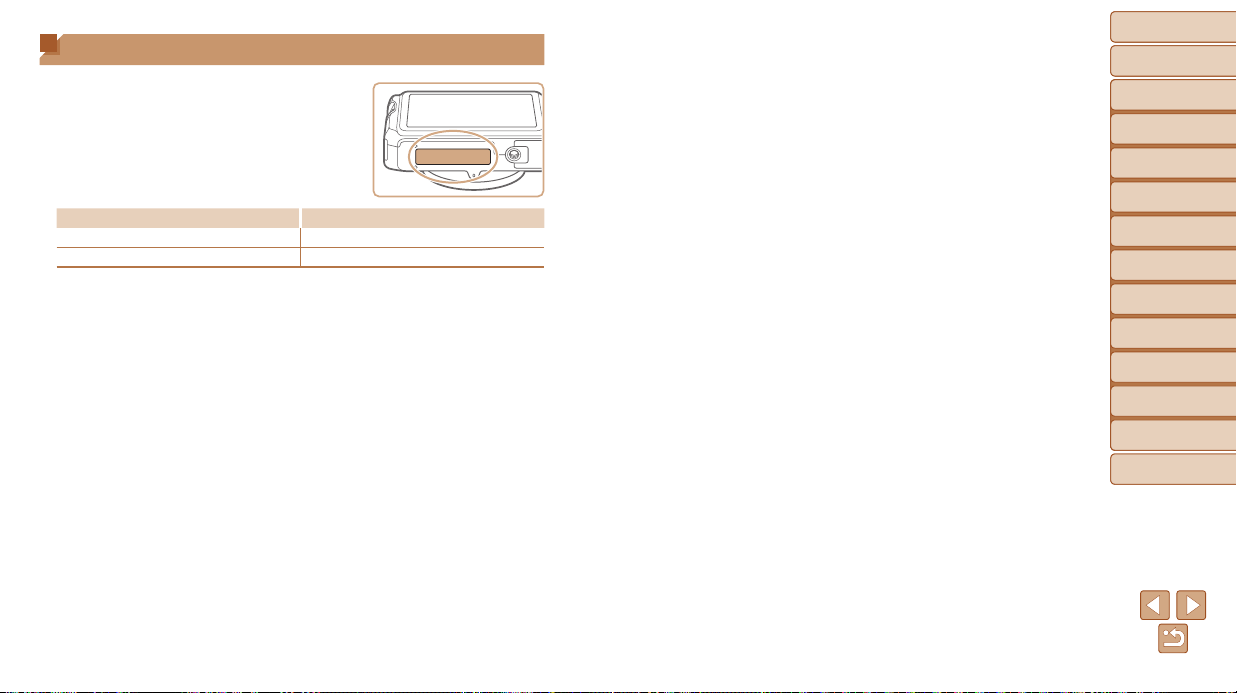
Before Use
Basic Guide
Advanced Guide
Camera Basics
Auto Mode / Hybrid
Auto Mode
Other Shooting
Modes
P Mode
Tv, Av, and M Mode
Playback Mode
Wi-Fi Functions
Setting Menu
Accessories
Appendix
Index
194
Before Use
Basic Guide
Advanced Guide
Camera Basics
Auto Mode / Hybrid
Auto Mode
Other Shooting
Modes
P Mode
Tv, Av, and M Mode
Playback Mode
Wi-Fi Functions
Setting Menu
Accessories
Appendix
Index
Wi-Fi (Wireless LAN) Precautions
• The camera’s model number is PC2091/
PC2093/PC2047. To identify your model,
check the label on the bottom of the camera
for a number beginning with PC. The built-in
WLAN module model is written below.
Country/RegionofPurchase WLANModuleModel
U.S.A., Canada WM224
Other WM223
• Countries and Regions Permitting WLAN Use
- Use of WLAN is restricted in some countries and regions, and illegal
use may be punishable under national or local regulations. To avoid
violating WLAN regulations, visit the Canon website to check where use
is allowed.
Note that Canon cannot be held liable for any problems arising from
WLAN use in other countries and regions.
• Doing any of the following may incur legal penalties:
- Altering or modifying the product
- Removing the certication labels from the product
• According to foreign exchange and foreign trade law regulations, export
permission (or service transaction permission) from the Japanese
government is necessary to export strategic resources or services
(including this product) outside Japan.
• Because this product includes American encryption software, it falls
under U.S. Export Administration Regulations, and cannot be exported to
or brought into a country under U.S. trade embargo.
• Be sure to make notes of the wireless LAN settings you use.
The wireless LAN settings saved to this product may change or be
erased due to incorrect operation of the product, the effects of radio
waves or static electricity, or accident or malfunction. Be sure to make
notes of wireless LAN settings as a precaution. Please note that Canon
accepts no responsibility for direct or indirect damages or loss of
earnings resulting from a degradation or disappearance of content.
• When transferring this product to another person, disposing of it, or
sending it for repair, be sure to note the wireless LAN settings and reset
the product to its default settings (erase settings) if necessary.
• Canon will not make compensation for damages resulting from loss or
theft of the product.
Canon accepts no responsibility for damages or loss resulting from
unauthorized access or use of target devices registered on this product
due to loss or theft of the product.
• Be sure to use the product as directed in this guide.
Be sure to use the wireless LAN function of this product within the
guidelines noted in this guide. Canon accepts no responsibility for
damages or loss if the function and product are used in ways other than
as described in this guide.
• Do not use the wireless LAN function of this product near medical
equipment or other electronic equipment.
Use of the wireless LAN function near medical equipment or other
electronic equipment may affect operation of those devices.
Before Use
Basic Guide
Advanced Guide
Camera Basics
Auto Mode / Hybrid
Auto Mode
Other Shooting
Modes
P Mode
Tv, Av, and M Mode
Playback Mode
Wi-Fi Functions
Setting Menu
Accessories
Appendix
Index
195
Before Use
Basic Guide
Advanced Guide
Camera Basics
Auto Mode / Hybrid
Auto Mode
Other Shooting
Modes
P Mode
Tv, Av, and M Mode
Playback Mode
Wi-Fi Functions
Setting Menu
Accessories
Appendix
Index
Radio Wave Interference Precautions
• This product may receive interference from other devices that emit radio
waves. To avoid interference, be sure to use this product as far away as
possible from such devices, or avoid using the devices at the same time
as this product.
This product is installed with the WLAN Module which is certied to standards set by
IDA Singapore.
Security Precautions
Because Wi-Fi uses radio waves to transmit signals, security precautions
more stringent than when using a LAN cable are required.
Keep the following points in mind when using Wi-Fi.
• Only use networks you are authorized to use.
This product searches for Wi-Fi networks in the vicinity and displays the
results on the screen. Networks you are not authorized to use (unknown
networks) may also be displayed. However, attempting to connect to or
using such networks could be regarded as unauthorized access. Be sure
to use only networks you are authorized to use, and do not attempt to
connect to other unknown networks.
If security settings have not been properly set, the following problems may
occur.
• Transmission monitoring
Third parties with malicious intent may monitor Wi-Fi transmissions and
attempt to acquire the data you are sending.
• Unauthorized network access
Third parties with malicious intent may gain unauthorized access to
the network you are using to steal, modify, or destroy information.
Additionally, you could fall victim to other types of unauthorized access
such as impersonation (where someone assumes an identity to gain
access to unauthorized information) or springboard attacks (where
someone gains unauthorized access to your network as a springboard to
cover their tracks when inltrating other systems).
To prevent these types of problems from occurring, be sure to thoroughly
secure your Wi-Fi network.
Only use this camera’s Wi-Fi function with a proper understanding of
Wi-Fi security, and balance risk and convenience when adjusting security
settings.
The camera can print to PictBridge-compatible printers
via Wi-Fi. PictBridge technical standards make it easy
to connect digital cameras, printers, and other devices
directly. Additionally, a new standard called DPS over IP
enables PictBridge connections in network environments,
and the camera is also compatible with this standard.
CAUTION
RISK OF EXPLOSION IF BATTERY IS REPLACED BY AN INCORRECT TYPE.
DISPOSE OF USED BATTERIES ACCORDING TO LOCAL REGULATION.

Before Use
Basic Guide
Advanced Guide
Camera Basics
Auto Mode / Hybrid
Auto Mode
Other Shooting
Modes
P Mode
Tv, Av, and M Mode
Playback Mode
Wi-Fi Functions
Setting Menu
Accessories
Appendix
Index
196
Before Use
Basic Guide
Advanced Guide
Camera Basics
Auto Mode / Hybrid
Auto Mode
Other Shooting
Modes
P Mode
Tv, Av, and M Mode
Playback Mode
Wi-Fi Functions
Setting Menu
Accessories
Appendix
Index
Trademarks and Licensing
• Microsoft and Windows are trademarks or registered trademarks of
Microsoft Corporation in the United States and/or other countries.
• Macintosh and Mac OS are trademarks of Apple Inc., registered in the
U.S. and other countries.
• App Store, iPhone, and iPad are trademarks of Apple Inc.
• The SDXC logo is a trademark of SD-3C, LLC.
• HDMI, the HDMI logo and High-Denition Multimedia Interface are
trademarks or registered trademarks of HDMI Licensing, LLC.
• The iFrame logo and the iFrame symbol are trademarks of Apple Inc.
• Wi-Fi
®
, Wi-Fi Alliance
®
, WPA™, WPA2™ and Wi-Fi Protected Setup™
are trademarks or registered trademarks of the Wi-Fi Alliance.
• The N Mark is a trademark or registered trademark of NFC Forum, Inc.
in the United States and in other countries.
• All other trademarks are the property of their respective owners.
• This device incorporates exFAT technology licensed from Microsoft.
• This product is licensed under AT&T patents for the MPEG-4 standard
and may be used for encoding MPEG-4 compliant video and/or decoding
MPEG-4 compliant video that was encoded only (1) for a personal and
non-commercial purpose or (2) by a video provider licensed under the
AT&T patents to provide MPEG-4 compliant video. No license is granted
or implied for any other use for MPEG-4 standard.
Disclaimer
• Unauthorized reproduction of this guide is prohibited.
• All measurements based on Canon testing standards.
• Information subject to change without notice, as are product
specications and appearance.
• Illustrations and screenshots in this guide may differ slightly from the
actual equipment.
• The above items notwithstanding, Canon cannot be held liable for any
loss arising from the use of this product.