PlayStation
®
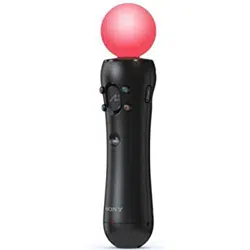
Move motion controller
Instruction Manual
7028429CECH-ZCM1E

2
EN
Before use
ˎ Carefully read this manual and any manuals for compatible
hardware. Retain instructions for future reference.
ˎ Always update your system to the latest version of the system
software.
Precautions
Safety
ˎ Avoid prolonged use of this product. Take a 15-minute break
during each hour of play.
ˎ Stop using this product immediately if you begin to feel tired or
if you experience discomfort or pain in your hands or arms
during use. If the condition persists, consult a doctor.
ˎ If you experience any of the following health problems,
discontinue use of the system immediately. If symptoms persist,
consult a doctor.
ˋ Dizziness, nausea, fatigue or symptoms similar to motion
sickness.
ˋ Discomfort or pain in a part of the body, such as eyes, ears,
hands or arms.
ˎ The product is intended for use with the hands only.
ˎ The vibration function of this product can aggravate injuries. Do
not use the vibration function if you have any ailment or injury
to the bones, joints, or muscles of your hands or arms. You can
turn on or turn off the vibration function from
(Settings) on
the function screen.
ˎ Avoid holding the product closer than 20 cm from the face or
eyes.
ˎ Keep the product out of the reach of small children. Young
children might damage the product causing it to malfunction,
swallow small parts, wrap the cables around themselves or
accidentally injure themselves or others.
Use and handling
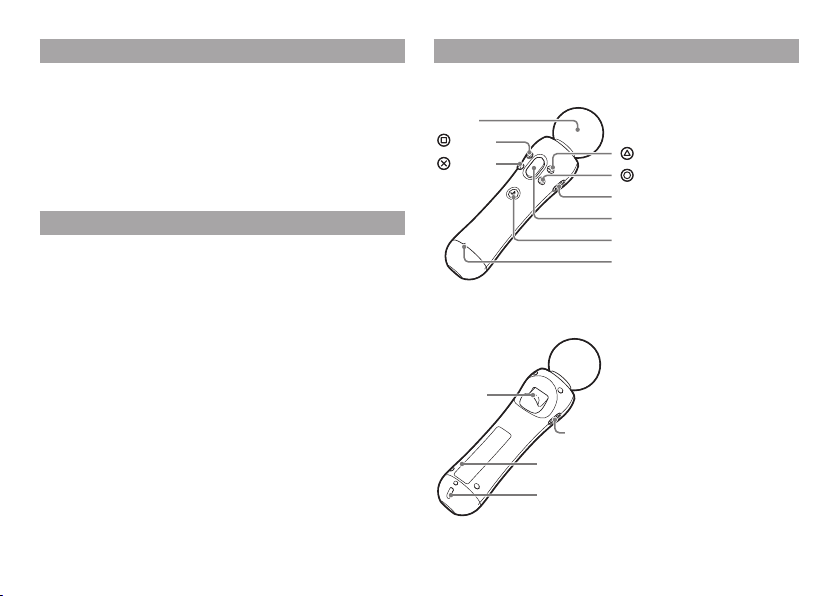
ˎ When using the controller, be aware of the following points.
ˋ Before use, make sure that
there is plenty of space
around you.
ˋ Do not use with the USB
cable connected.
ˋ Attach the supplied strap to
the controller and wear the
strap on your wrist to help
prevent losing your grip on
the controller.
ˋ Firmly grip the controller to prevent it from slipping out of
your grasp and causing damage or injury. Furthermore, avoid
swinging the controller with excessive force.
ˎ Do not squeeze the sphere, hold it tightly or place objects on
top op it, as doing so may cause it to become misshapen.
ˎ Do not allow liquid or small particles to get into the product.
ˎ Do not touch the product with wet hands.
ˎ Do not throw or drop the product or subject it to strong physical
shock.
ˎ Do not put heavy objects on the product.
ˎ Do not touch the inside of the USB connector or insert foreign
objects.
ˎ Never disassemble or modify the product.
3
Exterior protection
Follow the instructions below to help prevent the
product exterior from deteriorating or becoming
discoloured.
ˎ Do not place any rubber or vinyl materials on the product
exterior for an extended period of time.
ˎ Use a soft, dry cloth to clean the product. Do not use solvents or
other chemicals. Do not wipe with a chemically-treated cleaning
cloth.
Storage conditions
ˎ Do not expose the product to high temperatures, high humidity
or direct sunlight.
ˎ Do not expose the product to dust, smoke or steam.
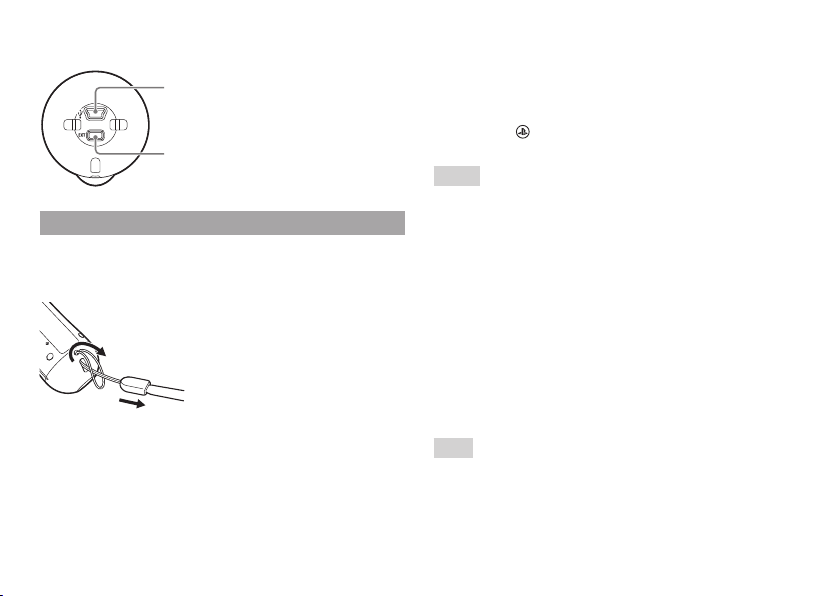
Part names
Front view
Sphere
button
button
button
button
START button
Move button
PS button
Status indicator
Rear view
T button
SELECT button
Strap holder
Reset button
4
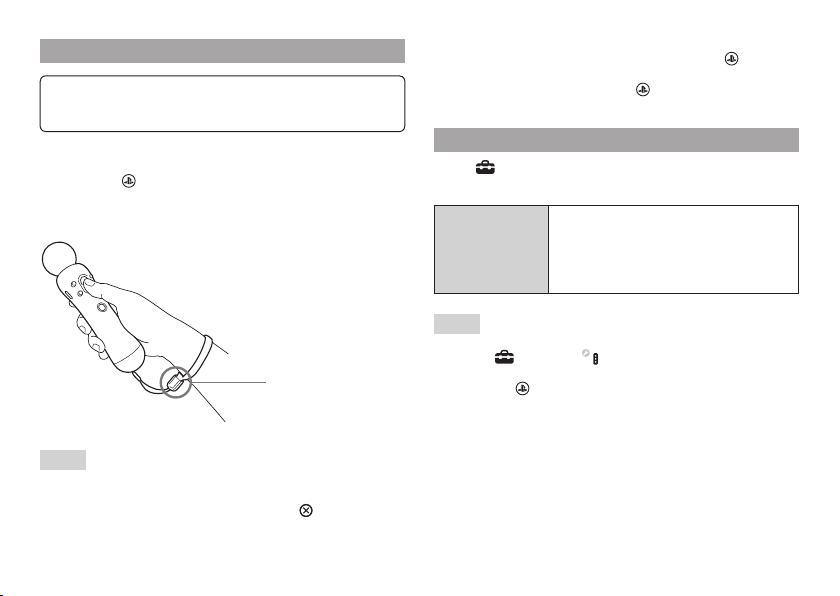
Bottom view
USB connector
Extension connector
Getting started
Attaching the supplied strap
Follow the diagram to attach the strap.
Pairing your controller
Before using your controller, you must first pair it with
your PS4™ system. You only need to do this the first
time you use the motion controller.
1 Turn on your PlayStation
®
4 system.
2 Connect your controller to the PS4™ system with a
USB cable.
Use the USB cable supplied with the controller.
3 Press the (PS) button on your controller.
The controller is paired with the PS4™ system.
Hints
ˎ Follow the same steps to pair the controller with a PlayStation
®
3
system.
ˎ When using the controller with a PS3™ system, use system
software version 3.70 or later.
ˎ You can use up to four controllers at one time. To use two or
more controllers, pair each controller separately.
ˎ When a paired controller is used with another system, the
pairing with the original system will be cleared. Pair the
controller with the system again if it has been used with another
system.
Connecting/setting up a camera
Connect and set up the PlayStation
®
Camera (sold
separately). For details, refer to the instruction manual
for the camera.
Hint
When using the controller with a PS3™ system, connect and set
up the PlayStation
®
Eye camera (sold separately). For details, refer
to the instruction manual for the PlayStation
®
Eye camera.
5
Using your controller
Notice
Always disconnect the USB cable before use.
1 Turn on your PS4™ system.
2 Press the (PS) button on your motion controller.
The controller is automatically assigned to a user.
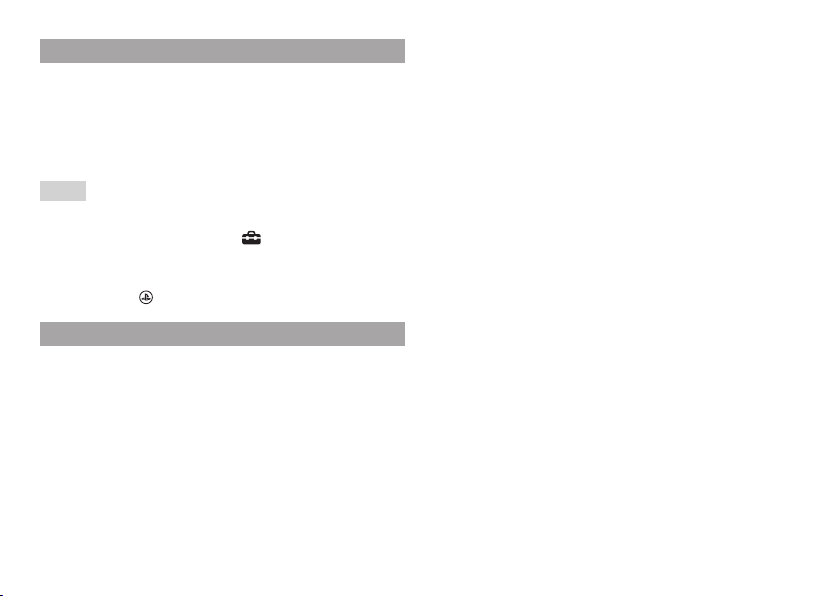
3 Wear the strap on your wrist.
Use the strap lock to
tighten the strap.
Hints
ˎ Follow the same steps to use the controller with a PS3™ system.
ˎ You can press and hold the T button to use the motion controller
to navigate menus. Press the Move button or
button to select
an item.
ˎ On a PS3™ system, you can check the assigned controller
number on the screen by pressing and holding the
(PS)
button.
ˎ To quit a game, press and hold the (PS) button, and then
follow the on-screen instructions.
Adjusting the controller settings
Select (Settings) > [Devices] > [Controllers] from the
function area.
Enable Vibration
Set the vibration function on or off.
Clearing the checkbox disables the
function, and the controller will not vibrate
even if you enable vibration in the game
settings.
Hints
ˎ On a PS3™ system, you can adjust the controller settings by
selecting
(Settings) > (Accessory Settings).
ˎ You can also adjust some settings while playing a game. Press
and hold the
(PS) button, and then follow the on-screen
instructions.
6
Charging your controller
Charge your controller by connecting it to a PS4™
system or a PS3™ system that is turned on, using the
USB cable supplied with the controller. The status
indicator of the motion controller blinks slowly, and
charging begins. The status indicator stops blinking
when charging is complete.
Hints
ˎ You can also charge your controller while the PS4™ system is in
rest mode. From the PS4™ system’s function area, you must
select an option other than [Off] in
(Settings) > [Power Save
Settings] > [Set Features Available in Rest Mode] > [Supply Power
to USB Ports].
ˎ You can check the battery charge level on the screen by pressing
and holding the
(PS) button.
Battery
Caution – using the built-in battery:
ˋ This product contains a lithium-ion rechargeable battery.
ˋ Before using this product, read all instructions for handling
and charging the battery and follow them carefully.
ˋ Take extra care when handling the battery. Misuse can cause
fire and burns.
ˋ Never attempt to open, crush, heat or set fire to the battery.
ˋ Do not leave the battery charging for a prolonged period of
time when the product is not in use.
ˋ Always dispose of used batteries in accordance with local
laws or requirements.
ˋ Do not handle the damaged or leaking battery.
ˋ If the internal battery fluid leaks, stop using the product
immediately and contact technical support for assistance. If
the fluid gets on to your clothes, skin or into your eyes,
immediately rinse the affected area with clean water and
consult your doctor. The battery fluid can cause blindness.
Battery life and duration
ˎ The battery has a limited lifespan. Battery charge duration
gradually decreases with repeated usage and age. Battery life
also varies depending on the storage method, usage state,
environment and other factors.
ˎ Charge in an environment where the temperature range is
between 10 °C - 30 °C. Charging may not be as effective when
performed in other environments.
ˎ Battery duration may vary depending on the usage condition
and environmental factors.
ˎ If you do not plan to use the motion controller for an extended
period of time, it is recommended that you fully charge it at
least once a year to help maintain battery functionality.
7
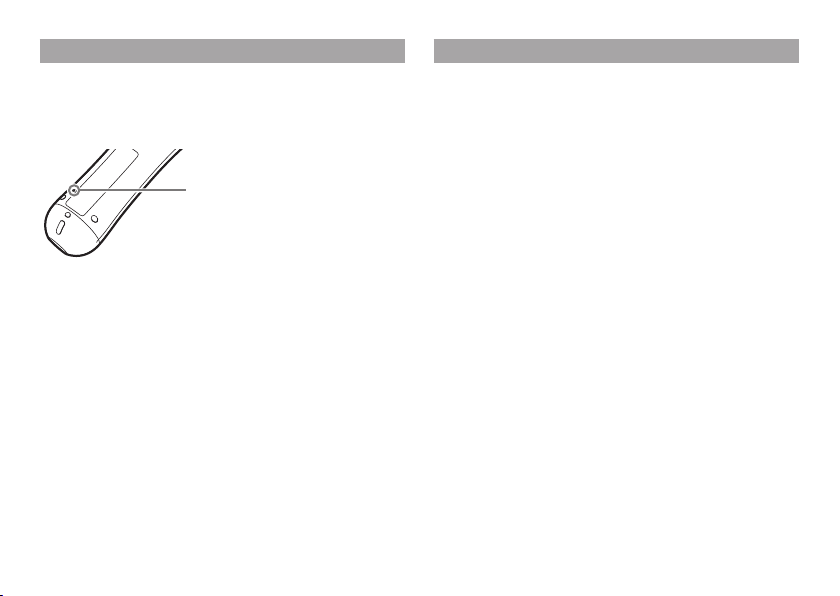
Resetting your controller
If the motion controller responds abnormally or does not
work as intended, try resetting it by pressing the reset
button on the back of the controller with a fine-tipped
object such as a pen.
Reset button
Specifications
Power consumption DC 5 V, 800 mA
Battery type Built-in, rechargeable
Lithium-ion battery
Battery voltage DC 3.6 V
Battery capacity 1380 mAh
Operating temperature 5°C – 35°C
External dimensions
(excluding maximum
projecting part)
Approx. 200 mm × 46 mm
(height × diameter)
Mass Approx. 145 g
Country of production China
Design and specifications are subject to change without notice.
8
GUARANTEE
This product is covered for 12 months from date of purchase by
the manufacturer’s guarantee. Please refer to the guarantee
supplied in the PS4™ package for full details.
This product has been manufactured by or on behalf of Sony
Interactive Entertainment Inc., 1-7-1 Konan Minato-ku Tokyo,
108-0075 Japan.
Imported into Europe and Distributed by Sony Interactive
Entertainment Europe Ltd, 10 Great Marlborough Street, London,
W1F 7LP, United Kingdom.
The Authorised Representative for issuing and holding
Declarations of Conformity is Sony Belgium, bijkantoor van Sony
Europe Limited, Da Vincilaan 7-D1, 1935 Zaventem, Belgium.
For customers in Europe and Turkey.
R&TTE Directive “Informal DoC” statement
Hereby, Sony Interactive Entertainment Inc., declares that this
product is in compliance with the essential requirements and
other relevant provisions of Directive 1999/5/EC.
For details, please access the following URL:
http://www.compliance.sony.de/
Where you see either symbol on any of our electrical products,
batteries or packaging, it indicates that the relevant electrical
product or battery should not be disposed of as general
household waste in Europe and Turkey. To ensure correct waste
treatment, please dispose of them via an authorised collection
facility, in accordance with any applicable laws or requirements.
Waste electrical products and batteries may also be disposed of
free of charge via retailers when buying a new products of the
same type. Furthermore, within EU countries larger retailers may
accept small waste electronic products free of charge. Please ask
your local retailer if this service is available for the products you
wish to dispose of. In so doing, you will help to conserve natural
resources and improve standards of environmental protection in
treatment and disposal of electrical waste.
This symbol may be used on batteries in combination with
additional chemical symbols. The chemical symbols for mercury
(Hg) or lead (Pb) will appear if the battery contains more than
0.0005% mercury or more than 0.004% lead.
This product contains a battery which is permanently built-in for
safety, performance or data integrity reasons. The battery should
not need to be replaced during the lifetime of the product and
should only be removed by skilled service personnel. To ensure
the correct waste treatment of the battery, please dispose of this
product as electrical waste.

9
“ ”, “PlayStation”, “ ” and “ ” are registered trademarks or trademarks of Sony Interactive Entertainment Inc.
“SONY” and “
” are registered trademarks or trademarks of Sony Corporation.
© 2016 Sony Interactive Entertainment Europe Limited. All rights reserved.
eu.playstation.com/ps4