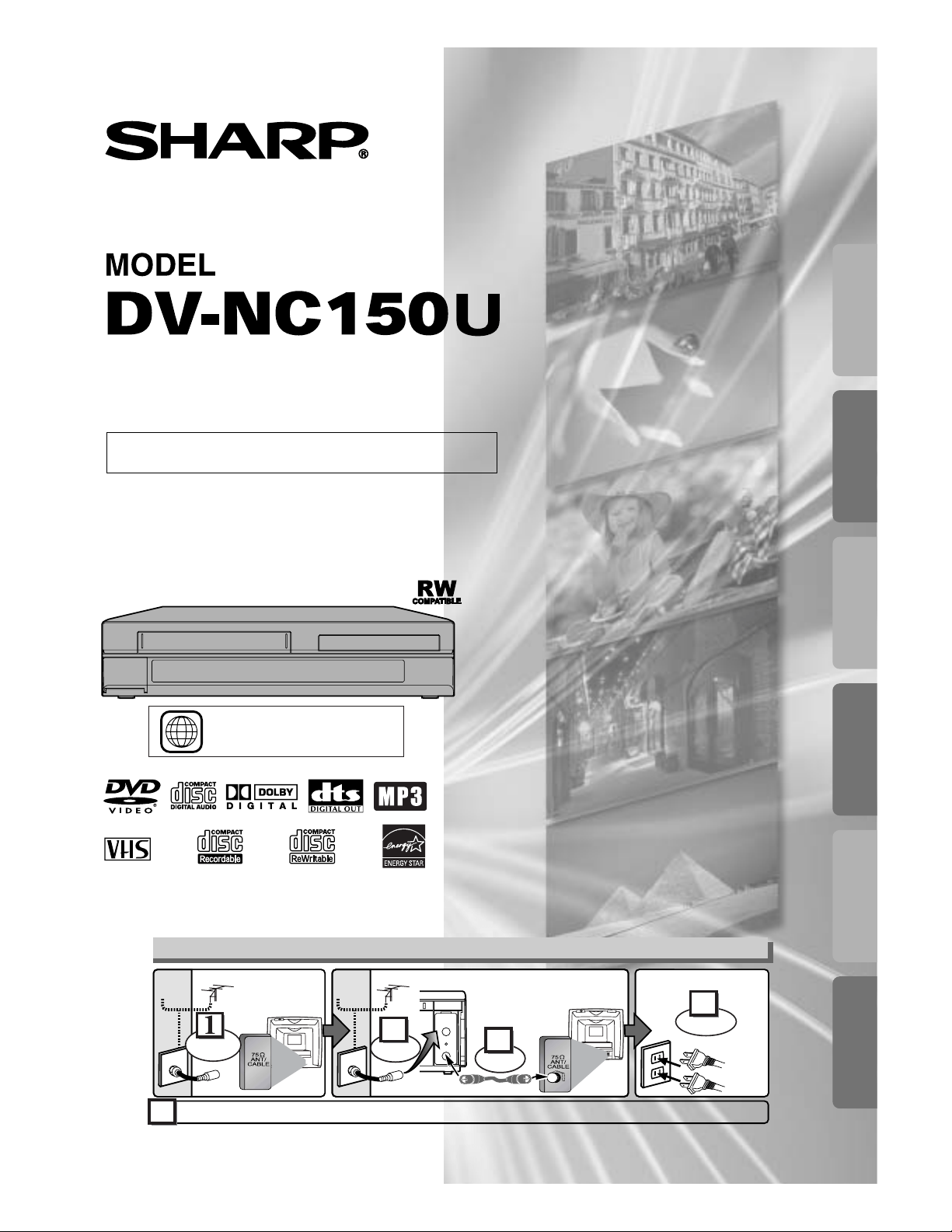
VCR/DVD COMBINATION
OPERATION MANUAL
Please read this Operation Manual carefully before using
your VCR/DVD COMBINATION.
1
The region number for this
VCR/DVD is 1.
INSTRUCCIONES EN ESPAÑOL INCLUIDAS.
Precautions
DVD Functions
Setup
VCR Functions
InformationEspañol
Basic TV Connection
ANT-OUT
ANT-IN
Round Coaxial cable (supplied)
AC
outlets
5
Plug in
4
From
TV
From
VCR/DVD
Please refer to "Connections" on page 7.
or
Cable
Signal
Cable
Signal
(Back of
VCR/DVD)
(Back of TV)
or
Antenna
2
Connect
3
Connect
(Back of TV)
Disconnect
Antenna
Precautions
–
2
–
EN
WARNING: TO REDUCE THE RISK OF FIRE OR ELECTRIC SHOCK, DO NOT
EXPOSE THIS APPLIANCE TO RAIN OR MOISTURE.
CAUTION: TO PREVENT ELECTRIC SHOCK, MATCH WIDE BLADE OF PLUG TO
WIDE SLOT, FULLY INSERT.
ATTENTION: POUR ÉVITAR LES CHOC ÉLECTRIQUES, INTRODUIRE LA LAME LA
PLUS LARGE DE LA FICHE DANS LA BORNE CORRESPONDANTE DE LA PRISE ET
POUSSER JUSQU’AU FOND.
CAUTION:
THIS UNIT IS A CLASS 1 LASER PRODUCT.
USE OF CONTROLS OR ADJUSTMENTS OR PERFORMANCE OF PROCEDURES OTHER THAN THOSE
SPECIFIED HEREIN MAY RESULT IN HAZARDOUS RADIATION EXPOSURE.
AS THE LASER BEAM USED IN THIS UNIT IS HARMFUL TO THE EYES, DO NOT ATTEMPT TO DISAS-
SEMBLE THE CABINET.
REFER SERVICING TO QUALIFIED PERSONNEL ONLY.
This symbol warns the user of uninsulated
voltage within the unit that can cause danger-
ous electric shocks.
This symbol alerts the user that there are
important operating and maintenance instruc-
tions in the literature accompanying this unit.
CAUTION
:
TO REDUCE THE RISK OF ELECTRIC SHOCK, DO
NOT REMOVE COVER (OR BACK). NO USER SER-
VICEABLE PARTS INSIDE. REFER SERVICING TO
QUALIFIED SERVICE PERSONNEL.
CAUTION
RISK OF ELECTRIC SHOCK
DO NOT OPEN
For future reference, record the serial number (located on the rear of the
Unit) in the space provided.
Model No.: DV-NC150U
Serial No.:
This device complies with Part 15 of the FCC Rules. Operation is subject to the following two conditions:
(1) This device may not cause harmful interference, and
(2) this device must accept any interference received, including interference that may cause undesired operation.
INFORMATION
This equipment has been tested and found to comply with the limits for a Class B digital device, pursuant to Part 15 of
the FCC Rules. These limits are designed to provide reasonable protection against harmful interference in a residential
installation. This equipment generates, uses and can radiate radio frequency energy and, if not installed and used in
accordance with the instructions, may cause harmful interference to radio communications. However, there is no guar-
antee that interference will not occur in a particular installation. If this equipment does cause harmful interference to
radio or television reception, which can be determined by turning the equipment off and on, the user is encouraged to
try to correct the interference by one or more of the following measures:
—Reorient or relocate the receiving antenna.
—Increase the separation between the equipment and receiver.
—Connect the equipment into an outlet on a circuit different from that to which the receiver is connected.
—Consult the dealer or an experienced radio/TV technician for help.
“WARNING—FCC Regulations state that any unauthorized changes or modifications
to this equipment not expressly approved by the manufacturer could void the user’s
authority to operate this equipment.”
This Class B digital apparatus complies with Canadian ICES-003.
Cet appareil numérique de la classe B est conforme à la norme NMB-003 du Canada.
Este aparato digital de la Clase B cumple con la norma ICES-003 de Canadá.
NOTE to CATV system installer:
This reminder is provided to call CATV system installer’s attention to Article 820-40 of the National Electrical Code
that provides guidelines for proper grounding and, in particular, specifies that the cable ground shall be connected to
the grounding system of the building, as close to the point of cable entry as practical.
Products that have earned ENERGY STAR
®
are designed to protect the environment through superior energy efficiency.
Precautions
1. Read Instructions - All the safety and operating instruc-
tions should be read before the appliance is operated.
2. Retain Instructions- The safety and operating instructions
should be retained for future reference.
3. Heed Warnings - All warnings on the appliance and in the
operating instructions should be adhered to.
4. Follow Instructions - All operating and use instructions
should be followed.
5. Cleaning - Unplug this video product from the wall outlet
before cleaning. Do not use liquid cleaners or aerosol
cleaners. Use a damp cloth for cleaning.
EXCEPTION: A product that is meant for uninterrupted
service and, that for some specific reason, such as the
possibility of the loss of an authorization code for a CATV
converter, is not intended to be unplugged by the user for
cleaning or any other purpose, may exclude the reference
to unplugging the appliance in the cleaning description
otherwise required in item 5.
6. Attachments - Do not use attachments not recommended
by the video product manufacturer as they may cause haz-
ards.
7. Water and Moisture- Do not use this video product near
water, for example, near a bath tub, wash bowl, kitchen
sink, or laundry tub, in a wet basement, or near a swim-
ming pool, and the like.
8. Accessories - Do not place this video product on an unsta-
ble cart, stand, tripod, bracket, or table. The video product
may fall, causing serious injury to a child or adult, and seri-
ous damage to the appliance. Use only
with a cart, stand, tripod, bracket, or
table recommended by the manufactur-
er, or sold with the video product. Any
mounting of the appliance should follow
the manufacturer's instructions and
should use a mounting accessory rec-
ommended by the manufacturer.
9. Transportation - A product and cart combination should be
moved with care. Quick stops, excessive force, and
uneven surfaces may cause the appliance and cart com-
bination to overturn.
10. Ventilation - Slots and openings in the cabinet are provid-
ed for ventilation and to ensure reliable operation of the
video product and to protect it from overheating, and these
openings must not be blocked or covered. The openings
should never be blocked by placing the video product on a
bed, sofa, rug, or other similar surface. This video product
should not be placed in a built-in installation such as a
bookcase or rack unless proper ventilation is provided or
the manufacturer's instructions have been adhered to.
11. Power Sources - This video product should be operated
only from the type of power source indicated on the mark-
ing label. If you are not sure of the type of power supply to
your home, consult your appliance dealer or local power
company. For products intended to operate from battery
power, or other sources, refer to the operating instructions.
12. Grounding or Polarization - This video product is equipped
with a polarized alternating-current line plug (a plug having
one blade wider than the other). This plug will fit into the
power outlet only one way. This is a safety feature. If you
are unable to insert the plug fully into the outlet, try revers-
ing the plug. If the plug should still fail to fit, contact your
electrician to replace your obsolete outlet. Do not defeat
the safety purpose of the polarized plug.
13. Power Cord Protection - Power supply cords should be
routed so that they are not likely to be walked on or
pinched by items placed upon or against them, paying par-
ticular attention to cords at plugs, convenience recepta-
cles, and the point where they exit from the appliance.
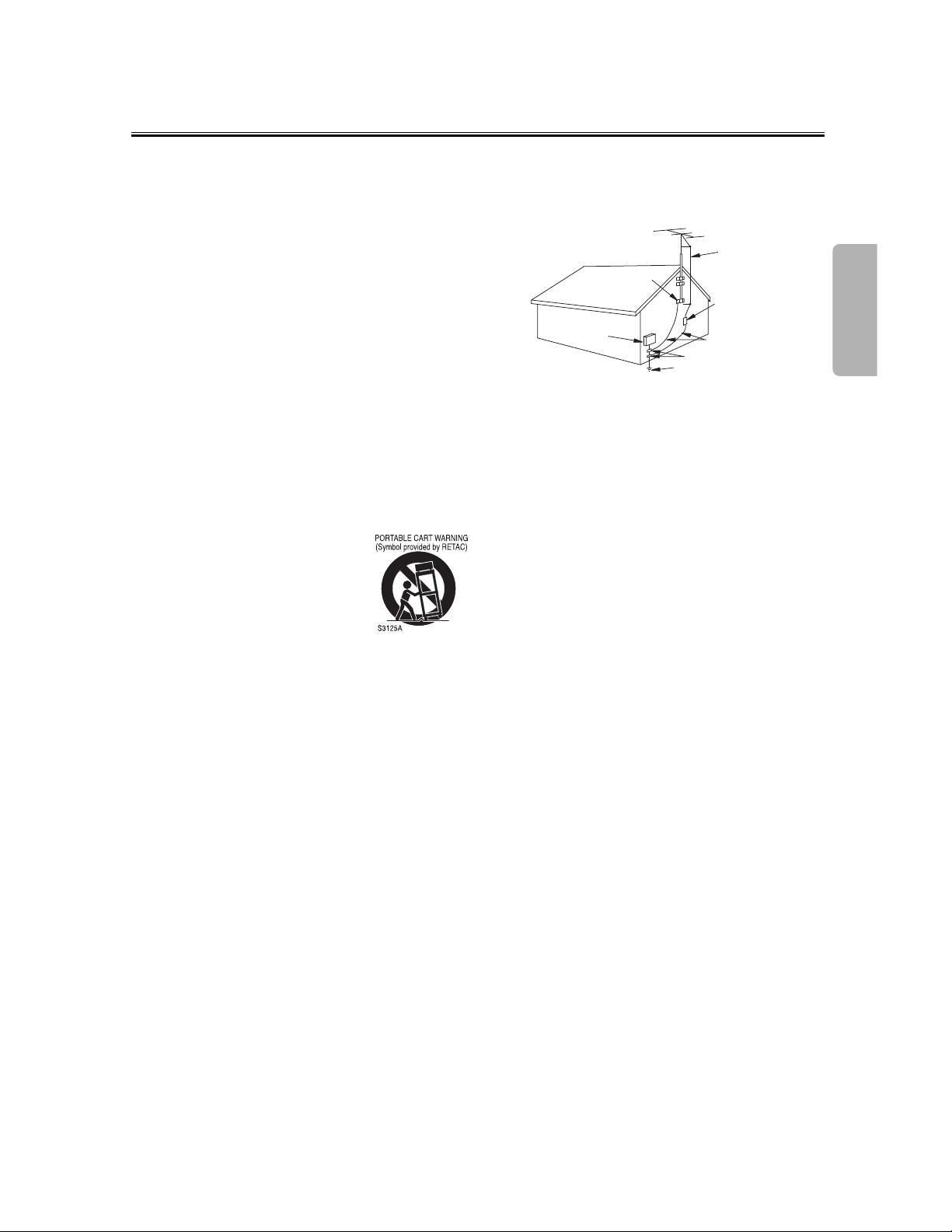
14. Outdoor Antenna Grounding - If an outside antenna or
cable system is connected to the video product, be sure
the antenna or cable system is grounded so as to provide
some protection against voltage surges and built-up static
charges. Article 810 of the National Electrical Code,
ANSI/NFPA No. 70, provides information with regard to
proper grounding of the mast and supporting structure,
grounding of the lead-in wire to an antenna discharge unit,
size of grounding conductors, location of antenna-dis-
charge unit, connection to grounding electrodes, and
requirements for the grounding electrode. (Fig. A)
15. Lightning - For added protection for this video product dur-
ing a lightning storm, or when it is left unattended and
unused for long periods of time, unplug it from the wall out-
let and disconnect the antenna or cable system. This will
prevent damage to the video product due to lightning and
power-line surges.
16. Power Lines - An outside antenna system should not be
located in the vicinity of overhead power lines or other
electric light or power circuits, or where it can fall into such
power lines or circuits. When installing an outside antenna
system, extreme care should be taken to keep from touch-
ing such power lines or circuits as contact with them might
be fatal.
17. Overloading - Do not overload wall outlets and extension
cords as this can result in a risk of fire or electric shock.
18. Object and Liquid Entry - Never push objects of any kind
into this video product through any openings as they may
touch dangerous voltage points or short-out parts that
could result in a fire or electric shock. Never spill liquid of
any kind on the video product.
19. Servicing - Do not attempt to service this video product
yourself as opening or removing covers may expose you
to dangerous voltage or other hazards. Refer all servicing
to qualified service personnel.
20. Damage Requiring Service - Unplug this video product
from the wall outlet and refer servicing to qualified service
personnel under the following conditions:
a. When the power-supply cord or plug is damaged.
b. If liquid has been spilled, or objects have fallen into the
video product.
c. If the video product has been exposed to rain or water.
d. If the video product does not operate normally by following
the operating instructions. Adjust only those controls that
are covered by the operating instructions as an improper
adjustment of other controls may result in damage and will
often require extensive work by a qualified technician to
restore the video product to its normal operation.
e. If the video product has been dropped or damaged in any
way.
f.When the video product exhibits a distinct change in per-
formance this indicates a need for service.
21. Replacement Parts - When replacement parts are
required, be sure the service technician has used replace-
ment parts specified by the manufacturer or have the
same characteristics as the original part. Unauthorized
substitutions may result in fire, electric shock or other haz-
ards.
22. Safety Check - Upon completion of any service or repairs
to this video product, ask the service technician to perform
safety checks to determine that the video product is in
proper operating condition.
23. Heat - This video product should be situated away from
heat sources such as radiators, heat registers, stoves, or
other products (including amplifiers) that produce heat.
FIGURE A
EXAMPLE OF ANTENNA GROUNDING
AS PER NATIONAL ELECTRICAL CODE
ANTENNA
LEAD
WIRE
ANTENNA
DISCHARGE UNIT
(NEC SECTION 810-20)
GROUNDING CONDUCTORS
(NEC SECTION 810-21)
GROUND
CLAMP
GROUND CLAMP
ELECTRIC
SERVICE
EQUIPMENT
POWER SERVICE GROUNDING
ELECTRODE SYSTEM
(NEC ART 250, PART H)
NEC – NATIONAL ELECTRICAL CODE
S2898A
–
3
–
EN
Important Safeguards
Precautions
–
4
–
EN
Table of Contents
Precautions
■ Important Safeguards . . . . . . . . . . . . . . . . . . . . 3
Symbol Used in This Manual . . . . . . . . . . . . . . . . 4
Supplied Accessory . . . . . . . . . . . . . . . . . . . . . . . 4
Service . . . . . . . . . . . . . . . . . . . . . . . . . . . . . . . . 5
Copy Protection . . . . . . . . . . . . . . . . . . . . . . . . . . 5
Recommended Measures for
Optimum Picture Excellence . . . . . . . . . . . . . . . . 5
Notice for progressive scan outputs . . . . . . . . . . . 5
No Fingers or Other Objects Inside . . . . . . . . . . . 5
Warning of Dew Formation. . . . . . . . . . . . . . . . . . 5
Others . . . . . . . . . . . . . . . . . . . . . . . . . . . . . . . . . 5
Maintenance . . . . . . . . . . . . . . . . . . . . . . . . . . . . 6
Setup
■ About the Video Cassettes and Discs . . . . . . . 7
Playable Video Cassettes. . . . . . . . . . . . . . . . . . . 7
Playable Discs . . . . . . . . . . . . . . . . . . . . . . . . . . . 7
Unplayable Discs . . . . . . . . . . . . . . . . . . . . . . . . . 7
■ Connections . . . . . . . . . . . . . . . . . . . . . . . . . . . 7
RF Output Channel . . . . . . . . . . . . . . . . . . . . . . . 7
Hint for Cable Box or Satellite Box . . . . . . . . . . . . 8
Connection to an Audio System . . . . . . . . . . . . . . 8
Connection to a TV . . . . . . . . . . . . . . . . . . . . . . . 9
Front & Rear Terminals . . . . . . . . . . . . . . . . . . . . 9
■ About the Remote Control and Front Panel . . 10
■ VCR/DVD Switching. . . . . . . . . . . . . . . . . . . . . 11
■ Preparation for Use . . . . . . . . . . . . . . . . . . . . . 12
Turn on the unit for the first time. . . . . . . . . . . . . 12
Clock Set Up . . . . . . . . . . . . . . . . . . . . . . . . . . . 12
VCR Functions
■ Playback . . . . . . . . . . . . . . . . . . . . . . . . . . . . . 13
■ Recording & OTR (One Touch Recording) . . . 13
■ Other Operations. . . . . . . . . . . . . . . . . . . . . . . 13
■ On-Screen Operations. . . . . . . . . . . . . . . . . . . 14
■ Recording Features. . . . . . . . . . . . . . . . . . . . . 14
Timer Recording . . . . . . . . . . . . . . . . . . . . . . . . 14
Hint for Timer Recording . . . . . . . . . . . . . . . . . . 15
Copying a Video Tape . . . . . . . . . . . . . . . . . . . . 15
■
MTS System (Multi-Channel Television Sound)
. . . 15
■ Special Features . . . . . . . . . . . . . . . . . . . . . . . 16
Time Search / Index Search / Auto Repeat. . . . . 16
DVD Functions
■ Playback . . . . . . . . . . . . . . . . . . . . . . . . . . . . . 17
■ MP3 Playback . . . . . . . . . . . . . . . . . . . . . . . . . 19
■ The On-Screen Display . . . . . . . . . . . . . . . . . . 19
■ Search Function . . . . . . . . . . . . . . . . . . . . . . . 20
Track Search / Title/Chapter Search / Time Search
. . 20
■ Marker Setup . . . . . . . . . . . . . . . . . . . . . . . . . . 20
■ Repeat / Random / Programmed Playback . . . 21
Repeat Playback / Repeat A-B Playback /
Random Playback / Programmed Playback . . . . 21
■ Special Settings. . . . . . . . . . . . . . . . . . . . . . . . 22
Subtitle Language / Audio Language /
Camera Angle / Stereo Sound Mode . . . . . . . . . 22
Black Level Setting / Virtual Surround. . . . . . . . . 23
■ DVD Set Up . . . . . . . . . . . . . . . . . . . . . . . . . . . 23
LANGUAGE Setting. . . . . . . . . . . . . . . . . . . . . . 24
DISPLAY Setting . . . . . . . . . . . . . . . . . . . . . . . . 24
AUDIO Setting . . . . . . . . . . . . . . . . . . . . . . . . . . 25
PARENTAL Setting. . . . . . . . . . . . . . . . . . . . . . . 26
To return the All Selections of SET UP
(except for PARENTAL) to the Default Setting. . . 26
Information
■ Language List . . . . . . . . . . . . . . . . . . . . . . . . . 27
■ Specifications . . . . . . . . . . . . . . . . . . . . . . . . . 28
Service Information . . . . . . . . . . . . . . . . . . . . . . 28
■ Troubleshooting Guide . . . . . . . . . . . . . . . . . . 29
Español . . . . . . . . . . . . . . . . . . . . . . . . . . . . 30
Importantes Medidas de Seguridad y
Precauciones. . . . . . . . . . . . . . . . . . . . . . . . . . . 31
Conexiones . . . . . . . . . . . . . . . . . . . . . . . . . . . . 32
Instalación de las pilas del mando a distancia . . 32
Conmutación VCR/DVD . . . . . . . . . . . . . . . . . . . 32
Activación de la unidad por primera vez . . . . . . . 32
Ajuste del reloj. . . . . . . . . . . . . . . . . . . . . . . . . . 33
Reproducción de la grabadora de vídeo . . . . . . . 33
Reproducción de DVD/CD . . . . . . . . . . . . . . . . . 33
Mando a distancia . . . . . . . . . . . . . . . . . . . . . . . 34
: Description refers to playback or recording
of video cassette tapes.
:
Description refers to playback of the VR
mode (Video Recording format).
*
The VR mode (Video Recording format) is a record-
ing mode to enjoy editing the program or “manual
mode” for recording in desired resolution and time.
:
Description refers to playback of DVD-Video discs.
: Description refers to playback of Audio CDs.
: Description refers to playback of MP3 files.
:
Indicates DVD Setup menus also accessible
from the QUICK SETUP Menu. (Refer to
page 23.)
QUICK
MP3
MP3
CD
CD
DVD-V
DVD-V
DVD-V
DVD-V
VR modeVR mode
VR mode
VCR
VCR
Symbol Used in This Manual
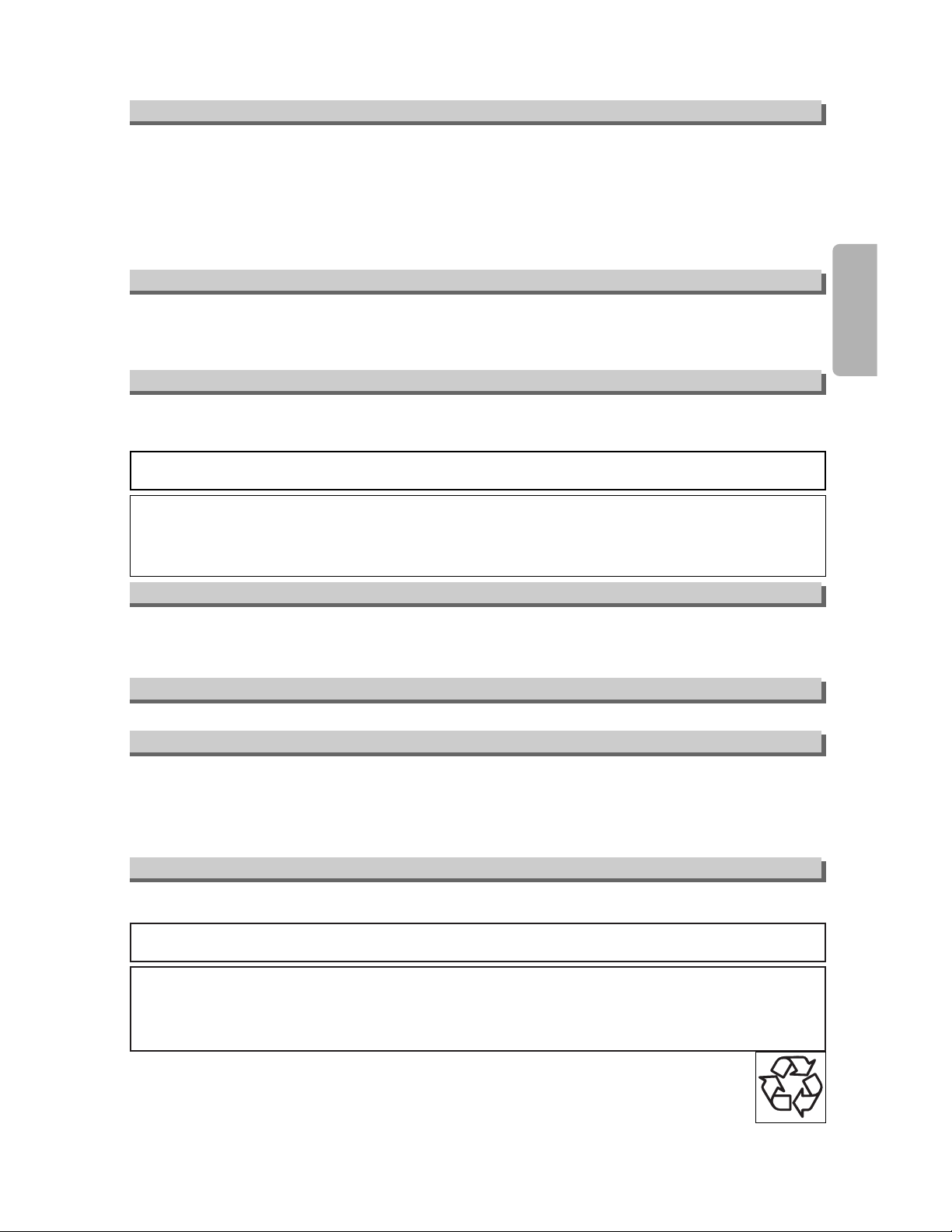
Supplied Accessory
The following symbols appear in some headings and notes in this manual.
• Remote control
(9HSNA276UD)
with two AA batteries
• Round Coaxial cable
(9HSWPZ0901TM003)
•
Audio cable/ Video cable
(9HSWX1E56B5-001)
• Operation Manual
(9HS1VMN20342)
Operation Manual
Precautions
–
5
–
EN
Copy Protection
Warning of Dew Formation
This Unit supports Macrovision copy protection.
On DVD discs that include a copy protection code, if the contents of the DVD disc are copied using a VCR, the
copy protection code prevents the videotape copy from playing normally.
Moisture may form inside the VCR/DVD under the following conditions:
• Immediately after a heater is turned on.
• In a steamy or humid room.
• When the VCR/DVD is suddenly moved from a cold to warm environment.
If moisture forms inside this VCR/DVD, it may not operate properly or damage the video cassette. In such case,
turn on the power and wait for more than two hours for the moisture to evaporate.
Notice for progressive scan outputs
Consumers should note that not all high definition television sets are fully compatible with this product and may
cause artifacts to be displayed in the picture. In case of 525 progressive scan picture problems, it is recom-
mended that the user switch the connection to the ‘standard definition’ output. If there are questions regarding
our TV set compatibility with this model 525p DVD player, please contact our customer service center.
Apparatus Claims of U.S. Patent Nos. 4,631,603, 4,577,216, 4,819,098 and 4,907,093 licensed for limited view-
ing uses only.
This product incorporates copyright protection technology that is protected by method claims of certain U.S.
patents and other intellectual property rights owned by Macrovision Corporation and other rights owners.
Use of this copyright protection technology must be authorized by Macrovision Corporation, and is intended
for home and other limited viewing uses only unless otherwise authorized by Macrovision Corporation.
Reverse engineering or disassembly is prohibited.
No Fingers or Other Objects Inside
Do not put your fingers or objects on the disc tray or in the cassette compartment.
Location and Handling
Location and Handling
• Do not cover or place the VCR/DVD in enclosed spaces to prevent excessive temperature build up.
• Do not place the VCR/DVD in direct sunlight, or near heat sources.
• Depending on the use environment, the temperature of the VCR/DVD may increase slightly. This is not a malfunction.
• Keep the VCR/DVD away from strong magnetic objects.
•
Do not place any object containing water or other liquids on the VCR/DVD. In the event that liquid should enter the cabi-
net, unplug the VCR/DVD immediately and contact the retailer or service centre approved by SHARP immediately.
•
Do not remove the VCR/DVD cabinet. Touching parts inside the cabinet could result in electric shock and/ or damage to
the VCR/DVD. For service and adjustment inside the cabinet, call a qualified dealer or service centre approved by SHARP.
Nonuse Periods
Location and Handling
• When the VCR/DVD is not being used, switch the VCR/DVD to the Standby mode.
• When left unused for a long period of time, the VCR/DVD should be unplugged from the household AC outlet.
• Do not place the VCR/DVD in direct sunlight, or near heat sources.
Others
It is the intent of Sharp that this product be used in full compliance with the copyright laws of the United States
and that prior permission be obtained from copyright owners whenever necessary.
“Licensed under one or more of U.S. Pat. 4,972,484, 5,214,678, 5,323,396, 5,530,655, 5,539,829, 5,544,247,
5,606,618, 5,610,985, 5,740,317, 5,777,992, 5,878,080, or 5,960,037.”
A NOTE ABOUT RECYCLING
This product’s packaging materials are recyclable and can be reused. Please dispose of any materials in
accordance with your local recycling regulations.
Batteries should never be thrown away or incinerated but disposed of in accordance with your local regula-
tions concerning chemical wastes.
Make your contribution to the environment!!!
• Used up batteries do not belong in the dust bin.
• You can dispose of them at a collection point for used up batteries or special waste.
Contact your council for details.
Precautions
–
6
–
EN
Note to CATV system installer
This reminder is provided to call the CATV system installer’s attention to Article 820-40 of the NEC that pro-
vides guidelines for proper grounding and, in particular, specifies that the cable ground should be connected
to the grounding system of the building, as close to the point of cable entry as practical.
Manufactured under license from Dolby Laboratories. “Dolby” and the double-D symbol are trade-
marks of Dolby Laboratories.
CLEANING THE CABINET
¡Use a soft cloth slightly moistened with a mild detergent solution. Do not use a solution containing alcohol, spir-
its, ammonia or abrasive.
CLEANING DISCS
¡When a disc becomes dirty, clean it with a cleaning cloth. Wipe the disc from the center out. Do not wipe in a
circular motion.
¡Do not use solvents such as benzine, thinner, commercially available cleaners, detergent, abrasive cleaning
agents or antistatic spray intended for analogue records.
RECOMMENDED MEASURES FOR OPTIMUM PICTURE EXCELLENCE
This Unit is a precision device constructed using extremely accurate technology.
¡The disc cannot be played if the disc drive component is worn out or if the internal pick up lens is dirty.
¡If this unit still does not perform properly although you refer to the relevant sections and to Troubleshooting
Guide on page 29, the laser optical pickup unit may be dirty. Consult a Sharp Authorized Service Center for
inspection and cleaning of the laser optical pickup unit.
DISC HANDLING
¡Handle the discs so that fingerprints and dust do not adhere to the surfaces of the discs.
¡Always store the disc in its protective case when it is not used.
AUTO HEAD CLEANING
¡Automatically cleans video heads as you insert or remove a cassette, so you can see a clear picture.
¡Playback picture may become blurred or interrupted while the TV program reception is clear. Dirt accumulated
on the video heads after a long period of use, or the usage of rental or worn tapes can cause this problem. If a
streaky or snowy picture appears during playback, the video heads in your VCR/DVD may need to be cleaned.
1. Please visit your local Audio/Video store and purchase a good quality VHS Video Head Cleaner.
2. If a Video Head Cleaner does not solve the problem, please call our help line mentioned on page 28 to locate
a Sharp Authorized Service Center.
Maintenance
Hint
Hint
• Remember to read the instructions along with the video head cleaner before use.
• Clean video heads only when problems occur.
“DTS” and “DTS Digital Out” are trademarks of Digital Theater Systems, Inc.
SERVICING
1.
Please refer to relevant topics in the Troubleshooting Guide on page 29 before returning the product.
2.
Do not attempt to service this Unit yourself. Instead, unplug it and contact a Sharp Authorized Service Center for
inspection. (See Service Information on page 28.)
3.
Be sure the service technician uses authorized replacement parts or their equivalents. Unauthorized parts may
cause fire, electrical shock, or other hazards.
4. Following any service or repair, be sure the service technician performs safety checks to certify that this Unit
is in safe operating order.
Setup
Setup
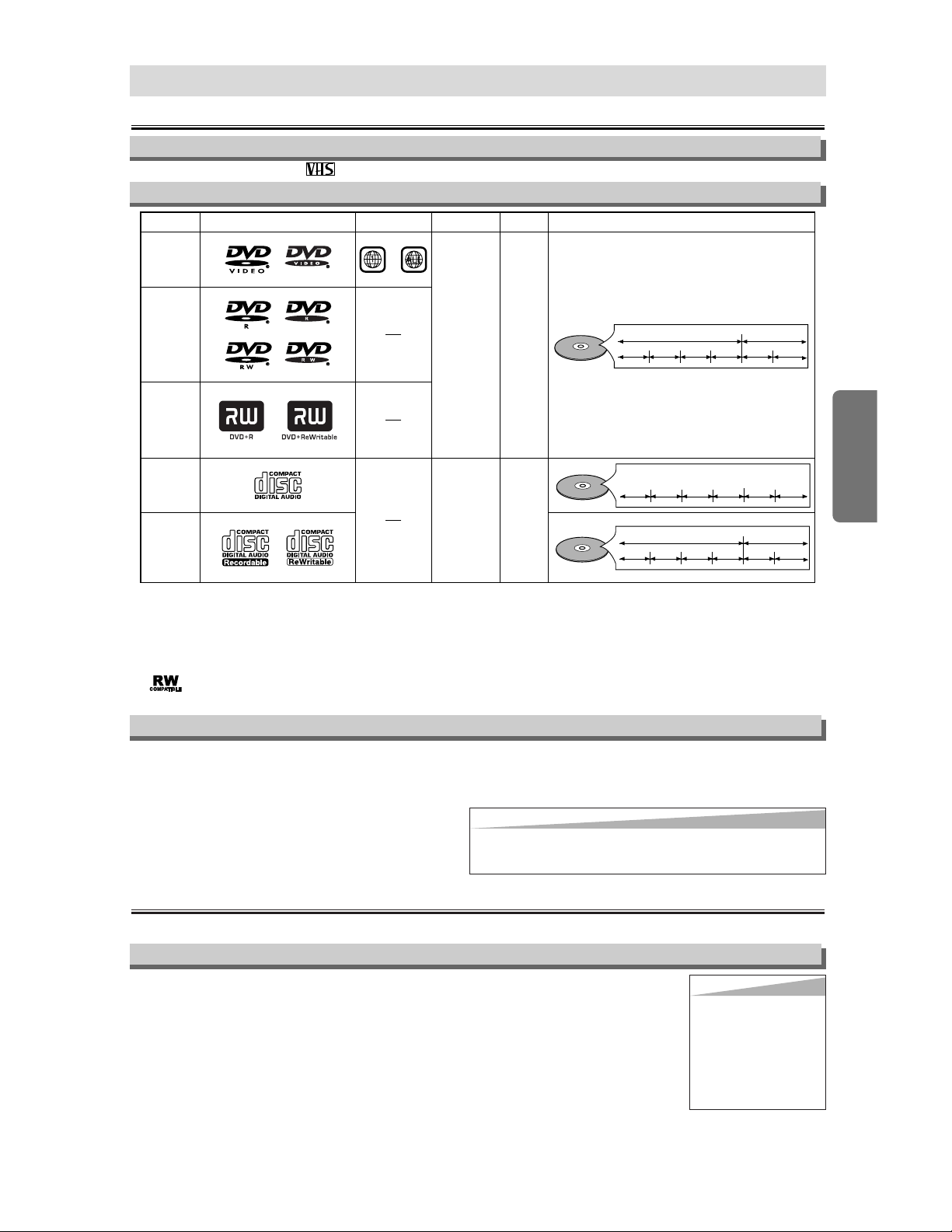
If you cannot play back a disc which bears one of the
marks above, check the following notes.
*1: This unit conforms to the NTSC color system. Discs
recorded in other color systems such as PAL cannot be
played back.
*2:
Certain DVD-Video discs do not operate as described in this
manual due to the intentions of the disc’s producers.
*3: This label indicates playback compatibility with DVD-
RW discs recorded in VR mode (Video Recording
Format).
This player cannot play the DVD-RW that supports CPRM
(Contents Protection for Recordable Media).
*4: Scratched or stained discs may not be played back.
*5: Some discs cannot be played back because of incompati-
ble recording conditions, characteristics of the recorder or
special properties of discs.
*6: You can play back discs which bear the marks above. If
you use nonstandardized discs, this unit may not play
them back. Even if they are played back, the sound or
video quality will be compromised.
DVD-Video
* 1,2,4,6
* 1,2,3,4,5,6
* 1,2,3,4,5,6
* 4,6
* 4,5,6
or
DVD-R
DVD-RW
DVD+R
DVD+RW
Audio CD
CD-R
CD-RW
Digital video
(MPEG2)
Digital audio
or
MP3
Region code
Mark (logo)
Playable
discs
Recorded
signals
Disc size
Disc types
12 cm
or
8cm
12 cm
or
8cm
Example
Title 1 Title 2
Chapter 1 Chapter 2 Chapter 1
Chapter 2
Chapter 3 Chapter 4
Example
Group 1 Group 2
Track 1
Track 2 Track 5
Track 6
Track 3
Track 4
Example
Track 1
Track 2
Track 5
Track 6
Track 3 Track 4
Digital audio
MP3
About the Video Cassettes and Discs
Playable Discs
Unplayable Discs
¡
On the following discs, only the sound can be heard (picture cannot be viewed).
CDV, CD-G
¡
NEVER play back the following discs. Otherwise, malfunction may result!
DVD-RAM, CD-I, Photo CD, Video CD, DVD with region codes other than 1 or ALL,
DVD-ROM for personal computers,
CD-ROM for personal computers
¡
On the following disc, the sound MAY NOT be heard.
Super Audio CD
¡
Any other discs without compatibility indications.
If channel 3 is already occupied for broadcasting,
1) Set your TV to channel 4.
2) Insert a pre-recorded tape into this unit.
3) Press the OUTPUT button on the VCR/DVD so that the VCR OUTPUT light is lit.
•
If “VCR” light does not appear
on the display of this unit
, press the VCR/TV button on the remote control.
4) Press the PLAY button once.
5) After a few seconds, press the PLAY button on the VCR/DVD for 3 seconds.
•
The RF output channel will change to channel 4 from channel 3 and you will see a playback picture.
In this case, “ch04” will appears on the front panel.
• When a picture does not appear on the TV screen, repeat step 4.
6) Press the STOP button to stop playback.
RF Output Channel
Connections
Please refer to “Basic TV Connection” on the front page before you use this unit.
–
7
–
EN
Use only cassettes marked with this unit.
Playable Video Cassettes
Hint
Hint
• The RF output channel may
not change when you adjust
tracking during playback. In
this case, stop the playback,
and start the playback again.
After that, press the PLAY
button on the VCR/DVD for 3
seconds again.
Hint
Hint
•
Only the sound recorded on the normal CD layer can be delivered.
The sound recorded on the high density Super Audio CD layer can-
not be delivered.
–
8
–
EN
Setup
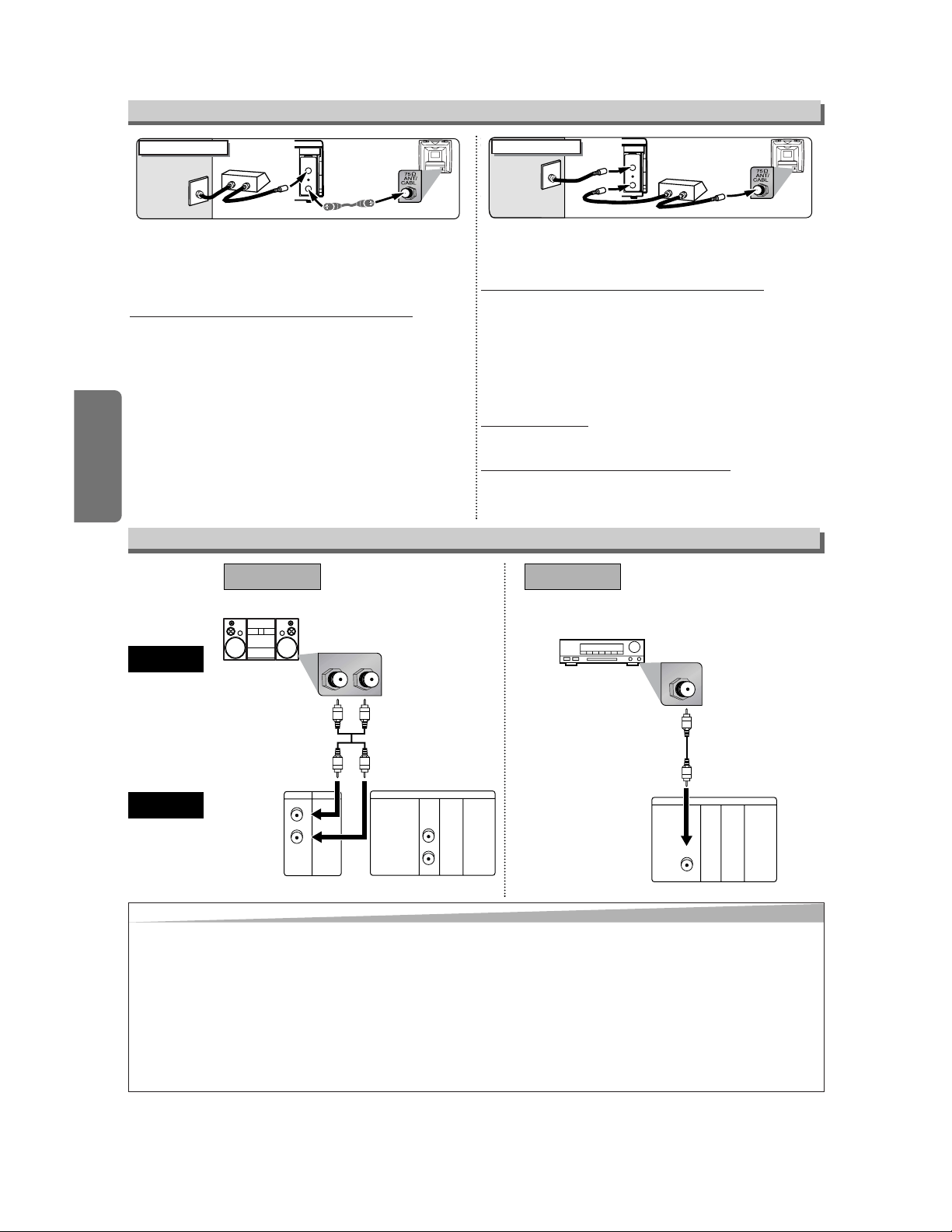
Select this connection when you want to view or record a scram-
bled channel. With this connection, channels cannot be changed
on the VCR/DVD. You can view or record ONLY the channels you
have selected on the cable box or the satellite box.
• While you are recording, only the recorded channel can be
viewed.
T
o select channels of the cable box or satellite box
1) Turn on the VCR/DVD by pressing the POWER button, and
then, press the VCR/TV button.The “POWER” and “VCR” lights
on the front panel will appear. Then, press the SKIP/CH. (
K/L)
buttons to select channel 3 or 4 (the same channel as the out-
put channel of the cable box or satellite box).
• If you use the channel 4, you need to change the VCR/DVD’s
RF output to channel 4. Refer to “RF Output Channel”.
2) At the TV, select channel 3 or 4 (the same channel as you
have selected at step 1).
3) At the cable box or satellite box, select the channel you want to
view or record.
Select this connection when you want to change channels on the
VCR/DVD. With this connection, you may watch one channel
while recording another.
• You may not view or record a scrambled channel.
T
o select channels of the cable box or satellite box
1) At the cable box or satellite box, select channel 3 or 4 (the
same channel as the VCR/DVD’s RF output channel.)
• Refer to “RF Output Channel”.
2) At the TV, select the same channel as the output channel (3 or
4) of the cable box or satellite box.
3) Turn on the VCR/DVD by pressing the POWER button, and
then, press the VCR/TV button. The “POWER” and “VCR” lights
on the front panel will appear. Then, select the channel you
want to view or record.
T
o play back a tape
Follow the steps 1) to 2) above. Then, play back a tape.
• Refer to “Playback” on page 13.
T
o view one channel while recording another
1)
While you are recording on the VCR/DVD, press the VCR/TV but-
ton so that the “VCR” light disappears on the VCR/DVD.
2)
At the cable box or satellite box, select the channel you want to view.
ANT-OUT
ANT-IN
(Back of VCR/DVD)
IN
OUT
E
(Back of TV)
Cable
Signal
Connection A
(Cable box or
Satellite box)
Round Coaxial cable
(supplied)
ANT-OUT
ANT-IN
Round Coaxial cable (supplied)
Round Coaxial cable
(Back of TV)
IN
O
UT
(Cable box or
Satellite box)
E
Cable
Signal
Connection B
(Back of VCR/DVD)
Hint for Cable Box or Satellite Box
LR
VCRDVD/VCR
AUDIO IN
VIDEO IN
AUDIO OUT
VIDEO OUT
LL
RR
DIGITAL
AUDIO OUT
or
COAXIAL
AUDIO
OUT
DVD
S-VIDEO
OUT
COMPONENT
VIDEO OUT
L
Y
C
B
/
P
B
C
R
/
P
R
R
DIGITAL
AUDIO OUT
COAXIAL
AUDIO
OUT
DVD
S-VIDEO
OUT
COMPONENT
VIDEO OUT
L
Y
C
B
/
P
B
C
R
/
P
R
R
COAXIAL
AUDIO
VCR/DVD
Method 1
Analog audio
input jacks
Digital audio
input jack
(Analog)
AUDIO OUT
DIGITAL
AUDIO OUT
Method 2
Connection to an Audio System
Audio cable
(supplied)
Audio Coaxial
Digital cable
(commercially
available)
Dolby Digital decoder, DTS decoder,
MD deck or DAT deck
Hint
Hint
• If the output is Dolby Digital-encoded audio, connect a Dolby Digital decoder and set “DOLBY DIGITAL” to “BITSTREATM”
for the AUDIO setting in the setup mode. (Refer to pages 23 and 25.)
• If the output is DTS-encoded audio, connect a DTS decoder and set “DTS” to “BITSTREAM” for the AUDIO setting in the
setup mode. (Refer to pages 23 and 25.)
• The audio source on a disc in a Dolby Digital 5.1 channel surround format cannot be recorded as digital sound by an MD
or DAT deck.
• Unless connected to a Dolby Digital and/or DTS decoder, set “DOLBY DIGITAL” and “DPCM” or “DTS” to “OFF” for audio
output in the setup mode. Playing a DVD using incorrect settings may generate noise distortion, and may also damage the
speakers. (Refer to pages 23 and 25.)
• By hooking this unit up to a Multi-channel Dolby Digital decoder, you can enjoy high-quality Dolby Digital 5.1 channel sur-
round sound as heard in the movie theaters.
Stereo system
DIGITAL
AUDIO OUT
COAXIAL
ANT-OUT
ANT-IN
ANT-OUT
ANT-IN
AUDIO
OUT
DVD VCR
DVD/VCR
S-VIDEO
OUT
COMPONENT
VIDEO OUT
AUDIO IN
VIDEO IN
AUDIO OUT
VIDEO OUT
L
LYL
RR
R
C
B
/
P
B
C
R
/
P
R
DIGITAL
AUDIO OUT
COAXIAL
AUDIO
OUT
DVD
DVD/VCR
VCR
S-VIDEO
OUT
COMPONENT
VIDEO OUT
AUDIO OUT
VIDEO OUT
AUDIO IN
VIDEO IN
L
L
Y
C
B
/
P
B
C
R
/
P
R
L
R
R
R
–
9
–
EN
Setup
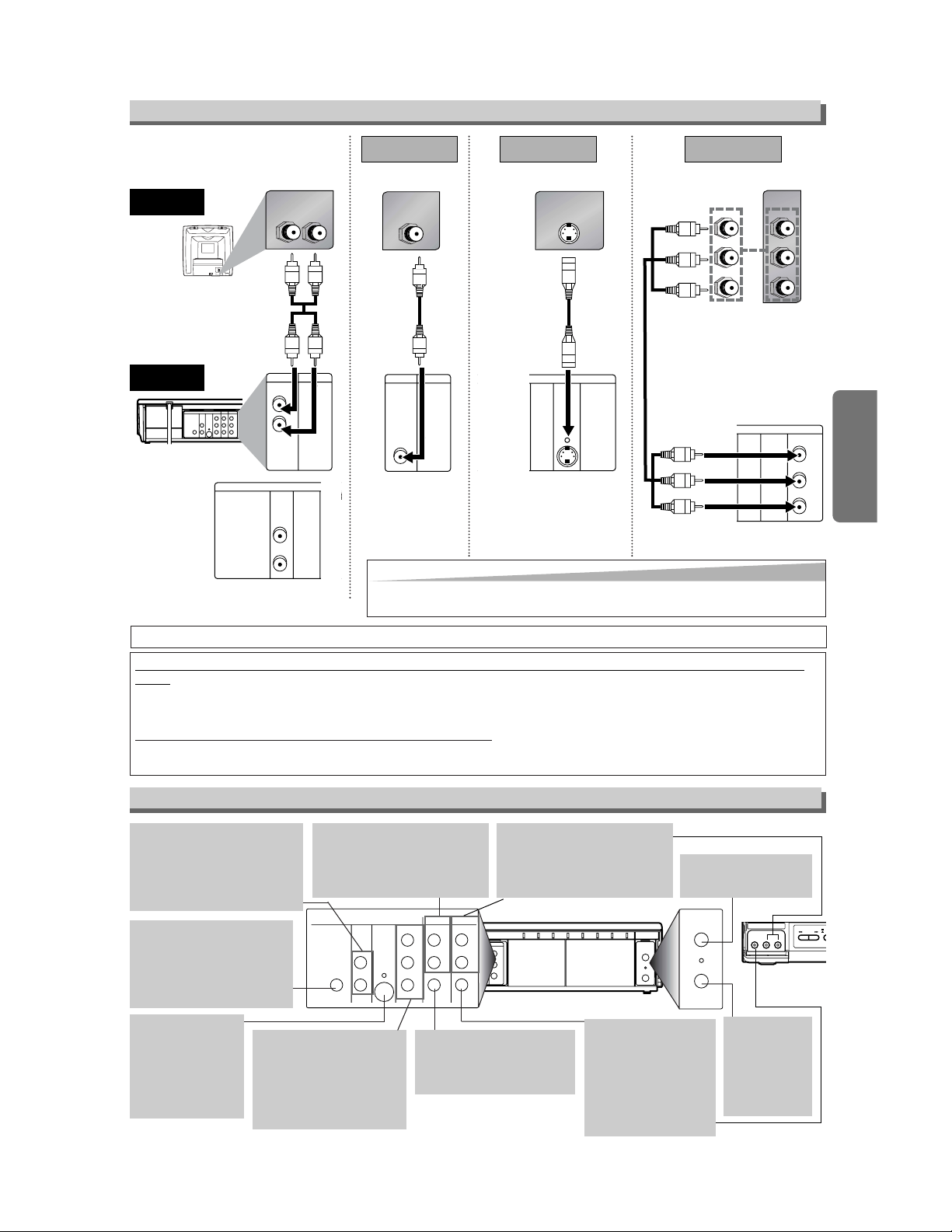
AUDIO IN jacks
Connect audio cables coming
from the audio out jacks of a
camcorder, another VCR, or an
audio source here.
DVD ANALOG AUDIO OUT
jacks
Connect the supplied audio
cables here through the Audio
In jacks of a television or other
audio equipment. (DVD only)
DVD/VCR AUDIO OUT jacks
Connect the supplied audio
cables here through the audio
In jacks of a television or other
audio equipment.
ANT IN jack
Connect your antenna
or cable box here.
ANT OUT jack
Connect the
supplied Round
Coaxial cable to
the antenna
input jack on
your TV.
DVD/VCR VIDEO OUT jack
Connect the supplied yellow
video cable here through
the TV’s video in jack.
COAXIAL jack
Connect an optional coaxial
digital audio cable here
through the coaxial digital
audio in jack of a decoder or
audio receiver. (DVD only)
VIDEO IN jack
Connect a cable com-
ing from the video out
jack of a camcorder,
another VCR, or an
audio-visual source
(laser disc player, video
disc player, etc.) here.
S-VIDEO OUT jack
Connect an optional
S-Video cable here
through the S-video
in jack of a televi-
sion. (DVD only)
COMPONENT VIDEO
OUT jacks
Connect optional component
video cables here through
the component video in
jacks of a television.
(DVD only)
Front & Rear Terminals
DIGITAL
AUDIO OUT
COAXIAL
ANT-OUT
ANT-IN
AUDIO
OUT
DVD VCR
DVD/VCR
S-VIDEO
OUT
COMPONENT
VIDEO OUT
AUDIO IN
VIDEO IN
AUDIO OUT
VIDEO OUT
L
LY
C
B/
P
B
C
R/
P
R
L
RR
R
AUDIO IN
LR
VCRDVD/VCR
AUDIO IN
VIDEO IN
AUDIO OUT
VIDEO OUT
L
L
R
R
DIGITAL
AUDIO OUT
COAXIAL
AUDIO
OUT
DVD
S-VIDEO
OUT
COMPONEN
VIDEO OUT
L
R
or
VIDEO IN
VCRDVD/VCR
AUDIO IN
VIDEO IN
AUDIO OUT
VIDEO OUT
L
L
R
R
S-VIDEO IN
DIGITAL
AUDIO OUT
COAXIAL
AUDIO
OUT
DVD
S-VIDEO
OUT
COMPONENT
VIDEO OUT
L
R
Y
C
B/
P
B
C
R/
P
R
DIGITAL
AUDIO OUT
CB
Y
C
R
COMPONENT
VIDEO IN
or
COAXIAL
AUDIO
OUT
DVD
S-VIDEO
OUT
COMPONENT
VIDEO OUT
L
R
Y
C
B/
P
B
C
R/
P
R
PB
Y
P
R
(Analog) AUDIO OUT
VIDEO OUT
TV
Method 1
Good pictureBasic Audio
Method 2 Method 3
Better picture Best picture
S-VIDEO OUT
COMPONENT VIDEO OUT
Video
cable
(supplied)
Audio cable
(supplied)
S-Video
cable
(commercially
available)
Component
Video cables
(commercially
available)
VCR/DVD
Connection to a TV
If your TV is compatible with 480p progressive scanning and you want to enjoy that high quality pic-
ture;
You must select the connection Method 3 above and progressive scanning mode. To set the mode, set “PROGRESSIVE” to
“ON” in the DISPLAY menu so that “P.SCAN” will appear on the display of this unit. (The progressive scanning is not avail-
able in the VCR mode.) See page 23 for more details.
If your TV is not compatible with progressive scanning;
Use this unit in interlace mode. Make sure that no “P.SCAN” is on the display of this unit. If so, set “PROGRESSIVE” to
“OFF” in the DISPLAY menu so that “P.SCAN” on the display of this unit will disappear.
REW FF
S
T
E
J
AV IN 2
VIDEO L(MONO)-AUDIO-R
[Back of VCR/DVD]
[Front of
VCR/DVD]
•
The COAXIAL,
DVD AUDIO OUT,
S-VIDEO OUT, and COMPONENT VIDEO OUT jacks are only useful in DVD mode.
Hint
Hint
• Connect this unit directly to the TV. If the A/V cables are connected to a
VCR, pictures may be distorted due to the copy protection system.
Setup
–
10
–
EN
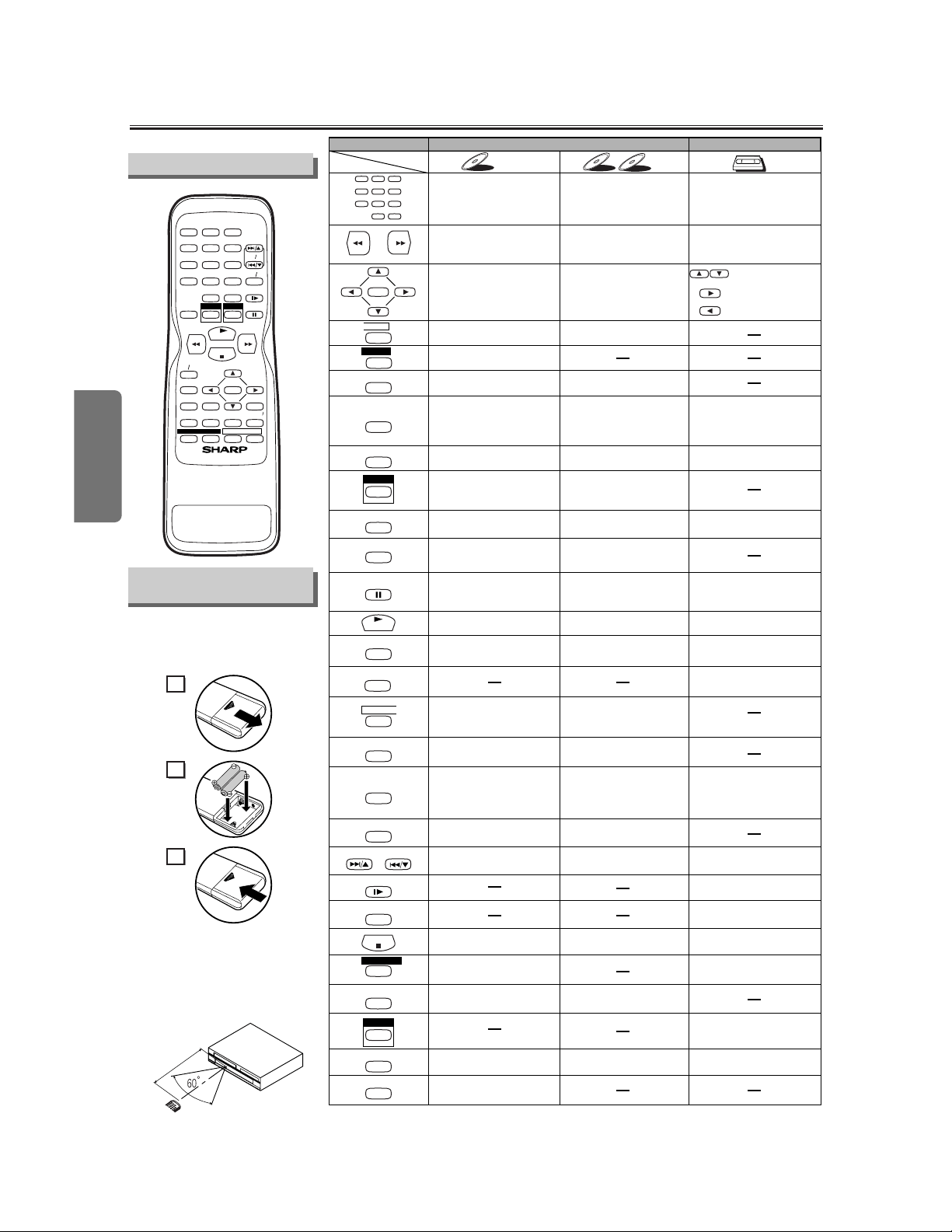
About the Remote Control and Front PanelAbout the Remote Control and Front Panel
• To turn the unit on or off • To turn the unit on or off • To turn the unit on or off
• To display the current disc
mode
• To display the current disc
mode
• To display the current time,
tape counter, and channel
•
To select chapter or title directly
• To select track directly
• To select camera angles on
a disc
• To select subtitles on a disc
• To put the VCR into standby
mode for a timer recording
• To select audio languages on
a disc
• To select STEREO,
L-CH or R-CH (CD)
• To repeat between your
chosen point A and B
• To repeat between your
chosen point A and B (CD)
• To play a chapter or title
repeatedly
• To play a track or disc
repeatedly (CD)
• To play a track, group or disc
repeatedly (MP3)
• To set black level on/off
• To set virtual surround on/off
• To set Rapid Play on/off
• To arrange the playing
order or play randomly
• To set virtual surround on/off
• To call up the MP3 menu
(MP3)
• To magnify the part of picture
(x2/x4)
• To call up the Menu
on a disc
• To call up the VCR Menu
• To call up the Top Menu
on a disc
• To return to the previous
operation on the DVD setup
menu
• To return to the previous
operation on the DVD setup
menu
•
To search chapter, title or time
• To rapidly return to
a location of disc
• Search the markers.
• To search track
• To search time (CD)
• To rapidly return to
a location of disc
• Search the markers. (CD)
• To select the recording speed
• To select channel
• The +10 button has no effect
in VCR mode.
• To clear the markers
• To clear the markers (CD)
• To remove status number
in program input
• To clear the numbers
entered incorrectly
• To clear the numbers
entered incorrectly
• To exit the VCR Menu
• To reset the tape counter
• To search forward/backward
through a disc
•
To begin slow forward/reverse
playback during the pause mode
• To search forward/backward
through a disc
• To forward/backward a tape
• To advance playback
one frame at a time
• To advance playback
one frame at a time
• To pause disc playback
• To pause disc playback
• To pause tape playback or
recording
• To stop playback • To stop playback
• To stop playback or recording
• To skip chapters • To skip tracks
•
To return to the top file of the
highest hierarchy in the program
and MP3 menu (MP3)
• To change channels
•
To adjust the tracking manually
during playback
• To begin disc playback • To begin disc playback
• To begin tape playback
• To call up the DVD setup
menu
• To call up the index or time
search menu
• To call up the DVD setup
menu
• To activate the remote control
in DVD mode
• To select the DVD output
mode
•
To activate the remote control
in DVD mode
• To select the DVD output
mode
• To select VCR position or
TV position
• To select CD/MP3 position
or TV position
• To select DVD position or
TV position
• To view the tape
in slow motion
• To select the VCR output
mode
• To activate the remote control
in VCR mode
• To start a recording or
One Touch Recording
• To move the cursor and
determine its position
• To move the cursor and
determine its position
• To select an item
on the VCR Menu
• To advance to the next
VCR Menu
•
To go back one step during
clock and timer setting
VCR mode
DVD mode
DVD-V
DVD-V
CD
CD
MP3
MP3
VCR
VCR
Button
(Alphabetical order)
Disc/Tape
123
456
789
0 +10
ENTER
A
-
B
ANGLE
AUDIO
CLEAR/
C.RESET
DISPLAY
DVD
MENU
MODE
PLAY
POWER
REC/OTR
REPEAT
RETURN
SEARCH
MODE
SETUP
SLOW
SPEED
STOP
SUBTITLE
T-SET
TOP MENU
VCR
VCR/TV
ZOOM
PAUSE
SKIP/CH. SKIP/CH.
STOP
PLAY
123
456
789
0 +10
POWER
SPEED AUDIO
DISPLAY
SKIP CH.
SLOW
VCR TV
PAUSE
REC OTR
ENTER
RETURN
TOP MENU
MENU
SETUP
CLEAR
C.RESET
ZOOM
MODE
SEARCH
MODE
A
-
B
ANGLE
REPEAT
SUBTITLE
T-SET
DVDVCR
VCR/ DVD COMBINATION
2
1
3
Installing the Batteries
for the Remote Control
Install two AA batteries
(supplied) matching the polarity indi-
cated inside battery compartment of
the remote control.
Remote Control
Within about
23 feet (7m)
Remote
control
Keep in mind the following when using
the remote control:
• Make sure that there is no obsta-
cle between the remote and the
remote sensor on the unit.
• Use within the operating range
and angle, as shown.
–
11
–
EN
Setup
Because this product is a combination of a VCR and a DVD player, you must select first which
component you wish to operate with the OUTPUT button.
CH
( TRACKING )
VCR
OUTPUT
DVD
STOP PLAY
REW FF PLAY REC TIMER
STOP/
EJECT
POWER
OPEN/CLOSE
AV IN 2
VIDEO L(MONO)-AUDIO-R
VCR
OUTPUT
DVD
OUTPUT button
DVD OUTPUT
light
VCR OUTPUT
light
STOP
PLAY
123
456
789
0 +10
POWER
SPEED AUDIO
DISPLAY
SKIP/CH.
SLOW
VCR/TV
PAU S E
REC/OTR
ENTER
RETURN
TOP MENU
MENU
SETUP
CLEAR/
C.RESET
ZOOM
MODE
SEARCH
MODE
A
-
B
ANGLE
REPEAT
SUBTITLE
T-SET
DVDVCR
DVD button
VCR button
VCR/DVD COMBINATION
DVD
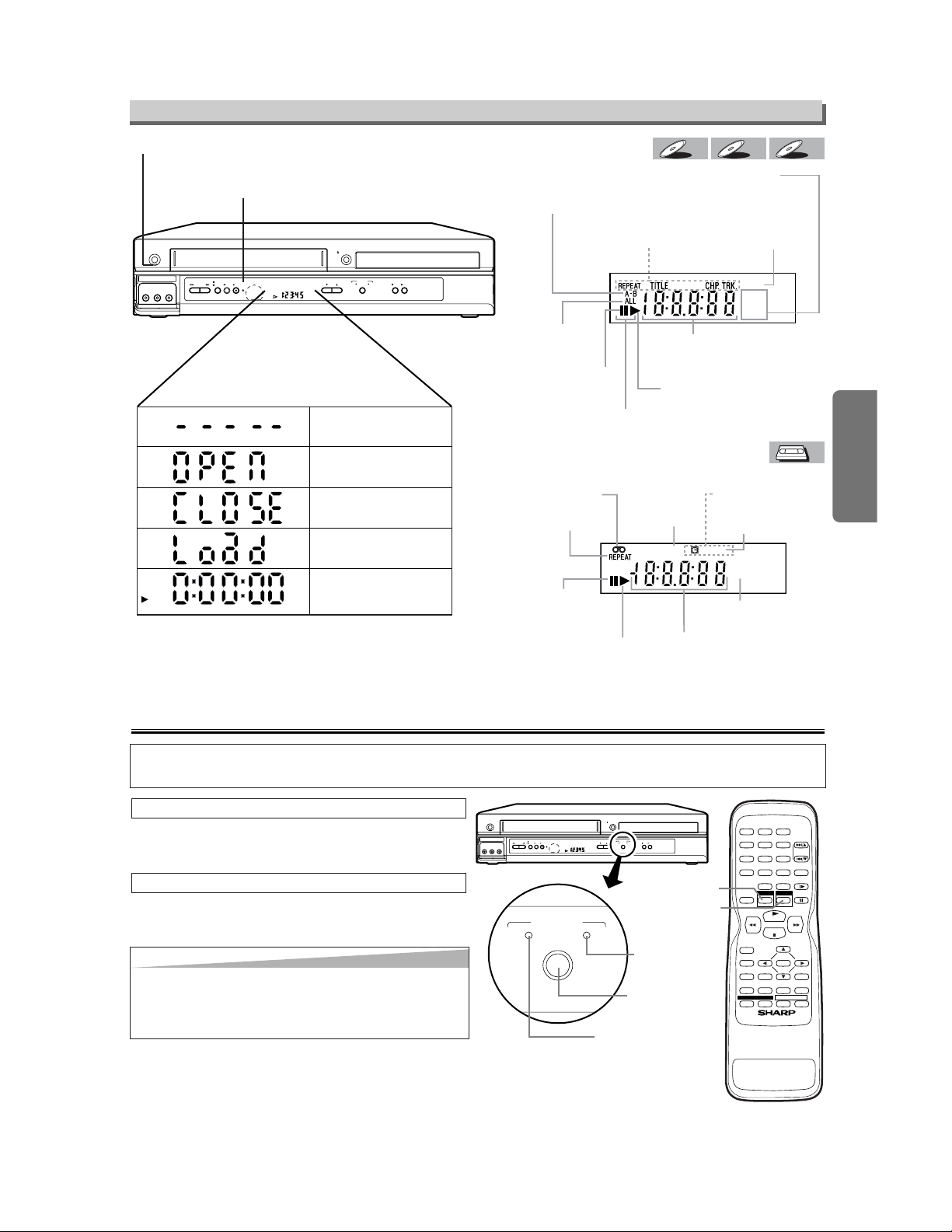
Press the VCR button on the remote control.
(Verify that the VCR OUTPUT light is lit.)
VCR MODE
Press the DVD button on the remote control.
(Verify that the DVD OUTPUT light is lit.)
DVD MODE
CH
( TRACKING )
VCR
OUTPUT
DVD
STOP PLAY
REW FF PLAY REC TIMER
STOP/
EJECT
POWER
OPEN/CLOSE
AV IN 2
VIDEO L(MONO)-AUDIO-R
DVD
Lights up when the inserted
disc is being played back.
Displays a type of the disc
which is inserted on the tray.
• DVD: DVD disc
• CD: Audio CD, MP3
Lights up when the
inserted disc comes
to a pause.
Lights up when the
A-B repeat function
is on.
Lights up when the
repeat function is on.
Lights up when playing back
in slow mode. (DVD)
Displays how long the current title
or track has been played back. When
a chapter or track is switched, the
number of a new title, chapter or
track is displayed.
Lights up when
the ALL repeat
function is on.
GROUP P.SCAN
DVD
CD
Lights up when the
progressive scan
system is activated.
MP3
MP3
CD
CD
DVD-V
DVD-V
Lights up when the inserted
cassette is being played
back.
Lights up when
the playback is
in still or slow mode.
Lights up during
playback when
the repeat function
is on.
Works as a tape counter(hour,minute,second).
Also displays a channel number,
tape speed, remaining time for OTR or
current time.
VCR REC
PM
Lights up
when a tape is
in the VCR/DVD.
Lights up when
the VCR/DVD is
in VCR position.
This light does not
appear when the
VCR/DVD is in
TV position.
Lights up during a recording.
Flashes when a recording
is paused.
Lights up when
current time is P.M.
Lights up when
the timer recording or an
OTR recording has been set.
VCR
VCR
No disc inserted
/ cannot read disc
Opening the tray
Closing the tray
Loading the disc
When a disc or tape is
being played back
VCR/DVD Switching
Front Panel Display
Lights up when power is on.
Hint
Hint
• Pressing only the OUTPUT button on the front
panel DOES NOT switch the mode of the remote
control. You MUST select the correct mode on the
remote control.
Timer light lights up when a
timer recording is set.
Hint
Hint
• To go back one step, press the s button
(during the steps [2] to [7].)
•
Your clock setting will be lost if either there
is a power failure or this unit has been
unplugged for more than 30 seconds.
Hint
Hint
• If you accidentally select Spanish or
French and need English: Press the
MENU button and choose SELEC.
IDIOMA, or SELECTION LANGUE. Press
the B button, and select ENGLISH. Finally,
press the CLEAR/C.RESET button.
–
12
–
EN
Setup
2
2
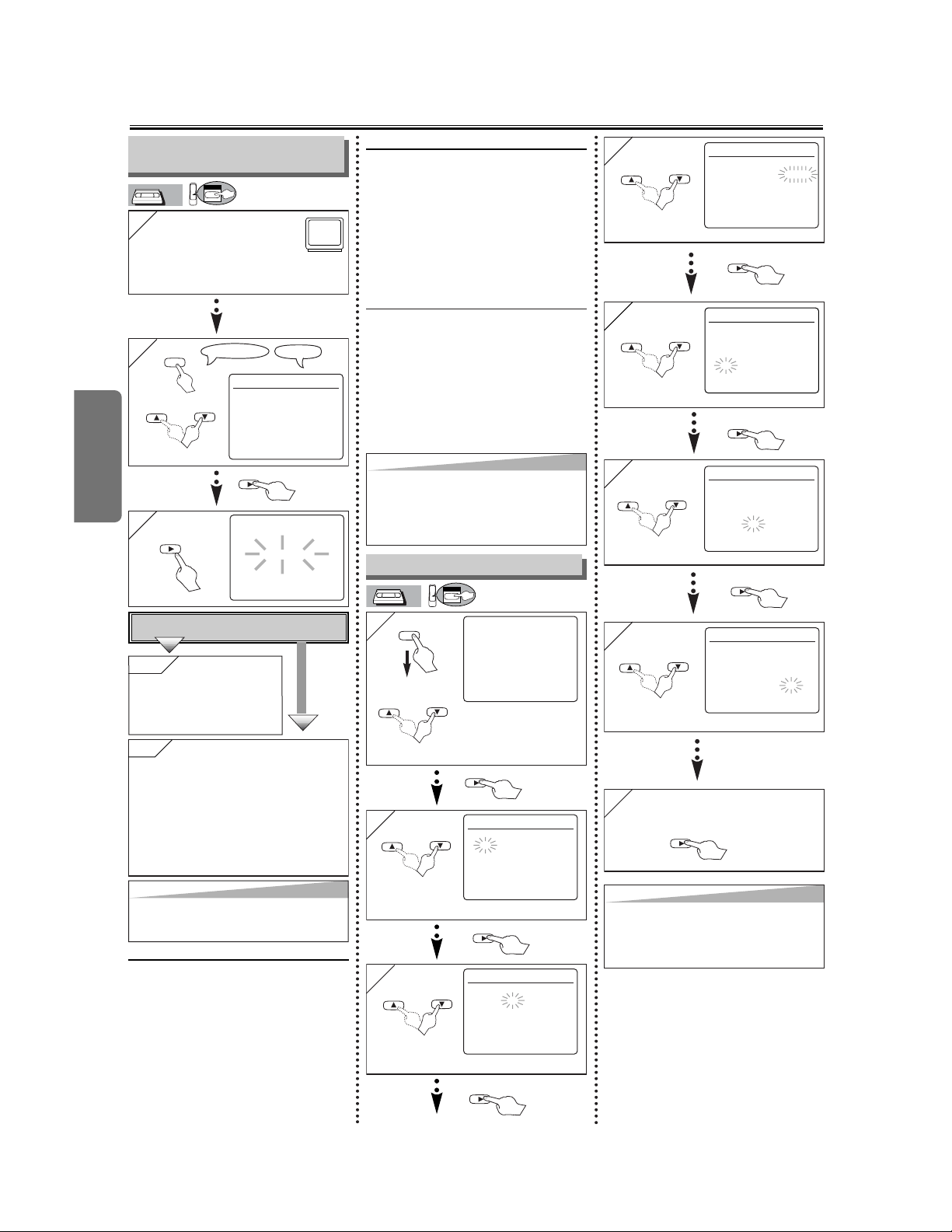
LANGUAGE SELECT
B ENGLISH [ON]
FRANCAIS
ESPAÑOL
Hint
Hint
• Repeat these steps only if either there
was a power failure or this unit has been
unplugged for more than 30 seconds.
1
1
Turn on the TV and set it
to channel 3.
• If channel 3 is already occupied for broadcasting,
see“RF Output Channel” section.
POWER
3
3
CH 01
AUTO SET UP
To Preset the Channel Again
1) Press the MENU button until the main
menu appears.
2) Select "CHANNEL SET UP" by pressing
the K or L button. Then, press the B but-
ton.
3)
Select "AUTO SET UP" by pressing the
K or L button. Then, press the B button.
After scanning, the tuner stops on the low-
est memorized channel.
To Change the On-Screen Language
1) Press the MENU button until the main
menu appears.
2) Select "LANGUAGE SELECT" by press-
ing the K or L button. Then, press the B
button.
3)
Select "ENGLISH" , "FRANCAIS" or
"ESPAÑOL" by pressing the K or L but-
ton. Then, press the CLEAR/C.RESET
button.
No
No
Please wait for a few minutes.
After scanning...
• The tuner stops on the lowest memorized
channel.
• You can select only the channels memo-
rized in this unit by using the SKIP/CH.
(K/L) buttons.
• If "AUTO SET UP" appears on the TV
screen again, check the cable connections.
Then, press the B button once again.
Y
Y
es
es Press the MENU
button to exit
• Refer to “Hint for Cable Box
or Satellite Box” section on
page 8.
Do you connect the cable from the cable box or
the satellite box to the VCR/DVD’s ANT IN jack?
YES
NO
Turn on the unit for the first
time
TV ScreenRemote Control
Clock Set Up
To Select a Channel
You can select a channel by directly
entering channel using the Number but-
tons on the remote control.
Notes for using the Number buttons:
• When selecting cable channels which
are higher than 99, enter channel
numbers as a three-digit number.(For
example: 117, press 1,1,7)
• You must precede single-digit channel
numbers with a zero (For example:
02, 03, 04 and so on).
VCR
VCR
Preparation for Use
5
5
4
4
CLOCK SET
MONTH DAY YEAR
0 3 / 1 5 2 0 0 4
HOUR MINUTE AM/PM
– – : – – – –
CLOCK SET
MONTH DAY YEAR
0 3 / 1 5 MON 2 0 0 4
HOUR MINUTE AM/PM
0 5 : – – – –
6
6
CLOCK SET
MONTH DAY YEAR
0 3 / 1 5 MON 2 0 0 4
HOUR MINUTE AM/PM
0 5 : 4 0 – –
7
7
CLOCK SET
MONTH DAY YEAR
0 3 / 1 5 MON 2 0 0 4
HOUR MINUTE AM/PM
0 5 : 4 0 P M AM
B PM
Select the current year
Select “AM” or “PM”
8
8
To exit the CLOCK SET
screen.
Select the current hour
Select the current minute
or
or
or
or
or
VCR
1
1
-MENU-
TIMER PROGRAMMING
AUTO REPEAT [OFF]
CHANNEL SET UP
B CLOCK SET
LANGUAGE SELECT
AUDIO OUT
TV STEREO [ON]
SAP
MENU
2
2
CLOCK SET
MONTH DAY YEAR
0 3 / – – – – – –
HOUR MINUTE AM/PM
– – : – – – –
3
3
CLOCK SET
MONTH DAY YEAR
0 3 / 1 5 – – – –
HOUR MINUTE AM/PM
– – : – – – –
Select the current month
Select the current day
• If the clock is not set, the
CLOCK SET screen
appears when you press
the MENU button. In this
case, go to step [2].
VCR
VCR
or
or
or
VCR
Hint
Hint
• When a tape with-
out record tab is
inserted, the
VCR/DVD will start
playback automati-
cally.
• Tracking will be
automatically
adjusted upon play-
back. To adjust the
tracking manually,
press the SKIP/CH.
(K/L) buttons.
–
13
–
EN
VCR Functions
Recording & OTR (One Touch Recording)
Playback
CH
( TRACKING )
VCR
O
REW FF PLAY REC TIMER
STOP/
EJECT
POWER
OPEN/CLOSE
AV IN 2
VIDEO L(MONO)-AUDIO-R
DVD
PLAYB
STOP
PLAY
123
456
789
0 +10
POWER
SPEED AUDIO
DISPLAY
SKIP CH.
SLOW
VCR TV
PAU S E
REC OTR
DVDVCR
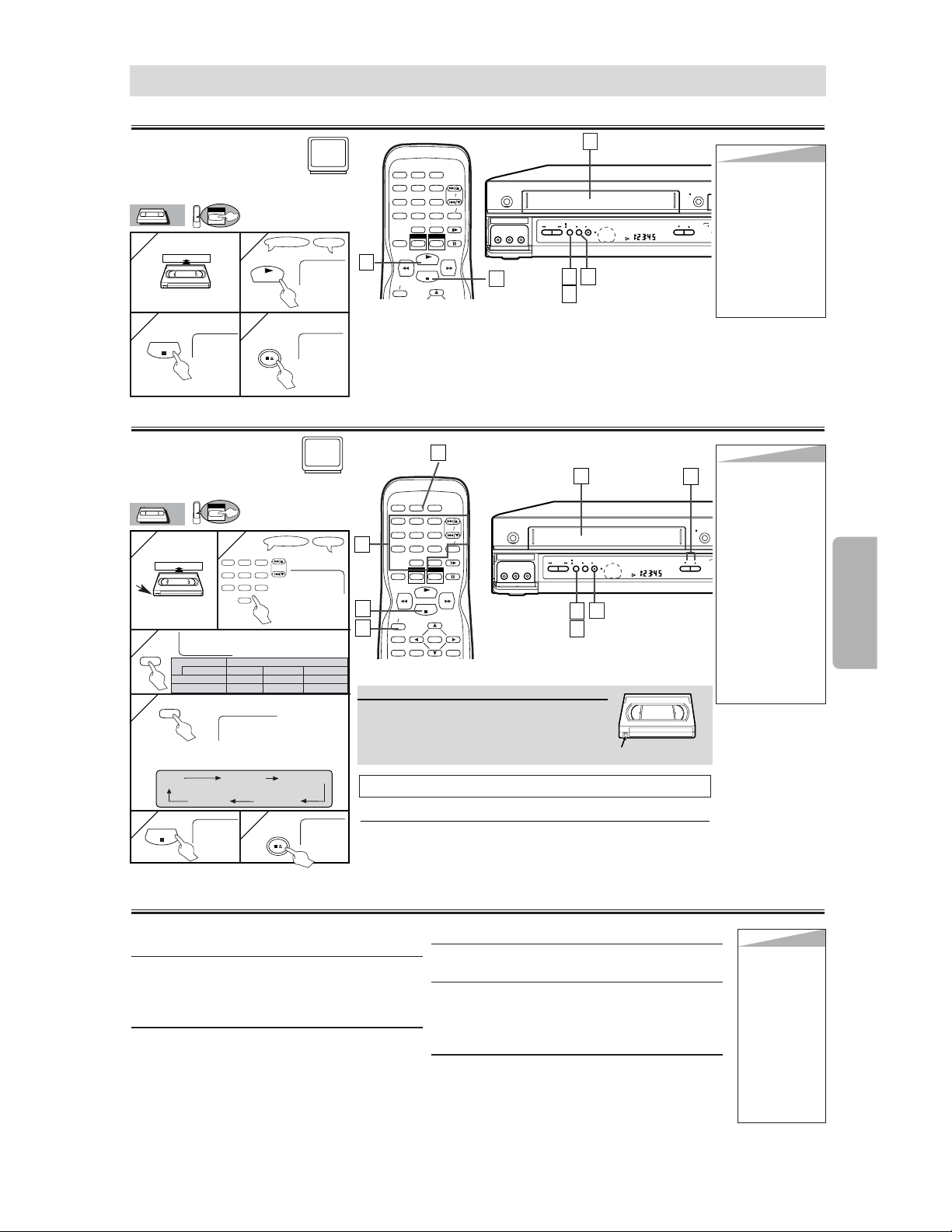
Before:
Turn on the TV and set it to
channel 3.
• If channel 3 is already occupied for broad-
casting, see “RF Output Channel” section.
* See page 11 to switch
the VCR/DVD function.
1
1
2
2
3
3
4
4
1
1
2
2
STOP
EJECT A
3
3
4
4
TV ScreenRemote Control
PLAY
STOP
STOP/EJECT
[VCR/DVD]
/
Accidental erasure prevention
To prevent accidental recording on a record-
ed cassette, remove its record tab. To record
on it later, cover the hole with cellophane
tape.
Record tab
• Select the
desired channel
1
1
2
2
with tab
SP
• Select the desired tape
speed
3
3
REC
4
4
Type of tape T60 T120 T160
SP mode 1hour 2hours 2-2/3hours
SLP mode 3hour 6hour 8hour
Tape Speed Recording/Playback Time
CH12
TV ScreenRemote Control
123
456
789
0
SPEED
REC/OTR
REC OTR(0:30) OTR(1:00).....
(Normal recording)
OTR
(
8:00
)
OTR
(
7:30
)
5
5
6
6
STOP
STOP/EJECT
[VCR/DVD]
/
Before:
Turn on the TV and set it to
channel 3.
• If channel 3 is already occupied for
broadcasting, see “RF Output Channel” section.
3
3
2
2
CH
( TRACKING )
VCR
REW FF PLAY REC TIMER
STOP/
EJECT
POWER
OPEN/CLOSE
AV IN 2
VIDEO L(MONO)-AUDIO-R
DVD
STOP
PLAY
123
456
789
0 +10
POWER
SPEED AUDIO
DISPLAY
SKIP CH.
SLOW
VCR TV
PAUSE
REC OTR
ENTER
RETURN
TOP MENU
MENU
SETUP
CLEARSEARCH
DVDVCR
1
1
5
5
6
6
5
5
2
2
2
2
3
3
4
4
Hint
Hint
• To view one chan-
nel while recording
another
1) While you are
recording on the
VCR/DVD, press the
VCR/TV button so
that the “VCR” light
disappears on the
VCR/DVD.
2) At the cable box
or satellite box,
select the channel
you want to view.
• If you have connect-
ed the VCR/DVD to
a cable box or satel-
lite box, refer to
“Hint for Cable Box
or Satellite Box”
section on page 8.
STOP
EJECT A
You can select a fixed recording time by press-
ing the REC/OTR button repeatedly.
To cue or review picture during playback
(Picture Search)
Press the g or h button.
• Press it again and the VCR/DVD will search in
super high speed. (in the SLP mode only)
To freeze the picture on TV screen during play-
back (Still mode)
Press the PAUSE button. Each time you press the
button, the picture will be forwarded by one frame.
• If the picture begins to vibrate vertically during the
still mode, stabilize the picture by pressing the
SKIP/CH. (K/L) buttons.
• If the picture is distorted or rolling vertically, adjust
the vertical hold control on your TV, if equipped.
Counter Reset
Press the CLEAR/C.RESET button.
To play back in slow motion
Press the SLOW button during playback or the still
mode.
• If the noise bars appear on the TV screen, you can
reduce it by pressing the SKIP/CH. (K/L) buttons.
Auto Rewind
When a tape reaches its end during playback, fast-for-
ward, or recording (except timer recording and One
Touch Recording), the tape will automatically rewind
to the beginning. After rewinding finishes, the
VCR/DVD will eject the tape.
Other Operations
Hint
Hint
•
Still/Slow/Pause
mode will be
automatically
cancelled after 5
minutes to pre-
vent damage to
the tape and the
video head.
• To return to
playback from
the Picture
Search/Still/
Slow mode,
press the PLAY
button.
VCR Functions
4
4
SKIP/CH.
VCR
VCR
VCR
VCR
Yo u CANNOT copy a DVD to a videotape.
To stop recording temporarily (Pause mode)
Press the PAUSE button.
• During the rec-pause mode, five
C
marks appear on the TV
screen. Each
C
mark represents one minute.
• Press it again to resume recording.
VCR
VCR
Hint
Hint
• To go back one step, press the
s
button (during
the steps [3] to [9].)
–
14
–
EN
VCR Functions
On-Screen Operations
1
1
To call up the main menu
4
4 To exit the menu
-MENU-
B TIMER PROGRAMMING
AUTO REPEAT [OFF]
CHANNEL SET UP
CLOCK SET
LANGUAGE SELECT
2
2
To select an item
-MENU-
TIMER PROGRAMMING
AUTO REPEAT [OFF]
B CHANNEL SET UP
CLOCK SET
LANGUAGE SELECT
3
3
To decide
CHANNEL SET UP
AUTO SET UP
B MANUAL SET UP
MENU
CLEAR/
C.RESET
STOP
PLAY
123
456
789
0 +10
DISPLAY
SKIP CH.
SLOW
VCR TV
PAUSE
REC OTR
ENTER
RETURN
TOP MENU
MENU
SETUP
CLEAR
C.RESET
ZOOM
MODE
SEARCH
MODE
A
-
B
ANGLE
REPEAT
SUBTITLE
T-SET
DVDVCR
VCR/DVD COMBINATION
1
1
4
4
3
3
2
2
MENU
OR
4
4
Recording Features
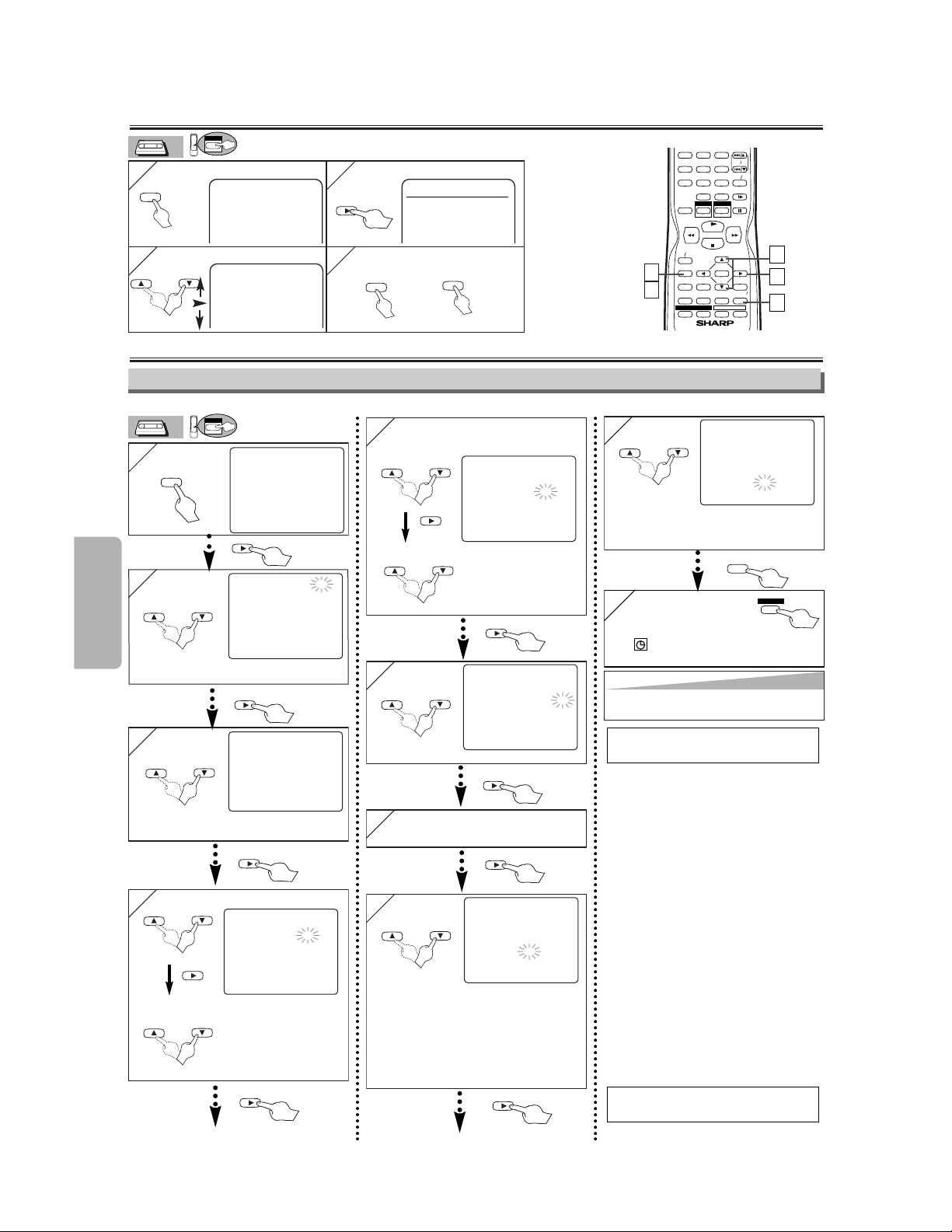
•Insert a tape with its record tab into the VCR/DVD.
8
8
ONE TIME PROGRAM
PROGRAM NUMBER 4
DATE 0 5 / 0 3 MON
START TIME 0 7 : 3 0 PM
END TIME 0 8 : 3 0 PM
CHANNEL 1 6
REC SPEED – –
2
2
PROGRAM NUMBER 4
DATE – – / – –
START TIME – – : – – – –
END TIME – – : – – – –
CHANNEL – –
REC SPEED – –
3
3
PROGRAM NUMBER 4
B ONCE
DAILY
WEEKLY
4
4
Select the desired month
Select the desired day
ONE TIME PROGRAM
PROGRAM NUMBER 4
DATE 0 5 / 0 3 MON
START TIME – – : – – – –
END TIME – – : – – – –
CHANNEL – –
REC SPEED – –
1
1
-MENU-
B TIMER PROGRAMMING
AUTO REPEAT [OFF]
CHANNEL SET UP
CLOCK SET
LANGUAGE SELECT
AUDIO OUT
TV STEREO [ON]
SAP
MENU
Select an empty program
number
Select “ONCE”, “DAILY”
(Mon-Fri), or “WEEKLY”
5
5 Select the desired start time
(hour)
Select the minute
ONE TIME PROGRAM
PROGRAM NUMBER 4
DATE 0 5 / 0 3 MON
START TIME 0 7 : 3 0 – –
END TIME – – : – – – –
CHANNEL – –
REC SPEED – –
6
6
ONE TIME PROGRAM
PROGRAM NUMBER 4
DATE 0 5 / 0 3 MON
START TIME 0 7 : 3 0 PM
END TIME – – : – – – –
CHANNEL – –
REC SPEED – –
AM
B PM
Select “AM” or “PM”
7
7
Repeat the procedure in steps 5
and 6 to set the end time.
Select the desired channel
Timer Recording
•
If you have connected the VCR/DVD to a
cable box or satellite box as the
Connection A on page 8, select the VCR
to channel 3 or 4 (the RF output channel
of the VCR). Then, select the desired
channel at the cable box or satellite box.
Leave the cable box or satellite box on for
timer recording.
• You can program one
year in advance.
9
9
ONE TIME PROGRAM
PROGRAM NUMBER 4
DATE 0 5 / 0 3 MON
START TIME 0 7 : 3 0 PM
END TIME 0 8 : 3 0 PM
CHANNEL 1 6
REC SPEED SP B SP
SLP
Select the desired recording speed
10
10
• TIMER light lights up on the front panel,
and appears in the front panel display.
The VCR/DVD will change to the DVD mode.
CLEAR/
C.RESET
SUBTITLE
T-SET
1) Press the SUBTITLE/T-SET button
then, the VCR button on the remote
control.
2) Select main menu by pressing the
MENU button.
3) Select "TIMER PROGRAMMING"
by pressing the K or L button.
Then, press the B button.
4) Select the program number which
you want to check by pressing the K
or L button. The details of the pro-
gram you selected will appear on
the TV screen.
• Go to the digit you want to change
by pressing the B or s button.
Then, enter correct numbers by
pressing the K or L button.
• You may cancel the entire program
by pressing the s button while the
program number flashes.
5) Press the CLEAR/C.RESET button
to exit.
6) Press the SUBTITLE/T-SET button
to return to timer stand-by mode.
Press the STOP/EJECT button on
the VCR/DVD.
To cancel a Timer Recording in
progress
To Check, Correct, or Cancel a
Timer Program
VCR
VCR
VCR
VCR
or
or
or
or
or
or
or
or
or
or
VCR
VCR
• To set another program after step [9], press the
B
button. Then, continue with step [2].
VCR Functions
EN
Warning: Unauthorized recordings of copyrighted video tapes may be an infringement of copyright laws.
DIGITAL
AUDIO OUT
COAXIAL
ANT-OUT
ANT-IN
AUDIO
OUT
DVD DVD/VCR VCR
S-VIDEO
OUT
COMPONENT
VIDEO OUT
AUDIO OUT
VIDEO OUT
AUDIO IN
VIDEO IN
L
LY
C
B
C
R
L
RR
ANT-OUT
ANT-IN
VCRDVD/VCR
COMPONENT
VIDEO OUT
AUDIO IN
VIDEO IN
AUDIO OUT
VIDEO OUT
LY
C
B
C
R
L
RR
R
AUDIO OUT
VIDEO OUT
L
R
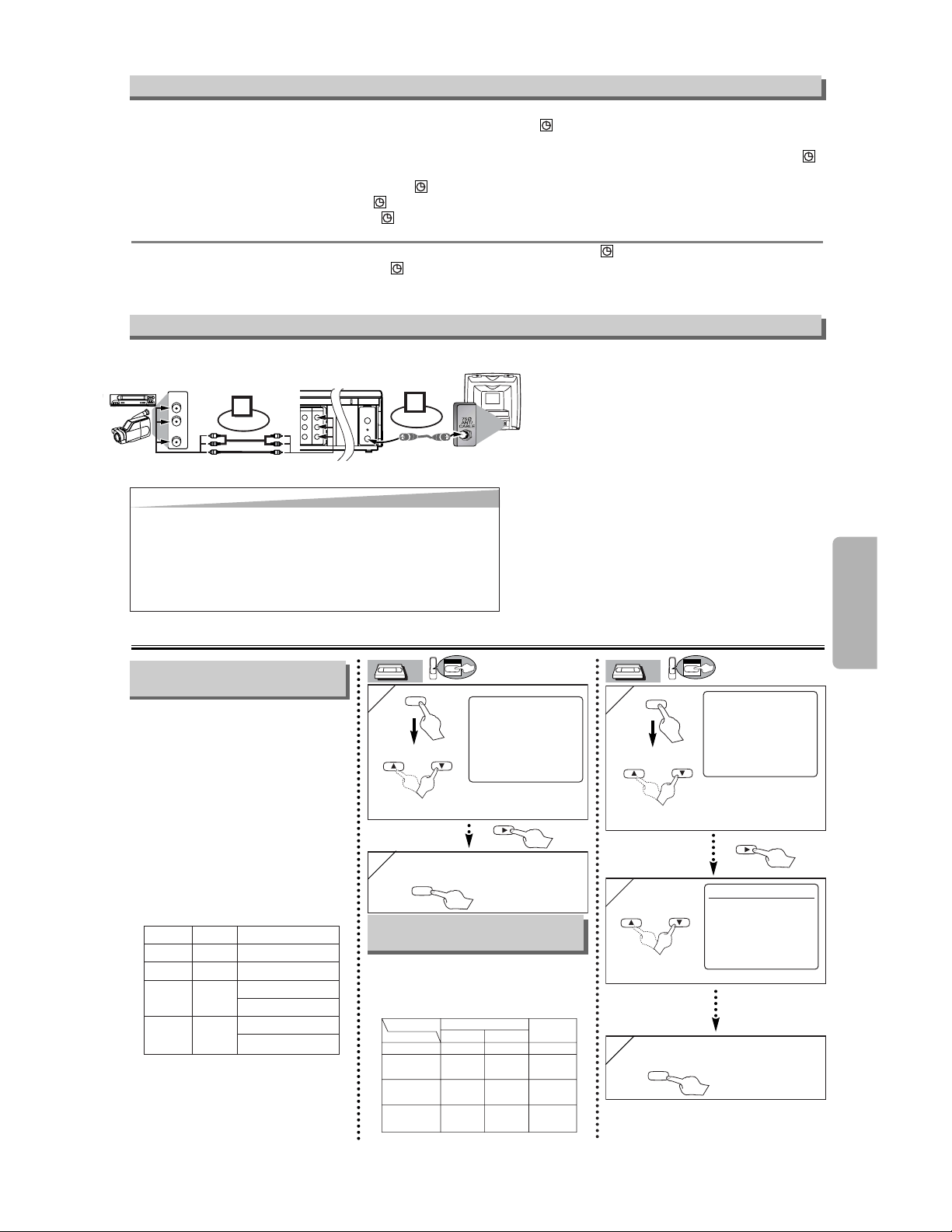
Connect
1
Audio/Video cables
(supplied)
Round Coaxial cable
(supplied)
(Back of TV)
(Back of Recording VCR/DVD*)
(Back of another source)
or
2
Connect
*Front input jacks are also available
1) Insert a pre-recorded tape into the playing VCR.
2) Insert a tape with its record tab into the recording
VCR/DVD.
3) Press
the SPEED button on the remote control of the
recording VCR/DVD to select the desired recording
speed (SP/SLP).
4)
Select the "L1" or "L2" position on the recording VCR/DVD.
•
To use the input jacks on the back of this unit, select
"L1" position by pressing [0], [0], [1] on the remote
control or the SKIP/CH. (
KK
/
LL
) buttons.
• To use the input jacks on the front of this unit, select
"L2" position by pressing [0], [0], [2] on the remote
control or the SKIP/CH. (
K
K
/
LL
) buttons.
5) Press the REC button on the recording VCR/DVD.
6) Begin playback of the tape in
another source
.
7) To stop recording, press the
STOP/EJECT button on
the recording VCR/DVD, then stop playback of the tape
in
another source
.
Hint
Hint
• For best results during dubbing, use the front panel controls whenever possible. The
remote control might affect another source’s operation.
• Always use video-quality shielded cables with RCA-type connectors. Standard audio
cables are not recommended.
• You can use a video disc player, satellite receiver, or other audio/video component with
A/V outputs.
• “L1” or “L2” is found before the lowest memorized channel. (Example: CH02)
• “L2” input jacks are on the front of this VCR/DVD.
Copying a Video Tape
1
1
-MENU-
TIMER PROGRAMMING
AUTO REPEAT [OFF]
CHANNEL SET UP
CLOCK SET
LANGUAGE SELECT
AUDIO OUT
B TV STEREO [ON]
SAP
MENU
1
1
-MENU-
TIMER PROGRAMMING
AUTO REPEAT [OFF]
CHANNEL SET UP
CLOCK SET
LANGUAGE SELECT
B AUDIO OUT
TV STEREO [ON]
SAP
MENU
MTS System (Multi-Channel Television Sound)
Select “TV STEREO” or
“SAP”
2
2 To exit the menu.
CLEAR/
C.RESET
2
2
AUDIO OUT
B HIFI [ON]
MONO
Select “HIFI” or “MONO”
When You Receive or Record a
Program Broadcast in MTS
When You Play Back a Tape
Recorded in Hi-Fi Stereo
• When you receive a broadcast on
the VCR, you can check the type
of the broadcast by pressing the
DISPLAY button.
• When "TV STEREO" or "SAP"
selection is valid, select them by
following steps. This selection is
needed when you record the pro-
gram.
• SAP means Second Audio
Program (usually second lan-
guage).
Type of
broadcast
Regular
(monaural audio)
Bilingual
broadcast
Stereo &
Bilingual
broadcast
Stereo
broadcast
Display on the
TV screen
-None-
STEREO
STEREO
SAP
SAP
STEREO/SAP
Selection
-Invalid-
-Invalid-
TV STEREO
(main audio program)
SAP
(second audio program)
TV STEREO
(stereo main audio program)
SAP
(second audio program)
• If you have connected a stereo TV to
this VCR/DVD, select "STEREO".
• If you have connected a monaural TV
to this VCR/DVD, select "MONO".
STEREO
Your Selection
Type of recorded tape
non Hi-Fi tapes
Hi-Fi tapes
recorded in
Hi-Fi stereo
Hi-Fi tapes
recorded second
audio program
Hi-Fi tapes
recorded main
audio program
MONO
Monaural
L+R
Main audio
program
Second audio
program
Monaural
R-channelL-channel
R
Main audio
program
Second audio
program
Monaural
L
Main audio
program
Second audio
program
3
3 To exit the menu.
CLEAR/
C.RESET
–
15
–
VCR
VCR
VCR
VCR
or
or
or
VCR VCR
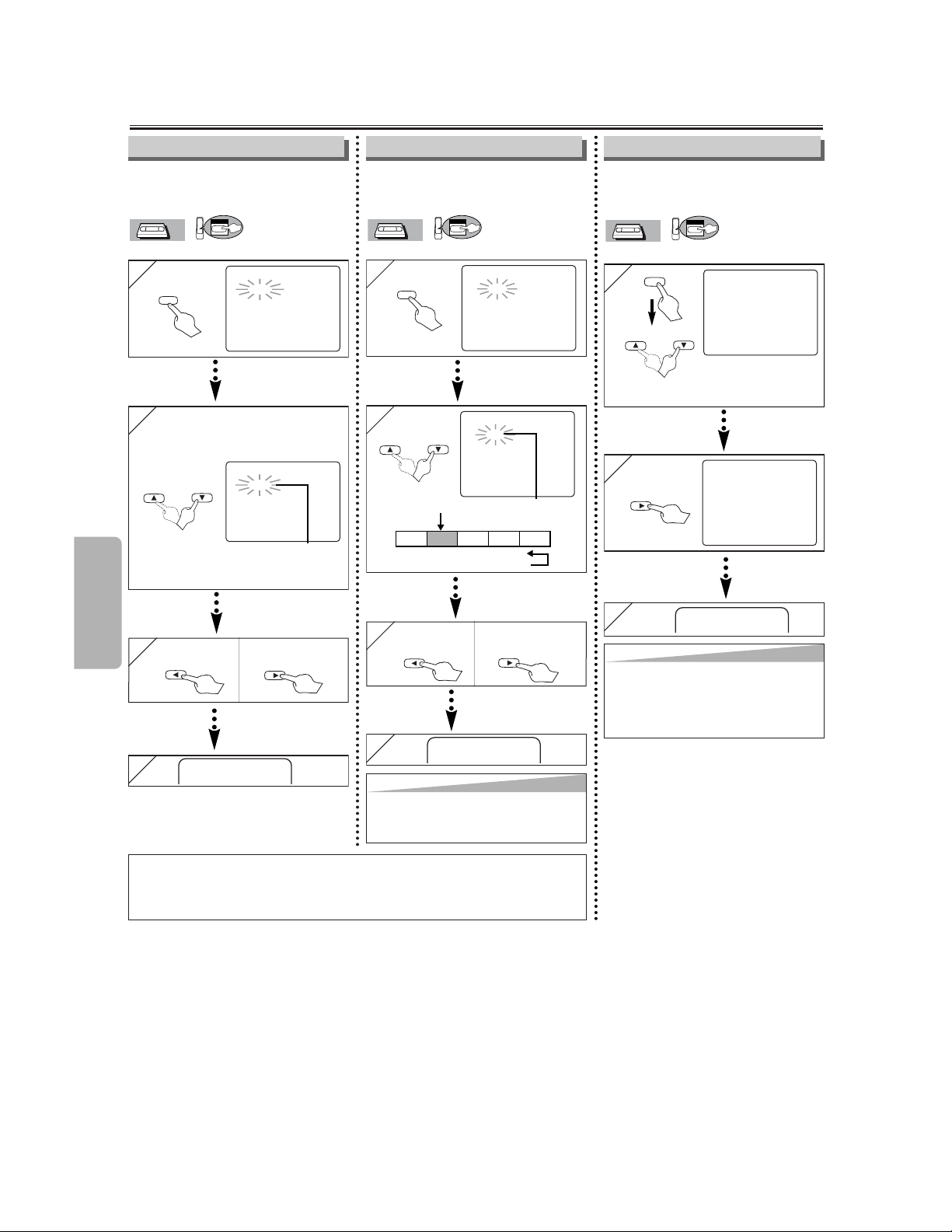
• If there is a power failure or the VCR/DVD has been unplugged for more than 30 seconds, the clock setting and all timer settings will be lost.
• If a tape is not in the VCR/DVD or does not have the record tab, the TIMER and lights flash and timer recording cannot be performed.
Please insert a recordable tape.
• If a tape ends during timer recording, the VCR will stop, eject the tape, and switch to the DVD mode automatically as the TIMER and
lights flash. (If the DVD power is off, the VCR will become STANDBY status).
• When all timer recordings are finished, the TIMER and lights will flash.
• When timer recordings are set, theTIMER and lights will appears. To use the VCR as usual until the time for the recording, press the
SUBTITLE/T-SET button so that the TIMER and lights disappear. Press the VCR/TV button to choose the VCR position. Select either
VCR or DVD mode, then continue with the other features as described in this manual.
If you want to use the DVD player during a VCR timer recording or while the TIMER and lights are on or flashes.
• You can use the DVD player while the TIMER and lights are on or flashes, or during a timer recording. Press the POWER button to
turn on the VCR/DVD. Press the DVD button on the remote control to choose DVD mode, then continue with the other DVD features as
described in this manual. You don’t have to set the TIMER off to use the DVD only.
Hint for Timer Recording
–
16
–
EN
VCR Functions
Special Features
You can specify the number of pro-
grams to be skipped.
• Insert a tape into this unit.
VCR
VCR
VCR
1
1
TIME SEARCH
– : – –
SEARCH
MODE
2
2 Select the desired length of
time for fast forwarding or
rewinding
TIME SEARCH
2 : 5 0
Hint f
Hint f
or
or
Timer Sear
Timer Sear
c
c
h & Inde
h & Inde
x Sear
x Sear
c
c
h
h
• These functions are not available during recording.
• Press the STOP button to stop the search.
• If the end of the tape is reached during a Search, this unit will cancel the search and rewind the tape.
1
1
INDEX SEARCH
– –
2
2
INDEX SEARCH
0 3
3
3
1
1
-MENU-
TIMER PROGRAMMING
B AUTO REPEAT [OFF]
CHANNEL SET UP
CLOCK SET
LANGUAGE SELECT
AUDIO OUT
TV STEREO [ON]
SAP
MENU
2
2
-MENU-
TIMER PROGRAMMING
B AUTO REPEAT [ON]
CHANNEL SET UP
CLOCK SET
LANGUAGE SELECT
AUDIO OUT
TV STEREO [ON]
SAP
Hint
Hint
• To cancel Auto Repeat, follow steps [1]-[2] above.
Then, press the
B
button, so that [OFF] appears
beside AUTO REPEAT. Press the
CLEAR/C.RESET button to exit.
• If menu remains on the TV screen at step [3],
press the CLEAR/C.RESET button to exit.
You can repeat playback of a
whole tape automatically.
• Insert a tape into this unit.
VCR
VCR
VCR
Pro.1 Pro.2 Pro.3 Pro.4 Pro.5
02 01 01 02 03
Beginning
of tape
End
of tape
CURRENT PROGRAM
INDEX MARK
Time Search Index Search Auto Repeat
x2 (Twice)
SEARCH
MODE
x1 (Once)
0:01~ 9:59
(1 minute~9 hours
and 59 minutes)
01 ~ 20
To rewind To fast forward
4
4
After searching,
PLAY B
3
3
To rewind To fast forward
4
4
After searching,
3
3
AUTO REPEAT B
PLAY B
Hint
Hint
• This unit stores index mark at the beginning of
the recording. There should be time gap between
two index marks for the Index Search.
You can specify the time for fast
forwarding or rewinding.
• Insert a tape into this unit.
VCR
VCR
VCR
or
or
or
–
17
–
EN
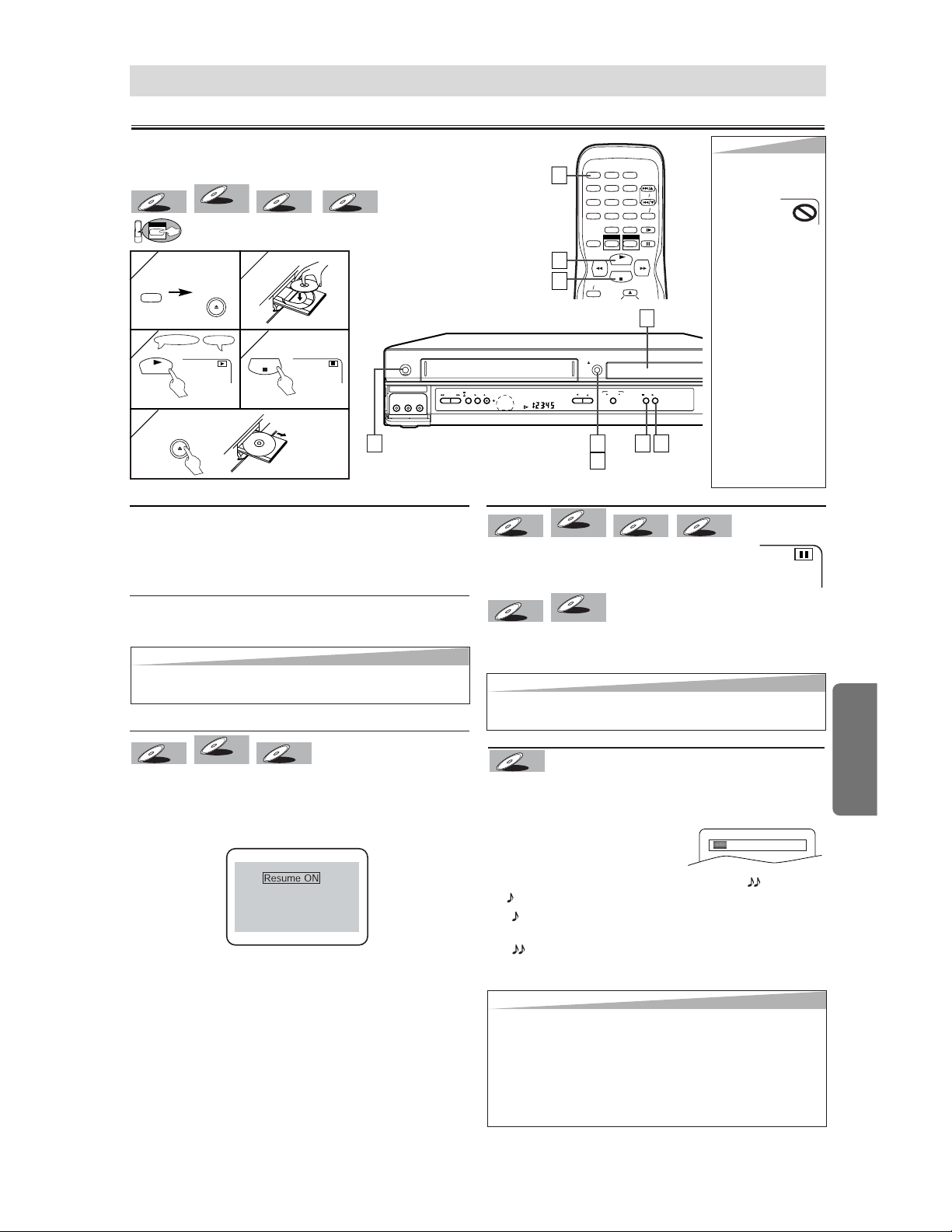
DVD Functions
Playback
CH
( TRACKING )
VCR
OUTPUT
DVD
STOP PLAY
REW FF PLAY REC TIMER
STOP/
EJECT
POWER
OPEN/CLOSE
AV IN 2
VIDEO L(MONO)-AUDIO-R
DVD
STOP
PLAY
123
456
789
0 +10
POWER
SPEED AUDIO
DISPLAY
SKIP CH.
SLOW
VCR TV
PAUSE
REC OTR
DVDVCR
1
1
3
3
4
4
1
1
2
2
3
3
TV ScreenRemote Control
PLAY
4
4
3
3
1
1
DVD Functions
4
4
5
5
STOP
[VCR/DVD]
OPEN/CLOSE
POWER
[VCR/DVD]
OPEN/CLOSE
DVD menu
DVDs may contain menus to access special features. Press
appropriate Number buttons or use the arrow (K/L/s/B)
buttons to highlight your selection on the DVD main menu
and press the ENTER button to confirm.
Calling up a Menu Screen during Playback
• Press the MENU button to call up the DVD menu.
• Press the TOP MENU button to call up the title menu.
Resume
Press the STOP button. Resume message will appear on
the TV screen.
Press the PLAY button, playback will resume from the point
at which playback was stopped.
• To cancel resume, press the STOP button one more time
during the Stop mode.
• For MP3, playback will resume from the beginning of the
track at which playback was stopped.
CD
CD
DVD-V
DVD-V
VR modeVR mode
VR mode
DVD-V
DVD-V
Paused and Step-by-Step Playback
Press the PAUSE button during playback.
T
T
o contin
o contin
ue pla
ue pla
ybac
ybac
k,
k,
press the PLA
press the PLA
Y
Y
b
b
utton.
utton.
The disc goes forward by one frame each time the PAUSE
button is pressed during the pause mode.
T
T
o contin
o contin
ue pla
ue pla
ybac
ybac
k,
k,
press the PLA
press the PLA
Y b
Y b
utton.
utton.
DVD-V
DVD-V
VR modeVR mode
VR mode
DVD-V
DVD-V
MP3
MP3
CD
CD
DVD-V
DVD-V
VR modeVR mode
VR mode
DVD-V
DVD-V
Press 'PLAY' to play from here.
To play the beginning,
press 'STOP' first and then 'PLAY'.
(
⇒p.19
)
DVD
MP3
MP3
CD
CD
DVD-V
DVD-V
VR modeVR mode
VR mode
DVD-V
DVD-V
2
2
Hint
Hint
• When you play an MP3
file, details on page 19.
• A “prohibited icon” may
appear at the
top-right on
the TV screen
when the operation is
prohibited by the disc or
this unit.
• Some DVDs may be
played from title 2 or 3
due to specific pro-
grams.
• During the playback of a
two-layered disc, pic-
tures may stop for a
moment. This happens
while the 1st layer is
being switched to the
2nd layer. This is not a
malfunction.
• A DVD-RW disc record-
ed in the VR mode may
freeze momentarily dur-
ing playback depending
on how the playlist was
made and edited (delet-
ed titles, repeated
recording).
1
1
5
5
Before:
Turn on the TV, amplifier and any other components which
are connected to this unit. Make sure the TV and audio receiver
(commercially available) are set to the correct channel.
Hint
Hint
• Audio (language) setting cannot be changed while using
this mode.
• Virtual Surround and Black Level settings cannot be
changed while using this mode.
• Virtual Surround does not function while using this mode.
• This feature may not work at some point in a disc.
• When using digital audio connection (COAXIAL), the PCM
sound will be output.
Hint
Hint
•
Set “STILL MODE” to “FIELD” in the Display menu if pictures
in the pause mode are blurred. (Refer to pages 23-24.)
Hint
Hint
• Menu operations may vary depending on the disc. Refer to
the manual accompanying the disc for details.
Rapid Play
Available only on discs recorded in the Dolby Digital format,
Rapid Play plays back in slightly faster/ slower speed while
keeping the sound quality as in the normal playback.
1) During playback, press the
MODE button.
• The current setting appears.
2) Press the ENTER button to switch among (x1.3),
(x0.8) and OFF.
: Plays back approximately at 0.8 times of normal
playback.
: Plays back approximately at 1.3 times of normal
playback.
3) To return to normal playback, press
the PLAY button.
DVD-V
DVD-V
OFF
* See page 11 to switch
the VCR/DVD function.
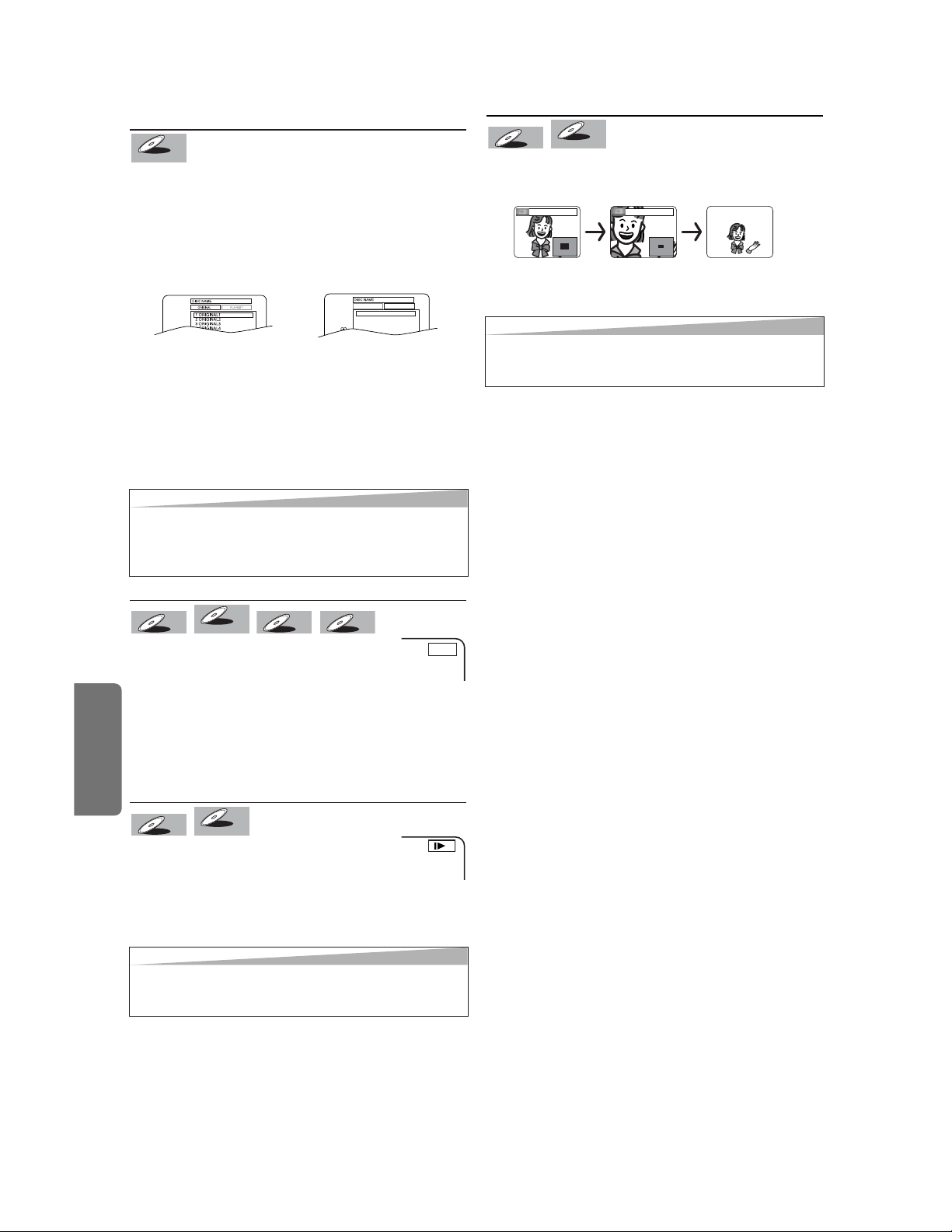
DVD Functions
–
18
–
EN
Fast Forward/Reverse
Press the
g
g
or
h
h
button repeatedly dur-
ing playback to select the required forward or
reverse speed.
T
T
o contin
o contin
ue pla
ue pla
ybac
ybac
k,
k,
press the PLA
press the PLA
Y b
Y b
utton.
utton.
• For DVDs, fast forward or reverse speed is different
depending on the disc. Approximate speed is
1(x2),2(x8),3(x50),4(x100).
• For Audio CDs, approximate speed is x16.
• For MP3, approximate speed is x8.
Slow Forward/Slow Reverse
Press the
gg
or
hh
button repeatedly dur-
ing the pause mode
to select the required for-
ward or reverse speed.
T
T
o contin
o contin
ue pla
ue pla
ybac
ybac
k,
k,
press the PLA
press the PLA
Y b
Y b
utton.
utton.
• Slow forward or reverse speed is different depending on
the disc. Approximate speed is 1(1/16),2(1/8),3(1/2).
DVD-V
DVD-V
VR modeVR mode
VR mode
DVD-V
DVD-V
MP3
MP3
CD
CD
DVD-V
DVD-V
VR modeVR mode
VR mode
DVD-V
DVD-V
E
1
1
Zoom
1) Press the ZOOM button during playback.
2) Press the ZOOM button repeatedly to select the
required zoom factor: x2, x4 or OFF.
3) Use the arrow (
K
K
/
L
L
/
s
s
/
B
B
) buttons to slide the zoomed
picture across the screen.
4) To exit zoom mode, press the ZOOM button to select OFF.
DVD-V
DVD-V
VR modeVR mode
VR mode
DVD-V
DVD-V
x2 x4
Hint
Hint
• [ORIGINAL]: A list of titles which are recorded with a DVD
recorder.
[PLAYLIST]: A list of titles which is made based on the
ORIGINAL edited list.
Hint
Hint
• Zooming function does not work while the disc menu is
showing up.
• x4 zoom is not available on some discs.
Playing the disc recorded in VR mode
(Video Recording format)
DVDs recorded in VR mode can have a PLAYLIST assigned
to alter the order or content to be played. If a PLAYLIST has
been created, you can choose the ORIGINAL or PLAYLIST
option.
1) Press the MENU button in stop mode.
• The current setting screen will appear.
• Pressing the MENU buttton during playback is not
valid.
2) Press the s or B button to select ORIGINAL or
PLAYLIST.
• PLAYLIST will not be displayed when it has not been
made.
• Resume playback will not be possible if you change the
setting.
3) Press the K or L button to select a title, then press the
ENTER button.
• Playback will start.
DVD-V
DVD-V
VR modeVR mode
VR mode
ORIGINAL PLAYLIST
1 PLAYLIST1
2 PLAYLIST2
3 PLAYLIST3
4 PLAYLIST4
5 PLAYLIST5
6 PLAYLIST6
Hint
Hint
• Set “STILL MODE” to “FIELD” in the Display menu if pic-
tures in the slow playback mode are blurred.
(Refer to pages 23-24.)
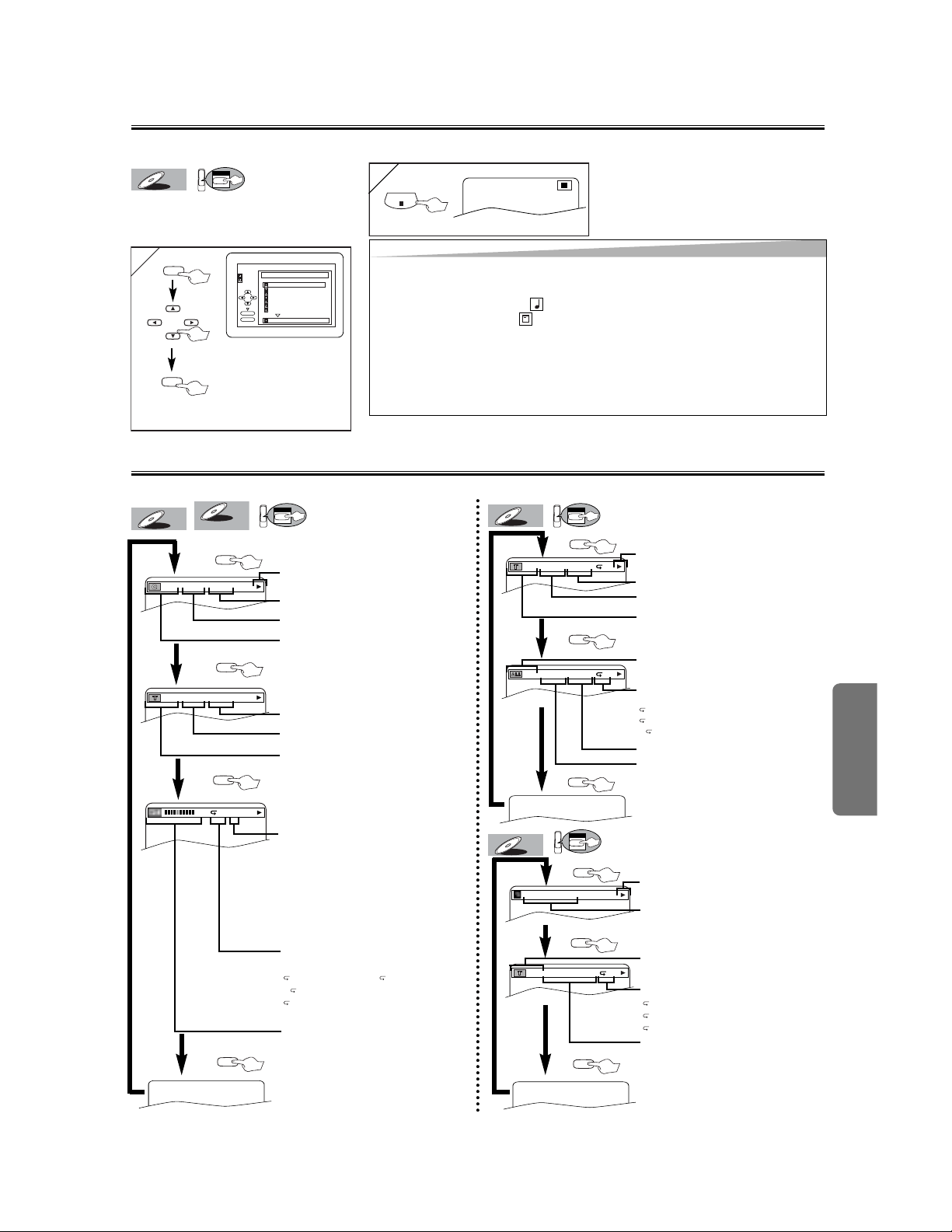
–
19
–
EN
2
2
STOP
MP3 Playback
Insert a MP3-format disc, then press
the MENU button to call up the MP3
menu on the TV screen.
DVD
MP3
MP3
1
1
folder name 4
folder name 1
folder name 3
folder name 2
folder name 1
DISC NAME
FILE LIST
FOLDER
MP3
ENTER
PLAY
file name 3
file name 2
file name 1
1/2
ENTER
When selecting the folder:
• Press the B button when you
want to go to the next hierar-
chy.
• Press the s button when you
want to go back to the previ-
ous hierarchy.
MENU
The On-Screen Display
You can check the information about the current disc by pressing the DISPLAY button on the remote control.
DVD
DVD-V
DVD-V
VR modeVR mode
VR mode
DVD-V
DVD-V
DVD
CD
CD
4/12 0:03:21 - 0:02:15
T
4/12 0:13:45 - 0:45:40
T
C(Chapter):
Current chapter number / Total chapters
T(Title):
Current title number / Total titles
Current repeat setting appears only when
the repeat setting is active
C: Chapter repeat / T: Title repeat /
A B: A-B repeat
A: Disc repeat (DVDs recorded in VR
mode only)
T(Track):
Current track number / Total tracks
Current repeat setting appears only when
the repeat setting is active
T: Track repeat
A: All Tracks repeat
A B: A-B repeat
DISPLAY
DISPLAY
DISPLAY
DISPLAY
DISPLAY
11/16 0:00:00 - 0:03:30
1/3 0:00:00 - 1:23:45
TL1
DISPLAY
BIT RATE: The amount of audio and video
data currently being read
ALL:
Current track number / Total tracks
Elapsed time of the current chapter
Remaining time of the current chapter
Elapsed time of the current title
Remaining time of the current title
Layer numbers, appears only when playing
a two-layered Disc
L0: Layer 0 is playing
L1: Layer 1 is playing
If you are playing a DVD-RW with setting
the PLAYLIST, the following will also be dis-
played.
ORG: Playing the ORIGINAL.
PL: Playing the PLAYLIST
DVD
MP3
MP3
TRACK 01
1/36 0:01:15
T
The name of the file currently in play
will be displayed.
Current Repeat setting, if active
T: Track repeat
G: Group (folder) repeat
A: Disc repeat
Elapsed playing time of the current track
DISPLAY
DISPLAY
DISPLAY
T(Track):
Current Track number / Total Tracks
MP3 is a method of compressing files.You can copy MP3 files on CD-RW/Rs from the computer and play the files on this unit.
DISPLAY
Elapsed time of the current track
Remaining time of the current track
Elapsed time of the current audio CD
Remaining time of the current audio CD
Hint
Hint
• Some selections may take a while to be recognized.
• Press the TOP MENU button to return to the first item.
• Folders are known as Groups; files are known as Tracks.
• MP3 files are accompanied by icon.
• Folders are accompanied by icon.
• A maximum of 255 folders can be recognized.
• A maximum of 512 files can be recognized.
• Up to 8 hierarchies can be created.
This player recommends the files recorded under the following circumstances:
• Sampling frequency: 44.1kHz or 48kHz
• Constant bit rate: 112kbps ~ 320kbps
3
Current playback status
Current playback status
Current playback status
DVD Functions
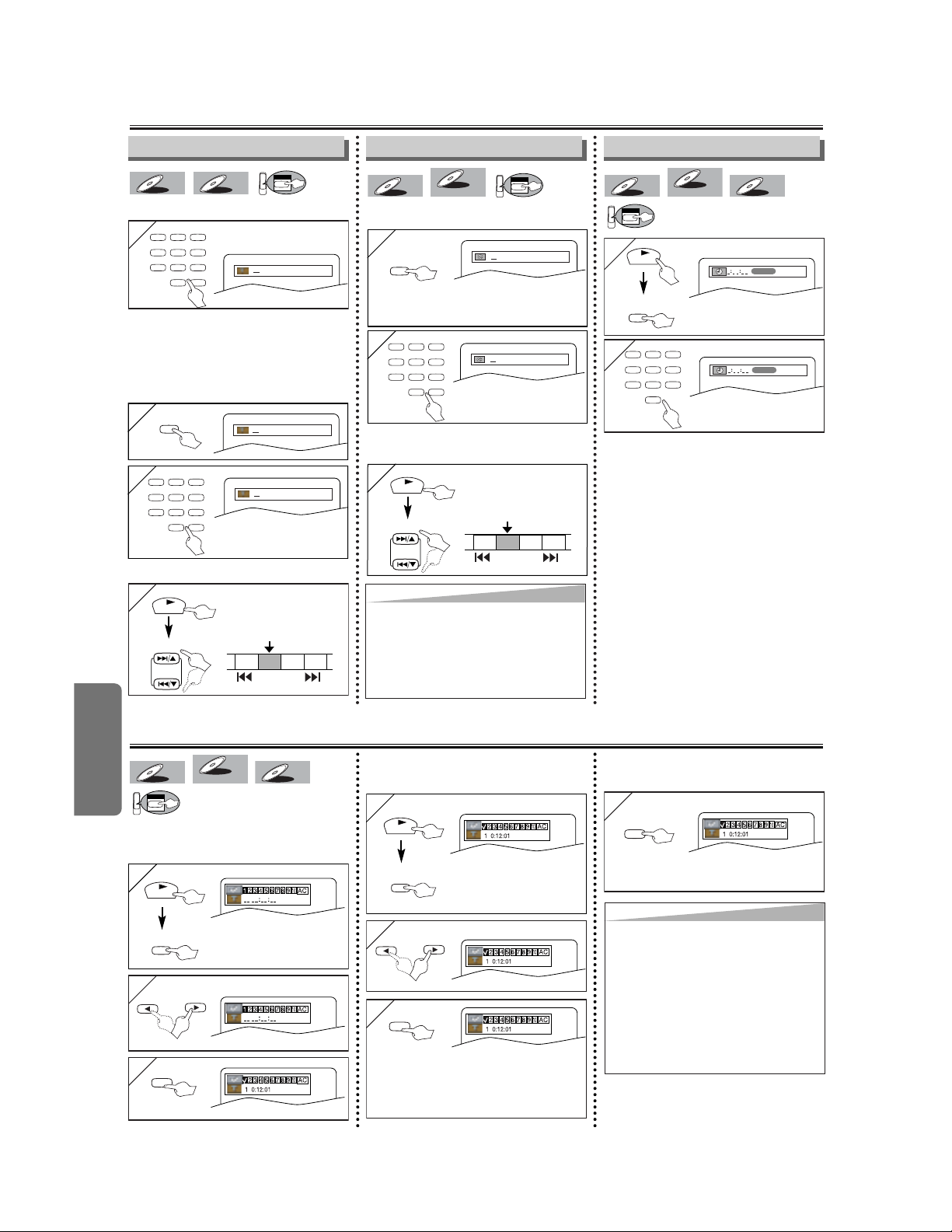
DVD Functions
–
20
–
EN
Search Function
Time Search
DVD
CD
CD
DVD-V
DVD-V
VR modeVR mode
VR mode
DVD-V
DVD-V
1
1
2
2
Within 30 seconds
1:29:00
TOTAL
SEARCH
MODE
PLAY
123
456
789
0
Marker Setup
This feature allows you to assign a specific
point on a disc to be called back later.
T
T
o set a marker
o set a marker
DVD
CD
CD
DVD-V
DVD-V
VR modeVR mode
VR mode
DVD-V
DVD-V
1
1
SEARCH
MODE
repeatedly until this
screen appears
2
2
3
3
ENTER
T
T
o return to the marker
o return to the marker
later
later
1
1
SEARCH
MODE
PLAY
repeatedly until this
screen appears
2
2
3
3
ENTER
at the desired marker
•Playback will restart from the specific point
which you set.
T
T
o e
o e
xit the marker screen
xit the marker screen
1
1
RETURN
PLAY
or
or
repeatedly until this
screen appears
•For single digit tracks (1-9), press a
single number (eg. track 3, press 3).
•To play track 26, press +10, 2, 6 of the
Number buttons.
Using the SEARCH
Using the SEARCH
MODE
MODE
b
b
utton
utton
1
1
Track Search
Using the n
Using the n
umber b
umber b
uttons
uttons
DVD
MP3
MP3
CD
CD
1
1
2
2
Within 30 seconds
/2
/2
/2
Title / Chapter Search
Using the SEARCH
Using the SEARCH
MODE
MODE
b
b
utton
utton
DVD
DVD-V
DVD-V
VR modeVR mode
VR mode
DVD-V
DVD-V
1
1
2
2
Within 30 seconds
/12
/12
x1(Press once) for the chapter search
x2 (Press twice) for the title search
123
456
789
0 +10
SEARCH
MODE
SEARCH
MODE
123
456
789
0 +10
123
456
789
0 +10
1
1
PLAY
TR 1 TR 2 TR 3 TR 4
Current Track
(TR)
SKIP SKIP
Using the SKIP
Using the SKIP
HH
H
,
,
GG
G
b
b
uttons
uttons
SKIP/CH.
1
1
PLAY
CH 1 CH 2 CH 3 CH 4
Current Chapter
(CH)
SKIP SKIP
Using the SKIP
Using the SKIP
HH
H
,
,
GG
G
b
b
uttons
uttons
SKIP/CH.
• When there is no need to enter a
number, “0” appears automatically. For
example, “0:0_:_ _” appears in the
Time Search display if the total time
of the disc is less than 10 minutes.
1:29:00
TOTAL
Hint
Hint
• Depending on the disc being played,
this function can also be performed
by directly entering the desired chap-
ter number with the number buttons.
Refer to the manual accompanying
the disc.
Hint
Hint
• Opening the disc tray or turning off
the power will erase all markers.
• Selecting “AC” at step [2] in the sec-
tion “To set a marker” will also erase
all markers.
• To clear a marker, select the marker
to be cleared at step [2] in the sec-
tion “To return to the marker later,”
and then press the CLEAR/C.RESET
button.
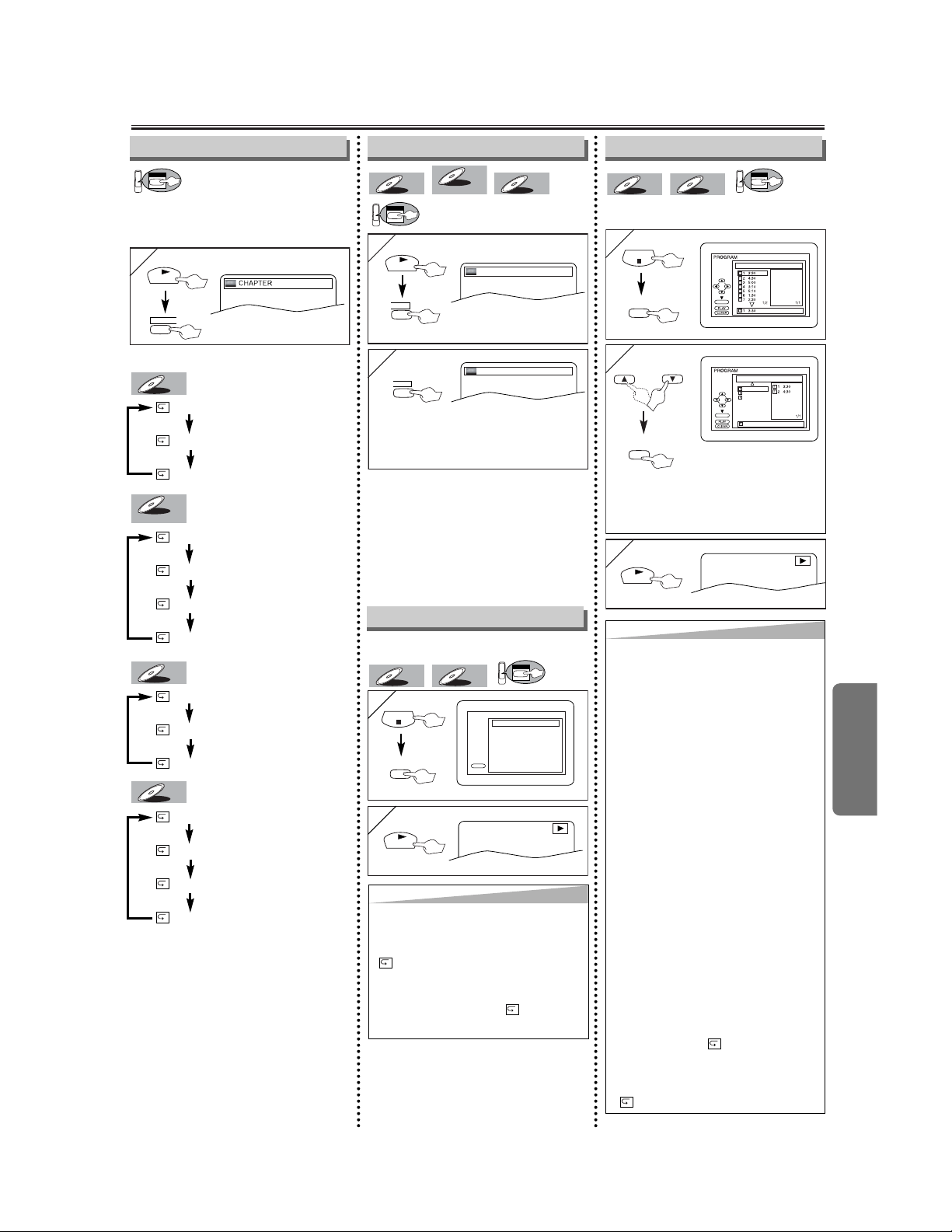
DVD Functions
–
21
–
EN
2
2
1
1
1
1
Repeat / Random / Programmed Playback
CHAPTER
TITLE
OFF
(current chapter repeat)
(current title repeat)
(repeat off)
Each time the REPEAT button is pressed...
DVD-V
DVD-V
Repeat function is available only during
playback.
DVD
¡Repeat setting will be cleared when
moving to another title, chapter, or
track.
¡Repeat playback are not available
with all discs or during repeat A-B
playback.
¡To exit the sequence, press the A-B
button.
¡To cancel Point A, press the
CLEAR/C.RESET button.
¡This function does not work in the
other repeat modes.
at your desired starting point (A)
DVD
CD
CD
DVD-V
DVD-V
VR modeVR mode
VR mode
DVD-V
DVD-V
You may determine the order in which
tracks will play.
DVD
MP3
MP3
CD
CD
1
1
REPEAT
PLAY
TRACK
ALL
OFF
(current track repeat)
(entire disc repeat)
(repeat
off)
CD
CD
Repeat Playback Programmed Playback
TRACK
GROUP
ALL
OFF
(current track repeat)
(
current group repeat)
(entire disc repeat)
(repeat off)
MP3
MP3
Repeat A-B Playback
1
1
A
-
B
PLAY
Random Playback
A-
at your desired end point (B)
2
2
A
-
B
A-B
MODE
STOP
2
2
or
3
3
PLAY
PLAY
CD-DA TOTAL 0:45:55
RANDOM PROGRAM
--no indication--
RANDOM
This shuffles the playing order of tracks
instead of playback in the sequence.
DVD
MP3
MP3
CD
CD
MODE
STOP
PLAY
x2 (Press twice)
x1 (Press once)
CD-DA TOTAL 0:00:00
ENTER
CD-DA TOTAL 0:08:00
ENTER
ALL CLEAR
ALL CLEAR
8 3:30
3:30
8 3:30
3:30
9 2:30
9 2:30
10 1:30
10 1:30
2/2
ENTER
• Point B should be in the same title
or track as point A is.
Up to 99 programs can be
stored.
While a MP3 folder is open:
• For the next hierarchy,
press the B button.
• For the previous hierarchy,
press the
s button.
CHAPTER
TITLE
ALL
OFF
(current chapter repeat)
(current title repeat)
(entire disc repeat)
(repeat off)
DVD-V
DVD-V
VR modeVR mode
VR mode
Hint
Hint
• If you want to repeat the current track
in the random selections, press the
REPEAT button repeatedly until
TRACK appears during playback.
If you want to repeat the entire ran-
dom selections, press the REPEAT
button repeatedly until ALL
appears during playback.
Hint
Hint
• Press the CLEAR/C.RESET button at
step [2] to erase the most recently
entered program.
• To erase all tracks in the program at
once, select “ALL CLEAR’’ and press
the ENTER button at step [2].
• While a program is being played
back, the STOP button works as fol-
lows;
⇒
Press the STOP button and the
PLAY button next, so that the pro-
grammed playback restarts. (CD
playback restarts from the current
point. MP3 playback restarts from
the beginning of the current track.)
⇒
Press the STOP button twice and
the PLAY button next, so that play-
back restarts from the first track in
the original order. However, your
programmed playback can be
restarted when you follow the above
steps. (Your programs are still stored
until either the disc tray is open or
power is turned off.)
• To repeat the current track in the pro-
gram, press the REPEAT button
repeatedly until “ TRACK’’ appears
during playback.
• To repeat the entire program press
the REPEAT button repeatedly until
“ ALL’’ appears during playback.
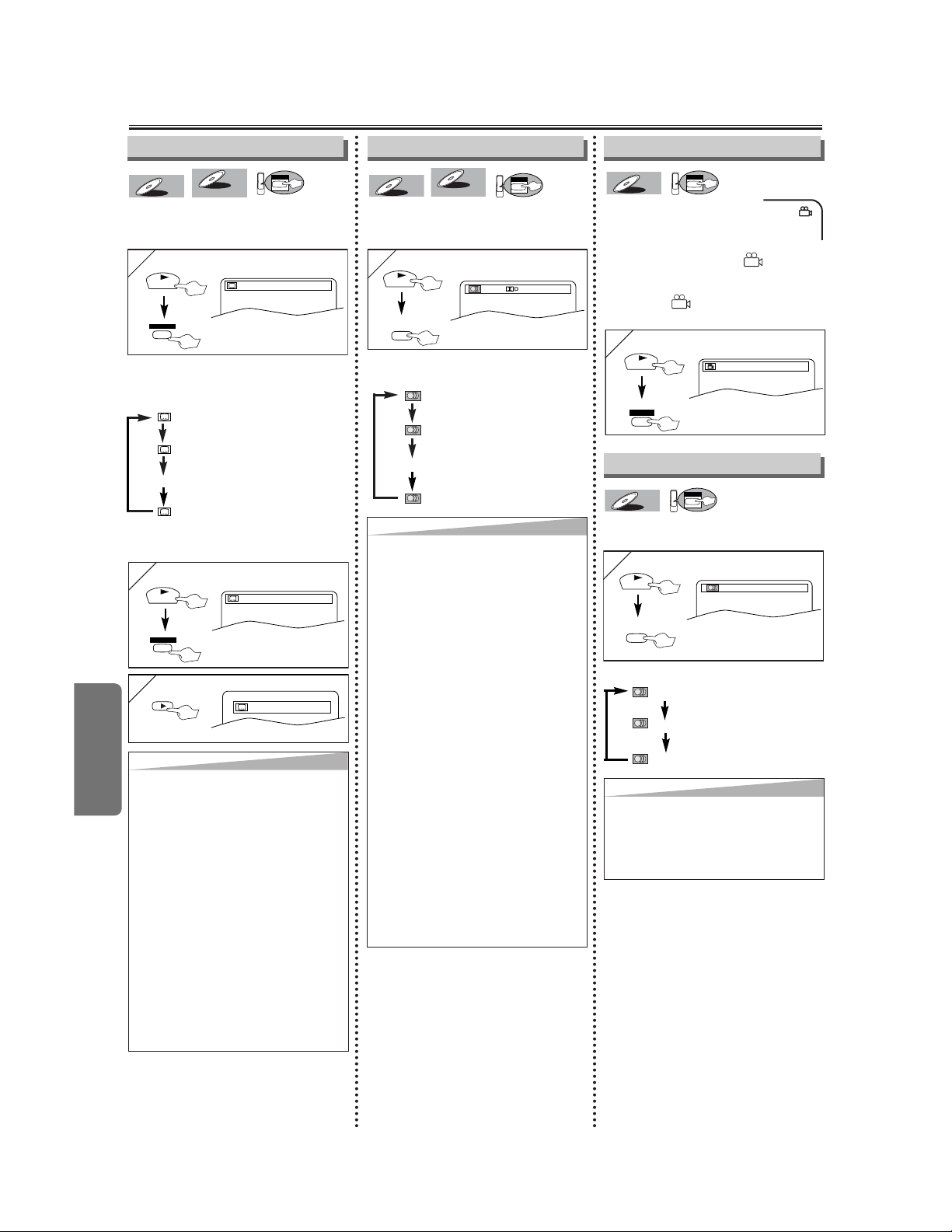
DVD Functions
–
22
–
EN
Special Settings
Audio Language
This unit allows you to select an audio
language (if multiple languages are
available) during DVD playback.
DVD
DVD-V
DVD-V
VR modeVR mode
VR mode
DVD-V
DVD-V
1
1
1.ENG 3/2.1ch 48k/3
AUDIO
PLAY
ENG
SPA
FRE
(English audio)
(Spanish audio)
(French audio)
Each time you press the AUDIO button;
For example
STEREO
L-CH
R-CH
(right and left channels
are active)
(left channel is active)
(right channel is active)
This unit allows you to select a sound
mode during CD playback.
DVD
CD
CD
1
1
STEREO
AUDIO
PLAY
Each time you press the AUDIO button;
Stereo Sound mode
Camera Angle
This unit allows you to select a subtitle
language (if available) during DVD play-
back.
DVD
DVD-V
DVD-V
VR modeVR mode
VR mode
DVD-V
DVD-V
1
1
1.ENG/6
SUBTITLE
T-SET
PLAY
ENG
FRE
OFF
(English subtitles)
(French subtitles)
(no subtitles)
Each time you press the SUBTITLE/T-
SET button, subtitle languages change.
For example
Subtitle Language
Some DVD discs may con-
tain scenes which have
been shot simultaneously
from various angles.You can change
the camera angle if the ( ) icon
appears on the screen. If the “ANGLE
ICON” setting is “OFF” in the Display
menu, the ( ) icon will not appear.
(Refer to pages 23-24.)
DVD
DVD-V
DVD-V
1
1
1 / 8
ANGLE
PLAY
...
...
To set subtitle ON/OFF
1
1
1.ENG/6
PLAY
2
2
OFF
SUBTITLE
T-SET
Hint
Hint
• If your language is not shown after
pressing the AUDIO or SUBTITLE/T-
SET button several times, the disc
may not have that language.
However, some discs allow audio lan-
guage or subtitle language setting on
the disc menu. (Operation varies
depending on the discs, so refer to
the manual along with the disc.)
• When “NOT AVAILABLE” appears on
the TV screen, it means no subtitle is
recorded on the scene.
• If you choose a language that has a
3 letter language code, the code will
be displayed every time you change
the subtitle language setting. If you
choose any other languages, ‘---’ will
be displayed instead. (Refer to page
27.)
Hint
Hint
• For DVD-RW (VR mode), Pressing
the AUDIO button cycles the sound
mode through MAIN, SUB, MAIN +
SUB.
• For DVD-RW (VR mode), the discs
recorded in double sound (two lan-
guages ) can be played back in either
sound mode of MAIN, SUB or MAIN
+ SUB.
• The sound mode cannot be changed
during playback of discs not recorded
in double sound.
• Audio language selection cannot be
made during Rapid Play. (Refer to
page 17.)
• Pressing the AUDIO button may not
work on some DVDs with multiple
audio languages (e.g. DVDs which
allow audio language setting on the
disc menu).
• With discs recorded in VR mode,
changing the audio (MAIN, SUB or
MAIN+SUB) is effective only when
using an analogue connection.
Although you may be able to change
the settings of the on-screen display,
it will not affect the sound when using
a digital connection.
Hint
Hint
• If the Virtual Surround setting is “1’’ or
“2’’, the sound mode will be fixed to
STEREO, and cannot be changed.
• Stereo sound mode will not be
changed when playing DTS CD.
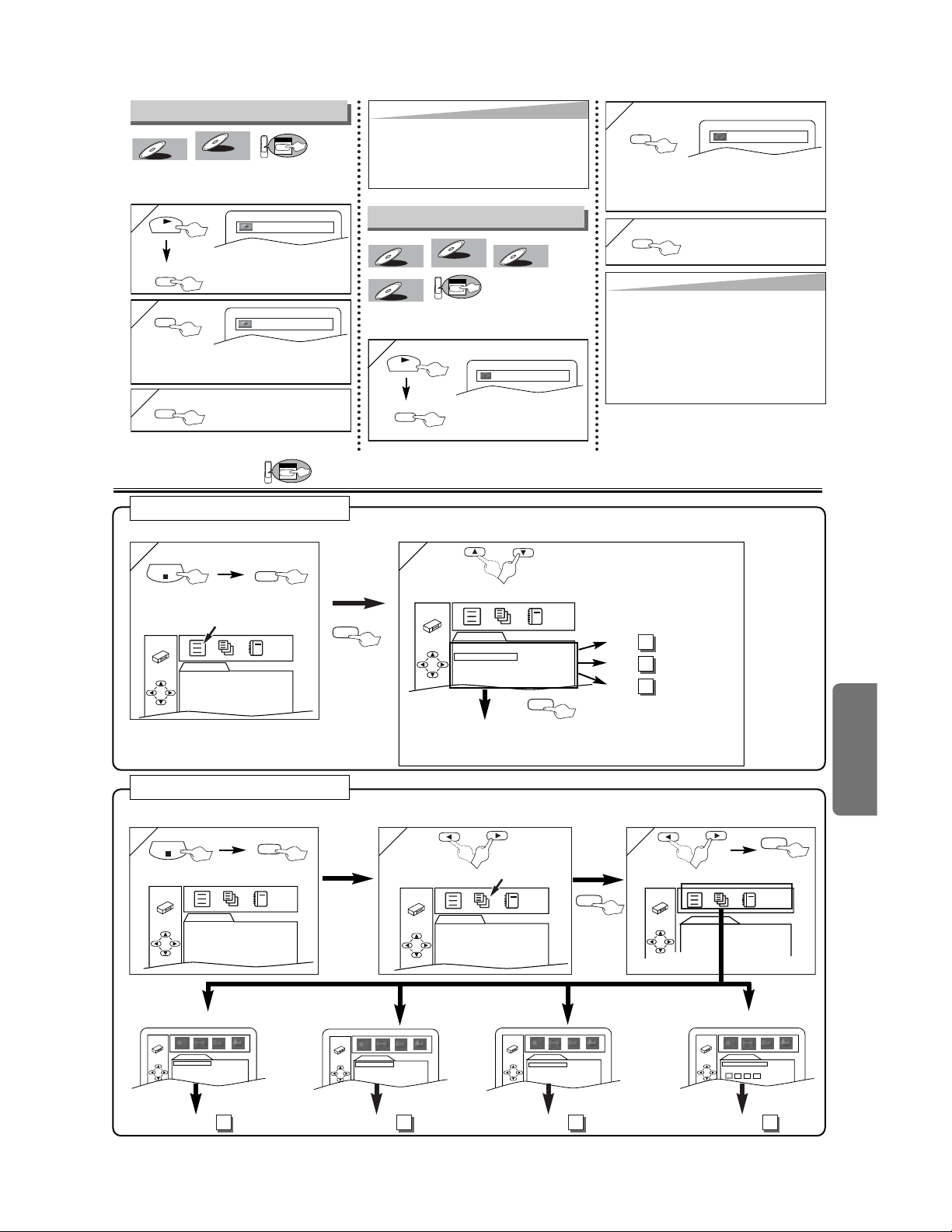
DVD Functions
–
23
–
EN
1
1
OFF
Virtual Surround
You can enjoy stereophonic virtual world
on your existing 2 channel stereo system.
DVD
MP3
MP3
CD
CD
DVD-V
DVD-V
VR modeVR mode
VR mode
DVD-V
DVD-V
MODE
PLAY
2
2
1
ENTER
1: Natural effect
2: Emphasized effect
OFF: No effects (original sound)
3
3
RETURN
repeatedly until this
screen appears
or or
3
3
LANGUAGE
AUDIO ORIGINAL
SUBTITLE OFF
DISC MENU ENGLISH
PLAYER MENU ENGLISH
Select CUSTOM
To select the desired item
1
1
ENTER
CUST
CUST
OM Men
OM Men
u
u
ENTER
SETUP
STOP
PARENTAL
PASSWORD
Please enter a 4-digit password.
AUDIO
DRC ON
DOWN SAMPLING ON
DOLBY DIGITAL BITSTREAM
DTS OFF
DISPLAY
TV ASPECT
4:3 LETTER BOX
STILL MODE AUTO
ANGLE ICON ON
PROGRESSIVE OFF
LANGUAGE
AUDIO ORIGINAL
SUBTITLE OFF
DISC MENU ENGLISH
PLAYER MENU ENGLISH
2
2
Select the desired item
1
1
QUICK SETUP
PLAYER MENU
TV ASPECT
DOLBY DIGITAL
DTS
ENGLISH
4:3 LETTER BOX
BITSTREAM
OFF
SETUP
STOP
QUICK SETUP
PLAYER MENU
TV ASPECT
DOLBY DIGITAL
DTS
ENGLISH
4:3 LETTER BOX
BITSTREAM
OFF
Q
Q
UICK SETUP Men
UICK SETUP Men
u
u
or
•Refer to the sections “PLAYER MENU”,
“TV ASPECT”, “DOLBY DIGITAL” or
“DTS” section on pages 23-25.
You can change the DVD player’s settings.
<SETUP MENU>
<SETUP MENU>
Confirm that QUICK is selected
You can select the “PLAYER MENU”, “TV ASPECT”, “DOLBY DIGITAL” or “DTS” from the QUICK SETUP menu quickly.
ENTER
LANGUAGE menu AUDIO menuDISPLAY menu
PARENTAL menu
DVD Set Up
DVD
P24 (Step 5)
P24 (Step 5)
P25 (Step 5)
A
B
C
page 24
A
page 24
B
page 25
C
page 26
D
to decide
QUICK SETUP
PLAYER MENU
TV ASPECT
DOLBY DIGITAL
DTS
ENGLISH
4:3 LETTER BOX
BITSTREAM
OFF
ENTER
2
2
QUICK SETUP
PLAYER MENU
TV ASPECT
DOLBY DIGITAL
DTS
ENGLISH
4:3 LETTER BOX
BITSTREAM
OFF
Hint
Hint
• The setting will not be effective
unless the sound mode is set to
STEREO. (for CD play only)
• This function cannot be used during
Rapid Play. (Refer to page 17.)
• The setting will be saved even if the
player is turned off.
ON
Black Level Setting
Adjust the Black Level Setting to make
the dark areas of the TV picture brighter.
DVD
DVD-V
DVD-V
VR modeVR mode
VR mode
DVD-V
DVD-V
1
1
MODE
PLAY
2
2
OFF
ENTER
ON: Makes the dark areas brighter.
OFF: Shows the original picture as recorded.
3
3
RETURN
Hint
Hint
• The setting will be saved even if the
player is turned off.
• This function cannot be used during
Rapid Play. (Refer to page 17.)
repeatedly until this
screen appears
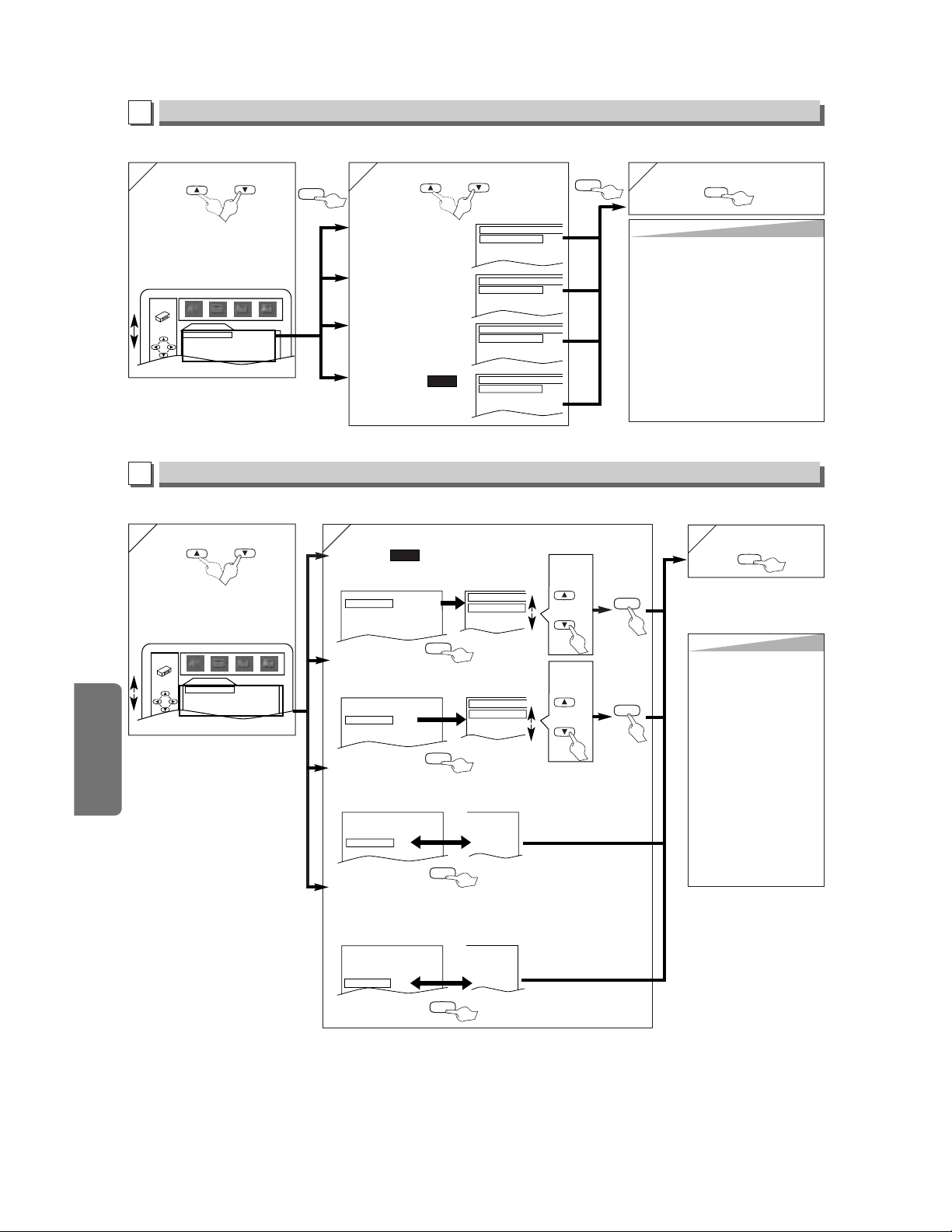
DVD Functions
–
24
–
EN
5
5
Hint
Hint
TV ASPECT:
• Select “4:3 LETTER BOX”, so
that black bars appear on the
top and bottom of the screen.
• Select “4:3 PAN & SCAN” for
a full height picture with both
sides trimmed.
• Select “16:9 WIDE” if a wide-
screen TV is connected to this
unit.
STILL MODE:
• Select “AUTO” usually.
• If you select “FIELD”, the pic-
ture in the still mode will be
stabilized.
• If you select “FRAME”, the
picture in the still mode will be
highly defined.
DISPLAY Setting
You can change the display functions. Follow the step 1) to 3) in the “CUSTOM Menu” section on page 23.
4
4
or
Select the desired item
B
DISPLAY menu
6
6
To exit the menu
SETUP
TV ASPECT:
(Default: 4:3 LETTER BOX)
See Tips to the right.
QUICK
ANGLE ICON:
(Default: ON)
Set to “ON” to show the angle icon when multiple camera
angles are available during DVD playback.
PROGRESSIVE:
(Default: OFF)
Set to “ON” if your TV is compatible with progressive scan.
When “PROGRESSIVE” is “ON”, “P. SCAN” appears on the
front panel display.
TV ASPECT
4:3
LETTER BOX
4:3
PAN & SCAN
16:9
WIDE
TV ASPECT
4:3 LETTER BOX
STILL MODE
AUTO
ANGLE ICON ON
PROGRESSIVE OFF
TV ASPECT
4:3 LETTER BOX
STILL MODE
AUTO
ANGLE ICON ON
PROGRESSIVE OFF
4:3 LETTER BOX
AUTO
ON
ON
TV ASPECT
4:3 LETTER BOX
STILL MODE
AUTO
ANGLE ICON ON
PROGRESSIVE OFF
4:3 LETTER BOX
AUTO
OFF
OFF
Select the
desired
setting
or
ENTER
STILL MODE:
(Default: AUTO)
See Tips to the right.
TV ASPECT
4:3 LETTER BOX
STILL MODE
AUTO
ANGLE ICON ON
PROGRESSIVE OFF
STILL MODE
AUTO
FIELD
FRAME
Select the
desired
setting
or
ENTER
ENTER
ENTER
ENTER
ENTER
DISPLAY
TV ASPECT
4:3 LETTER BOX
STILL MODE AUTO
ANGLE ICON ON
PROGRESSIVE OFF
ENTER
Hint
Hint
∗1
• Language options are not available with
some discs.
• If OTHER is selected on the AUDIO, SUBTI-
TLE or DISC MENU screen, press four-digit
number to enter the code for the desired lan-
guage. (Refer to the language code list on
page 27.)
• Only the languages supported by the disc
can be selected.
∗2
• Language Setting for Audio and Subtitle is
not available with some discs. Then use the
AUDIO and the SUBTITLE/T-SET button.
Details are on page 22.
LANGUAGE Setting
Follow the step 1) to 3) in the “CUSTOM Menu” section on page 23.
4
4
or
Select the desired item
6
6
To exit the menu
5
5
AUDIO ∗1 ∗2
(Default: ORIGINAL)
Sets the audio language.
SUBTITLE: ∗1 ∗2
(Default: OFF)
Sets the subtitle language.
DISC MENU: ∗1
(Default: ENGLISH)
Sets the language for DVD
menu.
PLAYER MENU:
(Default: ENGLISH)
Sets the language for the
On-screen display.
QUICK
ENTER
SETUP
or
Select the desired language
AUDIO
ORIGINAL
ENGLISH
FRENCH
SUBTITLE
OFF
ENGLISH
FRENCH
DISC MENU
ENGLISH
FRENCH
SPANISH
PLAYER MENU
ENGLISH
FRANÇAIS
ESPAÑOL
A
LANGUAGE menu
LANGUAGE
AUDIO ORIGINAL
SUBTITLE OFF
DISC MENU ENGLISH
PLAYER MENU ENGLISH
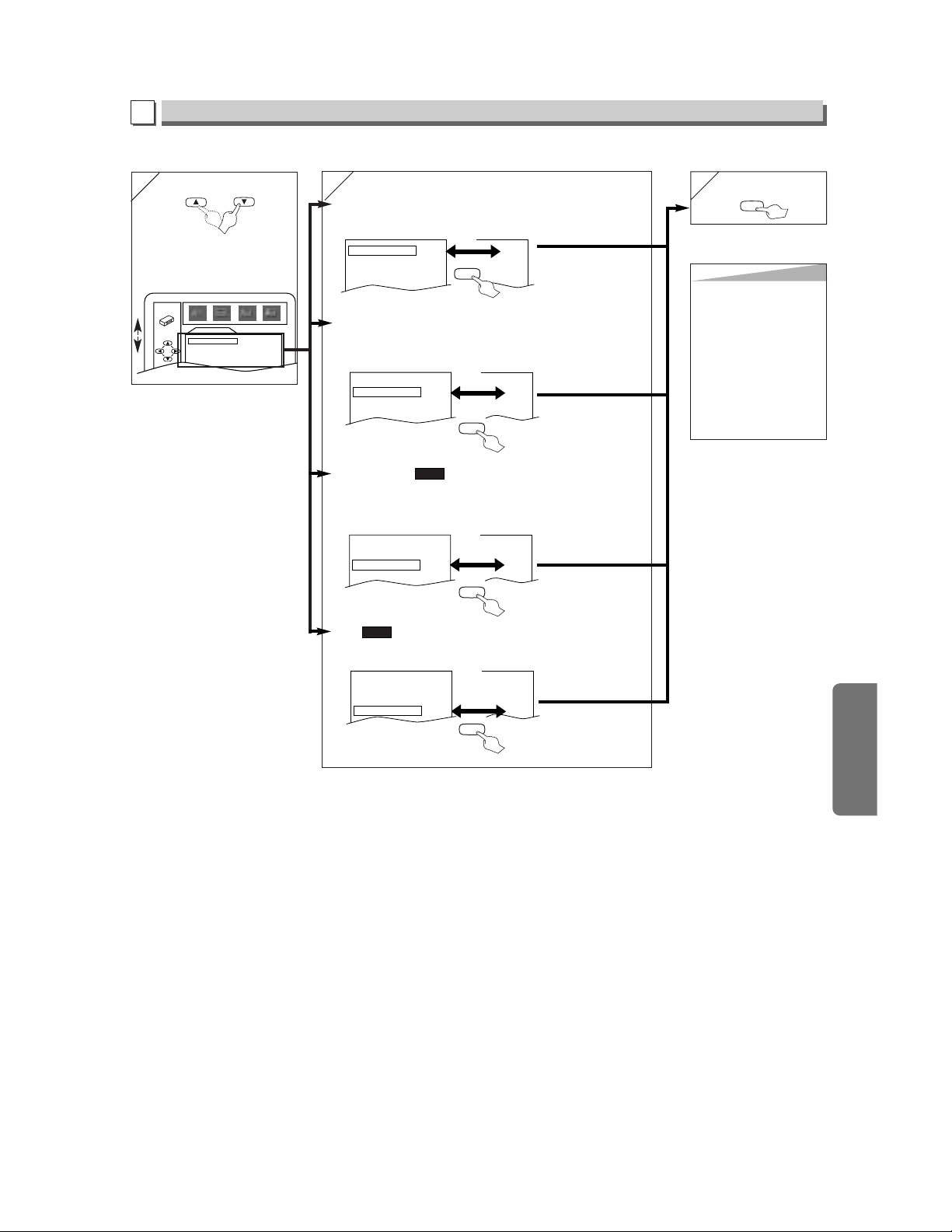
DVD Functions
–
25
–
EN
4
4
AUDIO
DRC ON
DOWN SAMPLING ON
DOLBY DIGITAL BITSTREAM
DTS OFF
AUDIO Setting
Choose the appropriate audio settings for your equipment. It only affects during the playback of DVD discs. Follow the step 1)
to 3) in the “CUSTOM Menu” section on page 23.
or
Select the desired item
C
AUDIO menu
5
5
6
6 To exit the menu
SETUP
DRC (Dynamic Range Control):
(Default: ON)
Set to “ON” to compress the range between soft and loud sounds.
DOLBY DIGITAL:
(Default: BITSTREAM)
Set to “BITSTREAM” when the unit is connected to a Dolby Digital receiver.
• BITSTREAM: Outputs a Dolby Digital Signals
• DPCM: Convert the Dolby Digital into PCM (2 channel)
QUICK
DRC ON
DOWN SAMPLING ON
DOLBY DIGITAL
BITSTREAM
DTS OFF
OFF
ON
BITSTREAM
OFF
ENTER
ENTER
DOWN SAMPLING:
(Default: ON)
Set to “ON” when outputting in 48 kHz.
Set to “OFF” when outputting the original sound.
DRC ON
DOWN SAMPLING ON
DOLBY DIGITAL
BITSTREAM
DTS OFF
ON
ON
DPCM
OFF
DRC ON
DOWN SAMPLING ON
DOLBY DIGITAL
BITSTREAM
DTS OFF
ON
OFF
BITSTREAM
OFF
Hint
Hint
DRC:
• This function is available only
on the discs which are record-
ed in the Dolby Digital format.
DOWN SAMPLING:
• When playing disc with copy-
right Protection, the sound will
be down sampled at 48kHz,
even if you set to OFF.
• This function is available only
on digital outputting of a disc
recorded in 96kHz.
ENTER
DTS:
(Default: OFF)
Set to “BITSTREAM” when the unit is connected to a DTS decoder.
QUICK
DRC ON
DOWN SAMPLING ON
DOLBY DIGITAL
BITSTREAM
DTS OFF
ON
ON
BITSTREAM
BITSTREAM
ENTER
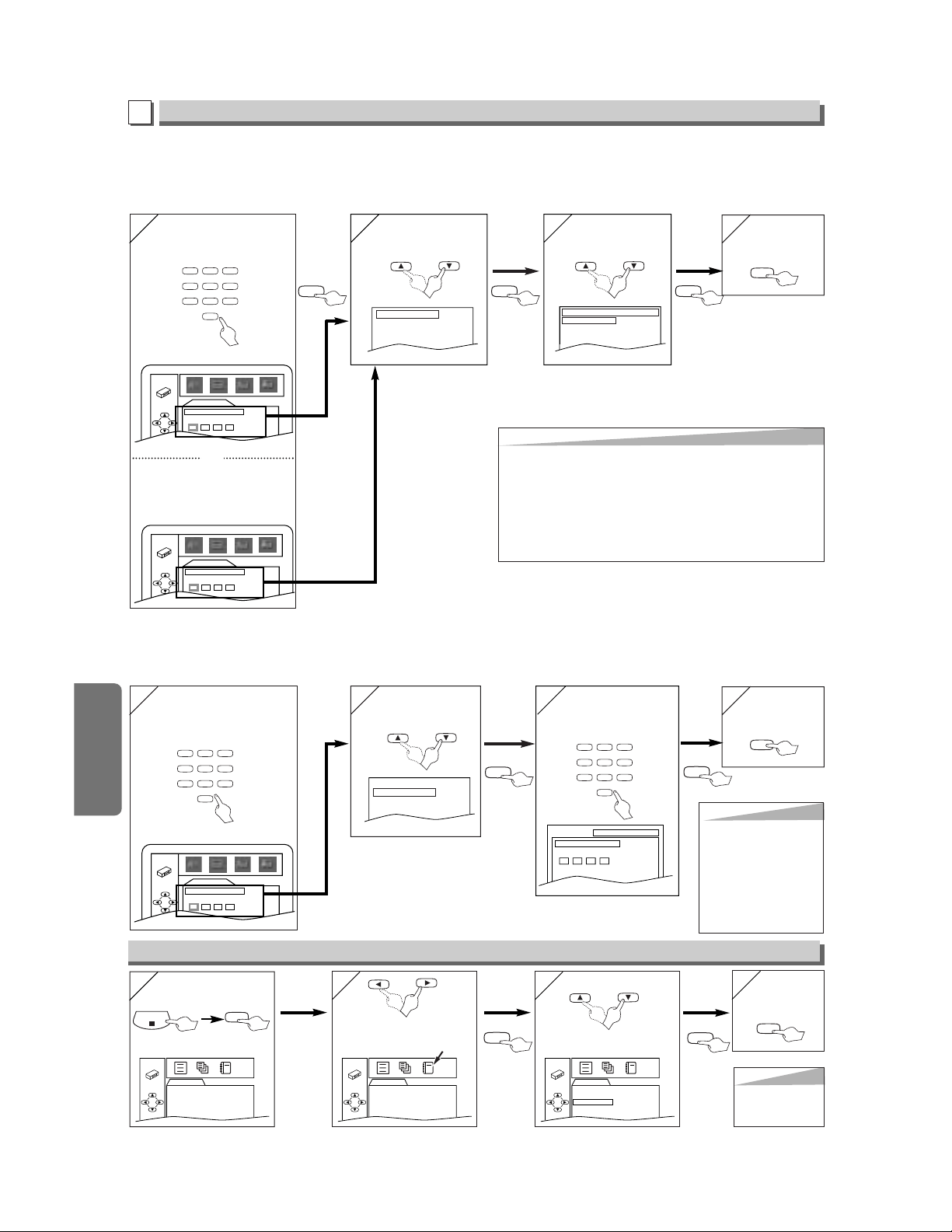
DVD Functions
–
26
–
EN
or
2
2
4
4
Hint
Hint
• Record the password in
case you forget it.
• If you forget the password,
press 4, 7, 3, 7 at step 4,
then enter your new pass-
word.
• Password will be cleared
and parental levels will be
set to ALL.
4
4
3
3
1
1
T
T
o Chang
o Chang
e the P
e the P
ass
ass
w
w
or
or
d f
d f
or P
or P
arental Contr
arental Contr
ols
ols
You can change your password for parental controls. Follow the steps 1) to 3) in the “CUSTOM Menu” section on page 23.
5
5
or
Select “CHANGE”
CHANGE
PARENTAL LEVEL ALL
7
7
SETUP
6
6
ENTER
Enter your new
four-digit password
(except for 4737)
ENTER
To exit
the menu
PARENTAL
PASSWORD
Enter current password.
Enter your desired four-
digit password (except
for 4737)
To return the All Selections of SET UP (except for PARENTAL) to the Default Setting
Select INITIALIZE Select “YES”
STOP
or
<SETUP MENU>
SETUP
To exit
the menu
x2
(twice)
Hint
Hint
• When you cancel
to initialize at step
3,select “NO”.
SETUP
ENTER
ENTER
SETUP PARENTAL
PASSWORD
Please enter a 4-digit password.
QUICK SETUP
PLAYER MENU
TV ASPECT
DOLBY DIGITAL
DTS
ENGLISH
4:3 LETTER BOX
BITSTREAM
OFF
QUICK SETUP
PLAYER MENU
TV ASPECT
DOLBY DIGITAL
DTS
ENGLISH
4:3 LETTER BOX
BITSTREAM
OFF
INITIALIZE
Initialize?
NO
YES
123
456
789
0
123
456
789
0
PARENTAL menu
4
4
PARENTAL
PASSWORD
Please enter a 4-digit password.
5
5
PARENTAL Setting
Parental Control limits the disc viewing that exceed your settings. (if an incorrect password is entered, the disc will not play)
This feature prevents your children from viewing inappropriate materials.
P
P
arental
arental
Le
Le
vels
vels
Parental Level allows you to set the rating levels of your DVD discs. Playback will stop if the ratings exceed the levels you set.
Follow the steps 1) to 3) in the “CUSTOM Menu” section on page 23.
ENTER
Hint
Hint
CONTROL LEVELS
• ALL: All parental locks are cancelled.
• Levels 8: DVD softwares of any grades (adult/general/children)
can be played back.
• Levels 7 to 2: Only DVD softwares intended for general use and chil-
dren can be played back.
• Level 1: Only DVD softwares intended for children can be played
back, with those intended for adult and general use pro-
hibited.
or
Select “PARENTAL
LEVEL”
Enter your desired four-
digit password (except
for 4737)
D
PARENTAL menu
123
456
789
0
CHANGE
PARENTAL LEVEL ALL
7
7
SETUP
6
6
ENTER
or
Select the
desired levels
PARENTAL LEVEL
ALL
8
7 [NC-17]
6 [R]
ENTER
To exit
the menu
PARENTAL
PASSWORD
Enter current password.
If you have set a password already,
enter the current four-digit
password.
or

Information
–
27
–
EN
Language List
A-B
Abkhazian 4748
Afar 4747
Afrikaans 4752
Albanian 6563
Amharic 4759
Arabic 4764
Armenian 5471
Assamese 4765
Aymara 4771
Azerbaijani 4772
Bashkir 4847
Basque 5167
Bengali;Bangla 4860
Bhutani 5072
Bihari 4854
Bislama 4855
Breton 4864
Bulgarian 4853
Burmese 5971
Byelorussian 4851
C-E
Cambodian 5759
Catalan 4947
Chinese [CHI] 7254
Corsican 4961
Croatian 5464
Czech 4965
Danish [DAN] 5047
Dutch [DUT] 6058
English [ENG] 5160
Esperanto 5161
Estonian 5166
F-H
Faroese 5261
Fiji 5256
Finnish [FIN] 5255
French [FRE] 5264
Frisian 5271
Galician 5358
Georgian 5747
German [GER] 5051
Greek [GRE] 5158
Greenlandic 5758
Guarani 5360
Gujarati 5367
Hausa 5447
Hebrew 5569
Hindi 5455
Hungarian [HUN] 5467
I-K
Icelandic [ICE] 5565
Indonesian 5560
Interlingua 5547
Interlingue 5551
Inupiak 5557
Irish [IRI] 5347
Italian [ITA] 5566
Japanese [JPN] 5647
Javanese 5669
Kannada 5760
Kashmiri 5765
Kazakh 5757
Kinyarwanda 6469
Kirghiz 5771
Kirundi 6460
Korean [KOR] 5761
Kurdish 5767
L-N
Laothian 5861
Latin 5847
Latvian;Lettish 5868
Lingala 5860
Lithuanian 5866
Macedonian 5957
Malagasy 5953
Malay 5965
Malayalam 5958
Maltese 5966
Maori 5955
Marathi 5964
Moldavian 5961
Mongolian 5960
Nauru 6047
Nepali 6051
Norwegian [NOR] 6061
O-R
Occitan 6149
Oriya 6164
Oromo(Afan) 6159
Panjabi 6247
Pashto;Pushto 6265
Persian 5247
Polish 6258
Portuguese [POR] 6266
Quechua 6367
Rhaeto-Romance 6459
Romanian [RUM] 6461
Russian [RUS] 6467
S
Samoan 6559
Sangho 6553
Sanskrit 6547
Scots Gaelic 5350
Serbian 6564
Serbo-Croatian 6554
Sesotho 6566
Setswana 6660
Shona 6560
Sindhi 6550
Singhalese 6555
Siswat 6565
Slovak 6557
Slovenian 6558
Somali 6561
Spanish [SPA] 5165
Sundanese 6567
Swahili 6569
Swedish [SWE] 6568
T
Tagalog 6658
Tajik 6653
Tamil 6647
Tatar 6666
Telugu 6651
Thai 6654
Tibetan 4861
Tigrinya 6655
Tonga 6661
Tsonga 6665
Turkish [TUR] 6664
Turkmen 6657
Twi 6669
U-Z
Ukrainian 6757
Urdu 6764
Uzbek 6772
Vietnamese 6855
Volapuk 6861
Welsh 4971
Wolof 6961
Xhosa 7054
Yiddish 5655
Yoruba 7161
Zulu 7267
Langua
ge Code Language Code Language Code Language Code
If you choose a Language that has a 3 letter language code, the code will be displayed every time you change
the Audio or Subtitle language setting on page 22. If you choose any other languages, ‘---’ will be displayed
instead. (3 letter language code is written in bracket.)
Information
–
28
–
EN
Information
Specifications
• Designs and specifications are subject to change without notice.
• If there is a discrepancy between languages, the default language will be English.
Service Information (For the U.S.)
For the location of the nearest Sharp Authorized Service Center, or to obtain product literature, accessories,
supplies or customer assistance, please call 1-800-BE-SHARP (1-800-237-4277) or visit SHARP’s website
(http://www.sharpusa.com).
PRODUCT TYPE
DVD Player with Video Cassette recorder
CONNECTIONS
Front panel:
Video input
RCA connector [ 1
Audio input
RCA connector [ 2
Rear panel:
AUDIO input
RCA connector
(left, right)
VIDEO input
RCA connector
AUDIO output
RCA connector
(left, right)
VIDEO output
RCA connector
S-Video output Mini DIN 4-pin jack (75 Ω)
Analog audio output RCA connectors
[ 2
(one left
channel, one right channel)
2 Vrms (47 kΩ)
Coaxial digital audio output One pin jack, 500mVpp (75 Ω)
Component output Y output level: 1Vp-p (75Ω)
CB/PB output level: 0.7Vp-p (75Ω)
CR/PR output level: 0.7Vp-p (75Ω)
[VCR section]
NUMBER OF VIDEO HEADS
4
VIDEO SIGNAL STANDARD
NTSC color system
AUDIO RECORDING SYSTEM
1 Stationary head for liner audio
2 Rotary heads for Hi-Fi stereo
WOW AND FLUTTER
Below the measurement limitation (
±0.001% W PEAK)
(JEITA)
CHANNEL COVERAGE
VHF 2-13
UHF 14-69
CATV 1-125
TIMER BACKUP
30 seconds
[DVD section]
DISCS (PLAYBACK COMPATIBILITY)
DVD Video, Audio CD, CD-RW/R
DVD-RW/R, DVD+RW/R
FREQUENCY RESPONSE
DVD (linear sound) : 20 Hz to 20 kHz (sample rate: 48 kHz)
20 Hz to 44 kHz (sample rate: 96 kHz)
CD : 20 Hz to 20 kHz
SIGNAL-TO-NOISE RATIO (S/N RATIO)
CD : 110 dB (JEITA)
DYNAMIC RANGE
DVD (linear sound) : 90 dB
CD : 90 dB (JEITA)
TOTAL DISTORTION FACTOR
DVD : 1KHz 0.008% (JEITA)
CD : 1KHz 0.008% (JEITA)
POWER SOURCE
120V AC +/- 10%, 60Hz +/- 0.5%
POWER CONSUMPTION
21W (standby: 3.6W)
OPERATING TEMPERATURE
41°F (5°C) to 104°F (40°C)
DIMENSIONS
W: 17 3/16” (435 mm)
H: 3 3/4” (94 mm)
D: 9 3/16” (233 mm)
WEIGHT
Approx. 6 lbs (2.7 kg)
–
29
–
EN
Troubleshooting Guide
If this unit does not perform properly when operated as instructed in this Operation Manual, check this unit con-
sulting the following checklist.
• Some functions are not available in specific modes, but this is not a malfunction. Read the description in this Operation
Manual for details on correct operations.
• Playback from a desired track and random playback are not available during program playback.
• Some functions are prohibited on some discs.
V
C
R
D
V
D
D
V
D
V
C
R
CORRECTIVE ACTION
• Make sure the power plug is connected to an AC outlet.
• Make sure the power is turned on.
• Check if the power plug is connected to an AC outlet.
• Check the batteries in the remote control.
• Aim the remote control directly at the remote sensor. If necessary, remove all the
obstacles between the sensor and the remote.
• You have to be within 23 feet of this unit.
• Check if the right mode is selected. If it’s not in the right mode, press the DVD or VCR
buttons, whichever you need, on the remote control.
• Check if a cassette tape is in this unit.
• Tune your radio to an empty AM station so that you hear a lot of noises. Turn the vol-
ume up, then. If you hear some signal sound from the radio in response to your press-
ing buttons on the remote, the remote control is working.
• Make sure the timer recording is set correctly.
•
Make sure the TIMER and lights appear on the VCR/DVD. If not, press the SUBTITLE/T-SET button.
• Make sure the VCR clock is set correctly.
• Make sure the tape has a safety tab. If needed, cover the hole with cellophane tape.
• Activate this unit in VCR mode. Press the VCR button on the remote control so that
the green VCR OUTPUT light is lit.
• Adjust tracking control for a better picture by pressing the CH
buttons on the VCR/DVD or the SKIP/CH.(K/L) buttons on the remote control.
• Head cleaning may be necessary. Refer to “AUTO HEAD CLEANING” .
• Make sure the VCR is not in the Menu mode.
• Change the RF output channel to CH4. Then select the same channel on the TV.
• Fine tune your TV.
• Re-check the ANT. IN and ANT. OUT connections. See pages 1 and 7.
• Press the VCR/TV button.
•
Press the VCR button on the remote control to activate it in the VCR mode. Check if the green
VCR OUTPUT light is lit. Then, set it to the TV position by pressing the VCR/TV button.
• You cannot copy a copyrighted video tape. You are experiencing copy guard protection.
• Connect the video cables firmly.
• Insert a correct video disc that plays on this unit.
• Press the DVD button on the remote control. Check if the DVD OUTPUT light is lit.
Then try other DVD features.
• Insert the disc.
• Clean the disc.
• Place the disc correctly with the label side up.
• Cancel the parental lock or change the control levels.
•
Handle a disc with special care so that it does not have fingerprints, scratches, or dusts
on its surface.
• Connect the audio cables firmly.
• Turn the power of the audio component on.
• Correct the audio output settings.
• Correct the input settings on the audio component.
• Use a DIGITAL AUDIO OUT jack when outputting the DTS audio.
• Connect this unit directly to the TV.
•
There are some cases where pictures may be slightly distorted, and those are not a sign
of a malfunction.
• Although pictures may stop for a moment, this is not a malfunction.
•
Check if the INTERLACE/PROGRESSIVE mode is set correctly according to your TV. See page 9.
• The selected language is not available for audio or subtitles on the DVD.
This is not a malfunction.
• The DVD does not contain sequences recorded from different camera angles.
This is not a malfunction.
• The DVD does not contain audio source or subtitles in the selected language.
This is not a malfunction.
• That operation is prohibited by this unit or the disc. This is not a malfunction.
()
PROBLEM
No power.
This unit does not respond to
the remote control.
Timer recording is impossible.
Cannot go into Record mode.
Playback picture is partially
noisy.
Cannot view a tape but the
audio is OK.
No, or poor, playback picture.
TV programs cannot be seen
normally.
Video or color fades in and out when
making a copy of a video tape.
No picture.
Disc cannot be played.
No sound.
No DTS audio is output.
Distorted picture.
Audio or subtitle language
does not match the set up.
The camera angle cannot be
changed.
Audio or subtitle language
cannot be changed.
“Prohibited icon” appears on
the screen, prohibiting an
operation.
Information
Español
–
30
–
ES
AVISO: PARA REDUCIR EL RIESGO DE INCENDIO O ELECTROCHOQUE NO
EXPONGA ESTE APARATO A LA HUMEDAD.
Este dispositivo cumple con la Parte 15 de las reglas de la FCC (Comisión Federal de Comunicaciones). La operación
se encuentra sujeta a las dos condiciones siguientes:
(1) Este dispositivo no debería producir interferencias perjudiciales, y
(2) este dispositivo debe aceptar cualquier interferencia recibida, incluyendo las que puedan producir una operación indeseable.
INFORMACION
Este equipo se ha sometido a todo tipo de pruebas y cumple con las normas establecidas para dispositivo digital de
Clase B, de conformidad con la Parte 15 de las reglas de la FCC (Comisión Federal de Comunicaciones). Estas reglas
están diseñadas para asegurar una protección razonable contra interferencias perjudiciales en las instalaciones residen-
ciales. Este equipo genera, utiliza y puede emitir energía de radiofrecuencia y, si no se instala y utiliza debidamente, es
decir, conforme a las instrucciones, podrían producirse interferencias perjudiciales en las radiocomunicaciones. Sin
embargo, no se garantiza que estas interferencias no se produzcan en una instalación determinada. Si este equipo oca-
siona interferencias en la recepción de radio o televisión, lo cual puede comprobarse con sólo apagar y encender el
equipo, intente corregir el problema mediante una o una combinación de las siguientes medidas:
—Reoriente la antena receptora o cámbiela de lugar.
—Aumente la separación entre el equipo y el receptor.
—Enchufe el equipo a una toma de corriente situada en un circuito distinto del receptor.
—Consulte a su distribuidor o a un técnico experto en radio/televisión.
PRECAUCION:
ESTA UNIDAD HA SIDO CLASIFICADA COMO PRODUCTO CLASS 1 LASER.
EL USO DE MANDOS O AJUSTES O LA REALIZACION DE PROCEDIMIENTOS DISTINTOS DE LOS INDI-
CADOS EN LA PRESENTE IMPLICA EL RIESGO DE EXPOSICION A UNA RADIACION PELIGROSA.
COMO LOS RAYOS LASER UTILIZADOS EN ESTA UNIDAD PUEDEN RESULTAR PERJUDICIALES PARA SUS OJOS,
NO INTENTE DESARMAR EL GABINETE. SOLICITE EL SERVICIO UNICAMENTE A PERSONAL CUALIFICADO.
“ADVERTENCIA—Las reglas de la FCC (Comisión Federal de Comunicaciones) estip-
ulan que cualquier modificación o cambio a este equipo no aprobado expresamente por
el fabricante podrá anular la autorización del usuario para operar este equipo”.
Este símbolo previene al usuario del voltaje
aislado dentro de la unidad que puede provocar
descargas eléctricas peligrosas.
Este símbolo advierte al usuario que existen
instrucciones de operación y de mantenimien-
to en la literatura incluida en esta unidad.
PRECAUCION:
TPARA REDUCIR EL RIESGO DE DESCARGA ELEC-
TRICA, NO QUITE LA CUBIERTA. EL USUARIO NO
DEBERA DAR NINGUN TIPO DE SERVICIO A NINGU-
NA PARTE INTERNA. DEBERA SER REALIZADO SOLO
POR PERSONAL DE SERVICIO CALIFICADO.
PRECAUCION
PELIGRO DE DESCARGA ELECTRICA NO
ABRIR DECLARACIÓN DE CONFORMIDAD
Para futura referencia, anote los números de modelo y de serie (indica-
dos en la parte posterior esta unidad) en el espacio provisto.
Los productos que han ganado la marca
ENERGY STAR
®
han sido diseñados para proteger el medio ambiente mediante
una eficiencia superior en el uso de la energía.
No. de modelo:
DV-NC150U
No. de serie:
This Class B digital apparatus complies with Canadian ICES-003.
Cet appareil numérique de la classe B est conforme à la norme NMB-003 du Canada.
Este aparato digital de la Clase B cumple con la norma ICES-003 de Canadá.
Aviso al instalador del sistema CATV:
Este aviso tiene la finalidad de llamar la atención del instalador del sistema CATV para que tenga en cuenta el Artículo
820-40 de NEC, que ofrece instrucciones para realizar una conexión a tierra apropiada y, en particular, especifica que
el cable de puesta a tierra deberá conectarse al sistema de puesta a tierra del edificio tan cerca del punto de entrada del
cable como sea posible.
PRECAUCIÓN: PARA EVITAR DESCARGAS ELÉCTRICAS, HAGA QUE LA
PALETA ANCHA DEL ENCHUFE COINCIDA CON LA RANURA ANCHA E
INTRODÚZCALA HASTA EL FONDO.

1)
Lea las instrucciones - Lea detenidamente todas las instruc-
ciones de seguridad y operación antes de usar el producto.
2) Conserve las instrucciones - Conserve las instrucciones
de seguridad y operación para consultas futuras.
3) Respete las advertencias - Observe estrictamente todas
las advertencias impresas en el producto y las incluidas
en el manual de instrucciones.
4)
Siga las instrucciones - Siga todas las instrucciones de operación.
5)
Limpieza - Desconecte el producto del tomacorriente mural
antes de limpiarlo. No use limpiadores líquidos ni aerosol.
Use un paño húmedo para la limpieza del producto.
EXCEPCIÓN: A un producto que haya sido diseñado para
funcionar sin interrupción y que, por cualquier razón
específica, como puede ser la posibilidad de perder un
código de autorización para un convertidor de CATV, no
deba ser desenchufado por el usuario para su limpieza o
con otra finalidad, no se le aplicará lo indicado en la
descripción de limpieza del punto 5.
6) Enchufes - No use enchfes no recomendados por el fab-
ricante del producto, ya que podría ser peligroso.
7) Agua y humedad - No use este producto cerca del agua,
por ejemplo, cerca de una bañera o lavamanos, cerca
del fregadero de la cocina o lavandería, en un piso moja-
do, cerca de una piscina, etc.
8) Accesorios - No instale este pro-
ducto en un carro, soporte,
trípode o mesa inestables. El
grabador de videocassettes
podría caerse, causando serias
lesiones a un niño o adulto, resul-
tando también severamente
dañado. Uselo sólo el un carro,
soporte, trípode o mesa recomen-
dados por el fabricante, o vendidos con el producto.Toda
instalación del producto deberán hacerse de acuerdo a
las instrucciones del fabricante, empleando los acceso-
rios de instalación recomendados por el mismo.
9)
La combinación de producto y carro debe ser movida con cuida-
do. Las detenciones bruscas, la fuerza excesiva y las superficies
disparejas podrán hacer que el producto y el carro se vuelquen.
10)
Ventilación - El gabinete del producto tiene renuras y aber-
turas de ventilación que garantizan el funcionamiento con-
fiable del producto, evitando que se recaliente. Estas aber-
turas no deberán ser bloquear las aberturas, nunca setúe
el grabador de videocassettes encima de una cama, sofá,
alfombra u otra superficie similar. El grabador de videocas-
settes no debe ser instalado en un mueble emportado,
como una repisa para libros o bastidor, a menos que se
pueda garantizar una ventilación adecuada, o cuando las
instrucciones del fabricante así lo especifiquen.
11) Alimentación - Este grabador de videocassettes sólo
debe ser operado mediante el tipo de fuente de ali-
mentación especificado en la etiqueta indicadora. Si no
seta seturo del tipo de fuente de alimentación que tiene en
su casa, consulte a su distribuidor o a la compañía de
electricidad local En el caso de grabador de doseñados
para funcionar a pilas o con otras fuentes de alimentación,
consulte el manuel de instrucciones respectivo.
12)
Conexión a tierra o polarización - Este producto está equipa-
do con una clavija polarizada de corriente alterna (una clav-
ija que tiene una espiga más ancha que la otra). Esta clavija
solamente pordá ser insertada en el tomacorriente en una
sola dirección. Esta es una medida de seguridad. Si no
puediera insertar completamente la clavija en el tomacorri-
ente, vuelva a intentarlo invirtiendo la clavija. Si aún no fuera
posible insertar la clavija, tome contacto con un electricista
para que repare su tomacorriente obsoleto . No modifique
las características de seguridad de la clavija polarizada.
13)
Protección del cable de alimentación - Los cables de ali-
mentación deberán ser tendidos de manera tal que la proba-
bilidad de que sean pisados o aplastados por otros objetos sea
mínima. Preste especial atención a las clavijas de los cables, a
los receptáculos, y al punto por donde salen del producto.
14) Conexión Tierra de una Antena Exterior: Si una antena
exterior o sistema de cable es conectado al aparato de
vídeo, asegúrese de que la antena o el cableado tenga
conexión tierra para conseguir de esta manera una pro-
tección contra voltajes no deseados y cargas estáticas.
El artículo 810 del Código de Electricidad Nacional
ANSI/NFPA número 70, proporciona información acerca
de la manera adecuada de conexiones a tierra de la
estructura del mástil y la estructura soporte, sobre la
unidad del cable del interior de cobre de antena, tamaño
de los conductores tierra, ubicación de la unidad de
descarga de la antena, conexión a los electrodos tierra,
y requerimientos de los electrodos tierra (Fig. A).
15)
Líneas de alimentación - Un antena exterior no debe ser
instalada en la cercanía de líneas de alimentación aéreas
ni de otros circuitos de potencial para iluminación eléctrica,
o donde pueda caerse y hacer contacto con tales líneas o
circuitos. Al instalar un sistema de antena exterior, enta
mucho cuidado de no tocar tales líneas o circuitos de ali-
mentación, ya que el contacto con ellos podría será fatal.
16) Sobrecarga - No sobrecargue los tomacorrientes
murales ni los cables de extensión, ya que esto podría
causar incendios o descargas eléctricas.
17)
Sobrecarga - No sobrecargue las tomas murales, los cables
prolongadores ni los receptores integrales, ya que si lo hace
pueden producirse incendios o descargas eléctricas.
18)
Entrada de objetos y líquidos - Nunca introduzca objetos de
ningún tipo por las aberturas de sete producto, ya que por-
dría tocar peligrosos puntos de alta tensión o cortocircuitar
partes, provocando incendios o descargas elécticas. Nunca
derrame ningún tipo de líquido sobre el producto.
19)
Servicio - No intente reparar el producto usted mismo; al abrir
o desmontar las cobiertas usted se expondrá a alta tensión y
a otros peligros. Solicite todo servicio a personal calificado.
20) Daños que requieran reparación - En los siguientes
casos, desconecte el producto del tomacorriente mural y
llame a un técnico de servicio calificado:
a)
Cuando el cable de alimentación o la clavija estén dañados,
b) Si se ha derramado líquido sobre la unidad, o si algún
objeto ha caído dentro del producto,
c) Si el producto ha sido expuesto a la lluvia o al agua,
d)
Cuando a pesar de haber sebuido las instrucciones de
operación, el producto no funcione normalmente. Ajuste
solamente los controles mencionados en el manual de
instrucciones; el ajuste incorrecto de otros controles
podrá causar daños a la unidad, la que por lo general
requerirá de un prolongado trabajo de reparación (por un
técnico calificado) para que sus condiciones normales
de operación puedan ser restablecidas,
e) Si el producto se ha caído o si el gabinete se ha dañado.
f)
Cuando el producto muestre un cambio notorio en su rendimiento.
21)
Piezas de requesto - Cuando sea necesario reemplazar
piezas, asegúrese de que el técnico de servicio emplee las
piezas de requesto especificadas por el fabricante, o piezas
que tengan las mismas características que las piezas orig-
inales. Las sustituciones no autorizadas podrán causar
incendios, descargas eléctricas y otoros problemas.
22)
Revisión de seguridad - Al finalizar cualquier servicio de manten-
imiento o reparación de este producto, solicítele al técnico que
efectúe comprobaciones de seguridad para determinar si el pro-
ducto se encuentra o no en condiciones óptimas de operación.
23) Calor - Este producto debe colocarse fuera del alcance
de fuentes de calor tales como radiadores, rejillas de
calefacción, estufas o cualquier otro producto destinado
a producir calor, incluyendo los amplificadores.
Español
–
31
–
ES
IMPORTANTES MEDIDAS DE SEGURIDAD Y PRECAUCIONES
S3125A
ADVERTENCIA SOBRE EL USO
DE CARROS PORTÁTILES
FIGURA A
EJEMPLO DE CONEXIÓN A TIERRA DE ANTENA DE
ACUERDO CON EL CÓDIGO ELÉCTRICO NACIONAL.
CABLE DE COBRE
PARA LA ANTENA.
UNIDAD PARA LA DESCARGA
DE LA ANTENA
(NEC SECCIÓN 810-20)
CONDUCTORES TIERRA
(NEC SECCIÓN 810-21)
ABRAZADERA
DE LA ANTENA.
ABRAZADERA A TIERRA.
EQUIPO PARA EL
SERVICIO
ELÉCTRICO
SISTEMA DE ELECTRODOS PARA EL
SUMINISTRO DE TOMA A TIERRA
(NEC ARTÍCULO 250, PARTE H)
CÓDIGO DE NEC NATIONAL ELECTRIC
S2898A
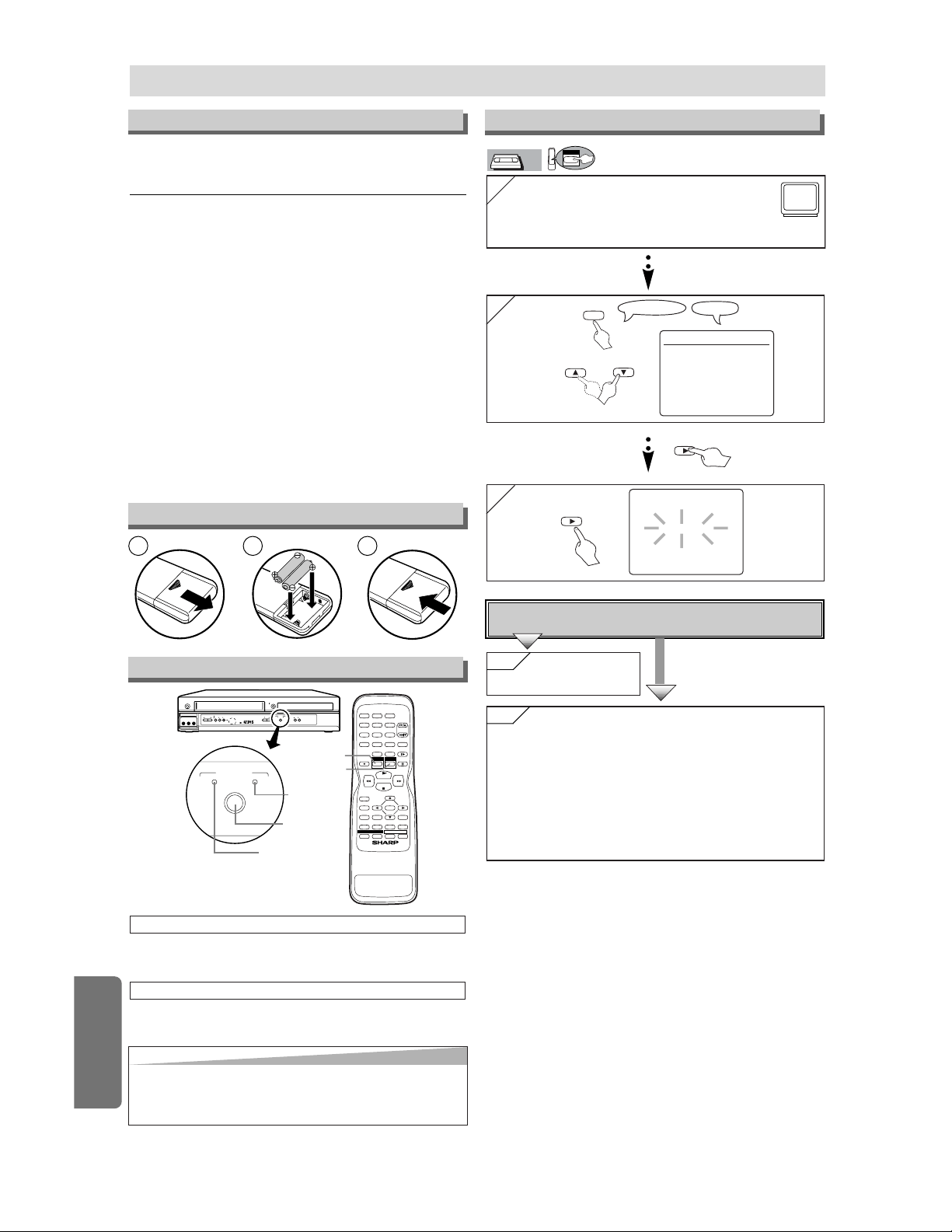
–
32
–
ES
Español
Español
Conexiones
Conmutación VCR/DVD
Instalación de las pilas del mando a distancia
Activación de la unidad por primera vez
CH
( TRACKING )
VCR
OUTPUT
DVD
STOP PLAY
REW FF PLAY REC TIMER
STOP/
EJECT
POWER
OPEN/CLOSE
AV IN 2
VIDEO L(MONO)-AUDIO-R
VCR
OUTPUT
DVD
Botón OUTPUT
Luz
DVD OUTPUT
Luz
VCR OUTPUT
Botón DVD
Botón VCR
STOP
PLAY
123
456
789
0 +10
POWER
SPEED AUDIO
DISPLAY
SKIP/CH.
SLOW
VCR/TV
PAUSE
REC/OTR
ENTER
RETURN
TOP MENU
MENU
SETUP
CLEAR/
C.RESET
ZOOM
MODE
SEARCH
MODE
A
-
B
ANGLE
REPEAT
SUBTITLE
T-SET
DVDVCR
VCR/DVD COMBINATION
DVD
Pulse el botón VCR en el mando a distancia.
(Compruebe que está encendida la luz VCR OUTPUT.)
MODO VCR
Pulse el botón DVD en el mando a distancia
(Compruebe que está encendida la luz DVD OUTPUT.)
MODO DVD
2
2
SELEC. IDIOMA
ENGLISH
FRANCAIS
B ESPAÑOL [ON]
1
1
Encienda el televisor y sintonice al canal 3.
• Si el canal 3 se está utilizando para una trans-
misión, vea la sección "Canal de salida RF".
POWER
3
3
CA 01
AJUSTE AUTO
No
No
Espere unos minutos.
Después del escaneo
• El sintonizador se detiene en el canal memorizado más
abajo.
• Puede seleccionar sólo los canales memorizados en esta
unidad con los botones SKIP/CH (K/L).
• Si aparece de nuevo "AJUSTE AUTO" en la pantalla del
televisor, compruebe las conexiones de los cables y luego
pulse otra vez el botón B.
Si
Si
Pulse el botón
MENU para salir.
Conecta el cable de la caja de canales de cable o la caja
de satélite en la toma ANT IN de VCR/DVD?
SI
NO
Pantalla del televisor
Mando a distancia
VCR
VCR
o
VCR
Consulte la "Conexión básica del televisor" en la
página delantera antes de utilizar esta unidad.
Canal de salida RF
Si el canal 3 se está utilizando para una trans-
misión.
1)Programe su televisor al canal 4.
2)Inserte una cinta pregrabada en esta unidad.
3)Pulse el botón OUTPUT en el VCR/DVD para que
se encienda la luz VCR OUTPUT.
• Si no se enciende la luz ”VCR” en la pantalla de
esta unidad, pulse el botón VCR/TV en el mando a
distancia.
4)Pulse una vez el botón PLAY.
5)Después de unos segundos, pulse el botón PLAY
en el VCR/DVD durante 3 segundos.
• El canal de salida RF cambiará del canal 3 al canal
4 y podrá ver una imagen reproducida.
• Cuando no aparezca una imagen en la pantalla del
televisor, repita el paso 4.
6)Pulse el botón STOP para parar la reproducción.
Consejo
Consejo
•
Si pulsa sólo el botón OUTPUT en el panel frontal NO
conmuta el modo del mando a distancia. DEBE selec-
cionar también el modo correcto en el mando a distancia.
1 2 3
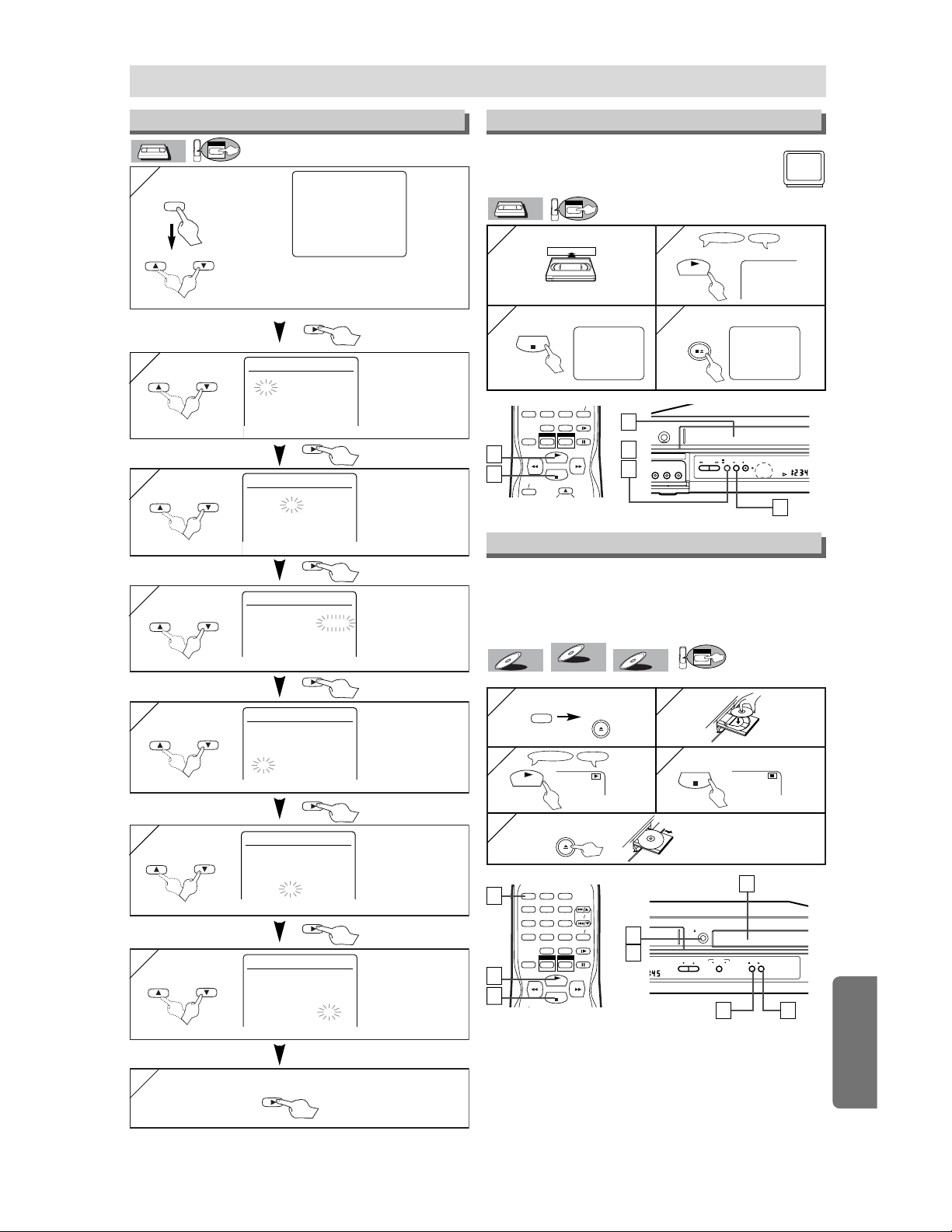
–
33
–
ES
Español
Reproducción de la grabadora de vídeo
REPRODUCIR
B
STOP
PLAY
789
0 +10
DISPLAY
SLOW
VCR TV
PAUSE
REC OTR
DVDVCR
Antes: Encienda el televisor y cambie al canal 3.
• Si el canal 3 se está utilizando para una trans-
misión, vea la sección "Canal de salida RF".
1
1
2
2
PARAR
EXPULSAR
A
3
3
4
4
Pantalla del televisor
Mando a distancia
PLAY
STOP
STOP/EJECT
[VCR/DVD]
/
VCR
VCR
VCR
Español
Ajuste del reloj
1
1
-MENU-
PROGRAMAR
AUTOREPETIR [OFF]
AJUSTE CANAL
B AJUSTE DE RELOJ
SELEC. IDIOMA
SALIDA DEL AUDIO
TV ESTEREO [ON]
SAP
MENU
AJUSTE DE RELOJ
MES DIA AÑO
0 3 / – – – – – –
HORA MINUTO AM/PM
– – : – – – –
AJUSTE DE RELOJ
MES DIA AÑO
0 3 / 1 5 – – – –
HORA MINUTO AM/PM
– – : – – – –
Seleccione el mes actual
Seleccione el día actual
•
Si no se ha ajustado el reloj, aparece la pan-
talla AJUSTE DE RELOJ cuando pulse el
botón MENU. En este caso, vaya al paso (2).
VCR
VCR
o
o
o
VCR
AJUSTE DE RELOJ
MES DIA AÑO
0 3 / 1 5 2 0 0 4
HORA MINUTO AM/PM
– – : – – – –
AJUSTE DE RELOJ
MES DIA AÑO
0 3 / 1 5 LUN 2 0 0 4
HORA MINUTO AM/PM
0 5 : – – – –
AJUSTE DE RELOJ
MES DIA AÑO
0 3 / 1 5 LUN 2 0 0 4
HORA MINUTO AM/PM
0 5 : 4 0 – –
AJUSTE DE RELOJ
MES DIA AÑO
0 3 / 1 5 LUN 2 0 0 4
HORA MINUTO AM/PM
0 5 : 4 0 P M AM
B PM
Seleccione el año actual
Seleccione "AM" o "PM".
8
8 Para salir de la pantalla AJUSTE DE RELOJ.
Seleccione la hora actual
Seleccione los minutos actuales
o
o
o
o
3
3
4
4
5
5
6
6
7
7
REW FF PLAY REC TIMER
STOP/
EJECT
POWER
AV IN 2
VIDEO L(MONO)-AUDIO-R
2
2
Reproducción de DVD/CD
STOP
PLAY
123
456
789
0 +10
POWER
SPEED AUDIO
DISPLAY
SKIP CH.
SLOW
VCR TV
PAUSE
DVDVCR
Antes: Encienda el televisor, amplificador y otros equipos
que puedan estar conectados a esta unidad. Asegúrese que
el televisor y el sintoamplificador de audio (de venta en los
comercios) están en el canal correcto.
1
1
2
2
3
3
Pantalla del televisor
Mando a distancia
PLAY
1
1
3
3
4
4
4
4
5
5
STOP
[VCR/DVD]
OPEN/CLOSE
POWER
[VCR/DVD]
OPEN/CLOSE
DVD
CD
CD
DVD-V
DVD-V
VR modeVR mode
VR mode
DVD-V
DVD-V
CH
( TRACKING )
VCR
OUTPUT
DVD
STOP PLAY
OPEN/CLOSE
DVD
1
1
5
5
2
2
3
3
4
4
3
3
1
1
2
2
2
2
4
4
3
3
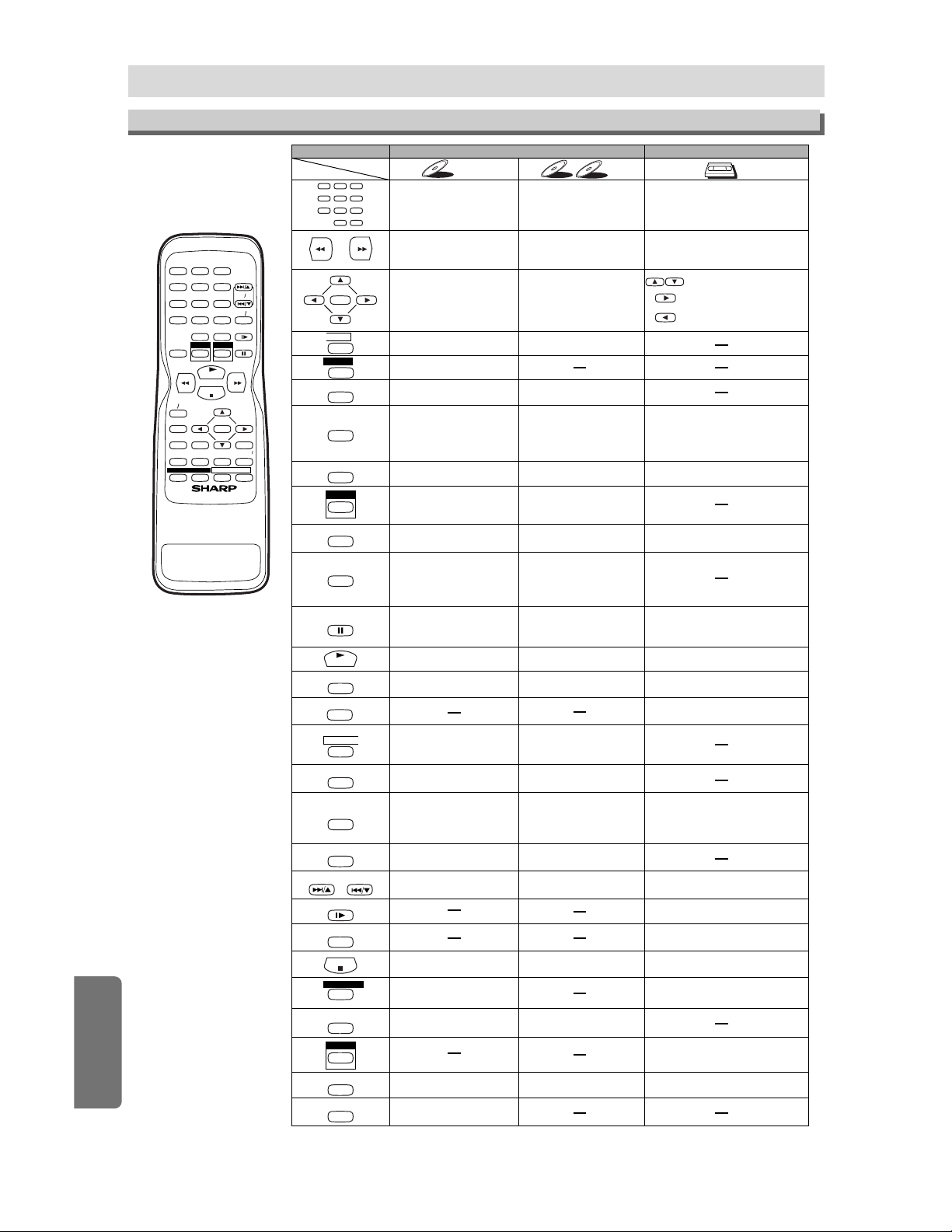
–
34
–
ES
Mando a distancia
• Para activar o desactivar la
unidad
• Para activar o desactivar la
unidad
• Para activar o desactivar la
unidad
• Para indicar el modo de
disco actual
• Para indicar el modo de
disco actual
• Para indicar la hora actual,
contador de cinta y canal
•
Para seleccionar directamente
el capítulo o el título
•
Para seleccionar directamente
la canción
• Para seleccionar los ángulos
de la cámara en un disco
• Para seleccionar subtítulos
en un disco
• Para poner la grabadora de
vídeo en el modo de espera
para una grabación con temporizador
• Para seleccionar el idioma de
audio en un disco
• Para seleccionar ESTÉREO,
L-CH o R-CH (CD)
• Para repetir entre los puntos
A y B elegidos
• Para repetir entre los puntos
A y B elegidos (CD)
•
Para reproducir repetidamente
un capítulo o título
•
Para reproducir repetidamente una
canción o disco (CD)
•
Para reproducir repetidamente una
canción, grupo o disco (MP3)
• Para activar/desactivar el
nivel del negro
• Para activar/desactivar el
envolvente virtual
• Para activar/desactivar el
reproducción rápìdo
• Para disponer el orden de
reproducción o la
reproducción aleatoria
• Para activar/desactivar el
envolvente virtual
• Para llamar el menú MP3
(MP3)
• Para ampliar parte de la
imagen (x2/x4)
• Para llamar el menú de la
grabadora de vídeo
• Para llamar el menú superior
en un disco
• Para volver a la operación
previa en el menú de
programación de DVD
• Para volver a la operación
previa en el menú de
programación de DVD
•
Para buscar un capítulo, título u hora
•
Para volver rápidamente a un
lugar o disco
•
Buscar los marcadores
• Para buscar una canción
• Para buscar la hora (CD)
• Para volver rápidamente a
un lugar o disco
• Buscar los marcadores (CD)
• Para seleccionar la velocidad
de grabación
• El botón +10 no tiene efecto en el
modo de grabadora de vídeo
• Para borrar los marcadores
• Para borrar los marcadores
(CD)
•
Para retirar el número de estado
en la entrada de programa
• Para borrar los números
entrados incorrectamente
• Para borrar los números
entrados incorrectamente
• Para salir del menú de la grabadora
de vídeo
• Para reponer el contador de cinta
•
Para buscar en avance/retroceso
en un disco
•
Para empezar la reproducción en avance/
retroceso lento durante el modo de pausa
• Para buscar en avance/
retroceso en un disco
• Para el avance/retroceso
de una cinta
• Para avanzar la reproducción
un cuadro a la vez
• Para avanzar la reproducción
un cuadro a la vez
• Para hacer una pausa de
reproducción del disco
• Para hacer una pausa en la
reproducción del disco
• Para hacer una pausa de la
reproducción o grabación de la cinta
• Para parar la grabación • Para parar la grabación
• Para parar la reproducción o
grabación
• Para saltar capítulos • Para saltar canciones
•
Para volver al archivo superior
de la jerarquía más alta en el
programa y menú MP3 (MP3)
• Para cambiar de canal
• Para ajustar manualmente el
seguimiento durante la reproducción
•
Para empezar la reproducción
del disco
•
Para empezar la reproducción
del disco
•
Para empezar la reproducción
de la cinta
• Para llamar el menú de
programación de DVD
• Para llamar el menú de
búsqueda de índice u hora
• Para llamar el menú de
programación de DVD
• Para activar el mando a
distancia en el modo DVD
• Para seleccionar el modo
de salida de DVD
•
Para activar el mando a
distancia en el modo DVD
• Para seleccionar el modo de
salida de DVD
•
Para seleccionar la posición de la
grabadora de vídeo o posición del televisor
•
Para seleccionar la posición de
CD/MP3 o la posición del televisor
•
Para seleccionar la posición
de DVD o posición del televisor
• Para ver la cinta en cámara
lenta
• Para seleccionar el modo de
salida de la grabadora de vídeo
• Para activar el mando a distancia
en el modo de la grabadora de vídeo
• Para empezar una grabaciòn o una
grabaciòn de Vn-Toque
• Para mover el cursor y
determinar su posición
• Para mover el curso y
determinar su posición
•
Para seleccionar un ítem en el
menú de la grabadora de vídeo
•
Para avanzar al siguiente menú de
la grabadora de vídeo
•
Para volver un paso durante el ajuste
del reloj y temporizador
Modo de grabadora de vídeo
Modo DVD
• Para seleccionar el canal
• Para llamar el menu en un
disco
DVD-V
DVD-V
CD
CD
MP3
MP3
VCR
VCR
Botón
(Orden alfabético)
Disco/cinta
123
456
789
0+10
ENTER
A
-
B
ANGLE
AUDIO
CLEAR/
C.RESET
DISPLAY
DVD
MENU
MODE
PLAY
POWER
REC/OTR
REPEAT
RETURN
SEARCH
MODE
SETUP
SLOW
SPEED
STOP
SUBTITLE
T-SET
TOP MENU
VCR
VCR/TV
ZOOM
PAUSE
SKIP/CH. SKIP/CH.
Español
STOP
PLAY
123
456
789
0 +10
POWER
SPEED AUDIO
DISPLAY
SKIP CH.
SLOW
VCR TV
PAUSE
REC OTR
ENTER
RETURN
TOP MENU
MENU
SETUP
CLEAR
C.RESET
ZOOM
MODE
SEARCH
MODE
A
-
B
ANGLE
REPEAT
SUBTITLE
T-SET
DVDVCR
VCR/ DVD COMBINATION
Español

9HS1VMN20342
H9641UD★★★★
1VMN20342
Printed in China
CONSUMER LIMITED WARRANTY
(Valid for warranty service in the U.S. only)
SHARP ELECTRONICS CORPORATION warrants to the first consumer purchaser that this Sharp brand product (the
“Product”), when shipped in its original container, will be free from defective workmanship and materials, and agrees that it
will, at its option, either repair the defect or replace the defective Product or part thereof with a new or
remanufactured equivalent at no charge to the purchaser for parts or labor for the period(s) set forth below.
This warranty does not apply to any appearance items of the Product nor to the additional excluded item(s) set forth
below nor to any Product the exterior of which has been damaged or defaced, which has been subjected to improper
voltage or other misuse, abnormal service or handling, or which has been altered or modified in design or
construction.
In order to enforce the rights under this limited warranty, the purchaser should follow the steps set forth below and
provide proof of purchase to the servicer.
The limited warranty described herein is in addition to whatever implied warranties may be granted to purchasers by law.
ALL IMPLIED WARRANTIES INCLUDING THE WARRANTIES OF MERCHANTABILITY AND FITNESS FOR USE ARE
LIMITED TO THE PERIOD(S) FROM THE DATE OF PURCHASE SET FORTH BELOW. Some states do not allow
limitations on how long an implied warranty lasts, so the above limitation may not apply to you.
Neither the sales personnel of the seller nor any other person is authorized to make any warranties other than those
described herein, or to extend the duration of any warranties beyond the time period described herein on behalf of
Sharp.
The warranties described herein shall be the sole and exclusive warranties granted by Sharp and shall be the sole and
exclusive remedy available to the purchaser. Correction of defects, in the manner and for the period of time described
herein, shall constitute complete fulfillment of all liabilities and responsibilities of Sharp to the purchaser with respect to
the Product, and shall constitute full satisfaction of all claims, whether based on contract, negligence, strict liability or
otherwise. In no event shall Sharp be liable, or in any way responsible, for any damages or defects in the Product which
were caused by repairs or attempted repairs performed by anyone other than an authorized servicer. Nor shall Sharp
be liable or in any way responsible for any incidental or consequential economic or property damage. Some states do not
allow the exclusion of incidental or consequential damages, so the above exclusion may not apply to you.
THIS WARRANTY GIVES YOU SPECIFIC LEGAL RIGHTS. YOU MAY ALSO HAVE OTHER RIGHTS WHICH VARY
FROM STATE TO STATE.
Model Specific Section
Your Product Model Number & Description:
Warranty Period for this Product:
Additional Item(s) Excluded from warranty
Coverage (if any):
Where to Obtain Service:
What to do to Obtain Service:
DV-NC150U VCR/DVD Combination
(Be sure to have this information available when you need service
for your Product.)
One (1) year parts and ninety (90) days labor from date of purchase.
Non-rechargeable batteries.
Call Sharp Electronics corporation toll free at 1-800-BE-SHARP for
instructions on how to obtain service on your VCR/DVD combination.
Ship your product, prepaid, as per the instruction given by the Sharp
representative at the toll free number (1-800-BE-SHARP). BE sure to
have your proof of purchase available. Be sure to ship the product
securely packaged and insured against shipping damage.
Osaka, JapanOsaka, Japan
SHARP ELECTRONICS CORPORATION
Sharp Plaza, Mahwah, New Jersey 07430-2135
SHARP CORPORATION
SHARP ELECTRONICS CORPORATION
Sharp Plaza, Mahwah, New Jersey 07430-2135
SHARP CORPORATION
TO OBTAIN SUPPLY, ACCESSORY OR PRODUCT INFORMATION, GO TO OUR WEBSITE AT www.sharpusa.com
OR CALL 1-800-BE-SHARP.