© 2004 Sony Corporation
DVP-FX1021
Operating Instructions
Portable
CD/DVD Player
2-349-874-12(1)
WARNING
2
To prevent fire or shock hazard, do not expose the unit to rain or moisture.
To avoid electrical shock, do not open the cabinet. Refer servicing to qualified personnel only.
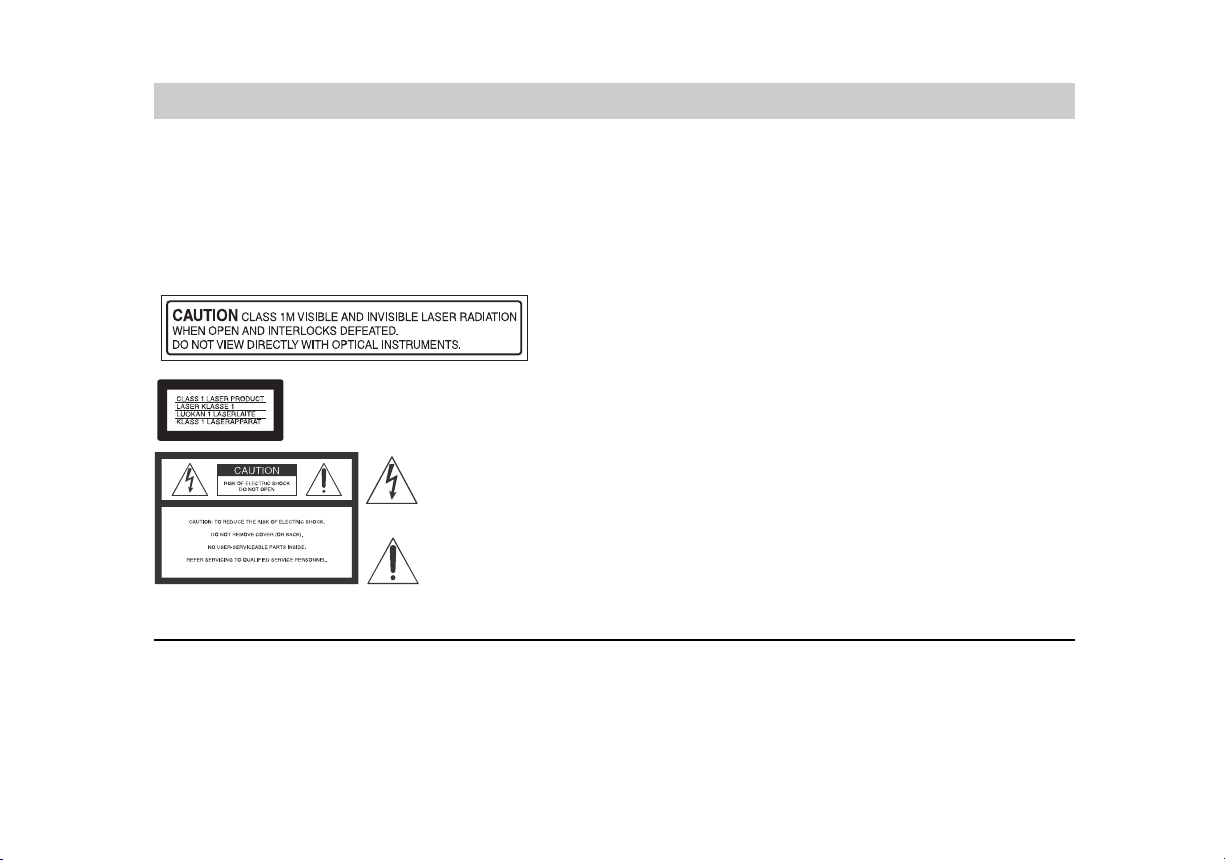
CAUTION
The use of optical instruments with this product will increase eye hazard. As the laser beam used in this
CD/DVD player is harmful to eyes, do not attempt to disassemble the cabinet.
Refer servicing to qualified personnel only.
This CD/DVD player is CLASS 1 LASER PRODUCT.
This symbol is intended to alert the user to the presence of uninsulated
“dangerous voltage” within the product’s enclosure that may be of suffi-
cient magnitude to constitute a risk of electric shock to persons.
This symbol is intended to alert the user to the presence of important
operating and maintenance (servicing) instructions in the literature
accompanying the appliance.
Welcome!
Thank you for purchasing this CD/DVD Player. Before operating this player, please read this manual thorough-
ly and retain it for future reference.
This label is located on the bottom of the unit.
Important Safety Instructions
Introductions
3
1. Read these instructions.
2. Keep these instructions.
3. Heed all warnings.
4. Follow all instructions.
5. Do not use this apparatus near water.
6. Clean only with dry cloth.
7. Do not block any ventilation openings. Install in
accordance with the manufacturer’s instructions.
8. Do not install near any heat sources such as
radiators, heat registers, stoves, or other appara-
tus (including amplifiers) that produce heat.
9. Do not defeat the safety purpose of the polarized
or grounding-type plug. A polarized plug has two
blades with one wider than the other. A grounding
type plug has two blades and a third grounding
prong. The wide blade or the third prong are pro-
vided for your safety. If the provided plug does
not fit into your outlet, consult an electrician for
replacement of the obsolete outlet.
10. Protect the power cord from being walked on or
pinched particularly at plugs, convenience recep-
tacles, and the point where they exit from the
apparatus.
11. Only use attachments/accessories specified by
the manufacturer.
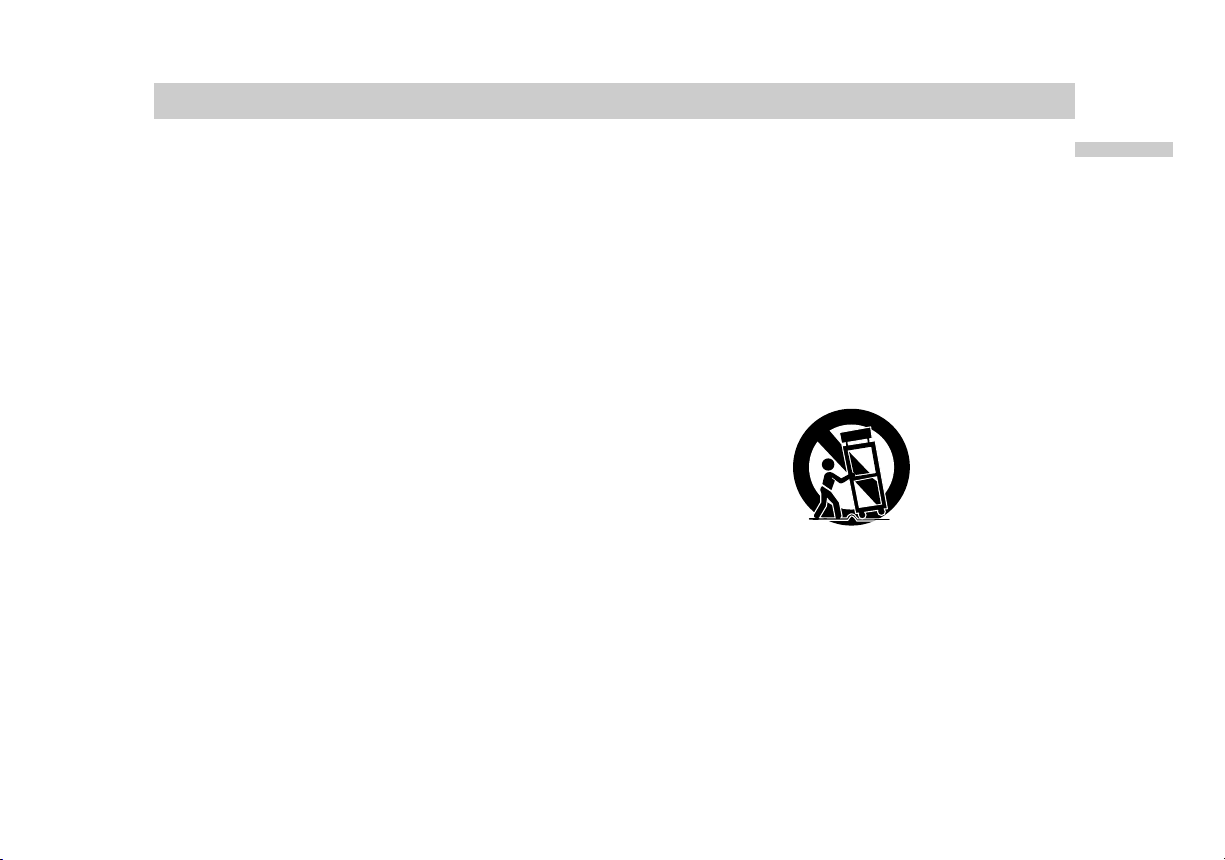
12. Use only with the cart, stand, tripod, bracket, or
table specified by the manufacturer, or sold with
the apparatus. When a cart is used, use caution
when moving the cart/apparatus combination to
avoid injury from tip-over.
13. Unplug this apparatus during lightning storms or
when unused for long periods of time.
14. Refer all servicing to qualified service personnel.
Servicing is required when the apparatus has
been damaged in any way, such as power-supply
cord or plug is damaged, liquid has been spilled
or objects have fallen into the apparatus, the
apparatus has been exposed to rain or moisture,
does not operate normally, or has been dropped.

Precautions
4
Owner’s Record
The model and serial numbers are located on the bottom of the unit. Record the serial number in the space provided below.
Refer to them whenever you call upon your Sony dealer regarding this product.
Model No. DVP-FX1021
Serial No.______________
CAUTION
You are cautioned that any changes or modifications not expressly approved in this manual could void your authority to
operate this equipment.
NOTE
This equipment has been tested and found to comply with the limits for a Class B digital device, pursuant to Part 15 of the
FCC Rules. These limits are designed to provide reasonable protection against harmful interference in a residential installa-
tion. This equipment generates, uses, and can radiate radio frequency energy and, if not installed and used in accordance
with the instructions, may cause harmful interference to radio communications. However, there is no guarantee that interfer-
ence will not occur in a particular installation. If this equipment does cause harmful interference to radio or television recep-
tion, which can be determined by turning the equipment off and on, the user is encouraged to try to correct the interference
by one or more of the following measures:
– Reorient or relocate the receiving antenna.
– Increase the separation between the equipment and receiver.
– Connect the equipment into an outlet on a circuit different from that to which the receiver is connected.
– Consult the dealer or an experienced radio/TV technician for help.
Introductions
5
Precautions (continued)
• The power requirements and power consumption of this
unit are indicated on the AC power adaptor. Check that
the unit’s operating voltage is identical with your local
power supply.
On safety
• Caution – The use of optical instruments with this product
will increase eye hazard.
• To prevent fire or shock hazard, do not place objects filled
with liquids, such as vases, on the apparatus.
• Should any solid object or liquid fall into the cabinet,
unplug the player and have it checked by qualified per-
sonnel before operating it any further.
• Do not put any foreign objects in the DC IN 9.8V (external
power input) jack.
On temperature increases
• Heat may build up while charging or during extented use.
This is not a malfunction.
• If the surrounding temperature is very high, the protective
function will turn off the player automatically.
Leave the player in a cool location for about 30 minutes
before using it again.
On power sources
• Use only the supplied AC power adaptor. Do not use any
other AC power adaptor. It may cause a malfunction.
• If the AC power adaptor causes interference to radio
reception, move it away from the radio.
• Do not touch the AC power adaptor with wet hands.
• Even when the player is turned off, it is still connected to
the AC power source (mains) as long as it remains
connected to the wall outlet.
• If you are not going to use the player for a long time, be
sure to disconnect the player from the wall outlet. To dis-
connect the AC power cord (mains lead), grasp the plug
itself; never pull the cord.
• Should the AC power cord need to be changed, have it
done at a qualified service shop only.
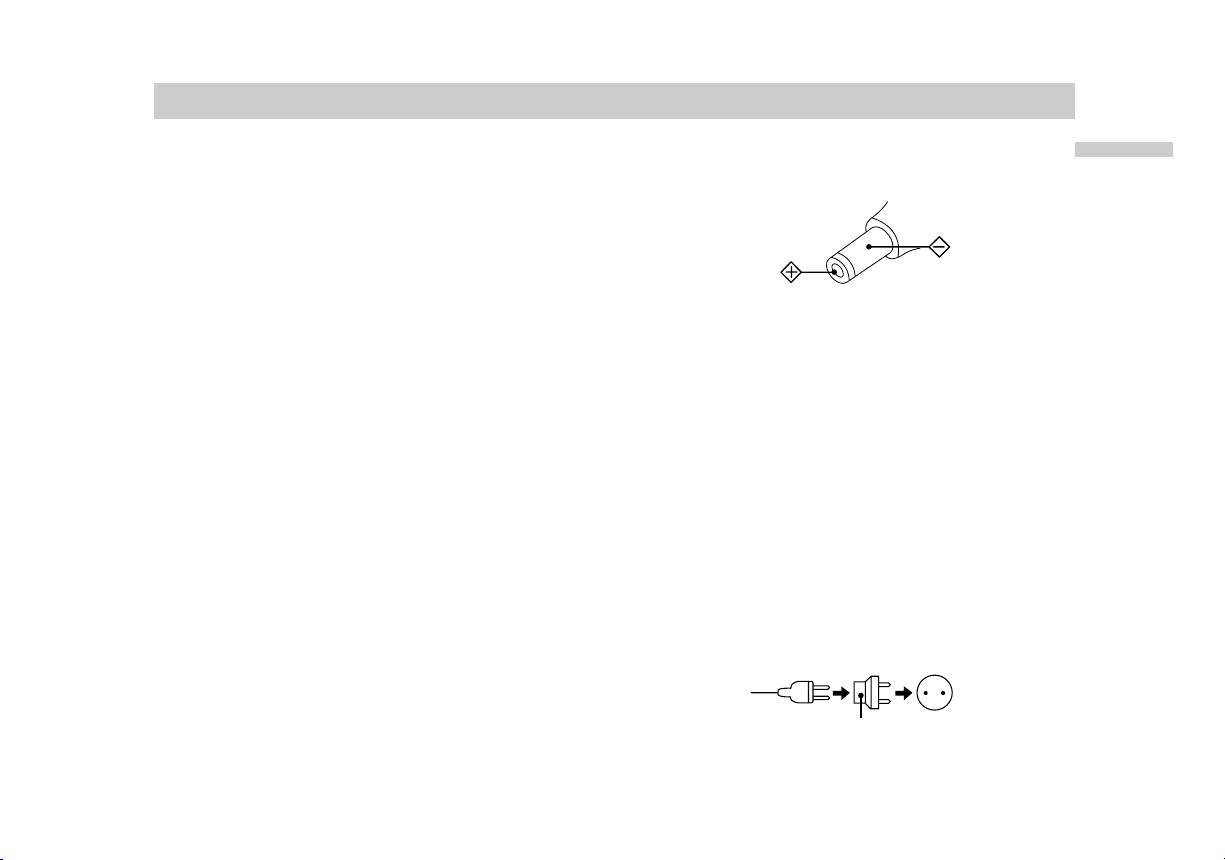
• Use a commercially available AC plug adaptor, if neces-
sary, depending on the design of the wall outlet.
Polarity of the plug
Wall outlet
AC plug adaptor
AC-FX101

6
Precautions (continued)
On the rechargeable battery
• Charge the battery before you start using it.
• Do not allow dust to come into contact with the battery
terminals of the player and battery.
• Do not short the terminals.
• Do not open the terminal covers of the player.
• Do not leave the battery in a place subject to direct
sunlight, or in a car with its windows closed.
• Keep the battery dry.
•
Use only the battery(NP-FX1021) supplied with this
player(DVP-FX1021). Other rechargeable
batteries supplied with other models cannot be used with
this player.
• Do not disassemble.
• Do not incinerate.
• Dispose of used batteries promptly.
To dispose of the rechargeable battery
• Certain countries may regulate disposal of the battery
used to power this product. Please consult with your local
authority.
To store the rechargeable battery
The battery is consumed gradually as time elapses even if
is not used. In order to prevent the battery from
deteriorating, store it as follows:
• Remove the battery from the player after use.
(Even if the player is off, it still uses some power.)
• Use up the battery completely on the player before
storing it.
• Keep the battery in a cool location to
prevent it from deteriorating.
• Charge and use the battery at least once every 6 months.
On charging the rechargeable battery
• Heat may build up in the battery while charging.
This is not a malfunction.
• When the battery life of a fully charged battery becomes
about half the normal life, you may need to replace the
battery with a new one.
• Disconnect the battery from the player as soon as it has
been charged. Leaving it connected may result in reduced
battery performance.
Introductions
7
Precautions (continued)
On handling the player
• Keep the lens on the player clean and do not touch it. If
you do so, the lens may be damaged, and the player will
not operate properly.
• Place the player in a location with adequate ventilation to
prevent heat build-up in the player.
• Do not put any heavy object on top of the player. The
player and the discs may be damaged.
• Do not leave the player in a location near heat sources, or
in a place subject to direct sunlight, excessive dust or
sand, moisture, rain, mechanical shock, on an unlevel sur-
face, or in a car with its windows closed.
• Do not wrap the player in a cloth or blanket during use as
it may cause malfunction or serious accidents.
• If the player causes interference to radio or television
reception, turn off the player or move it away from the
radio or television.
• Keep the player and discs away from equipment with
strong magnets, such as microwave ovens, or large loud-
speakers.
• Do not install this equipment in a confined space such as
a bookshelf or similar unit.
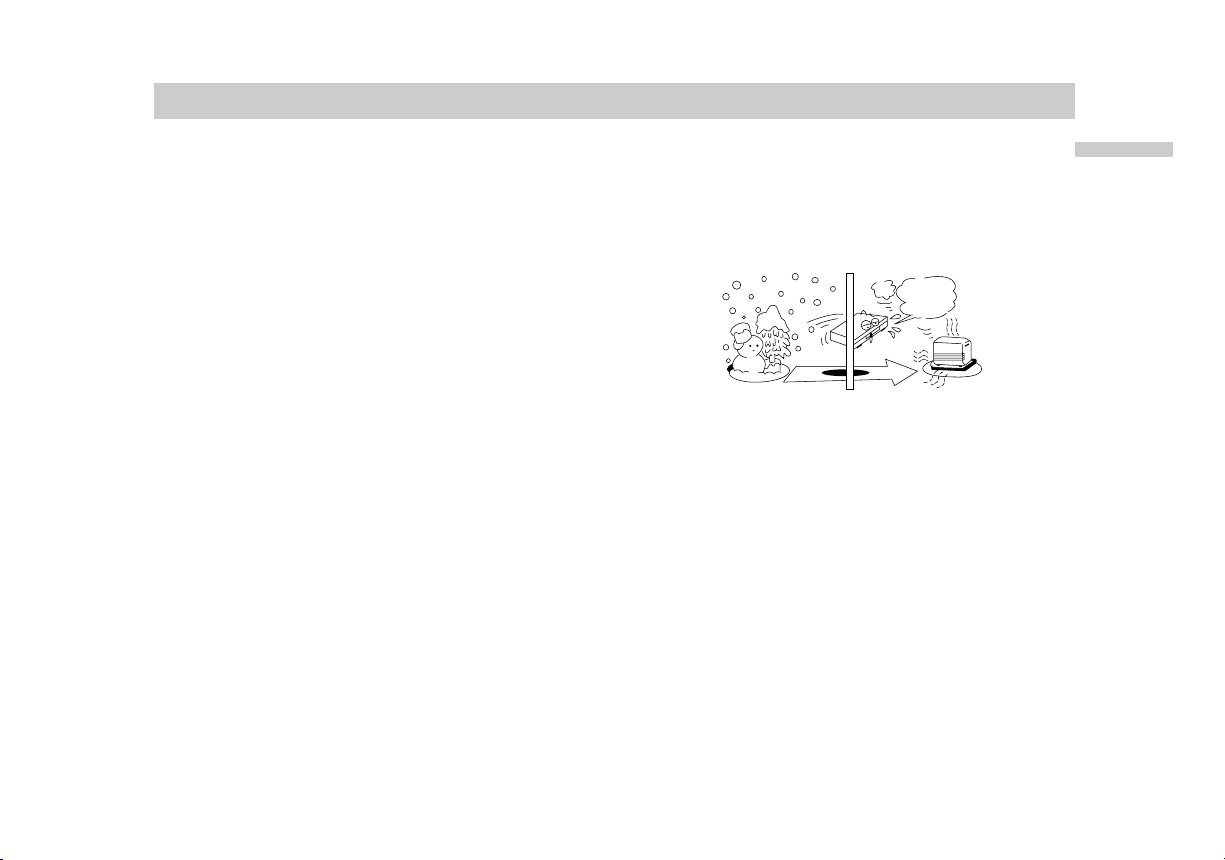
• If the player is brought directly from a cold to warm loca-
tion, or is placed in a very damp place, moisture may con-
dense on the lenses of the player. Should this occur, the
player may not operate properly. In this case, remove the
disc and leave the player for about half an hour until the
moisture evaporates.
• Discs with non-standard shapes (e.g, heart, square, star)
cannot be played on this player. Do not use such discs.
• While operating, do not move, shake or otherwise allow
any shock to the player. It may cause a malfunction.
• Use this player in a stable, horizontal position where it is
not subject to vibration.
• Do not touch the disc if it is still spinning when you open
the lid.
• Before moving the player, remove any disc from it.
If you don’t, the disc may be damaged.
I
t
’
s
t
oo
war
m
!

8
On handling the LCD screen
• The LCD is manufactured using high-precision technology.
You may, however, see tiny black points and/or bright
points (red, blue, green) that continuously appear on the
LCD. This is a normal result of the manufacturing process
and does not indicate a malfunction.
• Do not scratch the LCD or exert pressure on it. This could
cause a malfunction.
• Using the player in low temperature conditions may pro-
duce a residual image on the screen. This is not a mal-
function. When the player returns to normal temperature,
the screen returns to normal.
• A residual image may appear on the screen if the same
image is displayed for a lengthy period of time. The resid-
ual image disappears in a while.
If you are going to leave the player for a long time, turn off
the power.
• The screen becomes warm during operation.
This is normal and does not indicate a malfunction.
On headphones
Preventing hearing damage
Avoid using headphones at high volume. Hearing experts
advise against continuous, loud, and extended play. If you
experience a ringing in your ears, reduce the volume or
discontinue use.
Showing consideration for others
Keep the volume at a moderate level. This will allow you to
hear outside sounds and still be considerate to the people
around you.
On adjusting the volume
Do not turn up the volume while listening to a section with
very low level inputs or no audio signal. If you do, the
speakers may be damaged when a peak-level section is
played.
Road safety
Do not use the monitor unit and headphones while driving,
cycling, or operating any motorized vehicle. It may create a
traffic hazard and is illegal in some areas. It can also be
potentially dangerous to play your headsets at high volume
while walking, especially at pedestrian crossings.You
should exercise extreme caution or discontinue use in
potentially hazardous situations.
• Do not install the monitor display where viewable by the
driver.
• Some states restrict the use of monitors and televisions in
vehicles. Where use is permitted, the units should not be
installed or operated so as to be viewable by the driver.
Precautions (continued)
Introductions
9
Precautions (continued)
On transportation
• When you transport this player, use the original carton
box and packing materials.
• Before you move this player, make sure to remove any
discs from it.
On cleaning
Clean the cabinet, panel, and controls with a soft cloth
slightly moistened with a mild detergent solution. Do not
use any type of abrasive pad, scouring powder, or solvent
such as alcohol or benzine.
On cleaning discs
Do not use a commercially available cleaning disc. It may
cause a malfunction.
If you have any questions or problems concerning your
player, please consult your nearest Sony dealer.
RECYCLING LITHIUM-ION BATTERIES
Lithium-Ion batteries are recyclable. You
can help preserve our environment by
returning your used rechargeable
batteries to the collection and recycling
location nearest you.
For more information regarding recycling of rechargeable bat-
teries, call toll free 1-800-822-8837, or visit
http://www.rbrc.org/
Caution:
•
Do not handle damaged or leaking Lithium-Ion batteries.
Never expose the battery pack to temperatures above
140
°
F (60
°
C) such as in a car parked in the sun or under
direct sunlight.
• For the customers in the United States
This product contains mercury. Disposal of this product may
be regulated if sold in the United States. For disposal or
recycling information, please contact your local authorities
or the Electronics Industries Alliance.
(www.eiae.org http://www.eiae.org)
IMPORTANT NOTICE
Caution: This player is capable of holding a still video
image or on-screen display image on your television
screen indefinitely. If you leave the still video image or
on-screen display image displayed on your TV for an
extended period of time you risk permanent damage to
your television screen. Plasma Display Panel televisions
and projection televisions are especially susceptible to
this.
Format of discs
DVD VIDEO
VIDEO CD
Music CD
Disc-related terms
DVD -R / DVD ±RW
DVD -R’s format allows information to be recorded
onto the DVD disc only once. DVD +RW and
DVD -RW are two standards for re-writable media,
meaning the DVD content can be erased and
re-recorded. Single-sided discs can hold 4.38
Gigabytes and double-sided discs can hold twice as
much.
10
This Player Can Play the Following Discs
About This Manual
• Instructions in this manual describe the controls on the
remote.You can also use the controls on the player if they
have the same or similar names as those on the remote.
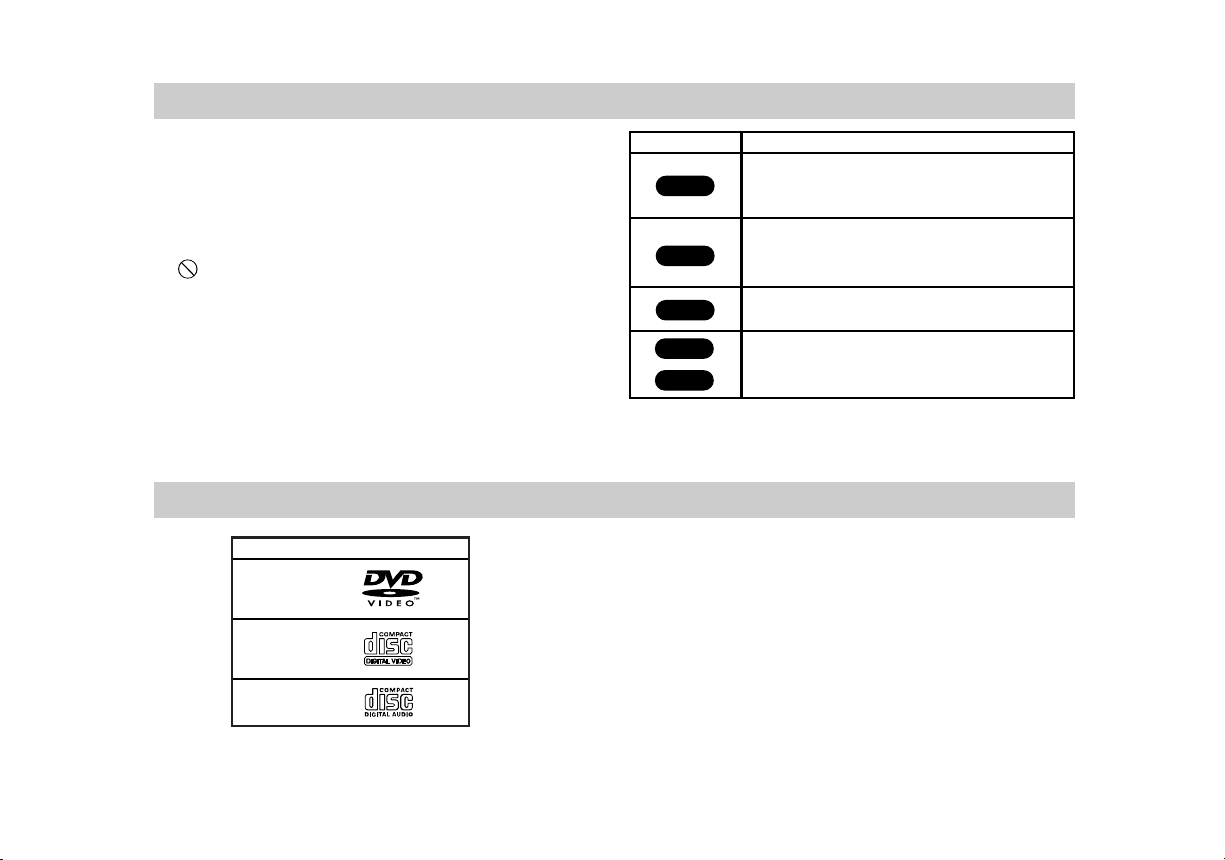
• The meanings of the icons used in this manual are
described below:
• “ ” may appear on the LCD screen during operation.
This icon means the function explained in this instruction
manual is not available on that specific DVD video disc.
The “DVD VIDEO” is a trademark.
Icon Meaning
CD
VCD
DVD
*
MP3 (MPEG 1 Audio Layer 3) is a standard format defined by
ISO(International Organization for Standardization)/ MPEG which
compresses audio data.
Functions available for DVD VIDEOs and
DVD-RWs/ DVD-Rs or DVD+RWs in video
mode
Functions available for VIDEO CDs,
or CD-Rs/ CD-RWs in video CD format
Functions available for music CDs or
CD-Rs/ CD-RWs in music CD format
Functions available for DATA CDs
(CD-ROMs/ CD-Rs/ CD-RWs containing
MP3* audio tracks and JPEG image files)
JPEG
MP3

Introductions
11
This Player Can Play the Following Discs (continued)
VCD (Video CD)
Enjoy video playback (moving picture) as well as
music.
PBC: Playback Control (Video CD only)
Playback control is available for Video CD (VCD) ver-
sion 2.0 disc formats. PBC allows you to interact with
the system via menus, search functions, or other typ-
ical computer-like operations. Moreover, still pictures
of high resolution can be played if they are included
in the disc. Video CDs not equipped with PBC
(Version 1.1) operate in the same way as audio CDs.
MP3
MP3 is a popular compression format used for digital
audio files that yields very high, near-CD quality.
JPEG
Joint Pictures Expert Group. JPEG is a compressed
file format that allows you to save images with no
limit on the number of colors.
Title (DVD video discs only)
A title is generally a distinct section of a DVD disc.
For example the main feature could be title 1,
a documentary describing how the film was made
could be title 2, and cast interviews could be title 3.
Each title is assigned a reference number enabling
you to locate it easily.
Manufactured under license from Dolby
Laboratories. “Dolby”, “Pro Logic”, and the dou-
ble-D symbol are trademarks of Dolby
Laboratories.
“DTS” and “DTS Digital Out” are trademarks of
Digital Theater Systems, Inc.
NOTE:
Depending on the conditions of the recording
equipment or the CD-R/RW (or DVD-R/±RW) disc itself,
some CD-R/RW (or DVD-R/±RW) discs
cannot be played on the unit.
This Player Can Play the Following Discs (continued)
12
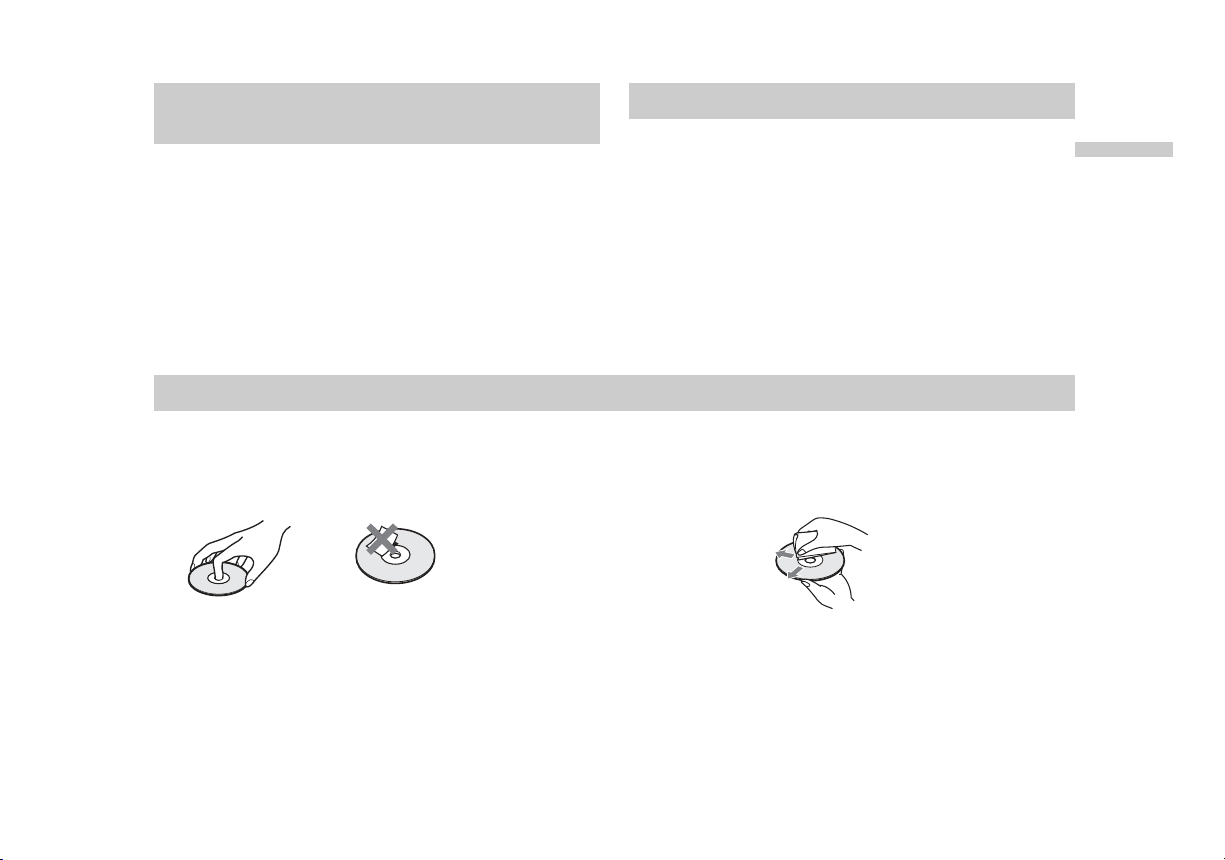
Region code
Your player has a region code printed on the back of
the unit and only will play DVD VIDEO discs
(playback only) labeled with identical region codes.
This system is used to protect copyrights.
DVDs labeled will also play on this player.
If you try to play any other DVD, the message
“Check Regional Code” will appear on the LCD
screen. Depending on the DVD, no region code
indication may be labeled even though playing the
DVD is prohibited by area restrictions.
ALL
Region code
Note on playback operations of
DVDs and VIDEO CDs
Introductions
13
Some playback operations of DVDs and VIDEO CDs may
be intentionally set by software producers. Since this player
plays DVDs and VIDEO CDs according to the disc contents
the software producers designed, some playback features
may not be available. Also, refer to the instructions
supplied with the DVDs or VIDEO CDs.
This product incorporates copyright protection technology
that is protected by U.S. patents and other intellectual
property rights. Use of this copyright protection technology
must be authorized by Macrovision, and is intended for
home and other limited viewing uses only unless otherwise
authorized by Macrovision.
Reverse engineering or disassembly is prohibited.
Copyrights
On handling discs
• To keep the disc clean, handle the disc by its edge.
Do not touch the surface.
• Do not stick paper or tape on the disc.
On storing discs
• Do not expose the disc to direct sunlight or heat sources
such as air ducts, or leave it in a car parked in direct
sunlight as the temperature may rise considerably inside
the car.
• After playing, store the disc in its case.
On cleaning discs
• Fingerprints or dust on a disc may cause the image or
sound quality to deteriorate. Use clean discs.
• Wipe the disc with a soft cloth from the center out.
• If the disc is very dirty, first wipe it with a damp cloth, then
wipe it again with a dry cloth.
• Do not use solvents such as benzine, thinner,
commercially available cleaners, or anti-static spray
intended for vinyl LPs.
Notes about the Discs
14
Table of Contents
Introductions
WARNING . . . . . . . . . . . . . . . . . . . . . . . . . . . . . . . . . . . . . . .2
Welcome! . . . . . . . . . . . . . . . . . . . . . . . . . . . . . . . . . . . . . . . .2
Important Safety Instructions . . . . . . . . . . . . . . . . . . . . . . . . .3
Precautions . . . . . . . . . . . . . . . . . . . . . . . . . . . . . . . . . . . . .4-9
About This Manual . . . . . . . . . . . . . . . . . . . . . . . . . . . . . . . .10
This Player Can Play the Following Discs . . . . . . . . . . . .10-12
Notes on playback operations of DVDs and VIDEO CDs . . . .13
Copyrights . . . . . . . . . . . . . . . . . . . . . . . . . . . . . . . . . . . . . .13
Notes about the Discs . . . . . . . . . . . . . . . . . . . . . . . . . . . . .13
Table of Contents . . . . . . . . . . . . . . . . . . . . . . . . . . . . . . . . .14
Identification of Controls . . . . . . . . . . . . . . . . . . . . . . . . .15-20
Main Unit . . . . . . . . . . . . . . . . . . . . . . . . . . . . . . . . . . . .15-16
Display Window . . . . . . . . . . . . . . . . . . . . . . . . . . . . . . . . .17
Remote Control . . . . . . . . . . . . . . . . . . . . . . . . . . . . . . .18-20
Power Connections . . . . . . . . . . . . . . . . . . . . . . . . . . . . .21-23
AC Adaptor . . . . . . . . . . . . . . . . . . . . . . . . . . . . . . . . . . . .21
Battery Pack . . . . . . . . . . . . . . . . . . . . . . . . . . . . . . . . .22-23
Basic Operations
Playing a Disc . . . . . . . . . . . . . . . . . . . . . . . . . . . . . . . . .24-28
Basic Playback
. . . . . . . . . . . . . . . . . . . . . . . . . . . . . . .24-26
Stopping Play
. . . . . . . . . . . . . . . . . . . . . . . . . . . . . . . . . . .27
Resume Play
. . . . . . . . . . . . . . . . . . . . . . . . . . . . . . . . . . .27
Screen Saver
. . . . . . . . . . . . . . . . . . . . . . . . . . . . . . . . . . .27
Pause
. . . . . . . . . . . . . . . . . . . . . . . . . . . . . . . . . . . . . . . . .28
Search . . . . . . . . . . . . . . . . . . . . . . . . . . . . . . . . . . . . . . . .28
Slow Motion . . . . . . . . . . . . . . . . . . . . . . . . . . . . . . . . . . . .28
On-Screen Display
. . . . . . . . . . . . . . . . . . . . . . . . . . . . . .29-30
Advanced Operations
General Features . . . . . . . . . . . . . . . . . . . . . . . . . . . . . .31-33
Title Menu . . . . . . . . . . . . . . . . . . . . . . . . . . . . . . . . . . . . .31
DVD Menu . . . . . . . . . . . . . . . . . . . . . . . . . . . . . . . . . . . . .31
Moving to another TITLE . . . . . . . . . . . . . . . . . . . . . . . . . .31
Moving to another CHAPTER/TRACK . . . . . . . . . . . . . . . . .31
Time Search . . . . . . . . . . . . . . . . . . . . . . . . . . . . . . . . . . . .32
Changing the Audio Language . . . . . . . . . . . . . . . . . . . . . .32
Changing the Audio Channel . . . . . . . . . . . . . . . . . . . . . . .32
Subtitles . . . . . . . . . . . . . . . . . . . . . . . . . . . . . . . . . . . . . . .32
Camera Angle . . . . . . . . . . . . . . . . . . . . . . . . . . . . . . . . . .32
Repeat A-B
. . . . . . . . . . . . . . . . . . . . . . . . . . . . . . . . . . . . .33
Repeat . . . . . . . . . . . . . . . . . . . . . . . . . . . . . . . . . . . . . . . . .33
Playing an Audio CD or MP3 Disc . . . . . . . . . . . . . . . . . .34-36
Programmed Playback . . . . . . . . . . . . . . . . . . . . . . . . . . .37-38
Random Play . . . . . . . . . . . . . . . . . . . . . . . . . . . . . . . . . . . .39
Viewing a JPEG Disc . . . . . . . . . . . . . . . . . . . . . . . . . . .40-41
Initial Settings
Initial Settings . . . . . . . . . . . . . . . . . . . . . . . . . . . . . . . . .42-47
General Operation . . . . . . . . . . . . . . . . . . . . . . . . . . . . . . . .42
LANGUAGE SET UP . . . . . . . . . . . . . . . . . . . . . . . . . . . . . .42
SCREEN SET UP . . . . . . . . . . . . . . . . . . . . . . . . . . . . . . . .43
AUDIO SET UP . . . . . . . . . . . . . . . . . . . . . . . . . . . . . . . .43-44
PARENTAL CONTROL . . . . . . . . . . . . . . . . . . . . . . . . . .45-46
CUSTOM SET UP . . . . . . . . . . . . . . . . . . . . . . . . . . . . . . . .47
Connections
Setting up the Player . . . . . . . . . . . . . . . . . . . . . . . . . . . .48-49
DVD Player Connections . . . . . . . . . . . . . . . . . . . . . . . . . . .48
Audio Connection to Optional Equipment . . . . . . . . . . . . . . .49
To use the player with car battery charger . . . . . . . . . . . .50-52
Reference
Troubleshooting . . . . . . . . . . . . . . . . . . . . . . . . . . . . . . . . . .53
Language Code List . . . . . . . . . . . . . . . . . . . . . . . . . . . . . . .54
Country Code List . . . . . . . . . . . . . . . . . . . . . . . . . . . . . . . .55
Specifications . . . . . . . . . . . . . . . . . . . . . . . . . . . . . . . . . . . .56
Introductions
15
Identification of Controls
Main Unit
OPEN
1
2
4
5
3
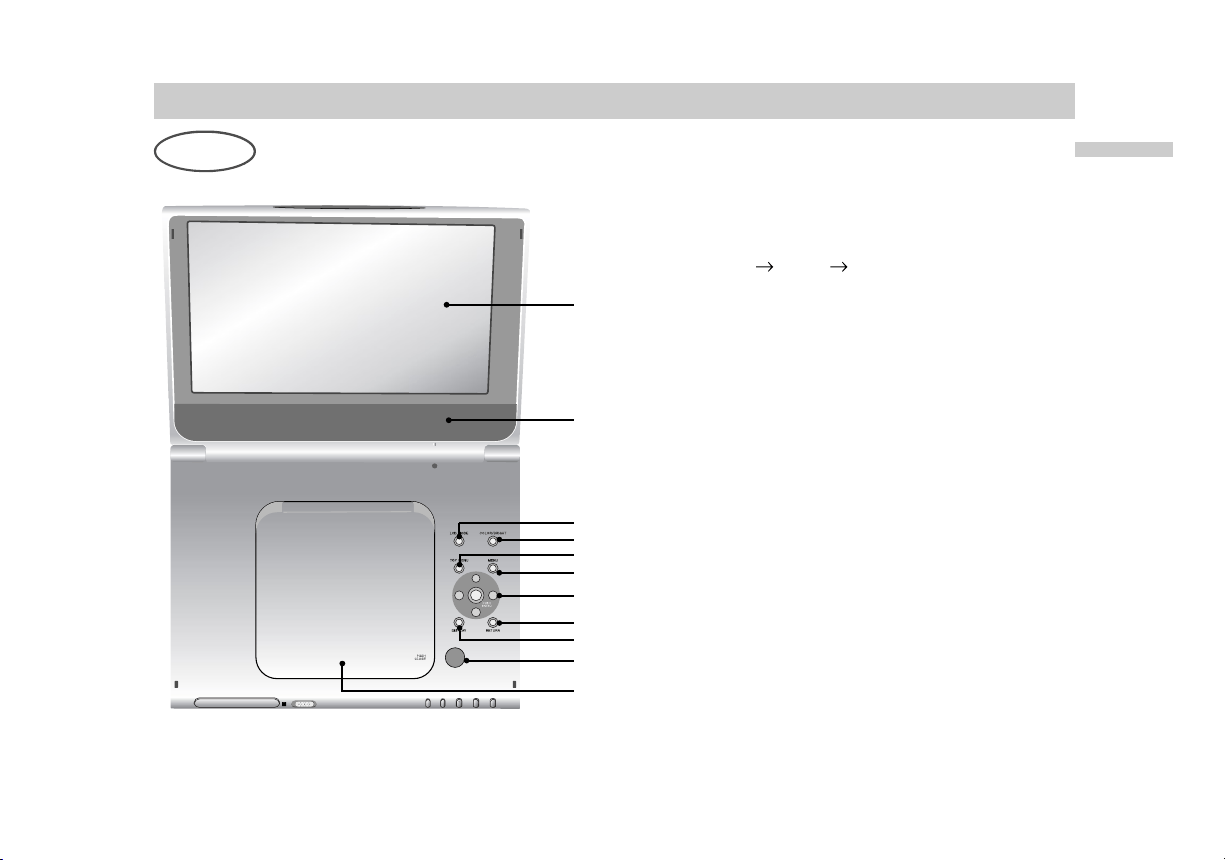
1. LCD screen
2. Speaker
3. LCD MODE (page 26)
4. COLOR/BRIGHT (page 25)
Brightness Color OFF
5. TOP MENU (page 31)
displays the title menu.
6. MENU (page 31)
displays menu programs.
7.
B
/
V
/
v
/
b
button, ENTER button
8. RETURN button
9. DISPLAY (page 29-30)
operation mode display.
10. OPEN button (page 24)
Push this button to open the Disc lid.
11. Disc Lid (page 24)
NOTE:
Place a disc with the playback side down on the
spindle, and push gently on the center of the disc so
it goes into position.
6
7
8
9
10
11
16
Identification of Controls (continued)
POWER
/HOLD
VO LUM E PH ONE SPH ONE S AU DIO V IDE O LINE SELECT
IN OUT
1 2 3 4 5 6 7 8 9 10 11 12 13
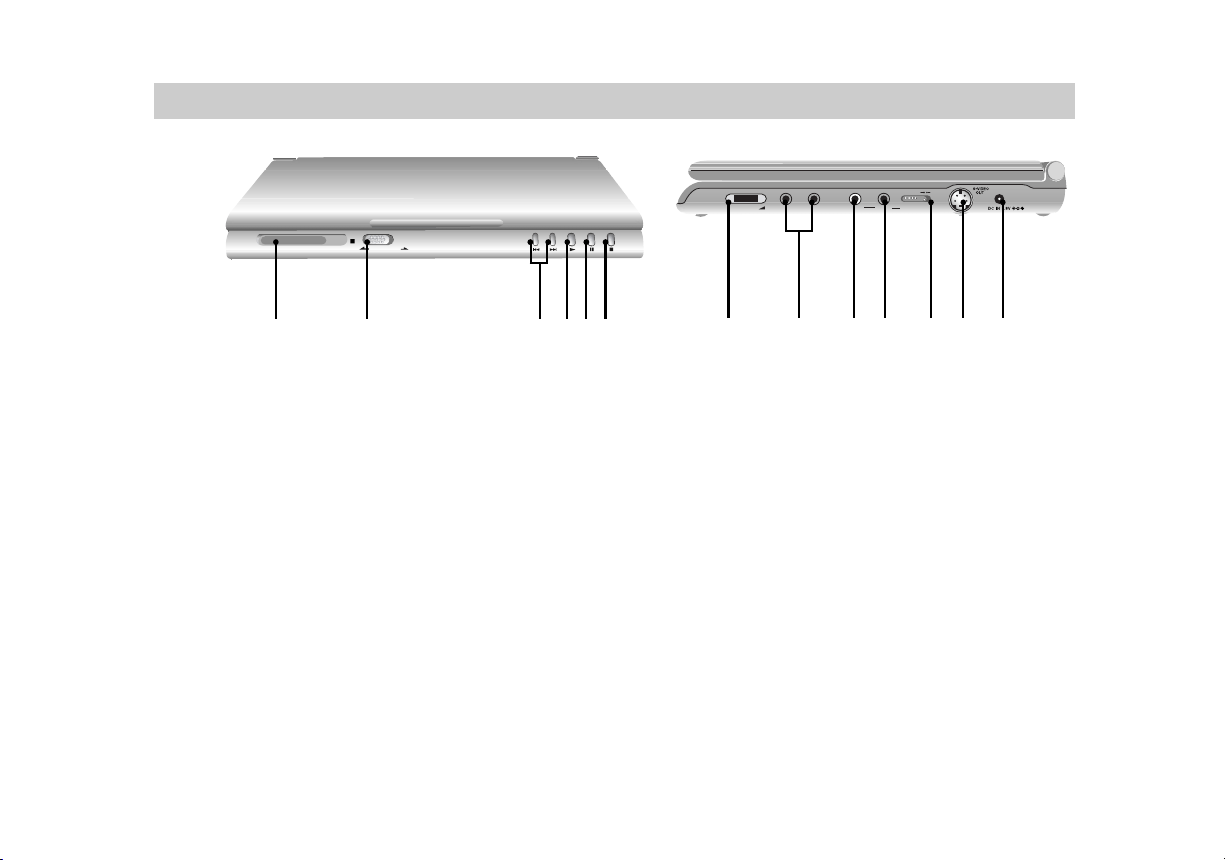
1. Display Window
See details on next page.
2.
POWER and HOLD switch
To turn off the power, you need to press the
POWER switch for at least one second. This is to
prevent the player from being accidentally turned
off.
HOLD switch
• The hold function locks the buttons on the DVD player so that
they will not work if accidentally touched.
• To enable, slide the HOLD switch on the right side of the DVD
player to the HOLD position.
• To disable, slide the switch back to its original position.
3. PREV/NEXT buttons (page 31)
4. PLAY button (page 24)
5. PAUSE button (page 28)
6. STOP button
7. VOLUME dial (page 24)
8. PHONES connector
9. AUDIO IN/OUT/ OPTICAL OUT connector
(page 48)
10. VIDEO IN/OUT connector (page 48)
11. LINE SELECT switch (page 48-49)
12. S-VIDEO OUT connector (page 48)
13. DC IN 9.8V connector (page 21)
Connect the AC adaptor.
Introductions
17
Identification of Controls (continued)
Display Window
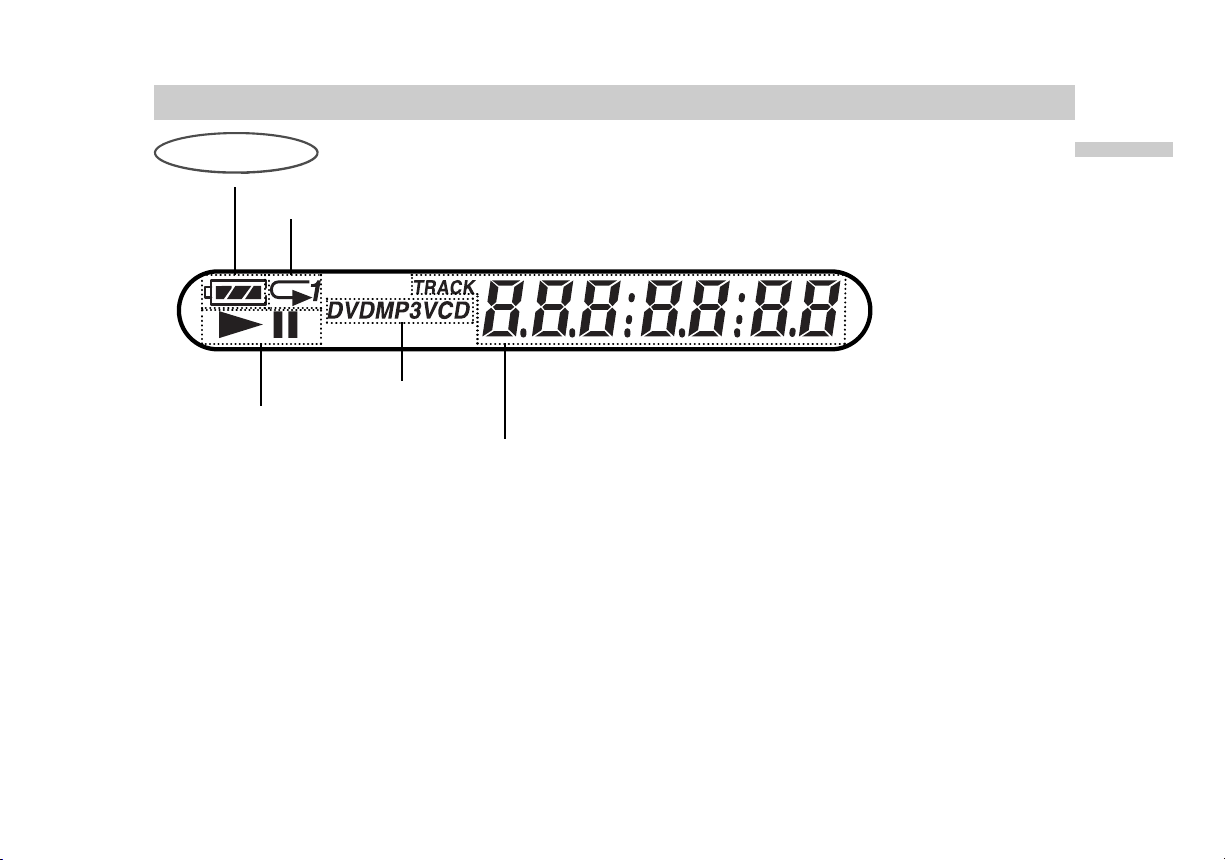
Disc type
Battery remaining indicator
Repeat mode
When playing back a DVD: Playing time of the current title or current Title/
Chapter number (Press PLAY button while playing disc. Title/ Chapter number
appears for 2 seconds.)
When playing back a VIDEO CD with Playback Control(PBC):
Playing time of the current track.
When playing back a CD, or VIDEO CD (without PBC):
Playing time of the current track and current track number.
When playing back an MP3:
Playing time of the current track and current track number.
When playing back a JPEG image: “JPEG”
Playing status
18
Identification of Controls (continued)
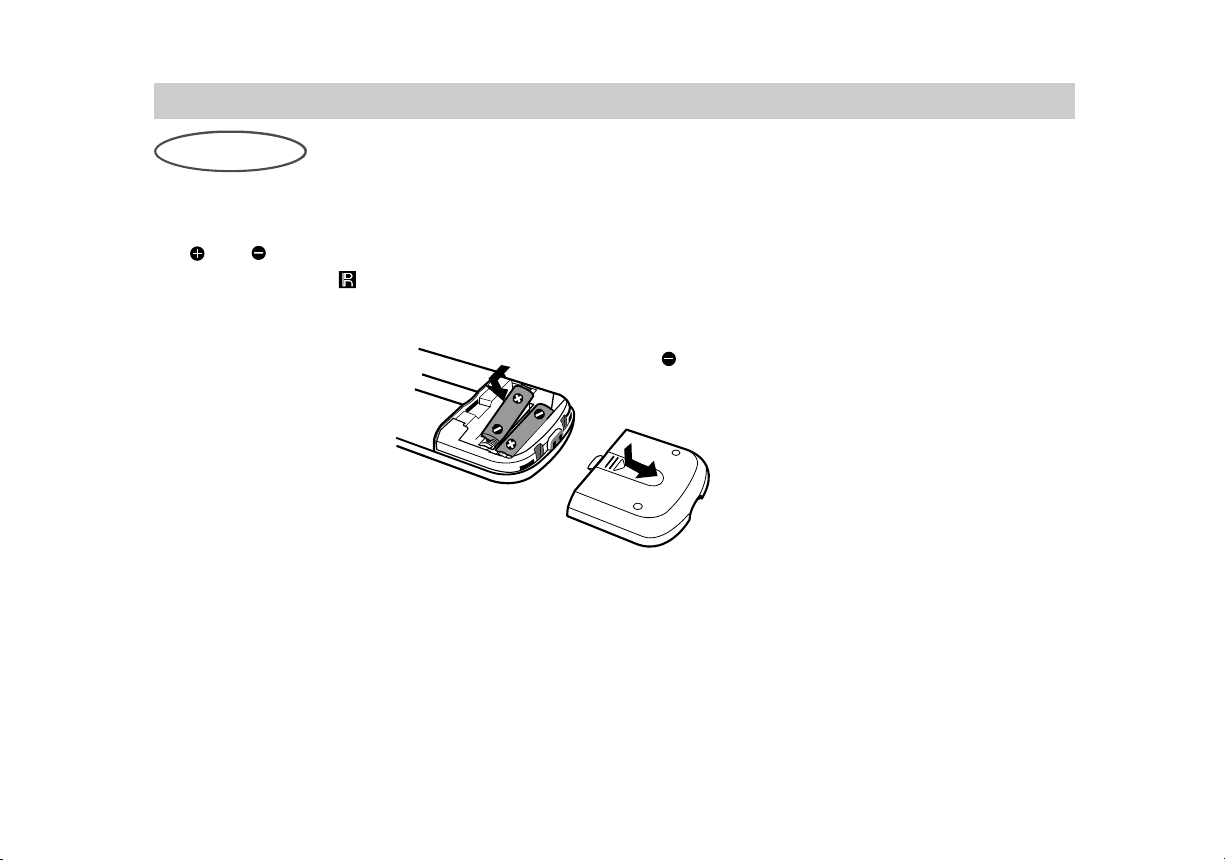
Inserting batteries into the remote
You can control the player using the supplied remote. Insert two size AA(R6) batteries (supplied) by matching
the and ends on the batteries to the markings inside the compartment. When using the remote, point it
at the remote sensor on the player.
Insert the end first
NOTES:
• Do not leave the remote in an extremely hot or humid place.
• Do not drop any foreign object into the remote casing, particularly when replacing the batteries.
• Do not expose the remote sensor to direct light from the sun or lighting apparatus. Doing so may cause a malfunction.
• If you do not use the remote for an extended period of time, remove the batteries to avoid possible damage from battery
leakage and corrosion.
Remote Control
Introductions
19
Identification of Controls (continued)
AUDIO
PREV NEXT
CLEAR
PLAY PAUSE STOP
SET UP
SCAN
TOP MENU
MENU
DISPLAY RETURN
SLOW
REPEAT
RANDOM
A-B
PROGRAM
ANGLE
1 2 3
654
7
8
0
9
DVD PORTABLE
ENTER
1
2
3
4
5
6
7
8
10
11
12
13
14
15
16
17
20
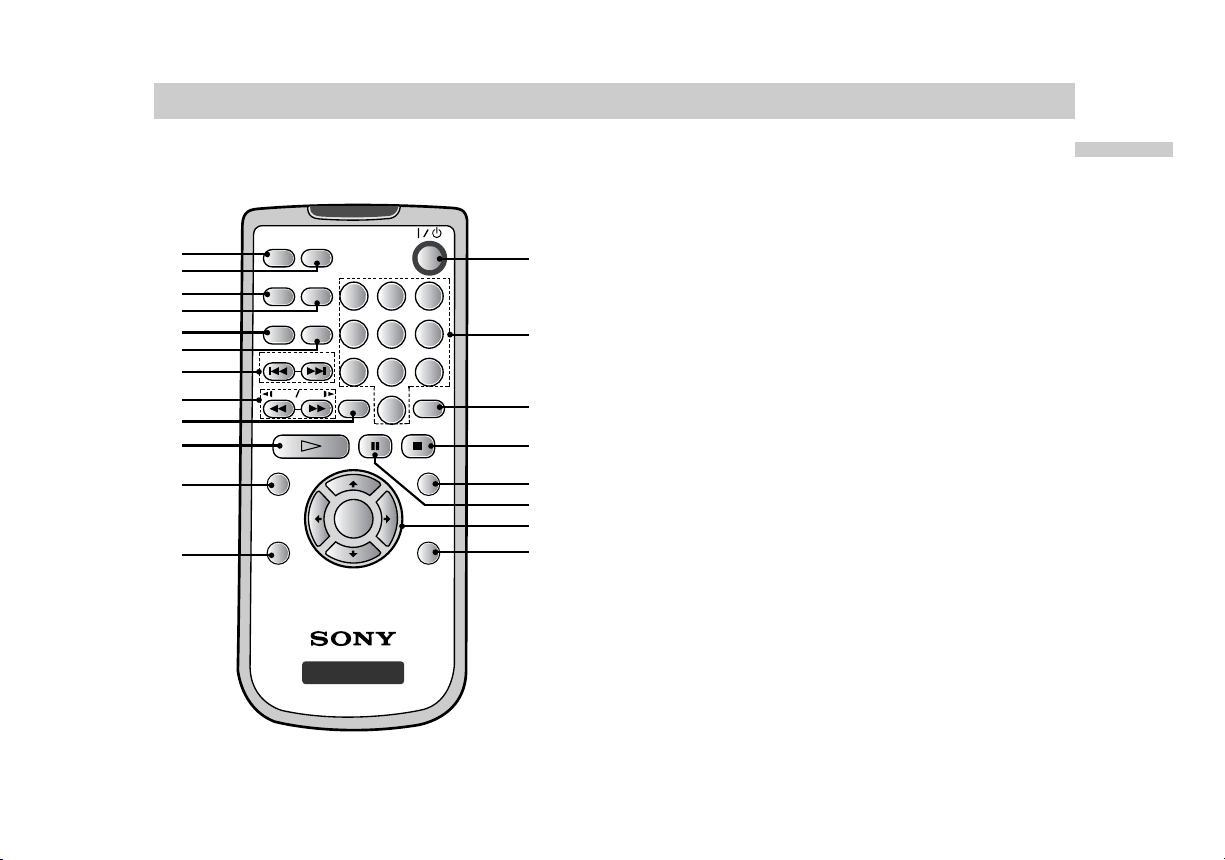
1. AUDIO button (page 32)
2. ANGLE button (page 32)
3. REPEAT button (page 33)
4. PROGRAM button (page 37-38)
5. RANDOM button (page 39)
6. A-B button (page 33)
7. PREV/NEXT button (page 31)
8. SCAN/SLOW button (page 28)
9. CLEAR button
10. PLAY button
11. * TOP MENU button (page 31)
12. DISPLAY button (page 29-30)
13. POWER button
14. NUMBER buttons
15. SET UP button (page 42)
9
18
19

20
Identification of Controls (continued)
16. STOP button
17. MENU button
Use the MENU button to display the menu
screen included on a DVD disc.
To operate a menu screen, follow the
instructions in “Using a DVD Menu” (page 31).
18. PAUSE button
19.
B
/
V
/
v
/
b
button, ENTER button
(up, down, left, right) for use in highlighting a
selection on a GUI menu screen, TOP MENU
and MENU screen.
20. RETURN button
* TOP MENU button:
Use the TOP MENU button to display the title screen
included on DVD video discs. To operate a menu
screen, follow the instructions in “Using a Title Menu”
(page 31)
Introductions
21
Power Connections
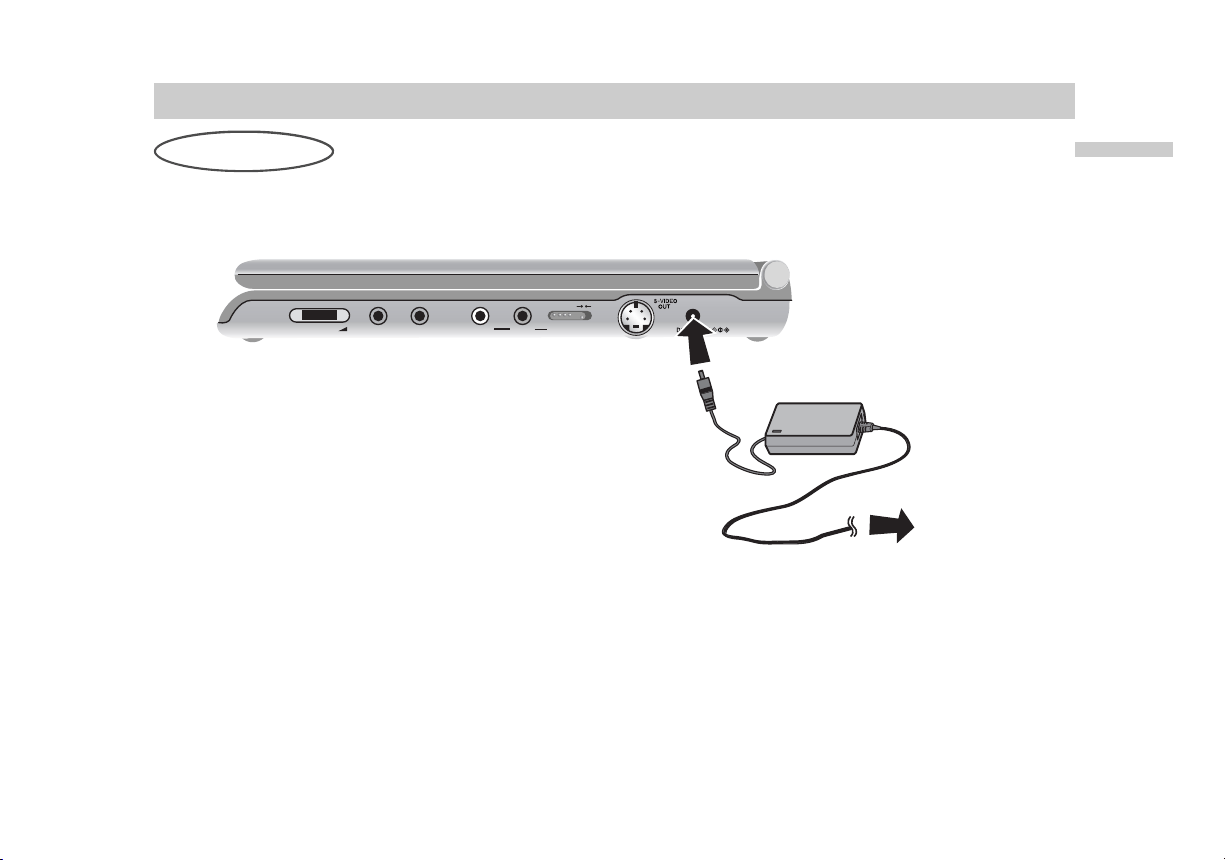
AC Power Adaptor
VO LUM E P HON ESPH O NES AU DI O VI DE O LINE SELECT
IN OUT
To DC IN 9.8V
AC-FX101
(supplied)
1
2
3
AC power cord
To AC outlet
Follow steps 1 to 3 to connect.
When disconnecting, reverse the order.
NOTES:
• When you disconnect the AC power cord, be sure to stop playback.
• Disconnecting the AC power cord during playback may cause a malfunction.
Power Connections (continued)
22
Battery Pack
You can use the NP-FX1021 rechargeable battery
pack (supplied) to enjoy the player when an AC outlet
is not available.
• Charge the battery pack before using it for the first
time.
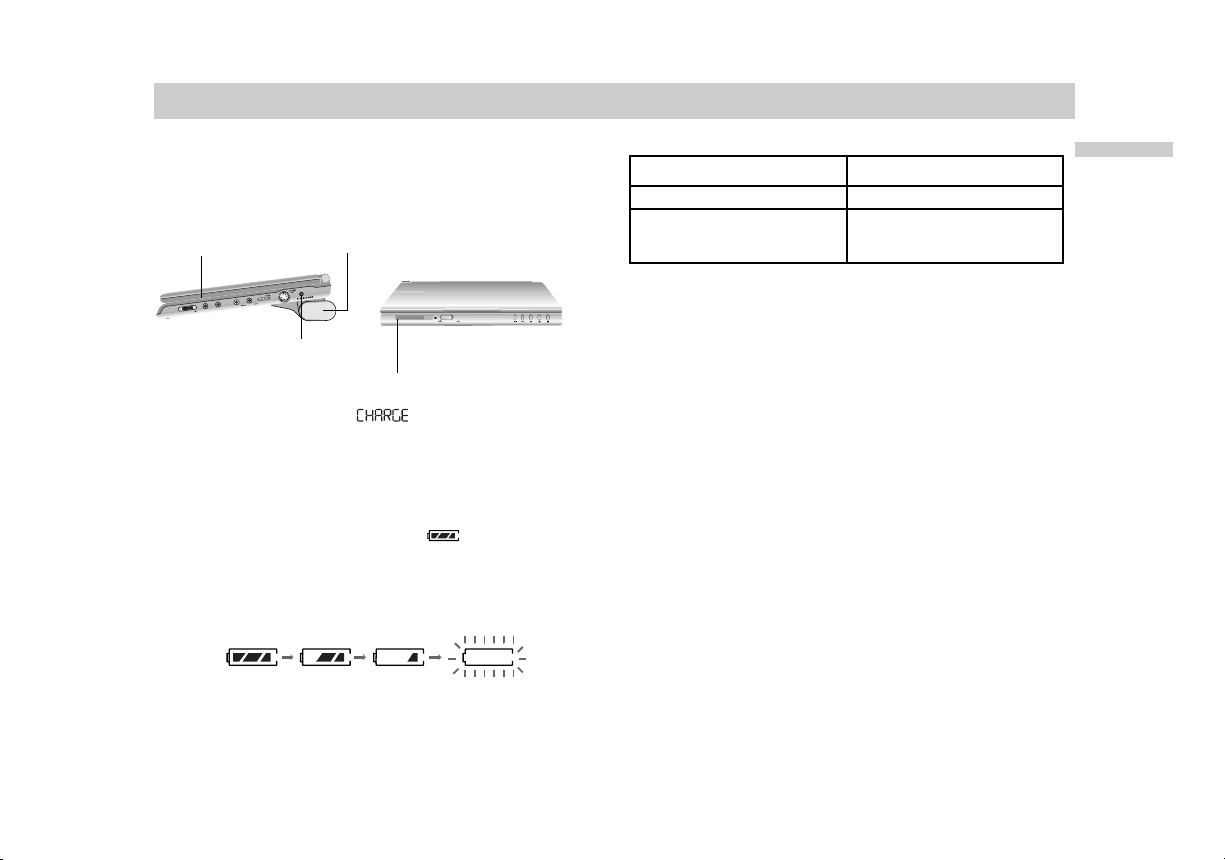
A
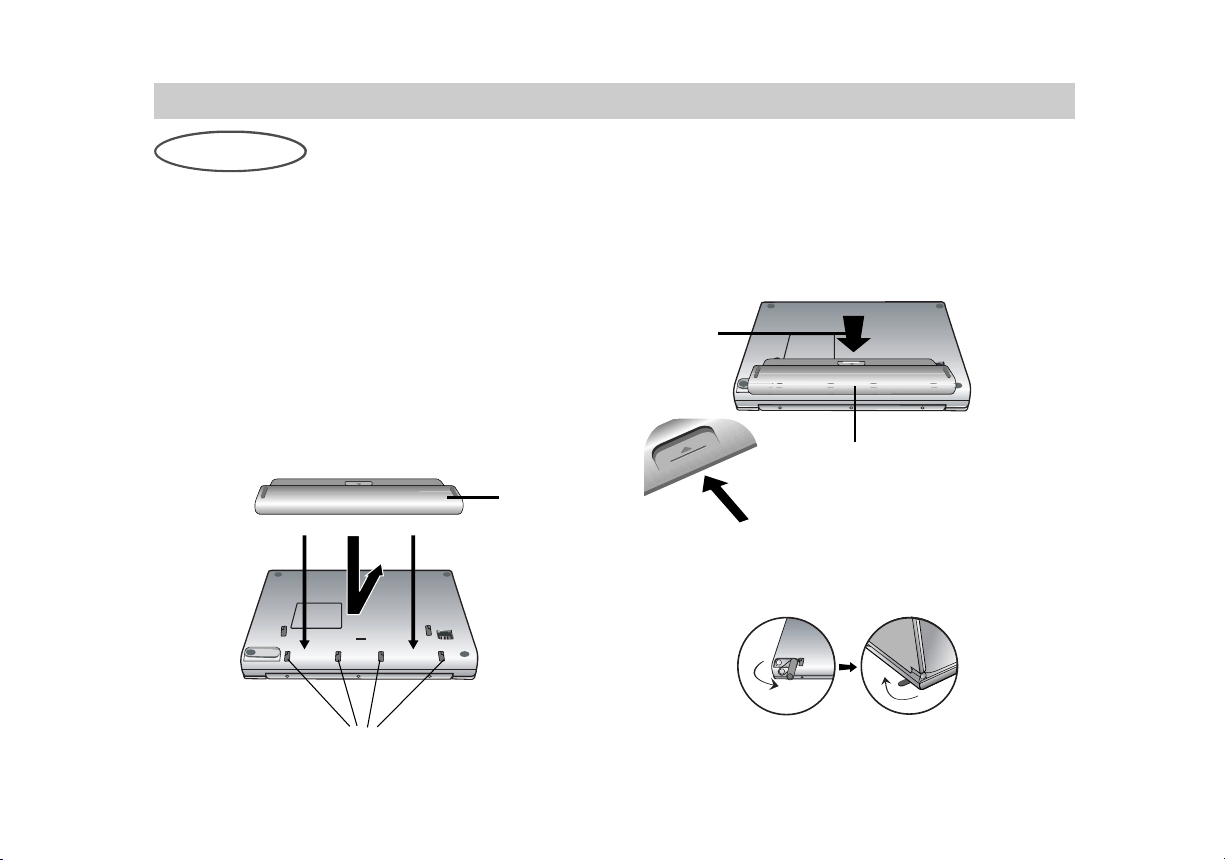
Attaching the battery pack (supplied)
1. Match the hooks of the battery pack into the
holes on the bottom of the player.
2. Press and slide the battery pack until the hooks
click.
NOTES:
• Do not detach the battery pack during playback.
• Be careful not to drop the battery pack.
A
Detaching the battery pack
1. Press the RELEASE switch
2. Slide the battery pack until the hooks click.
1
2
RELEASE Switch
1
2
Hooks
NOTE:
If you use the main unit without the battery pack, use the
tab on the player to keep it from tipping over.
Introductions
23
Power Connections (continued)
A
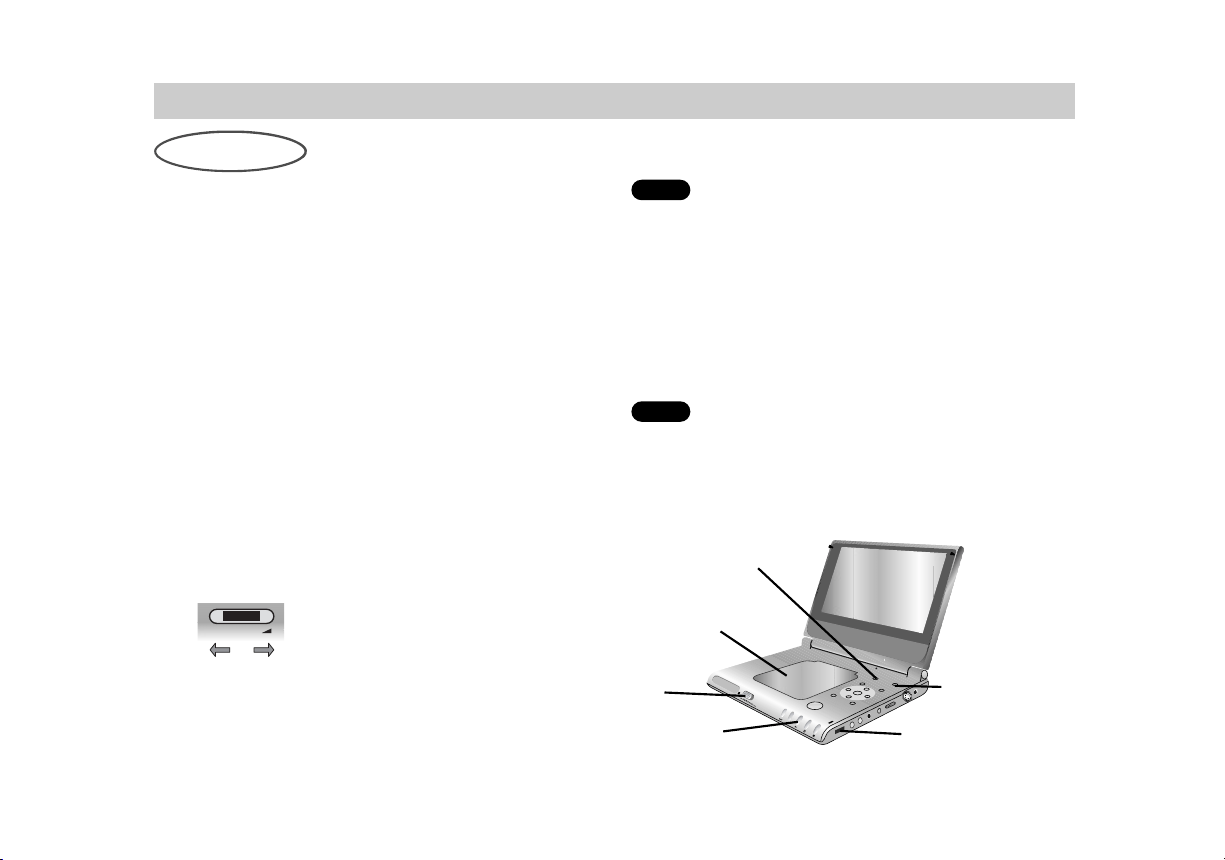
Charging the battery pack
1. Attach the battery pack to the player.
2. Connect the AC power adaptor to the player and
then plug into an AC outlet.
When charging starts, “ ” appears on the
display window.
3. Disconnect the AC power adaptor from the player
and pull out the plug from the AC outlet after
charging.
When charging is complete,
“ ”
appears on
the display window.
A
Confirm the battery charge on the unit’s display
window
• If using the AC adaptor, battery display does not
appear.
A
Recharging and play times
* When Brightness control is set to “
b
”(minimum).
- using the headphones.
- at room temperature (25°C)
NOTES:
• Recharging times shown above depend on operating
conditions.
• When the power is ON, you cannot charge the
battery.
• Charge the battery at a temperature of +5°C (+41°F)
to +35°C (+95°F).
The charging time may vary, depending on the
surrounding temperature.
• The battery will not be charged when it is naturally or
purposely discharged. Because the unit cannot
perceive battery voltage, even if you attached the
battery.
When you are in this situation, power on the unit and
then power off again. Then battery charging will
proceed.
V
O
L
U
M
E
P
H
O
N
E
S
P
H
O
N
E
S
A
U
D
I
O
V
I
D
E
O
L
I
N
E
S
E
L
E
C
T
I
N
O
U
T
POWER
/HOLD
Player
AC adaptor cord insert
jack (DC IN 9.8V)
Recharging Play time (DVD-VIDEO)
with player LCD On
Approx. Approx.
4.8 hours 7 hours*
Full Low
Recharge
Charge indicator
Battery Pack
Playing a Disc
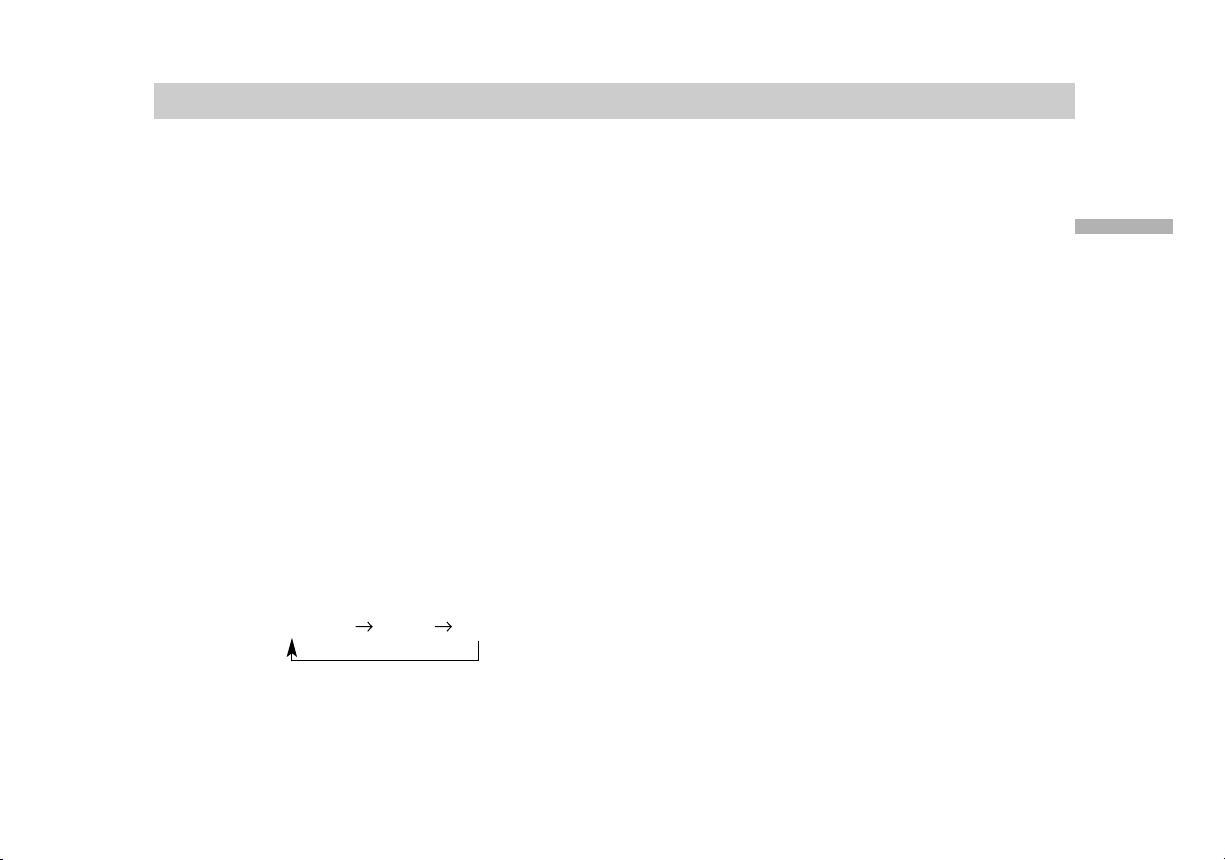
- Prepare the power supply.
1. Open the outer cover and slide the POWER
switch to the left to turn the unit on.
Indicator lights and then the indicator will disappear after
5 seconds.
2.
Press OPEN to open the disc lid and insert a disc
onto the side you want to play, label up. Close the
disc lid by hand.
•
If the disc is placed in upside down (and it is a single-
sided disc), “NO DISC” or “Disc Error” appears on the
LCD screen.
3. Press PLAY to start play.
• After playing back all of the chapters in the title, the
DVD player automatically stops and returns to the
menu screen.
4. Adjust the volume.
• Reduce the volume before playback, then gradually
increase it.
After operation
When the unit is not in use, remove the disc and slide the
POWER switch to the left and hold it there to turn off the
DVD player.
When a menu screen appears on the LCD
screen.
In case of interactive DVDs with control,
a menu screen appears on the LCD screen.
Press
B
/
V
/
v
/
b
and press ENTER, or press the number
buttons, to select the desired item.
Playback of the selected item begins.
For further information, also refer to the jacket or case of
the disc you are playing.
Use the number buttons to select the track you want to
view and press RETURN to return to the menu screen.
Menu settings and operating procedures may differ. Follow
the instructions on the each menu screen. You also may set
PBC to Off (See “PBC” on page 45).
VCD
DVD
24
Basic Playback
1
2
3
4
LCD MODE
COLOR/BRIGHT
VO LUM E
Do wn Up
Basic Operation
25
Playing a Disc (continued)
NOTES:
• Place a disc with the playback side down on the
spindle, and push gently on the center of the disc
so it goes into position.
•
Confirm LCD MODE position by pressing LCD
MODE button.
• If no picture appears on the LCD, check that the
LINE SELECT switch is set to LINE OUT mode.
• If parental control is set and the disc is not within
the rating settings you must input the password.
(See “Lock Menu” on page 46-47.)
• DVDs may have a region code.Your player does
not play discs that have a region code different
from your player.
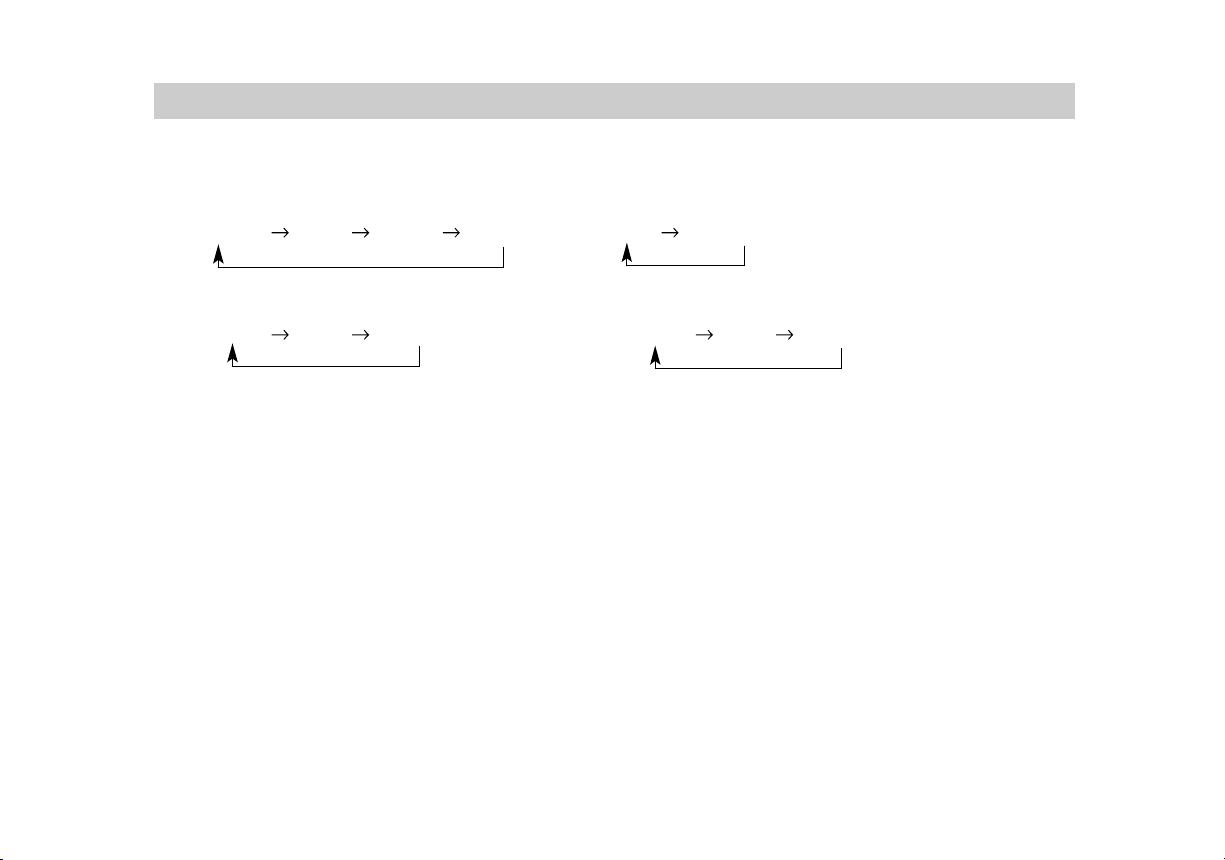
Adjusting the brightness and color intensity
Use the COLOR/BRIGHT button to adjusting the
brightness and color intensity.
Each time you press the button, the adjustment
mode changes as follows.
Brightness Color OFF
Adjusting the brightness
Select “Brightness” and then press
B
/
b
to adjust the
brightness.
b
; dark
B
; light
Adjusting color intensity
Select “Color” and then press
B
/
b
to adjust the color
intensity.
b
; lighter colors
B
; darker colors
NOTES:
•
This COLOR/BRIGHT button adjusts only the image on
the LCD screen.
•
Power consumption increases with the level of
brightness.
Playing a Disc (continued)
26
A
Changing the size of the picture
Use the LCD MODE button to change the picture mode.
DVD/ Video CD disc Audio CD/ MP3 disc/ JPEG disc (Menu)
NORMAL FULL ZOOM LCD OFF FULL LCD OFF
JPEG disc (Slide show) LINE-IN
NORMAL FULL LCD OFF NORMAL FULL LCD OFF
NOTES:
• The picture mode will appear differently for different kinds of discs.
• If you play back an image that was recorded in Widescreen (16:9) mode and “TV Aspect” in “SET UP” is
set to “16:9 Wide”, then the LCD MODE button will only switch between FULL, ZOOM and LCD OFF.
• Only ZOOM works with images output from LINE OUT.
A
The picture mode and size
The picture shown on the LCD depends on the display mode and the size recorded on the disc.
NOTES:
• If you are not using the LCD on this unit, select OFF to conserve power.
• The LCD is turned off if you close the unit.
• Horizontal lines may appear in the picture when the mode is switched to ZOOM,
but this is not an indication of a malfunction.

Playing a Disc (continued)
Basic Operation
27
Stopping Play
Press STOP during playback.
NOTE:
Do not touch the disc if it is still spinning when you open
the lid.
Resume Play
When play is stopped, the unit records the point
where STOP was pressed (RESUME function).
Press PLAY and play will resume from this point.
NOTES:
•
This operation works only with discs for which the
elapsed playing time appears in the display window dur-
ing stop.
•
When you press the STOP button, RESUME
x
(stop)
appears on the screen and the player enters the resume
mode. The current play information will appear on the
front panel display. Note that this information varies
according to the type of disc being played. For
MP3/JPEG data no information may be displayed
depending upon the condition of the disc. For Video CDs,
the information varies if PBC is ON or OFF.
•
The Resume function may not be available on some DVD
discs or Video CDs (version 2.0).
Screen Saver
The screen saver appears when you leave the
player in Stop mode for about 15 minutes. If the
Screen Saver is displayed for 15 minutes, the Player
automatically turns itself off.
Playing a Disc (continued)
28
Pause
1. Press PAUSE during playback.
2. To exit still motion mode, press PLAY.
Search
1. Press SCAN/SLOW
m
or
M
during playback.
The player will now go into SEARCH mode.
2. Press SCAN/SLOW
m
or
M
repeatedly to
select the required speed: X2
b
, 1
m
, 2
m
,
3
m
(backward) or X2
B
, 1
M
, 2
M
, 3
M
(forward).
With a Video CD, the Search speed changes:
1
m
, 2
m
, 3
m
, (backward) or 1
M
, 2
M
,
3
M
,(forward).
3. To exit SEARCH mode, press PLAY.
NOTE:
The DVD player does not play back sound during the high
speed reverse and forward playback of DVD video discs.
Slow Motion
1. Press PAUSE(
X
) during playback.
The player will now go into PAUSE mode.
2. Use the SCAN/SLOW
m
or
M
to select the
required speed:
4 , 3 , 2 , 1 (backward),
or 4 , 3 , 2 , 1 (forward).
3. To exit slow motion mode, press PLAY.
NOTE:
Slow motion playback in reverse is not applicable for
Video CD.
VCDDVD
VCDDVD
VCDDVD
On-Screen Display
Basic Operation
29
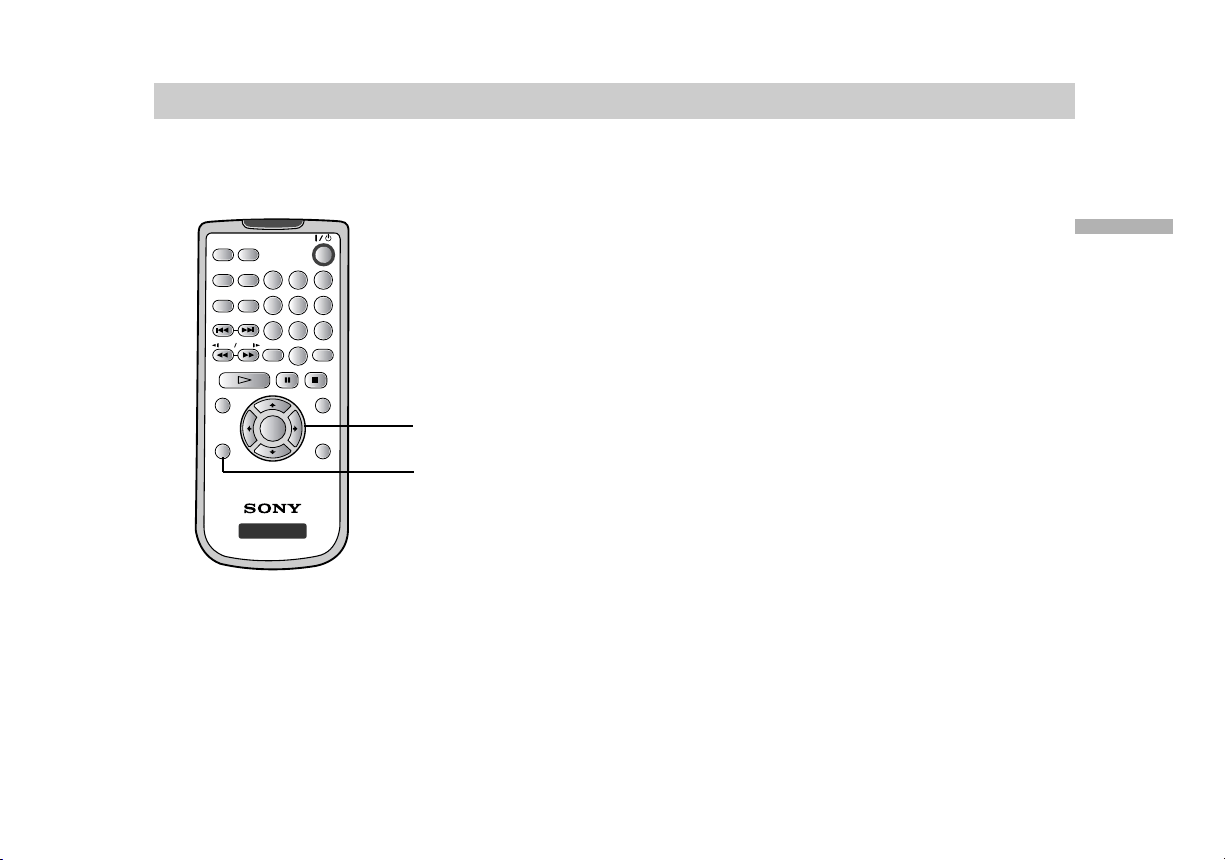
You can display the general playback status on the
screen. Some items can be changed using the
menu. To use the on-screen display:
1. Press DISPLAY during playback.
2. Press
V
/
v
to select an item.
The selected item is highlighted.
3. Press
B
/
b
to change the setting. You can also
use the number buttons if appropriate (e.g.
inputting the title number).
For some functions, press ENTER to execute the
setting.
NOTES:
• Some discs may not provide all of the features shown
next page.
• If no button is pressed for 10 seconds,
the on-screen display disappears.
AUDIO
PREV NEXT
CLEAR
PLAY PAUSE STOP
SET UP
SCAN
TOP MENU
MENU
DISPLAY RETURN
SLOW
REPEAT
RANDOM
A-B
PROGRAM
ANGLE
1 2 3
654
7
8
0
9
DVD PORTABLE
ENTER
1
2, 3
On-Screen Display (continued)
30
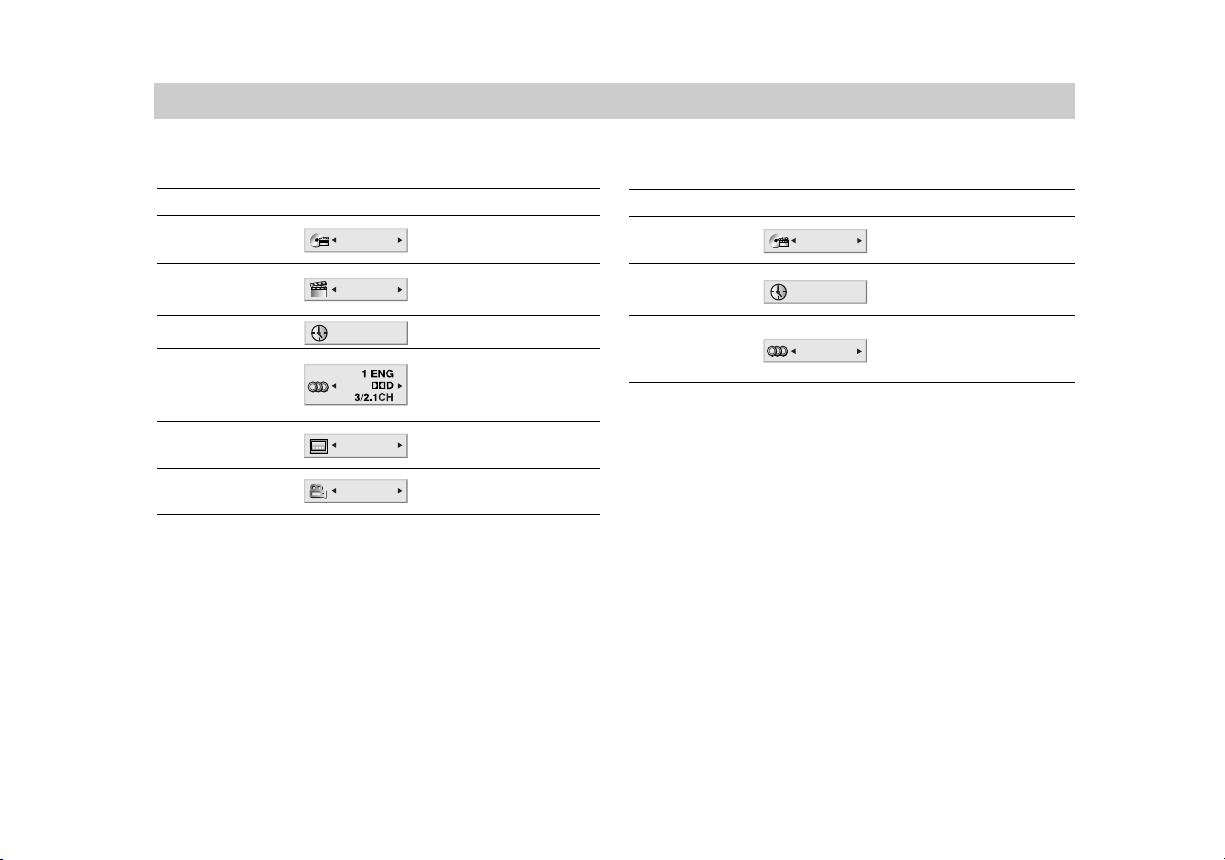
Items
Title Number
Chapter Number
Time search
Audio language
and Digital Audio
Output mode
Subtitle language
Angle
Selection Method
B
/
b
, Numbers
ENTER
B
/
b
, Numbers
ENTER
Numbers, ENTER
B
/
b
or
AUDIO
B
/
b
B
/
b
or
ANGLE
1 / 3
1 / 12
0:20:09
1 ENG
1 / 3
Example: On-Screen Display during
playing of DVD Video
Example: On-Screen Display during
playing of VCD
Items
Track Number
(or PBC mode)
Time search
Audio Channel
Selection Method
B
/
b
, Numbers
ENTER
Numbers
ENTER
B
/
b
or
AUDIO
1 / 3
0:20:09
STE R E O
Title Menu
Checking the contents of DVD discs: Menus
DVDs may offer menus that allow you to access spe-
cial features. To use the disc menu,
press TOP MENU. Input the corresponding number
or use the
B
/
V
/
v
/
b
buttons to highlight your
selection.
Then press ENTER.
DVD Menu
1. Press MENU. If the current title has a menu, the
menu appears on the screen. Otherwise, the disc
menu may appear.
2. The menu offers features such as camera
angles, spoken language and subtitle options,
and chapters for the title.
Press
B
/
V
/
v
/
b
and ENTER, or press the numeric
button(s), to select desired item.
Unless stated otherwise, all operations described
use the remote control. Some features may also
be available on the Setup menu.
Moving to another TITLE
When a disc has more than one title, you can move
to another title. Press DISPLAY while playback is
stopped then the appropriate number (0-9) or use
B
/
b
to move to another title.
You can play any title by inputting its number while
playback is stopped.
Moving to another CHAPTER/TRACK
When a title on a disc has more than one chapter or
a disc has more than one track, you can move to
another chapter/track as follows:
• Press PREV/NEXT
.
or
>
briefly during
playback to select the next chapter/track or to
return to the beginning of the current
chapter/track.
• Press PREV
.
twice briefly to step back to the
previous chapter/track.
• To go directly to any chapter during DVD
playback, press DISPLAY and press
V
/
v
to select
the chapter/track icon. Then, input the
chapter/track number or use
B
/
b
.
VCDDVD
DVD
DVD
DVD
General Features
Advanced Operations
31
General Features (continued)
Time Search
To start playing at any chosen time on the disc:
1. Press DISPLAY during playback. The time search
box shows the elapsed playing time.
2. Press
V
/
v
to select the time clock icon
and “-:--:--” appears.
3. Input the required start time in hours, minutes,
and seconds from left to right. If you enter the
wrong numbers, press CLEAR to remove the
numbers you entered. Then input the correct
numbers.
4. Press ENTER to confirm. Playback starts from
the selected time.
NOTES:
•
When playing audio tracks, time search can be only used
to search within the current audio track.
•
The Time Search function may not be available on some
DVD discs or Video CDs (Version 2.0).
Changing the Audio Language
Press AUDIO repeatedly during playback to hear a
different audio language or audio track.
This operation works only with discs on which
multiple audio soundtrack languages are recorded.
Changing the Audio Channel
Press AUDIO repeatedly during playback to hear a
different audio channel (STEREO, LEFT, or RIGHT).
Subtitles
It is possible to change the subtitle language to a
different language from the one selected at the initial
settings. (See page 42 for further info.)
This operation works only with discs on which
multiple subtitle languages are recorded.
1. Press DISPLAY during playback.
2. Press
V
/
v
to select the subtitle item.
3. Press
B
/
b
repeatedly until the desired Subtitle is
selected. Each time this button is pressed, the
LCD screen display changes.
Camera Angle
If the disc contains scenes recorded at different
camera angles, you can change to a different
camera angle during playback.
1. Press ANGLE during playback.
2. Press
B
/
b
repeatedly until the desired Angle is
selected.
NOTE:
You cannot change the angle during slow playback.
TIP:
The angle indicator will blink on the screen during scenes
recorded at different angles as an indication that angle
switching is possible.
DVD
DVD
VCD
DVD
VCDDVD
32
General Features (continued)
33
Repeat A-B
To repeat a sequence.
1. Press A-B during playback at your chosen
starting point. “ A
*
” appears briefly on the
screen.
2. Press A-B again at your chosen end point.
“A B” appears briefly on the screen and the
repeat sequence begins.
3. Press A-B again to cancel.
NOTE:
A-B repeat can only be used within a single title.
Repeat
Each time this button is pressed, the LCD screen
changes as shown below and the disc will repeat a
chapter or title (DVD) or a track (Video CD).
DVD Video Discs - Repeat Chapter/Title/Off
• Chapter : repeats the current chapter.
• Title : repeats the current title.
• Off : does not play repeatedly.
Video CDs - Repeat Track/All/Off
• Track : repeats the current track
• All : repeats all the tracks on a disc.
• Off : does not play repeatedly.
NOTES:
•
On a Video CD with PBC, you must set PBC to
Off on the setup menu to use the repeat function
(See “PBC” on page 45).
• If you press NEXT (
>
) once during Repeat Chapter
(Track) playback, the repeat playback cancels.
• Repeat play may not work correctly with some DVDs
and some Video CDs.
VCD1.1
DVDVCDDVD
Advanced Operations
Playing an Audio CD or MP3 Disc
34
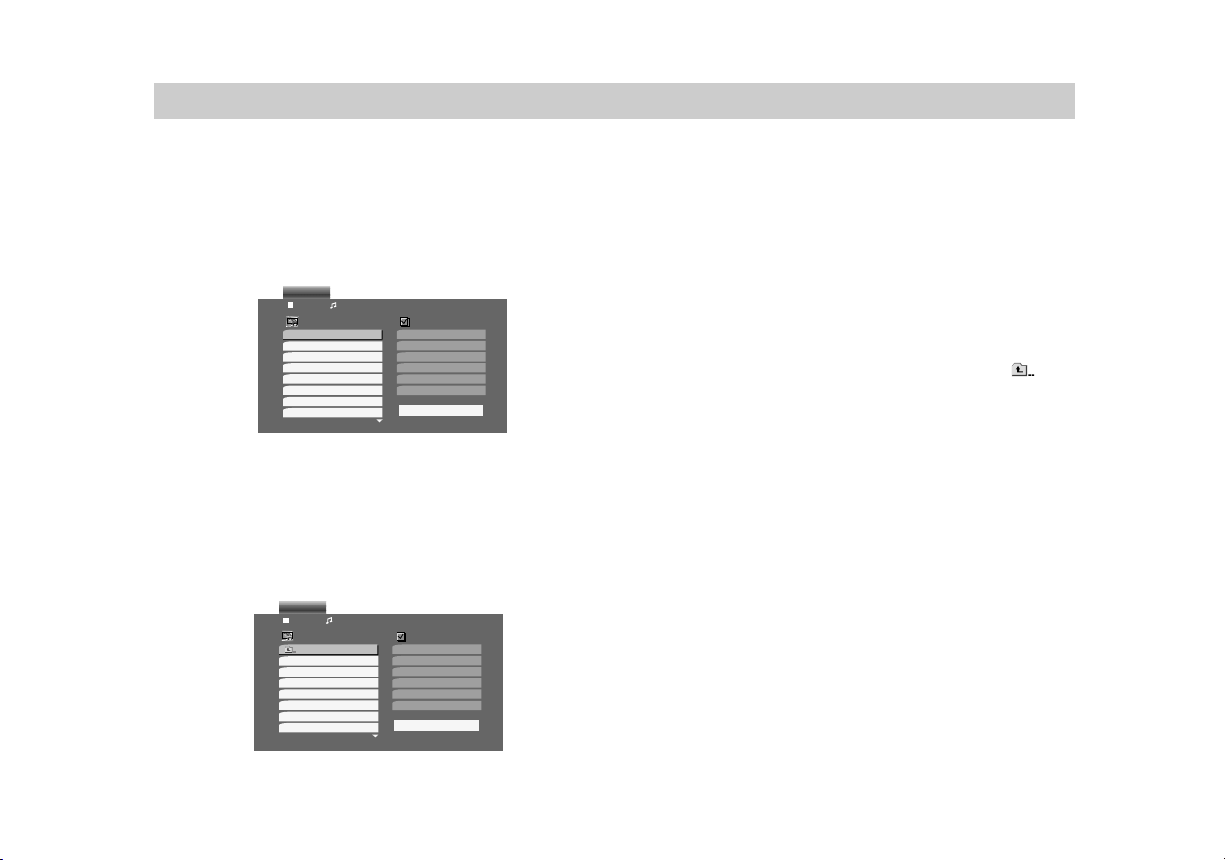
This player can play MP3 formatted recordings on
CD-ROM, CD-R, or CD-RW discs.
Audio CD
Once you insert an audio CD a menu appears on
the screen. Press
V
/
v
to select a track then press
PLAY or ENTER and playback starts.
MP3
1. Press
V
/
v
to select a folder, and press ENTER to
see the folder contents.
2. Press
V
/
v
to select a track then press PLAY or
ENTER. Playback starts.
ID3 TAG (Version 1)
• When playing a file containing information such as
track titles, you can see the information by
pressing DISPLAY.
[ Title, Artist, Album, Year, Comment ]
• If there is no information, “No ID3 TAG” appears on
the display.
TIPS:
•
If you are in a file list on the AUDIO menu and want to
return to the Folder list, use the
V
/
v
to highlight and
press ENTER.
• Press MENU to move to the next page.
• On a CD with MP3 and JPEG you can switch MP3 and
JPEG. Press TOP MENU and AUDIO or IMAGE word on
top of the menu is highlighted.
Track01
Track02
Track03
Track04
Track05
Track06
Track07
Track08
AUDIO CD
0:52:07
1 / 12
Clear All
Program
List
0:00:00
1 / 12
Clear All
AUDIO
2-Music02
1-Music01
3-Music03
4-Music04
5-Music05
6-Music06
7-Music07
Program
List
/MP3
Playing an Audio CD or MP3 Disc
(continued)
Advanced Operations
35
Audio CD and MP3 Disc Features
Pause
1. Press PAUSE during playback.
2. To return to playback, press PLAY, ENTER or
press PAUSE again.
Moving to another Track
1. Press PREV/NEXT (
.
or
>
) briefly during
playback to go to the next track or to return to the
beginning of the current track.
2. Press PREV
.
twice briefly to go back to the
previous track.
3. You can play any track by inputting its number.
Search
1. Press SCAN/SLOW (
m
or
M
) during playback.
The player will now go into SEARCH mode.
2. Press SCAN/SLOW (
m
or
M
) repeatedly to
select the required speed: 1
m
, 2
m
, 3
m
(backward) or 1
M
, 2
M
, 3
M
(forward).
Search speed and direction are indicated on the
menu screen.
3. To exit SEARCH mode, press PLAY.
Repeat Track/All/Off
You can play a track/all on a disc.
1. Press REPEAT when playing a disc.
The repeat icon appears.
2. Press REPEAT to select a desired repeat mode.
• Track : repeats the current track
• All : CD: repeats all the tracks on a disc.
MP3 : repeats all the tracks in a folder.
• Off(No display) : does not play repeatedly.
NOTE:
If you press NEXT (
>
) once during Repeat Track play-
back, the repeat playback cancels.
Repeat A-B
1. To repeat a sequence during disc playback,
press A-B at your chosen starting point. The
Repeat icon and “A” appear on the menu screen.
2. Press A-B again at your chosen end point.
The Repeat icon and “A-B” appear on the menu
screen, and the sequence begins to play
repeatedly.
3. To exit the sequence and return to normal play,
press A-B again. The Repeat icon disappears
from the menu screen.
CD
MP3CD
MP3CD
MP3CD
MP3CD

Playing an Audio CD or MP3 Disc
(continued)
36
MP3 disc compatibility with this player is limited
as follows:
• Sampling frequency: within 8 - 48 kHz (MP3)
• Bit rate: within 8 - 320kbps (MP3)
• The player cannot read an MP3 file that has a file
extension other than “.mp3”.
• CD-R physical format should be ISO 9660
• If you record MP3 files using software that cannot cre-
ate a file system (eg. Direct-CD), it is impossible to
playback MP3 files. We recommend that you use Easy-
CD Creator, which creates an ISO 9660 file system.
• File names should have a maximum of 8 letters and
must incorporate an .mp3 extension.
• They should not contain special letters such as / ? * : “
< > l etc.
• The total number of files on the disc should be about
600.
This DVD player requires discs and recordings to
meet certain technical standards in order to achieve
optimal playback quality. Pre-recorded DVDs are
automatically set to these standards. There are
many different types of recordable disc formats
(including CD-R containing MP3 files) and these
require certain pre-existing conditions (see above)
to ensure compatible playback.
A Multi-session recording is not ensured.
Customers should note that permission is
required in order to download MP3 files and
music from the Internet. Our company has no
right to grant such permission. Permission
should always be sought from the copyright
owner.
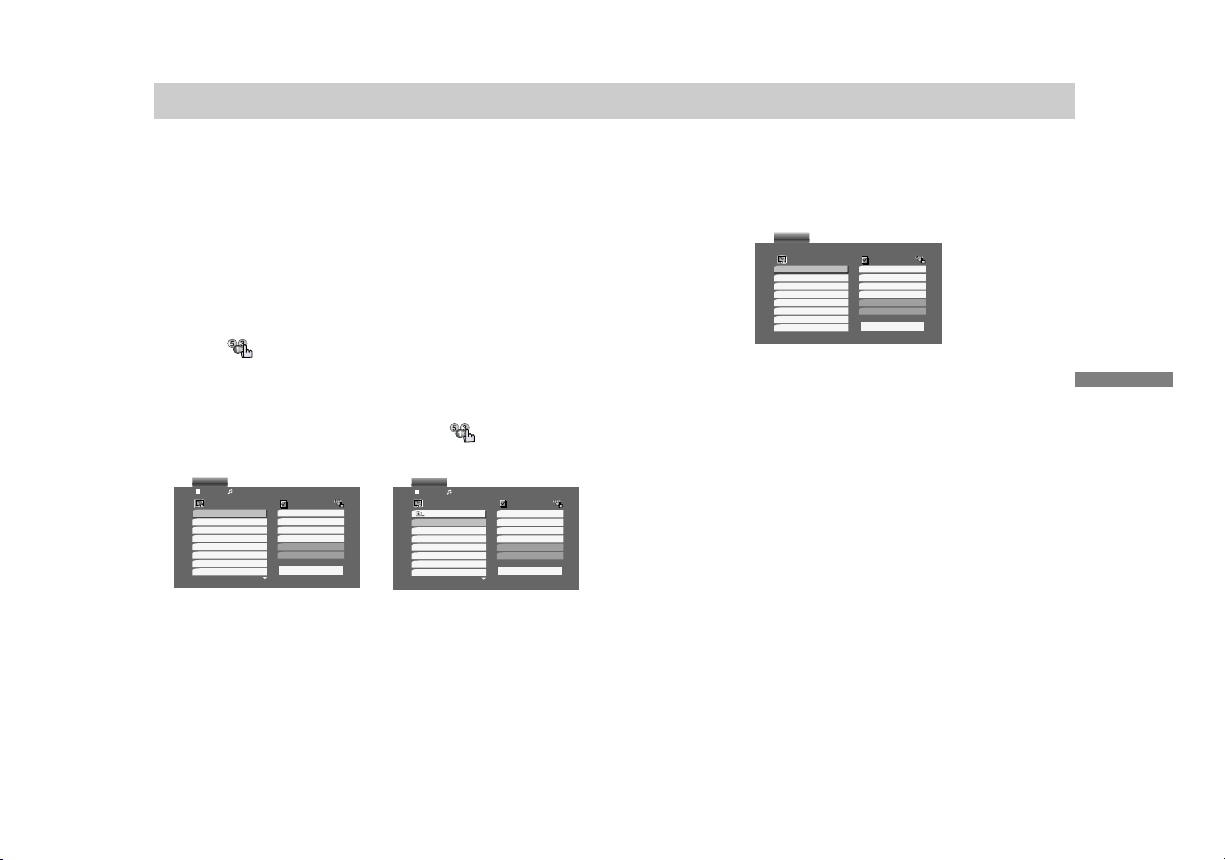
Programmed Playback
37
The program function enables you to store the
playback order of your favorite tracks from any disc
in the player memory.
A program can contain 30 tracks.
1. Insert a disc.
Audio CD or MP3 Discs:
AUDIO CD or AUDIO menu appears.
2. Press PROGRAM.
The mark will appear to the right of the word
“Program” on the right side of the menu screen.
NOTE:
Press PROGRAM. again, then the mark will
disappear to exit the Program Edit mode.
Audio CD Menu MP3 Menu
Video CD: Press PROGRAM. while playback is
stopped. The program menu appears.
Press PROGRAM again to exit the menu.
NOTE:
On a Video CD with PBC, you must set PBC to Off on the
setup menu to use the programmed playback (See “PBC”
on page 45).
Video CD Menu
3. Select a track on the “List”, then press ENTER to
place the selected track on the “Program” list.
Repeat to place additional tracks on the list.
4. Press
b
.
Select the track you want to start playing on the
“Program” list.
5. Press PLAY or ENTER to start. Playback begins
in the order in which you programmed the tracks.
Playback stops after all of the tracks on the
“Program” list have played once.
6. To resume normal playback from programmed
playback, select any track from the
AUDIO/VIDEO CD list and then press PLAY.
Advanced Operations
Track01
Track01
Track04
Track07
Track05
Track02
Track03
Track04
Track05
Track06
Track07
Track08
AUDIO CD
0:52:07
1 / 12
Clear All
Program
List
0:00:00
1 / 12
Clear All
AUDIO
2-Music02
2-Music02
4-Music04
6-Music06
1-Music01
1-Music01
3-Music03
4-Music04
5-Music05
6-Music06
7-Music07
Program
List
/MP3
Track1
Track1
Track3
Track2
Track5
Track2
Track3
Track4
Track5
Clear All
VIDEO CD
Program
List

Programmed Playback (continued)
38
Repeat Programmed Tracks
1. Press REPEAT when playing a disc. The repeat
icon appears.
2. Press REPEAT to select a desired repeat mode.
• Track: repeats the current track
• All: repeats all the tracks on programmed list.
• Off(No display): does not play repeatedly.
NOTE:
If you press
>
once during Repeat Track playback, the
repeat playback cancels.
Erasing a Track from Program List
1. “Press PROGRAM”
2. Use
V
/
v
/
b
to select the track that you wish to
erase from the Program list.
3. Press CLEAR. Repeat to erase additional tracks
on the list.
Erasing the Complete Program List
1. “Press PROGRAM”
2. Press
b
to move to the “Program” list.
3. Use
V
/
v
to select “Clear All”, then press ENTER.
NOTE:
The programs are also cleared when the disc is removed.

Advanced Operations
39
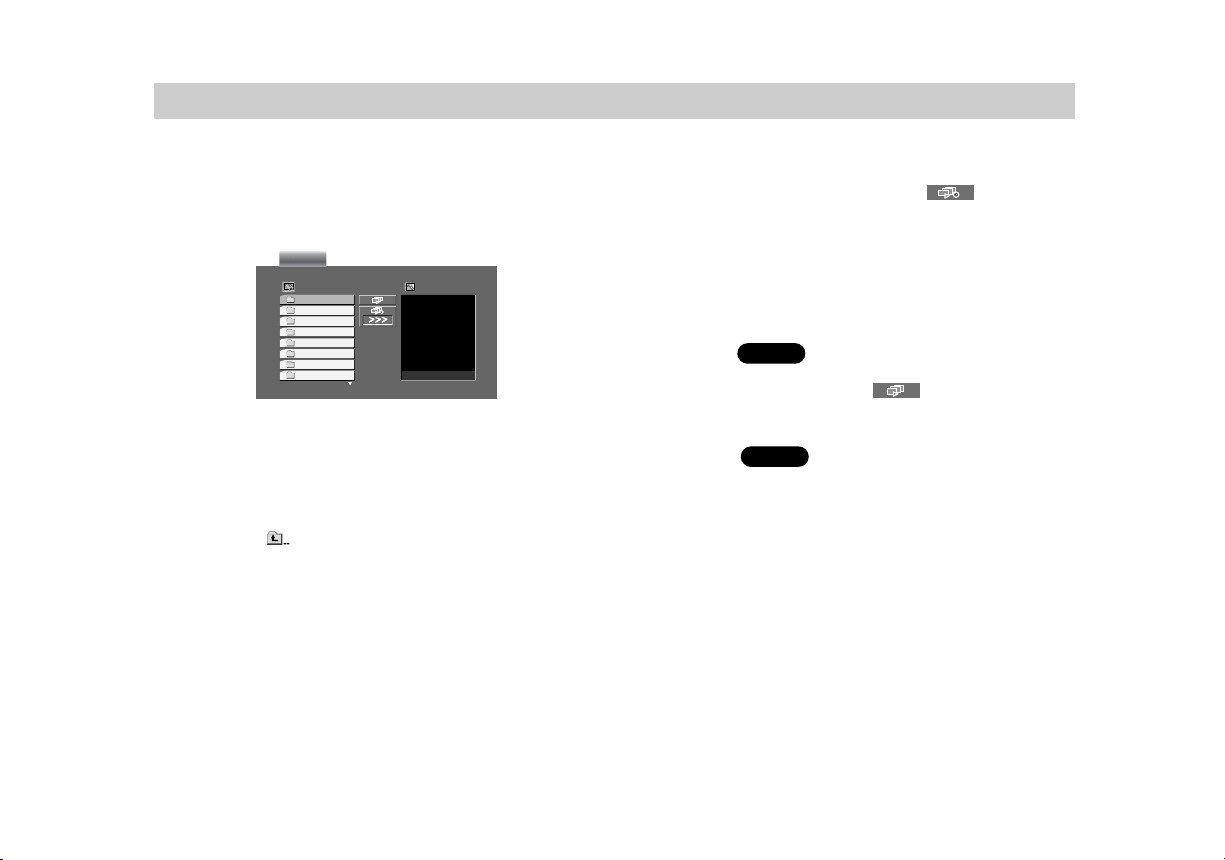
Random Play
Random play (Karaoke DVD, Video CD (PBC OFF),
CD, MP3)
You can playback titles or tracks in random order.
(Random playback)
NOTE:
Random does not work with DVD movie discs.
1. Press RANDOM during playback.
This player automatically starts random playback
and the RANDOM indicator in the
display window appears for 2 seconds.
2. To return to normal play.
Press RANDOM again.
NOTES:
• RANDOM playback may not be possible on certain discs.
• If you press the
>
or
.
button during random
playback, the DVD player goes to another track randomly
and starts playback.
40
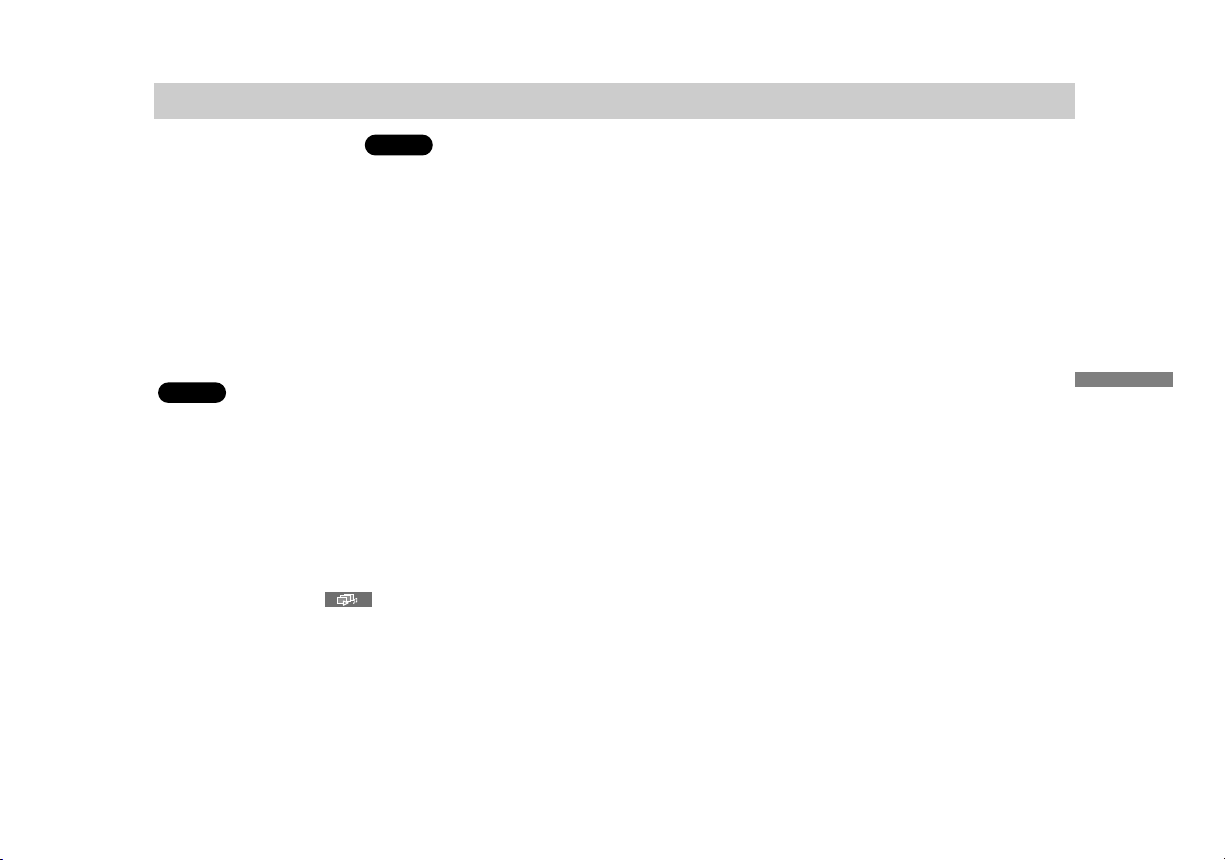
Viewing a JPEG Disc
Using this DVD Player you can view discs with JPEG
files.
1. Insert a disc and close the tray.
The IMAGE menu appears on the screen.
2. Press
V
/
v
to select a folder, and press ENTER.
A list of files in the folder appears. If you are in a
file list and want to return to the previous Folder
list, use the
V
/
v
buttons on the remote to
highlight and press ENTER.
3. If you want to view a particular file, press
V
/
v
to
highlight a file and press ENTER or PLAY.
Viewing of the file starts.
While viewing a file, you can press STOP to
move to the previous menu (IMAGE menu).
TIPS:
• Press MENU to move to the next page.
• There are three Slide Speed options
: >>> (Fast), >> (Normal), and > (Slow).
Use
B
/
V
/
v
/
b
to highlight the Speed. Then use
B
/
b
to
select the option you want to use and press ENTER.
• On a disc with MP3 and JPEG you can switch MP3 and
JPEG. Press TOP MENU and AUDIO or IMAGE word on
top of the menu is highlighted.
Slide Show
Use
B
/
V
/
v
/
b
to highlight the (Slide Show)
then press ENTER.
Still Picture
1. Press PAUSE during slide show.
The player will now go into PAUSE mode.
2. To return to the slide show, press PLAY or press
PAUSE again.
JPEG
JPEG
Preview
List
JPEG Folder 1
JPEG Folder 2
JPEG Folder 3
JPEG Folder 4
JPEG Folder 5
JPEG Folder 6
JPEG Folder 7
JPEG Folder 8
IMAGE
Advanced Operations
41
Viewing a JPEG Disc (continued)
Moving to another File
Press PREV/NEXT (
.
or
>
) or cursor (
B
or
b
)
once while viewing a picture to advance to the next
or previous file.
To rotate picture
Press
V
/
v
while showing a picture to rotate the
picture clockwise or counterclockwise.
To listen to MP3 music watching a picture
You can display files while listening to MP3 music
files recorded on the same disc.
1. Insert the disc containing the two types of files in
the player.
2. Press TOP MENU to display IMAGE menu.
3. Press
V
/
v
to select a photo file.
4. Use
b
to select icon then press ENTER.
Playback starts. The playback will continue until
STOP is pressed.
TIP:
To listen to only the desired music watching a picture,
program the desired tracks from the “AUDIO” menu and
then proceed as above.
JPEG disc compatibility with this player is
limited as follows:
• Depending upon the size and number of JPEG files, it
could take a long time for the DVD player to read the
disc’s contents. If you don’t see an on-screen display
after several minutes, some of the files may be too
large — reduce the resolution of the JPEG files to less
than 2M pixels as 2760 x 2048 pixels.
• The total number of files and folders on the disc should
be about 600.
• Some discs may be incompatible due to a different
recording format or the condition of disc.
• Ensure that all the selected files have the “.jpg”
extensions when copying into the CD layout.
• If the files have “.jpe” or “.jpeg” extensions, please
rename them as “.jpg” files.
• File names without “.jpg” extension will not be able to
be read by this DVD player. Even though the files are
shown as JPEG image files in Windows Explorer.
JPEG
JPEG
42
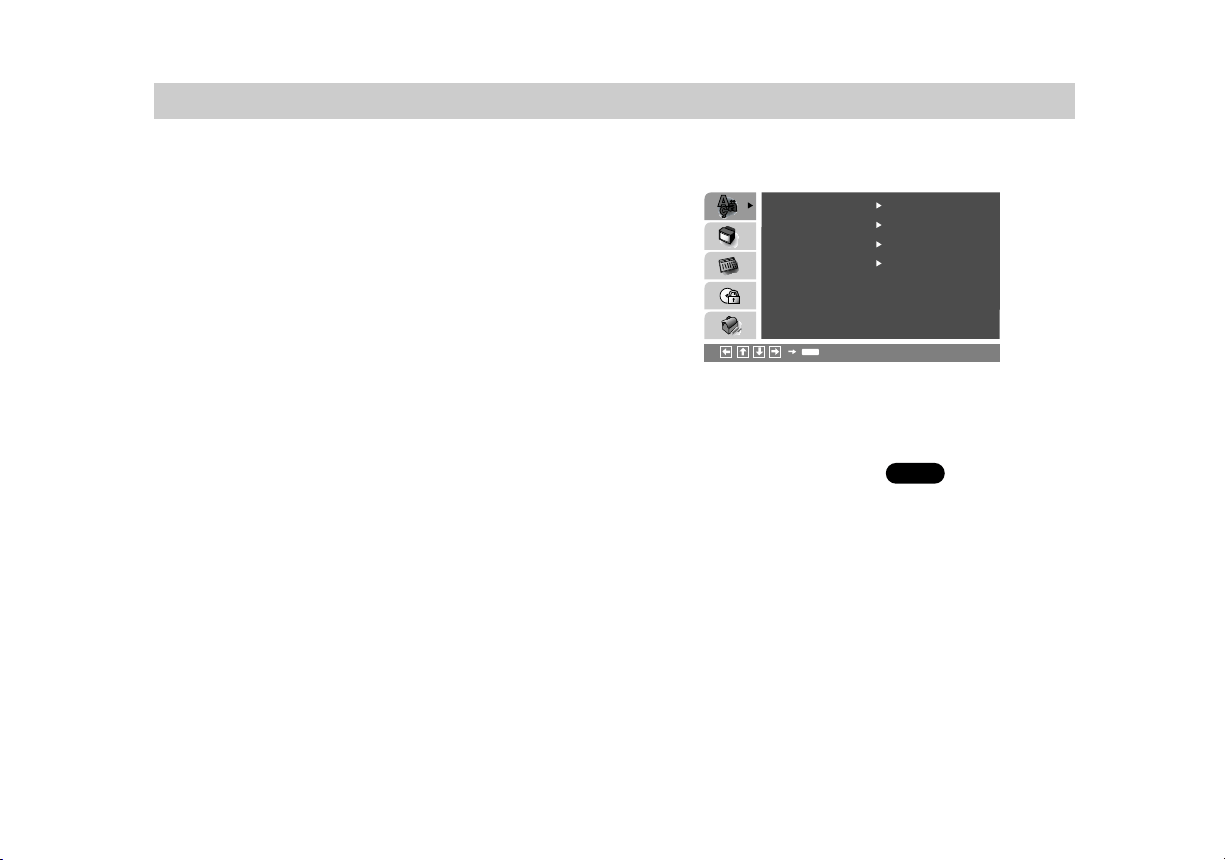
Initial Settings
By using the Setup menu, you can make various
adjustments to items such as picture and sound. You
can also set a language for the subtitles and the
Setup menu, among other things. For details on
each Setup menu item, see pages 42 to 47.
To display and exit the Menu:
Press SETUP to display the menu. A second press
of SETUP will take you back to initial screen.
To go to the next level:
Press
b
on the remote control.
To go back to the previous level:
Press
B
on the remote control.
General Operation
1. Press SETUP. The Setup menu appears.
2. Use
V
/
v
to select the desired option then press
b
to move to the second level. The screen shows
the current setting for the selected item, as well
as alternate setting(s).
3. Use
V
/
v
to select the second desired option then
press
b
to move to the third level.
4.
Use
V
/
v
to select the desired setting then press
ENTER to confirm your selection. Some items
require additional steps.
5. Press SETUP or PLAY to exit the Setup menu.
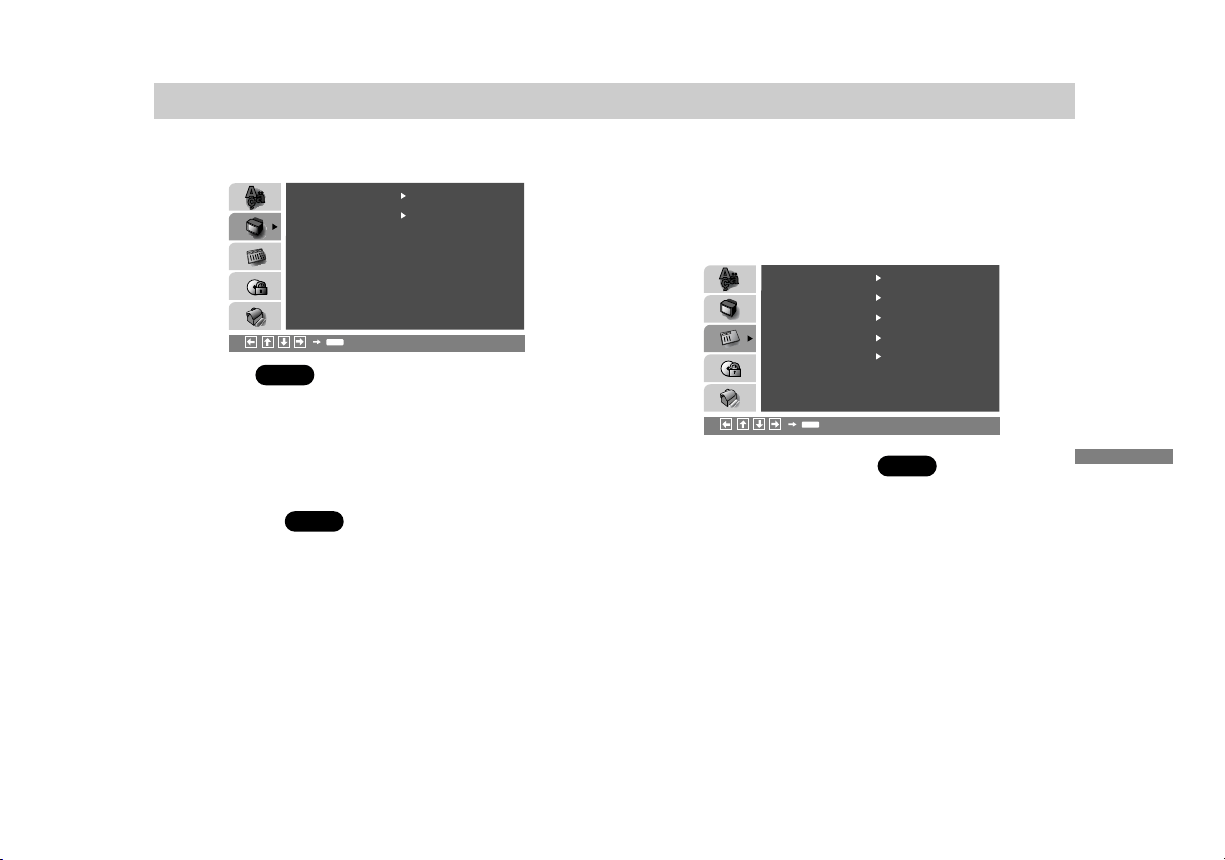
LANGUAGE SET UP
Menu Language
Select a language for the Setup menu and
on-screen display.
Disc Audio / Subtitle / Menu
Select the language you prefer for the audio track
(disc audio), subtitles, and the disc menu.
Original: Refers to the original language in which the
disc was recorded.
Other:
To select another language, press number
buttons then ENTER to enter the corresponding 4-digit
number according to the language code list in the
reference chapter. If you enter the wrong language
code, press CLEAR.
(See “Language Code List”, page54.)
DVD
Menu Language
Original
English
Off
Original
Disc Audio
Disc Subtitle
Disc Menu
LANGUAGE
ENTER
Initial Settings
43
Initial Settings (continued)
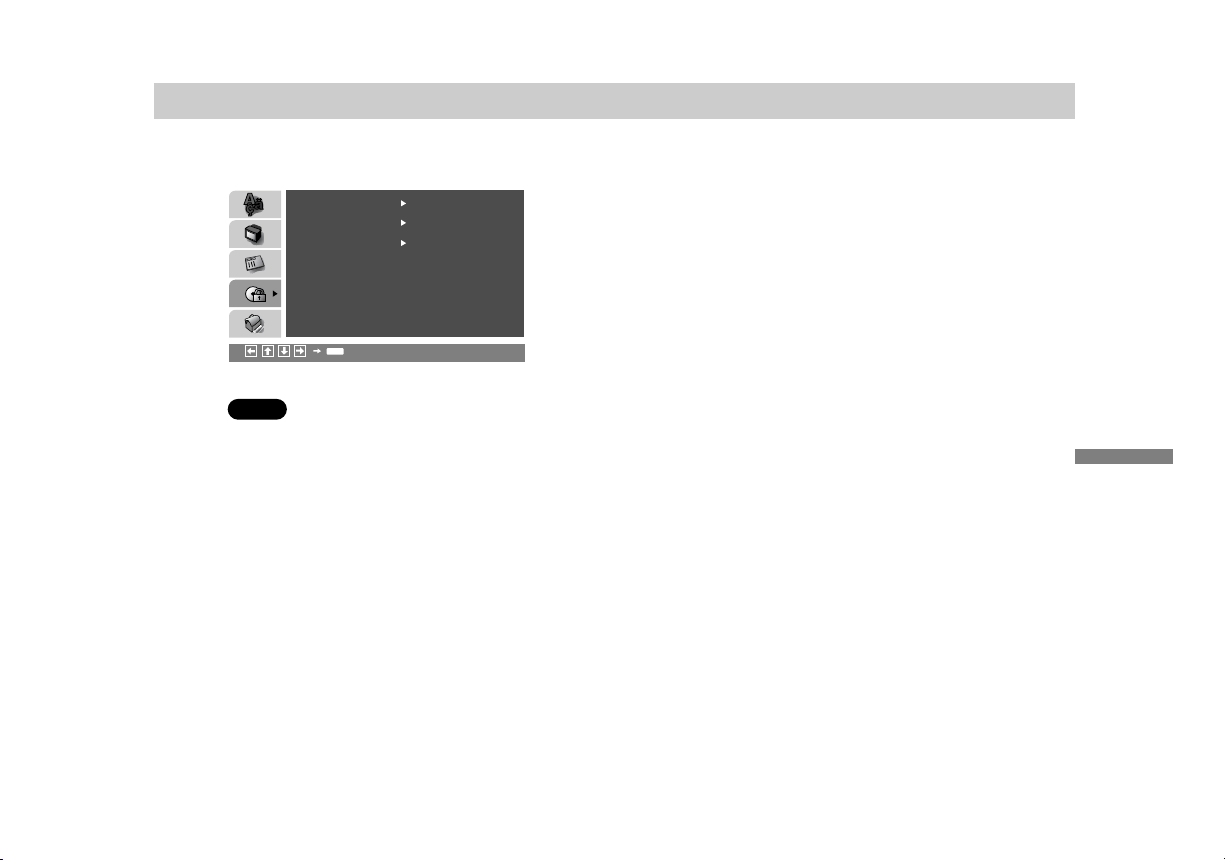
SCREEN SET UP
TV Aspect
4:3:
Select when a standard 4:3 TV is connected.
16:9 Wide: Select when a 16:9 wide TV is
connected.
Display Mode
Display Mode setting works only when the TV Aspect
mode is set to “4:3”.
LetterBox: Displays a wide picture with bands on
the upper and lower portions of the screen.
Panscan:
Automatically displays the wide picture on
the entire screen and cuts off the portions that do not
fit.
AUDIO SET UP
Each DVD disc has a variety of audio output options.
Set the player’s AUDIO SET UP options according to
the type of audio system you use.
Dolby Digital / DTS / MPEG
Bitstream: Select “Bitstream” if you connect the
DVD Player’s DIGITAL OUT jack to an amplifier
or other equipment with a Dolby Digital, DTS or
MPEG decoder.
PCM (for Dolby Digital / MPEG): Select when
connected to a two-channel digital stereo
amplifier. DVDs encoded in Dolby Digital or
MPEG will be automatically downmixed to
two-channel PCM audio.
Off (for DTS): If you select “Off”, the DTS signal
is not output through the DIGITAL OUT jack.
DVD
DVD
DVD
DISPLAY
TV Aspect
Widescreen
16 : 9 Wide
Display Mode
ENTER
Dolby Digital
PCM
Off
PCM
48 kHz
On
DTS
MPEG
Sample Freq.
DRC
OnVocal
AUDIO
ENTER

44
Initial Settings (continued)
Sample Freq. (Frequency)
If your receiver or amplifier is NOT capable of
handling 96 kHz signals, select 48 kHz. When this
choice is made, this unit automatically converts any
96 kHz signals to 48 kHz so your system can
decode them.
If your receiver or amplifier is capable of handling 96
kHz signals, select 96 kHz. When this choice is
made, this unit passes each type of signal through
without any further processing.
Check the documentation for your amplifier to verify
its capabilities.
Dynamic Range Control (DRC)
With the DVD format, you can hear a program’s
soundtrack in the most accurate and realistic
presentation possible, thanks to digital audio
technology. However, you may wish to compress the
dynamic range of the audio output (the difference
between the loudest sounds and the quietest ones).
This allows you to listen to a movie at a lower
volume without losing clarity of sound. Set DRC to
On for this effect.
DVDDVD
Initial Settings
45
Initial Settings (continued)
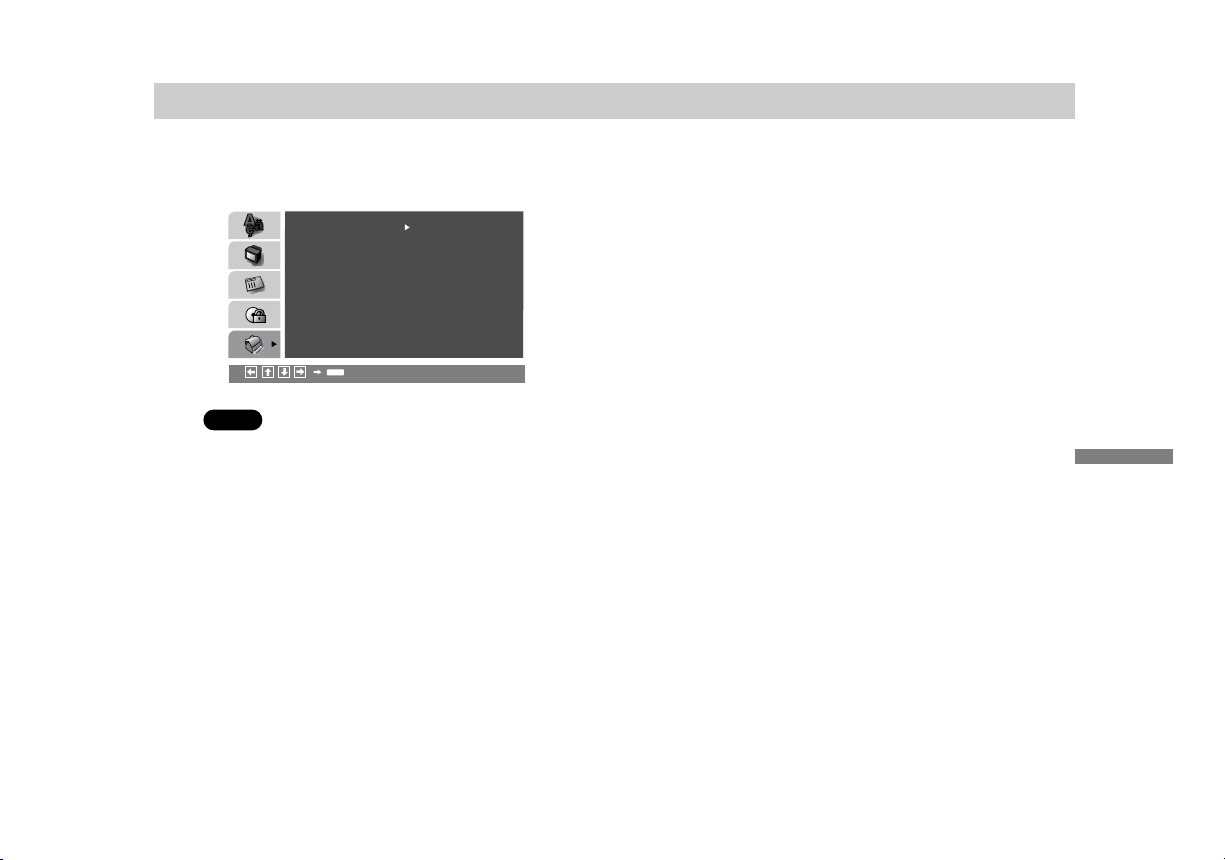
PARENTAL CONTROL
Rating
Some movies contain scenes that may not be suit-
able for children to view. Many of these discs contain
parental control information that applies to the com-
plete disc or to certain scenes on the disc. Movies
and scenes are rated from 1 to 8, depending on the
country. Some discs offer more suitable scenes as
an alternative.
The parental control feature allows you to block
access to scenes below the rating you input, thereby
preventing your children from being able to view
material you believe is unsuitable.
1. Select “Rating” on the PARENTAL CONTROL
menu then press
b
.
2. To access the Rating, Password, and Country
Code features, you must input the 4-digit security
code you created. If you have not yet entered a
security code you are prompted to do so.
Input a 4-digit code and press ENTER. Enter it
again and press ENTER to verify. If you make a
mistake before pressing ENTER, press CLEAR.
3. Select a rating from 1 to 8 using the
V
/
v
buttons.
Rating 1-8: Rating one (1) has the most
restrictions and rating eight (8) is the least
restrictive.
Unlock
If you select unlock, parental control is not active
and the disc plays in full.
NOTE:
If you set a rating for the player, all disc scenes with the
same rating or higher are played. Lower rated scenes are
not played unless alternate scenes are available on the
disc. The alternatives must have the same or a higher
rating. If no suitable alternative is found, playback stops.
You must enter the 4-digit password or change the rating
level in order to play the disc.
4. Press ENTER to confirm your rating selection,
then press SETUP to exit the menu.
DVD
LOCK
Rating
New
U S
Unlock
Password
Country Code
ENTER

46
Initial Settings (continued)
Password (Security Code)
You can enter or change password.
1. Select Password on the PARENTAL CONTROL
menu then press
b
.
2. Follow step 2 as shown left (Rating). “Change” or
“New” is highlighted.
3. Enter the new 4-digit code, then press ENTER.
Input it again to verify.
4. Press SETUP to exit the menu.
If you forget your Security Code
If you forget your security code you can clear it using
the following steps:
1. Open disc lid.
2. Press SETUP to display the Setup menu.
3. Input the 6-digit number “210499” and the
security code is cleared.
4. Enter a new code as described above.
Country Code
Enter the code of the country/area whose standards
were used to rate the DVD video disc, based on the
list in the reference chapter.
(See “Country Code List”, page55.)
1. Select “Country Code” on the
PARENTAL CONTROL menu then press
b
.
2. Follow step 2 as shown left (Rating).
3. Select the first character using
V
/
v
buttons.
4. Press ENTER and select the second character
using
V
/
v
buttons.
5. Press ENTER to confirm your country code
selection.
DVD
Initial Settings
47
Initial Settings (continued)
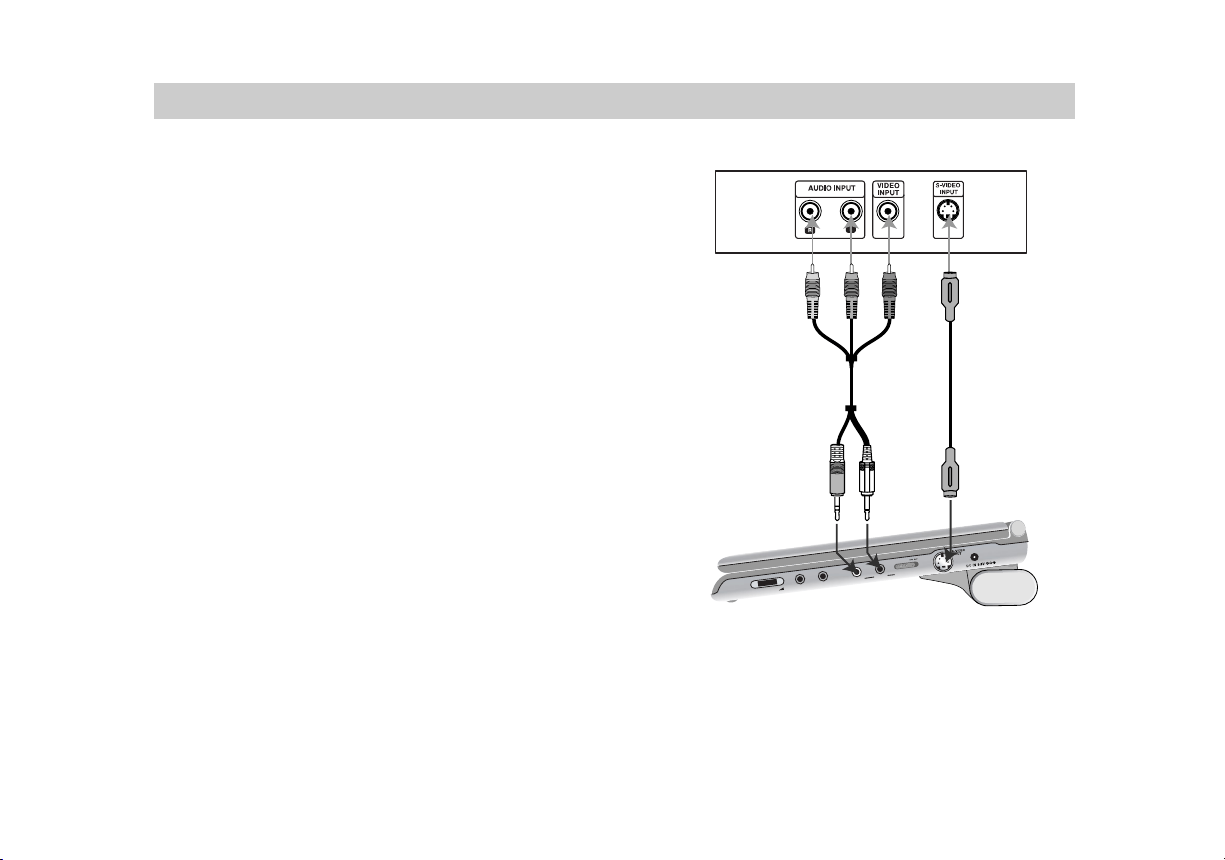
CUSTOM SET UP
The PBC settings can be changed.
PBC
Set Playback Control (PBC) to On or Off.
On: Video CDs with PBC are played according to the
PBC.
Off: Video CDs with PBC are played the same way
as Audio CDs.
VCD
PBC
OTHERS
On
ENTER
Setting up the Player
The picture and sound of a nearby TV, VCR, or radio
may be distorted during playback. If this occurs,
position the player away from the TV, VCR, or radio,
or turn off the unit after removing the disc.
DVD Player Connections
Depending on your TV and other equipment, there
are various ways you can connect the player. Please
refer to the manuals of your TV, stereo system, or
other devices as necessary for additional connection
information.
Video and Audio Connections to Your TV
Make sure the DVD player is connected directly to
the TV and not to a VCR, otherwise the DVD image
could be distorted by the copy protection system.
Video: Connect the VIDEO OUT jack on the DVD
player to the VIDEO INPUT jack on the TV using the
video cable.
S-Video: Connect the S-VIDEO OUT jack on the
DVD Player to the S-VIDEO INPUT jack on the TV
using the S-Video cable.
Audio Connection to Your TV:
Connect the AUDIO OUT jack of the DVD Player to
the AUDIO L and R INPUT jacks on the TV using the
audio cables. Do not connect the DVD Player’s
AUDIO OUT jack to the PHONES jack (record deck)
of your audio system.
You must set the LINE IN/OUT switch to the
“OUT” mode to view pictures on your TV.
Set to “IN” only if you want to watch the TV’s pic-
ture on the player’s screen.
48
V
O
L
U
M
E
P
H
O
N
E
S
P
H
O
N
E
S
A
U
D
I
O
V
I
D
E
O
L
I
N
E
SEL
EC
T
I
N
O
UT
Rear of TV
Right side of unit
Audio/ Video cable
(Supplied)
(Yellow)
S-Video cable
(Not supplied)
Connections
49
Setting up the Player
(continued)
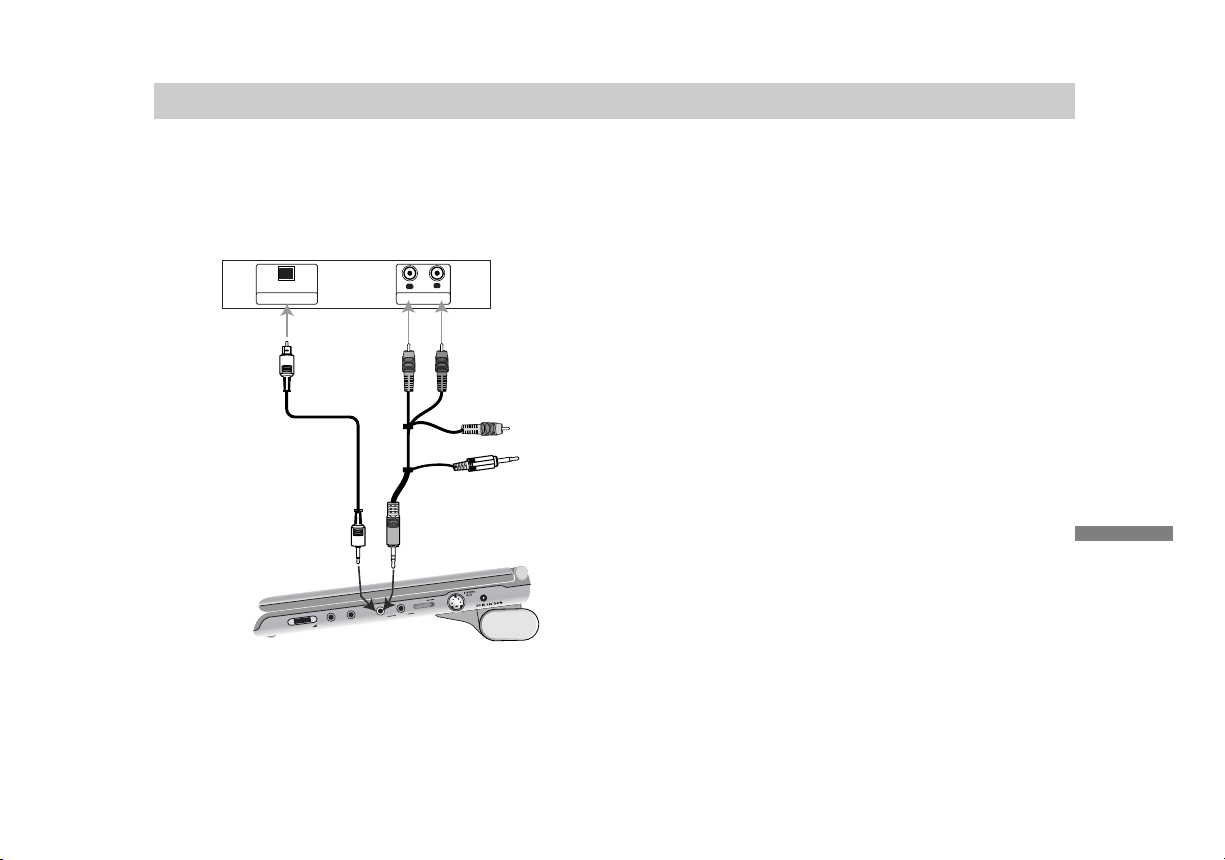
Audio Connection to Optional
Equipment
Connect the DVD player to your optional equipment
for audio output.
You must set the LINE IN/OUT switch to the
“OUT” mode to view pictures on your TV.
Set to “IN” only if you want to watch the TV’s pic-
ture on the player’s screen.
Amplifier equipped with 2-channel analog stereo
or Dolby Pro Logic ll / Pro Logic:
Connect the
AUDIO OUT jacks on the DVD player to the audio left
and right IN jacks on your amplifier, receiver, or stereo
system, using the audio cables.
Amplifier equipped with 2-channel digital stereo
(PCM) or audio / video receiver equipped with a
multi-channel decoder (Dolby Digital™, MPEG 2,
or DTS):
Connect DVD Player’s DIGITAL AUDIO OUT
jack to the corresponding IN jack on your amplifier. Use
an optional digital audio cable.
Digital Multi-channel sound
A digital multi-channel connection provides the best
sound quality. For this you need a multi-channel audio /
video receiver that supports one or more of the audio
formats supported by your DVD player such as MPEG
2, Dolby Digital, and DTS. Check the receiver manual
and the logos on the front of the receiver.
NOTES:
•
If the audio format of the digital output does not match the
capabilities of your receiver, the receiver produces a
strong, distorted sound or no sound at all.
• Six Channel Digital Surround Sound via a digital
connection can only be obtained if your receiver is
equipped with a Digital Multi-channel decoder.
• To see the audio format of the current DVD in the
on-screen display, press AUDIO.
VO
L
U
M
E
PH
O
N
ES
PH
O
N
ES
A
U
D
I
O
VI
D
EO
L
I
NE
SE
L
ECT
I
N
OU
T
Right side of unit
Amplifier (Receiver)
R
L
AUDIO INPUTDIGITAL INP UT
OPTICAL
Optical cable
(Not supplied)
Audio/ Video cable
(Supplied)
or
(Black)
50
To use the player with car battery charger
NOTES:
• Route the cords so that they will not interfere with driver.
• Turn off the player by Power switch. If you turn off the
player by turning off the ignition key of the car when the
rechargeable battery is not attached, the settings may be
cleared.
• Do not install the monitor display where viewable by the
driver.
• Some states restrict the use of monitors and televisions
in vehicles. Where use is permitted, the units should not
be installed or operated so as to be viewable by the
driver.
• Keep this unit away from Sony DVP-FX1021 if the
picture is disturbed.
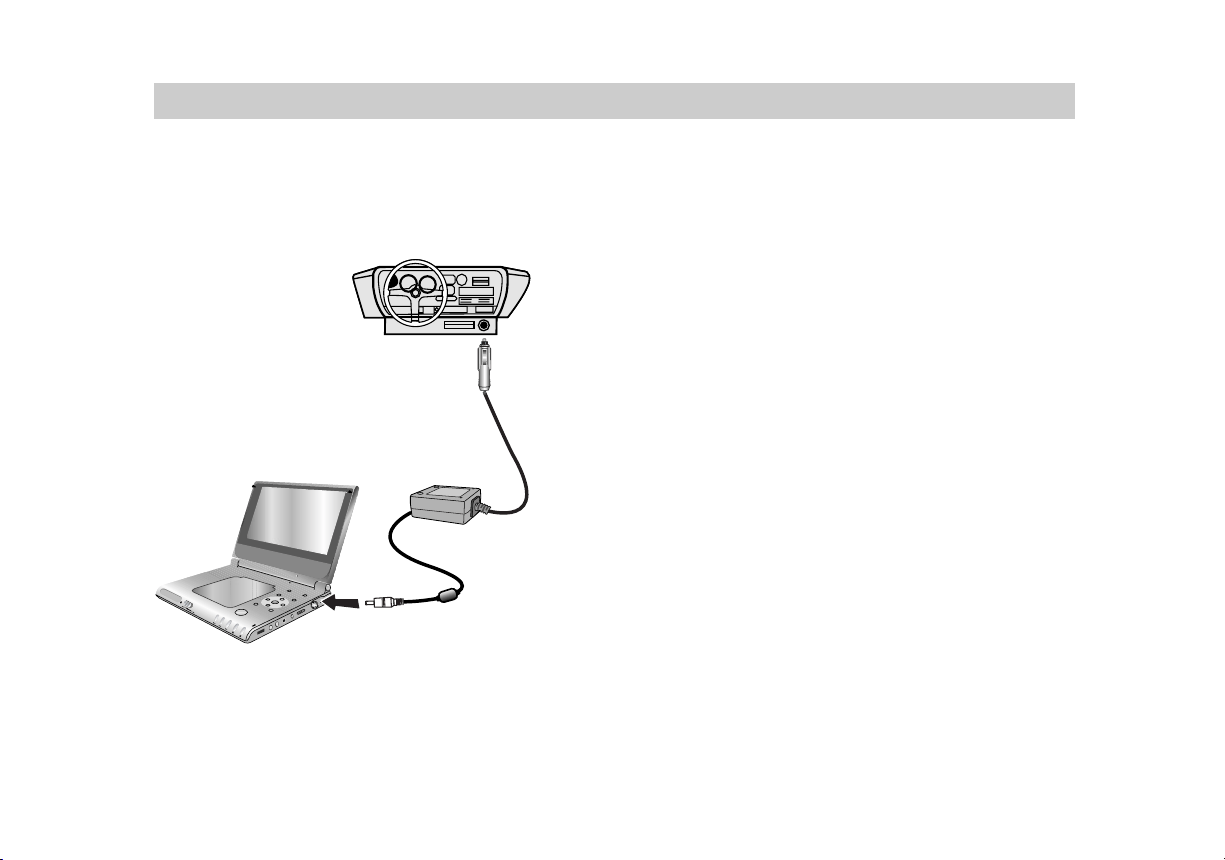
Connect the player to the cigarette lighter socket using the supplied car battery charger (DCC-FX101).
To a cigarette lighter socket
DCC-FX101
(Supplied)
To a DC power input jack
(DC IN 9.8V)
DVP-FX1021
Connections
51
To use the player with car battery charger (continued)
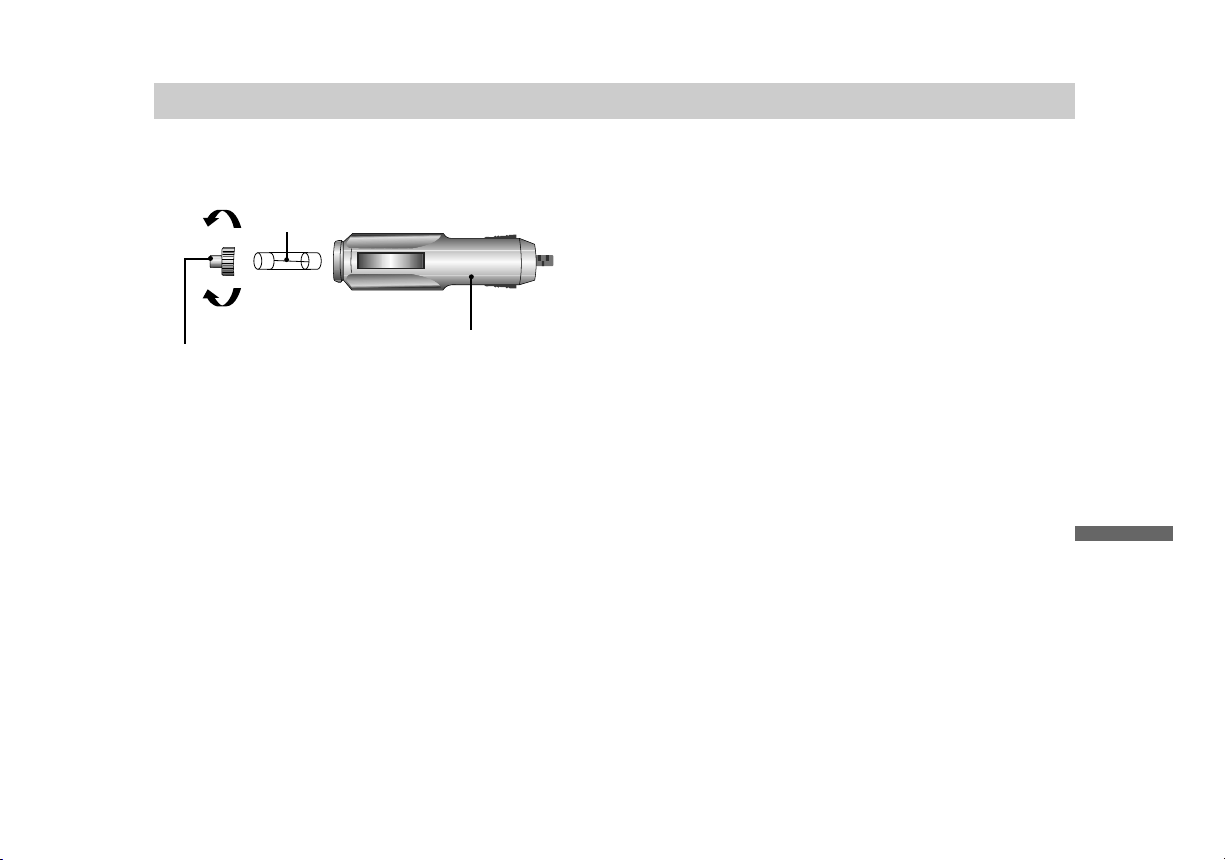
Fuse Replacement
If this unit is not working properly, check to see if the
fuse has blown out.
If the fuse has blown out, replace it in the following
way.
1. Pull the cigarette lighter plug out of the cigarette
lighter socket.
2. Detach the end of the plug by turning it
counterclockwise.
3. Replace the fuse with a new one.
4. Reattach the end of the plug by turning it
clockwise firmly.
NOTES:
• To replace the fuse on the car battery cord, be sure to
use a fuse with the correct amperage (4A, 250V, length
31mm).
• When replacing the fuse, do not substitute any other fuse
for the specified one.
• If the fuse blows again soon after replacement, consult
your nearest Sony dealer.
Please contact your car dealer about the ground
polarity of your car or the voltage of your car bat-
tery, etc.
Remove
Fuse
Cigarette lighter plug
Plug end
Tighten

52
To use the player with car battery charger (continued)
Others
• Use this car battery charger only for cars which
use a 12/24 volt battery.
• There are cars which are negatively grounded and
there are others which are positively grounded.
This car battery charger is for negatively
grounded cars only.
• Use the unit with the car engine running.
If you use the unit with the car engine stopped, the
car battery may become unusable.
• This unit is not disconnected from the power
source as long as it is connected to the cigarette
lighter socket of a car.
• Unplug the car battery cord from the cigarette
lighter socket when not in use. To disconnect the
cord, pull it out by the plug. Never pull the cord
itself.
• Do not operate the unit if it has been dropped or
damaged.
• Be sure that nothing metallic comes into contact
with the metal parts of the unit. If it does, a short
may occur and the unit may be damaged.
• Always keep the metal contacts clean.
• If the car’s cigarette lighter socket is dirty with ash,
etc., the plug part will become hot due to a poor
connection. Be sure to clean it before using.
• Do not disassemble or convert the unit.
• Do not apply mechanical shock or drop the unit.
• Heat may build up while charging or during
extented use. This is not a malfunction.
• While listening to the car radio, keep the plug of
the Car Battery Cord out of the cigarette lighter
socket or keep the radio away from the unit to
avoid static.
• Avoid placing it where it would be subject to
vibration.
• Avoid leaving the unit where it would be subject to
high temperatures, such as direct sunlight e.g. on
the dashboard or hot air from the heater.
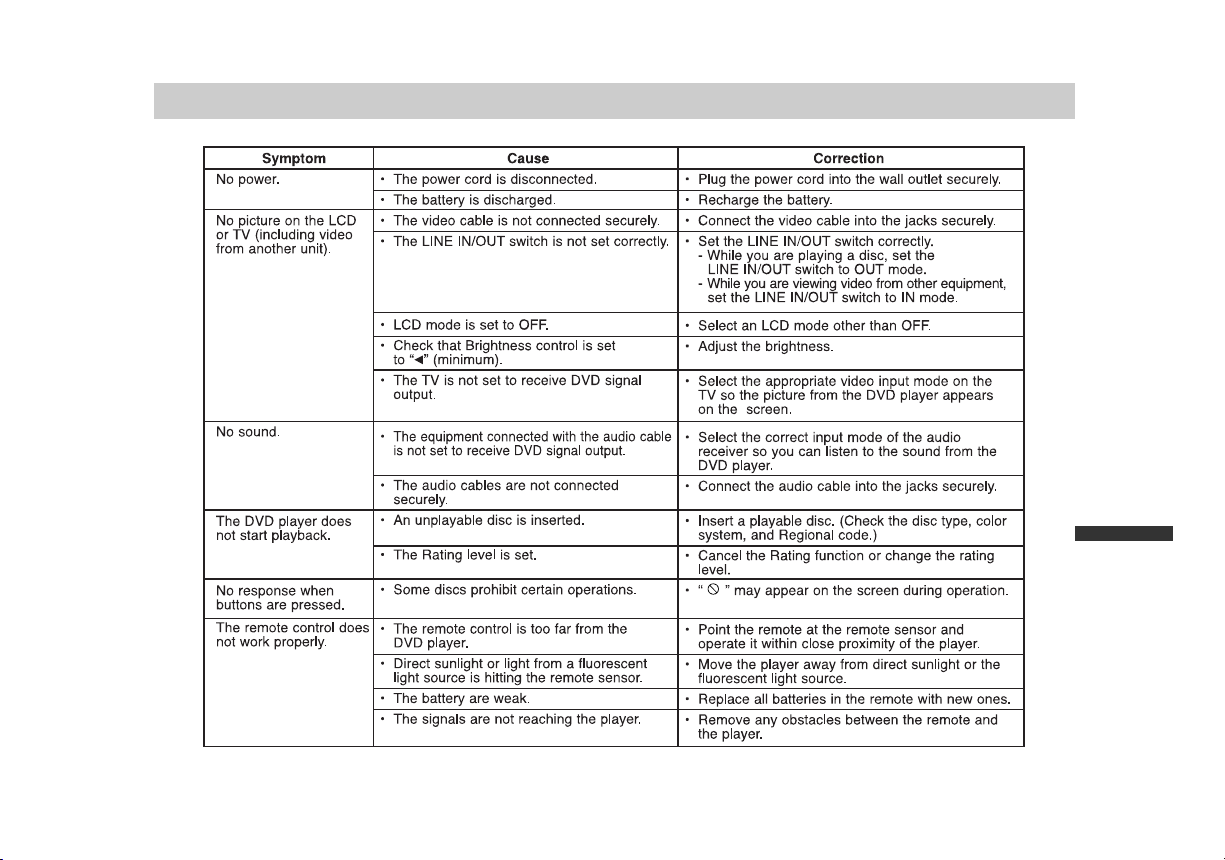
Connections
53
Troubleshooting
54
Language Code List
Use this list to input your desired language for the following initial settings:
Disc Audio, Disc Subtitle, Disc Menu.
Language Code
Abkhazian 6566
Afar 6565
Afrikaans 6570
Albanian 8381
Ameharic 6577
Arabic 6582
Armenian 7289
Assamese 6583
Aymara 6588
Azerbaijani 6590
Bashkir 6665
Basque 6985
Bengali; Bangla 6678
Bhutani 6890
Bihari 6672
Breton 6682
Bulgarian 6671
Burmese 7789
Byelorussian 6669
Cambodian 7577
Catalan 6765
Chinese 9072
Corsican 6779
Croatian 7282
Czech 6783
Danish 6865
Dutch 7876
English 6978
Esperanto 6979
Estonian 6984
Faroese 7079
Language Code
Fiji 7074
Finnish 7073
French 7082
Frisian 7089
Galician 7176
Georgian 7565
German 6869
Greek 6976
Greenlandic 7576
Guarani 7178
Gujarati 7185
Hausa 7265
Hebrew 7387
Hindi 7273
Hungarian 7285
Icelandic 7383
Indonesian 7378
Interlingua 7365
Irish 7165
Italian 7384
Japanese 7465
Javanese 7487
Kannada 7578
Kashmiri 7583
Kazakh 7575
Kirghiz 7589
Korean 7579
Kurdish 7585
Laothian 7679
Latin 7665
Latvian, Lettish 7686
Language Code
Lingala 7678
Lithuanian 7684
Macedonian 7775
Malagasy 7771
Malay 7783
Malayalam 7776
Maltese 7784
Maori 7773
Marathi 7782
Moldavian 7779
Mongolian 7778
Nauru 7865
Nepali 7869
Norwegian 7879
Oriya 7982
Panjabi 8065
Pashto, Pushto 8083
Persian 7065
Polish 8076
Portuguese 8084
Quechua 8185
Rhaeto-Romance 8277
Romanian 8279
Russian 8285
Samoan 8377
Sanskrit 8365
Scots Gaelic 7168
Serbian 8382
Serbo-Croatian 8372
Shona 8378
Sindhi 8368
Language Code
Singhalese 8373
Slovak 8375
Slovenian 8376
Somali 8379
Spanish 6983
Sudanese 8385
Swahili 8387
Swedish 8386
Tagalog 8476
Tajik 8471
Tamil 8465
Tatar 8484
Telugu 8469
Thai 8472
Tibetan 6679
Tigrinya 8473
Tonga 8479
Turkish 8482
Turkmen 8475
Twi 8487
Ukrainian 8575
Urdu 8582
Uzbek 8590
Vietnamese 8673
Volapük 8679
Welsh 6789
Wolof 8779
Xhosa 8872
Yiddish 7473
Yoruba 8979
Zulu 9085
Reference
55
Country Code List
Choose a country code from this list.
Country Code
Afghanistan AF
Argentina AR
Australia AU
Austria AT
Belgium BE
Bhutan BT
Bolivia BO
Brazil BR
Cambodia KH
Canada CA
Chile CL
China CN
Colombia CO
Congo CG
Costa Rica CR
Croatia HR
Czech Republic CZ
Denmark DK
Ecuador EC
Egypt EG
El Salvador SV
Country Code
Ethiopia ET
Fiji FJ
Finland FI
France FR
Germany DE
Great Britain GB
Greece GR
Greenland GL
Islands HM
Hungary HU
India IN
Indonesia ID
Israel IL
Italy IT
Jamaica JM
Japan JP
Kenya KE
Kuwait KW
Libya LY
Luxembourg LU
Country Code
Malaysia MY
Maldives MV
Mexico MX
Monaco MC
Mongolia MN
Morocco MA
Nepal NP
Netherlands NL
Netherlands Antilles AN
New Zealand NZ
Nigeria NG
Norway NO
Oman OM
Pakistan PK
Panama PA
Paraguay PY
Philippines PH
Poland PL
Portugal PT
Romania RO
Russian Federation RU
Country Code
Saudi Arabia SA
Senegal SN
Singapore SG
Slovak Republic SK
Slovenia SI
South Africa ZA
South Korea KR
Spain ES
Sri Lanka LK
Sweden SE
Switzerland CH
Thailand TH
Turkey TR
Uganda UG
Ukraine UA
United States US
Uruguay UY
Uzbekistan UZ
Vietnam VN
Zimbabwe ZW
56
Specifications
DVD Player
Power supply:
DC 9.8V (AC adaptor/ Car Battery Charger terminal),
DC 7.6V (Battery)
Power consumption: 15W
(DVD VIDEO Playback with the LCD screen turned on.)
Weight: 2.34 lbs (1.062kg) (without battery pack)
External dimensions (W x H x D):
10.2 x 1.1 x 7.5 inches (258 x 28.2 x 191.3 mm)
Signal system: NTSC
Laser:
DVD Laser wavelength 662+25 / 662-15 nm
CD Laser wavelength 785+25 / 785-15 nm
Frequency range (audio):
DVD linear sound: 48kHz sampling 8 Hz to 20 kHz
96kHz sampling 8 Hz to 44 kHz
Signal-to-noise ratio (audio): More than 95 dB
Dynamic range (audio): More than 95 dB
Harmonic distortion (audio): 0.008 %
Operating conditions:
Temperature: 41°F to 95°F, Operation status: Horizontal
Connectors
Video input/output (VIDEO In/Out):
1.0 V (p-p), 75 , negative sync., ø3.5mm mini jack x 1
Audio input/output (AUDIO In/Out, analog audio):
2.0 Vrms(1 KHz, 0 dB), ø3.5mm mini jack x 1
Earphone terminal: ø3.5mm stereo mini jack x 2
Liquid Crystal Display
Panel size: 10.2 inches wide (diagonal)
Projection system: R.G.B
Driving system: TFT active matrix
Resolution: 800 x 480
(effective pixel rate: more than 99.99%)
Supplied Accessories
• RCA Audio/Video cable . . . . . . . . . . . . . . . . . . . . . .1
• AC Adaptor (AC-FX101) . . . . . . . . . . . . . . . . . . . . . .1
• AC Power Cord . . . . . . . . . . . . . . . . . . . . . . . . . . . .1
• Car Battery Charger (DCC-FX101) . . . . . . . . . . . . . .1
• Battery Pack (NP-FX1021) . . . . . . . . . . . . . . . . . . . .1
• Remote control (RMT-D163A) . . . . . . . . . . . . . . . . . .1
• Battery for Remote control (Size : AA(R6)) . . . . . . . .1
•
Design and specifications are subject to change
without notice.

Sony Corporation Printed in Korea
http://www.sony.net/