Black plate (2,1)
Thank you for purchasing this PIONEER product.
Please read through this manual before usi ng the product for the first time, to en-
sure proper use. After reading, please k eep the manual in a safe and accessible place
for future reference.
Before You Start
Information to User 5
For Canadian model 5
About this unit 5
About this manual 5
After-sales service for Pioneer products 6
Visit our website 6
Features 6
Protecting your unit from theft 6
– Removing the front panel 7
– Attaching the front panel 7
Resetting the microprocessor 7
Reverse mode 7
Use and care of the remote control 8
– Installing and removing the battery 8
– Using the remote control 8
Operating this unit
What’s what 9
– Head unit 9
– Steering remote control 9
Basic Operations 10
– Power ON/OFF 10
– Selecting a source 10
– Loading a disc 11
– Adjusting the volume 11
Tuner 12
– Basic Operations 12
– Storing and recalling broadcast
frequencies 12
– Introduction to advanced
operations 12
– Storing the strongest broadcast
frequencies 13
– Tuning in strong signals 13
Built-in CD Player 13
– Basic Operations 13
– Displaying text information on disc 14
– Selecting tracks from the track title
list 14
– Selecting files from the file name
list 15
– Introduction to advanced
operations 15
– Selecting a repeat play range 15
– Playing tracks in random order 15
– Scanning folders and tracks 16
– Pausing playback 16
– Using disc title functions 16
Playing songs in a USB storage device 17
– Basic Operations 17
– Displaying text information of an audio
file 17
– Selecting files from the file name
list 17
– Introduction to advanced
operations 18
Playing songs on iPod 19
– Basic Operations 19
– Browsing for a song 19
– Displaying text information on
iPod 20
– Introduction to advanced
operations 20
– Playing songs in a random order
(shuffle) 21
– Playing all songs in a random order
(shuffle all) 21
– Playing songs related to the currently
playing song 21
– Operating this unit’s iPod function
from your iPod 21
– Changing audiobook speed 22
Audio Adjustments
Operation modes 23
– Adjusting the audio easily 23
– Adjusting the audio finely 23
<CRB3070-B>2
Contents
En
2
Black plate (3,1)
– Extra functions 23
Introduction of audio adjustments 23
Switching left and right channel 24
Using balance adjustment 24
Using the position selector 24
About the network function 24
– Adjustable parameters 25
– Points concerning network
adjustments 25
– Muting the speaker unit (filter) 26
– Adjusting network 26
Using the time alignment 27
– Adjusting the time alignment 28
Recalling or copying equalizer curves 28
– Recalling the equalizer curve 28
– Copying the equalizer curve 29
Fine-adjusting equalizer curve 29
Using the auto-equalizer 29
Using the sound retriever 30
Adjusting loudness 30
Adjusting source levels 30
Auto TA and EQ (auto-time alignment and
auto-equalizing) 30
– Before operating the auto TA and EQ
function 31
– Carrying out auto TA and EQ 32
Initial Settings
Adjusting initial settings 34
Selecting the display language 34
Setting the speakers 34
Setting the clock 35
Switching the warning tone 35
Switching the face auto open 35
Switching the auxiliary setting 35
Switching the dimmer setting 35
Adjusting the brightness 36
Selecting the illumination color 36
Adjusting the illumination color 36
Setting the illumination interlock 36
Correcting distorted sound 37
Resetting the audio functions 37
Switching the sound muting/attenuation 37
Setting the polarity of the door operation 37
Setting the door mute setting 37
Switching the reverse mode 38
Switching the ever scroll 38
Activating the BT Audio source 38
Entering PIN code for Bluetooth wireless
connection 38
Displaying system version for repair 39
Other Functions
Using the AUX source 40
– About AUX1 and AUX2 40
– AUX1 source: 40
– AUX2 source: 40
– Selecting AUX as the source 40
– Setting the AUX title 40
Turning the clock display on or off 40
Using the external unit 41
– Selecting the external unit as the
source 41
– Basic operation 41
– Advanced operations 41
Using different entertainment displays 41
Using the DF (direct function) button 41
Available accessories
Playing songs on iPod 43
– Basic operation 43
– Displaying text information on
iPod 43
– Browsing for a song 43
– Introduction to advanced
operations 43
Bluetooth Audio 44
– Basic Operations 44
– Function and operation 45
<CRB3070-B>3
En
3
Contents

Black plate (4,1)
– Connecting a Bluetooth audio
player 45
– Playing songs on a Bluetooth audio
player 46
– Stopping playback 46
– Disconnecting a Bluetooth audio
player 46
– Displaying BD (Bluetooth Device)
address 46
Bluetooth Telephone 46
– Basic Operations 46
– Setting up for hands-free phoning 47
– Making a phone call 48
– Taking a phone call 48
– Function and operation 48
– Connecting a cellular phone 49
– Disconnecting a cellular phone 50
– Registering a connected cellular
phone 50
– Deleting a registered phone 50
– Connecting to a registered cellular
phone 50
– Using the phone book 51
– Using the call history 53
– Making a call by entering phone
number 54
– Clearing memory 54
– Setting automatic rejecting 54
– Setting automatic answering 55
– Switching the ring tone 55
– Echo canceling and noise
reduction 55
Multi-CD Player 55
– Basic Operations 55
– Using CD TEXT functions 55
– Introduction to advanced
operations 56
– Using compression and bass
emphasis 56
– Using ITS playlists 57
– Using disc title functions 58
DVD Player 59
– Basic Operations 59
– Introduction to advanced
operations 59
Additional Information
Error messages 61
Understanding auto TA and EQ error
messages 62
Handling guideline of discs and player 63
DualDiscs 63
Handling guideline of USB storage device
and this unit 63
Compressed audio compatibility (disc,
USB) 64
– Supplemental information of
compressed audio (disc, USB) 64
Compressed audio files on the disc 64
Compressed audio files in the USB storage
device 65
Example of a hierarchy and playback
sequences 65
– The sequence of audio files on the
disc 65
– The sequence of audio files on the USB
storage device 65
iPod 65
– iPod compatibility 65
– About handling the iPod 66
– About iPod settings 66
Copyright and trademark notice 66
Specifications 68
<CRB3070-B>4
Contents
En
4
Black plate (5,1)
This device complies with part 15 of the FCC
Rules. Operation is subject to the following
two conditions:
(1) This device may not cause harmful interfer-
ence, and (2) this device must accept any inter-
ference received, including interference that
may cause undesired operation.
Information to User
Alteration or modifications carried out without
appropriate authorization may invalidate the
user’s right to operate the equipment.
For Canadian model
This Class B digital apparatus complies with
Canadian ICES-003.
About this unit
The tuner frequencies on this unit are allo-
cated for use in North America. Use in other
areas may result in poor reception.
CAUTION:
USE OF CONTROL OR ADJUSTMENT OR
PERFORMANCE OF PROCEDURES
OTHER THAN THOSE SPECIFIED HEREIN
MAY RESULT IN HAZARDOUS RADIATION
EXPOSURE.
CAUTION:
THE USE OF OPTICAL INSTRUMENTS
WITH THIS PRODUCT WILL INCREASE
EYE HAZARD.
CAUTION
! Do not allow this unit to come into contact
with liquids. Electrical shock could result.
Also, damage to this unit, smoke, and over-
heating could result from contact with liquids.
! Keep this manual handy as a reference for op-
erating procedures and precautions.
! Always keep the volume low enough so that
you can hear sounds from outside the vehicle.
! Protect this unit from moisture.
! If the battery is disconnected or discharged,
the preset memory will be erased and must be
reprogrammed.
Important (Serial number)
The serial number is located on the bottom of
this unit. For your own security and convenience,
be sure to record this number on the enclosed
warranty card.
About this manual
This unit features a number of sophisticated
functions ensuring superior reception and op-
eration. All the functions have been designed
for the easiest possible use, but many are not
self-explanatory. This operation manual will
help you benefit fully from this unit’s potential
and to maximize your listening enjoyment.
We recommend that you familiarize yourself
with the functions and their operation by read-
ing through the manual before you begin
using this unit. It is especially important that
you read and observe WARNINGs and CAU-
TIONs in this manual.
<CRB3070-B>5
En
5
Section
01
Before You Start
Before You Start

Black plate (6,1)
After-sales service for
Pioneer products
Please contact the dealer or distributor from
where you purchased this unit for after-sales
service (including warranty conditions) or any
other information. In case the necessary infor-
mation is not available, please contact the
companies listed below:
Please do not ship your unit to the companies
at the addresses listed below for repair without
advance contact.
USA&CANADA
Pioneer Electronics (USA) Inc.
CUSTOMER SUPPORT DIVISION
P.O. Box 1760
Long Beach, CA 90801-1760
800-421-1404
For warranty information please see the Lim-
ited Warranty sheet included with this unit.
Visit our website
Visit us at the following site:
http://www.pioneerelectronics.com
1 Register your product. We will keep the details
of your purchase on file to help you refer to
this information in the event of an insurance
claim such as loss or theft.
2 Receive updates on the latest products and
technologies.
3 Download owner’s manuals, order product
catalogues, research new products, and
much more.
Features
This unit is compatible with a wide variety of
file formats and media/storage devices.
File format compatibility
! WMA
! MP3
! AAC
! WAV
For details about compatibility, refer to Addi-
tional Information on page 61.
Media/storage device compatibility
! CD/CD-R/CD-RW
! USB portable audio player/USB memory
Make inquiries to the manufacturer about
your USB portable audio player/USB memory.
For details about compatibility, refer to Addi-
tional Information on page 61.
iPod compatibility
This unit can control and listen to songs on an
iPod.
In this manual, iPod and iPhone will be re-
ferred to as iPod.
For details about the supported iPod, refer to
iPod compatibility on page 65.
CAUTION
! Pioneer accepts no responsibility for data lost
on the USB memory/USB portable audio
player even if that data is lost while using this
unit.
! Pioneer accepts no responsibility for data lost
on the iPod even if that data is lost while
using this unit.
Protecting your unit from
theft
The front panel can be detached to deter theft.
! If the front panel is not detached from the
head unit within five seconds of turning off
the ignition, a warning tone sounds.
! You can turn off the warning tone. Refer to
Switching the warning tone on page 35.
Important
! Handle gently when removing or attaching
the front panel.
! Avoid subjecting the front panel to excessive
shock.
<CRB3070-B>6
En
6
Section
01
Before You Start
Black plate (7,1)
! Keep the front panel out of direct sunlight and
high temperatures.
Removing the front panel
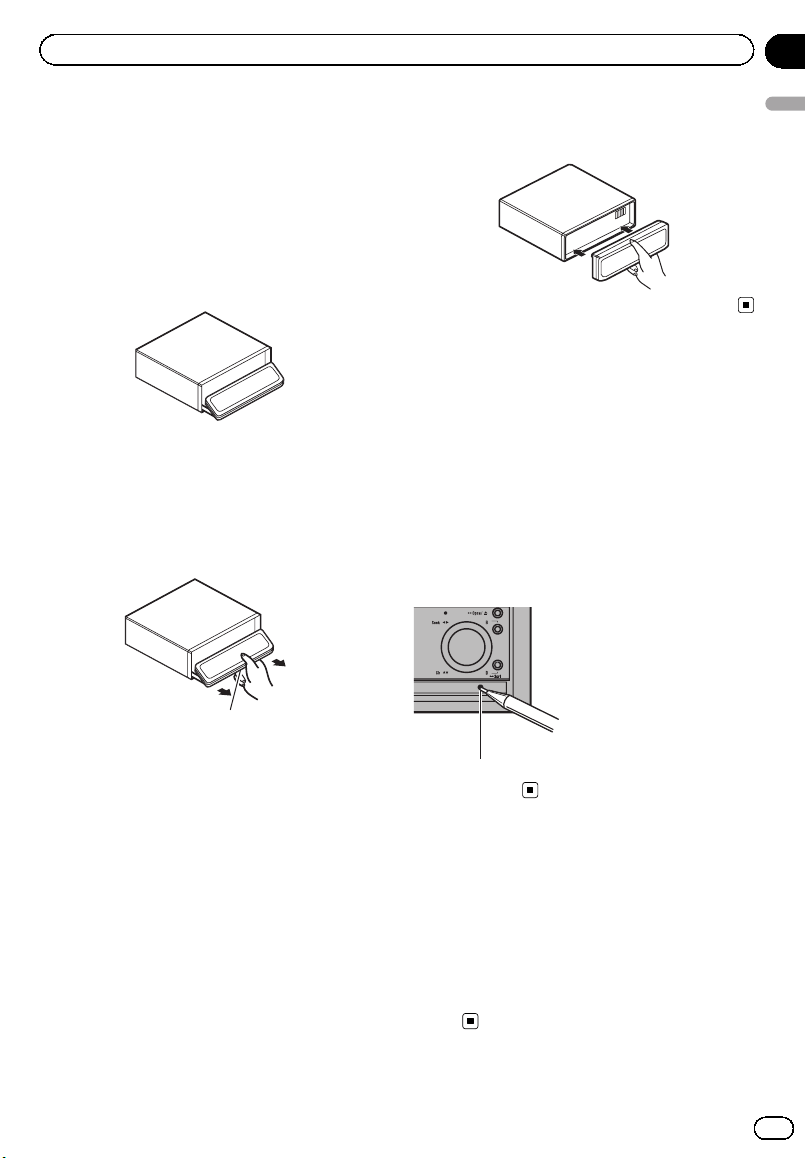
1 Press h/Open to open the front panel.
If a disc has been inserted to this unit, press-
ing and holding h/Open enable to open the
front panel without ejecting a disc.
2 Press the release button, slide and re-
move the front panel toward you.
Take care not to grip it too tightly or to drop
the front panel and protect it from contact
with water or other fluids to prevent perma-
nent damage.
Release button
3 Put the front panel into the provided
protective case for safe keeping.
Attaching the front panel
1 Make sure the inner cover is closed.
2 Replace the front panel by clipping it
into place.
Resetting the microprocessor
The microprocessor must be reset under the
following conditions:
! Prior to using this unit for the first time
after installation
! If the unit fails to operate properly
! When strange or incorrect messages ap-
pear on the display
% Press RESET with a pen tip or other
pointed instrument.
RESET button
Reverse mode
If you do not perform an operation within
about 30 seconds, screen indications start to
reverse, and then continue reversing every 10
seconds. Pressing button B when power to
this unit is turned off while the ignition switch
is set to ACC or ON cancels the reverse mode.
Press button B again to start the reverse
mode.
<CRB3070-B>7
En
7
Section
01
Before You Start
Before You Start
Black plate (8,1)
Use and care of the remote
control
Installing and removing the
battery
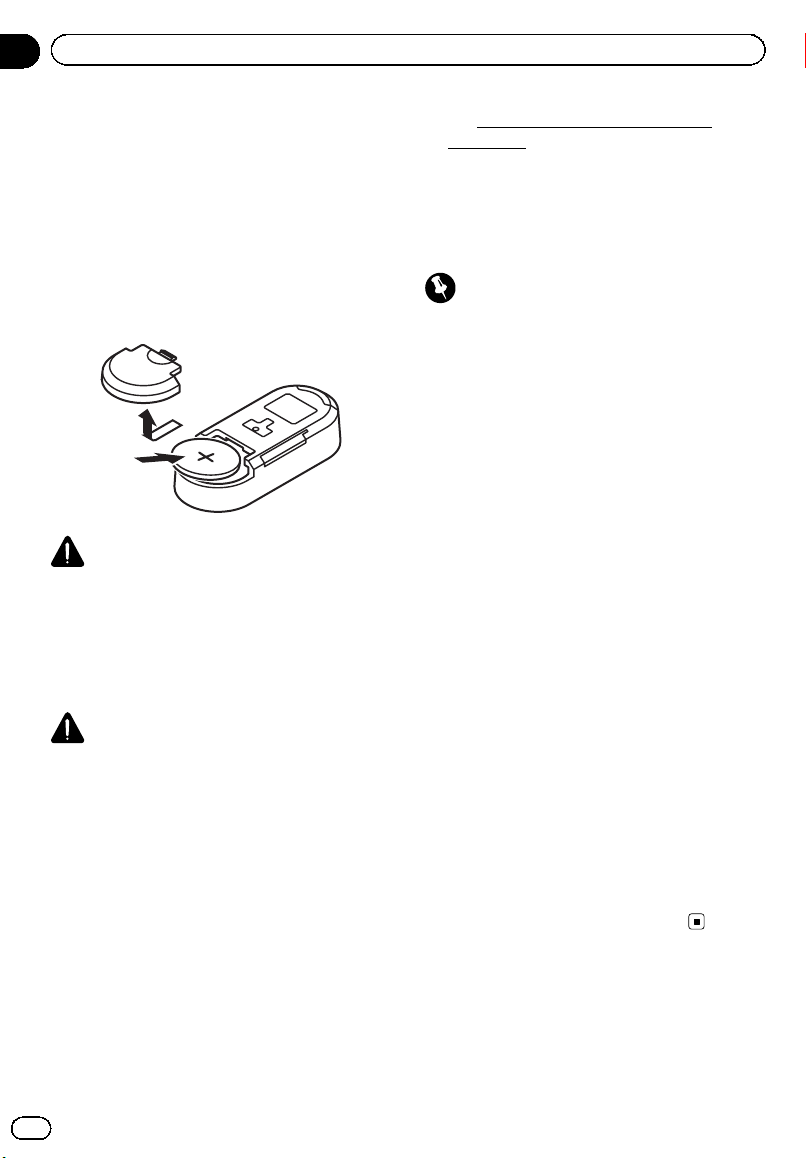
Slide the tray on the back of the remote con-
trol out and insert the battery with the plus (+)
and minus (–) poles aligned properly.
! When using for the first time, pull out the
film protruding from the tray.
WARNING
! Keep the battery out of the reach of children.
Should the battery be swallowed, consult a
doctor immediately.
! Batteries (battery pack or batteries installed)
shall not be exposed to excessive heat such
as sunshine, fire or the like.
CAUTION
! Use one CR2032 (3 V) lithium battery.
! Remove the battery if the remote control is not
used for a month or longer.
! There is a danger of explosion if the battery is
incorrectly replaced. Replace only with the
same or equivalent type.
! Do not handle the battery with metallic tools.
! Do not store the battery with metallic objects.
! If the battery leaks, wipe the remote control
completely clean and install a new battery.
! When disposing of used batteries, comply
with governmental regulations or environmen-
tal public institutions’ rules that apply in your
country/area.
! “Perchlorate Material – special handling may
apply.
See
www.dtsc.ca.gov/hazardouswaste/
perchlorate. (Applicable to California, U.S.A.)”
Using the remote control
The remote control may not function properly
in direct sunlight.
Important
! Do not store the remote control in high tem-
peratures or direct sunlight.
! Do not let the remote control fall onto the
floor, where it may become jammed under the
brake or accelerator pedal.
! If any of the following problems occur, imme-
diately stop using the unit and consult the
dealer from whom you purchased it.
— Smoke is coming from the unit.
— Abnormal odor is coming from the unit.
— A foreign object has entered the unit.
— Liquid has been spilled on or into the unit.
If you continue to use this unit without finding
a remedy, the unit may be damaged badly, re-
sulting in a serious accident or fire.
! Do not disassemble or modify this unit. To do
so may cause a malfunction.
! Do not operate this unit while manipulating
the steering wheel as it might result in a traffic
accident.
! If you need to operate this unit while driving,
look ahead carefully to avoid being involved in
a traffic accident.
! Do not leave this steering remote control free
(unattached). When stopping the car or turn-
ing, the unit might drop on the floor. If the unit
rolls under the brake pedal, it might prevent
the driver from braking properly, causing ser-
ious problems. Be sure to fix the steering re-
mote control to the steering wheel.
<CRB3070-B>8
En
8
Section
01
Before You Start
Black plate (9,1)
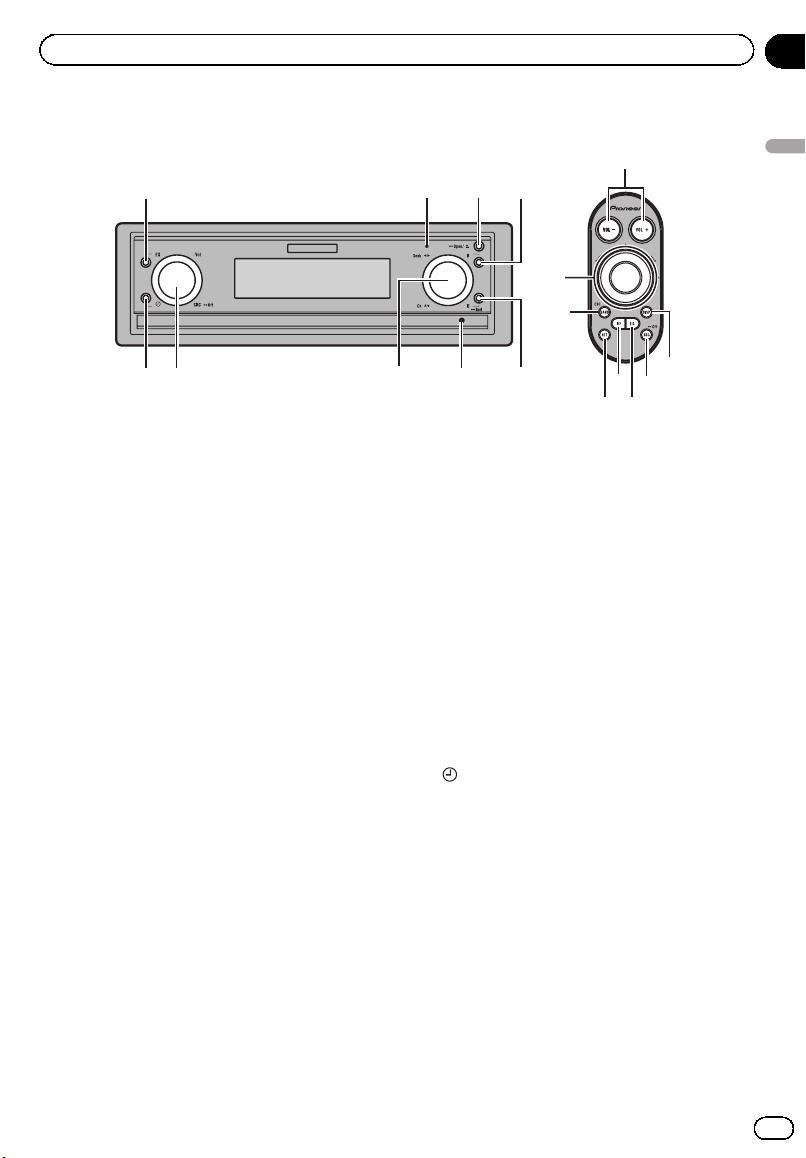
What’s what
1
23
4
5
6
7
8
9
7
4
e
d
c
b
5
a
Head unit
1 EQ button
Press to select various equalizer curves.
Press and hold to turn the display indication
and button illumination off or on.
2 Display off indicator
Lights up when the display is turned off.
3 h/Open button
Press to eject a disc from this unit.
Press and hold to open or close the front
panel.
4 B button
Press to select among three FM bands and
one AM band.
Press to return to the ordinary display when
operating the menu.
5 D/Scrl button
Press to select different displays.
Press and hold to scroll through the text in-
formation.
6 RESET button
Press to reset the microprocessor.
7 MULTI-CONTROL
Move to perform manual seek tuning, fast
forward, reverse and track search controls.
Also used for controlling functions.
Turn to display the disc title list, track title
list, folder list, file list or preset channel list
depending on the source.
8 SRC/Off button, Vol
This unit is turned on by selecting a source.
Press to cycle through all the available
sources.
Rotate it to increase or decrease the vo-
lume.
9
button
Press to change to the clock display.
Steering remote control
Operation is the same as when using the but-
tons on the head unit.
a VOL –/VOL + buttons
Press to increase or decrease the volume.
b SRC/Off button
This unit is turned on by selecting a source.
Press to cycle through all the available
sources.
<CRB3070-B>9
En
9
Section
02
Operating this unit
Operating this unit
Black plate (10,1)
c EQ button
Press to select various equalizer curves.
d DF button
Press to operate the preprogrammed func-
tions for each source. (Refer to Using the DF
(direct function) button on page 41.)
e ATT button
Press to quickly lower the volume level by
about 90%. Press once more to return to the
original volume level.
Basic Operations
Power ON/OFF
Tur ning the unit on
% Press SRC/Off to turn the unit on.
Tur ning the unit off
% Press SRC/Off and hold until the unit
turns off.
Selecting a source
You can select a source you want to listen to.
% Press SRC/Off repeatedly to switch be-
tween the following sources.
Tuner (tuner)—DVD (DVD player/multi-DVD
player)—CD (built-in CD player)—Multi CD
(multi-CD player)—iPod (iPod connected with
the interface adapter)—USB (USB storage de-
vice)/iPod (iPod connected using USB input)
—EXT (external unit 1)—EXT (external unit 2)
—AUX1 (AUX1)—AUX2 (AUX2)—BT Audio
(BT audio)—TEL (BT telephone)
Notes
! In the following cases, the sound source will
not change.
— When no unit corresponding to the se-
lected source is connected.
— When there is no disc or magazine in the
player.
— When the iPod is not connected to this
unit with the interface adapter.
— When AUX (auxiliary input) is set to off
(refer to page 35).
— When the BT Audio source is set to off
(refer to Activating the BT Audio source on
page 38).
! When an USB storage device or iPod is not
connected to the USB port of this unit,
NO DEVICE is displayed.
! AUX1 is set to on by default. Turn off the AUX1
when not in use (refer to Switching the auxili-
ary setting on page 35).
<CRB3070-B>10
En
10
Section
02
Operating this unit
Black plate (11,1)
! Charging the portable audio player using
car’s DC power source while connecting it to
AUX input may generate noise. In this case,
stop charging.
! External unit refers to a Pioneer product (such
as ones available in the future) that, although
incompatible as a source, enables control of
basic functions with this unit. Two external
units can be controlled with this unit. When
two external units are connected, the external
unit is automatically allocated to external unit
1 or external unit 2 by this unit.
! When this unit’s blue/white lead is connected
to the vehicle’s auto-antenna relay control
terminal, the vehicle’s antenna extends when
this unit’s source is turned on. To retract the
antenna, turn the source off.
! Certain devices may need to be switched on
before being connected to this unit.
Loading a disc
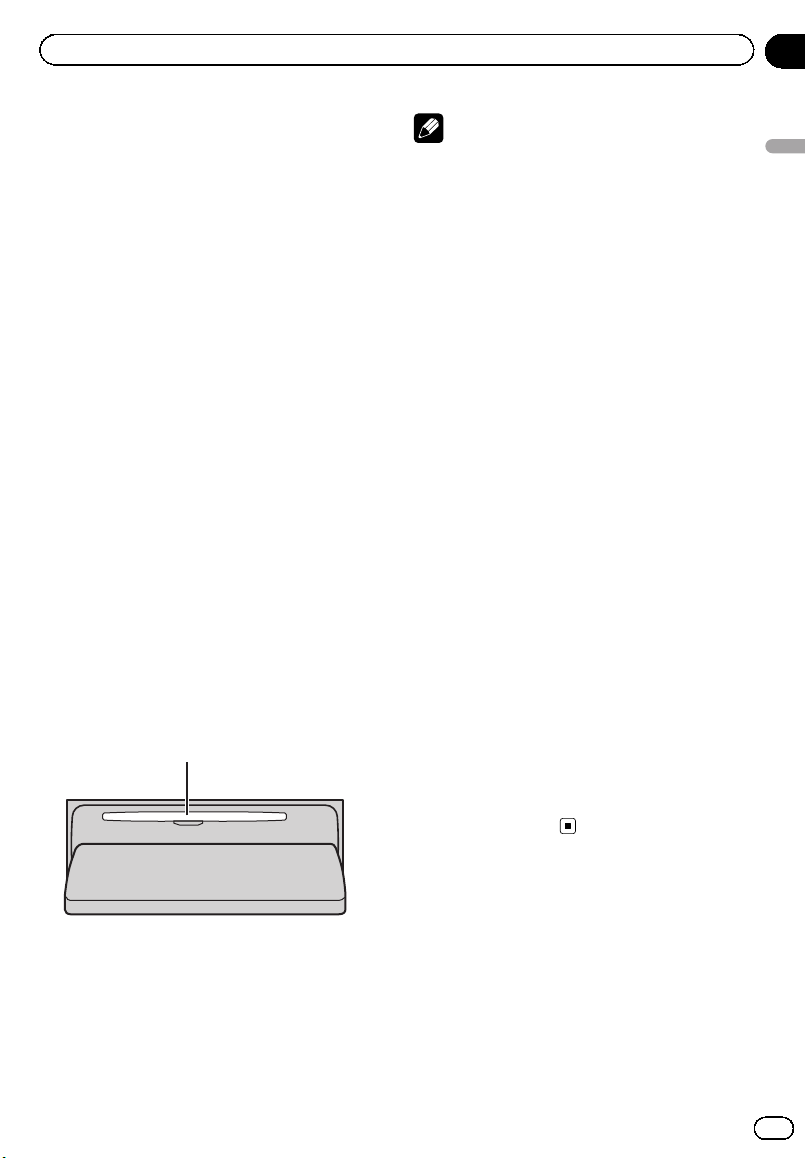
1 Press h/Open to open the front panel.
CD loading slot appears.
2 Insert a CD into the CD loading slot.
Front panel is closed automatically, and play-
back will start.
! When loading a CD/CD-R/CD-RW, face
the label side of a disc up.
CD loading slot
# You can eject a disc by pressing h/Open.
# After a CD has been inserted, press SRC/Off
to select the built-in CD player.
Notes
! The built-in CD player plays one, standard, 12-
cm CD (-R/-RW) at a time. Playing back an 8-
cm disc is not possible with this unit.
! The built-in CD player can play back audio CD
and compressed audio recorded on a CD-
ROM. (Please see the following section for
files that can be played back. Refer to page
64.)
! Read the precautions for the player and discs
in the following section. Refer to page 63.
! Do not insert anything other than a CD into
the CD loading slot.
! There is sometimes a delay between starting
up disc playback and the sound being issued.
When being read, FORMAT READ is dis-
played.
! If you cannot insert a disc completely or if
after you insert a disc the disc does not play,
check that the label side of the disc is up.
Press h/Open to eject the disc, and check
the disc for damage before inserting it again.
! When the disc loading or ejecting function
does not operate properly, you can eject the
disc by pressing and holding h/Open while
opening the front panel.
! If an error message is displayed, refer to Error
messages on page 61.
Adjusting the volume
% Use Vol to adjust the sound level.
# With the remote control, press VOL +/VOL –
to adjust the volume.
<CRB3070-B>11
En
11
Section
02
Operating this unit
Operating this unit
Black plate (12,1)
Tuner
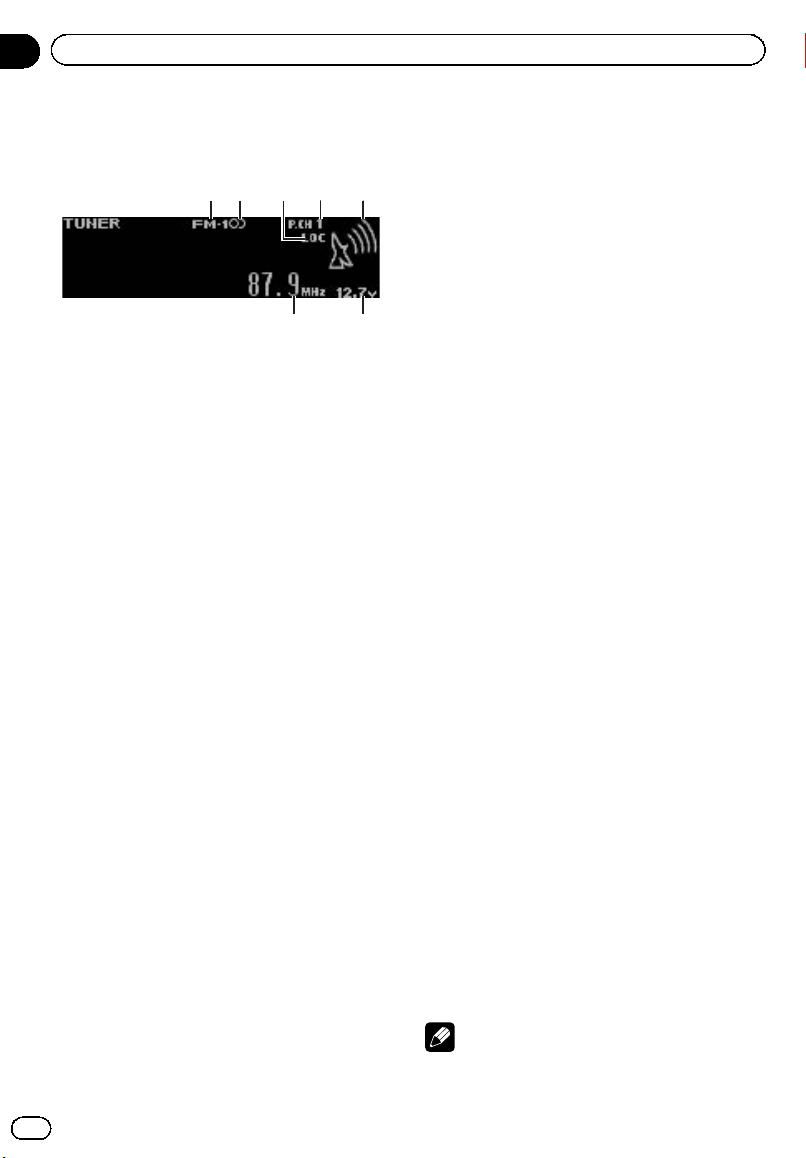
Basic Operations
1 Band indicator
2 5 (stereo) indicator
Appears when the selected frequency is being
broadcast in stereo.
3 LOC indicator
Appears when local seek tuning is on.
4 Preset number indicator
5 Signal level indicator
Shows the radio wave strength.
6 Voltage indicator
Shows the battery voltage.
! The level displayed on the voltage indi-
cator may differ from the actual voltage
level.
7 Frequency indicator
% Select a band
Press B.
# Band can be selected from among FM1, FM2,
FM3 or AM.
% Manual tuning (step by step)
Push MULTI-CONTROL left or right.
% Seek tuning
Push and hold MULTI-CONTROL left or right,
and then release.
# You can cancel seek tuning by pushing
MULTI-CONTROL lef t or right.
# While pushing and holding MULTI-CONTROL
left or right, you can skip stations. Seek tuning
starts as soon as you release MULTI-CONTROL.
Storing and recalling broadcast
frequencies
You can easily store up to six broadcast fre-
quencies for later recall.
! Six stations for each band can be stored in
memory.
1 Use MULTI-CONTROL to store the se-
lected frequency in memory.
Turn to change the preset number. Press and
hold to store.
2 Use MULTI-CONTROL to select the de-
sired station.
Turn to change the station. Press to select.
# All stations stored for FM bands can be re-
called from each independent FM band.
# You can also change the station by pushing
MULTI-CONTROL up or down.
# To return to the ordinary display, press B.
# If you do not operate the list within about 30
seconds, the display automatically returns to the
ordinary display.
# You can also recall radio station frequencies
assigned to preset tuning numbers by pushing
MULTI-CONTROL up or down during the fre-
quency display.
Introduction to advanced
operations
1 Press MULTI-CONTROL to display the
main menu.
2 Use MULTI-CONTROL to select
FUNCTION.
Turn to change the menu option. Press to se-
lect.
3 Turn MULTI-CONTROL to select the
function.
BSM (best stations memory)—Local (local
seek tuning)
Notes
! To return to the ordinary display, press B.
<CRB3070-B>12
En
12
Section
02
Operating this unit

Black plate (13,1)
! If you do not operate functions within about
30 seconds, the display automatically returns
to the ordinary display.
Storing the strongest broadcast
frequencies
BSM (best stations memory) lets you automa-
tically store the six strongest broadcast fre-
quencies.
1 Use MULTI-CONTROL to select BSM in
the function menu.
Refer to Introduction to advanced operations
on the previous page.
2 Press MULTI-CONTROL to turn BSM on.
The six strongest broadcast frequencies are
stored in the order of their signal strength.
# To cancel, press MULTI-CONTROL again.
Tuning in strong signals
Local seek tuning lets you tune in only those
radio stations with sufficiently strong signals
for good reception.
1 Use MULTI-CONTROL to select Local in
the function menu.
Local appears in the display.
2 Press MULTI-CONTROL to turn local
seek tuning on.
# To turn local seek tuning off, press
MULTI-CONTROL again.
3 Push MULTI-CONTROL left or right to
select the desired setting.
FM: Level 1—Level 2—Level 3—Level 4
AM: Level 1—Level 2
Larger setting number is higher level. The
highest level setting allows reception of only
the strongest stations, while lower settings let
you receive progressively weaker stations.
Built-in CD Player
Basic Operations
1 WMA/MP3/AAC/WAV indicator
Shows the type of audio file currently playing
when the compressed audio is playing.
2 Folder number indicator
Shows the folder number currently playing
when the compressed audio is playing.
3 Track number indicator
4 Voltage indicator
Shows the battery voltage.
! The level displayed on the voltage indi-
cator may differ from the actual voltage
level.
5 Play time indicator
6 Bit rate/sampling frequency indicator
Shows the bit rate or sampling frequency of
the current track (file) when the compressed
audio is playing.
! When playing back VBR (variable bit
rate)-recorded WMA files, the average
bit rate value is displayed.
! When playing back VBR (variable bit
rate)-recorded MP3 files, VBR is dis-
played instead of bit rate value.
% Select a folder
Push MULTI-CONTROL up or down.
# You cannot select a folder that does not have
a compressed audio file recorded in it.
% Select a track
Push MULTI-CONTROL left or right.
% Fast forward or reverse
Push and hold MULTI-CONTROL left or right.
# When playing compressed audio, there is no
sound on fast forward or reverse.
<CRB3070-B>13
En
13
Section
02
Operating this unit
Operating this unit
Black plate (14,1)
% Return to root folder
Press and hold B.
# If folder 01 (ROOT) contains no files, playback
commences with folder 02.
% Switch between compressed audio and
CD-DA
Press B.
# This operation is available only when playing
CD-EXTRA or MIXED-MODE CDs.
# If you have switched between compressed
audio and CD-DA, playback starts at the first
track on the disc.
Note
Playback is carried out in order of file number.
Folders are skipped if they contain no files. (If
folder 01 (ROOT) contains no files, playback com-
mences with folder 02.)
Displaying text information on
disc
% Press D/Scrl to select the desired text
information.
! For title entered CD
Play time—
: disc title and play time
! For CD TEXT discs
Play time—
: disc artist name and :
track title—
: disc artist name and :
disc title—
: disc title and : track title
—
: track artist name and : track title
—
: track title and play time— : track
title,
: track artist name and : disc title
! For WMA/MP3/AAC
Play time—
: folder name and : file
name—
: artist name and : track title
—
: artist name and : album title— :
album title and
: track title— : track
title and play time—
: comment and play
time—
: track title, : artist name and
: album title
! For WAV
Play time—
: folder name and : file
name
Notes
! You can scroll through text data by pressing
and holding D/Scrl.
! Audio CD that contains certain information
such as text and/or number is CD TEXT.
! If specific information is not recorded on a
disc, title or name is not displayed.
! Depending on the version of iTunes used to
write MP3 files onto a disc, comment informa-
tion may not be correctly displayed.
! Depending on the version of Windows Med-
iaä Player used to encode WMA files, album
names and other text information may not be
correctly displayed.
! The sampling frequency shown in the display
may be abbreviated.
! When Ever Scroll is set to ON at the initial set-
ting, text information scrolls continuously in
the display. Refer to Switching the ever scr oll
on page 38.
! Depending on the character sets in the disc,
Russian texts may be garbled. About the al-
lowed character sets for Russian texts, refer to
Compressed audio files on the disc on page 64.
Selecting tracks from the track
title list
Track title list lets you see the list of track titles
on a CD TEXT disc and select one of them to
play back.
% Use MULTI-CONTROL to select the de-
sired track title.
Turn to change the track title. Press to play.
# You can scroll through text data by pressing
and holding D/Scrl.
# To return to the ordinary display, press B.
# If you do not operate the list within about 30
seconds, the display automatically returns to the
ordinary display.
<CRB3070-B>14
En
14
Section
02
Operating this unit

Black plate (15,1)
Selecting files from the file
name list
File name list lets you see the list of file names
(or folder names) and select one of them to
playback.
% Use MULTI-CONTROL to select the de-
sired file name (or folder name).
Turn to change the name of file or folder.
— when a file is selected, press to play.
— when a folder is selected, press to see a list
of files (or folders) in the selected folder.
— when a folder is selected, press and hold to
play a song in the selected folder.
# You can also play the file by pushing
MULTI-CONTROL right.
# To return to the previous list (the folder one
level higher), push MULTI-CONTROL left.
# Number of the folders/files in the currently se-
lected folder will be indicated on the right side of
the display.
# You can scroll through text data by pressing
and holding D/Scrl.
# To return to the ordinary display, press B.
# If you do not operate the list within about 30
seconds, the display automatically returns to the
ordinary display.
Introduction to advanced
operations
1 Press MULTI-CONTROL to display the
main menu.
2 Use MULTI-CONTROL to select
FUNCTION.
Turn to change the menu option. Press to se-
lect.
3 Turn MULTI-CONTROL to select the
function.
Play mode (repeat play)—Random mode
(random play)—Scan mode (scan play)—
Pause (pause)—TitleInput "A" (disc title
input)
Notes
! To return to the ordinary display, press B.
! If you do not operate functions except for
TitleInput "A" within about 30 seconds, the
display automatically returns to the ordinary
display.
! When playing a compressed audio disc or CD
TEXT disc, you cannot switch to disc title input
display.
Selecting a repeat play range
1 Use MULTI-CONTROL to select
Play mode in the function menu.
Refer to Introduction to advanced operations
on this page.
2 Press MULTI-CONTROL to select your fa-
vorite setting.
! Disc repeat – Repeat all tracks
! Track repeat – Repeat the current track
! Folder repeat – Repeat the current folder
# If you select another folder during repeat play,
the repeat play range changes to disc repeat.
# Per forming track search or fast forward/re-
verse during Track repeat (track repeat) changes
the repeat play range to Disc repeat/
Folder repeat.
# When Folder repeat (folder repeat) is se-
lected, it is not possible to play back a subfolder
of that folder.
Playing tracks in random order
Tracks in a selected repeat range are played in
random order.
1 Use MULTI-CONTROL to select
Random mode in the function menu.
Refer to Introduction to advanced operations
on this page.
2 Press MULTI-CONTROL to turn random
play on.
Tracks play in a random order.
# To turn random play off, press
MULTI-CONTROL again.
<CRB3070-B>15
En
15
Section
02
Operating this unit
Operating this unit

Black plate (16,1)
Scanning folders and tracks
Scan play searches the song within the se-
lected repeat range.
1 Use MULTI-CONTROL to select
Scan mode in the function menu.
Refer to Introduction to advanced operations
on the previous page.
2 Press MULTI-CONTROL to turn scan play
on.
The first 10 seconds of each track is played.
3 When you find the desired track press
MULTI-CONTROL to turn scan play off.
# If the display has automatically returned to
the playback display, select Scan mode again by
using MULTI-CONTROL.
# After scanning of a disc (folder) is finished,
normal playback of the tracks begins.
Pausing playback
1 Use MULTI-CONTROL to select Pause in
the function menu.
Refer to Introduction to advanced operations
on the previous page.
2 Press MULTI-CONTROL to turn pause
on.
Playback of the current track pauses.
# To turn pause off, press MULTI-CONTROL
again.
Using disc title functions
You can input CD titles and display the title.
The next time you insert a CD for which you
have entered a title, the title of that CD is dis-
played.
Entering disc titles
Use the disc title input feature to store up to
48 CD titles in the unit. Each title can be up to
10 characters long.
1 Play the CD that you want to enter a
title for.
2 Use MULTI-CONTROL to select
TitleInput "A" in the function menu.
Refer to Introduction to advanced operations
on the previous page.
3 Press D/Scrl to select the desired charac-
ter type.
Press D/Scrl repeatedly to switch between the
following character types:
Alphabet (upper case), numbers and symbols
—Alphabet (lower case)—European letters,
such as those with accents (e.g. á, à, ä, ç)—
Numbers and symbols
4 Push MULTI-CONTROL up or down to
select a letter of the alphabet.
5 Push MULTI-CONTROL left or right to
move the cursor to the previous or next
character position.
6 Move the cursor to the last position by
pushing MULTI-CONTROL right after enter-
ing the title.
When you push MULTI-CONTROL right one
more time, the entered title is stored in mem-
or y.
7 Press B to return to the playback dis-
play.
Notes
! Titles remain in memory, even after the disc is
removed from the unit, and are recalled when
the disc is reinserted.
! After data for 48 discs are stored in the mem-
ory, data for a new disc overwrites the oldest
one.
! If you connect a multi-CD player, you can
input disc titles for up to 100 discs.
! When a multi-CD player that does not support
disc title functions is connected, you cannot
enter disc titles in this unit.
<CRB3070-B>16
En
16
Section
02
Operating this unit
Black plate (17,1)
Playing songs in a USB
storage device
You can play compressed audio files stored in
a USB storage device.
! For details about compatibility, refer to Ad-
ditional Information on page 61.
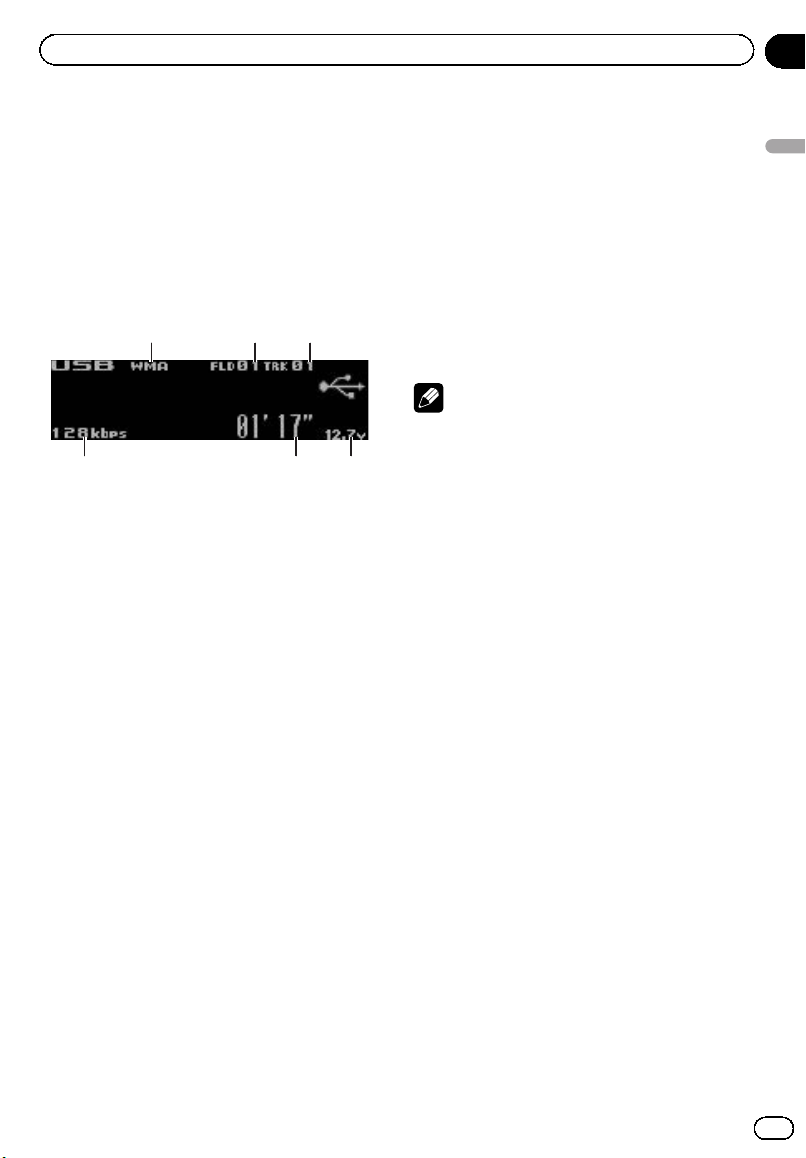
Basic Operations
1 WMA/MP3/AAC/WAV indicator
Shows the type of file currently playing.
2 Folder number indicator
3 Track number indicator
4 Voltage indicator
Shows the battery voltage.
! The level displayed on the voltage indi-
cator may differ from the actual voltage
level.
5 Play time indicator
6 Bit rate/sampling frequency indicator
! When playing back VBR (variable bit
rate)-recorded WMA files, the average
bit rate value is displayed.
! When playing back VBR (variable bit
rate)-recorded MP3 files, VBR is dis-
played instead of bit rate value.
% Plugging a USB storage device and
playing
1 Plug a USB storage device into the USB
port.
Regarding the position of USB port, refer to
Head unit on page 9.
2 Press SRC/Off to select USB as a source.
Playback will start.
% Select a folder
Push MULTI-CONTROL up or down.
% Fast forward or reverse
Push and hold MULTI-CONTROL left or right.
% Select a track
Push MULTI-CONTROL left or right.
% Return to root folder
Press and hold B.
% Unplugging a USB storage device
Pull out the USB storage device.
You can disconnect the USB storage device
anytime you want to finish listening to it.
Notes
! Read the precautions for USB storage devices
and this unit in the following section. Refer to
Additional Information.
! If an error message is displayed, refer to Error
messages on page 61.
! If folder 01 (ROOT) contains no files, playback
commences with folder 02.
! When the USB portable audio player having
battery charging function is connected to this
unit and the ignition switch is set to ACC or
ON, the battery is charged.
Displaying text information of
an audio file
The operation is the same as that of the built-
in CD player.
Refer to Displaying text information on disc on
page 14.
! If the characters recorded on the audio file
are not compatible with the head unit,
those characters are not displayed.
! The text information of some audio files
may not be correctly displayed.
Selecting files from the file
name list
The operation is the same as that of the built-
in CD player.
Refer to Selecting files from the file name list
on page 15.
<CRB3070-B>17
En
17
Section
02
Operating this unit
Operating this unit
Black plate (18,1)
Introduction to advanced
operations
1 Press MULTI-CONTROL to display the
main menu.
2 Use MULTI-CONTROL to select
FUNCTION.
Turn to change the menu option. Press to se-
lect.
3 Turn MULTI-CONTROL to select the
function.
Play mode (repeat play)—Random mode
(random play)—Scan mode (scan play)—
Pause (pause)
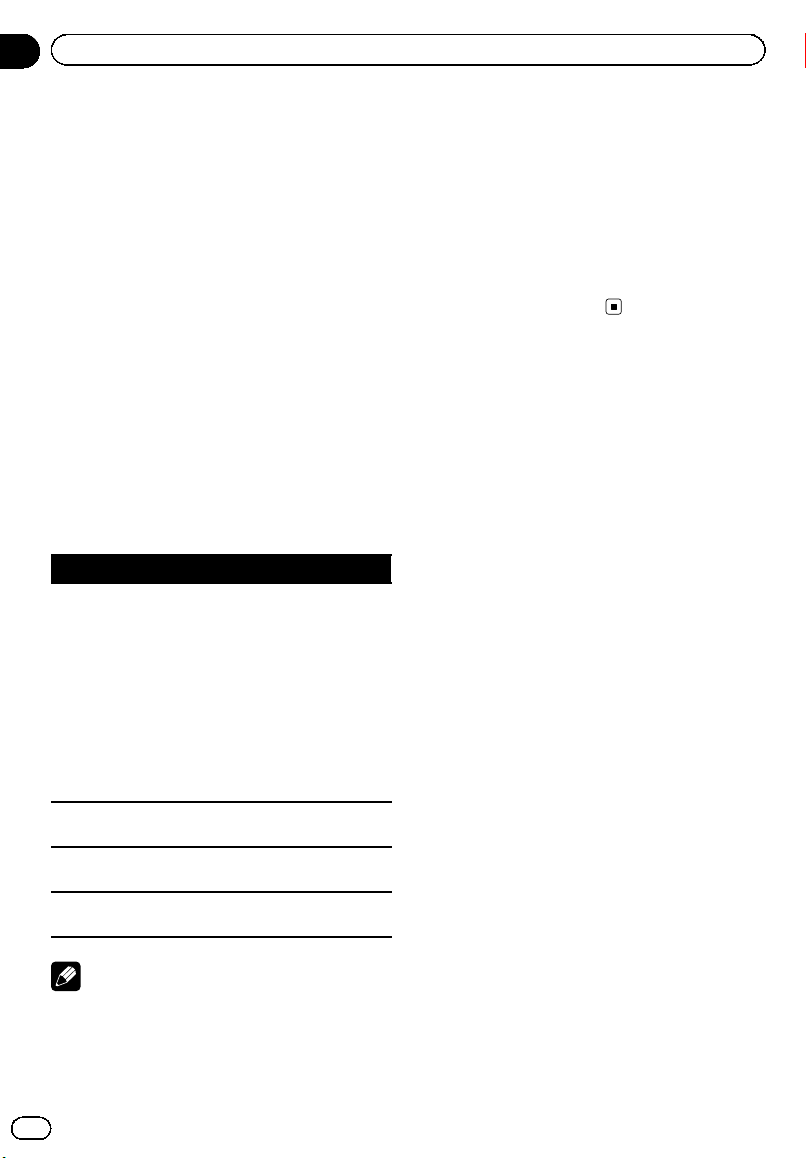
Function and operation
Play mode, Random mode, Scan mode and
Pause operations are basically the same as
that of the built-in CD player.
Function name Operation
Play mode
Refer to Selecting a repeat play
range on page 15.
However, the repeat play ranges
you can select are different from
that of the built-in CD player. The
repeat play ranges of the USB sto-
rage device are:
! Track repeat – Repeat just the
current file
! Folder repeat – Repeat the
current folder
! All repeat – Repeat all files
Random mode
Refer to Playing tracks in random
order on page 15.
Scan mode
Refer to Scanning folders and
tracks on page 16.
Pause
Refer to Pausing playback on page
16.
Notes
! To return to the ordinary display, press B.
! If you select another folder during repeat play,
the repeat play range changes to All repeat.
! If you perform track search or fast forward/re-
verse during Track repeat, the repeat play
range changes to Folder repeat.
! When Folder repeat is selected, it is not pos-
sible to play back a subfolder of that folder.
! After file or folder scanning is finished, nor-
mal playback of the files begins again.
! If you do not operate functions within about
30 seconds, the display automatically returns
to the ordinary display.
<CRB3070-B>18
En
18
Section
02
Operating this unit
Black plate (19,1)
Playing songs on iPod
You can control and listen to songs on an
iPod.
! For details about the supported iPod, refer
to iPod compatibility on page 65.
! When using an iPod, iPod Dock Connector
to USB Cable is required.
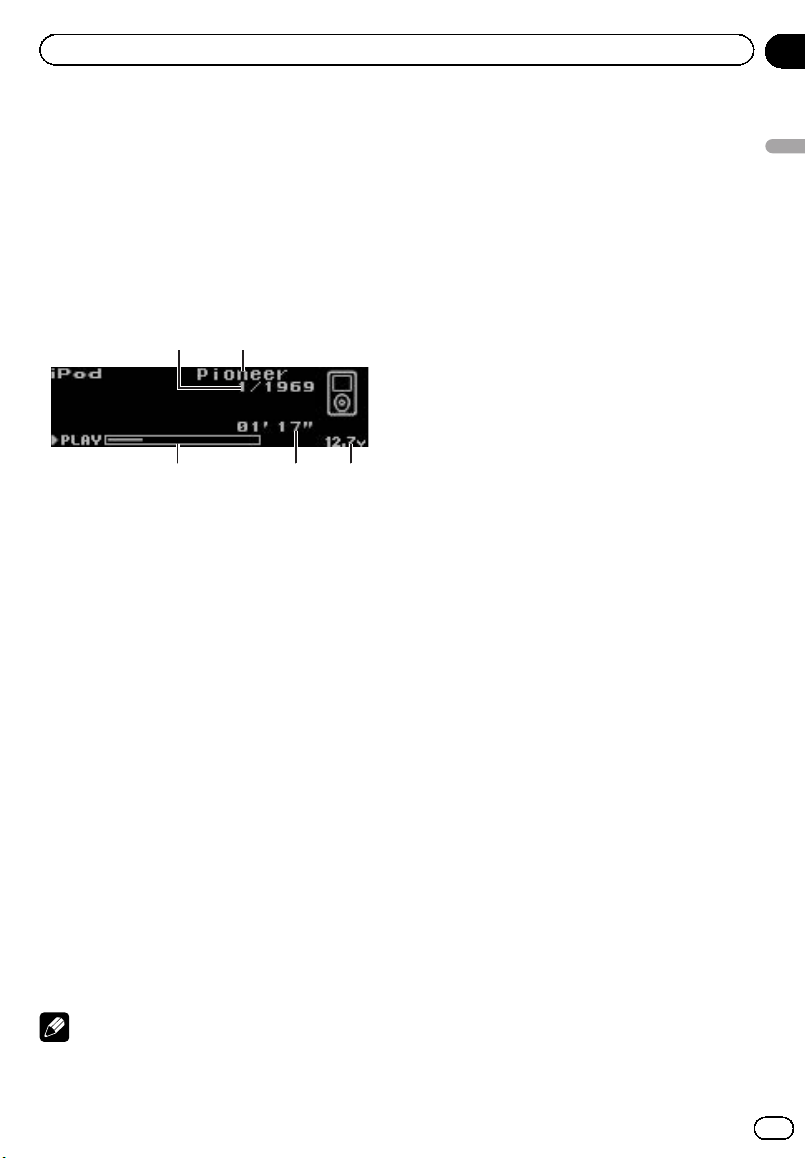
Basic Operations
1 Song number indicator
2 iPod name
3 Voltage indicator
Shows the battery voltage.
! The level displayed on the voltage indi-
cator may differ from the actual voltage
level.
4 Play time indicator
5 Song time (progress bar)
% Connecting an iPod
1 Plug an iPod into the USB port using the
iPod Dock Connector to USB Cable.
Regarding the position of USB port, refer to
Head unit on page 9.
2 Press SRC/Off to select iPod as a source.
Playback will start.
% Fast forward or reverse
Push and hold MULTI-CONTROL left or right.
% Select a track (chapter)
Push MULTI-CONTROL left or right.
% Disconnecting an iPod
Pull out the iPod Dock Connector to USB
Cable.
Notes
! Read the precautions for iPod in the following
section. Refer to page 65.
! If an error message is displayed, refer to Error
messages on page 61.
! When the ignition switch is set to ACC or ON,
the iPod’s battery is charged while the iPod is
connected to this unit.
! While the iPod is connected to this unit, the
iPod cannot be turned on or off. However
when the control mode is set to iPod, you can
turn the iPod on or off.
! Before connecting the iPod to this unit, dis-
connect the headphones from the iPod.
! The iPod is turned off about two minutes after
the ignition switch is set to OFF.
Browsing for a song
Operations to control an iPod with this unit is
designed to be as close to the iPod as possible
to make operation and song search easy.
! Depending on the number of files in the
iPod, there may be a delay when displaying
a list.
! If the characters recorded on the iPod are
not compatible with this unit, those charac-
ters are not displayed.
Searching songs by category
% Use MULTI-CONTROL to select a song.
Turn to change the category. Press to select.
Playlists (playlists)—Artists (artists)—
Albums (albums)—Songs (songs)—Podcasts
(podcasts)—Genres (genres)—Composers
(composers)—Audiobooks (audiobooks)
List for the selected category is displayed.
# You can start playback throughout the se-
lected category by pressing and holding
MULTI-CONTROL. You can also perform this op-
eration by pushing and holding
MULTI-CONTROL right.
# You can also change the category by pushing
MULTI-CONTROL up or down.
# You can also select the category by pushing
MULTI-CONTROL right.
# To return to the previous category, push
MULTI-CONTROL lef t.
# To return to the top tier of categories, push
and hold MULTI-CONTROL left.
<CRB3070-B>19
En
19
Section
02
Operating this unit
Operating this unit
Black plate (20,1)
# You can scroll through text data by pressing
and holding D/Scrl.
# To return to the ordinary display, press B.
# If you do not operate the list within about 30
seconds, the display automatically returns to the
ordinary display.
Searching by alphabet in the list
1 Use MULTI-CONTROL to select a cate-
gory.
Turn to change the category. Press to select.
2 When a list for the selected category is
displayed, press D/Scrl to switch to alpha-
bet search mode.
3 Turn MULTI-CONTROL to select a letter
of the alphabet.
4 Press MULTI-CONTROL to display the al-
phabetical list.
The list is displayed starting from the selected
letter of the alphabet.
# If alphabet search is aborted, NOT FOUND is
displayed.
Displaying text information on
iPod
% Press D/Scrl to select the desired text
information.
Play time—
: artist name and : song title
—
: artist name and : album name— :
album name and
: song title— : song title
and play time—
: song title, : artist name
and
: album name
# You can scroll through text data by pressing
and holding D/Scrl.
# If the characters recorded on the iPod are not
compatible with this unit, those characters are
not displayed.
# When Ever Scroll is set to ON at the initial set-
ting, text information scrolls continuously in the
display. Refer to Switching the ever scroll on page
38.
Introduction to advanced
operations
1 Press MULTI-CONTROL to display the
main menu.
2 Use MULTI-CONTROL to select
FUNCTION.
Turn to change the menu option. Press to se-
lect.
3 Turn MULTI-CONTROL to select the
function.
Play mode (repeat play)—Shuffle mode
(shuffle)—Shuffle all (shuffle all)—Link play
(link play)—Control mode (control mode)—
Pause (pause)—Audiobooks (audiobook
speed)
Function and operation
Play mode and Pause operations are basically
the same as that of the built-in CD player.
Function name Operation
Play mode
Refer to Selecting a repeat play
range on page 15.
However, the repeat play ranges
you can select are different from
that of the built-in CD player. The
repeat play ranges of the iPod are:
! Repeat One – Repeat the cur-
rent song
! Repeat All – Repeat all songs
in the selected list
Pause
Refer to Pausing playback on page
16.
Notes
! To return to the ordinary display, press B.
! If you do not operate functions within about
30 seconds, the display automatically returns
to the ordinary display.
! When Control mode is set to iPod, only
Control mode and Pause can be operated.
<CRB3070-B>20
En
20
Section
02
Operating this unit

Black plate (21,1)
Playing songs in a random
order (shuffle)
1 Use MULTI-CONTROL to select
Shuffle mode in the function menu.
Refer to Introduction to advanced operations
on the previous page.
2 Press MULTI-CONTROL to select your fa-
vorite setting.
! Shuffle Songs – Play back songs in the se-
lected list in random order.
! Shuffle Albums – Play back songs from a
randomly selected album in order.
! Shuffle OFF – Cancel random play.
Playing all songs in a random
order (shuffle all)
1 Use MULTI-CONTROL to select
Shuffle all in the function menu.
Refer to Introduction to advanced operations
on the previous page.
2 Press MULTI-CONTROL to turn shuffle
all on.
All songs on the iPod play randomly.
# To turn shuffle all off, set Shuffle mode in the
FUNCTION menu to off.
Playing songs related to the
currently playing song
Songs related to the currently playing song
are played. You can play songs of the following
lists.
— Album list of currently playing artist
— Song list of currently playing album
— Album list of currently playing genre
! Depending on the number of files in the
iPod, there may be a delay when displaying
a list.
1 Use MULTI-CONTROL to select Link play
in the function menu.
Refer to Introduction to advanced operations
on the previous page.
2 Use MULTI-CONTROL to select the de-
sired mode.
Push MULTI-CONTROL left or right to change
the mode; press to select.
! Artist – Plays the album of currently play-
ing artist.
! Album – Plays the song of currently playing
album.
! Genre – Plays the album of currently play-
ing genre.
Searching flashes while searching the list and
then the playback of the list starts.
# If the related albums/songs are not found,
Not found is displayed.
Operating this unit’s iPod
function from your iPod
This function cannot be operated with the fol-
lowing iPod models.
— iPod nano first generation
— iPod fifth generation
This unit’s iPod function can be operated from
your iPod. Sound can be heard from the car’s
speakers, and operation can be conducted
from your iPod.
! While this function is in use, even if the
ignition key is turned off, the iPod will not
be turned off. To turn off power, operate the
iPod.
1 Use MULTI-CONTROL to select
Control mode in the function menu.
Refer to Introduction to advanced operations
on the previous page.
2 Press MULTI-CONTROL to select your fa-
vorite setting.
! iPod – This unit’s iPod function can be op-
erated from the connected iPod.
! AUDIO – This unit’s iPod function can be
operated from this unit.
3 When you select iPod, operate the con-
nected iPod to select a song and play.
# Switching the control mode to iPod pauses
song playback. Operate the iPod to start play-
back.
# Even if the control mode is set to iPod, follow-
ing functions are available from this unit.
<CRB3070-B>21
En
21
Section
02
Operating this unit
Operating this unit
Black plate (22,1)
! Volume
! Fast forward/reverse
! Track up/down
! Pausing
! Switching the text information
Notes
! When the control mode is set to iPod, opera-
tions are limited as follows:
— Functions other than Control mode (con-
trol mode) and Pause (pause) cannot be
selected.
— Browse function cannot be operated from
this unit.
! Turning this function on pauses song play-
back. Operate the iPod to start playback.
Changing audiobook speed
While listening to an audiobook on iPod, play-
back speed can be changed.
1 Use MULTI-CONTROL to select
Audiobooks in the function menu.
Refer to Introduction to advanced operations
on page 20.
2 Press MULTI-CONTROL to select your fa-
vorite setting.
Press MULTI-CONTROL repeatedly until the
desired setting appears in the display.
! Faster – Playback faster than normal speed
! Normal – Playback in normal speed
! Slower – Playback slower than normal
speed
<CRB3070-B>22
En
22
Section
02
Operating this unit
Black plate (23,1)
Operation modes
This unit’s 4-way network DSP lets you create
a 4-way multi-amp, multi-speaker system with
separate speakers for reproduction of high,
middle, low and ultra-low frequencies (bands),
each driven by a dedicated power amp. The 4-
way network mode provides network and time
alignment functions. These two functions are
essential for a multi-amp, multi-speaker sys-
tem to enable precise control over settings for
each frequency range.
Important
Even when the battery is disconnected or the mi-
croprocessor is reset, this unit’s audio setting re-
mains in the memory. If you want to reset the
audio setting, refer to Resetting the audio func-
tions on page 37.
Note
If one subwoofer is used with this system, left
and right channel adjustment values, such as
time alignment and network settings, need to be
the same.
Adjusting the audio easily
By carrying out the following settings/adjust-
ments in the order shown, you can create a fi-
nely-tuned sound field effortlessly.
1 Using the position selector (POSI)
2 Auto TA and EQ (auto-time alignment and auto-
equalizing)
3 Using balance adjustment on the next page
(BAL)
Adjusting the audio finely
By carrying out the following settings/adjust-
ments in the order shown, you can create a fi-
nely-tuned sound field.
1 Adjusting the time alignment (TA2)
2 Adjusting network (NW 1, NW 2, NW 3)
3 Fine-adjusting equalizer curve (EQ 2)
Extra functions
These functions are helpful in adjusting the
sound to suit your system or your personal
preferences.
! Recalling or copying equalizer curves (EQ 1)
! Adjusting loudness (LOUD)
! Using the sound retriever (S.Rtrv )
! Adjusting source levels (SLA)
Introduction of audio
adjustments
1 Audio display
Shows the audio adjustment status.
1 Press MULTI-CONTROL to display the
main menu.
2 Use MULTI-CONTROL to select AUDIO.
Turn to change the menu option. Press to se-
lect.
3 Turn MULTI-CONTROL to select the
audio function.
Turn MULTI-CONTROL to switch between the
audio functions in the following order.
BAL (balance adjustment)—POSI (position se-
lector)—NW 1 (network adjustment 1)—NW 2
(network adjustment 2)—NW 3 (network ad-
justment 3)—TA1 (time alignment setting)—
TA2 (time alignment adjusting)—EQ 1 (copy-
ing/recalling the equalizer)—EQ 2 (31-band
graphic equalizer)—A.EQ (auto-equalizer on/
off)—S.Rtrv (advanced sound retriever)—
LOUD (loudness)—SLA (source level adjust-
ment)
# When selecting FM as the source, you cannot
switch to SLA.
# When selecting FLAT in EQ 1, you cannot
switch to EQ 2.
# When selecting OFF in TA1, you cannot
switch to TA2.
# To return to the display of each source, press
B.
<CRB3070-B>23
En
23
Section
03
Audio Adjustments
Audio Adjustments
Black plate (24,1)
Switching left and right
channel
You can adjust following functions for left and
right channel independently or commonly.
! Adjusting network (NW 1, NW 2, NW 3)
! Fine-adjusting equalizer curve (EQ 2)
1 Use MULTI-CONTROL to select the
audio function described above.
2 Press MULTI-CONTROL and hold to
switch between left/right independent
mode and left/right common mode.
Each pressing and holding MULTI-CONTROL
selects left/right independent mode and left/
right common mode.
3 Press MULTI-CONTROL to select left
channel or right channel when left/right in-
dependent mode has been selected.
Each pressing MULTI-CONTROL selects left
channel and right channel.
4 Adjust these functions as desired.
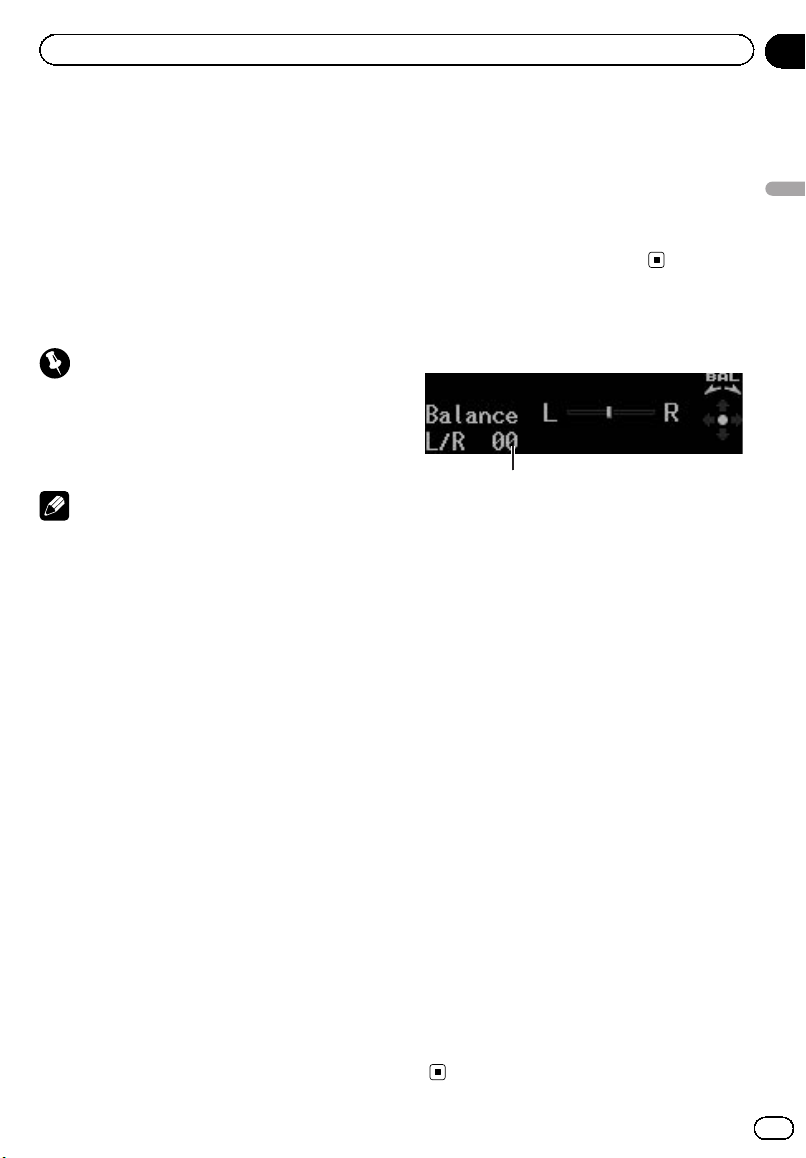
Using balance adjustment
You can select a balance setting that provides
an ideal listening environment in all occupied
seats.
1 Use MULTI-CONTROL to select BAL in
the audio function menu.
Refer to Introduction of audio adjustments on
the previous page.
2 Push MULTI-CONTROL left or right to
adjust left/right speaker balance.
Each time MULTI-CONTROL is pushed left or
right, the left/right speaker balance moves to-
wards the left or right.
L25to R25is displayed as the left/right
speaker balance moves from left to right.
Using the position selector
One way to assure a more natural sound is to
clearly position the stereo image, putting you
right in the center of the sound field. The posi-
tion selector function lets you automatically
adjust the speakers’ output levels and inserts
a delay time to match the number and posi-
tion of occupied seats.
1 Use MULTI-CONTROL to select POSI in
the audio function menu.
Refer to Introduction of audio adjustments on
the previous page.
2 Push MULTI-CONTROL left, right or up
to select a listening position.
Direction Display Position
Left Left Front seat left
Right Right Front seat right
Up Front Front seats
# To cancel the selected listening position, push
MULTI-CONTROL in the same direction again.
About the network function
The network function lets you divide the audio
signal into different frequency bands, and
then reproduce each of them through sepa-
rate speaker units.
You can then make precise adjustments to the
reproduced frequency band (with a low-pass
filter or high-pass filter), level, phase and other
parameters to match the characteristics of
each speaker unit.
<CRB3070-B>24
En
24
Section
03
Audio Adjustments
Black plate (25,1)
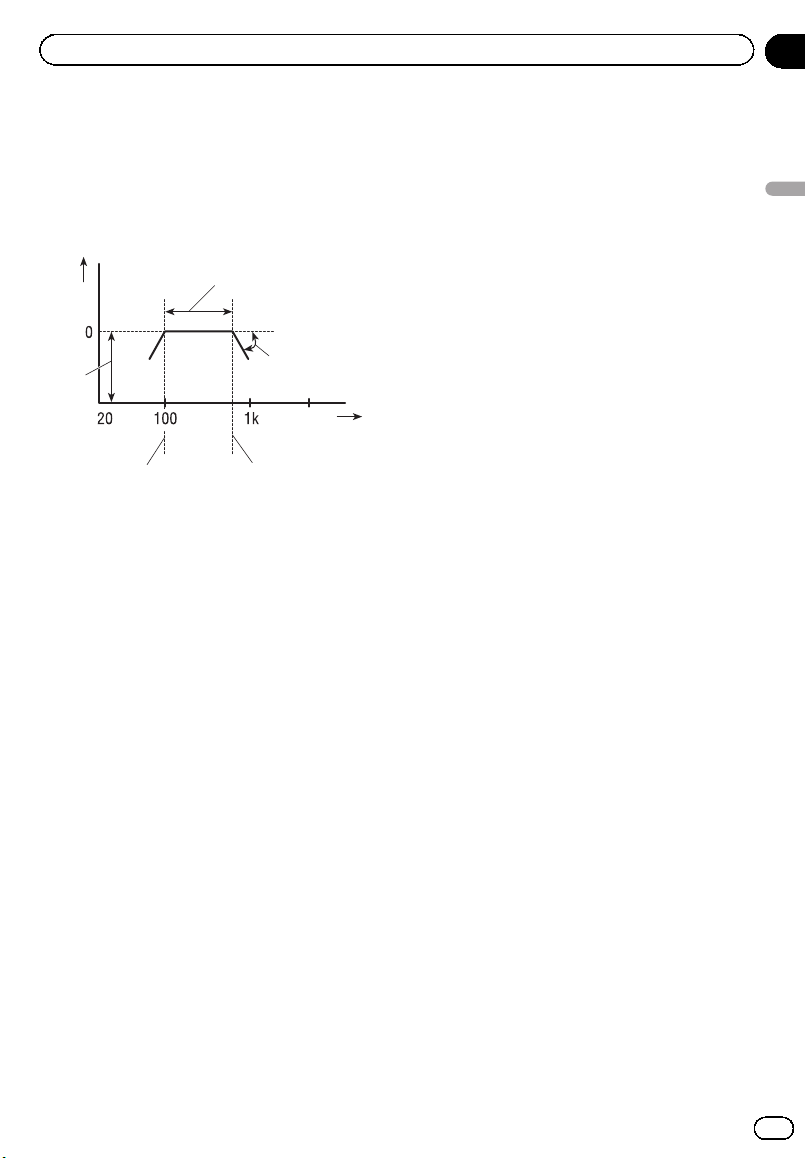
Adjustable parameters
The network function enables adjustment of
the following parameters. Make adjustments
in line with the reproduced frequency band
and characteristics of each connected speaker
unit.
2
1
3
4
5
6
7
8
1 Level (dB)
2 Frequency (Hz)
3 Level
4 Reproduced frequency band
5 Cut-off frequency of HPF
6 Cut-off frequency of LPF
7 Pass
8 Slope (dB/oct.)
Reproduced frequency band
Adjusting the HPF (high-pass filter) or LPF
(low-pass filter) cut-off frequency lets you set
the reproduced frequency band for each
speaker unit.
! The HPF cuts frequencies (low) below the
set frequency, letting high frequencies
through.
! The LPF cuts frequencies (high) above the
set frequency, letting low frequencies
through.
Level
The difference in reproduced levels between
speaker units can be corrected.
Slope
Adjusting the HPF/LPF slope (filter attenuation
slope) lets you adjust the continuity of sound
between speaker units.
! The slope indicates the number of decibels
(dB) the signal is attenuated when the fre-
quency is one octave higher (lower) (Unit:
dB/oct.). The steeper the slope, the more
the signal is attenuated.
Phase
You can switch phase (normal, reverse) for
each speaker unit’s input signal. When the
continuity of sound between speakers is im-
precise, try switching phase. This may improve
the continuity of sound between speakers.
Points concerning network
adjustments
Cut-off frequency adjustment
! If you set the Low-LPF or SW-LPF cut-off
frequency at a high level with a low-range
speaker or subwoofer installed in the rear
of the vehicle, the bass sound is separated
so it sounds like it is coming from the rear.
Setting the Low-LPF or SW-LPF cut-off fre-
quency to 100 Hz or lower is recom-
mended.
! The maximum input power setting for mid-
dle- and high-range speakers is usually
lower than low-range speakers. Please be
aware that if the Mid-HPF or High-HPF cut-
off frequency is set lower than required,
strong bass signal input may damage the
speaker.
Level adjustment
The basic frequencies of many musical instru-
ments are in the middle range. First perform
middle-range level adjustment, followed by
high-range and then low-range and subwoofer
level adjustment in that order.
Slope adjustment
! If you set a small absolute value for the
slope (for a gentle slope), interference be-
tween adjacent speaker units can easily re-
sult in degraded frequency response.
<CRB3070-B>25
En
25
Section
03
Audio Adjustments
Audio Adjustments
Black plate (26,1)
! If you set a large absolute value for the
slope (for a steep slope), continuity of
sound between speaker units is degraded,
and sounds appear to be separated.
! If you set the slope to 0 dB/oct. (pass), the
audio signal bypasses the filter, so the filter
does not have an effect.
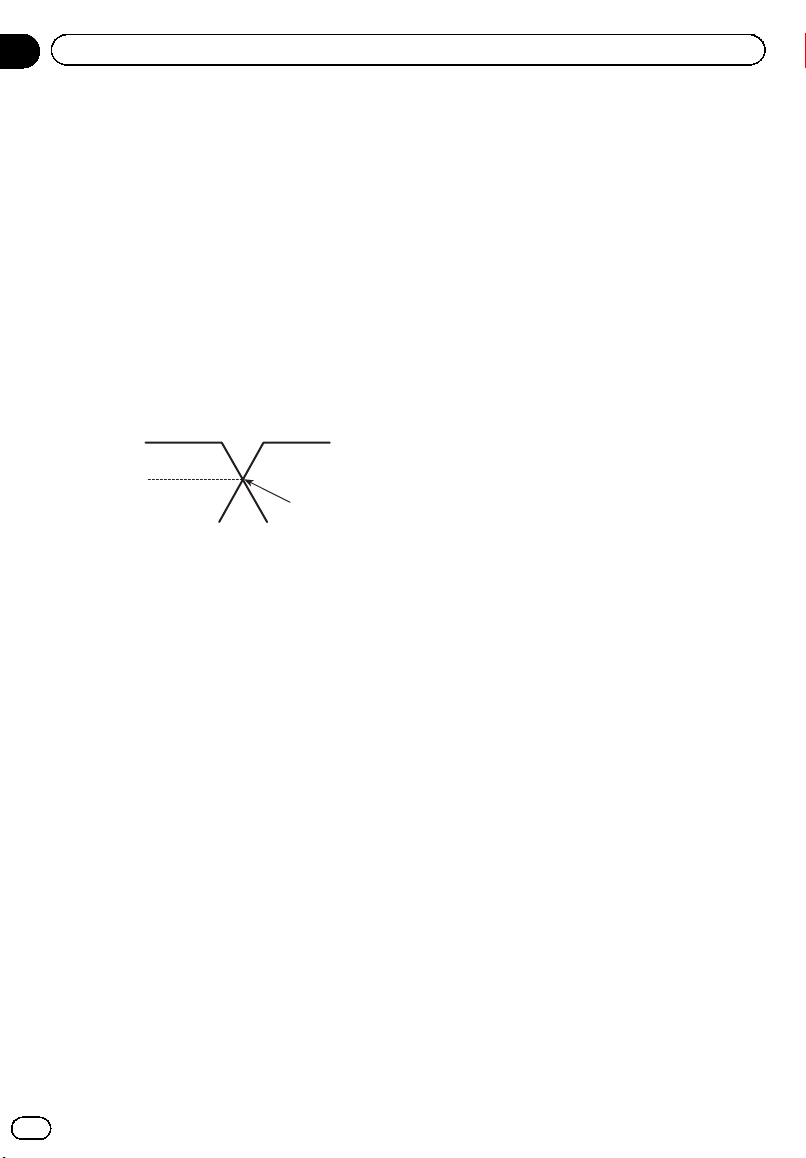
Phase adjustment
When the cross-over point value for filters on
both sides is set to –12 dB/oct., the phase is
reversed 180 degrees at the filter cut-off fre-
quency. In this case, reversing the phase as-
sures improved sound continuity.
1
2
3
4
5
6
1 Normal phase
2 Reverse phase
3 0dB
4 –3dB
5 –12 dB
6 Crossover point
Muting the speaker unit (filter)
You can mute each speaker unit (filter). When
a speaker unit (filter) is muted, no sound is
outputted from that speaker.
! If you mute the selected speaker unit (fil-
ter), MUTE blinks and no adjustments are
possible.
! Even if any speaker unit (filter) is muted,
you can adjust the parameters for other
speaker units (filters).
1 Use MULTI-CONTROL to select NW 1 in
the audio function menu.
Refer to Introduction of audio adjustments on
page 23.
2 Push MULTI-CONTROL left or right to
select the speaker unit (filter) to be ad-
justed.
Each time MULTI-CONTROL is pushed left or
right, the speaker unit (filter) is selected in the
following order:
SW-HPF (subwoofer HPF)—SW-LPF (subwoo-
fer LPF)—Low-HPF (low-range speaker HPF)
—Low-LPF (low-range speaker LPF)—
Mid-HPF (middle-range speaker HPF)—
Mid-LPF (middle-range speaker LPF)—
High-HPF (high-range speaker HPF)—
High-LPF (high-range speaker LPF)
3 Push and hold MULTI-CONTROL down
to mute the selected speaker unit (filter).
# To cancel the muting, push MULTI-CONTROL
up.
Adjusting network
1 Use MULTI-CONTROL to select NW 1 in
the audio function menu.
Refer to Introduction of audio adjustments on
page 23.
2 Push MULTI-CONTROL left or right to
select the speaker unit (filter) to be ad-
justed.
Each time MULTI-CONTROL is pushed left or
right, the speaker unit (filter) is selected in the
following order:
SW-HPF (subwoofer HPF)—SW-LPF (subwoo-
fer LPF)—Low-HPF (low-range speaker HPF)
—Low-LPF (low-range speaker LPF)—
Mid-HPF (middle-range speaker HPF)—
Mid-LPF (middle-range speaker LPF)—
High-HPF (high-range speaker HPF)—
High-LPF (high-range speaker LPF)
3 Turn MULTI-CONTROL to select NW 2 in
the audio function menu.
Refer to Introduction of audio adjustments on
page 23.
<CRB3070-B>26
En
26
Section
03
Audio Adjustments

Black plate (27,1)
4 Push MULTI-CONTROL left or right to
select the cut-off frequency (crossover fre-
quency) of the selected speaker unit (fil-
ter).
Each time MULTI-CONTROL is pushed left or
right, cut-off frequencies (crossover frequen-
cies) are selected in the following order:
! High-LPF
5k—6.3k—8k—10k—12.5k—16k—20k
! High-HPF
800Hz—1k—1.25k—1.6k—2k—2.5k—
3.15k—4k—5k—6.3k—8k—10k—12.5k—
16k
! Mid-LPF, Low-LPF and SW-LPF
25Hz—31.5Hz—40Hz—50Hz—63Hz—
80Hz—100Hz—125Hz—160Hz—200Hz—
250Hz—315Hz—400Hz—500Hz—630Hz
—800Hz—1k—1.25k—1.6k—2k—2.5k—
3.15k—4k—5k—6.3k—8k—10k—12.5k—
16k—20k
! Mid-HPF, Low-HPF and SW-HPF
20Hz—25Hz—31.5Hz—40Hz—50Hz—
63Hz—80Hz—100Hz—125Hz—160Hz—
200Hz—250Hz—315Hz—400Hz—500Hz
—630Hz—800Hz—1k—1.25k—1.6k—2k
—2.5k—3.15k—4k—5k—6.3k—8k—10k
—12.5k—16k
# You cannot select speakers that are set to off
in the initial setting. Refer to Setting the speakers
on page 34.
5 Push MULTI-CONTROL up or down to
adjust the level of the selected speaker
unit (filter).
Each time MULTI-CONTROL is pushed up or
down, the level of the selected speaker unit (fil-
ter) increases or decreases.
0dBto –24 dB is displayed as the level is in-
creased or decreased if you have selected
High-LPF, High-HPF, Mid-LPF or Mid-HPF.
6dBto –24 dB is displayed as the level is in-
creased or decreased, only if you have se-
lected Low-LPF, Low-HPF, SW-LPF or
SW-HPF.
6 Turn MULTI-CONTROL to select NW 3 in
the audio function menu.
Refer to Introduction of audio adjustments on
page 23.
7 Push MULTI-CONTROL left or right to
select the slope of the selected speaker
unit (filter).
Each time MULTI-CONTROL is pushed left or
right, slopes are selected in the following
order:
! High-HPF
6dB/oct.—12dB/oct.—18dB/oct.—
24dB/oct.—30dB/oct.—36dB/oct.
! High-LPF, Mid-LPF, Mid-HPF, Low-LPF,
Low-HPF, SW-LPF and SW-HPF
Pass—6dB/oct.—12dB/oct.—18dB/oct.—
24dB/oct.—30dB/oct.—36dB/oct.
8 Push MULTI-CONTROL up or down to
switch the phase of the selected speaker
unit (filter).
Push MULTI-CONTROL up selects normal
phase and NOR appears in the display. Push
MULTI-CONTROL down selects reverse phase
and REV appears in the display.
# You can adjust the parameters for other
speaker units (filters) in the same way.
9 Press B to cancel the network adjust-
ment mode.
Using the time alignment
The time alignment lets you adjust the dis-
tance between each speaker and the listening
position.
1 Use MULTI-CONTROL to select TA1 in
the audio function menu.
Refer to Introduction of audio adjustments on
page 23.
<CRB3070-B>27
En
27
Section
03
Audio Adjustments
Audio Adjustments
Black plate (28,1)
2 Push MULTI-CONTROL left or right to
select the time alignment.
Each time MULTI-CONTROL is pushed left or
right, time alignment is selected in the follow-
ing order:
Initial (initial)—Custom (custom)—AutoTA
(auto-time alignment)—OFF (off)
! Initial is the factory supplied time align-
ment.
! Custom is an adjusted time alignment that
you created.
! AutoTA is the time alignment created by
auto TA and EQ. (Refer to Auto TA and EQ
(auto-time alignment and auto-equalizing)
on page 30.)
# You cannot select AutoTA if auto TA and EQ
has not been carried out. In this case,
Please Set Auto TA appears.
Adjusting the time alignment
You can adjust the distance between each
speaker and the selected position.
! An adjusted time alignment is memorized
in Custom.
1 Use MULTI-CONTROL to select TA1 in
the audio function menu.
Refer to Introduction of audio adjustments on
page 23.
2 Press MULTI-CONTROL to select a unit
of distance.
Each press of MULTI-CONTROL selects the
unit of distance in the following order:
(cm) (centimeter)—(inch) (inch)
3 Use MULTI-CONTROL to select TA2 in
the audio function menu.
Refer to Introduction of audio adjustments on
page 23.
# Can't Adjust TA. Set POS. FL or FR appears
when neither Left nor Right is selected in the po-
sition selector mode (POSI).
# When selecting OFF in TA1, you cannot
switch to TA2.
4 Push MULTI-CONTROL left or right to
select the speaker to be adjusted.
Each time MULTI-CONTROL is pushed left or
right, the speaker is selected in the following
order:
High L (high-range left)—High R (high-range
right)—Mid L (middle-range left)—Mid R
(middle-range right)—Low L (low-range left)—
Low R (low-range right)—SW L (subwoofer
left)—SW R (subwoofer right)
5 Push MULTI-CONTROL up or down to
adjust the distance between the selected
speaker and the listening position.
Each time MULTI-CONTROL is pushed up or
down, the distance increases or decreases.
394.75cm to 0.00cm is displayed as the dis-
tance is increased or decreased, if you have
selected centimeters ((cm)).
155.39inch to 0.00inch is displayed as the dis-
tance is increased or decreased, if you have
selected inches ((inch)).
# You can adjust the distance for the other
speakers in the same way.
6 Press B to cancel the time alignment
mode.
Recalling or copying
equalizer curves
The equalizer lets you adjust the equalization
to match the car’s interior acoustic character-
istics as desired.
It is possible to store the adjusted equalizer
curve in the memory, or recall the stored
equalizer curve from the memory.
Recalling the equalizer curve
1 Use MULTI-CONTROL to select EQ 1 in
the audio function menu.
Refer to Introduction of audio adjustments on
page 23.
<CRB3070-B>28
En
28
Section
03
Audio Adjustments
Black plate (29,1)
2 Push MULTI-CONTROL left or right to
select the equalizer curve you want to re-
call.
Each time MULTI-CONTROL is pushed left or
right, equalizer curve is recalled in the follow-
ing order.
MEMORY1 (memory 1)—MEMORY2 (mem-
or y 2)—MEMORY3 (memory 3)—MEMORY4
(memory 4)—MEMORY5 (memory 5)—FLAT
(flat)
# When FLAT is selected, no supplement or cor-
rection is made to the sound. This is useful to
check the effect of the equalizer curves by switch-
ing alternatively between FLAT and a set equali-
zer curve.
Copying the equalizer curve
1 Use MULTI-CONTROL to select EQ 1 in
the audio function menu.
Refer to Introduction of audio adjustments on
page 23.
2 Push MULTI-CONTROL left or right to
select the equalizer curve you want to
copy.
3 Press MULTI-CONTROL and hold to copy
the selected equalizer curve.
4 Push MULTI-CONTROL left or right to
select the storage area (MEMORY1 to
MEMORY5).
5 Press MULTI-CONTROL and hold to
store the equalizer curve.
Fine-adjusting equalizer curve
You can perform 31–band level adjustment to
achieve the optimum acoustic characteristics
for your vehicle’s interior environment.
1 Select the storage area (MEMORY1 to
MEMORY5).
Refer to Copying the equalizer curve on this
page.
# If an equalizer curve has already been stored
in memory, it will be overwritten by the newly ad-
justed equalizer curve.
2 Use MULTI-CONTROL to select EQ 2 in
the audio function menu.
Refer to Introduction of audio adjustments on
page 23.
3 Push MULTI-CONTROL left or right to
select the equalizer band to adjust.
Each time MULTI-CONTROL is pushed left or
right, equalizer bands are selected in the fol-
lowing order.
20Hz—25Hz—31.5Hz—40Hz—50Hz—63Hz
—80Hz—100Hz—125Hz—160Hz—200Hz—
250Hz—315Hz—400Hz—500Hz—630Hz—
800Hz—1k—1.25k—1.6k—2kHz—2.5k—
3.15k—4k—5k—6.3k—8k—10k—12.5kHz—
16k—20k
4 Push MULTI-CONTROL up or down to
adjust the level of the equalizer band.
Each time MULTI-CONTROL is pushed up or
down, the level of the equalization band in-
creases or decreases.
+12 to –12 is displayed as the level is in-
creased or decreased.
# You can then select another band and adjust
the level.
5 Equalizer curve is automatically stored
in memory.
Using the auto-equalizer
The auto-equalizer is the equalizer curve cre-
ated by auto TA and EQ (refer to Auto TA and
EQ (auto-time alignment and auto-equalizing)
on the next page).
You can turn the auto-equalizer on or off.
1 Use MULTI-CONTROL to select A.EQ in
the audio function menu.
Refer to Introduction of audio adjustments on
page 23.
<CRB3070-B>29
En
29
Section
03
Audio Adjustments
Audio Adjustments
Black plate (30,1)
# If auto TA and EQ has not been carried out,
Please Set Auto EQ appears. This indicates that
you cannot turn this function on.
2 Press MULTI-CONTROL to turn the auto-
equalizer on.
# To turn auto-equalizer off, press
MULTI-CONTROL again.
Using the sound retriever
The sound retriever function automatically en-
hances compressed audio and restores rich
sound.
1 Use MULTI-CONTROL to select S.Rtrv in
the audio function menu.
Refer to Introduction of audio adjustments on
page 23.
2 Press MULTI-CONTROL to select the de-
sired setting.
OFF (off)—MODE1—MODE2
# MODE1 is effective for the low compression
rate.
# MODE2 is effective for the high compression
rate.
# This function can be used for the audio data
stored in a CD, DVD, Bluetooth Audio, iPod, USB
or AUX.
Adjusting loudness
Loudness compensates for deficiencies in the
low- and high-sound ranges at low volume.
1 Use MULTI-CONTROL to select LOUD in
the audio function menu.
Refer to Introduction of audio adjustments on
page 23.
2 Press MULTI-CONTROL to turn loudness
on.
# To turn loudness off, press MULTI-CONTROL
again.
Adjusting source levels
SLA (source level adjustment) lets you adjust
the volume level of each source to prevent ra-
dical changes in volume when switching be-
tween sources.
! Settings are based on the FM volume level,
which remains unchanged.
1 Compare the FM volume level with the
level of the source you wish to adjust.
2 Use MULTI-CONTROL to select SLA in
the audio function menu.
Refer to Introduction of audio adjustments on
page 23.
3 Push MULTI-CONTROL up or down to
adjust the source volume.
Each time MULTI-CONTROL is pushed up or
down, source volume increases or decreases.
+4 to –4 is displayed as the source volume is
increased or decreased.
Notes
! The AM volume level can also be adjusted
with source level adjustments.
! The built-in CD player and the multi-CD player
are set to the same source level adjustment
volume automatically.
! External unit 1 and external unit 2 are set to
the same source level adjustment volume
automatically.
Auto TA and EQ (auto-time
alignment and auto-
equalizing)
The auto-time alignment is automatically ad-
justed for the distance between each speaker
and the listening position.
The auto-equalizer automatically measures
the car interior acoustic characteristics, and
then creates the auto -equalizer curve based
on that information.
<CRB3070-B>30
En
30
Section
03
Audio Adjustments
Black plate (31,1)
WARNING
! To prevent accidents, never carry out auto TA
and EQ while driving. When this function
measures the car interior acoustic character-
istics to create an auto-equalizer curve, a loud
measurement tone (noise) may be outputted
from the speakers.
! Be sure to connect the high-range speakers to
the high range output. If the speakers are not
connected correctly, they may be damaged by
the low frequency measurement tone.
CAUTION
! Carrying out auto TA and EQ under the follow-
ing conditions may damage the speakers. Be
sure to check the conditions thoroughly be-
fore carrying out auto TA and EQ.
— When speakers are incorrectly connected.
(e.g., When a mid-range speaker is con-
nected to a subwoofer output.)
— When a speaker is connected to a power
amp delivering output higher than the
speaker’s maximum input power capabil-
ity.
! If the microphone is placed in an unsuitable
position the measurement tone may become
loud and measurement may take a long time,
resulting in a drain on battery power. Be sure
to place the microphone in the specified loca-
tion.
! When tweeters and super-tweeters are con-
nected to this system, be sure to use the
super-tweeter’s cross-over network.
! When tweeters and super-tweeters are con-
nected to this system, auto-time alignment
and auto-equalizing may not operate properly.
In this case, manual adjustment is needed.
Before operating the auto TA
and EQ function
! Check the speaker’ s usable frequency
range. Then connect the proper speakers to
high, mid, low or subwoofer outputs. If the
speakers are not connected correctly, auto-
time alignment and auto -equalizing may
not perform properly.
! Carry out auto TA and EQ in as quiet a
place as possible, with the car engine and
air conditioning switched off. Also cut
power to car phones or portable telephones
in the car, or remove them from the car be-
fore carrying out auto TA and EQ. Sounds
other than the measurement tone (sur-
rounding sounds, engine sound, tele-
phones ringing etc.) may prevent correct
measurement of the car interior acoustic
characteristics.
! Be sure to carry out auto TA and EQ using
the supplied microphone. Using another
microphone may prevent measurement, or
result in incorrect measurement of the car
interior acoustic characteristics.
! When the speakers activated in the initial
setting menu are not connected, auto TA
and EQ cannot be carried out.
! When the mid range speaker units are
muted, auto TA and EQ cannot be carried
out. (Refer to the next page.)
! When this unit is connected to a power
amp with input level control, auto TA and
EQ may not be possible if you lower power
amp input level. Set the power amp’s input
level to the standard position.
! When this unit is connected to a power
amp with an LPF, turn off the LPF on the
power amp before carrying out auto TA and
EQ. In addition, the cut-off frequency for
built-in LPF of an active subwoofer should
be set to the highest frequency.
! The time alignment value calculated by
auto TA and EQ may differ from the actual
distance in the following circumstances.
However, the distance has been calculated
by computer to be the optimum delay to
give accurate results for the circum-
stances, so please continue to use this
value.
— When the reflected sound within a vehi-
cle is strong and delays occur.
<CRB3070-B>31
En
31
Section
03
Audio Adjustments
Audio Adjustments
Black plate (32,1)
— When delays occur for low sounds due
to the influence of the LPF on active
subwoofers or external amps.
! Auto TA and EQ changes the audio settings
as below:
— The balance settings return to the center
position. (Refer to page 24.)
— The graphic equalizer curve switches to
FLAT. (Refer to page 28.)
! If you carry out auto TA and EQ when a pre-
vious setting of this already exists, the set-
ting will be replaced.
! When connecting tweeters, please confirm
the tweeter’s usable frequency range.
When you set the cut-off frequency, set
higher than the lowest usable frequency of
the tweeter.
! Auto TA uses higher range than 10 kHz for
measurement. Therefore, using the tweeter
that cannot reproduce 10 kHz frequency
range may damage the tweeter. When Auto
TA&EQ is operated, be sure to set the ap-
propriate cut-off frequency. Also, use the
tweeter that can reproduce 10 kHz at the
lowest usable frequency.
! Speakers used with this system need to be
activated in the initial setting menu. Refer
to Setting the speakers on page 34.
! To perform auto-time alignment and auto-
equalizing, be sure to connect speakers to
mid range output.
Carrying out auto TA and EQ
1 Stop the car in a place that is as quiet
as possible, close all doors, windows and
the sun roof, and then turn the engine off.
# If the engine is left running, engine noise may
prevent correct auto TA and EQ.
2 Fix the supplied microphone in the cen-
ter of the headrest of the driver’s seat, fa-
cing forward, using the belt (sold
separately).
# The auto TA and EQ may differ depending on
where you place the microphone. If desired, place
the microphone on the front passenger seat to
carry out auto TA and EQ.
3 Turn the ignition switch to ON or ACC.
# If the car’s air conditioner or heater is turned
on, turn it off. Noise from the fan in the air condi-
tioner or heater may prevent correct auto TA and
EQ.
# Press SRC/Off to turn the source on if this
unit is turned off.
4 Press SRC/Off and hold until the unit
turns off.
5 Press and hold EQ to enter the auto TA
and EQ menu.
The front panel opens automatically.
6 Plug the microphone into the micro-
phone input jack on this unit.
7 Turn MULTI-CONTROL to select
Select position in the auto TA and EQ
menu.
<CRB3070-B>32
En
32
Section
03
Audio Adjustments
Black plate (33,1)
8 Press MULTI-CONTROL to select a posi-
tion.
Each press of MULTI-CONTROL selects set-
tings in the following order:
Front left (front left)—Front right (front right)
Select the position for the seat on which the
microphone is placed.
9 Turn MULTI-CONTROL to select
Select N/W mode in the auto TA and EQ
menu.
10 Press MULTI-CONTROL to select a net-
work mode.
Each press of MULTI-CONTROL selects set-
tings in the following order:
Auto N/W (auto)—Custom N/W (custom)
# If you want to carry out auto TA and EQ based
on previously customized network settings, select
Custom N/W. Otherwise, select Auto N/W.
# If manually adjusted value is not suitable for
the actual specifications of the speakers, auto-
time alignment and auto-equalizer may not per-
form properly.
11 Turn MULTI-CONTROL to select
Auto TA & EQ stop in the auto TA and EQ
menu.
12 Press MULTI-CONTROL to start the auto
TA and EQ.
13 Get out of the car and close the door
within 10 seconds when the 10-second
count-down starts.
The measurement tone (noise) is outputted
from the speakers, and auto TA and EQ be-
gins.
# To stop auto TA and EQ, press
MULTI-CONTROL again.
# To cancel auto TA and EQ part way through,
press B.
14 When auto TA and EQ is completed,
Complete is displayed.
When correct measurement of car interior
acoustic characteristics is not possible, an
error message is displayed. (Refer to Under-
standing auto TA and EQ error messages on
page 62.)
15 Press B to cancel the auto TA and EQ
mode.
16 Store the microphone carefully in the
glove compartment.
Store the microphone carefully in the glove
compartment or any other safe place. If the
microphone is subjected to direct sunlight for
an extended period, high temperatures may
cause distortion, color change or malfunction.
Note
Make sure you have disconnected the micro-
phone before pressing h/Open to open or close
the panel (an alert sounds if the mic is still con-
nected).
<CRB3070-B>33
En
33
Section
03
Audio Adjustments
Audio Adjustments
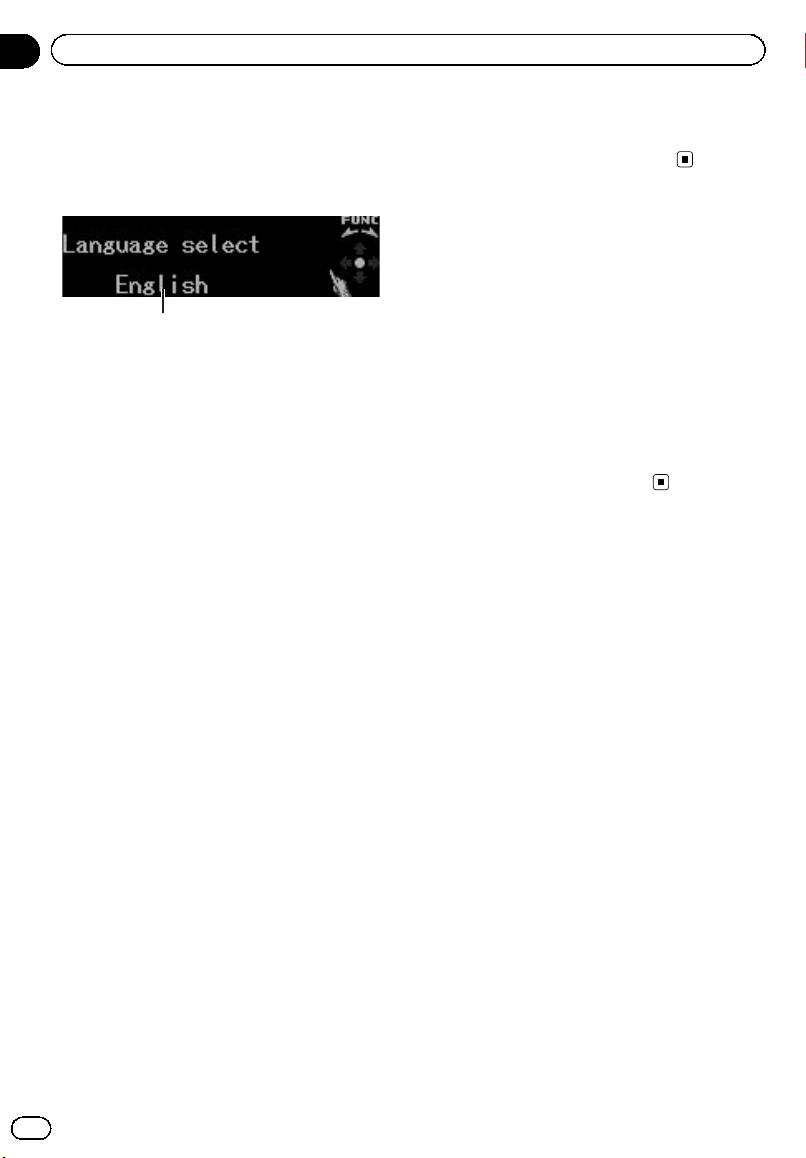
Black plate (34,1)
Adjusting initial settings
Using the initial settings, you can customize
various system settings to achieve optimal per-
formance from this unit.
1 Function display
Shows the function status.
1 Press SRC/Off and hold until the unit
turns off.
2 Press MULTI-CONTROL and hold until
the initial setting menu appears in the dis-
play.
3 Turn MULTI-CONTROL to select one of
the initial settings.
Turn MULTI-CONTROL to switch between the
functions in the following order.
Language select (language selection)—
SP connection (speaker setting)—Clock
(clock)—Warning tone (warning tone)—
Face auto open (face auto open)—AUX1
(auxiliary input 1)—AUX2 (auxiliary input 2)—
Dimmer (dimmer)—Brightness (brightness)
—Illumination 1 (illumination select)—
Illumination 2 (custom illumination)—
ILL line (illumination interlock)—Digital ATT
(digital attenuation)—Audio Reset (audio
reset)—Mute (sound muting/attenuation)—
Door mute 1 (intelligent mute polarity setting)
—Door mute 2 (intelligent mute setting)—
Reverse mode (reverse mode)—Ever-scroll
(ever scroll)—BT AUDIO (Bluetooth audio)—
Pin code input (pin code input)—
BT Version Info. (Bluetooth version informa-
tion)
Use the following instructions to operate each
particular setting.
# BT AUDIO, Pin code input and
BT Version Info. can be selected only when
Bluetooth adapter (e.g., CD-BTB200) is connected
to this unit.
# To cancel initial settings, press B.
Selecting the display language
For your convenience, this unit equips multi-
ple language display. You can select the lan-
guage best suited to your first language.
1 Use MULTI-CONTROL to select
Language select in the initial setting menu.
Refer to Adjusting initial settings on this page.
2 Press MULTI-CONTROL to select the lan-
guage.
Each press of MULTI-CONTROL selects lan-
guages in the following order:
English—Français— Español
Setting the speakers
You need to set the speakers used with this
system.
When this setting is performed correctly, this
unit reproduces high-definition sound suited
to your system.
! You cannot change the middle-range
speaker setting. (The middle-range speaker
is always on.)
! If this setting is adjusted after performing
auto-time alignment and auto-equalizing
function, perform auto-time alignment and
auto-equalizing again.
1 Use MULTI-CONTROL to select
SP connection in the initial setting menu.
Refer to Adjusting initial settings on this page.
2 Push MULTI-CONTROL left or right to
select the speaker to be adjusted.
Each time MULTI-CONTROL is pushed left or
right, the speaker is selected in the following
order:
Subwoofer (subwoofer)—Low range (low
range speaker)—High range (high range
speaker)
<CRB3070-B>34
En
34
Section
04
Initial Settings

Black plate (35,1)
3 Press MULTI-CONTROL to turn the se-
lected speaker on.
# To turn off, press MULTI-CONTROL again.
Setting the clock
Use these instructions to set the clock.
1 Use MULTI-CONTROL to select Clock in
the initial setting menu.
Refer to Adjusting initial settings on the pre-
vious page.
2 Push MULTI-CONTROL left or right to
select the segment of the clock display you
wish to set.
Pushing MULTI-CONTROL left or right will se-
lect one segment of the clock display:
Hour—Minute
As you select segments of the clock display,
the selected segment blinks.
3 Push MULTI-CONTROL up or down to
put a clock right.
# You can match the clock to a time signal by
pressing MULTI-CONTROL.
! If 00 to 29, the minutes are rounded down.
(e.g., 10:18 becomes 10:00.)
! If 30 to 59, the minutes are rounded up.
(e.g., 10:36 becomes 11:00.)
Switching the warning tone
If the front panel is not detached from the
head unit within four seconds of turning off
the ignition, a warning tone sounds. You can
turn off the warning tone.
1 Use MULTI-CONTROL to select
Warning tone in the initial setting menu.
Refer to Adjusting initial settings on the pre-
vious page.
2 Press MULTI-CONTROL to turn warning
tone on.
# To turn warning tone off, press
MULTI-CONTROL again.
Switching the face auto open
To protect against theft, this unit features de-
tachable front panel. To detach the front panel
easily, the front panel opens automatically.
This function is on as a default.
1 Use MULTI-CONTROL to select
Face auto open in the initial setting menu.
Refer to Adjusting initial settings on the pre-
vious page.
2 Press MULTI-CONTROL to turn the face
auto open on.
# To turn the face auto open off, press
MULTI-CONTROL again.
Switching the auxiliary setting
Auxiliary devices connected to this unit can be
activated individually. Set each AUX source to
ON when using. For more information about
connecting or using auxiliary devices, refer to
Using the AUX source on page 40.
1 Use MULTI-CONTROL to select AUX1/
AUX2 in the initial setting menu.
Refer to Adjusting initial settings on the pre-
vious page.
2 Press MULTI-CONTROL to turn AUX1/
AUX2 on.
# To turn AUX off, press MULTI-CONTROL
again.
Switching the dimmer setting
To prevent the display from being too bright at
night, the display is automatically dimmed
when the car’s headlights are turned on. You
can turn the dimmer on or off.
1 Use MULTI-CONTROL to select Dimmer
in the initial setting menu.
Refer to Adjusting initial settings on the pre-
vious page.
<CRB3070-B>35
En
35
Section
04
Initial Settings
Initial Settings
Black plate (36,1)
2 Press MULTI-CONTROL to turn dimmer
on.
# To turn dimmer off, press MULTI-CONTROL
again.
Adjusting the brightness
You can adjust the display brightness.
1 Use MULTI-CONTROL to select
Brightness in the initial setting menu.
Refer to Adjusting initial settings on page 34.
2 Push MULTI-CONTROL left or right to
adjust the brightness level.
0 to 15 is displayed as the level is increased or
decreased.
# When dimmer is functioning, the brightness
level can be adjusted 0 to 10.
Selecting the illumination
color
You can select the illumination color from
among White, Red, Amber, Green and Blue.
Also, you can adjust brightness of each color.
1 Use MULTI-CONTROL to select
Illumination 1 in the initial setting menu.
Refer to Adjusting initial settings on page 34.
2 Push MULTI-CONTROL left or right to
select the desired illumination color.
Each time MULTI-CONTROL is pushed left or
right, the illumination color is selected in the
following order:
White (white)—Red (red)—Amber (amber)—
Blue (blue)—Green (green)—Custom (cus-
tom)
# If you select Custom, you can adjust the level
of three primary colors such as red, green and
blue. For details, Adjusting the illumination color
on this page.
3 Push MULTI-CONTROL up or down to
adjust the brightness level.
+1 to –1 is displayed as the level is increased
or decreased.
Adjusting the illumination
color
You can create an illumination color by adjust-
ing the level of the three primary colors, which
are red, green and blue.
! This function can be used only when
Custom is selected in Illumination 1.
1 Use MULTI-CONTROL to select
Illumination 2 in the initial setting menu.
Refer to Adjusting initial settings on page 34.
2 Push MULTI-CONTROL left or right to
select the color to adjust.
R (red)—G (green)—B (blue)
3 Push MULTI-CONTROL up or down to
adjust the level of color.
4 to 0 is displayed as the level is increased or
decreased.
Setting the illumination
interlock
This unit’s button illumination can be inter-
locked with either the ignition key or the vehi-
cle light switch. In this setting, you can select
the appropriate option.
1 Use MULTI-CONTROL to select ILL line
in the initial setting menu.
Refer to Adjusting initial settings on page 34.
2 Press MULTI-CONTROL to turn this func-
tion on.
When this function is on, the button illumina-
tion is interlocked with the vehicle light
switch.
When this function is off, the button illumina-
tion is interlocked with the ignition switch.
# To turn off, press MULTI-CONTROL again.
<CRB3070-B>36
En
36
Section
04
Initial Settings
Black plate (37,1)
Correcting distorted sound
When listening to a CD or other source on
which the recording level is high, setting the
level of each frequency to high may result in
distortion. You can switch the digital attenua-
tor to low to reduce distortion.
! Sound quality is better at the high setting
so this setting is usually used.
1 Use MULTI-CONTROL to select
Digital ATT in the initial setting menu.
Refer to Adjusting initial settings on page 34.
2 Press MULTI-CONTROL to select the di-
gital attenuator level.
Pressing MULTI-CONTROL repeatedly will
switch between High (high) and Low (low)
and that status will be displayed.
Resetting the audio functions
You can reset all audio functions.
1 Use MULTI-CONTROL to select
Audio Reset in the initial setting menu.
Refer to Adjusting initial settings on page 34.
2 Press MULTI-CONTROL.
Reset data? appears in the display.
3 Push MULTI-CONTROL right.
Are You Sure? appears in the display.
4 Press MULTI-CONTROL to reset audio
functions.
Complete appears in the display and audio
functions are reset.
# To cancel this function on the way, press B.
Switching the sound
muting/attenuation
Sound from this system is muted or attenu-
ated automatically when the signal from the
equipment with mute function is received.
! The sound is muted or attenuated, MUTE
or ATT are displayed and no audio adjust-
ment is possible.
! Sound from this system returns to normal
when the muting or attenuation is can-
celed.
1 Use MULTI-CONTROL to select Mute in
the initial setting menu.
Refer to Adjusting initial settings on page 34.
2 Press MULTI-CONTROL to switch the tel-
ephone muting/attenuation.
Each press of MULTI-CONTROL selects set-
tings in the following order:
20dB ATT (20 dB attenuation)—TEL mute
(mute)—10dB ATT (10 dB attenuation)
! 20dB ATT has a stronger effect than
10dB ATT.
Setting the polarity of the
door operation
Before using door mute function, it is neces-
sary to set the polarity of the door operation.
Check the polarity of the door opening opera-
tion, and set it correctly.
1 Use MULTI-CONTROL to select
Door mute 1 in the initial setting menu.
Refer to Adjusting initial settings on page 34.
2 Press MULTI-CONTROL to select setting.
Each press of MULTI-CONTROL selects set-
tings in the following order:
High (high)—Low (low)
! If the polarity changes to + (positive) when
the door is opened, select High.
! If the polarity changes to – (negative) when
the door is opened, select Low.
Setting the door mute setting
Sound from this system is muted or attenu-
ated automatically when the vehicle door is
opened.
! Sound from this system returns to normal
when the muting or attenuation is can-
celed.
<CRB3070-B>37
En
37
Section
04
Initial Settings
Initial Settings
Black plate (38,1)
1 Use MULTI-CONTROL to select
Door mute 2 in the initial setting menu.
Refer to Adjusting initial settings on page 34.
2 Press MULTI-CONTROL to switch the
door muting/attenuation.
Each press of MULTI-CONTROL selects set-
tings in the following order:
OFF (off)—20dB ATT (20 dB attenuation)—
MUTE (mute)
Switching the reverse mode
If you do not perform an operation for about
30 seconds, screen indications start to reverse,
and continue reversing every 10 seconds.
1 Use MULTI-CONTROL to select
Reverse mode in the initial setting menu.
Refer to Adjusting initial settings on page 34.
2 Press MULTI-CONTROL to turn the re-
verse mode on.
# To turn the reverse mode off, press
MULTI-CONTROL again.
# You can also turn on or off reverse mode by
pressing B while this unit is turned off. For more
details, refer to Reverse mode on page 7.
Switching the ever scroll
When ever scroll is set to on, literal informa-
tion such as CD title scrolls continuously in
the display. Set to off if you prefer the informa-
tion to scroll just once.
1 Use MULTI-CONTROL to select
Ever-scroll in the initial setting menu.
Refer to Adjusting initial settings on page 34.
2 Press MULTI-CONTROL to turn the ever
scroll on.
# To turn the Ever Scroll off, press
MULTI-CONTROL again.
Activating the BT Audio source
You need to activate the BT Audio source in
order to use a Bluetooth audio player.
! You can only operate this function when
Bluetooth adapter (e.g. CD-BTB200) is con-
nected to this unit.
1 Use MULTI-CONTROL to select
BT AUDIO in the initial setting menu.
Refer to Adjusting initial settings on page 34.
2 Press MULTI-CONTROL to turn the
BT Audio source on.
# To turn the BT Audio source off, press
MULTI-CONTROL again.
Entering PIN code for
Bluetooth wireless connection
To connect your cellular phone to this unit via
Bluetooth wireless technology, you need to
enter PIN code on your phone to verify the
connection. The default code is 0000, but you
can change this in this function.
! With some Bluetooth audio players, you
may be required to enter the Bluetooth
audio player PIN code in advance to set
this unit for a connection.
! You can only operate this function when
Bluetooth adapter (e.g. CD-BTB200) is con-
nected to this unit.
1 Use MULTI-CONTROL to select
Pin code input in the initial setting menu.
Refer to Adjusting initial settings on page 34.
2 Push MULTI-CONTROL up or down to
select a number.
3 Push MULTI-CONTROL left or right to
move the cursor to the previous or next po-
sition.
4 After inputting PIN code (up to 16 di-
gits), press MULTI-CONTROL.
PIN code can be stored in memory.
<CRB3070-B>38
En
38
Section
04
Initial Settings
Black plate (39,1)
When you press MULTI-CONTROL again on
the same display, the PIN code you entered is
stored in this unit.
# Pushing MULTI-CONTROL right in the confir-
mation display returns you to the PIN code input
display, and you can change the PIN code.
Displaying system version
for repair
Should this unit fails to operate properly and
you consult your dealer for repair, you may be
asked to indicate the system versions of this
unit and of Bluetooth module. You can display
the versions and confirm them.
! You can only operate this function when
Bluetooth adapter (e.g. CD-BTB200) is con-
nected to this unit.
1 Use MULTI-CONTROL to select
BT Version Info. in the initial setting menu.
Refer to Adjusting initial settings on page 34.
The system (microprocessor) version of this
unit is displayed.
2 Push MULTI-CONTROL left to switch to
the version of the Bluetooth module of this
unit.
# Pushing MULTI-CONTROL right returns to the
system version of this unit.
<CRB3070-B>39
En
39
Section
04
Initial Settings
Initial Settings

Black plate (40,1)
Using the AUX source
Up to two auxiliary devices such as VCR or
portable devices (sold separately) can be con-
nected to this unit. When connected, auxiliary
devices are automatically read as AUX sources
and assigned to AUX1 or AUX2. The relation-
ship between AUX1 and AUX2 sources is ex-
plained below.
About AUX1 and AUX2
There are two methods to connect auxiliary de-
vices to this unit.
AUX1 source:
When connecting auxiliary device using a stereo
mini plug cable
1 Press and hold h/Open to open the
front panel.
AUX1 input jack appears.
2 Insert the 2.5 mm stereo plug into the
AUX1 input jack on this unit.
This auxiliary device is automatically set to
AUX1.
AUX2 source:
When connecting auxiliary device using an IP-
BUS-RCA Interconnector (sold separately)
% Use an IP-BUS-RCA Interconnector such
as the CD-RB20/CD-RB10 (sold separately)
to connect this unit to auxiliary device fea-
turing RCA output.
For more details, refer to the IP-BUS-RCA Inter-
connector owner’s manual.
This auxiliary device is automatically set to
AUX2.
# You can only make this type of connection if
the auxiliary device has RCA outputs.
Selecting AUX as the source
% Press SRC/Off to select AUX (AUX1 or
AUX2) as the source.
# If the auxiliary setting is not turned on, AUX
cannot be selected. For more details, refer to
Switching the auxiliary setting on page 35.
Setting the AUX title
The title displayed for the AUX1 or AUX2
source can be changed.
1 After you have selected AUX as the
source, use MULTI-CONTROL and select
FUNCTION to display TitleInput "A".
2 Enter a title in the same way as the
built-in CD player.
For details concerning operation, refer to En-
tering disc titles on page 16.
Turning the clock display
on or off
You can turn the clock display on or off.
! Even when the sources are off, the clock
display appears on the display.
% Press
to turn the clock display on or
off.
Each press of
turns the clock display on or
off.
# The clock display disappears temporarily
when you perform other operations, but the clock
display appears again after 4 seconds.
<CRB3070-B>40
En
40
Section
05
Other Functions
Black plate (41,1)
Using the external unit
External unit refers to a Pioneer product (such
as ones available in the future) that, although
incompatible as a source, enables control of
basic functions with this unit. Two external
units can be controlled with this unit. When
two external units are connected, the external
unit is automatically allocated to external unit
1 or external unit 2 by this unit.
Basic operations of the external unit are ex-
plained below. Allocated functions are differ-
ent depending on the connected external unit.
For details concerning functions, refer to exter-
nal unit’s owner’s manual.
Selecting the external unit as
the source
% Press SRC/Off to select EXTERNAL as
the source.
Basic operation
Functions allocated to the following opera-
tions are different depending on the con-
nected external unit. For details concerning
functions, refer to the connected external
unit’s owner’s manual.
% Press B.
% Press and hold B.
% Push MULTI-CONTROL left or right.
% Push and hold MULTI-CONTROL left or
right.
% Push MULTI-CONTROL up or down.
Advanced operations
1 Press MULTI-CONTROL to display the
main menu.
2 Use MULTI-CONTROL to select
FUNCTION.
Turn to change the menu option. Press to se-
lect.
3 Turn MULTI-CONTROL to select the
function.
Function1 (function 1)—Function2 (function
2)—Function3 (function 3)—Function4 (func-
tion 4)—Auto/Manual (auto/manual)
# To return to the ordinary display, press B.
Using different
entertainment displays
You can enjoy entertainment displays while lis-
tening to each sound source.
1 Press MULTI-CONTROL to display the
main menu.
2 Use MULTI-CONTROL to select DISPLAY.
Turn to change the menu option. Press to se-
lect.
3 Use MULTI-CONTROL to change the dis-
play.
Turn to change the menu option. Press to se-
lect.
BASIC DISPLAY (basic display)—
SPECTRUM ANALYZER-1 (spectrum analyzer
1)—SPECTRUM ANALYZER-2 (spectrum ana-
lyzer 2)—LEVEL METER (level meter)—
DISPLAY OFF (display off)
# To return to the playback display, press B.
# You can also select DISPLAY OFF (display off)
by pressing and holding EQ.
# While the display indication is turned off, dis-
play off indicator lights up.
Using the DF (direct
function) button
You can operate the preprogrammed functions
for each source by using DF on the remote
control.
<CRB3070-B>41
En
41
Section
05
Other Functions
Other Functions

Black plate (42,1)
% Press DF to turn pause on when select-
ing the following sources:
! CD – Built-in CD player
! iPod – iPod connected using USB input/
iPod connected with the interface adapter
! Multi CD – Multi-CD player
! USB – USB portable audio player/USB
memory
! BT Audio – Bluetooth audio player
! DVD – DVD player/multi-DVD player
# To turn pause off, press DF again.
% Press DF and hold to turn BSM on when
selecting tuner as the source.
Press DF and hold until the BSM turns on.
# To cancel the storage process, press DF again.
% Press DF to turn function 1 on when se-
lecting EXT (external unit 1/external unit 2)
as the source.
# To turn function 1 off, press DF again.
<CRB3070-B>42
En
42
Section
05
Other Functions
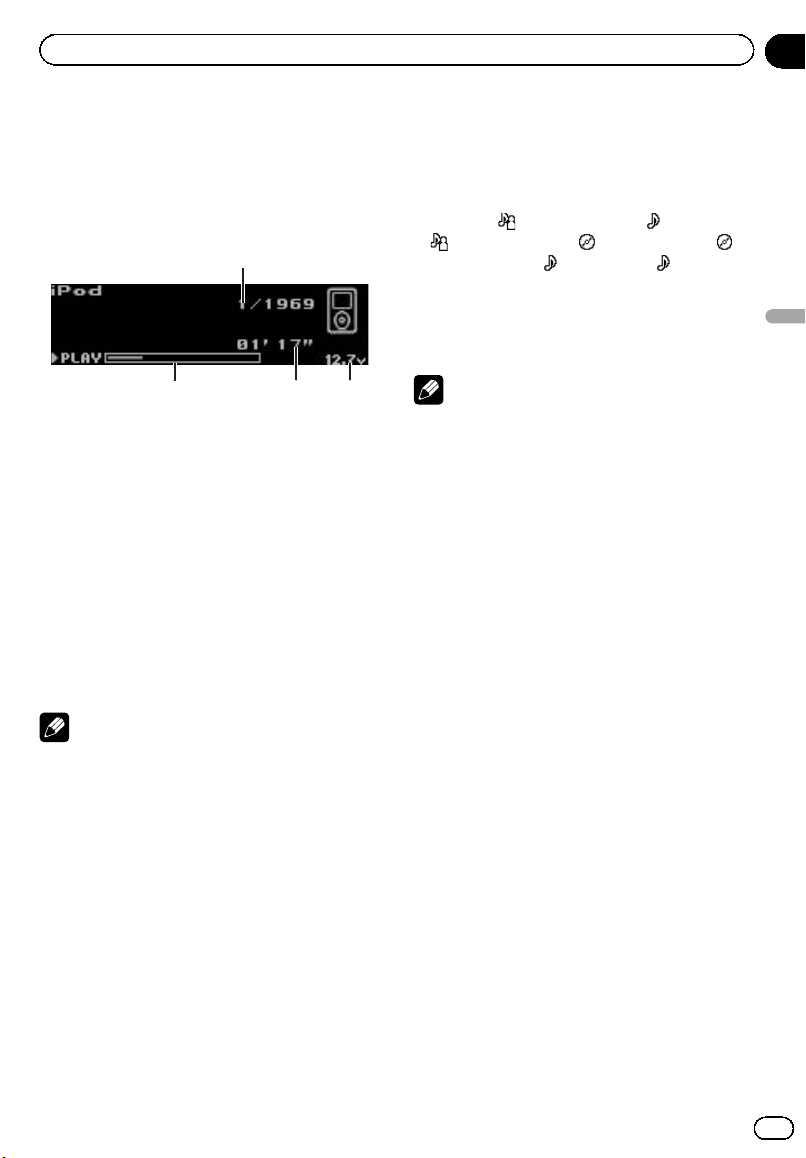
Black plate (43,1)
Playing songs on iPod
Basic operation
You can use this unit to control an interface
adapter for iPod (e.g. CD-IB100N), which is sold
separately.
1 Song number indicator
2 Voltage indicator
Shows the battery voltage.
! The level displayed on the voltage indi-
cator may differ from the actual voltage
level.
3 Play time indicator
4 Song time (progress bar)
% Fast forward or reverse
Push and hold MULTI-CONTROL left or right.
% Select a track
Push MULTI-CONTROL left or right.
Notes
! Read the precautions for iPod in the following
section. Refer to page 65.
! If an error message is displayed, refer to Error
messages on page 61.
! When the ignition switch is set to ACC or ON,
the iPod’s battery is charged while the iPod is
connected to this unit.
! While the iPod is connected to this unit, the
iPod cannot be turned on or off.
! Before connecting the iPod to this unit, dis-
connect the headphones from the iPod.
! The iPod is turned off about two minutes after
the ignition switch is set to OFF.
Displaying text information on
iPod
% Press D/Scrl to select the desired text
information.
Play time—
: artist name and : song title
—
: artist name and : album name— :
album name and
: song title— : song title
and play time
# If the characters recorded on the iPod are not
compatible with this unit, those characters are
not displayed.
Notes
! You can scroll through text data by pressing
and holding D/Scrl.
! When Ever Scroll is set to ON at the initial set-
ting, text information scrolls continuously in
the display. Refer to Switching the ever scr oll
on page 38.
Browsing for a song
The operation is the same as that of the iPod
connected to USB interface of this unit. (Refer
to Browsing for a song on page 19.)
However, the selectable categories are slightly
different. Selectable categories are
Playlists (playlists)—Artists (artists)—
Albums (albums)—Songs (songs)—Genres
(genres)
! You cannot search songs by alphabet in
the list while using an iPod with interface
adapter.
Introduction to advanced
operations
1 Press MULTI-CONTROL to display the
main menu.
2 Use MULTI-CONTROL to select
FUNCTION.
Turn to change the menu option. Press to se-
lect.
<CRB3070-B>43
En
43
Section
06
Available accessories
Available accessories
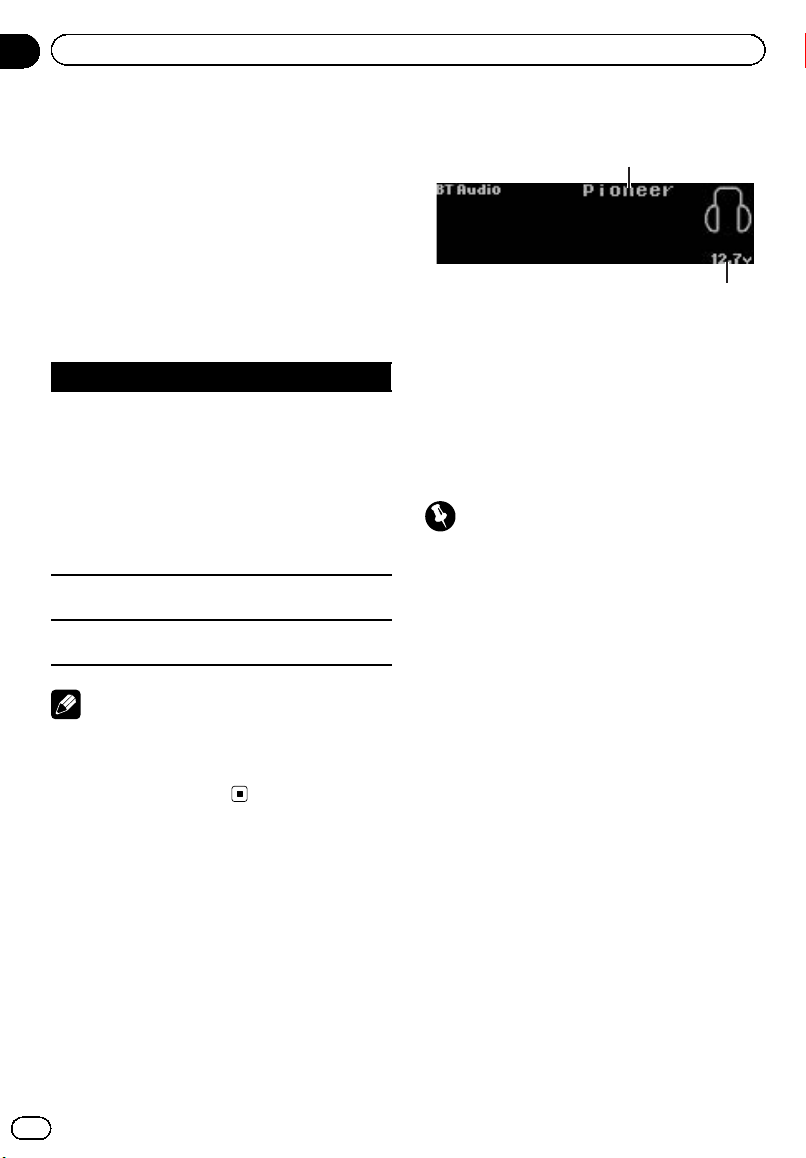
Black plate (44,1)
3 Turn MULTI-CONTROL to select the
function.
Play mode (repeat play)—Shuffle mode
(shuffle)—Pause (pause)
Function and operation
Play mode and Pause operations are basically
the same as that of the built-in CD player.
Also, Shuffle mode operation is basically the
same as that of iPod connected to USB inter-
face of this unit.
Function name Operation
Play mode
Refer to Selecting a repeat play
range on page 15.
However, the repeat play ranges
you can select are different from
that of the built-in CD player. The
repeat play ranges of the iPod are:
! Repeat One – Repeat the cur-
rent song
! Repeat All – Repeat all songs
in the selected list
Shuffle mode
Refer to Playing songs in a random
order (shuffle) on page 21.
Pause
Refer to Pausing playback on page
16.
Notes
! To return to the ordinary display, press B.
! If you do not operate functions within about
30 seconds, the display automatically returns
to the ordinary display.
Bluetooth Audio
If you connect a Bluetooth adapter (e.g. CD-
BTB200) to this unit, you can control Bluetooth
audio players via Bluetooth wireless technology.
! In some countries, CD-BTB200 is not sold
on the market.
Basic Operations
1
2
1 Device name
Shows the device name of the connected
Bluetooth audio player (or Bluetooth adapter).
2 Voltage indicator
Shows the battery voltage.
! The level displayed on the voltage indi-
cator may differ from the actual voltage
level.
Important
! Depending on the Bluetooth audio player con-
nected to this unit, the operations available
with this unit are limited to the following two
levels:
— A2DP profile (Advanced Audio Distribution
Profile): Only playing back songs on your
audio player is possible.
— AVRCP profile (Audio/Video Remote Con-
trol Profile): Playing back, pausing, select-
ing songs, etc., are possible.
! Since there are a number of Bluetooth audio
players available on the market, operations
with your Bluetooth audio player using this
unit vary extensively. Refer to the instruction
manual that came with your Bluetooth audio
player as well as this manual while operating
your player on this unit.
! Information about songs (e.g. the elapsed
playing time, song title, song index, etc.) can-
not be displayed on this unit.
! While you are listening to songs on your
Bluetooth audio player, refrain from using on
your cellular phone as much as possible. If
you use your cellular phone, the signal from
your cellular phone may cause noise on the
song playback.
<CRB3070-B>44
En
44
Section
06
Available accessories
Black plate (45,1)
! When you are talking on a cellular phone con-
nected to this unit via Bluetooth wireless tech-
nology, song playback from your Bluetooth
audio player connected to this unit is muted.
! Even if you are listening to a song on your
Bluetooth audio player and you switch to an-
other source, song playback continues.
% Fast forward or reverse
Push and hold MULTI-CONTROL left or right.
% Select a track
Push MULTI-CONTROL left or right.
Notes
! For details concerning operation, refer to the
Bluetooth adapter’s operation manual. This
section provides brief information on
Bluetooth audio player operations with this
unit, which slightly differs or is abbreviated
from that described in the Bluetooth adapter’s
operation manual.
! Even though your audio player does not con-
tain a Bluetooth module, you can still control
it from this unit via Bluetooth wireless tech-
nology. To control your audio player using this
unit, connect a product featuring Bluetooth
wireless technology (available on the market)
to your audio player and connect the
Bluetooth adapter (e.g. CD-BTB200) to this
unit.
Function and operation
1 Press MULTI-CONTROL to display the
main menu.
2 Use MULTI-CONTROL to select
FUNCTION.
Turn to change the menu option. Press to se-
lect.
3 Turn MULTI-CONTROL to select the
function.
Connection open (connection open)—
Disconnect audio (disconnect audio)—Play
(play)—Stop (stop)—Pause (pause)—
Device info. (device information)
# Pause is the same as that of the built-in CD
player. (Refer to Pausing playback on page 16.)
Notes
! To return to the ordinary display, press B.
! If a Bluetooth audio player is not connected to
this unit yet, Connection open and
Device info. appear in the function menu and
other functions are not available.
! If a Bluetooth audio player is connected via
AVRCP (Audio/Video Remote Control Profile),
Connection open does not appear in the
function menu.
! If a Bluetooth audio player is connected via
A2DP (Advanced Audio Distribution Profile) ,
only Disconnect audio and Device info. ap-
pear in the function menu.
! If you do not operate functions other than
Connection open and Disconnect audio
within about 30 seconds, the display is auto-
matically returned to the ordinary display.
Connecting a Bluetooth audio
player
1 Use MULTI-CONTROL to select
Connection open in the function menu.
Refer to Function and operation on this page.
2 Press MULTI-CONTROL to open the con-
nection.
Always waiting is displayed. This unit is now
on standby for connection from Bluetooth
audio player.
If your Bluetooth audio player is set ready for
Bluetooth wireless connection, connection to
this unit is automatically established.
<CRB3070-B>45
En
45
Section
06
Available accessories
Available accessories
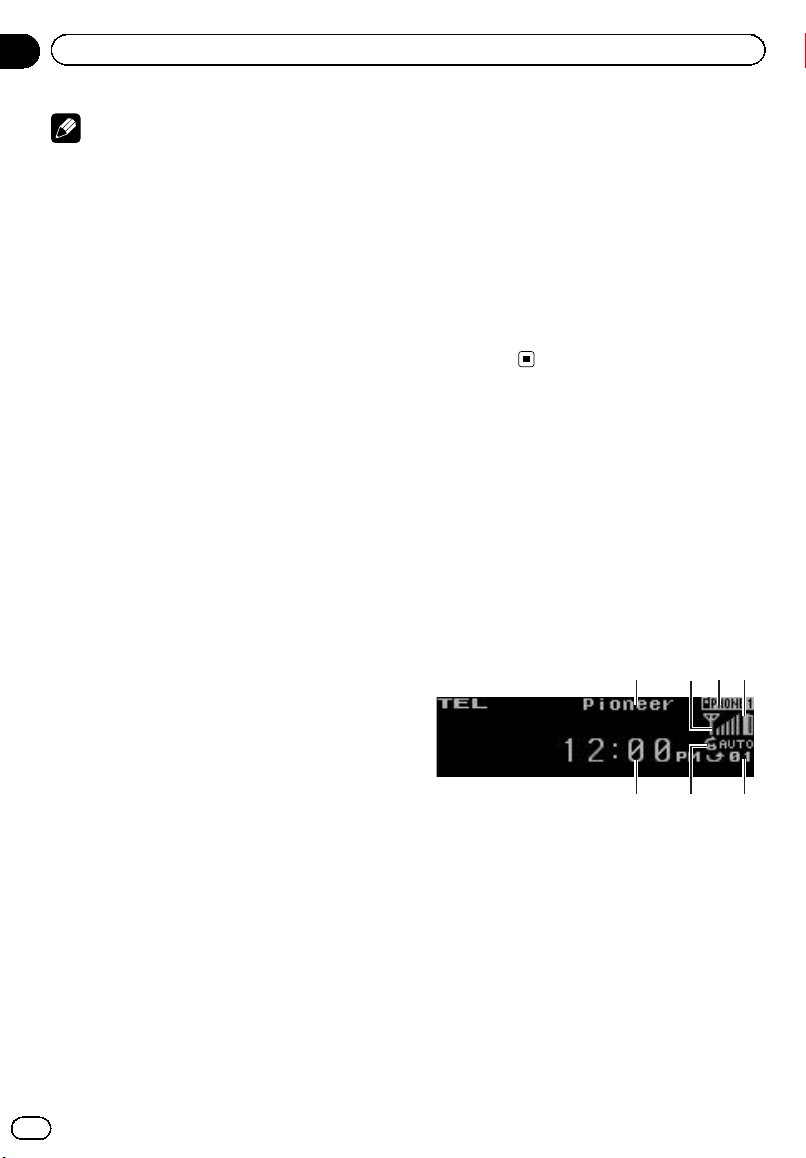
Black plate (46,1)
Note
Before you can use audio players you may need
to enter the PIN code into this unit. If your player
requires a PIN code to establish a connection,
look for the code on the player or in its accompa-
nying documentation. Refer to Entering PIN code
for Bluetooth wireless connection on page 38.
Playing songs on a Bluetooth
audio player
1 Use MULTI-CONTROL to select Play in
the function menu.
Refer to Function and operation on the previous
page.
2 Press MULTI-CONTROL to start play-
back.
Stopping playback
1 Use MULTI-CONTROL to select Stop in
the function menu.
Refer to Function and operation on the previous
page.
2 Press MULTI-CONTROL to stop the play-
back.
Disconnecting a Bluetooth
audio player
1 Use MULTI-CONTROL to select
Disconnect audio in the function menu.
Refer to Function and operation on the previous
page.
2 Press MULTI-CONTROL to disconnect
the Bluetooth audio player.
Disconnected is displayed. The Bluetooth
audio player is now disconnected from this
unit.
Displaying BD (Bluetooth
Device) address
1 Use MULTI-CONTROL to select
Device info. in the function menu.
Refer to Function and operation on the previous
page.
2 Push MULTI-CONTROL left to switch to
the BD address.
12-digit hexadecimal string is displayed.
# Pushing MULTI-CONTROL right returns to the
device name.
Bluetooth Telephone
If you use a Bluetooth adapter (e.g. CD-
BTB200), you can connect a cellular phone fea-
turing Bluetooth wireless technology to this
unit for hands-free, wireless calls, even while
driving.
! In some countries, CD-BTB200 is not sold
on the market.
Basic Operations
1 Device name
Shows the device name of the cellular phone.
2 Signal level indicator
Shows the signal strength of cellular phone.
! The level shown on the indicator may
differ from the actual signal level.
3 User number indicator
Shows the registration number of the cellular
phone.
4 Battery strength indicator
Shows the battery strength of cellular phone.
<CRB3070-B>46
En
46
Section
06
Available accessories
Black plate (47,1)
! The level shown on the indicator may
differ from the actual battery strength.
! If the battery strength is not available,
nothing is displayed in the battery
strength indicator area.
5 Incoming call notice indication
Shows when an incoming call has been re-
ceived and not checked yet.
! Incoming call notice is not displayed for
calls made when your cellular phone is
disconnected from this unit.
6 Automatic answering/Automatic rejecting in-
dicator
Shows AUTO when the automatic answering
function is on (for more details, refer to Setting
automatic answering on page 55).
Shows REFUSE when the automatic rejecting
function is on (for more details, refer to Setting
automatic rejecting on page 54).
7 Clock display
Shows the time (if connected with a phone).
Important
! Since this unit is on standby to connect with
your cellular phone via Bluetooth wireless
technology, using this unit without running
the engine can result in battery drainage.
! Advanced operations that require your atten-
tion such as dialing numbers on the monitor,
using phone book, etc., are prohibited while
you are driving. When you need to use these
advanced operations, stop your vehicle in a
safe place.
Notes
! The equalizer curve for the phone source is
fixed.
! When selecting the phone source, you can
only operate Fader (balance adjustment) in
the audio menu.
Setting up for hands-free phoning
Before you can use the hands-free phoning
function you must set up the unit for use with
your cellular phone. This entails establishing a
Bluetooth wireless connection between this
unit and your phone, registering your phone
with this unit, and adjusting the volume level.
1 Connection
For detailed instructions on connecting your
phone to this unit via Bluetooth wireless tech-
nology, refer to Connecting a cellular phone on
page 49.
# Your phone should now be temporarily con-
nected. However, to make best use of the technol-
ogy, we recommend you register the phone to
this unit.
2 Registration
To register your temporarily connected phone,
refer to Registering a connected cellular phone
on page 50.
3 Volume adjustment
Adjust the earpiece volume on your cellular
phone for comfort. When adjusted, the volume
level is recorded in this unit as the default set-
ting.
# Caller’s voice volume and ring volume may
vary depending on the type of cellular phone.
# If the difference between the ring volume and
caller’s voice volume is big, overall volume level
may become unstable.
# Before disconnecting the cellular phone from
this unit, make sure to adjust the volume to a
proper level. If the volume is muted (zero level) on
your cellular phone, the volume level of your cel-
lular phone remains muted even after the cellular
phone is disconnected.
<CRB3070-B>47
En
47
Section
06
Available accessories
Available accessories
Black plate (48,1)
Making a phone call
Voice recognition
1 Press B and hold until Voice dial ap-
pears in the display.
Voice dial appears in the display. When
Voice dial ON is displayed, voice recognition
function is now ready.
# If your cellular phone does not feature voice
recognition function, No voice dial appears in
the display and operation is not possible.
2 Pronounce the name of your contact.
Taking a phone call
Answering or rejecting an incoming call
% Answering an incoming call
When a call comes in, press
MULTI-CONTROL.
# You can also perform this operation by push-
ing MULTI-CONTROL up.
% End a call
Push MULTI-CONTROL down.
% Rejecting an incoming call
When a call comes in, push MULTI-CONTROL
down.
Notes
! If private mode is selected on the cellular
phone, hands-free phoning may not be per-
formed.
! The estimated call time appears in the display
(this may differ slightly from the actual call
time).
Operating a call waiting
% Answering a call waiting
When a call comes in, press
MULTI-CONTROL.
# You can also perform this operation by push-
ing MULTI-CONTROL up.
% End all calls
Push MULTI-CONTROL down.
% Switch between callers on hold
Press MULTI-CONTROL.
# You can also perform this operation by push-
ing MULTI-CONTROL up.
% Rejecting call waiting
Push MULTI-CONTROL down.
Notes
! Pushing MULTI-CONTROL down ends all
calls including calls waiting on line.
! To end the call, both you and your caller need
to hang up the phone.
Function and operation
1 Press MULTI-CONTROL to display the
main menu.
2 Use MULTI-CONTROL to select
FUNCTION.
Turn to change the menu option. Press to se-
lect.
3 Turn MULTI-CONTROL to select the
function.
Search&Connect (search and connect)—
Disconnect phone (disconnect phone)—
Connection open (connection open)—
Set phone (registering phone)—
Connect phone (connect phone)—
Delete phone (delete phone)—PH.B.Transfer
(phone book transfer)—PH.B.Name view
(phone book name view)—Clear memory
(clear memory)—Number dial (call by enter-
ing number)—Refuse calls (automatic reject
setting)—Auto answer (automatic answer
setting)—Ring tone (ring tone select)—
Auto connect (automatic connection setting)
—Echo cancel (echo cancel)—Device info.
(device information)
If not connected yet
The following functions cannot be operated.
! Disconnect phone (disconnect phone)
<CRB3070-B>48
En
48
Section
06
Available accessories
Black plate (49,1)
! Set phone (registering phone)
! PH.B.Name view (phone book name view)
! Clear memory (clear memory)
! Number dial (call by entering number)
If connected but not registered yet
The following functions cannot be operated.
! Search&Connect (search and connect)
! Connection open (connection open)
! Connect phone (connect phone)
! PH.B.Name view (phone book name view)
! Clear memory (clear memory)
If already connected and registered
The following functions cannot be operated.
! Search&Connect (search and connect)
! Connection open (connection open)
! Set phone (registering phone)
! Connect phone (connect phone)
Notes
! To return to the playback display, press B.
! Device info. is the same as that of the
Bluetooth audio. (Refer to Displaying BD
(Bluetooth Device) address on page 46.)
! PH.B.Name view (phone book name view)
cannot be selected for cellular phone regis-
tered guest phone.
! If cellular phone is connected to this unit via
Bluetooth wireless technology with HSP
(Head Set Profile), PH.B.Name view,
Clear memory, Number dial and
Refuse calls cannot be selected.
! If you do not operate functions other than
Search&Connect, Connection open,
Connect phone, PH.B.Transfer,
Disconnect phone, Number dial and
Clear memory within about 30 seconds, the
display automatically returns to the ordinary
display.
Connecting a cellular phone
Searching for available cellular phones
1 Use MULTI-CONTROL to select
Search&Connect in the function menu.
Refer to Function and operation on the previous
page.
2 Press MULTI-CONTROL to search for
available cellular phones.
While searching, Searching flashes. When
available cellular phones featuring Bluetooth
wireless technology are found, device name or
Name not found (if names cannot be ob-
tained) is displayed.
# If this unit fails to find any available cellular
phones, Not found is displayed.
3 Push MULTI-CONTROL up or down to
select a device name you want to connect.
# Push MULTI-CONTROL left or right to switch
the BD address and device name.
4 Press MULTI-CONTROL to connect the
selected cellular phone.
While connecting, Connecting flashes. To
complete the connection, check the device
name (Pioneer BT Unit) and enter the link
code on your cellular phone. If the connection
is established, Connected is displayed.
# PIN code is set to 0000 as the default. You
can change this code. Refer to Entering PIN code
for Bluetooth wireless connection on page 38.
Using a cellular phone to initiate a
connection
1 Use MULTI-CONTROL to select
Connection open in the function menu.
Refer to Function and operation on the previous
page.
2 Press MULTI-CONTROL to open the con-
nection.
Always waiting flashes and the unit is now
on standby for connection from a cellular
phone.
3 Use cellular phone to connect to this
unit.
# PIN code is set to 0000 as the default. You
can change this code. Refer to Entering PIN code
for Bluetooth wireless connection on page 38.
<CRB3070-B>49
En
49
Section
06
Available accessories
Available accessories

Black plate (50,1)
Disconnecting a cellular phone
1 Use MULTI-CONTROL to select
Disconnect phone in the function menu.
Refer to Function and operation on page 48.
Device name of the connected phone appears
in the display.
2 Press MULTI-CONTROL to disconnect a
cellular phone from this unit.
After disconnection is completed,
Disconnected is displayed.
Registering a connected
cellular phone
1 Use MULTI-CONTROL to select
Set phone in the function menu.
Refer to Function and operation on page 48.
2 Push MULTI-CONTROL up or down to
select a pairing assignment.
P1 (user phone 1)—P2 (user phone 2)—P3
(user phone 3)—G1 (guest phone 1)—G2
(guest phone 2)
# Push MULTI-CONTROL left or right to switch
the BD address and device name.
# As you select each assignment, you can see
whether or not a phone is already registered. If
the assignment is empty, No data is displayed. If
the assignment is already taken, the device name
appears. To replace an assignment with a new
phone, first delete the current assignment. For
more detailed instructions, see Deleting a regis-
tered phone on this page.
3 Press MULTI-CONTROL to register the
currently connected phone.
When registration is completed,
Reg.Completed is displayed.
# If the registration fails, Reg.ERROR is dis-
played. In this case, return to step 1 and try
again.
Deleting a registered phone
1 Use MULTI-CONTROL to select
Delete phone in the function menu.
Refer to Function and operation on page 48.
2 Push MULTI-CONTROL up or down to
select a pairing assignment.
P1 (user phone 1)—P2 (user phone 2)—P3
(user phone 3)—G1 (guest phone 1)—G2
(guest phone 2)
# Push MULTI-CONTROL left or right to switch
the BD address and device name.
# If the assignment is empty, No data is dis-
played and operation is not possible.
3 Push MULTI-CONTROL right to select
Delete YES.
Delete YES is displayed. Deleting phone is
now on standby.
4 Press MULTI-CONTROL to delete the
phone.
After the phone is deleted, Deleted is dis-
played.
Connecting to a registered
cellular phone
Connecting to a registered phone
manually
1 Use MULTI-CONTROL to select
Connect phone in the function menu.
Refer to Function and operation on page 48.
2 Push MULTI-CONTROL up or down to
select a pairing assignment.
P1 (user phone 1)—P2 (user phone 2)—P3
(user phone 3)—G1 (guest phone 1)—G2
(guest phone 2)
# Push MULTI-CONTROL left or right to switch
the BD address and device name.
# If the assignment is empty, No data is dis-
played and operation is not possible.
<CRB3070-B>50
En
50
Section
06
Available accessories
Black plate (51,1)
3 Press MULTI-CONTROL to connect the
selected cellular phone.
While connecting, Connecting is displayed.
After the connection is completed, Connected
is displayed.
Connecting to a registered phone
automatically
1 Use MULTI-CONTROL to select
Auto connect in the function menu.
Refer to Function and operation on page 48.
2 Press MULTI-CONTROL to turn auto-
matic connection on.
If your cellular phone is ready for Bluetooth
wireless connection, connection to this unit is
automatically established.
# To turn automatic connection off, press
MULTI-CONTROL again.
Using the phone book
Transferring entries to the phone book
The Phone Book can hold a total of 500 en-
tries. 300 from User 1, 150 from User 2, and 50
from User 3.
1 Use MULTI-CONTROL to select
PH.B.Transfer in the function menu.
Refer to Function and operation on page 48.
2 Press MULTI-CONTROL to enter the
phone book transfer standby mode.
Transfer YES appears in the display.
3 Press MULTI-CONTROL to show the con-
firmation display.
Transfer -/- appears in the display.
4 Use the cellular phone to perform
phone book transfer.
Perform phone book transfer using the cellu-
lar phone. For detailed instructions, refer to
the instruction manual that came with your
cellular phone.
# The display indicates how many entries have
been transferred and the total number to be
transferred.
5 Data transferred is displayed and
phone book transfer is completed.
Changing the phone book display order
1 Use MULTI-CONTROL to select
PH.B.Name view in the function menu.
Refer to Function and operation on page 48.
Invert names YES appears in the display.
2 Press MULTI-CONTROL to change the
name view order.
Inverted is displayed and the name view
order is changed.
Pressing MULTI-CONTROL repeatedly
changes the name view order between first
and last name.
Calling a number in the phone book
Important
Be sure to park your vehicle and apply the park-
ing brake when performing this operation.
After finding the number you want to call in
the phone book, you can select the entry and
make the call.
1 Turn MULTI-CONTROL to display the
list.
2 Press D/Scrl to display the phone book.
Press D/Scrl repeatedly to switch between the
following lists:
Phone book—Missed call—Dialled call—Re-
ceived call
3 Push MULTI-CONTROL left or right to
select the first letter of the name you are
looking for.
<CRB3070-B>51
En
51
Section
06
Available accessories
Available accessories

Black plate (52,1)
4 Press MULTI-CONTROL to display en-
tries.
The display shows the first three Phone Book
entries starting with that letter (e.g. “Ben”,
“Brian” and “Burt” when “B” is selected).
5 Push MULTI-CONTROL up or down to
select a Phone Book entry you want to call.
# You can scroll through text data by pressing
and holding D/Scrl.
6 Push MULTI-CONTROL right to display
the detailed list of the selected entry.
The phone number, name and genre (if as-
signed) of entries are displayed in the detailed
list.
# You can scroll through text data by pressing
and holding D/Scrl.
# If several phone numbers are included in an
entry, select one by turning MULTI-CONTROL.
# If you want to go back and select another
entry, push MULTI-CONTROL left.
7 Press MULTI-CONTROL to make a call.
8 To end the call, push MULTI-CONTROL
down.
Editing the name of a Phone Book entry
Important
Be sure to park your vehicle and apply the park-
ing brake when performing this operation.
You can edit the names of Phone Book entries.
Each name can be up to 16 characters long.
1 Display the detailed list of your desired
Phone Book entry.
Please see Steps 1 to 6 of the following section
for how to do this. Refer to Calling a number in
the phone book on the previous page.
2 Press and hold MULTI-CONTROL to dis-
play the name input screen.
Edit name is displayed.
3 Press D/Scrl to select the desired charac-
ter type.
Each press of D/Scrl switches the character
types in the following order:
Alphabet (upper case), numbers and symbols
—alphabet (lower case)—numbers and sym-
bols—European characters, such as those
with accents (e.g., á, à, ä, ç) or Russian char-
acters
# Pressing and holding D/Scrl enables you to
switch character set between ISO8859-1 (Eur-
opean characters) and ISO8859-5 (Russian char-
acters) alternately.
# European characters and Russian characters
can’t be mixed.
4 Push MULTI-CONTROL up or down to
select a letter.
# To delete a character and leave a space, select
“_” (underbar).
5 Push MULTI-CONTROL left or right to
move the cursor to the previous or next
character position.
6 Press MULTI-CONTROL to store the new
name.
Editing phone numbers
Important
Be sure to park your vehicle and apply the park-
ing brake when performing this operation.
You can edit the numbers of Phone Book en-
tries. Each phone number can be up to 24 di-
gits long.
1 Display the detailed list of your desired
Phone Book entry.
Please see Steps 1 to 6 of the following section
for how to do this. Refer to Calling a number in
the phone book on the previous page.
2 Press and hold MULTI-CONTROL to dis-
play the name input screen.
Edit name is displayed.
<CRB3070-B>52
En
52
Section
06
Available accessories
Black plate (53,1)
3 Turn MULTI-CONTROL to switch to the
number input screen.
Edit name (name input screen)—
Edit number (number input screen)—
Clear memory (clear memory screen)
4 Push MULTI-CONTROL left or right to
move the cursor to the number you want
to change.
5 Push MULTI-CONTROL up or down to
change numbers.
Repeat these steps until you have finished
changing.
6 Press MULTI-CONTROL to store the new
number.
Clearing a phone book entry
Important
Be sure to park your vehicle and apply the park-
ing brake when performing this operation.
1 Display the detailed list of your desired
Phone Book entry.
Please see Steps 1 to 5 of the following section
for how to do this. Refer to Calling a number in
the phone book on page 51.
2 Press and hold MULTI-CONTROL to dis-
play the name input screen.
Edit name is displayed.
3 Turn MULTI-CONTROL to switch to the
clear memory screen.
Edit name (name input screen)—
Edit number (number input screen)—
Clear memory (clear memory screen)
4 Push MULTI-CONTROL right to show a
confirmation display.
Clear memory YES is displayed.
# If you do not want to clear the memory that
you have selected, push MULTI-CONTROL left.
The display reverts to normal.
5 Press MULTI-CONTROL to delete the
Phone Book entry.
Cleared is displayed.
The Phone Book entry is deleted. The display
returns to Phone Book entry list.
Using the call history
Important
Be sure to park your vehicle and apply the park-
ing brake when performing this operation.
The 12 most recent calls made (dialled), re-
ceived and missed, are stored in the call his-
tory. You can browse the call history and call
numbers from it.
1 Turn MULTI-CONTROL to display the
list.
2 Press D/Scrl to display the phone book.
Press D/Scrl repeatedly to switch between the
following lists:
Phone book—Missed call—Dialled call—Re-
ceived call
# For more details about the Phone Book list,
refer to Using the phone book on page 51.
# If no phone numbers are stored in the se-
lected list, No data is displayed.
3 Turn MULTI-CONTROL to select a phone
number.
Turning MULTI-CONTROL to change the
phone numbers stored in the list.
# If the phone number is already in the phone
book, the corresponding name is displayed.
# You can also change the phone number by
pushing MULTI-CONTROL up or down.
4 Push MULTI-CONTROL right to display
the detailed list.
Name and phone number are displayed in the
detailed list.
# If the number is already in the Phone Book
then the name is also displayed.
<CRB3070-B>53
En
53
Section
06
Available accessories
Available accessories
Black plate (54,1)
# Turning MULTI-CONTROL switches to the pre-
vious or next phone number displayed in the de-
tailed list.
# If you do not operate functions other than Edit-
ing the name of a Phone Book entry and Editing
phone numbers within about 30 seconds, the dis-
play automatically returns to the ordinary display.
5 Press MULTI-CONTROL to make a call.
# For an international call, press and hold
MULTI-CONTROL to add + to the phone number.
6 To end the call, push MULTI-CONTROL
down.
Making a call by entering
phone number
Important
Be sure to park your vehicle and apply the park-
ing brake when performing this operation.
1 Use MULTI-CONTROL to select
Number dial in the function menu.
Refer to Function and operation on page 48.
2 Push MULTI-CONTROL up or down to
select a number.
3 Push MULTI-CONTROL left or right to
move the cursor to the previous or next po-
sition.
# Up to 24 digits can be entered.
4 When you finish entering the number,
press MULTI-CONTROL.
Call confirmation appears.
# Pushing MULTI-CONTROL right in the confir-
mation display returns you to the number input
display, and you can reenter the phone number.
5 Press MULTI-CONTROL to make a call.
6 To end the call, push MULTI-CONTROL
down.
Clearing memory
1 Use MULTI-CONTROL to select
Clear memory in the function menu.
Refer to Function and operation on page 48.
2 Push MULTI-CONTROL up or down to
select an item.
Each time MULTI-CONTROL is pushed up or
down, the items are switched in the following
order:
Phone book (phone book)—Missed calls
(missed call history)—Dialed calls (dialled
call history)—Received calls (received call his-
tory)—Dial preset (preset phone numbers)—
All clear (delete all memory)
# If you want to clear all the Phone Book,
dialled/received/missed call history list and pre-
set phone number, select All clear.
# If guest phone is connected to this unit via
Bluetooth wireless technology, Phone book can-
not be selected.
3 Push MULTI-CONTROL right to deter-
mine the item that you want to delete
from this unit.
Clear memory YES is displayed. Clearing
memory is now on standby.
# If you do not want to clear the memory that
you have selected, push MULTI-CONTROL left.
The display reverts to normal.
4 Press MULTI-CONTROL to clear the
memory.
Cleared is displayed and data on the selected
item is cleared from this unit’s memory.
Setting automatic rejecting
1 Use MULTI-CONTROL to select
Refuse calls in the function menu.
Refer to Function and operation on page 48.
2 Press MULTI-CONTROL to turn auto-
matic call rejection on.
# To turn automatic call rejection off, press
MULTI-CONTROL again.
<CRB3070-B>54
En
54
Section
06
Available accessories
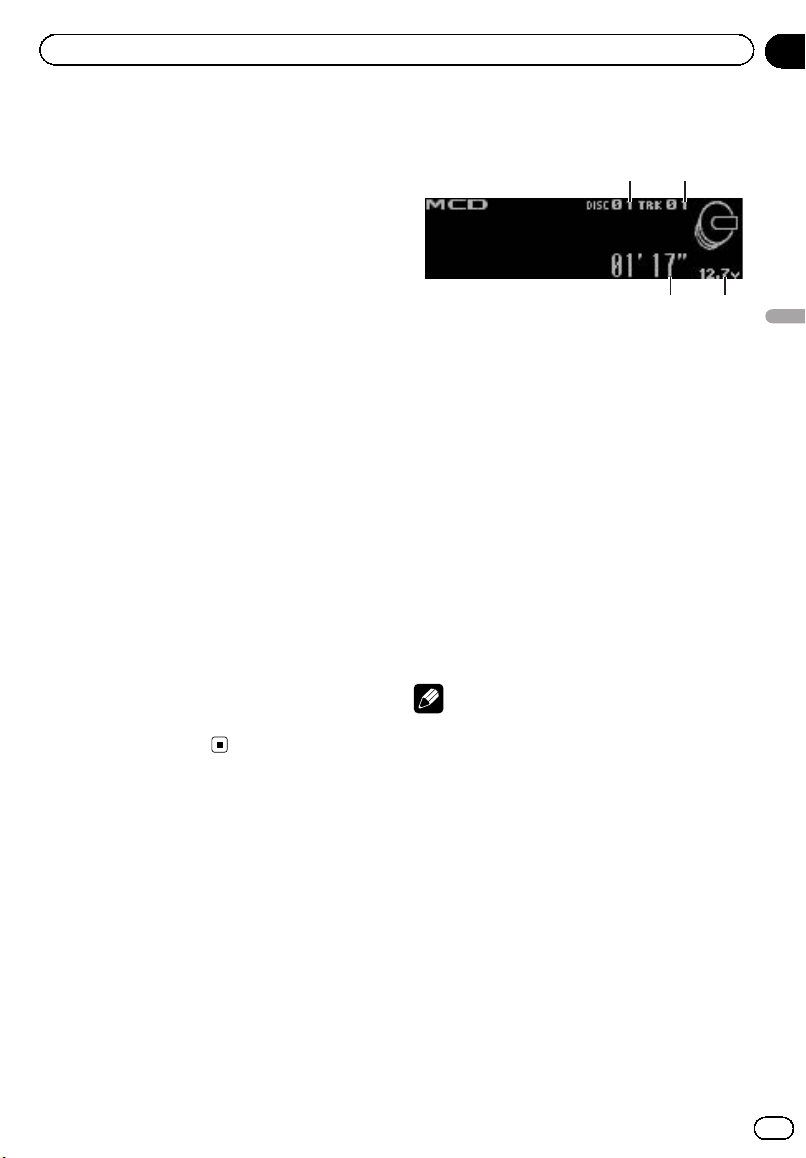
Black plate (55,1)
Setting automatic answering
1 Use MULTI-CONTROL to select
Auto answer in the function menu.
Refer to Function and operation on page 48.
2 Press MULTI-CONTROL to turn auto-
matic answering on.
# To turn automatic answering function off,
press MULTI-CONTROL again.
Switching the ring tone
1 Use MULTI-CONTROL to select
Ring tone in the function menu.
Refer to Function and operation on page 48.
2 Press MULTI-CONTROL to turn the ring
tone on.
# To turn the ring tone off, press
MULTI-CONTROL again.
Echo canceling and noise reduction
1 Use MULTI-CONTROL to select
Echo cancel in the function menu.
Refer to Function and operation on page 48.
2 Press MULTI-CONTROL to turn echo can-
celing on.
# To turn echo canceling off, press
MULTI-CONTROL again.
Multi-CD Player
Basic Operations
You can use this unit to control a multi-CD
player, which is sold separately.
! Only functions described in this section can
be operated.
! Only functions described in this manual are
supported by 50-disc multi-CD players.
! This unit is not designed to operate disc title
list functions with a 50-disc multi-CD player.
For information about the disc title list func-
tions, refer to Selecting discs from the disc
title list on page 58.
1 Disc number indicator
2 Track number indicator
3 Play time indicator
4 Voltage indicator
Shows the battery voltage.
! The level displayed on the voltage indi-
cator may differ from the actual voltage
level.
% Select a disc
Push MULTI-CONTROL up or down.
% Fast forward or reverse
Push and hold MULTI-CONTROL left or right.
% Select a track
Push MULTI-CONTROL left or right.
Notes
! When multi-CD player completes preparatory
operations, READY is displayed.
! If an error message is displayed, refer to the
multi-CD player owner’s manual.
! If there are no discs in the multi-CD player ma-
gazine, NO DISC is displayed.
Using CD TEXT functions
You can use these functions only with a CD
TEXT compatible multi-CD player.
The operation is the same as that of the built-
in CD player.
Refer to Displaying text information on disc on
page 14.
<CRB3070-B>55
En
55
Section
06
Available accessories
Available accessories
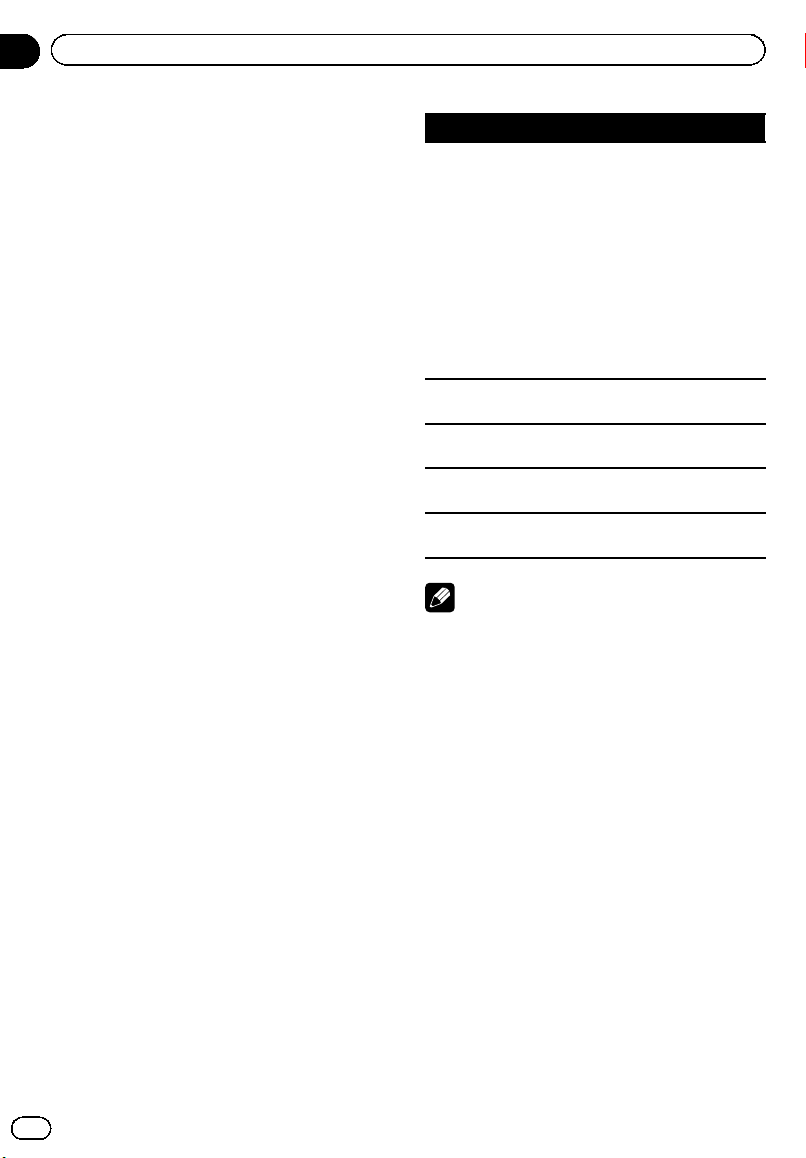
Black plate (56,1)
Introduction to advanced
operations
You can only use Compression (compression
and DBE) with a multi-CD player that supports
them.
1 Press MULTI-CONTROL to display the
main menu.
2 Use MULTI-CONTROL to select
FUNCTION.
Turn to change the menu option. Press to se-
lect.
3 Turn MULTI-CONTROL to select the
function.
Play mode (repeat play)—Random mode
(random play)—Scan mode (scan play)—
Pause (pause)—Compression (compression
and DBE)—ITS play mode (ITS play)—
ITS memo (ITS programming)—
TitleInput "A" (disc title input)
# If you do not operate functions other than
ITS memo and TitleInput "A" within about 30
seconds, the display automatically returns to the
ordinary display.
# When playing a CD TEXT disc on a CD TEXT
compatible multi-CD player, you cannot switch to
TitleInput "A". The disc title is already recorded
on the CD TEXT disc.
Function and operation
Play mode, Random mode, Scan mode,
Pause and TitleInput "A" operations are basi-
cally the same as that of the built-in CD player.
Function name Operation
Play mode
Refer to Selecting a repeat play
range on page 15.
However, the repeat play ranges
you can select are different from
that of the built-in CD player. The
repeat play ranges of the multi-CD
player are:
! M-CD repeat – Repeat all
discs in the multi-CD player
! Track repeat – Repeat just the
current track
! Disc repeat – Repeat the cur-
rent disc
Random mode
Refer to Playing tracks in random
order on page 15.
Scan mode
Refer to Scanning folders and
tracks on page 16.
Pause
Refer to Pausing playback on page
16.
TitleInput "A"
Refer to Entering disc titles on
page 16.
Notes
! To return to the playback display, press B.
! If you select other discs during repeat play,
the repeat play range changes to
M-CD repeat.
! If you perform track search or fast forward/re-
verse during Track repeat, the repeat play
range changes to Disc repeat.
! After track or disc scanning is finished, nor-
mal playback of the tracks begins again.
Using compression and bass
emphasis
You can only use these functions with a multi-
CD player that supports them.
COMP (compression) and DBE (dynamic bass
emphasis) functions lets you adjust the sound
playback quality of the multi-CD player.
1 Use MULTI-CONTROL to select
Compression in the function menu.
Refer to Introduction to advanced operations
on this page.
<CRB3070-B>56
En
56
Section
06
Available accessories
Black plate (57,1)
# If the multi-CD player does not support
COMP/DBE, No COMP is displayed when you at-
tempt to select it.
2 Press MULTI-CONTROL to select your fa-
vorite setting.
COMP OFF—COMP 1—COMP 2—
COMP OFF—DBE 1—DBE 2
Using ITS playlists
ITS (instant track selection) lets you make a
playlist of favorite tracks from the multi-CD
player magazine. After you have added your fa-
vorite tracks to the playlist, you can turn on ITS
play and play just those selections.
You can use ITS to enter and play back up to
99 tracks per disc from up to 100 discs (with
the disc titles). (With multi-CD players sold be-
fore the CDX-P1250 and CDX-P650, up to 24
tracks can be stored in the playlist.)
Creating a playlist with ITS programming
1 Play a CD that you want to program.
Push MULTI-CONTROL up or down to select
the CD.
2 Use MULTI-CONTROL to select
ITS memo in the function menu.
Refer to Introduction to advanced operations
on the previous page.
3 Select the desired track by pushing
MULTI-CONTROL left or right.
4 Push MULTI-CONTROL up to store the
currently playing track in the playlist.
Memory complete is displayed and the cur-
rently playing selection is added to your play-
list.
5 Press B to return to the playback dis-
play.
Note
After data for 100 discs is stored in memory, data
for a new disc will overwrite the oldest one.
Playback from your ITS playlist
ITS play lets you listen to the tracks that you
have entered into your ITS playlist. When you
turn on ITS play, tracks from your ITS playlist
in the multi-CD player begin to play.
1 Select the repeat range.
Refer to Playing tracks in random or der on
page 15.
2 Use MULTI-CONTROL to select
ITS play mode in the function menu.
Refer to Introduction to advanced operations
on the previous page.
3 Press MULTI-CONTROL to turn ITS play
on.
ITS play appears in the display. Playback be-
gins of those tracks from your playlist within
the previously selected M-CD repeat or
Disc repeat ranges.
# If no tracks in the current range are pro-
grammed for ITS play, then ITS empty is dis-
played.
# To turn ITS play off, press MULTI-CONTROL
again.
Erasing a track from your ITS playlist
You can delete a track from your ITS playlist if
ITS play is on.
If ITS play is already on, skip to step 2. If ITS
play is off, use MULTI-CONTROL.
1 Play the CD with the track you want to
delete from your ITS playlist, and turn ITS
play on.
Refer to Playback from your ITS playlist on this
page.
2 Use MULTI-CONTROL to select
ITS memo in the function menu.
Refer to Introduction to advanced operations
on the previous page.
3 Select the desired track by pushing
MULTI-CONTROL left or right.
<CRB3070-B>57
En
57
Section
06
Available accessories
Available accessories
Black plate (58,1)
4 Push MULTI-CONTROL down to erase
the track from your ITS playlist.
The currently playing selection is erased from
your ITS playlist and playback of the next track
begins.
# If there are no tracks from your playlist in the
current range, ITS empty is displayed and nor-
mal playback resumes.
5 Press B to return to the playback dis-
play.
Erasing a CD from your ITS playlist
You can delete all tracks of a CD from your ITS
playlist if ITS play is off.
1 Play the CD that you want to delete.
Push MULTI-CONTROL up or down to select
the CD.
2 Use MULTI-CONTROL to select
ITS memo in the function menu.
Refer to Introduction to advanced operations
on page 56.
3 Push MULTI-CONTROL down to erase
all tracks on the currently playing CD from
your ITS playlist.
All tracks on the currently playing CD are de-
leted from your playlist and Memory deleted
is displayed.
4 Press B to return to the playback dis-
play.
Using disc title functions
You can input CD titles and display the titles.
Then, you can easily search for and play a de-
sired disc.
Entering disc titles
Use the disc title input feature to store up to
100 CD titles (with ITS playlist) into the multi-
CD player. Each title can be up to 10 charac-
ters long.
For details concerning operation, refer to En-
tering disc titles on page 16.
! Titles remain in the memory even after the
disc is removed from the magazine, and
are recalled when the disc is reinserted.
! After data for 100 discs is stored in mem-
or y, data for a new disc will overwrite the
oldest one.
Displaying disc titles
% Press D/Scrl to select the desired text
information.
! For title entered CD
Play time—
: disc title and play time
! For CD TEXT discs
Play time—
: disc artist name and :
track title—
: disc artist name and :
disc title—
: disc title and : track title
—
: track artist name and : track title
—
: track title and play time
# You can scroll through text data by pressing
and holding D/Scrl.
Selecting discs from the disc title list
Disc title list lets you see the list of disc titles
entered in the multi-CD player and select one
of them to play back.
% Use MULTI-CONTROL to select the de-
sired disc title.
Turn to change the disc title. Press to play.
# You can also change the disc title by pushing
MULTI-CONTROL up or down.
# When playing CD TEXT disc, push
MULTI-CONTROL right to see a list of the tracks
in the selected disc. Push MULTI-CONTROL left
to return to the disc list.
# If no title is entered for a disc, NO TITLE is dis-
played.
# NO DISC is displayed next to the disc number
when there is no disc in the magazine.
# You can scroll through text data by pressing
and holding D/Scrl.
# If you do not operate the list within about 30
seconds, the display automatically returns to the
ordinary display.
<CRB3070-B>58
En
58
Section
06
Available accessories
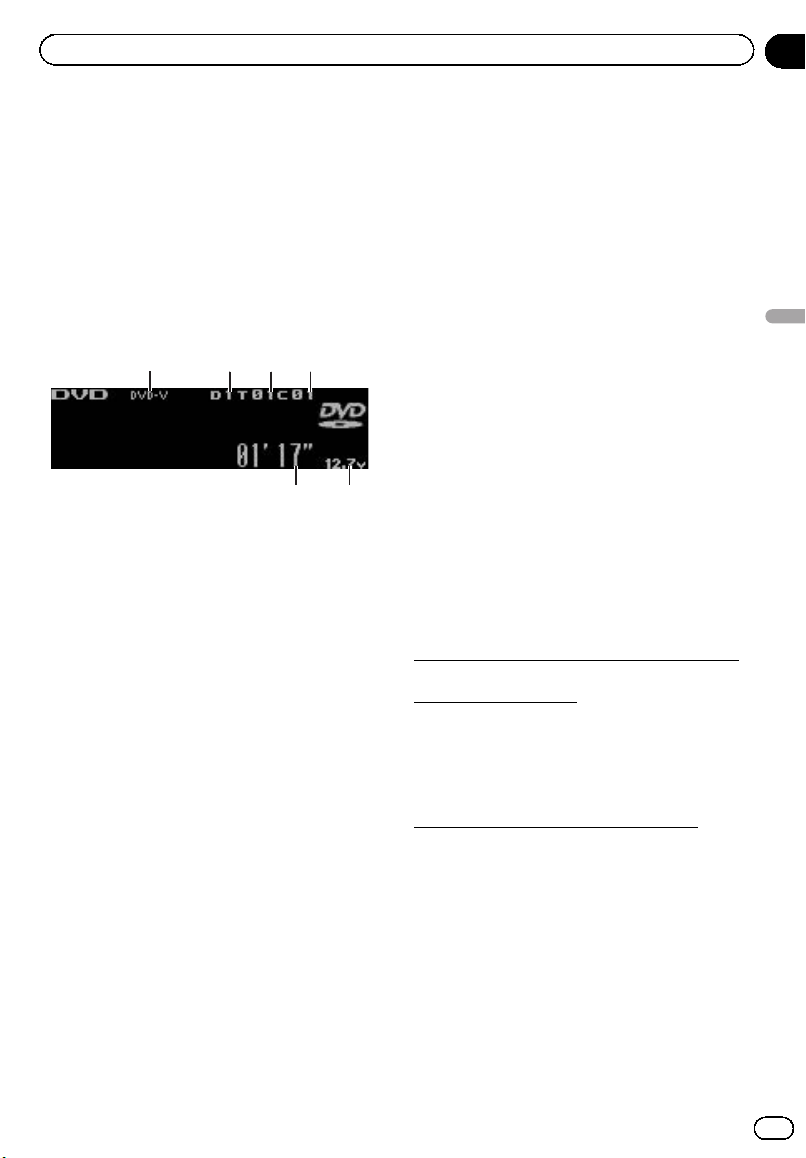
Black plate (59,1)
DVD Player
Basic Operations
You can use this unit to control a DVD player or
multi-DVD player, which is sold separately.
For details concerning operation, refer to the
DVD player’s or multi-DVD player’s operation
manual. This section provides information on
DVD operations with this unit which differs
from that described in the DVD player’sor
multi-DVD player’s operation manual.
1 DVD-V/VCD/CD/MP3/WMA indicator
Shows the type of disc currently playing.
2 Disc number indicator
Shows the number of the disc currently play-
ing when using a multi-DVD player.
3 Title/Folder number indicator
Shows the title (when playing DVD video) or
folder (when playing compressed audio) of
the selection currently playing.
4 Chapter/track number indicator
Shows the chapter (when playing DVD video)
or track (when playing Video CD, CD or com-
pressed audio) currently playing.
5 Voltage indicator
Shows the battery voltage.
! The level displayed on the voltage indi-
cator may differ from the actual voltage
level.
6 Play time indicator
% Select a chapter/track
Push MULTI-CONTROL left or right.
% Fast forward or reverse
Push and hold MULTI-CONTROL left or right.
# When playing compressed audio, there is no
sound on fast forward or reverse.
% Select a disc/title
VCD/CD: Push MULTI-CONTROL up or down.
DVD-V/MP3/WMA: Push and hold
MULTI-CONTROL up or down.
% Select a folder
Push MULTI-CONTROL up or down.
# You can operate this function only when a
DVD player compatible with compressed audio
playback is connected to this unit.
# You cannot select a folder that does not have
a compressed audio file recorded in it.
Introduction to advanced
operations
1 Press MULTI-CONTROL to display the
main menu.
2 Use MULTI-CONTROL to select
FUNCTION.
Turn to change the menu option. Press to se-
lect.
3 Turn MULTI-CONTROL to select the
function.
During DVD video or Video CD playback
Play mode (repeat play)—Pause (pause)
During CD playback
Play mode (repeat play)—Random mode
(random play)—Scan mode (scan play)—
Pause (pause)—ITS play mode (ITS play)—
ITS memo (ITS input)—TitleInput "A" (disc
title input)
During compressed audio playback
Play mode (repeat play)—Random mode
(random play)—Scan mode (scan play)—
Pause (pause)
# To return to the playback display, press B.
# If you do not operate functions except for
ITS memo and TitleInput "A" within about 30
seconds, the display is automatically returned to
the ordinary display.
<CRB3070-B>59
En
59
Section
06
Available accessories
Available accessories
Black plate (60,1)
Function and operation
Play mode, Random mode, Scan mode,
Pause and TitleInput "A" operations are basi-
cally the same as that of the built-in CD player.
Also, ITS play mode and ITS memo opera-
tions are basically the same as that the multi-
CD player.
Function name Operation
Play mode
Refer to Selecting a repeat play
range on page 15.
But the repeat play range that you
can select is vary depending on
the type of disc or system. The re-
peat play ranges of the DVD
player/multi-DVD player are as
below:
During PBC playback of Video
CDs, this function cannot be oper-
ated.
! Disc repeat – Repeat the cur-
rent disc
! Folder repeat – Repeat the
current folder
! Title repeat – Repeat just the
current title
! Chapter repeat – Repeat just
the current chapter
! Track repeat – Repeat the cur-
rent track
Random mode
Refer to Playing tracks in random
order on page 15.
Scan mode
Refer to Scanning folders and
tracks on page 16.
Pause
Refer to Pausing playback on page
16.
ITS play mode
Refer to Using ITS playlists on
page 57.
ITS memo
Refer to Using ITS playlists on
page 57.
TitleInput "A"
Refer to Entering disc titles on
page 16.
Notes
! If you select other discs during repeat play,
the repeat play range changes to Disc repeat.
! When playing back Video CD or CD, if you per-
form track search or fast forward/reverse dur-
ing Track repeat, the repeat play range
changes to Disc repeat.
! When playing back compressed audio, if you
select another folder during repeat play, the
repeat play range changes to Disc repeat.
! When playing back compressed audio, if you
perform track search or fast forward/reverse
during Track repeat, the repeat play range
changes to Folder repeat.
! Multi-DVD player that has ITS functions and
disc title functions can also be connected to
this unit. In this case, ITS play mode,
ITS memo and disc title input can be con-
trolled.
! The ITS function of a DVD player differs
slightly from ITS playback with a multi-CD
player. With multi-DVD player, ITS playback ap-
plies only to the CD playing. For details, refer
to Using ITS playlists on page 57.
<CRB3070-B>60
En
60
Section
06
Available accessories
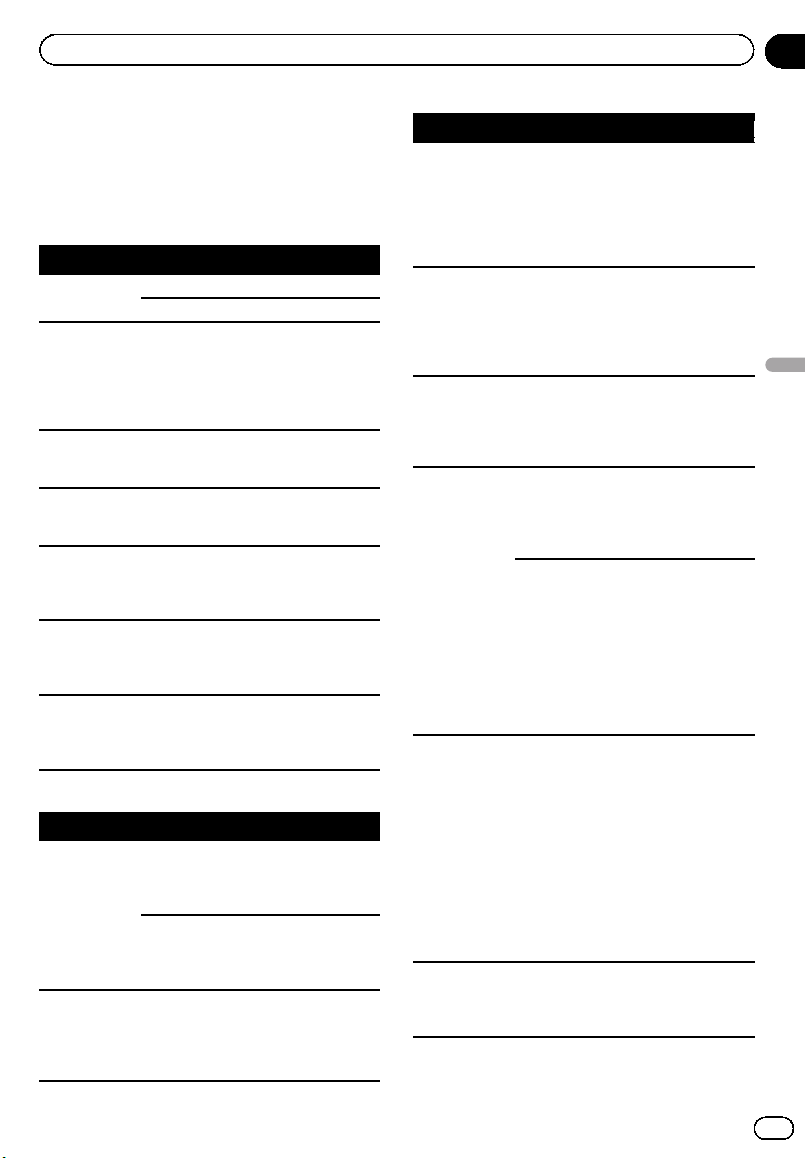
Black plate (61,1)
Error messages
When you contact your dealer or your nearest
Pioneer Service Center, be sure to have the
error message recorded.
Built-in CD Player
Message Cause Action
ERROR-11, 12,
17, 30
Dirty disc Clean disc.
Scratched disc Replace disc.
ERROR-10, 11,
12, 15, 17, 30,
A0
Electrical or me-
chanical
Turn the ignition
switch OFF and
back ON, or switch
to a different
source, then back
to the CD player.
ERROR-15 The inserted disc
does not contain
any data
Replace disc.
ERROR-22, 23 The CD format
cannot be played
back
Replace disc.
NO AUDIO The inserted disc
does not contain
any files that can
be played back
Replace disc.
TRK SKIPPED The inserted disc
contains WMA
files that are pro-
tected by DRM
Replace disc.
PROTECT All the files on
the inserted disc
are secured by
DRM
Replace disc.
USB storage device
Message Cause Action
NO AUDIO No songs Transfer the audio
files to the external
storage device and
connect.
USB storage de-
vice with security
enabled is con-
nected
Follow the USB
storage device in-
structions to dis-
able the security.
NO DEVICE The USB storage
device or iPod is
not connected to
the USB port of
this unit.
Connect a compa-
tible USB storage
device.
Message Cause Action
TRK SKIPPED The connected
USB storage de-
vice contains
WMA files that
are protected by
Windows Med-
iaä DRM 9/10
Play an audio file
not protected by
Windows Media
DRM 9/10.
PROTECT All the files in the
USB storage de-
vice are pro-
tected by
Windows Media
DRM 9/10
Transfer audio files
not protected by
Windows Media
DRM 9/10 to the
USB storage de-
vice and connect.
NOT COMPA-
TIBLE
The USB storage
device connected
to is not sup-
ported by this
unit.
Connect a USB
storage device that
is USB Mass Sto-
rage Class compli-
ant.
CHECK USB The USB connec-
tor or USB cable
is short-circuited.
Confirm that the
USB connector or
USB cable is not
caught in some-
thing or damaged.
The connected
USB storage de-
vice consumes
more than 500
mA (maximum
allowable cur-
rent).
Disconnect the
USB storage de-
vice and do not
use it. Turn the
ignition switch to
OFF, then to ACC
or ON and then
connect the com-
pliant USB storage
device.
ERROR-19 Communication
failure
Perform one of the
following opera-
tions.
–Turn the ignition
switch OFF and
back ON.
–Disconnect or
eject the USB sto-
rage device.
–Change to a dif-
ferent source.
Then, return to the
USB source.
ERROR-23 USB storage de-
vice is not for-
matted with
FAT16 or FAT32
USB storage de-
vice should be for-
matted with FAT16
or FAT32.
<CRB3070-B>61
En
61
Appendix
Additional Information
Additional Information
Black plate (62,1)
iPod
Message Cause Action
ERROR-19 Communication
failure
Disconnect the
cable from iPod.
Once iPod main
menu is displayed,
connect the cable
again.
Reset the iPod.
iPod failure Disconnect the
cable from iPod.
Once iPod main
menu is displayed,
connect the cable
again.
Reset the iPod.
ERROR-16, 18 Old version of
iPod
Update the iPod
version.
iPod failure Disconnect the
cable from iPod.
Once iPod main
menu is displayed,
connect the cable
again.
Reset the iPod.
ERROR-A1
CHECK USB
iPod is not
charged but op-
erates correctly
Check if the con-
nection cable for
iPod shorted out
(e.g., not caught in
metal objects).
After checking,
turn the ignition
switch OFF and
back ON or discon-
nect the iPod and
connect again.
NO SONGS No songs Transfer the songs
to iPod.
STOP No songs in the
current list
Select a list that
contains the
songs.
NO DEVICE The USB storage
device or iPod is
not connected to
the USB port of
this unit.
Connect a compa-
tible iPod.
Understanding auto TA and
EQ error messages
When correct measurement of car interior
acoustic characteristics is not possible using
the auto TA and EQ, an error message may ap-
pear on the display. If an error message ap-
pears, refer to the table below to see what the
problem is and the suggested method of cor-
recting the problem. After checking, try again.
Message Cause Action
ERR:MIC check Microphone is
not connected.
Plug the supplied
microphone se-
curely into the
jack.
ERR:High
Band, ERR:
High–Lch,
ERR:High–Rch,
ERR:Mid Band,
ERR:Mid–Lch,
ERR:Mid–Rch,
ERR:Low
Band, ERR:
Low–Lch, ERR:
Low–Rch, ERR:
SUBWOOFER,
ERR:SW-Lch,
ERR:SW-Rch
The microphone
cannot pick up
the measuring
tone of a speaker.
! Confirm that the
speakers are con-
nected correctly.
! Correct the input
level setting of the
power amp con-
nected to the
speakers.
! Set the micro-
phone correctly.
ERR:Outside
Noise
The surrounding
noise level is too
high.
! Stop your car in
a place that is as
quiet as possible,
and switch off the
engine, air condi-
tioner or heater.
! Set the micro-
phone correctly.
<CRB3070-B>62
En
62
Appendix
Additional Information
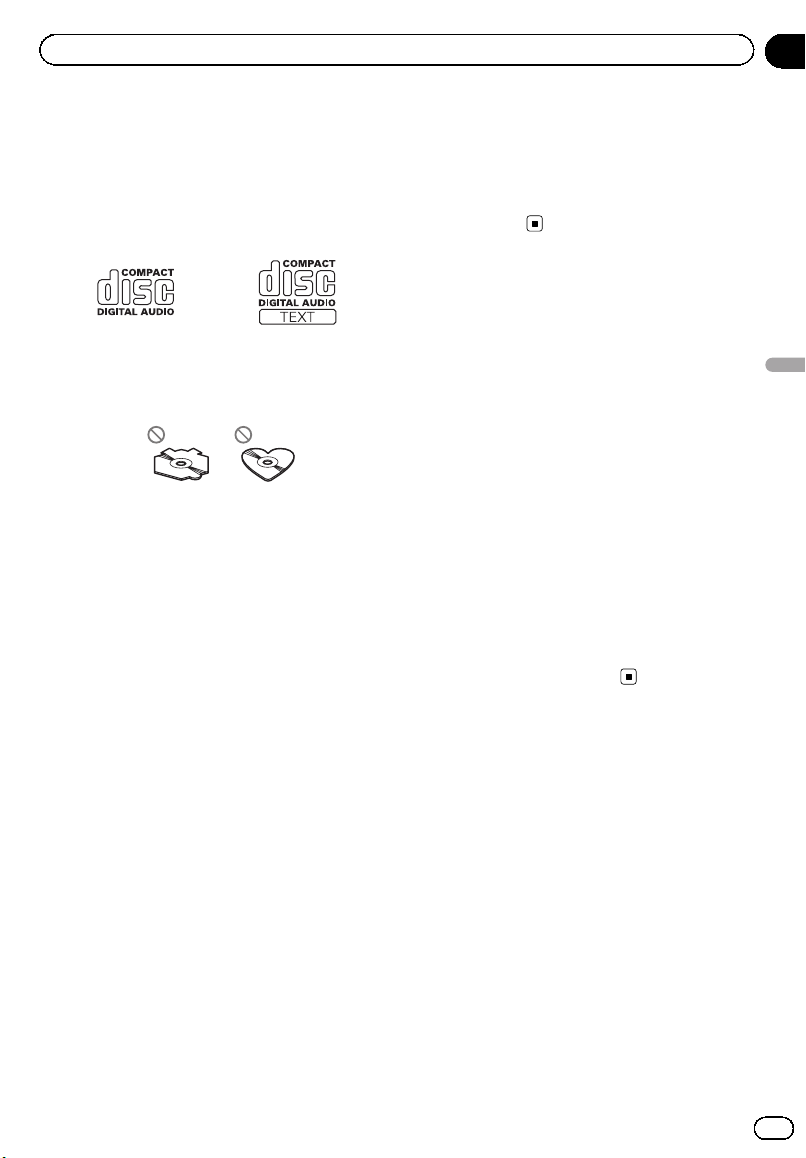
Black plate (63,1)
Handling guideline of discs
and player
! Use only discs featuring either of following
two logos.
! Use only conventional, fully circular discs.
Do not use shaped discs.
! Use a 12-cm CD. Do not use an 8-cm disc.
! Do not insert anything other than a CD into
the CD loading slot.
! Do not use cracked, chipped, warped, or
otherwise damaged discs as they may da-
mage the player.
! Unfinalized CD-R/CD-RW disc playback is
not possible.
! Do not touch the recorded surface of the
discs.
! Store discs in their cases when not in use.
! Avoid leaving discs in excessively hot envir-
onments including under direct sunlight.
! Do not attach labels, write on or apply che-
micals to the surface of the discs.
! To clean a CD, wipe the disc with a soft
cloth outward from the center.
! Condensation may temporarily impair the
player’s performance. Leave it to adjust to
the warmer temperature for about one
hour. Also, wipe any dump discs with a soft
cloth.
! Playback of discs may not be possible be-
cause of disc characteristics, disc format,
recorded application, playback environ-
ment, storage conditions, and so on.
! Text information may not be correctly dis-
played depending on the recorded environ-
ment.
! Road shocks may interrupt disc playback.
! Read the precautions for discs before
using them.
DualDiscs
! DualDiscs are two-sided discs that have a
recordable CD for audio on one side and a
recordable DVD for video on the other.
! Since the CD side of DualDiscs is not phy-
sically compatible with the general CD
standard, it may not be possible to play the
CD side with this unit.
! Frequent loading and ejecting of a
DualDisc may result in scratches on the
disc. Serious scratches can lead to play-
back problems on this unit. In some cases,
a DualDisc may become stuck in the disc
loading slot and will not eject. To prevent
this, we recommend you refrain from using
DualDisc with this unit.
! Please refer to the information from the
disc manufacturer for more detailed infor-
mation about DualDiscs.
Handling guideline of USB
storage device and this unit
! This unit can play back files in the USB por-
table audio player/USB memory that is
USB Mass Storage Class.
! Optimum performance of this unit may not
be obtained depending on the connected
USB storage device.
! Do not leave the USB storage device in any
place with high temperatures.
! Depending on the kind of USB storage de-
vice you use, this unit may not recognize
the storage device or file may not be played
back properly.
! Operations may vary depending on the
kind of a USB storage device.
<CRB3070-B>63
En
63
Appendix
Additional Information
Additional Information
Black plate (64,1)
! You cannot connect a USB storage device
to this unit via a USB hub.
! Do not plug anything other than the USB
storage device into the USB port.
! Firmly secure the USB storage device when
driving. Do not let the USB storage device
fall onto the floor, where it may become
jammed under the brake or accelerator
pedal.
! Partitioned USB storage device is not com-
patible with this unit.
! Depending on the USB storage device con-
nected to this unit, it may generate noise in
the radio.
Compressed audio
compatibility (disc, USB)
WMA
! Compatible format: WMA encoded by
Windows Media Player
! File extension: .wma
! Bit rate: 48 kbps to 320 kbps (CBR), 48 kbps
to 384 kbps (VBR)
! Sampling frequency: 32 kHz to 48 kHz
! Windows Media Audio Professional, Loss-
less, Voice: No
MP3
! File extension: .mp3
! Bit rate: 8 kbps to 320 kbps (CBR, VBR)
! Sampling frequency: 16 kHz to 48 kHz (32,
44.1, 48 kHz for emphasis)
! Compatible ID3 tag version: 1.0, 1.1, 2.2,
2.3, 2.4 (ID3 tag Version 2.x is given priority
than Version 1.x.)
! M3u playlist: No
! MP3i (MP3 interactive), mp3 PRO: No
AAC
! Compatible format: AAC encoded by iTunes
! File extension: .m4a
! Transmission rate: 16 kbps to 320 kbps
(CBR)
! Sampling frequency: 11.025 kHz to 48 kHz
! Apple Lossless: No
WAV
! Compatible format: Linear PCM (LPCM),
MS ADPCM
! File extension: .wav
! Quantization bits: 8 and 16 (LPCM), 4 (MS
ADPCM)
! Sampling frequency: 16 kHz to 48 kHz
(LPCM), 22.05 kHz to 44.1 kHz (MS
ADPCM)
Supplemental information of
compressed audio (disc, USB)
! There may be a slight delay when starting
playback of audio files encoded with image
data.
! File extensions must be used properly.
! Only 32 characters from the beginning can
be displayed as a file name (including the
extension) or a folder name.
! Russian text to be displayed on this unit
should be encoded with the following char-
acter sets:
— Unicode (UTF-8, UTF-16)
— Character sets other than Unicode that
are used in Windows environment and
are set to Russian in the multi-language
setting
! The text information of some audio files
may not be correctly displayed.
Compressed audio files on
the disc
! ISO 9660 Level 1 and 2 compliant. Romeo
and Joliet file systems are both compatible
with this player.
! Multi-session playback is possible.
! Compressed audio files are not compatible
with packet write data transfer.
! Regardless of the length of blank section
between the songs of original recording,
compressed audio discs play with a short
pause between songs.
<CRB3070-B>64
En
64
Appendix
Additional Information
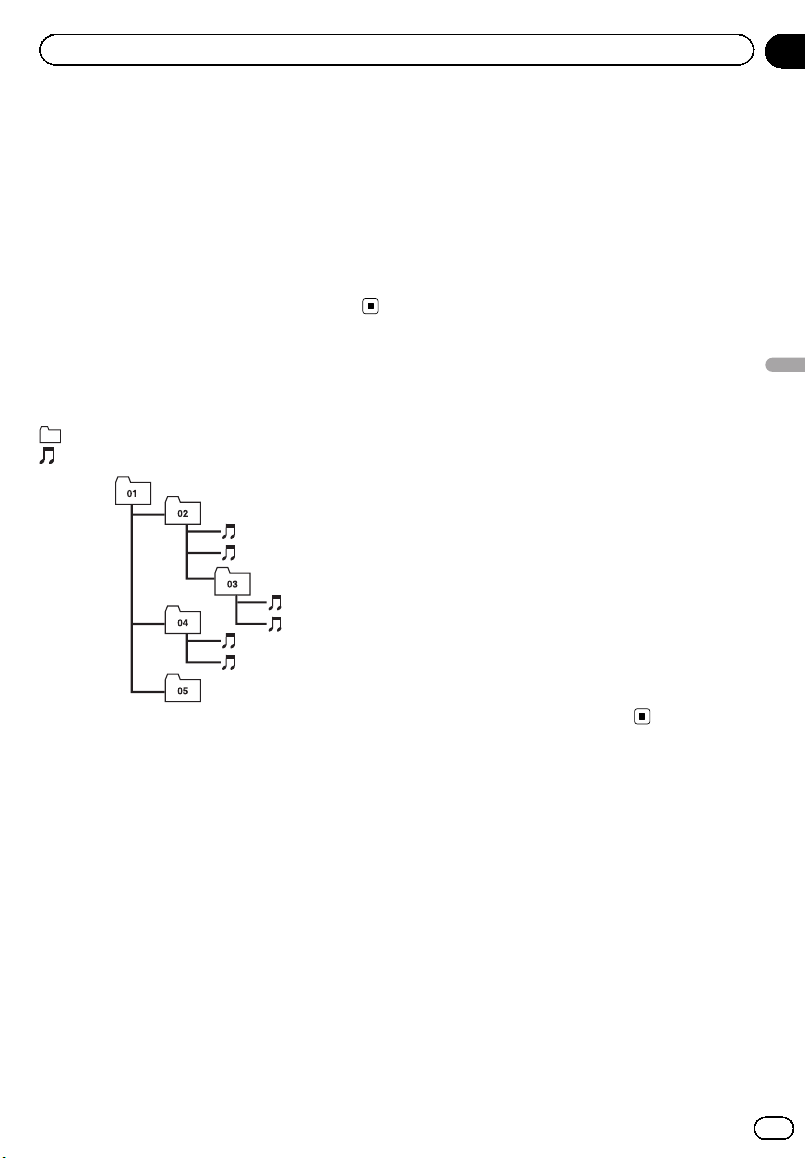
Black plate (65,1)
Compressed audio files in
the USB storage device
About USB storage device compatibility, refer
to Specifications on page 68.
! Copyright protected files cannot be played
back.
! There may be a slight delay when starting
playback of audio files on a USB storage
device with numerous folder hierarchies.
Example of a hierarchy and
playback sequences
: Folder
: Compressed audio file
1
2
3
4
5
6
L
e
v
e
l 1 L
e
v
e
l 2 L
e
v
e
l 3 L
e
v
e
l 4
The sequence of audio files on
the disc
! This unit assigns folder numbers. The user
cannot assign folder numbers.
! Folder selection sequence or other opera-
tion may be altered depending on the en-
coding or writing software.
! For practical use, the folder hierarchy
should have as few tiers as possible.
! Up to 999 files on a disc can be played
back.
! Up to 99 folders on a disc can be played
back.
The sequence of audio files on
the USB storage device
For USB portable audio players, the sequence is
different and depends on the player.
! 01 to 05 represent assigned folder num-
bers. 1 to 6 represent the playback se-
quence. The user cannot assign folder
numbers and specify the playback se-
quence with this unit.
! Playback sequence is the same as re-
corded sequence in the USB storage de-
vice.
! To specify the playback sequence, the fol-
lowing method is recommended.
1 Create the file name including numbers
that specify the playback sequence (e.g.,
001xxx.mp3 and 099yyy.mp3).
2 Put those files into a folder.
3 Record the folder containing files into the
USB storage device.
However, depending on the system environ-
ment, you cannot specify the playback se-
quence.
! Up to 15 000 files in a USB storage device
can be played back.
! Up to 500 folders in a USB storage device
can be played back.
! Up to eight tiers directory in a USB storage
device can be played back.
iPod
iPod compatibility
! This unit supports only the following iPod
models. Supported iPod software versions
are shown below. Older versions of iPod
software may not be supported.
— iPod nano first generation (software ver-
sion 1.3.1)
— iPod nano second generation (software
version 1.1.3)
— iPod nano third generation (software
version 1.1.2)
— iPod nano fourth generation (software
version 1.0.3)
<CRB3070-B>65
En
65
Appendix
Additional Information
Additional Information
Black plate (66,1)
— iPod fifth generation (software version
1.3.0)
— iPod classic (software version 1.1.2)
— iPod touch (software version 2.0)
— iPhone (software version 2.0)
— iPhone 3G (software version 2.0)
! Depending on the generation or version of
the iPod, some functions can not be oper-
ated.
! Operations may vary depending on the soft-
ware version of iPod.
! When using an iPod, iPod Dock Connector
to USB Cable is required.
! Pioneer CD-IU50 interface cable is also
available. For details, consult your dealer.
! This unit can control previous generations
iPod models with a Pioneer iPod adapter
(e.g. CD-IB100N).
For details concerning operation with the
iPod adapter, refer to Playing songs on iPod
on page 43.
About handling the iPod
! Do not leave the iPod in direct sunlight for
extended amounts of time. Extended expo-
sure to direct sunlight can result in iPod
malfunction due to the resulting high tem-
perature.
! Do not leave the iPod in a high tempera-
ture.
! Connect directly the dock connector cable
to the iPod so that this unit works properly.
! Firmly secure the iPod when driving. Do
not let the iPod fall onto the floor, where it
may become jammed under the brake or
accelerator pedal.
! For details, refer to the iPod’s manuals.
About iPod settings
! You cannot operate the iPod Equalizer on
Pioneer products. We recommend that you
set the iPod Equalizer to off, before con-
necting to this unit.
! You cannot set Repeat to off on the iPod
when using this unit. Even if you set Repeat
to off on the iPod, Repeat is automatically
changed to All when connecting the iPod
to this unit.
Copyright and trademark
notice
WMA
Windows Media and the Windows logo are tra-
demarks or registered trademarks of Microsoft
Corporation in the United States and/or other
countries.
This product includes technology owned by
Microsoft Corporation and cannot be used or
distributed without a license from Microsoft
Licensing, Inc.
MP3
Supply of this product only conveys a license
for private, non-commercial use and does not
convey a license nor imply any right to use
this product in any commercial (i.e. revenue-
generating) real time broadcasting (terrestrial,
satellite, cable and/or any other media), broad-
casting/streaming via internet, intranets and/
or other networks or in other electronic con-
tent distribution systems, such as pay-audio or
audio-on-demand applications. An indepen-
dent license for such use is required. For de-
tails, please visit
http://www.mp3licensing.com.
iTunes
Apple and iTunes are trademarks of Apple Inc.,
registered in the U.S. and other countries.
<CRB3070-B>66
En
66
Appendix
Additional Information
Black plate (67,1)
iPod
iPod is a trademark of Apple Inc., registered in
the U.S. and other countries.
“Made for iPod” means that an electronic ac-
cessory has been designed to connect specifi-
cally to iPod and has been certified by the
developer to meet Apple performance stan-
dards.
Apple is not responsible for the operation of
this device or its compliance with safety and
regulatory standards.
iPhone
iPhone is a trademark of Apple Inc.
“Works with iPhone” means that an electronic
accessory has been designed to connect spe-
cifically to iPhone and has been certified by
the developer to meet Apple performance
standards.
Apple is not responsible for the operation of
this device or its compliance with safety and
regulatory standards.
<CRB3070-B>67
En
67
Appendix
Additional Information
Additional Information

Black plate (68,1)
Specifications
General
Power source ............................. 14.4 V DC (10.8 V to 15.1 V
allowable)
Grounding system ................... Negative type
Max. current consumption
..................................................... 2.0 A
Dimensions (W × H × D):
DIN
Chassis ..................... 178 mm × 50 mm × 164
mm
(7 in. × 2 in. × 6-1/2 in.)
Nose ........................... 188 mm × 58 mm × 18 mm
(7-3/8 in.× 2-1/4 in.× 3/4 in.)
D
Chassis ..................... 178 mm × 50 mm × 164
mm
(7 in.× 2 in.× 6-1/2 in.)
Nose ........................... 170 mm × 45 mm × 18 mm
(6-3/4 in.× 1-3/4 in.× 3/4 in.)
Weight .......................................... 1.6 kg (3.5 lbs)
Audio/DSP
Preout max output level ....... 5.0 V
Loudness contour ................... +10 dB (100 Hz), +6.5 dB
(10 kHz) (volume: –30 dB)
Equalizer (Left/Right independent 31-Band Graphic
Equalizer):
Frequency .......................... 20/25/31.5/40/50/63/80/100/
125/160/200/250/315/400/
500/630/800/1k/1.25k/1.6k/
2k/2.5k/3.15k/4k/5k/6.3k/8k/
10k/12.5k/16k/20k Hz
Equalization range ........ ±12 dB (0.5 dB step)
Time alignment ........................ 0 cm to 394.24 cm (0.77 cm/
step), 0 inch to 155.392 inch
(0.3035 inch/step)
Network (Left/Right independent):
High:
LPF
Frequency ................ 5k/6.3k/8k/10k/12.5k/16k/20k
Hz
Slope .......................... PASS, –6/–12/–18/–24/–30/–
36 dB/oct
Gain ............................ 0dBto–24 dB/Mute (1 dB
step)
Phase ........................ Normal/Reverse
HPF
Frequency ................ 800/1k/1.25k/1.6k/2k/2.5k/
3.15k/4k/5k/6.3k/8k/10k/
12.5k/16k Hz
Slope .......................... –6/–12/–18/–24/–30/–36 dB/
oct
Gain ............................ 0dBto–24 dB/Mute (1 dB
step)
Phase ........................ Normal/Reverse
Mid:
HPF/LPF
Frequency (LPF) ... 25/31.5/40/50/63/80/100/125/
160/200/250/315/400/500/
630/800/1k/1.25k/1.6k/2k/
2.5k/3.15k/4k/5k/6.3k/8k/
10k/12.5k/16k/20k Hz
Frequency (HPF)
................................. 20/25/31.5/40/50/63/80/100/
125/160/200/250/315/400/
500/630/800/1k/1.25k/1.6k/
2k/2.5k/3.15k/4k/5k/6.3k/8k/
10k/12.5k/16k Hz
Slope (LPF) ............. PASS, –6/–12/–18/–24/–30/–
36 dB/oct
Slope (HPF) ............ PASS, –6/–12/–18/–24/–30/–
36 dB/oct
Gain ............................ 0dBto–24 dB/Mute (1 dB
step)
Phase ........................ Normal/Reverse
Low:
HPF/LPF
Frequency (LPF) ... 25/31.5/40/50/63/80/100/125/
160/200/250/315/400/500/
630/800/1k/1.25k/1.6k/2k/
2.5k/3.15k/4k/5k/6.3k/8k/
10k/12.5k/16k/20k Hz
Frequency (HPF)
................................. 20/25/31.5/40/50/63/80/100/
125/160/200/250/315/400/
500/630/800/1k/1.25k/1.6k/
2k/2.5k/3.15k/4k/5k/6.3k/8k/
10k/12.5k/16k Hz
Slope (LPF) ............. PASS, –6/–12/–18/–24/–30/–
36 dB/oct
Slope (HPF) ............ PASS, –6/–12/–18/–24/–30/–
36 dB/oct
Gain ............................ +6 dB to –24 dB/Mute (1
dB step)
Phase ........................ Normal/Reverse
<CRB3070-B>68
En
68
Appendix
Additional Information
Black plate (69,1)
SW:
HPF/LPF
Frequency (LPF) ... 25/31.5/40/50/63/80/100/125/
160/200/250/315/400/500/
630/800/1k/1.25k/1.6k/2k/
2.5k/3.15k/4k/5k/6.3k/8k/
10k/12.5k/16k/20k Hz
Frequency (HPF)
................................. 20/25/31.5/40/50/63/80/100/
125/160/200/250/315/400/
500/630/800/1k/1.25k/1.6k/
2k/2.5k/3.15k/4k/5k/6.3k/8k/
10k/12.5k/16k Hz
Slope (LPF) ............. PASS, –6/–12/–18/–24/–30/–
36 dB/oct
Slope (HPF) ............ PASS, –6/–12/–18/–24/–30/–
36 dB/oct
Gain ............................ +6 dB to –24 dB/Mute (1
dB step)
Phase ........................ Normal/Reverse
CD player
System .......................................... Compact disc audio system
Usable discs .............................. Compact disc
Signal-to-noise ratio ............... 115 dB (1 kHz) (IHF-A net-
work)
Number of channels .............. 2 (stereo)
MP3 decoding format ........... MPEG-1 & 2 Audio Layer 3
WMA decoding format ......... Ver. 7, 7.1, 8, 9, 10, 11 (2ch
audio)
(Windows Media Player)
AAC decoding format ............ MPEG-4 AAC (iTunes en-
coded only) (.m4a)
(Ver. 7.7 and earlier)
WAV signal format .................. Linear PCM & MS ADPCM
(Non-compressed)
USB
USB standard specification
..................................................... USB 2.0 full speed
Maximum current supply .... 500 mA
Minimum memory capacity
..................................................... 256 MB
USB Class ................................... MSC (Mass Storage Class)
File system .................................. FAT16, FAT32
MP3 decoding format ........... MPEG-1 & 2 Audio Layer 3
WMA decoding format ......... Ver. 7, 7.1, 8, 9, 10, 11 (2ch
audio)
(Windows Media Player)
AAC decoding format ............ MPEG-4 AAC (iTunes en-
coded only) (.m4a)
(Ver. 7.7 and earlier)
WAV signal format .................. Linear PCM & MS ADPCM
(Non-compressed)
FM tuner
Frequency range ...................... 87.9 MHz to 107.9 MHz
Usable sensitivity ..................... 9 dBf (0.8 µV/75 W, mono,
S/N: 30 dB)
Signal-to-noise ratio ............... 72 dB (IHF-A network)
AM tuner
Frequency range ...................... 530 kHz to 1 710 kHz (10
kHz)
Usable sensitivity ..................... 25 µV (S/N: 20 dB)
Signal-to-noise ratio ............... 62 dB (IHF-A network)
Note
Specifications and the design are subject to mod-
ifications without notice due to improvements.
<CRB3070-B>69
En
69
Appendix
Additional Information
Additional Information

Black plate (70,1)
<CRB3070-B>70
En
70

Black plate (71,1)
<CRB3070-B>71
En
71
Black plate (72,1)
PIONEER CORPORATION
28-8, Honkomagome 2-chome, Bunkyo-ku,
Tokyo 113-0021, JAPAN
PIONEER ELECTRONICS (USA) INC.
P.O. Box 1540, Long Beach, California 90801-1540, U.S.A.
TEL: (800) 421-1404
PIONEER EUROPE NV
Haven 1087, Keetberglaan 1, B-9120 Melsele, Belgium/Belgique
TEL: (0) 3/570.05.11
PIONEER ELECTRONICS ASIACENTRE PTE. LTD.
2 Jalan Kilang Barat, #07-01, Singapore 159346
TEL: 65-6378-7888
PIONEER ELECTRONICS AUSTRALIA PTY. LTD.
5 Arco Lane, Heatherton, Victoria, 3202 Australia
TEL: (03) 9586-6300
PIONEER ELECTRONICS DE MÉXICO S.A. DE C.V.
Blvd.Manuel Ávila Camacho 138, 10 piso
Col.Lomas de Chapultepec, México, D.F. 11000
TEL: 52-55-9178-4270
FAX: 52-55-5202-3714
先鋒股份有限公司
台北市內湖區瑞光路407號8樓
電話: 886-(0)2-2657-3588
先鋒電子(香港)有限公司
香港九龍長沙灣道909號5樓
電話: 852-2848-6488
© 2009-2018 PIONEER CORPORATION.
All rights reserved.
<CRB3070-B> UC
<KYTZ18G>
<CRB3070-B>72