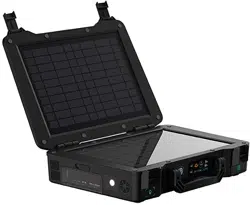
PHOENIX ELITE PORTABLE SOLAR GENERATOR
USER GUIDE
EN
01
CN
18
驭光者·火鸟ELITE太阳能手提式移动电源箱
PHOENIX ELITE
PORTABLE SOLAR
GENERATOR
User Guide
Model: R300PHXE

TABLE OF CONTENTS
- 01 -
IMPORTANT SAFETY INSTRUCTIONS
PACKAGE CONTENTS
FEATURES
RECHARGING PHOENIX ELITE
LCD SCREEN
PRODUCT OVERVIEW
SPECIFICATIONS
TROUBLESHOOTING
FREQUENTLY ASKED QUESTIONS
WARRANTY
OPERATING PHOENIX ELITE
MAINTENANCE
17
16
13
13
11
08
07
06
04
03
03
02
Please read the User Guide carefully before recharging or operating your PHOENIX Elite.
IMPORTANT SYMBOLS
Indicates potentially dangerous conditions that could result in personal injury
Indicates conditions or practices that could result in damages to the unit or other
equipment
Indicates procedures or functions that are important for proper and safe operation
of the unit and/or other equipment
CAUTION
CAUTION
CAUTION
CAUTION
WARNING
WARNING
WARNING
WARNING
WARNING
WARNING
NOTE
DO NOT submerge the unit in water or operate the unit in the rain. Doing so may cause
short-circuits, electric shocks, and/or fire.
DO NOT place the unit near fire and/or heat the unit. Doing so may cause irreversible damages
to the unit and/or battery explosion.
DO NOT overload the unit. Please check the specifications of output ports and devices before
operation.
Please turn off the output ports when no devices are connected to the unit to prevent electric
shocks.
DO NOT dismantle or modify the unit. Doing so may cause irreversible damages to the unit and
void warranty.
CAUTION
DO NOT place the unit in high-temperature situations. Doing so may cause unit malfunction or
component degradation.
CAUTION
DO NOT expose the unit to strong electrostatic fields, strong magnetic fields, and/or radiation.
CAUTION
Please check the unit before each use. Stop using the unit if you notice unusual smells, heating,
distortion, or any other abnormalities.
DO NOT drop or strike the unit. Doing so may cause circuit failures and cracks in the casing.
Please dispose of the product according to the local recycling and environmental regulations.
Keep the unit out of the reach of young children.
IMPORTANT SAFETY INSTRUCTIONS
- 02 -

FEATURES
PACKAGE CONTENTS
PORTABLE DESIGN
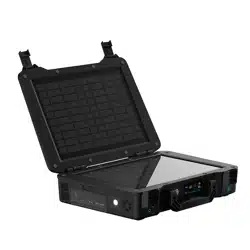
Featuring a portable briefcase design with a sturdy carrying handle, the PHOENIX Elite is the top choice for a
weekend trip or an emergency.
Designed for off-grid applications, the PHOENIX Elite combines two highly efficient 10W monocrystalline solar
panels for effortless battery replenishment.
Engineered with convenience and versatility in mind, the PHOENIX Elite supports recharging from car sockets,
AC adapters, USB-C wall chargers, and external solar panels.
Equipped with a 300Wh rechargeable lithium-ion battery pack and multiple output ports, the PHOENIX Elite is
ready to provide long-lasting power for a wide range of mobile devices and small appliances.
RENEWABLE ENERGY
DIVERSE RECHARGING OPTIONS
RELIABLE POWER SOURCE
1 x Renogy PHOENIX Elite Portable Solar Generator
1 x USB-C to USB-C Cable
1 x Solar Panel Connectors to 5.5mm DC Adapter Cable
1 x User Guide
1 x AC/DC Adapter
1 x Cigarette Lighter Plug to 5.5mm DC Adapter Cable
- 03 -
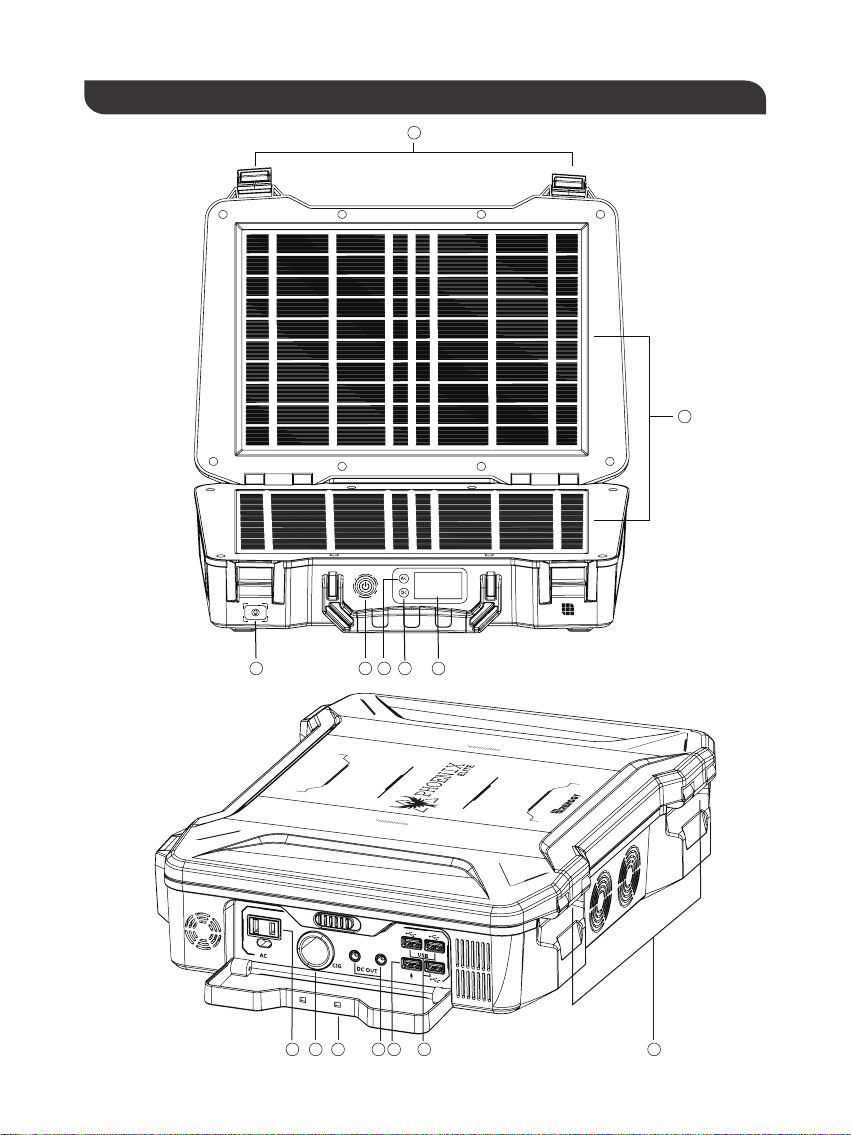
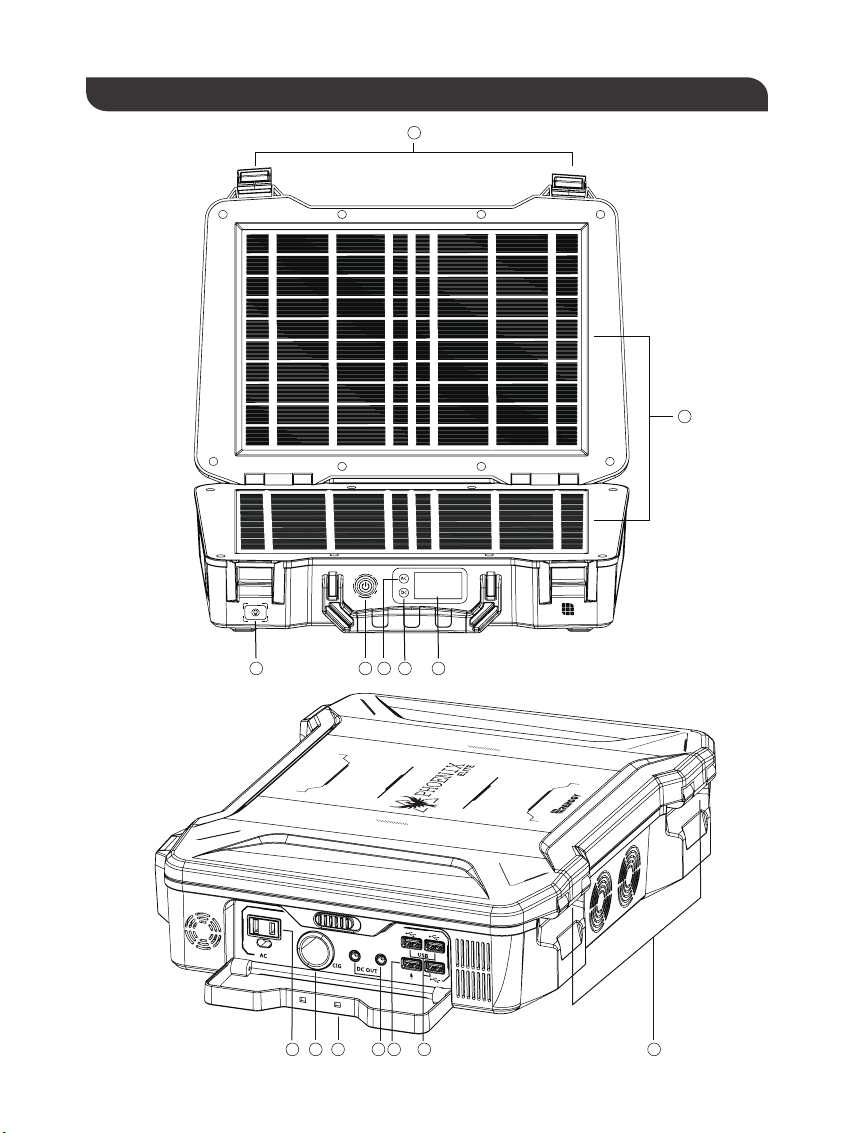
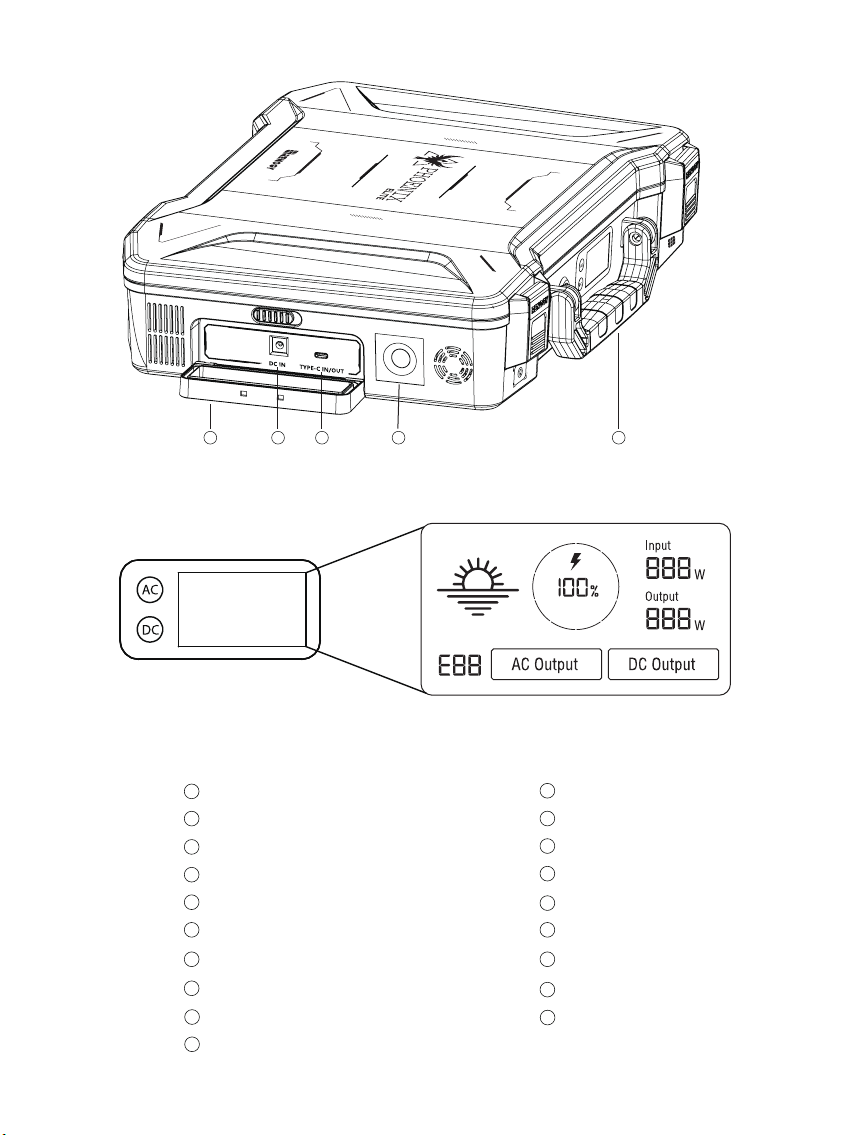
PRODUCT OVERVIEW
- 04 -
7
6
1 2 3 4 5
8 9 10 11 12 13 14
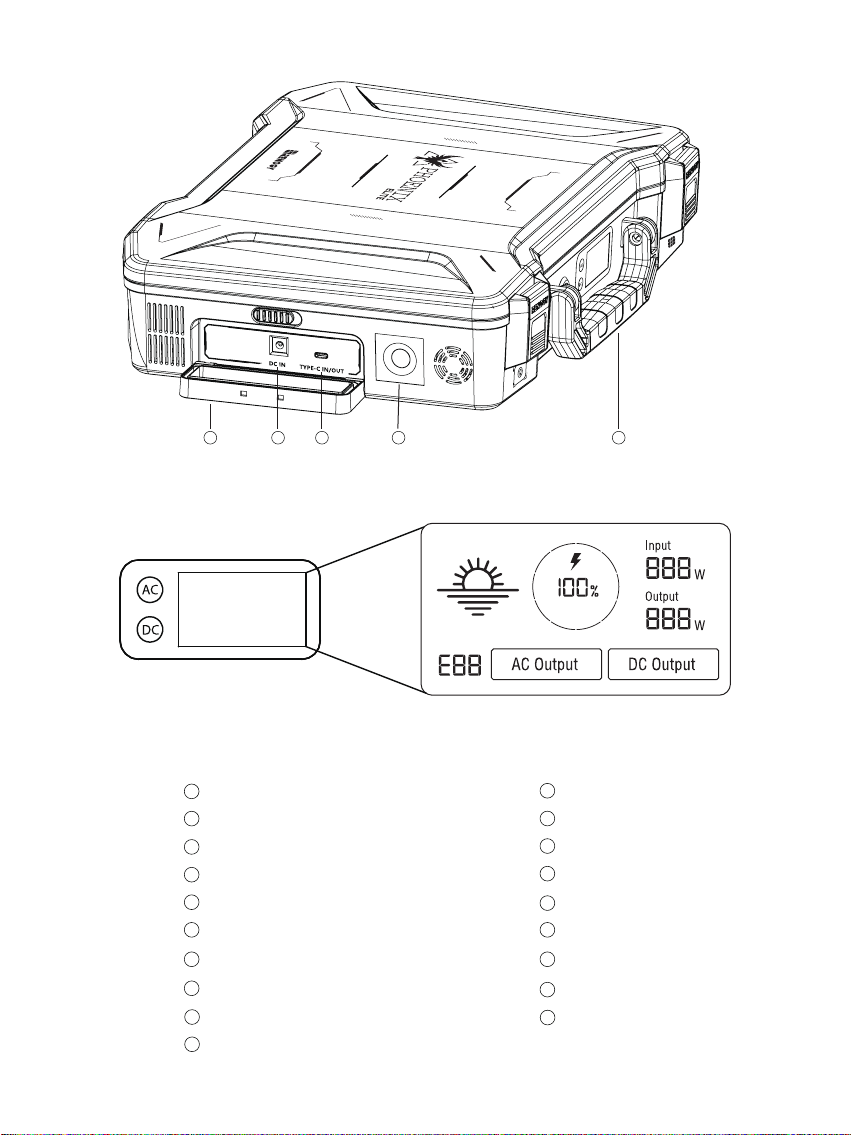
CIG Port
Output Side Door
DC Output Ports
QC USB-A Port
USB-A Ports
Hinges
Input Side Door
15
DC Input Port
16
USB-C PD Port
17
LED Flashlight
18
Carrying Handle
19
14
13
12
11
10
9
Flashlight On/Off Button
Main Power Button
AC Output Mode On/Off Button
DC Output Mode On/Off Button
LCD Screen
Built-in Solar Panels
Latches
AC Outlet
8
7
6
5
4
3
2
1
- 05 -
15 16 17 18 19
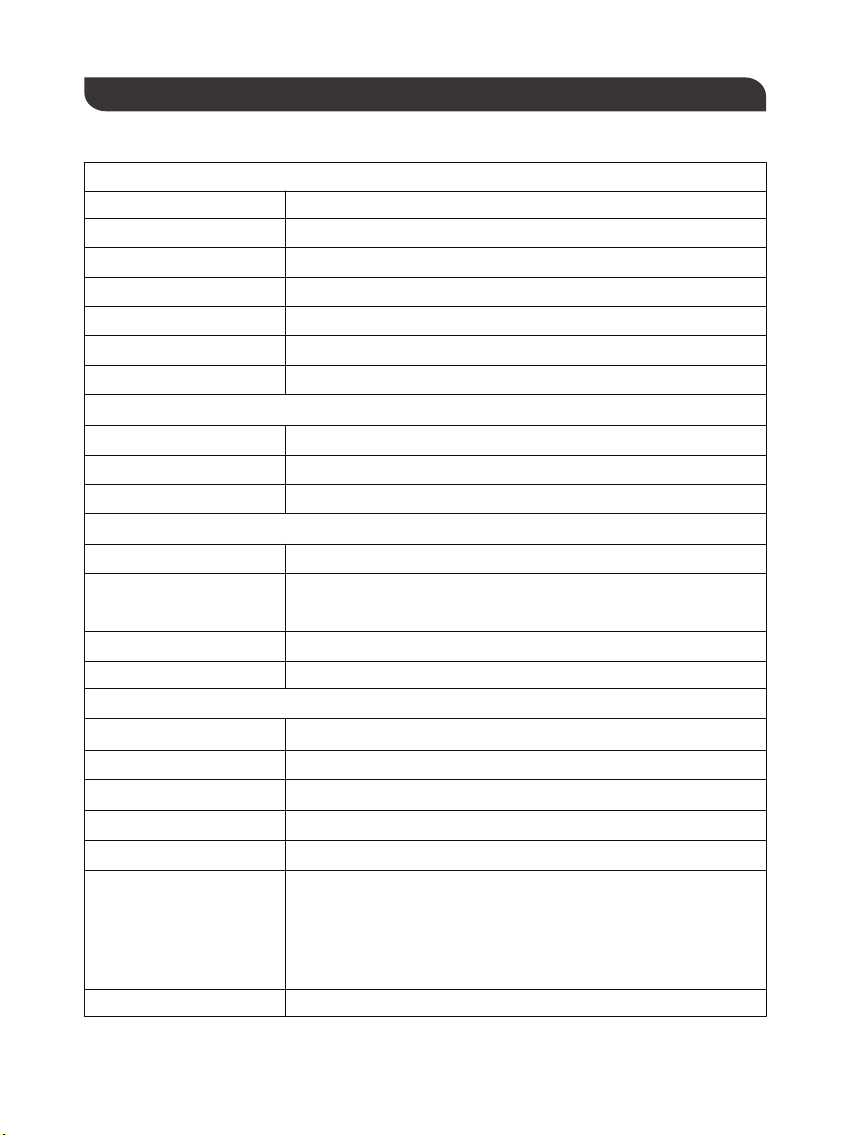
SPECIFICATIONS
Input
Battery
General
Lithium-ion
14.4V
20800mAh / 299.5Wh
Battery Type
Battery Voltage
Battery Capacity
Built-in Solar Panel
DC Input Port
USB-C PD Port
Total
9.8V / 2.04A, 20W Max
9-16.8V, 55W Max
16.8-30V, 100W Max
5V / 3A, 9V / 3A, 12V / 3A, 15V / 3A, 20V / 3A, 60W Max
180W Max
413 x 308 x 100 mm / 16.3 x 12.1 x 3.9 inch
5.3 kg / 11.7 lb.
ABS + PC
3W LED
0-45 ℃ / 32-113 ℉
-10-60 ℃ / 14-140℉
20-90%
Dimension
Weight
Material
Flashlight
Normal Operating Temperature
Storage Temperature
Operating / Storage Humidity
Output
USB-A Port (2)
QC USB-A Port
USB-C PD Port
CIG Port
DC Output Port (2)
AC Outlet
Total
5V / 2.4A Max
5V / 3A, 9V / 2A, 12V / 1.5A, 18W Max
5V / 3A, 9V / 3A, 12V / 3A, 15V / 3A, 20V / 3A, 60W Max
13.6V / 9A Max
13.6V / 4.5A Max
110V / 60Hz (US, JP, CA)
220V / 50Hz (AU, EU, CN)
200W Rated, 300W Surge
Pure Sine Wave
300W Max
- 06 -
- 07 -
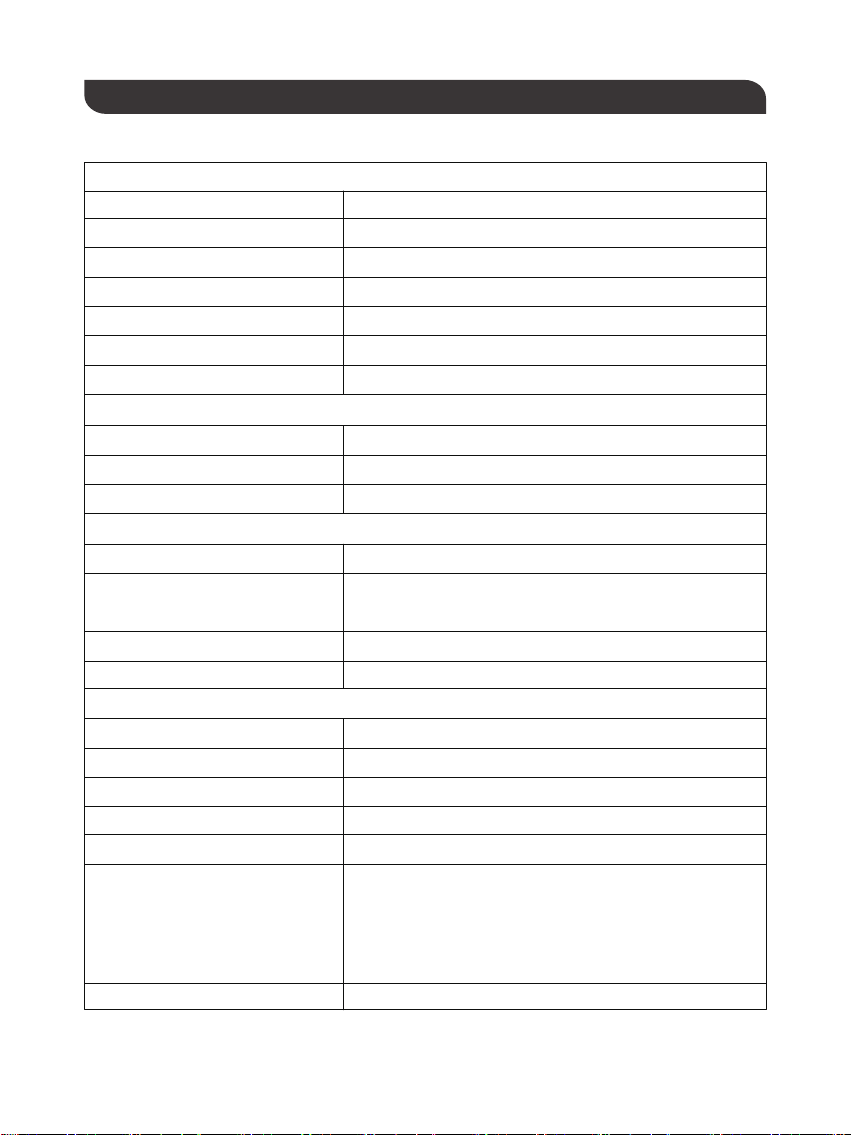
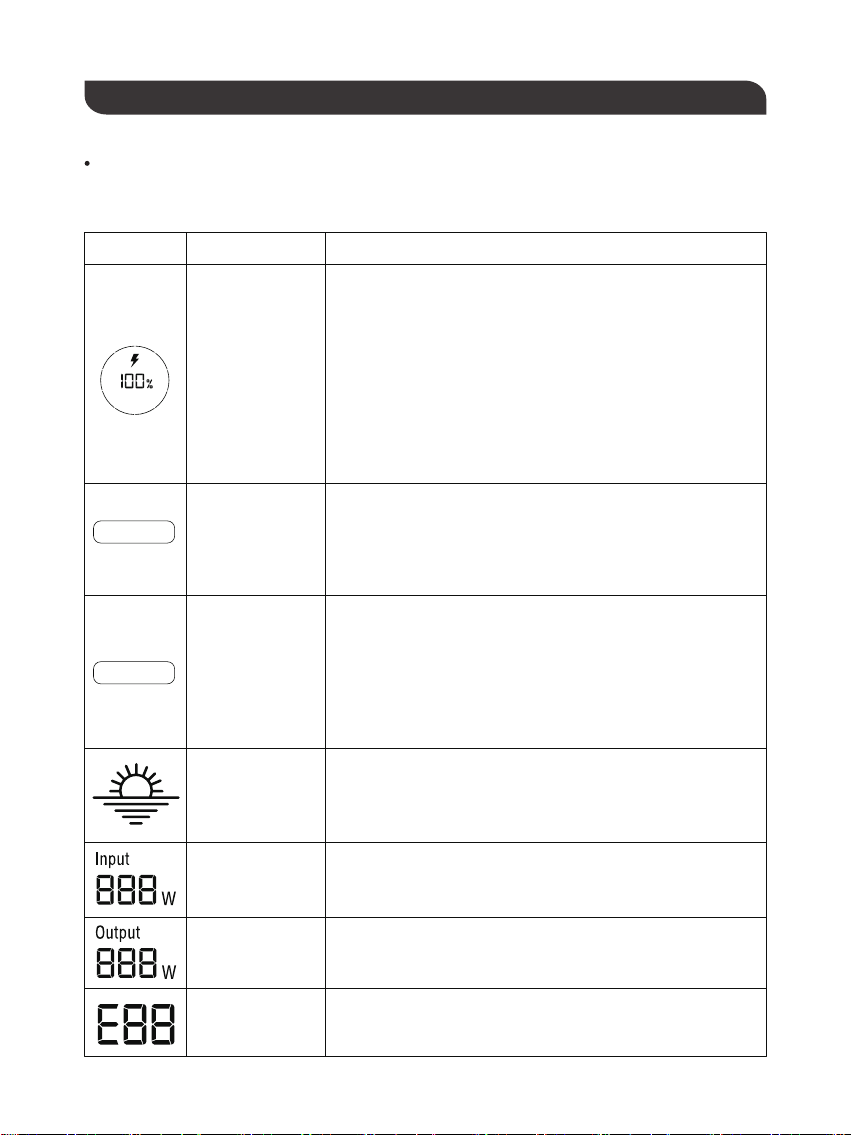
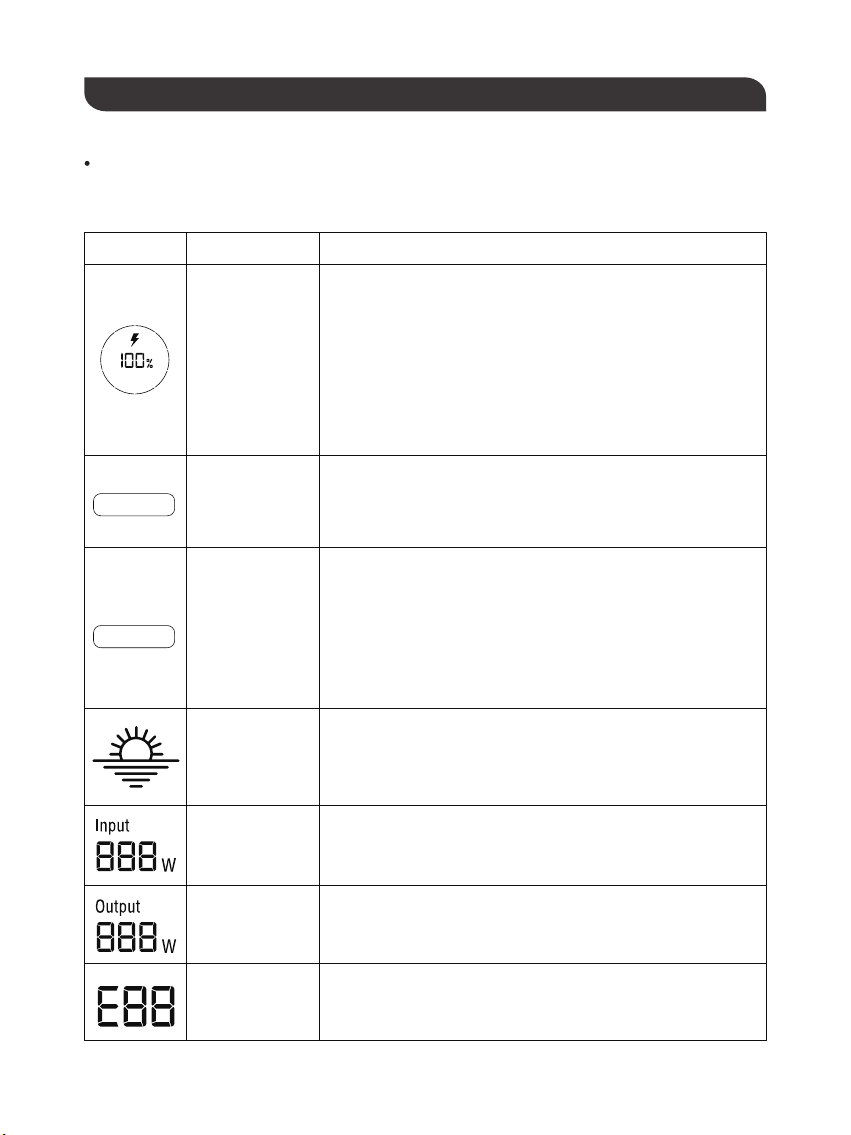
LCD SCREEN
The LCD Screen will be lit when the PHOENIX Elite is being recharged or turned on to display the recharging
and operating status of the PHOENIX Elite. Please refer to the following table to interpret the information
displayed on the LCD Screen.
The Battery Level is displayed as a ring composed of 10 segments
with a percentage in the center. The ring and percentage appear
when the PHOENIX Elite is being recharged or is turned on. When
recharging the PHOENIX Elite, a lightning bolt will appear above
the percentage. The ring will be lit segment by segment with the
increasing percentage until the PHOENIX Elite has been fully
recharged. As the PHOENIX Elite is used to power other devices,
the ring segments will go out one by one with the decreasing
percentage. When the battery level is lower than 10%, the last ring
segment and the percentage will flash.
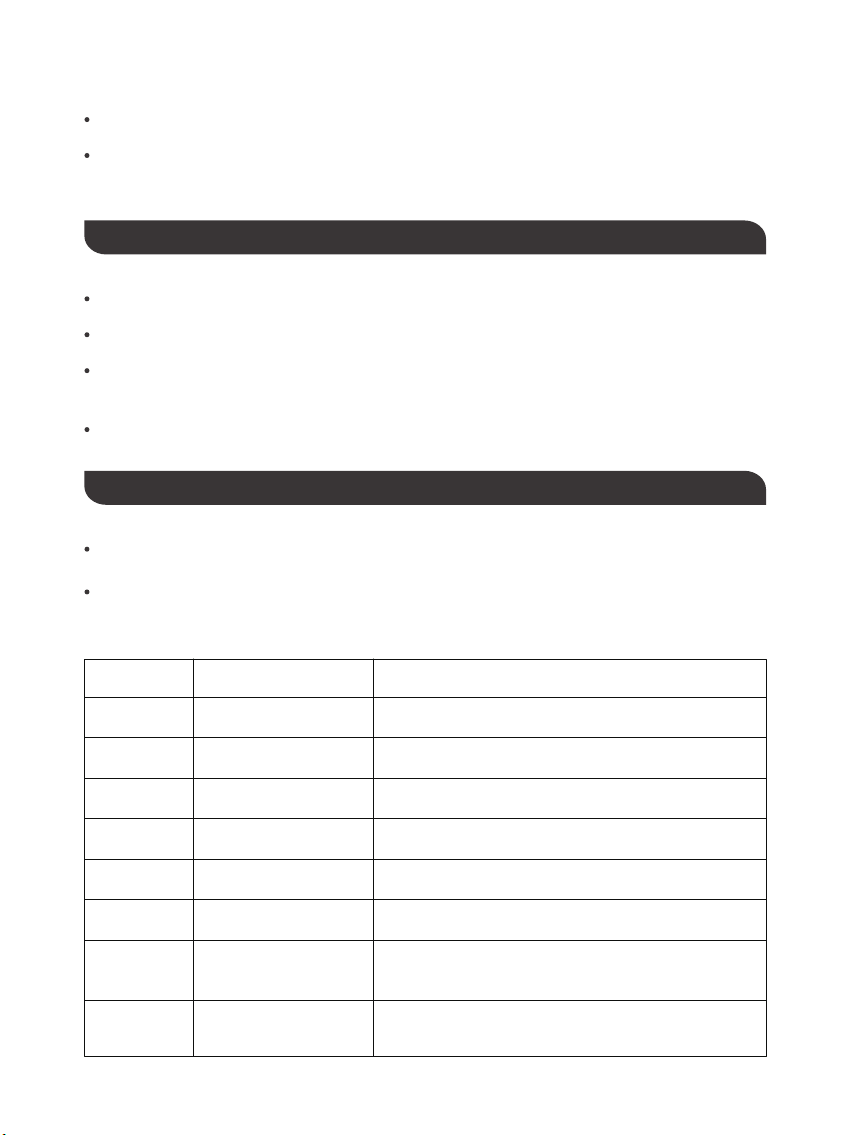
Icon Name Description
Battery Level
The AC Output Mode is displayed as a rectangle with the words
‘AC Output’ inside. The rectangle appears when the AC output
mode is activated with the AC Outlet turned on. The rectangle
disappears when the AC output mode is deactivated with the AC
Outlet turned off.
AC Output ModeAC Output
The DC Output Mode is displayed as a rectangle with the words
‘DC Output’ inside. The rectangle appears when the DC output
mode is activated with the USB-A Ports, QC USB-A Port, USB-C
PD Port, CIG Port, and DC Output Ports turned on. The rectangle
disappears when the DC output mode is deactivated with the
USB-A Ports, QC USB-A Port, USB-C PD Port, CIG Port, and DC
Output Ports turned off.
DC Output Mode
The Built-in Solar Panel Input is displayed as a sun with 5 bars
below it. The sun and bars appear when the PHOENIX Elite
detects input power from the Built-in Solar Panel. The number of
bars demonstrates the strength of solar irradiance.
Built-in Solar
Panel Input
The Input Power is displayed as a wattage with the word ‘Input’
above it. The wattage appears when the PHOENIX Elite is being
recharged.
Input Power
The Output Power is displayed as a wattage with the word ‘Output’
above it. The wattage appears when the AC output mode or the DC
output mode is activated.
Output Power
The Error Code is displayed as a 3-digit code starting with the letter
‘E’. The code appears when the PHOENIX Elite encounters
abnormal conditions.
Error Code
DC Output

If the [Error Code] icon appears, the PHOENIX Elite may need special attention. Please refer to
the TROUBLESHOOTING section for help.
CAUTION
To maximize the battery life, please ensure that the PHOENIX Elite is fully recharged before
operating or storing.
To shorten the recharge time, it is highly recommended to disconnect all loads while recharging
the PHOENIX Elite.
CAUTION
NOTE
The above recharge times are based on conditions when the PHOENIX Elite is recharged at full
speed with no loads connected to it.
NOTE
The LCD Screen will go out if the input power of the Built-in Solar Panels is lower than 5W and
no operations are made within 60 seconds. Press the AC Output Mode On/Off Button or DC
Output Mode On/Off Button to relight the LCD Screen.
NOTE
The recharge time via the Built-in Solar Panels is highly dependent on solar irradiance and
ambient temperature.
NOTE
Recharge Time
Recharge via Built-in Solar Panel: 20 Hours
Recharging via Built-in Solar Panel
For optimal recharging performance, it is highly recommended to recharge the PHOENIX Elite using the
Built-in Solar Panels on bright sunny days free of scattered clouds.
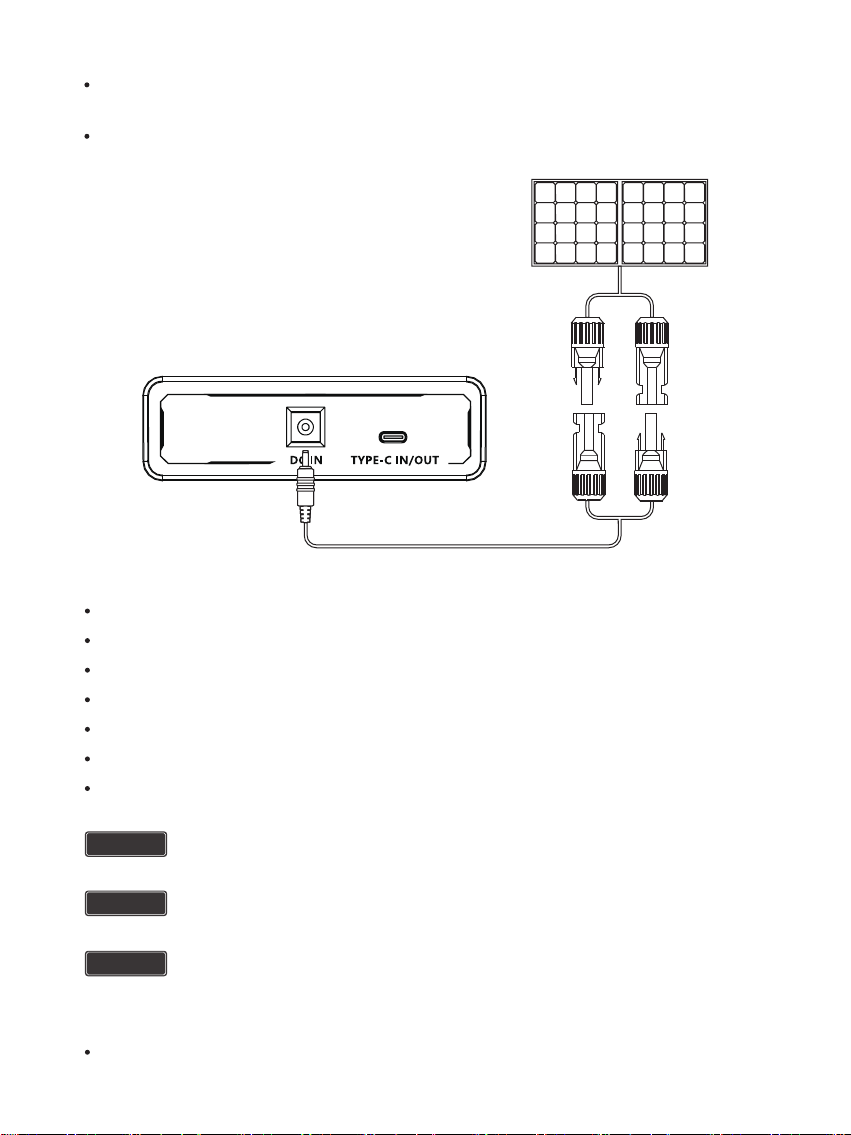
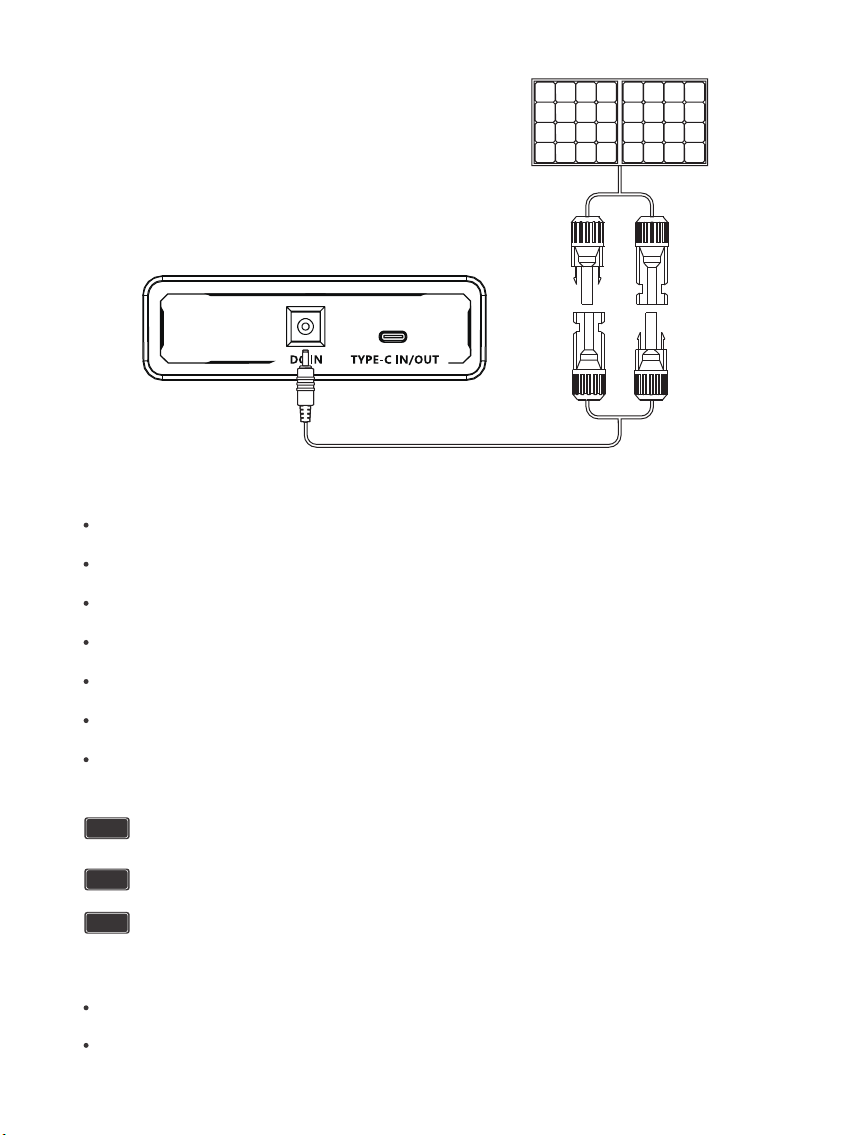
Recharging via External Solar Panel
For optimal recharging performance, it is highly recommended to recharge the PHOENIX Elite using an
external solar panel (not included) on bright sunny days free of scattered clouds.
Place the external solar panel under direct sunlight. Steer clear of trees or branches that can shade the
external solar panel and slow down the recharging process.
Place the PHOENIX Elite in an open area. Open the Latches and adjust the angle of the Hinges to expose the
Built-in Solar Panels to direct sunlight. Steer clear of trees or branches that can shade the Built-in Solar Panel
and slow down the recharging process.
The PHOENIX Elite will begin to recharge automatically. The LCD Screen will be lit with the [Battery Level]
icon, [Built-in Solar Panel Input] icon, and [Input Power] icon appearing.
Recharge via External Solar Panel: 4 Hours
Recharge via both Built-in Solar Panel and External Solar Panel: 3.5 Hours
Recharge via AC/DC Adapter: 6 Hours
Recharge via Car Socket: 6 Hours
Recharge via USB-C PD Wall Charger: 6 Hours
Recharge via both AC/DC Adapter and USB-C PD Wall Charger: 3 Hours
- 08 -
RECHARGING PHOENIX ELITE
- 09 -
Use the included Solar Panel Connectors to 5.5mm DC Adapter cable to connect the external solar panel to
the DC Input Port of the PHOENIX Elite. Place the PHOENIX Elite in the shade to prevent it from overheating.
The PHOENIX Elite will begin to recharge automatically. The LCD Screen will be lit with the [Battery Level]
icon and [Input Power] icon appearing.
Compatible External Solar Panels:
Renogy Monocrystalline Solar Panel: 50W, 80W, 100W, 160W
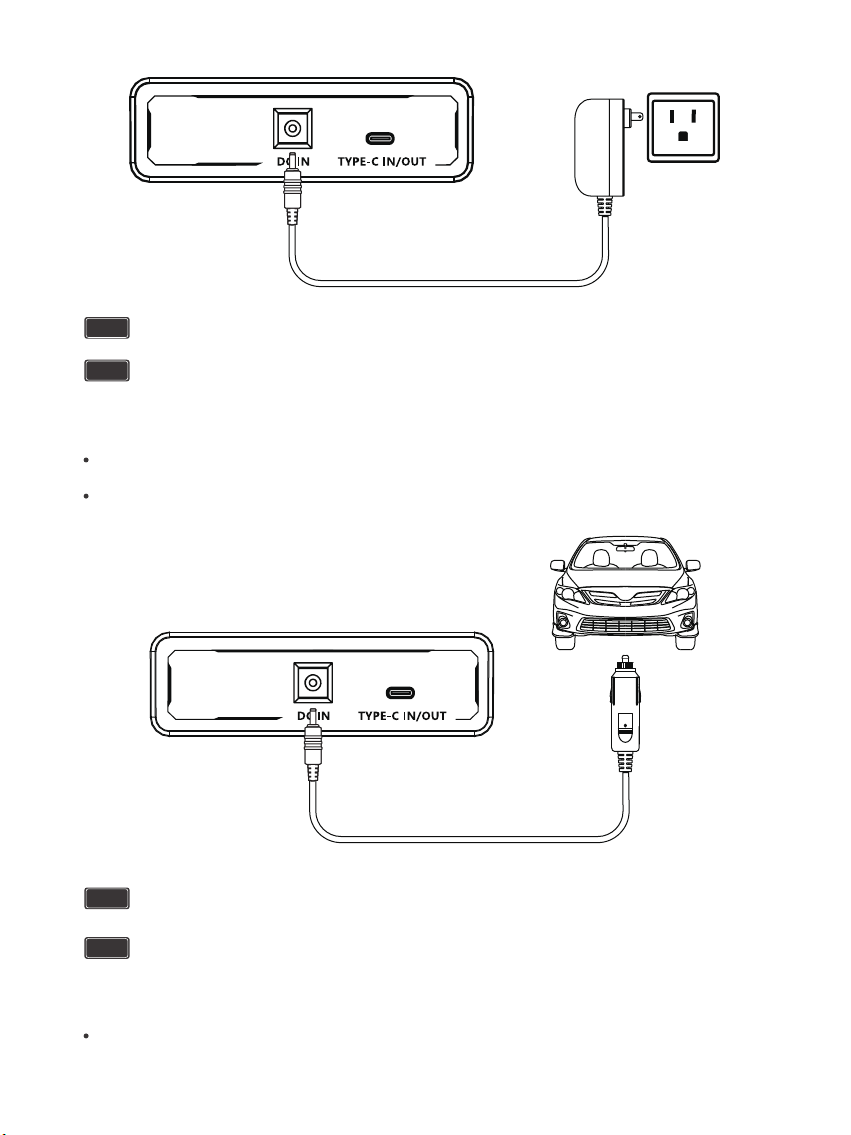
Recharging via AC/DC Adapter
Plug the PHOENIX Elite into a wall outlet through the DC Input Port using the included AC/DC Adapter.
Renogy Polycrystalline Solar Panel: 50W, 100W
Renogy ECLIPSE Series Solar Panel: 100W
Renogy Monocrystalline Foldable Solar Suitcase w/o Controller: 100W
Renogy ECLIPSE Series Foldable Solar Panel w/o Controller: 100W, 200W
Renogy Flexible Solar Panel: 50W, 100W, 160W, 175W
Renogy E.FLEX Series Portable Solar Panel: 50W, 100W, 120W
CAUTION
WARNING
NOTE
Electrical shock can occur if the Solar Panel Connectors to 5.5mm DC Adapter Cable is
damaged or frayed. DO NOT use a damaged or frayed cable to recharge the PHOENIX Elite.
Please ensure that the open circuit voltage of the external solar panel does not exceed 30V or
fall short of 9V.
The recharge time via the external solar panel is highly dependent on solar irradiance and
ambient temperature.
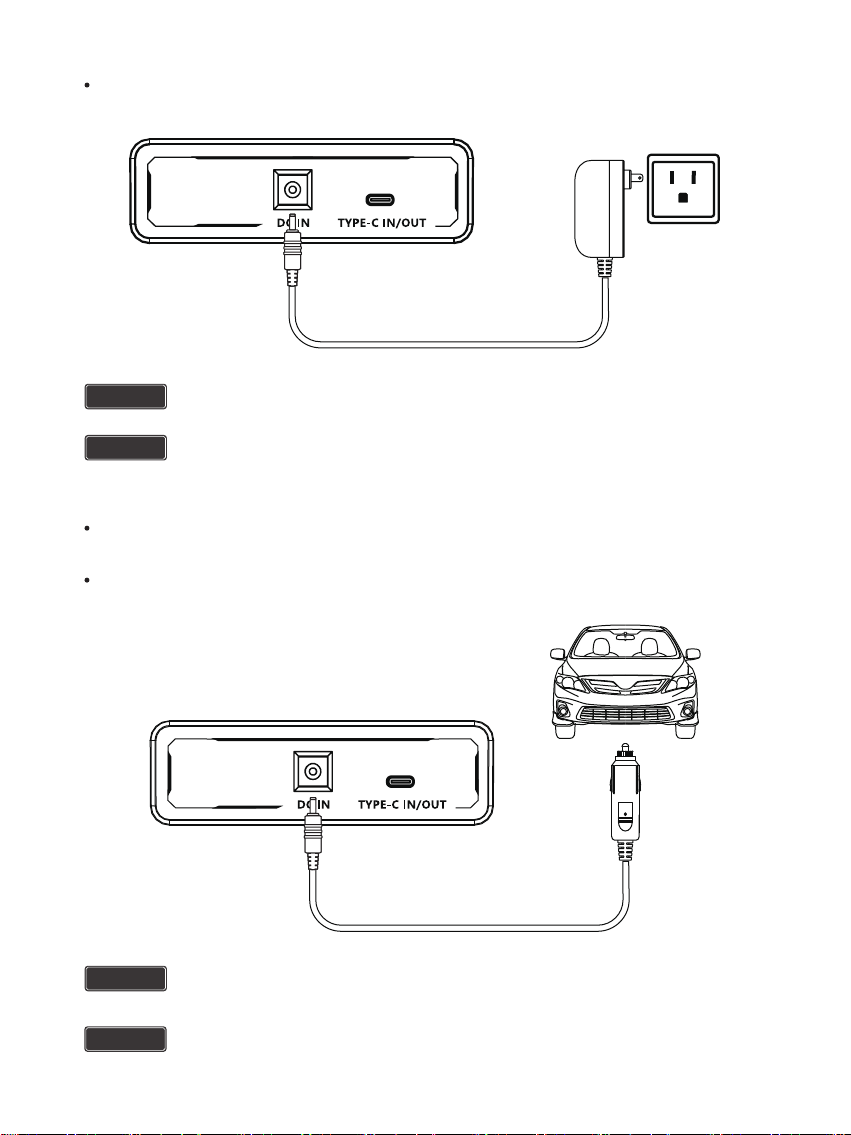
The PHOENIX Elite will begin to recharge automatically. The LCD Screen will be lit with the [Battery Level]
icon and [Input Power] icon appearing.
- 10 -
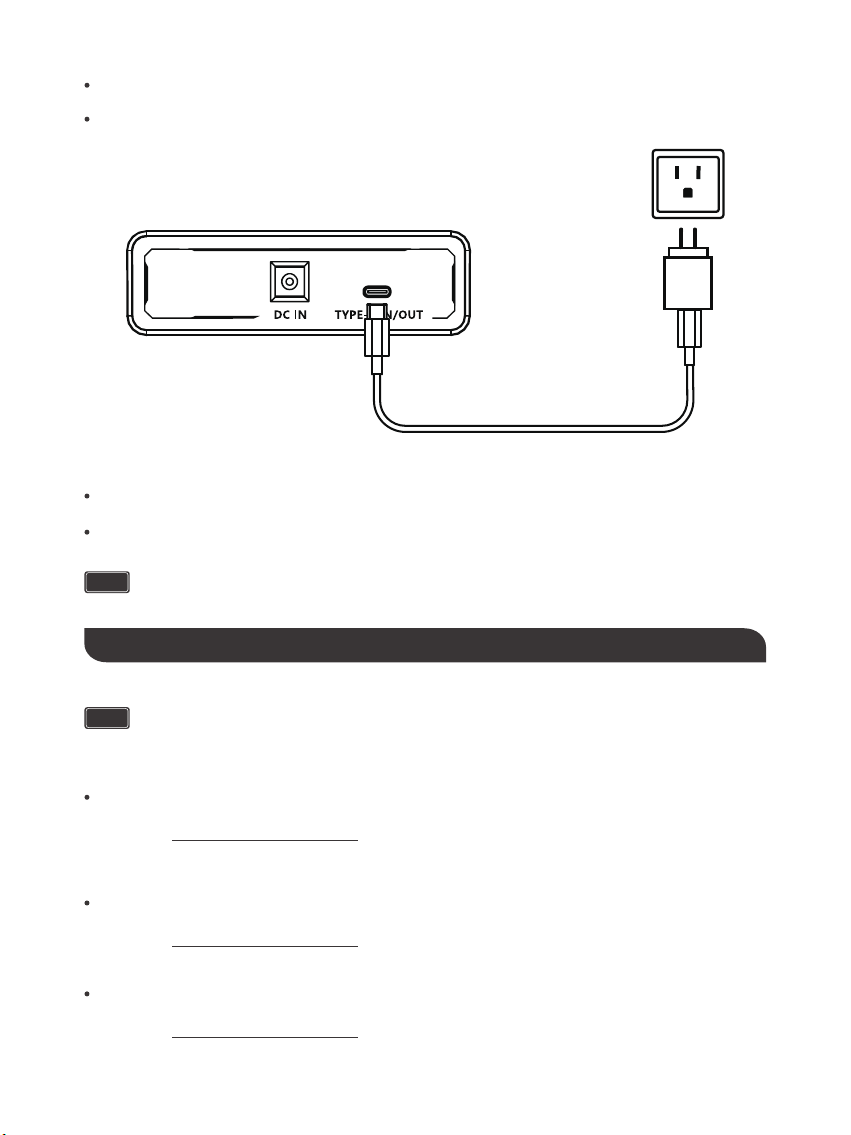
Recharging via Car Socket
Plug the PHOENIX Elite into a car socket through the DC Input Port using the included Cigarette Lighter Plug
to 5.5mm DC Adapter Cable.
The PHOENIX Elite will begin to recharge automatically. The LCD Screen will be lit with the [Battery Level]
icon and [Input Power] icon appearing.
WARNING
Electrical shock can occur if the AC/DC Adapter is damaged. DO NOT use a damaged AC/DC
Adapter to recharge the PHOENIX Elite.
WARNING
DO NOT use a third-party AC/DC adapter to charge the PHOENIX Elite. Doing so may cause
the AC/DC adapter to overheat and/or fire.
WARNING
Electrical shock can occur if the Cigarette Lighter Plug to 5.5mm DC Adapter Cable is damaged
or frayed. DO NOT use a damaged or frayed cable to recharge the PHOENIX Elite.
CAUTION
Please disconnect the PHOENIX Elite from the car socket when starting the engine. Electrical
surges from the alternator when starting may damage the PHOENIX Elite
- 11 -
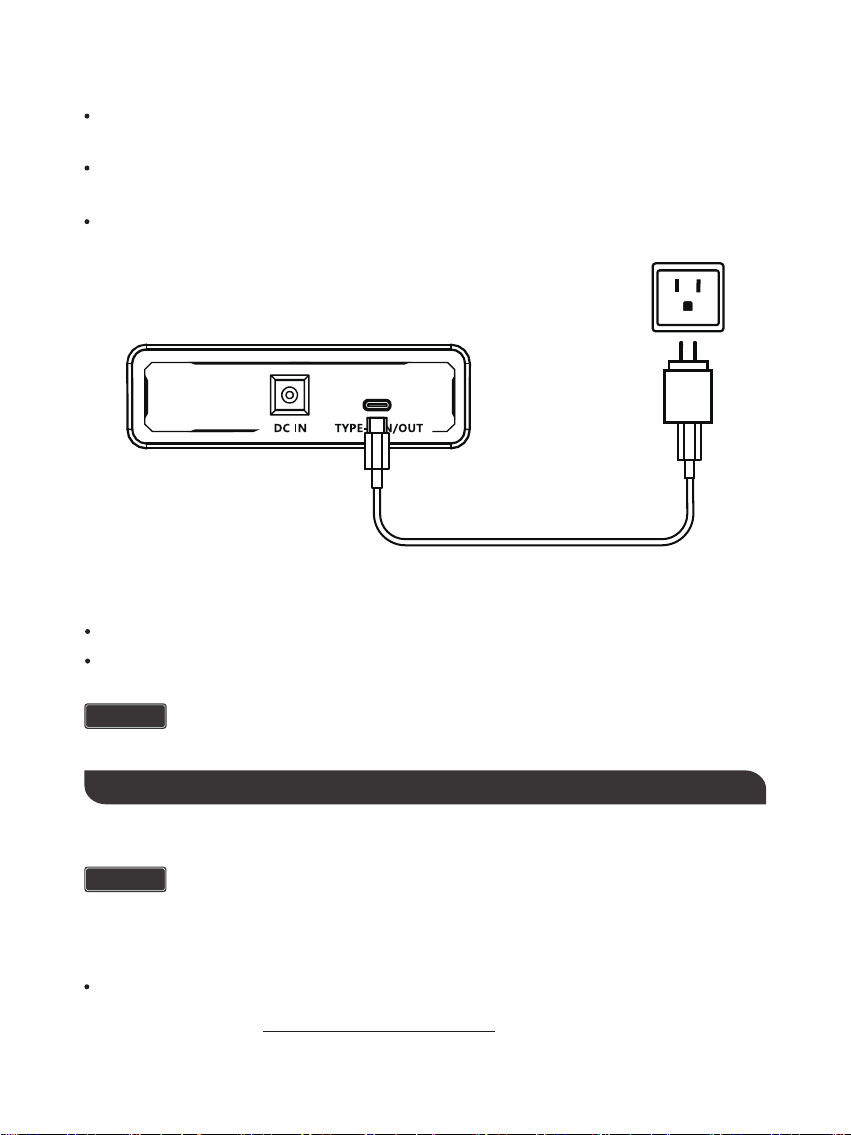
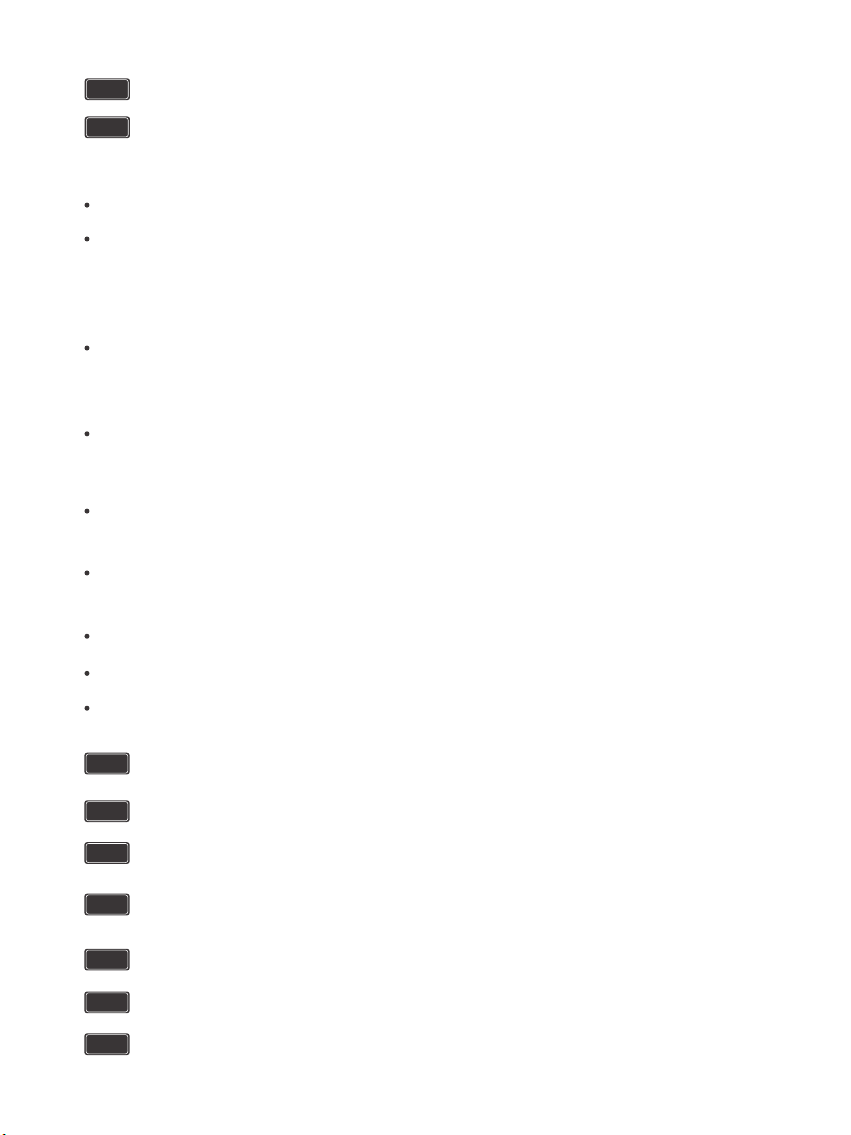
Recharging via USB-C PD Wall Charger
For optimal recharging performance, it is highly recommended to recharge the PHOENIX Elite using a USB-C
PD wall charger (not included) with a high power rating.
Plug the PHOENIX Elite into a wall outlet through the USB-C PD Port using the USB-C PD wall charger and
the included USB-C to USB-C Cable.
The PHOENIX Elite will begin to recharge automatically. The LCD Screen will be lit with the [Battery Level]
icon and [Input Power] icon appearing.
WARNING
Electrical shock can occur if the USB-C PD wall charger is damaged. DO NOT use a damaged
USB-C PD wall charger to recharge the PHOENIX Elite.
Recommended USB-C PD Wall Chargers:
Apple USB-C Power Adapter: 30W, 61W, 87W, 96W
Operation Time
Battery Powered Devices:
Google USB-C Power Adapter: 45W
Operating the PHOENIX Elite at high temperature above 113℉ (45℃) or at low temperatures
below 32℉ (0℃) can result in battery performance degradation and service life shortening. For
optimal battery performance and maximum battery life, it is highly recommended to operate the
PHOENIX Elite at room temperatures.
CAUTION
OPERATING PHOENIX ELITE
Number of Full Charges =
Device Battery Capacity (Wh)
299.5Wh x 70%

- 12 -
Powering Devices
Press the Main Power Button to turn on the PHOENIX Elite. The LCD Screen will be lit with the [Battery Level]
icon appearing.
Compatible Devices
USB-A Ports / QC USB-A Ports: Smart Watch, Electronic Book, Smart Phone, Tablet, Action Camera,
Digital Camera, Bluetooth Speaker, Wireless Headphone, Drone, and other USB-A enabled devices
USB-C PD Ports: Smart Phone, Tablet, Laptop, Handheld Game Console, DSLR Camera, and other USB-C
enabled devices
CIG Port: Portable Refrigerator, Car Vacuum, Car Air Fan, CPAP Machine, and other car powered devices
DC Output Ports: LED Strip Light, Modem, Router, Motor, and other DC powered devices
AC Outlet: Laptop, Monitor, TV, Game Console, Inkjet Printer, Portable Projector, Light Bulb, and other AC
Powered Devices
To use the USB-A Ports, QC USB-A Port, USB-C PD Port, CIG Port, or DC Output Ports, first press the DC
Output Mode On/Off Button to activate the DC output mode. The [DC Output Mode] icon and [Output Power]
icon will appear. Then, connect the device(s) to the port(s) for power. The [Output Power] icon will show the
real-time output power. When not using the port(s), long press the DC Output Mode On/Off Button to
deactivate the DC output mode. The [DC Output Mode] icon and [Output Power] icon will disappear.
To use the AC Outlet, first press the AC Output Mode On/Off Button to activate the AC output mode. The [AC
Output Mode] icon and [Output Power] icon will appear. Then, connect the device to the outlet for power. The
[Output Power] icon will show the real-time output power. When not using the outlet, long press the AC Output
Mode On/Off Button to deactivate the AC output mode. The [AC Output Mode] icon and [Output Power] icon
will disappear.
When no device is connected to the PHOENIX Elite, press the Main Power Button again to turn it off.
DC Powered Devices:
Working Hours =
Device Power Rating (W)
299.5Wh x 95%
AC Powered Devices:
Working Hours =
Device Power Rating (W)
299.5Wh x 85%
NOTE
The above estimation formulas only apply when the PHOENIX Elite has been fully recharged
and the device does not draw too much power.
NOTE
Actual number of full charges and working hours may vary due to different powering methods
and device operation status.
WARNING
The PHOENIX Elite can provide up to 300W total output power. Allocate the total output power
rationally and follow the specifications of each output port. DO NOT overload the PHOENIX
Elite. If the total output power should exceed 300W, the AC Outlet will be shut off.

- 13 -
Using LED Flashlight
Press the Main Power Button to turn on the PHOENIX Elite. The LCD Screen will be lit with the [Battery Level]
icon appearing.
When not using the LED Flashlight, press the Main Power Button to turn off the PHOENIX Elite.
The LED Flashlight has three lighting modes: bright (100% brightness), dim (50% brightness), and SOS.
Press the Flashlight On/Off Button to turn on the LED Flashlight, switch lighting modes, and turn off the LED
Flashlight. Long press the Flashlight On/Off Button to turn off the LED Flashlight no matter what lighting mode
it is on.
To prolong the service life of the PHOENIX Elite, keep it away from water, dust, and dirt. DO NOT leave the
PHOENIX Elite in harsh environments.
Keep the PHOENIX Elite away from corrosives, fire, and heat sources.
Keep the PHOENIX Elite recharged when not in use and avoid connecting devices with high power ratings
when the battery level is low.
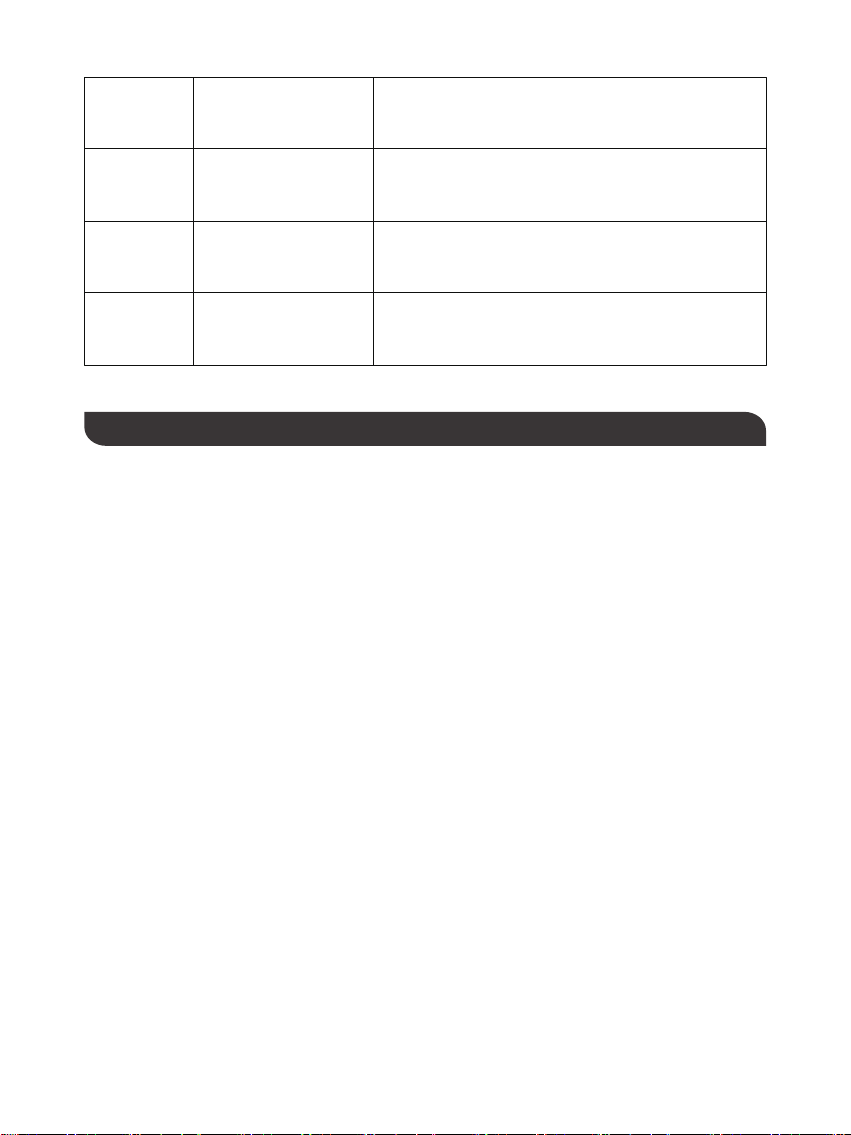
If the PHOENIX Elite does not operate normally, please refer to the following table for possible causes and
corrective steps.
If the following corrective steps do not work, please contact the Renogy technical support team for help. Refer
to the last page of the User Guide for contact information.
If the PHOENIX Elite is not used frequently, keep its battery level at around 50%. Store the PHOENIX Elite in
a clean, dry, and well-ventilated environment with a temperature around 77℉ (25℃) and a humidity no higher
than 75%. Recharge the PHOENIX Elite at least once every two months.
NOTE
The PHOENIX Elite may not be compatible with the devices that require high current impulses
despite their conformity with the output ports specifications.
NOTE
The PHOENIX Elite may not be able to deliver exactly 299.5Wh of energy when powering
devices with high power ratings.
Battery high temperature protection may be triggered when the PHOENIX Elite is operating at
full load. Cool down the PHOENIX Elite before resuming operation.
CAUTION
When using the AC Outlet, keep 4 inches of space on either side of the PHOENIX Elite to
guarantee efficient heat dissipation.
CAUTION
When the battery level drops to 0%, the PHOENIX Elite will turn off automatically. Please
recharge the PHOENIX Elite as soon as possible to avoid permanent damage to the battery.
CAUTION
When the battery level drops below 10%, use of the AC Outlet will be disabled. If the total output
power still exceeds 200W, use of the CIG Port and DC Output Ports will be subsequently
disabled. DO NOT connect devices with high power ratings to the PHOENIX Elite when the
battery level is low.
CAUTION
MAINTENANCE
TROUBLESHOOTING

- 14 -
Disconnect all the power source(s). Discharge the unit until
the [Error Code] icon disappears.
Error Code Possible Causes Corrective Steps
E01 Battery Over-voltage
Disconnect all the electrical load(s). Recharge the unit until
the [Error Code] icon disappears.
E02 Battery Under-voltage
Stop using the unit. Contact the Renogy technical support
team for help.
E03 Battery Cell Imbalance
Stop using the unit. Contact the Renogy technical support
team for help.
E04
BMS Communication
Failure
Disconnect all the power source(s) and electrical load(s).
Cool down the unit until the [Error Code] icon disappears.
E05
Battery High Temperature
(Charge)
Disconnect all the power source(s) and electrical load(s).
Warm up the unit until the [Error Code] icon disappears.
E06
Battery Low Temperature
(Charge)
Disconnect the power source. Check the voltage rating of
the power source. Connect only the power source with
compliant voltage rating to the unit.
E07
DC Input Port Over-
voltage
Disconnect the power source. Check the voltage rating of
the power source. Connect only the power source with
compliant voltage rating to the unit.
E08
DC Input Port Under-
voltage
Disconnect the power source. Check the voltage rating of
the power source. Connect only the power source with
compliant voltage rating to the unit.
E09
USB-C PD Port Input
Over-voltage
Disconnect the power source. Check the voltage rating of
the power source. Connect only the power source with
compliant voltage rating to the unit.
E10
USB-C PD Port Input
Under-voltage
Reconnect all the power source(s). If the [Error Code] icon
persists, stop using the unit. Contact the Renogy technical
support team for help.
E11 Charge Over-current
Disconnect all power source(s) and electrical load(s). Cool
down the unit until the [Error Code] icon disappears.
E12
Battery High Temperature
(Discharge)
Disconnect all power source(s) and electrical load(s). Warm
up the unit until the [Error Code] icon disappears.
E13
Battery Low Temperature
(Discharge)
Disconnect the electrical load(s). Reactivate the DC output
mode. If the [Error Code] icon persists, stop using the unit.
Contact the Renogy technical support team for help.
E14
USB-A Ports Output
Over-voltage

- 15 -
Disconnect the electrical load(s). Reactivate the DC output
mode. If the [Error Code] icon persists, stop using the unit.
Contact the Renogy technical support team for help.
E15
USB-A Ports Output
Under-voltage
Disconnect the electrical load(s). Remove the short
circuit(s). Press the DC Output Mode On/Off Button to clear
the [Error Code] icon. Connect only the electrical load(s)
with compliant current ratings to the unit.
E16
USB-A Ports Output
Over-current/Short-circuit
Disconnect the electrical load(s). Reactivate the DC output
mode. If the [Error Code] icon persists, stop using the unit.
Contact the Renogy technical support team for help.
E17
DC Output Ports/CIG Port
Output Over-voltage
Disconnect the electrical load(s). Reactivate the DC output
mode. If the [Error Code] icon persists, stop using the unit.
Contact the Renogy technical support team for help.
E18
DC Output Ports/CIG Port
Output Under-voltage
Disconnect the electrical load(s). Remove the short
circuit(s). Press the DC Output Mode On/Off Button to clear
the [Error Code] icon. Connect only the electrical load(s)
with compliant current ratings to the unit.
E19
DC Output Ports/CIG
Port Output Over-cur-
rent/Short-circuit
Disconnect the electrical load. Reactivate the DC output
mode. If the [Error Code] icon persists, stop using the unit.
Contact the Renogy technical support team for help.
E20
QC USB-A Port Output
Over-voltage
Disconnect the electrical load. Reactivate the DC output
mode. If the [Error Code] icon persists, stop using the unit.
Contact the Renogy technical support team for help.
E21
QC USB-A Port Output
Under-voltage
Disconnect the electrical load. Remove the short circuit.
Press the DC Output Mode On/Off Button to clear the [Error
Code] icon. Connect only the electrical load with compliant
current ratings to the unit.
E22
QC USB-A Port Output
Over-current/Short-circuit
Disconnect the electrical load. Reactivate the DC output
mode. If the [Error Code] icon persists, stop using the unit.
Contact the Renogy technical support team for help.
E23
USB-C PD Port Output
Over-voltage
Disconnect the electrical load. Reactivate the DC output
mode. If the [Error Code] icon persists, stop using the unit.
Contact the Renogy technical support team for help.
E24
USB-C PD Port Output
Under-voltage
Disconnect the electrical load. Remove the short circuit.
Press the DC Output Mode On/Off Button to clear the [Error
Code] icon. Connect only the electrical load with compliant
current ratings to the unit.
E25
USB-C PD Port Output
Over-current/Short-circuit
Disconnect the electrical load. Remove the short circuit. Let
the unit stand for 10 seconds. Press the AC Output Mode
On/Off Button to clear the [Error Code] icon. Connect only
the electrical load with compliant power ratings to the unit.
E26
AC Outlet Output
Overload/Short-circuit
- 16 -
First, make sure that the unit has been turned on by pressing the Main Power Button. If the LCD Screen does
not light up after pressing the Main Power Button, please recharge the unit as soon as possible. Then, make
sure that the output ports have been turned on by pressing the AC Output Mode On/Off Button and/or DC
Output Mode On/Off Button. Finally, make sure that the connected devices conform to the specifications of
the output ports. If the [Error Code] icon appears, please see the TROUBLESHOOTING section or contact
the Renogy technical support team for help. Refer to the last page of the User Guide for contact information.
Disconnect the electrical load. Reactivate the AC output
mode. If the [Error Code] icon persists, stop using the unit.
Contact the Renogy technical support team for help.
E27
AC Outlet Output
Over-voltage
Disconnect the electrical load. Reactivate the AC output
mode. If the [Error Code] icon persists, stop using the unit.
Contact the Renogy technical support team for help.
E28
AC Outlet Output
Under-voltage
Disconnect all the power source(s) and electrical load(s).
Cool down the unit to the room temperature. Press the AC
Output Mode On/Off Button to clear the [Error Code] icon.
E29 Inverter High Temperature
Disconnect all the electrical load(s). Press the AC Output
Mode On/Off Button to clear the [Error Code] icon.
Reallocate the total output power.
E30 Total Output Overload
FREQUENTLY ASKED QUESTIONS
1. Why doesn't the PHOENIX Elite power external devices?
No, the battery in PHOENIX Elite is not replaceable. Do not try to dismantle the PHOENIX Elite and replace
the battery by yourself. Doing so may cause irreversible damages to the unit and/or battery explosion.
2. Can I replace the battery in the PHOENIX Elite?
No, the PHOENIX Elite cannot be chained together or with other rechargeable AC power supplies. If you are
looking for a rechargeable AC power supply with a large capacity,, please visit our website or contact us for
more options. Refer to the last page of the User Guide for contact information.
3. Is the PHOENIX Elite chainable?
No, the PHOENIX Elite is not waterproof. Please keep the unit away from moisture. Do not submerge the
unit into water or operate the unit in the rain. Doing so may cause short-circuit, electric shocks, and fire.
4. Is the PHOENIX Elite waterproof?
The battery capacity of the PHOENIX Elite is rated at 0.2C. When the PHOENIX Elite is powering devices
with high power ratings, the internal resistance of the battery will turn more energy into heat and lower the
energy conversion efficiency. As a result, you may not get exactly 299.5Wh of energy.
5. Why doesn't the PHOENIX Elite last as long as I expect?

- 17 -
WARRANTY
RENOGY products are covered by a 12-month limited warranty from the original purchase date. If any
problems occur, please contact us for assistance. Refer to the last page of the User Guide for contact informa-
tion.
We only provide after-sales services for products that are sold by RENOGY or retailers and distributors
authorized by RENOGY. If you have purchased your unit from other channels, please contact your seller for
more information about return and warranty.
Please register your purchase(s) directly at warranty.renogy.com/support/tickets/new or your region’s
corresponding website so that we can stay in touch and contact you in the unlikely event that a safety recall
is required.
驭光者·火鸟ELITE
太阳能手提式移动电源箱
用户指南
型号: R300PHXE
- 18 -

目录
- 19 -
安全操作准则
产品配件
产品特性
为火鸟Elite充电
LCD 屏幕
产品概况
产品参数
故障排除
常见问题
售后质保
使用火鸟Elite
维护
34
33
31
31
29
26
25
24
22
21
21
20
请在为本机充电或使用本机前仔细阅读用户指南。
重要标识
表示可能造成人员受伤的潜在危险状况
安全操作准则
- 20 -
警告
请勿将本机浸入水中或在雨中使用本机,以免引发短路,触电或火灾。
警告
请勿将本机放在靠近明火或其它热源的地方,以免对本机造成不可逆的损伤或导致电池爆炸。
警告
请勿过载使用本机,请在使用前确认本机的输出接口和用电设备的规格。
警告
请按照当地的回收和环保规范处理本机。
警告
请在没有用电设备连接的时候关闭输出接口以防触电。
警告
请勿拆解或改装本机,以免对本机造成不可逆的损伤,并且违反我司保修条例。
注意
请勿跌落或敲击本机,以免造成电路故障或外壳破损。
注意
请将本机放置在儿童接触不到的地方。
注意
请勿将本机放置高温环境下,以免造成设备故障或元件性能衰退。
注意
请勿将本机暴露在强静电场,强磁场或辐射的环境中。
注意
请在每次使用前对本机进行检查。如果发现异常气味,发热,变形或其它异常,请立刻停止使用本机。
注意
表示可能造成本机或用电设备损坏的状况或行为
注意
表示对本机或用电设备的安全合理使用非常重要的步骤或功能
提示

便携式设计
火鸟Elite具有便携式手提箱设计和牢固的提手,是周末旅行和应急场景的首选。
可再生能源
火鸟Elite专为离网应用场景设计,内置了两块高效的10W单晶太阳能组件,能够轻松为电池充电。
多途径充电
火鸟Elite在设计时牢记便利性和多功能性,支持通过点烟器,AC适配器,USB-C壁式充电器和外接太阳能组
件充电。
可靠的电源
火鸟Elite配备了300Wh的可充电锂离子电池组和多样的输出接口,能够为各种移动设备和小型家电提供持久的
电力。
1 x Renogy驭光者·火鸟Elite太阳能手提式移动电源箱
1 x AC/DC适配器
1 x 点烟器插头转5.5mm DC充电线
1 x 光伏连接器转5.5mm DC充电线
1 x USB-C转USB-C充电线
1 x 用户指南
- 21 -
产品特性
产品配件
- 22 -
7
6
1 2 3 4 5
8 9 10 11 12 13 14
产品概况
CIG接口
输出侧侧门
DC输出接口
QC USB-A接口
USB-A接口
铰链
输入侧侧门
15
DC输入接口
16
USB-C PD接口
17
LED照明灯
18
提手
19
14
13
12
11
10
9
照明灯开关
总电源开关
AC输出模式开关
DC输出模式开关
LCD屏幕
内置太阳能组件
锁扣
AC插座
8
7
6
5
4
3
2
1
- 23 -
15 16 17 18 19
输入
概况
电池
锂离子电池
14.4V
20800mAh / 299.5Wh
电池类型
电池电压
电池容量
内置太阳能组件
DC输入接口
USB-C PD接口
总输入
16.5V / 1.2A,20W(峰值)
9-16.8V,55W(峰值)
16.8-30V,100W(峰值)
5V / 3A,9V / 3A,12V / 3A,15V / 3A,20V / 3A,60W(峰值)
180W(峰值)
尺寸
重量
材料
照明灯
正常工作温度
储存温度
工作/储存湿度
413 x 308 x 100 毫米 / 16.3 x 12.1 x 3.9 英寸
5.3 千克 / 11.7 磅
ABS+PC
3W LED
0-40 ℃ / 32-104 ℉
-10-60 ℃ / 14-140℉
20-90%
输出
USB-A接口(2)
QC USB-A接口
USB-C PD接口
CIG接口
DC输出接口(2)
AC插座
总输出
5V / 2.4A(峰值)
5V / 3A,9V / 2A,12V / 1.5A,18W(峰值)
5V / 3A,9V / 3A,12V / 3A,15V / 3A,20V / 3A,60W(峰值)
13.6V / 9A(峰值)
13.6V / 4.5A(峰值)
110V / 60Hz(US,JP,CA)
220V / 50Hz(AU,EU,CN)
200W(额定),300W(瞬时峰值)
纯正弦波
300W(峰值)
- 24 -
规格参数
- 25 -
当火鸟Elite正在充电或开启时,LCD屏幕将会点亮以显示火鸟Elite的充电和运行状态。请参考下表了解LCD
屏幕显示的信息。
电池电量使用一个分割为十段的圆环和中心的数字百分比表示。当火
鸟Elite正在充电或开启时,圆环和数字百分比将会出现。当为火鸟
Elite充电时,数字百分比上方将会出现一个闪电标志,圆环将会随着
数字百分比的增加一段一段点亮,直到火鸟Elite完全充满为止。当使
用火鸟Elite为其它设备供电时,圆环将会随着数字百分比的减小一段
一段熄灭。当电池电量低于10%时,最后一段圆环和数字百分比将会
闪烁。
图标 名称 描述
电池电量
AC输出模式使用一个内部写有“AC Output”字样的长方形表示。当
AC输出模式被打开时,长方形将会出现,同时AC插座也将被打开。当
AC输出模式被关闭时,长方形将会消失,同时AC插座也将被关闭。
AC输出模式
DC输出模式使用一个内部写有“DC Output”字样的长方形表示。
当DC输出模式被打开时,长方形将会出现,同时UB-A接口,QC
USB-A接口,USB-C PD接口,CIG接口和DC输出接口也将被打
开。当DC输出模式被关闭时,长方形将会消失,同时USB-A接口,
QC USB-A接口,USB-C PD接口,CIG接口和DC输出接口也将
被关闭。
DC输出模式
内置太阳能组件输入使用一个太阳标志和下方的五条横杠表示。当火
鸟Elite检测到内置太阳能组件的输入功率时,太阳和横杠将会出现,
横杠的数量表示太阳光照的强度。
内置太阳能组件
输入
输入功率使用上方写有“Input”字样的瓦数表示。当火鸟Elite正在
充电时,瓦数将会出现。
输入功率
输出功率使用上方写有“Output”字样的瓦数表示。当AC输出模式
或DC输出模式打开时,瓦数将会出现。
输出功率
错误代码使用以“E”开头的三位代码表示。当火鸟Elite遭遇异常状
况时,代码将会出现。
错误代码
AC Output
DC Output
LCD屏幕

充电时间
通过内置太阳能组件充电:20小时
通过内置太阳能组件充电
为获得最佳充电效果,强烈建议在晴朗无云的天气下使用内置太阳能组件为火鸟Elite充电。
将火鸟Elite放置在空旷的环境,打开锁扣并且调节铰链的角度以使内置太阳能组件暴露在阳光的直射下,避
免内置太阳能组件被树木或树枝遮挡而减缓充电速度。
通过外接太阳能组件充电
为获得最佳充电效果,强烈建议在晴朗无云的天气下使用外接太阳能组件(单独购买)为火鸟Elite充电。
火鸟Elite将会自动开始充电,LED屏幕将会点亮并且显示[电池电量]图标,[内置太阳能组件输入]图标和[输入
功率]图标。
使用附带的光伏连接器转5.5mm DC充电线将外接太阳能组件连接至火鸟Elite的DC输入接口,并且将火鸟Elite
放置在阴凉的环境下以防过热。
将外接太阳能组件放置在阳光直射的环境下,避免外接太阳能组件被树木或树枝遮挡而减缓充电速度。
通过外接太阳能组件充电:4小时
通过内置太阳能组件和外接太阳能组件共同充电:3.5小时
通过AC/DC适配器充电:6小时
通过点烟器充电:6小时
通过USB-C PD壁式充电器充电:6小时
通过AC/DC适配器和USB-C PD壁式充电器共同充电:3小时
- 26 -
如果出现[错误代码]图标,火鸟Elite可能需要特别注意。请参考故障排除章节获取帮助。注意
为延长电池寿命,请务必在使用或储存前为火鸟Elite充满电量。
注意
为缩短充电时间,建议在为火鸟Elite充电时断开所有负载。
提示
上述充电时间基于火鸟Elite全速充电且没有负载接入的情况。
提示
如果内置太阳能组件的输入功率低于5W并且60秒内未进行任何操作,LCD屏幕将会熄灭,按下AC
输出模式开关或DC输出模式开关将会重新点亮LCD屏幕。
提示
通过内置太阳能组件充电所需的时间极大取决于太阳光照的强度和环境温度。
提示
为火鸟Elite充电
火鸟Elite将会自动开始充电,LED屏幕将会点亮并且显示[电池电量]图标和[输入功率]图标。
- 27 -
如果光伏连接器转5.5mm DC充电线损坏或磨损,可能导致触电。请勿使用损坏或磨损的线材为火鸟
Elite充电。
警告
请确保外接太阳能组件的开路电压不高于30V并且不低于9V。
注意
通过外接太阳能组件充电所需的时间极大取决于太阳光照的强度和环境温度。
提示
适配的外接太阳能组件:
Renogy 单晶太阳能组件:50W,80W,100W,160W
Renogy 多晶太阳能组件:50W,100W
通过AC/DC适配器充电
使用附带的AC/DC适配器将火鸟Elite通过DC输入接口连接至插座。
火鸟Elite将会自动开始充电,LED屏幕将会点亮并且显示[电池电量]图标和[输入功率]图标。
Renogy ECLIPSE系列太阳能组件:100W
Renogy 单晶折叠式太阳能手提箱不带控制器:100W
Renogy ECLIPSE系列折叠式太阳能手提箱不带控制器:100W,200W
Renogy 柔性太阳能组件:50W,100W,160W,175W
Renogy E.FLEX系列便携式太阳能充电板:50W,100W,120W
- 28 -
如果AC/DC适配器损坏,可能导致触电。请勿使用损坏的AC/DC适配器为火鸟Elite充电。注意
请勿使用第三方AC/DC适配器为火鸟Elite充电,以免造成AC/DC适配器过热或火灾。
警告
如果点烟器插头转5.5mm DC充电线损坏或磨损,可能导致触电。请勿使用损坏或磨损的线材为火鸟
Elite充电。
警告
请在启动引擎时断开火鸟Elite和点烟器的连接。引擎启动时发电机产生的浪涌可能会损坏火鸟Elite。
注意
通过点烟器充电
使用附带的点烟器插头转5.5mm DC充电线将火鸟Elite通过DC输入接口连接至点烟器。
通过USB-C PD壁式充电器充电
为获得最佳充电效果,强烈建议使用额定功率较高的USB-C PD壁式充电器(单独购买)为火鸟Elite充电。
火鸟Elite将会自动开始充电,LED屏幕将会点亮并且显示[电池电量]图标和[输入功率]图标。
- 29 -
充电次数 =
设备电池容量 (Wh)
299.5Wh x 70%
如果USB-C PD壁式充电器损坏,可能导致触电。请勿使用损坏的USB-C PD壁式充电器为火鸟
Elite充电。
警告
在高于113℉(45℃)的高温下或在低于32℉(0℃)的低温下使用火鸟Elite可能导致电池性能下降
和使用寿命缩短。为获得最佳的电池性能和最长电池寿命,强烈建议在室温下使用火鸟Elite。
注意
使用火鸟Elite
使用USB-C PD壁式充电器和附带的USB-C转USB-C充电线将火鸟Elite通过USB-C PD接口连接至插座。
火鸟Elite将会自动开始充电,LED屏幕将会点亮并且显示[电池电量]图标和[输入功率]图标。
推荐的USB-C PD壁式充电器:
运行时间
Apple USB-C电源适配器:30W,61W,87W,96W
电池供电的设备:
工作时间 =
设备额定功率 (W)
299.5Wh x 95%
直流供电的设备:
工作时间 =
设备额定功率 (W)
299.5Wh x 85%
交流供电的设备:
Google USB-C 电源适配器:45W
- 30 -
火鸟Elite总共能够提供高达300W的输出功率,务必合理分配输出功率并且遵循各个输出接口的规格,
请勿过载使用火鸟Elite。如果总输出功率超过300W,AC插座将会被关闭。
警告
当火鸟Elite满载输出时,可能会触发电池高温保护。请待火鸟Elite冷却至室温后继续使用。
注意
当使用AC插座时,请保证火鸟Elite两侧留有4英寸(10厘米)的空间以保证有效的散热。
注意
当电池电量降至0%时,火鸟Elite会自动关闭。请尽快为火鸟Elite充电,以免对电池造成永久损伤。
注意
火鸟Elite可能无法适配需要瞬时大电流的设备,即使它们符合输出接口的规格。
注意
当为额定功率较大的设备供电时,火鸟Elite可能无法提供恰好299.5Wh的电能。
注意
当电池电量低于10%时,AC插座将被禁用。如果总输出功率仍然高于200W,CIG接口和DC输出接
口将随后被禁用。当电池电量较低时,请勿将额定功率较大的设备连接至火鸟Elite。
注意
上述估算公式仅适用于火鸟Elite电量完全充满并且设备功率不大的情况。
提示
实际充电次数和工作时间可能因不同的供电方式和设备运行状态而异。
提示
为设备供电
按下总电源开关打开火鸟Elite,LCD屏幕将会点亮并且显示[电池电量]图标。
适配的设备:
USB-A接口 / QC USB-A接口:智能手表,电子书,智能手机,平板电脑,运动相机,数码相机,蓝牙音
箱,无线耳机,无人机和其它支持USB-A的设备。
USB-C PD接口:智能手机,平板电脑,笔记本电脑,掌上游戏机,数码单反相机和其它支持USB-C的设
备。
当没有设备连接至火鸟Elite时,再次按下总电源开关将火鸟Elite关闭。
CIG接口:便携式冰箱,车载吸尘器,车载风扇,睡眠呼吸机和其它车载设备。
DC输出接口:LED灯带,调制解调器,路由器,直流电机和其它直流供电的设备。
AC插座:笔记本电脑,显示屏,电视,游戏主机,喷墨打印机,便携式投影仪,电灯和其它交流供电的设备。
当需要使用USB-A接口,QC USB-A接口,USB-C PD接口,CIG接口或DC输出接口时,首先按下DC输
出模式开关以打开DC输出模式,[DC输出模式]图标和[输出功率]图标将会出现。然后,将设备连接至接口供
电,[输出功率]图标将会显示实时输出功率。当不需要使用接口时,长按DC输出模式开关关闭DC输出模式,
[DC输出模式]图标和[输出功率]图标将会消失。
当需要使用AC插座时,首先按下AC输出模式开关打开AC输出模式,[AC输出模式]图标和[输出功率]图标将
会出现。然后,将设备连接插座供电,[输出功率]图标将会显示实时输出功率。当不需要使用插座时,长按
AC输出模式开关关闭AC输出模式,[AC输出模式]图标和[输出功率]图标将会消失。
- 31 -
LED指示灯 可能原因 解决方案
E01
E02
E03
E04
E05
E06
维护
使用LED照明灯
LED照明灯具有三种照明模式:高亮(100%亮度),低亮(50%亮度)和SOS。
为延长使用寿命,请使火鸟Elite远离水,灰尘和污垢,请勿将火鸟Elite放置在恶劣的环境下。
故障排除
如果火鸟Elite无法正常使用,请参考下表了解可能的原因和解决方案。
如果下列解决方案未能解除故障,请与Renogy技术支持团队联系以获取帮助,联系方式请参考用户指南的
最后一页。
当不使用火鸟Elite时,请及时充电。当电池电量较低时,请勿将额定功率较大的设备连接至火鸟Elite。
请使火鸟Elite远离腐蚀剂,明火和热源。
如果不经常使用火鸟Elite,请将电池电量维持在50%左右,储存在干净,干燥,通风的环境下,储存温度以
77℉(25℃)为宜,储存湿度不得高于75%,并且至少每两个月为火鸟Elite充电一次。
按下照明灯开关打开LED照明灯,切换照明模式和关闭LED照明灯,在任意照明模式下长按照明灯开关能够
直接关闭LED照明灯。
电池过压
电池欠压
电芯不均衡
BMS通讯故障
电池高温(充电)
电池低温(充电)
E07
DC输入接口过压
E08
DC输入接口欠压
断开所有电源,为本机放电直至[错误代码]图标消失。
断开所有负载,为本机充电直至[错误代码]图标消失。
停止使用本机,联系Renogy技术支持团队以获取帮助。
停止使用本机,联系Renogy技术支持团队以获取帮助。
断开所有电源和负载,冷却本机直至[错误代码]图标消失。
断开所有电源和负载,温暖本机直至[错误代码]图标消失。
断开电源,确认电源的额定电压,仅将额定电压符合规格的
电源接入本机。
断开电源,确认电源的额定电压,仅将额定电压符合规格的
电源接入本机。
- 32 -
E09 USB-C PD接口输入过压
断开电源,确认电源的额定电压,仅将额定电压符合规格的
电源接入本机。
E10 USB-C PD接口输入欠压
断开电源,确认电源的额定电压,仅将额定电压符合规格的
电源接入本机。
E11 充电过流
重连所有电源,如果[错误代码]图标仍然存在,停止使用本
机,联系Renogy技术支持团队以获取帮助。
E12 电池高温(放电)
断开所有电源和负载,冷却本机直至[错误代码]图标消失。
E13 电池低温(放电)
断开所有电源和负载,温暖本机直至[错误代码]图标消失。
E14 USB-A 接口输出过压
断开负载,重新打开DC输出模式。如果[错误代码]图标仍然
存在,停止使用本机,联系Renogy技术支持团队以获取帮
助。
E15 USB-A 接口输出欠压
断开负载,重新打开DC输出模式。如果[错误代码]图标仍然
存在,停止使用本机,联系Renogy技术支持团队以获取帮
助。
E16 USB-A接口输出过流/短路
断开负载,移除短路,按下DC输出模式开关清除[错误代码]
图标,仅将额定电流符合规格的负载接入本机。
E17
DC输出接口/CIG接
口输出过压
断开负载,重新打开DC输出模式。如果[错误代码]图标仍然
存在,停止使用本机,联系Renogy技术支持团队以获取帮
助。
E18
DC输出接口/CIG接
口输出欠压
断开负载,重新打开DC输出模式。如果[错误代码]图标仍然
存在,停止使用本机,联系Renogy技术支持团队以获取帮
助。
E19
DC输出接口/CIG接口
输出过流/短路
断开负载,移除短路,按下DC输出模式开关清除[错误代码]
图标,仅将额定电流符合规格的负载接入本机。
E20 QC USB-A接口输出过压
断开负载,重新打开DC输出模式。如果[错误代码]图标仍然
存在,停止使用本机,联系Renogy技术支持团队以获取帮
助。
E21 QC USB-A接口输出欠压
断开负载,重新打开DC输出模式。如果[错误代码]图标仍然
存在,停止使用本机,联系Renogy技术支持团队以获取帮
助。
E22
QC USB-A接口输
出过流/短路
断开负载,移除短路,按下DC输出模式开关清除[错误代码]
图标,仅将额定电流符合规格的负载接入本机。
- 33 -
常见问题
1. 为什么火鸟Elite无法为外部设备供电?
E23 USB-C PD接口输出过压
断开负载,重新打开DC输出模式。如果[错误代码]图标仍然
存在,停止使用本机,联系Renogy技术支持团队以获取帮
助。
E24 USB-C PD接口输出欠压
断开负载,重新打开DC输出模式。如果[错误代码]图标仍然
存在,停止使用本机,联系Renogy技术支持团队以获取帮
助。
E25
USB-C PD接口输
出过流/短路
断开负载,移除短路,按下DC输出模式开关清除[错误代码]
图标,仅将额定电流符合规格的负载接入本机。
E26 AC插座输出过载/短路
断开负载,移除短路,静置本机10秒后按下AC输出模式开
关清除[错误代码]图标,仅将额定功率符合规格的负载接入
本机。
E27 AC插座输出过压
断开负载,重新打开AC输出模式。如果[错误代码]图标仍然
存在,停止使用本机,联系Renogy技术支持团队以获取帮
助。
E28 AC插座输出欠压
断开负载,重新打开AC输出模式。如果[错误代码]图标仍然
存在,停止使用本机,联系Renogy技术支持团队以获取帮
助。
E29 逆变器高温
断开所有电源和负载,冷却本机至室温,按下AC输出模式开
关清除[错误代码]图标。
E30
总输出过载
断开所有负载,按下AC输出模式开关清除[错误代码]图标,
重新分配总输出功率。
首先,请确认已按下总电源开关打开本机。如果按下总电源开关后LCD屏幕未点亮,请尽快为本机充电。然
后,请确认已按下AC输出模式开关或DC输出模式开关打开输出接口。最后,请确认接入设备符合输出接口
的规格。如果[错误代码]图标出现,请参考故障排除章节或联系Renogy技术支持团队以获取帮助,联系方式
请参考用户指南的最后一页。
2. 火鸟Elite的电池是否可以更换?
不,火鸟Elite的电池不可以更换。请勿尝试拆解火鸟Elite并且自行更换电池,以免对本机造成不可逆的损失
和电池爆炸。

- 34 -
售后质保
3. 火鸟Elite是否可以串接使用?
不,火鸟Elite无法相互串接,也无法和其它可充电电源箱串接。如果您在寻找容量更大的可充电电源箱,请
访问我们的网站或联系我们以获取更多选择,联系方式请参考用户指南的最后一页。
4. 火鸟Elite是否防水?
不,火鸟Elite不防水。请使本机远离湿气,请勿将本机浸入水中或在雨中使用本机,以免引发短路,触电或
火灾。
5. 为什么火鸟Elite的运行时间无法达到预期?
电池容量是指以0.2C的电流恒流放电测得的容量。当火鸟Elite在为额定功率较大的设备供电时,电池内阻会
将更多的能量转化为热能,导致能量转化效率降低。因此,火鸟Elite可能无法提供恰好299.5Wh的电能。
RENOGY的产品享有自原始购买日期起为期12个月的有限质保,如果遇到任何问题,请联系我们以获取帮
助,联系方式请参考用户指南的最后一页。
我们仅为RENOGY或RENOGY授权的零售店和分销商销售的产品提供售后服务。如果您从其它渠道购买了
本机,请联系您的卖家以获取关于退货和质保的详细信息。
请在warranty.renogy.com/support/tickets/new或您所在地区的相应页面上为您的产品进行注册,以便我
们能够与您保持联络,并且在出现产品召回的情况时与您联系。
Renogy reserves the right to change
the contents of this manual without notice.
RENOGY.COM
US
2775 E Philadelphia St, Ontario, CA 91761, USA
909-287-7111
www.renogy.com
support@renogy.com
https://www.renogy.cn
support@renogy.cn
CN
400-6636-695
苏州高新区科技城培源路1号5号楼-4
CA
https://ca.renogy.com
supportca@renogy.com
https://au.renogy.com
supportau@renogy.com
AU
JP
https://www.renogy.jp
supportjp@renogy.com
https://uk.renogy.com
supportuk@renogy.com
UK
https://de.renogy.com
supportde@renogy.com
DE