3%?)&5?%.BOOK0AGE&RIDAY$ECEMBER0-
5SERMANUAL
%.

ΣΕ435_ΙΦΥ_ΕΝ.βοοκ Παγε 3 Φριδαψ, ∆εχεµβερ 16, 2005 1:15 ΠΜ

3
EN
4 Important Information
4 For your safety
4 Installation requirements
4 Need Help?
5 What’s in the box?
6Your SE635
6 Overview of the handset
9 Overview of the base station
10 Main features of your SE635
12 Connect
13 Install
18 Call
22 Phonebook
26 Call log
28 SMS
35 Clock & Alarm
36 Personal Settings
41 Advanced Settings
48 Network Services
51 Games
52 Telephone Answering Machine (TAM)
59 Troubleshooting
62 Information
63 Index
Contents
SE635_IFU_EN.book Page 3 Monday, September 25, 2006 12:44 PM

4
EN
Important Information
For your safety
In the event of a power failure, you cannot use this handset to make or receive calls. Alternative arrangements
should be made for access to emergency calls.
Your PIN code is preset to 0000. If you change your PIN code, keep the PIN details in a safe place where you
have easy access to them. Do not lose the PIN code.
To avoid damage or malfunction:
- Do not allow the product to come into contact with liquid.
- Do not open it as you could be exposed to high voltages.
- Never use any battery type other than the one supplied.
- Do not expose the phone to excessive heat caused by heating equipment or direct sunlight.
- Do not drop your phone or allow objects to fall on your phone.
- Do not use any cleaning agents containing alcohol, ammonia, benzene, or abrasives as these may harm the set.
- Active mobile phones in the vicinity may cause interference.
- Do not use the product in places where there are explosive hazards.
- Do not let small metal objects come into contact with the product. This can deteriorate audio quality
and damage the product.
About operating and storage temperatures:
- Operate in a place where temperature is always between 0 and 35º C (32 to 95º F).
- Store in a place where temperature is always between -20 and 45º C (-4 to 113º F).
- Battery life may be shortened in low temperature conditions.
Installation requirements
This product requires an electrical supply of 220-240 volts, alternating monophased power, excluding IT
installations defined in standard EN 60-950. In case of power failure, the communication can be lost.
The electrical network is classified as hazardous according to criteria in the standard EN 60-950. The only way
to power down this product is to unplug the power supply unit from the electrical outlet. Ensure the electrical
outlet is located close to the apparatus and is always easily accessible.
The voltage on the network is classified as TNV-3 (Telecommunication Network Voltages), as defined in the
standard EN 60-950.
Need Help?
For more information on troubleshooting and FAQs:
Troubleshooting: page 59
Online Help
www.p4c.philips.com
SE635_IFU_EN.book Page 4 Monday, September 25, 2006 12:44 PM
5
EN
What’s in the box?
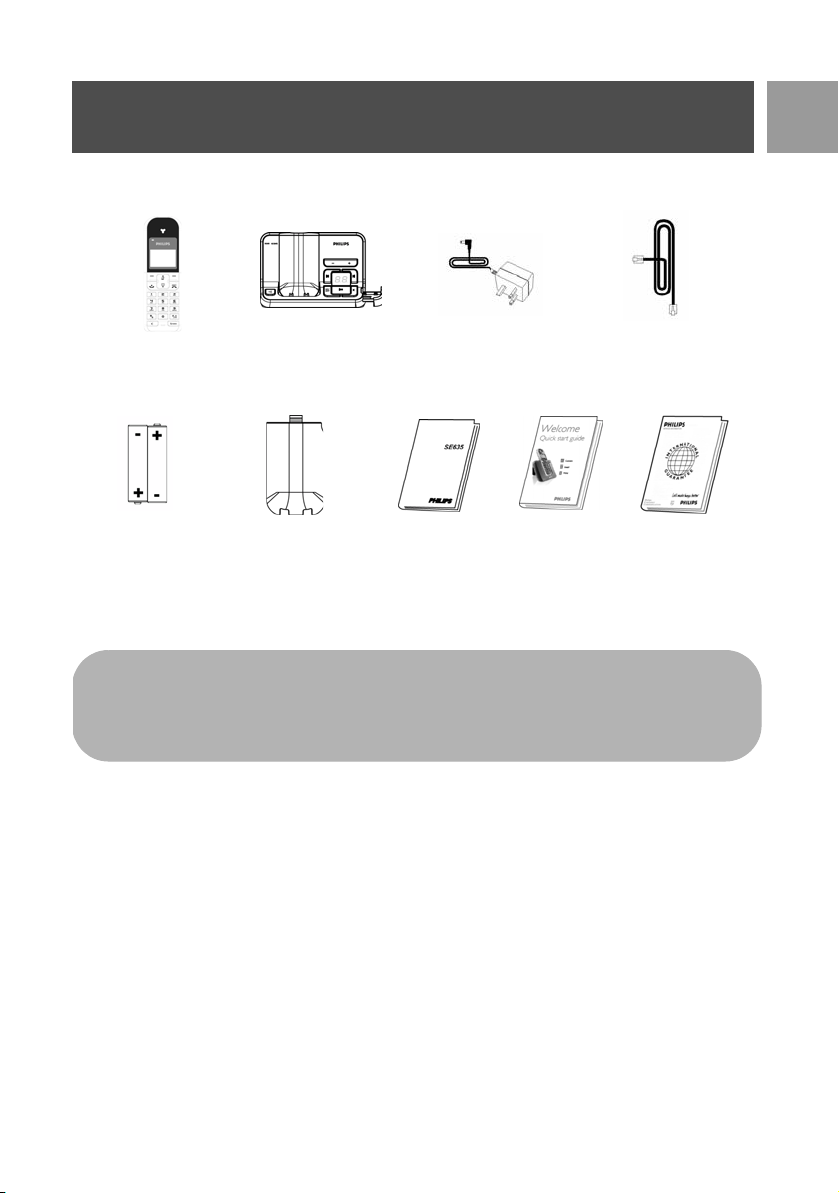
The following accessories are included with your SE635:
Power supply for
base station
Battery door
Line cord
User Guide
Warranty card
The line adaptor may not be attached to the line cord. In this case, you have to connect the line adaptor
to the line cord first before plugging the line cord to the line socket.
In multihandset packs, you will find one or more additional handsets, chargers with power supply units
and additional rechargeable batteries.
Handset
Base station
Quick Start
Guide
2 AAA
rechargeable
batteries
SE635_IFU_EN.book Page 5 Monday, September 25, 2006 12:44 PM
6
EN
Your SE635
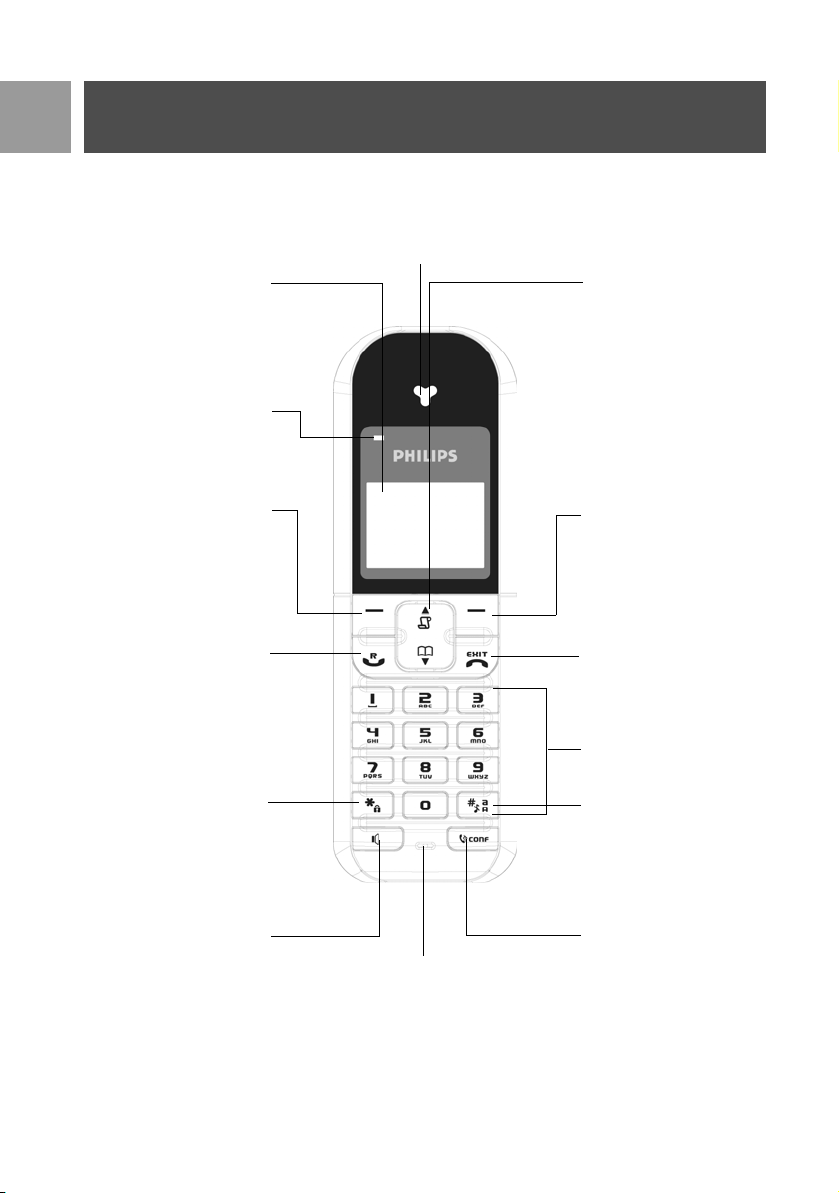
Overview of the handset
LCD Screen
Left Soft key
Talk key
Keypad lock key
.
Up/Down Navigation keys
Earpiece
Right Soft key
Hang-up key
Alphanumeric keypad
Case key / Pause key /
Ringer off key
Intercom key
Loudspeaker key
Microphone
Event LED
SE635_IFU_EN.book Page 6 Monday, September 25, 2006 12:44 PM
7
EN
Your SE635
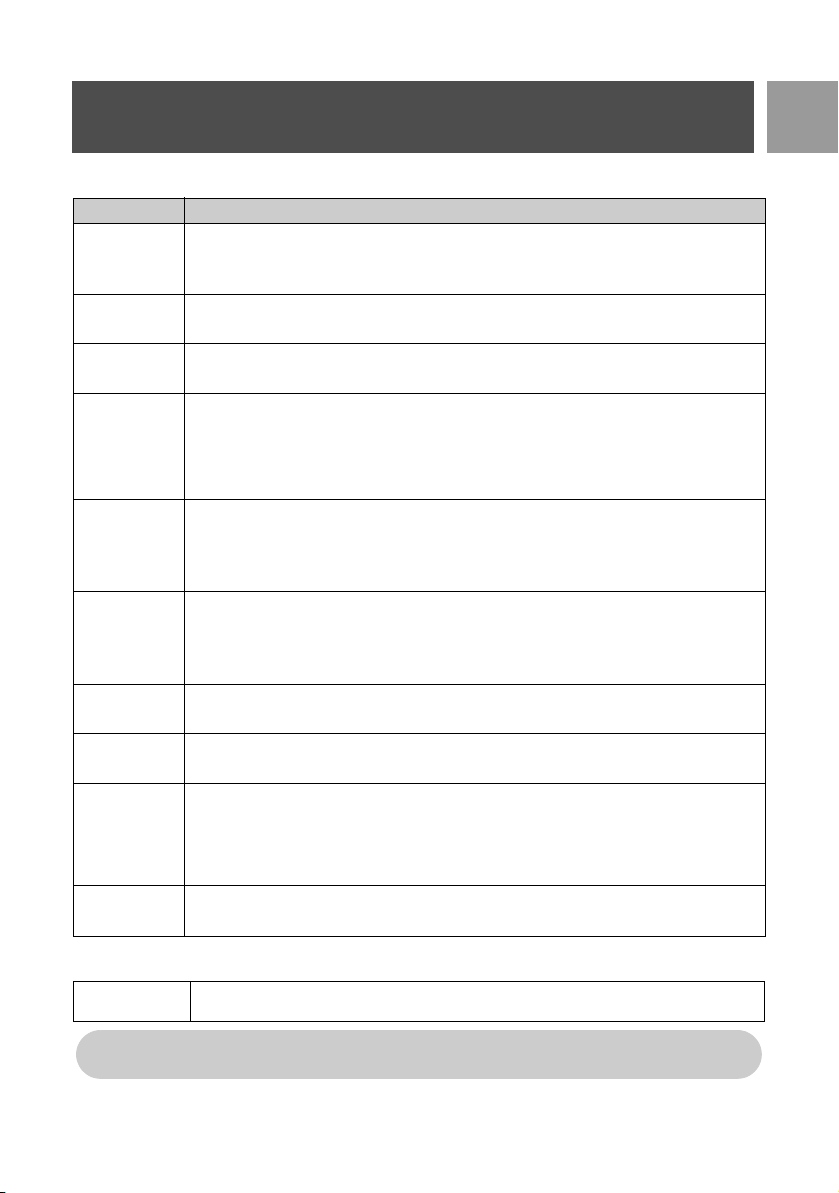
Handset keys
Soft key
Press To
m
Enter the main menu from stand-by mode.
Select the function displayed on the handset screen directly above it.
Activate mute function during a call.
>
Go to redial list from stand-by mode.
Select the function displayed on the handset screen directly above it.
r
Answer an incoming external or internal call.
Insert R for operator services when on the line.
e
Hang up a call.
Long press from menu browsing to return to stand-by mode, short press to return to
previous menu.
Long press in stand-by mode to switch off the handset, short press to switch on the hand-
set again.
u
Access call log from stand-by mode.
Scroll up a menu list or go to the previous phonebook or call log record.
Increase earpiece volume during a call.
Go to the previous character in editing mode.
d
Access phonebook from stand-by mode.
Scroll down a menu list or go to the next phonebook or call log record.
Decrease earpiece volume during a call.
Go to the next character in editing mode.
c
Initiate an internal call.
v
Answer an incoming call in handsfree mode.
Activate and deactivate the loudspeaker* during a call.
#
Dial # in stand-by mode.
Long press to mute the ringer in stand-by mode.
Insert a pause in dialling mode.
Switch between upper and lower case in editing mode.
*
Dial * in stand-by mode.
Long press to activate and deactivate keypad lock.
>BACK
Short press from menu browsing to return to the previous menu.
*WARNING Handsfree activation can suddenly increase the volume in the earpiece to a very high
level. Make sure the handset is not too close to your ear.
SE635_IFU_EN.book Page 7 Monday, September 25, 2006 12:44 PM
8
EN
Your SE635
Display icons & symbols
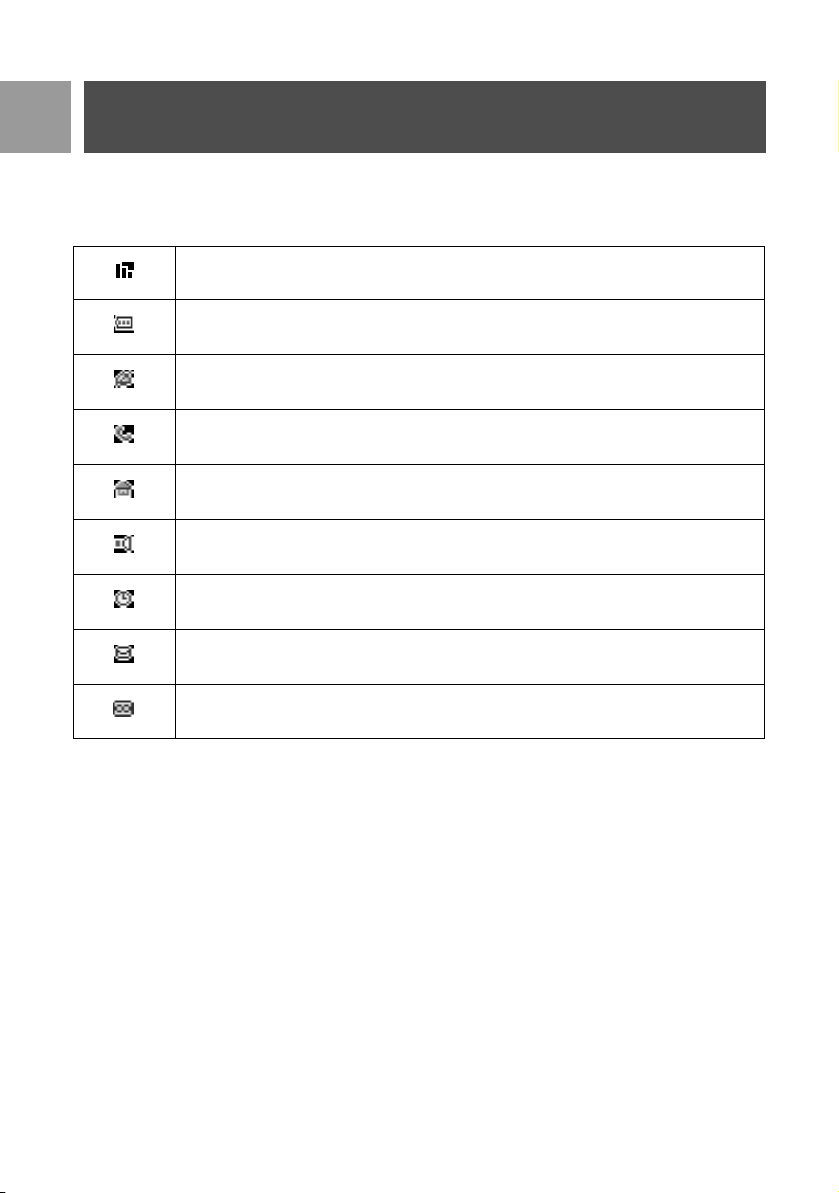
In stand-by mode, several icons & symbols may be displayed on the handset.
The handset is registered and within range of the base station. It blinks when the handset is
out of range or is searching for a base.
Battery symbol indicating 3 different battery levels.
The ringer volume is set to zero.
There is an external incoming call, an external call is connected or an external call is held.
There is an internal incoming call, an internal call is connected or an internal call is held.
The loudspeaker is ON.
Alarm clock is activated.
Blinks when there is a missed call, or when new SMS or voicemail messages are received
and not read yet. Steady when there are received SMS messages in the SMS box.
Telephone answering machine (TAM) is activated. It blinks when there are new messages
received.
SE635_IFU_EN.book Page 8 Monday, September 25, 2006 12:44 PM
9
EN
Your SE635
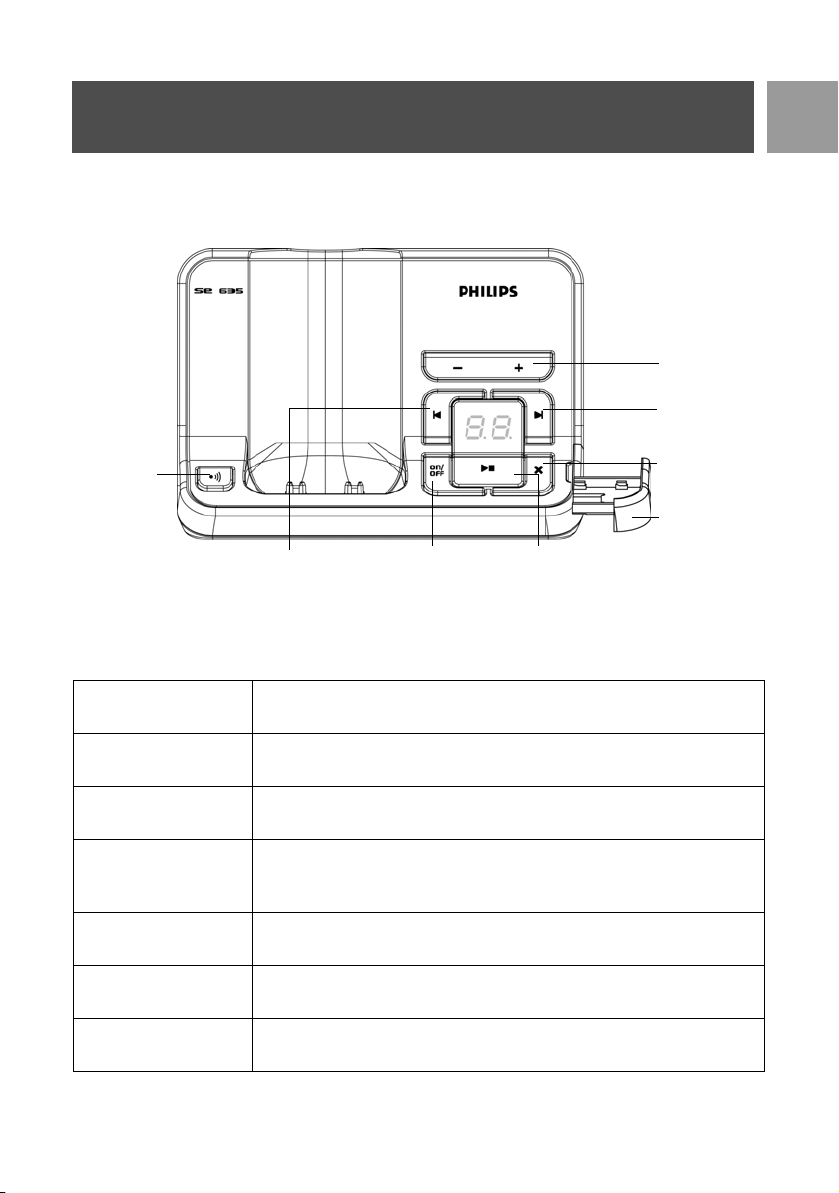
Overview of the base station
Base station keys
c
Page handset.
Long press to start registration procedure.
o
Long press to turn the answering machine On/Off.
v
Increase speaker volume during message playback.
Reduce speaker volume during message playback.
x
Delete current message during message playback.
Long press to delete all messages when TAM is in standby mode (unread
messages will not be deleted).
p
Play phone messages (the first recorded will be played first).
Stop message playback.
l
Go to previous message if pressed within 1 second of current message playback.
Replay current message if pressed after 1 second of current message playback.
r
Skip to the next message during message playback.
Paging key
Volume keys
Next message
key
Delete key
SIM card tray
Previous message/
Replay message key
Answer Machine
On/Off key
Play/ Stop key
SE635_IFU_EN.book Page 9 Monday, September 25, 2006 12:44 PM
10
EN
Your SE635
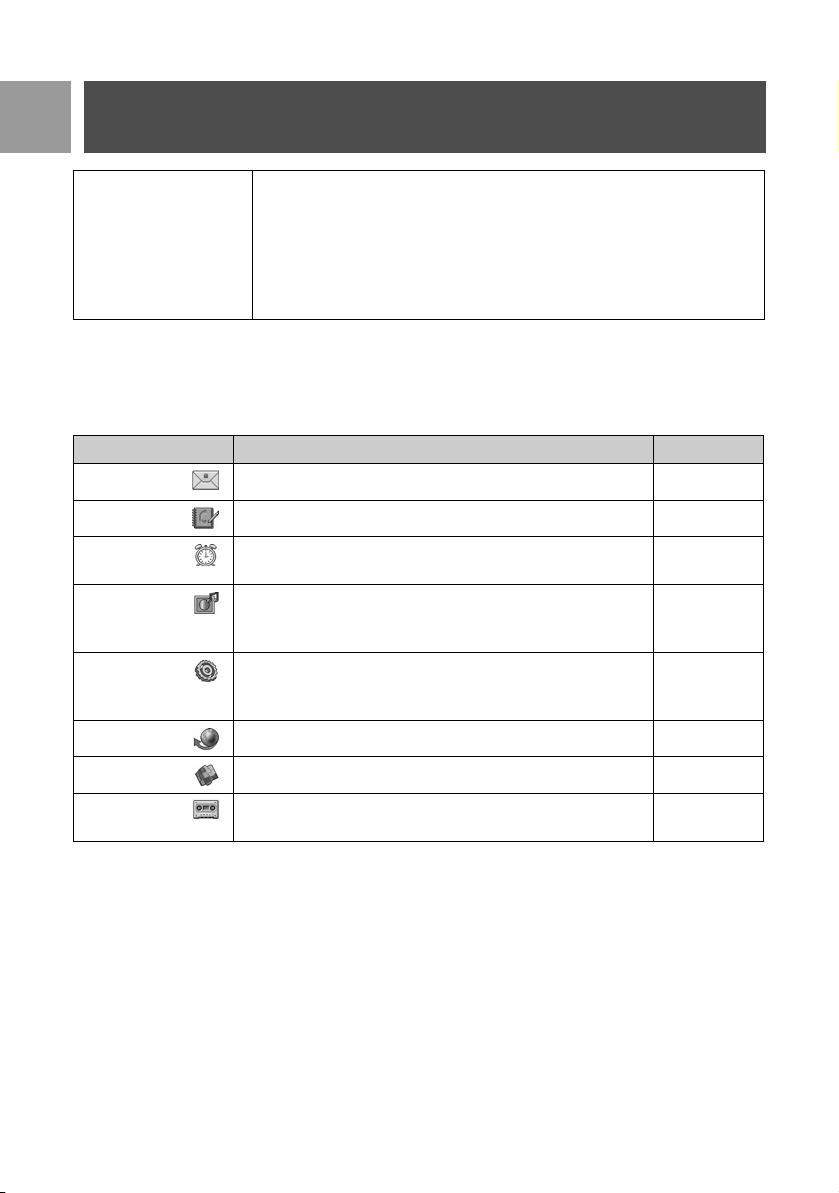
Main features of your SE635
The following is an overview of the menu options that are available in your SE635. For detailed explanation of
the menu options, please refer to the corresponding sections in this User Guide.
LED Message counter No display: Indicates that the answering machine is switched off.
Blinking: Indicates number of new messages.
Steady: Indicates number of old messages.
2 bars flashing: Indicates that there is no more memory left.
Indicates the volume level (L0 - L9) when
v is pressed.
Indicates the current message number during playback.
Menu To Page
SMS Setup, write/read SMS, etc 28
PHONEBOOK Add, edit and manage phonebook entries 22
CLOCK &
ALARM
Set date and time, alarm and alarm tone 35
PERSONAL SET Set Handset tone, Wallpaper, Contrast level, Screensaver,
Handset name, Auto pickup/Hang-up, Languages and Babysit
mode
36
ADVANCED
SET
Set Recall time, Dial mode, Call barring, Baby call mode,
Register/Unregister handset, Select Base, Change PIN, Reset
phone, Auto prefix, Country and Conference mode
41
NET. SERVICE Set Call forwarding, Voice mail, Call back, Caller ID 48
GAMES Play games 51
ANSWER
MACHINE
Setup, play, delete phone messages, etc 52
SE635_IFU_EN.book Page 10 Monday, September 25, 2006 12:44 PM
11
EN
Your SE635
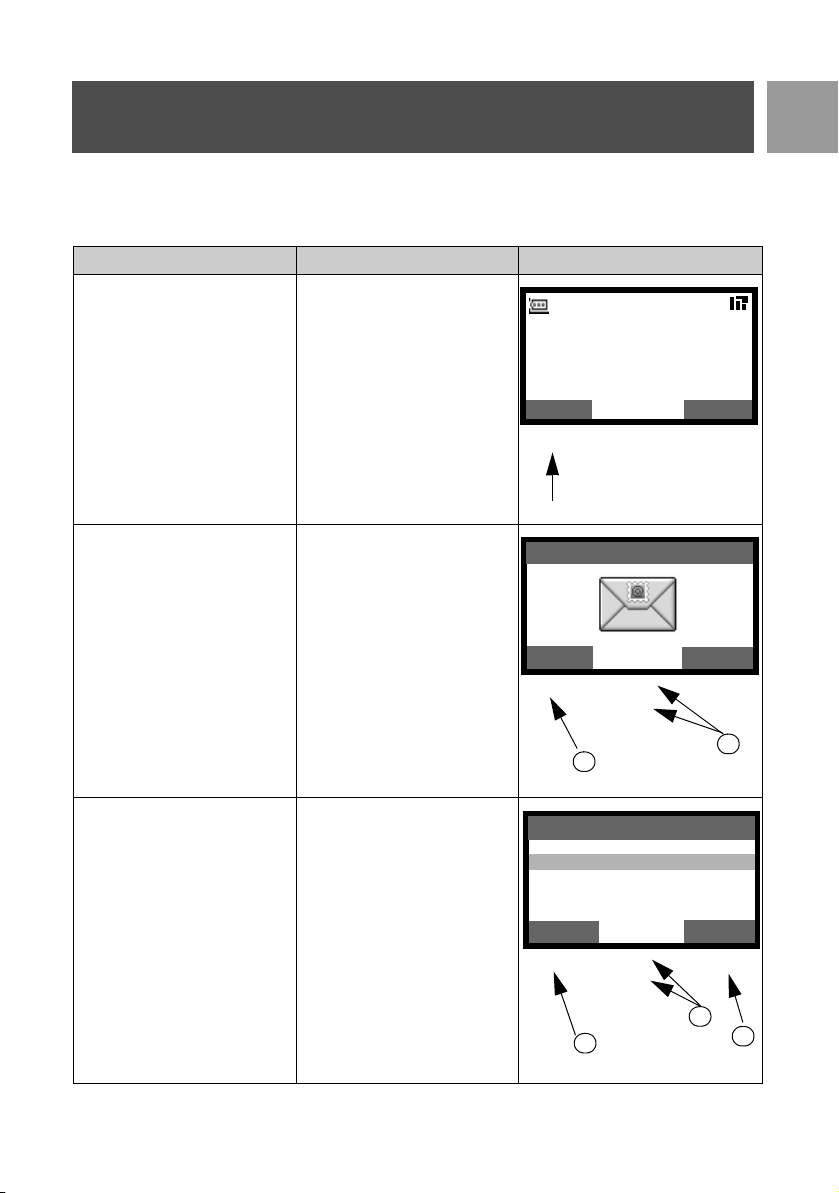
Menu navigation
The basic steps of navigating through the menus and options are as follows:
Task Action Illustration
Enter main menu/menu
options.
Choose
MENU by pressing the
key directly below it (left soft
key
m).
• Go to a specific menu/
option
• Confirm your selection
1. Press
: key to scroll to
your desired menu/option.
2. Choose
SELECT by
pressing the key directly
below it (left soft key
m).
In this example, the alarm is On
Once.
• To change your selection
• To confirm your selection
• Return to previous menu
level or stand-by screen
1. Press
: key to scroll to
your desired option.
2. Choose
SELECT by
pressing the key directly
below it (left soft key
m).
3. Choose
BACK by pressing
the key
directly below it
(right soft key
>).
Philips
1
08-08
18:00
m
>
:
MENU
REDIAL
SELECT
SMS
BACK
2
1
m
>
:
SELECT
BACK
Alarm
Off
On Once
On Daily
2
1
3
m
>
:
SE635_IFU_EN.book Page 11 Monday, September 25, 2006 12:44 PM
12
EN
Connect
The location of your base station can have an effect on the range and performance of your SE635 (see TIP
below).
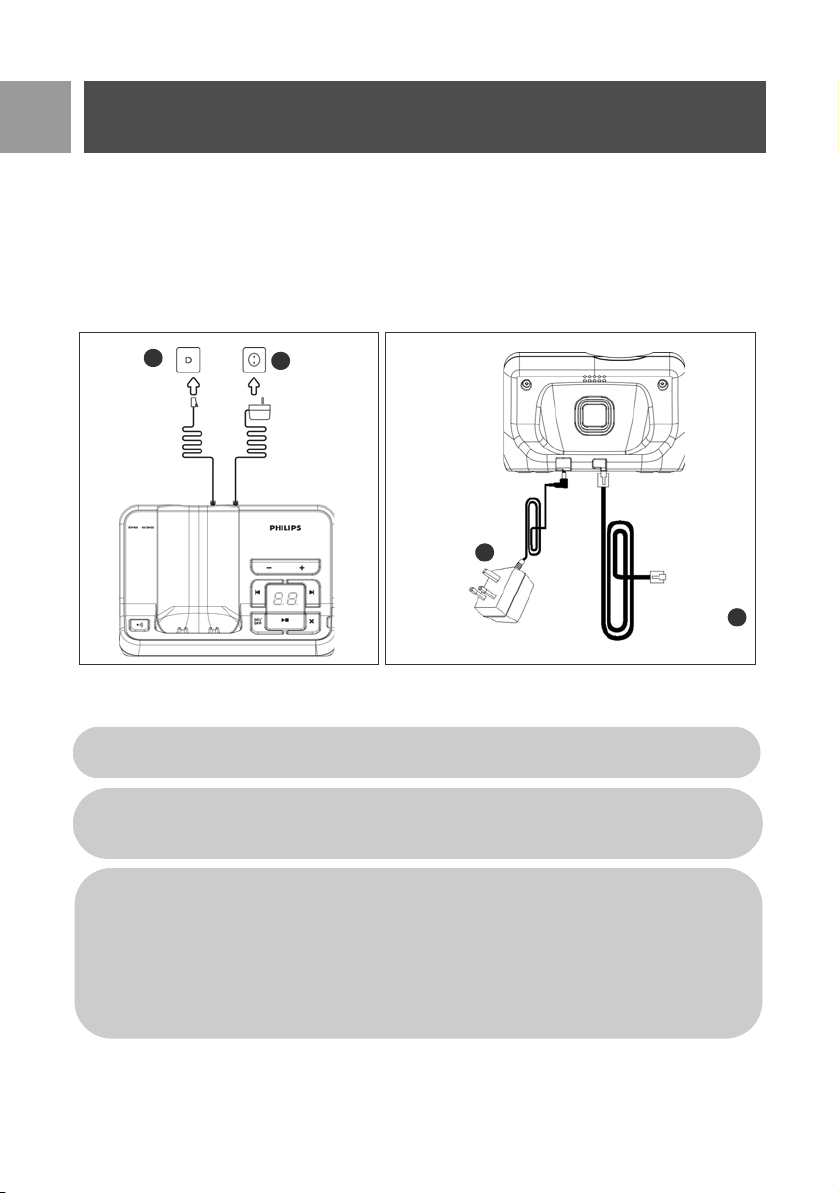
Connecting the Base Station
1. Place the base station in a central location near the telephone line socket and electricity sockets.
2. Connect the line cord and the power cable to the proper connector at the back of the base station.
3. Connect the other end of the line cord to the telephone line socket and the other end of the power cable
to the electricity socket.
Connect the
power supply
A
Connect
the line cord to
the line socket
B
2.
B
A
1.
The line adaptor may not be attached to the line cord. In this case, you have to connect the line
adaptor to the line cord first before plugging the line cord to the line socket.
TIP Avoid placing the base station too close to large metal objects such as filing cabinets, radiators or
electrical appliances. This can impair the range and sound quality. Buildings with thick internal and
external walls may impair transmission of signals to and from the base.
WARNING The base station does not have an ON/OFF switch. Power is applied when the power
adaptor is plugged into the unit and connected to the electricity socket. The only way to power
down the unit is to unplug the power adaptor from the electricity socket. Therefore, ensure that the
electricity socket is easily accessible.
The power adaptor and telephone line cord have to be connected correctly, as incorrect
connection could damage the unit.
Always use the telephone line cord supplied with the unit. Otherwise, you may not get a dial tone.
SE635_IFU_EN.book Page 12 Monday, September 25, 2006 12:44 PM
13
EN
Install
Install battery
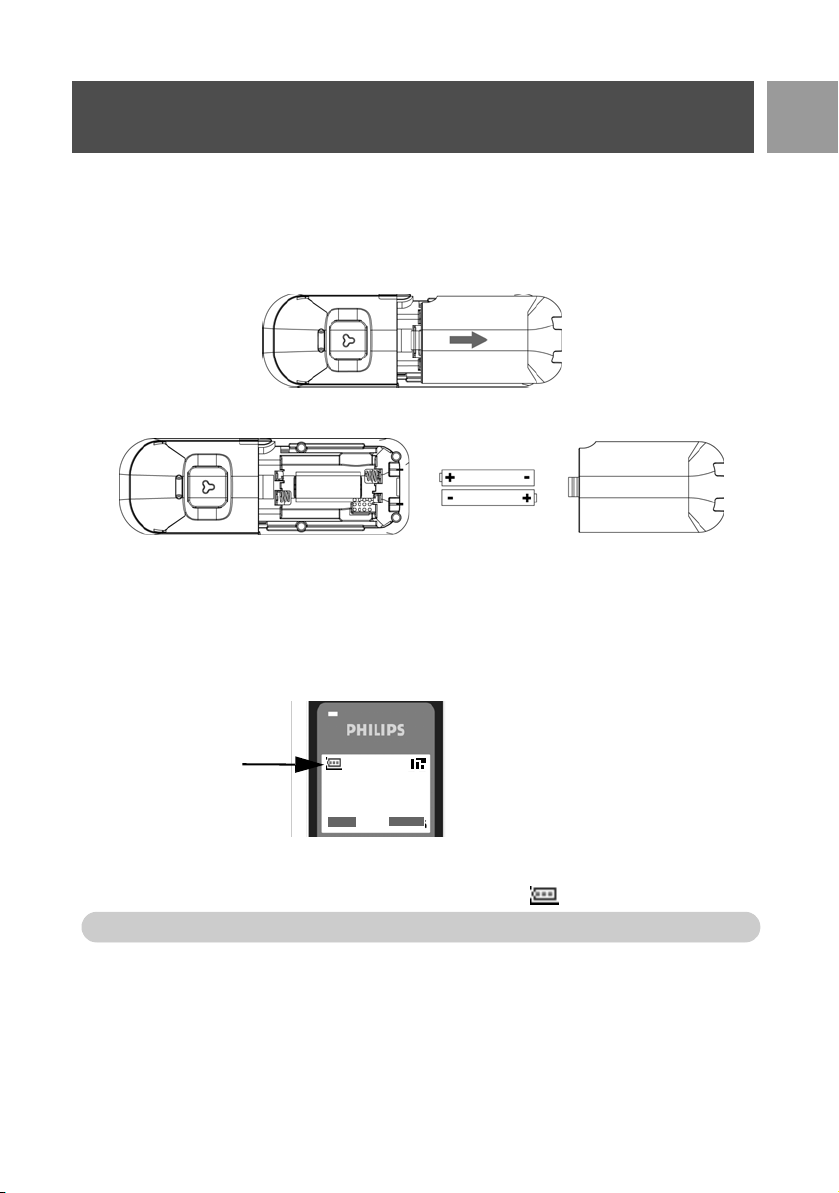
Your SE635 is supplied with 2 rechargeable batteries allowing approximately up to 12 hours of talk-time and
up to 150 hours stand-by time. Before using the handset, the batteries have to be installed and fully charged.
1. Slide out the battery cover.
2. Place the batteries as indicated and replace the cover.
Charge battery
1. Place the handset on the charging cradle of the base station. A beep is emitted if the handset is placed
correctly.
2. A charging animation on the handset indicates that the battery is charging.
3. Leave it there until the batteries are fully charged (at least 24 hours).
4. The handset is fully charged when the charging animation stops and is displayed.
Philips
1
08-08
MENU
18:00
REDIAL
The handset must be charged for at least 24 hours before using it for the first time.
SE635_IFU_EN.book Page 13 Monday, September 25, 2006 12:44 PM

14
EN
Install
Battery life and range
Talk time and stand-by time
When the battery is fully charged, the talk time of your SE635 is approximately 12 hours and the stand-by time
is approximately 150 hours.
Low battery warning
The battery level is shown at the top left of the handset screen. When the battery level becomes low, the low
battery sensor alerts you by sounding an audible tone and blinking the battery icon.
If the battery level becomes exceedingly low, the phone automatically switches off shortly after the alert and
any function in progress will not be saved.
The approximate power levels of your battery are indicated as follows:
Battery is fully charged - 3 bars in the battery icon
Battery is partially charged - 2 bars in the battery icon
Battery is running low - 1 bar in the battery icon
Battery is fully discharged - 0 bar in the battery icon
Out of range warning
The indoor and outdoor range of the phone is up to 50 metres and 300 metres respectively. When the
handset moves beyond operation range, the antenna icon will blink.
Configure your SE635
Before you use your SE635, you need to configure it according to the country of use. After charging it for a few
minutes, the WELCOME screen appears. Follow these steps to configure your phone:
1. Press any key to display the list of countries.
2. Scroll
: to your country.
3. Press
mSELECT to confirm your selection.
4. Scroll
: to your operator (if necessary).
5. Press
mSELECT again to confirm your selection.
6. The default line settings and menu language for the selected country will be automatically configured.
You can still make outgoing calls or receive incoming calls without first defining your country
selection.
Depending on your country, the WELCOME screen may not appear. In this case, you are not
required to select your country/operator/language settings.
SE635_IFU_EN.book Page 14 Monday, September 25, 2006 12:44 PM

15
EN
Install
Set date and time
1. Press mMENU.
2. Scroll
: to Clock & Alarm and press mSELECT.
3. Press
mSELECT to enter Set Date/Time.
4. Enter current time (HH:MM) and current date (DD/MM/YY) and press
mSELECT.
Now, you are ready to use your phone.
Basic operations of your SE635
Make a call
Enter the phone number (maximum 24 digits) and press r to dial the number.
For details, please refer to "Make a call" on page 18.
Answer or end a call
Press r key to answer a call.
Press
e key to end a call.
For details, please refer to "Answer a call" and "End a call" on page 19.
Switch the handset on/off
Press and hold e key for 5 seconds to switch off the handset in stand-by mode.
Short press
e key to switch on the handset again.j
Keypad lock/unlock
Press and hold * key for 2 seconds to lock and unlock the keypad in stand-by mode.
Paging
The paging feature enables you to locate a missing handset if the handset is in range and contains
charged batteries.
Press c key on the base until the handset starts to ring.
Once retrieved, press
e to end the paging.
WARNING If your phone is connected to an ISDN line through an adaptor, the date & time may
be updated after each call. The availability of date & time update is dependent on your network
provider. Please check the date & time settings in your ISDN system or contact your network
provider.
SE635_IFU_EN.book Page 15 Monday, September 25, 2006 12:44 PM
16
EN
Install
Stand-by mode
If the handset is idle for 30 seconds in settings mode, review mode, edit mode, etc. it will automatically return
to stand-by mode. It will also return to stand-by mode automatically when the handset is placed back on the
base station.
Screen and keypad backlight
The backlight remains on for 20 seconds after each activation such as an incoming call, key presses, lifting up
the handset off the base station, etc. The color of the keypad backlight is AMBER.
Event LED
The event LED on your handset blinks when there is a new message recorded on your telephone answering
machine. If you have subscribed to Caller Line Identification, the event LED also blinks when there is a new call,
a new SMS or a new voice mail message.
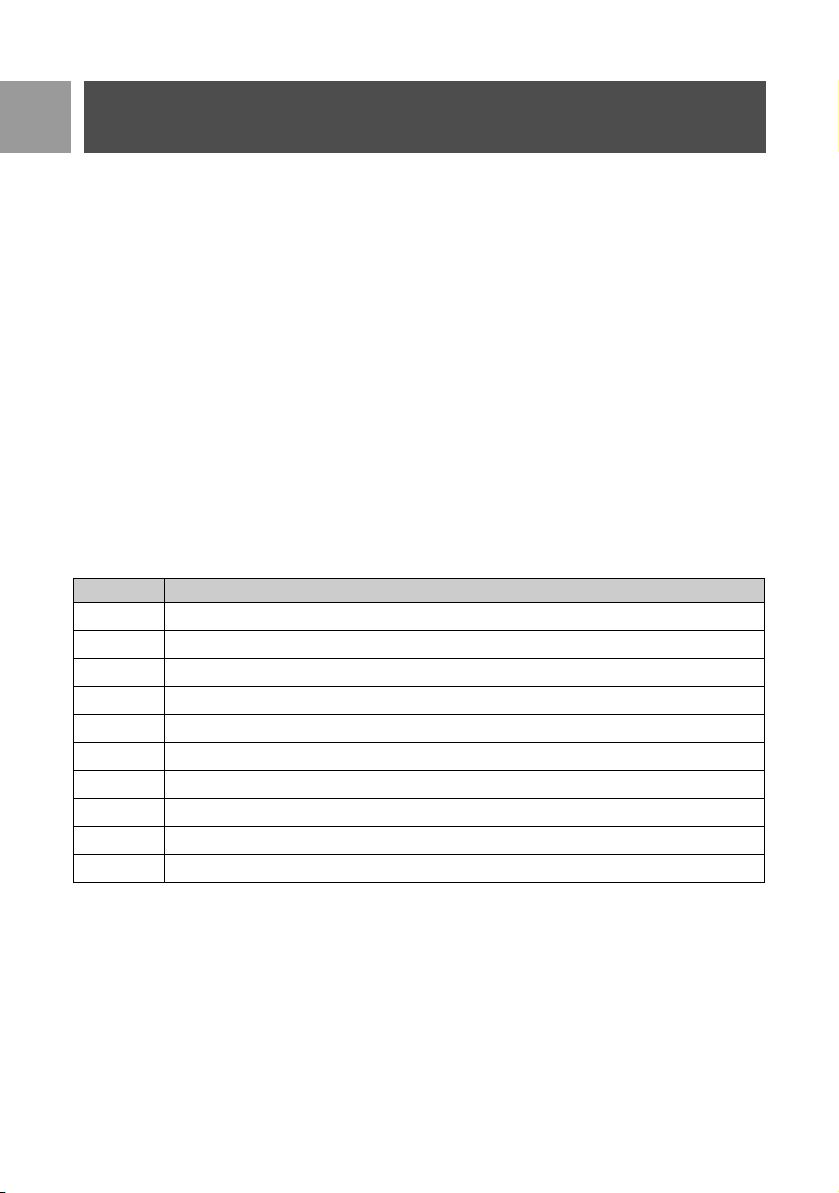
Text and number entry
For example, to enter the name “Philips”:
1. Press
7 once: P
2. Press
4 twice: Ph
3. Press
4 three times: Phi
4. Press
5 three times: Phil
5. Press
4 three times: Phili
6. Press
7 once: Philip
Key Assignment
1
space 1 @ _ # = < > ( ) & £ $ ¥ [ ] { } ¤ §
2
a b c 2 à ä ç å æ
3
d e f 3 é è ∆ Φ
4
g h i 4 ì Γ
5
j k l 5 Λ
6
m n o 6 ñ ò ö
7
p q r s 7 β Π Θ Σ
8
t u v 8 ù ü
9
w x y z 9 ø Ω Ξ Ψ
0
. 0 , / : ; “ ‘ ! i ? * + - % \ ^ ~|
SE635_IFU_EN.book Page 16 Monday, September 25, 2006 12:44 PM
17
EN
Install
7. Press 7 four times: Philips
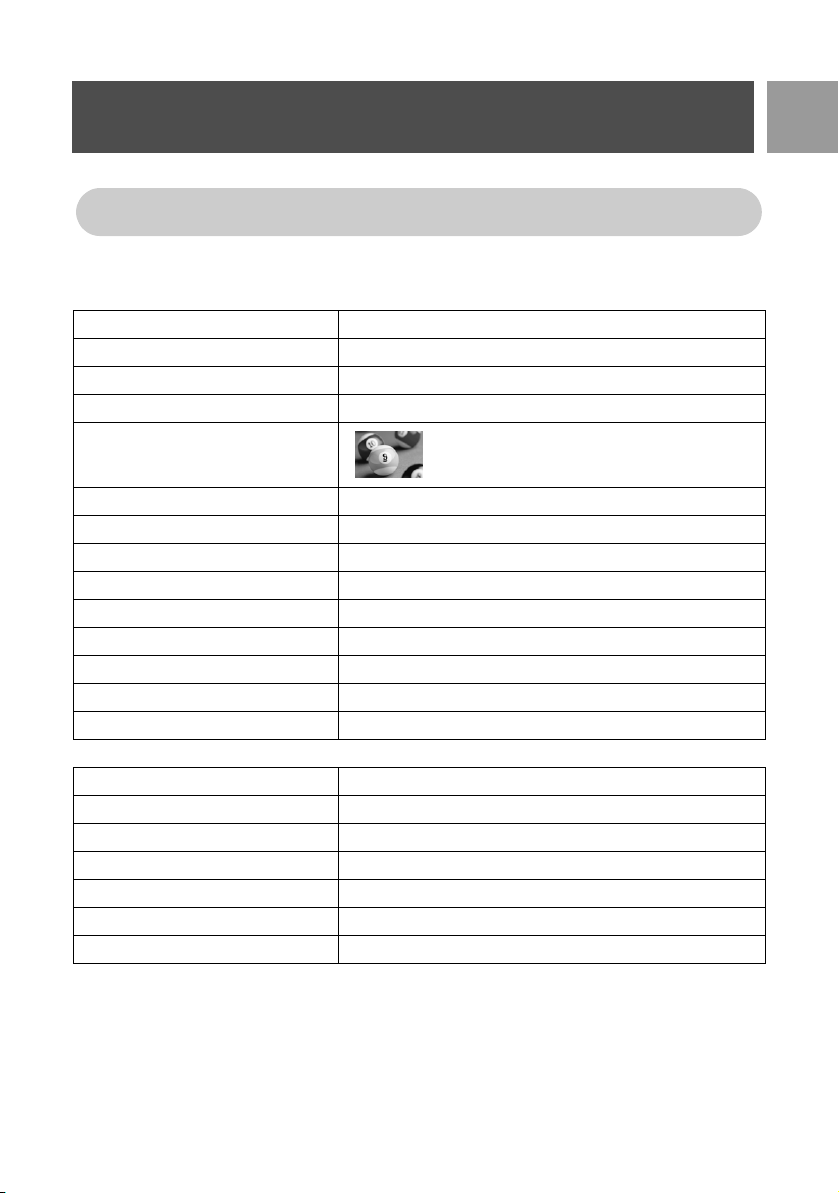
Default settings
Ringer Volume Medium
Earpiece Volume Volume 3
Speaker Volume Volume 3
Key Beep On
Wallpaper
Contrast Level 2
Screensaver On
Auto Pick-up Off
Auto Hang-up On
Babysit mode Off
Alarm clock Off
Barring mode Off
SMS reception On
Master PIN 0000
Answering Machine
Answer Mode Answer & Rec.
Number of rings before answer 4
Outgoing Messages Predefined for Answer & Rec. mode
Base station screening On with default speakerphone level
Handset screening Off
Base speaker Level 5
Remote access Deactivated
By default, the first letter of a word is in upper case. Press # to switch between upper and
lower case.
SE635_IFU_EN.book Page 17 Monday, September 25, 2006 12:44 PM

18
EN
Call
Make a call
Predialling
1. Enter the phone number (maximum 24 digits).
2. Press
r to dial the number.
Direct dialling
1. Press r or v to take the line.
2. Enter the phone number.
Call from redial list
1. Press > in stand-by mode.
2. Scroll
: to an entry in the redial list.
3. Press
r to dial the number.
Call from the call log
1. Press u in stand-by mode.
2. Press
mSELECT to enter call log.
3. Scroll
: to an entry in the call log.
4. Press
r to dial the number.
Call from the phonebook
1. Press d in stand-by mode.
2. Scroll
: to a phonebook entry.
3. Press
r to dial the number.
TIP The handset stores the last 20 numbers dialled. The last number dialled will appear first in the
redial list. If the redial number matches a phonebook entry, the name will be displayed instead.
You need to subscribe to Caller Line Identification service to be able to see the caller’s number or
name in the call log. See "Call log" on page 26 for details.
TIP Instead of scrolling : to browse the phonebook entries, press the numeric key corresponding
to the first letter of the entry you wish to locate. For example, pressing
2 will show the entries
starting with A. Pressing
2 again will show the entries starting with B, etc...
SE635_IFU_EN.book Page 18 Monday, September 25, 2006 12:44 PM

19
EN
Call
Answer a call
When the phone rings, press r key.
Handsfree answering
When the phone rings, press v key.
End a call
Press e key.
Calls in-progress
The following options are available during a call:
Adjust earpiece volume
1. Press : to select from Volume 1 to Volume 5.
Mute/unmute the handset
1. During a call, press mMUTE to turn off the microphone so that your correspondent cannot hear you.
2. Press
mUNMUTE to turn on the microphone.
Loudspeaker mode
1. Press v key to activate loudspeaker mode.
Incoming call has priority over other events. Whenever there is an incoming call, other status in
progress such as phone setting, menu navigation, etc will be aborted.
TIP If Auto Pick-up mode (see page 39) is activated, you can simply lift up the handset from its base
station to answer the call. This feature is deactivated by default.
WARNING When the handset rings during an incoming call, please do not hold the handset too
close to your ear as the volume of the ringing tone may damage your hearing.
The call duration will be displayed on the handset screen for about 5 seconds.
TIP If Auto Hang-up mode (see page 39) is activated, you can simply place the handset back to its
base station to end the call. This feature is activated by default.
SE635_IFU_EN.book Page 19 Monday, September 25, 2006 12:44 PM

20
EN
Call
2. Press v key again to return to normal mode.
Adjust loudspeaker volume
1. Press : key to select from Volume 1 to Volume 5.
Intercom
This feature is only available when there are at least 2 registered handsets. It allows you to make free internal
calls, transfer external calls from one handset to another and use the conference option.
Intercom another handset
To be able to use intercommunication feature, you must have at least 2 handsets registered to your base
station (see page 44 "To register an additional handset").
1. Press c key in stand-by mode.
2. Intercom is established immediately if there are only 2 registered handsets. If there are more than 2 regis-
tered handsets, the handset numbers which are available for intercom will be displayed. Press mALL to
call all the handsets or press the handset number to select a specific handset, e.g. press
2 to call
handset 2.
Transfer an external call to another handset
1. Press c key to put the external call on hold (the caller can no longer hear you).
2. Intercom is established immediately if there are only 2 registered handsets. If there are more than 2 regis-
tered handsets, the handset numbers which are available for intercom will be displayed. Press
mALL to
call all the handsets or press the handset number to select a specific handset, e.g. press
2 to call
handset 2.
The called handset rings.
3. Press
r key on the called handset to answer the internal call, where both internal callers can talk.
4. Press
e key on the first handset to transfer the external call to the called handset.
Switch between an internal and external call
1. Press c key once to switch between an internal call and external call.
WARNING Activation of loudspeaker can suddenly increase the volume in the earpiece to a very
high level. Make sure the handset is not too close to your ear.
If the handset does not belong to SE630/635 range, this function may not be available.
If there is no answer from the called handset, press c key to resume the external call.
SE635_IFU_EN.book Page 20 Monday, September 25, 2006 12:44 PM

21
EN
Call
Three-party conference call
The conference call feature allows one external call to be shared with two handsets (in intercom). The three
parties can share the conversation and no network subscription is required.
1. Press c to put the external call on hold (the caller can no longer hear you).
2. Intercom is established immediately if there are only 2 registered handsets. If there are more than 2 regis-
tered handsets, the handset numbers which are available for establishing a conference call will be
displayed. Press
mALL to call all the handsets or press the handset number to select a specific handset,
e.g. press
2 to call handset 2.
The called handset rings.
3. Press r key on the called handset to answer the internal call, where both internal callers can talk.
4. Press CONF soft key on the first handset to start the three-party conference.
Call waiting
If you have subscribed to Call Waiting service, the earpiece will emit a beep tone to inform you that there is a
second incoming call. The number or name of the second caller will also be displayed if you have subscribed to
Caller Line Identification service (CLI). Please contact your network provider for more information on this
service.
To answer the second call, press
r+ 2(may be different according to your network).
Caller Line Identification
Caller Line Identification (CLI) is a special service that you may subscribe from your network operator. If you
have subscribed to CLI service, and provided the identity of the caller is not withheld, the number or name of
the caller (if stored in the phonebook) will be displayed when the phone rings so that you may decide whether
to answer the call or not. Please contact your network provider for more information on this service.
TIP If Conference mode is activated (see page 47), a three-party conference call is automatically
established if the second handset takes the line when there is already an external call in progress.
SE635_IFU_EN.book Page 21 Monday, September 25, 2006 12:44 PM
22
EN
Phonebook
Your SE635 can store up to 250 phonebook memories, including 9 direct access memories (1 to 9).
Each phonebook entry can have a maximum of 24 digits for the phone number and 12 characters for name.
Access phonebook
1. Press d in stand-by mode or press mMENU, scroll : to Phonebook and press mSELECT, scroll
: to List Entry and press mSELECT.
2. The phonebook entries will be listed in alphabetical order.
3. Press
: to browse the phonebook.
Store a contact in the phonebook
1. Press mMENU, scroll : to Phonebook and press mSELECT, press mSELECT to enter New
Entry.
2. Enter the name of the contact (maximum 12 characters) and press
mOK.
3. Enter the number (maximum 24 digits) and press
mOK.
4. Enter the SMS Box number and press
mOK (only for UK).
Phonebook
New Entry
List Entry
Edit Entry
Delete Entry
Delete All
Direct Memory
Copy from SIM
Phbk transfer
To view the details of a phonebook entry, press mVIEW.
To dial a number from the phonebook, scroll
: to the phonebook entry and press r.
TIP Instead of scrolling : to browse the phonebook entries, you can press the numeric key
corresponding to the first letter of the entry you wish to locate. For example, pressing
2 will show
the entries starting with A. Pressing
2 again will show the entries starting with B, etc...
SE635_IFU_EN.book Page 22 Monday, September 25, 2006 12:44 PM

23
EN
Phonebook
5. Scroll : to choose a group (<No Group>, <Group A>, <Group B>, <Group C>) and press
mSELECT to confirm.
A long confirmation beep tone is emitted.
Edit a phonebook entry
1. Press mMENU, scroll : to Phonebook and press mSELECT, scroll : to Edit Entry and press
mSELECT.
2. Scroll
: to the entry you wish to edit and press mSELECT.
3. Press
>CLEAR to erase the letters one by one, edit the name and press mOK.
4. Press
>CLEAR to erase the digits one by one, edit the number and press mOK.
5. Enter the SMS Box number and press
mOK (only for UK).
6. Scroll
: to a group (<No Group>, <Group A>, <Group B>, <Group C>) and press mOK to
confirm.
A long confirmation beep tone is emitted.
Delete a phonebook entry
1. Press mMENU, scroll : to Phonebook and press mSELECT, scroll : to Delete Entry and press
mSELECT.
2. Scroll to the entry you wish to delete and press
mSELECT.
A long confirmation beep tone is emitted.
Delete all phonebook entries
1. Press mMENU, scroll : to Phonebook and press mSELECT, scroll : to Delete All and press
mSELECT.
2. Press
mSELECT again to confirm.
A long confirmation beep tone is emitted.
You can assign individual contacts to specific groups of your choice. For example, Group A contains
phone numbers of all your co-workers. You can also assign a specific ring melody to that group (see
"Group Melody" on page 37) . If you have subscribed to Caller Line Identification service from your
network provider, every time someone from that group calls you, you will hear the designated
ringtone for that group.
TIP You can store up to 250 phonebook entries. You cannot store a new phonebook entry when
the memory is full. In this case, you have to delete existing entries to make space for new entries.
SE635_IFU_EN.book Page 23 Monday, September 25, 2006 12:44 PM
24
EN
Phonebook
Store direct access memory
You can store up to 9 direct access memories (Key 1 to 9). A long press on the keys in stand-by
mode will automatically dial the stored phone number.
1. Press mMENU, scroll : to Phonebook and press mSELECT, scroll : to Direct Memory and
press
mSELECT.
2. Select a key (Key 1 to Key 9) and press
mVIEW. If there is a stored number in that key, the number/
name will be displayed.
3. If there is no number stored for the selected key or if you want to change the number currently stored,
press
mSELECT and press mSELECT again to select Add.
4. Press
mOK to display the phonebook list and scroll : to the entry you wish to store as direct access
memory.
5. Press
mOK to confirm.
A long confirmation beep tone is emitted.
Delete a direct access memory
1. Press mMENU, scroll : to Phonebook and press mSELECT, scroll : to Direct Memory and
press
mSELECT.
2. Select a key (Key 1 to Key 9) and press
mVIEW.
3. Press
mMENU and scroll : to Delete.
4. Press
mOK to confirm.
A long confirmation beep tone is emitted.
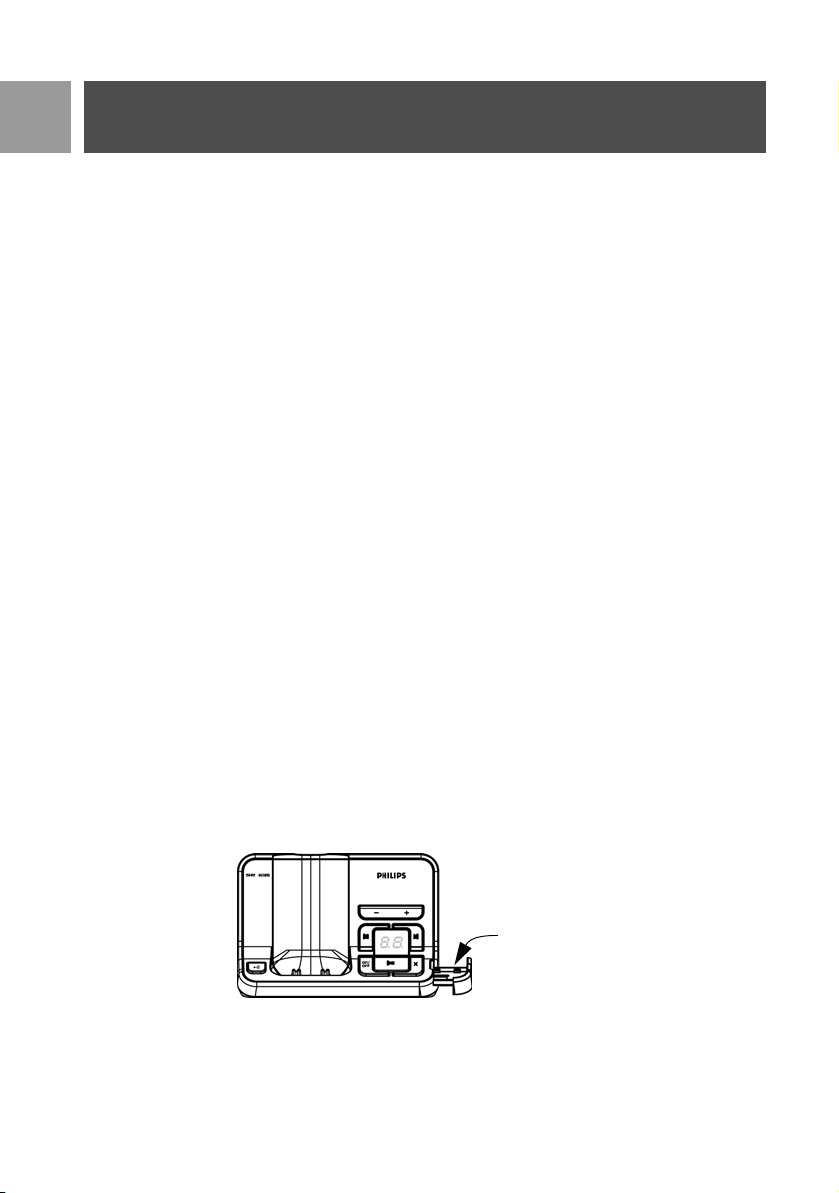
Copy phonebook from SIM card
This feature allows you to copy the SIM card phonebook of your mobile phone to the phonebook of your
handset.
1. Open the SIM card tray and remove it from the base station.
Remove SIM
card tray
SE635_IFU_EN.book Page 24 Monday, September 25, 2006 12:44 PM

25
EN
Phonebook
2. Slide the SIM card between the retaining clips, microchip facing up, until it stops.
3. Put the SIM card tray back in the slot on the base station and push into place until it latches.
4. On the handset, press
mMENU, scroll : to Phonebook and press mSELECT, scroll : to Copy
from SIM and press
mSELECT.
5. Scroll
: to Copy All or Select Entry. If you choose Copy All then all entries in the SIM card will be cop-
ied to your phonebook. If you choose Select Entry, you can browse the SIM card entries and select the
ones you wish to copy.
6. Press
mSELECT to confirm.
7. Enter the PIN code of the SIM card (if required). The copy progress will be displayed on the screen.
8. A message Transferred! will be displayed upon successful completion.
Transfer phonebook
This feature allows you to transfer the phonebook from one handset to another handset when there are at
least 2 handsets registered to your base station.
1. Press
mMENU, scroll : to Phonebook and press mSELECT, scroll : to Phbk transfer and press
mSELECT.
2. The handset numbers which are available for transfer will be displayed. If there are more than 2 handsets,
you can scroll
: to select a specific handset.
3. Press
mSELECT to confirm.
4. The called handset will be prompted with a message Transfer from Handset X.
5. To accept the transfer of phonebook, press
mSELECT on the called handset; to reject the transfer,
press
> CANCEL.
6. A message Transferred! will be displayed upon successful completion.
Your handset should be able to read all standard SIM phonebook contents. If the handset is unable to
read the SIM card, or no SIM card is detected, the screen will display an error message No SIM Card!
and return to previous menu.
TIP You can select >CANCEL anytime to abort the process.
SE635_IFU_EN.book Page 25 Monday, September 25, 2006 12:44 PM

26
EN
Call log
The call log can store up to 50 entries. If you have subscribed to Caller Line Identification (CLI), and provided
the identity of the caller is not withheld, the name (or number) of the caller will be displayed together with the
date & time of the call (if provided by the network). The calls (missed and received) are displayed in
chronological order with the most recent call at the top of the list. When the call log is empty, the screen
displays List Empty.
Access call log
1. Press u in stand-by mode, press mSELECTtto enter Call Log and scroll : to view the entries.
Save call log entry to phonebook
1. Press u in stand-by mode, press mSELECTtto enter Call Log and scroll : to select an entry.
2. Press
mSELECT and press mSELECT again to Copy to Phbk.
3. Enter name and press
mOK.
4. Edit number if necessary and press
mOK.
5. Enter the SMS Box number and press
mOK (only for UK).
6. Scroll
: to choose a group (<No Group>, <Group A>, <Group B>, <Group C>) and press
mSELECT to confirm.
A long confirmation beep tone is emitted.
Delete call log entry
1. Press u in stand-by mode, press mSELECTtto enter Call Log and scroll : to select an entry.
2. Press
mSELECT and scroll : to Delete.
3. Press
mSELECT to confirm.
A long confirmation beep tone is emitted.
Delete all call log
1. Press u in stand-by mode, press mSELECTtto enter Call Log.
2. Press
mSELECT and scroll : to Delete All and press mSELECT.
3. Press
mSELECT again to confirm.
A long confirmation beep tone is emitted.
Access redial list
1. Press > in stand-by mode and scroll : to view the entries.
SE635_IFU_EN.book Page 26 Monday, September 25, 2006 12:44 PM

27
EN
Call log
View details of a redial list entry
1. Press > in stand-by mode and scroll : to select an entry.
2. Press
mSELECT and press mSELECT again to View.
Save redial list entry to phonebook
1. Press > in stand-by mode and scroll : to select an entry.
2. Press
mSELECT, scroll : to Copy to Phbk and press mSELECT.
3. Enter name and press
mOK.
4. Edit number if necessary and press
mOK.
5. Enter the SMS Box number and press
mOK (only for UK).
6. Scroll
: to choose a group (<No Group>, <Group A>, <Group B>, <Group C>) and press
mSELECT to confirm.
A long confirmation beep tone is emitted.
Delete a number from redial list
1. Press > in stand-by mode and scroll : to select an entry.
2. Press
mSELECT and scroll : to Delete and press mSELECT.
A long confirmation beep tone is emitted.
Delete all redial list
1. Press > in stand-by mode.
2. Press
mSELECT and scroll : to Delete All and press mSELECT.
3. Press
mSELECT again to confirm.
A long confirmation beep tone is emitted.
SE635_IFU_EN.book Page 27 Monday, September 25, 2006 12:44 PM
28
EN
SMS
SMS stands for Short Message Service. To benefit from this service, you must subscribe to Caller Line
Identification Service (CLI) together with SMS service from your network provider. SMS messages can be
exchanged with a phone (mobile or compatible fixed lines), provided the receiver has also subscribed to CLI
and SMS services.
The factory settings on your SE635 correspond to the main national operator. If you wish to send or receive
SMS messages through another service provider, you must set the corresponding numbers (see page 33).
You can create up to 10 SMS boxes (Box 0 to Box 9) and protect each box with a password (only for UK).
Your SE635 can store up to 50 SMS messages (40 SMS in the Inbox and 10 SMS in the Draft box) shared by
all the SMS boxes and the maximum length of each message is 160 characters.
In order to send and receive SMS messages, there must be at least one SMS Box. Box 9 with empty password
is created by default (only for UK). For more information, please refer to "SMS Box (only for UK)" on page 32.
Write and send new SMS
1. Press mMENU, press mSELECT to enter SMS, press mSELECT again to enter Write a SMS.
2. Scroll
:
to the desired SMS Box (
Box 0
to
Box 9
) and press
m
SELECT
to enter password (only for UK).
3. Enter the password (if needed) and press mOK.
4. Enter the text and press
mOK.
Key Operation
u
Press to move cursor left by 1 position.
Press and hold to jump to the 1st character/digit.
d
Press to move cursor right by 1 position.
Press and hold to jump to the last character/digit.
>CLEAR
Press to erase the previous character/digit.
Press to return to the previous menu if there are no characters/digits on the input screen.
Long press to delete all characters/digits.
SMS
Write a SMS
Inbox
Draft box
SMS Settings
You can enter up to 160 characters for an SMS.
If you receive a call while writing an SMS, the operation will be interrupted. However, your SMS will
be saved in the Draft box. To retrieve it, go to Draft box in your SMS menu (see page 31).
SE635_IFU_EN.book Page 28 Monday, September 25, 2006 12:44 PM

29
EN
SMS
5. Enter the destination phone number and press mOK. Or press mPHBK to browse the phonebook
list to select a phone number, press
mSELECT and press mOK.
6. Enter the destination box number (0 to 9) directly and press
mOK (only for UK).
7. Press
mSELECT to Send the message or scroll : to Save as Draft to save the message in the Draft
box and press
mSELECT to confirm.
8. If you select Send, the message will be sent immediately. SMS Sent! will be displayed if the message has
been sent successfully.
Inbox
The messages in the Inbox are listed according to the time of receipt, with the newest message appearing first.
The Inbox can store up to 40 messages (shared between Box 0 to Box 9).
Each time an SMS is received, you will be alerted by a beep tone (see "SMS Tone" on page 37) and the screen
displays the number of new messages received. If LED is activated, the event LED will blink until the SMS has
been reviewed.
View Inbox messages
1. Press mMENU, press mSELECT to enter SMS, scroll : to Inbox press mSELECT.
2. Scroll
: to your desired box number and press mSELECT (only for UK).
3. Enter the password and press
mOK (Password is not required for Box 9).
4. Browse the list of SMS messages and select the message you wish to read. The message list will be
displayed with the sender’s phone number or corresponding name (if the number matches the
phonebook record).
5. Press
mVIEW to view the message content.
By default, the destination box is 9 (the default destination box depends on the country).
If the message cannot be sent successfully, the screen will display SMS not Sent! and the message will
be saved in the Draft box.
WARNING When composing your SMS, if no keys are pressed for 60 seconds, the handset will
return to stand-by mode. The edited message will be automatically saved in the Draft box.
WARNING When the message box is full, you will not be able to receive new messages. In this case,
you need to delete some old messages in order to receive new ones
TIP While reading an SMS, press : to scroll to the next or previous row. At the end of the
message, the sender’s phone number and the date and time of reception are shown.
SE635_IFU_EN.book Page 29 Monday, September 25, 2006 12:44 PM
30
EN
SMS
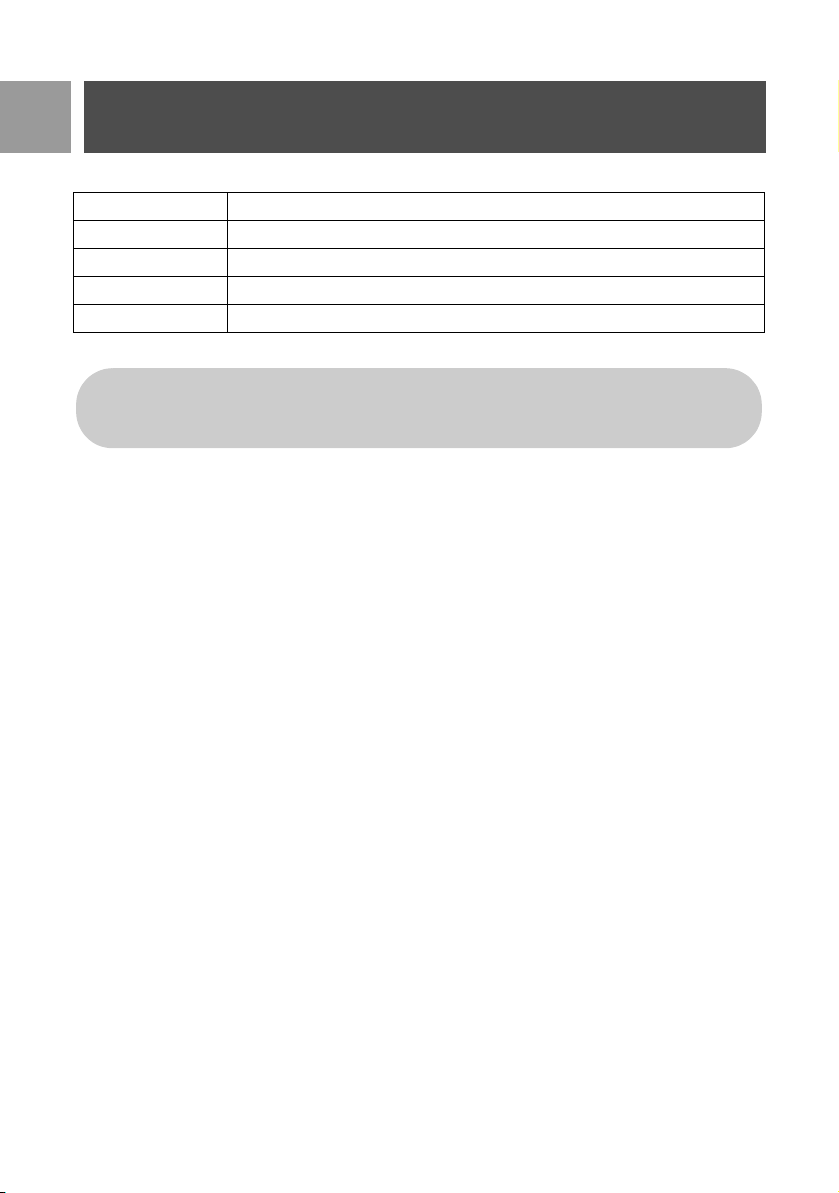
6. When viewing the message content, you can press mMENU to access the following options:
7. To return to SMS menu, press
e.
Reply to an Inbox message
1. While viewing the message content, press mMENU to display the Inbox menu options.
2. Scroll
: to Reply and press mSELECT to start editing.
3. After editing, press
mOK to confirm the message.
4. Refer to steps 5 to 7 in "Write and send new SMS" on page 28 to send the message or select Save as
Draft to save the message in the Draft box.
Forward an Inbox message
1. While viewing the message content, press mMENU to display the Inbox menu options.
2. Scroll
: to Edit and press mSELECT to start editing it if you wish.
3. After editing, press
mOK to confirm message.
4. Refer to steps 5 to 7 in "Write and send new SMS" on page 28 to forward the message or select Save To
Draft to save the message in the Draft box.
Save sender’s phone number to phonebook
1. While viewing the message content, press mMENU to display the Inbox menu options.
2. Scroll
: to Copy to Phbk and press mSELECT to enter a name for this new contact.
3. Enter the name and press
mOK to modify number.
4. To confirm the number, press
mOK again.
5. Enter the SMS Box number and press
mOK (only for UK).
6. Scroll
: to select a group you wish to assign for this contact and press mSELECT to confirm.
A long confirmation beep is emitted and the screen returns to display the message content.
Delete an Inbox message
1. While viewing the message content, press mMENU to display the Inbox menu options.
2. Scroll
: to Delete and press mSELECT to confirm deletion.
Reply Send a reply to the sender of the message.
Edit Forward the message to another recipient.
Copy to Phbk Save the sender’s number to your phonebook.
Delete Delete the selected message.
Delete All Delete all messages in the Inbox.
Press r while viewing the message content/sender number/date/time stamp will abort the SMS
function and dial the sender’s phone number.
Press e to return to Inbox message list.
SE635_IFU_EN.book Page 30 Monday, September 25, 2006 12:44 PM
31
EN
SMS
Delete all Inbox messages
1. While viewing the message content, press mMENU to display the Inbox menu options.
2. Scroll
: to Delete All and press mSELECT.
3. Press
mSELECT again to confirm deletion.
Draft box
In addition to SMS messages saved as drafts, all the SMS messages that are not successfully sent will be
automatically stored in the Draft box. The Draft box can store up to 10 messages.
Review Draft messages
1. Press mMENU, press mSELECT to enter SMS, scroll : to Draft box and press mSELECT.
2. Scroll
: to your desired box number and press mSELECT (only for UK).
3. Enter the password and press
mOK (Password is not required for Box 9).
4. Browse the list of SMS messages and select the message you wish to review.
5. Press
mVIEW to view the message content.
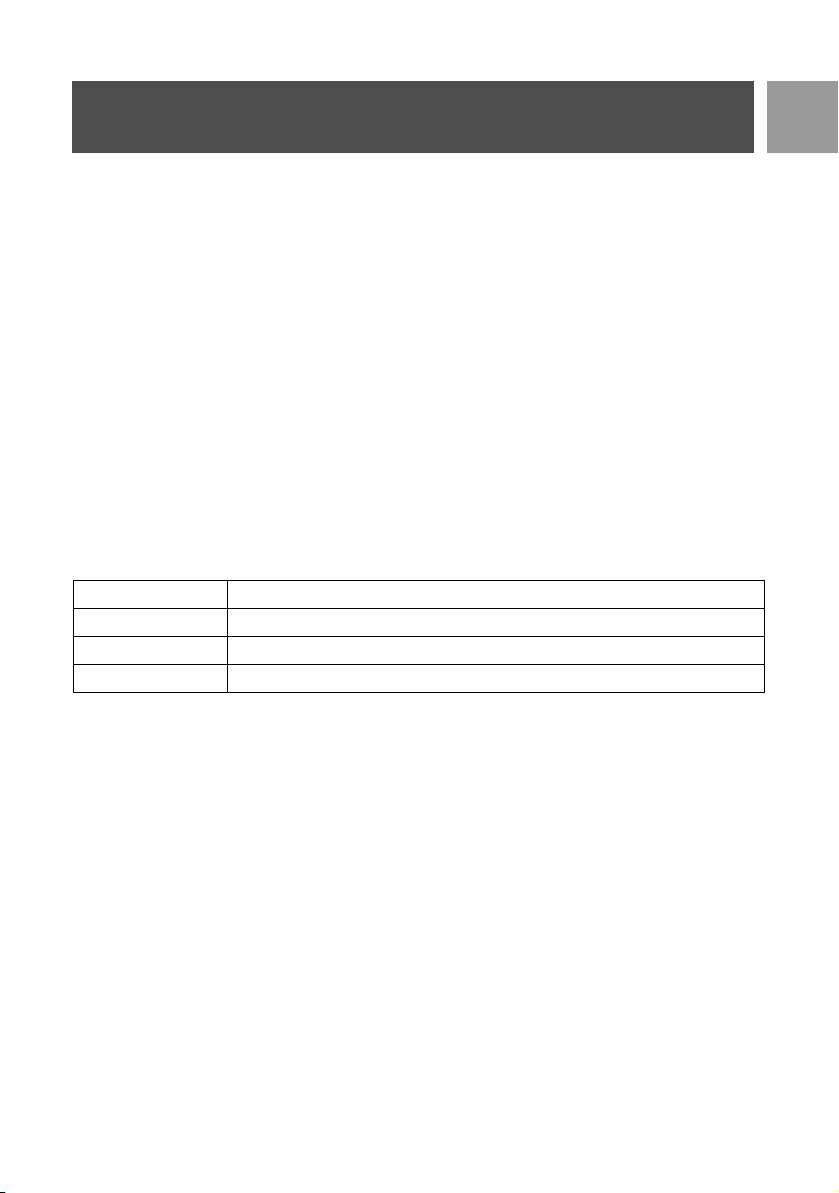
6. When viewing the message content, you can press
mMENU to access the following options:
Send a message from Draft box
1. While viewing the message content, press mMENU to display the Draft box menu options.
2. Press
mSELECT to Send the message.
3. Press
mSELECT again to confirm or scroll : to Save as Draft to save the message in the Draft box
and press
mSELECT.
4. If you select Send, the message will be sent immediately. SMS Sent! will be displayed if the message has
been sent successfully.
Edit a Draft message
1. While viewing the message content, press mMENU to display the Draft box menu options.
2. Scroll
: to Edit and press mSELECT to start editing.
3. After editing, press
mOK to confirm message.
4. Refer to steps 5 to 7 in "Write and send new SMS" on page 28 to send the message or select Save as
Draft to save the message in the Draft box.
Delete a Draft message
1. While viewing the message content, press mMENU to display the Draft box menu options.
Send Send the message immediately.
Edit Edit the message and send or save as draft.
Delete Delete the message.
Delete All Delete all messages in the Draft box.
SE635_IFU_EN.book Page 31 Monday, September 25, 2006 12:44 PM

32
EN
SMS
2. Scroll : to Delete and press mSELECT to confirm deletion.
Delete all Draft messages
1. While viewing the message content, press mMENU to display the Draft box menu options.
2. Scroll
: to Delete All and press mSELECT.
3. Press
mSELECT again to confirm deletion.
SMS settings
This menu allows you to set up the server for sending and receiving SMS messages. Your SE635 can receive
messages from 3 service centers.
Each service center consists of 2 numbers:
- Incoming number
- Outgoing number
The maximum length of an incoming/outgoing number is 24 digits.
The incoming and outgoing numbers of your SE635 are already set to work on your country network. We
advise you not to modify these settings. For more details or in case of any problems, please contact your local
network provider.
SMS reception
Your SE635 can receive SMS messages from another phone if you have subscribed to the CLI and SMS ser-
vices from your network provider. By default, SMS reception is set to On so that you can receive SMS mes-
sages.
To activate or deactivate the reception of SMS
1. Press mMENU, press mSELECT to enter SMS, scroll : to SMS Settings and press mSELECT,
press
mSELECT to enter SMS Reception.
2. Scroll
: to On or Off and press mSELECT to confirm.
SMS Box (only for UK)
In order to send and receive SMS messages, there must at least be 1 SMS Box created. Box 9 with empty
password is created by default.
You can create a maximum of 10 SMS boxes (Box 0 to Box 9), and you can protect each box with a
password.
To create a new SMS Box (only for UK)
1. Press mMENU, press mSELECT to enter SMS, scroll : to SMS Settings and press mSELECT,
scroll
: to SMS Boxes and press mSELECT.
2. Press
mMENU and press mSELECT to Add New Box.
Even if SMS reception is Off, you can still send SMS messages.
SE635_IFU_EN.book Page 32 Monday, September 25, 2006 12:44 PM

33
EN
SMS
3. Enter box name (maximum 12 characters) and press mOK.
4. Enter a password (maximum 8 digits) and press
mOK.
5. Enter the password again and press
mOK.
6. Enter the SMS box number and press
mOK.
If the confirmation password is correct, the new SMS box will be created. A long confirmation beep is
emitted and the screen returns to SMS box list.
To change the password of an SMS Box (only for UK)
1. Press mMENU, press mSELECT to enter SMS, scroll : to SMS Settings and press mSELECT,
scroll
: to SMS Boxes and press mSELECT.
2. Scroll
: to the SMS box for which you wish to change password and press mSELECT.
3. Scroll
: to Change Passwd and press mSELECT.
4. Enter old password and press
mOK.
5. Enter new password, press
mOK and enter the new password again for confirmation.
6. Press
mOK to confirm password change.
To delete an SMS Box (only for UK)
1. Press mMENU, press mSELECT to enter SMS, scroll : to SMS Settings and press mSELECT,
scroll
: to SMS Boxes and press mSELECT.
2. Scroll
: to the SMS box you wish to delete and press mMENU.
3. Scroll
: to Delete Box and press mSELECT.
4. Enter password (if needed) and press
mOK to confirm box deletion.
To change the box number of an SMS Box (only for UK)
1. Press mMENU, press mSELECT to enter SMS, scroll : to SMS Settings and press mSELECT,
scroll
: to SMS Boxes and press mSELECT.
2. Scroll
: to the SMS box you for which wish to change the box number and press mMENU.
3. Scroll
: to Change Box Nr and press mSELECT.
4. Enter the new box number and press
mOK to confirm box number change.
To set outgoing number
The incoming and outgoing numbers of your SE635 are already set to work on your country network.
We advise you not to modify these settings. For more details or in case of any problems, please contact your
local network provider.
1. Press
mMENU, press mSELECT to enter SMS, scroll : to SMS Settings and press mSELECT,
scroll
: to SMS Center 1, SMS Center 2 or SMS Center 3 and press mSELECT.
2. Press
mSELECT to enter Outgoing Nr..
You can choose to leave the password empty. If no password is required, simply press mOK
when prompted to enter password.
SE635_IFU_EN.book Page 33 Monday, September 25, 2006 12:44 PM

34
EN
SMS
3. Enter the number and press mOK to confirm.
A confirmation beep is emitted.
To set incoming number
1. Press mMENU, press mSELECT to enter SMS, scroll : to SMS Settings and press mSELECT,
scroll
: to SMS Center 1, SMS Center 2 or SMS Center 3 and press mSELECT.
2. Scroll
: to Incoming Nr. and press mSELECT.
3. Enter the number and press
mOK to confirm.
A confirmation beep is emitted.
Default SMS center
The default SMS center number is 1.
To set default SMS center
1. Press mMENU, press mSELECT to enter SMS, scroll : to SMS Settings and press mSELECT,
scroll
: to Default Ctr. and press mSELECT.
2. Scroll
: to SMS center that you wish to set as default center (SMS Center 1, SMS Center 2 or SMS
Center 3) and press
mSELECT.
A confirmation beep is emitted.
1st ring
When this function is set to Off, the first ring from a voice call will not sound. This is particularly useful in coun-
tries where calling line identity is sent after the first ring, so no phones in the house would ring when a message
arrives.
To set 1st ring
1. Press mMENU, press mSELECT to enter SMS, scroll : to SMS Settings and press mSELECT,
scroll
: to Set 1st Ring and press mSELECT.
2. Scroll
: to On or Off and press mSELECT to confirm.
The maximum length of an outgoing number is 24 digits.
The maximum length of an incoming number is 24 digits.
SE635_IFU_EN.book Page 34 Monday, September 25, 2006 12:44 PM

35
EN
Clock & Alarm
Set date and time
1. Press mMENU, scroll : to Clock & Alarm and press mSELECT, press mSELECT again to enter
Set Date/Time.
2. Enter the current time (HH:MM) and current date (DD/MM/YY) and press mSELECT.
3. A confirmation beep is emitted and the screen returns to Clock & Alarm menu.
Set Alarm
1. Press mMENU, scroll : to Clock & Alarm and press mSELECT, scroll : to Alarm and press
mSELECT.
2. Scroll
: to Off, On Once or On Daily and press mSELECT.
3. If you have selected On Once or On Daily, enter the time for the alarm and press
mSELECT.
A confirmation beep is emitted and the screen returns to previous menu.
Alarm tone
1. Press mMENU, scroll : to Clock & Alarm and press mSELECT, scroll : to Alarm Tone and
press
mSELECT.
2. Scroll
: to the desired melody (Melody 1, Melody 2 or Melody 3) to play the melody.
3. Press
mSELECT to set the alarm tone.
Clock & Alarm
Set Date/Time
Alarm
Alarm Tone
Enter the date in Day/Month/Year format and the time in 24-hour format.
Once the date and time are set, there will be time & date recovery when the batteries are removed,
or when there is a power failure.
The alarm tone and alarm icon will only sound/blink for 1 minute when the alarm time is reached. To
mute the alarm tone, simply press any key on the handset.
SE635_IFU_EN.book Page 35 Monday, September 25, 2006 12:44 PM
36
EN
Personal Settings
Handset Tones
Ring Volume
There are 5 ringer volume options (Silence, Low, Medium, High and Progressive). The default level is Medium.
To set ring volume
1. Press mMENU, scroll : to Personal Set and press mSELECT, press mSELECT to enter
Handset Tones and press
mSELECT again to enter Ring Volume.
2. Scroll
: to your desired volume level and press mSELECT to confirm.
A confirmation beep is emitted and the screen returns to previous menu.
Ring Melody
There are 10 ring melodies available on your handset.
To set Ring Melody
1. Press mMENU, scroll : to Personal Set and press mSELECT, press mSELECT to enter
Handset Tones, scroll
: to Ring Melody and press mSELECT.
2. Scroll
: to your desired melody to play the melody.
Personal Set
Handset Tones
Wallpaper
Contrast
Screensaver
Handset Name
Auto Pick-up
Auto Hang-up
Language
Babysit Mode
When Silence is activated, the icon is displayed on the screen.
WARNING When the handset rings during an incoming call, please do not hold the handset too
close to your ear as the volume of the ringing tone may damage your hearing.
SE635_IFU_EN.book Page 36 Monday, September 25, 2006 12:44 PM

37
EN
Personal Settings
3. Press mSELECT to set the ring melody.
A confirmation beep is emitted and the screen returns to previous menu.
Group Melody
To benefit from this feature, you must subscribe to the Caller Line ldentification service. See "Caller Line
Identification" on page 21.
This menu enables you to select and set the melodies to be played when there is an external incoming call
from a contact whose name is stored in your phonebook and is part of a group. You can associate 1 ring
melody to each group.
There are three phonebook groups (Group A, B, C) available for you to organize your contacts. Each group
can be assigned a unique melody.
To set Group Melody
1. Press mMENU, scroll : to Personal Set and press mSELECT, press mSELECT to enter
Handset Tones, scroll
: to Group Melody and press mSELECT.
2. Scroll
: to the group for which you wish to set melody and press mSELECT.
3. Scroll
: to the desired melody to play the melody.
4. Press
mSELECT to set the group melody.
A confirmation beep is emitted and the screen returns to previous menu.
Key Beep
A single beep is emitted when a key is pressed. You can enable or disable this key beep. By default, the key
beep is On.
To set key beep On/Off
1. Press mMENU, scroll : to Personal Set and press mSELECT, press mSELECT to enter
Handset Tones, scroll
: to Key Beep and press mSELECT.
2. Scroll
: to On or Off and press mSELECT to confirm.
A confirmation beep is emitted and the screen returns to previous menu.
SMS Tone
A tone is emitted when a new SMS is received. You can enable or disable this SMS Tone. By default, SMS tone
is On.
To set SMS tone On/Off
1. Press mMENU, scroll : to Personal Set and press mSELECT, press mSELECT to enter
Handset Tones, scroll
: to SMS Tone and press mSELECT.
2. Scroll
: to On or Off and press mSELECT to confirm.
A confirmation beep is emitted and the screen returns to previous menu.
SE635_IFU_EN.book Page 37 Monday, September 25, 2006 12:44 PM

38
EN
Personal Settings
Wallpaper
This feature allows you to select the wallpaper to be displayed in stand-by mode. There are 4 wallpapers
pre-installed on your phone. Please see "Default settings" on page 17 for the default wallpaper.
To set wallpaper
1. Press mMENU, scroll : to Personal Set and press mSELECT, scroll : to Wallpaper and press
mSELECT.
2. Scroll
: to your desired wallpaper and press mSELECT to confirm.
A confirmation beep is emitted and the screen returns to previous menu.
Contrast level
There are 3 contrast level options (Level 1, Level 2 or Level 3). The default contrast level is Level 2.
To set contrast level
1. Press mMENU, scroll : to Personal Set and press mSELECT, scroll : to Contrast and press
mSELECT.
2. Scroll
: to your desired contrast level (Level 1, Level 2 or Level 3) and press mSELECT to confirm.
A confirmation beep is emitted and the screen returns to previous menu.
Screensaver
Screensaver will be activated automatically after 1 minute in stand-by mode.
To set screensaver
1. Press mMENU, scroll : to Personal Set and press mSELECT, scroll : to Screensaver and press
mSELECT.
2. Scroll
: to On or Off and press mOK to confirm.
A confirmation beep is emitted and the screen returns to previous menu.
Handset Name
You can name the handset and display the handset name in stand-by mode. The default handset name of your
handset is PHILIPS.
To rename the handset
1. Press mMENU, scroll : to Personal Set and press mSELECT, scroll : to Handset Name and
press
mSELECT.
SE635_IFU_EN.book Page 38 Monday, September 25, 2006 12:44 PM

39
EN
Personal Settings
2. Edit the handset name and press mOK to confirm.
A confirmation beep is emitted and the screen returns to previous menu.
Auto Pick-up
This function enables you to answer a call automatically by simply lifting the handset from the base station. By
default, the Auto Pick-up feature is Off.
To set Auto Pick-up mode
1. Press mMENU, scroll : to Personal Set and press mSELECT, scroll : to Auto Pick-up and press
mSELECT.
2. Scroll
: to On or Off and press mSELECT to confirm.
A confirmation beep is emitted and the screen returns to previous menu.
Auto Hang-up
This function enables you to end a call automatically by simply replacing the handset on the base station.
By default, the Auto Hang-up feature is On.
To set Auto Hang-up mode
1. Press mMENU, scroll : to Personal Set and press mSELECT, scroll : to Auto Hang-up and
press
mSELECT.
2. Scroll
: to On or Off and press mSELECT to confirm.
A confirmation beep is emitted and the screen returns to previous menu.
Language
Your SE635 can support different display languages.
To change the language
1. Press mMENU, scroll : to Personal Set and press mSELECT, scroll : to Language and press
mSELECT.
2. Scroll
: to your desired language and press mSELECT to confirm.
A confirmation beep is emitted and the screen returns to previous menu.
Maximum length of the handset name is 12 characters and the default handset name is PHILIPS.
SE635_IFU_EN.book Page 39 Monday, September 25, 2006 12:44 PM

40
EN
Personal Settings
Babysit mode
You must have at least 2 handsets registered to your base station to be able to use this feature (see page 44
"To register an additional handset").
This feature allows you to monitor, e.g. the baby’s room. Place the handset in the room to be monitored. If the
sound level around the microphone of the handset exceeds a certain threshold, the handset can automatically
call another handset registered on the same base station.
To use the Babysit feature you need to activate it (e.g. on handset 1) and enter the number of the handset to
be called (e.g. handset 2) in the event that there are noises in the monitored room. Place the handset which is
in Babysit mode (e.g. handset 1) in the room to be monitored. If this handset detects a sound level greater than
a certain threshold, it will automatically initiate an internal call to the selected handset (e.g. handset 2).
To activate Babysit mode
1. Press mMENU, scroll : to Personal Set and press mSELECT, scroll : to Babysit mode and press
mSELECT.
2. Enter the number of the handset you wish to call to and press
mOK to activate.
To deactivate Babysit mode
1. Press m, select Off and press mOK.
In Babysit mode, all keys are deactivated except for m key. Babysit mode is displayed on the
screen when this function is activated and the handset cannot make or receive calls.
SE635_IFU_EN.book Page 40 Monday, September 25, 2006 12:44 PM
41
EN
Advanced Settings
Recall Time
Recall time (or dial delay) is the time delay by which the line will be disconnected after you press r key.
It can be set to short, medium or long.
The default value of recall time that is preset in your SE635 should be the best suited for your country network
and therefore you should not need to change it.
To set recall time
1. Press mMENU, scroll : to Advanced Set and press mSELECT and press mSELECT to enter
Recall Time.
2. Scroll to select Short / Medium / Long and press
mSELECT to confirm.
A confirmation beep is emitted and the screen returns to previous menu.
Advanced Set
Recall Time
Dial Mode
Call Barring
Baby call
Registration
Select Base
Unregistration
Change PIN
Reset
Auto prefix
Country
Conference
This setting is useful when using network services. The use of some services accessed with [r +
1] , [r + 2 ] , [r + 3] (call waiting, call forward...) will depend on your recall time
setting. Please contact your network provider for more details on this feature.
SE635_IFU_EN.book Page 41 Monday, September 25, 2006 12:44 PM

42
EN
Advanced Settings
Dial Mode
The default value for dial mode that is preset in your SE635 should be the best suited for your country
network and therefore you should not need to change it.
There are 2 dial modes: Tone or Pulse.
To set dial mode
1. Press mMENU, scroll : to Advanced Set and press mSELECT, scroll : to Dial Mode and press
mSELECT.
2. Scroll
: to Tone or Pulse and press mSELECT to confirm.
A confirmation beep is emitted and the screen returns to previous menu.
Call Barring
Call barring enables you to restrict selected handsets from dialling a phone number beginning with certain
numbers. You can set up to four different barring numbers, with each number containing up to 4 digits.
To activate/deactivate Call Barring mode
1. Press mMENU, scroll : to Advanced Set and press mSELECT, scroll : to Call Barring and press
mSELECT.
2. Enter the Master PIN when prompted and press
mOK to confirm.
3. Press
mSELECT to enter Barring Mode.
4. Scroll
: to On or Off and press mSELECT to confirm.
A confirmation tone is emitted and the screen returns to previous menu.
To modify Call Barring number
1. Press mMENU, scroll : to Advanced Set and press mSELECT, scroll : to Call Barring and press
mSELECT.
2. Enter the Master PIN when prompted and press
mOK to confirm.
3. Scroll
: to Barring Number and press mSELECT.
4. Scroll
: to Number 1, Number 2, Number 3 or Number 4 and press mSELECT to confirm.
5. Enter a maximum of 4 digits and press
mOK to confirm.
A confirmation beep is emitted and the screen returns to stand-by mode.
If you have modified the Master PIN before and it is not the default 0000, you will be required to
enter the Master PIN before you can activate or deactivate call barring mode, add or modify call
barring number.
If a restricted number is dialled, the call will not be connected. When this happens, the phone emits
an error tone and returns to stand-by mode.
SE635_IFU_EN.book Page 42 Monday, September 25, 2006 12:44 PM

43
EN
Advanced Settings
Baby Call
When activated, the Baby Call feature enables you to dial a number by pressing any key on your handset. This
feature is very useful for direct access to emergency services.
To activate Baby Call mode
1. Press mMENU, scroll : to Advanced Set and press mSELECT, scroll : to Baby call and press
mSELECT.
2. Enter the Master PIN when prompted and press
mOK to confirm.
3. Press
mSELECT to enter Mode.
4. Scroll
: to On and press mOK to confirm.
5. Enter the Baby Call number and press
mOK to confirm.
A confirmation message will be displayed on the screen.
To deactivate Baby Call mode
1. Long press mMENU (when Baby Call mode has been activated before).
2. Scroll
: to Off and press mSELECT to confirm.
To change Baby Call number
1. Press mMENU, scroll : to Advanced Set and press mSELECT, scroll : to Baby call and press
mSELECT.
2. Enter the Master PIN when prompted and press
mOK to confirm.
3. Scroll
: to Number and press mSELECT.
4. The last stored Baby Call number is displayed (if any).
5. Enter the new Baby Call number and press
mOK to confirm.
A long confirmation beep is emitted and the screen returns to previous menu.
You can enter up to 24 digits for baby call number.
If you have modified the Master PIN before and it is not the default 0000, you will be required to
enter the Master PIN before you can activate or deactivate Baby Call mode or change Baby Call
number.
When Mode is activated but the Baby Call number is not set yet, your handset will prompt you to
enter a number.
SE635_IFU_EN.book Page 43 Monday, September 25, 2006 12:44 PM

44
EN
Advanced Settings
Registration
The procedures described below are the procedures that you will find in your SE635 handset. The procedures
may vary according to the handset you want to register. In this case, please refer to the manufacturer of the
additional handset.
Additional handsets must be registered to the base unit before you can use them. Up to 5 handsets can be
registered to one base station.
To register an additional handset
1. On the base station, press and hold c for 3 seconds in stand-by mode. After that, the registration
procedure has to be done within 1 minute.
2. At the same time, on the handset, press
mMENU, scroll : to Advanced Set and press mSELECT,
scroll
: to Registration and press mSELECT.
3. Enter the Master PIN when prompted and press
mOK to start registration.
4. Press
: to select the Base to be registered to and press mOK to confirm.
A long confirmation tone is emitted to indicate successful registration and the screen returns to stand-by
mode.
Select Base
One SE635 handset can register up to 4 different SE635 Base stations. By default, the handset will register to
BASE 1. If you select Any Base, the handset will register to the nearest base station.
To manually select a base station
1. Press mMENU, scroll : to Advanced Set press mSELECT, scroll : to Select Base and press
mSELECT.
2. Scroll
: to the desired base station and press mOK to confirm.
3. The handset will start searching for the base station. If the selected base is found, a long confirmation tone
is emitted.
The Master PIN is required before you can register or unregister handsets. The default PIN is 0000.
Within 1 minute, the base station is able to accept registration from a handset. If no key is pressed
within 10 seconds, the registration procedure will be aborted.
If the base is found and the PIN is correct, the unused handset numbers will be displayed and you can
select a handset number by entering the number directly.
If the PIN is incorrect, Incorrect PIN will be displayed and the handset returns to stand-by mode.
SE635_IFU_EN.book Page 44 Monday, September 25, 2006 12:44 PM

45
EN
Advanced Settings
Unregistration
To unregister a handset
1. Press mMENU, scroll : to Advanced Set and press mSELECT, scroll : to Unregistration and
press
mSELECT.
2. Enter the Master PIN when prompted and press
mOK to confirm.
3. Press on the handset keypad the handset number corresponding to the handset that you wish to
unregister.
A long confirmation beep is emitted to indicate successful unregistration and the screen shows
Unregistered.
Change Master PIN
The Master PIN is used for setting call barring/baby call number and for registration/unregistration of handsets.
The default Master PIN number is 0000. The length of the PIN is 4 digits. This PIN is also used to protect the
settings of your handset. Your handset will prompt you whenever the PIN is required.
To change Master PIN
1. Press mMENU, scroll : to Advanced Set and press mSELECT, scroll : to Change PIN and press
mSELECT.
2. Enter the current Master PIN when prompted and press
mOK to confirm. The PIN entered will be
shown as asterisks (*) on the screen.
3. Enter new PIN and press
mOK.
4. Enter new PIN again and press
mOK to confirm PIN change.
A confirmation tone is emitted, the message New PIN Stored appears and the screen returns to
previous menu.
If there are no key presses within 15 seconds, the unregistration procedure will be aborted and the
handset returns to stand-by mode.
If an incorrect PIN is entered, Incorrect Pin will be displayed and the screen returns to stand-by
mode.
If your PIN number is the default 0000, step 2 is skipped.
If the Master PIN is modified, you will be required to enter the Master PIN before you can modify
Call Barring and Baby Call settings.
SE635_IFU_EN.book Page 45 Monday, September 25, 2006 12:44 PM

46
EN
Advanced Settings
Reset
Reset to default settings
1. Press mMENU, scroll : to Advanced Set and press mSELECT, scroll : to Reset and press
mSELECT.
2. Enter the Master PIN when prompted and press
mOK.
3. Scroll
: to Yes and press mSELECT.
A confirmation beep is emitted, and the unit is reset to its default settings (please see "Default settings" on
page 17).
Auto Prefix
The maximum length of an auto prefix number is 5 digits. Once the number is set, it will be automatically
inserted at the beginning of each number that will be dialled.
To set auto prefix number
1. Press mMENU, scroll : to Advanced Set and press mSELECT, scroll : to Auto prefix and press
mSELECT.
2. The last stored auto prefix number is displayed (if any).
3. Enter the number and press
mSELECT to confirm.
A confirmation beep is emitted and the screen returns to previous menu.
Country Setting
The availability of this menu is dependent on your country.
You can select another country different from the one chosen during Welcome mode.
1. Press
mMENU, scroll : to Advanced Set and press mSELECT, scroll : to Country and press
mSELECT.
2. Enter the Master PIN when prompted and press
mOK to confirm.
If your PIN number is the default 0000, step 2 is skipped.
The WELCOME mode will appear again after master reset.
You need to enter the Master PIN even if your PIN is 0000 (default PIN).
SE635_IFU_EN.book Page 46 Monday, September 25, 2006 12:44 PM

47
EN
Advanced Settings
3. Scroll : to the country of your choice and press mSELECT to confirm.
Conference Mode
When Conference mode is activated, you can initiate a three-party conference call with a second handset
registered to your base station automatically if the second handset takes the line when there is already an
external call in progress.
The default setting for this mode is Off.
To activate/deactivate conference mode
1. Press mMENU, scroll : to Advanced Set and press mSELECT, scroll : to Conference and press
mSELECT.
2. Scroll
: to On or Off and press mSELECT to confirm.
A confirmation beep is emitted and the screen returns to previous menu.
Once the country is selected, the default line settings for the selected country will be applied to the
phone automatically (e.g. Recall time, Dial mode, Language, etc).
SE635_IFU_EN.book Page 47 Monday, September 25, 2006 12:44 PM
48
EN
Network Services
This menu provides a convenient means for you to access, activate or deactivate some network services that
are country/subscription dependent. Contact your network provider for more information about these
services.
The default numbers and values that are preset in your SE635 should be the best suited for your country
network and therefore you should not need to change them.
Call Forward
There are 3 call forwarding options available: Unconditional Call Forwarding, When Busy and When Unanswered.
Set up Call Forward number
1. Press mMENU, scroll : to Net. Service and press mSELECT.
2. Scroll
: to the type of call forwarding option you wish to set (Call Forward / Call Fwd Busy / Call Fwd
UnAns) and press
mSELECT.
3. Scroll
: to Settings and press mSELECT to enter the number for forwarding.
4. Press
mOK to confirm.
Activate Call Forward
1. Press mMENU, scroll : to Net. Service and press mSELECT.
2. Scroll to the type of call forwarding option you wish to set (Call Forward / Call Fwd Busy / Call Fwd
UnAns) and press
mSELECT.
3. Press
mSELECT to Activate.
4. The number string for that selected service will be dialled.
5. When the number has been dialled, press
e to return to stand-by mode.
Deactivate Call Forward
1. Press mMENU, scroll : to Net. Service and press mSELECT.
Net. Service
Call Forward
Call Fwd Busy
Call Fwd UnAns
Voice Mail
Call Back
Cancel Call Bk
Withhold ID
When this feature is activated, depending on the call forwarding option you have set, your incoming
calls will be forwarded to the number of your choice.
SE635_IFU_EN.book Page 48 Monday, September 25, 2006 12:44 PM

49
EN
Network Services
2. Scroll : to the type of call forwarding option you wish to set (Call Forward / Call Fwd Busy / Call Fwd
UnAns) and press
mSELECT.
3. Scroll
: to Deactivate and press mSELECT to confirm.
4. The number string for that selected service will be dialled.
5. When the number has been dialled, press
e to return to stand-by mode.
Voice Mail
This feature allows the caller to leave a voice message when you are unable, or do not wish to take a call
yourself. The availability of this feature is dependent on your country and your subscription with your network
provider. Charges often apply for you to retrieve messages, as these are stored by the network rather than on
the handset itself. Contact your network provider for more information about this feature.
Set up Voice Mail number
1. Press mMENU, scroll : to Net. Service and press mSELECT, scroll : to Voice Mail and press
mSELECT.
2. Scroll
: to Voice Mail 1 or Voice Mail 2 and press mSELECT.
3. Scroll
: to Settings and press mSELECT.
4. Modify the voice mail number and press
mOK.
Activate Voice Mail
1. Press mMENU, scroll : to Net. Service and press mSELECT, scroll : to Voice Mail and press
mSELECT.
2. Scroll
: to Voice Mail 1 or Voice Mail 2 and press mSELECT.
3. Press
mSELECT to Activate.
4. The number string for that selected service will be dialled.
5. When the number has been dialled, press
e to return to stand-by mode.
Call Back
Setting
1. Press mMENU, scroll : to Net. Service and press mSELECT, scroll : to Call Back and press
mSELECT.
2. Scroll
: to Settings and press mSELECT.
3. Enter the required number for call back and press
mOK.
Activate Call Back
1. Press mMENU, scroll : to Net. Service and press mSELECT, scroll : to Call Back and press
mSELECT.
2. Press
mSELECT to Activate.
3. The number string for that selected service will be dialled.
SE635_IFU_EN.book Page 49 Monday, September 25, 2006 12:44 PM

50
EN
Network Services
4. When the number has been dialled, press e to return to stand-by mode.
Cancel Call Back
Setting
1. Press mMENU, scroll : to Net. Service and press mSELECT, scroll : to Cancel Call Bk and
press
mSELECT.
2. Scroll
: to Settings and press mSELECT.
3. Enter the required number for cancelling of call back and press
mOK.
Activate Cancel Call Back
1. Press mMENU, scroll : to Net. Service and press mSELECT, scroll : to Cancel Call Bk and
press
mSELECT.
2. Press
mSELECT to Activate.
3. The number string for that selected service will be dialled.
4. When the number has been dialled, press
e to return to stand-by mode.
Withhold ID
Setting
1. Press mMENU, scroll : to Net. Service and press mSELECT, scroll : to Withhold ID and press
mSELECT.
2. Scroll
: to Settings and press mSELECT.
3. Enter the required number for withholding ID and press
mOK.
Activate Withhold ID
1. Press mMENU, scroll : to Net. Service and press mSELECT, scroll : to Withhold ID and press
mSELECT.
2. Press
mSELECT to Activate.
3. The number string for that selected service will be dialled.
4. When the number has been dialled, press
e to return to stand-by mode.
Deactivate Withhold ID
1. Press mMENU, scroll : to Net. Service and press mSELECT, scroll : to Withhold ID and press
mSELECT.
2. Scroll
: to Deactivate and press mSELECT to confirm.
3. The number string for that selected service will be dialled.
4. When the number has been dialled, press
e to return to stand-by mode.
SE635_IFU_EN.book Page 50 Monday, September 25, 2006 12:44 PM

51
EN
Games
Memory
The objective of this game is to find and match different pairs of graphics in the shortest possible time using
your memory. To win, you have to complete matching all 8 pairs of graphics in a 4x4 matrix.
To start the game
1. Press mMENU, scroll : to Games and press mSELECT, press mSELECT to enter Memory
game.
2. An instruction screen is displayed.
3. Press
mSELECT or press 5 to start the game.
4. To exit from the game, press
>.
Tetris
You can rotate each shaped block as they fall such that they fit neatly into horizontal blocks. The more blocks
you can gather within the same level, the more you will score.
To start the game
1. Press mMENU, scroll : to Games and press mSELECT, scroll : to Tetris and press
mSELECT.
2. An instruction screen is displayed.
3. Press
mSELECT to start the game.
4. To exit from the game, press
>.
Games
Memory
Tetris
Press 2 / 4 / 6 / 8 keys to move up / down / left / right respectively.
Press
5 to select.
Press 2 / 4 / 6 / 8 keys to rotate / move left / move right / move down respectively.
SE635_IFU_EN.book Page 51 Monday, September 25, 2006 12:44 PM
52
EN
Telephone Answering Machine (TAM)
Your SE635 features an answering machine that records unanswered calls when it is activated.
The answering machine can store up to 99 messages within the maximum recording time of 30 minutes.
Your SE635 base station answering machine control keys
c
Page handset.
Long press to start registration procedure.
o
Long press to turn the answering machine On/Off.
v
Increase speaker volume during message playback.
Reduce speaker volume during message playback.
Answer Machine
Play
Delete All
Record Memo
Answ. Mode
Ans. On/Off
Settings
Voice Lang.
Paging key
Volume keys
Next message
key
Delete key
SIM card tray
Previous message/
Replay message key
Answer Machine
On/Off key
Play/ Stop key
SE635_IFU_EN.book Page 52 Monday, September 25, 2006 12:44 PM
53
EN
Telephone Answering Machine (TAM)
Play
Playback of new messages via handset
1. Press mMENU, scroll : to Answer Machine and press mSELECT, press mSELECT to Play.
2. The new messages will be played via the loudspeaker. During playback, you can:
x
Delete current message during message playback.
Long press to delete all messages when TAM is in standby mode (unread mes-
sages will not be deleted).
p
Play phone messages (the first recorded will be played first).
Stop message playback.
l
Go to previous message if pressed within 1 second of current message playback.
Replay current message if pressed after 1 second of current message playback.
r
Skip to the next message during message playback.
LED Message counter No display: Indicates that the answering machine is switched off.
Blinking: Indicates number of new messages.
Steady: Indicates number of old messages.
2 bars flashing: Indicates that there is no more memory left.
Indicates the volume level (L0 - L9) when
v is pressed.
Indicates the current message number during playback.
Adjust volume Press
: key.
Stop playback Press > or e to stop and return to Play menu.
Repeat Press mSELECT, scroll : to select Repeat and press
mSELECT.
Next message Press mSELECT, scroll : to select Next Message and press
mSELECT.
Previous message Press
mSELECT, scroll : to select Prev. Message and press
mSELECT.
Delete message Press mSELECT, scroll : to select Delete and press
mSELECT.
Switch the playback to earpiece
Press
v key.
SE635_IFU_EN.book Page 53 Monday, September 25, 2006 12:44 PM

54
EN
Telephone Answering Machine (TAM)
Playback of old messages via handset
Old messages can only be played if there are no new messages. The first recorded message will be played first
and the next message will be played automatically until there are no more messages.
1. Press
mMENU, scroll : to Answer Machine and press mSELECT, press mSELECT to enter
Play.
2. Press
mOK, the first recorded message will start to play until the last recorded message. During mes-
sage playback, you can press
mMENU to select the available options. (Please refer to the options avail-
able under "Playback of new messages via handset" on page 53.)
Delete All
1. Press mMENU, scroll : to Answer Machine and press mSELECT, scroll : to Delete All and
press
mSELECT.
2. Press
mSELECT again to confirm deletion of all your messages.
Memo recording
You can record a reminder message for yourself or for anyone else who uses your answering machine. The
answering machine treats a memo recording the same way it treats any incoming message, and the new
message indicator will flash accordingly
1. Press
mMENU, scroll : to Answer Machine and press mSELECT, scroll : to Record Memo and
press
mSELECT.
2. Press
mSTART to start recording the memo.
3. Press
mSTOP to end the recording.
Answering machine mode
1. Press mMENU, scroll : to Answer Machine and press mSELECT, scroll : to Answer Mode and
press
mSELECT.
2. There are 2 answering modes available: Answer Only or Answ. & Record. The current selected mode is
highlighted.
TIP You can also playback messages by pressing u key in stand-by mode, scroll : to Answer
Machine and press
mSELECT, press mSELECT again to Play.
Unread messages will not be deleted.
SE635_IFU_EN.book Page 54 Monday, September 25, 2006 12:44 PM

55
EN
Telephone Answering Machine (TAM)
3. To change the answering mode, scroll : to your selection and press mSELECT.
Set Outgoing Messages (OGM)
1. Once the answering mode is set, you can choose to set your outgoing message as Predefined or
Personalised.
2. The current selected mode is highlighted.
3. To change it, scroll
: to your selection and press mSELECT.
Predefined Outgoing Messages
1. If you set your OGM as Predefined, you can press mSELECT to play the OGM.
2. The predefined OGM will be played and the screen will return to previous menu once it has finished
playing.
Personalised Outgoing Messages
1. If you set your OGM as Personalised, the following options are available:
2. To play the existing OGM, scroll
: to Play message and press mSELECT.
3. The existing OGM will be played and the screen will return to previous menu once it has finished playing.
4. To record your outgoing message, scroll
: to Record message and press mSELECT.
5. Press
mSTART to start recording and press mSTOP to end the recording.
The recorded message will be played and the screen will return to the previous menu once it has finished
playing.
Play message Playback existing outgoing message (if any).
Record message Record your outgoing message.
If you select Answer Only mode, the answering machine will only pick up an incoming call after a cer-
tain number of rings but will not record any message. Your correspondent will be prompted to call
back later.
If there is no existing OGM, the screen will display Empty and return to previous menu.
The maximum length of an outgoing message is 40 seconds.
When you record an outgoing message, the previous one is overwritten automatically.
SE635_IFU_EN.book Page 55 Monday, September 25, 2006 12:44 PM

56
EN
Telephone Answering Machine (TAM)
Answer On/Off
Turn answering machine On/Off
1. Press mMENU, scroll : to Answer Machine and press mSELECT, scroll : to Ans. On/Off and
press
mSELECT.
2. Scroll
: to On or Off and press mSELECT to confirm.
Answering Machine settings
1. Press mMENU, scroll : to Answer Machine and press mSELECT, scroll : to Settings and press
mSELECT.
Ring delay
This is the number of rings before the answering machine answers and starts playing your greeting. You can set
the answering machine to start playing your greeting after 3 - 8 rings or Toll Saver. The default ring delay is 4.
1. Press mMENU, scroll : to Answer Machine and press mSELECT, scroll : to Settings and press
mSELECT, press mSELECT to enter Ring delay.
2. Scroll
: to your desired ring delay setting (3 - 8 rings or Toll Saver) and press mSELECT to confirm.
Remote control access
This feature lets you check your messages, or otherwise operate your answering machine, by calling the
answering machine and entering a remote access code (which is the same as your Master PIN code) on a tone
dialling phone.
Activate/Deactivate remote access
1. Press mMENU, scroll : to Answer Machine and press mSELECT, scroll : to Settings and press
mSELECT, scroll : to Remote access and press mSELECT.
2. The current selected option is highlighted.
Toll Saver mode can save you the cost of a long-distance call when you check your messages
remotely. If there are new messages in your answering machine, the outgoing message will start
playing after 3 rings. If there are no new messages, the outgoing message will be played after 5 rings.
Hence, if you want to check if you have any messages without incurring call charges, you can hang up
the call after the 4th ring.
Remote control access is only possible if the Master PIN code has been changed (see page 45) and is
NOT the default (0000).
SE635_IFU_EN.book Page 56 Monday, September 25, 2006 12:44 PM
57
EN
Telephone Answering Machine (TAM)
3. Scroll : to Activated or Deactivated and press mSELECT to confirm.
Controlling the answering machine from an external call
1. From your external phone, dial home. The answering machine answers and starts playing your greeting
message.
2. Within 4 seconds, enter the remote access code (same as your Master PIN code) and press # key. If the
code is not correct, the answer machine will drop the line immediately.
3. If the access code is correct, a long beep tone can be heard. If there are new messages, all the new
messages will be played immediately and then stop when there are no more new messages.
If there are no new messages, the answering machine will not play any messages.
The following table indicates how to access the below features during remote access procedure:
Call screening
Handset call screening
If Handset Call screening is set to On, when there is an incoming message, you can press mMENU to listen
to the message. If you decide to pick up the call, press
r. Once the call has been picked up, the recording
will stop automatically. If you press
e, the call will be cut off and the recording will be ignored.
Set Handset Call Screening
1. Press mMENU, scroll : to Answer Machine and press mSELECT, scroll : to Settings and press
mSELECT, scroll : to HS Screening and press mSELECT.
2. The last selected option is highlighted.
3. Scroll
: to On or Off and press mSELECT to confirm.
Base Call Screening
If Base call screening is set to On, you can hear the incoming message via the loudspeaker of the base station.
If you press
e, the call will be cut off and the recording will be ignored.
1
Replay current message or go to previous message.
2
Play old messages or stop them.
3
Go to next message.
4
Delete current message.
0
Turn the answering machine on/off.
Remote access code is to prevent unauthorised access of the answering machine from external callers.
The remote access code is the same as the Master PIN of the phone.
If you have multiple handsets, only 1 handset can enable handset call screening for each call.
SE635_IFU_EN.book Page 57 Monday, September 25, 2006 12:44 PM

58
EN
Telephone Answering Machine (TAM)
Set Base Call Screening
1. Press mMENU, scroll : to Answer Machine and press mSELECT, scroll : to Settings and press
mSELECT, scroll : to Base Screening and press mSELECT.
2. The last selected option is highlighted.
3. Scroll
: to On or Off and press mSELECT to confirm.
Voice Language
This menu allows you to change the language of the predefined OGM. The availability of this menu and the
language options available are country dependent.
To set voice language
1. Press mMENU, scroll : to Answer Machine and press mSELECT, scroll : to Voice Lang. and
press
mSELECT.
2. The current selected language is highlighted.
3. Scroll
: to your preferred language and press mSELECT to confirm.
A confirmation beep is emitted and the screen returns to previous menu.
By default, the call screening on base unit is activated and call screening on handset is deactivated.
SE635_IFU_EN.book Page 58 Monday, September 25, 2006 12:44 PM
59
EN
Troubleshooting
Troubleshooting of the phone
Problem Causes Solution
The icon is not blinking
when the handset is placed
on the base
• Bad battery contact
• Dirty contact
• Battery is full
• Move the handset slightly
• Clean the battery contact with a
cloth moistened with alcohol
• No need to charge
No dialling tone • No power
• Batteries are empty
• You are too far from the base
station
• Wrong line cable
• Line adaptor (when needed) is
not connected to the line cord
• Check the connections. Reset
the phone: unplug and plug
back in the mains
• Charge the batteries for at least
24 hours
• Move closer to the base station
• Use the line cable provided
• Connect the line adaptor (when
needed) to the line cord
Poor audio quality • You are too far from the base
station
• The base station is too close to
electrical appliances, reinforced
concrete walls or metal
doorframes
• Move closer to the base station
• Move the base station at least
one metre away from any elec-
trical appliances
The icon is blinking • Handset is not registered to
the base station
• The handset is too far from the
base station
• Register the handset to the base
station
• Move closer to the base station
The copy from my mobile
phone SIM card to SE635
phonebook is not complete.
Only phonebook entries from
your mobile phone SIM card will
be transferred; the phonebook
entries that are stored on your
mobile phone memory will not be
transferred.
Transfer the phonebook entries
that are on your mobile phone
memory to your mobile phone
SIM card and then to your SE635.
SE635_IFU_EN.book Page 59 Monday, September 25, 2006 12:44 PM
60
EN
Troubleshooting
Problem Causes Solution
The handset displays “not
available”
• when attempting to add
another handset to the
base station
• when using a handset
• The procedure to add a
handset has failed
• Maximum number of handsets
(5) has been reached
• Base station is already busy
with another handset
• Try again by disconnecting and
connecting the base station
power supply and follow the
procedure to register a handset
(see page 44)
• Remove and place back the
handset batteries
• Unregister a handset so as to
register the new handset
• Wait until it is available
Noise interference on your
radio or television
Your SE635 base station or mains
power pack are too close to
electrical appliances
Move the power pack or base
station as far away as possible
Caller Line Identification (CLI)
service does not work
The service is not activated Check your subscription with your
network operator
No ring tone The ring tone is deactivated Increase the volume
A phonebook entry cannot
be stored
The phonebook is full Delete an entry to free memory
Cannot receive new SMS • SMS storage space is full
• Wrong SMS settings
• Delete old SMS
• Check your SMS settings (see
page 32)
Cannot send or receive new
SMS
• The outgoing or incoming SMS
center numbers are not set or
are wrong
• You have no subscription
• Another SMS-enabled phone is
also on your line
• There is a problem of compati-
bility between operators
• The identity is withheld
• Refer to "SMS settings" on page
32
• Contact your provider for more
information
• Deactivate the SMS reception
mode on one of the device
• Contact your provider for more
information
• Show identity (see "Withhold
ID" on page 50)
SE635_IFU_EN.book Page 60 Monday, September 25, 2006 12:44 PM
61
EN
Troubleshooting
Troubleshooting of the Answering Machine
Problem Causes Solution
The answering machine does
not record messages
• Memory is full
• The ANSWER ONLY mode
has been activated
• Delete old messages
• Activate Answ. & Record mode
(see "Answering machine
mode" on page 54)
Remote control access does
not work
• Remote control access has not
been activated
• Activate Remote control access
(see "Remote control access"
on page 56)
Cannot record outgoing
message
• Memory is full • Delete old messages
The SE635 hangs up during
remote access
• You have entered the wrong
access code
• You have not changed your
Master PIN code
• You have taken more than 4
seconds to enter the Master
PIN code
• Enter the correct access code
• To prevent unauthorised access
to your answering machine,
your Master PIN code must be
changed. To change PIN code,
see page 45
• Enter the Master PIN code
within 4 seconds
The answering machine stops
automatically
• Memory is full
• Message exceeds 3 minutes
• Play and delete old messages
• Messages must not exceed 3
minutes
SE635_IFU_EN.book Page 61 Monday, September 25, 2006 12:44 PM
62
EN
Information
Electric, Magnetic and Electromagnetic
Fields ("EMF")
1. Philips Royal Electronics manufactures and sells many consumer oriented products which usually, as with
any electronic apparatus, have the ability to emit and receive electro magnetic signals.
2. One of Philips' leading Business Principles is to take all necessary health and safety precautions for our
products, to comply with all applicable legal requirements and to stay well within the EMF standards
applicable at the time of producing the products.
3. Philips is committed to develop, produce and market products that cause no adverse health effects.
4. Philips confirms that if its products are handled properly for their intended use, they are safe to use
according to scientific evidence available today.
5. Philips plays an active role in the development of international EMF and safety standards, enabling Philips
to anticipate further developments in standardisation for early integration in its products.
Conformity
The Declaration of conformity is available on www.p4c.philips.com.
Hereby, Philips Consumer Electronics, BLC P&ACC, declares that the SE635x is in compliance with the
essential requirements and other relevant provisions of Directive 1999/5/EC.
Recycling and disposal
Disposal instructions for old products
The WEEE Directive (Waste Electrical and Electronic Equipment: 2002/96/EC) has been put in place to ensure
that products are recycled using best available treatment, recovery and recycling techniques to ensure human
health and give utmost protection to the environment.
Your product is designed and manufactured with high quality materials and components, which can be recycled
and reused.
Do not dispose of your old product in your general household waste bin. Inform yourself about the local
separate collection system for electrical and electronic products marked by this symbol:
Use one of the following disposal options:
1. Dispose of the complete product (including its cables, plugs and accessories) in the
designated WEEE collection facilities
2. If you purchase a replacement product, return your old product, in its entirety, to the
retailer. He should accept it as required by the WEEE Directive.
Philips has marked the packaging with standard symbols designed to promote the
recycling and appropriate disposal of your eventual waste.
A financial contribution has been paid to the associated national recovery &
recycling system.
The labelled packaging material is recyclable.
SE635_IFU_EN.book Page 62 Monday, September 25, 2006 12:44 PM

63
EN
A
Accessories 5
Alarm 35
Alarm tone 35
Answer a call 15, 19
Answering machine 52
Auto Hang-up 39
Auto Pick-up 39
Auto Prefix 46
B
Baby Call 43
Babysit mode 40
Backlight 16
Basic operations 12
Battery level 14
C
Call 42
Call Back 49
Call Barring 42
Call Forward 48
Call log 18, 26
Call waiting 21
Caller Line Identification 21
Calls in-progress 19
Charge battery 13
Clock & Alarm 35
Conference call 21
Conformity 62
Connect Base Station 12
Contrast 38
Copy phonebook from SIM
card 24
Country Setting 47
D
Date & time 35
Date and time 15
Default SMS center 34
Default settings 17
Delete SMS message 30
Delete call log 26
Delete phonebook 23
Dial Mode 41
Direct access memory 24
Direct dialling 18
Draft box 31
E
Earpiece volume 19
Edit Draft message 31
Edit phonebook 23
End a call 15, 19
Event LED 16
F
Forward SMS message 30
G
Group melody 37
H
Handset Name 38
Handset Tones 36
Handsfree answering 19
I
Icons & symbols 8
Inbox 29
Incoming number 34
Install battery 13, 14, 15, 17
Intercom 20
Intrusion Mode 47
K
Key Beep 37
Keypad lock 15
Keypad lock/unlock 15
Keypad unlock 15
L
Language 39
Loudspeaker 19
Loudspeaker mode 19
Loudspeaker volume 20
M
Main features 9
Make a call 15
Master PIN 45
Memory 51
Menu navigation 11
Mute 19
Mute handset 19
N
Noise interference 60
O
Other network services 50
Out of range 14
Outgoing number 33
Overview of the base station 9
Overview of the handset 6
P
Paging 15
Personalize 36
Phonebook 18, 22
Predialling 18
R
Recall Time 41
Recycling and disposal 62
Redial list 18, 26
Registration 44
Reply SMS message 30
Reset Unit 46
Ring Melody 36
Ring Volume 36
S
SMS 28
SMS Boxes 32
SMS Tone 37
SMS reception 32
SMS settings 32
Save redial list 27
Screensaver 38
Select Base 44
Send SMS 28
Stand-by mode 15
Store a contact 22
Switch handset on/off 15
T
Tetris 51
Text and number entry 17
Transfer an external call 20
Transfer phonebook 25
U
Unmute 19
Unregister 45
V
Voice Mail 49
W
Wallpaper 38
Withhold ID 50
Write a SMS 28
Index
SE635_IFU_EN.book Page 63 Monday, September 25, 2006 12:44 PM

3%?)&5?%.BOOK0AGE&RIDAY$ECEMBER0-
3PECIFICATIONSARESUBJECTTOCHANGEWITHOUTNOTICE
4RADEMARKSARETHEPROPERTYOF+ONINKLIJKE0HILIPS%LECTRONICS.6ORTHEIRRESPECTIVEOWNERS
¥+ONINKLIJKE0HILIPS%LECTRONICS.6 !LLRIGHTSRESERVED
WWWPHILIPSCOM
6743