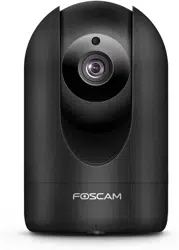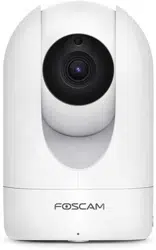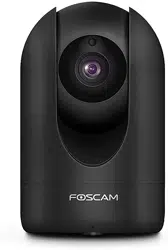
FAQ1: Introduction of the Foscam cameras working with Amazon’s Alexa
Foscam cameras support live streaming on Amazon’s Alexa device Echo show now. You only
need to speak directly to the Echo show to get the camera’s live stream shown up after
completing some basic settings.
Notes:
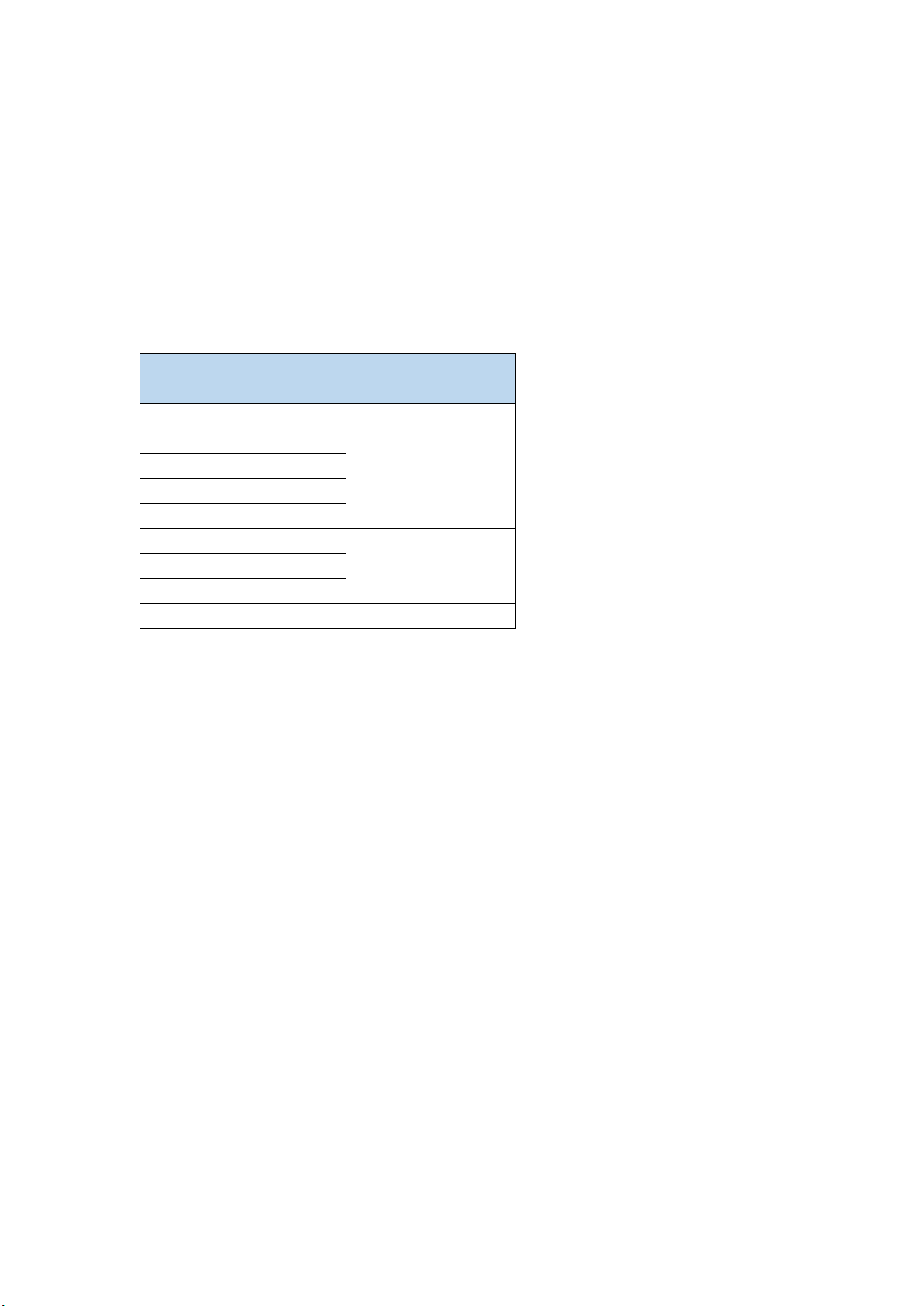
1. The supported camera models and required firmware versions are listed below:
Camera models
Firmware version
R2D V2
2.x.2.38 or higher
D2EP/FI9961EP V4
R2M/R2C
G2EP/ QJ2/FI9912EP
G2/FI9902P/FI9912P
G4/G4P
2.x.2.37 or higher
R4M/R4S
G4EP/QJ4
C2M
2.x.2.10 or higher
2. The Foscam app version should be 2.2.9 or higher.
Here is the demo video of how Foscam cameras work with Amazon’s Alexa:
(
链接至市场部的宣传视频
)
FAQ2: How to set up Foscam cameras working with Amazon's Alexa?
1. Please make sure your Foscam camera and Foscam app supports Alexa.
2. Please login the camera on Foscam app, go to camera’s settingsAdvanced
SettingsSmart Control to enable the “Work With Alexa” and set an name for your camera.
If you re-name your camera in the Foscam app, you will need to ask your Echo show to
re-discover the camera in order for the new camera name to be refreshed in the Alexa app.
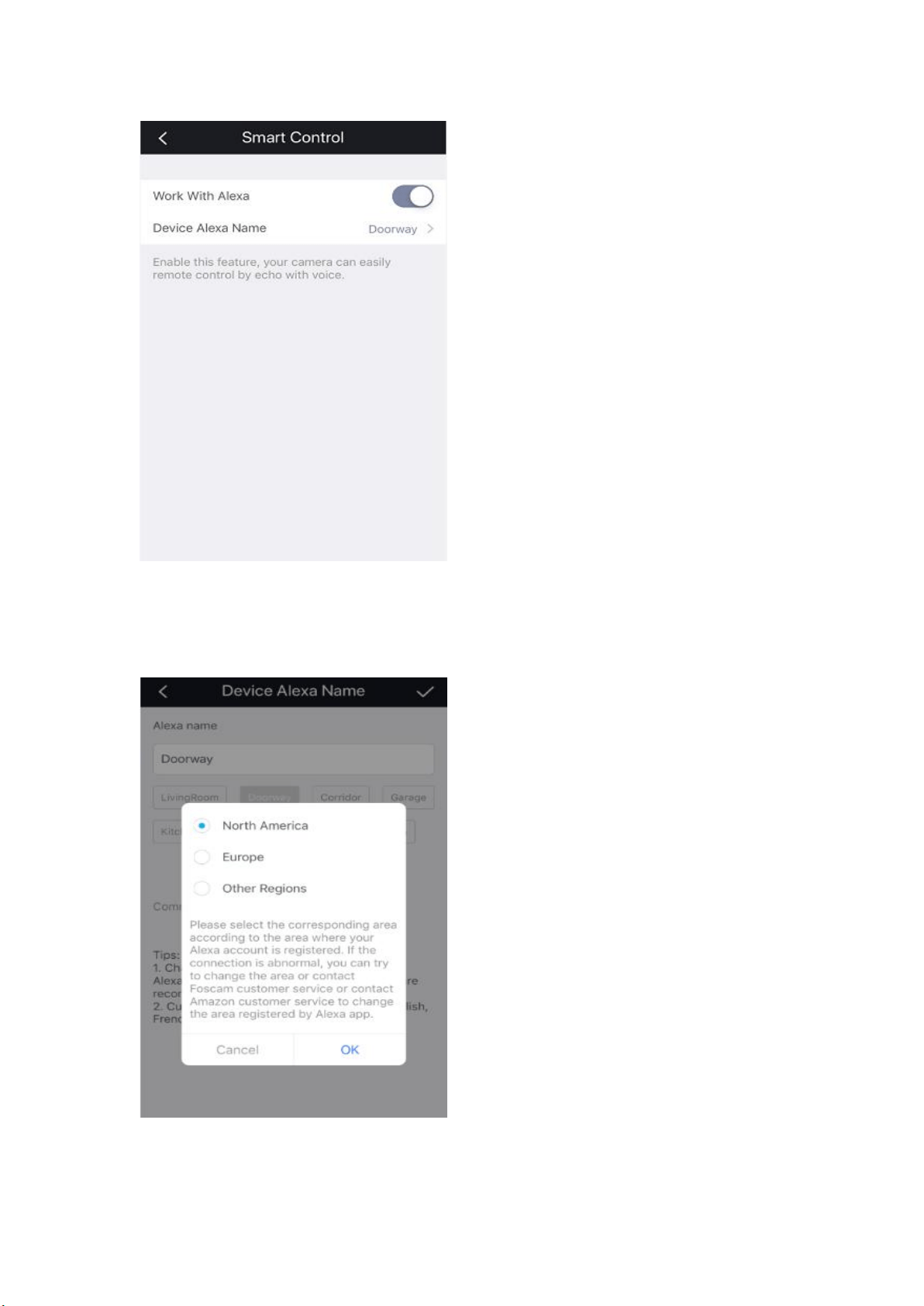
3. Please choose the correct region according to your Alexa account’s Host name.
If you are not sure what host name of your Alexa account is, please refer here.
(
链接至
How to confirm the Host name of Alexa account)
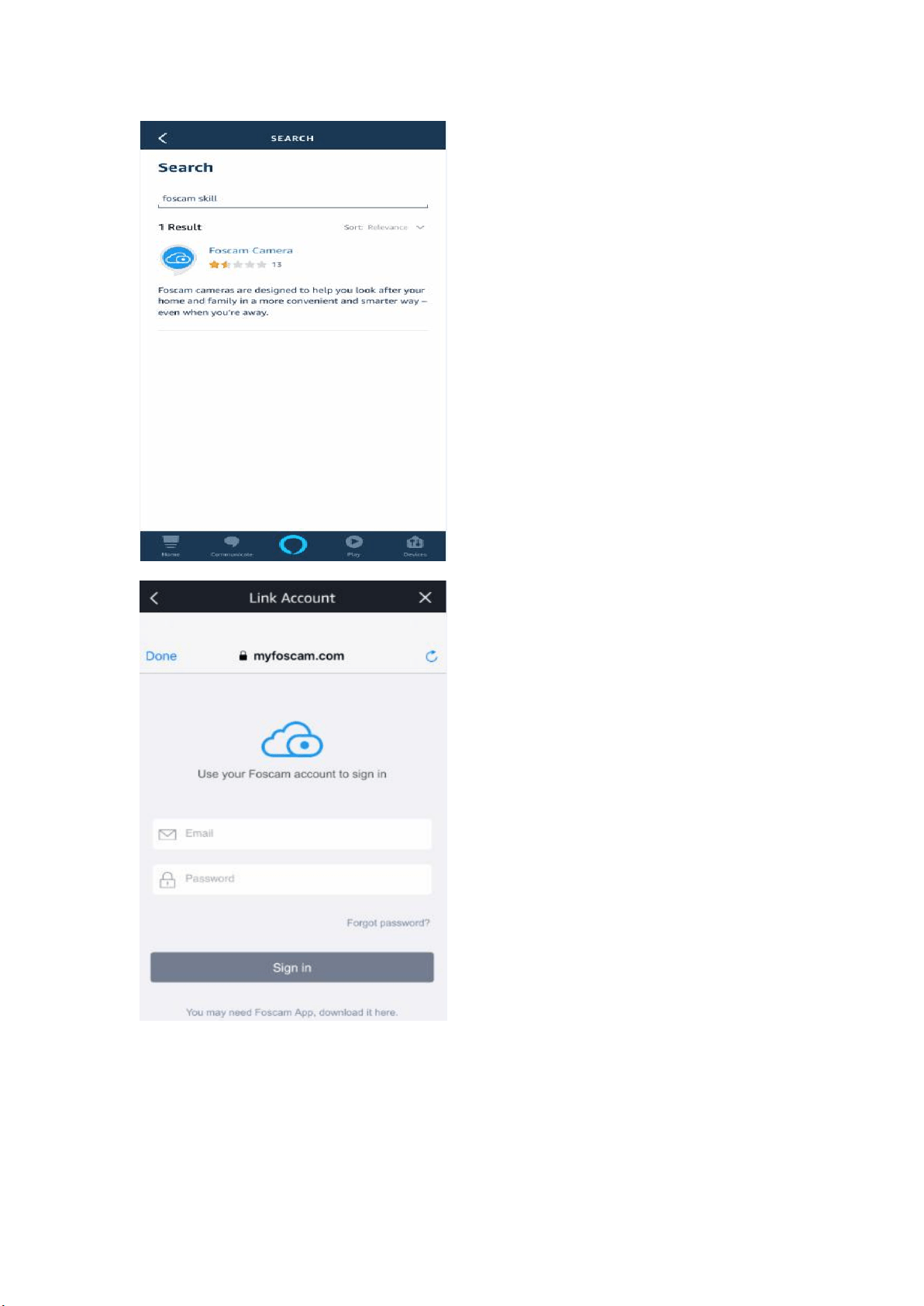
4. Please open the Alexa app to search for Foscam skill, enable to use it and link your Foscam
account to the Alexa app.
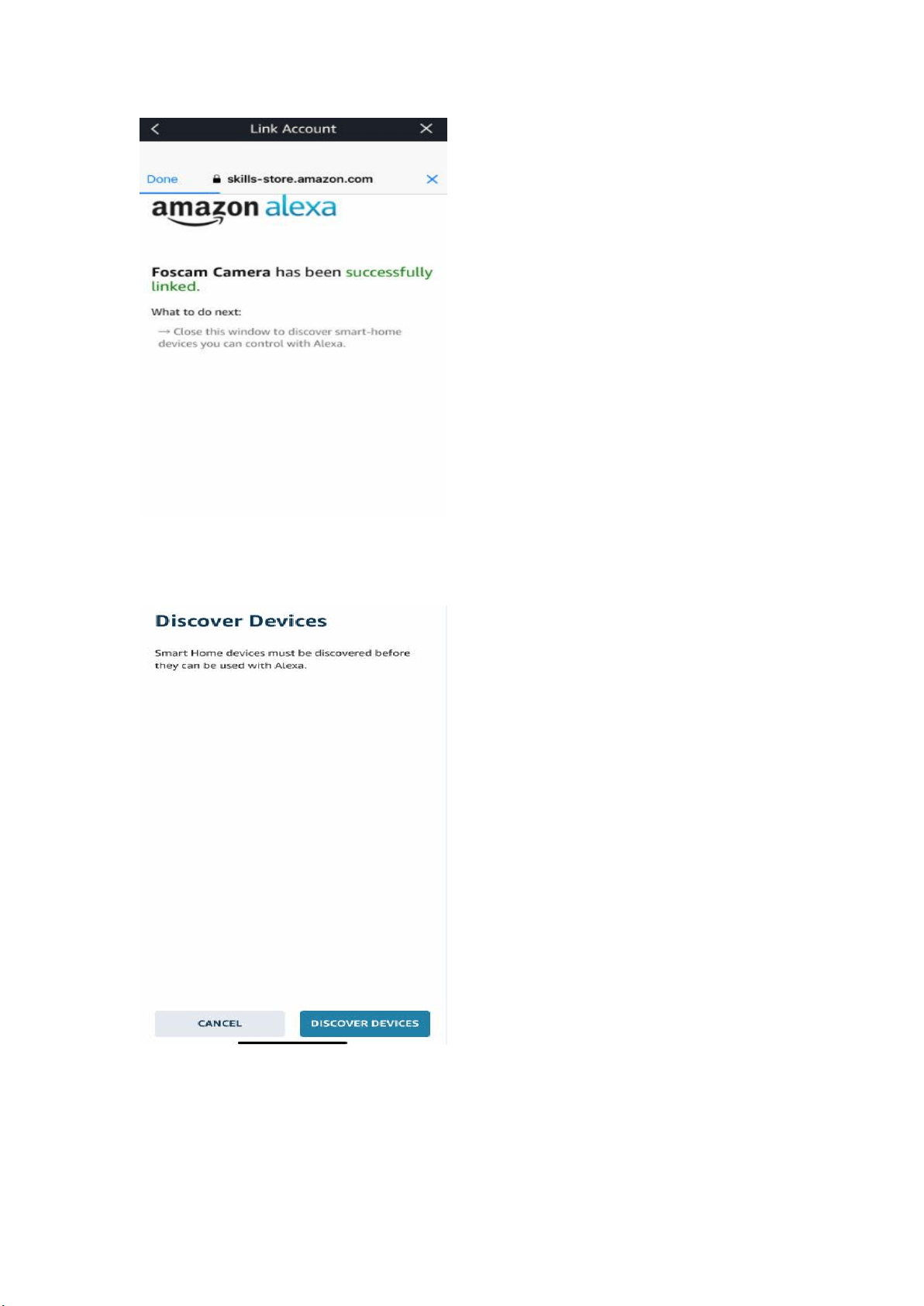
5. Then you can choose the option “DISCOVER DEVICES” to add Foscam camera to the
Alexa app or speak “Alexa, discover” to the Echo show directly.
6. After camera is added to the Alexa app, you can speak directly to the Echo show to get the
camera’s live stream shown up by voice command.

The voice commands:
Once your Foscam camera is connected to your Echo show, you can use the following voice
commands to get and stop the camera’s live stream.
Get the live streaming:
· Alexa, show me the [camera name].
Stop the live streaming:
·Alexa, close.
Currently, Foscam cameras working with Amazon's Alexa supports English, French,
German, Italian and Spanish.
Troubleshootings:
FAQ3: How to deal with the Echo show’s response “the [camera name] is not
responding”?
Below are the reasons and solutions:
1. Foscam camera offline. Please confirm if you can view your camera’s live video on Foscam
app by WiFi and cellphone’s cellular data.
2. Foscam camera’s name has been changed. Please make sure the name of your camera
you have set under the Smart Control option is as same as the one on Alexa app.
3. The network environment is not good. Please make sure the Echo show has at least 4Mbps
network bandwidth.
FAQ4: How to deal with Echo show’s response “sorry, I didn’t find device named
[camera name]?
1. Your Foscam account was not linked to the Foscam camera skill on Alexa app.
Please login the Alexa app to link the account first.
2. Your Foscam camera was not added to the Alexa app. Please add your camera to Alexa app
first.
3. The camera’s name you have set under Smart Control option is not as same as the one in
your voice command. Please make sure they are the same one.
FAQ5: How to confirm if your Foscam camera supports working with Alexa or not?
1. The supported camera models and required firmware versions are listed below:
Camera models
Firmware version
R2D V2
2.x.2.38 or higher
D2EP/FI9961EP V4
R2M/R2C
G2EP/ QJ2/FI9912EP
G2/FI9902P/FI9912P
G4/G4P
2.x.2.37 or higher
R4M/R4S
G4EP/QJ4
C2M
2.x.2.10 or higher
2. The Foscam app version should be 2.2.9 or higher.
FAQ6: How to deal with the “buffering“ on Echo show?
1. Please make sure the Echo show has at least 4Mbps network bandwidth.
2. Please confirm if you can view Foscam camera’s live video on Foscam app without problem.
FAQ7: How to confirm the Host name of Alexa account?
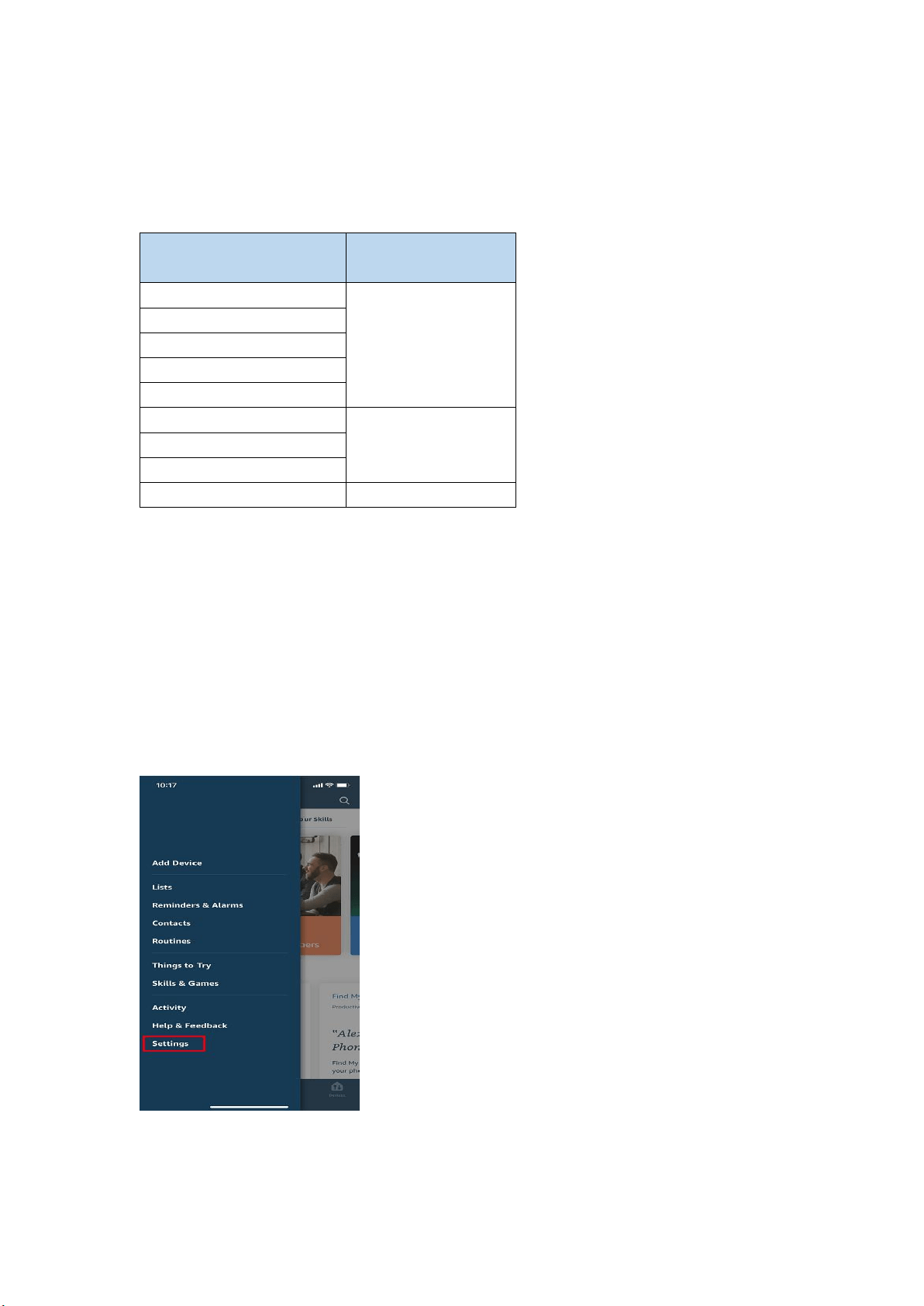
1. Please login the Alexa app and go to “Settings”.
2. Please choose “About”.
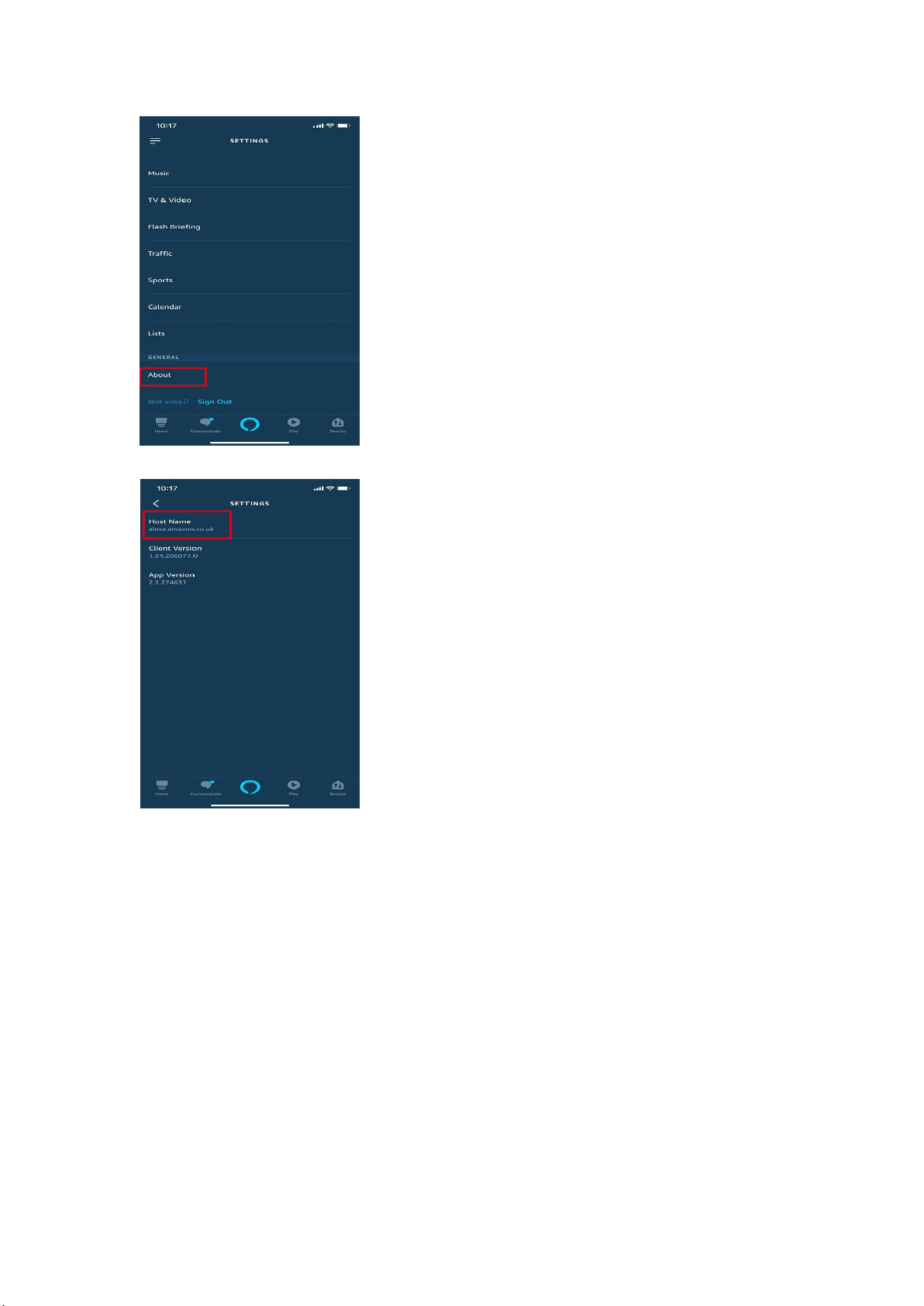
3. Then you will see the Host name of your Alexa account.
FAQ8: How to add Foscam cameras to Alexa app manually?
1. Please make sure you have enabled the “Work With Alexa” and set an name for your
camera on Foscam app.
2. Please login the Alexa app and choose “Devices” and tap on “+” symbol.
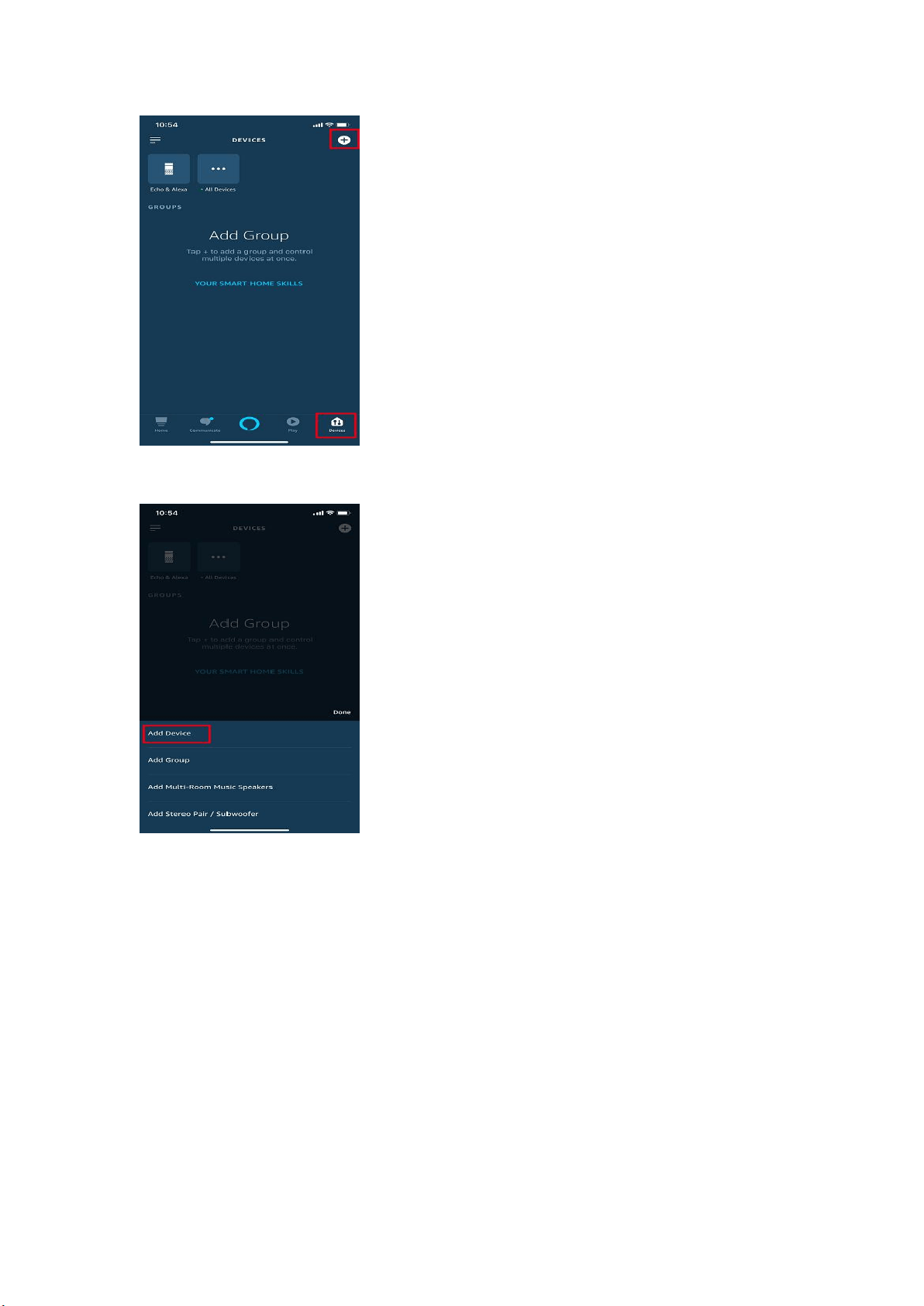
3. Please choose “Add Device”.
4. Please choose “Camera”. If there is no camera option, please choose “Other”.
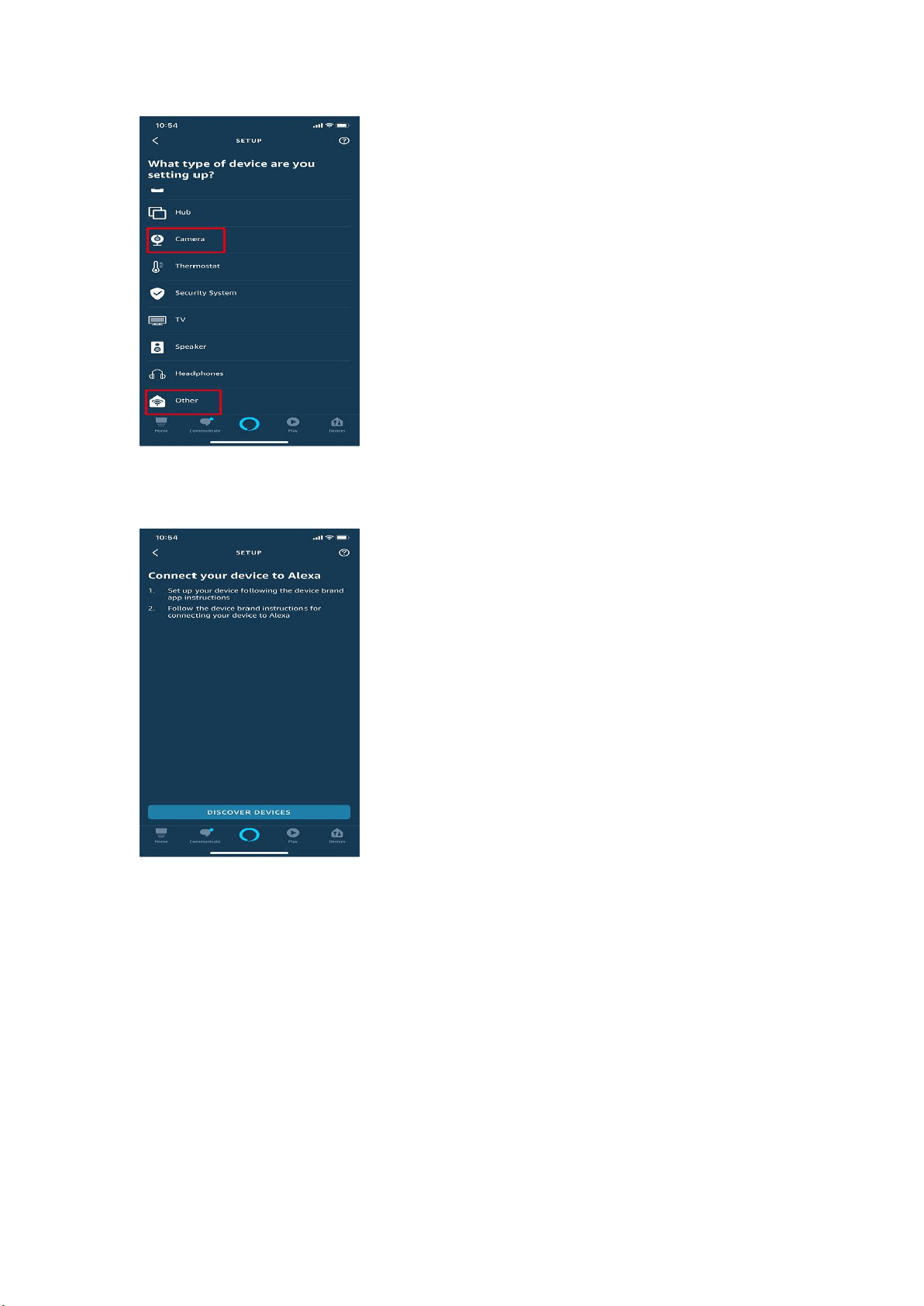
5. Please choose “DISCOVER DEVICES” to search for Foscam cameras. Then your camera
will be added to the Alexa app.