SONOS USER GUIDE
-1
T

THIS DOCUMENT CONTAINS INFORMATION THAT IS SUBJECT TO CHANGE WITHOUT NOTICE.
No part of this publication may be reproduced or transmitted in any form or by any means, electronic or mechanical, including but not
limited to photocopying, recording, information retrieval systems, or computer network without the written permission of Sonos, Inc.
Sonos and all other Sonos product names and slogans are trademarks or registered trademarks of Sonos, Inc. Sonos Reg. U.S. Pat. &
Tm. Off.
Sonos products may be protected by one or more patents. Our patent-to-product information can be found here:
sonos.com/legal/patents
AirPlay®, Apple Music™, FairPlay®, iPad®, iPhone®, iPod®, Tunes®, and OS X®, are trademarks of Apple Inc., registered in the U.S.
and other countries.
Works with Apple Airplay.
"Made for iPod", "Made for iPhone", and "Made for iPad" mean that an electronic accessory has been designed to connect specifically to
iPod, iPhone, or iPad, respectively, and has been certified by the developer to meet Apple performance standards. Apple is not
responsible for the operation of this device or its compliance with safety and regulatory standards. Please note that the use of this
accessory with iPod, iPhone, or iPad may affect wireless performance.
Windows® is a registered trademark of Microsoft Corporation in the United States and other countries.
Android™ is a trademark of Google, Inc.
Manufactured under license from Dolby Laboratories. Dolby, Dolby Audio, Pro Logic, and the double-D symbol are trademarks of Dolby
Laboratories.
Amazon, Kindle, Kindle Fire, Echo, Alexa, and all related logos are trademarks of Amazon.com, Inc. or its affiliates.
Bluetooth® is a registered trademark of Bluetooth SIG, Inc.
The terms HDMI and HDMI High-Definition Multimedia Interface, and the HDMI logos are trademarks or registered trademarks of HDMI
Licensing LLC in the United States and other countries.
Sonos uses MSNTP software, which was developed by N.M. Maclaren at the University of Cambridge.
© Copyright, N.M. Maclaren, 1996, 1997, 2000; © Copyright, University of Cambridge, 1996, 1997, 2000.
All other products and services mentioned may be trademarks or service marks of their respective owners.
January 2019
©2004-2019 by Sonos, Inc. All rights reserved.
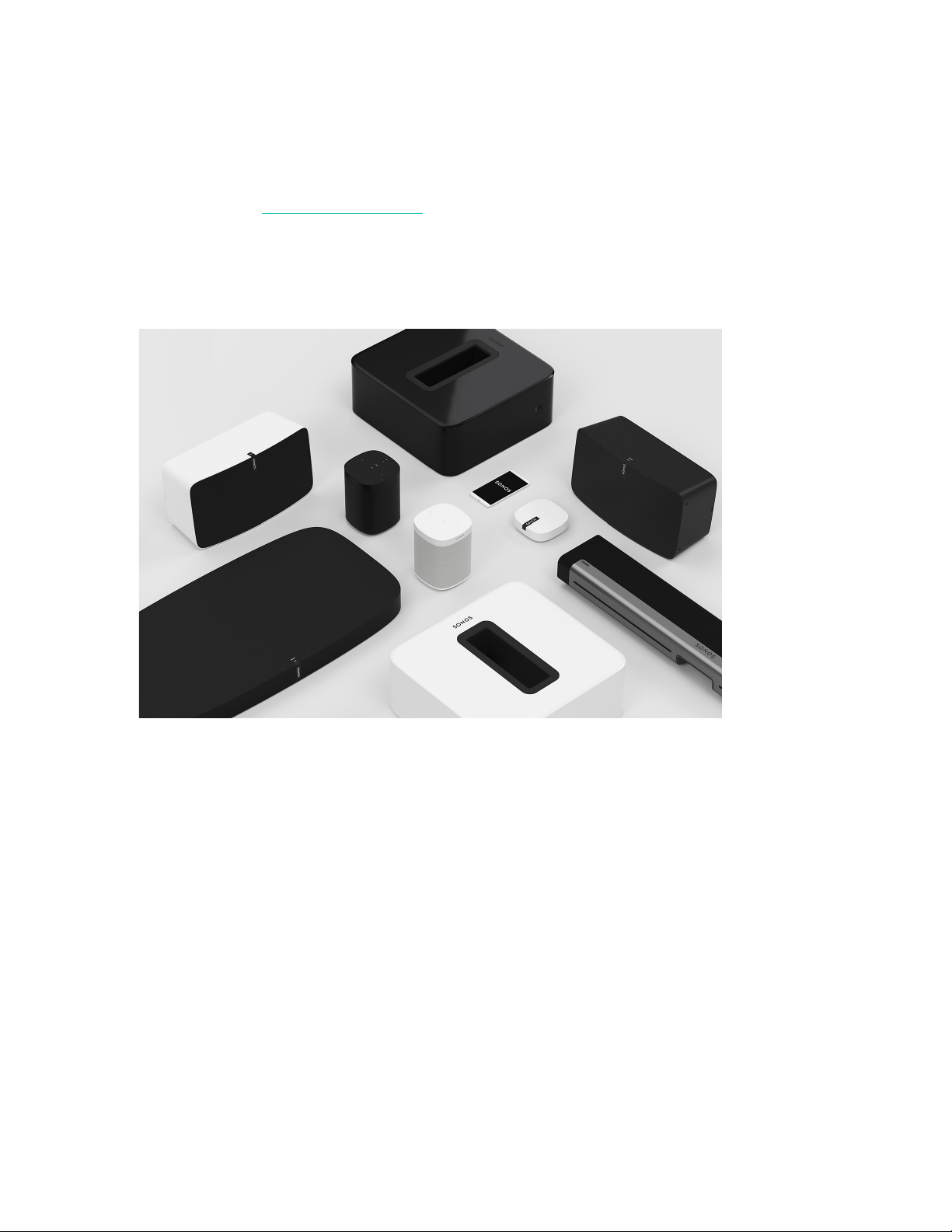
The Sonos Home Sound System
Sonos is the wireless home sound system that fills as many rooms as you want (up to 32) with music, movies
and TV. Listen in any room or every room—play a movie in the living room, a podcast in the kitchen, or the
same song everywhere. Explore our products
to find out more.
• Free Sonos app guides you through setup and provides music control for everyone in the house on all
their devices—phones, tablets, and computers.
• Easy access to all the music you love—streaming services, podcasts and internet radio.
• Mix and match products to build a home sound system that fits your lifestyle.

SONOS USER GUIDE
Getting started
Here’s what you’ll need:
• Wi-Fi—have your network name and password ready. See Sonos requirements.
• Mobile device—connected to the same Wi-Fi. You’ll use this for setup.
• The Sonos app—you’ll use it to set up and control your Sonos system (install it on the mobile device
you’re using for setup).
• A Sonos account—If you don’t have an account, you’ll create one during setup. See Sonos accounts
for more information.
New to Sonos?
Download the app from the app store on your mobile device. Open the app and we’ll guide you through
setup.
Once your Sonos system is set up, you can use your computer to control the music too. Get the app at
www.sonos.com/support/downloads.
For the latest system requirements and compatible audio formats, go to
https://faq.sonos.com/specs.
Already have Sonos?
You can easily add new speakers anytime (up to 32). Just plug in the speaker and tap > Add Speakers.
If you’re adding a Boost, plug it in and tap > Settings > Add Boost or Bridge.
Sonos requirements
Your Sonos speakers and the mobile device with the Sonos app need to be on the same Wi-Fi network.
Wireless setup
Setting up Sonos on your home Wi-Fi is the answer for most homes. You just need:
• High-speed DSL/cable modem (or fiber-to-the-home broadband connection).
• 2.4 GHz 802.11b/g/n wireless home network.
Note: Satellite internet access may cause playback issues.
If you ever start to experience temperamental Wi-Fi, you can easily switch to wired setup.
Wired setup
Connect a Sonos Boost or speaker to your router with an Ethernet cable if:
• Your Wi-Fi is slow, temperamental, or doesn’t reach all the rooms where you want to use Sonos.
• Your network is already in high demand with streaming video and internet usage and you want a separate
wireless network just for your Sonos system.
• Your network is 5 GHz only (not switchable to 2.4 GHz).

SONOS USER GUIDE
• Your router supports only 802.11n (you can’t change the settings to support 802.11b/g/n).
Note: For uninterrupted playback, use and Ethernet cable to connect the computer or NAS drive that has
your music library files to your router.
If you want to change to wireless setup later, see Switch to wireless setup for more information.
Sonos app
The Sonos app is available for the following devices:
• iOS devices running iOS 9 and later
• Android 4.4 and higher
• macOS 10.10 and later
• Windows 7 and higher
Note: You’ll set up Sonos using a mobile device, but then you can use any device to control the music.
AirPlay 2
To use AirPlay with Sonos, you need a device running iOS 11.4 or later and a Sonos speaker that supports
AirPlay 2 (Sonos One, Play:5, Playbase, and Beam). Once you’re streaming AirPlay, you can add non-
compatible Sonos speakers to the group.
Supported formats
Audio formats
Support for compressed MP3, AAC (without DRM), WMA without DRM (including purchased Windows Media
downloads), AAC (MPEG4), AAC+, Ogg Vorbis, Apple Lossless, Flac (lossless) music files, as well as
uncompressed WAV and AIFF files.
Native support for 44.1 kHz sample rates. Additional support for 48 kHz, 32 kHz, 24 kHz, 22 kHz, 16 kHz, 11
kHz, and 8 kHz sample rates. MP3 supports all rates except 11 kHz and 8 kHz.
Note: Apple “FairPlay,” WMA DRM and WMA Lossless formats not currently supported. Previously
purchased Apple “FairPlay” DRM-protected songs may be upgraded.
Streaming services
Sonos works seamlessly with most music and content services, as well as downloads from any service
offering DRM-free tracks. Service availability varies by region. For a complete list, see
https://
www.sonos.com/music.
Internet radio
• Streaming MP3
• HLS/AAC
•WMA

SONOS USER GUIDE
Album art
•JPEG
•PNG
•BMP
•GIF
Playlists
•Rhapsody
•iTunes
•WinAmp
• Windows Media Player (.m3u, .pls, .wpl)

SONOS USER GUIDE
Explore our products
Sonos products work together seamlessly. It’s easy to add speakers and expand your system as your home
changes.
Speakers for your music
The perfect wireless speaker for any room in your home. You can even stereo pair two speakers (same model)
in a room—turn each one into separate left and right channels for wider, bigger, and deeper sound.
• Play:1: mini home speaker with mighty sound.
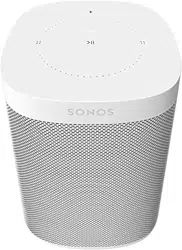
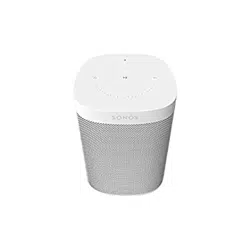
• Sonos One: smart speaker with built-in voice control.
• Play:3: mid-size speaker with stereo sound.
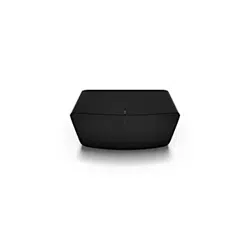
• Play:5: biggest home speaker with boldest sound.
Speakers for your TV
Sonos products for your TV provide full-theater sound and play music too. Enhance your home theater
experience by adding a Sub, a pair of surrounds, or both.
• Beam: compact soundbar with Amazon Alexa voice control, perfect for small to medium-sized rooms.
Place on furniture or wall mount.
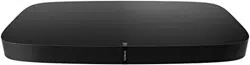
• Playbase: widescreen sound and music streaming, created especially for TVs on stands or furniture. Low
profile design practically disappears under your TV.
• Playbar: powerful soundbar, perfect for use above or below wall-mounted TVs, or lay it flat on a table or
console.
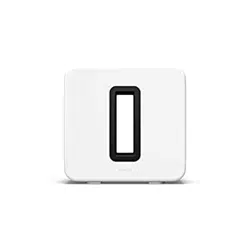
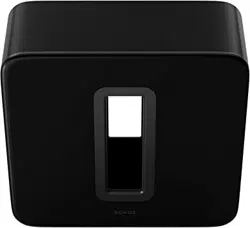
• Sub: add dramatically deeper bass to any Sonos speaker, for home theater and music.
Stereo upgrades
Convert existing speakers, stereos, and home theater into music streaming systems with an amplifier.
• Amp: versatile amplifier for powering all your entertainment.
• Connect: external amplifier provides instant music streaming for existing stereo or receiver.
• Connect:Amp: digital amplifier is a music streaming upgrade for your favorite speakers.
Sonos app
Control your Sonos system using The Sonos app. Choose what to play, where to play it, and how loud. In one
room or all over your home. Search across all of your music services and files simultaneously to find what you
love. Create playlists in an instant. The Sonos app does it all.
Accessories
Find the perfect accessory for your Sonos system on our website.

SONOS USER GUIDE
The Sonos app
Download the app on your mobile device. You’ll use it to set up and control your Sonos system.
Once your system is set up, you can also use your computer to control the music. Get the app at
www.sonos.com/support/downloads
.
For the latest system requirements and compatible audio formats, go to
https://faq.sonos.com/specs.
Things you can do:
• Discover and Play music—explore internet radio, browse and search for music.
• Add music and voice services—keep your music together and add voice for touch-free play.
• Save your favorite music to My Sonos—easily find the music that you love.
• Sonos playlists—save songs to a playlist so you can listen to them anytime.
• Play music anywhere—group rooms to send the same music everywhere, or listen to different music in
each room.
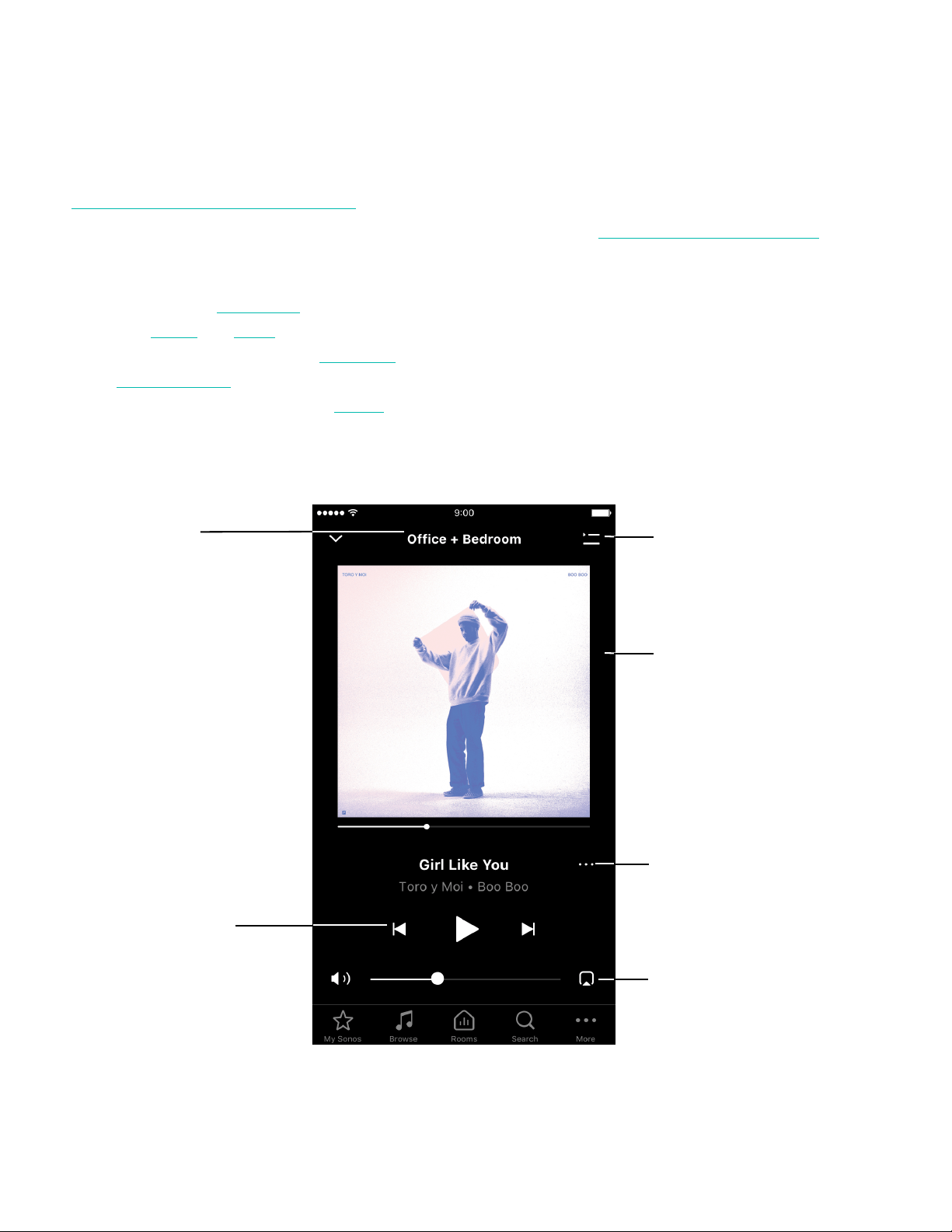
Controls
Info & Options
See additional information
and options, like crossfade.
Playback controls
Play/Pause, forward, back
Queue
View and manage songs in
the queue
Room name
See what’s playing or group
rooms to play the same
music in more than one room
Now Playing screen
Shows album art
Room selector
Choose where you want the
music to play

SONOS USER GUIDE
Tap an icon to find and play music.
Info & Options
Shows more information and options for the music. Appears on Now Playing and also as an option
throughout the app when searching for music.
Tap (iOS) or (Android) for options, including:
• Add to Sonos Playlist or Add to My Sonos—personalize your music.
• Share this Song (or station)—send this song or station to friends through social media.
• Crossfade—create a smooth transition between songs.
Queue
Tap or Show Queue (tablets) for options, including:
• Shuffle—change the song order.
• Repeat—repeat all songs, or tap again to repeat the song that’s playing.
• Save—save the queue to a playlist in My Sonos.
Customize the queue
When you play a song, it’s automatically added to your music queue. You can also add songs to the queue
while browsing. Change, delete, or save the queue as a Sonos Playlist so you can easily listen to it again later.
Add a song to the queue
Find a song and tap (iOS) or (Android).
Edit the queue
My Sonos A space to save and play your favorite music and collections so you always know
where to find the music you love.
Browse Browse through music services, your music library, and music on your mobile device.
When you find music you like, start playing it in any room.
Rooms See what’s playing in your rooms. Group rooms to play the same music in different
rooms or everywhere.
Search Search your music sources.
More Add music and voice services, set alarms, go to Help & Tips, and Settings.

SONOS USER GUIDE
From Now Playing, open the queue and tap Edit.
• Delete a song—tap (iOS) or (Android).
• Move a song—touch and hold and drag the song to a new location.
Save a queue as a Sonos playlist
From Now Playing, open the queue and tap Save (doesn’t include songs on your mobile device).
See Sonos playlists
to learn how to save your queue.
SONOS USER GUIDE
Sonos One
Sonos One has Amazon Alexa built right in so you can use your voice to start and control the music on
Sonos—
• Perfect fit for shelves, counters, and snug spaces or mounted to a wall, ceiling or speaker stand.
• Touch controls let you adjust volume, play and pause, or skip through songs.
• Pair two Sonos Ones for left-right stereo sound, or use two Sonos Ones as rear surrounds for your home
theater.
•See Getting started when you’re ready to add a Sonos One to your system.
Note: Over time we’ll add more voice services and skills. Voice control is not supported in every country
yet—this feature will be available as soon as Sonos and a voice service launch together in your region.
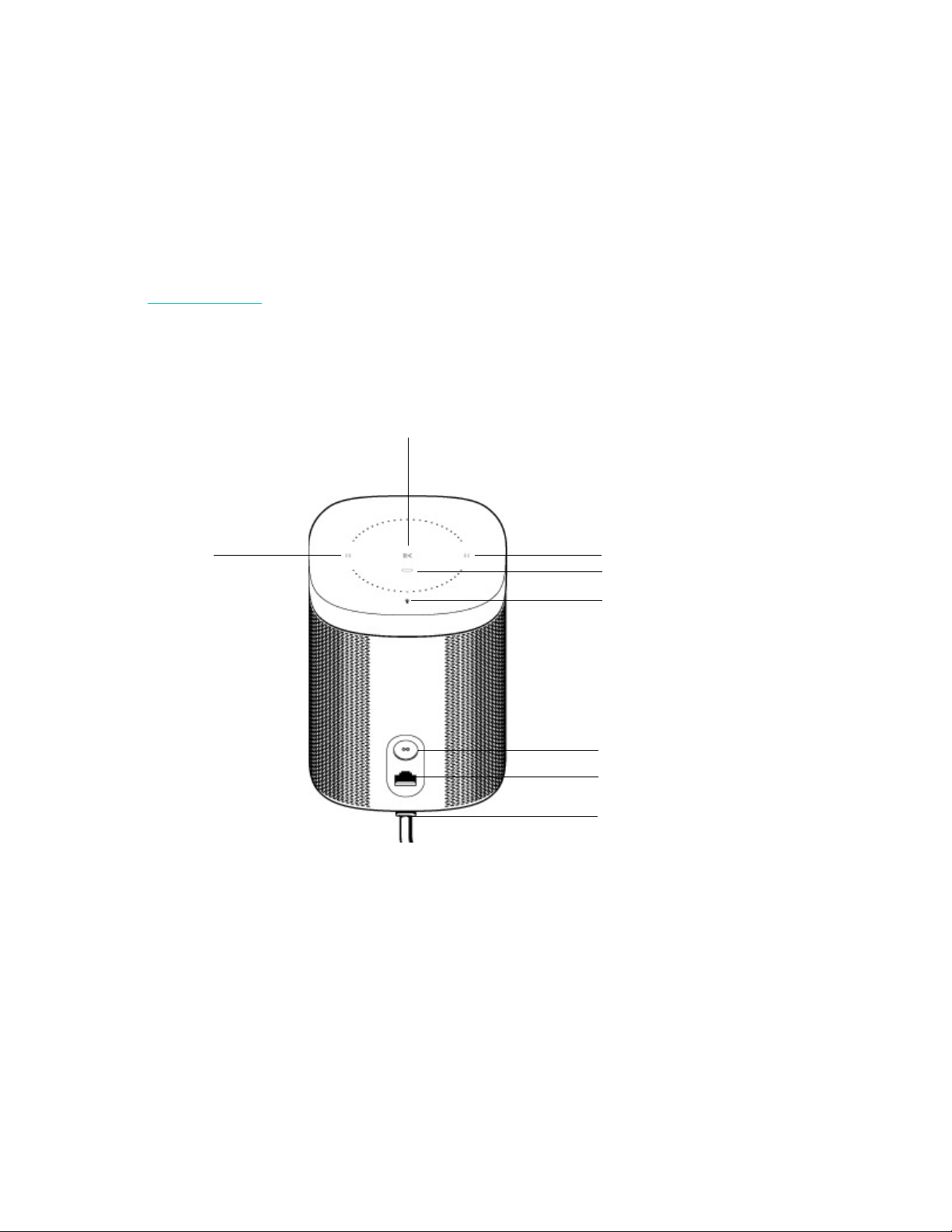
Join button
Ethernet port
AC power (mains) input
Microphone indicator
Status light
Volume control
Play/Pause
Volume control
SONOS USER GUIDE
Controls and lights
Connector panel
Select a location
You can put your speaker just about anywhere. Here’s a few guidelines:
• Sonos One sounds great even when placed next to a wall or on a shelf. For best performance, leave at
least 1" (2.5 cm) space around the back of the speaker.
•It’s humidity-resistant so you can use it in the bathroom.
•It’s not water-resistant so don’t put it near water or leave it in the rain.
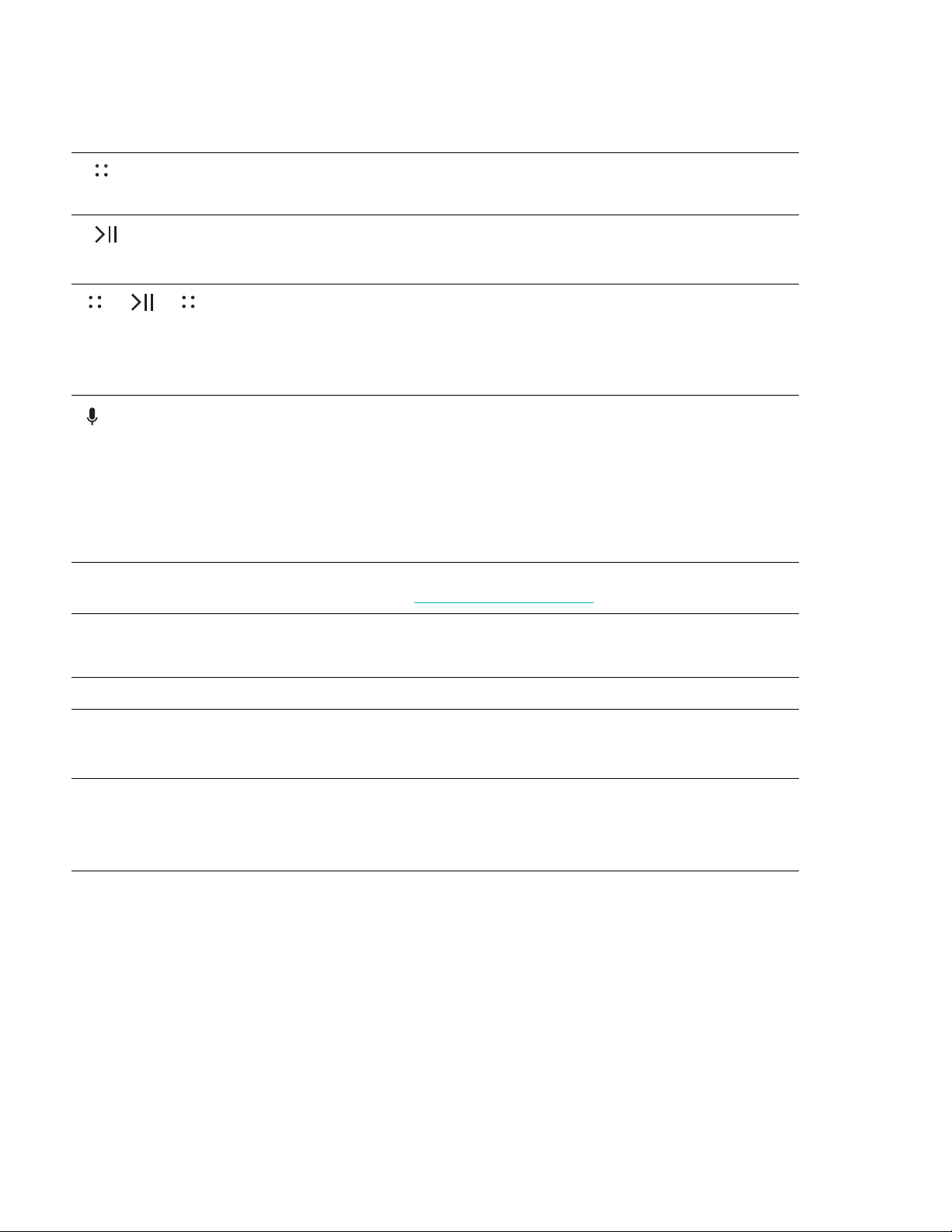
Volume control • Touch and hold to quickly change the volume:
• Volume up (right); Volume down (left).
Play/Pause • Press once to play or pause music.
• Press and hold to add the music that’s playing in
another room.
Next/Previous • Swipe right across the touch controls to skip to the
next song.
• Swipe left to go to the previous song.
Note: You can’t skip forward or go back when listening
to a radio station.
Microphone
indicator
• Tap the microphone light to turn the microphone on
or off.
• When the light is on, voice control is on and you can
use voice commands.
• When the light is off, voice control is off.
Note: If the light is off, press and hold the Microphone
indicator to talk to Alexa. Release the button to
turn voice control off again.
Status light Indicates the status. For more information, see
https://faq.sonos.com/led.
Join button Press to connect during setup.
Ethernet port Use the supplied Ethernet cable if you want to connect
to a router, computer, or network-attached storage
(NAS) device (optional).
AC power (mains)
input
Use only the supplied power cord (using a third-party
power cord will void your warranty).
Note: Insert the power cord firmly until it is flush with
the bottom of the speaker.

SONOS USER GUIDE
Speaker mounts and stands
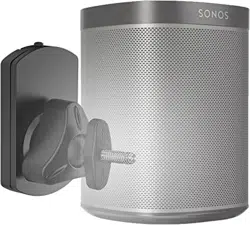
For wall mount kits or stands, tailored to perfectly fit your Sonos products, see Accessories on our website.
Microphone on/off
Touch to turn the microphone on and off. (If you don’t have a voice service installed, the microphone is
inactive.)
When the microphone light is on, voice control is on and Alexa is ready to respond. When the microphone
light is off, voice control is off.
If you’ve installed a voice service and the microphone is off, you can still use voice commands. Just press and
hold while talking to Alexa—no need to start with a wake word. When you release the mic button, voice
control turns off again.
Specifications
Feature Description
Audio
Amplifier Two Class-D digital amplifiers.
Tweeter One tweeter creates a crisp and accurate high frequency response.
Mid-Woofer One mid-woofer ensures the faithful playback of mid-range vocal
frequencies plus deep, rich bass.
Stereo Pair Turn two speakers into separate left and right channel speakers to create
wider, deeper sound.
Home Theater Add two speakers as surrounds for a true surround sound experience.
Microphones • Far-field microphone array.
• Microphone LED, hard-wired to the voice microphones for extra privacy
control so you’re always aware when the microphone is active.
Voice Control Integrated voice control.
Networking*
Wireless Connectivity Connects to your home Wi-Fi network with any 802.11b/g/n router.
802.11n only network configurations are not supported—you can either
change the router settings to 802.11b/g/n or connect a Sonos product to
your router.
Ethernet Port One 10/100Mbps Ethernet port. You can plug a Sonos product directly into
your router if your Wi-Fi is unstable.

SONOS USER GUIDE
* Specifications subject to change without notice.
General
Power Supply 100 - 240V ~ 50-60 Hz 1A
Dimensions (H x W x D) 6.36 x 4.69 x 4.69 in. (161.45 x 119.7 X 119.7 mm)
Weight 4.08 lb (1.85 kg)
Operating Temperature 32º to 104º F (0º to 40º C)
Storage Temperature -4º to 158º F (-20º to 70º C)
Humidity Resistant Designed to withstand high-humidity, like in a bathroom with a running
shower. (It is not waterproof or water-resistant.)
Product Finish White with white grille; black with black grille
Package Contents Sonos One, power cord, Ethernet cable, and Quickstart Guide.
Feature Description
SONOS USER GUIDE
Play:1
The mini home speaker with mighty sound—
• Fits in any space, fills any room. Wall or stand mountable.
• Two custom-designed drivers, 3.5 in / 9 cm mid-woofer and tweeter, each with a dedicated amplifier.
• Humidity resistant. Perfect for the bathroom (or backyard).
• Pair two Play:1s for left-right stereo sound, or use two Play:1s as rear surrounds for your home theater.
•To set it up, see Getting started.
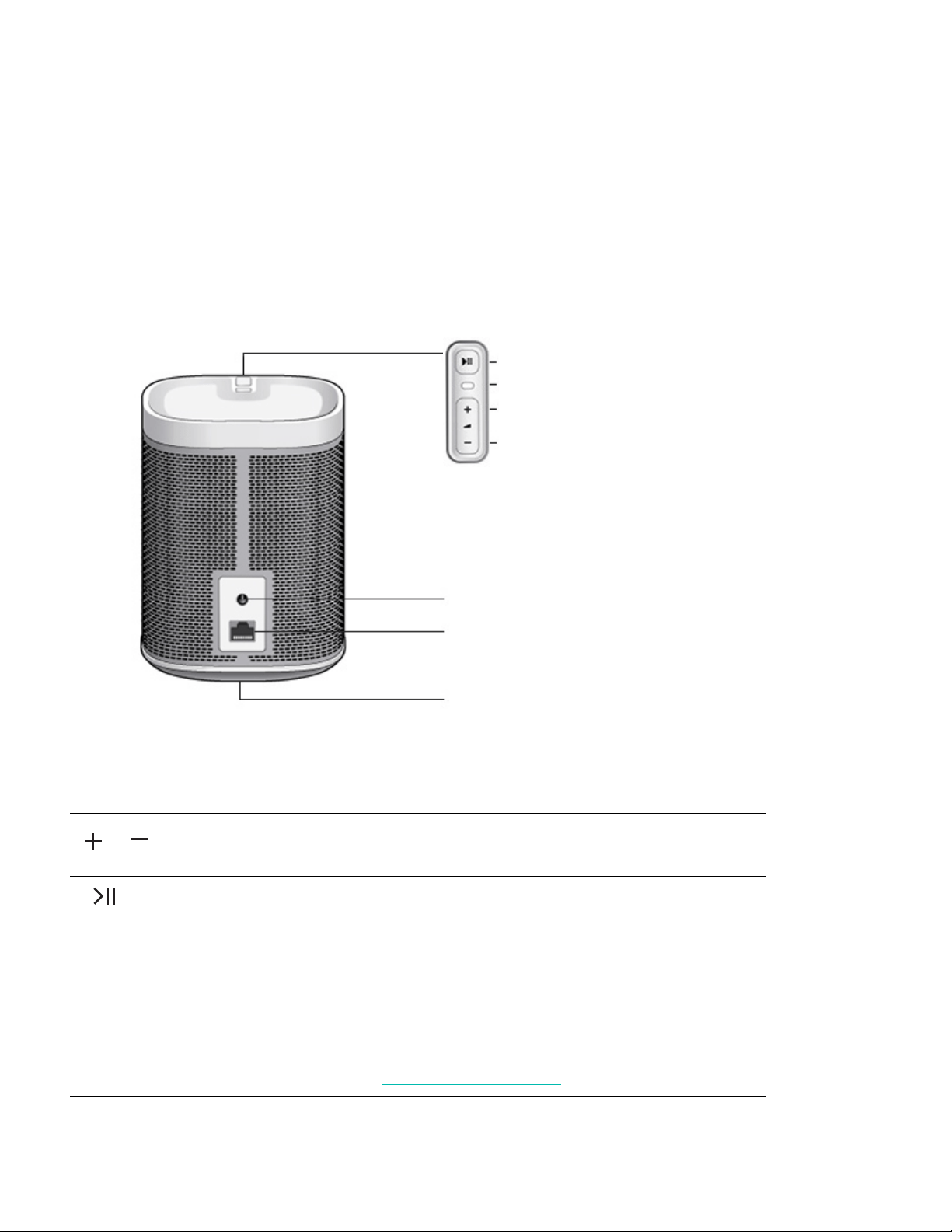
Controls and lights
Volume up (+)
Volume down (-)
Press to adjust the volume.
Note: You can also use the app.
Play/Pause • Press once to play or pause music.
• Press twice to skip to the next song (if applicable to
the selected music source).
• Press three times to skip to the previous song.
• Press and hold to add the music playing in another
room.
Note: You can’t skip forward or go back when listening
to a radio station.
Status light Indicates the status. For more information, see
https://faq.sonos.com/led.
Ethernet port
AC power (mains) input
Threaded mount
Play/Pause
Volume up
Volume down
Status light

SONOS USER GUIDE
Connector panel
Select a location
You can put your speaker just about anywhere. For maximum enjoyment, we have a few guidelines:
• The Play:1 is designed to work well even when placed next to a wall or other surface. For optimum
performance, maintaining more than 1" (2.5 cm) clearance around the back of the unit is recommended.
•The Play:1 is humidity-resistant so you can use it in the bathroom; however it is not water-resistant so
don’t position it near water or leave it outside during a rain storm.
Set it up
See Getting started when you’re ready to set up your speaker.
Speaker mounts and stands
The Play:1 has a standard 1/4"-20 threaded mounting socket. If desired, you can easily wall mount it using a
suitable bracket (not included). Simply choose a location that’s close to an electrical outlet (power cord length
is 2m), taking care to avoid heat, steam, dripping water or hidden wiring, and follow the instructions included
with the wall mount kit. You can hang it right side up (control buttons on top) or upside down (control buttons
on the bottom).
Note: Be sure the wall mount bracket you purchase will support at least 8 lb (3.6 kg) and has a 1/4"-20
threaded post.
For wall mount kits or stands, tailored to perfectly fit your Sonos products, see Accessories on our website.
Follow the instructions in the kit.
Specifications
Threaded mount 1/4" / 20-thread Integrated mounting socket so it can be wall-mounted
(bracket not included). See
Speaker mounts and
stands for more information.
Ethernet port Use the supplied Ethernet cable if you want to connect
to a router, computer, or network-attached storage
(NAS) device (optional).
AC power (mains) input Use only the supplied power cord (using a third-party
power cord will void your warranty). Insert the power
cord firmly until it is flush with the speaker.
Feature Description
Audio
Amplifier Two Class-D digital amplifiers.

SONOS USER GUIDE
* Specifications subject to change without notice.
Tweeter One tweeter creates a crisp and accurate high frequency response.
Mid-Woofer One mid-woofer ensures the faithful playback of mid-range vocal
frequencies plus deep, rich bass.
Stereo Pair Turn two speakers into separate left and right channel speakers to create
wider, deeper sound.
Home Theater Add two speakers as surrounds for a true surround sound experience.
Networking*
Wireless Connectivity Connects to your home Wi-Fi network with any 802.11b/g/n router.
802.11n only network configurations are not supported—you can either
change the router settings to 802.11b/g/n or connect a Sonos product to
your router.
Ethernet Port One 10/100Mbps Ethernet port. You can plug a Sonos product directly into
your router if your Wi-Fi is unstable.
General
Power Supply 100 - 240V ~ 50-60 Hz 1A
Dimensions (H x W x D) 6.36 x 4.69 x 4.69 in. (161.45 x 119.7 X 119.7 mm)
Weight 4.08 lb (1.85 kg)
Threaded mount Standard 1/4"-20 threaded mounting socket
Operating Temperature 32º to 104º F (0º to 40º C)
Storage Temperature -4º to 158º F (-20º to 70º C)
Humidity Resistant Designed to withstand high-humidity, like in a bathroom with a running
shower. (It is not waterproof or water-resistant.)
Product Finish White with light metallic grille; black with graphite grille
Package Contents Play:1, power cord, Ethernet cable, and Quickstart Guide.
Feature Description
SONOS USER GUIDE
Play:3
The mid-size home speaker with stereo sound—
• Three custom-designed drivers (two mid-range and one tweeter), each with a dedicated amplifier.
• Position vertically or horizontally—software automatically adjusts the sound to ensure best performance.
• Pair two Play:3s for left-right stereo sound, or use two Play:3s as rear surrounds for your home theater.
•See Getting started when you’re ready to add a Play:3 to your Sonos system.
Note: The front grille is not removable. Tampering with the grille may result in damage to your Play:3.
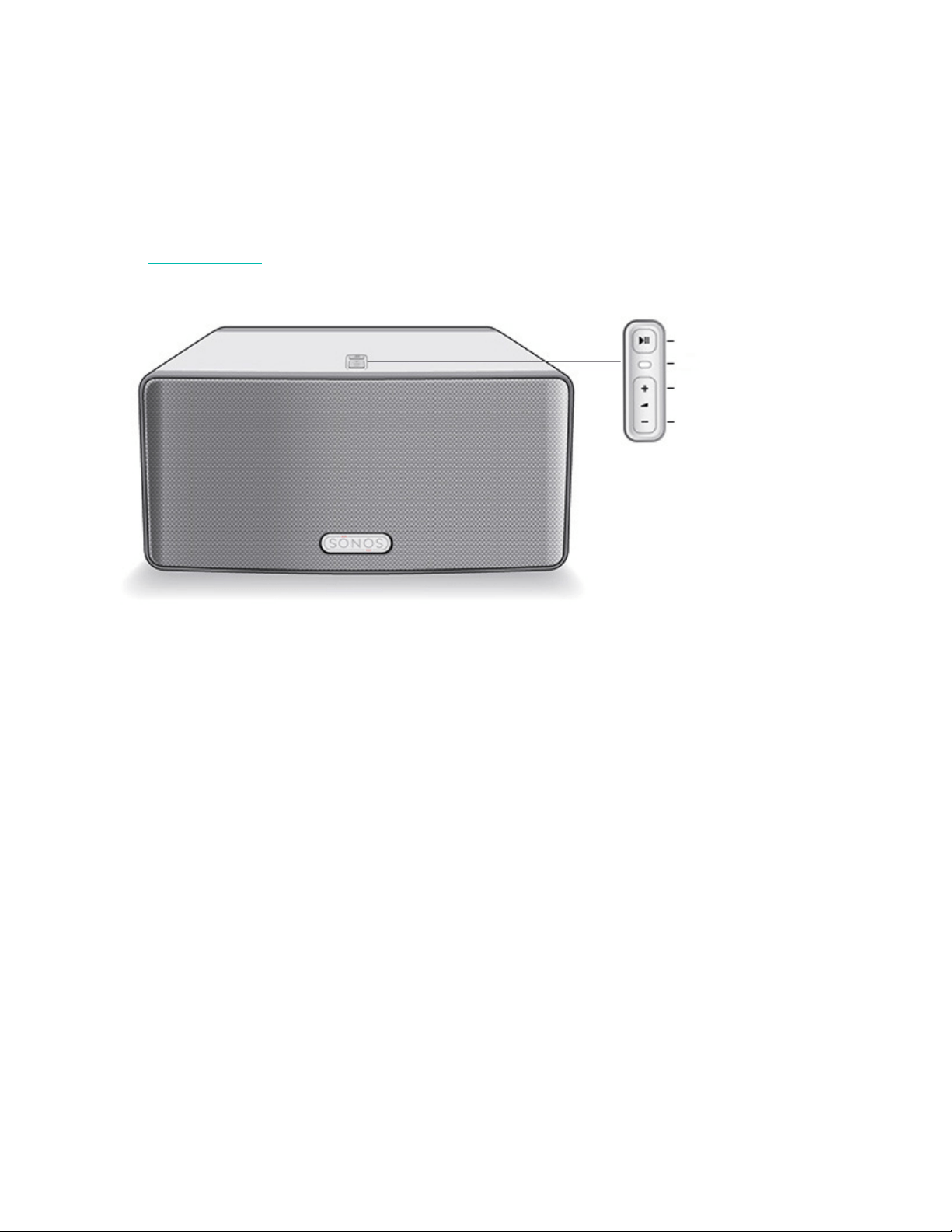
Play/Pause
Volume up
Volume down
Status light
SONOS USER GUIDE
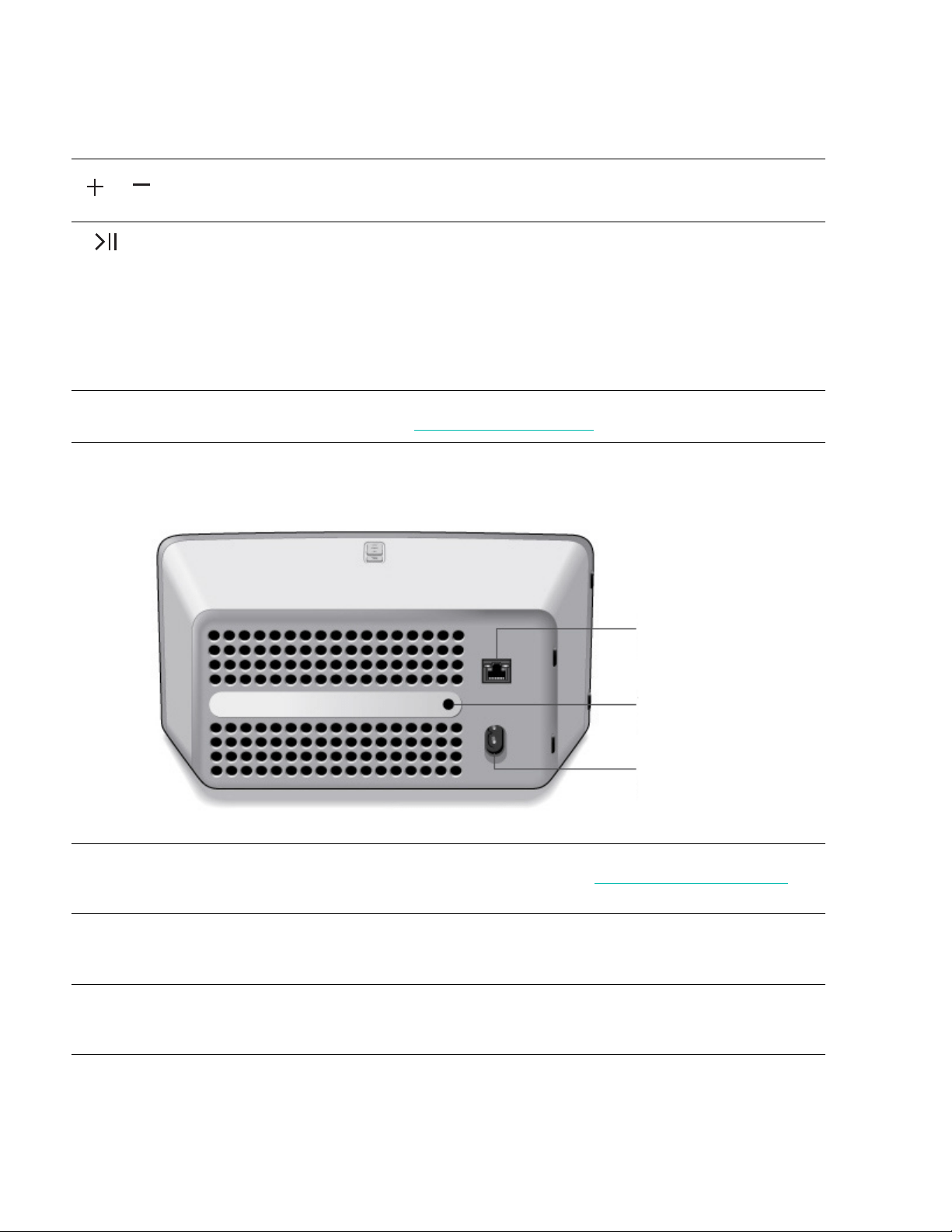
Controls and lights
Connector panel
Volume up (+)
Volume down (-)
Press to adjust the volume.
Note: You can also use the app.
Play/Pause • Press once to play or pause music.
• Press twice to skip to the next song (if applicable to the
selected music source).
• Press three times to go back to the previous song.
• Press and hold to add the music playing in another
room.
Note: You can’t skip forward or go back when listening to
a radio station.
Status light Indicates the status. For more information, see
https://faq.sonos.com/led.
Threaded mount 1/4" / 20-thread Integrated mounting socket so it can be wall-mounted
(bracket not included). See
Speaker mounts and stands for
more information.
Ethernet port Use the supplied Ethernet cable if you want to connect to a
router, computer, or network-attached storage (NAS) device
(optional).
AC power (mains) input Use only the supplied power cord (using a third-party power
cord will void your warranty). Insert the power cord firmly
until it is flush with the speaker.
Ethernet port
AC power (mains) input
Threaded mount

SONOS USER GUIDE
Select a location
You can put your speaker just about anywhere. For maximum enjoyment, we have a few guidelines:
• Position either horizontally or vertically to accommodate the desired space—the EQ (audio equalization)
will automatically adjust to create the best possible sound when the orientation is changed.
• Designed to work well even when placed next to a wall or other surface. For optimum performance,
maintaining more than 1" (2.5 cm) clearance around the back of the unit is recommended.
• Not water-resistant so don’t position it near water or leave it outside during a rain storm.
• Care should be taken if placing the Play:3 close to an older CRT (cathode ray tube) television. If you notice
any discoloration or distortion of your picture quality, simply move the Play:3 further from the television.
Speaker mounts and stands
The Play:3 has a standard 1/4"-20 threaded mounting socket. If desired, you can easily wall mount it using a
suitable bracket (not included). Simply choose a location that’s close to an electrical outlet (power cord length
is 2m), taking care to avoid heat, steam, dripping water, or hidden wiring, and follow the instructions included
with the mounting bracket.
Note: Be sure the wall mount bracket you purchase will support at least 10lb (4.5 kg) and has a 1/4"-20
threaded post.
For wall mount kits or stands, tailored to perfectly fit your Sonos products, see Accessories on our website.
Follow the instructions in the kit.
Specifications
Feature Description
Audio
Amplifier Three Class-D digital amplifiers.
Speakers Three driver speaker system - two 3" mid-range drivers, and one tweeter.
Each driver of the product is individually powered by a dedicated amplifier.
Bass Radiator One rear firing bass radiator with a 60 sq. cm surface area.
Stereo Pair Turn two speakers into separate left and right channel speakers to create
wider, deeper sound.
Home Theater Add two speakers as surrounds for a true surround sound experience.
Networking*
Wireless Connectivity Connects to your home Wi-Fi network with any 802.11b/g/n router.
802.11n only network configurations are not supported—you can either
change the router settings to 802.11b/g/n or connect a Sonos product to
your router.

SONOS USER GUIDE
* Specifications subject to change without notice.
Ethernet Port One 10/100Mbps Ethernet port. You can plug a Sonos product directly into
your router if your Wi-Fi is unstable.
General
Power Supply 100 - 240V ~ 50-60 Hz 2A
Dimensions (H x W x D) 5.2 x 10.5 x 6.3 in. (132 x 268 x 160 mm)
Weight 5.7 lb (2.6 kg)
Threaded mount Standard 1/4"-20 threaded mounting socket.
Operating Temperature 32º to 104º F (0º to 40º C)
Storage Temperature -4º to 158º F (-20º to 70º C)
Product Finish White with light metallic grille; black with graphite grille
Package Contents Play:3, power cord, Ethernet cable, and Quickstart Guide.
Feature Description
SONOS USER GUIDE
Play:5
Our biggest home speaker with the boldest sound—
• Hardware and software custom-designed by Sonos to produce pure, immersive sound that’s crystal
clear at any volume.
• Powered by three tweeters and three mid-woofers, each with a dedicated amplifier, perfectly tuned to
match the speakers and acoustic architecture.
• Pair two Play:5s for left-right stereo sound, or use two Play:5s as rear surrounds for your home theater.
•See Getting started when you’re ready to add a Play:5 to your Sonos system.
Note: The front grille is not removable. Tampering with the grille may result in damage to your Play:5.
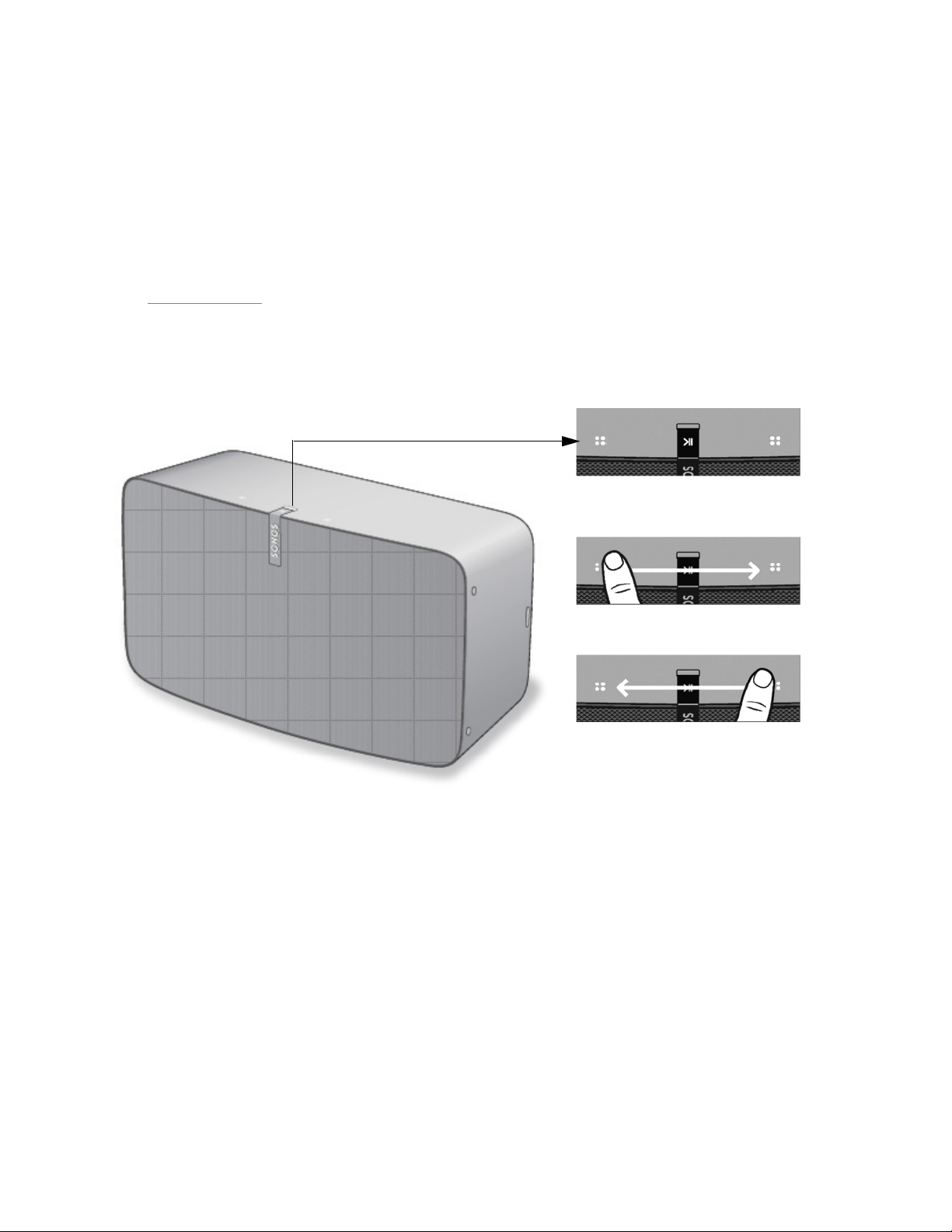
Touch Controls
Swipe left for previous song
(when applicable)
Volume down Volume up
Play/Pause
Swipe right for next song
(when applicable)
SONOS USER GUIDE
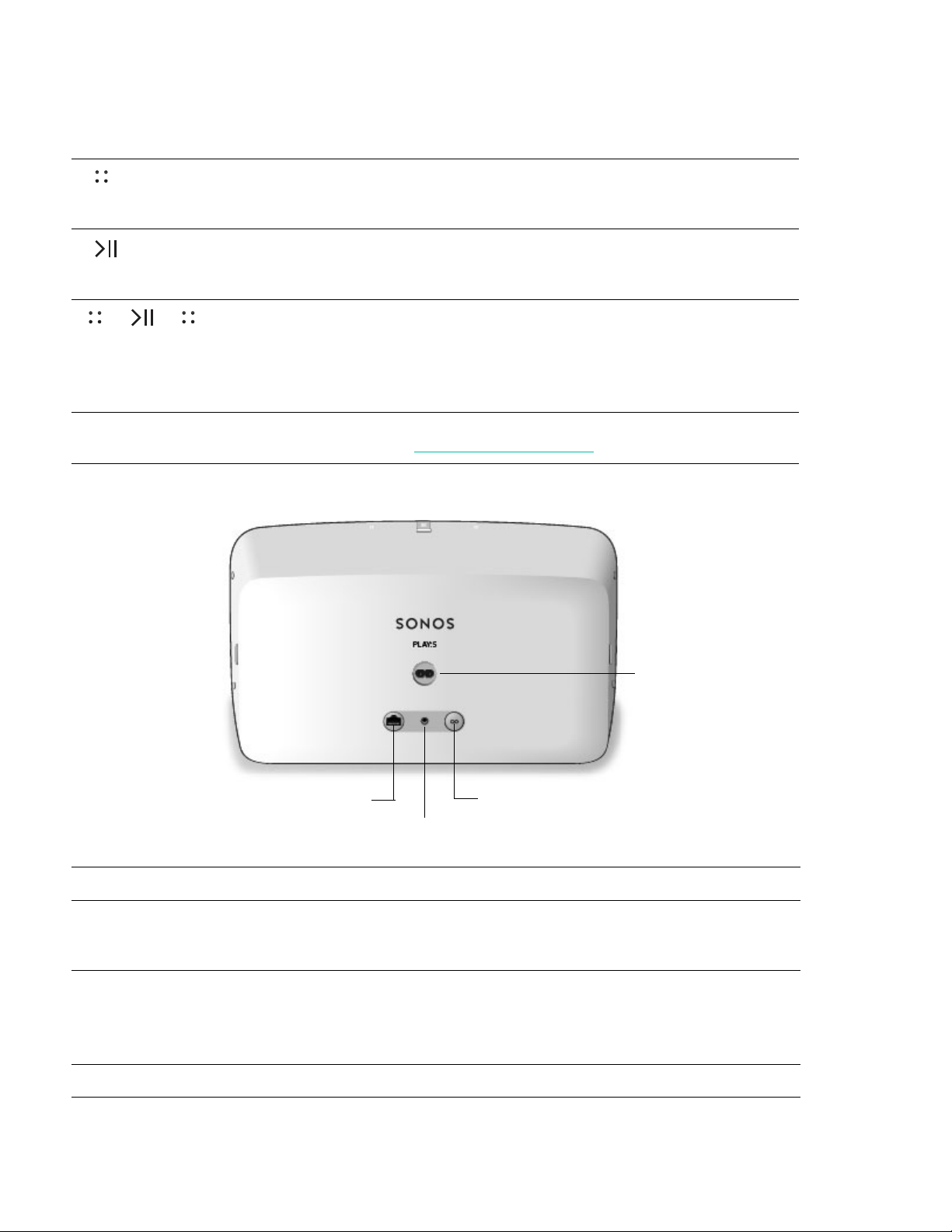
Controls and lights
Connector panel
Volume control Touch and hold to quickly change the volume:
• Volume up (right)
• Volume down (left)
Play/Pause • Press once to play or pause music.
• Press and hold to add the music that’s playing in
another room.
Next/Previous song • Swipe right across the touch controls to skip to the
next song.
• Swipe left to go to the previous song.
Note: You can’t skip forward or go back when listening
to a radio station.
Status light Indicates the status. For more information, see
https://faq.sonos.com/led.
Join button Press to connect during setup.
Ethernet port Use the supplied Ethernet cable if you want to connect
to a router, computer, or network-attached storage
(NAS) device (optional).
AC power (mains) input Use only the supplied power cord (using a third-party
power cord will void your warranty).
Note: Insert the power cord firmly until it is flush with
the bottom of the speaker.
Stereo audio in (3.5mm / 1/8") Use to connect external music players.
AC power (mains) input
Join buttonEthernet port
Stereo audio in

SONOS USER GUIDE
Select a location
You can put your speaker just about anywhere. For maximum performance, we have a few guidelines:
• The Play:5 is a substantial and powerful speaker and should be placed on a flat surface that is robust and
durable enough to properly support it. Make sure the Play:5’s rubber feet sit completely on the flat
surface.
• Allow at least 2" perimeter all around the Play:5 including its power cord.
• For a single Play:5 speaker we recommend positioning the speaker horizontally, enabling stereo sound
over a wide sound stage. (A single Play:5 speaker positioned in vertical mode is a mono speaker—there
is no stereo separation.)
• Place the Play:5 across the room from where you’ll be listening (at or close to your ear height for best
results).
• For stereo pair placement information, see Stereo pairs.
• The Play:5 is humidity resistant so you can use it in the bathroom; however it is not water resistant so
don’t position it near water or leave it outside during a rain storm.
Speaker mounts and stands
For wall mount kits or stands, tailored to perfectly fit your Sonos products, see Accessories on our website.
Follow the instructions in the kit.
Line-in
See From other audio devices to learn how to connect an external source like a pre-amplified turntable to
any Sonos speaker that has a line-in connection.
Specifications
Feature Description
Audio
Amplifier Six Class-D digital amplifiers perfectly tuned to match the six dedicated
speaker drivers and the acoustic architecture.
Tweeter Three tweeters create the crispest and clearest high-frequency response.
Mid-Woofer Three mid-woofers ensure you’ll hear the faithful playback of mid-range
vocal frequencies plus deep, rich bass—without distortion, even at high
volumes.
Phased Speaker Array (three
drivers on top and three on the
bottom)
Creates a wide stereo soundstage that directs the sound left, right, and
center.
Stereo Pair Turn two speakers into separate left and right channel speakers to create
wider, deeper sound.

SONOS USER GUIDE
* Specifications subject to change without notice.
Home Theater Add two speakers as surrounds for a true surround sound experience.
Networking*
Wireless Connectivity Connects to your home Wi-Fi network with any 802.11b/g/n router.
802.11n only network configurations are not supported—you can either
change the router settings to 802.11b/g/n or connect a Sonos product to
your router.
Ethernet Port One 10/100Mbps Ethernet port. You can plug a Sonos product directly into
your router if your Wi-Fi is unstable.
General
Microphones Speakers that have a serial number starting with 1704 and higher don’t have
microphones.
Speakers that have a serial number starting with 1703 or lower have two
microphones, but these microphones aren’t enabled and can’t be used. If
you have any questions please visit
www.sonos.com/support
.
Power Supply 100 - 240V ~ 50-60 Hz 2.3A
Audio Line-In Auto-detecting 3.5mm audio line-in connection.
Dimensions (W x H x D) 14.33 x 8.03 x 6.06 in. (364 x 203 x 154 mm)
Weight 14 lb / 6.36 kg
Threaded Mount None
Operating Temperature 32º to 104º F (0º to 40º C)
Storage Temperature -4º to 158º F (-20º to 70º C)
Humidity Resistant Designed to withstand high-humidity, like in a bathroom with a running
shower. (It is not waterproof or water-resistant.)
Product Finish White matte or black matte exposure, graphite grille
Package Contents Play:5, power cord, Ethernet cable, and Quickstart Guide.
Feature Description
SONOS USER GUIDE
Beam
The smart, compact soundbar for your TV—
• Play anything—music, TV, movies, podcasts, radio, audiobooks, and video games.
• Perfect size to wall-mount above or below your TV, or place on a credenza.
• Great for small to medium-sized rooms.
• Microphone on/off so you can use it hands-free.
• Quick and easy setup, with only one cable to connect to your TV.
• Expandable. Add a Sub and two Sonos speakers, like Play:1s, for 5.1 surround sound. For more
information, see
Sonos home theater.
•See Getting started when you’re ready to add a Beam to your Sonos system.
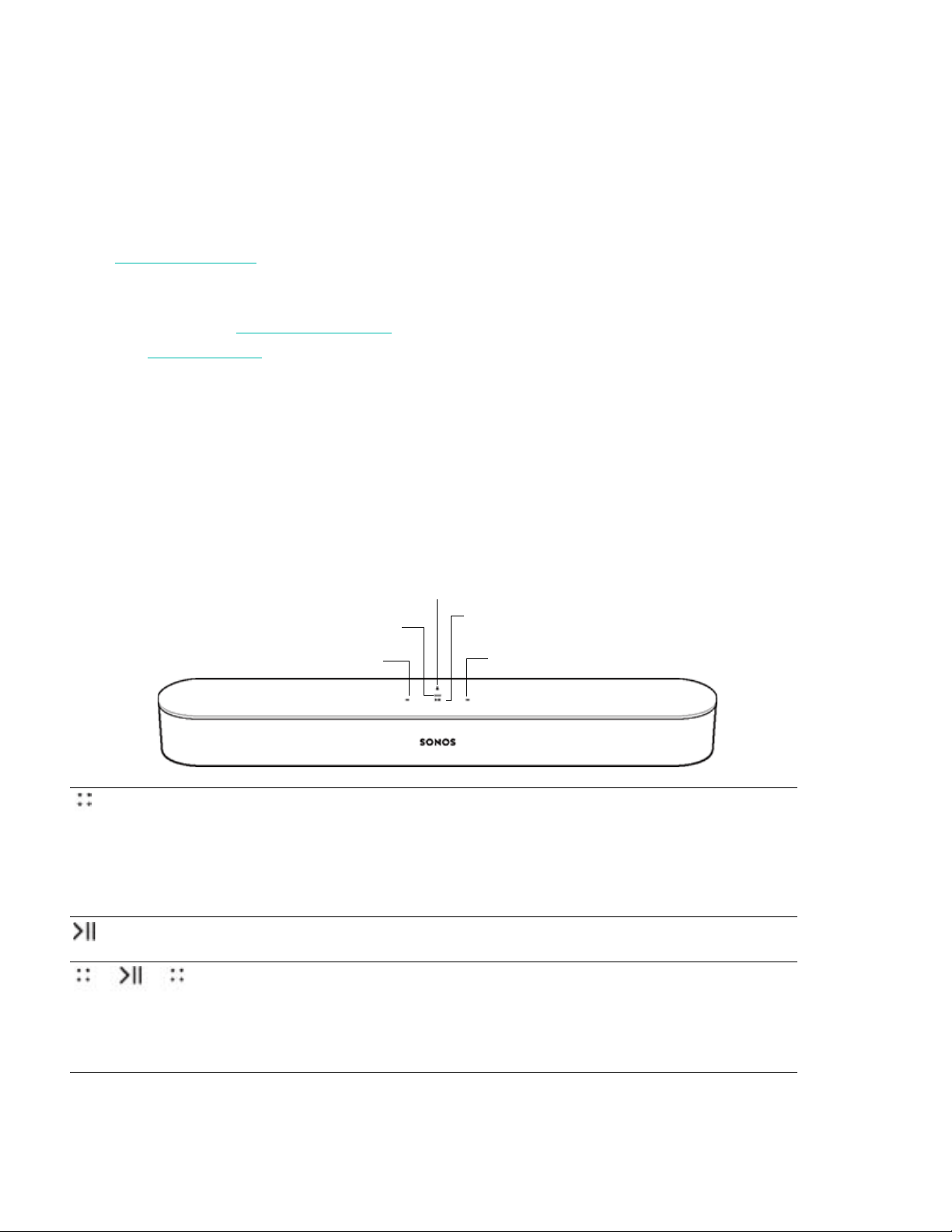
Controls and lights
Swipe, touch, tap, or ask—with Beam you’ve got choices on how to control sound.
• Use the touch controls—touch or swipe across the controls.
• Voice control—set it up and use your voice to turn the TV on or off, adjust the volume, or play music.
• Use the app.
• Use your TV remote control.
Volume control Touch for small adjustments or touch and hold to
quickly change the volume:
• Volume up (right)
• Volume down (left)
Note: You can also use the app, Alexa, or remote
control.
Play/Pause Touch to play or pause sound.
Next/Previous
(Music only)
• Swipe right across the touch controls to skip to the
next song.
• Swipe left to go to the previous song.
Note: You can’t skip forward or go back when listening
to a radio station.
Microphone indicator
Volume down
Volume up
Status light
Play/Pause
SONOS USER GUIDE
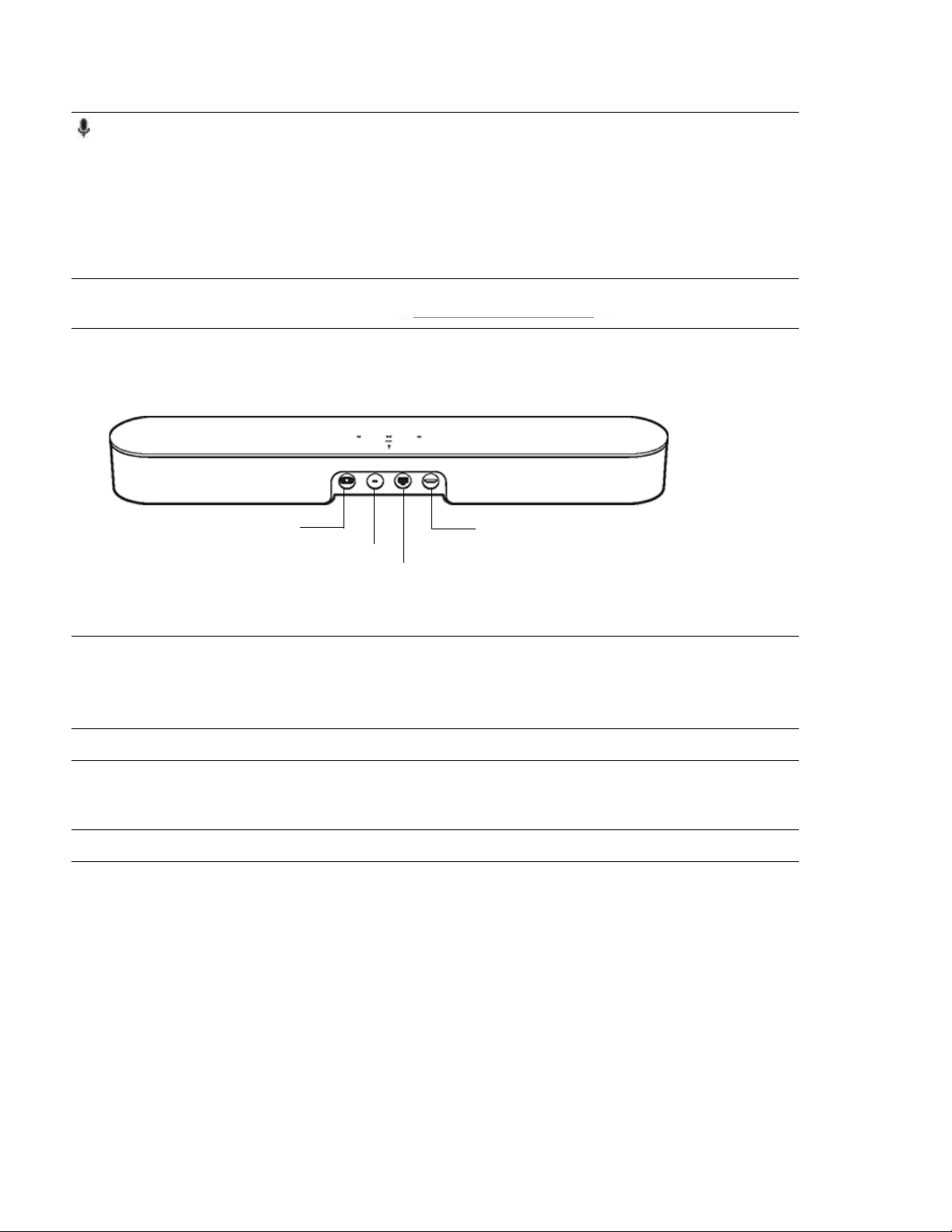
Connector panel
Select a location
You can mount Beam to a wall above or below your TV or place it on a credenza.
Place on a credenza
• Place horizontally on a stable and level surface at least 2" (50mm) from the TV.
• Don’t place vertically or on its side.
• Don’t block the TV’s IR sensor.
• If put on a shelf, place at the front and keep 2" (minimum) clearance on both sides for best sound quality.
• Keep 1" (25mm) space (minimum) above Beam so you can reach the touch controls.
Microphone
indicator
• Tap the microphone light to turn the microphone on
or off.
• When the light is on, voice control is on and you can
use voice commands.
• When the light is off, voice control is off.
Note: If the light is off, press and hold the Microphone
indicator to talk to Alexa. Release the button to
turn voice control off again.
Status light Indicates the status. For more information, see
https://faq.sonos.com/led.
AC power (mains) input Use only the supplied power cord (using a third-party
power cord will void your warranty).
Note: Insert the power cord firmly until it is flush with
the speaker.
Join button Press to connect during setup.
Ethernet port Use an Ethernet cable if you want to connect to a router,
computer, or network-attached storage (NAS) device
(optional).
HDMI port Use to connect the soundbar to your TV.
HDMI port
Ethernet port
AC power (mains) input
Join button
SONOS USER GUIDE
• For best sound quality, keep both ends of Beam at least 1' (30cm) from a wall or other obstruction.
Wall mount
To put Beam on a wall, see Wall Mount.
Connect the cables
Before you start
1. Disconnect existing home theater or surround sound equipment from your TV.
2. Connect any external devices, like a cable box or DVD player, directly to your TV.
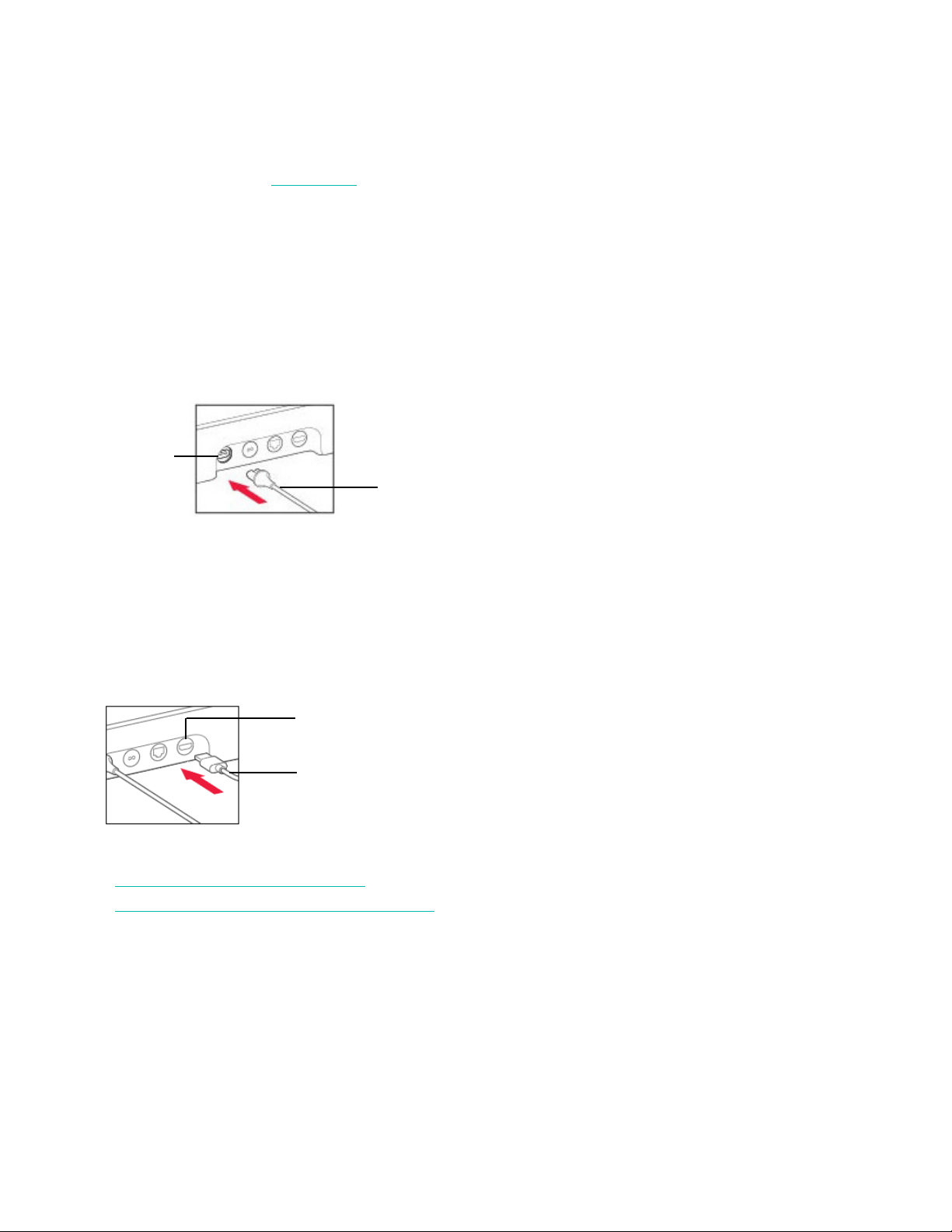
Connect the power cord
1. Insert the power cord firmly into Beam’s AC (mains) power port until it is fully connected.
2. Plug the other end of the power cord into an AC (mains) power source.
Caution: Use only the supplied power cord (using a third-party power cord will void your warranty).
Connect Beam to your TV
Use the HDMI cable to connect the soundbar to your TV. You may need the optical adapter too (the app lets
you know).
1. Fully insert the HDMI cable into Beam’s HDMI port.
2. Connect the HDMI cable to your TV. You have two choices:
• If your TV has an HDMI ARC port, connect the HDMI cable directly to the TV’s HDMI ARC port.
• If your TV doesn’t have an HDMI ARC port, attach the optical adapter to the HDMI cable and connect
it to the TV’s optical digital OUT port.
If your TV has an HDMI ARC port
HDMI ARC is a special port that looks like a standard HDMI port. Although they look the same, if you connect
to a standard HDMI port, you won’t hear sound.
1. On your TV’s audio OUT panel, look for an HDMI ARC port.
It may be on the back or side of your TV.
Power cord
Power port
HDMI port
HDMI cable
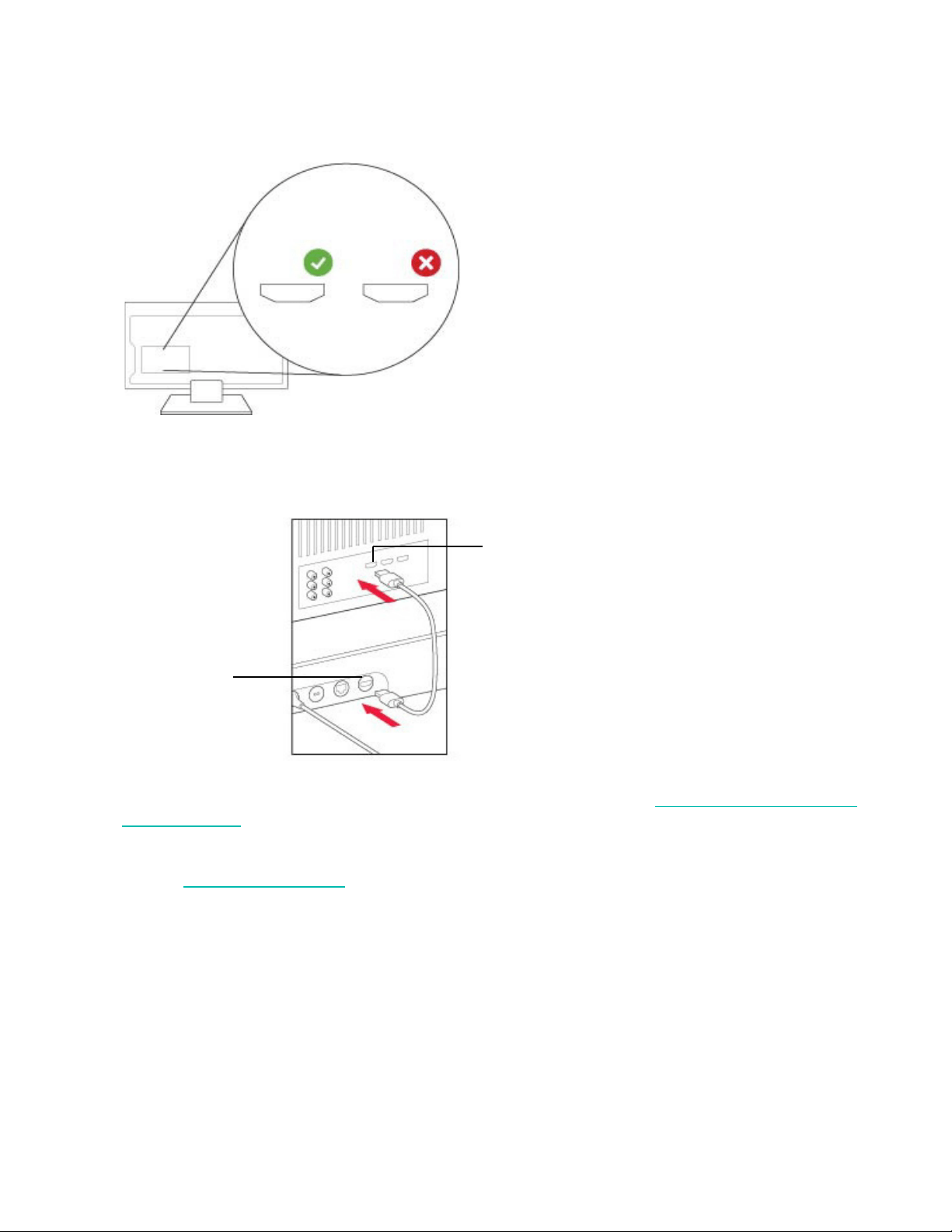
SONOS USER GUIDE
You’ll know it’s an ARC port if you see the word “ARC” on the label.
2. Connect the HDMI cable to the TV’s HDMI ARC port.
Note: If you can’t find the word “ARC” on the label, it isn’t the correct port. See If your TV doesn’t have an
HDMI ARC port.
If your TV doesn’t have an HDMI ARC port
You’ll need the optical audio adapter.
1. Remove the protective cap from the optical adapter.
ARC HDMI
TV’s HDMI ARC port
Beam’s HDMI port
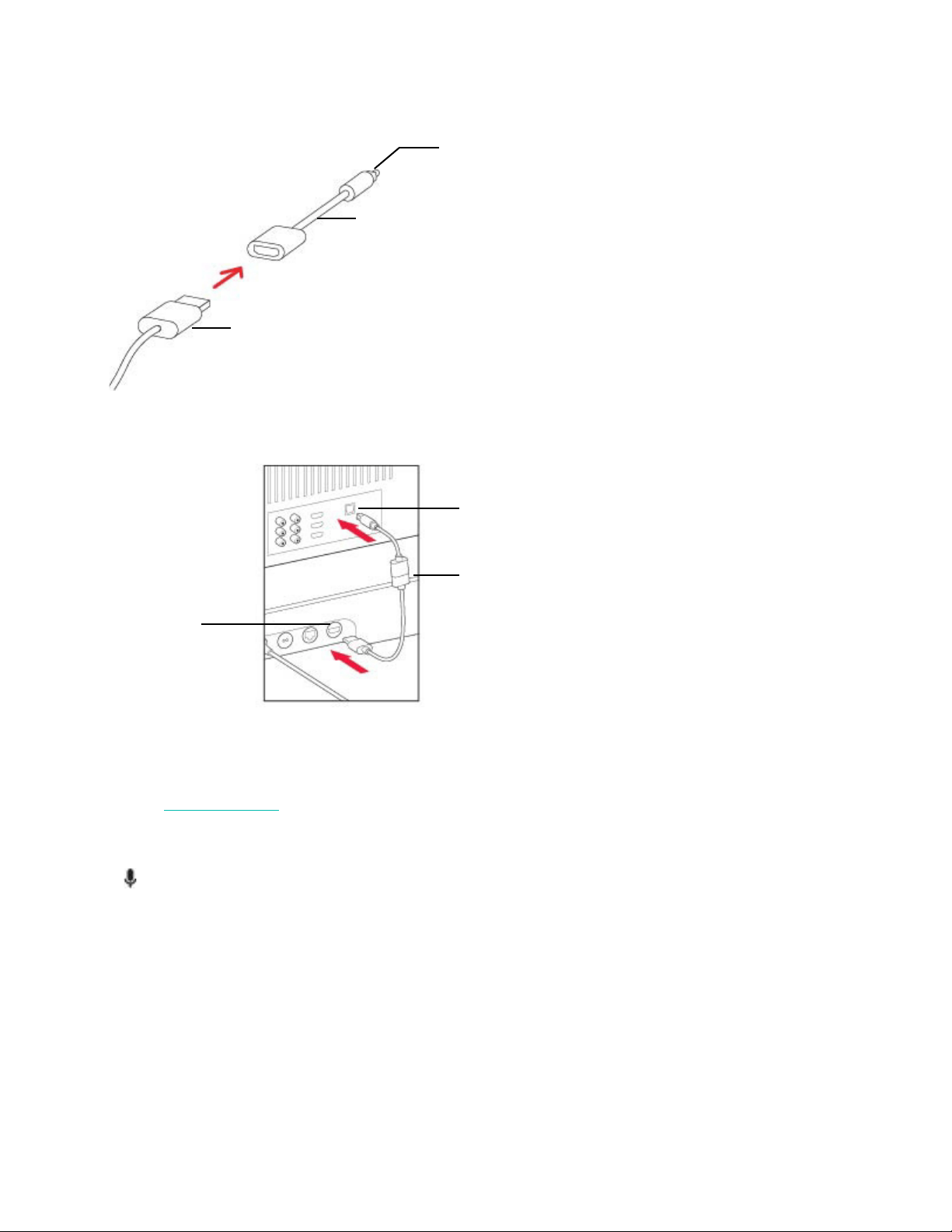
SONOS USER GUIDE
2. Attach the optical adapter to the HDMI cable.
3. Connect the optical adapter to the TV’s optical digital OUT port.
Note: The optical adapter’s port is “D-shaped”—make sure the connector aligns correctly into the port.
Inserting the adapter incorrectly may damage the cable.
If you don’t have the app, download it from the app store. You’ll use it to set up and control your Sonos
system. See Getting started
.
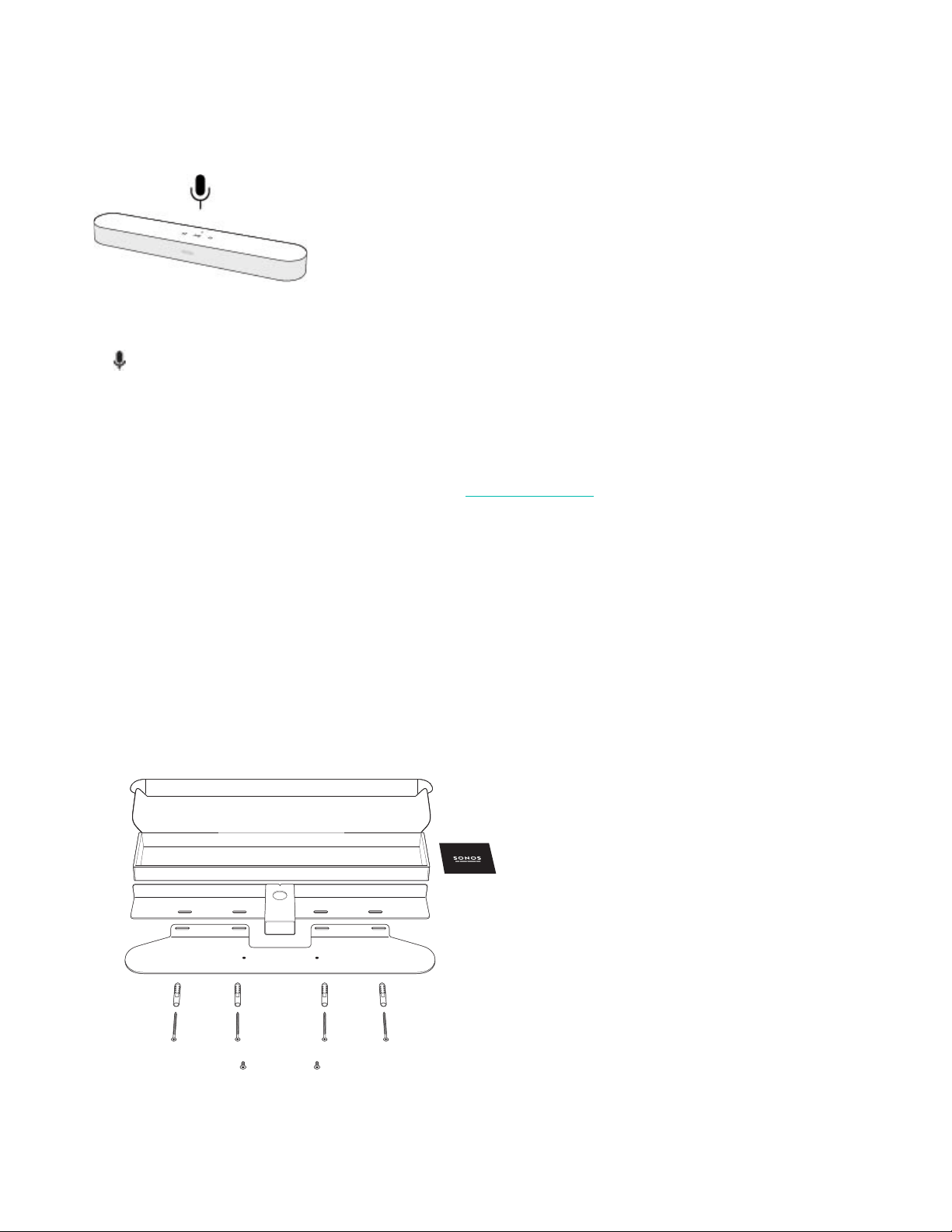
Microphone on/off
Touch to turn the microphone on and off. (If you don’t have a voice service installed, the microphone is
inactive.)
Optical adapter
HDMI cable
Remove the protective cap
TV’s optical digital OUT port
Beam’s HDMI port
Optical adapter attached to HDMI cable
SONOS USER GUIDE
When the microphone light is on, voice control is on and Alexa is ready to respond. When the microphone
light is off, voice control is off.
If you’ve installed a voice service and the microphone is off, you can still use voice commands. Just press and
hold while talking to Alexa—no need to start with a wake word. When you release the mic button, voice
control turns off again.
Wall Mount
Guidelines
• Use the Beam wall mount kit. You can buy it on www.sonos.com. Follow the instructions in the kit.
• Keep 1" (25mm) space (minimum) above Beam so you can reach the touch controls.
• If you’re mounting above the TV, make sure you can reach the touch controls.
• For best sound quality, keep both ends of Beam at least 1' (30cm) from a wall or other obstruction.
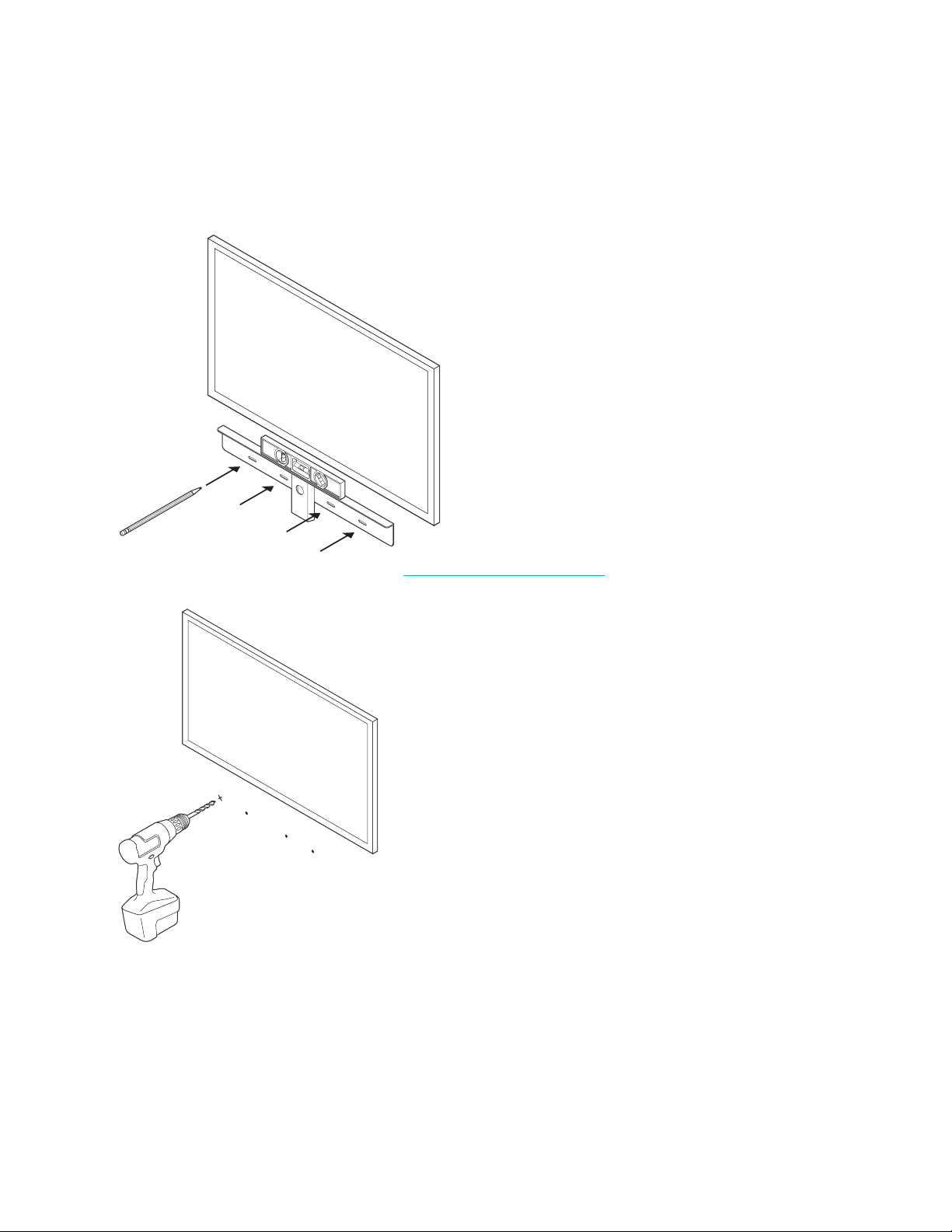
Mount kit contents
• Wall mount bracket
• 4 wall anchors
• 4 wall screws
•2 screws
Note: Don’t discard the template. It may look like packing material.
SONOS USER GUIDE
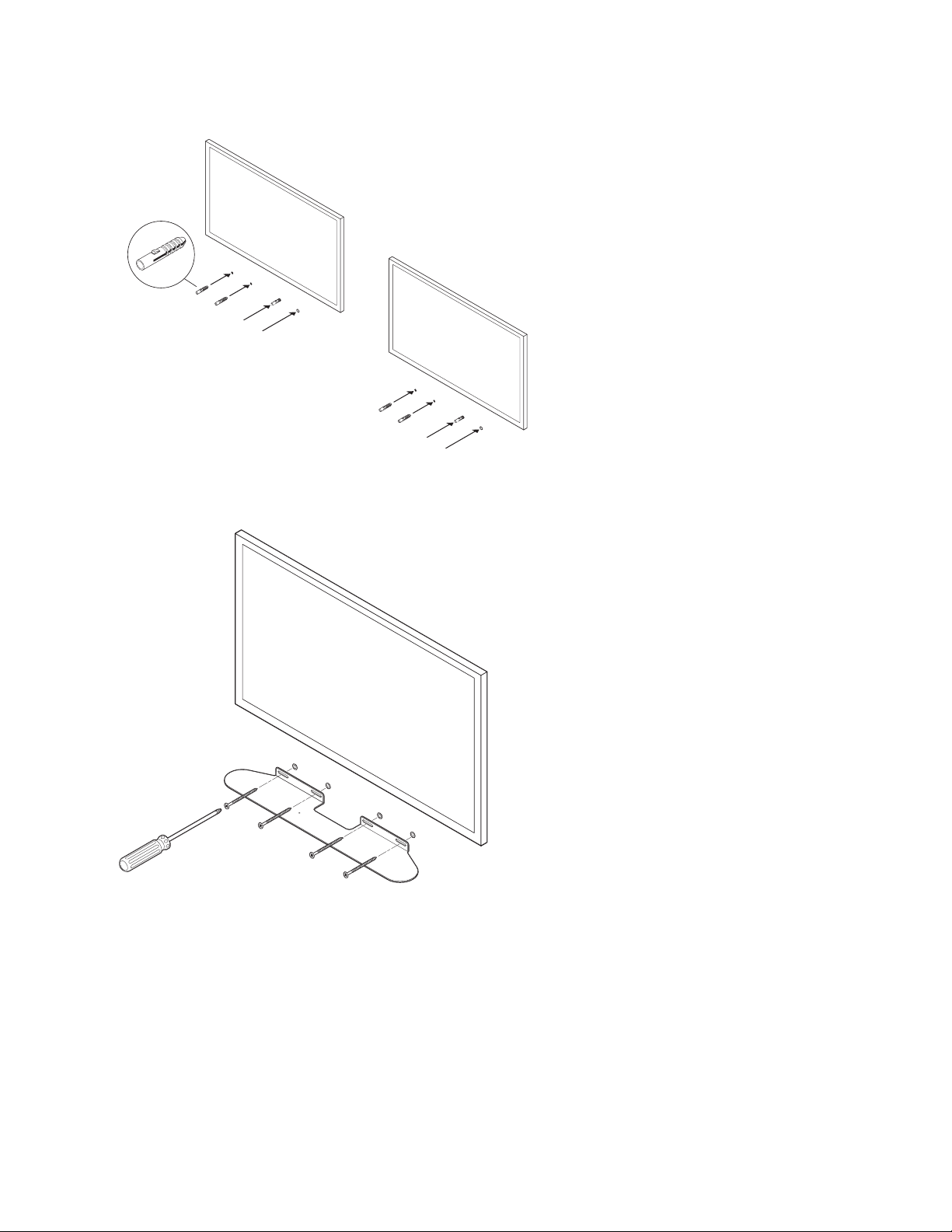
1. Tape the cardboard template to the wall above or below your TV. Use a level. Keep 1" (25mm) space
(minimum) for access to Beam’s touch controls. (Don’t install Beam vertically.)
2. Mark the center of the mounting holes and remove the template.
3. Use a 5/16" drill bit to drill pilot holes (see Wall mounting information)
4. Insert and secure the wall anchors (don’t use the anchors if drilling into wood).
SONOS USER GUIDE
5. Place the bracket on the wall and loosely tighten the wall screws to secure the bracket. Check with a level
and then tighten the screws.
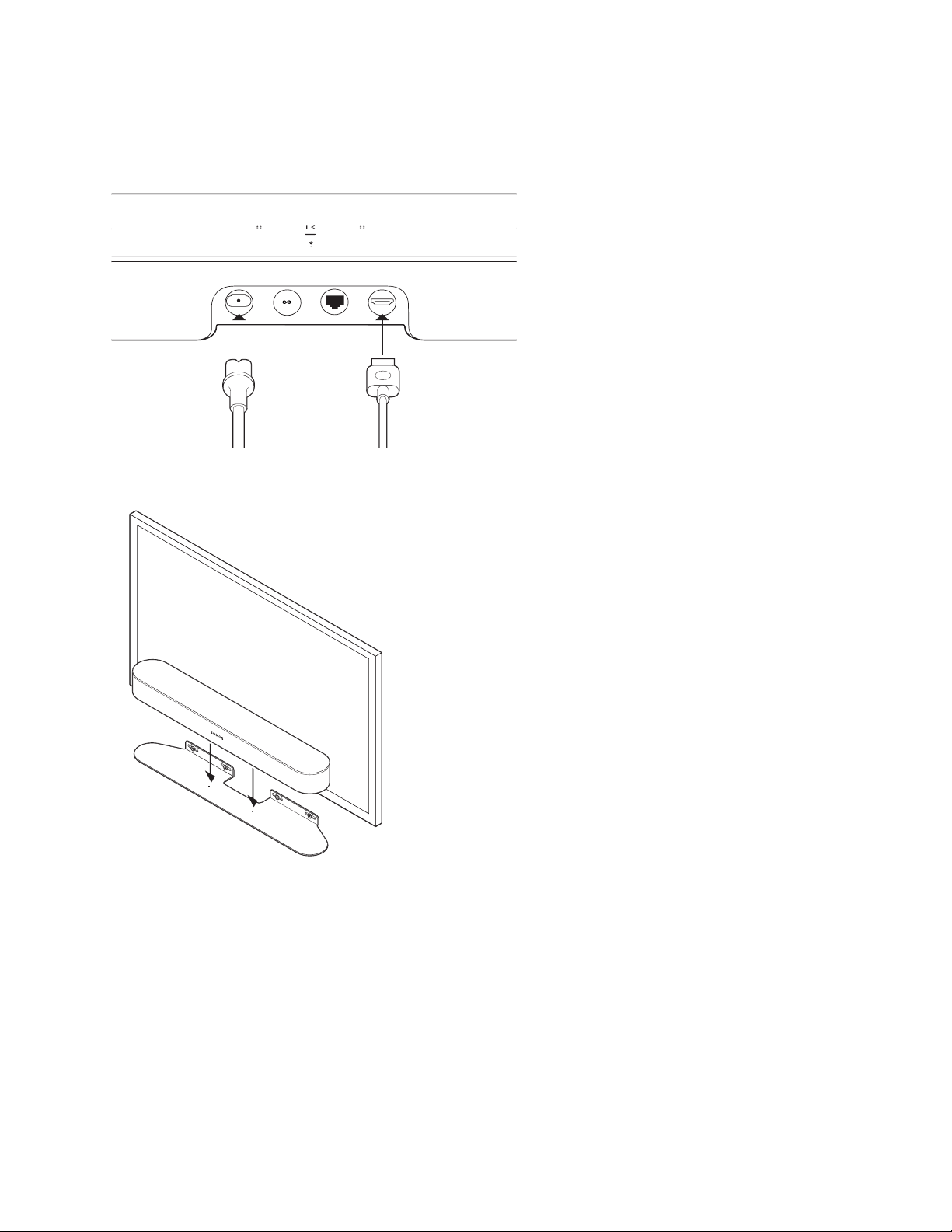
6. Connect the power and HDMI cables to Beam.
SONOS USER GUIDE
7. Place Beam on the bracket.
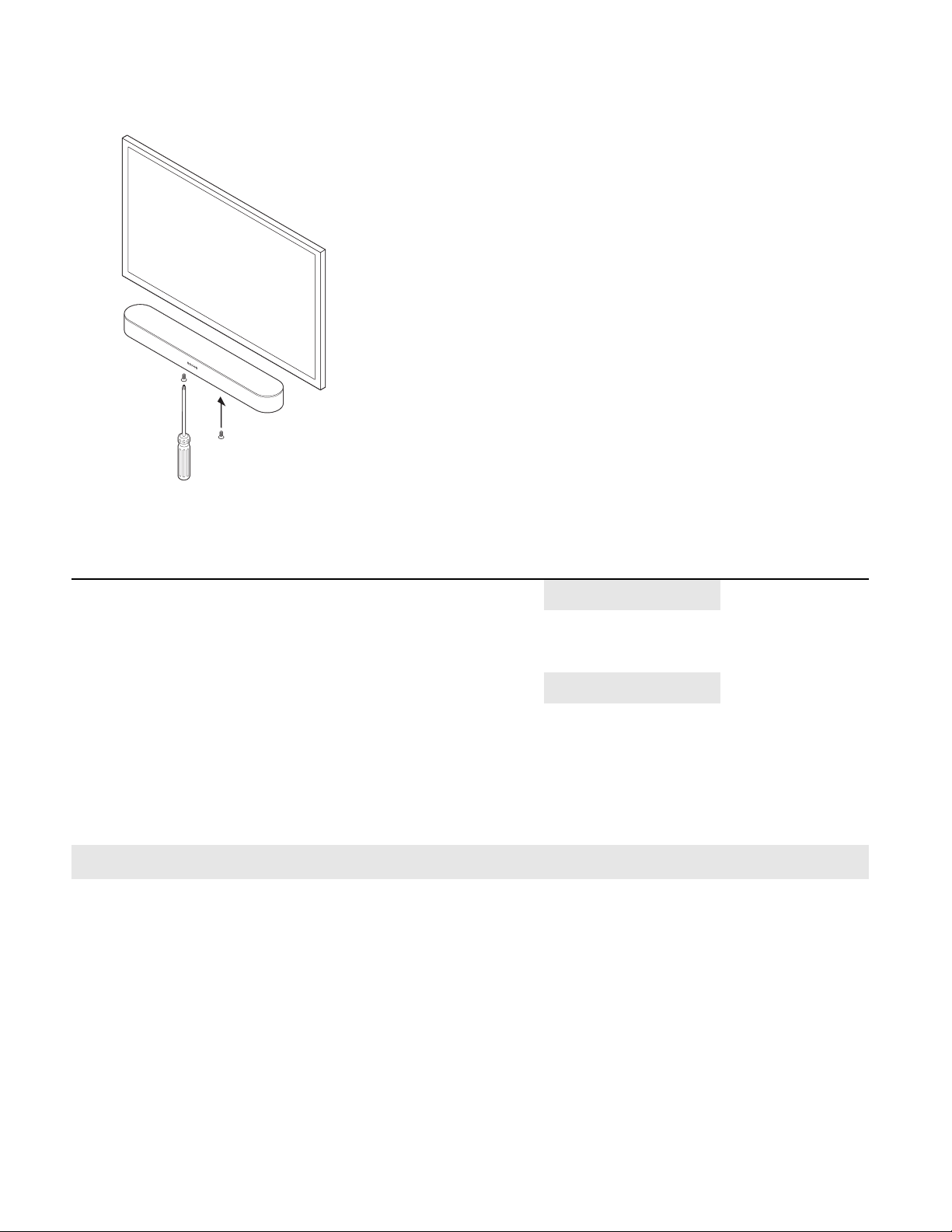
8. Insert and tighten Beam to the bracket using the mounting screws.
SONOS USER GUIDE
Wall mounting information
Specifications
Wall Material Pre Drill Use Wall Anchors Use Screws
Wood Stud 1/8" / 3mm bit
No Yes
Drywall (no stud) 5/16" / 8mm bit Yes Yes
Hard wallboard or double board 5/16" / 8mm bit Yes Yes
Plaster 5/16" / 8mm bit
No, requires toggle bolt Yes
Concrete or Brick 5/16" / 8mm bit Yes Yes
Feature Description
Audio
Amplifier Five Class-D digital amplifiers.
Elliptical Woofer Four full-range woofers ensures you’ll hear the faithful playback of mid-
range vocal frequencies plus deep, rich bass.
Twee te r One tweeter creates a crisp and clear high-frequency response.
Microphones • Five far-field microphone array uses for advanced beam forming and
multichannel echo cancellation.
• LED hard-wired to voice microphones for privacy control so you know
when the microphone is active.

SONOS USER GUIDE
* Specifications subject to change without notice.
Voice Control Integrated voice control.
System Requirements TV with HDMI ARC or optical digital audio output, broadband internet, and
the Sonos app.
Networking*
Wireless Connectivity See Sonos requirements.
Ethernet Port One 10/100 Mbps Ethernet port. You can plug a Sonos product directly into
your router if your Wi-Fi is unstable.
General
Power Supply 100 - 240V ~ 50-60 Hz 2.5A
Dimensions (H x W x D) 2.68 x 25.63 x 3.94 in. (68 x 651 x 100 mm)
Weight 6.2 lb (2.8 kg)
Operating Temperature 32°F to 104°F (0°C to 40°C)
Storage Temperature -4°F to 122°F (-20°C to 50°C)
Control Use your remote control, voice, touch controls or the Sonos app.
Supported Devices Connects to TV with HDMI cable (with or without an attached optical
adapter). Plays sources connected to the TV, including cable boxes and
game consoles.
Package Contents Beam, AC power cord, HDMI cable, optical adapter, Quickstart Guide.
Feature Description
SONOS USER GUIDE
Playbar
Home theater soundbar and streaming music speaker in one—
• Sophisticated 9-speaker design.
• Simple two-cord setup. One for power. One for your TV.
• Mount horizontally above or below the TV or place flat on a TV stand.
• Easily expandable. Add a Sub and two Sonos speakers for 5.1 surround sound. For more information,
see
Sonos home theater.
• See Getting started when you’re ready to add a Playbar to your Sonos system.
Note: The grille cloth is not removable. Tampering with the cloth may damage your Playbar.
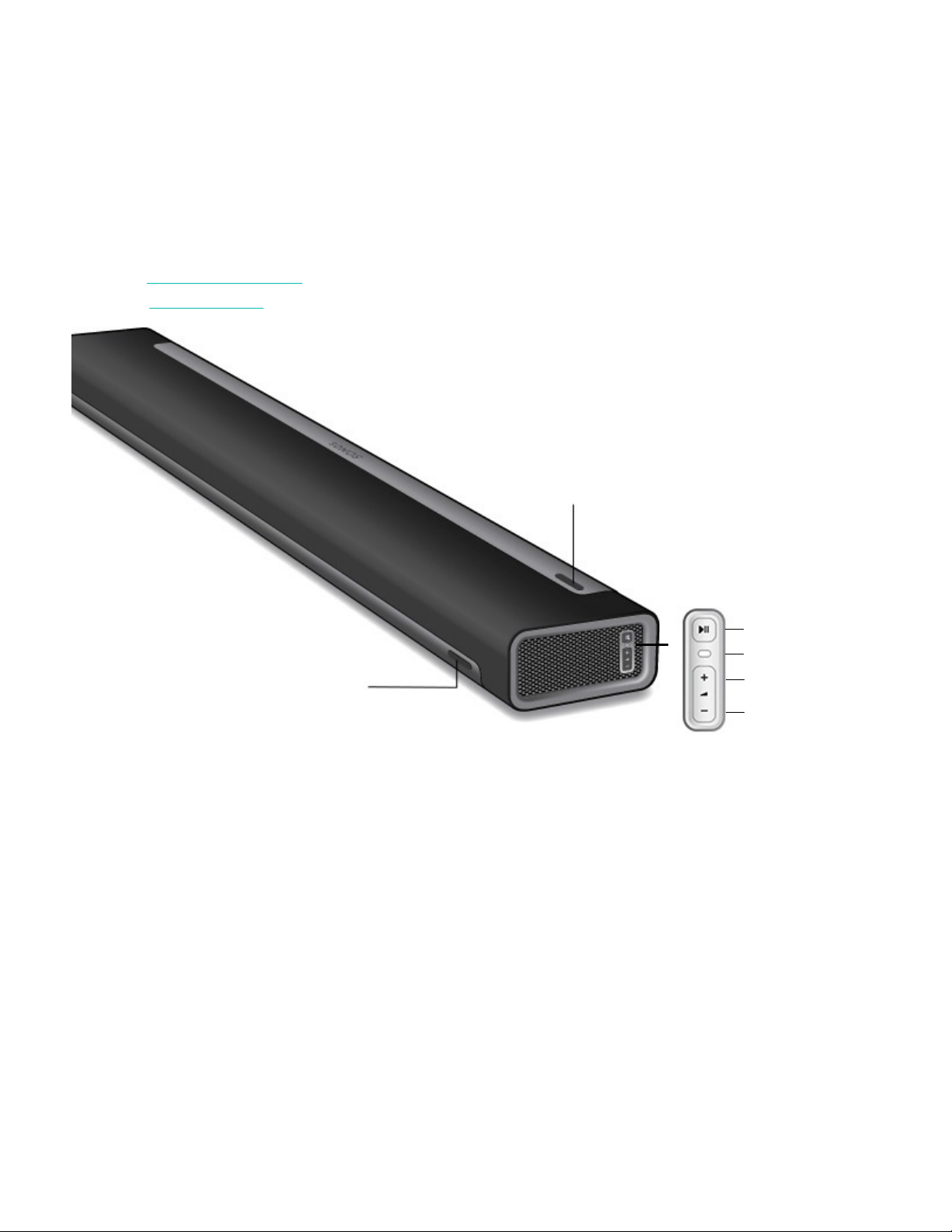
Play/Pause
Status light
Volume up
Volume down
IR sensor light
IR sensor light
SONOS USER GUIDE
Controls and lights
Connector panel
Volume up (+)
Volume down (-)
Press to adjust the volume.
Note: You can also use the app and remote control.
Play/Pause • Press once to play or pause music.
• Press twice to skip to the next song (if applicable to
the selected music source).
• Press three times to go back to the previous song.
• Press and hold to add the music playing in another
room.
Note: You can’t skip forward or go back when
listening to a radio station.
Status light Indicates the status. For more information, see
https://faq.sonos.com/led.
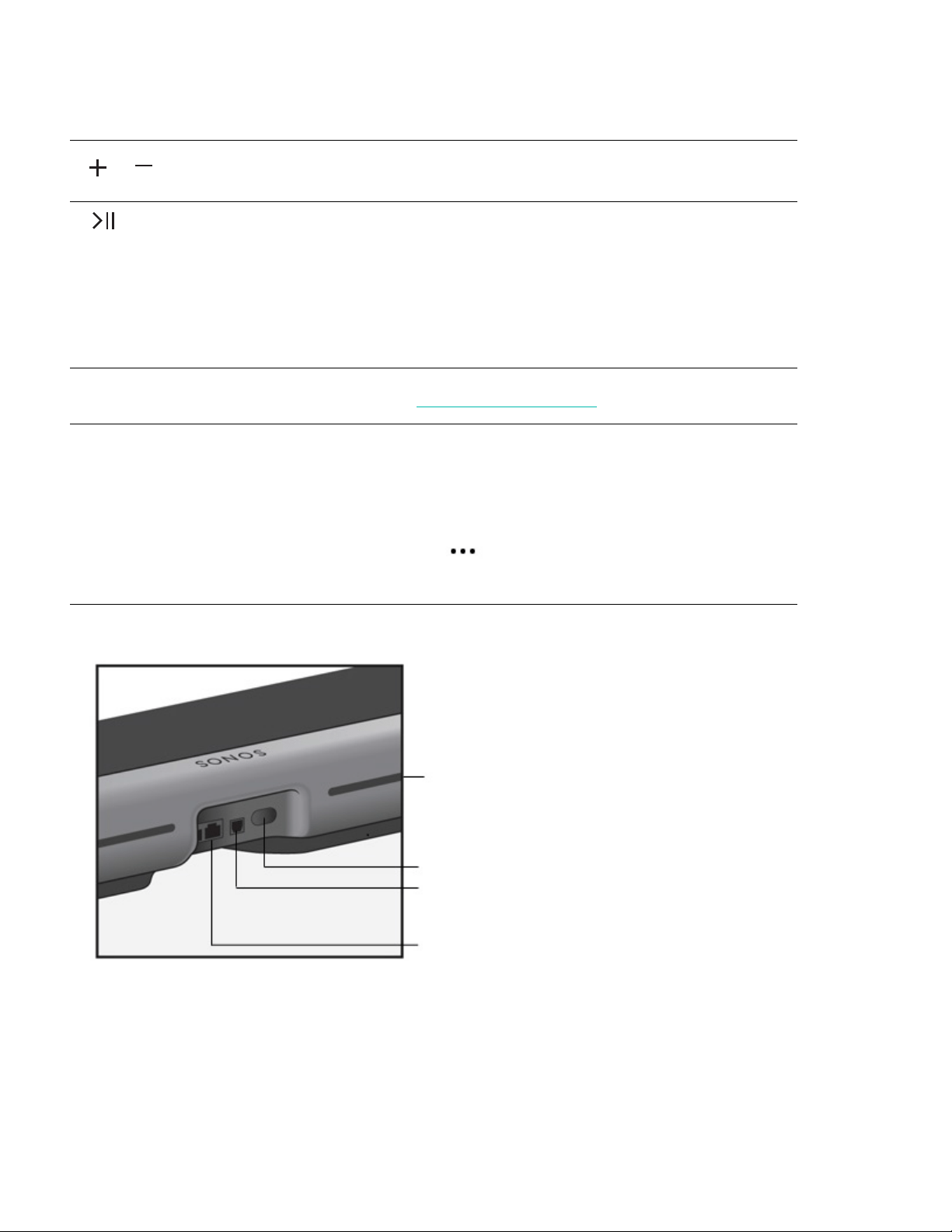
IR sensor light The IR (InfraRed) sensor receives signals sent by a
remote control.
When the Playbar receives a volume or mute
command, the IR light displays momentarily.
You can adjust this setting so the light never displays.
Ta p > Settings > Room Settings and choose
the room the Playbar is in. Tap Remote > IR Signal
Light.
IR repeater
AC power (mains) input
Digital audio IN (optical)
Ethernet ports
SONOS USER GUIDE
Select a location
You can mount the Playbar to a wall above or below your TV or place it on a credenza.
Placed on a credenza
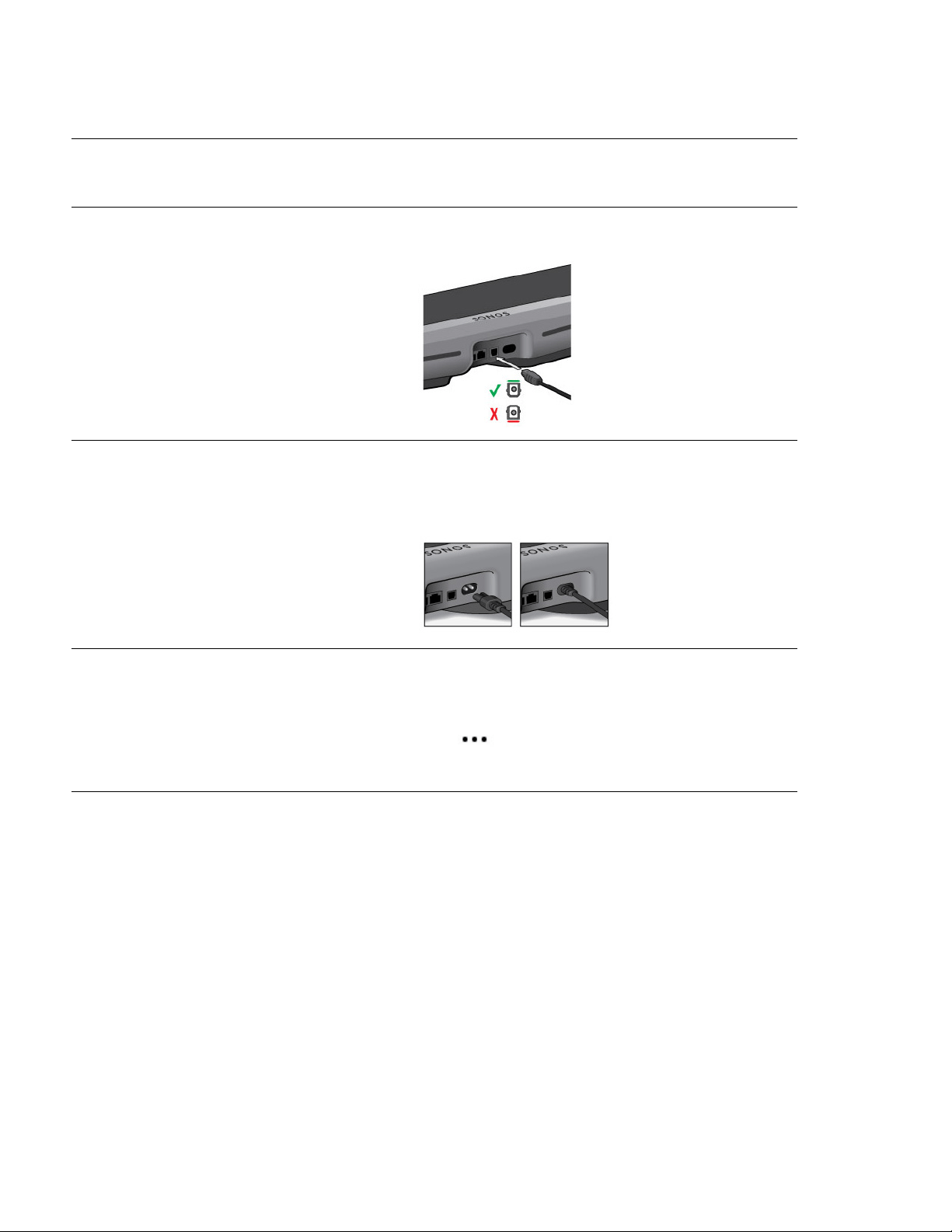
• Place horizontally on a stable and level surface at least 2" (50mm) from the TV.
• Don’t place vertically or on its side.
• Don’t block the TV’s IR sensor.
• For best sound quality, place with the connector panel toward the TV (Sonos logo is closer to the TV).
• Don’t place in a cabinet or on a shelf.
Ethernet ports (2) Use the supplied Ethernet cable if you want to connect
to a router, computer, or network-attached storage
(NAS) device (optional).
Digital audio IN (optical) Use an audio optical cable to connect the Playbar to
your TV.
AC power (mains) input Use only the supplied power cord (using a third-party
power cord will void your warranty).
Note: Insert the power cord firmly until it is flush with
the speaker.
IR repeater Allows the commands from your remote control to reach
your TV if the Playbar is positioned in front of the TV.
This setting is on by default, but can be turned off.
Touc h > Settings > Room Settings and choose
the room the Playbar is in. Touch Remote > IR
Repeater.
Optical input supports Dolby
Digital and stereo.
SONOS USER GUIDE
• Keep both ends of the Playbar at least 1' (30cm) from a wall or other obstruction.
Wall mounted
To put Playbar on a wall, see Wall Mount.
Connect the cables
Before you start
1. Disconnect existing home theater or surround sound equipment from your TV.
2. Connect any external devices, like a cable box or DVD player, directly to your TV.
Connect the soundbar to your TV
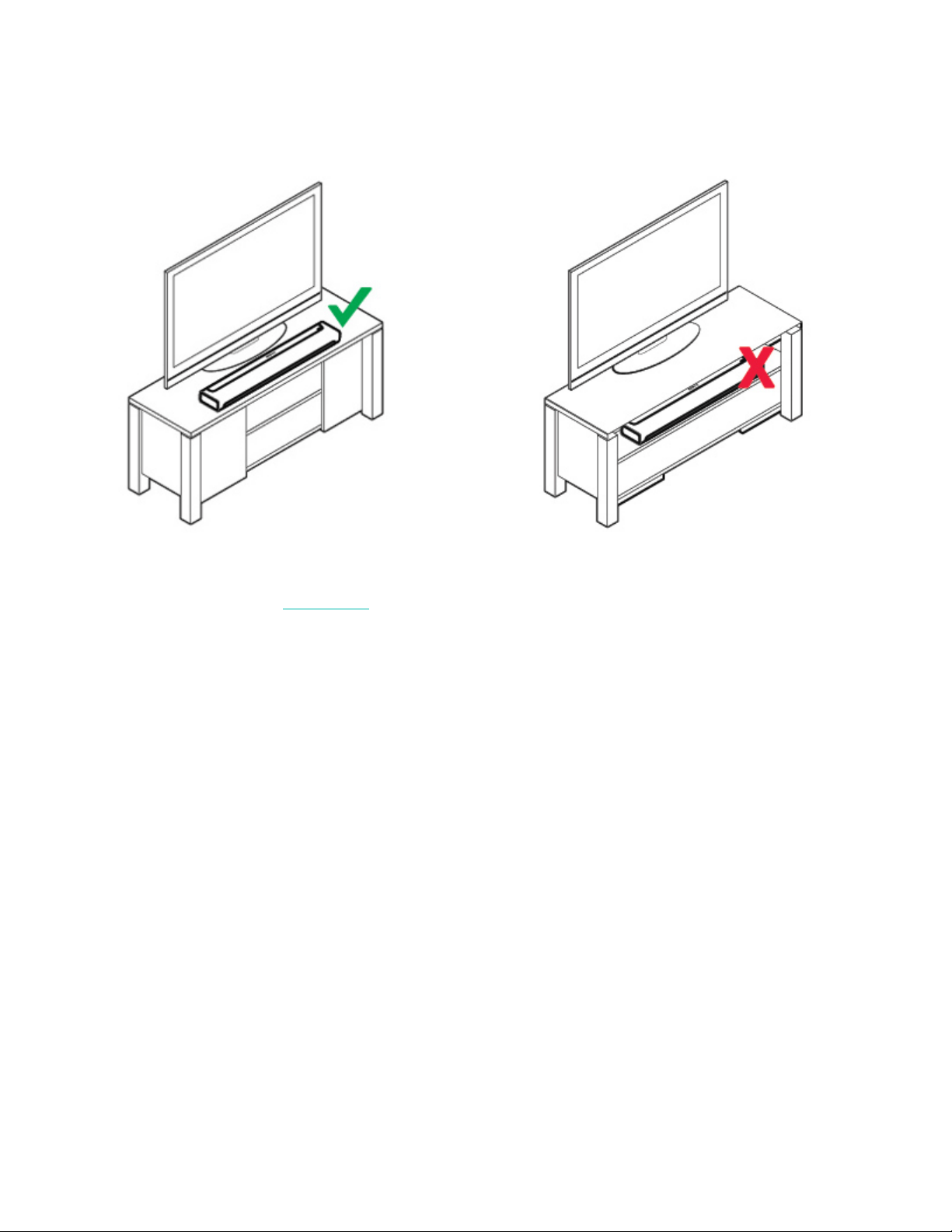
1. Remove the protective cap from each end of the optical audio cable.
2. Connect the optical audio cable from your TV’s digital audio OUT (optical) to the Playbar’s digital audio IN
(optical). Don’t twist or bend the cable.
SONOS USER GUIDE
Note: The Playbar’s digital audio IN port and the optical cable are ‘D-shaped’—make sure the connector
aligns correctly into the port.
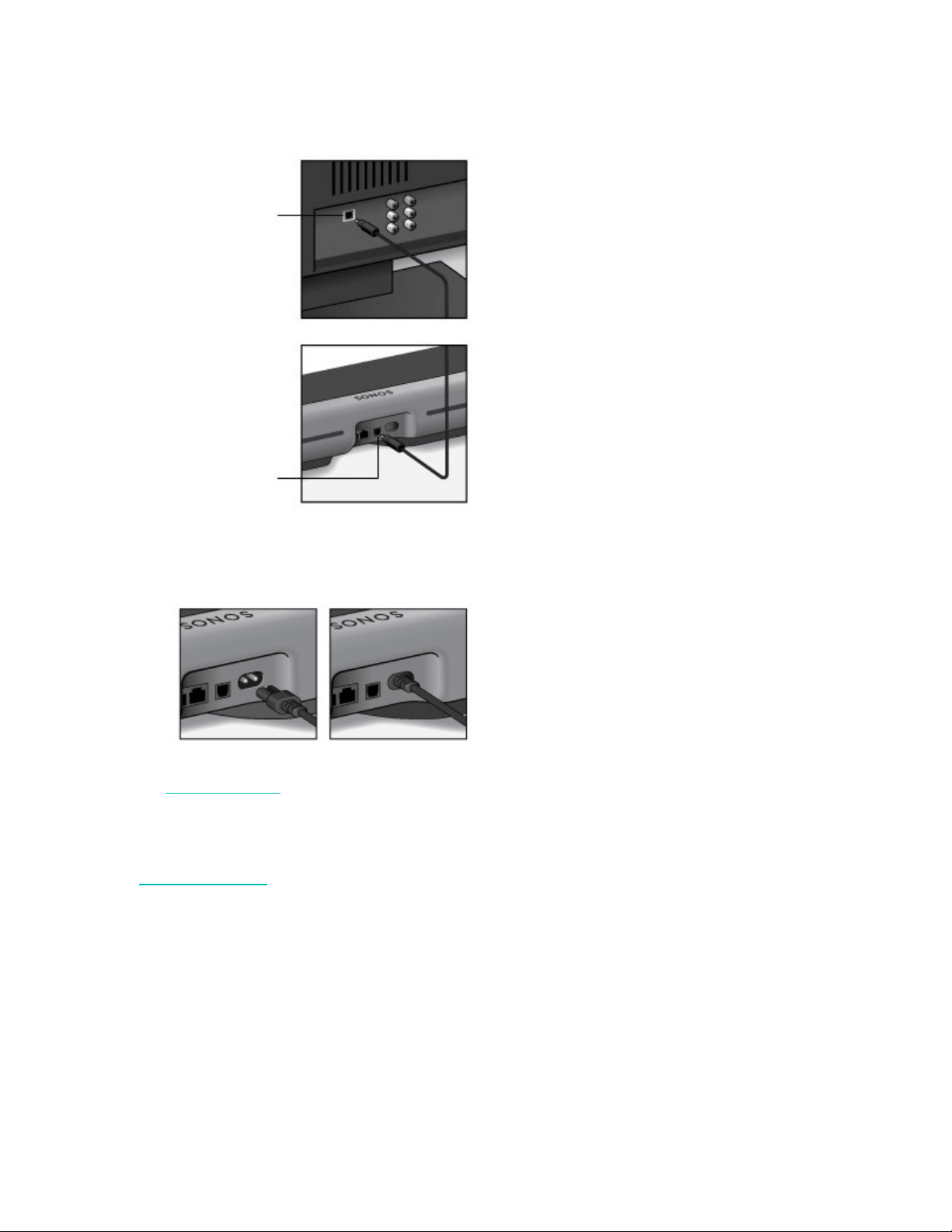
Connect the power cord
Attach the power cord and plug in the Playbar. Push the power cord in firmly until it is flush with the surface.
If you don’t have the app, download it from the app store. You’ll use it to set up and control your Sonos
system. See Getting started
.
Wall Mount
You can mount Playbar to a wall above or below a wall-mounted TV. Use the Playbar wall mount kit. You can
buy it on
www.sonos.com. Follow the instructions in the kit.
Caution: Don’t use any other hardware to mount the Playbar.
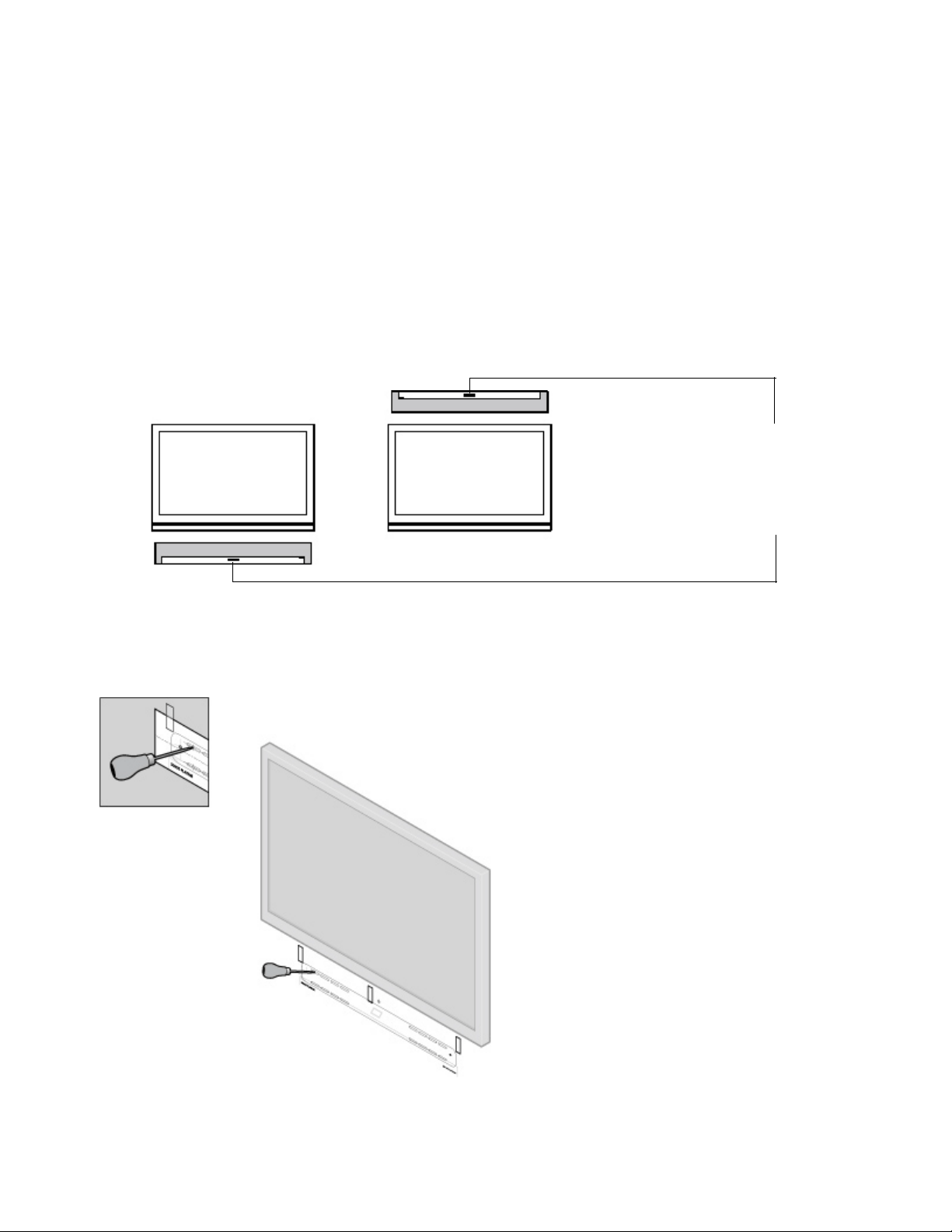
Guidelines
• When mounting below a TV, keep 1" (25mm) space (minimum) between Playbar and the TV.
• When mounting above a TV, keep 2" (50mm) space (minimum) between Playbar and the TV.
• Preserve audio quality: make sure the connector panel faces away from the TV.
• Keep both ends of the Playbar at least 1 ft. (30cm) from a wall or other obstruction.
Note: Connect the power and audio cables to the Playbar before mounting to the wall.
IMPORTANT: Remove the protective caps from
each end of the optical audio cable before
inserting.
TV’s Digital Audio
OUT (optical)
Playbar’s Digital
Audio IN (optical)
SONOS USER GUIDE
What you need
•Masking tape
• Pointed tool (like an awl)
• Phillips head screwdriver
• Power drill with Phillips head attachment
• Level (included)
Note: There are 2 spare screws (and anchors) included in the kit. Use these to provide additional
reinforcement if you’d like.
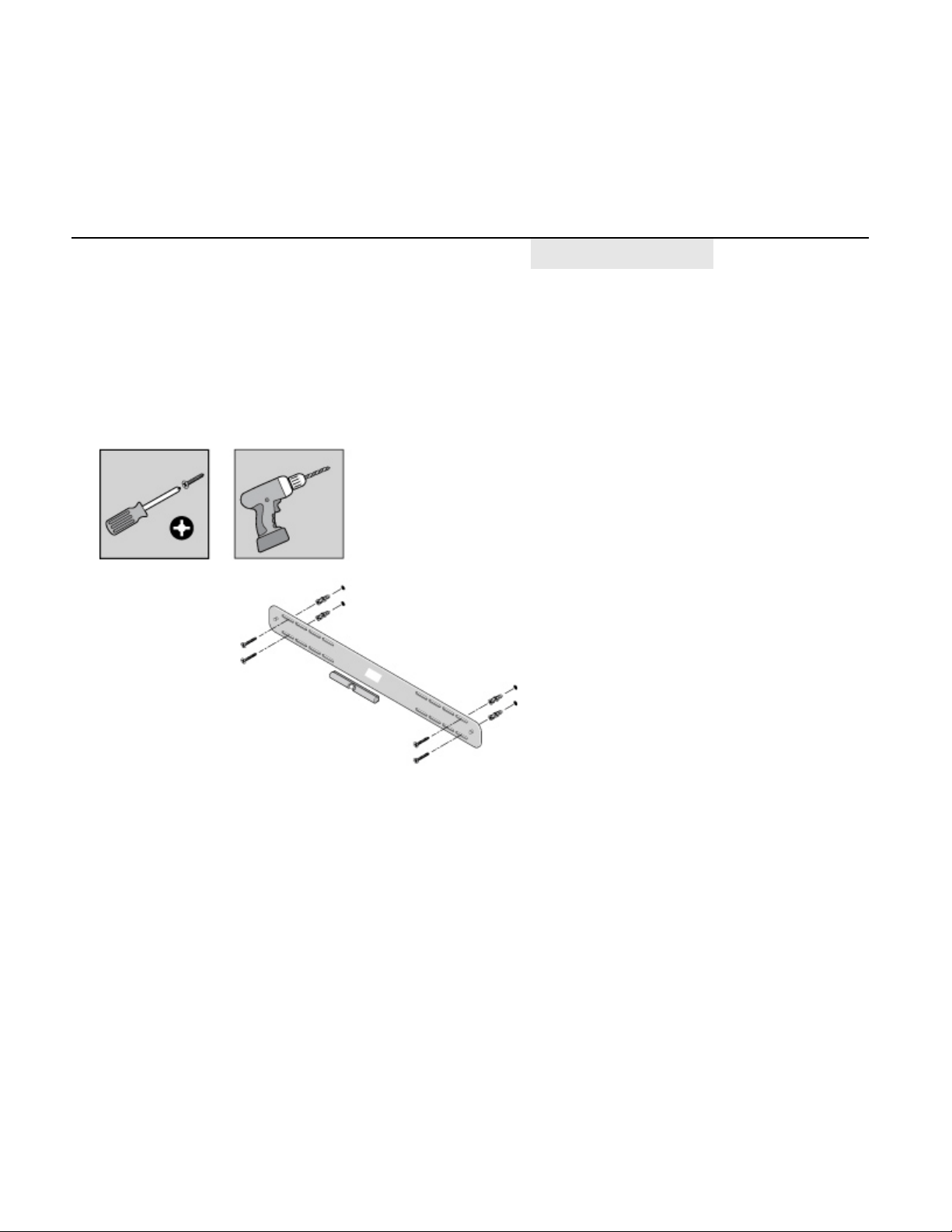
1. Tape the template to the wall above or below your TV. Use a level.
2. Use a pointed tool to pierce through the template and mark the mounting holes. Mark closer to the
corners of the holes.
For best audio performance,
orient the connector panel
AWAY from the TV.
1" (25mm)
2" (50mm)
SONOS USER GUIDE
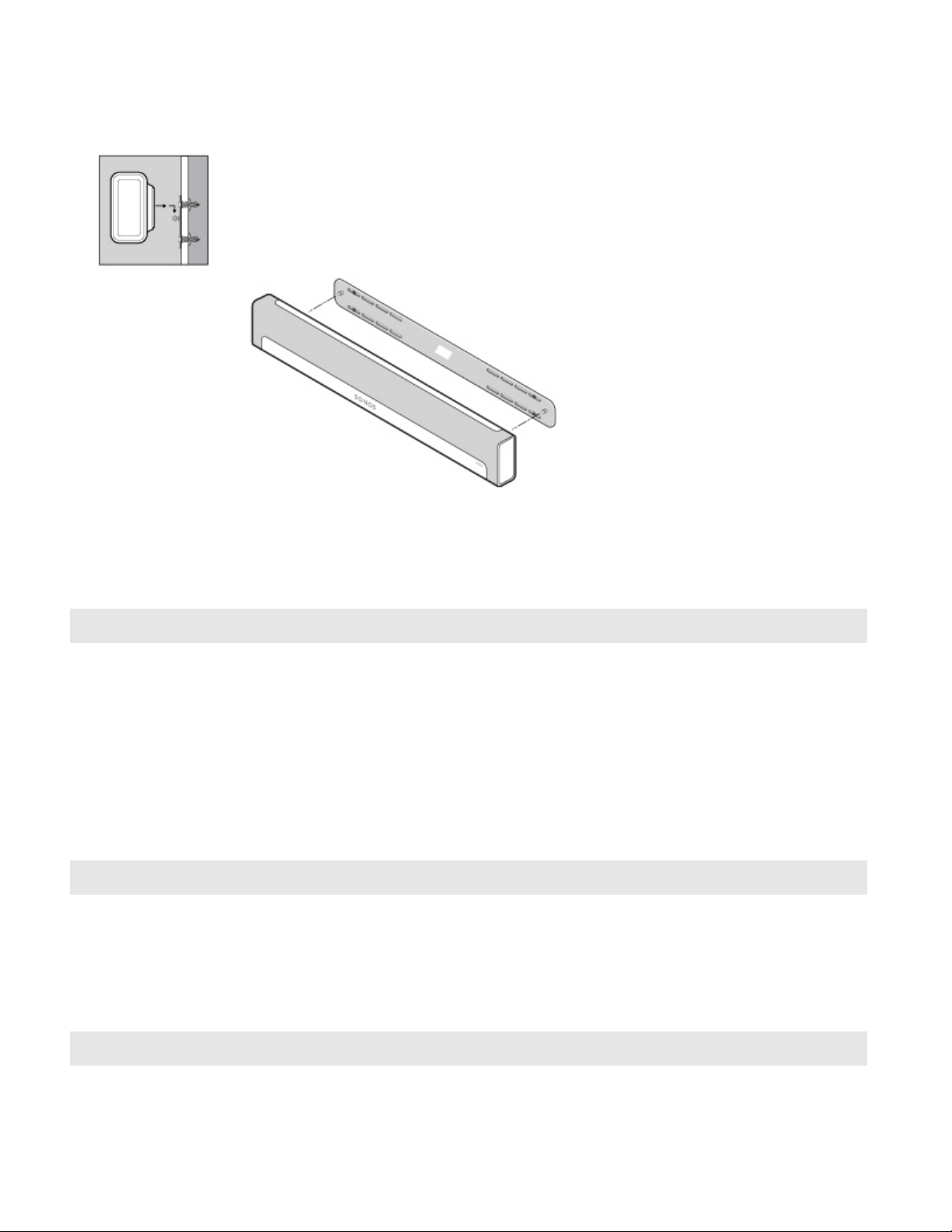
3. Remove the template.
4. Drill pilot holes.
Wall mounting information
5. Insert and secure the wall anchors (don’t use the anchors if drilling into wood).
6. Place the bracket on the wall and loosely tighten the screws to secure the bracket. Check with a level and
then tighten the screws.
Wall Material Pre Drill Use Wall Anchors Use Screws
Wood Stud 1/8" (3mm) bit
No Yes
Drywall (no stud) 3/16" (4.5mm) bit Yes Yes
Hard wallboard or double board 3/16" (4.5mm) bit Yes Yes
Plaster 1/4" (6.5mm) bit Yes Yes
Concrete or Brick 1/8" (3mm) bit Yes Yes
SONOS USER GUIDE
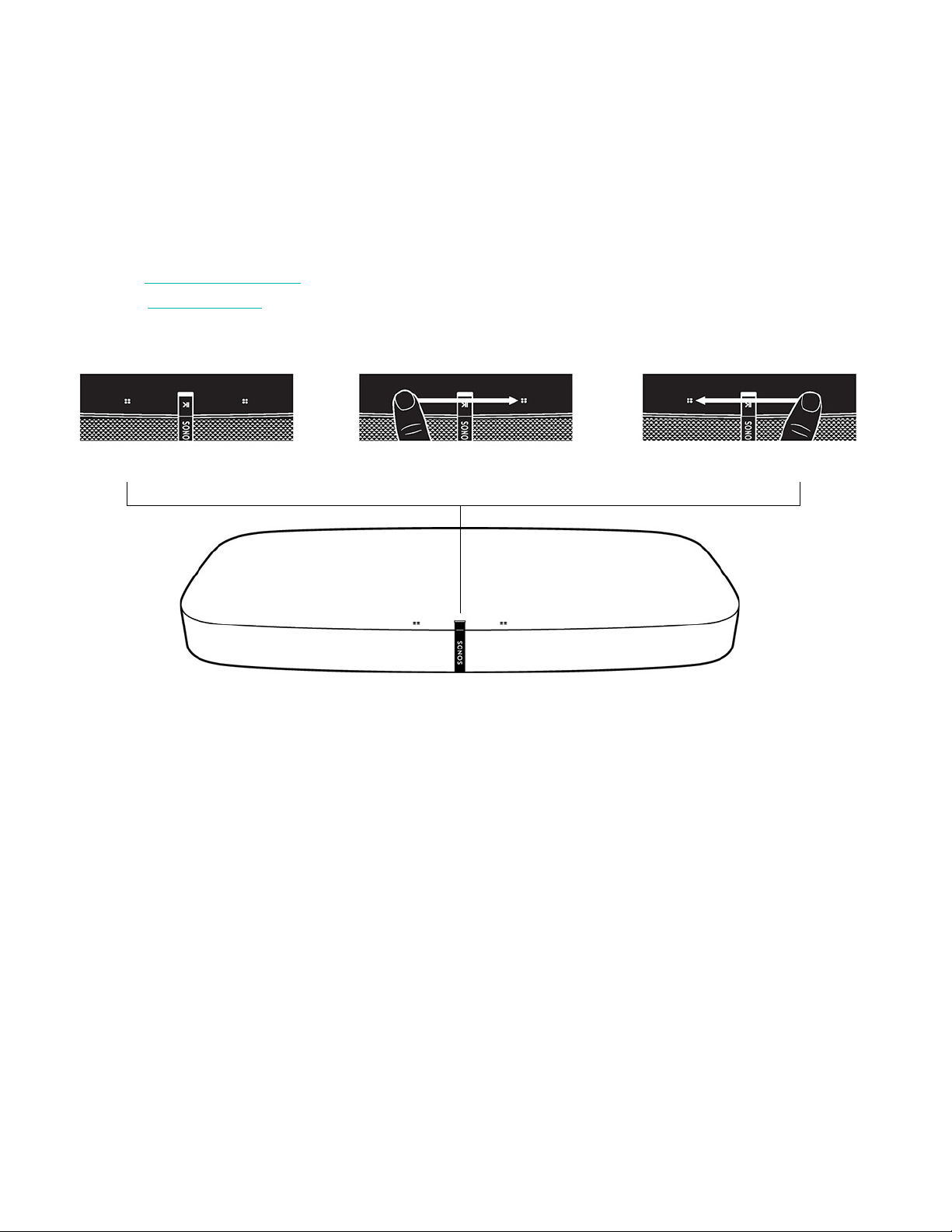
7. Hang the Playbar securely on the bracket pegs.
Specifications
Feature Description
Audio
Amplifier Nine Class-D digital amplifiers perfectly tuned to match the nine dedicated
speaker drivers and the acoustic architecture.
Tweeter Three tweeters create the crispest and clearest high-frequency response.
Mid-Woofer Six mid-woofers give you the full range of sound effects and music from the
left and right channels, and crisp, clear dialog from the center. Mid-woofers
act together as a phased speaker array so what you hear matches what you
see on screen.
System Requirements TV with optical audio output, broadband Internet, and a Sonos app. Internet-
connected TV not required.
Networking*
Wireless Connectivity Connects to your home Wi-Fi network with any 802.11b/g/n router.
802.11n only network configurations are not supported—you can either
change the router settings to 802.11b/g/n or connect a Sonos product to
your router.
Ethernet Port (2) Two 10/100 Mbps Ethernet ports. You can plug a Sonos product directly
into your router if your Wi-Fi is unstable.
General
Power Supply 100 - 240V ~ 50-60 Hz 2A

SONOS USER GUIDE
* Specifications subject to change without notice.
Dimensions (H x W x D) 3.35 x 35.43 x 5.51 in. (85 x 900 x 140 mm)
Weight 11.9 lb (5.4 kg)
Operating Temperature 32°F to 104°F (0°C to 40°C)
Storage Temperature -4°F to 158°F (-20°C to 70°C)
Multiple Orientations Mount Playbar on the wall either above or below your TV, or lay flat on your
TV table.
Control Use your remote control, voice, touch controls or the Sonos app.
Supported Devices Playbar connects to your TV using a single optical cable and plays all
sources connected to the TV, including cable boxes and game consoles.
Package Contents Playbar, AC power cord, optical audio cable, and Quickstart Guide.
Feature Description
SONOS USER GUIDE
Playbase
Full-theater sound and music streaming for TVs on stands and furniture—
• Slim tabletop design practically disappears under your TV.
• Securely supports TVs up to 75 lb (34 kg).
• Simple two-cord setup. One for power. One for your TV.
• Easily expandable. Add a Sub and two Sonos speakers for 5.1 surround sound. For more information,
see
Sonos home theater.
•See Getting started when you’re ready to add a Playbase to your Sonos system.
Play and control your music using the Sonos app or the touch controls.
Swipe right for next song (when applicable)Volume Down
Swipe left for previous song (when applicable)
Play/Pause Volume Up
Touch Controls
SONOS USER GUIDE
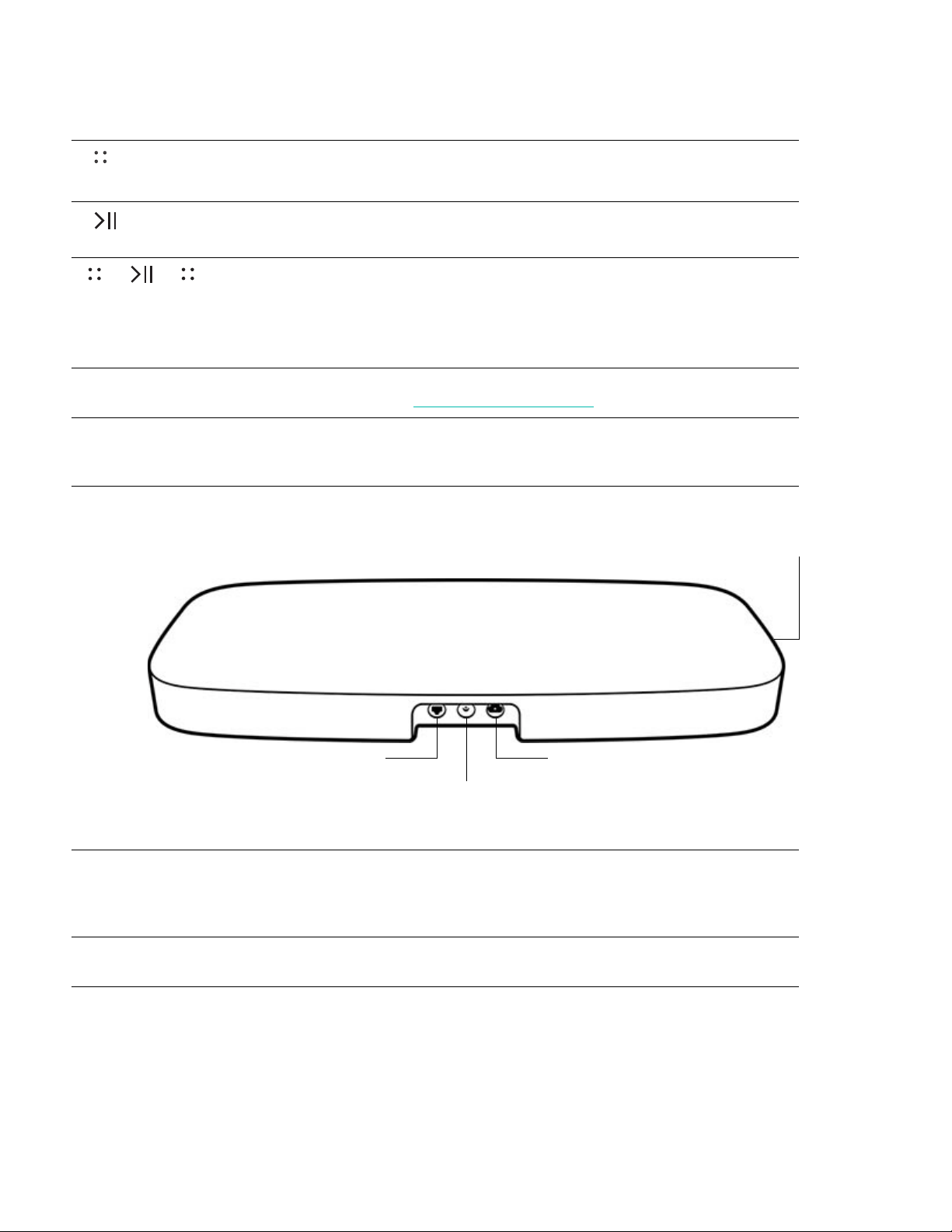
Controls and lights
Connector panel
Volume control • Touch and hold to quickly change the volume:
• Volume up (right); Volume down (left).
Play/Pause Press to play or pause sound.
Next/Previous song • Swipe right across the touch controls to skip to the
next song.
• Swipe left to go to the previous song.
Note: You can’t skip forward or go back when listening
to a radio station.
Status light Indicates the status. For more information, see
https://faq.sonos.com/led.
IR sensor light The IR (InfraRed) sensor receives the signals sent by a
remote control. When the Playbase receives a volume or
mute command, the IR signal light displays momentarily.
Ethernet port Use the supplied Ethernet cable if you want to connect
to a router, computer, or network-attached storage
(NAS) device (optional). You should only use this port to
plug in either the Playbase or a Sonos Bridge or Boost.
Digital audio IN (optical) Use an audio optical cable to connect the Playbase to
your TV.
AC power (mains) input
Digital audio IN (optical)
Ethernet port
Join button
SONOS USER GUIDE
Select a location
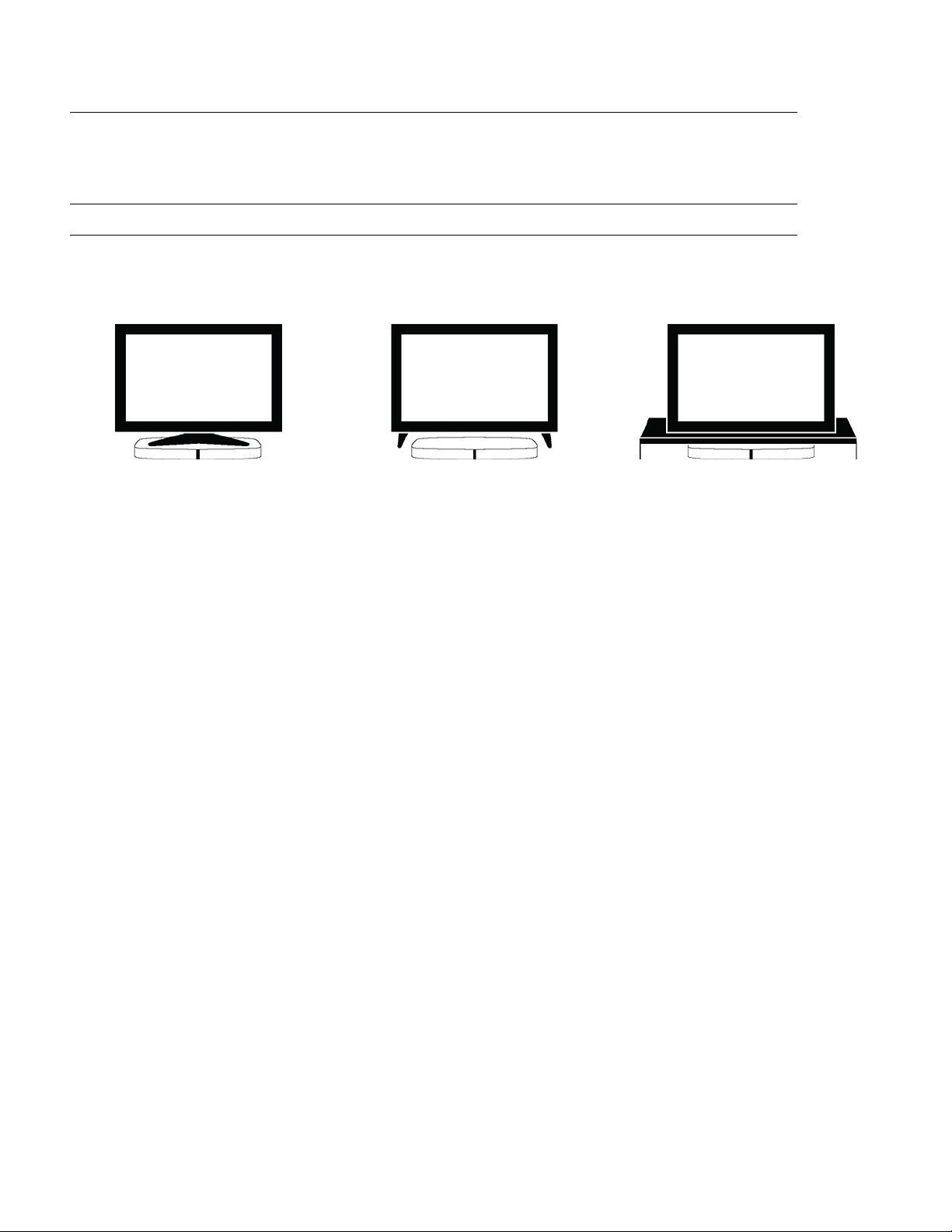
You can place the Playbase under your TV or on a shelf.
Note: Don’t place objects lighter than 5 lb (2.3 kg) on top of your Playbase or the sound may send them
flying.
Connect the cables
1. Disconnect existing home theater or surround sound equipment from your TV.
AC power (mains) input Use only the supplied power cord (using a third-party
power cord will void your warranty).
Note: Insert the power cord firmly until it is flush with
the speaker.
Join button Press to connect during setup.
• Lift the TV and put Playbase
under it with the Sonos logo
facing front.
• Make sure the TV stand rests
completely on the Playbase with
no overhang.
• Your TV should not weigh more
than 75 lb (34 kg)
• Allow at least 1" between
Playbase and other surfaces,
like walls or cabinets.
Under TV with split foot stand
On a TV cabinet shelf
• Playbase accommodates most
TVs with separate feet near the
edges of the screen. It fits
securely between the feet, below
the screen.
• Feet must be at least 2.3" (58mm)
tall to allow for Playbase
clearance.
• If the feet are too close together
or they’re not quite high enough,
don’t try to force your Playbase to
fit.
• For the best sound, place
Playbase toward the front of the
furniture but DON’T let it hang
over the edge.
• Allow at least 2" all around the
Playbase.
Under TV with single foot stand
SONOS USER GUIDE
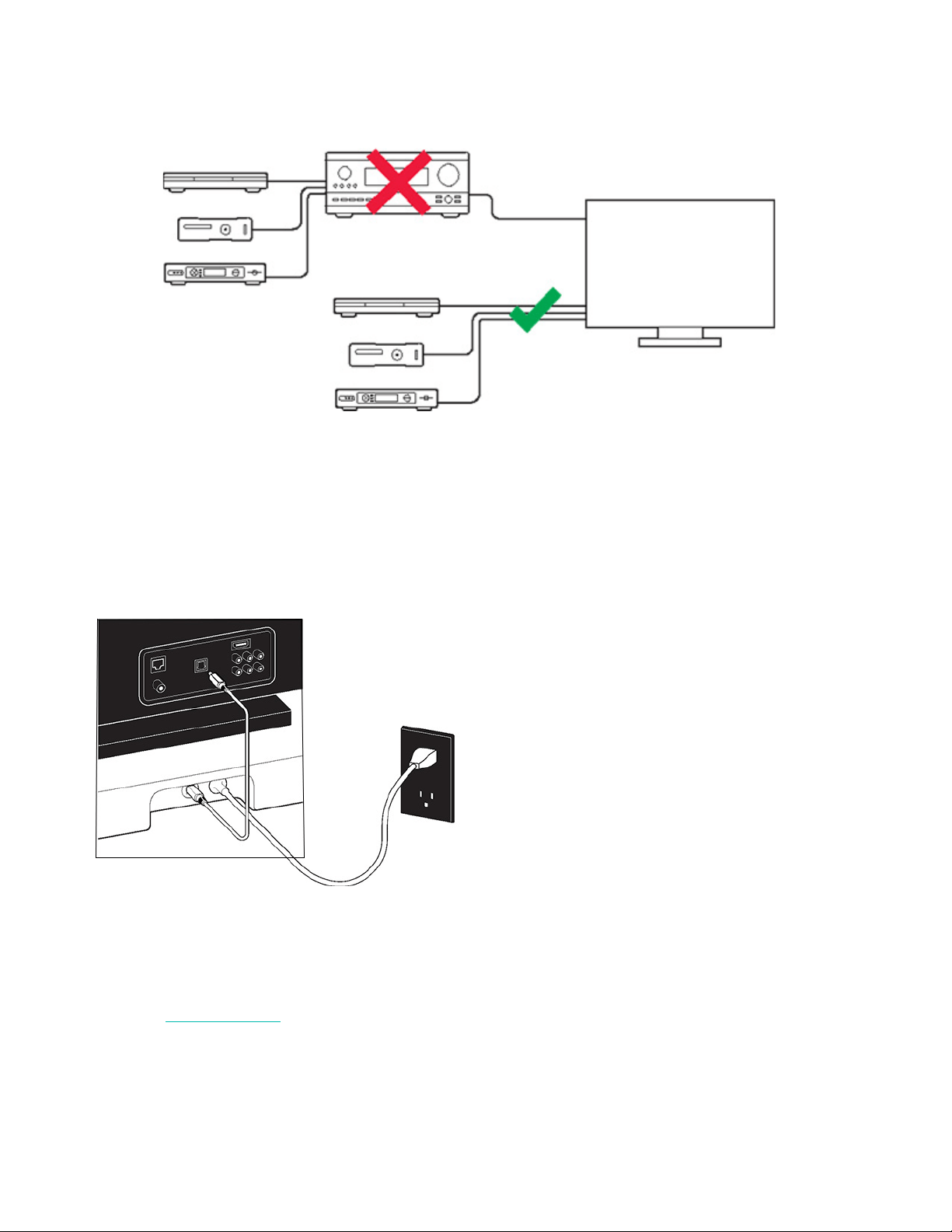
2. Connect any external devices, like a cable box or DVD player, directly to your TV.
Connect Playbase to your TV
1. Remove the protective cap from each end of the optical audio cable.
2. Connect the optical audio cable from your TV’s digital audio OUT (optical) to the Playbase’s digital audio
IN (optical). Don’t twist or bend the cable.
Note: The Playbase’s digital audio IN port and the optical cable are ‘D-shaped’—make sure the
connector aligns correctly into the port.
Connect the power cord
Attach the power cord and plug in the Playbase. Push the power cord firmly into the Playbase until it is flush
with the surface.
If you don’t have the app, download it from the app store. You’ll use it to set up and control your Sonos
system. See Getting started
.
IMPORTANT: Remove the protective caps from
each end of the optical audio cable.

SONOS USER GUIDE
Specifications
* Specifications subject to change without notice.
Feature Description
Audio
Amplifier Ten Class-D digital amplifiers.
Speakers Ten amplified speaker drivers—six midrange and three tweeters and one
woofer.
System Requirements TV with optical audio output, broadband Internet, and the Sonos app.
Networking*
Wireless Connectivity Connects to your home Wi-Fi network with any 802.11b/g/n router.
802.11n only network configurations are not supported—you can either
change the router settings to 802.11b/g/n or connect a Sonos product to
your router.
Ethernet Port One 10/100 Mbps Ethernet port. You can plug a Sonos product directly into
your router if your Wi-Fi is unstable.
General
Power Supply 100 - 240V ~ 50-60 Hz 2.3A
Dimensions (H x W x D) 2.20 x 28.35 x 14.96 in. (56 x 720 x 380 mm)
Weight 21.5 lb (9.8 kg)
Operating Temperature 32°F to 104°F (0°C to 40°C)
Storage Temperature -4°F to 158°F (-20°C to 70°C)
Control Use your remote control, voice, touch controls or the Sonos app.
Supported Devices Playbase connects to your TV using a single optical cable and plays all
sources connected to the TV, including cable boxes and game consoles.
Package Contents Playbase, AC power cord, Ethernet cable, optical audio cable, and
Quickstart Guide.
Amp
Amp features a built-in state-of-the-art digital amplifier that can power large or small speakers so you can
enjoy superior audio in any room.
• Power your bookshelf, floor-standing, in-wall, and in-ceiling speakers.
• Connect to your TV to create the ultimate entertainment system.
• Stream everything you love with the Sonos app and AirPlay.
• Plug in any audio device, like a turntable or a phone, and listen out loud.
•See Getting started when you’re ready to add Amp to your Sonos system.
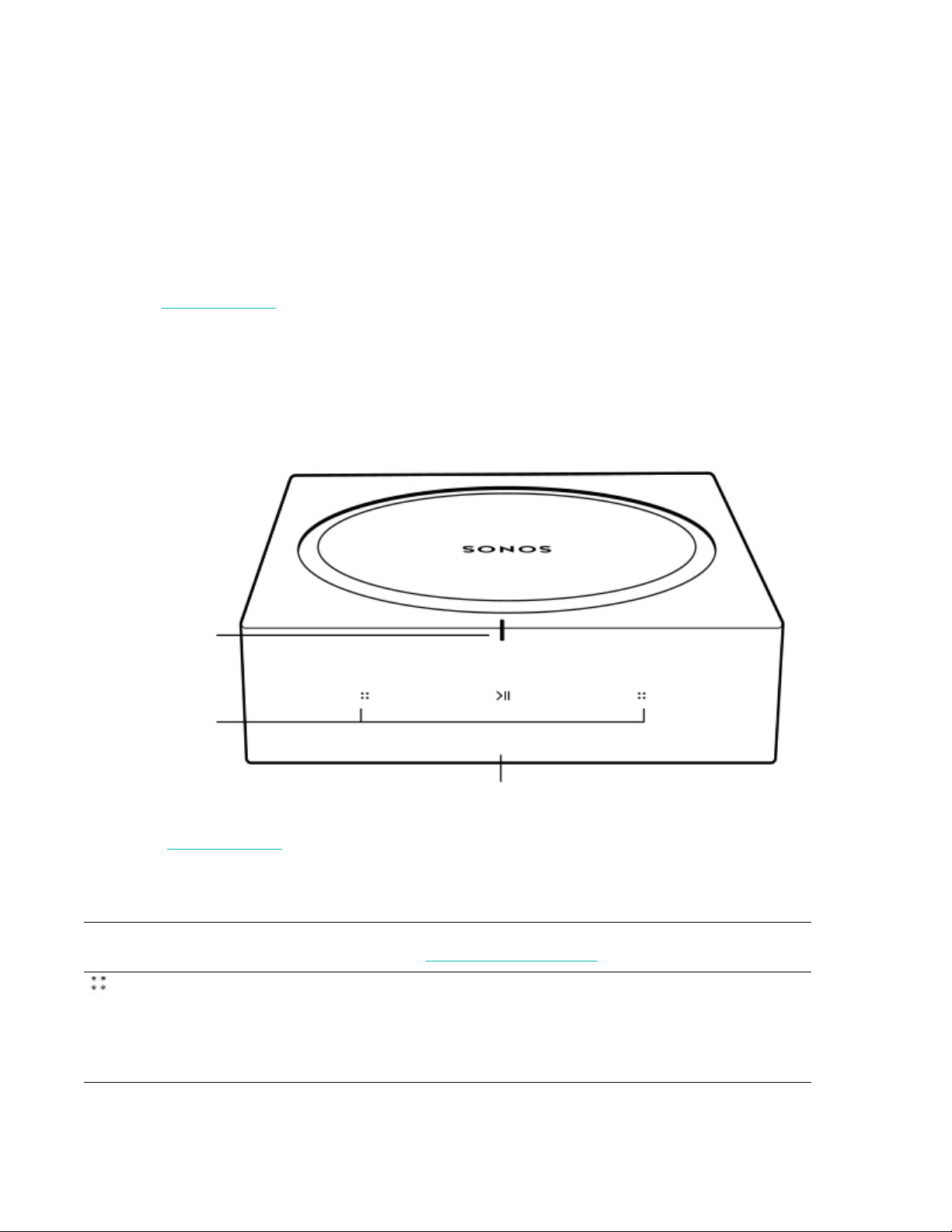
Controls and lights
Swipe, touch, or tap—with Amp you’ve got choices on how to control the sound.
• Use the touch controls on Amp.
• Use our app.
• Use your TV remote control.
Note: See The Sonos app for more information on how to use our app.
Touch controls
Status light Indicates the status. For more information, see
http://faq.sonos.com/led.
Volume control Touch for small adjustments or touch and hold to
quickly change the volume:
• Volume up (right)
• Volume down (left)
Note: You can also use our app or your remote control.
Touch controls
Status light
IR sensor
SONOS USER GUIDE
Connector panel
Play/Pause Touch to play or pause sound.
• TV—When the TV is on, touch to toggle the
sound on and off.
• Music—When the TV is off, touch to pause or
restart music.
Next/Previous
(Music only)
• Swipe right across the touch controls to skip to the
next song.
• Swipe left to go to the previous song.
Note: You can’t skip forward or go back when listening
to a radio station.
IR sensor The IR (InfraRed) sensor receives signals sent by a
remote control.
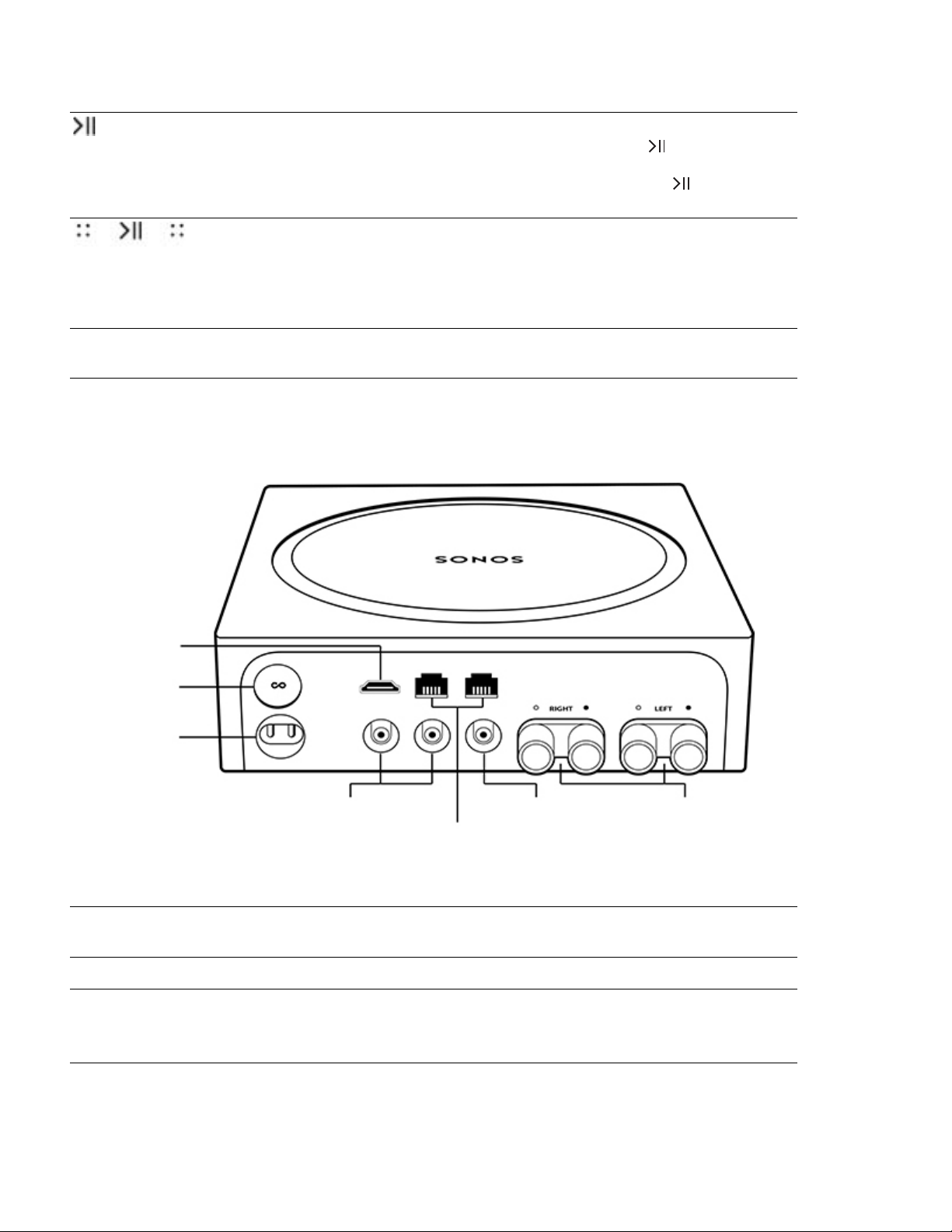
HDMI ARC Use an HDMI cable to connect Amp to your TV’s HDMI
ARC port.
Join button Press to connect during setup.
AC power (mains) port Use only the supplied power cord (using a third-party
power cord will void your warranty).
Note: Insert the power cord firmly.
Analog audio in
HDMI ARC
Subwoofer output Speaker terminals
Join button
AC power
(mains) port
Ethernet ports

SONOS USER GUIDE
What can you do with Amp?
Play music through your favorite speakers
Connect your favorite bookshelf, floor-standing, in-wall, or in-ceiling speakers to Amp to stream all the music
you love. Connect a turntable, stereo, or portable music player and play the sound on any Sonos speaker.
Enhance your TV sound
Connect Amp to your TV to create the ultimate entertainment system.
• Use Amp and a pair of 3rd-party speakers to create two front audio channels.
• Use Amp with third-party speakers to add surround sound if you already have a Sonos home theater
speaker (Beam, Playbase, Playbar, or another Amp) connected to your TV.
(For even deeper sound, add a Sonos Sub or connect a third-party subwoofer.)
See Connect Amp to your TV
for setup information.
Select a location
You can place Amp just about anywhere— in an electronics rack, on a shelf, or on a credenza with your TV.
Rack mounted
• Amp mounts perfectly in any electronics rack.
• Place two Amps side by side in a 2U rack.
• Place four Amps in a 3U rack.
Placed on a credenza
• Place horizontally on a stable and level surface at least 3 in / 50 mm from the TV.
• Don’t block the TV’s IR sensor.
• If put on a shelf, place at the front and keep 3" (minimum) clearance on all sides.
• Don’t block the front of Amp so you can reach the touch controls.
Analog audio in Use a standard RCA audio cable to connect Amp’s
analog audio inputs to the audio outputs from a
separate audio component, such as a turntable or a
portable music player.
Ethernet ports (2) Use an Ethernet cable if you want to connect to a router,
computer, or network-attached storage (NAS) device
(optional).
Subwoofer output
Note: If you disconnect your subwoofer, make
sure to also disconnect the subwoofer’s
cable from the Amp output.
Connect a powered subwoofer to this output using a
standard RCA cable. The system will detect when a
cable is connected to the subwoofer output and adjust
the crossover frequency automatically.
Speaker terminals Use high-quality speaker wire to connect your speakers
to Amp.

SONOS USER GUIDE
Connect the cables
Attach desired speakers
Your speakers’ power rating should be at least 125W for 8 ohm speakers, and at least 200W for 4 ohm
speakers. Do not connect speakers rated at less than 4 ohm.
Note: Amp can drive speakers with nominal impedance above 4 ohms. Two pairs of 8 ohm speakers wired in
parallel are also supported. Don’t wire your speakers in series because it will result in poor sound
quality.
1. Remove the cap from the banana plug to reveal the connection hole.
2. Insert the stripped end of the speaker wire into the hole, then return the cap to the banana plug to secure
the connection.
Note: Connect the red (+) and black (-) terminals from each speaker to the corresponding banana plug and
terminal on Amp. Mismatching of polarities will result in weak central sound and a distorted sense of
sound direction.
3. Insert the banana plug into the proper speaker terminal on the back of Amp.
4. Repeat to install the other speaker wires.
Connect the power cord
Attach the power cord and plug in Amp.
You’ll use our app to set up and control your Sonos system. If you don’t have the Sonos app, download it
from your app store. See Controls and lights
.
Connect Amp to your TV
Use an HDMI cable to connect Amp to your TV. When connected, Amp creates two front audio channels and
plays your TV sound through your favorite non-Sonos speakers.
Note: You may need the optical adapter too (the app lets you know).
1. Fully insert the HDMI cable into Amp’s HDMI port.
2. Connect the HDMI cable to your TV. You have two choices:
• If your TV has an HDMI ARC port, connect the HDMI cable directly to the TV’s HDMI ARC port.
• If your TV doesn’t have an HDMI ARC port, attach the optical adapter to the HDMI cable and connect
it to the TV’s optical digital OUT port.
If your TV has an HDMI ARC port
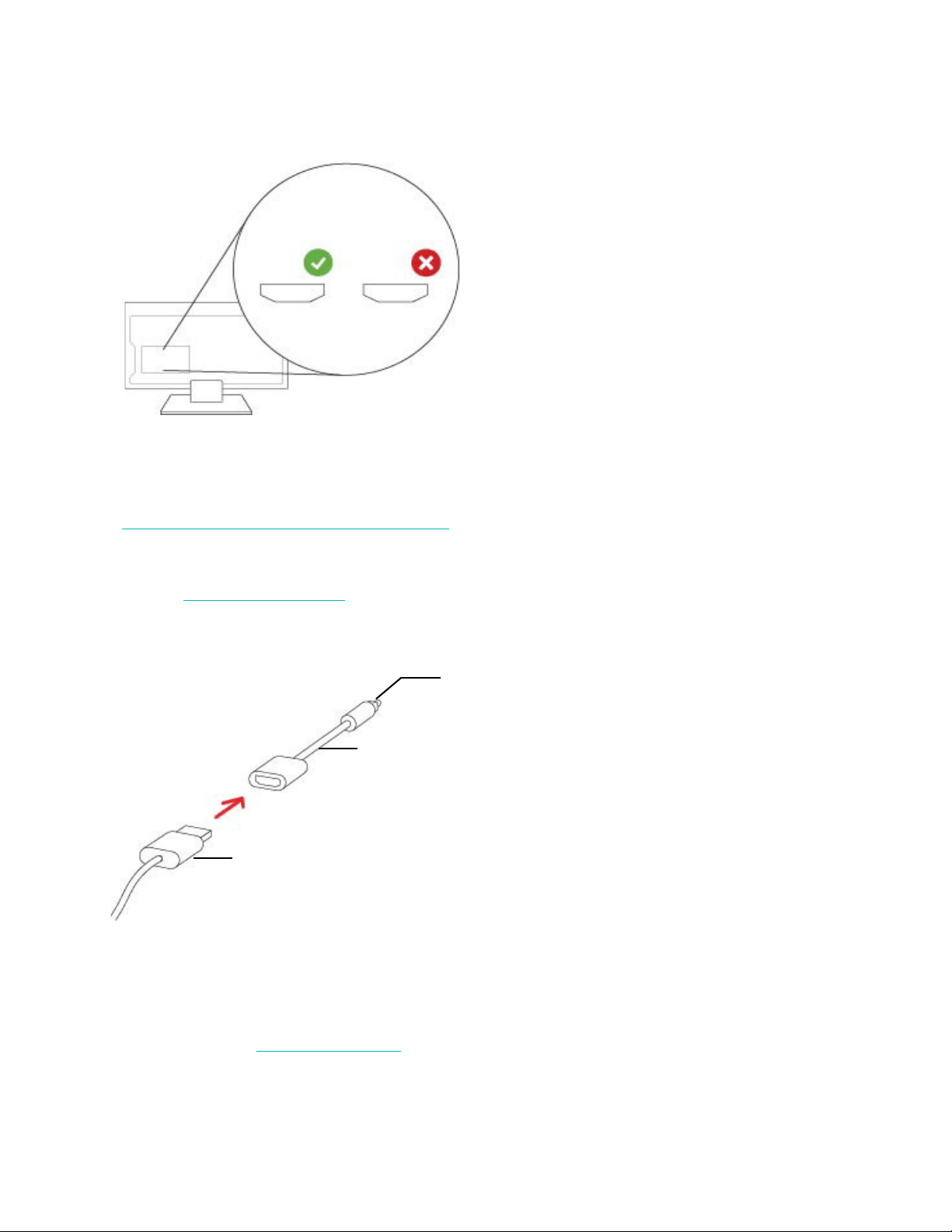
HDMI ARC is a special port that looks like a standard HDMI port. Although they look the same, if you connect
to a standard HDMI port, you won’t hear sound.
1. On your TV’s audio OUT panel, locate the HDMI ARC port.
SONOS USER GUIDE
It may be on the back or side of your TV. Look for the port with “ARC” on the label.
2. Connect the HDMI cable to the TV’s HDMI ARC port.
Note: If you can’t find a port with the word “ARC” on the label, your TV doesn’t have an HDMI ARC port. See
If your TV doesn’t have an HDMI ARC port.
If your TV doesn’t have an HDMI ARC port
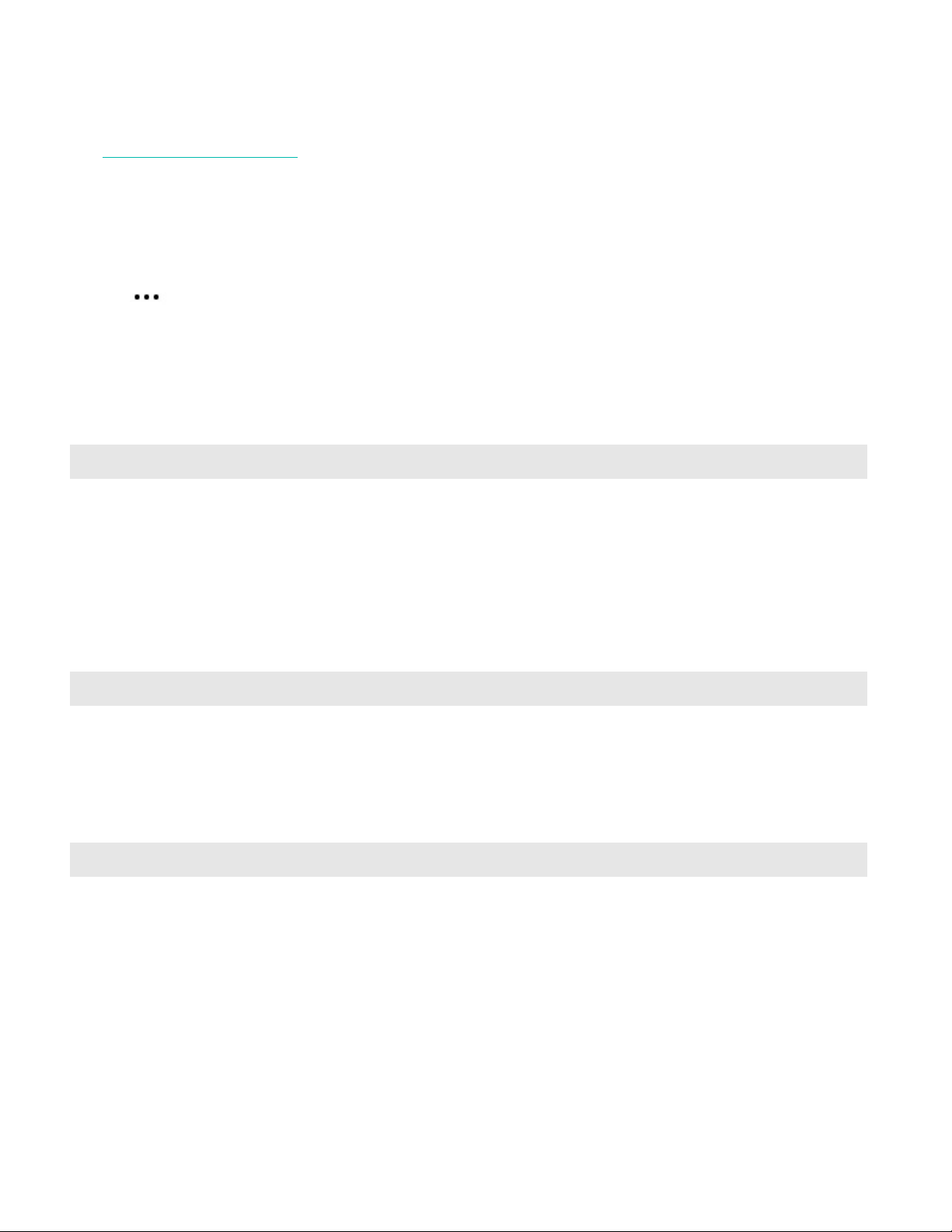
You’ll need the
optical audio adapter.
1. Remove the protective cap from the optical adapter.
2. Attach the optical adapter to the HDMI cable.
3. Connect the optical adapter to the TV’s optical digital OUT port.
Note: The optical adapter’s port is “D-shaped”—make sure the connector aligns correctly into the port.
Inserting the adapter incorrectly may damage the cable.
You’ll use our app to set up and control your Sonos system. If you don’t have the Sonos app, download it
from your app store. See
Controls and lights.
ARC HDMI
Optical adapter
HDMI cable
Remove the protective cap
SONOS USER GUIDE
Line-in
See From other audio devices to learn how to connect an external source like a pre-amplified turntable to
any Sonos speaker that has a line-in connection.
Change from stereo to mono
Amp plays audio in stereo by default. You can set it so that Amp plays in two mono channels when playing
music.
1. Tap > Settings > Room Settings and select the room.
2. Tap Advanced Audio > Stereo/Mono, then choose an option.
Specifications
Feature Description
Audio
Amplifier Class-D digital amplifier
Amplifier power 125W/Ch into 8 ohms
Speaker Connections Banana plugs (2)
Line-In Sources Supported Audio device with analog RCA output or optical output (optical adapter
required). TV device with HDMI ARC or optical output (optical adapter
required).
Subwoofer Output Auto-detecting RCA type, adjustable crossover
Networking
Wireless Connectivity Connects to your home Wi-Fi network with any 802.11 b/g/n router.
802.11n only network configurations are not supported—you can either
change the router settings to 802.11 b/g/n or connect a Sonos product to
your router.
Ethernet Ports Dual Ethernet ports can connect Amp to a wired home network and allow for
connection of additional Sonos players.
General
System Requirements Passive speakers with speaker wire, broadband internet, and Sonos app.
Power Supply AC 100-240V, 50-60 Hz
Controls Touch interface with volume up/down, previous/next track and play/pause.
Status indicator Light indicates Amp status.
Dimensions (H x W x D) 2.52 x 8.54 x 8.54 in. (64 x 217 x 217 mm)
Weight 4.6 lbs. (2.1 kg)
Operating Temperature 32°F to 104°F (0°C to 40°C)

SONOS USER GUIDE
* Specifications subject to change without notice.
Storage Temperature -4°F to 122°F (-20°C to 50°C)
Product Finish Black
Package Contents Sonos Amp, Sonos banana plugs (2), AC power cord, and Quickstart Guide.
Feature Description
SONOS USER GUIDE
Connect:Amp
The amplified music streaming upgrade for your favorite indoor or outdoor speakers—
• Plug in any audio device, like a turntable or a phone, and listen out loud.
• Built-in amplifier powers large or small speakers.
• RCA line-in for connecting a range of playback sources.
• Pairs with your Sonos home theater speaker for surround sound using your favorite non-Sonos speakers.
• See Getting started when you’re ready to add a Connect:Amp to your Sonos system.
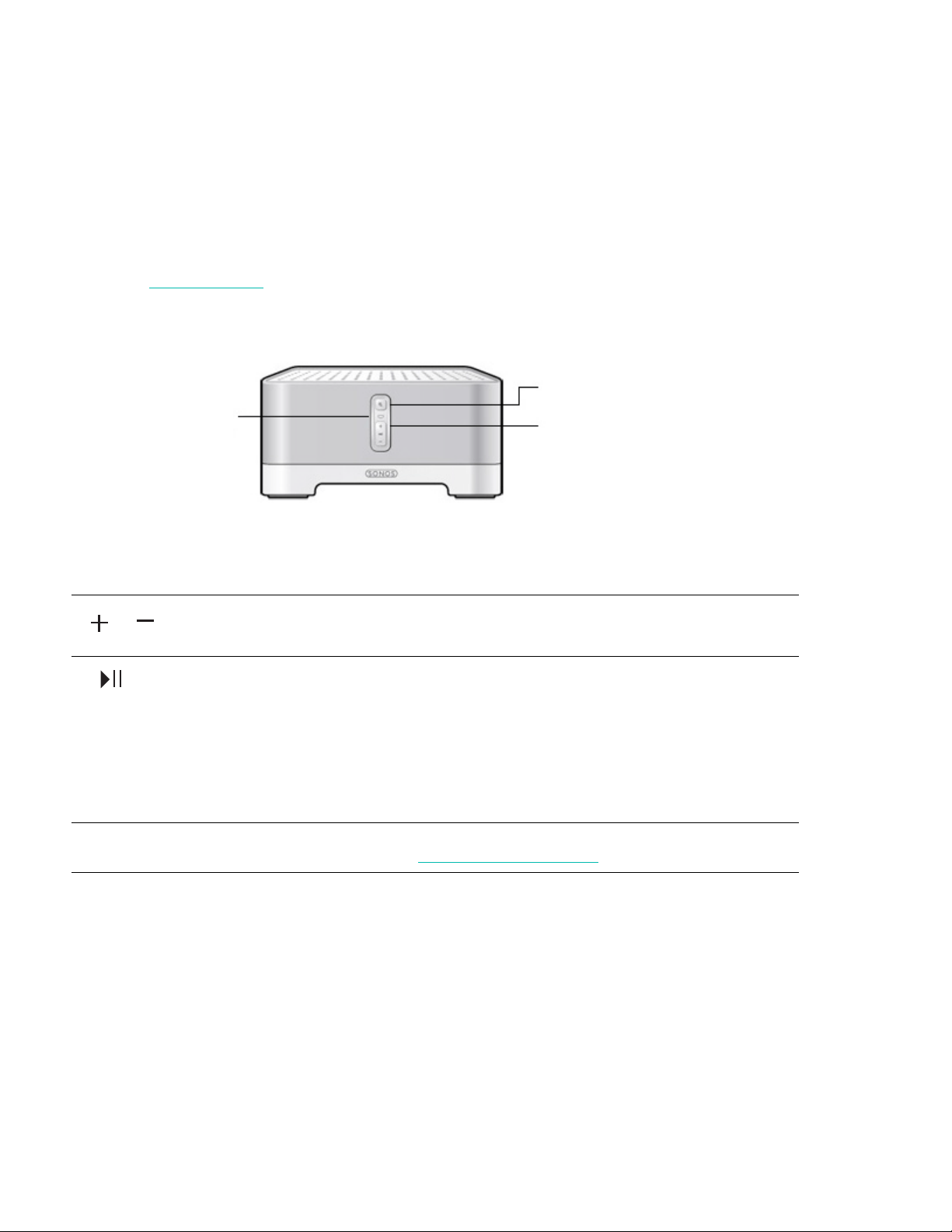
Controls and lights
Volume up (+)
Volume down (-)
Press to adjust the volume.
Note: You can also use the app.
Play/Pause • Press once to play or pause music.
• Press twice to skip to the next song (if applicable to
the selected music source).
• Press three times to go back to the previous song.
• Press and hold to add the music playing in another
room.
Note: You can’t skip forward or go back when
listening to a radio station.
Status light Indicates the status. For more information, see
https://faq.sonos.com/led.
Status light
Play/Pause
Volume up (+)
Volume down (-)

SONOS USER GUIDE
Connector panel
Connect the cables
Attach desired speakers
Ethernet ports (2) You can use an Ethernet cable (supplied) to connect to a
router, computer, or additional network device like a
network-attached storage (NAS) device.
LED indicators:
• Green (link connection)
• Flashing Yellow (network activity)
Right speaker terminals Use high-quality speaker wire to connect the right
speaker to Connect:Amp.
Left speaker terminals Use high-quality speaker wire to connect the left
speaker to Connect:Amp.
Voltage select 100 – 120V~ / 220 – 240V~ 50 – 60 Hz
Select the appropriate voltage setting for your country.
AC power (mains) input Use only the supplied power cord to connect to a power
outlet (using a third party power cord will void your
warranty).
Analog audio in You may use a standard RCA audio cable to connect the
Connect:Amp’s analog audio inputs to the audio outputs
from a separate audio component, like a turntable.
Subwoofer output
Note: If you disconnect your subwoofer, make
sure to also disconnect the subwoofer’s
cable from the Connect:Amp output.
You may connect a powered subwoofer to this output
using a standard RCA cable. The system will detect
when a cable is connected to the subwoofer output and
adjust the crossover frequency automatically.
Ethernet ports
Voltage select
AC power (mains)
input
Left speaker terminals
Right speaker terminals
Analog audio in
Subwoofer output
SONOS USER GUIDE
Your speaker’s power rating should be at least 55W for 8 ohm speakers, and at least 100W for 4 ohm
speakers. Don’t connect speakers rated at less than 4 ohms.
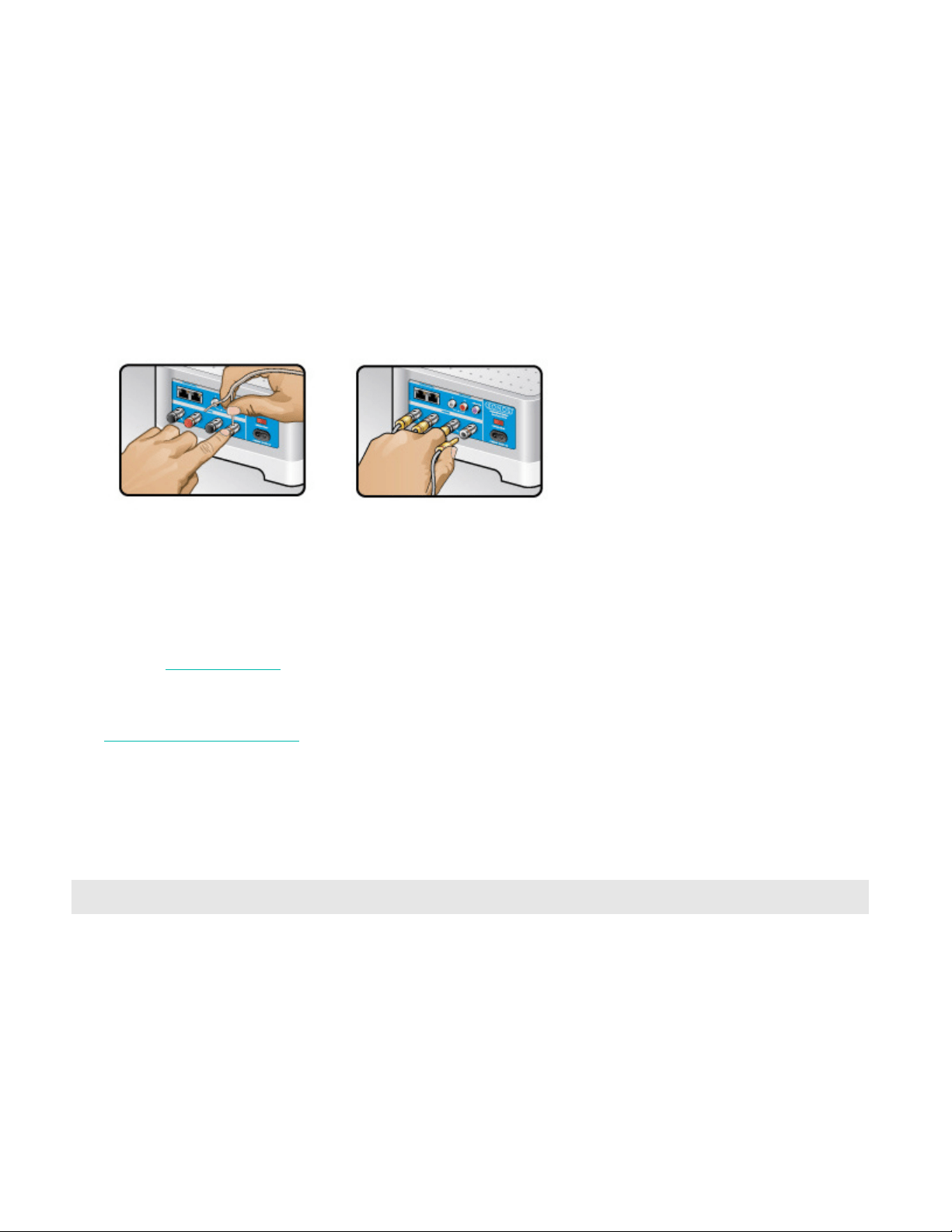
1. Use your thumb or finger to firmly push the spring-loaded speaker connector post inward to reveal the
connection hole.
2. Insert the stripped end of the speaker wire into the hole, and then release. The stripped portion should be
caught firmly in the connector post.
Note: Connect the red (+) and black (-) terminals from each speaker to the corresponding terminals on
the Connect:Amp. Mismatching of polarities will result in weak central sound, and a distorted
sense of sound direction.
3. Repeat to install the other speaker wires.
If your speakers have banana connectors, you can insert the plugs directly into the banana jacks on the back
of the Connect:Amp instead.
Connect the power cord
Attach the power cord and plug in the Connect:Amp.
If you don’t have the app, download it from the app store. You’ll use it to set up and control your Sonos
system. See Getting started
.
Line-in
See From other audio devices to learn how to connect an external source like a pre-amplified turntable to
any Sonos speaker that has a line-in connection.
Specifications
Feature Description
Audio
Amplifier Class-D
Rated Output 110W RMS (2x55W continuous average power into 8 ohms,
THD+N<0.02%)*
Speaker Connections Spring binding posts (in North America, the Connect:Amp has combined
spring binding post/banana jack connectors).
Line-In Connections Auto-detecting RCA type

SONOS USER GUIDE
* Specifications subject to change without notice.
Subwoofer Output Auto-detecting RCA type, 80 Hz crossover
Home Theater Pairs with a Sonos home theater speaker for a true surround sound
experience. You must use Ethernet cables to connect both Sonos products
to your router when you use Connect:Amp for surround sound.
Networking*
Wireless Connectivity Connects to your home Wi-Fi network with any 802.11b/g/n router.
802.11n only network configurations are not supported—you can either
change the router settings to 802.11b/g/n or connect a Sonos product to
your router.
Ethernet port Two 10/100 Mbps Ethernet ports. You can plug a Sonos product directly
into your router if your Wi-Fi is unstable.
General
Power Supply 100–120V~ / 220–240V~ 50–60 Hz 2A
Dimensions (H x W x D) 3.50 x 7.28 x 8.15 in. (89 x 185 x 207 mm)
Weight 5.1 lb (2.3 kg)
Operating Temperature 32º to 104º F (0º to 40º C)
Storage Temperature -4º to 158º F (-20º to 70º C)
Product Finish Anodized precision machined extrusion aluminum case. Aluminum casing
also facilitates passive cooling.
Package Contents Connect:Amp, power cord, Ethernet cable, and Quickstart Guide.
Feature Description
SONOS USER GUIDE
Connect
The instant music streaming upgrade for your existing stereo or receiver—
• Brings music streaming to the audio equipment you already own.
• Flexible. Features analog, optical and coaxial digital audio outputs.
• Line-in. Plug in any device you desire.
• Stream LPs from your amplified turntable to Sonos speakers in any room.
• See Getting started when you’re ready to add a Connect to your Sonos system.
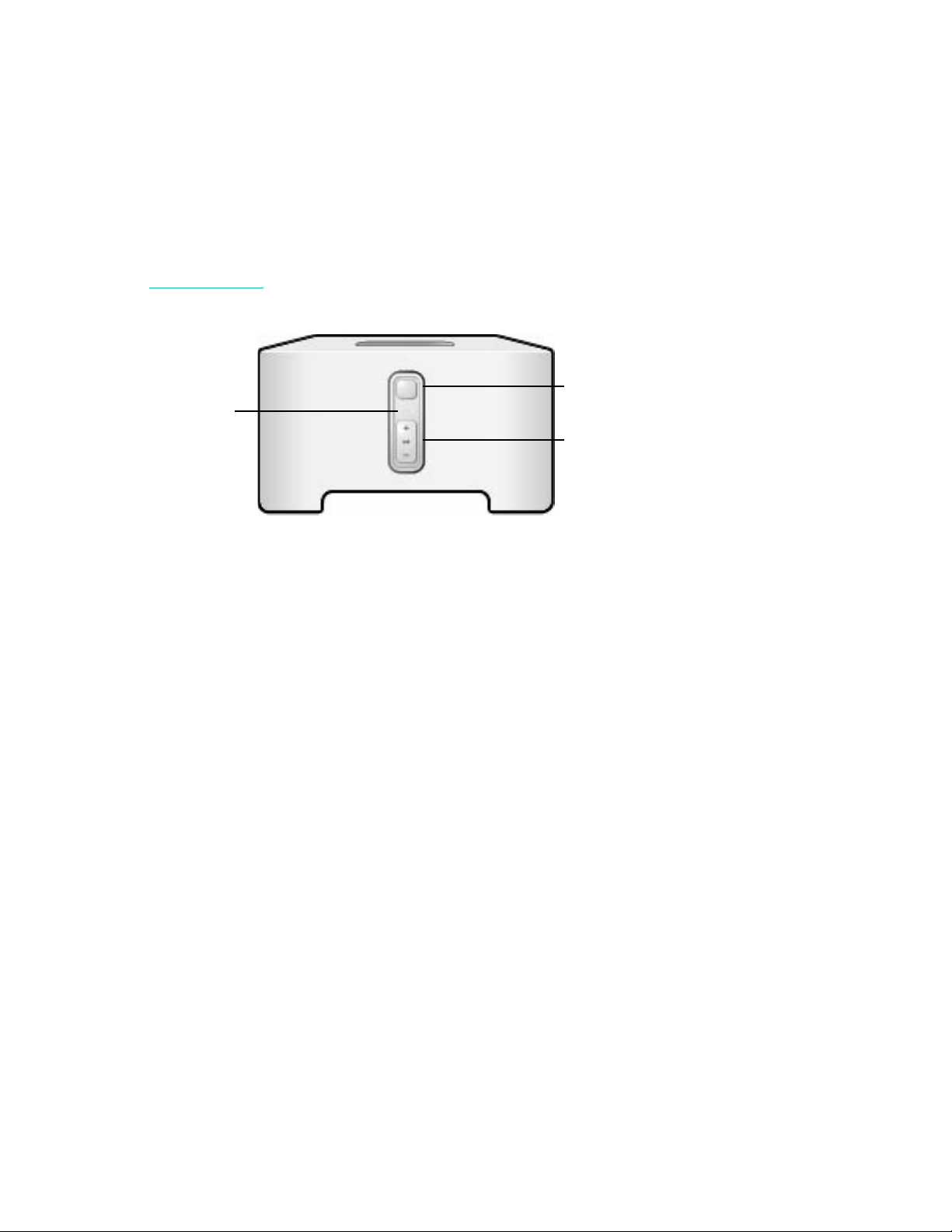
Status light
Play/Pause
Volume up +
Volume down -
SONOS USER GUIDE
Controls and lights
Connector panel
Volume up (+)
Volume down (-)
Press to adjust the volume.
Note: You can also use the app.
Play/Pause • Press once to play or pause music.
• Press twice to skip to the next song (if applicable to
the selected music source).
• Press three times to go back to the previous song.
• Press and hold to add the music playing in another
room.
Note: You can’t skip forward or go back when listening
to a radio station.
Status light Indicates the status. For more information, see
https://faq.sonos.com/led.
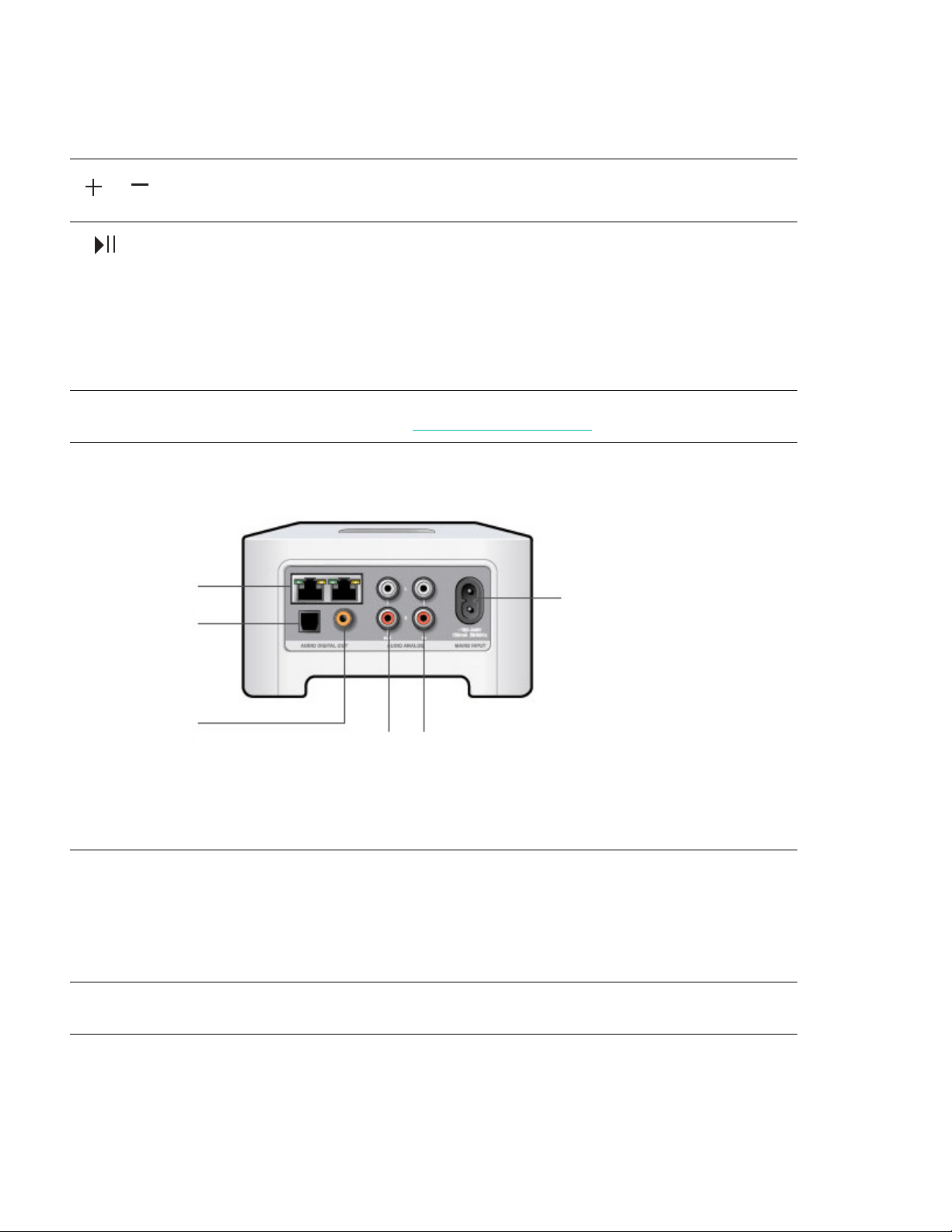
Ethernet ports (2) You can use an Ethernet cable (supplied) to connect to a
router, computer, or additional network device like a
network-attached storage (NAS) device.
LED indicators:
• Flashing Green (network activity)
• Yellow (link connection)
AC power (mains) input Use only the supplied power cord (using a third-party
power cord will void your warranty).
AC power (mains) input
Ethernet ports
TOSLINK digital
audio out
Coaxial digital
audio out
Analog audio out
Analog audio in

SONOS USER GUIDE
Connect the cables
Connect the power cord
Attach the power cord and plug in the Sonos Connect.
If connecting to powered speakers
You may need a Y-adapter audio cable (one 1/8" stereo miniplug to dual RCA male connectors) to connect
the computer’s speakers to the audio outputs on the Sonos product. If your speakers have a male 1/8" stereo
plug, you’ll need to attach a female-to-female coupler between the speaker plug and the Y-adapter audio
cable.
If you don’t have the app, download it from the app store. You’ll use it to set up and control your Sonos
system. See Getting started
.
Analog audio in Use a standard RCA audio cable (supplied) to connect
the audio outputs from a separate audio component,
like a pre-amplified turntable, to the Sonos Connect’s
analog audio inputs.
Analog audio out Use a standard RCA audio cable (supplied) to connect
the Sonos product’s analog audio outputs to the audio
inputs on a separate audio component, like an amplifier
or your home theater receiver.
TOSLINK digital audio out You can use a TOSLINK optical audio cable to connect
the Sonos Connect’s TOSLINK digital audio output to
the audio inputs on a separate audio component, like an
amplifier or your home theater receiver.
Coaxial digital audio out You can use a digital coaxial cable to connect the
Sonos product’s coaxial digital audio output to the
audio inputs on a separate audio component, like an
amplifier or your home theater receiver.
SONOS USER GUIDE
If connecting to a home theater or amplifier
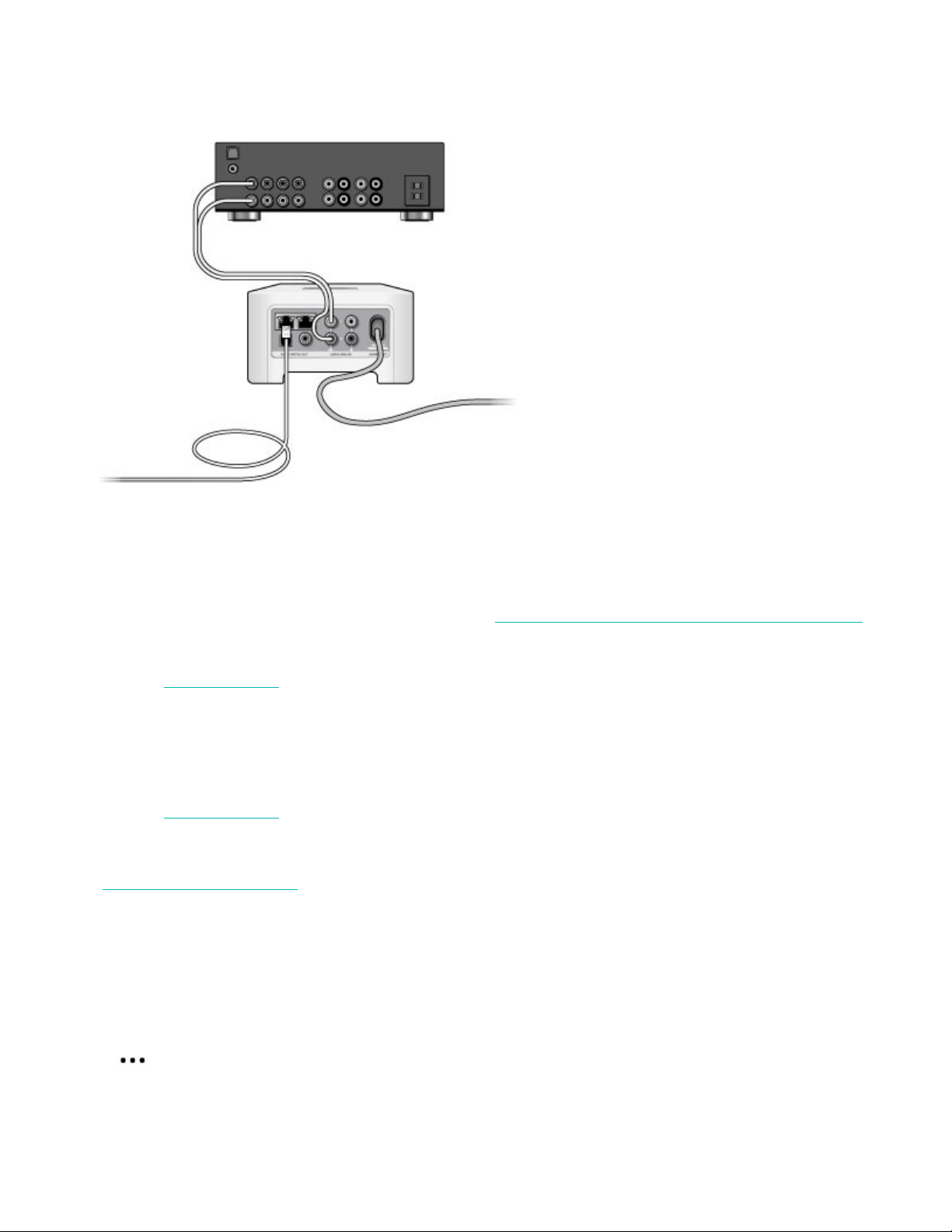
• If you have digital inputs on your home theater or amplifier, you can use either a TOSLINK optical audio
cable or a digital coaxial cable to connect the Sonos Connect’s digital output to the digital input on the
receiver.
• If you have analog inputs on your home theater or amplifier, use a standard RCA audio cable to connect
the Sonos Connect’s analog audio output to the audio inputs on the receiver.
• Select the proper input channel on the receiver. See Control volume from a home theater or amplifier
to adjust volume settings.
If you don’t have the app, download it from the app store. You’ll use it to set up and control your Sonos
system. See
Getting started.
If connecting to a computer
You’ll need a stereo mini to RCA Y-adapter audio cable (one 1/8" stereo miniplug to dual RCA male
connectors) to connect the Sonos product’s analog audio output to the computer’s audio input.
If you don’t have the app, download it from the app store. You’ll use it to set up and control your Sonos
system. See
Getting started.
Line-in
See From other audio devices to learn how to connect an external source like a pre-amplified turntable to
any Sonos speaker that has a line-in connection.
Line-out
Control volume from a home theater or amplifier
To control the volume exclusively from your home theater or amplifier, you can change the line-out level on the
Sonos Connect to Fixed.
Go to > Settings > Room Settings. Select the Sonos product attached to the receiver. Select Line-Out
Level, and choose Fixed.

SONOS USER GUIDE
Note: When you change the line-out level to Fixed on your Sonos Connect you won’t be able to adjust the
volume or the equalization settings using a Sonos app.
Control the volume from Sonos
1. Adjust your home theater or amplifier’s volume to typical listening volume.
2. If the line-out level is not currently set to Variable, you’ll need to change it. Go to > Settings > Room
Settings. Select the Sonos product attached to the receiver. Select Line-Out Level and choose Variable.
3. Use the Sonos app to adjust the volume on your Sonos system so you can hear music. This may be at the
high end of the volume scale.
4. If desired, you can readjust the volume on your home theater system or amplifier so that the volume range
for the app falls within your typical listening range.
Use Sonos to control the volume on your home theater or amplifier
Set the Line-Out Level to Pass-Through to use Sonos to control the volume on your home theater or
amplifier. You can adjust the volume using the Sonos app, the controls on a speaker, a third-party controller,
or even your voice (if you have a voice-enabled speaker).
Go to > Settings > Room Settings. Select the Sonos Connect attached to the receiver. Select Line-
Out Level, and choose Pass-Through. Connect will stay at a fixed volume level and send volume commands
to your home theater or amplifier to adjust the volume.
Note: Before setting the Line-Out Level to Pass-Through, make sure your amplifier supports it. If your
amplifier doesn’t support Pass-Through, you won’t be able to control the volume when you choose it
as the Line-Out Level.
Specifications
Feature Description
Audio
Sound Quality THD+N<0.009%, 20 Hz-20 kHz
Line In Analog (RCA), auto-detecting
Line Out Analog (RCA), digital (optical and coaxial)
Networking*
Wireless Connectivity Connects to your home Wi-Fi network with any 802.11b/g/n router.
802.11n only network configurations are not supported—you can either
change the router settings to 802.11b/g/n or connect a Sonos product to
your router.
Ethernet port Two 10/100 Mbps Ethernet ports. You can plug a Sonos product directly
into your router if your Wi-Fi is unstable.
General

SONOS USER GUIDE
* Specifications subject to change without notice.
Power Supply 100 - 240V ~ 50-60 Hz 100mA
Dimensions (H x W x D) 2.91 x 5.35 x 5.51 in. (74 x 136 x 140 mm)
Weight 1.5 lb (.69 kg)
Operating Temperature 32º to 104º F (0º to 40º C)
Storage Temperature -4º to 158º F (-20º to 70º C)
Product Finish Light gray/high quality polycarbonate material
Package Contents Sonos Connect, power cord, Ethernet cable, RCA stereo audio cable, stereo
mini (male) to RCA (male) Y audio cable, and Quickstart Guide.
Feature Description
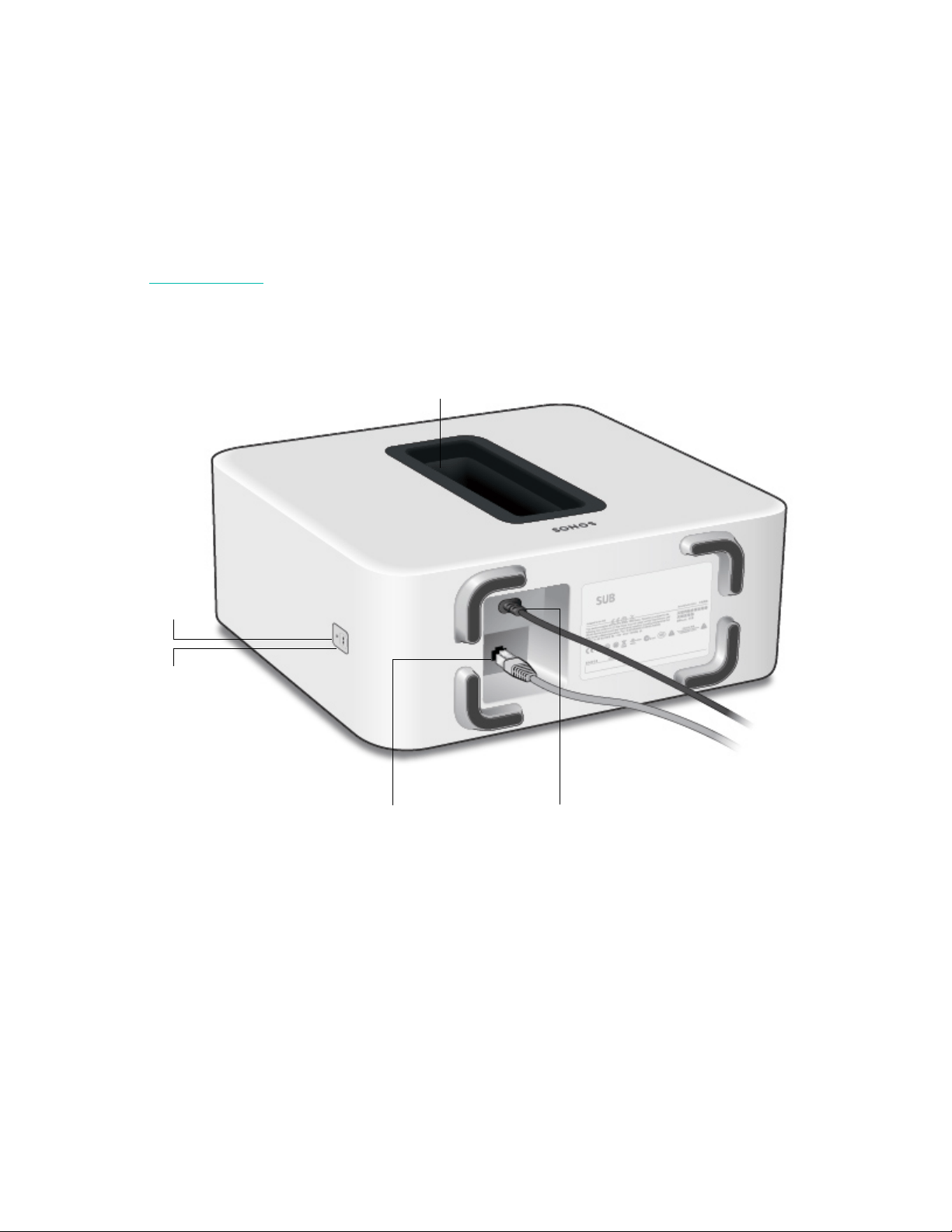
SONOS USER GUIDE
Sub
The Sonos Sub takes your audio experience to the next level—
• Instantly adds a dimension of deep bass impact to your audio listening experience.
• Allows placement anywhere because it’s wireless and compact—position it vertically or horizontally on
any floor surface.
• The top of the acoustic slot doubles as a handle so you can lift it.
• See Getting started when you’re ready to add a Sub to your Sonos system.
Note: The Sonos Sub is designed for use with any Sonos speaker, except Sonos Connect. Make sure you
set up at least one speaker before adding the Sub.
Join button
Ethernet port
AC power (mains) input
Acoustic slot
Status light
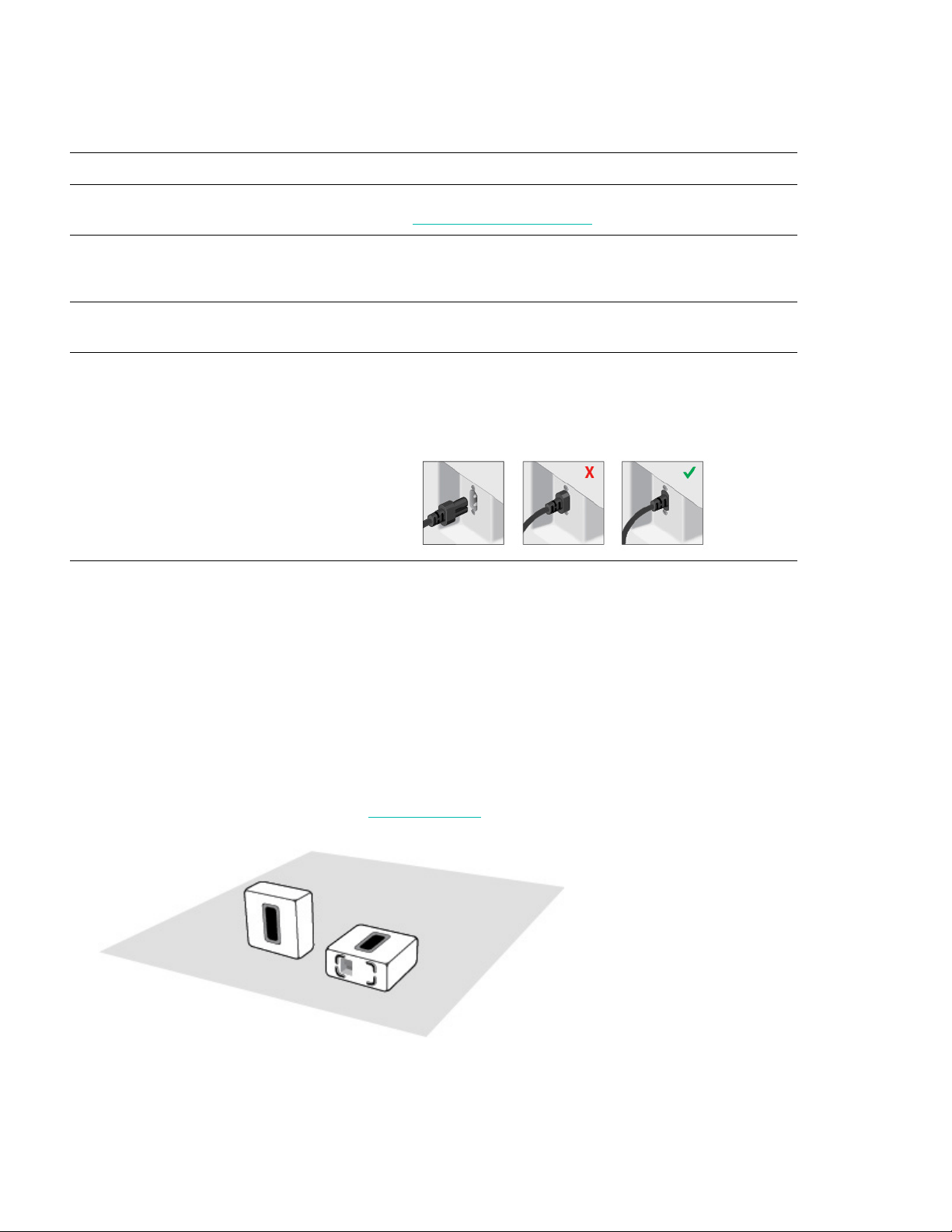
SONOS USER GUIDE
Controls and lights
Connector panel
Select a location
Choose a location—it’s designed to provide optimal sound wherever you place it.
• Use the acoustic slot as a handle to lift Sub out of the box. You should always bend your knees when
lifting heavy objects to avoid undue stress on your back.
• Make sure at least one side of the slot is free from obstruction. If you place it vertically against a wall,
don’t block the front opening. If you place the Sub horizontally on the floor, don’t put anything on top of it.
• The Sub is designed to sit on the floor. You can place it in a corner, against the wall, behind, under, or
next to any piece of furniture on any kind of floor surface.
• Position the Sub either vertically or horizontally. If you’re going to use it horizontally, you can attach the
permanent felt feet (included). See
Attach the feet for more information.
Join button Press to connect during setup.
Status light Indicates the status. For more information, see
https://faq.sonos.com/led.
Ethernet port Use an Ethernet cable to connect the Sub to your home
network.
AC power (mains) input Use only the supplied power cord to connect to a power
outlet (using a third party power cord will void your
warranty). Be sure to use the proper power adapter for
your country. Push the power cord firmly into the Sub
until it is flush with the surface.
Make sure at least one side of the
rectangular opening (acoustic slot) is
unobstructed.
• If you place the Sub vertically flush
against a wall, don’t block the
front acoustic slot.
• If you place the Sub horizontally
on the floor, don’t put anything on
top of it. Leave at least 1"
clearance along the top of the Sub
if placing under furniture.
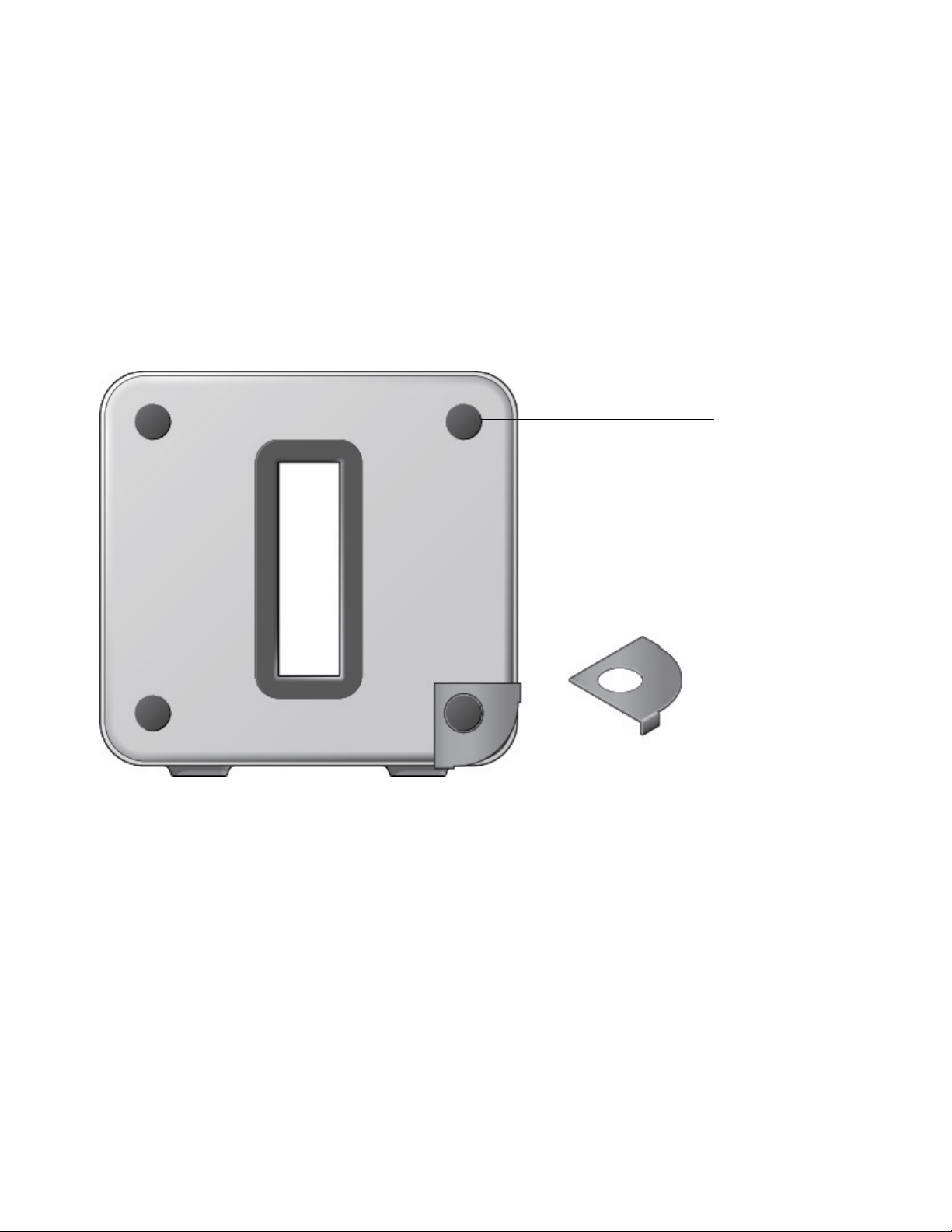
SONOS USER GUIDE
Note: The Sub contains strong magnets. Don’t place the Sub near equipment that is sensitive to
magnetic fields.
Attach the feet
If you’re placing Sub horizontally on a floor, you can attach permanent felt feet (included) to protect your floor.
If you’re putting it on a rug or using it vertically, no need to adhere the felt feet.
Note: The felt feet are not removable—a strong adhesive will keep them permanently attached to the Sub.
1. Lay the Sub down so the Sonos logo is facing down. Make sure you adhere the felt feet to the side that
doesn’t have the Sonos logo.
2. Place the enclosed guide on one corner of the unit and fold the flaps over the edge.
3. Peel the backing off one of the feet.
4. Press the felt foot (sticky side down) onto the unit inside the circular portion of the guide.
5. Attach the other 3 felt feet the same way.
Guide for felt
foot placement
Felt foot
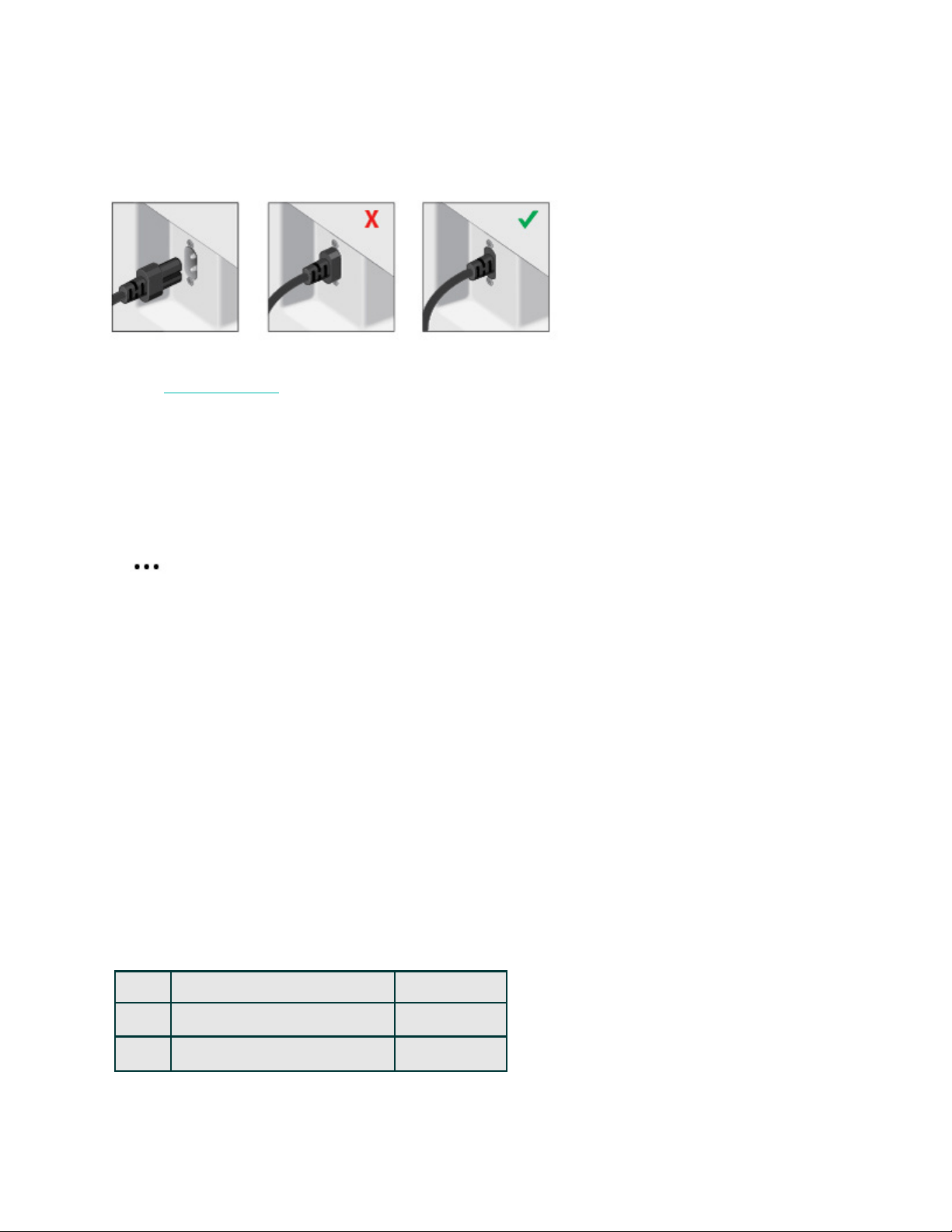
SONOS USER GUIDE
Connect the cables
Attach the power cord and plug in the Sub. Be sure to push the power cord firmly into the Sub until it is flush
with the surface.
If you don’t have the app, download it from the app store. You’ll use it to set up and control your Sonos
system. See Getting started. Make sure you set up at least one speaker before adding the Sub.
Note: After the Sub is paired with a Sonos speaker, you won’t see it displayed separately in Rooms. Any
changes you make to that Sonos speaker (volume, mute, music selection) will also affect the Sub.
Sub settings
The Sub’s settings are determined during the initial setup process. If you wish to make changes, follow the
steps below to adjust how the Sub works with the associated Sonos product or stereo pair.
1. Tap > Settings > Room Settings.
2. Select the room that is associated with the Sonos Sub. It appears as Room (+Sub) in Room Settings.
3. Tap Advanced Audio > Sub Settings.
4. Choose one of the following options:
• Sub: Choose On or Off to turn the sound from the Sub on and off.
• Sub Level: Use the slider to increase or decrease the volume of the Sub. (You can use this setting to
match the subwoofer level to the level of your main speakers.)
• Phase Control: Choose 0° or 180° to set the phase control for your Sonos Sub or third-party subwoofer.
This can help integrate your subwoofer with other speakers in the room. (You’ll see this setting when you
pair a Sonos Sub or third-party subwoofer with a Sonos Amp or Connect:Amp.)
• Crossover Frequency: Adjust the frequency at which the sound transitions to the subwoofer. By default
this is 80 Hz.
You may wish to choose a different crossover frequency if:
• The main speakers sound distorted at high volumes—moving to a smaller speaker size setting can
help.
• Your attention is drawn to the Sub's location while listening to music—moving to a larger speaker size
setting can help.
1 Compact 110 Hz
2 100 Hz
3 90 Hz

SONOS USER GUIDE
Recalibrate the Sub
After initial setup, you may wish to make some adjustments to optimize your Sub’s performance. If you move
the Sub to another location, purchase new speakers, or simply want to adjust the sound, follow the steps
below to recalibrate the Sub. You can only do this with an Android device.
1. Touch > Settings > Room Settings.
2. Select the room that is associated with the Sonos Sub. It appears as Room (+Sub) in Room Settings.
3. Select Advanced Audio > Recalibrate Sub.
4. Follow the prompts to optimize your Sub’s performance:
• Select the size of your stereo speakers (Connect:Amp only).
• Press Play to compare the volume of two test sounds, A and B, and then select No Difference, A is
louder or B is louder.
• Press Play to listen to a test sound, and then select the level you prefer.
Pair Sub with a different speaker
You can easily pair Sub with a different Sonos speaker (any except the Sonos Connect).
If you are moving Sub to a new room, wait for the status light to stop flashing after you plug it back in.
1. Select > Settings > Room Settings.
2. Select the room that is currently associated with the Sonos Sub. It appears as Room (+Sub) in Room
Settings.
3. Select Remove Sub.
4. Choose one of the following settings:
• If you want to pair the Sub with a different Sonos speaker, select Choose Room for Sub.
• If you’re not going to use the Sub right now, select Don’t use Sub. It will appear on Rooms as Sub
(unused) until you pair it with another Sonos speaker.
Specifications
4 Bookshelf / Ceiling 80 Hz
5 70 Hz
6 Floor 60 Hz
7 50 Hz
Feature Description
Audio
Amplifier Two Class-D digital amplifiers.

SONOS USER GUIDE
* Specifications subject to change without notice.
Speakers Two force-canceling speakers positioned face-to-face for deeper, richer
sound and zero cabinet buzz or rattle.
Dual Acoustic Ports Tuned to enhance the Sub performance.
Frequency Response Plays down to 25 Hz.
All Digital Sound All filter settings, active equalization, and time alignment are done digitally
through state-of-the-art DSP (Digital Signal Processing) circuitry for zero-
loss audio quality and energy.
Automatic Equalization The system automatically adjusts audio settings across all connected
components.
Networking*
Ethernet Port One 10/100Mbps Ethernet port. You can plug a Sonos product directly into
your router if your Wi-Fi is unstable.
Wireless Connectivity Connects to your home Wi-Fi network with any 802.11b/g/n router.
802.11n only network configurations are not supported—you can either
change the router settings to 802.11b/g/n or connect a Sonos product to
your router.
General
Power Supply 100 - 240V ~ 50-60 Hz 2A
Dimensions (H x D x W) 15.3 x 6.2 x 15.8 in. (389 x 158 x 402 mm)
Weight 36.3 lb (16kg)
Operating Temperature 32°F to 104°F (0°C to 40°C)
Storage Temperature -4°F to 158°F (-20°C to 70°C)
Multiple Orientations Stand upright or lay flat for flexible placement.
Rubber and Felt Feet Built-in rubber feet; optional felt feet included.
Supported Devices Sub works with all Sonos products except the non-amplified Sonos
Connect.
Package Contents Sonos Sub, power cord, and Quickstart Guide.
Feature Description
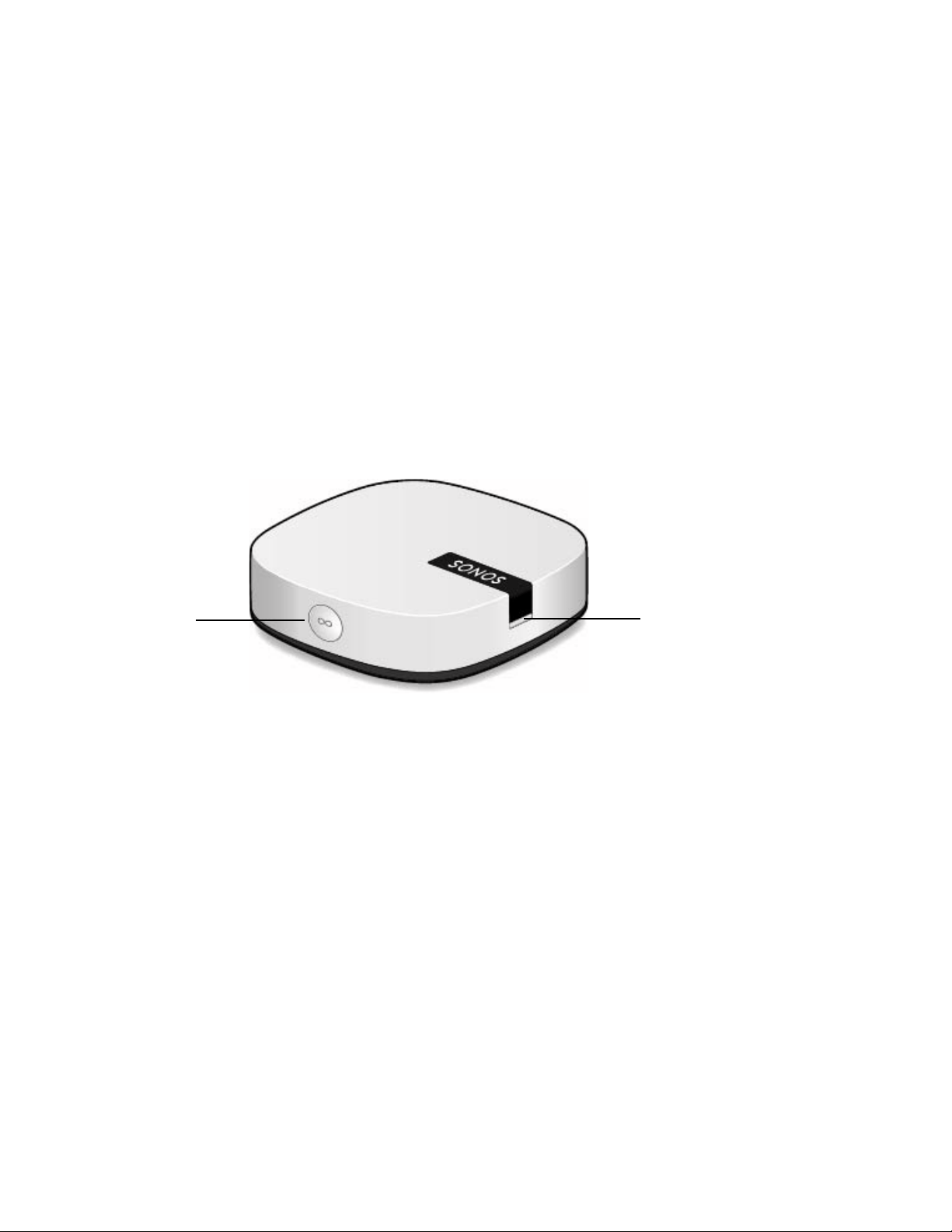
SONOS USER GUIDE
Boost
For when existing Wi-Fi isn't reliable enough for streaming music—
• Boost broadcasts 360° signals through walls and ceilings for flawless coverage.
• Streams without interference in the most challenging Wi-Fi environments.
• Bypasses your Wi-Fi to create a separate high-performance wireless network just for Sonos speakers.
When to use a Boost
• Your Wi-Fi is slow or temperamental, or your network is already in high demand with streaming video,
gaming, and internet usage.
• Wi-Fi doesn’t reach all the rooms where you want to use Sonos. Extend the range of your Sonos system
by placing a Boost in between the Sonos speaker that’s out of reach and the rest of the Sonos system.
• Your network is 5 GHz only (not switchable to 2.4 GHz).
• Your router supports only 802.11n (you can’t change the settings to support 802.11b/g/n).
Join button
Status light
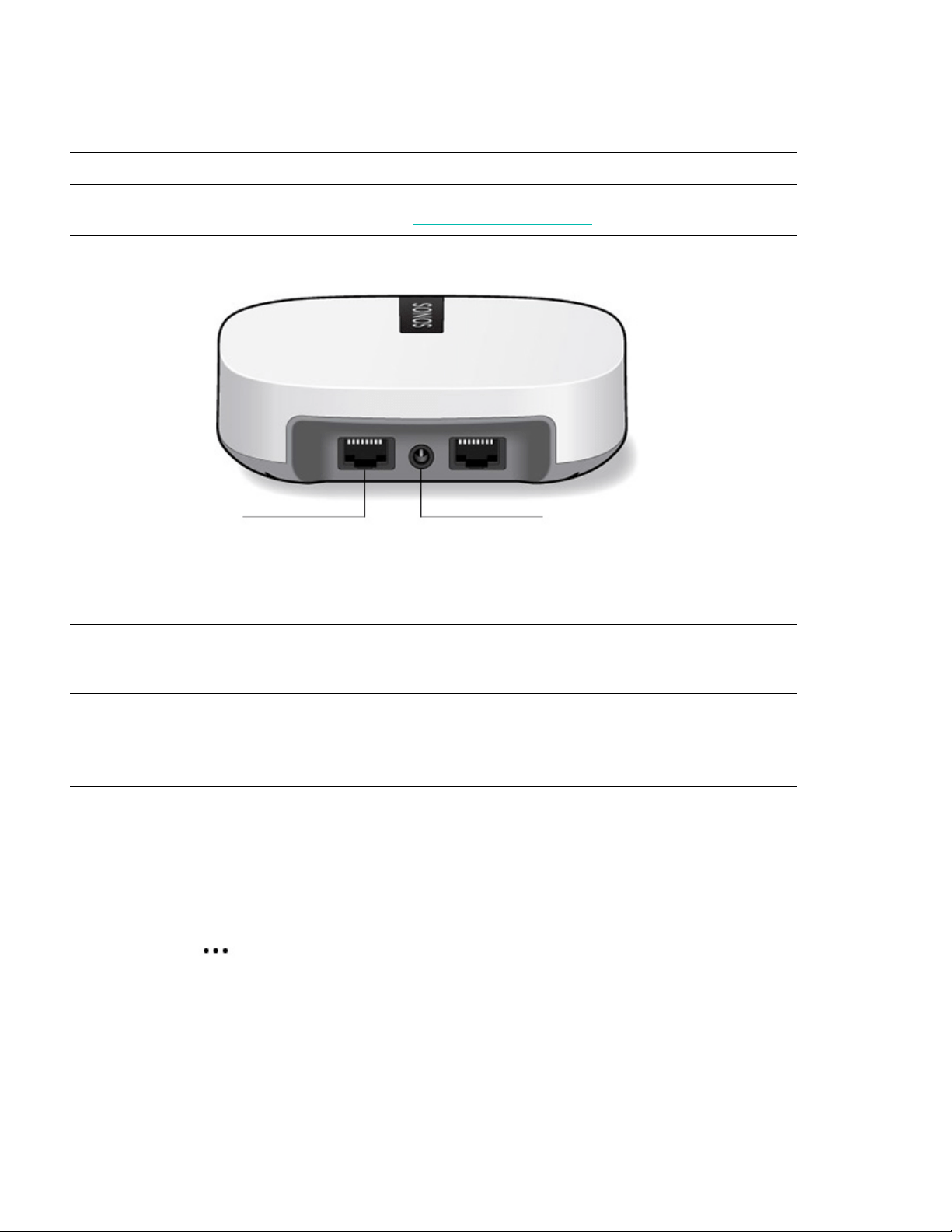
SONOS USER GUIDE
Controls and lights
Connector panel
Select a location
If you purchased a Boost to replace a Sonos product that’s connected to your router, first add the Boost to
your Sonos system, then plug it into your router and move the one that was originally wired.
If you purchased a Boost to extend the range of your Sonos system, place the Boost in between the Sonos
speaker that’s out of reach and the rest of the Sonos system.
Plug it in and tap > Settings > Add Boost or Bridge.
Wall mounting
1. Choose a location that’s close to an electrical outlet (power cord length is 6 ft. / 1.8m), away from heat
sources, hidden wiring, gas lines, etc.
2. Drive an American standard #6 round head screw (metric, M3.5 round head screw) into the wall, leaving a
gap between the wall and the screw head (approximately 0.13 in / 3.3mm).
Join button Press to connect during setup.
Status light Indicates the status. For more information, see
https://faq.sonos.com/led
.
Ethernet ports (2) Use an Ethernet cable if you want to connect to a router,
computer, or network-attached storage (NAS) device
(optional).
AC power (mains) input Use only the supplied power cord (using a third-party
power cord will void your warranty).
Note: Be sure to use the proper power adapter for
your country.
Ethernet ports
AC power (mains) input

SONOS USER GUIDE
Note: Pan head screws will also work.
3. Place the Boost on the wall and slide straight down, allowing the screw head to slip behind the smaller
end of the keyhole slot on the back of the Boost.
Specifications
* Specifications subject to change without notice.
Feature Description
Ethernet Connection 2-port switch, 10/100 Mbps, auto MDI/MDIX
Network Bridging 2-port switch allows a connection to your network or to other Sonos
speakers. Extend the range of SonosNet—use a Boost to extend the
SonosNet signal to areas that cannot reach the rest of the Sonos system.
Wireless Connectivity Works on SonosNet™, a secure AES encrypted, peer-to-peer wireless
mesh network dedicated exclusively for Sonos to reduce Wi-Fi interference
Power Supply 100 - 240V ~ 50-60 Hz 0.3A
Dimensions (H x W x D) 1.3 x 4.5 x 4.5 in. (33 x 115 x 115 mm)
Weight 0.42 lb (.191kg)
Recommended Mounting Screw American standard #6 round head screw; Metric M3.5 round head screw
Operating Temperature 32°F to 104°F (0°C to 40°C)
Finish White/high quality polycarbonate material
Package Contents Sonos Boost, power cord, Ethernet cable, and Quickstart Guide.

SONOS USER GUIDE
Accessories
Find the perfect accessory for your Sonos system—tailored to perfectly fit your Sonos products.
• Sonos Stand
• Sonos Shelf
• Wall Mount for Beam
• Wall Mount for Playbar
• Sonos Architectural by Sonance speakers
For the full selection of Sonos-compatible stands, wall mounts, and cables, see Accessories on our website.
Sonos Stand
A set of custom-designed stands for Sonos One and Play:1 provide an elegant solution for placing your home
theater surrounds.
• Indentation in the stem hides the speaker’s power cable for simple cable management.
• Solid construction. The base has increased structural stability to eliminate wobbling, and bumpers
secure your speakers in place
• Perfect height for home theater surrounds.
• Dimensions (H x W x D): 32.98 x 11.81 x 11.81 in. (837.8 x 300 x 300 mm)
• Weight: 12.3 lbs (5.58 kg) for the pair; 6.15 lbs (2.8 kg) each
What’s in the box?
The kit contains a pair of Sonos stands. Each stand assembly includes:
•Base
•Stem
• Speaker platform
• Speaker platform bottom cover
• Stem top cap
• Mounting kit with 4 screws (2 silver, 2 black)
Note: Sonos speakers sold separately.
What you’ll need
• Phillips-head screwdriver
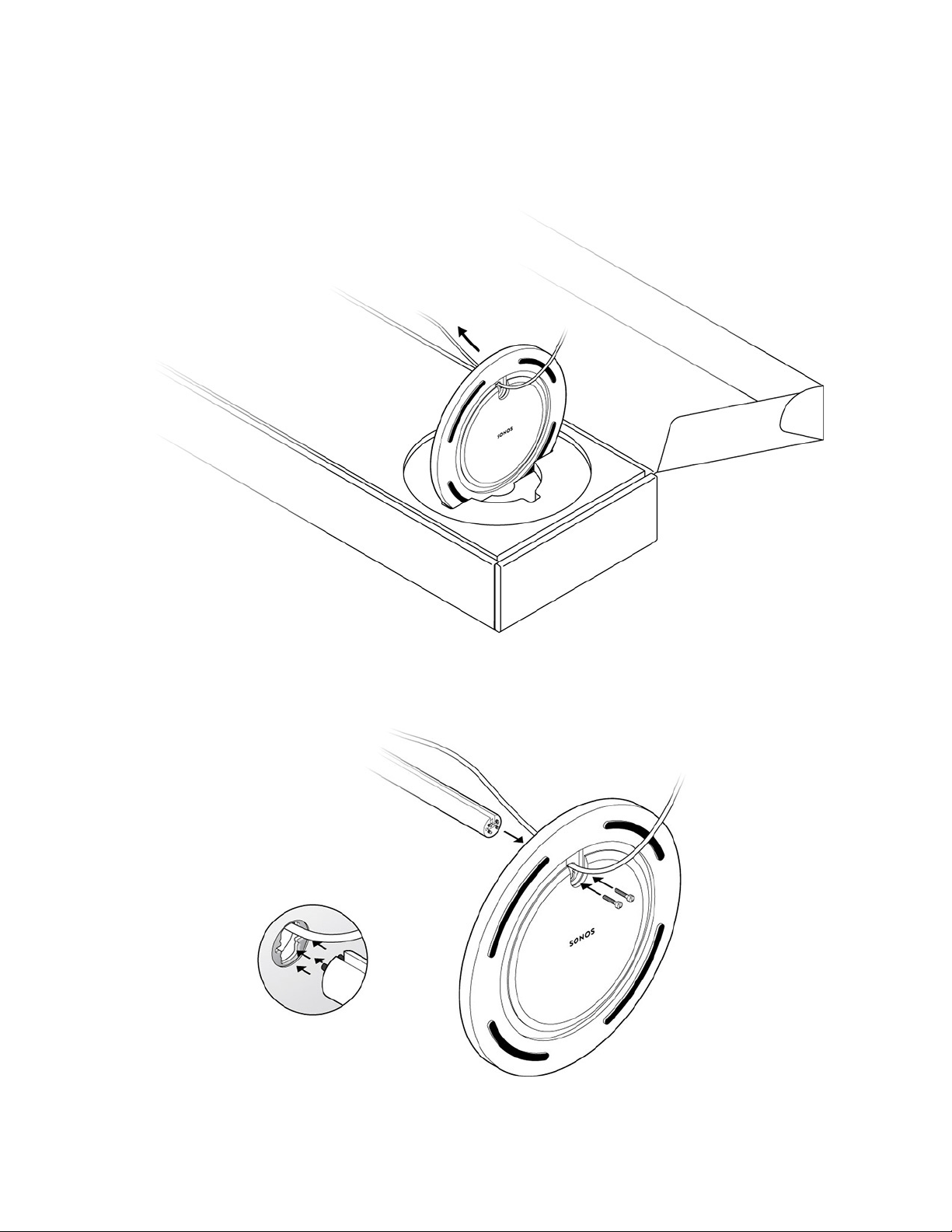
SONOS USER GUIDE
Assembling your Sonos Stand
1. Take everything out of the box and place the base in the packaging slot to stabilize it for the next few
steps. Unplug your Sonos speaker, and thread the speaker end of the power cord through the opening in
the base.
2. Insert the stem snugly into the base, using the alignment pins to position the power cord channel either in
the front or back. Use the 2 black screws and a Phillips-head screwdriver to attach the base.
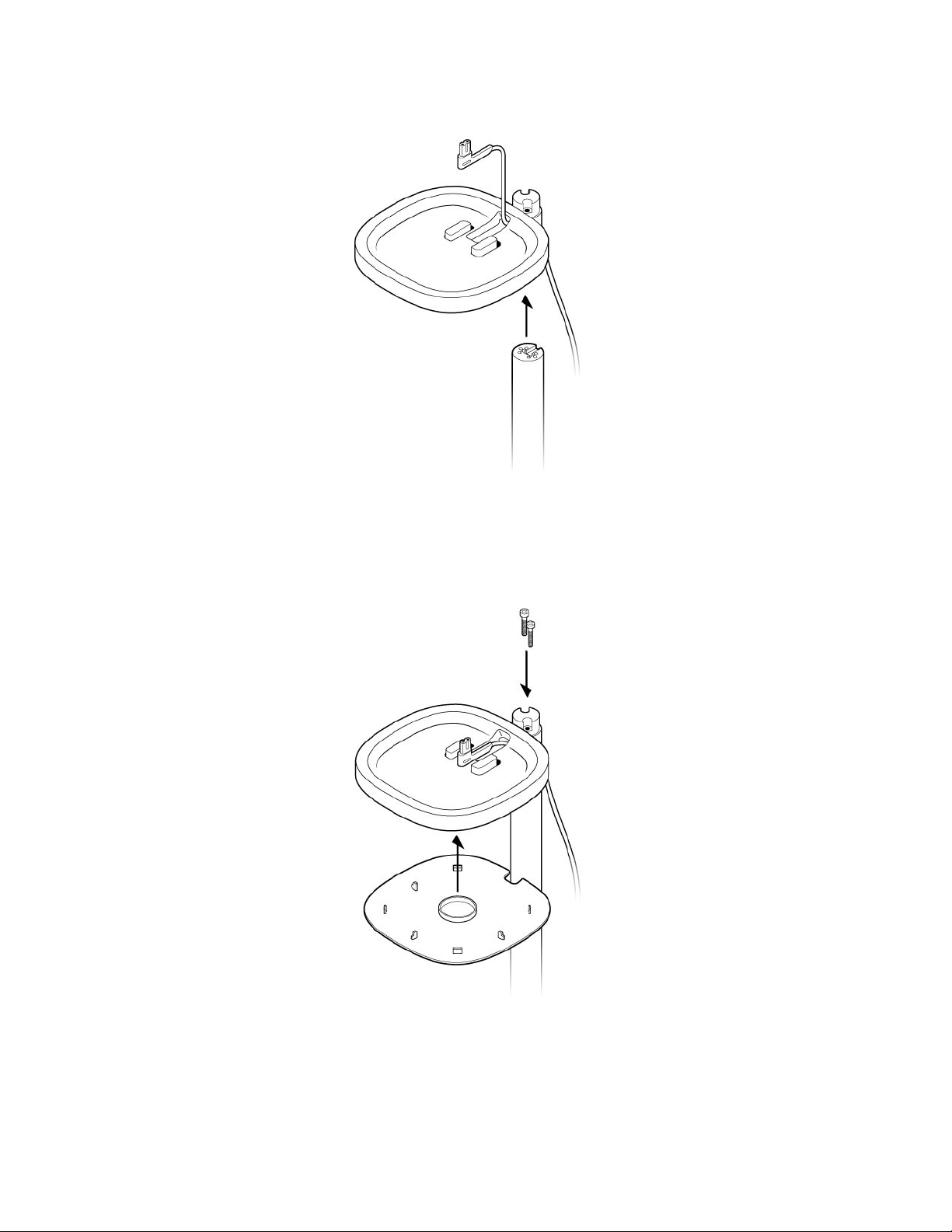
SONOS USER GUIDE
3. Route the speaker’s power cord through the speaker platform.
4. Use the 2 silver screws to attach the speaker platform to the top of the stem, threading the power cable
carefully. Snap the bottom plate on with the power cable channel in the back, and mount the platform on
the stem.
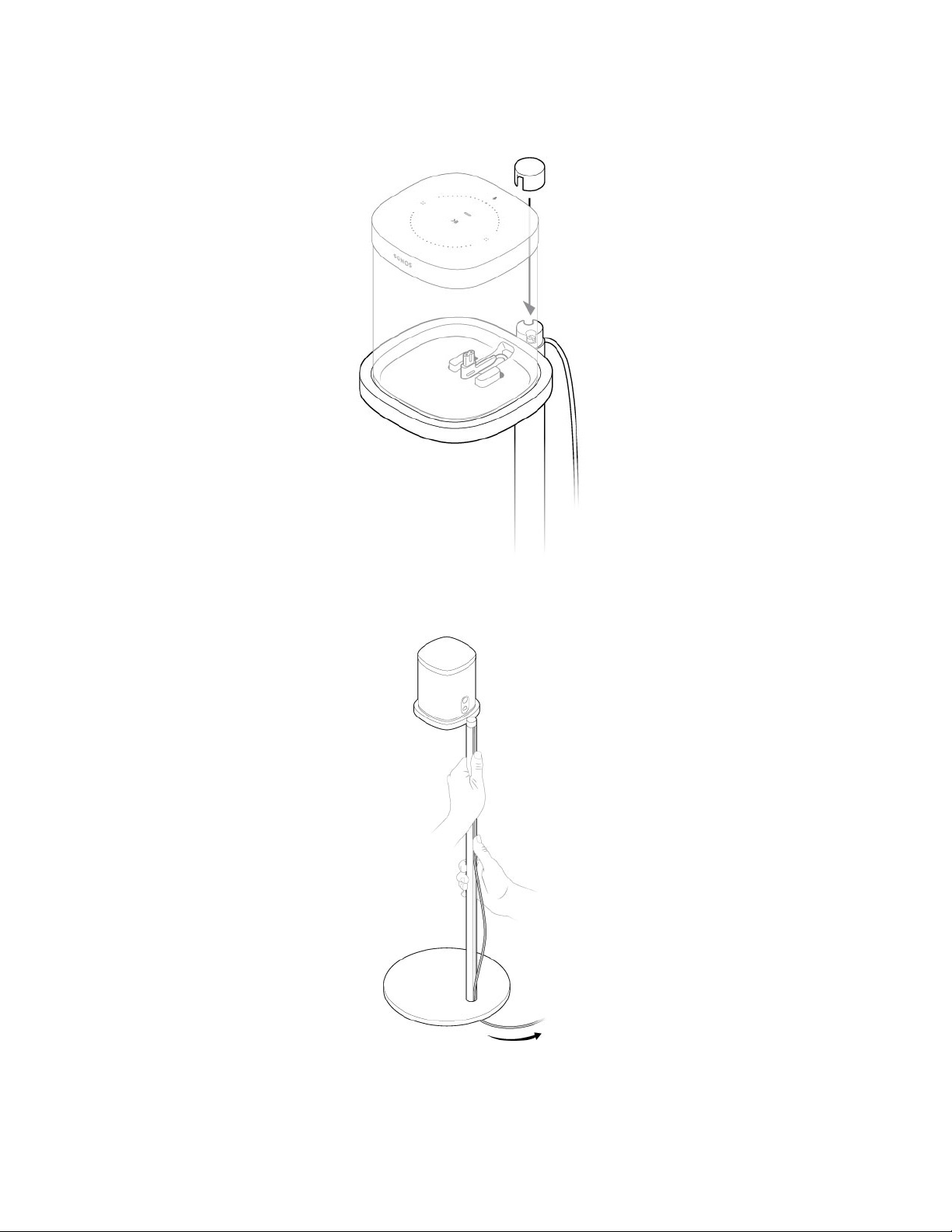
SONOS USER GUIDE
5. Plug the power cord back into the speaker and place on the top mount, pulling any extra cable down from
the top. Tighten the screws and attach the top cap with the notch facing toward the speaker.
6. Press the power cord into the stem, working from top to bottom. Pull the excess cable down from the
base.
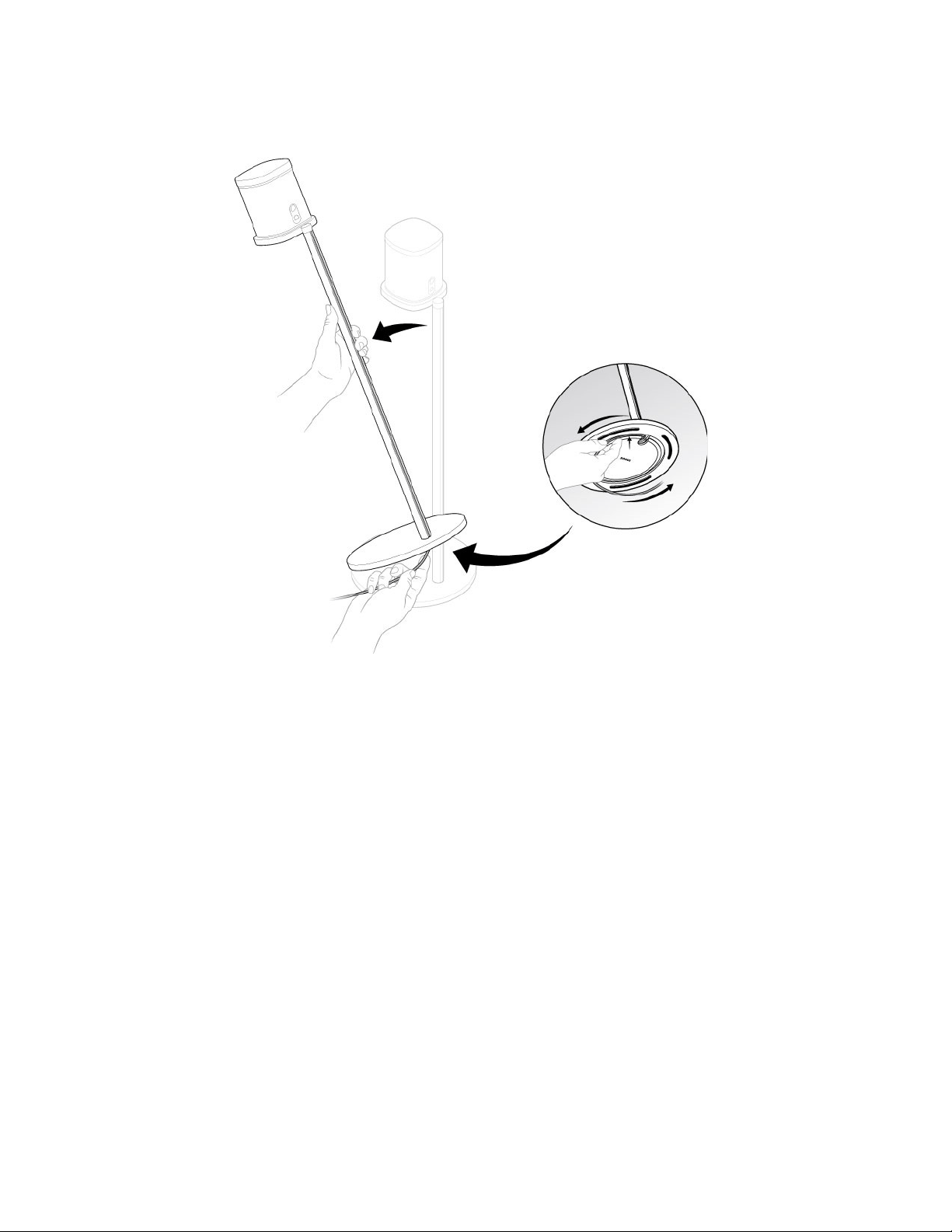
SONOS USER GUIDE
7. Tilt the stand forward slightly to wrap the excess cord around the bottom of the base. Plug the speaker’s
power cable into the wall and enjoy the music!
Sonos Shelf
The easy-to-install shelf for Sonos One and Play:1 securely holds your speaker in place—its space-saving
design provides a designated space for your speaker.
• Designed to support up to 8 lbs (3.6 kg)
• Dimensions (H x W x D): 0.89 x 10.23 x 6.29 in. (22.7 x 260 x 160 mm)
• Weight: 1 lb (0.45 kg)
What’s in the box?
•Top shelf
• Wall bracket
• Bottom cover
• Mounting kit
Note: Sonos speakers sold separately.
What you’ll need
• Pencil
• Phillips-head screwdriver

SONOS USER GUIDE
• Power drill (if needed for installation location)
•Level
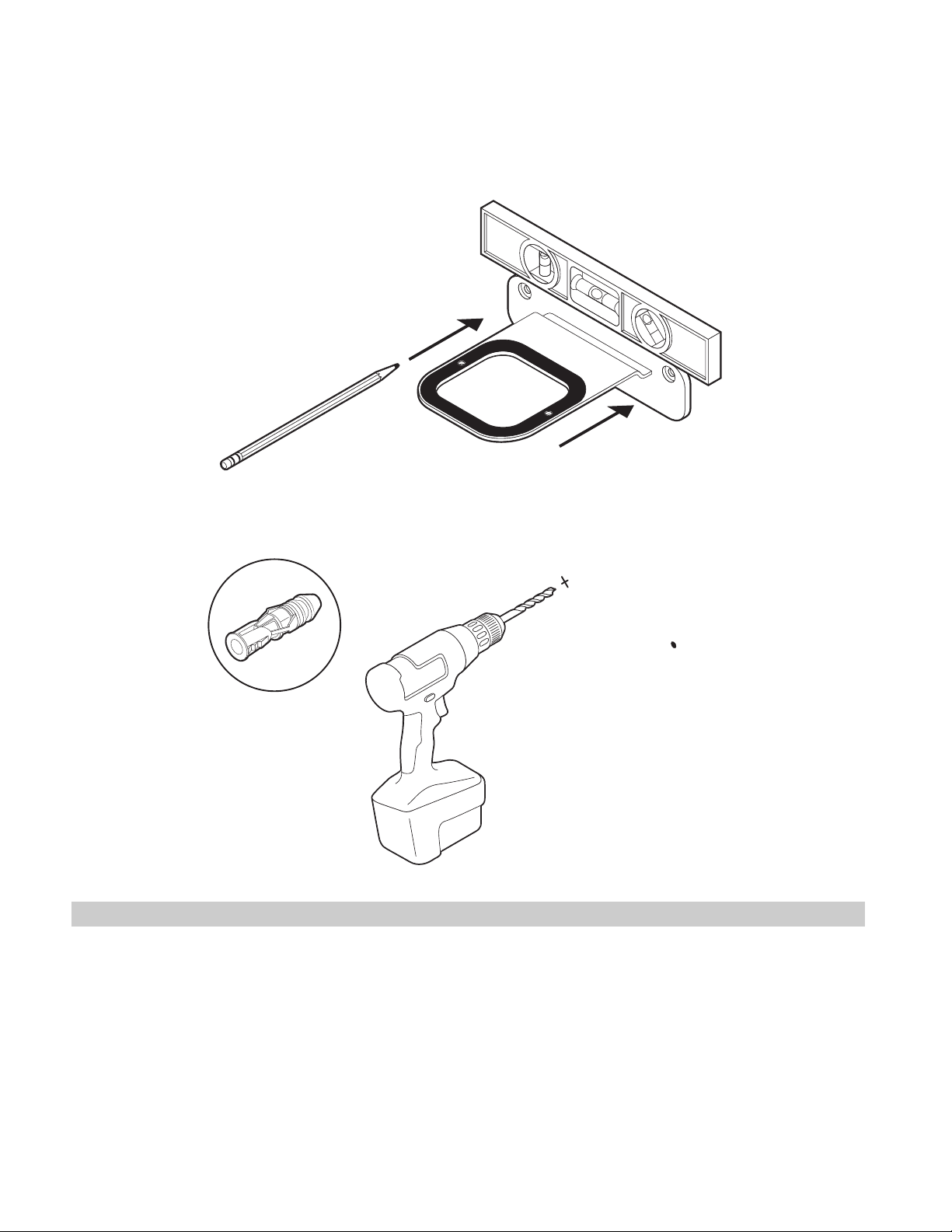
SONOS USER GUIDE
Assembling your Sonos Shelf
1. Place the wall bracket against the wall and mark the screw holes. (Make sure the black bracket foam ring
is face up.)
2. If using wall anchors, use a 5/16" drill bit to drill 2 pilot holes and then insert the wall anchors. Refer to the
wall mounting information below for guidelines. Otherwise skip this step.
WALL MATERIAL PRE-DRILL USE WALL ANCHORS USE SCREWS
Wood stud 1/8” / 3mm bit No Yes
Drywall (no stud) 5/16” / 8mm bit Yes Yes
Hard wallboard or double
board
5/16” / 8mm bit Yes Yes
Plaster 5/16” / 8mm bit Yes Yes
Concrete or Brick 5/16” / 8mm bit Yes Yes
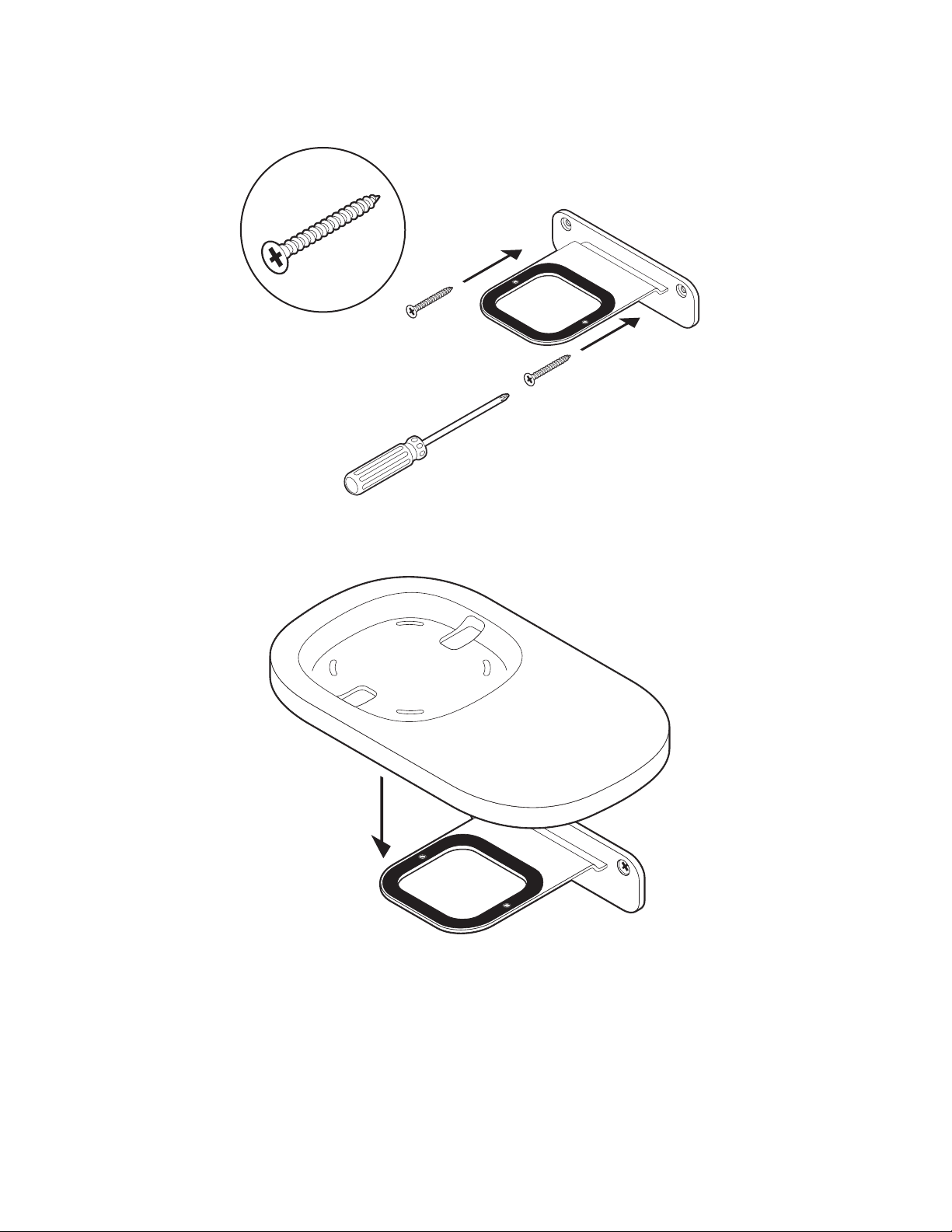
SONOS USER GUIDE
3. Use a Phillips-head screwdriver or a power drill to screw the bracket to the wall.
4. Position the shelf the way you want it (supports left or right speaker placement). Press the shelf firmly on to
the wall bracket until it snaps into place (both front and back).
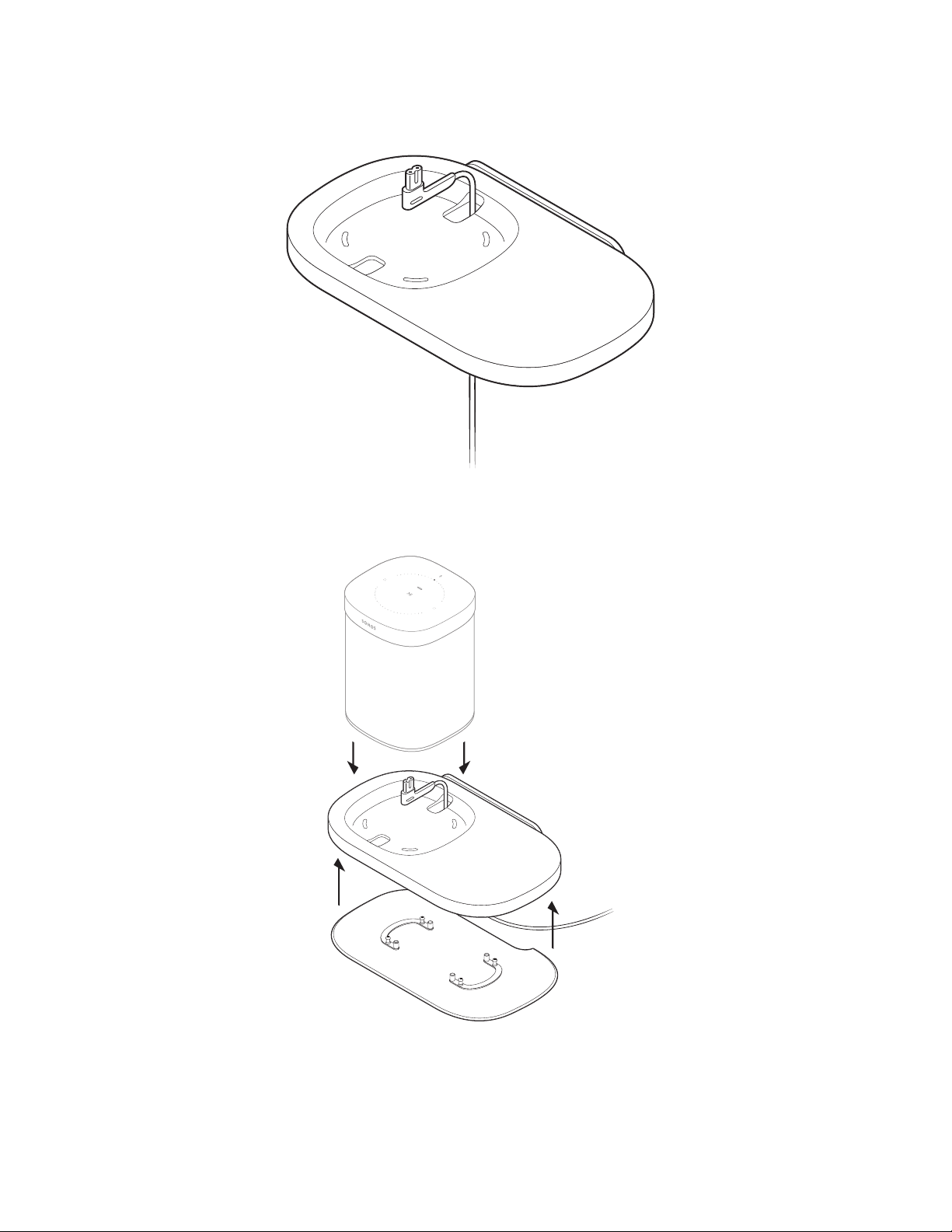
SONOS USER GUIDE
5. Route the speaker’s power cord through the shelf opening. (You’ll wrap the cord around the bottom of the
shelf after it’s assembled.)
6. Press the bottom cover firmly onto the shelf until it snaps into place, carefully aligning the pins. Plug the
power cord into the speaker and place the speaker on top of the shelf.
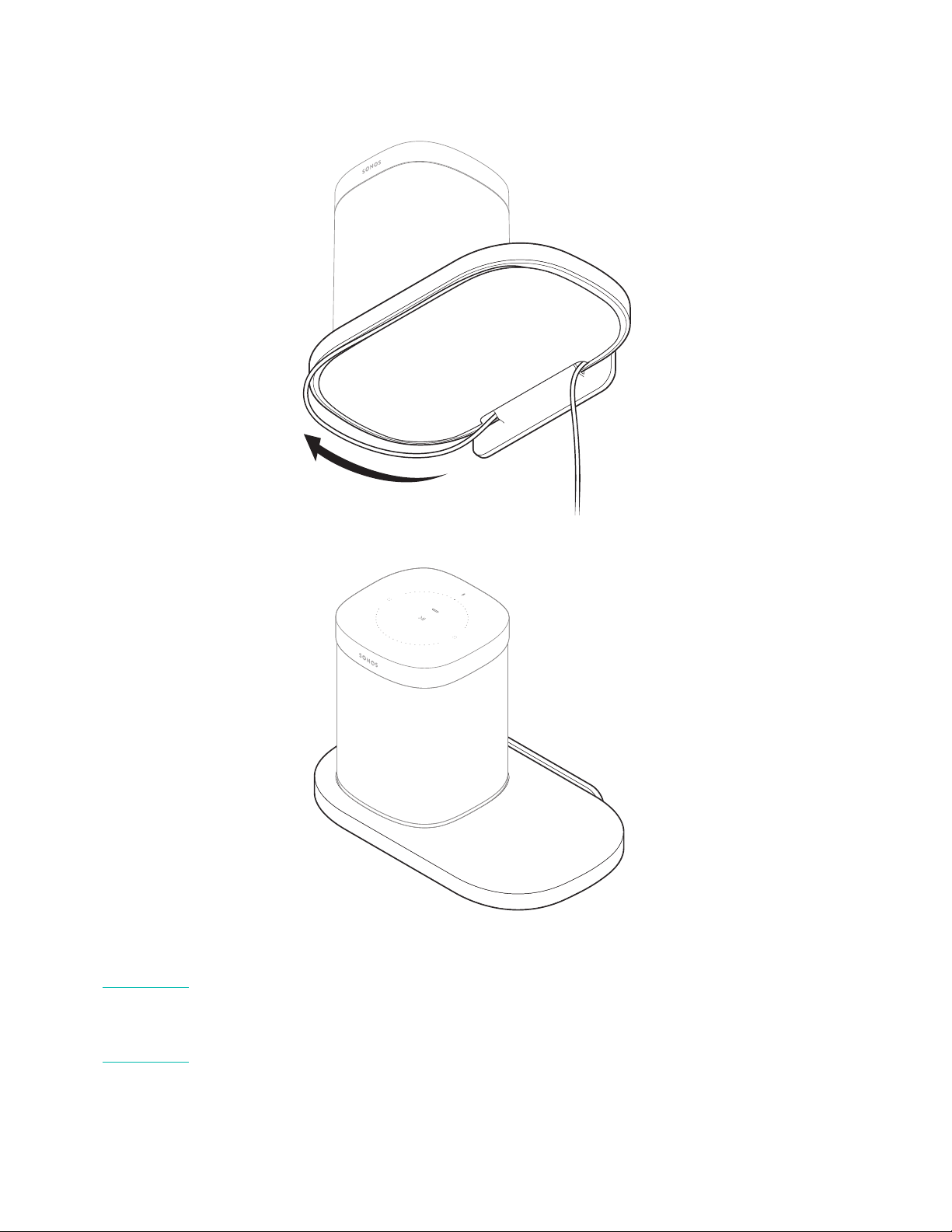

SONOS USER GUIDE
Sonos Architectural by Sonance speakers
Sonos Architectural by Sonance speakers include exclusively-designed audio enhancements when used with
a Sonos Amp
. These enhancements include:
• Trueplay tuning (not applicable to outdoor speakers)
• Custom EQ settings
• Gain adjustment
• Dynamic bass extension
• Signal limiting/loudspeaker protection
To unlock Sonos audio enhancements
1. After you install your Sonos Architectural speakers and set up Amp, go to Room Settings and choose the
room your speakers are in.
2. Select Advanced Audio > Detect Sonos Architectural and follow the prompts.
Other accessories
For a full selection of wall mounts, stands, and cables, tailored to perfectly fit your Sonos products, see
Accessories on our website.

SONOS USER GUIDE
Rooms
You can group all your speakers together to play the same music for a party, or let everyone in the house listen
to something different. Tap to see what’s playing in each room.
See Room settings
to customize a room.
Play music anywhere
Play different music in any or every room:
• If you’re on the Now Playing screen, just tap to choose where you want the music to play.
Or
• If you’re browsing, tap and select Play in Another Room.
Play the same music in more than one room:
• Just tap > Group. If you’re on the Now Playing screen, tap the room name and then tap Group.
Or
• If you’re near a speaker, press and hold the button. If different music is playing in different rooms, just
press and hold until you hear the sound you want.
Room settings
Customize your room’s settings—tune the sound, change the room name, turn on or off the speaker’s status
light and touch controls, or create a stereo pair.
Tune your room with Trueplay™ (iOS)
Every room is different. With Trueplay tuning, you can put your speakers wherever you want. Trueplay
analyzes room size, layout, décor, speaker placement, and any other acoustic factors that can impact sound
quality. Then it adjusts how each woofer and tweeter produces sound in that room (works on mobile devices
running iOS 8 or later).
Tap > Settings > Room Settings. Pick a room and tap Trueplay Tuning to get started.
Note: Trueplay tuning isn’t available if VoiceOver is enabled on your iOS device. If you want to tune your
speakers, first turn VoiceOver off in your device settings.
Adjust EQ settings
Sonos speakers ship with the equalization settings preset to provide the optimal playback experience. You
can change the sound settings (bass, treble, balance, or loudness) to suit your personal preferences. The
loudness setting boosts certain frequencies, including bass, to improve the sound at low volume.
1. On a mobile device, tap > Settings > Room Settings.
2. Select the room you want to adjust.

SONOS USER GUIDE
Change room name
If you move your speaker to a new room, you can change its name.
Tap > Settings > Room Settings and choose a room to rename it.
Turn off the status light
There’s a status light near the volume controls on each speaker to indicate that it’s on and working fine. If the
light is distracting, you can turn it off. If it ever flashes orange, go to http://faq.sonos.com/led
for additional
information.
Tap > Settings > Room Settings and choose a room to turn the status light on or off.
Disable speaker touch controls
You can disable the buttons on your speaker so they won’t respond to touch. You may want to do this so your
child can’t accidentally start and stop playback or change the volume.
Tap > Settings > Room Settings and choose a room to turn the touch controls on or off.
Set max volume
You can set a maximum volume for each room.
1. Tap > Settings > Room Settings.
2. Choose a room and tap Volume Limit.
3. Use the slider to set the maximum volume.
Turn off Wi-Fi
You can choose to turn off your speaker’s Wi-Fi when you connect it to your network with an Ethernet cable.
This reduces power consumption and can improve connectivity for some wired speakers.
For products like Amp, Connect, and Connect:Amp, turning off Wi-Fi can reduce the internal temperature
when they’re placed in a rack or stacked.
1. Tap > Settings > Room Settings.
2. Choose a room and tap Advanced Room.
3. Toggle the Wi-Fi on or off.
Stereo pairs
Pair two Sonos speakers in the same room for a wider, stereo experience. One speaker serves as the left
channel and one serves as the right channel.
Note: The Sonos speakers in a stereo pair must be the same type.
Placement information
• Place the speakers 8 to 10 feet apart.
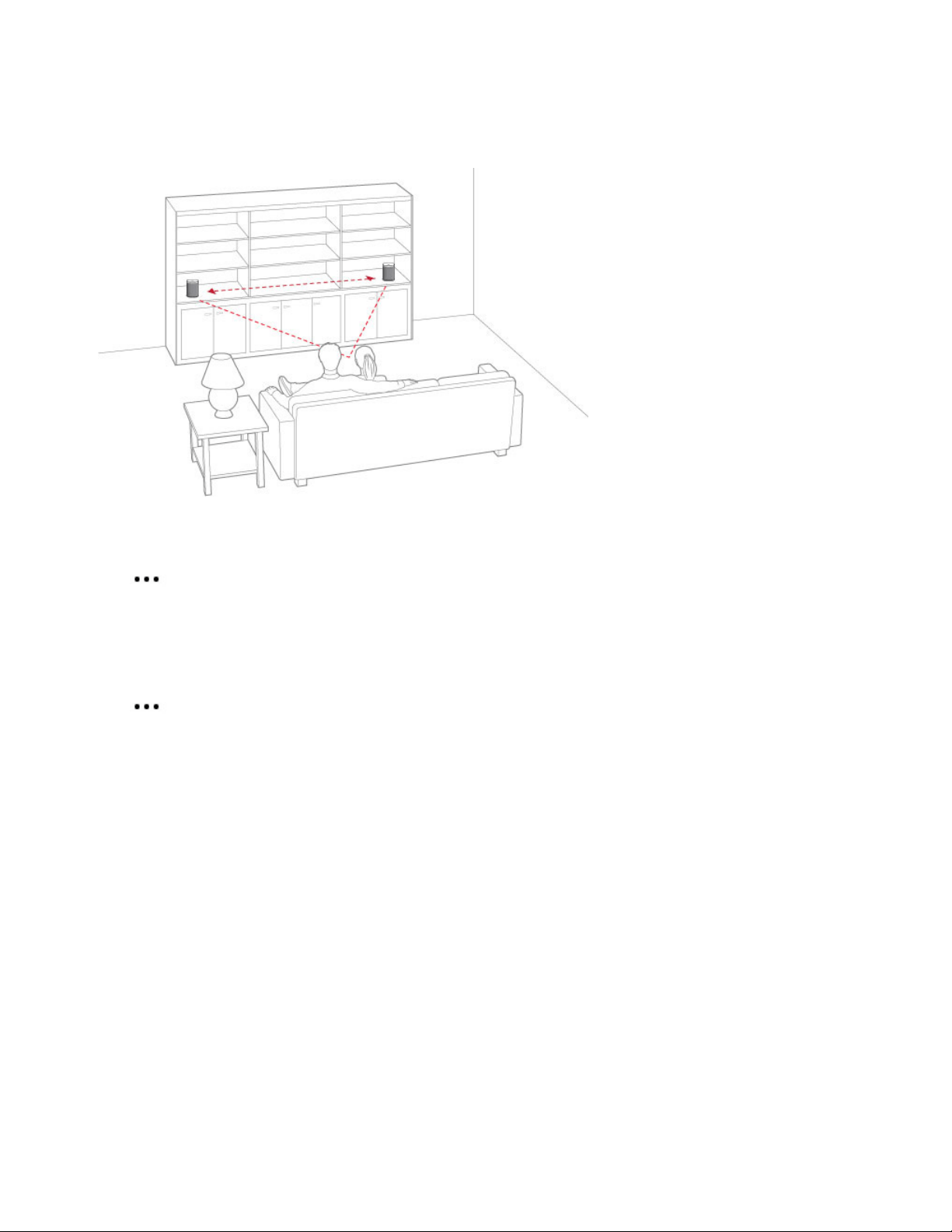
SONOS USER GUIDE
• Your favorite listening position should be 8 to 12 feet from the paired speakers—less distance increases
bass, more distance improves stereo imaging.
Create a stereo pair
1. Tap > Settings > Room Settings.
2. Choose a speaker and tap Create Stereo Pair.
After you pair your speakers, the room name includes (L + R).
Separate a stereo pair
1. Tap > Settings > Room Settings.
2. Choose the stereo pair (room name includes (L + R)) and tap Separate Stereo Pair.

SONOS USER GUIDE
Sonos home theater
Sonos products for your TV provide full-theater sound and play music too.
• Beam: compact soundbar with Amazon Alexa voice control, perfect for small to medium-sized rooms.
Place on furniture or wall mount.
• Playbase: widescreen sound and music streaming, created especially for TVs on stands or furniture. Low
profile design practically disappears under your TV.
• Playbar: powerful soundbar, perfect for use above or below wall-mounted TVs, or lay it flat on a table or
console.
• Amp: versatile amplifier for powering all your entertainment.
• Sub: add dramatically deeper bass to any Sonos speaker, for home theater and music.
Create a home theater system when you wirelessly connect a pair of rear speakers and a Sub.
Add surrounds
It’s easy to turn two Sonos speakers (same model) or two of your favorite non-Sonos speakers (with Amp or
Connect:Amp) into separate right and left channels for your home theater.
Note: If you create a room group or a stereo pair instead, you won’t have surround sound.
1. Tap > Settings > Room Settings.
2. Choose the room with the home theater speaker and tap Add Surrounds.
Note: When you set up a Connect:Amp as surround speakers, you need to use Ethernet cables to connect
both the home theater speaker and the Connect:Amp to your router. If you have a Playbar, you can
wire your Connect:Amp to the Playbar, and then connect the Playbar to your router.
Change surround settings
When you add your speakers as surrounds, surround sound is optimized for your room. You can adjust these
settings:
1. Tap > Settings > Room Settings.
2. Choose the room with the surround speakers (name includes (+LS+RS)).
3. Select Advanced Audio > Surround Settings and change the settings.
Surrounds Turn surround sound On or Off.
TV Level Adjust surround volume for TV audio.
Music Level Adjust surround volume for music.
Music Playback Ambient (subtle) or Full (louder, full range).
Doesn’t apply to TV audio.
Balance Surround
Speakers
Manually balance your surround speakers.

SONOS USER GUIDE
Remove surrounds
If the speakers were part of your Sonos system before you added them as surrounds, they’ll revert back to
their previous room names. Otherwise, they’ll appear as Unused in Rooms.
1. Tap > Settings > Room Settings.
2. Choose the room with the surround speakers (name includes (+LS+RS)) and tap Remove Surrounds.
Add a Sub
The Sonos Sub takes your audio experience to the next level—
• Powerful, deep impact bass for your home theater and your music.
• Allows placement anywhere because it’s wireless and compact—position it vertically or horizontally on
any floor surface.
• The top of the acoustic slot doubles as a handle so you can lift it.
To add a Sub, tap > Add Speakers. See Sub for more information.
Adjust home theater settings
Use the app to change sound settings or modify the way your home theater speaker works with your TV.
Refer to
The Sonos app to get more information.
Note: You can also use the Sonos app for Mac or PC.
TV Dialog Settings
If TV audio is out of sync with video, use the app to adjust the audio delay (lip sync).
1. Tap > Settings > Room Settings and select the room.
2. Tap Advanced Audio > TV Dialog Settings.
3. Drag your finger across the Audio Delay (Lip Sync) slider to increase or decrease the sound delay.
TV Autoplay
TV Autoplay—if music is playing when you turn on your TV, the music stops and the home theater speaker
switches to TV audio (default). If you don’t want the music to stop automatically, you can turn off TV Autoplay.
Ungroup on Autoplay—if your home theater speaker is grouped with other speakers when you turn on the
TV, it drops from the group (default). If you don’t want this to happen automatically, you can turn off Ungroup
on Autoplay.
1. Tap > Settings > Room Settings and select the room.
2. Tap TV.
Enhance TV sound
When you’re watching TV, the Now Playing screen in the app includes sound enhancement settings. These
features are only visible when you’re looking at the room where your home theater speaker is located.
Speech Enhancement

SONOS USER GUIDE
Makes TV dialog easier to hear.
Tap on the Now Playing screen to turn on or off.
Night Sound
Enhances quiet sounds and reduces the intensity of loud sounds. Turn on to reduce the volume while still
experiencing proper balance and range.
Tap on the Now Playing screen to turn on or off.
Program your remote control
During setup, you’ll program your remote control. You can program a different remote control any time.
1. Open the app and tap > Settings > Room Settings.
Note: You can also use the Sonos app for Mac or PC to program your remote.
2. Choose the room.
3. Tap Remote > Remote control setup.
If you have a home theater speaker, you can set it to ignore commands from your remote control by tapping
Remote > Use IR.
Note: Some TVs show unnecessary messages when you adjust the volume. You may be able to turn these
off. See
Turn off volume control messages.
Troubleshooting for home theater speakers
Warning: Don’t open the product as there is a risk of electric shock. Under no circumstances should the
product be repaired by anyone other than an authorized Sonos repair center, as this will invalidate
the warranty. Please contact Sonos Customer Support for more information.
Customer Support
• Visit our website at www.sonos.com/support
• Email us at [email protected]
Speaker not detected during setup
• Make sure your system is updated to the current software.
• Insert the power cord fully into the home theater speaker and your power source.
• Move speaker closer to your router.
Can’t turn off TV’s speakers
If you’re using the optical adapter, during setup you’ll turn off your TV’s speakers. Refer to your TV owner’s
guide for more information.
If you can’t turn them off,

SONOS USER GUIDE
1. Use the TV’s volume buttons to turn the volume completely down. Don’t use the Mute button.
2. Use only the volume buttons on your Sonos app to adjust the volume.
Turn off volume control messages
Some TVs may show volume control messages when you adjust the volume, even after you turn off your TV
speakers. (If you have Beam, this happens if it’s connected to your TV using the optical adapter.)
You may be able to program your remote control to turn off these messages.
1. Program a device key.
• Refer to your remote control’s instructions or the cable box’s on-screen help.
• Contact your cable service provider for more help.
2. In the code list, search for the Sonos code.
• If Sonos doesn’t appear, select a code other than that of your TV and its connected devices.
• DON’T initiate an automated search for a code.
3. Lock the volume control to your home theater speaker.
Note: This feature is sometimes referred to as volume lock or volume punch.
4. Program your remote control to work with your home theater speaker.
Universal remote controls
If you can’t program your universal remote control, or want to turn off volume control messages when you
adjust the volume, you may want to try switching to a Logitech Harmony universal remote.
Logitech universal remote controls
You’ll need to add your home theater speaker as a device.
1. Use the USB cable provided by Logitech to connect your Harmony remote to your computer.
2. Set up a Logitech user account and install the Harmony Remote software.
3. Launch the Logitech Harmony Remote software or go to www.logitech.com/myharmony and login to
your account.
4. Select Add Device.
5. Choose an option:
• Logitech Harmony Remote software
• My Harmony website
6. Select or enter Sonos as the manufacturer and your home theater speaker as the model name/number.
Note: You may need to add your home theater speaker if it doesn’t exist in the database.

SONOS USER GUIDE
Voice services
To use Alexa with Sonos, you’ll need the Alexa app with the Sonos skill enabled—if you don’t have it, we’ll
guide you through the process when you add a voice service.
Add a voice service
1. Open the Sonos app on your mobile device.
2. Tap > Voice Services and select the voice service.
• You’ll make changes in both the Sonos and Alexa apps—we’ll guide you through it.
• You’ll need your Sonos account info. If you can’t remember it, tap > Settings > Account Settings.
Here are some things you can try with Alexa...
• Alexa, play top hits from the 1970s in the kitchen.
• Alexa, pause the kitchen.
• Alexa, what is playing in the living room?
• Alexa, turn up the volume.
(Sonos doesn’t support Alexa voice calling.)
Note: Over time we’ll add more voice services and skills. Voice control is not supported in every country
yet—this feature will be available as soon as Sonos and a voice service launch together in your region.
Voice service settings
You can change the language of your voice service’s wake word. You can also turn off the chime you hear
whenever you say a wake word.
Just tap > Settings > Room Settings and choose the room with your voice service.
Remove a voice service
1. Tap > Settings > Room Settings.
2. Choose the room with Alexa.
3. Tap Amazon Alexa and remove Amazon Alexa from the room.

SONOS USER GUIDE
Play music
You can get the music playing on Sonos a number of ways—choose whichever control works best in the
moment. Use the Sonos app, your own music service app, ask Alexa, or use AirPlay to stream audio to
Sonos. If you’re near a speaker, use the controls on your speaker to resume an earlier listening session or
change the song.
If you want to change where the music is playing, see Play music anywhere
.
Note: When Sonos has been inactive for awhile, you’ll be asked to choose the room where you want music to
play. If you don’t want to choose a room each time, go to Settings > Advanced Settings and turn off
Confirm Location.
The Sonos app
The free Sonos app is the easiest way to play anything and everything on Sonos. Simply open the app, tap
and choose from the list of
Music sources.
If you don’t have the Sonos app, download it from the app store. To learn more about how the app works, see
The Sonos app.
Voice commands
If you have a Sonos One, Beam, or Alexa device, you can use your voice to play and control the music. Ask
Alexa to play your favorite radio station or the top hits on Spotify.
To use Alexa with Sonos, you’ll need the Alexa app with the Sonos skill enabled—if you don’t have it, go to
Add a voice service and we’ll guide you through setup.
Note: Over time we’ll add more voice services and skills. Voice control isn’t supported in every country yet—
this feature will be available as soon as Sonos and a voice service launch together in your region.
Controls on the speaker
If you’re near a speaker, you can use the speaker controls to adjust volume, stop the music, or change the
song.
On Sonos One, Play:5, Beam, Playbase, and Amp:
Volume control • Touch and hold to quickly change the volume:
• Volume up (right); Volume down (left).
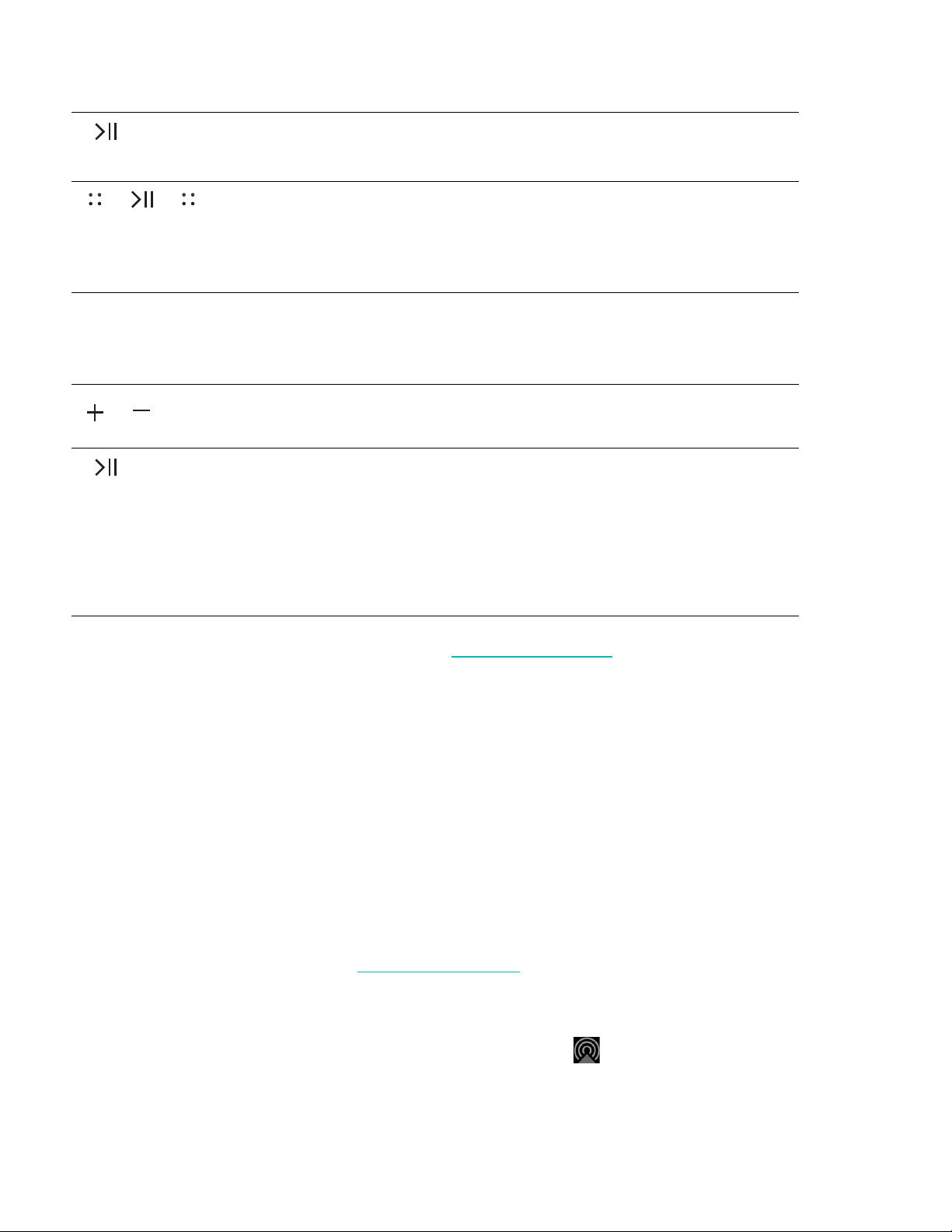
SONOS USER GUIDE
On Play:1, Play:3, Playbar, Connect:Amp, and Connect:
For more information about using your speaker, see
Explore our products.
Your music service app
You can control Sonos directly from some music apps (like Spotify and Pandora). Just open the music service
app and connect to a Sonos room or group to start the music.
AirPlay 2
You can use AirPlay 2 to stream music, movies, podcasts, and more directly from your favorite apps to your
Sonos speakers. Listen to Apple Music on your Sonos One. Watch a YouTube or Netflix video and enjoy the
sound on Sonos.
Note: To use AirPlay, you need a Sonos speaker that supports it (Sonos One, Play:5, Playbase, and Beam)
and an iOS device. Other Sonos speakers can play AirPlay audio when you group them with an AirPlay
compatible Sonos speaker. See
Play music anywhere for more information about grouping rooms.
1. Swipe up from the bottom of your iPhone or iPad to open the Control Center. If you have an iPhone X,
swipe from the top right corner of the screen.
2. Press and hold the audio card in the upper-right corner, then tap .
3. Tap a speaker or speakers to stream to.
Play/Pause • Press once to play or pause music.
• Press and hold to add the music that’s playing in
another room.
Next/Previous
• Swipe right across the touch controls to skip to the
next song.
• Swipe left to go to the previous song.
Note: You can’t skip forward or go back when listening
to a radio station.
Volume up (+)
Volume down (-)
Press to adjust the volume.
Note: You can also use the app.
Play/Pause
• Press once to play or pause music.
• Press twice to skip to the next song (if applicable to
the selected music source).
• Press three times to skip to the previous song.
• Press and hold to add the music playing in another
room.
Note: You can’t skip forward or go back when listening
to a radio station.

SONOS USER GUIDE
You can also use AirPlay directly from many of your favorites apps.
Grouping non-compatible AirPlay speakers
To choose whether or not your speakers that aren’t AirPlay-compatible stay grouped with speakers that are
playing AirPlay, tap > Settings > AirPlay.

SONOS USER GUIDE
Music sources
Sonos gives you easy access to all the music you love—play your favorite artist’s newest single from Spotify,
your favorite playlist from your phone, a local news radio station, and much more.
• Radio by TuneIn: select from more than 100,000 free internet radio stations, podcasts, and shows.
• Music services: explore and manage your music services—add your own or try something new.
• Stored on your mobile device: play music you’ve downloaded to your phone or tablet.
• Stored on your computer: play music stored on your computer or any Network-Attached Storage (NAS)
device.
• From other audio devices: play music from an external audio device, like a turntable.
Note: When Sonos has been inactive for awhile, you’ll be asked to choose the room where you want music to
play. If you don’t want to choose a room each time, go to Settings > Advanced Settings and turn off
Confirm Location.
Radio by TuneIn
•Tap > Radio by TuneIn to browse through radio stations.
• Tap a station to play the music.
• Save your favorites.
If you can’t find what you need, go to https://faq.sonos.com/radio.
Change your local radio location
See what’s playing around the world.
1. Tap > Radio by TuneIn > Local Radio.
2. Next to the current Local Radio location, tap (iOS) or (Android) > Change Location.
Add a custom radio station
Add a radio station that’s not in the radio guide to your Favorites. You need to know the streaming URL, and
the station has to use the streaming MP3, HLS/AAC, or WMA broadcast format.
1. Open the Sonos app on your computer.
2. From the Manage menu, select Add Radio Station.
3. Type or paste the radio station’s streaming URL (for example:
http://shoutcast.com/sbin/shoutcast-playlists.pls?rn=8107&file=filename.pls).
4. Enter the radio station’s name in the Station Name field.
The new station appears in your My Radio Stations list.
Edit a custom radio station
1. Open the Sonos app on your computer.
2. From the MUSIC pane, select Radio by TuneIn and choose My Radio Stations.

SONOS USER GUIDE
3. Click next to the station you want to edit, and choose Edit Radio Station.
4. Change the streaming URL or the station name.
Music services
Free. Premium. Curated. On-demand. Sonos works seamlessly with most music and content services, as well
as downloads from any service offering DRM-free tracks. Service availability varies by region. For a complete
list, see http://www.sonos.com/music
.
Add a music service
1. Tap > Add Music Services.
2. Select the music service and follow the prompts.
You can add multiple accounts for the same service.
Note: Some music services may not be available in your country. Check the music service’s website for more
information.
Change the music service account name
The account name appears under the music service.
1. Tap > Settings > My Music Services.
2. Select a music service account and tap Change name.
Set the default music service account
If you have multiple accounts for the same service you can set a default account. If you use a shared device to
control Sonos, you can switch to your personal account so that changes, such as liking an artist, affect only
your account.
1. Tap .
2. Select a music service.
3. Tap the music service’s name and select an account.
The default account name appears below the music service.
Change your music service password
1. Change your password on the music service provider’s website.
2. In the Sonos app, tap > Settings > My Music Services.
3. Select a music service account and tap Change Password.
Note: If you don’t change your music service’s password first, the service won’t work on your Sonos system.
Remove a music service account
1. Tap > Settings > My Music Services.
2. Select a music service account and tap Remove account.

SONOS USER GUIDE
From your music service app
You can control Sonos directly from some music apps (like Spotify and Deezer). Just open your music service
app and connect to a Sonos room or group to start the music.
Stored on your mobile device
Just Tap > On this Mobile Device to play music stored on your phone or tablet.
• If you’re using an iOS device, go to Settings > App Settings and enable On this Device to allow access
to your stored music.
• To learn more about playing music stored on an Android device, go to https://faq.sonos.com/aptf.
Stored on your computer
Use a computer to set up your music library. Then you can manage it using the Sonos app on your computer
or mobile device.
Note: To play your music library, make sure the computer or NAS device storing your music library is on and
connected to the same Wi-Fi as Sonos.
Add a music library
1. Open the Sonos app on your computer.
2. Go to Manage > Settings > Music Library.
3. On the Folders tab, select Add and follow the prompts.
View music library folders
On your mobile device, tap > Settings > Manage Music Library > Music Library Setup.
The music folders that you’ve shared with Sonos appear.
Remove a music library
1. On your mobile device, tap > Settings > Manage Music Library > Music Library Setup.
2. Select a folder and delete it.
Update the music index
Sonos indexes your music library so you can view your music by category. If you add music, update the index
to add the music to your music library.
1. On your mobile device, tap > Settings > Manage Music Library.
2. Tap Update Music Index Now > Scan Now.
Schedule automatic updates
1. Tap > Settings > Manage Music Library.

SONOS USER GUIDE
2. Turn on Schedule Music Index Updates.
3. Tap Music Index Update Time, and select the time.
Play music from imported playlists
Sonos is compatible with iTunes playlists, as well as M3U, WPL and PLS playlist files created with third-party
software. Sonos doesn’t change music or playlist files created by other applications; these files are read-only.
1. Drop the playlist file (.PLS, .M3U or .WPL) into the same music folder you shared to Sonos.
2. Update your music index.
3. Tap > Music Library > Imported Playlists.
iTunes support
iTunes playlists import into Imported Playlists as long as you share the 'iTunes Music Library.xml' file with
your music to Sonos. This file is usually in the iTunes folder.
When you change your iTunes playlist(s), exit iTunes, and update your Sonos music index to see the changes.
See Update the music index
.
Sort folders
Sort your music folders by song name, song number, or file name.
1. Tap > Settings > Manage Music Library.
2. Tap Sort Folders By and select your preference.
Contributing artists
Set your preferences to show or hide individual artists.
1. Tap > Settings > Manage Music Library.
2. Turn on View Contributing Artists.
Compilation albums
If your music collection contains compilations and soundtracks, you can group these songs in your music
library instead of viewing them by individual artist.
Group using Album Artists
Windows Media Player, and some other players, use the Album Artist category to group compilations and
soundtrack albums.
1. Tap > Settings > Manage Music Library > Compilation Albums.
2. Tap Use Album Artists.
Group using iTunes compilations
You can organize compilations and soundtrack albums as [Compilations]/[Album]/[Song name].
1. In iTunes, mark songs as part of compilations: highlight the song and select Edit > Get Info.
2. Check the compilation checkbox.
3. Select View > Column Browser > Group Compilations.
4. In the Sonos app, tap > Settings > Manage Music Library > Compilation Albums.

SONOS USER GUIDE
5. Tap Use iTunes Compilations.
Play music from UPnP servers
Sonos plays music from compatible UPnP servers on your Wi-Fi.
1. Enable UPnP in your music service app.
2. Tap > Settings > Advanced Settings and turn on Show UPnP Servers.
From other audio devices
You can connect an audio device like a turntable, stereo, or MP3 player to a Play:5, Amp, Connect, or
Connect:Amp and stream the audio to Sonos. Just plug in any device you want, then go to Browse > Line-In
and select the source.
To an external source like a pre-amped turntable:
• Amp/Connect/Connect:Amp—Plug a standard RCA cable into the analog Audio In connections on the
back of your Sonos speaker.
• Play:5—You need a 3.5mm to 3.5mm stereo audio cable.
To a portable music player:
• Amp/Connect/Connect:Amp—Use a 1/8" mini-stereo to RCA audio cable—plug the mini-stereo end
into the portable device and the RCA end into the Audio In connection on the Sonos speaker.
• Play:5—You need a 1/8" (3.5mm) mini-stereo to RCA audio cable.
Change the settings
1. Go to > Settings > Room Settings. Choose the Sonos speaker the source is connected to and
touch Advanced Audio > Line-In.
2. You can change the following settings:
• Line-In Source Name: Choose a name from the list.
• Line-In Source Level: A default (typical) line-in source level is automatically assigned for each source. If
the volume sounds too low, you can choose a higher line level. (You may experience clipping at higher
volume levels if you set the level too high.)
• Autoplay Room: Choose the room you want this line-in source to play in whenever it’s connected to
Sonos.
• Include Grouped Rooms: Turn on if you want the line-in source to play in rooms that are grouped with
the autoplay room.
• Use Autoplay Volume: Click the Use Autoplay Volume box if you want to use the external source to
adjust the volume in the autoplay room. Use the slider to set a default volume.
Line-in encoding settings
When you have line-in music sources attached to a Sonos product, line-in encoding determines how Sonos
will encode the data coming in from these sources. Your Sonos system defaults to automatic in order to
provide the optimal playback experience. Sonos recommends you don’t change this default. However, if you
decide to make a change, we recommend the following usage guidelines:
Use Uncompressed if:

SONOS USER GUIDE
• You want optimal performance with home theaters.
• You want to produce the highest quality sound for your Sonos system (this selection requires more
network bandwidth than compressed audio.)
Use Compressed if:
• You are connecting more than 4 rooms wirelessly.
• You are in an environment with heavy wireless interference and are experiencing dropouts.
To change the line-in encoding setting, tap > Settings > Advanced Settings > Audio Compression.

SONOS USER GUIDE
Save your favorites
When you find music you love, just add it to My Sonos so the music you love is easy to find. You can save,
play, and manage your favorite music and playlists all in one place.
Note: You can’t save songs on your mobile device to My Sonos because they travel with you and aren’t
always available to play on your Sonos system.
Add favorites to My Sonos
1. Find your favorites:
•Tap or to discover music.
• If you’re listening to music you love, go to Now Playing.
2. Tap (iOS) or (Android) > Add to My Sonos.
Edit My Sonos
Delete, rename, or rearrange your favorites.
Tap > Edit.
My Sonos opens and your favorites appear.
• Rearrange categories—touch and hold to drag a category to a different place.
• Delete a favorite—tap (iOS) or (Android).
• Delete a category—delete all its favorites.
• Rename a favorite—tap it and enter a new name.
Sonos playlists
Build playlists of your favorite songs and albums and save the playlist to My Sonos. See Customize the
queue for more information.
Note: Songs on your mobile device can’t be saved to a Sonos playlist because they travel with you and aren’t
always available to Sonos.
Build a playlist
Create a new playlist or add music to an existing playlist. From search results, or from Now Playing, tap
(iOS) or (Android) > Add to Sonos Playlist.
Edit a playlist
Tap and choose a playlist. Tap (iOS) or (Android) and Edit Playlist.
• Delete a song—tap (iOS) or (Android).

SONOS USER GUIDE
• Move a song—touch and hold and drag the song to a new location.

SONOS USER GUIDE
Alarms and sleep timer
Wake to music that you love by setting an alarm with a favorite song, station or playlist.
Set an alarm
1. Tap > Alarms > New Alarm.
2. Select the time and other settings, including:
• Room: Set the alarm to play in a room or group of rooms
• Music: Choose the music to hear when waking up
• Alarm Duration: Set the alarm to sound for any amount of time
• Snooze Alerts: Turn on Snooze Alerts when you want the option to sleep a little longer.
To change an alarm, tap it and modify the settings.
Snooze an alarm
1. Open the alarm.
2. Tap Snooze Alerts.
3. Tap Snooze Duration to change the time between alerts.
Turn on an alarm
1. Tap > Alarms.
2. Tap the alarm’s switch and turn it on.
Delete an alarm
1. Tap > Alarms.
2. Tap the alarm and tap Delete Alarm.
Set a sleep timer
Fall asleep to music—set a timer for the music to turn off.
1. From Now Playing, tap (iOS) or (Android) > Sleep Timer.
2. Select a time.

SONOS USER GUIDE
Sonos system updates
Sonos regularly adds new features so your listening experience is always improving. Your Sonos speakers
can update automatically in the background so you always have the latest features without interrupting your
listening.
1. Tap > Settings > System Updates.
2. Turn on automatic updates and tap Schedule to select a time. (Your system won’t update if music is
playing or a Sonos alarm is scheduled during the selected timeframe.)
Want to manage your system updates manually? Tap > Settings > System Updates and tap Check
for Update Now.
For more information, go to https://faq.sonos.com/autoupdates
.

SONOS USER GUIDE
Settings
Tap > Settings to customize the app and your home’s sound.
Sonos accounts
During setup you’ll create a Sonos account that you’ll use to manage and expand your Sonos system—both
in the app and on www.sonos.com
.
If you need to verify your user ID, change a password, or transfer your account to a different email address,
tap > Settings > Account Settings.
If you don’t see Account Settings, check to see if there’s a Sonos update available.
In-app messages
We’ll keep you up to date by sending notifications and important messages to you through the app. You can
turn off messaging anytime.
1. Sign in to your account at www.sonos.com and tap My Account.
2. Tap Profile > Edit Profile > Send me Company Product Information.
Usage data
To help us improve our products and services, Sonos would like to collect usage data about how you use your
Sonos system. We never provide any of this information to third parties. To learn more, go to our website at
www.sonos.com/legal/usage-data.
You can change your preference setting at any time.
1. Touch > Settings.
2. Touch Advanced Settings > Usage Data.
Beta program
Join the Sonos Beta Program to test new features and help us improve our products.
1. Tap > Settings > Advanced Settings.
2. Tap Beta Program.
Volume control
You can control the volume on your Sonos system using speaker touch controls, the app, or your voice (if you
have a voice-enabled speaker). Here are a few additional ways to control the volume.
Control volume using your device’s buttons
Use your mobile device’s volume buttons to control the volume on Sonos even when you’re not in the app.
• On an iOS device, tap > Settings > App Settings > Hardware Volume Control.

SONOS USER GUIDE
Note: If you’re playing audio from another source, using AirPlay or Bluetooth, listening through headphones,
or have Apple VoiceOver enabled, you won’t be able to use your mobile device’s buttons.
• On an Android device, tap > Settings > Advanced Settings and turn on these options:
• Show Notifications
• Show Lock Screen Controls
• Allow Volume Control on Home Screen
Parental controls
You can restrict access to explicit music.
Tap > Settings > Parental Controls.
Sign into your Sonos account to set filter options.
Note: You can also limit the maximum volume for a room. For more information, see Set max volume.
Accessibility options
Turn on accessibility options to support low vision issues.
On your mobile device, go to Settings to turn on VoiceOver (iOS), TalkBack (Android) and other accessibility
options.
Join another Sonos system
The Sonos app gives you quick and easy access to all the Sonos systems you use regularly, like those at work
and at home. When you connect to another Sonos system, you’ll see the music services associated with that
system.
1. Connect your mobile device to the same Wi-Fi as Sonos.
2. Open the app and tap Let’s Connect.
The next time your device joins that network, you’ll connect to Sonos automatically.
Note: To remove a Sonos system, tap > Settings > Advanced Settings > Forget Current Sonos
System.
Switch to wireless setup
If you have a Sonos speaker wired to your router and you’d like to use it in another room, switch to wireless
setup. If you have a Bridge or Boost connected to your router, leave it connected.
DON’T DISCONNECT the Sonos product from your router until you complete these steps:
1. Go to > Settings > Advanced Settings > Wireless Setup.
Sonos detects your wireless network.
2. Enter your wireless network’s password.
3. Once the password is accepted, disconnect the speaker from the router and move it to a new location.

SONOS USER GUIDE
Connect your device to SonosNet
Connecting a Sonos Boost or speaker to your router creates a dedicated wireless network just for Sonos. This
helps in homes where wireless performance is not reliable.
If you’ve got Sonos set up this way, you can also set your Android device to connect to SonosNet instead of
your Wi-Fi.
Note: If you use your Android device to stream large amounts of data, like watching HD videos, this might
negatively affect Sonos’ performance. For more information, go to
https://faq.sonos.com/sonosnet.
1. Tap > Settings > Advanced Settings.
2. Tap Connect to SonosNet.

SONOS USER GUIDE
Got a new router or network password?
If you have a wireless setup (no Sonos product connected to your router):
After you install a new router or change your network password, update your Sonos system with the new
network information. Just open the Sonos app and we’ll walk you through it.
If you have a wired setup (there’s a Sonos product connected to your router):
You don’t have to do anything when you install a new router (as long as you connect a Sonos product to it) or
when you change your password. Your Sonos speakers will continue to work as before.

SONOS USER GUIDE
Turn off Sonos
To stop the music in a room or group, pause or stop the music in the app or on the speaker.
Sonos uses minimal electricity when it is not playing music.

SONOS USER GUIDE
Important safety information
Please read these instructions and heed all warnings. Keep them in a convenient location and make sure
everyone in the household is aware of them.
Location
• Don’t use the unit near water.
• Don’t expose apparatus to dripping or splashing and don’t place objects filled with liquids, such as
vases, on the apparatus.
• Don’t place the unit where it will be exposed to excessive heat (e.g., radiators, heat registers, stoves),
direct sunlight, or a dusty environment (e.g., woodworking shop.)
• Don’t place the unit where it will be exposed to flammable liquids and/or fumes.
• Allow at least 1" between the unit and any walls or surfaces.
• Protect the power cable from being walked on or pinched, particularly at plugs, convenience receptacles,
and the point where it exits the product. The mains cord should be readily available to disconnect the
power.
• The product should not be used near water—avoid close proximity to a bathtub, kitchen sink, laundry
tub, wet basement, swimming pool, etc.
• The speaker is for indoor use only. Don’t expose to rain or snow.
Proper Ventilation
• Leave one inch of open space around the sides and above the unit to ensure proper ventilation.
• Ventilation should not be impeded by covering the ventilation openings with items such as tablecloths,
curtains, or papers.
• Don’t let foreign objects into the unit. If a foreign object should get into the unit, unplug the unit and
contact Sonos for servicing guidance.
Warning
• Don’t operate or handle the product with wet hands.
• Only use attachment/accessories specified by Sonos.
• Unplug the power cord during lightning storms or when unused for long periods of time.
• Never disassemble or modify the product in any way.
Cleaning & maintenance
• Dust with a dry, soft cloth. A cloth moistened with water or gentle household cleaner may be used to
clean dirt or stains, but unplug the product first. Don’t spray liquids directly onto the product.
• Don’t use chemical solvents (e.g. alcohol, benzene, paint thinner) or other flammable cleaning liquids.
• Refer all servicing to Sonos qualified service personnel. Servicing is required when the unit or the power
cord has been damaged in any way, if liquid or other foreign matter has fallen into the ventilation

SONOS USER GUIDE
openings, the unit has been exposed to rain or moisture, or the unit has been dropped.
Warning: To reduce the risk of fire or electric shock, don’t expose this apparatus to rain or moisture.

SONOS USER GUIDE
Product guide feedback?
We’d love to hear from you! We’ll read your feedback carefully and use it to help us improve our product
guides. Write to us at: docfeedback@sonos.com
If you’re having a problem with your Sonos system, please contact Customer Care so they can help. Email
them at
Need more help?
•Tap > Help & Tips to get some simple tips for getting the most out of your speakers.
• Visit our Frequently Asked Questions (FAQ) pages at www.sonos.com/support.
• Ask us a question at [email protected].